

Hive Active Heating
Hive Thermostat Mini user guide
Welcome to Hive Active Heating
Hive Active Heating is the smart way to control your heating, and if you have a hot water tank, your hot water too. This guide provides all the necessary information.
Thermostat Overview
The Hive Thermostat Mini features:
- Screen: Displays current temperature, target temperature, and status icons.
- Up Button: Increases the target temperature or navigates up.
- Down Button: Decreases the target temperature or navigates down.
- Menu/Confirm Button: Used to wake the device, access menus, and confirm selections.
Hot tip: For help controlling your heating and hot water remotely, visit hivehome.com.
Getting Started
How to change the temperature:
- Tap the Up button [↑] to increase the target temperature.
- Your heating will activate if the target temperature is higher than the actual temperature. You will see a flame icon ? when the heating is on.
- Tap the Down button [↓] to lower the target temperature.
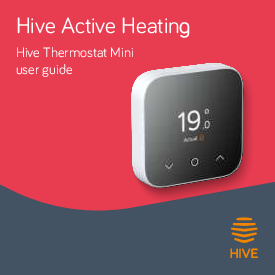
The thermostat display shows the current temperature (e.g., 19.0°C Actual).
Heating
How to change mode:
Your thermostat offers three heating modes: Schedule, Manual, and Off.
- Tap any button to wake up the thermostat.
- Once the screen is active, press the Menu/Confirm button [?].
- You will see the different modes: Schedule, Manual, and Off. If you have both Heating and Hot Water, you will first select the function (Heating or Hot Water) using the Up [↑] or Down [↓] buttons and then tap Menu/Confirm [?] to select.
- Select your desired mode using the Up [↑] or Down [↓] buttons and tap the Menu/Confirm [?] button to confirm your selection.
- Schedule: Turns your heating on and off according to your set schedule, promoting energy efficiency.
- Manual: Maintains your home at a constant set temperature.
- Off: Activates Frost Protection. Heating will only come on if the home's temperature drops below 7°C. A snowflake icon ❄️ will be displayed to indicate Frost Protection is active.
Setting up a heating schedule
To set up your heating schedule for the Hive Mini Thermostat, you will need to use the Hive app. For detailed instructions, visit the support section on the Hive website or the following link: Hive Schedule Setup Guide.
Hot Water
Hot water features are not applicable to combi boilers, as they heat water automatically when needed.
How to turn your hot water on or off:
- Wake your thermostat by tapping any of the buttons on the screen.
- Once the screen is active, press the Menu/Confirm button [?].
- Use the Up [↑] or Down [↓] buttons to choose between the Heating & Hot Water function, then tap Menu/Confirm [?] to select Hot Water.
- Choose between On, Schedule, or Off using the Up [↑] or Down [↓] buttons.
- Tap Menu/Confirm [?] to confirm your selection.
Hot tip: If you only require hot water at specific times of the day, using Schedule mode can be more energy efficient.
Setting up a new hot water schedule
To set up your Hot Water schedule for the Hive Mini Thermostat, use the Hive app. For detailed instructions, visit the support section on the Hive website or the following link: Hive Schedule Setup Guide.
Boosting Heating or Hot Water
How to boost your heating or hot water for a short time:
The Hive Thermostat Mini allows you to send a boost command via the Hive app, with durations ranging from 15 minutes up to 6 hours. After the boost duration ends, your thermostat will revert to its previous setting (manual temperature, schedule, or frost protection mode).
For more information on boost functionality, refer to the app or visit: Hive Boost Functionality Guide.
Hive Multizone
Multizone enables control of up to six existing plumbed heating zones in your home. Each zone requires its own Hive thermostat and receiver.
To rename a zone as a Hive Multizone customer, log into the Hive app or online dashboard and select "Manage Devices".
The thermostat display can show the "Zone name".
Troubleshooting
Identifying Thermostats to Receivers:
Follow these steps to identify which Hive thermostat corresponds to which receiver:
- Turn off the heating in all zones using the app or thermostats.
- Check the 'central heating' light on each receiver; it should be off.
- Turn the heating on in one zone using the app or thermostat. The 'central heating' light on the corresponding receiver will turn green, indicating it is paired with this thermostat.
- Repeat these steps to identify the receivers for your other thermostats.
For more information on Hive Multizone, visit hivehome.com/support.
Changing Batteries:
A red battery symbol ? indicates that the batteries need replacing with four new AAA batteries.
How to change the batteries:
- Pull the front of the Thermostat away from the backplate.
- Lift your thermostat off the hooks holding it to the wall and turn it over to access the batteries.
- Remove the old batteries and insert the new ones.
- Re-hook the top of your thermostat and press the bottom until it clicks securely to the wall.
The thermostat display may show "Low batteries".
No Signal
A "No signal" message, possibly accompanied by a crossed-out signal icon ?❌, indicates that your thermostat and receiver are not communicating.
For further assistance, visit hivehome.com/support or contact the Hive team via hivehome.com/contact-us.
Hot tip: Even without a signal, you can manually control your heating and hot water by pressing the buttons on the Hive receiver (typically located near your boiler) when its 'Status' light is red.
Icons on Your Thermostat
Familiarize yourself with the icons you might see on your thermostat:
- 1. Hot Water mode on: Faucet icon ?
- 2. Heating mode on: Flame icon ?
- 3. Actual temperature: Displays the current room temperature.
- 4. Down button: Down arrow icon [↓].
- 5. Menu button: Circle icon [?].
- 6. Up button: Up arrow icon [↑].
- 7. Frost protection: Snowflake icon ❄️.
- 8. Target temperature: Displays the desired room temperature.
Support and Returns
Find helpful how-to videos and tips at hivehome.com/support.
If you need to return your Hive Active Heating product, please return it along with its contents to the retailer. Returns are subject to the retailer's refund policy; please check this policy for details.
Compliance Information
Centrica Connected Home Limited declares that the radio equipment types SLT6, SLR1c, and SLR2c comply with UK SI 2017 No.1206 and EU Directive 2014/53/EU. The full declaration text is available at: hivehome.com/compliance.
Max. radiated power: <20dBm. Frequency: 2400 - 2483.5 MHz.
Environmental Notice: Appliances marked with a crossed-out wheeled bin symbol ?️❌ should not be disposed of with household waste. They contain hazardous substances and should be recycled. Contact your local authority for information on recycling centres.
© 2021 Centrica Connected Home Limited. Registered in England (No.5782908) SL4 5GD, UK. Bord Gáis Energy. Registered in Ireland (No. 463078) DO2 HH27, Ireland. All rights reserved. IG70003650517V1
 Community