

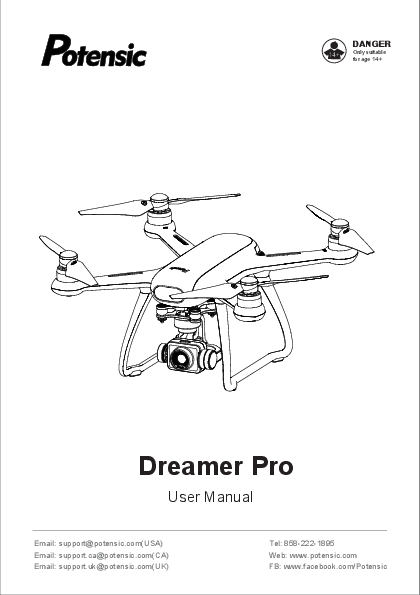
Potensic Dreamer Pro User Manual
DANGER: Only suitable for age 14+
Contact Information:
- Email: support@potensic.com (USA)
- Email: support.ca@potensic.com (CA)
- Email: support.uk@potensic.com (UK)
- Tel: 858-222-1895
- Web: www.potensic.com
- FB: www.facebook.com/Potensic
01 Reading Tips
Get Tutorials
It is recommended that users watch the tutorial video first, and then read the "User Manual". Please click the link or scan the QR code below to get tutorial videos.
Link: https://www.youtube.com/channel/UCKjU1_4HmL0XAXng0J9-NCg
[QR Code for tutorial videos]
Packing List
- Drone with camera x1
- Smart battery x1
- Remote control x1
- Extra blades x 1 pair (CCW & CW)
- Drone charger x1
- AC cable x1
- USB charging cable x1 (for remote control)
- Micro USB adapter x3
- User manual x1
Download PotensicPro App
Android users
Please search and download the drone App "PotensicPro" in Google Play or scan the QR code below to download. This App is compatible with Android 5.0 and above.
[QR Code for Android App Download]
iOS Users
Please search and download the drone App "PotensicPro" in APP store or scan the QR code below to download. This App is compatible with iOS 9.0 and above.
[QR Code for iOS App Download]
Register
After downloading the drone APP, it is necessary to register a personal account before using.
Register and log in
Fill in email - fill in password - view agreement - click register. Please log in after successful registration. (Note: Please keep your mobile phone connected with network during registration)
03 Product Overview
This chapter mainly introduces the functional features of Dreamer Pro, guides on how to install the aircraft, and introduces the names of various parts of the aircraft and remote control.
Thank you for purchasing Potensic Dreamer Pro drone. Please read the user manual carefully and keep it for future reference. If you need help, please contact our support team (support@potensic.com) with your order number from Amazon or official website.
Potensic Dreamer Pro is equipped with an intelligent flight control system. The integrated gimbal is located under the fuselage. Dreamer Pro can realize functions such as Waypoint flight, intelligent following, and automatic return to home. 5.8G image transmission is integrated inside the remote control for image transmission.
The drone camera adopts a 1/3-inch Sony CMOS image sensor and a gimbal stabilization system to stably shoot a 4K high-definition video with 30 frames per second and 16MP photos.
1. Daily Maintenance
- Use a soft clean cloth to clean the product.
- Avoid exposure to the sun or heat.
- Do not immerse this product in water, otherwise the electronic parts will be damaged.
- Regularly check the plug and other accessories. If there is any damage, please stop using until it is completely repaired.
2. Drone Installation
2.1. Gimbal Lock
Hold the fixed camera with one hand, and remove the gimbal clamp with the other hand in the direction of the arrow shown as Pic.
[Illustration showing how to remove the gimbal clamp]
2.2 Propeller Installation
- When installing blades, pay attention to the "CW" and "CCW" marks on the blades.
- Press down the blade in alignment with the central axis, and rotate according to the lock marked direction by the blade lock until it is fully screwed. After installation, the propeller will pop up and lock. Removal of the blades are reverse of the above steps.
[Illustration showing propeller installation with lock/unlock directions]
Make sure the propellers are installed correctly and tightly.
2.3. Installation and removal of battery
Insert the battery in the right direction as shown in Picture 1. Press the left and right sides of the battery and pull out the battery as shown in Picture 2.
[Picture 1: Illustration of battery insertion]
[Picture 2: Illustration of battery removal]
Note: When hearing a "click" sound, the battery is successfully installed in place.
2.4 App Real-time Image Connecting
Follow these steps to connect your mobile device:
- Expand and adjust the antenna position.
- Open the remote control pull-out board, and then put your mobile phone into it. The size range of the clamping machine is 97-178mm.
- Use the corresponding connecting cable to connect the mobile device to the micro USB interface of the remote control.
Drone Diagram
1 Camera, 2 Dreamer LED light, 3 Motor, 4 Blade, 5 Front footlight, 6 Rear footlight, 7 Damping plate, 8 Tripod, 9 Pad, 10 Gimbal, 11 Gimbal clamp.
[Diagram of the drone with numbered parts]
Remote Control Diagram
Know Your Remote Control
Dreamer Pro uses a 5.8G remote control with complete function buttons. It can support various operations and settings of the drone and camera within a maximum communication distance of 2000m, and can display real-time HD pictures on the mobile device through PotensicPro app. The remote control has a built-in rechargeable lithium battery, which can work continuously for up to 2.5 hours.
1 Antenna, 2 Control stick, 3 Power switch, 4 One-click take-off/landing, 5 One-click return, 6 Standard Mode/Sport Mode, 7 Micro USB charging port, 8 Control sticks storage box, 9 Camera adjustment thumbwheel, 10 Photograph, 11 Video-recording, 12 Camera brightness adjustment thumbwheel.
[Diagram of the remote control with numbered parts]
3. Power switch
Press 2s to turn the remote control on/off.
4. One-click take-off/landing
Press 2s to take off or land.
5. One-click return
By pressing the button for 1s, the drone will perform auto returning after you hearing one beep sound ? from the remote control; press it again and also hear one beep sound ?, then the drone will stop the returning.
6. Standard Mode/Sport Mode
Push the button to the right side position to start sport mode. The standard mode is 5m/s and the sport mode is 8m/s.
7. Micro USB charging port
8. Control sticks storage box
A box to place control sticks.
9. Camera adjustment thumbwheel
Turn the thumbwheel to adjust shooting angle of the camera.
10. Photograph
Click to take one picture at a time. ?
11. Video-recording
Press once to record ▶️, click again to exit.
12. Camera brightness adjustment thumbwheel
Turn the thumbwheel to adjust the exposure of the camera.
Dreamer Pro uses a 5.8G remote control with complete function buttons. It can support various operations and settings of the drone and camera within a maximum communication distance of 1000m, and can display real-time HD pictures on the mobile device through PotensicPro app. The remote control has a built-in rechargeable lithium battery, which can work continuously for up to 3 hours.
08 About Aircraft
1. Aircraft Overview
Dreamer Pro is mainly composed of flight control, communication system, positioning system, power system and smart battery. In this chapter, the functions of various components on the aircraft are described in detail.
2. Flight Modes
Dreamer Pro adopts a new generation of Potensic flight control, which supports the following two flight modes:
- GPS mode: Use GPS module to achieve precise hovering, waypoint flight and other intelligent flight modes. In GPS mode, the GPS signal is good, the GPS can be used for accurate positioning; when the GPS signal is not good, the aircraft cannot be accurately positioned, it only provides attitude stabilization, and does not support the intelligent flight function.
- Attitude mode: The GPS module is not used, only the stabilization of the altitude is provided, so that it will drift in the horizontal direction. At this time, the operator needs to manually control the flight of the aircraft. This mode is used by novices with caution. In this mode, the difficulty of controlling the aircraft will be greatly increased. If you want to use this mode, you must be familiar with the behavior of the aircraft in this mode and be able to skillfully control the aircraft. Do not fly the aircraft out of a long distance during use, so as not to lose judging the attitude of the aircraft poses risks.
Two Modes Switching: The default GPS mode is turned on, you can press the middle button of the left joystick during flight or switch in the App function module.
Drone Indicator Status
| Status | Indicator Lights |
|---|---|
| Attitude Mode | Four lights always on |
| GPS Mode | Front lights always on |
| Rear lights blink slowly | |
| Front lights blink slowly | |
| Headless Mode | Rear lights always on |
Warning and Abnormal
| Status | Indicator Lights |
|---|---|
| Drone Low Power | Four lights blink slowly |
| Drone Disconnected | Four lights blink quickly |
| Drone Binding | Left and right side lights blink alternately |
| Geomagnetic Calibration | Horizontal calibration: left lights blink slowly, right lights keep on Vertical calibration: left lights keep on, right lights blink slowly |
| Emergency Stop or Rollover(Motor stopped) | Four lights keep long off, short on cycling |
| Firmware Upgrade | Four lights on in turn clockwise |
| Sensor Abnormal | Rear left and right lights blink alternately |
09 Intelligent Flight Modes
3.1 Headless Mode
After take-off, the headless mode can be started only when the flight distance is more than 10 meters. Click the headless mode icon ? in app to enter headless mode, and then click once again to exit headless mode and the drone will land on the ground automatically.
In headless mode (take Mode 1 as an example), when you push the right control stick backward, the drone will fly near to the Home Point (take-off point); when you push the right control stick forward, the drone will fly away from the Home Point (take-off point); when you push the right control stick to the left / right, the drone will fly circle counter clockwise / clockwise around the home point.
3.2 Circle Flight
Click the icon ? to enter circle flight mode.
Under normal flight conditions (flight altitude is greater than 5m), the drone will take the current position as the circling center by default, with a radius of 10m and a speed of 3m/s, and circle clockwise.
3.3 Follow Me Mode
Click Icon ? to activate follow me mode.
When normal flight altitude is above 5m, and GPS signal is no less than 6, the drone will follow the mobile phone's position. In follow me mode, the drone can fly beyond the maximum distance limit.
10 Waypoint Flight Mode & Return to Home (RTH)
3.4 Waypoint Flight Mode
Click the icon ?️ to start the waypoint flight mode.
Set multiple position points on the map, and the drone will fly in the order of set points (15 points at most). The map will identify the serial number of each point.
The normal flight altitude is more than 5m, and the GPS signal is no less than 6. The drone flies to designated points on the map in the sequence of the number of points in the shortest path, and hovers at the last designated point.
4. Return to Home (RTH)
The aircraft has the function of automatic return. The takeoff point is the home point of the aircraft. The intelligent return (RTH) function enables the aircraft to return to the home point. There are three types of aircraft return (RTH): one button return / intelligent low power return / no signal return.
When the flight altitude is less than 20 meters, the aircraft rises to 20 meters before returning. When the flight altitude is more than 20 meters, the aircraft will return with current altitude.
- One Button Return: Long press the "home" button ? on the remote control for 1 second or click the "home" icon ? on the app to start the one button return, the remote control emits the continuous "beep" sound ?, then the aircraft will return. Press the "home" key for 1 second or click the icon "x" to cancel the return flight and exit the return flight automatically. The "beep" sound disappears.
- Low-power Return: Low-power alarm: when power of the drone is less than 20%, there is continuous "beep" sound ? from the remote control and the battery icon ? on the App flashes. Low-power return: the drone system will automatically determine whether to return according to the distance and battery power. When the drone returns, its four footlights remain flashing until it lands on the ground, and the remote control emits the continuous "beep" sound ?. The Power will be 8%-12% left.
- No signal return
If the drone loses its connection to the remote control, it will automatically enter the return mode. The drone will automatically return to the ground. If the drone and the remote control are reconnected during return, the drone will hover at this time, and the operator can control it again.
Note: The drone does not have automatic obstacle avoidance function. If the drone crashes into buildings or other obstacles on the way back, it will fall and break.
11 Drone Smart Battery & Charging Indicator Status
5. Drone Smart Battery
Please return in time and charge the battery when the drone is in low battery. Connect the adapter correctly as shown in the figure to charge. The indicator flashes when charging, and goes out when fully charged. It takes about 2 hours.
[Illustration of drone battery charging]
Note
- Please use the original charger to charge.
- Do not charge on a carpet to avoid fire.
- Recharge every 3 months to keep battery active.
- Do not put a charged battery under high temperature, such as open fire or electric heating device, otherwise it will be damaged or explode.
- Do not strike or knock surface of hard objects with a battery.
- Do not disassemble a battery.
- Do not leave the battery alone during charging.
6. Charging Indicator Status
| LED 1 | LED 2 | LED 3 | LED 4 | Current battery level |
|---|---|---|---|---|
| ☀️ | ⚪ | ⚪ | ⚪ | 0%~25% |
| ☀️ | ☀️ | ⚪ | ⚪ | 25%~50% |
| ☀️ | ☀️ | ☀️ | ⚪ | 50%~75% |
| ☀️ | ☀️ | ☀️ | ☀️ | 75%~100% |
| ☀️ | ☀️ | ☀️ | ☀️ | Fully charged |
☀️ Flash state, ⚪ Off state
12 Remote Control
1. Remote Control Mode
There are two remote control modes of this product, mode 1 and mode 2. Mode 1 is the default setting.
Mode 1
- Left stick: Upward, Downward
- Right stick: Forward, Backward
- Control: Turn counterclockwise, Turn clockwise, Move Left, Move right
Mode 2
- Left stick: Forward, Backward
- Right stick: Upward, Downward
- Control: Turn counterclockwise, Turn clockwise, Move Left, Move right
[Diagrams illustrating Mode 1 and Mode 2 stick controls]
2. Remote Control Charging
Connect the remote controller's Micro USB port to a commonly used 5V/2A charger to charge; it takes about 2 hours to fully charge.
(The plug is not included in the packing list)
[Illustration of remote control charging port with 5V indicator]
3. Remote Control Frequency Linking
If you replace the remote control, it is necessary to follow the below steps to re-connect the new remote control and the drone.
- Install the drone battery; short press the power button once, then quickly long press it for 7s. The drone's 2 front LED foot lights and 2 rear lights start quick flashing alternately.
- Press down the remote controller's right joystick and power button for 2s, then the remote controller emits 2 beep sounds ?, and its power indicator is quickly flashing.
- Then the remote controller and the drone enter auto linking status. Please wait about 30s. The remote controller will emit one beep sound ? and its power indicator is stably on. The drone's 4 foot lights are quickly flashing. 10s later, the 4 foot lights keep stable bright, which means the frequency linking is completed.
13 Camera and Gimbal
1. Camera Overview
The Dreamer Pro adopts a 1/3-inch CMOS Sony sensor with a 16MP camera. Equipped with a low distortion wide-angle lens. The blue glass filter can effectively improve the picture quality. A standard UV lens protects the lens. When recording video, Dreamer Pro supports 4K ultra-high-definition video recording at up to 30 frames per second, providing 4 times the full HD resolution of image details. Supports MPEG-4 AVC (H.264) format, and can achieve high-quality video recording with a high bit rate of 60Mbps.
[Illustration of the drone's camera and gimbal assembly]
2. Support Micro SD Card
Insert the micro SD card into the camera SD card slot. It is recommended to use SD card products of class 10 or above, from brands such as SanDisk, Kingston, or Samsung, which require a minimum SD card capacity of 4GB and a maximum of 256GB. All pictures and video files will only be recorded on the SD card, instead of storing in the App or your phone. Upload to your phone from the photo album. The product package list does not include an SD card.
* Insert micro SD card with the metal side up.
3. Gimbal Overview
The three-axis stable gimbal provides a stable platform for the camera, so that the camera can also shoot a stable picture even when the aircraft is flying at high speed. The pitch angle can be adjusted via the gimbal dial on the remote control, and the camera can also be adjusted by sliding the camera pitch adjustment slider on the main interface of the PotensicPro APP. The controllable angle of the pitch direction is -90° to 0°.
15 PotensicPro APP
1. Operation Interface
[Diagram of the PotensicPro App interface with numbered elements]
1 Return to the menu
2 Drone status
3 Standard mode/Sport mode
4 Head mode/Headless mode
5 Lock/Unlock
6 GPS mode/Attitude mode
7 GPS signal level
8 Transmission signal level
9 Drone power ?
10 Setting interface ⚙️
11 Photo/Video switch
12 Photo Taking/Video Recording ? ▶️
13 Camera setting
14 Camera pitch adjustment
15 Vertical flight speed
16 Flight height
17 Distance
18 Horizontal flight speed
19 Altitude ball/map
20 Intelligent flight mode settings
21 One-click return ?
22 One-click take-off/one-click landing
2. Intelligent Flight Mode
[Diagram of the Intelligent Flight Mode screen in the app]
1 Headless mode / Head-hold
2 Lock / Unlock
3 GPS mode / Attitude mode
4 Circling mode ?
5 Waypoint mode ?️
6 Follow me mode ?
7 Virtual control stick
3. Setting Interface
[Diagram of the Setting Interface screen in the app]
1 Main controller settings ⚙️
2 Calibration settings
3 Remote control settings
4 About smart batteries ?
5 More
17 About Flight
This chapter introduces flight environment requirements, precautions, and flight operation procedures.
1. Flight Environment Requirements
- Please do not fly in bad weather, such as strong wind (wind speed 5 and above), snow, rain, foggy weather, etc.
- Choose an open place without surrounding tall buildings as the flight site. Buildings that use a lot of steel will affect the geomagnetic work, and will block the GPS signal, resulting in poor positioning of the aircraft or even unable to locate.
- When flying, please keep your eyes in control and keep away from obstacles and crowds.
- Please do not fly in areas with high voltage lines, communication base stations or transmission towers to avoid interference from the remote control.
- Flying above 5000 meters above sea level, due to environmental factors, the performance of the aircraft battery and power system will be degraded, and the flight performance will be affected. Please fly with caution.
2. Flight Precautions
- Check whether the remote controller, intelligent flight battery and mobile device have sufficient power.
- Check whether the fuselage is complete and the propeller is correctly installed.
- Check whether the camera works normally after the power is turned on.
- Check if the App is running normally.
- Check if the SD card is inserted, make sure the camera is clean.
- Low battery protection: Low battery alarm is triggered when the power is less than 20%. Based on the distance between the current position and the Home point, the aircraft will intelligently trigger a low-power return.
- Loss of connection protection: It is triggered after 3 seconds of loss of connection; the re-connection is successful during the return flight, and it can be canceled manually.
- Out-of-control protection: After the aircraft's horizontal tilt angle is over 80 degrees for 2 seconds, the motor will automatically stop.
3. Connection Between the Remote Control and the Drone
Because the remote control and the aircraft have completed frequency linking before leaving the factory, they can be connected directly.
- Install the drone battery; click the power button once, then quickly press it for 2s to turn on the drone; the battery indicator will light, the drone will emit beep sound ? and its 4 LED foot lights start quick flashing.
- Press the power button of the remote controller for 2s, then the remote controller emits 2 beep sounds ? and the indicator lights up.
- Please wait about 35s, the 4 LED foot lights on the drone will stably light, which means it is done.
18 Geomagnetic Calibration
Geomagnetic calibration is required for the first flight (after once calibration, the same region within 300km doesn't need calibration). If the geomagnetism of the aircraft is disturbed, the manual re-calibration may need to be done to the drone.
[Illustration of drone in calibration position - Picture 1]
[Illustration of drone in calibration position - Picture 2]
Step 1: Enter the PotensicPro App setting interface, click the second column, and select geomagnetic calibration in the list, then click "Star Calibration" on the right side. The left front light flashes green and the left rear light flashes red indicate that it's ready for calibration.
Step 2: Rotate the drone 720° horizontally, then the right front light flashes green and right rear light flashes red. (Picture 1)
Step 3: Rotate the drone 720° vertically with camera upwards. The four indicator lights are solid on (the 2 front lights are green while the rear lights are red), and calibration is completed. (Picture 2)
If no less than 6 satellites are searched by the drone, the 2 front lights are stably on, and the 2 rear lights flash slowly. Then, the drone can take off.
Note: If the left front light flashes green and the left rear light flashes red slowly, it indicates that calibration fails. It is recommended to recalibrate geomagnetic after changing the take-off location.
[App screenshots showing calibration steps (1), (2), (3)]
19 Beginner Mode, Take-off and Landing, Emergency Stop
5. Beginner Mode
The beginner mode is in default. Under the beginner mode:
- A. The flight distance is limited to 0 ~ 30m.
- B. The flight altitude is limited to 0-30m.
[App screenshot showing Beginner Mode settings]
6. Take-off and Landing
Manually take off: Push the left and right stick inwards 45 degrees (Picture 1) at the same time, unlock the drone or click the App unlock icon ?, and push up the throttle lever.
One button take off: Long press the "take-off and land" button for 2 seconds, there will be a short "beep" sound ?, or click the icon ⬆️ on the App, the drone will slowly take off and hover at a height of about 1.2 meters.
[Illustration of remote control sticks for manual take-off]
Manually landing: Pull down the throttle stick. After the aircraft lands on the ground, push the throttle stick to the lowest position and hold it for 3 seconds, the motor will stop.
Auto landing: Click "⬇️" and confirm the safe landing conditions, slide the button to the right to start the automatic landing. After landing on the ground, the motor will automatically stop.
During the descent of the aircraft, the user can exit the automatic landing process by clicking the x button on the App interface.
7. Emergency Stop
Press the left and right joysticks simultaneously for 1 second.
Note: Stopping the motor in the air will cause the aircraft to crash. It is only used in special situations (such as the aircraft may hit the crowd) to urgently stop the motor to minimize injuries.
20 Appendix - Specification
1. Specification
Drone
- Take-off weight: 820g ± 5g
- Maximum ascending speed: 5 m/s (sport mode); 3m/s (standard mode)
- Maximum descending speed: 2 m/s (sport mode); 2 m/s (standard mode)
- Maximum horizontal flight speed: 8 m/s (sport mode); 5 m/s (standard mode)
- Flight time: 28 minutes
- Working environment temperature: 0° C-40 ° C
- GPS: GPS+GLONASS
- Working frequency: 5.725-5.850GHz
- Transmission power: 5.8GHz: <24 dBm
- Hovering precision (vertical): ±0.5 (when GPS works normally)
- Hovering precision (horizontal): ±1.5m (when GPS works normally)
Camera
- Image sensor: 1/3-inch Sony CMOS; 16MP
- Lens: FOV 78°
- Picture maximum resolution: 4608x3456
- Photo shooting mode: single photo
- Lens rotation range: +0°-90°
- Video resolution: 3840×2160@30fps
- Maximum video storage code stream: 60Mbps
- Supporting file system: FAT32
- Image format: JPEG
- Video format: MP4 (AVC/H.264)
- Micro SD card: 4-256GB with transmission speed of class10 and above.
- Working environment temperature: 0°C~40°C
Remote control
- Working frequency: 5.725-5.850GHz
- Maximum effective distance of signal: 2000m (no interference or blocking)
- Working environment temperature: 0°C~40°C
- Battery: 2800mAh lithium battery
- Equivalent isotropic radiation power (EIRP): 5.8GHz: <24 dBm
- Working voltage/current: 3.7V/1.2A
Smart flight battery
- Capacity: 3000mAh
- Voltage: 15.2V
- Battery type: Li Po 4S
- Capacity: 45.6Wh
- Overall weight of battery: 335g
- Working environment temperature: 0° ~ 40°C
- Maximum charging power: 26.25W
Charger
- Rated input: 100-240V~50/60Hz, 1A
- Rated output: 17.5V, 1.5A
- Rated power: 26.25 W
21 Appendix - Frequent Q&A & Safety Precautions
2. Frequent Q&A
| Problem | Solution |
|---|---|
| Cannot unlock | Restart drone and remote control. |
| Device is not connected properly | Check if the drone is geomagnetic calibrated. |
| Cannot find GPS signal or GPS level drops | Check the surrounding environment of the drone to see if there is high-frequency signal interference. |
| The drone cannot return to home | Make sure there are no less than 6 GPS signal show up on the App before take-off. |
| The drone jitters or video jitters | a. Check if the propeller and motor shaft of the drone are deformed or cracked; if yes, please replace. b. Check if screws are fixed in place after disassembly. |
| Can't take photos or record videos | a. Check if the drone is inserted with a Micro SD card. b. Check if Micro SD card format is correct. c. Check if Micro SD card is full. |
3. Safety Precautions
Keep away from people when flying the remote-controlled drone. Improper assembly or damage to the body, poor electronic control, and unfamiliar operation may lead to unpredictable accidents such as drone damage or personal injury. Operators should pay attention to flight safety, and understand responsibilities caused by negligence.
- Keep away from obstacles and people
The remote controlled drone is uncertain in flight speed and state during fly, which poses potential danger. It shall be far away from people, high-rise buildings, high-voltage wires, etc. during fly, and avoid flying in the bad weather such as wind and rain, thunder and lightning, to ensure safety of operator / surrounding people and property.
- Keep away from humid environment
The interior of the drone is composed of many precise electronic components and mechanical parts. Therefore, it is necessary to protect the drone from humidity or prevent water entering the body, to avoid accidents caused by the failure of mechanical and electronic components.
22 Safety Precautions (cont.) & FCC Requirement
3. In order to properly use this product, please use original parts for modification or maintenance to ensure flight safety. Please operate and use this product to the extent permitted by its functions, and it shall not be used for illegal purposes beyond safety laws and regulations.
4. Avoid flying alone
It is difficult to learn control skills of the drone in the early stage. It is necessary to avoid flying alone as much as possible, and needs instruction of experienced operators.
5. Safe operation
Please operate the remote controlled drone according to your own status and flight skills. Fatigue, poor mental state or improper operation will increase the probability of accident risks.
6. Keep away from high-speed rotating parts.
When the drone rotor is rotating at high speed, keep operators, surrounding people and objects away from rotating parts to avoid danger and damage.
7. Keep away from heat source
The remote controlled drone is composed of metal, fiber, plastic, electronic components and other materials. Therefore, it is necessary to keep away from the heat source as far as possible, prevent sunlight, avoid deformation or even damage due to high temperature.
Note:
This product has been tested to meet requirements of FCC Part 15 for Class B digital products. These regulations ensure that this product will not have a harmful impact on the residential environment during installation and use. This product will radiate RF energy when working. If not installed and used according to instructions, it may cause harmful interference to radio communications. However, there is no guarantee that interference will not occur in a particular installation. If this equipment does cause harmful interference to radio or television reception, which can be determined by turning the equipment off and on, the user is encouraged to try to correct the interference by one or more of the following measures:
- Reorient or relocate the receiving antenna.
- Increase the separation between the equipment and receiver.
- Connect the equipment into an outlet on a circuit different from that to which the receiver is connected.
- Seek assistance from a dealer or an experienced radio/TV technician for help.
This equipment complies with FCC radiation exposure limits set forth for an uncontrolled environment. This equipment should be installed and operated with a minimum distance of 20cm between the radiator & your body. This transmitter must not be co-located or operating in conjunction with any other antenna or transmitter.
23 Warning and Tips
1. The package and instructions contain important information and should be properly kept.
2. It is your responsibility to ensure that this drone will not cause injury and property loss.
3. The commissioning and installation of the drone shall be carried out in strict accordance with operation instructions. The drone shall keep a distance of 1-2 meters from users or other people during fly to avoid the drone from colliding with heads, faces and bodies of people during fly and landing.
4. Potensic and retailers shall not be responsible for any loss, damage and human injury caused by improper use or operation.
5. Adults should provide guidance on children when flying. Children under 14 years old are not allowed to operate this product.
6. Please install and use correctly according to instructions or packaging requirements. Some parts shall be assembled by adults.
7. This product contains small parts, please keep it out of reach of children to prevent dangers of eating or suffocation.
8. It is strictly forbidden to fly on the road or in water-gathered places to avoid accidents.
9. Please put packing materials away in time to avoid causing harm to children.
10. Do not dismantle or modify the drone, which may cause failure.
11. The battery of charger battery box shall be plugged into the specified power source as marked on the product.
12. The remote control has a built-in lithium battery, which does not need to be replaced.
13. Use only the original charger.
14. The charger is not a toy.
15. The remote control uses a 3.7V built-in lithium battery.
16. When charging the rechargeable battery, it shall be carried out under the supervision of an adult. When charging, it is necessary to keep away from flammable materials. The guardian should not leave the drone outside the surveillance range during charging.
17. Please do not short circuit or squeeze the battery to avoid explosion.
18. Do not mix different types of lithium batteries.
19. The drone uses a smart lithium battery, which can be recharged when plugged in or out.
20. Do not short-circuit, decompose or put the battery into a fire; do not place the battery in a high temperature and hot place (such as in a fire or near electric heating devices).
21. The drone shall be used far away from other electrical equipment and magnetic objects to avoid mutual interference.
22. Please keep a safe distance from propellers rotating at a high speed to avoid dangers of wringing and cutting.
23. Keep the model away from ears! Misuse may cause hearing loss.
24. Please use a micro USB 5V charger instead of a higher voltage charger.
25. In order to ensure requirements for magnetic environment of the aviation radio station. The use of model remote control shall be stopped as required within periods and areas of radio control orders by relevant national departments.
26. Keep your drone in line of sight.
27. Don't fly in the crowd.
28. Do not fly over sports venues or events.
29. Please totally learn about airspace restrictions and requirements.
24 FCC Requirement
Changes or modifications not expressly approved by the party responsible for compliance could void the user's authority to operate the equipment.
This device complies with Part 15 of the FCC Rules. Operation is subject to the following two conditions:
- This device may not cause harmful interference, and
- This device must accept any interference received, including interference that may cause undesired operation.
Note:
This equipment has been tested and found to comply with the limits for a Class B digital device, pursuant to Part 15 of the FCC Rules. These limits are designed to provide reasonable protection against harmful interference in a residential installation. This equipment generates, uses, and can radiate radio frequency energy, and if not installed and used in accordance with the instructions, may cause harmful interference to radio communications. However, there is no guarantee that interference will not occur in a particular installation. If this equipment does cause harmful interference to radio or television reception, which can be determined by turning the equipment off and on, the user is encouraged to try to correct the interference by one or more of the following measures:
- Reorient or relocate the receiving antenna.
- Increase the separation between the equipment and receiver.
- Connect the equipment into an outlet on a circuit different from that to which the receiver is connected.
- Seek assistance from a dealer or an experienced radio/TV technician for help.
This equipment complies with FCC radiation exposure limits set forth for an uncontrolled environment. This equipment should be installed and operated with a minimum distance of 20cm between the radiator & your body. This transmitter must not be co-located or operating in conjunction with any other antenna or transmitter.
27 Product Information
Name: Dreamer Pro
Model: DSDR01C
Battery voltage: 15.2V
Manufacturer: DeepSea Innovation Co., LTD
Address: 3rd Floor, Building 4, Silicon Valley Courtyard, Qingquan Road, Shenzhen, CN
Battery information: Capacity: 3000mAh, 45.6Wh
Adapter information: Input: 100-240V, 50/60Hz 1.0A; Output: 17.5V-1.5A
EC REP: DST Co., Ltd., Fifth Floor 3 Gower Street, London, WC1E 6HA, UK
⚠️ WARNING: CHOKING HAZARD - Small parts. Not for children under 3 years.
[Warning symbols for small parts and age restriction]
Warning: This product can only be used by adults or children above 14 years old. Children under 14 years old need supervision by an adult.
Warning: Battery charging shall always need supervision by an adult. Unplug the battery when it is fully charged. Do not overcharge.
[Certifications: CE, RoHS, FC, 0-3, Tested according to international standards]
Country of Origin: CHINA
 Potensic Official Website | Discover Your First Camera Drone
  Potensic - YouTube