

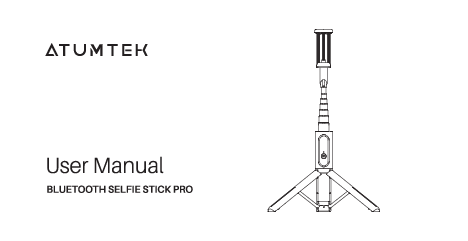
ATUMTEK Bluetooth Selfie Stick Pro
User Manual
Product Introduction
This user manual provides information for the ATUMTEK Bluetooth Selfie Stick Pro. The device is designed for capturing photos and videos with smartphones, featuring an extendable arm and a built-in tripod for stable use.
Product Components:
- Top cap: Secures the smartphone holder.
- Wireless Bluetooth remote: Detachable remote for capturing photos/videos.
- Smartphone holder: Adjustable clamp to hold mobile devices.
- Power & Camera 2 in 1 button: Used for powering on/off and taking pictures/videos.
- Tripod: Integrated legs at the base for stable standing.
- Adjustable sliding bracket: Allows for height adjustment of the extendable arm.
- Aluminum alloy telescopic arm: Extends to increase reach.
- Bottom stem: Base of the device, housing the tripod legs.
Product Parameters
| Parameter | Specification |
|---|---|
| Weight | Approx. 172g |
| Remote distance | <10m (33ft) |
| Ambient temperature | -10°C~50°C |
| Remote battery capacity | 50 mAh |
| Input | 5V/110 mAh |
| Compatible devices | iOS 7.0 and later / Android 5.0 and later |
| Device width | Approx. 2.16-3.42 in |
| Extended length w/o tripod activated | Approx. 7.7-31.3 in |
| Extended length with tripod activated | Approx. 8.7-32.9 in |
| Folded size | Approx. 7.7*1.18 in |
| Remote button lifespan | > 15,000 times |
How to Use
Wireless Bluetooth Remote Handling
To access or store the wireless Bluetooth remote:
- To remove: Take the remote out from the bottom of the main unit.
- To insert: Place the remote into the top of the main unit.
The remote features a Micro USB charging port.
Setup and Operation
Step 1: Unfolding the Tripod and Extending the Arm
- Slightly unlock the 3 legs at the bottom.
- Pull the top cap out approximately 2cm. Be cautious to avoid pinching your fingers.
- Pull the entire stick arm outwards. The tripod will automatically open.
ATTENTION:
- Ensure the stick arm is fully extended for the tripod to open completely and remain stable. An incompletely opened tripod may be unstable.
- Do not attempt to open the tripod by pulling its legs directly.
Step 2: Adjusting Height and Using as a Tripod
- Place the product on a flat surface.
- Adjust the extendable stick arm to your desired height.
- If not using the tripod feature, simply pull out the stick arm and adjust the height as needed.
Step 3: Inserting Your Smartphone
Widthwise insert your smartphone into the holder by releasing the top cap.
Note: Avoid pressing or obstructing the buttons on your phone while it is in the holder.
How to Close
To close the selfie stick:
- Remove your mobile phone by releasing the top cap.
- Hold the middle section of the product.
- Use your other hand to push the aluminum alloy telescopic arm back towards the top cap.
Note: If the tripod was opened, it will automatically close as you push the telescopic arm back. Manual manipulation of the tripod legs during closing is prohibited.
WARNING: Do not push the 3 legs to close the tripod. This can cause the legs to break.
Bluetooth Connect Instruction
Follow these steps to connect your device via Bluetooth:
First, long press the camera button for 2 seconds. The green light will flash. Then, connect to "ATUMTEK" from your phone's Bluetooth settings. Once connected, press the button once to take a picture or record video.
Connection Status and LED Indicators
| No. | Status | LED Light Indicator | Description |
|---|---|---|---|
| 1 | Switch On | Green Light Flashing | Long press camera button for 2 seconds, to open remote. |
| 2 | Switch Off | LED Light OFF | Long press camera button for 3 seconds, remote light is OFF. |
| 3 | Standby | LED Light OFF | Remote will standby after 10 minutes without operation; Press the button for once to activate, then green light will flash, please reconnect with phone again. |
| 4 | Low Power | Red Light Flashing | |
| 5 | Charging | Red Light ON | |
| 6 | Fully Charged | LED Light OFF | |
| 7 | Connected | Green Light ON | |
| 8 | Connectionless | Green Light Flashing |
Troubleshooting and Notes
- If your phone cannot connect, try cleaning the Bluetooth connection history first.
- Some Android phones use the volume button to control the camera. If the remote does not function, check your camera app settings and select "take a picture" or "take a video" as the control method.
- Open your phone's built-in camera app and press the Power & Camera 2 in 1 button once to take a photo.
- The wireless Bluetooth remote will automatically connect to your phone if it was previously paired and connected.
- The Bluetooth connection will automatically disconnect if the distance between the remote and the phone exceeds 10 meters.
- To disconnect the remote from your phone, go to your phone's Bluetooth settings and select "disconnect" for "ATUMTEK".
- The remote will enter standby mode if Bluetooth is turned off on your phone.
- The built-in camera app on your phone cannot be controlled by the wireless Bluetooth remote while it is charging.
- For further assistance, please contact the seller directly.
Support and Contact
Contact ATUMTEK for support or inquiries:
Recommended: Via Facebook Messenger:
Alternatively:
Or by email:
If you are satisfied with the product, please consider sharing your user experience online.
If you require assistance with this purchase, please do not hesitate to contact us.
Company Information:
EC REP: Syncwire UK Ltd
Address: C/O Lai and Co. 109 Portland Street, Manchester, M1 6N
