

PELCO P2230L-EW0 Spectra Professional Series 2 IP Dome Camera User Manual
File info: application/pdf · 85 pages · 6.96MB
Pelco P2230L-EW1 Pelco Spectra Pro P2230L User Manual
Pelco Spectra Pro 2 Series P2230L-EW1 2MP Outdoor PTZ P2230L-EW1
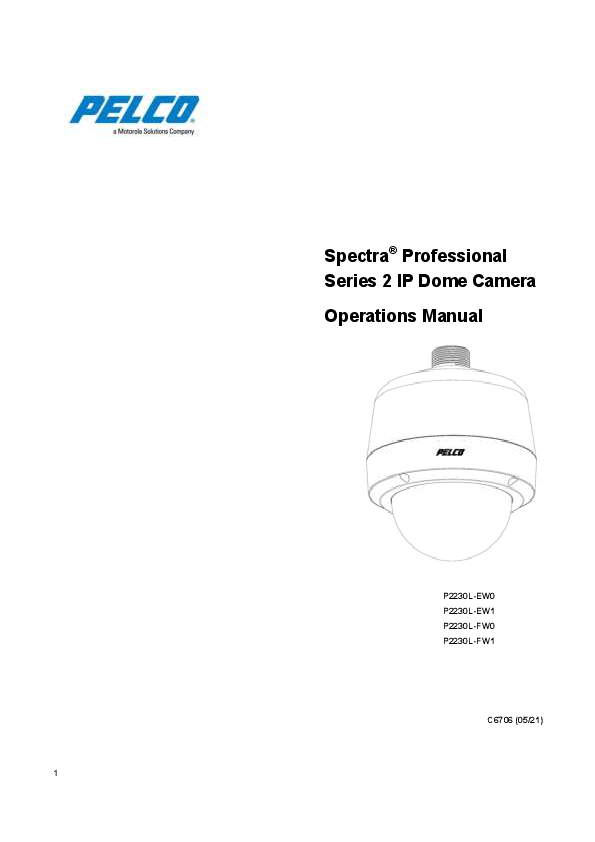
Spectra Professional Series 2 IP Dome Camera Operations Manual
Extracted Text
Spectra� Professional Series 2 IP Dome Camera Operations Manual
P2230L-EW0 P2230L-EW1 P2230L-FW0 P2230L-FW1
C6706 (05/21) 1

Contents
Important Safety Instructions ...............................................................................................................................................................4 Important Notices..................................................................................................................................................................................5
Regulatory Notices [FCC CLASS A].....................................................................................................................................5 Legal Notice [Audio Notice]...................................................................................................................................................5 Video Quality Caution............................................................................................................................................................5 Open Source Software ..........................................................................................................................................................6 Korean Class A EMC.............................................................................................................................................................6 ESD Warning .........................................................................................................................................................................6 Warranty.................................................................................................................................................................................6 Network Topology Statement................................................................................................................................................6 Preface ..................................................................................................................................................................................................7 1. Installation and Connection .................................................................................................................................................8 1.1 Getting Started.................................................................................................................................................................8
1.1.1 Network Topology...............................................................................................................................................9 1.1.2 System Requirements........................................................................................................................................9 1.2 Connection.....................................................................................................................................................................10 1.2.1 Default IP Address............................................................................................................................................10 2. Administration and Configuration ....................................................................................................................................11 2.1 Live .................................................................................................................................................................................11 2.1.1 Zoom Control ....................................................................................................................................................12 2.1.2 Video Analytics Control ....................................................................................................................................13 2.1.3 PTZ Control.......................................................................................................................................................13 2.2 Settings ..........................................................................................................................................................................14 2.2.1 System ..............................................................................................................................................................15 2.2.2 Network & Security...........................................................................................................................................20 2.2.3 Imaging..............................................................................................................................................................34 2.2.4 PTZ....................................................................................................................................................................41 2.2.5 A/V Streams......................................................................................................................................................52 2.2.6 Event Source ....................................................................................................................................................63
2

2.2.7 Event Handler ...................................................................................................................................................69 Pelco Troubleshooting Contact Information......................................................................................................................................84
3

Important Safety Instructions
1. Read these instructions. 2. Keep these instructions. 3. Heed all warnings. 4. Follow all instructions. 5. Clean only with dry cloth. 6. Do not install near any heat sources such as radiators, heat registers, stoves, or other apparatus (including
amplifiers) that produce heat. 7. Only use attachments/accessories specified by the manufacturer. 8. Refer all servicing to qualified service personnel. Servicing is required when the apparatus has been
damaged in any way, such as power-supply cord or plug is damaged, liquid has been spilled or objects have fallen into the apparatus, does not operate normally, or has been dropped. 9. Installation should be done only by qualified personnel and conform to all local codes. 10. Use only installation methods and materials capable of supporting four times the maximum specified load. 11. Use stainless steel hardware to fasten the mount to outdoor surfaces. 12. To prevent damage from water leakage when installing a mount outdoors on a roof or wall, apply sealant around the bolt holes between the mount and mounting surface. 13. The mounting height above ground level shall be more than 3 meter for wall mount height. CAUTION: These servicing instructions are for use by qualified service personnel only. To reduce the risk of electric shock do not perform any servicing other that contained in the operating instructions unless you are qualified to do so. Only use replacement parts recommended by Pelco. The product and/or manual may bear the following marks:
This symbol indicates that dangerous voltage constituting a risk of electric shock is present within this unit.
CAUTION: RISK OF ELECTRIC SHOCK. DO NOT OPEN. This symbol indicates that there are important operating and maintenance instructions in the literature accompanying this unit
WARNING: HAZARDOUS MOVING PARTS. KEEP FINGERS AND OTHER BODY PARTS AWAY.
Denotes Class II double insulated device.
WARNING: This product is sensitive to Electrostatic Discharge (ESD). To avoid ESD damage to this product, use ESD safe practices during installation. Before touching, adjusting or handling this product, correctly attach an ESD wrist strap to your wrist and appropriately discharge your body and tools. For more information about ESD control and safe handling practices of electronics, please refer to ANSI/ESD S20.20-1999 or contact the Electrostatic Discharge Association (www.esda.org).
4

Important Notices
Regulatory Notices [FCC CLASS A]
This device complies with Part 15 of the FCC Rules. Operation is subject to the following two conditions: (1) this device may not cause harmful interference, and (2) this device must accept any interference received, including interference that may cause undesired operation.
Radio and Television Interference
This equipment has been tested and found to comply with the limits of a Class A digital device, pursuant to Part 15 of the FCC rules. These limits are designed to provide reasonable protection against harmful interference when the equipment is operated in a commercial environment. This equipment generates, uses, and can radiate radio frequency energy and, if not installed and used in accordance with the instruction manual, may cause harmful interference to radio communications. Operation of this equipment in a residential area is likely to cause harmful interference in which case the user will be required to correct the interference at his own expense.
Changes and Modifications not expressly approved by the manufacturer or registrant of this equipment can void your authority to operate this equipment under Federal Communications Commission's rules.
This Class A digital apparatus complies with Canadian ICES-003.
Cet appareil num�rique de la classe A est conforme � la norme NMB-003 du Canada.
Legal Notice [Audio Notice]
SOME PELCO EQUIPMENT CONTAINS, AND THE SOFTWARE ENABLES, AUDIO/VISUAL AND RECORDING CAPABILITIES, THE IMPROPER USE OF WHICH MAY SUBJECT YOU TO CIVIL AND CRIMINAL PENALTIES. APPLICABLE LAWS REGARDING THE USE OF SUCH CAPABILITIES VARY BETWEEN JURISDICTIONS AND MAY REQUIRE, AMONG OTHER THINGS, EXPRESS WRITTEN CONSENT FROM RECORDED SUBJECTS. YOU ARE SOLELY RESPONSIBLE FOR INSURING STRICT COMPLIANCE WITH SUCH LAWS AND FOR STRICT ADHERENCE TO ANY/ALL RIGHTS OF PRIVACY AND PERSONALTY. USE OF THIS EQUIPMENT AND/OR SOFTWARE FOR ILLEGAL SURVEILLANCE OR MONITORING SHALL BE DEEMED UNAUTHORIZED USE IN VIOLATION OF THE END USER SOFTWARE AGREEMENT AND RESULT IN THE IMMEDIATE TERMINATION OF YOUR LICENSE RIGHTS THEREUNDER.
NOTE: Improper use of audio/visual recording equipment may subject you to civil and criminal penalties. Applicable laws regarding the use of such capabilities vary between jurisdictions and may require, among other things, express written consent from the recorded subjects. You are solely responsible for insuring strict compliance with such laws and for strict adherence to any/all right of privacy and personality.
Video Quality Caution
Frame Rate Notice Regarding User Selected Options
Pelco systems are capable of providing high quality video for both live viewing and playback. However, the systems can be used in lower quality modes, which can degrade picture quality, to allow for a slower rate of data transfer and to reduce the amount of video data stored. The picture quality can be degraded by either lowering the resolution, reducing the picture rate, or both. A picture degraded by having a reduced resolution may result in an image that is less clear or even indiscernible. A picture degraded by reducing the picture rate has fewer frames per second, which can result in images that appear to jump or move more quickly than normal during playback. Lower frame rates may result in a key event not being recorded by the system.
Judgment as to the suitability of the products for users' purposes is solely the users' responsibility. Users shall determine the suitability of the products for their own intended application, picture rate and picture quality. In the event users intend to use the video for evidentiary purposes in a judicial proceeding or otherwise, users should consult with their attorney regarding any particular requirements for such use.
5

Open Source Software
This product includes certain open source or other software originated from third parties that is subject to the GNU General Public License (GPL), GNU Library/Lesser General Public License (LGPL) and different and/or additional copyright licenses, disclaimers, and notices. The exact terms of GPL, LGPL, and some other licenses are provided to you with this product. Please refer to the exact terms of the GPL and LGPL at http://www.fsf.org (Free Software Foundation) or http://www.opensource.org (Open Source Initiative) regarding your rights under said license. You may obtain a complete corresponding machine-readable copy of the source code of such software under the GPL or LGPL by sending your request to digitalsupport@pelco.com; the subject line should read Source Code Request. You will then receive an email with a link for you to download the source code. This offer is valid for a period of three (3) years from the date of the distribution of this product by Pelco.
Korean Class A EMC
ESD Warning
WARNING: This product is sensitive to Electrostatic Discharge (ESD). To avoid ESD damage to this product, use ESD safe practices during installation. Before touching, adjusting or handling this product, correctly attach an ESD wrist strap to your wrist and appropriately discharge your body and tools. For more information about ESD control and safe handling practices of electronics, please refer to ANSI/ESD S20.20-1999 or contact the Electrostatic Discharge Association (www.esda.org).
Warranty
For information about Pelco's product warranty and thereto related information, refer to www.pelco.com/warranty.
Network Topology Statement
IMPORTANT NOTE. PLEASE READ. The network implementation is shown as a general representation only and is not intended to show a detailed network topology. Your actual network will differ, requiring changes or perhaps additional network equipment to accommodate the system as illustrated. Please contact your local Pelco representative to discuss your specific requirements.
6

Preface
This user manual is to be used as a reference for the installation and manipulation of the camera unit including features, functions, and a detailed explanation of the menu tree. This manual provides the following information:
 Product Overview: The main functions and system requirements of the unit.  Installation and Connection: Instructions on unit installation and wire connections.  Administration and Configuration: The main menu navigation and controls explanations.
7

1. Installation and Connection
1.1 Getting Started
Before installing your device, thoroughly familiarize yourself with the information in the installation section of this manual. NOTES
 Pelco recommends connecting the device to a network that uses Dynamic Host Configuration Protocol (DHCP) server to address devices.
 To ensure secure access, place the device behind a firewall when it is connected to a network.  Ensure power source used is 48VDC, 24VAC or IEEE 802.3at (Indoor), IEEE 802.bt (Environmental)
NOTE:  The product is intended to be supplied by a Listed Power Unit marked "L.P.S." (or "Limited Power Source")
and rated output:  24Vac, 50/60Hz, 2A, 48Vdc, 1A or PoE BT 1A (Environmental)  24Vac, 50/60Hz, 1.4A, 48Vdc, 0.77A or PoE AT 0.5A(Indoor)  The product shall be installed by a qualified service person and the installation shall conform to all local codes.  If a Class I adapter or switch is used to provided power, be sure that the power cord is firmly plugged into the socket and confirm the main earth connection.
8

1.1.1 Network Topology
The unit, which is equipped with Ethernet RJ-45 network interface, can deliver video images in real time via either Internet or Intranet. Please refer to the skeleton drawings shown below to aid your understanding.

FIGURE 1-11: NETWORK TOPOLOGY

1.1.2 System Requirements
The table below lists the minimum requirements to implement and operate a unit. Network and processor bandwidth limitations
might cause the video stream to pause or appear pixelated when additional Web-interface users connect to the camera. Decrease the images per second (ips), resolution, compression, or bit rate settings of the Web interface video streams to
compensate for network/processor limitations. TABLE 1-1: SYSTEM REQUIREMENTS

System Hardware CPU RAM Monitor System Software Operating System Browser Media Player
Unit Power Supply

Intel� Pentium� 4 microprocessor, 2.4GHz or equivalent 1 GB or above Minimum of 1024 x 768 resolution, 16- or 32-bit pixel color resolution
Microsoft Windows 10, Microsoft Windows XP, Win7 32 and 64 bit Microsoft IE 10 and later, Chrome, Firefox Pelco Media Player or QuickTime� 7.6.5 for Windows XP and Windows 7; or QuickTime 7.6.4 for Mac OS X 10.4 (or later)
PoE BT / AC 24V /DC 48V

Note

1. All the installation and operations should comply with your local electricity safety rules. 2. This product is not compatible with QuickTime version 7.6.4 for Windows XP. If you have this
version installed on your PC, you will need to upgrade to QuickTime version 7.6.5. 3. Network and processor bandwidth limitations might cause the video stream to pause or appear
pixelated when additional Web-interface users connect to the camera. Decrease the images per second (ips), resolution, compression, or bit rate settings of the Web interface video streams to compensate for network or processor limitations.

9

1.2 Connection
1.2.1 Default IP Address
The unit's default IP address is 192.168.0.20 and sub mask is 255.255.255.0. When setting default IP address of 192.168.0.20 the camera will check to see if that address is already in use and will bump the last octet of the address by 1 if it is. The bump last octet of IP Address by 1 will continue until an unused IP address is found. However, if you have a DHCP server in your network, the unit would obtain an IP address automatically from the DHCP server so that you don't need to change the camera's IP address. The factory default is DHCP On and 192.168.0.20 assignment only occurs when camera is set for DHCP but a DHCP server does not respond to request for an IP address.
1.2.2 Accessing the Camera
Note: For security purposes, it is required that you create a user account when you access the camera for the first time. In its out-of-the-box configuration, the camera has no user name and password assigned. In this state the camera does not allow for video to stream or configurations to change. It is required that you set an administrative user name and password at this time. Creation of an administrative user changes the state of the camera to its "operational mode," where credentials must be provided in order to view live video or change its configuration. This first user configuration can also be done in VxToolbox software. There is no provision for recovering a forgotten administrator user name or password. The camera can be restored to its out-of-the-box, no user name and password configuration by powering down, depressing the Factory Defaults button, and holding the button down for at least four seconds while powering the camera back up. Once the camera is powered back up the user will be prompted to create a username and password. The recommended browsers for your camera are Mozilla� Firefox�, Google ChromeTM, or MicrosoftTMEdgeTM for Microsoft� Windows� operating systems; and Firefox for Mac� operating systems. For supported browser versions, refer to the Specification Sheet for your product. 1. Open a web browser. 2. Type the camera's IP address or host name in your browser's address bar and then select Enter. Note: You can obtain your camera's IP address or access the camera using VXToolbox software. 3. If a user name and password exist, a log in dialog box appears. Otherwise a user creation dialog box appears, and the user will be required to create an administrative user to proceed.
10

2. Administration and Configuration
2.1 Live
Simply click on Live on the top right side of the browser window while accessing the IP address of the unit, and a live video is displayed directly in the browser window. When clicking on Settings, a window will pop up for configuring "System", "Network & Security", "Imaging", "PTZ", "A/V Streams", "Event Source" and "Event Handler". Please refer to 2.2 Settings for more information. The current logged in user shows to the right of the Help. Click on Logout admin of the Live view window and log in dialog box appears. * Figures of 2. Administration and Configuration are taken for web interface introduction purposes only. Following are the explanations to the tabs on the Live window.
QuickView Stream: Selects the image rate of the viewable video stream.
FIGURE 2-1: SELECT STREAM SETTINGS Maximize Viewing Area: Scales the image to the full size of the browser. Open Stream in New Window: Opens the video in a scalable, independent window. Opening the video in a separate window allows you to view the video while other applications are running. This window can be minimized, maximized, or closed using the title bar buttons of the active window. The window can also be resized to your specifications by dragging the lower-right corner of the window. Snapshot: Capture a screenshot of what is seen currently on the live view image. A prompt message appears, after clicking the icon, to allow user to either open the screenshot or save the screenshot to a designated path. Show Toolbar: Resizes the video pane to normal view.
11

FIGURE 2-2: LIVE VIEW
2.1.1 Zoom Control
Under the live view screen, the zoom control panel helps users manipulate the zoom in/out functions with ease. Two methods are available for zoom control: Sliding & Up/Down Arrows Increment.  Sliding: Drag the slider bar to zoom in/out of the camera view.  Up/Down Arrows Increment: Simply click the up or down arrow to zoom in/out of the camera view by step.
FIGURE 2-3: ZOOM CONTROL PANEL NOTE: The available max zoom scale is subject to digital zoom function. If digital zoom is turned on beforehand, the available zoom scale will be up to 360X (12X digital and 30X optical). On the other hand, if digital zoom is off, it will be up to only 30X optical zoom available for a user. Refer to for more details about Digital Zoom.
12

2.1.2 Video Analytics Control
Draw Object Bounding  Draw Object Bounding: Check this box to allow camera to activate motion detection and draw an area around the detected object. This function can be use only when a VA function is activated.
Video Analytics  Select a Video Analytics (VA) function from the dropdown menu. Make sure that the selected VA function is enabled in "Event Source" section. When "Off" is selected, it means that the camera is not performing any VA function.
Learn Background  Learn Background: Click this button to save the current background that later will be used to compare future backgrounds for Video Analytics and Sabotage Detection purposes.

2.1.3 PTZ Control
The PTZ control panel is used to conveniently execute pan/tilt/zoom functions on the live screen with ease. The figure and table below will provide you with more information to show how to execute PTZ controls under the panel easily.

No

Descriptions

1

1

Select a Preset from the drop-down menu to make the selected preset be activated immediately.

2

3

2

Select a Tour from the drop-down menu to make the selected tour be activated immediately.

4

3

Select a Scan from the drop-down menu to make the selected scan be activated immediately.

5

4

Select a Pattern from the drop-down menu to make the selected pattern be activated immediately.

5

Click arrows to move camera in 4 directions manually. Also, pressing and holding the middle cursor can move camera in multiple desired ways.

6 Adjust focus to near/far distance by clicking +/-. 6
7 Adjust Iris value to be open/close by clicking +/-.
7

FIGURE 2-4: PTZ CONTROL PANEL

13

2.2 Settings
Click on Settings, a window will pop up for configuring "System", "Network& Security", "Imaging", "PTZ", "A/V Streams", "Event Source" and "Event Handler".
FIGURE 2-5: SETTINGS 14

2.2.1 System
Use the System tab to change the device name, configure the time settings, set up the text overlay for the live view, get backup, display system information, update the firmware version and manage the SD card storage (if an SD card is inserted in the slot). You can also use the System tab to generate a system log, reboot the camera, or to restore the camera's factory default settings.
FIGURE 2-6: SYSTEM SETTINGS Generate System Log 1. Click the System tab. 2. Click the Generate System Log button to create a system log that can be used by Pelco Product Support for
troubleshooting. Contact Pelco Product Support at 1-800-289-9100 (USA and Canada) or +1-559-292-1981 (international). Reboot Camera 1. Click the System tab. 2. Click the Reboot Camera button to restart the camera. Rebooting the camera does not change the configured
camera settings. Restore All Camera Defaults This process cannot be undone; all user and custom settings will be lost. 15

1. Click the System tab. 2. Click the Restore All Camera Defaults button to restore the camera's factory default settings. NOTE: If the camera is not connected to a Dynamic Host Configuration Protocol (DHCP) network, the IP address settings for the camera will be lost and the server will not recognize the camera. DHCP On is the default setting for the camera IP address. 2.2.1.1 General Settings
FIGURE 2-7: GENERAL SETTINGS General Settings Change the Device Name by following steps: 1. Click the Device Name box and highlight the text. 2. Type a user-friendly name into the Device Name box (2 to 64 characters). A user-friendly name makes it easier to
recognize the device on the network. Examples of user-friendly names are Front Door, Lobby, or Parking Lot. 3. Click Save to save the new device name, or click Reset to restore to the previously saved device name. 16

Time Settings If the camera is connected to a Dynamic Host Configuration Protocol (DHCP) network that has time server properties configured, the camera will synchronize automatically with the time server. If the DHCP network's time server properties are not configured or the network does not have a time server, you need to configure the time settings manually.
1. Type the IP address of the time server in the Time Server field. The time server is an external server that uses Network Time Protocol (NTP) to synchronize the camera date and time settings.
2. Select the Time Zone option. Select the continent and the region that are closest to the camera's location from the Time Zone drop-down menus. NOTE: If your location observes a form of daylight saving time, the system will automatically change the time on the associated dates.
3. Select the format in which the date and time will appear from the Display Format drop-down field if you have opted to show the Date/Time Overlay.
4. Click the Save button to save the settings, or click the Reset button to clear all of the information you entered without saving it.
Text Overlay 1. Configure the text overlay settings:
 Background: Set the background color for the text overlay as black or transparent. Text color for the transparent background can be also customized from the drop-down menu when the transparent background option is selected.
 Content: Seven content options can be selected to display from the drop-down menu: Date/Time, Camera Name, Camera Name + Date/Time, Custom Text, PTZ Direction/Pitch/Zoom, Event and Current Zone Label. The blank text field, which is for inputting desired text by users, shows only when Custom Text option is selected. NOTE: Multiple content options can display simultaneously.
 Content Position: Nine positions can be selected to display content overlays: Top Left, Top Center, Top Right, Middle Left, Middle Center, Middle Right, Bottom Left, Bottom Center, and Bottom Right. For Bottom Right position, a warning message appears at the top of the page once Custom Text option is selected and user text exceeds 60 characters (30 Chinese or Korean characters). NOTE: A maximum of 4 content positions can be displayed simultaneously.
2. Click the Save button to save the settings, or click the Reset button to clear all of the information you entered without saving it.
17

2.2.1.2 Backup & Restore
FIGURE 2-8: BACKUP AND RESTORE SETTINGS Backup Once the camera settings have been configured for optimal scene display, use the backup feature to save the camera settings. Restore If the camera settings are changed and inadvertently result in a less desirable image, use the restore setting to restore the camera to the previously saved settings. NOTE: This feature is not intended for the configuration of multiple units or for firmware upgrades. 2.2.1.3 Firmware
FIGURE 2-9: SYSTEM INFORMATION AND FIRMWARE UPDATE SETTINGS System Information The System Information page fields are read-only and include the firmware version, hardware version, model number, and serial number of the system are revealed here as below figure. This information is typically required by Pelco Product Support for troubleshooting purposes. Firmware Update Users can update system firmware if available. Ensure a user has been created before updating camera's firmware. All camera motions will shut down during firmware update. Please close any other screens before firmware update. Never disconnect power or LAN cable during the firmware update process. It takes approximately 3 minutes for the unit to reboot after firmware update process. Again, power can't be lost when updating firmware since it will cause the update failure and manufacturer maintenance will be required.
18

2.2.1.4 Storage Management The detailed information of an inserted SD card will be shown in this page where the device type, total capacity, free space and status are presented explicitly for users to preview. Also, the "Format Device" function is deployed here for further employment. Select either "vFAT" or "ext4" option from the Format Device dropdown menu, depending on preferred preference, and click on "Format" button to perform SD card format action.
FIGURE 2-10: STORAGE MANAGEMENT SETTINGS
19

2.2.2 Network & Security
Use the Network & Security tab to change the camera's general network settings, configure a user's management setting, select the Transport Layer Security(TLS) settings, enable Secure Shell (SSH), configure 802.1x port security settings, choose SNMP Server, Firewall mode, enable FTP access to this camera, activate VMS Connectivity with the specific server and finally enable Traffic Shaping.
FIGURE 2-11: NETWORK CONFIGURATION 2.2.2.1 Network Set the General Network Settings for network communication settings.
20

FIGURE 2-12: GENERAL NETWORK SETTINGS
System Settings Settings under the System Settings are Hostname, HTTP Port, HTTPS Port, and RTSP Port. Contact your network administrator before changing port settings to ensure that your port settings do not conflict with your network infrastructure.
 Hostname 1. Click in the Hostname box and highlight the text. 2. Type a user-friendly name into the Hostname box (1 to 21 characters) using any combination of alphanumeric characters. A user-friendly name makes it easier to recognize the device on the network. 3. Click the Save button to save the settings, or click the Reset button to clear all of the information you entered without saving it.
 HTTP Port NOTE: The HTTP port number must remain at the default setting (80) when connecting to a Pelco video management system (VMS) platform. If connecting to a Pelco VMS, do not change the HTTP port setting. 1. Click in the HTTP Port box and highlight the text. 2. Type the new port number in the HTTP Port field. The default port for HTTP communications is 80. 3. Click the Save button to save the settings, or click the Reset button to clear all of the information you entered without saving it.
 HTTPS Port NOTE: The HTTPS port is not configurable unless you have set SSL Mode to Optional or Required and installed a security
21

certificate. 1. Click in the HTTPS Port box and highlight the text. 2. Type the new port number in the HTTPS Port field. The default port for HTTPS communications is 443. 3. Click Save. If you have changed the setting in error, you can click reset to revert to the previously saved setting.
 RTSP Port 1. Click in the RTSP Port box and highlight the text. 2. Type the new port number in the RTSP Port field. The default port for RTSP communications is 554. 3. Click the Save button to save the settings, or click the Reset button to clear all of the information you entered without saving it.
IPv4 Settings Enable or disable the Dynamic Host Configuration Protocol (DHCP) server. DHCP automatically assigns an IP address to the device if there is a DHCP server on the network.  If DHCP is set to On, the IP address, subnet mask, gateway, and DNS server settings are read-only text.  If DHCP is set to Off, these settings must be manually changed.
Change the following network settings as required: 1. IP Address: The address of the camera connected to the network. 2. Subnet Mask: The address that determines the IP network that the camera is connected to (relative to its address). 3. Gateway: The router that accesses other networks. 4. DNS Servers: The addresses of the dedicated servers that translate the names for Web sites and hostnames into
numeric IP addresses. 5. Click the Save button to save the settings, or click the Reset button to clear all of the information you entered without
saving it.
IPv6 Settings Your device supports IPv6 in conjunction with IPv4 configurations; the device does not support IPv6-only network deployments. The device will accept up to sixteen IPv6 addresses, three IPv6 DNS servers, and three IPv6 gateways.
There are two configuration modes for IPv6 address assignments:
Auto: Enables automatic configuration using router advertisement. Additional configuration can be provided over DHCPv6 (if available on your network). Selecting Auto mode still allows you to manually configure additional IPv6 addresses, DNS servers, and gateways.
Manual Only: Provides a link-local IPv6 address for the device and allows you to assign up to 16 static IPv6 addresses to the device.
1. Place your mouse pointer over the Network & Security tab.
2. Select Network from the drop-down menu.
3. Select On for IPv6.
4. Select a Configuration Mode from the drop-down box. Selecting Auto allows the device to configure the remaining IPv6 settings automatically, rendering the remaining steps optional.
5. (Optional) Provide static, unicast addresses in the Manual IP Addresses box. Each address requires a prefix, and it must be input using the format prefix/IPv6Address. Manual IP addresses without prefix information will be rejected.
6. (Optional) Provide the addresses of DNS servers that are not configured automatically in the Manual DNS Servers box.
22

7. (Optional) Provide the addresses of gateways that are not configured automatically in the Manual Gateways box. NOTES: � The device will not accept multicast, localhost, or undefined IPv6 addresses. � Link-local addresses are not supported for DNS. � Manually specified DNS servers supersede automatically discovered DNS servers. � Manually specified DNS servers are not validated by the device; verify any manually specified DNS servers before saving IPv6 settings. � Manually specified gateways must be on the same network as the device's IPv6 addresses. Behavior for a gateway that is not on the same network as the device's IPv6 addresses is undefined. � Some video management systems (VMS), including Pelco VMS systems, do not support connections to camera devices over IPv6. 2.2.2.2 Users & Security Use the Users & Security tab to create and manage user accounts and to change the way the camera manages the user settings.
FIGURE 2-13: USERS CONFIGURATION User Management User accounts are created to limit the permissions of individuals who are logged onto the camera. The User Management page also includes four predefined access level settings that include Administrators, Managers, Operators, and Viewers permissions. 23

FIGURE 2-14: USERS & SECURITY Creating a New User 1. Click New User button below the left box and Select the Access Level for the new user. 2. Select an Access Level for the user
Your camera supports the following four roles:  Admins: This is the only defined group that cannot be deleted. This group has access to all permissions.  Managers: This defined group can be modified or deleted. This group has access to all permissions except the permissions of access to the Users page and the restore factory defaults.  Operators: This defined group can be modified or deleted. The default permissions for this group are video stream view, PTZ manipulation as well as the use of API. NOTE: PTZ manipulation permission varies by applicable models.  Viewers: This defined group can be modified or deleted. The default permissions for this group are limited within the video stream view and the use of API.
3. Click in the Username box and type a user name (2 to 23 alphanumeric characters). User names are case-sensitive.
4. Click in the Password box and type a password (4 to 16 alphanumeric characters). Passwords are case-sensitive.
5. Click in the Retype Password box and retype your password.
24

6. Click the Save button to save the settings and create a new user (the new user profile appears in the box on the left side of the page), or click the Reset button to clear all of the information you entered without saving it.
Deleting a User 1. Click the user profile that you want to delete from the defined users section located in the box on the left side of the
page. 2. Click the Delete User button. A dialog box appears with the message "Are you sure you want to delete this user?" 3. Click OK. The user profile is deleted from the defined user profiles section. NOTE: The default "admin" user cannot be deleted.
Security  Pelco API
Select "Closed Authentication" will request video clients to conform to Pelco API (Application Programming Interface) protocol in order to access to the camera, while selecting "Open Authentication" will make API protocol of the camera fully open to various intrusions, which is not suggested due to security concerns.  RTSP/JPEG Select "Require Authentication" will request video clients to conform to RTSP (Real Time Streaming Protocol) or JPEG protocol in order to access to the camera, while selecting "Open Authentication" will make RTSP/JPEG protocol of the camera fully open to various intrusions, which is not suggested due to security concerns.  Inactivity Timeout Enter a period of time (in minutes) during which a user can be inactive without any impact on user's session. After the timeout expires, the user is locked out of the session, and the user must log back in to continue with the session.
2.2.2.3 TLS To ensure security on the Internet, all Web browsers provide several security levels that can be adjusted for sites that use TLS technology to transmit data. TLS encrypts communications, making it difficult for unauthorized users to intercept and view user names and passwords. TLS requires signed certificates to determine if the Web browser accessing the camera has the required authentication. The camera can generate a certificate signing request (CSR) that can be sent to a certificate authority for a signature (for example, VeriSign�), or it can generate a self-signed certificate using the Generate Self-Signed Certificate option.
FIGURE 2-15: TLS CONFIGURATION
TLS Configuration Select one of the following modes:
 Required: A signed Transport Layer Security (TLS) certificate must be installed, and a secure URL that begins with the protocol name "https:" must be used to access the camera. Sensitive data is always encrypted during transmission. A URL that begins with the "http:" protocol rather than the "https:" protocol will be redirected to the secure URL automatically.
25

 Optional: A signed TLS certificate must be installed, but a secure URL that begins with the protocol name "https:" is optional when accessing the camera. You can also access the camera using a standard URL with the "http:" protocol, but sensitive data is not encrypted during transmission. To ensure that sensitive data is encrypted, you must use a secure URL with the "https:" protocol.
 Disabled (default): Turns off access to the Web client through TLS. Sensitive data will not be encrypted during transmission. NOTE: If the TLS mode is set to disabled, you cannot access the camera using a URL that begins with an "https:" protocol. Your Web browser displays an error message if you do not type the camera URL correctly.
Refer to the following sections for more information: � Generating Self-Signed Certificate � Generating Certificate Request
Certificate  Generating Self-Signed Certificate
1. Click the Install New Certificate button located at the bottom of the TLS Configuration page. The Select Certificate Install Method option buttons appear on the page.
FIGURE 2-16: SELECT CERTIFICATE INSTALL METHOD OPTION
2. Select the "Generate Self-signed Certificate" option, and then click Next. The "Self-signed Certificate Information Form" opens.
FIGURE 2-17: GENERATING SELF-SIGNED CERTIFICATE CONFIGURATION 3. Fill in all of the fields, and then click Generate Certificate. The following progress message appears on the page:
"Loading data..." After a while, the certificate is uploaded to the device. 4. After the certificate is uploaded, select the desired mode. 5. Click Save. NOTE: Self-signed certificates are valid for one year. The certificate's expiration date is listed in the Installed Certificate information section. If the certificate has expired and you attempt to access the camera using a secure URL, the Web
26

browser displays a message. Repeat this procedure to generate and upload a new certificate.  Generating Certificate Request
1. Click the Install New Certificate button located at the bottom of the TLS Configuration page. The Select Certificate Install Method option buttons appear on the page.
2. Select Generate Certificate Request, and then click Next. The "Certificate Request Form" opens.
FIGURE 2-18: GENERATING CERTIFICATE REQUEST 3. Fill in all of the fields, and then click Generate Request. The following progress message appears on the page:
"Generating certificate signing request, please wait..." 4. Send the CSR, which looks like an encrypted block of undecipherable text, to a third-party certificate authority of
your choice for a signature. 5. After you receive the signed certificate, click the Install Certificate button to upload the signed certificate to the
device. 6. After the certificate is uploaded, select the desired mode. 7. Click Save. NOTE: Depending on the third-party certificate authority that signed your certificate, you might need to renew your certificate after a specified amount of time. Consult the certificate authority for more details.  Upload Certificate 1. Click the Install New Certificate button located at the bottom of the TLS Configuration page. The Select Certificate
Install Method option buttons appear on the page. 2. Select Upload Certificate, and then click Next. The "Certificate" opens.
FIGURE 2-19: UPLOAD CERTIFICATE 3. Choose the Certificate you want to upload and then click Upload button. The following progress message appears
on the page: "Loading data..." 4. After the certificate is uploaded, select the desired mode. 5. Click Save.  Delete Certificate
27

1. Once you successfully upload a certificate, Delete Certificate button will appear at the bottom of the TLS Configuration page.
2. If you want to delete the certificate, click the Delete Certificate and the following progress message appears on the page: "Deleting certificate file..."
3. Click Save.
2.2.2.4 SSH SSH is a user-enabled protocol that allows Pelco Product Support to log on to and service the camera for advanced troubleshooting purposes. From this page, users with the appropriate permissions can enable or disable SSH access to the camera.
FIGURE 2-20: ENABLING SECURE SHELL SSH Settings 1. Select the Enabled check box. 2. Click in the Password box and type a password (4 to 16 alphanumeric characters). Passwords are case-sensitive.
NOTE: The default username is "root" and cannot be changed. The username and password are required when accessing the camera through a third-party SSH client. 3. Click in the "Re-type Password" box and retype your password. 4. Click the Save button to save the password and enable SSH, or click the Reset button to clear all of the information you entered without saving it. 2.2.2.5 802.1x 802.1x is a port security that authenticates devices that want to establish a point-to-point access through a wired or wireless port using Extensible Authentication Protocol (EAP). This port-based authentication method prevents unauthorized access to a Local Area Network (LAN) through a physical port. For example, when a device is connected to a network port, the network switch will ask the device for authentication. If the credential is accepted when the device sends a credential to the network switch, the network switch will open the port for normal use. If authentication fails, the device is prevented from accessing information on the port.
FIGURE 2-21: CONFIGURING THE 802.1X PORT SECURITY SETTINGS
28

802.1x Port Security WARNING: To prevent network conflicts, contact your network administrator before configuring the 802.1x port security settings.
1. Select the On option for the 802.1x Port Security. The default setting for 802.1x is Off. 2. Select the Extensible Authentication Protocol (EAP) method from the Protocol drop-down menu. Supported EAP
methods include EAP-MD5, EAP-TLS, EAP-TTLS, and EAP-PEAP. 3. Type the information required for the selected 802.1x authentication method. 4. Connect the PC to an 802.1x secured switch that has the same EAP method. 5. Click the Save button to save the settings, or click the Reset button to clear all of the information you entered without
saving it. 2.2.2.6 SNMP SNMP is an application layer protocol used to manage TCP/IP-based networks from a single workstation or several workstations. The camera supports SNMP versions 2c and 3 and can be configured to send data using a trap.
FIGURE 2-22: SNMP CONFIGURATION SNMP Configuration WARNING: The Simple Network Management Protocol (SNMP) settings are advanced controls. Consult your network administrator to obtain the required information to configure SNMP settings.  No SNMP Server None disables the SNMP configuration and is the default setting.  CONFIGURING SNMP V2C 1. Select V2c as the SNMP Version. 2. Type the community name in the Community String box. The default name for the Community String is "public." 3. Configure the Trap Configuration settings.
 Address: Type the host name or IP address of the recipient of the trap message.  Community String: Type the name of the community that should receive the trap message. 4. Click the Save button to save the settings, or click the Reset button to clear all of the information you entered without saving it.  CONFIGURING SNMP V3
29

1. Select V3 as the SNMP Version. 2. Type the SNMP user name in the SNMP User field. 3. Select the encryption algorithm for authentication from the Authentication drop-down menu: None, MD5, or SHA. If
you use authentication method MD5 or SHA, type a password in the text box to the right of the selected Authentication encryption. 4. Select the privacy encryption algorithm setting from the Privacy drop-down menu: None, DES, or AES. If you use privacy method DES or AES, type a password in the text box to the right of the selected Privacy encryption. 5. Configure the address for the Trap Configuration. The Address is the host name or IP address of the recipient of the trap message. 6. Click the Save button to save the settings, or click the Reset button to clear all of the information you entered without saving it. NOTE: SNMP V2c and SNMP V3 configuration settings are independent of each other, but only one SNMP version can be active at a time. 2.2.2.7 Firewall Set the Firewall function. A firewall is a system or group of systems that manages access between two networks.
FIGURE 2-23: FIREWALL CONFIGURATION Firewall 1. Select Allow or Deny mode to enable this function. The default setting is Off. 2. Check Enable to enter IP Address in the Address field. Up to ten addresses can be enabled for entry. 3. Click the Save button to save the settings, or click the Reset button to clear all of the information you entered without
saving it.
2.2.2.8 FTP This page will enable or disable FTP access to this camera. In this page, users can activate a FTP Server to access the SD card for recordings. Enabled the FTP and use this function.
30

FIGURE 2-24: FTP SETTINGS FTP Settings 1. Select the Enabled check box to activate the FTP function. Use the following procedures to set up
related settings. 2. Enter a Username if activating the FTP function. 3. Enter a Password associated with the Username. 4. Re-type Password to confirm it. 5. Set the number of maximum connections by entering a number in the Max Connections field.
NOTE: This is the maximum number of FTP Client connections, not the maximum number of IE Window's connections.
31

2.2.2.9 VMS Connectivity This page allows specific configuration of connectivity to either the Endura VMS system to the standard protocol that conforms to the regulations of IP security surveillance data for transmitting, transferring and monitoring within the PRC (People Republic of China).
FIGURE 2-25: VMS CONNECTIVITY SETTINGS Endura Connectivity 1. Choose Listen for Endura SM system availability broadcast to automatically associate with the available SM IP
address currently. 2. Select Associate with specific Endura SM system followed by filling in the field of SM IP Address below to
manually customize a preferred setting for association. NOTE: Endura Connectivity section is not supported in P2820-ERS model. 2.2.2.10 Traffic Shaping This page allows configuration of Traffic Shaping, a congestion management method that regulates network data transfer. Use Traffic Shaping to customize your settings and reduce video frame loss which could be resulting from spikes in network traffic.
FIGURE 2-26: TRAFFIC SHAPING SETTINGS 32

Traffic Shaping  Disabled: Camera will send data at full network speed.  Enabled: Camera will limit the rate at which it sends data.  Enabled with Bursts (Advanced): Camera limits transmission rate. After periods of idleness, the camera may burst
amounts of data at full speed. Settings  Rate: Controls rate limit (Mbps) when Traffic Shaping options Enable and also Enable with Bursts (Advanced) are selected. Move the slider to the right to increase the rate limit or move the slider to the left to decrease the rate limit. When Traffic Shaping option Disabled is selected the rate will be at full link speed, and there is no need to do any further Settings configuration.  Burst: Controls burst size (kBytes) when Traffic Shaping options Enable with Bursts (Advanced) is selected. Move the slider to the right to increase the burst size or move the slider to the left to decrease the burst size. Alerts  Network traffic related alerts resulting from current configuration will be displayed here.
33

2.2.3 Imaging
Use the Imaging tab to change the camera's general image settings, adjust the camera exposure, program the white balance mechanism, or define window blanking privacy areas.
FIGURE 2-27: IMAGING SETTINGS
34

2.2.3.1 General General imaging settings include adjustments for camera orientation and digital processing.
FIGURE 2-28: GENERAL IMAGING SETTINGS Digital Zoom Turn On to enable digital zoom, which will increase the available zoom scale to 360X (optical 30X and digital 12X). Auto Focus Click to enable auto focus. "Continuous" means the camera will continue to focus during PTZ operations. "Once after PTZ" means that the camera will not begin to focus until the PTZ movement has stopped. Image Stabilization Lens based stabilization that counteracts horizontal and vertical vibrations. Set this function "On" to minimize image blur and jitter resulting from camera shake. Digital processing Digital processing settings can adjust the camera's sharpness, saturation, contrast, brightness and hue. Move the slider to the left or right to change the following settings:  Sharpness: Controls the clarity of detail in a scene. Move the slider to the right to increase the sharpness; move the slider to the left to decrease the sharpness. Increasing the sharpness also increases the image noise. The range of adjustment is �100 to 100; the default setting is 0 (zero).  Saturation: Controls how intense or vivid the colors are in a scene. Move the slider to the right to increase the saturation level; move the slider to the left to decrease the saturation level. The range of adjustment is �100 to 100; the default setting is 0 (zero).  Contrast: Controls gradations between the darkest and lightest portions of the scene. Move the slider to the right to 35

increase the contrast; move the slider to the left to decrease the contrast. The range of adjustment is �100 to 100; the default setting is 0 (zero).  Brightness: Controls the lighting detail in a scene. Move the slider to the right to lighten the image; move the slider to the left to darken the image. The range of adjustment is �100 to 100; the default setting is 0 (zero).  Hue: Controls the color in a scene. Move the slider to the right to achieve a cool color image; move the slider to the left to achieve a warm color image. The range of adjustment is �100 to 100; the default setting is 0 (zero). Check Lock Settings box to lock the Digital processing settings listed above.
2.2.3.2 Exposure Exposure is the amount of light detected by the camera sensor. A scene with correct exposure settings has adequate detail and contrast between white and dark values. An image with too little or too much exposure eliminates detail in the scene. The camera features Exposure and Day/Night settings.
FIGURE 2-29: EXPOSURE SETTINGS Exposure  Priority Select Motion or Low Noise to exposure in different values of Max Exposure Time and Max Gain.  Flicker Correction Flickering by fluorescent light can be reduced by selecting "50Hz" if the power frequency is 50Hz, "60Hz," if 60Hz. Basic Setting  True WDR Select On to enable True WDR. This technology is intended to provide a clear image even under the backlight circumstance where intensity of illumination can vary excessively; namely both extreme bright and dark areas exist 36

simultaneously in the field of view. True WDR is a sensor-based technology that achieves proper exposure levels by capturing short and long exposures individually and combining them into a single frame to render a superior detail of image quality. Note that when True WDR is enabled, the maximum frame rate will be forcibly decreased to 30fps if it was selected above 30fps originally. NOTE: True WDR is only possible when the Exposure Priority setting is set to Motion,
 BLC
Select an area ranging from Upper, Lower, Central 1/3rd, Central 1/6th, Left, and Right for Backlight Compensation. Backlight Compensation is a function that sets the brightness of a selected area to an optimal level. This function is necessary when an auto iris lens tends to close quickly due to an intense light coming from the back of object in the area they wish to view, resulting in the area being too dark and difficult to see. In this case, users may set the area corresponding to the portion they wish to see.

FIGURE 2-30: BLC SETTINGS ILLUSTRATIONS

Day/Night The Day Night Auto mode setting automatically controls the day/night switch depending on the Transition Level and Transition Detect Time settings.

 Auto 1. Transition Level: Determines when the camera changes from day mode (color) to night mode (black-white). Select a lighter transition level setting if you want the camera to change modes at a high lux setting. Use the default setting for normal day/night operation. Use a darker transition level to change modes at a low lux setting.

TABLE 2-1. LUX TRANSITION POINTS FOR INCANDESCENT LIGHTING

Transition Level Setting

Day to Night Transition Point

Lighter

10 lux

Default

2 lux

Darker

1 lux

2. Transition Detect Time (sec): Controls the length of time the camera is exposed to a light level before it changes to color or black-white mode. This setting is useful for dark scenes where a bright light is momentarily introduced in the scene (for example, when a car with its headlights turned on passes the camera scene).

37

 Manual 1. Day: If Day mode is selected, the camera is forced to stay in Day mode all day. 2. Night: If Night mode is selected, the camera is forced to stay in Night mode all day.
2.2.3.3 White Balance Under White Balance, choose from Auto and Manual modes of adjustment on white balance for the video. Auto enables automatic controls on color temperature ranging from 2500�K to 10000�K.
FIGURE 2-31: WHITE BALANCE SETTINGS Under Manual mode, the Red and Blue Gain adjustment bars with their scale boxes on their right will appear once the mode is selected. Base color of the video will change as the bars are adjusted left or right. Adjust to the ideal balance as appears to fit. Click on One Push to have the camera adjust to the proper gain values rapidly depending on the ambient environment of the area viewed, where its light source is constant, without adjusting for any change in light source or color temperature.
FIGURE 2-32: WHITE BALANCE SETTINGS � MANUAL
2.2.3.4 Window Blanking Window blanking is used to conceal user-defined privacy areas. A blanked area appears on the screen as a solid gray window. The camera can handle up to eight blanked windows as long as the total blanked area does not exceed 50 percent of the field of view. 38

FIGURE 2-33: WINDOW BLANKING SETTINGS Window Blanking  Window Blanking On 1. Draw a window in the Live Preview area of the page:
a Hold down the left mouse button. b Drag the mouse diagonally across the area you want to blank. c A color-coded box appears in the Edit Window section of the page that is the same color as the window drawn
in the Live Preview area.
FIGURE 2-34: WINDOW BLANKING ON NOTE: Up to 8 blanked windows can be defined, but the blanked area cannot exceed 50 percent of the field of view. 2. To resize the window, click and drag one or more of the points until the window is the desired shape and size. 3. Also, a user can adjust focus near/far and zoom in/out by clicking + and - individually for a desired location. 4. In addition, the Presets drop-down menu allows a user to locate the camera to predefined positions. 5. Click the Save button to save the settings, or click the Reset button to clear all of the information you entered without
saving it. Editing Window  Deleting a Window Blanking Area 1. In the Edit Window area of the page, click the Delete button next to the window blanking area you want to delete. 2. Click the Save button to save the settings, or click the Reset button to clear all of the information you entered without 39

saving it. Click the Restore Settings to Defaults to make the camera go back to the factory default settings.  Window Blanking Off
1. Select the Off option for Window Blanking. 2. Click the Save button to save the settings, or click the Reset button to clear all of the information you entered without
saving it. Click the Restore Settings to Defaults to make the camera go back to the factory default settings.
40

2.2.4 PTZ
Here a user will be guided through configurations for various types of PTZ operations including PTZ movements (pan, tilt, zoom and focus); and actions (Scan, Preset, Tours and Pattern).
FIGURE 2-35: PTZ SETTINGS 2.2.4.1 Presets The preset settings page configures presets, which are predetermined viewing areas (such as doors) that a device goes to automatically when instructed, either by an operator giving a simple command or a software program issuing an instruction.
41

FIGURE 2-36: PRESETS SETTINGS Edit Preset  Preset Name
Enter a preferred name into the text field for preset.  Focus Lock
Select On to fix the focus of the selected preset, which indicates that focus won't be adjusted when the preset changes.  Preset Position
Use the 4 directional arrows to move the camera view location. Also, a user can adjust the focus near/far and zoom in/out by clicking + and - individually for a desired position. After naming a preset followed by determining an ideal position, click the Save button to save the settings, or click the Reset button to clear all of the information you entered without saving it.
42

Presets The left-side list box lists all the presets created by the user. Simply click on one of presets to move focus into the desired place. Additionally, the user can modify those presets via clicking on the desired preset, modifying the location and name in the right-side window, and then clicking Save.
FIGURE 2-37: PRESETS LIST SETTINGS  New Preset
Click New Preset to create a new one. The right-side window will be a new preset page with clear info.  Delete Preset
Choose one of the presets from the list and click Delete Preset to remove unwanted preset.  Freeze image between presets
Check the box to enable the camera to freeze images between presets, which freezes the live view before moving to a new preset and unfreezes the view after the camera is pointed at the new preset. By contrast, the full live views during movement will be seen if a user unchecks this function. The default setting is unchecked.
43

2.2.4.2 Preset Tours After defining presets, a user can further set a group of several presets to build up a preset tour under this page. For agile and efficient surveillance around every critical corner, it is practical to fully manipulate this feature by the PTZ camera.
FIGURE 2-38: PRESETS TOUR SETTINGS New Tour  Tour Name
Enter a preferred name into the text field for tour group.  Tour Workspace
This section includes all desired presets to group a tour. A user can drag wanted presets from the lower section "Drag from presets below to workspace above" and drop to this section. The "Dwell" allows a user to set the interval between presets and the "Transition Speed", which consists of 6 levels, controls the speed of camera from a preset to next preset. The "X" icon next to preset name is for deleting preset from this section.  Drag from presets below to workspace above This section contains all the presets that a user set in the previous "Preset" page.  Refresh All Thumbnails Click this button to update to the latest snapshots for all presets. After clicking, the camera will instantly move though all of the presets to capture new images.  Refresh Selected Thumbnails Click this button to simply update snapshots of those presets chosen by user.  After naming a new tour and successfully adding wanted presets into the workspace section, click the Save button to save 44

the settings, or click the Reset button to clear all of the information you entered without saving it.

Tours

FIGURE 2-39: PRESETS TOUR LIST SETTINGS

The left-side list box shows all the tours created by a user. Simply click on one of the tours to proceed with a group of presets. Additionally, it is available for a user to edit/modify tours via clicking on one of the desired tours first, and user can freely add or delete presets within "Tour workspace" in the right-side window.

 New Tour

Click New Tour to create a new tour. The right-side window will then be a new tour page with clear info.

 Delete Tour

Choose one of the tours from the list and click Delete Tour to remove an unwanted tour.

 Transition preview

The lower-left screen shows transition preview between each selected preset within a tour. The icon preview screen is for user to play the selected presets one by one, step by step.

under the

NOTE: A tour name must be between 1 to 64 characters and each tour name should be unique. In addition, the max number of tours to be set is 16 simultaneously and each tour is limited to contain a maximum of 32 presets.

45

2.2.4.3 Patterns Pattern action memorizes camera series of up to 128 pan, tilt, zoom and Presets operations to be automatically and regularly repeated later on when the Pattern is activated. By default the focus and iris are in auto status during the time pattern is being memorized.
FIGURE 2-40: PATTERNS SETTINGS New Pattern  Pattern Name
Enter a preferred name into the text field for pattern.  Pattern Recording
Start by clicking the Start Record button to start recoding a pattern. Use the 4 directional arrows or select a preset from the dropdown button to move the camera view location. Also, a user can adjust the focus near/far and zoom in/out by clicking + and - individually for a desired position. After performing a set of actions to determine ideal positions, click the Stop button and then Save button to save the settings, or click the Reset button to clear all of the information you entered without saving it. Patterns The left-side list box lists all the patterns created by the user. A user can modify those patterns via clicking on the desired pattern, and then modifying the location and name in the right-side window, and then clicking Save.  New Pattern Click New Pattern to create a new one. The right-side window will be a new pattern page with clear info.  Delete Pattern Choose one of the patterns from the list and click Delete Pattern to remove unwanted pattern.  Run Pattern 46

Choose one of the patterns from the list and click Run Pattern to activate the desired pattern. 2.2.4.4 Scans Scan action allows the camera to automatically pan back and forth regularly within a specified limit, at constant moving speed, and with predefined and constant tilt, zoom and focus values. In Scan action, the whole covered scene (sequence of views) is being monitored repeatedly,
FIGURE 2-41: PATTERNS SETTINGS Scan Settings  Mode
Auto Scan: Camera will pan back and forth regularly with predefined tilt, zoom and focus. Frame Scan: Beginning at the left limit, your camera will pan one frame at a time toward the right limit, at the specified speed and dwell for the specified amount of time. When the right limit is reached, the camera will move back toward the left limit. If limits are not set, the camera will start from its current position pan one frame to the right indefinitely. Tilt and zoom are not affected by this feature. Speed: Allows the user to define the pan moving speed for Scan action. Higher values mean faster speed. Scan Tilt Settings  Tilt Drag and adjust the bar or enter a value for setting the tilt angle for Scan action. Scan Zoom Settings  Zoom Drag and adjust the bar or enter a value for setting the zoom depth for Scan action.
47

Scan Focus Settings  Focus
Drag and adjust the bar or enter a value for setting the focus depth for Scan action. Scan Limit Settings User can specify left and right limits on Pan action of Scan operations and let the camera focus only on important scenes.  Enable
Enable limit by setting On.  Left Limit
Drag and adjust the bar or enter a value for setting the left limit.  Right Limit
Drag and adjust the bar or enter a value for setting the right limit.
2.2.4.5 Positioning This page largely broadens the extensive functions of PTZ controls. By setting limits for pan/tilt stops, it helps a user customize a certain range of field of view without unwanted areas. Additionally, a user can define what action the camera is about to operate when powered on and having been parking for a certain period.
FIGURE 2-42: POSITIONING SETTINGS Pan/Tilt Speed Control  Linear / Non-Linear
Select the Linear option to enable linear speed control, which means the speed of pan/tilt operating starts in a slow way and advances up evenly to faster and faster speeds. By contrast, the Non-Linear option makes camera move from slow to fast speed in a rapid way, instead of a gradual step.  Limit Pan / Tilt Speed 48

Input a value into the field to define a speed limit for pan & tilt movements. The value is measured in a percent of the maximum value supported by the camera.
Pan Center Point
 Go To Pan Center Point Click the button to make the camera move to the user-defined central point of pan (Azimuth Zero position of 360 degree rotation).
 Set New Pan Center Point Click the button to set the current camera position as the central point of pan.
 Restore Default Center Point Click the button to cause the camera to restore to the factory default central point of pan.
Pan/Tilt Home Position Calibration
 Calibrate Click the button to fix Pan/Tilt shift caused by shock or vibration by returning Pan/Tilt back to home position.
Pan Limit Stops
Select "On" to enable this feature, which allows a user to specify a range of pan limit between 2 defined Azimuth positions.
 Left Pan Limit Input numeric text into the field to define the desired degree of left-side pan limit.
 Get Current Pan (Left) Press the button to enable the entered numeric text as the left-side pan limit.
 Right Pan Limit Input numeric text into the field to define the desired degree of right-side pan limit.
 Get Current Pan (Right) Press the button to enable the entered numeric text as the right-side pan limit.
Tilt Limit Stops
Select "On" to enable this feature, which allows a user to specify a range of tilt limit between 2 defined Azimuth positions.
 Top Tilt Limit Input numeric text into the field to define the desired degree of top-side tilt limit.
 Get Current Tilt (Top) Press the button to enable the entered numeric text as the top-side tilt limit.
 Bottom Tilt Limit Input numeric text into the field to define the desired degree of bottom-side tilt limit.
 Get Current Tilt (Bottom) Press the button to enable the entered numeric text as the bottom-side tilt limit.
Park Action
This feature enables the camera to operate a Tour or a Preset after a period of time when camera hasn't received any operational command from a user. The period of time before activation can also be customized.
 None Select None to disable park action. (Default settings)
 Activate Tour
49

Select Activate Tour and choose a tour from the drop-down menu to be operated after camera has parked without action for a period.  Go to Preset
Select Go to Preset and choose a preset from the drop-down menu to be operated after camera has parked without action for a period.  Dwell Time
To define how many minute(s) the camera has parked without any action before operating a Tour or a Preset. Startup Action This feature enables the camera to operate a Tour / Preset or move back to the pan central point when powered on.  Go to Pan Center Point
Camera will move to the defined central point when powered on. Refer to Pan Center Point for more details about center point.  Activate Tour
Select Activate Tour and choose a tour from the drop-down menu to be operated when camera is powered on.  Go to Preset
Select Go to Preset and choose a preset from the drop-down menu to be operated when camera is powered on. Preview Window The preview screen with control panel is basically identical to the Presets page. The user can move the camera using the four arrows and manipulate zoom in/out or focus near/far by individual + and - buttons. Furthermore, the "Presets" drop-down menu here allows a user to move to set desired positions rapidly. 2.2.5.6 PTZ Zones The PTZ Zones setting page configures PTZ Zones, which are predetermined viewing areas (such as doors) that when the camera is in view of a zone, the zone name will appear as an On Screen Display (OSD). Configure 'Current Zone Label' on the System-> General Settings Page to enable this feature.
FIGURE 2-43: PTZ ZONES SETTINGS 50

Edit Zone  Zone Name
Enter a preferred name into the text field for zone. PTZ Zones The left-side list box lists all the zones created by the user. Simply click on one of zones to move focus into the desired place. Additionally, the user can modify those zones via clicking on the desired zone, modifying the location and name in the right-side window, and then clicking Save.  New Zone
Click New Zone to create a new one. The right-side window will be a new zone page with clear info.  Delete Zone
Choose one of the zones from the list and click Delete Zone to remove unwanted zone.
51

2.2.5 A/V Streams
Use the A/V Streams tab to configure the video and audio streams for the camera. The A/V Streams tab includes the Video Configuration page, the Audio Configuration page, the Local Recording page, the RTP Settings page, and the Smart Compressions page.
FIGURE 2-44: A/V STREAMS SETTINGS 52

2.2.5.1 Video Configuration The Video Configuration page allows a user to customize the compression, resolution, rate control, image rate, GOP length, QoS codepoint, Endura Signing, and profile of the video streams. The default names for the streams are Primary Stream and Secondary Stream and Tertiary Stream. Although each stream can be configured independently, the settings of one stream can limit the options available to the other stream, depending on the processing power used. NOTE: Always configure the primary stream before the secondary stream. The primary stream should always be the most resource-intensive of the streams.
53

FIGURE 2-45: CUSTOM VIDEO STREAM CONFIGURATION Select Preset Presets are fully-configured video configurations that offer a good balance of video performance to bandwidth. These presets may also be used as a starting point for a custom configuration.  High: Primary Stream H264, 30 IPS, 1920x1080[16:9], CVBR 7000 kbit/sec | Secondary Stream H264, 5 IPS, 1280x720[16:9], CVBR 1750 kbit/sec.
54

 Medium: Primary Stream H264, 30 IPS, 1280x720[16:9], CVBR 5100 kbit/sec | Secondary Stream H264, 15 IPS, 1024x576[16:9], CVBR 3500 kbit/sec.
 Low: Primary Stream H264, 30 IPS, 1024x576[16:9], CVBR 5000 kbit/sec | Secondary Stream H264, 15 IPS, 640x352[16:9], CVBR 1200 kbit/sec.
 Custom: specified settings for Primary, Secondary and Tertiary Streams allowing selection of Aspect Ratio of 3:4 or 16:9, and selection of Maximum Frame Rate of 30 ftp (WDR) or 60 ftp (No WDR). Primary Stream
Select Custom in Select Preset and configure Primary Stream.  Compression Standard
1. H264: A new version of MPEG-4 compression used in high-definition video players such as Blu-rayTM and HD-DVD. H.264 is the most processor-intensive compression.
2. H.265: An improvement of H.264 that provides better compression efficiency while improving image quality and lowering processor workload.
3. MJPEG: A commonly used video compression scheme. MJPEG has the least impact on the camera's processor, but it requires the most bandwidth.
 Resolution Refer to the following table for the resolution capabilities of your camera model. NOTE: Resolution for 2688x1520 and above are supported only in P2820-ERS model.
TABLE 2-2. CORRELATIONS OF RESOLUTIONS COMPRESSIONS STREAMS
55

Resolution 2M 2M
1.2M
1M
1M 1M 1M 1M 1M

Aspect ratio 16:9 16:9
4:3
16:9
4:3 4:3 16:9 4:3 16 : 9

FPS

Single

stream

Dual stream

30/15/30 1920x1080 1920x1080 + 1920x1080

1920x1080 + 1280x720

30

1920x1080

1920x1080 + 640x360

1920x1080 + 320x180 1280x960 + 1280x960

1280x960 + 800x600

30

1280x960

1280x960 + 640x480

1280x960 + 320x240 1280x720 + 1280x720

30

1280x720

1280x720 + 640x360

1280x720 + 320x180 800x600 + 800x600

30

800x600

800x600 + 640x480

800x600 + 320x240

640x480 + 640x480

30

640x480

640x480 + 320x240

640x360 + 640x360

30

640x360

640x360 + 320x180

30

320x240

320x240 + 320x240

30

320x180

320x180 + 320x180

Triple stream
1920x1080 + 1920x1080 + 640x360 1920x1080 + 1920x1080 + 320x180 1920x1080 + 1280x720 + 640x360 1920x1080 + 1280x720 + 320x180
1920x1080 + 640x360 + 640x360 1920x1080 + 640x360 + 320x180 1920x1080 + 320x180 + 320x180 1280x960 + 1280x960 + 800x600 1280x960 + 1280x960 + 640x480 1280x960 + 1280x960 + 320x240 1280x960 + 800x600 + 800x600 1280x960 + 800x600 + 640x480 1280x960 + 800x600 + 320x240 1280x960 + 640x480 + 640x480 1280x960 + 640x480 + 320x240 1280x960 + 320x240 + 320x240 1280x720 + 1280x720 + 1280x720 1280x720 + 1280x720 + 640x360 1280x720 + 1280x720 + 320x180 1280x720 + 640x360 + 640x360 1280x720 + 640x360 + 320x180 1280x720 + 320x180 + 320x180
800x600 + 800x600 + 800x600 800x600 + 800x600 + 640x480 800x600 + 800x600 + 320x240 800x600 + 640x480 + 640x480 800x600 + 640x480 + 320x240 800x600 + 320x240 + 320x240 640x480 + 640x480 + 640x480 640x480 + 640x480 + 320x240 640x480 + 320x240 + 320x240 640x360 + 640x360 + 640x360 640x360 + 640x360 + 320x180 640x360 + 320x180 + 320x180 320x240 + 320x240 + 320x240
320x180 + 320x180 + 320x180

56

 Rate Control The rate control setting affects the actual bit rate and quality of each frame in the video stream. 1. CBR: The constant bit rate (CBR) streams video at a fixed number of bits per second. 2. CVBR: The Constant Variable Bit Rate (CVBR) streams video at a variable number of bits per second. Select CVBR Rate Control. CVBR Maximum Bit Rate (kbit/sec) slider will appear.
 Image Rate The image rate is the number of images per second (ips) available for the video stream configuration. Available image rates are 60, 50, 30, 25, 20, 16.67, 15, 12.5, 10, 7.5, 5, 3, 2 and 1. NOTE: The maximum image rate setting might not be obtainable due to the programmed compression standard and the resolution of the stream.
 GOP Length Select the GOP length from 1 to 60 (depending on selected Image Rate value. A larger GOP length results in greater compression of the video and lower bit rates consuming less network bandwidth. However, large GOP lengths can also result in dropped frames. A smaller GOP length results in less compression of the video but yields higher bit rates consuming more network bandwidth. This setting is only available in H.264 and H265.
 CBR Bit Rate (kbit/sec) Selecting constant bit rate (CBR) streams video at a fixed number of bits per second. CBR uses the full capacity of the bit rate setting for scenes with or without motion. Video is always streamed at the user bit rate setting.
When CBR is selected as the Rate Control option the Bit Rate adjustment slider will be used to specify the fixed number of bits per second.  CVBR Maximum Bit Rate (kbit/sec) Selecting the constrained variable bit rate (CVBR) provides high-quality video and long recording time of variable bit rate while limiting variations in recording capacity consumption.
When CVBR is selected as the Rate Control option the Bit Rate adjustment slider will be used to set the maximum bit rate.  QoS (DSCP) Codepoint
Quality of Service (QoS) for Differentiated Services Code Point (DSCP) is a code that allows the network to prioritize the transmission of different types of data. This setting is only available with H264 and H265. NOTES: 1. If you are not familiar with DSCP, contact your network administrator before changing this setting. 2. Your network must be configured to use QoS. If you are unsure if your network is QoS-aware, contact your network
administrator.
 Endura Signing Enabling the Endura Signing feature allows an Endura� system to authenticate video from an Endura recorded stream. This setting is only available with H.264 and H265.
NOTE: Endura Signing is not supported in P2820-ERS model.
 Profile
57

The profile defines the subset of bit stream features in H.264 and H265 streams, including color reproduction and additional video compression. It is important that the selected profile is compatible with the recording device so that a stream can be decoded and viewed. 1. Main: An intermediate profile with a medium compression ratio. Main is the default profile setting. This profile is
compatible with most recorders and uses fewer bits to compress video than the baseline profile; however, it uses more bits than the high profile. The main profile supports I-frames, P-frames, and B-frames. 2. High: A complex profile with a high compression ratio. This is the primary profile for high-definition television applications; for example, this is the profile adopted for Blu-ray and HD-DVD. The high profile supports I-frames, P-frames, and B-frames. Secondary Stream Select Custom in Select Preset and configure Secondary Stream. Repeat Primary Stream setting steps for the Secondary Stream settings. Tertiary Stream Select Custom in Select Preset and configure Tertiary Stream. Repeat Primary Stream setting steps for the Tertiary Stream settings.
58

2.2.5.2 Audio Configuration The Audio Configuration page allows you to setup the audio device. The default setting for Audio is disabled, which means that no audio is transmitted from the camera. When enabled, audio is transmitted from the camera to the PC. Based on your system configuration, images and audio may not be synchronized. NOTE: Improper use of audio/visual recording equipment may subject you to civil and criminal penalties. Applicable laws regarding the use of such capabilities vary between jurisdictions and may require, among other things, express written consent from the recorded subjects. You are solely responsible for insuring strict compliance with such laws and for strict adherence to any/all rights of privacy.
FIGURE 2-46: AUDIO CONFIGURATION Audio In  Enabled Set to Enabled when receiving audio from a microphone plugged into the unit.  Disabled Set to Disabled to close Audio In. Encoding Choose from two audio codecs: G711-Alaw/G711-Ulaw Level The sound levels are selectable from Low, Mid and High. NOTE: Changes to these settings cause video to restart.
2.2.5.3 Local Recording Local Recording enables users to record and save video files locally on the SD card inserted, instead of recording and saving them over the network that will occupy a huge portion of memory and bandwidth. Check to enable this type of recording. Note that once the card is full, the oldest and previously-recorded video files on the card will be overwritten when the option "Enable Continuous Recording" is checked.
59

FIGURE 2-47: LOCAL RECORDING 2.2.5.4 RTP Settings
Multicast Here a user can configure multicast RTP streams. RTP is a common way of transmitting and synchronizing surveillance system video and audio streams over RTSP session. Multicast provides the most efficient usage of bandwidth when there are large numbers of clients viewing simultaneously.
FIGURE 2-48: RTP SETTINGS Primary Video Stream  Mode: Set the multicast mode Auto, Manual or Off. When mode is set to Auto, multicast settings are automatically configured. When mode is set to Manual user is required to manually configure multicast settings. When mode is set to Off video stream is disabled.  Address: Set the multicast address for RTP video streaming.  Port: Set the multicast port number for RTP video streaming to an even number in the range 1024 to 65534. To disable the port set value to 0.  Time to Live (TTL): Set the effective scope of multicast distribution for RTP video streaming between 1 and 255. TTL is a mechanism that limits the lifespan of data in a computer or network. It is implemented by having a counter or timestamp attached or embedded in the data in order to ensure that data is discarded once the correct time is reached. TTL counter decrements each time the signal pass through a router, so when the value reaches 0, the signal can no longer be distributed. For example, if TTL is set to [1], multicast distribution is confined to the local segment only and can not be distributed by the router.  Always Multicast this stream: Check this box to start on-demand multicast RTP video stream without opening a new 60

RTSP session. Secondary Video Stream Repeat Primary Video Stream setting steps for the Secondary Stream settings. Tertiary Video Stream Repeat Primary Video Stream setting steps for the Tertiary Stream settings. Audio Stream Repeat Primary/Secondary Video Stream setting steps for the Audio Stream settings. However, notice that settings here are related to Audio, not video. NOTE: Audio stream configuration is synchronized to each video stream.
Restore Default Multicast Settings: Click this button to restore to the camera's default multicast settings. Revert to previous Multicast Settings: Click this button to revert to the camera's previous multicast settings.
TCP/IP Max. Transfer Unit (MTU): Set the value in the range 576 to 1500 for the largest packet size that can be sent through RTP streaming. Restore Default TCP/IP Settings: Click this button to restore to the camera's default TCP/IP settings. Revert to previous TCP/IP Settings: Click this button to revert to the camera's previous TCP/IP settings.
2.2.5.5 Pelco Smart Compression The Pelco Smart Compression features the brilliantly efficient stream compression technology to not only economically exert leverage between different regions and compression levels, but also effectively reduce the average bit rate to level down the overall bandwidth exploitation. Refer to the following section for elaborate descriptions.
FIGURE 2-49: PELCO SMART COMPRESSION
61

Pelco Smart Compression Level Pelco Smart Compression swiftly identifies dynamic motions occurred within a scene and retains its details with clear quality, whereas the other areas, e.g. static background, will be compressed to a higher compression level, thus economically decreasing bandwidth used on less important things and still keeping the dynamic motion details for future forensic purposes. The intensity for Pelco Smart Compression can be defined by the different level options. Selecting Off will simply disable this function. Moreover, Pelco Smart Compression allows user to enable Dynamic GOP Length, which results in a significant bit rate reduction while keeping essentially the same video quality. Dynamic GOP achieves this feat by dynamically adjusting the interval between I-frames according to amount of motion in the scene. Hence, when in a scene there is limited or no motion; fewer I-frames will be used.
62

2.2.6 Event Source
Events are activated by user-configured event sources that tell the device how to react when an event occurs. Event handlers are the actions that the device takes when an event occurs. For example, a system source can be configured to send email to an operator if a door contact switch is triggered. In order to configure events and event handlers, it is best to first configure the event source first and then configure the handler to trigger from that source.
FIGURE 2-50: EVENT SOURCE SETTINGS
2.2.6.1 Alarm Source The Alarm source is the camera input for an external signaling device, such as a door contact or motion detector. Both normally open and normally closed devices are supported. Spectra Pro supports two alarm inputs, each separately configurable.
FIGURE 2-51: ALARM SOURCE Alarm Input Settings 1. Check Enabled button to enable Alarm 1 and/or Alarm 2 and/or Alarm 3 and/or Alarm 4. 2. Select either Normally Open or Normally Closed from the Polarity drop-down menu.
 Normally Open: An alarm will be triggered when the external contact closes.  Normally Closed: An alarm will be triggered when the external contact opens. 3. Click the Save button to save the settings, or click the Reset button to clear all of the information you entered without saving it. 2.2.6.2 Motion Detection This function is designed to record video once the unit detects a motion.
63

FIGURE 2-51: MOTION DETECTION SETTINGS Motion Detection 1. Check the Enabled button to enable Motion Detection. 2. Sensitivity: Choose different levels of sensitivity from High, Medium, and Low.
 High: Motion is activated with slight changes in brightness or motion.  Low: Motion is activated with big changes in brightness or motion. 3. Set the desired area to trigger motion detection. The motion setup screen will pop out a red rectangle for defining the detection area by dragging the mouse to resize it.
FIGURE 2-53: MOTION DETECTION ENABLED 4. Click the Save button to save the settings, or click the Reset button to clear all of the information you entered without
saving it.
64

2.2.6.3 Sabotage Detection The Camera Sabotage behavior detects scene changes or contrast changes in the field of view. An event or alarm is triggered if the lens is obstructed by spray paint, a cloth, or if it is covered with a lens cap. Any unauthorized repositioning of the camera also triggers an event or alarm.
Scene Setup for Camera Sabotage Install the camera in a high position, looking down on the scene. The field of view should be as large as possible. A small field of view could result in the view being blocked by an adjacent object. Avoid scenes with a dark, uniform background; low lighting; and large moving objects.
Sabotage Detection 1. Check the Enabled button to enable Sabotage Detection. 2. Configure the settings:
 Sensitivity: Determines the triggering sensitivity for alarm. High sensitivity is triggered most easily and is prone to more false alarms. Low sensitivity will only trigger an alarm for major issues like blackout.
 Event logging (Profile) name: Type a user-defined string name that will display within an alarm event to help users to easily distinguish among cameras.
 Alarm Severity: Defines the severity of an alarm to allow the prioritization of alarms.
FIGURE 2-54: SABOTAGE DETECTION
3. Click the Save button to save the settings, or click the Reset button to clear all of the information you entered without saving it.
2.2.6.4 Audio Detection This function is designed to define the detailed settings for triggering surrounding audio detection. Check to enable this function. With an external mic connected, a waveform representing the level of audio will be displayed in the box. Under Sound Intensity Threshold, adjust the threshold bar or input a number (from 0 to 100) in the box right above it for the desired threshold level. A horizontal line, which indicates the exact threshold, in the box underneath will move up or down accordingly.
65

FIGURE 2-55: AUDIO DETECTION
2.2.6.5 Object Counting The Object Counting behavior counts the number of objects that enter a user-defined zone. This behavior can be used to count people at a store entrance/exit or inside a store where the traffic is light. It might also be used to monitor vehicle traffic on highways, local streets and roads, parking lots, and garages.
FIGURE 2-56: OBJECT COUNTING SETTING Object Counting 1. Select " ", then click and hold on the left-side preview image to draw a line on the wanted area (up to three lines
can be drawn). 2. Select " ", then click on the left-side preview image to draw a desired shape (three to eight sides) covering the
desired area. 3. Click " " to delete a specific Zone 4. Select a specific Zone from the Zone list to perform the following actions..;
1. Type a desired name for each Zone. 2. The options from Direction dropdown menu (A to B, B to A) helps user to define the exact direction to be
counted. 3. Check Enable button to enable Object Counting for any or all of the Zones. 66

4. Pressing the Reset Counting button will erase the accumulated counting records. 5. Sensitivity: Choose different levels of sensitivity from High, Medium High, Medium, Medium Low and Low.
When High is selected Object Counting is activated with slight changes in brightness or motion. On the contrary, when Low is selected Object Counting is activated with big changes in brightness or motion. 6. Click the Save button to save the settings. 7. Switch to the Live View page and select Object Counting from the Video Analytics dropdown menu. When there is a moving object traveling through the designated line, the number coming along with the arrow and line will increase ("1" shown in the image). Also, when there is a moving object entering into or moving off the designated area, the OSD counter will show the digit that represents the accumulated number of objects entering and leaving the designated area. Furthermore, any moving object within the live view will be framed by a blue rectangle for clear identification.
2.2.6.6 Loitering Detection The Loitering Detection was designed to intelligently keep an eye on suspect objects that enter and linger for a certain period within the alerted area defined by administrator. It is practical to monitor key zone without paying extra human resources to keep vigil in front of monitor 24/7.
FIGURE 2-57: OBJECT COUNTING SETTING Loitering Detection 1. Select " ", then click on the left-side preview image to draw a desired shape (three to eight sides) covering the
desired area. 2. Click " " to delete a specific Zone 3. Select a specific Zone from the Zone list to perform the following actions..;
5. Type a desired name for each Zone. 6. Check Enable button to enable Object Counting for any or all of the Zones. 7. Delay before alarm: Set a value for the threshold period to trigger loitering alarm by any suspect object that
enter and linger the zone over the value. 4. Sensitivity: Choose different levels of sensitivity from High, Medium High, Medium, Medium Low and Low.
When High is selected Object Counting is activated with slight changes in brightness or motion. On the contrary, when Low is selected Object Counting is activated with big changes in brightness or motion.
67

5. Click the Save button to save the settings. 6. Switch to the Live View page and select Loitering Detection from the Video Analytics dropdown menu. When
there's a moving object traveling into and lingering within the designated zone over a certain period of time defined by administrator as the above image, the rectangular frame enclosing the suspect object is highlighted with red color for distinctive identification. Besides, any moving object within the live view will be framed by a blue rectangle for clear recognition.
68

2.2.7 Event Handler
Events are activated by user-configured event sources that tell the device how to react when an event occurs. Event handlers are the actions that the device takes when an event occurs. For example, a system source can be configured to send email to an operator if a door contact switch is triggered. In order to configure events and event handlers, it is best to first configure the event source first and then configure the handler to trigger from that source.
FIGURE 2-58: EVENT HANDLER SETTINGS 2.2.7.1 FTP Upload Handler Under this page, the camera can record and send snapshot files via properly predefined FTP settings for different events composed of Alarm, Sabotage, Schedule, Audio Detection, Object Counting, as well as Loitering Detection. 69

FIGURE 2-59: FTP UPLOAD HANDLER FTP Upload Handler You can record and send event image files based on the condition you have set previously.
1. Check to enable FTP Upload Handler for Alarm 1 through 4, Motions 1 through 4, Sabotage Detection, Schedule, Audio Detection, Object Counting, as well as Loitering Detection.
2. Click the Save button to save the settings, or click the Reset button to clear all of the information you entered without saving it.
Remote Server Remote Server is used as a service component to transfer files by simply entering the IP address or hostname with the Login ID and password.
1. IP Address: Input a server name or address. 2. Port: Set "21" as default or change to dedicated number. 3. Username: Input a user name with privilege to access the server. 4. Password: Input the password associated with Username. NOTE: The default Username and Password are "guest" and "1234".
Settings 1. Set Pre-event Snapshots, Post-event Snapshots, Pre-event Snapshot Interval, and Post-event Snapshot
Interval for Alarm, Motions 1 through 4, Sabotage Detection, Schedule, Audio Detection, Object Counting, and Loitering Detection selected. 2. Click the Save button to save the settings, or click the Reset button to clear all of the information you entered without saving it.
Snapshot Naming By setting File Name Prefix and Server Path for Alarm, Motions 1 through 4, Sabotage Detection, Schedule, Audio Detection, Object Counting, as well as Loitering Detection selected, you will be able to save an image to a defined FTP server when any of your selected events is activated. Set the Server Path where the data is to be stored on the server.
70

FIGURE 2-60: SNAPSHOT NAMING You can also set Trigger Interval time and determine the recording condition: OFF, All Day, Schedule 1, or Schedule 2 from scheduled table during 24/7 for Schedule. The trigger interval can be adjusted on a scale bar with its corresponding seconds shown in the box underneath.
FIGURE 2-61: FTP UPLOAD HANDLER SCHEDULED SETTINGS 2.2.7.2 Relay Open/Close Handler Define the relay related settings for alarm output device when a selected event is triggered under this page. The connected relay external device can be activated by the method of Normally Open or Normally Closed.
71

FIGURE 2-62: RELAY OPEN/CLOSE HANDLER SETTINGS Relay Open/Close Handler 1. Check any or all of the Alarm 1 through 4, Motion 1 through 4, Sabotage Detection, Audio Detection, Object
Counting, as well as Loitering Detection options from the Enabled section to activate relay handler when any of the selected events occur. 2. Select Normally Open or Normally Close from the drop-down menu of Polarity for the relay handler. 3. Move the On Time slider to set the amount of time that the relay will remain open. The time range is 0.1 to 200 seconds; the default setting is 0.1. 4. Move the Off Time slider to set the amount of time that the relay will remain closed. The time range is 0.1 to 200 seconds; the default setting is 0.1. 5. Click the Save button to save the settings, or click the Reset button to clear all of the information you entered without saving it.
72

2.2.7.3 SD Record Handler Save video clip backups from a variety of activated events to an SD card. Before using this function, a SD card must be installed in the camera beforehand. NOTE: The SD card must be formatted as FAT32. Other formats are not compatible with the camera.
FIGURE 2-63: SD RECORD HANDLER SETTINGS 1. Check to enable SD Record Handler for Alarm 1 through 4, Zone 1 through 4, Wire Network Loss, Sabotage
Detection, Schedule, Audio Detection, Object Counting, as well as Loitering Detection. 2. Select the Attach JPEG Snapshot box if you want to send a JPEG as an attachment. 3. Choose either Video only or Audio and Video for Record Type, and choose One Shot or Continuous for Record
Status. Then, set a Clip Duration (5~10 seconds) and Clip Size (10~20 MB). NOTE: It is required to define duration and size parameters for "One Shot" method, whilst only size value needs to be defined for "Continuous" method. 4. Set overwrite ON or Off to enable or disable the SD card to be overwritten automatically when the SD card is full of recordings. 5. Usage: Information of SD card usage. 73

6. SD Format: Click

to erase information off from the SD card.

7. Click the Save button to save the settings, or click the Reset button to clear all of the information you entered without

saving it.

Viewing SD Card Files from a Remote Server

1. Configure the SD Record Handler for Alarm, Motions 1 through 4, Sabotage Detection, Schedule, Audio Detection, Object Counting, as well as Loitering Detection.
2. Type "ftp://" followed by the IP address of the camera in a Web browser or Windows Explorer. 3. Right-click on a snapshot or recording from the SD card and save the file locally or open the file to view its content.

Format SD card as FAT32

1. Double click guiformat.exe, the FAT32 Format window will pop up as the figure shows below. 2. Select the hard disk/SD card you want to format as FAT32 from the Drive drop-down menus, and then click Start
button to begin format the hard disk/SD card. NOTE: Format will erase all information off of the hard disk/SD card. Make sure you have any important files backed up before you format it.

FIGURE 2-64: FAT32 FORMAT 3. When the progress bar is full, click Close to complete format and exit the format window.
74

FIGURE 2-65: FAT32 FORMAT COMPLETE 2.2.7.4 SMTP Notification Handler Set detailed SMTP Notification Handler function that will send an email to predefined email addresses when any or all the selected events are activated.
75

NOTE: To use email notification, the camera must be connected to a local area network (LAN) that maintains an SMTP mail server. Consult your network administrator for information on configuring email notification on your local network.
FIGURE 2-66: SMTP NOTIFICATION HANDLER SETTINGS SMTP Notification Handler 1. Check the Enabled button to enable SMTP Notification Handler for Alarm 1 through 4, Motions 1 through 4,
Sabotage Detection, Audio Detection, Object Counting, as well as Loitering Detection. 2. Click in the text boxes (Message, From, and Subject), and then type the necessary information in each text box. 3. Select the Attach JPEG Snapshot box if you want to send a JPEG as an attachment. 4. Continue to set the SMTP Server and Address List. 76

SMTP Server Set up Simple Mail Transfer Protocol (SMTP), the Internet standard for electronic mail (e-mail) service across Internet Networking, related settings under this section.
1. Host Address: Input a server name or address. 2. Port: set "25" as default or change to dedicated number. 3. Username: Input a user name with privilege to access the server. 4. Password: Input the password associated with Login ID. 5. Authentication: Select an authentication type.
 NO_AUTH: Namely No Authentication, means no restriction.  SMTP_PLAIN: PLAIN is the name of a registered SASL authentication mechanism which serves as a
parameter to the AUTH command. The PLAIN authentication mechanism is described in RFC 2595. PLAIN is the least secure of all the SASL authentication mechanisms since the password is sent unencrypted across the network.  LOGIN: The LOGIN mechanism is supported by Microsoft's Outlook Express as well as by some other clients.  TLS_TTLS: TLS is usually implemented on top of any of the Transport Layer protocols encapsulating the application-specific protocols such as HTTP, FTP, SMTP, NNTP and XMPP. The TLS protocol allows client-server applications to communicate across a network in a way designed to prevent eavesdropping and tampering. TLS can also be used to tunnel an entire network stack to create a VPN as is the case with OpenVPN. 6. Continue set the E-mail Address List. E-mail Address List This section is designed to notify multiple users via email when the handler condition is set. 1. Check Enable and input the E-mail Address accordingly. 2. Click the Save button to save the settings, or click the Reset button to clear all of the information you entered without saving it.
77

2.2.7.5 Sound Notification Handler This page is designed for configuring detailed settings for sound notifications when an event occurs.
FIGURE 2-67: SOUND NOTIFICATION HANDLER SETTINGS Sound Notification Handler 1. Select the level ranging from High, Mid to Low for sound notification handlers of different events. 2. Check to enable any or all of Alarm 1 through 4, Motions 1 through 4, Sabotage Detection, Object Counting, as
well as Loitering Detection; and select one of the ten alarm sounds from the dropdown menu that is designated for the different events enabled. 3. Continue to set the Alarm Sound Settings. Alarm Sound Settings 1. Customize up to 10 sound files for each event alarm. Click on Browser and locate a desired sound file, which should be specific 8kHz 16bit .wav format, from your computer to upload to the camera. The number will correspond to that under Alarm sound to be selected for the Alarm, Motion 1 through 4, Sabotage Detection, Object Counting, as well as Loitering Detection you enabled. 2. In the vicinity of each number from the list, the status of the uploaded sound will be displayed under File Status 78

(with "none" displayed when no file is uploaded) and the Delete button will be enabled. Click on Delete to delete the file if necessary. 3. Click the Save button to save the settings, or click the Reset button to clear all of the information you entered without saving it. 2.2.7.6 OSD Handler OSD Handler allows user to enable "On Screen Display" settings, which triggers text to be displayed in live view when any or all the selected events are selected.
FIGURE 2-68: SOUND NOTIFICATION HANDLER SETTINGS 79

Settings 1. Enter a period of time during which OSD will show on the screen before it disappears. 2. Check to enable OSD Handler for Alarm 1 through 4, Zone 1 through 4, Sabotage Detection, Audio Detection,
Object Counting, as well as Loitering Detection. 3. Type a text message to be displayed.
2.2.7.7 Go To Preset Handler The Go To Preset Handler setting page configures up to 4 events based on presets, which are predetermined viewing areas that when an alarm is triggered the camera view goes to the configured preset. Before configuring Go To Preset Handler, make sure presets and triggers are configured in their respective setting pages.
FIGURE 2-69: GO TO PRESET HANDLER SETTINGS
Go To Preset Handler For each of the 4 Events:  Enable
Check this box to enable Go To Preset.  Preset
Select a preferred Preset from the drop-down menu.  Trigger
Select a preferred Trigger from the drop-down menu. Click the Save button to save the settings, or click the Reset button to clear all of the information you entered without saving it. 80

2.2.7.8 Run Scan Handler The Run Scan Handler setting page configures up to 4 events based on scans, which are predetermined sequence of views monitored repeatedly that will be triggered by selected trigger. Before configuring Run Scan Handler, make sure sans and triggers are configured in their respective setting pages.
FIGURE 2-70: RUN SCAN HANDLER SETTINGS
Run Scan Handler For each of the 4 Events:  Enable
Check this box to enable Scan.  Trigger
Select a preferred Trigger from the drop-down menu. Click the Save button to save the settings, or click the Reset button to clear all of the information you entered without saving it.
2.2.7.9 Run Pattern Handler The Run Pattern Handler setting page configures up to 4 events based on patterns, which are predetermined sequence of pan, tilt and zoom viewing areas that when an alarm is triggered the camera view goes to the configured views. Before configuring Run Pattern Handler, make sure patterns and triggers are configured in their respective setting pages. 81

FIGURE 2-71: RUN PATTERN HANDLER SETTINGS Run Pattern Handler For each of the 4 Events:  Enable Check this box to enable Pattern.  Pattern Select a preferred Pattern from the drop-down menu.  Trigger Select a preferred Trigger from the drop-down menu. Click the Save button to save the settings, or click the Reset button to clear all of the information you entered without saving it.
2.2.7.10 Run Tour Handler The Run Tour Handler setting page configures up to 4 events based on tours, which are groups of predetermined viewing areas that when an alarm is triggered the camera view goes to the configured group of presets. Before configuring Run Tour Handler, make sure tours and triggers are configured in their respective setting pages.
82

FIGURE 2-72: RUN TOUR HANDLER SETTINGS Run Tour Handler For each of the 4 Events:  Enable Check this box to enable Tour.  Tour Select a preferred Tour from the drop-down menu.  Trigger Select a preferred Trigger from the drop-down menu. Click the Save button to save the settings, or click the Reset button to clear all of the information you entered without saving it.
83

Pelco Troubleshooting Contact Information
If the instructions provided fail to solve your problem, contact Pelco Product Support at 1-800-289-9100 (USA and Canada) or +1-559-292-1981 (international) for assistance. Be sure to have the serial number available when calling. Do not try to repair the unit yourself. Leave maintenance and repairs to qualified technical personnel only.

This equipment contains electrical or electronic components that must be recycled properly to comply with Directive 2002/96/EC of the European Union -regarding the disposal of waste electrical and electronic equipment (WEEE). Contact your local dealer for procedures for recycling this equipment.

REVISION HISTORY

Manual # C6706

Date 05/21

Comments Original version

84

Pelco, Inc. 625 W. Alluvial Fresno, California 93711 United States USA & Canada Tel (800) 289-9100 Fax (800) 289-9150 International Tel +1 (559) 292-1981 Fax+1 (559) 348-1120
www.pelco.com
85