

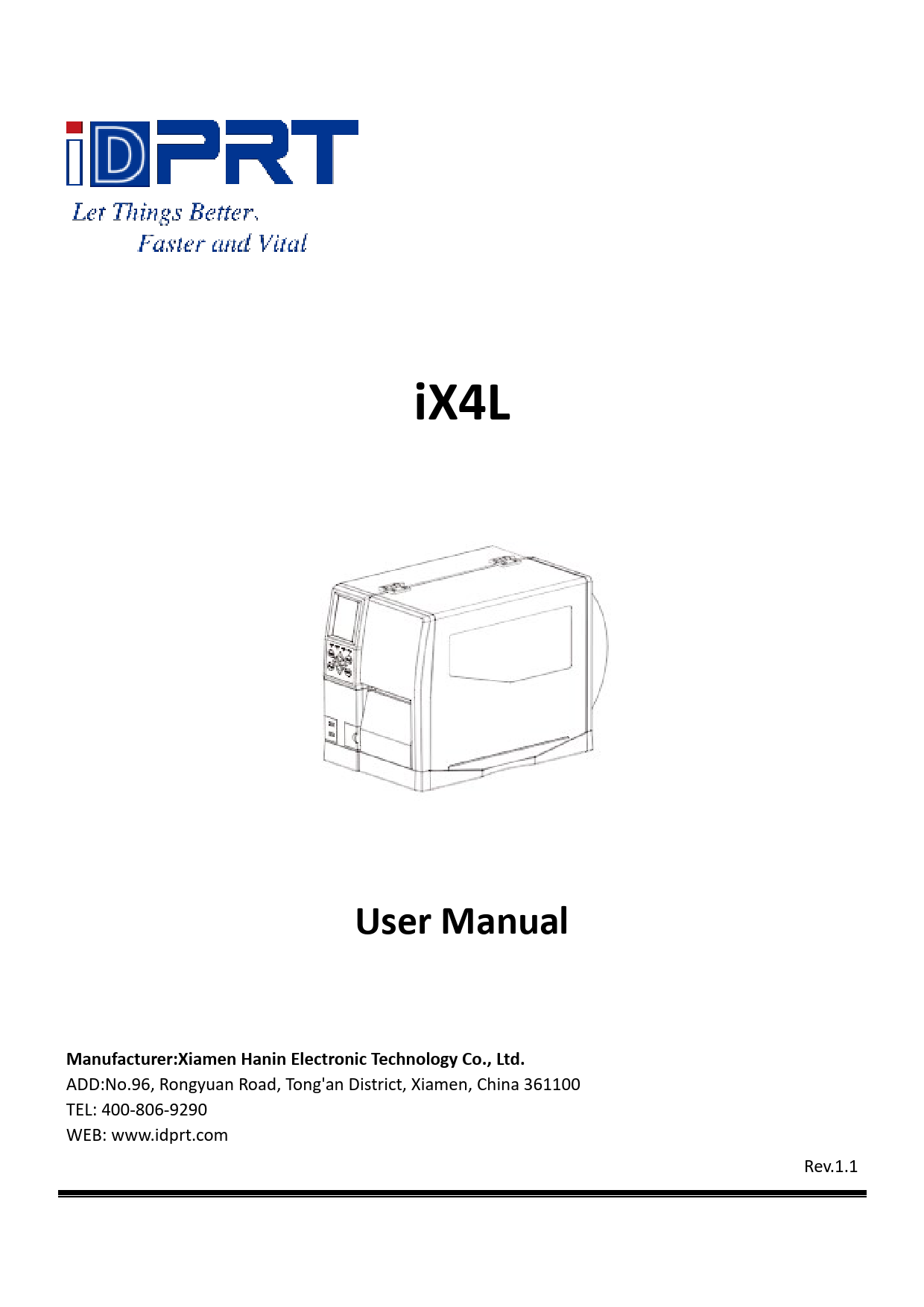
iDPRT iX4L Desktop Barcode Printer User Manual
File info: application/pdf · 113 pages · 4.88MB
iDPRT iX4L User Manual Rev.1.0
112
iDPRT, iX4L, User, Manual Rev.1.0
iDPRT iX4L User Manual Rev.1
iX4L . User Manual. Manufacturer:Xiamen Hanin Electronic Technology Co., Ltd. ADD:No.96, Rongyuan Road, Tong'an District, Xiamen, China 361100 . TEL: 400-806-9290
iX4L . User Manual. Manufacturer:Xiamen Hanin Electronic Technology Co., Ltd. ADD:No.96, Rongyuan Road, Tong'an District, Xiamen, China 361100 . TEL: 400-806-9290
Full PDF Document

If the inline viewer fails, it will open the original document in compatibility mode automatically. You can also open the file directly.
Extracted Text
iX4L

User Manual
Manufacturer:Xiamen Hanin Electronic Technology Co., Ltd. ADD:No.96, Rongyuan Road, Tong'an District, Xiamen, China 361100 TEL: 400-806-9290 WEB: www.idprt.com

Rev.1.1

iX4L User Manual
Contents
Important Safety Instructions ................................................................................................................1 Chapter 1 Introduction...........................................................................................................................4
1.1 Packing List...............................................................................................................................4 1.2 Appearance and Components..................................................................................................5 1.3 Dimension ................................................................................................................................7 Chapter 2 Specifications.........................................................................................................................8 Chapter 3 Installation & Usage ............................................................................................................11 3.1 Ribbon and Paper Loading .....................................................................................................11
3.1.1 Ribbon loading ............................................................................................................11 3.1.2 Media Loading.............................................................................................................13 3.1.3 Media Path ..................................................................................................................16 3.2 Power Connection..................................................................................................................18 3.3 Peripherals Connection..........................................................................................................19 3.4 Operation Panel .....................................................................................................................20 3.4.1 Panel Introduction.......................................................................................................20 3.4.2 Button Function Definition .........................................................................................22 3.4.3 Buzzer..........................................................................................................................23 3.4.4 Indicator Definition .....................................................................................................24 3.5 Display Operation Procedure .................................................................................................25 Chapter 4 Interface ..............................................................................................................................28 4.1 USB Interface..........................................................................................................................28 4.2 Other Optional Interfaces ......................................................................................................29 Chapter 5 Maintenance & Adjustment .................................................................................................31 5.1 Cleaning Media Sensor ..........................................................................................................31 5.2 Cleaning Thermal Print Head .................................................................................................31 5.3 Cleaning Roller and/or Paper Path.........................................................................................32

iX4L User Manual
Chapter 6 Printer Utility Tool Instructions ...........................................................................................33 6.1 Installation Preparation..........................................................................................................33 6.2 Usage......................................................................................................................................33
Chapter 7 Seagull Windows Driver Instructions ..................................................................................49 7.1 Introduction ...........................................................................................................................49 7.2 Installation Preparation..........................................................................................................49 7.3 Installation..............................................................................................................................50 7.4 Usage......................................................................................................................................56 7.4.1 Printing Preferences....................................................................................................56 7.4.2 Printer Properties........................................................................................................68
Chapter 8 BarTender UltraLite Instructions .........................................................................................72 8.1 Introduction ...........................................................................................................................72 8.2 Installation Preparation..........................................................................................................72 8.3 Installation..............................................................................................................................73 8.4 Usage......................................................................................................................................77 8.4.1 Page Settings ...............................................................................................................77 8.4.2 label Edit......................................................................................................................86
Appendix I Display Menu .....................................................................................................................90 Appendix II Warning.............................................................................................................................97 Appendix III Icon Description .............................................................................................................100 Appendix IV Trouble Shooting............................................................................................................102 Appendix V Download Path for UTILITY and Driver ...........................................................................105

iX4L User Manual

Change Record

Rev. Date

Description

1.0 2021.01.06

--

1.1 2021.10.13 RAM64MB

Editor Checker

Baochun Lin Justin Yu

Huishan Chen

Justin Yu

 Statement

iX4L User Manual

This manual content may be altered without permission, and our company reserves the rights to make changes without notice in technology, spare parts, hardware and software of the products. If more information is needed about the products, please contact our company. Without any written permission from our company, any section of this manual is prohibited to be copied or transferred in any form.
 Copyright

This manual is printed in 2021, the copyright belongs to Xiamen Hanin Electronic Technology Co. Ltd. Printed in China 1.1 Version
 Warnings

This must be complied with in order to avoid any damage to the human body and the equipment.
This is showing the important information and tips for the printer operation.
Note: Due to continuous update of our product, the description of printer specification, accessories, design in this manual may be slightly different. Please keep in kind prevail.

iX4L User Manual
Important Safety Instructions
Before using the appliance, please carefully read the following safety regulations in order to prevent any hazard or material damage. 1. Safety warning
Warnings: The print head will become very hot during printing. avoid contact with the print head after printing has finished.
Warnings: Do not touch the printer head and connector in case static damage the printer head. 2. Instructions
Warnings: Violating following instructions can cause serious injury or death. 1) Do not plug several products in one multiperture outlet.
� This can provoke over-heating and a fire. � If the plug is wet or dirty, dry or wipe it before usage. � If the plug does not fit perfectly with the outlet, do not plug in. � Be sure to use only standardized multiperture outlet. 2) You must use the supplied adapter. � It is dangerous to use other adapters. 3) Do not pull the cable to unplug. � This can damage the cable, which is the origin of a fire or a breakdown of the printer. 4) Do not plug in or unplug with your wet hands. � You can be electrocuted. 5) Do not bend the cable by force or leave it under any heavy object. � A damaged cable can cause a fire.
1

iX4L User Manual
Note: Violating following instructions may cause slight damage of the appliance. 1) If you observe a strange smoke, odour or noise from the printer, unplug it before taking following measures.
� Switch off the printer and unplug the set from the mains. � After the disappearance of the smoke, call your dealer to repair it. 2) Install the printer on the stable surface. � If the printer falls, it can be broken and you can hurt yourself. 3) Use the approved accessories only and do not try to disassemble, repair or remodel it by yourself. � Call your dealer when you need these services. � Do not touch the blade of auto cutter. 4) Do not let water or other foreign objects drop into the printer. � If this happened, switch off and unplug the printer before calling your dealer. 5) Do not use the printer when it is out of order. This can cause a fire or an electrocution. � Switch off and unplug the printer before calling your dealer. 6) Other considerations: � Place the printer on a solid and even base so that it cannot fall. � Leave enough space around printer for operation and maintenance. � Keep all liquids away from the printer. � Do not expose the printer to high temperatures, direct sunlight or dust. � Ensure the printer is connected to a socket with the correct mains voltage. � Switch off the printer POWER supply when it's not in use for a long time. � To ensure the printing quality and reliability, suggest use the same quality or recommend paper supplier. � Pls. switch off the POWER supply when connect/disconnect all the ports or it will cause damage to the printer control circuit. � Never carry out maintenance or repair work yourself. Always contact a qualified service Technician. � Keep this User Manual in a place which is easily accessible for all times.
2

iX4L User Manual
3. Other Precautions The copyright for this user manual and various other manuals is property of our company. Any copying or conversion into electronic form and saving of this material without the express written permission is strictly prohibited. Use of the information contained in this manual is not subject to any patent liability. This manual has been prepared with utmost care and attention to detail but may contain certain errors and/or omissions. Our company is not legally liable for any damages resulting from the use of the information in this manual. Our company and its affiliates are not legally liable (United States excluded) for any damages, loss, costs, and/or expenses that result from the breakdown, malfunction, and/or misuse of the product due to violation or neglect of the operation and maintenance information and instructions provided by our company, as well as from the unauthorized alteration, repair, and/or modification of the product by the user and/or third party. We are not legally liable for any damages and/or issues resulting from the use of options and/or parts that are not authentic or authorized products.
4. WEEE (Waste Electrical and Electric Equipment) This mark shown on the product or its literature indicates that the corresponding item should not be discarded at the end of its working life with others household waste. To prevent possible harm to the environment or human health from uncontrolled waste disposal, please separate marked items from other types of waste and recycle them
responsibly to promote the sustained reuse of material resources. Household users should contact either the retailer where they purchased this product, or their local government office for details of where and how they can conduct environmentally safe recycling of such items. Commercial users should contact their suppliers and check the terms and conditions of purchase contracts. This product should not be combined with other commercial waste for disposal.
Caution: This is a Class A product. In a domestic environment this product may cause radio interference in which the user may be required to take adequate measures.
3

iX4L User Manual
Chapter 1 Introduction
1.1 Packing List
1. Unpack the printer and keep the packing material in case you need to ship the printer in the future. 2. Any damages exist, please contact the local dealer.
Note: The packing materials are based on the order.
4

1.2 Appearance and Components
Front View

iX4L User Manual

Rear View

5

Inside View

iX4L User Manual

Note: The views above are for your reference. Ports vary by your choice.
6

1.3 Dimension

iX4L User Manual

7

iX4L User Manual

Chapter 2 Specifications

Printing
CPU Memory

Item Printing Method Resolution Printing Speed Printing Width Printing Length
RAM Flash

Detection Sensor

Media Ribbon

Type Width Thickness Label Outer Diameter Label Inside Diameter Type Width Length Inside Diameter

Parameter Printing 203dpi/300dpi 2~6ips 104mm 2286mm(203dpi)/1524mm(300dpi) 32-bit RISC CPU 64MB 128MB Paper Out Detect, Seam Mark Detect, Black Mark Detect, TPH Over, Cover-opened Detect Fold Paper, Roll Paper, Continuous Paper, Black Mark 25mm~200mm 0.003-inch (80um) � 0.010-inch (250um) 10-inch (254mm) 1.5-inch (38.1mm), 3-inch (76.2mm) Wax, Wax/Resin, Resin 1.18-inch(30mm) � 4.33-inch(110mm) 1476' (450 m) 1-inch (25.4mm)

8

iX4L User Manual

Programming Language
Label Design Software
Software Driver

Resident Fonts

Bitmap fonts TTF fonts

Bitmap fonts
Download TTF fonts
Fonts
Asian fonts

Code Pages

Barcodes 1D

DPL, EPL2, ZPL-II Seagull Bartender UltraLite Windows XP, 7, 8, 10. server 2008, 2012 CUPS for Linux and MAC OS 6, 8, 12, 16, 32, OCR A & B. 90�, 180�, 270� rotatable and 10 times expandable in horizontal and vertical directions Monotype CG TriumvirateTM. 90�, 180�, 270� rotatable and 10 times expandable in horizontal and vertical directions 90�, 180�, 270� rotatable 16x16, 24x24. Traditional Chinese, Simplified Chinese, Japanese, Korean DOS437,720,737,755,775,850,852,855,856,857,858,86 0,862,863,864,865,866, Windows 1250,1251,1252,1253,1254,1255,1256,1257,1258 ISO8859-1,-2,-3,-4,-5,-6,-8,-9,-15 DBCS 932 (JIS), 936(GBK), 949 (Koran), 950(BIG5) Code 39, Code 93, EAN 8/13 (add on 2 & 5), UPC A/E (add on 2 & 5), I 2 of 5 & I 2 of 5 with Shipping Bearer Bars, Codabar, Code 128 (subset A, B, C), EAN 128, RPS 128, UCC 128, UCC/EAN-128 K-Mart, Random Weight, Post NET, ITF 14, China Postal Code, HIBC, MSI, Plessey, Telepen, FIM, GS1 DataBar, German Post Code, Planet 11 & 13 digit, Japanese Postnet, I 2 of 5 with human readable check digit, Standard 2 of 5, Industrial 2 of 5 , Logmars, Code 11, Code 49, Cadablock

9

Barcodes

2D

Interfaces
LCD Display RTC Function

Standard Optional

Control Panel

Power Supply

Environment
Physical Characteristic

Operation Storage Dimension Weight

Options & Accessory

Agency Approval

iX4L User Manual
PDF417, Data matrix code, Maxi Code, QR code, Micro PDF417, Micro QR code, Aztec code USB, USB HOST, RS232, Ethernet Wi-Fi 3.5" TFT LCD Support Status light, Prompt light, Error light, Power light Control button: Menu, Calibration, Feed, Pause, Return, Enter, Up/Down Arrow Input: AC 100V-240V, 50/60Hz Output: DC 24V/2.5A 41-104 @ humidity 30% to 85%, non-condensing -20-50 @ humidity 10% to 90%, non-condensing 462*264*322mm (L*H*W) 12.5 Kg Peeler Module, Cutter Module, External Label Roll Holder CCC, FCC, CE, CB, UL, RoHS, WEEE

10

Chapter 3 Installation & Usage
3.1 Ribbon and Paper Loading 3.1.1 Ribbon loading
1.Place the printer on the flat table, lift the cover from the bottom-right of printer by hand.

iX4L User Manual

2.Load the outside ink ribbon into ribbon supply spindle, then anticlockwise tighten the latch knob to fix the ribbon.
11

3.Pull a part of ribbon, then pass the ribbon between the print mechanism and the media sensor.

iX4L User Manual

4. Pass the ribbon over the print mechanism and the ribbon take-up spindle, and then wrap it several turns around the ribbon take-up spindle.
12

iX4L User Manual
3.1.2 Media Loading
1. Rotate the arrow mark that locates in media guide lock of media spindle to unlocking position, then remove the media guide.
2. Mount a label roll onto the media spindle. Be sure to push the roll all the way aligned the inner wall of the printer. After the label roll be loaded, put the media guide back on the media spindle. Then rotate the arrow mark that locates in unlocking position to lock position so that it can be latched.
13

iX4L User Manual
3. Pull out part of label and pass it under the media dancer assembly and media sensor until it reaches the exit slot. Then slide the paper guide to adjust for the label width.
4. When using the gap label, black mark label or punch hole label, you can manually adjust the media sensor by the pulling to find the gap, black mark or punch hole for the start printing position.
14

iX4L User Manual
5. After finishing the label loading, turn down the print head lever to make ribbon and label fit snugly.
15

3.1.3 Media Path
1. Backside feeding
2. Bottom feeding

iX4L User Manual

16

3. Installation of direct throwing peeler

iX4L User Manual

4. Installation of rollback peeler

17

3.2 Power Connection
1.Connect the power plug to power receptacle. 2.Connect the other end of power cord to the AC power port.

iX4L User Manual

Caution:  Use the original power adapter only. Avoid the damage caused by charging improperly.  Please unplug the printer power cord if it is not in use for a long time.

18

iX4L User Manual
3.3 Peripherals Connection
When printing paper, the moveable label sensor is used to detect paper. The label sensor moves differently when using various kinds of paper. If user moves the sensor improperly, paper may not be detected, therefore the printer could not print paper. The following instructions tell users how to use label sensor correctly. Please read it carefully. When printing, the sensor shall be aimed at the triangle below, which is the original position.
19

iX4L User Manual
3.4 Operation Panel
3.4.1 Panel Introduction
The panel indicates the printer's operating status and allows the user to control basic printer operation.
20

1.Feed Button

iX4L User Manual

Much more detailed information is provided in "3.6.1 FEED Button". 2.Directional Pad (only for printer iX4L)

It is included by up arrow button, down arrow button, return button and enter button.


Up Arrow Button: Common uses are to scroll through choices, navigating to the left or the

previous choice.


Down Arrow Button: Common uses are to scroll through choices, navigating to the right or the

next choice.


Return Button: Back to previous.


Enter Button: Common uses are to navigate to the sub-menus, change the values or to save

the settings.

21

iX4L User Manual
3.4.2 Button Function Definition
1. Menu button: in standby state, long press the menu operation function to enter the display 2. Calibration button: in standby state or the error light slow flash, long press the "Start label learning function". 3. FEED button:
 In the ready state, press the feed button (<1 seconds), then release the feed button. The printer will make a blank paper positioning according to label / black mark label. If it is continuous paper, press the feed button and the printer will continue to feed the paper. Release the paper feed button to stop printing immediately.
 In the ready state, press the feed button (approx. 1.5 seconds) until the status light is green, then release the feed key. And the printer prints the self-test page.
 In the ready state, press the feed button (approx. 3 seconds) until the status light is orange, then release the feed button. And the printer starts making a label learning of seam label.
 In the ready state, press the feed button (approx. 4.5 seconds) until the status light is red, then release the feed button. And the printer starts making a label learning of black mark label.
 In the ready state, press the feed button (approx. 6 seconds) until the green light slow flash, then release the feed button. And the printer starts getting into dump mode of data.
 In dump mode state, press the feed button to print "Out of Dump Mode Now", then return to print mode.
 Error light: red light slow flash, short press feed button, printer will position to next paper according to label / black mark label. If it is continuous paper, press the paper feed button and the printer will continue to feed the paper. Release the paper feed button to stop printing immediately.
22

iX4L User Manual
4. Pause button:  In Printing: short press to pause print, long press to clear current print task.  Printing Pause: short press to keep printing, long press to clear current print task
5. Navigation button: only can be used with the display.
 Note: short press: 0.3 seconds to 1 seconds. Long press: larger than 3 seconds
3.4.3 Buzzer
1. Silence: not set / normal 2. Beep 0.2 seconds: button response / touch response 3. Beep 1.5 seconds and stop 2 seconds: during printing, run out of paper / label off / paper jam
23

iX4L User Manual
3.4.4 Indicator Definition
1. Power light:  OFF: no power / not power on  Green light constant bright: normal  Green light slow flash: dump mode
2. Error light:  OFF: not power on/ normal  Red light constant bright: run out of paper/ print head open.  Red light slow flash: out of ribbon  Red light fast flash: jam paper/label off/ cutter stuck
3. Promote light:  OFF: not power on/ normal  Orange light constant bright: manually print (FEED button/ take paper sensor)  Orange light slow flash: Label format mismatch  Orange light flash: Print pause
4. Ready light:  OFF: not power on  Green light constant bright: printer standby  Green light slow flash: get in dump mode  Green light fast flash: in data reception
Note: Quick flash  0.2 second / every cycle Slow flash  1 second / every cycle
24

iX4L User Manual
3.5 Display Operation Procedure
Note: The user can confirm the status of the printer via the display. It is divided into ready display, home menu display, sub-menu displays and operating displays. 1. Make sure that the printer is connected and the roll is installed correctly. 2. Turn on the printer power. When the printer is turned on, it will display the standby interface. Under the standby interface, users can obtain information about the printer name, menu, and firmware version.
25

iX4L User Manual
(1) Under the printer standby interface, click on the "System Settings" to enter the system settings.
Note: The individual items set up have the password lock function, once the password lock function is started, you must enter the correct password to enter the system settings. For the locked setup item, the printer automatically excludes the corresponding setup instructions from the print task. (2) Under the printer standby interface, click on the "Test" to enter the test selection.
26

iX4L User Manual
(3) Under the printer standby interface, click on the "Advance " to enter the settings.
Note: For more information about the display menu, please refer to the appendix.
27

Chapter 4 Interface
4.1 USB Interface

iX4L User Manual

PIN

SIGNAL NAME

1

VBUS

2

D-

3

D+

4

GND

28

4.2 Other Optional Interfaces
 Serial Port

iX4L User Manual

PIN SIGNAL NAME

1

+5VDC

2

RXD

3

TXD

4

DTR

5

GND

6

DSR

7

RTS

8

CTS

9

-

SIGNAL DIRECTION OUTPUT OUTPUT INPUT INPUT
GROUNDING OUTPUT INPUT OUTPUT
NO CONTACT

29

 Ethernet Port

iX4L User Manual

PIN 1 2 3 4 5 6 7 8

SIGNAL NAME TX+ TXRX+ RX-

30

iX4L User Manual
Chapter 5 Maintenance & Adjustment
Adhesives and coatings of the media can transfer to the printer parts over time along the media path including the thermal print head and media sensor. This build-up can accumulate dust and debris. Failure to clean the print head, media path, and media sensor could result in inadvertent loss of labels, label jams and possible damage to the printer.
Note:  Make sure to turn off the printer prior to cleaning.  As the print head gets hot during printing, if intending to clean the print head, turn the printer off and
wait approximately 2~3 minute before commencement.  When cleaning the print head, take care not to touch the heated portion of the print head. Print Head
is susceptible to damage from static electricity, etc. It is strongly recommended to wear hand gloves during cleaning progress.  Take care not to allow the print head become scratched and/or damaged in any way.
5.1 Cleaning Media Sensor
Debris or dirt on the paper sensor can cause a miss-read or unstable detection of the label gap. Clean with a cotton bud dampened with alcohol.
5.2 Cleaning Thermal Print Head
Thermal Paper stock on the print head, which degrades print quality. Clean the print head with methanol or isopropyl alcohol and a cotton bud. Do not touch the heating elements with your fingers. 1) Open the Printer Cover and then use the cleaning pen to clean the head in the direction from the
center of the head to two sides. 2) After cleaning the head, do not use the printer until the alcohol used for cleaning evaporates
completely (1~2 min) and the printer has completely dried. 3) Perform the cleaning process each time the paper roll is replaced to prevent print quality deterioration.
31

iX4L User Manual
5.3 Cleaning Roller and/or Paper Path
1) Open the printer cover and then remove the paper. 2) Remove any dust or foreign substance using dry cloth or cotton swab. 3) Soak the cloth or cotton swab in alcohol for medical use and use it to remove adhesive foreign
substances or other pollution materials. 4) After cleaning the parts, do not use the printer until the alcohol evaporates completely (1~2 min) and
the printer has completely dried Note: Clean the parts when print's quality or label detection degrades.
32

iX4L User Manual
Chapter 6 Printer Utility Tool Instructions
6.1 Installation Preparation
Download application program iDPRTUtility.exe in CD.
6.2 Usage
Note: The screen may vary slightly by different operating systems and models. Take printer iX4L as example. 1.Install "iDPRTUtility.exe", then open it.
33

2.Click "Settings". (1) Set up the interface needed. (range: USB, COM, LPT, ETH)

iX4L User Manual

34

iX4L User Manual
(2) Click "Get Printer Information", and printer information will show in the above.
35

(3) Click "Get Status", and printer status will show in the above.

iX4L User Manual

Idle!

36

iX4L User Manual
(4) Click "Common". In this menu, user can set up the protocol, media sensor, speed, density and so on.
37

iX4L User Manual
(5) Click "RS-232", then set up the parameter, or click "Get" to gain the values of Mac address.
38

(6) Click "Ethernet", then click "Get" to gain the relevant values.

iX4L User Manual

39

(7) Click "WIFI", then set up the name, password and so on.

iX4L User Manual

40

iX4L User Manual
(8) Click "RTC Setting". Click "Get System DateTime" to get the values, and click "Setup" to save them. Then click "Close", and back to the main menu.
Note:  Finishing all the settings, user can click "Set" to save the values changed.  Click "Get", and user will get the default values.
41

3.Click "Storage" to print image.

iX4L User Manual

(1) Click "File name" to select the image. Note: The file name must be in English or number, and the filename length must be less than 32.
42

(2) Click "Download".

iX4L User Manual

(3) Select the downloaded graphic, and then click "print selected graphic"to print the picture.

43

(4) You can set a magnification of the graphic as needed.

iX4L User Manual

44

4.Click "Fonts". (1) Click "Select Font" to select the vector font you want.

iX4L User Manual

(2) Click "Download" (Note: The font file name must be in English or number).
45

iX4L User Manual
(3) Select the downloaded font file, enter the print content in the text box, and click "Print Text".
46

iX4L User Manual
5. Click "Function Test". User can carry the followings such as sensor calibration, pattern print testing and so on.
47

iX4L User Manual
6. Click "System". Click "language" and choose the language of printer utility.
48

iX4L User Manual
Chapter 7 Seagull Windows Driver Instructions
7.1 Introduction
The following operating systems are supported:   Windows Vista, Windows 7, Windows 8 and 8.1, and Windows 10.   Windows Server 2008, 2008 R2, 2012, 2012 R2, and 2016.   32-bit and 64-bitx64editions.
7.2 Installation Preparation
Download Seagull Windows Driver application program in CD.
49

iX4L User Manual
7.3 Installation
Note:  Under different operating systems, the screen may be slightly different. Take Windows 7 as example.  Take printer iX4L as example.  To avoid the prevention, recommend to close the security software before installation. 1.Select one interface to connect your printer to computer. 2.Turn on the printer and check if it is connected to computer successfully. 3.Double click Seagull Windows Driver . 4.Read and agree the license agreement. Then click "Next".
50

5.Choose the installation directory, then click "Next".

iX4L User Manual

6.Click "Finish".

51

7.Choose "Install printer drivers", then click "Next".

iX4L User Manual

Note: If you have connected the printer to computer, it will detect and install the driver automatically. (e.g. USB port)

52

8.Choose model, then click "Next".

iX4L User Manual

9.Enter a name for this printer, then click "Next".

53

10.Click"Finish".

iX4L User Manual

11.Click "Close", and the driver is installed successfully.

54

iX4L User Manual
12.After installation, the icon will be found in "Start"  "Devices and Printers". Note:
 If you have already installed the driver (No matter what kind of ports), it will generate a USB port automatically when connecting the printer to computer.
 Any problems exist, please use our utility tool in CD.
55

iX4L User Manual
7.4 Usage
7.4.1 Printing Preferences
1.Click "Start"  "Devices and Printers". Right click icon and choose "Printing preferences".
56

2.According to different needs, set up the page.

iX4L User Manual

57

Click "Stock"  "Name", and choose the paper type.

iX4L User Manual

58

Click "New Stock", and set up a new stock.

iX4L User Manual

Click "Edit Stock", and edit the stock.

59

Click "Delete Stock", and delete the stock.

iX4L User Manual

Choose "Orientation" or "Effects", showed in the "Preview".

60

Click "Preset"  "Name", and back to the default settings.

iX4L User Manual

61

Click "Manage", and change the settings.

iX4L User Manual

62

3.Click "Graphics", and edit the pictures.

iX4L User Manual

63

4.Click "Stock", set the media settings, feed mode and feed options.

iX4L User Manual

64

Set up the print method (Direct Thermal / Thermal Transfer).

iX4L User Manual

65

Set up the media type.

iX4L User Manual

66

Click "Feed Mode"  "Mode", and choose the method of media handing.

iX4L User Manual

67

iX4L User Manual
7.4.2 Printer Properties
1.Click "Start"  "Devices and Printers". Right click the icon and choose "Printer properties".
68

iX4L User Manual
2.Click "General"  "Print Test Page", and printer will print labels with current settings.
69

3.Click "Ports", and choose the port needed.

iX4L User Manual

70

4. Click "Advanced" to set the available time for printer.

iX4L User Manual

71

iX4L User Manual
Chapter 8 BarTender UltraLite Instructions
8.1 Introduction
This chapter provides instructions on BarTender UltraLite program according to PC operating systems (OS). The followings are supported.   Windows 10, 8.1, 8, 7 and Vista.   Windows Server 2016, Server 2012 and 2012 R2, Server 2008 and 2008 R2.   Includes all 32-bit and 64-bitx64editions.
8.2 Installation Preparation
Download BarTender UltraLite application program in CD.
72

iX4L User Manual
8.3 Installation
Note:  Under different operating systems, the screen may be slightly different. Take Windows 7 as example.  Take printer iX4L as example.  To avoid the prevention, recommend to close the security software before installation. 1.Double click the application program . 2.Select language, then click "OK".
3.Click "Install".
73

4.Click "Next".

iX4L User Manual

5.Read and accept the license agreement, then click "Next".

74

6.Select "Features" and installation location, then click "Next".

iX4L User Manual

7.Click "Install".
75

8.Click "Finish".

iX4L User Manual

9.Back to desktop, and you will see the icon of BarTender UltraLite. Double click it and get down to use.

76

iX4L User Manual
8.4 Usage
8.4.1 Page Settings
1.Double click the icon, then choose the edition. Click "OK". (The edition may be changed according to different needs.)
2.Click "Start a new BarTender document".
77

3.Choose "Blank Template", then click "Next".

iX4L User Manual

78

iX4L User Manual
4.If the predefined stocks do not meet your need, tick "Specify Custom Settings". Then click "Next".
79

iX4L User Manual
5.Tick "Single item per page", then click "Next". (If you print multiple labels, tick "Multiple columns and/or rows of items per page".)
80

6.Edit the side edges, then click "Next".

iX4L User Manual

81

7.Choose the item shape, then click "Next".

iX4L User Manual

82

8.Edit the template size, then click "Next".

iX4L User Manual

83

9.Based on your need, edit the template background. Then click "Next".

iX4L User Manual

84

iX4L User Manual
10.Finish the settings, showed in the "Review" and "Preview". Then click "Finish".
85

8.4.2 label Edit
1.Click the icon of code . 2.Choose the code, then click "Select".

iX4L User Manual

86

3.Click the blank, showing the code.

iX4L User Manual

4.Double click the code and edit it. User can set up the size, font, border and so on.

87

5.Click the icon of character , then enter the text.

iX4L User Manual

6.Click the icon of picture , then edit the pictures.

88

7.Compose the text.

iX4L User Manual

8.Finish all the settings. Click "Print" and a new label will be printed.

89

iX4L User Manual

Appendix I Display Menu

Main menu Setting

Submenu

Parameter

Remark

Printing Method

0: DT 1: TT

Printing Speed 2-N ips

Printing Setup

Printing Darkness Page Rotation After Printed
Stop Position

0-N ZPL/DPL/=30;EPL=20; TSPL=15 0: 0o, 1: 90 o 2: 180o, 3: 270o 0: None, 1: Tear 2: peeler, 3: Cutter Position peel, tear and cutter position 0: Automatic default 1: manual 0 - 30.0 mm

Default: Factory settings (locked/unlocked)) Default: Factory settings N: Maximum depends on the language Default: Factory settings N: Maximum depends on the language
Default:0 (locked/unlocked)
Default:1 (locked/unlocked)
Default: Tear paper line position based on print line (locked/unlocked)

Label type Position Advance Print Y offset

gap label (default), black label, continuous paper
Automatic (default) penetration detection Reflective detection Adjust the vertical coordinates of the print start position

Default:0 (locked/unlocked) Default:0 (locked/unlocked) Default:0 (locked/unlocked)

Print X offset PL Simulation

/- 120 dots Adjust the horizontal
start of the print

/- 120 dots

Automatic or manual

lying 0: Automatic

recognition switch

1: ZPL

2: TSPL

3: EPL

4: DPL

Default:0 (locked/unlocked) Default:0 (locked/unlocked)

90

Main menu

Submenu

Setting

Advance

Codepage

LCD Language

LCD Timeout

Parameter 0: CP850 1: CP852 2: CP437 3: CP860 4: CP863 5: CP865 6: CP857 7: CP861 8: CP862 9: CP855 10: CP866 11: CP737 12: CP851 13: CP869 14: Win 1252 15: Win 1250 16: Win 1251 17: Win 1253 18: Win 1254 19 Wi 1255 0: No 1: 10s-9: 90s

LCD Brightness 0-9

iX4L User Manual
Remark
Default:0 (locked/unlocked)
Default:1 Default:4

91

iX4L User Manual

Main menu

Submenu

Parameter

Remark

0: English

1: Espa�ol

2: Portugu�s 3: Fran�ais

4: Deutsch
LCD Language 6: Japanese

5:  Default:0 7:  9: Downloadable changes

LCD

8: Simplified Chinese

Language

9: Traditional Chinese

Setting

LCD Password NNNN

Standby Display

0: Display Ready 1: Display date and time

Baud Rate

Port setting

Data Bits

RS232 Setting

Parity Check

Flow Control

Default:0000 N: 0-9 NNNN: 0000 indicates no password functionality
Default:0
0: 9600, 1: 14400, 2: 19200, 3: 38400, 4: 57600, 5: 115200 Default:0 0: 7-bit, 1: 8-bit Default:0 0: None, 1: Odd, 2: Even 0: None, 1: XON/XOFF, 2: Hardware, 1.SW+HW Default:2

92

Main menu

Submenu

Ethernet Setting
Setting Port setting

WiFi Setting

Parameter Ethernet Switch
Address Mode
IP Address
Default Gateway
Subnet Mask
Port Number WiFi Switch 0: OFF; 1: ON Networking Mode 0: AP mode 1: Station mode SSID Alphanumeric character

iX4L User Manual
Remark 0: OFF 1: ON Default: Factory settings 0: DHCP 1: Static Default:1 NNN.NNN.NNN.NNN Default:192.168.1.1 N: 0-9; NNN: 0-255 NNN.NNN.NNN.NNN Default:192.168.1.0 N: 0-9; NNN: 0-255 NNN.NNN.NNN.NNN Default: 255.255.255.0 N: 0-9; NNN: 0-255 NNNNN Default:9100 N: 0-9
Default:0
Default:0
AP Default: Printer model ST Default: Blank

93

iX4L User Manual

Main menu

Submenu

Parameter

Remark

Setting

Connect port

Keyboard

0: No 1: USB Host

(Automatic connection)

External Device Setting

2: Serial port 0: English

1: Espa�ol Ext. Keyboard 2: Portugu�s

Language

3: Fran�ais

4: Deutsch

5:  Connect port

Barcode Scanner

0: No 1: USB Host (Automatic connection)

TPH printed mileage

2: Serial port Show printer print miles
0-99999.99 meters

Default:0 Default:0 Default:0 No blank paper miles

Maintain and Test

TPH bad dot printing test TPH bad dot scan

Label Calibration

Print test sheet

Abnormal scanning test of impedance of print head

Tested, total return bad points

Action completion will stop in the corresponding stop Label learning and correction position according to the setting of the tearing/ peeling/cutting

94

iX4L User Manual

Main menu

Submenu

Media sensor printing

Dump mode Cutting test

Maintain and Test Restore factory default

Firmware update Touch screen calibration

Parameter

Remark

Signal quantitative waveforms detected by print media

Detection according to specified sensor mode

Print the received data and automatically change lines when the width of the label exceeds

Press feed key back to standby

Test the cutter function

Errors will be reported

Is there a need to restore Factor

sets? Y/N

0: NO 1: YES, Files that have been

Default: 0

downloaded and stored will also

be retained and not cleaned up

Automatically list firmware files,

select files and confirm whether

to read the firmware specified in

the U disk for updates? 0: Printer firmware

Default: 0

1: Display Firmware

2: Display Picture Pack

3: Display screen specific page Five-point calibration at four

corners plus center points

95

iX4L User Manual

Main menu

Submenu

Parameter

Remark

Printer settings
information Configuration
Built-in glyph list

Print out the current printer settings information Print out all built-in glyph models

built-in barcodes list Print out all barcode models

List of user flash files Print a list of user flash files

Advance

List of user memory files External USB disk
Smart Printing File Management
Auto Form

Print a list of user memory files

Reformat

0: NO

Default: 0

1: YES

List display/copy/delete/start

label format printing on specified

memory/picture/font/database/

firmware

Default: list

I: \.. (Internal Flash)

U: \iDPRT\... (External USB

Storage)

The selected label format runs

automatically after the printer is

turned on

Default: 0

0: No

1: Yes

96

Appendix II Warning
Problem Form is not found

iX4L User Manual
Solution Check if the files are exactly stored in the memory device.

Image is not found Fonts is not found No F/W found No Battery Found

Check if the image is exactly stored in the memory device.
Check if the font is exactly stored in the memory device.
Firmware files are not stored in the USB storage when updating the firmware.
Battery is not installed in the printer when setting time and date. Check if the battery power runs out or not installed well.

97

Problem Password Error
USB storage Lock
No USB storage found No Cutter Found
Ethernet Error
Flash ROM Full

iX4L User Manual
Solution Wrong password is entered. Enter the correct password to modify the protected parameters.
Printer cannot write the data to the USB storage. Unlock the USB storage.
There is no USB storage installed in printer when updating the printer. Check if the USB storage is well inserted in printer. Cutter is not installed on printer when execute the cutter test.
Ethernet port is disconnecting.
Internal flash ROM is full. Delete un-necessary files to store the current files.

98

Problem Found No Bluetooth
Found No WiFi
Material too thick

iX4L User Manual
Solution There is no Bluetooth module installed in the printer.
There is no WiFi module installed in the printer.
Material is too thick or hard, cutter takes longer time to return the blade to the initial position after cut.

99

iX4L User Manual

Appendix III Icon Description

Icon / Status Description

Icon / Status Description

Printing:

Wait label taken:

Printer is printing

Wait to peel the

something.

printed label to print

the next label.

Feeding:

Feeding the Label.

Wait on Demand:

Wait to press the feed button print the next label.

Cancel Printing:

Saved: Cancel the current printing job.

Save the change of parameters to printer.

Pause Printing:

Dump Data printing:

Pause the current

Catch the data from

printing job

communication port

and send to printer to

print out. s

100

iX4L User Manual

Icon / Status Description

Icon / Status Description

Media Calibration:

Receiving Data:

Press the feed button

As soon as all the data

to calibrate the label.

has been received, the

printer will automatically

resume operation.

Reboot firmware: Restart printer.

Formatting USB mass storage: Printer is creating the needed folders and control files to the USB mass storage.

101

Appendix IV Trouble Shooting

iX4L User Manual

Error

Resolution

Found no Gap:

1.Ensure the see-through sensor type is selected correctly.

2.Adjust the media sensor box to correct position.

3. Clean the receiver sensor and emitter sensor.

4. Ensure the label gap size is not out of from 2mm to 15mm.

5. Use "Media Sensor Printing" to verify the sensing signal from

the media.

Found no Black Mark: 1.Ensure the reflective sensor type is selected correctly

2.Adjust the media sensor box to correct position

3.Black Mark height range: 3mm-30mm. Width minimum 10mm

4.Use "Media Sensor Printing" to verify the sensing signal from

the media

Paper Out:

Reload new media roll.

Ribbon Out:

Reload new ribbon roll.

Ribbon Steady:

Remove the ribbon or configure the printer for thermal transfer media.

102

Error Print Head Open:

Resolution Close the printer cover.

Firmware Update Fail: Re-update the firmware.

iX4L User Manual

TPH Fail:

Replace a new TPH.

Command Error:

Press Feed key to clear this error, and make sure the next input commands are supported by the printer.

Cutter Jam:

Check if labels stick in cutter and then clear up the adhesive from cutter bled.

103

iX4L User Manual

Error

Resolution

Print Head is over- Just wait for the TPH cool down and then continue printing

heat:

automatically.

Write error:

Ensure the mass storage is installed and formatted properly.

Write protected:

Ensure the write protection is disable from the mass storage.

Paper Jam:

Clear the jammed paper from the paper through path.

104

iX4L User Manual
Appendix V Download Path for UTILITY and Driver
1. Enter the website in browser: http://www.idprt.com 2. Select the "DOWNLOAD" to get the Utility and Driver.
105

iX4L User Manual
106

iX4L User Manual
107

iX4L User Manual
108
 iDPRT AIDC | Barcode Printer Supplier, Label Printer, Scanner & More