Magix Music Studio Deluxe 12.0 Owners Manual 12 Eng
User Manual: magix Music Studio Deluxe - 12.0 - Owners Manual Free User Guide for Magix Music Studio Software, Manual
Open the PDF directly: View PDF  .
.
Page Count: 460 [warning: Documents this large are best viewed by clicking the View PDF Link!]
- Copyright
- Preface
- Support
- Getting started
- More about MAGIX
- Introduction
- What is MAGIX Music Studio 12 deluxe?
- What’s new in MAGIX Music Studio 12 deluxe?
- The features
- Formats and interfaces
- MAGIX Online Content Library
- Synthesizer
- Effects and effect plug-ins
- DirectX and VST Plug-ins
- MIDI integration
- High-end 32-bit floating point
- 24 Bit Playout & native editing
- MAGIX Jam Session Automation
- Manager & Explorer
- MAGIX Remix Agent
- Track Freezing
- Batch processing
- ASIO driver support
- User-friendlier interface
- Task Assistant
- In addition:
- Tutorial
- Program desktop overview
- Terminology
- Functional overview
- Effects and effect plug-ins
- What effects are there and how are they used?
- Saving Effect Parameters (Preset Mechanism)
- Cleaning FX (object editor)
- Sound FX (object editor, mixer channels, mixmaster)
- Parametric Equalizer (mixer channels, mix master)
- MAGIX Mastering Suite
- Vintage Effects Suite
- Track Dynamics (track effects, mixer channels)
- Track delay/reverb (track effects)
- Elastic Audio
- General information on the Elastic Audio Editor
- Edit Window
- Axes labelling and legends
- Fundamentals of the Elastic Audio Editor
- Description of all control elements
- Playback control
- Tools in the Elastic Audio easy Editor
- Applications of the Elastic Audio easy Editor
- Pitch-sliced-objects and VIP objects
- Fundamental frequency analysis correction
- Keyboard commands and mouse-wheel assignments
- Effect Calculations
- MAGIX Music Studio 12 deluxe as an external effects device
- Mixer
- MIDI in MAGIX Music Studio 12 deluxe
- MIDI Editor
- Open MIDI Editor
- Notation display, movement, zoom
- Synchronized MIDI Editor and VIP screen view
- Using the MIDI Editor: Selecting events
- Editing Events: Piano Roll
- Controller Editor
- List Editor (midi event list)
- Quantize
- MIDI Editor shortcuts
- Drum Editor
- Score Editor
- Introduction
- Opening the Score Editor
- Score Editor Modes
- Linear view
- Page view
- The score
- Editing MIDI data in the score sheet
- Adjusting and optimizing the score.
- Note allocation in multiple systems
- Multi-voice notation
- MIDI Score Settings dialog
- Notation system settings
- Note display: Interpretation options
- Notation symbols
- Page format settings
- Printing score
- Print notes
- Software/VST instruments
- Synth Objects
- Auto Jam Session
- The Managers
- Surround Sound
- Burning CDs
- Menu File
- New Virtual Project (VIP)
- Open
- Import Audio
- Load Audio CD Track(s)
- Save Project
- Save Project as
- Save complete VIP in
- Save Project as Template
- Burn Project Backup on CD
- Save Object
- Save Session
- Rename Project
- Delete HD-Wave Project
- Delete Virtual Projects
- Convert audio
- Export audio
- Export podcast
- Batch-processing
- Connect to the Internet
- FTP Download
- Send project via email
- Close Project
- Exit
- Menu Edit
- Menu View
- Menu Track
- Menu Object
- Range menu
- "Real-time Effects" Menu
- Offline effects menu
- Amplitude / Normalize
- Switch Channels
- Stereo FX
- Invert Phase
- Equalizer
- FFT Equalizer
- Dynamics
- Multimax
- Declipping
- Remove DC offset
- Get Noise Sample
- Denoiser
- Dehisser
- Amp Simulation
- Vocoder
- Room Simulation
- Echo / Delay
- Resample / Time stretching
- Change Sample Rate
- Reverse
- Build Physical Loop
- DirectX Plug-Ins
- Process only left (right) stereo channel
- Menu Tools
- Track Bouncing
- Range trackbouncing
- Remove unused Samples
- Delete Freeze Data
- Waveform Generator
- Open new Manager
- Manager
- Timestretch Patcher
- Remix Agent
- Remix Agent – Tempo and Beat Assignment
- Requirements
- Preparation: Setting the Start Marker and Object End
- Step 1: Automatic Tempo Recognition
- Correction: Setting the manual and and Onbeat/Offbeat
- Step 2: Determining the start of a measure.
- Step 3: Use of the BPM and beat recognition
- Generating remix objects
- Menu Playback/Record
- MIDI menu
- New MIDI object
- New MIDI track
- MIDI Editor
- Object Editor
- Glue MIDI Objects
- Trim MIDI objects
- MIDI bouncing
- Track information
- Track MIDI record
- VST Instrument Editor
- Tempo/Time Signature
- Set new tempo marker
- Set new beat marker
- Set new beat position marker
- Ignore all tempo markers, use only project tempo
- Metronome active
- Metronome Options
- MIDI Options
- MIDI Record Modes
- MIDI Panic – All Notes off
- CD menu
- Load audio CD track(s)
- Set Track
- Set Sub-index
- Set Pause
- Set CD end
- Set Track Markers automatically
- Options for the Track Marker recognition
- Set Track Indices on Object Edges
- Remove Index
- Remove all Indices
- Make CD
- Show CD-R Drive Information
- Show CD-R Disc Information
- CD Track Options
- CD Disc Options
- CD Text / MPEG ID3 Editor
- Set Pause Time
- Set Start Pause Time
- CD Arrange-Mode
- FreeDB Options
- Audio ID
- Options menu
- Window menu
- Jobs menu
- Services
- Menu Help
- Mouser functions and mouse modes
- Button Overview
- Shortcuts and Intellimouse
- Index
Manual

2 Copyright
www.magix.com
Copyright
MAGIX and Music Studio are registered trademarks of MAGIX AG.
VST and ASIO are registered trademarks of Steinberg Media
Technologies GmbH.
This documentation is protected by law. All rights, especially the right
of duplication, circulation and translation are reserved.
No part of this publication may be reproduced in form of copies,
microfilms or other processes, or transmitted into a language used
for machines, especially data processing machines, without the
express written consent of the publisher.
All copyrights reserved.
All other product names are trademarks of the corresponding
manufacturers. Errors and changes to the contents as well as
program modifications reserved.
This product uses MAGIX patented technology (USP 6,518,492).
Other mentioned product names may be registered trademarks of
their respective owners
Copyright © MAGIX AG, 1994 - 2006. All rights reserved.

Preface 3
www.magix.com
Preface
Congratulations on your purchase of MAGIX Music Studio 12 deluxe!
Creating your own music or video soundtracks in a home studio has
become more and more popular. But the wide variety of available
equipment and software often confuses beginner and professional
musicians alike. What to I really need? What's best value for money?
MAGIX Music Studio 12 deluxe is the perfect solution: Fast and easy-
to-handle music production on your PC – from recording to
mastering. Transform your PC into a complete sound studio.
All you need to produce and arrange in high-quality is a conventional
sound card. Additional studio equipment can easily be added.
The following pages will introduce you in detail to the various
functions and possibilities of MAGIX Music Studio 12 deluxe.
Have fun with MAGIX Music Studio 12 deluxe.
Your
MAGIX team

4 Table of Contents
www.magix.com
Table of Contents
Copyright 2
Preface 3
Support 15
Getting started 17
Package contents 17
System requirements 17
Installation 18
More about MAGIX 19
MAGIX Online 19
MAGIX Premium Club 19
Introduction 20
What is MAGIX Music Studio 12 deluxe? 20
What’s new in MAGIX Music Studio 12 deluxe? 21
The features 22
Tutorial 26
Creating a VIP 26
Working with MIDI 31
Edit Objects 34
Mixer 38
Burn CD 42
Program desktop overview 43
VIP window 43
Transport control 44
Track Editor 47
Track box 50
Workspaces 51
Terminology 52
Handle 52
Section 53
Range 54
Clip 55
Destructive and non-destructive editing 55
Objects 56

Table of Contents 5
www.magix.com
Play-Cursor 56
Virtual Projects (VIPs) 57
Wave projects 58
Functional overview 60
Working with Objects in the VIP 60
Working with Ranges 63
Working in wave projects 65
Using markers 66
Volume 67
Output Mode 68
Record 68
Tips & Tricks 72
Effects and effect plug-ins 76
What effects are there and how are they used? 76
Saving Effect Parameters (Preset Mechanism) 77
Cleaning FX (object editor) 78
Sound FX (object editor, mixer channels, mixmaster) 83
Parametric Equalizer (mixer channels, mix master) 86
MAGIX Mastering Suite 88
Vintage Effects Suite 93
Track Dynamics (track effects, mixer channels) 108
Track delay/reverb (track effects) 110
Elastic Audio 111
Effect Calculations 121
MAGIX Music Studio 12 deluxe as an external effects device 122
Mixer 123
Overview 123
Operating the Mixer 124
Channel strips 125
Master section 128
Global Settings 131
Busses and Routing 133
Embedding external effects devices 134
Tips and tricks 134
MIDI in MAGIX Music Studio 12 deluxe 136
What is MIDI? 136
Connect external equipment 136
Convert MIDI objects into audio files 138
MIDI settings 139
MIDI: Import, Record, Edit 139
MIDI Object Editor 143

6 Table of Contents
www.magix.com
MIDI Editor 147
Open MIDI Editor 147
Notation display, movement, zoom 147
Synchronized MIDI Editor and VIP screen view 149
Using the MIDI Editor: Selecting events 150
Editing Events: Piano Roll 151
Controller Editor 155
List Editor (midi event list) 158
Quantize 160
MIDI Editor shortcuts 161
Drum Editor 163
Score Editor 166
Software/VST instruments 182
Introduction 182
Installation of instruments and path settings 182
Load instruments 184
Adjust instrument parameters 184
Play and monitor instruments live 186
Preset management 187
Freezing instruments (Freeze) 188
Tips on handling virtual instruments 189
ReWire 189
Synth Objects 191
Working with synth objects 191
Drum & Bass machine 2.0 192
Beatbox 4.0 196
Atmos 199
Vita 200
LiViD - Little Virtual Drummer 202
SampleTank 2 MX (SE) 203
Robota 207
SilverSynth Pro 217
Copper Synth 219
Revolta 220
Auto Jam Session 229
Open 229
Handling 230
Auto Jam Session modes 231
Loop effects 232
Enhanced Auto Jam Session dialog 233
Record Device 234

Table of Contents 7
www.magix.com
The Managers 236
File browser 237
Object Manager 240
Track Manager 242
Marker Manager 244
Range Manager 246
Surround Sound 247
Surround Panorama Module 247
Stereo and mono signal processing with twin-channel Surround 250
Automation of twin-channel Surround 251
Burning CDs 253
Redbook 253
Writing 253
Burning CDs in MAGIX Music Studio 12 deluxe 254
DSP Display 255
Menu File 256
New Virtual Project (VIP) 256
Open 257
Import Audio 258
Load Audio CD Track(s) 259
Save Project 261
Save Project as 261
Save complete VIP in 262
Save Project as Template 262
Burn Project Backup on CD 262
Save Object 262
Save Session 262
Rename Project 263
Delete HD-Wave Project 263
Delete Virtual Projects 263
Convert audio 264
Export audio 265
Export podcast 265
Batch-processing 268
Connect to the Internet 272
FTP Download 273
Send project via email 273
Close Project 273
Exit 273
Menu Edit 274

8 Table of Contents
www.magix.com
Undo 274
Redo 275
Undo-History 275
Cut 275
Delete 276
Copy 277
Paste from clip 277
Extract 278
Insert Silence 278
Append Projects 278
More 278
Delete Curve Handles 280
Delete Undo Levels 280
Crossfade Editor 280
Auto Crossfade active 283
Menu View 284
Rebuild Graphic Data 284
Sections 284
Fix vertically 285
Hide SubMix/Aux Busses 285
Show Grid 285
Grid Lines 285
Units of Measurement 285
Snap to Grid 286
Snap and Grid Setup 286
VIP Display Mode 287
Store position and zoom level 291
Get position and zoom level 291
Horizontally 292
Vertical 292
Menu Track 292
Insert new Tracks 292
Cut Track(s) 294
Copy Track(s) 294
Insert Track(s) 294
Delete Track(s) 294
Track Properties 294
Track Effects 295
Surround Editor 295
DirectX Plug-Ins 295
Maximize Track 295
Minimize none 295
Track Freeze 296

Table of Contents 9
www.magix.com
Track UnFreeze 297
Activate next /previous Track 297
Menu Object 298
New Object 298
New Synth Object 298
Cutting Objects 298
Split Objects 300
Trim Objects 301
Group objects 301
Lock Objects 301
Move Object 302
Mute objects 302
Build Loop Object 303
Hotspot 303
Select Objects 303
Group Objects 303
Ungroup Objects 304
Object color/name 304
Object Editor 304
Object Manager 308
Take Manager 309
Wave Editing 309
Range menu 310
Range all 310
Move play cursor 310
Edit range 311
Range length 312
Split Range 312
Split Range for Video 313
Store Range 313
Get Range 314
Get Range Length 314
Save markers 314
Get Marker 314
Markers on Range Borders 315
Set Markers on Silence 315
Delete marker 315
Delete all markers 315
Recall last range 316
Range Editor 316
Range Manager 316
Edit time display 317

10 Table of Contents
www.magix.com
"Real-time Effects" Menu 318
Offline effects menu 318
Amplitude / Normalize 319
Switch Channels 321
Stereo FX 321
Invert Phase 323
Equalizer 323
FFT Equalizer 324
Dynamics 325
Multimax 326
Declipping 327
Remove DC offset 328
Get Noise Sample 329
Denoiser 329
Dehisser 331
Amp Simulation 332
Vocoder 332
Room Simulation 335
Echo / Delay 336
Resample / Time stretching 337
Change Sample Rate 340
Reverse 341
Build Physical Loop 341
DirectX Plug-Ins 342
Process only left (right) stereo channel 345
Menu Tools 346
Track Bouncing 346
Range trackbouncing 346
Remove unused Samples 347
Delete Freeze Data 347
Waveform Generator 349
Open new Manager 349
Manager 349
Timestretch Patcher 351
Remix Agent 353
Menu Playback/Record 360
Play once 360
Play loop 360
Play in Range 360
Play with Preload 360
Play only selected objects 360

Table of Contents 11
www.magix.com
Stop 361
Stop and go to current position 361
Change Play Direction 361
Restart Play 361
Playback Options 362
Record 365
Record Options 365
Record mode / Punch In 368
Monitoring 371
Auto Jam Session 372
MIDI menu 373
New MIDI object 373
New MIDI track 373
MIDI Editor 373
Object Editor 373
Glue MIDI Objects 374
Trim MIDI objects 374
MIDI bouncing 374
Track information 374
Track MIDI record 374
VST Instrument Editor 374
Tempo/Time Signature 375
Set new tempo marker 376
Set new beat marker 376
Set new beat position marker 376
Ignore all tempo markers, use only project tempo 381
Metronome active 381
Metronome Options 381
MIDI Options 381
MIDI Record Modes 381
MIDI Panic – All Notes off 382
CD menu 383
Load audio CD track(s) 383
Set Track 383
Set Sub-index 383
Set Pause 384
Set CD end 384
Set Track Markers automatically 384
Options for the Track Marker recognition 384
Set Track Indices on Object Edges 385
Remove Index 385
Remove all Indices 386
Make CD 386

12 Table of Contents
www.magix.com
Show CD-R Drive Information 388
Show CD-R Disc Information 389
CD Track Options 389
CD Disc Options 389
CD Text / MPEG ID3 Editor 390
Set Pause Time 390
Set Start Pause Time 391
CD Arrange-Mode 391
FreeDB Options 391
Audio ID 392
Options menu 393
Project properties 393
Project Options 397
Track Information 398
Synchronization / Synchronization settings 398
Program Preferences 401
System/Audio 406
Window menu 414
Cascade 414
Tile 414
Untile 414
Arrange Icons 414
Main Toolbar 414
Position bar 414
Mouse Mode Toolbar 415
Range bar 415
Workspace bar 415
Button bar 415
Status bar 415
Mixer 415
Track Editor 415
Time display 416
Visualization 417
Transport Control 417
Manager 419
Close all Windows 419
Iconise all waveprojects 420
Hide all wave projects 420
Half Height 420
Jobs menu 421
Services 421

Table of Contents 13
www.magix.com
MAGIX Online Services 421
MAGIX Community 421
MAGIX Blog Service 422
Export podcast 422
Menu Help 426
Help Index 426
Context Help 426
About Help 426
About MAGIX Music Studio 12 deluxe 426
Start selection / Tip of the day 426
System Information 426
MAGIX Auto-Update 427
Web publishing area 427
MP3 Encoder activation 427
Mouser functions and mouse modes 429
Universal Mode 429
Curves/Object mode 431
Range Mode (Secure Mode) 431
Curve Mode 432
Cut Mode 433
Pitch-shift/Time stretch Mode 433
Draw Volume Mode 433
Draw Panorama Mode 433
Wave Edit Mode (only wave projects) 433
Scrub Mouse Mode 434
Zoom Modus 434
Button Overview 434
Tools bar (left) 435
Tools bar (right) 435
Mouse mode bar 436
Positioning bar (left) 437
Positioning Bar (right) 437
Range bar 438
Shortcuts and Intellimouse 439
File menu 439
Edit menu 439
View menu 440
Track menu 441
Object menu 442
Realtime effects menu 444
Offline effects menu 444


Support 15
www.magix.com
Support
If you experience any problems with your software, please get in
touch with our support team:
Support website: http://support.magix.net (http://support.magix.net)
This website will lead you to the MAGIX user service page, which,
among other things, contains the following free offers:
FAQs (frequently asked questions) and general tricks and tips. In
most cases you’ll find the solution to your problem here. If not, use
the Email support form:
E-mail support form. Via the special form you inform our support staff
about your system. This information is used to solve your problems
quickly and competently. Simply fill out and send with a mouse-click!
Support forum: You are not alone. Perhaps other users had a similar
problem and can help you solve yours. Our support staff are also
regular contributors.
Download section: Updates, improvements and patches are likewise
offered free of charge via download Many problems you may
experience are well-known to us, and which can be solved by
downloading the latest patch. Besides patches, there are also
wizards for checking and optimizing your system
Links: In the links list you will find the contact addresses of all the
most important hardware manufacturers.
You can also reach our support team by telephone:

16 Support
www.magix.com
UK:
Denmark:
Finland:
Norway:
Sweden:
Email:
0905 118 0888 (25p/min)
(open 10:00 - 17:00 Monday to Friday)
077345695
(open 10:00 - 17:00 Monday to Friday)
0942597819
(open 10:00 - 17:00 Monday to Friday)
021543223
(open 10:00 - 17:00 Monday to Friday)
0852507027
(open 10:00 - 17:00 Monday to Friday)
info@magix.net
Please have the following information at hand:
• Program version
• Configuration details (operating system, processor, memory, hard
drive...)
• Soundcard configuration (type, driver)
• Information regarding other audio software installed

Getting started 17
www.magix.com
Getting started
Package contents
CD installation
The MAGIX Music Studio 12 deluxe installation manager is included in
this disc.
Printed manual
The printed manual contains all necessary information for a quick
start into the program. It includes installation hints, a quick
introduction (tutorial), and an overview of the functionality of the
program with useful hints & tips.
Hint: The complete documentation is included in the MAGIX Music
Studio 12 deluxe directory as a PDF file. You can read it on your
screen or print it. You will need the "Adobe Acrobat Reader"
application, which you can download for free from the Internet if it is
not yet installed on your PC. You can also use the program help
(menu "Help" or key F1).
System requirements
Computer:
• Intel® Pentium® or AMD® Athlon® 700 MHz, 256 MB RAM (512 MB
recommended)
• Free hard disk space: 1.5 GB
• Graphics card: Min. resolution 1024x768 with 16-bit high colour
• Full duplex 16-bit sound card or ASIO-enabled sound card
(recommended)
• DVD-ROM drive
• Microsoft® compatible mouse
• Operating system: Microsoft® Windows® 2000/XP
• Optional: Burn CD & DVD with CD / DVD+-R(W) recorder
Publication on www.magix.com and MAGIX Online Album requires an
Internet connection and Microsoft® Internet ExplorerTM 4.0 or higher.
Sending video emails requires available standard email software
Microsoft® OutlookTM or Microsoft® Outlook ExpressTM.

18 Getting started
www.magix.com
Installation
1. Insert the installation disc into the drive.
2. The installation program will start up automatically. If it does not
start, open the File Manager/Explorer and click on the drive letter
representing the CD-ROM drive (usually D:\). Double-click on
"start.exe".
3. Click INSTALL to install MAGIX Music Studio 12 deluxe.
4. The MAGIX Music Studio 12 deluxe installation program starts.
Simply follow the instructions on the screen. Once all the files have
been copied to the hard disk, a program group will be created. The
installation is now complete. Confirm this with Finish. You can now
start the program at any time from the Windows Start menu.

More about MAGIX 19
www.magix.com
More about MAGIX
MAGIX Online
Visit us at www.magix.com
Here you will find all the information and special offers on MAGIX
products. This also includes:
• MAGIX D:Magazine
• iPACE Online Services
• MAGIX Premium Club
• MAGIX web publishing area
• MAGIX TV
• Full Support & Tutorials
• Latest News & Information
and plenty more as well. It's worth looking into...
MAGIX Premium Club
Our exclusive customers' club for all MAGIX customers owning a
registered product. MAGIX Premium Club members have access to a
wide range of services:
• Free product updates and downloads
• Exclusive club events and surprises
• News & info about our club, and much more…
Membership is free.
Find out more at
www.magix.com
Note: You can register your MAGIX product from within the program
via the "Help" menu or by entering your product registration code at
www.magix.com. The product registration code can be found on
your program CD. Previous network card codes, for example, XY-
58241-45, are, of course, still valid.

20 Introduction
www.magix.com
Introduction
What is MAGIX Music Studio 12 deluxe?
MAGIX Music Studio 12 deluxe is a multitrack recording and editing
application for all types of audio material featuring unlimited editing
options. It's easy to use and follows three simple steps:
1. Download and record
You can download CD tracks, MP3 songs, WAV files, video
soundtracks or sounds & samples – from the hard disk, the CD ROM
drive, or downloaded from the internet. You can even make your own
recordings from a stereo system or with a microphone. Everything
that you download or record is displayed as an object on the
Arranger tracks.
2. Arrange and Edit
Basically all tracks stacked virtually above each other will be played
simultaneously, and everything that follows horizontally will be played
in subsequent order. However, you can mute the objects stacked
above each other.
Every object – that is, every sound, every song – can be cut up or
have effects added. For example, if you want to shorten a song,
move the object with your mouse to the length at which you would
like the song to be – done!. Want to freshen up your sound? Then
open the equalizer and either select a preset that fits, or modify your
sound ”by hand”.
Arranging and editing is fundamentally all about cutting, blending,
adding and mixing effects, and placing audio material into the right
positions and onto the right tracks. But it’s also about play and
experimentation. If it fits, throw it in! Without experimentation there is
no innovation. MAGIX Music Studio 12 deluxe allows you to
experiment, and experiment wildly. There’s no risk of your audio
material being damaged. All editing functions are ”non-destructive”.
3. Export and use
Regardless what you're experimenting with, in the end something
usable should come out of it. MAGIX Music Studio 12 deluxe has
everything you need to do just that:

Introduction 21
www.magix.com
• Homemade audio CDs which can be played from every standard CD
player
• Unique MP3 collections, for example, as a source for your MP3
player
• Personal direct publications in the MAGIX web publishing area, the
online forum for creative musicians, beginners, and professionals
• and much more. Our export principle: "What you hear is what you
get", that is, what you export sounds exactly as it sounded in the
arrangement on playback in MAGIX Music Studio 12 deluxe.
What’s new in MAGIX Music Studio 12
deluxe?
Audio + MIDI in one application
The division of previous versions into "Audio Studio" and MIDI Studio"
is now a thing of the past. Now there is only one Music Studio, thus
integrating audio and MIDI into one program.
New Synth: MAGIX Vita
MAGIX Vita from the sample specialists Yellow Tools is a sampler
with outstandingly realistic instrument sounds – "real" instruments
playable via PC or MIDI keyboard.
MAGIX Revolta
MAGIX Revolta is a single-voice Bass&Lead Synth designed
according to the predecessor of analog hardware synthesizers with
which authentically pounding bass sounds and sawing hooklines can
be created just like crazy Sci-fi noises.
Track Editor
The Track Editor to the left of the arrangement window enables
access to all important parameters of the selected track. Record and
monitoring status, volume, panorama, MIDI/audio in- and outputs,
plug-ins, AUX sends and EQ settings are displayed in well-arranged
sections and can also be edited in this view. You will instantly see all
relevant settings of the corresponding track.
You can open the Track Editor via the corresponding track button at
the bottom of the VIP below the workspace selection button or via
the menu "Window > Track Editor".

22 Introduction
www.magix.com
The features
Formats and interfaces
Imports: Standard MIDI formats (MID, GM, GS, XG), sample formats
(SF2), WAV (24 & 32-bit), WAV with codec, OGG Vorbis, MP3, CDA
(Audio CD with preview), AIFF, MOV, AVI
Exports: MID, WAV (24-Bit), WAV with Codec, OGG Vorbis, MP3
(demo encoder with 20 free runs), CD-A (Audio-CD), AIFF, WMA,
RealAudio (Helix), QuickTime
Interfaces: VST(i), DirectX, ASIO, Rewire
In addition: Save sounds & projects on DVD, extract and export video
soundtracks, synchronize to SMPTE, MTC, MC (master & slave),
song to email
MAGIX Online Content Library
In the massive MAGIX Online Content Library you will always find the
matching sounds & pictures. The clearly archived library makes it
child's play to find what you're looking for. Simply preview it and, if
you like it, download it!
Synthesizer
MAGIX Music Studio 12 deluxe comes with the following synthesizers
that you can play directly on your PC keyboard or with a MIDI
keyboard.
• "Sample Tank" (a sampler for acoustic or electronic instruments)
• MAGIX Vita + Vital Instruments (another sampler with astonishingly
real-sounding "classic" instrument sounds)
• "Drum & Bass Machine" (for bass and drum tracks in "Drum&Bass"
sound)
• "Beatbox" (for computer beats and computer sounds)
• "LiVid" - Little Virtual Drummer (for "real" acoustic drum tracks)
• "Robota" (for "mean" electronic beats)
• "SilverSynth" (a "classic" synthesizer)
• "CopperSynth" (an even more "classic" synthesizer for bass sounds)
• MAGIX Revolta (a bass & lead synth)
• Optionally: "Atmos" for nature sounds or atmospheres like rain,
thunder, or wind (only available to download for registered users).

Introduction 23
www.magix.com
Effects and effect plug-ins
MAGIX Music Studio 12 deluxe offers the following effects and effect
plug-ins:
• Equalizer (graphic and parametric)
• Filters
• Echo
• Reverb (different types, including professional "MAGIX VariVerb")
• Vocoder
• "AmpSim" (simulates classic tube amps)
• "Vintage Effects Suite", consisting of chorus, flanger, analog delay,
distortion, filters and the LowFi-Effects "BitMachine"(optionally as a
free download)
• "Mastering Suite", featuring parametric equalizer, multiband
compressor, stereo enhancer and audio meter
• Compressor (various types, including Multiband Compressor
"Multimax", with many presets such as Limiter, Deesser, Noise Gate,
Expander or Leveler)
• "Tape Simulation" (high-quality simulation of analog tape
compression)
• "Stereo FX" for editing the stereo bandwidth
• "Cleaning FX": DeHisser and DeNoiser (for reducing hiss and other
artifacts)
• Declipping (for eliminating digital clipping and blazing)
• Timestretching/resampling/pitchshifting (for correcting pitch and
length)
• "Elastic Audio" (dynamic pitch correction)
DirectX and VST Plug-ins
MAGIX Music Studio 12 deluxe enables the direct use of DirectX and
VST plug-ins for which a large variety is available in retail or directly
online. Such plug-ins (audio effects or synthesizers from third party
manufacturers) can significantly increase the functionality of MAGIX
Music Studio 12 deluxe.
MIDI integration
With MAGIX Music Studio 12 deluxe you can arrange, load, edit and
play MIDI data just as easily as audio data. You can combine external
synthesizers with MIDI data for controlling the sound chip on your
sound card or VST instruments, or arrange everything together.
High-end 32-bit floating point
All sound changes are executed in the 32-bit floating point method
for especially differentiated and high-quality. This technology is also

24 Introduction
www.magix.com
used in professional studios. This way, an audio picture with
especially high dynamics can be created. Digital overmodulation and
clipping become a virtually impossibility.
24 Bit Playout & native editing
High-resolution 24Bits have now become the standard for audio
cards and sound samples. MAGIX Music Studio 12 deluxe also
supports playing of these files in the presence of the relevant
hardware without having to calculate down to 16Bit in real time, as
used to be the case.
MAGIX Jam Session Automation
The Auto Jam Session lets you create complete songs single-
handedly. The program simulates working with hardware "looping
delays" like, for example, the Gibson Echoplex. The difference is that
MAGIX Music Studio 12 deluxe creates an arrangement which can
later be edited and compiled into a complete song.
During an Auto Jam Session, everything you do is recorded. The
most important thing with the Auto Jam Session is the fun factor –
there should never be too much of it.
Manager & Explorer
A project-related manager-set for the administration of objects,
tracks, ranges, and markers allows the efficient administration,
archiving, and management of all project contents and data directly
from the working environment. Without the diversion of Windows
features, and with elegant Drag&Drop in the program – including
Search & Find.
MAGIX Remix Agent
The Remix Agent is the ideal tool for producing DJ & Live Mixes. It
automatically recognizes the beat of MP3 or audio CDs and edits it
as loops precisely according to the beat. Simply drag songs into the
arranger: remixing has never been simpler! The recognized beats can
be used to quickly form a base for a comprehensive remix.
Track Freezing
Entire tracks (including all track and object effects) can be frozen –
meaning that tracks can be bounced and replaced by an object in the
VIP, freeing up valuable computing power. If a track needs some
extra work, “un-freezing” is a breeze.

Introduction 25
www.magix.com
Batch processing
Convert entire sample libraries, create pre-listen MP3s from
enormous music collections, or clean-up all your session recordings
in one go – automatically.
ASIO driver support
With the help of ASIO driver support, you can also use MAGIX Music
Studio 12 deluxe as an external effects device. The signal is pushed
through the real-time effects section by MAGIX Music Studio 12
deluxe and then re-issued. All real-time effects from the mixer can be
used directly: MAGIX AmpSimulation , MAGIX multiMAX, reverb,
echo, compressor, 4 band equalizer and vocoder. Requirements: You
need an ASIO driver for your soundcard.
User-friendlier interface
The entire MAGIX Music Studio 12 deluxe user interface has been
designed with presets to integrate smoothly with a variety of specific
applications. There are, for example, presets for CD mastering, wave
editing, multitrack recording and power user. These ”beginner-
friendly” presets offer clear and concise menus and toolbars in
MAGIX Music Studio 12 deluxe that help implement such first
projects.
Task Assistant
The Task Assistant uses short video clips to demonstrate the simple
ease of use of the technically demanding effects and functions.
In addition:
• "BPM Tap": Create your own grooves with this intuitive tempo maker
in the transport control
• MAGIX Guitar Tuner: Tuner (not just for guitars)
• Video Support for precise video dubbing
• Download coupons for MAGIX soundpool samples
• MAGIX Music Manager: Record, archive, and burn
• MAGIX Foto Manager incl. iPACE Online Services
26 Tutorial
www.magix.com
Tutorial
In this chapter we will introduce the most important features of
MAGIX Music Studio 12 deluxe. You will learn how to create an
arrangement with audio and MIDI as well as the powers of both
formats. Furthermore you will receive information on essential parts of
the program so that you can take advantage of all possibilities of
MAGIX Music Studio 12 deluxe.
Creating a VIP
First of all, create a new project by clicking on the "New multi track
project (VIP)" button in the program's Start Wizard menu. If you
already have MAGIX Music Studio 12 deluxe open, select "New
Virtual Project (VIP)..." in the "File" menu.
Tutorial 27
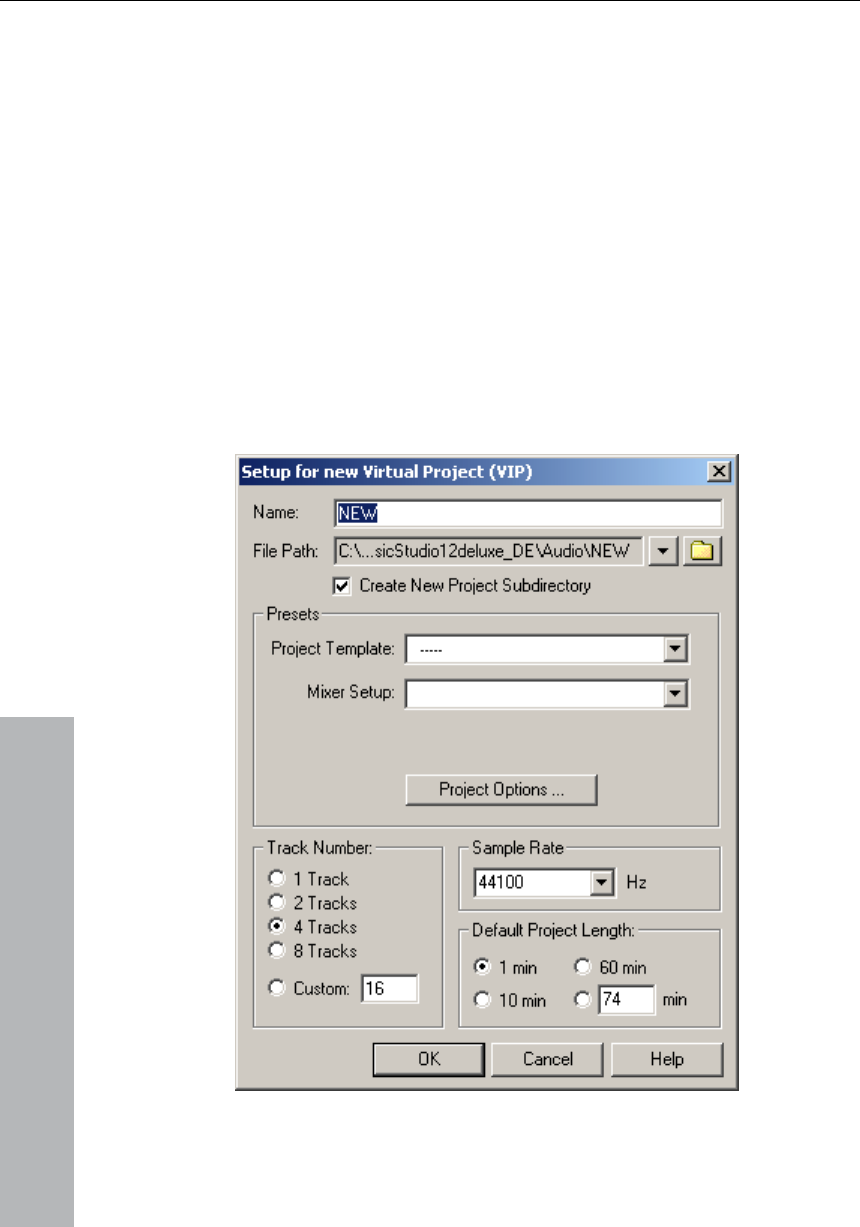
Name your new project and select the file path here to which you
wish to save the VIP. Now enter the settings and then confirm by
pressing "OK":
www.magix.com
cord two stereo tracks. Let us
assume that you are using one audio source, e.g. a microphone or a
musical instrument. Connect it to the input of your sound card with a
suitable cable.
• 4 tracks (you can add tracks anytime via the Track menu)
• Select "[0] Stereo Master" as the Mixer Setup.
• Sample rate: 44100 Hz (for recording in CD quality)
As a first test we will subsequently re
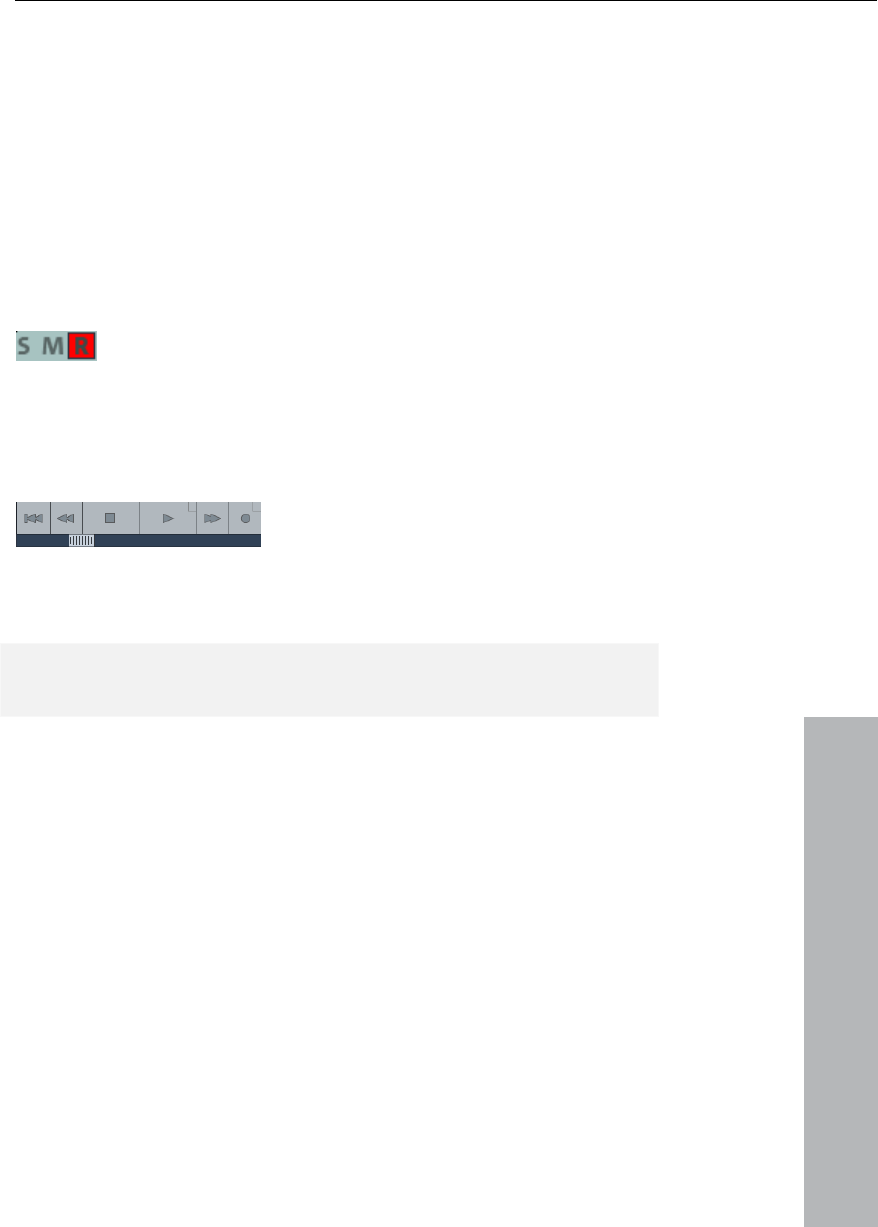
The first track in your virtual project (VIP) is already
armed for recording. This is indicated by the red
"R" in the track.
Recording the first track
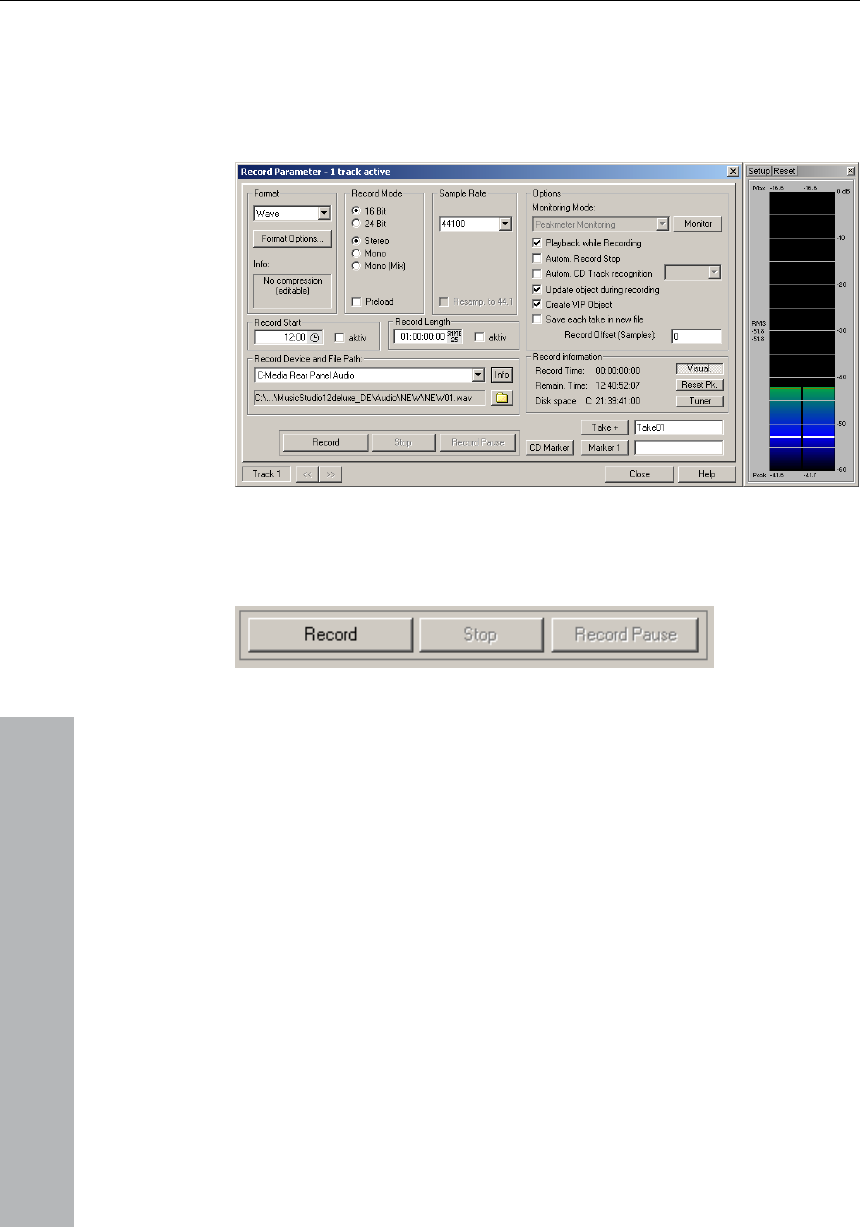
rt console. 1. Now right-click on the Record button of the transpo
In the dialog that will now appear you can enter all necessary settings
for recording.
Hint: If the transport console is hidden, unhide it by clicking on the
"Transport" button in the lower part MAGIX Music Studio 12 deluxe.
28 Tutorial
2. Click on the "Monitor" button. This function lets you preview audio
material and monitor it while recording. The level meter will display
what enters at the sound card inputs. If it reaches the upper red
range, the input level is too high and clipping will occur. In this case
you should reduce the input volume.
tton. MAGIX Music Studio 12 deluxe now
es this in the record window by displaying
a counter.
3. Click on the "Record" bu
starts recording and indicat
www.magix.com
4. Now stop the recording at a suitable position by pressing the
"Stop" button.
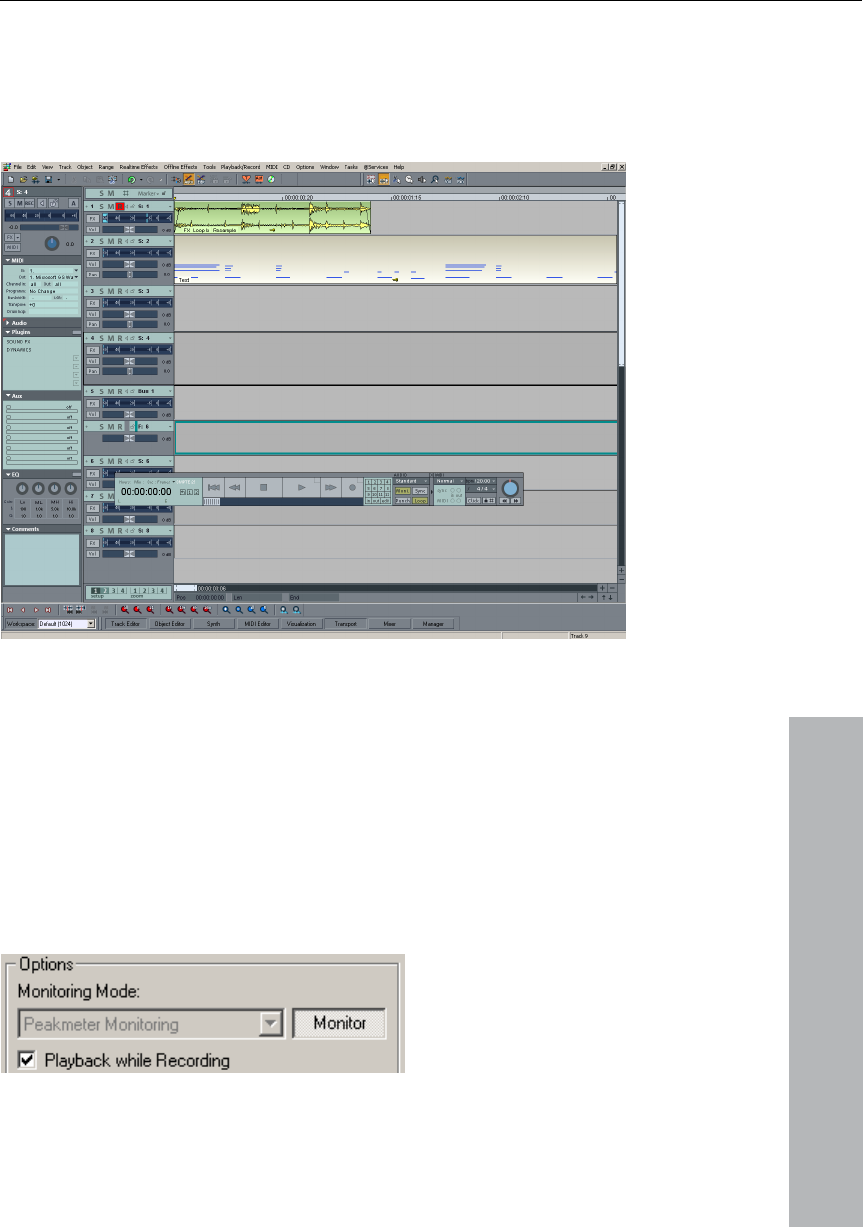
Tutorial 29
MAGIX Music Studio 12 deluxe will then stop recording. You can now
either use the recorded material or delete it. You can repeat the
recording without saving the first attempt on your hard drive. If you
want to use your recording, MAGIX Music Studio 12 deluxe will add
the audio material to the first track as an object.
www.magix.com
pen,
1.
le
now enter further record settings. As we now want to play the first
Record another track
Now we will record a second track. If you record dialog is still o
please close it. Now perform the following steps:
Activate the Record button in the second track by clicking on "R"
ft of the second track. The track is now ready for recording.
2. Right-click on the Record button in the transport console. You can
track while the second is being recorded, you will have to activate
"Play while recording".

30 Tutorial
3. Click on the "Record" button again.
4. Now stop the recording at a suitable position by pressing the
"Stop" button.
Hint: "Playback while recording" requires that your sound card can
play audio material while recording (full duplex mode). Some sound
cards can either record or play, but can't do both at once. In such a
case you should deactivate "Playback while recording".
Integrate audio material
Now add new, already available audio material. Audio material can be
added to your virtual project from different sources and in different file
formats. You can add audio CDs, WAV files, MP3 files, sample CDs
(such as the MAGIX Soundpool DVD) as well as other audio files.
There are several possibilities for loading audio material:
• In the menu bar click on "File > Load/import > Load audio file...".
• You can also drag audio files directly from the Windows Explorer®
www.magix.com
rangement from two of your own
Virtual Project (VIP): This is an arrangement made up of different
oject are for recording or loading
cks. You can conveniently record and
on different tracks.
into the MAGIX Music Studio 12 deluxe arrangement.
• Audio tracks first have to be copied onto the hard drive individually.
To do this, click into the top menu bar of MAGIX Music Studio 12
deluxe on "File > Load/import > Load audio CD tracks...".
You have now created your first ar
arrangements and a completed audio file. You can listen to the result
anytime by clicking on the Start button in the transport control or
pressing the Space bar on your keyboard.
VIP and Wave projects
A wave object is created for each audio object you can see in the
arranger. You can generally work in two project types:
•
objects. The tracks in the virtual pr
audio material onto several tra
create sound
• Wave Project: This is the audio material of one object.
Hint: If you delete an object in a virtual project, the audio material and
the corresponding wave project on your hard drive will be retained.
Tutorial 31
www.magix.com
corresponding object in the VIP by mouse-clicking, click into the top
the o
Switch to a wave project, for instance, your first recording: Mark the
menu bar of MAGIX Music Studio 12 deluxe on "Object", and select
ption "Edit wave project...".
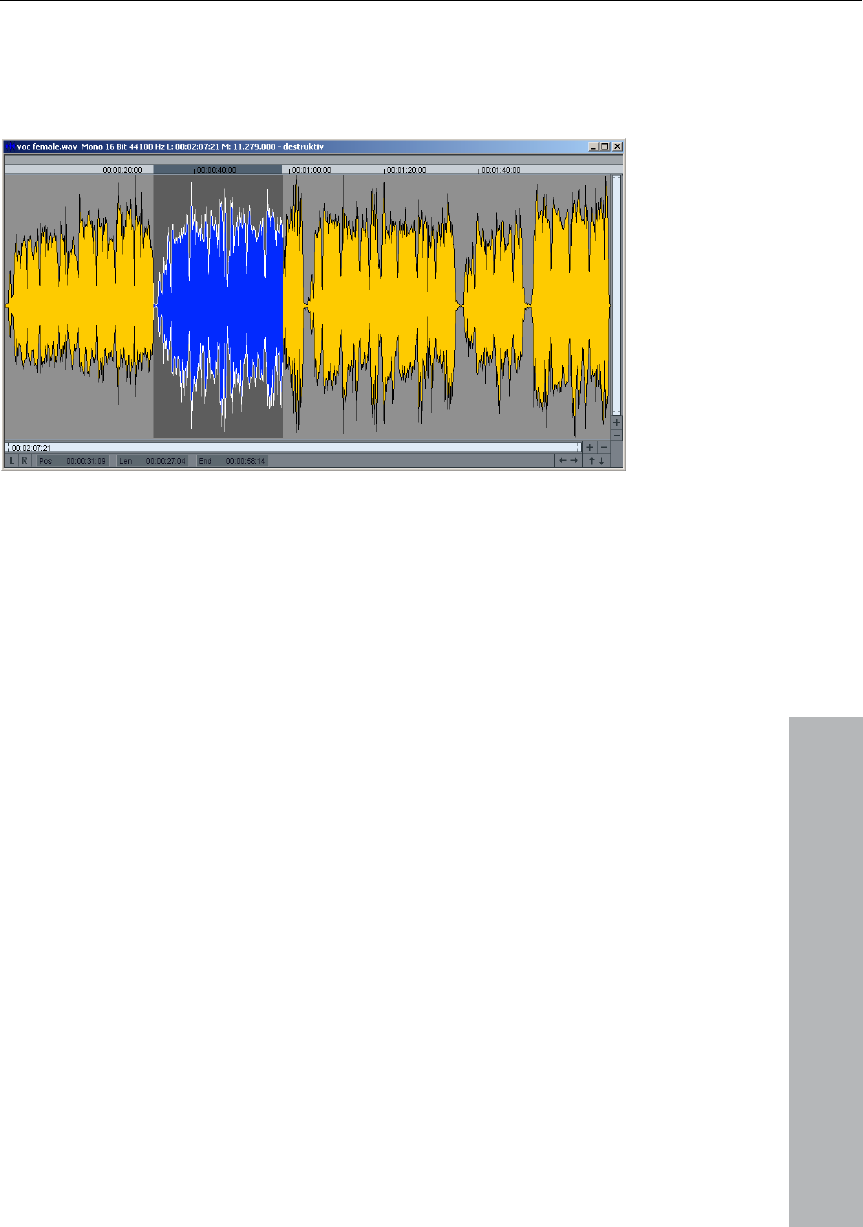
If you have opened a wave project, you will see the wave display of
the audio material in enlarged view. The acoustic properties are
In wave projects you can directly edit your audio material. Direct
au
Wo
What is MIDI?
A few words about MIDI: MIDI files do not contain the actual sounds
sound card. This has several
advantages:
1. MIDI files need a lot less memory than wave files.
directly visible in the wave form. This means that where there's
something to see, there's something to hear. The higher the peak of
the wave form, the higher the volume. Press the Space bar on your
keyboard to play the wave project.
editing of the material is particularly useful: Mark a range in the wave
project with the mouse and then press the Del key. After editing the
audio material you can close the wave project. You now have to
decide whether you want to accept the changes or discard them. If
you want to accept the changes, click on "Save project". The original
dio file will now be overwritten.
rking with MIDI
like audio files, only the note control information which is first played
by the synthesizer chip of the
32 Tutorial
www.magix.com
2. MIDI files can be adapted
sound. Only the playback t
3. Similarly easy is the trans
When doing so, a section ved in
several different keys. The ient.
ing on the
right mouse button.
4. In MAGIX Music Stud 12 deluxe you can use VST instruments
which play the notes contained in the MIDI files.
ST instruments) will it
be produced. High-quality sound cards or external synthesizers will
ere is only one Music Studio, thus
integrating audio and MIDI into one program.
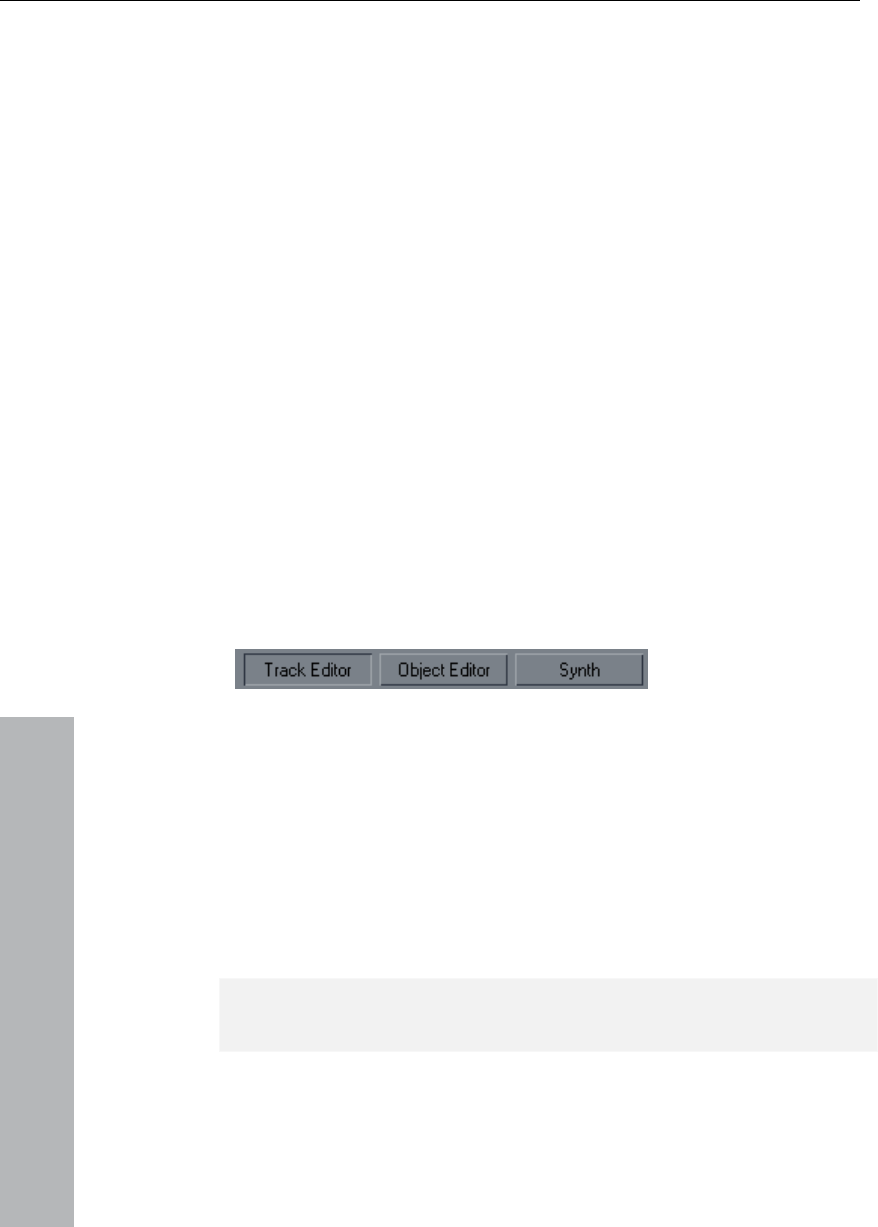
recording. Click on "R". Then
click on "Track Editor" in the lower half of the MAGIX Music Studio 12
deluxe program screen to make track settings.
to any beat (BPM) without affecting the
empo is changed.
position of MIDI files to other pitches.
in a song does not have to be sa
version in C major is perfectly suffic
to any key by simply clickIt can then be transposed
io
The disadvantage of MIDI files: The actual sound is not yet set. Only
during playback by the synthesizer chip of the sound card from
external MIDI synthesizers/virtual instruments (V
sound completely different and better than standard sound cards.
Audio + MIDI in one application
The division of previous versions into "Audio Studio" and MIDI Studio"
is now a thing of the past. Now th
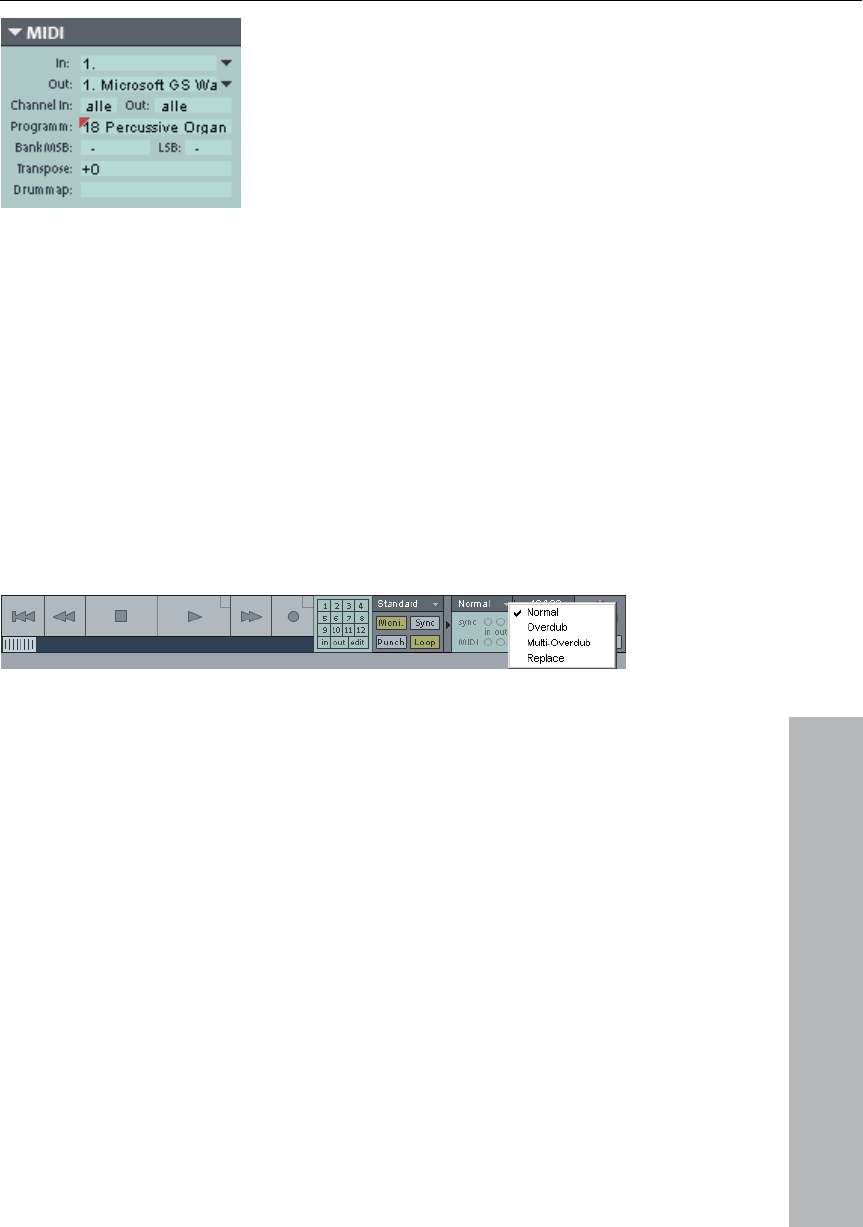
Preparing a MIDI recording
Prepare an empty track in your VIP for
se the small triangle to open up the MIDI section. Here you can now
fine the in- and outputs for your MID
U
de I data on the selected track.
• an use to
• ent (VST instrument) that plays
instrument, click on the small triangle next to the
word "Out" in the Track Editor and select "New instrument".
Input (In): Could be a MIDI keyboard here which you c
enter MIDI notes that are then recorded by MAGIX Music Studio 12
deluxe.
Output (Out): Can be a virtual instrum
the MIDI notes entered with the MIDI keyboard as sounds. To
select a VST
Hint: All global MIDI settings can be found in the System Settings
dialog ("Y" key), sub menu "MIDI".
Tutorial 33
www.magix.com
want to control an external
synthesizer via a MIDI keyboard.
Via "Channel In" and "Channel Out"
in the Track Editor you can assign a
special receive and send channel for
is is
important, for instance, if you can
For instance, if your MIDI keyboard is transmitting on MIDI channel 1,
er is addressed
via MIDI channel 4, you should also enter the value 4 in the "Channel
There are several methods of recording MIDI. You can set the MIDI
record mode in the transport control.
every type of MIDI data. Th
you should enter the value "1" in the "Channel In" menu. While
recording MAGIX Music Studio 12 deluxe will then receive all notes
transmitted on channel 1 by a MIDI keyboard.
You can generally assign a specific MIDI channel to external MIDI
synthesizers. For instance, if your external synthesiz
Out" menu of the Track Editor in order to be able to address the
external synthesizer via this track.
MIDI record modes
onds to that of the audio
s, a new MIDI object is
created over the existing object. The old object remains inta . This
way you can record multiple takes of a passage and then compare
d into an already existing object,
available and newly recorded MIDI data are mixed together. Existing
objects, however, remain the same.
• Replace: The data is recorded to an existing object, any MIDI data is
overwritten.
After you have selected MIDI record mode, you can prepare the
corresponding track by clicking on the "R" button for recording. Now
start recording by clicking on the "Record" button in the transport
control.
• Normal: This Record Mode corresp
recording, that is, for each recording proces
ct
them in the Take Manager later on.
• Overdub: The data is recorded into an already existing object,
available and newly recorded MIDI data is mixed together.
• Multi-Overdub: The data is recorde
34 Tutorial
www.magix.com
d with a mouse-click. Multiple objects
Shift key is pressed. You can also click and
lect multiple objects. All objects contained
therein will be selected ("rubber band selection").
tch symbol.
You can now reduce the size of the object. If "Create looped object"
n the top menu bar, you can stretch the object with the
p corners of every object there are two fade handles that can
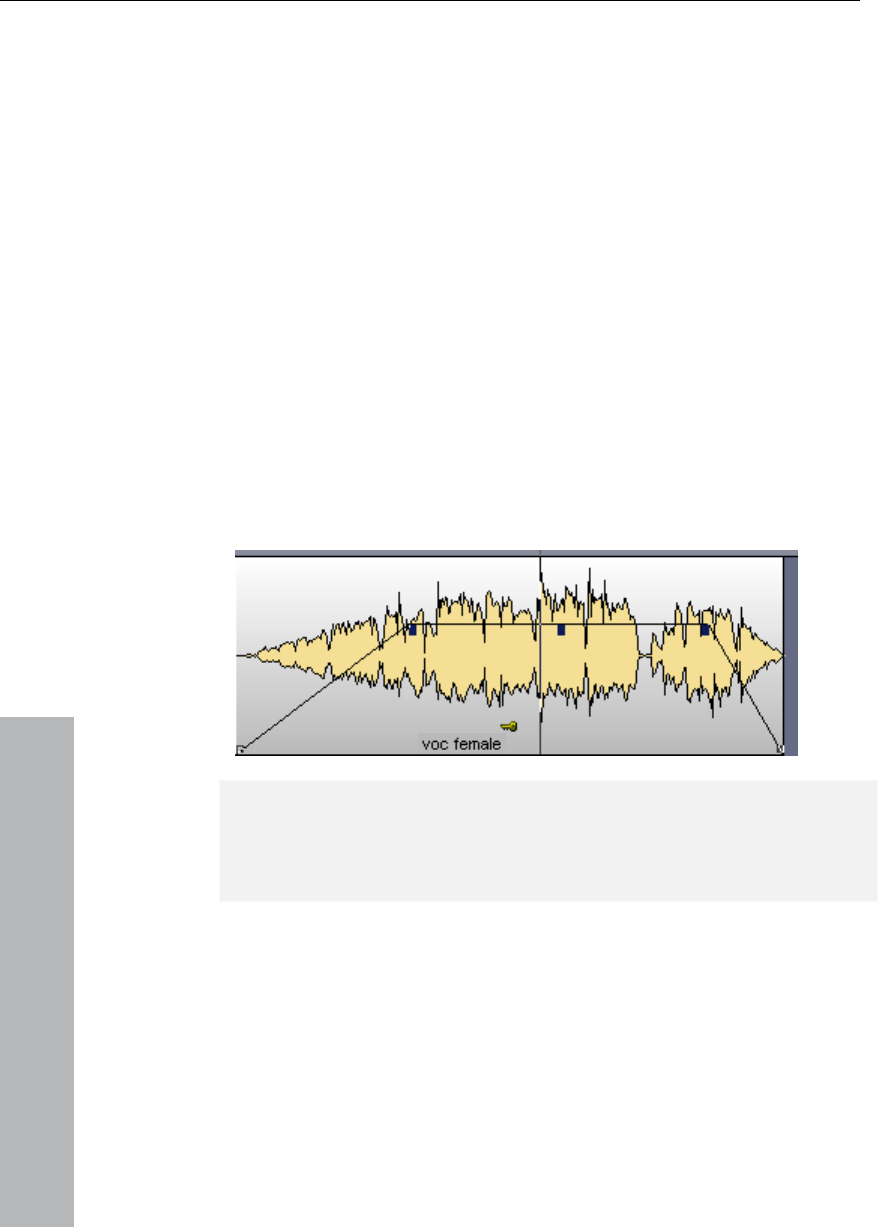
be adjusted to fade an object in or out. The handle at the top center
dles of
audio and MIDI objects work the same way.
Edit Objects
Many object edits require the objects to be selected first.
Individual objects are highlighte
can be selected when the
drag out a rectangle to se
All objects can be shortened or looped by moving the mouse to one
of the lower corners of the object until it turns into a stre
is activated i
right handle. This way you can create entire rhythm tracks from short
drum samples by simply stretching the object apart.
At the to
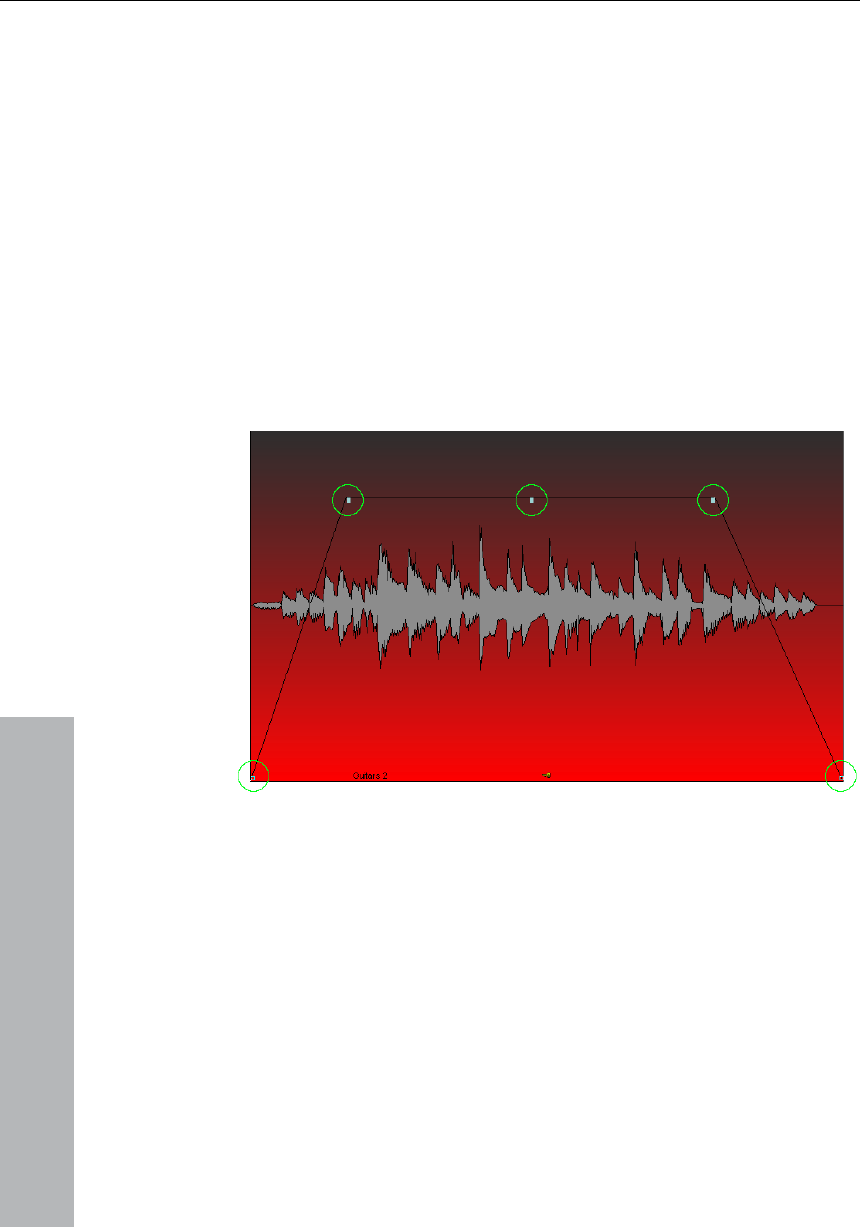
can be used to adjust the volume of the objects. The han
Tip: Several objects can be combined with others to make up a
group, to avoid the objects being unintentionally moved out of
relation to each other. First mark the individual objects. Then click on
the "Group" symbol of the tool bar.
Tutorial 35
Object editor
www.magix.com
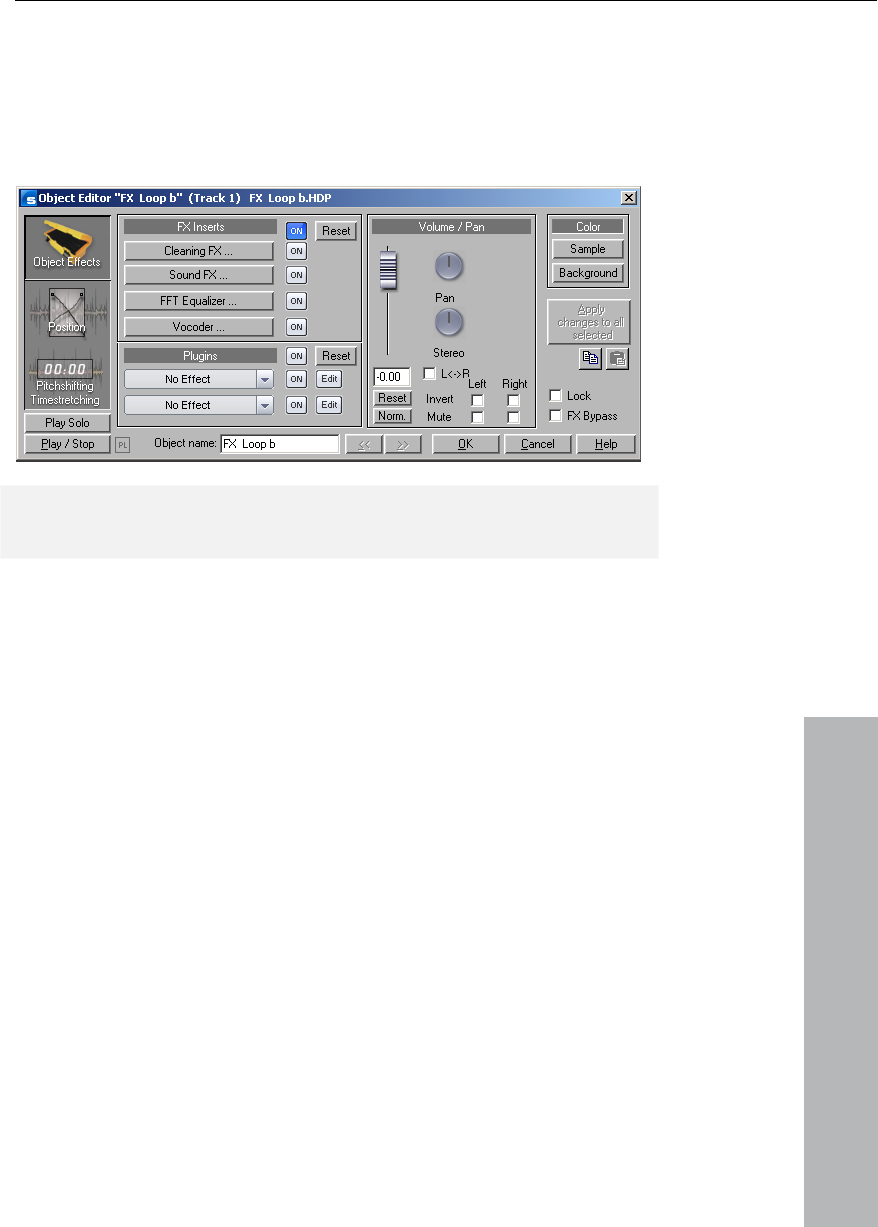
Object Editor. Here you can make all important
settings for the corresponding object. For instance, in the Object
Editor you can add effects to audio objects and change the
quantization on MIDI objects.
Right-clicking on the object opens a context menu from which you
can also select the
Tip: The Object Editor can be permanently open: It will adjust its
setting depending on which object is currently selected.
MIDI Editor
You can use the MIDI Editor for editing MIDI data. To access the MIDI
Editor, right-click on the object, open the context menu and select
the "MIDI Editor." The MIDI Editor displays the data of the MIDI
object.
MIDI data ca
• Matrix Ed
• Drum E ll
possible
• Controller Editor (for example, velocity, MIDI volume…)
ser.
n be edited in the MIDI Editor in five main areas:
itor (Piano Roll)
ditor (toggle between the Drum Editor and Piano Ro
)
• List Editor (event list)
• Score Editor
Here various tools are available, for example, pencil or era
Fundamentally, changes, for example, moving or deleting notes,
always refer to all selected MIDI events (red) with just a few
exceptions. You can, for example, select a group of notes in the
36 Tutorial
www.magix.com
of these note groups which
modifies all selected notes simultaneously.
Working with the Matrix Editor
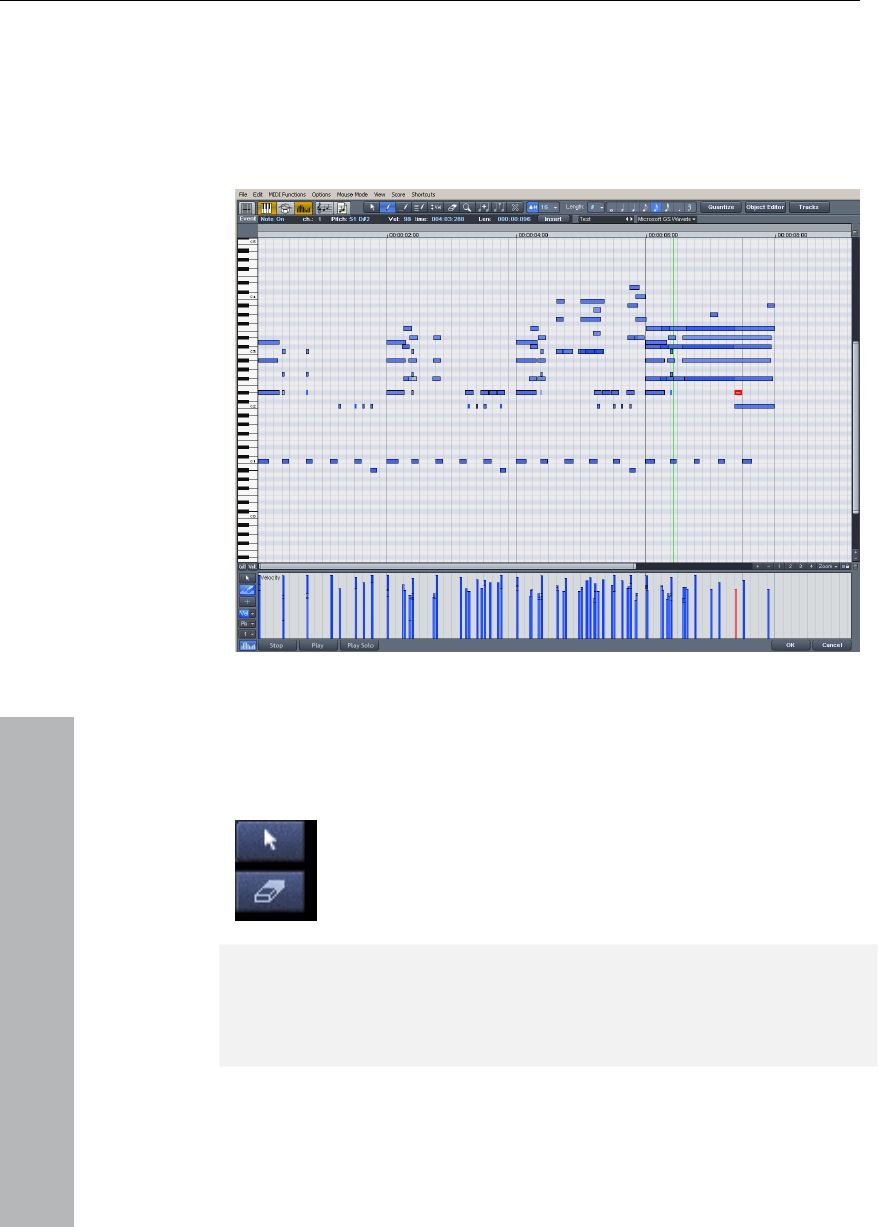
The Matrix Editor is particularly useful for conveniently arranging MIDI
notes (Piano Roll).
Piano Roll and then change the velocity
keyboard at the left of the screen. Clicking on a key
makes the synthesizer create the corresponding sound.
In the Matrix Editor you can edit MIDI notes for controlling sound
generators such as synthesizers, drum machines and virtual
instruments (VST instruments). If a MIDI instrument is activated, you
can play it via the
Now select a pen and paint the notes into the score
sheet. MIDI notes can also be prolonged by holding the
left mouse button or double-clicking. The Eraser tool
deletes notes from the note field.
Tip: The tool for drawing the pattern is particularly interesting. Use the
selection tool to select specific notes and then click Ctrl+P on your
keyboard. The selected notes are played as a sound pattern. You can
now easily sketch the sound pattern with only one click.
Tutorial 37
www.magix.com
Tip: Pressing the "left" and "right" arrow keys on your keyboard
moves forwards and backwards in the notation. With the cursor
up/down keys you can adjust the note pitch step by step.
Using the Controller Editor
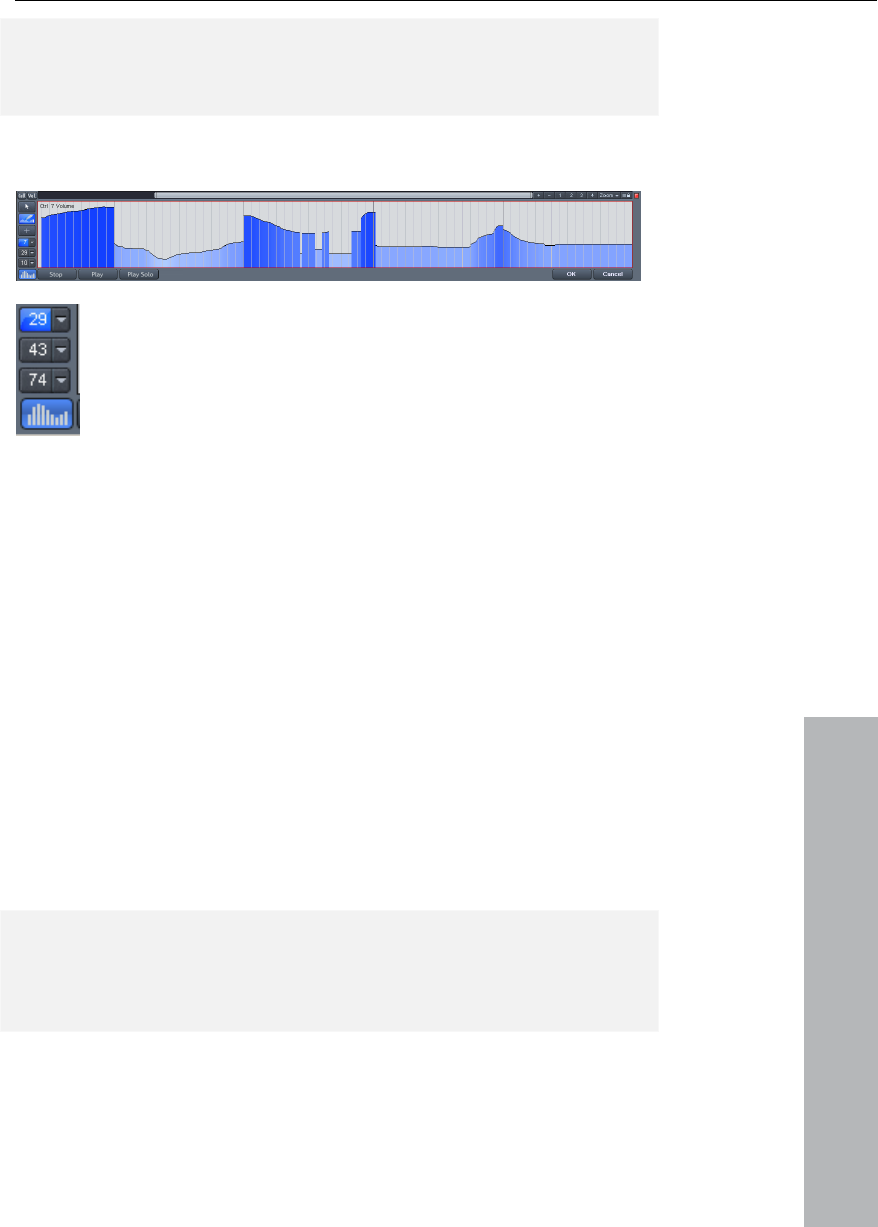
In the Controller Editor your can adjust MIDI parameters
such as velocity. A simple click in the left part of the MIDI
Editor opens the Controller Editor. Clicking on the small
button above opens a context menu. Here you can select
a MIDI parameter and then sketch it with the pen tool in
the Controller Editor.
From MIDI to Audio
If you are not controlling an external MIDI synthesizer with your
arrangement, you can convert its sounds into audio tracks with the
MAGIX Music Studio 12 deluxe record function. This is particularly
recommended if you want to enrich the sounds created with your
external synthesizer with audio effects, convert your project into MP3,
or burn it onto disc.
1. The audio output (Line-OUT) of your external synthesizer should be
connected to the audio input (Line-IN) of your sound card.
2. Set an audio track to "armed" by pressing "R".
3. Start audio recording as usual. The MIDI data is then played
recorded simultaneously via the record function. The result is an
audio file that can be edited and exported together with the
files. multimedia
Tip: Do not delete MIDI tracks in the arrangement after you have
generated audio files from them, simply mute them with the "Mute"
button. You can then later change melodies composed via MIDI and
record them as audio files again.
38 Tutorial
www.magix.com
corded tracks as well as automate the fader
and panorama movements. Furthermore, you can add effects and
Mixer
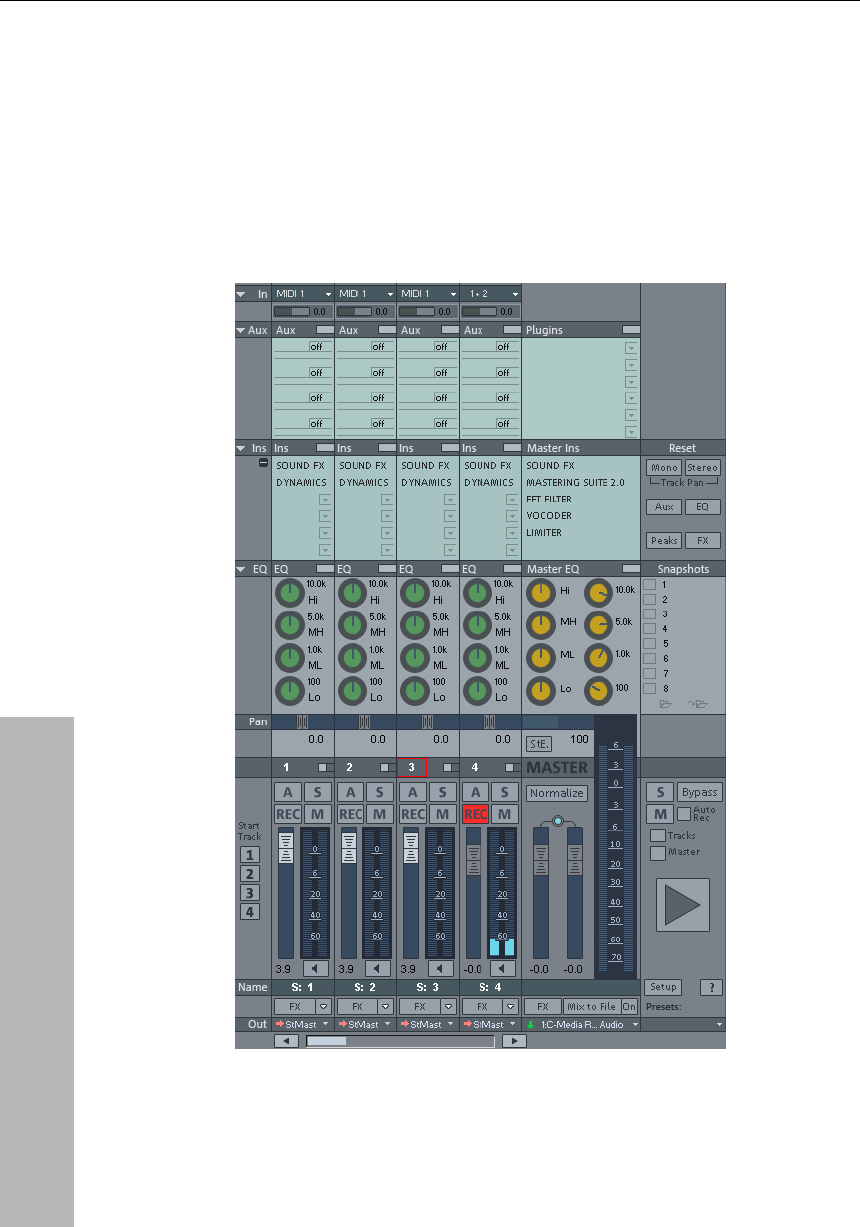
With the Mixer (keyboard shortcut "M") you can adjust the volume
and panorama of the re
much more here. Adjust the volume of the tracks with the slider in the
lower part of the mixer until you have a balanced result and every
instrument in the song is sufficiently accounted for. You can also
experiment with the effects on the individual tracks.
Tutorial 39
www.magix.com
ffects
You can considerably enhance your music productions with effects.
Clever use of effects adds ba
Music Studio 12 deluxe has pl ith
the various effects in MAGIX M w
to use them.
E
ss and simply sounds better. MAGIX
enty of effects. Experiment around w
usic Studio 12 deluxe and learn ho
nd Realtime Effects
In the top menu line of MAGIX Music Studio 12 deluxe you can
s
to the initial audio file.
Unlike offline (destructive) effects, virtual effects are not added in
realtime to the wave projects to which the objects refer. Such effects
are recalculated every time they are played and can be modified,
varied, without altering your original audio material.
Offline Effects a
directly access "Realtime Effects" and "Offline Effects": Offline effects
alter the audio files in the Wave Project resulting in imminent change
Hint: To add an effect to an audio object you first have to select it
with a mouse-click.
Processing audio effects
You can add audio effects in three different levels: audio objects,
tracks and master. When played, effects are first calculated in the
audio objects. The track effects are then added. The master effects
are added last.
First start with the object effects to distort individual objects while
other objects in the same track remain the same. For instance, if you
have saved a groove consisting of several audio objects on one track,
you can edit the last object of the groove with a distorter.
Then use track effects, for example to add reverb, to all objects
located on one track. Finish off your song with powerful master
effects that have an effect on the entire song.
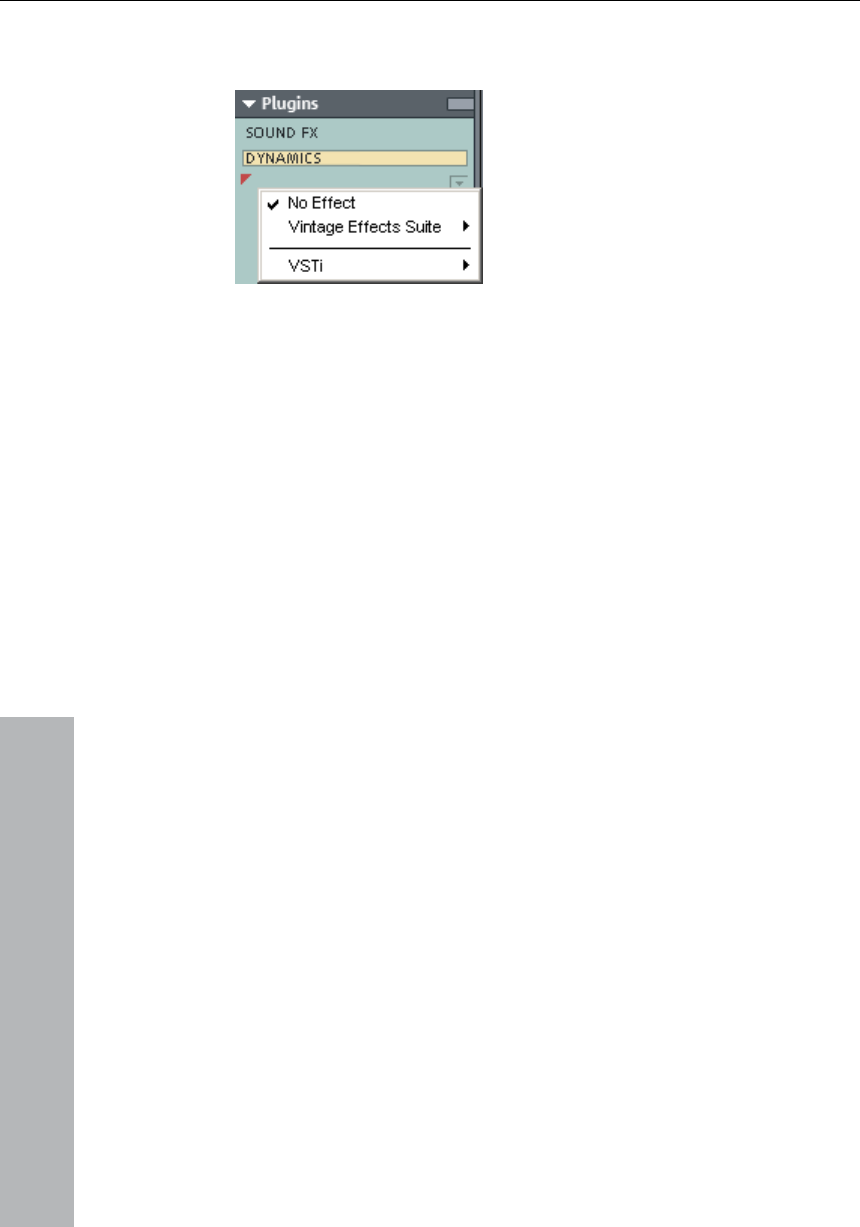
Effects in audio objects: To add an audio object, right-click to open
the context menu. In the context menu you can directly access the
40 Tutorial
www.magix.com
o be selected and edited via the
Object Editor.
object effects. Object effects can als
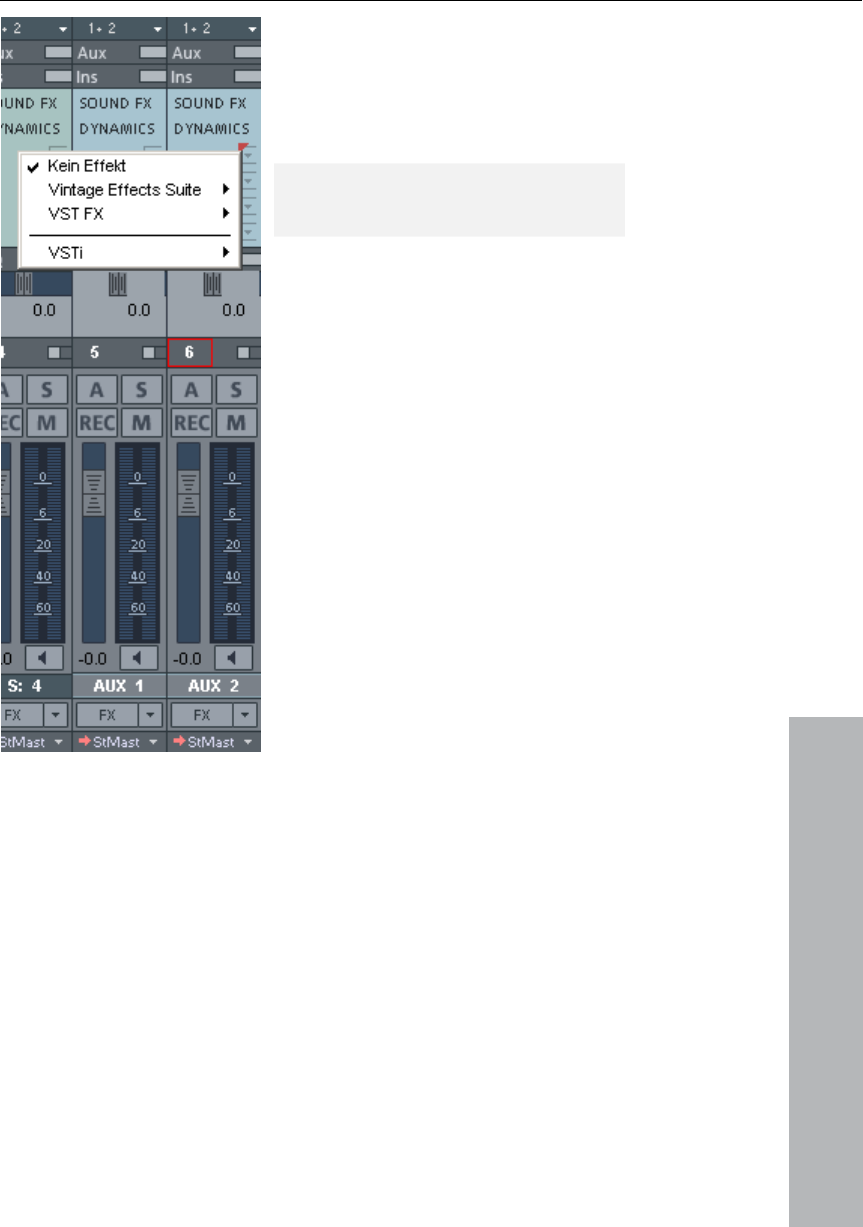
Effects in tracks: To adjust track
effects in the Mixer, open the Mixer by
clicking on "Mixer" in the lower part of
MAGIX Music Studio 12 deluxe. In the
"Ins" section click on the arrow symbol
of an effect slot in the corresponding
channel.
Tutorial 41
www.magix.com
Effects in the Master: Open the Mi
to add master effects. You will find
xer
the master section at the right edge
of the Mixer. Here you can install the
desired master effects.
Hint: Track effects and master effects
are always in realtime.
42 Tutorial
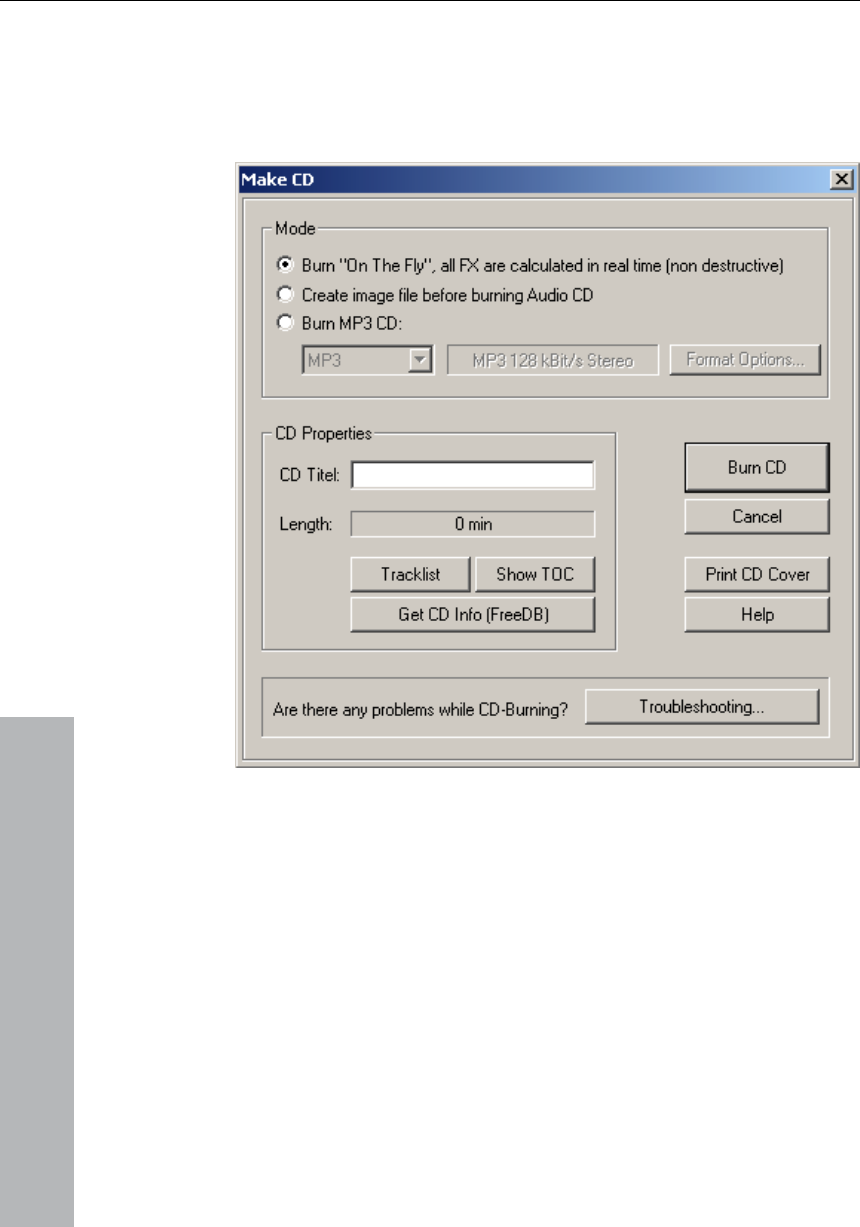
Burn CD
If your VIP is finished, you can burn it onto disc. To do this, click on
the button with the CD symbol. The CD burning dialog now opens.
www.magix.com
Now click on the "Burn CD" button:
CD-R write settings
n to start burning.
Enter the desired burn speed here. If you wish to add CD text, open
the "CD Text/MP3 ID Editor" by clicking on the "CD Text Settings"
button and entering the desired CD text for your tracks. Click on the
"Write" butto
Program desktop overview 43
Program desktop overview
VIP window
www.magix.com
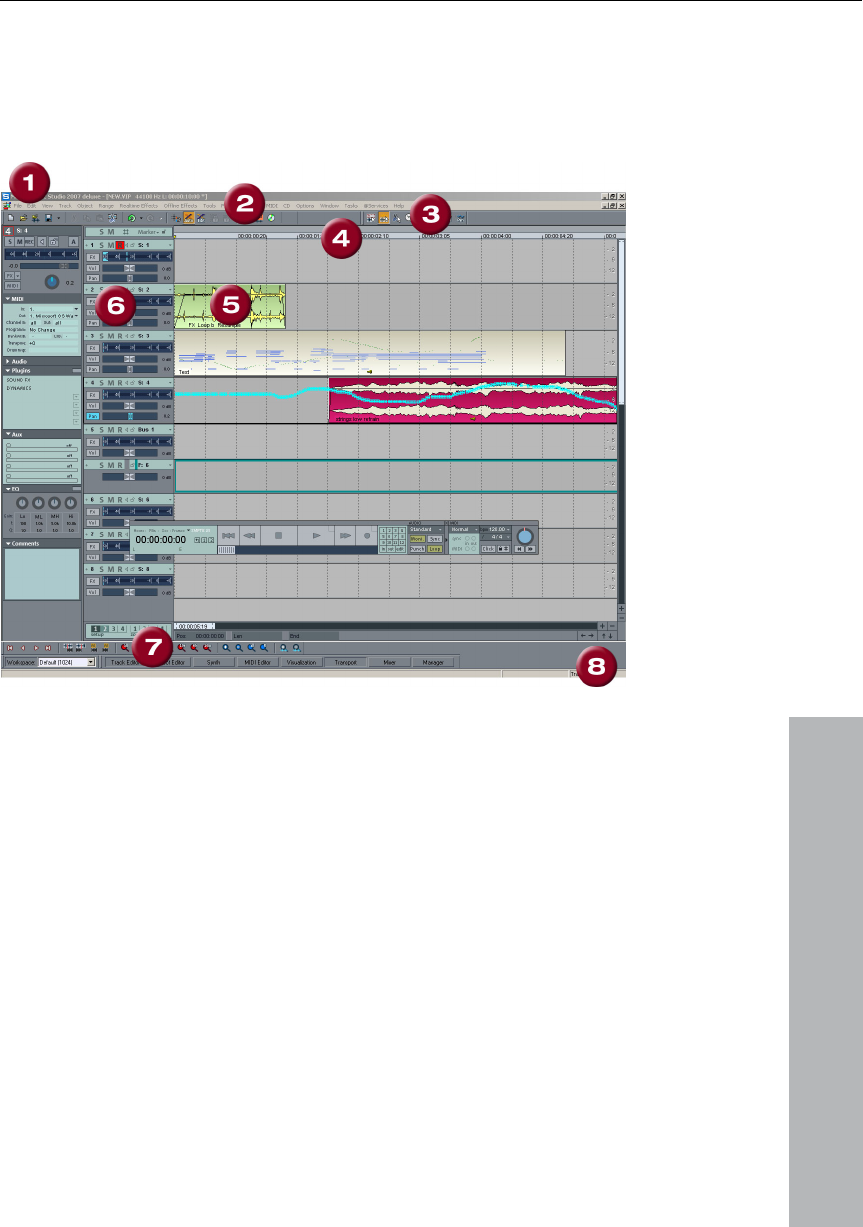
1. Title bar: The title bar is located at the top of the window. It
contains the name of the application and the project. To relocate the
window, simply grab the title bar and move it to where you wish. You
3. Button bar:
4. Grid/Marker bar: The grid/marker bar is positioned above the first
track in the VIP. In the upper half, you'll find the marker bar where the
can also move around dialog boxes by moving the title bar
2 Menu bar: You can find the menus of MAGIX Music Studio 12
deluxe directly below the title bar. A keyboard shortcut is assigned to
each menu item.
Button bars are made up of buttons which carry out
specific commands with a mouse click. They can be found above and
below the project window. More information on the individual button
bars can be found in the button overview.
44 Program desktop overview
www.magix.com
in
yed depends on the position of
nd
customizing its size (zooming). These can be opened via the menu
tup / Zoom / Position buttons: This part of the work area helps
manage each of the four different setup and zoom settings project
an be configured with a right-click.
Shortcut: Ctrl + Shift + T
markers and playback cursors. The lower half displays the grid list
which displays the project time depending on the selected unit of
measurement. You can also open various ranges.
5. Project window/Clip: A "clip" refers to part of the project visible
the project window. The part displa
the section and the zoom setting.
There are many commands for moving (scrolling) the visible clip a
view, the grid/marker bar, and the shortcut keys.
6. Track box: The track box is the front range of a VIP track. It
contains various controls which range from mixer functions and
monitoring commands to other track parameters. More information
on the individual controls of the track box can be found in the track
box overview.
7. Se
clip displayed in the VIP window. Similarly, the "Pos.", "Len.", "End",
"Mouse", and "Mixer" fields c
8. Status display: The status display appears at the bottom border of
the VIP window. For longer actions or calculations a bar is displayed
indicating the current state of operation.
Information regarding the CPU load, latency, buffer, etc is also
displayed here. You can also view the status display via "Window >
Open status display":
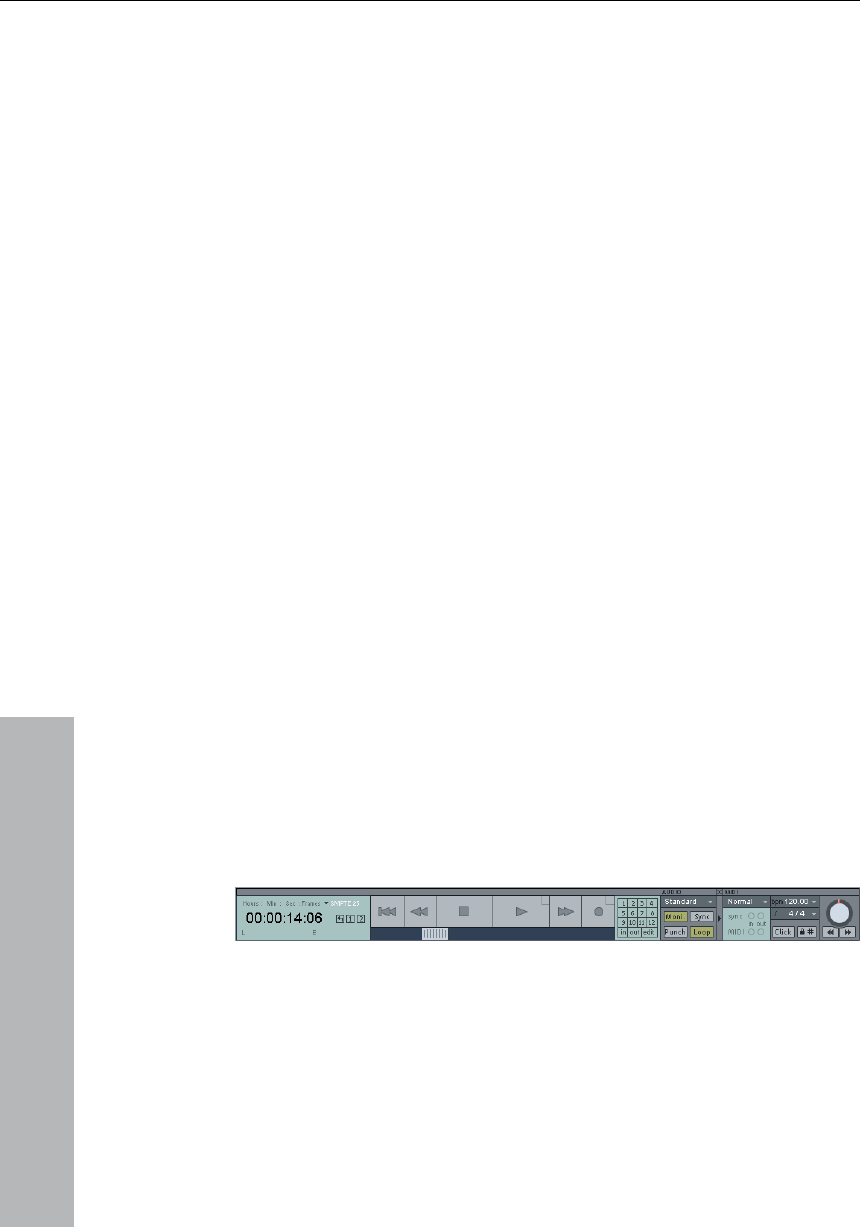
Transport control
The transport control window contains the most important
commands for playback, recording, and positioning.
Play / Stop / Fast forward / Rewind buttons: This way, the positioning
can be controlled like a cassette player.

Program desktop overview 45
www.magix.com
Right-clicking on the Play button: This opens the playback parameters
stereo master mode. Here you can, amongst
others, specify the sample rate, playback device, and
scrubbing/varipitch options.
t the recording settings, for
example, "Play while recording", you can also start a mono or stereo
Record button: This starts the recording for all activated tracks, that
the Track info to the left. The
recording devices have to be set up before by right-clicking on the
Range buttons: You can save ranges with buttons "1" and "2". Using
L/E time display: Here, the length and end position of a range is
. More information can be found in the chapter called
"The Manager".
Marker buttons 1...12: The current play position can be saved at any
Recording modes: Here you can set up the appropriate recording
Recording without playback (play monitoring): If this option is
rding,
the cursor remains at the beginning of the recording.
available audio material while playing.
window for running in
Right-clicking on the Record button: This opens the recording
parameters window. Here you can adjus
recording straight from here.
is, tracks with a red "R" button in
"R" button.
Time display: Displays the current playback position. The unit of
measurement can be selected by clicking on the small triangle.
the arrow symbol you can open previously used ranges.
shown and can be edited with a double-click.
"Marker" button: This button opens the marker manager for further
marker editing
one of the 12 marker buttons with a simple mouse click. If one
position has been saved, the marker will appear bright. Another click
on the same marker moves the play position to the corresponding
marker. Right-clicking deletes the saved marker again, making it
available again to be allocated.
mode.
selected, playback of existing objects is deactivated while reco
Standard mode (record while playing): This is the typical recording
mode for multi-track productions. This adds further tracks to already

46 Program desktop overview
www.magix.com
Marker mode: This setting starts a recording process which
can be started and stopped at any time during playback. This setting
corresponds to using the "Punch" buttons.
Auto JamSession: Opens the "Auto JamSession" window.
"Rec M" button: This button activates MAGIX Music Studio 12 deluxe
record monitoring, i.e. you will see the incoming signal in the peak
meters of all tracks with "R" activated. Right-clicking on the "Rec M"
button lets you select from he various monitoring modes.
ith the synchronization
settings. Further information can be found in the "MIDI in MAGIX
r.
12 deluxe into
Punch mode. This means that a recording can be started "on the fly"
e, also multiple
times back-to-back. Punch In and Out markers are then placed
g the record
button, playback is not interrupted.
"Out" button: This button sets the end point for a Punch recording.
t, the Punch recording can
be started using the Record button. While the recording button is
ing button turns red. It now
records until it reaches the Punch Out marker, then MAGIX Music
Additional Punch In/Out markers can be set by holding down the Alt-
"Loop" button: Use this to switch into Loop mode, that is, a specific
range is played repeatedly.
MIDI record modes: The following MIDI record modes are available:
Normal, Overdub, Multi-Overdub and Replace. These decide which of
the newly recorded MIDI files will be added to the VIP.
Tempo section: In the tempo section of the transport control you can
adjust the playback speed and the tempo of the entire arrangement.
All objects in the VIP are adapted to the speed of your choice with
Punch
t
"Sync" button: This button opens the dialog w
Music Studio 12 deluxe -> Synchronization" chapte
"Punch" button: This button shifts MAGIX Music Studio
using the record button during playback at any tim
automatically. A punch recording is ended by pressin
"In" button: This button sets the starting point for a Punch recording.
If Punch In and Punch Out markers are se
flashing, playback occurs until the Punch In Marker has been
reached. When reached, the record
Studio 12 deluxe changes back to Playback mode again.
key.
Program desktop overview 47
www.magix.com
tching. In addition, you can fade in the bar grid with the
"SNAP" button and switch
button. Right-clicking on the "Click" button opens the metronome
settings button.
Scrub control: With the Sc
be adjusted. This can be u
The buttons beneath it ca
backwards at a slower s
control over audio passag
later.
Track Editor
timestre
on the metronome click with the "CLICK"
rub Control wheel, the playback speed can
sed to find audio passages.
n be used to start playback forwards and
peed. This too can be used to improve
es, like editing out crackles or other errors
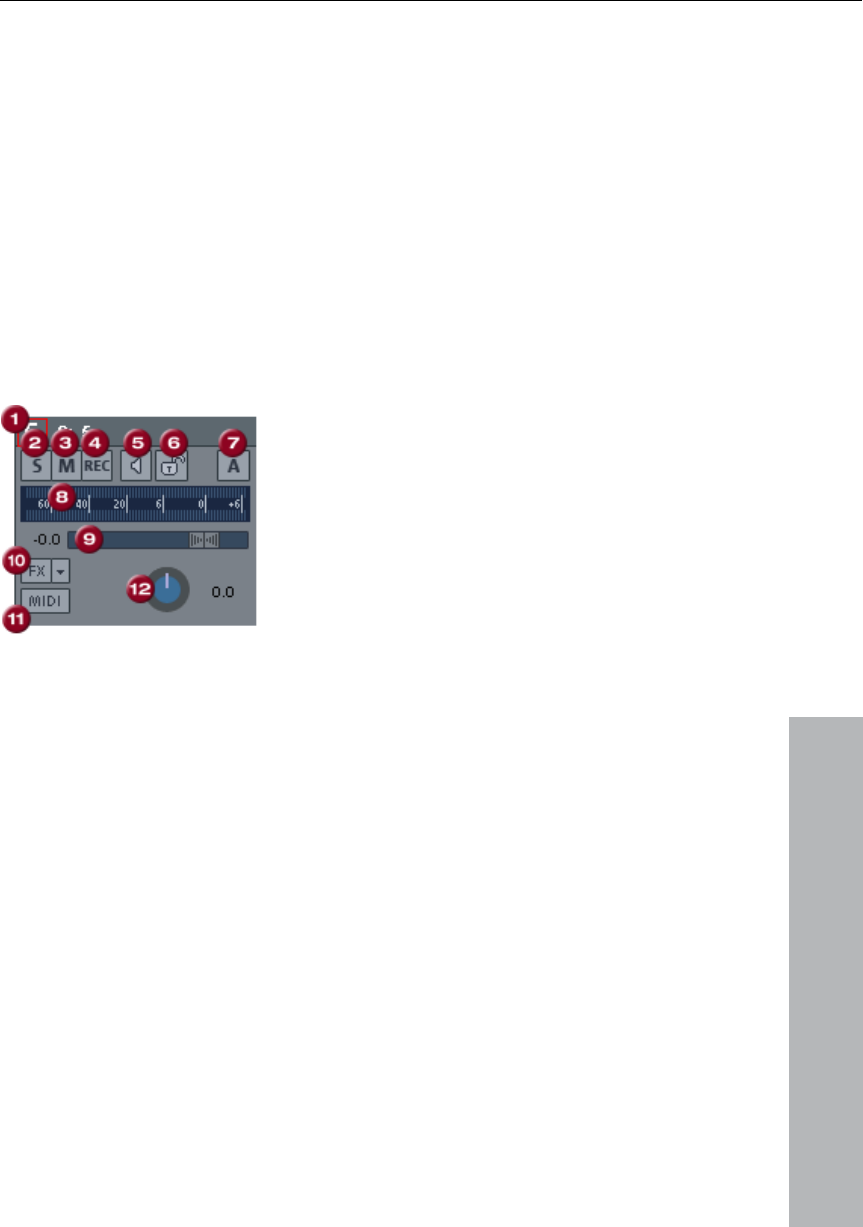
ck name: Right-clicking on the tr
1. Track number display and tra ack
name opens the "Track Se
2. The "S" button: Switches off all track e one
s the track.
4. The "Rec" button: Activates the track for the recording.
5. The loudspeaker symbol: Switches on playback of the incoming
signals when the "Rec" button is active, if "Manual monitoring" is
selected in the system options.
6. The Lock button: Lets you protect objects in the track and prevents
unintended moving or deleting of an object.
ttings" dialog.
s with the exception of th
selected.
3. „M“-Button: Mute
7. The "A" button: Activates track automation.
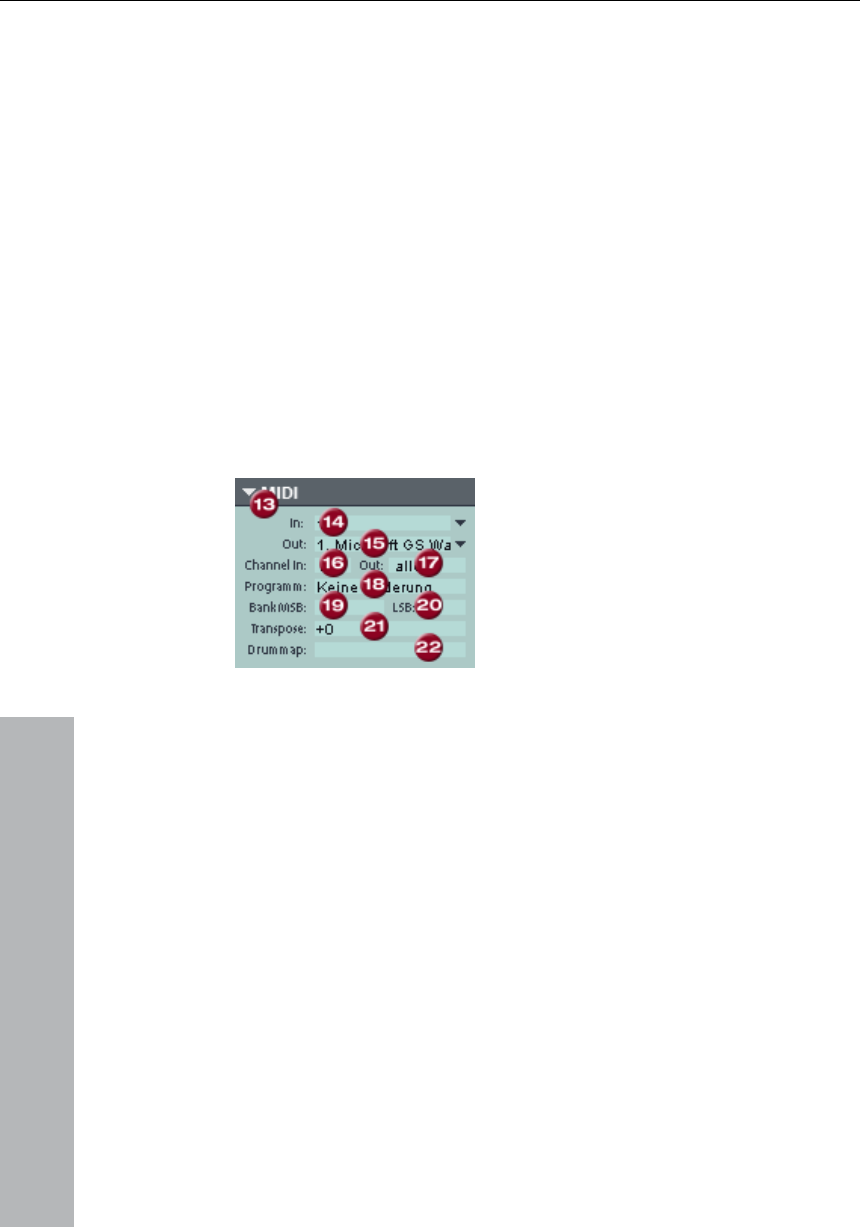
48 Program desktop overview
www.magix.com
output signal
for the track.
9. Volume input box and volume controller.
10. The "FX" button: Opens the dialog for setting the effect
ur custom track effect settings in the program
directory in "FX Presets > Track FX". Of course you can also create
11. The "MIDI" button: Switches the track to MIDI recording and
12. The Panorama button: Controls the position within the mix.
8. Peak Meter: Both LED displays show the input and
sequences as well as the integration of VST/DirectX plug-ins. Right-
click on this button to gain access to the track effect settings of the
active track. Specify yo
new subfolders here.
opens the MIDI section of the Track Editor.
MIDI:
13. Arrow: Opens and closes the dialog box.
14. In device: Opens the MIDI Input device menu.
15. Out device: Opens the MIDI Output device menu.
e device-specific control change messages for
controlling your external instrument here.
16. Channel in: Set the MIDI Input channel here.
17. Channel out: Set the MIDI Output channel here.
18. Program: This button is used in MIDI mode for program selection
of the MIDI instrument.
19. Bank MSB: Set th
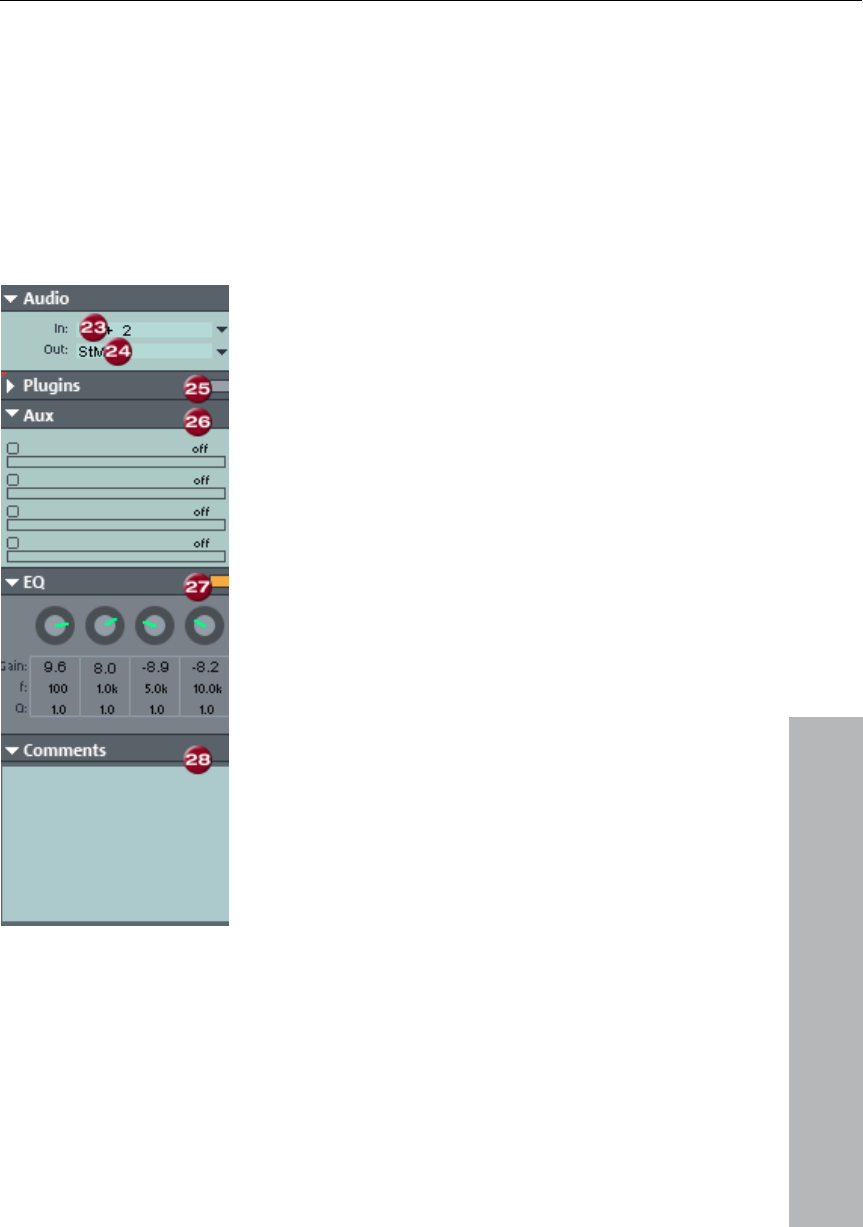
Program desktop overview 49
20. LSB: Set the device-specific control change messages for fine-
tuning your external instrument here.
21. Transpose: You can transpose the notes of the respective MIDI
input or output up or down here.
22. Drum map: Here you can select a drum map for allocating MIDI
notes to the device-specific sound.
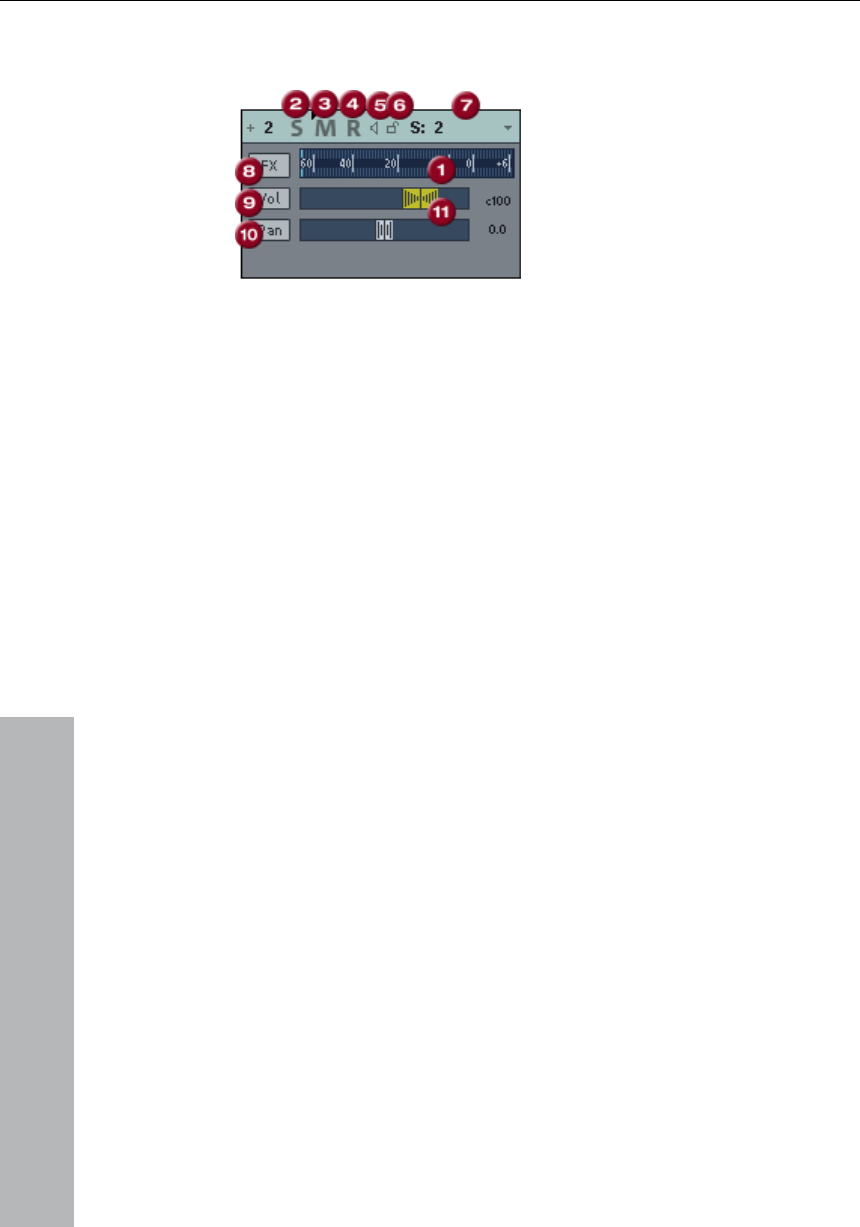
Audio:
www.magix.com
23. "In" slot: Specifies the audio input
You can use FX inserts,
MAGIX Plug-ins, DirectX, and VST
effects for this track. You can only
additionally select MAGIX synths, VSTi,
and ReWire for the first slots. Clicking on
the button to the right of the field beside
"Plug-ins" activates and opens the
DirectX/VST Plug-ins dialog with which
you can compile a plug-in setup for this
track.
26. Aux: Here you can specify the AUX
send feed for which you can then select
the desired effects in the AUX return
channel in the Mixer view.
27. EQ: Contains the parametric EQ for
this track. Right-clicking opens a
convenient input window.
28. Comments: Track info section for
quickly adding notes to tracks.
device, e.g. your sound card.
24. "Out" slot: Specifies the audio output
device: This can be a sound card output
(in MIDI mode) or a VST instrument.
25. Plug-ins:
50 Program desktop overview
www.magix.com
Track box
r: Both LED displays show the input and output signal
for the track.
es all tracks except the selected one.
3. "M"-Button: Mutes the track.
7. Loudspeaker symbol: Switches on playback of the incoming
7. Track name: Right-clicking on the track names opens the "Track
settings" dialog.
8. "FX": Opens the effects/routing dialog with which you can
configure and edit multiple effect groups. Right-clicking opens the
context menu which contains all the available track effects for the
object.
9. "Vol." button: This button switches on the volume automation
curve. This way level adjustments in the track can be controlled via
an automation curve and drawn by moving the channel fader.
10. "Pan": With this button you can switch on the panorama
automation.
11. Volume and panorama controls
1. Peak Mete
2. "S" button: Mut
4. "R" button: Arms the track for recording.
signals when the "R" button is active, if "manual monitoring" is set up
in the system options.
6. The Lock button: Lets you protect objects in the track and prevents
unintended moving or deleting of an object.

Program desktop overview 51
www.magix.com
ces
s > Program Preferences > Edit
> Hide menu) and redesigning
k on the toolbar), you can also save your
for the workspace at the bottom left
corner of the VIP window. Some workspaces are already predefined.
rs and commands, and is a good
defining customized workspaces.
e: To create a new workspace, open the
by right-clicking on the workspace bar and selecting
ace". You will now be asked to enter a name for your
space contains all settings of the previously
ur current changes. All further
ved in the workspace. Manual saving
Open the context menu and click on "Edit
n select which toolbar you want to have
orkspace. You can activate or deactivate
ard shortcuts and then press the button
"Show menu item" or "Hide menu item".
Workspa
The purpose of workspaces is to sort menu entries and toolbars in
such a manner that you have a good overview of the functions of
MAGIX Music Studio 12 deluxe. Workspaces bundle commands with
regard to certain tasks such as mastering, editing or recording.
Besides hiding menu entries (Option
keyboard shortcuts and menus
toolbars (right mouse-clic
settings as a preset.
You will see the selection box
"Power user" displays all toolba
starting point for
Creating a new workspac
context menu
"New worksp
workspace. The new work
activated workspace as well as yo
adjustments are automatically sa
is not required.
Adjusting the workspace:
workspace". Here you ca
displayed in your new w
each bar individually, or add/remove individual symbols. You can also
hide menu items in "Edit menu". Simply select the corresponding
menu item from the keybo
52 Terminology
www.magix.com
nology
throughout the documentation. Even if you were somewhat
familiar with some of the particulars, we would like to encourage you
to read the definitions for the individual terms. The terms are specific
context related and are not further covered in the rest of the
Ha
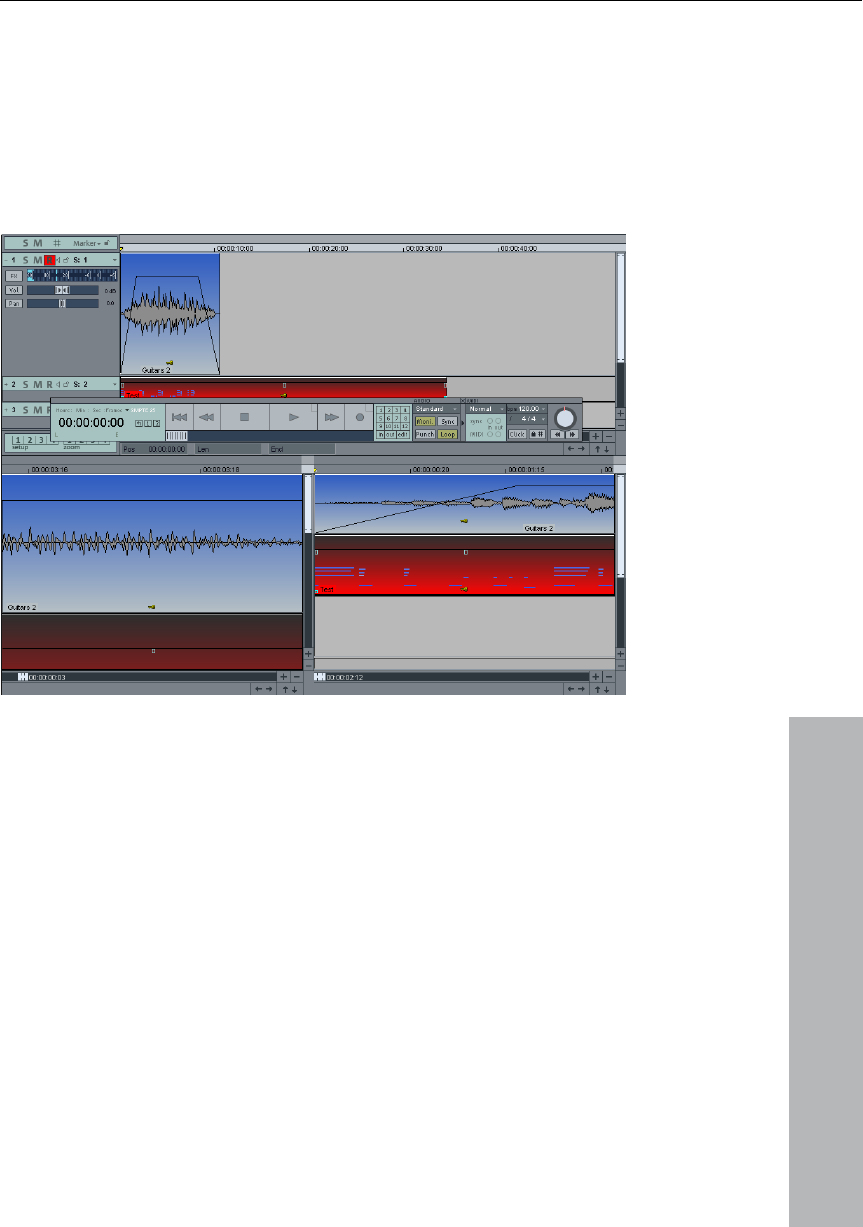
Han that appear on the outline of a
selected object.
Termi
The following lists some specific terms that where defined to describe
components of MAGIX Music Studio 12 deluxe that are mentioned
frequently
documentation.
ndle
dles are the five little rectangles
Length Handle: Lower right and left-hand handles. These can be
change the object length.
-hand handles. These handles
used to
Fade Handle: Upper right and left
change the fade in and fade out of an object.
Volume Handle: Upper middle handle. This handle sets the volume
for the selected object or object group. The level is displayed in the
upper left-hand corner of the VIP window.
Terminology 53
www.magix.com
fers the possibility of displaying any
d
in separately.
Section
MAGIX Music Studio 12 deluxe of
project window in up to three sections. This enables you to show the
complete sample in one section while displaying smaller sections in
one or two other sections. Each section can be accessed and edite
ttom edge.
While ranges are for working, sections affect the graphic display of
the project and its ranges.
If zoom commands are to be applied to a section, for instance with
the position bar, you should specify the corresponding section first.
This happens by clicking on the right or lower scroll bars of the
section.
Sections are defined similarly to ranges from the top to bo
54 Terminology
Range
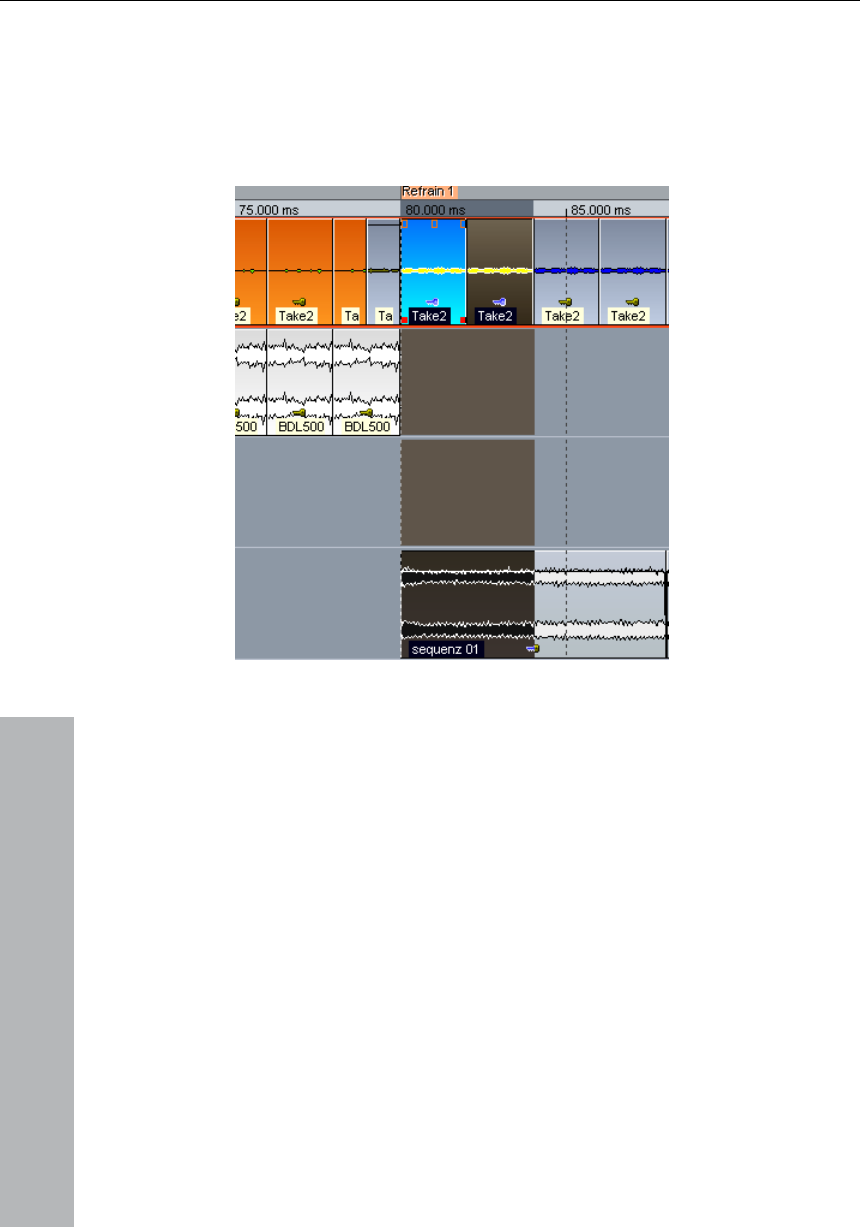
If you edit sound and multi-tracks inMAGIX Music Studio 12 deluxe,
you’ll mostly work with different ranges in your Wave- and Virtual
projects.
www.magix.com
1. Ranges are used
paste, normalize, f
to specify the sections that you want to edit (cut,
ade in/out, volume controls, effects and delete).
es may be analyzed during
h is not the case with some of the function groups! A
e. Ranges can be played back
beginning and end (horizontal)
at there is an inverted
2. Ranges define the loops considered in the playback of the
projects.
3. Ranges define the outlines (edge) of the section of the graphical
display of the object (rectangle).
Especially the upper and lower edg
editing, whic
range can be selected with the mous
with the Space bar. It is defined by the
and by the upper and lower limits (vertical). To highlight an range, left
mouse click the lower part of the beat line. (In the Universal mouse
mode, you can also highlight areas in the upper part of the tracks.)
Move the cursor with the mouse. You will see th
rectangle between the starting point and the mouse position.

Terminology 55
www.magix.com
Vertically’
(Menu ‘View’). This will set the height of the range to a maximum
Clip
no, L&R, or Stereo Mode). The Clip is
represented on the screen with a window that contains the word
While the Clip is responsible for transferring material from and to
Wave project windows, the VirtClip does this with data from Virtual
projects. Likewise, the window is not initially opened and displayed.
editing
RAM memory (RAP). Editing can
therefore be performed in a destructive or non-destructive (virtual)
When cuts, blends, effects etc. are to be a permanent part of a
ding
without the original audio material being altered.
Every project can have an unlimited number of ranges defined. Up to
10 ranges can be accessed directly through the function keys.
Additional ranges can be accessed with the Range Manager. The
vertical range borders can be locked with the function ‘Fix
value, which is the default setting for Virtual projects.
Clip for Audio Data (Wave Projects)
The Clip is a storage place for samples from Wave projects, which
are copied from a Wave project window and can be inserted in the
same Wave project or a different one. In addition, the content of the
Clip can also be mixed with that of another Wave project window.
The Clip always takes on the attributes of the originating project (Bit
Rate, Sample Rate, Mo
‘Clip’ in its title bar. Otherwise, the Clip is like any other project that
can be played back, edited and saved with a different name.
VirtClip for Virtual Projects
Destructive and non-destructive
In MAGIX Music Studio 12 deluxe, audio material can be recorded to
the main memory (HDP) or in the
fashion.
recording, we speak of destructive editing.
With non-destructive editing, they can be added to a recor
The MAGIX Music Studio 12 deluxe VIP window uses objects that are
coupled with wave projects. These objects can now be edited.
Because it deals solely with couplings, the wave projects are not
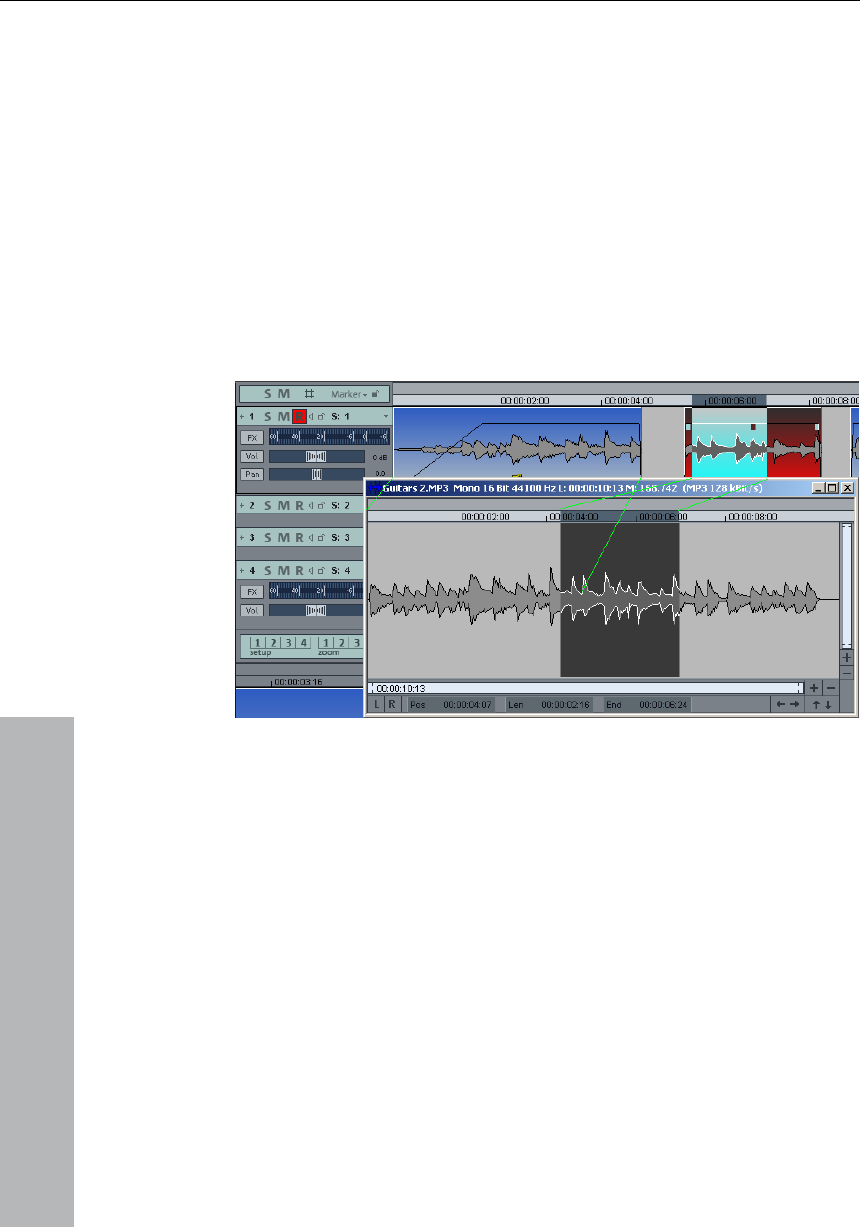
56 Terminology
altered themselves. Non-destructive editing can even be performed
during replays.
Destructive editing can be performed in the wave project window so
long as the ”Destructive Editing” field has been activated.
Objects
www.magix.com
erial from an audio file. In other
words: An object references or links to audio data contained in a
Audio data is displayed in Virtual projects via rectangles, which are
located in multiple tracks. These are the so-called Objects. An object
is a representation of sample mat
Wave project.
ts is available in the definition list
for Virtual Projects.
layback start) is set by clicking the left mouse
button into the project window. (Click next to an object for virtual
Additional information about objec
Play-Cursor
The Play Cursor or the Position Line is the vertical moving line during
playback and shows the current playback position. The start position
of the Play Cursor (p
objects.) A sketched area is cancelled.

Terminology 57
www.magix.com
he centerpiece of MAGIX Music Studio 12 deluxe!
In Virtual projects you can arrange objects taken from multiple Wave
rojects and arrange complex audio projects.
des, and more are
completely virtual, meaning that the audio material is not destroyed!
This allows you to select the proper cut position, cut length, volume
loosing audio
material or alter it. Detailed information about working with Virtual
eference Manual.
Even if the present audio hardware can only play back up to 2
Virtual project can be switched between two
definitions. The Tab key allows you to switch between the two
s the Editor dialog for
the Virtual project display preferences. Attributes such as displaying
Virtual Projects (VIPs)
Virtual projects are t
p
All cut operations, volume level changes, fa
level, effect setting, etc. by experimenting without
projects can be found in the electronic R
channels of audio (Stereo), multiple tracks beyond a stereo pair can
be played back in a Virtual project.
The display of the
modes. The key combination Shift + Tab display
only a single graphic form.
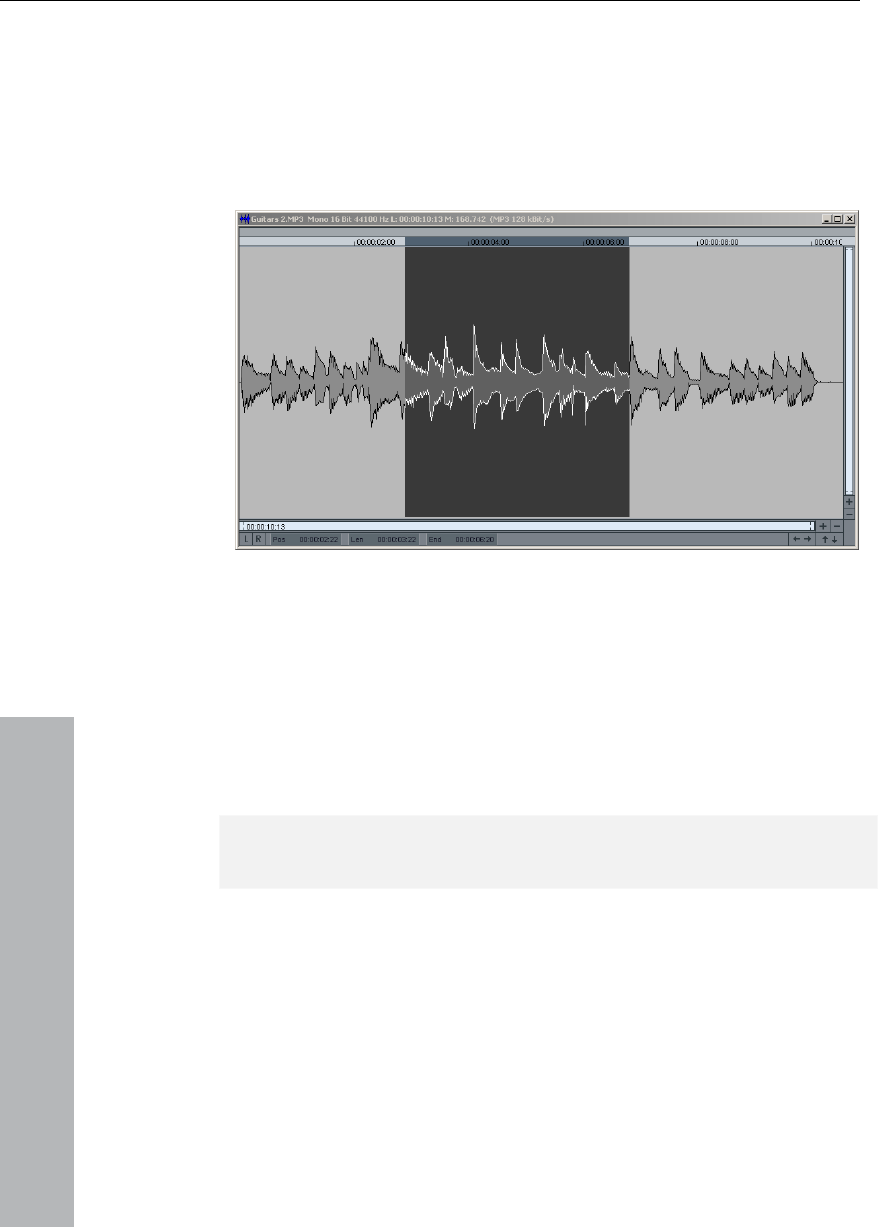
58 Terminology
www.magix.com
Wa
ou can access the wave project
will see the
name of the wave project, the bit resolution, the length of the sample
ve projects
A wave project contains audio data. Y
via the Window menu. In the title bar of the window you
and the resulting memory requirement.
To activate a wave project you have to click into the corresponding
window with the mouse. MAGIX Music Studio 12 deluxe can manage
Working with wave projects is similar to what you may be used to
an indefinite number of wave projects on the screen.
from conventional sample editors.
Right-clicking opens the context menu. Here you will find all
important commands.
Wave projects can be edited destructively and non-destructively.
More details can be found in the chapter "Working methods".
RAM and HD wave projects
With RAM wave projects the samples are held entirely in the main
(key "S"). The
file extension will then be changed to RAP.
memory of the PC. After editing or changing the audio data you can
decide whether you would like to keep the audio material or discard
it. So far it has only been changed in the PC's memory. To keep the
result you have to save the project back to hard disk

Terminology 59
www.magix.com
lar functioning of a PC. With
wap drive. Only parts of the
samples that are required immediately for editing and playing are
ta is
immediately written to the hard disk, just like you can play tape
be careful when editing and cutting so that you don't
accidentally ruin the audio data.
Mono, L & R, and stereo wave projects:
s mono audio files.
one-channel graphic display (simultaneously
displays both stereo tacks). Contains stereo audio files. A right-
tep when separating stereo
wave projects into two mono projects.
All types of wave projects (mono, L&R, stereo) can be integrated into
a virtual project. To play L&R projects in stereo you have to set the
This method corresponds with the regu
larger amounts of data, however, this may result in a heavy loss in
performance if the PC starts swapping the data of the virtual memory
onto the hard disk by itself.
The samples of HD wave projects on the other hand are located in
files that are saved on a hard or s
loaded into the memory of the PC.
In HD wave projects unchanged or unedited audio da
recordings immediately after having recorded them. Therefore, you
should
For testing we recommend the following method:
At first, use a copy of the audio material by copying the selected
range into the clip. Now open or activate the Clip window and then
select the entire clip (Key a). You can now apply your changes to the
entire clip.
However, the solution is to use virtual projects. In this case an "Undo"
function is available (menu "Edit > Undo").
Mono: Contain
Stereo: Stereo with
channel sample follows the left channel.
You can also display both stereo channels separately. You can
change it by going to menu: "View > VIP display modes > Definitions
> Separate Stereo".
L&R: Stereo with 2-channel graphic display (separate display of both
tracks): Contains two mono samples (mono audio files) in both stereo
tracks. Use of L&R projects in MAGIX Music Studio 12 deluxe is
actually only requires as an intermediate s

60 Functional overview
panorama controllers of the two mono tracks to the leftmost or
rightmost position.
Functional overview
Working with Objects in the VIP
Loading an audio file into a VIP Object
www.magix.com
V file with File>Open
Project>Audio File. The file is inserted at the beginning of the selected
The range also denotes the track into which the
Method 2: Drag & Drop from Windows Explorer
MAGIX Music Studio 12 deluxe while holding down the
mouse button.
• Mark a range, which is to be incorporated into a Virtual project.
rtual project with File>New Multi Track Project
Object
se button on the object.)
• This opens the corresponding Wave project window. The marked
range represents the audio material that is used in the VIP object.
Method 1: Loading a File into a VIP
Mark a range in the VIP and load the WA
range as an object.
WAV file is inserted.
Open Windows-Explorer and arrange the Explorer and MAGIX Music
Studio 12 deluxe windows so that both are at hand. Access the
audio file in Explorer that you would like to use, and then simply drag
it over into
Load ranges from Wave Projects into the VIP
• Open a Wave Project.
• Create a new Vi
(Shortcut: ‘e’) or with the corresponding button in the toolbar.
• Tile the open windows by pressing the ‘Enter’ key.
• Drag the selected range in the Wave project into the Virtual project
by clicking the left mouse button into the range and dragging the
range into a VIP track.
• A new object is created in the VIP at the position the mouse button
was released.
Accessing Audio Material in an
• Select any object.
• In the menu Object, select ”Destructive Editing”. (The same menu
option is available from the context sensitive menu when clicking the
right mou

Functional overview 61
www.magix.com
the Mouse
Prerequisite for this is the selection of the correct Mouse Mode:
the lower half of the object.
ny selection of
objects. While the mouse button is held clicked, the outline of the
utton outside of the object confines unselects
any object selection.
you first
select them (selecting and unselecting several Objects; Switching the
ilst
holding the mouse key is required all selected Objects are moved
oved.
essed when moving the Objects, the time position
is retained and you can only change the track.
ated. In this case, the copy of the original
object selection is placed at the destination. The original objects
Object Borders in Virtual Projects
The lower object handles of a selected object can be used to alter
sed to change the object
changed within the
be extended
Con
begi
Selecting an Object with
Clicking the left mouse button selects the desired object.
Object Mode, Object & Curve Mode, and Universal Tool Mode all
offer this functionality. In the Universal Tool Mode, the object is
selected by clicking on
The five handles on the outline of the objects identify a
object is also displayed.
Clicking the mouse b
Moving and Duplicating Objects
If you would like to move several Objects simultaneously,
selection). A mouse-click on one of the selected Objects wh
when the mouse is m
If the Shift key is pr
If the Ctrl key is pressed while moving the object selection, a copy of
the object selection is cre
maintain their position.
Changing
the object borders. The mouse can be u
beginning or end. The object length can only be
confines of the physical Wave project window.
This means that the beginning of the object can not
beyond the beginning or end of the corresponding Wave project.
versely, the end of the object can not be extended beyond the
nning or end of the corresponding Wave project.

62 Functional overview
www.magix.com
e exact volume level in dB during the change is visible in
the pop up window at the object.
fear data loss.
g in and out can be set in the Crossfade
O
the previous object is
list much like one
pa
ob
be
th g each other, the Crossfade Editor in the menu
The portant
settings for objects.
ottom half of an object.
in the object editor. To adjust the pitch tone or the
playing tempo, there is a Pitchshift/Timestrech effect.
Click on OK to save the settings. This closes the object editor. The
Fade-In / Fade-Out and Object Volume
The object handle in the upper middle can be used to set the object
volume. Th
The upper left and right-hand handles of the object change the fade-
in and fade-out settings of the object.
Since these changes are applied in real-time, during playback of the
project, the original audio material is left intact. This allows easy set
up of fades and volume levels without having to
The curve types when fadin
Editor.
verlapping Objects
A track (channel) can only play back one object at a time.
If one object is moved over another object,
partially or completely taken out of the playback
sheet of paper covers another partially or completely. The invisible
rt of a covered object will not be audible. By moving the covering
ject out of the way, the covered section or the complete object can
made audible again. To create a crossfade between two objects
at are intersectin
Edit can be used.
Object-Editor
object editor is a very practical tool for editing the most im
To open the object editor, double click the b
Important settings such as length, position and volume can be edited
numerically
settings will now only affect the object when it is being played. Of
course, you can also edit the EQ in the mixer. There are an infinite
amount of effects combinations to utilise.

Functional overview 63
www.magix.com
There’s no need to close the new version of the object editor. You
can jump between different objects in the VIP – the open object
editor will automatically adjust to the currently selected object.
Working with Ranges
Initially, the correct mouse mode needs to be selected, since the
mouse is the center point of any range manipulation.
(upper track pane) are available. In Wave projects, the Range mode
Selecting a Range
window title bar, the horizontal borders of the selected field or area is
displayed.
If you want to select a different range, just click into the area next to
angle, but still within the waveform. The previous
range will disappear and you are able to select a new range.
ed range. Move the cursor (hold the mouse key
down) into the direction in which you want to extend to. As soon as
yo
re button. In this way you can move one edge
H
le
Th
po
In Virtual projects, the Range mode and the Universal Tool mode
can be used to select and manipulate ranges.
To highlight a field or area, left mouse click the bottom half of the
beat line.
Move the mouse-cursor with the mouse. You will see that there is an
inverted rectangle between the starting point and the mouse position
Let go of the left mouse key. In the text line beneath the project
the inverse rect
Adjusting a Range
Click into the inverse rectangle if you want to extend or shorten the
size of the select
you slide over the edge of the rectangle, the selected range will follow
ur mouse movements. When you are done with the adjustments,
lease the left mouse
only to the desired position while maintaining the correct limits.
Moving ranges with the mouse
old the Ctrl or Shift key while clicking inside a range. Next, hold the
ft mouse button clicked and move the range to the new position.
si way you can also test an already found loop length with other
sitions.

64 Functional overview
www.magix.com
Th
in
Th cut: ‘b’) or
re
U
Ran
keyb
c Studio 12 deluxe can store an unlimited number of
ranges and markers. These and other special functions to define,
To manage saved ranges, use the Range Manager (Menu ‘Tools’).
d and then stopped by pressing the space bar
on your keyboard.
If no range is selected, the VIP will start playing from the position of
avai
”p” k
• ”Play once” plays the field one time only
• ”Repeat play” plays the field in loops endlessly.
ea” plays from the play-cursor position into a highlighted
field or area. (especially important when testing loops.
huttle wheel of the transport control you can move the
play cursor forward and backward to preview the material – just
e machine. In such cases playback speed
If a range has been selected, it will be played from beginning to end.
ly a marker is set but not a range, it will only play
Changing Range Ends
is is most often needed when searching for optimized loop borders
Wave projects.
e sections can be split with a keyboard shortcut (Short
with Range>Split Range. All range borders are displayed with a high-
solution zoom level.
sing Shift + b returns the display to a single section.
Saving Ranges and Special Range Commands
ges and markers can be saved with the help of menu functions or
oard shortcuts.
MAGIX Musi
change, and use ranges can be found in the menu Ranges.
Playback of a range
A range can be playe
the play-cursor, which itself can be positioned with a mouse click in
the beat line.
A sketched range is played. There are different types of play modes
lable in the playback menu as well as in the play parameters (the
ey).
• ”Play into ar
• "Forward/Reverse" switches the direction of playback.
• With the Jog/S
like a reel tap
corresponds to the tape speed.
When you adjust the range (while playback) it will play the new range
immediately. If on

Functional overview 65
www.magix.com
of the marker to the end of the sample. When you set a
from the start
marker within a range, it will play a loop from the marker to the end of
the range.
The All bit resolutions can be reflected immediately. Conversion of the
data works in real-time meaning while playback. That means also a
high CPU activity, and sometimes the CPU is overloaded or not able
to process the request at once and the system stops and/or doesn’t
react to any regular stop and play commands. In this case, you can
press ESC to interrupt the conversion process.
Shortcuts for range editing
edge or the active range will be moved
smoothly to the left.
• Cursor right + shift: The edge or the active range will be moved
• Cursor left + Ctrl: Zoom into the active range
left + shift + Ctrl: The selected range will be doubled to the
left. This function is very handy when you search for Drum loops:
• Page Up: The beginning of the range will be adjusted to the next
hift: The start of the range is set to the previous "0"
position, for instance, to create crackle-free cuts of loops.
A wave project contains the audio files. Objects in VIP refer to these
audio files.
Access to the wave project is through the respective wave window.
• Cursor left, right: The active range scrolls to the left or right
• Cursor left + shift: The
smoothly to the right.
• Cursor right + Ctrl: Zoom out of the active range
• Cursor
When you have selected a bar in a Rhythm sample, you can use this
function to select the previous bar. This will also easier the use of the
Virtual projects.
smaller volume level (to avoid glitch/disturbing noises).
• Page Up + s
Working in wave projects
When a VIP is open, you can’t normally see the wave window. In
order to view it as an icon, activate the ”wave project as icon” option
in the menu window. To hide it again, select ”Hide wave project”.
In the title bar of the wave window is the name of the wave project,
the bit resolution, the length of the sample and the subsequent

66 Functional overview
www.magix.com
projects on screen simultaneously.
edits are saved in a
virtual domain as long as editing is being processed. This saves an
In order to start non-destructive wave editing, deactivate the settings
ject properties > Destructive wave editing mode”.
structive editing mode.
title bar of the wave window what wave
editing mode (destructive or non-destructive) one is currently working
ker
file (*.wav) as so-
called audio markers and are available in this form in other
define and name other markers.
memory required. To activate a wave project, the appropriate window
must be clicked with the mouse. MAGIX Music Studio 12 deluxe can
administer many wave
Virtual wave editing
MAGIX Music Studio 12 deluxe now offers real non-destructive
(virtual) wave editing. Basically, wave project
enormous amount of time when editing waves!
in the Options > pro
When you select ”Wave Editing”, the wave project will by default be
set to non-de
Selecting ”Destructive Edit” confines the wave project to destructive
wave editing mode
One can always see in the
in. The wave project in the image above is thus in destructive mode.
Using markers
Position mar
Position markers serve as reminders for position points. They are
visible as in a special line at the top edge of a project as named
orange bars. Markers can be placed during playback as well as
during recording.
• Markers in wave projects are saved in the audio
applications as well.
• Markers in wave projects can also be viewed and set in the VIP
object (VIP display options).
• A project can contain any number of markers. The first ten can be
accessed directly using the number keys and receive the
corresponding names "1" to "10". You can save these by pressing
"Shift" + "Number key". By pressing the corresponding number key
you can jump back to the marker once again.
• With the menu point "Range > Remember marker > Other" you can

Functional overview 67
www.magix.com
dragging them to where you want to
go, the mouse pointer changes into a double arrow <->.
ithin a marker line, a context menu will appear
in the Marker Manager (Tools
menu or Marker context menu).
y. This selects a new range.
• To quickly move between the marker positions, use the shortcuts,
r left/right").
• CD Track Markers
e marker
position onwards (e.g. from 4/4 beat 3/4 beat)
"Lock musical position (bar)"). Beat markers
with
existing audio material.
t
various stages.
The audio data is changed. The computer usage is not affected
during playback.
• To delete a marker, click on it and press the Del key. Markers can be
moved by grabbing them and
• If you right-click w
from which you have access to all important commands.
• You can manage and name markers
• To stretch a range between any two markers, click on the first
marker. Then click on the second marker while holding down the
Shift ke
see Keyboard Shortcuts (menu "Range > Move play cursor >
Marke
CD Markers
CD markers are triangular markers for various CD burn functions.
There are
• CD Subindex Markers
• CD Pause Markers
MIDI Markers
• Beat markers for tempo changes at a specific position in the project
• Signature markers for changes of the beat type from th
• Beat marker (option
assign a certain musical position to a certain part. This way, the
bar frame/grid and MIDI events can be easily synchronized
Volume
The volume levels of objects and tracks/channels can be changed a
Wave Project Level
The volume level changes are applied to the audio material with
Effects>Normalize>Normalize File or with Fade In/Out.

68 Functional overview
www.magix.com
its volume level.
This can be performed by changing the upper handles of the object
tude/Normalize>Normalize Object.
Mixer or the
VIP.
ns are performed in
real-time during playback.
e active soundcard).
ual tracks can
be selected in the ”Track information” dialogue rather than the Play
Record
to digitize audio signals is already included on the
sound card and is called an Analogue Digital Converter (A-to-D, ATD
nverter gathers, in determined
l that has to be digitized, measuring
its frequency. The rate is called ”sample rate” and normally lies in the
kHz ranges. KHz means a vibrating frequency of several thousand
Object Level
Every object can have an independent setting for
or with Effects>Ampli
The audio data is not changed. The calculations are performed in
real-time during playback.
Track Level
The volume of every track can be changed dynamically with the
volume automation curve and the volume fader in the
The audio data is not changed. The calculatio
Output Mode
You can setup the output mode in the Playback parameter dialog
(key P).
With the sample rate option you can choose a different sample rate
as playback. With Device you can select the desired playback device
(if you have more then on
Please note that some soundcards are not be able to playback all
sample rates.
Note: Different recording and replay devices for individ
parameter window. Track information opens a click on the track
number.
Hard drive Recording
The device used
or A/D). In order to record, the A/D Co
time lapses, samples of the signa

Functional overview 69
www.magix.com
by
of the sound will be.
Th the A/D Converter measures the analogue
reso l transformation.
Recording Source
ing Source must be connected to the Sound
card. There are several ways to do this, depending on your
Microphone: Microphone signals must first be amplified before the
can record them. Most soundcards have
t the results
am
a
so
st
lin
C e Sound card (usually shown in
ts, and the
co
sp
you need a cable with two mini-stereo headphone connectors. This
th
no
Tape-Decks Line-Out. Often with record transfers you have no other
ca
times per second. The higher the rate, the more samples are taken
the A/D Converter and the more natural the digital transformation
e precision with which
signal is determined by the sample resolution. Here, too, the finer the
lution, the better the digita
CD-quality audio recordings are recorded with a sample rate of 44.1
kHz and a 16 bit resolution.
First of all, the Record
equipment.
soundcard modifier
separate microphone inputs that pre-amplify signals, bu
are rarely of a professional
Quality. Connection to an external mixer or external microphone
plifier produces far better results.
Amplifier: If, for example, you possess a guitar amplifier that has
line-out output, you can connect it with the line-in input of the
undcard.
ereo system: The stereo system’s amplifier usually has separate
e-out. If instead, you see ”Aux-out-Sockets,” you should use these.
onnect them with the Input of th
red). Normally, a hi-fidelity (hi-fi) amplifier has chinch socke
Sound card mini-stereo catch sockets. You must have the
rresponding cable to connect these properly.
If the amplifier doesn’t have separate outputs (other than the loud
eakers), you can use the phones socket for recording. In this case,
process has an advantage: you can control the signal level through
e phones input. The disadvantage is that phones outputs are
rmally not very good. With cassette recordings, always use the
choice. Never connect a record player’s outputs directly to the Sound
rd, because the phono signal must be pre-amplified first. If you

70 Functional overview
www.magix.com
do
ou
A e Signal
or
O
Recording Dialogue with the Record Button and start the recording
Yo e Recording
If
so
co
S
D
yo
w
sh
Th
th
D
th . S/PDIF or ADAT).
A te
sa
12
co
Fo
in Dev. Button
C
S
n’t have a pre-amplifier, the only way to do this is via the phones
tput or an external amplifier
djusting th
Digital recordings through the Sound card need optimal control in
der to obtain the best sound quality.
nce the recording source is connected to the Sound card, open the
source.
u can check the control on the LED displays in th
Dialogue.
the level is too high, reduce the incoming signal. If the recording
urce is connected through the amplifier or tape deck’s Line-Out
nnectors, you can reduce the incoming signal only by using the
ound card’s Mixer Window. This is located in the Recording
ialogue under the Level Control tab.
If you reduce the input sensibility with the Sliding Regulator (fader),
u also reduce, in many sound cards, the precision of the resolution
ith which the analogue signal is digitized. This is why these controls
ould be kept at the loudest possible setting!
e standard for optimal adjusting is naturally the loudest section of
e material. This should be turned to the maximum setting
igital Transfer
With the Recording Function, digital audio data can be transferred to
e hard drive through a digital interface (e.g
DAT or DAT Recorders normally produce data with a sampling ra
of 48 kHz. For a CD Project with 44.1 kHz you must convert the
mpling rate. This is carried out in real time by MAGIX Music Studio
deluxe. The digital signal is read at 48 kHz but is automatically
nverted and inserted into the project as an audio file at 44.1 kHz.
r this to occur correctly, you must first set the sample rate of the
coming signal in the Recording Dialogue. Click on the
in the Recording Dialogue. In the following Dialogue, Sound card
haracteristics, set the audio recording formats supported by the
ound card.

Functional overview 71
www.magix.com
yo
24
re
Simply click the ”device” button in the recording dialogue, and select
bit” option under ”soundcard properties”. 24 bit recordings
as io material can also be
W es with the 24 bit audiocards
”fl
en
dynamics may increase to over 140 dB, while the recording’s
11
ne ng distorted. Floating point
ly starts to distort at around 1,500 dB above zero – in
ro dB
line has been traversed.
ing onto a
ca de in a higher quality and therefore no ”rounding”
as
t with
ut as a good
H
W
au
Furt
The
Now, connect the digital output of your recorder to the digital input of
ur Sound card – and start recording!
bit audio support
Audio files in MAGIX Music Studio 12 deluxe can not only be
corded in 16 bit quality, but also in far superior 24 bit resolution.
the ”24
require a high quality audiocard with 20 or 24 bit converters, as well
a 24 bit-compatible NME drive. 24 bit aud
transmitted via audiocards with SPDIF digital interfaces.
e have had positive experienc
produced by Marian, RME, SEKD and Terratec.
The high resolution audio files are stored and edited in the 32 bit
oating point” file format by MAGIX Music Studio 12 deluxe. This
sures the full 24 bit quality independent of the gauge. The
jamming transmission sinks, according to the type of audiocard, to
0 dB and more. Thanks to floating point processing, there is no
ed to worry about internal editing bei
processing on
contrast to a 16 bit signal that distorts immediately once the ze
Even in cases whereby audio material is intended for burn
16 bit CD, it is worth selecting 24 bit recording because all effects
lculations are ma
mistakes can be detected in the audible 16 bit range.
24 bit recordings (via storage as 32 bit float files) take up twice
much storage space on the harddisk as 16 bit recordings. Bu
current harddisk storage capacities, it works o
compromise when one considers the increase in quality.
igh resolution audio files can be imported and exported as 24 bit
AV files, enabling trouble-free file exchange with other high quality
dio systems.
her Recording Dialog possibilities
recording dialog also offers

72 Functional overview
www.magix.com
• a
re
di
• th
w
• the possibility of directly incorporating a variety of audio formats e.g.
space.
P
ch
T
A
deluxe easy:
Working in Projects
• The ‘a’ key will select the complete sample as a range.
• With the keys Home and End you can set the play cursor to the
beginning or end; all selected ranges will disappear.
• A range can be selected from one exact marker position to the next
by clicking on the marker above the waveform. Next, hold the Shift
key and click on the second marker.
• Using the Shift + mouse click a range can be moved horizontally.
• Shift + Ctrl + Cursor keys will flip a range to the right or left. This is a
great way of testing a loop at a different position.
• Objects in Virtual projects can be displayed in two different modes.
By pressing the Tab key you alternate between the modes. Pressing
Shift + Tab will open a dialog window in which you can set the
parameters of the display modes.
• Using Ctrl + mouse click on an object copies the object.
• Double-clicking the mouse button on the volume curve you can
create and delete volume handles. Activate the volume automation
curve with the V-button in each track of the VIP!
• Change the function of the mouse buttons in VIPs with the menu
Preferences>Mouse Mode or use one of the Mouse Mode buttons in
the Mouse Mode toolbar!
• The function Lock Objects allows you to lock objects to prevent for
example accidental movement. This is especially useful for multi
track recording when the individual tracks need to stay in sync with
each other.
• To determine the tempo of a selected range (BPM), open the Snap
Definition dialog (Shift + ‘r’) and select the number of beats the
selected range represents (for example: 4) in the Section Free Bar
string instrument tuner for creating the best sound possible before
cording. Deviations from the standard pitch are graphically
splayed.
e option of laying track markers (either manually or automatically)
hile recording a CD.
to save fixed-disk
lease read the “Recording Options” section of the “Playback Menu”
apter to learn about all of the Recording dialog options.
ips & Tricks
few tricks that help make working with MAGIX Music Studio 12

Functional overview 73
www.magix.com
ee Bar
play in
the Fixed Bar Snap section now displays the BPM of the audio
enu is displayed, which
features useful functions depending on the window component you
clicked on. Among them are objects, Record and Mute buttons, and
key deletes markers when the Play Cursor (real-time
cursor) is located exactly on the marker. The same key deletes any
he Play
Cursor. If a range is selected within the object, the object is
. These crossfades can later be edited for further
refinement. Use the Crossfade Editor to change the crossfade
e a zoom level to a specific preset button. When
clicking on a previously assigned preset button, the zoom level is
te/Solo groups that
can be quickly recalled.
• Holding the Shift key and clicking the mouse button behind the last
• rojects, as well as stored objects can be
om the
to open the Explorer from within
in the System dialog (Shortcut: ‘y’).
P
Snap. Next, click on the button Get Range in the section Fr
Snap to retrieve the length of the selected range. The BPM dis
section.
• Try the right mouse button on various components of the VIP
window! A context sensitive pop-up m
the scrollbars.
• The Delete
selected objects and deletes ranges that are selected.
• The key t separates a selected object at the position of t
separated on the range borders, which results in three objects. If the
Auto Crossfade mode is active while the separation takes place,
MAGIX Music Studio 12 deluxe adds smooth crossfades at the
separation points
aspects.
• Multiple zoom levels can be saved to the four Z buttons in the lower
left-hand corner of the Virtual project window. Use the Shift + left
mouse click to stor
recalled. The S preset buttons can be used with the Shift + left
mouse click to store a complete window configuration set. This
includes the scroll position of the window and the Mute/Solo
assignments for the tracks. This offers four Mu
• Multiple objects can be selected by holding the Ctrl key and
individually clicking on the desired object.
object you want to select can select objects between two points.
WAV, HDP, and RAP P
opened with the Windows Explorer by dragging them fr
Explorer window to the MAGIX Music Studio 12 deluxe window. A
special menu option is available
MAGIX Music Studio 12 deluxe with Tools> Explore the HDP
Directory. The default folder opened in Explorer is the same as the
HD-Project setting
• Shift + Tab can be used to display the VIP Display Mode dialog. This
dialog allows you to change the VIP Display aspects such as the VI
window behavior when an object or range is moved toward the
confines of the currently displayed window borders (VIP Border
Scroll).

74 Functional overview
www.magix.com
M od starting point
when using drag & drop functionality to move ranges and objects
ement returns it
to the passive default setting. Another double click resets the
element to the previous position.
hanges the
ements.
• In the Mixer window, multiple channels can be soloed
• The Master Normalization function in the Mixer window can be used
If errors occur during playback, you have the following options:
• Reduce the number of displayed image elements of the VIP window
playback performance of the hard disk system is
particularly good if the corresponding files are played for the first
time. So, if a VIP with many tracks is not played perfectly, save it,
close all windows (key "h") and open the VIP agein. Now the NT file
system performance is optimum again.
• It often helps to run two copies of MAGIX Music Studio 12 deluxe at
the same time (simply start it twice from the Desktop). This allows
you to work on an extensive effect processing, a longer recording,
the creation of a CD, or any other unattended procedure, while
working on another aspect of a second VIP or project. When
working on dual processor systems in Windows NT, both
• When pressing the Return key, all open windows are tiled on the
AGIX Music Studio 12 deluxe screen. This is a go
between individual project windows.
• Use the menu option Edit>Edit Tracks to manipulate complete
tracks. This includes adding new tracks, inserting tracks and
rearranging tracks.
Mixer
• Clicking the right mouse button on a Mixer effect control knob or
element opens the associated effect dialog.
• A double click on the middle of a control knob or el
• Clicking on the left or right outer limits of a control knob c
setting in individual incr
simultaneously. When holding the Shift key and clicking on a Solo
button, all previously soloed channels are un-soloed and the single
channel is soloed.
to instantaneously adjust the output level to 0 dB, no matter how
loud or soft the master output signal is.
Performance
• Increase the VIP and HD buffer in the "System" dialog ("Y" key).
• Zoom out to project full view (button "A" at position bar")
• Deactivate the "Autoscroll" function in the "Playback parameters"
dialog (key "P").
in the dialog "Object display in virtual projects" (Shift + Tab).
• Bounce several tracks by Mixdown and mute the original tracks.
• Reduce the used realtime effects in the object editor or mixer.
• Do not use plug-ins as they increase the CPU load.
• In Windows NT the

Functional overview 75
www.magix.com
instances use the full capacity of one of the processors. Even
e used to work more
effectively. Make sure you disable the option Check Space Bar for
Playback… in the System dialog (Shortcut: ‘y’) to prevent the
program in the background to stop any process.
Recording/Playback
• The Recording window can be displayed by pressing the shortcut
key r. The recording can be started with the key r and stopped with
the key s when the Recording window is displayed and active.
• The playback can be started and stopped with the Spacebar. When
stopping, the Play Cursor returns to the original position. If the
playback is stopped with the 0 key on the numeric keypad, the
cursor will stop at the current playback position. Continuing to hold
the 0 key, while moving the mouse (Scrubbing) can alter the exact
position.
under Windows 95 this technique can b

76 Effects and effect plug-ins
www.magix.com
t plug-ins ("MAGIX plug-ins") as well as interfaces for
external VST plug-ins and DirectX plug-ins.
Realtime effects: These effects are also referred to as "non-
" or "virtual" effects. They are added to the original sound
unchanged
on the hard drive.
ard
drive for working in.
ug-ins" and "VST plug-ins".
a further criteria for effects. The following are
• Wave Effects (can be accessed via the Offline Effects menu)
r and Track Box): These
effects can be installed identically for several tracks, or individually.
These effects serve for editing surround material.
Effects and effect plug-ins
MAGIX Music Studio 12 deluxe contains lots of high-quality effects
and effec
What effects are there and how are they
used?
In general there is a difference between the effect types. The
following effects occur in MAGIX Music Studio 12 deluxe:
destructive
while it is played. This means that the original file remains
Offline effects: These effects are also called "destructive effects".
They are added to the audio file before it is played. This means that
either the original file is changed or a copy is created on the h
These effects are independent effects modules, i.e. they are provided
by third party vendors or programmers. In MAGIX Music Studio 12
deluxe we distinguish between three types of effect plug-ins: "MAGIX
Plug-ins", "DirectX pl
The place of use is
integrated into MAGIX Music Studio 12 deluxe:
• Object Effects (can be accessed via the Object Editor or the
Realtime Effects menu)
• Track Effects (can be accessed via the trackbox plug-in selection
button or the trackbox plugin)
• Mixer channel effects (can be accessed via the Insert section of the
Mixer): These realtime effects affect track effects the same way as
complete tracks.
• AUX effects: (accessible via the Track Edito
• Surround effects (accessible via the Insert selection box of the
corresponding surround bus channel, Track Editor and Track Box):

Effects and effect plug-ins 77
www.magix.com
The effect dialogs contain Preset selection boxes. These presets are
If a preset is not located in this directory, it still can be loaded via the
Effects that are added/launched from within the Mixer or Object
d with the values assigned to the Virtual
You also have the possibility to apply the settings of the last
• Master effects (can be accessed via the Master section of the Mixer):
These effects are for editing the master sound.
Most of the effects modules - equalizers, compressors, reverb, echo,
etc. - can be used in several of the above versions. However, they
are only described at one position within this documentation. All
effects and effect plug-ins that are NOT offline effects, and can be
activated via the Offline Effects menu, are explained in the following
sections of this chapter. The other effects that, amongst other things,
can also be activated via the chapter "Offline Effects", are described
in more detail in the "Offline Effects menu" chapter.
Saving Effect Parameters (Preset
Mechanism)
saved and recalled to/from the 'FX-preset' directory (a sub-directory
of the main MAGIX Music Studio 12 deluxe program directory).
'Load Setup' function, but it will not automatically appear in the
selection box, so you'll need to browse for it.
Editor are pre-configure
Project. If the Virtual Project is to adopt particular changes made to
the settings in the effect dialog, you will need to click on the OK
button to transfer them to the VIP.
destructive effect, a corresponding entry can be found in the Options
box. If there is no destructive application of the effect, the parameters
selected in the list entries will be applied to the default parameters for
destructive editing.
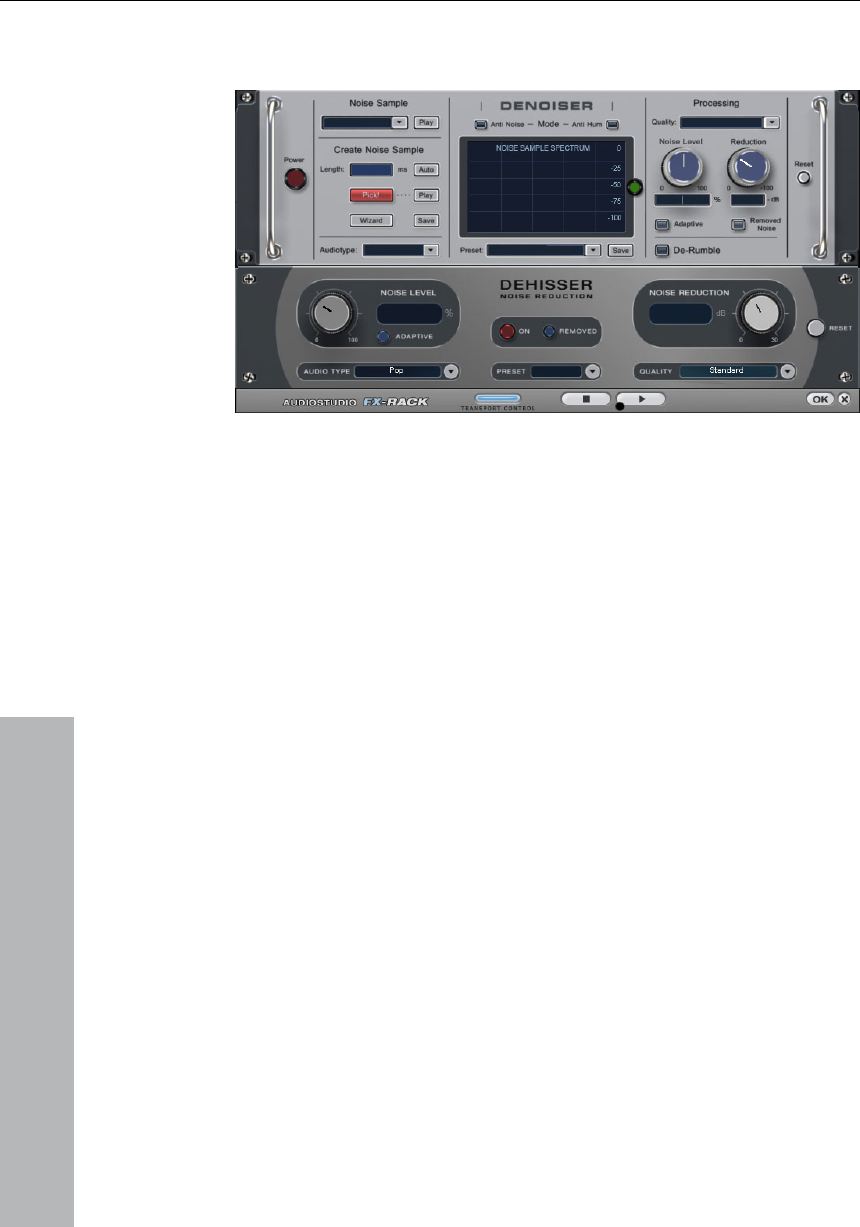
78 Effects and effect plug-ins
www.magix.com
g FX (object editor) Cleanin
hite” noise, typically produced by
ings, microphones, pre-amplifiers, or
should be
oduce dull results. Useful signals (e.g. the
wind instrument) that are similar to hissing are also filtered
level of the hissing is low, the setting is no problem.
audio material that is to be edited; the
Noise Reduction: Here you can set the attenuation of the hissing in
: To test your results, you can listen to the filtered-
ly adjust the values in the dialog for standard quality
adjustment without skipping playback, and can then select a higher
burning.
Dehisser
The Dehisser eliminates regular ”w
analogue tape record
converters.
Noise Level: Set the Dehisser’s input threshold as precisely as
possible. Low settings result in incomplete deletion of the hissing. An
incomplete deletion of the hissing produces artefacts and
avoided. High settings pr
blow of a
away. If the
Audiotype: Lets you set the
algorithm is adjusted accordingly.
decibels. Often it makes sense to reduce the hissing by only 3 to 6
dB in order to keep the audio material sounding natural.
Removed Hiss
away part of the music prior to downloading or burning onto a CD.
(Remember this is for test purposes only.)
Quality: The processing quality can be set in two stages. You can use
this to precise
quality for final

Effects and effect plug-ins 79
www.magix.com
l value
is changed, its effect is then relative, i.e. the resulting value is
on as well as the noise level fader
lue can also be adjusted later if the noise
share fluctuates, for example, if you use music tracks with differing
(A evel value must then be set
D
ing disturbing noises, such as: a humming in the main connection;
hissing; noises from sound cards, disturbance noise from ground
r); impact noise; or the rumbling of records.
ical sounds are at your disposal. Another possibility is to
create a noise sample yourself.
You need a short sequence of the music, where only the disturbance
noise can be heard.
adjust the entry threshold of the
disturbance noise’s clearing function. If the values are too low, it will
s are too high, the
result will be too flat. We suggest that you take some time to
ere you can adjust the balance between the
original signal and the cleared signal. Draw the disturbing signal
Adaptive: The value for the noise level parameter is set automatically
by determining the hiss contained in the signal. If the noise leve
determined from the automati
settings.
One advantage is that you no longer have to set the noise level value
manually and that this va
hiss levels within one project.
If the noise level is constant, a better result may be obtained manually
daptive off). However, the noise l
precisely.
enoiser
The denoiser is especially useful for eliminating long-last
circuits; interference from audio equipment with high microphone
outputs (record-playe
The denoiser requires a sample of the pure disturbance noise. Some
of the typ
Processing Section
Quality: The processing quality can be set in two stages. You can use
this to precisely adjust the values in the dialog for standard quality
adjustment without skipping playback, and can then select a higher
quality for final burning.
Noise Level: Here you can precisely
result in insufficient noise reduction and it will contain artefacts, such
as disturbing sounds or ”chipping.” If the value
experiment and obtain the best adjustment.
Noise Reduction: H

80 Effects and effect plug-ins
about 3-6 decibels in order to preserve the natural sound of the
material. In the case of humming, we recommend complete clearing.
www.magix.com
Adaptive: The value for the noise level parameter is set automatically
and if the noise is
constant, you should not use Adaptive mode.
oises on
microphone recordings.
rt sample from the actual play
position is taken as a noise sample. The noise sample should not
l - just the pure
disturbance signal.
n can be shifted with the transport bar to search for a
suitable position while the sample section is open. When the play
Play: You can listen to the noise sample to test it.
ted, the duration of the noise sample
is automatically adjusted.
by determining the noise contained in the signal. One advantage is
that for oscillating noises the noise level is always adapted to the
current noise. If the noise sample was not sourced from the signal
that is to be edited and if a preset is used instead, the difference
between the strength of the noise in the audio material and in the
noise sample is equalized automatically. If the noise sample has been
sourced from the signal that is to be edited
Removed Noise: To test whether or not a noise has been removed
satisfactorily, you can play back the part of the music cleared by or
filtered by the Denoiser. (This is for test purposes only.)
DeRumble: Activates a special filter for low-frequency rumbling
noises, such as those on old record players and wind n
Preset: All settings of the DeNoiser, i.e. the used noise sample and
the settings of the processing section, can be saved for later use as a
preset.
Noise Sample Section
Here, a Noise Print is generated. A sho
contain any music or other parts of the desired signa
The play positio
position is situated between two objects, no noise print can be
generated. A failure message appears.
Auto: When this switch is activa
Length: The duration can be adjusted in milliseconds when the ”Auto”
switch is turned off.

Effects and effect plug-ins 81
www.magix.com
Then it will be available as a new noise sample in the noise sample
Noise Sample Presets: Choose a noise sample from the Noise Print
irectory. When the noise sample has been created by the
earch function which lets you search
the audio material for a suitable noise sample. You can choose from
Audiotype: Lets you set the audio material that is to be edited; the
Spectral View
ed
audio material is then displayed in a spectrogram. The spectral parts
Anti-Noise
e noise is removed.
he hum is removed instead of the hiss also
included in the sample. The advantage of this is that far less changes
Video camera
Save: Store the created noise sample in the Noise Print Sample
Directory.
preset selection list.
Sample D
Pick function, the item Noise Print appears in the directory.
Play (Preset): You can listen to the chosen noise sample.
Wizard: Opens a Wizard which helps you to create noise samples.
The Wizard mainly features a s
different noise types.
algorithm is adjusted accordingly.
If selected, the spectrum of the noise sample is displayed. Use the
button at the right border to switch to Spectral View. The play
removed by denoising are displayed in red color shades.
Mode
The entir
Hum Mode
If this mode is selected, t
are necessary than in anti-noise mode.
If you want to remove a noise containing both hum and hiss, it is
preferable to remove the hum with the Denoiser in Hum mode and
then remove the hiss with the DeHisser, or by applying the DeNoiser
twice with different settings, e.g. as a master effect and then as an
object effect.

82 Effects and effect plug-ins
www.magix.com
issing and can be removed more easily!
h, it can result in a metallic chipping
sound, or an ”artefact” sound. Due to its synthetic character, this will
ain the best results, follow these suggestions and instructions:
• Be careful with the ”dosage” of the effect—less is more. Adjust it
applying cleaning effects. Select the
disturbing objects and choose ”Remove DC-offset” from the Edit
This should remove the camera noise in Hum mode, as this is far
more annoying than h
Artefacts on Cleaning Effects
If you adjust the Denoiser too hig
have quite an impact on your ears. Usually, this happens only in
especially difficult cases.
To obt
• First choose a Preset from the Selection Menu. There you will find
several types of disturbance noises.
until you cannot hear any of the disturbing noises, otherwise
artefacts can appear.
• Clean the material before
Menu.
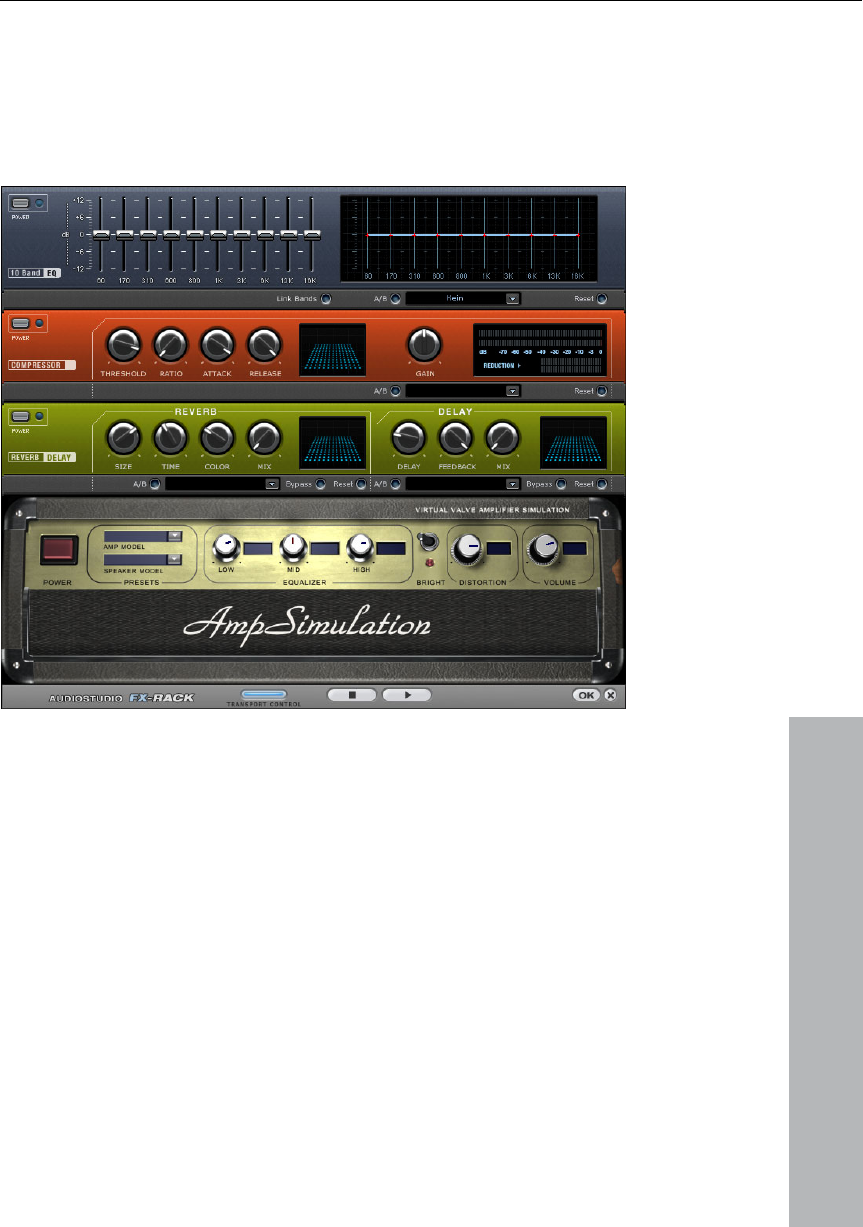
Effects and effect plug-ins 83
www.magix.com
rack with the following virtual effects
devices:
Sound FX (object editor, mixer channels,
mixmaster)
Sound FX features an Effects
Equalizer
The 10-track equalizer divides the frequency spectrum into 10 areas
(tracks) and supplies them with separated volume controls, which
allows you to achieve many impressive effects, from the simple rising
ation. If you raise the low
vel, it can cause
distortions. In this case, lower the master volume using the master
volume control on the main screen.
of the bass, to total sound transform
frequencies too much throughout the whole le
Thumb controls: All of the 10 frequency areas can be raised or
decreased separately by the 10 volume controls.
Link Bands: Using this switch you can match the frequency areas in a
flexible way to avoid the overemphasizing of single frequency areas
that sound artificial.

84 Effects and effect plug-ins
www.magix.com
inal-preset-sound with the new
adjustments using the A/B-switch.
Touch-screen (right EQ-Section): This is the ”sensor-field” of the EQ:
olume control.
Tune dynamics are limited, loud passages stay loud, low passages
termines the entry threshold. Rise and
decrease of time can be influenced by Attack and Release.
The processing is realized ”in advance” as occurs in high-quality
Sensor-Field: The sensor-field of the compressor can be intuitively
e parameter controls compression intensity.
h the algorithm responds
on the rising level. Short attack times can produce a ”pumping”
Release: Here you can adjust the time in which the algorithm
A/B: If you have selected a preset for the effect and later you change
it manually, you can compare the orig
Reset: Reset inserts the sound effect into the neutral starting position
where no processing power is used and where no effect is calculated
in the sound.
Use your mouse to draw a curve that will be transferred immediately
into the corresponding EQ control adjustment.
Compressor
The compressor is essentially an automated dynamic v
become louder. Compression is often used to make the material
more powerful. The degree of compression is adjusted by the ratio
control, and the ”Threshold” de
studio equipment. This means that there won’t be any overdriven
peaks or other artefacts, as the algorithm can never be ”surprised” by
the peak levels.
altered with movement of the mouse.,
Ratio: Th
Threshold: Here you can adjust the entry threshold, under the
compression.
Attack: Here you can adjust the time in whic
sound, as the volume is reduced or raised.
responds to decreasing levels.
A/B: If you have selected a preset for the effect and later you change
it manually, you can compare the original-preset-sound with the new
adjustments using the A/B-switch.

Effects and effect plug-ins 85
www.magix.com
cessing power is used and where no effect is calculated
in the sound.
llers:
pendency on the room size. If the
Reset: Reset places the sound effect into the neutral starting position
where no pro
Load/Save: Here you can store the current adjustments as an effect
file in order to use them for other projects.
AmpSim
The Ampsimulator is a newly-developed real-time effect that
simulates tube amp sound properties. It is especially suitable for
guitar sounds, but also for the organ or recordings of vocals.
Amp Model: Here you can select from a range of amplifiers whose
sound can be simulated.
Speaker Model: Here you can select from a range of speakers whose
sound can be simulated.
EQ-Section: A 3 band equalizer for setting the bass, mid-tones and
treble.
Bright: The Bright button is for a particularly sharp sound display, that
can be jarring when used with the following automatic contro
Distortion: Creates distortion in typical analog amplifier fashion.
Volume: Controls the entire volume of the amplifier module.
Echo / Reverb
Reverb
Reverb supplies a high-quality reverberation which can be defined
more closely with ‘room size’, ‘time’ and ‘colour’ and mixed into the
original sound with ‘mix’.
You can choose between various reverb styles in the presets.
Room size: This control button controls a room simulator which
calculates the reverb effect in de
control is turned completely to the left, it sounds as if the audio
object has been recorded in a tiny room, turned completely to the
right, one can listen to the object as if it had been recorded in a
cathedral.
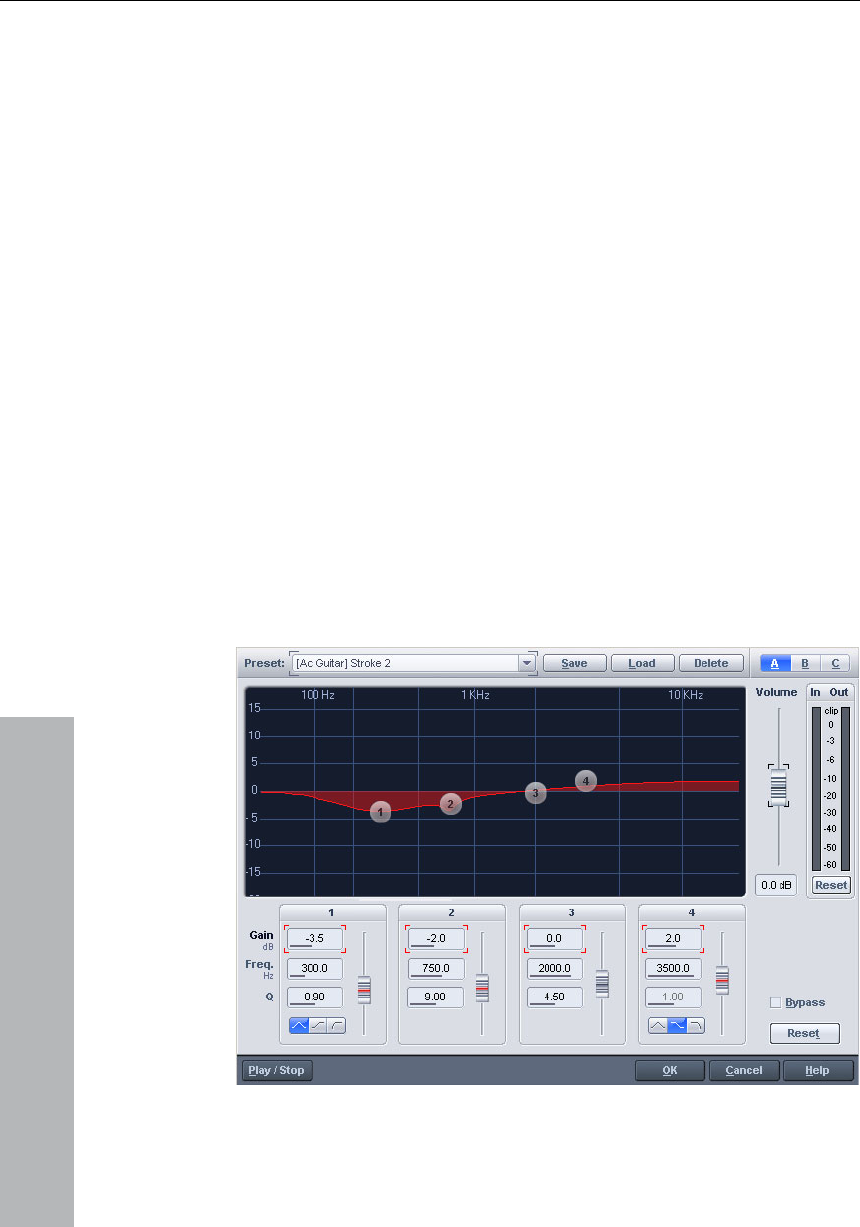
86 Effects and effect plug-ins
www.magix.com
type of reverb – rather dull
than high-pitched or vice versa.
Echo
between the individual echos can be
determined; the more you turn the control to the left, the faster will
Feedback: Here the number of echos can be adjusted. Turned
completely to the left, there is no echo at all, turned completely to the
right there are virtually endless repetitions.
Parametric Equalizer (mixer channels,
Time: Here the length of the ‘reverb trail’ is determined, i.e. the fading
phase of the sound.
Colour: Here it is possible to control the
Mix: This control determines the mixing ratio between the unedited
original sound (‘dry’ signal) and the reverb portion (‘wet’ signal).
Echo: The echo effect is defined more closely with ‘delay’ and
‘feedback’ and calculated into the original sound by means of ‘mix’.
Delay: Here the period of time
the echos follow each other.
mix master)

Effects and effect plug-ins 87
www.magix.com
independent
frequency bands. This allows you to raise the bass and treble in a
However, you will first have to highlight an area of the current project
kHz using these switches. As your choice is
completely unrestricted, you can also set various filters to the same
Q: Here you can set the frequency-spectrum of each filter between
Volume: This button controls the general volume should the filters
produce an extreme increase or decrease of the individual levels.
Setup A/B/C: Here you can switch between three various setups so
that an acoustic comparison between the various settings can be
performed, for example, during the preview function (Play/Stop
button).
This dialogue contains a 4-Band parametric equalizer. You can adjust
the sound of your sample activating filters on three
broad spectrum as well as making very specific corrections in the
dynamic frequency spectrum.
or the entire project with the a-key (wave-projects).
Don‘t forget that the mixer (m-key) also includes one equalizer per
channel that works in real time and does not modify the saved audio-
material! (Non-destructive manipulation process).
Frequency: Adjust the middle frequencies of the different filters
between 10 Hz and 24
frequencies in order to obtain more pronounced effects.
10 Hz and 10 kHz.
Gain: These switches control the activity and intensity of each filter. If
the switch is set to 0, the filter will be inactivated, saving system
resources.
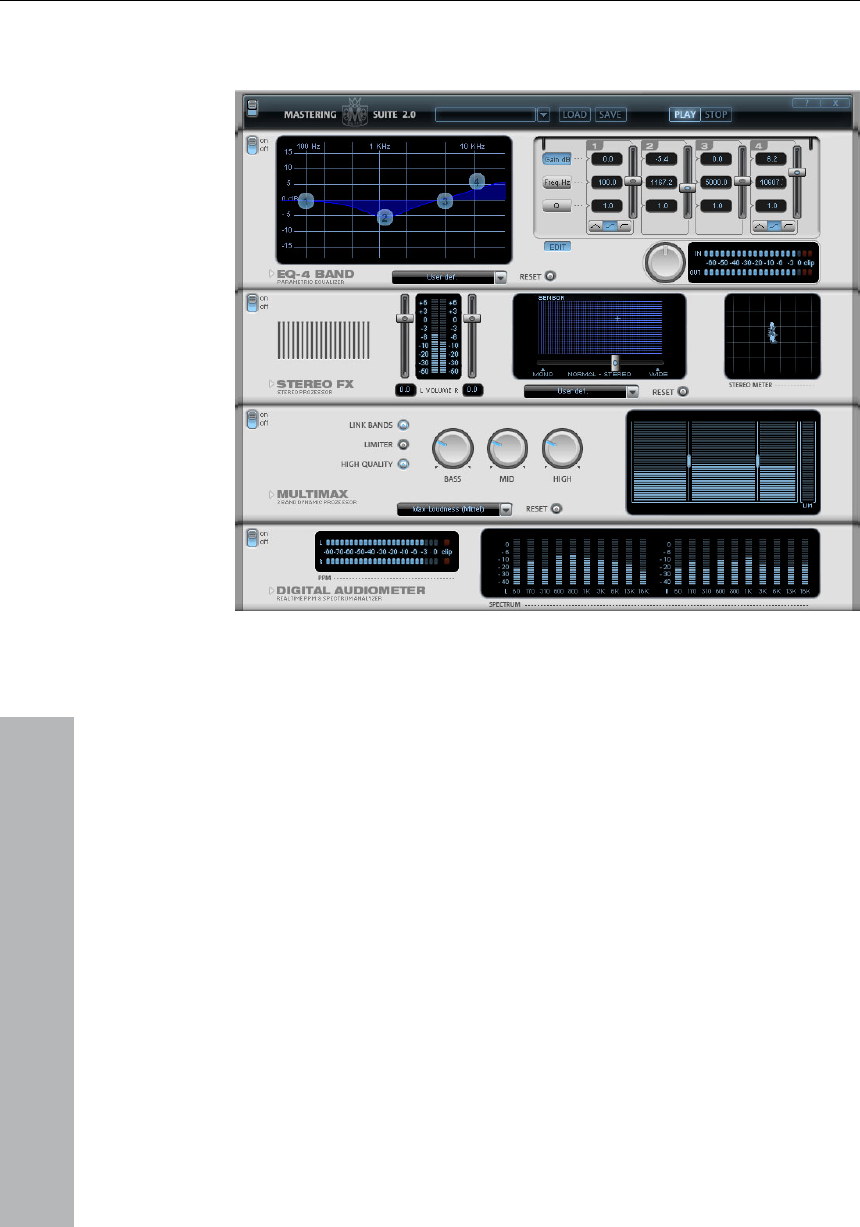
88 Effects and effect plug-ins
www.magix.com
e MAGIX Mastering Suit
Parametric Equalizer
The parametric equalizer consists of four filter bands with which you
can mainly form the sound of the music track. Each band is a filter
with a typical “bell shape”. Within a certain frequency range around
an adjustable middle frequency you can increase or reduce the signal
level gain. The width of this frequency range is called bandwidth. The
bandwidth is defined by the Q value. The higher the Q value, the
narrower and steeper the filter curve.
You can influence the basic sound of the mix by increasing and
decreasing the broadband so as to give it more “depth” (lower center
200-600 Hz) or more “air” (Highs 10Khz). You can also decrease the
narrowband width (high Q-value) in the frequency response to
remove, for example, disruptive frequencies.
Graphic: The resulting frequency path of the equalizer is displayed in
the graphic. The frequency is spread out horizontally, the increase or
decrease of the respective frequency, vertically. The blue bullets 1-4

Effects and effect plug-ins 89
symbolize the four wave bands. You can move them around with the
mouse until you find your desired frequency response.
www.magix.com
Peakmeter: With the peakmeter you can control the output level of
ent master gain controller can be used to
Gain dB: These controllers allow you to raise or lower the filter.
S t
pow
be set
between 10 Hz and 24 kHz with the frequency controllers. Freely
e frequency enables multiple filters to be set to the same
frequency in order to have a greater effect.
of the individual
filters to between 10 Hz and 10 kHz.
helving” (this is the
basic setting) and high (band 1) or high-cut (band 4). When using the
ng” filter, a soft increase or decrease in all frequencies
happens above or below the filter frequency, the Q parameter does
ve a f filter, all
frequencies be are
filtered out.
the equalizer. The adjac
balance the level with the EQ.
Edit: The “Edit” button opens the fine-tuning for the four bands:
Parameter selection: With the buttons on the right you can select the
parameter that can be adjusted with four faders of each band.
Furthermore, there are number keys to enter every parameter of the
bands.
e ting the controller to 0 deactivates the filter and doesn’t use CPU
er.
Freq. Hz: The center frequency of the individual filters can
choosing th
Q (Bandwidth): Here you can set the bandwidth
There is still a peculiarity among bands 1 and 4: Their filter curve can
be changed from a normal “Peaking” EQ filter to “s
“shelvi
not ha unction here. With a low-cut or high-cut
low (low-cut) or above (high-cut) the set frequency
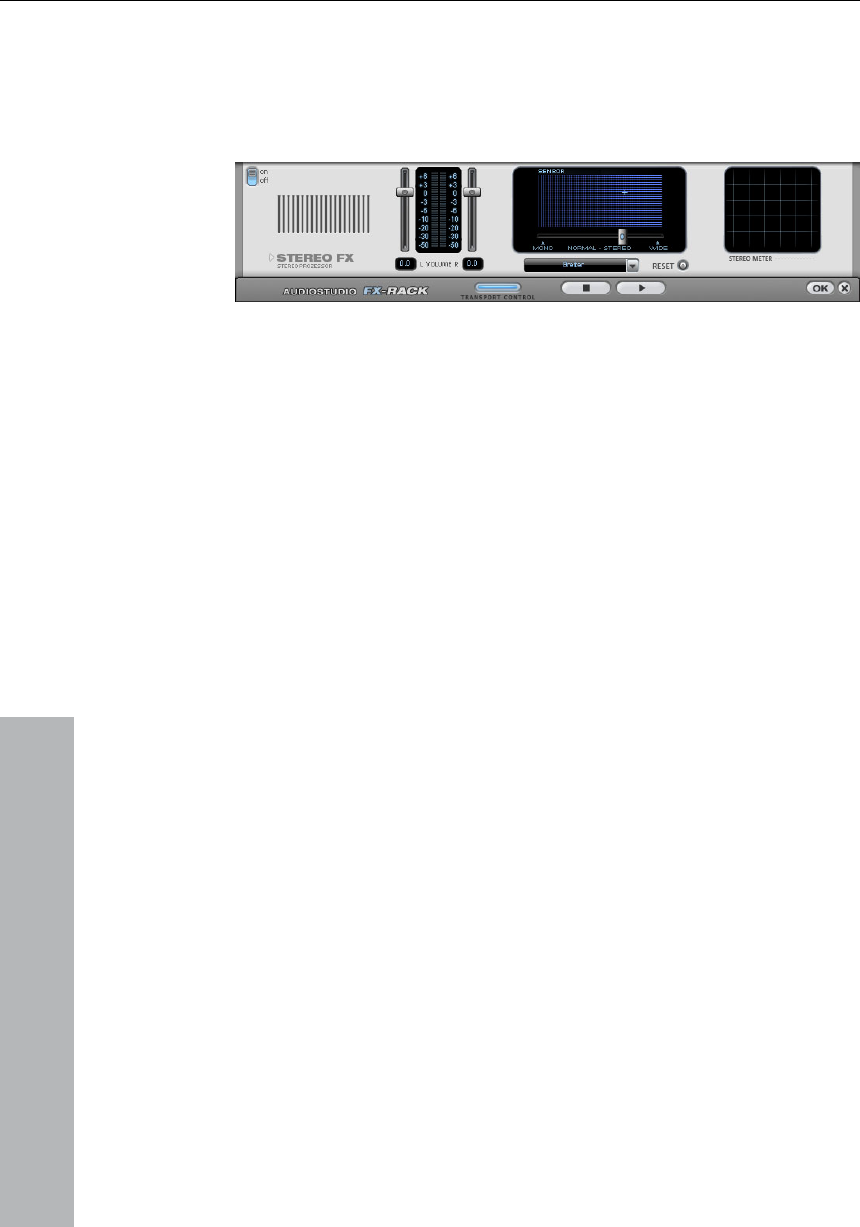
90 Effects and effect plug-ins
www.magix.com
rentiated, the extension of the basic stereo-width can provide
a more transparent sound.
Stereo FX
The Stereo-FX-Enhancer allows you to reposition your audio material
in the stereo panorama. Whenever a stereo recording sounds
undiffe
reo width controller: Here you can adjust the width of the
m mono (leftmost side), over unchanged (in
the centre) to maximum width (”Wide”, rightmost side). When setting
Basic ste
basic stereo panorama fro
the stereo panorama to smaller values, the sound level may rise. In
an extreme case – it means that if the left and right channels contain
identical audio material and the Basic stereo width controller is set to
”mono” – the sound level increase can be as much as 3 dB.
While increasing the basic stereo width (values exceeding 100) the
mono sound compatibility gets worse. This means, that recordings
that have been manipulated in such a manner will sound hollow
during mono playback.
Volume fader: Adjust the volume for each channel and the stereo
panorama. The damping for the left and the right channel will be
indicated in dB values under the controllers. This allows you to
reposition an originally centred recording to the right or to the left
inside the stereo panorama.
Stereo-meter (correlation indicator): This is a graphic display of the
phase position of the audio signal. Here you can check the
orientation of your signal inside the stereo panorama and the effects
caused by the Stereo-Enhancer.
In order to achieve the best possible mono-compatibility, the graphic
should resemble a diagonal line. If not, some frequency areas may
eliminate each other when the stereo signal is played back on a
mono player.
Karaoke Preset: THis preset opens a special karaoke effect that more
or less eliminates vocals during playback by deleting middle-range
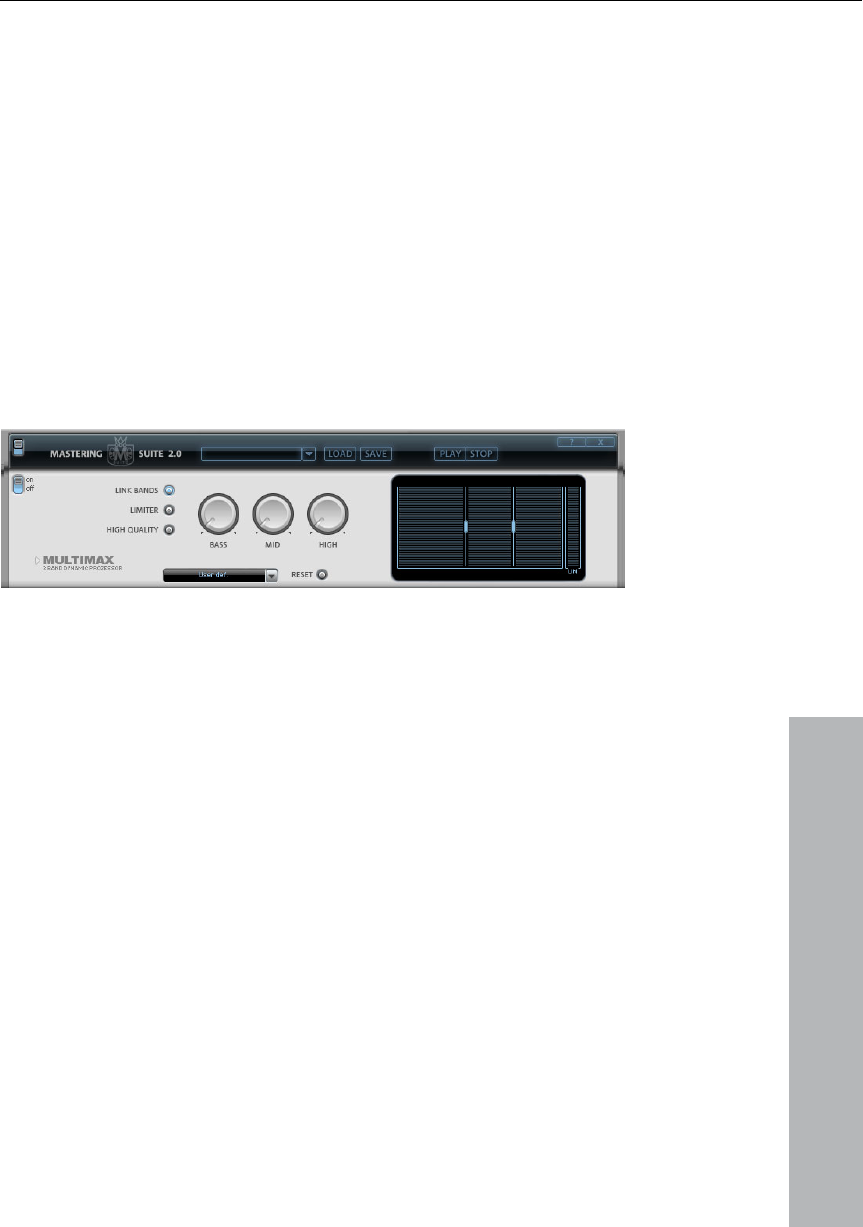
Effects and effect plug-ins 91
www.magix.com
Multimax
ced drastically by the dynamic processing. This means, for
example, that a single peak level in the bass section will not drag the
al down.
Otherwise, the multi-band technology enables precise treatment of
frequencies typical for the human voice when singing. This allows
someone else to take over the singing.
The MultiMax is a compressor with three independent frequency
bands. The dynamic processing takes place separately for each
band.
The main advantage of a multi-band compressor over a ”normal”
compressor is that warping and other bothersome side-effects are
redu
level of the whole sign
individual frequency bands.
display. Simply
: The MultiMax contains a limiter that harmonizes levels so
that, for example, too high a level is automatically reduced, and quiet
passages remain unaffected.
ing.
Frequency Band Settings: Made directly in the graphic
click on the dividing lines to shift them.
Bass/Mid/High: Regulates the degree of compression for each
frequency band.
Limiter
Presets
Two further special functions can be called up by using the presets in
MultiMAX.
Dynamic expander: Too high compression will result in audible noise
(usually defined as a pumping sound). Particularly radio recordings
are recorded with very high compression rates to increase the
perceived volume. Unfortunately compression reduces the dynamics
(interval between the quietest and loudest part). The Expander
enhances the dynamics of the record

92 Effects and effect plug-ins
www.magix.com
coder: MAGIX Music Studio 12 deluxe simulates
ise entirely belo a
certain noise level. This lets you create, for example, song transitions
tween different songs, also use the
function “Volume adjustment” function in the effects menu.
Cassette NR-B de
decoding of Dolby B + C noise suppression if no Dolby player is
available. Cassettes recorded with Dolby B or C sound more muffled
and slurry if played back without corresponding Dolby.
Noise Gate: This Cleaning function suppressed no w
that are entirely noise-free.
Leveler: This function brings the entire material up to a uniform
volume automatically. The volume control handle is made void. Larger
volume differences can therefore be adapted within a song. To
balance volume differences be
De-Esser: These special presets remove overemphasized “s” sounds
in speech recordings.
Tip: The limiter can also be used independently of the MultiMax.
Digital Audiomete
On the lower border of digital
audiometer, which provides separate control method displays for
every channel for 10 wa tion,
for example, for selectiv
r
the MAGIX Mastering Suite there is a
ve bands. This device is used for orienta
e equalizer editing.
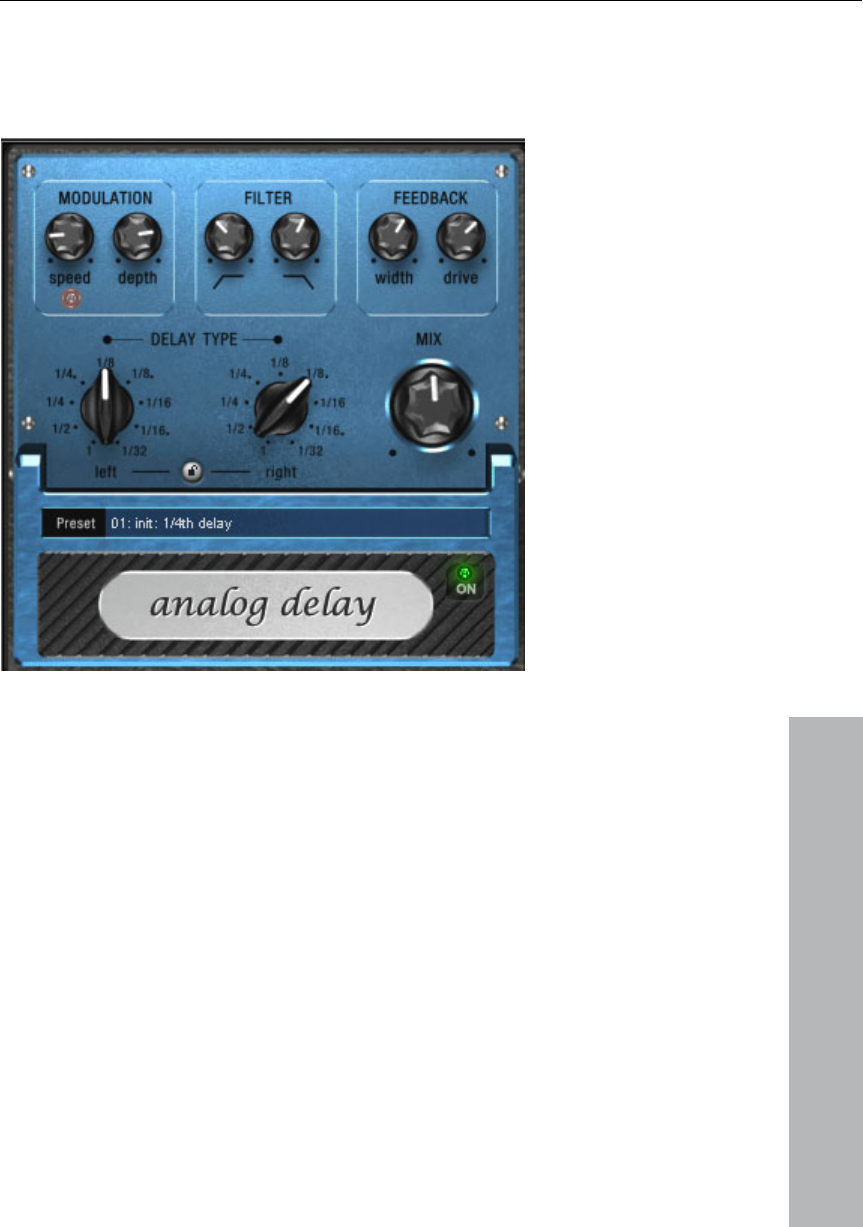
Effects and effect plug-ins 93
www.magix.com
Vintage Effect
Analog Delay
s Suite
delay times while playing without the risk of typical, scratching
id repetitions
depending on the settings.
r
example ‘out-there’ dub/reggae-style delays that become less
defined with each repetition and are slightly warbled. Here "Analog"
means that you can not digitally overdrive the delay. Even in a
This delay offers creative playing along with common delay effects.
"Analog" in this case means, for instance, that you can change the
artefacts developing. Instead, the times are softly faded out, similar to
the old tape echo machines that used the tape speed to change the
delay and where the system also had a certain sluggishness.
Analog Delay emulates the tape echo units of old, where the delay
time was determined by the tape speed and speed changes were
slow and affected the pitch. („Feedback"). The feedback has a two-
band filter that can be used to create dark, high or m
You can use these characteristics to your advantage, creating fo
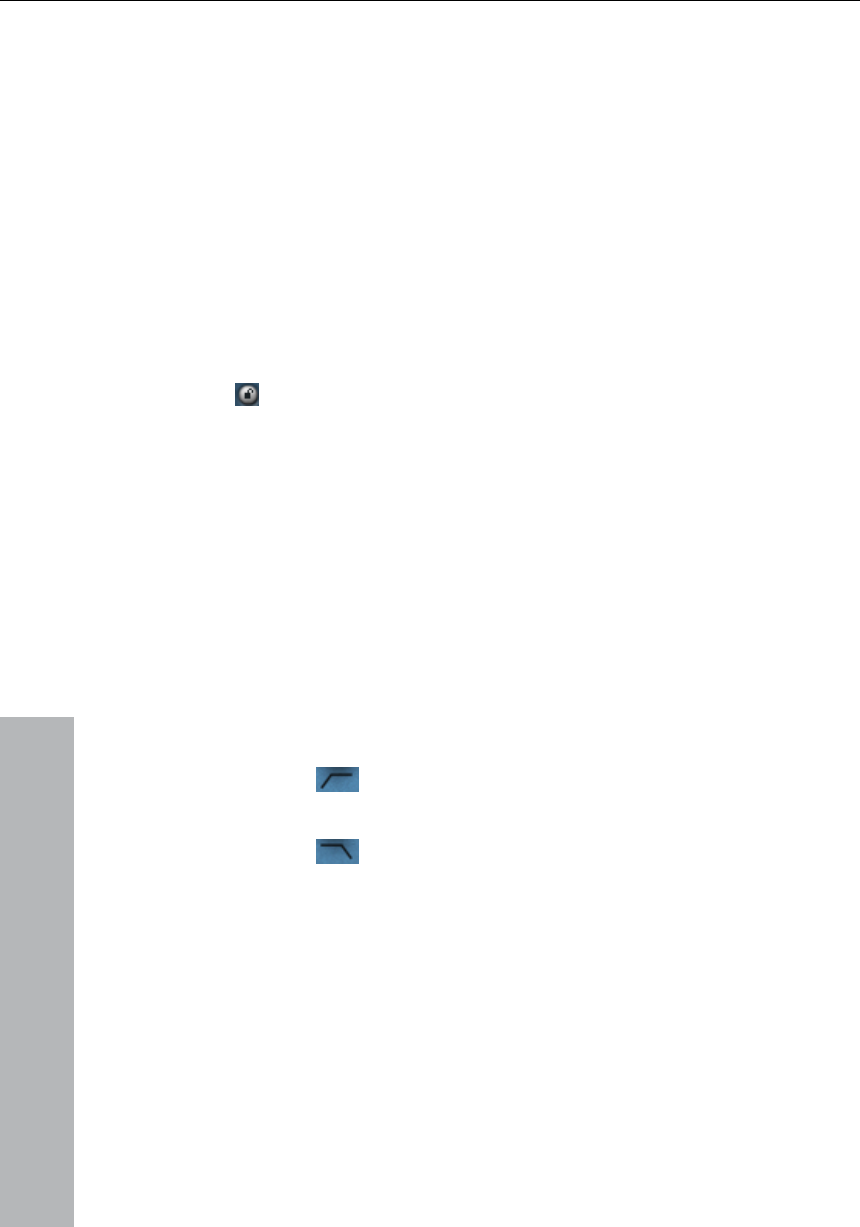
94 Effects and effect plug-ins
www.magix.com
parameters:
Delay Type (L + R): Left and right delay times can be controlled
snap to. Even and syncopated note values from 1/2 to 1/32
are available. Note that the delay times are always in relation to the
'looped' repetition the signal can not be distorted indefinitely but
compressed by an increasingly slight degree and distorted similar to
a tape.
Analog delay parameter
Analog Delay has the following
Delay Type
separately (see below). You can choose a note value for the control
pots to
project’s current tempo.
Link button (lock symbol): Press this button to control the “Delay
o.
Depth: The warble intensity. When this control is turned all the way to
-11 o’clock position.
Type” pots for both channels simultaneously.
Mix: Adjusts the ration between the original signal and ech
Modulation
Speed: The tape warble speed. Low values result in very light
fluctuations, high values result in drastic warbling.
the left, there is no pitch modulation. For a subtle ‘analog’ feel, we
recommend a setting at the 9
Filter
"Low" This control progressively reduces the bass
frequencies as it is turned to the right, making the
signal sound ‘thinner’.
"High" All the way to the right, the control only attenuates the
treble very lightly; turned to the left, the delay
repetitions become progressively less trebly.
Feedback
Width: This controls the stereo width of the delay repetitions. When
you turn “Width” to the right, a further effect is achieved: the panning
of the delays increases. This is commonly referred to as a ‘ping-
pong’ delay.
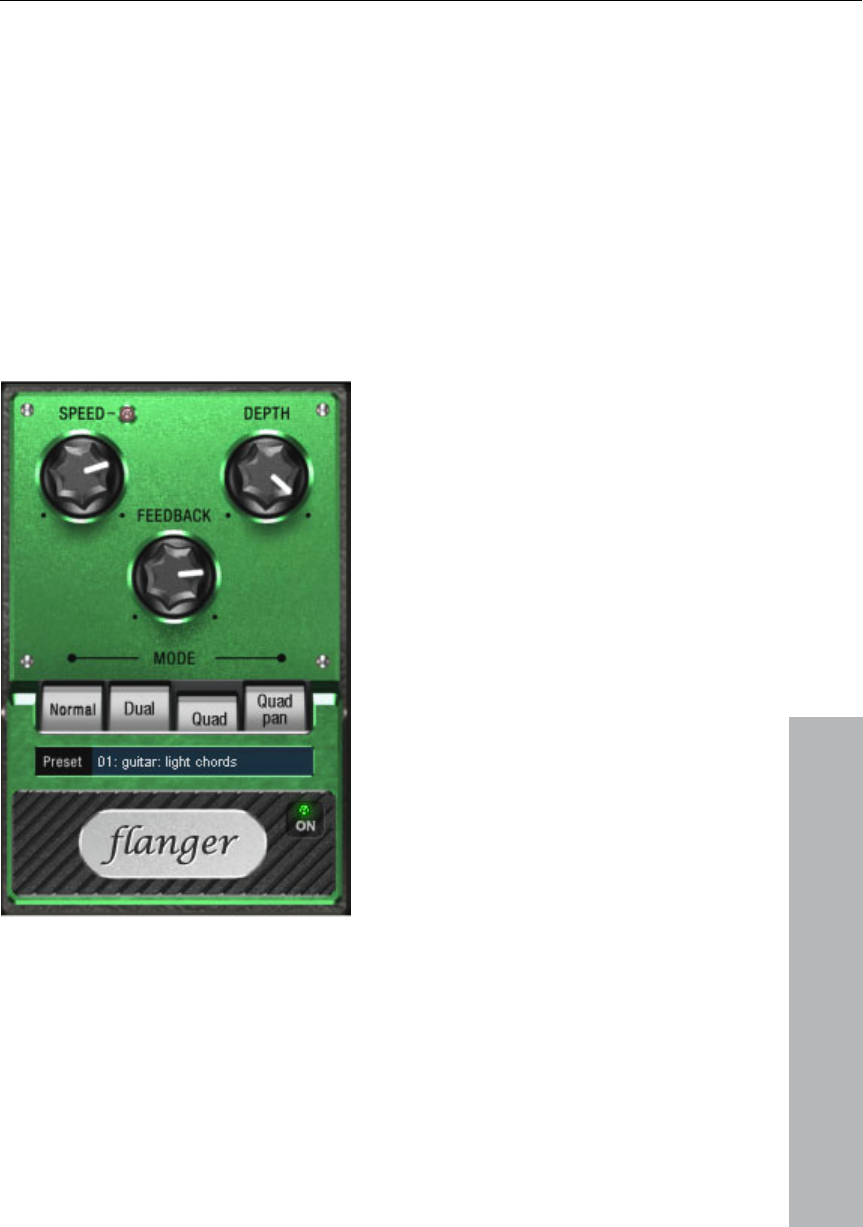
Effects and effect plug-ins 95
www.magix.com
n this control is turned all the way to the left, the delayed
signal is repeated only once. Turned all the way to the right, the
feedback is seemingly endless and the repetitions continue for a long
time.
The actual strength of the effect is dependent on the material as the
the
d to
Drive: Whe
feedback loop - as explained earlier - is addressed via compression
and uses a "tape saturation" effect. If you send a "loud" signal to
dela, the feedback will sound longer than at a lower level as
compression "brings it up" to a certain level. If you are use
"purely digital" delays you may require a short adjustment period.
However, will most probably sound "livelier".
Flanger
It was developed by coincidence: someone (according to a
legend it was actually John Lennon) briefly slowed down one of the
Th
th
The "flanger" effect is similar to the chorus, although it has a different
history:
reels of two tape machines that were linked together.
e result: the rather brief delay of the second signal compared to
e first resulted in cancellations within the frequency spectrum,

96 Effects and effect plug-ins
www.magix.com
le
cr
teeth of a comb).
Fl
tim
so
W
ef
up
Fl
S
D
Fe
M
“Dual”: Two parts, panned left and right.
“Quad”: Four parts, alternatingly panned left and right.
“Quad Pan”: Like “Quad”, but the “Depth” control also sets the
ading to a so-called comb filter effect (the sum of both signals
eates "peaks" and "lows" in the spectrum that look familiar to the
anging is basically a chorus effect that modulates a shorter delay
e (under 10 ms). Flangers do not strive to double or disembody a
und like a chorus but aim to manipulate its frequency range.
hen the “Feedback” parameter is turned up, a familiar flanging
fect is produced – the sound characteristics of a jet engine warming
.
anger parameters
peed: Modulation speed.
epth: The overall amount of modulation.
edback: The volume of the internal feedback loop.
ode:
“Normal”: Flanging.
intensity of the signal’s pan movements between left and right.
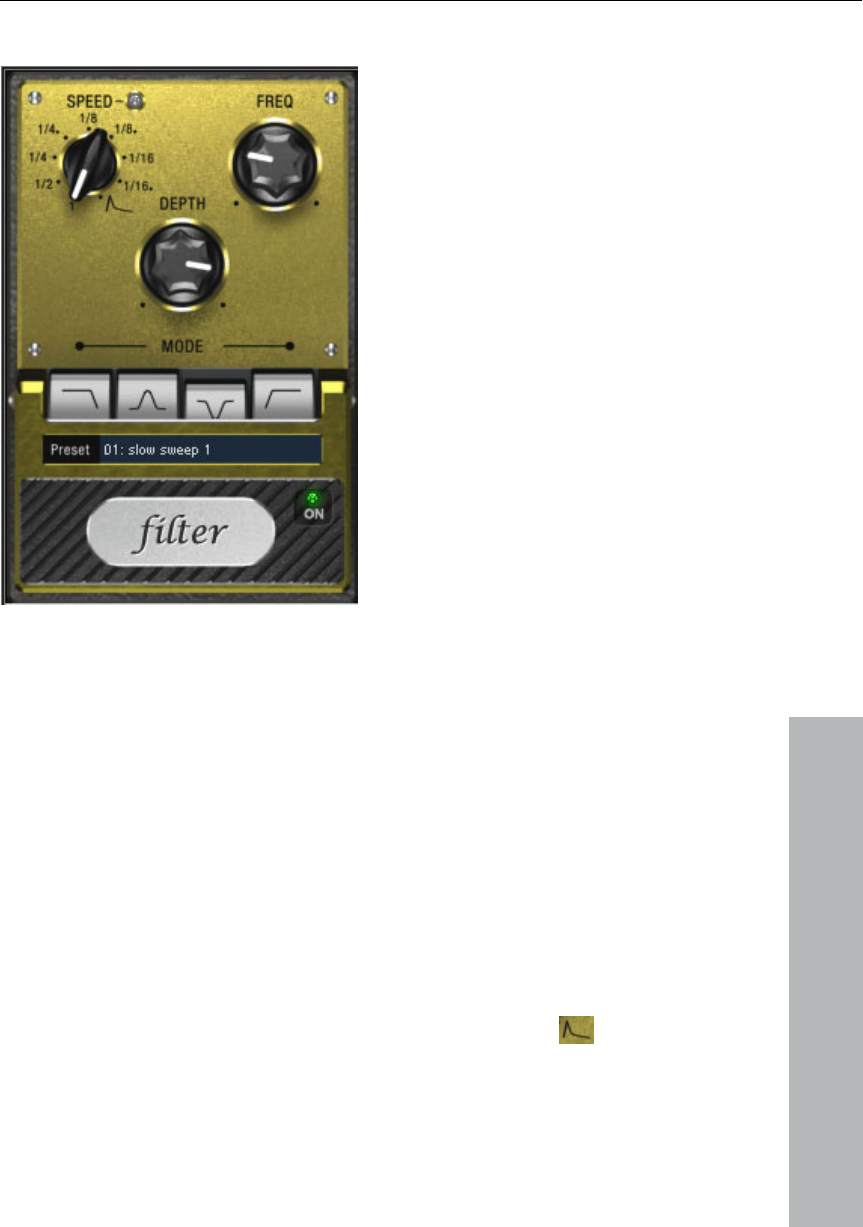
Effects and effect plug-ins 97
Filter
www.magix.com
is a modulation effect like Chorus and Flanger. However it
controls the frequency response of a modulation source as well as
(‘filter sweeps’ on
and for creatively manipulating drum loops
etc.). With guitars you can create typical
'wah' effects: either by tempo modulation or in a special mode,
ontroller:
"Filter"
the pitch. There are various filter types and modulation sizes available
for this.
The filter is particularly effective for synth sounds
pads and atmospheres)
(such as for variations, fills
modulation via the envelope curve.
Filter parameters
Speed: The modulation speed is set by note values ranging from 1/1
to 1/16 (even or dotted). Like in the Analog Delay, the tempo
information is automatically provided by the arrangement.
A peculiarity of the final position of the c
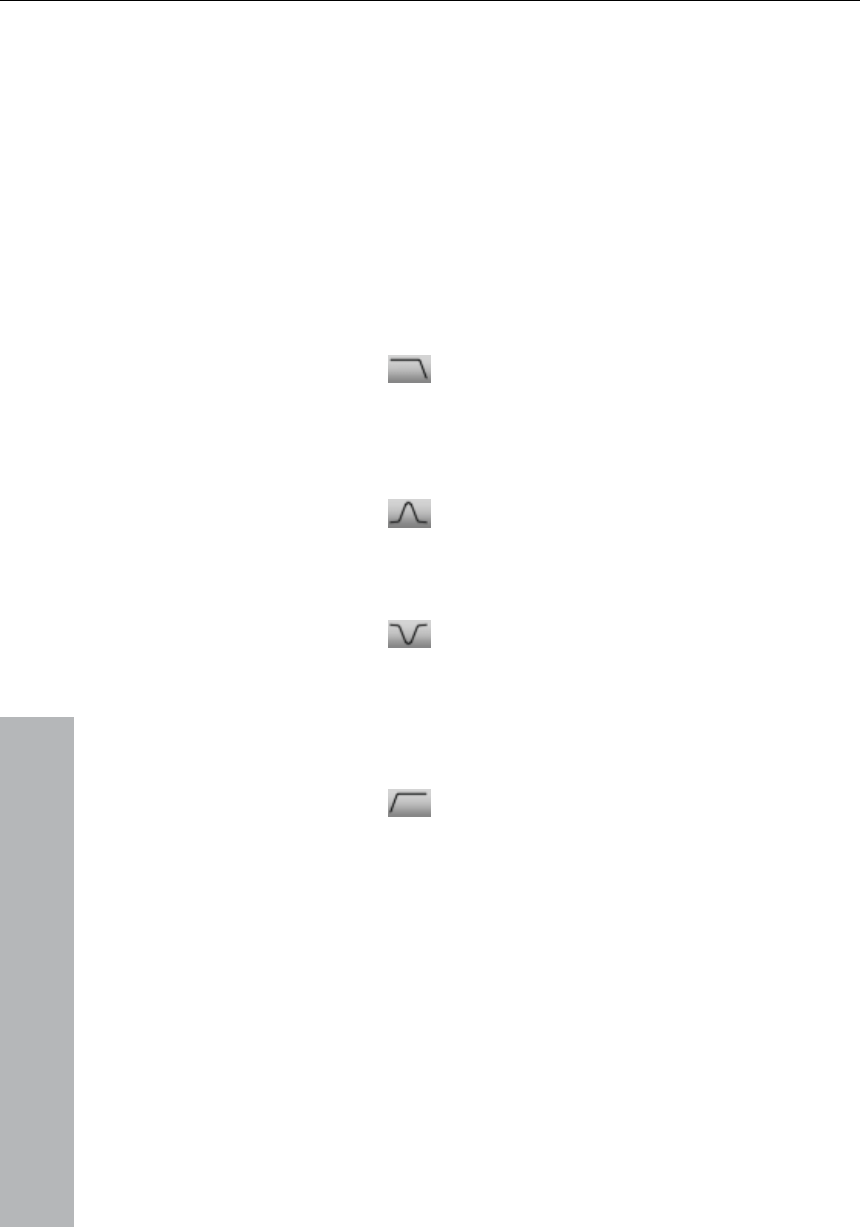
98 Effects and effect plug-ins
www.magix.com
Freq: This is the base frequency for modulating the filter. This
above this frequency, i.e. the modulation
Depth: This control determines the modulation depth, that is, the
t and “Depth” all the way to the right.
Low-pass
Tempo synchronization stops and modulation is controlled via the
signal level.
generally takes place
increases the filter frequency..
amount by which the speed control (or envelope mode, as described
above) increases the base frequency. For extreme effects, turn “Freq”
all the way to the lef
Filter Modes
A filter with a slope of 24 dB/octave and a
Band-pass
small amount of resonance. The treble
frequencies above the base frequency (cut-
off frequency) are filtered steeply. This is
great for filter sweeps on synth pads and
drum loops.
Only the frequencies around the base
Band
frequency are passed through the filter
(24 dB slope with resonance). Use this mode
to create wah-wah effects for guitars.
elimination
(„Notch-Filter")
Two parallel filters (–36 dB) with linked base
High-pass
frequencies create two ‘notches’ in the
frequency spectrum. This allows you to
create interesting sounds, for example,
guitar chords. This sounds similar to a
phaser.
This mode achieves the opposite effect to
. Frequencies below the
base frequency are filtered steeply. If you
a drum track) with a tempo-based
modulation, this can sound very effective
when contrasted with the full-range
, if the filter
the low pass filter
‘thin out’ sections of your track (for example,
frequency spectrum (for example
is turned off for the next object).
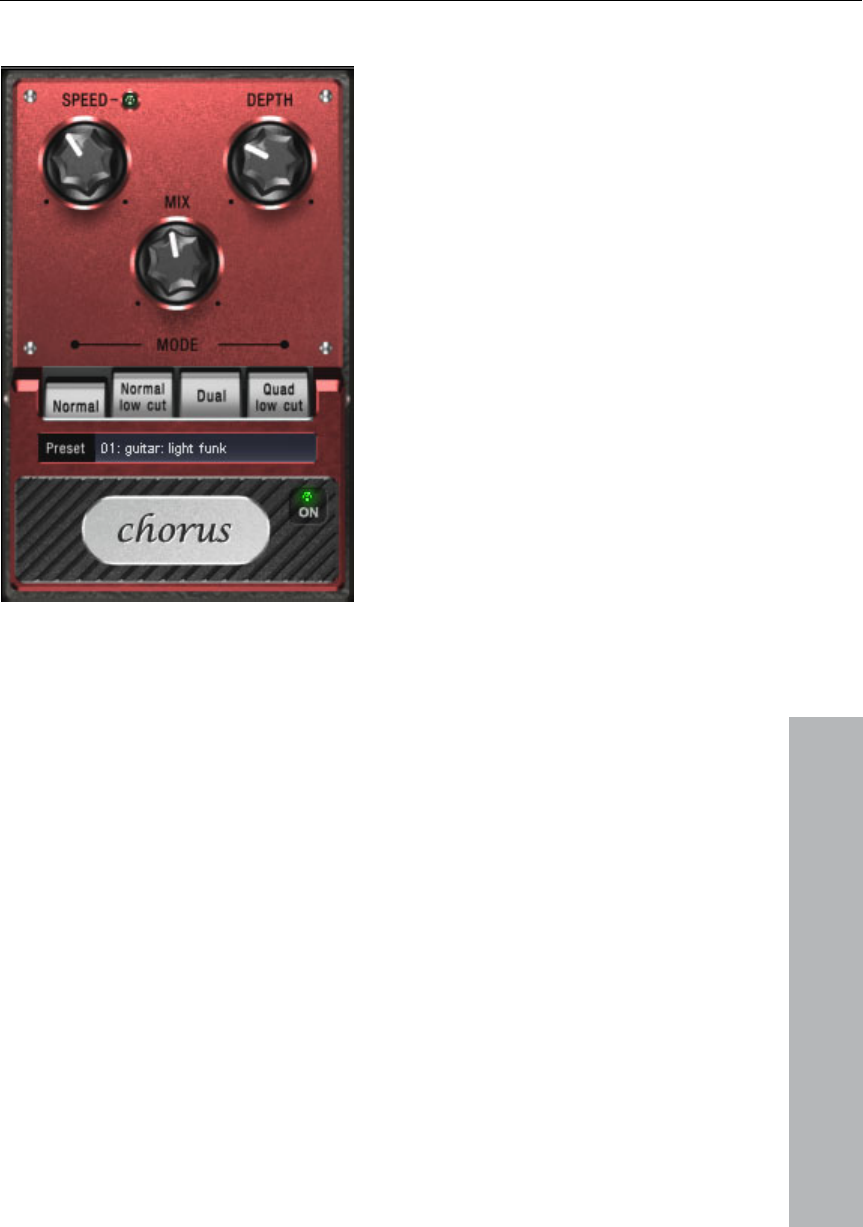
Effects and effect plug-ins 99
Chorus
Chorus creates a ‘floating’ sound typically associated with guitars
and synth pads.
www.magix.com
It can acoustically ‘thicken’ an instrument, making it
sound fuller or creating the illusion that several instruments are
The Chorus sound is created by using the so-called doubler effect.
there were a second siren at your location, an oscillation would
This delay is within the range of 10-30 ms (as in this one),
cho". The times
would also be similarly short if you were to double a guitar track for
playing.
You probably have noticed this phenomenon daily life: The sound of
an approaching ambulance sounds higher than when it is moving
away. This effect is a result of the speed of the sound which first
increases and then decreases, thus also changing the sound pitch. If
develop between both sounds (just like when two instruments are out
of tune).
Chorus also splits the signal in at least two: direct sound and effects
part. The double effect is created by a short signal delay of the effect.
this means
that it is short enough to be perceived as an "e

100 Effects and effect plug-ins
www.magix.com
e result is a
floating effect where the speed is influenced by drifting.
r the following parameters to control the floating effect:
n speed. Low speeds create an even, continuous
ef
“N
si
guita
effec e for the mid and treble frequencies.
the sound livelier than with
ted over the stereo panorama so
instance. A short delay in the mix already sounds "doubled" but is not
authentic. This is where the above-mentioned "out-of-tune" effect
comes in: the pitch of the effect signal is slightly modulated by gently
"drifting" forward and backward in the delay curve. Th
Chorus parameters
You can ente
Speed: Modulatio
development. High speeds produce vibrato-like qualities but can also
result in an ‘under-water’ effect.
Depth: Modulation depth. This determines how strongly the speed
affects the pitch modulation.
Mix: This sets the balance between the direct signal and the effects
signal.
Mode: You can choose between four operating modes of the Chorus
fect:
ormal” is a combination of the direct signal and the detuned delay
gnal.
“Normal, low cut” is designed for bass-heavy signals such as bass
r. The bottom end of the signal stays clear and well-defined, the
t is only audibl
“Dual” makes the source sound more lively than a single ‘part’. The
sound is spread over the stereo panorama, which makes this mode
seem ‘wider’. This makes the character of
a single voice only. It is also distribu
that this mode sounds "broader".
“Quad, low cut” is ideal for creating sounds such as deep synth pads
with tight bass frequencies.
Tip: Like on the stomp boxes our vintage effects are modeled on,
there is a ‘footswitch’ below the pedal’s logo that can be clicked to
turn the effect on or off for A/B comparisons. All the effects of the
Vintage Effects Suite have been designed like this.
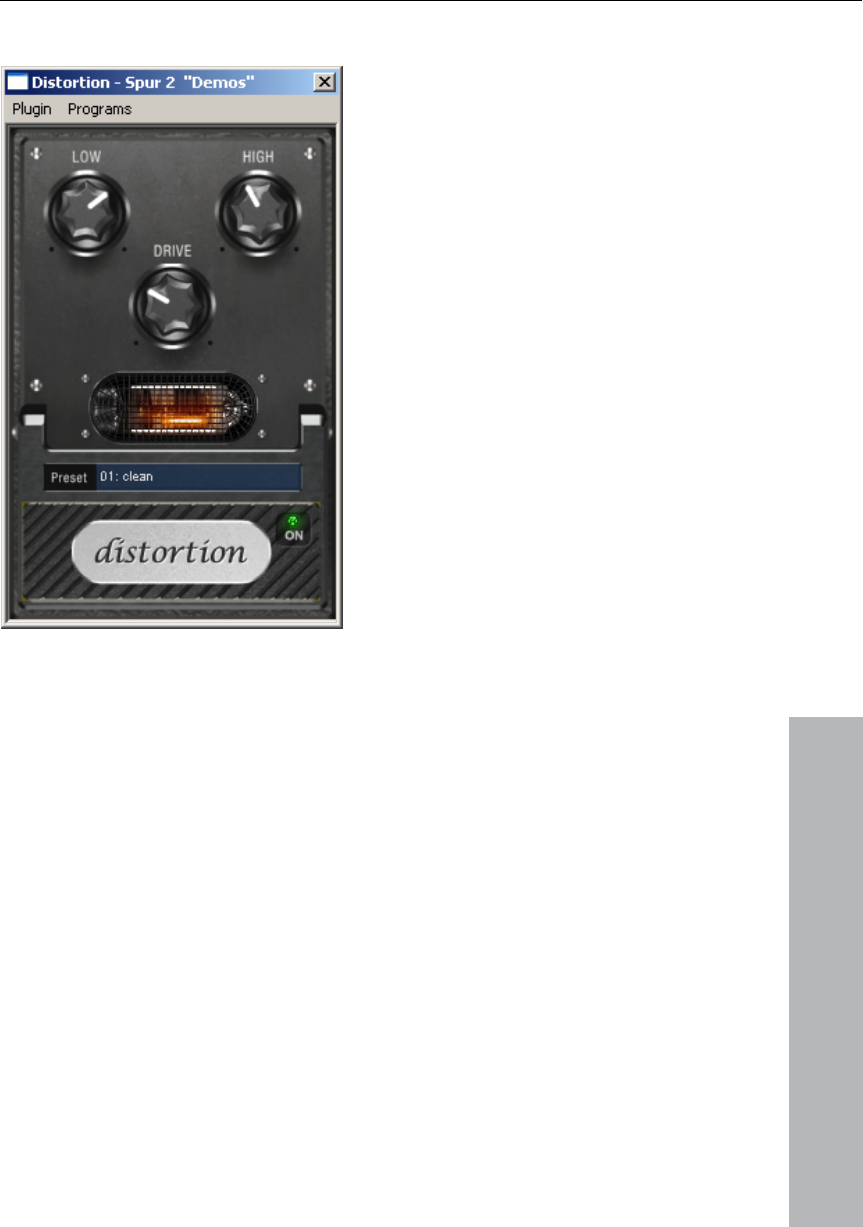
Effects and effect plug-ins 101
Distortion
www.magix.com
The distortion pedal is a “high gain” distorter for crunch and lead
guitar sounds. If you like typically “British” amp sounds and want to
quickly record a guitar track with little effort, this pedal is for you.
An entire valve pre-amp circuit has been modeled, including the
typical EQ curve. The amplification is “valve-typical”, i.e. it doesn’t
start quickly but is harmonic and soft. Even at full power the pedal
still reacts softly to a guitar and its settings (e.g. pick-up choice and
tone controller). For instance, you can influence the distortion even
more by using the volume knob on the guitar.
There are only three parameters on this effect; however, these
interact with each other and can thus generate quite a variable
sound:
• Low: the “bass” controller. This allows you to set the share of
basses, even after the distortion. The type of prefiltering is important
for guitar amps in particular, and is characteristic for the basic
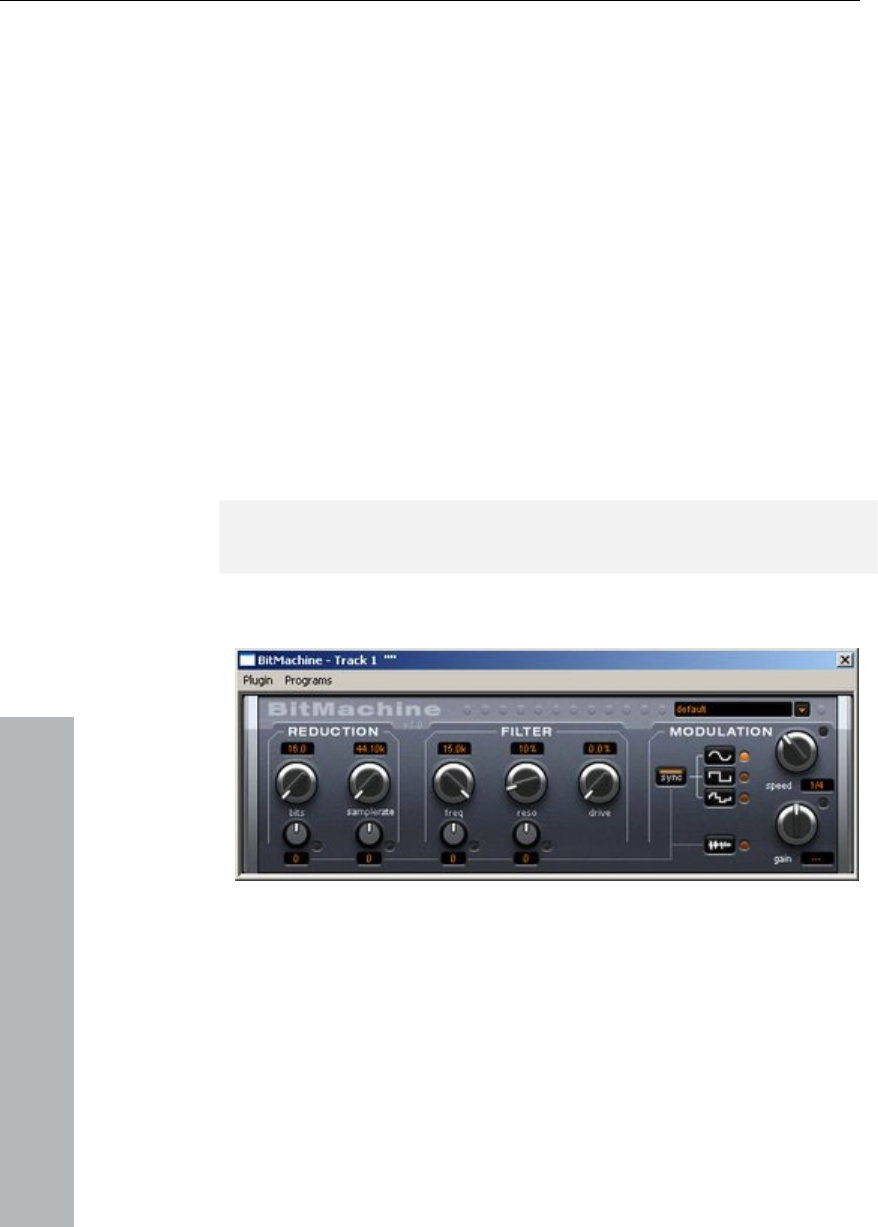
102 Effects and effect plug-ins
www.magix.com
und you are aiming for (“powerful” or
“cutting”).
of highs before and after the
distortion. If you are not using an external guitar speaker as a
he sound to be more neutral.
• Drive: The level of distortion. This controls the amplification used to
sound is
better heard.
sound. You should set the bass controller depending on the basic
sound of the guitar and the so
• High: Mainly controls the share
monitor, we recommend setting the controller to the middle position
or even moving it slightly to the right. This way the “sharp” highs
disappear, which all guitar amps generate without the suitable
loudspeaker. At the same time the mids stand out more, which gives
the sound more “kick”. On the other hand you can further emphasize
the highs if you want t
operate the “virtual valve circuit” (max. 60dB). As the level increases,
the valve goes into overdrive and generates typical distortions. For a
slightly distorted sound (“Crunch”) it is surely sufficient to set the
controller to 10-11 hours at maximum. Furthermore the modeled
circuit provides the usual “weight” for power rock chords and more.
The further you turn this controller to the right, the more the mids of
the signalmove to the fore so that the “high-gain” lead
You can also use the distortion effect in combination with the amp
simulation.
BitMachine (only available as a download after registration)
ere are situations when, for
example, a more imperfect lo-fi sound would perfectly suit a drum
Remember, for example, the first hardware samplers from the 80s
Audio material can always be edited into high quality with MAGIX
Music Studio 12 deluxe. Nevertheless, th
loop or a synthesizer sound.
that usually only ran in 8- or 12-bit resolution and at low sample

Effects and effect plug-ins 103
www.magix.com
e is no problem.
computers were
a gateway to „acoustic time travel“ where
g an oscillator (LFO) or the input
signal.
We have designed a range of „typical“ presets to demonstrate the
al model of one of the most well-
known filters in music electronics. The filter in question is the
The filter works in the so-called high-cut mode, that is, it lets through
freq:
reso:
the area around the cut-off frequency can be
strongly elevated („resonance“: to just below the self-oscillation).
The effect becomes
rates. With the BitMachine, changing the sound with such an
„antique“ devic
You can use the BitMachine to bring back to life the times when
minimalist and scratchy soundchips in home
commonplace.
The BitMachine opens up
you can encounter bit and sample rate reduction and downstream
filters based on analog models.
Furthermore, the effect has a modulation section with which you can
control individual parameters usin
time travel abilities of the BitMachine. These can be opened at the
top right of the interface.
„Filter“ section
The filter in the BitMachine is a digit
‘Chamberlin 2-pole’ filter, which was used in old Oberheim
synthesizers. These types of filters sound exceptionally musical. They
can also be used in quite creative ways in the BitMachine and must
not be called upon solely to smoothen out existing artifacts.
deep frequency (or medium) material according to setting, and
dampens the highs and medium areas.
With this dial, you can specify the cut-off frequency of the filter.
Filtering starts above this frequency.
With this, the signal in
Sharp, cutting sounds are now made possible.
even clearer when you vary the cut-off frequency.
drive:

104 Effects and effect plug-ins
www.magix.com
mselves internally. With the „drive“ dial,
you can regulate the amount of overmodulation. The more you turn
t the same time, the signal gets more volume, more
bass and becomes acoustically fuller.
Both of the individual filters of the connections mentioned above have
the ability to overmodulate the
up this dial, the more the signal is overmodulated. In this case, the
parameters of the internal workings of the filter interact with one
another. This way, for example, increasing drive weakens the
resonance, but, a
Note: The two smaller dials from this section are explained under
Modulation.
„Modulation“ section
You can automate your effects via the settings in the modulation
Here, you’ll find the so-called low frequency oscillator (LFO), which
To influence the resonance, use the two small dials in both the
filter areas. These four dials display modulation targets.
Example: You’ve left the dial for the sample rate at its default setting.
Change the small dial beneath from its middle position to either side.
The modulation for the dial value is added to the sample rate: The
LFO now controls these parameters proportionately and the sample
the LFO. They are not changed uniformly, but rather opposite to one
another: A negative setting is nothing more than an inversion of the
modulation, you’re, effectively, turning down the control signal.
Waveforms of the modulation section
section.
resonates with adjustable speed. You can influence the speed and
type of resonance.
reduction and
rate reduction resonates at this modulation.
You can use this technique on other dials as well. You just have to
make sure that the main dial isn’t turned up to full, because, if this
were the case, the modulation wouldn’t have any effect. The
modulation is always added to the set value.
Example: Turn the small dial beneath the ‘bits’ dial fully to the left
(Value: -50) and the one beside it (beneath ‘sample rate’) to the right
(+50). You’ve now assigned a modulation to both parameters with

Effects and effect plug-ins 105
www.magix.com
lue (an internal randomizer will be queried at the set
speed)
e signal itself can be called upon to
extract “modulation tension”: a so-called envelope follower
e of the input signal.
We’ve already explained this example with the help of sine oscillation.
The LFO can be in:
• Sine form
• Square wave (that is, only 0 or 1, no intermediate level)
• Random va
Oscillator speed
The LFO speed is specified with the „speed“ dial. If the „sync“ button
is active, the LFO adapts to the song speed, and the dial locks
musical values into place (for example, ¼ note). With it, rhythmic
paths of the sound distortion are made possible. You can also switch
off this synchronization and set the speed manually (in Hz).
Modulation with the „Envelope follower“
In the modulation section, you’ll find a fourth button, the audio input
signal. If this mode is active, th
continuously scans the volum
Note: The BitMachine doesn’t recognize the type of audio signal
automatically. For this reason, you should roughly set the input
sensitivity with the „gain“ dial. To do this, use the control LED: With
accurate detection of the signal dynamics, assigning the four small
dials to modulation lows is easier and you can use the full control
range.
In envelope mode, the „speed“ dial is used to control the response
display now switches to milliseconds).
Lower times result in a faster response, higher times make the
experiment with the signal
presets provided can only point in a
rough direction.
l. Turning the dial
to the left results in 16-bit quantization, and thereby CD quality. The
or „off“ states.
speed of the envelope (the
envelope rise (and fall) slower. You should
according to its complexity. The
„Reduction“ section
Bits
This dial controls the resolution of the audio materia
further it is turned to the right, the lesser the signal dynamic
becomes. In extreme cases (1-bit), there are only „on“

106 Effects and effect plug-ins
www.magix.com
In the intermediate levels, you’ll notice an increase in the background
noise and a decrease in the dynamics. For example, 8-bit
f only 48 dB. Quieter points in the
material sound noisy and very quiet points sound „capped“. This
effect is amplified the more y til it starts
crackling or ‘groaning’.
Sample rate
The audio material is ‘down-calculated’ with this dial, that is, the
internal sample rate is reduced. Here, a new separation ratio between
old and new rates is created. In relation to this ratio, a sample from
quantization will exhibit dynamics o
ou turn the dial to the left, un
the data stream will be „dropped“ at the various points.
Note: The two smaller dials from this section are explained under
Modulation.
an analog tape recording. Many
merous factors that are decisive for the sound of tape-
or less
level: Specifies the input signal hen the “virtual
tape” is saturated and how strong th
Tape Simulation
Tape simulation lets you add an “analogue touch” to your recordings
by reproducing the typical aspects of
studios today still use 1" and 2" tape machines that are believed to
have a “warm” and “saturated” sound, which is in contrast to the
rather neutral and analytical digital technology.
There are nu
supported recordings. Some of these are:
• Distortions that occur when the tape is forced into the saturation
range
• Changes in the frequency curve as the signal is edited at the
recording and playback end. In addition, all machines more
have distinctive frequency spectrum peaks, particularly in the bass
range (so-called “head bumps”)
• Treble loss due to self-deletion as a result of the HF current (“bias”,
pre-magnetization) and intermodulation between the signal and
the HF signal.
. You can specify w
e effect of the tone coloring is.
You simultaneously gain more “loudness”.
eq low/hi: Adjust the frequency curve (spectral balance controller).
You can choose whether you would like to have an output signal with

Effects and effect plug-ins 107
www.magix.com
n if the “eq low/hi” controller is set to the
neutral position: A frequency-selective amplification always occurs.
bias: Bias adjust: Increasing the bias will result in a higher “recording
Turning the bias controller to the left results in the opposite effect.
The highs are not reduced, but the signal level stays lower. Even
harmonics (distortions) develop simultaneously. Your ear decides
which settings you prefer in a specific case.
Using the distortions that occur during tape simulation can quickly
lead to a state of “acoustic fatigue”, particularly with material
including many highs. The differences can be heard more easily in a
1:1 comparison when the tape section is deactivated. In most cases
minor editing using the simulation is sufficient to create a slight
“analog touch”.
a heavy bass or whether it should rather include more trebles. The
pre-filtering during “recording” and the equalization are adjusted.
However, please observe that the frequency curve of the simulation
will not be neutral eve
level”, but tape saturation will occur sooner. You will also increase the
above mentioned loss effects, and the result will be a (dynamic)
reduction of the highs.
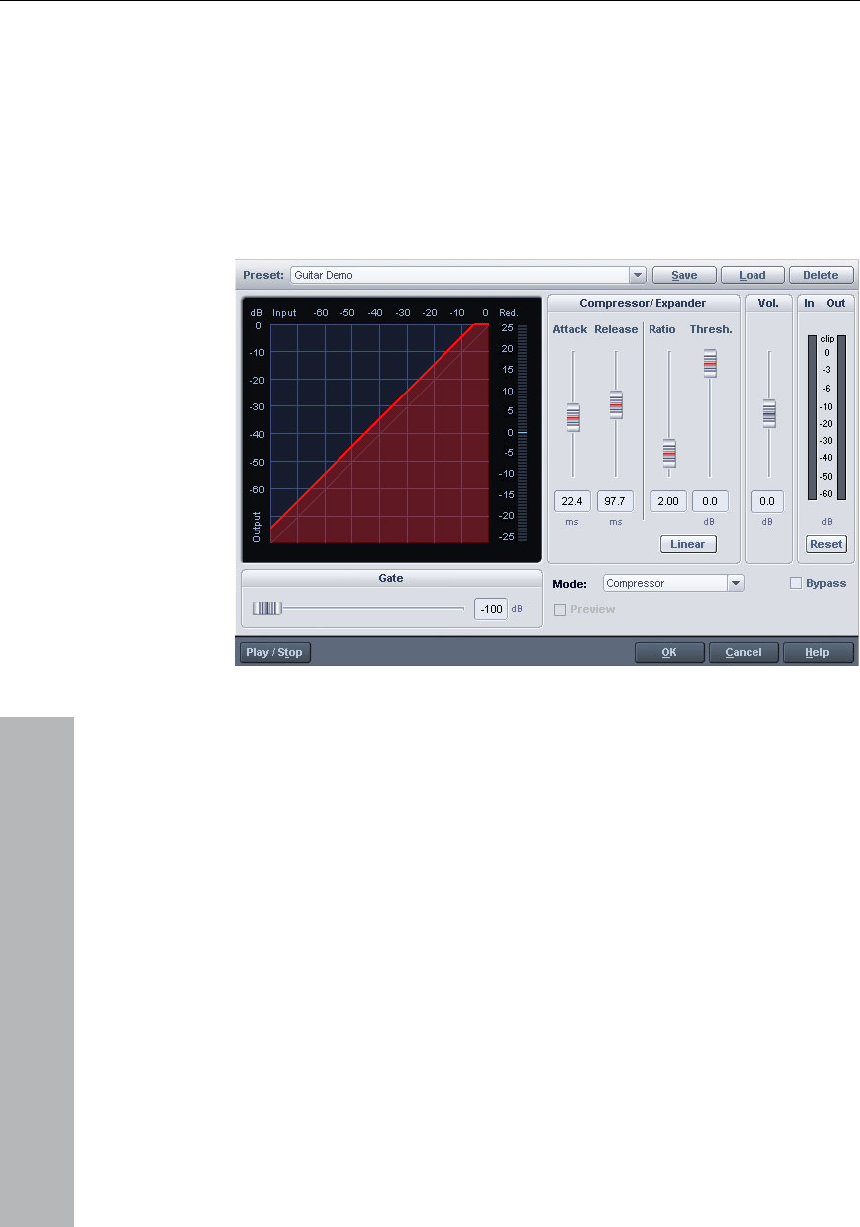
108 Effects and effect plug-ins
www.magix.com
Track Dynamics (track effects, mixer
channels)
usic Studio 12 deluxe provides two different dynamics
modules: one that can be opened via the "Offline Effects" menu and
g chapter,
and a second one that is only available via the track effects and in the
MAGIX M
which is talked about in further detail in the correspondin
Mixer.
Use this Editor to edit the dynamics of a sample. All functions can be
previewed in realtime.
The gr amics
curve to improve the overview.
s are retained. Compression is often used
udness. The level
o com ler, the activation
Limiter: Only the loudest passages are limited (above the threshold).
Quiet passages remain unedited. Limiters are used to reduce the
aphics display shows the corresponding resulting dyn
The following functions are available:
Compressor: The dynamics of a piece are limited, loud sequences are
dampened, quiet sequence
t add
o
f
power to audio material or to increase the lo
pression is adjusted by the ratio control
threshold is determined by the threshold. You can also influence the
attack and release.

Effects and effect plug-ins 109
www.magix.com
sed using
normalization without having to worry about overmodulation. The
reset sets a threshold of -0.2 dB when using the
Limit
are increased, loud sequences
uiet, quiet sequences become even quieter. Dynamics
vel.
T e ex the
ery quiet passages (below the Threshold Level) are dampened
g
pauses betw
sense at high compression levels (ratio > 5), in order to raise the most
Ratio: This parameter controls the strength of the corresponding
is no effect.
Thresh shold can be set, below or above
Attack: Sets how quickly the algorithm takes to react to increasing
Rel e lgorithm takes to react to falling
sound levels.
occurrence of big level peaks without reducing the master dynamics.
After the Limiter process, the master level can be increa
>Limiter< setup p
er as a Peak Limiter in the master range of the Mixer.
Limiter 100%: Performs the same editing as the Limiter; however, the
level is immediately raised to 0 dB – this corresponds with
normalization in one single step.
Expander: The dynamics of a piece
remain q
e pans
x
h
ion is often used for recording speech with a high noise le
pansion causes the level of the speech to be raised which
noise is suppressed. Please note that a powerful denoising algorithm
is also provided.
Gate: V
or set to zero. This way, hissing can be effectively suppressed durin
een individual takes. Using the Gate function also makes
quiet passages and prevent background noise.
effect, 1.0 means that there
old: Here, the volume thre
the one which applies the effect.
sound levels.
eas : Sets how quickly the a
Gate level: This parameter specifies which levels should be set to 0.
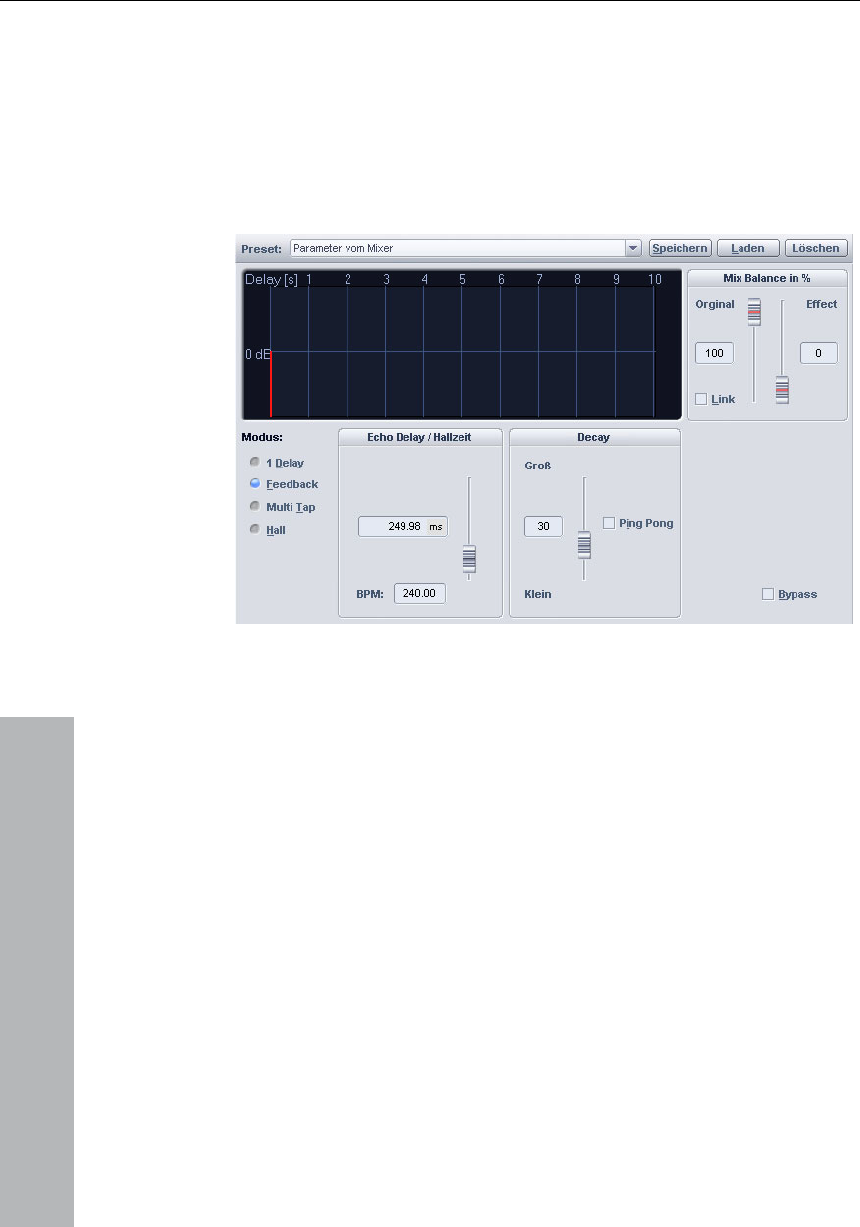
110 Effects and effect plug-ins
www.magix.com
ects)
MAGIX Music Studio 12 deluxe provides two different dynamics
ened via the "Offline
r detail in the
th
Track delay/reverb (track eff
echo/reverb modules: one that can be op
Effects" menu and which shall be talked about in furthe
corresponding chapter, and a second one that is only available via
e track effects and in the Mixer.
Use this Editor to calculate an echo effect into a sample. To avoid
overmodulating the sample, there should be a certain volume contro
reserve, that is, the sample
l
data should not be allowed reach the
equired, using the
Echo e: This button displays the delay between the
individual echoes/original signal and the first echo in seconds. You
sample rate, that is, a
eads (logically) to a
Reverb properties: Here the values for the size of the simulated room
specified numerically as well as by
Wet ng between the individual
echoes can be entered as a percent. A number close to 100% results
maximum/minimum. This can be accessed, if r
normalization function (some 70%).
Delay / Rev. Tim
should note that the delay is dependent on the
change in the sample rate after creating the echo l
change in the echo delay.
and the reverb coloration can be
using the scroll bars.
/Dry Balance %: Here the dampeni

Effects and effect plug-ins 111
www.magix.com
under 40% has quick sounding
Elastic Audio is a specialized editor with which the pitch of audio
rably the pitches of
monophonic audio material.
t influencing the tempo. MAGIX Music Studio 12 deluxe
provides various pitch-shifting algorithms that can be used based on
• Automatic and manual correction of the basic frequency process in
ial.
• Manual correction of the pitch of notes from monophonic audio
• Harmonizer for creating additional voices
in slower sounding echoes, a value
delays.
Elastic Audio
General information on the Elastic Audio Editor
material can be changed. Resampling and pitch-shifting algorithms
that can be automated as well as a basic frequency recognition
enable the user to change around conside
Pitch-shifting algorithms are able to change a melody in the pitch
withou
existing material.
Elastic Audio has the following capabilities
• Recognition of the basic frequency in monophonic audio material.
monophonic audio mater
material.
• Changing melodies in monophonic audio material.
Note on time-stretching: Time-stretching cannot be automated, but
can continue to be used statically when using Elastic Audio.
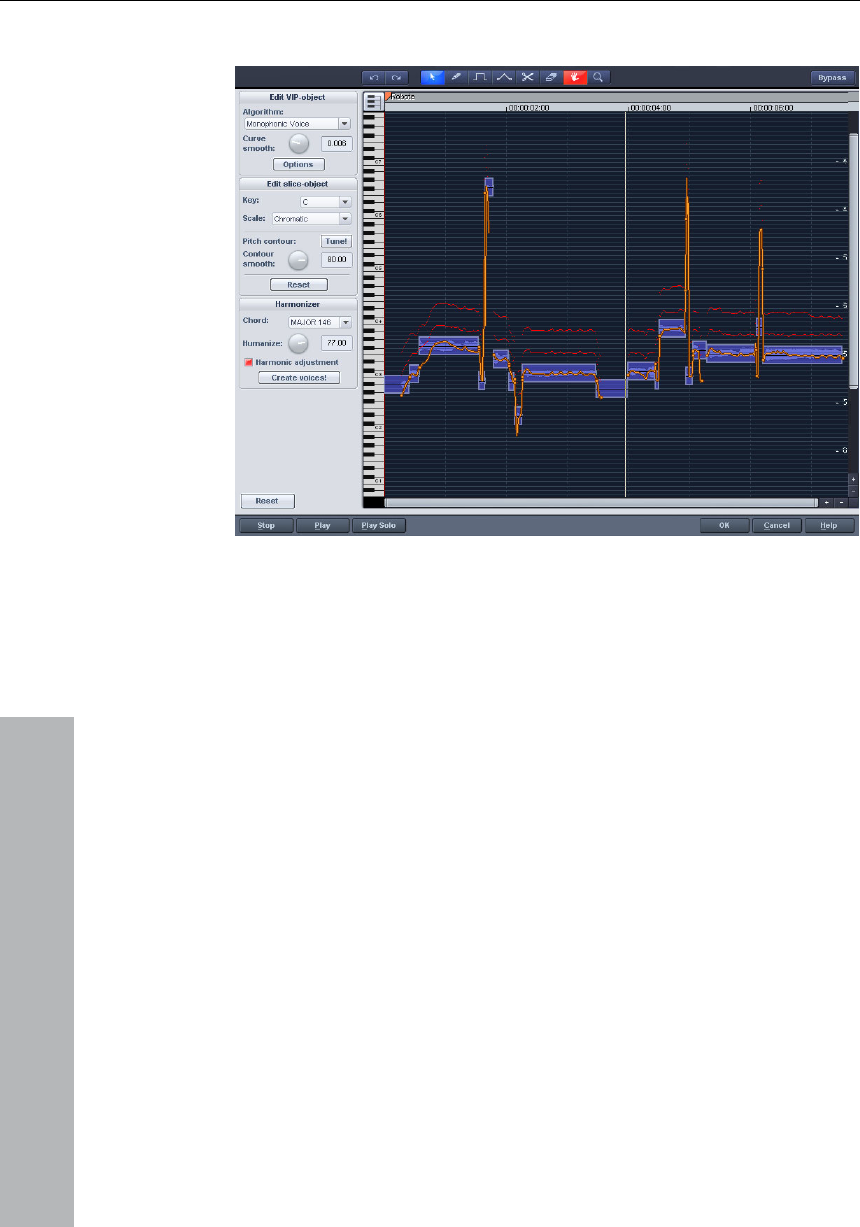
112 Effects and effect plug-ins
Edit Window
www.magix.com
hown in the editing window. To customize
nic material like solo vocals, solo instruments
when the editor is opened.
r the
p into individual slice
recognized pitches. The medium pitches of
a slice object determine its position in the graphic, independent of the
object. On the
two handles are created on the pitch
les ed in order to produce an
tic, but still keeping the
e ba .
n fo n can be found
beside the Draw pitch function.
The pitch characteristic is s
the pitch correspondingly, the original pitch of the audio material
must, of course, be known. Fundamental to the functionality is
therefore a preliminary pitch analysis of the material. This is basically
only for tonal, monopho
and speech.
The analysis function starts automatically
The analysis can take up more time with longer objects. Afte
analysis is complete, the objects are split
objects according to the
u
set progression of the pitch curve inside the slice
borders of the slice objects,
curve. These hand can be mov
increasing or decreasing pitch characteris
small changes in th sic frequency (vibrato)
The “Tune” functio r automatic pitch correctio
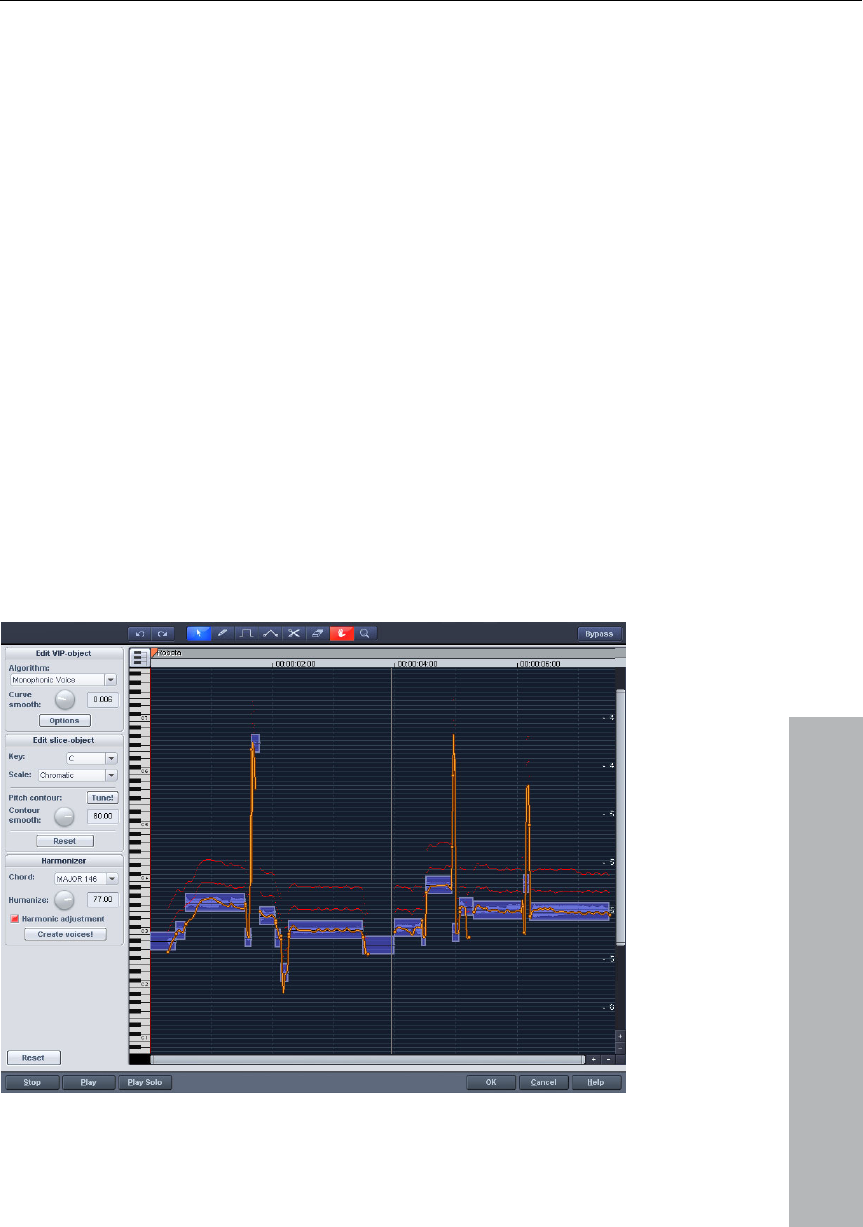
Effects and effect plug-ins 113
www.magix.com
d lege
hes in no otes can be deselected on the
. They won’t the automatic pitch correction or in
antized drawing. The corresponding guidelines for scales can be
selecting the tone and scales in the box “Edit slice
ew pitch
inal pitch lt of the analysis)
monizer v
amentals of the E
lastic Au
object tha tic
udio Editor for a selected object is opened via Menu Effects ->
teraction between Ela ts
Temporal corrections to notes are not run in the editor itself, but
objects in the VIP.
Axes labelling an nds
Y-axis: Pitc tes. The n
keyboard be used in
qu
used by basic
object”.
Orange line: N characteristic (editable)
Grey line: Orig characteristic (resu
Red line: Har oices.
Fund lastic Audio Editor
Opening the E dio Editor
Select the t should be edited in the Editor. The Elas
A
Audio.
In stic Audio Editor and objec
rather by splitting and moving the
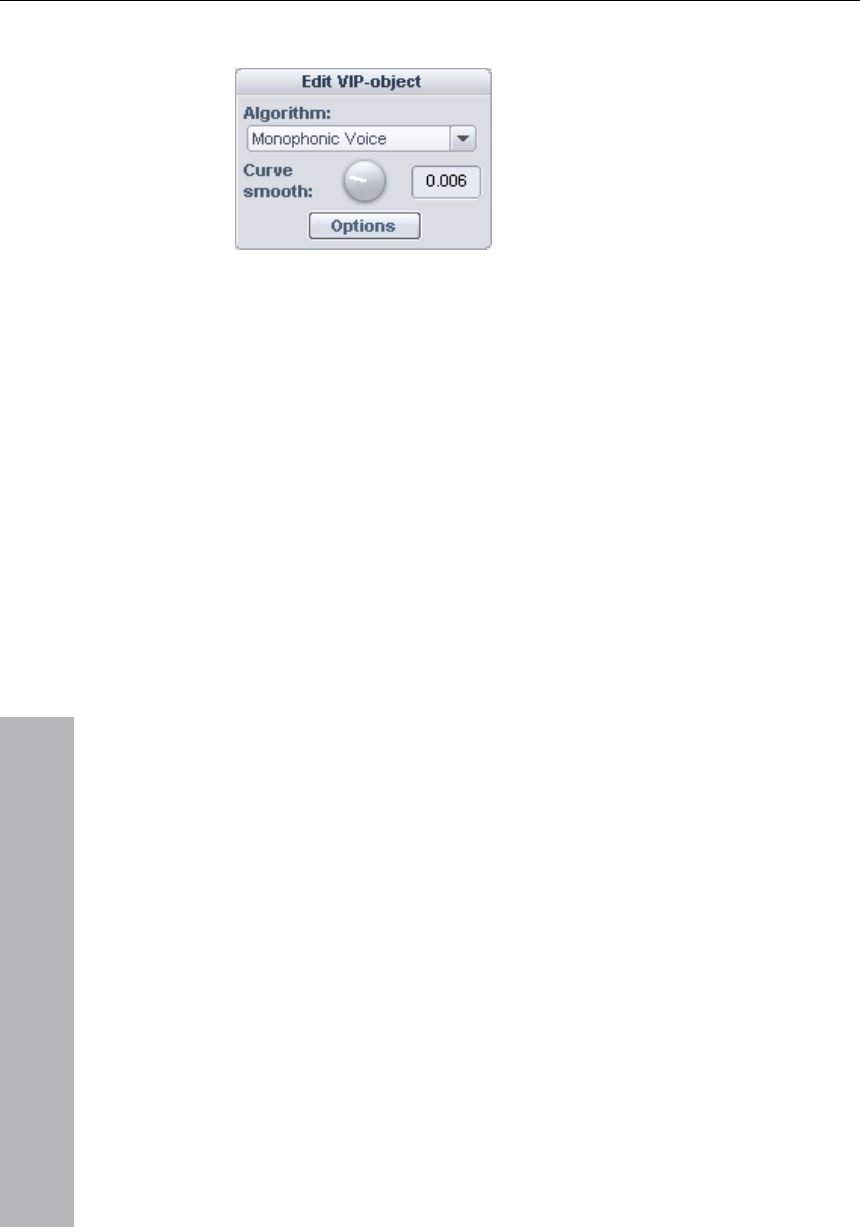
114 Effects and effect plug-ins
Description of all control elements
Edit PROJECT OBJECT box
These options and parameters always effect the whole object loaded
into the editor, and therefore all the slices.
Algorithm: You can choose between the modes: monophonic voice
(preset), standard, smooth and beat marker slicing.
For more information on the algorithms, read the corresponding
paragraph on the time processor!
Curve smoothing: Thi
www.magix.com
s parameter brings about the smoothing of the
l for the
they
from the geometry of the resonance body. With humans
the formants are created by the anatomy of the vocal tract.
With most algorithms the formants are also influenced by changing
the pitch. With the Monophone Voice algorithm you can change the
position of the formants independent of the pitch. Acoustically this
corresponds with stretching or compressing the above-mentioned
geometries, which can lead to interesting effects.
given pitch curve using a time constant (in ms). When smoothing to a
large extent, jump-like pitch-shifts change from a “kick” to a
glissando.
Formant control: Selecting the Monophone Voice algorithm may result
in so-called formants. Formants are sound components typica
character of instruments or the human voice. With instruments
mainly result
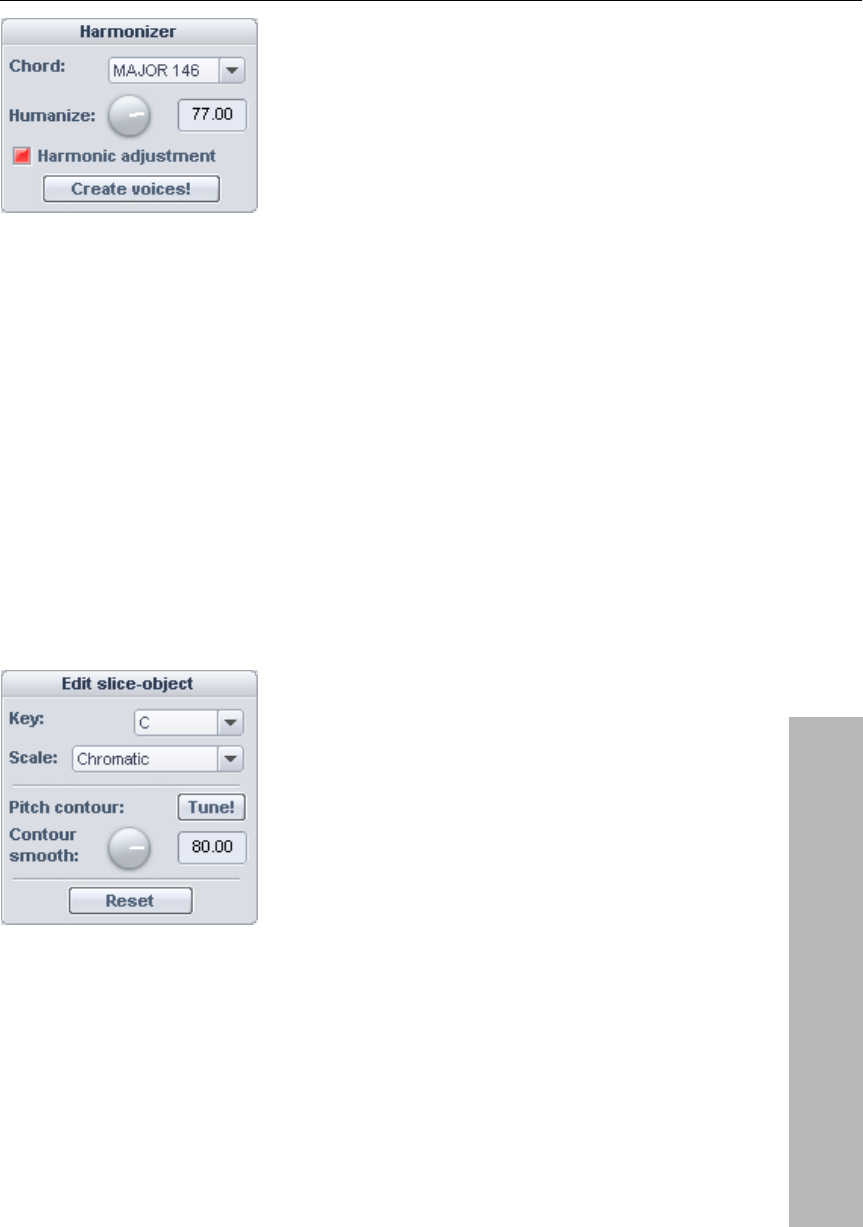
Effects and effect plug-ins 115
www.magix.com
Chord:
HARMONIZER box
Here you can set the chord that make up the parallel voices of
the Harmonizer. A distinction is made between major and minor. The
causes high quantization of the
parallel voices. This makes the effect sound very artificial. If you
select a very high humanize value, the pitches of the individual voices
will vary and the cue will be shifted so that you get the impression of
an amateur ensemble.
Create voices: This button generates voices.
Harmonic adjustment: Usually parallel voices are generated taking the
keyboard and Humanize settings into account. However, if this option
is deactivated, the voices are always kept exactly parallel to the
orange curve.
settings of the keyboard are taken into account unless the option
lead voice has been activated.
Humanize: At a low setting this
Edit SLICE OBJECT box
Options for automatic pitch correction
Basic tone: Basic tone of the scale. In the chromatic scale this setting
is still not taken into account.
Scale: Type of scale. Major/minor or modes
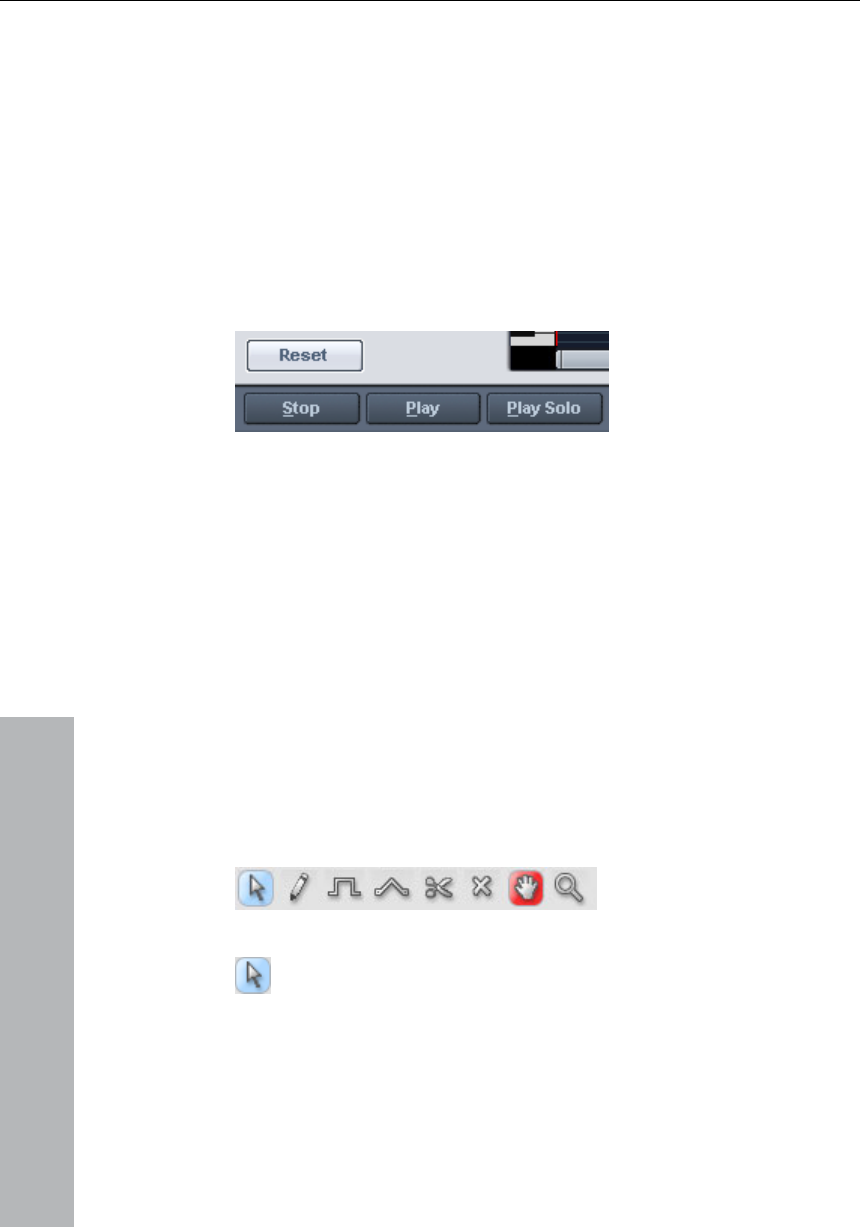
116 Effects and effect plug-ins
www.magix.com
he most. As a
consequence, the small pitch fluctuations that always occur in natural
brato, disappear (“Cher effect”).
Pitch characteristic tune!: This button quantizes (“levels out”) the pitch
characteristic of selected slices.
With quantization smoothing you can determine the “Strength” of
quantization: Lower values are quantized t
sound sources, like, for example, Vi
Reset: Resetting the selected slices. The orange curve is
superimposed over the grey curve and the slice is reset to the original
medium pitch.
Playback control
eset All: RecalculateRs and resets the pitch curves of the loaded
S the playback of the arrangement.
loaded into the editor is played.
e various tools when editing slices and the pitch curve.
The two tools can be freely assigned to each mouse button. The tool
n exception is the zoom tool with which
can be assigned to both mouse keys.
material.
top/Play: Stops/Starts
Play solo: Only the object
Bypass: Switches the effect on or off.
Tools in the Elastic Audio easy Editor
You can us
assigned to the left mouse button is displayed in blue and the right
mouse button in red. Click with the corresponding mouse button on
the desired console button. A
Selection tool (arrow)
You can now move the slice objects up and down.
This modifies the pitch of slice objects as a whole. Slice objects and
curve handles can also be selected. Multiple selection is possible with
the Ctrl or Shift keys, as is the stretching of a slice object lasso.
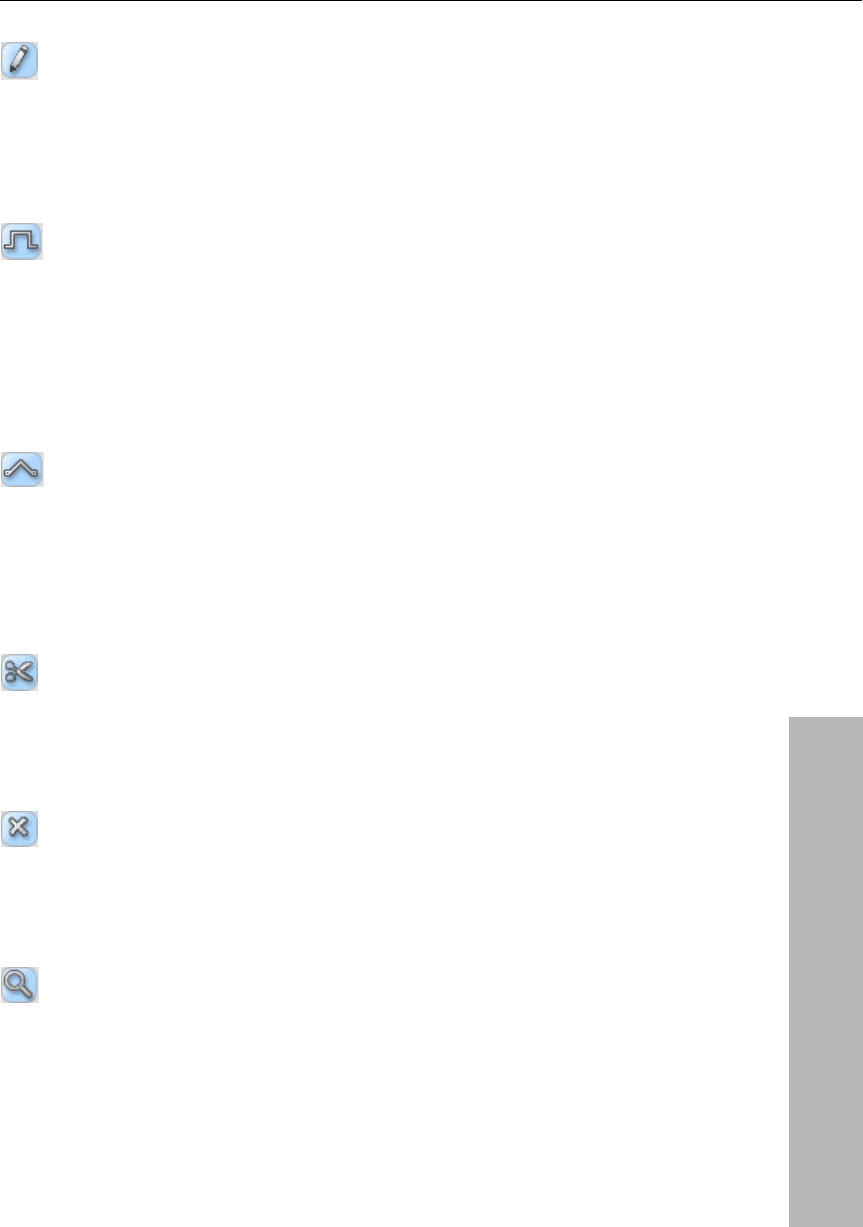
Effects and effect plug-ins 117
Free-hand draw function
You can freely draw the pitch curve using the draw tool.
If you press the Shift key as well, a straight line will be drawn between
the start position on drawing and the current mouse position. When
the Ctrl key is pressed, the slice objects are combined when drawing.
Drawing with quantization
This is the tool used for quantized drawing.
Quantized means that the line is horizontally free but the curve snaps
onto the grid of the tones of the selected scale under "Tune".
ble in quantized draw mode.
Drawing a straight line using the Shift key and compiling slice objects
with the Ctrl key is also possi
Rubber-band tool
Use the rubber-band tool to bend the pitch curves between
two neighboring handles.
Here the middle of the curve is moved while the curve handles remain
the same. In combination with moving the curve handles at the slice
object edges you can also move the pitch characteristic and attain
micro-tone structures (vibrato).
Cut tool
www.magix.com
This can be used to split audio material manually into slice
objects (according to the notes).
If automatic recognition is not sufficient. Slice objects can be
connected to one another with Ctrl + the drawing pens.
Eraser
Use the eraser to reset the output value of the orange curve.
The pitch characteristic then corresponds to the original again and
tool
the curve corresponds to the recognized curve.
Magnifying glass zoom
"Zoom"
mouse button zooms out.
Left-clicking and dragging can
Zoom tool: Left mouse button zooms in and the right
stretch out a range which can then be
zoomed entirely.

118 Effects and effect plug-ins
Navigation tool
www.magix.com
With the navigation tool, the visible clip can be moved
ve
Applications of the Elastic Audio easy Editor
Pitch corre
Getting sta nt editing):
• Load objects into the Elastic Audio easy Editor.
• Set the
the analy
• Select
"monoph
• Now, th
orang
Manual co
• Select th
• Move vertically with the mouse.
Automatic
• Select th
• Select t required,
deselect the tones which are not to be quantized in the keyboard by
clicking
• Press th
• With the
"stren he quantization.
In princip
characteris
• Select th
• Click an g the two handles at each
end of the slice objects or on the orange lines.
Free redef
warblers a
• Select th
• Select th
• Draw in t
Creating "P
the micro p
rtically and horizontally.
ction (intonation correction) with monophonic audio material
rted (for all subseque
desired selection state. All slices are selected directly after
sis.
suitable algorithms – you should test here to see if
onic voice" (see above) is the suitable algorithm.
e pitch can be edited with the mouse tools by editing the
e curve or the pitch of the slice objects.
rrection of the whole pitch of a pitch slice
e slice with the Selection tool (arrow).
correction of the pitch characteristic
e slice objects with the Selection tool (arrow).
he scale in the Edit slice objects group and, if
on them.
e "Tone pitch characteristics" button
parameter "Quantization smoothing" you can reduce the
gth" of t
le, this editing process more or less levels off pitch
tics inside a slice.
Correction of the increase or decrease in the pitch.
e slice objects with the Selection tool (arrow).
d drag the pitch curve by movin
inition of the pitch / Creation of frequency modulations like
nd vibrato.
e slices with the Selection tool (arrow).
e drawing tool (quantized or unquantized).
he pitch modulations.
lastic voices" (Removing vibrato by strong quantization of
itch characteristic)

Effects and effect plug-ins 119
www.magix.com
the "Tone pitch characteristics" button
• If required, switch off format correction when using the "Monophone
Creating "Robot voices" – quantizing to a pitch
te the voices again.
In the basic-frequency analysis the objects in pitch-slices are taken to
he pitches correspond to
the level of the vowels.
the analysis all the slices are shown selected (blue)
In selected pitch-sliced objects the functions can be applied that are
The possibility exists of resetting the corrections for selected slices.
Sliced objects can be selected and deselected. With Ctrl+a all slices
General options
• Set the parameter Quantization smoothing to 0.
• Press
voice" algorithm.
• Select the slice(s) with the Selection tool (arrow).
• Select the draw tool for quantized drawing.
• With artifacts: Increase the quantization smoothing parameter.
Creation of parallel voices
• Set desired chord.
• If necessary, change the Humanize parameter and press "Create
voices" to genera
Pitch-sliced-objects and VIP objects
pieces that ideally correspond to one note in the melody in unison
music or one syllable in speech. In speech t
After
The sub-division into slices can be corrected manually. The slices are
cut apart with the scissor tool and merged together with the rubber
band gripper tool with the Ctrl key held down.
The Blue Line represents the mid-range pitch for each object and
results approximately from the average value of the pitches in the
slice.
to be found in the “Editing sliced-object” group: the correction of the
pitch sequence and the mid-range pitch.
Selecting sliced objects
are selected; clicking on the “empty space” deselects them.
Fundamental frequency analysis correction

120 Effects and effect plug-ins
The fundamental frequency analysis and the related fundamental
frequency-dependent pitch-slice-analysis may fail or cause errors for
the following reasons:
www.magix.com
analysis cannot return a result as the
fundamental frequency is not available.
h the opportunity of
achieving good results using many "manual" options whereby the
fundamental frequency analysis does not or cannot deliver any
Symptoms:
The pitch varies strongly for a short period and does not
correspond to the set value or characteristic.
When using the monophonic voice algorithm, additional strongly
distorted noises arise. The algorithm, which depends on the
fundamental frequency recognition itself, fails.
Graphics in the Editor: The curve exhibits a short strong jump and
behaves in a very jerky manner.
Solutions:
• With the help of the eraser you can try superimposing the original
curve at these points.
• If you set high values for the curve smoothing parameter, short
"hiccups" can be reduced in severity or prevented completely.
Correction of slice borders
So that the automatic or manual correction of the mid pitches of
slices provides correct results, the slice borders have to match well
with the note borders.
• Reverbed material,
• Runtime stereophonics,
• False analysis,
• Voiceless vowels (sibilants...),
• Noisy sounds.
In the last two cases,
MAGIX Elastic Audio provides the user wit
results.
Error in the fundamental frequency analysis
Sound:

Effects and effect plug-ins 121
www.magix.com
The slice borders c
changed by conne
another with the p
an be manually
cting two slices to one
en
Ctrl + or
ting tool to cut through
tion.
and using the cut
at the correct posi
Keyboard comman
Navigation via mou
Horizontal scrolling
Vertical scrolling:
Vertical zooming: Shift+ mouse-wheel
Zoom horizontal:
Zoom hor. + vert. rl + Shift + mouse-wheel
Ctrl + space bar
Space bar
Ctrl + A
A
Ctrl + Z
Ctrl + 1-8
Ctrl + Shift + 1-8
Shift + Alt +P
Ctrl + Cursor up
Ctrl + Cursor
Cursor left
Cursor right
Home
End
Ctrl + Cursor
Ctrl + Cursor
Shift + R
Ctrl + NUMPAD 4,
Alt + NUMPAD 4,5,6
NUMPAD 4,5,6
ct all
Up-date view
mouse button
Show/hide pitch curve
Play cursor to the left
Jump to object end
m out
Alter scaling mood (Frequency for chamber
Loads zoom snapshots 1,2,3
Effect Calculations
ed on five levels. The signal flows
through these five levels in sequence:
ds and mouse-wheel assignments
se-wheel
: mouse-wheel
Alt + mouse-wheel
Ctrl + mouse-wheel
Ct
5,6
note a).
Saves zoom snapshots 1,2,3
Play Solo/Stop
Play/Stop
Sele
Undo
Select tool for left-hand mouse button
Select tool for right-hand
Enlarge wave form
Enlarge wave form
Play cursor to the right
Jump to object start
Zoom in
Zoo
without any vertical zoom
zoom snapshots 1,2,3 with vertical zoom
When working withMAGIX Music Studio 12 deluxe, audio material
manipulation can be perform
1. Wave Editing (Destructive Editing),

122 Effects and effect plug-ins
www.magix.com
time Processing),
4. Real-time effects in the Mixer tracks (Real-time Processing),
When working with volume, panorama, and filter manipulations, the
ange the volume
or vice versa. Even when working with a multiple of effects, the input
reduce
noise (De-hisser and Noise Reduction) are dependent on the input
cts.
by MAGIX Music Studio 12
deluxe and then re-issued. All real-time effects from the mixer can be
nt (e.g a guitar amp) to the soundcard.
• Select one or more real-time effects for the track activated for
recording.
• Play it. The sound now has the selected effects added to it.
2. Manipulations on the object level in Virtual projects (Real-time
Processing),
3. Volume and panorama automation, including track volume fader in
the Mixer or VIP (Real-
5. Real-time effects in the Mix Master section (Real-time Processing).
sequence is not important. For example, it is of no significance
whether you first apply a filter function and then ch
signal level is unimportant. Among them are the Reverb, the Delay
(Echo), Resampling and Timestretching, or Pitch Shifting.
However, all Dynamics functions and those that remove or
signal level and in some cases on the frequency response of the input
signal. If you have found an optimal setting for the parameters, you
should not apply other changes to effect blocks that precede these
types of effe
MAGIX Music Studio 12 deluxe as an
external effects device
With the help of ASIO driver support, you can also use MAGIX Music
Studio 12 deluxe as an external effects device. The signal is pushed
through the real-time effects section
used directly: MAGIX AmpSimulation , MAGIX multiMAX, reverb,
echo, compressor, 4 band equalizer and vocoder. Requirements: You
need an ASIO driver for your soundcard.
Here’s how it works:
• In the system dialog (Y key), select the “ASIO Software Monitoring
with Track Effects“ option from the “Record options“ card.
• Connect your instrume
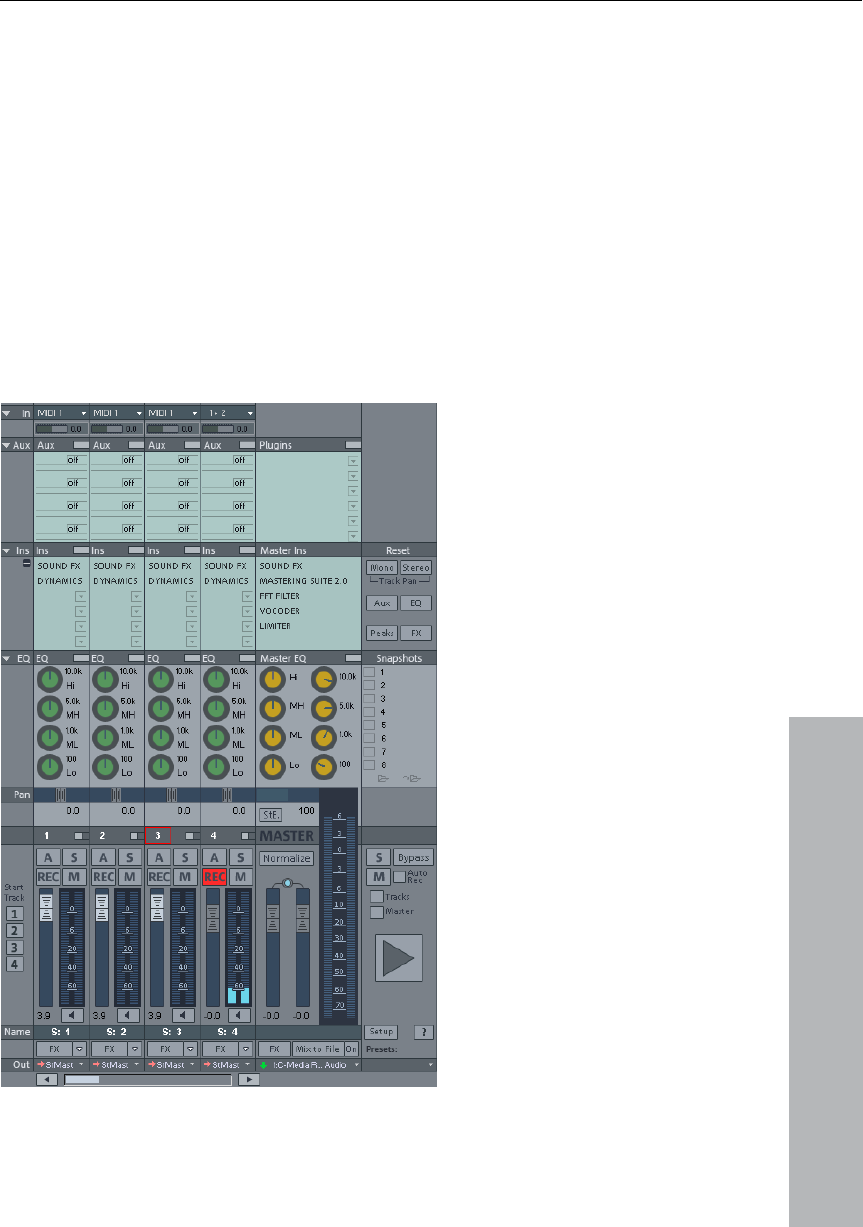
Mixer 123
Mixer
Overview
www.magix.com
You can open the MAGIX Music Studio 12 deluxe mixer via "Window
mixer. As a result of the
digital environment, however, it is by far more flexible than an analog
d master effects, panorama and level settings,
device allocations for individual tracks/busses as well as device
> Mixer". It strongly resembles a hardware
mixer.
All settings made in the mixer are processed and edited in realtime.
This includes track an
allocations for the master section.

124 Mixer
www.magix.com
Every VIP track has its corresponding Mixer track. However, you can
Alternative mixer skins
ys: Select the active Mixer element (fader, button or switch)
• End: Opens the assigned sub-window of an element, e.g. the EQ
ft click on buttons: Permits changing of special functions
try box to allow manual entry
Operating the Mixer
hide any VIP or Mixer track in the Track manager.
In System Audio (keyboard shortcut: "Y") in "Design > Skins" you can
select an alternative for the Mixer skin. A further option for changing
the Mixer skins is to click on the System menu in the Mixer window
(the symbol at the top left corner of the Mixer window).
Using the keyboard
• Cursor ke
• Page up/Page down: Changes the value of the active Mixer element
• Home: Resets the Mixer element to its preset (passive) initial value.
When pressing Home again, the element is reset to the last value
which allows for a simpler comparison between the changed and
initial preset states.
window for one of the EQ buttons. This corresponds with right-
clicking on a button.
• Return: Enables the numeric entry for a marked window box.
Operating the Mixer with the mouse and keyboard
Left-click: A control element is selected.
Ctrl & Left click: Several control elements can be selected (multi-
selection).
Shift & Le
such as mute single track or solo single track although they are
members of an active group.
Shift & Left-click on buttons or faders: Reverses the link selection
(negative selection)
Ctrl & Left-click: A single control element can be temporarily
positioned within a group by pressing the “Alt” key and operating the
element.
Double-click on numbers: Opens the en
of numeric values.

Mixer 125
www.magix.com
sets the value back to the
changed value.
ow the faders or on the left button
corners decreases the values. If the key is kept depressed, the value
the key is again released or the end of
Right-clicking on buttons (e.g. Compressor) opens the corresponding
on these,
keep the mouse button pressed, move the mouse pointer away from
left or right. You can then adjust the settings by
be
se
Th
ke
Th
yo
m faders. You
th
ob
indiv d closed by clicking on the
corresponding arrow symbol.
Double-clicking on buttons: Resets the control element to its preset
(initial) value. Double-clicking again
Left-clicking on value displays, bel
is automatically reduced until
the scale has been reached. (Keyboard: Page down).
Right-clicking on value displays, below faders or on the right button
corners increases the values. If the key is kept depressed, the value
is automatically increased until the key is again released or the end of
the scale has been reached. (Keyboard: Page up)
window. (Keyboard: “End”)
The level faders can be adjusted very precisely. If you click
the fader to the
moving the mouse in a vertical direction. The steps of the settings
come smaller as the mouse button is moved further away from the
lected fader.
e step size of the fader movement also becomes smaller if you
ep the “Shift” key depressed while moving a fader key.
ere are two ways to change knob settings. After clicking on a knob
u can either move the mouse around the knob this is the standard
ethod - or move it up and down similar to moving the
can reduce the step size of the value settings by keeping the “Shift”
key depressed.
Channel strips
Each track in the VIP is sent through a specific mixer channel, that is,
e sound settings of the respective mixer channel are applied to the
jects on the track.
Each channel strip provides the following setting options. Each
idual section can be opened an
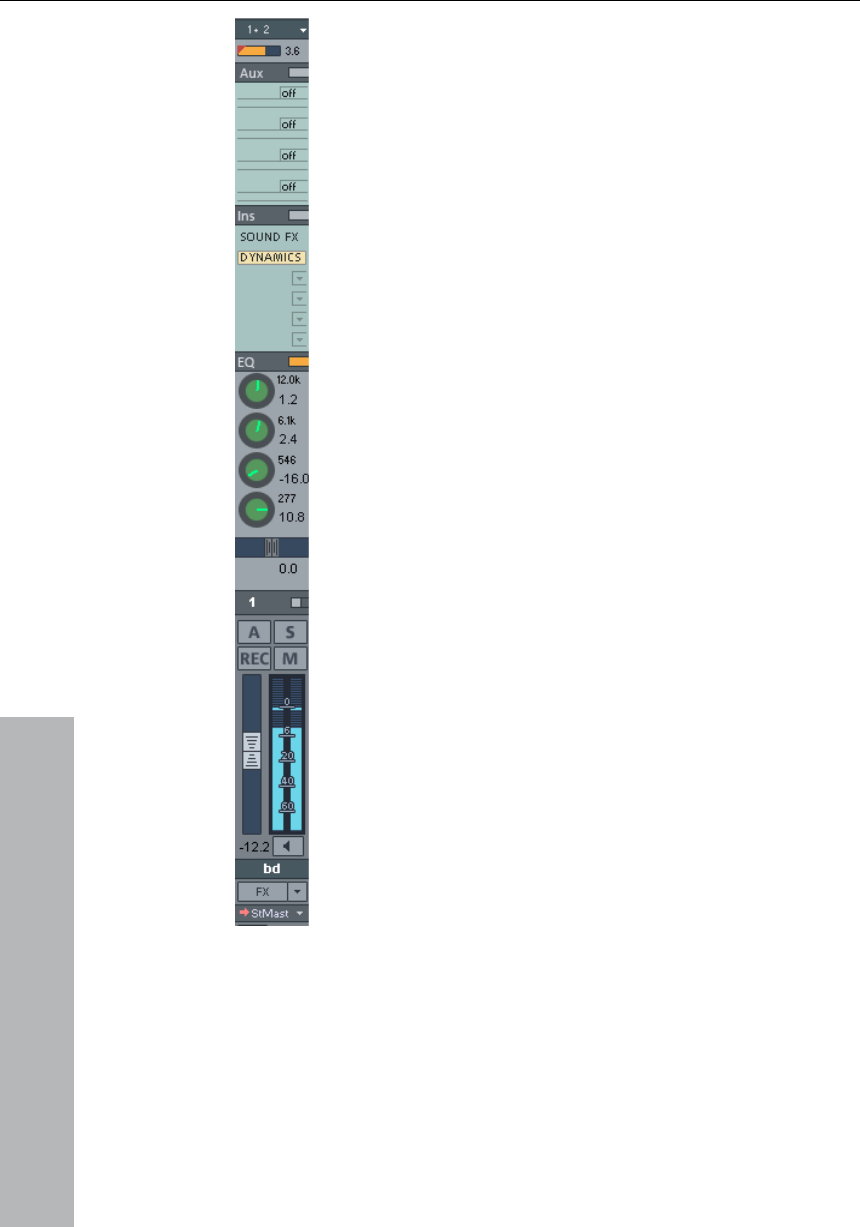
126 Mixer
Input:
www.magix.com
Specifies the audio input for the recording.
ng these buttons. A right mouse-click opens the AUX
Routing Dialog.
rough
additional mixer, freely selectable effects in the channel
se are realtime effects of
MAGIX Music Studio 12 deluxe: FFT-Filter, Dehisser,
Dynamics, Advanced Dynamics, Multiband
nd Vocoder)
ic
You can numerically edit the volume and frequency width
of each band in the number fields.
e dials for fine-tuning. MAGIX
ama: Here you can set the direction of the signal in
ting holds the track's signal in the middle
between the left and right channels within the track
signal changes.
Gain: Controls the ratio of signal input to signal output of
each channel.
Aux Sends: AUX parts for various AUX busses can be set
usi
Inserts: „Insert“ means that you can loop th
strip. Clicking on the arrow to the right of the
corresponding insert slot opens the selection menu. You
can choose from: FX-Inserts (the
Multiband
Enhancer, Room simulator, Amp Simulator a
as well as MAGIX Plug-ins, VST- und DirectX-Plug-Ins.
Dynamics/Distortion/Delay (Echo/Reverb): Right-clicking
opens the Dynamics/Distortion/Delay/Echo/Reverb dialog
for the track (only in the Recording Mixer, MAGIX Mus
Studio 12 deluxe, and Single Track Mixer views).
Equalizer: This chapter enables changing the sound
picture of the track signal using a 4-band Parametric
Equalizer. The dials change the volume of the frequency
range.
Right-click on one of th
Music Studio 12 deluxe shows the EQ dialog in which
you can specify exact settings.
Panor
the stereo panorama. The setting of the dial has a
different effect on mono and stereo tracks. In the mid
position, the set
of the stereo picture, regardless whether the track is a
mono or stereo track. If the dial leaves the mid position,
a mono signal within the stereo picture is shifted (to the
left or to the right). For a stereo track, the alignment

Mixer 127
www.magix.com
Besi
phas
Link: l with the one to
the right of it. All settings and adjustments affect both channel strips.
Automation: Use this function to record fade movements of the
volume/panorama/AUX faders as Vol/Pan/Surround or AUX curves
during playback. Curves that already exist are shown in the mixer by
movements of the AUX bars, panorama faders, and volume faders.
Solo: The solo button switches off all tracks with the exception of the
selected one. Right-clicking enables the selection of the output
device for the track.
REC: Arms the track and starts recording.
Mute: The mute button mutes the track. Right-clicking enables the
selection of the output device for the track.
Volume Fader: Controls the level of the tracks.
de the panorama dial, you'll also find a switch to reverse the
e.
This button connects the corresponding channe
Monitoring: Click on the loudspeaker button to activate the monitoring
function. This means that audio material is always passed through the
inputs of the sound card and forwarded to the outputs.
If the "Hybrid Engine" is set up for monitoring, all mixer channel
effects for the feeds can be used. This requires working ASIO drivers
for the sound card. This way, MAGIX Music Studio 12 deluxe can be
used as a live effect device.
Further information on monitoring can be found in the chapter
"System Settings" > "Global audio options" > "Monitoring settings".
Track name: You can enter the name of the VIP track here. A mouse-
click opens the track settings dialog where you can change the track
name, among other things.
FX: This key activates each track's VST or DirectX extra effects from
which you can configure and edit any number of effect sequences.
This lets you specify the sequence in which the effects are used.

128 Mixer
www.magix.com
Find out more about this in the "Effects and Effect Plug-ins" chapter
> "Order of Effect Calculations".
Right-clicking on the button opens the control dialog. This lets you
add or delete effects and makes the individual track effect settings
can copy, insert, reset, save, or load your
personal track effect settings. Specify your custom track effect
Out: Sets the audio output for the channel. This can either be a
The
strip
dialogs accessible. You
settings in the program directory in "FX Presets > Track FX". Of
course, you can also create new subfolders as well as "instruments"
or "Mid Side Processing".
submix bus in the mixer or a wave out device.
Master section
master section can be found to the right beside the channel
s.
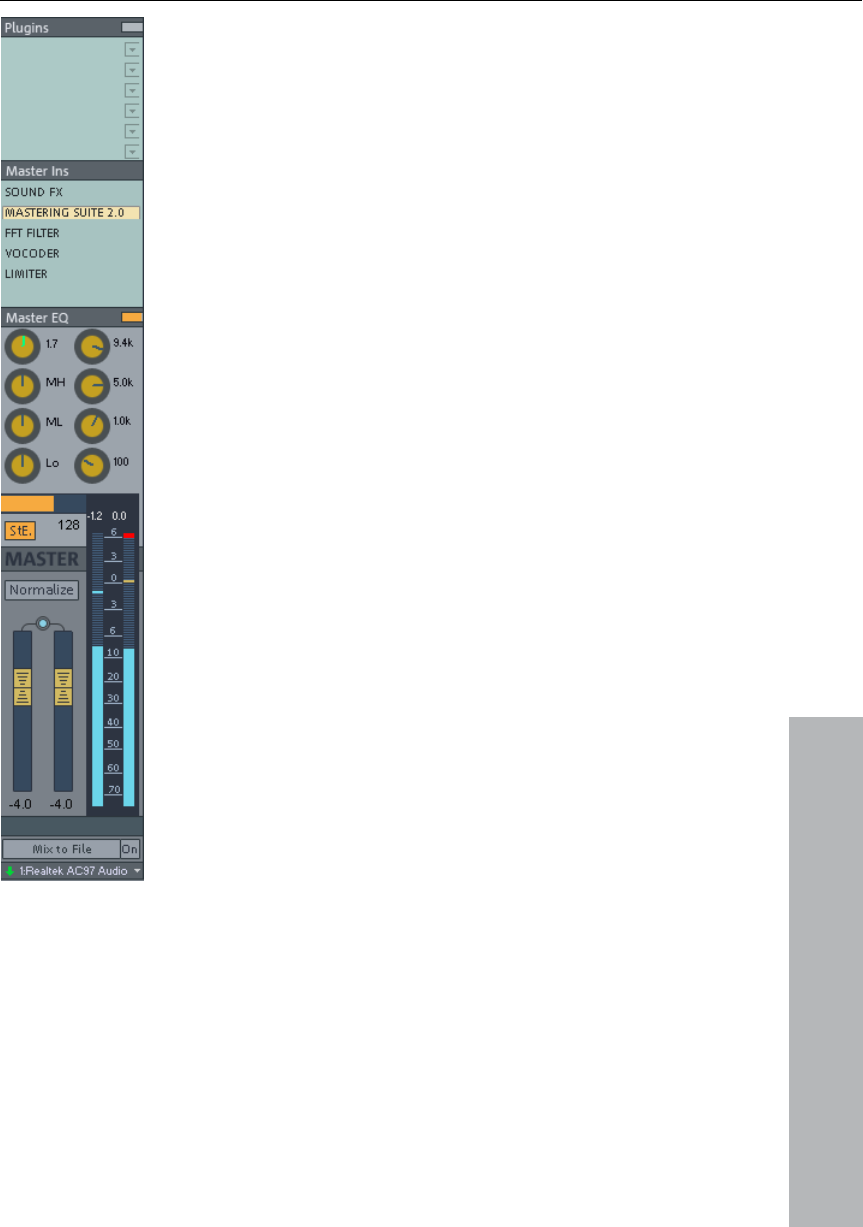
Mixer 129
www.magix.com
Master Plug-ins: This function lets you set VST or
effects on or off, click the control button.
button plays the entire signal in
mono. It serves to temporarily check mono
nal to 0 dB. To display the maximum
DirectX plug-ins for the master out signal. Right-
click on the control button to show the plug-in
dialog. If you wish to quickly switch the plug-in
DeHisser: The effect master "DeHissing" helps
you reduce existing distortions which often
exhibit themselves as high-frequency hisses. You
can open the DeHissing dialog with a right-click.
FFT EQ: A right mouse-click opens the FFT filter
dialog.
Vocoder: Here you'll find the Vocoder for the
entire signal. A right mouse-click opens the
dialog.
RoomSim: Here you'll find the Room Simulator
for the entire signal. A right mouse-click opens
the dialog.
Multi-band Dyn: A right mouse-click opens the
entire multi-band dynamics section.
Dyn. /Limiter: The limiter for the master signal
opens with a right-click.
Master Equalizer: This Equalizer affects the sum
signal.
Stereo Enhancer (StE): This Stereo Enhancer lets
you modify the stereo picture of the entire signal.
Mono: This
compatibility.
Normalize (N): This is the master normalization. If you click on this
button, the output faders are customized in such a way that the
loudest sections reach 0 dB.
This function requires that the loudest sections in the VIP be found
and played. After clicking on the Normalize button, the program sets
the peak value of the entire sig

130 Mixer
www.magix.com
having made changes, please use the Peak Reset
merical
display of the peak value when stopped sets the play cursor to the
ou
wish to change the left and right faders simultaneously.
FX: Opens the effects/routing dialog with which you can configure
values after
button. This deletes the peak display. Clicking on the nu
VIP position of this value.
Link: This key connects both faders. Please use this function if y
Faders: Both of these faders adjust the left or right master signal.
Double-clicking on a fader resets the fader to 0 dB.
and edit multiple effect groups. This lets you specify the sequence in
which the effects are used. Find out more about this in the "Effects
and Effect Plug-ins" chapter > "Order of Effect Calculations".
Mix to File: The entire VIP is calculated into a file with all the settings.
You can find out more about this in the "Tools" menu > "Track
Bouncing".
On: This function allows you to mix the entire signal every time a
stereo WAV file is played. It comes in hand when you want to se the
processed output signal of the mixer, e.g. when monitoring.
Make sure that the "On" button is deactivated if you don't wish to mix
the master signal into a new file. Otherwise, the system creates a
wave file every time the file is played.
Hint: You don't have to use the Mix-in-file function to record dynamic
mixer movements during playback. It is usually better to control
effects movements via the AUX busses, to record volume and
panorama curves, and to then use the mixdown function.
Device / Master Out: Here the playback device for the entire signal
can then be set in the System/Audio dialog
can be entered, which
under "Audio devices".

Mixer 131
www.magix.com
andling can be found at the right side of the
Mixer window.
ift” key down and click on one of the “Start Track”
buttons to save the current view (a left-click is sufficient the first time).
You can recall the previously saved section by clicking again on the
“Start Track” button.
Preset: Through clicking on the preset menu you can select various
mixer setups.
Global Settings
Some further buttons for adjusting the global settings of the Mixer
window and Mixer h
This includes (clockwise from bottom left):
Start Track: If the VIP has many tracks, only a section of the
corresponding Mixer channels are generally displayed in the Mixer
window. The visible section can be moved using the scroll bar at the
bottom of the Mixer.
Hold the “Sh
In the menu reference "Options Me ", please read the section nu
"Project properties > Mixer Setup"
Setup: A Click on the "Setup"-button opens the mixer setup dialog.
d, AUX Section, Inserts, EQ
and Visualization Display.
y "Aux" contains a function with
which the amount of Aux routes and Insert slots can be in- and
BypassFX: Bypasses all Mixer effects for comparing the settings.
Show-Functions: Right of the Master Volume Fader, individual
sections of the Mixer Window can be switched on and off. Particularly
single Tracks, Master Section, Input Pa
+ Buttons:Additionally, the categor
decreased.
Solo/Mute: All solo and mute functions can be globally activated and
deactivated using this button.

132 Mixer
www.magix.com
nd panorama. Automation has to be enabled on at least one
track.
controls: Those two buttons are used to to group
elements of the Mixer and ungroup the when they are not needed
Group Controls". To ungroup, choose one of the Elements in
the group and then press "Ungroup Controls".
ween the
Setups. The naming of the Snapshots is possible through double-
snapshots. Through that, up to 32 Mixer
Snapshots can be saved.
d can be restored by clicking on “Load last Mixer”. This also
allows for A-B comparison between the snapshot and the current
s for
mono tracks (when using mono or LR Wave Projects).
cts).
AutoRec: This display indicates recording of automation data such as
volume a
Play/Stop: Playback of the VIP can be started and stopped using this
button. A right-click opens the transport controller.
Group selected
anymore. Should you be wanting to create a group, select the
desired elements holding down the Ctrl key and then click on the
button "
Snapshots:The Snapshot Function is particularly useful to compare
various Setups with each other. You can easily switch bet
clicking the name field. The two buttons on the bottom of the last
name field enable you to save and load Snapshots.
A right-click on a Snapshot opens a context menu from which
Snapshots can be saved, loaded and deleted as well as switched
between the banks of
In this menu, Mixer Settings can as well be stored to a separate file.
When loading a snapshot, the current Mixer settings are temporarily
saved an
settings.
Reset (Mono): Resets all Mixer settings to the default setting
Reset (Stereo): Resets all Mixer settings to the default settings for
stereo tracks (when working with Stereo Wave Proje
Reset Aux: Resets all Aux shares of the channel strips to their default
values (= no Aux share).
Reset EQ: Resets all equalizer settings.
Reset Peaks: Resets the LED peak meters (peak hold display).

Mixer 133
www.magix.com
bus is a collecting bus combining all signals of the
corresponding AUX Sends of the individual channels. AUX busses are
for controlling realtime effects via the volume curve. For
ects are added. The fader of the
AUX bus represents "AUX Return". This means: the higher the volume
Reset FX: Resets all effect parameters to the default settings so that
effects can no longer be processed.
Busses and Routing
AUX busses
An AUX
usually used
this purpose part of the signal of the desired Mixer channel is sent to
the AUX bus ("AUX Send") where eff
of the AUX bus, the more effects in the mix will be audible.
Hint: The AUX tracks contained in the VIP tracks are usually not
objects. They only provide dynamic effects to other tracks.
Working method
• mAn AUX/a Submix Bus can be created in the Mixer at any time. To
insert a Submix Bus after all channels, for instance, right-click on the
number of the last channel, shown in the mixer. In the appearing
context menu, select "Insert Tracks -> new Submix Bus". If the
evious channels is now routed through this Bus,
n the properties "AUX-Bus", "Submix Bus" or even both for
the according channel strip.
t device.
• Submix and AUX busses can be used for all channel effects,
including volume, panorama automation, and AUX Send. You can
vices or submix busses with a higher
channel number the same way as any other channel.
anning for AUX and submix busses are
all other channels.
output of several pr
the Volume of all of these can be controlled centrally through the
new Bus. In case you have created a AUX-Bus with "Insert Tracks ->
New AUX Bus", you can the signals of the previously created AUX-
Sections into the the newly created AUX-Bus. AUX-Busses are also
the target for AUX-Sends with a lower channel number.
• Right-clicking the number of a channel gives the possibility to select
betwee
• Submix or AUX busses are always stereo busses.
• Submix busses can be fed from tracks with a lower channel number
just as a physical outpu
align your output to output de
• Automation of volume and p
the same as for

134 Mixer
www.magix.com
m tracks (Hi-hat track, bass drum
track, etc.) can be combined to one submix bus so that the entire
Routing the signal:
• You can loop in the signal either as an effect or insert.
• Insert send: Route the channel output directly to the physical output
of the card that is to feed your external device.
• Insert return: Select a Mixer channel that is to act as an insert return
channel. In the input section of the channel select the sound card
input connected to the output of the device you want to loop in.
• External send effect: CreateS an AUX bus is to be fed from different
channels of the corresponding AUX send. The output of the AUX
bus has to be routed to a physical output of the sound card.
Connect the output of the effects machine to the desired input of
the sound card. The sound card input is connected to the Mixer
channel by selecting the corresponding input section of the sound
card of the AUX Return channel.
Tips and tricks
• With Master Normalization the Mixer has a feature which allows you
to quickly set the output level to 0 dB. If the limiter in the master
• Clicking on the displayed top peak level numbers of the master sets
he Mixer to a WAV file (or HD wave project).
If parameters are changed during playback, the sound that was
t of MAGIX
Submix busses
A submix bus combines several tracks. It controls the volume,
panorama and effect settings of all tracks that are “routed” to the
submix bus. For example, all dru
drum kit can then be controlled via the volume controller of the
submix bus.
Embedding external effects devices
In order to include external effects devices you require an audio
interface with several in- and outputs, whereas one input/output pair
is reserved for the external effects device.
section is active, the output level is also monitored thus preventing
level clipping.
the cursor to the VIP peak position. This can be controlled with the
function "Play over cut".
• The Mixer function "Mix in file" (to the right below the Mixer) writes
the master output of t
changed live can be recorded. If you use the live inpu

Mixer 135
www.magix.com
c Studio 12 deluxe, all Mixer effects can be used in the mix
Musi
file while recording. Warning: the mix file is overwritten at every
play start. Therefore, if you want to keep the result, you have to
rename this file or save it under a different name.

136 MIDI in MAGIX Music Studio 12 deluxe
www.magix.com
advantages:
ed.
3. Similarly easy is the transposition of MIDI files to other pitches.
so, a section in a song does not have to be saved in
The disadvantage of MIDI files: The actual sound is not yet set. Only
by the synthesizer chip of the sound card from
irtual instruments (VST instruments) will it
be produced. High-quality sound cards or external synthesizers will
etely different and better than standard sound cards.
xternal equipment
Interface Connection
your soundcard or MIDI interface manual for
n ways to
add MIDI functionality to computers are:
es.
• Sound card with built-in MIDI interface.
module or keyboards’ integrated interface, usually
MIDI in MAGIX Music Studio
12 deluxe
What is MIDI?
A few words about MIDI: MIDI files do not contain the actual sounds
like audio files, only the note control information which is first played
by the synthesizer chip of the sound card. This has several
1. MIDI files need a lot less memory than wave files.
2. MIDI files can be adapted to any beat (BPM) without affecting the
sound. Only the playback tempo is chang
When doing
several different keys. The version in C major is perfectly sufficient.
It can then be transposed to any key by simply clicking on the
right mouse button.
4. In MAGIX Music Studio 12 deluxe you can use VST instruments
which play the notes contained in the MIDI files.
during playback
external MIDI synthesizers/v
sound compl
Connect e
Please consult
information on its correct connection. The most commo
• Multi-port MIDI interfaces, including separate devic
• via a General MIDI
labeled as “To Host”.

MIDI in MAGIX Music Studio 12 deluxe 137
www.magix.com
the
computer’s “MIDI Out” to the keyboard’s “MIDI In”. If your computer
device) offers more than one MIDI output, connect any
nnect the second tone generator’s MIDI In to
the keyboard’s MIDI Thru port. A third device can be connected to
’s MIDI Thru, and so on. The MIDI Thru port always
e’s MIDI In. It is
preferable, however, to use a direct connection from a computer’s
IDI Out to a device, rather than chaining too many devices, one
after another. Timing problems may occur in the chain if a lot of MIDI
commands are sent in a short space of time. This is due to the slight
delays introduced by each MIDI In to MIDI Thru transaction. If your
computer also features several MIDI inputs, they can be used for the
connection of MIDI expanders.
MIDI Local Off: If your keyboard features an internal sound source, it
is important that you stop the keyboard from generating sounds
directly from its own keyboard. If you buy a new keyboard that is to
be used without a sequencer, and connect it straight to an amplifier,
you would expect the device to make a sound when you press its
keys—in other words, the keyboard is internally connected to the
sound generator. This behavior, however, is not what you want to
happen when using your keyboard with MAGIX Music Studio 12
deluxe. In this scenario, the keyboard is used as the computer’s input
device, and MAGIX Music Studio 12 deluxe is sending (i.e. playing)
MIDI information to any connected tone generators, be they the
keyboard’s own sound generator, a soundcard or any other
connected sound module.
If you wanted to control and record another sound module using your
keyboard as the input device, its own sounds would play alongside
those of the other tone generator— which is why the keyboard must
be separated from its own internal sound generator. This function is
known as “Local OFF”, and is set directly on your keyboard. Refer to
your keyboard’s manual for information on how to do this. Don’t
worry about “breaking” the link between the keyboard and its internal
sound generator—MAGIX Music Studio 12 deluxe will act as the
“missing link” in this scenario.
MIDI Cabling
MIDI Inputs/Outputs: If your computer has an internal or external MIDI
port, or has a MIDI-capable soundcard installed, connect your MIDI
keyboard’s “MIDI Out” to the computer’s “MIDI In” (on the interface,
soundcard etc.).
If your MIDI keyboard can generate its own sounds, connect
(or the MIDI
other tone generators to these. If the computer only has one MIDI
output, you need to co
the second
delivers a copy of the signals coming into the devic
M

138 MIDI in MAGIX Music Studio 12 deluxe
www.magix.com
into audio files
If you use VST instruments, you won't have to convert these MIDI
exporting your entire arrangement as it
creates the sound on your computer and can be processed there.
For this to happen, the output of the MIDI synthesizer (for example,
the sound card) must be connected to the input of the sound card.
The MIDI data can then be played and recorded simultaneously via
e edited,
which can, as usual, be exported together with the multimedia files.
Convert MIDI objects
objects into audio data before
If you still wish to do so (for example, to free up processing power on
your PC), switch the desired MIDI track to "Solo" and export the
arrangement. Then add the exported file back into your arrangement
and delete the MIDI objects in the exported track.
All MIDI objects which open external synthesizers via a MIDI interface
will have to be converted into audio objects if you want them to be
exported as well. They only contain control information for sound
reproduction.
the record function. The result is an audio file that can b
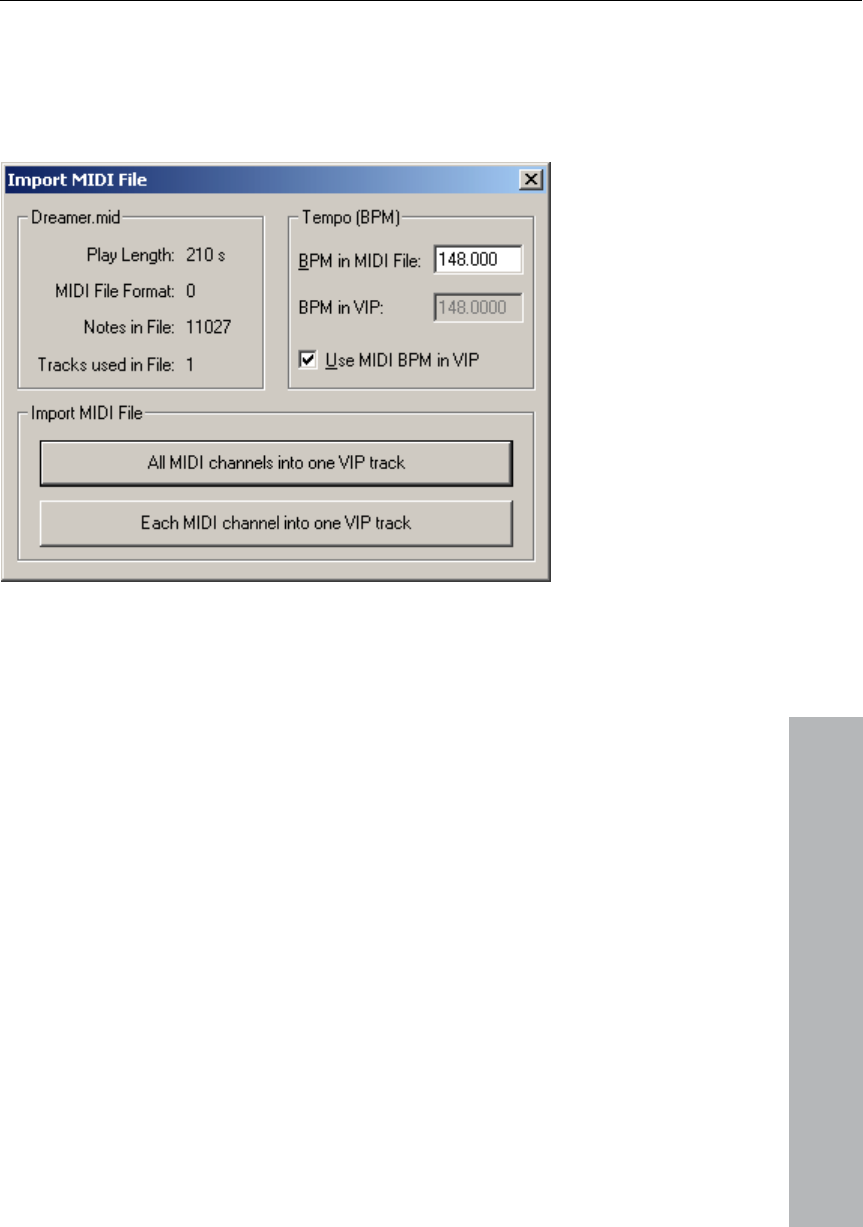
MIDI in MAGIX Music Studio 12 deluxe 139
www.magix.com
settings MIDI
All global MIDI settings can be found in the System/Options window
(keyboard shortcut: “Y”) “MIDI” submenu.
audio tracks you can tell the program
s, select your "MIDI recording device" (the
IDI" radio button in the
Please read the chapter "System settings --> MIDI Settings".
MIDI: Import, Record, Edit
Recording MIDI tracks
As with the routing settings of
which MIDI input is to be used.
To do so, open the "Track settings" dialog by right- clicking on the
field that contains the track name (Track info box). In the "MIDI"
section of the track setting
MIDI input device you use, for example, MIDI IN of your sound card),
to which your keyboard or external sequencer is connected. As the
"Playback device" or MIDI output device, select the MIDI playback
device you use (for example, MIDI OUT of your sound card or a VST
instrument. In the same dialog, activate the "M
"Recording" section.
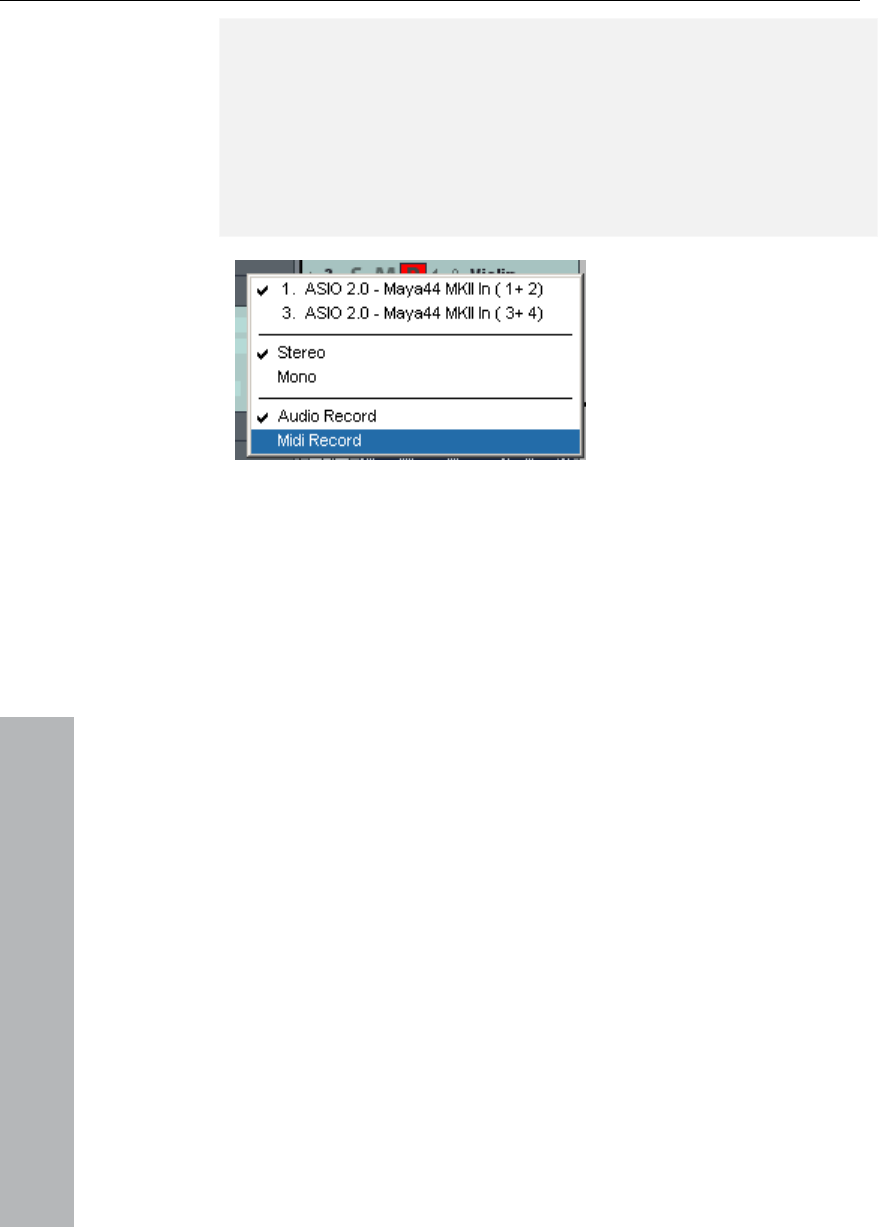
140 MIDI in MAGIX Music Studio 12 deluxe
www.magix.com
Note: You can activate the MIDI section of the Track Editor ("Menu
Window > Track Editor") by clicking on the "MIDI" button in the track
box. Now right-click on the "Rec" key to select the MIDI input device
as well as the instrument outputs of each selected playback device
from the context menu. You should also check the instrument
outputs if the MIDI signal in the level display can be seen, but no
sound can be heard, and adapt this to the MIDI outputs device (VST
instrument).
The following MIDI Record Modes are available: Normal, Overdub,
You can specify the settings for MIDI Record Modes in the transport
control. Click on the arrow on the left beside the "Close" button in the
IDI recording modes from "MIDI
Ncord Mode corresponds to that of the audio
is
way you can record multiple takes of a passage and then compare
av MIDI data is mixed together. If you
d into a single new
object.
objects, however, remain the same. This mode makes sense, for
Multi-Overdub, and Replace. These decide which of the newly
recorded MIDI files will be added to the VIP.
transport control to display this section.
Alternately, you can select the M
Record Mode" in the "MIDI" menu.
ormal: This Re
recording, that is, for each recording process, a new MIDI object
created over the existing object. The old object remains intact. This
them in the Take Manager later on.
Overdub: The data is recorded into an already existing object,
ailable and newly recorded
record over several objects, these are combine
Multi-Overdub: The data is recorded into an already existing object,
available and newly recorded MIDI data are mixed together. Existing

MIDI in MAGIX Music Studio 12 deluxe 141
www.magix.com
.
e combined into a single
object.
ould record MIDI data.
Now you can now start the MIDI recording using the shortcut key "R".
u want to keep or delete
the recording. At the same time, and within this dialog, you have the
chance to change the Record Mode for the recorded MIDI data. After
confirming this with "OK", your newly recorded material will appear as
a "MIDI take" in the VIP.
Importing MIDI data
Already existing MIDI files can be imported into a MAGIX Music
Studio 12 deluxe project as objects. However, you can also load a
MIDI file as a separate object, the same way as a WAV, HDP or RAP
project.
Menu: File/Open/MIDI (*.MID) …
Shortcut: Shift + M
Mouse: Drag & drop from file browser or Windows Explorer.
If you import MIDI files, please note that only type 0 or 1 MIDI data is
compatible with the import function. Each file should end with *.MID
so that it can be recognized as a valid format.
e generally imported like a WAV file, irrespective of
from the internal explorer or
Windows Explorer directly into the track position via drag & drop.
instance, for recording MIDI controller changes subsequently over
several objects
Replace: The data is recorded to an existing object, any MIDI data is
overwritten. Several existing objects ar
After selecting the mode, make sure that the recording is activated
for the track. The record button, which is set to standby, changes to
violet to signal that this MIDI track sh
After recording you will be asked whether yo
MIDI files ar
whether they are imported in a VIP window or a MIDI project window.
For a VIP you can specify at which position you want to insert the
new MIDI object. Set the play cursor at this position, select a range in
the desired track or drag the file
Hint: The following dialog is automatically displayed if a VIP os already
open as an active window. If you want to open the MIDI file in a
separate MIDI project window without inserting the content into a
VIP, please ensure that no VIP project window is active. MAGIX
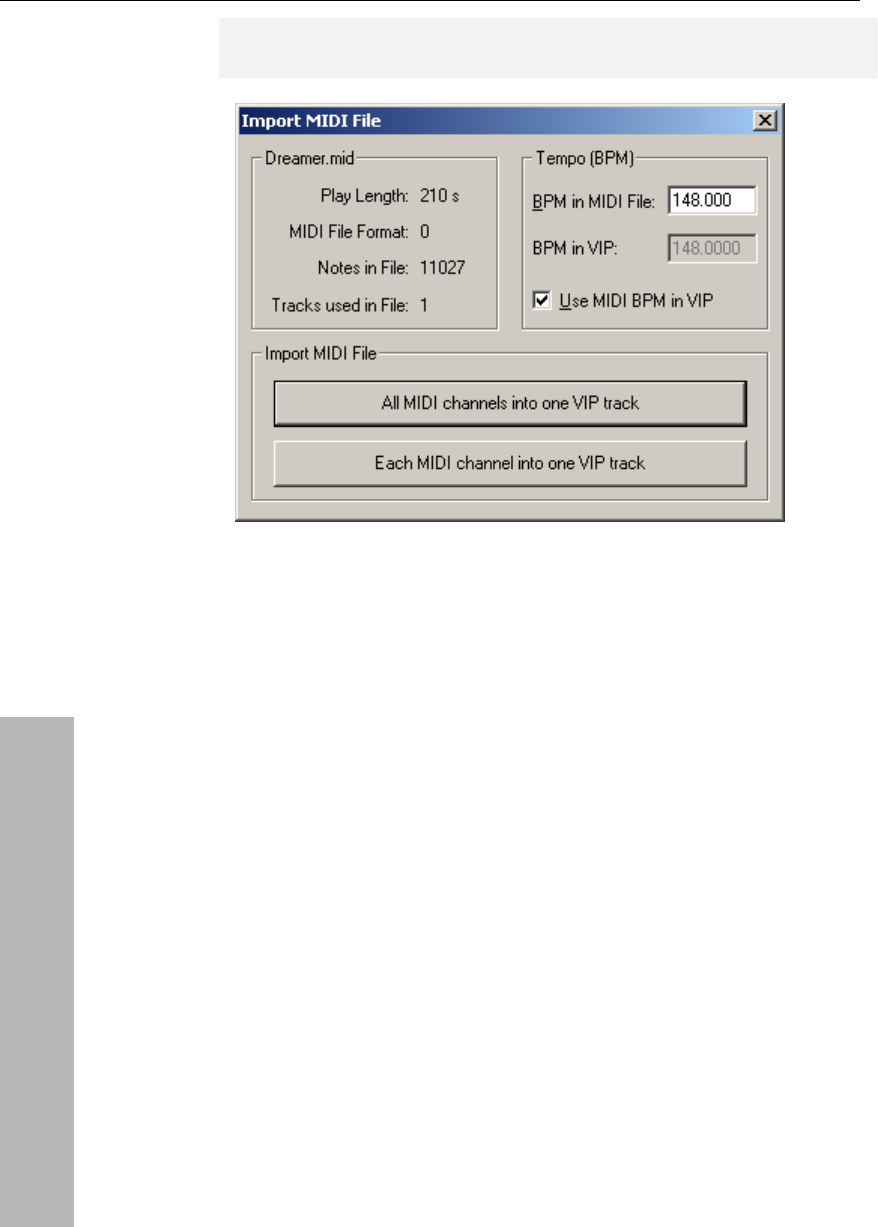
142 MIDI in MAGIX Music Studio 12 deluxe
www.magix.com
Music Studio 12 deluxe will also display the MIDI import dialog if only
one range of a MIDI project window is dragged into a VIP track.
The Import dialog contains status information on the MIDI file you
want to load:
Each standard MIDI file also contains temp information. MAGIX Music
Studio 12 deluxe displays this information in a separate section of the
this position of the import you can decide whether you
P.
tion "All MIDI channels into one track", MAGIX
erts the MIDI object into the currently
selected VIP track. The created MIDI object then contains all MIDI
e copied,
split and trimmed, have fade handles for fading in or out, and a
hat scales the MIDI velocity. MIDI objects refer to the
ting, but are not
saved on the hard drive as a MIDI file but are saved as a project file
dialog. At
want to adjust the VIP tempo to the tempo of the imported MIDI file. If
necessary, a tempo marker is displayed in the VI
If you select the op
Music Studio 12 deluxe ins
channels of the MIDI file.
Editing MIDI objects
Editing MIDI objects in MAGIX Music Studio 12 deluxe follows the
same principle as editing audio objects: MIDI objects can b
volume handle t
MIDI data you have recorded while playing or impor
instead.
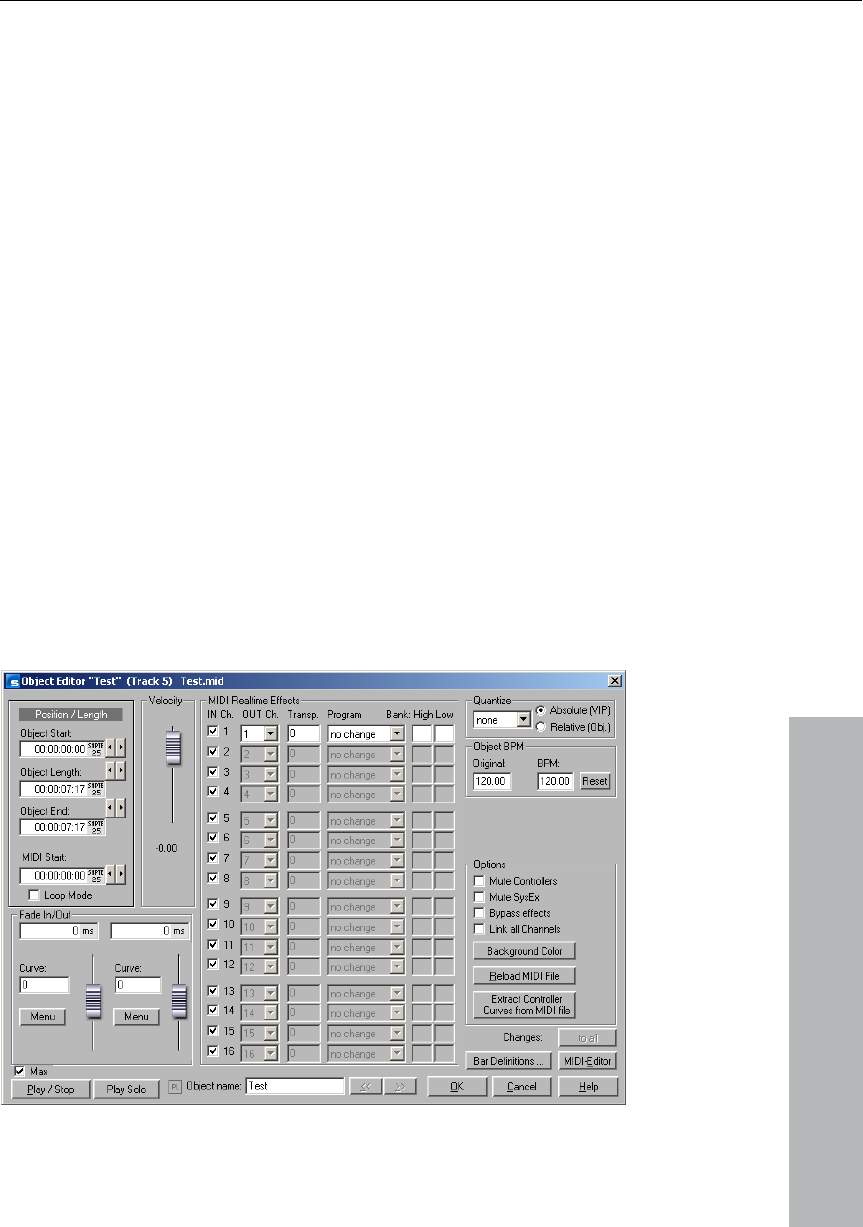
MIDI in MAGIX Music Studio 12 deluxe 143
www.magix.com
IDI editors Piano Roll, Drum Editor, Controller Editor, Listen
Editor and Score Editor.
t: Ctrl+O
W
ob
H
individually for each MIDI object.
A up to 16
impo
object to control a multi output VST instrument via several MIDI
channels. Within this object you can edit the notes in the
all channels or only in a selected
at, for example, may have been created from a General
MIDI file (“Max” checkbox).
You can edit MIDI object in the MIDI object editor as well as in the
different M
MIDI Object Editor
“Object” menu / Object Editor
Shortcu
Mouse: Shift+double click
ith the MIDI Object Editors, which is designed similar to the audio
ject editor you can easily edit the parameters for the MIDI objects.
ere you can adjust sound, length, volume and program changes
MAGIX Music Studio 12 deluxe MIDI object may contain
channels and up to 16 MIDI SMF tracks (initial track number in
rted standard MIDI file). For instance, you can use a single
corresponding MIDI Editor in
channel. You can use the max mode of the Object Editor to get an
overview of which MIDI tracks or channels are within one MIDI
Object. th

144 MIDI in MAGIX Music Studio 12 deluxe
www.magix.com
ings are only
available for this MIDI track.
ct in real-
time and not destructively. so that you don't see these changes in the
Important functions and settings in the MIDI Object Editor:
fader is comparable to the volume fader in the Wave
the MIDI
Object from its physical maximum or minimum values (0 to 127), and
the VIP track.
ting position of the MIDI Object as well as the length
of the Object. The settings correspond to moving the Object in the
You can set/get the global fade settings as global settings in the
The Crossfade Editor allows you to make global settings for MIDI
audio
Objects are possible. Create a crossfade between two Objects and
clicking on the “Get” key.
termine the Fade In and Fade Out effects of an
Object. If you add a fade effect to a MIDI Object, the changes are
Mode the Object Editor
provides a selection of different curves.
If there is only a single track in the MIDI Object, the sett
You can use the MIDI Object Editor to quantize MIDI data in the MIDI
Object. Please note that these settings affect the MIDI Obje
MIDI Key or Drum Editor.
Velocity
The velocity
Object Editor. Normally, each MIDI note has a velocity value which
determines how “hard” the note is played. Changing the velocity
value in the Object Editor scales the volume of the notes in
is therefore included in the actual velocity note values. Changing the
fader is identical to changing the middle handle of the MIDI Object in
Position/Length
This sets the star
VIP track or changing the length using the length handle at the
bottom left and right of the Object.
Crossfades (Max Mode)
menus of the Fade In/Fade Range setting.
crossfades. However, this corresponds with the basic setting for all
crossfades of the project. Crossfades between MIDI and
press the “Set” key to save the crossfade. If the crossfade is set, you
can use it for other Objects anytime by
Fade In/Out (“Max Mode”)
These settings de
interpreted as a change to the velocity values of the affected notes.
The fade lengths can be changed directly in the Object by using the
upper left and right Object handles. In Max

MIDI in MAGIX Music Studio 12 deluxe 145
www.magix.com
contain data for a channel, this is displayed in
grey.Only settings for one MIDI channel can be found in the preset,
MIDI OUT channel: Routes the MIDI data of a channel to a different
Program and Bank change: The values entered here are always
if the Object is played back. Use these settings if different
rack are to use different programs of a synthesizer.
ization without further options, while the
quantization settings changed in the MIDI Editor immediately affect
Track selection
group. You
should take into account that this function is only activated if several
lso achieve
this.
Deactivates MIDI controller
Prevents control via SysEx data
DI Object.
Link all channels
The settings are changed for all channels simultaneously.
Object-Name
Enter the name of the Object.
MIDI Real-time Effects
All 16 possible MIDI channels are displayed in Max Mode. If the MIDI
Object does not
reduced mode.
MIDI IN Channel (Max Mode only): Mutes the channel of the MIDI
Object.
channel.
Transp.: Transposes all MIDI notes of this channel.
transmitted
Objects of a MIDI t
Quantization
This is a virtual quick quant
the notes and adjust their starting positions.
Use this if you want to split a multi-track MIDI file into separate VIP
tracks but still would like to change all MIDI Objects as a
MIDI Objects are active in the VIP. Selecting several Objects with the
Object lasso or individually using Shift+Mouse-click can a
Mute Controllers
Mute SysEx
Bypass effects
Deactivates all real-time effects for this MI

146 MIDI in MAGIX Music Studio 12 deluxe
Background color
Changes the background color of the MIDI Object.
www.magix.com
hich
oint been created. Note: All previous
changes are overwritten.
wn bar settings for the MIDI Object.
The settings can differ from the rest of the Project or other MIDI
Q) can help you if you would like to
increase the quality of the MIDI notes and data. For example, you can
Opens the MIDI Editor (Piano Roll), where you can easily set, edit and
IDI events.
e current position.
Reload Object
It may be necessary to reload the MIDI data from the file from w
the Object has at some p
Bar definitions
This allows you to make your o
Objects. The four values in the settings window (Numerator,
Denominator, tempo and PP
specify a different resolution (PPQ) to enable a finer quantization.
MIDI Editor
quantize M
Play/Stop
Starts and stops playback from th
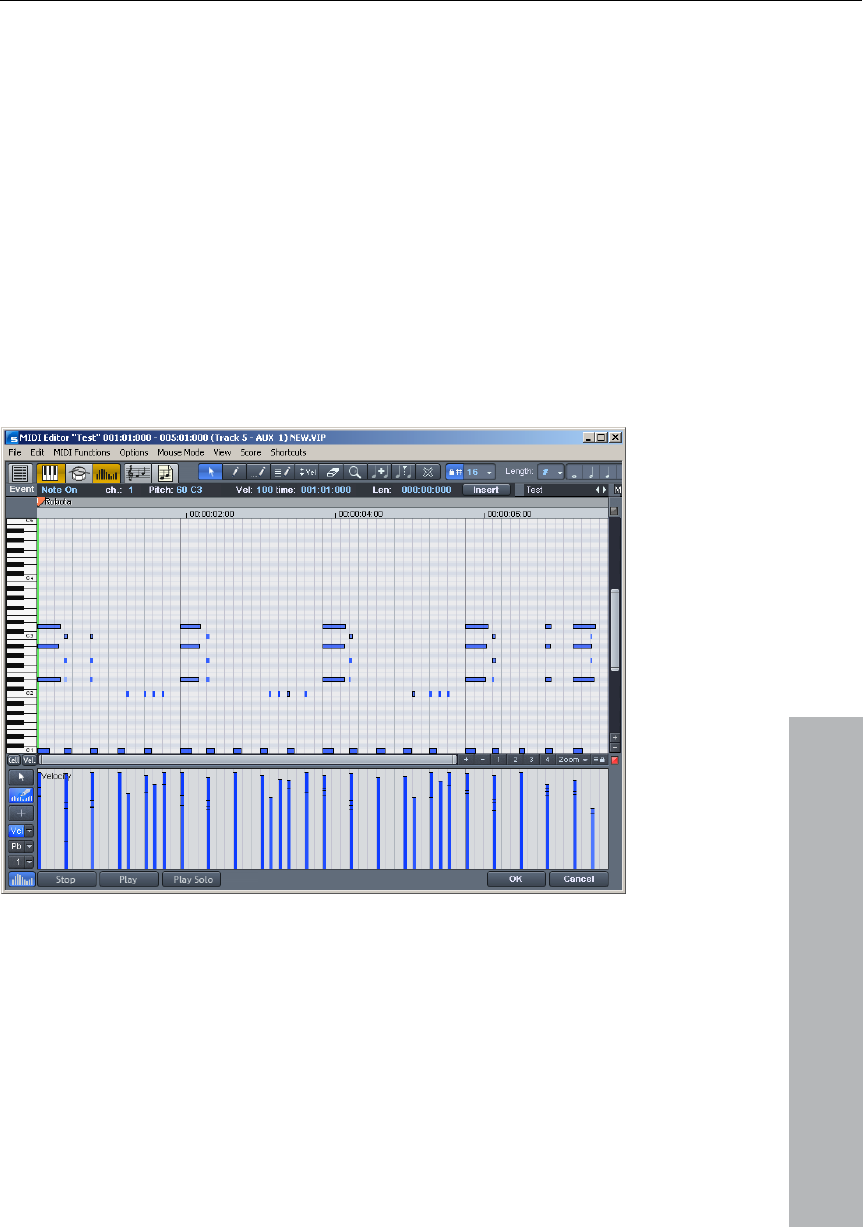
MIDI Editor 147
www.magix.com
ject in the project opens the MIDI Editor.
Alternatively, the Editor can also be started for the selected MIDI
licking on the “MIDI Editor” command in the “MIDI” menu.
t is selected, a window appears which lets you create
an Object at the playback position. You can then choose between a
MIDI Editor
Open MIDI Editor
Double-clicking on a MIDI Ob
Object by c
When opened it displays the MIDI data from the active position over
the length of a selected object or a selected range.
If no MIDI Objec
menu of pre-defined MIDI templates from within the MAGIX Music
Studio 12 deluxe “Templates” sub-menu.
Notation display, movement, zoom
The MIDI Editor features five main areas for editing:
• Matrix Editor (Piano Roll)

148 MIDI Editor
www.magix.com
il or eraser. Exact
values for each MIDI event can also be set in the edit fields via the
Notation display in Piano Roll and Controller Editor (with velocity
Notes which are not selected within the Editor are displayed in blue.
Selected notes: Multiple selected notes are displayed in red. Here
ed events are displayed in the edit fields above
the Piano Roll. If an event is selected with the mouse, it turns into the
Example: The MIDI object as notes in the MIDI channels 1, 2, and 5.
n of the MIDI channels in
the channel filter by selecting the two channels from the menu. All
Events in the filtered channels can be completely hidden using the
• Drum Editor (toggle between the Drum Editor and Piano Roll
possible)
• Controller Editor (for example, velocity, MIDI volume…)
• List Editor (event list)
• Score Editor
Here various tools are available, for example, penc
Piano Roll.
Fundamentally, changes, for example, moving or deleting notes,
always refer to all selected MIDI events (red) with just a few
exceptions. Changes to the selection in a range always apply to every
other range as well. You can, for example, select a group of notes in
the Piano Roll and then change the velocity of these note groups
which modifies all selected notes simultaneously.
curves)
The intensity of the color symbolizes the velocity: the velocity
increases while getting darker/stronger in color.
too, a more intense color symbolizes increased velocity.
Current event: Appears in bright red with a red border. The properties
of the currently select
current event.
Display of filtered events: To get a better overview of the events of a
MIDI object, you can filter specific events for the display.
You can now make all notes in channels 2 and 5 accessible for the
selection and editing tools via the selectio
unselected filtered notes in channel 1 are displayed in gray in the
Piano Roll and the List Editor.
"Hide filtered MIDI data" in the Options menu.

MIDI Editor 149
www.magix.com
of the
playback filters (mute settings), but the filters can be set
Display of muted events: MIDI object settings (in the MIDI Object
Editor, "Ctrl+O") can be used to mute notes and filter other MIDI
events. This type of "muted" event is displayed lighter or paler in the
Piano Roll and List Editor.
Events in front of or behind the beginning/end of the object
(recognizable by the blue lines in the Editor or when the display is
active and transparent as grayed-out ranges) appear similarly pale as
non-muted events within the object borders.
Events above and below the current picture section: Two small red
displays above and below the vertical scroll bar to the right-hand side
of the MIDI Editor screen show in red if there are notes outside the
screen's display.
Moving and zooming
eel: Scroll horizontally
y or zoom using the scroll bars,
ges the corresponding VIP window.
with the filter settings in the “Options”
The List Editor provides additional display filters that only function
within the list. The display filters are initiated with the settings
independently of one another.
The vertical and horizontal view or zoom are adjusted with the Scroll
bars just like in the project window.
Mouse wh
Shift+mouse wheel: Zoom vertically
Shift+Ctrl+mouse wheel: Scroll vertically
Ctrl+mouse wheel: Zoom horizontally
Synchronized MIDI Editor and VIP screen
view
If you change the horizontal displa
holding the Shift key chan
Play/Play Solo
“Play Solo” only plays the MIDI Object that is currently opened in the
MIDI Editor (corresponding
menu). “Play” plays the entire arrangement.

150 MIDI Editor
www.magix.com
MIDI Editor: Selecting events
• Selection of all notes of a pitch: Double-click on the assigned key on
a
• note: Cursor left, right
Special selection options in the Piano Roll
tes of a certain pitch, double-click on a
ct notes with this pitch only from this
click position.
H a selects all notes (all
onwards.
Using the
• Select event: Left-click on event
• Add/Remove event to/from selection: Ctrl + left-click on event
• Change/Set current event within multiple selection: Left-click on
selected event
• Set current event, deselect all other events: Double-click on event
• Selection of events within a line or range: Click while holding down
Shift-key
the left keyboard
• Selection of all notes: Ctrl+A (functions for pitches selected with
key on notes with this pitch)
Select next or preceding
In order to directly select all no
free section with this pitch in the Piano Roll Editor or in the keyboard.
Hold down the <Alt> key to sele
olding Shift and double-clicking on a free are
pitches) from the click position
Note: If you press <Ctrl> as well during any of these selection
methods, the new selection is added to the current one (i. e. the
previous selection is not canceled).
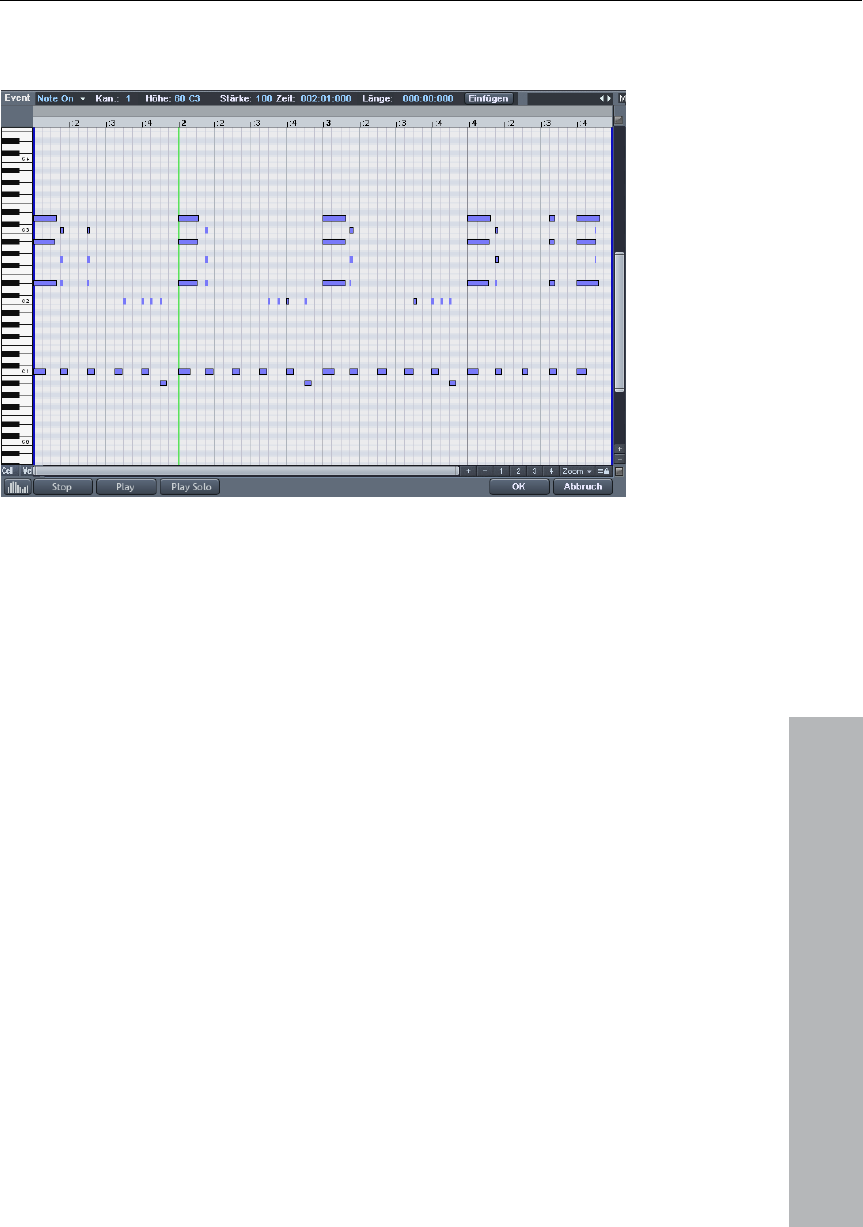
MIDI Editor 151
www.magix.com
Editing Events: Piano Roll
Editing tools
There are several editing possibilities for notes within the Piano Roll;
so-called Mouse Modes. The same functions for editing notes (except
all modes, so that these modes only differ by their
.
o: You can draw a selection frame by holding down the mouse
empty space removes a selection.
ncil (2)
cking draws a note. The beginning and the length are
ined according to the current quantization settings (Toolbar
r).
encil (3)
e of notes is drawn. The length of the notes and the note
re determined by the current quantiza ings.
h of the first note is ined for all
uently. Moving the mouse b )
e mouse button removes dra
delete) apply in
reaction to clicking in empty spaces
Selection (1)
Lass
button.
A click in an
Draw Pe
Left-cli
determ
Edito
Drum P
A sequenc
intervals a tion sett
When holding Alt: The pitc also mainta
notes drawn subseq ackwards (to the left
while depressing th wn notes.

152 MIDI Editor
www.magix.com
raws a freely definable note pattern (Ctrl+P).
lding Alt: The pitch of the first note is intained for all
sequently. Moving the mouse backward (to the left)
eletes just added notes again.
ge (5)
ouse key and drag the mouse lly, the velocity
increased or d ed relatively to
es are change olutely, i.e. all
e same velocity value diting. In the
mode you can change elocity values
gging the mouse over t s.
ll selected notes. Dragging the
glass (7)
ouse button:Zoom in
tton: Zoom out
use button + drag: The sketched area is always zoomed. The
be temporarily accessed by ding a special key
the key the mouse mode is active again.
the next note of the same p
split in the matrix at the ition by
ps ca or
able a n the
t fo switch mode
de can be ac anytime by
se button. ance, you can
use the pen to insert new notes when left-clicking and remove
Pattern Pencil (4)
D
When ho also ma
notes drawn sub
d
Velocity chan
If you hold the m vertica
values of the selected events are
velocity valu
ecreas
each other: The d abs
changed events have th s after e
vgraphic velocity display
ra
several
at once by clicking + d he note
Delete (6)
Clicking on a selected note deletes a
mouse deletes all notes underneath the eraser.
Magnifying
Left m
Right Mouse Bu
Left mo
zoom mode can hol
(Z). After releasing
Glue notes (8)
Glues the note with itch.
Split notes (9)
A notation bar is next grid pos
clicking.
Mute (M)
Individual notes or selected note grou
activated by clicking on them. Also avail
n be deactivated
s a command i
"MIDI Functions" menu.
Hints:
• You can freely define the shortcu r ing the mouse
(tool). The Delete mo tivated
clicking/dragging with the right mou For inst

MIDI Editor 153
www.magix.com
ght-click, with ing to change
tools.
aw mode contain the MIDI channel and velocity
he "New" section above the Piano roll.
can select the previous/next note with the cursor left/cursor
Editing notes with the mouse
I you move the mouse over a note, the mouse cursor will change
and, depending on the part of the note, the following options will be
available:
• Change note length (Grab note length at end)
• Ctrl + scale note length (for multi-selection hold "Ctrl" and drag
•
MID
The
sele
appl
Rem
no lo layed notes) are
recognized and not corrected, i. e. chords are not split up.
onophonic): Notes may be shortened so that
Mute notes (Mute): Mutes and unmutes notes or selected note
groups with a click.
already inserted notes with a ri out hav
• Notes created in Dr
of the Edit boxes of t
• You
right keys. With the cursor up/down keys you can adjust the note
pitch step by step.
f
• Change note start time: (grab note bar at the beginning), note end
remains
• Shift + set fixed note length (for multi-selection hold shift key and
drag current reference note longer/shorter – all notes will have the
same length)
current reference note longer/shorter – changes the note length
relatively, i.e. the reference note will become twice as long and thus
all other notes will be double length)
• Move note freely (pitch and start time is changed)
• Move note horizontally only, retain pitch (in free move mode, hold
"Alt")
Move notes vertically, keep position (hold "Shift" key in move mode)
I functions
commands in the MIDI Functions menu always refers to all
cted notes. If no notes have been selected, all functions are
ied to all notes.
Legato: Notes may be prolonged to be played in legato:
ove overlaps (polyphonic): Notes may be shortened so that there
nger are any overlaps. Chords (simultaneously p
Remove overlaps (m
there no longer are any overlaps. Forces monophonic voice.

154 MIDI Editor
www.magix.com
"
function makes mechanically sounding sequences groovier.
All notes are quantized without previous selection.
e table).
ndow are quantized,
those outside remain at their position.
100 - Window covers the total range from the grid points of the
The window covers half of the quantization interval. Events with
gaps of 1/4 of the grid width left and right of the grid point are
- no window -> Quantization off.
"N-toles": The grid is divided by the number of sections set as n-
n enter any number you like, as well as the previously
d. In this case
the quantization values are also taken into account. For instance, the
Quantize: Small irregularities when playing to record can be
smoothened with the quantization function. In contrast, the "swing
Clicking on "Quantize" shifts all selected notes to a customizable
quantization grid.
1/4, 1/8, 1/16 and 1/32 notes can be selected as starting time (grid).
(Uneven quantization values such as triplets can be created with "n-
tole" (se
Quantization options (menu options in the MIDI Editor): "Strength" in
%: "100" moves the event precisely to the quantization grid point
"50" at the center between the current position and the quantization
grid point, "0" does not mean movement = quantization off.
"Swing" activates "triplet" play mode. Specifies the division for
uneven grid points before 50.
"50-50 division": The uneven 1/8 note is exactly half way between the
even eighths ("even play" mode) 67..." triplet play, 3-2 division
"Window": Quantization window, events in the wi
quantization grid.
50 -
quantized
"Offset": The entire quantization grid is moved: -100 is a half grid shift
to the left (earlier), +100 is a corresponding shift to the right (later)
toles. You ca
defined numbers.
"Reset": Restores the default values. If snap is activated, the notes
"snap" to the quantization values when created or edite
notes snap to the corresponding positions within the quantization
window.

MIDI Editor 155
www.magix.com
t Editor can be edited by clicking on
the edit tools below the edit buttons. The following buttons are
(or pitch)
• Byte2 (or velocity, attack)
s:beats:ticks
d with a quarter note).
alue. Hold the left key and drag
the mouse up or down to increase or decrease the value.
Editing selected events (Edit fields): The properties of each event in
the Piano Roll, Controller and Lis
available for each note:
• Channel
• Byte 1
• (Start-)time in bar
• Length in bars:beats:ticks
The display of the ticks has a resolution of 384 PPQ (i.e. 384 ticks
correspon
To edit, click and drag the displayed v
Hint: The value steps are greater if you press the Ctrl key.
You can also edit the value numerically via the keyboard. Simply
mouse-click on figure.
A few special characteristics have to be observed when multi-
You can relatively change the values by dragging the mouse, using
You can make permanent changes by simultaneously holding the
dragging & dropping or confirming entry with Shift +
Open: The Controller Editor is located below the Piano Roll and can
be hidden. It can display and edit up to 4 MIDI controller types or
eously.
selecting events:
the mouse wheel or entering numeric values and then confirming by
pressing enter (for pitch and attack rate).
shift key when
Enter.
Controller Editor
velocity values simultan
It is opened by clicking either on the - Button below the
keyboard or with the shortcut "ALT + V".

156 MIDI Editor
The values of existing events are displayed as colored bars in the
Controller Editor, whereby darker and higher bars symbolize higher
values. The bars are located vertically directly below the notes.
Selection
Combo tool, also used for value changes as well as freehand and line
drawing. Select the controller bar by clicking and dragging or single-
clicking in the range within a bar.
Click on the bar end: The controller value can be adjusted by
dragging vertically.
www.magix.com
Shift+Drag: Set all bars to the same value.
Freehand drawing: Click and drag to draw a controller curve, click
rect the curve while drawing.
Shift + Click: Draw line
Ctrl+Drag: Scale (relative value change)
Shift: Draw curve (envelope)
Alt: Draw freehand (envelope)
and drag backwards to cor
Just one click: Creates a single controller event.
Hint: If you edit velocity, no new notes are generated; only existing
velocity values are modified.
Draw lines: Click and drag to draw a controller ramp.
Just one click: Creates a single controller event.
Hint: If you edit velocity, no new notes are generated; only existing
velocity values are modified.
Multi-view
The four multi-buttons are used to display or hide the view of all
possible controller curves. Clicking on the menu area of the buttons
opens a menu which allows you to choose a MIDI Controller for this
controller slot.

MIDI Editor 157
www.magix.com
d processing notes: By clicking in the upper Range of a
controller column, the controller value can be changed immediately
b drag ower two thirds of the column
selects the corresponding note, which is subsequently displayed in
controller editor can be determined by the dragging
the mouse to the top edge (directly below the horizontal scroll bar).
to select different
controller types together). You can now move the selection in the
time box by entering a value and confirming with Enter, or by
dragging the mouse.
Use the display filter function for velocity values.
Especially in multi-phonic events the columns are located above each
other, making it difficult to select the respective note. To edit only
notes of a certain pitch, e.g. all C1 notes in the Controller Editor, click
on the respective key on the keyboard. The key and the background
of the selected pitch are highlighted. Only notes of this pitch are
displayed in the Controller Editor.
Notes of different pitches, e.g. all C1, D1 and A1 notes can be
displayed with Ctrl+Click (or Shift+Click for the area between the
clicks, respectively). These are simply view options of the Controller
Editor. Multiple note selection by double-clicking is not possible.
A further possibility is to selectively edit controller bars located on top
of each other, which is based on the fact that the bar of the currentl
selected note is selected/edited using the mouse. Therefore, first
s
located on top of each other and then select the required note using
third of the red (current) area of the column.
Selecting an
y ging the mouse. Clicking in the l
the Editor in red.
Tips:
The size of the
Several controller events can be shifted simultaneously. First select all
values you want to move (hold Ctrl if necessary,
y
click on the note within the Piano Roll, or click on the column
the cursor keys. Then change the controller value by clicking in the
upper
Besides directly changing the velocity values of a selected note you
can change several velocity values at once by clicking in a free space
and dragging the mouse over several velocity values while holding
down the key. You can then also create sequences by moving the
mouse in a curve. A previous (multi-)selection is ignored. For
example, you can easily create a crescendo or decrescendo effect.

158 MIDI Editor
www.magix.com
Open List Editor
When the List Editor is opened and activated for editing it has a
narrow red border. This is to make clear that certain functions, e.g.
select next/previous event (cursor keys) or the “Select all” command,
The List Editor does not only display Note Events, but also MIDI
e filtered during playback (“mute”).
Double-clicking on a Sysex entry of the list opens a simple Editor for
viewing and editing the Sysex information.
A note always has a Note On and Note Off event. These are always
selected and edited in pairs (Note Off events are not displayed by
default, but can be displayed by checking the box below the Editor).
New events can be created directly in the List Editor by using the
“Insert Button”. The current values of the edit fields in the upper
frame of the Piano Roll always apply. Therefore, before editing these
fields please ensure that no event in the Piano Roll is selected.
List Editor (midi event list)
The MIDI Editor has an integrated display of all events in list format.
This List Editor can be opened with the button above the keyboard or
by using the “Alt+L” keyboard shortcut.
refer only to the List.
Working with the List Editor
Controller and Sysex data. This controller and the data can be hidden
and can even b
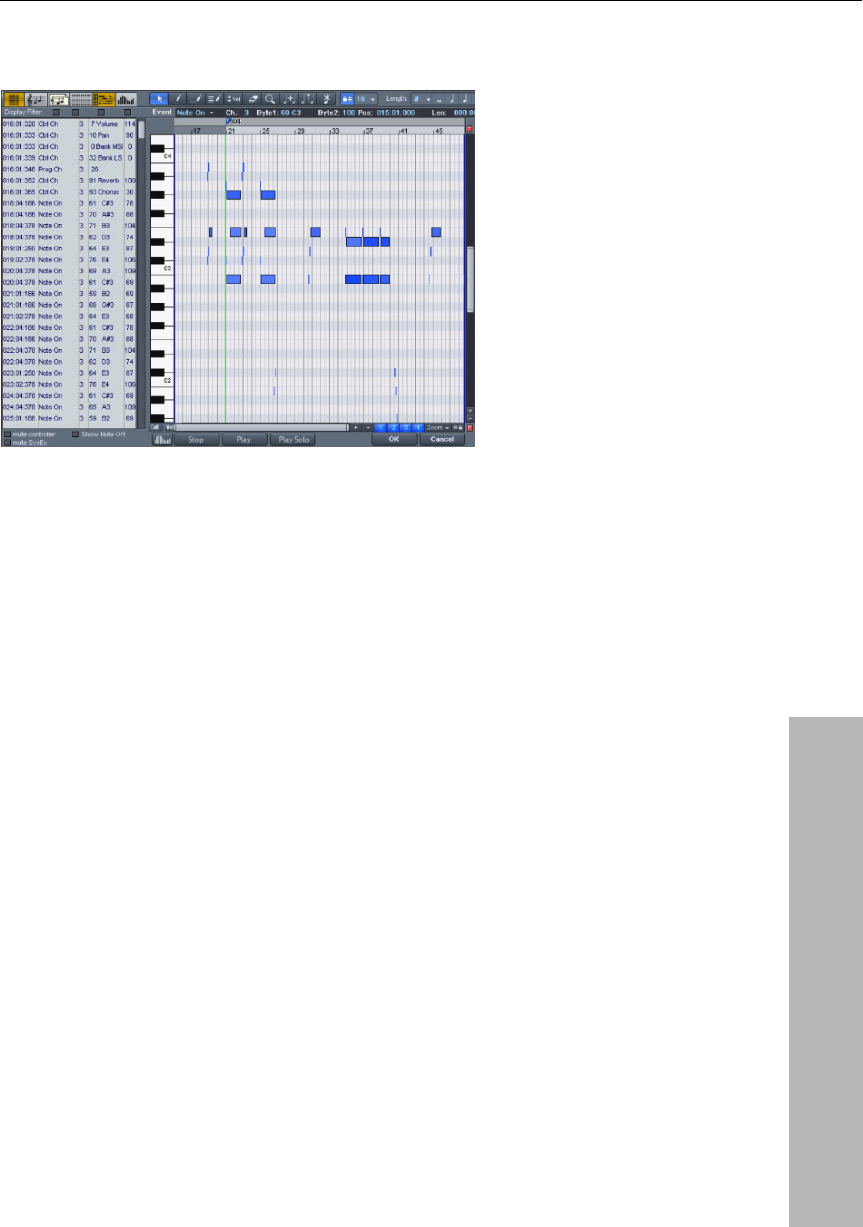
MIDI Editor 159
www.magix.com
urrent event has been selected, you can determine the
Tip: If no c
insert position by setting the play cursor.
For editing certain events only, the List Editor has a view filter for
each column. These are small checkboxes above the List Editor
columns.
rmat. For example, this could be a note of a
certain pitch. Then click on the display filter of a specific column to
display only events of this type, e.g. of the selected pitch. All other
events are now hidden.
the “Select
all” command (Ctrl+A) to select and edit all Type 10 control change
and inserted from the next grid
selection. They are otherwise inserted immediately
Select a representative fo
View Filters can be combined. For example, you can use
events (volume) of MIDI channel 6.
MIDI Editor tips & tricks
opy & paste MIDI data within the Editor and between
You can c
different MIDI Objects. MIDI data is always inserted at the current
position of the play cursor.
Duplicating: If the grid is activated (“Options” menu Quantization grid
active), the selected notes are copied
point following the
after the selection.

160 MIDI Editor
www.magix.com
orting can be corrected using the quantization
up to 1/64, and n-tuplet and
dotted values can be selected. Quantization options (Options menu in
I Editor):
ecisely onto the quantization snap point,
• "50" moves it into the middle between the current position and
point,
ghths ("even play" mode)
• 67... triplet play, 3-2 division
• 50: The window covers half of the quantization interval. Events with
of the grid width left and right of the grid point are
• 0: No window -> Quantization off
• Value range: -100...+100
quantization grid:
Quantize
Irregularities when imp
function. Clicking on "Q" shifts all selected notes to a customizable
quantization grid. All notes are quantized without previous selection.
As a quantization value for the length display of the individual MIDI
events, note values of whole notes
the MID
• Strength of the quantization in % (Strength 0... 100):
• "100" moves the event pr
quantization snap
• "0" means there is no movement > Quantization off
Swingin % (Strength 0...100):
Starts swinging, groovy playback (for example, triplet). Specifies the
division for uneven grid points.
• 50 ... "50-50 division": The uneven 1/8 note is exactly half way
between the even ei
Window in % (Strength 0... 100):
Quantization window, events in the window are quantized, those
outside remain at their position.
• 100: Window covers the total range from the grid points of the
quantization grid.
gaps of ¼
quantized.
Offset
• Offset moves the entire
• -100 is a half grid shift to the left (earlier), +100 is a corresponding
shift to the right (later)

MIDI Editor 161
N-Tuplet (off, 3, 5, 7, 9)
The grid is split into n-tuplet quantization values (for example, 8T,
16T). You can enter any number you like, as well as the previously
defined numbers. Please note that you can only work either with the
swing setting or n-tuplets.
Reset
www.magix.com
keyboard shortcuts from the VIP are applied. You
can explicitly define shortcuts for all commands that are available in
Restores the default values.
MIDI Editor shortcuts
Apart from few exceptions such as "Space" for stop/playback the
keyboard shortcuts can be defined freely with the keyboard shortcut,
menu and mouse editor. For some basic functions such as scrolling
and zooming, all
the MIDI Editor menu.
Hint: The mouse wheel settings are also applied from the VIP, as is
the switch for the temporary zoom mode (special) which is predefined
with the Z key
Playback/Stop Space bar
Close MIDI Editor (apply changes) Return
Close MIDI Editor (discard changes) Esc
File
Import MIDI Ctrl+I
Export MIDI Ctrl+E
Edit
Undo
tion Ctrl+P
Delete selected MIDI data Back, Del
Delete all MIDI data Ctrl+Back, Ctrl+Del
Select next event Arrow right
Ctrl+Z
Redo Ctrl+Y
Cut Ctrl+X
Copy tracks Ctrl+C
Insert Ctrl+V
Duplicate Ctrl+D
Select all Ctrl+A
Create pattern from selec

162 MIDI Editor
www.magix.com
Legato Ctrl+L
Optio
Scroll mode F
oller Editor Alt+V
Play clicked notes Alt+P
Quantization grid active Ctrl+G
Show quantization grid Alt+G
Ctrl+F
Mouse
Selection 1
7
right
Select previous event Arrow left
Page up
Ctrl+1
Ctrl+2
Select previous event Arrow left
MIDI functions
Quantize notes Ctrl+Q
ns
Show Event list Alt+L
Show Velocity/Contr
Quantization options Alt+Q
MIDI Object Editor editor Ctrl+O
Audition Panic-End played edit notes
mode
Draw 2
Drum (-draw) 3
Pattern (-draw) 4
Change velocity 5
Delete 6
Magnifying glass
Glue note mode 8
Split note mode 9
Mute notes (Mute) mode M
Select next event Arrow
Event pitch higher Arrow up
Event pitch lower Arrow down
Select next grid quantization value Alt + Arrow down
Select previous grid quantization value Alt + Arrow up
Select next length quantization value Alt + Arrow right
Select previous length quantization value Alt + Arrow left
Move play cursor forward Page down
Move play cursor forward (fast) Ctrl + Page down
Move play cursor backward Page up
Move play cursor backward (fast) Ctrl +
Velocity/controller selection
Velocity/controller draw freehand
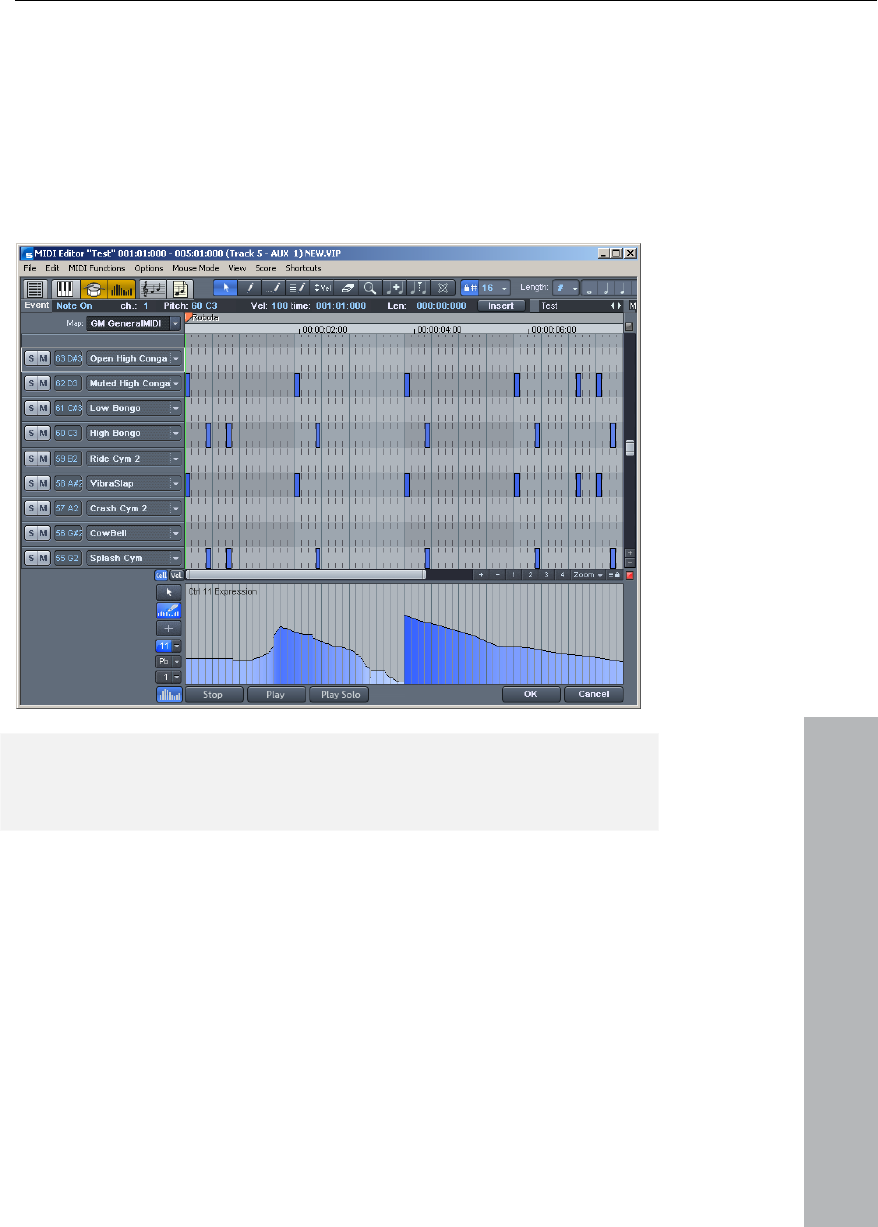
MIDI Editor 163
www.magix.com
double-click on the MIDI object), open
its "Options" menu and select the "Drum Editor" entry. Instead of the
piano keys to the left, you now see a list of drum instruments.
Velocity/controller draw freehand Ctrl+3
Drum Editor
Open
After opening the MIDI Editor (
Note: If nizable by the cross a drum map is active in a track (recog
beneath "Drum" in the trackbox), the Drum Editor is loaded
automatically when the MIDI Editor is loaded.
Drum Editor: In the trackboxes of the Drum Editor you can individually
is multiplied ny the V
value/100 entered here and adjusted to the MIDI velocity between 1
adjust MIDI channel, grid, quantization length, display width in cell
mode and velocity scaling for each drum instrument.
Velocity scaling: The velocity value of each note
and 127. Scaling is audible but is not visualized further.

164 MIDI Editor
www.magix.com
mits an alternative view
of the MIDI events.
is not displayed,
Cell Mode of the
ment can be set
Piano Roll, the
lly when editing
t workflow. This
e most importan
information, starting note positions, and velocity.
editing events, just like in the
piano roll:
Selection mode (1): You can use this mode to select drum events,
move or c ly.
Draw Pencil (2): In this mode you can draw drum events. If
quantization is also activated, they snap to the grid immediately when
you enter them.
Drum Pencil (3): This mode also entails a draw function. However, the
quantization length is also taken into account when the events are
drawn.
Pattern Pencil (4): This mode allows you to draw entire Drum Patterns
(or melody patterns). If you want to create a new pattern, you have to
select it first in "Selection Mode" and press the keys Ctrl+P
simultaneously (or go to menu "Edit" in the MIDI/Drum Editor >
Create pattern from selection"). If you have created a preset pattern,
you can start drawing at any position. The lowest note in the pattern
is then the pitch you are drawing.
Velocity Tool (5): This mode allows you to mark events and change
the velocity values of all selected events in relation to each other.
Absolute values are entered when you hold the Shift key, i.e. all
changed events receive the same velocity value.
Eraser (6): This tool lets you delete events with a single mouse-click.
• Cell Mode: When the Drum Editor opens, Cell Mode activates by
default. This is solely a view mode which per
• Notes are displayed as cells, that is, the note length
but rather a specific display width can be set. In
Drum Editor, the display width for each instru
individually in each trackbox. (In Cell Mode of the
length value sets the width).
• Cell Mode serves to improve the overview especia
MIDI drums and permits a structured and efficien
is because the display can be limited to th t
Editing drum events
Mouse modes
The following modes are available for
hange the length of one or several events simultaneous

MIDI Editor 165
www.magix.com
Velocity
If this button is active, the bar height is used when displaying the
velocity value of the note. In all mouse modes (except for "Delete")
the velocity can be changed by directly clicking on a note without
have to switch to the Controller Editor.
Drum Maps
Drum Maps specify individual instruments, for example, Bass, Drum,
HiHat, Snare, etc. An individual output notes, MIDI channel, and
velocity scaling can be set for each of these instruments. To split the
drum names a "General MIDI" map is used by default.
The Drum Map can be set in the track info (should the track be set to
MIDI recording), via the "Drum" field and via the Drum Editor itself by
clicking on the "Map" field.
It may be the case that your synthesizer (regardless if real or virtual)
uses a different mapping setup.
This means that when you play the drum event, the sound you wish
to hear may not be heard (for example, instead of a bass drum, you
Drum Map Editor
This editor lets you route each played note to a different one and give
names. It's also possible to assign each
Zoom mode/magnifying glass (7): Sketch a rectangle to zoom in. The
left mouse button is used to zoom in, the right one is used to zoom
out.
get a High Tom). In this case you will have to re-sort your mapping
setup.
them their own individual
individual instrument its own quantization and a new (MIDI) output
channel.
Pitch: This is the incoming MIDI note.
Instrument: Here is where you can find the name of the drum
instrument, for example, "Bassdrum 1".
Grid: If desired, you can set up a grid for the starting point of the
drum event.
Length: In this field you can set the grid for the note length.

166 MIDI Editor
www.magix.com
itch" field) should be routed or mapped.
Quantization
ization. Each
drum instrument can have its own quantization. To make the
to the track name of the
Score Editor
The Score Editor displays the MIDI data of a MIDI object as a score
IDI data into realtime. If you move
or change the MIDI data, such changes are immediately reflected in
itor as a score painting program but more
as an interpreter for MIDI data.
For instance, it is not possible to insert or delete rest symbols
y "registers"
the MIDI object
automatically inserted into the bars.
The common controllers of the MIDI Editor in the Score Editor
ew notes. In this chapter you will
learn how you can edit your MIDI objects within the regular score.
itor contains specific editing options for certain
details (dynamics, note length), it is better to make MIDI changes
.
Output note: This is the note value to which the drum instrument (the
incoming MIDI note in the "P
Channel: You can set up an individual channel for each instrument
here. Furthermore, you can select swing, window, and near
quantization for each instrument in the Drum Editor.
The global quantization settings can be found in the menu "Options >
Quantization options". Press "Q" to trigger global quant
necessary settings, select the arrow next
instrument you want to edit and open the quantization options.
Introduction
sheet. It "interprets" the available M
the score image. If you insert a new note in the Score Editor, a
corresponding MIDI Note On event is created immediately. Therefore,
do not view the Score Ed
directly. MAGIX Music Studio 12 deluxe automaticall
rests in the gaps between the MIDI notes. You will therefore always
have a valid score sheet and "complete" bars, even if
should only contain a single MIDI note: the necessary rests are
operate as usual, e.g. the eraser is used for deleting notes or the pen
for creating, copying and inserting n
While the Event Ed
directly in the score sheet as it guarantees a better overview
MIDI Editor 167
www.magix.com
MIDI Editor window. If the MIDI
Editor is opened, you can activate the linear score view by pressing
n.
Opening the Score Editor
The Score Editor is integrated into the
the "Score Editor (linear)" butto
Score Editor (linear) button
Navigation : You can adjust the play cursor directly in the score by
holding shift and clicking the desired position. You can set the
lding the shift key and left-clicking the left
border and right-clicking the right border of the range.
MAGIX Music Studio 12 deluxe offers two alternatives for viewing the
page mode.
matrix editor and overview can be supplemented by several score
select the score in the score sheet and perform
djustments in the piano roll. Selection and zooms in all editor
views (linear score, piano roll, event list, velocity editor) are always
synchronized.
playback range by ho
Score Editor Modes
score: linear display and
The linear note display can be combined with the matrix display
which offers ideal MIDI Editing options, as the detail in depth of the
systems. You can
fine a
Linear view
Score Editor (linear) button
For detailed editing of the MIDI data in the score you should
preferably select linear view mode as both matrix and velocity display
are available. All parameters such as pitch, note length, and velocity
are displayed.
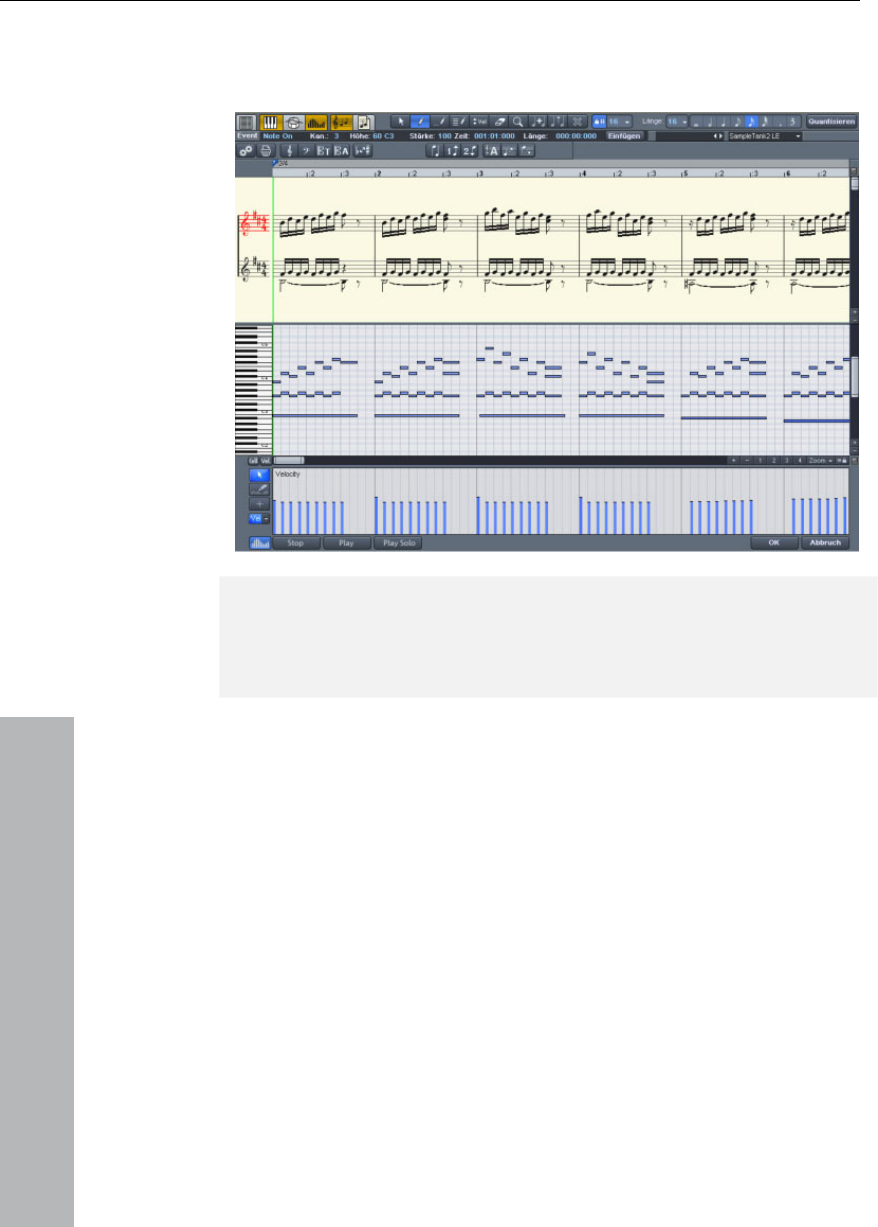
168 MIDI Editor
www.magix.com
otes and velocity are parallel. The
red bar mark indicates the currently active system.
Please note: Only the notes of the currently active system are
displayed in the Velocity Editor if n
Notation view in Linear mode (move bar between score and matrix)
The horizontal zoom above the scroll bar zooms parallel to the matrix
view.
In linear mode details can no longer be displayed correctly if you
zoom out horizontally as the note symbols overlap. It may then be
necessary to reduce the size of the notation symbols (+- buttons on
the right). Despite the no longer correctly displayed details, zooming
out can still provide you with a good overview, particularly in large
scores. MAGIX Music Studio 12 deluxe can adjust the notation
symbols automatically. To do this, please select "Automatic zoom" in
the Score menu.
Page view
This page mode displays the notes just like on a musical score sheet,
which also serves as a print preview. Here you can select notes and
allocate them to voices/systems and delete them, although you
cannot move them with the mouse or pen.
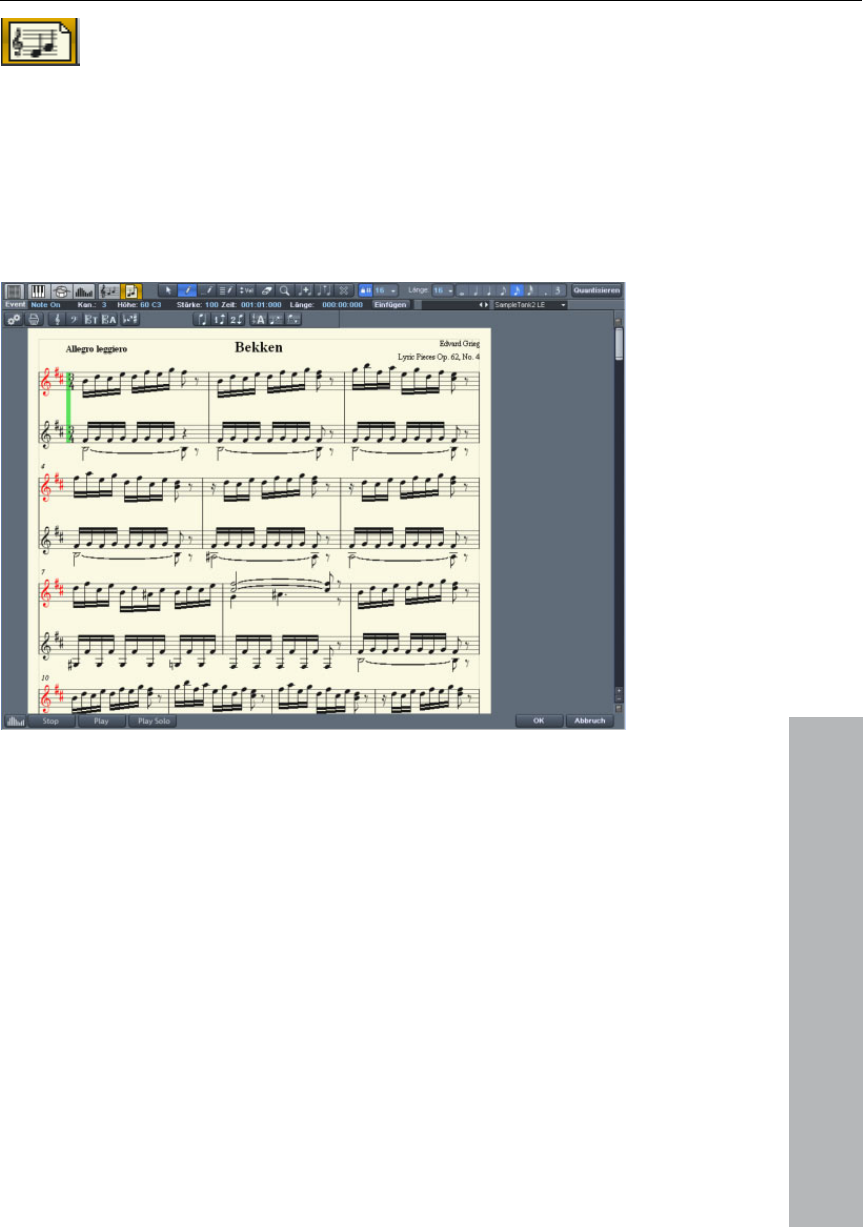
MIDI Editor 169
www.magix.com
Page view is not only useful for preparing a score
Score Editor page mode
sheet (e.g. for titles,
borders), but also for editing longer sequences. The stave break
allows you to display considerably more bars than with the linear
display.
Scrolling in full view mode: Use the vertical scroll bar to scroll from
page to page.
Page mode as print preview: You should first change the page format
(in the Score Properties dialog) to the paper format of your printer
before setting up the page for printing as the display depends on the
Th
Th
data as efficiency is required here instead of a
ad display options while editing. The display options
open by clicking on the "Print" button.
page format. You will then see your score exactly as it will be printed.
e score
e automatic conversion of MIDI data into score is usually sufficient
r editing MIDI
fo
perfect, ready-to-print display. However, it may still be necessary to
just some of the
can be found in the MIDI Score Properties dialog, which you can
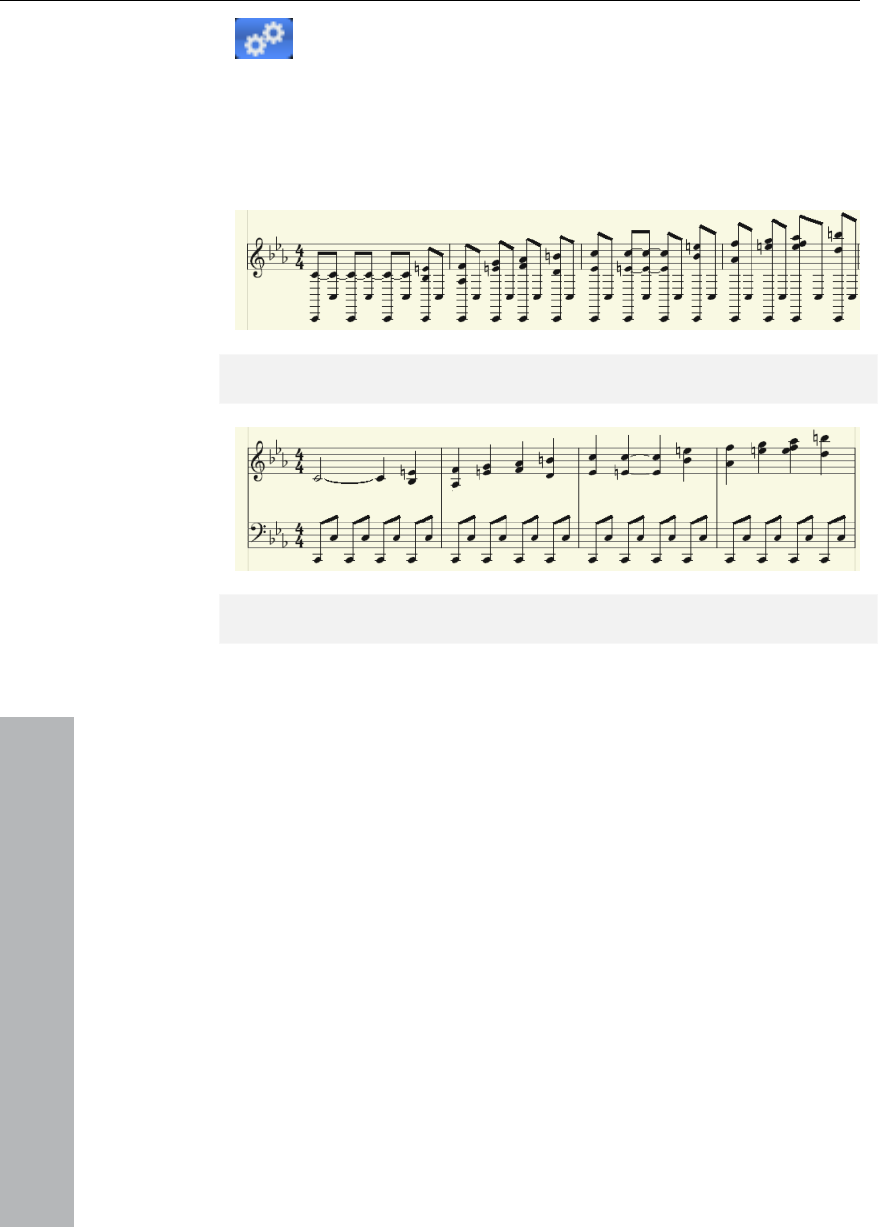
170 MIDI Editor
www.magix.com
page properties.
This is also where the presets are stored. These are pre-programmed
standard settings for certain instruments or instrumentation such as
strings or orchestra. Selecting a preset improves the score display
and its readability.
Opens the Score sheet settings dialog for notation and
Treble clef view (preset)
Switch notation display by selecting the piano clef preset.
Further explanations of the notation system can be found below.
Editing MIDI data in the score sheet
Selection
As usual you can select notes by clicking them. You can select a
group of notes (e.g. a chord) by sketching a frame over them while
holding down the mouse key. Select multiple single notes by pressing
the Ctrl key.
Note parameters
The parameters pitch, velocity, and length can be changed for one or
several selected notes. If you have selected one or several notes the
data of the current note will appear in the info bar above the score
view. Changing a parameter may have a comparable effect on all
selected notes, just like in the Matrix Editor.

MIDI Editor 171
www.magix.com
esired
position. Here the info box can help you keep track of the pitch or
position. The step size when moving is determined by the selected
MIDI Editor.
. If you let go of the
mouse key, MAGIX Music Studio 12 deluxe will add a new note of the
same length as the selected length quantization value. You can only
e. For instance, to insert a note in
, first click on the lower staff in the
system on the left.
Only notes are inserted that correspond with the current pitch. Non-
scale notes or chromatic intermediate steps are skipped. When you
enter conventional music material with the mouse, diatonic insert
mode increases the chances of hitting the correct note. If a new
prefix is to be added to the note, you can move the note
chromatically with the arrow key. This way an inserted F in C-Major
can be transformed into an F# by pressing the "Page Up" key.
Delete notes
You can delete notes by
• selecting them and pressing the "Del" key or
• by clicking on them with the eraser (or the right mouse button).
Insert notation symbols
Clef symbols can be inserted at the current cursor position by
pressing the corresponding clef symbol in the active system.
Delete notation symbol
Notation symbols such as clef and pitch cannot be selected as they
are meta information for the notation display and no MIDI Events have
been allocated to them. They can also be deleted by clicking on them
with the eraser (or the right mouse button).
Move and transpose
To move notes, first select and then drag them to the d
quantization raster in the
Copy
Select the desired notes and copy them by holding down the Ctrl key
and dragging the mouse. Alternatively you can also use the copy
function of the Edit menu.
Insert new notes
You can also insert new notes in the score editor by using the pen.
Click on the desired position with the pen, hold down the mouse key
and, if necessary, correct the position and pitch
insert new notes into the active stav
the lower part of a piano system

172 MIDI Editor
www.magix.com
Adjusting and optimizing the score.
notation
e MIDI events contained in the MIDI object. This is
always correct as regards pitch and position. However, this does not
groove of a song if the notes
always are slightly shorter than sixteenth notes. If this were to be
displayed correctly in the notation, the score would be unreadable as
in the example above. The MIDI events also do not contain
information on whether the gap between two notes is a real rest, its
harmonic correlations (pitch), and the characteristics of the dynamic
sequences. This is why automatic processing of notation always
differs from what would be ideal. MAGIX Music Studio 12 deluxe
includes an number of automatically and manually controllable
functions for making it easier to read the notation. The reworked
version of the the above score illustration shows how big the
difference can be.
location in multiple systems
System" refers to an individual line in a stave as well as all
staves of a score. In cases where it is important to be able to
differentiate a score and a staff from one another, we use the term
"System" for the score and "staff" for a single system.
What is meant by a "System" can often be interpreted from this
To manually assign notes to a system, click on
MAGIX Music Studio 12 deluxe automatically generates a
display from th
mean that the notation can be optimally read as displaying note
lengths also plays an important role in this context. In this case the
notation permits more interpretation flexibility so that the user usually
has to intervene. The illustration shows a typical example of how poor
a readable transformation of a sixteenth note piano sequence would
look in notation.
This representation may be correct; however, it is not readable. Why
is that? The MIDI events contain very precise information on the start
of a note, its length and pitch, which has to be taken into account
during playback. It may influence the
Note al
The term "
relation, for example, in a two-handed piano piece, "upper" or "lower"
systems are referenced.
MAGIX Music Studio 12 deluxe provides multiple systems, for
example, for piano notation or entire scores, which can be comprised
of up to 16 individual systems.

MIDI Editor 173
to move the selected notes one line on a stave higher and
correspondingly on
to move them one line lower. This results in the note being connected
to the line (independently of the MIDI channel or pitch). This manually
set allocation can be undone by clicking on
When transcribing a MIDI piano recording, splitting the notes int
www.magix.com
"Automatic staff allocation"
o a
two-line piano system using the split point is recommended. The
points where individual notes are placed incorrectly in a line can be
corrected easily by assigning the notes manually with a click to the
either the MIDI channel of the note event, the pitch or even a
riteria. This permits simpler
notes of a lower system of a particular piano piece have a different
the ight hand are on channel 1 and the notes for the
left hand are on channel 2. In this case you should set up two staves
for the system in the note system settings. The easiest way to do this
the MIDI channel
allocation to "Ch. 1" in the "Channel" selection box and "Ch. 2" for
itch by setting
for the note,
the staves will be played through until the MIDI channel corresponds
desired system.
The automatic allocation of the score to a specific line is flexible:
combination of the two can make up the c
and faster distribution of MIDI notes in the score line.
Example: It's often the case that, with some standard MIDI files, the
MIDI channel to that of the notes of the upper system. Let's assume
notes for the r
is with the "Piano" preset. For the first staff, set
the second staff. Deactivate allocation according to p
the split point to 0 (see MIDI Score Settings dialog).
The rules for allocation are as follows:
If the (preset) option "Automatic system allocation" is set
with it and the pitch is over or equal to the split point.
Note: It may happen that some notes are not shown at all as they are
not yet allocated to a system.
174 MIDI Editor
www.magix.com
h staff. The
voices differ in the direction of the note stems: the first voice is
Multi-voice notation
Up to two independent voices can be annotated for eac
always with the stem pointing upwards, the second with the stem
pointing downwards. Rests are displayed individually for each voice.
Multi-voice notation can simplify the score considerably and enable
multiple instruments or parts to be displayed in one staff together.
You can set the voice by selecting the notes and clicking on the
button or menu command "Assign first voice" or "Assign second
voice".
Here, the stem direction of the notes, and therefore the voice itself,
are set.
This assignment can be undone by clicking on
"Automatic staff assignment for notes".
For automatic voice assignment, the note's MIDI channel has to be
analyzed.
To do this set up a MIDI channel for the second voice in the "Note
system properties" dialog. This can be set individually for each staff.
All notes of a system whose MIDI channel has not yet been assigned
to a second voice, are added to the first voice.
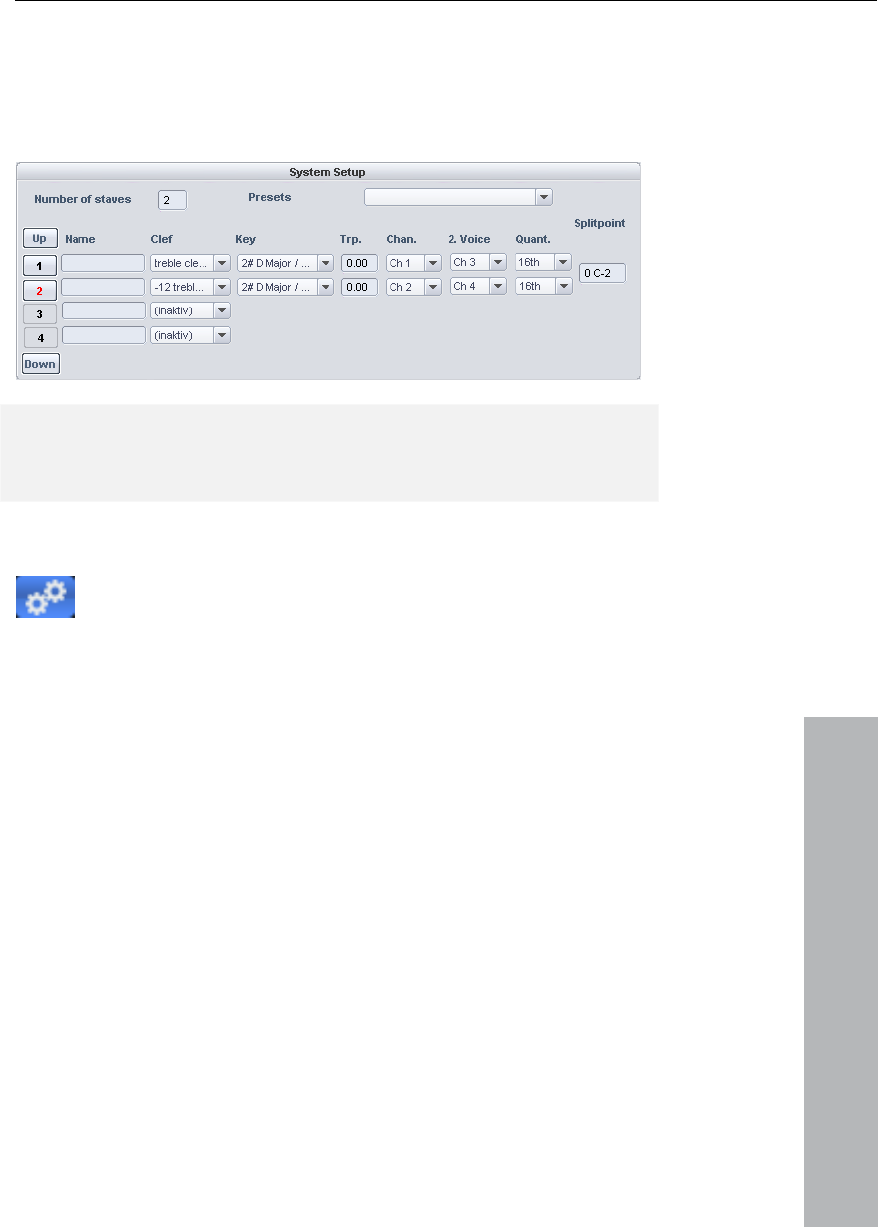
MIDI Editor 175
www.magix.com
ing settings:
Voice assignment via the MIDI channel can be practical when
displaying standard MIDI files with multi-voice piano pieces if the
voices of the right hand are set to the first and second MIDI channels
and the voices of the left hand are set to MIDI channels three and
four. In this case, apply the follow
Note: If there is no MIDI channel selected for voice assignment, only
one voice will be annotated (if manual voice assignment does not
occur).
MIDI Score Settings dialog
properties
Open Score Settings dialog for note system and page
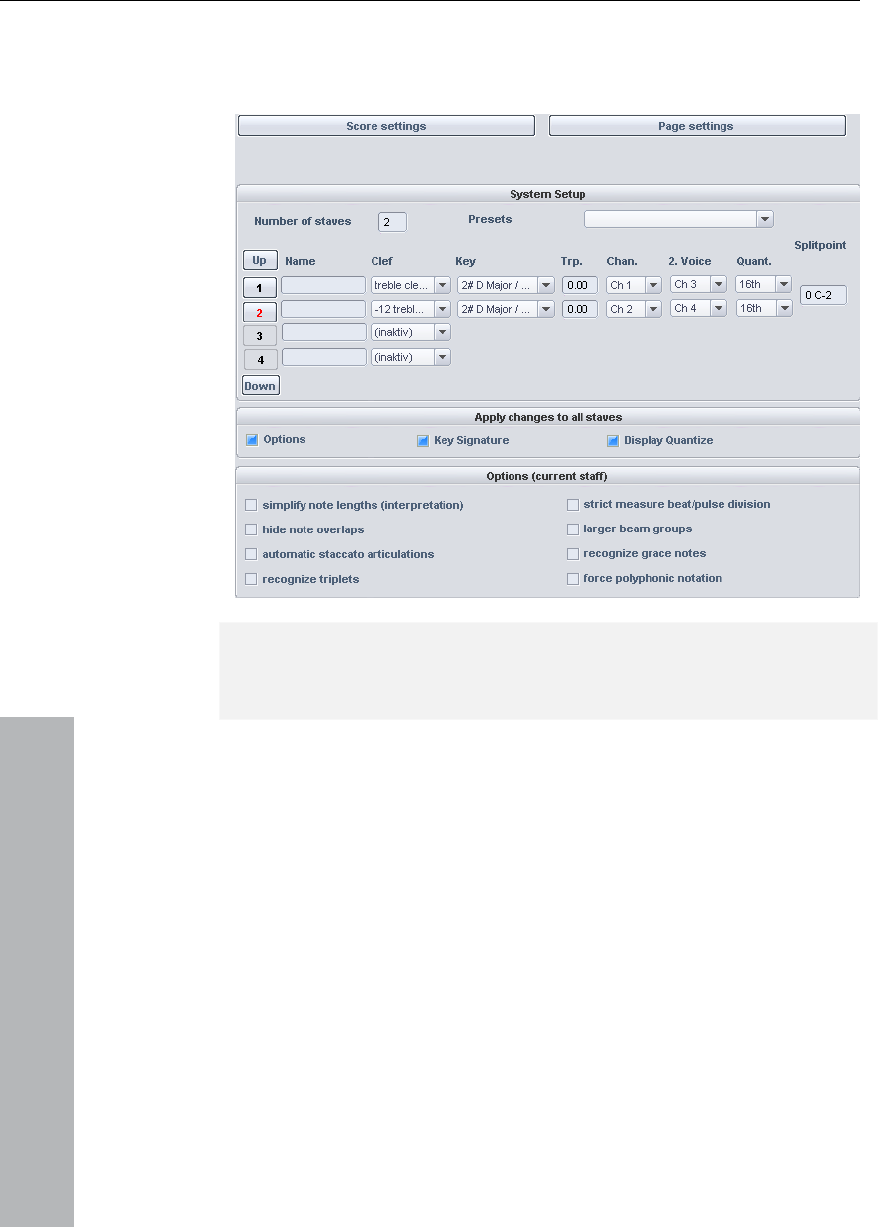
176 MIDI Editor
www.magix.com
luence on the MIDI data itself, but rather only on
the display of the score.
Here, note system and page format settings can be set. None of the
settings have any inf
Note: The affected note system settings are always applied to all MIDI
objects situated on the current track. The page format settings are
global and valid for every VIP.
Notation system settings
12 deluxe provides MIDI files with up to 16
staves on one track. For each staff, the clef, display transposition (for
instruments that transpose, for example, a saxophone), and display
above the split point are added to the upper system, while those
All settings for the system an display parameters/options can be
accessed via this dialog page. Here you can enter the clef.
MAGIX Music Studio
quantization can be specified individually.
Furthermore, an instrument's prefix ("Name") can be set as well as
the MIDI channel for automatic system/voice assignment.
Similarly, the split point serves automatic system assignment: Notes
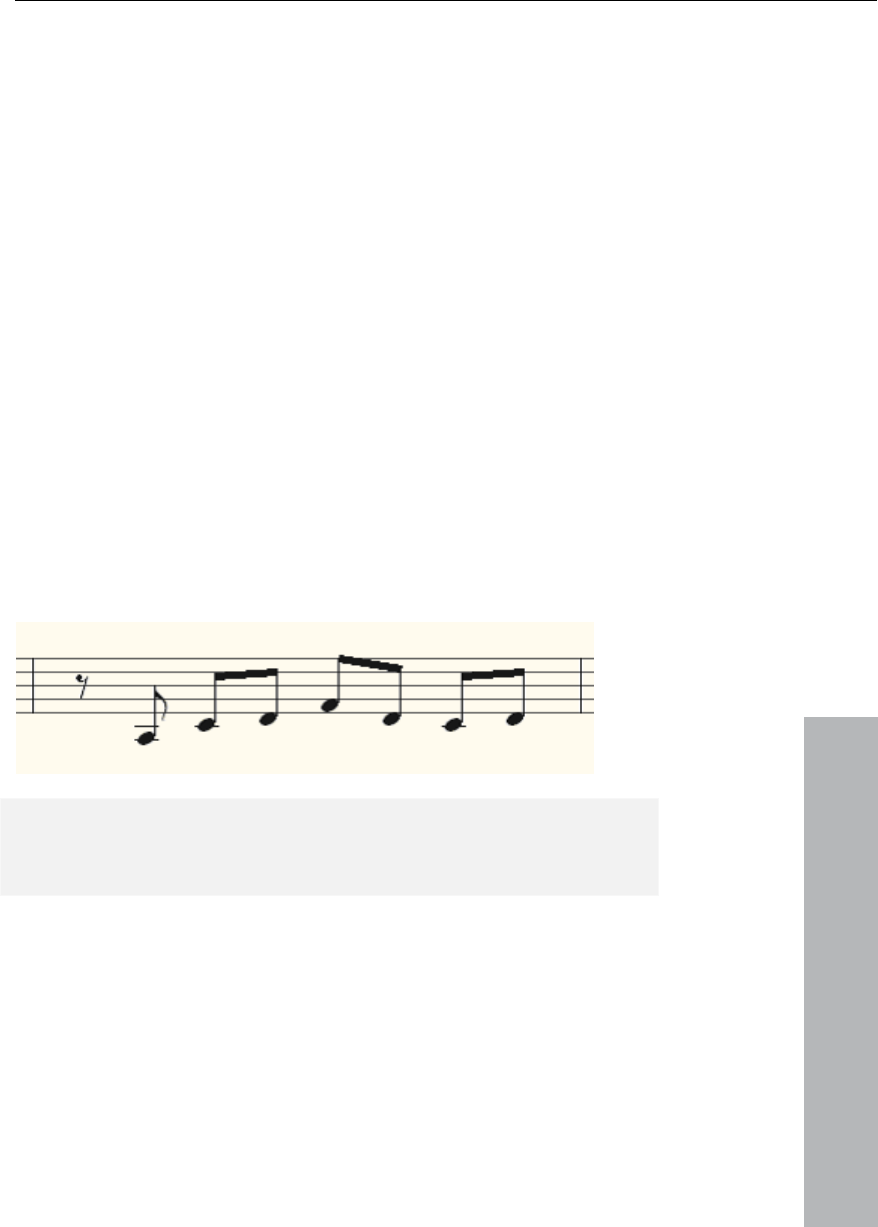
MIDI Editor 177
www.magix.com
hannel matches).
tion are always transferred equally to all staves.
Simplify note lengths (Interpretation)
Automatic staccato articulations
under the split point are added to the system beneath it (as long as
the MIDI c
The active staff is recognizable via the index marked in red. The list of
16 staves can be scrolled vertically using the arrow buttons
(up/down). In the lower range the display options of the active staff
are shown.
Optionally, all changes to settings, display options, clef, and display
quantiza
Note display: Interpretation options
None of the options have any influence on the MIDI files or playback.
Displays rests and slurred notes in such a way that the score is as
legible as possible without influencing playback.
A staccato symbol is added to a note whose value is considerably
longer than the "real MIDI note". This is practical when working with
simplified length display.
Option: "Simplify note lengths (interpretation)" selected.
Additional option: "Automatic staccato articulations".
Hide note overlaps:
Prevents the overlapping of sequential notes which, for example,
arises as a result of playing legato:
Recognize triplets
178 MIDI Editor
www.magix.com
Activate this option if triplets are present in the MIDI object.
Please note: The display quantization value always has to be one
step finer than the smallest discernible triplet value. To recognize one
eighth triplets, display quantization has to be set to at least one
sixteenth (or to 1/64 for 1/32 triplets).
Strict measure/pulse division:
There are no note or rest values longer than a beat subgroup (pulse).
simp
Bea
simp ore.
Recognize grace notes
Note values which are much shorter than the display quantization
Clef
Longer notes are displayed as multiple slurred notes. This can
lify the legibility of the score.
er beam groups:
m groups are partially compiled across beat subgroups. This can
lify the legibility of the sc
Larg
value are annotated as flam notes as long as a base note is present.
Notation symbols
There are four clefs available in MAGIX Music Studio 12 deluxe: violin,
bass, tenor, and alto clef. MAGIX Music Studio 12 deluxe
differentiates between base clef and clef change. The base clef can
be set up for every system in "Score settings" (and applies to all MIDI
objects on the current track). A clef inserted from the tool bar, will be
interpreted as a clef change. Clef changes are possible any number
of times in a song and also within beats.
tion and click on the desired clef in the symbol bar.
The clef will be inserted musically, not graphically, that is, with a clef
Insert: Activate the staff into which the clef should be inserted (by
clicking on the staff signature to the left).
Position the play cursor at the desired insert point and click on the
desired clef in the symbol bar. Move the playback cursor to the
desired insert posi

MIDI Editor 179
www.magix.com
e deleted by clicking on clef symbol with the
eraser (or the right mouse button).
Beat signature
The metric and beat signature s
from the tempo markers of the VIP
Beat changes are possible at ever you
might want to create a beat cou w
signature (for example, 6/8) at th
beat count measure changes, it's of the
piece (for example, 3/4) in the tran
Accidental
change at position 10:01:000 (the beginning of the tenth beat) the
clef symbol at the end of the ninth beat will be displayed according to
note set rules.
Clef changes can also b
ymbols are created automatically
project.
y full beat border. In addition,
nt measure marker with the ne
e desired position. If there are no
enough to set the bar type
sport control.
Enharmonic change
MAGIX Music Studio 12 deluxe set nd flats according to
the clef description you selected. It is often the case, however, that
enharmonic change can considerably optimize the legibility of certain
passages. In this case you can act manually. To change one or more
s the sharps a
selected notes enharmonically, click on the corresponding button.
The function transforms flats into sharps and vice versa.
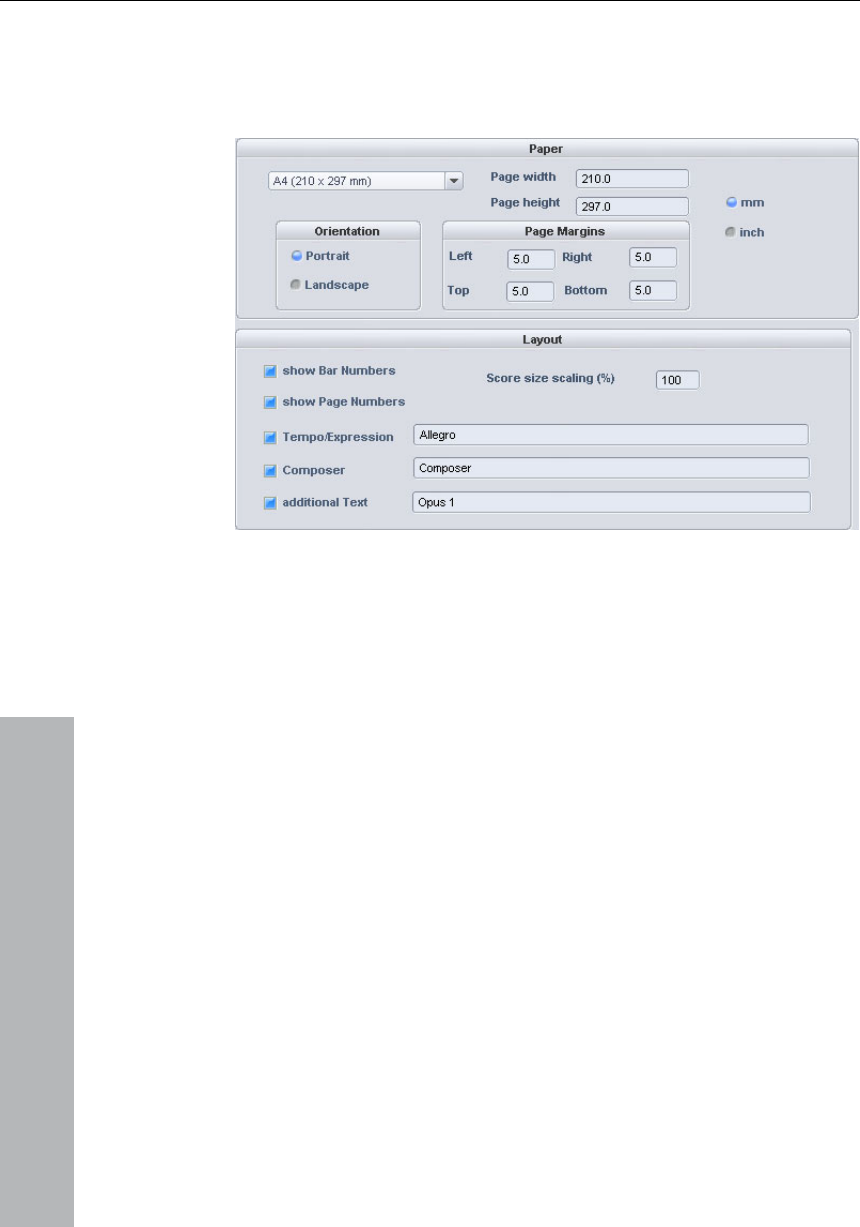
180 MIDI Editor
www.magix.com
ependent of the printer settings so
that it always has the same note layout regardless of workplace and
Page format settings
You can select the page format ind
independent of the printers installed in Windows.
Printing score
wever, the
size of the notes does influence at which position a line or page
rintout.
In the score–page format setting, texts for tempo description,
composer, and an additional text can be entered. Similarly, you can
choose which layout elements should appear on the page
(checkboxes for beat numbers, page numbers, and texts).
MAGIX Music Studio 12 deluxe automatically creates the layout of the
score and caters for optimal division of staves and systems on the
page. You only need to specify the page size, orientation, and page
borders.
• Note size: Here you can scale the size of the note symbols/the
printout. This is actually irrelevant for working with the monitor's
display as you can zoom whenever you want anyway. Ho
break occurs.
• Set a value smaller than 100% to get more beats/systems onto one
piece of paper.
• Set higher values than 100% in order to keep larger note symbols on
the p

MIDI Editor 181
Print notes
Activate the print process in the Score > Print Notes menu or via the
Print button. Furthermore, a printer dialog window appears which
appears differently for each printer or printer driver. Depending on the
printer there are various options, for example, the selection of pages
you wish to print and the number of copies. Make sure that you have
www.magix.com
at for the printer as for the page mode,
s on the monitor
• Mouse pointers
set up the same paper form
otherwise the printout may be scaled and the page ratio changed.
The following won't be printed, it's only visible on the monitor.
• The lines which highlight the page border
• The color display of the currently selected notes and playback areas.
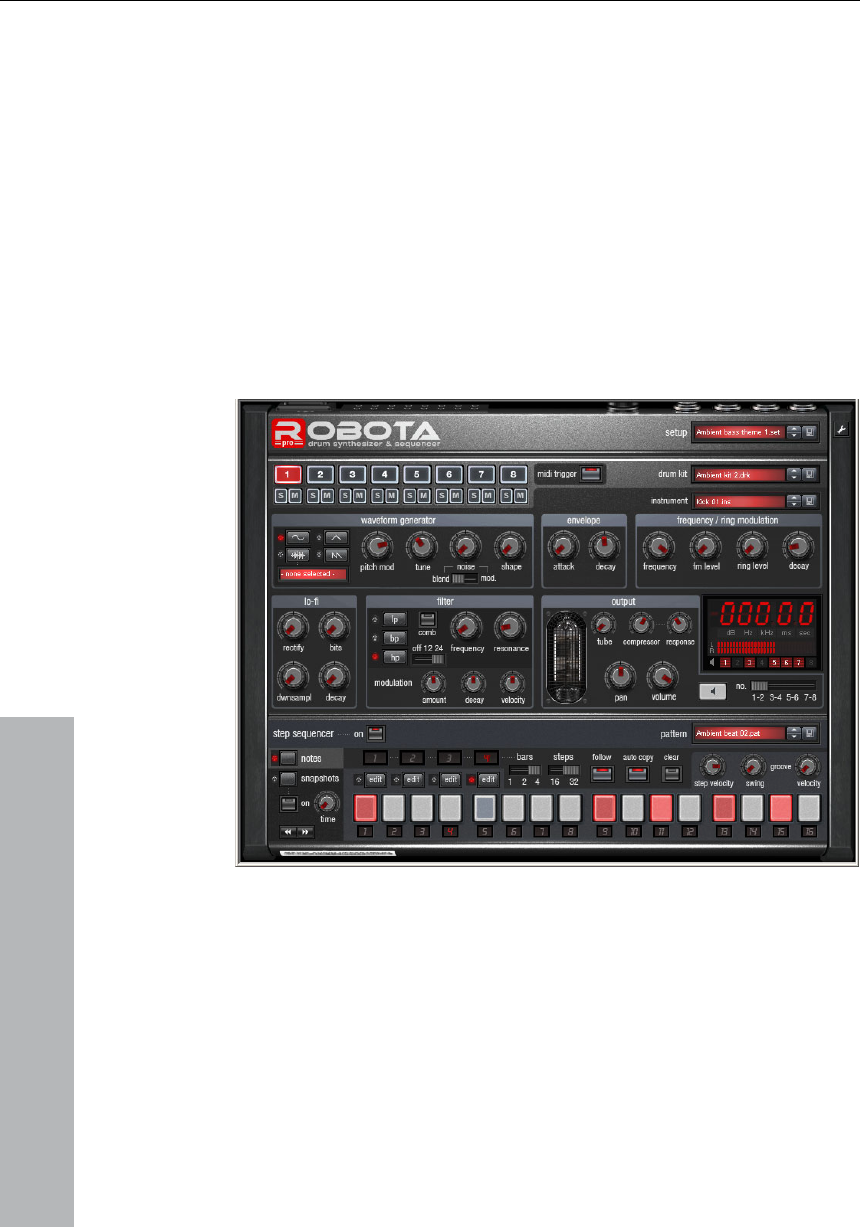
182 Software/VST instruments
Software/VST instruments
www.magix.com
Sample Tank) and can be controlled via the internal MIDI functions
as well as their multiple outputs are
Introduction
MAGIX Music Studio 12 deluxe provides the option of integrating
software instruments as well as MAGIX Synths (for example Roboto
Pro) into a virtual project according to VSTi standards (for example,
and editors. All instruments
seamlessly integrated into the Audio Engine with all of their effects
and routing options. The maximum number of instruments is limited
by the performance power of your processor. You can increase this
number by using the integrated freeze function.
Software Instrument Robota Pro
ts and path
settings
Install every VST instrument according to the instructions of the
sic Studio 12 deluxe searches for installed
Installation of instrumen
manufacturer. MAGIX Mu
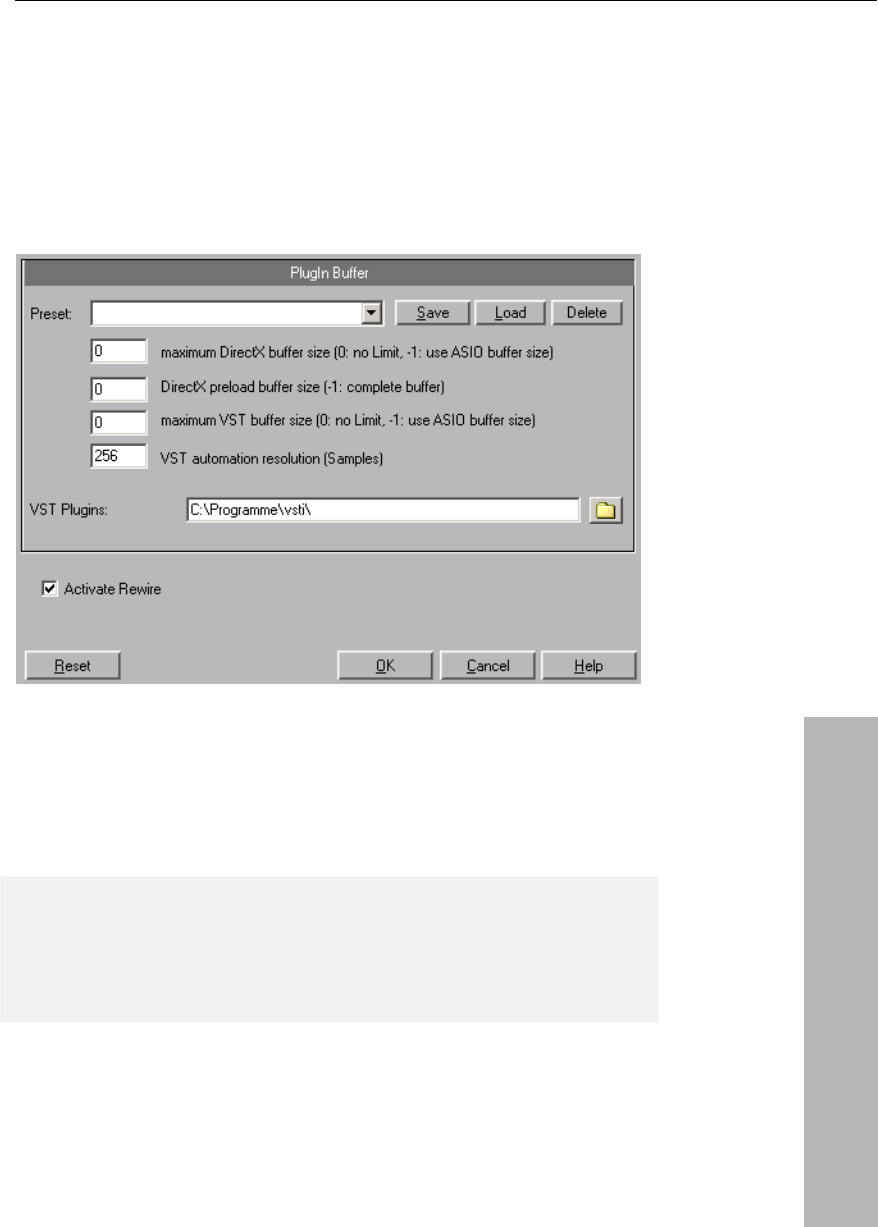
Software/VST instruments 183
www.magix.com
ey) in the "Effects > VST / DirectX / ReWire" subdialog
(entering multiple paths is also possible). Simply enter one path after
VST instruments in the "VST Plug-ins" program subfolder. You can
install your VST instruments either in this folder or use any other path
to an already existing folder, for example, to another host application.
You will, however, have to enter this foreign path in the system
settings ("Y" k
the other, all paths will be taken into consideration. MAGIX Music
Studio 12 deluxe will automatically find newly installed plug-ins
contained within the selected folders.
h is only
The first time the program is opened, a search for existing
instruments and plug-ins is executed when the track settings are
opened. Here, not only are all the plug-ins imported, but they are also
checked for their usability within the program. This searc
necessary once, the next time it is opened, the track settings will be
opened immediately.
Tip: For problems with your current configuration, you can reset all
paths and installed instruments or plug-ins. To do this, delete the
"V e folder. All ST Plug-ins.ini" file in the MAGIX Music Studio 12 delux
paths will have to be newly entered. Plug-ins which were removed
from the program prior to this will still be shown.
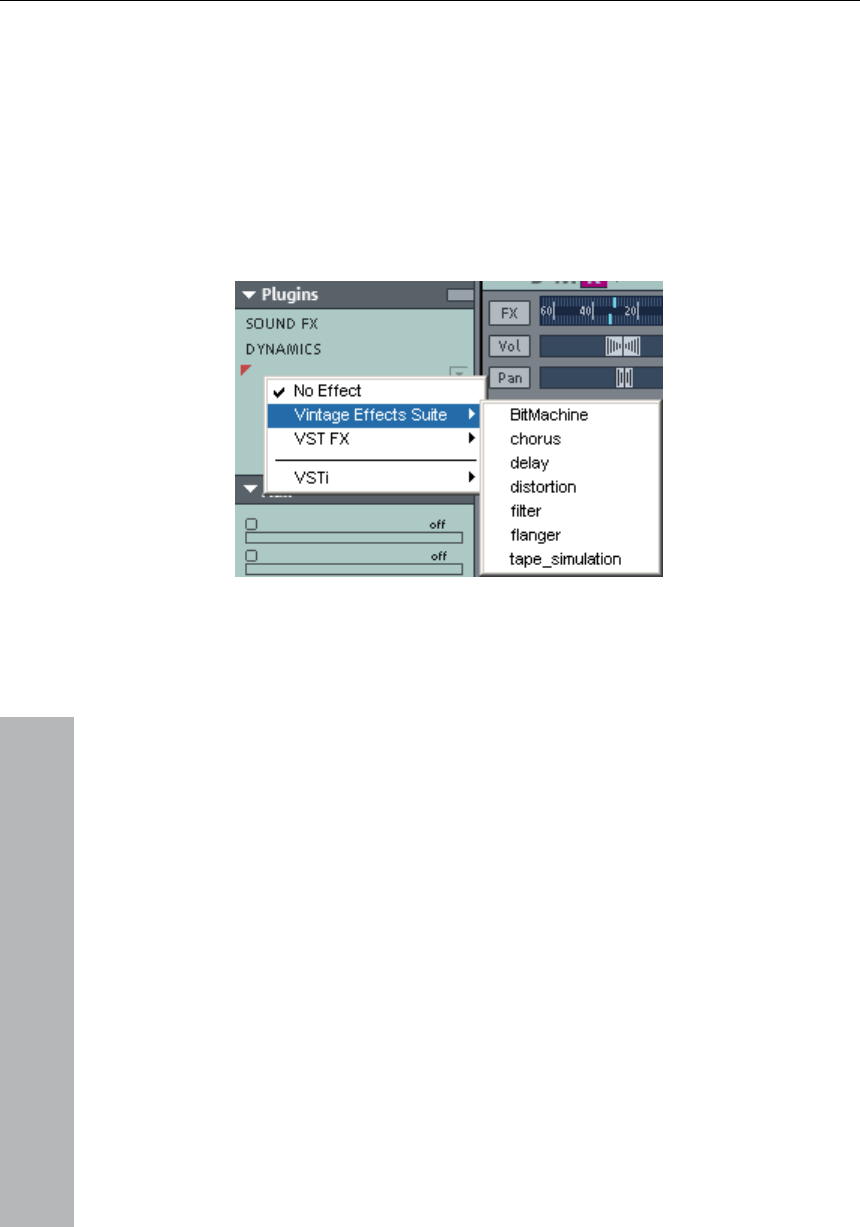
184 Software/VST instruments
www.magix.com
L
Thes
men
to ea strument is selected as a MIDI playback device.
Selected instruments or their individual outputs are shown directly in
sert slot of the track box and mixer track and
can also be muted (left-click) and opened (right-click) from there.
oad instruments
e are managed in MAGIX Music Studio 12 deluxe under "Track
u -> VST Instrument Editor". You can also assign an instrument
ch track – the in
the first VSTi Plug-in/In
• Load an instrument by selecting a "New instrument" in the project
window as a track output. This can happen at various points:
• Playback device menu (right-click on "Mute" button -> MIDI -> New
instrument)
• Plug-ins slot -> VSTi in the Track Editor
• "Out" slot -> New instrument in the MIDI section of the Track Editor.
instrument is
loaded and can be opened again at any later date by right-clicking on
the VSTi slot in which the instrument name is displayed. Alternately,
• Insert effect slot of the mixer -> VSTi: You will only find this option in
the top Insert slot of the individual mixer channels.
• "Out" slot -> MIDI -> New instrument in the Audio section of the
Track Editor.
Adjust instrument parameters
Graphical instrument interface and parameters dialog
The instruments editor (panel) is then opened when an

Software/VST instruments 185
www.magix.com
Editor can also be opened by right-clicking on the record
this dialog eight freely selectable
parameters of the instrument are clearly and numerically displayed.
lso of importance. Once
activated, the automatic processes of the selected parameters are
utomation curve is shown in the project track and can
The parameter selection is saved for each plug-in so that the next
use the same plug-in in a different project, the same
Dialog menu
the Instrument window:
Monitoring: This option must be switched on if you wish to be able to
itoring active when the track's REC button is
pressed, please select the "Tape Monitoring" option in the
trument's
settings and sounds. The standard formats for this are: *.fxp for
wn
patch/bank format, settings are then loaded and saved directly via
the instrument's interface.
the VSTi
button on the track -> Instrument output -> VSTi Editor.
The graphical interface opens by default. If the selected instrument
(or plug-in) does not have its own interface, the parameter dialog will
open. This display mode is limited to just a few control elements and
can only be opened via the menu of the instrument window. Use this
mode if you find the panel of the plug-in too unclear or if it takes up
too much space on the screen. In
Bar controls can be used to adjust the parameter values.
Alongside the combi-boxes for the selection of all instrument
parameters, the "Auto" checkbox is a
started. The a
be edited. The parameter can be automated using the fader.
Activate automation parameters by checking the "Auto" control box.
time you
parameters are used. This way you have the advantage that every
frequently used parameter of the corresponding instrument is
available immediately after it has been opened.
Further options can be found in the menu of
Bypass: Deactivates the instrument and mutes it. Note that some
instruments use up processing power if bypass is switched on but
are still located in the Insert slot. In such cases, the instrument should
be removed completely from the Insert if it is no longer required.
hear the instrument when it is being played or recorded. If you wish
to always have mon
System/Global Audio Options ("Y" key, Audio setup tab) dialog.
Loading/Save patches/banks: Here you can save an ins
patches or *.fxb for whole banks. Some instruments have their o

186 Software/VST instruments
www.magix.com
surprising results and provides interesting results for the
sound design thanks to the random generation of a new sound. Here
ks to
the random placement of various parameters, very extreme sounds
n
experimenting with this function.
itch, or button)
that you modify on the graphical interface.
r instruments live
esizer.
nts,
however, is also possible with MME or WDM drivers.
• ASIO drivers (System/Options > System/Devices > Global audio
Set parameters randomly: Use this function to set all parameters of
an instrument to a random value. For synthesizers, this option can
lead to
you should note, however, that parameters can only be set when
they are accessible via the interface. With some very complex virtual
synthesizers, like, for example, modular systems, some parameters
may not be modifiable using this option. Please note that than
can be generated. This may lead to no sound being produced at all
or extremely loud volumes and frequency ranges being reached. For
this reason you should keep an eye on the preview volume whe
Automate next parameter: If you activate this function, an automation
curve will be drawn from the next parameter (fader, sw
Play and monito
Monitoring
In order to play virtual software instruments you require a device to
enter the data. Typically this would be a MIDI keyboard. Of course
you can also use any other PC that transmits MIDI data or a
hardware synth
For direct monitoring while playing you will in any case require an
audio interface with ASIO drivers. Simply playing instrume
• For live monitoring you also have to make the following settings:
options > Playback devices > Driver system)
• Activate global record monitoring in the Transport Control ("Rec M"
button)
• Activate the track monitoring button (loudspeaker symbol)
• Software Monitoring or Hybrid Engine (Options > System/Global
audio options > Audio setup)
Tip: You can also select monitoring mode by right-clicking on the
Record Monitoring button on the Transport Control.

Software/VST instruments 187
www.magix.com
you play
virtual software instruments. This so-called latency time is mainly
drivers. For playing in
th 23ms at 44.1 kHz. For many users,
however, a latency of 3ms, i.e. 128 samples, is optimum. Please note
ly occurs when an instrument is played, playback latency of
an already recorded MIDI track over a virtual instrument is
way you like. There may be some restrictions when
playing, but all functions are fully available during playback.
Latency: Please not that a system-dependent delay between
pressing the key and the instrument sound occurs when
determined by the buffer size set for the ASIO
an acceptable manner we recommend a buffer size of 1024 samples
max. This corresponds wi
that the CPU load also increases at a lower buffer size. The "live"
delay on
compensated later.
As software instruments are fully integrated into the audio engine of
the program, the signals can be routed, mixed and equipped with
plug-ins any
Hint: Please note that "Track FX Monitoring Mode" or "Mixer FX
Monitoring/Hybrid Engine" have to be acvtivated.
Recording and playback of an instrument
An instrument is recorded much in the same way as a normal MIDI
track. Make sure that the MIDI recording is active in the desired track
and then press the record button in the transport control. The
recording begins immediately.
When playing already recorded MIDI tracks, track monitoring should
be switched off.
Preset management
This flip menu can be used to easily “step through” the presets of
your instrument. These presets can also be selected using the
“Program” menu of the instrument window.
If
ca rams of this instrument. The program slot
pr
If an instrument has presets, these are displayed in the “Program
Slot” (“Prg”) with their internal name (if MIDI mode is activated).
your MIDI input device can send “Program change” commands, you
n also directly select prog
is automatically updated in the track, so you have an overview of the
ogram all the time.

188 Software/VST instruments
www.magix.com
Freezing instruments (Freeze)
S
so
pl
C
th which can be restored (“de-frozen”) at
To “
track
proc e, all MIDI and audio Objects are replaced by a single,
resource-friendly 32bit stereo audio Object, which is now played
back instead of the original Object and the instrument. The existing
ion data and track effects are already included in this Freeze
Select “Track Unfreeze” (Ctrl+Shift+U) to change the original MIDI
Alternatively, you can use the feature “Edit Track Freeze”. In this case
is track
yed together with your arrangement. As soon as you
save this project, a new Freeze Object is processed and included in
Freeze also works with single outputs in different tracks than the main
that has been routed to the track or to the
individual output of the instrument automatically creates an audio file
ually in the frozen track.
oftware instruments require CPU power for playback, which at
me point can be quite considerable and is required during every
ayback. Therefore, please use the Freeze function to release the
PU power for VSTi tracks temporarily. You retain full control over
e MIDI Objects of this track,
any time.
freeze” an instrument, select the “Track Freeze” option in the
menu (keyboard combination: Ctrl+Shift+F). After a short
essing tim
automat
Object.
The actual instrument of this track is no longer addressed by MIDI
files of this track and can even be deactivated, provided that it is not
used by other MIDI tracks.
data at a later point in time that was 'frozen”. The track is now
returned to the state in which it was 'frozen', but again requires the
initial CPU power for processing the instrument.
a new single-track VIP is opened with the original track. Th
cannot be pla
the original project.
output track (Instrument outputs 1+2). You can also freeze these
tracks if they do not contain MIDI information and do not hold
Objects. The MIDI data
that is now played instead of the original instrument. In order to
prevent double playback of the data, deactivate the single output of
the instrument man
To edit Freeze data you cannot only use the Track Freeze Edit
Function as there are is no MIDI data available on this track that

Software/VST instruments 189
could be edited. Therefore, “unfreeze” the track and edit the MIDI
data of the send track. You can then refreeze the track.
www.magix.com
Note: As long as the instrument is not entirely unloaded from the
track it remains loaded into the RAM memory of the system.
Samplers or instruments that require considerable amounts of
memory also require this when their Insert Tracks have been frozen.
Tips on handling virtual instruments
• You can realize so-called stack sounds (i.e. sounds that use several
synthesizers and play these in unison) by opening several
instruments and activating monitoring for all channels.
DI
are
client applications (like,
ction menu of the plug-in slot of the
track and are loaded as software instruments (VSTi). The client
as you can open the plug-in window for VST instruments
by right-clicking.
• To program beats, you can create and save individual drum maps in
the MIDI Editor that match the respective instruments.
• If an instrument can limit the amount of voices, you can use this
option to save CPU power if you do not require the full number of
voices.
• Some instruments use sound sets according to the General MIDI
standard. You can use these instruments for playing back MIDI
files according to the GM standard. Please import the entire MI
file to a single track including all channels. Please ensure that
virtual instruments can also receive program change commands
that are also saved in such a file, so that the correct sounds
played during playback.
ReWire
If this option is activated, ReWire-compatible
for example, Propellerheads Reason) can be integrated into MAGIX
Music Studio 12 deluxe as synthesizers.
Activate ReWire functionality in the program settings ("Y" key).
Afterwards, installed ReWire applications can be loaded as
instruments into a MIDI slot. All ReWire client applications appear as
individual sections in the sele
application should always be launched after Samplitude and should
be closed before exiting Samplitude. Some client applications can be
opened automatically by right-clicking on their name in the MIDI slot
(red) – just
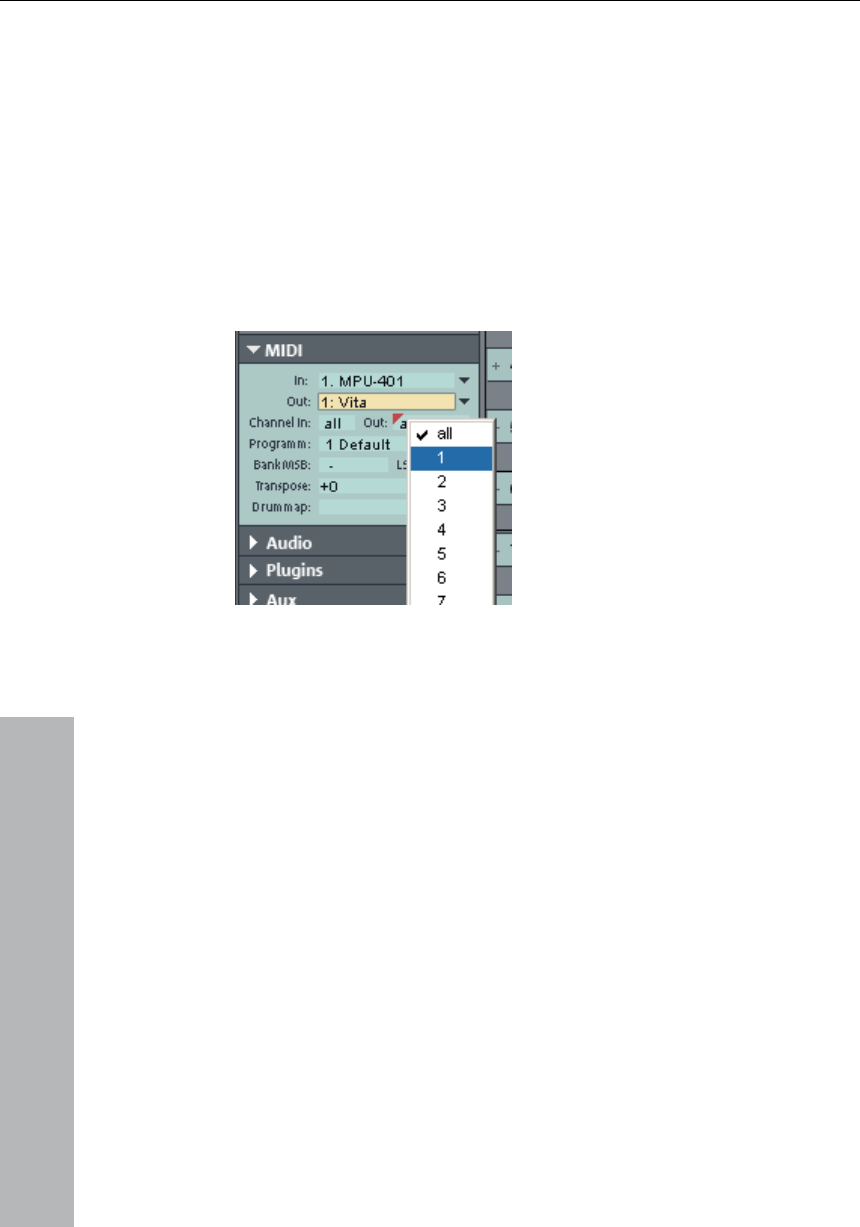
190 Software/VST instruments
www.magix.com
output signal of the ReWire client can
be routed to the MAGIX Music Studio 12 deluxe tracks. (-> more
details on loading the software instruments). The client application
time position of
Samplitude.
The ReWire application can then be accessed like a software
instrument via MIDI, the audio
runs, starts, and stops synchronous to the
ReWire supports up to 4096 MIDI busses. A ReWire client only
registers the MIDI busses that are actually available with the host
(MAGIX Music Studio 12 deluxe). You can therefore select the bus
within the track in the MIDI channel menu (e.g. the receiving
instrument for Reason):
those created in the MIDI file
import, cannot be played correctly
The "classic" MIDI channel of MIDI
notes and events is not important,
it is replaced by the ReWire MIDI
bus system. For each track a MIDI
events of a MIDI object apply to
the track for this ReWire bus,
vents originally had.
Multi-timbral MIDI objects, like
with ReWire. You can, however,
access the ReWire client across
xe).
In this case, you will have to start the client application manually. You
n a special client
mode.
object is able to control a ReWire
MIDI BUS. This means that all
independent of the channel
number the e
multiple tracks on various ReWire
MIDI busses.
Only a few ReWire clients support the direct opening of the client
application via the host application (MAGIX Music Studio 12 delu
can do this by starting your client application as you would normally.
It then automatically recognizes the host and starts i

Synth Objects 191
www.magix.com
duce ‘synth objects’ which are arranged on the
tracks together with the other objects.
The software synthesizers can be found in a special folder which is
ack synths
In MAGIX Music Studio 12 deluxe there are two different types of
Object synths: These synths build individual synth objects in MAGIX
erSynth.
t build any individual synth objects
in MAGIX Music Studio 12 deluxe, rather "normal" MIDI objects. They
correspond to functional external hardware synthesizers or VSTi plug-
ke all MIDI objects, they
Programming the synth object
Synth Objects
MAGIX Music Studio 12 deluxe supplies several synthesizer plug-ins
to create your own drum pattern, bass or melody lines. The
synthesizers pro
Working with synth objects
Opening the synthesizers
copied to your hard disk on installation. To open it, click on the synth
button.
You can find all available synthesizer plug-ins in the selection box.
Object synths and tr
software synthesizers.
Music Studio 12 deluxe. A corresponding synth object can be moved
onto any track without anything changing on the synthesizer settings.
Object synths are the Drum & Bass machine, BeatBox, Atmos, Vita,
LiViD, Robota, SilverSynth, and Copp
Track synths: These synths do no
ins, which are similarly controlled by MIDI. Li
are dependent on the track, that is, the corresponding track synth is
specified in the MIDI track settings. Correspondingly, the track synths
can also be selected in the Track Editor and modified. Vita,
SampleTank, and Revolta belong to this type of software.
Depending on the plug-in, various functions to create and control
sound can be applied via the operating console. Please read the
following chapters pertaining to the individual synthesizers in this
regard.

192 Synth Objects
www.magix.com
g-in solo, without playing the other tracks of the
arrangement as well.
Once you have finished programming the melodies or rhythms of the
very synth object can be reopened at a
later stage by double clicking or via the synth button if you would like
skills to create authentic sounds for your Drum’n’Bass songs.
To monitor programming, playback can be started and stopped at
any time with the space bar while the operating console is open. If
the synth plug-in has its own play button (e.g. the beat box), it will
start the plu
Arranging the synth object
synth object, you can close the operating console and arrange the
synth objects on the tracks. They can be stretched or compressed,
faded in and out, turned down or up etc. with the help of handles:
These steps are the same for all objects.
The operating console of e
to reprogram the object. In addition, you can drag as many other
synth objects of the same software synthesizer as you like onto the
tracks and program them separately.
Drum & Bass machine 2.0
The Drum & Bass machine is a dual synthesizer, uniting both distinct
styles of Drum’n’Bass in one piece of equipment: fast beat crashes
and rumbling bass lines. With the Drum & Bass machine you need no
special
A tip: The typical speed for Drum’n’Bass is usually around 160-180
BPM. The Drum & Bass machine also fits in perfectly with other
music styles, e.g. BigBeat (120 BPM) or Trip-Hop (80-90 BPM).
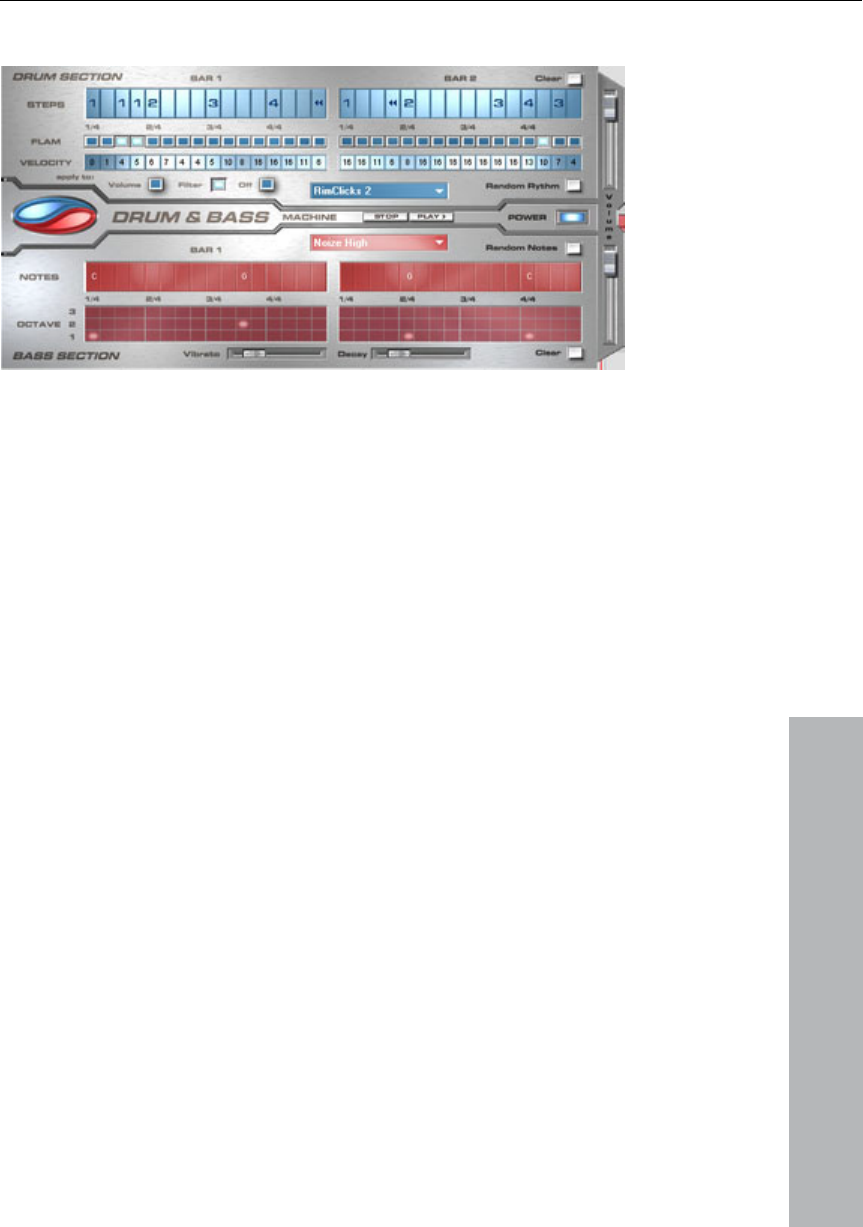
Synth Objects 193
www.magix.com
Set-up
The top half of the synthesizer controls the rhythm section, the
half controls the bass section. Between the two, on the left
into the
p buttons allow you to listen to your
(Clear All/Random
sequence.
bottom
side you will see a symbol, where both sections can be turned on
and off individually. You can, for example, turn off the bass section,
so that you take only the drum section break beat
arrangement. The MAGIX Music Studio 12 deluxe arrangement
mixdown will then only include the drum section in the mixdown file.
The volume control is on the right border, controlling the volume for
both sections. The play and sto
Drum’n’Bass creations up front in MAGIX Music Studio 12 deluxe.
The ‘Drum‘n’Bass’ label covers a menu containing functions to load
and save ‘Drum’n’Bass’ patterns (Load Machine State/Save Machine
State) and functions to delete or generate patterns
All). The submenu ‘Velocity Presets’ contains some help functions for
the programming of the velocity row.
The rhythm section (top half)
Here you can easily create complex and authentic jungle break beat
sounds. In a professional recording studio, jungle backbeats are
created by dividing any given drum loop into several small ‘bits’ and
putting them back together in a different order. This lengthy process
is significantly simplified by the Drum & Bass machine. You just
design your own new play
You set up the new sequence in the top (‘Steps’) row. The blue cells
indicate the individual sections (‘notes’) for the subdivision of the
loop.

194 Synth Objects
www.magix.com
Rely on your own intuition and creativity when programming your
1: Play drum loop from beginning
4: Play drum loop from the fourth note
bol: Play backwards from this point
By clicking on the blue field in the bottom part of the rhythm section
y you.
increases value, right mouse-
click decreases value). Use the three buttons under the ‘Velocity’
how these values will affect the sound of your loop.
A left mouse click on one of the blue cells allows you to select one of
six possible symbols. Each symbol represents a different note or
other way of playing the note. Every time you click on one of the blue
cells, the next symbol is chosen.
beats. It is not absolutely necessary to know the exact meaning of
each individual symbol in order to create cool and authentic beats.
Summary symbol description:
2: Play drum loop from the second note
3: Play drum loop from the third note
Backward sym
Stop symbol: Stops play
The right mouse button allows you to delete the step cells
individually. The ‘Clear’ button on the right deletes all step cells; the
drum loop is played in its original sequence. The ‘Random Rhythm’
button generates a random sequence. You can then alter the rhythm
as you wish.
you open a pop-up menu where you can select the drum loop sound.
If you select a different drum loop, it will be loaded and played as
programmed b
In the "Flame" row you can set the note to be played twice quickly in
succession instead of only once, allowing you to program rolls and
fill-ins.
The ‘Velocity’ row allows you to set intensity values between 0 and
16 with the mouse (left mouse-click
row to determine
If you select ‘Volume’, the velocity value alters the volume for this cell
(16 = loud, 0 = quiet). If you select ‘Filter’, the velocity value alters the

Synth Objects 195
www.magix.com
• By clicking on a cell with the left mouse button, you open a pop-up
octave sound.
Octave 1 creates a deep tone, Octave 3 a high tone. You can only
set the octave values if th
• As in the rhythm section,
Notes’ and a red selectio tion.
The red selection field all
• Underneath the step row s for
sound adjustment. You make the
bass tone ‘swing’ at its
the right, the swing will er; all the way to the left will have
no effect on the pitch.
• With the ‘Delay’ contro to
completely fade out. Al he sound fade
out quickly (after appr ans
ongoing sound.
filter strength for this cell (16 = sharp, 0 = muffled). The ‘None’ button
blocks use of the velocity values.
The bass section (bottom half)
The bass section allows you to create the right bass lines for your
rhythm quickly. As in the rhythm row, there are two-step rows.
• With the first ‘Notes’ row, you determine the sequence of the notes,
i.e. the sound sequence.
window, where you can select the notes.
• By clicking with the right mouse button, you delete a cell.
• If you click on an empty cell with the right mouse button, you will see
a ‘Stop’ symbol. This function is similar to that in the rhythm section:
it stops the bass sound play at this point.
• In the ‘Octave’ row you can determine the bass
ere is a note in the row above.
there are also buttons for ‘Clear’, ‘Random
n field at the top border of the bass sec
ows you to set the bass sound.
s, you will also find two sliding control
can use the ‘Vibrato’ control to
pitch. If the control is pushed all the way to
be strong
ller you can set a time for the sound
l the way to the right makes t
ox. ¼ second); all the way to the left me
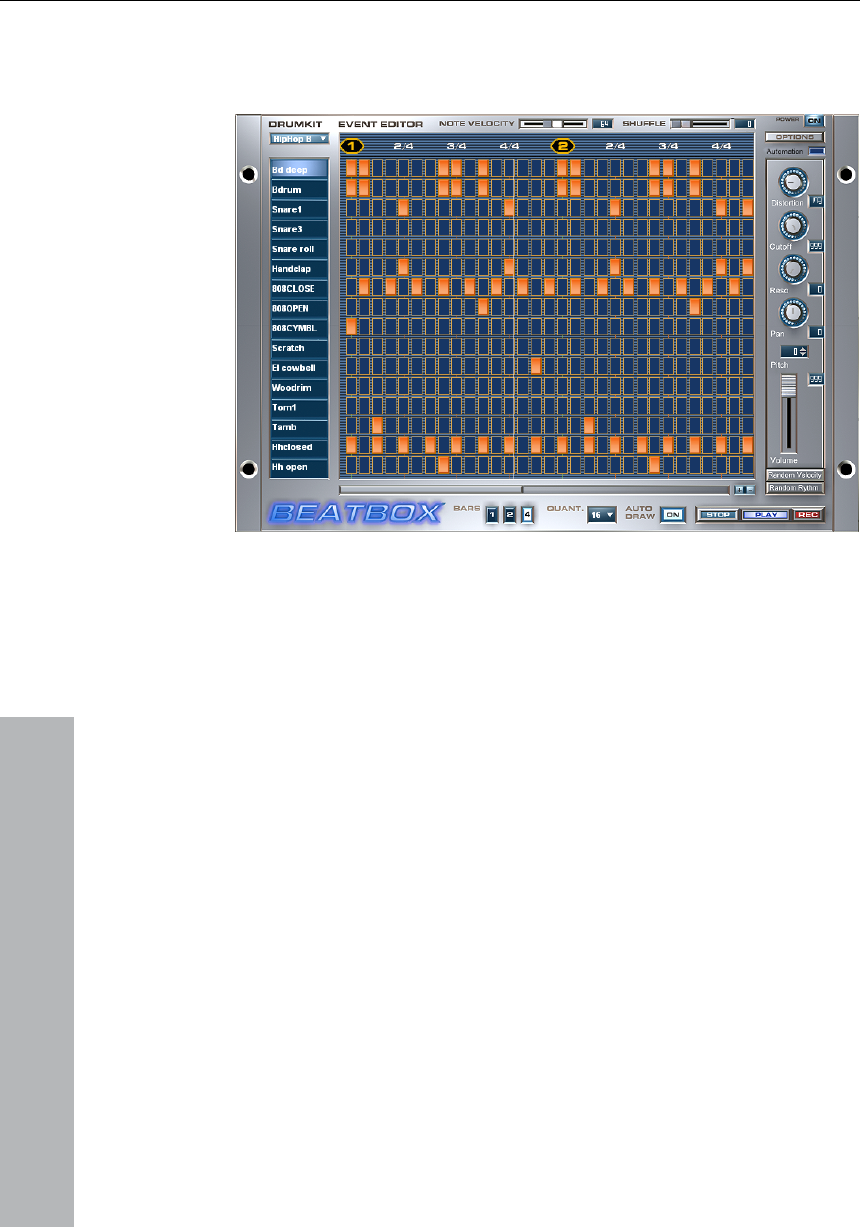
196 Synth Objects
www.magix.com
Beatbox 4.0
The BeatBox is a high quality drum computer plug-in. It can be used
to generate completely new rhythms and drum grooves.
Programming
Each line of the Drum Matrix corresponds with a percussion
instrument, e.g. bass drum or hi-hat. Each column corresponds with
a bar unit (a 16th note is preset)
The drum sounds are played as soon as you click into the Drum
Matrix with the mouse. A note in the lowest line (bass drum) at bar
positions 1, 5, 9, and 13 creates a straight bass drum rhythm to
which you can add more great percussion instruments.
Drum kit
Click on the drum kit button to open a list of available drum kits. A
drum kit is a collection of percussion instruments with matching
sounds, e.g. rock kit or electronic drums à la TR 808. By changing
the drum kit you can add an entirely different sound to the rhythm
you have already created.
New drum or effect sounds can by added to the current drum kit by
drag & drop from the Media Pool.

Synth Objects 197
www.magix.com
rum sounds. Any WAV
file can be dragged & dropped into the drum kit from the Media Pool
and can thus form part of the rhythm. Try it with the rap voice
samples or your own recorded wave files.
Track Effects
To the right of the Drum Matrix you can find the track effects. This
lets you specify the settings for each active drum instrument. The
active instrument is selected by clicking on the drum kit, which then
highlights the instrument.
Buttons
Play: Here playback of the current rhythm pattern starts in solo. Only
the BeatBox can be heard, any other tracks which may be in the
Arranger will not be heard. If the entire arrangement is to be played,
the play start position must occur above the transport functions.
Stop: Ends playback or recording process.
Record: Here the realtime recording function of the BeatBox starts.
Up to 16 drum sounds can now be imported using the computer
keys 1...0 above the letter keys on your keyboard or 1...6 on the
number pad. A drum sound is played for each key and the
corresponding note is activated in the Drum Matrix.
Random Rhythm: This button creates a random rhythm for the
selected instrument.
Random Velocity: This button randomly changes the Velocity (volume)
of the individual beats. This way, a rhythm can be made much more
lively than when the volume is set to the same for all beats.
Volumes: Here you can set the volume of the current instrument.
Pitch: The pitch of the current drum instrument can be set here. You
can access great effects, for example, by downpitching the bass
drum.
to the right. Rhythms, which
sound much more interesting.
This does not mean that you are restricted to d
Pan: Here the stereo panorama of the current drum instrument can
be set. Add the same instrument (for example, Snare) to two tracks,
one panned to the left, the other
alternately use both tracks, now

198 Synth Objects
www.magix.com
You can set the filter resonance here. The higher the value, the
more clearly the filter frequency can be heard, including resonating
we already know from analog synthesizers.
ilter frequency. The sound of the drum
beat is increased at the set frequency position. Frequencies above it
d.
This can be used to create really "dirty" sounds as well as for
ts.
o set the volume of individual drum
notes. If multiple notes are selected, they will be edited together.
Bars 1-2-4: With this button you can set the length of a loop of the
aw: If more than one bar has been activated as a loop length,
the Auto Draw mode makes sure that the drum notes which are set
set in the bars further back are not affected
by the Auto Draw function, which, for example, makes faint variations
ble only in the fourth bar.
r very simple rhythms), 1/16 (default), 1/32 (for
more refined constructions) and "free". In this case, the timing is set
l for the more lively design
of fixed rhythms by moving individual notes here and there.
Playing BeatBox on your computer keyboard
is on the keys: < z x c v b n m ; the upper octave is
on the keys: q w e r t y u i.
Reso:
whistling sounds, which
Cut-off: This fader sets the f
are dampened which creates the typical filter sound.
Distortion: This fader controls a distortion of the current drum soun
distortion sound effec
Shuffle: This fader changes the timing of the BeatBox. If the fader is
turned to the right, the eighth of a rhythm is played more and more
like a triplet. If that sounds a bit too abstract – simply try it out, ideally
with a pure 1/16 Hi-Hat figure; you'll soon see what the shuffle fader
is capable of.
Note Velocity: Use this fader t
BeatBox in bars. You can choose from 1 bar, 2 bars, and 4 bars.
Auto Dr
automatically in the first beat are set in the subsequent beats. This
also makes it easy to create a continuous beat, even with a loop
length of four bars. Notes
detecta
Quant: Here you can set the tempo of the BeatBox. You can choose
from 1/8 notes (only fo
by the exactness of the mouse click – idea
The lower octave
The black keyboard keys are in between, i. e. the "A" key for #C (C
sharp).
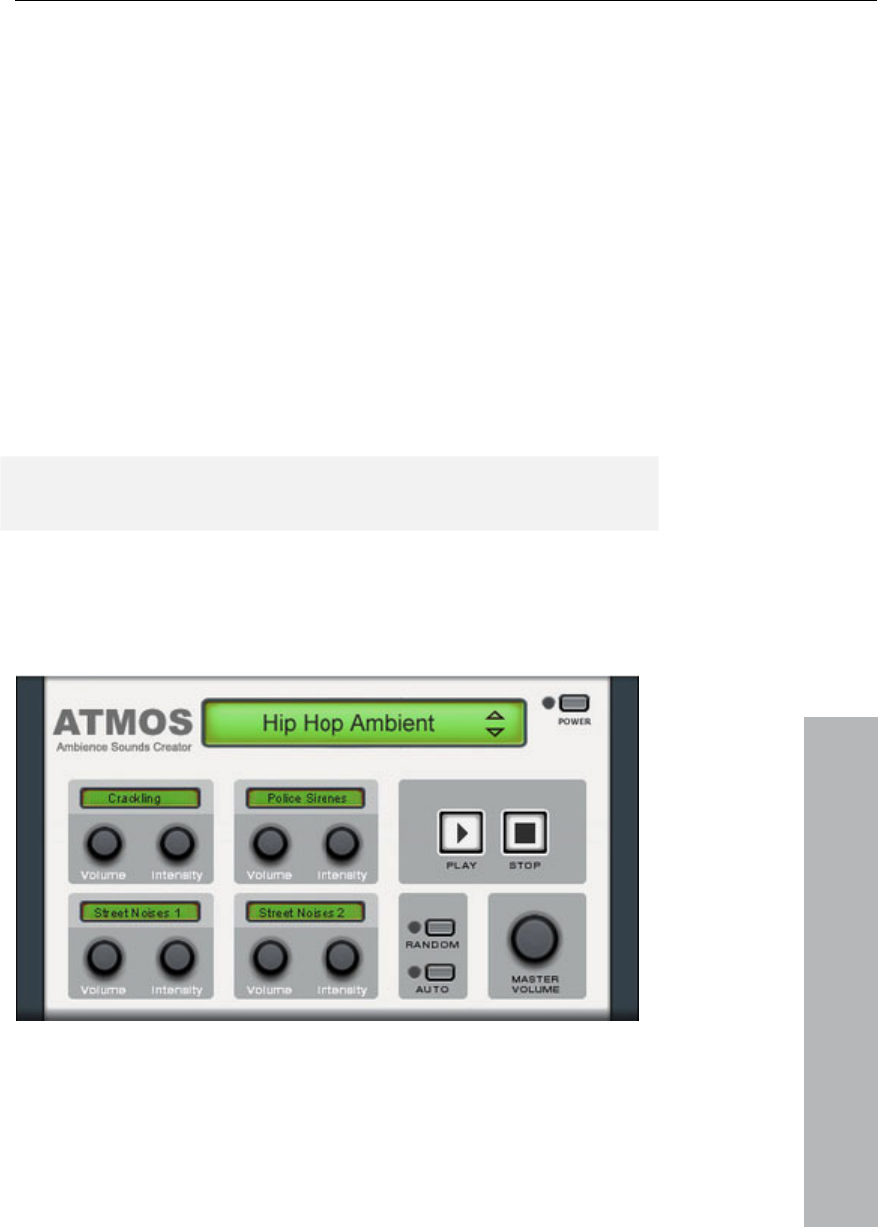
Synth Objects 199
www.magix.com
oard
There is not a lot you need to take note of here. You can start playing
n of all
BeatBox effects. Click on "Automation" at any time during playback.
t settings will be recorded from now on and will be taken into
account when playing the synth object in the arrangement.
The recorded effect automation can be deleted via the Options menu
eatBox.
Playing BeatBox on the MIDI keyb
away once the proper MIDI driver has been selected! The sounds
listed in the column on the left can be accessed with the keys of the
C0 octave.
Effect automation
The new version "BeatBox 4.0" enables the automatio
All effec
of the B
Atmos
Upon registration of MAGIX Music Studio 12 deluxe you will receive
the Atmos synthesizer as a free download.
Atmos is a comprehensive tool which can be used to easily create
realistic nature sounds in no time. From thunder and lightning to
raffic noise, Atmos helps you design natural-
sounding atmospheric noises for your projects.
animal sounds and t

200 Synth Objects
www.magix.com
).
• In the middle of the window appears a collection of control elements
nce" can be designed. Each element
has its own description (for example, "Thunder") and two faders
f the sound – depending
on controller element. For example, with "Thunder" you can set how
sound; with "Rain", the strength
of the rain can be regulated (if moved to the far left, light rain can be
right border you will find a master volume fader with
which the master volume of the synthesizer can be set.
ize" can also be found there.
This way you can change the settings of the control elements by
Vita
MAGIX Vita Synthesizer specializes on realistic playback of "real"
different pitches, playing
techniques and volumes are used, combined, and played again at the
You can adjust the sounds of Vita via the instrument menu of
• At the upper border window select the upper category "Scenario".
Here, you can select a desired nature sounds category (for example,
"Thunder and Lightning"
with which the desired "Ambie
"Volume" and "Intensity".
• The "Intensity" fader controls the behavior o
often thunder and lightning should
heard, while if moved to the far right, a downpour with loud
splashing noises is audible).
• At the bottom
Furthermore, the setting "Random
yourself.
instruments for which it uses sampling technology. This means that
short samples of real instruments in
correct pitch.
The VITA synthesizer is controlled via the MIDI objects. If you load
Vita via the Media Pool, a preset MIDI object will appear first. You can
then load different Vita sounds via the Output menu at the top of the
MIDI Editor.
the trackbox.
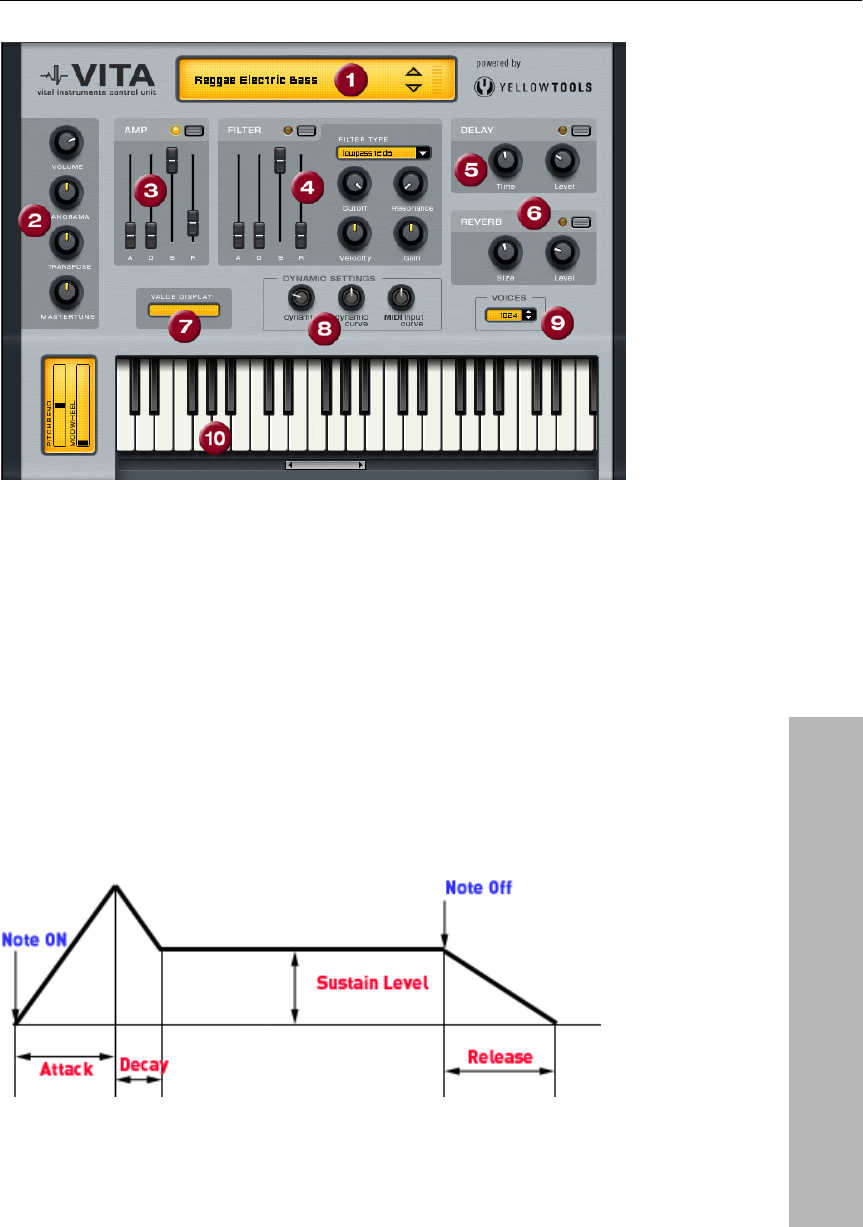
Synth Objects 201
www.magix.com
The Vita interface
1. Layer selection/Peak meter: The Vita sounds, also known as layers,
can be selected here using the arrows. Right-clicking on the display
2. Main parameter: Here the volume, panorama position, pitch
characteris r
tune") can
3. AMP: This is the volume envelope. Here you can influence the
temporal progression of a track's volume. A(ttack) stands for the
to ring out.
opens the layer menu.
tics ("transpose") and the fundamental frequency ("maste
be set.
volume increase at the start, D(ecay) for the length of time the
decrease in volume takes to reach a section known as S(ustain) at
the maximum volume. R(elease) is the length of time it takes for the
sound

202 Synth Objects
www.magix.com
filter which influences the
ound. With FILTER TYPE, you can select a filter type. "Cut-off"
regulates the filter " controls the strength of
the amplification of the filter frequency. "Velocity" specifies how
. DELAY: Here you can switch on an echo effect, "Time" controls
the delay time, "Le
6. REVERB: Here
the delay time, "Leve the echo sound.
7. VALUE DISPLA
parameter which was
volume and MIDI velocity is proportional. Since some MIDI keyboards
elocity which is too hard for loud sounds or the other way
around, this behavior can be balanced out with the "MIDI Input
9. Voices: Here you can control the amount of voices played
ng fast passages,
you can increase the amount of voices here (performance will not be
as good).
10. Keyboard: Here you can preview the Vita sounds. This only works
during playback or recording.
L e Virtual Drummer
M
ba will play a full drum track, complete with intro,
re is laid
prof io musicians and a freely adjustable “Humanize“
function create an authentic drum feel with perfect sound quality.
4. FILTER: Here you can switch on a
s
frequency, "Resonance
strongly beat should influence the filter frequency, while the volume
can be balanced using the "Gain" controller. The filter envelope
(ADSR slider) influences the filter frequency depending on the time.
5
vel" controls the strength of the echo sound.
you can switch on a reverb effect, "Time" controls
l" controls the strength of
Y: The value display shows the exact value of the
just modified.
8. DYNAMIC RANGE: Usually, the relationship between the created
produce a v
Curve". With "dynamic" and "dynamic curve" the dynamics of the
sound can be influenced, that is, the relationship between the
quietest and loudest sounds.
simultaneously. If notes are no longer played duri
iViD - Littl
AGIX LiViD helps you to turn your ideas into songs. Enter a few
sic details and LiViD
verses, choruses, fills, bridges etc.; the entire song structu
out for your convenience. Brilliant stereo drum samples recorded by
essional stud

Synth Objects 203
www.magix.com
sections for
each substyle (Intro, Verse, Bridge, Chorus, Outro, Fill-in).
Scramble: A
internally for eac rates
a new pattern order.
Shuffle: Shifts the second and fourth 16th note of a beat back by a
mount (100% = triplet rhythm).
Snare: Sets the snare stick style to “normal”, “side stick” (stick hits
the rim while resting on the skin) or “rim shot” (sticks hits the rim and
skin simultaneously). Exception: the snare’s quietest velocity level (
the ‘ghost notes’) is always “normal”.
SampleTank 2 MX (SE)
What is SampleTank 2 MX (SE)
SampleTank 2 MX (SE) is a polyp ple
workstation with multi-effects units and proprietary sound banks, all
combined into a unique plug-in instrument. SampleTank 2 MX (SE)
uses samples as oscillator waveforms,
more flexible than conventional hard
SampleTank 2 MX (SE) a more complex than a traditional
sampler, with 32-bit floating-point pro
superior quality.
SampleTank 2 MX (SE) lets you browse through hundreds of the
lity natural and synthesized. With one click, select a
sound in a flash and have it ready for you to play in a fraction of the
LiViD features four styles (Pop, Rock, Funk, Latin), each of which is
subdivided into four further substyles, as well as six song
random sequence of four one-bar patterns is generated
h style/substyle/song section. “Scramble” gene
freely definable a
Humanize: Randomly shifts all events backwards or forwards or
leaves them unaffected. Note: these shifts are very subtle and not
always immediately perceptible!
Hi-hat: Sets the hi-hat sound to “soft” (fully closed) or “hard” (half-
open). Exception: completely opened hi-hat (Pop, Type1, Verse).
Ride: Sets the ride cymbal sound to “ride” (cymbal is hit on the rim)
or “ride bell” (cymbal is hit on the bell at the center).
honic, multi-timbral sam
but the synth engine is much
ware samplers. This makes
workstation
cessing, providing you with
highest-qua
usual time. Many professional high-quality sounds are included with
the software, and as such are immediately at your disposal.
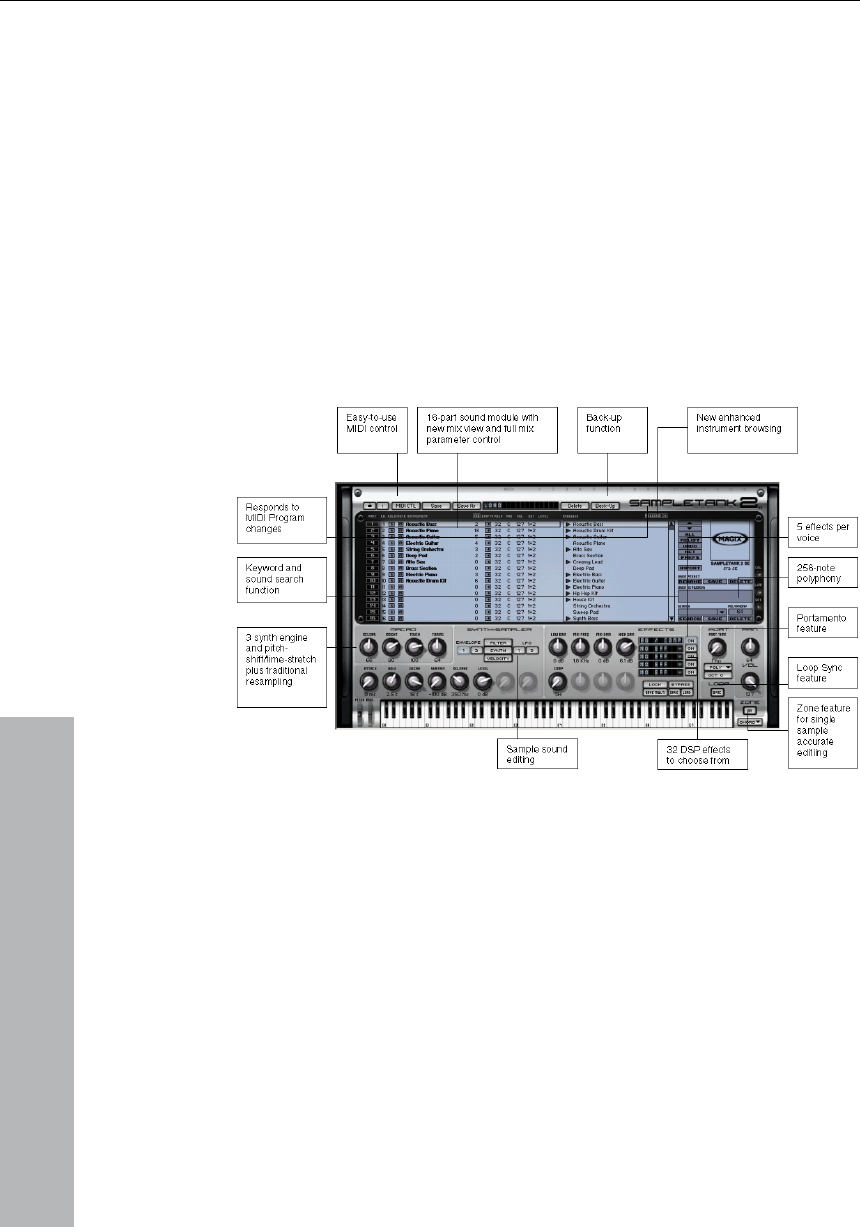
204 Synth Objects
www.magix.com
es, strings, orchestral sounds, drums
and other percussion instruments made with the finest samples and
ram.
Explanaition of the user interface
6 sounds (deLuxe version: 10) are included and ready for use:
Superb pianos, guitars, bass
accurately programmed. SampleTank 2 MX (SE) offers the widest
selection of high quality playable sounds with a variety you cannot
find anywhere else!
Furthermore, you can purchase new instruments from the MAGIX
Online Content Library straight from within your MAGIX prog
SampleTank 2 MX (SE) will be automatically integrated into your
MAGIX software. A suitable audio card (with low latency drivers) and
a master MIDI keyboard are strongly recommended in order to play it
like a hardware musical instrument.
s the number of available instruments you can
simultaneously load into SampleTank 2 MX (SE) module (16 parts).
r sounds
are located. This folder is called “root” and is stored in the
Loading sounds and controlling instruments
The available instruments are displayed at the center of the
SampleTank 2 MX (SE) interface in the browser window. The
scrollable list of instruments shows 6/10 instruments (classic/deLuxe)
and also display
The browser list of folders and instruments reflects the same folder
and instrument structure of the hard disk folder where you
SampleTank 2 MX (SE) preferences (which you can access and
change by clicking the PREF button).

Synth Objects 205
www.magix.com
ed with a white triangle. To open a folder, click on
its name in the list or on the triangle. Opened folders display the list
To load an instrument in SampleTank 2 MX (SE) simply double-click
All the SampleTank 2 MX (SE) parameters on the interface will now
ed into a PART. To select the PART where you
want to load an instrument simply click on the PART number or in the
will be loaded into that
PART. If it already contains an instrument, the newly loaded
replace the previous one (you can UNDO this
UNDO button).
T belongs to. Assigning the same MIDI
channel to more than one PART will have all the PARTs responding to
• You can change the MIDI channel associated to that PART.
• You can SOLO and MUTE instruments.
Folders are indicat
of available instruments. To close a folder, re-click on its name or on
the triangle.
on it. It will be loaded onto PART 1 (if it's the first to be loaded).
reflect those of the loaded parts. The MIX window allows you to load
up to 6/10 SampleTank 2 MX (SE) instruments per module, every
instrument will be load
middle of the part window.
Once a PART is selected, the instrument
instrument will
operation with the
Every PART responds to a MIDI channel (CH). By clicking and
dragging on the CH number of each PART you can easily select the
MIDI channel that this PAR
the same MIDI channel for building sounds with layers of up to 16
parts.
You can now play the instrument using a master keyboard connected
to the sequencer, a MIDI sequence in the track or by playing the
SampleTank 2 MX (SE) mini-keyboard. MIDI activity in the PART is
indicated by an LED which lights when MIDI data is received.
Once an instrument is loaded into a PART, the image of the LIBRARY
to which the instrument belongs, will appear on the right side of the
interface. Clicking on the LIBRARY image will display further
information such as instrument data, copyright and MACRO controls
(if these are included with the instrument).
The MIX window
All the controls included in the MIX window are designed to give you
immediate control over your mix of instruments. Here you have
several controls at your disposal:

206 Synth Objects
www.magix.com
ach specific instrument (by
clicking and dragging the mouse on the POLY number).
• You can control which STEREO OUT is used for playing a PART (the
• You can see the output level of the instrument playing in the LEVEL
Each SampleTank 2 MX (SE) instrument can be programmed with 5
The first effect
slot always contains an EQ compressor. The other 5 effect slots can
To view the list of available effects once you've loaded an instrument,
right in each of the 5 effects slot. A pop-up
menu will appear displaying all the 32 DSP effects which are available
ith the mouse and click on an effect to load
it. The selected effect name will now show in the effects slot. To
ECT option.
Unused knobs will be shaded in gray. Above each effect knob you
• You can see the amount of RAM that the instrument is using (MB).
By clicking on the MB button at the top you can also display the
entire amount of RAM used by all the loaded instruments.
• You can set the maximum polyphony for e
• You can EMPTY the PART with the EMPTY button.
You can control the VOLUME and PAN of each specific PART (by
clicking and dragging the mouse on the VOL and PAN number).
max number of stereo outputs is set in PREFERENCES by clicking
the PREF button) by clicking and dragging the mouse on the OUT
value.
display.
Effects
One or more pre-defined effects will be loaded and displayed in the
EFFECTS section of the SampleTank 2 MX (SE) interface.
effects. The effects are displayed in the effects slots.
contain one of 32 DSP effects.
click on the arrow at the
in SampleTank 2 MX (SE) in your MAGIX software.
Now move the selection w
empty an effects slot, simply select the NO EFF
To view and change each effect's parameters, click on the desired
effect's slot. A frame will appear around the slot indicating that that
effect is selected. Only the selected effect will be shown on the
interface at any time. Effect knobs are labeled corresponding to the
effect's parameters.
can read a label corresponding to its function. Below the effect knob
is its current value.

Synth Objects 207
www.magix.com
To activate an effect, click on its ON button to the right. The button is
deactivate an effect, click on the ON button again.
You can BYPASS all effects at once (that is, hear the sound dry) by
ns asking whether the files should be
saved or not.
, such as the Roland Tr-808 and Tr-
909, or more recent devices such as the Korg Electribe or the Jomox
each of the 4 parts (or instruments) can be edited using
modulators.
are
an
e
distributed within the beat pattern. In Snapshot t
additional instrument sound settings.
highlighted and the effect is active. All active effects are inserted in the
instrument chain according to a patch order from top to bottom of the
effect window. To
The button will revert to 'normal'.
clicking on the BYPASS button. You can also LOCK effects into
SLOTS preventing them from changing when a new instrument is
loaded. This way you can prevent instrument effect settings
overriding your own settings.
You can also save multiple or single effect settings and load these
settings with the SAVE MULTI, SAVE and LOAD buttons. The effect
settings are saved as .STFX file. A dialog window will appear when
you click one of these butto
Robota
The Robota is a four-part drum computer with virtual analog and
sample-based sound production. Virtual analog sound production
means that the sounds are synthesized in real-time, i.e. produced
with a synthesizer – therefore recreating the typical analog sounds of
the classical drum computers
x-cousin. Sample sound production uses drum sound recordings (or
even other recordings) as the basis for sound production.
After selecting the elementary sound production technique, the
sounds of
The step sequencer programmed with incident lighting helps Robota
to play. 4 beats in sixteenths (or 2 beats in thirty-seconds)
processed as a loop. At each beat position, the playing positions c
be set by clicking a button. In Event mode, the instruments ar
mode you can adjus
Sound synthesis
The four instruments of the Robota are built identically. Each
instrument can create all kinds of drum sounds – from hissing hi-hat
to phat bass drums.
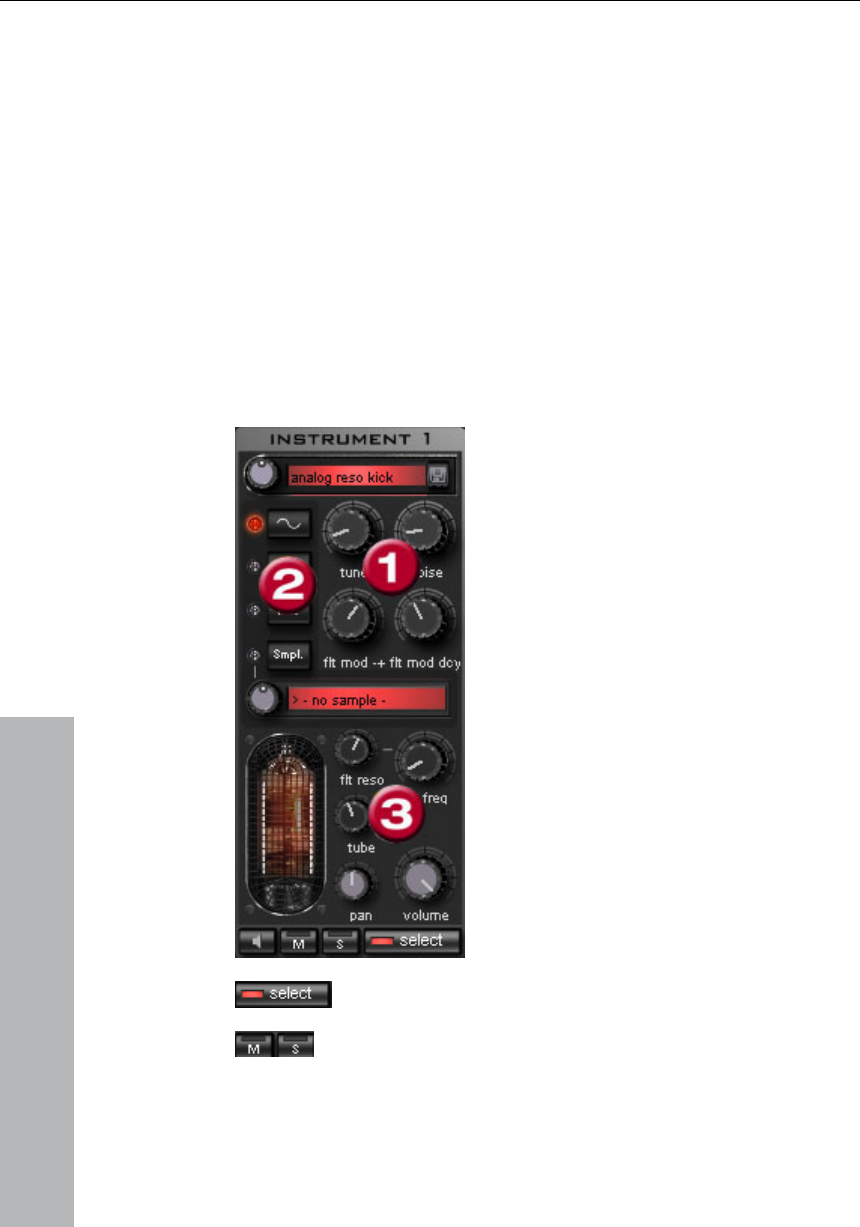
208 Synth Objects
www.magix.com
During elementary sound production, you can choose between an
oscillator with selectable wave shape (sine, triangle or saw tooth) or a
sample. In addition, you can add a noise generator can be added.
The oscillator has a pitch envelope (pitch env.) and a volume
envelope (attack/decay). It can also be frequency and ring-
modulated. The depth of the modulation can be controlled via an
envelope parameter (Fm/rng dcy). There’s also a “Lo-Fi” section
consisting of distortion (Rectify), bit rate reduction (Crush) and
sampling rate reduction (downsmple).
Temporal control via an envelope (lofi dcy) will get the best out of the
Lo-Fi effects. A multi-mode filter (low-pass/band-pass filter/high-
pass) with 12/24 dB steep-side. A comb filter can be inserted. The
filter frequency can be likewise modulated via an envelope. For extra
pressure, an adjustable compressor (compressor, comp resp) is
included, as well as tube amplifier simulation (tube).
Cutoff, Resonance, Tube, Volume and
Panorama (see page 210).
Parameter (1) vTo simplify matters, not all
parameters can be changed on a sound -
only those that are meaningful for the
selected drum sound may be changesd
(sna
sele
ord cted preset
sound.
Oscillator Waveform (2): The fundamental
waveform of the Oszillators is selected
here
sinu awtooth/sample. If you
have selected "Smpl" you can use the
rotary knob to select a sample, i.e. a
previously recorded drum sound. These
samples are saved in the folder
/Synth/robota/samples/. If select custom
samples, they will appear in the selection
(3):For each part you can regulate: Filter
re, kick, high etc.). There are four
cted variable parameters co-
inated exactly with the sele
. You can chools from
s/triangle/s
list.
With select choose the instrument for editing in the step
sequencer.
“M” mutes the instrument, “S” makes it solo

Synth Objects 209
www.magix.com
The Loudspeaker button allows you to hear a preview.
Master Section
Volume regulates the total volume of the Robota. Distortion adds an
adjustable tube distortion to make the sound “dirtier” and more
powerful. The peak meter helps control the output level – when it
enters the red area, reduce the total volume.
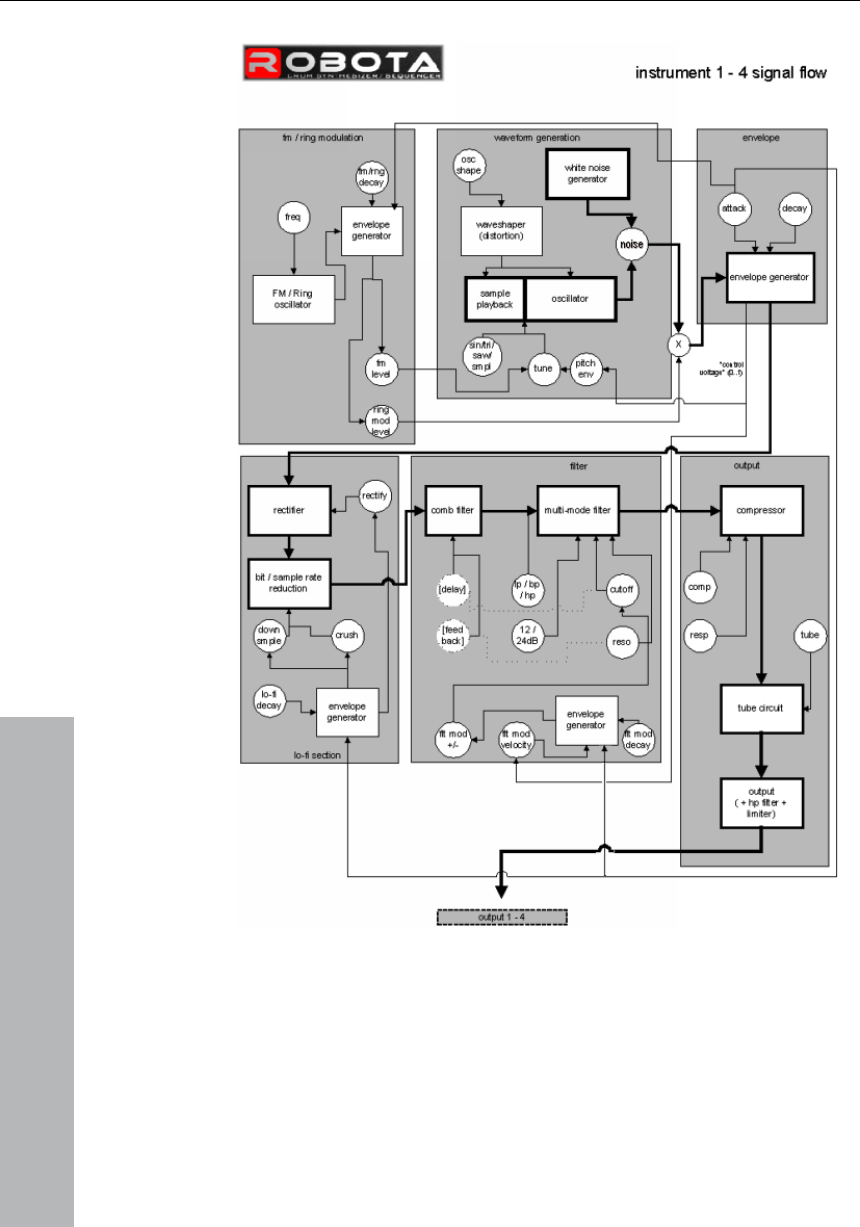
210 Synth Objects
Schematic illustration of the Robota synthesis
www.magix.com
Here you will find a detailed circuit diagram of a Robota voice with a
description of all control parameters.
Pitch Envelope (pitch env)
Controls the pitch envelope level.

Synth Objects 211
www.magix.com
Oscillator Shape (osc shape)
the oscillators is selected here. You
can choose from sine/triangle/sawtooth/sample. If "Sample" is
nth/robota/samples/. If you select custom samples, they will
appear in the selection list. If you are playing your own samples, they
between the oscillator sound and the noise generator.
curve. The greater the value, the slower the
instrument will decay.
Tune
Tunes the instrument.
The shaper adds additional frequency shares to the basic sound of
the oscillator by artificially reshaping the wave shape. A sine wave
(shape = 0) can be reshaped up to a square curve (shape = max).
Oscillator Waveform
The fundamental wave form of
selected, you can use the controller to select a sample, i.e. a
previously recorded drum sound. These samples are saved in the
folder /Sy
will appear in the selection list.
Noise
Adjust the ratio
Attack
Adjusts the attack time. The greater the set value, the softer the
attack of the sound. The attack rate is also applied to the LoFi and
filter envelope curves.
Decay
Adjusts the decay
FM/Ringmodulation frequency (Fm/rng frq)
The fundamental frequency of the frequency or ring modulation.
FM Level (fm lvl)
At a low frequency FM first adds vibration to the sound, at high
frequencies and low levels it creates bell-like sounds, as the level
increases metal sounds, and finally noise.

212 Synth Objects
www.magix.com
y-product of FM/ring modulation. Only the
beginning of the drum sound is affected by the modulation.
the "old school sound" of
older digital drum machines. As it is increased, the result becomes
Lo-Fi decay (lofi dcy)
portions above and below
the cut-off frequency are filtered out. Low cut - All sound portions
below the cut-off frequency are filtered out. This mode is set as a
preset and can not be changed.
Filter frequency (flt freq)
The cut-off frequency of the filter.
Filter resonance (flt reso)
Ring modulation level (rng lvl)
Ring modulation creates typical auxiliary frequencies.
FM/Ring modulation decay (Fm/rng dcy)
Time constant of b
Rectify
Distorts the audio signal
Crush
Bit rate reduction. Digital artefacts become audible with higher
settings.
Down sample (dwnsmple)
Sample rate reduction. Ideal for creating
darker.
Time constant of the by-product of the three lo-fi effects for making
the sound "dirty". Only the beginning of the drum sound of the lo-fi
effects is affected if the decay is low. For instance, this makes the
kick of a kick drum sound more interesting.
Filter modes (flt mode)
Filter mode: High cut – sound portions above the cut-off frequency
are filtered out. Band pass (BP) – Sound

Synth Objects 213
www.magix.com
igh, the filter itself can also
be used as an oscillator.
Filter modulation velocity (flt mod vel)
r beats will generate higher
filter curves than quieter ones.
is
set as a preset and can not be changed.
preset and can not be changed.
Controls the compressor strength. This lets you increase the "power"
of the drum sound.
e faster the
compressor follows the volume.
Tube
Filter resonance which increases the sound portions at the cut-off
frequency of the filter. If the resonance is h
Filter modulation -/+ (flt mod -+)
Regulates how much and in which direction the filter envelope curve
moves the filter frequency in which direction.
Filter-Modulation decay (flt mod dcy)
Decay time of the filter curve. Smaller values with high resonance
create a "zapping" sound of the filter, greater values create the typical
sweep sound.
Specifies how much the filter modulation depth depends on the
velocity. If this value is increased, loude
24 dB
The filter can operate with a slope of 12 dB or 24 dB. This mode
Comb filter (comb filt on)
You can activate a comb filter, a feedback delay that creates
resonance-like sounds comparable to a plucked string. The delay
time and feedback levels are permanently linked fo the filter
parameters (frequency and resonance). This comb filter is set as a
Compressor
Compressor response (comp resp)
Controls the compressor time. The lower the value, th
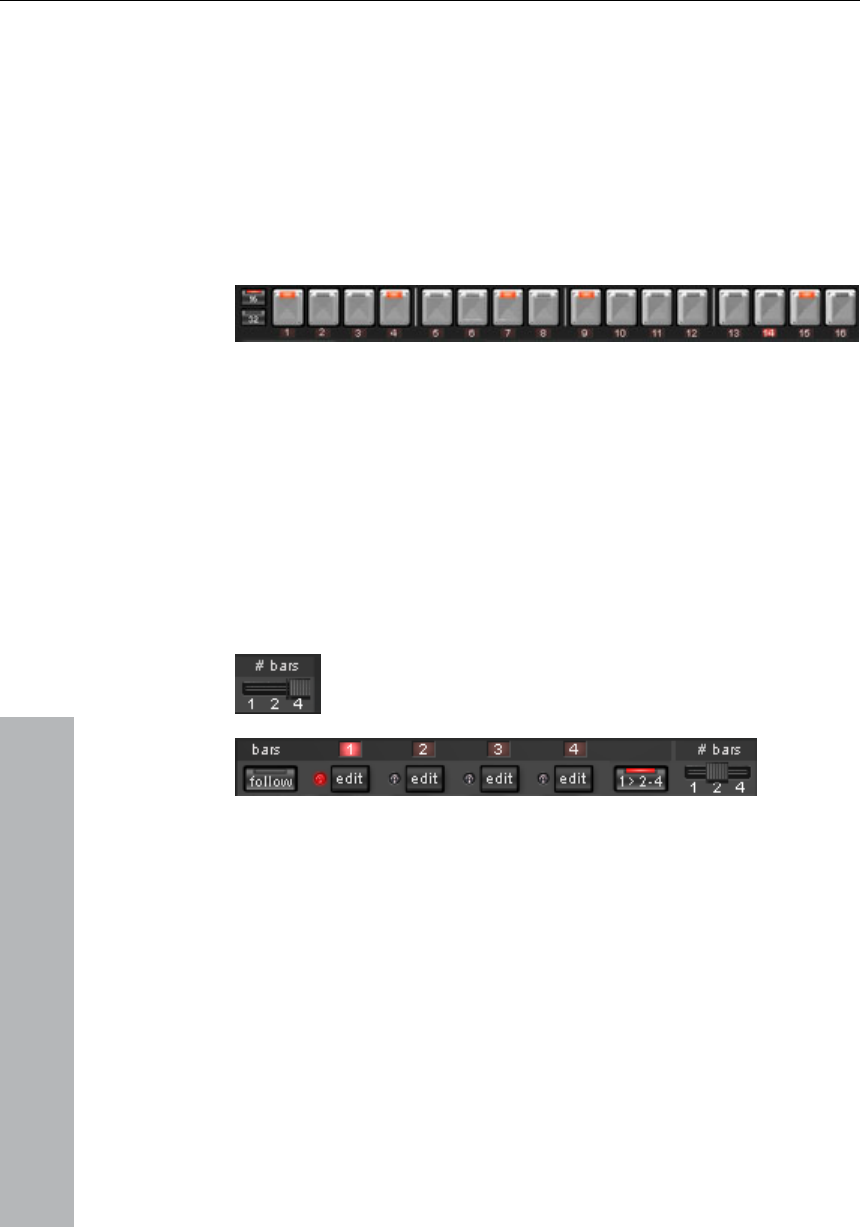
214 Synth Objects
www.magix.com
s makes the sound
"dirtier".
me and panorama position of the drum instruments.
Controls the level of the tube amp simulation. It "saturates" the
output signal of the voice and adds warmth to the sound if the
settings are moderate. Increasing the setting
Volume/Pan
Controls the volu
Sequencer
Incident lighting is used to control the drum patterns just like in all
classical drum computers and groove boxes. The step sequencer
consists of 16 individual step buttons with LEDs corresponding to the
appropriate partitioning of a beat:
16ths or 32nds (a half beat is in each case displayed). A button lights
up to indicate the releasing of the instrument at this point in the beat
(= step).
A left click turns on the step, a further left click deletes the step
again.
A pattern can be a maximum of 4 beats long. The length
can be modified using the fader on the button bar.
The beat to be edited can be selected with the applicable “edit”
button. The “Follow” button specifies whether the Step of a beat is in
time.
are not affected by the Auto Draw
function.
„1>2-4" Auto Draw: If more than 1 beat is activated as the loop
length, the Auto Draw mode ensures that the drum notes set in the
first beat is set automatically for the following beats. This makes it
very simple to produce a continuous beat from a loop length of 4
beats. Notes set in the rear beats
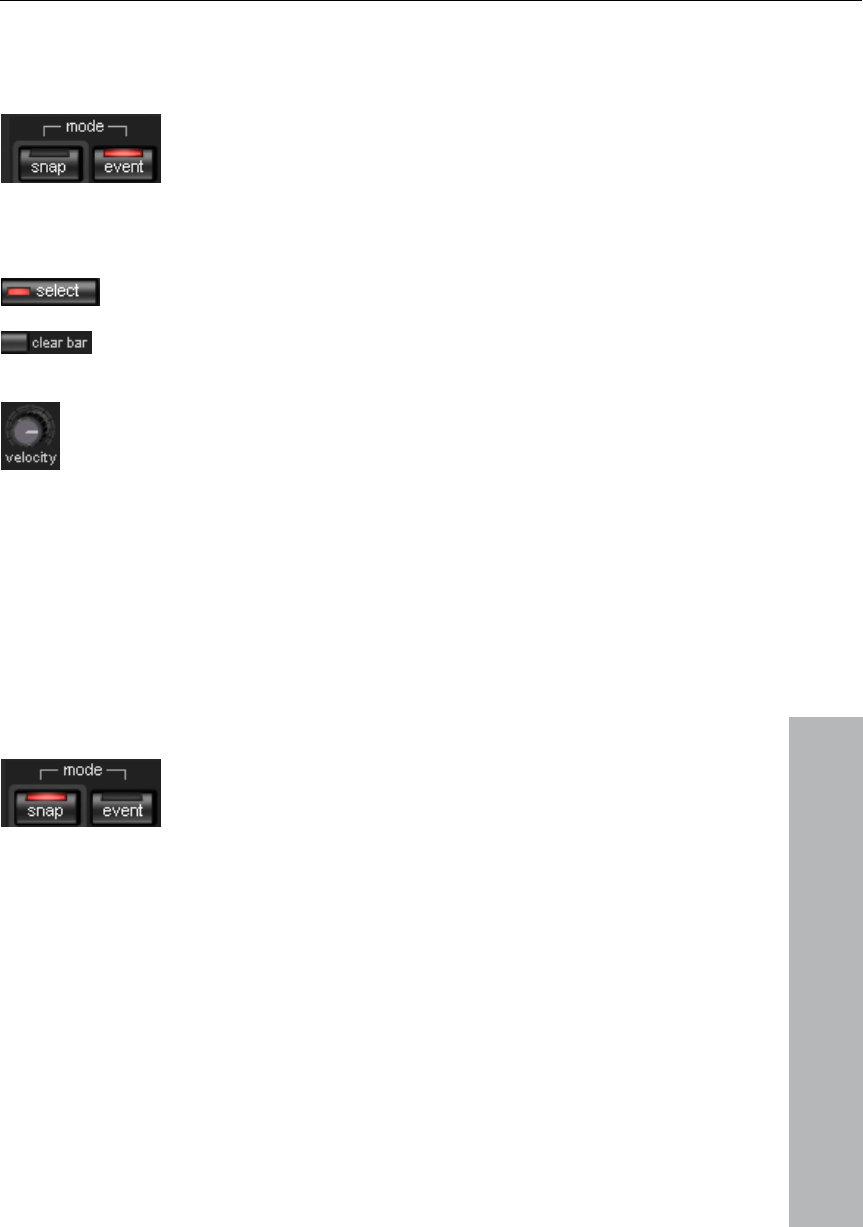
Synth Objects 215
How to program a drum pattern:
• Select the pattern length with the fader.
• select “Event” mode.
•
If you edit during playback, turn off “Follow”. Select the beat with
the “Edit” buttons.
• Use “Select” to choose an instrument to edit.
• Use the “Clear bar” button to delete all steps in
the selected instrument.
ntroller to adjust the beat
velocity.
you can automate programming of the editable sound
• Turn on the appropriate step buttons, and use
the “Velocity” co
• Repeat the procedure with the other instruments
Snapshots
In addition,
www.magix.com
parameter of a drum sound via so-called "snapshots". You can
thereby save the sound parameters of a drum instrument on the step
buttons of the sequencers.
Automating the Drum Instrument with Snapshots.:
• Put the Edit mode to “Snap”.
• If you edit during playback, turn off “Follow”. Select the beat with the
“Edit” buttons.
• Select an instrument and edit the sound. You can control the sound
of an instrument even when playback has stopped by using the
ker button.
sound as a Snapshot to one of the step buttons.
loudspea
• Save the
• Change the sound of an instrument and save the settings to other
step button
216 Synth Objects
www.magix.com
Warning: The parameters are not changed abruptly but are faded
internally instead, in order to avoid crackling. If two snapshots with
extreme parameter differences are too close together, the drum
sounds will sound differently when the pattern is played.
• Using the arrow keys, you can jump between the
individual snapshots during stopped playback.
• Press “on” to activate snapshot automation.
Groove Control
The secret behind “groove” beats lies in delay. That is, individual
beats are either anticipated or delayed according to patterns. For
example house beats use the “shuffle” whereby straight 1/16s are
delayed at certain times.
In the Robota there are Groove Velocity and Groove Swing presets.
Groove Velocity presets contain for each step of a beat a certain
offset to increase or reduce the original beat velocity. Groove Swing
presets contain for each step a time alignment that is either
anticipated or delayed. The result is a livelier-sounding sequence. The
strength of the effect can be adjusted with the % regulator.
Setups, Drumkits, Presets and Patterns
A single instrument sound is
saved as a Preset.
Presets containing all four
instruments are saved as
Drumkits.
All note information plus the
snapshots are saved as a
Pattern.
they are know as a Setup.
Together (Drumkit + Pattern)

Synth Objects 217
www.magix.com
click on the
Load/Save
Presets, drumkits, patterns and setups can be selected with the
continuous rotary regulators next to the display area. For storing,
“Save” button. Then specify a new name in the input
field. To store, press “Enter”.
Note: A drumkit stores only the names of the presets, not the actual
parameters. If you want to store your own drum sounds that were
created by changing existing presets, you must first store them as
new presets and then as a new drumkit! The same applies to the
setups, which contain only the pattern and drumkit names.
If necessary, always store in this order: preset > drumkit > pattern >
setup. This applies only when creating your own “templates”. If you
‘SilverSynth pro’ is a virtual, analog synthesizer that was based on
ly
1980s. It was initially intended as an electronic bass accompanier;
however, it was at first hardly taken seriously due to its "unrealistic"
er, when Techno Music was
just becoming popular. The brute force and screeching sounds that
an
m
sy
‘S
more influence on the sound. It features an "EnvMod" controller that
di
in
Furth
to sequences. Finally, you can use the
"MasterVolume" controller to adjust the synthesizer volume.
store your arrangement normally, the complete current status
(Synthesizer + Sequencer) of the Robota is always stored and
correctly loaded later with the arrangement.
SilverSynth Pro
the legendary Roland-TB303. This machine appeared in the ear
characteristics.
The device suddenly became useful lat
this unit produced suddenly belonged to the major style elements of
entire musical style. Today’s Techno productions still use the
inimalist, synthetic but warm and unmistakable sound of this
nthesizer.
ilverSynth pro’ is the follow-on to the SilverSynth. The user now has
makes the typical 303 sound even squeakier. It also features a
stortion controller for adjusting the sound distortion, as well as an
tegrated echo.
ermore, SilverPro has a "Shuffle" controller for adding "groove"
your synthesizer

218 Synth Objects
www.magix.com
On the “SilverSynth” symbol is a menu that loads, saves, generates
or deletes (Clear all / Random).
Filter Automation
The SilverSynth pro offers automation for the rotary button controllers
Play/Stop: The sequence of the step sequencers is played and/or
Record: Records the rotary button movements. The sequence of the
Clear Record: Deletes the recording of the rotary button movements.
r are re-set, changed or deleted.
ist you, a scale of notes
one and the same note cell, then you
change the octave for this note. The color of the cell changes
.
l notes. Accent increases the volume of the note a little. If a
cell is placed in the “Slide” row, then this note will not be struck
again, only the pitch will be modified.
: You can chose from basic waveforms that represent the
lar waveform and a saw-tooth waveform.
brightness of the sound. At the
with which the filter and sound modulation can be set. Each
movement of the automatic controllers can be recorded.
stopped, including recorded rotary button movements.
step sequencer is played while you record the results of real-time
buttons movements.
Please remember that the notes of the sequence in the step
sequence
Turning knobs
Step Sequencer
sequence on a 16x12 grid. A note cell can be occupied by the left
mouse key; the right mouse can be used to delete note cells. You
can only set one note per column. To ass
appears at the lower edge.
If you click repeatedly on
according to the octave. Blue corresponds to octave 1, red
corresponds to octave 2 and green corresponds to octave 3
The lower rows (Accent and Slide) determine the further behavior of
individua
Waveform
main proportion of the sound. It is possible to switch between a
rectangu
Cutoff: The Cutoff control steers the synthesizer’s low pass filter. This
control is used to determine the

Synth Objects 219
www.magix.com
thesizer sounds brightest, at the lower limit of the
resonates at its cutoff frequency. This is the
frequency that is controlled by the cutoff control. This control largely
sses so that it loses more and more of its brightness.
Distortion: Here you can override the sounds.
’ sets the length of the echo. The length of the
echo is set in relation to the bars; it adjusts to the current BPM value.
Shuffle: This control lends more ‘groove’ to the Synth sequences.
e most important
difference is the sound.
The sound is created by use of an additive procedure that resembles
nds
to that of the typical bass synthesizers of the eighties. The
xcellent duo.
upper limit the syn
rotary button, the synthesizer sounds very hollow.
Resonance: Technically speaking, the resonance control sets how
much the low pass filter
determines the warmth of the sound.
Decay: This control is used to control whether the cutoff filter remains
at the same frequency or whether the filter frequency changes when
a note is played back. If Decay is set to the upper limit, then every
new note initially sounds a little bright and then changes its sound as
it progre
EnvMode: This control determines the flow of the envelope
curve. The further right the control is turned, the more high sounds
will be added.
Delay: Delay can be used for reverb and echo effects. There are two
controls. ‘Feedback’ (number of sounds repetitions) sets the intensity
of the echo; ‘Length
Master: The overall volume can be set in this section.
Copper Synth
Just like the SilverSynth, the CopperSynth is a step sequencer, it
looks very similar and functions quite similar too. Th
Tune: This control raises or lowers all sounds.
a mini moog. There are between two and three oscillators are used
for the basic wave shape. The sound of the synthesizer correspo
SilverSynth is mostly used for higher pitches; Silver Synth and
CopperSynth make an e
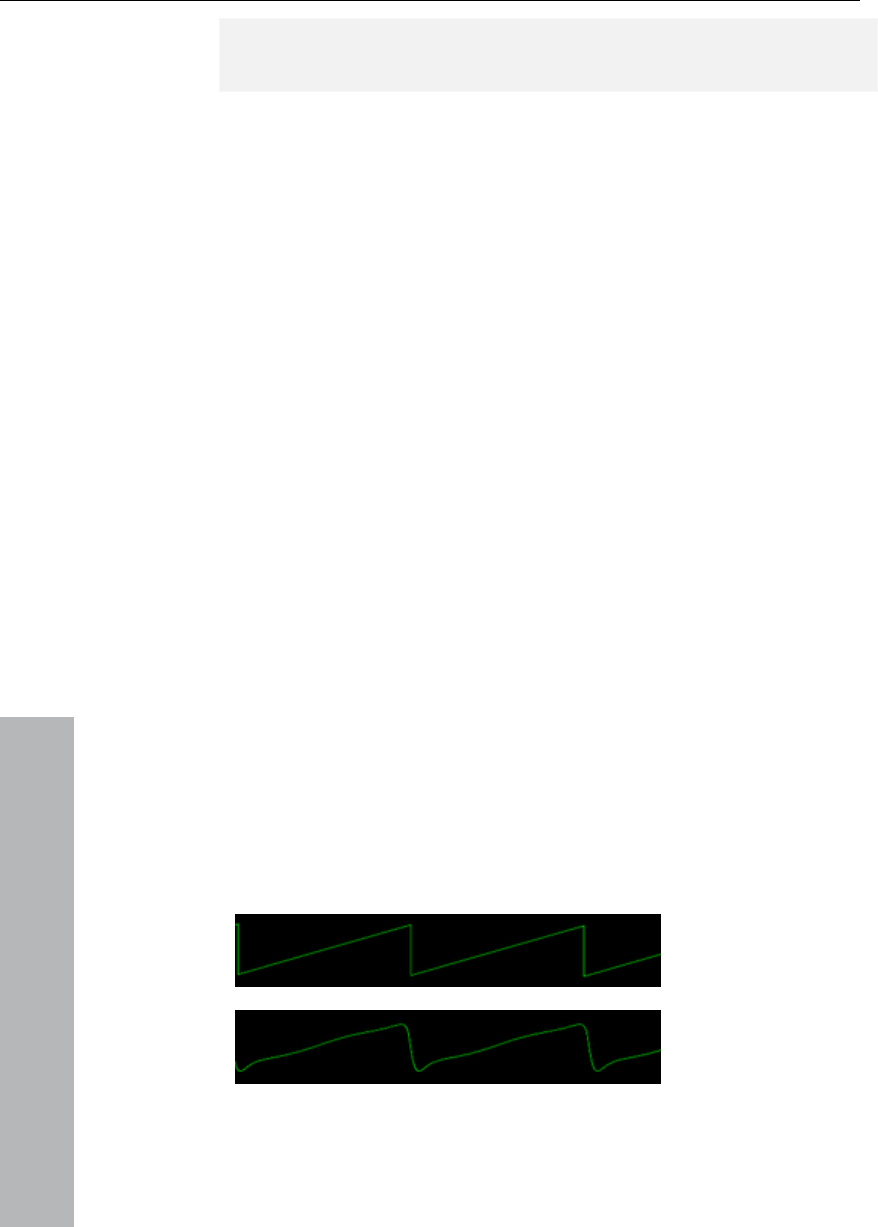
220 Synth Objects
www.magix.com
For the programming please refer to the chapter Silver Synth pro (see
page 217)!
Revolta
OSCILLATORS
The sine wave does not contain any harmonies and consists purely of
ry well to "beef up" a second waveform because of the lack
of harmonies (for example, one octave deeper). "Purity" guarantees
ed a lot in
Drum&Bass music where low booming sound and sonic transparency
contains quite a
comprehensive selection of harmonies. In relation to this "Harmonics"
-numbered variations in the basic frequency. A
880 Hz, 1320
Hz, 1760 Hz, 2200 Hz, etc. Here the drop in volume increases
exponentially, each harmony is 6 dB quieter than the last. This is the
case in signal theory at least.
In practice, however, analog synthesizers behave somewhat
differently. The waveform sometimes looks a little bit rounder on an
. In addition, the used circuits contribute to a
REVOLTA consists of two oscillators that function as synthesizers.
These produce the ground waveforms: sine, sawtooth, and pulse.
its own basic oscillation. The sound (also known from the dial tone) is
correspondingly dull, clear, and pure. At deep positions it can be
used ve
that the sound gets a clear feel as only the basic tone is used. Sine
oscillations (that is, without any other elements) are us
are important style elements.
Sawtooth, on the other hand, sounds very full as it
refer to the whole
sawtooth wave contains an equal amount of even-numbered and
odd-numbered harmonies. This means that the standard pitch A (440
Hz basic frequency) is superimposed with sections at
oscilloscope
modification of the spectrum as a result of distortions and component
tolerance.
Ideal sawtooth wave
"Analog" sawtooth
wave of REVOLTA
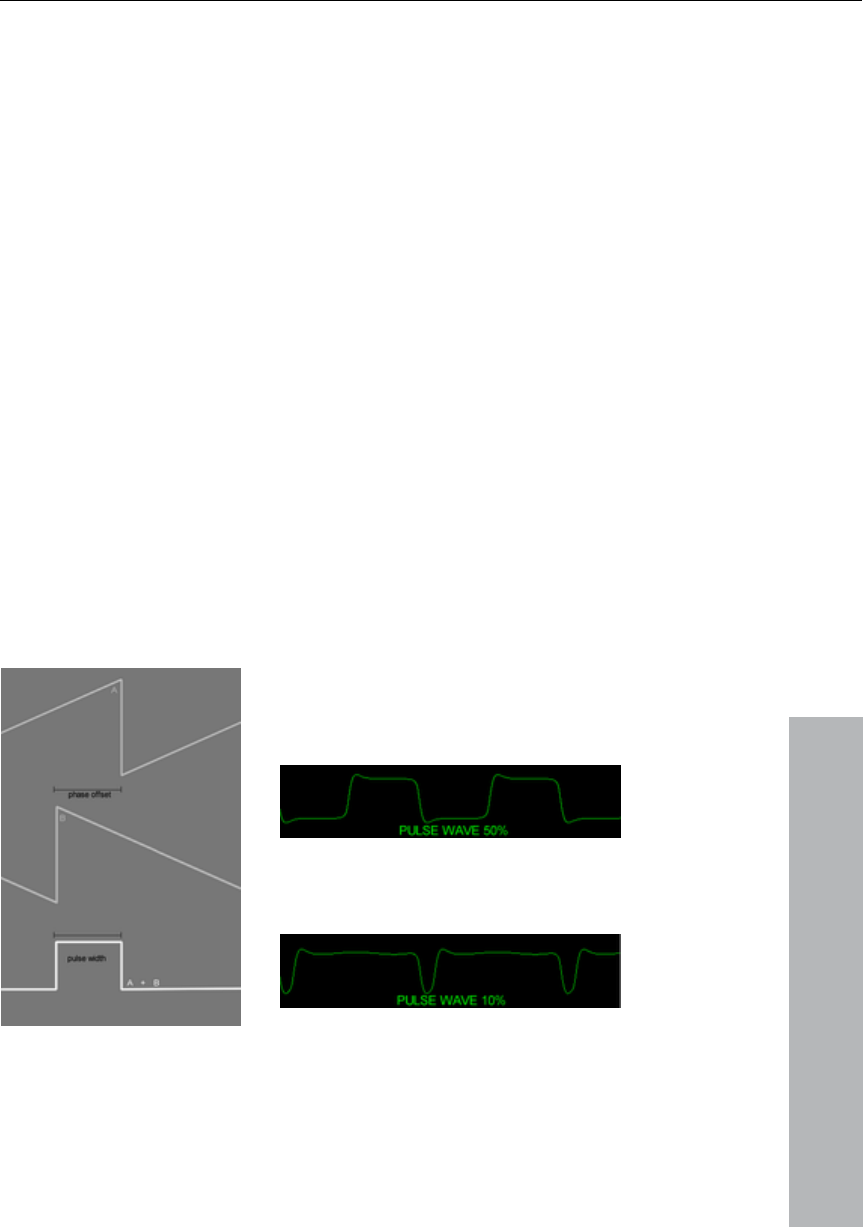
Synth Objects 221
www.magix.com
for simulating string sounds. Bass
this if you want them to have a bit
of a bite. The famous TB-303 Acid Basses are usually sawtooth
sawtooth waves in
analog – as in REVOLTA. Theoretically, a rectangle wave should only
ve after the next octave). This
gives the waveform a more hollow or "nasal" sound. A classic
Usually an analog rectangle wave can be implemented quite easily via
flop circuit. In instruments however, people usually
tooth waves: the second sawtooth is mixed into the first,
veform is inverted and delayed (phase shift). By adding the
a rectangular signal with variable "pulse width" (PW, see
be achieved. The pulse width is set up according to the
delay of the second sawtooth wave and effects the sound of the
A pulse wave is composed of two
Sawtooth is the classic waveform
sounds can also be created using
waves (when working with just one oscillator). The sound character of
sawtooth is usually associated with "warmth".
The rectangle/pulse wave is often made from two
have two states: a minimum and maximum value, that is a constant
back and forth between the corresponding frequencies. The harmony
series is similar to that of the sawtooth waves, but the rectangle
signal only contains uneven harmonies (for example, at A 440 Hz,
1320, 2200 Hz, etc., always the octa
example of this is in wooden wind instruments like the oboe or flute.
a so-called flip-
use two saw
but the wa
two waves,
graphic) can
harmony series: the smaller it is, the more harmonies are achieved
and the lesser the basic tone appears. Smaller pulse widths make the
sound a bit "thinner".
sawtooth waves (A = normal, B =
inverted + phase-shifted)
Pulse waves (50% and 10%) in
REVOLTA
The pulse width can be modulated which can create "floating"
sounds (PWM, pulse width modulation). The Roland JP-8000 is

222 Synth Objects
www.magix.com
famous for this type of PWM sound, which can be heard on
s. For this type of "phat" floating sound you will
need a "Modulator"/LFO. We'll talk about this later...
What's unusual about the waveform selection in REVOLTA is that it's
not restricted to the mere selection of the waveforms as would be
expected. It's much more likely that you can run through the
selection with the "waveform" fader on this synthesizer and create a
mix out of sawtooth and rectangle. Running through the waveforms
can even be automated. We'll talk about this later on as well...
When working with two oscillators, interesting sounds can be created
via frequency modulation (FM). You will no doubt be familiar with this
from the well-known digital synths like the Yamaha DX7 or the OPL
r sound cards. FM synthesis is also possible in analog.
In REVOLTA, oscillator 1 is modulated via oscillator 2. Frequency
modulation usually means that one oscillator controls the pitch of the
other. Since the sound created during this process no longer follows
the usual chromatic scale and sounds a bit chaotic, the phase of the
instead of the pitch in almost all FM
be influenced relatively to the
ecifies by how many halftones
une with the first. What's interesting
uce bass sounds for creating a more
entioned above with Drum&Bass). A kind of
t lower values, light oscillations can be
numerous dance track
chips of olde
oscillator is modulated
synthesizers. As a result, only the sound's color changes, not the
pitch, which in most cases is more likely to be more usable musically.
The correct term for this is actually phase modulation (PM). Most
manufacturers still refer to this as FM however and since this is an
established term in music electronics, we use it too.
With "mix" you can specify the mix ratio for each oscillator.
Options for oscillator 2
The pitch of the second oscillator can
first. Here, the "semitone" parameter sp
up or down oscillator 2 is out of t
here is when it's used to prod
booming sound (as m
double unanimity can be achieved here by tuning oscillator 2 up by 3,
5, or 7 halftones, thereby creating classic chord intervals. Or you can
simulate a drawbar organ via two sine waves and modifying the
second by 5 halftones...
The "detune" fader modifies the second oscillator by one halftone
max. For this reason, a
created. Perfect for "beefing up" bass & lead sounds...
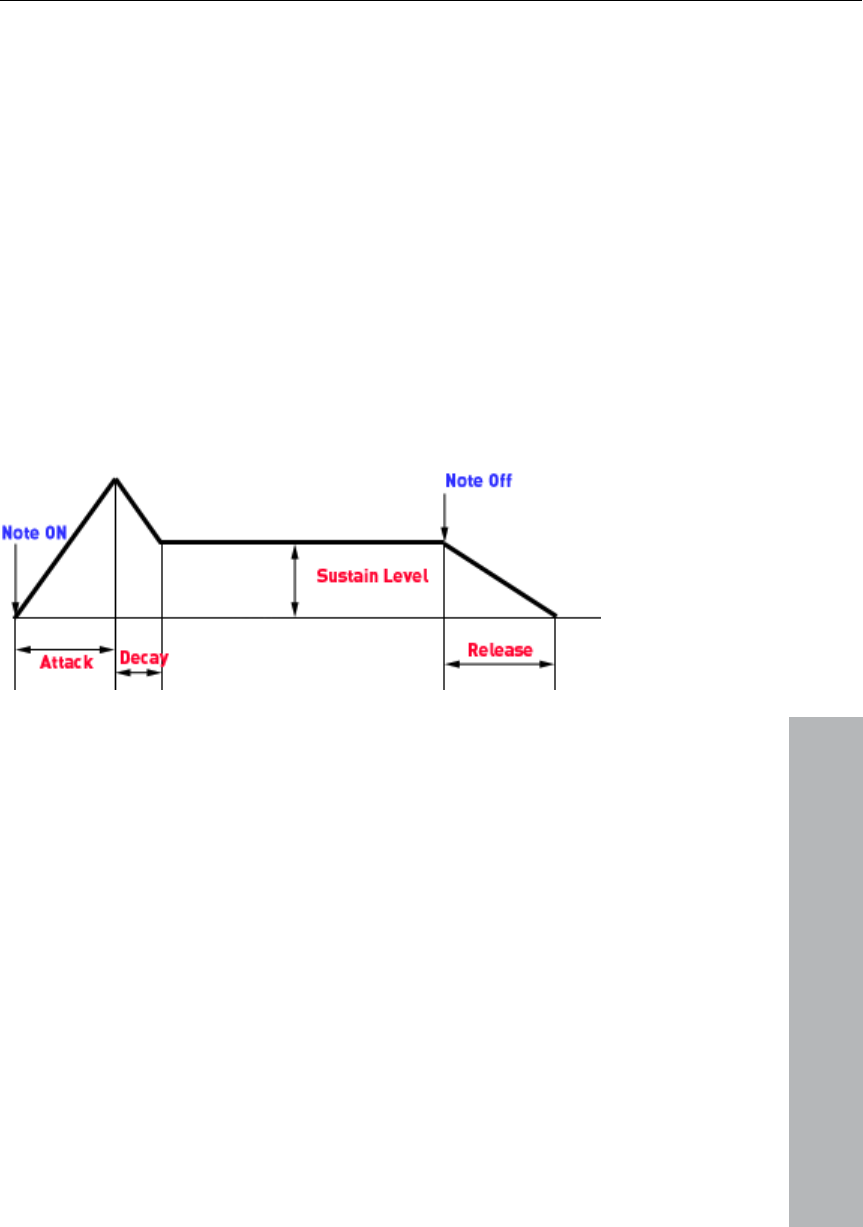
Synth Objects 223
www.magix.com
a synthesizer for
measuring purposes. Not only would it be quite static, but it would be
lope Generator. This can be started ("triggered") by
pressing a key, which then runs it through multiple stages. These
the decay phase) and "release" (the time it takes for
the sound to ring out after releasing the key).
ENVELOPE
Here the signal is actually "packed" into a temporal volume
progression.
If you were to grip the signal located directly behind the oscillator
module, a long-lasting tone will sound, like with
quite boring as well. "Real" instruments/sounds always have a
characteristic volume progression. For example, in piano music, we
hear a different transient oscillation process than with bowed string
instruments. To specify such processes, synthesizers contain a so-
called Enve
stages are usually called "ADSR": "attack" (velocity duration), "decay"
(duration of the sound decrease when the key is held), "sustain" (hold
after the end of
With synthesizers the ADSR curve is often very different to the
audible result. One of the reasons for this is that the volume
d a lot of emphasis
on achieving this "analog feeling". The tuning tends to be viewed as
"weak" or "round".
second is
located in the filter module and controls the temporal filtering
so.
progression is implemented with suspense modifications and the
suspense is interpreted differently. In this sense a short attack time in
Synth A may sound completely different to what Synth B produces. In
the ADSR module of REVOLTA, the circuit simulation functions with a
"virtual" network of condensators which are loaded and unloaded
independent of the level and time. We have place
REVOLTA has two ADSR Generators: the first specifies the volume
progression (AMP, "amplifier") as described above. The
progression from there when required to do

224 Synth Objects
www.magix.com
"legato" implies.
but rather a precise simulation of a design
from the "real world".
ctions in the feedback part with an additional active step
which limits the feedback signal. This can enable the filter, unlike with
es typically analog sounds, from light keying to screeching to
noises reminiscent of frequency modulation.
Ty he selection consists of
pass, and low cut. The low cut filter is a series
24
su
Cut-
Resonance: Amplification factor of the circuit and the related internal
dback, please take note of the monitor
volume.
Drive: The filter behaves quite cleanly when turned down. At higher
pical whistling sounds will be audible. The more "drive"
e with the amp envelope, it doesn't control the
volume progression, but rather the cut-off parameter. With the Env
A setting which all envelopes has is the "legato" parameter. If this
button is pressed, the envelopes will no longer be restarted for new
notes as long as keys are still pressed. The sounds will be bound
together, as the word
FILTER
The REVOLTA filter is not a normal digital filter as you often find when
using software synths,
We use a so-called Sallen key circuit, which has similarities to the low
cut and high cut of the Korg MS 20 device. This is fundamentally an
amplification block with two 6 dB filter networks and one feedback
path. Here the circuit achieves a slew rate of 12 dB/octave and is
capable of achieving high resonance or feedback (well-known
whistling sounds) with enough internal amplification. The REVOLTA
filter fun
normal digital types, to be given a deep saturated sound, which
produc
The filter parameters
pe: Here you can specify the filter type. T
high cut, band
connection of two filter modules used in order to reach a skew rate of
dB. For the other modes, the 12 dB supplied is usually perfectly
fficient, meaning that only one module is used.
off: Filter trigger frequency
feedback. When there is fee
resonance, ty
there is, the more the saturation level in the feedback path appears,
changing the behavior of the filter. The entire circuit is turned up at
the same time.
Env Mod: The filter has its own envelope with attack, decay, sustain,
and release faders. This envelope can often be quite important for
lively sounds. Unlik

Synth Objects 225
www.magix.com
osition, Env Mod does not
have any effect. If turned to the right, the virtual "control voltage" of
Most synthesizers usually have a so-called low frequency oscillator. In
FOs are fundamentally normal oscillators
normal frequency ranges relevant to
frequencies. Its output cannot be
e human ear (like a normal oscillator), but
rather is used to modulate other parameters, that is, to change to the
ltage-controlled amplifier) for a tremolo effect (volume
modulation) or the cut-off frequency of a filter.
LFO 2
Type: Here you can select the oscillation form of the LFO. Sine,
t rhythmic modulations. The following parameter
controls the interval:
mic intervals (for example, one quarter, one eighth, one
eighth triplet or dotted). When the tempo sync is switched off you can
ple, make a pitch modulation
audible only when tones are held for longer, similar to the way a
Destination: When you click on this list, a selection menu appears
Mod fader (envelope modulation) you can specify how strong the
envelope affects the cut-off. In the middle p
the envelope will be added to the cut-off fader, and if turned to the
left it is subtracted.
LFOs (Low Frequency Oscillators)
REVOLTA, there are two. L
which do not oscillate in the
music, but rather at very low
perceived directly by th
rhythm of the LFO. Usual LFO targets are the pitch (-> vibrato), the
volume (vo
The parameters of LFO 1 &
rectangular, and "Sample&Hold" (random function) are available.
Sync: This button enables the synchronization of the song tempo in
order to create exac
Freq: The frequencies of the two LFOs of REVOLTA can be set over
a long range. If the Sync Button is active, the fader will "snap" only
with rhyth
control the frequency in Hertz directly from here. This goes deep into
the audible range, enabling drastic effects like "Filter FM".
Delay: This fader specifies the time span which the control voltage of
the LFO takes to grow from 0 to its maximum value (a kind of "fade
in"). The underlying "Timer" will be restarted every time a key is
pressed. This way you can, for exam
singer's vibrato only develops after time.
If set to the left, delay is switched off. In this case, the LFO is
constantly active and oscillates at maximum amplitude.
with (almost) all accessible synthesizer parameters. The choice you
make here is the so-called target modulation. Most of these targets
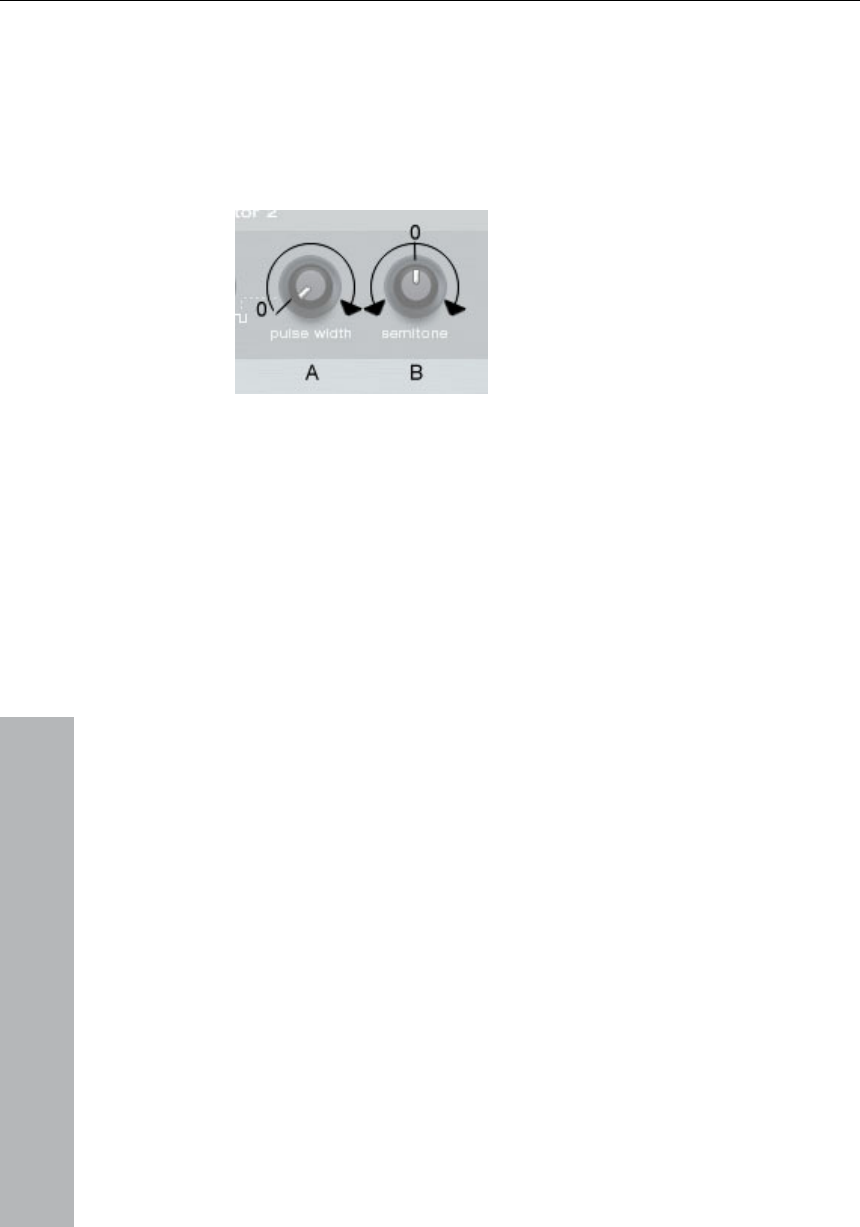
226 Synth Objects
www.magix.com
the corresponding fader position. Here, the LFO
suspense is positive (Case A in the graphic below), only the stereo
tion only occurs to the left and
to the right of the fader position (Case B).
are additively modulated by the LFO, that is, the control voltage will
be added to
panorama, the semitone and detune parameters of OSC 2 will be
modulated with symmetrical suspense (positive & negative centered
around the start position) so that deflec
s fader specifies the maximum amplitude of the LFO. It
es the strength of the modulation.
makes sure that the output level never
B by leading the signal softly into the saturation. When a
signal is too loud (as a result of strong resonance) internal distortions
arise which sound softer and more musical than if they had
overmodulated the next levels or the master outside the instrument.
You may have to monitor the audible level and use the supplied
presets as a reference for the volume.
Pan: The stereo panorama. With a single-voice synth it is not usually
required, but we mentioned it: You can automate this parameter to
make interesting stereo effects possible.
Transpose: Here you can adjust or set the octaves of the global
tuning for the currently selected preset in halftone steps. You can use
this, for example, to test out whether an octave sounds better one
octave higher or lower without having to transpose the MIDI data.
Glide: This parameter is also known as "Portamento" in some
synthesizers. The fader specifies the time to glide from the last tone
played to the tone currently playing. The more turned up it is, the
Depth:
influenc
Thi
Master module / global parameters
On the left-hand side of REVOLTA you will find the following faders:
Volume: The master volume of the synthesizer. The fader controls the
amplification factor of the output level with a soft distortion
characteristic. The step
exceeds 0 d
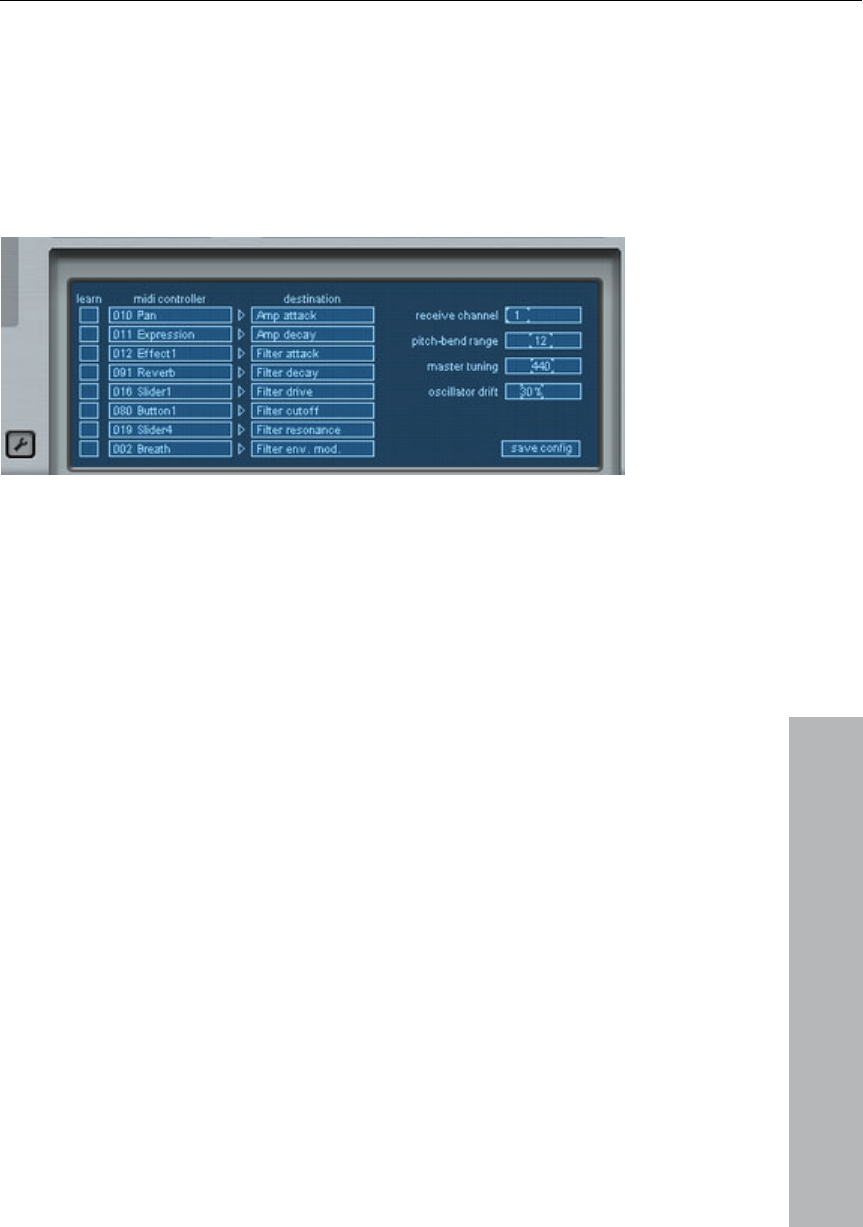
Synth Objects 227
www.magix.com
longer the process lasts. By automating the parameter, very lively
layed. Even statically, a short
glide for basslines can sound good. This can be implemented by
turning the fader up so far that the tone sounds a little bit distorted.
SETUP / CONFIG VIEW
When you click on the spanner symbol the LFO section disappears
(but is still active) and the so-called config view (or "setup") opens.
bass runs and solo passages can be p
Here you can set an entire series of global parameters as well as
specify whether or not REVOLTA should react to incoming "MIDI
Control Change" messages (MIDI CC) and how strongly.
ur data to be sent to a different channel, you can
change it here.
Pitch bend range: Here you can set by how many halftones the sound
pitch wheel on your keyboard.
Master Tuning: In most cases all instruments can be set to the
Oscillator Drift: Something that differentiates older analog
The settings are independent of the selected presets. They apply to
the entire instrument. Should you have loaded multiple instances in
one project, they will all share the same setup.
Parameters
Receive Channel: REVOLTA usually responds to the MIDI channel 1:
Should you wish yo
should be bent when you turn the
standard pitch A, 440 Hz. If you have an arrangement that differs
from this, you can use REVOLTA to globally tune to between 400 and
480 Hz.
synthesizers from digital ones, is the lack of tuning stability. Many
transistor-based circuits have difficulties keeping their operating
parameters for longer periods of time. The problem is often thermal,

228 Synth Objects
www.magix.com
the properties of certain semiconductor
synthesizers usually have temperature-
ey too are susceptible to the
"random principle", making
dible. Values in the
mid field or in the first third are especially suited to making sounds
ge function. Should you own a hardware
controller or a keyboard with the corresponding faders, you can use it
hat the connected device transmits with specific
faders. You need to find out a few things to do this:
adjustable parameters would you like to
modify? To do so, make your selection in the "Destination" list one
after the other, i. e. Filter cut-off, Filter resonance, etc.
• Which MIDI CC number should externally control this parameter? If
know which fader/button sends which number to your
der on your computer, etc.,
the corresponding type (its CC number) is included and appears in
u wish to save the setup, don't forget to press the
"Setup" button before leaving the view or closing the entire interface.
as an increase in temperature can influence the behavior of the
movement of electrons and
materials. Modern analog
resistant integrated circuit, but th
the oscillators constantly susceptible to
small fluctuations. Use the "Oscillator Drift" parameter to specify how
much "analog behavior" you wish to permit. At maximum,
occasionally stronger tuning discrepancies are au
with two oscillators sound less static and somewhat warmer,
especially when OSC 2 was not detuned relative to the first one. The
drift parameter, of course, has a large influence on the entire sound
when REVOLTA is used with other instruments in a very large
arrangement.
MIDI Controller / Destination
Almost all available parameters in REVOLTA are not only controllable
via direct manipulation on the interface, via LFO, but also externally
via the MIDI Control Chan
for realtime control of this synth.
Since any unified classification of source or target is not possible, it's
important to know w
• Which of the eight externally
you already
device, you can select it directly from the list. If not, setup provides a
Learn mode: To access this, click on the corresponding field in the
"learn" column. Now when you move a fa
the list. You can go through the list one by one and assign 8
controllers max.
IMPORTANT: If yo
This permanently saves your changes.
If you should leave the setup prematurely, the changes will be
discarded and its previous state will be active once again.

Auto Jam Session 229
www.magix.com
m Session
ou create complete songs single-
handedly. Begin with a simple idea, a small riff, or a chord
less
loop after the recording. Now, you can record a melody on a different
orking with hardware „Looping
he Gibson Echoplex. The difference is that
MAGIX Music Studio 12 deluxe creates an arrangement which can
During an Auto Jam Session, everything you do is recorded.
Open
1. Start MAGIX Music Studio 12 deluxe and choose „New Auto Jam
gement.
Auto Ja
The Auto Jam Session lets y
progression. This is then recorded and put straight into an end
track. The program simulates w
delays“, like, for example, t
later be edited and compiled into a complete song.
The most important thing with the Auto Jam Session is the fun factor
– there should never be too much of it.
Session“ from the start selection or
2. Create a new arran
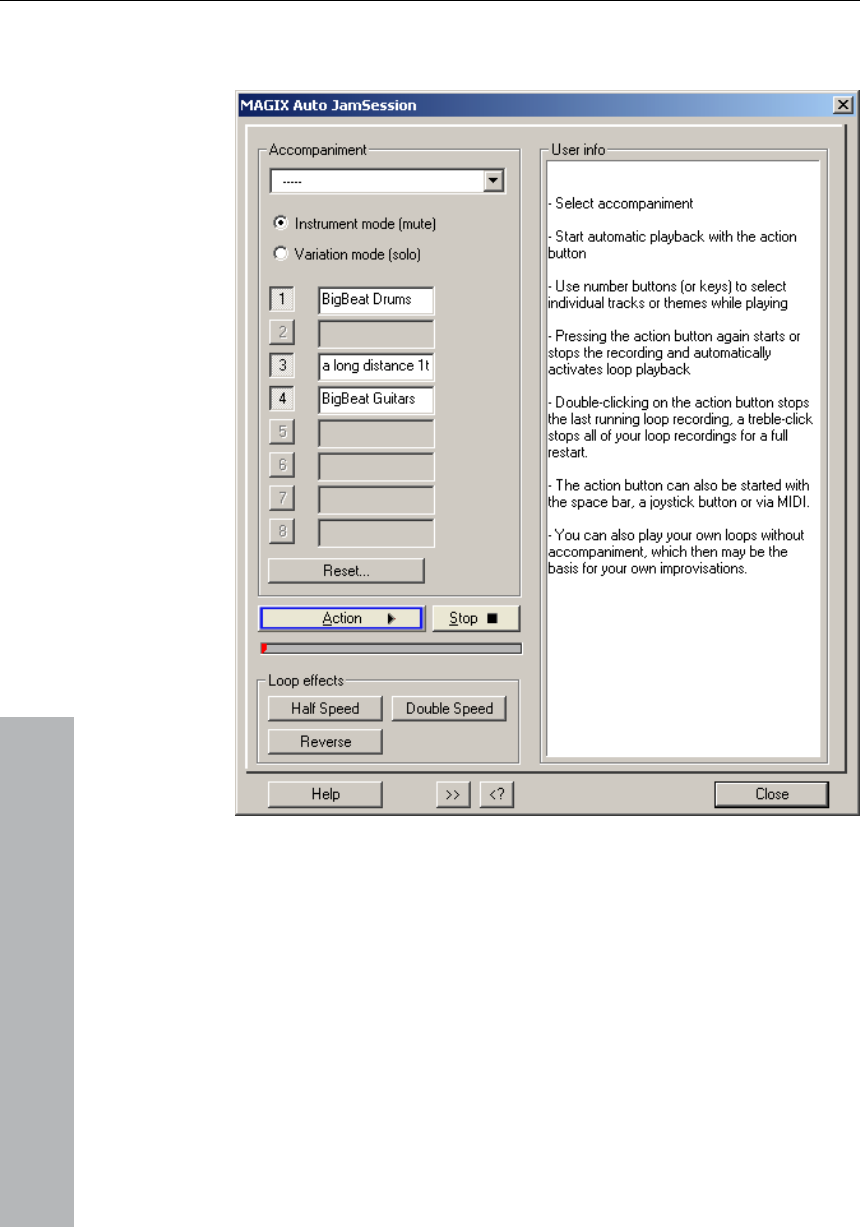
230 Auto Jam Session
www.magix.com
The Auto Jam Session can be started via the „Playback/Record“
upper toolbar.
menu or via the button in the
Handling
After start-up you’ll see, at first, the simple view of the Auto Jam
Session. In the right half you’ll be given useful hints on how to use the
program, without resorting to the Help file by pressing the „F1“ key or
Help button.
Action: The most important handling element is displayed as an
Action button (bottom left), which can also be controlled using the
space bar or via MIDI/joystick.

Auto Jam Session 231
www.magix.com
2nd click: The first recording starts. Record your first beat(s). As a
action button turns red.
nto the
arrangement as a loop and then played repeatedly. It serves as a
easure for the next loop.
In the next track, the recording starts. You’ll begin hearing
viously recorded loop. Now you can add an additional voice to
it.
e recording, starts in a new track. All loops
recorded up until now are played continuously.
stops the last loop recorded.
Clicking three times ends all running loops. You can use it to
separate various song parts from one another.
By clicking on stop, the playback/recording is stopped immediately
Auto Jam Session modes
• the loop that was recorded first
e buttons 1-8 function as mute or solo buttons
• vided. Here,
typ
• Instrument mode (mute): The accompaniments consist of multiple
keyboard).
• Variations mode (solo): These accompaniments contain multiple
hich you can switch
during playback.
1st click: Playback begins. Nothing is recorded yet.
sign that it’s recording, the
3rd click: Ends the recording. The recorded part is inserted i
speed m
4th click:
the pre
5th click: The recording ends, playback of the first and the newly
recorded loop continues.
The next clicks start and end other recordings (Clicks 4 and 5
repeat). Every restart of th
Double-clicking on the action button
There are many ways to record a song:
Record everything by yourself. Here,
is set as a measure for the speed of the song in BPM (beats per
minute). Th
depending on their set modes (see below).
You can choose from one of the accompaniments pro
the speed of the song is taken from the template. There are two
es of mode:
individual instruments that can be muted using the buttons 1-8 (or
the corresponding keys on the
variations of the same instrument, between w

232 Auto Jam Session
www.magix.com
ery button to their original states and selectively
stops the last loop recorded, every self-recorded loop, all loops or
deletes the entire project.
You can change your arrangement with these real-time effects. The
fects affect either every track or just the last track recorded
these effects are object effects. Switching the effects on
and off creates separate objects from the loops.
on of this effect is, for example, playing „impossible“
Reset: Reverts ev
Loop effects
loop ef
(see below).
Technically,
Half speed: The speed factor is halved when this button is pressed. (If
you press the button twice, it will be played at a quarter of its speed,
etc.)
Double speed: The speed factor is doubled when this button is
pressed.
An applicati
guitar solos. Switch your existing arrangement to half speed, record
your guitar solo and then click on double speed. Your
accompaniment plays in original speed again and your solo now
sounds twice as fast and an octave higher.
Reverse: This effect plays the whole arrangement backwards.
Opening it again resets it.
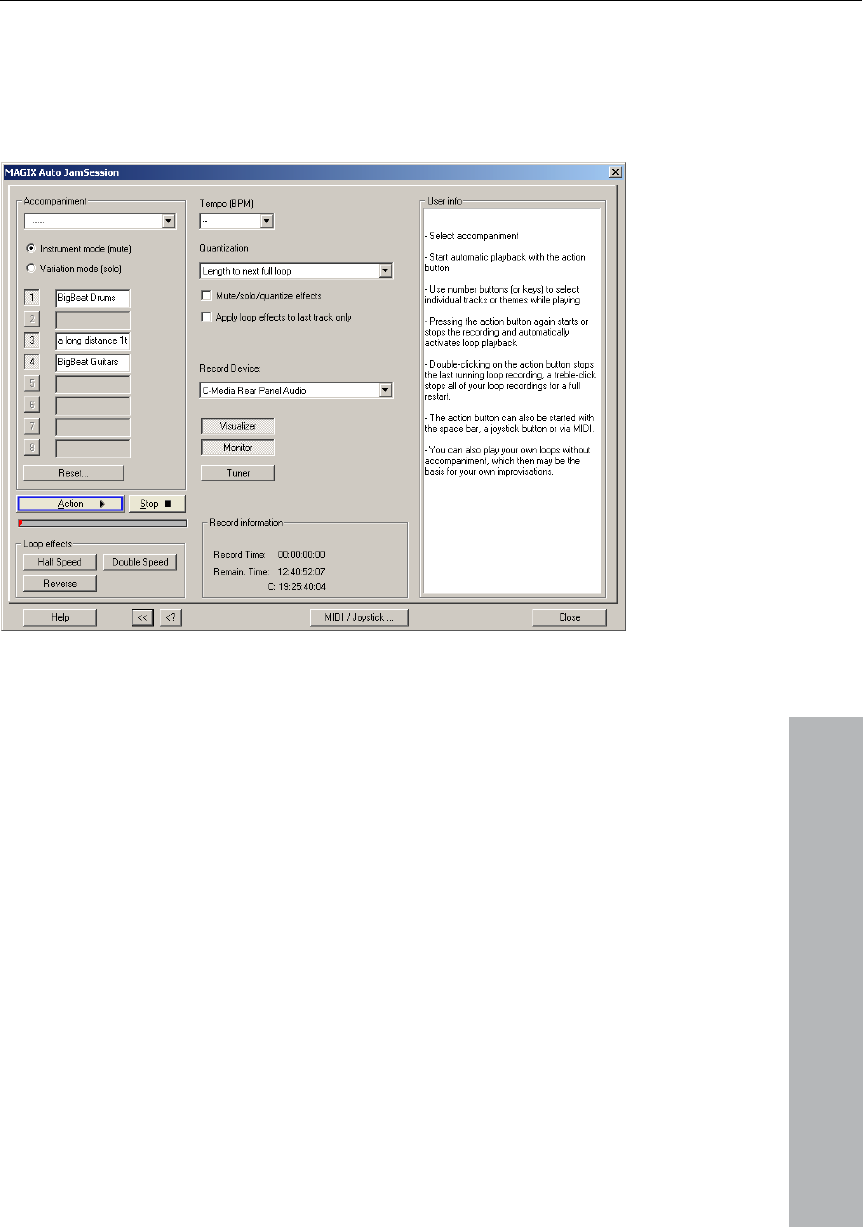
Auto Jam Session 233
www.magix.com
Enhanced Auto Jam Session dialog
Clicking on the „>>“ button opens the enhanced Auto Jam Session
dialog.
Tempo
Here, you can select the tempo from the list or enter one of your
choice.
„—“ means that the speed adapts to that of the first recorded loop or
hosen).
the first recorded loop or the loops begin or end on
p: The new loop is recorded with the
same length or a whole-numbered multiple (2x, 3x, 4x...) of the
original loop length. The loops always remain synchronous, but
of the accompaniment (if c
Quantization
Quantization guarantees that newly recorded loops fit into the
existing arrangement by recording loops whose lengths are exactly
four times that of
the bar or loop borders.
There are multiple options for optimizing:
Length of the next whole loo

234 Auto Jam Session
www.magix.com
have the same starting point. This is the preset quantization
border that recording starts. The length is quantized like in „Length of
Length to previous whole loop: The loop end is shortened to the last
is useful when, while recording, you
always only get around to clicking on the action button (space bar)
ext loop.
iple bars.
Both of these options are useful if the speed has been set (specified
or by the accompaniment)
the last track.
switches the visualization on or off.
signal is displayed in the visualizer and played by
the soundcard output.
mustn’t
mode.
Start + length of the next whole loop: It’s only after the next loop
the next whole loop“. The starting points of the loops are all at the
same positions.
exceeded loop border. This
after the n
Start + length to next bar: The starting point of the recording and the
loop length are adapted to the bar. This is useful if you have recorded
the first loop over mult
Start + length to the next beat: The starting point of the recording and
the loop length adapt to quarter beats. This is useful if you want to
record very short or uneven loops (for example, only ¾ bar).
in tempo
Freestyle: Quantization is deactivated. No more loop starts or loop
lengths are adapted when recording. It’s only recommended if you
want to create chaos or are very „precise“.
Quantize mute/solo/effects: This option also quantizes the control of
solo, mute and other effects (double speed, half speed, reverse).
Only use loop effects on the last track: The loop effects are always
used on
Record Device
You can select the desired soundcard or soundcard input in the flip
menu.
Visualizer: This button
Monitor: This button activates or deactivates monitoring. This means
that the incoming

Auto Jam Session 235
www.magix.com
Tuner: This button opens an additional visualization in the „tuner“
your
guitar).
MIDI / Joystick ...
n opens the Shortcut Editor of the Auto Jam Session. More
mode with which you can tune your instrument (for example,
Recording information
Recording time: Shows how long you’ve been recording.
Remaining time: Here, you can see for how long your hard disk can
record. If you have multiple hard disks or hard disk partitions, the
recording capacity of these are also shown.
This butto
information can be found under „Shortcut Editor“ > „Auto Jam
Session“. Here, you can also „learn“ MIDI commands.

236 The Managers
The Managers
www.magix.com
The Manager brings frequently needed administrative and control
markers,
functions together inside one window, including those of
grooves, and tracks. This also includes a file browser with which
media data can be found, sampled, and loaded.
The Manager can be opened inside or outside the main window and
does not block it. The Manager window has a multi-monitor capability
and notes its last position when it is closed. A number of Managers
can be opened simultaneously in various different views and
independently of one another.
The Manager integrates the following sub-windows (with the
Shortcuts keyboard)
• File browser
• Objects
• Tracks
• Markers
• Ranges
To open the Manager, click on the “Manager” entry in the toolbar or
select the entry “Open new Manager” in the “Tool menu”. With this
menu entry you can also open further manager windows in addition
to the one already open.
Click with the mouse on the window tab at the bottom edge of the
Manager window in order to open the required sub-window.
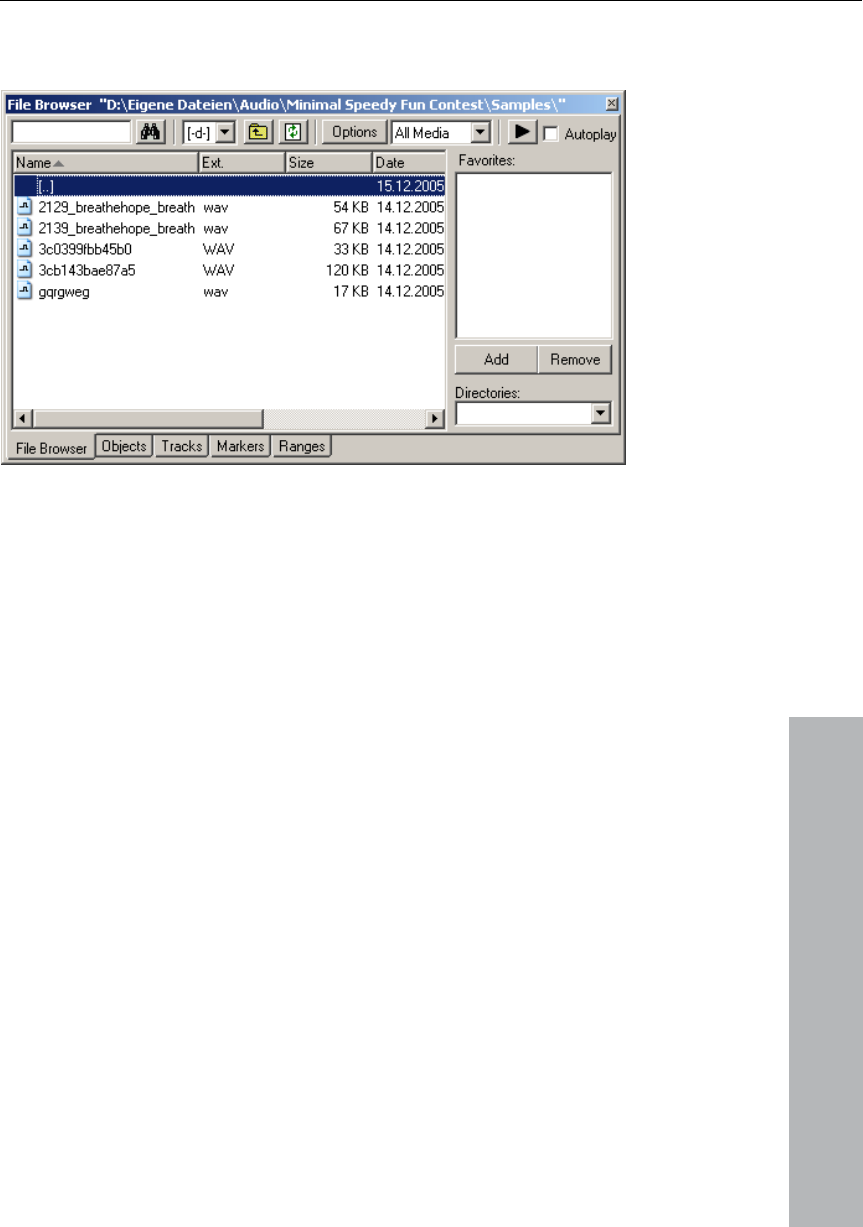
The Managers 237
www.magix.com
File browser
Introduction
MAGIX Music Studio 12 deluxe contains a file browser integrated into
the Manager with which the files can be sampled and directly loaded
into projects. The browser allows favorite folders to be defined and
provides access to the folders that were last opened.
In order to display the file browser, click on the ”Manager” button in
the toolbar and then select the “File browser” tab on the bottom edge
of the Manager window.
Menu: Tools / Manager / File browser
folder and file
Working with the file browser
Navigation / Favorites
The file browser behaves in the same way as the familiar Windows
Explorer. Folders and files are shown in list form with
symbols. The mouse or the keyboard can be used for navigation. A
drive combo-box contained in the toolbar makes it possible to
change quickly between all the data-carriers connects to the
workstation.
A display filter located in the toolbar allows the presentation to be
limited to certain media types, e.g. only *.wav, Midi, or project files.
The standard display is “All media”. As will be familiar from other

238 The Managers
www.magix.com
r”. Directories or files that are found will be
highlighted. Entering one or several initial letters enables several
The file browser opens in its standard form as a window divided into
two parts. The right-hand area contains the Favorites list, which if
an
or removed from the Favorites list with “Add” and
“Remove”.
the possibility for changing to the current
project folder.
with the “Play” symbol in the
toolbar. With the activated “Autoplay” checkbox, on the other hand,
Manager windows, a search option allows the current window to be
searched through for folders or files. Enter a search word in the input
field and press “Ente
entries to be found and highlighted if they all meet this search
criterion.
required can be switched off with the “Options” toolbar. Folders c
be added to
Underneath the Favorites list there is a combo-box containing a list of
the paths last opened and
Sampling files
You can sample a high-lighted audio file
you can play each market audio file immediately. In this way it is
possible, for instance, to listen through a complete list using only the
cursor buttons. A file that is running can be stopped with one more
click on the “Play” button.
Tip: During the play the controls on the transport console are
allocated to the media file. Reproduction and position functions are
available without any limitation.
Reproduction is not achieved through the mixer or internal effects. In
, first check
the correct setting and the routing of this device.
contrast to the “Reproduction” function in the “Load” dialogue, which
uses operating system routines, in this case the audio device is used
that is selected in the “Play” parameters (“P”). This can involve an
MME, WDM, or ASIO device. If no sound is reproduced
Note: In order to sample certain media files, e.g. those in WMA
format, it is necessary to convert these files into WAV format. The
conversion is carried out automatically in the background.
Loading files from the browser into projects

The Managers 239
www.magix.com
with Drag&Drop into a
free area or the title line of the program window, it will open directly in
“Options”) into account. Thus you can for
instance specify whether all files are to be inserted into the project
(right-
click):
• Select all files
opens in the Windows Program with
mmand. This can be,
for instance, an MP3 player or another WAV editor.
dows Explore urrent folder as a new
Windows Explorer window.
A media file from the browser can be inserted with Drag&Drop into
the required time position in an opened project. If the file browser list
is located in the foreground, pressing the “Enter” key will produce the
same result.
If an audio file is dragged out of the clip list
the WAV editing view.
If several files have been selected in the list, all the files at the current
cursor position will be inserted as new objects, taking the load
options (see toolbar
one behind or below another, alphabetically or in accordance with the
timestamp positions they contain. Loading options that have been set
apply mutually to files that are inserted via the program’s “Load”
dialog.
Further options are hidden in the context menu of a media file
• Load file
• “Delete file”: removes the file physically from the data-carrier.
Caution! This process cannot be reversed.
• Open with standard link: the file
is owhich this file type linked f r the “Open” co
• Open in the Win r: opens the c
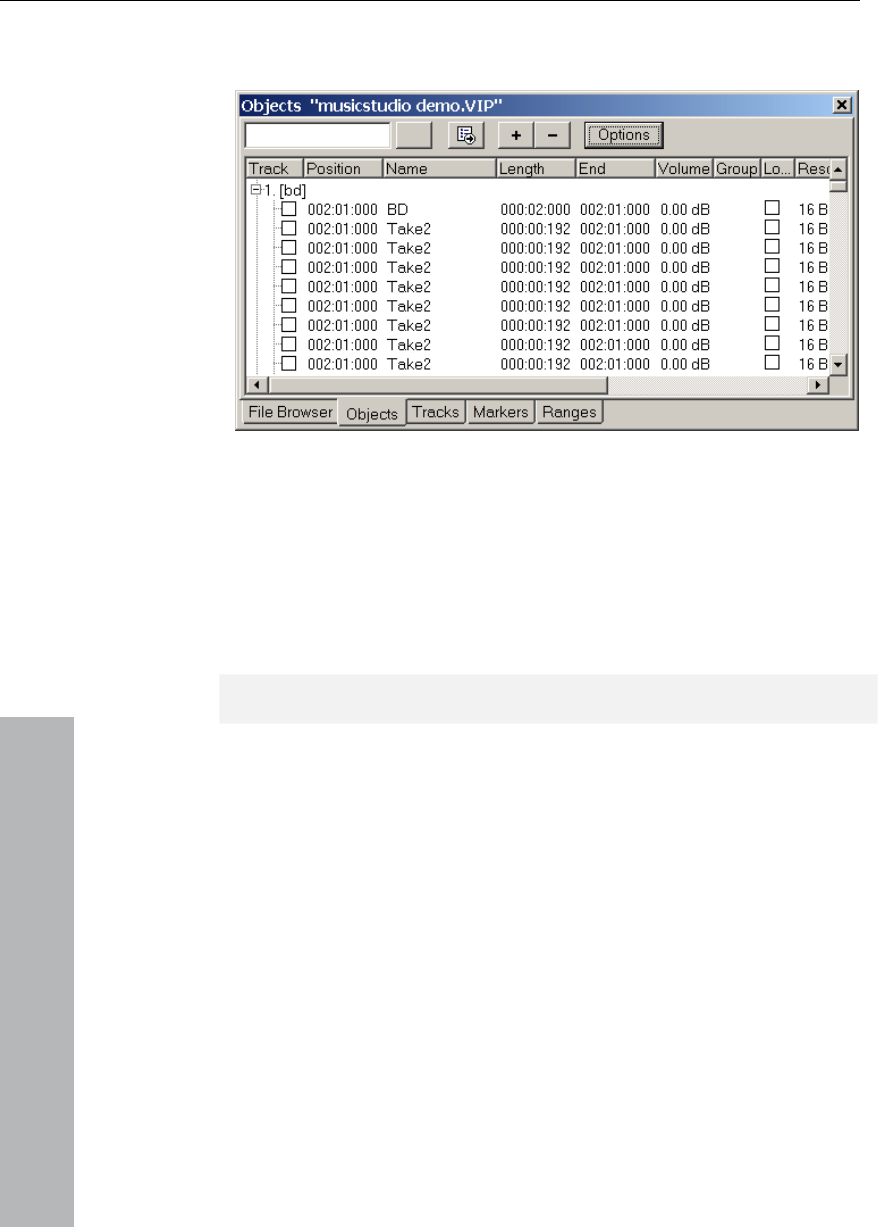
240 The Managers
www.magix.com
r Object Manage
Introduction
The object manager integrated into the Manager lists all the objects
contained in the current project and enables selected object
parameters to be edited.
To display the Object Manager, click on the “Manager” button in the
toolbar and then select the “Objects” tab on the bottom edge of the
Manager window.
Menu: Tools / Manager / Object Manager
You can export information from the Object Manager as a text file.
Click on the “Export text” button in the toolbar. The Windows Text
Editor opens with an extract from the Object Manager list. The
following information is saved:
• – Project name and path
oject
• – Path of source file.
You will find this file afterwards in your project folder (Project
• – Track and object name(s)
• – Start position in the pr
name.txt).

The Managers 241
www.magix.com
r
Object view and selection
bjects are displayed in a tree structure, arranged by tracks, with
only those tracks listed that actually contain objects. Optionally you
to the track
number.
in the project window. If an object is selected that is part of an object
selected in the
project window and the Object Manager. You can also already
roup bjects by the number of the object group in the
group column of the Object Manager.
bjects: As in the other Manager windows, in the Object
Manager as well there is a search function available with which a
e input field and press “Enter”. Objects that
are found are highlighted but not selected in the project window.
Delete, rename, and edit objects: You can delete objects directly from
ally or simultaneously
and pressing “Del”. As an alternative you can delete an object via a
xt enu.
an ename uble-clicking on the object name and
entering a new name. As an alternative your also have the route
to you .
an object directly from the Object Manager, right-click
• length
• end
Working with the Object Manage
The o
can have only those objects displayed that are in the current track
(“Options” toolbar).
With the plus/minus buttons in the toolbar you can open and close
the track-object presentation in the whole window. In order to
expand a single track, click on the “plus” symbol next
Select objects: A square checkbox next to the object name enables
one or several objects to be selected that then also appear selected
group, the other objects in the selection are also
recognize g ed o
Search for o
search can be made for objects in the current window. To do this,
enter a search word in th
the Object Manager by selecting them individu
conte m
You c r an object by do
available via the context menu
In order to edit
on the object concerned and start the Object Editor.
Edit object parameters
You can edit the following object parameters in the Object-Manager:
• start position
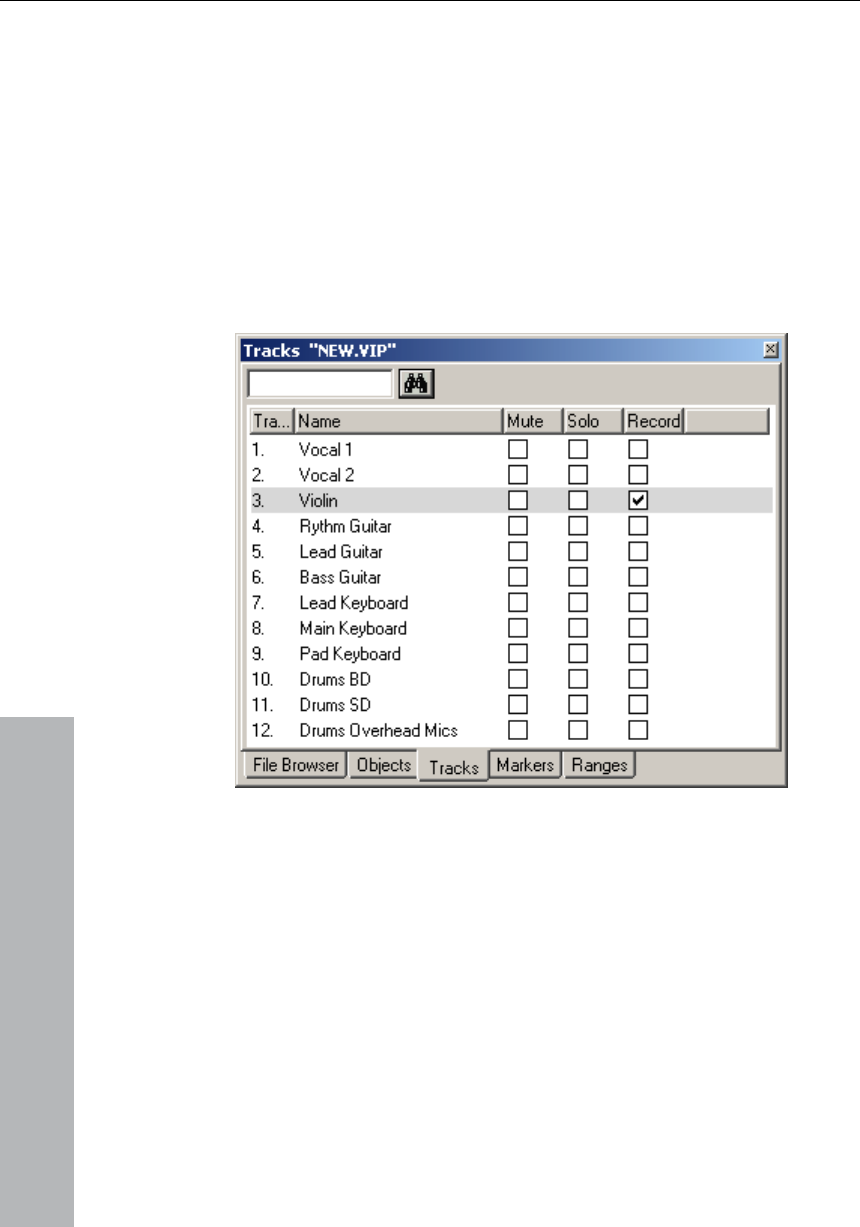
242 The Managers
www.magix.com
ter, double-click on the relevant value and enter a
• volume
• lock
To edit a parame
different value. Numerical values can be changed by Drag&Drop with
the mouse, whilst Ctrl+Shift allows larger or smaller value changes.
“Tab” switches on to the next editable value. The up and down
cursor arrows permit vertical navigation within a column from one text
box to another.
Track Manager
Introduction
Manager represents all the tracks contained in the current
the
toolbar and then select the “Tracks” tab on the bottom edge of the
The Track
project and not only provides direct access to solo, mute, and record
but also hides tracks in the project window and mixer.
To display the Track Manager, click on the “Manager” button in
Manager window.
Menu: Tools / Manager / Track Manager

The Managers 243
Working with the Track Manager
Track view and selection
In the Track Manager there are all the tracks in the current project. To
www.magix.com
appears
s: As in the other Manager windows, there is a
search function available in the Track Manager with which a search
insert tracks
You can delete tracks directly from the Manager by selecting them
ing “Del”. As an alternative
you can also delete a track via its context menu.
Rename a track by double-clicking on the track name and entering a
m one text box to another.
re in the same way as if you had opened the Object Editor
from the project window.
You can also insert tracks directly into the Track Manager. Click with
form track will be inserted behind the last
select a track, double-click on the track number. The track
selected in the project window. If the track is outside the visible
display the project window will scroll to this vertical position.
Searching for track
for track names can be made in the current window. To do this, enter
a search word in the input field and press “Enter”. Tracks that have
been found are highlighted.
Rename, remove, and
individually or simultaneously and press
new name. As an alternative, here again the route via the context
menu is available. “Tab” switches on further to the next editable
value. The up and down cursor arrows permit vertical navigation
within a column fro
To edit an object directly from the Object Manager, right-click on the
object concerned and start the Object Editor. All functions are
available he
the right-hand mouse button on a track entry and select “Insert track”
the context menu. A new
track in the project.
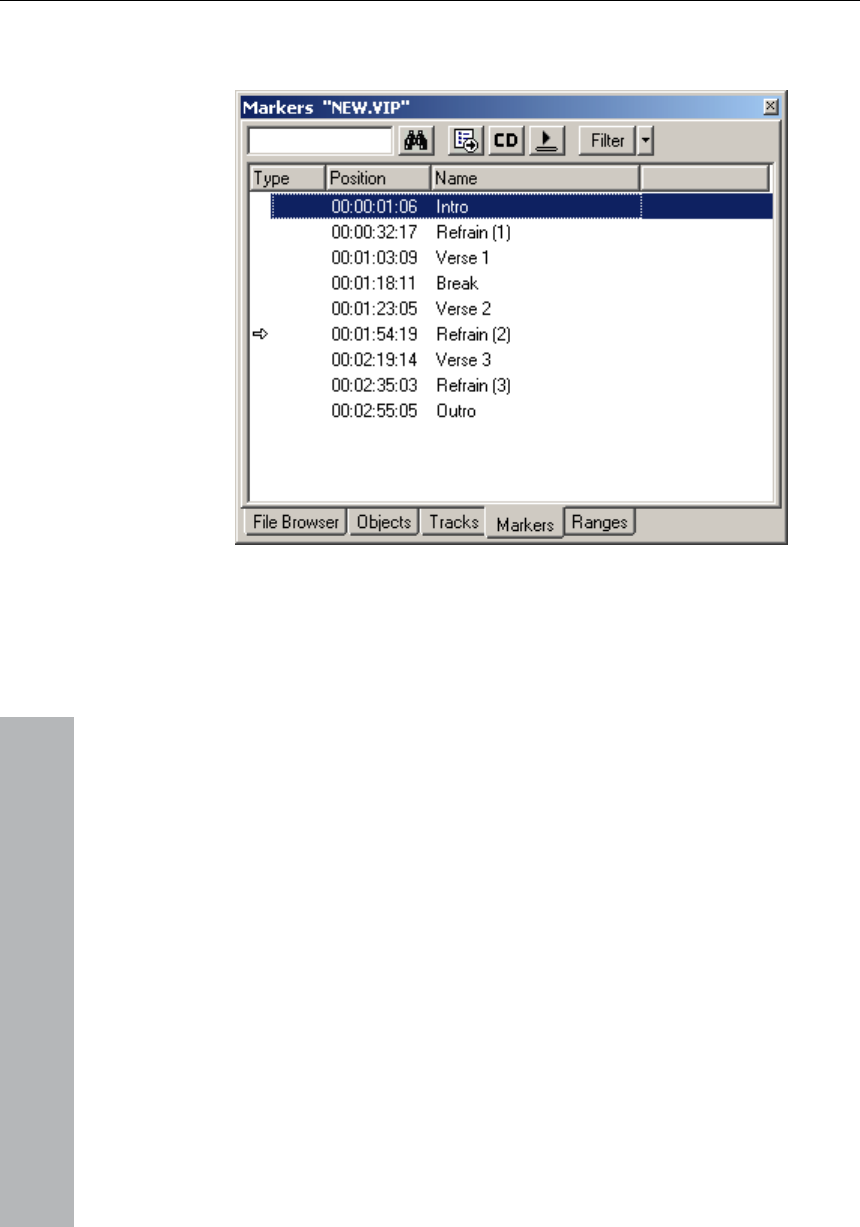
244 The Managers
www.magix.com
Marker Manager
Introduction
n the
, and makes it possible to jump to
the list.
nager” button in the
e “Marker” tab at the bottom edge of the
tion from the Marker Manager as a text file.
Click on the “Export text” button in the toolbar. The Windows Text
list. The
s saved:
position in the project
You will then find the file in your project folder (Project name.txt).
The Marker Manager represents all the markers contained i
current project, regardless of type
or start playing them directly from
To display the Marker Manager, click on the “Ma
toolbar and then select th
Manager window.
Menu: Tools / Managers / Marker Manager
You can export informa
Editor opens with an extract from the Marker Manager
following information i
• Project name
• Marker type
• Marker name
• Marker

The Managers 245
www.magix.com
ion
Marker
Manager as well there is a search function available with which a
a
search word in the input field and press “Enter”. Markers that have
Jump to and start to play markers
marker and click on the “Play from
the marker” button in the toolbar. An area is created around the
Delete markers, change marker names, positions, and types
”. As an alternative
you can delete one or all of the markers via the context menu.
te is also available
here via the context menu. To change a marker position directly from
the list, proceed in the same way. “Tab” switches on to the next
p and down cursor arrows permit vertical
navigation within a column from one text box to another.
Working with the Marker Manager
Marker view and select
In the Marker Manager all markers can be displayed from the current
project.
Search for markers: As in the other Manager windows, in the
search can be made for marker names in the current window. Enter
been found are highlighted.
To position the “Play” cursor on a marker, double-click on this marker
in the “Type” column.
Start playing a marker: Select a
selected marker and reproduction is started.
You can delete markers directly from the Manager by selecting them
individually or simultaneously and pressing “Del
You can rename a marker by double-clicking on the marker name
and entering a new name. As an alternative the rou
editable value. The u
Tip: You can change a marker type in the context menu at any time in
the marker concerned in order, for instance, to convert a position
marker into D tra a C ck marker.
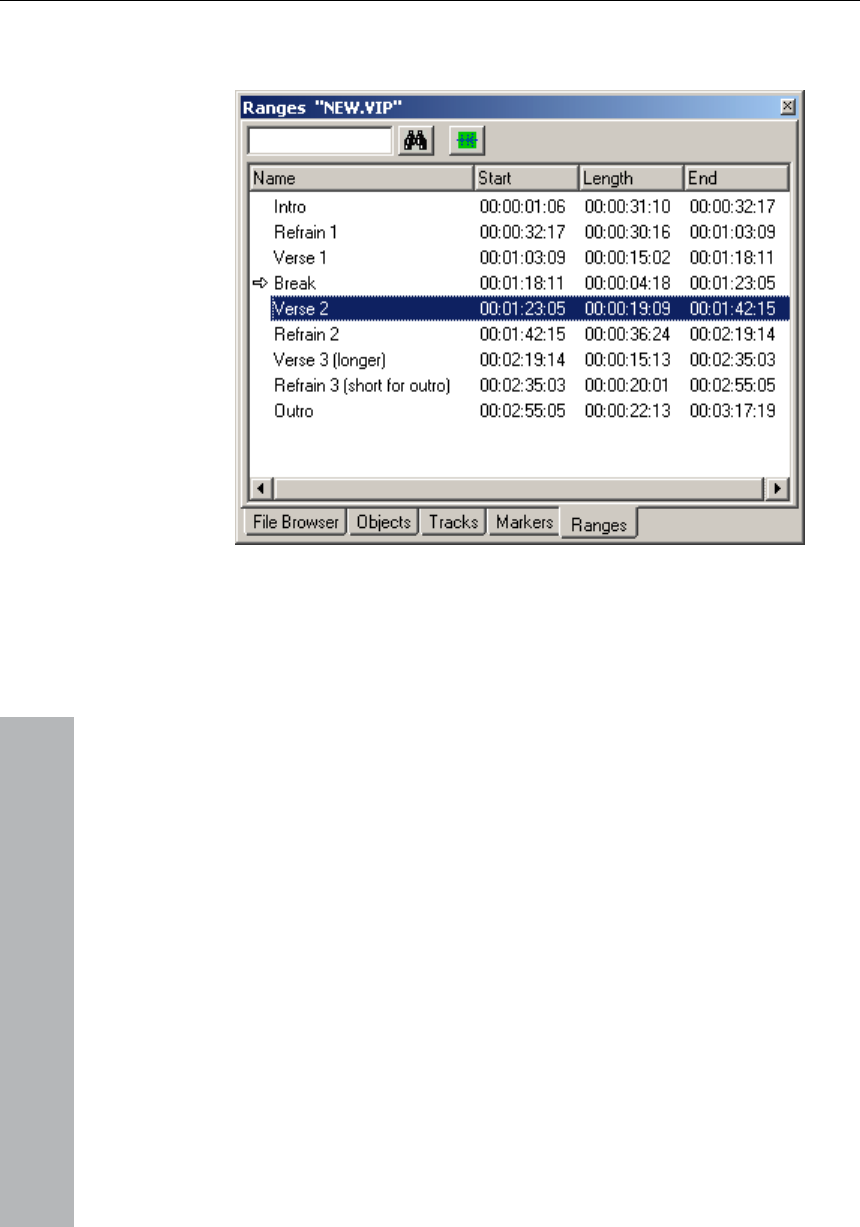
246 The Managers
Range Manager
www.magix.com
ed in the current
ges” tab on the bottom row of
the Manager window.
Range manager
to save a range in the Manager you first have
project window. Then click on “Define new
lbar of the Range Manager Ranges that are
nge” function (Alt+F2, Alt+F3 etc.) of the
can be made in the current window. To do this, enter a search word
Introduction
The Range Manager represents all ranges contain
project and makes it possible to select them directly from the list.
In order to display the Range Manager click on the “Manager” button
in the toolbar and then select the “Ran
Menu: Tools / Managers /
Working with the Range Manager
Define and search for ranges
Define ranges: In order
to define a range in the
range” button in the too
filed via the “Mark ra
program appear in the list with the addition of F2, F3, etc.
Searching for ranges: As in the other Manager windows, in the Range
Manager a search function is available with which a search for ranges

Surround Sound 247
www.magix.com
edit the following parameters in the Range Manager:
• name
• length
e, whilst CTRL+SHIFT allows larger or smaller changes.
“Tab” switches on to the next editable value. The up and down
one
name text box to another
Surround Panorama Module
Open the dialogue
Pan Display of the relevant
channel line in the mixer (this is only possible if the twin-channel
right-click and select “Pan / Surround editor”, or
• Select the required track in the VIP and select “Track” -> “Surround
In the title line of the Surround panorama module the track is stated
that it is currently being edited.
Example: “Surround panorama module: Track 4”
in the input field and press “Enter”. Ranges that are found are
highlighted.
Editing range parameters
You can
• start
• end
To edit a parameter, double-click on the relevant value and enter a
different value. Numerical values can be altered by Drag&Drop with
the mous
cursor arrows permit vertical navigation within a column from
Surround Sound
In the Surround Panorama module the panning of a track or an object
is set and edited on the Surround bus.
• Mouse right-click on the Surround
Surround mode is already active), or
• Mouse right-click on the button or regulator in the relevant track in
the VIP, or
• Open the track menu of the VIP in the track information with a
mouse
panorama-module”
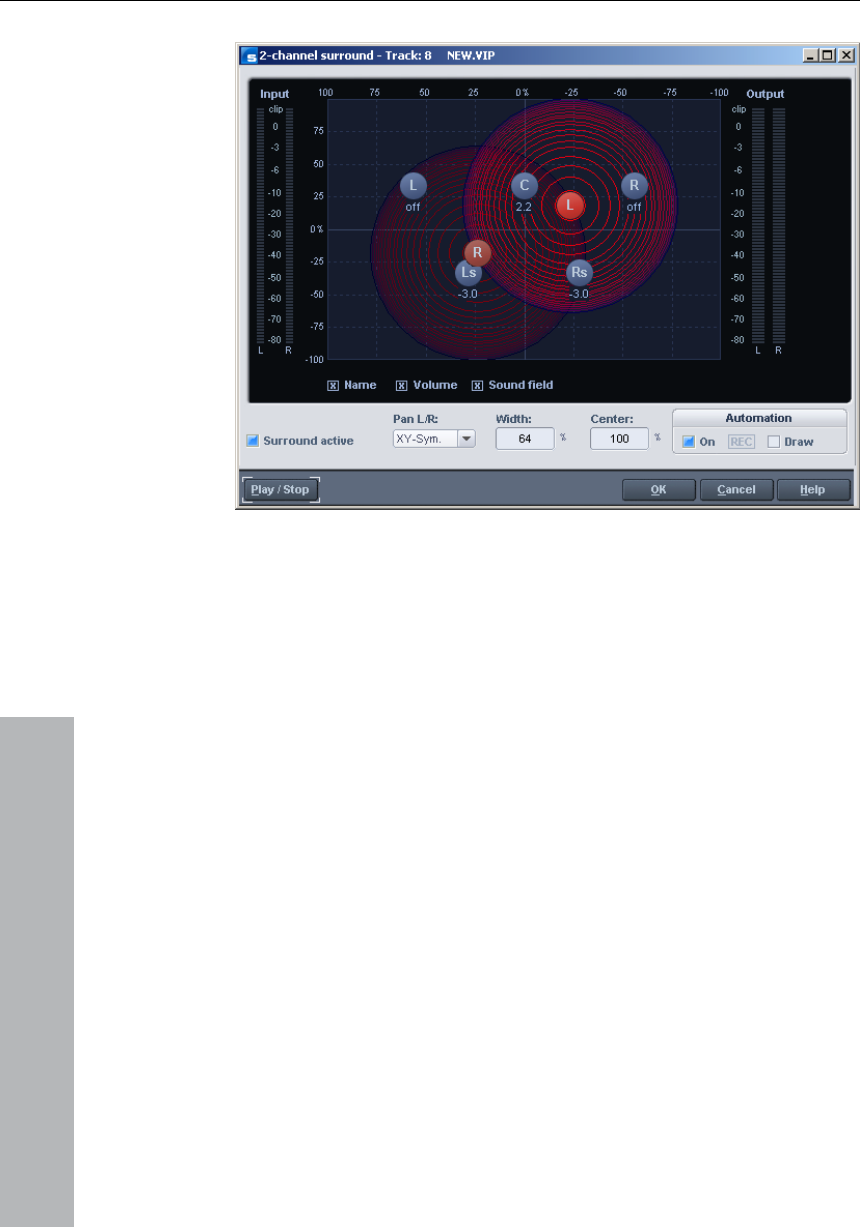
248 Surround Sound
www.magix.com
Display elements
In the panorama display the loudspeaker channels of the Surround
set-up are shown as blue dots. Activating the options underneath the
panorama display allows the following information to be displayed in
se
is clicked on a source, the value for only this source will be shown
h a way that the distance
between each loudspeaker and its neighbor is constant. This
addition:
Name
The loudspeakers are designated with defined abbreviations: “L”
(left), “C” (center), “R” (right), “Ls” (left surround), and “Rs” (right
surround).
Volume
A level indicator appears next to each loudspeaker and shows the
value of the level share that the sound source is transmitting on this
Surround bus. For the stereo modes the total of the level of both
sources is always shown. If the shift key is held down and the mou
briefly.
Sound field
The input signal is presented as a field made of concentric circles.
Each red line corresponds to a level-gradient of 3 dB in the sound
field. The loudspeakers are arranged in suc

Surround Sound 249
www.magix.com
a uniform distribution of the sound source
Settings
position can only be determined
via the control elements in the track box or the mixer.
l Surround”.
Width
Affect the extension range of the loudspeakers (sinking).
share of the center in the distribution of
the sound source to the front channels. In certain working ranges
urround
arrangement makes
possible to all channels. Level relationships are created between the
channels that cannot be achieved in other modes.
Surround active
Activates the twin-channel Surround mode.
In the deactivated state the stereo
Pan L/R
This determines the way in which the left-hand or the right-hand
channel is placed in the Surround field. For the individual cases
please read the section on “Stereo and mono signal processing with
twin-channe
Center
The parameter controls the
(e.g. film sound) it is customary to reserve the center channel for
dialog and to mix music and noises without share in the center. A
signal positioned exactly in the middle is reproduced in the 5.1 format
with Center = 100% exclusively through the center channel, or with
0% exclusively as a phantom sound source throughthe channels L
and R. This parameter is often also described as divergence.
Automating S
This section of the dialog is described in the section on “Automation
of twin-channel Surround”.

250 Surround Sound
Stereo and mono signal processing with
twin-channel Surround
Mono
www.magix.com
applies to mono signals: The signal is positioned as a
single mono sound source in the panorama.
X-Sym.
The following applies to mono signals: In addition to the original mono
source a second (mono) mirror sound of this signal is positioned.
The mirror axis is the x-axis.
Y-Sym
The following applies to stereo signals: The left-hand and right-hand
channels are directed symmetrically to the y-axis. This enables, for
instance, a stereo signal to be panned very easily from Front L to R.
The following applies to mono signals: In addition to the original mono
source a second (mono) mirror sound source of this signal is
positioned.
The mirror axis is the y-axis.
XY-Sym.
als: The left-hand and right-hand
The following applies to stereo signals: A mono total is formed from
the signal that is positioned as a single mono sound source in the
panorama.
The following
The following applies to stereo signals: The left-hand and right-hand
channels are aligned symmetrically to the x-axis. This, for instance,
enables a stereo signal to be panned very easily from Front L to
Surround L.
The following applies to stereo sign
channels are aligned symmetrically to the x and the y-axes. This
enables, for instance, a stereo signal to be panned very easily from to
Front L / Surround R.
The following applies to mono signals: In addition to the original mono
source a second (mono) mirror sound source of this signal is
positioned. This is mirror-symmetrical to the original course with
regard to the x and y-axes.

Surround Sound 251
www.magix.com
and right-hand
channels are kept at a constant distance to one another and shifted
ce between the two sound sources can be altered.
stance to one another and
shifted parallel to one another during movements. If the Ctrl key is
held down the distance between the two sound sources can be
altered.
r all left-hand channels only
the left-hand signal is used, for the right-hand channels only the right-
g applies to mono signals: No special function, identical
Surround-Panorama-module
panning can be
t the automation is switched on in the
Surround panorama module. This can also be done by pressing the
the VIP.
first has to be marked in the VIP
change is to take place. The drawing mode is now
ound panorama module. Now any required
n be drawn in the
the VIP is played. Later
e curve editing mode in the VIP.
Parallel
The following applies to stereo signals: The left-hand
parallel to one another during movements. If the Ctrl key is held down
the distan
The following applies to mono signals: The original and the mirror
sound sources are kept at a constant di
Stereo Thru
The following applies to stereo signals: The same level shares as with
a mono source are sent to the various channels, depending on the
position of the sound source. However, fo
hand signal, and for the center and LFE channels the mono
proportion.
The followin
with mono-mode.
Automation of twin-channel Surround
Panning movements in track-related Surround
automated. For this purpose firs
button of the relevant track in the VIP window. If the sound source is
moved during the playing process, this movement is recorded and
shown in the VIP as a curve. Later editing of this curve is possible
with the Panorama drawing mode of the mouse in
Drawing
For this automation mode a range
within which the
switched on in the Surr
series of movements of the sound source ca
Surround panorama. This series of movements is carried out in the
previously marked time range the next time
editing of the curve is possible with th

252 Surround Sound
www.magix.com
luxe
ates
vents on the corresponding VIP track. You have the
possibility here of placing the initial position of the automation before
reproduction at a given place.
If you want to alter the start position of the automation process, the
recording process then has to be started with the reproduction of the
project. During the reproduction you can simply click into the panning
module window. The source signal position is then registered and
subsequent movements are recorded by MAGIX Music Studio 12
deluxe, which indicates the recording process with a red “Record”
indicator in the window.
Possibility 2: Drawing mode in the Surround panning dialog
In order to prepare the drawing and movement for a Surround sound
placement of the source signal, a range first has to be selected in the
VIP track in which the automation is to take place. Then the “Drawing
mode” function likewise has to be switched on in the Surround
panning dialog. After that you can simply put the source signal in the
the Surround panning dialog the “Automation on”
can also be switched on. As the next step the Panorama
mode has to be selected from the toolbar. You can draw
new curve events with it in the VIP track. Place the mouse pointer
close to an existing curve and click the left-hand mouse button. While
Processing the Surround Sound automation
Possibility 1: Auto-record in the Surround Panning Dialog
Duration of an auto-record process, the source signal can be placed
in any required position in a room. MAGIX Music Studio 12 de
records this movement during playing or recording and gener
automation e
panning dialog into a new position. MAGIX Music Studio 12 deluxe
generates the automation events automatically in order to generate
this movement for the automation curves.
Possibility 3: Drawing automation curves in the VIP track
MAGIX Music Studio 12 deluxe allows you to draw new Surround
Sound automation curves in a VIP track or to change existing curves.
Make sure that the button for the corresponding VIP track is
activated. In
function
drawing
this button is held down you can create new events for this curve.

Burning CDs 253
www.magix.com
Burning Redbook compatible audio CDs is a vital feature of MAGIX
However, sufficient system resources must be available for
interrupted, you can of course revert to the conventional method,
d Philips laid down individual
standards for the various types of CDs. The names simply arose from
pact Disc Audio
Standard. The requirements listed here have to be observed for
ction. Audio CD players only read CDs created
according to the Redbook format. It is therefore necessary to first
convert PC files into this format before writing them onto an audio
disc compatible with any audio CD player.
Writing
Some years ago, there was but a small number of select studios in a
position to carry out CD mastering. Today, writing of audio CDs is
nothing exceptional any longer, and permanently dropping prices for
CD-R burners and media are within everyone’s reach.
On the CD the audio material is stored digitally, and these data are
read by the CD player and transformed back to the analog plane.
While in action, track indexes show the CD player which song starts
at what position.
Burning CDs
Music Studio 12 deluxe. You therefore won't require any other
software for writing a CD. You can also write CDs "On the fly",
whereby all processing is performed in realtime during the write
process. As trackbouncing was not performed first and no image is
created, no extra space is required on the hard disk.
processing while writing. If your PC is too slow and writing is
trackbouncing.
Redbook
To standardize the data structure of CDs and to make them
compatible with the CD drives, Sony an
the color of the books in which these standards were recorded. The
term "Redbook" is common language for the Com
industrial CP produ
MAGIX Music Studio 12 deluxe can write an audio CD directly out
from the program too. Before the write process starts, the track

254 Burning CDs
indexes are directly set in the VIP window. Then MAGIX Music Studio
12 deluxe converts stereo sum and indexes into a data stream that is
fed to the CD burner.
www.magix.com
ion as
digital audio data later on.
Burning CDs in MAGIX Music Studio 12
deluxe
1. In order to write an audio CD the VIP window must at first contain
fil
2.
w
yo or the
3.Set the track indexes to mark the starting position of each song. If
the VIP window contains but one stereo track in which each song is
use MAGIX Music Studio 12
deluxe to create indexes by means of the button ”automatic indexes”.
eluxe is one of the few audio programs permitting
this.
enough.
Now click onto the button ”create CD” in the toolbar or select ”CD >
create CD” in the menu. This dialog offers two options:
Write ”on the fly”. In this mode, all effects are calculated in real-time.
ld be a much more simple and convenient
method to burn a CD.
The CD-R drive modifies an assigned layer of the medium by mea
of a laser such that an audio CD player can read this informat
ns
audio material. You may either record it new or import existing wave
es into the virtual project.
Mix your recordings by means of the real-time functions of the VIP
indow and the mixer window. The CD will later sound exactly like
u will hear the playback via a stereo sound card. All settings f
playback will be audible on the CD too.
created as separate object, you may ca
This will cause an index to be positioned at the beginning of each
object. Tracks and indexes may be arranged in MAGIX Music Studio
12 deluxe at discretion. Thus rest intervals may be continuously
adjusted, and indexes may be set without any rest either. MAGIX
Music Studio 12 d
4. When you have made all settings you can write the CD in realtime,
or you can use the offline function if your PC is not powerful
Create complete new files. MAGIX Music Studio 12 deluxe creates a
new stereo file that contains all information on the multiple-track
project.
The first option wou

Burning CDs 255
www.magix.com
5. One click onto the button ”OK” starts the writing process, and
searching for available CD-R
drives. If several drives are connected to the system you will be
MAGIX Music Studio 12 deluxe starts
asked to select the drive desired. Before burning, the writing process
can be simulated. You may check by that whether the capacity of the
computer is sufficient for the writing process.
Once started it cannot be stopped no more.
DSP Display
During the writing process on CDs in real-time the system capacity is
essence. Once the writing process started it cannot be
stopped no more. The whole CD becomes unserviceable upon an
ot fast enough. When ”on the
fly” is selected the computer must calculate the playback with all real-
time functions and simultaneously write the data onto the CD.
The DSP display is a fine expedient to assess possible problems
when writing onto the CD. The below table gives you a clue for the
maximum possible writing speed. Individual deviations may result due
to the configuration of your system and the speed of its components.
DSP Display and Writing Speed
Nearly 100 percent single speed
Up to 50 percent double speed
Up to 25 percent fourfold speed
Particularly when first using a new and unknown computer system it
is recommended to simulate the writing process at first to check the
limit performance of the system. Should the system become
overloaded, a reduction of the number of tracks or real-time effects
will help by combining parts of the VIP window by track bouncing.
The offline variation of the writing process offers another possibility.
At first, it creates a new stereo file that will be the basis for the writing
process.
of the
abnormal termination due to a system n
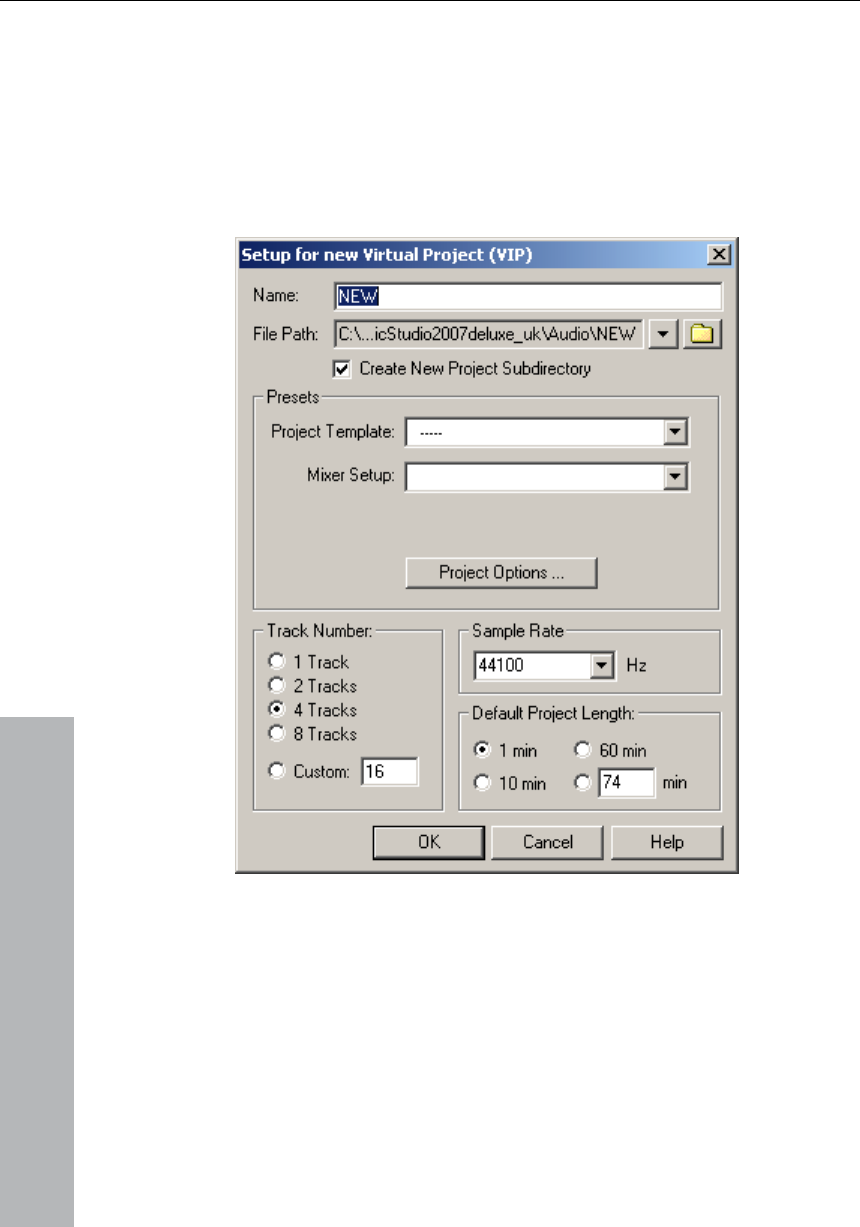
256 Menu File
www.magix.com
g and saving projects.
VIP)
Menu File
The project menu contains wide-range functions for generating,
managing, loadin
New Virtual Project (
A new virtual project is opened, you can choose the track and select
a name for the new VIP.
Track Number: Sets the number of tracks for the virtual project.
Sample Rate: Sets the sample rate of the virtual project.
Name: Each new VIP can be named here.

Menu File 257
www.magix.com
Grid: Activates the grid display.
Units of Measurement: Select from six different display types for the
o bjects grid. Objects will be snapped
together sample exact when this option is active.
: Recorded objects are immediately locked
once they are placed into a VIP track. This prevents accidental
moving and is especially helpful for multi-track projects.
Project-patterns: Projects (arrangements) can also be saved as
patterns in the File-Menu. The patterns are empty arrangements that
contain all of the settings (f. ex. of the VIP-display) of another project.
Auto-Crossfade-Mode: see Edit-Menu (see page 273)
Keys: E
Open
You can open various file types here and load them into MAGIX
Music Studio 12 deluxe.
Key: L for RAM Wave Projects
Key: Shift + L for HD Wave Projects
Key: o for Virtual Projects
Key: W for WAV files
Key: ALT+S for sessions
Project
Virtual Projects are multi-track projects in MAGIX Music Studio 12
ake use of Wave projects. When loading a virtual
s icons.
grid.
Snap t O : Activates the Object
Lock Recorded Objects
Virtual
deluxe, which m
project, all associated Wave projects (RAM and HD Wave projects)
are opened if they were not open prior to loading the VIP. The
windows of the individual Wave projects remain minimized to prevent
cluttering of the screen. They are initially only visible a

258 Menu File
www.magix.com
Once the WAV file has been opened once
in MAGIX Music Studio 12 deluxe, it can be loaded as a HDP from
Once the Wave projects are loaded, the VIP project window is
displayed.
WAV (Audio file)
When opening a WAV or other audio file, MAGIX Music Studio 12
deluxe automatically creates an associated HD Wave project. The HD
Wave project file contains additional information about the audio file,
such as marker positions.
that point on.
Note: If a VIP is the active window, all loaded WAV projects are
immediately turned into objects in the VIP. Any selected range (range
beginning) determines the position and track where the object is
created.
RAM Wave Project
ontain audio data in MAGIX Music Studio 12
A previously saved MAGIX Music Studio 12 deluxe session can be
this command. All projects and their related windows are
the screen the way they were saved to the session.
RAM Wave projects c
deluxe’s proprietary format. These files are loaded into the RAM
memory of your computer, including their associated graphic files,
marker position information, etc.
HD Wave Project
HD Wave projects contain audio data, which is directly loaded from
the hard disk, together with the graphical information, marker position
information, etc. The audio format used for these files is the WAV
format.
Object
Contains playback instructions (link to a Wave project, track, time
position, parameters, etc.) for audio data. Objects are used in virtual
projects.
Session
loaded with
arranged on
Import Audio
MAGIX Music Studio 12 deluxe gives you the option of importing
Wave, AIFF, MPEG, MP3 , MS audio (.wma), audio from .avi files or

Menu File 259
www.magix.com
be, a RAM
Wave Project, or a HD Wave project.
Difference between Open->WAV and Import Sample->WAV:
The command Open->WAV opens an already existing WAV file and
ile as a HD Wave project. MAGIX Music Studio 12 deluxe
automatically creates a HDP file and the corresponding graphic file in
ace is needed and the process takes much more time,
since the audio file has to be copied with Open Project->WAV. Import
when intending to use the WAV file as
a RAM Wave project.
Load Audio CD Track(s)
and select your desired CD-ROM drive, if
you have more than 1 drive
ck rac
3. In the CD track list dialog select one or more tracks in the list box
ck py Se k(s)...
ec ame WA Wave project and
click O.K.
w o da from M to your hard disk
as a w WAV file
se ack-l nd th dialog, in your VIP
appear one or more new objects, containing the audio data from
u CD.
Sample Dump files into a MAGIX Music Studio 12 deluxe project. You
will need to specify which type the project is going to
edits the f
the source folder.
When importing a WAV file, the complete file is copied. Additional
hard disk sp
Sample->WAV has to be used
This option is located in the menu “CD” too.
This function allows you to import audio data from most CD ROM
drives and CD-Writers in the digital domain,without any loss in
quality. Please contact our technical support for the latest list of
supported drives.
The HD Wave projects are recorded as WAV files and can therefore
be edited with other audio editing programs without having to convert
them first.
To do this, please follow these steps:
1. Open the drive list dialog
2. Cli on the “T k List” Button
4. Cli on “Co lected Trac ”
5. Sel t a filen for the new V file or HD
6. No the audi ta is copied the CD-RO
ne .
7. Clo the tr ist dialog a e drive list
yo r

260 Menu File
www.magix.com
Features of the Drive List Dialog
is button opens the track list dialog for selecting several
audio tracks of your CD.
Configuration: This button opens the drive configuration dialog, where
e drive list and all configuration data in a *.cfg
file.
drive list and all configuration data from a
*.cfg file.
Copy selected Track(s): This button starts the audio data copy
process; all selected tracks from the list are copied into one WAV file.
Play: Starts audio playback of the first selected track in the list.
Pause: Stops audio playback for later resuming.
Select all tracks: Selects all tracks of the CD for copying the complete
Unselect tracks: Closes the drive door of the CD ROM drive
Features of the CD ROM Drive Configuration Dialog
of the drive in the list. This is
Track List: Th
you can select special copy modes and SCSI IDs...
Reset: Restores the standard drive settings.
Add Drive: Creates a new drive entry in the list for editing the
configuration data.
Delete: Deletes the selected drive entry from the drive list.
Save Setup: Saves th
Load Setup: Loads the
Features of the Track List Dialog
Stop: Stops audio playback.
Resume: Resumes playback if previously paused.
volume. You can select multiple tracks with Ctrl + mouse click or with
Shift/Alt + Cursor keys!
Drive Name: Lets you edit the name
useful if you create more than one entry accessing the same physical
drive.

Menu File 261
www.magix.com
SCSI-ID: Lets you set the ID of your CD ROM drive. Be sure to set
r t ID, t or checking!
SI LUN parameter, normally 0.
Copy Mode Normal: Copies the audio data without any software
hronization: Copies the audio data using a
software correction algorithm. This is useful, because some CD ROM
not s ctly to the same position between two read
accesses but MAGIX Music Studio 12 deluxe can correct these
s using this algorithm.
correction is done.
r Re s the number of audio sectors per read
cycle, the higher the number the faster the copy process will be. Not
pport more than 27 sectors!
The current project is saved with the name displayed in the project
If you cified a name for your project,
MAGIX Music Studio 12 deluxe will ask you to do so.
with the new names (the source file remains untouched). HD Wave
Host Adapter Number: Lets you specify the number of your SCSI
adapter – normally 0.
the cor ec here is no err
SCSI-LUN: Select the SC
Alias: Lets you select a manufacturers type of your CD ROM drive.
correction.
Copy Mode Sector Sync
drives can eek exa
difference
Copy Mode Burst: Optimizes the speed of the copy process, no
software
Sectors pe ad: Define
all SCSI adapters su
Sync Sectors: Defines the number of audio sectors used for the
Sector Synchronization. A higher number results in a better
synchronization but also in a slower copy process.
Save Project
window. previously have not spe
Keys: S
Save Project as
You can define the path and name of the new project you want to
save your work under. RAM projects and virtual projects will be saved

262 Menu File
www.magix.com
for reasons of conserving space
on your hard drive.
Project” allows saving a VIP with all needed
This option allows you to create project-patterns, where all project
tracks or the type of grate are
roject Backup on CD
ly create data CD backups of the whole
Save Object
An object can be saved. This file only contains realtime data (wave
Save Session
lete session in MAGIX Music Studio 12
deluxe. This includes information about all just opened projects and
.. This is useful to be able to
projects are renamed on the hard disk. MAGIX Music Studio 12
deluxe will not generate a copy of it
Keys: Shift + S
Save complete VIP in
This function in menu “
Wave projects (*.RAP., *.HDP) into a specified directory. This makes it
easy to copy all files of a VIP to a backup disk etc.
Save Project as Template
settings such as the number of
maintained and saved without the objects and HDPs. These patterns
can be loaded when you are creating a new Multi-track project (Menu
File > New Multitrack Project).
Burn P
This option lets you easi
project. For this purpose, the external MAGIX Music Studio 12
deluxe-CD burning software is started.
files, fades, names, etc.), not the actuval audio data. The wave
project referenced by the object also has to be available if you want
to reload the object.
This will let you save a comp
their respective window positions etc

Menu File 263
www.magix.com
If a session is stored with the name “startup.sam”, this session is
automatically loaded at the next start of MAGIX Music Studio 12
e
projects.
ved after renaming the project.
Delete HD-Wave Project
HD Wave projects are deleted from the hard disk. Use this command
as all corresponding files are lost.
anted to delete a HD Wave project (HDP) from a file manager
such as Windows Explorer, it would also be necessary to delete the
elated to the project files.)
iles with
the HDP file with the project information) will
continue later at the same place without having to load the individual
projects first.
deluxe.
Rename Project
The “Rename Project” command will let you rename a project file
rather than save it to a different file. For RAM Wave projects, only the
internal names are changed (without being saved). But all
corresponding files are renamed immediately in the case of HD Wav
RAM Wave projects need to be sa
with caution,
(If you w
graphic files r
Delete Virtual Projects
With the command Delete Virtual Projects you can comfortably delete
VIPs and all wave projects used in the VIP. All files belonging to a
multi-track project (the WAV file containing the audio files, f
the graphics data, and
be lost.
Warning: There will be no further security query. The data will be
deleted immediately after pressing OK.

264 Menu File
Convert audio
Save in Format
Use this function to convert wave projects between the various
MAGIX Music Studio 12 deluxe formats for wave projects.
This can be useful, for instance, if you want to convert RAM-wave
projects in HD wave projects or L&R wave projects (2 connected
mono samples) into stereo wave projects.
Stereo Wave> Mono
www.magix.com
ed to one L&R Wave project. This is a
convenient way of editing joined mono samples with the same
After applying the command you will be prompted to activate the
corresponding window. Please note that only mono projects can be
cts are adapted to each other.
you can break the fixed connection of
them individually. If you wish to
The current L&R Wave project is converted into a mono mode. If it
channels will be mixed. The
100% of their image and then
A Stereo Wave Project is copied and converted into a Left Mono
Wave Project and a Right Mono Wave Project .
2Mono > Stereo/LR-Wave
Two mono projects are link
operations.
Here you can connect two mono wave projects to one L&R wave
project. You can then perform common operations and apply them to
all samples.
second mono wave project that you want to connect to the active
mono wave project. To do this, click on the title bar of the
linked to mono wave projects of the same bit and sample rate. The
lengths of both proje
L&R-Wave - 2 Mono
L& R Wave projects can be split into two independent mono projects
using this function. This way
the samples to one another and edit
edit them again together, select the function 2 Mono > L&R Wave.
L&R-Wave - 1 Mono
was a stereo project before, both
previous samples are first added with
divided by two to prevent over modulation (distortion). This is an
equivalent of reducing the volume by 6 dB.

Menu File 265
www.magix.com
same sample in both channels.
1 Mono - L&R-Wave
The original mono Wave project is duplicated and converted into a
single L&R Wave project with the
Export audio
Here you can export VIPs, HD wave, or RAM wave projects in the
formats WAV MPEG (1:10), Dump, MS-Audio, AIFF with Quicktime,
16-bit AIFF and Real Audio or MP3.
Note on exporting audio: The audio data from HD Wave Projects can
be further processed or imported directly as WAV files from HD Wave
Projects. The use of the "Export sample" function is only necessary
when the data is to be copied. The storage space required on the
hard drive is not increased; of course, copying requires considerably
more time.
Export podcast
Podcast is the name for a relatively new Internet transfer form. It is
made up of "pod" from "iPod", the name of a popular portable MP3
player, and the term "casting" for broadcasting content to a wide
group of listeners/viewers.
A podcast is therefore something like an online radio station.
"Broadcasting" webradio stations means you can only listen to and
record the currently broadcast radio station. Podcasting is different.
You as the listener can subscribe to the podcast and the files will be
downloaded at a specific time and you can listen to them whenever
you like, for example, on the move with your portable player. The
shows are pre-produced and placed on an Internet server for
download.
Select the "Upload arrangement as podcast show (audio)" in the
iPACE > MAGIX Podcast Service menu and the exciting journey of
your podcast to the pages of the largest podcast providers begins.
The first stop is your personal MAGIX Online Album, the place your
podcast will call its online home. From here it can be accessed from
anywhere in the world. Login with your password or register.
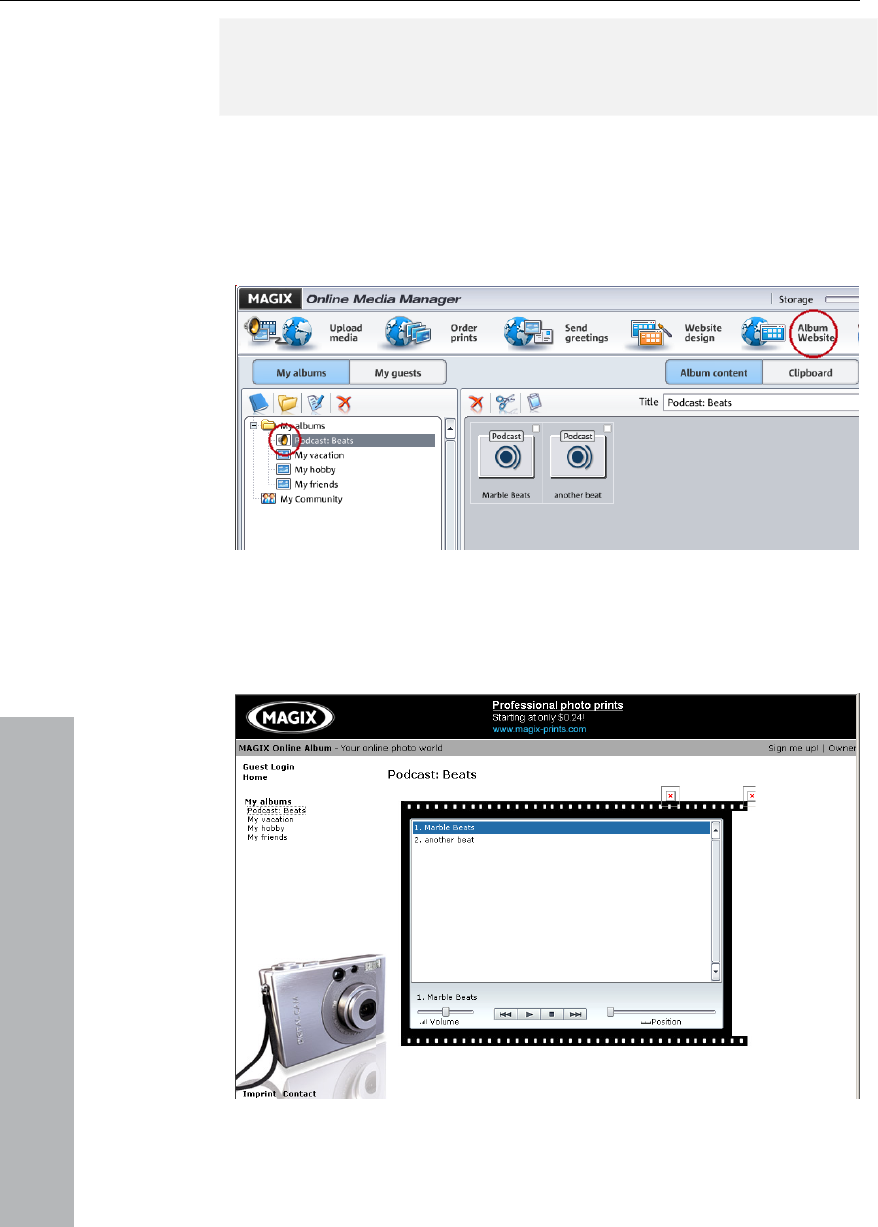
266 Menu File
www.magix.com
Your free MAGIX Online Album with 128 MB webspace can be set up
at any time. It will then be available to you from anywhere in the
world.
When uploaded via the "Make podcast" button the podcast will be
sent to your personal MAGIX Online Album. In the
AGIX Online Album the cast can
now be found in its new format in the newly created folder "My
<online_medien_manager> of your M
podcasts".
Now take a look at your album website: Here you can listen to the
cast on your own website. You will immediately notice the small
button "Subscribe to RSS feed" which allows any user of your MAGIX
album website to automatically receive podcasts now and in future.
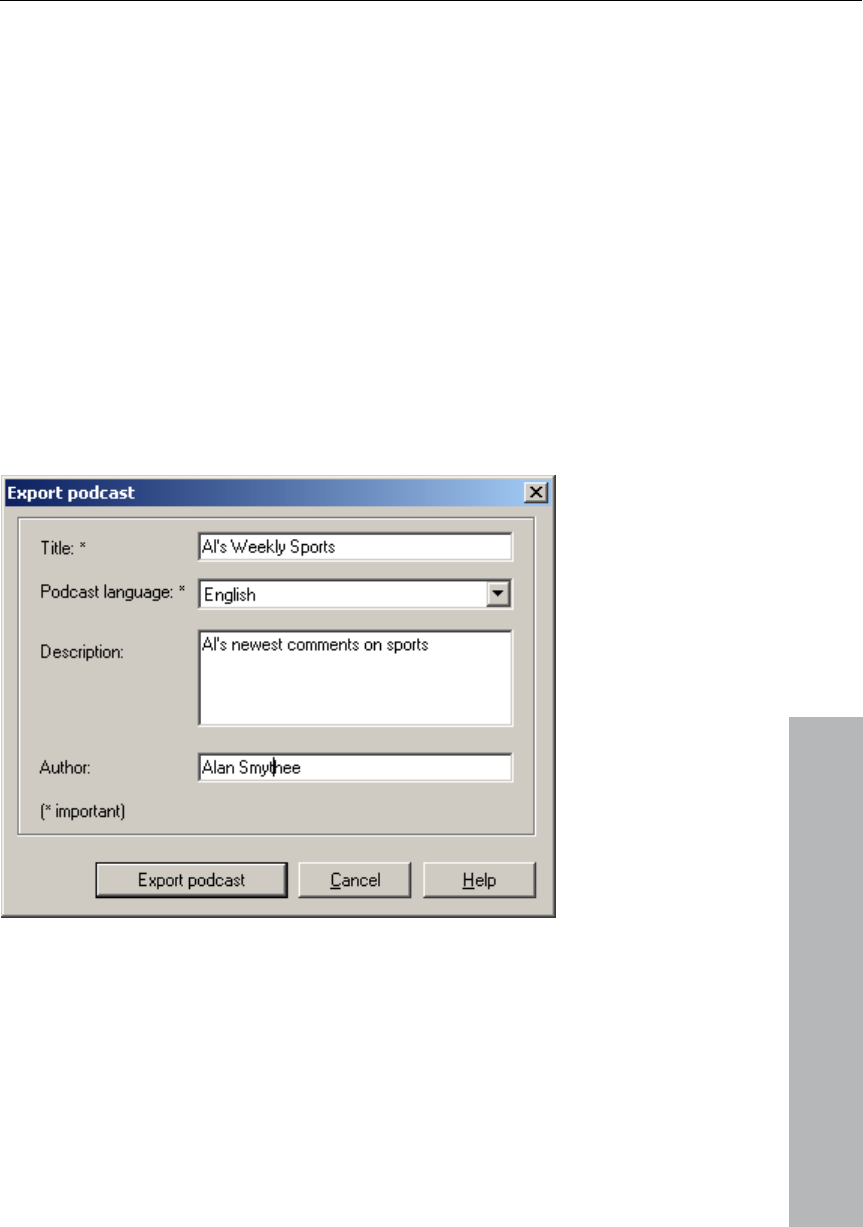
Menu File 267
www.magix.com
S feed - the technology behind a podcast - will automatically
guarantee that your podcast will be sent from your MAGIX Online
Album to many large podcatchers, including MAGIX Podcast Service.
an now be subscribed to by a worldwide
audience. Currently, a podcast created with MAGIX Music Studio 12
With Make podcast you can publish your project as a track on your
podcast.
The export podcast dialog now opens. Here the required information
How is your podcast distributed?
Your RS
Here your podcast c
deluxe and uploaded to MAGIX Online Album is sent to 10-20
international podcatchers. The distribution depends on the topic of
the podcast.
You may even find your podcast via a search engine without knowing
how long the journey of a cast over the web may be.
for your podcast track has to be entered.
Title: This is the title of your podcast. A podcast typically contains
several tracks, and new ones are added regularly. This is not where
you enter the name of the podcast to which the track belongs. You
can enter the name when you upload to MAGIX Online Album. A
podcast then corresponds to an album.

268 Menu File
www.magix.com
Export podcast: The project is encoded as an MP3 and then
IX Online Album. You can only upload one
contribution at a time (one file).
Description: It is important to enter a unique name and description so
diting function of a wave project in the same
way onto a file list of any size (the "batch"). The files are then
Possible editing processes include:
• Normalization
• Linear fade in and out
ixer master
• Format conversions: Word width (16/24/32 float), sample rate,
stereo/mono/left/right
• Save in all available export formats.
For example, you can normalize an entire folder of 24-bit wave files to
96%, add 5ms fade to the beginning and end of each, compress with
the multi-band compressor, convert to 16-bit, resample at 22kHz,
and save as MP3.
uploaded to the MAG
that other listeners will find your podcast.
Responsible: Here you enter your email address so that you can be
contacted.
Batch-processing
Batch-processing lets you automate work processes. You can
stretch out a specific e
executed automatically, for example, over night.
• All realtime effects available in the M
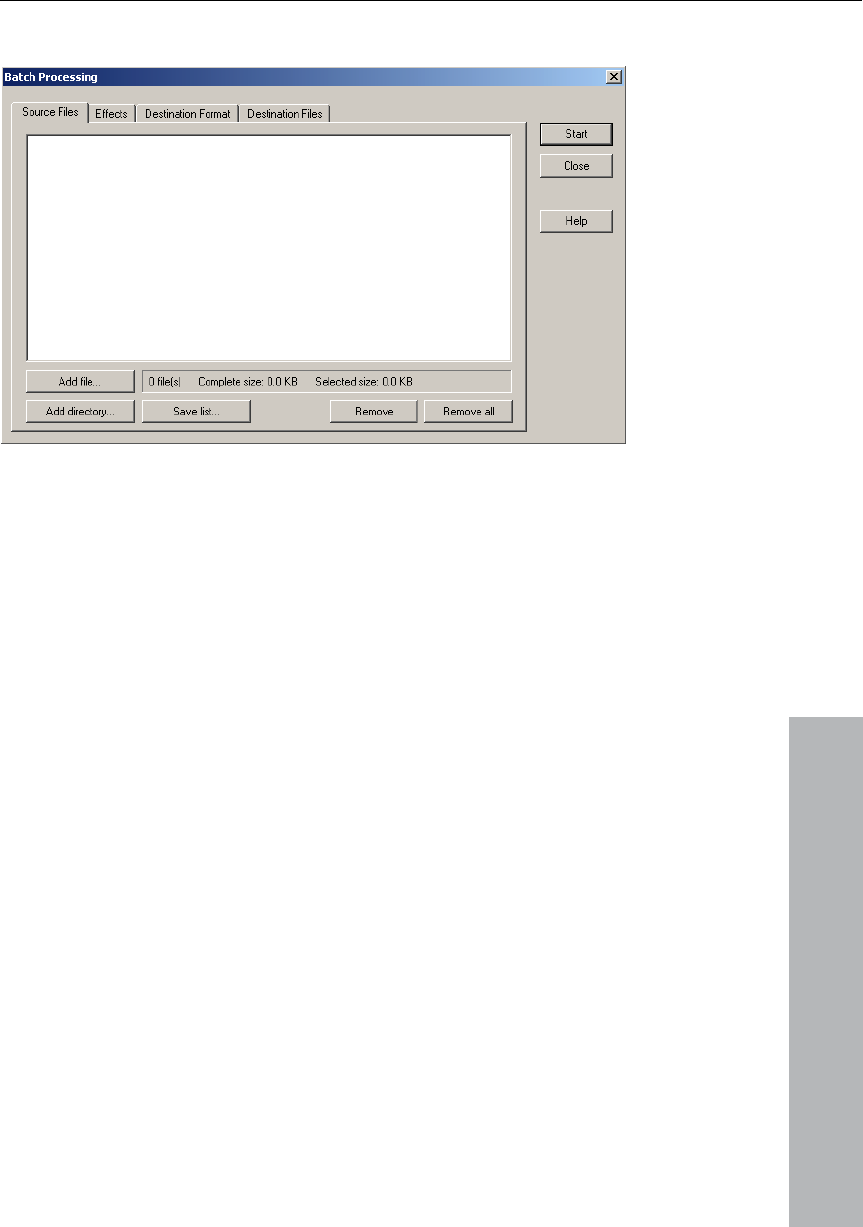
Menu File 269
www.magix.com
Source files
Here you can create the list of the files you wish to edit with the "Add
s possible. With "Load folder" all audio
lders are added to the list. All audio
at MAGIX Music Studio 12 deluxe can import can be
te all" removes the
file" button. Multiple selection i
files in a folder as well as all subfo
formats th
loaded. With "Save list" you can create a playlist (in the widespread
*.m3u format) so that you can use your file selection once again. Use
"Delete" to remove all selected list entries. "Dele
entire list.
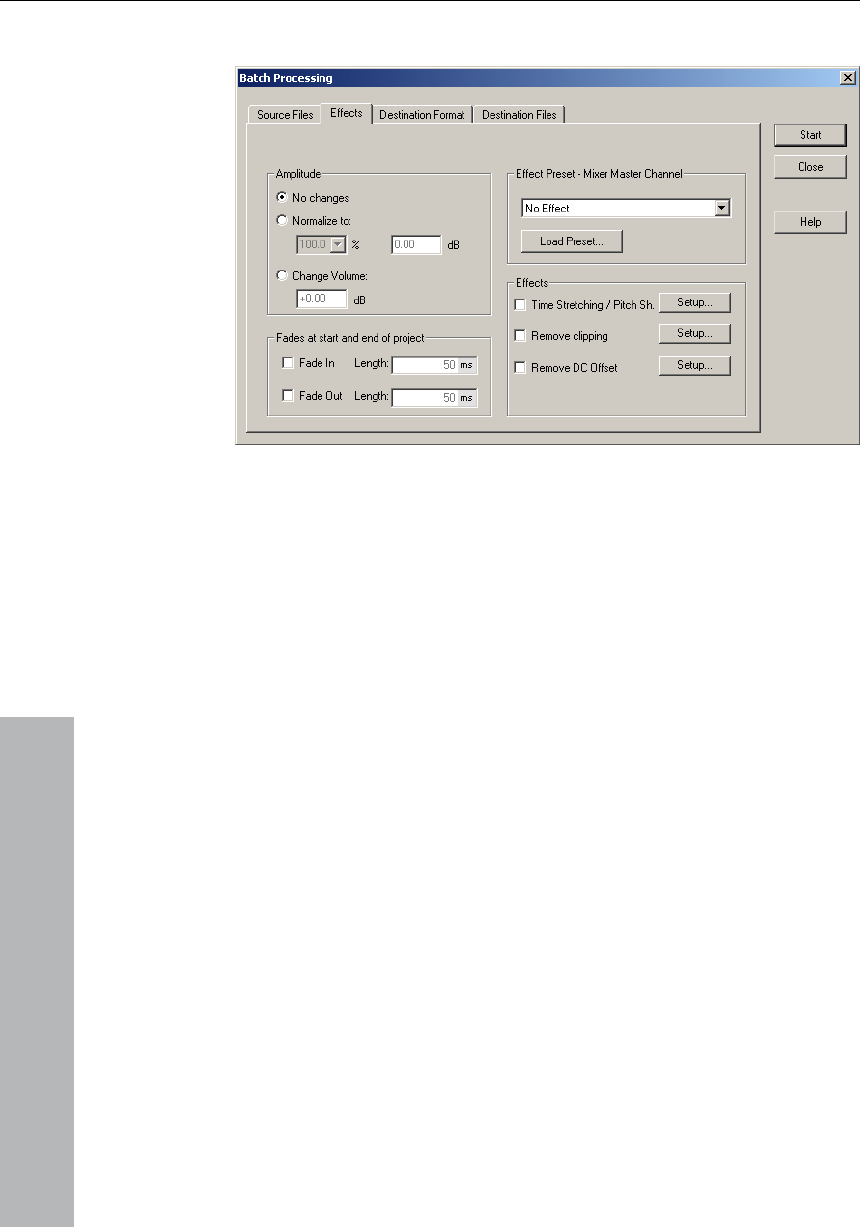
270 Menu File
www.magix.com
Effects
Amplitude: You can normalize to a specific maximum value in %/dB
or sink/raise the level by a certain value. Read more on this in the
"Effects" menu chapter > Amplitude/Normalize.
Mixer.
for
example, channel strips, groups, etc. will be ignored). With "Edit
preset", you can open a special FX routing dialog from which you
have access to all effect parameters.
(More information on FX routing can the Effects chapter).
Mixer presets which were saved in the "/fxpresets/batch" folder can
be selected directly from the list box.
Effects: Beside the master effects of the Mixer preset the non-
realtime effects "Resampling/Timestretching", "Remove DC offset",
Effect presets – Mixer master channel: So that you don't have to list
out innumerable effect settings in the batch processing dialog again,
the effects can be integrated using mixer preset files.
In the Mixer it's possible to export all settings of the Mixer in a Mixer
preset (*.mix). This happens via the "Save Mixer Preset" button in the
When you load the *.mix file into the batch-processing function
("Load preset") all effect settings of the master channel will be
calculated into the file batch. (All other data from the Mixer preset,
be found in
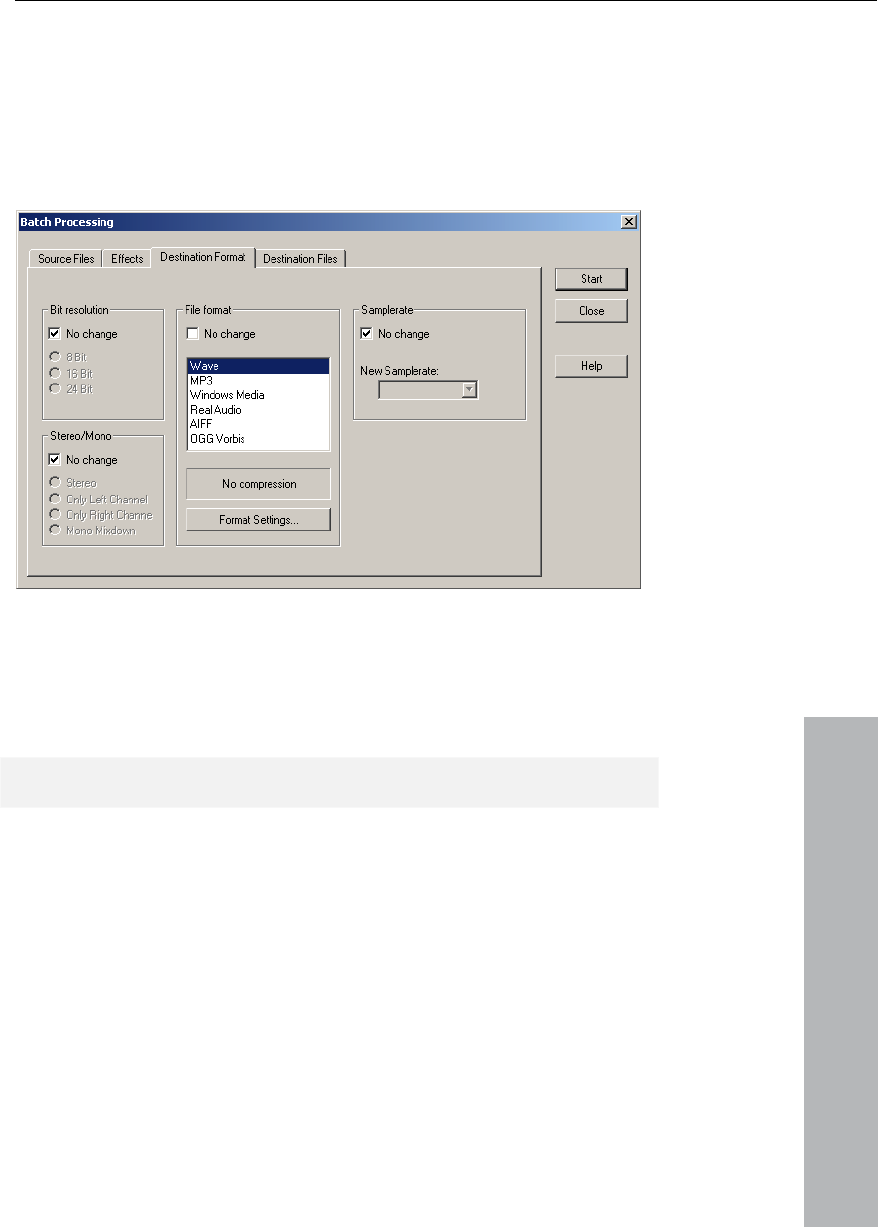
Menu File 271
www.magix.com
Destination format
and "Remove modulation" (DeClipping) can be used. "Settings"
opens the corresponding effect dialog.
Fades at the beginning and end of projects: Linear fades of any length
can be added to the beginning and/or end of files.
sample rate,
mple Rate..."
All settings on this page can be saved as presets. You can freely
choose the bit resolution (16/24/32-bit), the
stereo/mono/left/right as well as the save format with the
corresponding format options. You can find out more about the
sample rate in the "Offline Effects" menu > "Change Sa
Read more about export formats in the "File" menu > "Export".
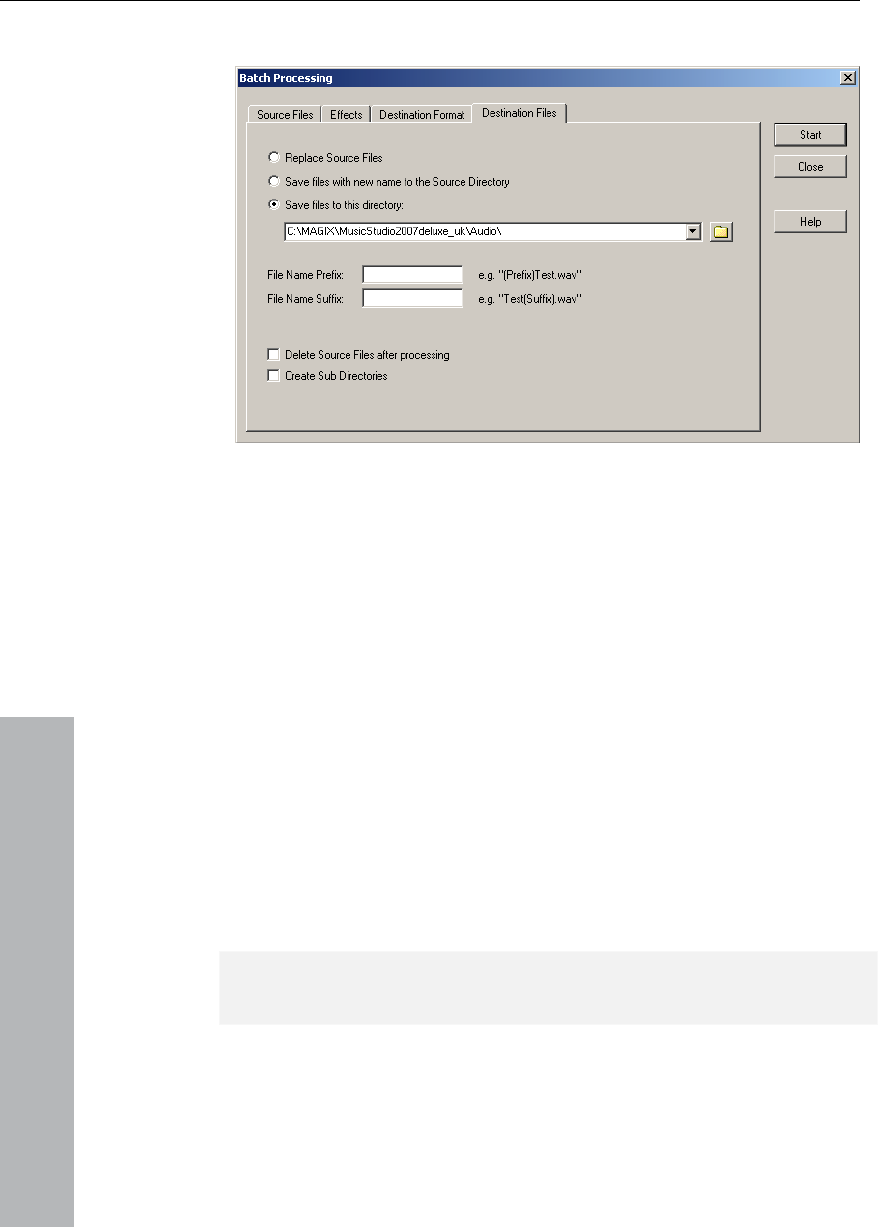
272 Menu File
www.magix.com
Destination files
There are various options for saving the files you edited:
• Replace files: The original file is replaced by the edited one. If the file
IP, the VIP is closed first.
directory": The edited file is saved in the source directory or in any
e specified suffix/prefix is added to the file
name. Optionally, the source files can be deleted after editing.
• Keep source directory structure: This option saves all files including
ctures of CDs.
This menu item allows you to terminate an existing Internet
etails and a modem
should be installed correctly. To restore the Internet connection, click
is used in a V
• "Save files in source directory with changed name/Save files in
chosen directory. Th
the source path. This allows you to keep folder stru
Connect to the Internet
connection directly from within MAGIX Music Studio 12 deluxe. You
will have to enter the necessary connection d
the "Dial" button.
Warning: the Internet connection only works if you have registered
with an Internet provider or have the necessary access data.

Menu File 273
www.magix.com
nload
server on the Internet in order to download sound material directly
12 deluxe so that you can edit it there.
GIX Server, where you will always find
new sound-material. Once again, the only thing you need is a working
Internet connection.
ect via email
This option compresses your VIP to an audio file in WMA format.
am is opened and the project is added to a new,
Closes the arrangement.
Closes MAGIX Music Studio 12 deluxe.
FTP Dow
This option allows you to build up a direct connection to any FTP-
into your MAGIX Music Studio
The pre-set server is the MA
Send proj
Then your mail progr
empty message as an attachment. All you have to do is enter the
address and click on "Send".
Close Project
Exit

274 Menu Edit
Menu Edit
www.magix.com
tape
In virtual projects, you can select track sensitive ranges, so only the
Some of the functions are only available for Wave projects. Others
d range is always
required for the cut functions. The beginning and end of the selected
two
track
kept
can
be u s extremely efficient
feature, critical operations can simply be tried and then reversed to
are not satisfactory. MAGIX
Music Studio 12 deluxe offers a convenient undo option for VIP
objects. A maximum of 100 undo steps can be retraced. This number
ile/Preferences/Undo Definition.
This menu contains all functions, which are similar to cutting on a
machine.
selected tracks are manipulated.
Activate cutting and copy also makes a project named Clip activated.
The window for this project will appear if double-click on the icon.
only for virtual projects (VIP), while some of the functions will work in
all types of projects.
When working with a virtual project (VIP) a selecte
range determine the start and ends of a cut. The vertical position
indicates which tracks are affected by the edit.
It is recommended to use the Auto-Crossfade function to achieve
smooth transitions between the edit points. This will automatically
create fades at the object edges.
Please note that these functions are processed for both channels
when working with stereo and L&R Wave projects. (If only one
channel is to be edited, you will need to convert the Wave project into
mono Wave projects.)
Undo
MAGIX Music Studio 12 deluxe offers you a comfortable way of
ing your changes in virtual projects. Up to 100 changes can be
in memory and traced backwards. That means virtual processes
be reversed (undone). Range and marker manipulations can also
ndone using the “Undo” feature.Thanks to thi
return to the original status if the results
can be configured in F
Keys: Ctrl+Z
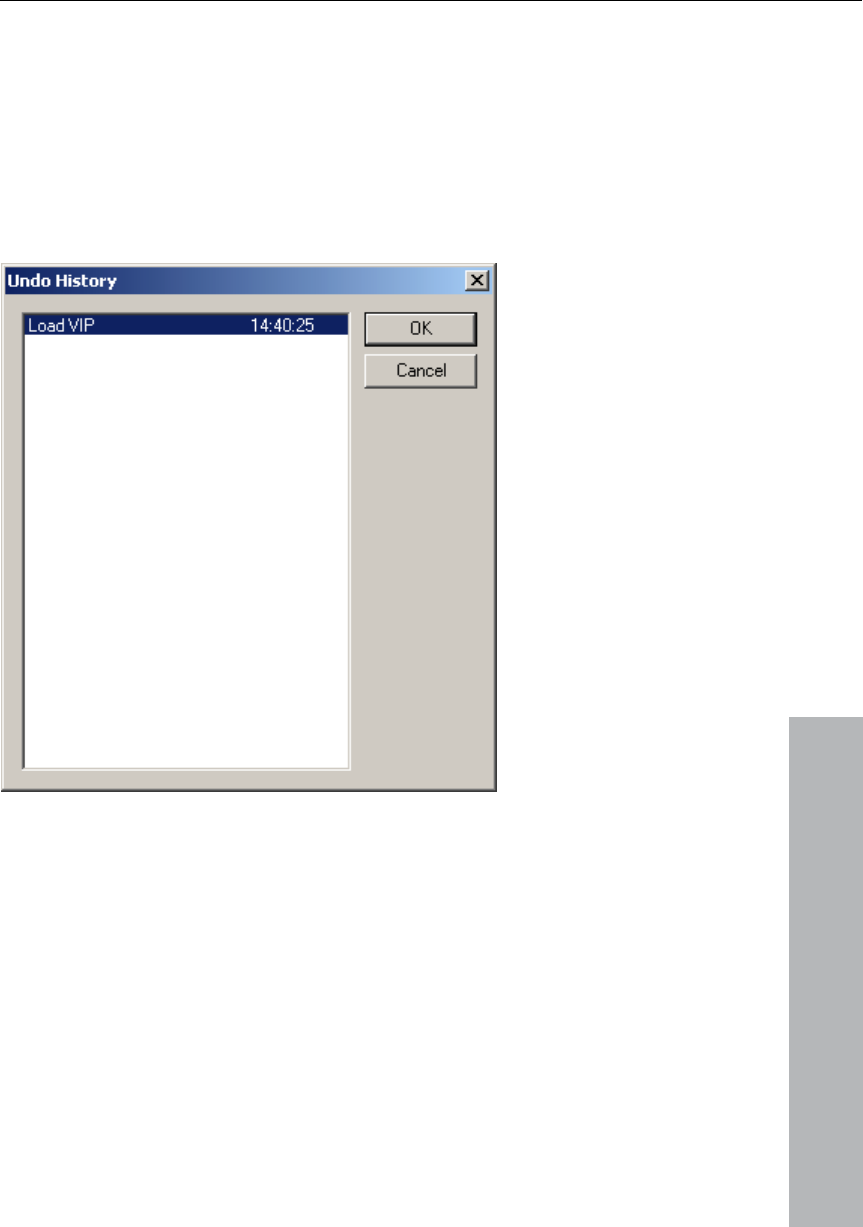
Menu Edit 275
Redo
Redo revokes the latest undo command.
Keys: Ctrl + A
Undo-History
www.magix.com
Wave Projects
The audio data in the selected range are copied from the current
lip. The material behind the removed range is
removed range to close the
s shorter.
Displays the Undo History dialog.
Cut
Wave project into the C
merged with the material in front of the
gap. The complete Wave project become

276 Menu Edit
www.magix.com
ways contains the same attributes
mes a
a stereo Wave project is cut or
te of the
originating Wave project.
After a successful removal of the selected material, MAGIX Music
Studio 12 deluxe drops a marker at the position the removed range
s you to insert the contents of the Clip
into the Wave project at the exact same spot if you accidentally
tion Edit->Paste/Insert Clip to
insert the Clip contents.
is copied to the VirtClip and is
actual audio information, only the links to the audio files. The VirtClip
also contains as many tracks as the removed range.
is appended to the material in
rter if the
VIPs,
space behind the last object.
cts, a successful removal of the selected
n the removed range previously
the removed material with
.
of the current range is deleted. The sample data after the
he “Cut”
Please keep in mind that the Clip al
as the Wave project the material was copied or removed from.
If you cut material from a mono Wave project, the Clip beco
mono Wave project. If material from
copied to the Clip, the Clip becomes a stereo Wave project. Another
attribute adopted is the bit resolution and the sample ra
The previous contents of the Clip are deleted.
previously started. This allow
removed the material. Use the func
Virtual Projects (VIP)
In virtual projects the selected range
removed from the current VIP project. The VirtClip does not contain
The material behind the removed range
front of the removed range. The VIP project becomes sho
selected range did cover all tracks. This way you can shorten
which contain empty
As with the Wave proje
range drops a marker at the positio
started. This allows you to insert
Edit->Paste/Insert Clip
Keys: Ctrl + X or X
Delete
The data
deleted range is added at the position the deleted range started. The
sample length becomes shorter.
Please note that this command will not save the deleted data to the
Clip. If you want to preserve the deleted sample data, use t

Menu Edit 277
www.magix.com
will delete the data from
the current sample and preserve the contents of the Clip.
Copy
The current range is copied into the Clip but not deleted in the
Clip contents are deleted. The Clip again has the same attributes as
Pa
position are moved out of the way to make room for the Clip
re ring the procedure. If the Clip was empty, an
removed and the project is returned to the original state.
In ts using selected ranges, the program utilizes the
the V
Clip
Mono
Mono
Channel 1
el 1
Channel 2
Channel 1
Channel 1
Channel 2
command. Using this the “Delete” command
Key: Del
project. The sample length is not varied. Please note that the former
the project.
Keys: Ctrl + C or C
ste from clip
The contents of the Clip are inserted into the current project behind
the position of the play cursor or the beginning of the currently
selected range. The data or objects that are located behind the insert
contents. The samples or audio tracks become longer. The Clip
mains unchanged du
error message is displayed.
After inserting the contents, the program selects a range over the
inserted area. If you select Edit>Delete, the inserted contents are
virtual projec
beginning position and relative track position as the insert point for
irtClip or Clip contents.
Project Clip Channel Project Channel
Stereo Stereo Chann
Mono
Stereo
Stereo
Mono
Channel 1
Channel 1
Channel 1
Channel 1
Channel 2
Channel 1
Keys: Ctrl + V or V

278 Menu Edit
Extract
This function is the counter part of the ‘Cut’ function.
Wave projects: The current range is retained, the data before and
after the range is irrevocably deleted. The length of the sample is thus
www.magix.com
h conten mains.
VIP): A he VIP keep the length of the
selected range, irrespective of the position of the range.
Here, the objects
before and after the range are deleted. This function does not
Insert Silence
The ‘Insert Silence’ option will insert ‘blank’ data at the current play
urrently selected range.
Append Projects
With this function a project can be appended with another project,
i.e. the material of one project is copied directly behind the material of
the first.
You need to first select the object you want to append. Then you
activate the menu and click on the project you want to add to the
first.
A particular use of this option is the ‘cleaning up’ of VIP’s that contain
numerous physical samples.
More
Set Silence
Copies the selected VIP Range into the Clip and clears it in the VIP
Project. The Project length is not changed. Please note that the
previous Clip contents are deleted.
reduced and t e t of the clip re
Virtual projects ( ll tracks of t
This function does not work track-specifically.
influence the VirtClip.
cursor position or the starting position of the c

Menu Edit 279
www.magix.com
a section of a VIP for use elsewhere
the Track(s) from which the material
was removed.
Copy and Silence
leted data in the clipboard, use the Edit >
Copy+Clear command.
Copy as
Keys: Shift + C
Overwrite with Clip
nts. The overall
sample length remains unchanged. The data that occupied this
position before cannot be recalled. The Clip contents are not
of the Clip channels follows the table
mentioned above.
nents (i.e. the sum of
both) are entered into the mix at 100%. On the one hand, it
guarantees that the volume of the project sample doesn't drop
suddenly, while on the other hand, there is the danger of
This is a good way to remove
without affecting the length of
Keys: Alt + Delete
Replaces the selected Range with silence (VIP). This command is
useful when you want to remove material without changing the length
of the VIP Track(s).
This command will not save the deleted data to the Clip. If you want
to preserve the de
Shortcut: Alt + C
The current range of a Wave project (HDP or RAP) is copied into a
new file. A file requester appears to select the name of the new
project.
The current range is replaced with the Clip conte
changed. The assignment
In virtual projects, the selected range determines the position and
track in which the Clip is inserted.
Keys: Alt +v or Insert Key
Mix with Clip
The range contents and the Clip contents are mixed. Much like with
the "Insert" function, the rules for channel assignment between
project and clip also apply here. The clip itself remains unaffected.
Please note that with this function both compo

280 Menu Edit
www.magix.com
. You may have to adjust the amplitude of the
es volume curve events, which have been
previously selected. Individual volume events can be deleted by
the Object and Curve Mode mouse mode and double
clicking the left mouse button on a volume curve event. However,
everal curve events, the “Delete Volume Handle”
ve been
previously selected. Individual events can be deleted by selecting the
Mode mouse mode and double clicking the left
ns
in the track info box: the corresponding curve is activated so that it
o levels of a virtual project. This is
useful, if for example certain Wave projects are left in the Undo chain,
the Undo chain still contains a reference.
After deleting the Undo levels, these projects are available again.
Crossfading with the Crossfade Editor
overmodulation
project prior to this (see Edit menu).
Crossfade with Clip
The content of the range is crossfaded with the content of the clip.
Delete Curve Handles
Delete Volume Handle
This function delet
selecting
when deleting s
function is the best tool.
Delete Panorama Handle
This function deletes panorama curve events, which ha
Object and Curve
mouse button on a volume curve event. However, when deleting
several curve events, the “Delete Panorama Handle” function is the
best tool.
Volume/Pan curve active
This option has the same functionality as the corresponding butto
can be edited.
Delete Undo Levels
This feature will delete the Und
but do not exist in the VIP anymore. You won’t be able to process or
delete the Wave project if
Crossfade Editor
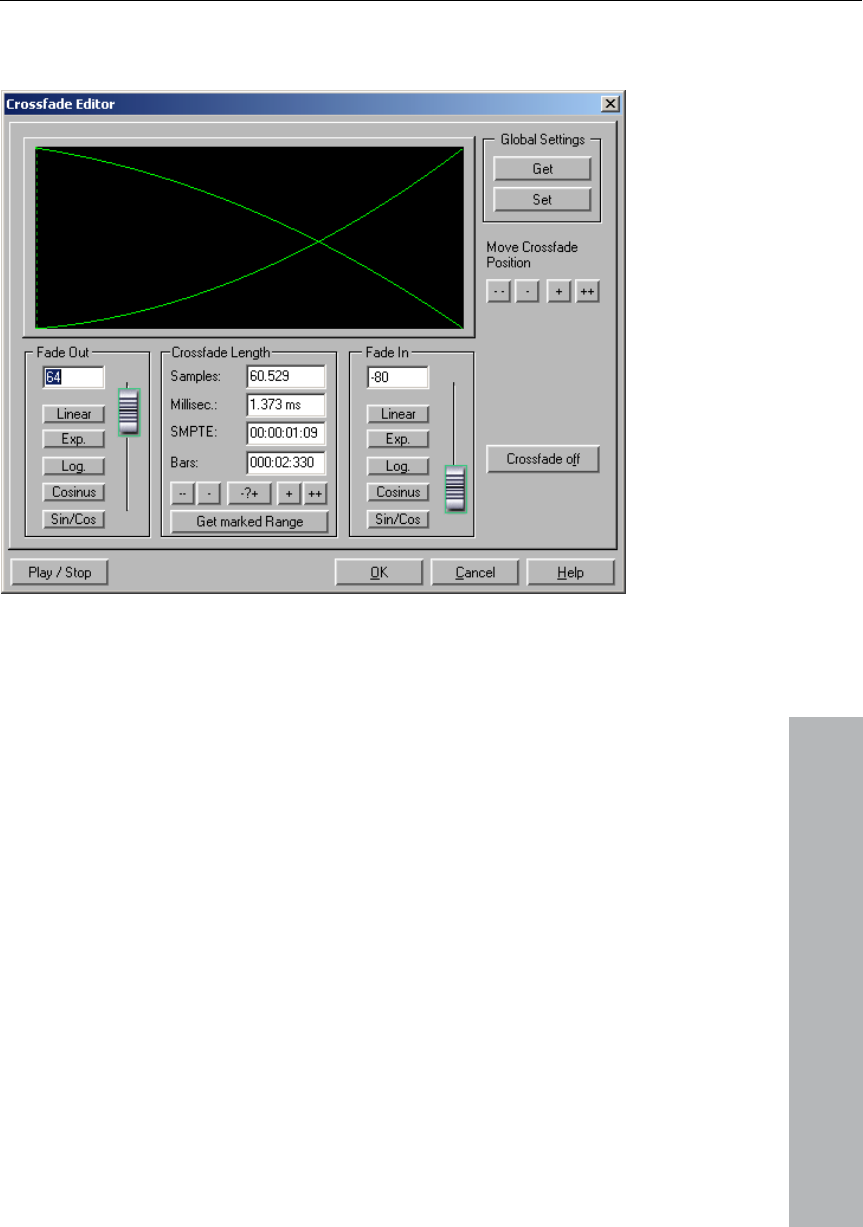
Menu Edit 281
www.magix.com
ts into which you wish to fade and open
In the VIP select the objec
the Crossfade Editor.
The following editing options are available for selection:
mize these step effects to your needs. The
crossfade length can also be defined by a selected range in the VIP
ngth" button in the "Range" menu.
Linear (0)
Cosine
Crossfade Length: The length of the crossfade can be set in varyingly
large steps. A click on the "+" / "-" buttons increases/decreases the
length in small steps, the "++" / "--" buttons in larger steps. Use the
button "-/+" to custo
by clicking on the "Get Range Le
This range has to be selected before opening the Crossfade Editor.
Fade In / Fade Out: There are lots of different curve types available
for selection for the crossfade:
Exponential
Logarithmic

282 Menu Edit
www.magix.com
The faders can still be used to change the curves in the
re applied
to the selected object if it does not overlap any other object.
Global settings: Place
e defined as preset. This is useful, for example,
when an object is split with the "T" key and you wish to create a
Global settings: Get
Use this button to get the presets of the Crossfade Editor.
nge length of the range selected in the VIP
is set as the crossfade length.
ffset: Here you can specify how much of the fade should be
outside of the object border. Usually, the entire fade can be found
within the borders of the object, that is, the fade starting point is at
t (0%) as is normal with fade ins/outs of
de becomes part of a crossfade, it may be
xample, the second object starts with a
outside the object borders) – the object is then stretched by the
he "actual" beginning of the object is
roject, otherwise it may be the case
ed in or out.
of the wave
Sine/Cosine
corresponding available range. Linear curves require less computer
power than non-linear.
Note: The settings for fade in/out in the Crossfade Editor a
The current settings ar
crossfade between the two objects. When opening the Crossfade
Editor, the specified settings are set as default.
Get Range Length: The ra
Fade O
the start of the objec
individual objects. If the fa
necessary to modify it. If, for e
drum beat, it would be better to execute the crossfade beforehand in
order to keep the "attack" of the drum beat.
The value can be changed from 0% (fade within the object borders)
to 50% (fades symmetrical to the object borders) to 100% (fade
percentage of the fade length. T
displayed as a dashed line.
With a fade offset of over 0% make sure that the corresponding audio
material is available in the wave p
that an object with a modified fade offset cannot be fad
If, for example, the object starts at the exact beginning
project, you will no longer be able to crossfade if the fade offset rises
above 0%.

Menu Edit 283
www.magix.com
rossfade
of the selected object. The fade out time of the first object is set to 0.
Play / Stop: This button starts playback in the selected range or at
Move crossfade position: The end of the first object and the end of
moved equally. The ++/--/+/- buttons are used
to set the crossfade length.
If this option is turned on, all newly recorded or cut material in a VIP
d to it.
hese settings can be changed with the crossfade editor
in the Edit->Crossfade Editor.
ade
applied to them a real-time crossfade is the result.
ut the unwanted “pops”. If needed, each
crossfade can be edited in the editor or by manually manipulating the
Crossfade off: The "Crossfade off" button deactivates the c
the cursor position.
the second object are
Permit asymmetrical crossfades: The fade offset settings of both
objects are no longer connected to one another and can therefore be
set independently of one another.
Auto Crossfade active
or material that is copied from a Wave project into a VIP track has an
automatic crossfade applie
Global settings for fade-in and fade-out parameters are assigned to
the object. T
If two objects are overlapped that had an automatic crossf
The auto crossfade mode is an excellent tool to easily perform a
linear cut of a spoken voice track, jingle track etc., which requires a
soft passage witho
handles.

284 Menu View
www.magix.com
Display inaccuracies after complicated sample processing can be
Sections
Studio 12 deluxe allows the optional display of one,
two or three sections of the samples belonging to one Wave project
n and a zoomed in version of a certain range in
the other.
s especially useful for searching for loop
points in Wave projects.
the upper section, while the
section on the lower left displays the beginning of the loop range and
end of the range. Use the split
Go back to 1 view with Shift b!
of the mode “3” view. All sections can be
handled independently.
anges over the section bounds. Establish the
starting point of a range by clicking, then keep the mouse button
pressed, and change over to another section. MAGIX Music Studio
12 deluxe will show you the size of the range and at the desired
Menu View
This menu contains tools for manipulating the display of MAGIX Music
Studio 12 deluxe.
Rebuild Graphic Data
fixed by using this menu option. The screen (window) will be cleared
and redrawn to display the project properly.
MAGIX Music
or the VIP itself. Other audio editing applications usually show only
one window of a sample.
If you select “2”, MAGIX Music Studio 12 deluxe will display the same
sample in two window sections. Each section can be handled
separately. It is possible, for example, to represent the complete
sample in one sectio
The mode “3 sections” i
The whole sample can be shown in
the section on the lower right the
range function for this purpose (key b).
This is only an example
You can also drag r

Menu View 285
www.magix.com
location release the left mouse button to determine the end of this
Ranges can be dragged (pulled) in MAGIX Music Studio 12 deluxe
l. If this option seems too strange to
you, you can fix the upper edge of a range(s) to the maximum value
minimum value. Thus, you get the usual
vertical extension of a section by
choosing the vertical range button.
ubMix/Aux Busses
tion you can hide or minimize the tracks of the mixer
chapter.
With this option, you can define the type of grid that is used for the
Show Grid option. Select between several line styles.
range.
Fix vertically
horizontally and vertically as wel
and the lower end to the
representation in range dragging. However, a trade-off is, that you
will not be able to define the
Hide S
With this func
busses. Please read the corresponding notes in the Mixer
Show Grid
Key: #
Grid Lines
With this option, you can define the type of grid that is used for the
Show Grid option. Select between several line styles.
adjust the varius measurement settings.
They will affect the start and length details of the current range in the
Units of Measurement
In this submenu you can
project window, the grid measurement and the position details of the
play cursor (position line). Measurement units such as samples,
milliseconds, SMPTE (with different frame rates), bars and CD-MSF
are commonly used.
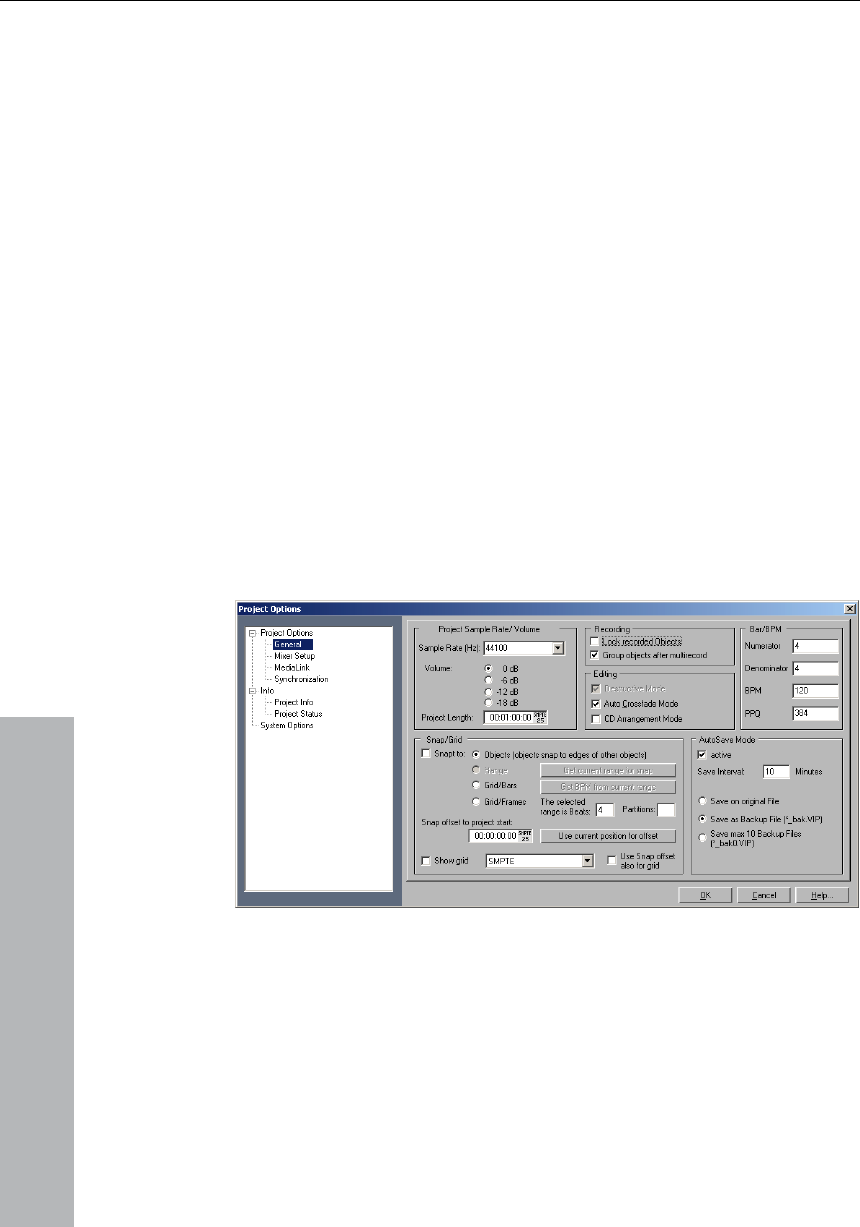
286 Menu View
www.magix.com
This function switches the Grid on and off.
ill be used as a
reference point as well.
position to each other.
Snap and Grid Setup
Snap to Grid
When working with virtual objects the Virtual Grid becomes available.
Objects can only be shifted to the beginning, the end, or the hot spot
of another object. The reference point is usually the beginning of the
object to be shifted to. A hot spot when defined w
If several objects have been selected, the move is performed in lining
up the beginning of the last selected object in the sequence with the
reference object or Grid point. All selected objects remain their
This option can be used to easily rearrange objects with their audio
patterns and gain sample-exact connections.
Keys: R
Object: Activates the object grid.
Range: Activates the range grid and enables the use of the current
the perfect location
defining a particular music bar in the sample. To transfer the range
into the grid, use the command “Get Range”.
selected range as grid base (by clicking on the button “Get Range”).
This option is very useful if you have found

Menu View 287
www.magix.com
alog box. By clicking on the “Bar Definitions”
button you have more options to specify the parameters for this
r of beats in the
measure would be 4. The length of the range would determine the
frame.
ons: This dialog lets you specify the bar settings, e.g.
Numerator / Denominator, the speed in beats per minute and the
Keys: SHIFT + R
ing the two modes: Tab
This dialog can be used to change and select both alternative display
Bar Snap: Activates a grid, this is based on bars and beats. You can
specify the speed of the measure by entering the BPM (Beats Per
Measure) value in the di
option such as the time signature.
If a complete 4/4 measure is selected the numbe
speed in BPM that is needed to play the sample in the selected time
Bar Definiti
timer resolution in peaks per quarter note.
Key for switch
VIP Display Mode
Definition
formats for objects in virtual projects.
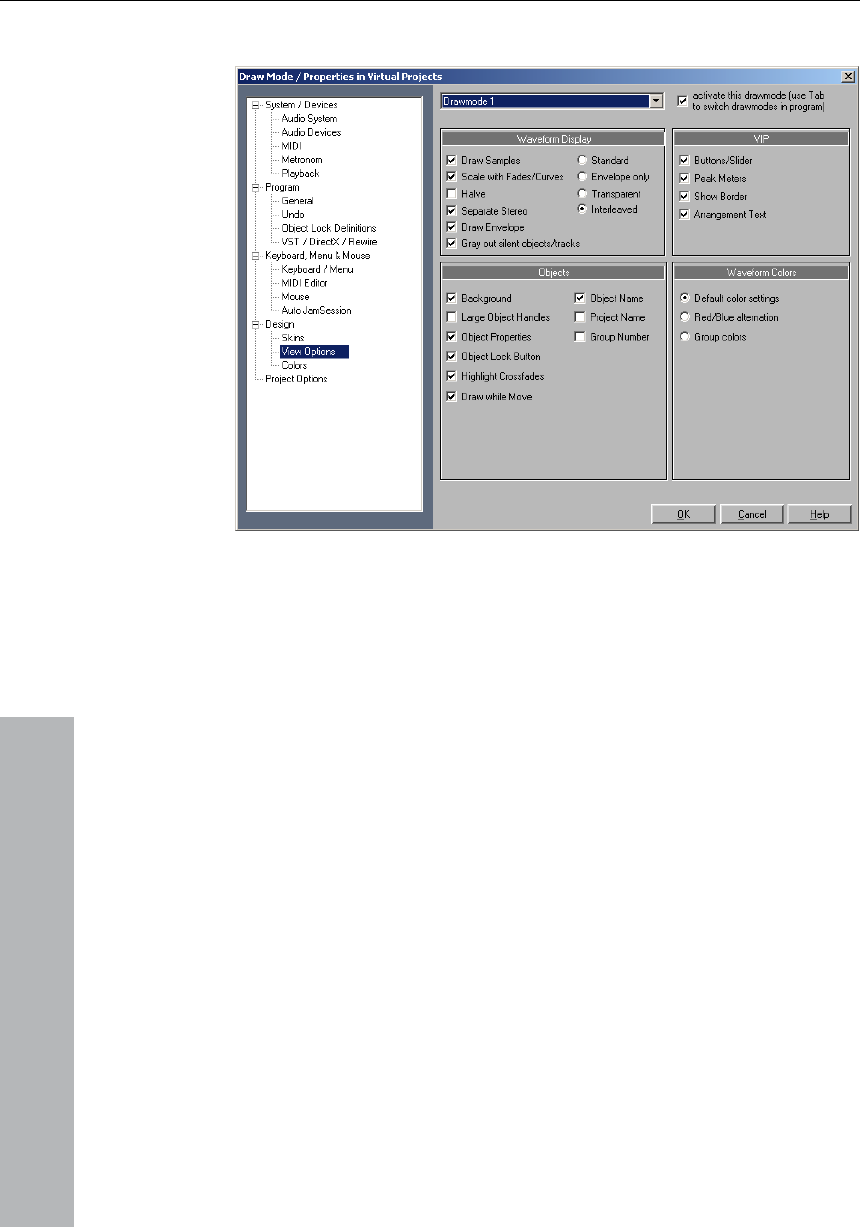
288 Menu View
www.magix.com
Here the properties of the display for both formats can be selected.
Draw mode 1/2
Switching between the two modes is possible by pressing the Tab-
key. You can also toggle between Mode 1 and Mode 2 by selecting
le representation if you want to see the volume and
the appropriate mode from the Menu item.
Waveform Display
Draw Samples: The audio sample representation is switched on.
Usually you will leave this on, but it can be advantageous to
deactivate samp
pan curves more clearly.
Scale with Fades/Curves: In this default representation mode the
Waveform drawing is scaled according to the settings of the Fade
In/Out or Volume curves. This way the decay of the sound during a
Fade Out, or volume changes caused by a volume curve, are more
obviously visible.
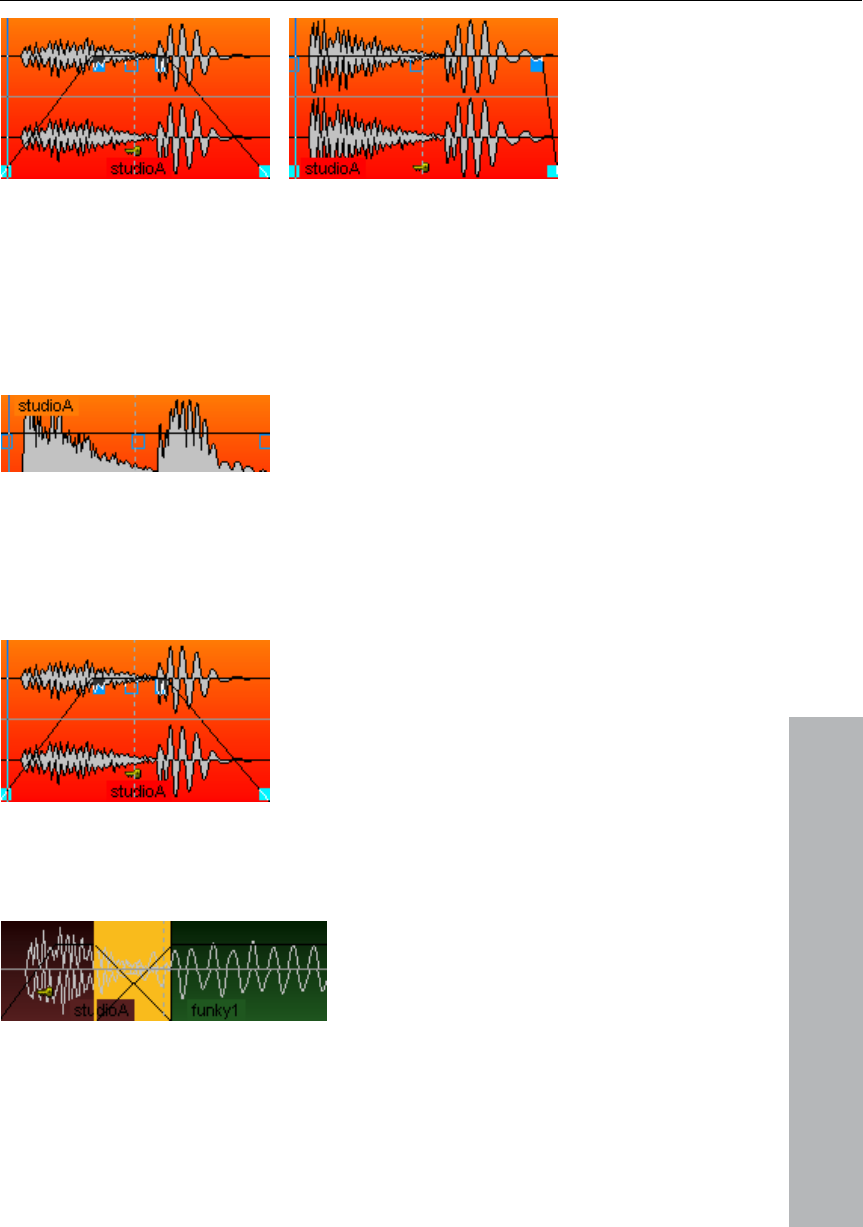
Menu View 289
www.magix.com
Halve: The graphical representation of the audio material can be
displayed as a whole Waveform or half the form for higher definition.
Checking this box will display the Waveform with half its information.
This mode is recommended, because the Grid function (key #) and
the vertical Zoom functions (Ctrl + cursor up/down) are perfectly
adapted to this draw mode. Volume Curves results also display better
in this mode.
Separate Stereo: If this option is active, stereo tracks in VIP Projects
are displayed with a two-channel Waveform. This allows you to
expand the display to both channels rather than displaying just one
composite channel display. Please keep in mind that this will also
affect the Wave Project display for stereo Wave Projects.
Envelope only: When this radio button is selected only the Waveform
outline (envelope) is drawn. This can be useful when constructing
crossfades, allowing for easier view of the overlapped Waveforms.
Transparent: When this radio button is selected the colors of both
best in front of a crossfade Waveforms are overlapped. This works
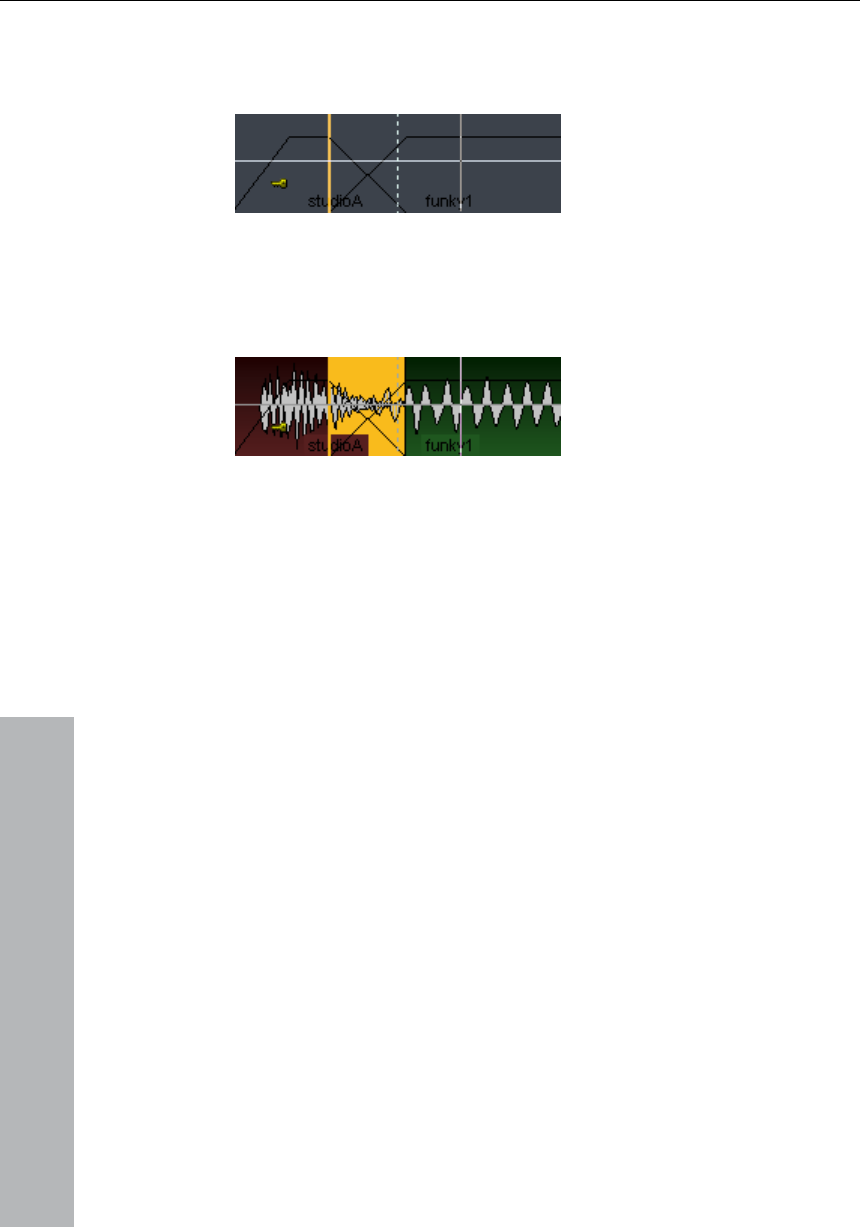
290 Menu View
www.magix.com
dark background (default). We recommend that you combine this
Mode option Waveform Colors > Red/Blue
alternation to display the crossfade areas optimally.
mode and the Draw
left
Object and a sample of the right Object is drawn alternately within a
Interleaved: When this radio button is selected a sample of the
crossfade. You can then visually assess the fade area, especially if
the adjacent Objects have different colors.
VIP
nd: Each Object in the VIP Track can be assigned it’s own
color. The color is displayed if this option is checked.
Project Name: MAGIX Music Studio 12 deluxe also allows you to
ave Project used in an Object.
you which Object related effects are
equalizers, DYN for dynamics etc...
Various VIP components (Buttons/Slider, Peak Meters, Show Border,
Arrangement Text, and Vertical Auto Zoom) can be activated and
deactivated here.
Objekte
Backgrou
Object Name: Objects in VIP windows can have their own name. If
this option is checked, the Object name is displayed.
Large Object Handles: When selected, larger handles for Objects and
volume / panorama curves will be displayed.
display the audio file name in each Object. This is especially useful if
you quickly want to identify the W
Object Properties: This shows
applied to the Object, e.g. EQ for
Group Number: Objects in VIP windows can be grouped together.
When grouping Objects it is helpful if the group number is displayed

Menu View 291
www.magix.com
in the Object. This option allows you to display that information in the
er region of the
Object.
Waveform Colors
Red/Blue alternation: This representation mode colours the
s alternately red and blue, to improve
the visibility of crossfades in the Transparent and Interleaved drawing
Mode 1
as been selected for displa ual projects
elected for displa rojects
n enlarged display of volume and panorama
can quickly switch between normal and
h the Tab
ay of virtual projec tween both modes.
Key: Tab
Store position and zoom level
t-buttons at the bottom
left of the VIP. The four buttons in the lower left-hand section of the
allow you to save four setups.
Get position and zoom level
Opens the saved screen section including the zoom level.
Object.
Object Lock Button: When locked an Object cannot be moved.
Setting this option will let you comfortably change the lock/unlock
status of an Object by clicking on the key in the low
Waveforms of adjacent Object
modes.
Mode 1 h ying virt
Modus 2
Mode 2 has been s ying virtual p
This mode also includes a
points. This means you
enlarged display modes wit key.
Change mode
Switches the displ ts be
This function does the same as the snapsho
Virtual project window

292 Menu Track
www.magix.com
e horizontal (red) position
bar.
n
Add one Track
proje ed by one empty track.
ted track.
pty Tr
The virtual project is expanded by one empty track, which is inserted
track.
etails!
a folde
Inserts a new folder track in front of the marked track. If a range
s was highlighted before creating the folder track,
Tracks can be moved into the folder with drag & drop, by clicking on
a in t mouse pointer turns into a hand.
Similarly, tracks can be removed from the folder via drag & drop and
ox.
Horizontally
This menu contains all the functions of th
Vertical
This menu contains all the functions of the vertical (blue) position bar.
Me u Track
Insert new Tracks
The virtual ct is expand
Add several Tracks
The virtual project is expanded by one empty track, which is inserted
below the selec
Insert em ack
below the selected
New SubMix/Aux Bus
The Virtual Project is expanded by one SubMix Bus/AUX Bus track,
which is inserted below the selected track. Please refer to the Mixer
chapter for d
New tr ck r
across several track
each of these tracks will be added to the folder.
a free are he Track box. The
out of the Track b

Menu Track 293
www.magix.com
ctions rouped. This means an action
performed on a folder track affects all contained tracks. Tracks in a
folder can be:
• faded out with the Reduce track button. All tracks included in the
• volume controlled. The individual volume faders of the tracks are
• can be activated (the displayed condition corresponds to the first
track of the folder, joint switching is only possible with
recording devices)
the folder track is
minimized, the tracks included in the VIP are hidden. They continue
er in a smaller display. Section marking in the folder track is
carried out across all tracks. Use this view mode for section-based
contained
track can be used as a reference track. The objects of this track are
n the folder and can be used for simultaneous object-
based cutting operations for all objects of the other tracks in the
ha ped with these objects. Object groups like
these typically originate from multi-track recordings.
der tracks would be as follows:
uped
objects, one below the other.
reference track.
4. The object of the reference track now appears in the folder track
ject
editing, cuts, fades, and Object Editor effects of this object are
now applied to all objects of the folder tracks! (Changes in the
Object Editor take effect only after Apply/OK)
Certain a can also be g
folder track are displayed in reduced size.
• switched to mute, lock, monitoring, and solo.
scaled relative to another, independent of the current function of the
track volume fader (MIDI, CC, or audio level)
different/multi-track
If the folder track display is enlarged (opened up), all included tracks
are displayed as well with a frame in the color of the folder track. The
track color can be selected in the track settings. If
to be available in the Mixer. They are also available in the Mixer.
Normally all the tracks can be seen with the objects they contain in
the fold
cut operations across all tracks of the folder track.
By right-clicking on the Track box of the folder track, the
displayed i
folder track t t are grou
The usual method of working with fol
1. Initiate a multi-track recording. This creates several gro
2. Select an area over all the objects that you wish to edit together.
You can now create a folder track!
3. Minimize the folder track and choose one of the contained tracks
as a
instead of the emblematic display of all contained tracks. All ob

294 Menu Track
Folder tracks are not visible in the Mixer.
www.magix.com
Cut Track(s)
selected by the range.
)
All tracks in the VirtClip are inserted into the current VIP above the
acks are dele VIP.
ties
Here you can edit the properties of the active track. These are:
.
:ates Record mode.
Volume/Pan-curve active: Displays the volume or pan curve of the
Cuts out the complete tracks that have been
Copy Track(s
All selected tracks in the VIP are copied into the VirtClip.
Insert Track(s)
actual selected track or Range.
Delete Track(s)
All selected tr ted from the actual
Track Proper
Mute: The mute button mutes the active track.
Solo: Switches the active track to Solo mode.
Solo exclusively: This setting switches the active tack to Solo
exclusive mode, i. e. you will only hear the activated track. All other
tracks are muted, unlike solo mode
Record Activ
Lock: Locks the activated track.
activated track.

Menu Track 295
www.magix.com
a bus, it can be defined as a
submix and/or AUX bus.
Track Effects
ts Settings
With this command you can copy the complete effects settings of the
active track into the clipboard.
Copy/Paste Track Effects Settings
its defaults, i.e. no effects are
applied at all.
Surround Editor
g-Ins
Please read the corresponding explanations in the "Effects" chapter.
Submix/AUX bus: If the activate track is
Please read the chapter “Menu Effects”!
Copy/Paste Track Effec
With this command you can copy the complete effects settings of the
active track into the clipboard (to paste it on another track).
Reset Track Effects settings
Reset all Track effects settings to
Please read the chapter "Surround".
DirectX Plu
Maximize Track
This Option minimizes all tracks except the selected track.
Minimize none
This Option un-minimizes all tracks.

296 Menu Track
Track Freeze
The selected track is rendered into a wave file which replaces all
objects on the active track. Here, object and track effects are added
to reduce the PC's processor strain of having to process effects and
plug-ins.
www.magix.com
edited/recalled at any time. This way it's
also possible to work flexibly and to keep resource usage at a
s powerful computers.
Track freeze for AUX busses/submix busses
Bus/Aux bus tracks can be frozen just like regular tracks. This
ease the required CPU load
including all effects, fades, crossfades, and automation settings in
one step.
remain
instead.
• The submix bus is muted ("Track" menu > "Track options" > "Mute
reezing is inserted into the AUX track as an
gnal output while playing.
AUX bus
into account (not in
not changed but remain
> "Track properties" >
freezing is inserted into the submix track as an
audio object.
The advantage of Track Freeze is that the frozen track is saved in a
separate VIP and can be
minimum even when working with les
enables a complete group of tracks to rel
Submix bus
• Tracks routed onto the submix bus are not changed but
bus input").
• The file created while f
audio object.
• Changes made to the tracks after freezing which are routed to the
submix bus have no effect on the si
• Only AUX send settings in tracks are taken
objects).
en AUX bus are• Tracks routed onto the froz
unchanged instead.
d ("Track" menu• The AUX bus input is mute
"Mute bus input").
• The color of the AUX send fader (mixer) in the affected tracks is blue.
• An asterisk is added before the name above the AUX send faders
(mixer).
• The file created while

Menu Track 297
www.magix.com
efore, if
tracks transmitting to an AUX bus, the
onding AUX will remain the same.
To re-establish the original audio or MIDI objects after unfreezing,
and automation data, to a
newly created project, which is also created in the freeze directory.
ened and edited (see below: Working with freeze
VIP’s).
-
all individual objects and effect settings.
x bus via the following
shortcuts:
Shift+F
revious Track
k in the VIP from the view of
track is activated. With the Cursor keys you
or down.
Key:
Activate next track Cursor down
rsor up
• Changes made after freezing to the tracks transmitting to the AUX
bus are not updated in the file created while freezing. Ther
objects are moved into
audio signal on the corresp
Track UnFreeze
they were transferred, including all effects
This freeze VIP is a normal MAGIX Music Studio 12 deluxe project
(VIP) and can be op
Use the unfreeze command—found in the track menu—to re
establish the original state of
Freeze and unfreeze commands are also available in the track menu
and can be called up for the selected bus/au
Track freeze: Ctrl+
Track unfreeze: Ctrl+Shift+U
Activate next /p
The next (lower) or previous (upper) trac
the currently activated
can conveniently scroll up
Activate previous track Cu

298 Menu Object
Menu Object
www.magix.com
rtion points or cut positions of
objects. When inserting material into a virtual project, the range
or.
object. The current range in the
virtual project at the play cursor
e same
ch
P
C
co
al
VirtClip are replaced with the cut object.
C
To
se
in
Contrary to the menu Edit all functions in this menu exclusively
manipulate selected objects in virtual projects. Selected ranges have
no effect with these functions.
Ranges are used to determine inse
beginning has the same function as the play curs
New Object
Use this function to create a virtual
Wave project will be inserted into the
position.
It will also be the currently selected object. This is th
procedure as the drag & drop method explained earlier in this
apter.
New Synth Object
lease read the Synth Onject chapter!
utting Objects
ut Objects C
The currently selected object is replaced with empty space and
pied to the VirtClip. The length of the current project remains and
l other non-selected objects remain in their positions. The previous
ntents of theco
opy Objects
place a copy of the currently selected object into the VirtClip
lect this option. The contents of the VirtClip can then be inserted
to the project using the “Insert Objects” option (see below). The
evious conpr tents of the VirtClip are replaced.

Menu Object 299
www.magix.com
O
pl
po
po
The
of t
unse the VirtClip
remain unchanged.
jects
All selected objects are duplicated and pasted to the same position
as the original objects. The original object is overlaid with the copied
object. The duplicate object can easily be shifted to a desired
position by using the mouse. If several objects have been selected
before the duplication, press the shift key before shifting to ensure
that all objects remain in selected status and are shifted together.
This option does not make use of the VirtClip, so all contents of the
VirtClip remain unchanged.
easily and without using the VirtClip.
Insert Objects
bjects in the VirtClip can be inserted in the project at the current
ay cursor position. The other objects in the project maintain their
sitions. Please note that the newly inserted object might cover
rtions of the already existing objects.
Delete Objects
selected objects are deleted from the current project. The length
he current project however remains the same. Previously
lected objects keep their positions. The contents of
Keys: Ctrl + Del
Extract Objects
All objects not currently selected are deleted.
Please note that the function Edit->Extract works similar. However,
the Edit menu function requires a previously selected range!
Duplicate Ob
This function is also available using your mouse. Press and hold the
Ctrl-key, click on the object you want to duplicate and drag the copy
to a new position in the project.
Another option is to use the drag & drop functionality for the Object
or Universal Mouse Mode:
If multiple objects are selected, press the Ctrl key and drag the
selected objects to the new position. This allows you to duplicate the
selected objects

300 Menu Object
www.magix.com
licates multiple objects and places them in
sequence. Another dialog is displayed, which allows you to determine
This is also another way of building Loop-Objects!
cts are
grouped together.
ted objects line up without a gap
between them, this creates a seamless loop.
tion of time difference and the number of duplicated
objects.
lected objects so that individual
object sections can be further manipulated. All selected objects are
t at t t marker position, which results in two
independent objects.
Duplicate Objects multiple
This function dup
how many copies of the selected objects are to be duplicated, the
separating distance and the overall length of the duplication.
The following parameters are available:
Number of Objects: Determines the number of objects that are
created.
Group created Objects: When checked, all created obje
Delta Time: This determines the relative position of each created
object to the next (from the beginning of one object to the beginning
of the next). The default setting is the length of the selected object. At
the default setting the duplica
Duration: As an alternative, the duration can be specified, which are
the combina
Split Objects on Marker position
This function splits or separates se
separa ed he curren
Split Objects on Marker position
This function splits or separates selected objects so that individual
object sections can be further manipulated. All selected objects are
separated at the current marker position, which results in two
independent objects.
Split Objects
This function splits or separates selected objects so that individual
object sections can be further manipulated. All selected objects are

Menu Object 301
www.magix.com
It is not
necessary to select objects prior to choosing the range and calling
Keys: T
e needs to be located within the
confinements of the object you want to trim.
jects
diagonal line is placed across the locked object.
In the Options menu you can specify the functions you want to lock.
Lock Objects > Unlock Objects
Lock Objects > Lock Definitions
ct, which options should be disabled:
separated at the current play cursor position, which results in two
independent objects.
If a range is selected, the cut occurs on both range borders.
the Split Objects function. If an underlying object is separated, the
newly created object covers the original underlying object.
Trim Objects
This function trims the object borders to the currently selected range
borders. The selected rang
Keys: Ctrl + T
Group objects
Builds a new object from the ones selected. Here, trackbouncing is
used.
Lock Ob
Lock Objects > Lock Objects
To protect objects from unintended shifting use this option. First,
select the objects you want to “lock” in place and activate the lock
function. A
Hier wird ein Objekt wieder zum Verschieben freigegeben. Bei allen
selektierten Objekten wird die Fixierung aufgehoben.
Here you can sele
Disable Moving: Disables moving of objects (default). This is useful in
multi-track projects to avoid delays between several tracks.

302 Menu Object
www.magix.com
Disable Fade In/Out: The fade handles are disabled.
Disable Length changes: The length handles are disabled.
and for
changing the object loudness..
tcuts and menu editing” function.
al Time Position
ill be muted.
Disable Volume changes: The volume handles are disabled.
Move Object
This menu contains functions for moving the objects themselves and
also for moving the wave project within the object and there are also
other functions for moving a cross-wire between two objects
This menu mainly exists for issuing keyboard commands that can be
seen next to the entries themselves in the menu and can be changed
with the “Keyboard shor
In the picture shown here the menu contains the standard settings for
the keyboard commands.
Commands for moving objects can also be found in the lower toolbar
(range bar).
Object to Playcursor Position
This moves the selected object to the actual playcursor position.
Object to Original Time Position
This moves the selected object to the original position where the
material was originally recorded. This is often helpful if an object was
accidentally moved.
Set New Origin
The current object position is used to reset the Original Position
attribute for the object. This is also used in the Take Manager.
Mute objects
The selected objects w

Menu Object 303
www.magix.com
t. An area,
which indicates the loop length, must be selected in the object first.
becomes the loop object. That means that the
number of loops can simply be “raised” with the “length handlers” at
Hotspot
The current play cursor position is turned into a reference point for
the snap function. Instead of the object’s beginning, the hot spot is
now used when the object is snapped to the grid. Stroked vertical
lines illustrate hot spots. Hot spots may stand outside an object (in
front of or behind the object). This function is very useful for a case
where the portion of an object to be synchronized does not line up
cts located partially or entirely in the selected range,
or at the current play cursor position.
tirely in the selected range,
or at the current play cursor position.
p Objects
Build Loop Object
With this function, a loop can be defined within an objec
The object then
the bottom of the object.
Such generated loop objects are ideal for generating long drum
sequences from only one drum loop! Loop objects also help to save
memory, since in the VIP only one object is handled rather than
multiple objects or copies of the same material or very long samples!
with it’s beginning.
Select Objects
To select all obje
Select Objects > Switch Selection
To select all objects located partially or en
Grou
All selected objects are grouped together. All operations are applied
to the whole group.
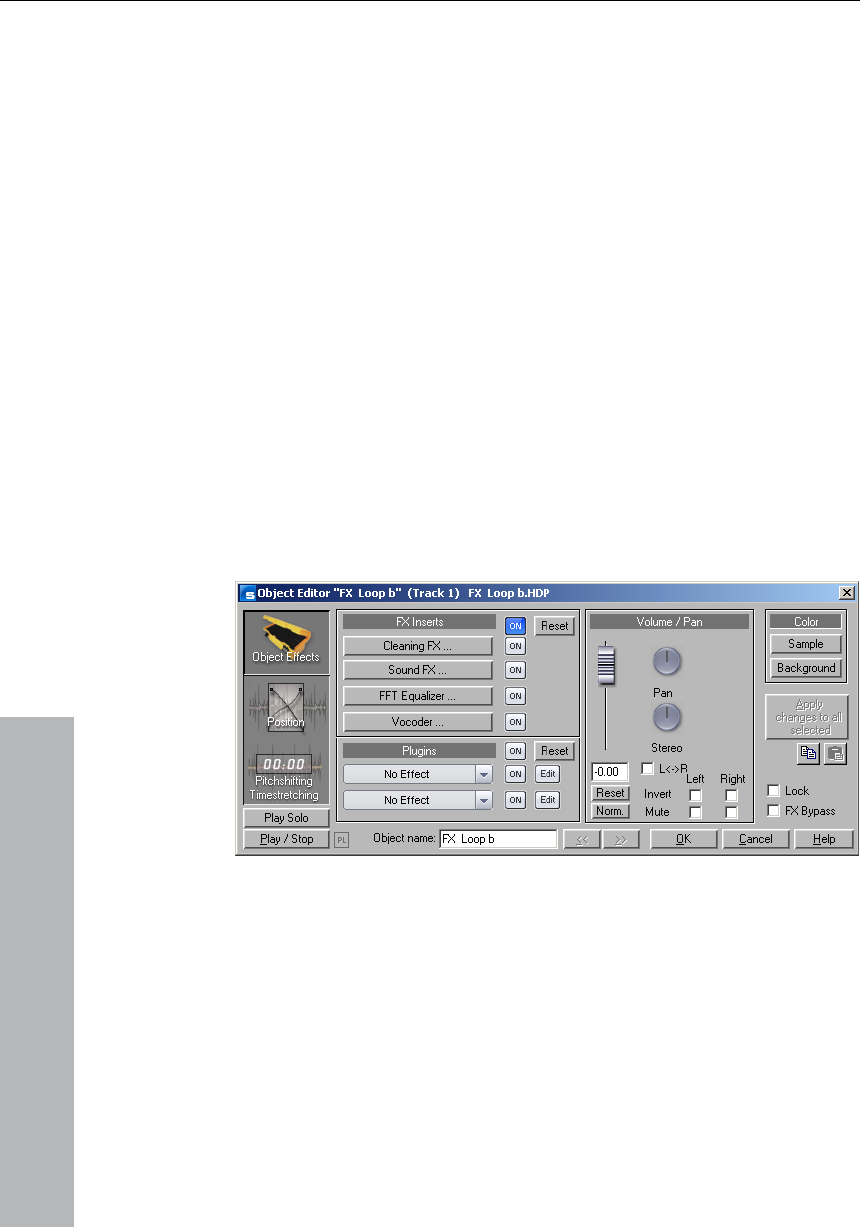
304 Menu Object
www.magix.com
g after that.
Object color/name
After selecting the desired color, all selected objects in the project will
Ungroup Objects
Selected objects are ungrouped. Individual objects are available for
processin
Object Foreground Color
have the same foreground color.
Object Background Color
The background color selected in the color grid is applied to all
objects.
Object Name
The selected new name is applied to all selected objects.
Object Editor
Introduction
One of the outstanding characteristics of MAGIX Music Studio 12
deluxe is the object editor.
On the one hand, the object editor allows characteristics of each
audio object to be edited in detail (more accurately than with the
mouse in the VIP), therefore allowing you to enter the object length
numerically or specify the fade characteristics.

Menu Object 305
www.magix.com
Note : Synth objects can also be edited with the object editor like all
other objects. The object editor can be opened via the menu:
"ObjectàObject editor "or via double-click on the synth object while
holding down the shift key.
On the other hand the object editor allows real-time effects, EQ and
fall back
to track effects in the mixer. The selected editing process is
g onto another track). It also means time-consuming
effects can be applied in an extremely targeted manner by only being
dynamic editing to be applied to the object without having to
independent of subsequent changes to the object position (e.g.
moving/copyin
used when needed.
Tip: One can "automate" the MAGIX Music Studio 12 deluxe effects
in this manner! If a certain passage within an object needs particular
"treatment", simply isolate the object and change the appropriate
values in the object editor of the re- created object.
Operating the Object Editor
The object editor is non-modal, i.e. it can remain open constantly
(remember: with < / > you can move between the objects!). If you
arameters can be seen in three different display windows -
the Object Effect window, the Position/Fades window and the
The following
control elements are available in all 3 display modes:
to normal play via transport control
effects).
select another object, the indicated values are adapted accordingly.
Object p
Timestretching/Pitchshifting window. To switch between the three
opinions, click on one of the three icons on the left side.
Play/Stop: refers
Play Solo: temporarily mutes all other objects and plays the object
solo – the tracks / busses remain open for consideration (with all
existing
The LED lights up whenever the selected object is played. This
supports control in as much that the indicated values correspond to
that which you hear.
</> next/previous object

306 Menu Object
www.magix.com
s indicated in the object editor always
correspond to the object last selected (and/or with grouped objects,
the object clicked). When closing the object editor with OK, changes
to the values are applied to all selected objects. (when closing with
the object editor open.
name may be given however.
rresponds to the "Lock" button in the object see
s all real-time object effects.
e following high-end audio
effects:
n filter to filter
out dissonant frequencies
o each audio object in real-time.
Plug-ins
ffers you a very effective dialog for plug-in
processing. With one click on an effect slot a menu opens in which
OK: you can also edit several selected objects (e.g. a group of
objects) together. The value
Alt + OK, only on the current object). With "apply changes to all" you
can also update all selected objects with
Object name: by default the name of the referenced wave project
appears. Another
Color: Here the front and background color of the object is set. You
can also set the color of grouped objects automatically ("Color " in
the "System Options")
Lock: Co
FX Bypass: Deactivate
Copy/Paste: a clipboard for fast transferring of object effects settings.
The Object Effect Window
FX Inserts
The AudioStudio FX Inserts supports th
• Clean FX (Denoiser, Dehisser)
• Sound FX
• Vocoder (also contains a real-time freehand correctio
• FFT-EQ with SoundCloner
These effects are assigned t
In the Volumen/Pan section you edit panorama and volume-specific
settings.
With the on keys you can switch plug-ins on or off.
The plug-in section o

Menu Object 307
www.magix.com
The practical "On" button makes it possible to switch the plug-ins on
or comparison purposes. The "Edit" key makes it
possible to configure the selected plug-ins and their settings. More
For all entry fields regarding duration, you can select a duration
length from a list on the right.
Position/Length
Object Start/End: Numerical entry field in the VIP
Object Length: Numerical object length.
How to move an object in increments: Here the increments for shifting
within the object.
Pitch and duration of an object can be changed independently at the
u can adjust pitchshifting and
timestretching parameters for the selected object. For more details (in
Pitchshifting: pitch re-alignment can be entered either as a factor
Timestretching (change of speed): speed re-alignment can be entered
either as a factor relative to the initial value or absolutely as a new
you can select DirectX and VST plug-ins. This menu also contains an
entry for the effects from the "Vintage Effects Suite".
and off in a flash f
detailed information can be found in the section on "Plug-ins".
The Position/Fades Window
Length and End of an object numerically in a number of formats.
the object is numerically edited. The object is then shifted according
to the selected increment when you press the arrow key behind the
input field.
Wave Start: Shifts the wave content
Wave Project: Allows you to exchange wave projects and objects.
The Pitchshifting/Timestretching Window
same time. In this window yo
particular regarding the modes used) please read Resampling /
Timestretching / Pitchshifting in the "effects" section.
Timestretching and pitchshifting can be employed independently of
each other (except when resampling).
relative to the initial value or absolutely in semi-tones and
percentages.
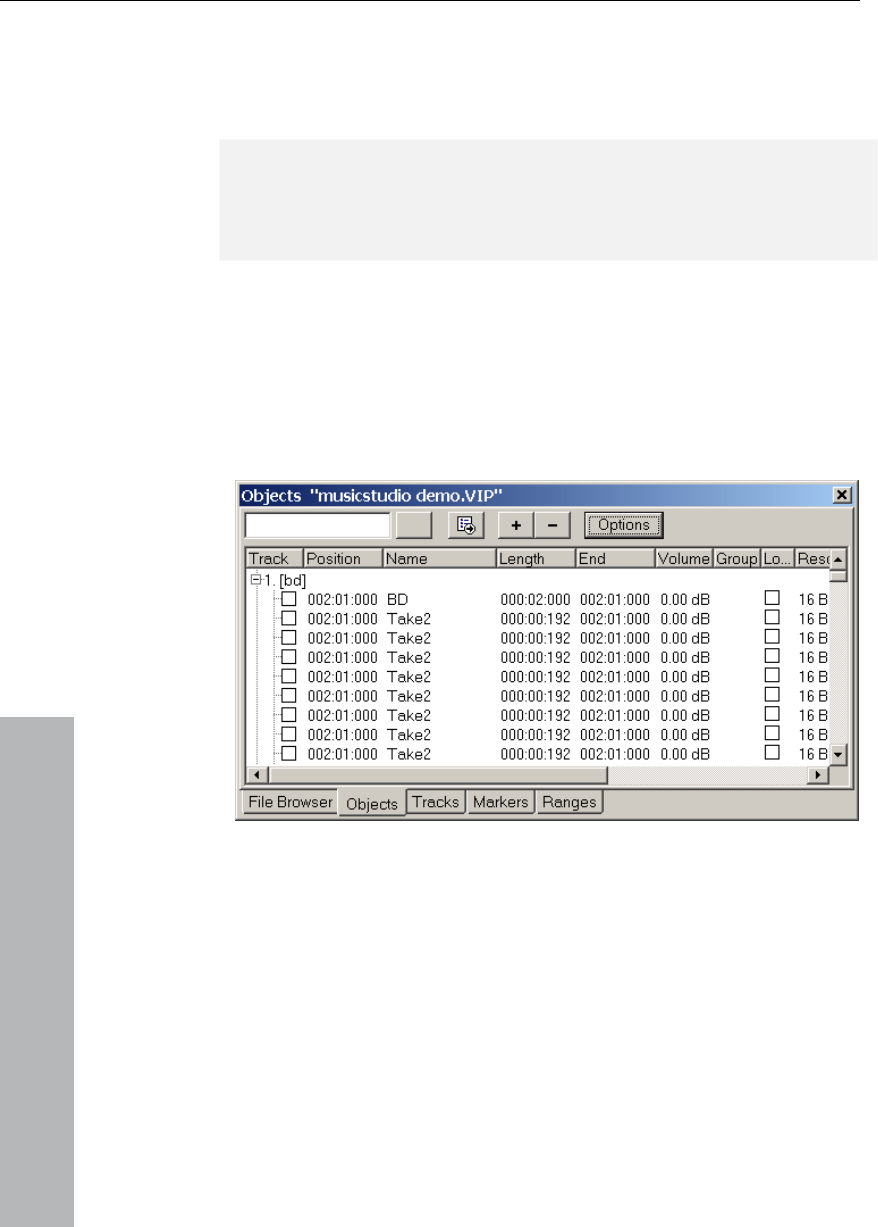
308 Menu Object
www.magix.com
object length. You can also enter a completely new tempo so long as
is entered. This is read either directly
from the wave project, from the Loop length, or determine
automatically by stretching a range over the object.
the original speed of the object
Note: One of most frequent applications of the object editor is the
organization of your own CDs. Each song can be a separate object.
This creates an extremely flexible working environment that is fast
and efficient.
Object Manager
In the object manager all objects used in a VIP are indicated in
sequence of their temporal appearance. With this option the object
manager features a function which is often offered in other programs
with 'Play Lists'.
In the object manager objects can be selected, which are also
activated in the VIP. If you press play, a range over the selected
object is applied. Small objects can be identified and manipulated
easily.
Ctrl + a mouse click will select several objects; Shift + a mouse click
will select all objects between two selects (like in the Windows
Explorer).

Menu Object 309
www.magix.com
D Wave projects with the name 'XYZ.HDP' or all
objects that contain the name 'Intro'. You simply enter the search
rther processing.
The description can be found in the "Tools" menu.
Opens the wave project (contains audio files) belonging to an object
The range corresponds precisely to the part of the audio data which
You can carry out destructive (offline) editing In the wave window.
Cut and copy functions are available for destructive editing (Edit
Destructive editing is not necessarily a recommended method.
objects, i.e. several objects are using the same
audio data, all these objects will have changed once you have
ses, fades, crossfades, etc.
can be performed much more elegantly and more quickly as non-
io 12
deluxe. You can quickly and conveniently perform all editing
operations here. If you have to use longer WAV files, for instance, you
have to wait after each editing sequence until the audio data has
Particularly productive in the object manager is the search function :
You can look for certain objects with it in full text mode rather than
just the graphical representation of the objects. For example you
could look for all H
criteria in the text field and click on 'Search'. All found objects will be
selected and are available for fu
Take Manager
Wave Editing
and displays it in the wave window.
the object accesses.
menu) as well as complex effects (Effects menu).
If you have duplicated
changed the wave project.
Please note that the cut and copy proces
destructive virtual projects.
Almost every effect can be used on objects directly in the virtual
project.
Please also note that it is better to work in single-track virtual projects
even if you only want to edit WAV files in MAGIX Music Stud

310 Range menu
www.magix.com
owever, you can work considerably
roject.
Range menu
Th or managing selected ranges.
vi
Ra
The range will cover the complete sample. This command comes in
handy if you want to apply changes to the entire sample with
rmally only address certain ranges.
Move play cursor
This submenu command sets the start position of the play cursor
Right move in page mode Cursor right
Ctrl+Q
Object edge right Ctrl+W
been copied to the hard drive. H
faster if you use virtual projects.
With the Trackbouncing function (Tools menu) you can create a new
WAV file from the virtual p
is menu contains many functions f
You can easily save, burn and reopen ranges and marker positions
a the function and number keys.
nge all
functions that no
Keys: A
(position line) to the following position of the project:
To start Home
To end End
to Start of Section Ctrl + Home
to End of Section Ctrl + End
Move left in side mode Cursor left
Left move in scroll mode Alt+Cursor left
Right move in scroll mode Alt+Cursor right
Object edge left
Track marker left F2
Track marker right F3

Range menu 311
www.magix.com
Range to beginning
The beginning of the range will be extended toward to the beginning
of the project.
Keys: Shift + Home
Range to end
The end of the range will be extended toward the end of the project.
Keys: Shift + End
d left by the length of the range. Its end will
Ctrl + Shift +left
ge right
.
shifts the beginning of range to the right of the next zero
Edit range
In this submenu you will find options and keyboard shortcuts for
adjusting the play and edit range in the VIP.
Flip Range left
The current range is shifte
be its former beginning. If there is not enough room to place the
range, the command will not be executed.
Keys:
Flip Ran
The current range is shifted right by the length of the range. Its
beginning will be its former end. Keep in mind that if there is not
enough room to place the range, the command will not be executed
Keys: Ctrl + Shift +right
Beginning of Range -> 0
This function
position.
Keys: Page Up
Beginning of Range <- 0
This function shifts the beginning of the range to the left of the next
zero position.
Keys: Shift + Page Up

312 Range menu
www.magix.com
End of Range -> 0
This function shifts the end of the range to the right of the next zero
ge in polarity). “Zero position” is the next sample value
Keys
End <- 0
T is zero
position.
This function shifts the beginning of the range to the left and the end
Down
This command lets you set the range length to 1, 2, 4, 8, and 16
ying three sections on the screen.
position (chan
with zero value or the boundary between a positive and a negative
sample value (or vice versa). This is particular useful for searching for
loop points.
: Ctrl + Page Down
of Range
h function shifts the end of the range to the left of the next
Taste: Shift + PageDown
0 -> Range <- 0
of the range to the right of the next zero position.
Taste: Shift + Page
Range length
bars. You can set the tempo in BPM with menu View->Snap Setup.
This command lets you set the range length to 1, 2, 4, 8, and 16
bars. You can set the tempo in BPM with menu View->Snap Setup.
Split Range
This function is in particular useful for working with loops. If not
already displaying in Split Range Mode the project is first switched to
this mode displa
The upper section displays the whole sample. The section located at
the bottom left displays the data near the beginning of the range. The
section at the bottom right displays the data near the end of the
range.

Range menu 313
www.magix.com
undaries of the range can be exactly positioned in the lower
everal sections.
Shift + b
The upper section displays the whole sample. The section located at
the bottom left displays the data near the beginning of the range. The
displays the data near the end of the
range.
r sections are zoomed down to single frame accuracy.
The boundaries of the range can be exactly positioned in the lower
sections, while the upper section will display the location of the entire
range. You can also define ranges across several sections.
To undo the split, the display has to be returned to a 1 section
display with Shift + b or View->Sections->1.
Store Range
Another powerful feature of MAGIX Music Studio 12 deluxe is the
option of defining and saving different ranges for future retrieval. An
unlimited number of ranges can be defined. You can for example
specify different loops and compare them while you recall their
ranges.
All ranges of a project can be seen in menu Tools->Range Manager.
There all ranges can be renamed or played.
When selecting this menu option, the selected range needs to be
Keys: Shift + F2 ... F10
The bo
sections, while the upper section will display the location of the entire
range. You can also define ranges across s
Keys: b
Deactivate:
Split Range for Video
This function is in particular useful for working with AVI Videos.
section at the bottom right
Both lowe
stored by entering a numerical value the range is associated with.

314 Range menu
www.magix.com
Get Range
By selecting this option, you can choose one of the defined ranges as
Studio 12 deluxe even lets you choose a range while
playing. The specified range becomes the current one and is audible.
Using this method, you can change between two ranges comparing
Ranges can also be named and recalled with
the Range Manager (Tools menu).
Keys: F2 ... F10
By selecting this option you can choose the length of one of the
arkers
his lets you set markers.
The new start position of the play cursor (position line) is set to the
position of the corresponding marker number. Playback starts
the marker
and the end of the sample is played.
the current range.
MAGIX Music
them with each other.
Get Range Length
defined ranges as the current range.
Keys: Ctrl + Shift + F2 ... F10
Save m
You can store an unlimited number of markers wherever the play
cursor is placed at. T
Keys: SHIFT + 1 ... 0
Get Marker
saved
at the jumped-to new start position. You should keep in mind that,
whenever a marker has been defined, the range between
Keys: 1 ...9, 0 (via the Alpha keyboard)

Range menu 315
www.magix.com
This function sets two markers to the beginning (S) and the end (E) of
a selected range.
a prefix for the
marker name.
This is very useful to select the regions of sample CDs etc.
Min. Time (ms): This is the minimum length in ms of a ”silent” area.
Threshold (dB): This is the maximum volume of a ”silent” area. The
level of the area in the project will be set on the level of the threshold
in the graphic display!
Starting number: The markers will start to count from the number you
type in this dialogue box.
able to distinguish between new and older
project will be deleted.
Markers on Range Borders
Set Markers on Silence
This function sets markers on silent regions in the sample (only in
Wave projects - HDP or RAP). You can choose the minimal length of
the pause, a threshold level, the start number and
Prefix: This allows you to insert additional symbols (letters would be
appropriate), which will be placed in front of the marker-numbers. By
doing this, you will
markers.
Delete marker
The selected marker will be deleted.
Delete all markers
All markers of the
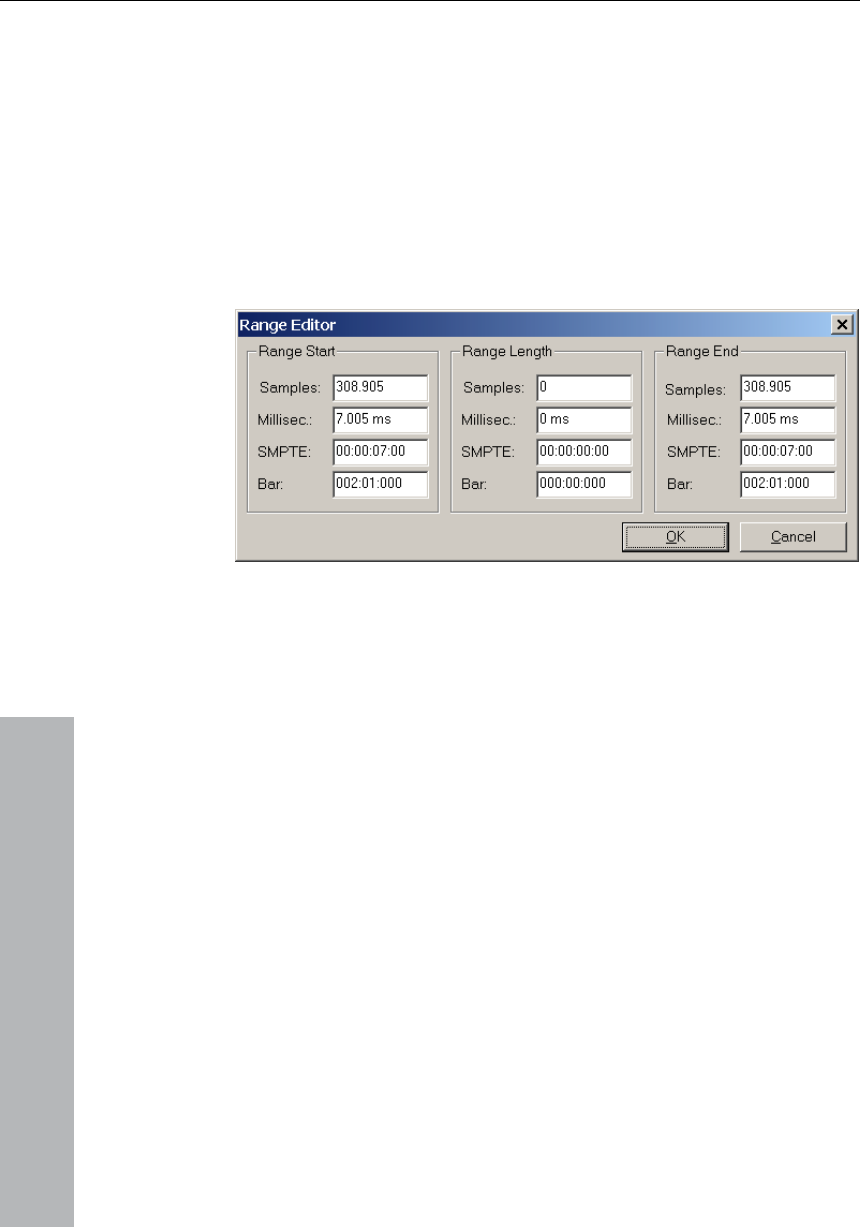
316 Range menu
Recall last range
Get the last selected range. This makes sense, for instance, if the
adjacent marker was accidentally deleted with a mouse-click.
www.magix.com
e Editor Rang
Here you can change the start and end position of the selected range
numerically in different measurements.
Change values in the Range Start section:
The end will be maintained.
Change values in the Range End section:
The start will be maintained.
Change values in the Range Length section:
The start will be maintained.
Please note the format of the “Bar” dialog box. The format is
displayed as a 4/4 beat with 96 clicks per quarter. Displayed are the
ialog
Manager all saved ranges of the current project are
s the current range.
bar, beat, and clicks.
The number of beats per minute (BPM) can be set in the BPM d
box in View->Snap Setup.
Range Manager
In the Range
displayed.
A colored bar highlight

Range menu 317
www.magix.com
name, the corresponding range in the project is
With the "Play once" button you can play the selected range once,
Here you can numerically enter various parameters of the range, for
rt, range length, etc. - in the currently set
measurement unit.
By selecting a range
selected/activated.
In the lower line you can enter/modify the range name. Furthermore
you can delete ranges and save new ranges in the Range Manager.
"Play loop" activates looped playback. This makes the Range
Manager particularly useful as a jingle player.
Edit time display
instance range sta

318 "Real-time Effects" Menu
www.magix.com
provided here
which can be controlled via the Object Editor. For more details on
levant articles in the chapter entitled
Offline Effects Menu (see page 318).
Offline effects menu
In
professional sound of a modern music production on your
Impo the effects functions
lected ranges. If the complete audio file is to be processed with
the DSP function, the whole file needs to be selected as a range in
the Wave project (also see Menu Range->Range All).
re processed with their complete
content, no matter which range is selected in the Wave project. (An
rt (select a range over the desired length and
press the key “T”). We suggest turning on the Auto-Crossfade-Mode
(menu Edit->Auto crossfade active) to prevent pops during the
object transitions.
cts are selected in the VIP, the effect is applied to each
individual object and its corresponding audio material in the physical
edit whether you want to keep the current version. Since the audio
"Real-time Effects" Menu
This menu entry permits fast access to the relevant real-time effects
at Object level. Correspondingly, menu entries are
these effects please read the re
this menu you'll find many high quality audio effects, to get the
recordings.
rtant tips regarding
• The following effects can be directly applied to VIP Objects:
• Please note that in Wave projects most functions are only available
for se
• Selected objects in VIP projects a
exception is the function Get Noise Sample.)
• If you don’t want to alter the whole object, you would first need to
cut the object apa
• It is even possible to apply an effect to multiple selected objects. If
several obje
audio file(s).
• A suggestion regarding the differences between RAM and HD Wave
projects: With RAM Wave projects you can decide after an applied
material is only processed in the computer memory, it is possible to
simply close the Wave project and not saving the changes to the
hard disk.
• To keep the changes, the project would need to be saved to the
hard disk (shortcut: “S”).
• In HD Wave projects, the changed audio material is immediately
saved to the file on the hard disk.
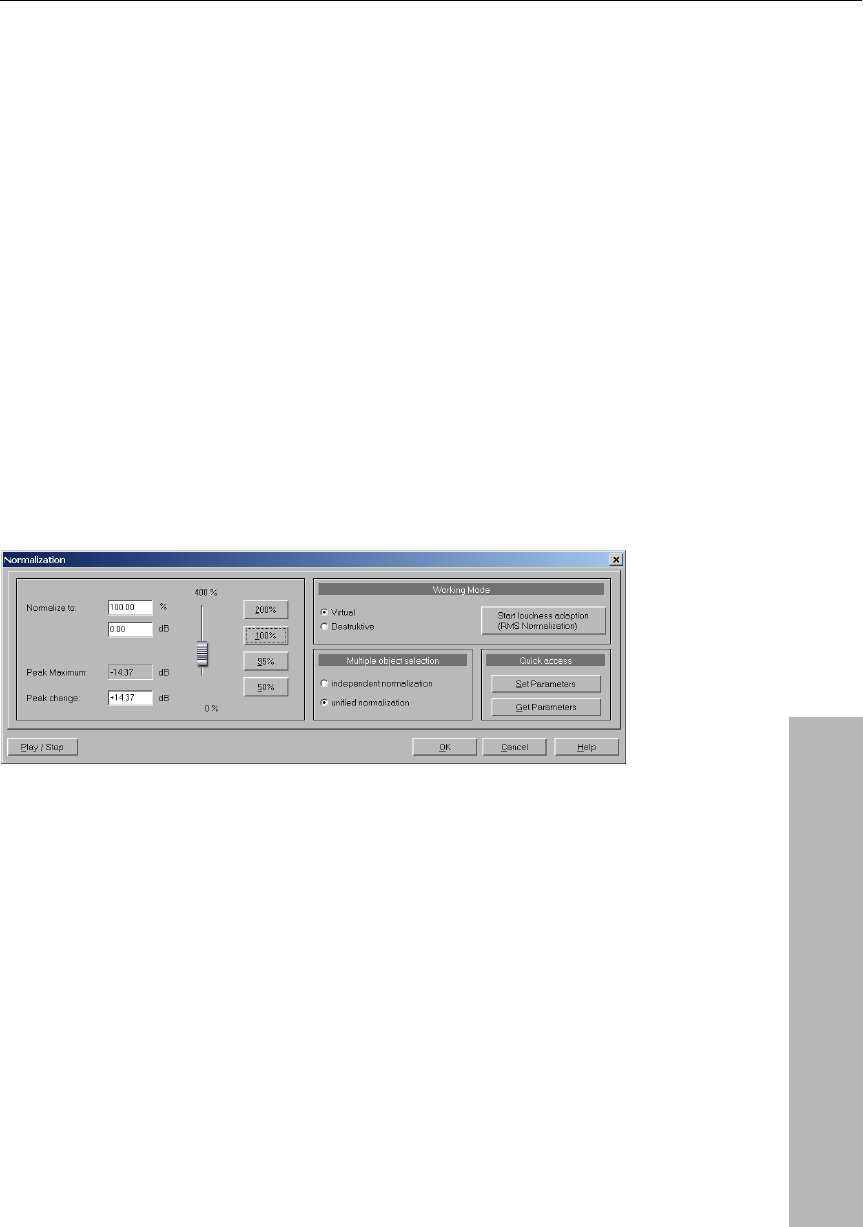
Offline effects menu 319
www.magix.com
(shortcut: “C”). Next, open the Clip window
(this window is icon-ized at first) and select the complete contents of
copy of the audio material.
• Clicking the right mouse button on the respective effects knob of a
Amplitude / Normalize
Amplitude/Normalize > Normalize
chosen. Then all other values are weighted with the
new factor.
• You can also work with a copy of the audio material for test
purposes. To accomplish this, copy the selected range in the Wave
project to the clipboard
the Clip window (shortcut: “A”). The effect can now be experimented
with on the temporary
channel can also access the real time effects dialogs in the Mixer
window. The corresponding effects dialog will appear, which can
be used to make detailed adjustments to the settings.
This function modifies the sample’s overall amplitude. The data is
altered so that the maximum amplitude occurring in a specified range
is set to 100% (or any other value between 1-400%). MAGIX Music
Studio 12 deluxe will first attempt to detect the maximum and relate it
to the percentage
The Normalize function is designed to fully modulate or over-
modulate samples. A particular application is processing that is done
instrument, you should set the
factor to 100%.
200%. This will only cut off the new percussion peaks. The same
before a conversion from a higher sample resolution to a lower
resolution takes place. Since the dynamic range of the low resolution
is smaller, it still can be fully utilized by applying the Normalize
function.
If working with sounds from one single
If, however, your audio material has background percussion for
example, you will be able to over-modulate the sample to 120% to

320 Offline effects menu
www.magix.com
method allows you to alter the sound of natural instruments by over-
modulating them.
As preparation for further physical processing, such as filters, reverb,
dynamic compression etc., a level reduction of 50-70% is suggested.
This should avoid clipping during post processing.
An important reselect: If the volume level during the recording is
relatively low and the material is later normalized, the result will not be
of the same quality if the recording level is maximized to its fullest
range. If for example the volume level was only set to 50% of the
possible range, the audio material will be in 15-bit quality. Even
normalizing the material to 100% will not change this aspect.
Editing mode: In virtual projects, a virtual normalization function is
available. Sample data remain unchanged — the object volume is
ral objects, you
can decide here whether you want to normalize objects individually or
as a whole.
Quick access: This section allows you to set the parameters for quick
access. Instead of having to open the dialog each time you want to
normalize, simply press the “n” key.
Keys: Shift + N
Amplitude / Normalisieren > Loudness adaption
This function raises the sound volume of all objects to the maximum
level without the material over-steering. Unlike the master
normalization function, each object is normalized separately. It serves
the purpose of reconciling finished songs (each as one object) in
volume. This makes the volume of the songs uniform.
All according to the producer, however, titles each with full volume
control can still sound different because a crucial factor in the
perception of sound volume is also the relationship between the soft
and the loud parts of a piece of music. The average loudness (RMS)
of the song therefore has to be identified in addition to the absolute
level (which is the loudest part of the song) and the object level has to
be adjusted accordingly.
adapted in such a way that the loudest passage in the object equals
0 dB (corresponding to 100%). This virtual normalization is non-
destructive and extremely fast!
Selecting several objects: If you have selected seve

Offline effects menu 321
www.magix.com
It can thus perfectly well happen that songs with high peak values but
a lower level of loudness are normalized onto a value above 0dB (full
volume). In order to avoid over-steering nevertheless, the Limiter (see
MultiMax) is therefore activated automatically.(see MultiMax).
Tip: Volume fluctuations within a song can be removed with the
“Leveler” presets in MultiMAX.
Amplitude/Normalize > Fade in/out
This function allows sample ranges to be faded in or out. The
amplitude is varied in its time characteristic from the start value of the
beginning to the final value at the end of the range. When the function
has been called, a window appears in which you can specific
parameters for this operation.
A simple fade-in operation would be performed with the parameters
from 0% to 100%, whereas normal fade-out requires the specification
from 100% to 0%. Of course you can also try other values and thus
achieve interesting results. The transitions can be created with
different curve types - from logarithmic to exponential.
However, please note that high-performance realtime fade and
crossfade options exist in virtual projects, which normally eliminate
the requirement of using destructive fade routines.
Key: F
Amplitude/Normalize > Set Zero
Sample data values in a selected range are set to zero. Noise and
imperfections in a sample can thus be eliminated. This function is
ancer allows you to reposition your audio material
in the stereo panorama. Whenever a stereo recording sounds
reversable
Switch Channels
With this function you can switch left and right stereo channel. This is
useful to correct recordings with switched channels.
Stereo FX
The Stereo-FX-Enh
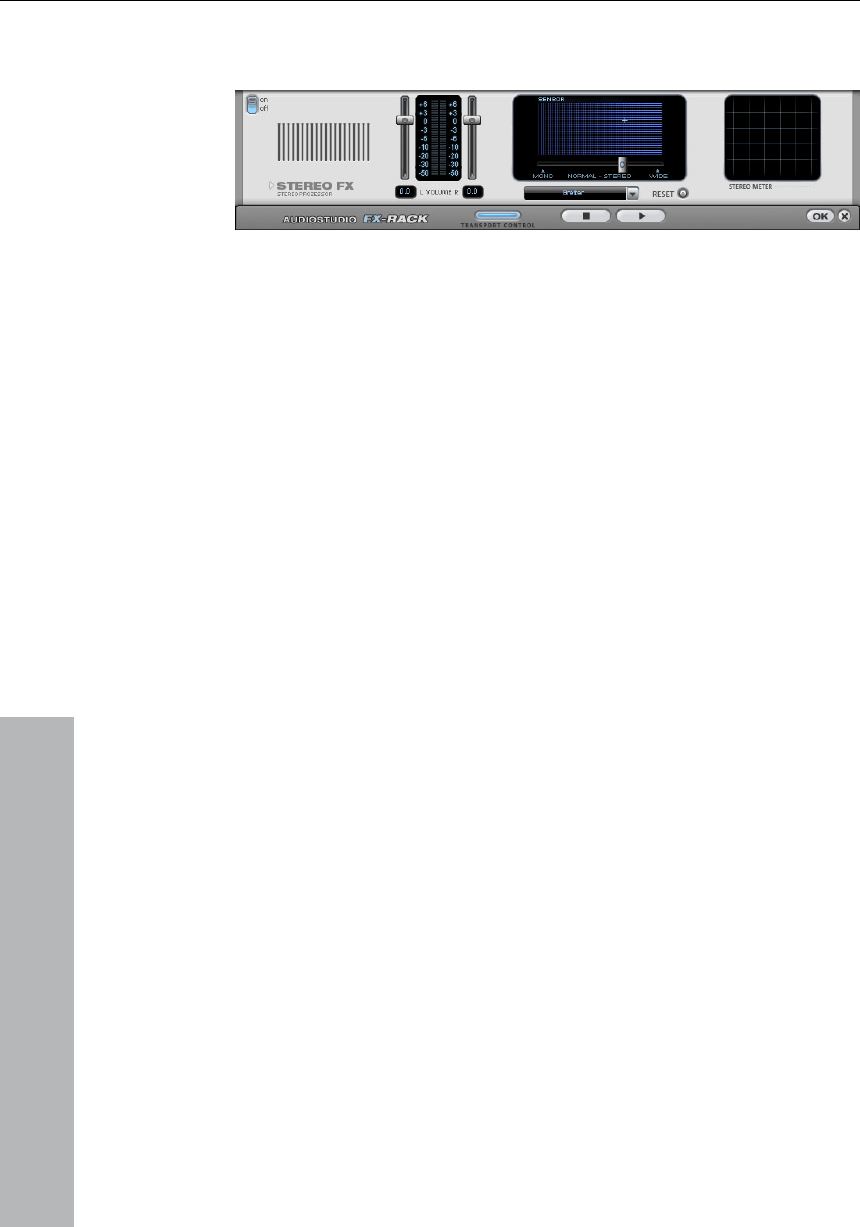
322 Offline effects menu
www.magix.com
basic stereo-width can provide
undifferentiated, the extension of the
a more transparent sound.
Basic stereo width controller: Here you can adjust the width of the
basic stereo panorama from mono (leftmost side), over unchanged (in
the cen
the stereo panorama to
tre) to maximum width (”Wide”, rightmost side). When setting
smaller values, the sound level may rise. In
right channels contain
t to
. This means, that recordings
ipulated in such a manner will sound hollow
the left
chieve the best possible mono-compatibility, the graphic
pens a special karaoke effect that more
an extreme case – it means that if the left and
identical audio material and the Basic stereo width controller is se
”mono” – the sound level increase can be as much as 3 dB.
While increasing the basic stereo width (values exceeding 100) the
mono sound compatibility gets worse
that have been man
during mono playback.
Volume fader: Adjust the volume for each channel and the stereo
panorama. The damping for the left and the right channel will be
indicated in dB values under the controllers. This allows you to
reposition an originally centred recording to the right or to
inside the stereo panorama.
Stereo-meter (correlation indicator): This is a graphic display of the
phase position of the audio signal. Here you can check the
orientation of your signal inside the stereo panorama and the effects
caused by the Stereo-Enhancer.
In order to a
should resemble a diagonal line. If not, some frequency areas may
eliminate each other when the stereo signal is played back on a
mono player.
Karaoke Preset: THis preset o
or less eliminates vocals during playback by deleting middle-range
frequencies typical for the human voice when singing. This allows
someone else to take over the singing.
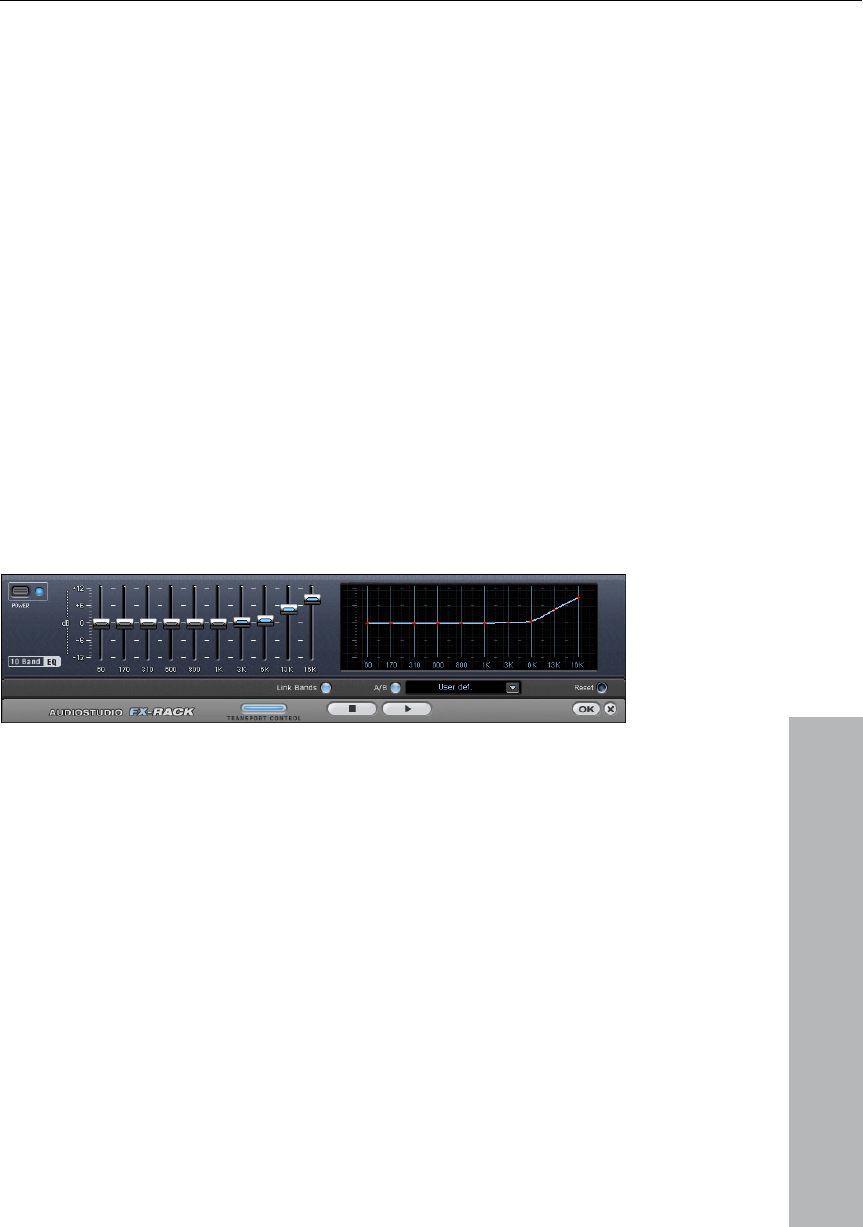
Offline effects menu 323
www.magix.com
In
am
be
“In be
matched. Along with the available mixing functions (which are, from a
samples by applying this function to the selected sample.
hem with separate volume faders. This offers
a whole spectrum of impressive effects, from a simple bass boost to
complete alienation of your sound. However, raising the levels too
much, especially in the case of the lower frequencies, will also
increase the general sound level, and distortions may appear. In this
case you should lower the main sound level using the "Master
Volume”-controllers in the main menu.
vert Phase
The sample data within the selected range is inverted along the
plitude axis. This phase inversion means that negative values
come positive and vice versa. This function, too, is reversible. The
vert” function permits samples with different phases to
mathematical viewpoint, adding functions) you can actually subtract
Equalizer
The 10-band-Equalizer splits the frequency spectrum into 10 areas
(”bands”) and provides t
Slider: Each of the 10 frequency areas can be raised or lowered
separately using the corresponding 10 volume sliders.
Link Bands: This switch links the different frequency areas in a flexible
way, avoiding override of isolated frequency areas that would result in
artificial sound.
A/B: If you chose a preset value for an effect and want to change that
value manually, you can compare the original preset sound with the
new settings by pressing the A/B button.
Reset: Resets the equalizer to it's original (neutral) settings where no
system resources will be used and no effect will be added to the
sound.
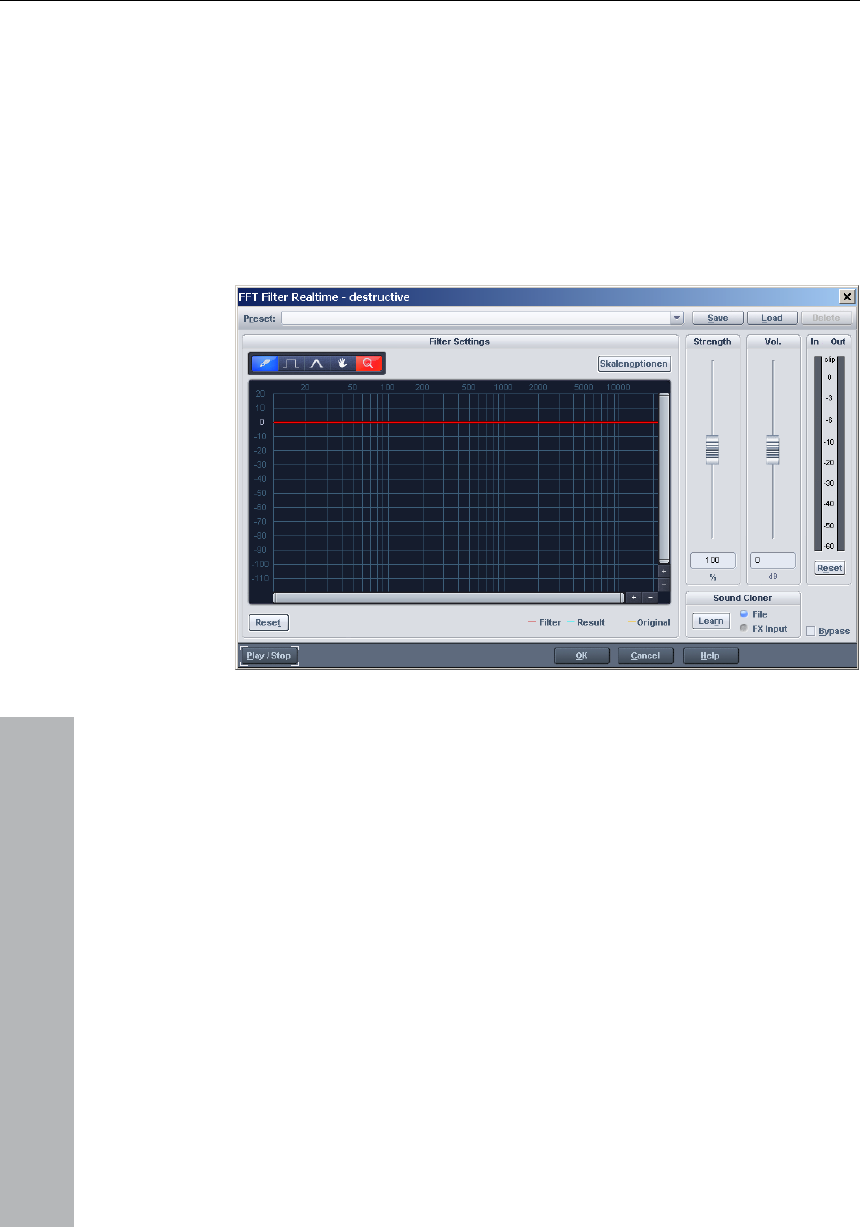
324 Offline effects menu
www.magix.com
on): This is the ”sensor field” of the EQ:
g your mouse, and it will be immediately
translated into the corresponding slider positions on the left side of
the EQ.
Touchscreen (right EQ secti
draw a frequency curve usin
FFT Equalizer
This audio effect allows you to draw the wildest filter effects with the
mouse.
A red line is drawn in the graphic area with the mouse. The left side
of the graphic represents the low tones, the right the high tones.
Real-time replay can be switched on with the "Test" button.As of
left part of the graphic results in a strong increase in the bass, a ‘hill’
a few clicks of
the mouse. This rapidly turns a normal drum loop into Science Fiction
noises! The filter curve can quickly be reset to its original condition
"Prevent clipping" attempts to
automatically prevent an over-addressing of the audio material. The
now, you will be able to hear all changes in the red line. A ‘hill’ in the
on the right side considerably increases the treble. Great effects are
frequently achieved if a filter curve is initially deleted over the entire
area (if everything in the display is set to low values). This removes
almost all the sound. Now, only individual frequency ranges can be
made audible in the upper section of the display with
with the Reset button. The option
"volume" control controls the volume of the material.
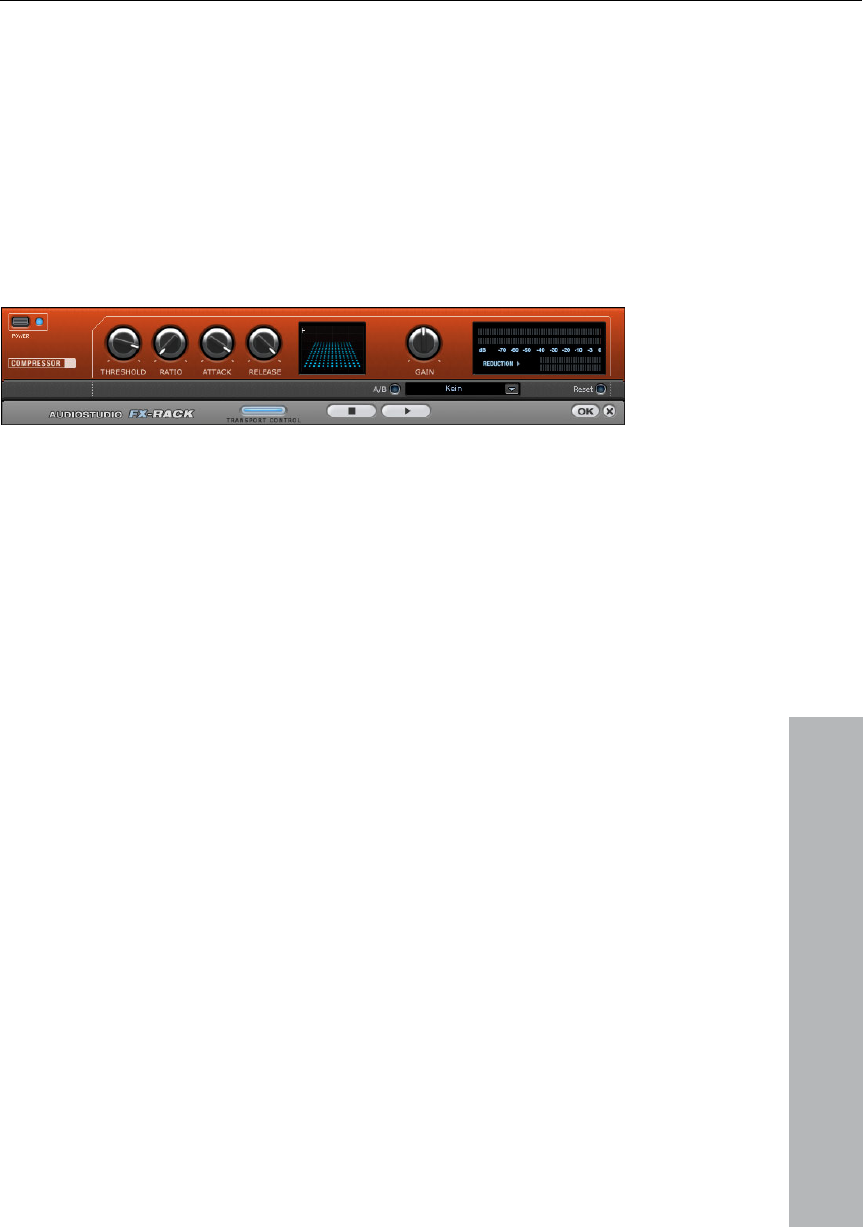
Offline effects menu 325
www.magix.com
The Compressor is basically an automatic, dynamic volume
controller. The dynamics of a track will be limited, loud passages will
sages will be raised. The
compression is normally useful, if you want to make your material
Dynamics
stay loud whereas the volume of silent pas
sound more powerful and smashing. The grade of compression can
be adjusted using the Ratio-controller. The threshold is controlled by
the Threshold button and attack and release can also be controlled
by the corresponding buttons.
Ratio: This parameter controls the compression ratio.
ld above or below the active
then changed it
The processing of the track is as "prospective" as with high-end
professional studio equipment. This means that there are no peak
overrides (blasting, clipping) or other disturbances, as the algorithm
can not be "surprised" by sudden peaks.
Sensor field: The sensor field of the compressors can be manipulated
intuitively, just by a movement of the mouse, which will change the
colour of the graphic and the effect settings.
Threshold: Adjusts the thresho
compression.
Attack: Adjusts the delay, in which the algorithm responds to
increasing levels. Short attack times can result in a ”pumping” sound,
as the volume will be raised or lowered very quickly.
Release: This value controls the delay in which the algorithm reacts
to falling levels.
A/B: If you chose a preset value for the effect and
manually, you can compare the original sound settings with the new
ones pressing the A/B buttons.
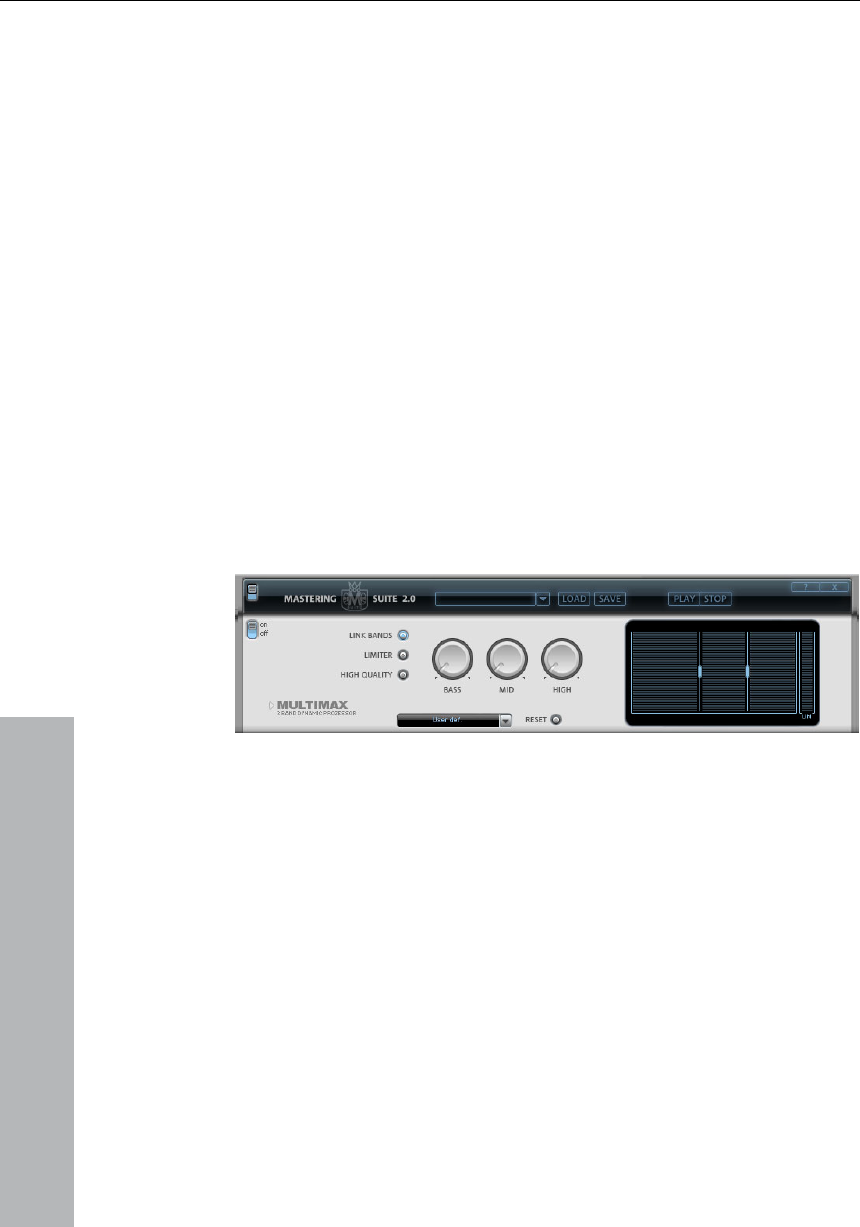
326 Offline effects menu
www.magix.com
effects are added to the original
sound.
Load/Save: This option allows you to save the actual settings as an
The MultiMax is a compressor with three independent frequency
lti-band compressor over a ”normal”
cessing. This means, for
example, that a single peak level in the bass section will not drag the
Otherwise, the multi-band technology enables precise treatment of
Reset: Resets the Compressor to the original values. In this state no
system resources are used and no
effects file, so that you can use them for other projects.
Multimax
bands. The dynamic processing takes place separately for each
band.
The main advantage of a mu
compressor is that warping and other bothersome side-effects are
reduced drastically by the dynamic pro
level of the whole signal down.
individual frequency bands.
ctly in the graphic display. Simply
Limiter: The MultiMax contains a limiter that harmonizes levels so
e called up by using the presets in
Frequency Band Settings: Made dire
click on the dividing lines to shift them.
Bass/Mid/High: Regulates the degree of compression for each
frequency band.
that, for example, too high a level is automatically reduced, and quiet
passages remain unaffected.
Presets
Two further special functions can b
MultiMAX.
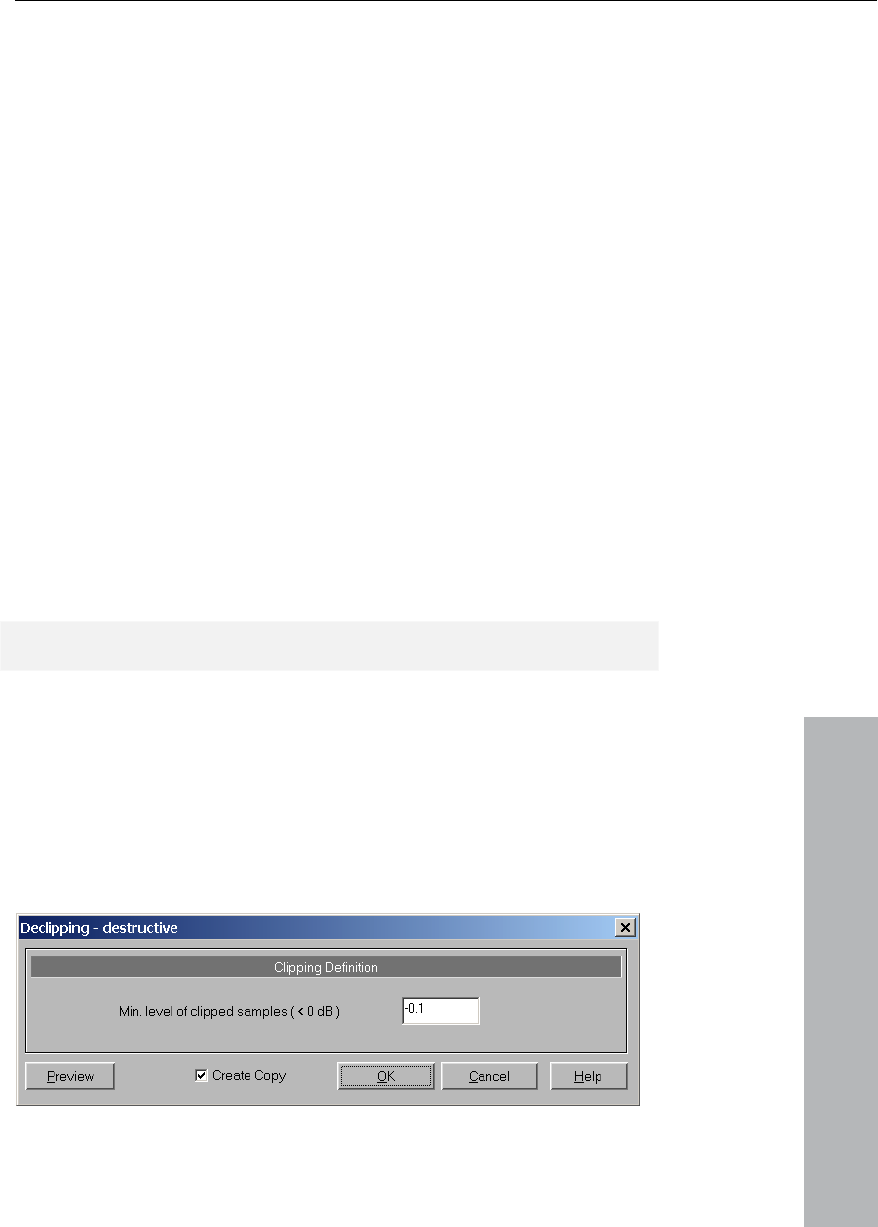
Offline effects menu 327
Dynamic expander: Too high compression will result in audible noise
(usually defined as a pumping sound). Particularly radio recordings
www.magix.com
are recorded with very high compression rates to increase the
d loudest part). The Expander
enhances the dynamics of the recording.
Music Studio 12 deluxe simulates
decoding of Dolby B + C noise suppression if no Dolby player is
available. Cassettes recorded with Dolby B or C sound more muffled
and slurry if played back without corresponding Dolby.
Noise Gate: This Cleaning function suppressed noise entirely below a
el. This lets you create, for example, song transitions
that are entirely noise-free.
automatically. The volume control handle is made void. Larger
volume differences can therefore be adapted within a song. To
differences between different songs, also use the
ized “s” sounds
in speech recordings.
perceived volume. Unfortunately compression reduces the dynamics
(interval between the quietest an
Cassette NR-B decoder: MAGIX
certain noise lev
Leveler: This function brings the entire material up to a uniform
volume
balance volume
function “Volume adjustment” function in the effects menu.
De-Esser: These special presets remove overemphas
Tip: The limiter can also be used independently of the MultiMax.
Declipping
MAGIX Music Studio 12 deluxe contains a one of a kind function to
en efore. The perfect live recording contains
recording unusable!
remove digital or analog clipping. Anybody who records audio has
countered this one b
clipping at the most important moment. This alone may render the
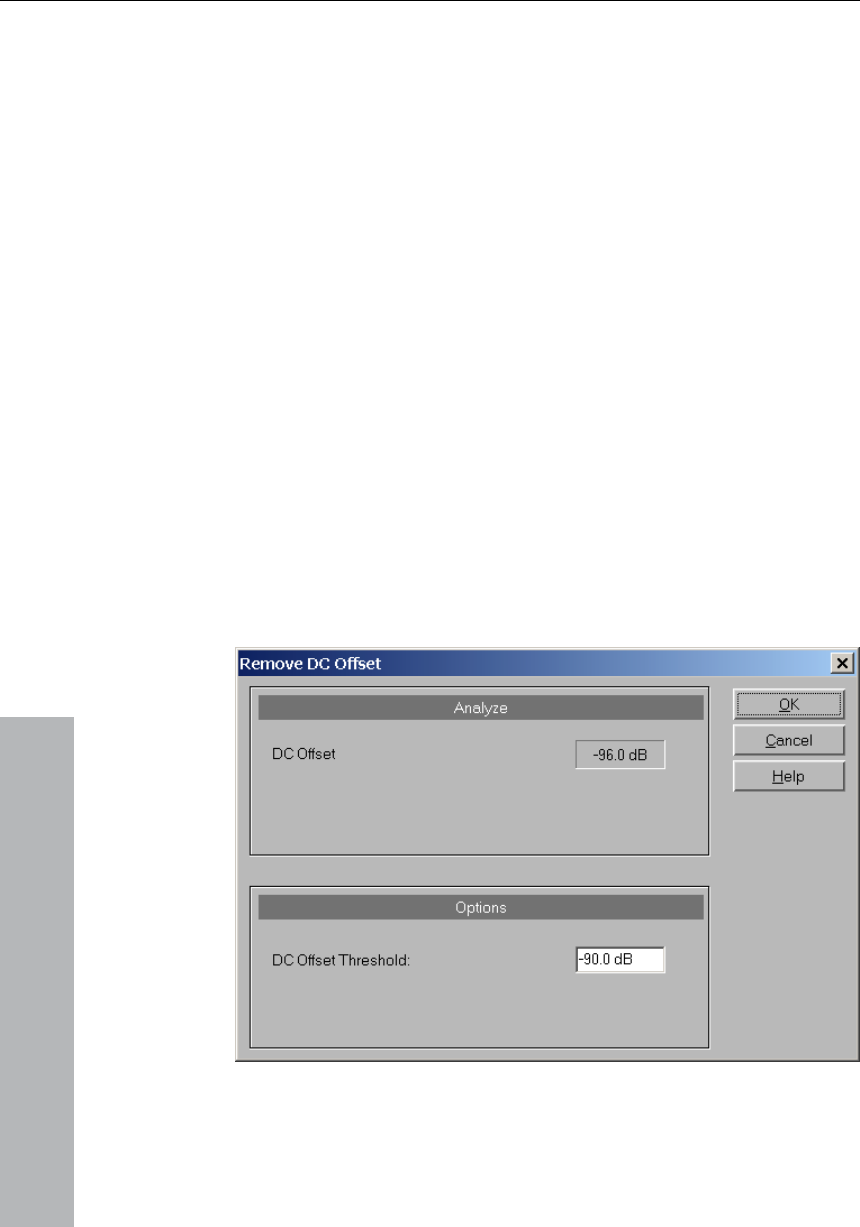
328 Offline effects menu
www.magix.com
g. The algorithm uses
the material before and behind the clipping as a reference point.
ecording. Distorted
salvageable
es an important issue. Some
se.
are recalibrated. Even
MAGIX Music Studio 12 deluxe uses high-grade algorithms to
interpolate the passages containing the clippin
Once processed, the total volume level for the material can be
reduced to prevent further clipping.
The declipping algorithm is especially useful for material that contains
obvious clipping, such as a piano or voice r
drumbeats are normally not
Minimal Level of Clipped Samples
This setting determines the volume level the algorithm considers
offending material. There are sound cards that exhibit different
clipping behavior and this setting becom
DAT recorders have an analog protection mechanism so that the level
never reaches the digital maximum signal. In these cases a setting of
–0.5 dB or lower make most sen
By entering a value of –6 dB all samples above half of the digital
maximum are considered ‘distorted’ and
analog distorted material can be improved with the algorithm.
Remove DC offset
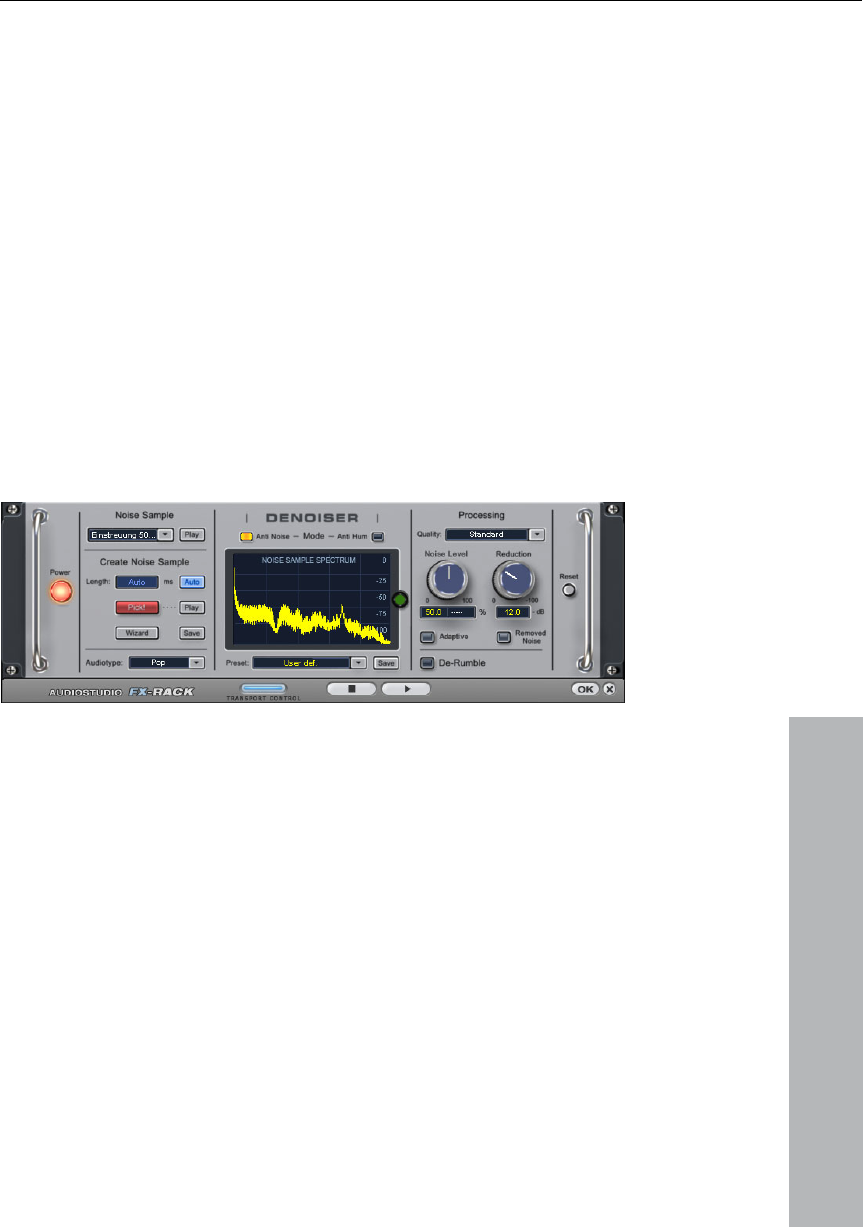
Offline effects menu 329
www.magix.com
C offset in the selected
a Wave project (RAP or HDP). Some sound cards produce
while recording, so it is useful, if you can remove it!
e
produced by the sound card, your HiFi equipment (for example, the
LPs.
the disturbing noise. Some of
the most common disturbing noises are provided. It is however
This function in menu “Effects” removes a D
range of
such a DC offset
Get Noise Sample
Denoiser
The Denoiser is especially useful for the elimination of continuous
background noise, such as electric buzzing, band noise, nois
turntable) and
All the Denoiser needs is a sample of
preferable to make your own noise sample. All you need is a short
section of audio material with the isolated disturbing noise.
Noise Level: This is the threshold at which the Denoiser starts to
tefacts).
Excessive values will produce a dull sound, as all higher frequencies
Noise reduction: To adjust the balance between the original signal
and the processed signal. In many occasions it is better not to
eliminate the whole disturbing signal but to dampen it only 3-6 dB.
This will help maintain the natural sound of your sound material. In
case of buzzing sounds however, we recommend that you eliminate
them completely.
work. This value needs to be as exact as possible. Low values will
result in deficient damping of the disturbing noise and in formation of
artefacts such as disturbing sounds or ”tweeting”(see ar
of the music signal will be filtered away. So it is recommendable to
spend some time on the correct adjustment of this value!

330 Offline effects menu
www.magix.com
Removed Noise: To listen to the part of the sound material that the
minate.
Noise Sample Section
mple will be taken from
the actual position onwards. It is important, that the noise sample
includes no music or voices, but only the pure disturbing noise signal.
The actual position can be changed using the transport bar even if
the module is already opened in order to search for an ideal sample.
The noise print cannot be generated if the replay position is located
between two objects. An error message will appear to remind you.
Play: To listen to the noise sample.
Save: The generated Noise Sample can be saved in the "Noise Print
Sample" directory. It can then be selected from the "Noise Sample
Presets" selection whenever you need it.
Noise Sample Presets: Choose one of the noise samples. The noise
samples are located in the ”Noise Print Samples” directory. If you
generated the noise sample using the ”Pick!” function, then it will
appear in the list titled ”NoisePrint”.
Play: To listen to the noise sample. However, this is not possible if
ur ears. Usually, this happens only in
especially difficult cases.
To obtain the best results, follow these suggestions and instructions:
Denoiser is going to eli
Bypass: The DeNoiser also has a bypass button that bypasses the
DeNoiser effect. This allows you to compare the neutral, unedited
sound of the object with your effects settings.
Pick! Generates a NoisePrint. A small noise sa
Auto: If this switch is activated, the length of the noise sample will be
chosen automatically.
Length: Choose the length of the noise sample in ms, if the ”Auto”
switch is turned off.
the noise sample has been generated using the Pick! function.
Artefakte bei Cleaning-Effekten
If you adjust the Denoiser too high, it can result in a metallic chipping
sound, or an ”artefact” sound. Due to its synthetic character, this will
have quite an impact on yo
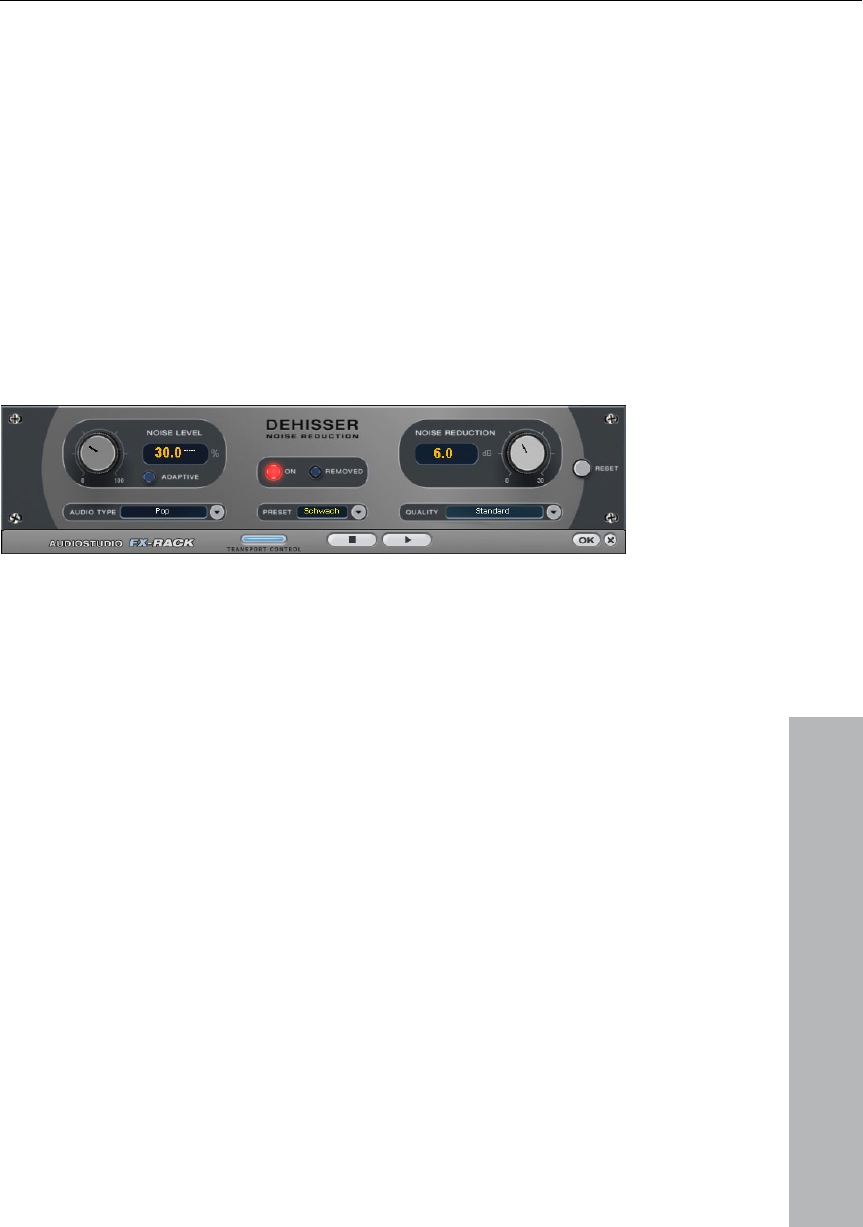
Offline effects menu 331
www.magix.com
of disturbance noises.
r any of the disturbing noises, otherwise
• ing effects. Select the
objects and choose ”Remove DC-offset” from the Edit
Dehisser
• First choose a Preset from the Selection Menu. There you will find
several types
• Be careful with the ”dosage” of the effect—less is more. Adjust it
until you cannot hea
artefacts can appear.
Clean the material before applying clean
disturbing
Menu.
The Dehisser was especially designed to eliminate the band noise,
which is all so typical for analogue tape recordings, micro-preamps or
AD-transducers.
Nois
the l at which the Dehisser starts to work. If you choose a
level that is not high enough, the band noise will not be completely
tice tweeting sounds (the so
rtifacts)
ow, you should experience no
problems while adjusting it.
band noise in decibel units. In many occasions it is the best solution,
it only -3 - -6 dB,
e Level: Here you will have to determine as exactly as possible
noise leve
eliminated. In such a case you will no
called "melodic band noise”). An excessive value will result in a dull
sound as part of the band noise and part of the original audio signal
recording will be eliminated by the Dehisser as well (for example: air
intake sounds of brass instruments) (see A
If the noise level on your recording is l
Noise Reduction: this option allows you to adjust the damping of the
not to eliminate the noise completely, but to damp
hence maintaining the natural sound of the original material.
Removed Hiss: This option allows you to listen to the music that
would be filtered away by the Dehisser.
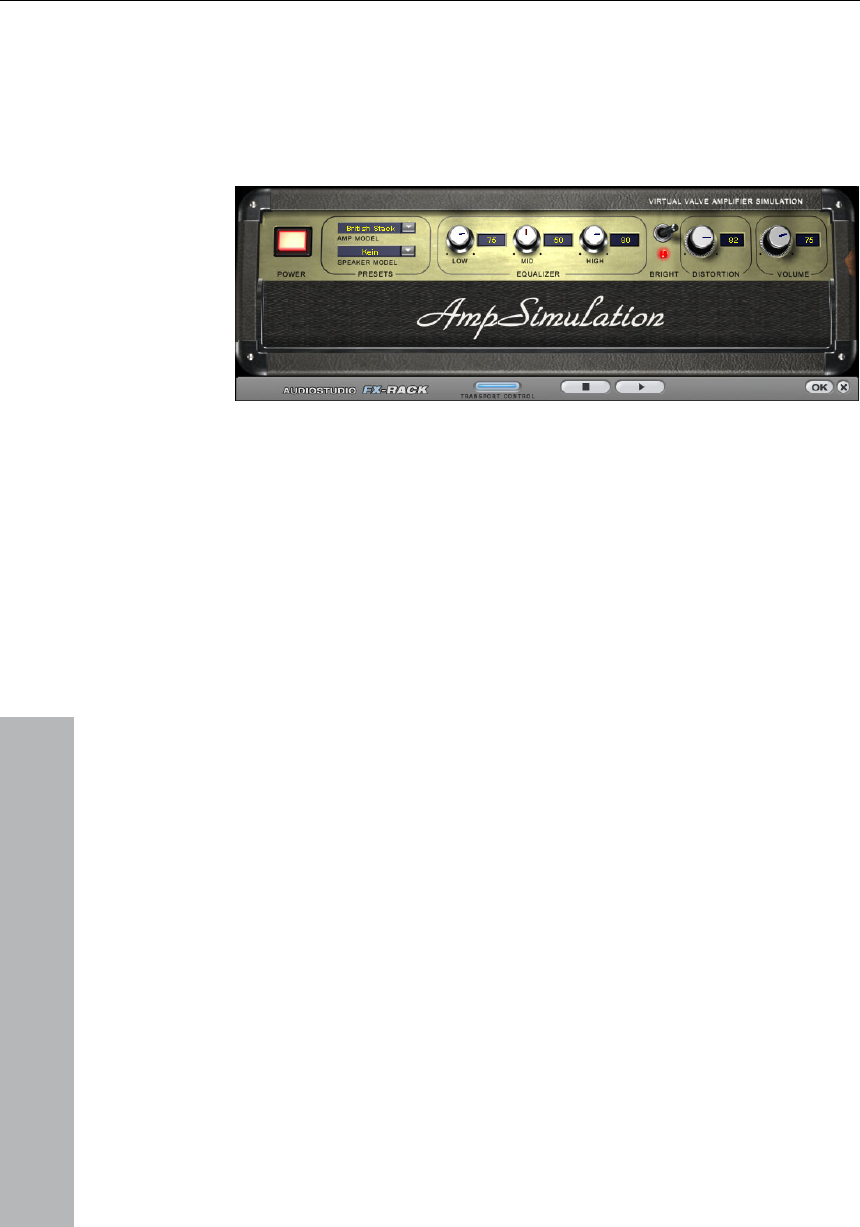
332 Offline effects menu
Amp Simulation
www.magix.com
ially suitable for
guitar sounds, but also for the organ or recordings of vocals.
The Amp simulator is a newly-developed real-time effect that
simulates tube amp sound properties. It is espec
Amp Model: Here you can select from a range of amplifiers whose
sound can be simulated.
Speaker Model: Here you can select from a range of speakers whose
sound can be simulated.
EQ-Section: A 3 band equalizer for setting the bass, mid-tones and
e gets the impression that it is
speaking or singing. Rhythmic surface sounds can also be developed
This is done via the transmission of the frequency characteristics of
the modulator (speech) on the carrier (chord).
treble.
Bright: The Bright button is for a particularly sharp sound display, that
can be jarring when used with the following automatic controllers:
Distortion: Creates distortion in typical analog amplifier fashion.
Volume: Controls the entire volume of the amplifier module.
Vocoder
The principle of the Vocoder is as follows: Carrier material (e.g. a
surface sound or a synth chord) is affected by a modulator (e.g.
language or singing) so that on
if modulated with a drum loop.
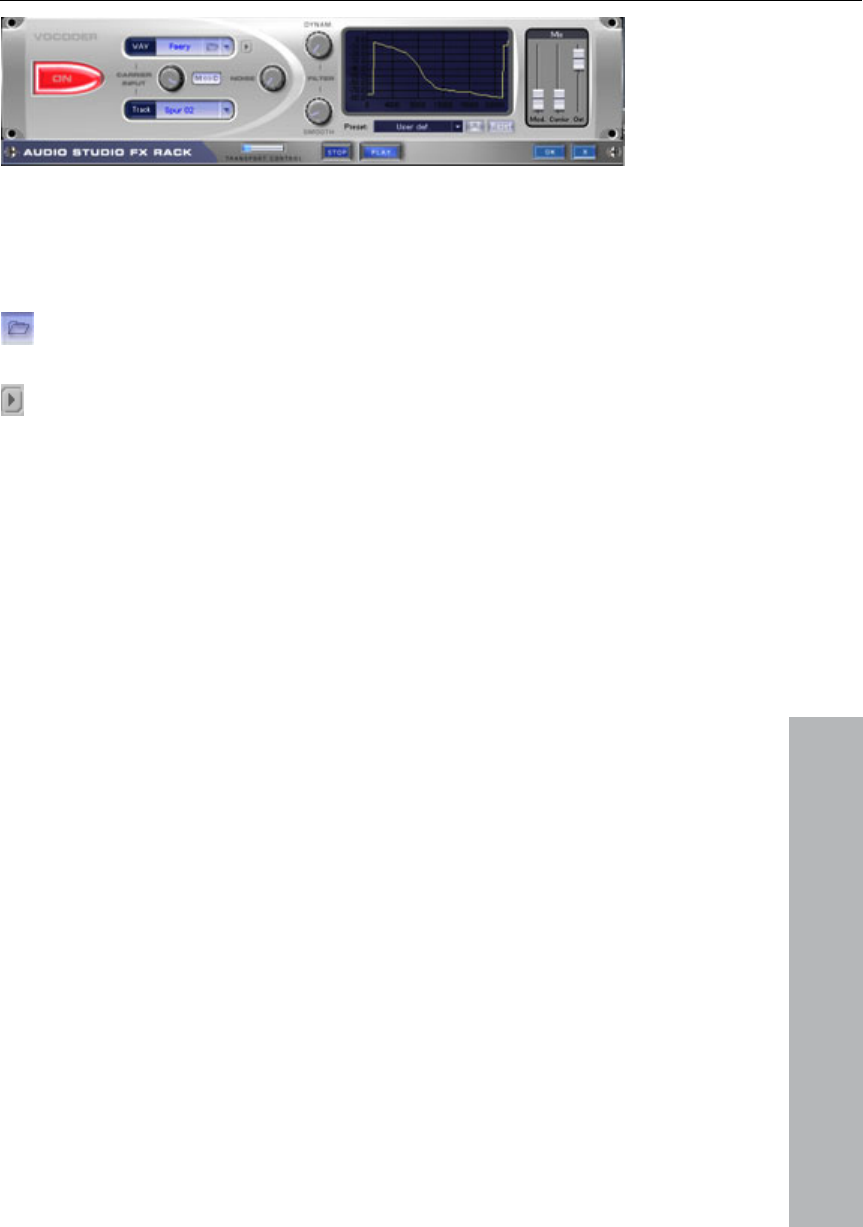
Offline effects menu 333
www.magix.com
Carrier Input
mples that have been loaded automatically from the
"Vocoder" directory are listed.
Here you have to select the desired carrier sample. Some special
carrier sa
You can use the "Carrier Sample" checkbox to load any
number of samples of the current project or predefined carrier
sample.
Here you can play the carrier on its own for test purposes.
you add noise to the carrier sample. This
many pauses
between the beats.
Material containing all frequencies in equal amounts are particularly
hi
the m
ulator signal is added to the
may improve the
l is ignored in order to prevent modulation of the
Noise: This controller lets
makes sense if the carrier material can not be modulated sufficiently
or is irregular. It's good for "filling" drum loops with too
suitable, such as strings, orchestra chords, broad synthesizer pads,
ssing or wind noise.
Filter
m: Influences the dynamics of the modulator signal to reduce
odulation depth of the vocoder.
Dyna
This prevents two often undesired side-effects of modulation: On the
one hand the volume change of the mod
output signal in a slightly more moderate form which
power of the vocoder voice. On the other hand the low-level share of
the modulator signa
carrier by breathing or noise.
Smooth: Affects the speed at which the Vocoder adjusts to the
modulator spectrum. The greater the value, the "lazier" the Vocoder
follows the modulator and the "smoother" the sound changes in the
carrier sound.

334 Offline effects menu
www.magix.com
mize the results of the Vocoder.
For example, simple disturbing bass frequencies can be eliminated as
In the Mixer you can also mix parts of the carrier and modulator
track will first be muted. In the vocoder mixer you can then make it
can select predefined vocoder settins.
The disk system is used to all custom presets. The presets all contain
Filter graphic
Exactly as with the freely drawable filter, here any frequency
characteristic can be drawn in to opti
the curve is corrected downwards to the left. Likewise, weak heights
can be strengthened as the curve is raised to the right.
Mixer
signal to the vocoder output signal (Out).
If the output signal of a track is used as a carrier in the vodeder, this
audible again.
Presets
In the "Preset" list window you
vocoder settings, except the selected carrier signal. Reset restores
the vocoder default settings.
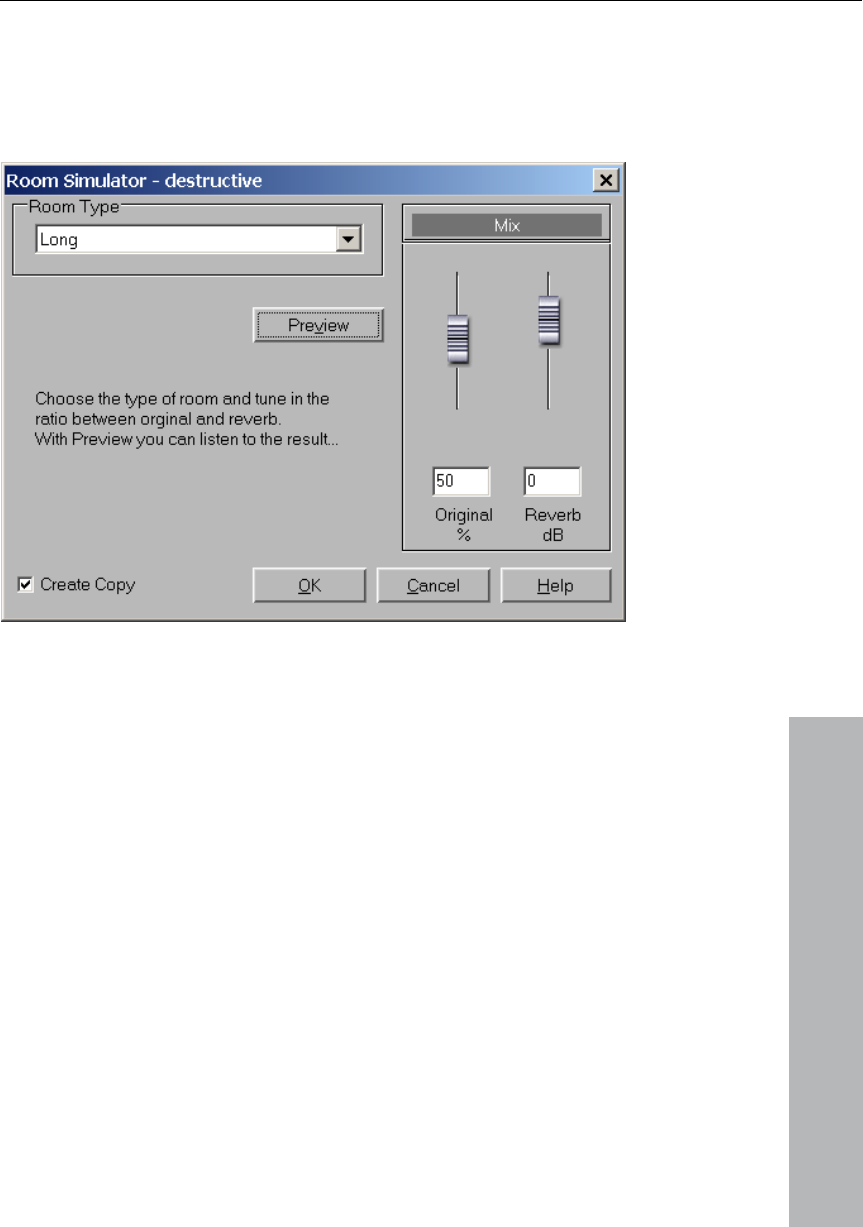
Offline effects menu 335
www.magix.com
This function lets you add a high-quality room simulator to the audio
Room Simulation
material.
Reverb type: Here you can choose between a short, medium and
long sustain.
set the balance between
an adjust the master volume.
Reverb share: Here you can
the original signal (without reverb) and the actual reverb.
Volume: Here you c
Test: This button activates the preview function. A short reverb
section is calculated and then played so that you get an impresion of
the settings.
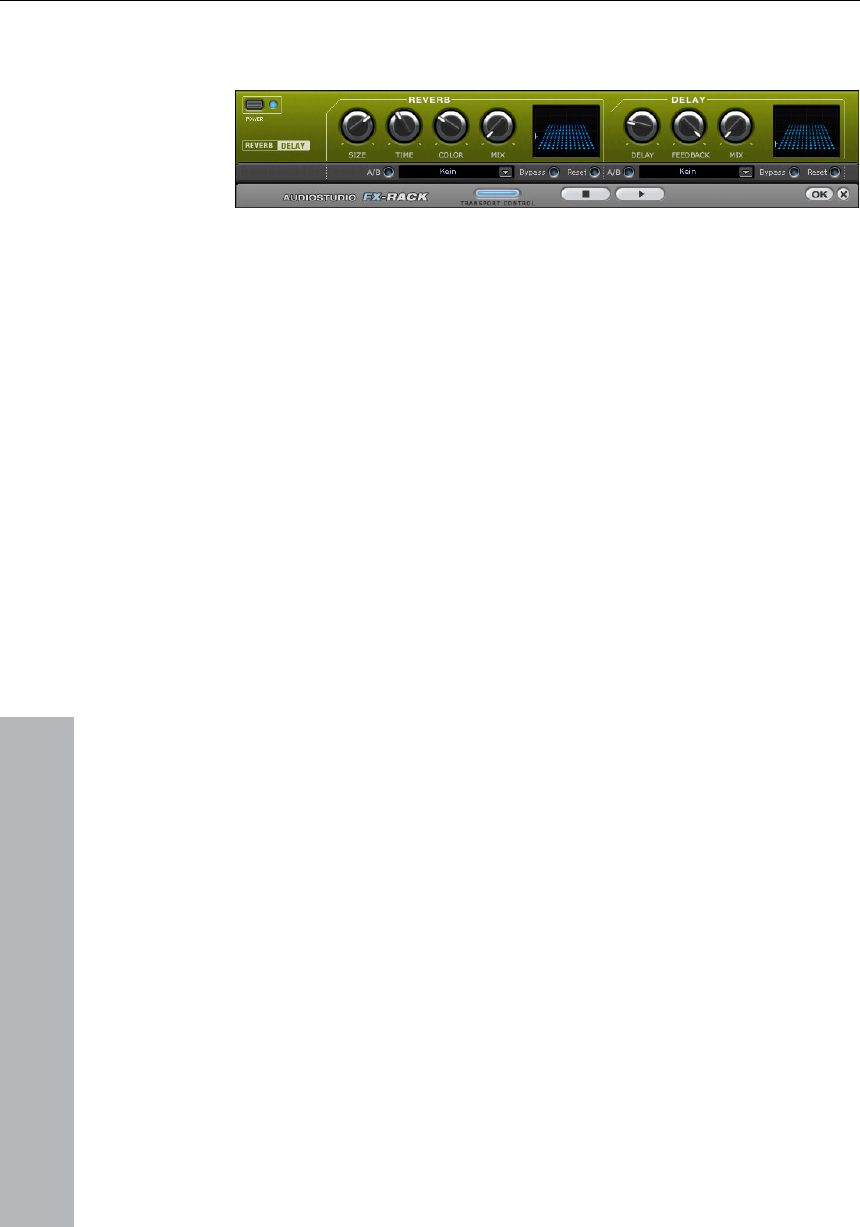
336 Offline effects menu
www.magix.com
Echo / Delay
erb
Rev
Reverb supplies a high-quality reverberation which can be defined
Room size: This control button controls a room simulator which
, turned completely to the
right, one can listen to the object as if it had been recorded in a
g
phase of the sound.
Colour: Here it is possible to control the type of reverb – rather dull
than high-pitched or vice versa.
Mix: This control determines the mixing ratio between the unedited
original sound (‘dry’ signal) and the reverb portion (‘wet’ signal).
Echo
The echo effect is defined more closely with ‘delay’ and ‘feedback’
and calculated into the original sound by means of ‘mix’.
Delay: Here the period of time between the individual echos can be
determined; the more you turn the control to the left, the faster will
the echos follow each other.
Feedback: Here the number of echos can be adjusted. Turned
completely to the left, there is no echo at all, turned completely to the
right there are virtually endless repetitions
more closely with ‘room size’, ‘time’ and ‘colour’ and mixed into the
original sound with ‘mix’.
calculates the reverb effect in dependency on the room size. If the
control is turned completely to the left, it sounds as if the audio
object has been recorded in a tiny room
cathedral.
Time: Here the length of the ‘reverb trail’ is determined, i.e. the fadin
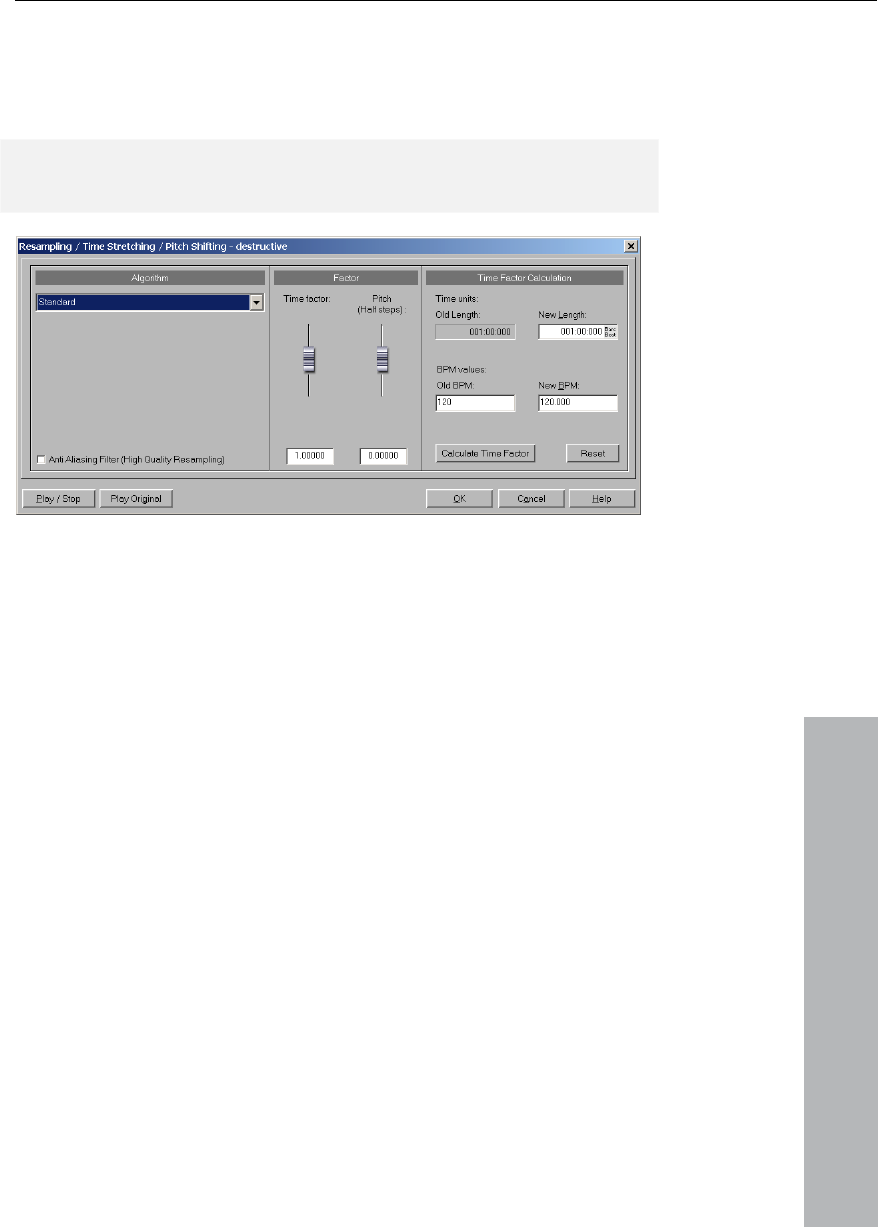
Offline effects menu 337
Resample / Time stretching
www.magix.com
Opens the Timestrechting/Resampling/Pitchshifting-Editor.
Note: If you only want to change the sample rate of an audio file, use
the Adjust sample rate option from the Effects Menu.
All algorithms in this dialog use the time factor parameter and pitch
as input parameter.
The time factor calculation (from the original length/original speed and
ted on
izers transpose samples during this
is smaller than with all
g procedures. If pitch change is justified by
d vice versa), use this algorithm.
resampling, very small
ilter helps in this regard.
Alternatively, since this filter requires additional CPU load, it can be
ion and the real-time preview. The filter is
the length required / speed required) can be comfortably activa
the right side of the dialog.
Resampling
Samplers and PCM Synthes
procedure. Time factor and pitch are dependent upon each other: the
shorter the audio material, the more higher the pitch. The effect is
comparable with changing the playing speed of record players or
tape recorders.
The effect is relatively loss-free, the sound loss
Timestretching/Pitchshiftin
changing the speed (an
When lengthening the audio material by
aliasing effects may occur. the anti- aliasing f
activated for the computat

338 Offline effects menu
www.magix.com
Default
rs very good results with
vy" material, this algorithm is only partially suitable as it can
change the groove and, in rare cases, can fade out or double beats.
Time compression (sample length is reduced) is more successful with
this algorithm than timestretching, i.e. it is better to reduce the longer
another.
Here a considerably more complex algorithm is used which requires
more processing time. The material can now also be used on very
g about strong artifacts. The
material is "smoothed", which makes the sound softer and emits it at
ith speech, singing or solo instrumentation. Problems may
arise with more complex spectra (sound mixes from various
instruments or finished mixes). This algorithm is not very well-suited
her material with strong transients. The groove
remains intact, but because of phase shifting the attacks are slurred.
t
possible smoothing value should be used.
Recommended for:
instruments, wind instruments...
• Speech, single voice and multi-voice song
N t suited for:
also available for the other algorithms that use resampling internally
when pitchshifting.
An algorithm is used that usually delive
factors from 0.9 to 1.1, that works in phase-locked mode, thereby,
keeping the room effect of stereo signals. For drum loops or other
"beat hea
sample than vice versa when adjusting two samples to
Smoothed
large factors (0.2...50) without bringin
an adjusted phase level. This smoothing is hardly audible, for
example, w
for drum loops and ot
With small corrections (factor ca. 0.9 – 1.1) the setting of the smalles
• Orchestra instruments: String
• Speech with background noise like, for example, video sound
• Synthesizer areas, guitars...
o
• Stereo mix
• Drum loops, percussion
CPU strain: very high

Offline effects menu 339
www.magix.com
gorithm splits the material into individual
components, individual notes, or beats, which are then selected via
is case,
the time change occurs without any loss of quality at low CPU strain.
not overlap and there is not much reverb
CPU strain: minimal
This algorithm works similar to the standard algorithm. Unlike the
. Unlike the "Beat marker
based slicing" algorithm, this algorithm doesn't fail fully when there
hronization quality is reduced or has errors. In practice,
automatic marker generation is usually enough for good results. You
Monophone voice
ents. The material must not contain
background noise, and excessive reverb may also be detrimental to
terial the audio quality is very
high.
Beat marker slicing
This mode is centered especially around customizing drum loops, but
can also be used on other material like monophonic bass runs or
sequencer lines. The al
the beat marker.
These "snippets" are then compiled into the new temporal measure:
If the tempo is increased, individual beats begin overlapping, if it is
slowed down, short pauses between the beat become audible.
If this algorithm can be used, it should be used because, in th
Recommended for:
• Samples which can be split into individual notes or beats
• Drum loops, if the beats do
Definitely not suited for:
• Everything else where beat markers do not exist, the algorithm fails
completely and silence is the result.
Beat marker stretching
previous algorithm, this one synchronizes the stretched material with
the beat markers. This way the groove remains perfectly intact and
doubled or faded out beats do not occur
are no markers or wrongly placed markers, but rather, the
sync
should avoid having beat markers which follow one another very
closely (<1000 samples).
This is a special time-stretching and pitch-shifting function for vocal
solos, speech or solo instrum
the use of this method. With suitable ma
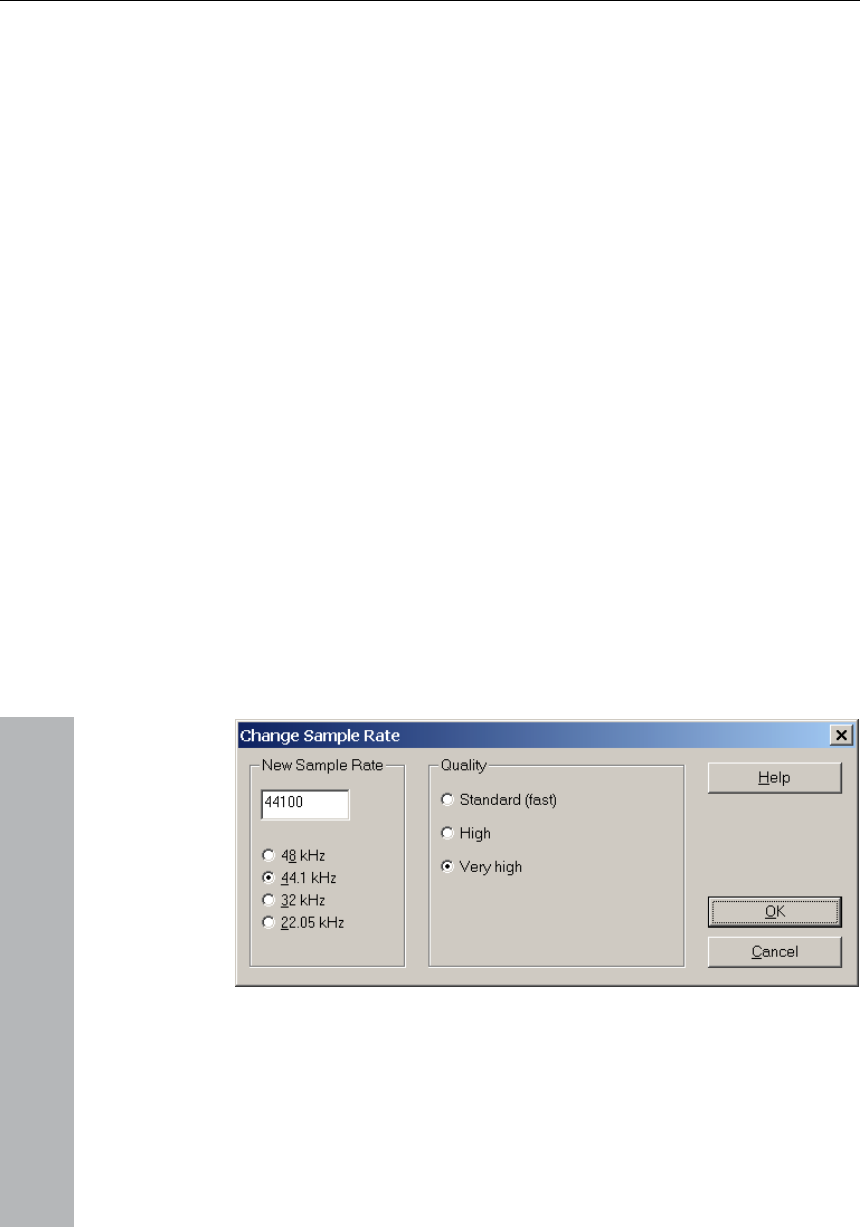
340 Offline effects menu
www.magix.com
tion the formants remain the
same when pitchshifting, that is, the "Mickey Mouse effect" does not
n be achieved.
ith vocals can be copied and moved
down. If the pitch is now changed, the second voice has been
peech, single voice vocals, single voice
instruments without overlapping, with low reverb and low background
Use this function to change the sample rate of a whole audio file. This
r
use on an audio CD.
With the "Use formant correction" op
occur. This way, realistic background choirs can be "composed" from
just one solo voice. The formants, however, can be shifted by +- 12
half tones. Here, vocal distortions ca
Typical usage of this algorithm:
• Intonation correction (the note with the imprecise pitch should be cut
out as an object, so that it can be manipulated independently of the
other notes).
• Harmonizer effects: An object w
changed, etc.
• Generating background vocals from existing vocal samples
• Timestretch/Distortion of a speech sample, for example, to make a
grandfather voice.
Recommended for: S
noise.
Change Sample Rate
may be needed to convert a DAT recording at 48 kHz to 44.1 kHz fo
After choosing the new sample rate you can select a filename for the
new project.

Offline effects menu 341
If the resolution is increased the sample rate change will take place
without any quality loss – the sample material will not experience
fidelity reductions. (The needed hard disk space will increase though.)
www.magix.com
f
always half of the resolution specified. For a conversion
from a 48 kHz sample to 44.1 kHz, this loss in quality is not
significant, since the human ear only recognizes frequencies up to 20
tion of 48 kHz is often only used because the digital to
analog conversion can take place with much higher precision without
effort.)
Please note that resampling to 44.1 kHz can also be done while
Reverse
The sample data in the selected range is reversed along the time axis
ie the file will now play backwards with the end now placed at the
beginning. This allows for very interesting effects, not to mention the
‘backwards masking’ hidden messages frequently rumoured to be in
various songs....
This function is reversible: if you do not select a new range, calling
this function once more leads to the original material.
The option is only available when working in Destructive Editing mode
ie directly on an HD Wave file.
If the resolution is reduced, the overtones or high frequencies may be
lost during the sample rate change. For example, if the resolution of a
44.1 kHz sample is reduced to 22.05 kHz, the frequency response o
the resulting sample is reduced to 11.025 kHz. The frequency
response is
kHz. (A resolu
expensing a lot of
recording in real-time.
The Playback Parameter window (Shortcut: p) contains a Vari-speed
option for real-time resampling during playback. The Record window
(Shortcut: r) lets you resample to 44.1 kHz in real-time from any of
the selected sampling rates.
Build Physical Loop
This function utilizes a complex algorithm for optimizing loops in
Wave projects. It is useful when samples are to be used for
instrumental sounds as well as wave table synthesizer.

342 Offline effects menu
Before you can process a sample you need to select a range in your
sample that already defines the rough edges of the sample loop.
Remember that you can shift and vary a range during playback to
find the best loop position. A comfortable way to look at the loop
positions is by activating the split range mode by pressing “b”. The
sample will be displayed in 3 sections.
www.magix.com
for the
crossfade. This offers you a feature found in professional hardware
With the aid of this dialog it is possible for Microsoft DirectX and VST
ithms from third-party suppliers in addition to the
integrated effects in MAGIX Music Studio 12 deluxe.
To gain an interruption-free loop the outer limits of the range will be
set to zero. By applying a crossfade to the material at the loop end
containing the sample data in front of the loop beginning, MAGIX
Music Studio 12 deluxe will create a ‘smooth’ transition between
loop-end and loop beginning.
When a marker is set in front of the selected range, the range
between the marker and the beginning of the loop will be used
samplers. To achieve a short crossfade set the marker close to the
loop beginning. To receive a long crossfade position the marker
further away from the loop beginning.
Notice that the distance between marker and beginning of the loop
range needs to be smaller than the loop range itself to make a
crossfade possible.
DirectX Plug-Ins
compatible plug-ins to be used for effect calculation in MAGIX Music
Studio 12 deluxe. This opens up the possibility to you of using almost
any effect algor
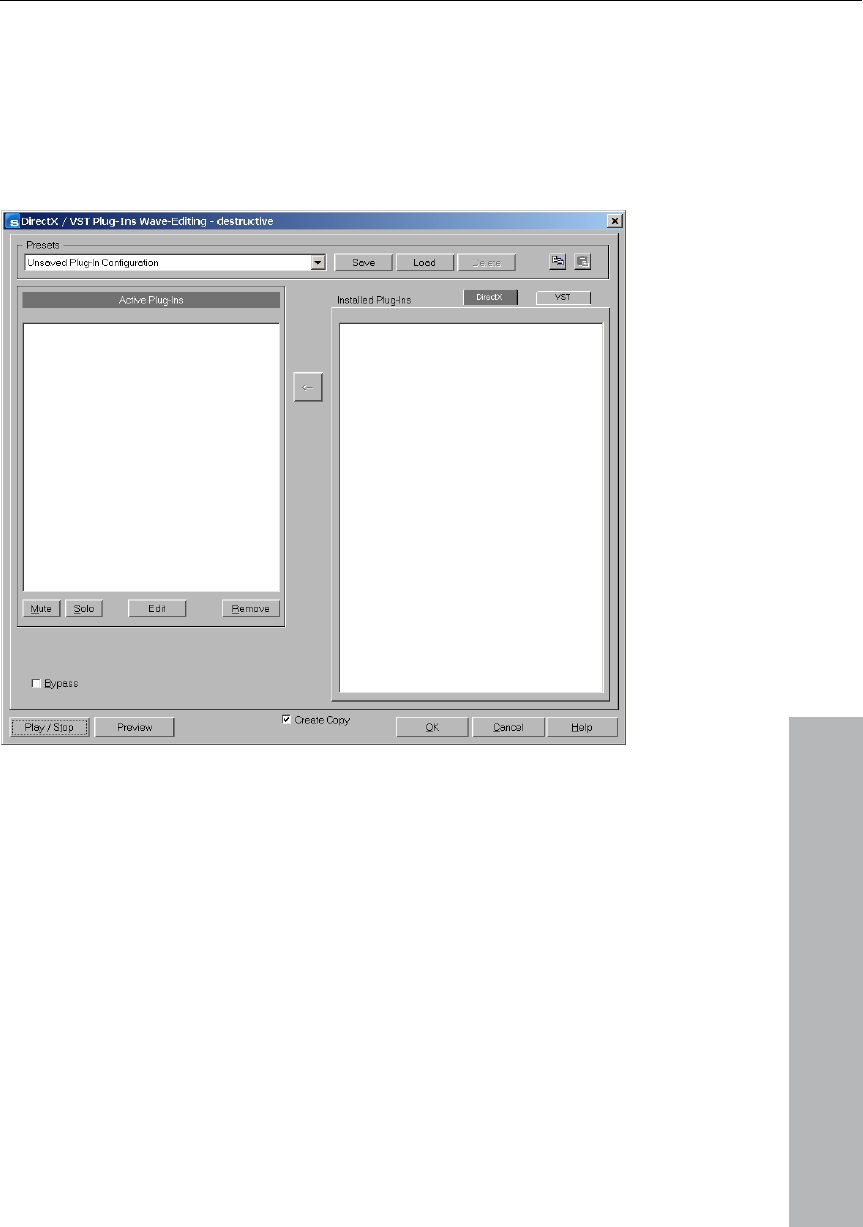
Offline effects menu 343
www.magix.com
is the case with most plug-ins,
e.g. hall, echo, dynamic compressors). Other algorithms such as
In the mixer in MAGIX Music Studio 12 deluxe plug-ins can be
included as real-time effects. Here, however, the plug-ins have to be
capable of processing audio data blocks immediately and completely,
and without any change in length. This
Timestretching plug-ins fail at this point because of the associated
length change.
od and use
one another. For instance, stereo and
mono plug-ins must not be coupled together. The plug-in selected in
Working meth
When you open the plug-in dialog you will see on the right-hand side
a list of the DirectX and VST compatible plug-ins that are installed on
your computer. Activate one of them and press the arrow in the
middle; the activated plug-in is transferred to the left, into the list of
active plug-ins. At the same time the surface of the plug-in is opened
in which specific effect settings can now be made. You can set up a
chain of effects in this way, but it is important to ensure that the plug-
ins are all compatible with
each case in the list on the left can be deleted again with the
“Remove” button.

344 Offline effects menu
www.magix.com
The plug-in dialog in the VIP tracks and in the mixer enable you to
n be
looped in “pre” or “post” accordingly.
ctly onto a track in MAGIX
Music Studio 12 deluxe. This VST plug-in will be additionally
up in the plug-in dialog as a VST
effect.
list
o longer want to see displayed with the
on them and take
them out of the list with the “Del” key..
these two buttons in the top right-hand corner of the
dialog field you can save and insert and complete plug-in set-up (the
s with all the set parameters). Plug-in set-ups
be
transferred quickly between tracks or objects.
with the active
plug-ins in the left-hand list. This function is ideal for testing the
nough for the real-time
calculation.
ialog...
• Here the “Start all object-related plug-ins” option can be activated at
Play-Start. Some plug-ins cause delays when switched on, and in
Pre and Post in the plug-in dialog
loop in the effects “pre” or “post”. Mark them on the left in the plug-
in list as “pre” or “post” before you load them. The plug-in will the
Drag&Drop of VST plug-ins
If you have installed various different VST plug-ins in other folders
than in MAGIX Music Studio 12 deluxe you can simply pull the
relevant dll-files out of the Explorer and dire
registered and from now on will turn
Removing available VST plug-ins from the
VST plug-ins that you n
available ones can be easily removed if you click
Buttons in the dialog
Save/Load: With
sequence of the plug-in
can thus be transferred conveniently if the various possibilities for
plug-in use in MAGIX Music Studio 12 deluxe are utilized.
Copy/Insert: This enables complete plug-in configurations to
Play/Stop: This button activates the real-time preview
settings of a plug-in if this runs quickly e
Remove: The selected plug-in is removed from the effects plug-in list.
Settings: opens this d
Direct X / VST plug-in set-up
• The “Write DirectX-logfile” option only serves support purposes and
should normally be switched off.

Offline effects menu 345
this case they should be switched on at Play-Start because
otherwise there can be a failure when the relevant object starts to
www.magix.com
play.
• Deactivate all DirectX effects during the scrubbing/jogging: Under
certain circumstance DirectX plug-ins can cause errors during the
scrubbing/jogging or simply break down. With this option the link to
the DirectX plug-ins can be deactivated and thus circumvented.
Process only left (right) stereo channel
Only the right / left channel of a stereo Wav project will be affected by
effects when activating ”Left/Right processing only”. This options is
only available when in Wavediting /destructive Editing mode.
The same effect have the L/R buttons in the lower left corner of the
WAV project window.

346 Menu Tools
Menu Tools
Track Bouncing
www.magix.com
D Wave project and
saved with a new name. All tracks in the VIP are mixed and all real-
that the number of tracks that are
spanned by the selected range does not matter. The track bouncing
ents of the VIP project are used.
The current virtual multi-track project (VIP) can be converted into a
WAV file or MAGIX Music Studio 12 deluxe H
time processing, cuts, crossfades; all Mixer settings, Mixer effects,
DirectX Plug-Ins, Volume automation and Panorama automation are
included in the bounced version.
The function “Track Bouncing” may require a large amount of
storage, depending on the length of the VIP.
Four track projects are internally mixed to combine two tracks for
playback on each channel. To prevent clipping, an amplitude
reduction of 6 dB is applied (which corresponds with a 50%
representation of the source material).
For eight track projects, the reduction is normally 12 dB. However,
you can change the value in Options-> Project Info (shortcut: i).
There are two variations for the track bouncing implementation:
Only selected Range: MAGIX Music Studio 12 deluxe uses any
selected range in a VIP for the track bouncing. This command does
not work track selected, meaning
will always use all tracks for the period of the selected range.
Complete Project: The complete cont
Calculate Maximum Amplitude: When check, this option displays the
peak level of the mixed WAV file in dB. Further processing of the
bounced audio file can use the specs to make precise adjustments.
After the track bouncing process, MAGIX Music Studio 12 deluxe
displays a dialog with the maximum amplitude value.
Range trackbouncing
Use this function to convert the objects within a selected range to a
new WAV file. The selected objects in the VIP are replaced with the

Menu Tools 347
www.magix.com
track-bounced version. This is very useful to combine multiple objects
t so that the function to create track markers
automatically can be used.
Remove unused Samples
using this option is that object length changes are
possible only in a limited form. Object can be made short, but they
r
production projects, it is recommended to archive the finished project
plete project to a new folder
in an unaltered
form (WAV, RAP, etc.) in the same folder that the VIP was saved to.
When saving freeze files, a considerable amount of data may accrue.
essary.
the current project, all freeze data no
that the current project is temporarily stored, all freeze data existing
into a single objec
This function removes all material from Wave projects belonging to
the current VIP that is not used by any of the VIP objects. The objects
in the VIP will point to the proper audio ranges in the linked audio
files. This leaves the VIP itself unchanged.
Using this function can conserve a lot of storage space. However, the
downside of
cannot be extended.
Tip: If you need the complete contents of the audio files for othe
in the following way. Save the com
(File->Save Complete Project to). The VIP is now located with the
complete contents, in other words all the audio files,
Next, use the command Remove Unused Samples. The same folder
will now only contain the audio data or samples that are actually used
by the archived VIP. The contents can be easily back up to any
backup medium such as CD-ROM, Data DAT, and others.
Delete Freeze Data
Freeze Data Administration
Automatic freeze data administration therefore becomes nec
The principle is simple: As mentioned previously, freeze data and
freeze VIP’s are stored in a special directory within the current project
directory. After completion of
longer required is deleted in the background.
Data requiring an unfreeze is preserved, as long as the respective
frozen tracks or objects are found within the current project.
There is, however, one limitation: If freeze data exists at the moment

348 Menu Tools
www.magix.com
Example:
ozen. Track 2 is unfrozen before
completion of the current project. The project is then saved and
freeze data and freeze
VIP of track 2 is deleted. Freeze data and freeze VIP of track 1
mains unchanged.
If, however, the current project is stored temporarily before track 2 is
unfrozen, the freeze data of track 2 is also kept.
Deleting freeze data manually
There is a special command to get rid of data that is no longer
required: Delete freeze data (tools menu).
If no freeze data (yet) exists in the current project, this command is
disabled and cannot be selected.
Hereby all freeze audio data no longer required in the current project
is deleted.
Existing freeze projects, however, remain unaffected. As the original
state prior to the use of the freeze command is found in a freeze VIP,
it can be re-established, as long as the necessary audio data is still
found in its original position.
at this point in time is also kept, even if it is no longer required for
unfreeze after project completion.
Track 1 and Track 2 are fr
brought to completion. During completion, the
re
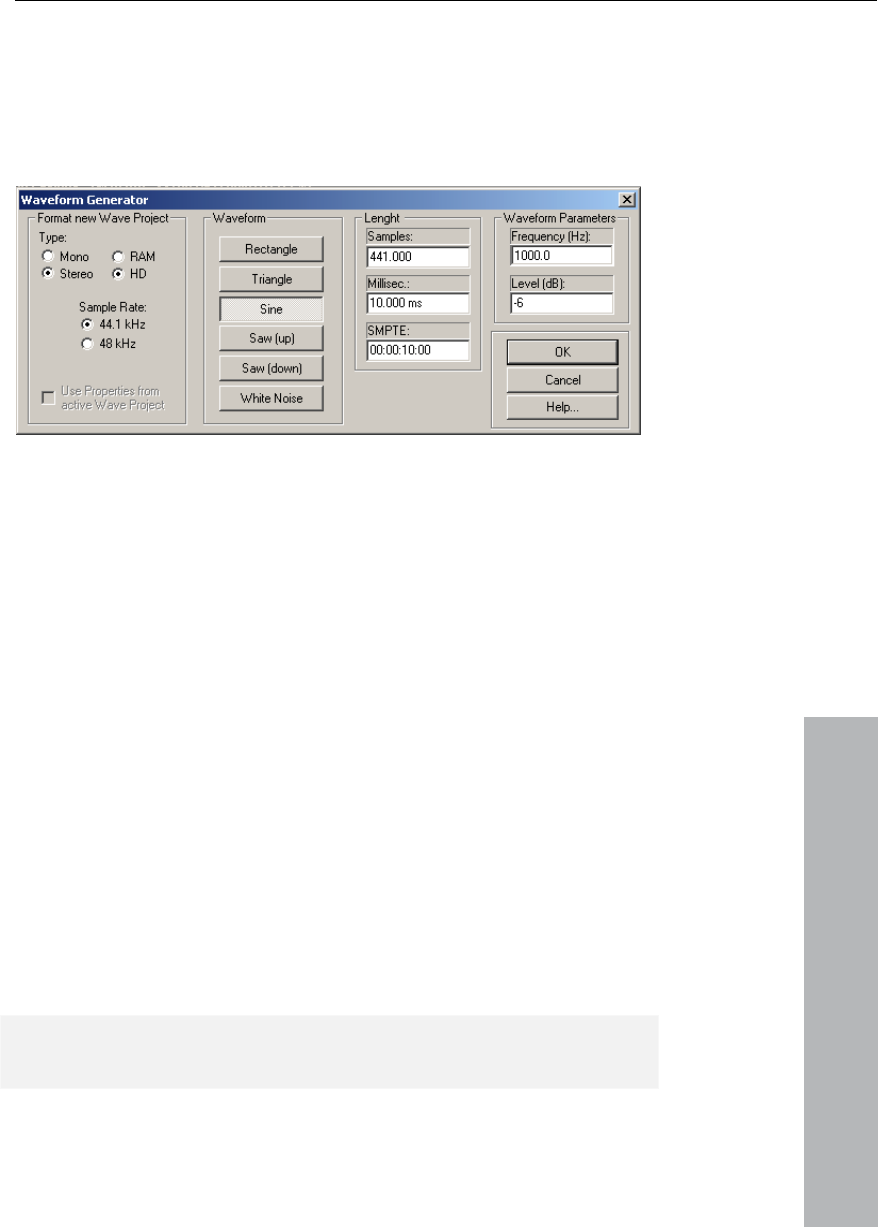
Menu Tools 349
www.magix.com
rator
This dialog contains a powerful generator of several test tones.
ted a Wave project (HDP or RAP) before
opening this dialog!
Waveform Gene
Please be sure to have activa
ct. Please rename the Clip after
generating the waveform, so it can be easily included into other
projects without naming conflicts.
You can adjust type, frequency, and length in samples of the created
normalizing function (Normalizing).
The generated waveform is stored in the Clipboard with the same
properties as the opened wave proje
waveform.
The generated samples are always fully amplified. The volume level
can be easily reduced with the
The following types can be selected: Square, pulse, triangle, sine,
saw up, saw down and white noise
Open new Manager
This menu point opens a new Manager window. Several Managers
can be opened simultaneously.
Manager
Please also read the corresponding chapter The Managers (see page
235).

350 Menu Tools
www.magix.com
Take Manager
r powerful feature of MAGIX Music
Studio 12 deluxe. It is especially for those who work with many
MAGIX Music Studio 12 deluxe registers the VIP position of the
udio ateria p is stored to the HD or RAM
Wave project and offers the option to always return the recorded
object to its original position.
Application Examples:
between bars 32 and 34 of 12 takes from
a classical production.
• A clear overview of all available takes during a SMPTE time of 30:00
cted object. This
could be the last created object after using punch-in recording. This
object is referenced in the take list with a colored “O”.
The Take Manager is anothe
different recording takes and need to manage them.
recorded a m l. This time stam
• Selection of the best take after five loop-punch recording passes.
• Locating the best material
to 35:00.
Basis for working with the Take Manager is a sele
Attention: The Take Manager does not work if objects are used in a
VIP, which are not created by recording material into MAGIX Music
Studio 12 deluxe. This would be the case for any material imported
through the WAV Import or CD Track features!
When objects are present that where not created through recording,
a manual time stamp can be assigned to the objects by using the
function Object->Set New Original Position. Once completed, the
ger will list th ts in the take list.
Display Filter
es are displayed that belong to the
Same Track Only: Only those takes are displayed that a positioned in
the same track as the selected object.
d that match the original time
Take Mana e objec
Same File Only: Only those tak
same audio file as the selected object.
Match Time: Only those takes are liste
position of the selected object.

Menu Tools 351
www.magix.com
ack position.
Statistic (Verbose): Creates a new VIP with the currently shown takes
from the Take List. Every take is listed in a new track. The VIP can be
h the Solo and Mute functions
of each track.
List. All takes are lined up on the same track.
ve project
to make them easier to find, thus ensuring better Timestretching or
chshifting
• BPMs
rkers
imestretching/ Pitchshifting
Different algorithms (besides the standard algorithm) can be used for
algorithm in the
wave project. This ensures that the "correct" algorithm is used
tretch mouse mode).
Beat marker
Beat markers are also saved in the wave project when using beat
marker-based algorithms.
Play: Starts the playback. Before opening the Take Manager set the
play cursor to the desired playb
Replace: This replaces the selected object with the currently chosen
takes from the Take List.
used to audition the individual takes wit
Statistic (Brief): Creates a new VIP with the currently chosen takes
from the Take
Timestretch Patcher
This tool enables wave files used in MAGIX Music Studio 12 deluxe
and other MAGIX programs (e.g. MAGIX music maker) to be patched.
Additional information and settings are written into the wa
Pitchshifting results.
The following can be patched:
• Algorithms for Timestretching/ Pit
• Beat ma
Algorithms for T
real-time Timestretching and/or Pitchshifting for better results. Check
Resampling/ Timestretching/ Pitchshifting for more details. With the
Patcher you can store the optimal Timestretching
automatically when Timestretching/Pitchshifting is used on these
projects as object effects (e.g. with the Times

352 Menu Tools
www.magix.com
In contrast to the Timestretching dialog, the patcher is non-modal,
can move beat markers in a
wave project while checking out the Timestretching result.
hes the BPM value (beats per minute). This is useful for when the
Timestretching factor must be determined later in order to adapt the
u can select the algorithm to be
used and specify the wave file tempo. On the left side (Test) is the
saves the information in
the wave file.
meaning that if the patcher is open, you
BPM value
Patc
wave project to the tempo of an existing arrangement.
Patches in brief
Patches only work if you have opened the wave project in destructive
wave editing mode and if it is not open in a VIP simultaneously.
On the right of the dialog (Patch) yo
control element from the Timestretching/Pitchshifting Dialog.
It allows you to test the selected algorithm in connection with the
Play/Stop and Play original buttons. Patch
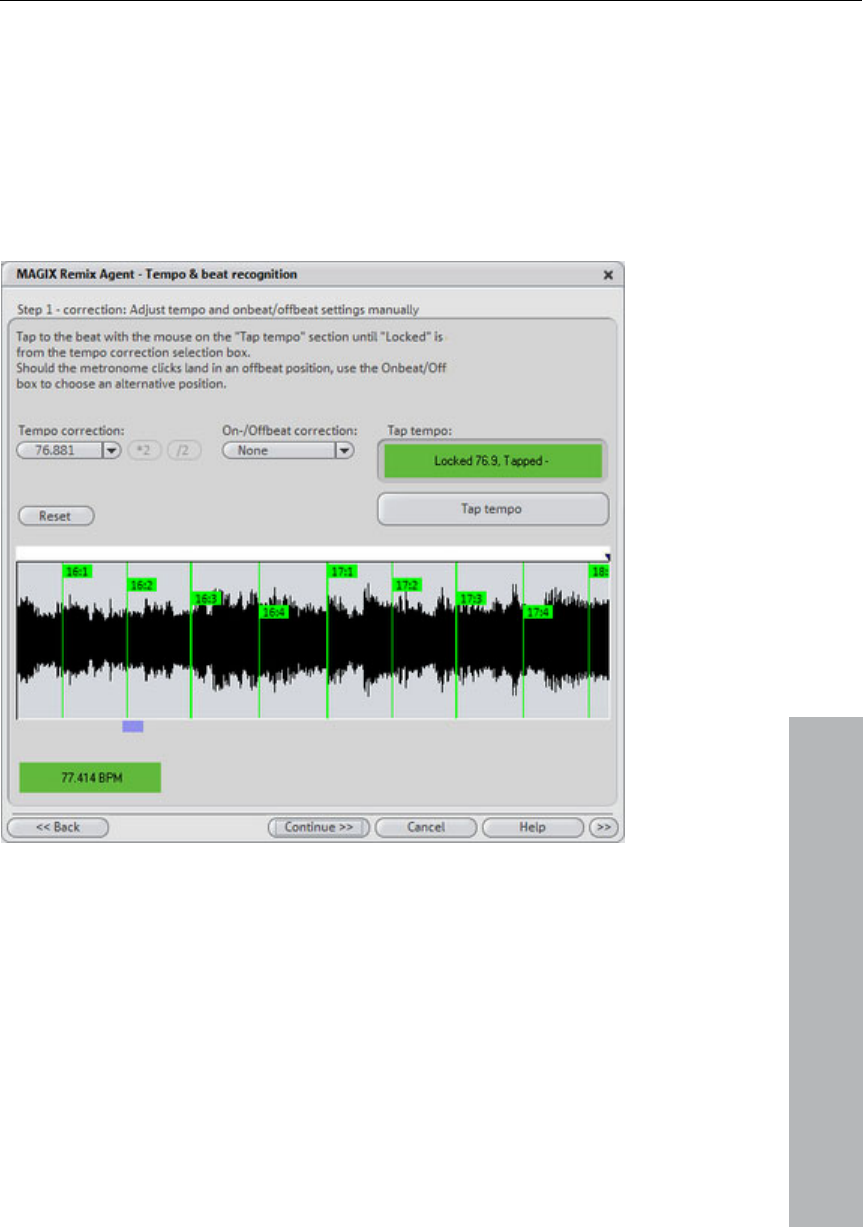
Menu Tools 353
www.magix.com
Remix Agent
MAGIX Music Studio 12 deluxe offers Remix agents for automatically
determining the tempo in BPM (Beats per minute) as well as for
creating remix objects. Use the context menu and/or the effects
menu.
Remix Agent – Tempo and Beat Assignment
The Auto Remix Assistant is a powerful tool that determines the
tempo(measured in beats per minute, or BPM) as well as the timing
This is important. For example,
is imported into MAGIX Music Studio 12
When to use the Auto Remix Assistants
of the beats for songs’ quarter notes.
when an audio CD title
deluxe and you then wish to mix in sounds such as drum loops,
effects or synthesizer voices.

354 Menu Tools
www.magix.com
• When the tempo of the song must be adapted to the tempo of an
intro without beats,
set the start marker after the intro. As a rule of thumb, the Auto
er
still, briefly before a beat at the start of a bar.
can
be shortened accordingly with the object handle at the end of the
mix assistant is called up, the selected song object
begins to click
The following cases are differentiated:
• Position of the start of a measure (the one): red line.
otes (the two, three and four): green
s.
d to the left of the
• When the tempo of the arrangement must be adapted to the tempo
of the song.
existing arrangement.
• When the song is to be cut up precisely to create a remix object,
which can then be re-arranged as desired.
Requirements
• The song must be longer than 15 seconds.
• The songs have to contain "rhythmic" music.
• The song must be in stereo.
Preparation: Setting the Start Marker and Object End
Before opening the Auto Remix Assistant one should set the start
marker at the position in the song object in the Arranger where
detection is to start. If the song contains a long
Remix Assistant should always be "fed" with "dance" music.
• The start marker should be set before a quarter note beat or, bett
• If the start marker lies before the song object, the object is examined
from the beginning.
• If detection is not performed by the end of the song, the object
object.
Step 1: Automatic Tempo Recognition
When the Auto Re
is analyzed and subsequently played. A metronome
according to the result and lines visualize the positions of the quarter
notes found in the wave-shaped display.
• Position of the other quarter n
lines.
• Reliably recognized positions: thick line
• Unreliably recognized positions: thin lines.
• When tapped, blue lines appear.
If the tact and tempo information is already present, points are
indicated above the display at the appropriate positions. The
metronome volume can be regulated below an

Menu Tools 355
www.magix.com
Correction: Setting the manual and and Onbeat/Offbeat
cted automatically – the
total number op BPM can therefore deviate from song to song.
use of
the Tapping Input mode. Either the T key must be pressed or the Tap
Tempo button must be clicked with the mouse in time with the music.
With repeated tapping of the tempo correction button, one should
keep an eye on the color in the BPM display. In the “unlocked”
condition (red) the tapping is not in time with the music. One should
tap until the “locked” condition is displayed. After a short time one
hears if the result is correct through the metronome.
Subsequently, Offbeat correction takes place - if required. If the
e start of a measure.
Next the starting point of the measure is corrected. The beat at the
sure must always agree with the high tone of the
wave-shaped display. To the right, the BPM value is indicated. If a
valid BPM value was found, it is displayed in green.
If the metronome clicks in time with the music, the measure start is
correct. If not, you can correct the tempo manually.
If the result is incorrect, you can help the Auto Remix Assistant with a
few mouse clicks on the correction buttons.
There are two possibilities: On the one hand, the “Tempo correction”
list offers alternative BPM numbers, which could also fit with the
music. The adjustable BPM values are dete
Tap Tempo: With difficult audio material we recommend the
detected quarter notes beats lie around the length of an eighth note
(transferred behind the real positions of the quarter note beats), one
or more alternatives can be selected from the Onbeat/Offbeat
correction list.
Step 2: Determining th
start of the mea
metronome and/or the red line in the wave-shaped display.
The correction can take place via tapping: If the start of the measure
can be be heard, tap one with the mouse or press the T key.
Alternatively you can also select by how many quarter notes the
“one” is to be pushed to the rear.
If the starting marker was set briefly before the first beat of a
measure, this correction is not necessary.

356 Menu Tools
www.magix.com
Note: With all corrections the metronome and visualization react to
the lines in the wave shaped-display only after some time. t.
Step 3: Use of the BPM and beat recognition
With this last step you determine what is to be done with the material
that is currently being analyzed. You have three possibilities:
1. You want to generate remix objects from the song (the analyzed
e versa
nt to save the tempo and beat information in
them later.
dual objects that can then
be used and re-edited in any required way in the VIP.
• Generate loops out of complete songs that you can then use with
n can only be selected if
the remix agent was opened from a VIP.
ngths are corrected.
material)
2. You want to bring your project tempo into line with the tempo of
the song or vic
3. You initially only wa
the audio file and to edit
Generating remix objects
The song is cut up beat by beat into indivi
Some examples of this use:
your own material from complete songs that they can then use with
their own material.
• Remix songs, i.e. change the sequence of the remix object, cut and
double the individual parts or beats of the songs, or enhance the
song with any other loops, samples, etc.
Caution! The “Generate remix objects” optio
Audio quantizing: The new objects are fitted exactly into the beat grid
of the arrangement
In the case of hand-made music there are slight tempo fluctuations
that can result in different bar lengths. In order to ensure that the
objects still fit into the rigid beat grid of the arrangement the object-
timestretching option is activated and used in such a way that the
differences in le

Menu Tools 357
www.magix.com
For small corrections use resampling. If the necessary corrections are
be used
very small the higher-quality resampling technique can
instead of timestretching.
Note: if you later decide to alter the tempo of your multi-track object
and to adjust the audio object in the VIP to the new tempo value,
clearly audible pitch changes will appear in the remix.
Remix objects in Loop mode: The new objects are put into loop
mode. When the objects are lengthened with the right-hand object
mouse gripper the object keeps being played at its original length.
ect tempo: The arrangement (VIP)
takes over the BPM value it has found. If you want to use the
Setting arrangement tempo at obj
dissected song as the basis for a new composition, as with remixing,
this option should be active.
Note: the time correction is allocated to the objects by setting the
object real-time timestretching and can therefore be corrected in the
Object Editor. Conversely, timestretching settings that have already
been set can be over-written.
Grouping: The remix objects are grouped.
Use cross-fades: The remix objects are superimposed. The
n can be set in the Cross-fade
: This option offers you the possibility of adjusting the
po to your project speed or the project speed to your song
Timestretching: the pitch of the song remains constant but under
certain circumstances the sound quality may suffer.
parameters of the superimpositio
Editor.
Exit: The dialog is closed without the changes being saved.
Adjust tempo
song tem
tempo.
Caution! The “Adjust tempo” option can only be selected if the remix
agent has been opened from a VIP.
Set object tempo to arrangement tempo: This adjusts the object
length to the existing arrangement. Three different procedures are
possible:

358 Menu Tools
www.magix.com
esampling changes the pitch, in the same way as Resampling: R
changing the speed on a gramophone, but very largely retains the
sound quality of the song.
Note: if you later decide to alter the tempo of your multi-track object
and to adjust the audio object in the VIP to the new tempo value,
clearly audible pitch changes will appear in the remix with objects
edited with resampling.
Audio quantizing: In audio quantizing the tempo adjustments are
calculated into the audio file. This is done in such a way as if initially
remix objects (see below) were being produced and immediately
compiled into a new audio file. If the recognition is uncertain the
uations. It is particularly
important here to set the start marker before calling up the Remix
fore do not tend to
wander away from one another.
the dissected
song as the basis for a new composition, as with remixing, this option
should be active.
Change global setting: The BPM value of the arrangements (VIP) is
set at the calculated value.
Adjust tempo map: From the position of the Play cursor to the final
position of the remix object, a tempo marker is set for each bar in the
arrangement (VIP).
Generate bar marker in the current range: This option enables
markers to be set at start of each bar in the song (the positions of the
lines marked in red in the wave form display).
Generate quaver markers in the current range: Select this option in
order to set markers at the positions of the starts of the quaver-bars
(the positions of all lines presented in the wave form display).
One example of the use in both cases:
result can include extreme tempo fluct
Agent in such a way that the tempo is recognized with certainty.
The advantage of audio quantizing is that small tempo fluctuations
are evened out in the music. The bar starts of the music always
match the bar starts of the arrangement and there
Set arrangement tempo at object tempo: The arrangement (VIP) takes
over the BPM value it has found. If you want to use

Menu Tools 359
www.magix.com
1. First adjust the project tempo to the song over which you intend
project tempo
(“Set object tempo to arrangement tempo”).
3. As the project tempo and the tempo of both songs now match
from one song to the other
without any problem.
Save only tempo and beat information: If this option is selected the
tempo and beat information is transferred to the audio file. The
and the VIP itself remain unchanged.
in the wave form display).
tart of each quaver-bar
(the positions of all the lines marked in red in the wave form display)
Mixing two songs:
to dub in the second song (“Set arrangement tempo to object
tempo”, “Alter global setting”).
2. Then adjust the tempo of the second song to the
exactly it will be possible to fade
objects in the VIP
Generate beat markers in the current range: With this option markers
are set at the start of each bar in the song (the positions of the lines
marked in red
Generate quaver markers in the current range: Select this option in
order to set markers at the positions at the s

360 Menu Playback/Record
www.magix.com
ayback/Record
the range is played once.
Key: Space
loop.
Key: Space
(or button)
will start the playback of the sample from the beginning, enter the
range and continue to loop through the range until you press the stop
key (button). This mode is very useful when testing loops for
instrument samples.
be started.
Another window will appear with which playback can be started at
Menu Pl
Play once
The project or
Play loop
The project or the range is played in a
Play in Range
If you have specified a range selecting this menu option
Key: Space
Play with Preload
All buffers are loaded and the playback is ready to
your convenience. No delays will occur. This function is useful on
slower systems and if synchronization must be started in manual
mode and an exact start has to be performed.
Keys: Shift + Space
Play only selected objects
Play only selected objects

Menu Playback/Record 361
www.magix.com
ot on the first selected
object’s time position, it will be replaced to it
The playback is stopped; the play cursor goes to the current position.
e Pl tion
ck d be changed even during the actual
playback.
Only selected objects will be played. All unselected objects will be
muted temporarily. If the playcursor is n
Key: Alt + Strg + P / Alt Gr + P
Stop
The playback is stopped for all projects types.
Stop and go to current position
Chang ay Direc
The playba irection can
Restart Play
Playback will start at the beginning even during the actual playback.
Keys: Backspace
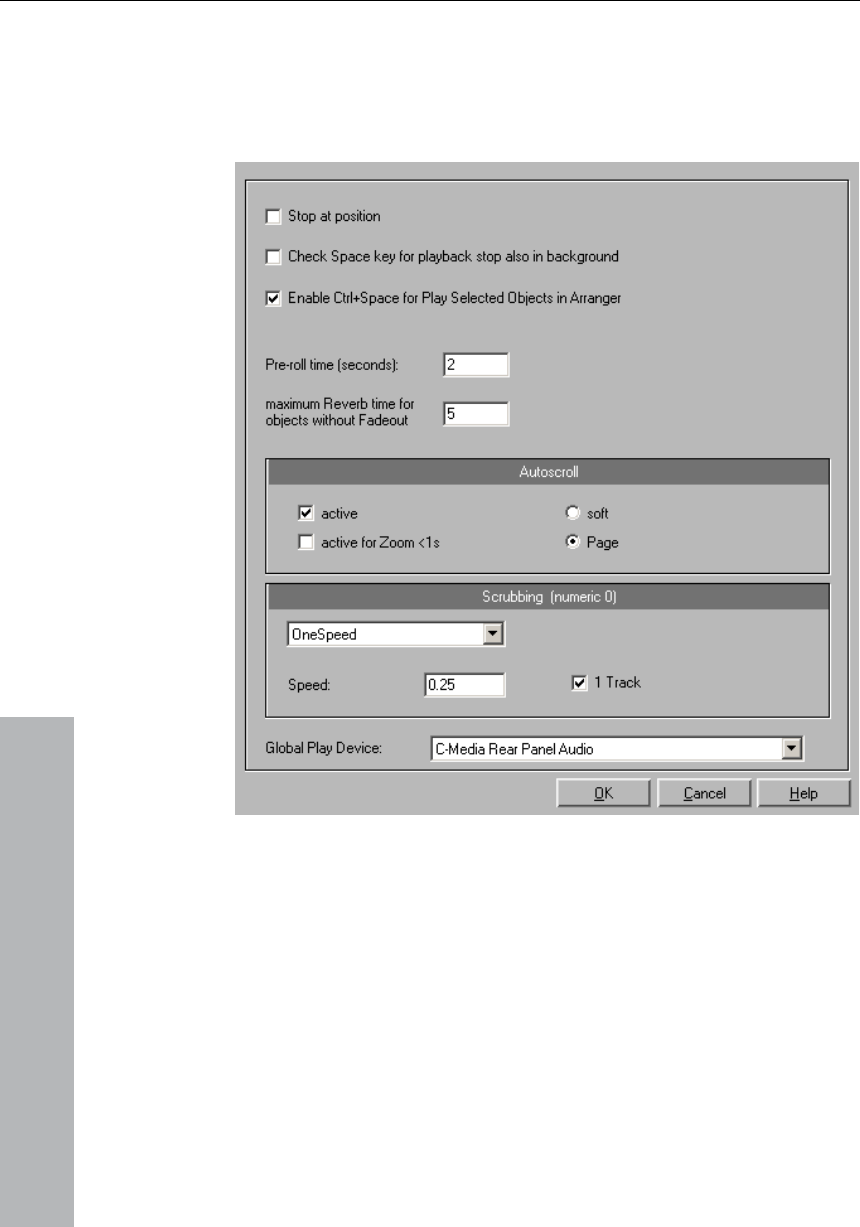
362 Menu Playback/Record
Playback Options
The Play Parameter window that appears after selecting this menu
option is designed to quickly enter playback parameters.
www.magix.com
Sample Rate: The sample rate can be changed here as long as the
rate (some soundcards even support
changing the rate while playing the sample!). This is especially useful
same. It would
be played one octave lower.
important if multiple output devices are
located in the computer.
soundcard supports the new
to hear notes in a sample range played in a different octave. When
selecting half the sample rate the pitch should be the
Device: To specify the driver of the sound card use this dialog box.
This is necessary if playback takes place through a single sound card
device. This is especially

Menu Playback/Record 363
www.magix.com
e Autoscroll feature. It
k files. The HD Wave
uring playback. When
cause the individual sections to follow the play cursor as well. If you
have zoomed into one of the sections, the play cursor will move
lting in more screen re-draws.
ill switch to "Scrubbing Mode". This
means that the playback speed can be controlled directly by the
further to the right the mouse goes, the faster MAGIX
bbing Mode to find passages, crackling, etc. in material
– the older generation of sound engineers are, no doubt, very familiar
thod from analog tape editing.
Relative: The relative distance between the play cursor (positions bar)
e speed. The play
The “Autoscroll” section will let you activate th
is especially useful when working with long dis
project window will follow the play cursor d
working in “2” or “3” section display mode, the autoscroll feature will
through the section faster resu
You can choose between page and soft scrolling. But be careful:
Scrolling requires CPU power (depending on the processor, graphics
adaptor and resolution), so that the CPU may be overloaded in critical
situations which may result in playback dropouts. You should then
deactivate autoscroll mode.
Scrubbing: If you press the Insert key (Insert or 0 on the number pad),
MAGIX Music Studio 12 deluxe w
mouse. The
Music Studio 12 deluxe plays.
In comparison to many HD recording systems, this even works in a
virtual multitrack project.
Use the Scru
with this me
There are two scrubbing modes (in playback parameter window - key
p):
and the mouse position can be used to control th
cursor follows the movement of the mouse.
Absolute: You can also use the absolute position of the mouse in the
window to control the speed:
Left border = double speed backwards
Center = no movement
Right border = double speed forwards

364 Menu Playback/Record
www.magix.com
A Tip Using Scrubbing: The scrolling becomes “softer“ when using
y need to test your
system for error free playback with
k errors.
Combined with the Soft Scroll mode, editing becomes very
.
Practice mode: When the Practice mode is activated the pitch
remains regardless of the playing speed. This mode is suitable
have to be played more slowly, for
practice, e.g. a guitar accompaniment, because otherwise excessive
ider: Changes the playback speed from -200% to +200%
itch factor manually
fy a value of halftones. The playback will be
Internal Rate: Here you can set a sample rate for the Varipitch
play a WAV file with a sample rate of 48
BPM: Here you can type in the original bpm value of your material
and a destination bpm value, which is reached using the Varipitch.
small buffer sizes (2000, 4000 samples). You ma
Tip for scrubbing: For buffer sizes (4000, 2000 samples) scrolling is
"softer". Test if your computer functions at this buffer size without
any playbac
convenient on faster computers
Varipitch / Practice mode
MAGIX Music Studio 12 deluxe supports smooth changes of the
pitch while playback, even in multi track projects (vertical slider in
playback parameter window - key p). Activate the Varispeed mode
with the “active” button, and then you can change the playback
speed in various kinds:
particularly for pieces that
demands might be made on the player.
Vertical sl
Pitch Factor: Lets you specify a certain p
Halftones: Lets you speci
transposed the number of halftones.
calculation. If you want to
KHz but your sound card can only play rates up to 44.1 KHz simply
set the internal rate to 48 and activate Varispeed. You hear the same
result as playing back with real 48 KHz! This function is also very
useful for digital playback to DAT with 44.1 KHz samples and vice
versa.
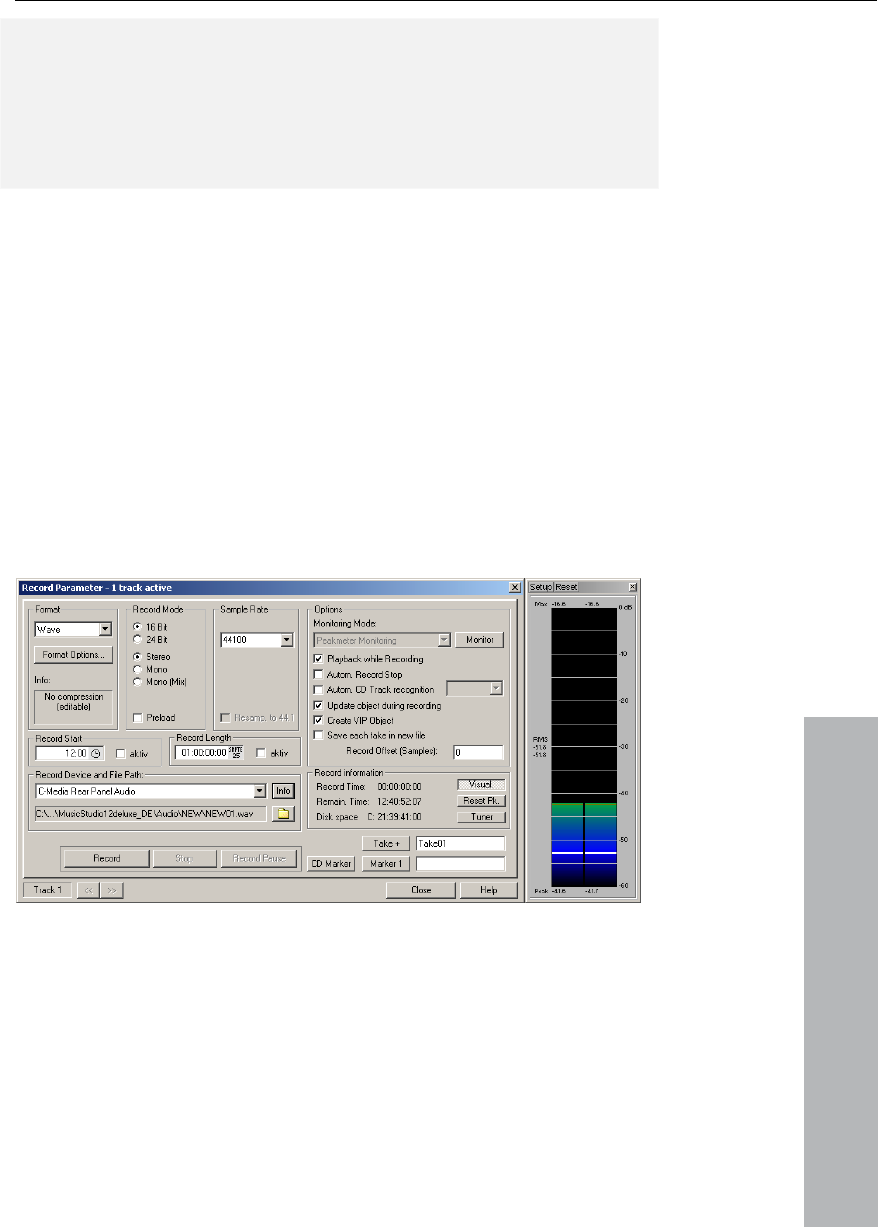
Menu Playback/Record 365
www.magix.com
Important: Varipitch works also while recording! So you can set the
pitch to -2 halftones, sing a song into the computer, then switch off
the Varipitch – your track is transposed two halftones higher!
Then deactivate Varispeed and your voice will reach unknown highs.
But be careful: You'll sound like Micky Mouse if you apply to much!
Key: P
Record
Starts recording.
Record Options
This menu option opens the Record window. All necessary settings
for the recording can be performed here. If once set, you don’t need
to open the dialog again, just start record by the record button at the
transport control or clicking the toolbar icon
Record mode: Select between Stereo and Mono, whether you want
to record the audio into a RAM Wave project or to the hard disk as a
HD Wave project.
Preload: The Preload option allows you to load all the buffers before
the recording actually begins. This enables you to an immediate
recording once you click the recording button. Otherwise MAGIX

366 Menu Playback/Record
www.magix.com
Music Studio 12 deluxe will load the buffers and depending on the
omputer speed this may take a
little bit of time.
ke sure that
your sound card supports the chosen sample rate.
e MAGIX Music Studio 12 deluxe
versions can perform a real-time sample rate conversion to 44.1 kHz
repared for Red Book audio CD processing, which
needs to be in 44.1 kHz. MAGIX Music Studio 12 deluxe allows you
to automatically convert the audio during the recording, eliminating
the additional sample rate conversion step after the recording.
Dis selects the desired device driver you want to use for the
alled in your
system, this window will let you specify which card to use. Make sure
the sound card is properly installed in Windows and is operational. If
you do not see an entry in this window, check whether a device
? (Device): By clicking on the “?” button you can check on the record
capabilities of the selected sound card. It shows you information on
s capabilities.
dcard properties. If your soundcard
ding: Simultaneous record and playback is
e system resources and keep the recording error free on
slower systems, you may need to turn this feature off.
Browse: The name of the audio file to be produced and
the pre-set index path are displayed at the bottom of the Recording
changed by clicking on the File Button.
ou can set
g on the Set CD Track Marker tab in the
Recording Dialogue.
size of the buffers and the overall c
Sample Rate: Select the sample rate of the audio file. Ma
Resampling to 44.1 kHz: Som
if you are recording with a different sample rate. For example, many
times a DAT tape is recorded at 48 kHz but the tape needs to
mastered and p
evice: Th
recording. If you have more than one sound card inst
driver has been installed for your sound card. This usually is done
during the software installation for your sound card.
the sound card driver and it’
Info: Dialog for detailing soun
supports 24 bit recording, you can activate this recording mode via
the Info dialog.
Playback while Recor
especially important when wanting to monitor existing tracks while
recording a new track. This option allows you to turn the feature on.
To conserv
File Name /
Window—both can be
Set CD Track Marker: While the recording is running, y
Track Markers, by clickin

Menu Playback/Record 367
www.magix.com
he recording
stops automatically after approximately 16 seconds of silence. This
for instance, a record recording without having
will be set automatically at the end of pauses between
songs.
ct with name: MAGIX Music Studio 12 deluxe allows
you to choose whether you want to automatically create objects in a
rect recording device must be selected prior to beginning
this. While recording, the LED control displays move slower, do,
recorded and watch the display.
Low-level recording leads to a loss in sound quality, while high-level
recording can produce unpleasant ”clipping” sounds.
Osc/ Correl: Here you can switch on or off visualization.
Tuner: For “tuning” guitars and other string instruments. A calibrating
line appears when the A0 note is played. If deviating tones are
played, the deviation can be read on the basis of the calibration line
and the numerically indicated pitch is corrected accordingly.
Record Offset: This option allows you to specify an offset, which is
calculated in samples. Sometimes it is necessary to compensate for
any delays due to processing speed and other factors, such as your
sound card’s ability to switch between playback and recording mode.
Delays can occur between the recording and the playback of audio
when the Playback while Recording feature is turned on. This option
allows an adjustments if this occurs. Good values to start with are in
the 20-2000 sample range.
Set Marker 1: You can drop markers into the project. The current
position of the play cursor is used to drop a marker at positions you
want to select for later clean-up or similar tasks.
Automatic Recording Stop: When this field is activated, t
allows you to make,
to worry about stopping it at the end.
Automatic CD Track Recognition: When this field is activated, Track
Markers
Create VIP obje
VIP once you are done with the recording.
Monitor: Here the LED control displays can be activated. Please note
that the cor
however, show each maximum level.
Recording level: This display indicates that the signal level to be
digitized is correctly set. Play the loudest part of the material to be

368 Menu Playback/Record
www.magix.com
ting this button.
Stop: Stops the recording process. MAGIX Music Studio 12 deluxe
will ask you whether you wish to keep the recording or delete it.
Should the computer become overloaded due to swapping data or
mple, simply interrupt the recording with a
OK: Closes the Record Parameter dialog.
Key: r (second r starts recording)
Record mode / Punch In
Record without Playback
ecord without playing the VIP.
Play while recording
corresponds to the option in the recording options with
the same name.
Punch In Mode active
This option activates the Punch mode. Punch-In and Punch-Out are
a process automating the recording start and end of an audio
segment. Once the Punch mode is active, the Punch-In Record can
be used to record audio segments without stopping the playback.
Requirement for this mode is an armed Record track. Use the “REC”
button on each track to select it for punch recording!
Punch Recording can be done in two ways:
This is very similar to tape based multi-track recorders, which allow
Record: Starts recording by activa
hard disk access for exa
click of the right mouse button or the space key.
Use this option to r
This option
1. Punch-In/Out “On-The-Fly”: This allows you to start the recording
(punch in) at any time during the playback. Once the recording
commences, it can be stopped at any time (punch out), while the
playback continues.
you to correct mistakes during previous recording takes by
overwriting segments of the tape.

Menu Playback/Record 369
www.magix.com
recording
can be started by clicking on the Punch Record button in the toolbar.
special markers. This is a more automated
way of dealing with punch-in/out recording. This is useful when
ts you
specify the exact points the recording is to start and stop. To operate
and
Punc
whe
to a
play
Tool
Simply start the playback with the Spacebar. The Punch-In
2. Punch-In/Out with Markers: The second method is the punching in
and out of recording using
specific punch-in and punch-out points are determined and you don’t
want to take any risks in possible punching in or out of the recording.
Don’t panic though! The punching in and out with markers le
in this mode, a range has to be selected, which defines the beginning
end of the recording. The functions Set Punch-In Marker and Set
h-Out Marker are used to tell MAGIX Music Studio 12 deluxe
re to punch in and where to punch out. Next, set the play cursor
n appropriate position prior to the punch-in point and start the
back/recording with the Punch Record button in the Punch
bar.
Important: When working with the punch in/out functionality, make
sure that the Auto Crossfade mode is activated, by clicking on the
corresponding button in the MAGIX Music Studio 12 deluxe toolbar.
The auto crossfade will create smooth transitions between the takes.
This helps to prevent little pops and clicks!
There is also a way to perform looped punch-in recording! Simply
select a range over the desired punch region. The range is played
back until you stop the playback with the Spacebar. Each time the
program loops through the range, new takes are recorded at the
punch markers. To find the best take after the recording is
completed, use the Take Manager!
Punch In Record
.
n marker
This function/button starts and stops the punch-in recording
Set Start Marker
This function/button sets the punch-i
Set End Marker
This function/button sets the punch-out marker.
Remove Punch Markers
This function/button deletes the punch-in and punch-out markers.

370 Menu Playback/Record
www.magix.com
the real-time Mixer to mix live
inputs from the sound card with recorded audio material.
This turns MAGIX Music Studio 12 deluxe into a full-scale digital real-
audio material – without writing it to disk! A channel that is
to be used for live mixing has to be armed for recording.
of the audio device(s) are routed through the
Mixer. Use the controls in the Mixer window to create a mix. In
Latency: The audio processing in MAGIX Music Studio 12 deluxe
y of 0.7
seconds. A buffer size reduction to 2000 samples results in a delay of
The latency may not make it possible to use the Live Input Mode to
sic Studio 12 deluxe as Live Effect Processor: If you are
looking for fancy effects that are not offered by effect units in your
. There is no limit to your creativity!
Live Input Mode
This is another very powerful feature of MAGIX Music Studio 12
deluxe – the Live Input Mode! When working with this mode, MAGIX
Music Studio 12 deluxe lets you use
time effects device, including DirectX Plug-Ins!
The Basics: The Live Input Mode basically functions similar to
recording
Once the playback of the VIP is started with the Spacebar, the live
signals on the input
addition, any VIP object is also played back while the live inputs are
processed.
obviously takes time. This may lead to small delays at the outputs
versus the incoming signal. This delay is very much dependent on the
VIP Buffer size. The latency can be reduced by using smaller VIP
buffer settings. Use settings that enable the program to process the
real-time audio without introducing any errors. A setting of 4 buffers
at a buffer size of 8000 stereo samples creates a dela
only 0.2 seconds. Experiment with the buffer settings to find the
optimal settings for your system!
replace an analog effects device. However, it leaves room for some
very interesting application aspects.
MAGIX Mu
rack, try to use some of the integrated effects in MAGIX Music Studio
12 deluxe. A live signal can be processed with the FFT Filter, the
EQ’s and the Stereo Enhancer. You may also use the many DirectX
Plug-Ins available
Note: If you have an ASIO driver for your soundcard, you can pretty
much switch the latency off. Please read the “MAGIX Music Studio 12
deluxe as external effects device” section of the “Effects” chapter.

Menu Playback/Record 371
Monitoring
www.magix.com
New, more flexible input signal monitoring is now available through
t.
input signal of the tracks for active monitoring
(loudspeaker button in the VIP or mixer is activated) are played
output. Furthermore,
the LED peak meters in the VIP and mixers react according to the
ASIO driver suppor
Monitoring > Input monitoring on/off
This function activates/deactivates the input monitoring (corresponds
to the “REC M” button on the transport console). When actively
monitoring, the
according to the selected monitoring type at the
input signal.
Note: If the REC button is activated on a track, then the loudspeaker
button is activated simultaneously in order to switch on monitoring.
Monitoring > Tape player monitoring
The preset method of monitoring as on a tape player and well-known
from earlier MAGIX Music Studio 12 deluxe versions:
When STOP is shown, the input signal is rendered, PLAY renders the
ol
beside/above the peak meter in the VIP/Mixer).
Monitoring > Peakmeter Monitoring
This corresponds with the normal characteristic of the VIP: The peak
meter of the tracks displays the level at the sound card input.
Monitoring > Software Monitoring / Software FX Monitoring
For cards with ASIO drivers, it is also possible to use software
monitoring if the card does not support hardware monitoring (ASIO
track effects into the
monitoring signal with the exception of all high latency-afflicted FX
p simulator
however is applicable. MAGIX Music Studio 12 deluxe is therefore
also usable as an effects device with which one can play live directly.
track contents, RECORD renders the input signal. If the option is
deactivated, it is left to the user to choose whether the input signal is
shown. Use the "Force monitoring" button (small loudspeaker symb
Direct Monitoring).
Software FX monitoring also calculates the
Inserts such as FFT filters, Dehisser or Vocoder. The Am


MIDI menu 373
www.magix.com
New MIDI object
A new MIDI Object is created on the selected track. After choosing
the command, you can select a prefabricated MIDI template (from the
subdirectory “Templates” in the MAGIX Music Studio 12 deluxe
directory) from a small pop-up menu. It deals with normal standard
MIDI files which can be copied into this directory or directly exported
from MAGIX Music Studio 12 deluxe as a template. If only one file is
in the template listing, no menu appears the Object is created
immediately.
New MIDI track
Use this function to create a new track in MIDI mode to which you
can add MIDI objects and edit them.
int opens the MIDI Editor. Here, the content of the MIDI
object selected in the VIP can be displayed and edited. Here, you can
MIDI menu
MIDI Editor
This menu po
choose from: Matrix Editor, Drum Editor, Score Editor, Event List,
and Velocity/Controller Editor.
If a MIDI object is not selected, you will be asked if you wish to create
one. If you confirm this with "YES", a MIDI object in the current track
is created at the cursor position/start of the range.
Read more about the MIDI Editor in the "MIDI Editor" chapter.
Object Editor
u can
quickly and easily edit each selected object independent of your
Shortcut: Ctrl+O
Use the Object Editor for object-oriented editing. This way yo
general settings.

374 MIDI menu
Glue MIDI Objects
This command lets you glue together two or more subsequent MIDI
Objects of a track.
Shortcut: Ctrl + Alt + G
Trim MIDI objects
www.magix.com
This function moves the object borders of a selected object to the
ng
edges of the current range. For this to occur, the range must be fully
within the object's borders.
MIDI bounci
All selected MIDI objects are mixed into one object.
Track information
To be able to adjust the settings for MIDI data, open the track info
dialog. Here you can set, for example, the playback device for MIDI
data.
Please also read the corresponding section in the chapter "Track
menu".
Shortcut: Alt + I
Track MIDI record
MAGIX synths (e.g. Robota Pro) can
Activates MIDI record for the selected track.
VST Instrument Editor
Software instruments as well as
be integrated into a virtual project and controlled via internal MIDI

MIDI menu 375
www.magix.com
functions and editors. All instruments are seamlessly integrated into
all effects and routing options.
Please also read the chapter "MIDI in MAGIX Music Studio 12 deluxe"
in the first section of the manual.
Tempo/Time Signature
Tempo and bar changes are an important expression criteria of all
music. MAGIX Music Studio 12 deluxe offers comprehensive creation
possibilities.
In this case the definition of tempo and time changes is done entirely
by means of markers within the Project Window. Special tempo and
bar markers can be defined using linear or immediate tempo or bar
changes. The resulting tempo curves are calculated automatically.
y available audio and MIDI events, e.g.
a reference drum track (so-called Advanced Tempo Mapping).
can also be adopted when importing
MIDI files into the current project. MAGIX Music Studio 12 deluxe
changes.
The display in the transport window serves as a visual control of the
current tempo or time, which displays the current values when
playing back or repositioning the current respective value.
The musical grid can also be adjusted by placing support points at
certain time positions or alread
There are three types of markers:
• Tempo
• Time signature (musical signature)
• Bar position
Of course, tempo information
creates the required tempo markers automatically.
If required, MIDI/audio events can be coupled with the musical grid
and positioned precisely for tempo

376 MIDI menu
www.magix.com
has a single “Master” tempo which can be defined
You can define unlimited tempo changes directly in the Project
The tempo marker is the most important tool as
d linearly to a previous tempo definition.
Set new beat marker
r changes the type of beat after the marker
Bar markers can only be inserted at the beginning of a bar. If an
ar changes, bar position markers are
Beat position markers assign a specific musical position to a specific
with existing audio material.
Mapping)
However, recorded audio material often does not correspond with the
project tempo, e.g. a drummer's reference track to indicate the
tempo of further recordings or additionally composed material with
of
playback of the project using support points; so-called bar position
Set new tempo marker
A new project first
in the Transport Control or in the project settings (Keyboard shortcut:
“I”).
Window at anytime.
it can be used to define a tempo change at a precise position, which
can also be interpolate
The time signature marke
position, e.g. from a 4/4 beat to a 3/4 beat. A new project first has a
uniform 4/4 beat that can be defined in the Transport Control or in
the project settings (Keyboard shortcut: “I”).
imported MIDI file contains b
automatically generated.
Set new beat position marker
time position. This way, the bar frame/grid and MIDI events can be
easily synchronized
Bar position markers (Advanced Tempo
The tempo of a piece of music is usually defined when it's composed.
If you want to increase the tempo at a certain bar position, simply
define a tempo marker, with tempo interpolation referring to the
previous marker.
many timing nuances. Instead of placing tempo makers or even
having to adapt the reference material using time-stretching, you can
create the musical grid at certain time positions in the linear course

MIDI menu 377
www.magix.com
MIDI data with available audio material.
markers. This way you can synchronize the bar grid, musical grid and
the corresponding
Example: The drummer has recorded a track using a metronome,
but has deliberately not hit important beginnings of a bar precisely.
The musical grid is adapted to keep the groove within this
performance. By placing a bar position marker, the Project Beat of
“20”, including the beginning of the chorus, is moved exactly to the
first beat of the 20th bar played by the drummer.
This practical example shows that the bar position markers are used
to combine the audio-based sample/time position (or SMPTE) with
the musical bar position by means of defined support points. This
allows for easy editing of projects with changing musical tempi when
the musical grid is edited in the actual time course (“Bar 20 should
begin a this point in time!”).
A tempo marker is different in that it defines a clear command: Faster
marker in such a
manner that the desired musical position (“Beat 20”) is met precisely
at the marker position.
the MIDI
Editor are automatically adjusted according to the changed musical
(or slower) from here. A bar position marker, however, defines the
tempo indirectly by adjusting the tempo before the
The grid, the grid display, the metronome and the events in
tempo.
Note: Bar position markers immediately following a tempo marker
always create a tempo run. Instead of a tempo jump, a bar position
marker is used to set a tempo run if there is a bar position marker
immediately before the tempo marker. As the tempo before the bar
position marker has already been defined, the adjustment of the
musical position has to be carried out by decreasing or increasing the
tempo to such an extent that the required bar position meets the
required time position at the bar position marker.
Working with tempo and bar markers
Tempo and bar changes in MAGIX Music Studio 12 deluxe are set
Creating tempo markers
directly in the Project Window using project markers.

378 MIDI menu
www.magix.com
ate a marker to insert a tempo change at a certain
er window
Set the playback cursor to the position where you would like the
e bar) or from the MIDI menu.
dow. A marker is inserted
at the current position. You can now use the marker option to set the
marker list. For example, you cannot set the
marker properties such as type or tempo after it has been created.
of the next bar.
Te
co
as
In
cl
B
If bar position marker is moved, this
Th time position either
po
So, you have to cre
playback position. There are several ways to do this:
1. Tempo/beat mark
tempo or bar change to be. The option “Snap to grid” is very useful
for placing the cursor directly on a bar or 1/4 bar. Click on the Snap
button in the Transport Control (Tempo section).
Open the tempo/bar marker window from the Marker Menu (right-
click on tim
Click on the “New Marker” button in the win
properties of this marker. For a new tempo marker, enter the required
tempo in BPM or the new bar for the bar marker.
Please observe that the settings are only valid for the markers
currently selected in the
Please also observe that a beat marker only makes sense at the start
of a new beat. If the play cursor is at a different position, the marker
position is automatically moved to the beginning
2. Marker Menu
mpo and bar markers can also be created using the marker menu
ntext menu and the MIDI Menu of the program. You can of course
sign shortcuts.
3. Timestretch Mouse Mode: Click on the time border
Timestretch Mouse Mode you can create markers directly with one
ick on the required playback position.
Tempo-Marker: Shift + Click
ar position marker: Alt + Click
Edit marker/ tempo/bar marker window
a tempo marker is changed or a
influences the following markers and audio/ MIDI projects in the VIP.
ere are principally two possibilities: The
remains constant, or the musical position remains and the time
sition is adjusted (tempo/bar marker window).
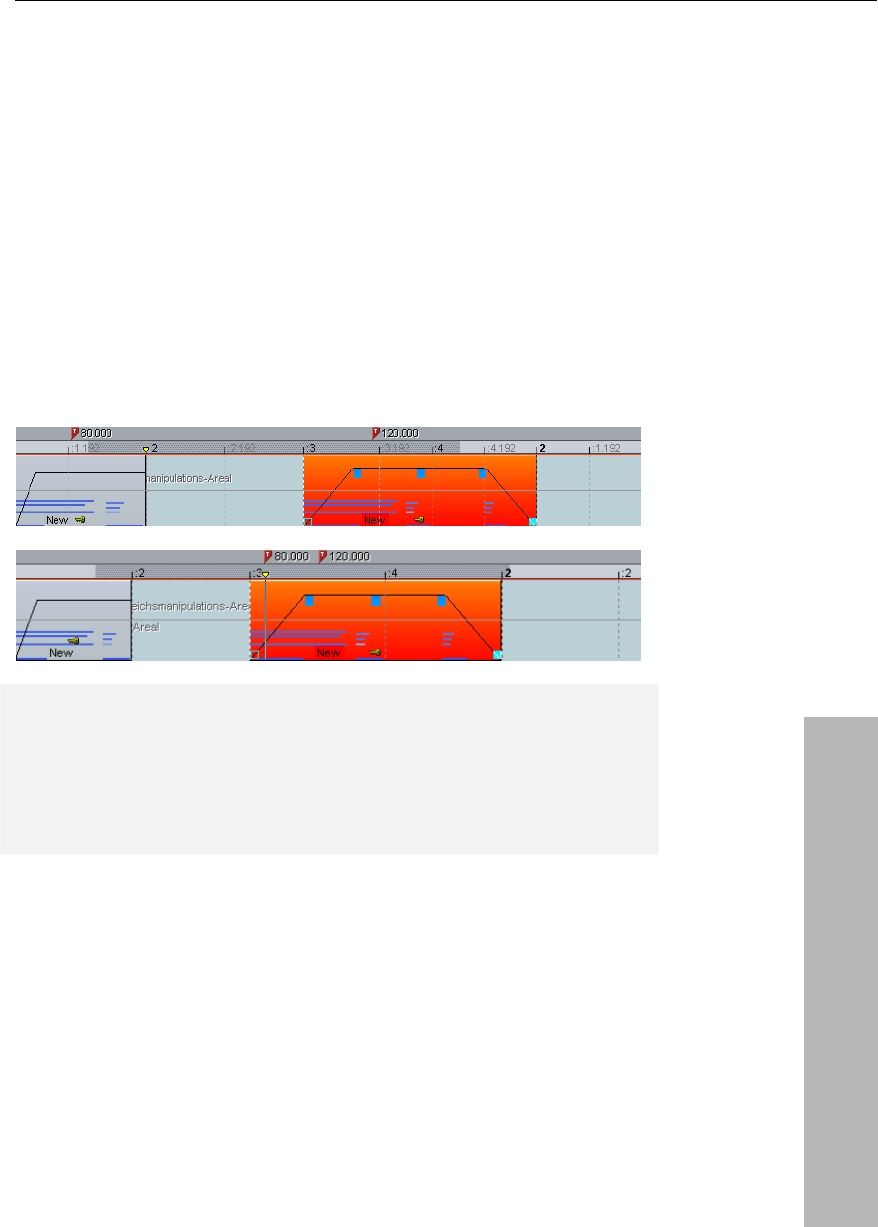
MIDI menu 379
www.magix.com
Illu
th clear by the
O
m
When tempo markers are manipulated, the behavior of the markers,
pres jects
and tempo markers, as is the time position for markers and audio
n is always maintained if the “Alt” key is
pressed while manipulating with the mouse.
The however, is always maintained for fixed tracks
stration: The time position in the VIP is the absolute position within
e VIP. The musical position is flexible, which is made
grid. Maintaining the musical position therefore means that the
bjects or markers are adapted to the newly created grid and that
their time position in the VIP therefore changes. If the time position is
aintained, the musical position changes accordingly.
audio and MIDI Objects can be controlled separately. With each
etting the musical (grid) positions are maintained for MIDI Ob
Objects. The time positio
time position,
(preset). This can be changed in the Tempo Marker Window.
In this example the first tempo marker in the second image has been
changed. The MIDI Object and the second tempo marker were
moved correspondingly so that the musical positions (3:01:000 and
4:01:000) are retained. The time position of the audio Object was not
changed, so that its musical position has moved forwards (from
2:2:000 to 2:01:181).
Further options:
Each tempo and bar position
“Bypass” op
marker can be ignored using the
utomatically for bar position markers if
ed while moving, e.g. if bar position
are moved to a
the project so that these bar positions that originate
tion. This occurs a
absurd bar positions are creat
markers are exchanged (bar 20 before bar 19) or
position within
from a previous tempo marker cannot be met by tempo interpolation.

380 MIDI menu
www.magix.com
o Markers: In the Beat Marker window there is an
marker in timestretch Mouse Mode.
de simplifies working with tempo markers.
rs using Shift+mouse-click.
tempo. You can,
however, adapt this tempo immediately by moving the mouse
ing Shift and clicking.
time
position), e.g. to manipulate the bar grid and to adapt it to available
Ignore all Temp
option for ignoring all tempo markers. In this case only the set project
tempo is used (“I”).
Manipulating the tempo
The timestretch Mouse Mo
You can easily create tempo marke
Markers are then initialized according to the
vertically hold
Bar position markers are created with Alt+mouse-click and can be
moved by Alt+horizontal mouse movement (without adjusting the
audio events.
Tips, examples of use
Loading MIDI files that include tempo changes: The tempo changes
are adopted by the current project and are accounted for during
subsequent editing and in the MIDI Editor.
Tempo markers can be placed when composing in the MIDI Editor
(these then apply to all tracks). Subsequent MIDI Objects and tempo
markers retain their musical position (advanced setting).
The grid can be adjusted to available audio events, e.g. assigning
beat numbers to certain time positions. You can either use the “Set
new Bar Position Marker” menu command to create a marker at a
position within the project and can assign the corresponding bar
position or, for smaller changes, Alt+mouse-click on the respective
bar grid position and immediately move it to the required time
position, e.g. to the beginning of an Object.
If the project includes MIDI data, this is automatically adjusted
(preset). The newly created tempo grid is used in the MIDI Editor for
subsequent editing or for a new composition (e.g. quantization).
When working with MIDI files and complex tempo changes the tempo
map can be deactivated and, if necessary, the tempo can be reduced
before recording new MIDI files. After recording, the tempo map can

MIDI menu 381
www.magix.com
be used again. The newly recorded MIDI data is now adapted
automatically.
Ignore all tempo markers, use only
mpo
po is used.
active
the metronome. This function can also be
transport console.
project te
Ignore all tempo markers. Only the project tem
Metronome
Activates/deactivated
activated via the "Click" button of the
Metronome Options
Please also read the section "Menu Options > Program settings >
Metronome options".
MIDI Options
Detailed information on this can be found in the menu reference
under "Options" -> "Program Preferences" -> "MIDI Options".
MIDI Record Modes
The MIDI Record modes define how the newly recorded MIDI data is
inserted into the VIP if there are already MIDI Objects at the recording
position.
Normal
The MIDI data is recorded in the existing Object; the new data is
mixed with the existing data. If a recording extends over several MIDI
Objects, then these are combined into one.

382 MIDI menu
www.magix.com
The MIDI data is recorded in the existing Object; the new data is
mixed with the existing data. If a recording extends over several MIDI
Objects, then these are combined into one.
Multi-Overdub
In Multi-Overdub the new data is also mixed into the existing Objects;
however, individual Objects remain.
Replace
Replaces the MIDI data of the existing object. If you record over
several objects, these are combined into a single new object.
Unlike when recording audio, existing MIDI objects on the recording
track are also played in "Playback while recording" mode. This way,
you can choose one of the recording modes even after the recording
was successfully ended.
MIDI Panic – All Notes off
This command sends a Note Off command to all MIDI devices which
are not deactivated in the MIDI Options for all 128 notes on all 16
channels. Furthermore Sustain (Controller 64) is switched off and the
pitch wheel and modulation are set to 0. In addition, an All Notes Off
command is sent to all VSTi's used in the project.
If MIDI tracks or objects exist in the project, the same function is also
accessible by clicking the stop button in the transport console or
toolbar when the project is in STOP state.
Overdub

CD menu 383
www.magix.com
g processes, e.g. setting CD tracks and subindexes as well
as the "Create CD" function. The options at a glance:
Load audio CD track(s)
set a track marker (Index Marker) on the current
play cursor position. All markers behind the insertion point will be
Ea
sh
m
To Marker / CD
Ke
Se x
n to set a sub-index marker on the current play cursor
position. All sub-index markers behind the insertion point will be
s in one track..
CD menu
The CD menu contains all special functions for audio CDs and CD
masterin
See File menu (see page 255)!.
Set Track
Use this function to
renumbered.
ch track on your CD needs a track marker, typically set after a
ort pause at the beginning of the next title.
Use the function “Track markers on object edges” to create the
arkers automatically on the borders of the sample objects!
manage the markers or to rename them use the
Track Manager in the menu ”Tools”.
y: T
t Sub-inde
Use this functio
renumbered.
Sub indices are not necessary for your CD but useful for selecting
several region

384 CD menu
www.magix.com
Use this function for setting an end marker for the CD you want to
Set Track Markers automatically
Options for the Track Marker recognition
title can be identified as pauses.
d the
nt to record a tape with current pop-songs
use level: During the first step, MAGIX Music
Studio 12 deluxe searches for useful volume values for the
Set Pause
Use this function to set a pause marker on the current play cursor
position. This lets the CD player switch the output to absolute silence
while continuing playback until to the next track index/marker is
encountered.
Set CD end
burn. Without the end marker, the CD you want to burn comprises
the entire project to the project end.
If you are inserting a longer audio-file containing various titles (for
example a live-take or recordings on DAT), you can automatically
insert track-markers between the titles using this function.
In the recording dialogue there is the possibility of employing
automatic CD track marker recognition. With vinyl recordings, for
example, a track marker is automatically set where pauses occur.
Minimum pause length: The higher the value, the more difficult the
identification of pauses. On the other hand, if the value is too low,
short breaks within the
Minimum track length: A new marker is only set when the minimum
amount of time has passed between the last Track Marker an
following pause. If you wa
on a CD, you can determine the length of pauses. On the other hand,
if you have a tape with samples or sounds, you should determine this
time.
Maximum (Minimum) Pa
identification of pauses. If too many pauses are found (and therefore

CD menu 385
www.magix.com
D Identification: Sometimes you may want to record
both sides of a record immediately without interrupting the recording
on the computer. Normally the result is a very long audio file that
contains part of very low volume in the middle, as there was no
knocking or hissing to be heard during the record or tape turn over.
In this case, MAGIX Music Studio 12 deluxe only identifies this as a
pause, recognizes the situation, splits the object on this position into
two new objects and tries it again on each of these new objects. The
uced by turning over the record or tape will usually be
Single: 10 Minutes
Record: 15 Minutes
60” Tape: 25 Minutes
90” Tape: 40 Minutes
Set Track Indices on Object Edges
This function sets track markers (Index Markers) automatically to the
beginning of each VIP object in the first VIP track.
Prior to using the function, execute Remove All Indices to delete any
possible track markers.
If there are multiple objects that make up a single track or title, you
may want to use the Bouncing function to combine the objects to
ensure proper track assignments.
Remove Index
Use this function to remove a previously set track or sub-index
marker. First, click on the marker (the small rectangle below the
number), and then activate this function to delete it!
false), you should move both controls a bit to the right, if too few
pauses are marked, move them to the left.
Record side or C
sounds prod
eliminated. You will get a better hit-rate if you determine the minimum
length of your record or tape side. Here are some suggestions:

386 CD menu
www.magix.com
ndices
before calling the function “Set track
markers on object edges”!
Make CD
Studio 12
deluxe contains high-grade CD creation routines that are constantly
e software code is licensed from Point Software &
MAGIX Music Studio 12 deluxe creates a TOC (Table of Contents) file
Remove all I
Use this function to remove all previously set track or sub-index
markers. This can be helpful
This dialog starts the CD writing process. MAGIX Music
updated. Th
Systems.
prior to starting the CD creation. The name of the current VIP is used
and the extension *.tcx is added to the file. The TOC file is located in
the same folder as the current VIP. It is therefore important to save
the VIP to the hard disk prior to starting the burning process.
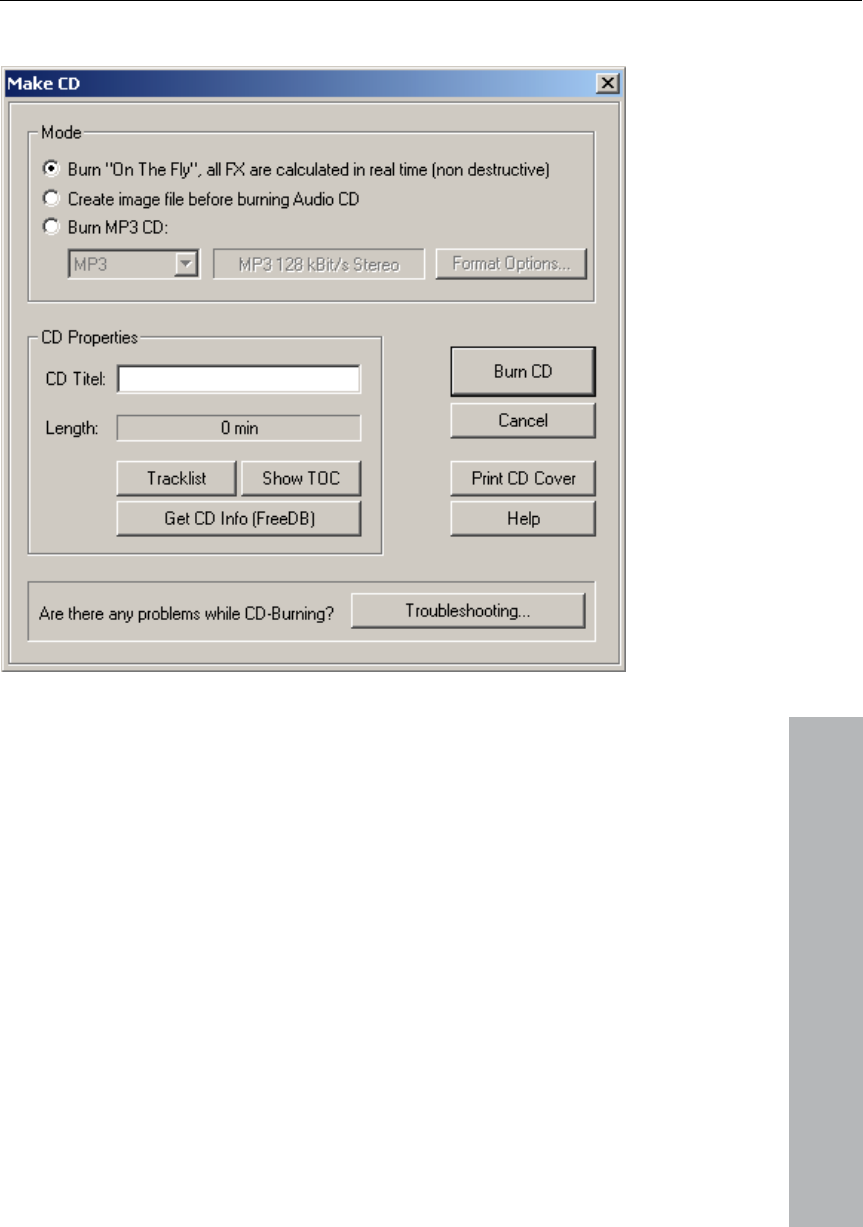
CD menu 387
www.magix.com
The "Make CD" menu in detail:
Burn “On the Fly”
trem owerful mode if you want to create the CD
directly from within the VIP. All necessary calculations are performed
in real-time during the burning process. The following real-time tasks
are calculated during the process:
• Volume and panorama settings
• Fades and crossfades
• Mixing of tracks
• Mixer track effects
• Mixer Master section effects
To get a good idea whether your system is able to sustain the real-
time processing needed for this functionality, try this:
Play back the VIP sections that contain the largest number of tracks
and/or where the most real-time effects are used. Watch the DSP
Use this ex ely p

388 CD menu
www.magix.com
are the expected performances at
• Below 25%: CD creation with up to 4x mode
D creation with up to 2x mode
• Below 90%: CD creation with up to 1x mode
econd
mode (Bouncing)
te a complete new file
Use this option if your system is not fast enough to sustain the real-
er real-time processing is also part of the newly
created audio file. Make sure that you have sufficient hard disk space
rting prox. 700 MB for a complete CD).
The original WAV files used in the VIP remain unchanged. This makes
ure non-destructive!
This starts the external TOC Printer application. This convenient tool
to p information of the current CD. You
e help for the TOC Printer for more specific
information!
y” function can be used to copy the contents
to the Windows Clipboard for use with other text editing applications.
mation
(s).
Among the information displayed is the manufacturer, drive name,
hardware revision, cache size, and the features supported by the
ce Red Book compatible Audio CDs that are accepted as
masters by pressing plants
meter (bottom left-hand). Below
the different DSP values:
• Below 50%: C
• Above 90%: Real-time creation is not possible, use the s
Genera
time creation of the CD (see above). This mode calculates all WAV
files, including fades, crossfades, and volume automation into a new
audio file. Any oth
prior to sta the process (ap
this proced
Print TOC
allows you rint the contents
may choose between a text style format to print the production
documentation and a formatted printout for the CD jewel case.
Please refer to the on-lin
Show TOC
This button opens a text window, which shows the contents of the
current TOC. The “Cop
Show CD-R Drive Infor
This dialog shows you information about the active CD-R drive
drive mechanism.
The feature “Disc At Once” is extremely important, since it is needed
to produ

CD menu 389
www.magix.com
ation
rmation is the maximum length that
cannot be exceeded during the production (i.e. 74 minutes and 5
seconds).
The CD Track dialog shows all CD tracks and sub-indexes used in
k can be assigned with a name, which is
also displayed in the VIP. Other settings such as Pre-emphasis, Copy
each of the tracks. The button Set All allows you to use the current
flags to set all tracks to the chosen settings. Other settings are the
ry CD track.
This dialog configures settings for the current CD.
The title is written to the CD and is used in the TOC Printer
UPC/Ean Code
This code is also written to the CD and can be requested by special
that work with this format.
Under certain circumstances, such as writing with Track-At-Once, the
he ck can be determined with this setting. When
using the Disk-At-Once mode this setting does not have any
significance. The CD will always start with track 1 in this mode.
Show CD-R Disc Inform
This dialog shows information about the currently inserted CD-R
media. The most important info
CD Track Options
the current VIP. Every trac
Protection, and Second Generation Protection Flags can be set for
ISRC Codes for eve
CD Disc Options
CD Title
application to print the CD information.
CD players
Number of first CD Track
number of t first tra
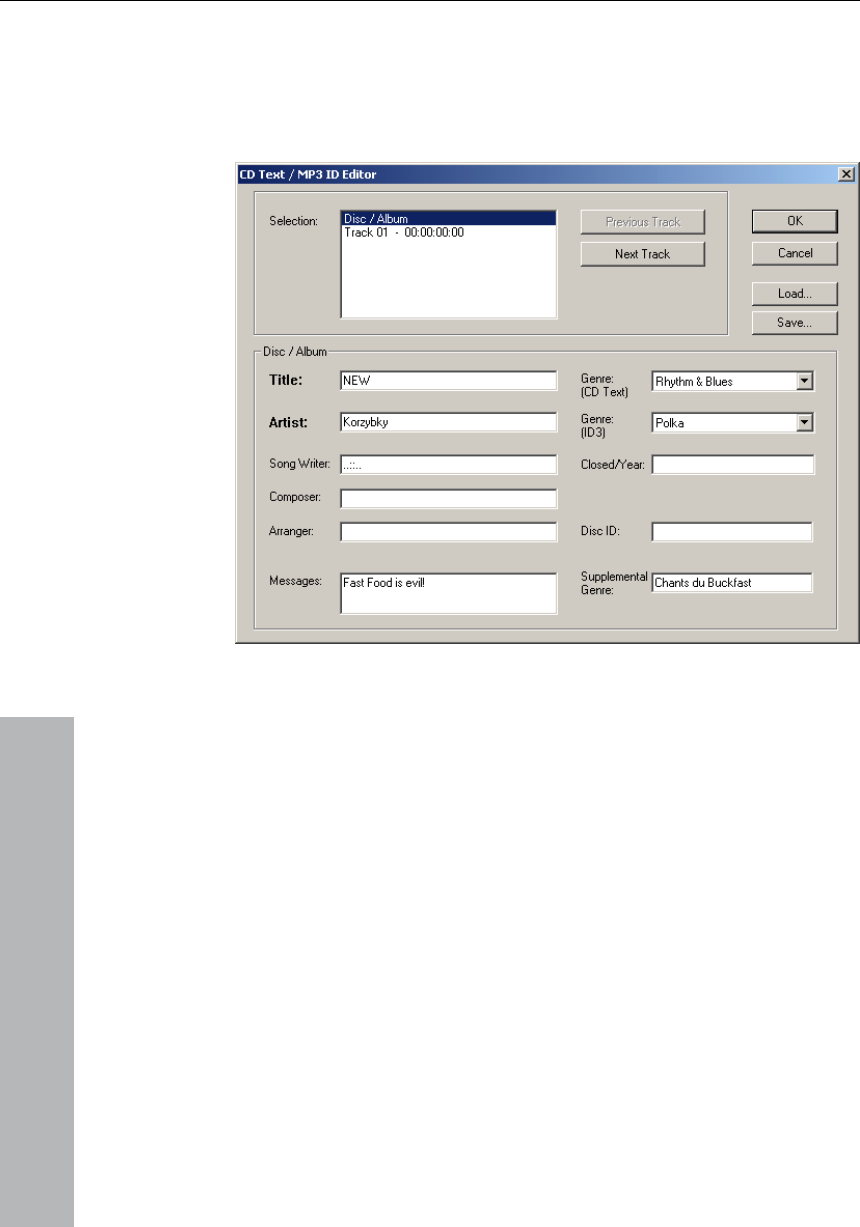
390 CD menu
www.magix.com
CD Text / MPEG ID3 Editor
This function allows you to supply data regarding a song or CD
content – such as album, artist etc.
ed by the decoders and
displayed as music data by the MP3 player.
Set Pause Time
ction to set the length of the default pause between two
tracks. These pause length is needed for the grid function, which lets
s of other objects + this pause
time. Normally a pause time of 2 seconds is used.
MP3 files do not only transport audio data, but also information about
the coded music piece through so-called “ID3 tags”. These are file
appendages into which an encoder can write standardized
information. The ID3 tags are recogniz
Use this fun
the sample objects snap to the edge

CD menu 391
www.magix.com
e Time
is used.
highly recommended:
sing the
microphone
between the individual objects, which
represent the inserted breaks. You can adjust the length of the
Get CD info (FreeDB Internet)
Submit CD to FreeDB
If you own a CD that’s not in the database, you may add it to the
eeDB”
• Enter data in the dialog. Please double-check your data.
Set Start Paus
Use this function to set the length of the default pause before the first
track. Normally a start pause time of 2 seconds
CD Arrange-Mode
If you activate this menu feature, MAGIX Music Studio 12 deluxe will
arrange the next objects introducing a Red Book-Standard-Pause
between them.
The following procedure
• Open a new VIP, with 4 tracks for example, so that you may reedit it
later on
• Activate the Special CD Arrange Mode in the CD Menu
• Load wave files, audio tracks or make a recording u
You will notice gaps in the VIP
included pauses in the dialogue ”Adjust Pause Length” if you want.
FreeDB Options
Calls up FreeDB data for audio CDs. You have to register first before
using FreeDB.
Allows you to add a CD to the online CD database. The FreeDB™
project relies on user contributions to keep an updated database
available.
database.
• Lay CD in the drive..
• Select “Add CD to Fr
• Press “OK”

392 CD menu
www.magix.com
Clear FreeDB cache
line . This allows you to read
files without having to go online. This option allows you to delete the
nction you can identify audio files. As opposed to the
FreeDB (see page 391) search, the audio file doesn't have to make
• Your contribution should be online after an hour or two
The FreeDB™ online database assigns a cache to your hard disc
containing all files that can be read on
cache.
Audio ID
With this fu
up part of an album or CD, it doesn't even have to be a complete
recording.
MAGIX Music Studio 12 deluxe analyzes parts of a song's typical
sound characteristics and sends this information to an Internet
server. The server then compares this "acoustic fingerprint" with song
information in its database and responds with the track information.
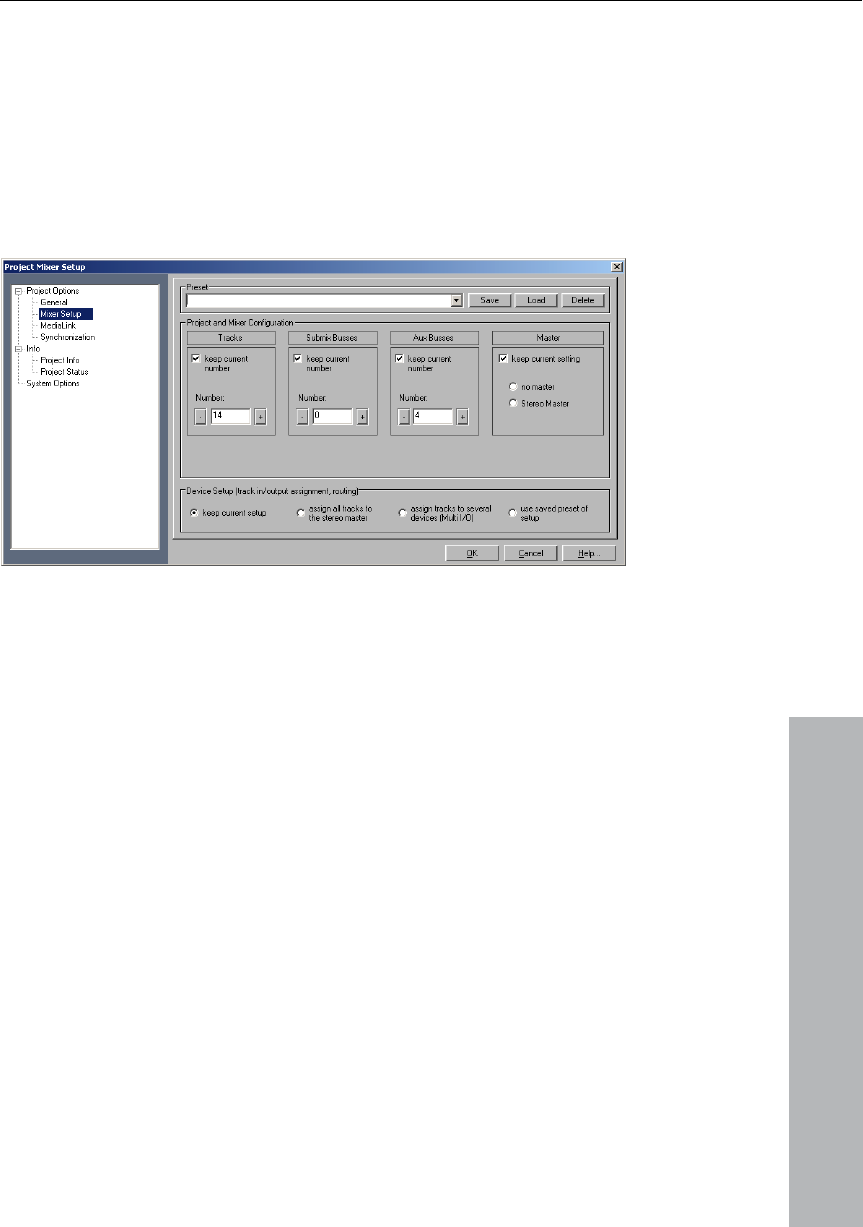
Options menu 393
www.magix.com
erties
Options menu
Project prop
Mixer Setup
Opens the mixer setup dialog where you adjust the general settings
for the mixer routing design.
as well as the submix and AUX busses.
Playback Options
See menu “Playback“!
Project and Mixer configuration: Here you can set the number of VIP
and Mixer tracks
Device Setup: Here you can set the various routings.
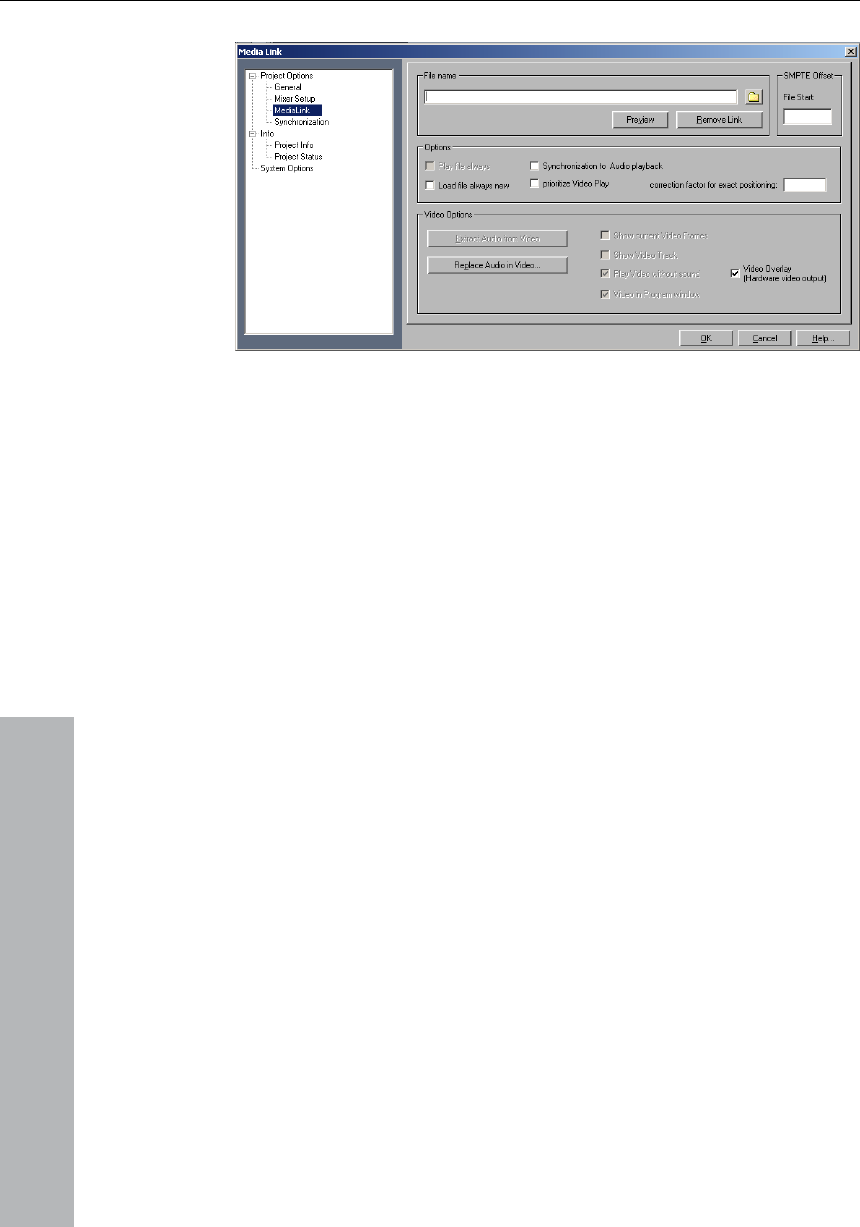
394 Options menu
www.magix.com
Media link
er media files can be linked to MAGIX Music Studio 12
se can be complete MIDI songs (.MID files), video
files), or other files for which an MCI is installed,
s that the linked media files are played back
Linking MAGIX Music Studio 12 deluxe projects to videos
Media Link lets you add soundtracks to videos with MAGIX Music
Studio 12 deluxe in real time without requiring additional
synchronization hardware.
In theory it is possible to work with digital videos directly in the
original resolution. However, to ensure optimum synchronization and
a smooth workflow the following procedure is recommended:
1. Digitalize your source material with “MAGIX Move Edit Pro” video
editing software (included in MAGIX Music Studio 12 deluxe) and
export a pilot video of small size using a suitable codec which
requires low decompression expenditure and only contains key
frames if possible. (DiVX or MPEG are not suitable). MAGIX's own
MXV format is recommended, as this format is optimized for real-
time processing.
2. Link the video to MAGIX Music Studio 12 deluxe and apply the
soundtrack.
Nearly all oth
deluxe projects. The
clips (AVI or MPEG
practically all formats that the Windows Media Player can play back.
“Linked” mean
simultaneously with the MAGIX Music Studio 12 deluxe project and
that no synchronization occurs. The time position is not verified
directly. MAGIX Music Studio 12 deluxe uses the Windows Media
Player for playback, which merely starts and stops the selected file

Options menu 395
www.magix.com
bouncing.
nished Wave Project in the video using the
function “Replace audio in video”. You can then save the sound in
File Name: Allows you to specify the file name, and source directory
you have located the desired media
file, simply click on OK, and MAGIX Music Studio 12 deluxe will make
Play always: This button activates synchronized playback.
chronizes the new media link
(e.g. AVI-Files) with the existing VIP.
Always reload file before playback: This button specifies whether the
have to save the
file as a MIDI file from the sequencer - MAGIX Music Studio 12 deluxe
will automatically reload it before it is played back the next time. If the
this option should not be activated.
The file will be loaded only once, which particularly makes sense with
main
open. This lets you check the image content that matches each
Get audio from video: With this button the audio files from an AVI file
Music Studio 12 deluxe in virtual
projects.
Replace audio in video: This option can be opened using the "Export
video sound" function to replace the existing soundtrack in a video or
the VIP.
3. Remove the link again after track
4. Replace or store the fi
the original high-resolution movie without requiring recompression
(merely the soundtrack needs to be exchanged). More details
available from “File” menu -> Export video sound...
of the media file. Clicking on the folder button launches a file
selection dialog that allows you to browse your hard disk(s) and
specify the media file type. Once
the link.
Synchronization to Audio playback: Syn
media file should be reloaded every time before each playback. This
can make sense, for instance, if you are still editing a MIDI song in a
simultaneously open MIDI sequencer. You then only
media file is not yet complete,
AVI files: The window with the video will then continue to re
marker precisely. Play start is faster.
Video Options
can be extracted and converted into a wave file. This wave file can
then be edited further in MAGIX
create a new video.
Show current video frames: This option opens a keyframe window
that you can freely scale on the screen without any loss of space in

396 Options menu
www.magix.com
inserted, upon which the current video position can be
perfectly recognized. With range and object selections the beginning
Music Studio
12 deluxe integrate the video without the sound so that the audio can
be adopted by MAGIX Music Studio 12 deluxe.
Video in MAGIX Music Studio 12 deluxe window: This option opens
Video Overlay (Video output of the graphics card): Video overlay
serve important information about the project together
with the audio material.
-Pause
between them.
a new VIP, with 4 tracks for example, so that you may reedit it
later on
• Activate the Special CD Arrange Mode in the CD Menu
• Load wave files, audio tracks or make a recording using the
microphone
Show video track in the VIP: This is an especially strong feature of
MAGIX Music Studio 12 deluxe. In virtual projects a video timeline
can be displayed above the audio tracks. A movie strip of any chosen
size can be
and the end are displayed precisely according to the frame.
Play video without sound: This option makes MAGIX
the AVI window only on the MAGIX Music Studio 12 deluxe main
screen. This is often more practical than a completely independent
AVI video.
means that the graphics card itself takes care of the video display
and the video picture is positioned on top of the actual windows
screen (overlay).
Text Comments
You can enter text comments to the current project via a simple text
editor. This text can be displayed at each new opening of the project.
This will pre
Snap and Grip Setup
See “Menu View”!
CD Arrange-Mode
If you activate this menu feature, MAGIX Music Studio 12 deluxe will
arrange the next objects introducing a Red Book-Standard
The following procedure highly recommended:
• Open
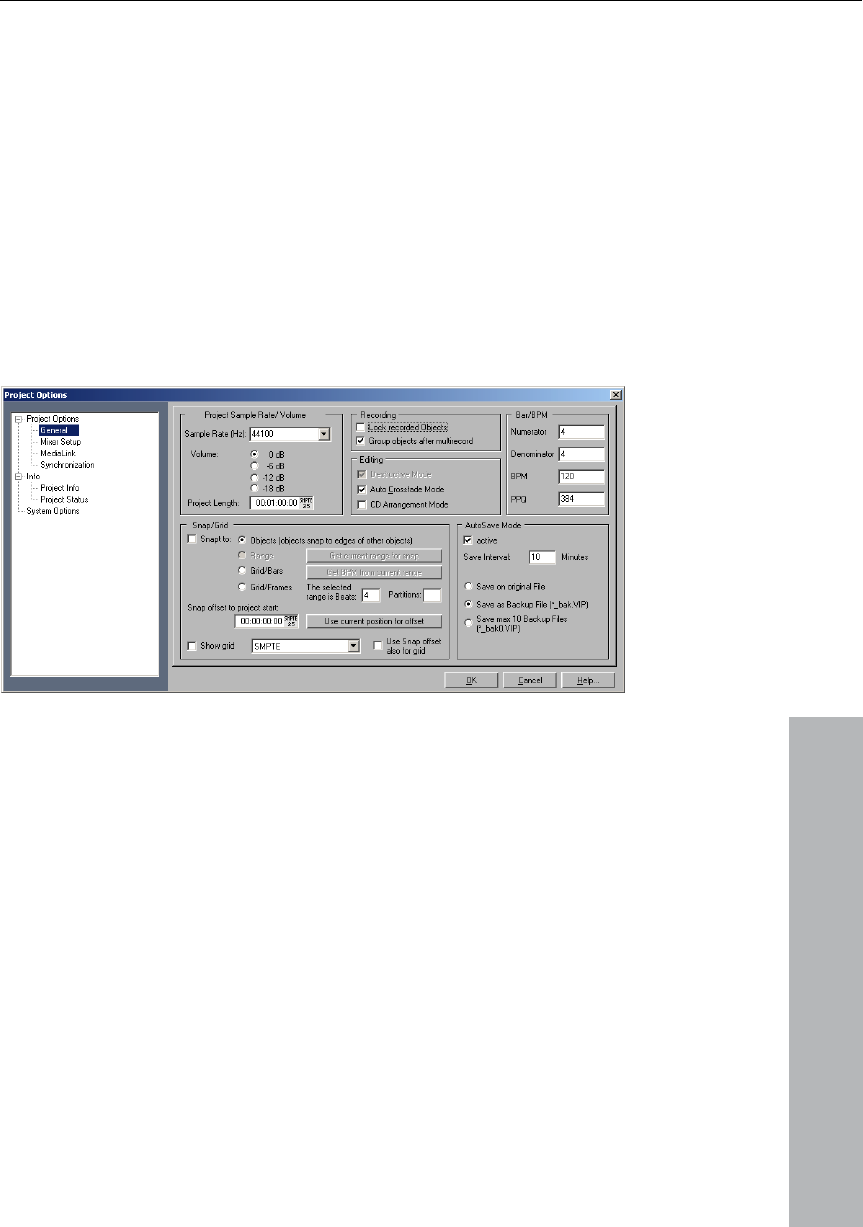
Options menu 397
www.magix.com
You will notice gaps in the VIP between the individual objects, which
represent the inserted breaks. You can adjust the length of the
included pauses in the dialogue ”Adjust Pause Length” if you want.
Destructive Wave Edit Mode
Wave projects can be edited destructively as well as virtually. Please
also read the corresponding descriptions in the first chapter of the
handbook. You can select the desired editing method from the list.
Units of Measurement
See “Menu View”!
Project Options
This will show you information on the current project. This includes
creation date, memory size, path and file names. For virtual projects,
a list of all included physical files is displayed.
Virtual projects also display a list of linked Wave projects.
s. This volume
reduction is necessary for multi-track virtual projects as the sum of all
lly, each Track of a 4 Track stereo Project must be
reduced by 2 bit's (12 dB). In the real world application, Tracks are
often not recorded or played back at the maximum level so that the
reduction can be adjusted accordingly. However, raising the volume
reduction setting may result in clipping.
Volume Reduction in Virtual Projects: In Project Information for virtual
projects you can reduce the level in 6 dB step
tracks in this case must not exceed 16 bit (0 dB) in this case.
Theoretica
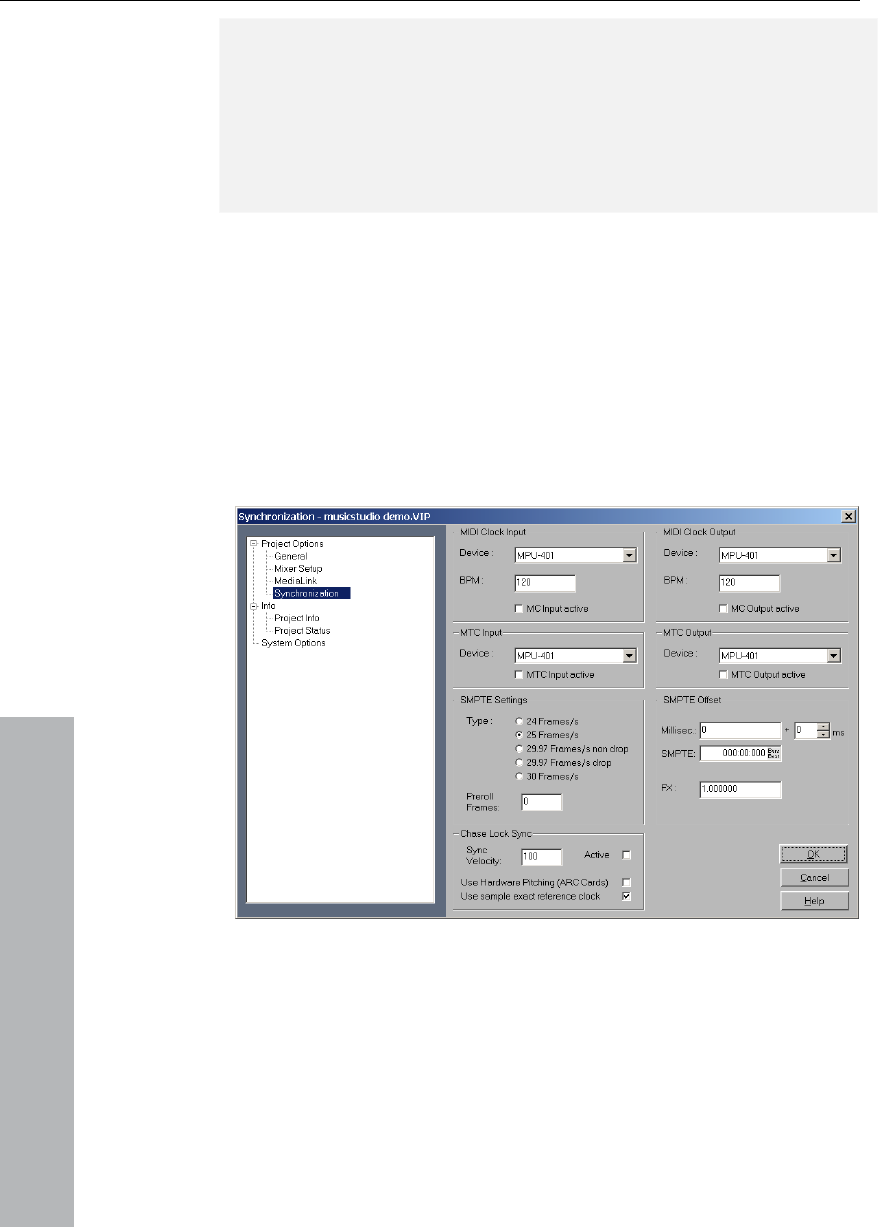
398 Options menu
www.magix.com
Please keep in mind that MAGIX Music Studio 12 deluxe reduces the
volume of Wave Projects to the setting in the Virtual Project that uses
the Wave Project. This allows you to switch between the VIP and the
Wave Project without the usual encounter of volume differences
between the Project types. If a Wave Project is opened by itself
(without using the Wave Project in a VIP), MAGIX Music Studio 12
deluxe automatically uses the maximum volume playback.
Key: I
Track Information
Please refer to menu “Track”!
Synchronization / Synchronization
settings
Master synchronization: MAGIX Music Studio 12 deluxe will slave to
SMPTE/MTC/MC and can act as the master for MIDI Clock and MIDI
Time Code.
Sync output is directly linked to audio playback so that no delays
occur between MAGIX Music Studio 12 deluxe and external devices,

Options menu 399
www.magix.com
his new synchronization technology was
nnecting MAGIX Music Studio 12 deluxe
with MIDI sequencers such as Cakewalk, Cubase, Logic, Evolution
Audio, MIDI Connections, etc, that can run on the same PC in
deluxe studio CD-ROM.
Wherever possible please use MTC -25 frames/sec. as, unlike with
anges have to be taken into account.
synchronization, i.e. audio
playback can be controlled precisely by a received timecode signal
(MC or MTC). In this case not only the starting point of audio
led externally, but sync also controls playback
speed if "Chase Lock" is activated. This way MAGIX Music Studio 12
e, which always have a certain slip, without delay.
This is a very powerful feature which many "professional" systems
speed of the
Music Studio 12 deluxe will follow a tempo change of the sync
ution in the audio
Only use values greater than 100 if MAGIX Music Studio 12 deluxe
does not synchronize precisely in standard cases.
rtain CPU power. Anything as fast as a Pentium 90
ould suffice.
ching feature, the Chase Lock
owever, the sound card has to support
even with long tracks. T
specially developed for co
multitasking mode.
In this case you should use a virtual MIDI router for internally linking
the programs, such as "Hubis MIDI Loopback" from the MAGIX Music
Studio 12
MIDI clock, no tempo ch
If MAGIX Music Studio 12 deluxe is running as Master, please set the
FX factor to 1.0.
Slave synchronization with real "chase lock": MAGIX Music Studio 12
deluxe supports real "Chase Lock"
playback is control
deluxe can follow the sync of analog tape machines or VCRs for quite
some tim
only offer at a high price!
By entering the "Sync Velocity" you can influence the
tempo adjustment. The greater the sync velocity, the faster MAGIX
master; however, this also means that the pitch fluct
material is greater.
The "Chase lock" synchronization uses a realtime resampling routine
requiring a ce
processor sh
When using the hardware pit
synchronization uses direct access to the sample rate of the sound
card in 1 Hz steps. This achieves particularly precise synchronization
without additional CPU load. H

400 Options menu
www.magix.com
you have to select the driver via
which MAGIX Music Studio 12 deluxe should send MIDI clocks for
synchronization.
BPM: Here you have to enter the tempo you want to send MIDI
clocks.
ou have to select the driver via
which MAGIX Music Studio 12 deluxe should receive MIDI timecode
Sync velocity: The greater the sync velocity, the faster MAGIX Music
Studio 12 deluxe will follow a tempo change of the sync master;
ch fluctution in the audio
e precisely in standard cases.
can be specified.
set is indicated in milliseconds and in
moved from the incoming SMPTE time
code signal to line up differences between tape material and
this feature, as is currently the case with the ARC44 and ARC88 4 or
8 channel.
MIDI Clock Input Device: Here the driver must be selected from which
MAGIX Music Studio 12 deluxe will receive MIDI Clocks for the
synchronization.
BPM: Here you have to enter the tempo at which you want to receive
MIDI clocks.
MIDI Clock Output Device: Here
SMPTE/MTC Input Device: Here y
for synchronization.
however, this also means that the pit
material is greater. Only use values greater than 100 if MAGIX Music
Studio 12 deluxe does not synchroniz
MTC Output Device: Here you have to select the driver via which
MAGIX Music Studio 12 deluxe should send MIDI timecode for
synchronization.
Type: Select the proper frame rate. Use 24 frames for cinematic
synchronization, 25 frames for PAL video, and audio synchronization,
30 frames for NTSC video.
Pre-roll-Frames: You can specify, how many frames MAGIX Music
Studio 12 deluxe is to ignore before the synchronization starts. Here
you can account for the fact, that certain analog instruments need
time to reach the correct speed. In order to have MAGIX Music
Studio 12 deluxe link up to the proper time values, a certain pre-roll
frame count
SMPTE-Offset: The SMPTE off
SMPTE frames. The offset is re

Options menu 401
www.magix.com
will, however, start at
the correct beginning position.
FX: With this parameter, possible inaccuracies during the positioning
of long samples can be equalized. Requirement is a flawless
synchronization at the sample beginning. Follow the instructions in
the chapter “Problem Solutions”.
Key: G
rences
w modes for Wave projects (HD and
RAM Wave projects):
Please read the chapter "Mouse functions and mouse modes".
Object mode
In this mode, Volume and Panorama curves are attached to the
objects beneath them so that they can be moved together. This can
dio material of
the object and the object has to be moved.
In this mode, all objects following the current track are selected and
it is moved or if
something is added to it.
recorded samples in MAGIX Music Studio 12 deluxe. With an offset of
“60:00:00” milliseconds (1 hour) a tape that was previously stripped
can be synchronized, if the start point for the recording/playback
starts at 1 hour. MAGIX Music Studio 12 deluxe
Program Prefe
VIP Mouse Mode
This submenu features the same functions as the mouse mode bar.
Please also read the chapter Mouse functions and mouse modes
(see page 429).
Wave Mouse Mode
You can select between five dra
Link curves and objects
be useful if the curves are aligned exactly with the au
Link all objects in one track
moved together. This can be useful when the latter part of a project is
already complete and a part further forward is still being edited. This
way, the latter part remains in the front range even if
This also works if multiple objects are selected which then have to be
several tracks.
on
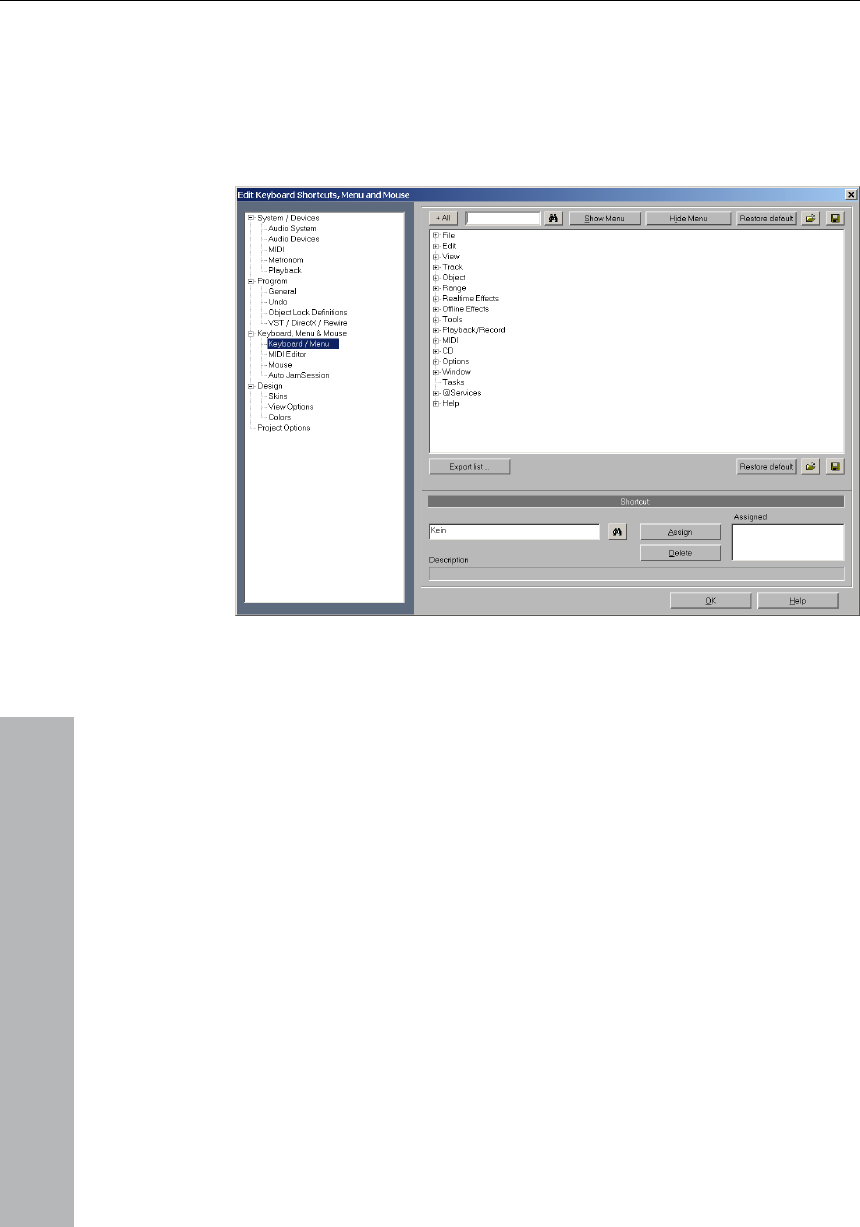
402 Options menu
www.magix.com
the main menu or for the Auto Jam Session of
udio 12 deluxe. This way, it’s possible to set the
commands you use most often to a special key combination so they
can be opened quickly.
Editing keyboard shortcuts and menus
In this dialog, you can freely choose the keyboard shortcuts for every
menu function in
MAGIX Music St
ble the next time the program is opened.
menu tree is the key function of MAGIX
cut or if the menu point should appear in the main menu of
he current shortcuts. The included
When you close MAGIX Music Studio 12 deluxe, the shortcut settings
are saved in the Windows folder file MusStu40.ini, so that they are
automatically made availa
It is, however, also possible to export sets of shortcut keys or menu
definitions in files.
The display of the entire
Music Studio 12 deluxe.
Here, you can select which menu point you want to create a new
short
MAGIX Music Studio 12 deluxe.
Shortcut list
Export list: You can use this to export the shortcut as a list in a text
file in different formats. A window will open in the Shortcut Editor
which displays a complete list of t

Options menu 403
www.magix.com
to copy this list to the Windows clipboard
Reset: Activates all preset shortcuts again.
ts are saved under a file name.
lso use combinations of any key with Shift, Alt or Control.
ed to activate the key
sequence on the left as a shortcut. A warning will be displayed if this
ssigned. However, you can
To do this, click on the Search button (binoculars) once the
key sequence has been entered. An assigned menu command will
Delete: Deletes the selected shortcut.
ts assigned to menu points. You can
assign menu commands to multiple shortcuts.
Auto JamSession
he main menu. However,
Copy button can be used
and then edit and print it using a text editor.
Load/Save: Previously saved shortcuts are loaded and activated or
the current shortcu
Shortcut
To add a new shortcut, click on the desired menu item and then on
the input box at the bottom. Then click on the shortcut key.
You can a
Please do not use the space bar, ESC or Insert key (0 in the number
block), as the functions of these keys are permanently set in MAGIX
Music Studio 12 deluxe and cannot be changed.
Assign shortcut: This button can be us
command should already have been a
also check in advance whether the key combination has already been
assigned.
then be displayed in the top list.
Assigned: Shows all the shortcu
Editing this is basically identical to editing t
you cannot set any keyboard shortcuts, but rather MIDI commands
or joystick actions.
The commands listed here don’t exist in any menu. For this reason,
the buttons “Show/Hide menu point” and “Reset” (from show/hide
menu command) are greyed out. Similarly, the list cannot be exported
or saved.
Reset: Activates all preset shortcuts again.
Note: The MIDI input device can be set in the metronome options.

404 Options menu
To assign a new shortcut to a command, enter the type of shortcut in
the flip menu “Status”.
Note: MIDI commands can also be learned. If you should use control
change events for remote controlling, you can choose between
“CtrlUpDn” and “CtrlChg” in the “Status” menu.
• CtrlUpDn: This is a special adaptation for use with a sustain pedal
www.magix.com
and is activated only when the
pedal is “tapped”lightly, because, when playing, the sustain pedal is
• NoteOn: Note On events are always transmitted when a key on the
Change events are transmitted to the MIDI device.
The MIDI device can also be programmed so that pressing a key will
transmit such a Control Change event. Please refer to the
instructions of your MIDI device.
• PrgChg: Program Change events are actually there to effect a sound
change in the sound generator.
o modulate the pitch
of the sound played. When using it, a quick movement is all that’s
• Joystick1/2: Use the buttons 1-4 of your joystick to control the Auto
DI devices.
• Channel: MIDI Channel 1 is always set as the default. In case your
ansmits to a different MIDI channel, you can set it here.
rning will be displayed
if this command should already have been assigned.
ll the functions of shortcuts assigned to menu
points. You can assign menu functions to multiple shortcuts.
lect the function you want to remotely control via MIDI from the
from the MIDI keyboard. A comm
typically held longer than it takes to actually activate an assigned
command.
MIDI keyboard is pressed. It’s also possible for other keys of the
MIDI keyboard to transmit Note On events. Please refer to the
instructions of your MIDI device.
• CtrlChg: Control
• PitchWheel: The Pitch Wheel normally serves t
necessary to execute an assigned command.
Jam Session. In the field beside it, “Button”, enter the corresponding
number of the desired button. Here, you cannot set the channel as
joysticks don’t have anything to do with MI
MIDI device tr
• Assign: With this button you can activate the specified MIDI event or
set the joystick button as a new shortcut. A wa
• Delete: Deletes the selected shortcut.
• Assigned: Shows a
Learning MIDI commands
1. Se
list at the top.
2. Click on the “Learn” button. This now turns red.

Options menu 405
www.magix.com
MIDI command to start the
sign” button to complete the learning
process.
u
have to restart MAGIX Music Studio 12 deluxe if you changed the
toolbar style.
Edit Toolbars
tool bar editor for the according
toolbar. The same function can be called by right-clicking on the tool
r by
adding or removing any command, which is available as a toolbar
This menu lets you reset several toolbars.
Video Height
Font Selection
Here you can adjust the foreground and background color for
displaying samples in wave projects, the colors of the volume and
panorama curve, the grid, the oscillograph and the time display.
3. From the MIDI device, activate the
function.
4. In the dialog, click on the “As
Change Toolbar style
You can change the style of the toolbars into 3-D or a flat look. Yo
With this command you open the
bar. All tool bars are customizable. You can customize any toolba
icon.
Inside the toolbar editor there is a context-sensitive pop-up help.
Reset Toolbars
Grid Setup
See “Menu View>Snap setup”!
If the option to display the AVI frames in the VIP window, the height
of the AVI pictures is determined with this setting.
MAGIX Music Studio 12 deluxe will also let you specify the font used
for text display in the various objects.
Font for Time Display
This option lets you select the display font for the Time Display
(Window->Time Display).
Display mode
Please read the explanations in the "View" menu
Color Setup

406 Options menu
www.magix.com
Color selector
dows color selector has its own integrated online
help which can be accessed with the F1 button or the ? button in the
dialog.
d onto a file and reloaded again.
Right-click in the color selector dialog to access a menu with all the
user-defined save
as...“ you can save the current palette onto a new file which will then
enu.
Object Lock Definitions...
by
locking the objects.
This is
especially useful for multi-track recordings to prevent inadvertent
es the volume handles of the objects.
Music
Studio 12 deluxe.
• Audio playback settings (Playback Devices)
• Audio record settings (Record Devices)
• Paths/Skins
• Color setup (colors)
The standard Win
In addition to the mentioned function attributes, the sets of the user-
defined colors can be save
saved user-defined color palettes. With „Current
appear under Color palettes in the m
Undo Definitions
The depth of undo can be specified when working with VIP’s. A value
of “20” means that the last 20 changes can be undone.
Here you can select which functions should not be permitted
The choice consists of:
Moving: The objects cannot be moved unintentionally (default).
offset between each track from the beginning.
Volume Changes: Deactivat
System/Audio
In the “System” menu, you have options to fine-tune MAGIX
In detail this is:
• Program Options
• View options
• Metronome settings (MIDI options)
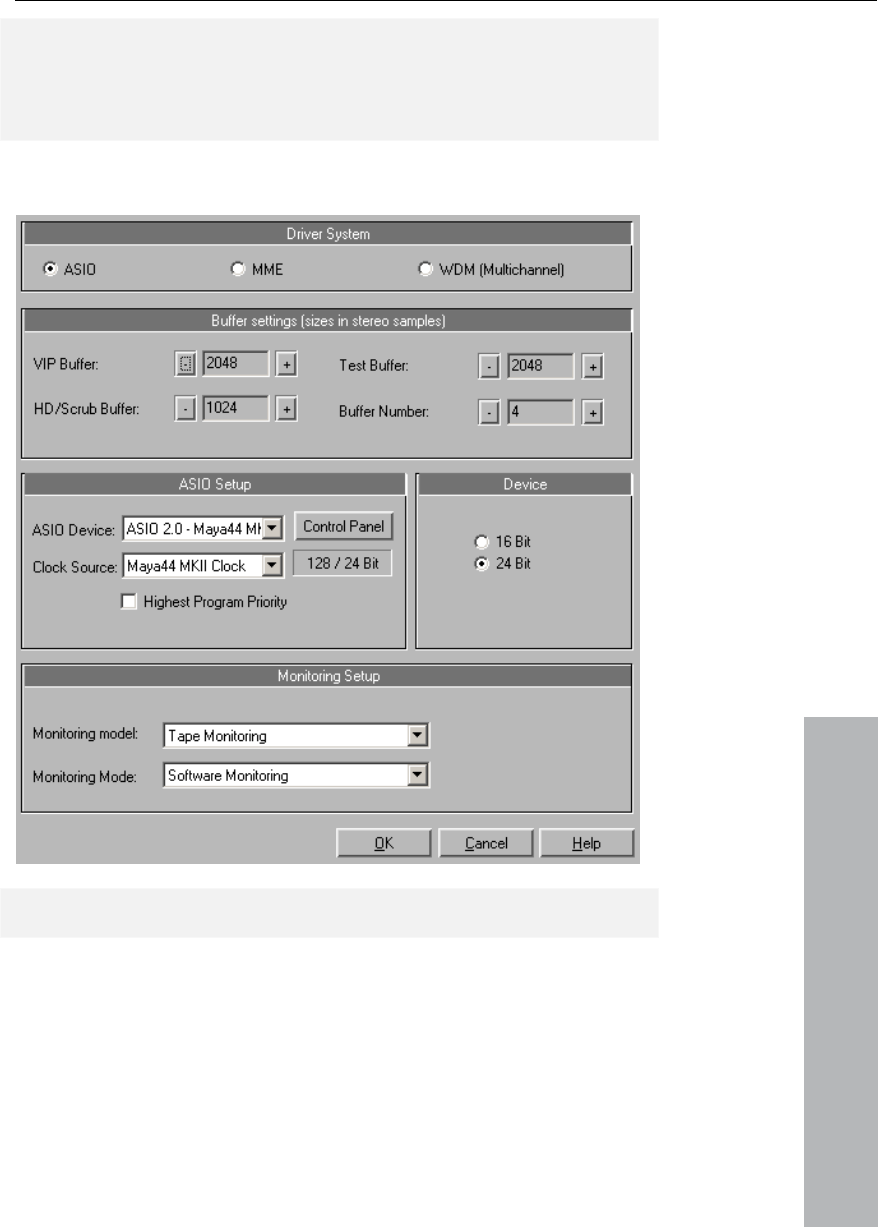
Options menu 407
www.magix.com
Most of the dialogs can also be activated separately via the different
menus and are explained at a the corresponding position. In the
following you can find the explanations on system settings directly via
the "System/Audio" dialog.
Playback Devices (audio playback settings)
Device Resolution / Device Communication
Here you can specify the bit resolution for communicating with the
audio driver for recording and playback. Usually, resolution selection
is automatic. If the output device is not able to display at the desired
resolution (e.g. 24 bit), an appropriate lower solution will be dithered
automatically by MAGIX Music Studio 12 deluxe and sent to the
driver. In certain circumstances, e.g. if the driver triggers error

408 Options menu
www.magix.com
messages (because it registers certain resolutions but can not
you can force 16 bit driver address here. actually play/record them),
Driver system
You have the choice between MME, multi-channel MME, and ASIO.
Windows multimedia driver system. If your
sound card supports 24/32-bit audio playback, but still experiences
blem high-resolution audio files, try using these
drivers.
MME is the standard
pro s when playing
ASIO
However, if your sound card model uses ASIO drivers, you have
some distinct advantages over MME:
MAGIX LoLa is supplied with the program. This is a universal ASIO
driver that can be used for many sound cards that do not have their
own ASIO drivers..
• Lower latency of the driver system. This results in considerably lower
response times for real-time editing. This enables software
monitoring of the inputs (and VST instruments). The CPU load of the
system drops, more high-quality effects are possible without
• Driver-side synchronization between recording and playback is
aila that overdub recordings are 100 % stable
regarding timing. This also allows for mechanisms for compensating
tenc itting software FX monitoring.
• ASIO also offers a general method for treating multi-channel audio.
lti-channel problems which may appear with
WDM drivers under Win2K/XP are avoided from the outset.
dvan monitoring options via use of ASIO direct
monitoring (flexible routing including Pan & Volume, irrespective of
the
IO se
f each ASIO device currently available in the
system are listed here. "Settings" opens the settings dialog of the
intermediate bouncing.
av ble. This ensures
la y for effects perm
All bit-resolution and mu
• A ced hardware
sound card).
AS ttings
ASIO driver: The drivers o

Options menu 409
www.magix.com
fer to the sound card manual for more
information.
ASIO software monitoring with track effects: With this option you can
12 deluxe as an external effects device. This
requires that an ASIO driver is installed for the sound card.
Buffer settings
Play/Record buffer: Specifies the buffer sizes for playback or
recording of audio data.
In principle, the larger the buffer, the safer playback will operate on
slower systems or at full load. The number of simultaneously playable
tracks also increases. However, this reducese the reaction time of the
disturb realtime effects. We therefore
recommend searching for an optimum compromise for your system.
When recording and playing simultaneously, the record and play
size.
s you to control the size of the RAM
Buffer. The RAM Buffer is used to record and playback audio from
ult size is 4000 and will generally perform
well, but you can try smaller sizes for quicker response time.
HD /Scrubb Buffer: This parameter allows you to control the size of
HD Buffer. This Buffer is used to playback
audio from Hard Disk Projects (HD Wave). The default size is 8000
However, you can try smaller sizes for
quicker response time, or larger sizes if you experience drop-outs or
Buf s you to control the size of the VIP
(Virtual Project) Buffer. The VIP Buffer is used to playback and
dow. The default size is 16000
and will generally perform well. VIP Buffer: As error-free playback is
usually more important than fast reaction times, this value should be
0 to 32000 when playing many
tracks. When playing virtual projects or using the mixer only these
settings are relevant.
Realtime Buffer: Values of 8000 are set as default. This buffer is only
used for realtime previewing the effects from the effects menu.
sound card driver. Please re
use MAGIX Music Studio
CPU, which can particularly
buffer have to be the same
RAM Buffer: This parameter allow
RAM Projects. The defa
the (hard disk) / Scrubb
and will generally perform well.
errors. T
VIP fer: This parameter allow
manipulate audio when in the VIP win
possible be increased from 1600
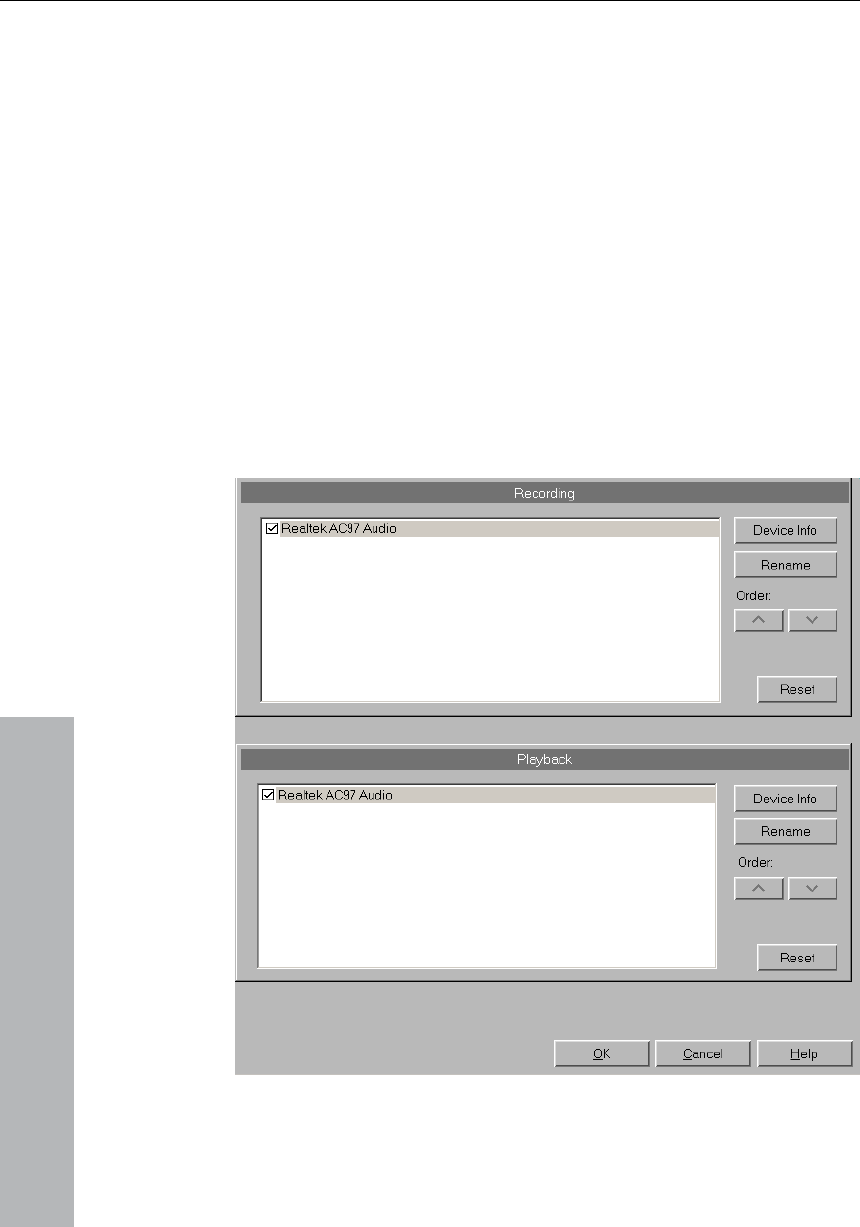
410 Options menu
www.magix.com
n specify how many of the buffers
described above should be used. More buffers increase reliability, but
o inc requirements. Reaction times become
longer. You can check the current buffer usage levels in the status
r to t
reco amples are set as a buffer, however, they
are used for audio recording and indicate how much data should be
rive.
and buttons: If this option is
activated, many menus only appear if projects are opened.
Record Devices
listed in the large window at the top of
the dialog. With the Device Info you can open the small dialog. There
sound card activated in the adjacent
window (supported sample rates, manufacturer, etc.).
Buffer Number: Here you ca
als rease the memory
ba he bottom right.
HD rd buffer: 16000 s
written on a block of the hard d
Deactivating non-reachable menus
The installed sound cards are
you will find information on the
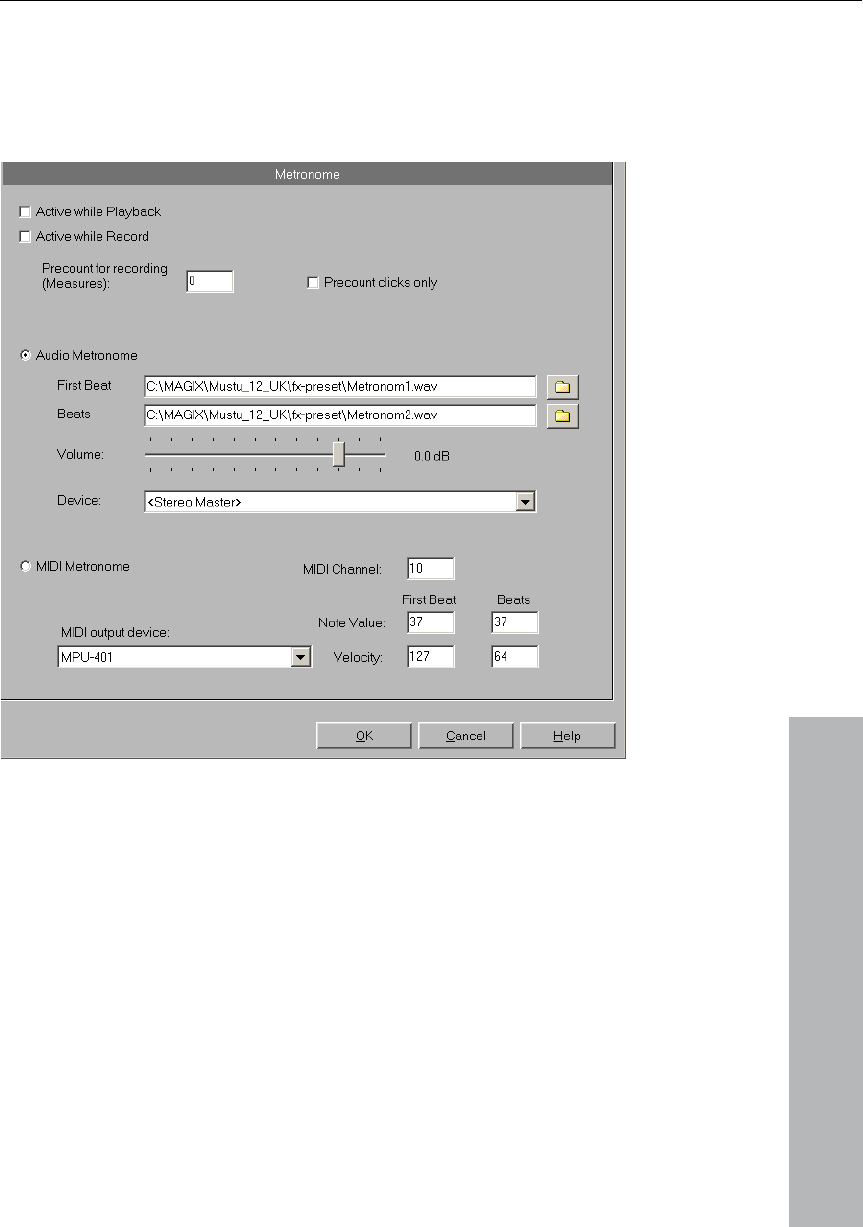
Options menu 411
www.magix.com
Here you can set a metronome to help keep in time with the beat
ring r quire soundcard with MIDI functionality
and/or an external MIDI instrument to provide the metronome click.
Metronome
du ecordings. You will re
.
Active during recording: This option allows you to hear the
metronome click during recording.
Active while playing: This option allows you to hear the metronome
click while playing.
Output device: Selects the device that will provide the metronome
click (usually the soundcard).
MIDI Channel: Sets the MIDI channel, through which MIDI commands
are sent.

412 Options menu
www.magix.com
cities
Skins are a new feature in MAGIX Music Studio 12 deluxe (screens).
e planning to design many different skins for the future.
This adds excitement to your work: Your eyes will never be bored
ither Imported or Exported to/from MAGIX
Music Studio 12 deluxe.
HD-Projects: This parameter allows you to specify the default Path
rojects (HD Wave).
RAM-Projects: This parameter allows you to specify the default Path
AM Projects (RAP).
you to specify the default Path
rojects (VIP).
Sessions: This parameter allows you to specify the default Path
r saved Sessions.
Includes various selection boxes you can click. They are self-
explaining.
Show extended project tooltips: If this box is selected, a small
ation is displayed for each button in the dialog as soon as the
pointer is hovered of the mouse.
k this box to deactivate the tooltips again.
and Buttons if Function is n
Studio
ns that are not available.
Tact / Tact velocity: Here you can set the various notes and velo
for the first beat of each tact and/or the subsequent tacts.
Paths/Skins
At the top of the dialog you can specify which data you want to
assign to which paths by default.
You can select skins for projects, the mixer and the Transport
Control. We ar
again when working with MAGIX Music Studio 12 deluxe.
Im/Export: This parameter allows you to specify the default Path
(location) for Files that are e
(location) for Hard Disk P
(location) for R
Virtual Projects: This parameter allows
(location) for Virtual P
(location) fo
Program Options
explan
mouse
Unchec
Disable Menus
(enable) this option and MAGIX Music
not available: Click
12 deluxe will "gray out"
o
functio

Options menu 413
www.magix.com
Record Window on Program (enable)
and MAGIX Music Studio 12 deluxe will automatically
ord window when the pro
Check Space Key for Playback Stop also in Background: Click on
and MAGIX Music Studio 12 deluxe will continue
checking the Spacebar (to stop playback) while multi-tasking in
ogram.
Pentium III optimization: If you own a system, this option
w ult. This make ice as fast. If you
lik tivate this o
w Time (Seconds): This paramet lets you specify the length of
d Previews (in seconds). The preview function is used
for offline editing of wave project
ut Fadeout: If you use realtime
n that, for example, reverb gets cut
the end of the object. If you enter a value h ct is
mputed for that amount of time.
y: Y
Opens VIP and Start: Click on
this option
open a VIP and Rec gram is started.
(enable) this option
another pr
Pentium III
ill be activated by defa s the EQs tw
e, however, you can deac ption.
Previe er
ALL calculate
by some high-power effects
("Effects" menu).
Maximum Reverb time for Objects witho
effects on objects, it can happe
off at
co
ere, the effe
Ke

414 Window menu
www.magix.com
ow menu
This function arranges all open window
indows are moved next to ing use of the
whole display area. This is useful wh sical sample
o VIP’s.
Keys: Return/Enter
return the window ord te.
Shift + Return
s
ong the lower portion of the screen.
s command for hiding o e Main Toolbar
34). Here you will find butto d MAGIX
o 12 deluxe commands.
enu item indicates toolbar is visible.
n bar
Shows or hides the positioning bar on the lower portion of the
display.
Wind
Cascade
s in a cascade style.
Tile
All open w each other, mak
en dragging phy
ranges int
Untile
This function will er to the previous sta
Keys:
Arrange Icon
All icons are rearranged al
Main Toolbar
Please u
(see pag
se thi r unhidi
ns for fr
ng th
e 4
Music Studi
equently use
A check behind the m that the
Positio

Window menu 415
www.magix.com
Toolbar
ides the mouse mode toolbar with buttons to select
different mouse modes in VIPs.
e range bar on the lower display.
e workspace bar at the bottom part of the screen.
button bar at the b art of the screen,
he 4 buttons Object Editor, Visualization, Transport
status bar on the lower portion of the display. A
nu point shows that the sible.
fer to the Mixer chapter!
r
left of the arrangement window enables
meters of the selected track. Record and
, panorama, MIDI/audio in- and outputs,
settings are displayed in well-arranged
Mouse Mode
Shows or h
Range bar
Shows or hides th portion of the
Workspace bar
Displays or hides th
Button bar
Shows or hides the ottom p
which includes t
and Mixer.
Status bar
Shows or hides th
tick behind the me
e
status bar is vi
Mixer
Opens the mixer. Please re
Key: M
Track Edito
The Track Editor to the
access to all important para
monitoring status, volume
plug-ins, AUX sends and EQ

416 Window menu
www.magix.com
e edited in this view. You will instantly see all
relevant settings of the corresponding track.
You can open the Track Editor via the corresponding track button at
VIP below the workspa tton or via
> Track Editor".
ay
time display window
the current position, for example, while externally
ge distances. Font and colors of the display can
context menu (right time
time display the number of lines/fields that
set between 1 h line/field
layed can be sele enu.
you edit the sizes ( ion of the
on and the current mix
tions:
range: Displays the curre rrent
ginning of the oving the
rting position of the object here. Should
er into the ran g, the play
of the range.
ject -> "Object Length; negative number",
end of
n: not editable
Value: Value of the mixer fader/dial that was just
changed or the volume or pan fader in the VIP; not editable.
sections and can also b
the bottom of the ce selection bu
the menu "Window
Time displ
Shows or hides the
This lets you read
synchronizing, at lar
he
be selected in t mouse-click on the
display).
In the context menu of the
are to be displayed can be and 5. For eac
the size that is to be disp cted from the m
Double-clicking lets with the except
current mouse positi er value).
The most important op
Position/Start of nt position of the cu
play cursor or of the be range. When m
objects you can see the sta
you enter a negative numb ge when editin
cursor will be set to the end
Range length: in "Ob
instead of the start of the range, the the range is saved.
End of the Range: ->End of the Object, negative number -> Start of
the Range
Current Mouse Positio
Current Mixer

Window menu 417
www.magix.com
tion
lization Meter is a floating control which enables you to
e) the audio in a variety of w
between the following display options: Peakmeter,
ase correlator, Spectroscope and Spectrogram.
of the Meter can be adjusted by right clicking on the
djustment. Use the mouse to
ens in which you can set the
eds, drop times, and colors. You can also
values.
r string instruments. A calibrating
s played. If deviating tones are
eviation can be read on the basis of the calibration line
ted pitch is corrected acco
Transport Control
ol window contains the most important
recording, and positioning.
/ Rewind Buttons: This allows positioning
pe machine.
e Playback button opens the Playback Parameter
vice, and the Scrubbing/Vari options.
recording for a his means
EC button ena onfigured
with the proper recording devices prior to starting the recording.
REC button for each track to select the device.
Record button displa rd Parameter
lets you make settings such as ‘Playback during
recording’ and also lets you record material directly from the Record
.
displays the curren k position of the
ing on the window l umerically enter a
Visualiza
The Visua
meter (measur ays.
You can choose
hOscilloscope, P
The settings
Meter and selecting the appropriate a
click on setup. A context menu now op
value ranges, update spe
reset the peak
Tuner: For “tuning” guitars and othe
line appears when the A0 note i
played, the d
and the numerically indica rdingly.
The transport contr
commands for playback,
Start / Stop / Forward
similar to that of a ta
Right-clicking th
window for the stereo master operation. This lets
sample rate, playback d
you determine the
epitch
Record button: Starts the ll active tracks. T
bled need to be cthat tracks with the red R
Right-click on the
Right-clicking the ys the Reco
window. This
Parameter window
Time Display: This t playbac
project. Double-click ets you n

418 Window menu
www.magix.com
ition. Clicking the gree
t.
his displays the length is
clicking the display.
-12: Clicking on one of the marker buttons saves the
position to the butto tains a
ker appears in light color), the program
n to the saved position. A right click
utton memory and allows you to store a new position to
utton: This button open the Marker Manager for more
rker editing.
: This button switch MAGIX Music Studio 12 deluxe into
This means that the recording process can be
. This is also called ‘On-The-Fly
numero Punch In and Out
ecording
k on the Record is does
the project.
In Button: This sets the punch in po
Out Button: This sets the punch o e both the
in and punch out markers are set, ing can be
started with the Playback button. The program will play back the
project until it reaches the punch in point.
: This button opens the Synchronization window.
p button activates the g that
to loop through a previ
the Record Monitoring feature
dio 12 deluxe. All tracks that have their REC
buttons activated are monitored with the peak meters. The inputs of
device(s) are directly routed to the outputs of the
soundcard, if the soundcard offers this functionality (check with your
anufacturer). This offers nality as with
s.
new playback pos n arrow lets you set various
units of measuremen
L/R Time Display: T of a selected range and
editable by double
Marker Buttons 1
current playback n. If it already con
previously saved position (mar
will place the playback positio
clears the b
the button.
Marker B
detailed Ma
Punch Button
punch record mode.
started any time during playback
ted
Recording’. This can be repea
set automatically. You can stop a punch in r
us times.
markers are
process with another clic
p the playback of
button. However, th
not sto
Punch sition.
Punch
punch
ut position. If th
the punch record
Sync Button
Loop Button: The loo Loop mode, meanin
playback continues ously selected range.
RCMON Button: This button activates
of MAGIX Music Stu
the audio
soundcard m the same functio
real tape machine

Window menu 419
www.magix.com
ese buttons allow you r project.
g the playback of the project continues with varying
speed while the playback direction can be changed. This also offers a
convenient way of finding audio sections such as clicks or mistakes in
Shuttle Wheel: The transport control includes a Jog & Shuttle
hich you can use to "scrub" over e Scrubbing
ike the editing function of a tape player. The motor
tape, however, remains a d head. With a
ficult to realize scrubbing as there are no
mechanical moving parts.Turning the tape reels manually moves the
the tape head. Using the scrubbing function in
udio 12 deluxe is similar to yer as
movement of the mouse. Quickly moving the
mouse increases the playback speed, while slowly moving it
eed accordingly.
the tempo section of the transport console you can
back speed and the beat of angement.
P are adapted to the sp
timestretching.
Tempo..." opens a dialog where you can "tap in" the
on the "Tap" button or by
n fade in the bar grid with P“ button and
onome click with the „CLIC
Scrub >> <<: Th to scrub through you
During scrubbin
the audio material.
Jog &
wheel w the files. Th
function behaves l
is switched off, the t the soun
digital system it is more dif
tape slowly along
MAGIX Music St using a tape pla
playback follows the
decreases the sp
Tempo: In
change the play the whole arr
All objects in the VI eed of your choice with
The item "Tap
beat by clicking
your keyboard.
pressing the "T" key on
In addition, you ca
tr
the „SNA
switch on the me K“ button.
Manager
Please also read the corresponding chapter The Ma e page nagers (se
235).
Close all Windows
rojects. Before closing a window/project, MAGIX
luxe will ask you whether you would like to save
Closes all opened p
Music Studio 12 de
the project.

420 Window menu
www.magix.com
Taste: Taste: h
Iconise all waveprojects
ction will reduce all Wave projects their icons to make
room for the display of the virtual projects.
all wave projects
nction will hide all Wave projects to make room for the display
rojects.
The MAGIX Music Studio 12 deluxe screen is shown in the upper half
is particularly useful if you want to simultaneously use a
programs are operated
simultaneously, without having to switch between programs with the
Alt + Tab key.
This fun to
Hide
This fu
of the virtual p
Half Height
of the display.
This
sequencer program so that both

Jobs menu 421
www.magix.com
enu
In this menu you will find direct solution and short video explanations
on how to perform tasks in different will you
step-by-step instructions for sound an d
t
tutorial video which displays solution. E
s ediately.
Services
MAGIX Online Services
Y
These offer interesting new services for your photos, movies and
music 24 hours a day. For example, res
developed online or published directly o
MAGIX Community
The perfect place to discu rything hy:
•hotos, comme them, a them rated by
•ur own profile & tbook.
•
Jobs m
topics. Not only find
d pictures here, you also fin
quick access to lots of functions.
If you click on an entry with a camera symbol, you will open a shor
ntries without camera symbols
olve the problem imm
ou can access these services via the Service menu.
you can have your pictu
n the web.
ss eve to do with photograp
Upload p nt on nd have other
users.
Create yo gues
Create your own photo groups & make friends.
422 Services
www.magix.com
istered f ee, you can use all the features.
f
Once you have reg or fr Have
un with your pictures on the web!
M
YOU make the news: Share your thou , and n
with a worldwide audience in no time with your own interactive online
journal. With professional templates & 100% unique design, inclu
photos, videos, and music – no previou -how requ
I heir
c
Advantage: With MAGIX you can mana
A belongs to
t
E dcast
P ame for tively ne nsfer form.
m the nam ble
AGIX Blog Service
ghts, experiences ews
ding
s design know ired.
nvite family, friends, and acquaintances to join in and enter t
omments!
ge multiple blogs per account.
free MAGIX Online Album
hat you always have full control over your
the MAGIX Blog Service so
comments.
xport po
odcast is the n a rela w Internet tra It is
ade up of "pod" from "iPod", e of a popular porta MP3
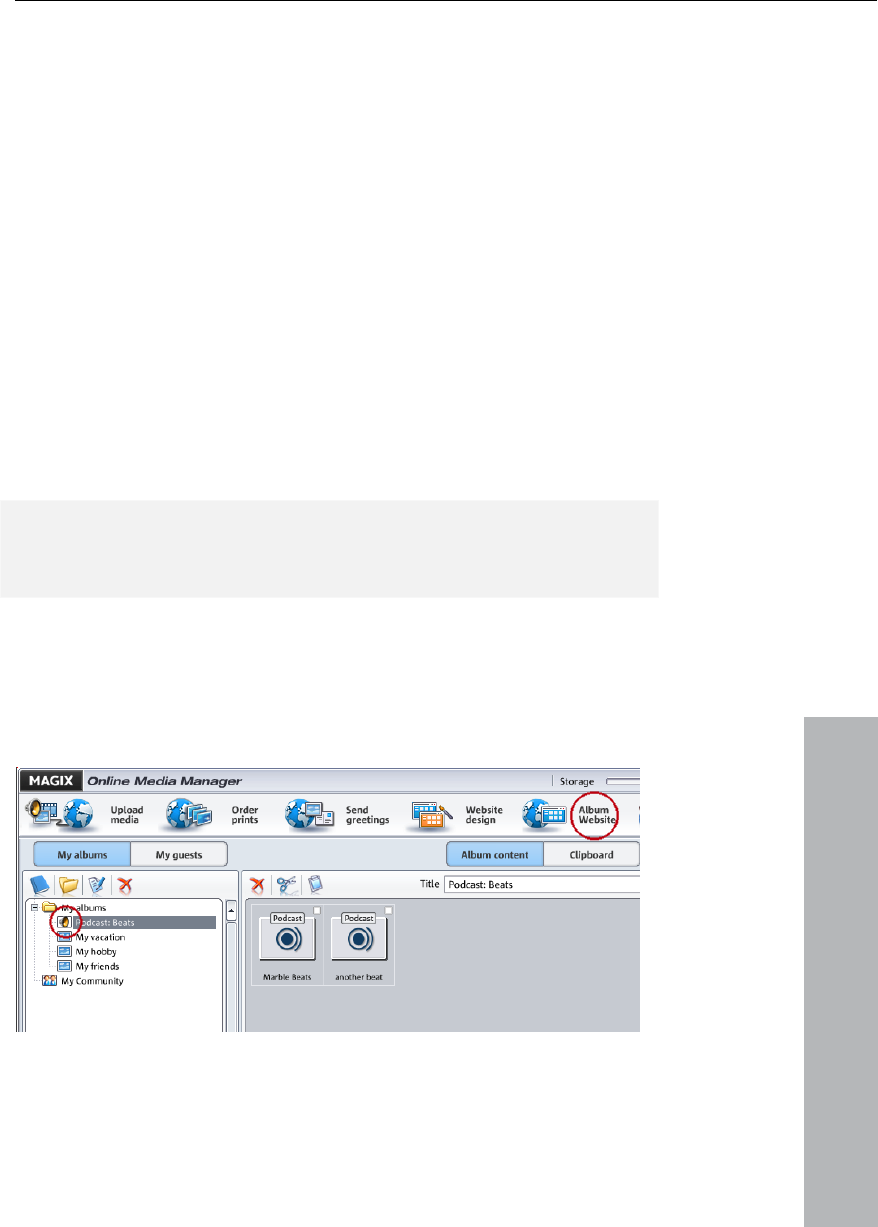
Services 423
www.magix.com
player, and the term "ca for bro ntent to a
g ers/viewers.
A erefore thing l n.
"Broadcasting" webradio stations mea
record the currently broadcast radio st
You as the listener can subscribe to th w
d
y
s
download.
S arran nt as podcast show (audio)" in
i st ice men citing journey of
ye larges viders begin
The first stop is your personal MAGIX
p e . From essed
anywhere in the world. Login with your
sting" adcasting co wide
roup of listen
podcast is th some ike an online radio statio
ns you can only listen to and
ation. Podcasting is different.
e podcast and the files ill be
ownloaded at a specific time and you can listen to them whenever
ou like, for example, on the move with your portable player. The
hows are pre-produced and placed on an Internet server for
elect the "Upload geme the
PACE > MAGIX Podca Serv u and the ex
our podcast to the pages of th t podcast pro s.
Online Album, the place your
odcast will call its onlin home here it can be acc from
password or register.
Your free MAGIX Online Album with 128 MB webspace can be set up
at any time. It will then be available to you from anywhere in the
world.
W podcas
s
< the cast
n format in t reated folder "My
p
hen uploaded via the "Make
ent to your personal MAGIX
t" button the podcast will be
Online Album. In the
online_medien_manager> of your MAGIX Online Album can
ow be found in its new
odcasts".
he newly c
N at websit
c websi ou will the
ow take a look your album e: Here you can listen to the
ast on your own te. Y immediately notice small
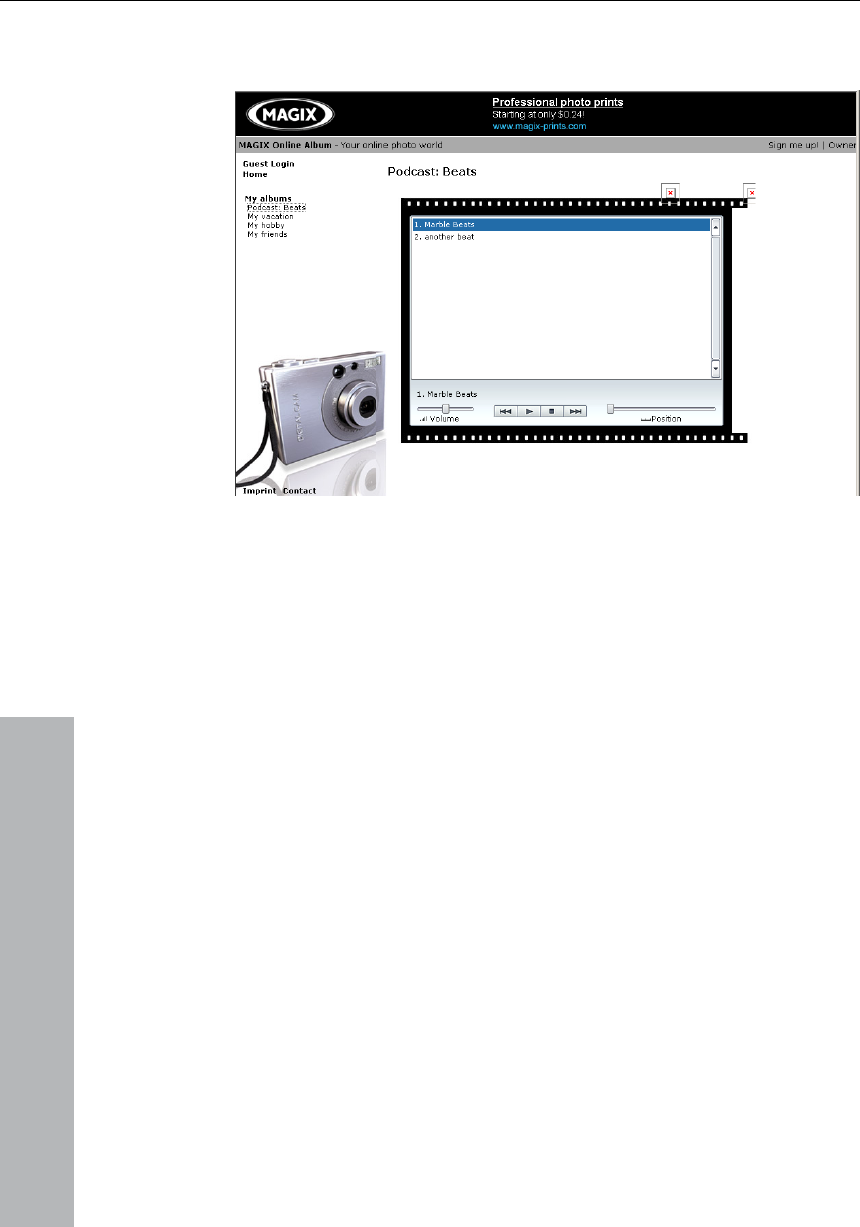
424 Services
www.magix.com
b RSS which A
a
utton "Subscribe to feed" allows any user of your M GIX
lbum website to automatically receive podcasts now and in future.
H odcast distributed?
Your RSS feed - the technology behind
guarantee that your podcast will be s
Album to many large podca rs, inclu
H now be su by a world
audience. Currently, a podcast created Studi
d MAGIX Onl 0
i
t
You may even find your p t via a s thout know
h ourney of a ver the
Won your
p
ow is your p
a podcast - will automatically
ent from your MAGIX Online
ding MAGIX Podcast Service.
tche
ere your podcast can bscribed to wide
with MAGIX Music o 12
eluxe and uploaded to
nternational podcatchers. The distribu
ine Album is sent to 10-2
tion depends on the topic of
he podcast.
odcas earch engine wi ing
ow long the j cast o web may be.
ith Make podcast you can publish your project as a track
odcast.
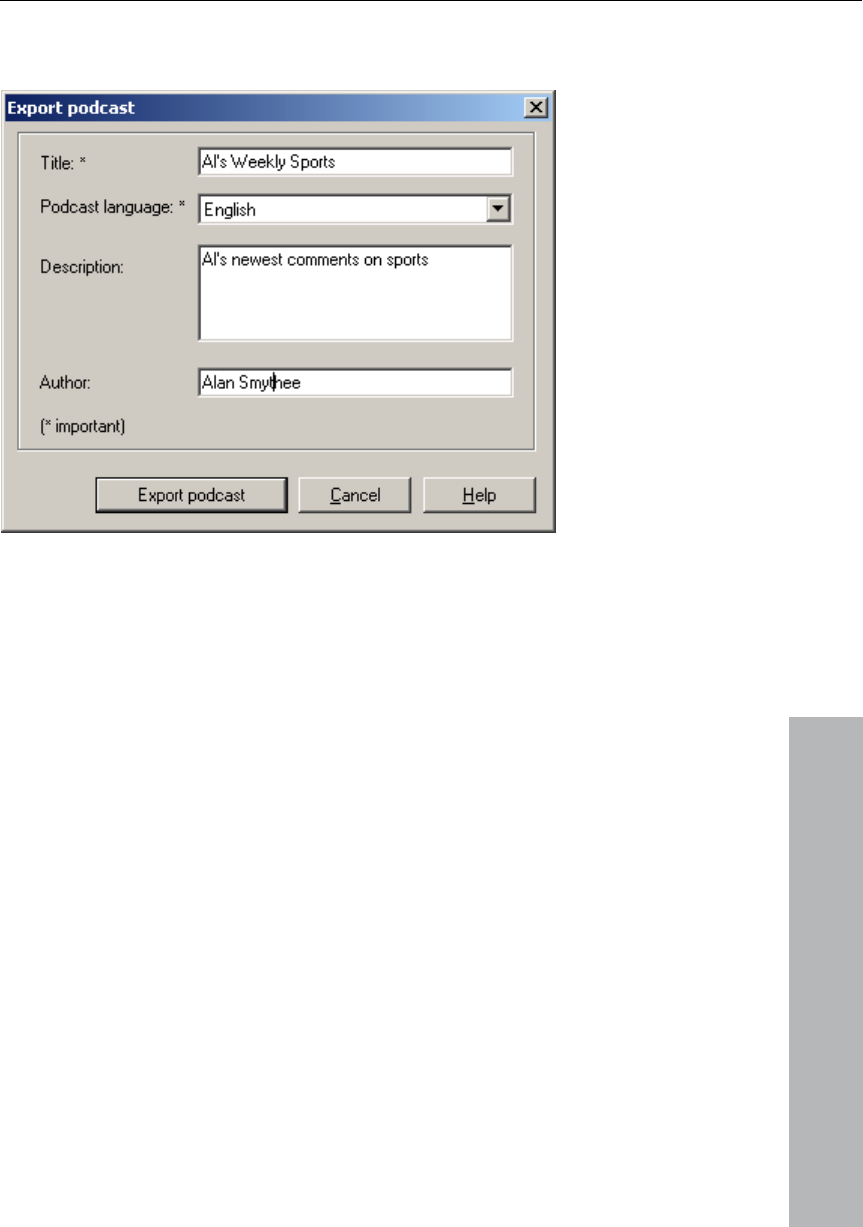
Services 425
www.magix.com
Tquired information
f
he export podcast dialog now opens. Here the re
or your podcast track has to be entered.
Tyour podcast. n
several tracks, and new ones are adde
you enter the name of the podcast to
c e whe upload m. A
p s album.
Export podcast: The pr is enc MP3 and t
uploaded to the MAGIX Online Album ad one
c
Dt ter a un
t d s
Rere you en ur ema
contacted.
itle: This is the title of A podcast typically co tains
d regularly. This is not where
which the track belongs. You
an enter the nam n you to MAGIX Online Albu
odcast then correspond to an
oject oded as an hen
. You can only uplo
ontribution at a time (one file).
escription: It is im to enportan
hat other listeners will fin
ique name and description so
t.
your podca
esponsible: H ter yo il address so that you can be

426 Menu Help
www.magix.com
M
H
U nd to show the index o m this page
c mands or read
b
C
U lp abo
S eluxe. By pres he Cont in the top
b question mark.
T ton or nu in on
a ll then be displayed.
A
Use this command for getting inform
s
About MAGIX Music Stu
Copyright notices and r umbers
S ion / Tip of t
U ay the
s
For tips t< quired in the MAGIX Music
d
System Info
A
s
enu Help
elp Index
se this comma f the help. Fro you
an jump to specific com
y step.
through the instructions step
ontext Help
se this command, to get he ut any part of MAGIX Music
tudio 12 d sing t ext Help button tool
ar the mouse indicator will become an arrow with a
hen click on any but me e of the tool bars. Information
bout this topic wi
bout Help
ation about the online help
ystem.
dio 12 deluxe
are displayed. ve sion n
tart select he day
se this command to get the tip of the day and to di tart spl s
election window.
, the file >tips.tx is re
luxe folder.
Studio 12
e
rmation
dis ining inf window is played, conta ormation about the memory
tatus and other parameters.

Menu Help 427
www.magix.com
P e d of the free storage on all connected
d e used sy resources utilized by MAGIX Music
S nd the ory usage. Make sure the parameter
f by MAGIX M
g
(physical RAM). If this ha s, the p GIX M
Studio 12 deluxe is reduced caused apping (vir
memory) done to compensate for the missing memory.
MAGIX Auto-Update
Automatically searches th ernet fo MAGIX M
Studio 12 deluxe. An Internet connection must first be provided for
this purpose.
W
Opens the MAGIX web publishing ar
publish their own music pr tions.
M der ac ation
W d"?
T t (enco
formats you will require a specific cod
e and
third parties into programs usually costs money. Fee-based activation
o ossible for MAGIX to provide an optimum
price/performance ratio fo softwar
H
To be able to use the MP3 Export you
A be do
quickest and easiest way to order a
I
email. The order of your activation co
d
T
•
articularly useful is th isplay
isk drives, th stem
tudio 12 deluxe a mem
or system memory used
rows larger than the displayed over
usic Studio 12 deluxe never
all system memory available
ppen erformance of MA usic
by page sw tual
e Int r up-dates to usic
eb publishing area
ea where MAGIX users can
oduc
P3 Enco tiv
hy does it have to ctivate be "a
o import (decode) or expor de) certain video and audio
ec to be able to read in and
xport these formats. The integration of ers decod encoders from
f the codec will make it p
r your e in the future.
ow does activation work?
have to activate the oder. enc
ne online or via post/fax. The
n activation code is via the
ctivation is fee-based and can
nternet. Ordering the activation code takes just a few minutes via
de via post/fax takes a few
ays.
his is how activation works:
Order activation code online

428 Menu Help
www.magix.com
C en w
y MAGI usic Stu
n a website where
y P3 E der activa
•rder activation code via post/fax
After clicking on "Order via post/fax" (field 2) your user code will
appear. This automatically assigns your to
y tin order form
automatically to the post/fax form. Now send the completed form as
a
b
v ays.
•
After receiving your personal activat
" ncoder" n in th
apy the activation
code from your email into the input field in the dialog (field 3) and
c 4).
P eir solutions
T
C
T
•an adequa xt editi
ed (for example, MS Word).
I ith the
•.
• folder.
Y send qu s via em never
you like. Please have the following infor
a cifically
•
• the "Ab
)
•ame
Y e (accessibl he "Activate via post/fax" dialog)
lick on "Order online..." (Field 1). Your web browser will op here
ou can register your X M dio 12 deluxe first (if you have
ot already done so). You will then be forwarded to
ou can order your M nenco tion.
O
personal activation code
" to transfer your user code
our PC. Click on "Con ue to
print out to the address/fax no. mentioned. Once payment has
ion code will be sent to you
een processed successfully, your activat
ia email in just a few d
Enter activation code
ion code you can use the
Activate MP3 E optio e "Help" menu to open the
ctivation dialog for the corresponding file format. Co
lick on "Activate..." (field
ossible problems and th
he MAGIX website won't open
heck your Internet connection, you may have to use manual dial-up.
he form for post/fax ordering won't open
Check that te te ng program is installed and
activat
still haven't received an email w activation code
Check that your inbox isn't full
Have a look in your spam
ou can always estion ail to our support whe
mation at hand so that we can
ssist you as quickly and as spe as possible.
Complete product name
Exact version number (to be found in the about box in out"
menu item in the "Help" menu
Encoder/Decoder n
our user cod e via t

Mouser functions and mouse modes 429
www.magix.com
Mouser functions
m
U
Right Mouse Button: Displays co
Lniversal
een th
availabl
M s for the up alf of th
•ove range Shift)
•siti ay curso ext to the o
•izon vel by d
•om level b
S
S cts objects roup of
S s multiple single
Single click + Shift sele tiple ects, including all objects
b
If you click left next to an t, you c wit
m essed d y dragging the mouse the righ
o lected (
M
O are moved if you click into their
half and drag them to the red pos
k
D o ts or ob
ts
D
o
and mouse
odes
niversal Mode
ntext sensitive pop-up menu.
eft Mouse Button: In u mode a distinction is made
e upper and lower half of a
betw
track in the VIP. More mouse functions
are e for the left mouse button.
ouse function per h e track:
Stretch and m s (with
Set the start po on of the pl r by clicking n bject
Reduce the hor tal zoom le ouble-clicking next to a range
Increase of the horizontal zo y clicking on a range
elect Objects
ingle click sele (or g objects.)
ingle click + Ctrl select objects.
cts mul obj
etween the two clicks.
objec an sketch a rectangle h the
ouse button pr own b t. All
bjects contained therein are se lasso function).
oving Objects
bjects (or a group of objects)
desi
l
ition while holding the mouse
ower
ey.
ragging + Shift m bjecoves
rack list without changing he t
ject groups up or d the own
ition.
t ime po
ragging + key ‘k’ move the object under the mouse pointer, plus all
bjects behind on the same track.

430 Mouser functions and mouse modes
www.magix.com
D
D
h
D plicates one o whil
t
t
L
Othe
track, you can sketch a ngle wit
d
s
V anorama las you clic
lower half of the track, you can sketch a rectangle with the mouse
b ing the d
volume and panorama points are select
V
You can individually adjust the volume bject
h
O les: The upp dle changes the object volume. The
c hown in the upp IP.
Se-in ode e-out. T ves used here
b Ed
L le: Adjusts the h of an ob
V
T orama curves can
t
h
Double-clicking on the au ion curv curve e
A e same cu vent.
Selected handles can also be deleted by selecting "Delete Curve
H
A is selec clicking. Se
handles are selected by holding the Ctr
uplicating Objects
ragging + Ctrl duplicates one or more objects. To do this you also
ave to click the lower half of the object.
ragging + Shift + Ctrl du
he objects to be moved up or down t
r more objects, e allowing
he track list without changing
he time position.
asso Function
bject lasso: If you click left next to an object in the lower half of
h the mouse button pressed
recta
own by dragging the mouse the right. All included objects are
elected.
olume and p so: If k left next to an object in the
utton pressed down by dragg mouse the right. All containe
ed.
olume and length of individual objects
and length with the five o
andles.
bject Hand er han
hanged level is s dB in er left-hand corner of the V
ide handles: Fad r fad he fade cur can
e set in the Crossfade itor.
ower hand lengt ject.
olume and Panorama Automation Curves
e used to graphically adjust
he volume and pan
he volume and stereo panorama cu
b
rves of the tracks. Movable
andle points are created on the curve.
tomat e creates a new vent.
nother double click on th rve event deletes the e
andles" from the Edit menu.
volume or panorama handle ted simply by veral
l key while clicking.

Mouser functions and mouse modes 431
www.magix.com
I an object, you sketch a rectangle with
tll
contained volume and panorama points
Selected volume and pa a poin
m al , you h
d
Curves/Object mode
This mode differs to the universal mode
i
Play-cursor, fields and zooming are no per part of
t
functions are handled by the universal mode (only, one needs to work
w
The curves/object mode is less complic
d
R (Se re M
R
Left Mouse Button: Range: Selecting ra s (with
Shift key). Objects or automation cu
a re ca re Mode
C
I dragging
m in mouse
T " is a sa ode as urves can not
m
P
S anywhe
Z
D ted ran zooms
D nge zoo
f you click right next to
he mouse button pressed down by dra
can
gging the mouse the right. A
are selected (lasso function).
noram ts can be moved with the
ouse. To move sever points ave to hold the Ctrl key while
ragging.
only in as much that the track
s not split in two halves.
t set in the up the
rack, but rather in the beat line above the first track. All other
ith split tracks).
ated to use and is therefore a
efault setting.
ange Mode cu ode)
ight Mouse Button: Displays context sensitive pop-up menu.
nges and moving range
rves cannot be changed by
ccident (therefo lled ‘Secu ’).
reate ranges
n Range mode, ranges are sketched by clicking and the
ouse pointer while hold g the button.
he "Range mode ved m objects or c be
oved accidentally.
lay Cursor
ingle click sets the pl ursoray c re in the track.
oom
elec
ouble click outside of a s
ouble click inside a selected ra
ge (or no range) out.
ms in.

432 Mouser functions and mouse modes
www.magix.com
Q
U eriod key) orarily
w
Using the ‘-‘ (Minus key) temporarily mode,
which allows moving and manipulating
C
Rntext menu
L: The left mouse key offers following functions:
V rama ru and
When you click into the track near by g
t left or rig pread a
k ct all v anorama p
c
Vol a gr ts for th
B means of the panorama and volum
panorama graduations can be graphica is pur
sizing handles, which are e
A
h
a by selectin option
You may select a volume or panoram
w
When you click into the tr n the rig
s with ouse k
s
f
Y ted e and
mouse. To move severa ndles t
d
uick switch to other mouse modes
sing the ‘.’ (P temp switches to the object mode,
hich allows moving of objects.
switches to the curve
of automation curve events.
urve Mode
ight Mouse Button: Co
eft Mouse Button
olume and Pano bber b
an object, you can, by pullin
rectangle with the mouse key
he mouse to the ht, s
ept depressed. This will sele olume and p oints
ontained within.
ume and Panoram adien e whole track
y e curves, volume and stereo
lly recorded. For t pose h
ated on the curve.
moved are cr
double click on the volume or panorama curve creates new a
lear it. Selected handles may
”clear handles” in me it”.
andle, and a further double click will c
lso be cleared g the nu ”ed
handle by a single click. You
a
ill select further handles by holding the Ctrl key while clicking.
ack o ht besides an object, you can
pread a rectangle the m ey kept depressed. This will
contained within (rubber band
elect all volume and panorama points
unction).
ou may move selec volum panorama handles with the
l ha he Ctrl key m be kept ust
epressed while pulling.

Mouser functions and mouse modes 433
www.magix.com
C
menu
L use the mouse cursor like a pair of
s
Pitch-shift/Time stretch Mode
Rtext menu
Llower right tab allows compression or
seated: The object
is not played as a loop or shorter version, but simply in a different
p
Uing pitch shifting.
D
Right Mouse Button: Displays context sensitive pop-up menu.
Lrves into VIP tracks.
Tto be active prior to
drawing the volume curve.
D
Right Mouse Button: Displays context sensitive pop-up menu.
Les into VIP tracks.
The ‘P’ button for a respective track needs to be active prior to
rawing the panorama curve.
Wave Edit Mode (only wave projects)
Right Mouse Button: Context menu
Left Mouse Button: Free-hand drawing function for the wave format.
ut Mode
Right Mouse Button: Context
eft Mouse Button: You can
cissors to crop objects.
ight Mouse Button: Con
eft Mouse Button:The
tretching of an object. A time stretching effect is cr
lay tempo.
sing the center tab, the pitch can be altered us
raw Volume Mode
eft Mouse Button: Draws volume automation cu
he ‘V’ button for a respective track needs
raw Panorama Mode
eft Mouse Button: Draws volume automation curv
d

434 Button Overview
www.magix.com
Scrub Mouse Mode
Right Mouse button: Context menu
Left Mouse button: Scrub function. Click into project: Pre-listen with
control over play tempo. The project will be played forward and back
controlled by the distance of the mouse pointer from the actual play
cursor position. The larger the distance the faster the play tempo.
You can set 3 individual scrub modes in the play parameter window .
Zoom Modus
Right Mouse Button: Zooms out of the project
Left Mouse Button: Zooms into the project
Button Overview
When the program is first started, only the tools and mouse mode
bars are opened in the upper right corner of the monitor. All further
ones may be added via menu ”windows”.
All toolbars may be placed on the screen at discretion, and they are
automatically arranged in the upper part of the screen by a double
click onto the header line.
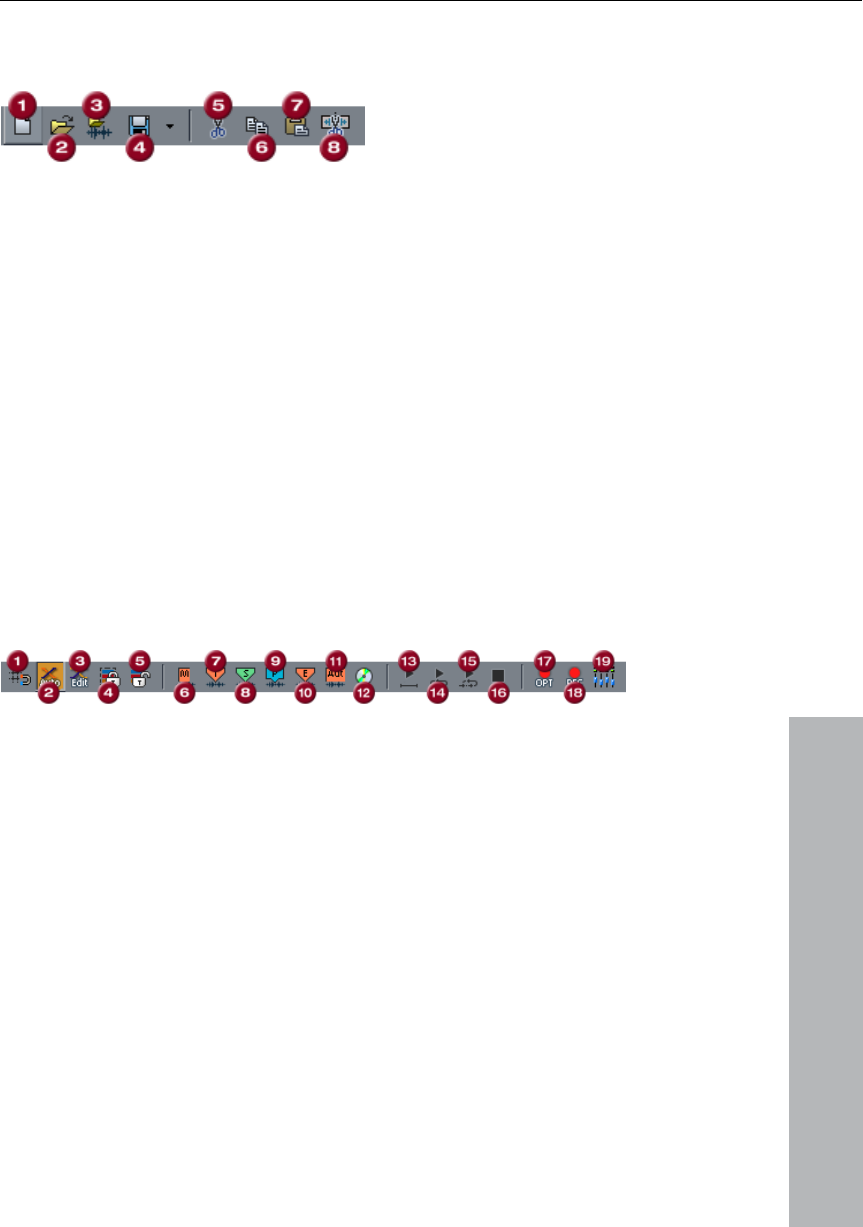
Button Overview 435
www.magix.com
Tools bar (left)
1 New multi-track project
2 Oen VIP
3 Open Audio file
4 Export/Store project
5 Save Project
6 Cut
7 Copy
8 Insert
Tools bar (right)
1 Set Marker
2 Set Track Index
3 Set Sub Index
4 Set Pause
5 Set CD End
6 Set indexes at object borders
7 Make CD
8 Play Once
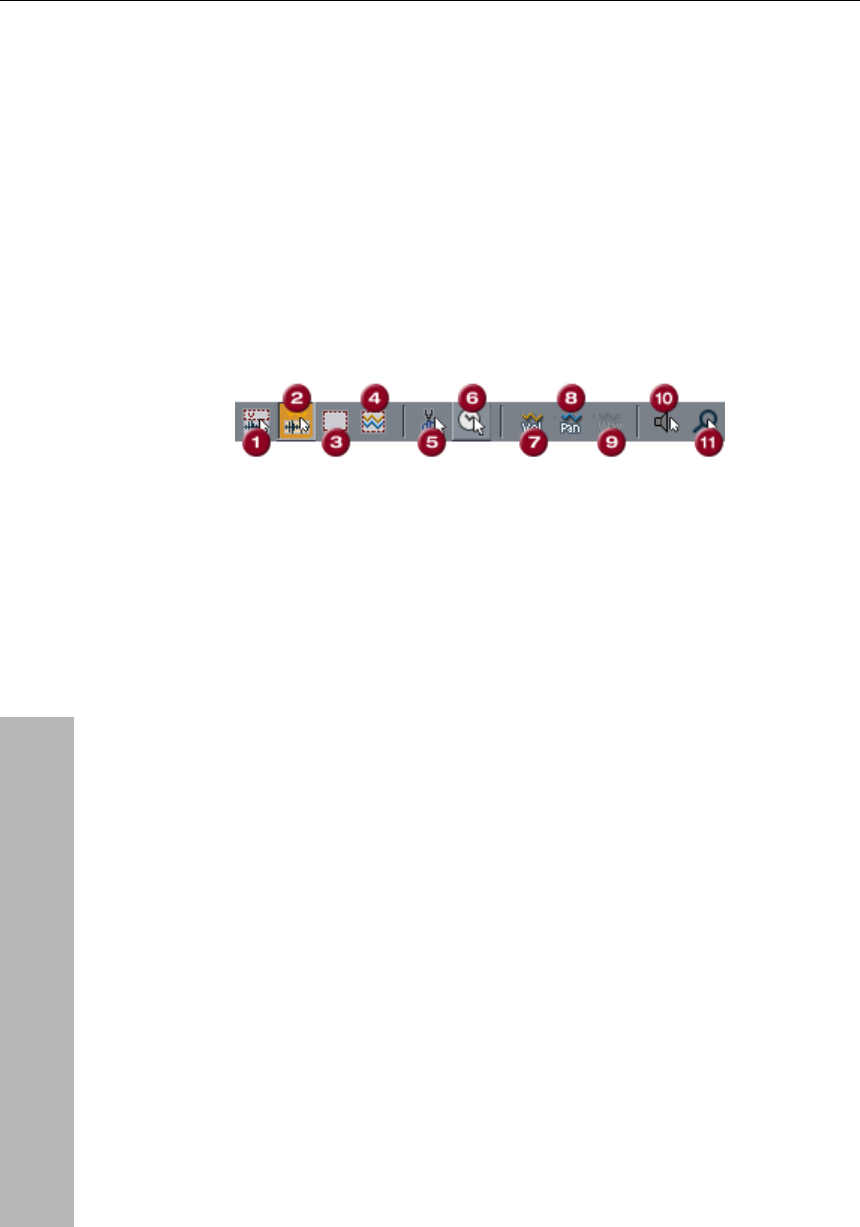
436 Button Overview
www.magix.com
9 Play Loop
10 Play into Range
11 Stop
12 Record Options
13 Multi-I/O-Recording
14 Mixer
Mouse mode bar
1 Universal mode
2 Range mode
3 Curve mode
4 Object and curve mode
5 Cut mode
6 Pitchshift/Timestrech mode
7 Draw Volume mode
8 Draw panorama mode
9 Draw wave mode (wave projects only)
9 Scrubbing mouse mode
10 Zoom mode
Button Overview 437
www.magix.com
Positioning bar (left)
1 Cropping at start
2 Cropping to left
3 Half cropping to left
4 Half cropping to right
5 Cropping to right
6 Cropping at end
7 Object edge left
8 Object edge right
9 Range to last marker
10 Range to next marker
11 Zoom in
12 Zoom out
13 Zoom all
14 Range as clipping
15 1 Pixel = 1 Sample
Positioning Bar (right)
1 Zooming range 1 sec, 10 sec, 60 sec or 10 min
438 Button Overview
www.magix.com
2 free definable zoom sections
3 Zoom in vertically
4 Zoom out vertically
5 Zoom all vertically
6 Range as vertical clipping
7 Zoom in Waveform
8 Zoom out Waveform
Range bar
1 Play cursor to start of range
2 Play cursor to end of range
3 Fold range to the left
4 Fold range to the right
5 Range start to previous zero crossing
6 Range start to next zero crossing
7 Range end to previous zero crossing
8 Range end to next zero crossing
9 Range editor

Shortcuts and Intellimouse 439
www.magix.com
Shortcuts and Intellimouse
The keyboard layout can be configured and customized in the menu
Options > Program settings. You will also see the keyboard shortcuts
in the menu entries. In addition, the underlined letters apply to the
menu entries of the respective functions.
Below are the default MAGIX Music Studio 12 deluxe shortcuts for
the program:
File menu
New Virtual Project (VIP)... E
Open
Virtual Project (*.vip)... O
HD Wave Project (*.hdp)... Umschalt + L
Load / Import
Load audio file W
Audio importieren... Ctrl + I
MIDI (*.mid)... Umschalt + M
Speichern Strg + S
Speichern unter... Umschalt + S
Export audio (WAV) Ctrl + E
Edit menu
Undo Ctrl + Z
Redo Ctrl + Y
Cut X
Delete Del
Copy C / Ctrl + C / Ctrl + Ins
Paste from clip V / Ctrl + V / Shift +
Ins
More
Set Silence Alt + Del

440 Shortcuts and Intellimouse
www.magix.com
Copy + Silence Ctrl + Alt + C
Copy as... Shift + C
Overwrite with Clip Alt + V / Ins
View menu
Sections
1 Shift + B
Activate next section Page down
Activate previous section Page up
Grid ´
Snap to grid Ctrl + ´
VIP Display mode > Definition Shift + Tab
Modus 1/2 Umschalten Tab
Store position and zoom factor
1 Ctrl + Numeric '1'
2 Ctrl + Numeric '2'
3 Ctrl + Numeric '3'
Store zoom factor
1 Ctrl + Numeric '4'
2 Ctrl + Numeric '5'
3 Ctrl + Numeric '6'
Get position and zoom factor
1 Numeric '1'
2 Numeric '2'
3 Numeric '3'
Get zoom factor
1 Numeric '4
'2 Numeric '5'
3 Numeric '6'

Shortcuts and Intellimouse 441
www.magix.com
Horizontal
Half section left Ctrl + Alt + Cursor left
Half section right Ctrl + Alt + Cursor right
Section to play cursor Ctrl + Alt + ,
Section to range start Alt + Home,
Ctrl + Shift + Page up
Section to range end Alt + End,
Ctrl + Shift + Page down
Zoom in Cursor up,
Ctrl + Cursor right
Zoom out Cursor down,
Ctrl + Cursor left
Show all Ctrl + Alt + Cursor up
Zoom to range Ctrl + Alt + Cursor down
Vertical
Half section up Shift + Cursor up
Half section down Shift + Cursor down
Zoom out wave Ctrl + Cursor down
Zoom in wave Ctrl + Cursor up
Track menu
Track properties
Mute Alt + M
Mute / Inactive Ctrl + Alt + M
Solo Alt + S
Solo exclusive Ctrl + Alt + S
Record Alt + R
Monitoring Ctrl + Alt + Shift + F
Lock Alt + L
Volume curve active Alt + K
Pan curve active Alt + P
Edit volume Ctrl + Shift + K
Edit Pan Ctrl + Shift + P

442 Shortcuts and Intellimouse
www.magix.com
Object menu
Cut objects
Duplicate and move Ctrl + D
Separate with alternative crossfade Shift + T
Separate objects T
Trim objects Ctrl + T
Undo object split Ctrl + Alt + T
Glue objects Ctrl + Alt + G
Move/edit objects/crossfade
Object step size 1
(left) Object to left Ctrl + 1
Right object to left Alt + 1
(left) Object to right Ctrl + 2
right Object to right Alt + 2
Object(s) to left Ctrl + Alt + 1
Object(s) to right Ctrl + Alt + 2
Object start to left Ctrl + 3
Object start to right Ctrl + 4
Object end to left Alt + 3
Object end to right Alt + 4
Crossfade to left Ctrl + Alt + 3
Crossfade to right Ctrl + Alt + 4
Object start offset to left Ctrl + 5
Object start offset to right Ctrl + 6
Object end offset to left Alt + 5
Object end offset to right Alt + 6
Increase left volume Ctrl + 8
Reduce left volume Ctrl + 7
Increase right volume Alt + 8
Reduce right volume Alt + 7
Increase volume Ctrl + Alt + 8
Reduce volume Ctrl + Alt + 7
(left) object content to left Ctrl + 9
(left) object content to right Ctrl + 0
right object content to left Alt + 9
right object content to right Alt + 0
Object content to left Ctrl + Alt + 9

Shortcuts and Intellimouse 443
www.magix.com
Object content to right Ctrl + Alt + 0
Object step size 2
(left) Object to left Ctrl + Shift + 1
Right object to left Alt + Shift + 1
(left) Object to right Ctrl + Shift + 2
right Object to right Alt + Shift + 2
Object(s) to left Ctrl + Alt + Shift + 1
Object(s) to right Ctrl + Alt + Shift + 2
Object start to left Ctrl + Shift + 3
Object start to right Ctrl + Shift + 4
Object end to left Alt + Shift + 3
Object end to right Alt + Shift + 4
Crossfade to left Ctrl + Alt + Shift + 3
Crossfade to right Ctrl + Alt + Shift + 4
Object start offset to left Ctrl + Shift + 5
Object start offset to right Ctrl + Shift + 6
Object end offset to left Alt + Shift + 5
Object end offset to right Alt + Shift + 6
Increase left volume Ctrl + Shift + 8
Reduce left volume Ctrl + Shift + 7
Increase right volume Alt + Shift + 8
Reduce right volume Alt + Shift + 7
Increase volume Ctrl + Alt + Shift + 8
Reduce volume Ctrl + Alt + Shift + 7
(left) object content to left Ctrl + Shift + 9
(left) object content to right Ctrl + Shift + 0
right object content to left Alt + Shift + 9
right object content to right Alt + Shift + 0
Object content to left Ctrl + Alt + Shift + 9
Object content to right Ctrl + Alt + Shift + 0
Object to position of play marker Ctrl + Alt + P
Object to original position Ctrl + Alt + O
Arrange objects Ctrl + Alt + Shift + A
Mute objects Ctrl + M
Create looped object Ctrl + L
Select objects
Select all objects Ctrl + A
Unselect all objects Ctrl + Shift + A
Select next object > / Ctrl + Alt +W

444 Shortcuts and Intellimouse
www.magix.com
Select previous object < / Ctrl + Alt + Q
Object lasso Ctrl + Alt + L
Build group Ctrl + G
Ungroup Ctrl + U
Object name Ctrl + N
Object editor Ctrl + O
Object manager Ctrl + Shift + O
Take Manager Ctrl + Alt + Shift + T
Realtime effects menu
Elastic Audio Ctrl+Shift+E
Offline effects menu
Normalize... Shift+N
Normalize (quick access) N
Manual declicker Ctrl + Shift + D
Range menu
Select all as range A
Move play markers
Marker at start Home
Set marker at end End
Move left in side mode Arrow left
Move left in scroll mode Alt + arrow left
Move right in side mode Arrow right
Move right in scroll mode Alt + arrow right
Object edge left Ctrl + Q
Object edge right Ctrl + W
Track marker left F 2 / Alt + Q
Marker right F 3 / Alt + W
Manipulate range
Range start to left Alt + '/'
Range start to right Alt + '*'

Shortcuts and Intellimouse 445
www.magix.com
Range end to left Shift + arrow left / Alt + '-'
Range end to right Alt + '+' / Shift + Arrow right
Fold range to left Ctrl + Shift + Arrow right
Fold range to right Ctrl + Shift + Arrow right
Range start -> 0 Ctrl + Page Up
Range start <- 0 Shift + Page Up
Range end -> 0 Ctrl + Page Up
Range end <- 0 Shift + Page Down
Set range start to left marker Shift+F2
Set range start to right marker Shift+F3
Split range B
Remember range Alt + F2 - F10 (exception: Alt
+ F4 and F9)
Other... Alt + F11
Get range Ctrl + F2-F10
Get range length Ctrl + Shift + F2-F10
Save marker Shift + 0-9
Marker with name... ?
Marker with automatic numbering Shift + #
Set marker to record position Alt + ?
Get marker 1 - 9, 0
Restore previous range Shift + Backspace
Box 1 Alt + Numpad 1
Box 2 Alt + Numpad 2
Box 3 Alt + Numpad 3
Box 4 Alt + Numpad 4
Box 5 Alt + Numpad 5
CD/DVD menu
Set track index Ctrl + Alt +I
Remove all indexes Ctrl + Alt + Shift + I
CD Index Manager Ctrl + Alt + Shift + D
Tools menu
Manager
File Browser Ctrl + Shift + B
Object manager Ctrl + Shift + O
Track manager Ctrl + Shift + S
Marker manager Ctrl + Alt + Shift + M

446 Shortcuts and Intellimouse
www.magix.com
Range manager Ctrl + Alt + Shift + B
Take Manager Ctrl + Alt + Shift + T
Playback menu
Play Space bar
Replay Space bar
Play with preload Shift + Space
Play in range/loop Shift + P
Only play selected objects Ctrl + Space
Stop and jump to
current position Number block ','
Playback parameters P
Playback mode
Auto scroll Scroll Lock
Soft autoscroll Shift + Scroll
Scrubbin activated Alt + Shift + Arrow down
Scrubbing left Alt + Shift + Arrow left
Scrubbing right Alt + Shift + Arrow right
Recording R
Record options... Shift + R
Input monitoring Alt + Shift + M
MIDI menu
Object editor Ctrl + O
Glue MIDI objects Ctrl + Alt + G
Track information Alt + I
MIDI Controllers Ctrl + Alt + A
Options menu
Project properties
Mixer setup... Ctrl + Shift + M
Playback parameters P

Shortcuts and Intellimouse 447
www.magix.com
Project status Shift + I
Project options Ctrl + Shift + #/I
Track information... Alt + I
Synchronization active G
Synchronization settings... Shift + G
Display options Shift + Tab
System Y
Window menu
Tiled Return (Enter)
Restore Shift + Backspace
Mixer M
Time display Ctrl + Shift + Z
Visualization Ctrl + Alt + Shift + V
Transport console Ctrl + Shift + T
Close all windows Ctrl + H
Help menu
Help F1
Context help Shift+F 1
Mouse
Middle-click Play Start/Stop
Wheel Horizontal scrolling
Shift+Wheel You can fine-adjust
active buttons/faders
+ Ctrl Horizontal zooming
+Shift Vertical zooming
(Increase/reduce wave
shape size)
+ Ctrl+Shift vertical scrolling in
VIPs (tracks)

448 Index
www.magix.com
Index
0
0 -> Range <- 0 312
1
1 Mono - L&R-Wave 265
1. Download and record 20
2
2. Arrange and Edit 20
24 bit audio support 71
24 Bit Playout & native
editing 24
2Mono > Stereo/LR-Wave264
3
3. Export and use 20
A
About Help 426
About MAGIX Music Studio
12 deluxe 426
Accessing Audio Material in
an Object 60
Accidental 179
Activate next /previous Track
297
Add one Track 292
Add several Tracks 292
Adjust instrument parameters
184
Adjusting a Range 63
Adjusting and optimizing the
score. 172
Adjusting the Signal 70
Algorithms for
Timestretching/ Pitchshifting
351
Alternative mixer skins 124
Amp Simulation 332
Amplitude / Normalisieren >
Loudness adaption 320
Amplitude / Normalize 319
Amplitude/Normalize > Fade
in/out 321
Amplitude/Normalize >
Normalize 319
Amplitude/Normalize > Set
Zero 321
AmpSim 85
Analog Delay 93
Analog delay parameter 94
Append Projects 278
Applications of the Elastic
Audio easy Editor 118
Arrange Icons 414
Arranging the synth object
192
Artefacts on Cleaning Effects
82, 330
ASIO driver support 25
Atmos 199
Audio + MIDI in one
application 21, 32
Audio ID 392
Audio: 49
Auto Crossfade active 283
Auto Jam Session 229, 372
Auto Jam Session modes 231
Auto JamSession 403
Automation of twin-channel
Surround 251
AUX busses 133
Axes labelling and legends113
B
Bar position markers
(Advanced Tempo Mapping)
376

Index 449
www.magix.com
Batch processing 25
Batch-processing 268
Beat marker 351
Beat marker slicing 339
Beat marker stretching 339
Beat signature 179
Beatbox 4.0 196
Beginning of Range <- 0 311
Beginning of Range -> 0 311
Bereich manipulieren 311
BitMachine (only available as
a download after registration)
102
BPM value 352
Build Loop Object 303
Build Physical Loop 341
Burn 387
Burn CD 42
Burn Project Backup on CD
262
Burning CDs 253
Burning CDs in MAGIX
Music Studio 12 deluxe 254
Busses and Routing 133
Button bar 415
Button Overview 414, 434
Buttons 197
Buttons in the dialog 344
C
Carrier Input 333
Cascade 414
CD Arrange-Mode 391, 396
CD Disc Options 389
CD menu 383
CD Text / MPEG ID3 Editor
390
CD Title 389
CD Track Options 389
CD/DVD menu 445
CD-R write settings 42
Change mode 291
Change Play Direction 361
Change Sample Rate 340
Change Toolbar style 405
Changing Object Borders in
Virtual Projects 61
Changing Range Ends 64
Channel strips 125
Chorus 99
Chorus parameters 100
Cleaning FX (object editor) 78
Clear FreeDB cache 392
Clef 178
Clip 55
Clip for Audio Data (Wave
Projects) 55
Close all Windows 419
Close Project 273
Color selector 406
Color Setup 405
Compressor 84
Connect external equipment
136
Connect to the Internet 272
Context Help 426
Controller Editor 155
Convert audio 264
Convert MIDI objects into
audio files 138
Copper Synth 219
Copy 171, 277
Copy and Silence 279
Copy as 279
Copy Objects 298
Copy Track(s) 294
Copy/Paste Track Effects
Settings 295
Copyright 2
Correction
Setting the manual and and
Onbeat/Offbeat 355
Create ranges 431
Creating a VIP 26
Crossfade Editor 280
Crossfade with Clip 280
Curve Mode 432
Curves/Object mode 431
Cut 275

450 Index
www.magix.com
Cut Mode 433
Cut Objects 298
Cut Track(s) 294
Cutting Objects 298
D
Declipping 327
Default 338
Definition 287
Dehisser 78, 331
Delete 276
Delete all markers 315
Delete Curve Handles 280
Delete Freeze Data 347
Delete HD-Wave Project 263
Delete marker 315
Delete notation symbol 171
Delete notes 171
Delete Objects 299
Delete Panorama Handle 280
Delete Track(s) 294
Delete Undo Levels 280
Delete Virtual Projects 263
Delete Volume Handle 280
Deleting freeze data manually
348
Denoiser 79, 329
Description of all control
elements 114
Destructive and non-
destructive editing 55
Destructive Wave Edit Mode
397
Dialog menu 185
Difference between Open-
>WAV and Import Sample-
>WAV: 259
Digital Audiometer 92
Digital Transfer 70
Direct X / VST plug-in set-up
344
DirectX and VST Plug-ins 23
DirectX Plug-Ins 295, 342
Display elements 248
Display Filter 350
Display mode 405
Distortion 101
Drag&Drop of VST plug-ins
344
Draw mode 1/2 288
Draw Panorama Mode 433
Draw Volume Mode 433
Drawing 251
Drum & Bass machine 2.0192
Drum Editor 163
Drum kit 196
Drum Map Editor 165
Drum Maps 165
DSP Display 255
DSP Display and Writing
Speed 255
Duplicate Objects 299
Duplicate Objects multiple
300
Duplicating Objects 430
Dynamics 325
E
Echo 336
Echo / Delay 336
Echo / Reverb 85
Edit menu 439
Edit object parameters 241
Edit Objects 34
Edit time display 317
Edit Toolbars 405
Edit Window 112
Editing drum events 164
Editing Events
Piano Roll 151
Editing keyboard shortcuts
and menus 402
Editing MIDI data in the score
sheet 170
Editing MIDI objects 142
Editing notes with the mouse
153
Effect automation 199

Index 451
www.magix.com
Effect Calculations 121
Effects 39, 207
Effects and effect plug-ins
23, 76
Elastic Audio 111
Embedding external effects
devices 134
End of Range <- 0 312
End of Range -> 0 312
Enhanced Auto Jam Session
dialog 233
ENVELOPE 223
Equalizer 83, 323
Exit 273
Explanaition of the user
interface 205
Export audio 265
Export podcast 265, 422
Extract 278
Extract Objects 299
F
Fade-In / Fade-Out and
Object Volume 62
Features of the CD ROM
Drive Configuration Dialog 260
Features of the Drive List
Dialog 260
Features of the Track List
Dialog 260
FFT Equalizer 324
File browser 237
File menu 439
Filter 97, 333
FILTER 224
Filter graphic 334
Filter parameters 97
Fix vertically 285
Flanger 95
Flanger parameters 96
Flip Range left 311
Flip Range right 311
Font for Time Display 405
Font Selection 405
Formats and interfaces 22
FreeDB Options 391, 392
Freeze Data Administration
347
Freezing instruments (Freeze)
188
From MIDI to Audio 37
FTP Download 273
Functional overview 60
Fundamental frequency
analysis correction 120
Fundamentals of the Elastic
Audio Editor 113
Further Recording Dialog
possibilities 71
G
General information on the
Elastic Audio Editor 111
Generate a complete new file
388
Generating remix objects 356
Get CD info (FreeDB Internet)
391
Get Marker 314
Get Noise Sample 329
Get position and zoom level
291
Get Range 314
Get Range Length 314
Getting started 17
Global Settings 131
Glue MIDI Objects 374
Graphical instrument
interface and parameters
dialog 184
Grid Lines 285
Grid Setup 405
Group objects 301
Group Objects 303
H
Half Height 420

452 Index
www.magix.com
Handle 52
Handling 230
Hard drive Recording 68
HD Wave Project 258
Help Index 426
Help menu 447
Hide all wave projects 420
Hide SubMix/Aux Busses 285
High-end 32-bit floating point
23
Horizontally 292
Hotspot 303
How does activation work?
427
I
Iconise all waveprojects 420
Ignore all tempo markers,
use only project tempo 381
Import Audio 258
Importing MIDI data 141
In addition: 25
Insert empty Track 292
Insert new notes 171
Insert new Tracks 292
Insert notation symbols 171
Insert Objects 299
Insert Silence 278
Insert Track(s) 294
Installation 18
Installation of instruments
and path settings 182
Integrate audio material 30
Interface Connection 136
Invert Phase 323
J
Jobs menu 421
K
Keyboard commands and
mouse-wheel assignments
121
L
L&R-Wave - 1 Mono 264
L&R-Wave - 2 Mono 264
Lasso Function 430
LFOs (Low Frequency
Oscillators) 225
Linear view 167
Link all objects in one track
401
Link curves and objects 401
List Editor (midi event list) 158
Live Input Mode 370
LiViD - Little Virtual Drummer
203
Load audio CD track(s) 383
Load Audio CD Track(s) 259
Load instruments 184
Load ranges from Wave
Projects into the VIP 60
Loading an audio file into a
VIP Object 60
Loading sounds and
controlling instruments 205
Lock Objects 301
Lock Objects > Lock
Definitions 301
Lock Objects > Lock Objects
301
Lock Objects > Unlock
Objects 301
Loop effects 232
M
MAGIX Auto-Update 427
MAGIX Blog Service 422
MAGIX Community 421

Index 453
www.magix.com
MAGIX Jam Session
Automation 24
MAGIX Mastering Suite 88
MAGIX Music Studio 12
deluxe as an external effects
device 122
MAGIX Online 19
MAGIX Online Content
Library 22
MAGIX Online Services 421
MAGIX Premium Club 19
MAGIX Remix Agent 24
MAGIX Revolta 21
Main Toolbar 414
Make CD 386
Manager 349, 419
Manager & Explorer 24
Marker Manager 244
Markers on Range Borders
315
Master module / global
parameters 226
Master section 128
Maximize Track 295
Media link 394
Menu Edit 257, 274
Menu File 256, 383
Menu Help 426
Menu Object 298
Menu Playback/Record 360
Menu Tools 346
Menu Track 292
Menu View 284
Metronome 411
Metronome active 381
Metronome Options 381
MIDI
Import, Record, Edit 139
MIDI / Joystick ... 235
MIDI bouncing 374
MIDI Cabling 137
MIDI Controller / Destination
228
MIDI Editor 35, 147, 373
MIDI Editor shortcuts 161
MIDI functions 153
MIDI in MAGIX Music Studio
12 deluxe 136
MIDI integration 23
MIDI menu 373, 446
MIDI Object Editor 143
MIDI Options 381
MIDI Panic – All Notes off 382
MIDI record modes 33
MIDI Record Modes 381
MIDI Score Settings dialog
175
MIDI settings 139
MIDI: 48
Minimize none 295
Mix with Clip 279
Mixer 38, 74, 123, 334, 415
Mixer Setup 393
Mode 81
Mode 1 291
Modus 2 291
Monitoring 186, 371
Monitoring > Input monitoring
on/off 371
Monitoring > Peakmeter
Monitoring 371
Monitoring > Software
Monitoring / Software FX
Monitoring 371
Monitoring > Tape player
monitoring 371
Mono 250
Mono, L & R, and stereo
wave projects: 59
Monophone voice 339
More 278
More about MAGIX 19
Mouse 447
Mouse functions for the
upper half of the track: 429
Mouse mode bar 436
Mouse Mode Toolbar 415
Mouse modes 164
Mouser functions and mouse
modes 401, 429

454 Index
www.magix.com
Move and transpose 171
Move Object 302
Move play cursor 310
Moving and Duplicating
Objects 61
Moving and zooming 149
Moving Objects 429
Moving ranges with the
mouse 63
Multimax 91, 326
Multi-Overdub 382
Multi-view 156
Multi-voice notation 174
Mute objects 302
N
Name 248
New MIDI object 373
New MIDI track 373
New Object 298
New SubMix/Aux Bus 292
New Synth
MAGIX Vita 21
New Synth Object 298
New track folder 292
New Virtual Project (VIP) 256
Noise Sample Section 80, 330
Normal 381
Notation display in Piano Roll
and Controller Editor (with
velocity curves) 148
Notation display, movement,
zoom 147
Notation symbols 178
Notation system settings 176
Note allocation in multiple
systems 172
Note display
Interpretation options 177
Note parameters 170
N-Tuplet (off, 3, 5, 7, 9) 161
Number of first CD Track 389
O
Object 258
Object Background Color 304
Object color/name 304
Object editor 35
Object Editor 304, 373
Object Foreground Color 304
Object Level 68
Object Lock Definitions... 406
Object Manager 240, 308
Object menu 442
Object mode 401
Object Name 304
Object synths and track
synths 191
Object to Original Time
Position 302
Object to Playcursor Position
302
Object-Editor 62
Objects 56
Objekte 290
Offline Effects and Realtime
Effects 39
Offline effects menu 318, 444
Offset 160
Open 163, 229, 257
Open MIDI Editor 147
Open new Manager 349
Open the dialogue 247
Opening the Score Editor 167
Opening the synthesizers 191
Operating the Mixer 124
Operating the Mixer with the
mouse and keyboard 124
Operating the Object Editor
305
Options for oscillator 2 222
Options for the Track Marker
recognition 384
Options menu 393, 446
OSCILLATORS 220
Output Mode 68

Index 455
www.magix.com
Overdub 382
Overlapping Objects 62
Overview 123
Overwrite with Clip 279
P
Package contents 17
Page format settings 180
Page view 168
Parallel 251
Parameters 227
Parametric Equalizer 88
Parametric Equalizer (mixer
channels, mix master) 86
Paste from clip 277
Patches in brief 352
Paths/Skins 412
Performance 74
pillepalle <de_en>coder
activation 427
Pitch-shift/Time stretch
Mode 433
Pitch-sliced-objects and VIP
objects 119
Play and monitor instruments
live 186
Play Cursor 431
Play in Range 360
Play loop 360
Play once 360
Play only selected objects 360
Play while recording 368
Play with Preload 360
Playback Devices (audio
playback settings) 407
Playback menu 446
Playback of a range 64
Playback Options 362, 393
Play-Cursor 56
Playing BeatBox on the MIDI
keyboard 199
Playing BeatBox on your
computer keyboard 198
Position bar 414
Positioning bar (left) 437
Positioning Bar (right) 437
Possibility 1
Auto-record in the Surround
Panning Dialog 252
Possibility 2
Drawing mode in the
Surround panning dialog
252
Possibility 3
Drawing automation curves
in the VIP track 252
Possible problems and their
solutions 428
Pre and Post in the plug-in
dialog 344
Preface 3
Preparation
Setting the Start Marker
and Object End 354
Preparing a MIDI recording 32
Preset management 187
Presets 334
Print notes 181
Print TOC 388
Printing score 180
Process only left (right) stereo
channel 345
Processing audio effects 39
Processing Section 79
Processing the Surround
Sound automation 252
Program desktop overview 43
Program Options 412
Program Preferences 401
Programming 196
Programming the synth
object 191
Project Options 397
Project properties 393
Punch In Mode active 368
Punch In Record 369

456 Index
www.magix.com
Q
Quantization 166, 233
Quantize 160
Quick switch to other mouse
modes 432
R
RAM and HD wave projects58
RAM Wave Project 258
Range 54
Range all 310
Range bar 415, 438
Range Editor 316
Range length 312
Range Manager 246, 316
Range menu 310, 444
Range Mode (Secure Mode)
431
Range to beginning 311
Range to end 311
Range trackbouncing 347
Realtime effects menu 444
Rebuild Graphic Data 284
Recall last range 316
Record 68, 365
Record another track 29
Record Device 234
Record Devices 410
Record mode / Punch In 368
Record Options 365
Record without Playback 368
Recording and playback of
an instrument 187
Recording information 235
Recording MIDI tracks 139
Recording Source 69
Recording the first track 27
Recording/Playback 75
Redbook 253
Redo 275
Remix Agent 353
Remix Agent – Tempo and
Beat Assignment 353
Remove all Indices 386
Remove DC offset 328
Remove Index 385
Remove Punch Markers 369
Remove unused Samples 347
Rename Project 263
Replace 382
Requirements 354
Resample / Time stretching
337
Resampling 337
Reset 161
Reset Toolbars 405
Reset Track Effects settings
295
Restart Play 361
Reverb 336
Reverse 341
Revolta 220
ReWire 189
Robota 208
Room Simulation 335
Routing the signal: 134
S
SampleTank 2 MX (SE) 204
Save complete VIP in 262
Save in Format 264
Save markers 314
Save Object 262
Save Project 261
Save Project as 261
Save Project as Template 262
Save Session 262
Saving Effect Parameters
(Preset Mechanism) 77
Saving Ranges and Special
Range Commands 64
Schematic illustration of the
Robota synthesis 209, 210
Score Editor 166
Score Editor Modes 167

Index 457
www.magix.com
Scrub Mouse Mode 434
Section 53
Sections 284
Select Objects 303, 429
Select Objects > Switch
Selection 303
Selecting a Range 63
Selecting an Object with the
Mouse 61
Selection 156, 170
Send project via email 273
Sequencer 214
Services 421
Session 258
Set CD end 384
Set End Marker 369
Set Markers on Silence 315
Set new beat marker 376
Set new beat position marker
376
Set New Original Time
Position 302
Set new tempo marker 376
Set Pause 384
Set Pause Time 390
Set Silence 278
Set Start Marker 369
Set Start Pause Time 391
Set Sub-index 383
Set Track 383
Set Track Indices on Object
Edges 385
Set Track Markers
automatically 384
Settings 249
Set-up 193
SETUP / CONFIG VIEW 227
Setups, Drumkits, Presets
and Patterns 216
Shortcut 403
Shortcut list 402
Shortcuts and Intellimaus 439
Shortcuts for range editing 65
Show CD-R Disc Information
389
Show CD-R Drive Information
388
Show Grid 285
Show TOC 388
SilverSynth Pro 217, 220
Smoothed 338
Snap and Grid Setup 286
Snap and Grip Setup 396
Snap to Grid 286
Software/VST instruments
182
Sound field 248
Sound FX (object editor,
mixer channels, mixmaster
) 83
Sound synthesis 208
Special selection options in
the Piano Roll 150
Spectral View 81
Split Objects 300
Split Objects on Marker
position 300
Split Range 312
Split Range for Video 313
Start selection / Tip of the
day 426
Status bar 415
Step 1
Automatic Tempo
Recognition 354
Step 2
Determining the start of a
measure. 355
Step 3
Use of the BPM and beat
recognition 356
Step Sequencer 218
Stereo and mono signal
processing with twin-channel
Surround 250
Stereo FX 90, 321
Stereo Thru 251
Stereo Wave> Mono 264
Stop 361

458 Index
www.magix.com
Stop and go to current
position 361
Store position and zoom level
291
Store Range 313
Submit CD to FreeDB 391
Submix busses 134
Support 15
Surround Editor 295
Surround Panorama Module
247
Surround Sound 247
Surround-Panorama-module
251
Swingin % (Strength 0...100)
160
Switch Channels 321
Synchronization /
Synchronization settings 398
Synchronized MIDI Editor
and VIP screen view 149
Synth Objects 191
Synthesizer 22
System Information 426
System requirements 17
System/Audio 406
T
Take Manager 309, 350
Tape Simulation 106
Task Assistant 25
Tempo 233
Tempo/Time Signature 375
Terminology 52
Text Comments 396
The bass section (bottom
half) 195
The features 22
The filter parameters 224
The Managers 236, 349, 419
The MIX window 206
The Object Effect Window 306
The parameters of LFO 1 &
LFO 2 225
The
Pitchshifting/Timestretching
Window 307
The Position/Fades Window
307
The rhythm section (top half)
193
The score 169
The Vita interface 201
This is how activation works
427
Tile 414
Time display 416
Timestretch Patcher 351
Tips & Tricks 72
Tips and tricks 134
Tips on handling virtual
instruments 189
Tools bar (left) 435
Tools bar (right) 435
Tools in the Elastic Audio
easy Editor 116
Tools menu 445
Track Bouncing 346
Track box 50
Track delay/reverb (track
effects) 110
Track Dynamics (track
effects, mixer channels) 108
Track Editor 21, 47, 415
Track Effects 197, 295
Track Freeze 296
Track Freezing 24
Track information 374
Track Information 398
Track Level 68
Track Manager 242
Track menu 441
Track MIDI record 374
Track Properties 294
Track UnFreeze 297
Transport control 44
Transport Control 417
Trim MIDI objects 374
Trim Objects 301

Index 459
www.magix.com
Tuner: 417
Turning knobs 218
Tutorial 26
U
Undo 274
Undo Definitions 406
Undo-History 275
Ungroup Objects 304
Units of Measurement
285, 397
Universal Mode 429
Untile 414
UPC/Ean Code 389
User-friendlier interface 25
Using markers 66
Using the Controller Editor 37
Using the keyboard 124
Using the MIDI Editor
Selecting events 150
V
Varipitch / Practice mode 364
Velocity 165
Vertical 292
Video Height 405
View menu 440
Vintage Effects Suite 93
VIP 290
VIP and Wave projects 30
VIP Display Mode 287
VIP Mouse Mode 401
VIP window 43
VirtClip for Virtual Projects 55
Virtual Project 257
Virtual Projects (VIP) 276
Virtual Projects (VIPs) 57
Virtual wave editing 66
Visualization 417
Vita 200
Vocoder 332
Volume 67, 248
Volume and length of
individual objects 430
Volume and Panorama
Automation Curves 430
Volume and Panorama
gradients for the whole track
432
Volume and Panorama
rubber band 432
Volume/Pan curve active 280
VST Instrument Editor 374
W
WAV (Audio file) 258
Wave Edit Mode (only wave
projects) 433
Wave Editing 309
Wave Mouse Mode 401
Wave Project Level 67
Wave projects 58
Wave Projects 275
Waveform Colors 291
Waveform Display 288
Waveform Generator 349
Web publishing area 427
What effects are there and
how are they used? 76
What is MAGIX Music Studio
12 deluxe? 20
What is MIDI? 31, 136
What is SampleTank 2 MX
(SE) 204
What’s new in MAGIX Music
Studio 12 deluxe? 21
Why does it have to be 427
Window in % (Strength 0...
100): 160
Window menu 414, 447
Working in Projects 72
Working in wave projects 65
Working method 133
Working method and use 343
Working with MIDI 31

460 Index
www.magix.com
Working with Objects in the
VIP 60
Working with Ranges 63
Working with synth objects
191
Working with tempo and bar
markers 377
Working with the file browser
237
Working with the Marker
Manager 245
Working with the Matrix
Editor 36
Working with the Object
Manager 241
Working with the Range
Manager 246
Working with the Track
Manager 243
Workspace bar 415
Workspaces 51
Writing 253
X
X-Sym. 250
XY-Sym. 250
Y
Y-Sym 250
Z
Zoom 431
Zoom Mode 434
