Nikon D5 User’s Manual D5UM En
User Manual: nikon D5 - User’s Manual Free User Guide for Nikon D Series Camera, Manual - page3
Open the PDF directly: View PDF  .
.
Page Count: 420 [warning: Documents this large are best viewed by clicking the View PDF Link!]
- Table of Contents
- For Your Safety
- Notices
- Introduction
- Tutorial
- Live View Photography
- Movies
- Image Recording Options
- Focus
- Release Mode
- ISO Sensitivity
- Exposure
- White Balance
- Image Enhancement
- Flash Photography
- Other Shooting Options
- More About Playback
- Voice Memos
- Connections
- Menu List
- Technical Notes
DIGITAL CAMERA
User's Manual
• Read this manual thoroughly before using the camera.
• To ensure proper use of the camera, be sure to read “For
Your Safety” (page x).
• After reading this manual, keep it in a readily accessible
place for future reference. En
No reproduction in any form of this manual, in whole or in part (except for
brief quotation in critical articles or reviews), may be made without written
authorization from NIKON CORPORATION.
Printed in Japan
SB5L01(11)
6MB29011-01
En
To get the most from your camera, please be sure to read all
instructions thoroughly and keep them where they will be read by
all who use the product.
The Menu and Network Guides
A Network Guide and Menu Guide can be downloaded from the Nikon
website in pdf format as described below and viewed using Adobe Reader
or Adobe Acrobat Reader.
The Network Guide describes how to connect
the camera to a network, while the Menu Guide describes the options
available in the camera menus.
1On your computer, launch a web browser and open the Nikon manual
download site at http://downloadcenter.nikonimglib.com/
2Navigate to the page for the desired product and download the
manual.
Nikon User Support for India and Australia
Contact a Nikon representative for technical assistance with the operation
of your Nikon product or products.
For information on the Nikon
representatives in your area, visit http://www.nikon-asia.com/support.
D5-a (XQD Card Type)
D5-b (CF Card Type)
Nikon Manual Viewer 2
Install the Nikon Manual Viewer 2 app on your smartphone or tablet
to view Nikon digital camera manuals, anytime, anywhere.
Nikon
Manual Viewer 2 can be downloaded free of charge from the App
Store and Google Play.
Download of the app and any product
manuals requires an Internet connection, for which fees may be
levied by your phone or Internet service provider.
AFor Your Safety
Before using the camera for the first time, read the safety instructions in
“For Your Safety” (0x–xiii).
i
Symbols and Conventions
To make it easier to find the information you need, the following symbols
and conventions are used:
Menu items, options, and messages displayed in the camera monitor are
shown in bold.
This camera is available in XQD- and CompactFlash-compatible models.
The instructions in this manual assume an XQD memory card is used, but
the operations for both models are identical.
Camera Settings
The explanations in this manual assume that default settings are used.
This icon marks cautions; information that should be read before
use to prevent damage to the camera.
D
This icon marks notes; information that should be read before
using the camera.
A
This icon marks references to other pages in this manual.
0
ii
Package Contents
Be sure all items listed here were included with your camera.
Memory cards are sold separately.
Cameras purchased in Japan
display menus and messages in English and Japanese only; other
languages are not supported.
We apologize for any inconvenience
this may cause.
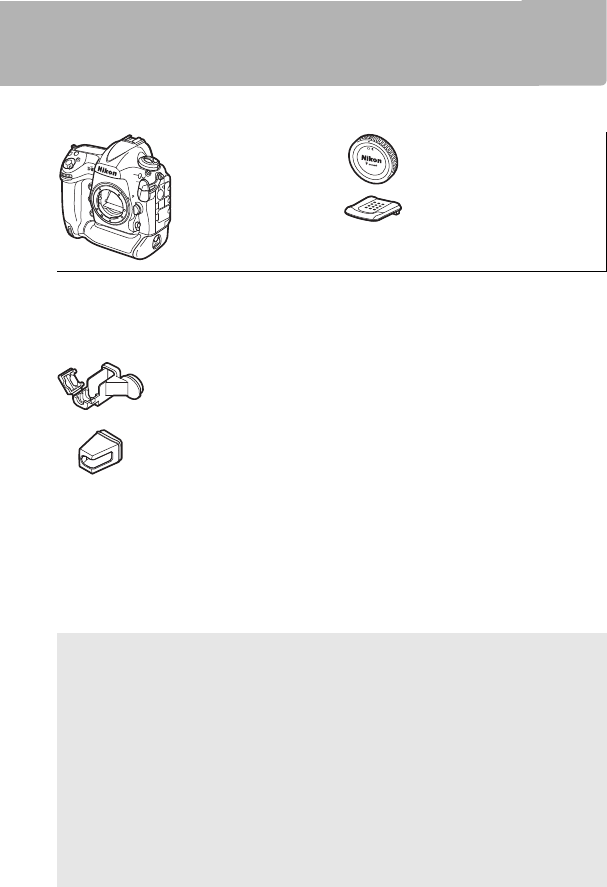
•D5 digital
camera (01)
• BF-1B body cap (025,
337)
• BS-3 accessory shoe
cover (014)
• EN-EL18a rechargeable Li-ion battery with terminal cover (019, 22)
• MH-26a battery charger with power cable and two contact protectors
(shape of power cable depends on country of sale; 019, 378)
• USB cable clip
(0276)
• UC-E22 USB cable (0276, 281)
•User’s Manual (this guide)
• AN-DC15 strap (019)
•Warranty
• HDMI cable clip
(0284)
AViewNX-i and Capture NX-D Software
Use ViewNX-i to fine-tune photos or to copy pictures to a computer for
viewing.
ViewNX-i is available for download from the following website:
http://downloadcenter.nikonimglib.com/
Use Capture NX-D to fine-tune pictures that have been copied to a
computer and to convert NEF (RAW) images to other formats.
Capture NX-D is available for download from:
http://downloadcenter.nikonimglib.com/
You can also visit this website for the latest information on Nikon
software, including system requirements.
iii
For Your Safety ........................................................................................ x
Notices.....................................................................................................xiv
Introduction 1
Getting to Know the Camera .............................................................1
Camera Body .......................................................................................1
The Top Control Panel......................................................................6
The Rear Control Panel ....................................................................8
The Viewfinder Display ................................................................. 10
Using the Touch Screen................................................................ 12
The Accessory Shoe Cover........................................................... 14
Tutorial 15
Camera Menus...................................................................................... 15
Using Camera Menus..................................................................... 16
First Steps ............................................................................................... 19
Attach the Camera Strap.............................................................. 19
Charge the Battery.......................................................................... 19
Insert the Battery............................................................................. 22
Attach a Lens .................................................................................... 25
Basic Setup ........................................................................................ 27
Insert a Memory Card .................................................................... 30
Format the Memory Card............................................................. 33
Adjust Viewfinder Focus............................................................... 35
Basic Photography and Playback .................................................. 37
The Battery Level and Number of Exposures
Remaining..................................................................................... 37
Ready the Camera........................................................................... 39
Focus and Shoot.............................................................................. 40
Viewing Photographs.................................................................... 42
Deleting Unwanted Photographs............................................. 43
Table of Contents

iv
Live View Photography 44
Autofocus ...........................................................................................48
Manual Focus....................................................................................50
Using the i Button..........................................................................51
Silent Mode........................................................................................54
The Live View Display.....................................................................56
The Information Display................................................................57
Movies 59
Recording Movies................................................................................ 59
Indices..................................................................................................63
Using the i Button..........................................................................63
The Live View Display.....................................................................65
Maximum Length ............................................................................67
The Information Display................................................................68
The Movie Crop................................................................................69
Taking Photos in Movie Mode ....................................................71
Time-Lapse Movies ............................................................................. 74
Viewing Movies .................................................................................... 80
Editing Movies ...................................................................................... 82
Trimming Movies.............................................................................82
Saving Selected Frames ................................................................85
Image Recording Options 87
Image Area............................................................................................. 87
Image Quality........................................................................................ 92
Image Size .............................................................................................. 95
Using Two Memory Cards ................................................................ 97
v
Focus 98
Autofocus ............................................................................................... 98
Autofocus Mode............................................................................101
AF-Area Mode ................................................................................104
Focus Point Selection ..................................................................108
Focus Lock .......................................................................................111
Manual Focus......................................................................................114
Release Mode 116
Choosing a Release Mode ..............................................................116
Quick Release-Mode Selection.................................................119
Self-Timer Mode.................................................................................120
Mirror up Mode ..................................................................................122
ISO Sensitivity 124
Manual Adjustment..........................................................................124
Auto ISO Sensitivity Control ..........................................................126
Exposure 129
Metering ...............................................................................................129
Exposure Mode ..................................................................................131
P: Programmed Auto ...................................................................133
S: Shutter-Priority Auto ...............................................................134
A: Aperture-Priority Auto ............................................................135
M: Manual.........................................................................................136
Long Time-Exposures (M Mode Only) ........................................138
Shutter-Speed and Aperture Lock ..............................................140
Autoexposure (AE) Lock..................................................................141
Exposure Compensation ................................................................143
Bracketing ............................................................................................146
vi
White Balance 159
White Balance Options ....................................................................159
Fine-Tuning White Balance............................................................162
Choosing a Color Temperature ....................................................165
Preset Manual .....................................................................................168
Viewfinder Photography............................................................ 169
Live View (Spot White Balance)...............................................173
Managing Presets......................................................................... 176
Image Enhancement 179
Picture Controls..................................................................................179
Selecting a Picture Control........................................................ 179
Modifying Picture Controls ....................................................... 181
Creating Custom Picture Controls.......................................... 184
Preserving Detail in Highlights and Shadows.........................187
Active D-Lighting.......................................................................... 187
High Dynamic Range (HDR)...................................................... 189
Flash Photography 194
Using a Flash .......................................................................................194
On-Camera Flash Photography....................................................197
Flash Modes.........................................................................................198
Flash Compensation.........................................................................200
FV Lock ..................................................................................................202
Remote Flash Photography ...........................................................204
Setup................................................................................................. 205
Taking Photos ................................................................................ 209
Viewing Flash Info .............................................................................216
vii
Other Shooting Options 220
The R Button......................................................................................220
The i button .......................................................................................223
Two-Button Reset: Restoring Default Settings .......................224
Multiple Exposure .............................................................................227
Interval Timer Photography ..........................................................234
Non-CPU Lenses.................................................................................241
Location Data......................................................................................244
More About Playback 246
Viewing Images..................................................................................246
Full-Frame Playback.....................................................................246
Thumbnail Playback.....................................................................246
Playback Controls ........................................................................247
Using the Touch Screen..............................................................249
The i Button...................................................................................251
Photo Information.............................................................................252
Taking a Closer Look: Playback Zoom........................................261
Protecting Photographs from Deletion.....................................263
Rating Pictures....................................................................................265
Deleting Photographs .....................................................................266
Full-Frame and Thumbnail Playback .....................................266
The Playback Menu ......................................................................268
Voice Memos 270
Recording Voice Memos .................................................................270
During Playback ............................................................................270
During Shooting............................................................................271
Playing Voice Memos.......................................................................274
viii
Connections 275
Installing ViewNX-i....................................................................... 275
Copying Pictures to the Computer ........................................ 276
Ethernet and Wireless Networks............................................. 279
Printing Photographs.......................................................................281
Connecting the Printer............................................................... 281
Printing Pictures One at a Time...............................................282
Printing Multiple Pictures.......................................................... 283
Viewing Photographs on TV..........................................................284
HDMI Options ................................................................................ 285
Menu List 287
DThe Playback Menu: Managing Images ..............................287
CThe Photo Shooting Menu: Shooting Options .................289
1The Movie Shooting Menu: Movie Shooting Options ....294
ACustom Settings: Fine-Tuning Camera Settings...............297
BThe Setup Menu: Camera Setup...............................................308
NThe Retouch Menu: Creating Retouched Copies .............312
OMy Menu/mRecent Settings....................................................314
Retouch Menu Options ...................................................................315
NEF (RAW) Processing................................................................. 315
Trim.................................................................................................... 317
Image Overlay................................................................................ 318

ix
Technical Notes 321
Compatible Lenses ...........................................................................321
The Nikon Creative Lighting System (CLS)...............................328
Other Accessories..............................................................................334
Attaching a Power Connector and AC Adapter.................340
Caring for the Camera......................................................................342
Storage..............................................................................................342
Cleaning ...........................................................................................342
The Low-Pass Filter.......................................................................343
“Clean Now” ...............................................................................343
“Clean at Startup/Shutdown” ..............................................344
Manual Cleaning.......................................................................345
Replacing the Clock Battery ......................................................349
Caring for the Camera and Battery: Cautions..........................351
Exposure Program.............................................................................355
Troubleshooting ................................................................................356
Battery/Display ..............................................................................356
Shooting...........................................................................................356
Playback ...........................................................................................360
Miscellaneous.................................................................................361
Error Messages ...................................................................................362
Specifications......................................................................................368
Calibrating Batteries ....................................................................378
Approved Memory Cards ...............................................................381
Memory Card Capacity....................................................................383
Battery Life ...........................................................................................386
Index.......................................................................................................388
x
For Your Safety
To prevent damage to your Nikon product or injury to yourself or to
others, read the following safety precautions in their entirety before using
this equipment.
Keep these safety instructions where all those who use
the product will read them.
The consequences that could result from failure to observe the
precautions listed in this section are indicated by the following symbol:
❚❚ WARNINGS
AKeep the sun out of the frame
Keep the sun well out of the frame
when shooting backlit subjects.
Sunlight focused into the camera
when the sun is in or close to the
frame could cause a fire.
ADo not look at the sun through the
viewfinder
Viewing the sun or other strong
light source through the
viewfinder could cause
permanent visual impairment.
AUsing the viewfinder diopter adjustment
control
When operating the viewfinder
diopter adjustment control with
your eye to the viewfinder, care
should be taken not to put your
finger in your eye accidentally.
ATurn off immediately in the event of
malfunction
Should you notice smoke or an
unusual smell coming from the
equipment or AC adapter
(available separately), unplug the
AC adapter and remove the
battery immediately, taking care
to avoid burns.
Continued
operation could result in injury.
After removing the battery, take
the equipment to a Nikon-
authorized service center for
inspection.
ADo not disassemble
Touching the product’s internal
parts could result in injury.
In the
event of malfunction, the product
should be repaired only by a
qualified technician.
Should the
product break open as the result
of a fall or other accident, remove
the battery and/or AC adapter
and then take the product to a
Nikon-authorized service center
for inspection.
This icon marks warnings.
To prevent possible injury, read all
warnings before using this Nikon product.
A
xi
ADo not use in the presence of flammable
gas
Do not use electronic equipment
in the presence of flammable gas,
as this could result in explosion or
fire.
AKeep out of reach of children
Failure to observe this precaution
could result in injury.
In addition,
note that small parts constitute a
choking hazard.
Should a child
swallow any part of this
equipment, consult a physician
immediately.
ADo not place the strap around the neck of
an infant or child
Placing the camera strap around
the neck of an infant or child
could result in strangulation.
ADo not remain in contact with the
camera, battery, or charger for extended
periods while the devices are on or in use
Parts of the device become hot.
Leaving the device in direct
contact with the skin for extended
periods may result in low-
temperature burns.
ADo not leave the product where it will be
exposed to extremely high
temperatures, such as in an enclosed
automobile or in direct sunlight
Failure to observe this precaution
could cause damage or fire.
AObserve proper precautions when
handling batteries
Batteries may leak, overheat,
rupture, or catch fire if improperly
handled.
Observe the following
precautions when handling
batteries for use in this product:
• Use only batteries approved for
use in this equipment.
• Use only CR1616 lithium batteries
to replace the clock battery. Using
another type of battery could
cause an explosion. Dispose of
used batteries as directed.
• Do not short or disassemble the
battery.
• Do not expose the battery or the
camera in which it is inserted to
powerful physical shocks.
• Be sure the product is off before
replacing the battery.
If you are
using an AC adapter, be sure it is
unplugged.
• Do not attempt to insert the
battery upside down or
backwards.
• Do not expose the battery to
flame or to excessive heat.
• Do not immerse in or expose to
water.
• Replace the terminal cover when
transporting the battery.
Do not
transport or store the battery with
metal objects such as necklaces or
hairpins.
xii
• Batteries are prone to leakage
when fully discharged.
To avoid
damage to the product, be sure to
remove the battery when no
charge remains.
• When the battery is not in use,
attach the terminal cover and
store in a cool, dry place.
• The battery may be hot
immediately after use or when the
product has been used on battery
power for an extended period.
Before removing the battery turn
the camera off and allow the
battery to cool.
• Discontinue use immediately
should you notice any changes in
the battery, such as discoloration
or deformation.
AObserve proper precautions when
handling the charger
• Keep dry.
Failure to observe this
precaution could result in injury
or product malfunction due to fire
or electric shock.
• Dust on or near the metal parts of
the plug should be removed with
a dry cloth.
Continued use could
result in fire.
• Do not handle the power cable or
go near the charger during
thunderstorms.
Failure to observe
this precaution could result in
electric shock.
• Do not damage, modify, or
forcibly tug or bend the power
cable.
Do not place it under
heavy objects or expose it to heat
or flame.
Should the insulation be
damaged and the wires become
exposed, take the power cable to
a Nikon-authorized service
representative for inspection.
Failure to observe this precaution
could result in fire or electric
shock.
• Do not handle the plug or charger
with wet hands.
Failure to
observe this precaution could
result in injury or product
malfunction due to fire or electric
shock.
• Do not use with travel converters
or adapters designed to convert
from one voltage to another or
with DC-to-AC inverters.
Failure
to observe this precaution could
damage the product or cause
overheating or fire.
AUse appropriate cables
When connecting cables to the
input and output jacks, use only
the cables provided or sold by
Nikon for the purpose to maintain
compliance with product
regulations.
xiii
ADo not aim a flash at the operator of a
motor vehicle
Failure to observe this precaution
could result in accidents.
AObserve caution when using the flash
• Using optional flash units in close
contact with the skin or other
objects could cause burns.
• Using optional flash units close to
the subject’s eyes could cause
temporary visual impairment. The
flash should be no less than one
meter (3 ft 4 in.) from the subject.
Particular care should be
observed when photographing
infants.
AAvoid contact with liquid crystal
Should the monitor break, care
should be taken to avoid injury
due to broken glass and to
prevent the liquid crystal from the
monitor touching the skin or
entering the eyes or mouth.
ADo not carry tripods with a lens or
camera attached
You could trip or accidentally
strike others, resulting in injury.
AFollow the instructions of airline and
hospital personnel
xiv
Notices
• No part of the manuals included with
this product may be reproduced,
transmitted, transcribed, stored in a
retrieval system, or translated into any
language in any form, by any means,
without Nikon’s prior written
permission.
• Nikon reserves the right to change the
appearance and specifications of the
hardware and software described in
these manuals at any time and without
prior notice.
• Nikon will not be held liable for any
damages resulting from the use of this
product.
• While every effort has been made to
ensure that the information in these
manuals is accurate and complete, we
would appreciate it were you to bring
any errors or omissions to the attention
of the Nikon representative in your
area (address provided separately).
Notices for Customers in Canada
CAN ICES-3 B / NMB-3 B
Notices for Customers in Europe
This symbol indicates that
electrical and electronic
equipment is to be collected
separately.
The following apply only to
users in European countries:
• This product is designated for separate
collection at an appropriate collection
point. Do not dispose of as household
waste.
• Separate collection and recycling
helps conserve natural resources and
prevent negative consequences for
human health and the environment
that might result from incorrect
disposal.
• For more information, contact the
retailer or the local authorities in
charge of waste management.
This symbol on the battery
indicates that the battery is
to be collected separately.
The following apply only to
users in European countries:
• All batteries, whether marked with this
symbol or not, are designated for
separate collection at an appropriate
collection point.
Do not dispose of as
household waste.
• For more information, contact the
retailer or the local authorities in
charge of waste management.
CAUTION
RISK OF EXPLOSION IF BATTERY IS REPLACED BY AN INCORRECT TYPE. DISPOSE OF
USED BATTERIES ACCORDING TO THE INSTRUCTIONS.
xv
Notices for Customers in the U.S.A.
Federal Communications Commission (FCC) Radio Frequency Interference Statement
This equipment has been tested and found
to comply with the limits for a Class B digital
device, pursuant to Part 15 of the FCC rules.
These limits are designed to provide
reasonable protection against harmful
interference in a residential installation. This
equipment generates, uses, and can radiate
radio frequency energy and, if not installed
and used in accordance with the
instructions, may cause harmful
interference to radio communications.
However, there is no guarantee that
interference will not occur in a particular
installation.
If this equipment does cause
harmful interference to radio or television
reception, which can be determined by
turning the equipment off and on, the user
is encouraged to try to correct the
interference by one or more of the
following measures:
• Reorient or relocate the receiving
antenna.
• Increase the separation between the
equipment and receiver.
• Connect the equipment into an outlet
on a circuit different from that to which
the receiver is connected.
• Consult the dealer or an experienced
radio/television technician for help.
CAUTIONS
Modifications
The FCC requires the user be notified that
any changes or modifications made to this
device that are not expressly approved by
Nikon Corporation may void the user’s
authority to operate the equipment.
The accessory power cord must be used
For USA only: Over AC 125 V
Use a power cord over AWG 18 in size
suited to the voltage in use with plugs
rated for AC 250 V 15 A (NEMA 6P-15)
and a minimum of SVT type cord for
insulation.
Power Supply Cord
Use a UL Listed, 1.8 to 3 m (6 to 10 ft),
SPT-2, AWG no. 18 power supply cord
rated for 125 V 7 A, with a non-polarized
NEMA 1-15P plug rated for 125 V 15 A.
The Battery Charger
IMPORTANT SAFETY INSTRUCTIONS—SAVE THESE
INSTRUCTIONS
DANGER—TO REDUCE THE RISK OF FIRE OR ELECTRIC
SHOCK, CAREFULLY FOLLOW THESE INSTRUCTIONS
For connection to a supply not in the U.S.A., use an attachment plug
adapter of the proper configuration for the power outlet if needed. This
power unit is intended to be correctly oriented in a vertical or floor
mount position.
xvi
Notice for Customers in the State of California
WARNING: Handling the cord on this product
may expose you to lead, a chemical known
to the State of California to cause birth
defects or other reproductive harm.
Wash
hands after handling.
Nikon Inc., 1300 Walt Whitman Road,
Melville, New York 11747-3064, U.S.A.
Tel.: 631-547-4200
Disposing of Data Storage Devices
Please note that deleting images or formatting memory cards or other data storage
devices does not completely erase the original image data.
Deleted files can
sometimes be recovered from discarded storage devices using commercially
available software, potentially resulting in the malicious use of personal image
data.
Ensuring the privacy of such data is the user’s responsibility.
Before discarding a data storage device or transferring ownership to another
person, erase all data using commercial deletion software, or format the device and
then completely refill it with images containing no private information (for
example, pictures of empty sky).
Care should be taken to avoid injury when
physically destroying data storage devices.
Before discarding the camera or transferring ownership to another person, you
should also use the Reset all settings option in the camera setup menu to delete
any personal network information.
AVC Patent Portfolio License
THIS PRODUCT IS LICENSED UNDER THE AVC PATENT PORTFOLIO LICENSE FOR THE PERSONAL AND
NON-COMMERCIAL USE OF A CONSUMER TO (i) ENCODE VIDEO IN COMPLIANCE WITH THE AVC
STANDARD (“AVC VIDEO”) AND/OR (ii) DECODE AVC VIDEO THAT WAS ENCODED BY A CONSUMER
ENGAGED IN A PERSONAL AND NON-COMMERCIAL ACTIVITY AND/OR WAS OBTAINED FROM A VIDEO
PROVIDER LICENSED TO PROVIDE AVC VIDEO. NO LICENSE IS GRANTED OR SHALL BE IMPLIED FOR
ANY OTHER USE. ADDITIONAL INFORMATION MAY BE OBTAINED FROM MPEG LA, L.L.C. SEE
http://www.mpegla.com
xvii
Notice Concerning Prohibition of Copying or Reproduction
Note that simply being in possession of material that has been digitally copied or
reproduced by means of a scanner, digital camera, or other device may be
punishable by law.
• Items prohibited by law from being copied or
reproduced
Do not copy or reproduce paper
money, coins, securities, government
bonds, or local government bonds,
even if such copies or reproductions
are stamped “Sample.”
The copying or reproduction of paper
money, coins, or securities which are
circulated in a foreign country is
prohibited.
Unless the prior permission of the
government has been obtained, the
copying or reproduction of unused
postage stamps or post cards issued by
the government is prohibited.
The copying or reproduction of stamps
issued by the government and of
certified documents stipulated by law
is prohibited.
• Cautions on certain copies and reproductions
The government has issued cautions
on copies or reproductions of
securities issued by private companies
(shares, bills, checks, gift certificates,
etc.), commuter passes, or coupon
tickets, except when a minimum of
necessary copies are to be provided for
business use by a company.
Also, do
not copy or reproduce passports
issued by the government, licenses
issued by public agencies and private
groups, ID cards, and tickets, such as
passes and meal coupons.
• Comply with copyright notices
Under copyright law, photographs or
recordings of copyrighted works made
with the camera can not be used
without the permission of the
copyright holder.
Exceptions apply to
personal use, but note that even
personal use may be restricted in the
case of photographs or recordings of
exhibits or live performances.

xviii
Use Only Nikon Brand Electronic Accessories
Nikon cameras are designed to the highest standards and include complex
electronic circuitry.
Only Nikon brand electronic accessories (including chargers,
batteries, AC adapters, and flash accessories) certified by Nikon specifically for use
with this Nikon digital camera are engineered and proven to operate within the
operational and safety requirements of this electronic circuitry.
The use of non-Nikon electronic accessories could damage the
camera and may void your Nikon warranty.
The use of third-party
rechargeable Li-ion batteries not bearing the Nikon holographic seal
shown at right could interfere with normal operation of the camera
or result in the batteries overheating, igniting, rupturing, or leaking.
For more information about Nikon brand accessories, contact a local authorized
Nikon dealer.

xix
DUse Only Nikon Brand Accessories
Only Nikon brand accessories certified by Nikon specifically for use with
your Nikon digital camera are engineered and proven to operate within
its operational and safety requirements.
THE USE OF NON-NIKON
ACCESSORIES COULD DAMAGE YOUR CAMERA AND MAY VOID YOUR NIKON
WARRANTY.
ABefore Taking Important Pictures
Before taking pictures on important occasions (such as at weddings or
before taking the camera on a trip), take a test shot to ensure that the
camera is functioning normally.
Nikon will not be held liable for
damages or lost profits that may result from product malfunction.
ALife-Long Learning
As part of Nikon’s “Life-Long Learning” commitment to ongoing
product support and education, continually-updated information is
available on-line at the following sites:
•For users in the U.S.A.: http://www.nikonusa.com/
•For users in Europe and Africa: http://www.europe-nikon.com/support/
•For users in Asia, Oceania, and the Middle East: http://www.nikon-asia.com/
Visit these sites to keep up-to-date with the latest product information,
tips, answers to frequently-asked questions (FAQs), and general advice
on digital imaging and photography.
Additional information may be
available from the Nikon representative in your area.
See the following
URL for contact information: http://imaging.nikon.com/
xx
X
1
X
Introduction
Take a few moments to familiarize yourself with camera controls
and displays.
You may find it helpful to bookmark this section and
refer to it as you read through the rest of the manual.
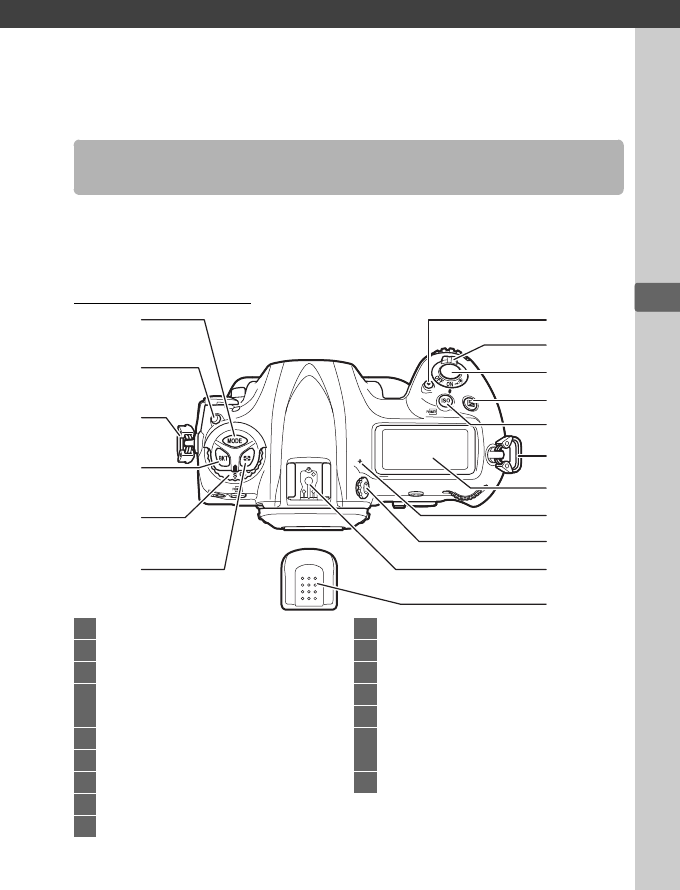
Camera Body
Getting to Know the Camera
1
2
3
4
5
6
8
7
9
10
3
11
12
13
14
15
16
1I button .................................. 131
2
Release mode dial lock release
... 116
3Eyelet for camera strap..................19
4BKT button
..............147, 151, 155, 193, 229, 305
5Release mode dial ....................... 116
6Y button....................................... 130
7Movie-record button ............61, 305
8Power switch................................9, 27
9Shutter-release button........... 40, 41
10 E button........................................ 143
11 S/Q button ..............33, 124, 128
12 Top control panel.............................. 6
13 Focal plane mark (E) ................ 115
14 Diopter adjustment control .........35
15 Accessory shoe
(for optional flash unit) ........14, 194
16 Accessory shoe cover...14, 194, 353
2
X
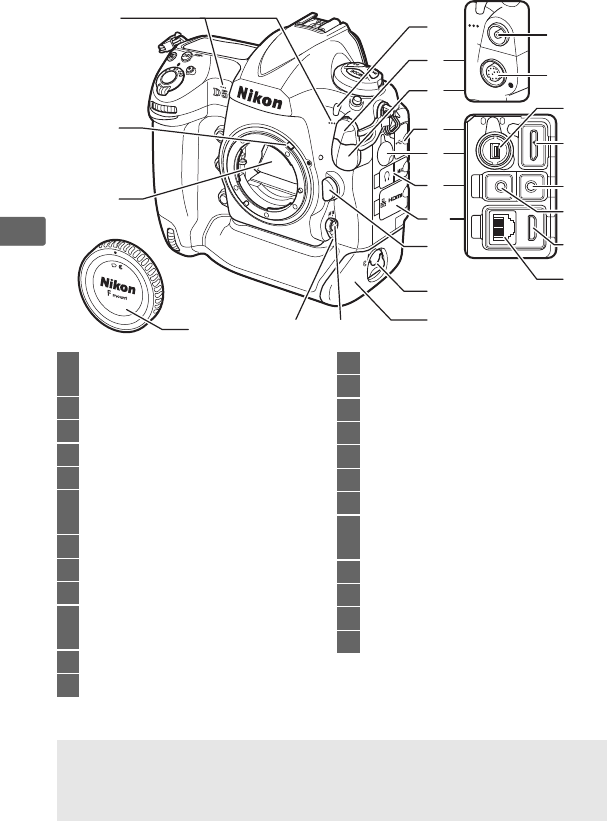
Camera Body (Continued)
2
1
3
24
4
5
6
7
8
9
10
11
1415
12
13
16
19
20
21
23
22
18
17
1Stereo microphone
(for movies).......................61, 63, 296
2Meter coupling lever ...................371
3Mirror......................................122, 345
4Self-timer lamp.............................121
5Flash sync terminal cover...........195
6Ten-pin remote terminal
cover.......................................244, 337
7USB connector cover ..........276, 281
8Peripheral connector cover........335
9Audio connector cover......... 64, 339
10 HDMI/Ethernet connector
cover.......................................279, 284
11 Lens release button ....................... 26
12 Battery-chamber cover latch....... 22
13 Battery-chamber cover................. 22
14 AF-mode button.... 48, 50, 101, 105
15 Focus-mode selector ..... 48, 98, 114
16 Flash sync terminal ......................195
17 Ten-pin remote terminal ...244, 337
18 Peripheral connector...................335
19 USB connector .....................276, 281
20 Connector for external
microphone ............................ 64, 339
21 Headphone connector........... 64, 66
22 HDMI connector ...........................284
23 Ethernet connector......................279
24 Body cap.................................. 25, 337
DClose the Connector Cover
Close the connector cover when the connectors are not in use.
Foreign
matter in the connectors can interfere with data transfer.
3
X
1
2
3
4
5
8
7
6
11
10
9
12
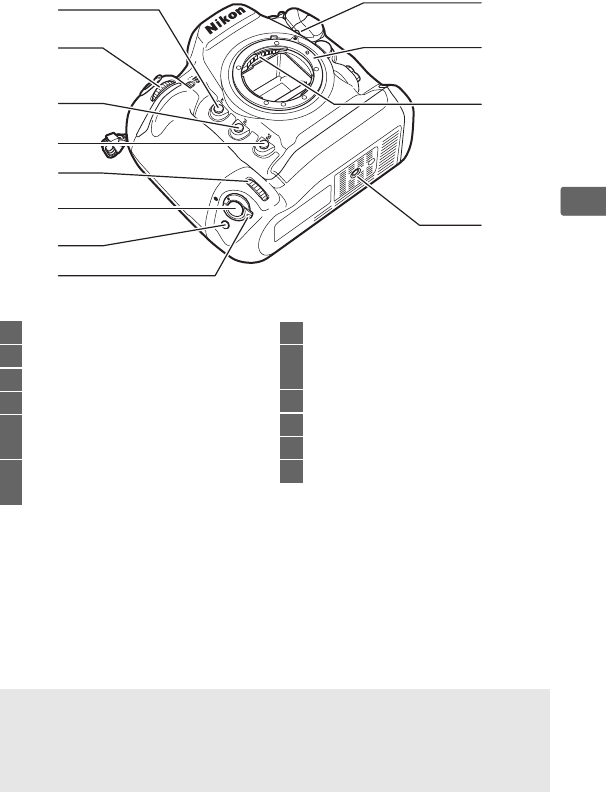
1Pv button ...............50, 132, 305, 307
2Sub-command dial...................... 306
3Fn1 button ............................ 305, 307
4Fn2 button ............................ 305, 307
5Sub-command dial for
vertical shooting....................39, 306
6Shutter-release button for
vertical shooting.............................39
7Fn button (vertical)................39, 305
8Vertical shooting shutter-release
button lock.......................................39
9Lens mounting mark......................26
10 Lens mount .............................26, 115
11 CPU contacts
12 Tripod socket
DThe Speaker
Do not place the speaker in close proximity to magnetic devices.
Failure
to observe this precaution could affect the data recorded on the
magnetic devices.

4
X
Camera Body (Continued)
1
2
3
4
5
6
7
8
9
10
1211 15
18
19
17
16
13 14
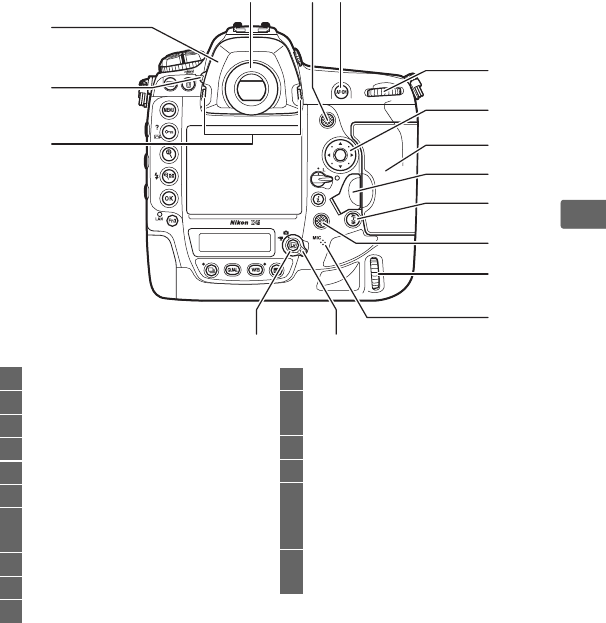
1O/Q button ....................33, 43, 266
2K button ................................ 42, 246
3Monitor ....... 12, 42, 44, 59, 246, 308
4G button ............................ 15, 287
5L (Z/Q) button ...... 16, 180, 263
6X button.........................................261
7W/M button.......199, 200, 246, 261
8J (OK) button........................ 16, 247
9Network indicator
10 Fn3 button...........271, 274, 305, 307
11 Rear control panel............................ 8
12 S button ............116, 119, 224, 302
13 T button............................ 93, 96
14 U button
......................159, 163, 167, 169, 224
15 R (info) button .............. 57, 68, 220
16 Viewfinder................................. 10, 35
17 Focus selector lock.......................108
18 Memory card access lamp..... 31, 41
19 i button .................. 51, 63, 223, 251
5
X
1
2
3
87
9
11
12
13
14
16
15
10
54
6
1Eyepiece adapter ...................36, 336
2Eyepiece shutter lever ................ 120
3Eyepiece adapter latch..................36
4a button................. 44, 59, 173, 307
5Live view selector .................... 44, 59
6Viewfinder eyepiece .............36, 120
7Sub-selector
.......................109, 111, 141, 305, 307
8AF-ON button.......102, 112, 298, 305
9Main command dial .................... 306
10 Multi selector................... 16, 41, 248
11 Memory card slot cover .........30, 32
12 Card slot cover release button
(under cover) ...................................30
13 C button...........................39, 102, 305
14 Multi selector (vertical) ........39, 305
15 Main command dial
(vertical) ...................................39, 306
Speaker ....................................81, 274
16 Microphone
(for voice memos)........................ 270
6
X
The Top Control Panel
7
1
2
3
4
5
6
12
9
11
10
8
13
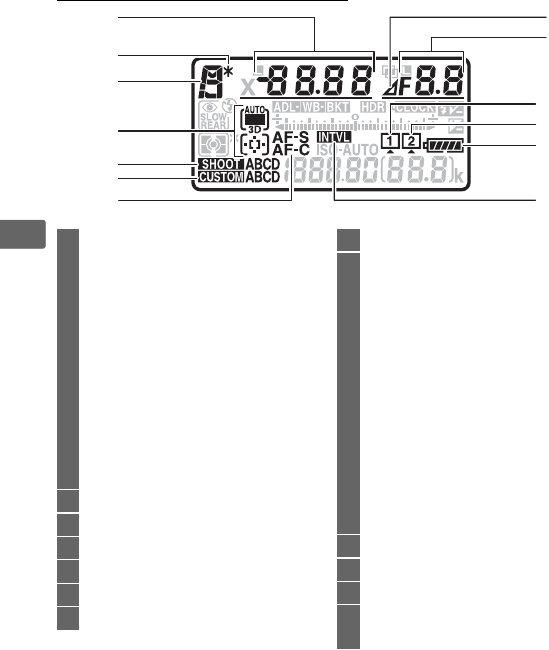
1Shutter speed.......................134, 136
AF-area mode.......................104, 106
Exposure compensation value
.....143
Flash compensation value .........200
Number of shots in
exposure and flash bracketing
sequence ........................................147
Number of shots in
WB bracketing sequence............151
Number of intervals for
interval timer photography.......237
Focal length (non-CPU lenses)
.....243
2Flexible program indicator.........133
3Exposure mode.............................131
4AF-area mode indicator.....104, 106
5Photo shooting menu bank.......289
6Custom settings bank .................297
7Autofocus mode ...........................101
8Aperture stop indicator .....135, 324
9Aperture (f-number)...........135, 136
Aperture
(number of stops)................135, 324
Bracketing increment.........148, 152
Number of shots in ADL
bracketing sequence...................155
Number of shots per interval ....237
HDR exposure differential ..........193
Number of exposures
(multiple exposure) .....................229
Maximum aperture
(non-CPU lenses) ..........................243
PC mode indicator........................337
10 Memory card icon (Slot 1)..... 32, 33
11 Memory card icon (Slot 2)..... 32, 33
12 Battery indicator............................. 37
13 Interval timer indicator...............237
Time-lapse on indicator................ 79
7
X
Note: Display shown with all indicators lit for illustrative purposes.
14
15
17
18
16
20
19
21
25
24
26
27
22
23
29
28
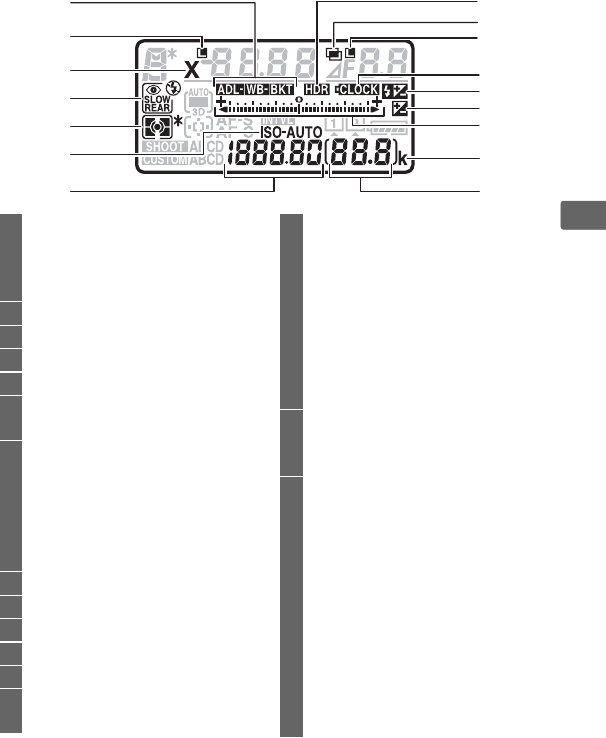
14 Exposure and flash bracketing
indicator......................................... 147
WB bracketing indicator ............ 151
ADL bracketing indicator........... 155
15 Shutter-speed lock icon............. 140
16 Flash sync indicator..................... 303
17 Flash mode.................................... 198
18 Metering ........................................ 130
19 ISO sensitivity indicator ............. 124
Auto ISO sensitivity indicator ... 128
20 Frame count.....................................38
ISO sensitivity ............................... 124
ISO sensitivity
(high/low gain) ............................ 125
White balance preset number
..... 170
Overlay mode ............................... 230
21 HDR indicator ............................... 190
22 Multiple exposure indicator...... 228
23 Aperture lock icon....................... 140
24 Clock battery indicator.........29, 349
25
Flash compensation indicator
..... 200
26 Exposure compensation
indicator......................................... 143
27 Exposure indicator....................... 137
Exposure compensation
display ............................................ 143
Bracketing progress indicator:
Exposure and flash
bracketing................................... 147
WB bracketing ........................... 151
ADL bracketing.......................... 155
PC connection indicator............. 337
28 “k” (appears when memory
remains for over 1000
exposures) ........................................38
29 Number of exposures
remaining ................................38, 383
Number of shots remaining before
memory buffer fills............. 118, 383
Preset white balance
recording indicator...................... 170
Active D-Lighting amount......... 156
HDR mode ..................................... 193
Multiple exposure mode............ 229
Manual lens number................... 243
Time-lapse recording indicator...79
Capture mode indicator............. 337
8
X
The Rear Control Panel
Note: Display shown with all indicators lit for illustrative purposes.
1
2
4
3
5
610
9
8
711
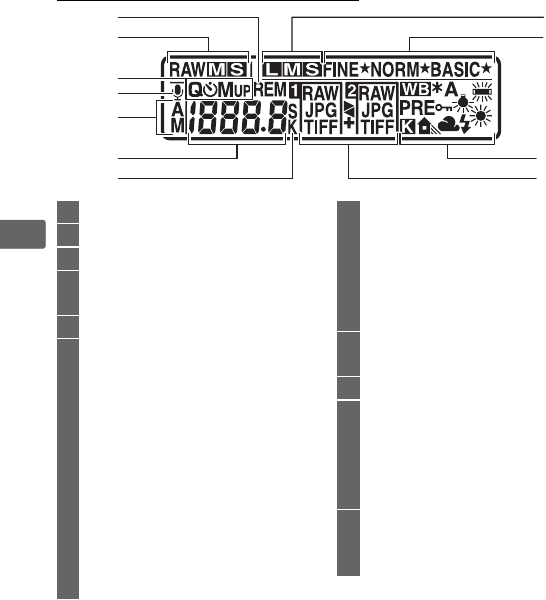
1“Remaining” indicator.................383
2Image size (NEF/RAW)................... 96
3Release mode.......................116, 119
4Voice memo status
indicator ................................272, 273
5Voice memo recording mode....272
6Release mode.......................116, 119
Continuous shooting
speed......................................116, 301
Self-timer shot count/
self-timer delay....................121, 301
Number of exposures
remaining..........................93, 96, 383
Length of voice memo................272
White balance fine-tuning.........163
White balance preset number
.....170
Color temperature...............161, 167
PC mode indicator .......................337
7“k” (appears when memory
remains for over 1000
exposures)........................................ 38
Color temperature indicator......167
Supplementary seconds
display....................................121, 272
8Image size
(JPEG and TIFF images)................. 96
9Image quality .................................. 92
10 White balance ...............................159
White balance fine-tuning
indicator .........................................163
White balance preset
protection indicator.....................172
11 Role played by memory card
in Slot 2 ............................................. 97
Image quality .................................. 92
9
X
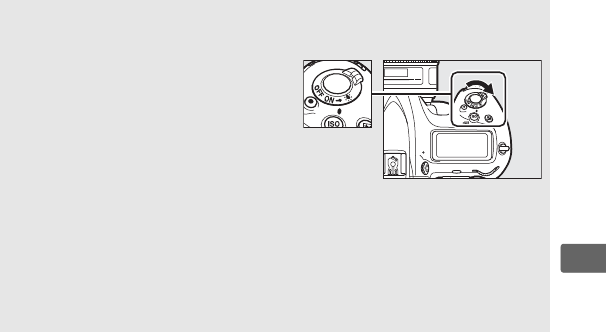
ALCD Illuminators
Rotating the power switch toward
D
activates the backlights for the
buttons and control panels, making it
easier to use the camera in the dark.
After the power switch is released, the
backlights will remain lit for a few
seconds while the standby timer is
active or until the shutter is released
or the power switch is rotated toward
D
again.
DThe Control Panel and Viewfinder Displays
The brightness of the control panel and viewfinder displays varies with
temperature, and the response times of the displays may drop at low
temperatures.
This is normal and does not indicate a malfunction.
Power switch
10
X
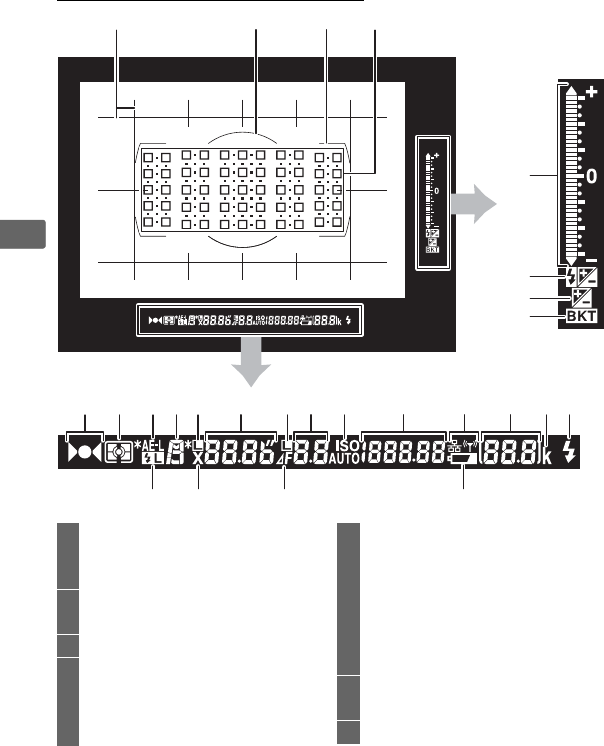
The Viewfinder Display
234
5
7
8
6
1
9
23 24 25 26
10 11 12 13 14 15 16 17 18 19 20 21 22
1Framing grid (displayed when On
is selected for Custom Setting d8)
..........................................................302
212-mm reference circle for center-
weighted metering......................129
3AF area brackets ............................. 35
4Focus points................... 40, 108, 298
Spot metering targets.................129
AF-area mode indicator..............105
Roll indicator 1
5Exposure indicator .......................137
Exposure compensation display
..........................................................143
Bracketing progress indicator:
Exposure and flash
bracketing ..................................147
Pitch indicator 2
6Exposure compensation
indicator .........................................143
7
Flash compensation indicator
....200

11
X
1 Functions as a pitch indicator when camera is rotated to take pictures in “tall”
(portrait) orientation.
2 Functions as a roll indicator when camera is rotated to take pictures in “tall” (portrait)
orientation.
3 Displayed when an optional flash unit is attached (0194).
The flash-ready indicator
lights when the flash is charged.
Note: Display shown with all indicators lit for illustrative purposes.
8Bracketing indicator:
Exposure and flash
bracketing ................................. 147
WB bracketing .......................... 151
ADL bracketing......................... 155
9Focus indicator.......................40, 115
10 Metering ........................................ 129
11 Autoexposure (AE) lock.............. 141
12 Exposure mode ............................ 131
13 Shutter speed lock icon.............. 140
14 Shutter speed ...................... 134, 136
Autofocus mode ....................98, 101
15 Aperture lock icon....................... 140
16 Aperture (f-number).......... 135, 136
Aperture
(number of stops)............... 135, 324
17 ISO sensitivity indicator ............. 124
Auto ISO sensitivity indicator
.... 127
18 ISO sensitivity ............................... 124
Active D-Lighting amount
AF-area mode...................... 105, 106
19 Network display ........................... 279
20 Number of exposures
remaining ................................38, 383
Number of shots remaining before
memory buffer fills.......40, 118, 383
Preset white balance
recording indicator...................... 170
Exposure compensation value
.... 143
Flash compensation value......... 200
PC mode indicator....................... 337
21 “k” (appears when memory
remains for over 1000
exposures) ........................................38
22 Flash-ready indicator 3
........................................ 194, 203, 372
23 FV lock indicator .......................... 203
24 Flash sync indicator..................... 303
25 Aperture stop indicator..... 135, 324
26 Low battery warning .....................37
DNo Battery
When the battery is totally exhausted or no battery is inserted, the
display in the viewfinder will dim.
This is normal and does not indicate a
malfunction.
The viewfinder display will return to normal when a fully-
charged battery is inserted.
12
X
Using the Touch Screen
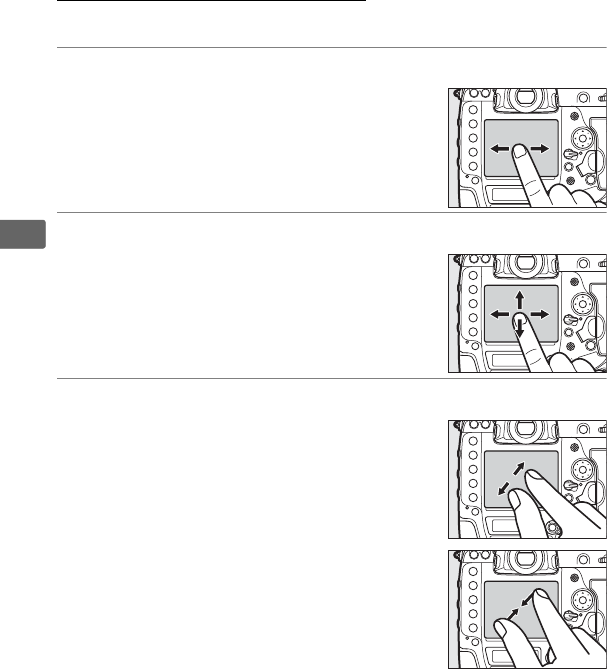
The touch-sensitive monitor supports the following operations:
Flick
Slide
Stretch/Pinch
Flick a finger a short distance left or right
across the monitor.
Slide a finger over the monitor.
Place two fingers on the monitor and move
them apart or pinch them together.

13
X
❚❚ Using the Touch Screen
During playback (0249), the touch screen can be used to:
• View other images
• Zoom in or out
• View thumbnails
• View movies
The touch screen can be used to position the focus point during
live view (049), to measure a value for preset manual white
balance using spot white balance tool (0173), and for typing
(0185).
DThe Touch Screen
The touch screen responds to static electricity and may not respond
when covered with third-party protective films or when touched with
fingernails or gloved hands.
Do not use excessive force or touch the
screen with sharp objects.
DUsing the Touch Screen
The touch screen may not respond as expected if you attempt to
operate it while leaving your palm or another finger resting on it in
second location.
It may not recognize other gestures if your touch is too
soft, your fingers are moved too quickly or too short a distance or do
not remain in contact with the screen, or if the movement of the two
fingers in a pinch or stretch is not correctly coordinated.
AEnabling or Disabling Touch Controls
Touch controls can be enabled or disabled using the Touch controls
option in the setup menu (0310).
ASee Also
The Touch controls option in the setup menu can be used to choose
the direction you flick your finger to view other images in full-frame
playback (0310).
14
X
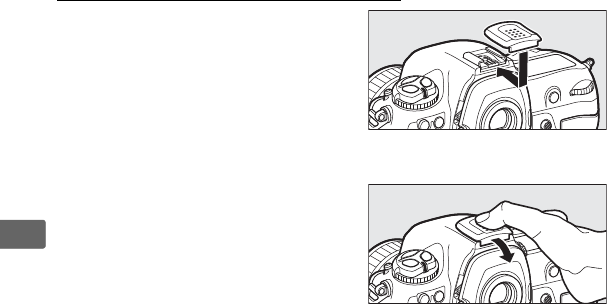
The Accessory Shoe Cover
The supplied accessory shoe cover
can be used to protect the
accessory shoe or to prevent light
reflected from the metal parts of
the shoe from appearing in
photographs.
The cover attaches
to the camera accessory shoe as shown at right.
To remove the accessory shoe
cover, hold it down with your
thumb and slide it off as shown at
right while keeping a firm grip on
the camera.
s
15
s
Tutorial
Most shooting, playback, and setup options
can be accessed from the camera menus.
To
view the menus, press the G button.
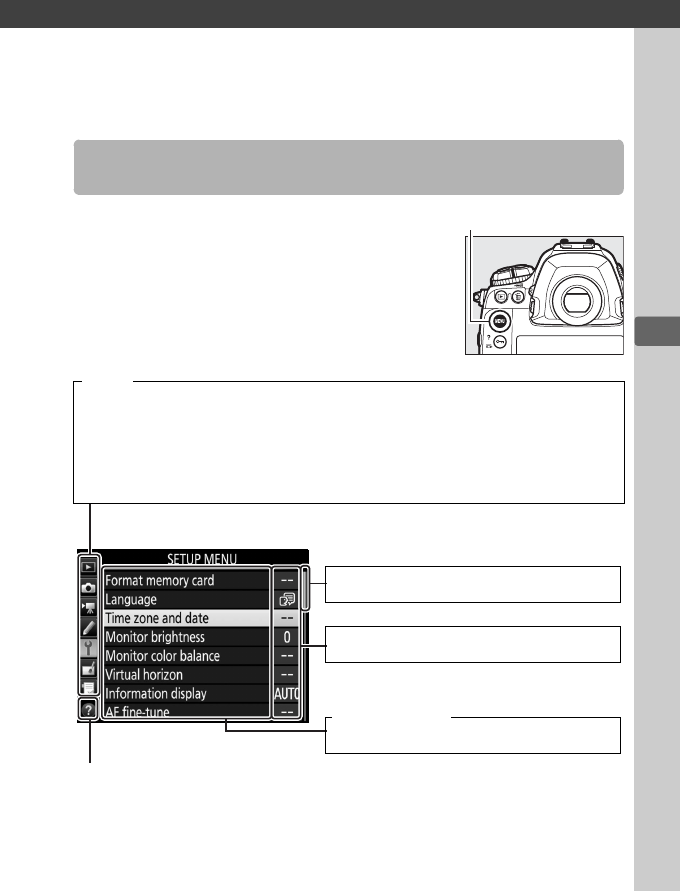
Camera Menus
Tabs
Choose from the following menus:
•D: Playback (0287)
•C: Photo Shooting (0289)
•1: Movie Shooting (0294)
•A: Custom Settings (0297)
•B: Setup (0308)
•N: Retouch (0312)
•O/m: MY MENU or RECENT SETTINGS
(defaults to MY MENU; 0314)
Help icon (016)
G button
Slider shows position in current menu.
Current settings are shown by icons.
Menu options
Options in current menu.
16
s
Using Camera Menus
❚❚ Menu Controls
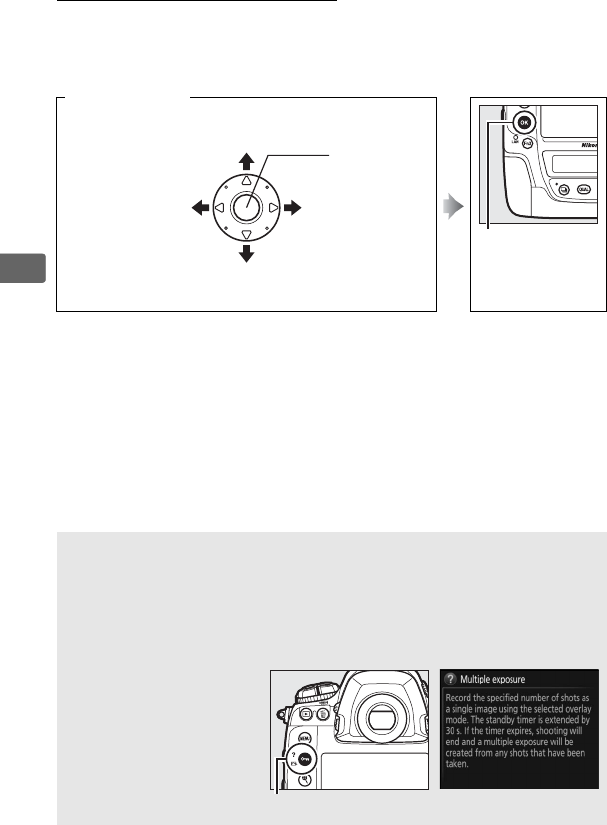
The multi selector and J button are used to navigate the menus.
Multi selector
J button
Select
highlighted item
AThe d (Help) Icon
If a d icon is displayed at the bottom left corner of the monitor, help can
be displayed by pressing the L (Z/Q) button.
A description of the currently selected option or menu will be displayed
while the button is pressed.
Press 1 or 3 to scroll through the display.
Move cursor up
Cancel and return
to previous menu
Select
highlighted
item or display
sub-menu
Select
highlighted
item
Move cursor down
L (Z/Q) button
17
s
❚❚ Navigating the Menus
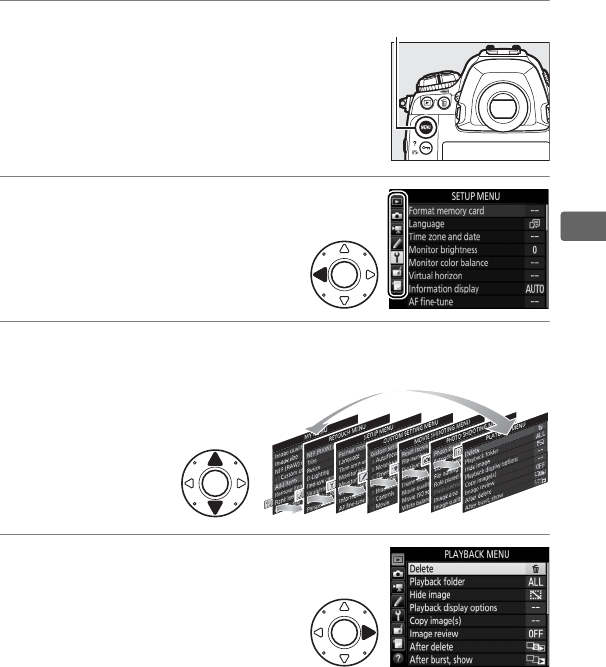
Follow the steps below to navigate the menus.
1Display the menus.
Press the G button to display the
menus.
2Highlight the icon for the
current menu.
Press 4 to highlight the icon for
the current menu.
3Select a menu.
Press 1 or 3 to select the desired menu.
4Position the cursor in the
selected menu.
Press 2 to position the cursor
in the selected menu.
G button
18
s
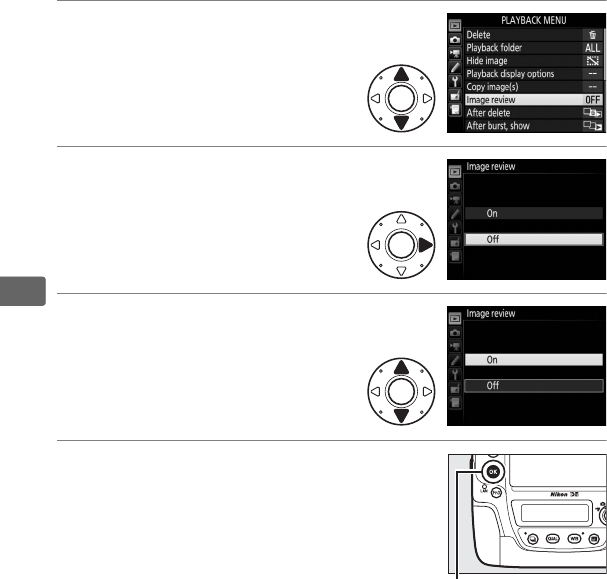
5Highlight a menu item.
Press 1 or 3 to highlight a
menu item.
6Display options.
Press 2 to display options for
the selected menu item.
7Highlight an option.
Press 1 or 3 to highlight an
option.
8Select the highlighted item.
Press J to select the highlighted item.
To
exit without making a selection, press the
G button.
Note the following points:
• Menu items that are displayed in gray are not currently available.
• While pressing 2 or the center of the multi selector generally
has the same effect as pressing J, there are some items for
which selection can only be made by pressing J.
• To exit the menus and return to shooting mode, press the
shutter-release button halfway (040).
J button
19
s
First Steps
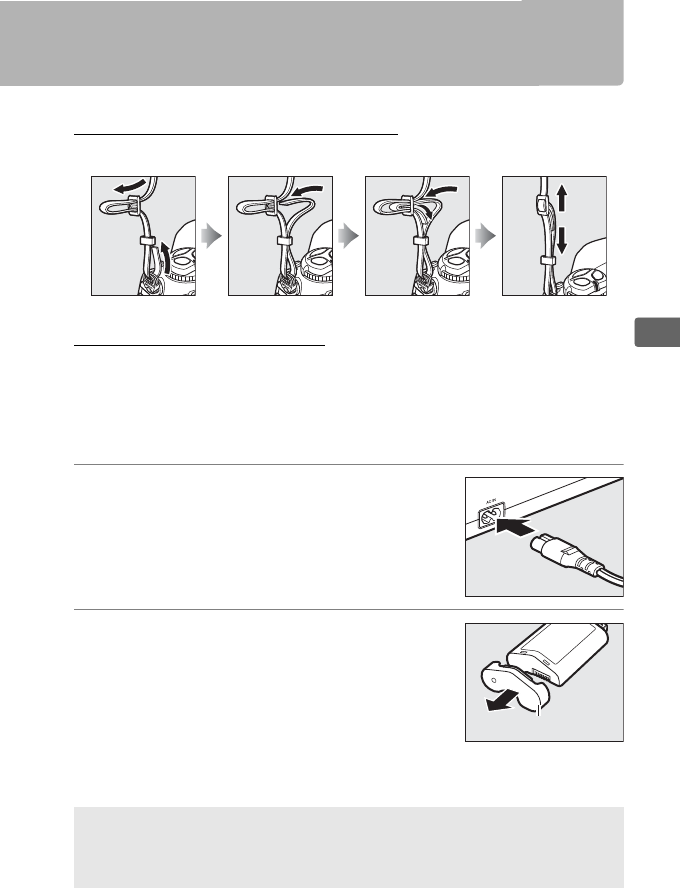
Attach the Camera Strap
Attach the strap securely to the camera eyelets.
Charge the Battery
The D5 is powered by an EN-EL18a rechargeable Li-ion battery
(supplied).
To maximize shooting time, charge the battery in the
supplied MH-26a battery charger before use.
Batteries take about
2 hours and 35 minutes to fully recharge when no charge remains.
1Plug the charger in.
Insert the AC adapter plug into the
battery charger and plug the power
cable into an electrical outlet.
2Remove the terminal cover.
Remove the terminal cover from the
battery.
ASee Also
For information on using the MH-26a to charge two batteries, see
page 379.
Terminal cover
20
s
3Remove the contact protector.
Remove the contact protector from the
charger battery chamber.
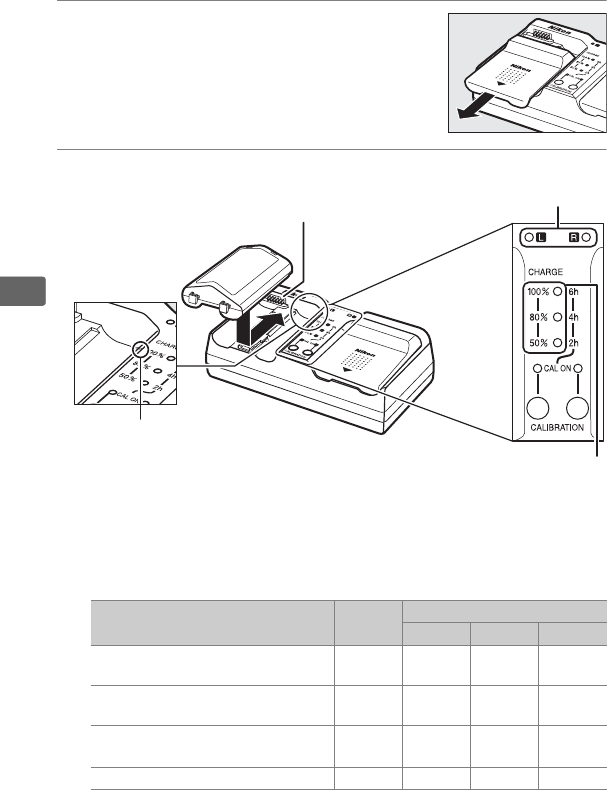
4Charge the battery.
Insert the battery (terminals first), aligning the end of the
battery with the guide and then sliding the battery in the
direction indicated until it clicks into place.
The chamber lamp
and charge lamps will flash slowly while the battery charges:
Charge state
Chamber
lamp
Charge lamps
50% 80% 100%
Less than 50% of maximum capacity H (flashes
slowly)
H (flashes
slowly) I (off) I (off)
50–80% of maximum capacity H (flashes
slowly) K (glows) H (flashes
slowly) I (off)
More than 80% but less than 100% of
maximum capacity
H (flashes
slowly) K (glows) K (glows) H (flashes
slowly)
100% of maximum capacity K (glows) I (off) I (off) I (off)
Guide
Chamber lamps
Charge lamps (green)
Contacts
21
s
Charging is complete when the chamber lamp stops flashing
and the charge lamps turn off.
About 2 hours and 35 minutes
are required to fully charge an exhausted battery; note that
the battery will not charge if its temperature is below 0 °C
(32 °F) or above 60 °C (140 °F).
5Remove the battery when charging is complete.
Remove the battery and unplug the charger.
DCalibration
See page 378 for more information on calibration.
22
s
Insert the Battery
1Turn the camera off.
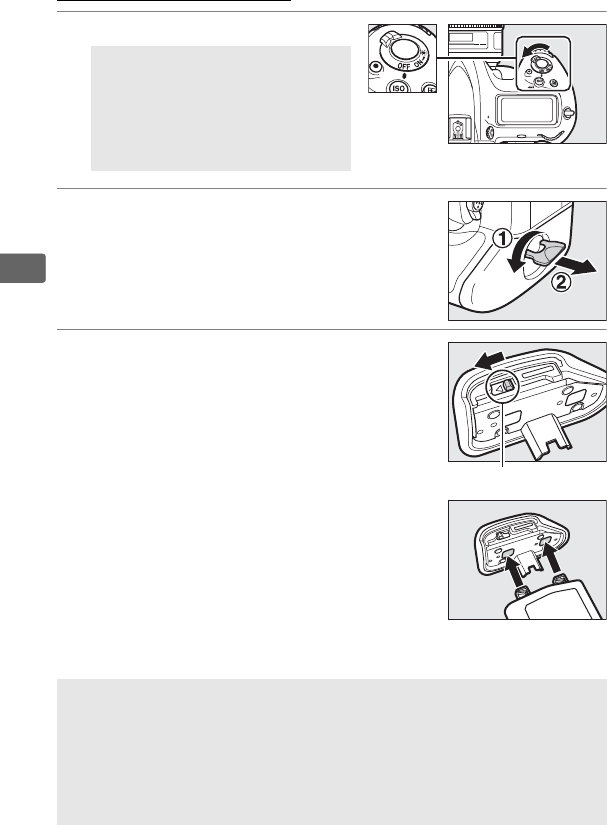
2Remove the battery-chamber cover.
Lift the battery-chamber cover latch, turn
it to the open (
A
) position (
q
) and remove
the BL-6 battery-chamber cover (
w
).
3Attach the cover to the battery.
If the battery release is positioned so that
the arrow (H) is visible, slide the battery
release to cover the arrow.
Insert the two
projections on the battery into the
matching slots in the cover and slide the
battery release to completely reveal the
arrow.
DInserting and Removing
Batteries
Before inserting or removing the
battery, confirm that power
switch is in the OFF position.
AThe BL-6 Battery-Chamber Cover
The battery can be charged with the BL-6 attached.
To prevent dust
from accumulating inside the battery chamber when the battery is not
inserted, slide the battery release in the direction indicated by the arrow
(H), remove the BL-6 from the battery, and replace it on the camera.
Other battery covers can not be used with this camera.
Battery release
23
s
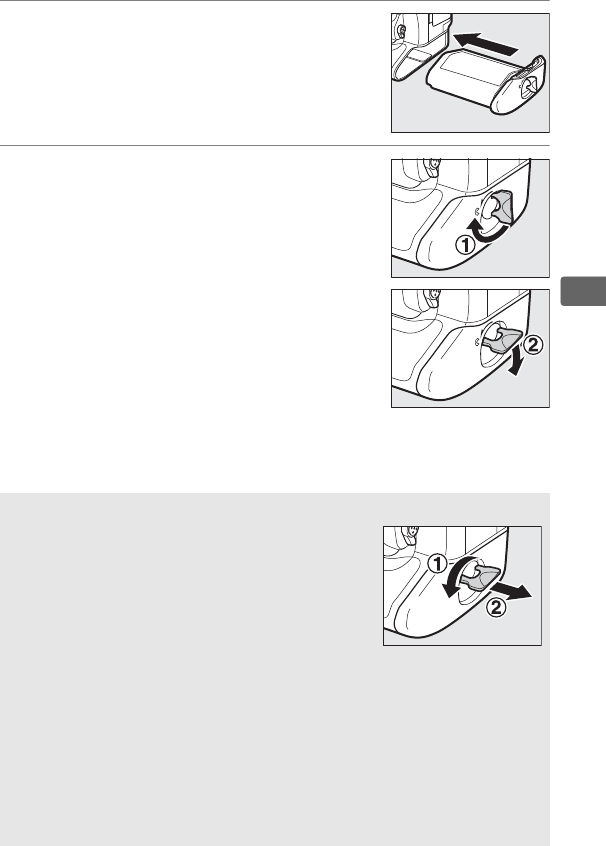
4Insert the battery.
Insert the battery as shown at right.
5Latch the cover.
To prevent the battery from becoming
dislodged during operation, rotate the
latch to the closed position and fold it
down as shown at right.
Be sure the
cover is securely latched.
ARemoving the Battery
Before removing the battery, turn the camera off,
lift the battery-chamber cover latch, and turn it
to the open (A) position.
Note that the battery
may be hot after use; observe due caution when
removing the battery.
To prevent short-circuits,
replace the terminal cover when the battery is
not in use.
AEN-EL18a Rechargeable Li-ion Batteries
The supplied EN-EL18a shares information with compatible devices,
enabling the camera to show battery charge state in six levels (037).
The Battery info option in the setup menu details battery charge,
battery life, and the number of pictures taken since the battery was last
charged (0311).
The battery can be recalibrated as necessary to
ensure that battery level continues to be reported accurately (0378).

24
s
DThe Battery and Charger
Read and follow the warnings and cautions on pages x–xiii and 351–354 of
this manual.
Do not use the battery at ambient temperatures below 0 °C
(32 °F) or above 40 °C (104 °F); failure to observe this precaution could
damage the battery or impair its performance.
Capacity may be
reduced and charging times increase at battery temperatures from 0 °C
(32 °F) to 15 °C (59 °F) and from 45 °C (113 °F) to 60 °C (140 °F).
Do not short the charger terminals; failure to observe this precaution
could result in overheating and damage to the charger.
Charge indoors
at ambient temperatures of 5 °C (41 °F) to 35 °C (95 °F).
Battery capacity
may temporarily drop if the battery is charged at low temperatures or
used at a temperature below the temperature at which it was charged.
If the battery is charged at a temperature below 5 °C (41 °F), the battery
life indicator in the Battery info (0311) display may show a temporary
decrease.
Use the charger with compatible batteries only.
Unplug when not in
use.
A marked drop in the time a fully charged battery retains its charge
when used at room temperature indicates that it requires replacement.
Purchase a new EN-EL18a battery.
25
s
Attach a Lens
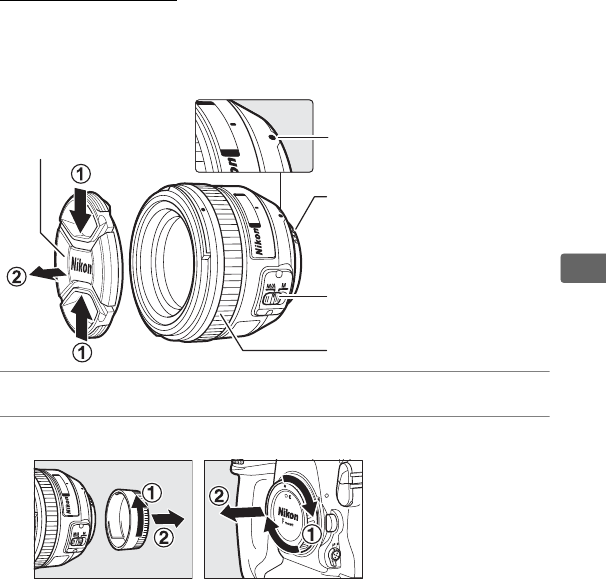
Care should be taken to prevent dust from entering the camera
when the lens is removed.
The lens generally used in this manual
for illustrative purposes is an AF-S NIKKOR 50mm f/1.4G.
1Turn the camera off.
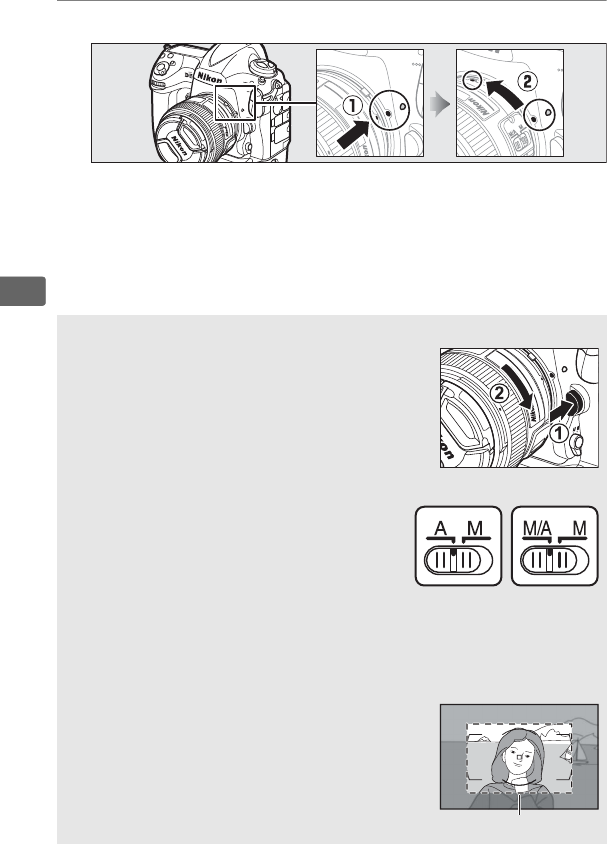
2Remove the rear lens cap and the camera body cap.
Focus-mode switch (026)
Lens mounting mark
Lens cap
Focus ring (0114)
CPU contacts (0324)
26
s
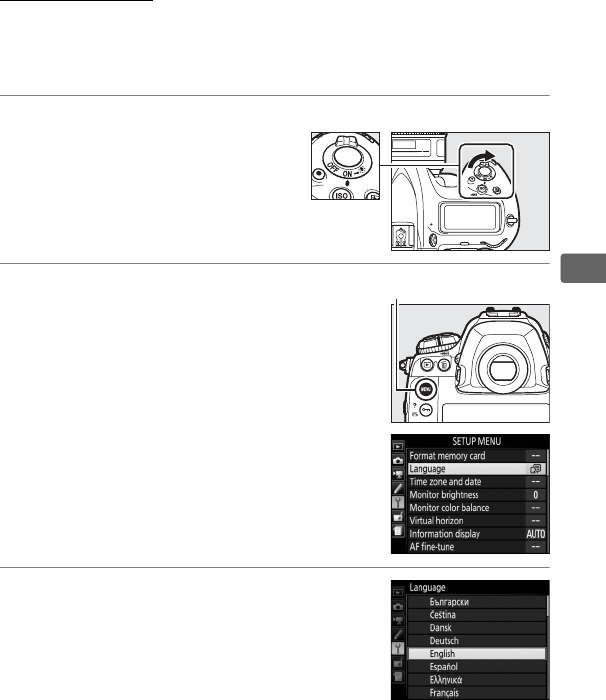
3Attach the lens.
Keeping the mounting mark on the lens aligned with the
mounting mark on the camera body, position the lens in the
camera’s bayonet mount (q).
Being careful not to press the
lens-release button, rotate the lens counter-clockwise until it
clicks into place (w).
ADetaching the Lens
Be sure the camera is off when removing or
exchanging lenses.
To remove the lens, press and
hold the lens release button (
q
) while turning
the lens clockwise (
w
).
After removing the lens,
replace the lens caps and camera body cap.
ALens Focus Mode
If the lens is equipped with a focus mode
switch, select autofocus mode (A, M/A, or A/M).
DCPU Lenses with Aperture Rings
In the case of CPU lenses equipped with an aperture ring (0324), lock
aperture at the minimum setting (highest f-number).
AImage Area
The DX format image area is automatically
selected when a DX lens is attached (088).
Image area
27
s
Basic Setup
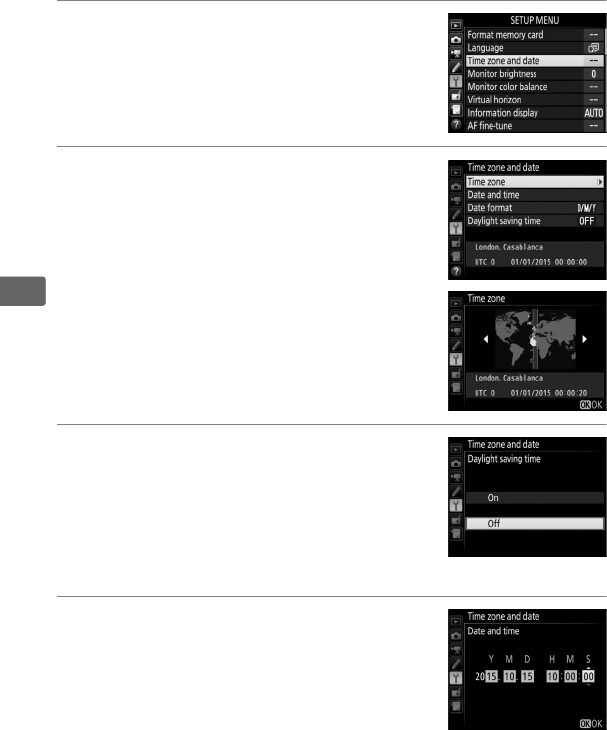
The language option in the setup menu is automatically
highlighted the first time menus are displayed.
Choose a
language and set the camera clock.
1Turn the camera on.
2Select Language in the setup menu.
Press the G button to display the
camera menus, then highlight Language
in the setup menu and press 2.
For
information on using menus, see “Using
Camera Menus” (016).
3Select a language.
Press 1 or 3 to highlight the desired
language and press J.
Power switch
G button
28
s
4Select Time zone and date.
Select Time zone and date and press 2.
5Set time zone.
Select Time zone and press 2.
Press 4
or 2 to highlight the local time zone (the
UTC field shows the difference between
the selected time zone and Coordinated
Universal Time, or UTC, in hours) and
press J.
6Turn daylight saving time on or off.
Select Daylight saving time and press
2.
Daylight saving time is off by default;
if daylight saving time is in effect in the
local time zone, press 1 to highlight On
and press J.
7Set the date and time.
Select Date and time and press 2.
Press
4 or 2 to select an item, 1 or 3 to
change.
Press J when the clock is set to
the current date and time (note that the
camera uses a 24-hour clock).
29
s
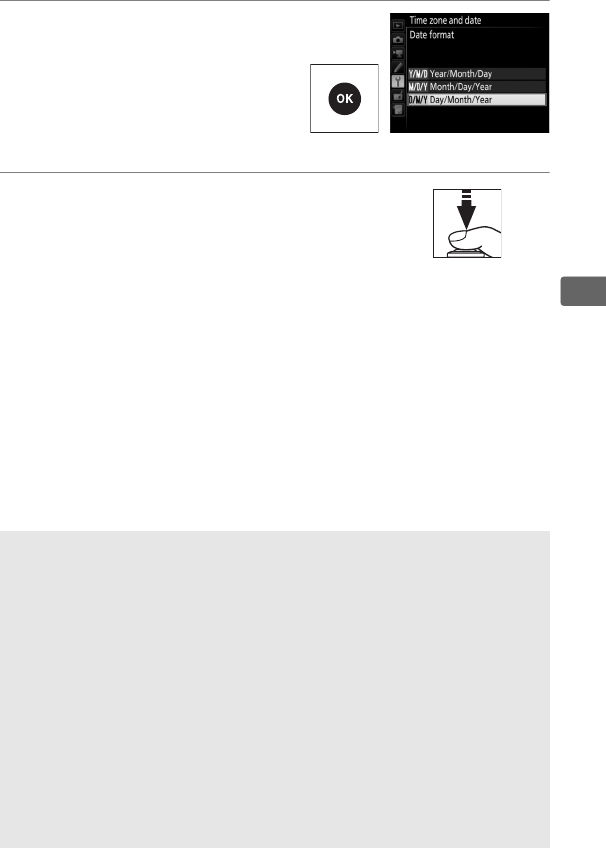
8Set date format.
Select Date format and press
2.
Press 1 or 3 to choose the
order in which the year, month,
and day will be displayed and
press J.
9Exit to shooting mode.
Press the shutter-release button halfway
to exit to shooting mode.
AThe Clock Battery
The camera clock is powered by a separate, non-rechargeable CR1616
lithium battery with a life of about two years.
When this battery is low, a
B icon will be displayed in the top control panel while the standby
timer is on.
For information on replacing the clock battery, see
page 349.
AThe Camera Clock
The camera clock is less accurate than most watches and household
clocks.
Check the clock regularly against more accurate time pieces and
reset as necessary.
AGPS Units (0244)
If a GPS unit (0338) is connected, the camera clock will be set to the
time and date provided by the GPS unit (0245).
30
s
Insert a Memory Card
Pictures are stored on memory cards (available separately; 0381).
The camera is equipped with slots for either two XQD or two Type I
CompactFlash cards.
Type II cards and microdrives can not be
used.
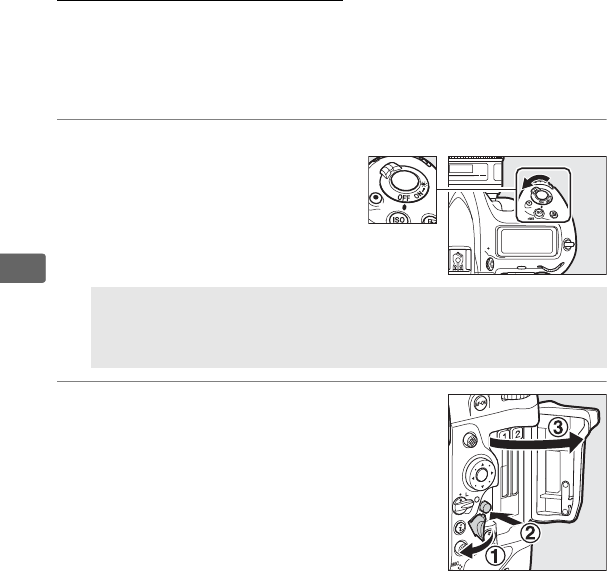
1Turn the camera off.
2Open the card slot cover.
Open the door protecting the card-slot
cover release button (q) and press the
release button (w) to open the card slot
(e).
DInserting and Removing Memory Cards
Always turn the camera off before inserting or removing memory
cards.
Power switch
31
s
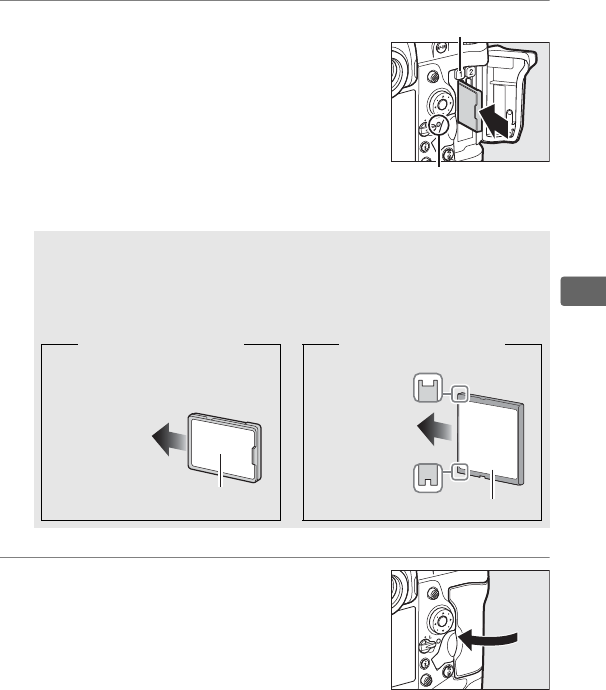
3Insert the memory card.
Insert the card into the card slot with the
rear label toward the monitor.
When the
memory card is fully inserted, the eject
button will pop up and the green
memory card access lamp will light
briefly.
4Close the card slot cover.
If this is the first time the memory card
will be used after being used or
formatted in another device, format the
card as described on page 33.
DInserting Memory Cards
Insert memory cards terminals first.
Inserting a card upside down
or backwards could damage the camera or the card.
Check to be
sure that the card is in the correct orientation.
XQD card CompactFlash card
Eject button
Memory card access
lamp
Direction of
insertion
Rear label
4 GB
Direction of
insertion
Rear label
32
s
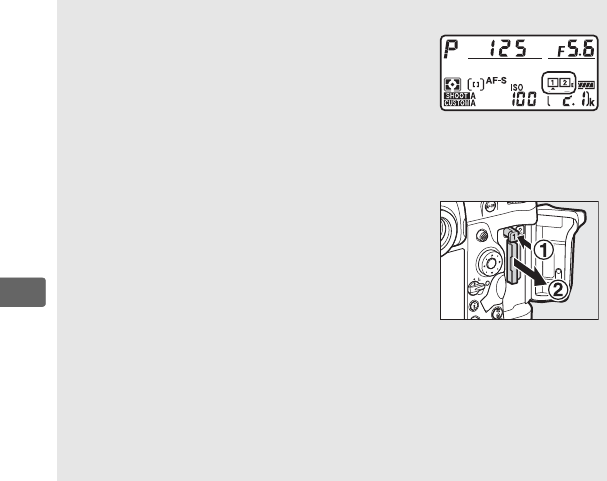
AMemory Card Icons
The memory card icons light when memory
cards are inserted (the example at right shows
the display when two memory cards are
inserted).
If the memory card is full or an error
has occurred, the icon for the affected card will
flash (0364).
ARemoving Memory Cards
After confirming that the memory card access
lamp is off, turn the camera off and open the
memory card slot cover.
Press the eject button
(q) to partially eject the card (w).
The memory
card can then be removed by hand.
Do not push
on the memory card while pressing the eject
button.
Failure to observe this precaution could
damage the camera or memory card.
ASee Also
Use the Role played by card in Slot 2 option in the photo shooting
menu to choose the role played by memory cards inserted in Slot 2
(097).
Top control panel
33
s
Format the Memory Card
Memory cards must be formatted before first use or after being
used or formatted in other devices.
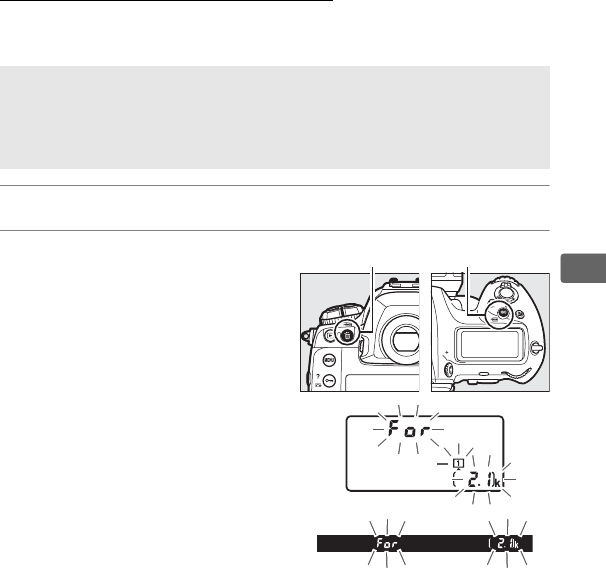
1Turn the camera on.
2Press the O(Q) and
S(Q) buttons.
Hold the O (Q) and S (Q)
buttons down simultaneously
until a flashing C appears in
the shutter-speed displays in
the top control panel and
viewfinder.
If two memory
cards are inserted, the card to
be formatted is shown by a
flashing icon.
By default, Slot 1
(097) will be selected; you
can choose Slot 2 by rotating
the main command dial.
To
exit without formatting the
memory card, wait until C stops flashing (about six
seconds) or press any button other than the O(Q) and
S(Q) buttons.
DFormatting Memory Cards
Formatting memory cards permanently deletes any data they may contain.
Be sure to copy any photographs and other data you wish to keep to a
computer before proceeding (0276).
O (Q) button S (Q) button
34
s
3Press the O (Q) and S (Q) buttons again.
Press the O (Q) and S (Q) buttons together a second time
while C is flashing to format the memory card.
Do not
remove the memory card or remove or disconnect the power
source during formatting.
DMemory Cards
• Memory cards may be hot after use.
Observe due caution when
removing memory cards from the camera.
• Turn the power off before inserting or removing memory cards.
Do
not remove memory cards from the camera, turn the camera off, or
remove or disconnect the power source during formatting or while
data are being recorded, deleted, or copied to a computer.
Failure to
observe these precautions could result in loss of data or in damage to
the camera or card.
• Do not touch the card terminals with your fingers or metal objects.
• Do not bend, drop, or subject to strong physical shocks.
• Do not apply force to the card casing.
Failure to observe this
precaution could damage the card.
• Do not expose to water, high levels of humidity, or direct sunlight.
• Do not format memory cards in a computer.
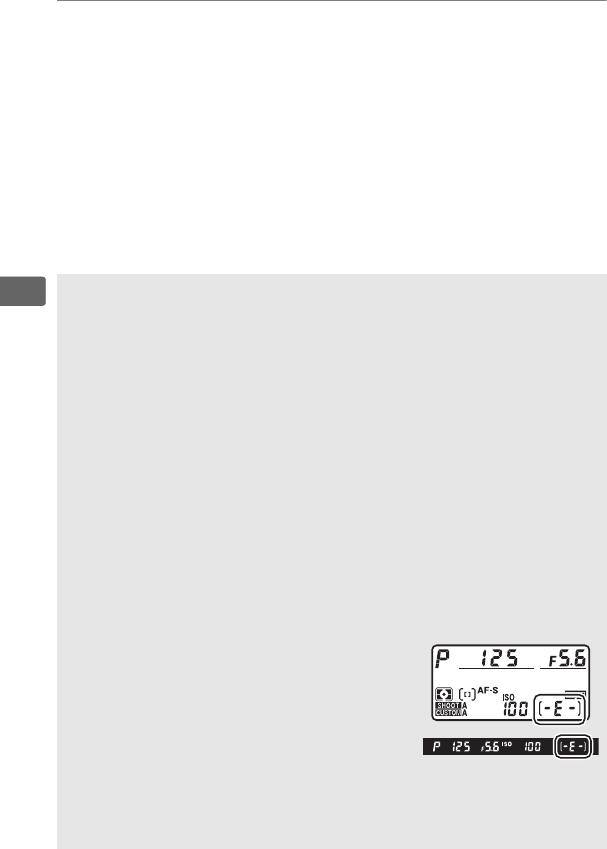
ANo Memory Card
If no memory card is inserted, the top control
panel and viewfinder will show S.
If the
camera is turned off with a charged battery
and no memory card inserted, S will be
displayed in the top control panel.
ASee Also
See page 308 for information on formatting memory cards using the
Format memory card option in the setup menu.
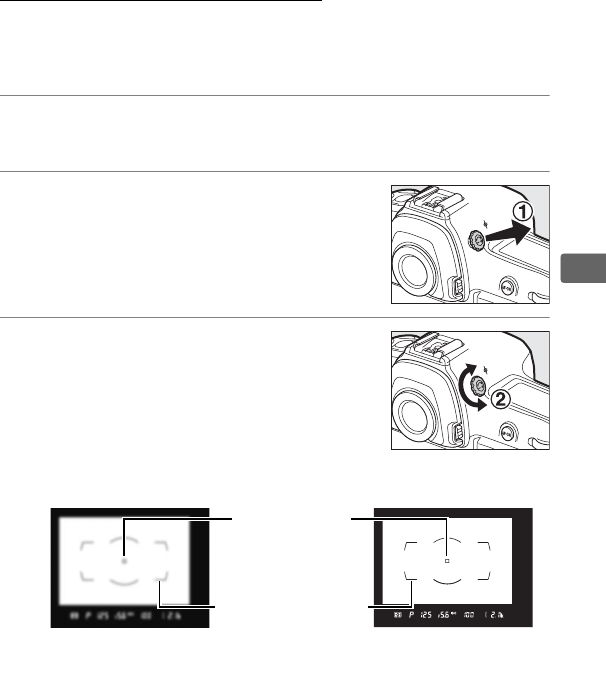
35
s
Adjust Viewfinder Focus
The camera is equipped with diopter adjustment to accommodate
individual differences in vision.
Check that the display in the
viewfinder is in focus before shooting.
1Turn the camera on.
Remove the lens cap and turn the camera on.
2Lift the diopter adjustment control
(q).
3Focus the viewfinder.
Rotate the diopter adjustment control
(w) until the viewfinder display, focus
points, and AF area brackets are in sharp
focus.
When operating the control with
your eye to the viewfinder, be careful not
to put your fingers or fingernails in your eye.
Focus point
AF area brackets
Viewfinder not in
focus
Viewfinder in focus
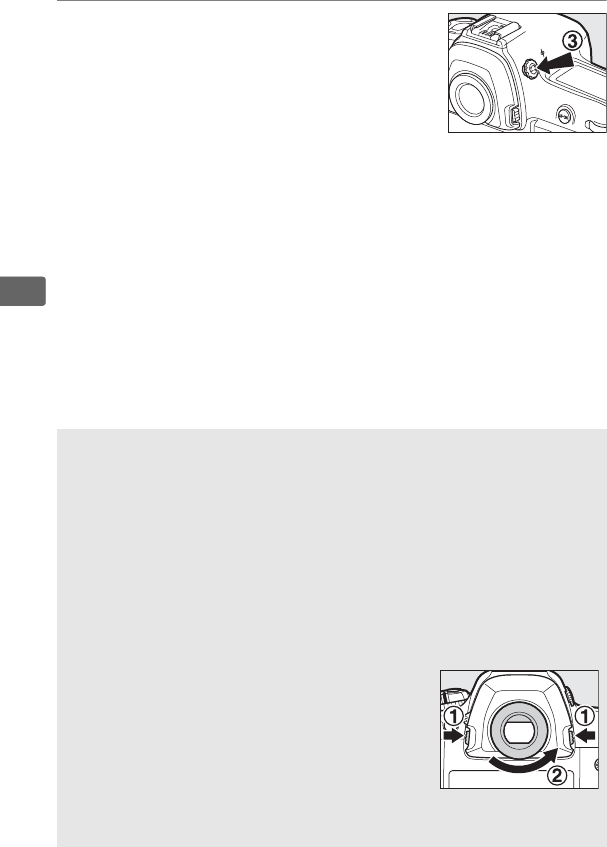
36
s
4Replace the diopter adjustment
control.
Push the diopter adjustment control
back in (e).
AAdjusting Viewfinder Focus
If you are unable to focus the viewfinder as described above, select
single-servo AF (AF-S; 0101), single-point AF (0104), and the center
focus point (0108), and then frame a high-contrast subject in the
center focus point and press the shutter-release button halfway to focus
the camera.
With the camera in focus, use the diopter adjustment
control to bring the subject into clear focus in the viewfinder.
If
necessary, viewfinder focus can be further adjusted using optional
corrective lenses (0336).
ADiopter-Adjustment Viewfinder Lenses
Corrective lenses (available separately; 0336)
can be used to further adjust viewfinder
diopter.
Before attaching a diopter-adjustment
viewfinder lens, remove the DK-17F viewfinder
eyepiece by pressing the latches on either side
of the eyepiece adapter to release the eyepiece
lock (q) and then unscrewing the eyepiece as
shown at right (w).
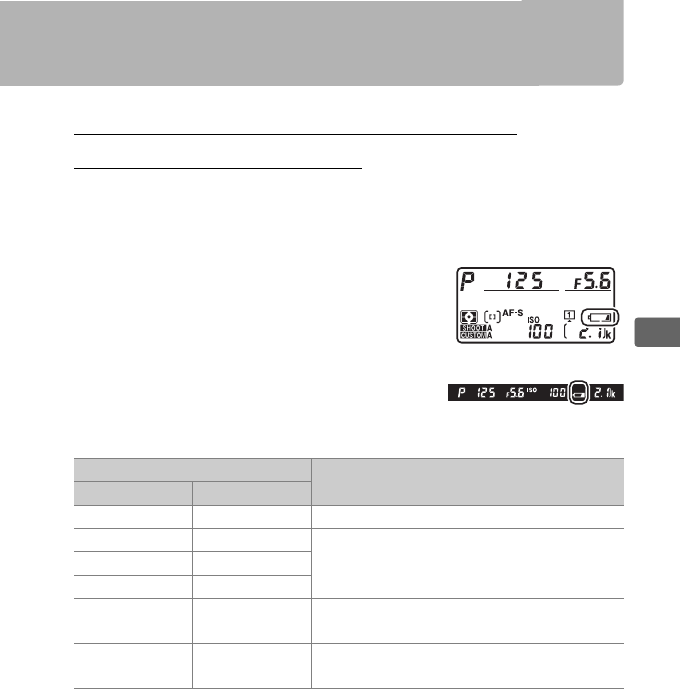
37
s
Basic Photography and Playback
The Battery Level and Number of
Exposures Remaining
Before taking photographs, check the battery level and number of
exposures remaining as described below.
❚❚ Battery Level
The battery level is shown in the top control
panel and viewfinder.
Icon
DescriptionControl panel Viewfinder
L— Battery fully charged.
K—
Battery partially discharged.J—
I—
HdLow battery.
Charge battery or ready
spare battery.
H
(flashes)
d
(flashes)
Shutter release disabled.
Charge or
exchange battery.
Top control panel
Viewfinder
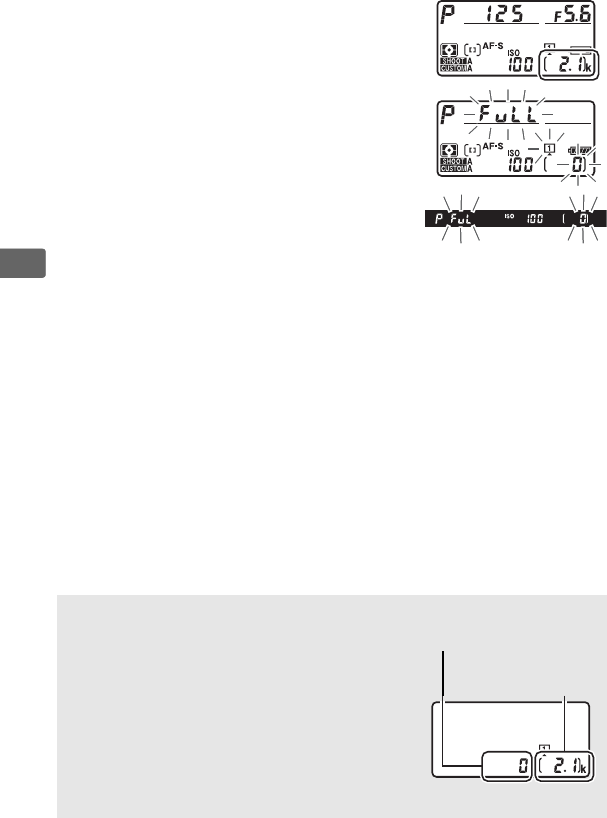
38
s
❚❚ Number of Exposures Remaining
The top control panel shows the number of
photographs that can be taken at current
settings (values over 1000 are rounded
down to the nearest hundred; e.g., values
between 2100 and 2199 are shown as
2.1 k).
If two memory cards are inserted,
the displays show the space available on
the card to which new photos will be
saved.
When this number reaches zero, A
will flash in the exposure-count displays
while the shutter-speed displays will show
a flashing n or j and the icon for the affected card will flash.
Insert another memory card or delete some photos.
ACamera Off Display
If the camera is turned off with a battery and
memory card inserted, the memory card icon,
frame count, and number of exposures
remaining will be displayed (depending on
the memory card, the camera may in rare
cases not display this information when a card
is inserted; this can be addressed by turning
the camera on).
Frame count
Number of
exposures remaining
Top control panel
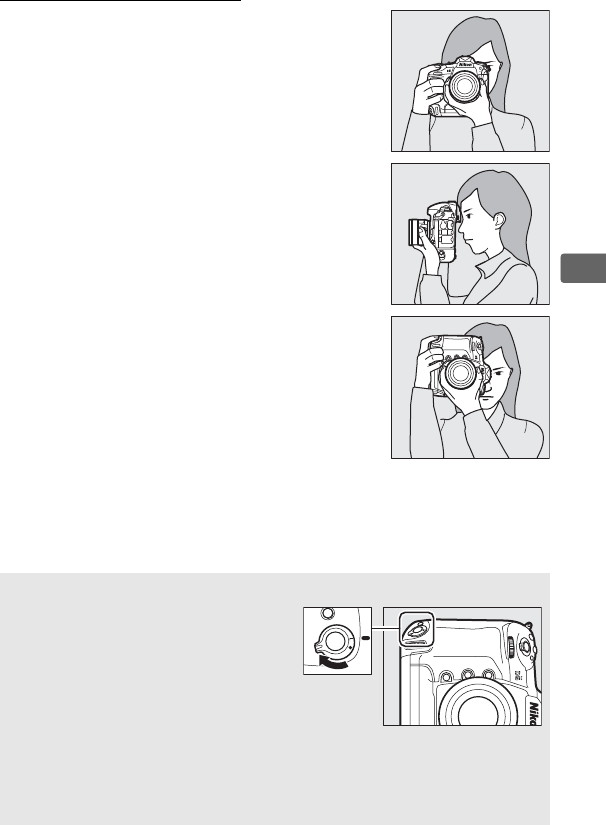
39
s
Ready the Camera
When framing photographs in the
viewfinder, hold the handgrip in your right
hand and cradle the camera body or lens
with your left.
Keep your elbows propped
lightly against your torso for support and
place one foot half a pace ahead of the
other to keep your upper body stable.
When framing photographs in portrait (tall)
orientation, hold the camera as shown in
the bottom of the three illustrations at right.
DFraming Photos in Portrait (Tall) Orientation
The camera is equipped with controls
for use in portrait (tall) orientation,
including a vertical shutter-release, Fn,
and AF-ON buttons, main and sub-
command dials, and multi selector
(0102, 109, 305).
Rotate the vertical
shooting shutter-release button lock
to L to avoid accidentally operating
these controls when the camera is in
landscape (wide) orientation.
Vertical shooting shutter-
release button lock
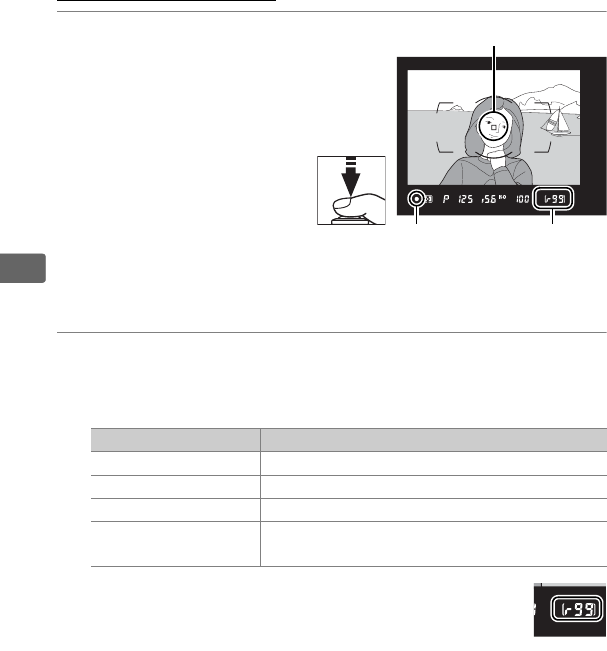
40
s
Focus and Shoot
1Press the shutter-
release button
halfway.
At default settings, the
camera will focus on the
subject in the center
focus point.
Frame a
photo in the viewfinder
with the main subject
positioned in the center
focus point and press the
shutter-release button halfway.
2Check indicators in the viewfinder.
When the focus operation is complete, the in-focus indicator
(I) will appear in the viewfinder.
While the shutter-release button is pressed halfway,
focus will lock and the number of exposures that
can be stored in the memory buffer (“t”; 0118) will
be shown in the viewfinder display.
For information on what to do if the camera is unable to focus
using autofocus, see “Getting Good Results with Autofocus”
(0113).
Viewfinder display Description
ISubject in focus.
FFocus point is between camera and subject.
HFocus point is behind subject.
FH Camera unable to focus on subject in focus
point using autofocus.(flashes)
Focus point
Focus
indicator
Buffer
capacity

41
s
3Shoot.
Smoothly press the shutter-
release-button the rest of the
way down to take the
photograph.
While the
photograph is being recorded
to the memory card, the
memory card access lamp will
light.
Do not eject the memory card or remove or disconnect the
power source until the lamp has gone out and recording is
complete.
AThe Standby Timer (Viewfinder Photography)
The shutter speed and aperture displays in the top control panel and
viewfinder will turn off if no operations are performed for about six
seconds, reducing the drain on the battery.
Press the shutter-release
button halfway to reactivate the displays.
Exposure meters on Exposure meters off
The length of time before the standby timer expires automatically can
be adjusted using Custom Setting c2 (Standby timer, 0301).
AThe Multi Selector
The multi selector can be used to select the
focus point while the exposure meters are on
(0108).
Memory card access
lamp
Multi selector
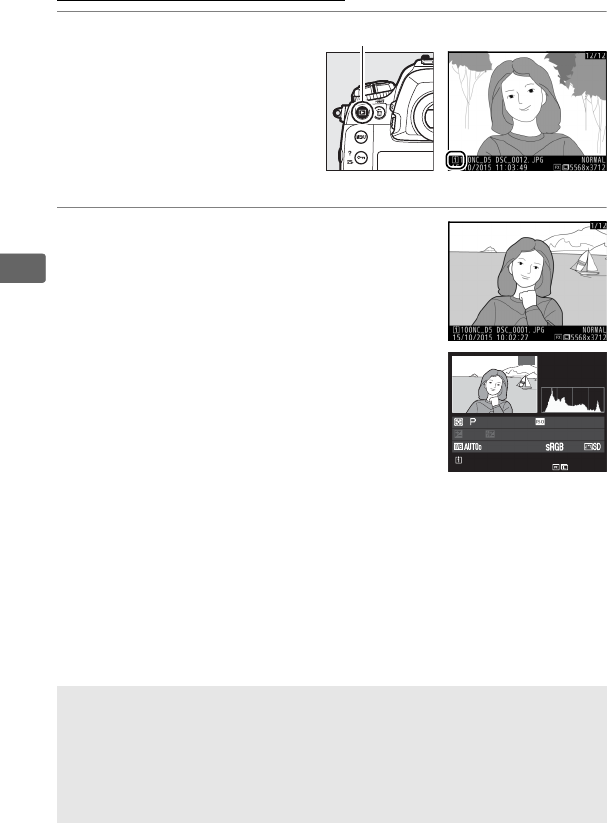
42
s
Viewing Photographs
1Press the K button.
A photograph will be
displayed in the monitor.
The memory card
containing the picture
currently displayed is
shown by an icon.
2View additional pictures.
Additional pictures can be displayed by
pressing 4 or 2 or flicking a finger left or
right over the display (0249).
To view
additional information on the current
photograph, press 1 and 3 (0252).
To end playback and return to shooting mode, press the
shutter-release button halfway.
AImage Review
When On is selected for Image review in the playback menu (0288),
photographs are automatically displayed in the monitor after shooting.
ASee Also
See page 247 for information on choosing a memory card slot.
K button
0 , 0
1
/
125 F5. 6 100 50
mm
NIKON
D5
1
/
12
100
NC_D
5
D
S
C_
0001. JP
G
15
/
10
/
2015 10:02:27
NN
OROR
M
ALAL
5568x3712
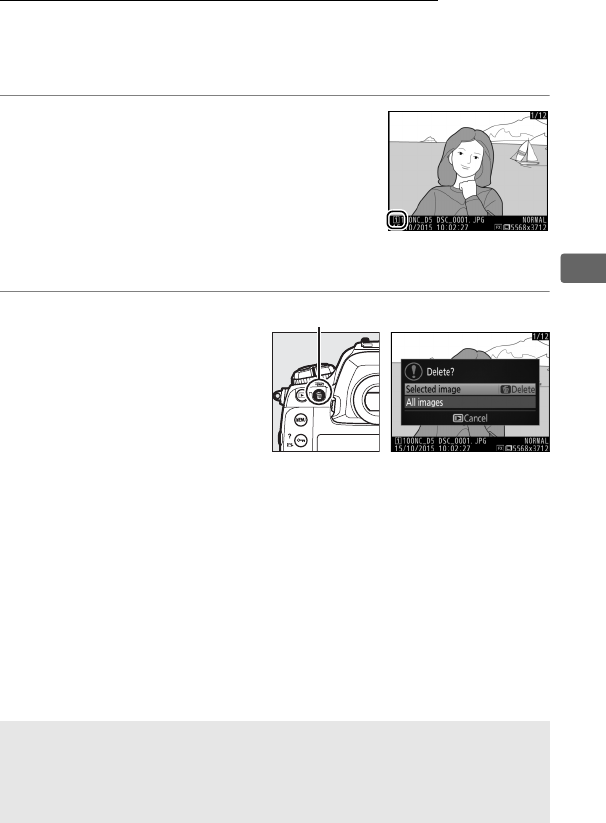
43
s
Deleting Unwanted Photographs
Unwanted photographs can be deleted by pressing the O (Q)
button.
Note that photographs can not be recovered once
deleted.
1Display the photograph.
Display the photograph you wish to
delete as described in “Viewing
Photographs” on the previous page.
The
location of the current image is shown
by an icon at the bottom left corner of
the display.
2Delete the photograph.
Press the O (Q) button.
A
confirmation dialog will be
displayed; highlight
Selected image and press
O (Q) again to delete the
image and return to
playback (for information on the All images option, see
page 266).
To exit without deleting the picture, press K.
ADelete
To delete multiple images or to select the memory card from which
images will be deleted, use the Delete option in the playback menu
(0268).
O (Q) button
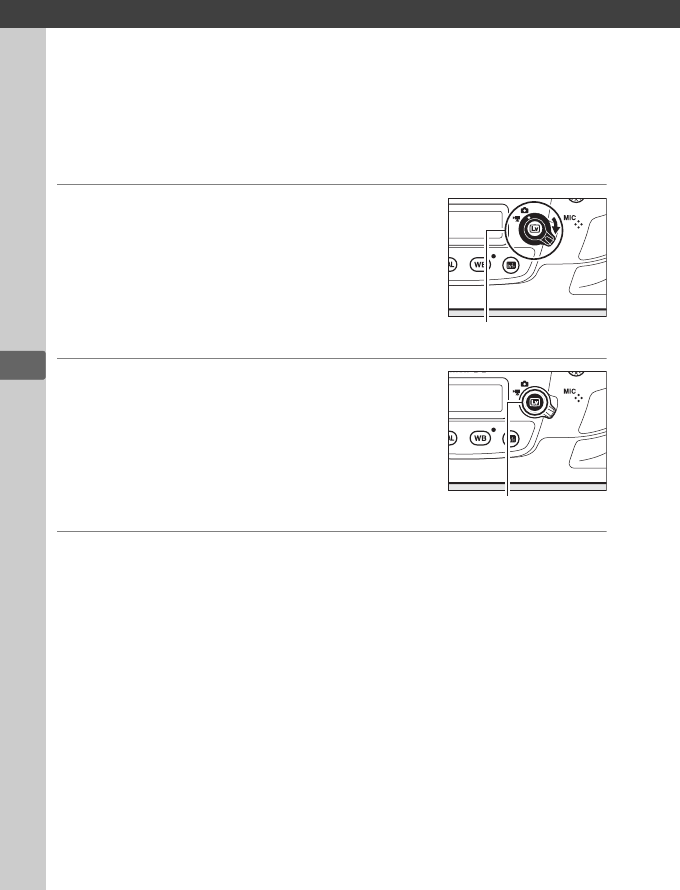
x
44
x
Live View Photography
Follow the steps below to take photographs in live view.
1Rotate the live view selector to
C(live view photography).
2Press the a button.
The mirror will be raised and the view
through the lens will be displayed in the
camera monitor.
The subject will no
longer be visible in the viewfinder.
3Position the focus point.
Position the focus point over your subject as described on
page 49.
Live view selector
a button
45
x
4Focus.
Press the shutter-release button halfway
to focus.
The focus point will flash green and the shutter release will be
disabled while the camera focuses.
If the camera is able to
focus, the focus point will be displayed in green; if the camera
is unable to focus, the focus point will flash red (note that
pictures can be taken even when the focus point flashes red;
check focus in the monitor before shooting).
Exposure can be
locked by pressing the center of the sub-selector (0141);
focus locks while the shutter-release button is pressed
halfway.
DUsing Autofocus in Live View
Use an AF-S lens.
The desired results may not be achieved with
other lenses or teleconverters.
Note that in live view, autofocus is
slower and the monitor may brighten or darken while the camera
focuses.
The focus point may sometimes be displayed in green
when the camera is unable to focus.
The camera may be unable to
focus in the following situations:
• The subject contains lines parallel to the long edge of the frame
• The subject lacks contrast
• The subject in the focus point contains areas of sharply
contrasting brightness, or includes spot lighting or a neon sign or
other light source that changes in brightness
• Flicker or banding appears under fluorescent, mercury-vapor,
sodium-vapor, or similar lighting
• A cross (star) filter or other special filter is used
• The subject appears smaller than the focus point
• The subject is dominated by regular geometric patterns
(e.g., blinds or a row of windows in a skyscraper)
• The subject is moving
46
x
5Take the picture.
Press the shutter-release button the rest
of the way down to shoot.
The monitor
will turn off.
6Exit live view.
Press the a button to exit live view.
AExposure Preview
During live view, you can press J to preview the
effects of shutter speed, aperture, and ISO
sensitivity on exposure.
When Off is selected
for Silent live view photography in the photo
shooting menu, exposure can be adjusted by
±5 EV (0143), although only values between
–3 and +3 EV are reflected in the preview
display.
Note that the preview may not accurately reflect the final
results when flash lighting is used, Active D-Lighting (0187), High
Dynamic Range (HDR; 0189), or bracketing is in effect, A (auto) is
selected for the Picture Control Contrast parameter (0182), or p
is selected for shutter speed.
If the subject is very bright or very dark,
the exposure indicators will flash to warn that the preview may not
accurately reflect exposure.
Exposure preview is not available when
A or % is selected for shutter speed.
47
x
ALive View Zoom Preview
Press the X button to magnify the view in the monitor up to a maximum
of about 11×.
A navigation window will appear in a gray frame at the
bottom right corner of the display.
Use the multi selector to scroll to
areas of the frame not visible in the monitor, or press W (M) to zoom
out.
X button Navigation window
48
x
Autofocus
To take pictures using autofocus,
rotate the focus-mode selector to AF.
❚❚ Choosing a Focus Mode
The following autofocus modes are available in live view:
To choose an autofocus mode, press the AF-mode button and
rotate the main command dial until the desired mode is displayed
in the monitor.
Mode Description
AF-S Single-servo AF: For stationary subjects.
Focus locks when shutter-
release button is pressed halfway.
AF-F
Full-time-servo AF: For moving subjects.
Camera focuses
continuously until shutter-release button is pressed.
Focus locks
when shutter-release button is pressed halfway.
AF-mode button Main command dial Monitor
Focus-mode selector
49
x
❚❚ Choosing an AF-Area Mode
The following AF-area modes can be selected in live view:
Mode Description
!
Face-priority AF: Use for portraits.
The camera automatically detects
and focuses on portrait subjects; the selected subject is indicated
by a double yellow border (if multiple faces, up to a maximum of
35, are detected, the camera will focus on the closest subject; to
choose a different subject, use the multi selector).
If the camera
can no longer detect the subject (because, for example, the
subject has turned to face away from the camera), the border will
no longer be displayed.
5
Wide-area AF: Use for hand-held shots of landscapes and other non-
portrait subjects.
Use the multi selector to move the focus point
anywhere in the frame, or press the center of the multi selector to
position the focus point in the center of the frame.
6
Normal-area AF: Use for pin-point focus on a selected spot in the
frame.
Use the multi selector to move the focus point anywhere in
the frame, or press the center of the multi selector to position the
focus point in the center of the frame.
A tripod is recommended.
&
Subject-tracking AF: Position the focus point over your subject and
press the center of the multi selector.
The focus point will track the
selected subject as it moves through the frame.
To end tracking,
press the center of the multi selector again.
Note that the camera
may be unable to track subjects if they move quickly, leave the
frame or are obscured by other objects, change visibly in size,
color, or brightness, or are too small, too large, too bright, too dark,
or similar in color or brightness to the background.
ALive View
During live view, you can position the focus
point by tapping your subject in the monitor.
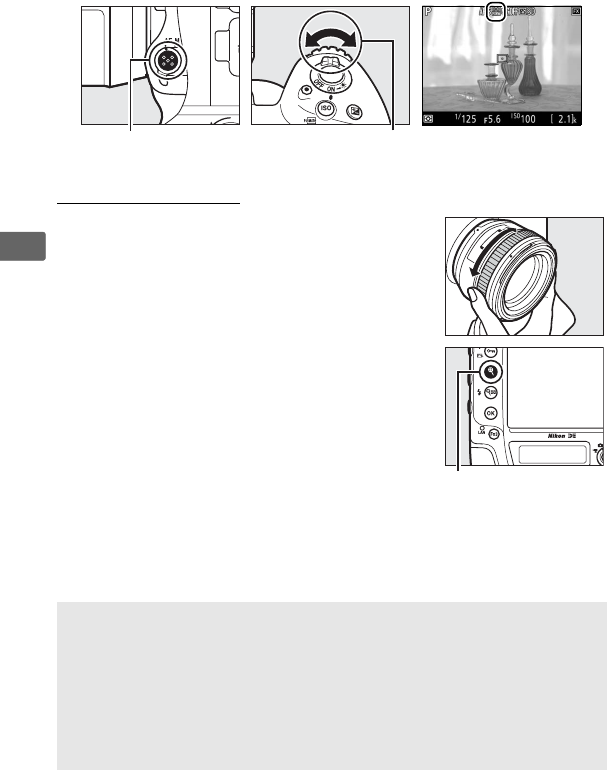
50
x
To choose an AF-area mode, press the AF-mode button and rotate
the sub-command dial until the desired mode is displayed in the
monitor.
Manual Focus
To focus in manual focus mode (0114),
rotate the lens focus ring until the subject is
in focus.
To magnify the view in the monitor
for precise focus, press the X button (047).
AF-mode button Sub-command dial Monitor
APreviewing Focus During Live View
To temporarily select maximum aperture for an improved focus preview
during live view, press the Pv button; the maximum aperture indicator
(056) will be displayed.
To return aperture to its original value, press
the button again or focus using autofocus.
If the shutter-release button
is pressed all the way down to take a picture during focus preview,
aperture will return to the original value before the photo is taken.
X button
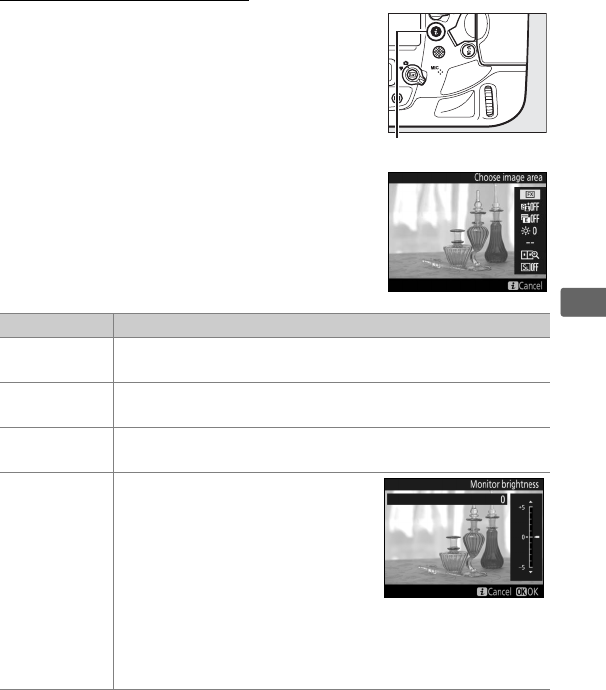
51
x
Using the i Button
The options listed below can be accessed by
pressing the i button during live view
photography.
Highlight items using the
multi selector and press 2 to view options
for the highlighted item.
After choosing the
desired setting, press J to return to the
i-button menu.
Press the i button again to
exit to the shooting display.
Option Description
Choose image
area Choose an image area for live view photography (087).
Active
D-Lighting Adjust Active D-Lighting (0187).
Electronic front-
curtain shutter
Enable or disable the electronic front-curtain shutter for
mirror-up photography (0302).
Monitor
brightness
Press 1 or 3 to adjust monitor
brightness for live view (note that
this affects live view only and has
no effect on photographs or
movies or on the brightness of
the monitor for menus or
playback; to adjust the brightness
of the monitor for menus and playback, use the Monitor
brightness option in the setup menu as described on
page 308).
i button
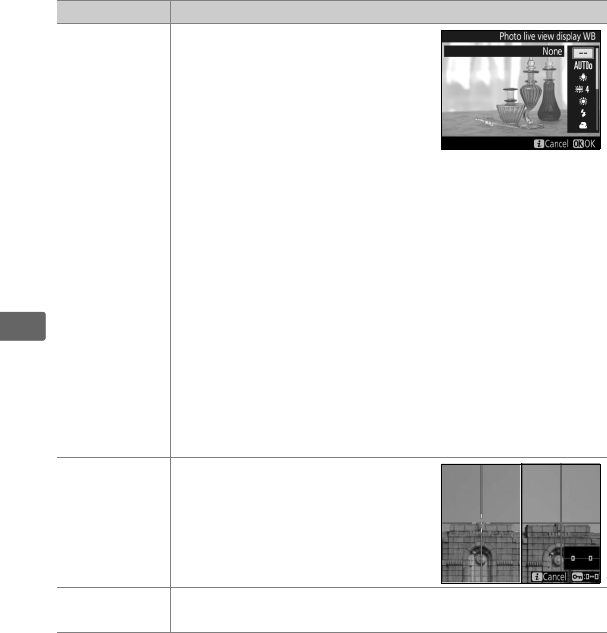
52
x
Photo live view
display WB
During live view photography,
the white balance (hue) of the
monitor can be set to a value
different from that used for
photographs (0159).
This can
be effective if the lighting under
which shots are framed is
different from that used when the photographs are taken,
as is sometimes the case when a flash or preset manual
white balance is used.
Adjusting the photo live view
display white balance to produce a similar effect to that
used for the actual photographs makes it easier to picture
the results.
To use the same white balance for both the
view in the monitor and the photograph, select None.
Note that regardless of the option selected, same white
balance is also used for both the view in the monitor and
the photograph when Silent photography is on (054).
Monitor white balance is reset when the camera is turned
off, but the last value used can be selected by pressing
the a button while pressing and holding the U button.
Split-screen
display zoom
View two separate areas of the
frame side-by-side (053).
This
option can be used, for example,
to align buildings with the
horizon.
Silent
photography
The shutter remains open during shooting, eliminating
the sound made by the shutter (054).
Option Description
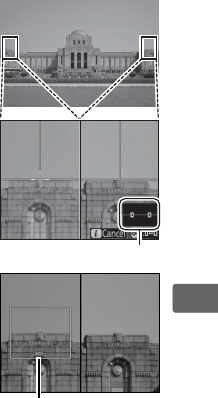
53
x
❚❚ Split-Screen Display Zoom
Selecting Split-screen display zoom in the
live view photography i button menu splits
the display into two boxes showing separate
areas of the frame side-by-side at a high
zoom ratio.
The positions of the magnified
areas are shown in the navigation window.
Use the X and W(M) buttons to zoom in and
out, or use the L(Z/Q) button to select a
box and press 4 or 2 to scroll the selected
area left or right.
Pressing 1 or 3 scrolls
both areas up or down simultaneously.
To
focus on the subject at the center of the
selected area, press the shutter-release
button halfway.
To exit the split-screen display, press the i button.
Navigation window
Area in focus

54
x
Silent Mode
When On is selected for Silent photography in the i-button
menu (052) or On is selected for Silent live view photography
in the photo shooting menu (0293), L is displayed in the
monitor and the mirror remains up and the shutter stays open
during live view photography.
While the shutter-release button is
pressed, the camera will take up to five seconds of JPEG photos at
about 15 fps in continuous low-speed and quiet continuous
release modes, or at about 30 fps in continuous high-speed
release mode; the time remaining is shown in the exposure-count
display.
In other release modes, one photo will be taken each time
the shutter-release button is pressed.
ISO sensitivity is set
automatically except in exposure mode M, when you can choose
from values between ISO 100 and Hi 5 (0124).
In exposure mode
M, shutter speed can be set to values between 1/30 s and 1/8000 s.
Exposure can be previewed in the monitor (046); to view or hide
an indicator (0137) showing the difference between the value
selected by the camera and the value you have selected, press J.
55
x
ASilent Mode
In silent mode, the flash will not fire, the self-timer, bracketing (0146),
Active D-Lighting (0187), HDR (0189), vignette control (0292),
distortion control (0292), multiple exposure (0227), high ISO noise
reduction (0292), and exposure-delay mode (0302) turn off, and
image quality is fixed at JPEG fine★ (if RAW Slot 1 - JPEG Slot 2 is
selected for Role played by card in Slot 2, JPEG images will be
recorded to the cards in both slots).
Image size is determined solely by
the option selected for Image area (088) and is unaffected by the
option selected for Image size:
Exposure compensation can be adjusted by ±3 EV (0143); the other
exposure settings (aperture, shutter speed, and ISO sensitivity) that can
be adjusted are shown in the following table:
Aperture Shutter speed ISO sensitivity
P, S— — —
A✔— —
M✔ ✔ ✔
Note that silent mode is not completely silent: the shutter sounds and the
mirror is raised and lowered at the start and end of live view photography.
AHDMI
If the camera is connected to an HDMI video device during live view
photography, the camera monitor will remain on and the video device
will display the view through the lens.
ASee Also
For information on choosing the roles played by the movie-record
button and command dials and by the center of the multi selector, see
Custom Settings f1 (Custom control assignment) > Movie record
button + y (0305) and f2 (Multi selector center button, 0306). See
Custom Setting c4 (Monitor off delay, 0301) for information on
choosing how long the monitor remains on during live view.
For
information on preventing unintended operation of the a button, see
Custom Setting f8 (Live view button options, 0307).
•FX (36 × 24) 1.0×: 2784 × 1856
•1.2× (30 × 20) 1.2×: 2320 × 1544
•DX (24 × 16) 1.5×: 1824 × 1216
•5 : 4 (30 × 24): 2320 × 1856
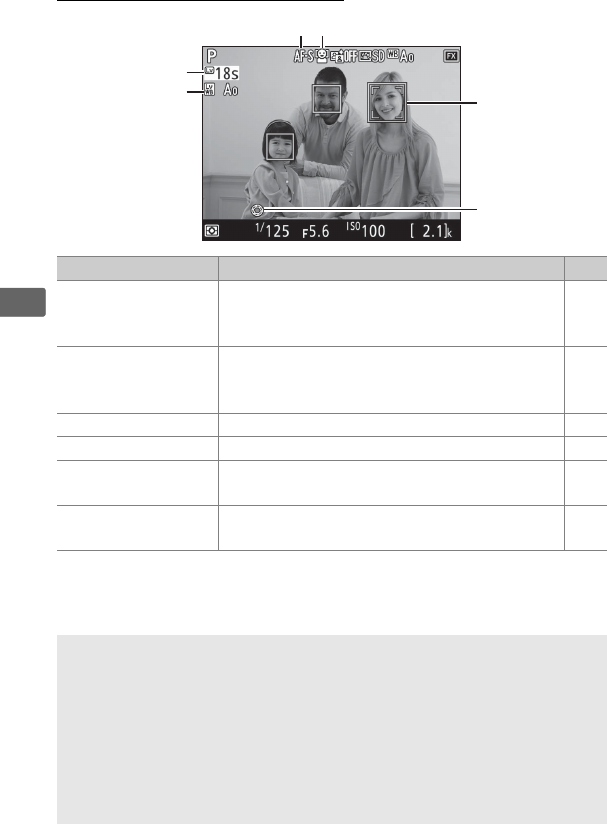
56
x
The Live View Display
Item Description 0
qTime remaining
The amount of time remaining before live
view ends automatically.
Displayed if
shooting will end in 30 s or less.
—
w
Photo live view
display white
balance indicator
Monitor hue (photo live view display white
balance). 52
eAutofocus mode The current autofocus mode. 48
rAF-area mode The current AF-area mode. 49
tFocus point The current focus point.
The display varies
with the option selected for AF-area mode. 49
yMaximum aperture
indicator
Displayed when the Pv button is pressed to
select maximum aperture. 50
DThe Count Down Display
A count down will be displayed 30 s before live view ends automatically
(the timer turns red if live view is about to end to protect the internal
circuits or, if an option other than No limit is selected for Custom
Setting c4—Monitor off delay > Live view; 0301—5 s before the
monitor is due to turn off automatically).
Depending on shooting
conditions, the timer may appear immediately when live view is
selected.
t
y
w
q
r
e
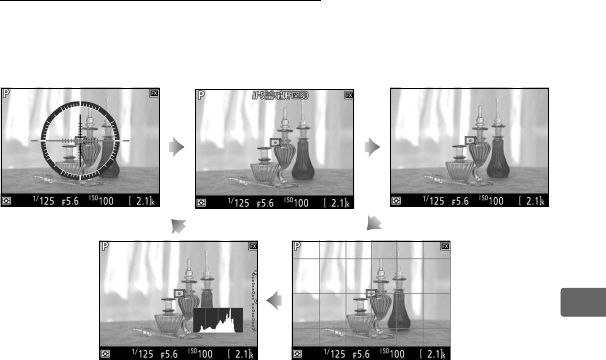

58
x
DShooting in Live View
To prevent light entering via the viewfinder from interfering with
photographs or exposure, close the viewfinder eyepiece shutter
(0120).
Although they will not appear in the final picture unless On is selected
for Silent photography (054), jagged edges, color fringing, moiré,
and bright spots may appear in the monitor, while bright bands may
appear in some areas with flashing signs and other intermittent light
sources or if the subject is briefly illuminated by a strobe or other bright,
momentary light source.
In addition, distortion may occur if the camera
is panned horizontally or an object moves at high speed through the
frame.
Flicker and banding visible in the monitor under fluorescent,
mercury vapor, or sodium lamps can be reduced using the Flicker
reduction option in the movie shooting menu (0296), although they
may still be visible in the final photograph at some shutter speeds.
When shooting in live view, avoid pointing the camera at the sun or
other strong light sources.
Failure to observe this precaution could
result in damage to the camera’s internal circuitry.
Regardless of the option selected for Custom Setting c2 (Standby
timer, 0301), the standby timer will not expire during shooting.
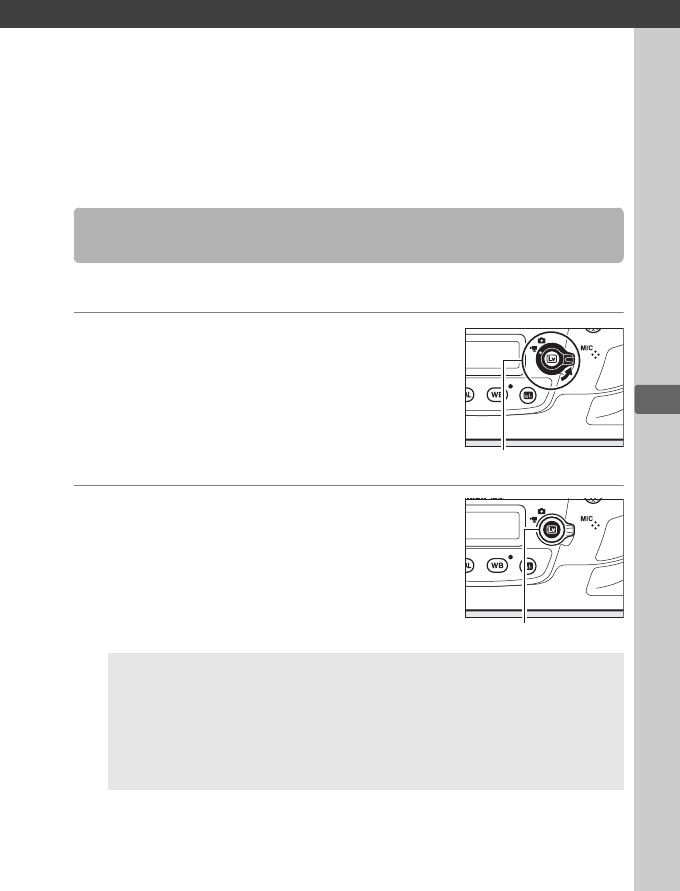
y
59
y
Movies
Read this section for information on recording and viewing
movies.
Movies can be recorded in live view.
1Rotate the live view selector to
1(movie live view).
2Press the a button.
The mirror will be raised and the view
through the lens will be displayed in the
camera monitor, modified for the effects
of exposure.
The subject will no longer
be visible in the viewfinder.
Recording Movies
DThe 0 Icon
A 0 icon (065) indicates that movies can not be recorded.
AWhite Balance
White balance can be set at any time by pressing the U button
and rotating the main command dial (0159).
Live view selector
a button
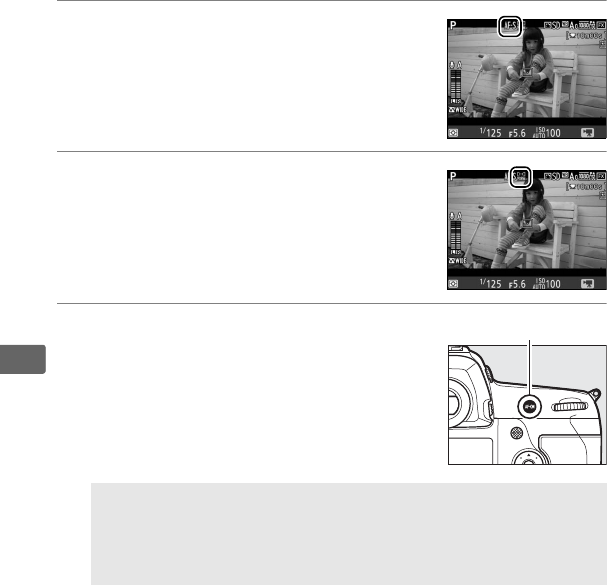
60
y
3Choose a focus mode (048).
4Choose an AF-area mode (049).
5Focus.
Frame the opening shot and press the
AF-ON button to focus.
Note that the
number of subjects that can be detected
in face-priority AF drops during movie
recording.
AFocusing
Focus can also be adjusted by pressing the shutter-release button
halfway before beginning recording, or you can focus manually as
described on page 50.
AF-ON button
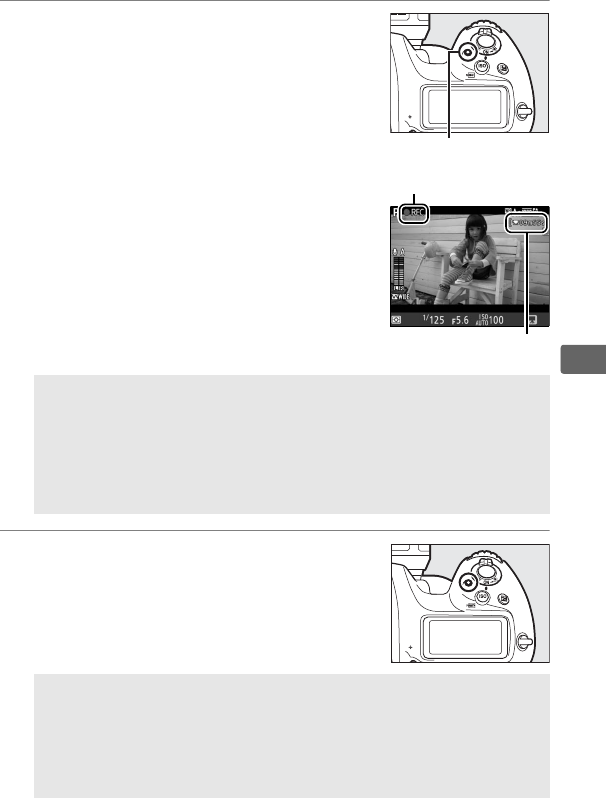
61
y
6Start recording.
Press the movie-record button to start
recording.
A recording indicator and the
time available are displayed in the
monitor.
Exposure can be locked by
pressing the center of the sub-selector
(0141) or altered by up to ±3 EV using
exposure compensation (0143); spot
metering is not available.
In autofocus
mode, the camera can be refocused by
pressing the AF-ON button.
7End recording.
Press the movie-record button again to
end recording.
Recording will end
automatically when the maximum length
is reached, or the memory card is full.
AAudio
The camera can record both video and sound; do not cover the
microphone on the front of the camera during movie recording.
Note that the built-in microphone may record sounds made by the
camera or lens during autofocus, vibration reduction, or changes to
aperture.
AMaximum Length
The maximum length for individual movie files is 4 GB (for
maximum recording times, see page 67); note that depending on
memory card write speed, shooting may end before this length is
reached.
Movie-record button
Recording indicator
Time remaining
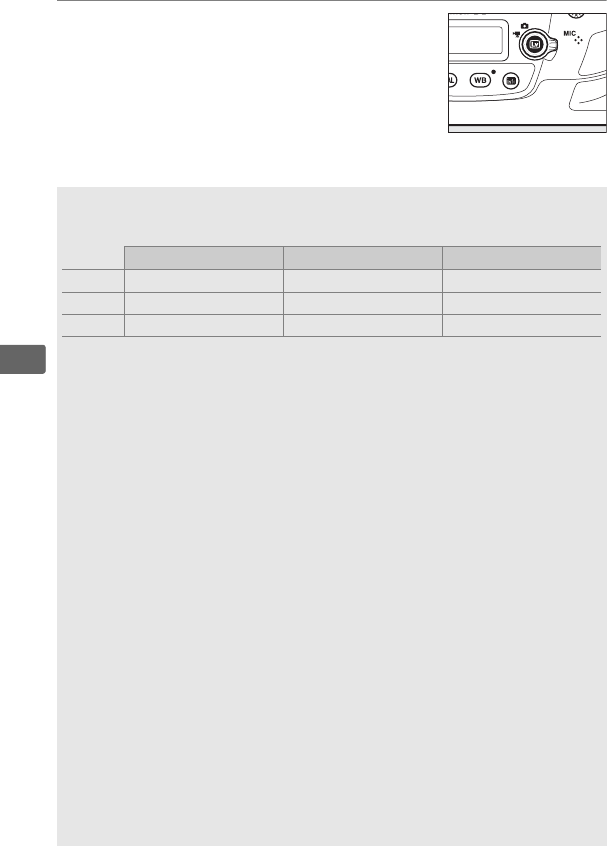
62
y
8Exit live view.
Press the a button to exit live view.
AExposure Mode
The following exposure settings can be adjusted in movie mode:
Aperture Shutter speed ISO sensitivity
P, S— — — 1
A✔— — 1
M✔ ✔ ✔ 2
1 The upper limit for ISO sensitivity can be selected using the Movie ISO
sensitivity settings > Maximum sensitivity option in the movie
shooting menu (0295).
2If On is selected for Movie ISO sensitivity settings > Auto ISO control
(mode M) in the movie shooting menu, the upper limit for ISO sensitivity
can be selected using the Maximum sensitivity option.
In exposure mode M, shutter speed can be set to values between
1/25 s and 1/8000 s (the slowest available shutter speed varies with the
frame rate; 067).
In other exposure modes, shutter speed is adjusted
automatically.
If the subject is over- or under-exposed in mode P or S,
end live view and start live view again or select exposure A and adjust
aperture.
ASee Also
The role played by the center of the multi selector can be chosen using
Custom Setting f2 (Multi selector center button; 0306) and the roles
of the Fn1, Fn2, Fn3 and Pv buttons and the center of the sub-selector
using Custom Setting g1 (Custom control assignment; 0307). Custom
Setting g1 (Custom control assignment) > Shutter-release button
controls whether the shutter-release button can be used to start live
view, or to start and end movie recording, or (when pressed all the way
down) to take photographs during movie recording.
For information on
preventing unintended operation of the a button, see Custom Setting
f8 (Live view button options; 0307).
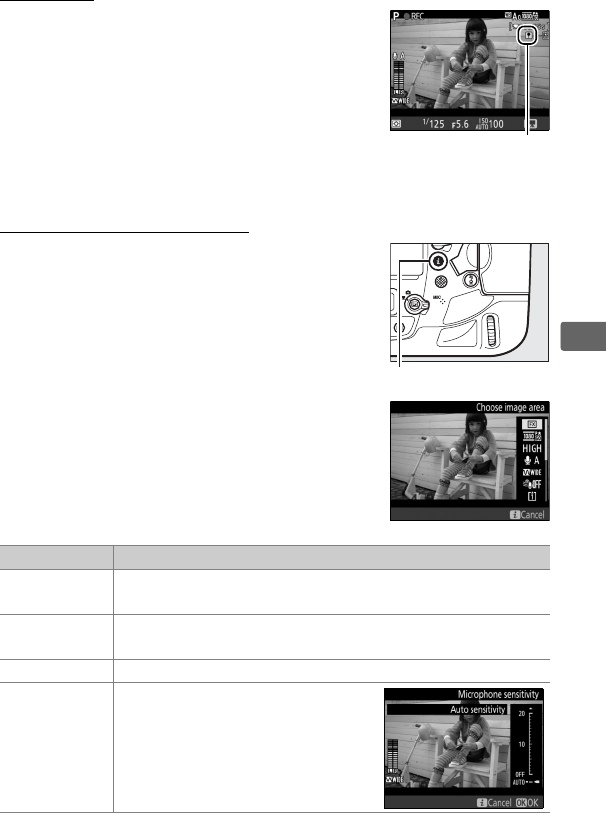
63
y
Indices
If Index marking is assigned to a control
using Custom Setting g1 (Custom control
assignment, 0307), you can press the
selected control during recording to add
indices that can be used to locate frames
during editing and playback (081).
Up to 20
indices can be added to each movie.
Using the i Button
The options listed below can be accessed by
pressing the i button in movie mode.
Highlight items using the multi selector and
press 2 to view options for the highlighted
item.
After choosing the desired setting,
press J to return to the i-button menu.
Press the i button again to exit to the
shooting display.
Option Description
Choose image
area Choose image area for movies (070).
Frame size/
frame rate Select a frame size and rate (067).
Movie quality Choose movie quality (067).
Microphone
sensitivity
Press 1 or 3 to adjust
microphone sensitivity (0296).
Index
i button
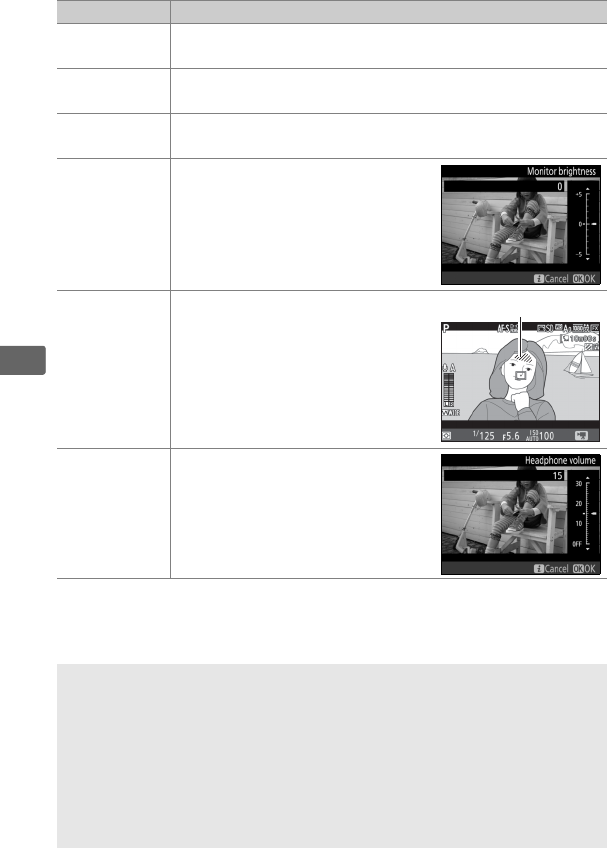
64
y
Frequency
response
Control the frequency response of the built-in
microphone (0296).
Wind noise
reduction
Enable or disable wind noise reduction using the built-in
microphone’s low-cut filter (0296).
Destination When two memory cards are inserted, you can choose
the card to which movies are recorded (0294).
Monitor
brightness
Press 1 or 3 to adjust monitor
brightness (note that this affects
live view only and has no effect
on photographs or movies or on
the brightness of the monitor for
menus or playback; 051).
Highlight
display
Choose whether the brightest
areas of the frame (highlights) are
shown by slanting lines in the
display.
Headphone
volume
Press 1 or 3 to adjust
headphone volume.
AUsing an External Microphone
The optional ME-1 stereo microphone or ME-W1 wireless microphone
can be used to record sound for movies (0339).
AHeadphones
Third-party headphones can be used.
Note that high sound levels may
result in high volume; particular care should be taken when
headphones are used.
Option Description
Highlights
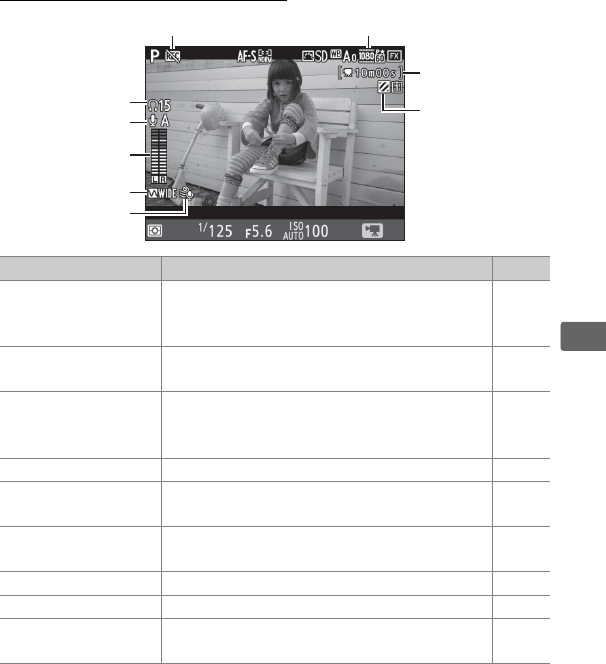
65
y
The Live View Display
Item Description 0
qHeadphone volume
Volume of audio output to headphones.
Displayed when third-party headphones
are connected.
64
wMicrophone
sensitivity Microphone sensitivity. 63
eSound level
Sound level for audio recording.
Displayed
in red if level is too high; adjust
microphone sensitivity accordingly.
—
rFrequency response The current frequency response. 64
tWind noise
reduction Displayed when wind noise reduction is on. 64
y“No movie”
indicator Indicates that movies can not be recorded. —
uMovie frame size The frame size for movie recording. 67
iTime remaining The recording time available for movies. 61
oHighlight display
indicator Displayed when highlight display is on. 64
t
q
w
r
e
u
y
i
o

66
y
DThe Count-Down Display
A count down will be displayed 30 s before live view ends automatically
(056).
Depending on shooting conditions, the timer may appear
immediately when movie recording begins.
Note that regardless of the
amount of recording time available, live view will still end automatically
when the timer expires.
Wait for the internal circuits to cool before
resuming movie recording.
AAdjusting Settings During Movie Recording
Headphone volume can not be adjusted during recording.
If an option
other than I(microphone off) is currently selected, microphone
sensitivity can be changed to any setting other than I while recording
is in progress.
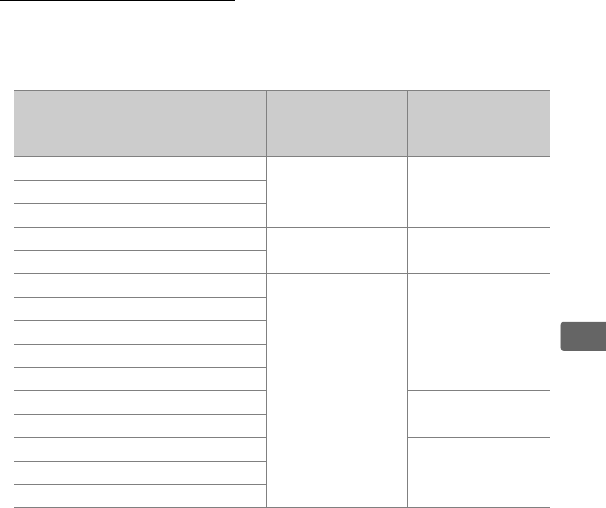
67
y
Maximum Length
The maximum length varies with the options selected for Movie
quality and Frame size/frame rate in the movie shooting menu
(0294).
Option 1
Maximum bit rate
(Mbps) (★ high
quality/Normal)
Maximum length
(★ high quality/
Normal)
r3840 × 2160 (4K UHD); 30p 2
144 33 min. 3
s3840 × 2160 (4K UHD); 25p 2
t3840 × 2160 (4K UHD); 24p 2
y/y1920 × 1080; 60p 48/24 10 min./20 min.
z/z1920 × 1080; 50p
1/11920 × 1080; 30p
24/12
20 min./
29 min. 59 s
2/21920 × 1080; 25p
3/31920 × 1080; 24p
4/41280 × 720; 60p
5/51280 × 720; 50p
u/61920 × 1080; 60p crop 4
10 min./20 min.
v/71920 × 1080; 50p crop 4
8/81920 × 1080; 30p crop 4
20 min./
29 min. 59 s
9/91920 × 1080; 25p crop 4
!/!1920 × 1080; 24p crop 4
1 Actual frame rate is 29.97 fps for values listed as 30p, 23.976 fps for values listed as
24p, and 59.94 fps for values listed as 60p.
2k is displayed in the monitor when this option is selected.
3 Available in high quality only.
4i is displayed in the monitor when this option is selected.

68
y
The Information Display
To hide or display indicators in the monitor, press the R button.
Virtual horizon
(0308) Information on Information off
Histogram Framing guides
AHDMI
If the camera is connected to an HDMI device (0284), the view through
the lens will appear both in the camera monitor and on the HDMI
device.
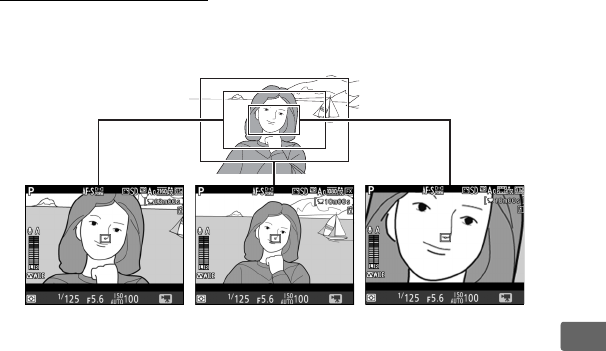
69
y
The Movie Crop
Movies have an aspect ratio of 16 : 9 and are recorded using a crop
that varies with the frame size.
Going from a frame size of 1920 × 1080 or 1280 × 720 to 3840 ×
2160 increases the apparent focal length by approximately 1.5×,
while going from 1920 × 1080 or 1280 × 720 to 1920 × 1080 crop
increases the apparent focal length by approximately 3×.
3840 × 2160 1920 × 1080 and
1280 × 720
1920 × 1080 crop
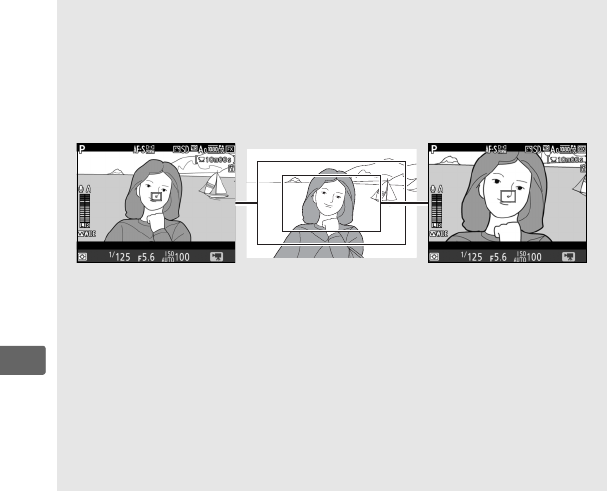
70
y
AImage Area
At frame sizes of 1920 × 1080 and 1280 × 720, you can choose an image
area using the Image area > Choose image area option in the movie
shooting menu. Select FX to shoot movies in what is referred to as “FX-
based movie format”, DX to shoot in “DX-based movie format”. The
differences between the two are illustrated below.
The sizes of the areas recorded are approximately 35.9 × 20.2 mm (FX-
based movie format) and 23.5 × 13.2 mm (DX-based movie format).
Movies shot with a DX-format lens and On is selected for Image area >
Auto DX crop (088) in the movie shooting menu are recorded in DX-
based movie format.
At frame sizes of 3840 × 2160 and 1920 × 1080 crop, image-area
selection is not available and image area remains the same regardless of
the type of lens used.
FX (36×24) DX (24×16)
71
y
Taking Photos in Movie Mode
To take photos in movie mode (either in live
view or during movie recording), select Take
photos for Custom Setting g1 (Custom
control assignment) > Shutter-release
button (0307).
Photos with an aspect ratio of 16 : 9 can then be
taken at any time by pressing the shutter-release button all the
way down.
If movie recording is in progress, recording will end
and the footage recorded to that point will be saved.
Except at a frame size of 1920 × 1080 crop or when an NEF (RAW)
or TIFF option is selected, photographs are recorded in the format
selected for Image quality in the photo shooting menu (092);
photos taken at a frame size of 1920 × 1080 crop or with an NEF
(RAW) or TIFF option selected are recorded at an image quality of
JPEG fine★.
For information on image size, see page 72.
Note that
the exposure for photographs can not be previewed when the live
view selector is rotated to 1; mode P, S, or A is recommended but
accurate results can be achieved in mode M by previewing
exposure with the live view selector rotated to C.
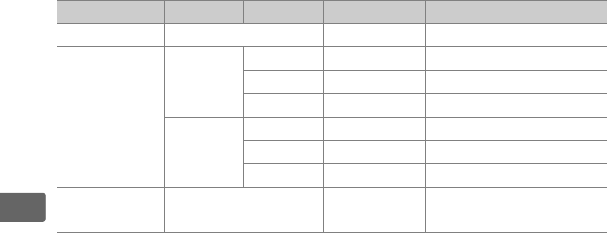
72
y
❚❚ Image Size
The size of photos taken in movie mode varies with the movie
frame size (067) and, in the case of photos taken at frame sizes of
1920× 1080 and 1280× 720, with the image area and the option
selected for Image size> JPEG/TIFF in the photo shooting menu
(095).
* Approximate size when printed at 300 dpi.
Print size in inches equals image
size in pixels divided by printer resolution in dots per inch (dpi;
1 inch = approximately 2.54 cm).
Frame size Image area Image size Size (pixels) Print size (cm/in.) *
3840× 2160 — 3840× 2160 32.5 × 18.3/12.8 × 7.2
1920× 1080
1280× 720
FX
Large 5568 × 3128 47.1 × 26.5/18.6 × 10.4
Medium 4176 × 2344 35.4 × 19.8/13.9 × 7.8
Small 2784 × 1560 23.6 × 13.2/ 9.3 × 5.2
DX
Large 3648 × 2048 30.9 × 17.3/12.2 × 6.8
Medium 2736 × 1536 23.2 × 13.0/ 9.1 × 5.1
Small 1824 × 1024 15.4 × 8.7/ 6.1 × 3.4
1920× 1080
crop — 1920 × 1080 16.3 × 9.1/ 6.4 × 3.6
73
y
AMetering Exposure and White Balance
The area used for metering exposure or auto white balance when
photographs are recorded at a movie frame size of 1920 × 1080 crop
(067) is not the same as the area in the final photograph, with the
result that optimal results may not be achieved.
Take test shots and
check the results in the monitor.
AWireless Remote Controllers and Remote Cords
If Record movies is selected for Custom Setting g1 (Custom control
assignment) > Shutter-release button (0307), the shutter-release
buttons on optional wireless remote controllers and remote cords
(0335, 337) can be used to start live view and to start and end movie
recording.
DRecording Movies
Movies are recorded in the sRGB color space.
Flicker, banding, or
distortion may be visible in the monitor and in the final movie under
fluorescent, mercury vapor, or sodium lamps or if the camera is panned
horizontally or an object moves at high speed through frame (for
information on reducing flicker and banding, see Flicker reduction,
0296).
Flicker may also appear while power aperture is in use.
Jagged
edges, color fringing, moiré, and bright spots may also appear.
Bright
bands may appear in some areas of the frame with flashing signs and
other intermittent light sources or if the subject is briefly illuminated by
a strobe or other bright, momentary light source.
When recording
movies, avoid pointing the camera at the sun or other strong light
sources.
Failure to observe this precaution could result in damage to
the camera’s internal circuitry.
Note that noise (randomly-spaced bright
pixels, fog, or lines) and unexpected colors may appear if you zoom in
on the view through the lens (047) in movie mode.
Flash lighting can not be used.
Recording ends automatically if the lens is removed or the live view
selector is rotated to a new setting.
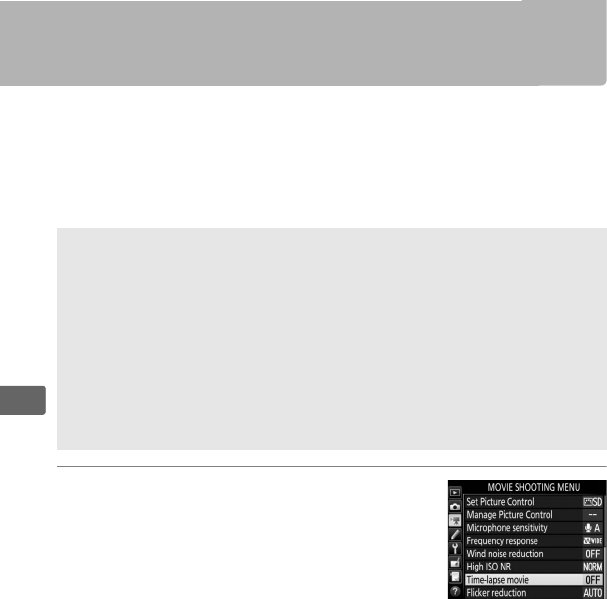
74
y
Time-Lapse Movies
The camera automatically takes photos at selected intervals to
create a silent time-lapse movie using the options currently
selected for Choose image area (070), Frame size/frame rate,
Movie quality, and Destination in the movie shooting menu
(0294).
The photos are taken using viewfinder photography.
1Select Time-lapse movie.
Highlight Time-lapse movie in the
movie shooting menu and press 2 to
display time-lapse movie settings.
ABefore Shooting
Before shooting a time-lapse movie, take a test shot at current settings
and view the results in the monitor.
For consistent coloration, choose a
white balance setting other than auto (0159).
Use of a tripod is recommended.
Mount the camera on a tripod before
shooting begins.
To ensure that shooting is not interrupted, use an
optional AC adapter and power connector or a fully-charged battery.
To
prevent light entering via the viewfinder interfering with photographs
and exposure, close the viewfinder eyepiece shutter (0120).
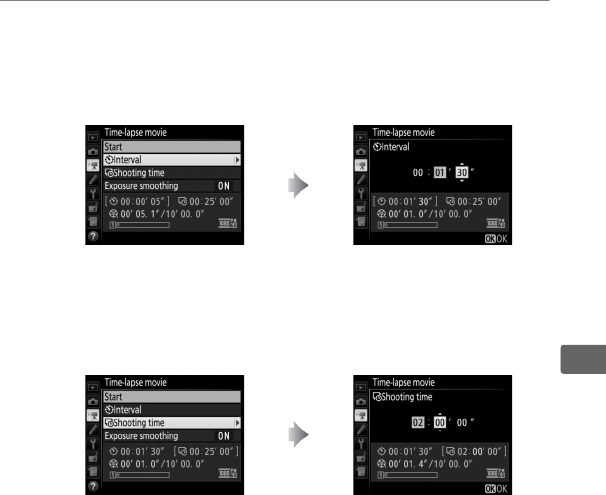
75
y
2Adjust time-lapse movie settings.
Choose an interval, total shooting time, and exposure
smoothing option.
•To choose the interval between frames:
•To choose the total shooting time:
Highlight Interval and
press 2.
Choose an interval longer than
the slowest anticipated shutter
speed (minutes and seconds)
and press J.
Highlight Shooting time and
press 2.
Choose shooting time (up to
7 hours 59 minutes) and
press J.
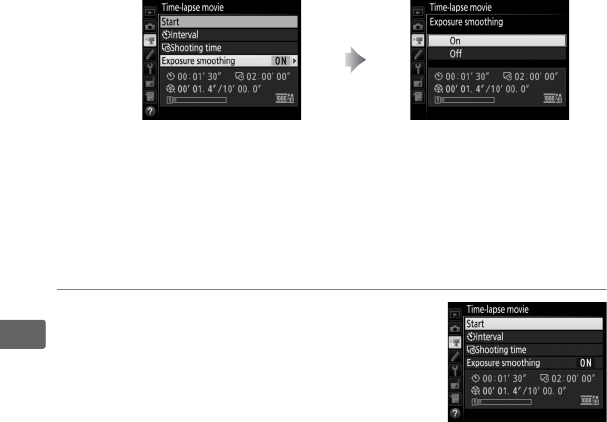
76
y
•To enable or disable exposure smoothing:
Selecting On smooths abrupt changes in exposure in modes
other than M (note that exposure smoothing only takes
effect in mode M if auto ISO sensitivity control is enabled in
the photo shooting menu).
3Start shooting.
Highlight Start and press J.
Shooting
starts after about 3 s.
The camera takes
photographs at the selected interval for
the selected shooting time.
When
complete, time-lapse movies are
recorded to the memory card selected for Destination in
movie shooting menu (0294).
Highlight Exposure
smoothing and press 2.
Highlight an option and
press J.

77
y
❚❚ Ending Shooting
To end shooting before all the photos are taken, highlight Off in
the time-lapse movie menu and press J, or press J between
frames or immediately after a frame is recorded.
A movie will be
created from the frames shot to the point where shooting ended.
Note that shooting will end and no movie will be recorded if the
power source is removed or disconnected or the destination
memory card is ejected.
❚❚ No Photograph
The camera will skip the current frame if the camera is unable to
focus in AF-S (note that the camera focuses again before each shot).
Shooting will resume with the next frame.
DTime-Lapse Movies
Time-lapse is not available during live view (044) or movie recording
(059), at a shutter speed of A or % (0138) or when bracketing
(0146), High Dynamic Range (HDR, 0189), multiple exposure (0227),
or interval timer photography (0234) is active.
Note that because
shutter speed and the time needed to record the image to the memory
card may vary from shot to shot, the interval between a shot being
recorded and the start of the next shot may vary.
Shooting will not
begin if a time-lapse movie can not be recorded at current settings (for
example, if the memory card is full, the interval or shooting time is zero,
or the interval is longer than the shooting time).
Shooting may end if camera controls are used or settings are changed
or HDMI cable is connected.
A movie will be created from the frames
shot to the point where shooting ended.
To end shooting and record a
photograph, press the shutter-release button all the way down.
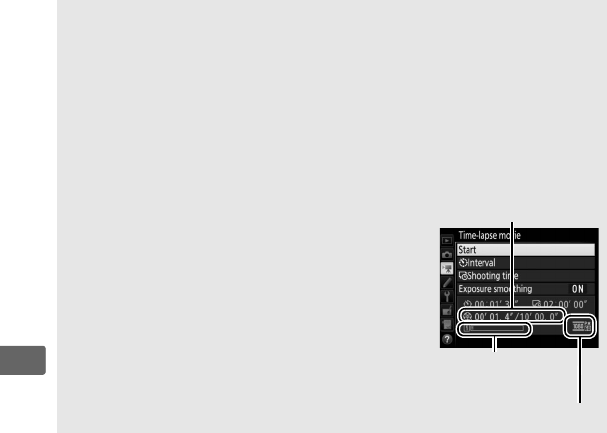
78
y
DFrame Size
The area used for metering exposure, flash level, or auto white balance
when photographs are recorded at a movie frame size of 1920 × 1080
crop (067) is not the same as the area in the final photograph, with the
result that optimal results may not be achieved.
Take test shots and
check the results in the monitor.
ACalculating the Length of the Final Movie
The total number of frames in the final movie
can be calculated by dividing the shooting time
by the interval and rounding up.
The length of
the final movie can then be calculated by
dividing the number of shots by the frame rate
selected for Frame size/frame rate in movie
shooting menu (067).
A 48 frame movie
recorded at 1920 × 1080; 24p, for example, will
be about two seconds long.
The maximum
length for time-lapse movies is 20 minutes.
Length recorded/
maximum length
Frame size/frame rate
Memory card
indicator
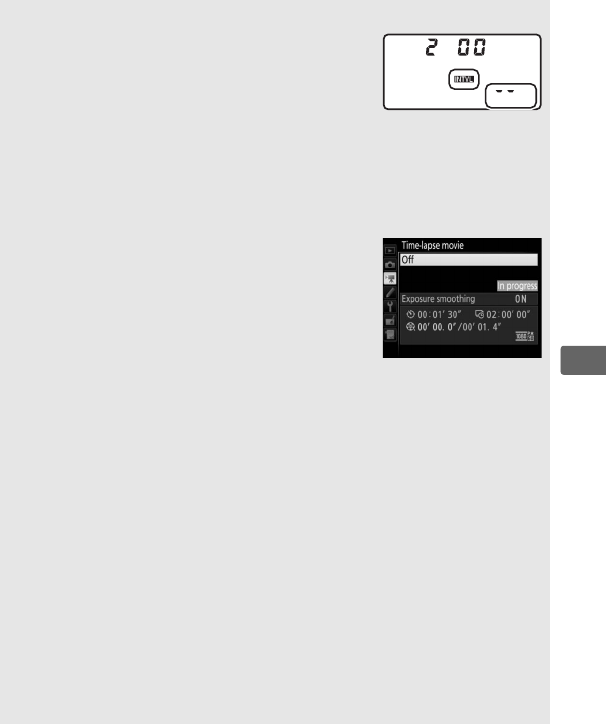
79
y
ADuring Shooting
During shooting, Q will flash and the time-
lapse recording indicator will be displayed in the
top control panel.
The time remaining (in hours
and minutes) appears in the shutter-speed
display immediately before each frame is
recorded.
At other times, the time remaining can be viewed by pressing
the shutter-release button halfway.
Regardless of the option selected
for Custom Setting c2 (Standby timer, 0301), the standby timer will
not expire during shooting.
To view current time-lapse movie settings or end
shooting (077), press the G button between
shots.
While shooting is in progress, the time-
lapse movie menu will show exposure
smoothing, the interval, and the time remaining.
These settings can not be changed while
shooting is in progress, nor can pictures be
played back or other menu settings adjusted.
AImage Review
The K button can not be used to view pictures while shooting is in
progress, but the current frame will be displayed for a few seconds after
each shot if On is selected for Image review in the playback menu
(0288).
Other playback operations can not be performed while the
frame is displayed.
ARelease Mode
Regardless of the release mode selected, the camera will take one shot
at each interval.
The self-timer can not be used.
ASee Also
The Beep option in the setup menu controls whether a beep sounds
when shooting is complete (0310).
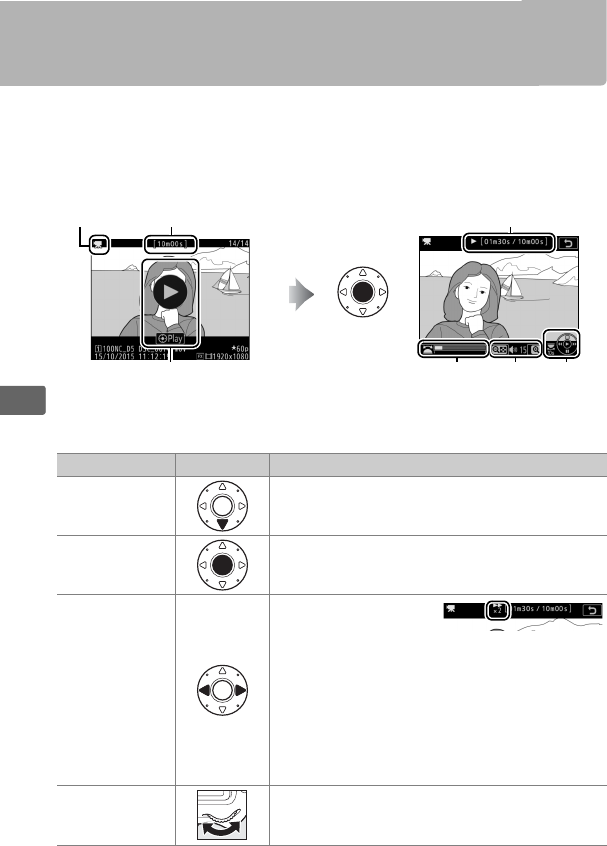
80
y
Viewing Movies
Movies are indicated by a 1 icon in full-frame playback (0246).
Tap the a icon in the monitor or press the center of the multi
selector to start playback; your current position is indicated by the
movie progress bar.
The following operations can be performed:
1 icon Length Current position/total length
a icon Movie
progress bar
Volume Guide
To Use Description
Pause Pause playback.
Play Resume playback when movie is paused or
during rewind/advance.
Rewind/
advance
Speed increases with
each press, from 2×
to 4× to 8× to 16×; keep pressed to skip to
beginning or end of movie (first frame is
indicated by h in top right corner of
monitor, last frame by i).
If playback is
paused, movie rewinds or advances one
frame at a time; hold for continuous rewind
or advance.
Skip 10 s Rotate the main command dial to skip
ahead or back 10 s.
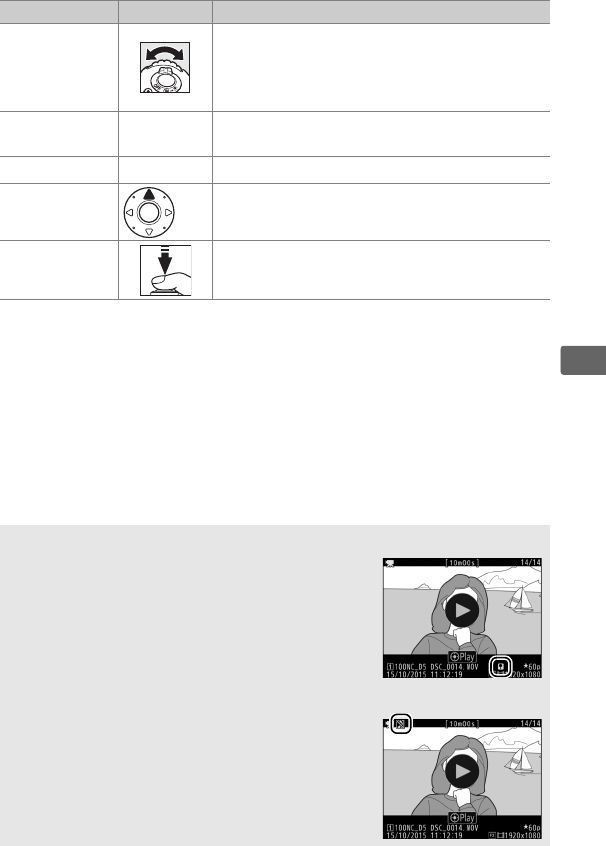
81
y
Skip ahead/
back
Rotate the sub-command dial to skip to
next or previous index, or to skip to the last
or first frame if the movie contains no
indices.
Adjust volume X/W (M)Press X to increase volume, W (M) to
decrease.
Trim movie i/JSee page 82 for more information.
Exit /KExit to full-frame playback.
Return to
shooting mode
Press the shutter-release button halfway to
exit to shooting mode.
AThe p Icon
Movies with indices (063) are indicated by a
p icon in full-frame playback.
AThe 2 Icon
2 is displayed in full-frame and movie playback if
the movie was recorded without sound (0296).
To Use Description
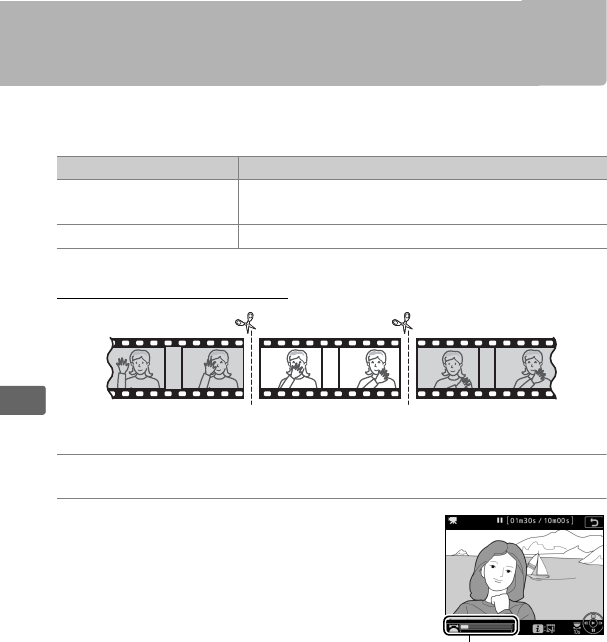
82
y
Editing Movies
Trim footage to create edited copies of movies or save selected
frames as JPEG stills.
Trimming Movies
To create trimmed copies of movies:
1Display a movie full frame (0246).
2Pause the movie on the new
opening frame.
Play the movie back as described on
page 80, pressing the center of the multi
selector to start and resume playback
and 3 to pause and pressing 4 or 2 or
rotating the main or sub-command dial
to locate the desired frame.
Your
approximate position in the movie can be ascertained from
the movie progress bar.
Pause playback when you reach the
new opening frame.
Option Description
9Choose start/end point Create a copy from which unwanted footage has
been removed.
4Save selected frame Save a selected frame as a JPEG still.
Movie progress bar
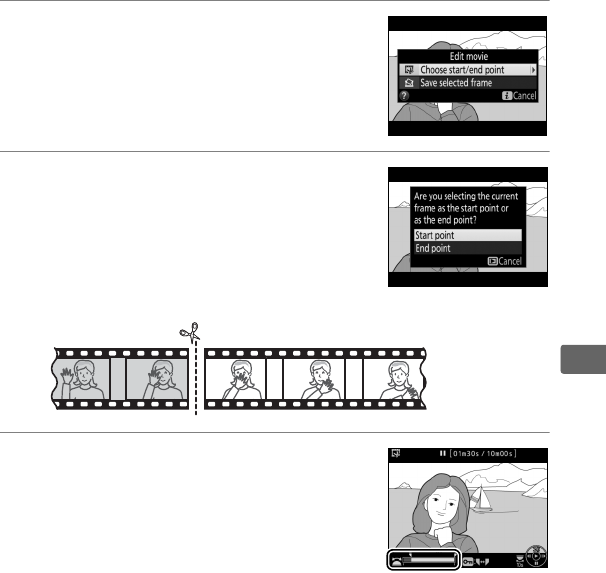
83
y
3Select Choose start/end point.
Press i or J, then highlight Choose
start/end point and press 2.
4Select Start point.
To create a copy that begins from the
current frame, highlight Start point and
press J.
The frames before the current
frame will be removed when you save
the copy in Step 9.
5Confirm the new start point.
If the desired frame is not currently
displayed, press 4 or 2 to advance or
rewind (to skip to 10 s ahead or back,
rotate the main command dial; to skip to
an index, or to the first or last frame if the
movie contains no indices, rotate the sub-command dial).
Start point
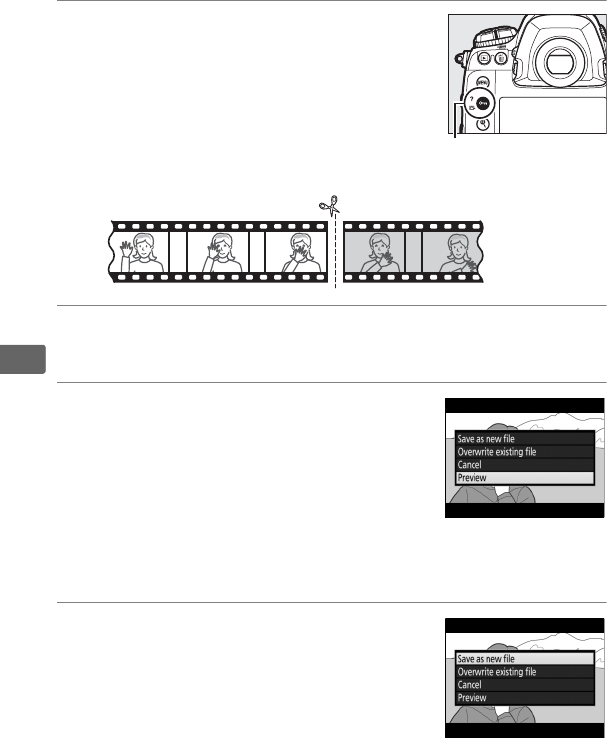
84
y
6Choose the end point.
Press L (Z/Q) to switch from the start
point (w) to the end point (x) selection
tool and then select the closing frame as
described in Step 5.
The frames after the
selected frame will be removed when you
save the copy in Step 9.
7Create the copy.
Once the desired frame is displayed, press 1.
8Preview the movie.
To preview the copy, highlight Preview
and press J (to interrupt the preview
and return to the save options menu,
press 1).
To abandon the current copy
and select a new start point or end point
as described on the foregoing pages, highlight Cancel and
press J; to save the copy, proceed to Step 9.
9Save the copy.
Highlight Save as new file and press J
to save the copy to a new file.
To replace
the original movie file with the edited
copy, highlight Overwrite existing file
and press J.
L (Z/Q) button
End point
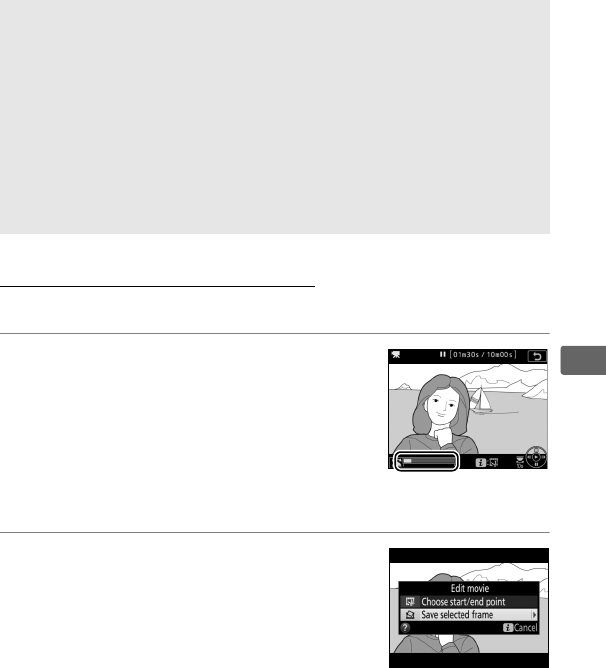
85
y
Saving Selected Frames
To save a copy of a selected frame as a JPEG still:
1Pause the movie on the desired
frame.
Play the movie back as described on
page 80, pressing the center of the multi
selector to start and resume playback
and 3 to pause.
Pause the movie at the
frame you intend to copy.
2Choose Save selected frame.
Press i or J, then highlight Save
selected frame and press 2.
DTrimming Movies
Movies must be at least two seconds long.
The copy will not be saved if
there is insufficient space available on the memory card.
Copies have the same time and date of creation as the original.
ARemoving Opening or Closing Footage
To remove only the opening footage from the movie, proceed to Step 7
without pressing the L(Z/Q) button in Step 6.
To remove only the
closing footage, select End point in Step 4, select the closing frame, and
proceed to Step 7 without pressing the L(Z/Q) button in Step 6.
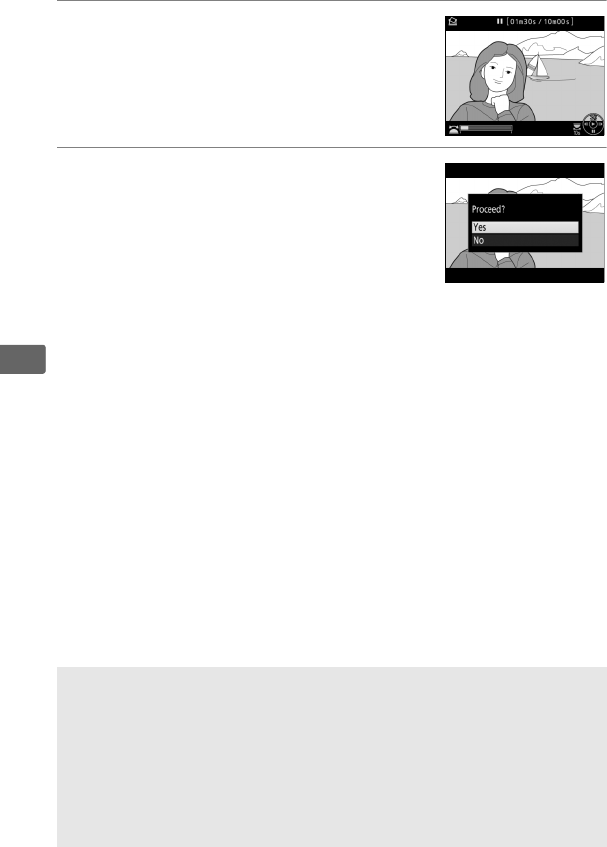
86
y
3Create a still copy.
Press 1 to create a still copy of the
current frame.
4Save the copy.
Highlight Ye s and press J to create a
fine★-quality (092) JPEG copy of the
selected frame.
ASave Selected Frame
JPEG movie stills created with the Save selected frame option can not
be retouched.
JPEG movie stills lack some categories of photo
information (0252).
AThe Retouch Menu
Movies can also be edited using the Edit movie option in the retouch
menu (0313).
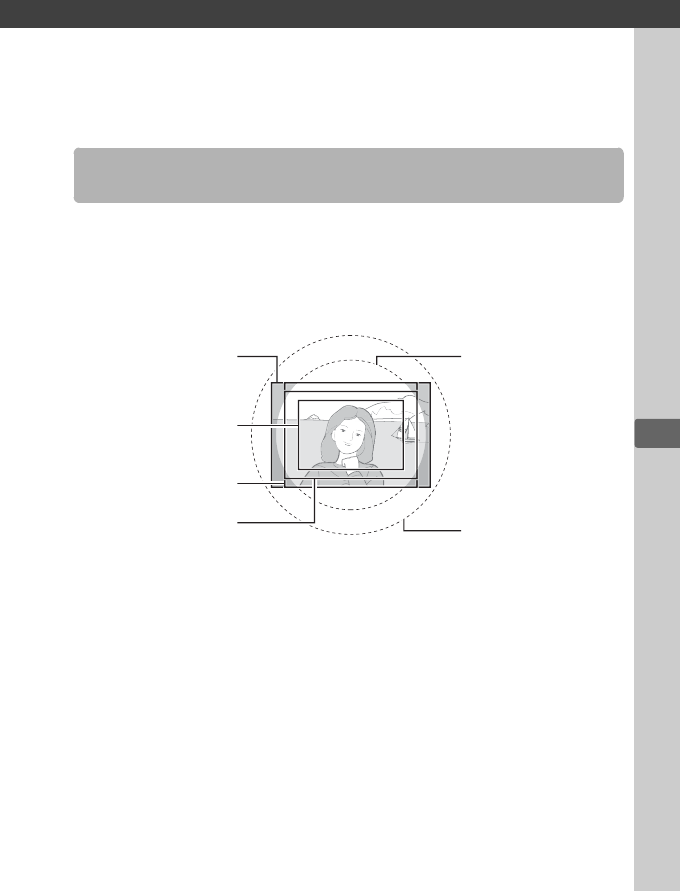
d
87
d
Image Recording Options
Choose from image areas of FX (36 × 24) 1.0× (FX format), DX
(24 × 16) 1.5× (DX format), 5 : 4 (30 × 24), and 1.2× (30 × 20)
1.2×.
See page 383 for information on the number of pictures that
can be stored at different image area settings.
Image Area
DX format (24×16)
image circle
FX format (36×24)
image circle
FX format
1.2×
5:4
DX format
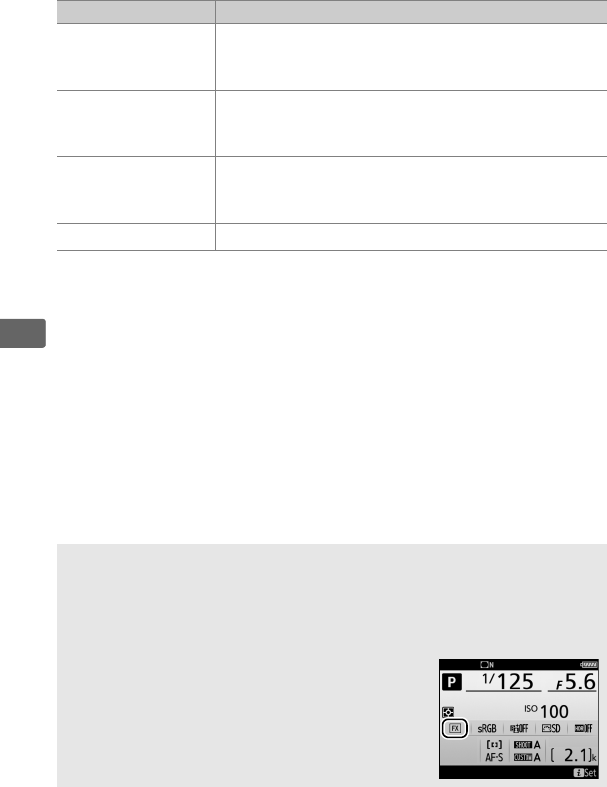
88
d
❚❚ Image Area Options
The camera offers a choice of the following image areas:
❚❚ Automatic Crop Selection
To automatically select to a DX crop when a DX lens is attached,
select On for Image area > Auto DX crop in the photo shooting
menu (0290).
The image area selected in the photo shooting
menu or with the camera controls will be used only when a non-
DX lens is attached.
Select Off to use the currently-selected image
area with all lenses.
Option Description
cFX (36×24) 1.0×
Images are recorded in FX format with an angle of
view equivalent to a NIKKOR lens on a 35 mm
format camera.
Z1.2× (30×20) 1.2×
Selecting this option reduces the angle of view and
increases the apparent focal length of the lens by
approximately 1.2×.
aDX (24×16) 1.5×
Images are recorded in DX format.
To calculate the
approximate focal length of the lens in 35 mm
format, multiply by 1.5.
b5 : 4 (30×24) Pictures are recorded with an aspect ratio of 5 : 4.
DAuto DX Crop
The controls listed on page 91 can not be used to select image area
when a DX lens is attached and Auto DX crop is on.
AImage Area
The selected option is shown in the information
display.
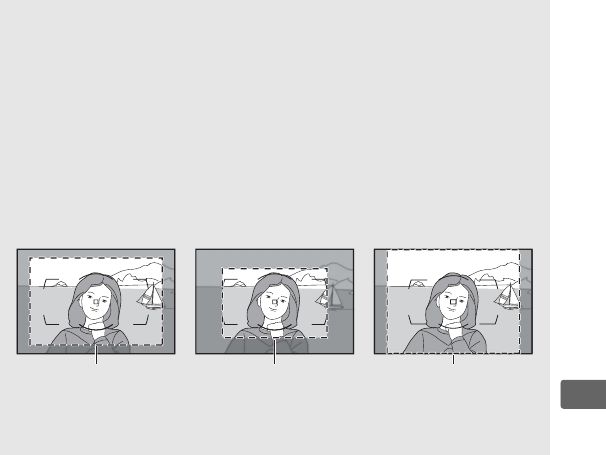
89
d
ADX Lenses
DX lenses are designed for use with DX format cameras and have a
smaller angle of view than lenses for 35 mm format cameras.
If Auto DX
crop is off and an option other than DX (24×16) (DX format) is selected
for Image area when a DX lens is attached, the edges of the image may
be eclipsed.
This may not be apparent in the viewfinder, but when the
images are played back you may notice a drop in resolution or that the
edges of the picture are blacked out.
AThe Viewfinder Display
The 1.2 ×, DX format, and 5 : 4 crops are shown below.
1.2× DX format 5:4
ASee Also
See page 69 for information on the crops available for movie recording.
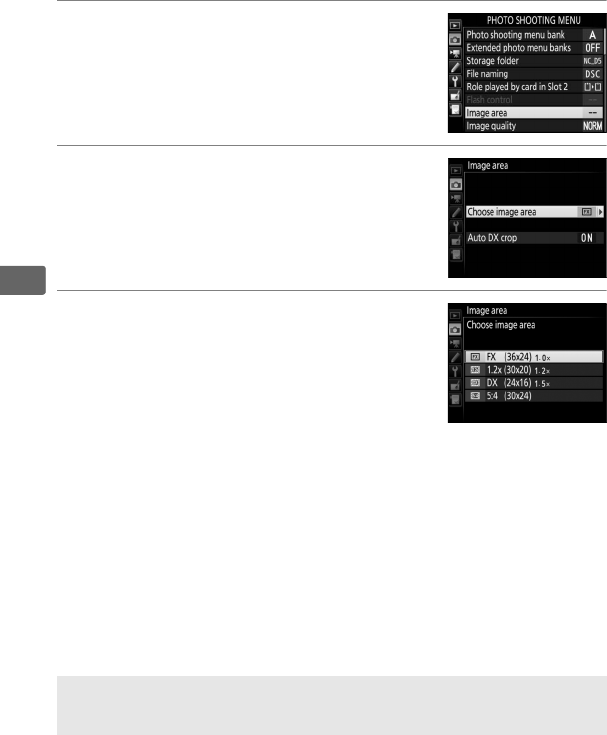
90
d
The image area can be selected using the Image area > Choose
image area option in the photo shooting menu or by pressing a
control and rotating a command dial.
❚❚ The Image Area Menu
1Select Image area.
Highlight Image area in the photo
shooting menu and press 2.
2Select Choose image area.
Highlight Choose image area and press
2.
3Adjust settings.
Choose an option and press J.
The
selected crop is displayed in the
viewfinder (089).
AImage Size
Image size varies with the option selected for image area.
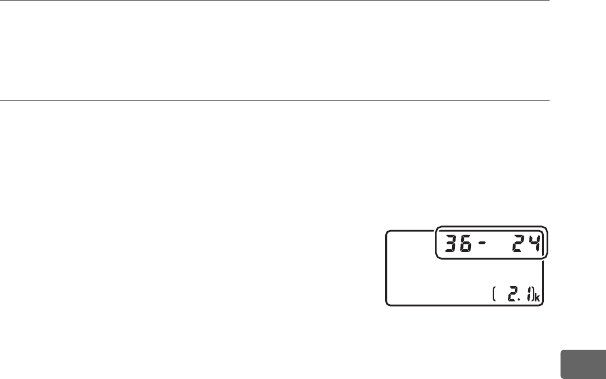
91
d
❚❚ Camera Controls
1Assign image area selection to a camera control.
Use Custom Setting f1 (Custom control assignment, 0305)
to assign Choose image area to a control.
2Use the selected control to choose an image area.
The image area can be selected by pressing the selected
control and rotating the main or sub-command dial until the
desired crop is displayed in the viewfinder (089).
The option currently selected for image
area can be viewed by pressing the
control to display the image area in the
top control panel or information display.
FX format is displayed as “36z24”, 1.2 ×
as “30z20”, DX format as “24z16”, a n d
5:4 as “30z24”.
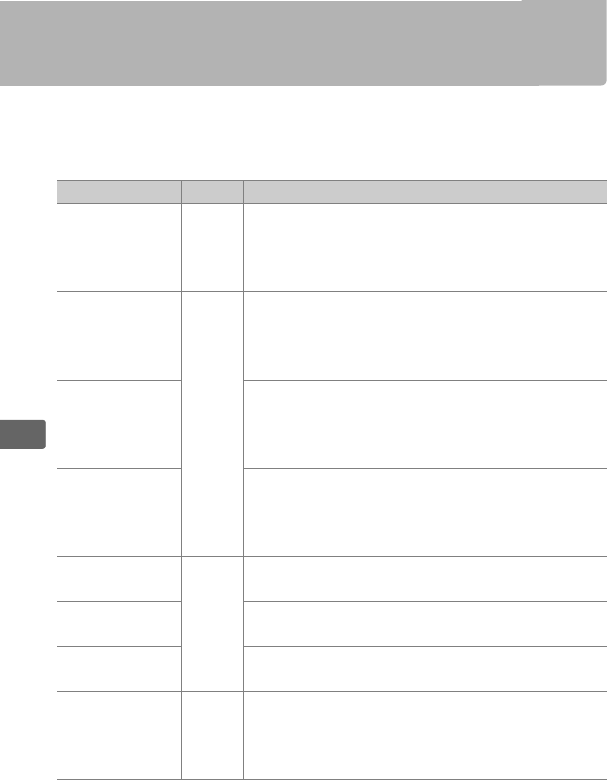
92
d
Image Quality
The D5 supports the following image quality options.
See
page 383 for information on the number of pictures that can be
stored at different image quality and size settings.
Option File type Description
NEF (RAW) NEF
RAW data from the image sensor are saved
without additional processing.
Settings such as
white balance and contrast can be adjusted
after shooting.
NEF (RAW)+
JPEG fine★/
NEF (RAW)+
JPEG fine
NEF/
JPEG
Two images are recorded, one NEF (RAW)
image and one fine-quality JPEG image.
NEF (RAW)+
JPEG normal★/
NEF (RAW)+
JPEG normal
Two images are recorded, one NEF (RAW)
image and one normal-quality JPEG image.
NEF (RAW)+
JPEG basic★/
NEF (RAW)+
JPEG basic
Two images are recorded, one NEF (RAW)
image and one basic-quality JPEG image.
JPEG fine★/
JPEG fine
JPEG
Record JPEG images at a compression ratio of
roughly 1:4 (fine quality).
JPEG normal★/
JPEG normal
Record JPEG images at a compression ratio of
roughly 1:8 (normal quality).
JPEG basic★/
JPEG basic
Record JPEG images at a compression ratio of
roughly 1:16 (basic quality).
TIFF (RGB) TIFF
(RGB)
Record uncompressed TIFF-RGB images at a bit
depth of 8 bits per channel (24-bit color).
TIFF
is supported by a wide variety of imaging
applications.
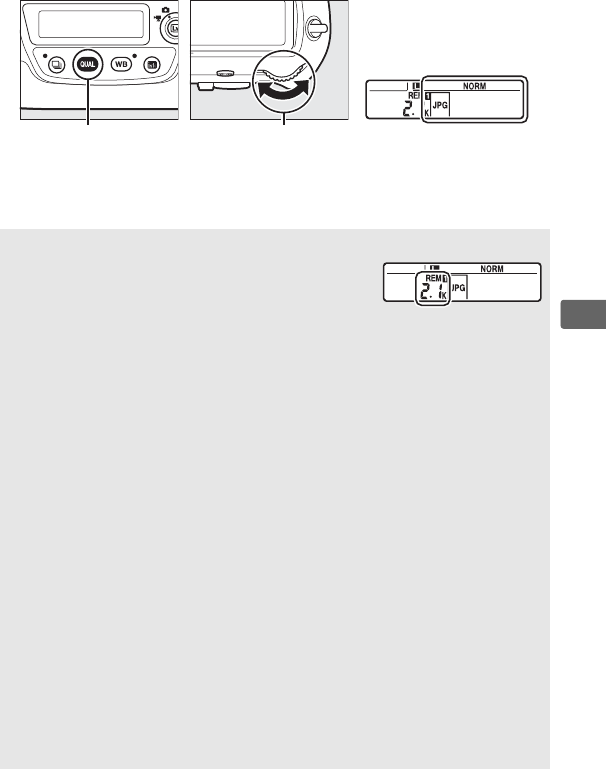
93
d
Image quality is set by pressing the T button and rotating the
main command dial until the desired setting is displayed in the
rear control panel.
T button Main command dial Rear control panel
ANumber of Exposures Remaining
Pressing the T button displays the number
of exposures remaining in the rear control panel.
The number of exposures remaining changes
with the option selected for image quality.
AJPEG Compression
Image quality options with a star (“★”) use compression intended to
ensure maximum quality; the size of the files varies with the scene.
Options without a star use a type of compression designed to produce
smaller files; files tend to be roughly the same size regardless of the
scene recorded.
ANEF+JPEG
When photographs taken at settings of NEF (RAW) + JPEG are viewed
on the camera with only one memory card inserted, only the JPEG
image will be displayed.
If both copies are recorded to the same
memory card, both copies will be erased when the photo is deleted.
If
the JPEG copy is recorded to a separate memory card using the Role
played by card in Slot 2 > RAW Slot 1 - JPEG Slot 2 option, each copy
must be deleted separately.
AThe Image Quality Menu
Image quality can also be adjusted using the Image quality option in
the photo shooting menu (0290).
Rear control panel
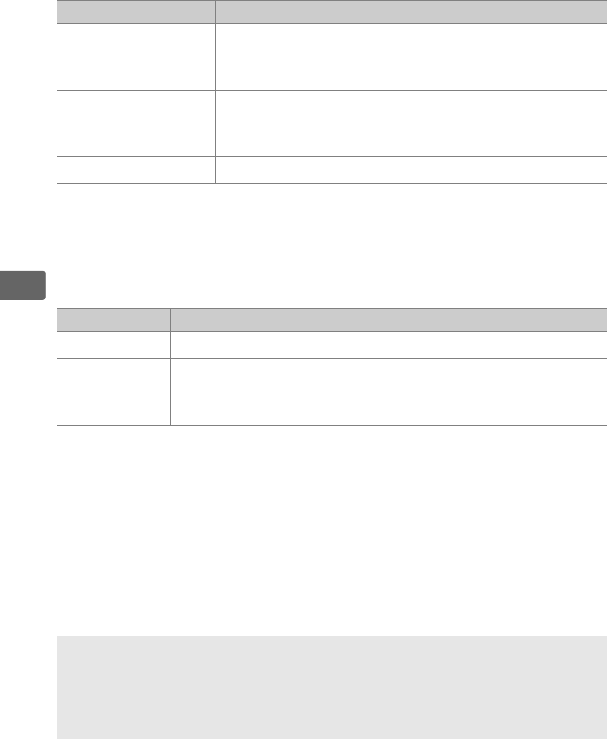
94
d
❚❚ NEF (RAW) Compression
To choose the type of compression for NEF (RAW) images,
highlight NEF (RAW) recording > NEF (RAW) compression in the
photo shooting menu and press 2.
❚❚ NEF (RAW) Bit Depth
To choose a bit depth for NEF (RAW) images, highlight NEF (RAW)
recording > NEF (RAW) bit depth in the photo shooting menu
and press 2.
Option Description
NLossless
compressed
NEF images are compressed using a reversible
algorithm, reducing file size by about 20–40% with
no effect on image quality.
OCompressed
NEF images are compressed using a non-reversible
algorithm, reducing file size by about 35–55% with
almost no effect on image quality.
Uncompressed NEF images are not compressed.
Option Description
q12-bit NEF (RAW) images are recorded at a bit-depth of 12 bits.
r14-bit
NEF (RAW) images are recorded at a bit depth of 14 bits,
producing files larger than those with a bit depth of
12 bits but increasing the color data recorded.
ANEF (RAW) Images
JPEG copies of NEF (RAW) images can be created using Capture NX-D or
other software or the NEF (RAW) processing option in the retouch
menu (0312).
95
d
Image Size
Image size is measured in pixels.
Choose from #Large,
$Medium, or %Small (note that image size varies depending
on the option selected for Image area, 087):
Image area Option Size (pixels) Print size (cm/in.) *
FX (36×24) 1.0×
(FX format)
Large 5568 × 3712 47.1 × 31.4/18.6 × 12.4
Medium 4176 × 2784 35.4 × 23.6/13.9 × 9.3
Small 2784 × 1856 23.6 × 15.7/ 9.3 × 6.2
1.2× (30×20)
1.2×
Large 4640 × 3088 39.3 × 26.2/15.5 × 10.3
Medium 3472 × 2312 29.4 × 19.6/11.6 × 7.7
Small 2320 × 1544 19.6 × 13.1/ 7.7 × 5.1
DX (24×16) 1.5×
(DX format)
Large 3648 × 2432 30.9 × 20.6/12.2 × 8.1
Medium 2736 × 1824 23.2 × 15.4/ 9.1 × 6.1
Small 1824 × 1216 15.4 × 10.3/ 6.1 × 4.1
5 : 4 (30×24)
Large 4640 × 3712 39.3 × 31.4/15.5 × 12.4
Medium 3472 × 2784 29.4 × 23.6/11.6 × 9.3
Small 2320 × 1856 19.6 × 15.7/ 7.7 × 6.2
* Approximate size when printed at 300 dpi.
Print size in inches equals image
size in pixels divided by printer resolution in dots per inch
(dpi; 1 inch = approximately 2.54 cm).
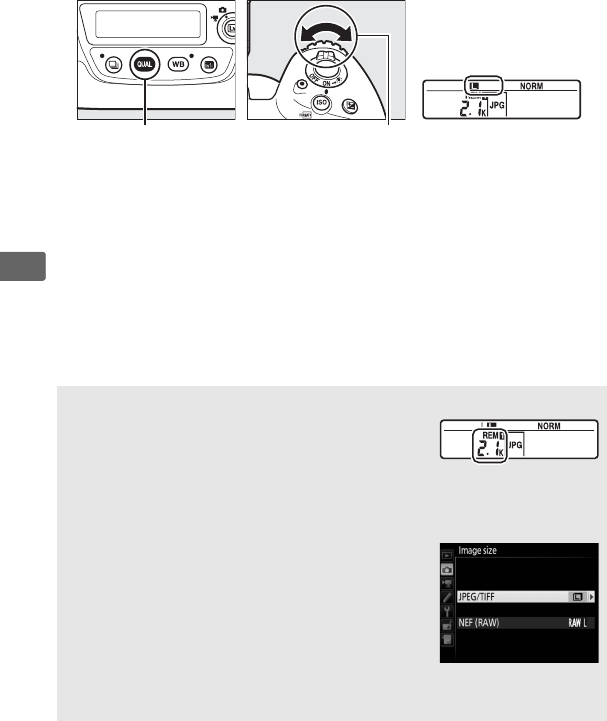
96
d
Image size for JPEG and TIFF images can be set by pressing the
T button and rotating the sub-command dial until the desired
option is displayed in the rear control panel.
To choose the size of
NEF (RAW) images, use the Image size > NEF (RAW) option in the
photo shooting menu.
T button Sub-command dial Rear control panel
ANumber of Exposures Remaining
Pressing the T button displays the number
of exposures remaining in the rear control panel.
The number of exposures remaining changes
with the option selected for image size.
AThe Image Size Menu
Image size for JPEG and TIFF images can also be
adjusted using the Image size > JPEG/TIFF
option in the photo shooting menu (0290).
Small and medium sized NEF (RAW) images are
recorded in lossless compressed 12-bit format,
regardless of the options selected for NEF (RAW)
compression and NEF (RAW) bit depth in the
NEF (RAW) recording menu.
Rear control panel

97
d
Using Two Memory Cards
When two memory cards are inserted in the camera, you can use
the Role played by card in Slot 2 item in the photo shooting
menu to choose the role played by the card in Slot 2.
Choose from
Overflow (the card in Slot 2 is used only when the card in Slot 1 is
full), Backup (each picture is recorded twice, once to the card in
Slot 1 and again to the card in Slot 2), and RAW Slot 1 - JPEG Slot
2 (as for Backup, except that the NEF/RAW copies of photos
recorded at settings of NEF/RAW + JPEG are recorded only to the
card in Slot 1 and the JPEG copies only to the card in Slot 2).
A“Backup” and “RAW Slot 1 - JPEG Slot 2”
When Backup or RAW Slot 1 - JPEG Slot 2 is selected, the camera
shows the number of exposures remaining on the card with the least
amount of memory, and voice memos (0270) are recorded to the card
in Slot 1.
Shutter release will be disabled when either card is full.
ARecording Movies
When two memory cards are inserted in the camera, the slot used to
record movies can be selected using the Destination option in the
movie shooting menu (0294).
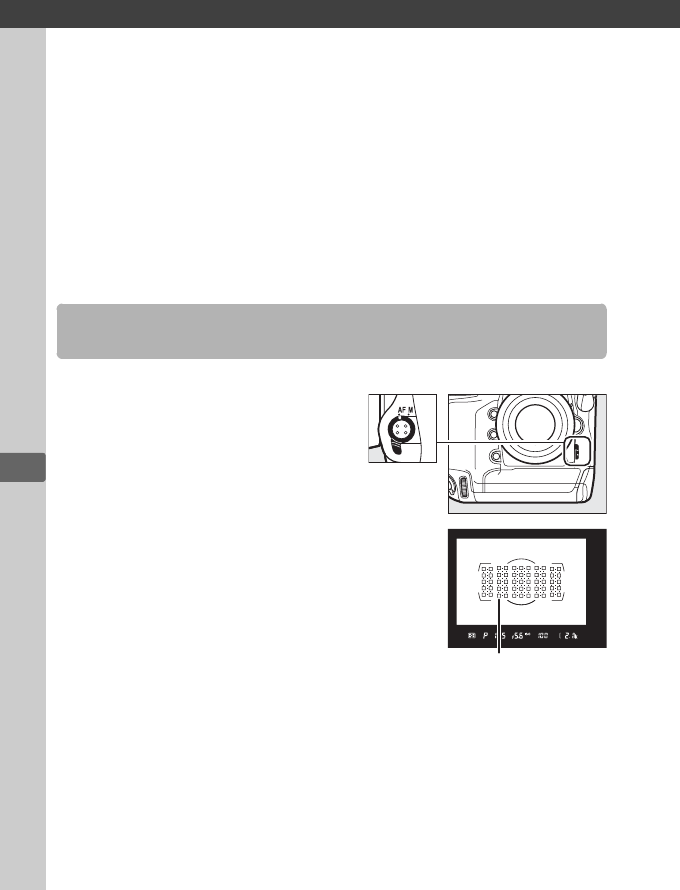
N
98
N
Focus
This section describes the focus options available when
photographs are framed in the viewfinder.
Focus can be adjusted
automatically (see below) or manually (0114).
The user can also
select the focus point for automatic or manual focus (0108) or
use focus lock to focus and recompose photographs after focusing
(0111).
To use autofocus, rotate the focus-
mode selector to AF.
The camera focuses using 153 focus points, of
which the 55 shown by r in the illustration at
right can be selected by the user (0108).
Autofocus
Focus-mode selector
User-selectable
focus points
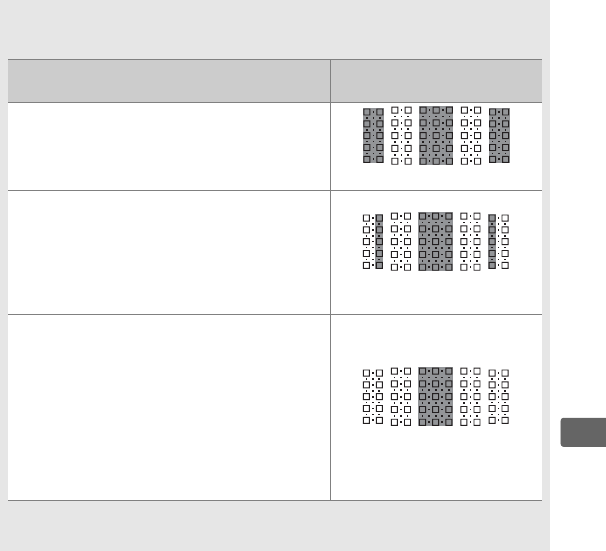
99
N
ACross Sensors
The availability of cross-sensor focus points varies with the lens used.
Lens Cross sensors (cross-sensor focus
points highlighted in gray 2)
AF-S lenses other than those listed below
with maximum apertures of f/4 or faster 1
99 cross sensors
• AF-S DX Zoom-Nikkor 12–24mm f/4G IF-ED
• AF-S Micro NIKKOR 60mm f/2.8G ED
• AF-S NIKKOR 600mm f/4G ED VR
• AF-S NIKKOR 600mm f/4E FL ED VR
• AF-S Nikkor 600mm f/4D IF-ED II
• AF-S Nikkor 600mm f/4D IF-ED
63 cross sensors
• AF-S NIKKOR 200–400mm f/4G ED VR II
• AF-S VR Zoom-Nikkor 200–400mm f/4G
IF-ED
• AF-S NIKKOR 500mm f/4G ED VR
• AF-S Nikkor 500mm f/4D IF-ED II
• AF-S Nikkor 500mm f/4D IF-ED
• AF-S lenses with maximum apertures
slower than f/4 1
•Non–AF-S lenses
45 cross sensors
1 At maximum zoom, in the case of zoom lenses.
2 Other focus points use line sensors, which detect horizontal lines.
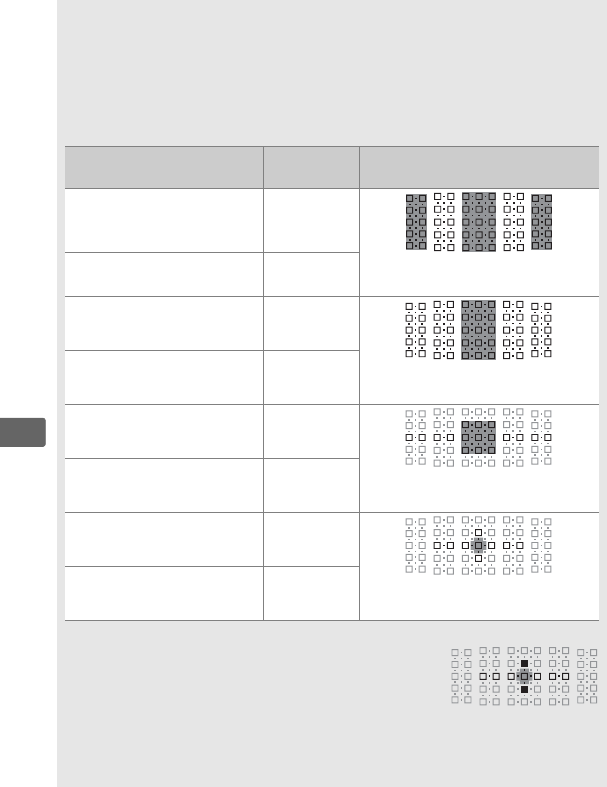
100
N
AAF-S/AF-I Teleconverters and Available Focus Points
When an AF-S or AF-I teleconverter is attached, the focus points shown
in the illustrations can be used for autofocus and electronic
rangefinding (note that at maximum combined apertures slower than
f/5.6, the camera may not be able to focus on dark or low-contrast
subjects).
Teleconverter Max. lens
aperture 1
Available focus points (cross-sensor
focus points highlighted in gray 2)
TC-14E, TC-14EII, TC-14EIII
TC-17EII
TC-20E, TC-20EII, TC-20EIII
f/2
153 focus points (55 selectable)
with 99 cross sensors
TC-14E, TC-14EII, TC-14EIII f/2.8
TC-17EII
TC-20E, TC-20EII, TC-20EIII f/2.8
153 focus points (55 selectable)
with 45 cross sensors
TC-14E, TC-14EII, TC-14EIII f/4
TC-17EII f/4
37 focus points (17 selectable)
with 25 cross sensors
TC-800-1.25E ED f/5.6
TC-20E, TC-20EII, TC-20EIII f/4
15 focus points (9 selectable)
with 5 cross sensors
TC-14E, TC-14EII, TC-14EIII f/5.6
1 At maximum zoom, in the case of zoom lenses.
2 Other focus points use line sensors, which detect
horizontal lines, but note that if there are only5
cross sensors, only those shown by ■ detect
vertical lines.
Autofocus is not available when teleconverters are used with AF-S VR
Micro-Nikkor 105mm f/2.8G IF-ED lenses.
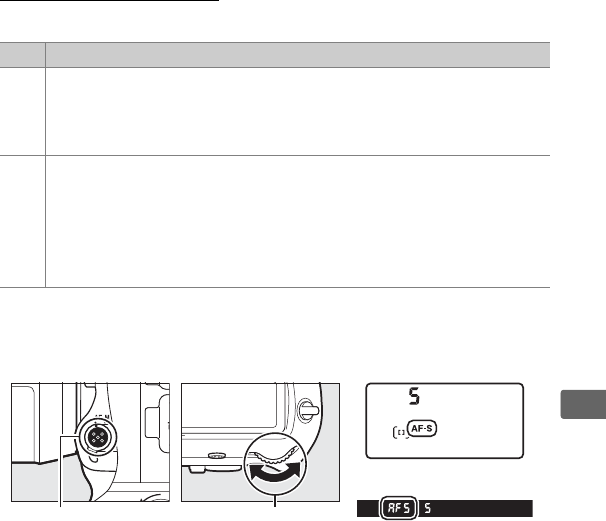
101
N
Autofocus Mode
Choose from the following autofocus modes:
Autofocus mode can be selected by pressing the AF-mode button
and rotating the main command dial until the desired setting is
displayed in the viewfinder and top control panel.
Mode Description
AF-S
Single-servo AF: For stationary subjects.
Focus locks when shutter-
release button is pressed halfway.
At default settings, shutter can
only be released when in-focus indicator (I) is displayed (focus
priority; 0297).
AF-C
Continuous-servo AF: For moving subjects.
Camera focuses
continuously while shutter-release button is pressed halfway; if
subject moves, camera will engage predictive focus tracking
(0103) to predict final distance to subject and adjust focus as
necessary.
At default settings, shutter can be released whether or
not subject is in focus (release priority; 0297).
AF-mode button Main command dial
Top control panel
Viewfinder
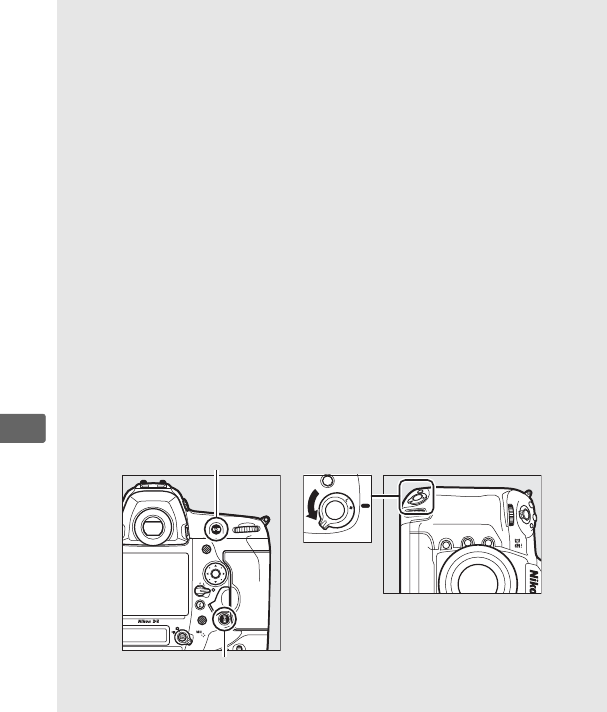
102
N
ASee Also
For information on using focus priority in continuous-servo AF, see
Custom Setting a1 (AF-C priority selection, 0297).
For information
on using release priority in single-servo AF, see Custom Setting a2 (AF-S
priority selection, 0297).
For information on preventing the camera
from focusing when the shutter-release button is pressed halfway, see
Custom Setting a8 (AF activation, 0298).
See Custom Setting a10
(Autofocus mode restrictions, 0299) for information on limiting
focus-mode selection to AF-S or AF-C and f4 (Customize command dials)
> Change main/sub (0306) for information on using the sub-
command dial to choose the focus mode.
See page 48 for information
on the autofocus options available in live view or during movie
recording.
AThe AF-ON Buttons
For the purpose of focusing the camera, pressing either of the AF-ON
buttons has the same effect as pressing the shutter-release button
halfway (note that the AF-ON button for vertical shooting can only be
used when the vertical shooting shutter-release button lock is
unlocked; 039).
AF-ON button
AF-ON button for
vertical shooting
Vertical shooting shutter-
release button lock
103
N
APredictive Focus Tracking
In AF-C mode, the camera will initiate predictive focus tracking if the
subject moves toward or away from the camera while the shutter-
release button is pressed halfway or either of the AF-ON buttons is
pressed.
This allows the camera to track focus while attempting to
predict where the subject will be when the shutter is released.
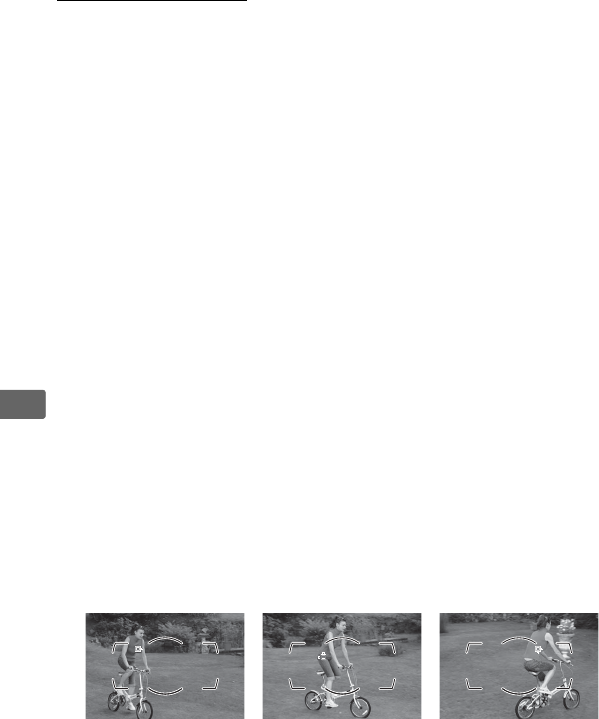
104
N
AF-Area Mode
Choose how the focus point for autofocus is selected.
•Single-point AF: Select the focus point as described on page 108;
the camera will focus on the subject in the selected focus point
only.
Use with stationary subjects.
•Dynamic-area AF: Select the focus point as described on page 108.
In AF-C focus mode, the camera will focus based on information
from surrounding focus points if the subject briefly leaves the
selected point.
The number of focus points varies with the mode
selected:
-25-point dynamic-area AF: Choose when there is time to compose
the photograph or when photographing subjects that are
moving predictably (e.g., runners or race cars on a track).
-72-point dynamic-area AF: Choose when photographing subjects
that are moving unpredictably (e.g., players at a football game).
-153-point dynamic-area AF: Choose when photographing subjects
that are moving quickly and can not be easily framed in the
viewfinder (e.g., birds).
•3D-tracking: Select the focus point as described on page 108.
In
AF-C focus mode, the camera will track subjects that leave the
selected focus point and select new focus points as required.
Use to quickly compose pictures with subjects that are moving
erratically from side to side (e.g., tennis players).
If the subject
leaves viewfinder, remove your finger from the shutter-release
button and recompose the photograph with the subject in the
selected focus point.
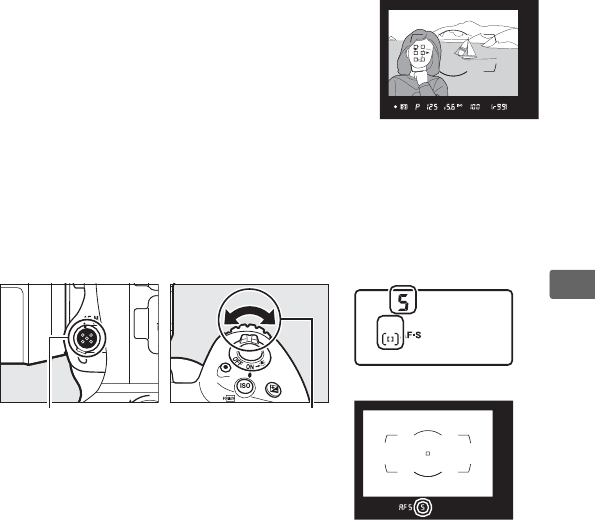
105
N
•Group-area AF: The camera focuses using a group of focus points
selected by the user, reducing the risk of the camera focusing on
the background instead of on the main subject.
Choose for
subjects that are difficult to photograph using a single focus
point.
If faces are detected in AF-S focus mode, the camera will
give priority to portrait subjects.
•Auto-area AF: The camera automatically
detects the subject and selects the focus
point; if a face is detected, the camera will
give priority to the portrait subject.
The
active focus points are highlighted briefly
after the camera focuses; in AF-C mode, the
main focus point is displayed after the other
focus points have turned off.
AF-area mode can be selected by pressing the AF-mode button
and rotating the sub-command dial until the desired setting is
displayed in the viewfinder and top control panel.
AF-mode button Sub-command dial
Top control panel
Viewfinder
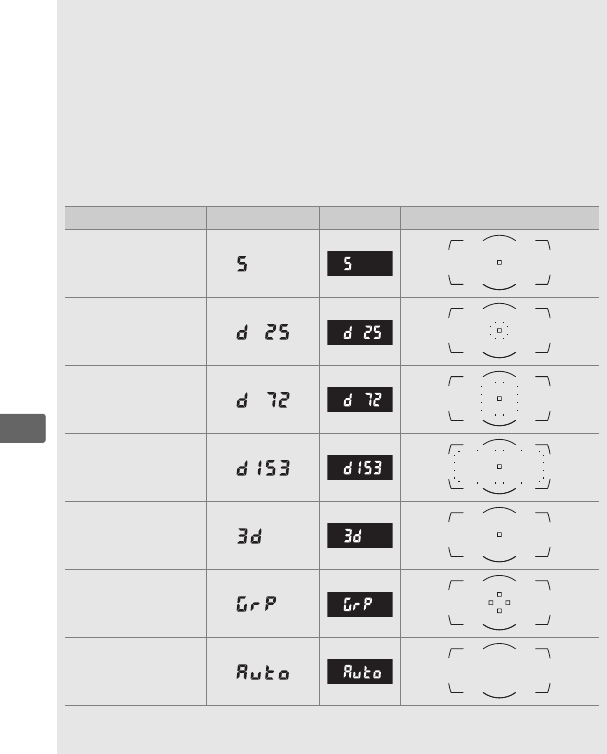
106
N
A3D-tracking
When the shutter-release button is pressed halfway, the colors in the
area surrounding the focus point are stored in the camera.
Consequently 3D-tracking may not produce the desired results with
subjects that are similar in color to the background or that occupy a
very small area of the frame.
AAF-Area Mode
AF-area mode is shown in the top control panel and viewfinder.
AF-area mode Top control panel Viewfinder Viewfinder focus-point display
Single-point AF
25-point dynamic-
area AF *
72-point dynamic-
area AF *
153-point dynamic-
area AF *
3D-tracking
Group-area AF
Auto-area AF
* Only active focus point is displayed in the viewfinder.
Remaining focus
points provide information to assist focus operation.
107
N
AAF-S/AF-I Teleconverters
If 3D-tracking or auto-area AF is selected for AF-area mode when an
AF-S/AF-I teleconverter is used, single-point AF will automatically be
selected at combined apertures slower than f/5.6.
AManual Focus
Single-point AF is automatically selected when manual focus is used.
ASee Also
For information on how autofocus adjusts to changes in the distance to
the subject, see Custom Setting a3 (Focus tracking with lock-on,
0297).
To adjust settings for 3D-tracking, use Custom Settings a4 (3D-
tracking face-detection, 0298) and a5 (3D-tracking watch area,
0298).
See Custom Setting a7 (Store by orientation, 0298) for
information on choosing different focus points and/or AF-area modes
for portrait- and landscape-orientation photographs, a9 (Limit AF-area
mode selection, 0298) for information on limiting AF-area mode
selection, a12 (Focus point options, 0299) for information on
choosing how the focus point is displayed in dynamic-area AF, and f4
(Customize command dials) > Change main/sub (0306) for
information on using the main command dial to choose the AF-area
mode.
See page 49 for information on the autofocus options available
in live view or during movie recording.
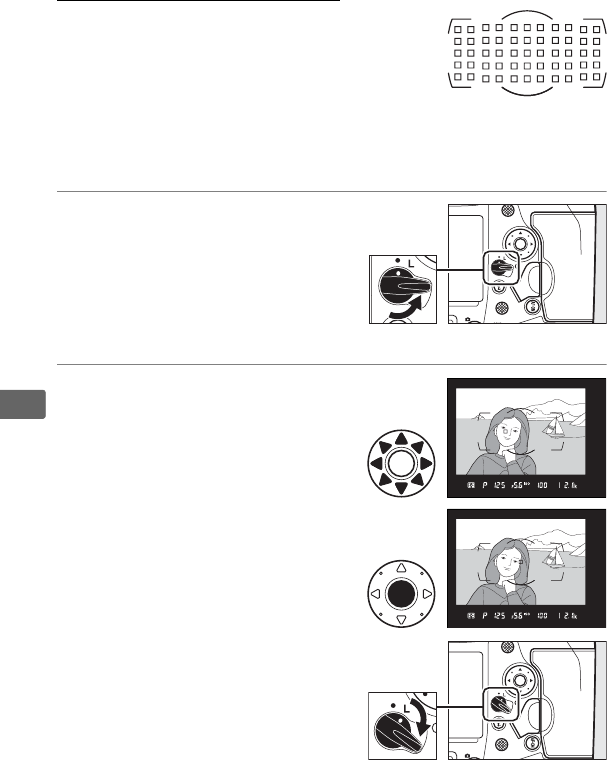
108
N
Focus Point Selection
The camera focuses using 153 focus points, of
which 55 shown at right can be selected
manually, allowing photographs to be
composed with the main subject positioned
almost anywhere in the frame.
Follow the
steps below to choose the focus point (in group-area AF, you can
follow these steps to choose a group of focus points).
1Rotate the focus selector
lock to ●.
This allows the multi selector to
be used to select the focus
point.
2Select the focus point.
Use the multi selector to select
the focus point in the
viewfinder while the exposure
meters are on.
The center focus
point can be selected by
pressing the center of the multi
selector.
The focus selector lock can be
rotated to the locked (L)
position following selection to
prevent the selected focus
point from changing when the
multi selector is pressed.
Focus selector lock
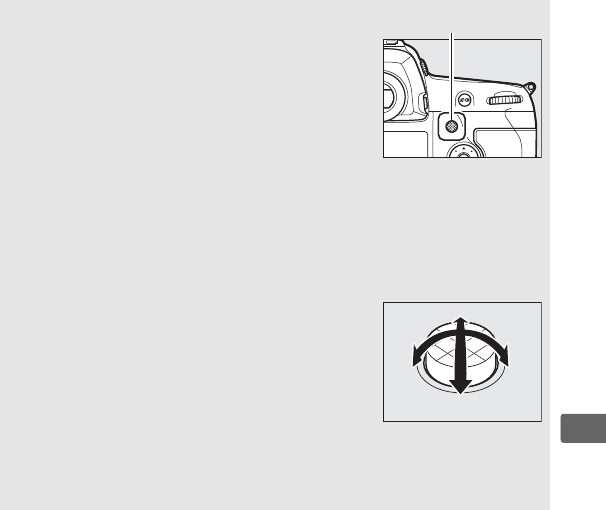
109
N
AThe Sub-selector
The sub-selector can be used in place of the
multi selector to select the focus point.
Focus
and exposure lock while the center of the sub-
selector is pressed (0111, 141).
Be careful not
to put your fingers or fingernails in your eye
when using the sub-selector.
APortrait (Tall-Orientation) Photographs
When framing shots in portrait (“tall”) orientation, use the multi selector
for vertical shooting to select the focus point.
For more information, see
Custom Setting f1 (Custom control assignment) > Multi selector for
vertical shooting (0305).
AUsing the Sub-selector and Multi Selector
for Vertical Shooting
Use as shown at right.
Pressing the sides may
not have the desired effect.
AAuto-area AF
The focus point for auto-area AF is selected automatically; manual
focus-point selection is not available.
Sub-selector

110
N
ASee Also
For information on choosing the number of focus points that can be
selected using the multi selector, see Custom Setting a6 (Number of
focus points, 0298).
For information on choosing separate focus
points and/or AF-area modes for vertical and horizontal orientations,
see Custom Setting a7 (Store by orientation, 0298).
For information
on setting focus-point selection to “wrap around,” see Custom Setting
a11 (Focus point wrap-around, 0299).
For information on choosing
when the focus point is illuminated, see Custom Setting a12 (Focus
point options, 0299).
For information on changing the role played by
the sub-selector, see Custom Setting f1 (Custom control assignment)
> Sub-selector (0305) and Sub-selector center (0305).
For
information on changing the role of the multi selector center button,
see Custom Setting f2 (Multi selector center button, 0306).
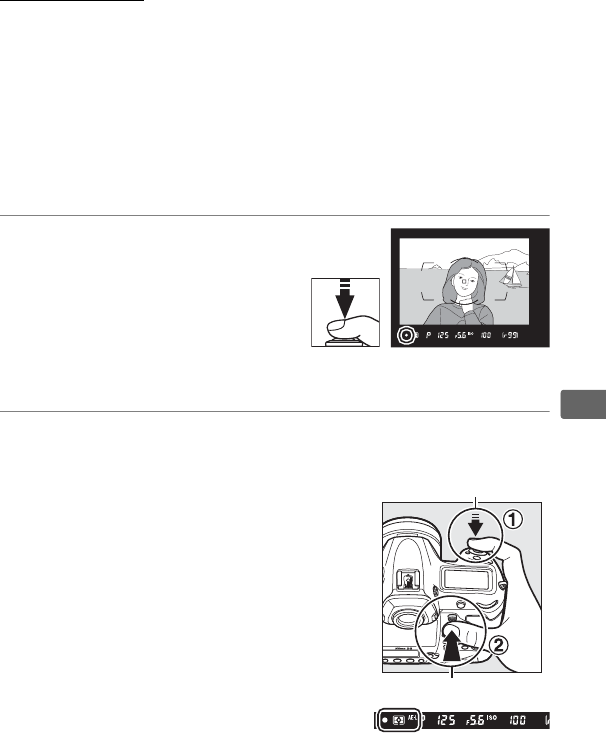
111
N
Focus Lock
Focus lock can be used to change the composition after focusing,
making it possible to focus on a subject that will not be in a focus
point in the final composition.
If the camera is unable to focus
using autofocus (0113), focus lock can also be used to recompose
the photograph after focusing on another object at the same
distance as your original subject.
Focus lock is most effective
when an option other than auto-area AF is selected for AF-area
mode (0104).
1Focus.
Position the subject in the
selected focus point and press
the shutter-release button
halfway to initiate focus.
Check
that the in-focus indicator (I)
appears in the viewfinder.
2Lock focus.
AF-C focus mode (0101): With the
shutter-release button pressed halfway
(q), press the center of the sub-
selector (w) to lock both focus and
exposure (an AE-L icon will be displayed
in the viewfinder).
Focus will remain
locked while the center of the sub-
selector is pressed, even if you later
remove your finger from the shutter-
release button.
Shutter-release
button
Sub-selector

112
N
AF-S focus mode: Focus locks automatically when the in-focus
indicator (I) appears, and remains locked until you remove
your finger from the shutter-release button.
Focus can also be
locked by pressing the center of the sub-selector as described
on the previous page.
3Recompose the photograph
and shoot.
Focus will remain locked
between shots if you keep the
shutter-release button pressed
halfway (AF-S) or keep the center
of the sub-selector pressed, allowing several photographs in
succession to be taken at the same focus setting.
Do not change the distance between the camera and the subject
while focus lock is in effect.
If the subject moves, focus again at the
new distance.
ALocking Focus with the AF-ON Button
During viewfinder photography, focus can be locked using either of the
AF-ON buttons in place of the shutter-release button (0102).
If AF-ON
only is selected for Custom Setting a8 (AF activation, 0298), the
camera will not focus when the shutter-release button is pressed
halfway; instead, the camera will focus when an AF-ON button is pressed,
at which point focus will lock and remain locked until either AF-ON
button is pressed again.
ASee Also
See Custom setting c1 (Shutter-release button AE-L, 0300) for
information on using the shutter-release button to lock exposure.
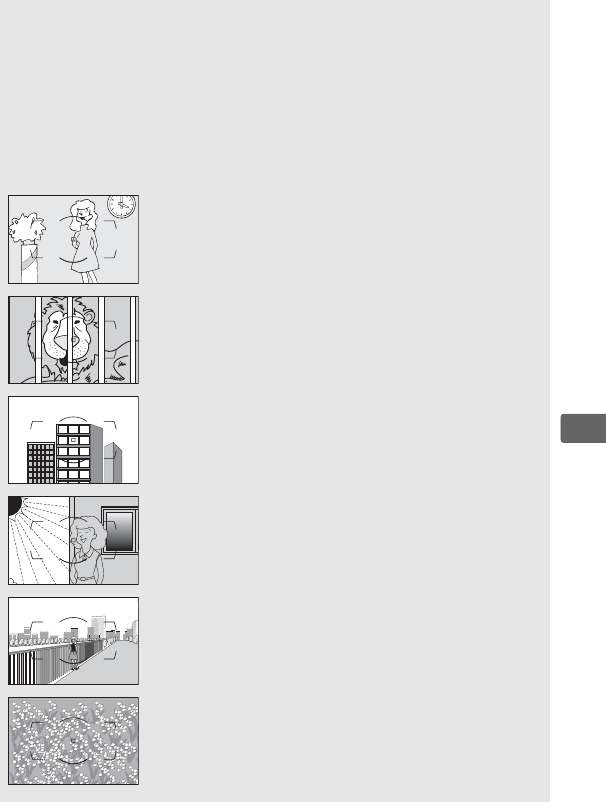
113
N
AGetting Good Results with Autofocus
Autofocus does not perform well under the conditions listed below.
The shutter release may be disabled if the camera is unable to focus
under these conditions, or the in-focus indicator (●) may be displayed
and the camera may sound a beep, allowing the shutter to be released
even when the subject is not in focus.
In these cases, use manual focus
(0114) or use focus lock (0111) to focus on another subject at the
same distance and then recompose the photograph.
There is little or no contrast between the subject and the
background.
Example: Subject is the same color as the background.
The focus point contains objects at different distances from
the camera.
Example: Subject is inside a cage.
The subject is dominated by regular geometric patterns.
Example: Blinds or a row of windows in a skyscraper.
The focus point contains areas of sharply contrasting
brightness.
Example: Subject is half in the shade.
Background objects appear larger than the subject.
Example: A building is in the frame behind the subject.
The subject contains many fine details.
Example: A field of flowers or other subjects that are small
or lack variation in brightness.
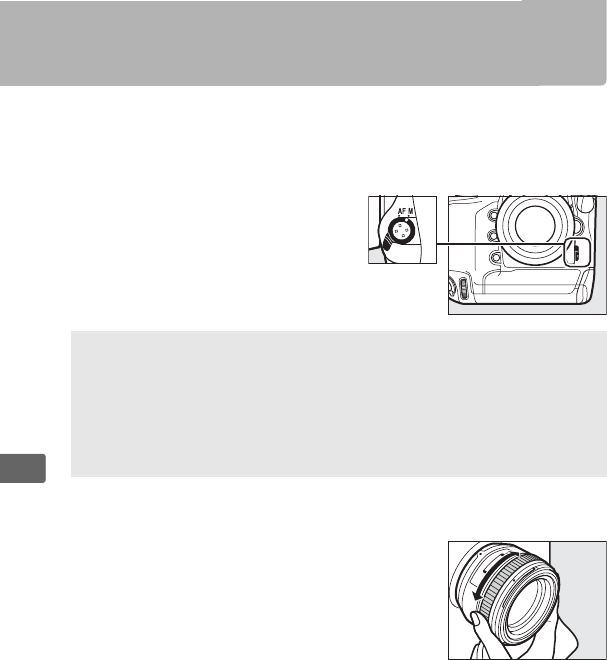
114
N
Manual Focus
Manual focus is available for lenses that do not support autofocus
(non-AF NIKKOR lenses) or when the autofocus does not produce
the desired results (0113).
•AF lenses: Set the lens focus mode
switch (if present) and camera
focus-mode selector to M.
•Manual focus lenses: Focus manually.
To focus manually, adjust the lens focus ring
until the image displayed on the clear matte
field in the viewfinder is in focus.
Photographs can be taken at any time, even
when the image is not in focus.
DAF Lenses
Do not use AF lenses with the lens focus-mode switch set to M and the
camera focus-mode selector set to AF.
Failure to observe this
precaution could damage the camera or lens. This does not apply to
AF-S lenses, which can be used in M mode without setting the camera
focus-mode selector to M.
Focus-mode selector
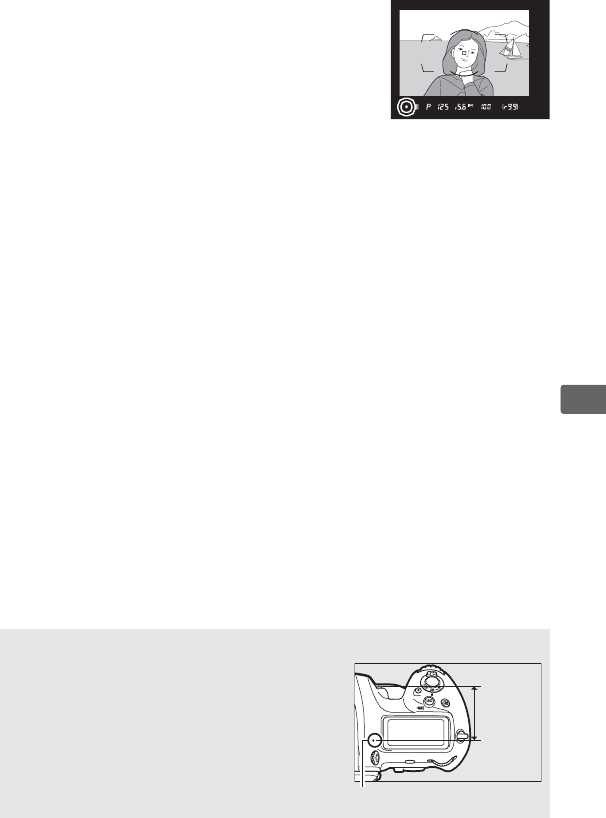
115
N
❚❚ The Electronic Rangefinder
The viewfinder focus indicator can be used to
confirm whether the subject in the selected
focus point is in focus (the focus point can be
selected from any of the 55 focus points).
After positioning the subject in the selected
focus point, press the shutter-release button
halfway and rotate the lens focus ring until the in-focus indicator
(I) is displayed.
Note that with the subjects listed on page 113,
the in-focus indicator may sometimes be displayed when the
subject is not in focus; confirm focus in the viewfinder before
shooting.
For information on using the electronic rangefinder
with optional AF-S/AF-I teleconverters, see page 100.
AFocal Plane Position
To determine the distance between your
subject and the camera, measure from the
focal plane mark (E) on the camera body.
The distance between the lens mounting
flange and the focal plane is 46.5 mm
(1.83 in.).
Focal plane mark
46.5 mm
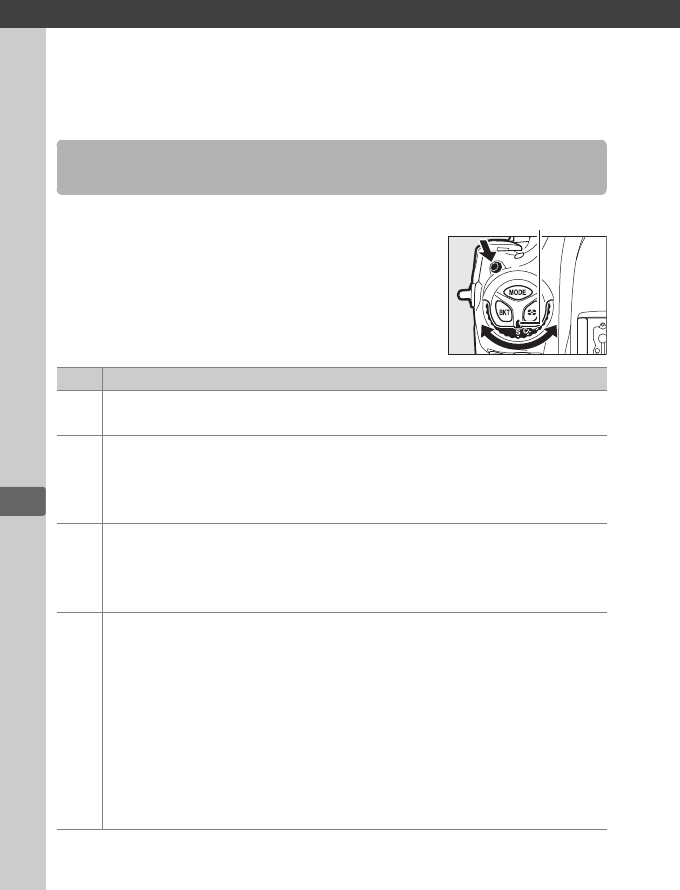
k
116
k
Release Mode
To choose a release mode, press the release
mode dial lock release and turn the release
mode dial so that the pointer aligns with the
desired setting.
Choosing a Release Mode
Mode Description
SSingle frame: The camera takes one photograph each time the
shutter-release button is pressed.
CL
Continuous low speed: The frame rate can be selected from values
between 1 and 10 fps by pressing the S button and rotating the
sub-command dial. The camera records photographs at the
selected rate while the shutter-release button is pressed (0117).
CH
Continuous high speed: The frame rate can be selected by pressing the
S button and rotating the sub-command dial.
Choose from 10, 11,
12, and 14 fps.
The camera records photographs at the selected
rate while the shutter-release button is pressed (0117).
Q
Quiet shutter-release: As for single frame, except that the mirror does
not click back into place while the shutter-release button is fully
pressed, allowing the user to control the timing of the click made
by the mirror, which is also quieter than in single frame mode.
In
addition, a beep does not sound regardless of the setting selected
for Beep in the setup menu (0310). Continuous release can also
be selected by pressing S and rotating a command dial until bs is
displayed in the rear control panel, in which case the camera will
take pictures at about 3 fps while the shutter-release button is
pressed.
Pointer
117
k
ESelf-timer: Take pictures with the self-timer (0120).
MUP
Mirror up
: Choose this mode to minimize camera shake in telephoto
or close-up photography or in other situations in which the slightest
camera movement can result in blurred photographs (
0
122).
SQuick release-mode selection: Press and hold the S button and rotate
the main command dial to select the release mode (0119).
AContinuous Release Modes
The frame rates for continuous low- and high-speed modes can also be
selected using Custom Setting d1 (Continuous shooting speed,
0301).
The stated rates assume continuous-servo AF, manual or
shutter-priority auto exposure, a shutter speed of 1/250 s or faster, and
other settings at default values.
The stated rates may not be available
with some lenses; in addition, frame rates may drop at extremely small
apertures (high f-numbers) or slow shutter speeds, when vibration
reduction (available with VR lenses) or auto ISO sensitivity control
(0126) is on, or when the battery is low, a non-CPU lens is attached, or
Aperture ring is selected for Custom Setting f4 (Customize command
dials) > Aperture setting (0306).
ATaking Pictures at 14 Frames per Second
When 14 fps (mirror up) is selected in continuous high-speed release
mode, the mirror will be raised when the shutter-release button is
pressed all the way down, focus and exposure will lock at the values
selected for the first frame in each burst, and optional flash units will not
fire.
The view through the lens is not visible in the viewfinder during
shooting.
Mode Description
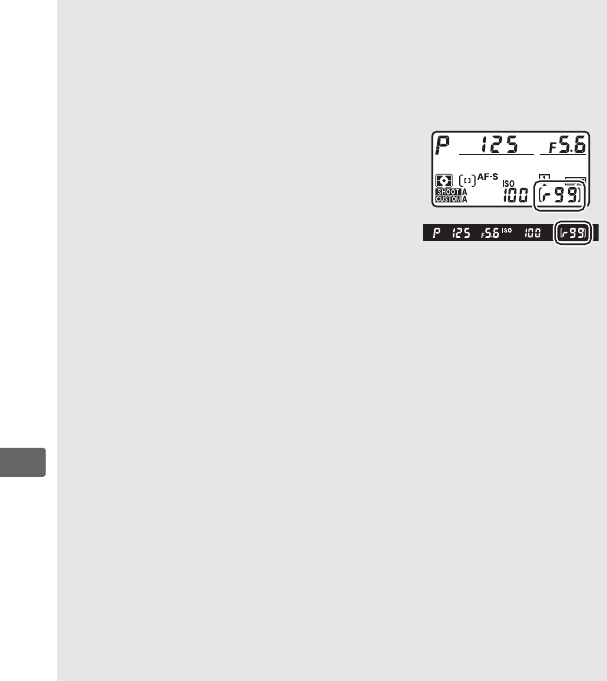
118
k
AThe Memory Buffer
The camera is equipped with a memory buffer for temporary storage,
allowing shooting to continue while photographs are being saved to
the memory card.
Note, however, that frame rate will drop when the
buffer is full (tAA).
The approximate number of images that can
be stored in the memory buffer at current
settings is shown in the exposure-count
displays in the viewfinder and top control
panel while the shutter-release button is
pressed halfway.
The illustration at right
shows the display when space remains in the buffer for about 99
pictures.
While photographs are being recorded to the memory card, the
memory card access lamp will light.
Depending on shooting conditions
and memory card performance, recording may take from a few seconds
to a few minutes.
Do not remove the memory card or remove or
disconnect the power source until the access lamp has gone out.
If the
camera is switched off while data remain in the buffer, the power will
not turn off until all images in the buffer have been recorded.
If the
battery is exhausted while images remain in the buffer, the shutter
release will be disabled and the images transferred to the memory card.
ASee Also
For information on choosing the order in which the photos in each
burst are displayed after shooting, see After burst, show (0288).
For
information on choosing the maximum number of photographs that
can be taken in a single burst, see Custom Setting d2 (Max. continuous
release, 0301).
For information on the number of pictures that can be
taken in a single burst, see page 383.
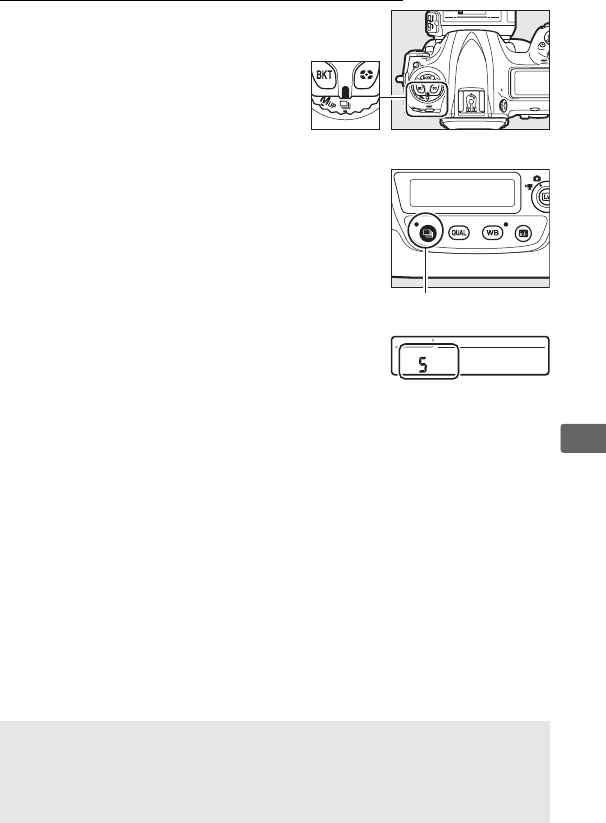
119
k
Quick Release-Mode Selection
When the release mode dial is
rotated to S, the release mode can
be selected by keeping the S
button pressed while rotating the
main command dial.
To adjust settings for the selected release
mode, press and hold the S button and
rotate the sub-command dial.
Release mode settings are shown in the rear
control panel.
ASee Also
For information on choosing the release modes that can be selected
with the S button, see Custom Setting d3 (Limit release mode
selection, 0302).
Release mode dial
S button
Rear control panel
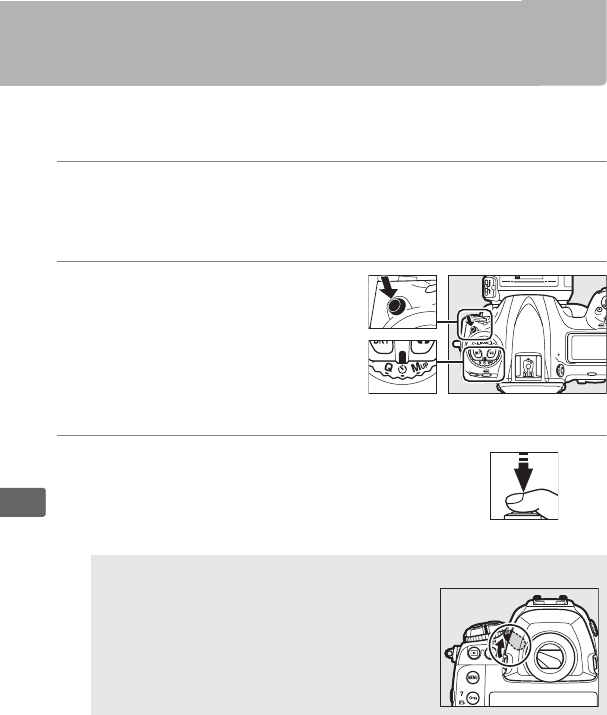
120
k
Self-Timer Mode
The self-timer can be used to reduce camera shake or for self-
portraits.
1Mount the camera on a tripod.
Mount the camera on a tripod or place the camera on a stable,
level surface.
2Select self-timer mode.
Press the release mode dial lock
release and turn the release
mode dial to E.
3Frame the photograph and focus.
In single-servo AF (0101), photographs
can only be taken if the in-focus (I)
indicator appears in the viewfinder.
AClose the Viewfinder Eyepiece Shutter
When taking photos without your eye to
the viewfinder, close the viewfinder
eyepiece shutter to prevent light entering
via the viewfinder from appearing in
photographs or interfering with exposure.
Release mode dial
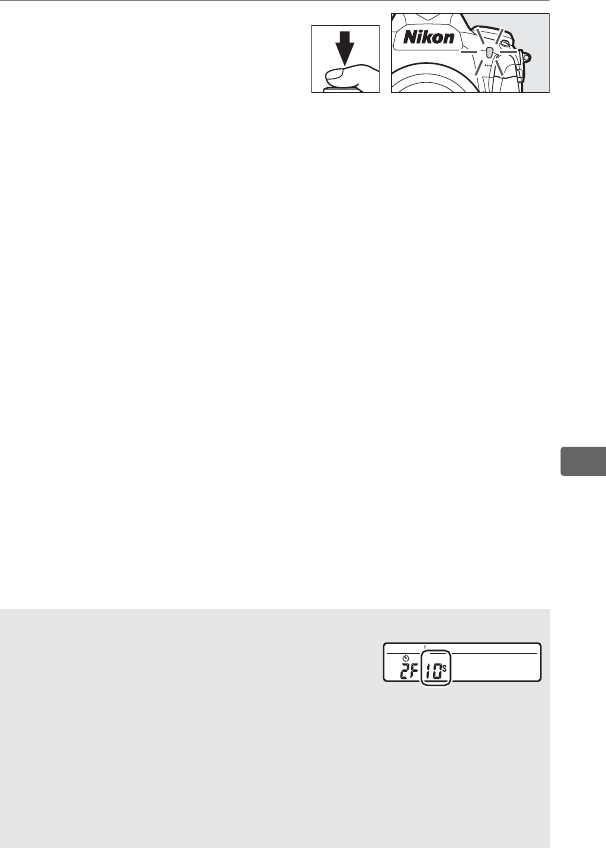
121
k
4Start the timer.
Press the shutter-release
button all the way down to
start the timer.
The self-timer
lamp will start to flash.
Two
seconds before the photograph is taken, the self-timer lamp
will stop flashing.
The shutter will be released about ten
seconds after the timer starts.
To turn the self-timer off before a photograph is taken, turn the
release mode dial to another setting.
ASetting the Timer
To choose the timer duration, press and hold the
S button and rotate a command dial.
The timer
can be set to 20, 10, 5, or 2 seconds.
ASee Also
For information on choosing the duration of the self-timer, the number
of shots taken, and the interval between shots, see Custom Setting c3
(Self-timer, 0301).
The beeps that sound when the self-timer is used
can be controlled using the Beep option in the setup menu (0310).
Rear control panel
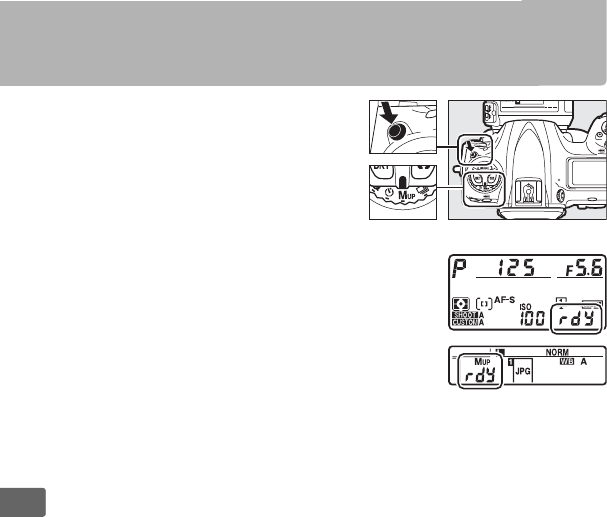
122
k
Mirror up Mode
Choose this mode to minimize
blurring caused by camera
movement when the mirror is
raised.
To use mirror-up mode,
press the release mode dial lock
release and rotate the release mode
dial to MUP (mirror up).
After
pressing the shutter-release button
halfway to set focus and exposure,
press the shutter-release button the
rest of the way down to raise the
mirror. Z will be displayed in the
control panels; press the shutter-
release button all the way down again to take the picture (in live
view, there is no need to raise the mirror; the picture is taken the
first time the shutter-release button is pressed all the way down).
A beep will sound, unless Off is selected for Beep in the setup
menu (0310).
The mirror lowers when shooting ends.
Release mode dial
123
k
DMirror Up
While the mirror is raised, photos can not be framed in the viewfinder
and autofocus and metering will not be performed.
AMirror up Mode
A picture will be taken automatically if no operations are performed for
about 30 s after the mirror is raised.
APreventing Blur
To prevent blurring caused by camera movement, press the shutter-
release button smoothly.
Use of a tripod is recommended.
ASee Also
For information on using the electronic front-curtain shutter to further
reduce blur, see Custom Setting d6 (Electronic front-curtain shutter,
0302).
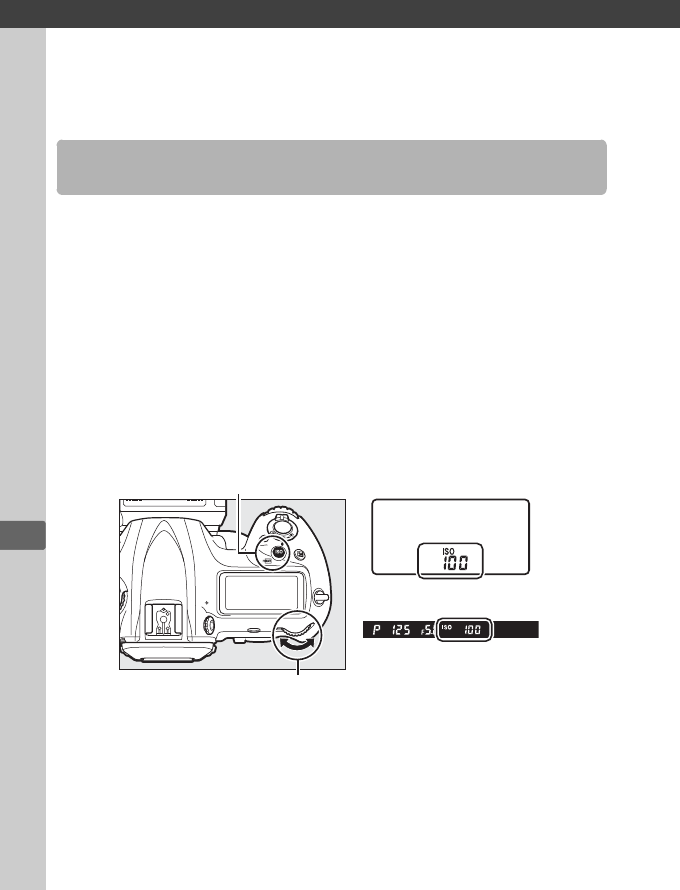
S
124
S
ISO Sensitivity
The camera’s sensitivity to light can be adjusted according to the
amount of light available.
Choose from settings that range from
ISO 100 and ISO 102400 in steps equivalent to 1/3 EV.
Settings of
from about 0.3 to 1 EV below ISO 100 and 0.3 to 5 EV above ISO
102400 are also available for special situations.
The higher the ISO
sensitivity, the less light needed to make an exposure, allowing
higher shutter speeds or smaller apertures.
ISO sensitivity can be adjusted by pressing the S (Q) button and
rotating the main command dial until the desired setting is
displayed in the top control panel and viewfinder.
Manual Adjustment
S (Q) button
Main command dial
Top control panel
Viewfinder
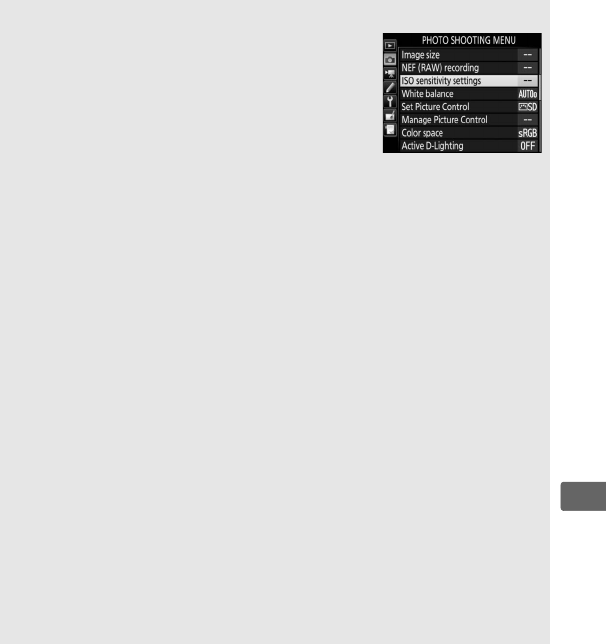
125
S
AThe ISO Sensitivity Menu
ISO sensitivity can also be adjusted using the ISO
sensitivity settings option in the photo
shooting menu (0291).
AISO Sensitivity
The higher the ISO sensitivity, the less light needed to make an
exposure, allowing faster shutter speeds or smaller apertures, but the
more likely the image is to be affected by noise (randomly-spaced
bright pixels, fog, or lines). Noise is particularly likely at settings
between Hi 0.3 and Hi 5.
AHi 0.3–Hi 5
The settings Hi 0.3 through Hi 5 correspond to ISO sensitivities 0.3–5 EV
over ISO 102400 (ISO 128000–3280000 equivalent).
ALo 0.3–Lo 1
The settings Lo 0.3 through Lo 1 correspond to ISO sensitivities 0.3–
1 EV below ISO 100 (ISO 80–50 equivalent).
Use for larger apertures
when lighting is bright.
Contrast is slightly higher than normal; in most
cases, ISO sensitivities of ISO 100 or above are recommended.
ASee Also
For information on choosing the ISO sensitivity step size, see Custom
Setting b1 (ISO sensitivity step value; 0299).
For information on
using the High ISO NR options in the photo and movie shooting menus
to reduce noise at high ISO sensitivities, see pages 292 (photos) and 296
(movies).
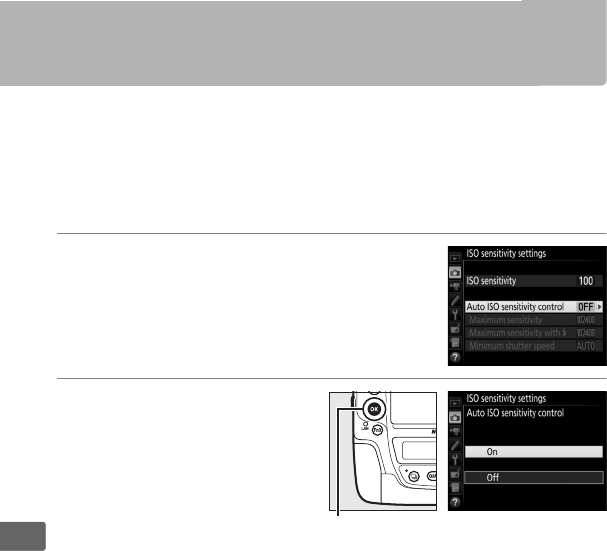
126
S
Auto ISO Sensitivity Control
If On is selected for ISO sensitivity settings > Auto ISO
sensitivity control in the photo shooting menu, ISO sensitivity
will automatically be adjusted if optimal exposure can not be
achieved at the value selected by the user (ISO sensitivity is
adjusted appropriately when the flash is used).
1Select Auto ISO sensitivity control.
Select ISO sensitivity settings in the
photo shooting menu, highlight Auto
ISO sensitivity control and press 2.
2Select On.
Highlight On and press J
(if Off is selected, ISO
sensitivity will remain fixed
at the value selected by the
user).
J button
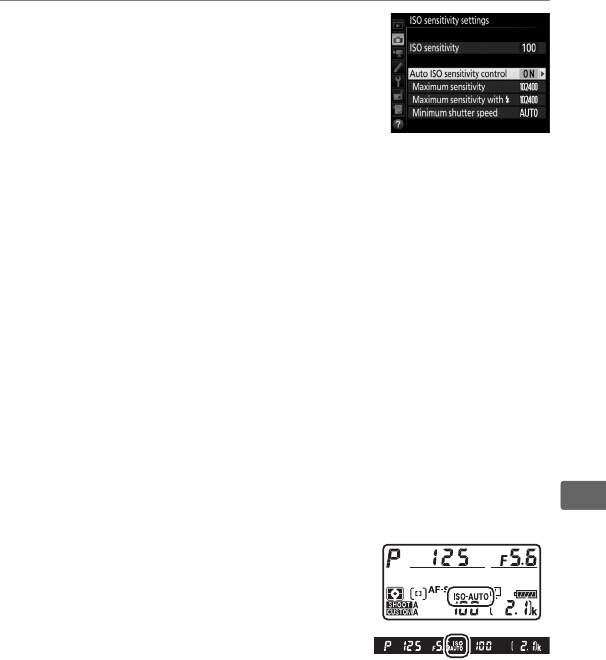
127
S
3Adjust settings.
The maximum value for auto ISO
sensitivity can be selected using
Maximum sensitivity (the minimum
value for auto ISO sensitivity is
automatically set to ISO 100; note that if
the ISO sensitivity selected by the user is higher than that
chosen for Maximum sensitivity, the value selected by the
user will be used instead).
In exposure modes P and A,
sensitivity will only be adjusted if underexposure would result
at the shutter speed selected for Minimum shutter speed
(1/4000–30 s, or Auto; in modes S and M, ISO sensitivity will be
adjusted for optimal exposure at the shutter speed selected by
the user).
If Auto is selected, the camera will choose the
minimum shutter speed based on the focal length of the lens.
Press J to exit when settings are complete.
To choose the maximum ISO sensitivity for photos taken using
an optional flash unit (0328), use Maximum sensitivity with
M.
Selecting Same as without flash sets the maximum ISO
sensitivity for flash photography to the value currently
selected for Maximum sensitivity.
When On is selected, the viewfinder and
top control panel show ISO-AUTO.
When
sensitivity is altered from the value selected
by the user, these indicators flash and the
altered value is shown in the viewfinder
and top control panel.
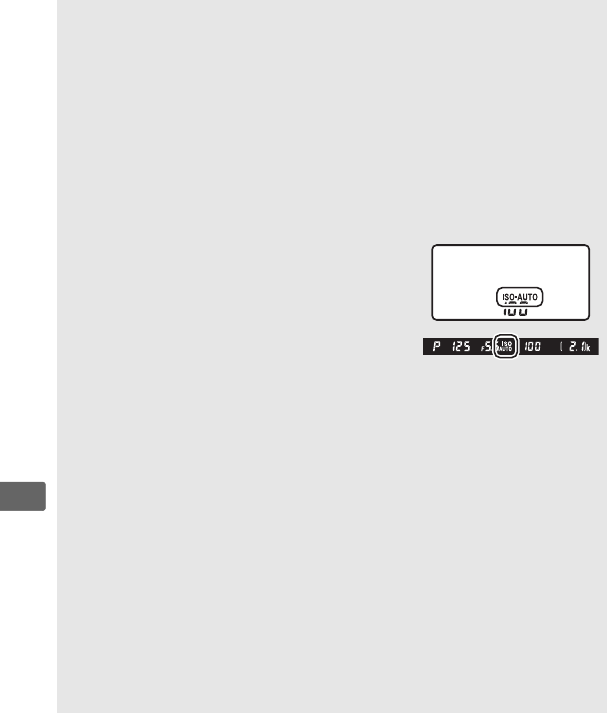
128
S
AMinimum Shutter Speed
Auto shutter-speed selection can be fine-tuned by highlighting Auto
and pressing 2: for example, values faster than those usually selected
automatically can be used with telephoto lenses to reduce blur.
Note,
however, that Auto functions only with CPU lenses; if a non-CPU lens is
used without lens data, minimum shutter speed is fixed at 1/30 s.
Shutter speeds may drop below the selected minimum if optimum
exposure can not be achieved at the ISO sensitivity chosen for
Maximum sensitivity.
ATurning Auto ISO Sensitivity Control On or Off
You can turn auto ISO sensitivity control on or
off by pressing the S (Q) button and
rotating the sub-command dial.
The top
control panel and viewfinder display ISO-AUTO
icons when auto ISO sensitivity control is on
and ISO when it is off.
AAuto ISO Sensitivity Control
When a flash is used, minimum shutter speed will be set to the value
selected for Minimum shutter speed unless this value is faster than
Custom Setting e1 (Flash sync speed, 0303) or slower than Custom
Setting e2 (Flash shutter speed, 0304), in which case the value
selected for Custom Setting e2 will be used instead.
Note that ISO
sensitivity may be raised automatically when auto ISO sensitivity
control is used in combination with slow sync flash modes (available
with optional flash units; 0198), possibly preventing the camera from
selecting slow shutter speeds.
ASee Also
For information on choosing the reference used to set exposure when a
flash is used with auto ISO sensitivity control, see Custom Setting e4
(Auto M ISO sensitivity control, 0304).
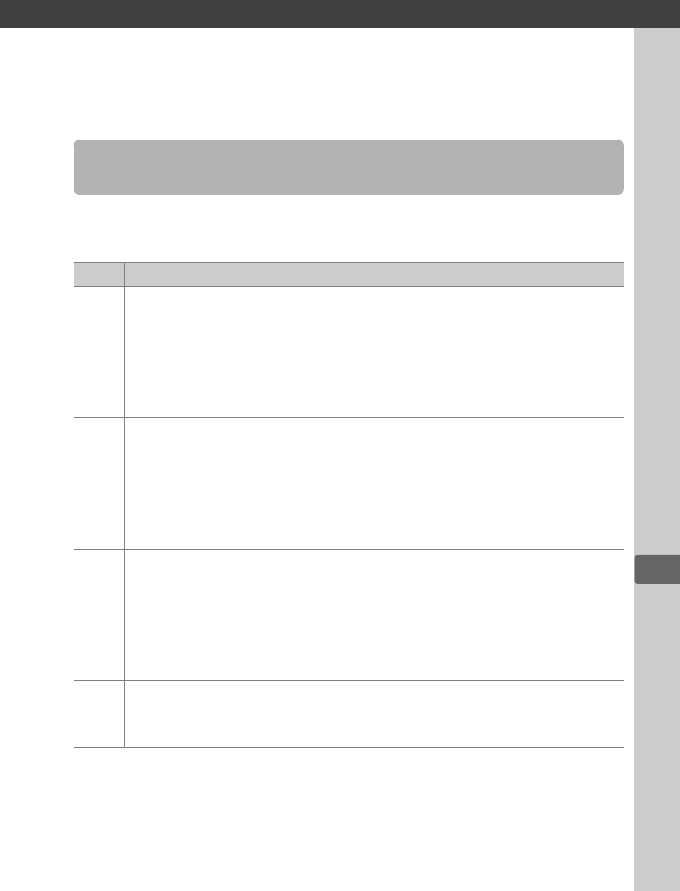
V
129
Z
Exposure
Metering determines how the camera sets exposure.
The
following options are available:
Metering
Option Description
L
Matrix: Produces natural results in most situations.
Camera meters
wide area of the frame and sets exposure according to tone
distribution, color, composition, and, with type G, E, or D lenses
(0321), distance information (3D color matrix metering III; with
other CPU lenses, camera uses color matrix metering III, which
does not include 3D distance information).
M
Center-weighted: Camera meters entire frame but assigns greatest
weight to center area (if CPU lens is attached, size of area can be
selected using Custom Setting b6, Center-weighted area, 0300;
if non-CPU lens is attached, area is equivalent to circle 12 mm in
diameter).
Classic meter for portraits; recommended when using
filters with an exposure factor (filter factor) over 1×.
N
Spot: Camera meters circle 4 mm (0.16 in.) in diameter
(approximately 1.5% of frame).
Circle is centered on current focus
point, making it possible to meter off-center subjects (if non-CPU
lens is used or if auto-area AF is in effect, camera will meter center
focus point).
Ensures that subject will be correctly exposed, even
when background is much brighter or darker.
t
Highlight-weighted: Camera assigns greatest weight to highlights.
Use to reduce loss of detail in highlights, for example when
photographing spotlit performers on-stage.
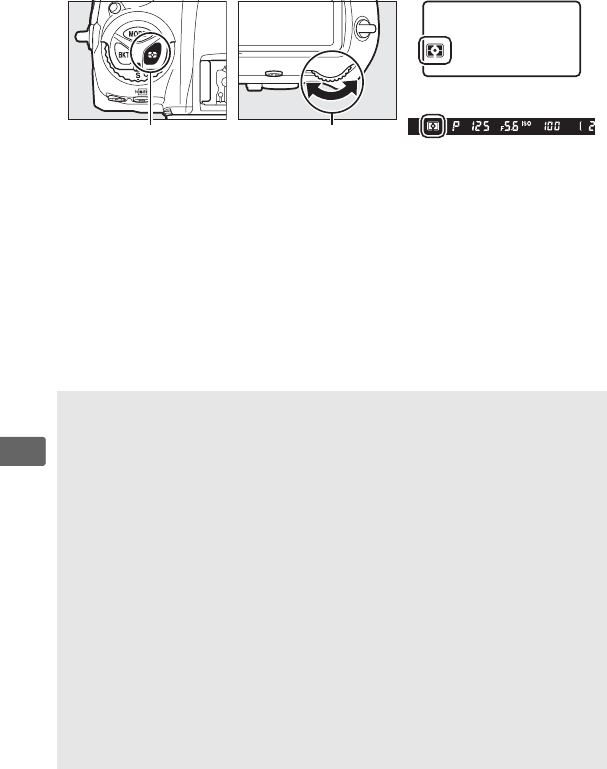
130
Z
To choose a metering option, press the Y button and rotate the
main command dial until the desired setting is displayed in the
viewfinder and top control panel.
ANon-CPU Lens Data
Specifying the focal length and maximum aperture of non-CPU lenses
using the Non-CPU lens data option in the setup menu (0241) allows
the camera to use color matrix metering when matrix is selected and
improves the accuracy of center-weighted and spot metering.
Center-
weighted metering will be used if highlight-weighted metering is
selected with non-CPU lenses or if matrix metering is selected with non-
CPU lenses for which lens data have not been supplied.
Note that
center-weighted metering may also be used if highlight-weighted
metering is selected with certain CPU lenses (AI-P NIKKOR lenses and AF
lenses that are not of type G, E, or D; 0321).
ASee Also
See Custom Setting b5 (Matrix metering, 0300) for information on
choosing whether matrix metering uses face detection.
For information
on making separate adjustments to optimal exposure for each metering
method, see Custom Setting b7 (Fine-tune optimal exposure, 0300).
Y button Main command dial
Top control panel
Viewfinder
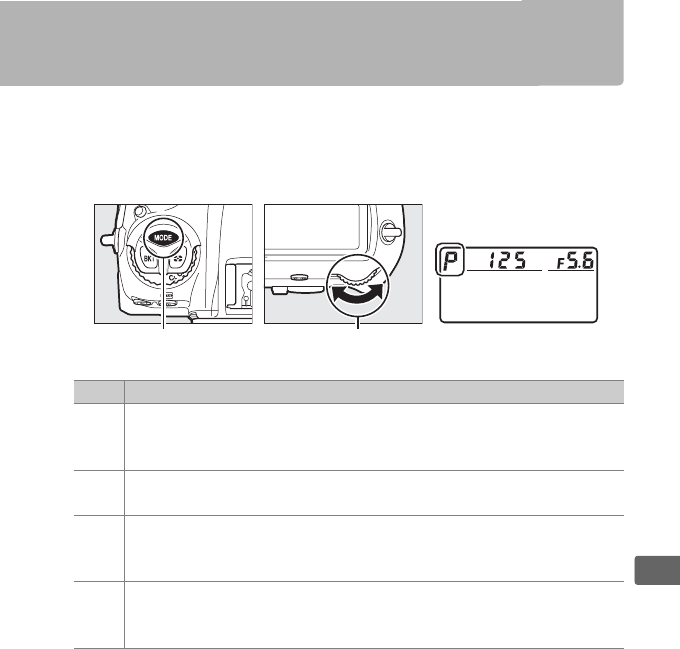
131
Z
Exposure Mode
To determine how the camera sets shutter speed and aperture
when adjusting exposure, press the I button and rotate the
main command dial until the desired option appears in the top
control panel.
I button Main command dial Top control panel
Mode Description
e
Programmed auto (0133): Camera sets shutter speed and aperture
for optimal exposure.
Recommended for snapshots and in other
situations in which there is little time to adjust camera settings.
fShutter-priority auto (0134): User chooses shutter speed; camera
selects aperture for best results.
Use to freeze or blur motion.
g
Aperture-priority auto (0135): User chooses aperture; camera selects
shutter speed for best results.
Use to blur background or bring
both foreground and background into focus.
h
Manual (0136): User controls both shutter speed and aperture.
Set shutter speed to Bulb (A) or Time (%) for long time-
exposures.
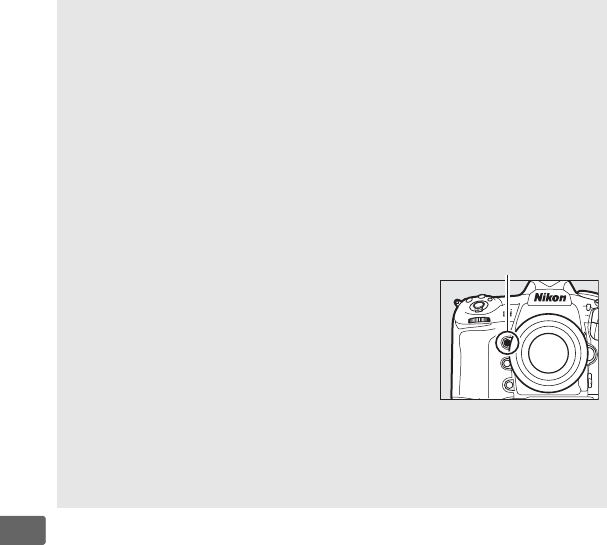
132
Z
ALens Types
When using a CPU lens equipped with an aperture ring (0324), lock
the aperture ring at the minimum aperture (highest f-number).
Type G
and E lenses are not equipped with an aperture ring.
When using non-CPU lenses (0241), select exposure mode A (aperture-
priority auto) or M (manual).
In other modes, exposure mode A is
automatically selected when a non-CPU lens is attached (0324).
The
exposure mode indicator (P or S) will flash in the top control panel and A
will be displayed in the viewfinder.
ADepth-of-Field Preview
To preview the effects of aperture, press and
hold the Pv button.
The lens will be stopped
down to the aperture value selected by the
camera (modes P and S) or the value chosen by
the user (modes A and M), allowing depth of field
to be previewed in the viewfinder.
ACustom Setting e5—Modeling Flash
This setting controls whether optional flash units that support the
Nikon Creative Lighting System (CLS; 0328) will emit a modeling flash
when the Pv button is pressed.
Pv button
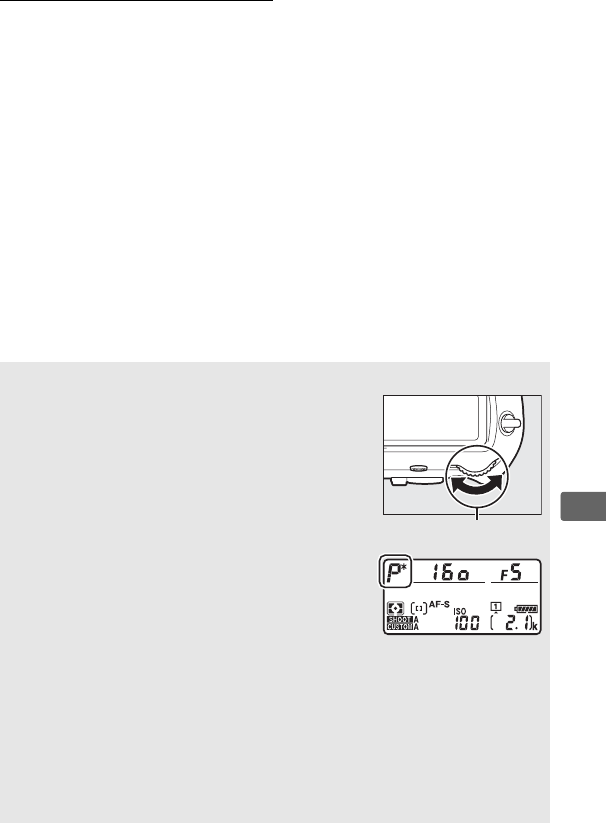
133
Z
P: Programmed Auto
In this mode, the camera automatically adjusts shutter speed and
aperture according to a built-in program to ensure optimal
exposure in most situations.
AFlexible Program
In exposure mode P, different combinations of
shutter speed and aperture can be selected by
rotating the main command dial while the
exposure meters are on (“flexible program”).
Rotate the dial to the right for large apertures
(low f-numbers) that blur background details or
fast shutter speeds that “freeze” motion.
Rotate
the dial to the left for small apertures (high f-
numbers) that increase depth of field or slow
shutter speeds that blur motion.
All
combinations produce the same exposure.
While flexible program is in effect, an asterisk
(“U”) appears in the top control panel.
To restore default shutter speed
and aperture settings, rotate the dial until the asterisk is no longer
displayed, choose another mode, or turn the camera off.
ASee Also
See page 355 for information on the built-in exposure program.
For
information on activating the exposure meters, see “The Standby Timer
(Viewfinder Photography)” on page 41.
Main command dial
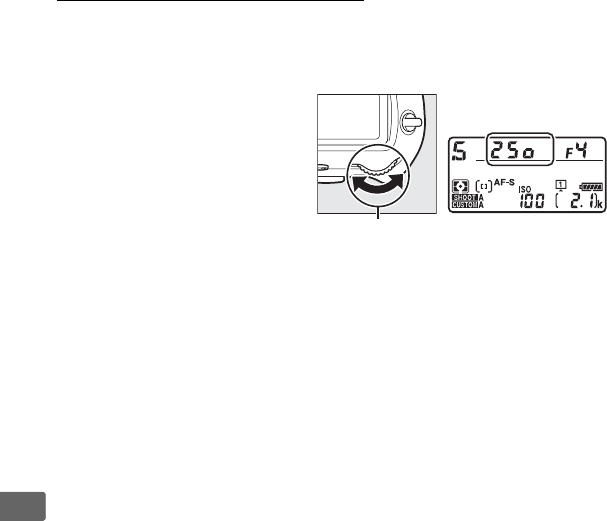
134
Z
S: Shutter-Priority Auto
In shutter-priority auto, you choose the shutter speed while the
camera automatically selects the aperture that will produce the
optimal exposure.
To choose a shutter speed,
rotate the main command
dial while the exposure
meters are on.
Shutter speed
can be set to “p” or to
values between 30 s and
1/8000 s.
Shutter speed can be
locked at the selected setting (0140).
Main command dial
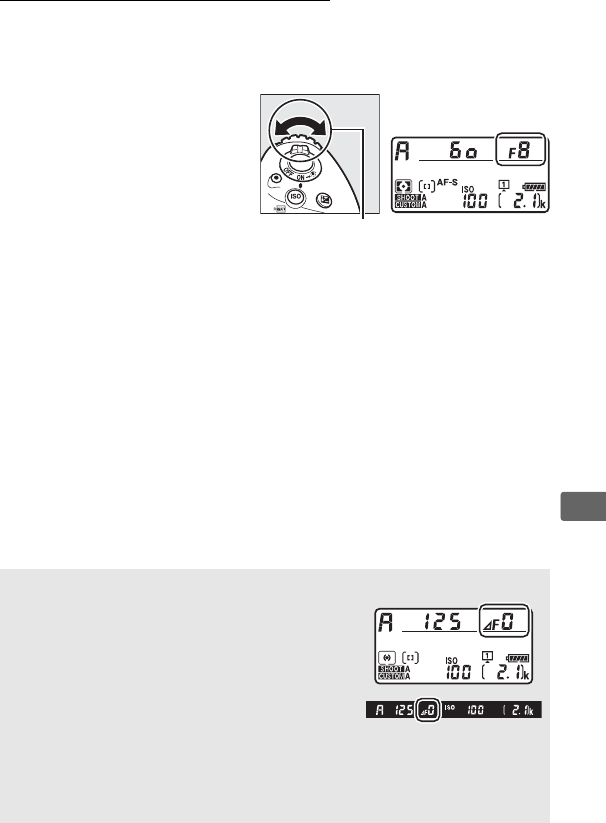
135
Z
A: Aperture-Priority Auto
In aperture-priority auto, you choose the aperture while the
camera automatically selects the shutter speed that will produce
the optimal exposure.
To choose an aperture
between the minimum and
maximum values for the lens,
rotate the sub-command dial
while the exposure meters are
on.
Aperture can be locked at
the selected setting (0140).
ANon-CPU Lenses (0322, 324)
Use the lens aperture ring to adjust aperture.
If the maximum aperture of the lens has been
specified using the Non-CPU lens data item
in setup menu (0242) when a non-CPU lens is
attached, the current f-number will be
displayed in the viewfinder and top control
panel, rounded to the nearest full stop.
Otherwise the aperture displays will show only the number of stops (F,
with maximum aperture displayed as FA) and the f-number must be
read from the lens aperture ring.
Sub-command dial
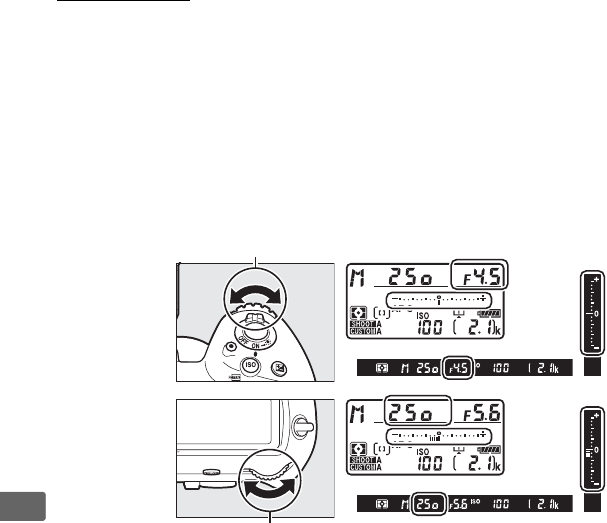
136
Z
M: Manual
In manual exposure mode, you control both shutter speed and
aperture.
While the exposure meters are on, rotate the main
command dial to choose a shutter speed, and the sub-command
dial to set aperture.
Shutter speed can be set to “p” or to
values between 30 s and 1/8000 s, or the shutter can be held open
indefinitely for a long time-exposure (A or %, 0138).
Aperture can be set to values between the minimum and
maximum values for the lens.
Use the exposure indicators to
check exposure.
Shutter speed and aperture can be locked at the selected setting
(0140).
Sub-command dial
Aperture
Shutter
speed
Main command dial
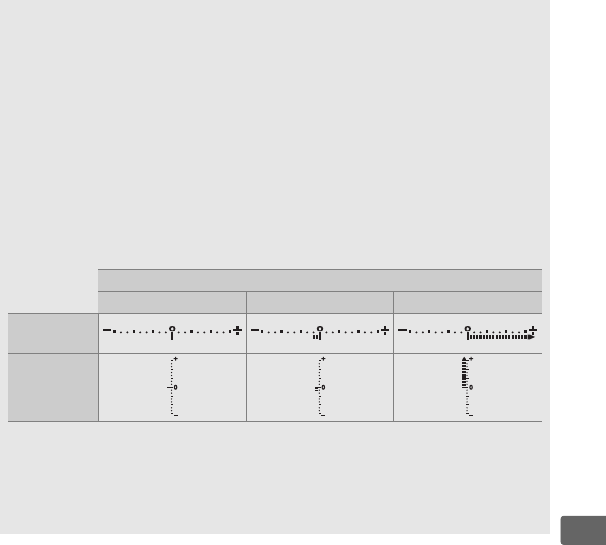
137
Z
AAF Micro NIKKOR Lenses
Provided that an external exposure meter is used, the exposure ratio need
only be taken into account when the lens aperture ring is used to set
aperture.
AExposure Indicators
The exposure indicators in the viewfinder and top control panel show
whether the photograph would be under- or over-exposed at current
settings.
Depending on the option chosen for Custom Setting b2 (EV
steps for exposure cntrl, 0299), the amount of under- or over-
exposure is shown in increments of 1/3EV, 1/2EV, or 1 EV.
If the limits of
the exposure metering system are exceeded, the displays will flash.
Custom Setting b2 set to 1/3 step
Optimal exposure Underexposed by 1/3EV Overexposed by over 3 EV
Top control
panel
Viewfinder
ASee Also
For information on reversing the exposure indicators so that negative
values are displayed on the right and positive values on the left, see
Custom Setting f7 (Reverse indicators, 0307).
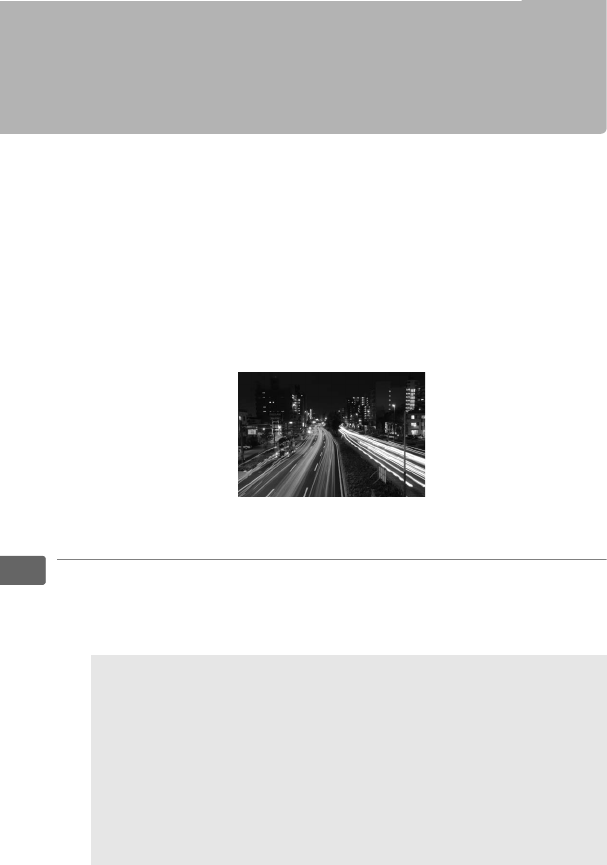
138
Z
Long Time-Exposures
(M Mode Only)
Select the following shutter speeds for long time-exposures of
moving lights, the stars, night scenery, or fireworks.
•Bulb (A): The shutter remains open while the shutter-release
button is held down.
To prevent blur, use a tripod or an optional
wireless remote controller (0335) or remote cord (0337).
•Time (%): Start the exposure by using the shutter-release button
on the camera or on an optional remote cord, or wireless remote
controller.
The shutter remains open until the button is pressed
a second time.
1Ready the camera.
Mount the camera on a tripod or place it on a stable, level
surface.
Length of exposure: 35 s
Aperture: f/25
ALong Time-Exposures
Close the viewfinder eyepiece shutter to prevent the photograph
being affected by light entering via the viewfinder (0120).
Nikon
recommends using a fully charged battery or an optional AC
adapter and power connector to prevent loss of power while the
shutter is open.
Note that noise (bright spots, randomly-spaced
bright pixels or fog) may be present in long exposures.
Bright spots
and fog can be reduced by choosing On for Long exposure NR in
the photo shooting menu (0292).
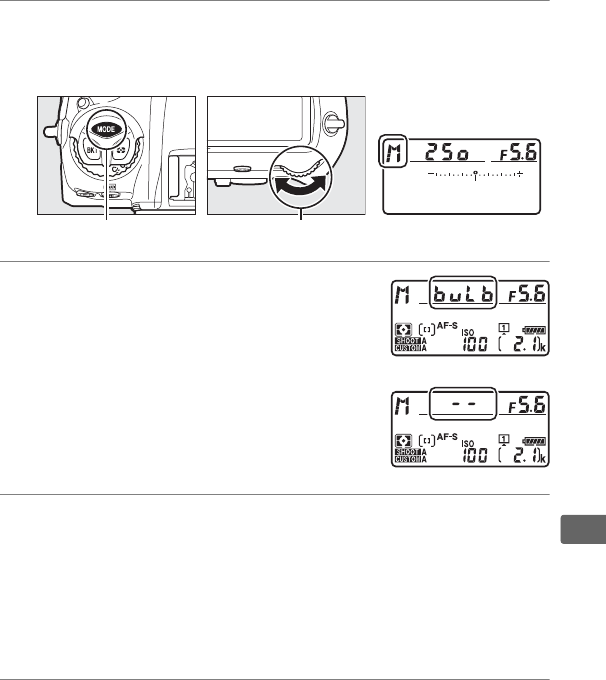
139
Z
2Select exposure mode M.
Press the I button and rotate the main command dial until
M is displayed in the top control panel.
3Choose a shutter speed.
While the exposure meters are on, rotate
the main command dial to choose a
shutter speed of Bulb (A) or Time
(%).
The exposure indicators do not
appear when Bulb (A) or Time (%) is
selected.
4Open the shutter.
Bulb: After focusing, press the shutter-release button on the
camera or optional remote cord or wireless remote controller
all the way down.
Keep the shutter-release button pressed
until the exposure is complete.
Time: Press the shutter-release button all the way down.
5Close the shutter.
Bulb: Take your finger off the shutter-release button.
Time: Press the shutter-release button all the way down.
I button Main command dial Top control panel
Bulb
Time
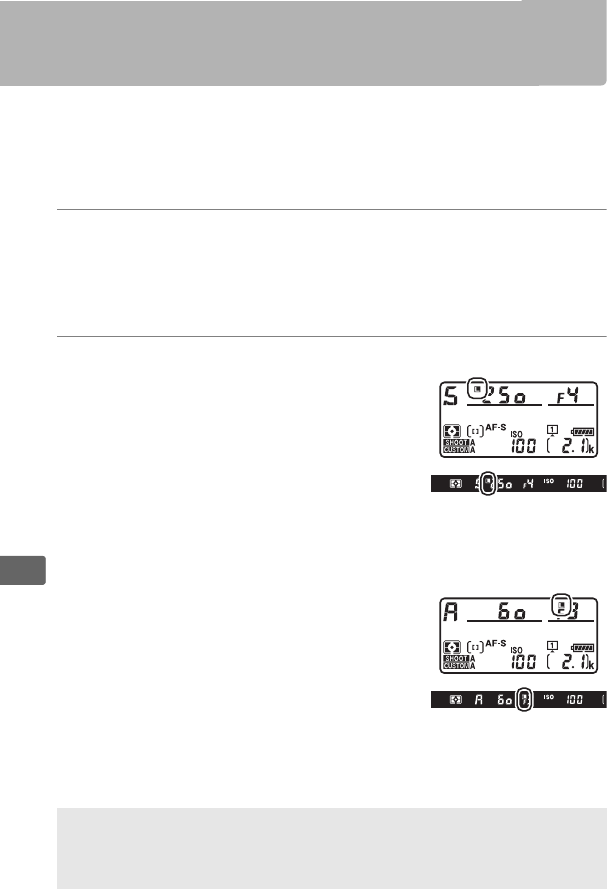
140
Z
Shutter-Speed and Aperture Lock
Shutter speed lock is available in shutter-priority auto and manual
exposure modes, aperture lock in aperture-priority auto and
manual exposure modes.
Shutter speed and aperture lock are not
available in programmed auto exposure mode.
1Assign shutter speed and aperture lock to a camera
control.
Assign Shutter spd & aperture lock to a control using
Custom Setting f1 (Custom control assignment, 0305).
2Lock shutter speed and/or aperture.
Shutter speed (exposure modes S and M):
Press the selected control and rotate
the main command dial until F icons
appear in the viewfinder and top
control panel.
To unlock shutter speed, press the
control and rotate the main command dial until the F icons
disappear from the displays.
Aperture (exposure modes A and M): Press the
selected control and rotate the sub-
command dial until F icons appear in
the viewfinder and the top control
panel.
To unlock aperture, press the control
and rotate the sub-command dial until the F icons disappear
from the displays.
ASee Also
Use Custom Setting f3 (Shutter spd & aperture lock; 0306) to keep
shutter speed and/or aperture locked at the selected values.
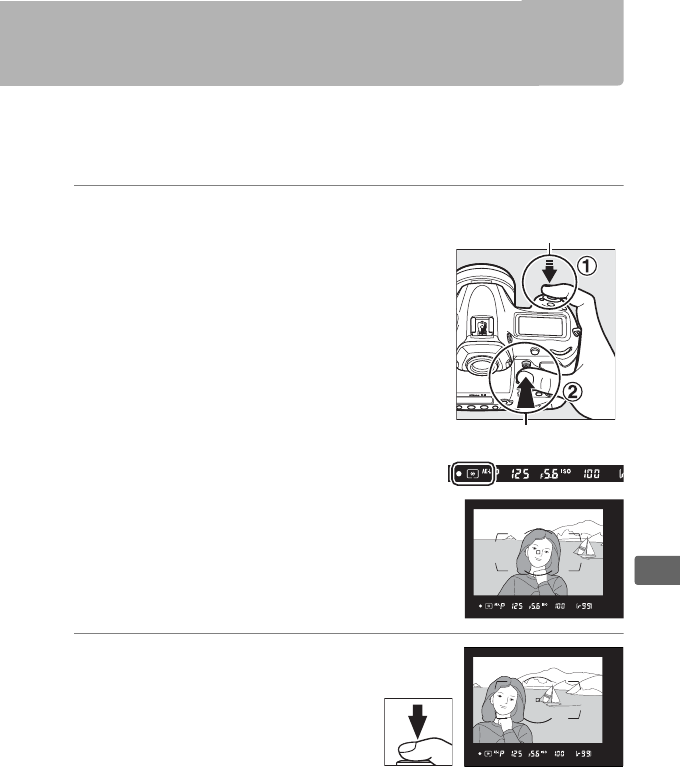
141
Z
Autoexposure (AE) Lock
Use autoexposure lock to recompose photographs after using
center-weighted metering and spot metering (0129) to meter
exposure.
1Lock exposure.
Position the subject in the selected
focus point and press the shutter-
release button halfway.
With the
shutter-release button pressed halfway
and the subject positioned in the focus
point, press the center of the sub-
selector to lock exposure (if you are
using autofocus, confirm that the I in-
focus indicator appears in the
viewfinder).
While exposure lock is in effect, an AE-L
indicator will appear in the viewfinder.
2Recompose the
photograph.
Keeping the center of the sub-
selector pressed, recompose
the photograph and shoot.
Shutter-release
button
Sub-selector
142
Z
AMetered Area
In spot metering, exposure will be locked at the value metered at the
selected focus point (0129).
In center-weighted metering, exposure
will be locked at the value metered in a 12-mm circle in the center of the
viewfinder.
AAdjusting Shutter Speed and Aperture
While exposure lock is in effect, the following settings can be adjusted
without altering the metered value for exposure:
Exposure mode Setting
PShutter speed and aperture (flexible program; 0133)
SShutter speed
AAperture
The new values can be confirmed in the viewfinder and top control
panel.
Note that the metering method can not be changed while
exposure lock is in effect.
ASee Also
If On (half press) is selected for Custom Setting c1 (Shutter-release
button AE-L, 0300), exposure will lock when the shutter-release
button is pressed halfway.
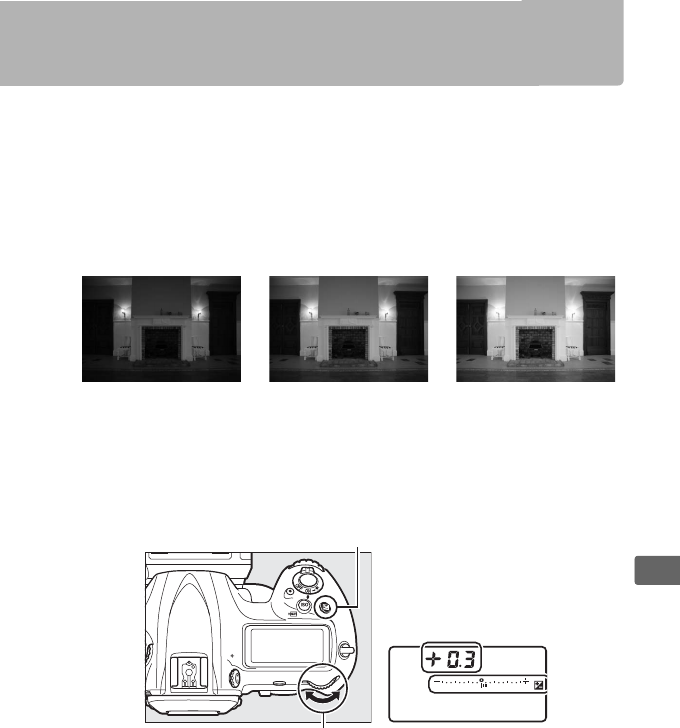
143
Z
Exposure Compensation
Exposure compensation is used to alter exposure from the value
suggested by the camera, making pictures brighter or darker.
It is
most effective when used with center-weighted or spot metering
(0129).
Choose from values between –5 EV (underexposure) and
+5 EV (overexposure) in increments of 1/3 EV.
In general, positive
values make the subject brighter while negative values make it
darker.
To choose a value for exposure compensation, press the E button
and rotate the main command dial until the desired value is
displayed in the viewfinder or top control panel.
–1 EV No exposure
compensation
+1 EV
E button
Main command dial Top control panel
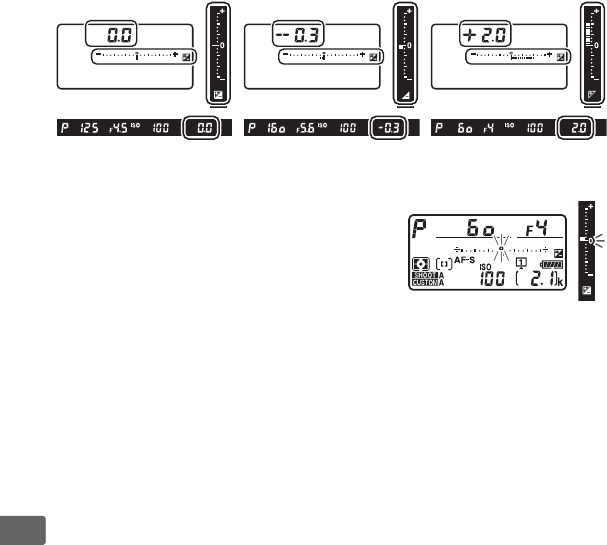
144
Z
At values other than ±0.0, the 0 at the
center of the exposure indicators will
flash (exposure modes P, S, and A only)
and a E icon will be displayed in the
viewfinder and top control panel after
you release the E button.
The current value for exposure
compensation can be confirmed in the exposure indicator by
pressing the E button.
Normal exposure can be restored by setting exposure
compensation to ±0.0.
Exposure compensation is not reset when
the camera is turned off.
±0 EV
(E button pressed)
–0.3 EV +2.0 EV

145
Z
AExposure Mode M
In exposure mode M, exposure compensation affects only the exposure
indicator; shutter speed and aperture do not change.
AUsing a Flash
When a flash is used, exposure compensation affects both flash level
and exposure, altering the brightness of both the main subject and the
background.
Custom Setting e3 (Exposure comp. for flash, 0304) can
be used to restrict the effects of exposure compensation to the
background only.
ASee Also
For information on choosing the size of the increments available for
exposure compensation, see Custom Setting b3 (Exp./flash comp. step
value, 0299).
For information on making adjustments to exposure
compensation without pressing the E button, see Custom Setting b4
(Easy exposure compensation, 0300).
For information on
automatically varying exposure, flash level, white balance, or Active
D-Lighting, see page 146.
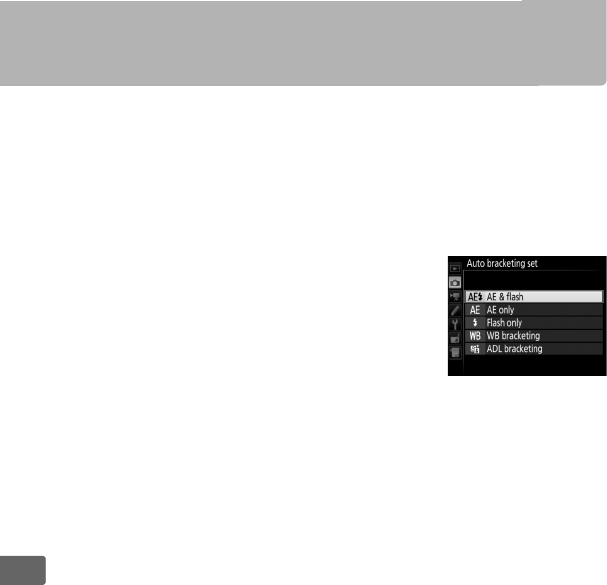
146
Z
Bracketing
Bracketing automatically varies exposure, flash level, Active
D-Lighting (ADL), or white balance slightly with each shot,
“bracketing” the current value.
Choose in situations in which
getting the right settings is difficult and there is not time to check
results and adjust settings with each shot, or to experiment with
different settings for the same subject.
Bracketing is adjusted using the Auto
bracketing set option in the photo shooting
menu, which contains the following options:
•AE & flash: The camera varies exposure and
flash level over a series of photographs
(0147).
Note that flash bracketing is
available in i-TTL and, where supported, auto aperture (qA)
flash control modes only (0196, 329).
•AE only: The camera varies exposure over a series of photographs.
•Flash only: The camera varies flash level over a series of
photographs.
•WB bracketing: The camera creates multiple copies of each
photograph, each with a different white balance (0151).
•ADL bracketing: The camera varies Active D-Lighting over a series of
photographs (0155).
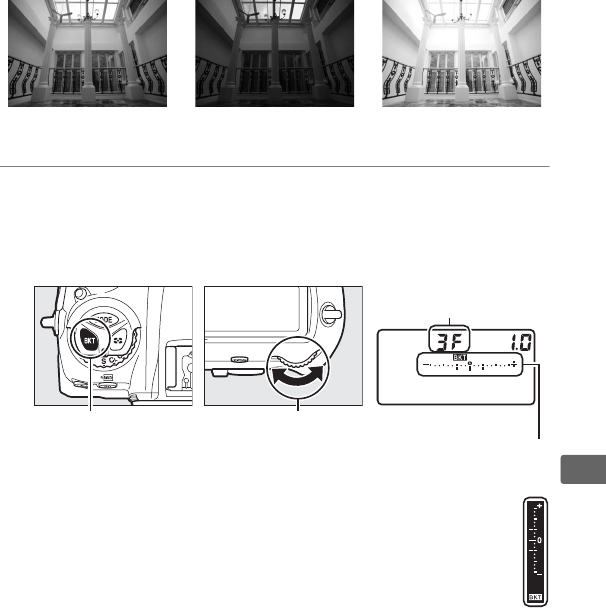
147
Z
❚❚ Exposure and Flash Bracketing
To vary exposure and/or flash level over a series of photographs:
1Choose the number of shots.
Pressing the BKT button, rotate the main command dial to
choose the number of shots in the bracketing sequence.
The
number of shots is shown in the top control panel.
At settings other than zero, a M icon and exposure and
flash bracketing indicator will be displayed in the
viewfinder and top control panel.
Exposure modified by:
0 EV
Exposure modified by:
–1 EV
Exposure modified by:
+1 EV
BKT button Main command dial
Number of shots
Exposure and flash
bracketing indicator
Top control panel
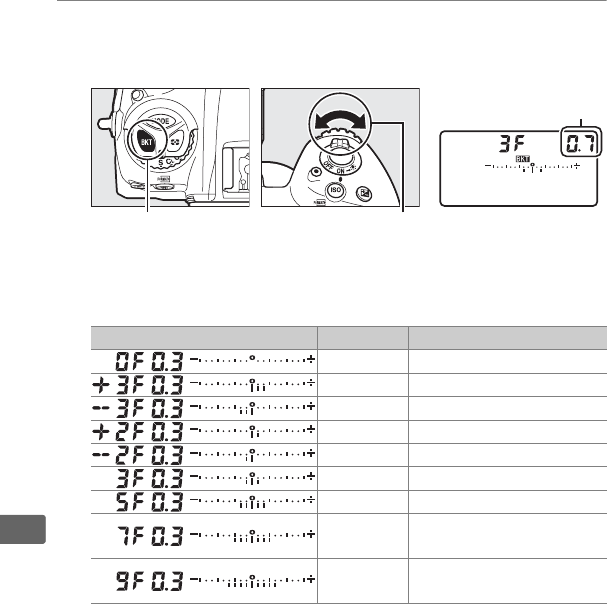
148
Z
2Select an exposure increment.
Pressing the BKT button, rotate the sub-command dial to
choose the exposure increment.
At default settings, the size of the increment can be chosen
from 0.3 (1/3), 0.7 (2/3), 1, 2, and 3 EV.
The bracketing programs
with an increment of 0.3 (1/3) EV are listed below.
Note that for exposure increments of 2 EV or more, the
maximum number of shots is 5; if a higher value was selected
in Step 1, the number of shots will automatically be set to 5.
BKT button Sub-command dial Top control panel
Control panel display No. of shots Bracketing order (EVs)
00
3 0/+0.3/+0.7
3 0/–0.7/–0.3
20/+0.3
20/–0.3
30/–0.3/+0.3
5 0/–0.7/–0.3/+0.3/+0.7
70/–1.0/–0.7/–0.3/+0.3/
+0.7/+1.0
90/–1.3/–1.0/–0.7/–0.3/
+0.3/+0.7/+1.0/+1.3
Exposure increment
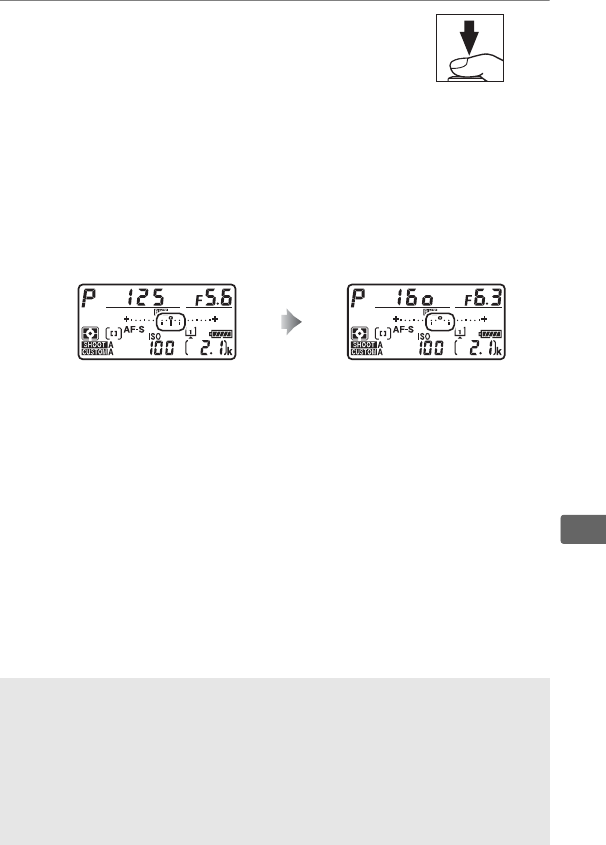
149
Z
3Frame a photograph, focus, and
shoot.
The camera will vary exposure and/or flash level shot-by-shot
according to the bracketing program selected.
Modifications
to exposure are added to those made with exposure
compensation (see page 143).
While bracketing is in effect, a bracketing progress indicator
will be displayed in the viewfinder and top control panel.
A
segment will disappear from the indicator after each shot.
❚❚ Canceling Bracketing
To cancel bracketing, press the BKT button and rotate the main
command dial until the number of shots in the bracketing
sequence is zero (r) and M is no longer displayed.
The program
last in effect will be restored the next time bracketing is activated.
Bracketing can also be cancelled by performing a two-button reset
(0224), although in this case the bracketing program will not be
restored the next time bracketing is activated.
No. shots: 3; increment: 0.7 Display after first shot
ASee Also
For information on choosing the size of the exposure increment, see
Custom Setting b2 (EV steps for exposure cntrl, 0299).
For
information on choosing the order in which bracketing is performed,
see Custom Setting e7 (Bracketing order, 0305).
For information on
choosing the role of the BKT button, see Custom Setting f1 (Custom
control assignment) > BKT button + y (0305).

150
Z
AExposure and Flash Bracketing
In continuous low speed, continuous high speed, and quiet continuous
modes, shooting will pause after the number of shots specified in the
bracketing program have been taken.
Shooting will resume the next
time the shutter-release button is pressed.
In self-timer mode, the
camera will take the number of shots selected in Step 1 on page 147
each time the shutter-release button is pressed, regardless of the option
selected for Custom Setting c3 (Self-timer)>Number of shots
(0301); the interval between shots is however controlled by Custom
Setting c3 (Self-timer)>Interval between shots.
In other modes, one
shot will be taken each time the shutter-release button is pressed.
If the memory card fills before all shots in the sequence have been
taken, shooting can be resumed from the next shot in the sequence
after the memory card has been replaced or shots have been deleted to
make room on the memory card.
If the camera is turned off before all
shots in the sequence have been taken, bracketing will resume from the
next shot in the sequence when the camera is turned on.
AExposure Bracketing
The camera modifies exposure by varying shutter speed and aperture
(programmed auto), aperture (shutter-priority auto), or shutter speed
(aperture-priority auto, manual exposure mode).
If On is selected for
ISO sensitivity settings > Auto ISO sensitivity control (0126) in
modes P, S, and A and no flash is attached, the camera will modify
exposure by varying ISO sensitivity and only vary shutter speed and/or
aperture if the limits of exposure system are exceeded.
Custom Setting
e6 (Auto bracketing (mode M), 0305) can be used to change how the
camera performs exposure and flash bracketing in manual exposure
mode.
Bracketing can be performed by varying flash level together
with shutter speed and/or aperture, or by varying flash level alone.
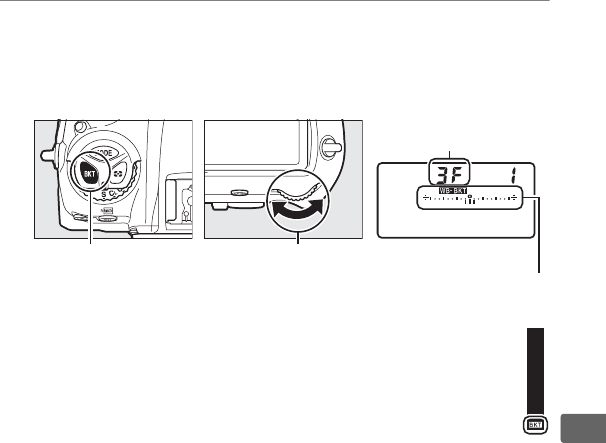
151
Z
❚❚ White Balance Bracketing
The camera creates multiple copies of each photograph, each with
a different white balance.
1Choose the number of shots.
Pressing the BKT button, rotate the main command dial to
choose the number of shots in the bracketing sequence.
The
number of shots is shown in the top control panel.
At settings other than zero, a W icon and WB
bracketing indicator will appear in the top control panel
and M will be displayed in the viewfinder.
BKT button Main command dial
Number of shots
Top control panel
WB bracketing
indicator
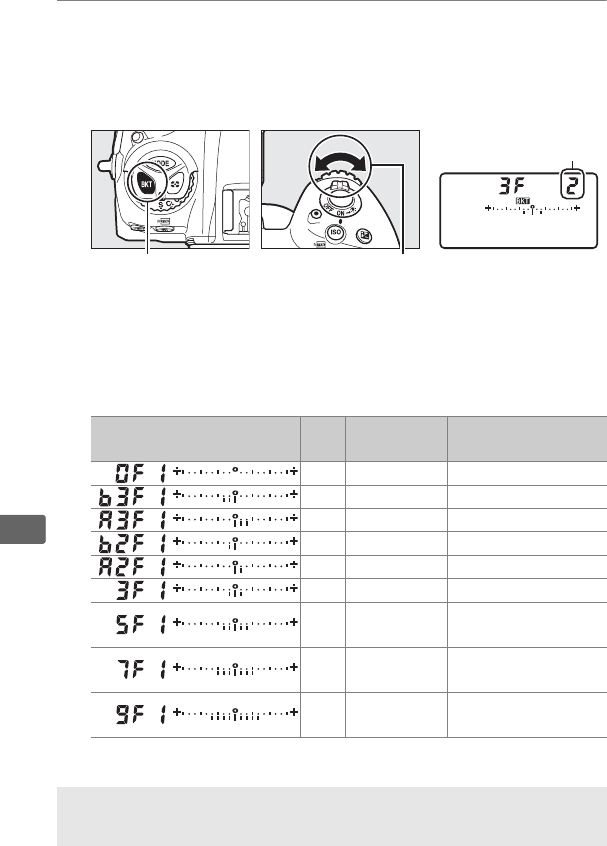
152
Z
2Select a white balance increment.
Pressing the BKT button, rotate the sub-command dial to
choose the white balance adjustment.
Each increment is
roughly equivalent to 5 mired.
Choose from increments of 1 (5 mired), 2 (10 mired), or 3
(15 mired).
Higher B values correspond to increased amounts
of blue, higher A values to increased amounts of amber
(0162).
The bracketing programs with an increment of 1 are
listed below.
BKT button Sub-command dial Top control panel
Control panel display No. of
shots
White balance
increment Bracketing order
01 0
31B 0/1B/2B
31A 0/2A/1A
21B 0/1B
21A 0/1A
3 1A, 1B 0/1A/1B
5 1 A, 1 B 0/2A/1A/1B/
2B
7 1 A, 1 B 0/3A/2A/1A/
1B/2B/3B
9 1 A, 1 B 0/4A/3A/2A/1A/
1B/2B/3B/4B
ASee Also
See page 164 for a definition of “mired.”
White balance
increment
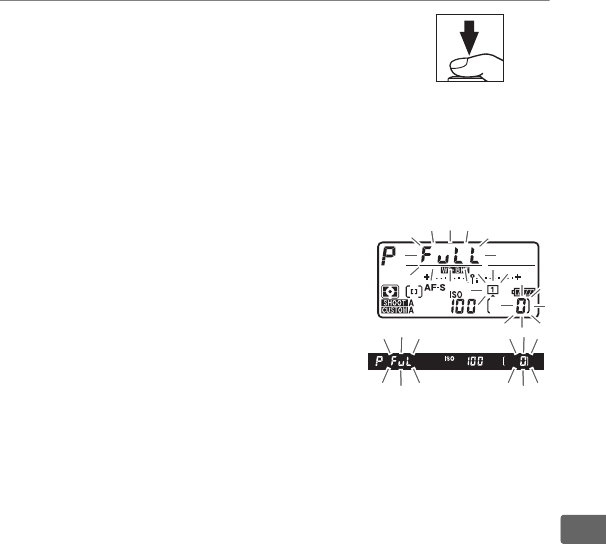
153
Z
3Frame a photograph, focus, and
shoot.
Each shot will be processed to create the number of copies
specified in the bracketing program, and each copy will have a
different white balance.
Modifications to white balance are
added to the white balance adjustment made with white
balance fine-tuning.
If the number of shots in the
bracketing program is greater than
the number of exposures remaining,
n and the icon for the affected
card will flash in the top control panel,
a flashing j icon will appear in the
viewfinder as shown at right, and the
shutter release will be disabled.
Shooting can begin when a new memory card is inserted.

154
Z
❚❚ Canceling Bracketing
To cancel bracketing, press the BKT button and rotate the main
command dial until the number of shots in the bracketing
sequence is zero (r) and W is no longer displayed.
The
program last in effect will be restored the next time bracketing is
activated.
Bracketing can also be cancelled by performing a two-
button reset (0224), although in this case the bracketing
program will not be restored the next time bracketing is activated.
AWhite Balance Bracketing
White balance bracketing is not available at an image quality of NEF
(RAW).
Selecting an NEF (RAW) or NEF (RAW) + JPEG option cancels
white balance bracketing.
White balance bracketing affects only color temperature (the amber-
blue axis in the white balance fine-tuning display, 0162).
No
adjustments are made on the green-magenta axis.
In self-timer mode, the number of copies specified in the bracketing
program will be created each time the shutter is released, regardless of
the option selected for Custom Setting c3 (Self-timer) > Number of
shots (0301).
If the camera is turned off while the memory card access lamp is lit, the
camera will power off only after all photographs in the sequence have
been recorded.

155
Z
❚❚ ADL Bracketing
The camera varies Active D-Lighting over a series of exposures.
1Choose the number of shots.
Pressing the BKT button, rotate the main command dial to
choose the number of shots in the bracketing sequence.
The
number of shots is shown in the top control panel.
At settings other than zero, a d icon and an ADL
bracketing indicator appear in the top control panel and M
will be displayed in the viewfinder.
Choose two shots to take
one photograph with Active D-Lighting off and another at a
selected value.
Choose three to five shots to take a series of
photographs with Active D-Lighting set successively to values
between Off and Normal (three shots), between Off and High
(four shots), or between Off and Extra high 1 or Low and
Extra high 2 (five shots).
If you choose more than two shots,
proceed to Step 3.
BKT button Main command dial
Number of shots
Top control panel
ADL bracketing
indicator
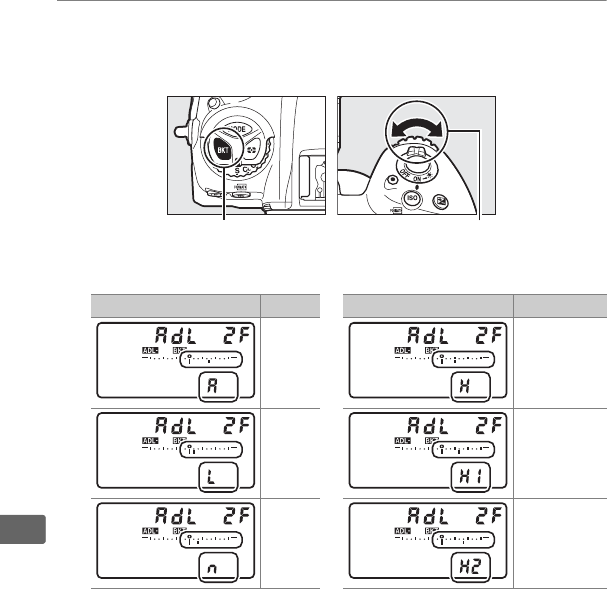
156
Z
2Select Active D-Lighting.
Pressing the BKT button, rotate the sub-command dial to
choose Active D-Lighting.
Active D-Lighting is shown in the top control panel.
BKT button Sub-command dial
Control panel display ADL Control panel display ADL
Y
Auto
P
High
R
Low
Z
Extra high 1
Q
Normal
3
Extra high 2
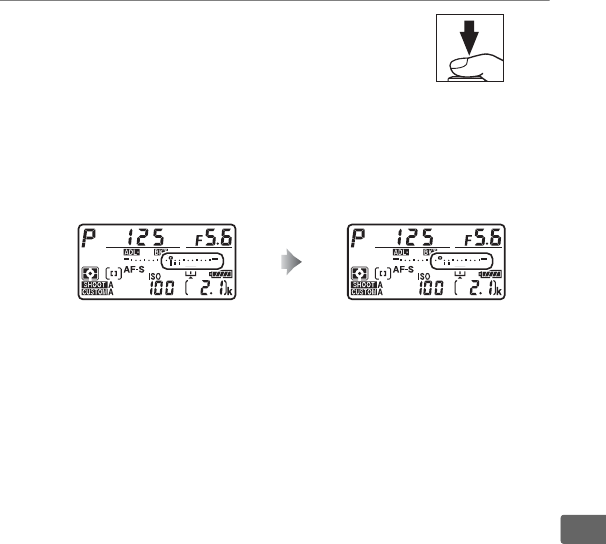
157
Z
3Frame a photograph, focus, and
shoot.
The camera will vary Active D-Lighting shot-by-shot according
to the bracketing program selected.
While bracketing is in
effect, a bracketing progress indicator will be displayed in the
top control panel.
A segment will disappear from the
indicator after each shot.
No. shots: 3 Display after first shot

158
Z
❚❚ Canceling Bracketing
To cancel bracketing, press the BKT button and rotate the main
command dial until the number of shots in the bracketing
sequence is zero (r) and d is no longer displayed.
The
program last in effect will be restored the next time bracketing is
activated.
Bracketing can also be cancelled by performing a two-
button reset (0224), although in this case the bracketing
program will not be restored the next time bracketing is activated.
AADL Bracketing
In continuous low speed, continuous high speed, and quiet continuous
modes, shooting will pause after the number of shots specified in the
bracketing program have been taken.
Shooting will resume the next
time the shutter-release button is pressed.
In self-timer mode, the
camera will take the number of shots selected in Step 1 on page 155
each time the shutter-release button is pressed, regardless of the option
selected for Custom Setting c3 (Self-timer) > Number of shots
(0301); the interval between shots is however controlled by Custom
Setting c3 (Self-timer)> Interval between shots.
In other modes, one
shot will be taken each time the shutter-release button is pressed.
If the memory card fills before all shots in the sequence have been
taken, shooting can be resumed from the next shot in the sequence
after the memory card has been replaced or shots have been deleted to
make room on the memory card.
If the camera is turned off before all
shots in the sequence have been taken, bracketing will resume from the
next shot in the sequence when the camera is turned on.
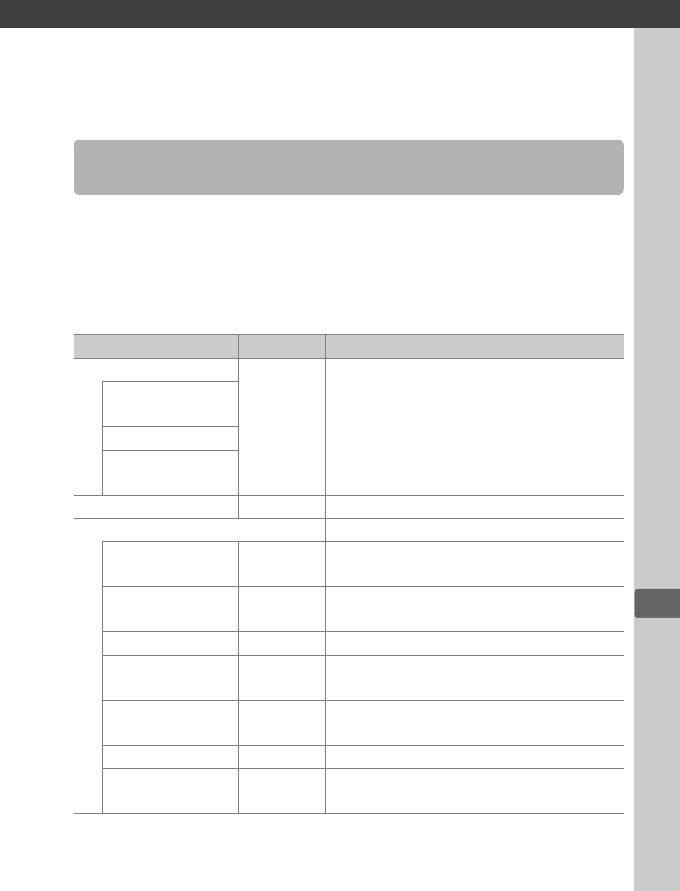
r
159
r
White Balance
White balance ensures that colors are unaffected by the color of
the light source.
Auto white balance is recommended with most
light sources.
If the desired results can not be achieved with auto
white balance, choose an option from the list below or use preset
white balance.
White Balance Options
Option Color temp. * Description
vAuto
3500–
8000 K
White balance is adjusted
automatically.
For best results, use
type G, E or D lens.
If optional flash
fires, results are adjusted appropriately.
Keep white (reduce
warm colors)
Normal
Keep warm lighting
colors
JIncandescent 3000 K Use under incandescent lighting.
IFluorescent Use with:
Sodium-vapor lamps 2700 K • Sodium-vapor lighting (found in
sports venues).
Warm-white
fluorescent 3000 K • Warm-white fluorescent lights.
White fluorescent 3700 K • White fluorescent lights.
Cool-white
fluorescent 4200 K • Cool-white fluorescent lights.
Day white
fluorescent 5000 K • Daylight white fluorescent lights.
Daylight fluorescent 6500 K • Daylight fluorescent lights.
High temp.
mercury-vapor 7200 K • High color temperature light sources
(e.g. mercury-vapor lamps).
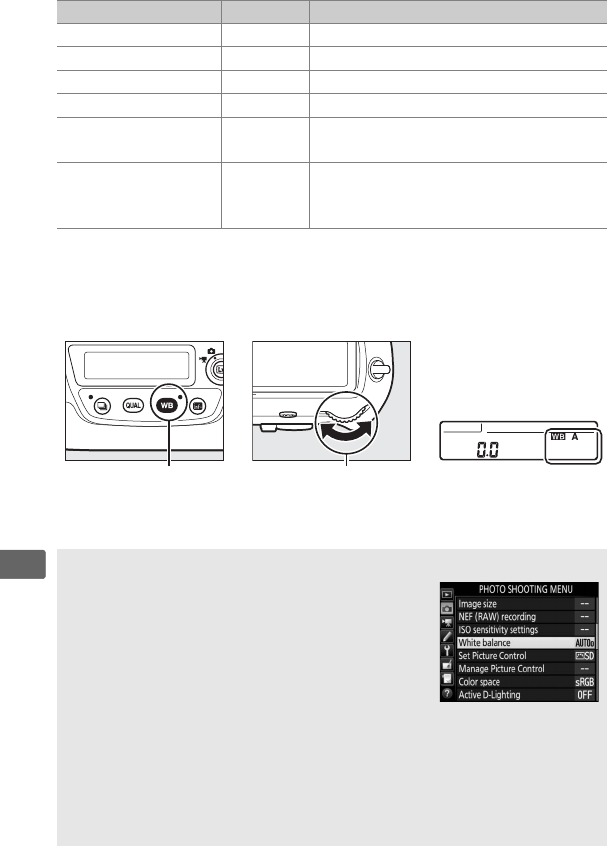
160
r
White balance can be selected by pressing the U button and
rotating the main command dial until the desired setting is
displayed in the rear control panel.
HDirect sunlight 5200 K Use with subjects lit by direct sunlight.
NFlash 5400 K Use with optional flash units.
GCloudy 6000 K Use in daylight under overcast skies.
MShade 8000 K Use in daylight with subjects in the shade.
KChoose color temp. 2500–
10,000 K
Choose color temperature from list of
values (0165).
LPreset manual —
Use subject, light source, or existing
photograph as reference for white
balance (0168).
* All values are approximate and do not reflect fine-tuning (if applicable).
U button Main command dial Rear control panel
AThe Photo Shooting Menu
White balance can also be adjusted using the
White balance option in the photo or movie
shooting menu (0291, 295), which also can be
used to fine-tune white balance (0162) or
manage white-balance presets (0168).
The
Auto option in the White balance menu offers a
choice of Keep white (reduce warm colors),
Normal, and Keep warm lighting colors.
Keep white (reduce warm
colors) makes whites recorded under incandescent lighting appear
white, while Keep warm lighting colors preserves the warm tints we
normally perceive under incandescent lighting.
The IFluorescent
option can be used to select the light source from the bulb types.
Option Color temp. * Description
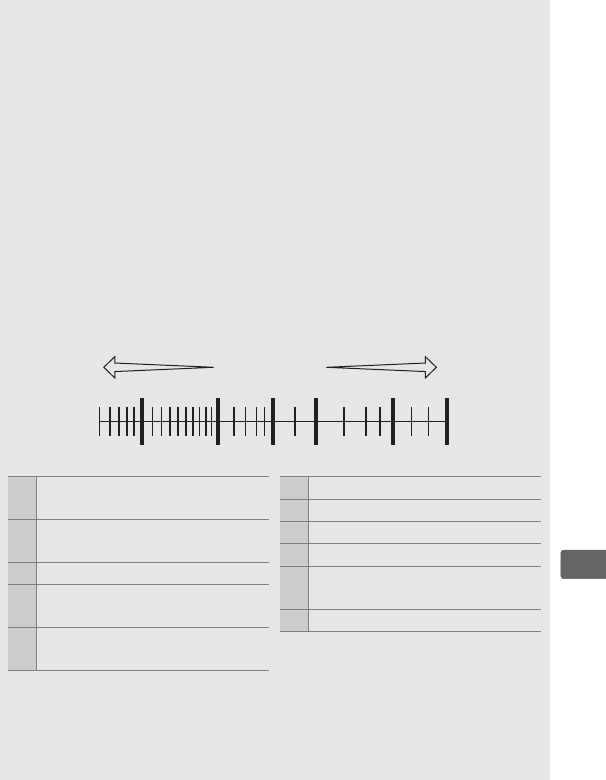
161
r
AStudio Flash Lighting
Auto white balance may not produce the desired results with large
studio flash units.
Use preset white balance or set white balance to
Flash and use fine-tuning to adjust white balance.
AColor Temperature
The perceived color of a light source varies with the viewer and other
conditions.
Color temperature is an objective measure of the color of a
light source, defined with reference to the temperature to which an
object would have to be heated to radiate light in the same
wavelengths.
While light sources with a color temperature in the
neighborhood of 5000–5500 K appear white, light sources with a lower
color temperature, such as incandescent light bulbs, appear slightly
yellow or red.
Light sources with a higher color temperature appear
tinged with blue.
Note: All figures are approximate.
ASee Also
White balance bracketing (0151) creates several copies of each
photograph taken, varying white balance to “bracket” the current value.
“Warmer” (redder) colors “Cooler” (bluer) colors
3000 4000 5000 6000 8000 10000 [ K ]
q w retyui o!0 !1
qI (sodium-vapor lamps):
2700 K
wJ (incandescent)/I (warm-
white fluorescent.): 3000 K
eI (white fluorescent): 3700 K
rI (cool-white fluorescent):
4200 K
tI (day white fluorescent):
5000 K
yH (direct sunlight): 5200 K
uN (flash): 5400 K
iG (cloudy): 6000 K
oI (daylight fluorescent): 6500 K
!0 I (high temp. mercury-vapor):
7200 K
!1 M (shade): 8000 K

162
r
Fine-Tuning White Balance
At settings other than K (Choose color temp.), white balance can
be “fine-tuned” to compensate for variations in the color of the
light source or to introduce a deliberate color cast into an image.
❚❚ The White Balance Menu
To fine-tune white balance from the photo shooting menu, select
White balance and follow the steps below.
1Display fine-tuning options.
Highlight a white balance option and
press 2 (if a sub-menu is displayed, select
the desired option and press 2 again to
display fine-tuning options; for
information on fine-tuning preset manual
white balance, see page 178).
2Fine-tune white balance.
Use the multi selector to fine-tune white
balance.
White balance can be fine-
tuned on the amber (A)–blue (B) axis in
steps of 0.5 and the green (G)–magenta
(M) axis in steps of 0.25.
The horizontal
(amber-blue) axis corresponds to color
temperature, while the vertical (green-
magenta) axis has the similar effects to the corresponding
color compensation (CC) filters.
The horizontal axis is ruled in
increments equivalent to about 5 mired, the vertical axis in
increments of about 0.05 diffuse density units.
Adjustment
Coordinates
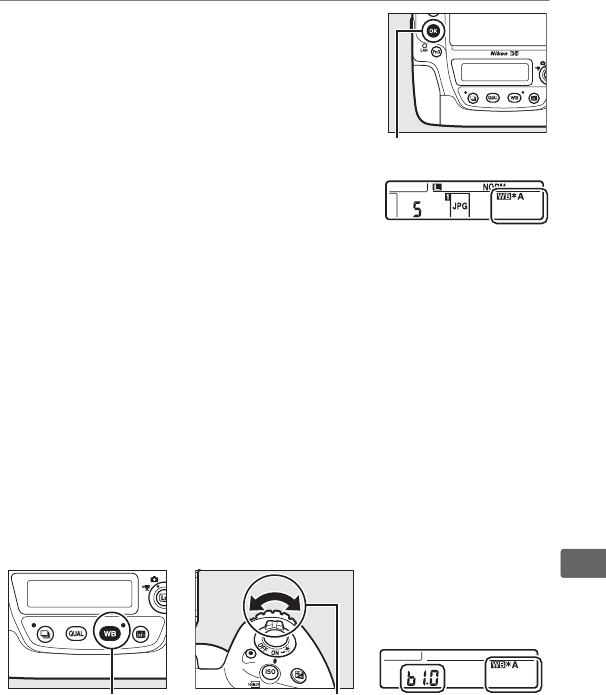
163
r
3Press J.
Press J to save settings and return to
the photo shooting menu.
If white
balance has been fine-tuned, an asterisk
(“U”) will be displayed in the rear control
panel.
❚❚ The U Button
At settings other than K (Choose color temp.) and L (Preset
manual), the U button can be used to fine-tune white balance
on the amber (A)–blue (B) axis (0162; to fine-tune white balance
when L is selected, use the photo shooting menu as described
on page 178).
Press the U button and rotate the sub-command
dial to fine-tune white balance in steps of 0.5 (with each full
increment equivalent to about 5 mired) until the desired value is
displayed in the rear control panel.
Rotating the sub-command
dial to the left increases the amount of amber (A).
Rotating the
sub-command dial to the right increases the amount of blue (B).
At settings other than 0, an asterisk (“U”) appears in the rear
control panel.
U button Sub-command dial Rear control panel
J button
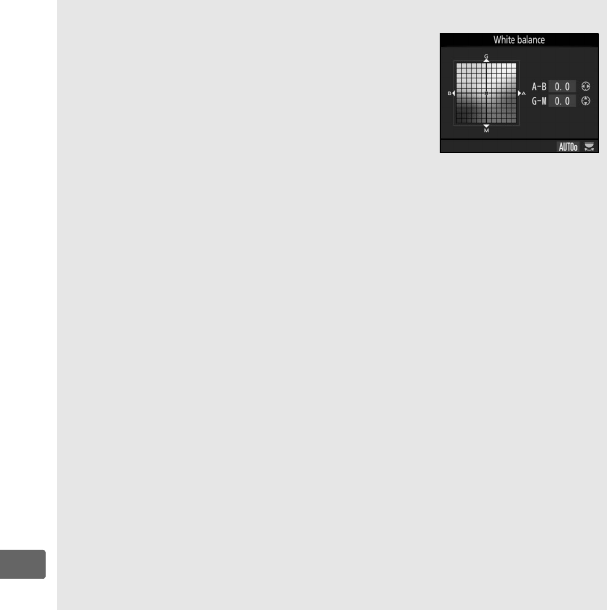
164
r
AThe Information Display
During viewfinder photography, you can press
the U button to adjust white balance settings
in the information display.
Rotate the main
command dial to choose the white balance
mode and rotate the sub-command dial to
choose the color temperature (mode K, “choose
color temperature”) or white balance preset
(preset manual mode), or use the multi-selector to fine-tune white
balance on the amber (A)–blue (B) and green (G)–magenta (M) axes
(other white balance modes).
AWhite Balance Fine-Tuning
The colors on the fine-tuning axes are relative, not absolute.
For
example, moving the cursor to B (blue) when a “warm” setting such as
J (Incandescent) is selected for white balance will make photographs
slightly “colder” but will not actually make them blue.
A“Mired”
Any given change in color temperature produces a greater difference in
color at low color temperatures than it would at higher color
temperatures.
For example, a change of 1000 K produces a much
greater change in color at 3000 K than at 6000 K.
Mired, calculated by
multiplying the inverse of the color temperature by 10 6, is a measure of
color temperature that takes such variation into account, and as such is
the unit used in color-temperature compensation filters.
E.g.:
• 4000 K–3000 K (a difference of 1000 K)=83 mired
• 7000 K–6000 K (a difference of 1000 K)=24 mired
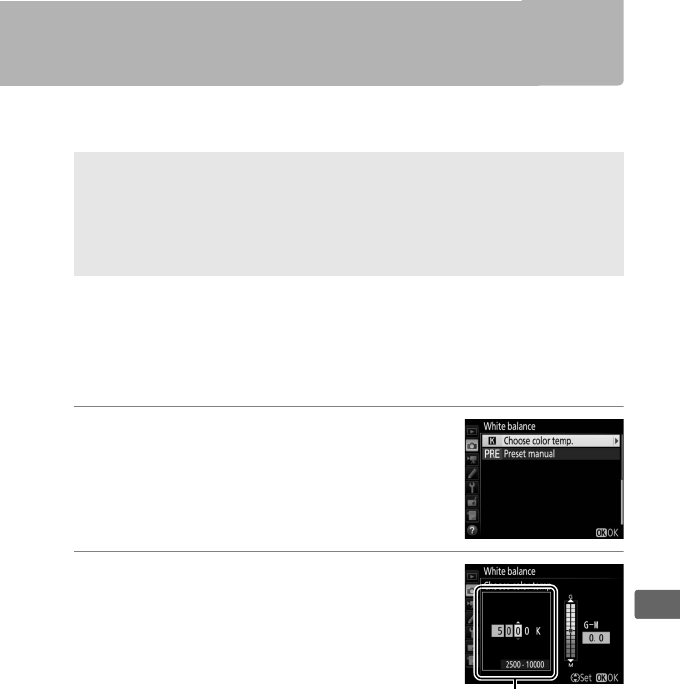
165
r
Choosing a Color Temperature
Follow the steps below to choose a color temperature when K
(Choose color temp.) is selected for white balance.
❚❚ The White Balance Menu
Color temperature can be selected using the White balance
options in the photo shooting menu.
Enter values for the amber–
blue and green–magenta axes as described below.
1Select Choose color temp.
Select White balance in the photo
shooting menu, then highlight Choose
color temp. and press 2.
2Select a value for amber-blue.
Press 4 or 2 to highlight digits and press
1 or 3 to change.
DChoose Color Temperature
Note that the desired results will not be obtained with flash or
fluorescent lighting.
Choose N (Flash) or I (Fluorescent) for these
sources.
With other light sources, take a test shot to determine if the
selected value is appropriate.
Value for amber (A)-
blue (B) axis
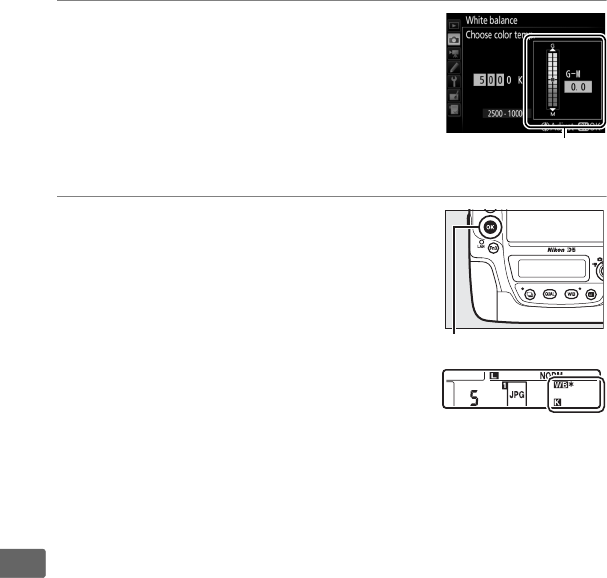
166
r
3Select a value for green-magenta.
Press 4 or 2 to highlight the G (green)
or M (magenta) axis and press 1 or 3 to
select a value.
4Press J.
Press J to save changes and return to
the photo shooting menu.
If a value
other than 0 is selected for the green
(G)–magenta (M) axis, an asterisk (“U”)
will be displayed in the rear control
panel.
Value for green (G)-
magenta (M) axis
J button
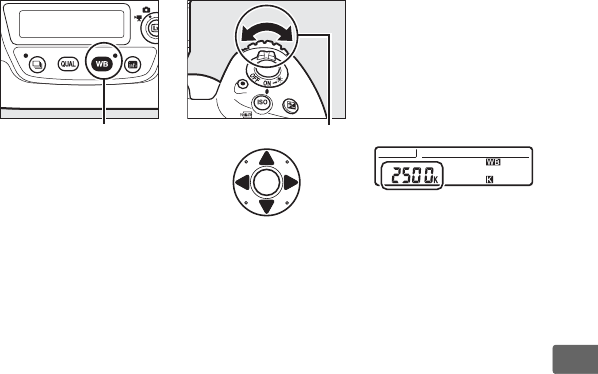
167
r
❚❚ The U Button
When K (Choose color temp.) is selected, the U button can be
used to select the color temperature, although only for the amber
(A)–blue (B) axis.
Press the U button and rotate the sub-
command dial until the desired value is displayed in the rear
control panel (adjustments are made in mireds; 0164).
To enter a
color temperature directly, press the U button and press 4 or 2
to highlight a digit and press 1 or 3 to change.
U button Sub-command dial
Rear control panel
168
r
Preset Manual
Preset manual is used to record and recall custom white balance
settings for shooting under mixed lighting or to compensate for
light sources with a strong color cast.
The camera can store up to
six values for preset white balance in presets d-1 through d-6.
Two
methods are available for setting preset white balance:
Method Description
Direct measurement
Neutral gray or white object is placed under
lighting that will be used in final photograph and
white balance is measured by camera (0169).
During live view (044, 59), white balance can be
measured in a selected area of the frame (spot
white balance, 0173).
Copy from existing
photograph
White balance is copied from photo on memory
card (0176).
AWhite Balance Presets
Changes to white balance presets apply to all photo shooting menu
banks (0289).
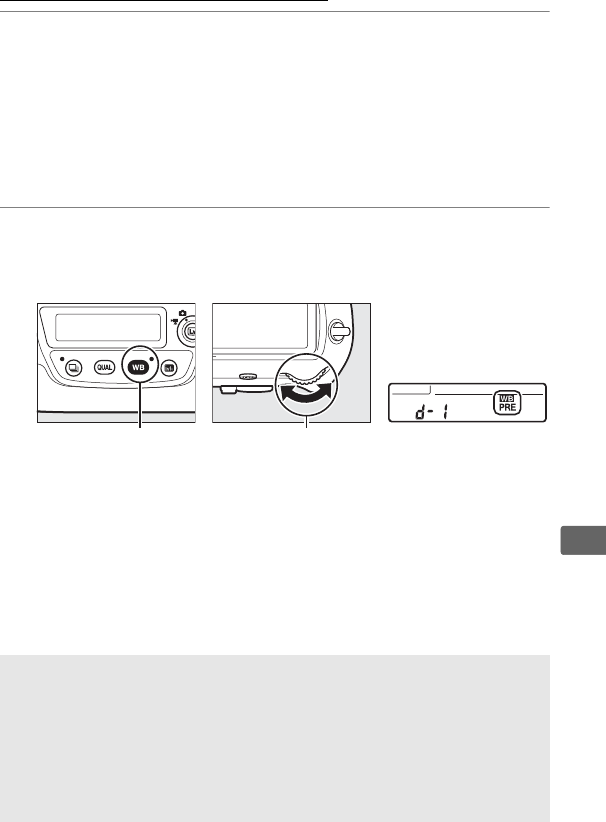
169
r
Viewfinder Photography
1Light a reference object.
Place a neutral gray or white object under the lighting that will
be used in the final photograph.
In studio settings, a standard
gray panel can be used as a reference object.
Note that
exposure is automatically increased by 1 EV when measuring
white balance; in exposure mode M, adjust exposure so that
the exposure indicator shows ±0 (0137).
2Set white balance to L (Preset manual).
Press the U button and rotate the main command dial until
L is displayed in the rear control panel.
U button Main command dial Rear control panel
AMeasuring Preset Manual White Balance (Viewfinder
Photography)
Preset manual white balance can not be measured while you are
shooting an HDR photograph (0189) or multiple exposure (0227), or
if Record movies is selected for Custom Setting g1 (Custom control
assignment) > Shutter-release button (0307) and the live view
selector is rotated to 1 during live view.
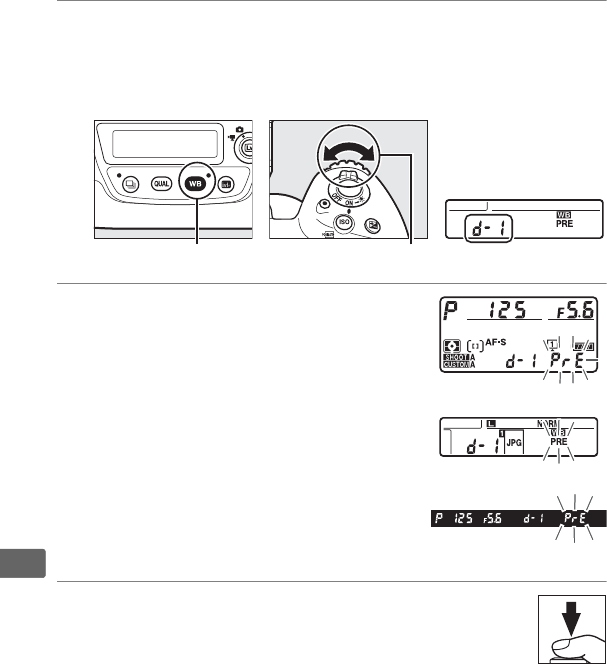
170
r
3Select a preset.
Press the U button and rotate the sub-command dial until
the desired white balance preset (d-1 to d-6) is displayed in
the rear control panel.
4Select direct measurement mode.
Release the U button briefly and then
press the button until the L icon in
the rear control panel starts to flash.
A
flashing D will also appear in the top
control panel and viewfinder.
5Measure white balance.
In the few seconds before the indicators stop
flashing, frame the reference object so that it fills the
viewfinder and press the shutter-release button all
the way down.
The camera will measure a value for white
balance and store it in the preset selected in Step 3.
No
photograph will be recorded; white balance can be measured
accurately even when the camera is not in focus.
U button Sub-command dial Rear control panel
Top control panel
Rear control panel
Viewfinder
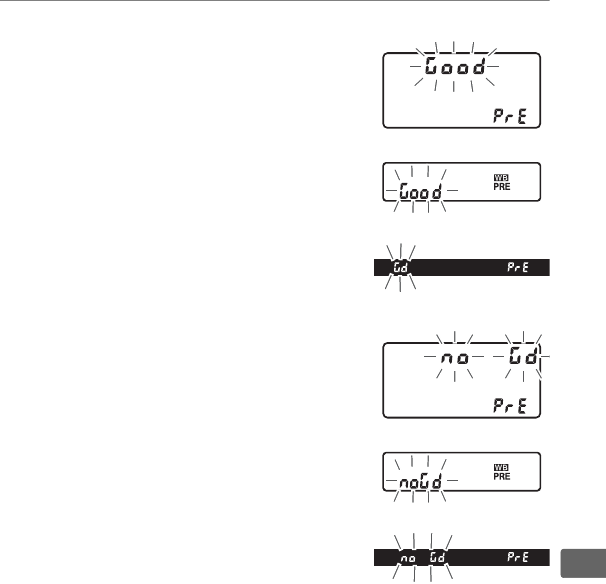
171
r
6Check the results.
If the camera was able to measure a
value for white balance, C will flash
in the control panels, while the
viewfinder will show a flashing a.
Press the shutter-release button
halfway to exit to shooting mode.
If lighting is too dark or too bright, the
camera may be unable to measure
white balance.
A flashing ba will
appear in the control panels and
viewfinder.
Press the shutter-release
button halfway to return to Step 5 and
measure white balance again.
Top control panel
Rear control panel
Viewfinder
Top control panel
Rear control panel
Viewfinder
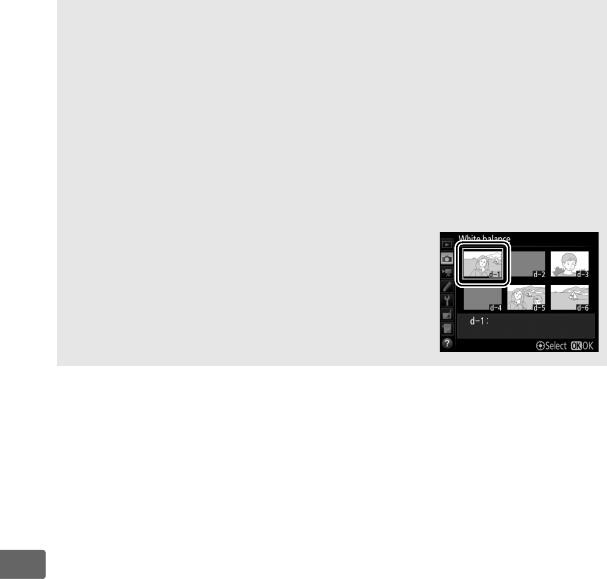
172
r
DDirect Measurement Mode
If no operations are performed during viewfinder photography while
the displays are flashing, direct measurement mode will end in the time
selected for Custom Setting c2 (Standby timer, 0301).
AProtected Presets
If the current preset is protected (0178), 3 will flash in the top
control panel and viewfinder (and L in the rear control panel) if you
attempt to measure a new value.
ASelecting a Preset
Selecting Preset manual for the White balance
option in the photo shooting menu displays the
dialog shown at right; highlight a preset and
press J.
If no value currently exists for the
selected preset, white balance will be set to
5200 K, the same as Direct sunlight.
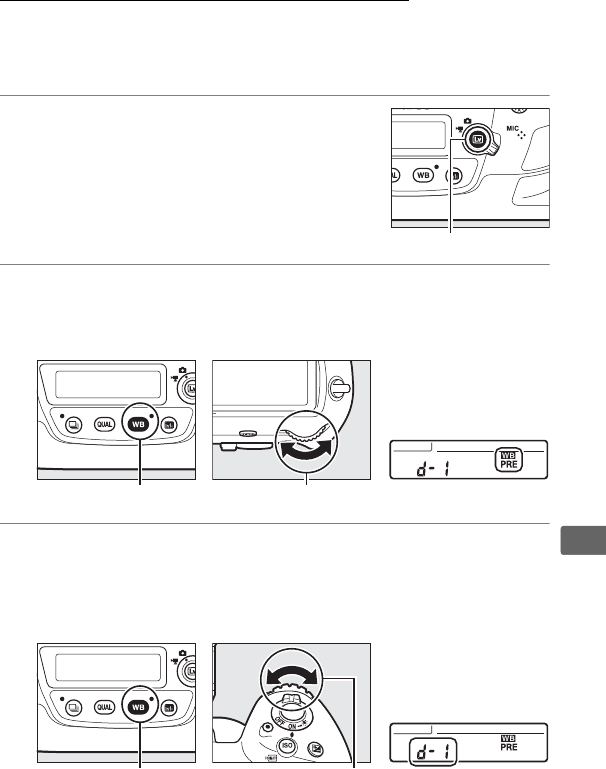
173
r
Live View (Spot White Balance)
During live view (044, 59), white balance can be measured in a
selected area of the frame, eliminating the need to prepare a
reference object or change lenses during telephoto photography.
1Press the a button.
The mirror will be raised and the view
through the lens will be displayed in the
camera monitor.
2Set white balance to L (Preset manual).
Press the U button and rotate the main command dial until
L is displayed in the rear control panel.
3Select a preset.
Press the U button and rotate the sub-command dial until
the desired white balance preset (d-1 to d-6) is displayed in
the rear control panel.
U button Main command dial Rear control panel
U button Sub-command dial Rear control panel
a button
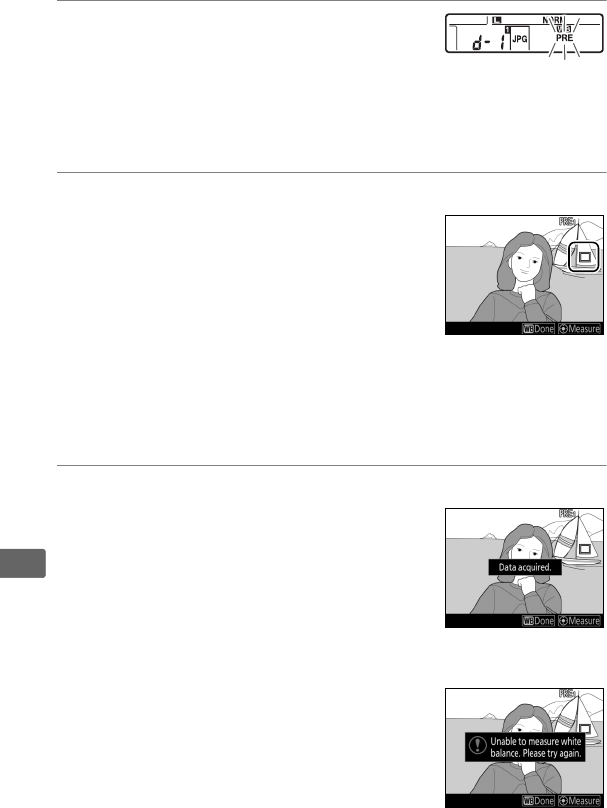
174
r
4Select direct measurement mode.
Release the U button briefly and then
press the button until the L icon in
the rear control panel starts to flash.
A
spot white balance target (r) will be displayed at the selected
focus point.
5Position the target over a white or grey area.
While L flashes in the display, use the
multi selector to position the r over a
white or grey area of the subject.
To
zoom the area around the target in for
more precise positioning, press the X
button.
You can also measure white
balance anywhere in the frame by tapping your subject in the
monitor, in which case there is no need to press the center of
the multi selector or the shutter-release button as described in
Step 6.
6Measure white balance.
Press the center of the multi selector or
press the shutter-release button all the
way down to measure white balance.
The time available to measure white
balance is that selected for Custom
Setting c4 (Monitor off delay) > Live
view (0301).
If the camera is unable to measure white
balance, the message shown at right will
be displayed.
Choose a new white
balance target and repeat the process
from Step 5.
Rear control panel
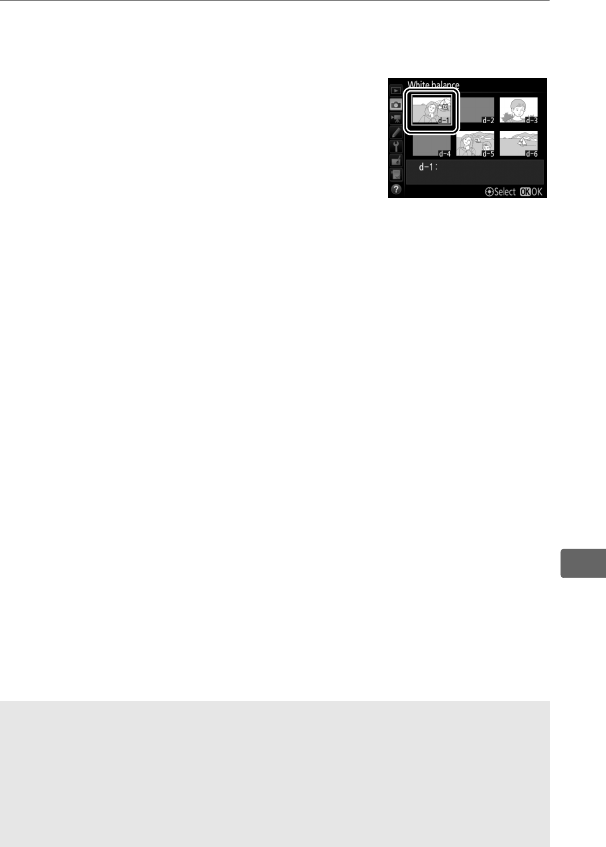
175
r
7Exit direct measurement mode.
Press the U button to exit direct measurement mode.
White balance presets can be viewed by
selecting Preset manual for White
balance in the photo or movie shooting
menu.
The position of the targets used
to measure preset white balance is
displayed on presets recorded during
live view.
DMeasuring Preset Manual White Balance (Live View)
Preset manual white balance can not be measured while an HDR
exposure is in progress (0189), when None is selected for Photo live
view display WB (052), or if Record movies is selected for Custom
Setting g1 (Custom control assignment) > Shutter-release button
(0307) and the live view selector is rotated to 1.
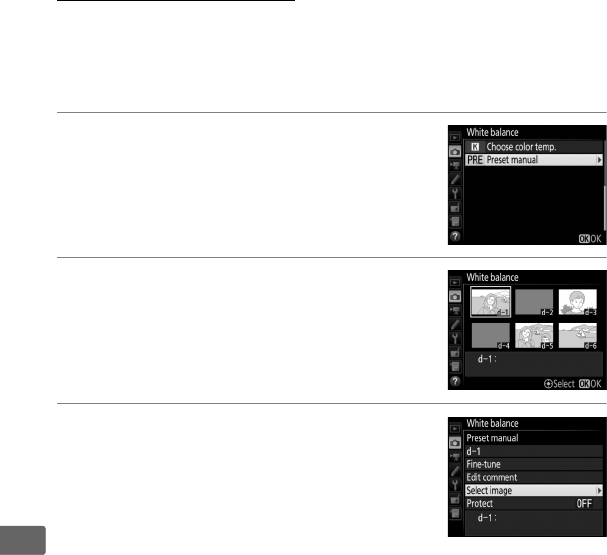
176
r
Managing Presets
❚❚ Copying White Balance from a Photograph
Follow the steps below to copy a value for white balance from an
existing photograph to a selected preset.
1Select Preset manual.
Select White balance in the photo
shooting menu, then highlight Preset
manual and press 2.
2Select a destination.
Highlight the destination preset (d-1 to
d-6) and press the center of the multi
selector.
3Choose Select image.
Highlight Select image and press 2.
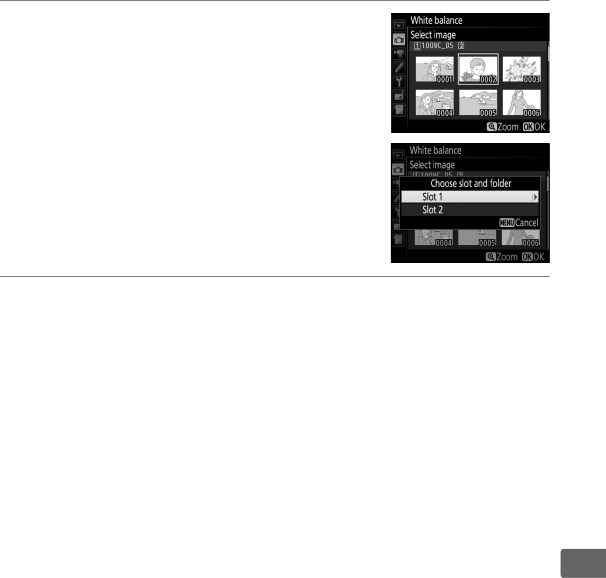
177
r
4Highlight a source image.
Highlight the source image.
To view the
highlighted image full frame, press and
hold the X button.
To view images in other locations, press
W (M) and select the desired card and
folder (0247).
5Copy white balance.
Press J to copy the white balance value for the highlighted
photograph to the selected preset.
If the highlighted
photograph has a comment (0309), the comment will be
copied to the comment for the selected preset.
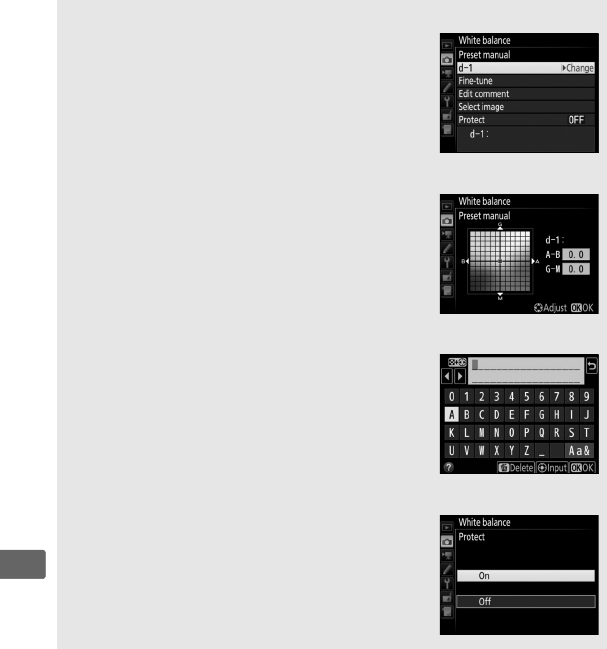
178
r
AChoosing a White Balance Preset
Press 1 to highlight the current white balance
preset (d-1–d-6) and press 2 to select another
preset.
AFine-Tuning Preset White Balance
The selected preset can be fine-tuned by
selecting Fine-tune and adjusting white balance
as described on page 162.
AEdit Comment
To enter a descriptive comment of up to 36
characters for the current white-balance preset,
select Edit comment in the preset manual white
balance menu and enter a comment as
described on page 185.
AProtect
To protect the current white-balance preset,
select Protect in the preset manual white
balance menu, then highlight On and press J.
Protected presets can not be modified and the
Fine-tune and Edit comment options can not
be used.
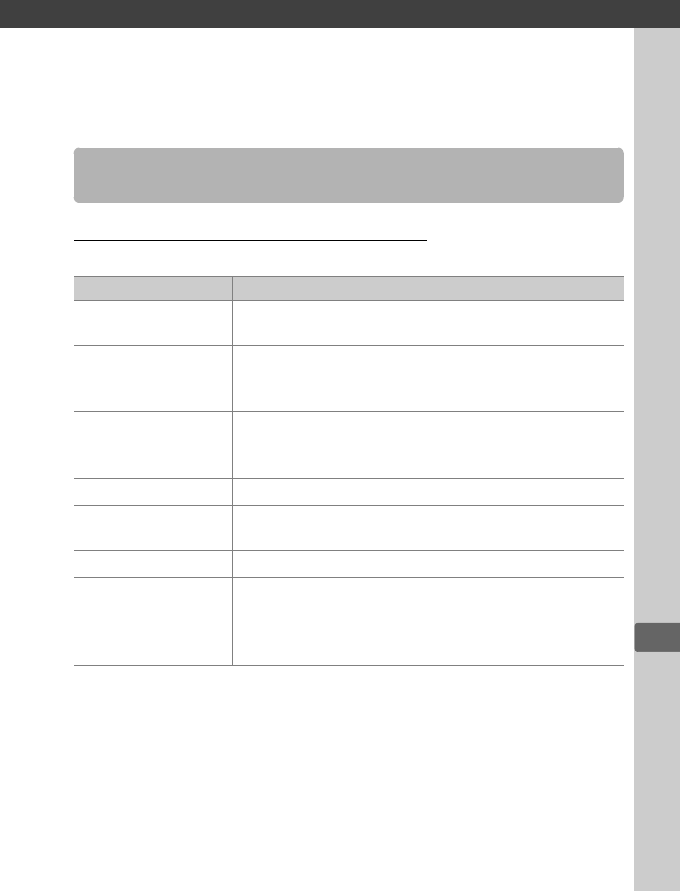
J
179
J
Image Enhancement
Selecting a Picture Control
Choose a Picture Control according to the subject or type of scene.
Picture Controls
Option Description
QStandard Standard processing for balanced results.
Recommended for most situations.
RNeutral
Minimal processing for natural results.
Choose for
photographs that will later be processed or
retouched.
SVivid
Pictures are enhanced for a vivid, photoprint effect.
Choose for photographs that emphasize primary
colors.
TMonochrome Take monochrome photographs.
oPortrait Process portraits for skin with natural texture and a
rounded feel.
pLandscape Produces vibrant landscapes and cityscapes.
qFlat
Details are preserved over a wide tone range, from
highlights to shadows.
Choose for photographs
that will later be extensively processed or
retouched.
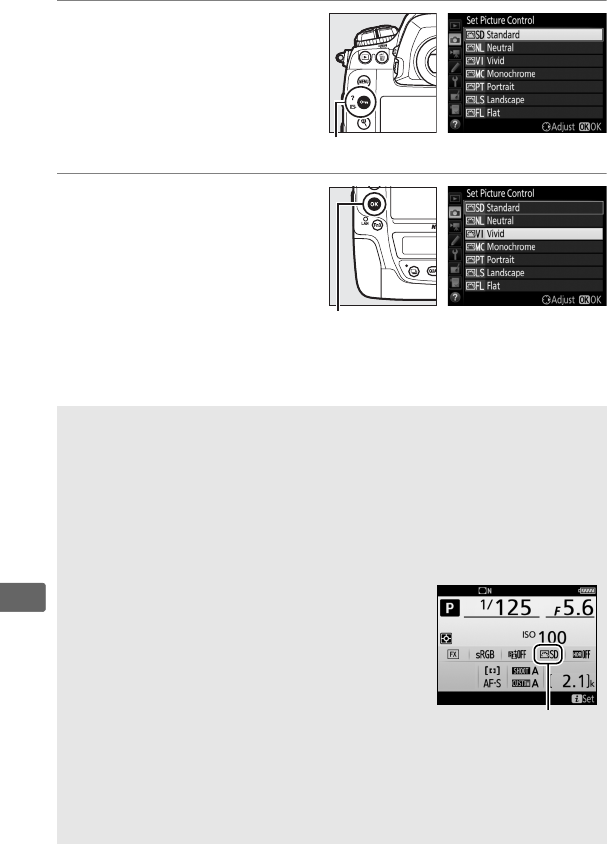
180
J
1Press L (Z/Q).
A list of Picture Controls
will be displayed.
2Select a Picture Control.
Highlight the desired
Picture Control and
press J.
ACustom Picture Controls
Custom Picture Controls are created through modifications to existing
Picture Controls using the Manage Picture Control option in the photo
or movie shooting menu (0184).
Custom Picture Controls can be
saved to a memory card for sharing among other cameras of the same
model and compatible software.
AThe Picture Control Indicator
The current Picture Control is shown in the
information display when the R button is
pressed.
AThe Shooting Menus
Picture Controls can also be selected using the Set Picture Control
option in the photo or movie shooting menu (0291, 295).
L (Z/Q) button
J button
Picture Control
indicator
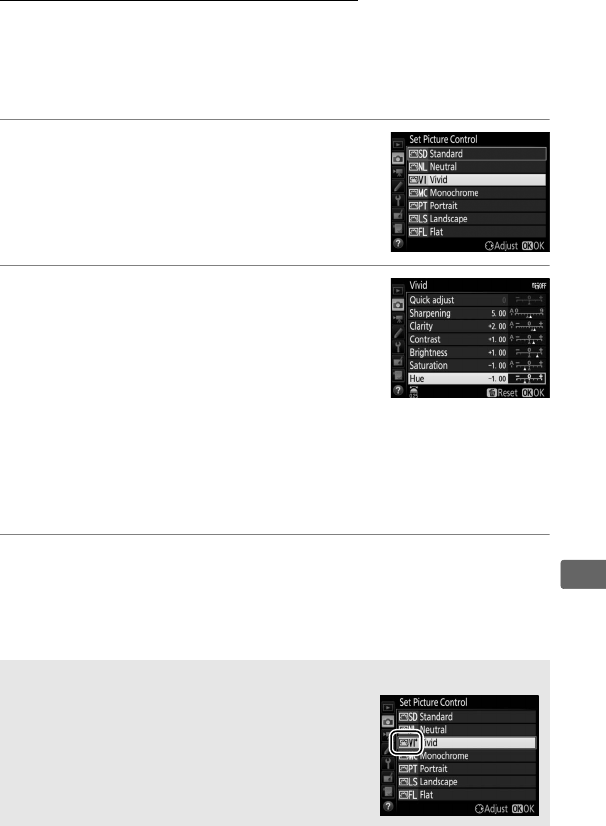
181
J
Modifying Picture Controls
Existing preset or custom Picture Controls (0184) can be
modified to suit the scene or the user’s creative intent.
Choose a
balanced combination of settings using Quick adjust, or make
manual adjustments to individual settings.
1Select a Picture Control.
Highlight the desired Picture Control in
the Picture Control list (0179) and press
2.
2Adjust settings.
Press 1 or 3 to highlight the desired
setting and press 4 or 2 to choose a
value in increments of 1, or rotate the
sub-command dial to choose a value in
increments of 0.25 (0182).
Repeat this
step until all settings have been adjusted, or select a preset
combination of settings by highlighting Quick adjust and
pressing 4 or 2.
Default settings can be restored by pressing
the O(Q) button.
3Press J.
AModifications to Original Picture Controls
Picture Controls that have been modified from
default settings are indicated by an asterisk
(“U”) in the Set Picture Control menu.
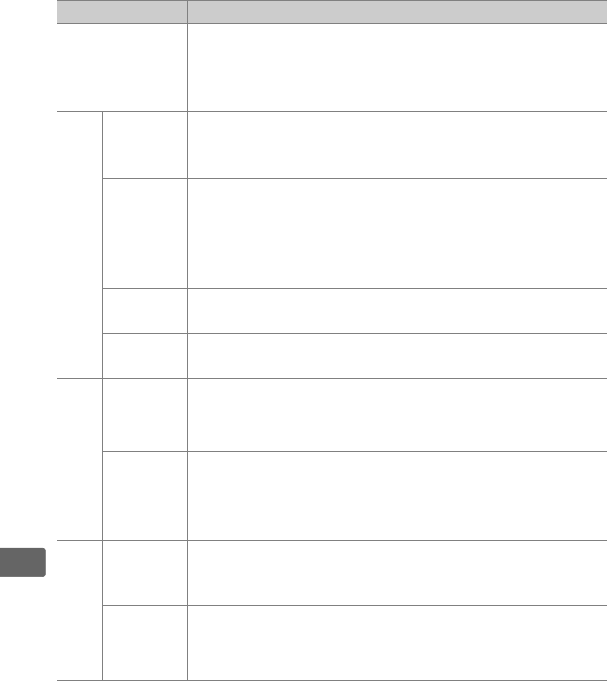
182
J
❚❚ Picture Control Settings
Option Description
Quick adjust
Mute or heighten the effect of the selected Picture
Control (note that this resets all manual adjustments).
Not available with Neutral, Monochrome, Flat, or
custom Picture Controls (0184).
Manual adjustments
(all Picture Controls)
Sharpening
Control the sharpness of outlines.
Select A to adjust
sharpening automatically according to the type of
scene.
Clarity
Adjust clarity manually or select A to let the camera
adjust clarity automatically.
Depending on the scene,
shadows may appear around bright objects or halos
may appear around dark objects at some settings.
Clarity is not applied to movies.
Contrast Adjust contrast manually or select A to let the camera
adjust contrast automatically.
Brightness Raise or lower brightness without loss of detail in
highlights or shadows.
Manual adjustments
(non-monochrome only)
Saturation
Control the vividness of colors.
Select A to adjust
saturation automatically according to the type of
scene.
Hue Adjust hue.
Manual adjustments
(monochrome only)
Filter
effects
Simulate the effect of color filters on monochrome
photographs (0183).
Toning Choose the tint used in monochrome photographs
(0183).
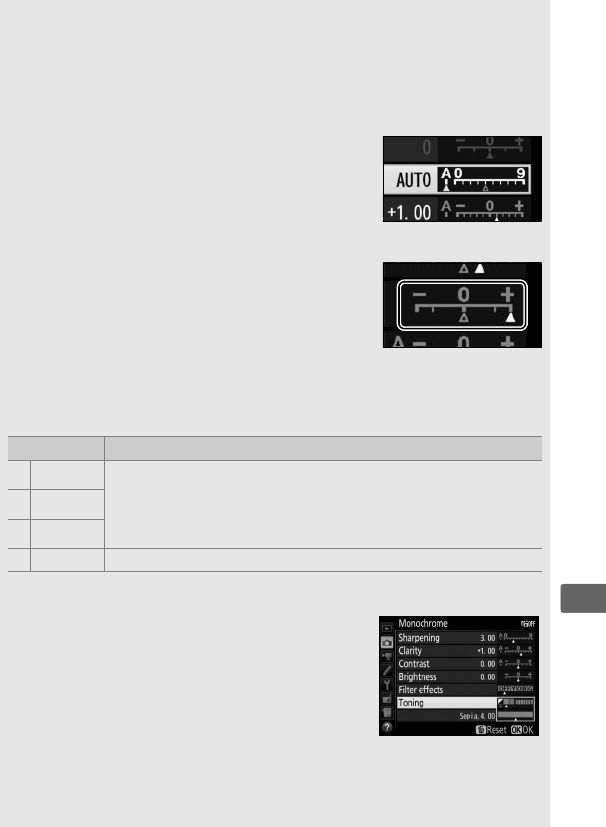
183
J
D“A” (Auto)
Results for auto sharpening, clarity, contrast, and saturation vary with
exposure and the position of the subject in the frame.
Use a type G, E,
or D lens for best results.
ASwitching Between Manual and Auto
Press the X button to switch back and forth
between manual and auto (A) settings for
sharpening, clarity, contrast, and saturation.
APrevious Settings
The j indicator under the value display in the
Picture Control setting menu indicates the
previous value for the setting.
Use this as a
reference when adjusting settings.
AFilter Effects (Monochrome Only)
The options in this menu simulate the effect of color filters on
monochrome photographs.
The following filter effects are available:
Option Description
YYellow Enhances contrast.
Can be used to tone down the
brightness of the sky in landscape photographs.
Orange
produces more contrast than yellow, red more contrast
than orange.
OOrange
RRed
GGreen Softens skin tones.
Can be used for portraits.
AToning (Monochrome Only)
Pressing 3 when Toning is selected displays
saturation options.
Press 4 or 2 to adjust
saturation.
Saturation control is not available
when B&W (black-and-white) is selected.
ACustom Picture Control Options
The options available with custom Picture Controls are the same as
those on which the custom Picture Control was based.
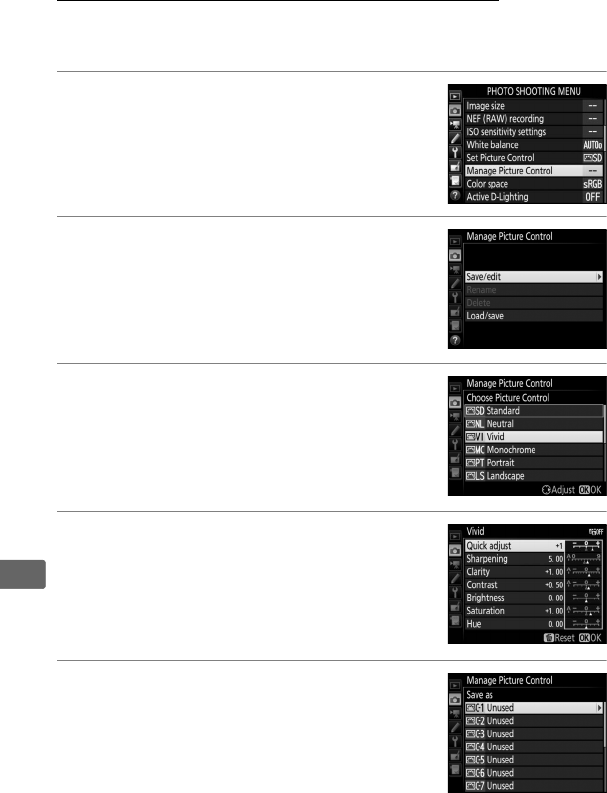
184
J
Creating Custom Picture Controls
The Picture Controls supplied with the camera can be modified
and saved as custom Picture Controls.
1Select Manage Picture Control.
Highlight Manage Picture Control in the
photo shooting menu and press 2.
2Select Save/edit.
Highlight Save/edit and press 2.
3Select a Picture Control.
Highlight an existing Picture Control and
press 2, or press J to proceed to Step 5
to save a copy of the highlighted Picture
Control without further modification.
4Edit the selected Picture Control.
See page 182 for more information.
To
abandon any changes and start over from
default settings, press the O (Q) button.
Press J when settings are complete.
5Select a destination.
Choose a destination for the custom
Picture Control (C-1 through C-9) and
press 2.
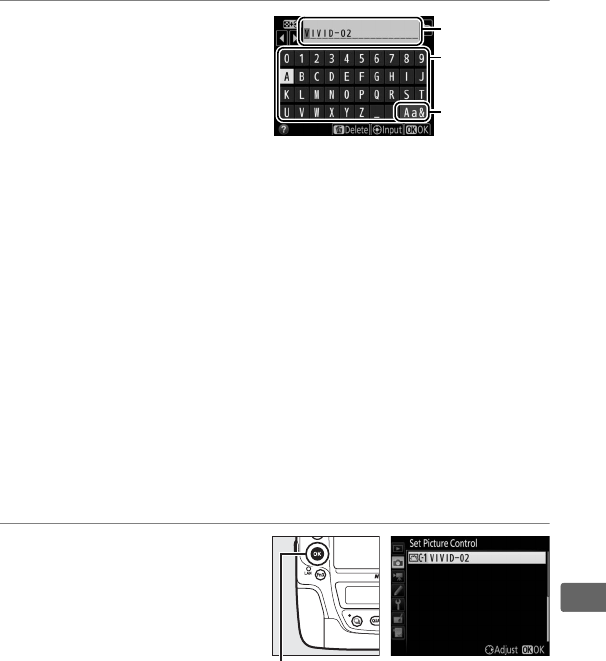
185
J
6Name the Picture
Control.
The text-entry dialog
shown at right will be
displayed.
By default, new
Picture Controls are named
by adding a two-digit number (assigned automatically) to the
name of the existing Picture Control; to use the default name,
proceed to Step 7.
To move the cursor in the name area, tap
the display or hold the W (M) button and press 4 or 2.
To
enter a new letter at the current cursor position, tap the letters
on the touch-screen keyboard (tap the keyboard selection
button to cycle through the upper-case, lower-case, and
symbol keyboards).
You can also use the multi selector to
highlight the desired character in the keyboard area and press
the center of the multi selector.
To delete the character at the
current cursor position, press the O(Q) button.
Custom Picture Control names can be up to nineteen
characters long.
Any characters after the nineteenth will be
deleted.
7Save changes and exit.
Press J to save changes
and exit.
The new Picture
Control will appear in the
Picture Control list.
Keyboard
area
Name area
Keyboard
selection
J button
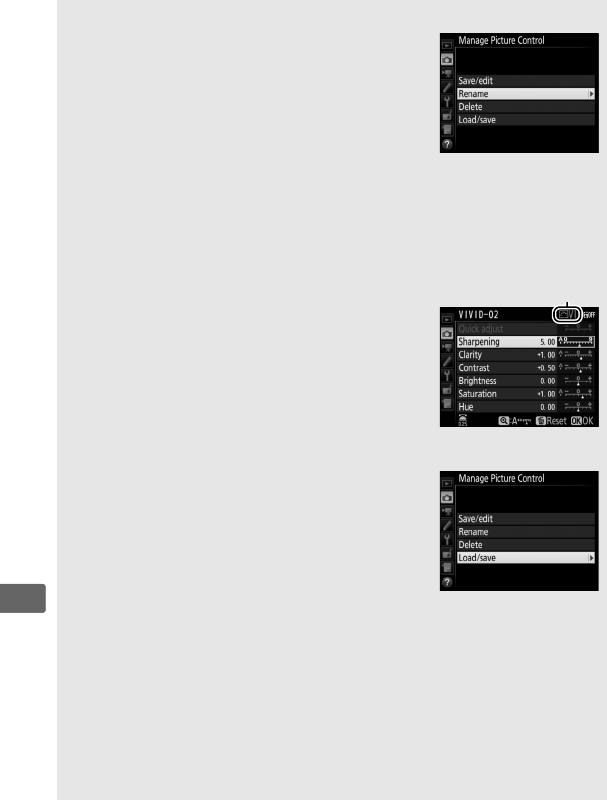
186
J
AManage Picture Control > Rename
Custom Picture Controls can be renamed at any
time using the Rename option in the Manage
Picture Control menu.
AManage Picture Control > Delete
The Delete option in the Manage Picture
Control menu can be used to delete selected
custom Picture Controls when they are no longer
needed.
AThe Original Picture Control Icon
The original preset Picture Control on which the
custom Picture Control is based is indicated by
an icon in the top right corner of the edit display.
ASharing Custom Picture Controls
The Load/save item in the Manage Picture
Control menu offers the options listed below.
Use these options to copy custom Picture
Controls to and from memory cards (these
options are available only with the memory card
in Slot 1 and can not be used with the card in
Slot 2).
Once copied to memory cards, Picture
Controls can be used with other cameras or compatible software.
•Copy to camera: Copy custom Picture Controls from the memory card to
custom Picture Controls C-1 through C-9 on the camera and name
them as desired.
•Delete from card: Delete selected custom Picture Controls from the
memory card.
•Copy to card: Copy a custom Picture Control (C-1 through C-9) from the
camera to a selected destination (1 through 99) on the memory card.
Original Picture
Control icon
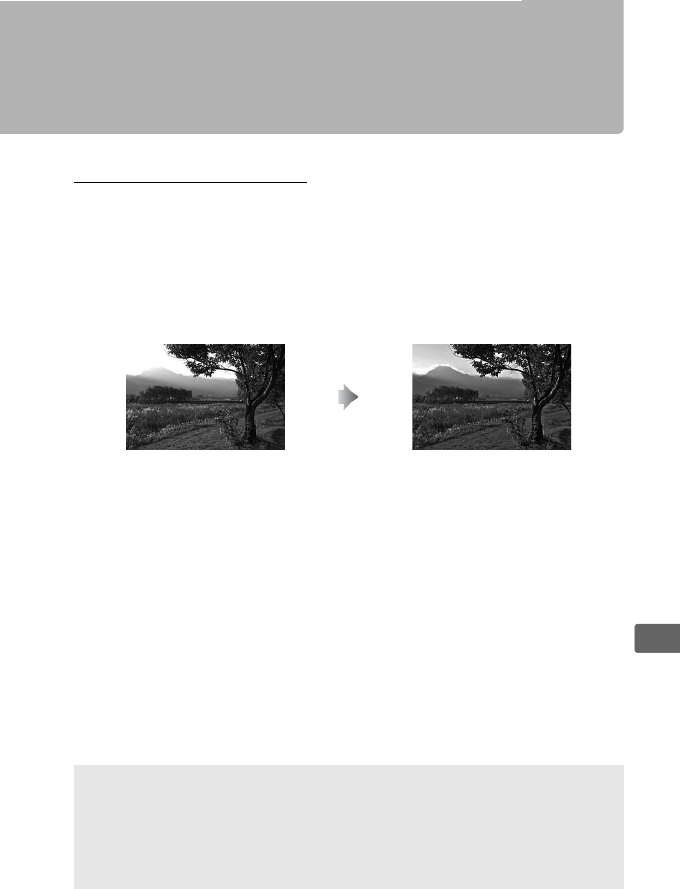
187
J
Preserving Detail in Highlights
and Shadows
Active D-Lighting
Active D-Lighting preserves details in highlights and shadows,
creating photographs with natural contrast.
Use for high contrast
scenes, for example when photographing brightly lit outdoor
scenery through a door or window or taking pictures of shaded
subjects on a sunny day.
It is most effective when used with
matrix metering (0129).
Active D-Lighting off Active D-Lighting: YAuto
A“Active D-Lighting” versus “D-Lighting”
The Active D-Lighting option in the photo shooting menu adjusts
exposure before shooting to optimize the dynamic range, while the
D-Lighting option in the retouch menu (0312) brightens shadows in
images after shooting.
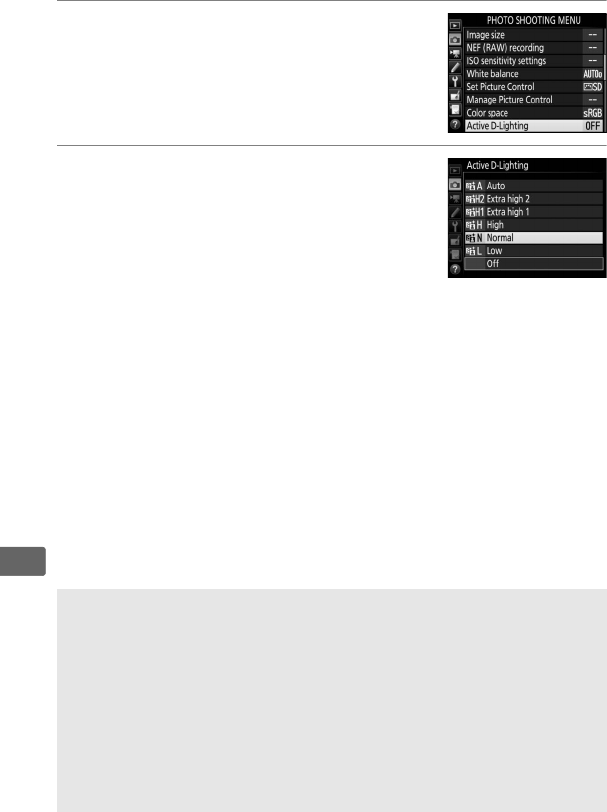
188
J
To use Active D-Lighting:
1Select Active D-Lighting.
Highlight Active D-Lighting in the photo
shooting menu and press 2.
2Choose an option.
Highlight the desired option and press J.
If YAuto is selected, the camera will
automatically adjust Active D-Lighting
according to shooting conditions (in
exposure mode M, however, YAuto is
equivalent to QNormal).
DActive D-Lighting
Active D-Lighting can not be used with movies.
Noise (randomly-
spaced bright pixels, fog, or lines) may appear in photographs taken
with Active D-Lighting.
Uneven shading may be visible with some
subjects.
ASee Also
When ADL bracketing is selected for Auto bracketing set in photo
shooting menu (0146), the camera varies Active D-Lighting over a
series of shots (0155).
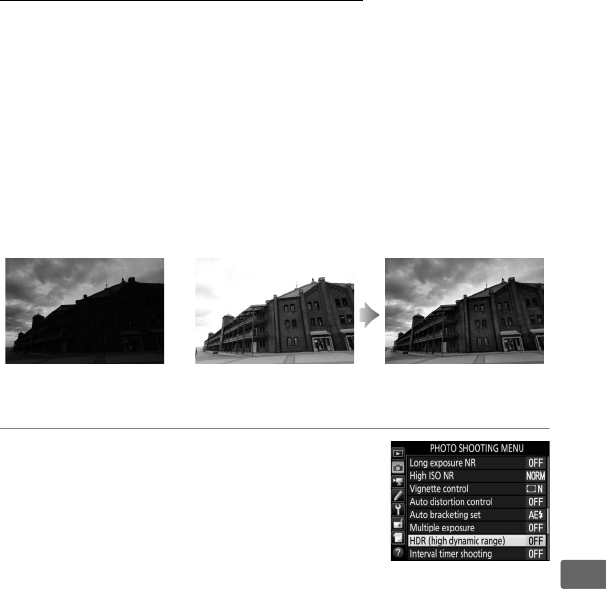
189
J
High Dynamic Range (HDR)
Used with high-contrast subjects, High Dynamic Range (HDR)
preserves details in highlights and shadows by combining two
shots taken at different exposures.
HDR is most effective when
used with matrix metering (0129; with spot or center-weighted
metering and a non-CPU lens, an exposure differential of Auto is
equivalent to about 2 EV).
It can not be used to record NEF (RAW)
images.
Flash lighting (0194), bracketing (0146), multiple
exposure (0227), and time lapse (074) can not be used while
HDR is in effect and shutter speeds of A and % are not
available.
1Select HDR (high dynamic range).
Highlight HDR (high dynamic range) in
the photo shooting menu and press 2.
+
First exposure
(darker)
Second exposure
(brighter)
Combined HDR
image
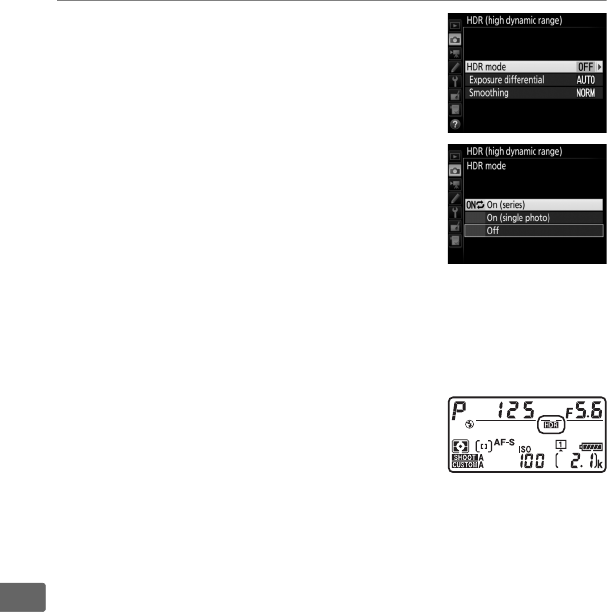
190
J
2Select a mode.
Highlight HDR mode and press 2.
Highlight one of the following and press
J.
•To take a series of HDR photographs, select
0On (series).
HDR shooting will
continue until you select Off for HDR
mode.
•To take one HDR photograph, select On (single photo).
Normal
shooting will resume automatically after you have created a
single HDR photograph.
•To exit without creating additional HDR photographs, select Off.
If On (series) or On (single photo) is
selected, a y icon will be displayed in
the top control panel.
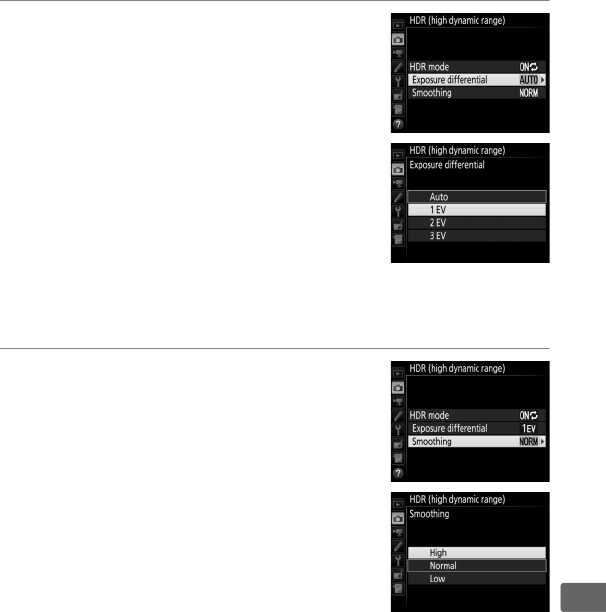
191
J
3Choose the exposure differential.
To choose the difference in exposure
between the two shots, highlight
Exposure differential and press 2.
The options shown at right will be
displayed.
Highlight an option and press
J.
Choose higher values for high-
contrast subjects, but note that choosing
a value higher than required may not
produce the desired results; if Auto is
selected, the camera will automatically adjust exposure to suit
the scene.
4Choose the amount of smoothing.
To choose how much the boundaries
between the two images are smoothed,
highlight Smoothing and press 2.
The options shown at right will be
displayed.
Highlight an option and press
J.
Higher values produce a smoother
composite image.
Uneven shading may
be visible with some subjects.
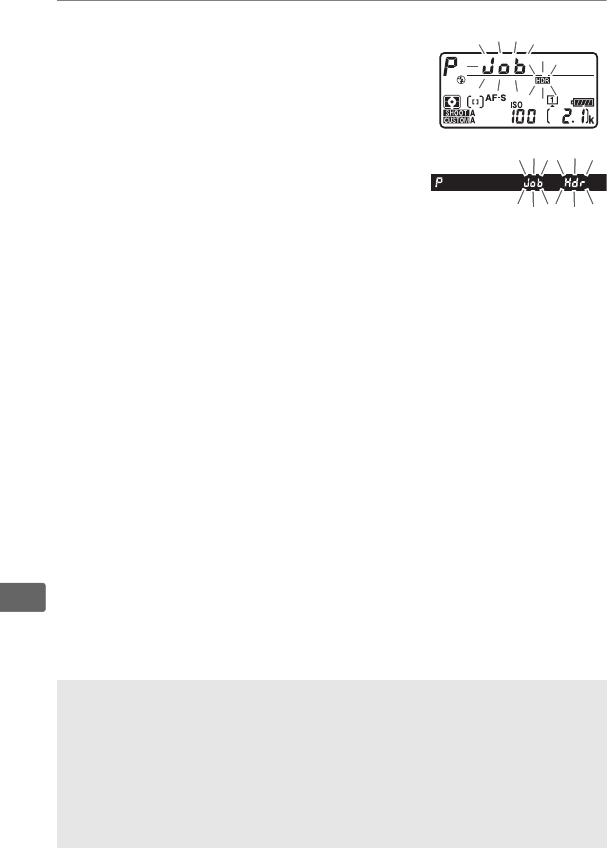
192
J
5Frame a photograph, focus, and shoot.
The camera takes two exposures when
the shutter-release button is pressed all
the way down.
“ly” will flash in
the top control panel and lu in
the viewfinder while the images are
combined; no photographs can be
taken until recording is complete.
Regardless of the option currently
selected for release mode, only one
photograph will be taken each time the shutter-release button
is pressed.
If On (series) is selected, HDR will only turn off when Off is
selected for HDR mode; if On (single photo) is selected, HDR
turns off automatically after the photograph is taken.
The y
icon clears from the display when HDR shooting ends.
DFraming HDR Photographs
The edges of the image will be cropped out. The desired results may not
be achieved if the camera or subject moves during shooting. Use of a
tripod is recommended. Depending on the scene, the effect may not be
visible, shadows may appear around bright objects, or halos may
appear around dark objects; this effect can be reduced by adjusting the
amount of smoothing.
Top control panel
Viewfinder
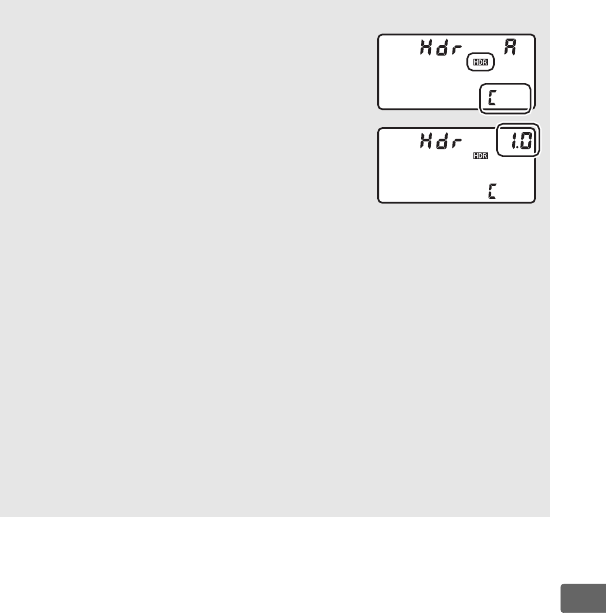
193
J
AThe BKT Button
If HDR (high dynamic range) is selected for
Custom Setting f1 (Custom control
assignment) > BKT button + y (0305), you
can select the HDR mode by pressing the BKT
button and rotating the main command dial
and the exposure differential by pressing the
BKT button and rotating the sub-command dial.
The mode and exposure differential are shown
in the top control panel: the icons representing
the mode are a for Off, B for On (single photo), and b for On (series).
AInterval Timer Photography
If On (series) is selected for HDR mode before interval timer shooting
begins, the camera will continue to shoot HDR photographs at the
selected interval (if On (single photo) is selected, interval timer
shooting will end after a single shot).
APhoto Shooting Menu Banks
HDR settings can be adjusted separately for each bank (0289), but
switching to a bank in which HDR is active during multiple exposure
(0227) or interval timer shooting (0234) disables HDR.
HDR is also
disabled if you switch to a bank in which an NEF (RAW) option is
selected for image quality.
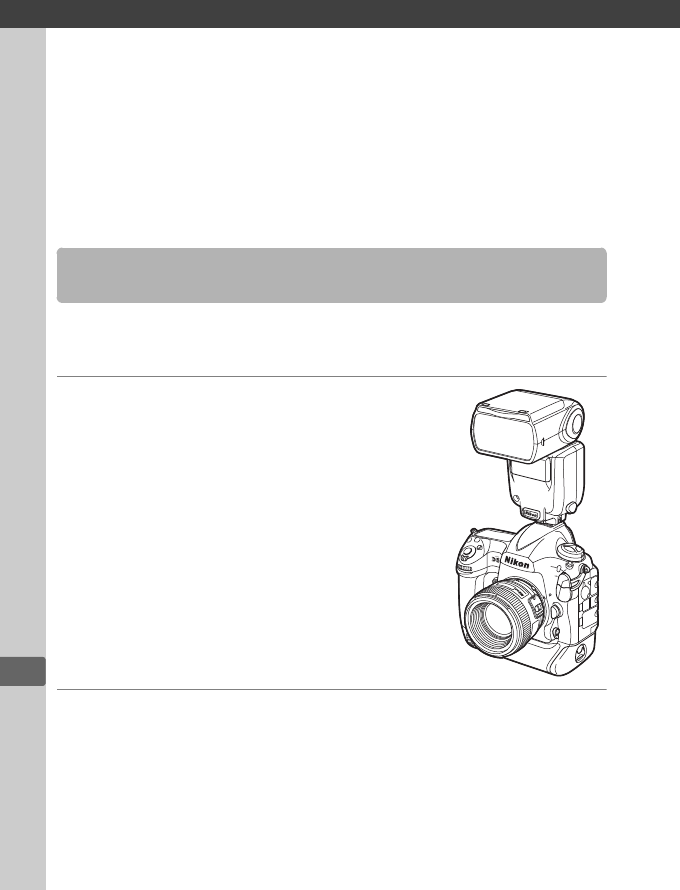
l
194
l
Flash Photography
To take photos with a flash, attach an optional flash unit (0328) to
the camera accessory shoe.
You can also use one or more remote
flash units for off-camera flash photography.
For information on
using flash units, see the documentation provided with the device.
Follow the steps below to mount an optional flash unit on the
camera and take photographs using the flash.
1Mount the unit on the accessory
shoe.
See the manual provided with the unit for
details.
2Turn on the camera and flash unit.
The flash will begin charging; the flash-ready indicator (c) will
be displayed in the viewfinder when charging is complete.
Using a Flash

195
l
3Adjust flash settings.
Choose the flash mode (0198) and flash control mode
(0197).
4Adjust shutter speed and aperture.
5Take pictures.
DUse Only Nikon Flash Accessories
Use only Nikon flash units.
Negative voltages or voltages over 250 V
applied to the accessory shoe could not only prevent normal operation,
but damage the sync circuitry of the camera or flash.
Before using a
Nikon flash unit not listed in this section, contact a Nikon-authorized
service representative for more information.
AShutter Speed
Shutter speed can be set as follows when an optional flash unit is used:
Mode Shutter speed
P, ASet automatically by camera (1/250 s–1/60 s) *
SValue selected by user (1/250 s–30 s)
MValue selected by user (1/250 s–30 s, Bulb (A), Time (%))
* Shutter speed may be set as slow as 30 s if slow sync, slow rear-curtain
sync, or slow sync with red-eye reduction is selected for flash mode.
AThe Sync Terminal
A sync cable can be connected to the sync
terminal as required.
Do not connect another
flash unit via a sync cable when performing rear-
curtain sync flash photography with a flash unit
mounted on the camera accessory shoe.

196
l
AUnified Flash Control
Unified flash control allows the camera and flash unit to share settings.
If a flash unit that supports unified flash control is mounted on the
camera, changes to flash settings made with either the camera or flash
unit are reflected on both devices, as are changes made using optional
Camera Control Pro 2 software.
Ai-TTL Flash Control
When a CLS-compatible flash unit is set to TTL, the camera
automatically selects one of the following types of flash control:
•i-TTL balanced fill-flash for digital SLR: Flash unit emits series of nearly
invisible preflashes (monitor preflashes) immediately before main
flash.
Preflashes reflected from objects in all areas of frame are picked
up by RGB sensor with approximately 180K (180,000) pixels and are
analyzed in combination with range information from matrix
metering system to adjust flash output for natural balance between
main subject and ambient background lighting.
If type G, E, or D lens
is used, distance information is included when calculating flash
output.
Precision of calculation can be increased for non-CPU lenses
by providing lens data (focal length and maximum aperture; see page
241).
Not available when spot metering is used.
•Standard i-TTL fill-flash for digital SLR: Flash output adjusted to bring
lighting in frame to standard level; brightness of background is not
taken into account.
Recommended for shots in which main subject is
emphasized at expense of background details, or when exposure
compensation is used.
Standard i-TTL fill-flash for digital SLR is
activated automatically when spot metering is selected.
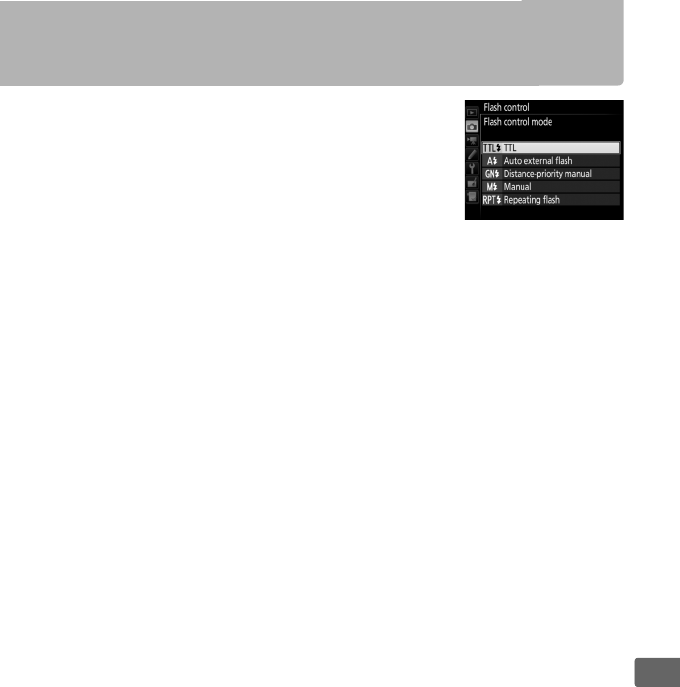
197
l
On-Camera Flash Photography
When an SB-5000, SB-500, SB-400, or SB-300
is mounted on the camera, the flash control
mode, flash level, and other flash settings can
be adjusted using the Flash control> Flash
control mode item in the photo shooting
menu (in the case of the SB-5000, these
settings can also be adjusted using the controls on the flash unit).
The options available vary with the flash used (0329), while the
options displayed under Flash control mode vary with the mode
selected.
Settings for other flash units can only be adjusted using
flash unit controls.
•
TTL
: i-TTL mode.
In the cases of the SB-500, SB-400, and SB-300, flash
compensation can be adjusted using the
W
(
M
) button (
0
200).
•Auto external flash: In this mode, output is adjusted automatically
according to the amount of light reflected by the subject; flash
compensation is also available.
Auto external flash supports
“auto aperture” (qA) and “non-TTL auto” (A) modes; non-TTL
auto is selected automatically if a non-CPU lens is attached
without specifying the focal length and maximum aperture
using the Non-CPU lens data option in the setup menu (0241).
See the flash unit manual for details.
•Distance-priority manual: Choose the distance to the subject; flash
output will be adjusted automatically.
Flash compensation is
also available.
•Manual: Choose the flash level manually.
•Repeating flash: The flash fires repeatedly while the shutter is open,
producing a multiple-exposure effect.
Choose the flash level
(Output), the number of times the units fire (Times), and the
number of times the flash fires per second (Frequency,
measured in Hertz).
Note that the number of times the units fire
in total may vary depending on the options selected for Output
and Frequency; see the documentation provided with the flash
unit for details.
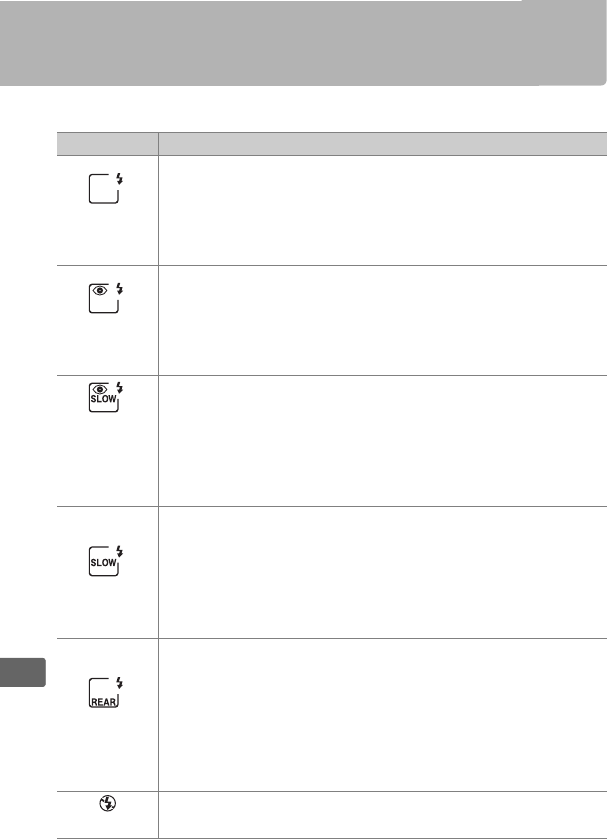
198
l
Flash Modes
The camera supports the following flash modes:
Flash mode Description
Front-
curtain sync
This mode is recommended for most situations.
In
programmed auto and aperture-priority auto modes,
shutter speed will automatically be set to values between
1/250 and 1/60 s (1/8000 to 1/60 s with Auto FP High-Speed
Sync; 0303).
Red-eye
reduction
If flash unit supports red-eye reduction, choose this mode
to reduce “red-eye” effect sometimes caused by flash.
Not
recommended with moving subjects or in other situations
in which quick shutter response is required.
Do not move
camera during shooting.
Red-eye
reduction
with slow
sync
Combines red-eye reduction with slow sync.
Use for
portraits taken against a backdrop of night scenery.
This
mode is only available in programmed auto and aperture-
priority auto exposure modes.
Use of tripod is
recommended to prevent blurring caused by camera
shake.
Slow sync
Flash is combined with shutter speeds as slow as 30 s to
capture both subject and background at night or under
dim light.
This mode is only available in programmed auto
and aperture-priority auto exposure modes.
Use of tripod
is recommended to prevent blurring caused by camera
shake.
Rear-curtain
sync
In shutter-priority auto or manual exposure mode, flash
fires just before the shutter closes.
Use to create effect of a
stream of light behind moving objects.
In programmed
auto and aperture-priority auto, slow rear-curtain sync is
used to capture both subject and background.
Use of
tripod is recommended to prevent blurring caused by
camera shake.
Flash off Flash does not fire.
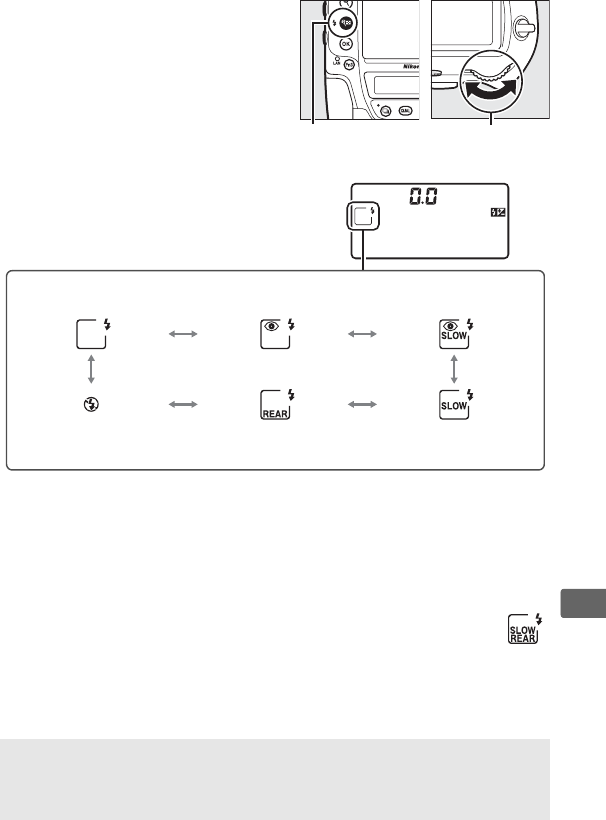
199
l
❚❚ Choosing a Flash Mode
To choose the flash mode, press
the W (M) button and rotate the
main command dial until the
desired flash mode is selected in
the top control panel:
1Y icon flashes if flash unit does not support red-eye reduction.
2 Red-eye reduction with slow sync is available only in exposure modes P
and A.
In modes S and M, red-eye reduction with slow sync becomes
red-eye reduction.
3 Available only in exposure modes P and A.
In modes S and M, slow sync
becomes front-curtain sync.
4 In exposure modes P and A, flash-sync mode will be set to slow
rear-curtain sync when the W (M) button is released.
AStudio Flash Systems
Rear-curtain sync can not be used with studio flash systems, as the
correct synchronization can not be obtained.
W (M) button Main
command dial
Rear-curtain sync 4Slow sync 3
Front-curtain sync Red-eye reduction 1
Red-eye reduction with
slow sync 1, 2
Flash off
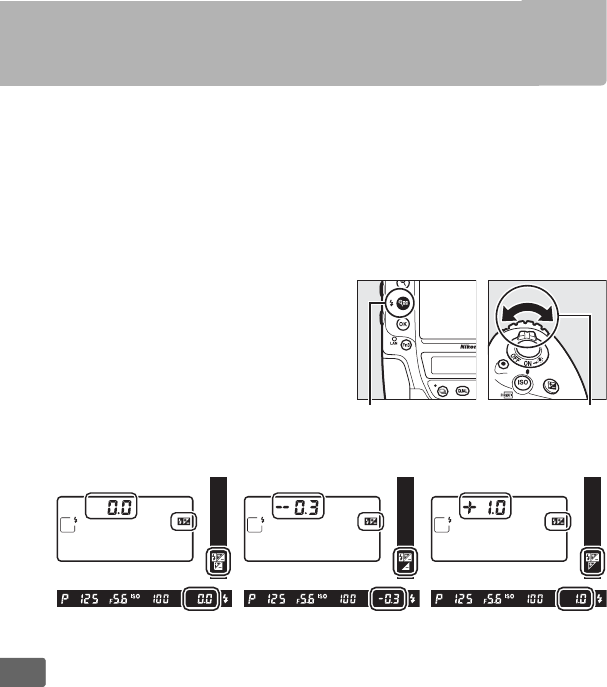
200
l
Flash Compensation
Flash compensation is used to alter flash output by from –3 EV to
+1 EV in increments of 1/3EV, changing the brightness of the main
subject relative to the background.
Flash output can be increased
to make the main subject appear brighter, or reduced to prevent
unwanted highlights or reflections.
In general, choose positive
values to make the main subject brighter, negative values to make
it darker.
To choose a value for flash
compensation, press the W (M)
button and rotate the sub-
command dial until the desired
value is displayed in the top
control panel.
±0 EV
(W (M) button
pressed)
–0.3 EV +1.0 EV
W (M) button Sub-command
dial

201
l
At values other than ±0.0, a Y icon will be displayed in the top
control panel and viewfinder after you release the W (M) button.
The current value for flash compensation can be confirmed by
pressing the W (M) button.
Normal flash output can be restored by setting flash
compensation to ±0.0.
Flash compensation is not reset when the
camera is turned off.
AOptional Flash Units
In i-TTL and auto aperture (qA) flash control modes, the flash
compensation selected with the optional flash unit or the Flash control
option in the photo shooting menu is added to the flash compensation
selected with the W (M) button and command dial.
ASee Also
For information on choosing the size of the increments available for
flash compensation, see Custom Setting b3 (Exp./flash comp. step
value, 0299).
For information on choosing whether flash
compensation is applied in addition to exposure compensation when
the flash is used, see Custom Setting e3 (Exposure comp. for flash,
0304).
For information on automatically varying flash level over a
series of shots, see page 147.
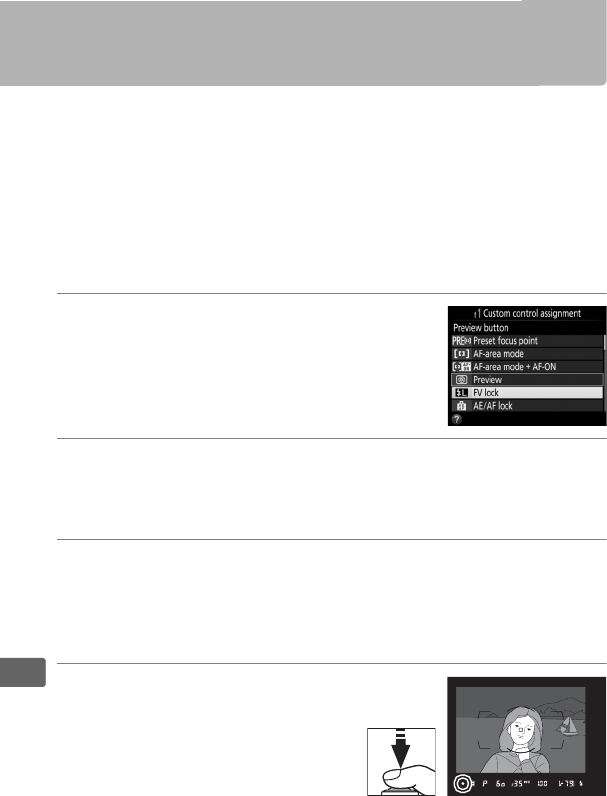
202
l
FV Lock
This feature is used to lock flash output, allowing photographs to
be recomposed without changing the flash level and ensuring that
flash output is appropriate to the subject even when the subject is
not positioned in the center of the frame.
Flash output is adjusted
automatically for any changes in ISO sensitivity and aperture.
FV
lock is available with CLS compatible flash units only (0328).
To use FV lock:
1Assign FV lock to a camera control.
Assign FV lock to a control using Custom
Setting f1 (Custom control assignment,
0305).
2Attach a CLS-compatible flash unit.
Mount a CLS-compatible flash unit (0328) on the camera
accessory shoe.
3Set the flash unit to the appropriate mode.
Turn the flash unit on and set the flash mode to TTL, monitor
pre-flash qA, or monitor pre-flash A.
See the documentation
provided with the flash unit for details.
4Focus.
Position the subject in the
center of the frame and press
the shutter-release button
halfway to focus.
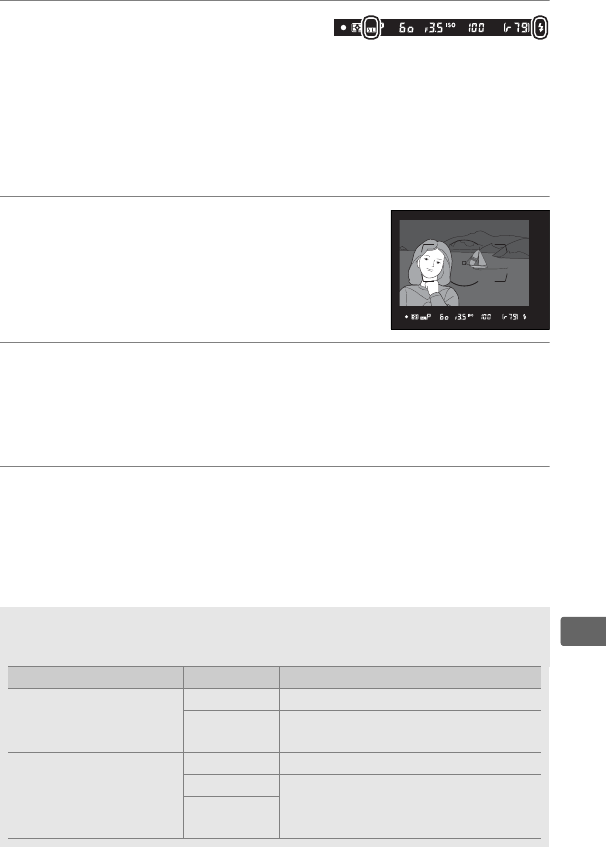
203
l
5Lock flash level.
After confirming that the flash-
ready indicator (M) is displayed in the viewfinder, press the
control selected in Step 1.
The flash will emit a monitor
preflash to determine the appropriate flash level.
Flash output
will be locked at this level and FV lock icon (e) will appear in
the viewfinder.
6Recompose the photograph.
7Take the photograph.
Press the shutter-release button the rest of the way down to
shoot.
If desired, additional pictures can be taken without
releasing FV lock.
8Release FV lock.
Press the control selected in Step 1 to release FV lock.
Confirm
that the FV lock icon (e) is no longer displayed in the
viewfinder.
AMetering
The metering areas for FV lock are as follows:
Flash unit Flash mode Metered area
Stand-alone flash unit
i-TTL 6-mm circle in center of frame
qAArea metered by flash exposure
meter
Used with other flash
units (Advanced
Wireless Lighting)
i-TTL Entire frame
qAArea metered by flash exposure
meter
A (master
flash)
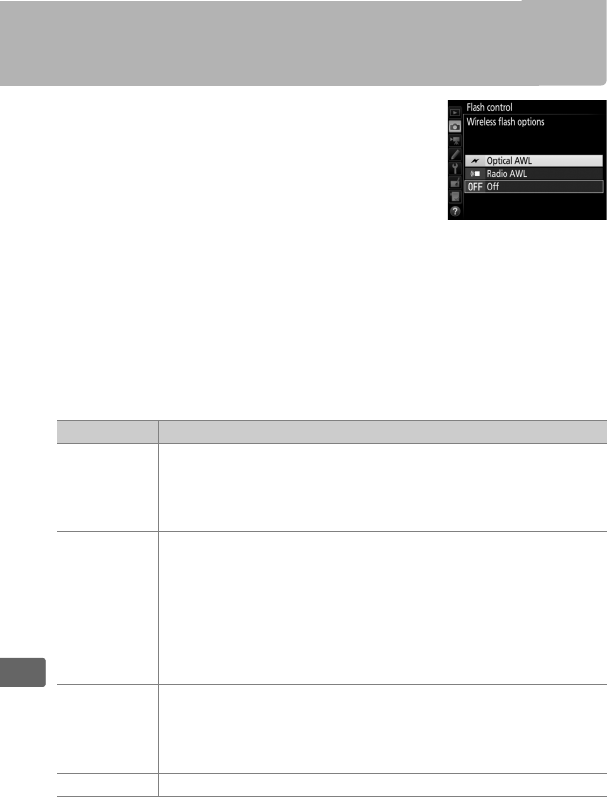
204
l
Remote Flash Photography
Use remotely controlled flash units for off-
camera lighting (Advanced Wireless Lighting,
or AWL; 0329).
The camera supports two
types of remote flash control: optical AWL, in
which the master flash controls the remote
flash units using optical signals (low-intensity
flash pulses), and radio AWL, in which the remote flash units are
controlled by means of radio signals emitted by a WR-R10
mounted on the camera.
When an SB-5000 or SB-500 flash unit or
a WR-R10 wireless remote controller is mounted on the camera,
the remote flash control mode can be selected using the Flash
control> Wireless flash options item in the camera photo
shooting menu.
Option Description
Optical AWL
The remote flash units are controlled using low-intensity
flashes emitted by the master flash.
Available only with an
SB-5000 or SB-500 mounted on the camera accessory shoe
and remote flash units that support optical AWL (0205).
Optical/radio
AWL
This option is for flash photography using both optically-
and radio-controlled flash units and is available when a
WR-R10 is attached and an SB-500, or an SB-910, SB-900,
SB-800, SB-700, or SU-800 configured to serve as the
master flash, is mounted on the camera accessory shoe
(0208).
Remote flash control is automatically set to
Group flash (0209).
Radio AWL
The remote flash units are controlled by radio signals
emitted by a WR-R10 attached to the camera (0206).
Available only with the WR-R10 and remote flash units that
support radio AWL.
Off Remote flash photography disabled.
205
l
Setup
This section details the steps involved in setting up a WR-R10 or a
master flash mounted on the camera accessory shoe (C) and
remote flash units (f) for wireless flash photography.
More
information on using optional flash units can be found in the
documentation provided with the devices.
❚❚ Optical AWL
The following instructions assume that the master flash is an
SB-5000 or SB-500. When an SB-910, SB-900, SB-800, SB-700, or
SU-800 is used as a master flash, settings must be adjusted using
the controls on the individual flash units; see the flash unit
manuals for details.
1C: Connect the master flash.
Mount an SB-5000 or SB-500 on the camera accessory shoe.
2C: Enable optical AWL.
In the photo shooting menu, select Optical AWL for Flash
control> Wireless flash options.
You can now take photos as described on page 209.
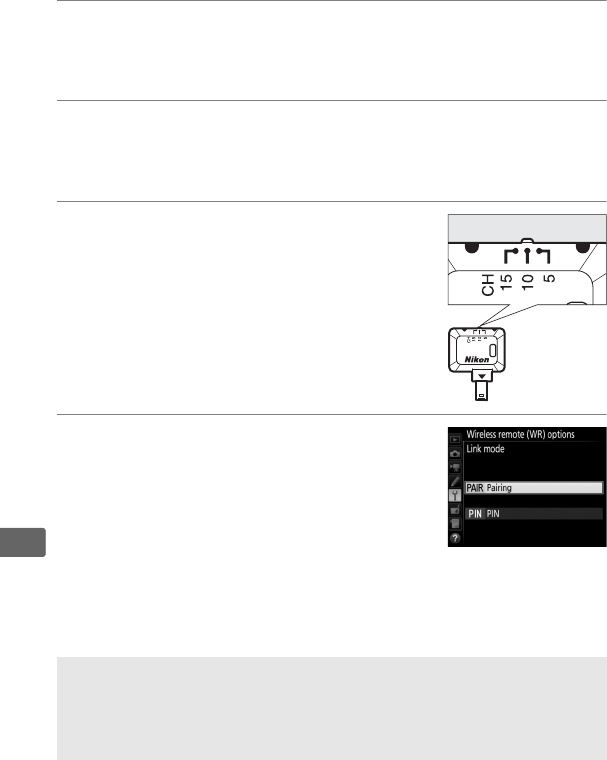
206
l
❚❚ Radio AWL
Radio AWL is available with compatible remote flash units when a
WR-R10 is attached to the camera.
1C: Connect the WR-R10.
For more information, see the documentation provided with
the WR-R10.
2C: Enable radio AWL.
In the photo shooting menu, select Radio AWL for Flash
control> Wireless flash options.
3C: Set the WR-R10 to the desired
channel.
Set the WR-R10 channel selector to the
desired channel.
4C: Choose a link mode.
Select Wireless remote (WR) options>
Link mode in the setup menu (0310)
and choose from the following options:
•Pairing: Pair the flash unit with the
WR-R10.
•PIN: Connect the camera and flash unit using a four-digit PIN.
ARadio AWL
A WR-A10 adapter is required when using the WR-R10.
Be sure to
update the WR-R10 firmware to the latest version; for information on
firmware updates, see the Nikon website for your area.
207
l
5f: Establish a wireless connection.
Set the flash units to remote mode and set the devices to the
channel you selected in Step 3, then pair the flash units with
the WR-R10 according to the option selected in Step 4:
•Pairing: Initiate pairing on the flash unit and press the WR-R10
pairing button.
Pairing is complete when the LINK lamps on
the WR-R10 and flash unit flash orange and green; once a
connection is established, the flash unit LINK lamp will light
green.
•PIN: Use the flash unit controls to enter the PIN you selected
in Step 4.
The flash unit LINK lamp lights green once a
connection is established.
Repeat Step 5 until all the remote flash units have been paired.
You can now take photos as described on page 209.
AReconnecting
As long as the channel, link mode, and other settings remain the same,
the camera will automatically connect to previously paired flash units
when you select remote mode and Steps 3–5 can be omitted.
The flash
unit LINK lamp lights green when a connection is established.
ARadio-Controlled Flash Units
Radio-controlled flash units can be combined with any of the following
flash units mounted on the camera accessory shoe:
•SB-5000: Before attaching the flash unit, set it to radio-controlled
master flash mode (a d icon will appear at the top left corner of the
display) and choose group or remote repeating flash control. Once the
unit is attached, settings can be adjusted using the controls on the
flash unit or the options listed in the camera menus under Group
flash options > Master flash or under “M” in the Remote repeating
options display.
•SB-910, SB-900, SB-800, SB-700: Configure the flash for stand-alone use and
use the controls on the flash unit to adjust flash settings.
•SB-500, SB-400, SB-300: Mount the unit on the camera and adjust settings
using the camera Group flash options > Master flash option.
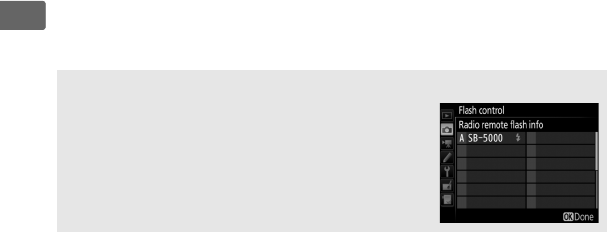
208
l
❚❚ Optical/Radio AWL
For remote flash lighting that incorporates both optically- and
radio-controlled flash units, select Optical/radio AWL for Flash
control> Wireless flash options in the photo shooting menu and
set up the radio-controlled units as described under “Radio AWL”
(0206).
Place optically-controlled units in group A, B, or C and
radio-controlled units in group D, E, or F.
You can now take photos
as described on page 209.
ARemote Flash Info
To view the flash units currently controlled using
radio AWL, select Flash control> Radio remote
flash info in the photo shooting menu.
The
identifier (“remote flash name”) for each unit can
be changed using flash unit controls.
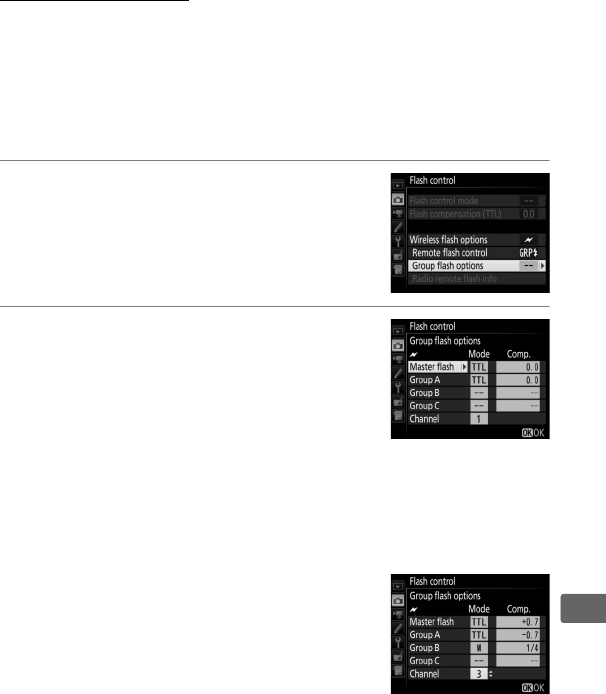
209
l
Taking Photos
The Flash control> Remote flash control item in the photo
shooting menu offers three options for remote flash photography:
Group flash, Quick wireless control, and Remote repeating.
❚❚ Group Flash
Select this option to adjust settings separately for each group.
1C: Select Group flash options.
Highlight Group flash options in the
flash control display and press 2.
2C: Choose the flash control mode.
Choose the flash control mode and flash
level for the master flash and the flash
units in each group:
•TTL: i-TTL flash control (0196).
•qA: Auto aperture (available only with
compatible flash units).
•M: Choose the flash level manually.
•– – (off): The units do not fire and the flash level can not be
adjusted.
If Optical AWL or Optical/radio AWL is
selected for Flash control> Wireless
flash options in the photo shooting
menu (0290), choose a channel for the
master flash. If the remote flash units
include an SB-500, you must choose
channel 3, but otherwise you can choose any channel
between 1 and 4.
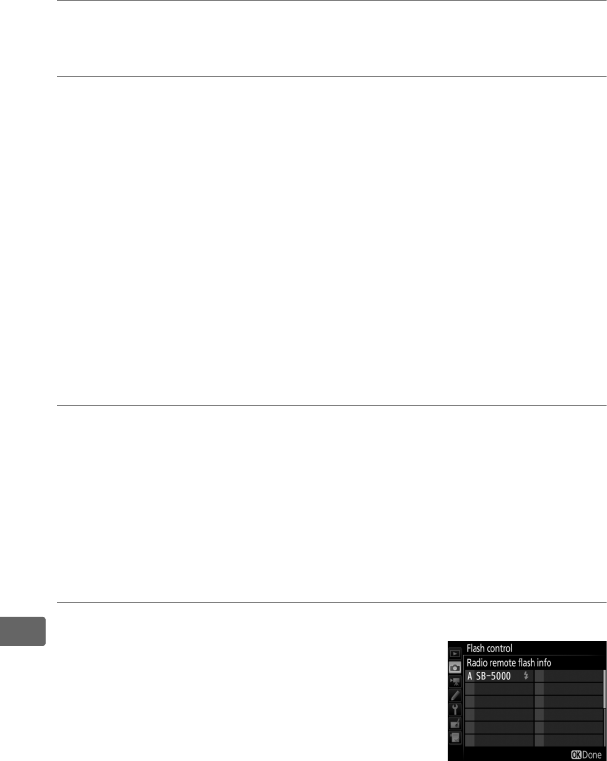
210
l
3f: Set the channel (optical AWL only).
Set the remote flash units to the channel selected in Step 2.
4f: Group the remote flash units.
Optical AWL
Choose a group (A, B, or C, or if you are using an SB-500 master
flash, A or B) for each remote flash unit.
Although there is no
limit on the number of remote flash units that may be used,
the practical maximum is three per group.
With more than
this number, the light emitted by the remote flash units will
interfere with performance.
Radio AWL
Choose a group (A–F) for each of the remote flash units.
The
master flash can control up to 18 flash units in any
combination.
5C/f: Compose the shot.
Compose the shot and arrange the flash units.
See the
documentation provided with the flash units for more
information.
After arranging the units, take a test shot to
confirm that all flash units are functioning. You can also test-
fire radio-controlled flash units by pressing the i button in the
flash info display (0216) and selecting Test flash.
6C/f: Frame the photograph, focus, and shoot.
In radio AWL, the flash-ready indicator
will light in the camera viewfinder (010)
or flash information display when all flash
units are ready.
The status of radio-
controlled units can also be viewed by
selecting Flash control> Radio remote
flash info in the photo shooting menu.
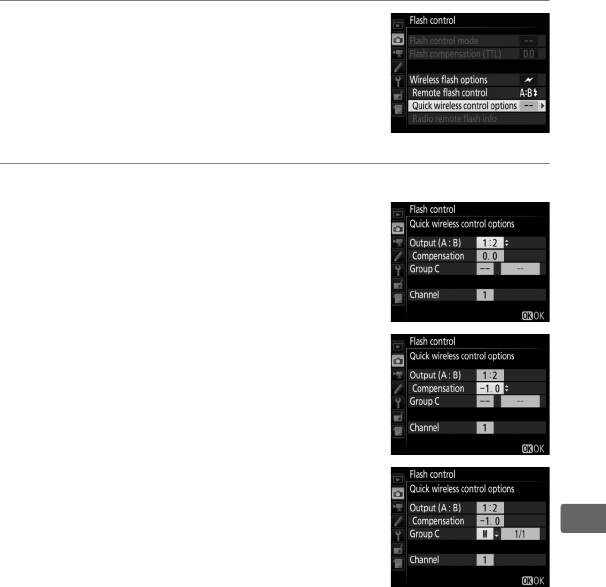
211
l
❚❚ Quick Wireless Control
Select this option to control overall flash compensation for, and
the relative balance between, groups A and B, while setting output
for group C manually.
1C: Select Quick wireless control
options.
Highlight Quick wireless control
options in the flash control display and
press 2.
2C: Adjust flash settings.
Choose the balance between groups A
and B.
Adjust flash compensation for groups A
and B.
Choose a flash control mode and flash
level for the units in group C:
•M: Choose the flash level manually.
•– –: The units in group C do not fire.
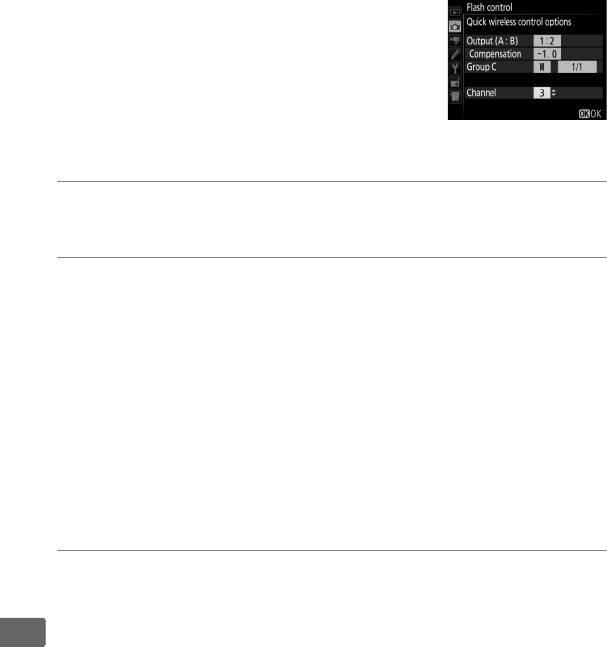
212
l
If Optical AWL is selected for Flash
control> Wireless flash options in the
photo shooting menu (0290), choose a
channel for the master flash.
If the
remote flash units include an SB-500, you
must choose channel 3, but otherwise
you can choose any channel between 1 and 4.
3f: Set the channel (optical AWL only).
Set the remote flash units to the channel selected in Step 2.
4f: Group the remote flash units.
Choose a group (A, B, or C).
Optical AWL
Although there is no limit on the number of remote flash units
that may be used, the practical maximum is three per group.
With more than this number, the light emitted by the remote
flash units will interfere with performance.
Radio AWL
The master flash can control up to 18 flash units in any
combination.
5C/f: Compose the shot.
Compose the shot and arrange the flash units. See the
documentation provided with the flash units for more
information.
After arranging the units, take a test shot to
confirm that all flash units are functioning. You can also test-
fire radio-controlled flash units by pressing the i button in the
flash info display (0216) and selecting Test flash.
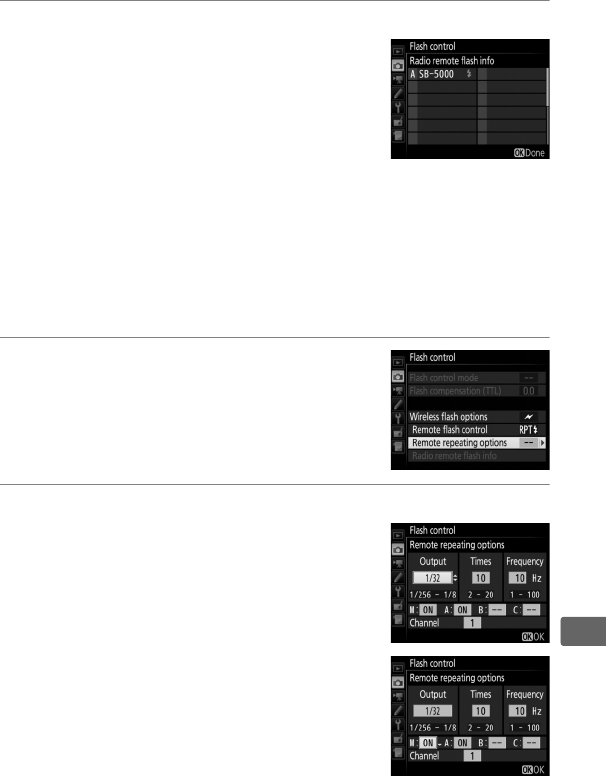
213
l
6C/f: Frame the photograph, focus, and shoot.
In radio AWL, the flash-ready indicator
will light in the camera viewfinder (010)
or flash information display when all flash
units are ready.
The status of radio-
controlled units can also be viewed by
selecting Flash control> Radio remote
flash info in the photo shooting menu.
❚❚ Remote Repeating
When this option is selected, the flash units fire repeatedly while
the shutter is open, producing a multiple-exposure effect.
1C: Select Remote repeating
options.
Highlight Remote repeating options in
the flash control display and press 2.
2C: Adjust flash settings.
Choose the flash level (Output), the
maximum number of times the flash units
fire (Times), and the number of times the
flash units fire per second (Frequency).
Enable or disable selected groups. Select
ON to enable the selected group, –– to
disable the selected group.
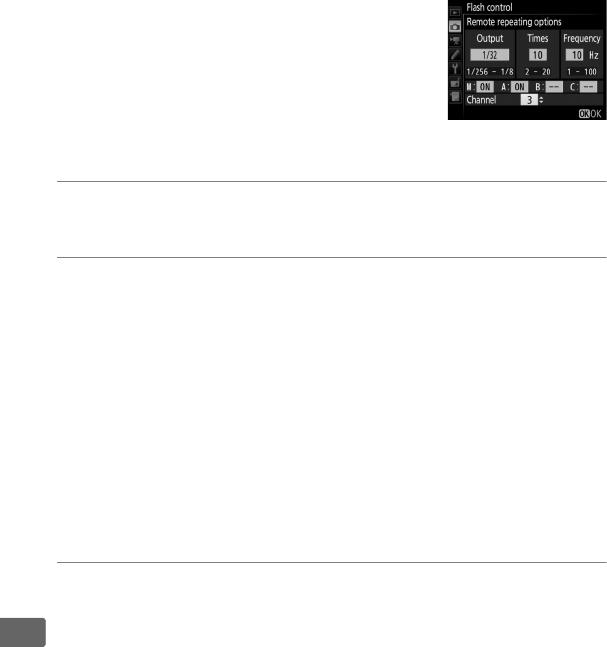
214
l
If Optical AWL is selected for Flash
control> Wireless flash options in the
photo shooting menu (0290), choose a
channel for the master flash.
If the
remote flash units include an SB-500, you
must choose channel 3, but otherwise
you can choose any channel between 1 and 4.
3f: Set the channel (optical AWL only).
Set the remote flash units to the channel selected in Step 2.
4f: Group the remote flash units.
Optical AWL
Choose a group (A, B, or C) for each remote flash unit.
Although there is no limit on the number of remote flash units
that may be used, the practical maximum is three per group.
With more than this number, the light emitted by the remote
flash units will interfere with performance.
Radio AWL
Choose a group (A–F) for each of the remote flash units.
The
master flash can control up to 18 flash units in any
combination.
5C/f: Compose the shot.
Compose the shot and arrange the flash units.
See the
documentation provided with the flash units for more
information.
After arranging the units, take a test shot to
confirm that all flash units are functioning. You can also test-
fire radio-controlled flash units by pressing the i button in the
flash info display (0216) and selecting Test flash.
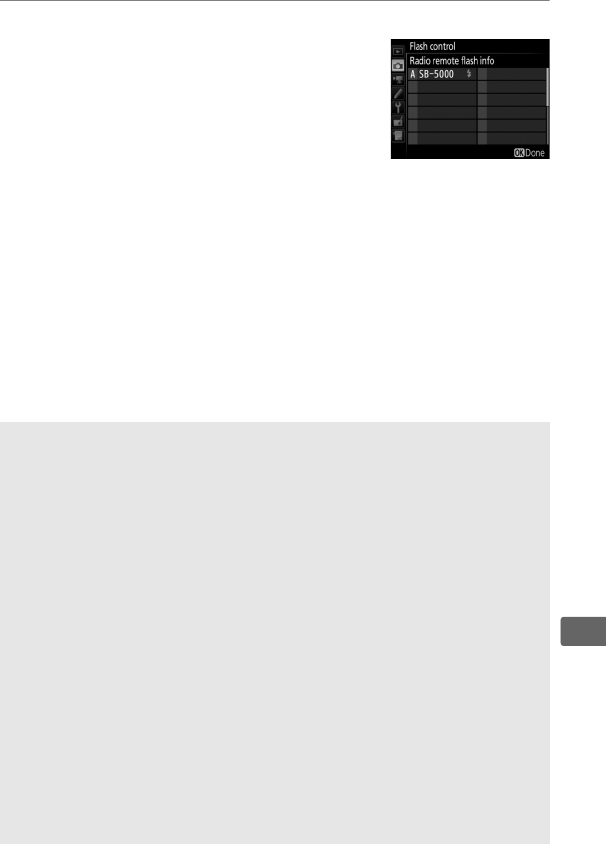
215
l
6C/f: Frame the photograph, focus, and shoot.
In radio AWL, the flash-ready indicator
will light in the camera viewfinder (010)
or flash information display when all flash
units are ready.
The status of radio-
controlled units can also be viewed by
selecting Flash control> Radio remote
flash info in the photo shooting menu.
AOptical AWL
Position the sensor windows on the remote flash units to pick up the
light from the master flash (particular care is required if the camera is
not mounted on a tripod).
Be sure that direct light or strong reflections
from the remote flash units do not enter the camera lens (in TTL mode)
or the photocells on the remote flash units (qA mode), as this may
interfere with exposure.
To prevent low-intensity flashes emitted by the
master flash from appearing in photographs taken at short range,
choose low ISO sensitivities or small apertures (high f-numbers) or
rotate the flash head on the master flash to point upwards.
After
positioning the remote flash units, take a test shot and view the results
in the camera monitor.
AFlash Compensation
The flash compensation value selected with the W (M) button and sub-
command dial is added to the flash compensation values selected in the
wireless flash options menu.
Y icons blink in the top control panel and
viewfinder when a flash compensation value other than ±0 is selected
for the master or remote flash units in TTL or qA mode.
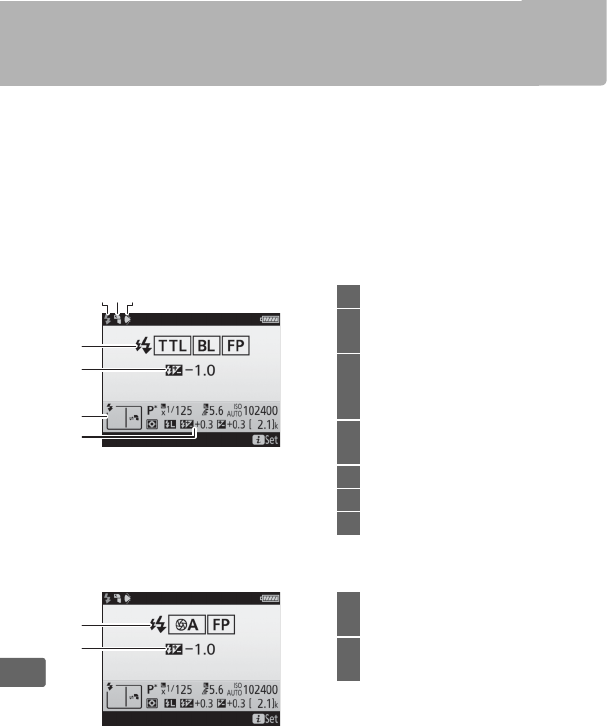
216
l
Viewing Flash Info
The camera can display flash info for SB-5000, SB-500, SB-400, and
SB-300 flash units mounted on the camera accessory shoe and for
remote flash units controlled via radio AWL using a WR-R10.
To
view flash info, press the R button in the information display
(0220).
The information displayed varies with the flash control
mode.
❚❚ TTL
❚❚ Auto External Flash
5
7
6
4
21 3
1Flash-ready indicator...................194
2Bounce icon (displayed if flash
head is tilted)
3Flash angle warning (displayed if
angle of illumination is sub-
optimal)
4Flash control mode ......................197
FP indicator....................................303
5
Flash compensation (TTL)
...197, 200
6Flash mode.....................................198
7Flash compensation.....................200
1
2
1Flash control mode ......................197
FP indicator....................................303
2Flash compensation
(auto aperture).....................197, 200
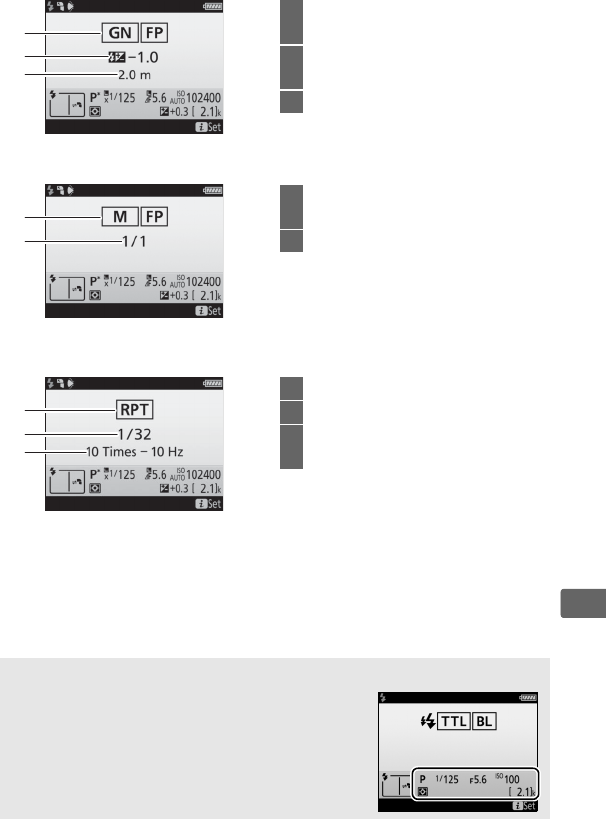
217
l
❚❚ Distance-Priority Manual
❚❚ Manual
❚❚ Repeating Flash
3
1
2
1Flash control mode...................... 197
FP indicator ................................... 303
2Flash compensation (distance-
priority manual) .................. 197, 200
3Distance ......................................... 197
2
1
1Flash control mode...................... 197
FP indicator ................................... 303
2Flash level............................. 197, 200
2
3
1
1Flash control mode...................... 197
2Flash level (output) ..................... 197
3Number emitted (times) ............ 197
Frequency...................................... 197
AFlash Info and Camera Settings
The flash information display shows selected
camera settings, including exposure mode,
shutter speed, aperture, and ISO sensitivity.
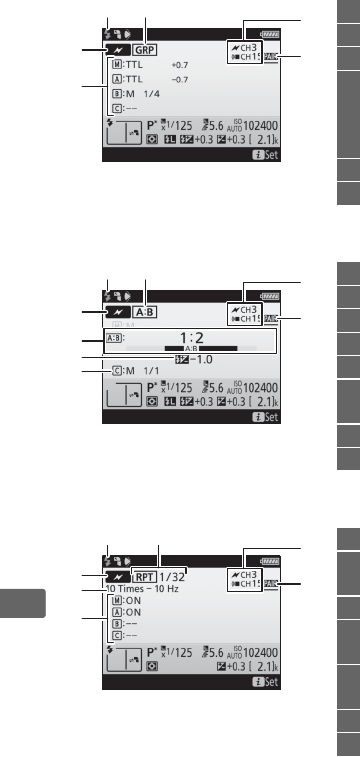
218
l
❚❚ Group Flash
❚❚ Quick Wireless Control
❚❚ Remote Repeating
4
36
5
1 2 1Flash-ready indicator 1 ................210
2Remote flash control ...................209
3Remote flash control mode 2 .....204
4Group flash control mode 2, 3.....209
Group flash mode.........................209
Flash level/
flash compensation .....................209
5Channel 2 ......................206, 207, 209
6Link mode ......................................206
4
3
5
6
8
7
1 2
1Flash-ready indicator 1 ................213
2Remote flash control ...................209
3Remote flash control mode 2 .....204
4A : B ratio ........................................211
5Flash compensation............200, 211
6Group C flash control mode
and flash level ...............................211
7Channel 2 ......................206, 207, 212
8Link mode ......................................206
5
3
47
6
1 2 1Flash-ready indicator 1 ................215
2Remote flash control ...................209
Flash level (output) ......................213
3Remote flash control mode 2 .....204
4Number emitted (times).............213
Frequency ......................................213
5Group status
(enabled/disabled).......................213
6Channel 2 ......................206, 207, 214
7Link mode ......................................206
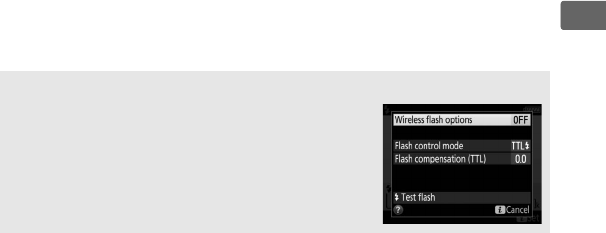
219
l
1 Displayed in radio AWL when all flash units are ready.
2 Optical AWL is indicated by Y, radio AWL by Z, joint optical and radio AWL
by Y and Z.
Optical AWL channel for joint optical and radio AWL is
displayed only when SB-500 is used as master flash.
3 Icons are displayed for each group when joint optical and radio AWL is used.
AChanging Flash Settings
Flash settings can be changed by pressing the
ibutton in the flash info display.
The options
available vary with the flash unit and the settings
selected.
You can also test-fire the flash.
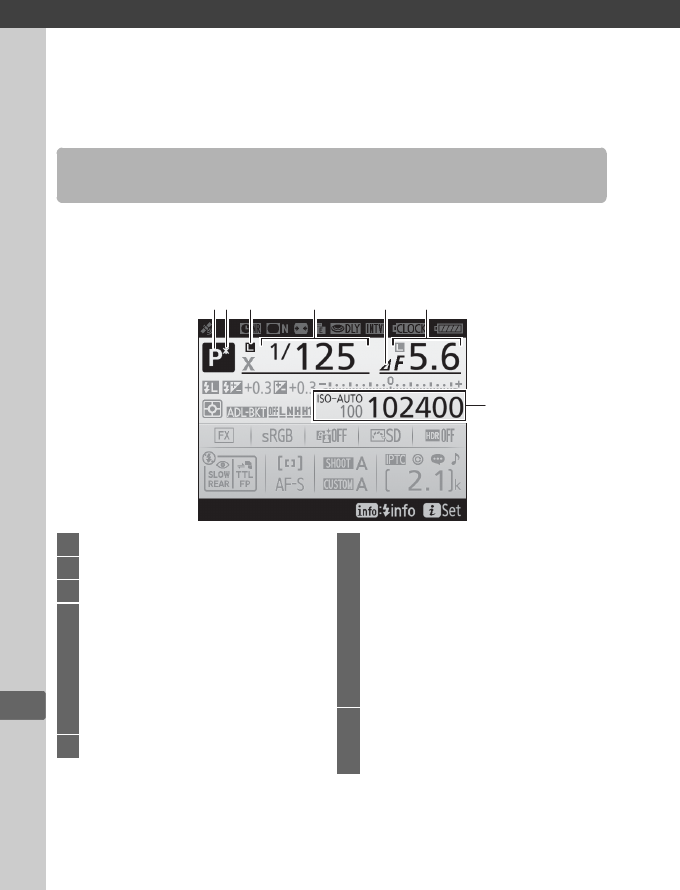
t
220
t
Other Shooting Options
Pressing the R button during viewfinder photography displays
shooting information in the monitor including shutter speed,
aperture, number of exposures remaining, and AF-area mode.
The R Button
12 3 4 5 6
7
1Exposure mode.............................131
2Flexible program indicator.........133
3Shutter-speed lock icon..............140
4Shutter speed.......................134, 136
Number of shots in exposure
and flash bracketing sequence
....147
Number of shots
in WB bracketing sequence.......151
Focal length (non-CPU lenses)
.....242
5Aperture stop indicator .....135, 324
6Aperture (f-number)...........135, 136
Aperture
(number of stops)................135, 324
Bracketing increment.........148, 152
Number of shots
in ADL bracketing sequence......155
Maximum aperture
(non-CPU lenses) ..........................242
7ISO sensitivity indicator ..............124
ISO sensitivity................................124
Auto ISO sensitivity indicator ....128
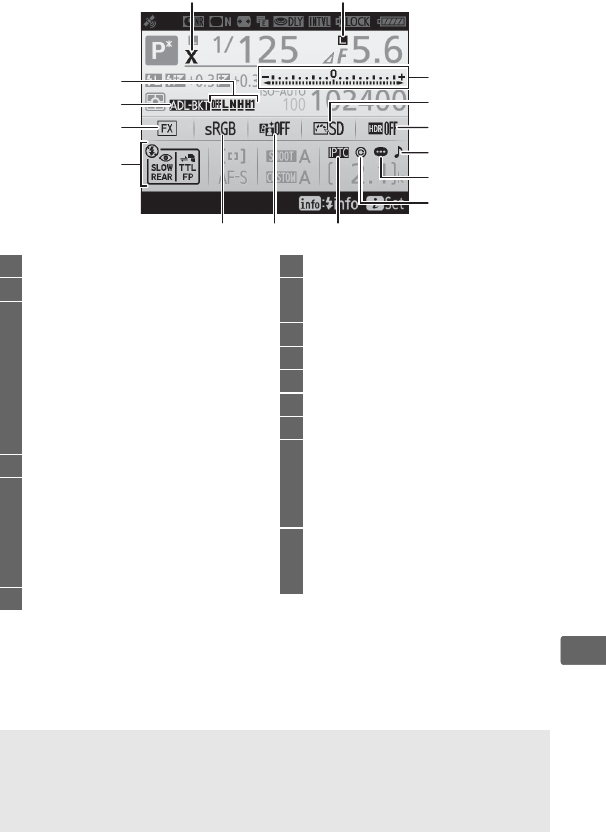
221
t
11
12
13
10
21
22
20
8
18 17 16
9
19 14
15
8Flash sync indicator..................... 303
9Aperture lock icon....................... 140
10 Exposure indicator ...................... 137
Exposure compensation
display ............................................ 143
Bracketing progress indicator:
Exposure and flash
bracketing................................... 147
WB bracketing ........................... 151
11 Picture Control indicator............ 180
12 HDR indicator ............................... 190
HDR exposure differential ......... 193
Multiple exposure indicator...... 228
Number of exposures
(multiple exposure)..................... 229
13 “Beep” indicator........................... 310
14 Image comment indicator......... 309
15 Copyright information
indicator......................................... 309
16 IPTC indicator................................ 309
17 Active D-Lighting indicator....... 188
18 Color space.................................... 292
19 Flash mode.................................... 198
20 Image area indicator......................87
21 Exposure and flash
bracketing indicator.................... 147
WB bracketing indicator ............ 151
ADL bracketing indicator........... 155
22 Position of current frame in
bracketing sequence ........ 149, 153
ADL bracketing amount ............ 156
ATurning the Monitor Off
To clear shooting or flash information from the monitor, press the
R
button or press the shutter-release button halfway.
The monitor will turn
off automatically if no operations are performed for about 10 seconds.
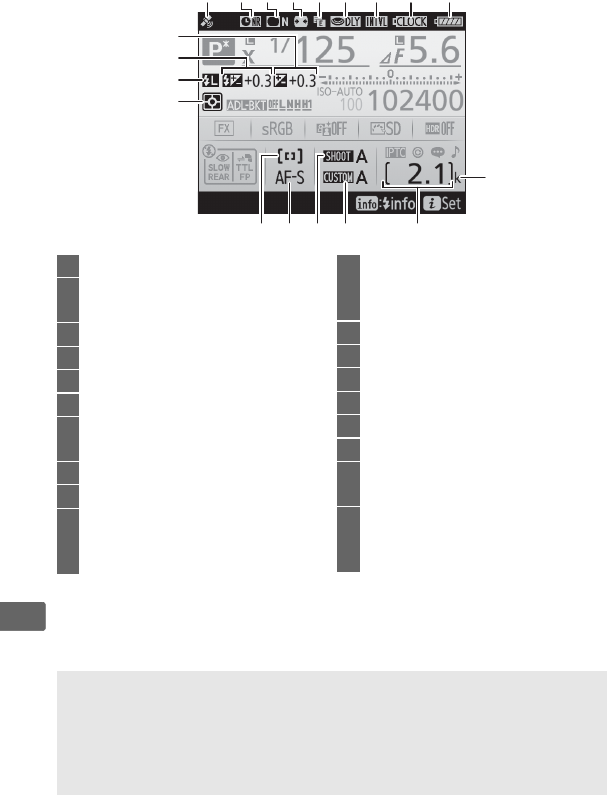
222
t
The Information Display (Continued)
Note: Display shown with all indicators lit for illustrative purposes.
32
39
23
36 35
37 34 33
24 2625 27 28 29 30 31
38
40
41
23 Satellite signal indicator .............244
24 Long exposure noise reduction
indicator .........................................292
25 Vignette control indicator..........292
26 Auto distortion control ...............292
27
Electronic front-curtain shutter
...302
28 Exposure delay mode..................302
29 Interval timer indicator...............237
Time-lapse indicator...................... 79
30 Clock battery indicator ........ 29, 349
31 Battery indicator............................. 37
32 “k” (appears when memory
remains for over 1000
exposures)........................................ 38
33 Number of exposures
remaining ............................... 38, 383
Manual lens number ...................242
34 Custom settings bank .................297
35 Photo shooting menu bank.......289
36 Autofocus mode ...........................101
37 AF-area mode.......................104, 106
38 Metering.........................................129
39 FV lock indicator ...........................203
40 Flash compensation indicator...200
Flash compensation value .........200
41 Exposure compensation
indicator .........................................143
Exposure compensation value
.....143
ASee Also
For information on choosing how long the monitor stays on, see
Custom Setting c4 (Monitor off delay, 0301).
The color of the
lettering in the information display can be changed using the
Information display option in the setup menu (0308).
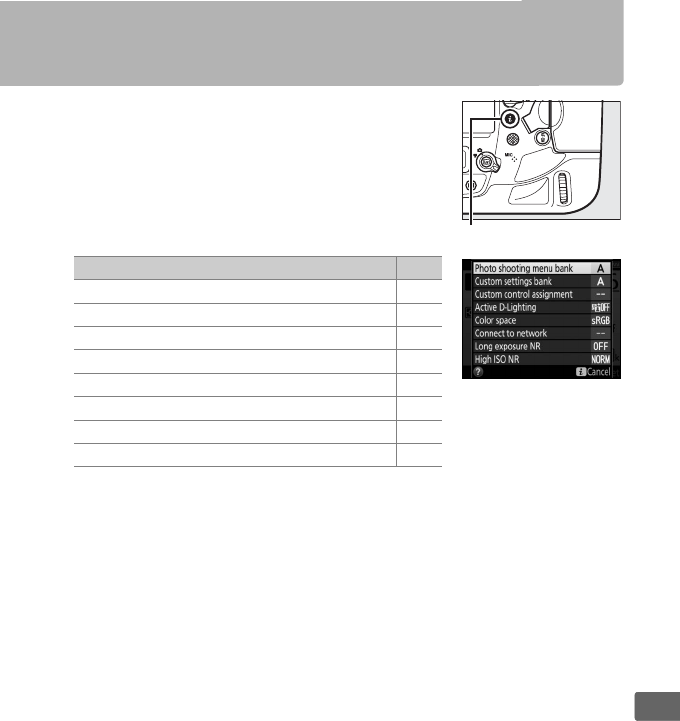
223
t
The i button
To access the options below, press the
ibutton during viewfinder photography.
Highlight items using the multi selector and
press J to view options for the highlighted
item.
To return to shooting mode, press the
shutter-release button halfway.
Option 0
Photo shooting menu bank 289
Custom settings bank 297
Custom control assignment 305
Active D-Lighting 188
Color space 292
Connect to network 279
Long exposure NR 292
High ISO NR 292
i button
224
t
Two-Button Reset: Restoring
Default Settings
The camera settings listed below can be
restored to default values by holding the S
and U buttons down together for more
than two seconds (these buttons are marked
by a green dot).
The control panels turn off
briefly while settings are reset.
S button U
button
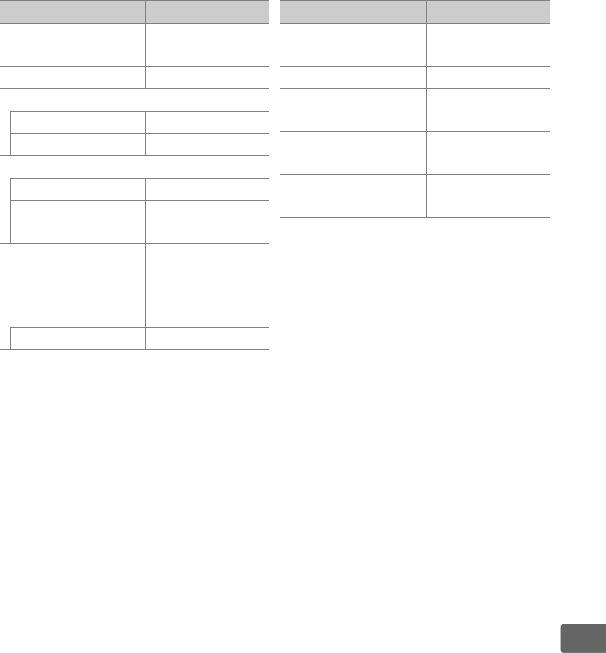
225
t
❚❚ Settings Accessible from the Photo Shooting Menu1
1
With the exception of multiple exposure and interval timer settings, only
settings in the bank currently selected using the
Photo shooting menu bank
option will be reset (
0289
).
Settings in the remaining banks are unaffected.
2 Current Picture Control only.
3 If multiple exposure is currently in progress, shooting will end and multiple
exposure will be created from exposures recorded to that point.
Overlay
mode and number of shots are not reset.
4 Exposure differential and smoothing are not reset.
5 If interval timer shooting is currently in progress, shooting will end.
Starting
time, shooting interval, number of intervals and shots, and exposure
smoothing are not reset.
Option Default
Extended photo
menu banks Off
Image quality JPEG normal
Image size
JPEG/TIFF Large
NEF (RAW) Large
ISO sensitivity settings
ISO sensitivity 100
Auto ISO
sensitivity control Off
White balance
Auto > AUTO0
Keep white
(reduce warm
colors)
Fine-tuning A-B: 0, G-M: 0
Picture Control
settings 2Unmodified
Multiple exposure Off 3
HDR (high dynamic
range) Off 4
Interval timer
shooting Off 5
Silent live view
photography Off
Option Default
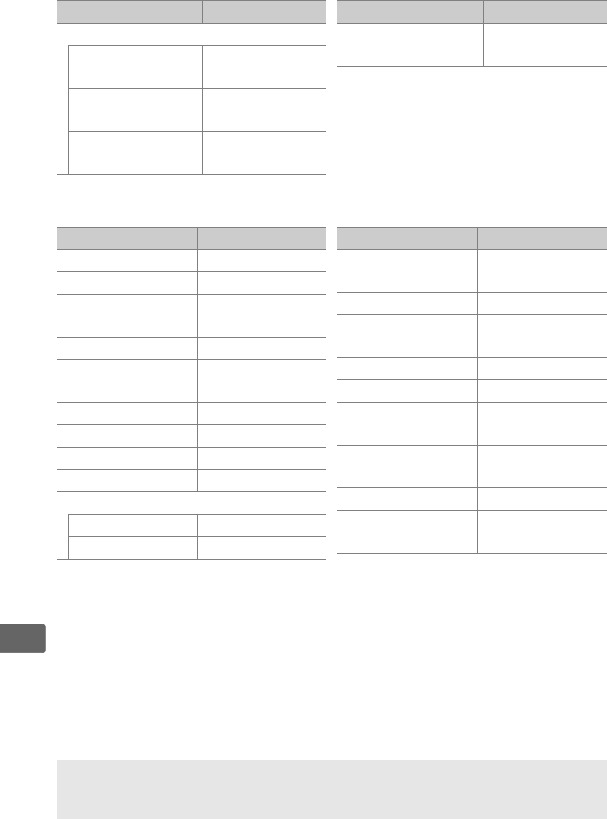
226
t
❚❚ Settings Accessible from the Movie Shooting Menu
❚❚ Other Settings
1 Focus point not displayed if auto-area AF is selected for AF-area mode.
2 Number of shots is reset to zero.
Bracketing increment is reset to 1EV
(exposure/flash bracketing) or 1 (white balance bracketing).
Y Auto is
selected for the second shot of two-shot ADL bracketing programs.
3 Only settings in the bank currently selected using the Custom settings
bank option will be reset (0297).
Settings in the remaining banks are
unaffected.
Option Default
Movie ISO sensitivity settings
ISO sensitivity
(mode M) 100
Auto ISO control
(mode M) Off
Maximum
sensitivity 102400
White balance Same as photo
settings
Option Default
Option Default
Focus point 1Center
Preset focus point Center
Exposure mode Programmed
auto
Flexible program Off
Exposure
compensation Off
AE lock hold Off
Shutter speed lock Off
Aperture lock Off
Autofocus mode AF-S
AF-area mode
Viewfinder Single-point AF
Live view Normal-area AF
Photo live view
display WB None
Highlight display Off
Headphone
volume 15
Metering Matrix metering
Bracketing Off 2
Flash mode Front-curtain
sync
Flash
compensation Off
FV lock Off
Exposure delay
mode Off 3
Option Default
ASee Also
See page 287 for a list of default settings.
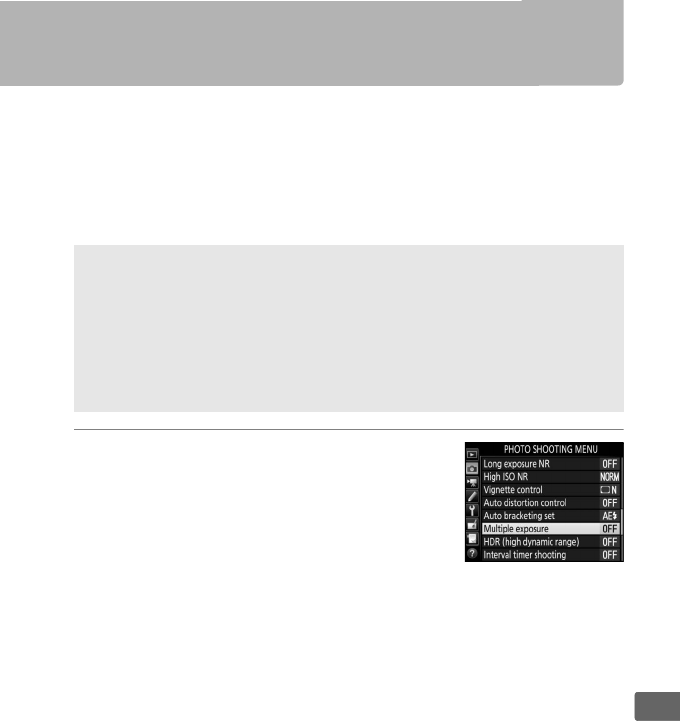
227
t
Multiple Exposure
Follow the steps below to record a series of two to ten exposures
in a single photograph.
❚❚ Creating a Multiple Exposure
Multiple exposures can not be recorded in live view.
Exit live view
before proceeding.
1Select Multiple exposure.
Highlight Multiple exposure in the
photo shooting menu and press 2.
AExtended Recording Times
If the monitor turns off during playback or menu operations and no
operations are performed for about 30 s, shooting will end and a
multiple exposure will be created from the exposures that have been
recorded to that point. The time available to record the next exposure
can be extended by choosing longer times for Custom Setting c2
(Standby timer, 0301).
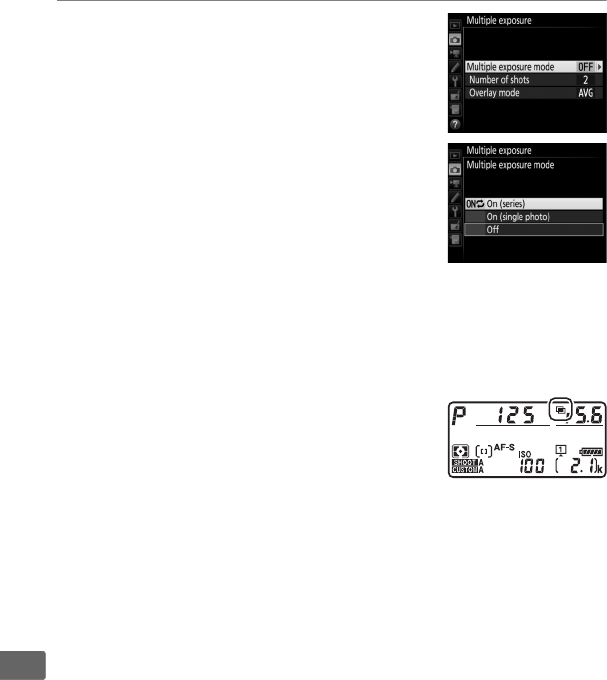
228
t
2Select a mode.
Highlight Multiple exposure mode and
press 2.
Highlight one of the following and press
J:
•To take a series of multiple exposures, select
0On (series).
Multiple exposure
shooting will continue until you select
Off for Multiple exposure mode.
•To take one multiple exposure, select On (single photo).
Normal
shooting will resume automatically after you have created a
single multiple exposure.
•To exit without creating additional multiple exposures, select Off.
If On (series) or On (single photo) is
selected, a n icon will be displayed in the
top control panel.
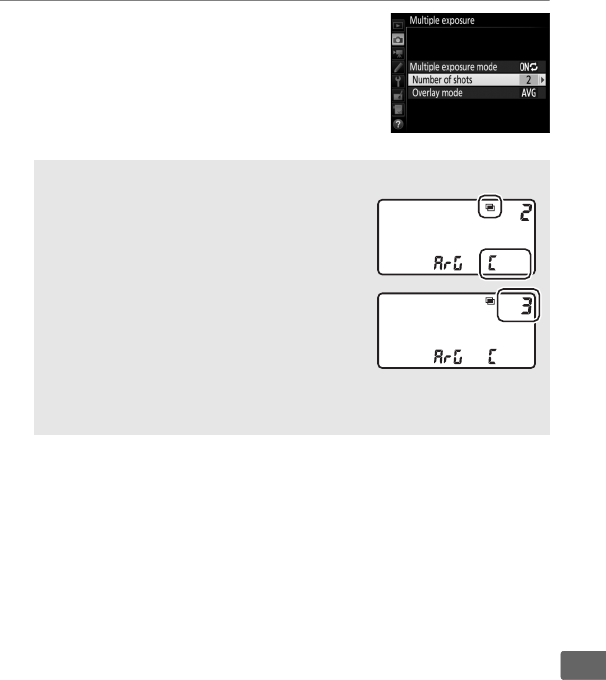
229
t
3Choose the number of shots.
Highlight Number of shots and press 2.
Press 1 or 3 to choose the number of
exposures that will be combined to form
a single photograph and press J.
AThe BKT Button
If Multiple exposure is selected for
Custom Setting f1 (Custom control
assignment) > BKT button + y (0305),
you can select the multiple exposure mode
by pressing the BKT button and rotating the
main command dial and the number of
shots by pressing the BKT button and
rotating the sub-command dial.
The mode
and number of shots are shown in the top
control panel: the icons representing the mode are a for Off, B for
On (single photo), and b for On (series).
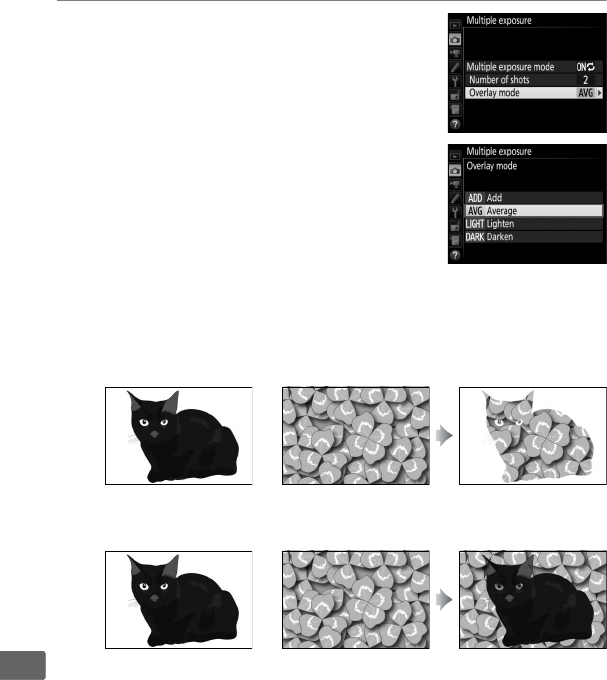
230
t
4Choose the overlay mode.
Highlight Overlay mode and press 2.
The following options will be displayed.
Highlight an option and press J.
•Add: The exposures are overlaid without
modification; gain is not adjusted.
•Average: Before the exposures are
overlaid, the gain for each is divided by
the total number of exposures taken (gain for each exposure
is set to 1/2 for 2 exposures, 1/3 for 3 exposures, etc).
•Lighten: The camera compares the pixels in each exposure
and uses only the brightest.
•Darken: The camera compares the pixels in each exposure
and uses only the darkest.
+
+
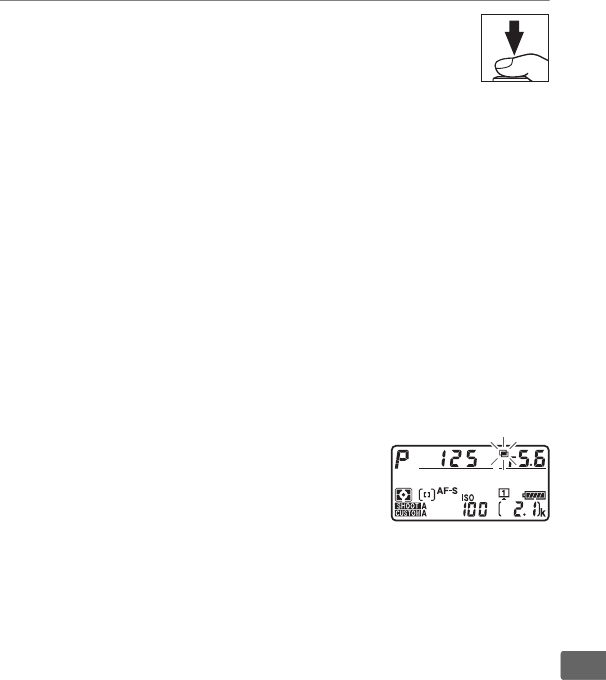
231
t
5Frame a photograph, focus, and shoot.
In continuous release modes (0116), the camera
records all exposures in a single burst.
If On (series)
is selected, the camera will continue to record
multiple exposures while the shutter-release button is
pressed; if On (single photo) is selected, multiple exposure
shooting will end after the first photograph.
In self-timer
mode, the camera will automatically record the number of
exposures selected in Step 3 on page 229, regardless of the
option selected for Custom Setting c3 (Self-timer) > Number
of shots (0301); the interval between shots is however
controlled by Custom Setting c3 (Self-timer) > Interval
between shots.
In other release modes, one photograph will
be taken each time the shutter-release button is pressed;
continue shooting until all exposures have been recorded (for
information on interrupting a multiple exposure before all
photographs are recorded, see page 232).
The n icon will flash until shooting ends.
If On (series) is selected, multiple
exposure shooting will only end when
Off is selected for multiple exposure
mode; if On (single photo) is selected,
multiple exposure shooting ends automatically when the
multiple exposure is complete.
The n icon clears from the
display when multiple exposure shooting ends.

232
t
❚❚ Ending Multiple Exposures
To end a multiple exposure before the
specified number of exposures have been
taken, select Off for multiple exposure mode.
If shooting ends before the specified number
of exposures have been taken, a multiple
exposure will be created from the exposures
that have been recorded to that point.
If Average is selected for
Overlay mode, gain will be adjusted to reflect the number of
exposures actually recorded.
Note that shooting will end
automatically if:
• A two-button reset is performed (0224)
• The camera is turned off
• The battery is exhausted
•Pictures are deleted

233
t
DMultiple Exposure
Multiple exposures may be affected by noise (randomly-spaced bright
pixels, fog, or lines).
Do not remove or replace the memory card while recording a multiple
exposure.
Live view is not available while shooting is in progress.
Selecting live
view resets Multiple exposure mode to Off.
The shooting information listed in the playback photo information
display (including metering, exposure, exposure mode, focal length,
date of recording and camera orientation) is for the first shot in the
multiple exposure.
AVoice Memos
Voice recording is disabled while multiple exposures are being shot, but
a memo can be recorded when shooting finishes (0270).
AInterval Timer Photography
If interval timer photography is activated before the first exposure is
taken, the camera will record exposures at the selected interval until the
number of exposures specified in the multiple exposure menu have
been taken (the number of shots listed in the interval timer shooting
menu is ignored).
These exposures will then be recorded as a single
photograph and interval timer shooting will end (if On (single photo) is
selected for multiple exposure mode, multiple exposure shooting will
also end automatically).
AOther Settings
While a multiple exposure is being shot, memory cards can not be
formatted and some menu items are grayed out and can not be
changed.
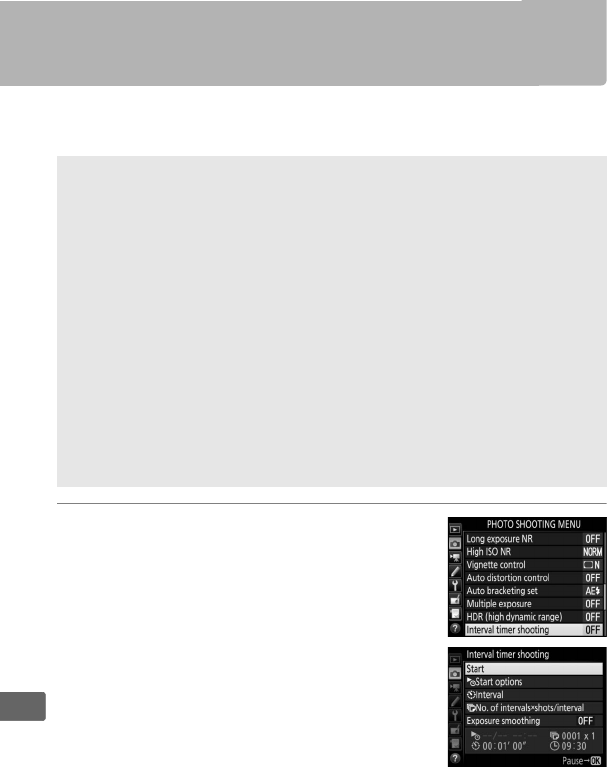
234
t
Interval Timer Photography
The camera is equipped to take photographs automatically at
preset intervals.
1Select Interval timer shooting.
Highlight Interval timer shooting in the
photo shooting menu and press 2 to
display interval timer settings.
DBefore Shooting
Select a release mode other than self-timer (E) when using the interval
timer.
Before beginning interval timer photography, take a test shot at
current settings and view the results in the monitor.
Once settings have
been adjusted to your satisfaction, close the viewfinder eyepiece
shutter to prevent light entering via the viewfinder interfering with
photographs and exposure (0120).
Before choosing a starting time, select Time zone and date in the setup
menu and make sure that the camera clock is set to the correct time and
date (028).
Use of a tripod is recommended.
Mount the camera on a tripod before
shooting begins.
To ensure that shooting is not interrupted, be sure the
camera battery is fully charged.
If in doubt, charge the battery before
use or use an AC adapter and power connector (available separately).
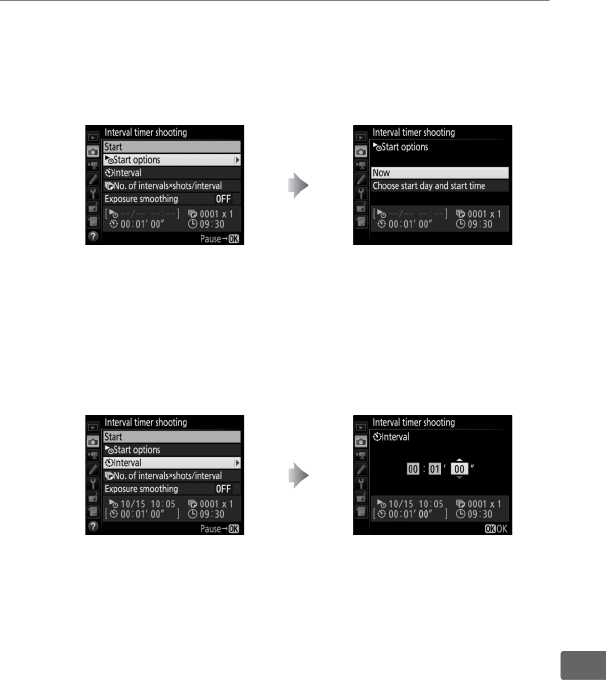
235
t
2Adjust interval timer settings.
Choose a start option, interval, number of shots per interval,
and exposure smoothing option.
•To choose a start option:
To start shooting immediately, select Now.
To start shooting
at a chosen date and time, select Choose start day and
start time, then choose the date and time and press J.
•To choose the interval between shots:
Highlight Start options and
press 2.
Highlight an option and
press J.
Highlight Interval and
press 2.
Choose an interval (hours,
minutes, and seconds) and
press J.
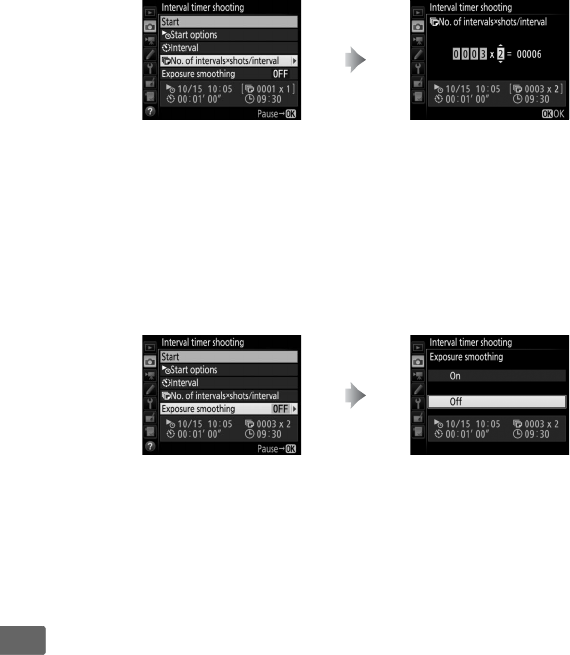
236
t
•To choose the number of shots per interval:
In S (single frame) mode, the photographs for each interval
will be taken at the rate chosen for Custom Setting d1
(Continuous shooting speed) > Continuous low-speed
(0301).
•To enable or disable exposure smoothing:
Selecting On allows the camera to adjust exposure to match
previous shot in modes other than M (note that exposure
smoothing only takes effect in mode M if auto ISO sensitivity
control is on).
Highlight No. of intervals ×
shots/interval and press 2.
Choose the number of
intervals and the number of
shots per interval and press J.
Highlight Exposure
smoothing and press 2.
Highlight an option and
press J.
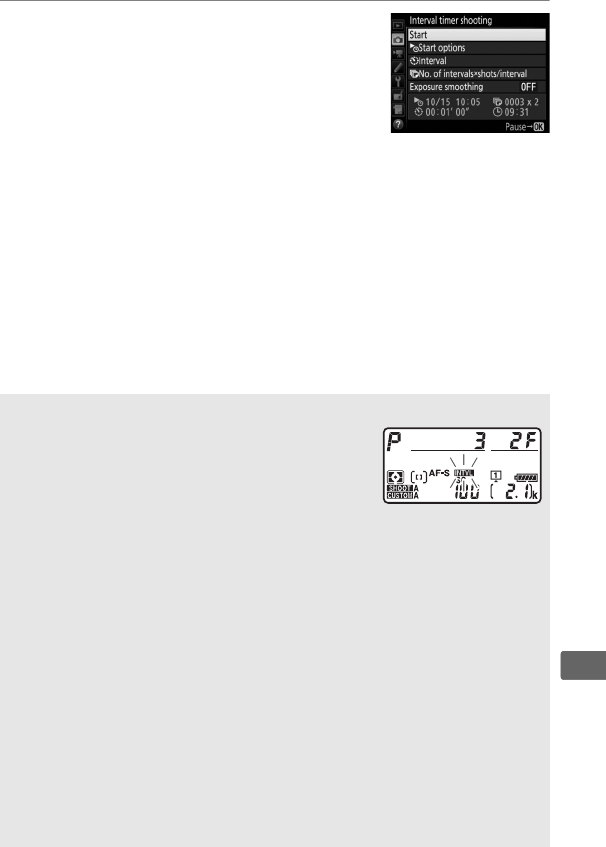
237
t
3Start shooting.
Highlight Start and press J.
The first
series of shots will be taken at the
specified starting time, or after about 3 s
if Now was selected for Start options in
Step 2.
Shooting will continue at the
selected interval until all shots have been taken.
ADuring Shooting
During interval timer photography, the Q icon
will flash in the top control panel.
Immediately
before the next shooting interval begins, the
shutter speed display will show the number of
intervals remaining, and the aperture display will
show the number of shots remaining in the current interval.
At other
times, the number of intervals remaining and the number of shots in
each interval can be viewed by pressing the shutter-release button
halfway (once the button is released, the shutter speed and aperture
will be displayed until the standby timer expires).
Settings can be adjusted, the menus used, and pictures played back
while interval timer photography is in progress.
The monitor will turn
off automatically about four seconds before each interval.
Note that
changing camera settings while the interval timer is active may cause
shooting to end.
ARelease Mode
Regardless of the release mode selected, the camera will take the
specified number of shots at each interval.
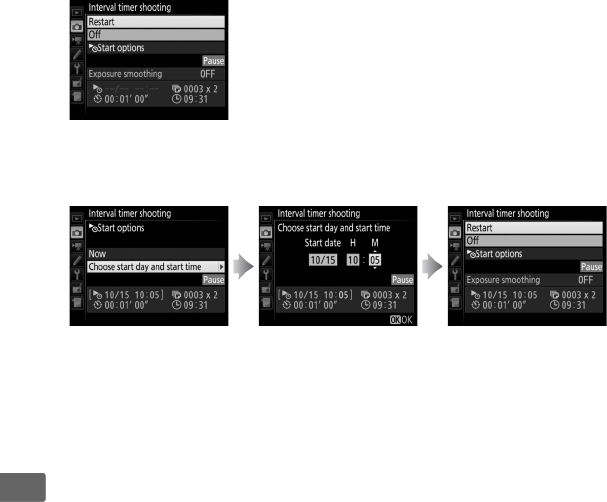
238
t
❚❚ Pausing Interval Timer Photography
Interval timer photography can be paused between intervals by
pressing J or selecting Pause in the interval timer menu.
❚❚ Resuming Interval Timer Shooting
To resume shooting:
•Starting Now
• Starting at a Specified Time
❚❚ Ending Interval Timer Shooting
To end interval timer photography before all the photos are taken,
select Off in the interval timer menu.
Highlight Restart
and press J.
For Start options,
highlight Choose
start day and start
time and press 2.
Choose a starting
date and time and
press J.
Highlight Restart
and press J.
239
t
❚❚ No Photograph
The camera will skip the current interval if any of the following
situations persist for eight seconds or more after the interval was
due to start: the photograph or photographs for the previous
interval have yet to be taken, the memory card is full, or the
camera is unable to focus in AF-S (note that the camera focuses
again before each shot).
Shooting will resume with the next
interval.
DOut of Memory
If the memory card is full, the interval timer will remain active but no
pictures will be taken.
Resume shooting (0238) after deleting some
pictures or turning the camera off and inserting another memory card.
APhoto Shooting Menu Banks
Changes to interval timer settings apply to all photo shooting menu
banks (0289), meaning that interval timer shooting will continue even
if you switch menu banks.
If photo shooting menu settings are reset
using the Photo shooting menu bank item in the photo shooting
menu, interval timer shooting will end and interval timer settings will
be reset as follows:
• Start options: Now
• Interval: 00:01':00"
• Number of intervals: 1
• Number of shots: 1
• Exposure smoothing: Off
ABracketing
Adjust bracketing settings before starting interval timer photography.
If exposure, flash, or ADL bracketing is active while interval timer
photography is in effect, the camera will take the number of shots in the
bracketing program at each interval, regardless of the number of shots
specified in the interval timer menu.
If white balance bracketing is
active while interval timer photography is in effect, the camera will take
one shot at each interval and process it to create the number of copies
specified in the bracketing program.

240
t
AInterval Timer Photography
Choose an interval longer than the time needed to take the selected
number of shots and, if you are using a flash, the time needed for the
flash to charge.
If the interval is too short, the number of photos taken
may be less than the total listed in Step 2 (the number of intervals
multiplied by the number of shots per interval) or the flash may fire at
less than the power needed for full exposure.
Flash output may also fall
below the desired level if more than one shot is taken per interval.
Interval timer photography can not be combined with long time-
exposures (bulb or time photography, 0138) or time-lapse movies
(074) and is not available in live view (044, 59) or when Record
movies is selected for Custom Setting g1 (Custom control
assignment) > Shutter-release button (0307).
Note that because
the shutter speed, frame rate, and time needed to record images may
vary from one interval to the next, the time between the end of one
interval and the beginning of the next may vary.
If shooting can not
proceed at current settings (for example, if a shutter speed of A or
% is currently selected in manual exposure mode, the interval is zero,
or the start time is in less than a minute), a warning will be displayed in
the monitor.
Interval timer shooting will pause when E (self-timer) is selected or if
the camera is turned off and then on again (when the camera is off,
batteries and memory cards can be replaced without ending interval
timer photography).
Pausing shooting does not affect interval timer
settings.

241
t
Non-CPU Lenses
Non-CPU lenses can be used in exposure modes A and M, with
aperture set using the lens aperture ring.
By specifying lens data
(lens focal length and maximum aperture), the user can gain
access to the following CPU lens functions.
If the focal length of the lens is known:
• Power zoom can be used with optional flash units
• Lens focal length is listed (with an asterisk) in the playback photo
info display
If the maximum aperture of the lens is known:
• The aperture value is displayed in the top control panel and
viewfinder
• Flash level is adjusted for changes in aperture if the flash unit
supports qA (auto aperture) mode
• Aperture is listed (with an asterisk) in the playback photo info
display
Specifying both the focal length and maximum aperture of the lens:
• Enables color matrix metering (note that it may be necessary to
use center-weighted or spot metering to achieve accurate results
with some lenses, including Reflex-NIKKOR lenses)
• Improves the precision of center-weighted and spot metering
and i-TTL balanced fill-flash for digital SLR
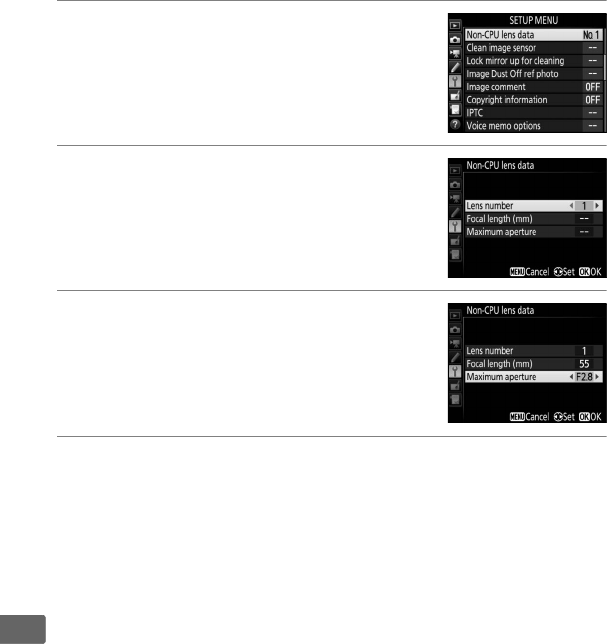
242
t
To enter or edit data for a non-CPU lens:
1Select Non-CPU lens data.
Highlight Non-CPU lens data in the
setup menu and press 2.
2Select a lens number.
Highlight Lens number and press 4 or
2 to choose a lens number.
3Enter the focal length and aperture.
Highlight Focal length (mm) or
Maximum aperture and press 4 or 2 to
edit the highlighted item.
4Save settings and exit.
Press J.
The specified focal length and aperture will be stored
under the chosen lens number.
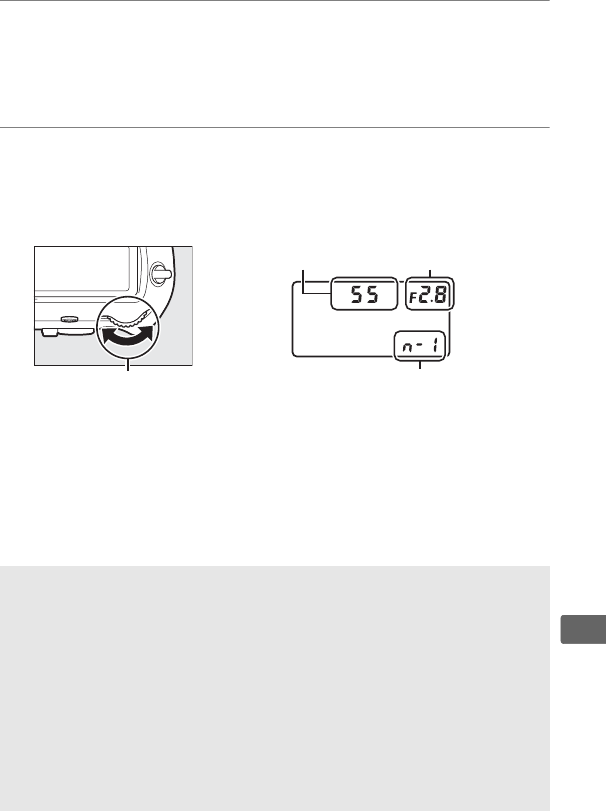
243
t
To recall lens data when using a non-CPU lens:
1Assign non-CPU lens number selection to a camera
control.
Assign Choose non-CPU lens number to a control using
Custom Setting f1 (Custom control assignment, 0305).
2Use the selected control to choose a lens number.
Press the selected control and rotate the main or sub-
command dial until the desired lens number is displayed in
the top control panel.
AFocal Length Not Listed
If the correct focal length is not listed, choose the closest value greater
than the actual focal length of the lens.
ATeleconverters and Zoom Lenses
The maximum aperture for teleconverters is the combined maximum
aperture of the teleconverter and the lens.
Note that lens data are not
adjusted when non-CPU lenses are zoomed in or out.
The data for
different focal lengths can be entered as separate lens numbers, or the
data for the lens can be edited to reflect the new values for lens focal
length and maximum aperture each time zoom is adjusted.
Main command dial
Focal length Maximum aperture
Lens number
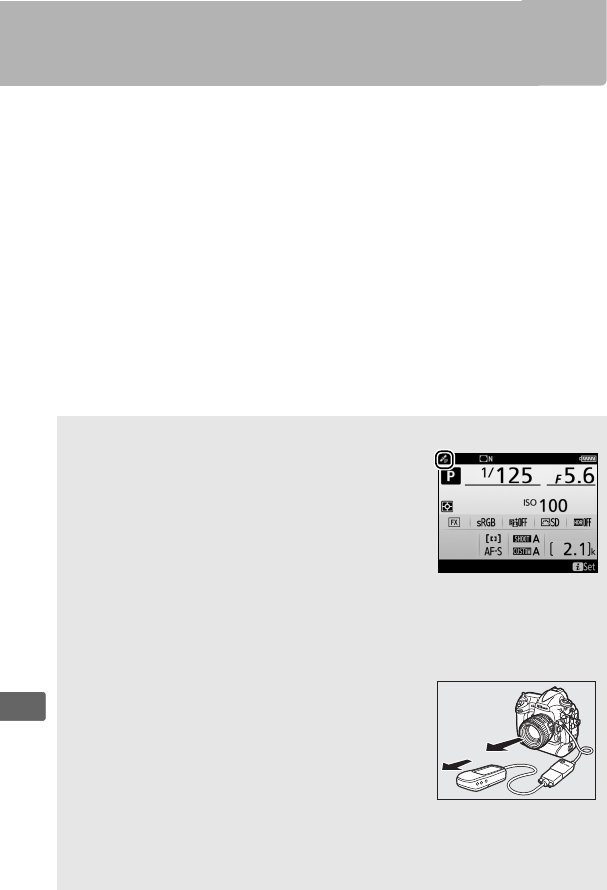
244
t
Location Data
A GPS unit can be connected to the ten-pin remote terminal,
allowing the current latitude, longitude, altitude, Coordinated
Universal Time (UTC), and heading to be recorded with each
photograph taken.
The camera can be used with optional GP-1
and GP-1A GPS units (see below; note that these units do not
provide the compass heading), or with compatible third-party
units connected via an optional MC-35 GPS adapter cord (0338).
❚❚ GP-1/GP-1A GPS Units
These optional GPS units are designed for use with Nikon digital
cameras.
For information on connecting the unit, see the manual
provided with the device.
AThe o Icon
Connection status is shown by the o icon in the
information display:
•o (static): Location data acquired.
•o (flashing): The GPS device is searching for a
signal.
Pictures taken while the icon is
flashing do not include location data.
•No icon: No new location data have been
received from the GPS device for at least two seconds.
Pictures taken
when the o icon is not displayed do not include location data.
AHeading
The heading is only recorded if the GPS device is
equipped with a digital compass (note that the
GP-1 and GP-1A are not equipped with a
compass).
Keep the GPS device pointing in the
same direction as the lens and at least 20 cm
(8 in.) from the camera.
ACoordinated Universal Time (UTC)
UTC data is provided by the GPS device and is independent of the
camera clock.
245
t
❚❚ Setup Menu Options
The Location data item in the setup menu contains the options
listed below.
•Standby timer: Choose whether or not the standby timer is
enabled when a GPS unit is attached.
•Position: This item is only available if the GPS device is connected,
when it displays the current latitude, longitude, altitude,
Coordinated Universal Time (UTC), and heading (if supported) as
reported by the GPS device.
•Set clock from satellite: Select Yes to synchronize the camera clock
with the time reported by the GPS device.
Option Description
Enable
Standby timer enabled.
The timer expires automatically if
no operations are performed for the period specified in
Custom Setting c2 (Standby timer, 0301), reducing the
drain on the battery. If a GP-1 or GP-1A unit is connected,
the unit will remain active for a set period after the timer
expires; to allow the camera time to acquire location data,
the delay is extended by up to one minute after exposure
meters are activated or the camera is turned on.
Disable Standby timer disabled, ensuring uninterrupted recording
of location data.
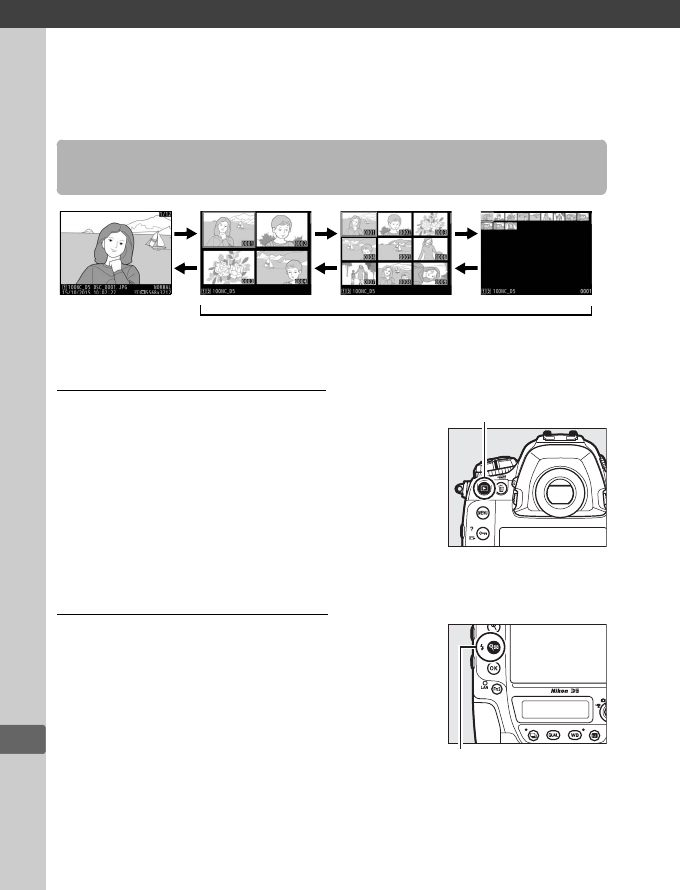
I
246
I
More About Playback
Full-Frame Playback
To play photographs back, press the K
button.
The most recent photograph will be
displayed in the monitor.
Additional pictures
can be displayed by flicking left or right or
pressing 4 or 2; to view additional
information on the current photograph, press
1 or 3 (0252).
Thumbnail Playback
To view multiple images, press the W (M)
button when a picture is displayed full frame.
The number of images displayed increases
from 4 to 9 to 72 each time the W (M) button
is pressed, and decreases with each press of
the X button.
Slide a finger over the touch
screen to scroll up or down or use the multi
selector to highlight images.
Viewing Images
W
X
W
X
W
X
Full-frame
playback Thumbnail playback
K button
W (M) button
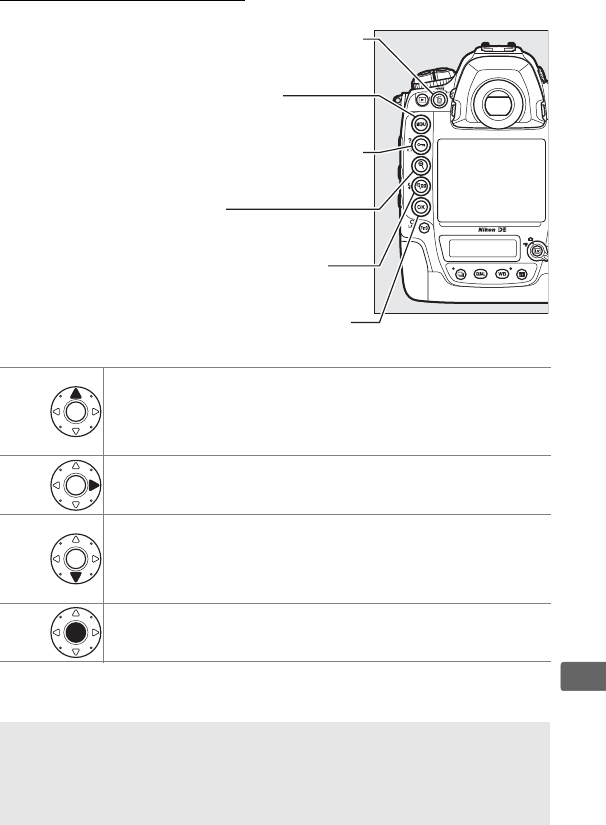
247
I
Playback Controls
J+
Display slot/folder selection dialog.
To choose card and
folder from which pictures are played back, highlight slot
and press 2 to display list of folders, then highlight folder
and press J.
J+Create retouched copy of current photograph or create
edited copy of current movie (082).
J+
View the IPTC presets stored on the camera (0309).
To
embed IPTC preset in current photo, highlight preset and
press J (any preset already embedded in current photo
will be replaced).
J+Upload photographs over a wireless or Ethernet network
(0279).
ATwo Memory Cards
If two memory cards are inserted, you can select a memory card for
playback by pressing the W (M) button when 72 thumbnails are
displayed.
L
(
Z
/
Q
)
: Protect the current picture (
0
263)
X:Zoom in (0261)
J: Use in combination with the multi
selector as described below
O (Q): Delete the current picture (0266)
W (M): View multiple images (0246)
G:View the menus (0287)
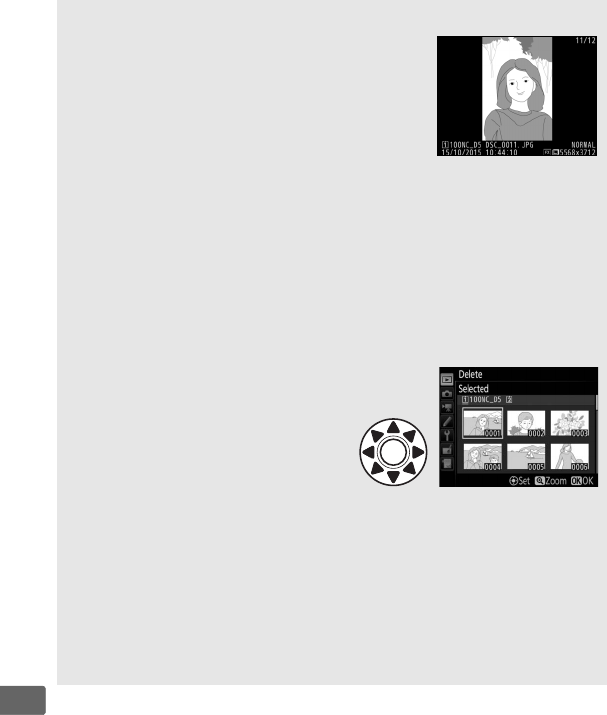
248
I
ARotate Tall
To display “tall” (portrait-orientation)
photographs in tall orientation, select On for
the Rotate tall option in the playback menu
(0288).
AImage Review
When On is selected for Image review in the playback menu (0288),
photographs are automatically displayed in the monitor after shooting
(because the camera is already in the correct orientation, images are not
rotated automatically during image review).
In continuous release
mode, display begins when shooting ends, with the first photograph in
the current series displayed.
AThe Multi Selector
The multi selector can be used to
highlight pictures in the thumbnail
display and in displays like that
shown at right.
ASee Also
For information on choosing how long the monitor will remain on when
no operations are performed, see Custom Setting c4 (Monitor off
delay, 0301).
For information on choosing the role played by the
center of the multi selector, see Custom Setting f2 (Multi selector
center button, 0306).
For information on using the command dials
for image or menu navigation, see Custom Setting f4 (Customize
command dials) > Menus and playback (0306).
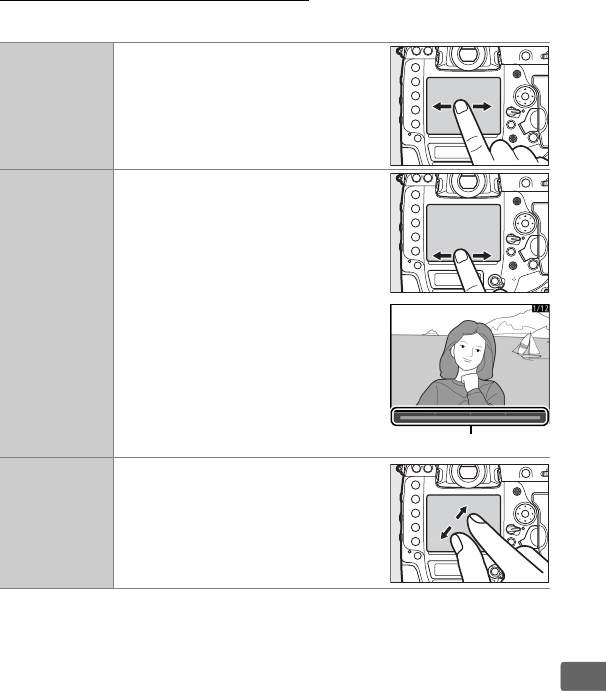
249
I
Using the Touch Screen
During playback, the touch-sensitive monitor can be used to:
View other
images
Flick left or right to view other
images.
Scroll rapidly to
other images
In full frame view, you can touch
the bottom of the display to
display a frame advance bar, then
slide your finger left or right to
scroll rapidly to other images.
Frame advance bar
Zoom in (photos
only)
Use stretch and pinch gestures to
zoom in and out and slide to scroll
(0261).
You can also give the
display two quick taps to zoom in
from full-frame playback or cancel
zoom.
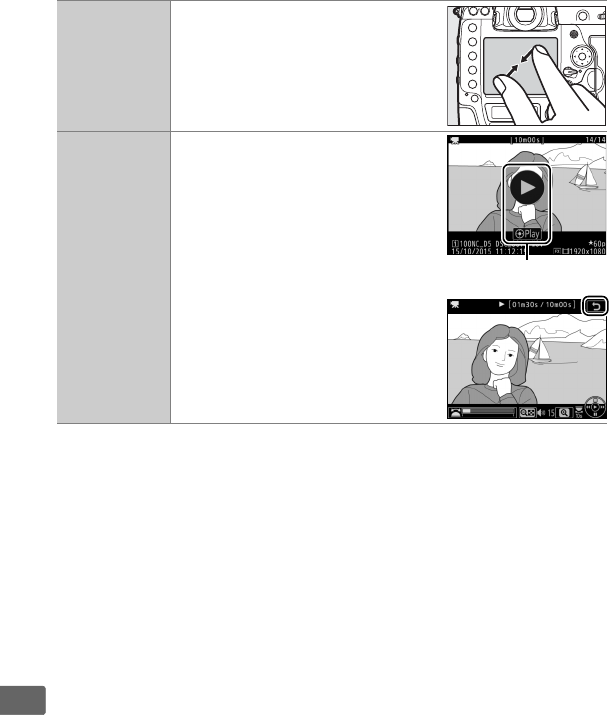
250
I
View thumbnails
To “zoom out” to a thumbnail
view (0246), use a pinch gesture
in full-frame playback. Use pinch
and stretch to choose the number
of images displayed from 4, 9, and
72 frames.
View movies
Tap the on-screen guide to start
movie playback (movies are
indicated by a 1 icon). Tap the
display to pause or resume, or tap
Z to exit to full-frame playback
(note that some of the icons in the
movie playback display do not
respond to touch-screen
operations).
Guide
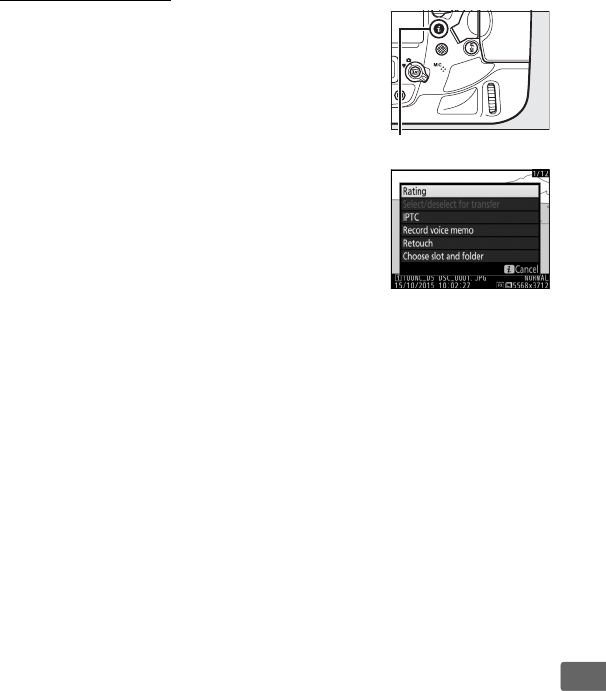
251
I
The i Button
Pressing the i button during full-frame or
thumbnail playback displays the options
listed below.
•Rating: Rate the current picture (0265).
•Select/deselect for transfer: Select or deselect
photos for upload to a computer or ftp
server (0279).
Selected photos are marked
with an upload icon and will be uploaded
when the camera is connected via Ethernet
or wireless LAN.
•IPTC: Embed an IPTC preset in the current
image (0309).
•Record voice memo: Record a voice memo and
append it to the current image (0270).
•Play voice memo: Play a voice memo (0274).
•Retouch (photographs only): Use the options in the retouch menu
(0312) to create a retouched copy of the current photograph.
•Edit movie (movies only): Edit movies using the options in the edit
movie menu (082). Movies can also be edited by pressing the
ibutton when movie playback is paused.
•Choose slot and folder: Choose a folder for playback.
Highlight a slot
and press 2 to list the folders on the selected card, then
highlight a folder and press J to view the pictures in the
highlighted folder.
To exit the i-button menu and return to playback, press the
ibutton again.
i button
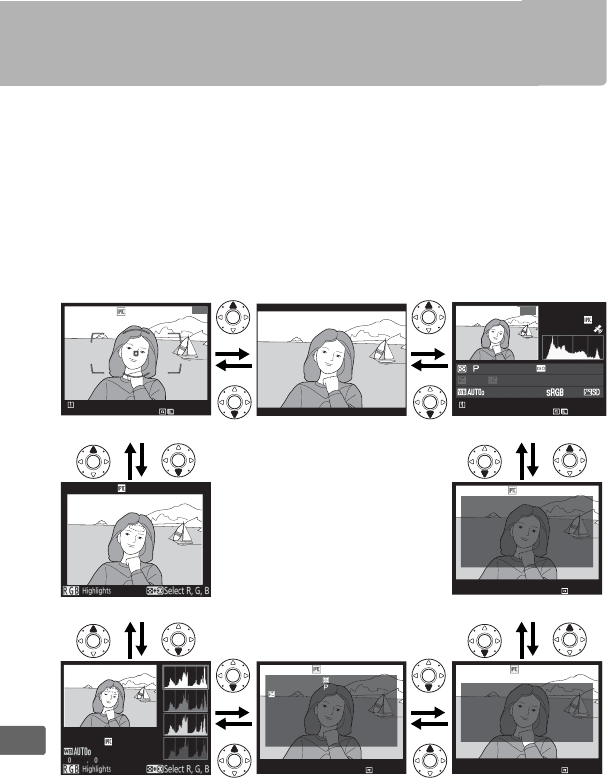
252
I
Photo Information
Photo information is superimposed on images displayed in full-
frame playback.
Press 1 or 3 to cycle through photo information
as shown below.
Note that “image only”, shooting data, RGB
histograms, and highlights are only displayed if corresponding
option is selected for Playback display options (0287).
Location
data are only displayed if a GPS device was used when the photo
was taken (0244), while IPTC presets are displayed only if
embedded in the photo (0309).
File information None (image only) Overview data
Highlights IPTC preset
RGB histogram Shooting data Location data
1
/
12
100
NC_D
5
D
S
C_
0001. JP
G
15
/
10
/
2015 10:02:27
N
N
OR
OR
M
AL
AL
5568x3712
0 , 0
1
/
125 F5. 6 100 50
mm
NIKON
D5
1
/
12
100
NC_D
5
D
S
C_
0001. JP
G
15
/
10
/
2015 10:02:27
N
N
OR
OR
M
AL
AL
5568x3712
100
-
0001
:
:
:
:
:
:
:
IPT
C
Ca
p
tion
Event
I
D
H
eadl i ne
O
b
j
ect
N
a
m
e
C
it
y
State
C
ount r
y
N
I
KO
N
D5
100
-
0001
100
-
0001
M
TR, SP
D
,
A
P
.
E
X
P.
M
OD
E,
IS
O
F
O
C
A
L
L
E
N
G
T
H
L
E
N
S
A
F
/
V
R
:
,
1
/
125
, F5
.
6
:
, 100
:
0
.
0
:
50
mm
:
50
/
1
.
4
:
S
/
N
I
KO
N
D5
100
-
0001
:
:
:
:
:
:
:
E
N
L
AT I TUDE
15
/
10
/
2015
10 02 27
::
TI
M
E(UTC)
35
º
35 971
'
.
ALT I TUDE
LONGI TUDE
35
m
9.696
'
13
º
43
N
I
KO
N
D5
100
-
0001
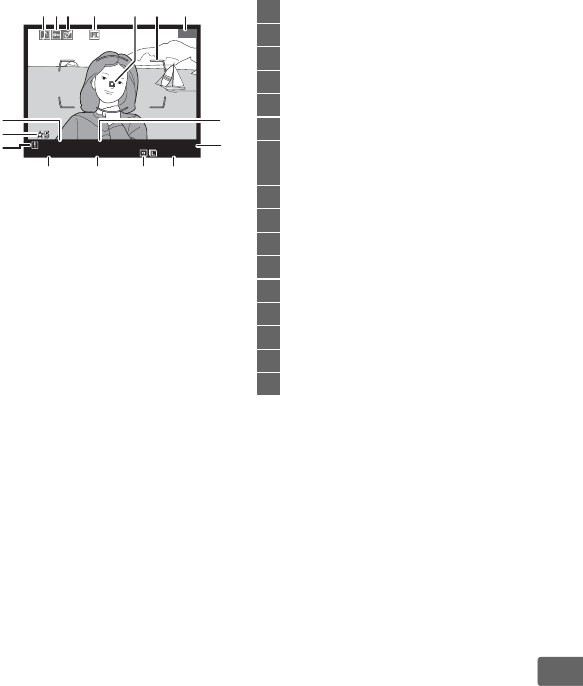
253
I
❚❚ File Information
1 Displayed only if Focus point is selected for Playback display options
(0287) and selected photograph was taken using viewfinder.
2 If photograph was taken using manual focus or single-point, dynamic-area,
or group-area AF, display shows focus point selected by user.
If photograph
was taken using 3D-tracking or auto-area AF, display shows focus point
selected by camera.
1
/
12
100
NC_D
5
D
S
C_
0001. JP
G
15
/
10
/
2015 10:02:27
N
N
OR
OR
M
AL
AL
5568x3712
1 23 4 5 76
15
14
13 12 11 10
16
9
8
1Voice memo icon ......................... 270
2Protect status................................ 263
3Retouch indicator ........................ 312
4IPTC preset indicator.......... 247, 309
5Focus point 1, 2 .............................. 108
6AF area brackets 1...........................35
7Frame number/total number of
frames
8File name ....................................... 289
9Image quality...................................92
10 Image size.........................................95
11 Image area........................................87
12 Time of recording ..................28, 308
13 Date of recording...................28, 308
14 Current card slot .............................97
15 Rating ............................................. 265
16 Folder name
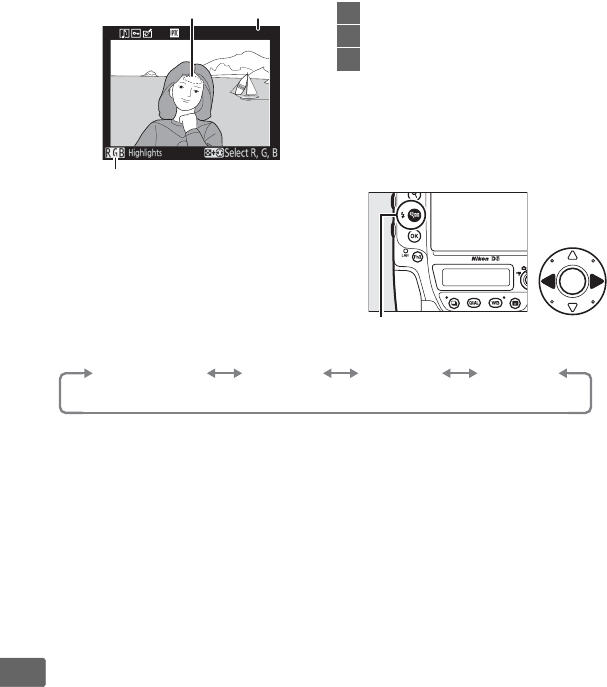
254
I
❚❚ Highlights
* Flashing areas indicate highlights (areas
that may be overexposed) for current
channel.
Hold W (M) button and press
4 or 2 to cycle through channels as
follows:
100
-
0001
★5
1 2
3
1Image highlights *
2Folder number–frame number
3Current channel *
W (M) button
RGB
(all channels)
R
(red)
G
(green)
B
(blue)
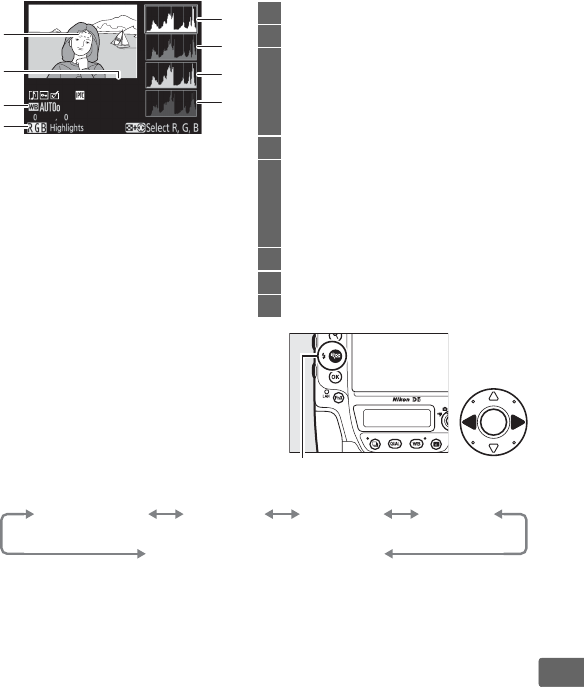
255
I
❚❚ RGB Histogram
* Flashing areas indicate highlights (areas
that may be overexposed) for current
channel.
Hold W (M) button and press
4 or 2 to cycle through channels as
follows:
100
-
0001
★5
1
2
5
6
7
8
4
3
1Image highlights*
2Folder number–frame number
3White balance............................... 159
Color temperature ................... 165
White balance fine-tuning .... 162
Preset manual........................... 168
4Current channel *
5Histogram (RGB channel).
In all
histograms, horizontal axis gives
pixel brightness, vertical axis
number of pixels.
6Histogram (red channel)
7Histogram (green channel)
8Histogram (blue channel)
W (M) button
RGB
(all channels)
R
(red)
G
(green)
B
(blue)
Highlight display off
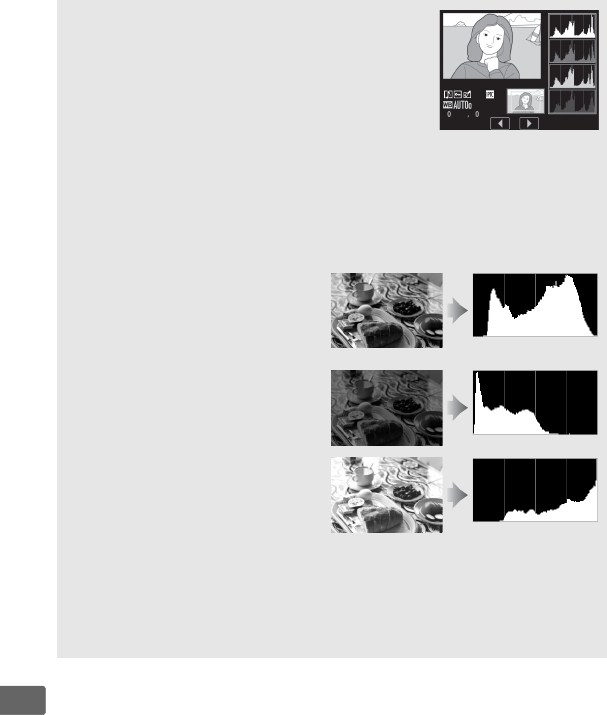
256
I
APlayback Zoom
To zoom in on the photograph when the
histogram is displayed, press X.
Use the X and
W (M) buttons to zoom in and out and scroll the
image with the multi selector.
The histogram
will be updated to show only the data for the
portion of the image visible in the monitor.
AHistograms
Camera histograms are intended as a guide only and may differ from
those displayed in imaging applications.
Some sample histograms are
shown below:
If the image contains objects with
a wide range of brightnesses, the
distribution of tones will be
relatively even.
If the image is dark, tone
distribution will be shifted to the
left.
If the image is bright, tone
distribution will be shifted to the
right.
Increasing exposure compensation shifts the distribution of tones to
the right, while decreasing exposure compensation shifts the
distribution to the left.
Histograms can provide a rough idea of overall
exposure when bright ambient lighting makes it difficult to see
photographs in the monitor.
100
-
0001
★5
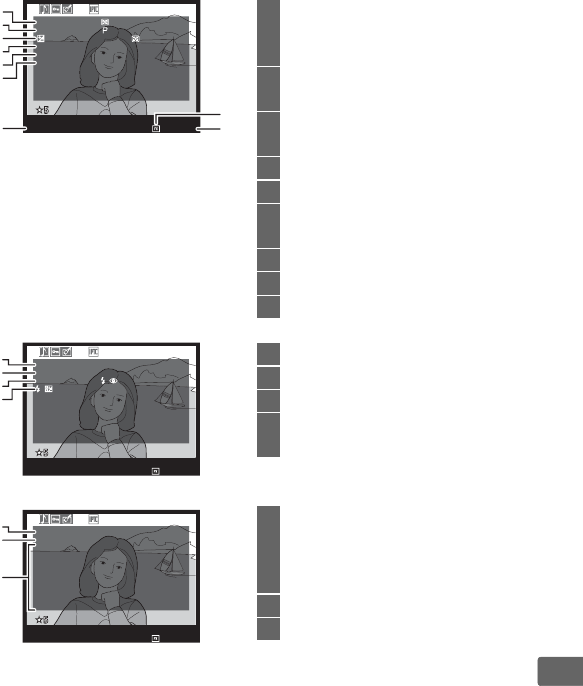
257
I
❚❚ Shooting Data
M
TR, SP
D
,
A
P
.
E
X
P.
M
OD
E,
IS
O
, E
X
P.
TU
N
I
N
G
F
O
C
A
L
L
E
N
G
T
H
L
E
N
S
A
F
/
V
R
:
,
1
/
8000
, F2
.
8
:
, Hi
0
.
3
:
+
1
.
3
,
+
5
/
6
:
50
mm
:
50
/
1
.
4
:
C
/
N
I
KO
N
D5
100
-
0001
7
6
5
4
3
2
1
9
8
1Metering ........................................ 129
Shutter speed ..................... 134, 136
Aperture................................ 135, 136
2Exposure mode ............................ 131
ISO sensitivity 1............................. 124
3Exposure compensation ............ 143
Optimal exposure tuning 2........ 300
4Focal length ......................... 241, 326
5Lens data........................................ 241
6Focus mode............................... 48, 98
Lens VR (vibration reduction) 3
7Camera name
8Image area........................................87
9Folder number–frame number
M
A
I
N
F
L
A
S
H
C
M
D
M
OD
E
S
Y
N
C
M
OD
E
,
:
O
p
t i ona l
:
:
S
L
O
W
:
TTL-BL,
+
1
.
0
N
I
KO
N
D5
100
-
0001
13
12
11
10
10 Flash type 4
11 Remote flash control 4................ 204
12 Flash mode 4.................................. 198
13 Flash settings 4..................... 197, 209
Flash compensation 4.................. 200
W
H
ITE
B
A
L
A
N
C
E
C
O
L
O
R
SP
A
C
E
PI
C
TURE
C
TR
L
Q
UI
CK
A
D
JUST
S
H
A
RPE
N
I
N
G
C
L
A
RIT
Y
C
O
N
TR
A
ST
BR I
GH
T
N
ESS
S
A
TUR
A
TI
O
N
H
UE
:
A
UT
O
_
0
,
0
,
0
:
s
R
G
B
:
ST
A
N
D
A
R
D
:
0
:
3
:
+
1
:
0
:
0
:
0
:
0
N
I
KO
N
D5
100
-
0001
16
15
14
14 White balance............................... 159
Color temperature ................... 165
White balance fine-tuning .... 162
Preset manual........................... 168
15 Color space.................................... 292
16 Picture Control 5........................... 179
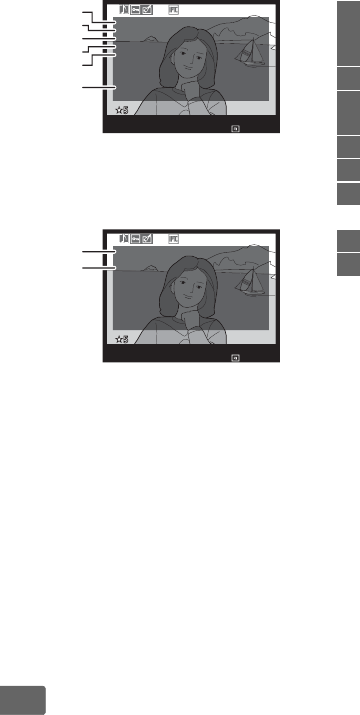
258
I
1 Displayed in red if photo was taken with auto ISO sensitivity control on.
2 Displayed if Custom Setting b7 (Fine-tune optimal exposure, 0300) has
been set to a value other than zero for any metering method.
3 Displayed only if VR lens is attached.
4 Displayed only if optional flash unit (0194) is used.
5 The items displayed vary with the Picture Control selected when the picture
was taken.
6 Copyright information is only displayed if recorded with the photograph
using the Copyright information option in the setup menu.
N
O
ISE
RE
D
U
C
.
A
C
T
.
D
-
L
I
GH
T
.
H
D
R
V
I
G
N
ETTE
C
TR
L
RET
O
U
CH
C
O
MM
E
N
T
:
H
I
IS
O
/
L
O
N
G
E
X
P.
:
N
O
R
M
A
L
:
A
UT
O
,
N
O
R
M
A
L
:
N
O
R
M
A
L
:
W
A
R
M
FI
L
TER
:
SPRI
N
G
H
A
S
C
O
M
E
.
100
-
0001
N
I
KO
N
D5
21
20
19
22
18
17
17 High ISO noise reduction ...........292
Long exposure noise
reduction........................................292
18 Active D-Lighting .........................187
19 HDR exposure differential ..........191
HDR smoothing ............................191
20 Vignette control............................292
21 Retouch history.............................312
22 Image comment ...........................309
A
RT I ST
C
O
P
Y
RI
GH
T
:
N
I
K
O
N
T
A
R
O
:
N
I
K
O
N
N
I
KO
N
D5
100
-
0001
24
23
23 Name of photographer 6.............309
24 Copyright holder 6........................309
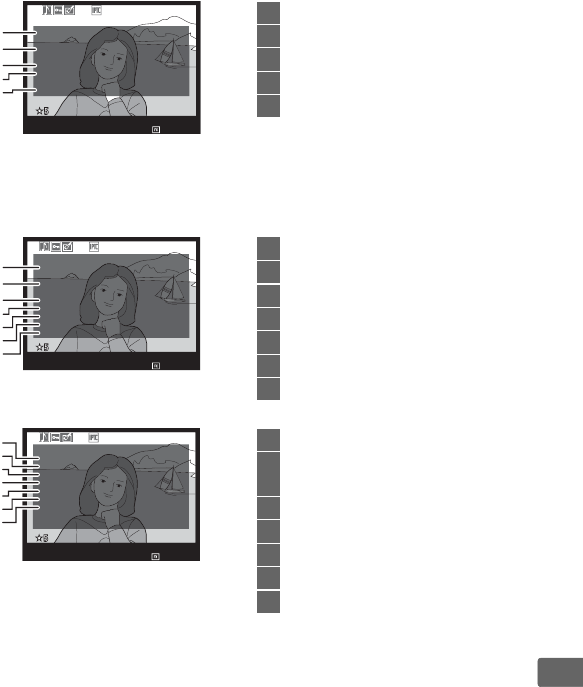
259
I
❚❚ Location Data 1 (0244)
1 Data for movies are for start of recording.
2 Displayed only if GPS device is equipped with electronic compass.
❚❚ IPTC Preset (0309)
:
:
:
:
:
:
:
E
N
L
AT I TUDE
15
/
10
/
2015
10 02 27
::
TI
M
E(UTC)
35
º
35 971
'
.
ALT I TUDE
LONG I TUDE
35
m
9.696
'
13
º
43
N
I
KO
N
D5
100
-
0001
5
4
3
2
1
1Latitude
2Longitude
3Altitude
4Coordinated Universal Time (UTC)
5Heading 2
:
:
:
:
:
:
:
IPT
C
Ca
p
tion
Event
I
D
H
eadl i ne
O
b
j
ect
N
a
m
e
C
it
y
State
C
ount r
y
N
I
KO
N
D5
100
-
0001
7
6
5
4
3
2
1
1Caption
2Event ID
3Headline
4Object Name
5City
6State
7Country
:
:
:
:
:
:
:
IPT
C
Ca t e
g
or
y
Su
pp
.
Cat
B
y
line
B
y
line
Title
W
riter
/
Ed i tor
Credi t
Source
N
I
KO
N
D5
100
-
0001
14
13
12
11
10
9
8
8Category
9Supplemental Categories (Supp.
Cat.)
10 Byline
11 Byline Title
12 Writer/Editor
13 Credit
14 Source
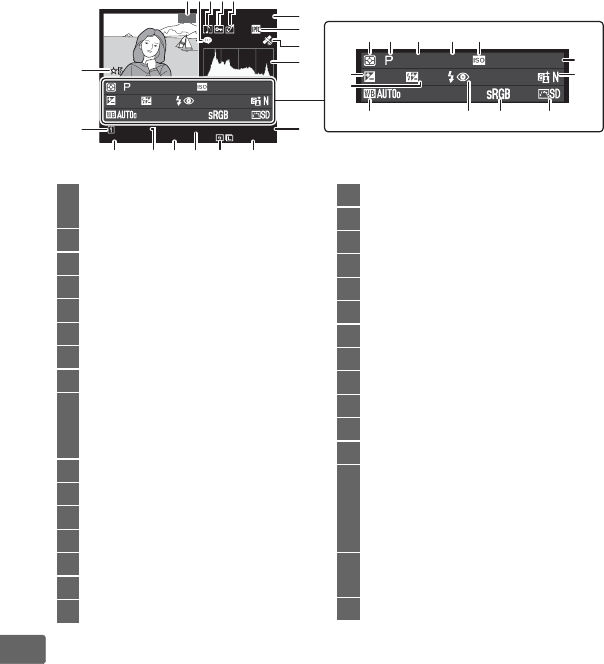
260
I
❚❚ Overview Data
1 Displayed in red if photo was taken with auto ISO sensitivity control on.
2 Displayed only if photo was taken with optional flash unit (0194).
1
/
8000 F2. 8
H
i 0. 3 50
mm
–
1. 3 +1. 0 SLOW
0 , 0
1
/
8000 F2. 8
H
i 0. 3 50
mm
–
1. 3 +1. 0 SLOW
0 , 0
NIKON
D5
1
/
12
100
NC_D
5
D
S
C_
0001. JP
G
15
/
10
/
2015 10:02:27
N
OR
OR
M
AL
AL
5568x3712
34215
9
8
6
10
7
24
25
31
21 22 23
29 2628 27
30
2019
14 1213 1116 15
17
18
1Frame number/total number of
frames
2Image comment indicator .........309
3Voice memo icon..........................270
4Protect status ................................263
5Retouch indicator.........................312
6Camera name
7IPTC preset indicator ..........247, 309
8Location data indicator...............244
9Histogram showing the
distribution of tones in the image
(0256).
10 Image quality .................................. 92
11 Image size ........................................ 95
12 Image area ....................................... 87
13 File name........................................289
14 Time of recording.................. 28, 308
15 Folder name
16 Date of recording .................. 28, 308
17 Current card slot ............................. 97
18 Rating..............................................265
19 Metering.........................................129
20 Exposure mode.............................131
21 Shutter speed.......................134, 136
22 Aperture ................................135, 136
23 ISO sensitivity 1..............................124
24 Focal length ..........................241, 326
25 Active D-Lighting .........................187
26 Picture Control ..............................179
27 Color space.....................................292
28 Flash mode 2..................................198
29 White balance ...............................159
Color temperature....................165
White balance fine-tuning .....162
Preset manual............................168
30 Flash compensation2..................200
Commander mode 2
31 Exposure compensation.............143
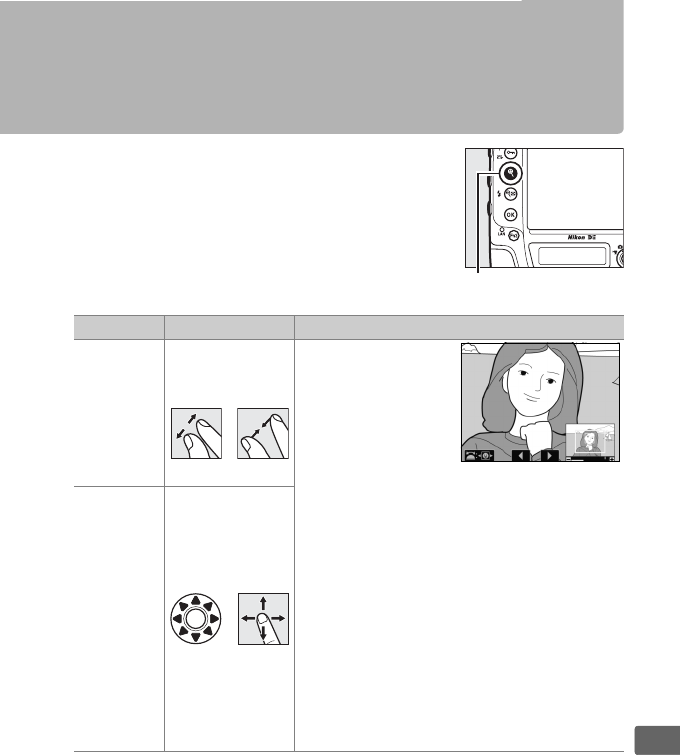
261
I
Taking a Closer Look:
Playback Zoom
To zoom in on an image displayed in full-
frame playback, press the X button or the
center of the multi selector or give the display
two quick taps.
The following operations can
be performed while zoom is in effect:
To Use Description
Zoom in or
out
X/W (M)/
/
Press X or use stretch
gestures to zoom
36×24 (3 : 2) format
images in to
maximum of
approximately 21 ×
(large images), 16 × (medium images) or
10 × (small images).
Press W (M) or use
pinch gestures to zoom out.
While photo is
zoomed in, use multi selector or slide
finger over screen to view areas of image
not visible in monitor.
Keep multi selector
pressed to scroll rapidly to other areas of
frame.
Navigation window is displayed
when zoom ratio is altered; area currently
visible in monitor is indicated by yellow
border.
Bar under navigation window
shows zoom ratio; turns green at ratio of
1:1.
View other
areas of
image
/
X button
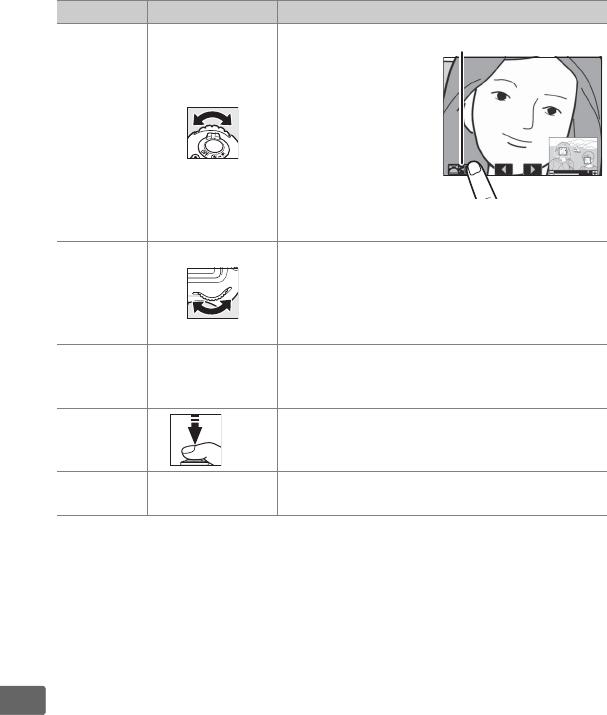
262
I
Select
faces
Faces (up to 35)
detected during
zoom are indicated
by white borders in
navigation window.
Rotate sub-
command dial or
tap on-screen
guide to view other
faces.
View other
images
Rotate main command dial or tap e or f
icons at bottom of display to view same
location in other photos at current zoom
ratio.
Playback zoom is cancelled when a
movie is displayed.
Change
protect
status
L (Z/Q)See page 263 for more information.
Return to
shooting
mode
/KPress the shutter-release button halfway or
press the K button to exit to shooting
mode.
Display
menus GSee page 287 for more information.
To Use Description
On-screen guide
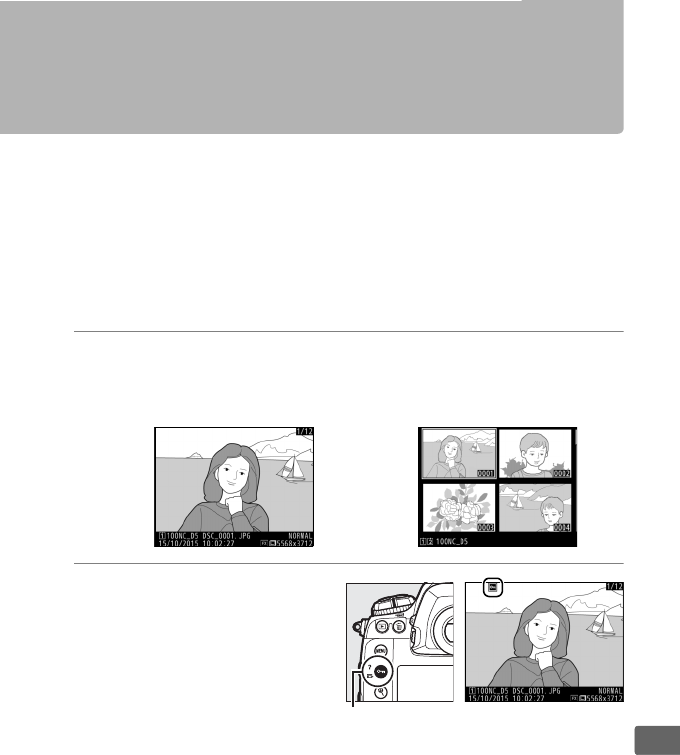
263
I
Protecting Photographs from
Deletion
In full-frame, zoom, and thumbnail playback, the L (Z/Q)
button can be used to protect photographs from accidental
deletion.
Protected files can not be deleted using the O (Q)
button or the Delete option in the playback menu.
Note that
protected images will be deleted when the memory card is
formatted (033, 308).
To protect a photograph:
1Select an image.
Display the image in full-frame playback or playback zoom or
highlight it in the thumbnail list.
2Press the L (Z/Q)
button.
The photograph will be
marked with a P icon.
To
remove protection from
the photograph so that it
can be deleted, display the
photograph or highlight it in the thumbnail list and then press
the L (Z/Q) button.
L (Z/Q) button

264
I
AVoice Memos
Changes to the protect status of images also apply to any voice memos
that may have been recorded with the images.
Voice memo overwrite
status can not be set separately.
ARemoving Protection from All Images
To remove protection from all images in the folder or folders currently
selected in the Playback folder menu, press the L (Z/Q) and O (Q)
buttons together for about two seconds during playback.
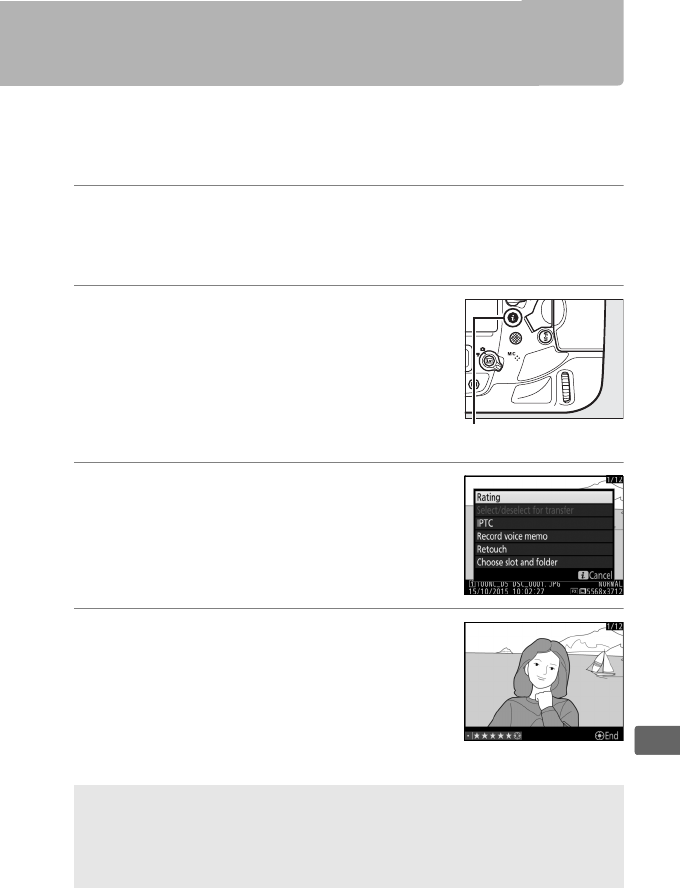
265
I
Rating Pictures
Rate pictures or mark them as candidates for later deletion.
Ratings can also be viewed in ViewNX-i and Capture NX-D.
Rating
is not available with protected images.
1Select an image.
Display the image or highlight it in the thumbnail list in
thumbnail playback.
2Display playback options.
Press the i button to display playback
options.
3Select Rating.
Highlight Rating and press 2.
4Choose a rating.
Press 4 or 2 to choose a rating of from
zero to five stars, or select d to mark the
picture as a candidate for later deletion.
Press J to complete the operation.
ARating Pictures with the Fn3 Button
If Rating is selected for Custom Setting f1 (Custom control
assignment) > Fn3 button, pictures can be rated by keeping the Fn3
button pressed and pressing 4 or 2 (0305).
i button
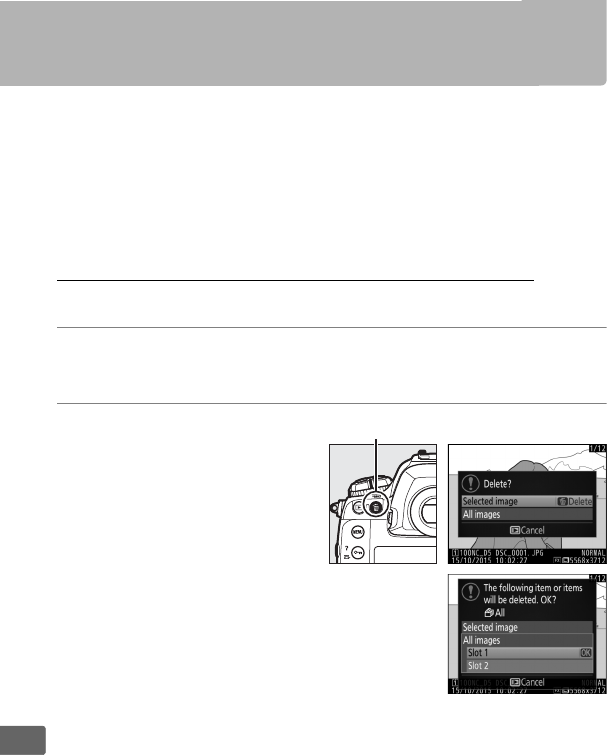
266
I
Deleting Photographs
To delete all photographs in the current folder or the photograph
displayed in full-frame playback or highlighted in the thumbnail
list, press the O (Q) button.
To delete multiple selected
photographs, use the Delete option in the playback menu.
Once
deleted, photographs can not be recovered.
Note that pictures
that are protected or hidden can not be deleted.
Full-Frame and Thumbnail Playback
Press the O (Q) button to delete the current photograph.
1Select an image.
Display the image or highlight it in the thumbnail list.
2Press the O (Q) button.
The menu shown at right
will be displayed; highlight
Selected image (to delete
all pictures in the folder
currently selected for
playback—0287— press
3 and choose a slot).
O (Q) button

267
I
3Delete the photograph(s).
To delete the photograph or photographs, press the O (Q)
button (Selected image) or J button (All images).
To exit
without deleting the photograph or photographs, press the
Kbutton.
ASee Also
The After delete option in the playback menu determines whether the
next image or the previous image is displayed after an image is deleted
(0288).
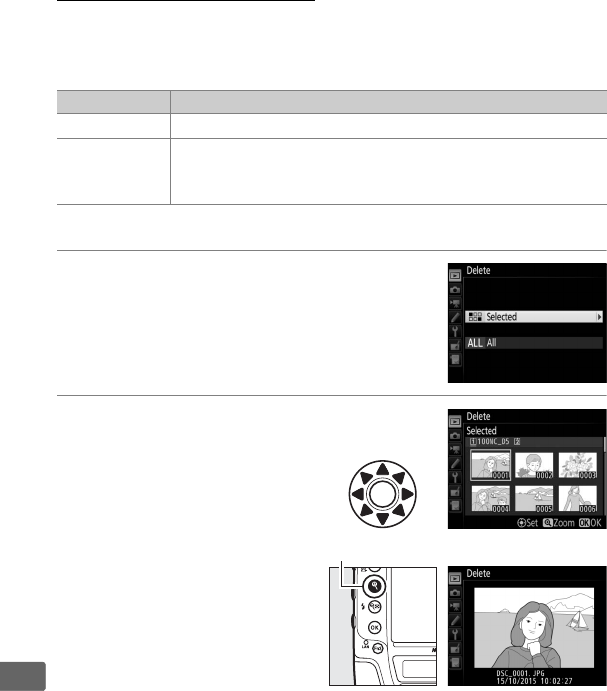
268
I
The Playback Menu
Select Delete in the playback menu to delete pictures and their
associated voice memos.
Note that depending on the number of
images, some time may be required for deletion.
❚❚ Selected: Deleting Selected Photographs
1Choose Delete > Selected.
Select Delete in the playback menu.
Highlight Selected and press 2.
2Highlight a picture.
Use the multi selector to
highlight a picture (to view
the highlighted picture full
screen, press and hold the
X button).
Option Description
QSelected Delete selected pictures.
RAll
Delete all pictures in the folder currently selected for
playback (0287).
If two cards are inserted, you can
select the card from which pictures will be deleted.
X button
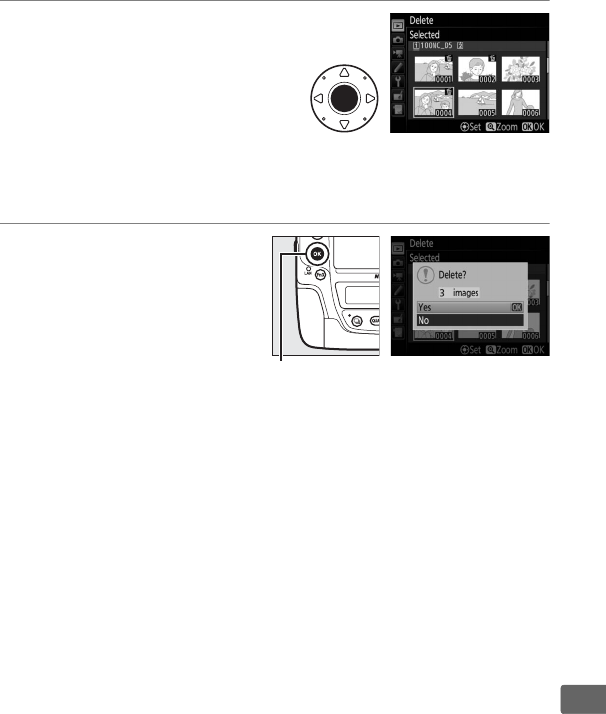
269
I
3Select the highlighted
picture.
Press the center of the multi
selector to select the
highlighted picture.
Selected
pictures are marked by a O icon.
Repeat steps 2 and 3 to select additional pictures; to deselect a
picture, highlight it and press the center of the multi selector.
4Press J to complete the
operation.
A confirmation dialog will
be displayed; highlight Yes
and press J.
J button
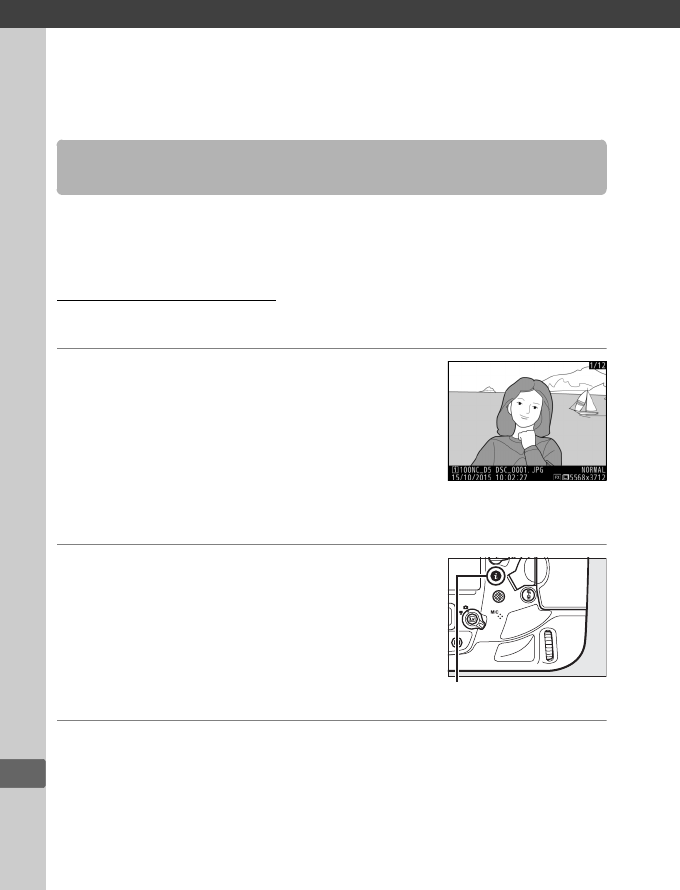
e
270
e
Voice Memos
Voice memos up to 60 seconds long can be added to photographs
during playback or recording.
During Playback
To add a voice memo to an existing photograph:
1Select the photograph.
Display the photograph full-frame or
highlight it in the thumbnail list.
Only
one voice memo can be recorded per
image; additional voice memos can not
be recorded for images already marked
with a h icon.
2Start recording.
To start recording, press the i button,
highlight Record voice memo, and press
J.
A C icon is displayed while recording
is in progress.
3End recording.
Press the center of the multi selector to end recording.
Recording Voice Memos
i button
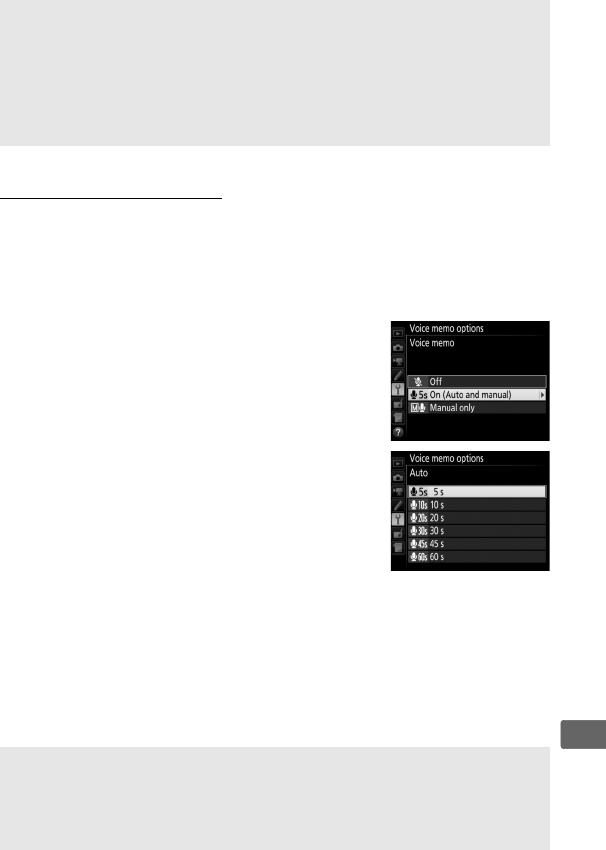
271
e
During Shooting
Voice memos can be recorded automatically with every photo
taken or by manually pressing a button to record a voice memo for
the most recent photograph.
❚❚ Automatic Recording
To record voice memos automatically, select
On (Auto and manual) for Voice memo
options > Voice memo in the setup menu
(0310) and choose the recording time.
Recording will begin when you lift your finger
from the shutter-release button after
shooting.
AThe Fn3 button
If Voice memo is selected for Custom Setting f1 (Custom control
assignment) > Fn3 button (0305), you can press and hold the Fn3
button to record a voice memo for the current image (note that no
memo will be recorded if the button is not held down for at least one
second).
DAutomatic Recording
Voice memos will not be recorded automatically during live view
(044), while a time-lapse movie is being recorded (074), or when On
is selected for the Image review option (0288) in the playback menu.
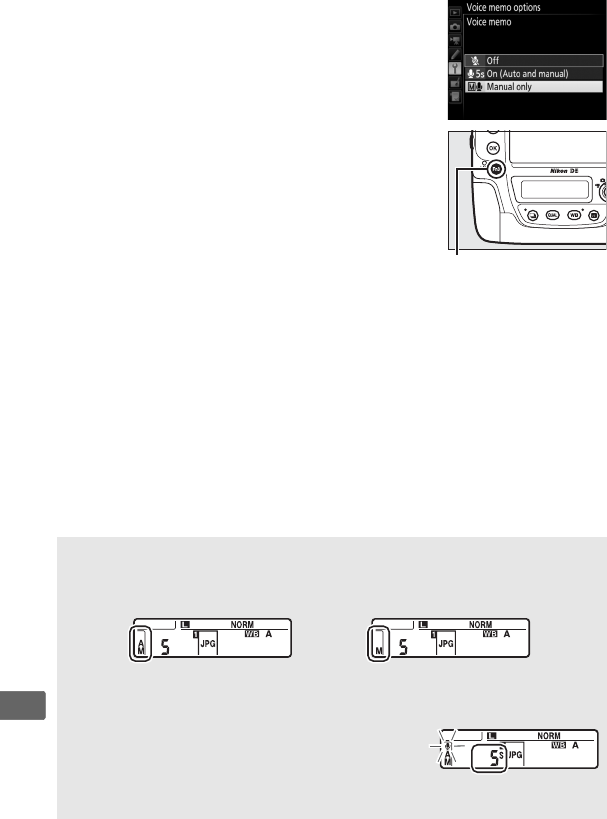
272
e
❚❚ Manual Recording
To enable manual voice memo recording,
select Voice memo for Custom Setting f1
(Custom control assignment) > Fn3 button
(0305) and choose Manual only for Voice
memo options > Voice memo in the setup
menu (0310).
You can then press and hold
the Fn3 button at any time to record a voice
memo and add it to the most recent
photograph (note that no memo will be
recorded if the button is not held down for at
least one second).
AVoice Memo
The option selected for Voice memo is indicated by an icon in the rear
control panel.
On (Auto and manual) Manual only
ADuring Recording
During recording, the C icon in the rear control
panel will flash.
A countdown timer in the rear
control panel shows the length of the voice
memo that can be recorded (in seconds).
Fn3 button
Rear control panel
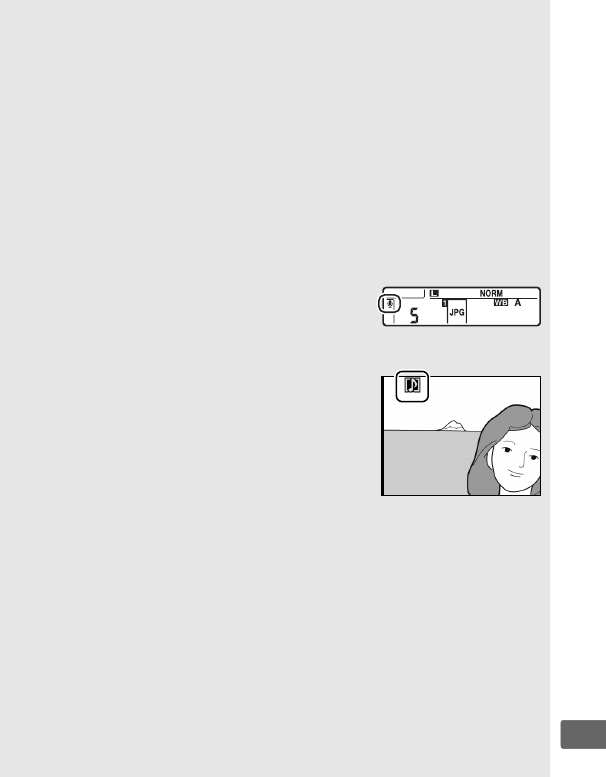
273
e
ASlot 2
If two memory cards are inserted and Backup or RAW Slot 1 - JPEG
Slot 2 is selected for the Role played by card in Slot 2 option (097) in
the photo shooting menu, voice memos will be associated with the
images recorded to the memory card in the Slot 1.
AInterrupting Recording
Pressing the shutter-release button or operating other camera controls
may end recording.
During interval timer photography, recording ends
automatically about two seconds before the next photograph is taken.
Recording also ends automatically when the camera is turned off.
AAfter Recording
If a voice memo has been recorded for the
most recent photograph, a C icon will be
displayed in the rear control panel.
If a voice memo exists for the photograph
currently selected in playback mode, a h icon
will be displayed in the monitor.
AVoice Memo File Names
Voice memos are stored as WAV files with names of the form
“xxxxnnnn.WAV,” where “xxxxnnnn” is a file name copied from the image
with which the voice memo is associated.
For example, the voice memo
for the image “DSC_0002.JPG” would have the file name
“DSC_0002.WAV.”
Voice memo file names can be viewed on a computer.
ASee Also
The Voice memo options > Voice memo overwrite item in the setup
menu controls whether the memo for the most recent photograph can
be overwritten in shooting mode (0310).
The Voice memo options >
Voice memo control item provides options for manual recording.
Rear control panel
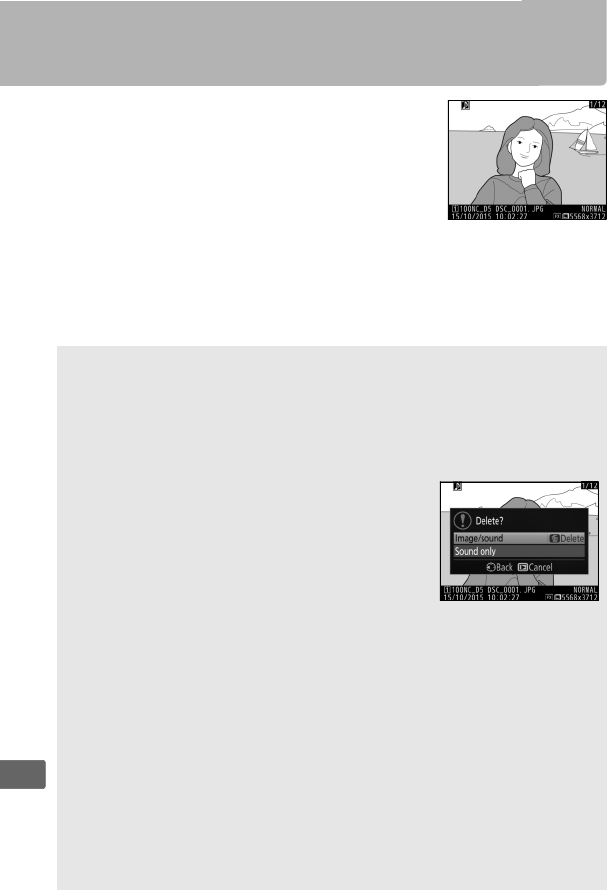
274
e
Playing Voice Memos
To play voice memos, press i and select Play
voice memo when viewing photographs
marked with h icons (0246).
AThe Fn3 button
If Voice memo is selected for Custom Setting f1 (Custom control
assignment) > Fn3 button (0305), you can press the Fn3 button to
start and stop voice memo playback.
ADeleting Voice Memos
To delete voice memos from an image, display
the image full-frame or select it in the thumbnail
display and press the O (Q) button, then
highlight Selected image and press O (Q)
again to display the following options:
•Image/sound: Select this option and press the
O(Q) button to delete both photo and voice memo.
•Sound only: Select this option and press the O (Q) button to delete
only the voice memo.
To exit without deleting either voice memo or photo, press K.
AInterrupting Playback
Pressing the shutter-release button or operating other camera controls
may end playback.
Playback ends automatically when another image is
selected or the camera is turned off.
ASee Also
The Voice memo options > Audio output option in the setup menu
can be used to choose a device for voice memo playback (0310).
Q
275
Q
Connections
Installing ViewNX-i
To fine-tune photos and upload and view pictures, download the
latest version of the ViewNX-i installer from the following website
and follow the on-screen instructions to complete installation.
An
Internet connection is required.
For system requirements and
other information, see the Nikon website for your region.
http://downloadcenter.nikonimglib.com/
ACapture NX-D
Use Nikon’s Capture NX-D software to fine-tune photos or to change
settings for NEF (RAW) pictures and save them in other formats.
Capture NX-D is available for download from:
http://downloadcenter.nikonimglib.com/
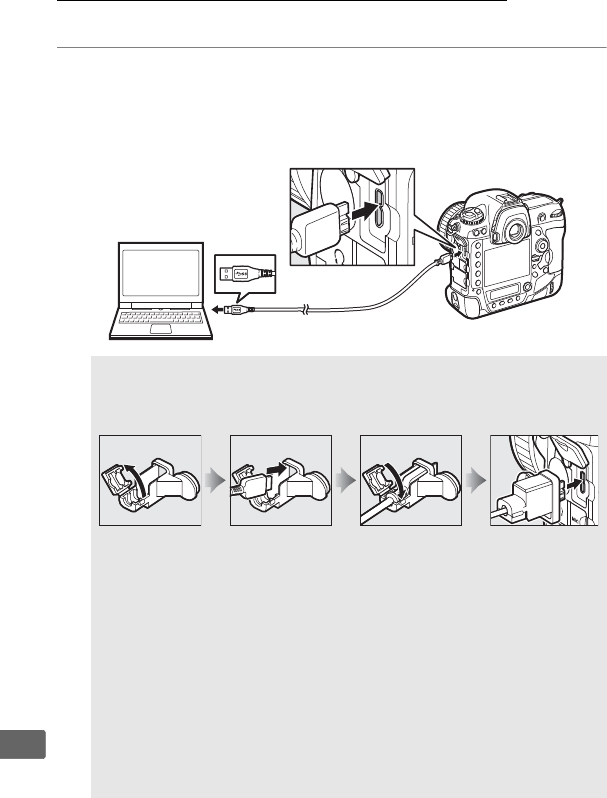
276
Q
Copying Pictures to the Computer
Before proceeding, be sure you have installed ViewNX-i (0275).
1Connect the USB cable.
After turning the camera off and ensuring that a memory card
is inserted, connect the supplied USB cable as shown and then
turn the camera on.
DThe USB Cable Clip
To prevent cable from being disconnected, attach the supplied clip
as shown.
DUSB Hubs
Connect the camera directly to the computer; do not connect the
cable via a USB hub or keyboard.
AUse a Reliable Power Source
To ensure that data transfer is not interrupted, be sure the camera
battery is fully charged.
AConnecting Cables
Be sure the camera is off when connecting or disconnecting
interface cables.
Do not use force or attempt to insert the
connectors at an angle.
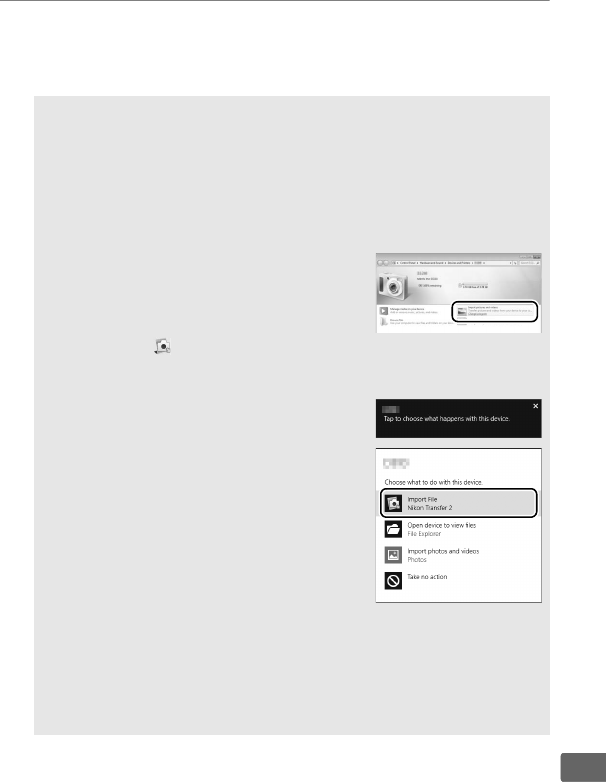
277
Q
2Start Nikon Transfer 2 component of ViewNX-i.
If a message is displayed prompting you to choose a program,
select Nikon Transfer 2.
DDuring Transfer
Do not turn the camera off or disconnect the USB cable while
transfer is in progress.
AWindows 7
If the following dialog is displayed, select Nikon Transfer 2 as
described below.
1Under Import pictures and videos, click
Change program.
A program selection
dialog will be displayed; select
Nikon Transfer 2 and click OK.
2Double-click .
AWindows 10 and Windows 8.1
Windows 10 and Windows 8.1 may display
an AutoPlay prompt when the camera is
connected.
Tap or click the dialog and then
tap or click
Import File/Nikon Transfer 2
to select Nikon Transfer 2.
AOS X
If Nikon Transfer 2 does not start automatically, confirm that the
camera is connected and then launch Image Capture (an
application that comes with OS X) and select Nikon Transfer 2 as
the application that opens when the camera is detected.
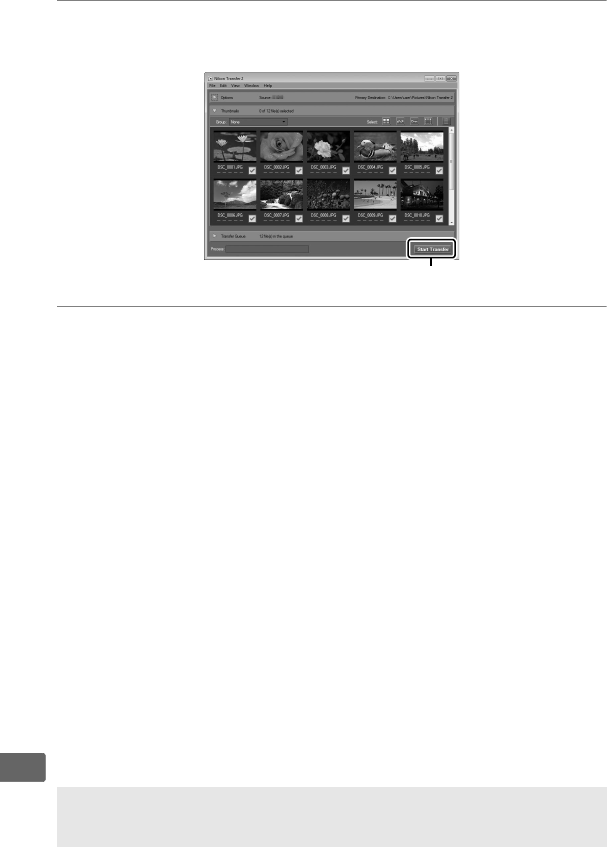
278
Q
3Click Start Transfer.
Pictures on the memory card will be copied to the computer.
4Terminate the connection.
When transfer is complete, turn the camera off and disconnect
the USB cable.
Start Transfer
AFor More Information
Consult online help for more information on using ViewNX-i.
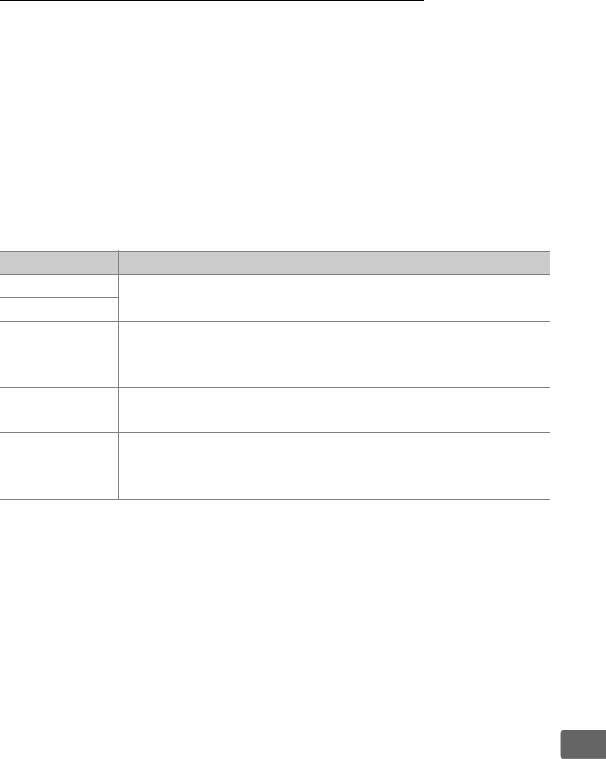
279
Q
Ethernet and Wireless Networks
The camera can be connected to Ethernet or wireless networks
using the built-in Ethernet port or an optional WT-6 or WT-5
wireless transmitter (0335).
Note that an Ethernet cable
(available separately from commercial sources) is required for an
Ethernet connection.
❚❚ Mode Selection
The following modes are available when the camera is connected
to a network using the built-in Ethernet port or an optional WT-6
or WT-5 wireless transmitter:
For more information, see the Network Guide, available for
download free of charge from the following website:
http://downloadcenter.imglib.com
For information on using optional wireless transmitters, refer to
the manuals provided with the device. Be sure to update all related
software to the latest versions.
Mode Function
FTP upload Upload existing photos and movies to a computer or ftp
server, or upload new photos as they are taken.
Image transfer
Camera
control
Control the camera using optional Camera Control Pro 2
software and save new photos and movies directly to the
computer.
HTTP server View and take pictures remotely using a browser-
equipped computer or smart device.
Synchronized
release
(wireless only)
Synchronize the shutter releases for multiple remote
cameras with a master camera.

280
Q
DDuring Transfer
Movies can not be recorded or played back in image transfer mode
(“image transfer mode” applies when images are being transferred via
an Ethernet or wireless network and when images remain to be sent).
Live view photography is not available during transfer if On is selected
for Silent live view photography in the photo shooting menu.
AMovies
Movies can be uploaded in transfer mode if the camera is connected to
an Ethernet or a wireless network and Auto send or Send folder is not
selected for Network > Options.
DHTTP Server Mode
The camera can not be used to record or view movies in http server
mode, while live view photography is not available if On is selected for
Silent live view photography in the photo shooting menu.
AWireless Transmitters
The principal differences between the WT-6 and WT-6A/B/C and the
WT-5 and WT-5A/B/C/D are in the number of channels supported;
unless otherwise stated, all references to the WT-6 also apply to the
WT-6A/B/C, while all references to the WT-5 also apply to the WT-5A/B/
C/D.
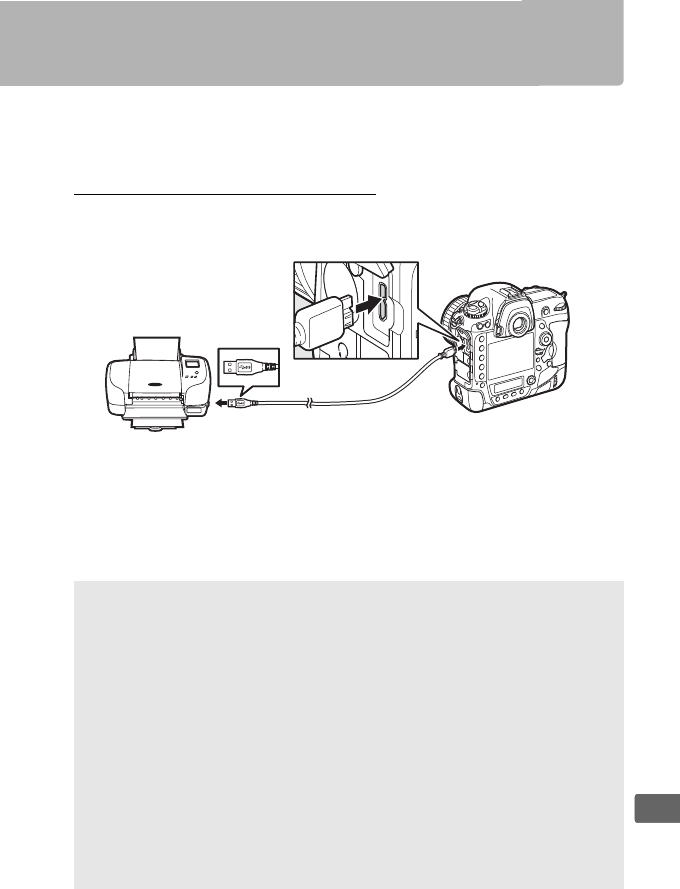
281
Q
Printing Photographs
Selected JPEG images can be printed on a PictBridge printer
(0380) connected directly to the camera.
Connecting the Printer
Connect the camera using the supplied USB cable.
Do not use
force or attempt to insert the connectors at an angle.
When the camera and printer are turned on, a welcome screen will
be displayed in the monitor, followed by a PictBridge playback
display.
DSelecting Photographs for Printing
Images created at image quality settings of NEF (RAW) or TIFF (RGB)
(092) can not be selected for printing.
JPEG copies of NEF (RAW)
images can be created using the NEF (RAW) processing option in the
retouch menu (0312).
APrinting Via Direct USB Connection
Be sure the battery is fully charged or use an optional AC adapter and
power connector.
When taking photographs to be printed via direct
USB connection, set Color space to sRGB (0292).
ASee Also
See page 367 for information on what to do if an error occurs during
printing.
282
Q
Printing Pictures One at a Time
1Display the desired picture.
Press 4 or 2 to view additional pictures.
Press the X button
to zoom in on the current frame (0261, press K to exit
zoom).
To view six pictures at a time, press the W (M) button.
Use the multi selector to highlight pictures, or press the
Xbutton to display the highlighted picture full frame.
To view
images in other locations, press W (M) when thumbnails are
displayed and select the desired card and folder as described
on page 247.
2Adjust printing options.
Press J to display the following items, then press 1 or 3 to
highlight an item and press 2 to view options (only options
supported by the current printer are listed; to use the default
option, select Printer default).
After selecting an option,
press J to return to the printer settings menu.
Option Description
Page size Choose a page size.
No. of copies
This option is listed only when pictures are printed one
at a time.
Press 1 or 3 to choose number of copies
(maximum 99).
Border Choose whether to frame photos in white borders.
Print date Choose whether to print the times and dates of
recordings on photos.
Cropping
This option is listed only when pictures are printed one
at a time.
To exit without cropping, highlight No
cropping and press J.
To crop the current picture,
highlight Crop and press 2.
A crop selection dialog
will be displayed; press X to increase the size of the
crop, W (M) to decrease, and use the multi selector to
position the crop.
Note that print quality may drop if
small crops are printed at large sizes.
283
Q
3Start printing.
Select Start printing and press J to start printing.
To cancel
before all copies have been printed, press J.
Printing Multiple Pictures
1Display the PictBridge menu.
Press the G button in the PictBridge playback display.
2Choose an option.
Highlight one of the following options and press 2.
•Print select: Select pictures for printing.
Use the multi selector
to highlight pictures (to view images in other locations, press
W (M) and select the desired card and folder as described on
page 247; to display the current picture full screen, press and
hold the X button) and, keeping the L(Z/Q) button
pressed, press 1 or 3 to choose the number of prints
(maximum 99).
To deselect a picture, set the number of
prints to zero.
•Index print: To create an index print of all JPEG pictures on the
memory card, proceed to Step 3.
Note that if the memory
card contains more than 256 pictures, only the first 256
images will be printed.
A warning will be displayed if the
page size selected in Step 3 is too small for an index print.
3Adjust printing options.
Adjust printer settings as described in Step 2 on page 282.
4Start printing.
Select Start printing and press J to start printing.
To cancel
before all copies have been printed, press J.
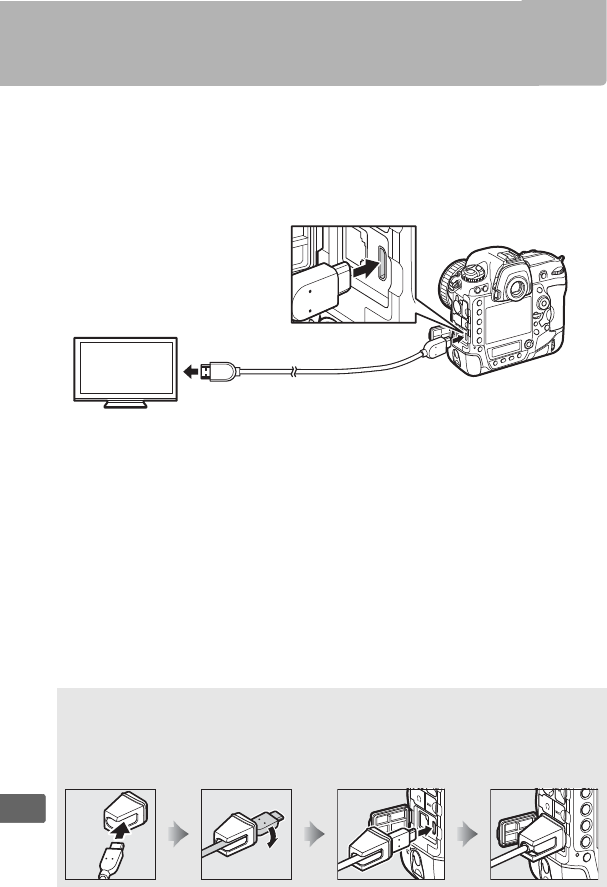
284
Q
Viewing Photographs on TV
The optional High-Definition Multimedia Interface (HDMI) cable
(0337) or a type C HDMI cable (available separately from third-
party suppliers) can be used to connect the camera to high-
definition video devices. Always turn the camera off before
connecting or disconnecting an HDMI cable.
Tune the device to the HDMI channel, then turn the camera on and
press the K button.
During playback, images will be displayed on
the television screen.
Volume can be adjusted using television
controls; the camera controls can not be used.
AThe HDMI Cable Clip
When using the optional Nikon HDMI cable, attach the supplied clip as
shown to prevent accidental disconnection. Do not use cable clips with
non-Nikon cables.
Connect to high-definition
device (choose cable with
connector for HDMI device)
Connect to camera
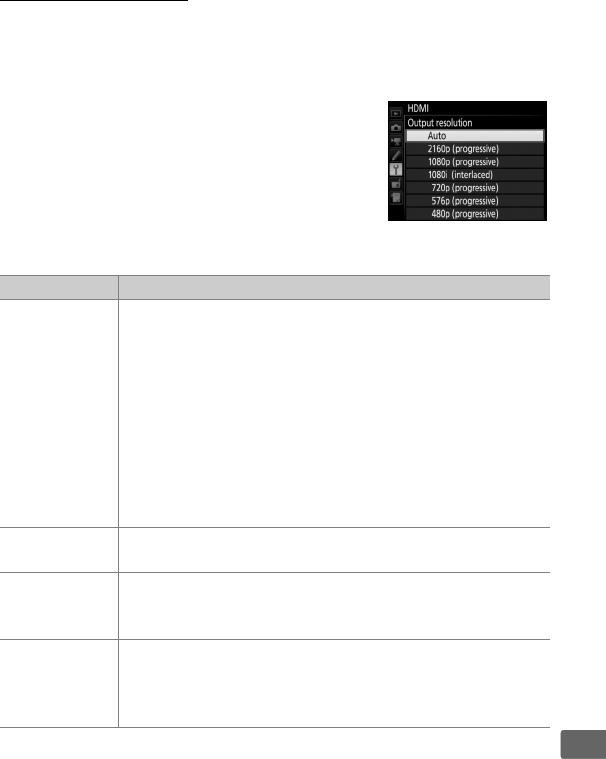
285
Q
HDMI Options
The HDMI option in the setup menu (0310) controls output
resolution and other advanced HDMI options.
❚❚ Output Resolution
Choose the format for images output to the
HDMI device.
If Auto is selected, the
camera will automatically select the
appropriate format.
❚❚ Advanced
Option Description
Output range
Auto is recommended in most situations.
If the camera
is unable to determine the correct RGB video signal
output range for the HDMI device, you can choose from
the following options:
•Limited range: For devices with an RGB video signal input
range of 16 to 235.
Choose this option if you notice
loss of detail in shadows.
•Full range: For devices with an RGB video signal input
range of 0 to 255.
Choose this option if shadows are
“washed out” or too bright.
Output display
size
Choose horizontal and vertical frame coverage for HDMI
output from 95% or 100%.
Live view on-
screen display
If Off is selected when the camera is connected to an
HDMI device, shooting information will not be displayed
in the monitor during live view photography.
Dual monitor
Choose On to mirror the HDMI display on the camera
monitor, Off to turn the camera monitor off to save
power.
Dual monitor turns on automatically when Live
view on-screen display is Off.

286
Q
ATelevision Playback
Use of an AC adapter and power connector (available separately) is
recommended for extended playback.
If the edges of photographs are
not visible in the television display, select 95% for HDMI > Advanced >
Output display size (0285).
AVoice Memo Options > Audio Output (0310)
Set HDMI to play back voice memos on the HDMI device.
ASlide Shows
The Slide show option in the playback menu can be used for
automated playback (0288).
AHDMI and Live View
When the camera is connected via an HDMI cable, HDMI displays can be
used for live view photography and movie recording (055, 68).
AUsing Third-Party Recording Devices
The following settings are recommended when using third-party
recorders:
•HDMI > Advanced > Output display size: 100%
•HDMI > Advanced > Live view on-screen display: Off
U
287
U
Menu List
This section lists the options available in the camera menus.
For
more information, see the Menu Guide.
DThe Playback Menu:
Managing Images
Delete
Selected Delete multiple images (0268).
All
Playback folder (defaults to All)
(Folder name) Choose a folder for playback.
All
Current
Hide image
Select/set Hide or reveal images.
Hidden images
are displayed only in the “Hide image”
menu and cannot be played back.
Deselect all
Playback display options
Basic photo info Choose the information available in the
playback photo information display
(0252).
Focus point
Additional photo info
None (image only)
Highlights
RGB histogram
Shooting data
Overview
288
U
Copy image(s)
Select source Copy pictures from one memory card to
another.
This option is only available
when two memory cards are inserted in
the camera.
Select image(s)
Select destination folder
Copy image(s)?
Image review (defaults to Off)
On Choose whether pictures are
automatically displayed in the monitor
immediately after shooting (042).
Off
After delete (defaults to Show next)
Show next Choose the picture displayed after an
image is deleted.
Show previous
Continue as before
After burst, show (defaults to Last image in burst)
First image in burst Choose whether the camera displays the
first or the last photo in the burst after
photos are taken in continuous release
mode.
Last image in burst
Auto image rotation (defaults to On)
On Choose whether to record camera
orientation when taking photographs.
Off
Rotate tall (defaults to On)
On Choose whether to rotate “tall” (portrait-
orientation) pictures for display during
playback (0248).
Off
Slide show
Start View a slide show of the pictures in the
current playback folder.
Image type
Frame interval
Audio playback
289
U
CThe Photo Shooting Menu:
Shooting Options
Photo shooting menu bank
A Recall photo shooting menu settings
previously stored in a photo shooting
menu bank.
Changes to settings are
stored in the current bank.
B
C
D
Extended photo menu banks (defaults to Off)
On Choose whether photo shooting menu
banks store exposure mode, shutter
speed (exposure modes S and M),
aperture (modes A and M), and flash
mode.
Off
Storage folder
Rename Select the folder in which subsequent
images will be stored.
Select folder by number
Select folder from list
File naming
File naming Choose the three-letter prefix used in
naming the image files in which
photographs are stored.
The default
prefix is “DSC”.
Role played by card in Slot 2 (defaults to Overflow)
Overflow Choose the role played by the card in
Slot 2 when two memory cards are
inserted in the camera (097).
Backup
RAW Slot 1 - JPEG Slot 2
290
U
Flash control
Flash control mode Choose the flash control mode for
optional flash units mounted on the
camera accessory shoe or adjust settings
for wireless flash photography.
Wireless flash options
Remote flash control
Radio remote flash info
Image area
Choose image area Choose the image area (087).
Auto DX crop
Image quality (defaults to JPEG normal)
NEF (RAW) + JPEG fine★Choose a file format and compression
ratio (image quality, 092). The
compression for options indicated by a
star (“★”) prioritizes quality, while that
for images without a star gives priority to
reducing file size.
NEF (RAW) + JPEG fine
NEF (RAW) + JPEG normal★
NEF (RAW) + JPEG normal
NEF (RAW) + JPEG basic★
NEF (RAW) + JPEG basic
NEF (RAW)
JPEG fine★
JPEG fine
JPEG normal★
JPEG normal
JPEG basic★
JPEG basic
TIFF (RGB)
Image size
JPEG/TIFF Choose the image size, in pixels (095).
Separate options are available for JPEG/
TIFF and for NEF (RAW) images.
NEF (RAW)
291
U
NEF (RAW) recording
NEF (RAW) compression Choose the type of compression and the
bit depth for NEF (RAW) images (094).
NEF (RAW) bit depth
ISO sensitivity settings
ISO sensitivity Adjust ISO sensitivity settings for
photographs (0124, 126).
Auto ISO sensitivity control
White balance (defaults to Auto)
Auto Match white balance to the light source
(0159).
Incandescent
Fluorescent
Direct sunlight
Flash
Cloudy
Shade
Choose color temp.
Preset manual
Set Picture Control (defaults to Standard)
Standard Choose how new photos will be
processed.
Select according to the type
of scene or your creative intent (0179).
Neutral
Vivid
Monochrome
Portrait
Landscape
Flat
Manage Picture Control
Save/edit Create custom Picture Controls (0184).
Rename
Delete
Load/save
292
U
Color space (defaults to sRGB)
sRGB Choose a color space for photographs.
Adobe RGB
Active D-Lighting (defaults to Off)
Auto Preserve details in highlights and
shadows, creating photographs with
natural contrast (0187).
Extra high 2
Extra high 1
High
Normal
Low
Off
Long exposure NR (defaults to Off)
On Reduce “noise” (bright spots or fog) in
photos taken at slow shutter speeds.
Off
High ISO NR (defaults to Normal)
High Reduce “noise” (randomly-spaced bright
pixels) in photos taken at high ISO
sensitivities.
Normal
Low
Off
Vignette control (defaults to Normal)
High Reduce the drop in brightness at the
edges of photographs when using type
G, E, and D lenses (PC lenses excluded).
The effect is most noticeable at
maximum aperture.
Normal
Low
Off
Auto distortion control (defaults to Off)
On Reduce barrel distortion when shooting
with wide-angle lenses and to reduce
pin-cushion distortion when shooting
with long lenses.
Off
293
U
Auto bracketing set (defaults to AE & flash)
AE & flash Choose the setting or settings bracketed
when auto bracketing is in effect
(0146).
AE only
Flash only
WB bracketing
ADL bracketing
Multiple exposure
Multiple exposure mode Record from two to ten NEF (RAW)
exposures as a single photograph
(0227).
Number of shots
Overlay mode
HDR (high dynamic range)
HDR mode Preserve details in highlights and
shadows when photographing high-
contrast scenes (0189).
Exposure differential
Smoothing
Interval timer shooting
Start Take photographs at the selected
interval until the specified number of
shots has been recorded (0234).
Start options
Interval
No. of intervals×shots/interval
Exposure smoothing
Silent live view photography (defaults to Off)
On Mute shutter sounds when
photographing in live view.
Off
294
U
1The Movie Shooting Menu:
Movie Shooting Options
Reset movie shooting menu
Yes Select Ye s to restore movie shooting
menu options to their default values.
No
File naming
Choose the three-letter prefix used in
naming the image files in which movies
are stored.
The default prefix is “DSC”.
Destination (defaults to Slot 1)
Slot 1 Choose the slot to which movies are
recorded.
Slot 2
Image area
Choose image area Choose the image area (069).
Auto DX crop
Frame size/frame rate (defaults to 1920×1080; 60p)
3840×2160; 30p Choose movie frame size (in pixels) and
frame rate (067).
3840×2160; 25p
3840×2160; 24p
1920×1080; 60p
1920×1080; 50p
1920×1080; 30p
1920×1080; 25p
1920×1080; 24p
1280× 720; 60p
1280× 720; 50p
1920×1080; 60p crop
1920×1080; 50p crop
1920×1080; 30p crop
1920×1080; 25p crop
1920×1080; 24p crop
295
U
Movie quality (defaults to High quality)
High quality Choose movie quality (067).
Normal
Movie ISO sensitivity settings
ISO sensitivity (mode M) Adjust ISO sensitivity settings for movies.
Auto ISO control (mode M)
Maximum sensitivity
White balance (defaults to Same as photo settings)
Same as photo settings Choose the white balance for movies
(0159).
Select Same as photo settings
to use the option currently selected for
photos.
Auto
Incandescent
Fluorescent
Direct sunlight
Cloudy
Shade
Choose color temp.
Preset manual
Set Picture Control (defaults to Same as photo settings)
Same as photo settings Choose a Picture Control for movies
(0179).
Select Same as photo settings
to use the option currently selected for
photos.
Standard
Neutral
Vivid
Monochrome
Portrait
Landscape
Flat
Manage Picture Control
Save/edit Create custom Picture Controls (0184).
Rename
Delete
Load/save
296
U
Microphone sensitivity (defaults to Auto sensitivity)
Auto sensitivity Adjust microphone sensitivity.
Manual sensitivity
Microphone off
Frequency response (defaults to Wide range)
Wide range Choose microphone frequency
response.
Vocal range
Wind noise reduction (defaults to Off)
On Choose whether to enable the built-in
microphone’s low-cut filter to reduce
wind noise.
Off
High ISO NR (defaults to Normal)
High Reduce “noise” (randomly-spaced bright
pixels) in movies recorded at high ISO
sensitivities.
Normal
Low
Off
Time-lapse movie
Start The camera automatically takes photos
at selected intervals to create a silent
time-lapse movie (074).
Available with
viewfinder photography only.
Interval
Shooting time
Exposure smoothing
Flicker reduction (defaults to Auto)
Auto Reduce flicker and banding when
shooting under fluorescent or mercury-
vapor lighting during live view.
50 Hz
60 Hz
297
U
ACustom Settings:
Fine-Tuning Camera Settings
Custom settings bank
A Recall Custom Settings previously stored
in a Custom Settings menu bank.
Changes to settings are stored in the
current bank.
B
C
D
a Autofocus
a1 AF-C priority selection (defaults to Release)
Release When AF-C is selected for viewfinder
photography, this option controls
whether photographs can be taken
whenever the shutter-release button is
pressed (release priority) or only when
the camera is in focus (focus priority).
Focus + release
Release + focus
Focus
a2 AF-S priority selection (defaults to Focus)
Release When AF-S is selected for viewfinder
photography, this option controls
whether photographs can be taken only
when the camera is in focus (focus
priority) or whenever the shutter-release
button is pressed (release priority).
Focus
a3 Focus tracking with lock-on
Blocked shot AF response Control how autofocus adjusts to
changes in the distance to the subject
when AF-C is selected for viewfinder
photography.
Subject motion
298
U
a4 3D-tracking face-detection (defaults to Off)
On Choose whether the camera detects and
focuses on faces when 3D-tracking is
selected for AF-area mode (0104).
Off
a5 3D-tracking watch area (defaults to Normal)
Wide Choose the area monitored by pressing
the shutter-release button halfway when
3D-tracking is selected for AF-area mode
(0104).
Normal
a6 Number of focus points (defaults to 55 points)
55 points Choose the number of focus points
available for manual focus-point
selection in the viewfinder.
15 points
a7 Store by orientation (defaults to Off)
Focus point Choose whether the viewfinder stores
the focus points and AF-area mode for
vertical and horizontal orientations
separately.
Focus point and AF-area mode
Off
a8 AF activation (defaults to Shutter/AF-ON)
Shutter/AF-ON Choose whether the camera focuses
when the shutter-release button is
pressed halfway.
If AF-ON only is
selected, the camera will not focus when
the shutter-release button is pressed
halfway.
AF-ON only
a9 Limit AF-area mode selection
Single-point AF Choose the AF-area modes that can be
selected using the AF-mode button and
sub-command dial in viewfinder
photography (0104).
Dynamic-area AF (25 points)
Dynamic-area AF (72 points)
Dynamic-area AF (153 points)
3D-tracking
Group-area AF
Auto-area AF
299
U
a10 Autofocus mode restrictions (defaults to No restrictions)
AF-S Choose the autofocus modes available in
viewfinder photography (0101).
AF-C
No restrictions
a11 Focus point wrap-around (defaults to No wrap)
Wrap Choose whether viewfinder focus-point
selection “wraps around” from one edge
of the display to another.
No wrap
a12 Focus point options
Manual focus mode Adjust settings for the focus-point
display in the viewfinder.
Focus point brightness
Dynamic-area AF assist
b Metering/exposure
b1 ISO sensitivity step value (defaults to 1/3 step)
1/3 step Select the increments used when
making adjustments to ISO sensitivity.
1/2 step
1 step
b2 EV steps for exposure cntrl (defaults to 1/3 step)
1/3 step Select the increments used when
making adjustments to shutter speed,
aperture, and bracketing.
1/2 step
1 step
b3 Exp./flash comp. step value (defaults to 1/3 step)
1/3 step Select the increments used when
making adjustments to exposure and
flash compensation.
1/2 step
1 step
300
U
b4 Easy exposure compensation (defaults to Off)
On (Auto reset) Choose whether exposure
compensation can be adjusted solely by
rotating a command dial, without
pressing the E button.
On
Off
b5 Matrix metering (defaults to Face detection on)
Face detection on Choose Face detection on to enable
face detection when shooting portraits
with matrix metering during viewfinder
photography (0129).
Face detection off
b6 Center-weighted area (defaults to 12 mm)
8 mm Choose the size of the area given the
most weight when center-weighted
metering is used in viewfinder
photography.
If a non-CPU lens is
attached, the size of the area is fixed at
12 mm.
12 mm
15 mm
20 mm
Average
b7 Fine-tune optimal exposure
Matrix metering Fine-tune exposure for each metering
method.
Higher values produce brighter
exposures, lower values darker
exposures.
Center-weighted metering
Spot metering
Highlight-weighted metering
c Timers/AE lock
c1 Shutter-release button AE-L (defaults to Off)
On (half press) Choose whether exposure locks when
the shutter-release button is pressed.
On (burst mode)
Off
301
U
c2 Standby timer (defaults to 6 s)
4 s Choose how long the camera continues
to meter exposure when no operations
are performed (041).
6 s
10 s
30 s
1 min
5 min
10 min
30 min
No limit
c3 Self-timer
Self-timer delay Choose the length of the shutter release
delay, the number of shots taken, and
the interval between shots in self-timer
mode.
Number of shots
Interval between shots
c4 Monitor off delay
Playback Choose how long the monitor remains
on when no operations are performed.
Menus
Information display
Image review
Live view
d Shooting/display
d1 Continuous shooting speed
Continuous high-speed Choose the frame advance rate for
CH(continuous high-speed) and
CL(continuous low-speed) modes.
Continuous low-speed
d2 Max. continuous release (defaults to 200)
1–200 Choose the maximum number of shots
that can be taken in a single burst in
continuous release mode.
302
U
d3 Limit release mode selection
Single frame Choose the release modes that can be
selected by pressing the S button and
rotating the main command dial
(0119).
Continuous L
Continuous H
Quiet shutter release
Self-timer
Mirror up
d4 Sync. release mode options (defaults to Sync)
Sync Choose whether the shutter releases on
remote cameras synchronize with the
shutter release on the master camera.
No sync
d5 Exposure delay mode (defaults to Off)
3 s In situations where the slightest camera
movement can blur pictures, select 1s,
2s, or 3s to delay shutter release until
approximately one, two, or three
seconds after the mirror is raised.
2 s
1 s
Off
d6 Electronic front-curtain shutter (defaults to Disable)
Enable Enable or disable the electronic front-
curtain shutter in MUP mode, eliminating
blur caused by shutter motion.
Disable
d7 File number sequence (defaults to On)
On Choose how the camera assigns file
numbers.
Off
Reset
d8 Viewfinder grid display (defaults to Off)
On Choose whether to display a framing
grid in the viewfinder.
Off
d9 LCD illumination (defaults to Off)
On Choose whether the control panel and
button backlights are illuminated while
the standby timer is active.
Off
303
U
e Bracketing/flash
e1 Flash sync speed (defaults to 1/250 s)
1/250 s (Auto FP) Choose a flash sync speed.
1/250 s
1/200 s
1/160 s
1/125 s
1/100 s
1/80 s
1/60 s
AFixing Shutter Speed at the Flash Sync Speed Limit
To fix shutter speed at the sync speed limit in shutter-priority auto or
manual exposure modes, select the next shutter speed after the slowest
possible shutter speed (30 s or %).
An X (flash sync indicator) will be
displayed in the viewfinder and top control panel.
AAuto FP High-Speed Sync
Auto FP high-speed sync allows the flash to be used at the highest
shutter speed supported by the camera, making it possible to choose
the maximum aperture for reduced depth of field even when the
subject is backlit in bright sunlight.
The information display flash mode
indicator shows “FP” when auto FP high-speed sync is active.
304
U
e2 Flash shutter speed (defaults to 1/60 s)
1/60 s Choose the slowest shutter available
when the flash is used in modes P and A.
1/30 s
1/15 s
1/8 s
1/4 s
1/2 s
1 s
2 s
4 s
8 s
15 s
30 s
e3 Exposure comp. for flash (defaults to Entire frame)
Entire frame Choose how the camera adjusts flash
level when exposure compensation is
used.
Background only
e4 Auto M ISO sensitivity control
(defaults to Subject and background)
Subject and background Choose whether auto ISO sensitivity
control for flash photography is adjusted
to correctly expose both the subject and
background or the main subject only.
Subject only
e5 Modeling flash (defaults to On)
On Choose whether optional CLS-
compatible flash units (0328) emit a
modeling flash when the camera
Pv button is pressed during viewfinder
photography.
Off
305
U
e6 Auto bracketing (mode M) (defaults to Flash/speed)
Flash/speed Choose the settings affected when
exposure/flash bracketing is enabled in
exposure mode M.
Flash/speed/aperture
Flash/aperture
Flash only
e7 Bracketing order (defaults to MTR > under > over)
MTR > under > over Choose the bracketing order for
exposure, flash, and white balance
bracketing.
Under > MTR > over
f Controls
f1 Custom control assignment
Preview button Choose the roles assigned to camera
controls, either alone or in combination
with the command dials.
Preview button + y
Fn1 button
Fn1 button + y
Fn2 button
Fn2 button + y
Fn button for vertical shooting
Fn button for vertical shooting
+ y
Fn3 button
AF-ON button
Sub-selector
Sub-selector center
Sub-selector center + y
AF-ON button for vertical
shooting
Multi selector for vertical
shooting
BKT button + y
Movie record button + y
Lens focus function buttons
306
U
f2 Multi selector center button
Shooting mode Choose the role played by the center of
the multi selector.
Playback mode
Live view
f3 Shutter spd & aperture lock
Shutter speed lock Lock shutter speed at the value currently
selected in mode S or M, or aperture at
the value currently selected in mode A or
M.
Aperture lock
f4 Customize command dials
Reverse rotation Choose the roles played by the main and
sub-command dials.
Change main/sub
Aperture setting
Menus and playback
Sub-dial frame advance
f5 Multi selector (defaults to Do nothing)
Restart standby timer Choose whether using the multi selector
activates the standby timer (041).
Do nothing
f6 Release button to use dial (defaults to No)
Yes Selecting Ye s allows adjustments that
are normally made by holding a button
and rotating a command dial to be made
by rotating the command dial after the
button is released.
Setting ends when
the button is pressed again, the shutter-
release button is pressed halfway, or the
standby timer expires.
No
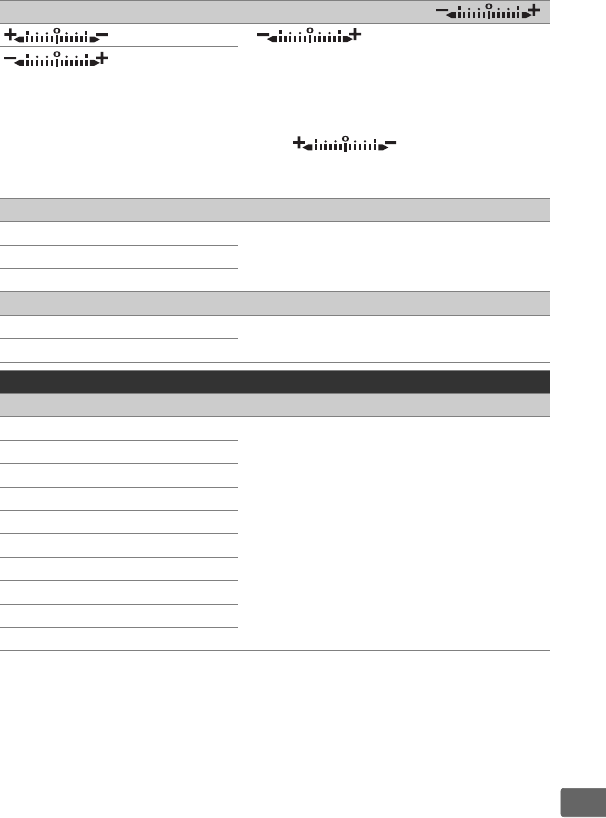
307
U
f7 Reverse indicators (defaults to )
If (W) is selected, the
exposure indicators in the top control
panel and information display are
displayed with negative values on the
left and positive values on the right.
Select (V) to display
positive values on the left and negative
values on the right.
f8 Live view button options (defaults to Enable)
Enable The a button can be disabled to prevent
live view starting accidentally.
Enable (standby timer active)
Disable
f9 D switch (defaults to LCD backlight (D))
LCD backlight (D) Choose displays illuminated by rotating
the power switch to D.
D and information display
g Movie
g1 Custom control assignment
Preview button Choose the roles assigned to camera
controls, either alone or in combination
with the command dials, when the live
view selector is rotated to 1 in live view.
Note that if Record movies is selected
for Shutter-release button, the shutter-
release button can not be used for any
operation other than recording movies.
Preview button + y
Fn1 button
Fn1 button + y
Fn2 button
Fn2 button + y
Fn3 button
Sub-selector center
Sub-selector center + y
Shutter-release button
308
U
BThe Setup Menu: Camera Setup
Format memory card
Slot 1 To begin formatting, choose a memory
card slot and select Yes.
Note that
formatting permanently deletes all
pictures and other data on the card in the
selected slot.
Before formatting, be sure
to make backup copies as required.
Slot 2
Language
Choose a language for camera menus
and messages.
Time zone and date
Time zone Change time zones, set the camera clock,
choose the date display order, and turn
daylight saving time on or off.
Date and time
Date format
Daylight saving time
Monitor brightness
Menus/playback Adjust the brightness of the menu,
playback, and live view displays.
Live view
Monitor color balance
Adjust monitor color balance.
Virtual horizon
View a virtual horizon based on
information from the camera tilt sensor.
Information display (defaults to Auto)
Auto Adjust the information display for
different viewing conditions.
Manual
AF fine-tune
AF fine-tune (On/Off) Fine-tune focus for different lens types.
AF tuning is not recommended in most
situations and may interfere with normal
focus; use only when required.
Saved value
Default
List saved values
309
U
Non-CPU lens data
Lens number Record the focal length and maximum
aperture of non-CPU lenses, allowing
them to be used with functions normally
reserved for CPU lenses (0241).
Focal length (mm)
Maximum aperture
Clean image sensor
Clean now Vibrate the low-pass filter to remove dust
(0343).
Clean at startup/shutdown
Lock mirror up for cleaning
Lock the mirror up so that dust can be
removed from the low-pass filter with a
blower (0345).
Not available when the
battery is low (J or lower) or when
Enable is selected for Network >
Network connection in the setup menu.
Image Dust Off ref photo
Start Acquire reference data for the Image
Dust Off option in Capture NX-D (0ii).
Clean sensor and then start
Image comment
Attach comment Add a comment to new photographs as
they are taken.
Comments can be
viewed as metadata in ViewNX-i or
Capture NX-D (0ii).
Input comment
Copyright information
Attach copyright information Add copyright information to new
photographs as they are taken.
Copyright information can be viewed as
metadata in ViewNX-i or Capture NX-D
(0ii).
Artist
Copyright
IPTC
Edit/save Create or modify IPTC presets and
choose whether to embed them in new
photos.
Delete
Auto embed during shooting
Load/save
310
U
Voice memo options
Voice memo Adjust voice memo settings (0270).
Voice memo overwrite
Voice memo control
Audio output
Beep
Volume Choose the pitch and volume of the
beep.
Pitch
Touch controls
Enable/disable touch controls Adjust touch control settings (012).
Full-frame playback flicks
HDMI
Output resolution Adjust settings for connection to HDMI
devices (0285).
Advanced
Location data
Standby timer Adjust settings for connection to GPS
devices (0245).
Position
Set clock from satellite
Wireless remote (WR) options
LED lamp Adjust LED lamp and link mode settings
for optional WR-R10 wireless remote
controllers.
Link mode
Assign remote (WR) Fn button (defaults to None)
Preview Choose the role played by the Fn button
on optional wireless remote controllers.
FV lock
AE/AF lock
AE lock only
AE lock (Reset on release)
AF lock only
AF-ON
MDisable/enable
+ NEF (RAW)
Live view
None
311
U
Network
Choose hardware Adjust ftp and network settings for
Ethernet and wireless LANs.
Network connection
Network settings
Options
Slot empty release lock (defaults to Enable release)
Release locked Choose whether the shutter can be
released when no memory card is
inserted.
Enable release
Battery info
View information on the battery
currently inserted in the camera.
Save/load settings
Save settings Save camera settings to or load camera
settings from a memory card.
Settings
files can be shared with other D5
cameras.
Load settings
Reset all settings
Reset Reset all settings apart from the options
selected for Language and Time zone
and date in the setup menu.
Do not reset
Firmware version
View the current camera firmware
version.
AReset All Settings
Copyright information, IPTC presets, and other user-generated entries
are also reset.
We recommend that you save settings using the Save/
load settings option in the setup menu before performing a reset.
312
U
NThe Retouch Menu:
Creating Retouched Copies
NEF (RAW) processing
Create JPEG copies of NEF (RAW)
photographs (0315).
Trim
Create a cropped copy of the selected
photograph (0317).
Resize
Select image Create small copies of selected
photographs.
Choose destination
Choose size
D-Lighting
Brighten shadows.
Choose for dark or
backlit photographs.
Red-eye correction
Correct “red-eye” in photos taken with a
flash.
Straighten
Create straightened copies.
Copies can
be straightened by up to 5° in increments
of approximately 0.25°.
Distortion control
Auto Create copies with reduced peripheral
distortion.
Use to reduce barrel
distortion in photos taken with wide-
angle lenses or pin-cushion distortion in
photos taken with telephoto lenses.
Select Auto to let the camera correct
distortion automatically.
Manual
313
U
Perspective control
Create copies that reduce the effects of
perspective taken from the base of a tall
object.
Filter effects
Skylight Create the effects of the following filters:
•Skylight: A skylight filter effect
•Warm filter: A warm tone filter effect
Warm filter
Monochrome
Black-and-white Copy photographs in Black-and-white,
Sepia, or Cyanotype (blue and white
monochrome).
Sepia
Cyanotype
Image overlay
Image overlay combines two existing
NEF (RAW) photographs to create a
single picture that is saved separately
from the originals (0318).
Image
overlay can only be selected by pressing
G and selecting N tab.
Edit movie
Choose start/end point Trim footage to create edited copies of
movies or save selected frames as JPEG
stills (082).
Save selected frame
Side-by-side comparison
Compare retouched copies to the
original photographs.
Side-by-side
comparison is only available if the
retouch menu is displayed by pressing 2
while pressing and holding the J button
or by pressing i and selecting Retouch
in full-frame playback when a retouched
image or original is displayed.

314
U
OMy Menu/mRecent Settings
Add items
PLAYBACK MENU Create a custom menu of up to 20 items
selected from the playback, photo
shooting, movie shooting, Custom
Setting, setup, and retouch menus.
PHOTO SHOOTING MENU
MOVIE SHOOTING MENU
CUSTOM SETTING MENU
SETUP MENU
RETOUCH MENU
Remove items
Delete items from My Menu.
Rank items
Rank items in My Menu.
Choose tab (defaults to MY MENU)
MY MENU Choose the menu displayed in the “My
Menu/Recent Settings” tab.
Select
RECENT SETTINGS to display a menu
listing the 20 most recently-used
settings.
RECENT SETTINGS
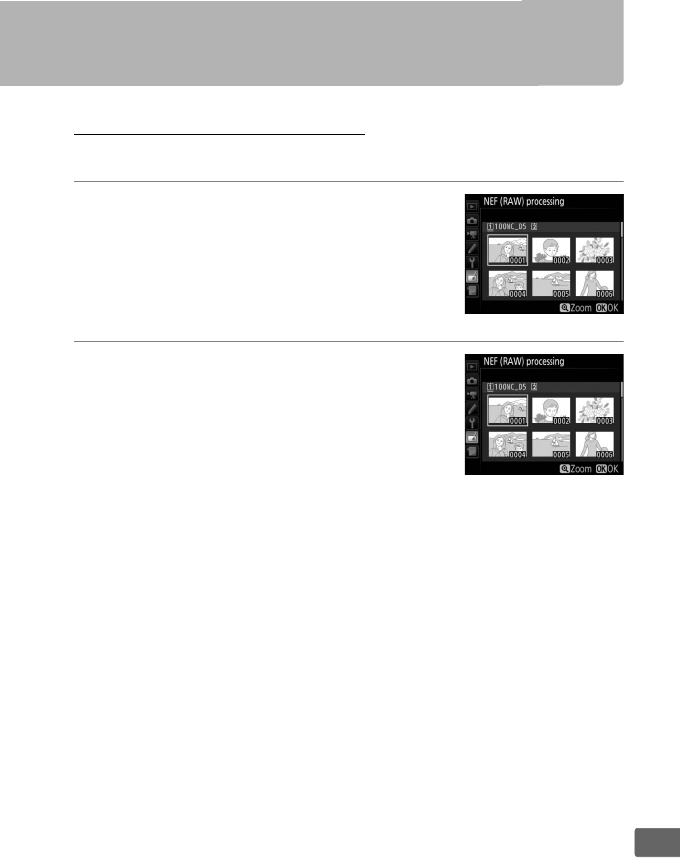
315
U
Retouch Menu Options
NEF (RAW) Processing
Create JPEG copies of NEF (RAW) photographs.
1Select NEF (RAW) processing.
Highlight NEF (RAW) processing in the
retouch menu and press 2 to display a
picture selection dialog listing only NEF
(RAW) images created with this camera.
2Select a photograph.
Use the multi selector to highlight a
photograph (to view the highlighted
photograph full frame, press and hold the
X button).
Press J to select the
highlighted photograph and proceed to
the next step.
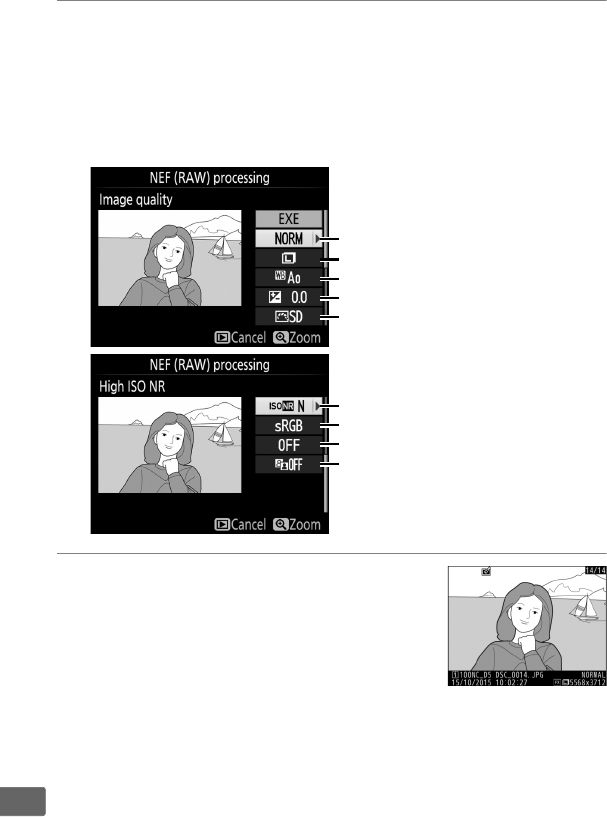
316
U
3Choose settings for the JPEG copy.
Adjust the settings listed below.
Note that white balance and
vignette control are not available with multiple exposures or
pictures created with image overlay and that exposure
compensation can only be set to values between –2 and
+2 EV.
4Copy the photograph.
Highlight EXE and press J to create a
JPEG copy of the selected photograph.
To exit without copying the photograph,
press the G button.
High ISO NR (0292)
Color space (0292)
Vignette control (0292)
D-Lighting (0312)
Image quality (092)
Image size (095)
White balance (0159)
Exposure compensation (0143)
Set Picture Control (0179)
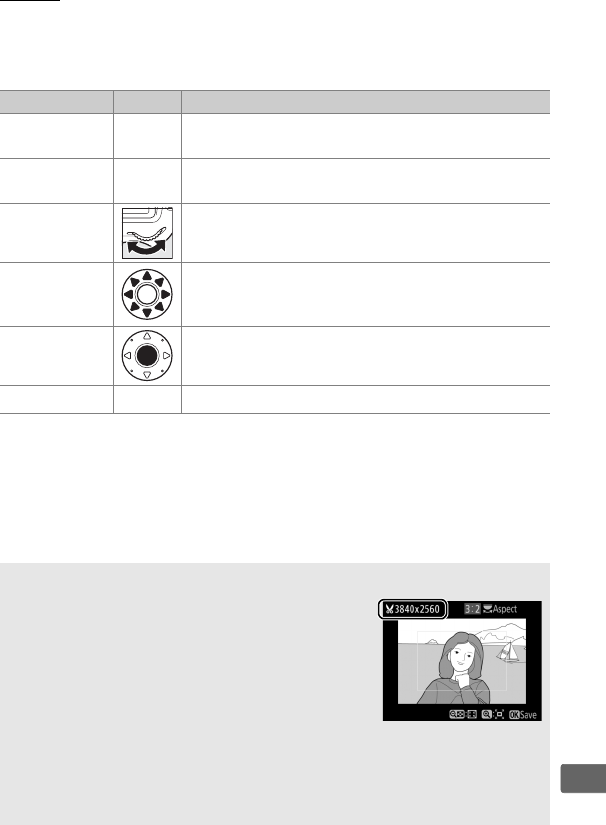
317
U
Trim
Create a cropped copy of the selected photograph.
The selected
photograph is displayed with the selected crop shown in yellow;
create a cropped copy as described in the following table.
To Use Description
Reduce size of
crop W (M)Press W (M) to reduce the size of the crop.
Increase size of
crop XPress X to increase the size of the crop.
Change crop
aspect ratio
Rotate the main command dial to choose the
aspect ratio.
Position crop
Use multi selector to position the crop.
Press
and hold to move the crop rapidly to the desired
position.
Preview crop Press center of multi selector to preview
cropped image.
Create copy JSave the current crop as a separate file.
ATrim: Image Quality and Size
Copies created from NEF (RAW), NEF
(RAW) + JPEG, or TIFF (RGB) photos have an
image quality (092) of JPEG fine★; cropped
copies created from JPEG photos have the same
image quality as the original.
The size of the
copy varies with crop size and aspect ratio and
appears at upper left in the crop display.
AViewing Cropped Copies
Playback zoom may not be available when cropped copies are
displayed.
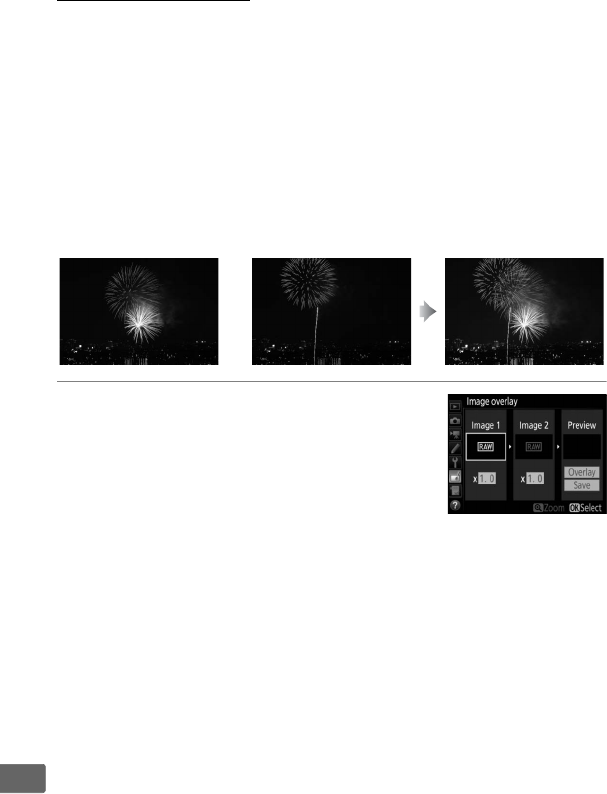
318
U
Image Overlay
Image overlay combines two existing NEF (RAW) photographs to
create a single picture that is saved separately from the originals;
the results, which make use of RAW data from the camera image
sensor, are noticeably better than photographs combined in an
imaging application.
The new picture is saved at current image
quality and size settings; before creating an overlay, set image
quality and size (092, 95; all options are available).
To create a
NEF (RAW) copy, choose an image quality of NEF (RAW) and an
image size of Large (the overlay will be saved as a large NEF/RAW
image even if Small or Medium is selected).
1Select Image overlay.
Highlight Image overlay in the retouch
menu and press 2.
The dialog shown at
right will be displayed, with Image 1
highlighted; press J to display a picture
selection dialog listing only large NEF
(RAW) images created with this camera (small and medium
NEF/RAW images can not be selected).
+
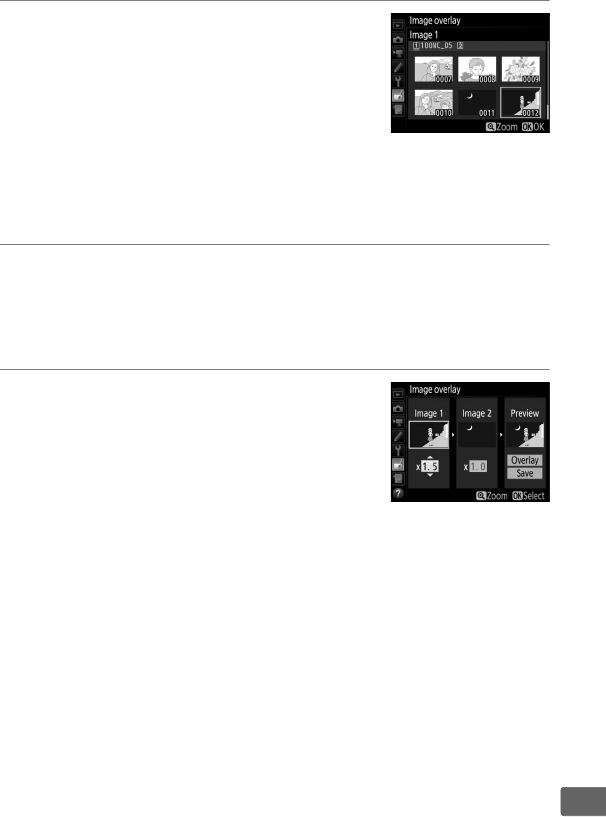
319
U
2Select the first image.
Use the multi selector to highlight the
first photograph in the overlay.
To view
the highlighted photograph full frame,
press and hold the X button.
To view
images in other locations, press W (M)
and select the desired card and folder as described on page
247.
Press J to select the highlighted photograph and return
to the preview display.
3Select the second image.
The selected image will appear as Image 1.
Highlight Image 2
and press J, then select the second photo as described in
Step 2.
4Adjust gain.
Highlight Image 1 or Image 2 and
optimize exposure for the overlay by
pressing 1 or 3 to select the gain from
values between 0.1 and 2.0.
Repeat for
the second image.
The default value is
1.0; select 0.5 to halve gain or 2.0 to double it.
The effects of
gain are visible in the Preview column.
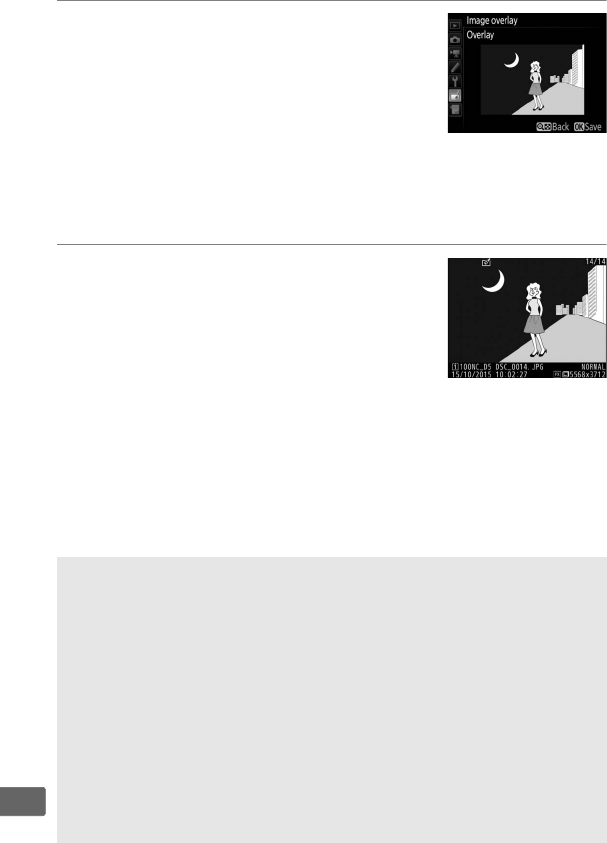
320
U
5Preview the overlay.
To preview the composition as shown at
right, press 4 or 2 to place the cursor in
the Preview column, then press 1 or 3
to highlight Overlay and press J (note
that colors and brightness in the preview
may differ from the final image).
To save the overlay without
displaying a preview, select Save.
To return to Step 4 and
select new photos or adjust gain, press W (M).
6Save the overlay.
Press J while the preview is displayed to
save the overlay.
After an overlay is
created, the resulting image will be
displayed full-frame in the monitor.
DImage Overlay
Only large NEF (RAW) photographs with the same image area and bit-
depth can be combined.
The overlay has the same photo info (including date of recording,
metering, shutter speed, aperture, exposure mode, exposure
compensation, focal length, and image orientation) and values for
white balance and Picture Control as the photograph selected for
Image 1.
The current image comment is appended to the overlay when
it is saved; copyright information, however, are not copied.
Overlays
saved in NEF (RAW) format use the compression selected for NEF (RAW)
compression in the NEF (RAW) recording menu and have the same bit
depth as the original images.
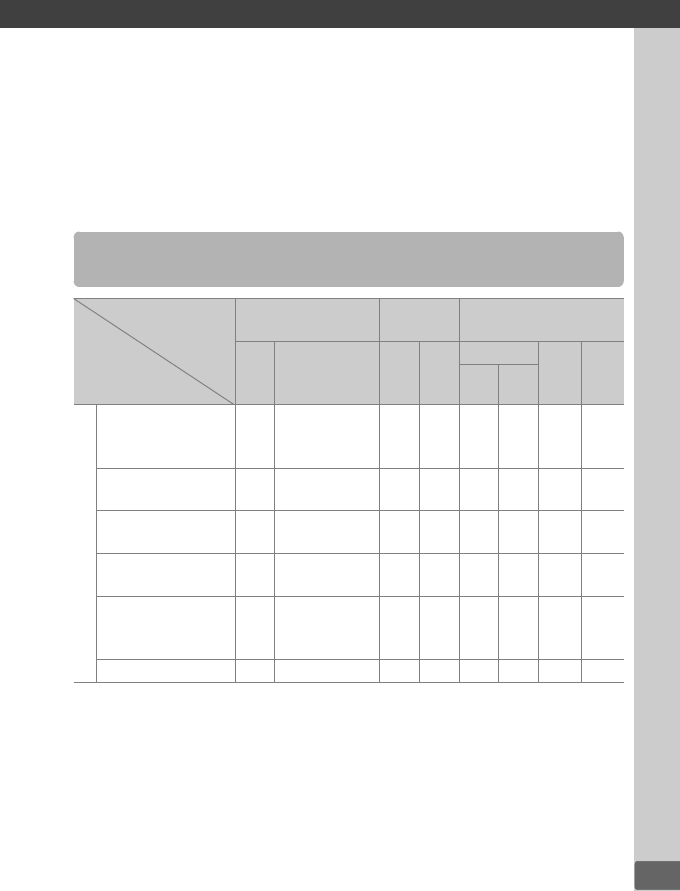
n
321
n
Technical Notes
Read this chapter for information on compatible accessories,
cleaning and storing the camera, and what to do if an error
message is displayed or you encounter problems using the camera.
Compatible Lenses
Camera setting Focus mode Exposure
mode Metering system
Lens/accessory
AF
M (with
electronic
rangefinder) 1
P
S
A
M
L2M3
N4t5
3D Color
CPU lenses6
Type G, E, or D AF
NIKKOR 7
AF-S, AF-I NIKKOR
✔✔✔✔✔—✔8✔
PC-E NIKKOR
series —✔9✔9✔9✔9—✔8, 9 ✔
PC Micro 85mm
f/2.8D 10 —✔9—✔11 ✔—✔8, 9 ✔
AF-S / AF-I
Teleconver ter 12 ✔✔✔✔✔—✔8✔
Other AF NIKKOR
(except lenses for
F3AF)
✔13 ✔13 ✔✔—✔✔
8—
AI-P NIKKOR — ✔14 ✔✔—✔✔
8—
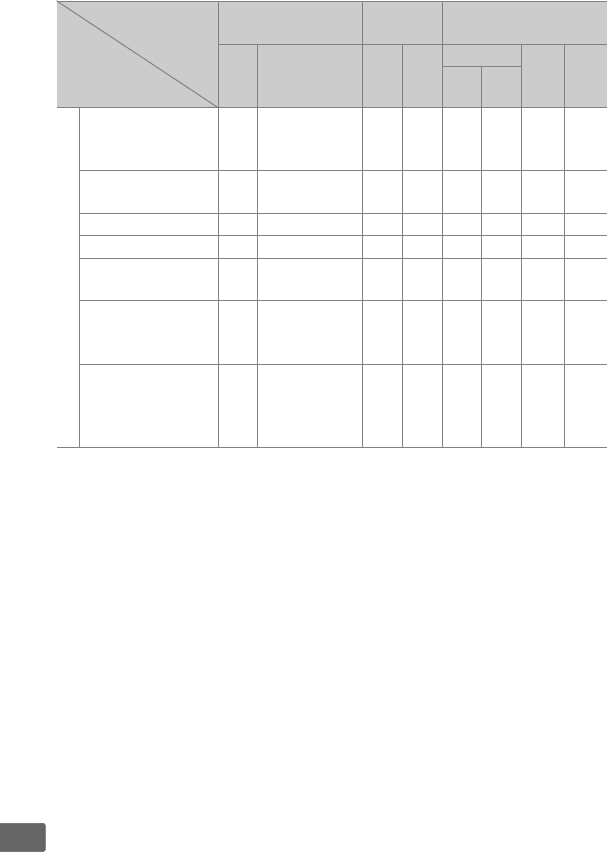
322
n
1 Manual focus available with all lenses.
2Matrix.
3 Center-weighted.
4Spot.
5 Highlight-weighted.
6 IX-NIKKOR lenses can not be used.
7 Vibration Reduction (VR) supported with VR lenses.
8 Spot metering meters selected focus point (0129).
9 Can not be used with shifting or tilting.
10 The camera’s exposure metering and flash control systems do not work properly
when shifting and/or tilting the lens, or when an aperture other than the
maximum aperture is used.
11 Manual exposure mode only.
12 For information on the focus points available for autofocus and electronic
rangefinding, see page 100.
Non-CPU lenses 15
AI-, AI-modified
NIKKOR or Nikon
Series E lenses 16
—✔14 —✔17 —✔18 ✔19 —
Medical-NIKKOR
120mm f/4 —✔—✔20 ——— —
Reflex-NIKKOR — — — ✔17 ——✔19 —
PC-NIKKOR — ✔9—✔21 —— ✔—
AI-type
Teleconverter 22 —✔23 —✔17 —✔18 ✔19 —
PB-6 Bellows
Focusing
Attachment 24
—✔23 —✔25 —— ✔—
Auto extension
rings
(PK-series 11A, 12,
or 13; PN-11)
—✔23 —✔17 —— ✔—
Camera setting Focus mode Exposure
mode Metering system
Lens/accessory
AF
M (with
electronic
rangefinder) 1
P
S
A
M
L2M3
N4t5
3D Color

323
n
13 When focusing at minimum focus distance with AF 80–200mm f/2.8, AF
35–70mm f/2.8, AF 28–85mm f/3.5–4.5 <New>, or AF 28–85mm f/3.5–4.5 lens at
maximum zoom, in-focus indicator may be displayed when image on matte
screen in viewfinder is not in focus.
Adjust focus manually until image in
viewfinder is in focus.
14 With maximum aperture of f/5.6 or faster.
15 Some lenses can not be used (see page 325).
16 Range of rotation for AI 80–200mm f/2.8 ED tripod mount is limited by camera
body.
Filters can not be exchanged while AI 200–400mm f/4 ED is mounted on
camera.
17 If maximum aperture is specified using Non-CPU lens data (0241), aperture
value will be displayed in viewfinder and top control panel.
18 Can be used only if lens focal length and maximum aperture are specified using
Non-CPU lens data (0241).
Use spot or center-weighted metering if desired
results are not achieved.
19 For improved precision, specify lens focal length and maximum aperture using
Non-CPU lens data (0241).
20 Can be used in manual exposure mode at shutter speeds slower than flash sync
speed by one step or more.
21 Exposure determined by presetting lens aperture.
In aperture-priority auto
exposure mode, preset aperture using lens aperture ring before performing AE
lock and shifting lens.
In manual exposure mode, preset aperture using lens
aperture ring and determine exposure before shifting lens.
22 Exposure compensation required when used with AI 28–85mm f/3.5–4.5, AI
35–105mm f/3.5–4.5, AI 35–135mm f/3.5–4.5, or AF-S 80–200mm f/2.8D.
23 With maximum effective aperture of f/5.6 or faster.
24 Requires PK-12 or PK-13 auto extension ring.
PB-6D may be required
depending on camera orientation.
25 Use preset aperture.
In aperture-priority auto exposure mode, set aperture
using focusing attachment before determining exposure and taking
photograph.
• PF-4 Reprocopy Outfit requires PA-4 Camera Holder.
• Noise in the form of lines may appear during autofocus at high ISO
sensitivities.
Use manual focus or focus lock.
Lines may also appear at high
ISO sensitivities when aperture is adjusted during movie recording or live
view photography.
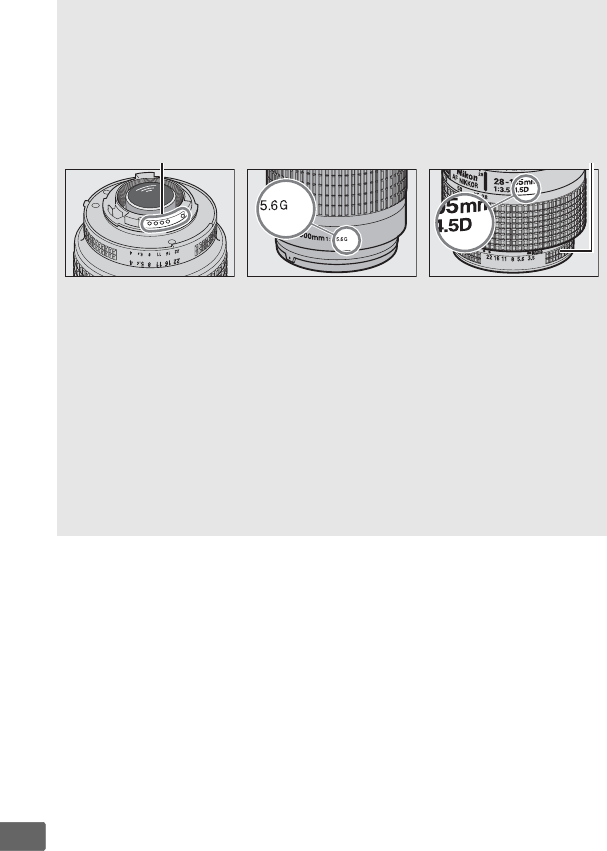
324
n
ARecognizing CPU and Type G, E, and D Lenses
CPU lenses (particularly types G, E, and D) are recommended, but note
that IX-NIKKOR lenses can not be used.
CPU lenses can be identified by
the presence of CPU contacts, type G, E, and D lenses by a letter on the
lens barrel.
Type G and E lenses are not equipped with a lens aperture
ring.
CPU contacts Aperture ring
CPU lens Type G/E lens Type D lens
ALens f-number
The f-number given in lens names is the maximum aperture of the lens.
ACompatible Non-CPU Lenses
Non-CPU lens data (0241) can be used to enable many of the features
available with CPU lenses, including color matrix metering; if no data are
provided, center-weighted metering will be used in place of color matrix
metering, while if the maximum aperture is not provided, the camera
aperture display will show the number of stops from maximum aperture
and the actual aperture value must be read off the lens aperture ring.

325
n
DIncompatible Accessories and Non-CPU Lenses
The following can NOT be used with the D5:
•TC-16A AF teleconverter
•Non-AI lenses
• Lenses that require the AU-1 focusing
unit (400mm f/4.5, 600mm f/5.6,
800mm f/8, 1200mm f/11)
• Fisheye (6mm f/5.6, 7.5mm f/5.6,
8mm f/8, OP 10mm f/5.6)
•2.1cm f/4
•Extension Ring K2
• 180–600mm f/8 ED (serial numbers
174041–174180)
• 360–1200mm f/11 ED (serial numbers
174031–174127)
• 200–600mm f/9.5 (serial numbers
280001–300490)
• AF lenses for the F3AF (AF 80mm
f/2.8, AF 200mm f/3.5 ED,
AF Teleconverter TC-16)
• PC 28mm f/4 (serial number 180900
or earlier)
• PC 35mm f/2.8 (serial numbers
851001–906200)
• PC 35mm f/3.5 (old type)
• Reflex 1000mm f/6.3 (old type)
• Reflex 1000mm f/11 (serial numbers
142361–143000)
• Reflex 2000mm f/11 (serial numbers
200111–200310)
AVR Lenses
The lenses listed below are not recommended for long exposures or
photographs taken at high ISO sensitivities, as due to the design of the
vibration reduction (VR) control system the resulting photos may be
marred by fog.
We recommend turning vibration reduction off when
using other VR lenses.
• AF-S VR Zoom-Nikkor 24–120mm
f/3.5–5.6G IF-ED
• AF-S VR Zoom-Nikkor 70–200mm
f/2.8G IF-ED
• AF-S VR Zoom-Nikkor 70–300mm
f/4.5–5.6G IF-ED
• AF-S VR Nikkor 200mm f/2G IF-ED
• AF-S VR Nikkor 300mm f/2.8G IF-ED
• AF-S NIKKOR 16–35mm f/4G ED VR
• AF-S NIKKOR 24–120mm f/4G ED VR
• AF-S NIKKOR 28–300mm f/3.5–5.6G
ED VR
• AF-S NIKKOR 400mm f/2.8G ED VR
• AF-S NIKKOR 500mm f/4G ED VR
• AF-S DX VR Zoom-Nikkor 18–200mm
f/3.5–5.6G IF-ED
• AF-S DX NIKKOR 16–85mm f/3.5–5.6G
ED VR
• AF-S DX NIKKOR 18–200mm
f/3.5–5.6G ED VR II
• AF-S DX Micro NIKKOR 85mm f/3.5G
ED VR
• AF-S DX NIKKOR 55–300mm
f/4.5–5.6G ED VR
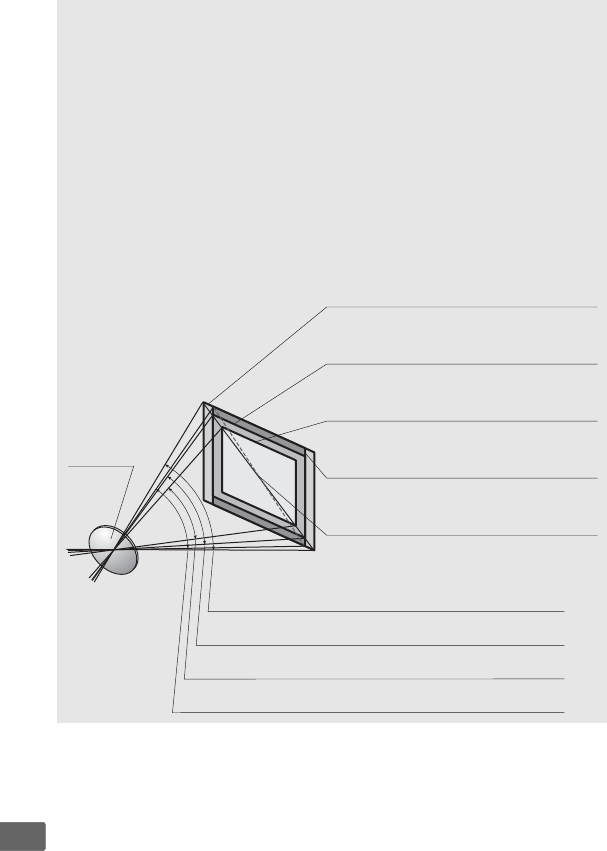
326
n
ACalculating Angle of View
The camera can be used with Nikon lenses for 35 mm (135) format
cameras.
If a 35 mm format lens is attached, the angle of view will be the
same as a frame of 35 mm film (35.9 × 23.9 mm).
If desired, the Image area option in the photo shooting menu can be
used to choose an angle of view different from that of the current lens.
If
a 35 mm format lens is attached, you can reduce the angle of view by
1.5× or 1.2× by selecting DX (24×16) or 1.2× (30×20) to expose a
smaller area, or change the aspect ratio by selecting 5:4 (30×24).
The
sizes of the areas exposed by different Image area options are shown
below.
Lens
FX (36×24) picture size (35.9 × 23.9 mm,
equivalent to 35 mm format camera)
Picture diagonal
DX (24×16) picture size
(23.5 × 15.7 mm, equivalent to DX
format camera)
5 : 4 (30×24) picture size
(29.9 × 23.9 mm)
Angle of view (FX (36×24);
35 mm format)
Angle of view (DX (24 × 16); DX format)
Angle of view (5:4 (30×24))
1.2× (30×20) picture size
(29.9 × 19.9 mm)
Angle of view (1.2× (30×20))
327
n
ACalculating Angle of View (Continued)
The DX (24×16) angle of view is about 1.5 times smaller than the 35 mm
format angle of view, while the 1.2× (30×20) angle of view is about 1.2
times smaller and the 5 : 4 (30×24) angle of view is about 1.1 times
smaller.
To calculate the focal length of lenses in 35 mm format when
DX (24 × 16) is selected, multiply the focal length of the lens by about
1.5, by about 1.2 when 1.2× (30×20) is selected, or by about 1.1 when
5 : 4 (30×24) is selected (for example, the effective focal length of a
50mm lens in 35 mm format would be approximately 75 mm when
DX (24 × 16) is selected, 60 mm when 1.2× (30×20) is selected, or
55 mm when 5:4(30×24) is selected).
328
n
The Nikon Creative Lighting
System (CLS)
Nikon’s advanced Creative Lighting System (CLS) offers improved
communication between the camera and compatible flash units
for improved flash photography.
❚❚ CLS-Compatible Flash Units
The camera can be used with the following CLS-compatible flash
units:
•The SB-5000, SB-910, SB-900, SB-800, SB-700, SB-600, SB-500, SB-400,
SB-300, and SB-R200:
SB-5000
1, 2
SB-910
,
SB-900
1
SB-800
SB-700
1
SB-600
SB-500
3
SB-400
4
SB-300
4
SB-R200
5
Guide No.
(ISO 100)
6
34.5/113 34/111 38/125 28/92 30/98 24/78 21/69 18/59 10/33
1 If a color filter is attached to the SB-5000, SB-910, SB-900, or SB-700 when v
or N (flash) is selected for white balance, the camera will automatically detect
the filter and adjust white balance appropriately.
2 Radio AWL available with optional WR-R10 wireless remote controller (0335).
3 Users of the LED light can set camera white balance to v or N for optimal
results.
4 Wireless flash control is not available.
5 Controlled remotely using optional SB-5000, SB-910, SB-900, SB-800, SB-700,
or SB-500 flash unit or SU-800 wireless Speedlight commander.
6 m/ft, SB-5000, SB-910, SB-900, SB-800, SB-700, and SB-600 at 35 mm zoom
head position; SB-5000, SB-910, SB-900, and SB-700 with standard
illumination.
AGuide Number
To calculate the range of the flash at full power, divide the Guide
Number by the aperture.
If, for example, the flash unit has a Guide
Number of 34 m or 111 ft (ISO 100); its range at an aperture of f/5.6 is
34÷5.6 or about 6.1 meters (or in feet, 111÷5.6=approximately 19 ft
10 in.).
For each twofold increase in ISO sensitivity, multiply the Guide
Number by the square root of two (approximately 1.4).
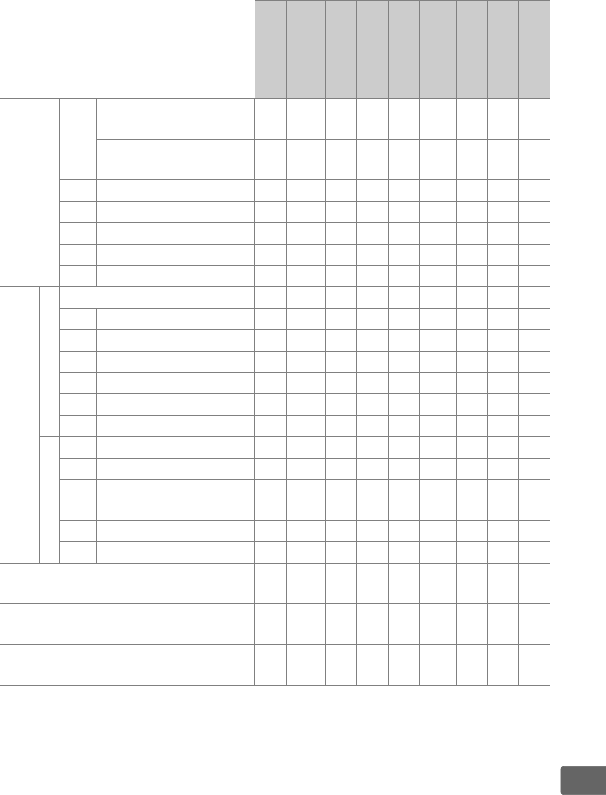
329
n
The following features are available with CLS-compatible flash
units:
SB-5000
SB-910, SB-900,
SB-800
SB-700
SB-600
SB-500
SU-800
SB-R200
SB-400
SB-300
Single flash
i-TTL
i-TTL balanced fill-flash for
digital SLR 1z z zzz——zz
Standard i-TTL fill-flash for
digital SLR z2z2zz
2z——zz
qAAuto aperture zz
3——— — ———
A Non-TTL auto
—
4
z3——— — ———
GN Distance-priority manual zzz—— — ———
M Manual zzzzz
5——z5z5
RPT Repeating flash zz——— — ———
Optical Advanced
Wireless Lighting
Master
Remote flash control zzz—z5z———
i-TTL i-TTL zzz—z5————
[A:B] Quick wireless flash control z—z——z6———
qAAuto aperture zz——— — ———
A Non-TTL auto ——
7——— — ———
M Manual zzz—z5————
RPT Repeating flash zz——— — ———
Remote
i-TTL i-TTL z z zzz —z——
[A:B] Quick wireless flash control z z zzz —z——
qA/
A
Auto aperture/
Non-TTL auto z8z8——— — ———
M Manual z z zzz—z——
RPT Repeating flash z z zzz ————
Radio-controlled Advanced Wireless
Lighting z9— ——— — ———
Color Information Communication
(flash) z z zzz ——zz
Color Information Communication
(LED light) ————z————
330
n
1 Not available with spot metering.
2 Can also be selected with flash unit.
3qA/A mode selection performed on flash unit using custom settings.
Unless
lens data have been provided using the Non-CPU lens data option in the setup
menu, “A” will be selected when a non-CPU lens is used.
4 Unless lens data have been provided using the Non-CPU lens data option in
the setup menu, non-TTL auto will be selected when a non-CPU lens is used.
5 Can only be selected with camera.
6 Available only during close-up photography.
7 Unless lens data have been provided using the Non-CPU lens data option in
the setup menu, non-TTL auto (A) is used with non-CPU lenses, regardless of
mode selected with flash unit.
8Choice of qA and A depends on the option selected with master flash.
9 Supports the same features as remote flash units with optical AWL.
10 Available only in i-TTL, qA, A, GN, and M flash-control modes.
11 Available only in i-TTL flash control mode or when flash is set to emit monitor
pre-flashes in qA or A flash control mode.
12 Available only in commander mode.
13 Firmware updates for the SB-910 and SB-900 can be performed from the
camera.
•SU-800 Wireless Speedlight Commander: When mounted on a CLS-
compatible camera, the SU-800 can be used as a commander for
SB-5000, SB-910, SB-900, SB-800, SB-700, SB-600, SB-500, or
SB-R200 flash units in up to three groups.
The SU-800 itself is not
equipped with a flash.
Auto FP High-Speed Sync 10 z z zzz z z——
FV lock 11 z z zzz z zzz
AF-assist for multi-area AF zzzz—z12 ———
Red-eye reduction z z zzz ——z—
Camera modeling illumination z z zzz z z——
Unified flash control z———z——zz
Camera flash unit firmware update zz
13 z—z———z
SB-5000
SB-910, SB-900,
SB-800
SB-700
SB-600
SB-500
SU-800
SB-R200
SB-400
SB-300
331
n
❚❚ Other Flash Units
The following flash units can be used in non-TTL auto and manual
modes.
AModeling Illumination
CLS-compatible flash units emit a modeling flash when the camera Pv
button is pressed.
This feature can be used with Advanced Wireless
Lighting to preview the total lighting effect achieved with multiple flash
units.
Modeling illumination can be turned off using Custom Setting e5
(Modeling flash; 0304).
Flash unit SB-80DX,
SB-28DX,
SB-28, SB-26,
SB-25, SB-24 SB-50DX
SB-30, SB-27 1,
SB-22S, SB-22,
SB-20, SB-16B,
SB-15
SB-23, SB-29 2,
SB-21B2,
SB-29S 2
Flash mode
ANon-TTL auto ✔—✔—
MManual ✔✔✔✔
GRepeating flash ✔———
REAR Rear-curtain sync 3✔✔✔✔
1 Flash mode is automatically set to TTL and shutter-release is disabled.
Set
flash unit to A (non-TTL auto flash).
2 Autofocus is available with AF-S VR Micro-Nikkor 105mm f/2.8G IF-ED and
AF-S Micro NIKKOR 60mm f/2.8G ED lenses only.
3 Available when camera is used to select flash mode.
332
n
DNotes on Optional Flash Units
Refer to the flash unit manual for detailed instructions.
If the unit
supports CLS, refer to the section on CLS-compatible digital SLR
cameras.
The D5 is not included in the “digital SLR” category in the
SB-80DX, SB-28DX, and SB-50DX manuals.
i-TTL flash control can be used at ISO sensitivities between 100 and
12800.
At values over 12800, the desired results may not be achieved at
some ranges or aperture settings.
If the flash-ready indicator (M) flashes
for about three seconds after a photograph is taken in i-TTL or non-TTL
auto mode, the flash has fired at full power and the photograph may be
underexposed (CLS-compatible flash units only).
When an SC-series 17, 28, or 29 sync cable is used for off-camera flash
photography, correct exposure may not be achieved in i-TTL mode.
We
recommend that you select standard i-TTL fill-flash.
Take a test shot and
view the results in the monitor.
In i-TTL, use the flash panel or bounce adapter provided with the flash
unit.
Do not use other panels such as diffusion panels, as this may
produce incorrect exposure.
In exposure mode P, the maximum aperture (minimum f-number) is
limited according to ISO sensitivity, as shown below:
Maximum aperture at ISO equivalent of:
100 200 400 800 1600 3200 6400 12800
44.8 5.6 6.7 89.5 11 13
If the maximum aperture of the lens is smaller than given above, the
maximum value for aperture will be the maximum aperture of the lens.
Noise in the form of lines may appear in flash photographs taken with
an SD-9 or SD-8A power pack attached directly to the camera. Reduce
ISO sensitivity or increase the distance between the camera and the
power pack.
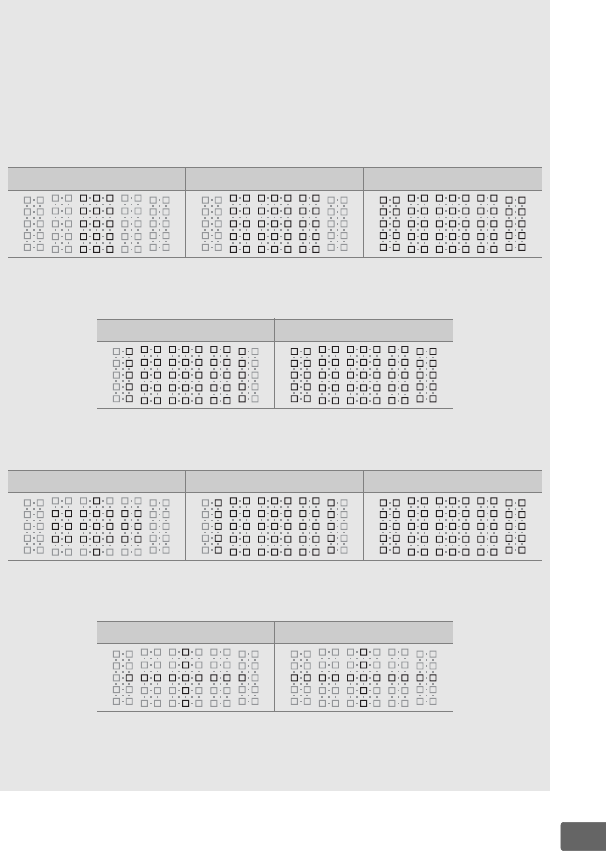
333
n
DNotes on Optional Flash Units (Continued)
The SB-5000, SB-910, SB-900, SB-800, SB-700, SB-600, SB-500, and
SB-400 provide red-eye reduction, while the SB-5000, SB-910, SB-900,
SB-800, SB-700, SB-600, and SU-800 provide AF-assist illumination with
the following restrictions:
•SB-5000: AF-assist illumination is available when 24–135 mm AF lenses
are used with the focus points shown below.
24–49 mm 50–84 mm 85–135 mm
•SB-910 and SB-900: AF-assist illumination is available when 17–135 mm
AF lenses are used with the focus points shown below.
17–19 mm 20–135 mm
•SB-800, SB-600, and SU-800: AF-assist illumination is available when 24–
105 mm AF lenses are used with the focus points shown below.
24–34 mm 35–49 mm 50–105 mm
•SB-700: AF-assist illumination is available when 24–135 mm AF lenses
are used with the focus points shown below.
24–27 mm 28–135 mm
Depending on the lens used and scene recorded, the in-focus indicator
(I) may be displayed when the subject is not in focus, or the camera
may be unable to focus and the shutter release will be disabled.
334
n
Other Accessories
At the time of writing, the following accessories were available for
the D5.
Power sources
•Rechargeable Li-ion Battery EN-EL18a (019, 22): EN-EL18
batteries can also be used.
Additional EN-EL18a batteries
are available from local retailers and Nikon service
representatives.
•Battery Charger MH-26a (019, 378): The MH-26a can be used
to recharge and calibrate EN-EL18a and EN-EL18 batteries.
•Power Connector EP-6, AC Adapter EH-6b: These accessories can
be used to power the camera for extended periods (EH-6a
and EH-6 AC adapters can also be used).
The EP-6 is
required to connect the EH-6b to the camera; see
page 340 for details.
Filters
• Filters intended for special-effects photography may
interfere with autofocus or the electronic rangefinder.
• The D5 can not be used with linear polarizing filters.
Use
the C-PL or C-PLII circular polarizing filter instead.
• Use Neutral Color (NC) filters to protect the lens.
• To prevent ghosting, use of a filter is not recommended
when the subject is framed against a bright light, or when
a bright light source is in the frame.
• Center-weighted metering is recommended with filters
with exposure factors (filter factors) over 1× (Y44, Y48,
Y52, O56, R60, X0, X1, C-PL, ND2S, ND4, ND4S, ND8, ND8S,
ND400, A2, A12, B2, B8, B12).
See the filter manual for
details.

335
n
Wireless LAN
adapters
(0279)
•Wireless Transmitter WT-6/WT-5: Connect the WT-6 or WT-5 to
the camera’s peripheral connector to upload pictures over
a wireless network, to control the camera from a
computer running Camera Control Pro 2 (available
separately), or to take and browse pictures remotely from
a computer or smart device.
Note: A wireless network and some basic network knowledge is
required when using a wireless transmitter.
Be sure to update
the wireless transmitter software to the latest version.
Wireless
remote
controllers
•Wireless Remote Controller WR-R10/WR-T10: When a WR-R10
wireless remote controller is attached to ten-pin remote
terminal using a WR-A10 adapter, the camera can be
controlled wirelessly using a WR-T10 wireless remote
controller.
The WR-R10 can also be used to control radio-
controlled flash units.
•Wireless Remote Controller WR-1: WR-1 units are used with
WR-R10 or WR-T10 wireless remote controllers or with
other WR-1 remote controllers, with the WR-1 units
functioning as either transmitters or receivers.
For
example, a WR-1 can be attached to the ten-pin remote
terminal and used as a receiver, allowing the shutter to be
released remotely by another WR-1 acting as a
transmitter.
Note: Be sure the firmware for the WR-R10 and WR-1 has been
updated to the latest version. For information on firmware
updates, see the Nikon website for your area.

336
n
Viewfinder
eyepiece
accessories
•Rubber Eyecup DK-19: The DK-19 makes the image in the
viewfinder easier to see, preventing eye fatigue.
•Diopter-Adjustment Viewfinder Lens DK-17C: To accommodate
individual differences in vision, viewfinder lenses are
available with diopters of –3, –2, 0, +1, and +2 m–1.
Use
diopter adjustment lenses only if the desired focus can
not be achieved with the built-in diopter adjustment
control (–3 to +1 m–1).
Test diopter adjustment lenses
before purchase to ensure that the desired focus can be
achieved.
•Magnifying Eyepiece DK-17M: The DK-17M magnifies the view
through the viewfinder by approximately 1.2 × for greater
precision when framing.
•Eyepiece Magnifier DG-2: The DG-2 magnifies the scene at the
center of the viewfinder for more accurate focus.
DK-18
eyepiece adapter (available separately) required.
•Eyepiece Adapter DK-18: The DK-18 is used when attaching
the DG-2 magnifier or DR-3 right-angle viewing
attachment to the D5.
•Eyepiece Adapter DK-27: A DK-27 is supplied with the camera.
•Antifog Finder Eyepiece DK-14/Antifog Finder Eyepiece DK-17A:
These viewfinder eyepieces prevent fogging in humid or
cold conditions.
•Fluorine-Coated Finder Eyepiece DK-17F: A DK-17F is supplied
with the camera. The protective glass features an easy-to-
clean fluorine coating on both surfaces.
•Right-Angle Viewing Attachment DR-5/Right-Angle Viewing
Attachment DR-4: The DR-5 and DR-4 attach to the
viewfinder eyepiece at a right angle, allowing the image in
the viewfinder to be viewed from above when the camera
is in the horizontal shooting position.
The DR-5 supports
diopter adjustment and can also magnify the view
through the viewfinder by 2 × for greater precision when
framing (note that the edges of the frame will not be
visible when the view is magnified).
337
n
HDMI cables
(0284)
HDMI Cable HC-E1: An HDMI cable with a type C connector for
connection to the camera and a type A connector for
connection to HDMI devices.
Software
•Camera Control Pro 2: Control the camera remotely from a
computer and save photographs directly to the computer
hard disk.
When Camera Control Pro 2 is used to capture
photographs directly to the computer, a PC connection
indicator (c) will appear in the top control panel.
Note: Use the latest versions of Nikon software; see the websites
listed on page xix for the latest information on supported
operating systems.
At default settings, Nikon
Message Center 2 will periodically check for updates to Nikon
software and firmware while you are logged in to an account
on the computer and the computer is connected to the
Internet.
A message is automatically displayed when an
update is found.
Body caps
Body Cap BF-1B/Body Cap BF-1A: The body cap keeps the mirror,
viewfinder screen, and low-pass filter free of dust when a
lens is not in place.
Remote
terminal
accessories
The D5 is equipped with a ten-pin remote terminal (02) for
remote control and automatic photography.
The terminal is
provided with a cap, which protects the contacts when the
terminal is not in use.
The following accessories can be used
(all lengths are approximate):
•Remote Cord MC-22/MC-22A: Remote shutter release with blue,
yellow, and black terminals for connection to a remote
shutter-triggering device, allowing control via sound or
electronic signals (length 1 m/3 ft 3 in.).
•Remote Cord MC-30/MC-30A: Remote shutter release; can be
used to reduce camera shake (length 80 cm/2 ft 7 in.).
•Remote Cord MC-36/MC-36A: Remote shutter release; can be
used for interval timer photography or to reduce camera
shake or keep the shutter open during a time exposure
(length 85 cm/2 ft 9 in.).

338
n
Remote
terminal
accessories
•Extension Cord MC-21/MC-21A: Can be connected to ML-3 or
MC-series 20, 22, 22A, 23, 23A, 25, 25A, 30, 30A, 36, or 36A.
Only one MC-21 or MC-21A can be used at a time (length
3m/9ft 10in.).
•Connecting Cord MC-23/MC-23A: Connects two cameras with
ten-pin remote terminals for simultaneous operation
(length 40 cm/1 ft 4 in.).
•Adapter Cord MC-25/MC-25A: Ten-pin to two-pin adapter cord
for connection to devices with two-pin terminals,
including the MW-2 radio control set, MT-2
intervalometer, and ML-2 modulite control set (length
20 cm/8 in.).
•WR Adapter WR-A10: An adapter used to connect WR-R10
wireless remote controllers to cameras with ten-pin
remote terminals.
•GPS Unit GP-1/GP-1A (0244): Record latitude, longitude,
altitude, and UTC time with pictures.
•GPS Adapter Cord MC-35 (0244): This 35 cm (1 ft 2 in.) cable
connects the camera to older GARMIN eTrex- and geko-
series GPS units that conform to version 2.01 or 3.01 of the
National Marine Electronics Association NMEA0183 data
format.
Only models that support PC interface cable
connections are supported; the MC-35 can not be used to
connect GPS units via USB.
The units connect to the
MC-35 using a cable with a D-sub 9-pin connector
provided by the manufacturer of the GPS device; see the
MC-35 instruction manual for details.
Before turning the
camera on, set the GPS device to NMEA mode
(4800 baud); for more information, see the
documentation provided with the GPS device.
•Modulite Remote Control Set ML-3: Allows infrared remote
control at ranges of up to 8 m (26 ft 3 in.).
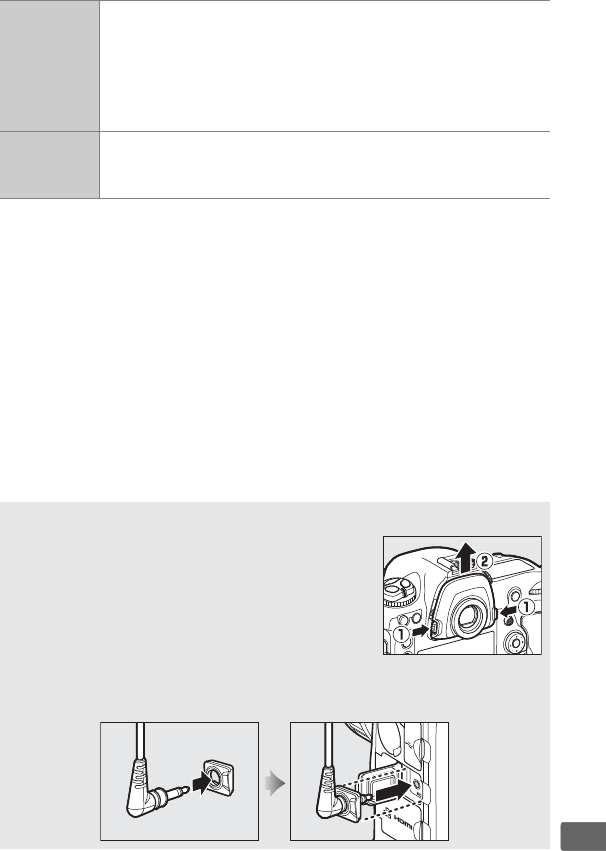
339
n
Microphones
•Stereo Microphone ME-1: Connect the ME-1 to the camera
microphone jack to record stereo sound and reduce the
chance of picking up equipment noise (such as the
sounds produced by the lens during autofocusing; 064).
•Wireless Microphone ME-W1: Use this wireless Bluetooth
microphone for off-camera recording.
Connector
cover
Connector Cover for Stereo Mini-Plug Cables UF-6: Prevents
accidental disconnection of mini-plug cables for optional
ME-1 stereo microphones.
Availability may vary with country or region.
See our website or brochures for
the latest information.
ARemoving the Eyepiece Adapter
Press and lift the latches on either side (q) and
remove the adapter as shown (w).
AConnector Covers for Stereo Mini-Plug Cables
The cover attaches as shown.
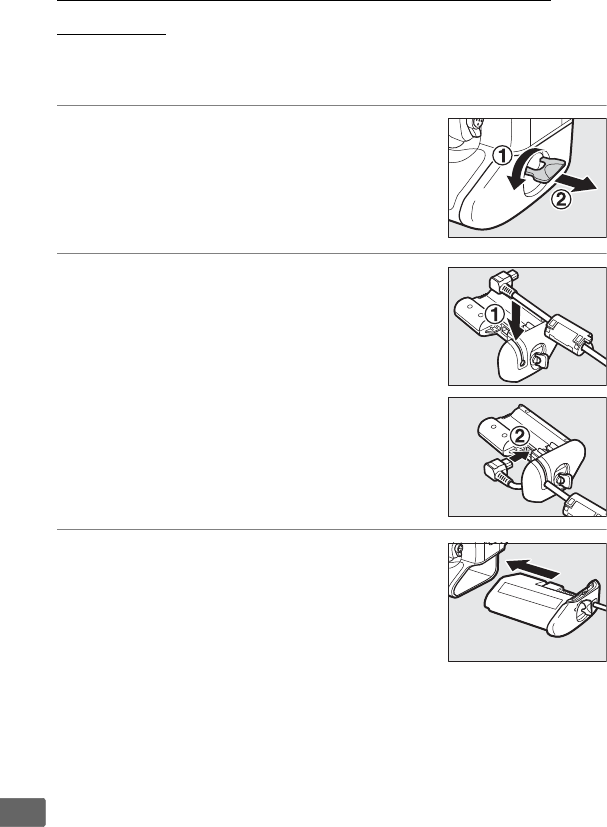
340
n
Attaching a Power Connector and AC
Adapter
Turn the camera off before attaching an optional power connector
and AC adapter.
1Remove the battery-chamber cover.
Lift the battery-chamber cover latch, turn
it to the open (A) position (q), and
remove the BL-6 battery-chamber cover
(w).
2Connect the AC adapter.
Pass the DC cable over the power
connector cable guide (q) and slide it
down until it is at the bottom of the slot,
and then insert the DC plug into the DC IN
connector (w).
3Insert the power connector.
Fully insert the power connector into the
battery chamber as shown.
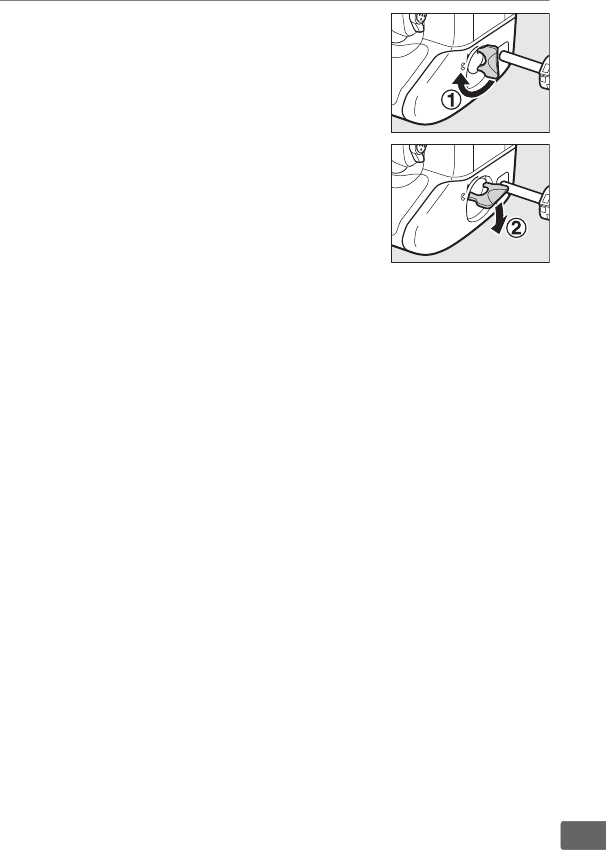
341
n
4Latch the power connector.
Rotate the latch to the closed position
(q) and fold it down as shown (w).
To
prevent the power connector being
dislodged during operation, be sure that
it is securely latched.
The battery level is not displayed in the
top control panel while the camera is
powered by the AC adapter and power
connector.
342
n
Caring for the Camera
Storage
When the camera will not be used for an extended period, remove
the battery and store it in a cool, dry area with the terminal cover in
place.
To prevent mold or mildew, store the camera in a dry, well-
ventilated area.
Do not store your camera with naphtha or
camphor moth balls or in locations that:
• are poorly ventilated or subject to humidities of over 60%
• are next to equipment that produces strong electromagnetic
fields, such as televisions or radios
• are exposed to temperatures above 50 °C (122 °F) or below
–10 °C (14 °F)
Cleaning
Do not use alcohol, thinner, or other volatile chemicals.
Camera body
Use a blower to remove dust and lint, then wipe gently with
a soft, dry cloth.
After using the camera at the beach or
seaside, wipe off sand or salt with a cloth lightly dampened in
distilled water and dry thoroughly.
Important: Dust or other
foreign matter inside the camera may cause damage not
covered under warranty.
Lens, mirror,
and
viewfinder
These glass elements are easily damaged.
Remove dust and
lint with a blower.
If using an aerosol blower, keep the can
vertical to prevent the discharge of liquid.
To remove
fingerprints and other stains, apply a small amount of lens
cleaner to a soft cloth and clean with care.
Monitor
Remove dust and lint with a blower.
When removing
fingerprints and other stains, wipe the surface lightly with a
soft cloth or chamois leather.
Do not apply pressure, as this
could result in damage or malfunction.
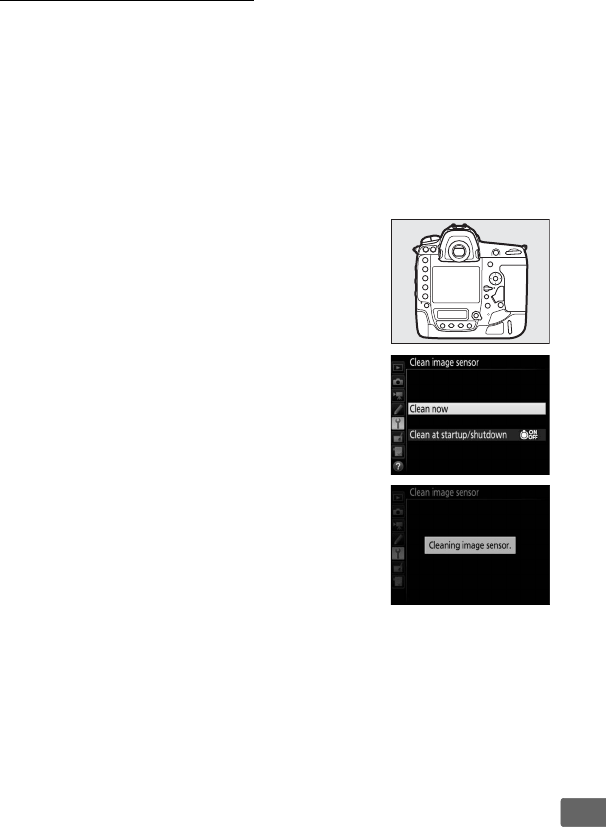
343
n
The Low-Pass Filter
The image sensor that acts as the camera’s picture element is fitted
with a low-pass filter to prevent moiré.
If you suspect that dirt or
dust on the filter is appearing in photographs, you can clean the
filter using the Clean image sensor option in the setup menu.
The
filter can be cleaned at any time using the Clean now option, or
cleaning can be performed automatically when the camera is
turned on or off.
❚❚ “Clean Now”
Holding the camera base down, select Clean
image sensor in the setup menu, then
highlight Clean now and press J.
The
camera will check the image sensor and then
begin cleaning.
1 flashes in the top
control panel and other operations can not be
performed while cleaning is in progress.
Do
not remove or disconnect the power source
until cleaning ends and the setup menu is
displayed.
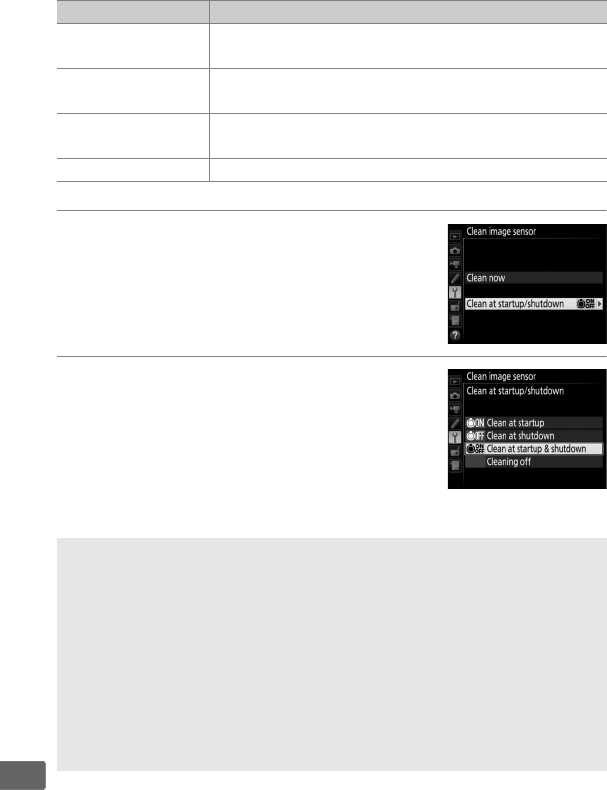
344
n
❚❚ “Clean at Startup/Shutdown”
Choose from the following options:
1Select Clean at startup/shutdown.
Display the Clean image sensor menu as
described on page 343.
Highlight Clean
at startup/shutdown and press 2.
2Select an option.
Highlight an option and press J.
Option Description
5Clean at startup The image sensor is automatically cleaned each time
the camera is turned on.
6Clean at
shutdown
The image sensor is automatically cleaned during
shutdown each time the camera is turned off.
7Clean at startup
& shutdown
The image sensor is cleaned automatically at startup
and at shutdown.
Cleaning off Automatic image sensor cleaning off.
DImage Sensor Cleaning
Using camera controls during startup interrupts image sensor cleaning.
Cleaning is performed by vibrating the low-pass filter.
If dust can not be
fully removed using the options in the Clean image sensor menu, clean
the image sensor manually or consult a Nikon-authorized service
representative.
If image sensor cleaning is performed several times in succession, image
sensor cleaning may be temporarily disabled to protect the camera’s
internal circuitry.
Cleaning can be performed again after a short wait.
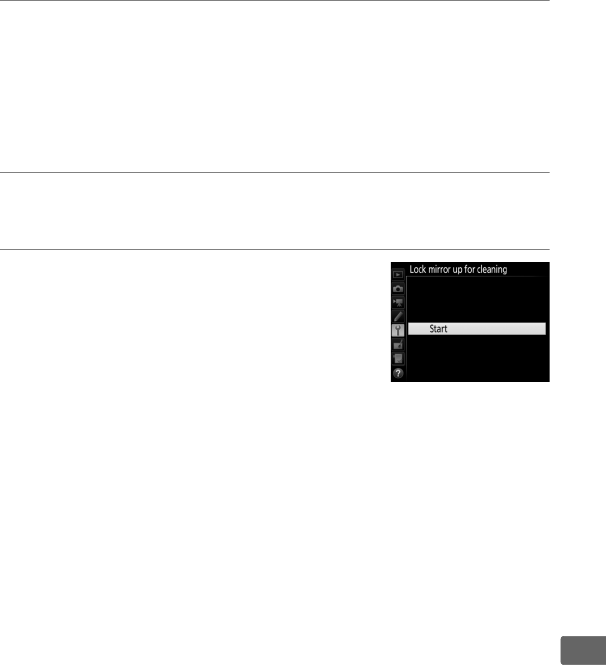
345
n
❚❚ Manual Cleaning
If foreign matter can not be removed from the low-pass filter using
the Clean image sensor (0343) option in the setup menu, the
filter can be cleaned manually as described below.
Note, however,
that the filter is extremely delicate and easily damaged.
Nikon
recommends that the filter be cleaned only by Nikon-authorized
service personnel.
1Charge the battery or connect an AC adapter.
A reliable power source is required when inspecting or
cleaning the low-pass filter.
Turn the camera off and insert a
fully-charged battery or connect an optional AC adapter and
power connector.
The Lock mirror up for cleaning option is
only available in the setup menu at battery levels over J.
2Remove the lens.
Turn the camera off and remove the lens.
3Select Lock mirror up for cleaning.
Turn the camera on and highlight Lock
mirror up for cleaning in the setup menu
and press 2.
Note that Lock mirror up
for cleaning is not available when Enable
is selected for Network > Network
connection in the setup menu.
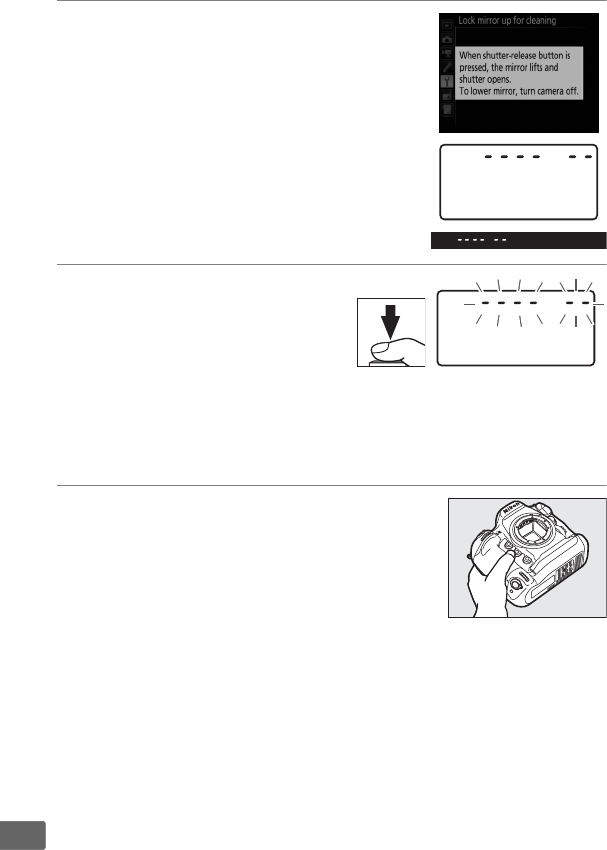
346
n
4Press J.
The message shown at right will be
displayed in the monitor and a row of
dashes will appear in the top control
panel and viewfinder.
To restore normal
operation without inspecting the low-
pass filter, turn the camera off.
5Raise the mirror.
Press the shutter-release
button all the way down.
The
mirror will be raised and the
shutter curtain will open,
revealing the low-pass filter.
The display in the viewfinder and
rear control panel will turn off and the row of dashes in the top
control panel will flash.
6Examine the low-pass filter.
Holding the camera so that light falls on
the low-pass filter, examine the filter for
dust or lint.
If no foreign objects are
present, proceed to Step 8.
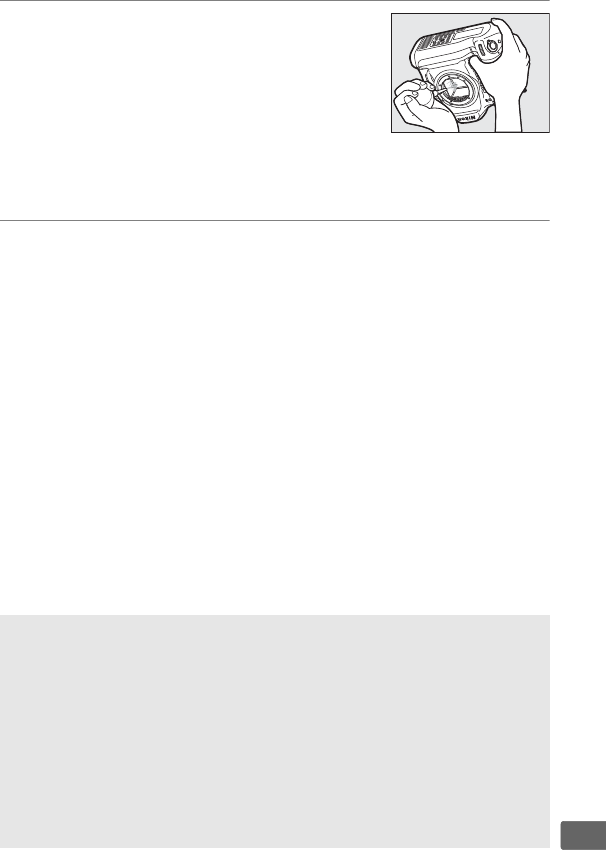
347
n
7Clean the filter.
Remove any dust and lint from the filter
with a blower.
Do not use a blower-brush,
as the bristles could damage the filter.
Dirt that can not be removed with a
blower can only be removed by Nikon-
authorized service personnel.
Under no circumstances should
you touch or wipe the filter.
8Turn the camera off.
The mirror will return to the down position and the shutter
curtain will close.
Replace the lens or body cap.
DUse a Reliable Power Source
The shutter curtain is delicate and easily damaged.
If the camera powers
off while the mirror is raised, the curtain will close automatically.
To
prevent damage to the curtain, observe the following precautions:
• Do not turn the camera off or remove or disconnect the power source
while the mirror is raised.
• If the battery runs low while the mirror is raised, a beep will sound and
the self-timer lamp will flash to warn that the shutter curtain will close
and the mirror will be lowered after about two minutes.
End cleaning
or inspection immediately.

348
n
DForeign Matter on the Low-Pass Filter
Foreign matter entering the camera when lenses or body caps are
removed or exchanged (or in rare circumstances lubricant or fine
particles from the camera itself) may adhere to the low-pass filter, where
it may appear in photographs taken under certain conditions.
To
protect the camera when no lens is in place, be sure to replace the body
cap provided with the camera, being careful to first remove all dust and
other foreign matter that may be adhering to the camera mount, lens
mount, and body cap.
Avoid attaching the body cap or exchanging
lenses in dusty environments.
Should foreign matter find its way onto the low-pass filter, use the low-
pass filter cleaning option as described on page
343
.
If the problem
persists, clean the filter manually (0345) or have the filter cleaned by
authorized Nikon service personnel.
Photographs affected by the
presence of foreign matter on the filter can be retouched using the clean
image options available in some imaging applications.
DServicing the Camera and Accessories
The camera is a precision device and requires regular servicing.
Nikon
recommends that the camera be inspected by the original retailer or a
Nikon-authorized service representative once every one to two years,
and that it be serviced once every three to five years (note that fees
apply to these services).
Frequent inspection and servicing are
particularly recommended if the camera is used professionally.
Any
accessories regularly used with the camera, such as lenses or optional
flash units, should be included when the camera is inspected or
serviced.
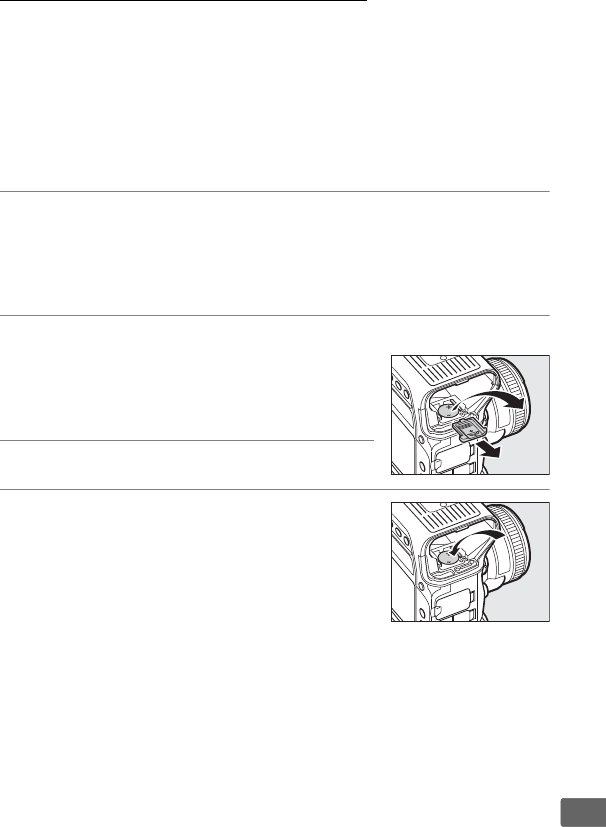
349
n
Replacing the Clock Battery
The camera clock is powered by a CR1616 lithium battery with a life
of about two years.
If the B icon is displayed in the top control
panel while the standby timer is on, the battery is running low and
needs to be replaced.
When the battery is exhausted, the B icon
will flash while the standby timer is on.
Photographs can still be
taken but will not be stamped with the correct time and date.
Replace the battery as described below.
1Remove the main battery.
The clock battery chamber is located on the roof of the main
battery chamber.
Turn the camera off and remove the
EN-EL18a battery.
2Open the clock battery chamber.
Slide the clock battery chamber cover
toward the front of the main battery
chamber.
3Remove the clock battery.
4Insert the replacement battery.
Insert a new CR1616 lithium battery so
that the positive side (the side marked
with “+” and the battery name) is visible.
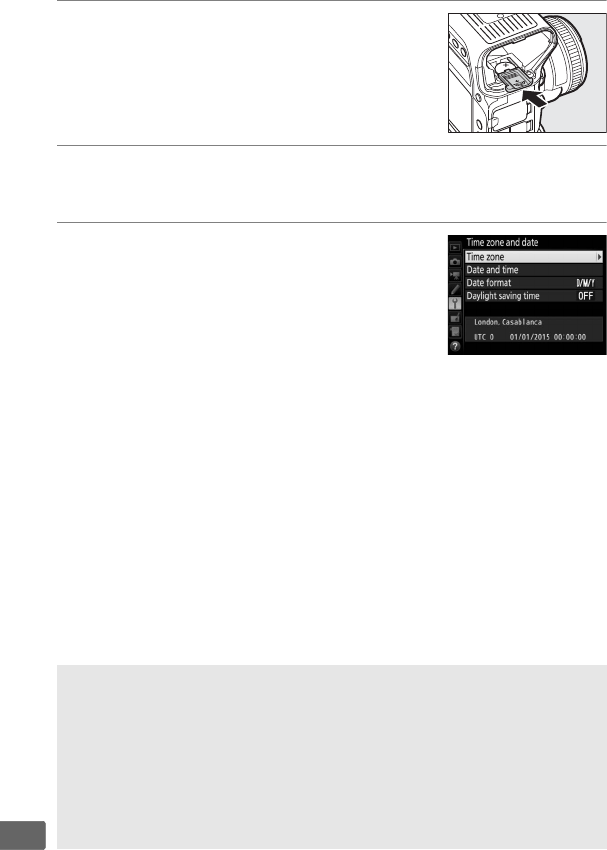
350
n
5Close the clock battery chamber.
Slide the clock battery chamber cover
towards the back of the main battery
chamber until it clicks into place.
6Replace the main battery.
Reinsert the EN-EL18a.
7Set the camera clock.
Set the camera to the current date and
time (028).
Until the date and time have
been set, the B icon will flash in the top
control panel.
ACAUTION
Use only CR1616 lithium batteries.
Using another type of battery could
cause an explosion.
Dispose of used batteries as directed.
DInserting the Clock Battery
Insert the clock battery in the correct orientation.
Inserting the battery
incorrectly could not only prevent the clock from functioning but could
damage the camera.

351
n
Caring for the Camera and
Battery: Cautions
Do not drop: The product may malfunction if subjected to strong shocks or
vibration.
Keep dry: This product is not waterproof, and may malfunction if immersed
in water or exposed to high levels of humidity.
Rusting of the internal
mechanism can cause irreparable damage.
Avoid sudden changes in temperature: Sudden changes in temperature, such as
those that occur when entering or leaving a heated building on a cold day,
can cause condensation inside the device.
To prevent condensation, place
the device in a carrying case or plastic bag before exposing it to sudden
changes in temperature.
Keep away from strong magnetic fields: Do not use or store this device in the
vicinity of equipment that generates strong electromagnetic radiation or
magnetic fields.
Strong static charges or the magnetic fields produced by
equipment such as radio transmitters could interfere with the monitor,
damage data stored on the memory card, or affect the product’s internal
circuitry.
Do not leave the lens pointed at the sun: Do not leave the lens pointed at the sun
or other strong light source for an extended period.
Intense light may
cause the image sensor to deteriorate or produce a white blur effect in
photographs.

352
n
Cleaning: When cleaning the camera body, use a blower to gently remove
dust and lint, then wipe gently with a soft, dry cloth.
After using the
camera at the beach or seaside, wipe off any sand or salt using a cloth
lightly dampened in pure water and then dry the camera thoroughly.
In
rare instances, static electricity may cause the LCD displays to light up or
go dark.
This does not indicate a malfunction, and the display will soon
return to normal.
The lens and mirror are easily damaged.
Dust and lint should be gently
removed with a blower.
When using an aerosol blower, keep the can
vertical to prevent discharge of liquid.
To remove fingerprints and other
stains from the lens, apply a small amount of lens cleaner to a soft cloth
and wipe the lens carefully.
See “The Low-Pass Filter” (0343) for information on cleaning the low-pass
filter.
Lens contacts: Keep the lens contacts clean.
Do not touch the shutter curtain: The shutter curtain is extremely thin and easily
damaged.
Under no circumstances should you exert pressure on the
curtain, poke it with cleaning tools, or subject it to powerful air currents
from a blower.
These actions could scratch, deform, or tear the curtain.
The shutter curtain may appear to be unevenly colored, but this has no
affect on pictures and does not indicate a malfunction.
Storage: To prevent mold or mildew, store the camera in a dry, well-
ventilated area.
If you are using an AC adapter, unplug the adapter to
prevent fire.
If the product will not be used for an extended period,
remove the battery to prevent leakage and store the camera in a plastic
bag containing a desiccant.
Do not, however, store the camera case in a
plastic bag, as this may cause the material to deteriorate.
Note that
desiccant gradually loses its capacity to absorb moisture and should be
replaced at regular intervals.
To prevent mold or mildew, take the camera out of storage at least once a
month.
Turn the camera on and release the shutter a few times before
putting it away.
Store the battery in a cool, dry place.
Replace the terminal cover before
putting the battery away.

353
n
Turn the product off before removing or disconnecting the power source: Do not
unplug the product or remove the battery while the product is on or while
images are being recorded or deleted.
Forcibly cutting power in these
circumstances could result in loss of data or in damage to product memory
or internal circuitry.
To prevent an accidental interruption of power, avoid
carrying the product from one location to another while the AC adapter is
connected.
Dry the accessory shoe cover: If the camera is used in the rain, water may
penetrate the supplied accessory shoe cover.
Remove and dry the
accessory shoe cover after using the camera in the rain.
Notes on the monitor: The monitor is constructed with extremely high
precision; at least 99.99% of pixels are effective, with no more than 0.01%
being missing or defective.
Hence while these displays may contain pixels
that are always lit (white, red, blue, or green) or always off (black), this is not
a malfunction and has no effect on images recorded with the device.
Images in the monitor may be difficult to see in a bright light.
Do not apply pressure to the monitor, as this could cause damage or
malfunction.
Dust or lint on the monitor can be removed with a blower.
Stains can be removed by wiping lightly with a soft cloth or chamois
leather.
Should the monitor break, care should be taken to avoid injury
from broken glass and to prevent liquid crystal from the monitor touching
the skin or entering the eyes and mouth.
Batteries: Batteries may leak or explode if improperly handled.
Observe the
following precautions when handling batteries:
• Use only batteries approved for use in this equipment.
• Do not expose the battery to flame or excessive heat.
• Keep the battery terminals clean.
• Turn the product off before replacing the battery.
• Remove the battery from the camera or charger when not in use and
replace the terminal cover.
These devices draw minute amounts of
charge even when off and could draw the battery down to the point that
it will no longer function.
If the battery will not be used for some time,
insert it in the camera and run it flat before removing it from the camera
for storage.
The battery should be stored in a cool location with an
ambient temperature of 15 °C to 25 °C (59 °F to 77 °F; avoid hot or
extremely cold locations).
Repeat this process at least once every six
months.

354
n
• Turning the camera on or off repeatedly when the battery is fully
discharged will shorten battery life.
Batteries that have been fully
discharged must be charged before use.
• The internal temperature of the battery may rise while the battery is in
use.
Attempting to charge the battery while the internal temperature is
elevated will impair battery performance, and the battery may not
charge or charge only partially.
Wait for the battery to cool before
charging.
• Continuing to charge the battery after it is fully charged can impair
battery performance.
• A marked drop in the time a fully charged battery retains its charge when
used at room temperature indicates that it requires replacement.
Purchase a new EN-EL18a battery.
• Charge the battery before use.
When taking photographs on important
occasions, ready a spare battery and keep it fully charged.
Depending on
your location, it may be difficult to purchase replacement batteries on
short notice.
Note that on cold days, the capacity of batteries tends to
decrease.
Be sure the battery is fully charged before taking photographs
outside in cold weather.
Keep a spare battery in a warm place and
exchange the two as necessary.
Once warmed, a cold battery may
recover some of its charge.
• Used batteries are a valuable resource; recycle in accord with local
regulations.
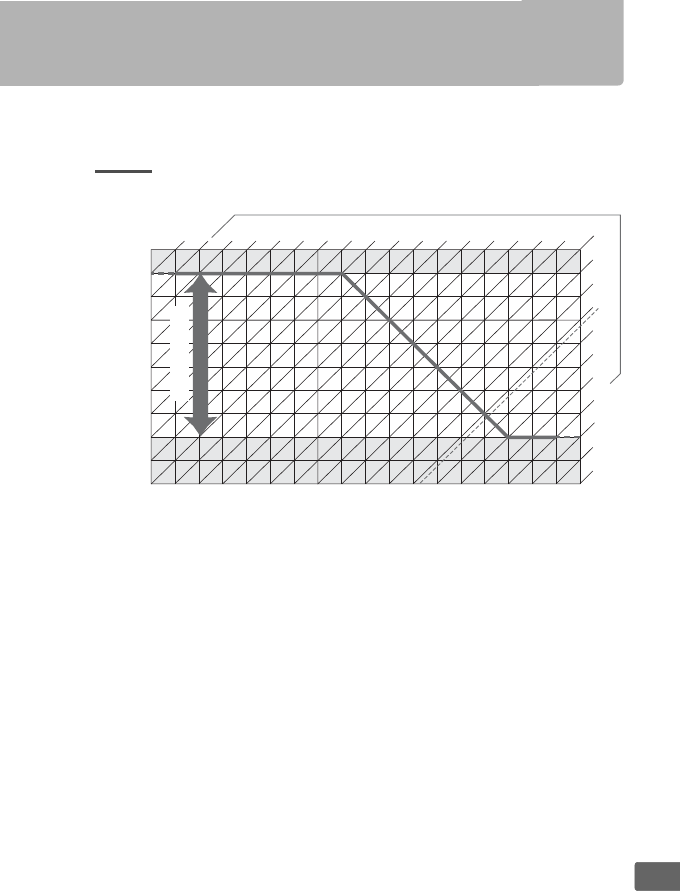
355
n
Exposure Program
The exposure program for programmed auto (0133) is shown in
the following graph:
The maximum and minimum values for EV vary with ISO sensitivity;
the above graph assumes an ISO sensitivity of ISO 100 equivalent.
When matrix metering is used, values over 16 1/3EV are reduced to
16 1/3EV.
-4
-3
12
13
-2
-1
0
1
2
3
4
5
6
7
8
9
10
11
f/1.4
f/1
f/2
f/2.8
f/4
f/5.6
f/8
f/11
f/16
f/22
f/32 30" 15" 8" 4" 2" 1"
1/21/41/81/15 1/30 1/60
1
/
125 1
/
250 1
/
500
1
/
1000 1
/
2000 1
/
4000 1
/
8000
22
21
20
19
18
17
16
15
14
[EV]
23
161/3
f/1.4 − f/16
Shutter speed
Aperture
ISO 100; lens with maximum aperture of f/1.4 and minimum
aperture of f/16 (e.g., AF-S NIKKOR 50mm f/1.4G)
356
n
Troubleshooting
If the camera fails to function as expected, check the list of
common problems below before consulting your retailer or Nikon-
authorized service representative.
Battery/Display
Shooting
The camera is on but does not respond: Wait for recording to end.
If the problem
persists, turn the camera off.
If the camera does not turn off, remove and
reinsert the battery or, if you are using an AC adapter, disconnect and
reconnect the AC adapter.
Note that although any data currently being
recorded will be lost, data that have already been recorded will not be
affected by removing or disconnecting the power source.
Viewfinder is out of focus: Adjust viewfinder focus (035).
If necessary,
viewfinder focus can be further adjusted using optional corrective lenses
(0336).
Viewfinder is dark: Insert a fully-charged battery (019, 37).
Displays turn off without warning: Choose longer delays for Custom Setting c2
(Standby timer) or c4 (Monitor off delay) (0301).
Displays in control panels or viewfinder are unresponsive and dim: The response
times and brightness of these displays vary with temperature.
Camera takes time to turn on: Delete files or folders.
Shutter-release disabled:
• Memory card is full (030, 38).
•Release locked is selected for Slot empty release lock in the setup
menu (0311) and no memory card is inserted (030).
• Aperture ring for CPU lens not locked at highest f-number (does not
apply to type G and E lenses).
If B is displayed in the top control panel,
select Aperture ring for Custom Setting f4 (Customize command dials)
> Aperture setting to use lens aperture ring to adjust aperture (0306).
• Exposure mode S selected with A or % selected for shutter speed
(0363).
357
n
Camera is slow to respond to shutter-release button: Select Off for Custom Setting
d5 (Exposure delay mode; 0302).
Only one shot taken each time shutter-release button is pressed in continuous release
mode: Turn HDR off (0189).
Photos are out of focus:
• Rotate focus-mode selector to AF (098).
• Camera unable to focus using autofocus: use manual focus or focus lock
(0111, 114).
Full range of shutter speeds not available: Flash in use.
Flash sync speed can be
selected using Custom Setting e1 (Flash sync speed); when using
compatible flash units, choose 1/250 s (Auto FP) for full range of shutter
speeds (0303).
Focus does not lock when shutter-release button is pressed halfway: Camera is in
focus mode AF-C: use the center of the sub-selector to lock focus (0111).
Can not select focus point:
• Unlock focus selector lock (0108).
• Auto-area AF selected for AF-area mode or face-priority AF selected in
live view; choose another mode (049, 104).
• Camera is in playback mode (0246).
• Menus are in use (0287).
• Press shutter-release button halfway to start standby timer (041).
Can not select AF mode: Select No restrictions for Custom Setting a10
(Autofocus mode restrictions, 0299).
Camera is slow to record photos: Turn long exposure noise reduction off
(0292).
358
n
Noise (bright spots, randomly-spaced bright pixels, fog, or lines) appear in photos:
• Bright spots, randomly-spaced bright pixels, fog, and lines can be
reduced by lowering ISO sensitivity.
•Use the Long exposure NR option in the photo shooting menu to limit
the occurrence of bright spots or fog in photos taken at shutter speeds
slower than 1 s (0292).
• Fog and bright spots may indicate that the camera’s internal temperature
has become elevated due to high ambient temperatures, long
exposures, or similar causes: turn the camera off and wait for it to cool
before resuming shooting.
• At high ISO sensitivities, lines may appear in photos taken with some
optional flash units; if this occurs, choose a lower value.
• At high ISO sensitivities, including high values selected with auto ISO
sensitivity control, randomly-spaced bright pixels can be reduced by
selecting High, Normal, or Low for High ISO NR in the photo or movie
shooting menu (0292, 296).
• At high ISO sensitivities, bright spots, randomly-spaced bright pixels, fog,
or lines may be more noticeable in long exposures, multiple exposures,
and photos taken at high ambient temperatures or with Active
D-Lighting enabled, Flat selected for Set Picture Control (0179) or
extreme values selected for Picture Control parameters (0182).
Flicker or banding appears during live view or movie recording: Choose an option for
Flicker reduction that matches the frequency of the local AC power
supply (0296).
Bright regions or bands appear in live view: A flashing sign, flash, or other light
source with brief duration was used during live view.
Smudges appear in photographs: Clean front and rear lens elements.
If problem
persists, perform image sensor cleaning (0343).
359
n
Live view ends unexpectedly or does not start: Live view may end automatically to
prevent damage to the camera’s internal circuits if:
• The ambient temperature is high
• The camera has been used for extended periods in live view or to record
movies
• The camera has been used in continuous release modes for extended
periods
If live view does not start when you press the a button, wait for the
internal circuits to cool and then try again.
Note that the camera may feel
warm to the touch, but this does not indicate a malfunction.
Image artifacts appear during live view: “Noise” (randomly-spaced bright pixels,
fog, or lines) and unexpected colors may appear if you zoom in on the view
through the lens (047) during live view; in movies, the amount and
distribution of randomly-spaced bright pixels, fog, and bright spots are
affected by frame size and rate (067).
Randomly-spaced bright pixels,
fog, or bright spots may also arise as a result of increases in the
temperature of the camera’s internal circuits during live view; exit live view
when the camera is not in use.
Can not measure white balance: Subject is too dark or too bright (0169).
Image can not be selected as source for preset white balance: Image was not created
with D5 (0176).
White balance bracketing unavailable:
• NEF (RAW) or NEF+JPEG image quality option selected for image quality
(092).
• Multiple exposure mode is in effect (0227).
Photographs and movies do not appear to have the same exposure as the preview shown
in the monitor during live view: Changes to monitor brightness during live view
have no effect on images recorded with the camera (051).
Effects of Picture Control differ from image to image: A (auto) is selected for
sharpening, clarity, contrast, or saturation.
For consistent results over a
series of photographs, choose another setting (0183).
360
n
Playback
Metering can not be changed: Autoexposure lock is in effect (0142).
Exposure compensation can not be used: Choose exposure mode P, S, or A (0131,
145).
Noise (reddish areas or other artifacts) appears in long time-exposures: Enable long
exposure noise reduction (0292).
Sound is not recorded with movies: Microphone off is selected for Microphone
sensitivity in the movie shooting menu (0296).
NEF (RAW) image is not played back: Photo was taken at image quality of NEF +
JPEG (093).
Can not view pictures recorded with other cameras: Pictures recorded with other
makes of camera may not be displayed correctly.
Some photos are not displayed during playback: Select All for Playback folder
(0287).
“Tall” (portrait) orientation photos are displayed in “wide” (landscape) orientation:
• Photo was taken with Off selected for Auto image rotation (0288).
• Select On for Rotate tall (0288).
• Photo is displayed in image review (0288).
• Camera was pointed up or down when photo was taken.
Can not delete photo: Picture is protected.
Remove protection (0263).
Can not retouch picture: Photo can not be further edited with this camera
(0366).
The camera displays a message stating that the folder contains no images: Select All
for Playback folder (0287).
Can not print photos: NEF (RAW) and TIFF photos can not be printed by direct
USB connection.
Transfer photos to computer and print using
Capture NX-D (0275).
NEF (RAW) photos can be saved in JPEG format
using NEF (RAW) processing (0312).
Photo is not displayed on high-definition video device: Confirm that HDMI cable
(available separately) is connected (0284).
361
n
Miscellaneous
Image Dust Off option in Capture NX-D does not have desired effect: Image sensor
cleaning changes the position of dust on the low-pass filter.
Dust off
reference data recorded before image sensor cleaning is performed can
not be used with photographs taken after image sensor cleaning is
performed.
Dust off reference data recorded after image sensor cleaning
is performed can not be used with photographs taken before image
sensor cleaning is performed (0309).
Computer displays NEF (RAW) images differently from camera: Third-party software
does not display effects of Picture Controls, Active D-Lighting, or vignette
control.
Use Capture NX-D (0275).
Can not transfer photos to computer: OS not compatible with camera or transfer
software.
Use card reader to copy photos to computer.
Date of recording is not correct: Set camera clock (028).
Menu item can not be selected: Some options are not available at certain
combinations of settings or when no memory card is inserted.
Note that
Battery info option is not available when camera is powered by an
optional power connector and AC adapter (0311).
362
n
Error Messages
This section lists the indicators and error messages that appear in
the viewfinder, top control panel, and monitor.
Indicator
Problem Solution 0
Control
panel
View-
finder
B
(flashes)
Lens aperture ring is
not set to minimum
aperture.
Set ring to minimum
aperture (highest
f-number).
26
HdLow battery. Ready a fully-charged
spare battery. 37
H
(flashes)
d
(flashes)
• Battery exhausted. • Recharge or replace
battery.
xviii,
19, 22,
334
• Battery can not be
used.
• Contact Nikon-
authorized service
representative.
• An extremely
exhausted
rechargeable Li-ion
battery or a third-
party battery is
inserted in the
camera.
• Replace the battery,
or recharge the
battery if the
rechargeable Li-ion
battery is exhausted.
• High battery
temperature.
• Remove battery and
wait for it to cool.
—
B
(flashes) — Camera clock is not set. Set camera clock. 28
F
No lens attached, or
non-CPU lens attached
without specifying
maximum aperture.
Aperture shown in
stops from maximum
aperture.
Aperture value will be
displayed if maximum
aperture is specified.
241

363
n
—FH
(flashes)
Camera unable to focus
using autofocus.
Change composition or
focus manually. 40, 114
(Exposure
indicators and
shutter speed
or aperture
display flash)
Subject too bright;
photo will be
overexposed.
• Use a lower ISO
sensitivity.
124
• Us e op ti on al N D fi lt er.
In exposure mode:
334
SIncrease shutter
speed
134
AChoose a smaller
aperture (higher
f-number)
135
Subject too dark; photo
will be underexposed.
• Use a higher ISO
sensitivity.
124
• Use optional flash.
In
exposure mode:
194
SLower shutter
speed
134
AChoose a larger
aperture (lower
f-number)
135
A
(flashes)
A selected in
exposure mode S.
Change shutter speed
or select manual
exposure mode.
134,
136
%
(flashes)
% selected in exposure
mode S.
Change shutter speed
or select manual
exposure mode.
134,
136
1
(flashes)
k
(flashes) Processing in progress. Wait until processing is
complete. —
—c
(flashes)
If indicator flashes for
3s after flash fires,
photo may be
underexposed.
Check photo in
monitor; if
underexposed, adjust
settings and try again.
332
Indicator
Problem Solution 0
Control
panel
View-
finder

364
n
Y
(flashes) —
Flash unit that does not
support red-eye
reduction attached and
flash sync mode set to
red-eye reduction.
Change flash sync
mode or use flash unit
that supports red-eye
reduction.
199,
330
n
(flashes)
j
(flashes)
Memory insufficient to
record further photos
at current settings, or
camera has run out of
file or folder numbers.
• Reduce quality or
size.
92, 95
• Delete photographs
after copying
important images to
computer or other
device.
266,
276
• Insert new memory
card.
30
O
(flashes) Camera malfunction.
Release shutter.
If error
persists or appears
frequently, consult
Nikon-authorized
service representative.
—
Indicator
Problem Solution 0
Control
panel
View-
finder
365
n
Indicator
Problem Solution 0Monitor
Control
panel
No memory card. S
Camera cannot
detect memory
card.
Turn camera off and
confirm that card is
correctly inserted.
30
This memory
card cannot be
used.
Card may be
damaged.
Insert
another card.
W,
R
(flashes)
• Error accessing
memory card.
• Use Nikon-
approved card.
381
• Check that contacts
are clean.
If card is
damaged, contact
retailer or Nikon-
authorized service
representative.
—
• Unable to create
new folder.
• Delete files or insert
new memory card
after copying
important images
to computer or
other device.
30,
266,
276
This card is not
formatted.
Format the card.
[C]
(flashes)
Memory card has
not been
formatted for use
in camera.
Format memory card
or insert new memory
card.
30, 33
Unable to start
live view. Please
wait.
—
The internal
temperature of
the camera is
high.
Wait for the internal
circuits to cool before
resuming live view
photography or
movie recording.
359

366
n
Folder contains
no images. —
No images on
memory card or in
folder(s) selected
for playback.
Select folder
containing images
from Playback folder
menu or insert
memory card
containing images.
30, 287
All images are
hidden. —
All photos in
current folder are
hidden.
No images can be
played back until
another folder has
been selected or Hide
image used to allow
at least one image to
be displayed.
287
Cannot display
this file. —
File has been
created or
modified using a
computer or
different make of
camera, or file is
corrupt.
File can not be played
back on camera. —
Cannot select
this file. —
Selected image
can not be
retouched.
Images created with
other devices can not
be retouched.
—
This movie
cannot be
edited.
—
The selected
movie can not be
edited.
•Movies created with
other devices can
not be edited.
—
• Movies must be at
least two seconds
long.
85
Indicator
Problem Solution 0Monitor
Control
panel
367
n
Check printer. — Printer error.
Check printer.
To
resume, select
Continue (if
available).
281 *
Check paper. —
Paper in printer is
not of selected
size.
Insert paper of correct
size and select
Continue.
281 *
Paper jam. —Paper is jammed
in printer.
Clear jam and select
Continue.281 *
Out of paper. —Printer is out of
paper.
Insert paper of
selected size and
select Continue.
281 *
Check ink supply. —Ink error. Check ink.
To resume,
select Continue.281 *
Out of ink. —Printer is out of
ink.
Replace ink and select
Continue.281 *
* See printer manual for more information.
Indicator
Problem Solution 0Monitor
Control
panel
368
n
Specifications
❚❚ Nikon D5 Digital Camera
Type
Type Single-lens reflex digital camera
Lens mount Nikon F mount (with AF coupling and AF contacts)
Effective angle of view Nikon FX format
Effective pixels
Effective pixels 20.8 million
Image sensor
Image sensor 35.9 × 23.9 mm CMOS sensor
Total pixels 21.33 million
Dust-reduction System Image sensor cleaning, Image Dust Off reference data
(Capture NX-D software required)
Storage
Image size (pixels) • FX (36×24) image area
5568 × 3712 (#) 4176 × 2784 ($) 2784 × 1856 (%)
• 1.2× (30×20) image area
4640 × 3088 (#) 3472 × 2312 ($) 2320 × 1544 (%)
• DX (24×16) image area
3648 × 2432 (#) 2736 × 1824 ($) 1824 × 1216 (%)
• 5 : 4 (30×24) image area
4640 × 3712 (#) 3472 × 2784 ($) 2320 × 1856 (%)
•Photographs taken during movie recording at a frame size of
3840 × 2160: 3840 × 2160
• FX-format photographs taken during movie recording at a frame
size of 1920 × 1080 or 1280 × 720
5568 × 3128 (#) 4176 × 2344 ($) 2784 × 1560 (%)
• DX-format photographs taken during movie recording at a
frame size of 1920 × 1080 or 1280 × 720
3648 × 2048 (#) 2736 × 1536 ($) 1824 × 1024 (%)
•Photographs taken during movie recording at a frame size of
1920 × 1080 crop: 1920 × 1080
369
n
File format •NEF (RAW): 12 or 14 bit (lossless compressed,
compressed, or uncompressed); large, medium, and
small available (medium and small images are
recorded at a bit depth of 12 bits using lossless
compression)
•TIFF (RGB)
•JPEG: JPEG-Baseline compliant with fine (approx. 1 : 4),
normal (approx. 1 : 8), or basic (approx. 1 : 16)
compression; optimal quality compression available
•NEF (RAW)+JPEG: Single photograph recorded in both
NEF (RAW) and JPEG formats
Picture Control System Standard, Neutral, Vivid, Monochrome, Portrait,
Landscape, Flat; selected Picture Control can be
modified; storage for custom Picture Controls
Media •Models for use with XQD cards: XQD cards
•Models for use with CompactFlash cards: Type I
CompactFlash memory cards (UDMA7 compliant)
Double card slots Slot 2 can be used for overflow or backup storage or for
separate storage of copies created using NEF+JPEG;
pictures can be copied between cards.
File system DCF 2.0, Exif 2.3, PictBridge
Viewfinder
Viewfinder Eye-level pentaprism single-lens reflex viewfinder
Frame coverage
•
FX (36×24)
: Approx. 100% horizontal and 100% vertical
•1.2× (30×20): Approx. 97% horizontal and 97% vertical
•DX (24×16): Approx. 97% horizontal and 97% vertical
•5:4 (30×24): Approx. 97% horizontal and 100% vertical
Magnification Approx. 0.72 × (50 mm f/1.4 lens at infinity, –1.0 m–1)
Eyepoint 17 mm (–1.0 m–1; from center surface of viewfinder
eyepiece lens)
Diopter adjustment –3–+1 m–1
Focusing screen Type B BriteView Clear Matte Mark IX screen with AF
area brackets (framing grid can be displayed)
Reflex mirror Quick return
Storage
370
n
Depth-of-field preview Pressing Pv button stops lens aperture down to value
selected by user (A and M modes) or by camera (P and S
modes)
Lens aperture Instant return, electronically controlled
Lens
Compatible lenses Compatible with AF NIKKOR lenses, including type G, E,
and D lenses (some restrictions apply to PC lenses) and
DX lenses (using DX 24 × 16 1.5× image area), AI-P
NIKKOR lenses, and non-CPU AI lenses (exposure
modes A and M only).
IX NIKKOR lenses, lenses for the
F3AF, and non-AI lenses can not be used.
The electronic rangefinder can be used with lenses
that have a maximum aperture of f/5.6 or faster (the
electronic rangefinder supports 15 focus points with
lenses that have a maximum aperture of f/8 or faster, of
which 9 points are available for selection).
Shutter
Type Electronically-controlled vertical-travel focal-plane
mechanical shutter; electronic front-curtain shutter
available in mirror up release mode
Speed 1/8000 – 30 s in steps of 1/3, 1/2, or 1 EV, bulb, time, X250
Flash sync speed X=1/250 s; synchronizes with shutter at 1/250 s or slower
Release
Release mode S (single frame), CL (continuous low speed),
CH(continuous high speed), Q (quiet shutter-release),
E(self-timer), MUP (mirror up)
Approximate frame
advance rate
Up to 10 fps (CL); 10–12 fps, or 14 fps with mirror up (CH);
or 3 fps (quiet continuous mode)
Self-timer 2 s, 5 s, 10 s, 20 s; 1–9 exposures at intervals of 0.5, 1, 2,
or 3 s
Viewfinder
371
n
Exposure
Metering TTL exposure metering using RGB sensor with
approximately 180K (180,000) pixels
Metering method •Matrix: 3D color matrix metering III (type G, E, and D
lenses); color matrix metering III (other CPU lenses);
color matrix metering available with non-CPU lenses
if user provides lens data
•Center-weighted: Weight of 75% given to 12 mm circle
in center of frame.
Diameter of circle can be changed
to 8, 15, or 20 mm, or weighting can be based on
average of entire frame (non-CPU lenses use 12-mm
circle)
•Spot: Meters 4 mm circle (about 1.5% of frame)
centered on selected focus point (on center focus
point when non-CPU lens is used)
•Highlight-weighted: Available with type G, E, and D
lenses
Range (ISO 100, f/1.4
lens, 20 °C/68 °F)
•Matrix or center-weighted metering: –3–+20 EV
•Spot metering: 2–20 EV
•Highlight-weighted metering: 0–20 EV
Exposure meter coupling Combined CPU and AI
Exposure mode Programmed auto with flexible program (P); shutter-
priority auto (S); aperture-priority auto (A); manual (M)
Exposure compensation –5 – +5 EV in increments of 1/3, 1/2, or 1 EV
Exposure lock Luminosity locked at detected value
ISO sensitivity
(Recommended
Exposure Index)
ISO 100 – 102400 in steps of 1/3, 1/2, or 1 EV.
Can also be
set to approx. 0.3, 0.5, 0.7, or 1 EV (ISO 50 equivalent)
below ISO 100 or to approx. 0.3, 0.5, 0.7, 1, 2, 3, 4, or
5 EV (ISO 3280000 equivalent) above ISO 102400; auto
ISO sensitivity control available
Active D-Lighting Can be selected from Auto, Extra high +2/+1, High,
Normal, Low, or Off
372
n
Focus
Autofocus Multi-CAM 20K autofocus sensor module with TTL
phase detection, fine-tuning, and 153 focus points
(including 99 cross-type sensors and 15 sensors that
support f/8), of which 55 (35 cross-type sensors and 9
f/8 sensors) are available for selection
Detection range –4 – +20 EV (ISO 100, 20 °C/68 °F)
Lens servo •Autofocus (AF): Single-servo AF (AF-S); continuous-servo
AF (AF-C); predictive focus tracking automatically
activated according to subject status
•Manual focus (M): Electronic rangefinder can be used
Focus point 153 focus points, of which 55 or 15 are available for
selection
AF-area mode Single-point AF, 25-, 72-, or 153- point dynamic-area
AF, 3D-tracking, group-area AF, auto-area AF
Focus lock Focus can be locked by pressing shutter-release button
halfway (single-servo AF) or by pressing the center of
the sub-selector
Flash
Flash control TTL: i-TTL flash control using RGB sensor with
approximately 180K (180,000) pixels; i-TTL balanced
fill-flash for digital SLR is used with matrix, center-
weighted, and highlight-weighted metering, standard
i-TTL fill-flash for digital SLR with spot metering
Flash mode Front-curtain sync, slow sync, rear-curtain sync, red-
eye reduction, red-eye reduction with slow sync, slow
rear-curtain sync, off, Auto FP High-Speed Sync
supported
Flash compensation –3 – +1 EV in increments of 1/3, 1/2, or 1 EV
Flash-ready indicator Lights when optional flash unit is fully charged; flashes
after flash is fired at full output
Accessory shoe ISO 518 hot-shoe with sync and data contacts and
safety lock
Nikon Creative Lighting
System (CLS) Supported
Radio-controlled
Advanced Wireless
Lighting
Supported

373
n
Unified flash control Supported
Sync terminal ISO 519 sync terminal with locking thread
White balance
White balance Auto (3 types), incandescent, fluorescent (7 types),
direct sunlight, flash, cloudy, shade, preset manual (up
to 6 values can be stored, spot white balance
measurement available during live view), choose color
temperature (2500 K–10,000 K), all with fine-tuning.
Bracketing
Bracketing types Exposure, flash, white balance, and ADL
Live view
Modes C (photo live view) with available silent mode,
1(movie live view)
Lens servo •Autofocus (AF): Single-servo AF (AF-S); full-time-servo AF
(AF-F)
•Manual focus (M)
AF-area mode Face-priority AF, wide-area AF, normal-area AF, subject-
tracking AF
Autofocus Contrast-detect AF anywhere in frame (camera selects
focus point automatically when face-priority AF or
subject-tracking AF is selected)
Movie
Metering TTL exposure metering using main image sensor
Metering method Matrix, center-weighted, or highlight-weighted
Frame size (pixels) and
frame rate
• 3840 × 2160 (4K UHD); 30p (progressive), 25p, 24p
• 1920 × 1080; 60p, 50p, 30p, 25p, 24p
• 1920 × 1080 crop; 60p, 50p, 30p, 25p, 24p
• 1280 × 720; 60p, 50p
Actual frame rates for 60p, 50p, 30p, 25p, and 24p are
59.94, 50, 29.97, 25, and 23.976 fps respectively; ★ high
quality available at all frame sizes, normal quality
available at all sizes except 3840 × 2160
File format MOV
Flash
374
n
Video compression H.264/MPEG-4 Advanced Video Coding
Audio recording format Linear PCM
Audio recording device Built-in stereo or external microphone; sensitivity
adjustable
ISO sensitivity •Exposure modes P, S, and A: Auto ISO sensitivity control
(ISO 100 to Hi 5) with selectable upper limit
•Exposure mode M: Auto ISO sensitivity control (ISO 100
to Hi 5) available with selectable upper limit; manual
selection (ISO 100 to 102400 in steps of 1/3, 1/2, or
1 EV) with additional options available equivalent to
approximately 0.3, 0.5, 0.7, 1, 2, 3, 4, or 5 EV
(ISO 3280000 equivalent) above ISO 102400
Other options Index marking, time-lapse movies
Monitor
Monitor 8-cm/3.2-in., approx. 2359k-dot (XGA) TFT touch-
sensitive LCD with 170 ° viewing angle, approximately
100% frame coverage, and manual monitor brightness
control
Playback
Playback Full-frame and thumbnail (4, 9, or 72 images) playback
with playback zoom, movie playback, photo and/or
movie slide shows, histogram display, highlights,
photo information, location data display, auto image
rotation, picture rating, voice memo input and
playback, and IPTC information embedding and
display
Interface
USB SuperSpeed USB (USB 3.0 Micro-B connector);
connection to built-in USB port is recommended
HDMI output Type C HDMI connector
Audio input Stereo mini-pin jack (3.5mm diameter; plug-in power
supported)
Audio output Stereo mini-pin jack (3.5mm diameter)
Movie
375
n
Ten-pin remote terminal Can be used to connect optional remote control,
WR-R10 (requires WR-A10 adapter) or WR-1 wireless
remote controller, GP-1/GP-1A GPS unit, or GPS device
compliant with NMEA0183 version 2.01 or 3.01
(requires optional MC-35 GPS adapter cord and cable
with D-sub 9-pin connector)
Ethernet RJ-45 connector
•Standards: IEEE 802.3ab (1000BASE-T)/IEEE 802.3u
(100BASE-TX)/IEEE 802.3 (10BASE-T)
•Data rates: 10/100/1000 Mbps with auto detect
(maximum logical data rates according to IEEE
standard; actual rates may differ)
•Port: 1000BASE-T/100BASE-TX/10BASE-T (AUTO-
MDIX)
Peripheral connector For WT-6, WT-5
Supported languages
Supported languages Arabic, Bengali, Bulgarian, Chinese (Simplified and
Traditional), Czech, Danish, Dutch, English, Finnish,
French, German, Greek, Hindi, Hungarian, Indonesian,
Italian, Japanese, Korean, Marathi, Norwegian, Persian,
Polish, Portuguese (Portugal and Brazil), Romanian,
Russian, Serbian, Spanish, Swedish, Tamil, Telugu, Thai,
Turkish, Ukrainian, Vietnamese
Power source
Battery One rechargeable Li-ion EN-EL18a battery
AC adapter EH-6b AC adapter; requires EP-6 power connector
(available separately)
Tripod socket
Tripod socket 1/4 in. (ISO 1222)
Interface
376
n
• Unless otherwise stated, all measurements are performed in conformity with
Camera and Imaging Products Association (CIPA) standards or guidelines.
• All figures are for a camera with a fully-charged battery.
• Nikon reserves the right to change the appearance and specifications of the
hardware and software described in this manual at any time and without
prior notice.
Nikon will not be held liable for damages that may result from
any mistakes that this manual may contain.
Dimensions/weight
Dimensions (W × H × D) Approx. 160 × 158.5 × 92 mm (6.3 × 6.3 × 3.7 in.)
Weight •Models for use with XQD cards: Approx. 1405 g (3 lb.
1.6 oz.) with battery and two XQD memory cards but
without body cap and accessory shoe cover; approx.
1235 g/2 lb. 11.6 oz. (camera body only)
•Models for use with CompactFlash cards: Approx. 1415 g
(3 lb. 1.9 oz.) with battery and two CompactFlash
memory cards but without body cap and accessory
shoe cover; approx. 1240 g/2 lb. 11.8 oz. (camera
body only)
Operating environment
Temperature 0 °C–40 °C (+32 °F–104 °F)
Humidity 85% or less (no condensation)
377
n
MH-26a battery charger
Rated input AC 100 to 240 V, 50/60 Hz
Charging output DC 12.6 V/1.2 A
Applicable batteries Nikon EN-EL18a rechargeable Li-ion batteries
Charging time per
battery
Approx. 2 hours and 35 minutes at ambient
temperature of 25 °C (77 °F) when no charge remains
Operating temperature 0 °C–40 °C (+32 °F–104 °F)
Dimensions (W×H×D) Approx. 160 × 85 × 50.5 mm (6.3 × 3.3 × 2 in.)
Length of power cable Approx. 1.8 m/6 ft (U.S.A. and Canada) or 1.5 m/4.9 ft
(other countries)
Weight • Approx. 285 g (10.1 oz), including two contact
protectors but excluding power cable
• Approx. 265 g (9.3 oz), excluding contact protectors
and power cable
EN-EL18a rechargeable Li-ion battery
Type Rechargeable lithium-ion battery
Rated capacity 10.8 V/2500 mAh
Operating temperature 0 °C–40 °C (+32 °F–104 °F)
Dimensions (W×H×D) Approx. 56.5 × 27 × 82.5 mm (2.2 × 1.1 × 3.2 in.)
Weight Approx. 160 g (5.6 oz), excluding terminal cover

378
n
Calibrating Batteries
The MH-26a battery charger is equipped with a battery calibration
feature.
Calibrate the battery as required to ensure the accuracy of
the camera and charger battery level displays.
If the calibration lamp for the current
battery chamber flashes when a
battery is inserted, the battery needs
to be calibrated.
To begin
calibration, press the calibration
button for the current chamber for
about a second.
The time needed to
calibrate the battery is shown by the
charge and calibration lamps:
When calibration is complete, the calibration and charge lamps will
turn off and charging will begin immediately.
Although calibration is recommended for accurate measurement
of battery charge state, calibration need not be performed when
the calibration lamp flashes.
Once begun, calibration can be
interrupted as desired.
• If the calibration button is not pressed while the calibration lamp
is flashing, normal charging will begin after about ten seconds.
• To interrupt calibration, press the calibration button again.
Calibration will end and charging will begin.
Approximate time needed
to recalibrate battery
Calibration
lamp
Charge lamps
2 h 4 h 6 h
Over 6 hours K (glows) K (glows) K (glows) K (glows)
4 – 6 hours K (glows) K (glows) K (glows) JK (off )
2 – 4 hours K (glows) K (glows) JK (off) JK (off)
Under 2 hours K (glows) JK (off) JK (off) JK (off)
Chamber
lamps (green)
Charge lamps
(green)
Calibration
lamps (yellow)
Calibration
buttons
379
n
ABattery Warning
If the chamber and calibration lamps flash on and off in sequence when
no battery is inserted, there is a problem with the charger.
If the
chamber and calibration lamps flash on and off in sequence when a
battery is inserted, a problem has occurred with the battery or charger
during charging.
Remove the battery, unplug the charger, and take the
battery and charger to a Nikon-authorized service representative for
inspection.
ACharging and Calibrating Two Batteries
The MH-26a charges only one battery at a time.
If batteries are inserted
in both chambers, they will be charged in the order inserted.
If the
calibration button for the first battery is pressed, the second battery can
not be calibrated or charged until calibration and charging of the first
battery are complete.
AFreeType License (FreeType2)
Portions of this software are copyright © 2012 The FreeType Project
(http://www.freetype.org).
All rights reserved.
AMIT License (HarfBuzz)
Portions of this software are copyright © 2016 The HarfBuzz Project
(http://www.freedesktop.org/wiki/Software/HarfBuzz).
All rights
reserved.
380
n
ATrademark Information
IOS is a trademark or registered trademark of Cisco Systems, Inc., in the
United States and/or other countries and is used under license.
Mac
and OS X are registered trademarks of Apple Inc. in the United States
and/or other countries.
Windows is either a registered trademark or a
trademark of Microsoft Corporation in the United States and/or other
countries.
PictBridge is a trademark. XQD is a trademark of Sony
Corporation.
CompactFlash is a trademark of SanDisk Corporation.
HDMI, the HDMI logo and High-Definition Multimedia Interface are
trademarks or registered trademarks of HDMI Licensing, LLC.
All other trade names mentioned in this manual or the other
documentation provided with your Nikon product are trademarks or
registered trademarks of their respective holders.
ASupported Standards
•DCF Version 2.0: The Design Rule for Camera File System (DCF) is a
standard widely used in the digital camera industry to ensure
compatibility among different makes of camera.
•Exif version 2.3: The camera supports Exif (Exchangeable Image File
Format for Digital Still Cameras) version 2.3, a standard in which
information stored with photographs is used for optimal color
reproduction when the images are output on Exif-compliant printers.
•PictBridge: A standard developed through cooperation with the digital
camera and printer industries, allowing photographs to be output
directly to a printer without first transferring them to a computer.
•HDMI: High-Definition Multimedia Interface is a standard for
multimedia interfaces used in consumer electronics and AV devices
capable of transmitting audiovisual data and control signals to HDMI-
compliant devices via a single cable connection.
381
n
Approved Memory Cards
Depending on the model, the camera accepts XQD or
CompactFlash memory cards.
Cards that have been tested and
approved for use in the camera are listed below; other cards have
not been tested.
For more details on the cards listed below, please
contact the manufacturer.
❚❚ Models for Use with XQD Memory Cards
The following XQD memory cards have been tested and approved
for use in the camera.
Sony
G series
QD-G32A 32 GB
QD-G64A 64 GB
QD-G128A 128 GB
S series QD-S32/QD-S32E 32 GB
QD-S64/QD-S64E 64 GB
H series QD-H16 16 GB
QD-H32 32 GB
N series QD-N32 32 GB
QD-N64 64 GB
Lexar Professional
1100 × 32 GB, 64 GB
1333 × 32 GB, 64 GB
2933 × 32 GB, 64 GB, 128 GB
382
n
❚❚ Models for Use with CompactFlash Memory Cards
The following Type I CompactFlash memory cards have been
tested and approved for use in the camera.
Type II cards and
microdrives can not be used.
Cards with write speeds of 45 MB/s (300×) or better are
recommended for movie recording.
Slower speeds may interrupt
recording or cause jerky, uneven playback.
SanDisk
Extreme Pro SDCFXPS 16 GB, 32 GB, 64 GB, 128 GB, 256 GB
SDCFXP 16 GB, 32 GB, 64 GB, 128 GB
Extreme SDCFXS 8 GB, 16 GB, 32 GB, 64 GB, 128 GB
SDCFX 8 GB, 16 GB, 32 GB, 64 GB
Extreme IV SDCFX4 2 GB, 4 GB, 8 GB, 16 GB
Extreme III SDCFX3 2 GB, 4 GB, 8 GB, 16 GB
Ultra II SDCFH 2 GB, 4 GB, 8 GB
Ultra SDCFHS 4 GB, 8 GB, 16 GB
SDCFHG 4 GB, 8 GB, 16 GB
Standard SDCFB 2GB, 4GB
Lexar
Professional UDMA
1066 × 16 GB, 32 GB, 64 GB, 128 GB, 256 GB
800 × 8 GB, 16 GB, 32 GB, 64 GB, 128 GB, 256 GB
600 × 8 GB, 16 GB, 32 GB
400 × 8 GB, 16 GB, 32 GB, 64 GB, 128 GB
300 × 2 GB, 4 GB, 8 GB, 16 GB
Professional
233 × 2 GB, 4 GB, 8 GB
133 × 2 GB, 4 GB, 8 GB
80 × 2GB, 4GB
Platinum II
200 × 4 GB, 8 GB, 16 GB
80 × 2 GB, 4 GB, 8 GB, 16 GB
60 × 4GB
383
n
Memory Card Capacity
The following table shows the approximate number of pictures
that can be stored on a Lexar Professional 2933× XQD 2.0 or 1066×
UDMA 7 CompactFlash 64 GB card at different image quality,
image size, and image area settings.
❚❚ FX (36×24) Image Area
Image quality Image size File size 1No. of
images 1
Buffer capacity 2
XQD CompactFlash
NEF (RAW), Lossless
compressed, 12-bit
Large 19.3 MB 1700 200 119
Medium 13.9 MB 2400 200 172
Small 10.5 MB 3100 200 200
NEF (RAW), Lossless
compressed, 14-bit Large 24.2 MB 1300 200 82
NEF (RAW),
Compressed, 12-bit Large 16.8 MB 2300 200 153
NEF (RAW),
Compressed, 14-bit Large 20.8 MB 1900 200 103
NEF (RAW),
Uncompressed,
12-bit
Large 33.2 MB 1700 197 92
NEF (RAW),
Uncompressed,
14-bit
Large 43.1 MB 1300 102 65
TIFF (RGB)
Large 62.5 MB 952 92 67
Medium 35.6 MB 1600 119 87
Small 16.4 MB 3500 126 125
JPEG fine 3
Large 10.5 MB 4300 200 200
Medium 6.4 MB 7100 200 200
Small 3.4 MB 13,300 200 200
JPEG normal 3
Large 5.3 MB 8400 200 200
Medium 3.3 MB 13,800 200 200
Small 1.8 MB 25,300 200 200
JPEG basic 3
Large 2.8 MB 16,200 200 200
Medium 1.8 MB 26,000 200 200
Small 1.0 MB 45,400 200 200
384
n
❚❚ DX (24×16) Image Area
1 All figures are approximate.
File size varies with scene recorded.
2 Maximum number of exposures that can be stored in memory buffer at ISO 100.
Drops at image qualities marked with a star (“★”) or if auto distortion control is
on.
3 Figures assume size-priority JPEG compression.
Selecting an image-quality
option marked with a star (“★”; optimal compression) increases the file size of
JPEG images; number of images and buffer capacity drop accordingly.
Image quality Image size File size 1No. of
images 1
Buffer capacity 2
XQD CompactFlash
NEF (RAW), Lossless
compressed, 12-bit
Large 9.1 MB 3800 200 200
Medium 6.7 MB 5100 200 200
Small 5.2 MB 6500 200 200
NEF (RAW), Lossless
compressed, 14-bit Large 11.2 MB 3000 200 200
NEF (RAW),
Compressed, 12-bit Large 8.0 MB 5000 200 200
NEF (RAW),
Compressed, 14-bit Large 9.7 MB 4200 200 200
NEF (RAW),
Uncompressed,
12-bit
Large 14.9 MB 3800 200 200
NEF (RAW),
Uncompressed,
14-bit
Large 19.1 MB 3000 200 133
TIFF (RGB)
Large 27.4 MB 2100 200 107
Medium 15.9 MB 3600 200 200
Small 7.6 MB 7200 200 200
JPEG fine 3
Large 5.2 MB 8800 200 200
Medium 3.4 MB 13,600 200 200
Small 2.1 MB 22,100 200 200
JPEG normal3
Large 2.7 MB 17,100 200 200
Medium 1.8 MB 25,700 200 200
Small 1.1 MB 40,600 200 200
JPEG basic 3
Large 1.4 MB 31,500 200 200
Medium 1.0 MB 46,500 200 200
Small 0.7 MB 67,300 200 200

386
n
Battery Life
The movie footage or number of shots that can be recorded with
fully-charged batteries varies with the condition of the battery,
temperature, the interval between shots, and the length of time
menus are displayed.
Sample figures for EN-EL18a (2500 mAh)
batteries are given below.
•Photographs, single-frame release mode (CIPA standard1): Approximately
3780 shots
•Photographs, continuous release mode (Nikon standard2): Approximately
8160 shots
•Movies: Approximately 110 minutes at 1080/60p 3
1 Measured at 23 °C/73.4 °F (±2 °C/3.6 °F) with an AF-S NIKKOR 24–
70mm f/2.8E ED VR lens under the following test conditions: lens
cycled from infinity to minimum range and one photograph taken at
default settings once every 30 s.
Live view not used.
2 Measured at 23 °C/73.4 °F with an AF-S VR ED 70–200mm f/2.8G lens
under the following test conditions: vibration reduction off, image
quality set to JPEG normal, image size set to L (large), shutter speed
1/250 s, focus cycled from infinity to minimum range three times after
shutter-release button has been pressed halfway for 3 s; six shots are
then taken in succession and monitor turned on for 5 s and then
turned off; cycle repeated once standby timer has expired.
3 Measured at 23 °C/73.4 °F (±2 °C/3.6 °F) with the camera at default
settings and an AF-S NIKKOR 24–70mm f/2.8E ED VR lens under
conditions specified by the Camera and Imaging Products Association
(CIPA).
Individual movies can be up to 10 minutes in length or 4 GB in
size; recording may end before these limits are reached if the camera
temperature rises.

387
n
The following can reduce battery life:
•Using the monitor
• Keeping the shutter-release button pressed halfway
• Repeated autofocus operations
• Taking NEF (RAW) or TIFF (RGB) photographs
• Slow shutter speeds
• Connecting to Ethernet networks
• Using the camera with optional accessories connected
• Using VR (vibration reduction) mode with VR lenses
To ensure that you get the most from rechargeable Nikon EN-EL18a
batteries:
• Keep the battery contacts clean.
Soiled contacts can reduce
battery performance.
• Use batteries immediately after charging.
Batteries will lose their
charge if left unused.
• Check the condition of the battery regularly using the Battery
info option in the setup menu (0311).
If j is displayed for
Calibration, calibrate the battery using the MH-26a battery
charger (if the battery has not been used for more than six
months, recharge the battery when calibration is complete).

388
n
Index
Symbols
P (Programmed auto)................. 131, 133
S (Shutter-priority auto) ............ 131, 134
A (Aperture-priority auto)......... 131, 135
M (Manual) ..................................... 131, 136
S................................................................... 116
CL............................................... 116, 117, 301
CH.............................................. 116, 117, 301
Q................................................................... 116
E (Self-timer)................................ 117, 120
MUP..................................................... 117, 122
S (Quick release-mode selection) 117,
119
S................................................................ 302
K (Single-point AF) ............................. 104
I (Dynamic-area AF) .......................... 104
T (3D-tracking)..................................... 104
N (Group-area AF) ............................... 105
H (Auto-area AF) .................................. 105
! (Face-priority AF)................................ 49
5 (Wide-area AF) .................................... 49
6 (Normal-area AF)................................ 49
& (Subject-tracking AF)...................... 49
L (Matrix)................................................. 129
M (Center-weighted) ........................... 129
N (Spot).................................................... 129
t (Highlight-weighted) .................... 129
S button .............................. 116, 117, 119
R (Info) button........................ 57, 68, 220
a (Live view)................... 44, 59, 173, 307
Q (Help)....................................................... 16
t (Memory buffer) ......................... 40, 383
i button...................................... 51, 63, 251
D switch.............................................. 9, 307
I (Focus indicator)............... 40, 111, 115
L (Preset manual).................... 160, 168
Numerics
1.2× (30 × 20)............................................ 88
12-bit ........................................................... 94
14 fps (mirror up) .................................. 117
14-bit............................................................ 94
3D color matrix metering III.............. 129
3D-tracking .......................... 104, 106, 298
3D-tracking face-detection............... 298
3D-tracking watch area ...................... 298
5 : 4 (30 × 24) ............................................. 88
A
AC adapter...................................... 334, 340
Accessories.............................................. 334
Accessory shoe ............................... 14, 194
Active D-Lighting............... 155, 187, 292
Add items (My Menu).......................... 314
ADL bracketing (Auto bracketing set)....
146, 155
Adobe RGB .............................................. 292
Advanced Wireless Lighting ............. 204
AE & flash (Auto bracketing set) ..... 146,
147
AE only (Auto bracketing set).. 146, 147
AF....................... 48–50, 98–113, 297–299
AF activation........................................... 298
AF area brackets ................................ 10, 35
AF fine-tune ............................................ 308
AF-area mode......................... 49, 104, 298
AF-C .................................................. 101, 297
AF-F............................................................... 48
AF-ON button......................... 102, 298, 305
AF-ON button for vertical shooting . 102,
305
AF-S............................................ 48, 101, 297
After burst, show................................... 288
After delete ............................................. 288
Angle of view.......................... 87, 326, 327
Aperture....................... 135, 136, 140, 306
Aperture lock................................. 140, 306
Aperture-priority auto ........................ 135
Aspect ratio............................... 69, 88, 317
Attaching the lens ................................... 25
Audio......................................... 61, 288, 310

389
n
Audio output ................................. 310, 374
Audio playback (Slide show)............. 288
Auto (White balance).................. 159, 160
Auto bracketing............................ 146, 305
Auto bracketing (mode M) ................ 305
Auto bracketing set.............................. 293
Auto distortion control ....................... 292
Auto DX crop ............................................. 88
Auto external flash ...................... 197, 216
Auto FP high-speed sync.................... 303
Auto image rotation............................. 288
Auto ISO sensitivity control...... 126, 295
Auto M ISO sensitivity control........... 304
Auto-area AF.................................. 105, 106
Autofocus........ 48–50, 98–113, 297–299
Autofocus mode.................... 48, 101, 299
Autofocus mode restrictions ............ 299
B
Backlight........................................................ 9
Backup (Role played by card in Slot 2) ...
97
Battery..... 19–24, 37, 311, 349, 377, 378
Battery info.............................................. 311
Beep........................................................... 310
BKT button 147, 148, 151, 152, 155, 156,
193, 229, 305
Black-and-white (Monochrome)...... 313
Blocked shot AF response.................. 297
Body cap............................................ 25, 337
Border........................................................ 282
Bracketing....................................... 146, 305
Bracketing order.................................... 305
Bulb............................................................ 138
Burst........................................ 117, 288, 301
Button backlights.............................. 9, 302
C
Calibration............................................... 378
Camera Control Pro 2........................... 337
Capture NX-D...................................... ii, 275
Center-weighted metering....... 129, 300
CF card ............................................... 30, 382
Charging the battery ...................... 19–21
Choose color temp. (White balance) ......
160, 165
Choose start/end point ......................... 82
Choose tab .............................................. 314
Clean image sensor.............................. 309
Clock................................................... 28, 308
Clock battery ................................... 29, 349
Cloudy (White balance)...................... 160
CLS ............................................................. 328
Color space.............................................. 292
Color temperature.... 159, 160, 161, 165
CompactFlash ................................. 30, 382
Compatible lenses................................ 321
Compressed (NEF (RAW) compression).
94
Computer ....................................... 275, 276
Connector for external microphone.. 2,
339
Continuous high speed.... 116, 117, 301
Continuous low speed...... 116, 117, 301
Continuous release mode 116, 117, 301
Continuous shooting speed ............. 301
Continuous-servo AF.................. 101, 297
Control panel.......................................... 6–8
Copy image(s)........................................ 288
Copyright information........................ 309
CPU contacts .......................................... 324
CPU lens ................................... 26, 321, 324
Creative Lighting System................... 328
Crop ....................................................... 67, 69
Cropping (PictBridge [Setup] menu)......
282
Custom control assignment.............. 305
Custom Settings.................................... 297
Custom settings bank ......................... 297
Customize command dials................ 306
Cyanotype (Monochrome)................ 313
D
Date and time ................................. 28, 308
Date format...................................... 29, 308
Daylight saving time..................... 28, 308
DCF............................................................. 380
Default settings................... 224, 294, 311
390
n
Delete ........................................ 43, 266, 274
Delete all images......................... 266, 268
Delete current image.................... 43, 266
Depth of field.......................................... 132
Destination.............................................. 294
Diopter............................................... 35, 336
Direct sunlight (White balance) ....... 160
Distance-priority manual 197, 217, 329
Distortion control.................................. 312
D-Lighting................................................ 312
Dual monitor........................................... 285
DX (24 × 16) 1.5 ×...................... 88, 90, 91
DX format..................................... 87, 88, 89
DX-based movie format........................ 70
Dynamic-area AF................ 104, 106, 299
E
Easy exposure compensation........... 300
Edit movie.................................. 82, 85, 313
Electronic front-curtain shutter ....... 302
Electronic rangefinder......................... 115
Ethernet.................................................... 279
EV steps for exposure cntrl ................ 299
Exif .............................................................. 380
Exp./flash comp. step value............... 299
Exposure............. 129, 131, 141, 143, 299
Exposure bracketing ......... 146, 147, 305
Exposure comp. for flash .................... 304
Exposure compensation........... 143, 300
Exposure delay mode .......................... 302
Exposure differential............................ 191
Exposure indicator................................ 137
Exposure lock.......................................... 141
Exposure meters............................. 41, 301
Exposure mode...................................... 131
Exposure preview.................................... 46
Exposure program ................................ 355
Exposure smoothing..................... 76, 236
Extended photo menu banks........... 289
External microphone .................... 64, 339
F
Face detection.............................. 298, 300
Face-priority AF........................................ 49
File information ..................................... 253
File naming..................................... 289, 294
File number sequence......................... 302
Filter effects.................................... 183, 313
Fine-tune optimal exposure ............. 300
Firmware version................................... 311
Flash............ 194, 198, 200, 202, 303, 328
Flash (White balance).......................... 160
Flash bracketing................. 146, 147, 305
Flash compensation............................. 200
Flash control ..... 196, 197, 204, 209, 290
Flash info.................................................. 216
Flash mode..................................... 198, 199
Flash only (Auto bracketing set)...... 146
Flash range.............................................. 328
Flash shutter speed.............................. 304
Flash sync speed ................................... 303
Flash sync terminal............................... 195
Flash-ready indicator 11, 194, 203, 332,
372
Flat (Set Picture Control) .................... 179
Flexible program................................... 133
Flick..................................................... 12, 310
Flicker reduction ................................... 296
Fluorescent (White balance)............. 159
Fn1 button....................................... 305, 307
Fn2 button....................................... 305, 307
Fn3 button.................... 271, 274, 305, 307
f-number......................................... 135, 324
Focal length ......................... 243, 326, 327
Focal plane mark................................... 115
Focus ................ 48–50, 98–115, 297–299
Focus indicator ...................... 40, 111, 115
Focus lock ................................................ 111
Focus mode............................... 48, 98, 114
Focus point........... 49, 104, 108, 298, 299
Focus point options ............................. 299
Focus point wrap-around .................. 299
Focus tracking............................... 103, 297
Focus tracking with lock-on.............. 297
Focusing screen..................................... 369
Focus-mode selector ............. 48, 98, 114
Focus-mode switch....................... 26, 114
Format................................................ 33, 308
391
n
Format memory card........................... 308
Frame interval (Slide show)............... 288
Frame rate................................................... 67
Frame size/frame rate................... 67, 294
Frequency response............................. 296
Front-curtain sync................................. 198
Full-frame playback.............................. 246
Full-frame playback flicks................... 310
Full-time-servo AF.................................... 48
FV lock....................................................... 202
FX (36 × 24) 1.0 ×...................................... 88
FX format.............................................. 87, 88
FX-based movie format.......................... 70
G
GPS .......................................... 244, 245, 259
GPS unit........................................... 244, 338
Group flash..................................... 209, 218
Group-area AF............................... 105, 106
H
H.264.......................................................... 374
HDMI....................................... 284, 310, 380
HDR (high dynamic range) ................ 189
Headphone volume ................................ 64
Headphones............................................... 64
Help............................................................... 16
Hi................................................................. 125
Hide image .............................................. 287
High definition.............................. 284, 380
High Dynamic Range (HDR) ..... 189, 293
High ISO NR.................................... 292, 296
Highlight display...................................... 64
Highlights ................................................ 254
Highlight-weighted metering .......... 129
Histogram ....................................... 255, 256
HTTP server ............................................. 279
I
Image area 26, 51, 63, 70, 87, 88, 90, 95,
290, 294
Image comment.................................... 309
Image Dust Off ref photo ................... 309
Image overlay................................ 313, 318
Image quality................................... 92, 290
Image review................................. 248, 288
Image size......................................... 95, 290
Incandescent (White balance) ......... 159
Index marking........................................... 63
Index print............................................... 283
In-focus indicator.................. 40, 111, 115
Information display...... 57, 68, 216, 220,
308
Interval timer shooting.............. 234, 293
IPTC................................................... 259, 309
ISO sensitivity....................... 124, 126, 295
ISO sensitivity settings............... 291, 295
ISO sensitivity step value ................... 299
i-TTL ...................... 196, 197, 209, 216, 329
J
JPEG.................................... 92, 96, 312, 315
JPEG basic................................................... 92
JPEG fine ..................................................... 92
JPEG normal............................................... 92
L
L (large) ................................................. 72, 95
LAN ............................................................ 335
Landscape (Set Picture Control)...... 179
Language.......................................... 27, 308
LCD......................................................... 9, 302
LCD illumination ............................... 9, 302
LED lamp.................................................. 310
Lens............................ 25, 26, 241, 308, 321
Lens cap ...................................................... 25
Lens focus ring......................... 25, 50, 114
Lens mount.................................. 3, 26, 115
Lens mounting mark .................. 3, 25, 26
Limit AF-area mode selection .......... 298
Limit release mode selection ........... 302
LINK mode...................................... 206, 310
Live view .............................................. 44, 59
Live view button options................... 307
Live view photography................... 44–58
Live view selector ............................. 44, 59
Lo................................................................ 125
Location data................................. 244, 259
Lock mirror up for cleaning...... 309, 345
392
n
Long exposure NR................................. 292
Lossless compressed (NEF (RAW)
compression) .......................................... 94
M
M (Manual focus)............................. 50, 114
M (medium)......................................... 72, 95
Manage Picture Control... 184, 291, 295
Manual (Exposure mode)................... 136
Manual (Flash control)...... 197, 209, 217
Manual focus.................................... 50, 114
Matrix metering........................... 129, 300
Max. continuous release..................... 301
Maximum aperture..... 50, 241, 324, 332
Maximum sensitivity.................. 127, 295
Memory buffer ................................ 40, 118
Memory card............. 30, 33, 97, 308, 381
Memory card capacity......................... 383
Metering................................................... 129
Microphone.................... 2, 5, 64, 270, 339
Microphone sensitivity........................ 296
Minimum aperture ........................ 26, 132
Minimum shutter speed..................... 127
Mired.......................................................... 164
Mirror............................................... 122, 345
Mirror up mode............................ 117, 122
Modeling flash.............................. 132, 304
Monitor .................... 12, 44, 246, 301, 308
Monitor brightness................. 51, 64, 308
Monitor color balance......................... 308
Monitor off delay................................... 301
Monochrome................................ 179, 313
Movie ISO sensitivity settings........... 295
Movie mode............................ 59, 294, 307
Movie quality................................... 67, 295
Movie shooting menu......................... 294
Movie-record button .................... 61, 305
Multi selector................................... 16, 306
Multiple exposure....................... 227, 293
Multi-selector center button............. 306
My Menu .................................................. 314
N
NEF (RAW) .................. 92, 94, 96, 312, 315
NEF (RAW) bit depth............................... 94
NEF (RAW) compression........................ 94
NEF (RAW) processing................ 312, 315
NEF (RAW) recording .................... 94, 291
Network........................................... 279, 311
Neutral (Set Picture Control)............. 179
Nikon Transfer 2..................................... 277
No. of copies (PictBridge [Setup] menu)
282
Non-CPU lens ...................... 241, 322, 324
Non-CPU lens data ............ 241, 242, 309
Normal-area AF......................................... 49
Number of focus points...................... 298
O
Optical AWL ................................... 204, 205
Optical/radio AWL ....................... 204, 208
Overflow (Role played by card in Slot 2)
97
Overlay mode......................................... 230
Overview data........................................ 260
P
Page size................................................... 282
Pairing....................................................... 206
Peripheral connector....................... 2, 335
Perspective control .............................. 313
Photo information....................... 252, 287
Photo live view display WB................... 52
Photo shooting menu......................... 289
Photo shooting menu bank.............. 289
PictBridge ....................................... 281, 380
Picture Controls..................................... 179
PIN .............................................................. 206
Playback ............................ 42, 80, 246, 284
Playback display options.................... 287
Playback folder ...................................... 287
Playback information ................. 252, 287
Playback menu ...................................... 287
Playback zoom....................................... 261
Portrait (Set Picture Control)............. 179
Power connector.......................... 334, 340
Predictive focus tracking.................... 103
393
n
Preset manual (White balance) ....... 160,
168
Print date.................................................. 282
Print options (PictBridge [Setup] menu)
282
Print select............................................... 283
Printing ..................................................... 281
Programmed auto................................. 133
Protecting photographs..................... 263
Pv button............... 50, 132, 304, 305, 307
Q
Quick release-mode selection. 117, 119
Quick wireless control ................ 211, 218
Quiet shutter-release........................... 116
R
Radio AWL....................................... 204, 206
Radio remote flash info....................... 208
Rank items (My Menu)......................... 314
Rating ........................................................ 265
RAW Slot 1 - JPEG Slot 2 (Role played by
card in Slot 2) ........................................... 97
Rear control panel...................................... 8
Rear-curtain sync .................................. 198
Recent settings ...................................... 314
Rechargeable Li-ion battery.... ii, 19, 37,
377, 378
Red-eye correction............................... 312
Red-eye reduction ................................ 198
Release button to use dial ................. 306
Release mode ......................................... 116
Remote cord ........................... 73, 138, 337
Remote flash control............................ 209
Remote flash photography................ 204
Remote repeating........................ 213, 218
Remove items (My Menu) .................. 314
Removing the lens from the camera. 26
Repeating flash............................. 197, 217
Reset ....................................... 224, 294, 311
Reset all settings.................................... 311
Reset movie shooting menu............. 294
Resize......................................................... 312
Restoring default settings 224, 294, 311
Retouch menu ....................................... 312
Reverse indicators ................................ 307
RGB............................................. 92, 255, 292
RGB Histogram ...................................... 255
Role played by card in Slot 2...... 97, 289
Rotate tall ................................................ 288
S
S (small)................................................. 72, 95
Save selected frame......................... 82, 85
Save/load settings................................ 311
Self-timer ............................... 117, 120, 301
Sensitivity .............................. 124, 126, 295
Set clock from satellite........................ 245
Set Picture Control ............. 179, 291, 295
Setup menu ............................................ 308
Shade (White balance)........................ 160
Shooting data ........................................ 257
Shutter speed....................... 134, 136, 140
Shutter speed lock ...................... 140, 306
Shutter-priority auto............................ 134
Shutter-release button ...... 40, 111, 141,
307
Shutter-release button AE-L ............. 300
Side-by-side comparison................... 313
Silent live view photography..... 54, 293
Silent photography................................. 54
Single frame............................................ 116
Single-point AF............................. 104, 106
Single-servo AF...................... 48, 101, 297
Size...................................... 72, 95, 312, 317
Skylight..................................................... 313
Slide show ............................................... 288
Slot ...................................... 30, 97, 247, 294
Slot empty release lock....................... 311
Slot selection................................... 97, 247
Slow sync................................................. 198
Smoothing .............................................. 191
Speaker..................................................... 274
Speedlights.................................... 194, 328
Split-screen display zoom.............. 52, 53
Spot............................................................ 129
Spot white balance .............................. 173
sRGB........................................................... 292

394
n
Standard (Set Picture Control).......... 179
Standard i-TTL fill-flash for digital SLR ...
196, 329
Standby timer......................... 41, 245, 301
Start printing........................................... 283
Storage folder......................................... 289
Store by orientation ............................. 298
Straighten ................................................ 312
Sub-dial frame advance...................... 306
Subject motion ...................................... 297
Sub-selector ...... 109, 111, 141, 305, 307
Synchronized release........................... 302
T
Television.................................................. 284
Ten-pin remote terminal...... 2, 244, 337,
338
Thumbnail................................................ 246
TIFF (RGB)............................................ 92, 96
Time .................................................... 28, 308
Time zone.......................................... 28, 308
Time zone and date....................... 28, 308
Time-lapse movie........................... 74, 296
Timer................................................ 120, 234
Toning (Set Picture Control) .............. 183
Top control panel .................................. 6, 7
Touch controls.............. 12, 185, 249, 310
Touch screen........................... 12, 185, 249
Trim .................................................. 312, 317
Two-button reset................................... 224
Type D lens .................................... 321, 324
Type E lens..................................... 321, 324
Type G lens .................................... 321, 324
U
Uncompressed (NEF (RAW)
compression) .......................................... 94
USB cable ................................... ii, 276, 281
UTC............................................. 28, 244, 259
V
Vertical shooting ......... 39, 102, 109, 305
Viewfinder.................................. 10, 35, 369
Viewfinder eyepiece...................... 36, 120
Viewfinder focus...................... 35, 36, 336
Viewfinder grid display....................... 302
ViewNX-i............................................... ii, 275
Vignette control..................................... 292
Virtual horizon ......................... 57, 68, 308
Vivid (Set Picture Control).................. 179
Voice memo......................... 270–274, 310
Voice memo control............................. 310
Voice memo options............................ 310
Voice memo overwrite........................ 310
W
Warm filter............................................... 313
WB ........................................... 151, 159, 295
WB bracketing (Auto bracketing set)......
146, 151
White balance ............ 151, 159, 291, 295
White balance bracketing......... 146, 151
Wide-area AF ............................................. 49
Wind noise reduction.......................... 296
Wireless flash options.......................... 204
Wireless network.......................... 279, 335
Wireless remote (WR) options.......... 310
Wireless remote controller 73, 204, 206,
310, 335
Wireless transmitter.................... 279, 335
X
XQD card........................................... 30, 381
a
395
396

DIGITAL CAMERA
User's Manual
• Read this manual thoroughly before using the camera.
• To ensure proper use of the camera, be sure to read “For
Your Safety” (page x).
• After reading this manual, keep it in a readily accessible
place for future reference. En
No reproduction in any form of this manual, in whole or in part (except for
brief quotation in critical articles or reviews), may be made without written
authorization from NIKON CORPORATION.
Printed in Japan
SB5L01(11)
6MB29011-01
En
