Olympus Camedia C 5500 Zoom Advanced Manual C5500 Adv En
User Manual: olympus Camedia C-5500 Zoom - Advanced Manual Free User Guide for Olympus Camera, Manual - page1
Open the PDF directly: View PDF  .
.
Page Count: 199 [warning: Documents this large are best viewed by clicking the View PDF Link!]
- How to use the camera
- How to use this manual
- Composition of the manual
- 1 Basic operation
- 2 Tips before you start taking pictures
- 3 Basic shooting functions
- 4 Advanced shooting functions
- 5 More useful functions
- 6 Playback
- 7 Settings
- 8 Printing pictures
- 9 Connecting the camera to a computer
- 10 Appendix
- 11 Miscellaneous
Thank you for purchasing an Olympus digital camera. Before you start to use your
new camera, please read these instructions carefully to enjoy optimum performance
and a longer service life. Keep this manual in a safe place for future reference.
We recommend that you take test shots to get accustomed to your camera before
taking important photographs.
In the interest of continually improving products, Olympus reserves the right to update
or modify information contained in this manual.
DIGITAL CAMERA
Advanced
Manual
C-5500 ZOOM
C-55 ZOOM
Detailed explanations of all the
functions for getting the most out
of your camera.
Online Pictures
Basic Operation
Basic Shooting
Advanced Shooting
Playing Back
Printing
Camera Settings
d4250_e_00_0_bookfile.book Page 1 Friday, December 24, 2004 11:45 AM
2
Navigation
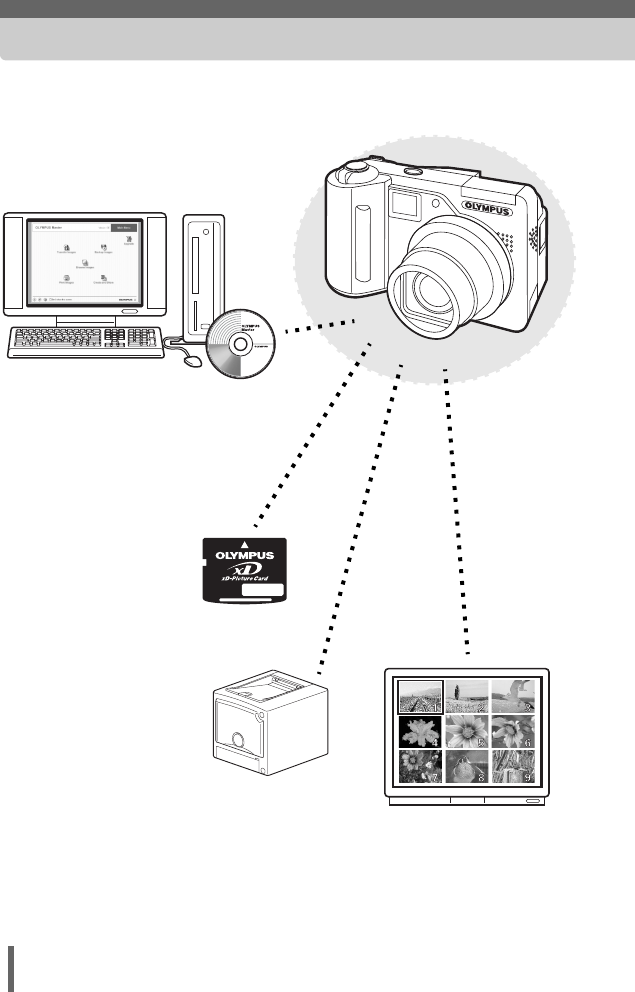
How to use the camera
Using a card...
Pictures taken with this
camera are stored on an
xD-Picture Card. By
storing the relevant print
reservation data with the
images on the card, you
can print pictures at a
print shop or on a
PictBridge-compatible
printer.
Using a computer...
Using the OLYMPUS Master
software on your computer lets you
enjoy editing, viewing, and printing
the pictures downloaded from your
camera.
Using a printer...
With a PictBridge-compatible
printer, you can print pictures
directly from your camera.
Using a TV...
You can use a TV to view
pictures or playback
movies from your camera.
d4250_e_00_0_bookfile.book Page 2 Friday, December 24, 2004 11:45 AM
3
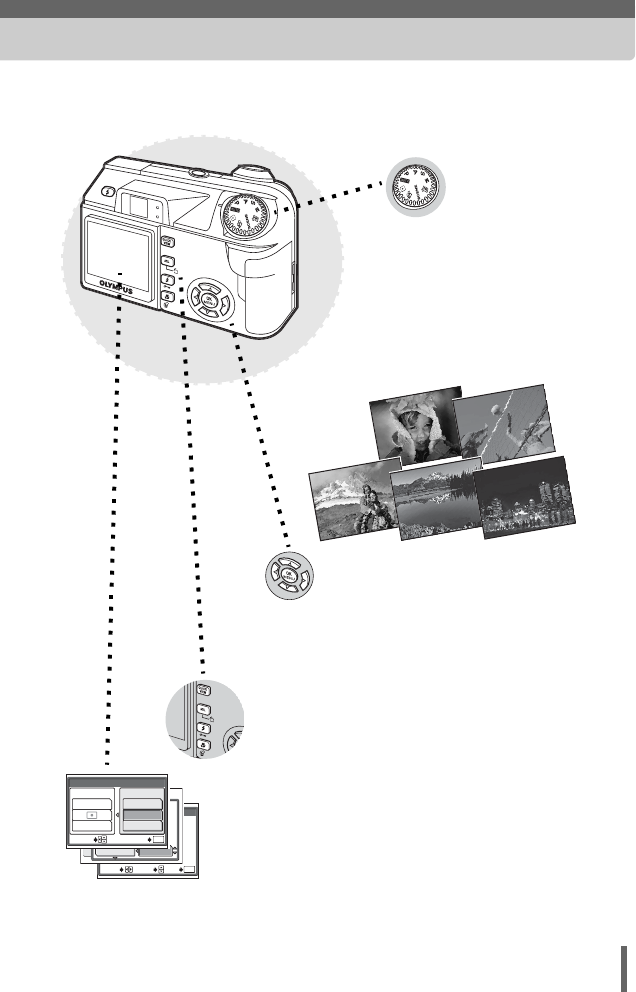
Using the direct buttons...
Direct buttons let you perform functions such as
erasing or protecting pictures or setting the flash
mode, making camera operation easy.
Using the arrow pad and N
button...
The arrow pad and N button are for
selecting and setting menu options as well
as viewing pictures frame by frame.
02
01
GO
OK
SET
SELECT
PICTURES
INTERVAL
TIMELAPSE
:
:
± 0
WB
SHARPNESS
SATURATION
PICTURE
CARD
SET
CAM
AE/AF
AF:
SPOT
ESP
AE:ESP
MULTI METERING
iESP
SPOT
AREA
SELECT GO
OK
Using the menus...
Shooting and playback-related
functions are set from the menus
displayed on the monitor.
Using the mode dial...
Use the mode dial to select a
shooting or playback mode. f
lets you select the optimum
settings for the shooting conditions
from 10 different situations.
d4250_e_00_0_bookfile.book Page 3 Friday, December 24, 2004 11:45 AM
4
How to use this manual
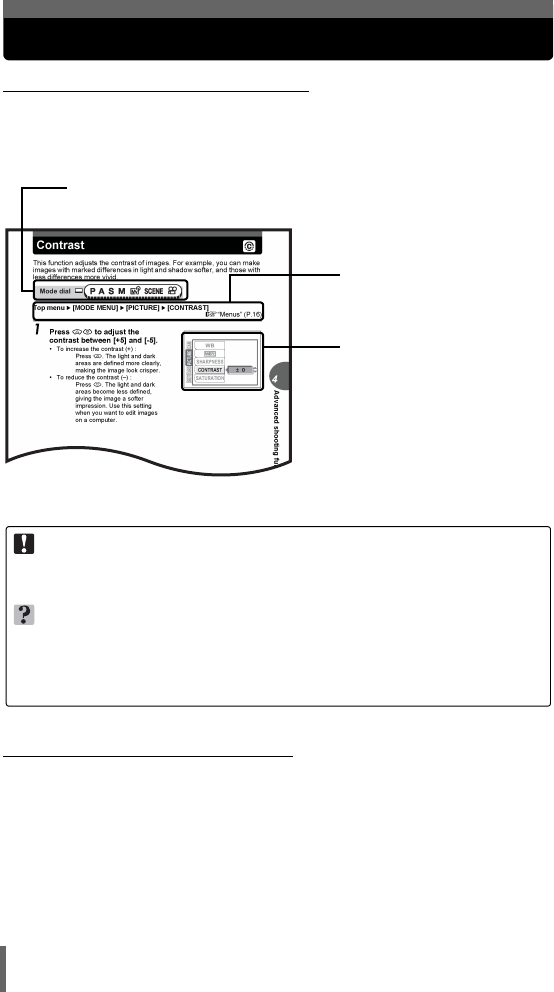
(Indications used in this manual
A sample page is shown below to explain how to read the instructions in this
manual. Look at it carefully before taking or viewing pictures. See the
reference pages for further details on how to use the buttons or menus.
(Basic and Advanced Manuals
The instruction manual accompanying this camera is divided into two
parts: the Basic Manual and the Advanced Manual (this document).
Basic
Manual
This manual helps you get used to the camera. It gives you easy-to-
follow explanations on how to take pictures and view them.
Advanced
Manual
This manual introduces you to the camera’s many functions after you
have mastered the basics. It will help you to use the camera’s
capabilities to take much more creative pictures, with more fun!
Set the mode dial to one of these symbols.
g “Mode dial” (P.12)
Note
Important information on factors which may lead to a malfunction or operational
problems. Also warns of operations that should be absolutely avoided.
TIPS
Useful information and hints that will help you get the most out of your camera.
g
Reference pages describing details or associated information.
Available languages vary
depending on the area where
you purchased this camera.
g“Selecting a
language” (P.108)
This sample page is only for your reference. It may differ from the actual page in
this manual.
Select the menus in the
order indicated by.
g“Menus” (P.16)
d4250_e_00_0_bookfile.book Page 4 Friday, December 24, 2004 11:45 AM
5
Composition of the manual
The title page of each chapter gives a short description of the contents.
Be sure to check it out.
Basic operation
Tips before you start
taking pictures
Basic shooting functions
Advanced shooting
functions
More useful functions
Playback
Settings
Printing pictures
Connecting the camera to
a computer
Appendix
Miscellaneous
Troubleshooting
For when you want to know the
names of parts, see a list of
menus, or find what you are
looking for.
Read this part before using the
camera.
Explanation of techniques from
basics to advanced, giving you
an understanding of all the
functions related to taking
pictures.
To view, edit and sort the
pictures you have taken.
Settings to make your camera
easier to use.
To print the pictures you have
taken.
To enjoy the pictures you have
taken on a computer. To use
OLYMPUS Master.
P.11
P.21
P.31
P.45
P.71
P.83
P.105
P.123
P.141
P.157
P.179
A quick guide to the camera’s
capabilities. Table of Contents P.6
How to use the camera P.2
1
2
3
4
5
6
7
8
9
10
11
d4250_e_00_0_bookfile.book Page 5 Friday, December 24, 2004 11:45 AM

6
Table of Contents
How to use this manual....................................................................... 4
Composition of the manual ................................................................. 5
1 Basic operation - - - - - - - - - - - - - - - - - - - - - -11
Mode dial........................................................................................... 12
Direct buttons .................................................................................... 13
Using the direct buttons in shooting mode .................................. 13
Using the direct buttons in playback mode ................................. 15
Menus ............................................................................................... 16
About the menus ......................................................................... 16
How to use the menus ................................................................ 19
2 Tips before you start taking pictures - - - - - -21
Holding the camera ........................................................................... 22
Turning the monitor on/off ................................................................. 23
If correct focus cannot be obtained ................................................... 24
How to focus (focus lock) ............................................................ 24
Subjects that are difficult to focus on .......................................... 25
Record mode K ............................................................................. 26
Still picture record modes............................................................ 26
Movie record modes.................................................................... 27
Card capacity in number of pictures/remaining recording time... 28
To change the record mode........................................................ 30
3 Basic shooting functions- - - - - - - - - - - - - - - 31
Selecting a shooting mode according to the situation....................... 32
Zooming in on a distant subject ........................................................ 35
Using the optical zoom................................................................ 35
Using the digital zoom................................................................. 36
Taking close-up pictures (macro/super macro mode) &% ............ 37
Flash shooting # ............................................................................. 39
Flash intensity control w .......................................................... 43
Slow synchronization L ................................................... 44
4 Advanced shooting functions - - - - - - - - - - -45
Aperture priority shooting A ............................................................ 46
Shutter priority shooting S ............................................................... 47
Manual shooting M .......................................................................... 48
My Mode r .................................................................................... 49
d4250_e_00_0_bookfile.book Page 6 Friday, December 24, 2004 11:45 AM
Table of Contents
7
Focusing applications........................................................................ 49
AF mode...................................................................................... 49
Fulltime AF .................................................................................. 50
AF area ....................................................................................... 50
AF illuminator .............................................................................. 51
Manual focus M ....................................................................... 52
Metering ............................................................................................ 54
ESP/Spot metering Kn ...................................................... 54
Multi-metering ............................................................................. 54
AE lock B ..................................................................................... 56
ISO sensitivity ................................................................................... 58
Exposure compensation F .............................................................. 59
White balance WB ........................................................................... 60
Auto white balance...................................................................... 60
Preset white balance................................................................... 61
One-touch white balance V ..................................................... 62
White balance compensation > ............................................ 63
Sharpness N ................................................................................... 64
Contrast J ....................................................................................... 65
Saturation 6 ................................................................................... 65
Noise reduction O ......................................................................... 66
Histogram u ................................................................................... 67
Displaying shooting information INFO .............................................. 69
Frame assist...................................................................................... 70
5 More useful functions - - - - - - - - - - - - - - - - -71
Recording movies n ....................................................................... 72
Camera movement compensation h ...................................... 73
Sequential shooting j 7 .......................................................... 74
Sequential shooting j ............................................................. 74
Auto bracketing 7 ................................................................. 75
Time lapse shooting L .................................................................... 76
Self-timer shooting Y ...................................................................... 77
Function shooting (black & white/sepia)............................................ 78
Panorama shooting ........................................................................... 79
Recording sound with still pictures R ............................................... 81
Recording sound with movies R ...................................................... 82
6 Playback - - - - - - - - - - - - - - - - - - - - - - - - - - -83
Single-frame playback q ................................................................ 84
d4250_e_00_0_bookfile.book Page 7 Friday, December 24, 2004 11:45 AM
Table of Contents
8
Close-up playback U ...................................................................... 84
Index display G .............................................................................. 85
Selecting the number of pictures G ......................................... 86
Calendar display G ........................................................................ 86
Slideshow m .................................................................................. 88
Slideshow setup m .................................................................. 88
Picture rotation y ............................................................................ 89
Playing back movies q .................................................................. 90
Editing still pictures ........................................................................... 91
Resizing Q .............................................................................. 91
Trimming P .............................................................................. 92
Red-eye correction...................................................................... 93
Recording sound R .......................................................................... 94
Editing movies................................................................................... 95
Creating an index........................................................................ 95
Editing a movie............................................................................ 96
Playback on a TV .............................................................................. 98
Video output selection................................................................. 99
Information display INFO ............................................................... 100
Histogram u ................................................................................. 101
Protecting pictures 0 .................................................................. 102
Erasing pictures SR ................................................................... 102
Single-frame erase S .............................................................. 103
All-frame erase R .................................................................. 103
Formatting I ................................................................................. 104
7 Settings- - - - - - - - - - - - - - - - - - - - - - - - - - - 105
All reset ........................................................................................... 106
Selecting a language W ........................................................... 108
Power on/Power off setup ............................................................... 108
Rec view.......................................................................................... 109
Screen setup................................................................................... 110
Playback volume ............................................................................. 111
Beep 8 ......................................................................................... 111
Button operation beep..................................................................... 112
Shutter sound.................................................................................. 112
My Mode setup r ........................................................................ 113
File name ........................................................................................ 116
Pixel mapping.................................................................................. 117
Monitor brightness adjustment s ................................................ 117
d4250_e_00_0_bookfile.book Page 8 Friday, December 24, 2004 11:45 AM
Table of Contents
9
Setting the date and time X ........................................................ 118
Measurement units (m/ft) m/ft ........................................................ 119
Shortcut........................................................................................... 120
Setting the shortcut menus ....................................................... 121
Using the shortcut menus ......................................................... 121
8 Printing pictures - - - - - - - - - - - - - - - - - - - - 123
Direct printing (PictBridge) .............................................................. 124
Using the direct printing function............................................... 124
Connecting the camera to a printer........................................... 125
Printing pictures ........................................................................ 126
Easy printing ............................................................................. 126
Printing by selecting a print mode ............................................. 128
Trimming P ............................................................................ 131
Exiting direct printing................................................................. 132
If an error code is displayed ...................................................... 133
Print settings (DPOF) < ................................................................ 134
How to make print reservations................................................. 134
All-frame reservation/Single-frame reservation U < ............. 135
Trimming P ............................................................................ 138
Resetting print reservation data < .......................................... 139
9 Connecting the camera to a computer - - - - 141
Flow................................................................................................. 142
Using OLYMPUS Master ................................................................ 143
What is OLYMPUS Master?...................................................... 143
Installing OLYMPUS Master ..................................................... 144
Connecting the camera to a computer............................................ 147
Starting up OLYMPUS Master ........................................................ 149
Displaying camera images on a computer ...................................... 151
Downloading and saving images .............................................. 151
Viewing still pictures and movies .................................................... 153
Printing pictures .............................................................................. 154
To download and save images to a computer without using
OLYMPUS Master..................................................................... 156
10 Appendix - - - - - - - - - - - - - - - - - - - - - - - - - 157
Troubleshooting .............................................................................. 158
Error codes................................................................................ 158
Troubleshooting ........................................................................ 159
d4250_e_00_0_bookfile.book Page 9 Friday, December 24, 2004 11:45 AM
Table of Contents
10
Camera care ................................................................................... 166
AC adapter (optional)...................................................................... 167
Safety Precautions .......................................................................... 168
Handling the Camera ................................................................ 168
Battery handling precautions..................................................... 171
Card handling precautions ........................................................ 174
LCD Monitor .............................................................................. 175
Glossary of terms ............................................................................ 176
11 Miscellaneous - - - - - - - - - - - - - - - - - - - - - 179
Menu list.......................................................................................... 180
List of factory default settings.......................................................... 186
Modes and shooting functions ........................................................ 189
Names of parts................................................................................ 191
Camera ..................................................................................... 191
Monitor indications .................................................................... 193
Index ............................................................................................... 196
d4250_e_00_0_bookfile.book Page 10 Friday, December 24, 2004 11:45 AM
11
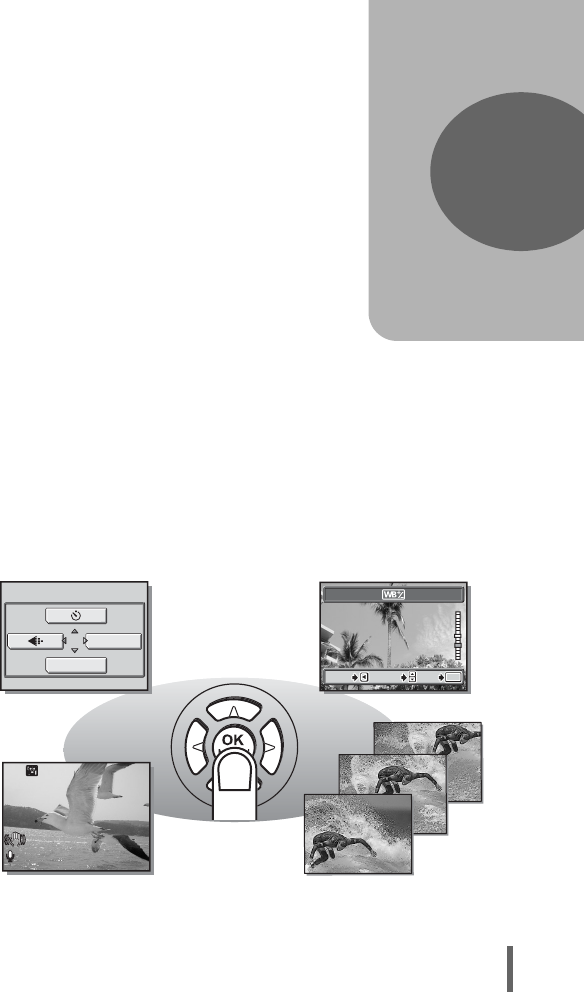
1 Basic operation
Basic operation
Don’t you sometimes feel that advanced
shooting and editing functions are only for
professional photographers?
With their experience and skill, they can
make all kinds of fine adjustments to
achieve a variety of effects.
Now you too can achieve such effects
simply by pressing the buttons on your
digital camera. You can use the advanced
functions available on your camera by
setting the menu items to adjust the amount
of light passing through aperture or alter the
focusing range.
Just display a menu on the monitor and use
the buttons to choose a setting. Familiarize
yourself with the buttons and menus before
reading the explanations of the various
functions.
1
0
0
0:
0:
36
36
0 0:3 6
Sequential shooting
Movies
BLUE
RED
BLUE
RED
SELECT
SELECT
GO
GO
OK
OK
CANCEL
CANCEL
GO
OK
CANCEL SELECT
MONITOR OFF
MODE MENU
HQ
HQ
d4250_e_00_0_bookfile.book Page 11 Friday, December 24, 2004 11:45 AM
12
1
Basic operation
Mode dial
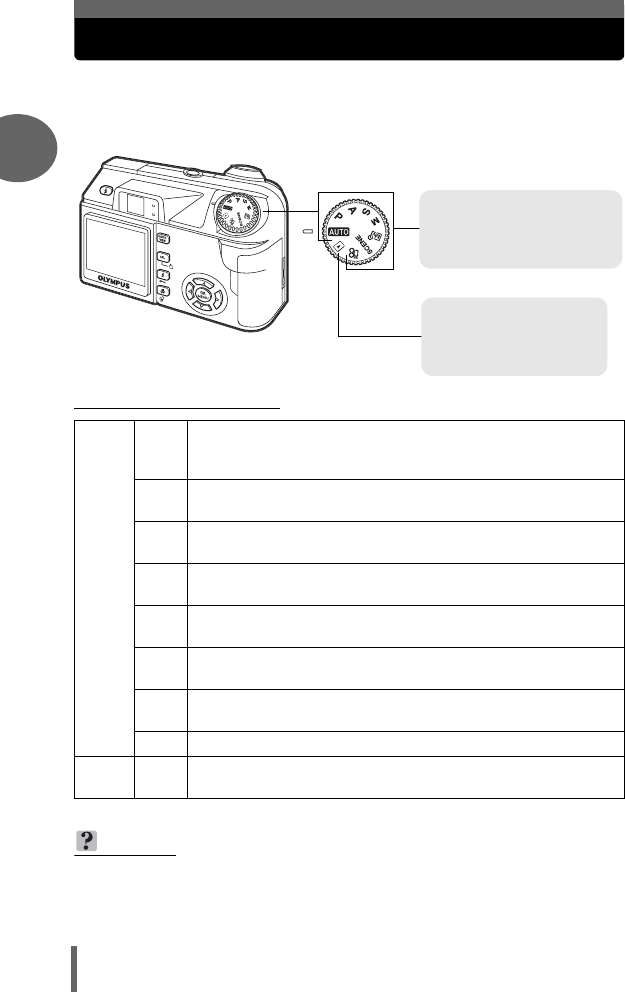
This camera features a mode dial for selecting the camera’s mode. The
modes are divided into shooting and playback modes, with shooting mode
divided into 8 modes. Select the mode you want, then press the POWER
switch to turn the camera on.
(About the mode dial
Shooting modes
hThere is no need to use special functions or change any settings.
The camera automatically adjusts all settings including focus and
exposure for you.
PThe camera automatically sets the aperture value and shutter
speed.
AThis function allows you to set the aperture manually. The camera
sets the shutter speed automatically. gP.46
SThis function allows you to set the shutter speed manually. The
camera sets the aperture automatically. gP.47
MThis function allows you to set the aperture and shutter speed
manually. gP.48
rThis function allows you to set your own shooting parameters and
register them as your original mode. gP.49
fThis function allows you to select from 10 situation-related modes
set to the shooting conditions. gP.32
n
This function allows you to record movies with sound.
g
P.72
Playback
mode
qThis function allows you to view still pictures and movies, as well
as playback sound. gP.84, 90
TIPS
•
The direct button functions and menu contents vary depending on the position of
the mode dial.
g
“Direct buttons” (P.13), “Menus” (P.16), “Menu list” (P.180)
• You can change the mode before and after turning the camera on.
Shooting modes
Set the mode dial to one of
these positions to take
pictures or movies.
Playback mode
Set the mode dial to this
position to view pictures or
movies.
d4250_e_00_0_bookfile.book Page 12 Friday, December 24, 2004 11:45 AM
13
Basic operation
1
Direct buttons
The direct buttons have different functions in shooting mode and in
playback mode.
Using the direct buttons in shooting mode
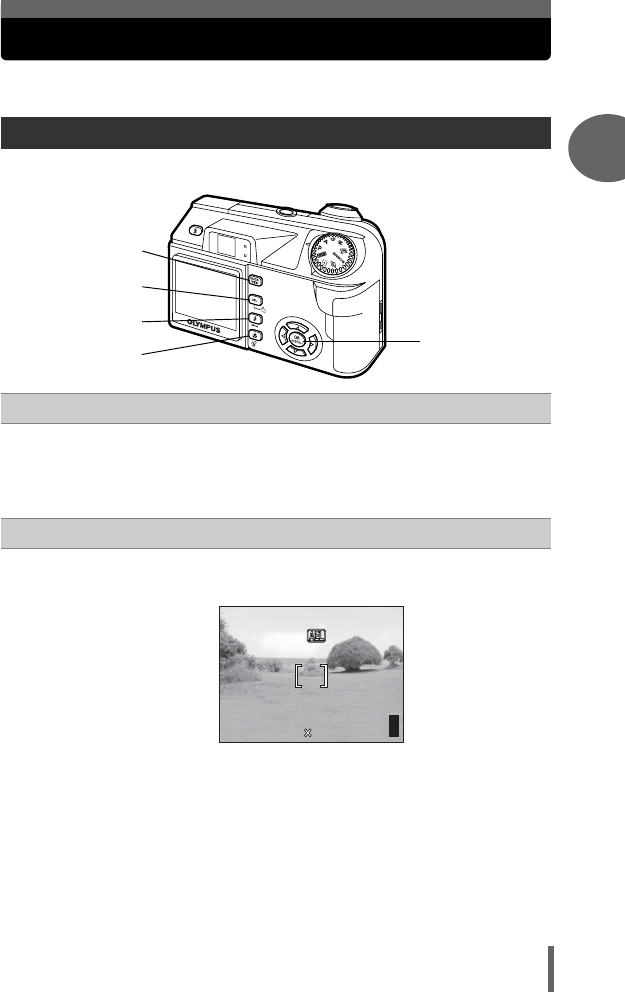
cQUICK VIEW button
Pressing the QUICK VIEW button displays the last picture taken on the
monitor. All the functions in normal playback mode are available.
g“6 Playback” (P.83)
To return to shooting mode for taking the next picture, press the QUICK
VIEW button or press the shutter button halfway.
d[ (AE lock) button
The exposure (AE) lock function is alternately activated and canceled
each time you press the button. g“AE lock” (P.56)
g
e
d
c
f
F2.8
F2.8
1/1000
1/1000
0.0
0.0
2592 1944
2592 1944
HQ
HQ
P
30
30
30
AE lock screen
d4250_e_00_0_bookfile.book Page 13 Friday, December 24, 2004 11:45 AM
Direct buttons
14
1
Basic operation
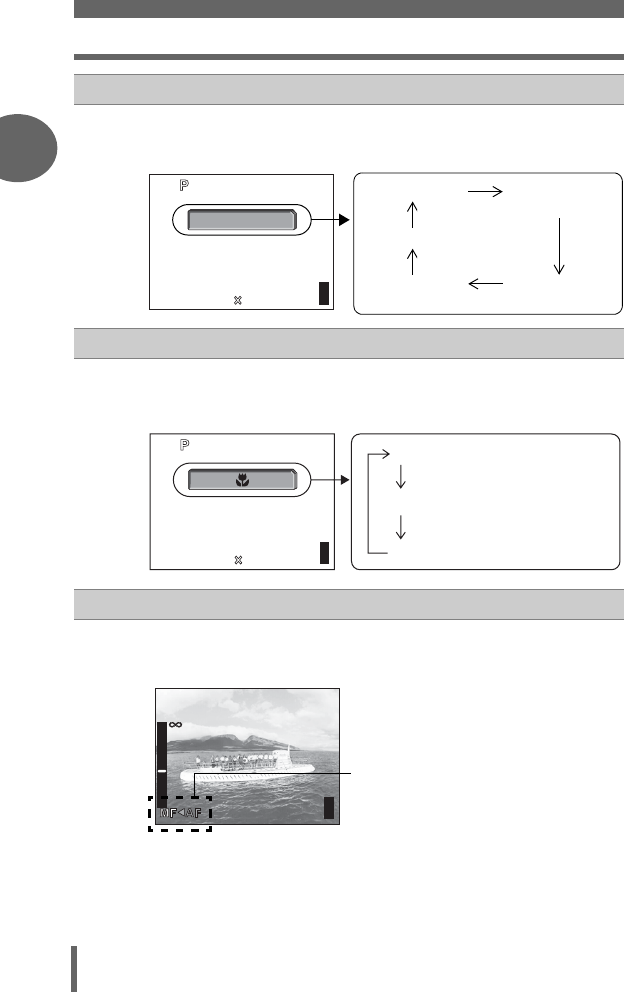
e# (flash mode) button
Press the # (flash mode) button repeatedly to change the setting. The
setting changes in the following order with each press of the button.
g“Flash shooting” (P.39)
f& (Macro) button
Press the & (macro) button repeatedly to change the macro settings.
The setting changes in the following order with each press of the button.
g“Taking close-up pictures (macro/super macro mode)” (P.37)
gN button
The focus mode is alternately selected. Holding down N for more than
1 second displays the following screen. Press bd to alternately select AF
(Auto focus) and MF (Manual focus). g“Manual focus” (P.52)
1/1000
1/1000
F2.8
F2.8
AUTO
0.0
0.0
2592 1944
2592 1944
HQ
HQ
30
30
30
AUTO (Auto-flash)
$ (Flash off)
! (red-eye
reduction flash)
#SLOW (Slow
synchronization)
# (fill-in flash)
1/1000
1/1000
F2.8
F2.8
0.0
0.0
2592 1944
2592 1944
HQ
HQ
30
30
30
OFF
%
(Super macro)
&
(Macro)
F2.8
F2.8
1/1000
1/1000
P
0.0
0.0
30
30
30
2.5m
2.5m
1.2m
1.2m
0.6m
0.6m
Currently, AF (Auto focus) is set. Press b to
switch to MF (Manual focus).
d4250_e_00_0_bookfile.book Page 14 Friday, December 24, 2004 11:45 AM
Direct buttons
15
Basic operation
1
Basic operation
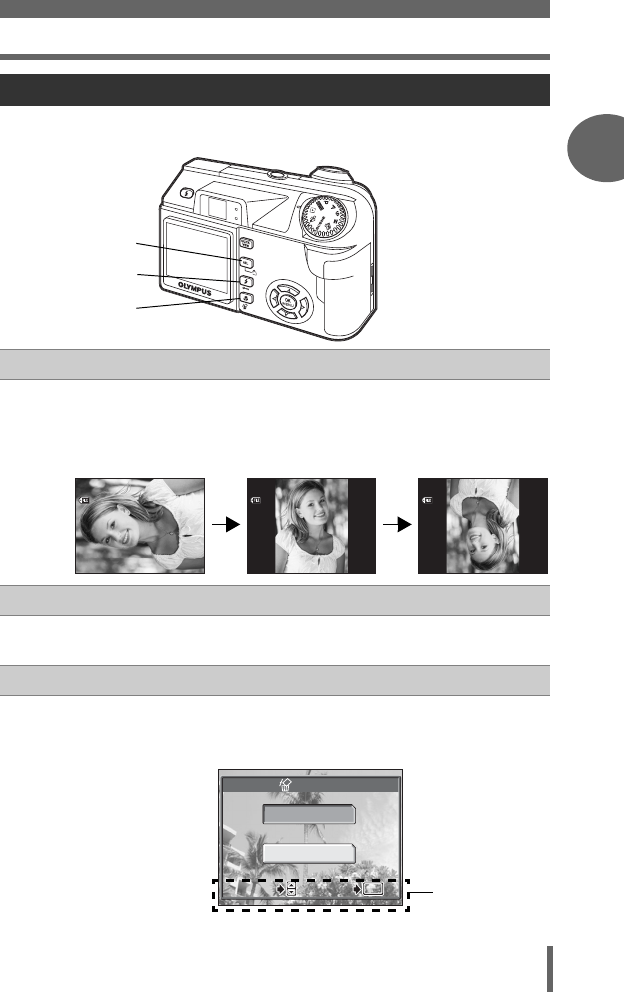
Using the direct buttons in playback mode
cy (Rotation) button
Pressing the y (Rotation) button after selecting a still picture rotates it.
Each pressing rotates the image in the following sequence:
90° clockwise, 90° counterclockwise, and back to the original.
g“Picture rotation” (P.89)
d0 (Protect) button
Pressing the 0 (Protect) button after selecting a picture sets the protect
function. g“Protecting pictures” (P.102)
eS (Erase) button
Pressing the S (Erase) button after selecting a picture displays the
screen below. Follow the operation guide at the bottom of the screen to
erase the picture. g“Erasing pictures” (P.102)
e
d
c
’05
05
.
02
02
.
16 15
16 15
:
30 30
30 30
100
100
-
0030
0030
HQ
HQ
’05
05
.
02
02
.
16 15
16 15
:
30 30
30 30
100
100
-
0030
0030
HQ
HQ
’05
05
.
02
02
.
16 15
16 15
:
30 30
30 30
100
100
-
0030
0030
HQ
HQ
YES
NO
SELECT
SELECT
GO
GO
OK
OK
SELECT GO
OK
ERASE
Operation guide
d4250_e_00_0_bookfile.book Page 15 Friday, December 24, 2004 11:45 AM
16
1
Basic operation
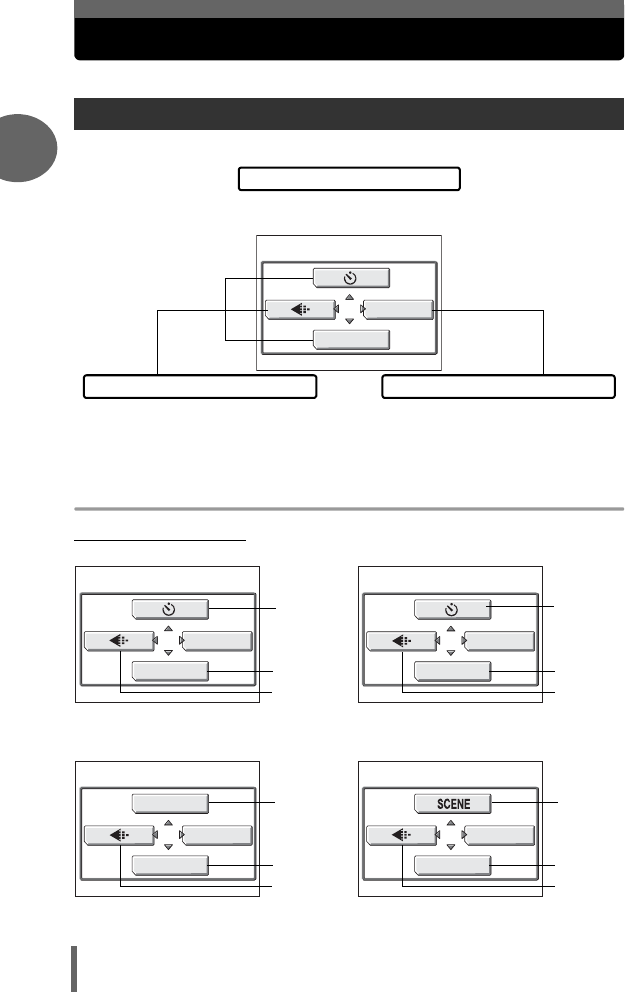
Menus
Menus are used to set functions. Press
N
to display the menu on the monitor.
The menu items that can be used differ depending on the mode.
Top menus
(Shooting modes
About the menus
Mode menus
MONITOR OFF
MODE MENU
You can select menu items that are normally
accessed from the mode menu. There are
shortcut menus that allow you to select on/off.
The settings are categorized into tabs by
function. The mode menu is not
displayed in h mode.
Top menu
Shortcut menus
Menus are divided into shortcut menus
and mode menus.
r1/2/3/4
MONITOR OFF
MODE MENU
MONITOR OFF
MODE MENU
r mode
P A S M mode (Factory default setting)
MONITOR OFF
MODE MENU
∗
gP.23
gP.26
f mode
MONITOR OFF
SETUP
h mode
gP.77
gP.23
gP.26
gP.23
gP.26
gP.23
gP.26
gP.49 gP.32
d4250_e_00_0_bookfile.book Page 16 Friday, December 24, 2004 11:45 AM
Menus
17
Basic operation
1
Basic operation
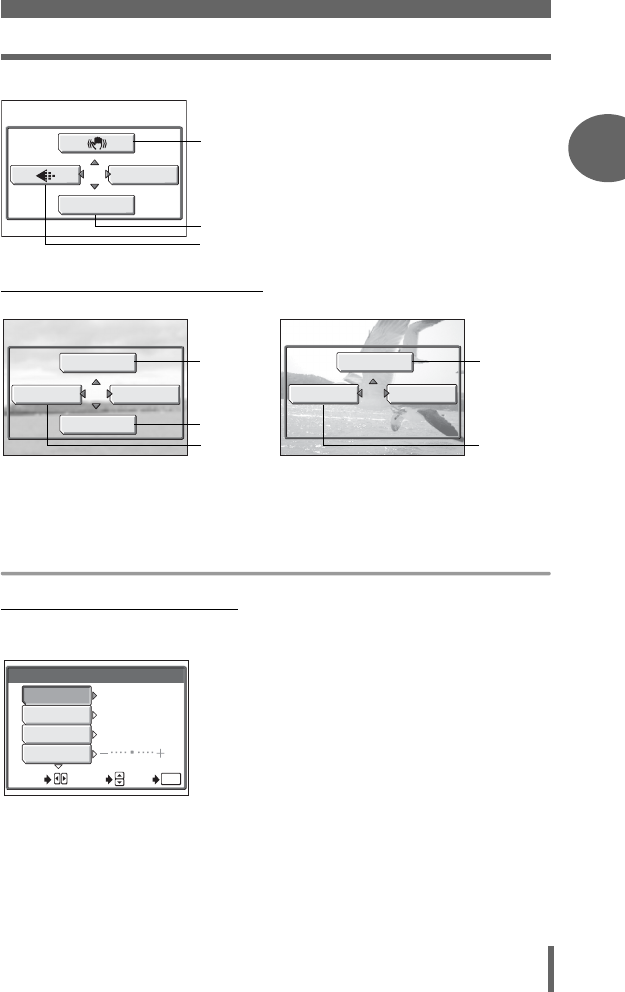
(Playback mode (q mode)
Setup
(Shooting modes (h)
In h mode, the SETUP screen allows you to format the memory card
and perform basic settings for ease of use.
∗You can change the shortcut menus in P/A/S/M modes. The functions
assigned to the shortcut menus can also be set from the mode menu.
g“Shortcut” (P.120)
MONITOR OFF
MODE MENU
gP.73
gP.23
gP.26
n mode
MODE MENU
INFO
MOVIE PLAY
MovieStill picture
u
m
MODE MENU
INFO
gP.88
gP.101
gP.100 gP.100
gP.90
SETUP
FORMAT
ALL RESET
W
s
ON
ENGLISH
SETUP
GO
OK
SELECT
d4250_e_00_0_bookfile.book Page 17 Friday, December 24, 2004 11:45 AM
Menus
18
1
Basic operation
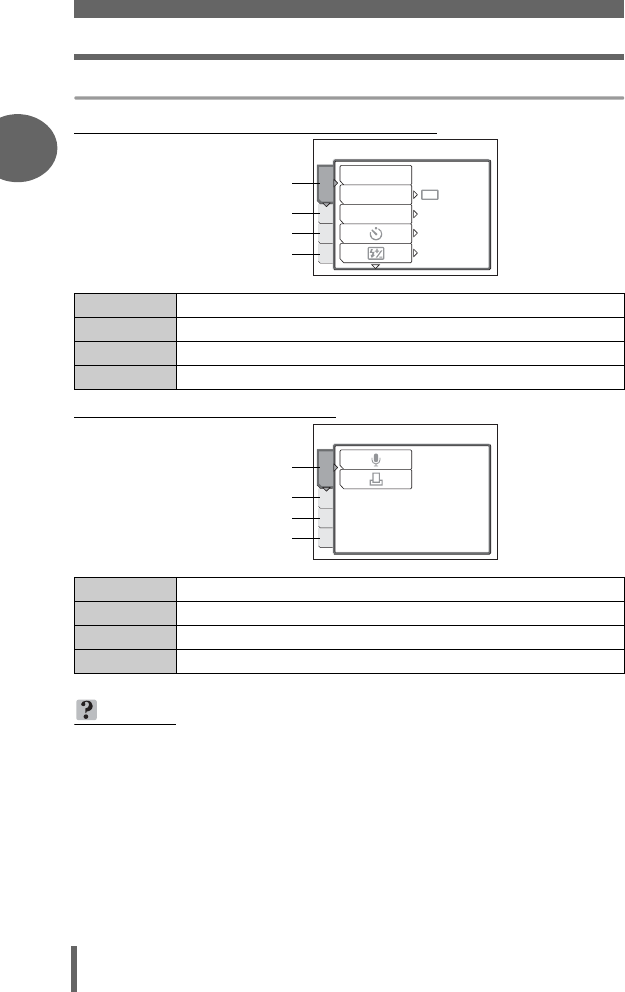
Mode menus
(Shooting modes (P A S M r f)
(Playback mode (q mode)
CAMERA tab For setting shooting-related functions.
PICTURE tab For setting picture-related functions, such as white balance.
CARD tab For formatting the memory card.
SETUP tab
For setting basic camera functions and functions for easy use of the camera.
PLAY tab For recording sound and reserving for printing.
EDIT tab For editing saved pictures.
CARD tab For formatting cards and erasing all image data.
SETUP tab
For setting basic camera functions and functions for easy use of the camera.
TIPS
•In n mode, the mode menu differs in shooting mode and in playback mode.
For details, see “Menu list” (P.180).
• For details of mode menu items in setup and mode menu, see “Menu
list” (P.180).
DRIVE
AE/AF
ISO
PIC
CARD
SET
CAMERA
AUTO
OFF
0.0
CAMERA tab
PICTURE tab
CARD tab
SETUP tab
EDIT
CARD
SET
PLAY
PLAY tab
EDIT tab
CARD tab
SETUP tab
d4250_e_00_0_bookfile.book Page 18 Friday, December 24, 2004 11:45 AM
Menus
19
Basic operation
1
Basic operation
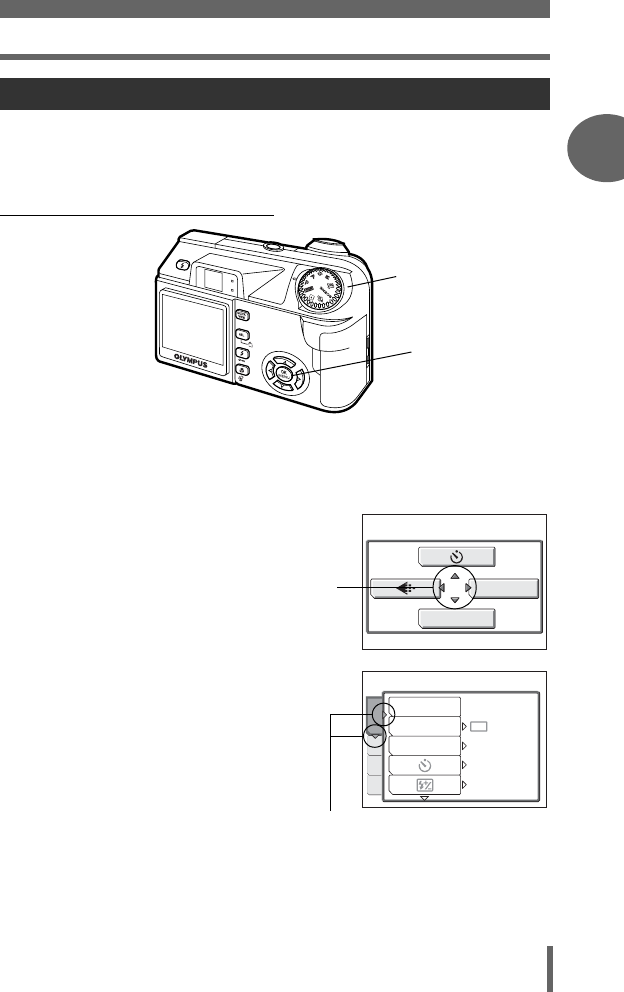
Use the arrow pad and N to select and set the menu items.
Follow the operation guide on the screen and use the arrow pad to set the
items. How to use the menus is shown below.
Ex: Setting [7] (Auto bracketing)
1Set the mode dial to either P, A, S, M, r or f.
2Press N.
• The top menu is displayed.
3Press d to select [MODE MENU].
4Press ac to select the
[CAMERA] tab, then press d.
• Refer to the arrows on the screen to
select a setting with the arrow pad.
How to use the menus
acbd buttons
N button
Mode dial
MONITOR OFF
MODE MENU
Top menu
This refers to the arrow
pad (acbd).
DRIVE
AE/AF
ISO
PIC
CARD
SET
CAMERA
AUTO
OFF
0.0
This refers to the arrow pad
(cd).
d4250_e_00_0_bookfile.book Page 19 Friday, December 24, 2004 11:45 AM
Menus
20
1
Basic operation
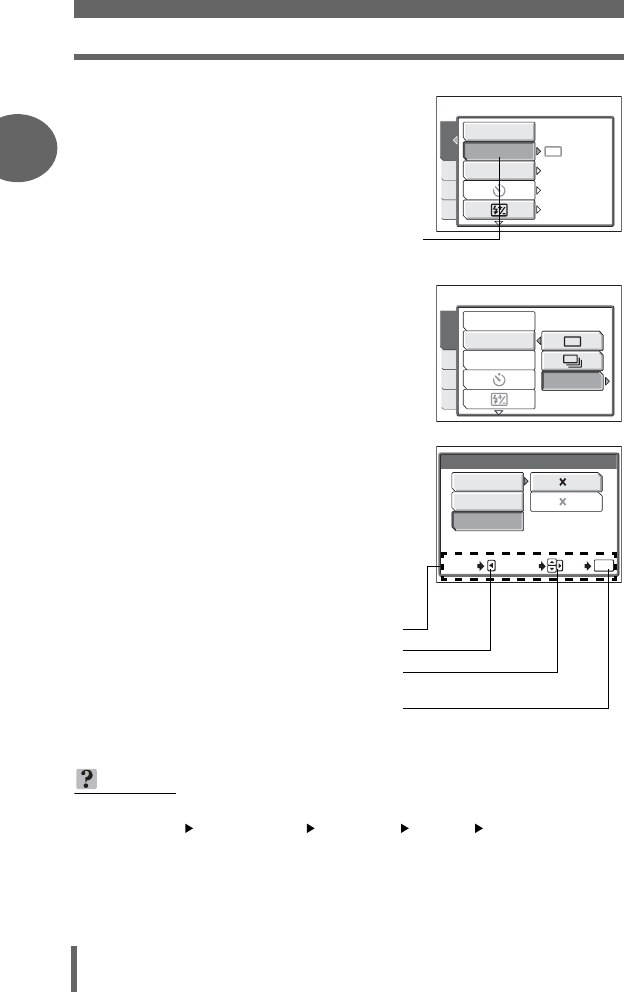
5Press ac to select [DRIVE],
then press d.
• Refer to the arrows on the screen to
select a setting with the arrow pad.
• Unavailable settings cannot be
selected.
6Press ac to select [BKT], then
press d.
• Refer to the arrows on the screen to
select a setting with the arrow pad.
7Press ac and select the
exposure differential from [±0.3],
[±0.7] and [±1.0], then press d.
Press ac and select the
number of shots from [×3] and
[×5], then press N.
• Follow the operation guide at the bottom
of the screen and use the arrow pad to
select and set a setting.
TIPS
In this manual, Steps 2 to 6 of how to use the menus are expressed as follows:
Top menu [MODE MENU] [CAMERA] [DRIVE] [BKT]
DRIVE
ISO
AE/AF
PIC
CARD
SET
CAMERA
AUTO
OFF
0.0
The selected item
appears indented.
BKT
DRIVE
ISO
AE/AF
PIC
CARD
SET
CAMERA
SELECT
GO
CANCEL
BKT
OK
± 0.3
± 0.7
± 1.0
3
5
Operation guide
Press b to cancel.
Press ac to select a setting.
Press d to move settings.
Press N to make your selection.
d4250_e_00_0_bookfile.book Page 20 Friday, December 24, 2004 11:45 AM
21
2 Tips before you start taking pictures
Tips before you start
taking pictures
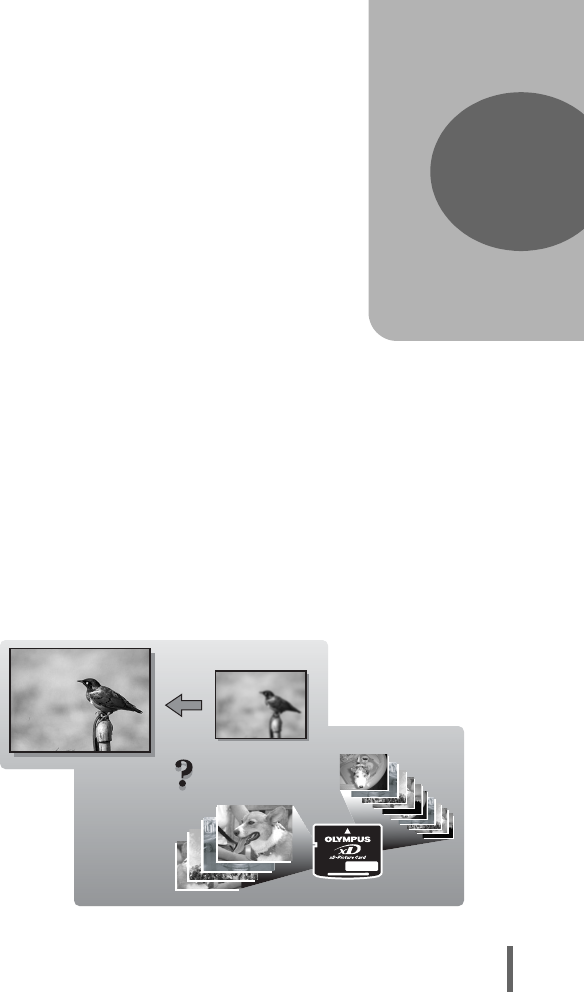
Your pictures are almost guaranteed to
come out well just by setting the mode dial
to h and pressing the shutter button.
But occasionally, you can’t focus on your
subject, or the subject is too dark, or the
picture doesn’t come out the way you
want…
Just knowing which button to press or which
setting to change can help you solve these
problems.
And did you know that by selecting an
image size according to how you plan to use
the pictures afterwards, you can store more
pictures on the memory card? These are
just some of the hints provided in this
chapter.
2
Ideas
Online applications
SHQ
SHQ
SQ2
SQ2
SHQ
SQ2
Ideas
Printing
applications
d4250_e_00_0_bookfile.book Page 21 Friday, December 24, 2004 11:45 AM
22
2
Tips before you start taking pictures
Holding the camera
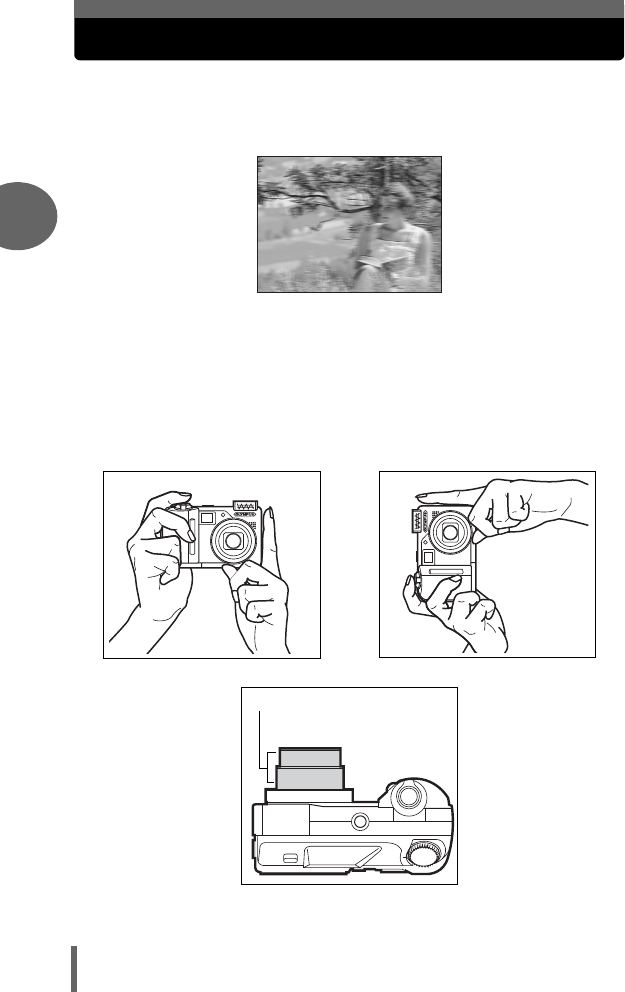
Sometimes when you look at a picture you have taken, the contours of the
subject are blurred. This is often caused by movement of the camera at the
precise moment that the shutter button is pressed.
Picture where subject is not clearly defined
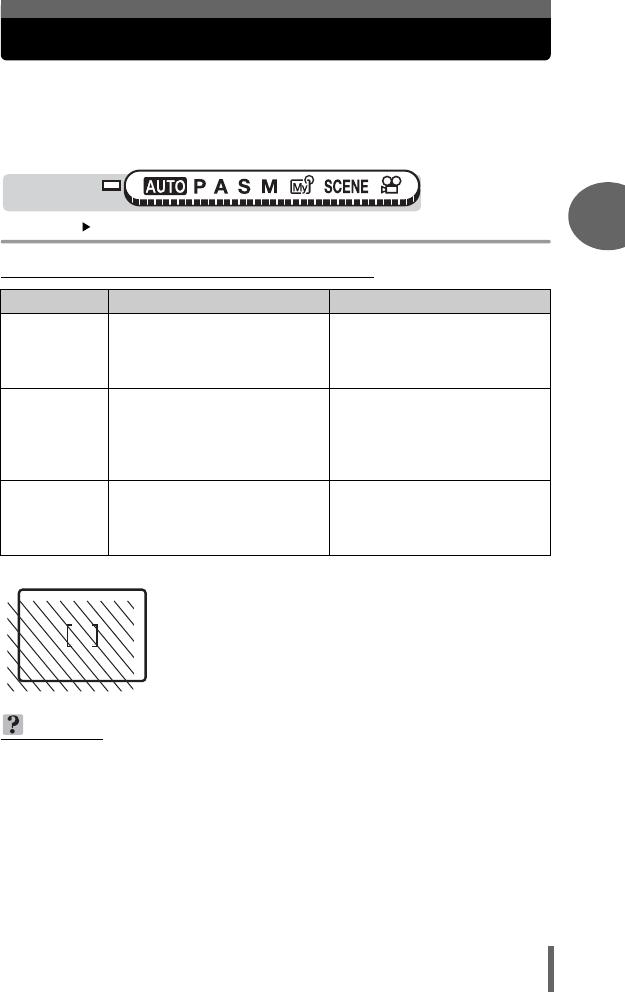
To prevent the camera from moving, hold the camera firmly with both
hands while keeping your elbows at your sides. When taking pictures
with the camera in the vertical position, hold the camera so that the flash
is positioned higher than the lens. Keep your fingers and the strap away
from the lens and flash.
Horizontal grip Vertical grip
Top view
Do not hold this part of the lens.
d4250_e_00_0_bookfile.book Page 22 Friday, December 24, 2004 11:45 AM
23
Tips before you start taking pictures
2
Turning the monitor on/off
You can take pictures with or without using the monitor.
MONITOR ON For taking pictures using the monitor (factory default setting)
MONITOR OFF For taking pictures using the viewfinder
Top menu [MONITOR OFF] / [MONITOR ON] g“Menus” (P.16)
(Features of the monitor and viewfinder
Monitor Viewfinder
Advantages
You can check the picture area
that the camera actually
records.
Camera movement does not
occur easily and subjects can be
seen clearly even in bright places.
Little battery power is used.
Disadvantages
Camera movement occurs easily
and subjects may be difficult to
see in bright/dark places. The
monitor uses more battery power
than the viewfinder.
When close to a subject, the
image in the viewfinder differs
slightly from the picture that the
camera actually records.
Tips
Use the monitor when you need to
know the exact area the camera
records, or to take a close-up of a
person or flower (macro shooting).
Use the viewfinder for general
snapshots, landscape pictures
and other casual shots.
Viewfinder
• The camera records a wider area than the image in the
viewfinder.
• As you get closer to the subject, the actual image recorded
(the shaded area in the illustration on the left) differs
slightly from the image in the viewfinder.
TIPS
The monitor turns off automatically.
→If the camera is not used for over 3 minutes, the monitor turns off automatically.
Press the shutter button or zoom lever to turn the monitor on.
To adjust the brightness of the monitor.
→Adjust the brightness with the [s] settings. g“Monitor brightness
adjustment” (P.117)
The monitor is hard to see.
→
Bright light, such as direct sunlight, may cause vertical lines (smears) to appear
on the image in the monitor. This does not affect recorded pictures.
Mode dial
d4250_e_00_0_bookfile.book Page 23 Friday, December 24, 2004 11:45 AM
24
2
Tips before you start taking pictures
If correct focus cannot be obtained
The camera automatically detects the focus target in the frame. The level
of contrast is one of the criteria it uses to detect the subject. The camera
may fail to determine subjects with lower contrast than the surroundings or
with an area of extremely strong contrast in the frame. If this happens, the
simplest solution is to use the focus lock.
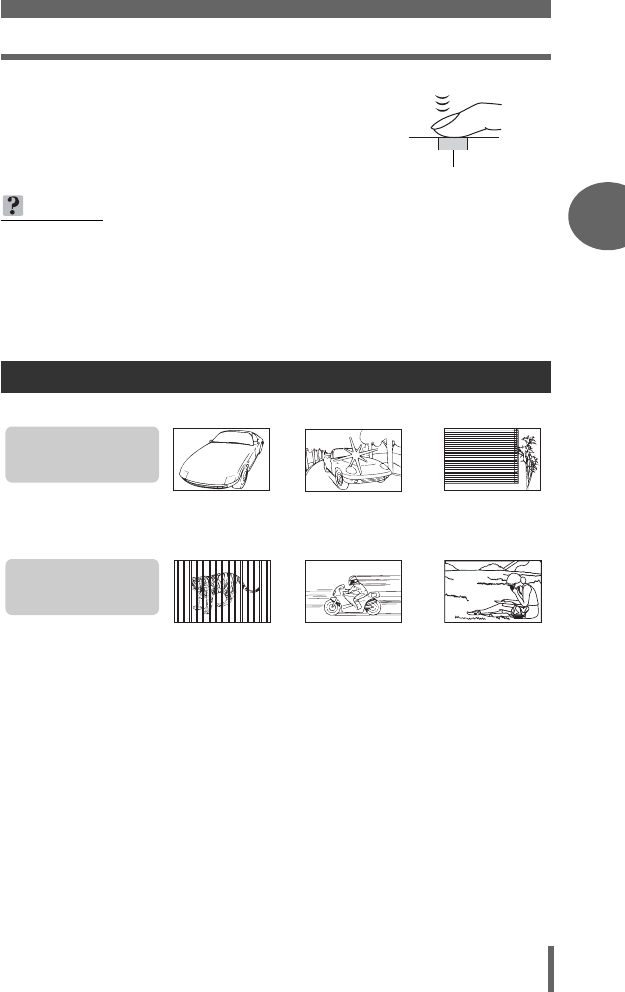
1Position the AF target mark on
the subject you want to focus on.
• When shooting a hard-to-focus subject
or a fast-moving subject, point the
camera at an object about the same
distance away as the subject.
2Press the shutter button halfway
until the green lamp lights.
• When the focus and exposure are
locked, the green lamp lights.
• The AF target mark moves to the focus
position.
• When the green lamp blinks, the focus
and exposure are not locked. Release your finger from the shutter button,
re-position the AF target mark on the subject and press the shutter button
halfway again.
3Keeping the shutter button
pressed halfway, recompose
your shot.
How to focus (focus lock)
Mode dial
F2.8
F2.8
1/1000
1/1000
0.0
0.0
2592 1944
2592 1944
HQ
HQ
30
30
30
P
AF target mark
Shutter button
F2.8
F2.8
1/1000
1/1000
0.0
0.0
2592 1944
2592 1944
HQ
HQ
P
30
30
30
Green lamp
d4250_e_00_0_bookfile.book Page 24 Friday, December 24, 2004 11:45 AM
If correct focus cannot be obtained
25
Tips before you start taking pictures
2
Tips before you start taking pictures
4Press the shutter button fully.
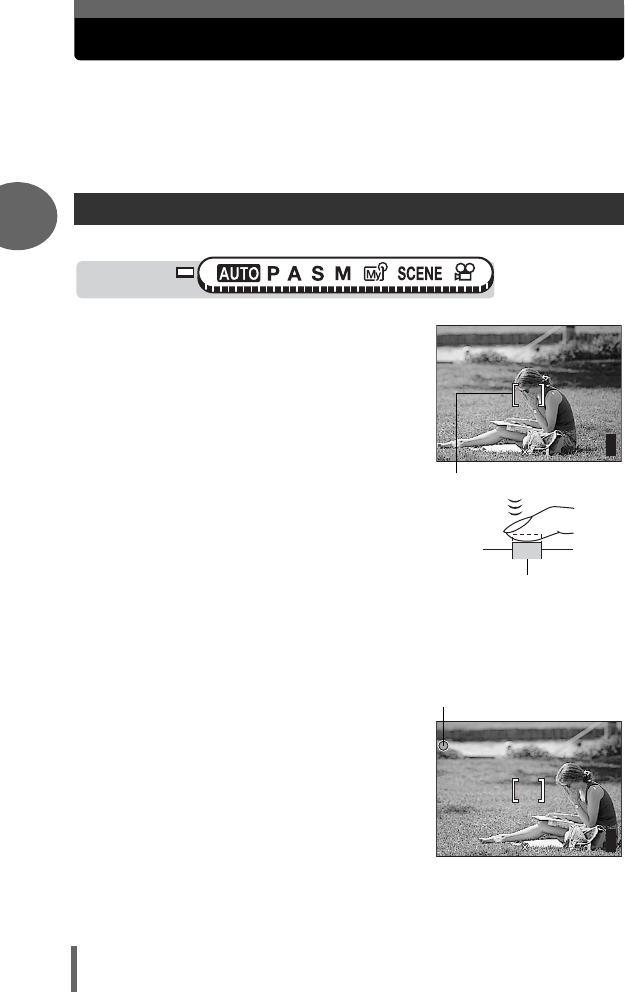
Under certain types of conditions, the auto focus may not work properly.
If this happens, focus on an object with high contrast at the same distance as the
intended subject (focus lock), recompose your shot and then take the picture. If the
subject has no vertical lines, hold the camera vertically and focus the camera using
the focus lock function by pressing the shutter button halfway, then return the
camera to the horizontal position while keeping the button pressed halfway and take
the picture.
If the subject still cannot be focused on, use the manual focus. g“Manual
focus” (P.52)
TIPS
The frame in which you focus on a subject is different from the frame in
which you lock the exposure.
g“AE lock” (P.56)
Focus on the subject in the center of the frame.
g“AF mode” (P.49)
Subjects that are difficult to focus on
Shutter button
The green lamp blinks.
The subject cannot be
brought into focus.
Subject with
low contrast
Subject with an
extremely bright area in
the center of the frame
Subject without
vertical lines
Subjects at
different
distances
Fast-moving
subject
The subject to be
focused on is not in
the center of the frame
The green lamp lights,
but the subject cannot
be brought into focus.
d4250_e_00_0_bookfile.book Page 25 Friday, December 24, 2004 11:45 AM
26
2
Tips before you start taking pictures
Record mode
You can select a record mode in which to take pictures or shoot movies.
Select the best record mode for your purpose (printing, editing on a
computer, website editing, etc.). For information on the image sizes for
each record mode and the memory capacity of the card, see the table on
P.28.
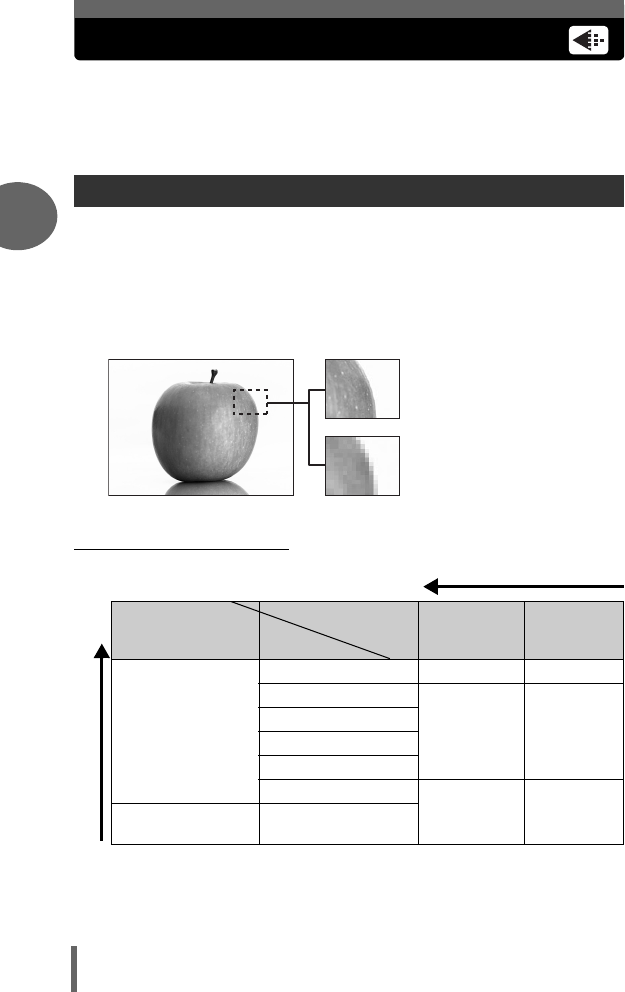
Record mode depicts the image size and compression rate of pictures you wish to
record.
Pictures are made from thousands of dots (pixels). If a picture with relatively few
pixels is enlarged, it looks like a mosaic. A picture with many pixels is denser and
clearer, but requires a larger file size (data size), decreasing the number of pictures
that can be saved on a card. Increasing the compression rate reduces the file size,
but makes the pictures appear grainy.
(Normal image modes
Still picture record modes
Image becomes clearer
Image size becomes larger
Application
Compression
Image size
Low com-
pression
High com-
pression
Select according to
print size
2592 × 1944 SHQ HQ
2288 × 1712
SQ1
HIGH
SQ1
NORMAL
2048 × 1536
1600 × 1200
1280 × 960
1024 × 768 SQ2
HIGH
SQ2
NORMAL
For small-sized
prints and websites 640 × 480
Picture with high number of pixel
Picture with low number of pixel
d4250_e_00_0_bookfile.book Page 26 Friday, December 24, 2004 11:45 AM
Record mode
27
Tips before you start taking pictures
2
Tips before you start taking pictures
Image size
The number of pixels (horizontal × vertical) used when saving an image. If the image
will be printed, higher resolutions (larger numbers) are recommended so that the
image will be clearer.
Compression
In record modes other than TIFF, image data are compressed. The higher the
compression, the less clear the image will be.
(Special record modes
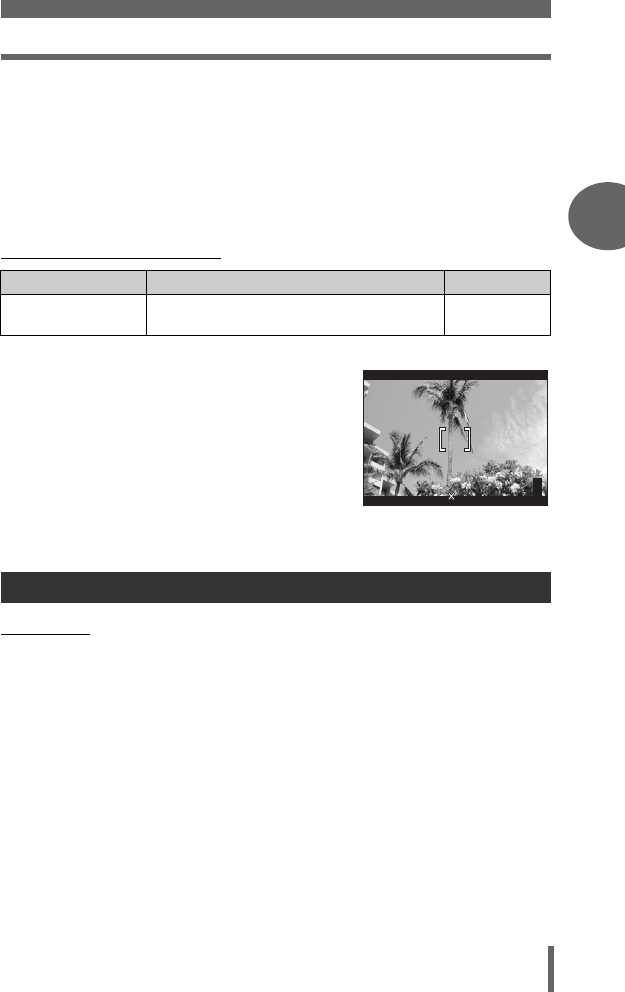
3:2
The image aspect ratio is normally 4:3. If the
aspect ratio is changed to 3:2, the image can be
printed at a photo lab without losing the image
borders.
(HQ, SQ
Movies are recorded in Motion-JPEG format.
Record mode Features Image size
3:2
(SHQ, HQ)
This is useful for ordering prints from a photo
lab. 2592 × 1728
Movie record modes
F2.8
F2.8
1/1000
1/1000
0.0
0.0
2592 1728
2592 1728
HQ
HQ
P
30
30
30
Monitor display when
3:2 is set
d4250_e_00_0_bookfile.book Page 27 Friday, December 24, 2004 11:45 AM
Record mode
28
2
Tips before you start taking pictures
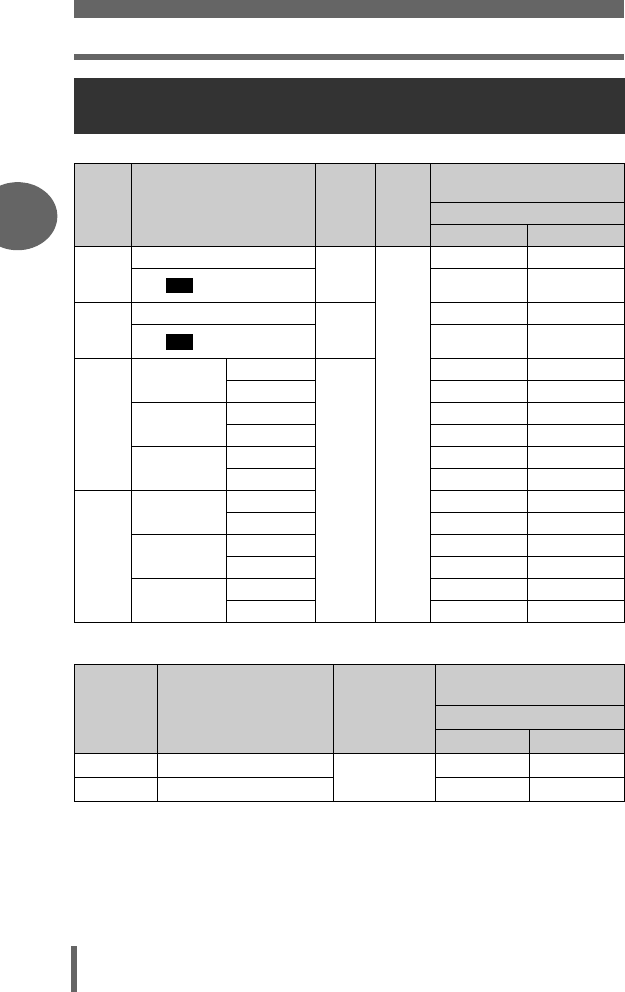
Still pictures
*HIGH = low compression / NORMAL = high compression
Movies
Card capacity in number of pictures/remaining
recording time
Record
mode
Com-
pression
File
format
Card capacity
in number of pictures
Image size Using a 16 MB card
With sound
Without sound
SHQ
2592 × 1944
Low
com-
pression
JPEG
44
2592 × 1728 4 4
HQ
2592 × 1944
High
com-
pression
12 12
2592 × 1728 13 14
SQ1
2288 × 1712 HIGH
*
66
NORMAL 15 16
2048 × 1536 HIGH 6 6
NORMAL 19 20
1600 × 1200 HIGH 11 11
NORMAL 30 32
SQ2
1280 × 960 HIGH 16 17
NORMAL 45 49
1024 × 768 HIGH 25 26
NORMAL 66 76
640 × 480 HIGH 58 66
NORMAL 124 165
Record
mode Image size File format
Remaining recording time
(sec.)
Using a 16 MB card
With sound
Without sound
HQ
320 × 240 (30 frames/sec.)
Motion-JPEG 23 sec. 24 sec.
SQ2
320 × 240 (15 frames/sec.)
46 sec. 48 sec.
3:2
3:2
d4250_e_00_0_bookfile.book Page 28 Friday, December 24, 2004 11:45 AM
Record mode
29
Tips before you start taking pictures
2
Tips before you start taking pictures
TIPS
• When a picture is transferred to a computer, the size of the picture on the
computer screen varies depending on the computer’s monitor setting. For
instance, a picture taken with an image size of 1,024 × 768 fills as the screen
if you set the picture to 1× when the monitor setting is 1,024 × 768. However, if
the monitor setting is over 1,024 × 768 (such as 1,280 × 1,024), the picture only
takes up part of the screen.
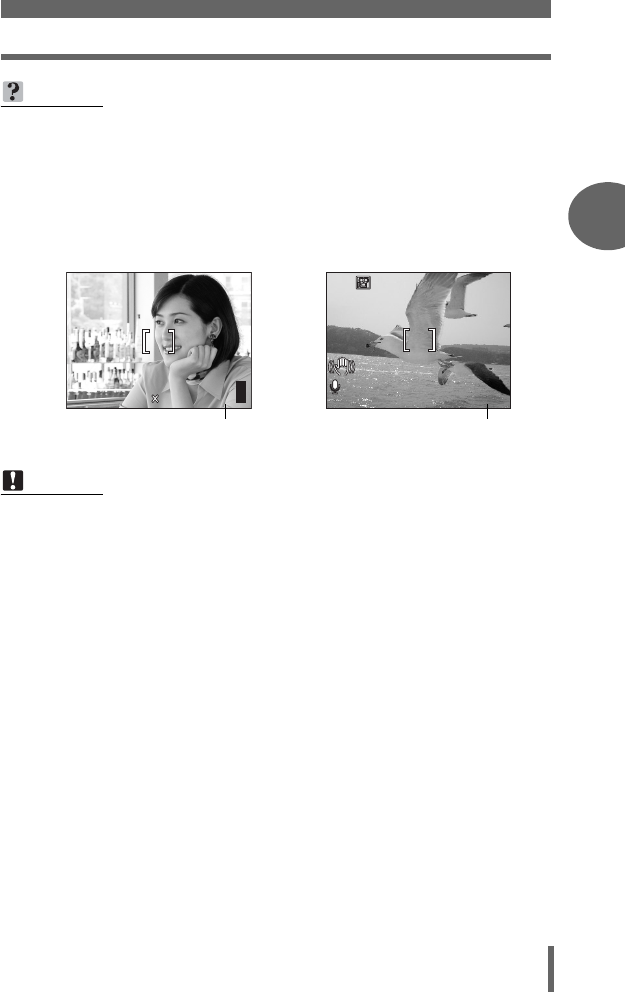
• The number of storable still pictures/recording time is displayed on the monitor
when a card is inserted in the camera.
Note
• The number of storable still pictures and movie recording times listed in the
table are approximate.
• The number of storable still pictures may change according to the subject or
factors like whether print reservations have been made or not. In certain
instances, the number of remaining pictures does not change even when you
take pictures or stored images are erased.
F2.8
F2.8
1/1000
1/1000
0.0
0.0
2592 1944
2592 1944
HQ
HQ
P
30
30
30
Number of storable
still pictures
HQ
HQ
00:
0:
36
36
0 0:3 6
0.0
0.0
Remaining recording time
d4250_e_00_0_bookfile.book Page 29 Friday, December 24, 2004 11:45 AM
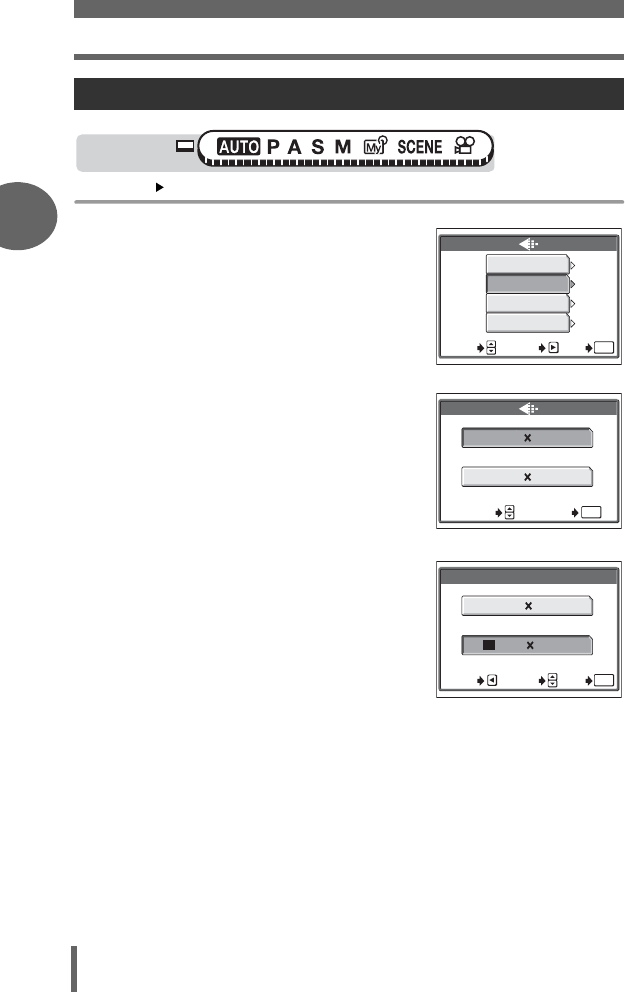
Record mode
30
2
Tips before you start taking pictures
Top menu [K]g “Menus” (P.16)
1Select a record mode from
[SHQ], [HQ], [SQ1] and [SQ2].
For movies, select a record mode
from [HQ], [SQ]. g Go to Step 3
2If you selected [SHQ], [HQ],
[SQ1] or [SQ2], choose an image
size.
If you selected [SQ1] or [SQ2],
press d after choosing the image
size, then select [HIGH] or
[NORMAL].
3Press N.
To change the record mode
Mode dial
For still pictures
SHQ
GO
OK
HQ
SQ1
SQ2
SET
SELECT
For movies
SELECT GO
OK
SQ1 320 240
30fps
SQ2 320 240
15fps
SHQ
2592 1944
2592 1728
3:2
SELECT
GO
OK
CANCEL
d4250_e_00_0_bookfile.book Page 30 Friday, December 24, 2004 11:45 AM
31
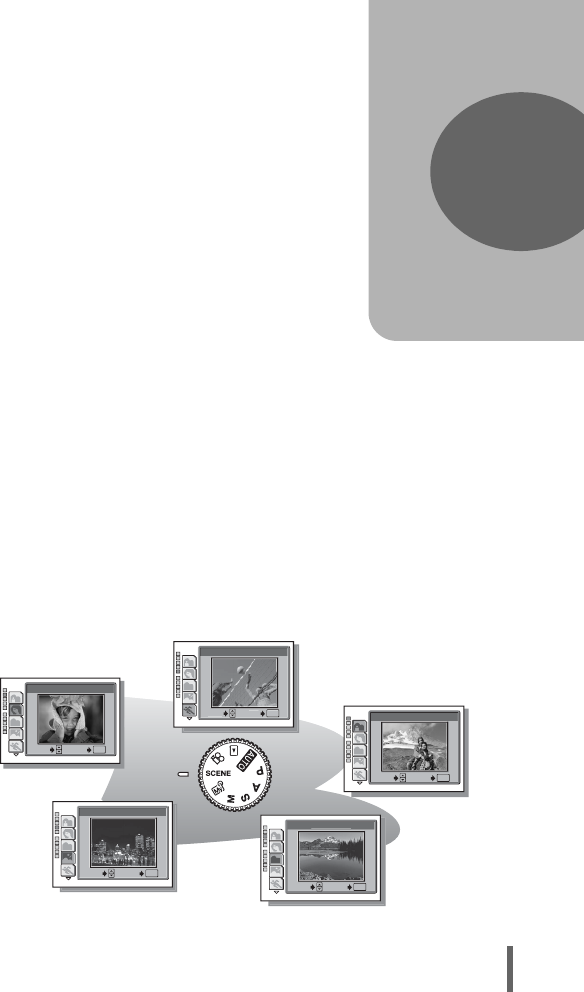
3 Basic shooting functions
A professional photographer adjusts the
exposure to the optimal setting, chooses the
best focusing method and even selects the
type of film according to the subject.
With a digital camera, you don’t need to
learn how to make them. Your camera will
adjust the settings for you! All you have to
do is choose a scene mode according to
whether you are taking a landscape, a night
scene, a portrait-style image or whatever,
and the camera will set the best exposure
and white balance.
There’s nothing to it – just press the shutter
button!
3
Basic shooting
functions
OK
SELECT
GO
PORTRAIT
OK
NIGHT SCENE
SELECT
GO
LANDSCAPE+PORTRAIT
OK
SELECT
GO
OK
SELECT
GO
LAND
S
CAP
E
OK
SPORT
S
ELE
CT
GO
d4250_e_00_0_bookfile.book Page 31 Friday, December 24, 2004 11:45 AM
32
3
Basic shooting functions
Selecting a shooting mode according to the situation
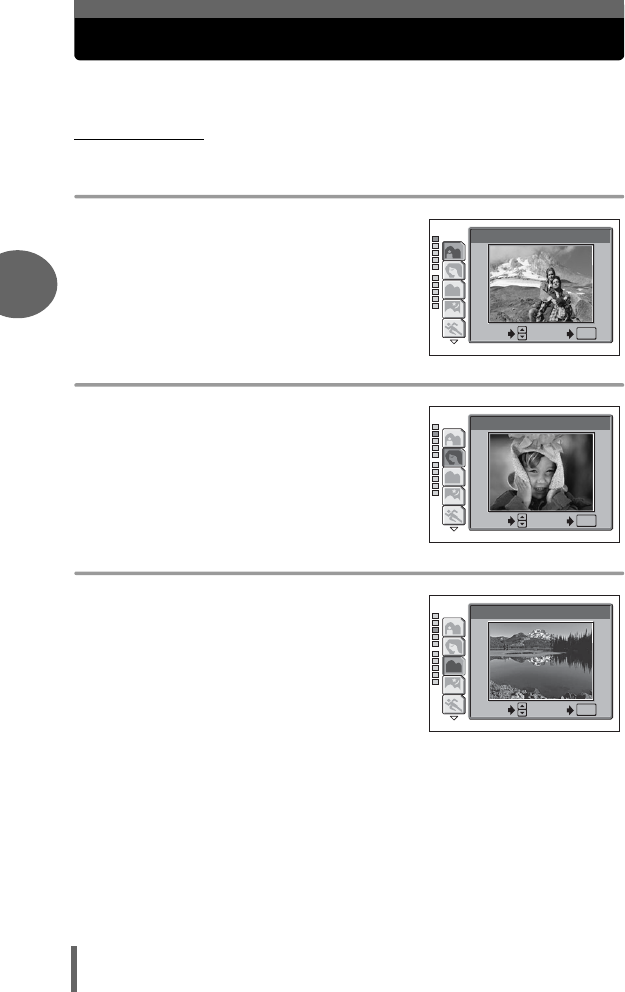
When you select a scene mode according to the situation or shooting
conditions, the camera automatically selects the optimal settings.
(f mode
k LANDSCAPE+PORTRAIT
Suitable for taking pictures of both your subject
and the landscape. The picture is taken with the
background as well as the subject in the
foreground in focus. You can take pictures of your
subject against a beautiful sky or landscape.
i PORTRAIT
Suitable for taking a portrait-style shot of a person.
This mode features an in-focus subject against a
blurred background.
Q LANDSCAPE
Suitable for taking pictures of landscapes and
other outdoor scenes. Both the foreground and the
background are in focus. Since blues and greens
are vividly reproduced in this mode, it is excellent
for shooting natural scenery.
LANDSCAPE+PORTRAIT
OK
SELECT
GO
OK
SELECT
GO
PORTRAIT
OK
SELECT
GO
LANDSCAPE
d4250_e_00_0_bookfile.book Page 32 Friday, December 24, 2004 11:45 AM
Selecting a shooting mode according to the situation
33
Basic shooting functions
3
Basic shooting functions
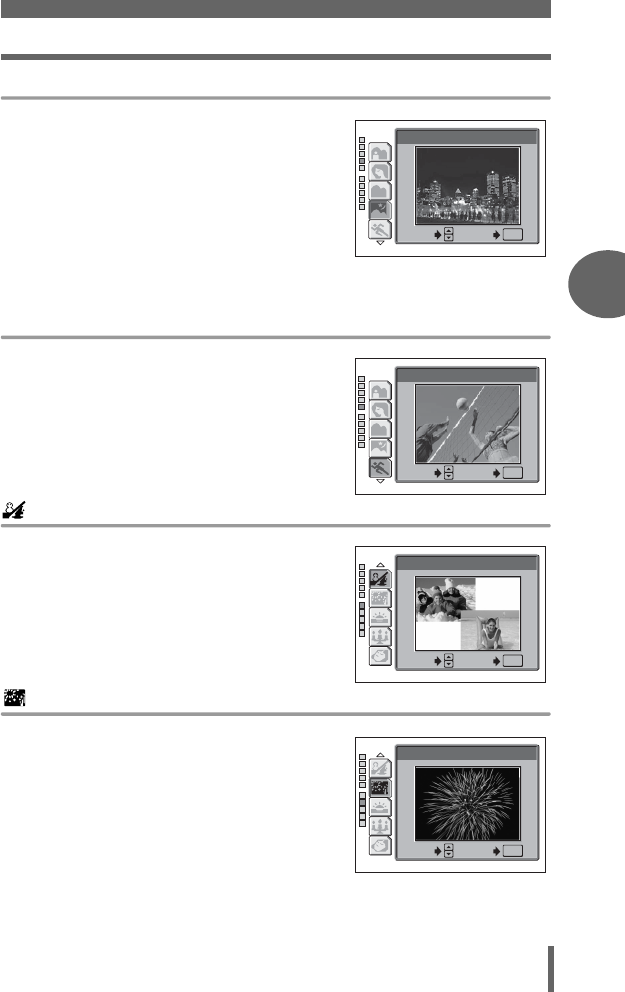
R NIGHT SCENE
Suitable for shooting pictures in the evening or at
night. The camera sets a slower shutter speed
than is used in normal shooting. For example, if
you take a picture of a street at night in P mode,
the lack of brightness will result in a dark picture
with only dots of light. In the Night Scene shooting
mode, the true appearance of the street is
captured. Since the shutter speed is slow, make
sure that you stabilize the camera by using a
tripod.
j SPORT
Suitable for capturing fast-moving action (such as
sports) without blur. Even fast-moving subjects
appear to be stationary.
BEACH & SNOW
Suitable for taking pictures on a sunny day at the
beach or in the snow. Sky, greenery and people
are recorded bright and sharp.
FIREWORKS
Suitable for taking pictures of fireworks in a night
sky. The camera sets a slower shutter speed than
is used in normal shooting, and priority is placed on
image quality, allowing you to capture the beauty
of fireworks. Because of the slow shutter speed,
we recommend that you stabilize your camera by
using a tripod.
OK
NIGHT SCENE
SELECT
GO
OK
SPORT
SELECT
GO
OK
BEACH & SNOW
SELECT
GO
OK
FIREWORKS
SELECT
GO
d4250_e_00_0_bookfile.book Page 33 Friday, December 24, 2004 11:45 AM
Selecting a shooting mode according to the situation
34
3
Basic shooting functions
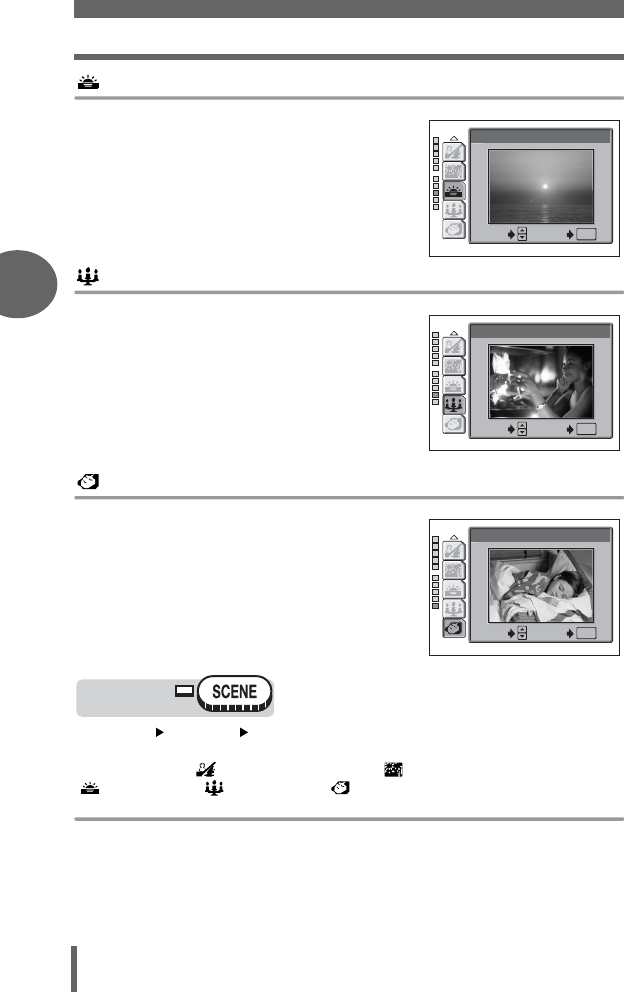
SUNSET
Suitable for taking pictures of sunsets. The
pictures will be taken a little darker than usual, with
stronger emphasis on reds and yellows, allowing
you to record beautiful sunsets.
CANDLE
Suitable for taking pictures of people lit by
candlelight. The picture will be taken a little brighter
than usual with emphasis on the warm glow from
the candlelight.
AVAILABLE LIGHT PORTRAIT
Suitable for taking photos when there is little light,
but you do not want to use a flash. The picture is
recorded with as little blurring as possible, and a
peaceful atmosphere can be captured.
Top menu [SCENE] [k (LANDSCAPE+ PORTRAIT)]
/
[i (PORTRAIT)]
/
[Q (LANDSCAPE)]
/
[R (NIGHT SCENE)]
/
[j (SPORT)]
/
[ (BEACH & SNOW)]
/
[ (FIREWORKS)]
/
[ (SUNSET)]
/
[ (CANDLE)]
/
[ (AVAILABLE LIGHT PORTRAIT)]
g“Menus” (P.16)
• When you choose a scene type, a sample scene appears on the right of the
screen.
OK
OK
SUNSET
SELECT
GO
OK
OK
CANDLECANDLE
SELECT
GO
OK
OK
AVAILABLE LIGHT PORTRAIT
SELECT
GO
Mode dial
d4250_e_00_0_bookfile.book Page 34 Friday, December 24, 2004 11:45 AM
35
Basic shooting functions
3
Zooming in on a distant subject
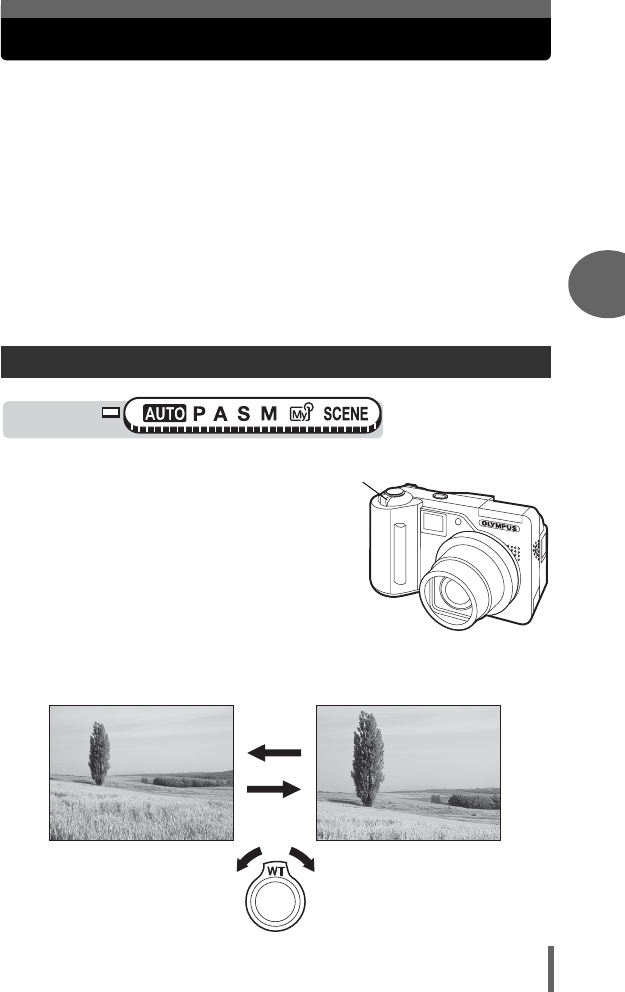
You can zoom in on your subject using the optical zoom and digital zoom.
With the optical zoom, the image is enlarged by the CCD when the lens
magnification is changed, and the image is formed by all the CCD pixels.
With the digital zoom, the area at the center of the image captured by the
CCD is cropped and enlarged back to size. When you zoom in on a
subject, you are essentially taking a small area of the picture and making
it bigger. Therefore, the greater the magnification with the digital zoom, the
grainier the resulting picture will be.
The following zoom magnifications are available on this camera.
Optical zoom 5× (equivalent to 38 mm to 190 mm on a
35mm film camera)
Digital zoom 4×
Optical zoom + digital zoom Max. 20×
Note that camera movement is likely to occur at higher magnifications.
1Push or pull the zoom lever.
Using the optical zoom
Mode dial
Zoom lever
Zoom out:
Push the zoom lever toward W.
Zoom in:
Pull the zoom lever toward T.
d4250_e_00_0_bookfile.book Page 35 Friday, December 24, 2004 11:45 AM
Zooming in on a distant subject
36
3
Basic shooting functions
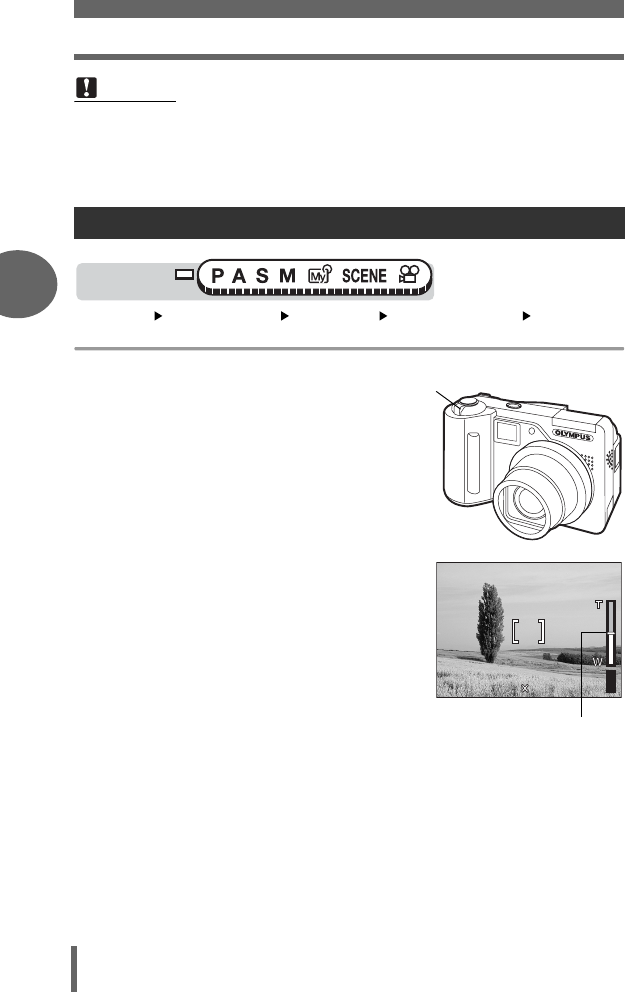
Top menu [MODE MENU] [CAMERA] [DIGITAL ZOOM] [ON] / [OFF]
g
“Menus” (P.16)
1Pull the zoom lever toward T.
• The white area of the zoom
indicator indicates the optical zoom. If
the [DIGITAL ZOOM] is set to [ON], a
red area appears on the zoom indicator.
When you reach the limit of the optical
zoom, the digital zoom is enabled.
• The [DIGITAL ZOOM] does not function
when the monitor is turned off.
Note
• You can use the optical zoom in n mode by setting [R] to [OFF].
g“Recording sound with movies” (P.82)
•In n mode, the maximum magnification possible for digital zoom is 3×.
Using the digital zoom
Mode dial
Zoom lever
F2.8
F2.8
1/1000
1/1000
0.0
0.0
2592 1944
2592 1944
HQ
HQ
P
30
30
30
The cursor moves up and
down on the zoom indicator
according to the zoom
magnification.
The cursor turns orange when
inside the digital zoom area.
d4250_e_00_0_bookfile.book Page 36 Friday, December 24, 2004 11:45 AM

37
Basic shooting functions
3
Taking close-up pictures (macro/super macro mode)
Focusing is usually slow when you get close to a subject (W: 8 cm/3.2" to
60 cm/23.6", T: 60 cm/23.6" to 120 cm/47.2"). However, in macro mode
focusing is performed quickly.
&When the optical zoom lever is at the maximum wide position and you are as
close as 8 cm/3.2" to your subject, you can fill the entire frame with a 9.0 × 6.6
cm (3.5" × 2.6") subject.
%This mode lets you shoot from as close as 2 cm/0.8" to your subject. Subjects
measuring approximately 3.4 × 2.5 cm (1.3" × 1.0") can be captured on the
monitor. In the % mode, normal shooting is also possible, but the position of
the zoom is fixed automatically and cannot be changed.
1Press the & button repeatedly to
change the macro setting to [&] or
[%].
g“Direct buttons” (P.13)
• If no operation is performed for about 3
seconds, the macro mode is set and the
mode selection screen is automatically
exited.
&
(Macro)
%
(Super macro)
Mode dial
& button
0030
1/1000
1/1000
F2.8
F2.8
0.0
0.0
&
2592 1944
2592 1944
HQ
HQ
30
30
30
d4250_e_00_0_bookfile.book Page 37 Friday, December 24, 2004 11:45 AM
Taking close-up pictures (macro/super macro mode)
38
3
Basic shooting functions
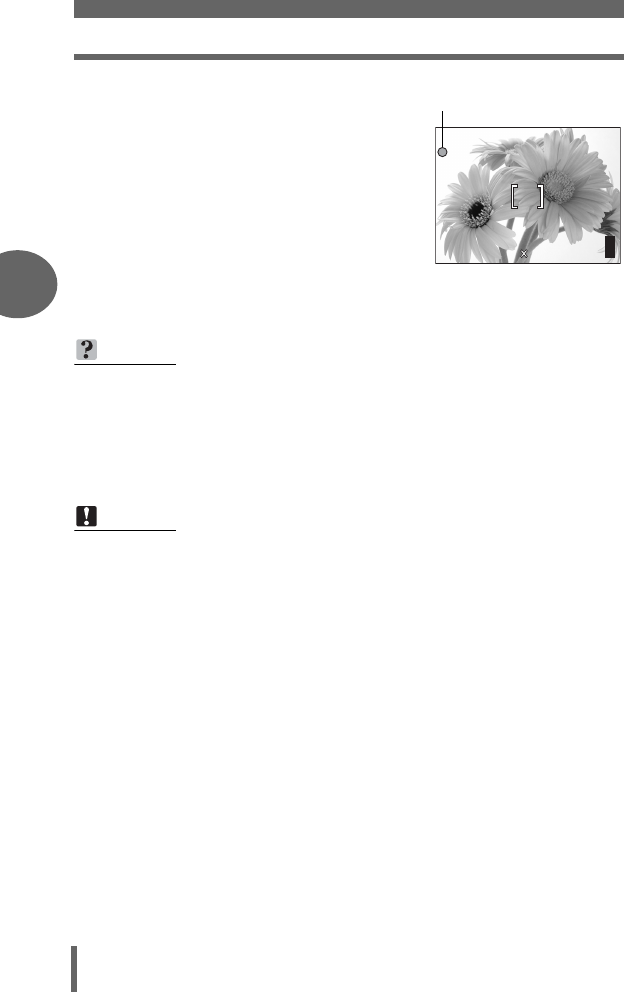
2Press the shutter button halfway.
• When the focus and exposure are locked,
the green lamp lights.
3Press the shutter button fully to take the picture.
TIPS
The subject appears in shadow when the super macro mode is used.
→The auto focus may not be able to maintain the correct focus. If this
happens, use the manual focus. g“Manual focus” (P.52)
→If the center of the frame (within the AF target mark) is metered when you
are close to the subject and you shoot with the optimal exposure, the picture
will come out well. g“ESP/Spot metering” (P.54)
Note
• In some cases, using the flash during macro shooting may result in dark
shadows or underexposure.
• During super macro shooting, the zoom and flash are not available.
F2.8
F2.8
1/1000
1/1000
0.0
0.0
2592 1944
2592 1944
HQ
HQ
P
30
30
30
Green lamp
d4250_e_00_0_bookfile.book Page 38 Friday, December 24, 2004 11:45 AM
39
Basic shooting functions
3
Flash shooting
Select the flash mode best suited to the light conditions and the effect you want to
achieve. You can also adjust the amount of light emitted using the flash intensity control.
Flash working range
W (max.): Approx. 15 cm to 3.8 m (0.5 ft. to 12.5 ft.)
T (max.): Approx. 60 cm to 2.2 m (2.0 ft. to 7.2 ft.)
Auto-flash (No indication)
The flash fires automatically in low light or backlight conditions.
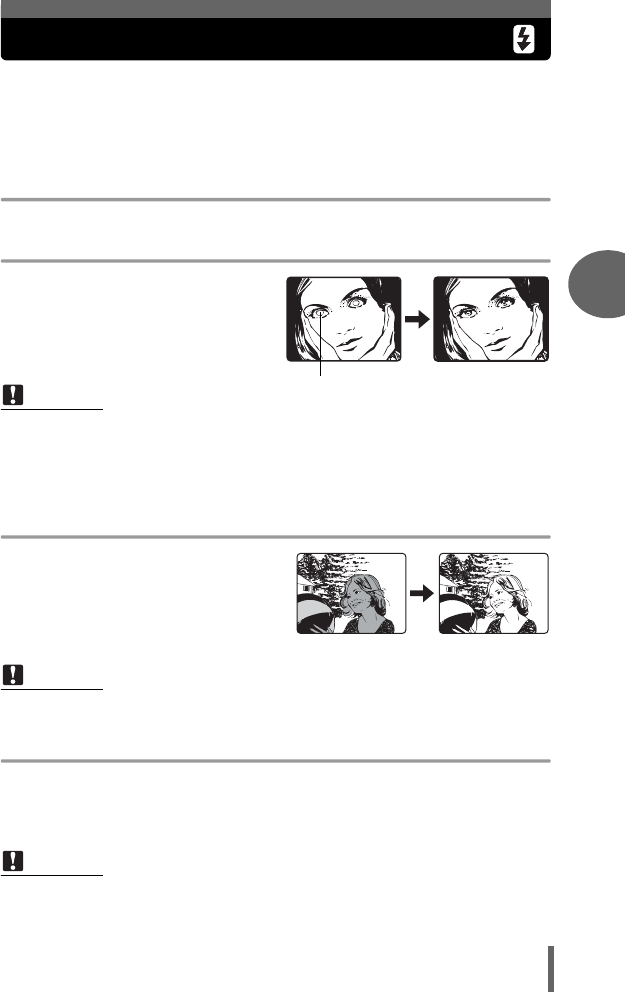
Red-eye reduction flash (!)
The light from the flash may make the
subject’s eyes appear red in the picture.
The red-eye reduction flash mode
reduces this phenomenon by emitting
pre-flashes before firing the regular flash.
Fill-in flash (#)
The flash fires regardless of the available light.
This mode is useful for eliminating shadows on
the subject’s face (such as shadows from tree
leaves), in a backlight situation, or for
correcting the color shift produced by artificial
lighting (especially fluorescent light).
Flash off ($)
The flash does not fire even in low light conditions. Use this mode in situations where flash
photography is not desired or is prohibited. You can also use this mode when you want to
shoot a natural-looking twilight or night scene. The flash does not fire when the flash is
closed as well as when the flash mode is set to off.
Note
• After the pre-flashes, it takes about 1 second before the shutter is released.
Hold the camera firmly to avoid camera movement.
•
Effectiveness may be limited if the subject is not looking directly at the pre-flashes, or if the
shooting range is too far. Individual physical characteristics may also limit effectiveness.
Note
• The fill-in flash may not have the desired effect under excessively bright light.
Note
•
Since a slow shutter speed is automatically selected in low light situations when in the flash off mode,
the use of a tripod is recommended to prevent your pictures from being blurred by camera movement.
The subject’s eyes appear red.
d4250_e_00_0_bookfile.book Page 39 Friday, December 24, 2004 11:45 AM
Flash shooting
40
3
Basic shooting functions
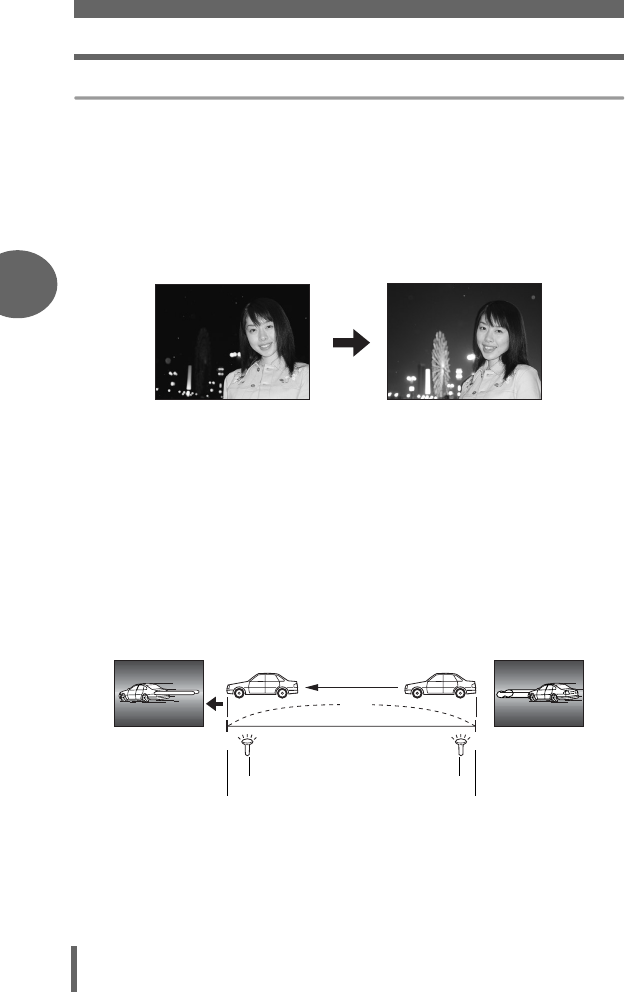
Slow synchronization (#SLOW1/#SLOW2/HSLOW)
The slow synchronization flash is designed for slow shutter speeds. Normally, when
shooting with a flash, shutter speeds cannot go below a certain level to prevent
camera movement. But when shooting a night scene background, fast shutter
speeds can make the background too dark. Slow synchronization flash allows both
a slow shutter speed for the background and a flash for the subject. Since the shutter
speed is slow, make sure you stabilize the camera by using a tripod, otherwise,
camera movement may cause the picture to be blurred. The factory default setting
is [#SLOW1]. You can change the setting.
g“Slow synchronization” (P.44)
1st curtain (front curtain) #SLOW1
Usually, regardless of the shutter speed, the flash fires right after the shutter fully
opens. This is called 1st curtain. Unless you change it, this is how the flash always
fires.
2nd curtain (rear curtain) #SLOW2
With 2nd curtain, the flash fires just before the shutter closes. Changing the flash
timing can create interesting effects in your picture, such as expressing the
movement of a car by showing the tail-lights streaming backwards. The slower the
shutter speed, the better the effects turn out.
The slowest possible shutter speed depends on the shooting mode, ISO and noise
reduction setting.
rear curtain
2nd curtain flash fires
Shutter closes
1st curtain flash fires
front curtain
Shutter button fully pressed
When the shutter speed is set to 4 sec.
4 sec.
4 sec.
0
d4250_e_00_0_bookfile.book Page 40 Friday, December 24, 2004 11:45 AM
Flash shooting
41
Basic shooting functions
3
Basic shooting functions
1st curtain with red-eye reduction HSLOW
This mode is for when you want to use slow synchronization, yet also reduce the red-
eye phenomenon, for instance, when shooting a person against a brightly lit night
background. A normal flash might make the person’s eyes red, but 1st curtain with
red-eye reduction lets you capture the background correctly and reduce the red-eye
phenomenon at the same time. 2nd curtain with red-eye reduction is not available.
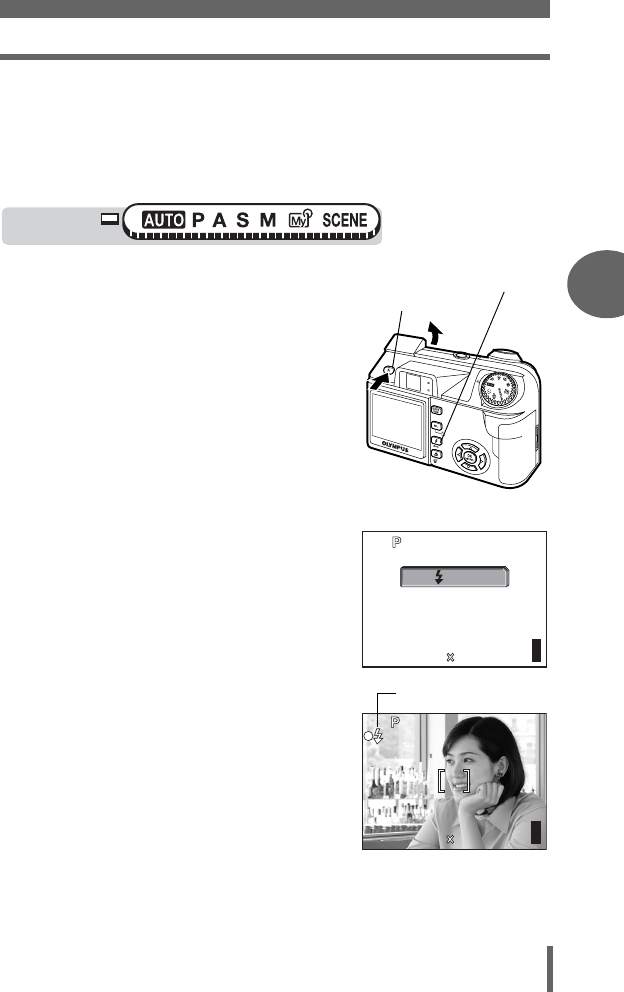
1Press the flash button.
• The flash pops up.
2Select a flash mode by
repeatedly pressing the #
button.
g“Direct buttons” (P.13)
• If no operation is performed for about 3
seconds, the flash mode is set and the mode
selection screen is automatically exited.
3Press the shutter button halfway.
• In conditions where the flash will fire, #
lights (flash stand-by).
4Press the shutter button fully to
take the picture.
Mode dial
#(flash mode) button
Flash button
0030
1/1000
1/1000
F2.8
F2.8
0.0
0.0
SLOW
2592 1944
2592 1944
HQ
HQ
30
30
30
1/1000
1/1000
F2.8
F2.8
0.0
0.0
2592 1944
2592 1944
HQ
HQ
30
30
30
# mark
d4250_e_00_0_bookfile.book Page 41 Friday, December 24, 2004 11:45 AM
Flash shooting
42
3
Basic shooting functions
TIPS
The # (flash charge) indication blinks.
→The flash is charging. Wait until # and the orange lamp beside the
viewfinder turn off.
Shutter speed when using the flash (auto-flash, red-eye reduction, fill-in
flash).
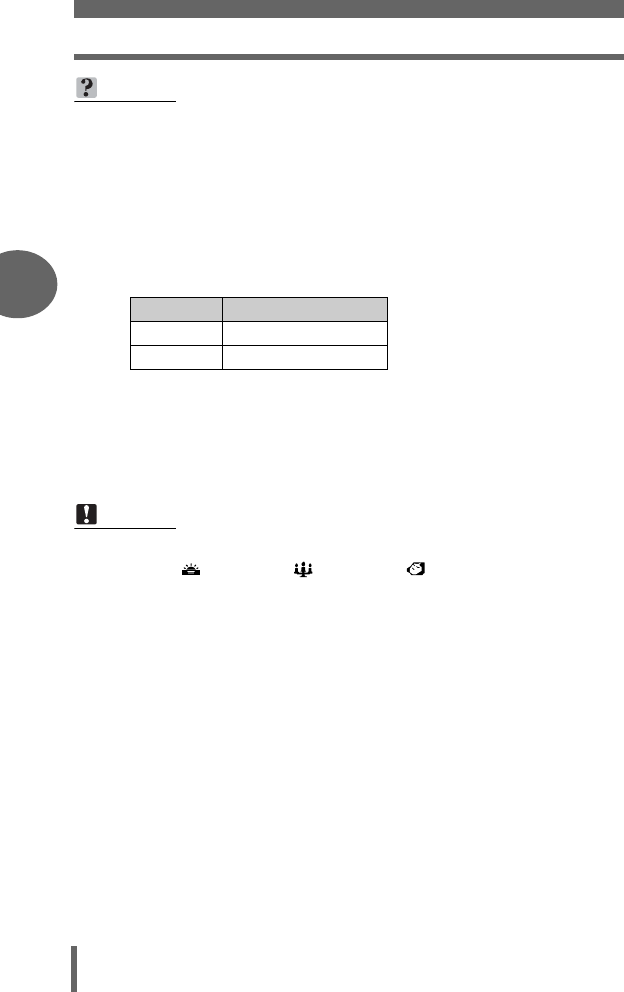
• When # (camera movement warning) lights, the shutter speed locks at its
current level. This helps prevent camera shake problems (shutter speeds
that are too slow can cause blur). However, if the zoom magnification is
increased, the camera will increase the locked shutter speed accordingly.
Function restrictions according to mode
• Fill-in flash and slow synchronization is not available in h mode.
• [AUTO], [!], [#], and [HSLOW] are not available in S and M modes.
• The factory default setting for S and M modes is [#SLOW1]. For all other
modes the default setting is [AUTO].
Note
• The flash does not fire in the following situations:
During [ (SUNSET)], [ (CANDLE)], [ (AVAILABLE LIGHT
PORTRAIT)] in scene mode, and during sequential shooting ([j], [7]),
super macro shooting and panorama shooting.
• The flash may not give you the optimum result in macro mode with the zoom
set to wide-angle (W). Check the resulting picture on the monitor.
Zoom position
Shutter speed
W (max.) 1/30 sec.
T (max.) 1/160 sec.
d4250_e_00_0_bookfile.book Page 42 Friday, December 24, 2004 11:45 AM
Flash shooting
43
Basic shooting functions
3
Basic shooting functions
You can adjust the amount of light emitted by the flash.
In some situations, you may get better results by adjusting the light emission.
Examples include small subjects, distant backgrounds, or situations when increased
contrast is desired. You can adjust the exposure in the range of ±2.0 EV in 1/3 EV
steps.
Top menu [MODE MENU] [CAMERA] [w]g“Menus” (P.16)
1Adjust the light emission and
press N.
a: Light emission is increased by 1/3
EV each time you press the button.
(EV : Exposure Value)
c: Light emission is decreased by 1/3
EV each time you press the button.
Flash intensity control
Note
• The flash adjustment effect may not be sufficient if the shutter speed is too fast.
Mode dial
0.0
DRIVE
AE/AF
ISO
PIC
CARD
SET
CAMERA
d4250_e_00_0_bookfile.book Page 43 Friday, December 24, 2004 11:45 AM
Flash shooting
44
3
Basic shooting functions
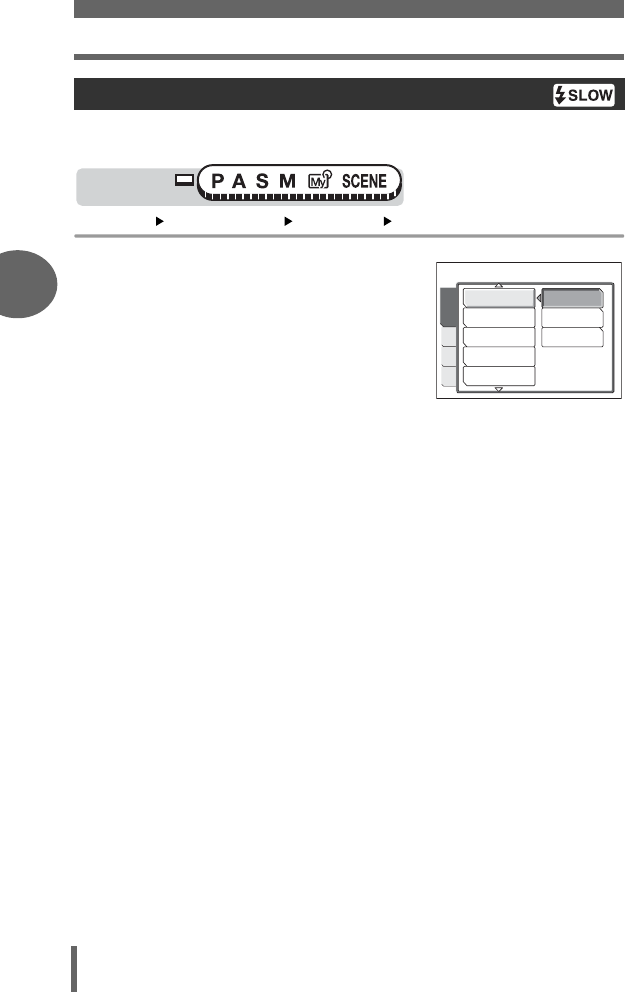
There are 3 settings to choose from when you select [#SLOW] with the # (flash
mode) button.
Top menu [MODE MENU] [CAMERA] [#SLOW] g“Menus” (P.16)
1
Select [
#
SLOW1], [
H
SLOW]
or [
#
SLOW2] and press
N
Slow synchronization
Mode dial
NOISE REDUCTION
DIZITAL ZOOM
FULLTIME AF
PANORAMA
!L
L2
L1
L
PIC
CARD
SET
CAMERA
d4250_e_00_0_bookfile.book Page 44 Friday, December 24, 2004 11:45 AM
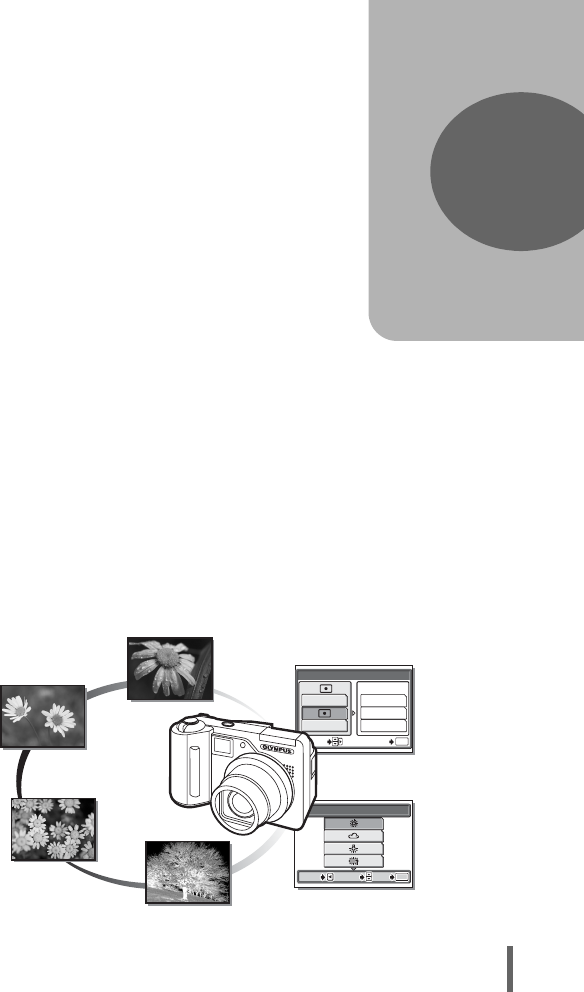
45
4 Advanced shooting functions
Letting the camera select the optimal settings
is simple and easy, but if you want, you can
be a lot more creative. Now that you have
mastered basic operation, you can start
enjoying your camera’s more advanced
functions. You can adjust the shooting
conditions manually and try out different
effects. For example, when taking pictures of
flowers, by reducing the aperture value and
focusing on the branch of the tree nearest to
you, you can make the flowers stand out
against a blurred background.
If it is evening, you can add a touch of color
to the night sky. By setting the white
balance to 1 (tungsten light), you can give
the dark sky a blue tone.
Adjusting a single function can produce
unexpected effects. Try various settings and
discover all sorts of new possibilities.
4
Advanced
shooting functions
PRESET WB
SELECT
SELECT
GO
GO
OK
OK
CANCEL
CANCEL
SELECT
GO
OK
CANCEL
AE/AF
AF:iESP
ESP
AE:
iESP
OK
MULTI METERING
SPOT
AREA
SELECT GO
d4250_e_00_0_bookfile.book Page 45 Friday, December 24, 2004 11:45 AM
46
4
Advanced shooting functions
Aperture priority shooting
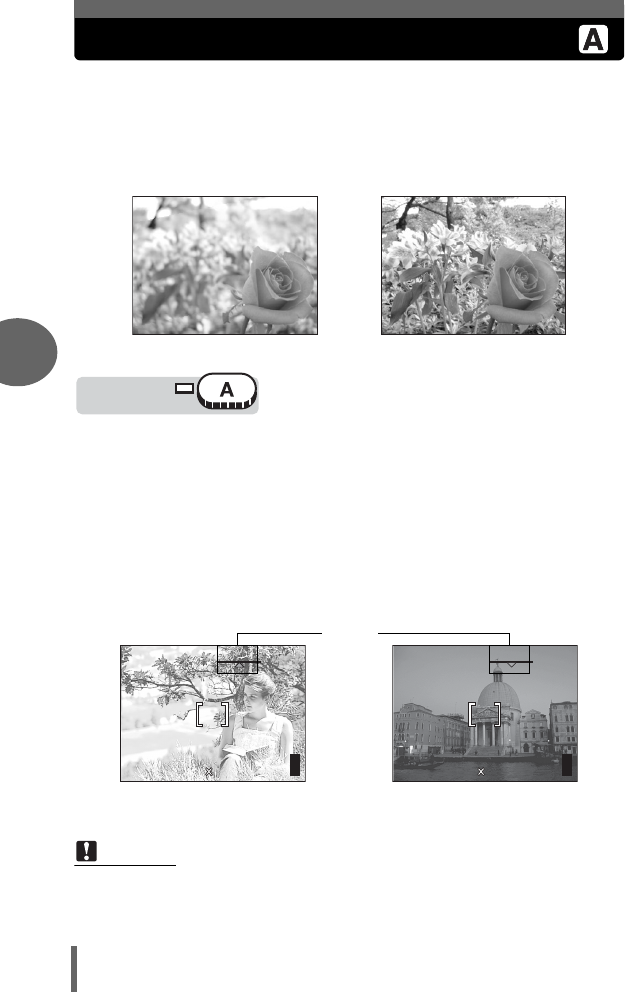
This function allows you to set the aperture manually. The camera sets the
shutter speed automatically. By decreasing the aperture value (F-
number), the camera will focus within a smaller range, producing a picture
with a blurred background. Increasing the value forces the camera to focus
over a wider range, resulting in increased “depth of field”, in which both the
subject and the background are in focus.
1Select the aperture value.
a: Increases the aperture value.
c: Decreases the aperture value.
Aperture range:
W: f2.8 to f8.0 T: f4.8 to f8.0
If the aperture value is displayed in red, the setting is unsuitable for the conditions.
Take the following steps. (When the aperture value is displayed in green, the setting
will provide optimum exposure.)
Note
• When the flash is set to the auto-flash mode, the slowest shutter speed is fixed
at the level at which # lights. (gP.42)
Aperture (F-number) is increased.Aperture (F-number) is decreased.
Mode dial
F No.
S
appears: The image is overexposed.
Press
a
to increase the aperture value.
T
appears: The image is underexposed.
Press
c
to decrease the aperture value.
1/
1/
1600
1600
2592 1944
2592 1944
HQ
HQ
A
F2.8
F2.8
0.0
0.0
30
30
30
4"
4"
0.0
0.0
2592 1944
2592 1944
HQ
HQ
A
F8.0
F8.0
30
30
30
d4250_e_00_0_bookfile.book Page 46 Friday, December 24, 2004 11:45 AM
47
Advanced shooting functions
4
Shutter priority shooting
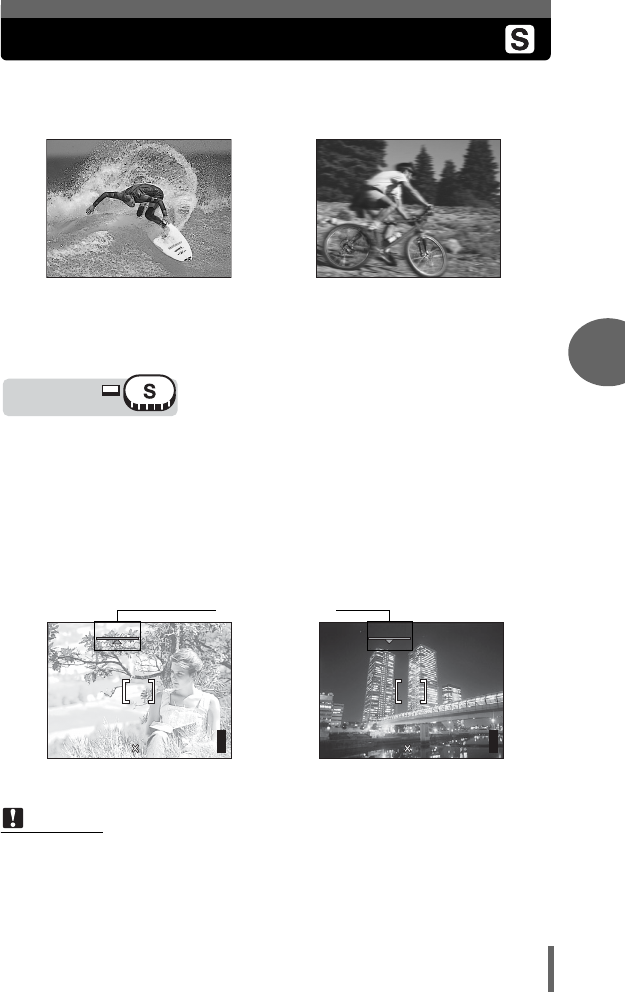
This function allows you to set the shutter speed manually. The camera
sets the aperture automatically. Set the shutter speed according to the
subject and the type of effect you want.
1Select the shutter speed.
a: Sets a faster shutter speed.
c: Sets a slower shutter speed.
Setting range: 4" to 1/2000
If the shutter speed is displayed in red, the setting is unsuitable for the conditions.
Take the following steps. (When the shutter speed is displayed in green, the setting
will provide optimum exposure.)
Note
• The shutter speeds that can be set vary depending on the flash setting and
aperture value.
Setting the shutter speed higher lets
you capture fast-moving action without
blur. The subject will be clear and
sharp, as if it is not moving.
Setting the shutter speed lower blurs a
moving subject, giving the impression of
movement.
Mode dial
Shutter speed
S
appears: The image is overexposed.
Press
a
to set a faster shutter speed.
T
appears: The image is underexposed.
Press
c
to set a slower shutter speed.
F8.0
F8.0
2592 1944
2592 1944
HQ
HQ
S
1/50
1/50
0.0
0.0
30
30
30
F2.8
F2.8
2592 1944
2592 1944
HQ
HQ
S
1/800
1/800
0.0
0.0
30
30
30
d4250_e_00_0_bookfile.book Page 47 Friday, December 24, 2004 11:45 AM
48
4
Advanced shooting functions
Manual shooting
This mode gives you more creative control, allowing you to set the
aperture and shutter speed manually. To check the exposure, refer to the
exposure differential.
1Set the aperture and shutter
speed.
b: The aperture value increases.
d: The aperture value decreases.
a: The shutter speed increases.
c: The shutter speed decreases.
Aperture range:
Aperture value: f2.8 to f8.0 (W)
f4.8 to f8.0 (T)
Shutter speed : 15" to 1/2000
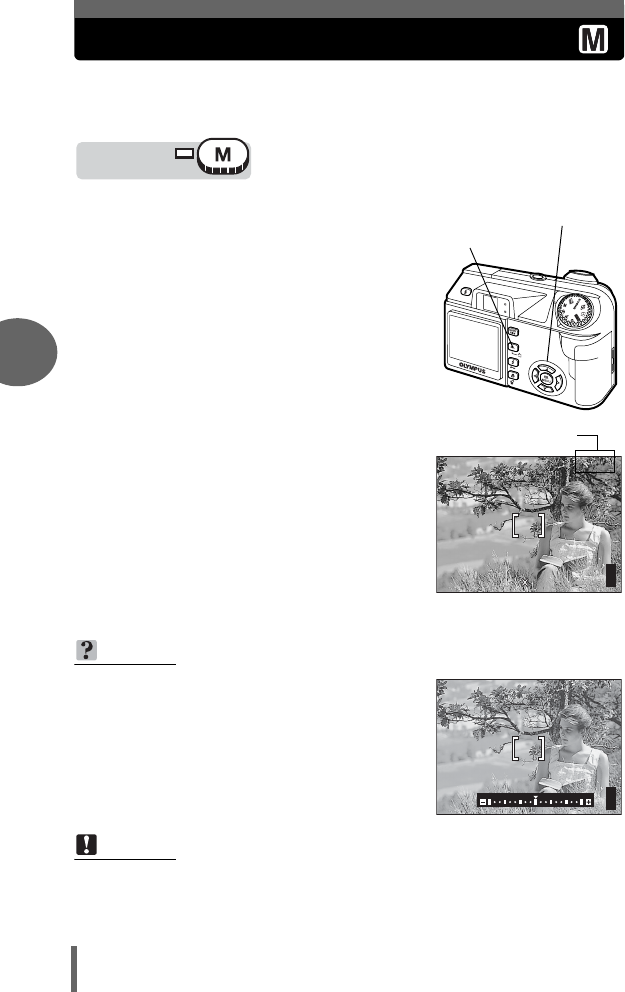
• When the shutter button is halfway
pressed, the difference (ranging from
-3.0 to +3.0 EV) between the exposure
determined by the currently selected
aperture and shutter speed compared to
the exposure level considered optimal
by the camera is displayed.
• If the exposure differential appears in
red, it indicates that the exposure
differential is less than -3.0 EV or more
than +3.0 EV.
TIPS
• Pressing the [ button will show the
exposure compensation bar, as seen in
the diagram on the right.
Note
• To avoid camera movement, It is recommended that you use a tripod when
taking pictures requiring a slow shutter speed.
• The shutter speeds that can be set vary depending on the aperture value.
Mode dial
bd
ac buttons
[ button
1/
1/
1000
1000
2592 1944
2592 1944
HQ
HQ
M
F8.0
F8.0
+3.0
+3.0
30
30
30
Exposure differential
M
F2.8
F2.8
1/1000
1/1000
d4250_e_00_0_bookfile.book Page 48 Friday, December 24, 2004 11:45 AM
49
Advanced shooting functions
4
My Mode
This function lets you shoot with the settings in [s MY MODE 1] to
[d MY MODE 4]. Only the settings in [s MY MODE 1] have already
been saved. You cannot select [E MY MODE 2] to [d MY MODE 4]
if no settings have been saved in them. g“My Mode setup” (P.113)
Top menu [
r
1/2/3/4] [
s
MY MODE 1]
/
[
E
MY MODE 2]
/
[
c
MY MODE 3] / [
d
MY MODE 4]
g
“Menus” (P.16)
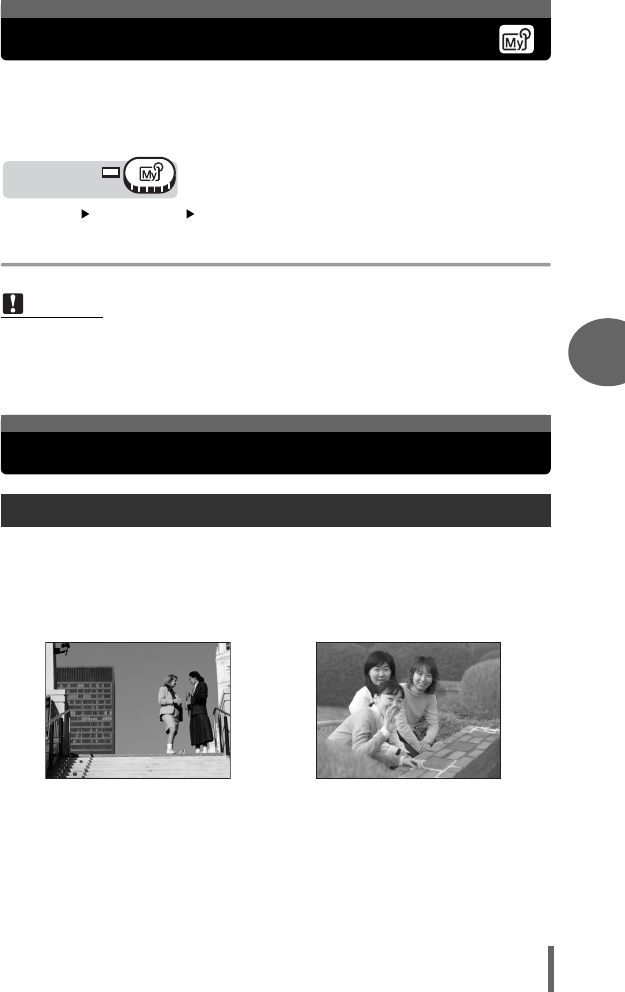
This function allows you to choose a method of focusing on your subjects.
iESP Focus selection is based on the entire picture on the screen. Even when
the subject is not in the center of the screen, focusing is possible.
SPOT Focus selection is based on the subject within the AF target mark.
Note
• The settings you are currently using can also be saved for retrieving by this
mode, but the saved zoom position may deviate slightly from that currently
used. g“My Mode setup” (P.113)
AF mode
Mode dial
Focusing applications
Subject suitable for [iESP]
focus mode
Subject suitable for [SPOT]
focus mode
d4250_e_00_0_bookfile.book Page 49 Friday, December 24, 2004 11:45 AM
Focusing applications
50
4
Advanced shooting functions
Top menu [MODE MENU] [CAMERA] [AE/AF] [AF] [iESP] /
[SPOT] g“Menus” (P.16)
ON Fulltime AF keeps the subject in front of the lens in focus at all times, without
having to press the shutter button halfway. The focusing time is reduced,
letting you take successive snapshots. The subject is also automatically kept
in focus during movie recording.
OFF Press the shutter button halfway to focus.
Top menu [MODE MENU] [CAMERA] [FULLTIME AF] [ON] / [OFF]
g“Menus” (P.16)
You can select the area you want to focus on by changing the position of the AF
target mark.
Top menu [MODE MENU] [CAMERA] [AE/AF] [AREA]
g“Menus” (P.16)
Fulltime AF
Note
• Battery consumption increases when Fulltime AF is used.
• Fulltime AF cannot be used when [R] is set to [ON] in n mode.
AF area
Mode dial
Mode dial
Mode dial
d4250_e_00_0_bookfile.book Page 50 Friday, December 24, 2004 11:45 AM
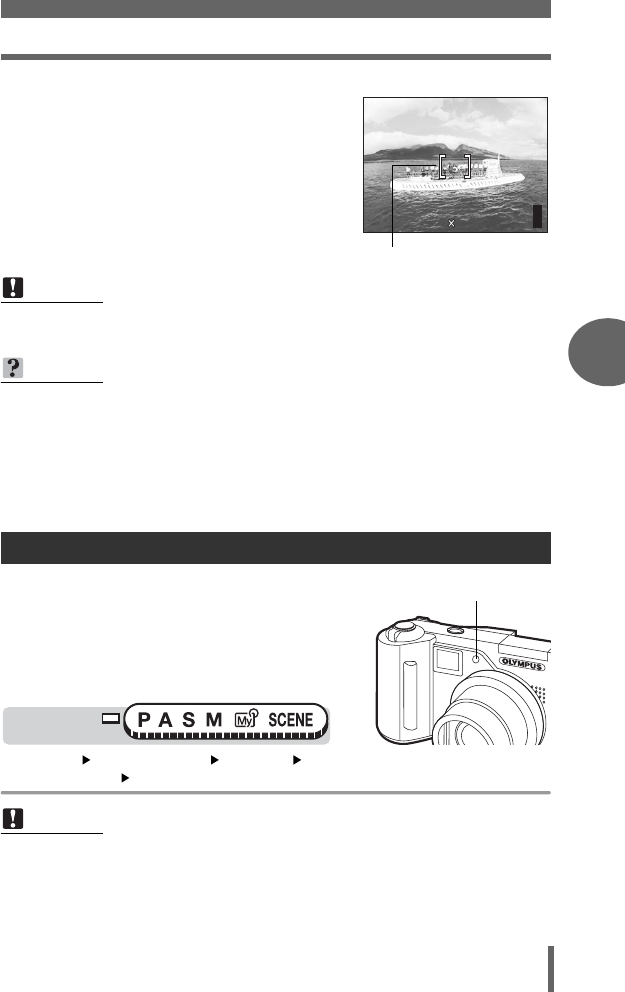
Focusing applications
51
Advanced shooting functions
4
1Use the arrow pad to move the AF
target mark to the area you want to
focus on.
2Take the picture.
• Selecting either [iESP] or [SPOT] AF
modes will exit AF target mark selection
mode.
This function enables you to focus on dark subjects
with the auto focus.
ON When you press the shutter button halfway,
the AF illuminator lights automatically to
illuminate the subject.
OFF The AF illuminator does not light.
Top menu [MODE MENU] [SETUP] [AF
ILLUMINATOR] [ON] / [OFF] g“Menus” (P.16)
Note
• AF area is not available when the [DIGITAL ZOOM] is set to [ON].
• The location of the AF target mark cannot be saved.
TIPS
To change the aperture value, shutter speed or exposure after moving the
AF target mark
→Pressing the N button confirms the AF target area’s position. After that you
are able to change the aperture value, shutter speed and exposure using the
arrow pad.
Pressing the N button again displays the top menu and the AF target mark
returns to the center of the screen.
AF illuminator
Note
• When taking close-ups at less than 80 cm (2.6 ft.), the AF illuminator lights but
the subject may not be in focus.
F2.8
F2.8
1/1000
1/1000
0.0
0.0
2592 1944
2592 1944
HQ
HQ
P
AF target mark
AF illuminator
Mode dial
d4250_e_00_0_bookfile.book Page 51 Friday, December 24, 2004 11:45 AM
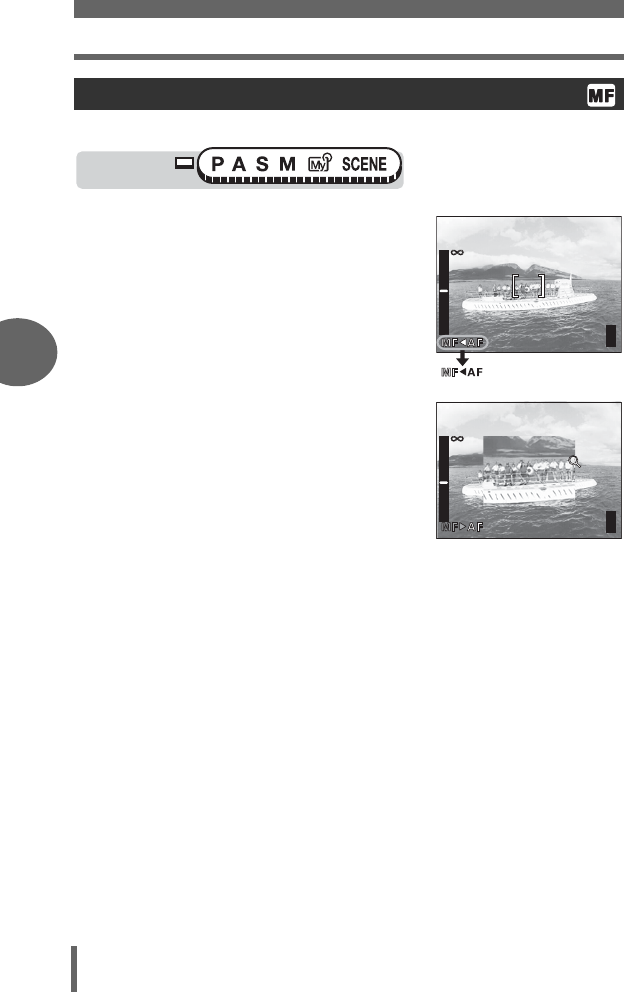
Focusing applications
52
4
Advanced shooting functions
If auto focus is unable to focus on a subject, use manual focus.
1Hold down N for more than 1
second.
• The distance indicator is displayed on
the monitor.
2Press b to select [MF].
3Press ac to set the focus
distance.
• During operation, the area you are
focusing on is enlarged. This lets you
check whether the focus is in the right
position.
• The distance indicator on the left of the
monitor is for reference only.
• When the indicator is moved to less than
0.6 m (2.0 ft.), the display automatically
switches to the 8 cm (0.3 ft.) to 60 cm (2.0 ft.) display.
4Hold down N for more than 1 second to save the setting.
• [MF] is displayed in red on the monitor.
5Take the picture.
• The focus is locked at the distance you have set.
Manual focus
Mode dial
F2.8
F2.8
1/1000
1/1000
P
0.0
0.0
30
30
30
2.5m
2.5m
1.2m
1.2m
0.6m
0.6m
F2.8
F2.8
1/1000
1/1000
P
0.0
0.0
30
30
30
2.5m
2.5m
1.2m
1.2m
0.6m
0.6m
d4250_e_00_0_bookfile.book Page 52 Friday, December 24, 2004 11:45 AM
Focusing applications
53
Advanced shooting functions
4
TIPS
To cancel manual focus
→1 Hold down N for more than 1 second to display the distance indicator.
2 Press d to select [AF], then press N.
How to shoot while keeping the same focus distance at all times
→Lock the focus distance at the focus lock position.
1 Position the AF target mark on a subject at the desired distance and
press the shutter button halfway.
2 Keeping the shutter button half-pressed, press N.
• The distance indicator is displayed.
• [MF] is selected and the focus distance is locked at the focus lock
position.
Even if you move the cursor to the top of the distance indicator, focusing
is not possible at ).
→Using the monitor, adjust the cursor position by pressing ac.
Note
• If the zoom lever is pressed after performing manual focus, the saved focus
distance may be compromised. Perform setting again.
d4250_e_00_0_bookfile.book Page 53 Friday, December 24, 2004 11:45 AM
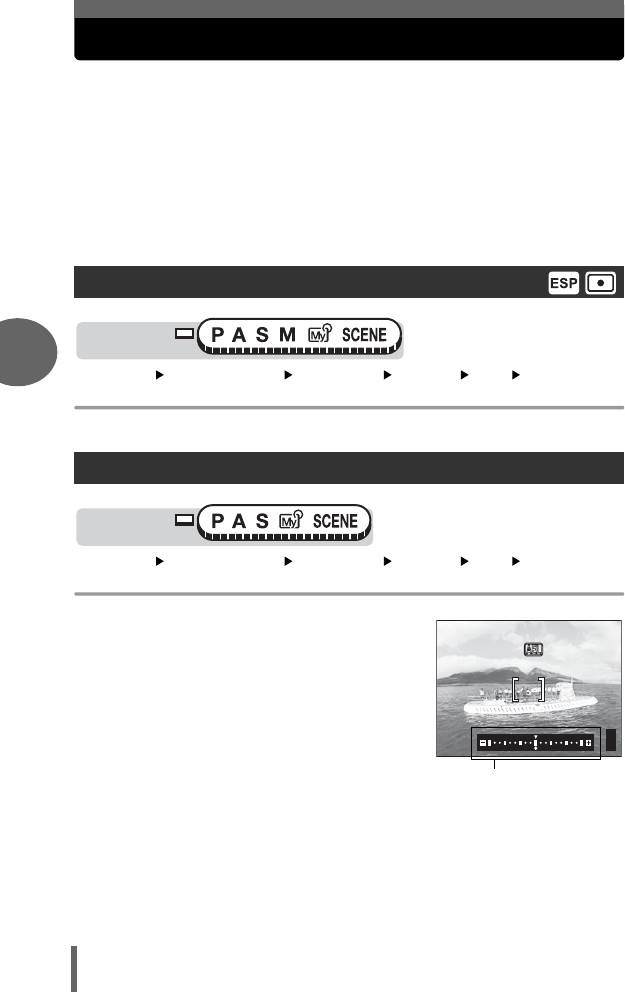
54
4
Advanced shooting functions
Metering
There are three ways of measuring the brightness of a subject.
ESP Meters the center of the subject and the surrounding area
separately.
nExposure is determined by metering within the AF target area.
In this mode, a subject can be shot with optimal exposure
regardless of the background light.
MULTI METERING Meters the brightness of the subject at up to 8 different points
to set the optimal exposure based on the average brightness.
This method is useful with a high contrast subject.
Top menu [MODE MENU] [CAMERA] [AE/AF] [AE] [ESP] / [n]
g“Menus” (P.16)
Top menu [MODE MENU] [CAMERA] [AE/AF] [AE]
[MULTI METERING] g“Menus” (P.16)
1Position the AF target mark on
the area you want to meter and
press the [ button.
• The multi-metering bar appears.
• The brightness is metered at up to 8
different points. Brightness meter
readings are ignored after the 9th
reading.
• To perform metering again, hold down
the [ button for more than 1 second
to display C. Press the [ button again to cancel the metering values.
ESP/Spot metering
Multi-metering
Mode dial
Mode dial
F2.8
F2.8
1/1000
1/1000
P
0.0
0.0
Multi-metering bar
d4250_e_00_0_bookfile.book Page 54 Friday, December 24, 2004 11:45 AM
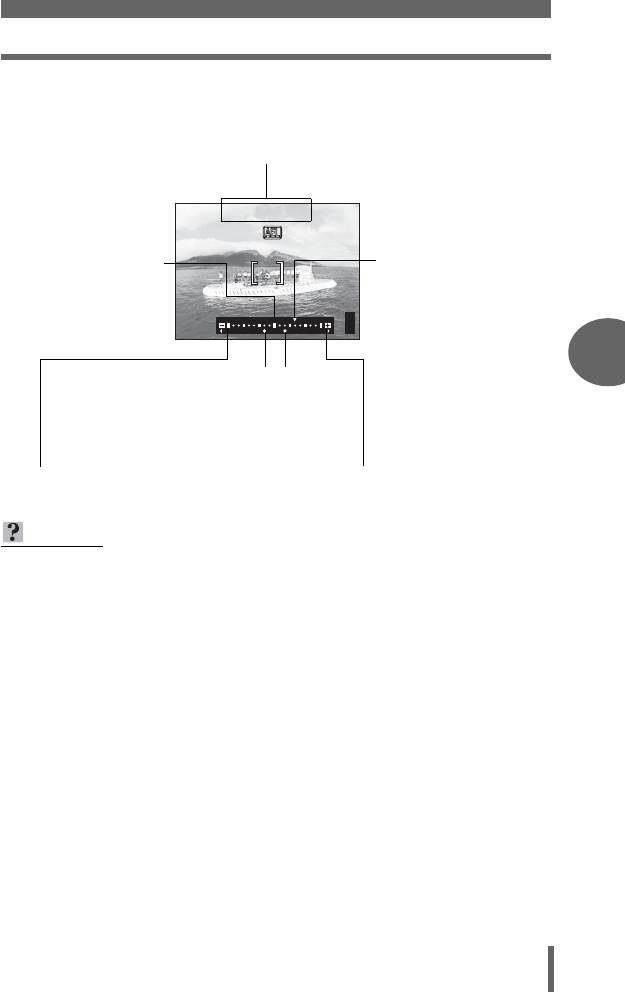
Metering
55
Advanced shooting functions
4
TIPS
To save the locked multi-metering exposure after shooting (AE memory)
→After metering in Step 3, hold down the [ button for more than 1 second.
C appears. While C is displayed, the exposure is saved. Press the
[ button again to cancel the AE memory.
The multi-metering exposure is canceled.
→If you operate any of the buttons or the mode dial after metering in Step 1,
the multi-metering exposure is canceled.
→The multi-metering exposure is canceled when the monitor is turned off.
F2.8
F2.8
1/1000
1/1000
P
0.0
0.0
When Z moves more than ±3 from the center of the bar (the average reading), red
XY are displayed.
Ex: When metering 2 points (pressing the
[
button twice)
The aperture and shutter speed as calculated from the average values obtained by
metering at 2 points. These values are recalculated every time another metering
point is added.
The average for the 2
metering points.
The average is always
shown at the center of
the bar.
Indicates how much the
present exposure you are
metering differs from the
average exposure value.
The present exposure can
be locked by pressing the
shutter button halfway.
(The present exposure is
not added to the average
value unless you press the
[ button.)
The reading when the
[
button was pressed.
The number of
Z
indicates the number of times
you have pressed the button. The distance
Z
from the center of the bar indicates the
difference between the metered and average
readings.
d4250_e_00_0_bookfile.book Page 55 Friday, December 24, 2004 11:45 AM
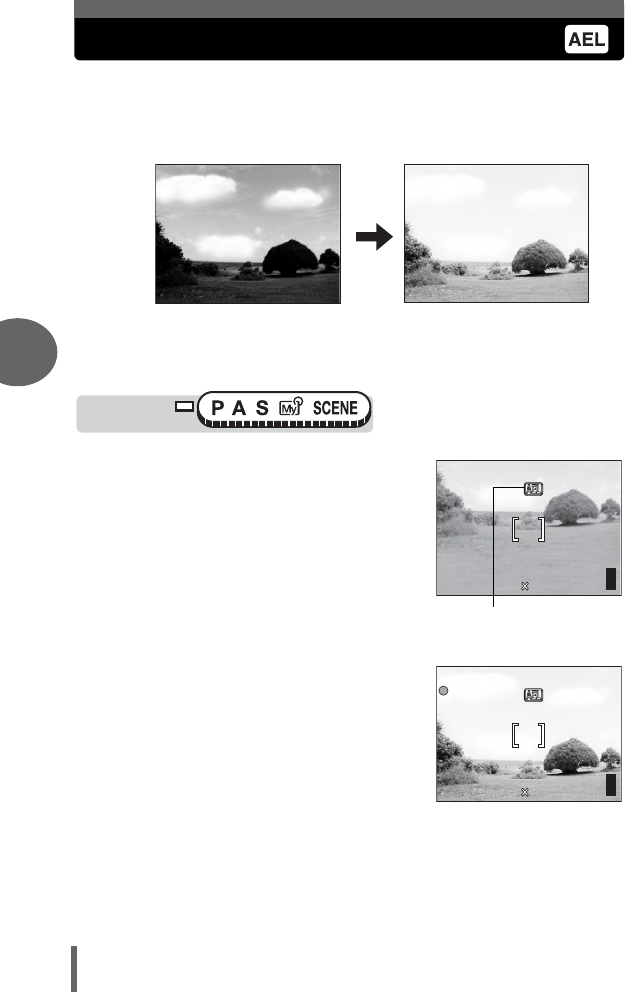
56
4
Advanced shooting functions
AE lock
This function is suitable for situations when optimal exposure is difficult to
achieve, such as when there is excessive contrast between the subject
and the surroundings.
1Compose the picture where you
want to lock the metered value
(exposure), then press the [
button.
g“Direct buttons” (P.13)
• The exposure is memorized.
•
To reset AE lock, press the
[
button
again to cancel AE lock. Each time you
press the
[
button, AE lock is
alternately engaged and canceled.
2Position the AF target mark on
the subject you want to focus on
and press the shutter button
halfway.
• The green lamp lights.
• AE lock cannot be canceled while the
shutter button is pressed halfway.
3Press the shutter button fully.
• AE lock is automatically canceled after one shot.
Example:
The subject appears dark because
the sky is bright.
Recompose your shot so there is not
much sky in the frame and lock the
exposure. Compose your shot again with
the sky in the frame and take the picture.
Mode dial
F2.8
F2.8
1/1000
1/1000
0.0
0.0
2592 1944
2592 1944
HQ
HQ
P
30
30
30
During AE lock,
[ is displayed.
F2.8
F2.8
1/1000
1/1000
0.0
0.0
2592 1944
2592 1944
HQ
HQ
P
30
30
30
d4250_e_00_0_bookfile.book Page 56 Friday, December 24, 2004 11:45 AM
AE lock
57
Advanced shooting functions
4
TIPS
To save the locked metered value (exposure) after shooting (AE memory)
→After Step 1 or 2, hold down the [ button for more than 1 second. C
appears. While C is displayed, the exposure is saved. Press the [
button again to cancel AE memory.
AE lock was canceled.
→Do not operate any of the buttons or the mode dial after performing AE lock.
Doing so will cancel AE lock.
→The camera was reactivated from sleep mode or the monitor turned off when
power was turned off.
Note
• AE lock is not available when multi-metering is enabled. Select [ESP] or [5].
g“Metering” (P.54)
d4250_e_00_0_bookfile.book Page 57 Friday, December 24, 2004 11:45 AM
58
4
Advanced shooting functions
ISO sensitivity
The higher the ISO value, the greater the camera’s light sensitivity and the
better its ability to shoot in low light conditions. However, higher values
also introduce electrical noise into the resulting image, which may give it a
grainy appearance.
AUTO Sensitivity is automatically adjusted according to the light
conditions and the subject brightness.
80/100/200/400 With a lower ISO setting, you can shoot clear, sharp images
in daylight. With a higher ISO setting, you can use faster
shutter speeds with the same amount of light.
Top menu [MODE MENU] [CAMERA] [ISO] [AUTO] / [80] / [100] /
[200] / [400] g“Menus” (P.16)
Note
• [AUTO] is not available in A, S or M mode.
•
ISO settings are based on the sensitivity of normal camera film. The scale is approximate.
•
When [ISO] is set to
[AUTO]
and you are shooting in dark conditions without a
flash, the shutter speed is reduced. In this case, the sensitivity is automatically
increased to avoid the risk of camera movement.
• If the subject is too far away for the flash illumination to reach when
[ISO]
is set
to [AUTO], the sensitivity is automatically increased.
Mode dial
d4250_e_00_0_bookfile.book Page 58 Friday, December 24, 2004 11:45 AM
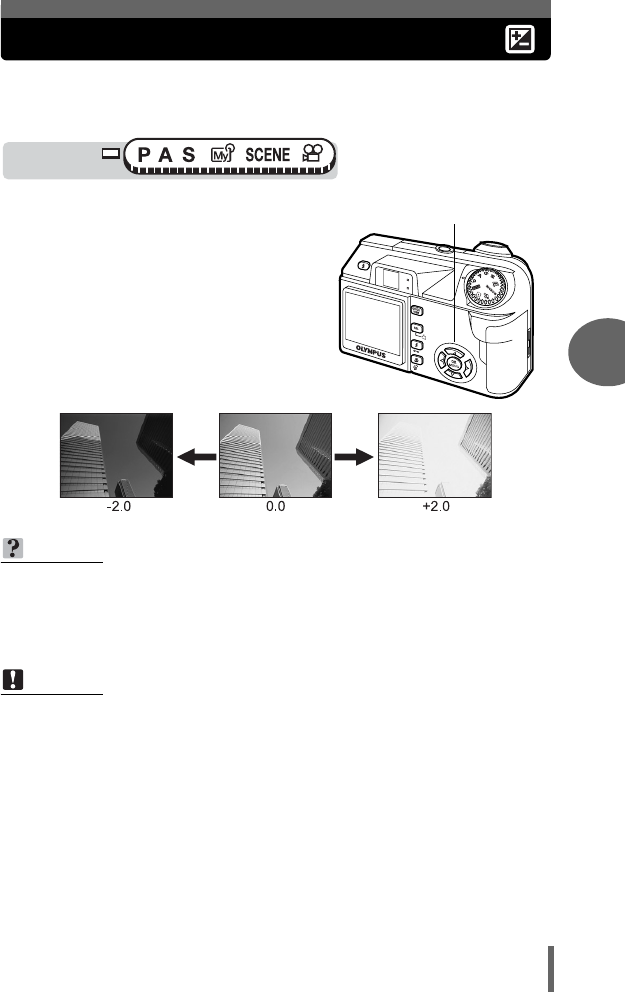
59
Advanced shooting functions
4
Exposure compensation
This function allows you to make fine changes to the exposure setting. You
can adjust the exposure in the range of ±2.0 EV in 1/3 EV steps. When the
setting is changed, you can check the result on the monitor.
1Press bd to select a setting.
• Adjust toward +: Press d to adjust up to
+2.0 EV in 1/3 EV
steps.
• Adjust toward –: Press b to adjust up to
-2.0 EV in 1/3 EV
steps.
TIPS
• Often bright subjects (such as snow) will turn out darker than their natural
colors. Adjusting toward + makes these subjects closer to their real shades. For
the same reason, adjust toward – when shooting dark subjects.
• In some situations, you may get better results when the exposure that the
camera sets is compensated (adjusted) manually.
Note
• If the flash is used, the image brightness (exposure) may differ from the
intended brightness.
• Exposure compensation cannot correct the image if the surroundings of the
subject are extremely bright or dark.
Mode dial
bd buttons
d4250_e_00_0_bookfile.book Page 59 Friday, December 24, 2004 11:45 AM
60
4
Advanced shooting functions
White balance
Color reproduction differs depending on the light conditions. For instance,
when daylight, the setting sun or tungsten lighting are reflected on white
paper, the shade of white produced will be slightly different for each. By
setting the WB (white balance), you can achieve more natural-looking
colors.
AUTO Automatically adjusts the white balance for any light source.
PRESET Selects a preset white balance setting according to the type of light.
5: For shooting on a sunny day.
3: For shooting on a cloudy day.
1: For shooting under a tungsten light.
w: For shooting under a daylight fluorescent lamp. This type of
lamp is used mainly in homes.
x: For shooting under a neutral white fluorescent lamp.This type
of lamp is generally used in desk lamps, etc.
y: For shooting under a cool white fluorescent lamp.
This type of lamp is generally used in offices, etc.
VThis function is useful when you need a more precise white balance
than preset white balance can provide. To set the optimum white
balance for the shooting conditions, point the camera at a white
object under the light source you want to use and adjust the white
balance.
Top menu [MODE MENU] [PICTURE] [WB] [AUTO]
g“Menus” (P.16)
Auto white balance
Mode dial
d4250_e_00_0_bookfile.book Page 60 Friday, December 24, 2004 11:45 AM
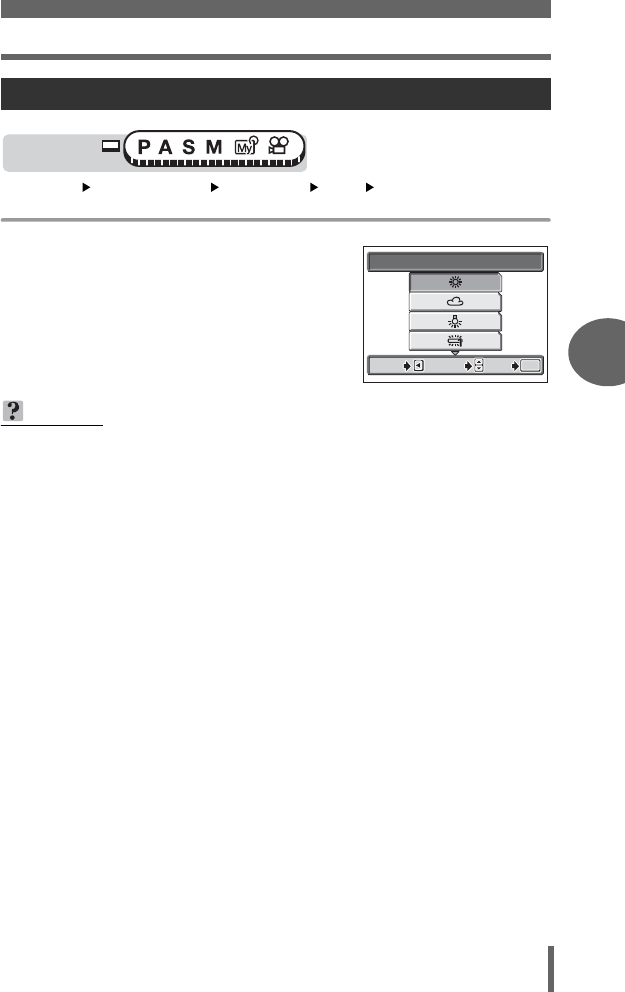
White balance
61
Advanced shooting functions
4
Top menu [MODE MENU] [PICTURE] [WB] [PRESET]
g“Menus” (P.16)
1Select a white balance setting
and press N.
Preset white balance
TIPS
• You can also preview different color tones by trying the different [PRESET WB]
settings under the actual light source and checking the result on the monitor.
Mode dial
PRESET WB
SELECT
SELECT
GO
GO
OK
OK
CANCEL
CANCEL
SELECT
GO
OK
CANCEL
d4250_e_00_0_bookfile.book Page 61 Friday, December 24, 2004 11:45 AM
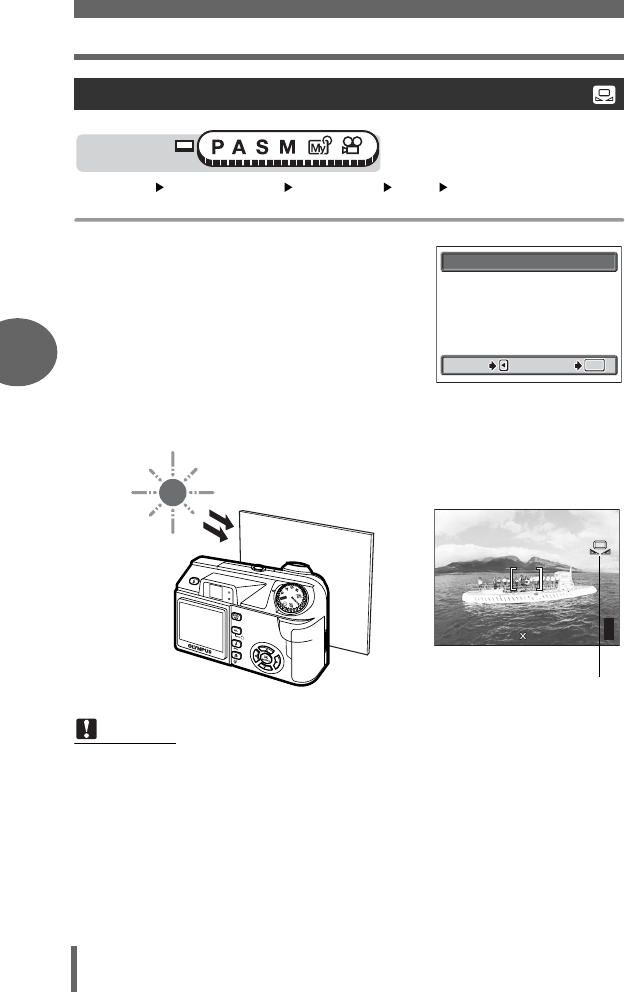
White balance
62
4
Advanced shooting functions
Top menu [MODE MENU] [PICTURE] [WB] [V]
g“Menus” (P.16)
1
Display the [ONE TOUCH WB]
screen and point the camera at a
sheet of white paper.
• Position the paper so that it fills the
screen, making sure there are no
shadows.
2Press N.
• The white balance is set and the screen returns to the mode menu.
One-touch white balance
Note
• When setting the white balance by pointing the camera at a sheet of white
paper, the correct setting may not be obtained if the light reflected by the paper
is too bright or too dark.
• White balance may not be effective under some special light sources.
• After setting a white balance other than [AUTO], play back the picture and
check the colors on the monitor.
• When the flash is fired with a white balance setting other than [AUTO], colors
may appear different in the resulting picture from the colors you see on the
monitor.
Mode dial
CANCEL
CANCEL
GO
GO
OK
OK
OK
CANCEL
GO
ONE TOUCH WB
F2.8
F2.8
1/1000
1/1000
0.0
0.0
2592 1944
2592 1944
HQ
HQ
P
30
30
30
One-touch white balance
d4250_e_00_0_bookfile.book Page 62 Friday, December 24, 2004 11:45 AM
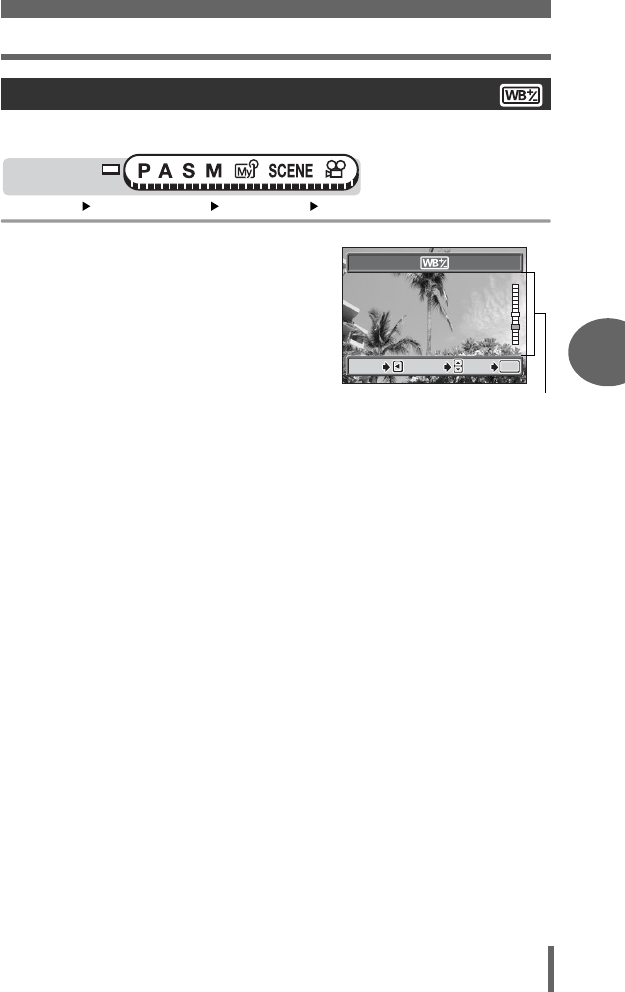
White balance
63
Advanced shooting functions
4
This function lets you make fine changes to the current white balance setting.
Top menu [MODE MENU] [PICTURE] [>] g“Menus” (P.16)
1Press ac to adjust the
white balance, and when you
have selected the desired
level, press N.
• The color becomes bluer each time
you press a, and redder each time
you press c, depending on the
original white balance conditions.
• The white balance can be adjusted in
7 increments in both the [RED] and
[BLUE] directions.
White balance compensation
Mode dial
BLUE
RED
BLUE
RED
SELECT
SELECT
GO
GO
OK
OK
CANCEL
CANCEL
GO
OK
CANCEL SELECT
WB adjustment indicator
d4250_e_00_0_bookfile.book Page 63 Friday, December 24, 2004 11:45 AM
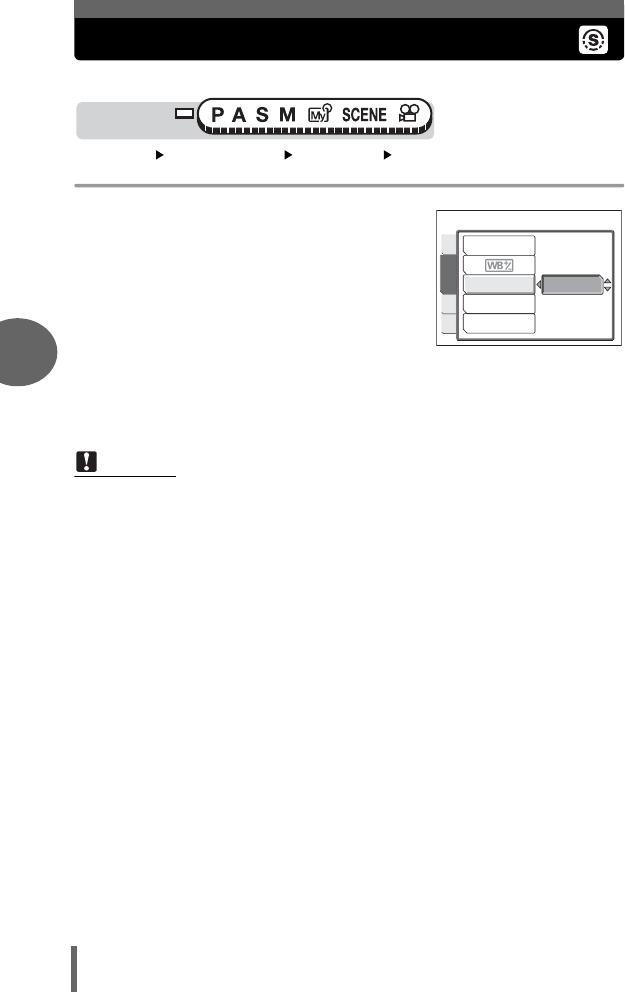
64
4
Advanced shooting functions
Sharpness
This function adjusts the sharpness of the image.
Top menu [MODE MENU] [PICTURE] [SHARPNESS]
g“Menus” (P.16)
1Press ac to adjust the
sharpness between [+5] and [-5].
• To increase the sharpness (+) :
Press a. The image contours
are emphasized, making the
image appear sharper and more
vivid. Use this setting when you
want to print pictures.
• To reduce the sharpness (–) :
Press c. The image contours
are softened. Use this setting
when you want to edit images on
a computer.
Note
• If you adjust the sharpness too far toward +, noise may become noticeable in
the picture.
Mode dial
± 0
WB
SHARPNESS
CONTRAST
SATURATION
PICTURE
CARD
SET
CAM
d4250_e_00_0_bookfile.book Page 64 Friday, December 24, 2004 11:45 AM
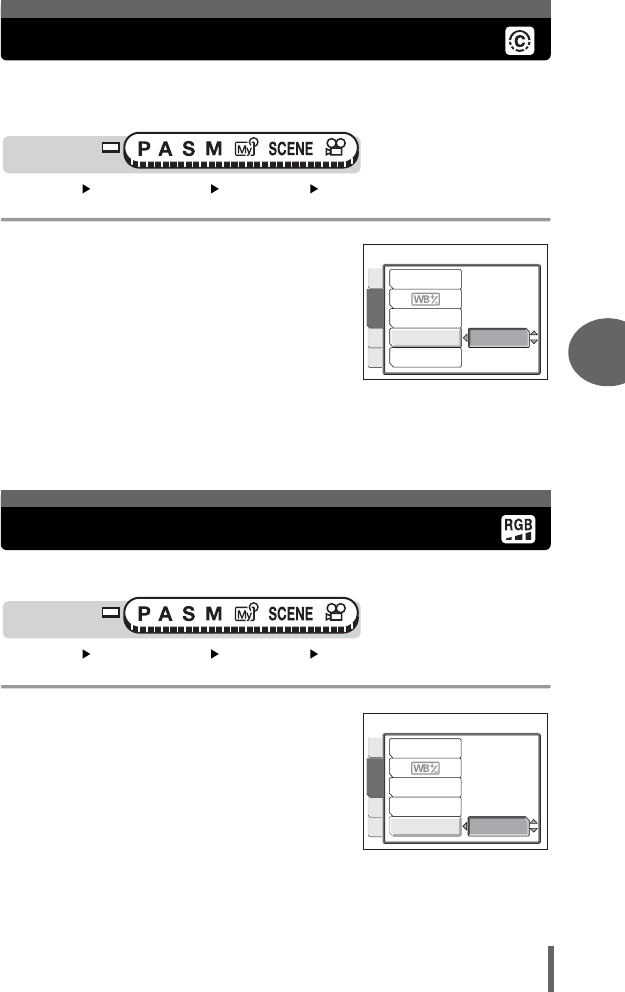
65
Advanced shooting functions
4
Contrast
This function adjusts the contrast of images. For example, you can make
images with marked differences in light and shadow softer, and those with
less differences more vivid.
Top menu [MODE MENU] [PICTURE] [CONTRAST]
g“Menus” (P.16)
1Press ac to adjust the
contrast between [+5] and [-5].
• To increase the contrast (+) :
Press a. The light and dark
areas are defined more clearly,
making the image look crisper.
• To reduce the contrast (–) :
Press c. The light and dark
areas become less defined,
giving the image a softer
impression. Use this setting
when you want to edit images
on a computer.
This function adjusts the color depth.
Top menu [MODE MENU] [PICTURE] [SATURATION]
g“Menus” (P.16)
1Press ac to adjust the
saturation between [+5] and [-5].
• To increase the saturation (+) :
Press a. Colors become darker
and more intense.
• To reduce the saturation (–) :
Press c. Colors become lighter.
Mode dial
± 0
WB
SHARPNESS
SATURATION
CONTRAST
PICTURE
CARD
SET
CAM
Saturation
Mode dial
PICTURE
CARD
SET
CAM
± 0
WB
SHARPNESS
SATURATION
CONTRAST
d4250_e_00_0_bookfile.book Page 65 Friday, December 24, 2004 11:45 AM
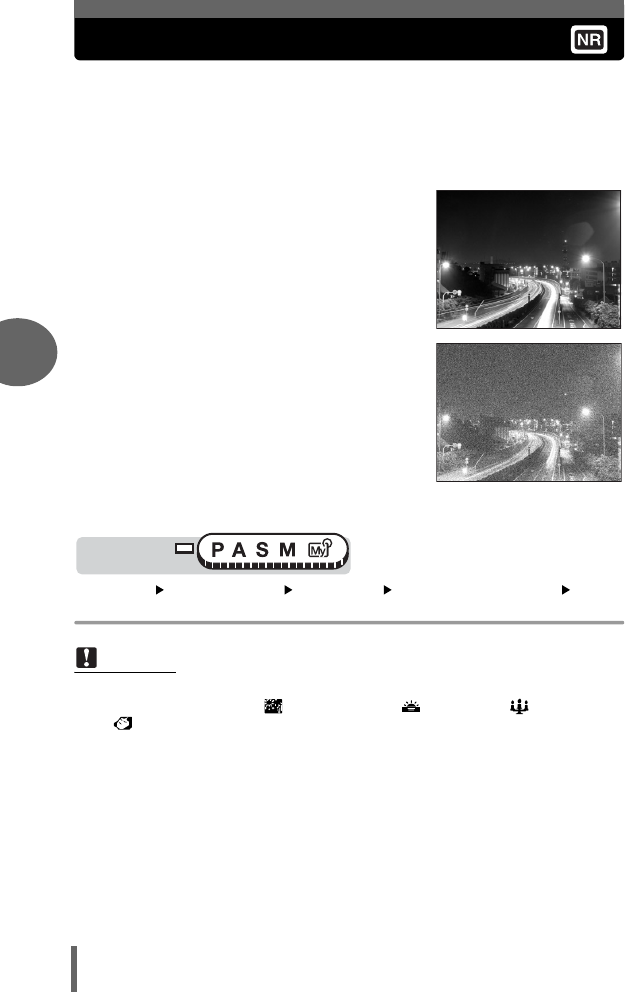
66
4
Advanced shooting functions
Noise reduction
When shooting in dark places, shutter speeds become slower as there is
less light focused on the CCD. During long exposures, signals are
generated by parts of the CCD where no light is focused and are recorded
on the image as noise. When [NOISE REDUCTION] is set to [ON], the
camera automatically reduces the noise to produce clearer images.
ON Noise is reduced. Shooting time is twice as
long as usual. Noise reduction can only be
used when using slow shutter speeds.
OFF Noise is not reduced. Noise may be
conspicuous with slow shutter speeds.
The purpose of these pictures is to illustrate the effects of noise reduction. They are
not actual pictures.
Top menu [MODE MENU] [CAMERA] [NOISE REDUCTION]
[ON] / [OFF] g“Menus” (P.16)
Note
• [NOISE REDUCTION] is always set to [ON] when the f mode is set to
[R (NIGHT SCENE)] [ (FIREWORKS)] [ (SUNSET)] [ (CANDLE)]
[ (AVAILABLE LIGHT PORTRAIT)].
• If [NOISE REDUCTION] is set as [ON], the range which can be photoed will
become narrow a little.
• When [NOISE REDUCTION] is set to [ON], sequential shooting ([j], [7])
is not possible.
• This function may not work effectively with some shooting conditions or
subjects.
Mode dial
d4250_e_00_0_bookfile.book Page 66 Friday, December 24, 2004 11:45 AM
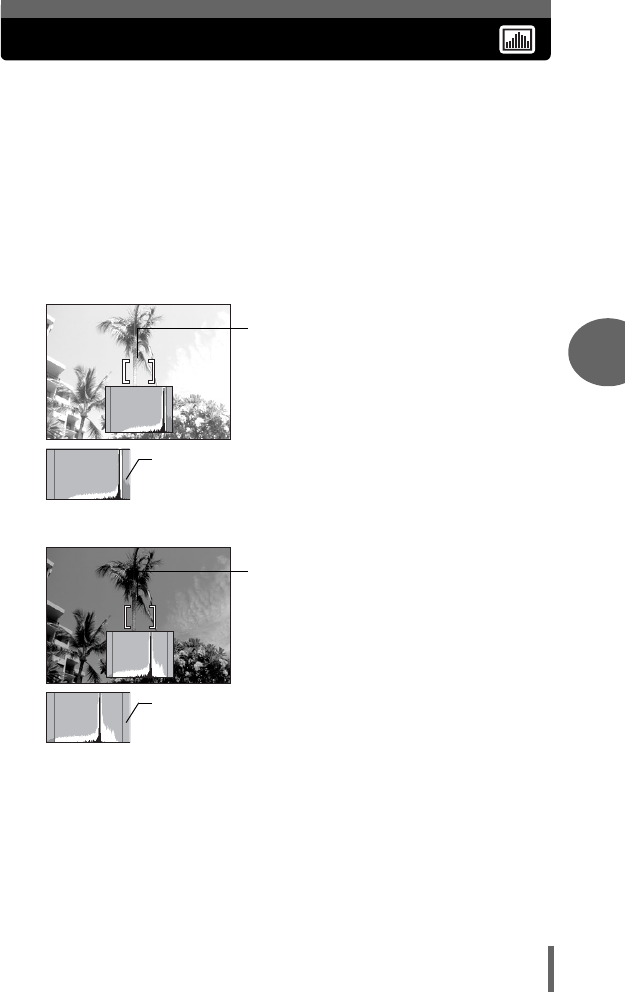
67
Advanced shooting functions
4
Histogram
When shooting still pictures, you can display a histogram showing the
brightness and contrast of your subject in the monitor. You can also
display the black and white areas directly on the picture.
Displaying the brightness and contrast of your subject enables fine
adjustment of the exposure.
OFF Hides the histogram.
ON Displays the histogram for every picture.
DIRECT Displays the black and white areas directly on the picture.
Ex.1) When [ON] is selected in P mode
30
30
30
HQ
HQ
0.0
0.0
F2.8
F2.8
1/1000
1/1000
P
30
30
30
0.0
0.0
HQ
HQ
F2.8
F2.8
1/1000
1/1000
P
The part indicated in green in the histogram shows the luminance distribution
within the AF target mark.
AF
target mark
If the peak fills too much of the
red frame, the image will appear
mostly white.
Bright picture
If the peak fills too much of the
blue frame, the image will appear
mostly black.
Dark picture
AF
target mark
d4250_e_00_0_bookfile.book Page 67 Friday, December 24, 2004 11:45 AM
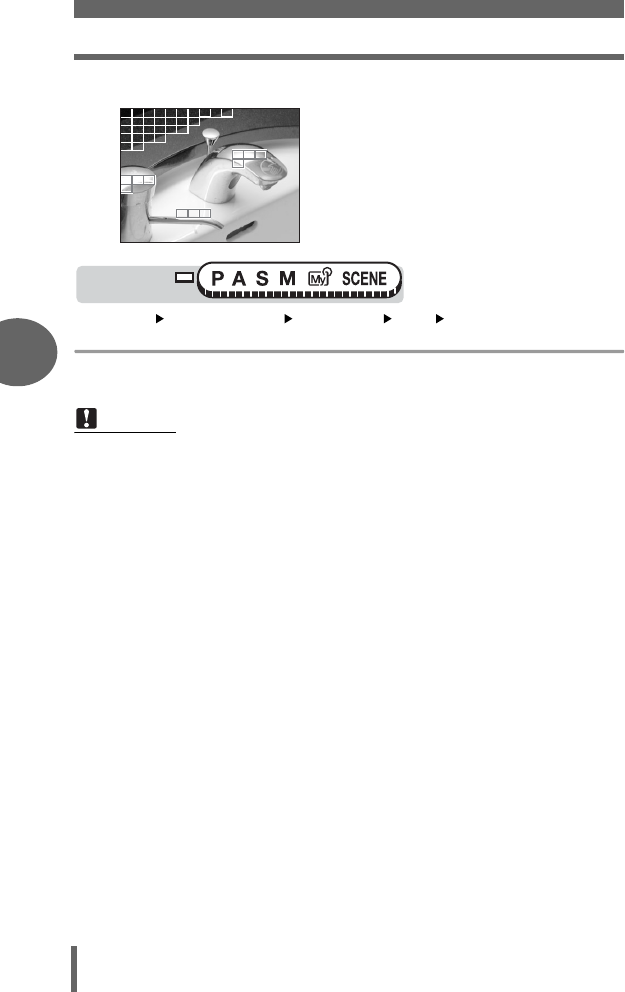
Histogram
68
4
Advanced shooting functions
Ex.2) When [DIRECT] is selected in P mode
Top menu [MODE MENU] [CAMERA] [u] [OFF] / [ON] / [DIRECT]
g“Menus” (P.16)
•In M mode, when [u] is not set to [OFF], the subject is displayed on the monitor
at the appropriate brightness for the selected exposure.
Note
• The histogram is not displayed in the following situations even if [ON] or
[DIRECT] is selected.
During panorama shooting or multi-metering
• The histogram displayed during shooting may differ from the histogram
displayed during playback.
Red boxes: Mainly white area
Blue boxes: Mainly black area
When there are black and white parts in the
same area, they are displayed as Red boxes.
Mode dial
d4250_e_00_0_bookfile.book Page 68 Friday, December 24, 2004 11:45 AM
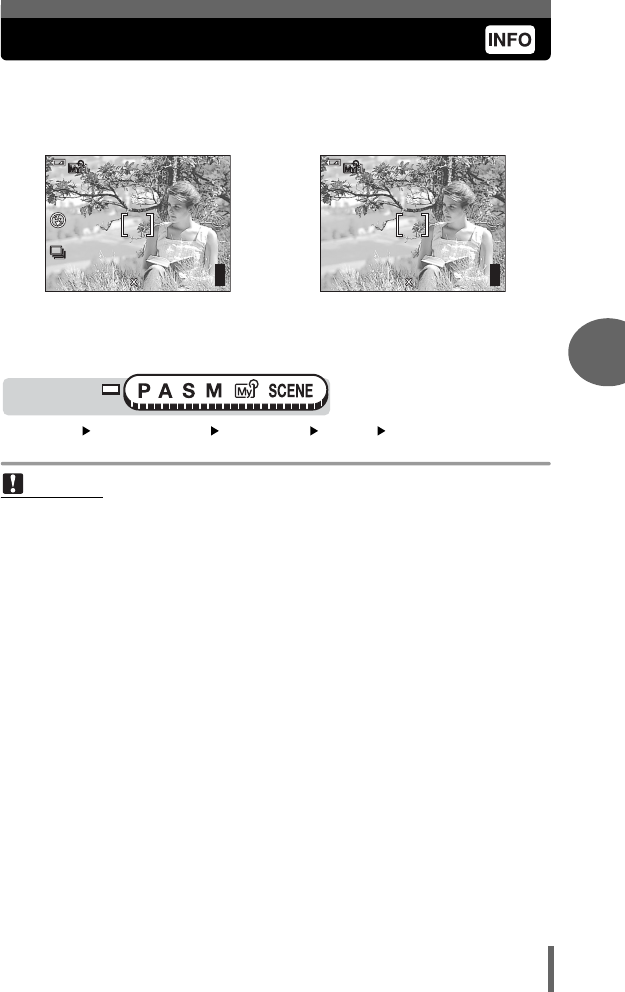
69
Advanced shooting functions
4
Displaying shooting information
This function lets you display detailed shooting information on the monitor
in the playback mode. For details of the information displayed, see
“Monitor indications” (P.193).
Example:
Top menu [MODE MENU] [CAMERA] [INFO] [OFF] / [ON]
g“Menus” (P.16)
When [INFO] is [ON] When [INFO] is [OFF]
The information is displayed
for 3 seconds after changing
the settings.
Note
•If [u] is set, the histogram is displayed regardless of whether [INFO] is set to
[ON] or [OFF].
ISO100
ISO100
30
30
30
2592 1944
2592 1944
HQ
HQ
30
30
30
F2.8
F2.8
1/1000
1/1000
0.0
0.0
F2.8
F2.8
1/1000
1/1000
0.0
0.0
2592 1944
2592 1944
HQ
HQ
30
30
30
P
Mode dial
d4250_e_00_0_bookfile.book Page 69 Friday, December 24, 2004 11:45 AM
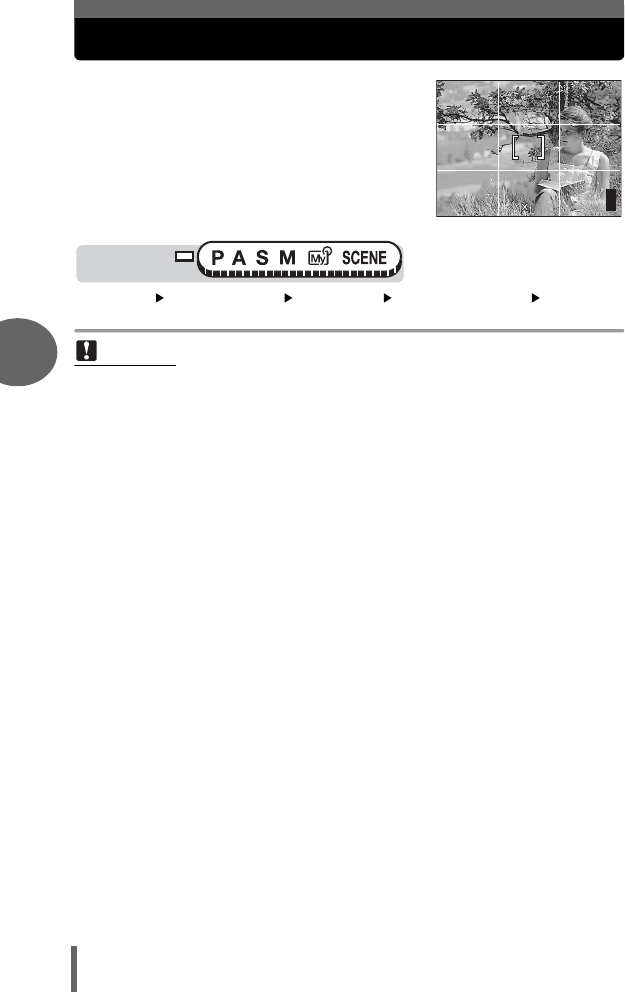
70
4
Advanced shooting functions
Frame assist
A frame is displayed on the monitor to help
you compose your pictures.
Top menu [MODE MENU] [CAMERA] [FRAME ASSIST] [OFF] /
[ON] g“Menus” (P.16)
Note
• The frame is not displayed during panorama shooting.
F2.8
F2.8
1/1000
1/1000
0.0
0.0
P
HQ
HQ
30
30
30
2592 1944
2592 1944
Mode dial
d4250_e_00_0_bookfile.book Page 70 Friday, December 24, 2004 11:45 AM
71
5 More useful functions
At a sporting event…
Use movie mode to capture the atmosphere
by recording the cheers and applause along
with the action. Or use sequential shooting
mode to take a succession of shots of a goal
and pick out the best ones later.
In the country or at a tourist spot…
Use panorama mode to capture a beautiful
mountain range or impressive building.
At a party or family gathering…
Use the self-timer function to take group
photos at school reunions or birthday
parties.
When you want to add a special effect…
Add a sepia effect to produce an old-
fashioned touch, or a black & white effect to
produce a clear, sharp image while
checking the picture on the monitor.
5
More useful
functions
d4250_e_00_0_bookfile.book Page 71 Friday, December 24, 2004 11:45 AM
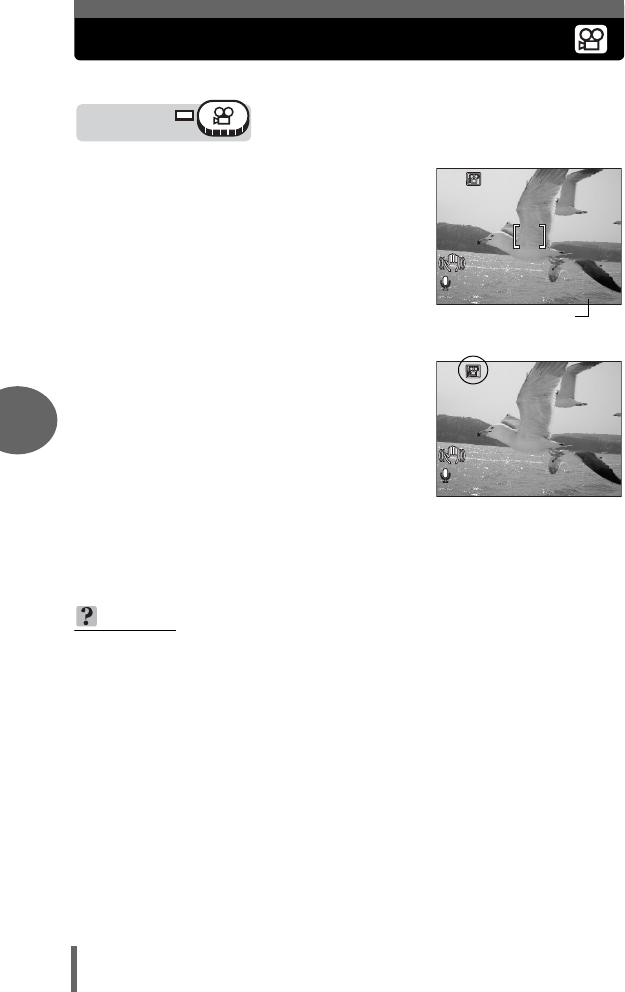
72
5
More useful functions
Recording movies
This function allows you to record movies.
1Decide the composition of the
picture.
• The remaining recording time on the
card that you are using is displayed on
the monitor.
• You can use the zoom lever to enlarge
your subject.
2Press the shutter button fully to
start recording.
• The orange lamp beside the viewfinder
lights.
• During movie recording, N lights red.
3Press the shutter button again to
stop recording.
• When the remaining recording time has
been used up, recording stops
automatically.
• When there is space in the card memory, the remaining recording time
(gP.28) is displayed, and the camera is ready to shoot.
TIPS
To keep the subject in focus all the time during movie recording
→Set [R] to [OFF] and [FULLTIME AF] to [ON]. g“Fulltime AF” (P.50),
“Recording sound with movies” (P.82)
To use the zoom during movie recording
→Set [DIGITAL ZOOM] to [ON]. g“Using the digital zoom” (P.36)
→If you set [R] to [OFF], you can use the optical zoom during movie recording.
g“Recording sound with movies” (P.82)
Mode dial
HQ
HQ
00:
0:
36
36
0 0:3 6
0.0
0.0
Remaining
recording time
00:
0:
36
36
0 0:3 6
HQ
HQ
d4250_e_00_0_bookfile.book Page 72 Friday, December 24, 2004 11:45 AM
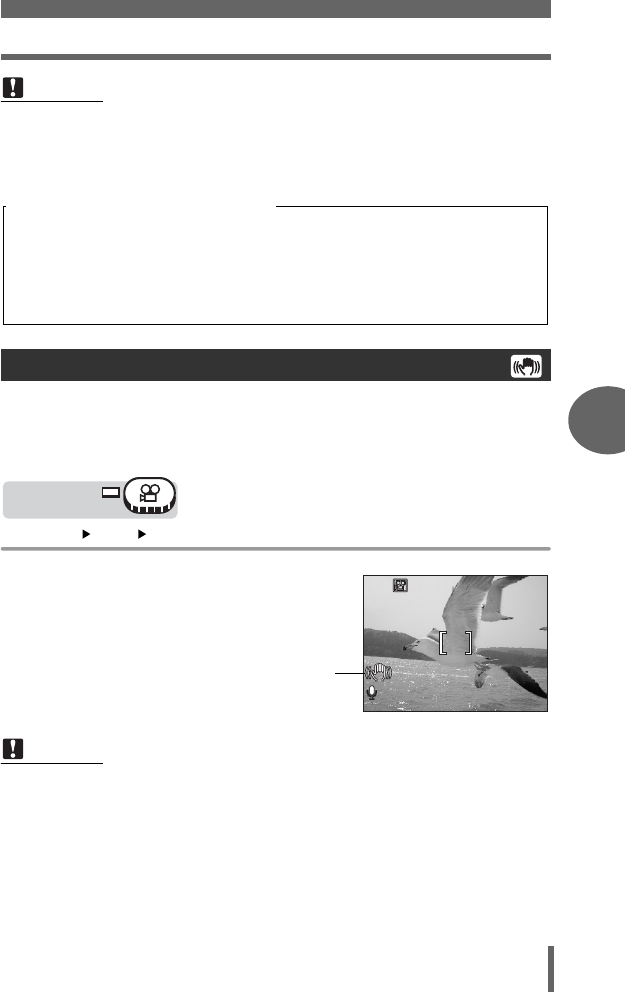
Recording movies
73
5
More useful functions
This function reduces the blur incurred by camera movement when taking
movies. The camera moves the image-capture area of the CCD according
to the movement of the subject, reducing blur when recording. The images
are recorded slightly larger when [h] is set to [ON].
Top menu [h] [OFF] / [ON] g“Menus” (P.16)
1Take the picture.
Note
• Depending on the card, the remaining recording time may drop rapidly during
recording. Try using the card again after formatting it with your camera.
g “Formatting” (P.104)
•In n mode, the flash and manual focus (MF) cannot be used.
Camera movement compensation
Note
• Depending on the actual amount of shake, there may be situations where the
anti-shake system is not able to remove all the shaking from the movie.
• On the other hand, if your camera is mounted firmly, like on a tripod, turn off the
anti-shake system. The display may move unexpectedly when the camera tries
to compensate for any movement by the subject you are recording.
• When you are recording movies, as long as you do not press the shutter button
to stop the filming, the camera will continue to record until you run out of space
on your memory card.
• A long recorded movie cannot be edited. (P.95)
• If a single movie recording uses up all of the card’s memory, create space on
the card by erasing the movie or downloading it to a computer.
Notes for recording long movies
Mode dial
HQ
HQ
00
00
:30
30
00:30
0.0
0.0
Displayed during
camera movement
compensation.
d4250_e_00_0_bookfile.book Page 73 Friday, December 24, 2004 11:45 AM
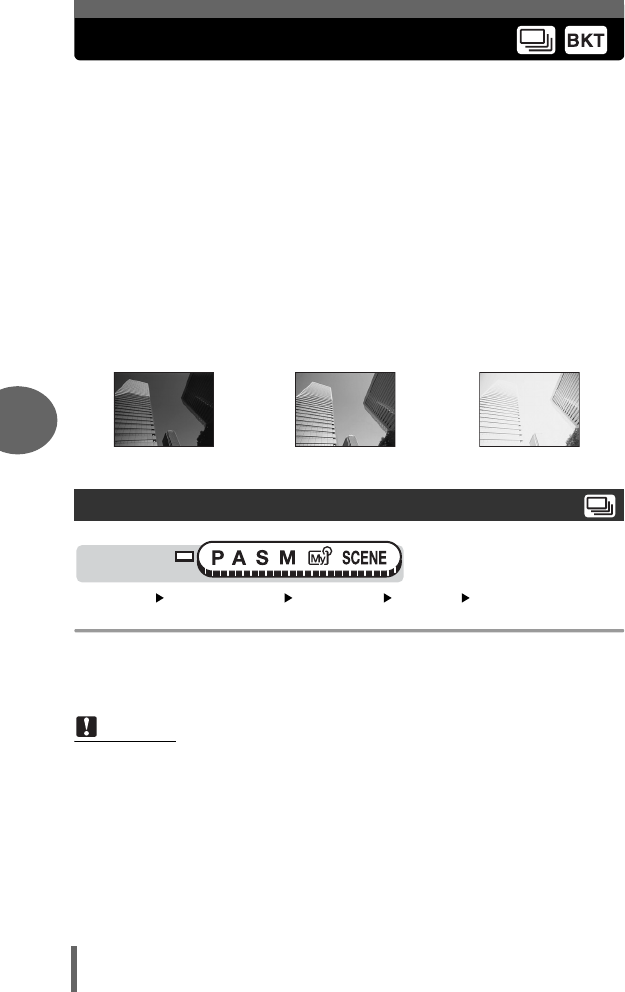
74
5
More useful functions
Sequential shooting
There are two sequential shooting modes: sequential shooting and auto
bracketing.
To set a sequential shooting mode, go to [DRIVE] on the mode menu.
oShoots 1 frame at a time when the shutter button is pressed. (Normal,
single-frame shooting mode)
jThe focus, exposure and white balance are locked at the first frame.
Approx. 4 frames at 1.2 frames/sec. (in HQ mode)
7Under some conditions, you may obtain better results shooting with
exposure compensation than by using the exposure setting considered
optimal by the camera.
When [7] is set, the exposure is changed automatically for each frame
when you start shooting. The exposure differential and number of frames
can be selected in the menus. The focus and white balance are locked at
the first frame.
Ex: When [7] is set to [±1.0] [×3]
Top menu [MODE MENU] [CAMERA] [DRIVE] [j]
g“Menus” (P.16)
1Take the picture.
• Press the shutter button fully and keep it pressed. The camera will take
pictures in sequence until you release the button.
-1.0 0.0 +1.0
Sequential shooting
Note
• The number of frames that can be taken during sequential mode differs
according to the record mode settings.
Mode dial
d4250_e_00_0_bookfile.book Page 74 Friday, December 24, 2004 11:45 AM
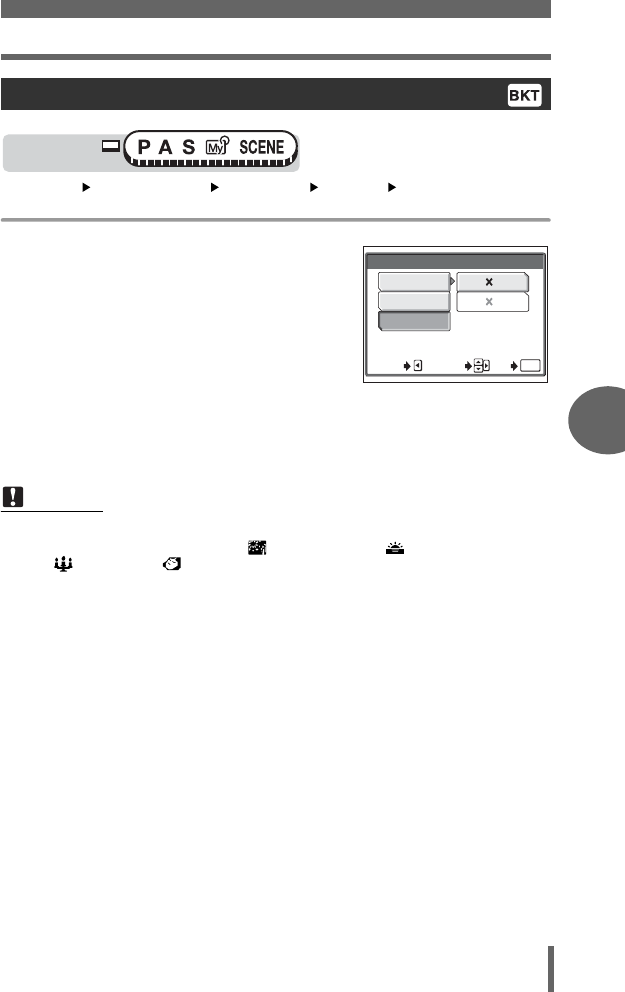
Sequential shooting
75
5
More useful functions
Top menu [MODE MENU] [CAMERA] [DRIVE] [7]
g“Menus” (P.16)
1Select the exposure differential
and number of shots and press
N.
2Take the picture.
• Press the shutter button fully and keep it pressed to shoot the preset
number of pictures. You can stop shooting at any time by releasing the
shutter button.
Auto bracketing
Note
• Sequential shooting ([j], [7]) is not available in the following situations:
When [R (NIGHT SCENE)] [ (FIREWORKS)] [ (SUNSET)]
[ (CANDLE)] [ (AVAILABLE LIGHT PORTRAIT)] is selected for the
f mode, when [NOISE REDUCTION] is set to [ON], or when the record
mode is set to SHQ.
• The flash does not fire during sequential shooting ([j], [7]).
• Because the shutter speed is restricted, darker subjects may not be exposed
adequately.
• When taking pictures in auto bracket mode, various compensation may not
apply, depending on the situation.
• Auto bracketing may not be available depending on the record mode settings.
• If the battery power is low and the battery check blinks during sequential
shooting, shooting stops and the camera starts saving the pictures you have
taken. Whether or not all of the shots are saved depends on how much battery
power remains.
• If there is not enough space available on the card for the number of frames you
have set during auto bracketing, you cannot continue shooting.
Mode dial
SELECT
GO
CANCEL
BKT
OK
± 0.3
± 0.7
± 1.0
3
5
d4250_e_00_0_bookfile.book Page 75 Friday, December 24, 2004 11:45 AM
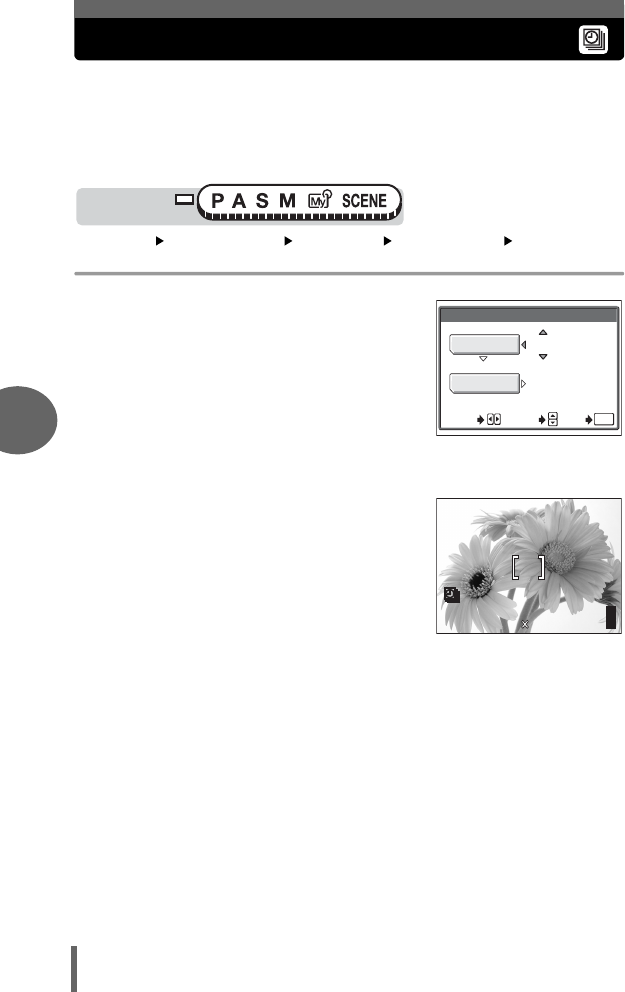
76
5
More useful functions
Time lapse shooting
This function lets you take a sequence of pictures automatically under
preset conditions. It is useful, for example, for taking pictures at specific
intervals of a flower opening. You are recommended to use an AC adapter
(optional) when shooting over prolonged periods. If you are using
batteries, make sure that they are fully charged.
Top menu [MODE MENU] [CAMERA] [TIMELAPSE] [ON] / [OFF]
g“Menus” (P.16)
1Set the [PICTURES] and
[INTERVAL].
•ac : Selects the item or sets the
number.
•bd : Selects the column.
Setting range Number of pictures: 2 to 99
Interval: 1 min. to 60 min. in
1 min. increments
2Press N.
3Press the shutter button.
• The first picture is taken and the second
and subsequent pictures are taken
automatically at the preset interval.
•L lights during time lapse shooting.
• The camera automatically enters the
sleep mode after the first picture has
been taken and stored on the card. The
camera is automatically reactivated 4
seconds before taking the next picture.
• The camera turns off automatically
when the preset number of pictures has been taken.
Mode dial
02
01
GO
OK
SET
SELECT
PICTURES
INTERVAL
TIMELAPSE
MIN
30
30
30
2592 1944
2592 1944
HQ
HQ
30
30
30
F2.8
F2.8
1/1000
1/1000
0.0
0.0
d4250_e_00_0_bookfile.book Page 76 Friday, December 24, 2004 11:45 AM
Self-timer shooting
77
5
More useful functions
This function lets you take pictures using the self-timer. Fix the camera
securely on a tripod for self-timer shooting. This function is useful for taking
pictures when you want to be included in the photograph.
Top menu [Y] [OFF] / [ON]
Top menu [MODE MENU] [CAMERA] [Y][ON] / [OFF]
g“Menus” (P.16)
Note
• Self-timer and sequential shooting is not available in Time lapse shooting.
• Operation of the buttons, mode dial and zoom lever is invalidated from 4
seconds before shooting until after the picture has been taken.
• If the battery power or card memory runs out while the camera is in the sleep
mode, a warning appears, time lapse shooting is terminated and the camera
turns off automatically.
Self-timer shooting
Mode dial
Mode dial
d4250_e_00_0_bookfile.book Page 77 Friday, December 24, 2004 11:45 AM
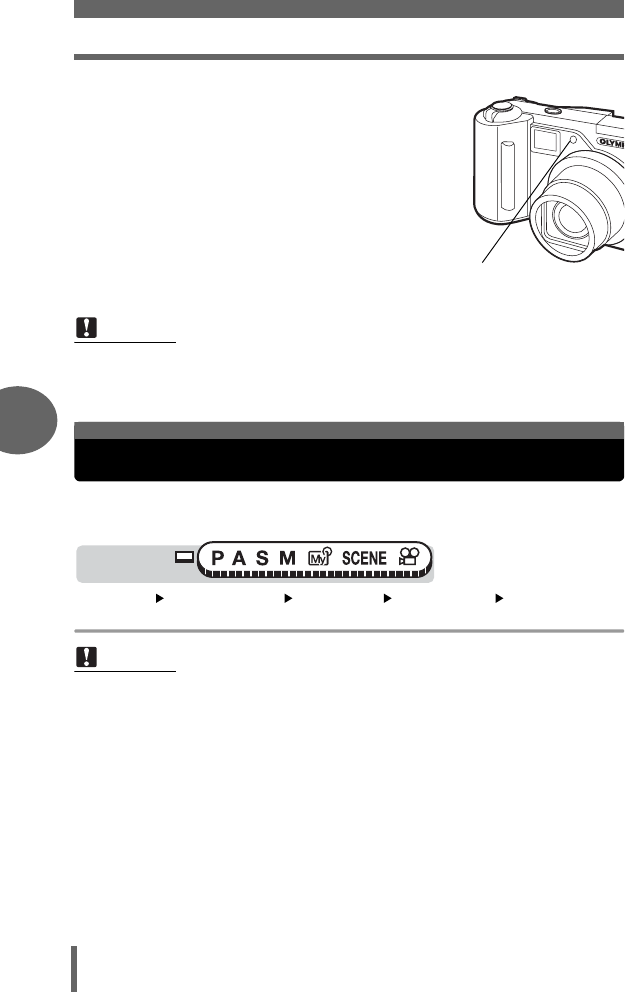
Function shooting (black & white/sepia)
78
5
More useful functions
1Press the shutter button fully to take
the picture.
• Pressing the shutter button halfway locks
the focus and exposure.
• The self-timer lamp lights for approximately
10 seconds, then starts blinking. After
blinking for approximately 2 seconds, the
picture is taken.
• To cancel the self-timer, press the N
button.
• The self-timer mode is automatically
canceled after one shot.
This feature lets you add a special black & white or sepia effect to your
pictures.
Top menu [MODE MENU] [CAMERA] [FUNCTION] [BLACK &
WHITE] / [SEPIA] / [OFF] g“Menus” (P.16)
Note
• If sequential shooting is attempted in self-timer mode, the camera shoots 5
frames at most regardless of the setting.
Note
• White balance, white balance compensation and saturation cannot be used
during function shooting.
Self-timer lamp
Function shooting (black & white/sepia)
Mode dial
d4250_e_00_0_bookfile.book Page 78 Friday, December 24, 2004 11:45 AM
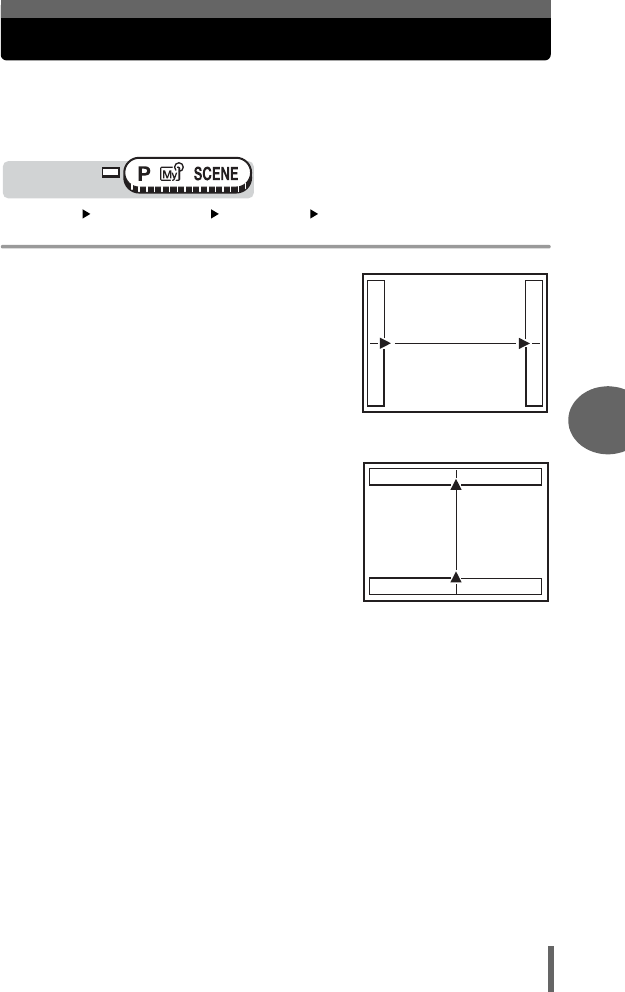
79
5
More useful functions
Panorama shooting
You can take advantage of panorama shooting with Olympus cards (xD-
Picture Card). Panorama shooting lets you connect pictures with
overlapping edges into a single panoramic picture, using the OLYMPUS
Master software.
Top menu [MODE MENU] [CAMERA] [PANORAMA]
g“Menus” (P.16)
1Use the arrow pad to choose at
which edge you want to connect
the pictures.
d: The next picture is connected at the
right edge.
b: The next picture is connected at the
left edge.
a: The next picture is connected at the
top.
c: The next picture is connected at the
bottom.
Mode dial
Connects pictures from
left to right
Connects pictures from
bottom to top
d4250_e_00_0_bookfile.book Page 79 Friday, December 24, 2004 11:45 AM
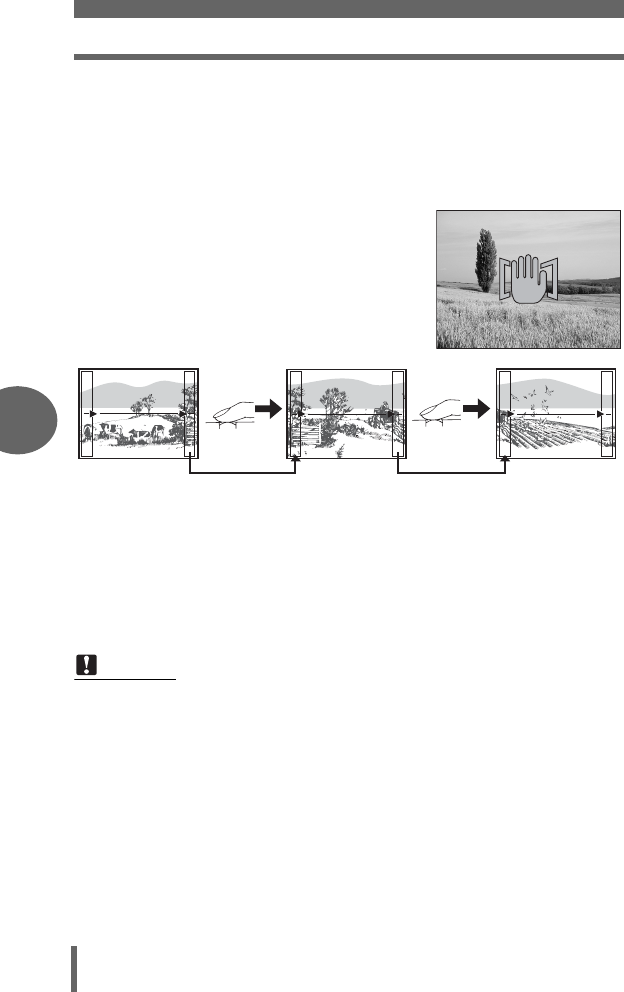
Panorama shooting
80
5
More useful functions
2Make sure that the edges of the pictures overlap, then take
the pictures.
• The focus, exposure and white balance are set by the first picture. Do not
select an extremely bright subject (such as the sun) for the first picture.
• You cannot adjust the zoom after the first picture.
• Panorama shooting is possible for up to 10 pictures.
• When you have taken 10 pictures, a
warning mark appears.
3Press N to exit panorama shooting.
The part of the previous picture where it will be joined to the next picture does not
remain in the frame on the edge of the screen. You have to remember what the
part in the frame looked like and take the next picture so it overlaps. Compose your
shots so that the right edge of the previous picture overlaps with the left edge of
the next picture if you are connecting pictures from left to right (or vice versa if you
are connecting pictures from right to left).
Note
• The panorama mode is only available with Olympus cards.
• During panorama shooting, the flash and sequential shooting modes are not
available.
• If the mode dial is turned during panorama shooting, the camera cancels the
panorama mode and changes to the mode selected in the mode dial.
• The camera itself cannot connect panorama pictures. The OLYMPUS Master
software is necessary to connect the pictures.
d4250_e_00_0_bookfile.book Page 80 Friday, December 24, 2004 11:45 AM
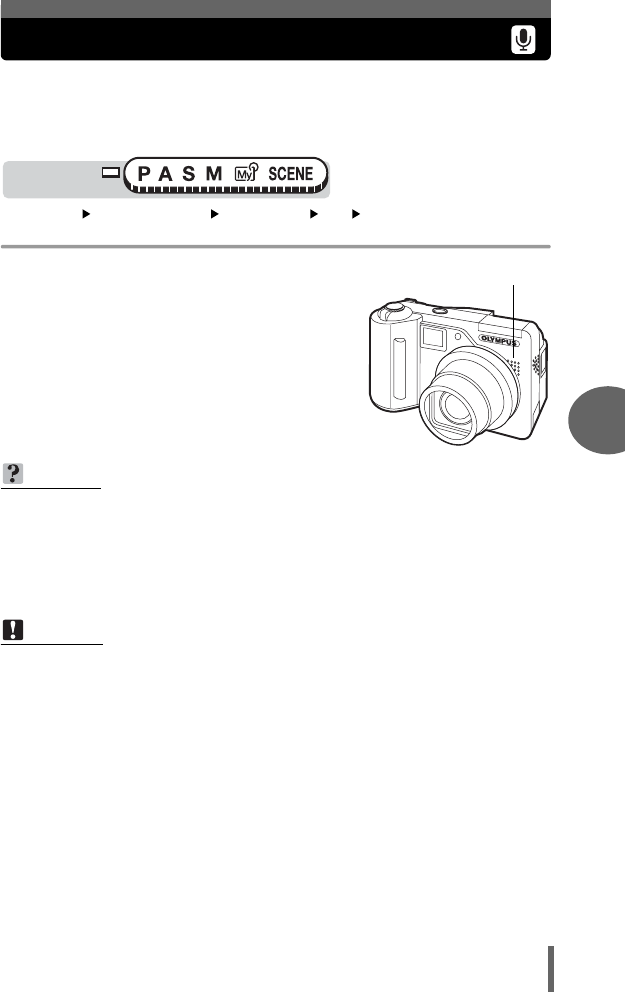
81
5
More useful functions
Recording sound with still pictures
Sound can be recorded when taking still pictures. Recording starts about
0.5 seconds after the shutter is released and lasts about 4 seconds.
When this function is enabled, sound is recorded automatically every time
you take a picture.
Top menu [MODE MENU] [CAMERA] [R][ON] / [OFF]
g“Menus” (P.16)
1When recording starts, aim the
camera microphone at the
source of the sound you want to
record.
TIPS
•H appears when still pictures and movies with sound are played back.
During playback, sound is output from the speaker. The volume can be
adjusted. g“Playback volume” (P.111)
• Sound can be added later to still pictures. Recorded sound can also be re-
recorded. g“Recording sound” (P.94)
Note
• If the microphone is farther than 1 m (3.3 ft.) from the subject, sound may not
be recorded properly.
• Pictures cannot be taken during sound recording.
• Sound recording is not possible in the following cases:
Sequential shooting ([j], [7]), panorama shooting and time lapse
shooting.
• Sound recording may also pick up camera noises, such as button operations,
shutter movement, etc.
• Sound recording may not be possible if there is insufficient space in the card
memory.
Mode dial
Microphone
d4250_e_00_0_bookfile.book Page 81 Friday, December 24, 2004 11:45 AM
82
5
More useful functions
Recording sound with movies
Sound can be recorded while shooting a movie.
Top menu [MODE MENU] [CAMERA] [R][ON] / [OFF]
g“Menus” (P.16)
Note
• When [R] is set to [ON], the optical zoom is locked during movie recording. If
you wish to use the zoom during movie recording, set [DIGITAL ZOOM] to
[ON]. If [R] is set to [OFF], you can use both the optical zoom and digital zoom
during movie recording.
• If the camera is more than 1 m (3.3 ft.) away from the source of the sound,
sound may not be recorded clearly by the built-in microphone.
Mode dial
d4250_e_00_0_bookfile.book Page 82 Friday, December 24, 2004 11:45 AM
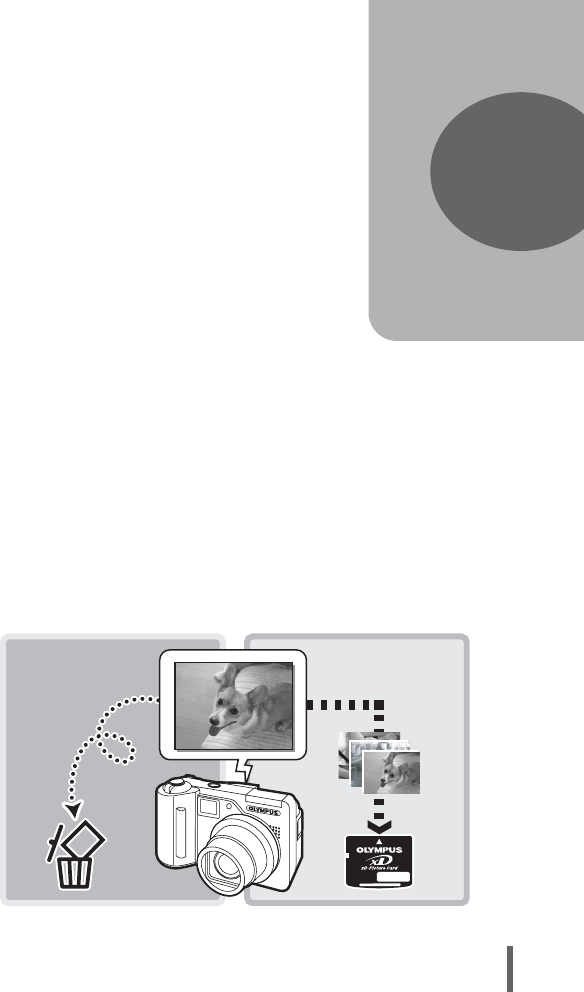
83
6Playback
With film cameras, you cannot see the
pictures you have taken until the film has
been developed. And aren’t you sometimes
disappointed with the results when you do
eventually see them? Pictures of blurred
scenery or someone with their eyes shut. Or
maybe you took several pictures of the
same scene because you weren’t sure
whether they would come out or not. That’s
no way to record important memories!
With a digital camera, you can review your
pictures immediately.
Just play the picture back as soon as you’ve
taken it. If you don’t like what you see, erase
and take it again. So don’t be afraid of
pictures not coming out well – just keep on
pressing that shutter button!
6
Playback
YES!NO!
d4250_e_00_0_bookfile.book Page 83 Friday, December 24, 2004 11:45 AM
84
6
Playback
Single-frame playback
• The monitor turns on and displays the last picture taken.
1Use the arrow pad to play back other pictures.
d: Displays the next picture.
b: Displays the previous picture.
a: Jumps to the picture 10 frames back.
c: Jumps to the picture 10 frames ahead.
Pictures displayed on the monitor can be enlarged 2, 3, 4 or 5 times.
1Displays the still picture you want to enlarge.
2Pull the zoom lever toward T (U).
• Each time you pull the zoom lever, the
picture is enlarged gradually.
• By using the arrow pad while the
enlarged picture is displayed, you can
shift the picture in the desired direction,
enabling you to view a different portion.
• To return the picture to the original size
(1×), push the zoom lever toward W.
TIPS
• You can use this function in shooting mode by pressing the QUICK VIEW
button.
Note
• If the camera is not used for over 3 minutes, the camera enters the sleep mode
and the monitor turns off.
Mode dial
Close-up playback
Mode dial
Zoom lever
d4250_e_00_0_bookfile.book Page 84 Friday, December 24, 2004 11:45 AM
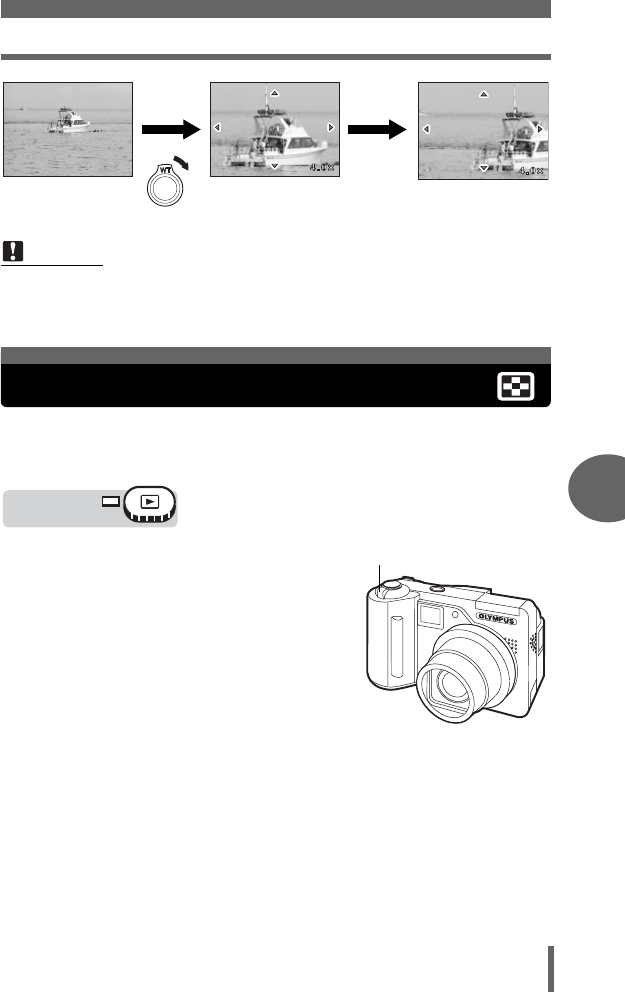
Index display
85
Playback
6
This function lets you show several pictures at the same time on the
monitor. The number of pictures shown can be 4, 9 or 16. g“Selecting
the number of pictures” (P.86)
1Push the zoom lever toward W
(G).
• The index display screen is displayed.
• The image that was displayed in single-
frame playback is selected.
• Pushing the zoom lever once toward T
during index display switches to single-
frame playback. g“Single-frame
playback” (P.84)
Note
• You cannot enlarge pictures with n.
• Pictures cannot be stored in an enlarged state.
Left side of picture is
displayed.
b
Index display
Mode dial
Zoom lever
d4250_e_00_0_bookfile.book Page 85 Friday, December 24, 2004 11:45 AM
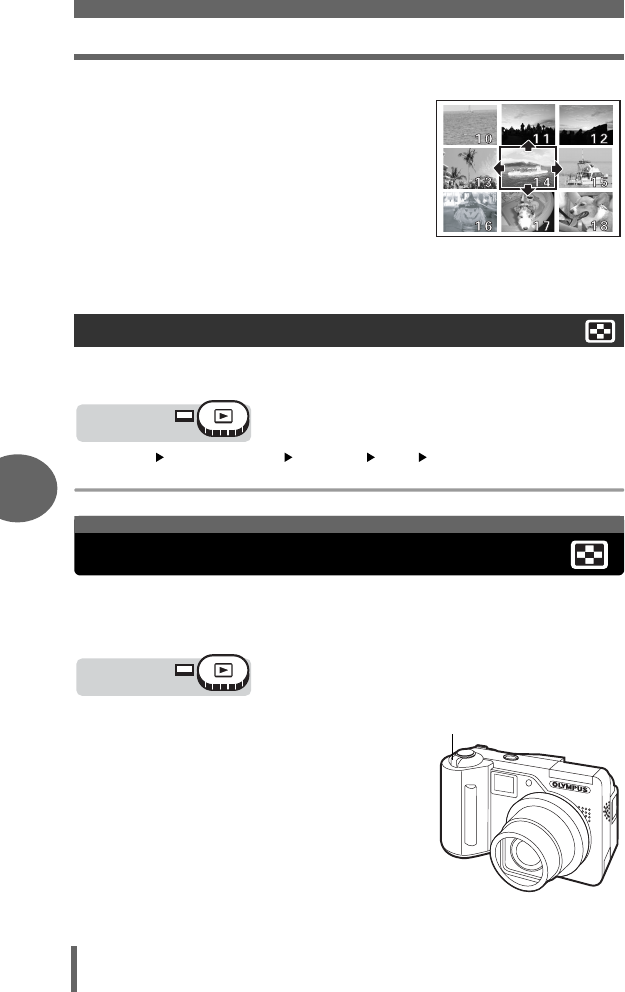
Calendar display
86
6
Playback
• Use the arrow pad to select a picture.
b: Moves to the previous frame.
d: Moves to the next frame.
a: Moves to the frame above/
previous index.
• If a frame on the top row of the index
was selected, displays the previous
index.
c: Moves to frame below/next index.
• If a frame on the bottom row of the index was selected, displays the next
index.
This function lets you select the number of pictures in an index display from 4, 9 and
16.
Top menu [MODE MENU] [SETUP] [G] [4] / [9] / [16]
g“Menus” (P.16)
This function lets you display images stored on the card by specifying the
date on a calendar format. If several pictures were taken on the same date,
the first picture taken on that date is displayed.
1Push the zoom lever toward W
(G) twice.
• While viewing the index display screen,
push the zoom lever toward W (G)
once.
• The calendar display screen is
displayed.
Selecting the number of pictures
Mode dial
Calendar display
Mode dial
Zoom lever
d4250_e_00_0_bookfile.book Page 86 Friday, December 24, 2004 11:45 AM
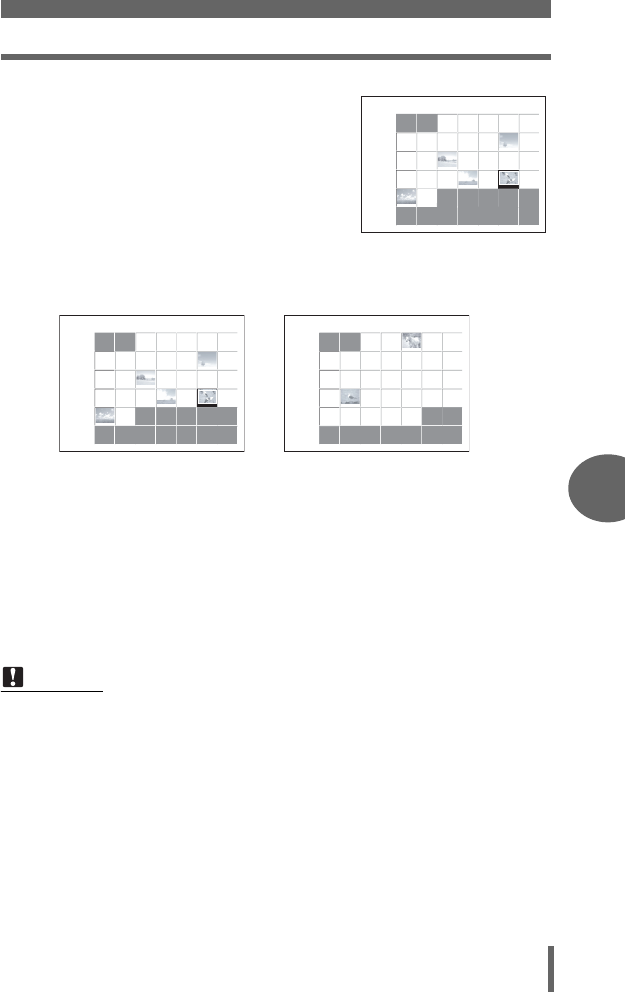
Calendar display
87
Playback
6
2Use the arrow pad to select a
date.
b: Moves to the previous day.
d: Moves to the next day.
a: Moves to the same day of the
previous week.
c: Moves to the same day of the
following week.
Ex.: When Febrary 25 is selected
• Pushing the zoom lever once toward T during calendar display switches to
single-frame playback. However, if no picture was selected in calendar
display, you cannot switch from calendar display to single-frame playback.
• Pressing N during calendar display switches to single-frame playback.
g“Single-frame playback” (P.84), “Index display” (P.85)
Note
• Months in which no pictures were taken are not displayed.
• Pictures may not be displayed on the correct date in the following cases:
If the date and time are not set on the camera, or if the date of pictures were
changed in OLYMPUS Master software.
• The following operations cannot be performed during calendar display:
Protect, picture rotation, and Single-frame erase.
2005
2Sun Mon Tue Wed Thu Fri Sat
30
10 11 12
31 1 2 3 4
67 8 9 11
11
10
10
12
12
13
13
14
14
15
15
16
16
17
17
18
18
19
19
20
20
21
21
22
22
23
23
24
24
25
25
26
26
27
27
28
28
5
678
1
9
234
5
2005
2Sun Mon Tue Wed Thu Fri Sat
30
10 11 12
31 1 2 3 4
67 8 9 11
11
10
10
12
12
13
13
14
14
15
15
16
16
17
17
18
18
19
19
20
20
21
21
22
22
23
23
24
24
25
25
26
26
27
27
28
28
5
678
1
9
234
5
2005
3Sun Mon Tue Wed Thu Fri Sat
27 28 1 2 3 4
67 8 9
14
14
15
15
16
16
17
17
10
10
18
18
19
19
11
11
12
12
20
20
13
13
21
21
22
22
23
23
24
24
25
25
26
26
27
27
28
28
29
29
30
30
31
31
5436
789
12
5
• Press b. Moves to Febrary 24.
• Press d. Moves to Febrary 26.
• Press a. Moves to Febrary 18.
• Press c. Moves to March 4.
d4250_e_00_0_bookfile.book Page 87 Friday, December 24, 2004 11:45 AM
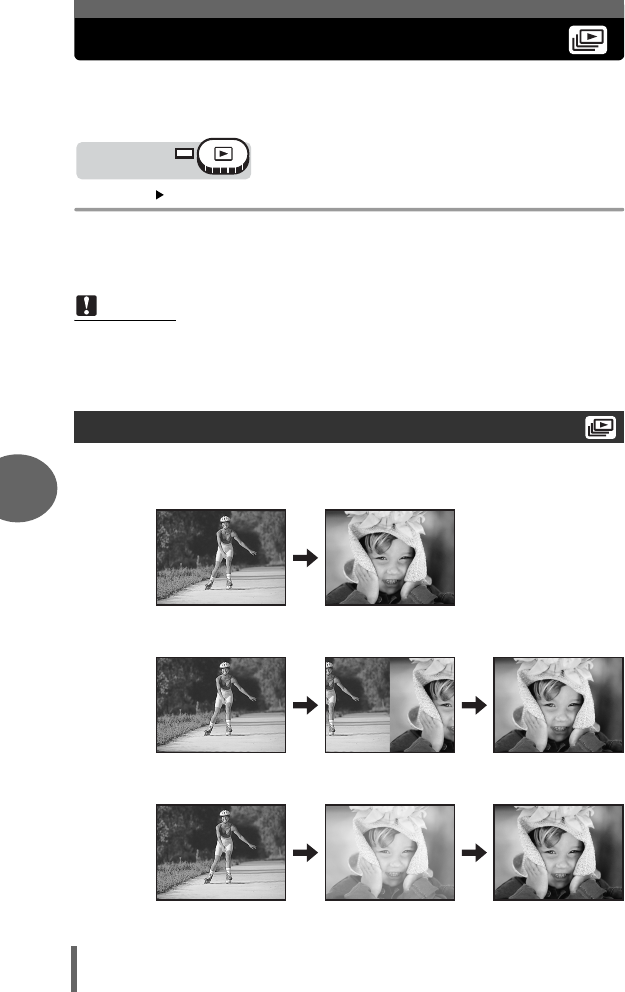
88
6
Playback
Slideshow
This function displays still pictures stored in the card one after another.
Only the first frame of movies is displayed.
Select a still picture and display the top menu.
Top menu [m]g“Menus” (P.16)
• The slideshow starts.
•Press N to stop the slideshow. The slideshow will not stop until you cancel it by
pressing N.
You can choose how the pictures go from one to the next during the slideshow.
NORMAL Displays the pictures stored on the card one at a time.
SLIDE Displays the pictures by sliding the next picture over the previous picture
from right to left.
FADER Displays the pictures by gradually fading out the previous picture and
fading in the next picture.
Note
• You are recommended to use the optional AC adapter when running a
slideshow for a long period of time. If the battery is used, the camera will enter
sleep mode after about 30 minutes and stop the slideshow automatically.
Slideshow setup
Mode dial
d4250_e_00_0_bookfile.book Page 88 Friday, December 24, 2004 11:45 AM
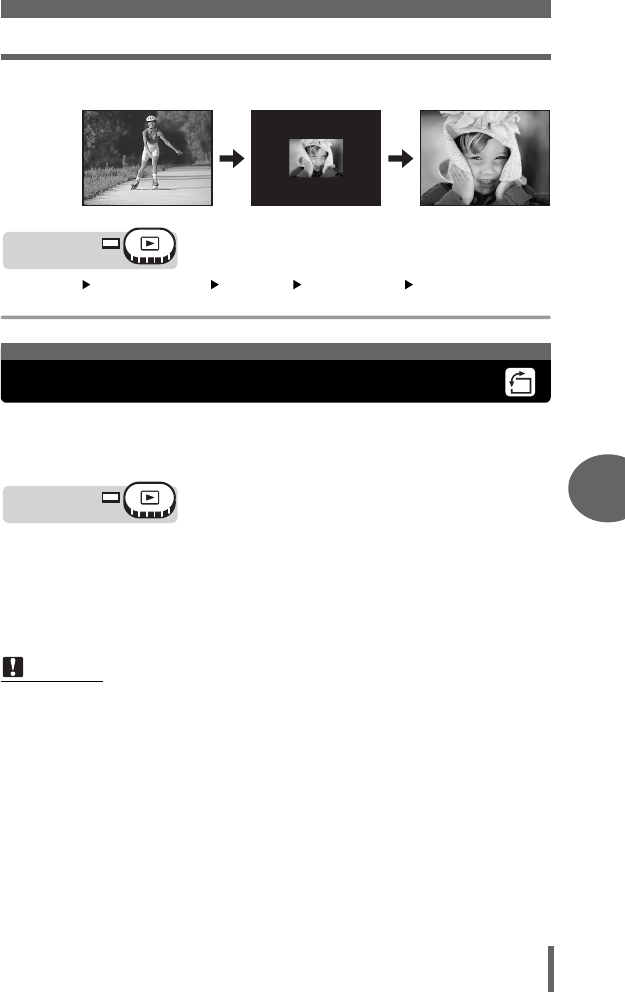
Picture rotation
89
Playback
6
ZOOM Displays the pictures by gradually enlarging the next picture from the
center of the screen.
Top menu [MODE MENU] [SETUP] [m SETUP] [NORMAL] /
[SLIDE] / [FADER] / [ZOOM] g“Menus” (P.16)
Pictures taken with the camera held vertically are displayed horizontally.
This function lets you turn such pictures 90° clockwise or counterclockwise
so that they are displayed vertically.
1
Press the
y
button in the single-frame playback mode or
index display mode.
g“Direct buttons” (P.13)
• Each pressing rotates the image in the following sequence:
90° clockwise, 90° counterclockwise, and back to the original.
Note
• The following pictures cannot be rotated.
Movies, protected pictures, pictures that have been edited on a computer
and pictures taken with another camera.
• New picture orientations are saved even when the power is turned off.
Mode dial
Picture rotation
Mode dial
d4250_e_00_0_bookfile.book Page 89 Friday, December 24, 2004 11:45 AM
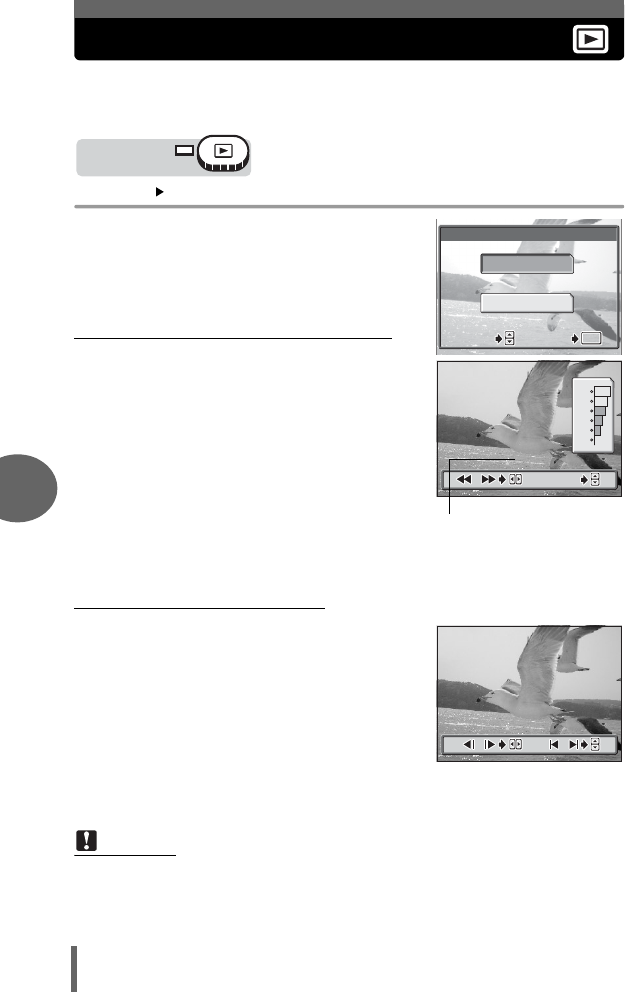
90
6
Playback
Playing back movies
This function lets you play back movies. You can fast forward the movie or
play it back one frame at a time.
Select an image with n and display the top menu.
Top menu [MOVIE PLAY] g“Menus” (P.16)
• The movie is played back. When playback
ends, the camera automatically returns to the
beginning of the movie and displays the
[MOVIE PLAY] menu.
• To play the movie again, select [RESTART].
To return to playback mode, select [EXIT].
(
Operations during movie playback
H appears on movies that have sound
recorded. Pressing ac lets you adjust the
sound volume during playback.
a: Increases the volume.
c: Reduces the volume.
d: Each time you press the button, the
playback speed changes in the following
order: 2×; 20×; and back to 1×.
b: Plays the movie in reverse. Each time you
press the button, the playback speed
changes in the following order: 2×; 20×;
and back to 1×.
N: Pauses the movie and lets you play it back
frame by frame.
(Frame by frame playback
a: Jumps to the frame 10 frames back. If the
movie is less than 10 frames long, displays
the first frame.
c: Jumps to the frame 10 frames ahead. If the
movie is less than 10 frames long, displays
the last frame.
d:
Displays the next frame. The movie can be
played continuously by holding the button down.
b: Displays the previous frame. The movie
can be played continuously in reverse by
holding the button down.
N: Displays the [MOVIE PLAY] menu.
Note
•
The orange lamp beside the viewfinder blinks while the camera is reading the movie from
the card. Reading of movies may take some time. Do not open the card cover while orange
lamp is blinking. Doing so may damage the data on the card and render the card unusable.
Mode dial
MOVIE PLAY
RESTART
EXIT
SELECT
SELECT
GO
GO
OK
OK
SELECT GO
OK
00:30/00:36
00:30/00:36
7
/
7
6
7
/
nHnH
Playing time/
total recording time
00:00/00:36
00:00/00:36
//
nn
//
d4250_e_00_0_bookfile.book Page 90 Friday, December 24, 2004 11:45 AM
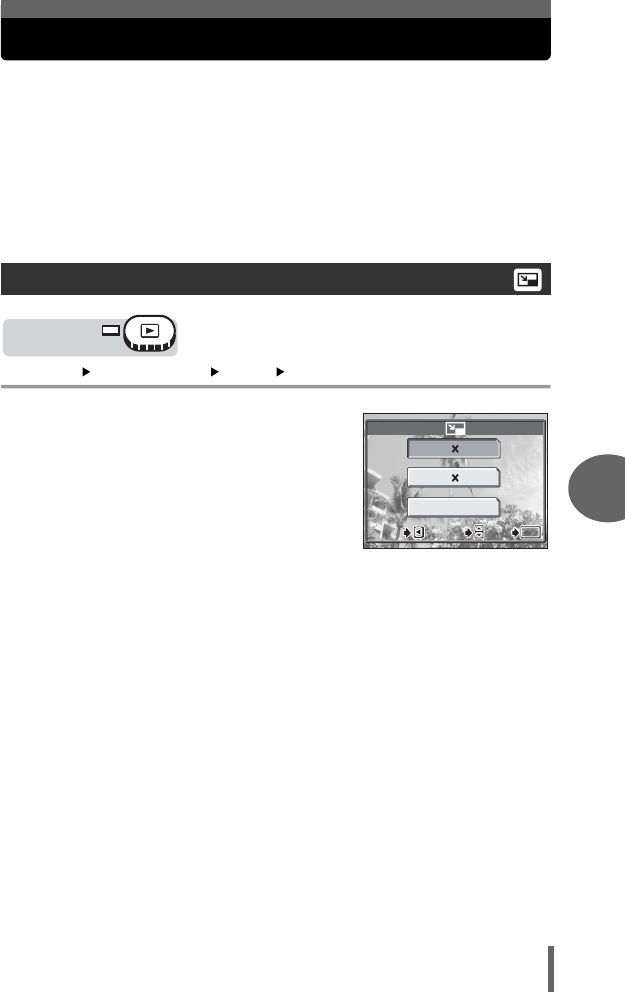
91
Playback
6
Playback
Editing still pictures
This function lets you edit still pictures and store them as new pictures. The
following editing operations are possible.
QChanges the image size to 640 × 480 or 320 × 240 and saves
the picture as a new file. gP.91
PCrops part of a picture and saves it as a new file. gP.92
RED EYE FIX Corrects the red-eye phenomenon caused by the light from the
flash making the subject’s eyes appear red in the picture and
saves the picture as a new file. gP.93
Select the still picture that you want to edit and display the top menu.
Top menu [MODE MENU] [EDIT] [Q]g“Menus” (P.16)
1Select an image size and press
N.
• The [BUSY] bar appears and after the
image is saved, the camera returns to
the playback mode.
• The resized picture is stored as a
separate picture from the original.
• To cancel resizing, select [CANCEL]
and press N.
• Resizing is not possible in the following cases.
Movies, pictures that have been edited on a computer, when there is
insufficient memory space on the card, or pictures taken with another
camera.
• If the image size of the selected picture is 640 × 480, you cannot select
[640 × 480].
Resizing
Mode dial
640 480
320 240
CANCEL
SELECT
SELECT
GO
GO
OK
OK
SELECT
GO
OK
CANCEL
CANCEL
CANCEL
d4250_e_00_0_bookfile.book Page 91 Friday, December 24, 2004 11:45 AM
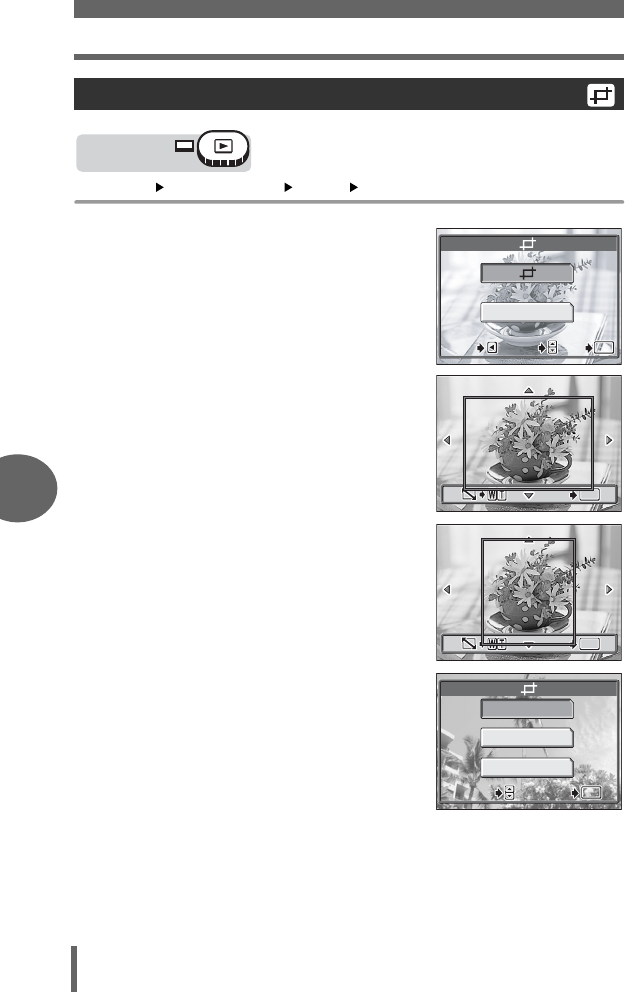
Editing still pictures
92
6
Playback
Top menu [MODE MENU] [EDIT] [P]g“Menus” (P.16)
1Select [P] and press N.
2Use the arrow pad and zoom
lever to decide the trimming
position and size.
•Press acbd to move the trimming
frame.
• Move the zoom lever toward W or T to
select the trimming size from small
horizontal frame, large horizontal frame,
small vertical frame, and large vertical
frame.
3Press N.
4Select [OK] and press N.
• The [BUSY] bar appears and after the
image is saved, the camera returns to
the playback mode.
• The trimmed picture is stored as a
separate picture from the original.
• If you want to trim the picture again,
select [RESET] and press N. Repeat
the procedure from Step 2.
• To quit the trimming function, select
[CANCEL] and press N.
Trimming
Mode dial
CANCEL
SELECT
SELECT
GO
GO
OK
OK
SELECT
GO
OK
CANCEL
CANCEL
CANCEL
OKOK
OK
GO
GO
GO
OKOK
OKOK
OK
GO
GO
GO
OKOK
OK
RESET
CANCEL
SELECT
SELECT
GO
GO
OK
OK
SELECT GO
OK
d4250_e_00_0_bookfile.book Page 92 Friday, December 24, 2004 11:45 AM
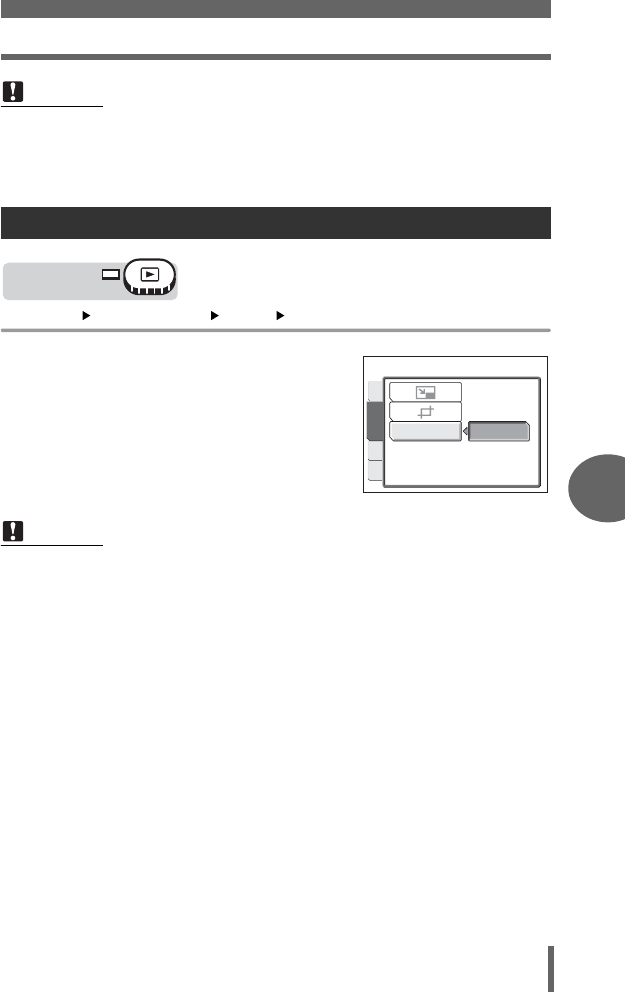
Editing still pictures
93
Playback
6
Top menu [MODE MENU] [EDIT] [REDEYE FIX] g“Menus” (P.16)
1When [START] appears, press
N.
• After the [BUSY] bar, a screen asking
whether or not you want to save the
corrected image is displayed. To save
the image, press N.
• The corrected picture is stored as a
separate picture from the original.
Note
• Trimming is not possible in the following cases.
Movies, or when there is insufficient memory space on the card.
• If a trimmed picture is printed out, it may appear grainy.
Red-eye correction
Note
• Red-eye correction may not work on all pictures or may correct parts other than
the eyes.
Mode dial
START
REDEYE FIX
EDIT
CARD
SET
PLAY
d4250_e_00_0_bookfile.book Page 93 Friday, December 24, 2004 11:45 AM
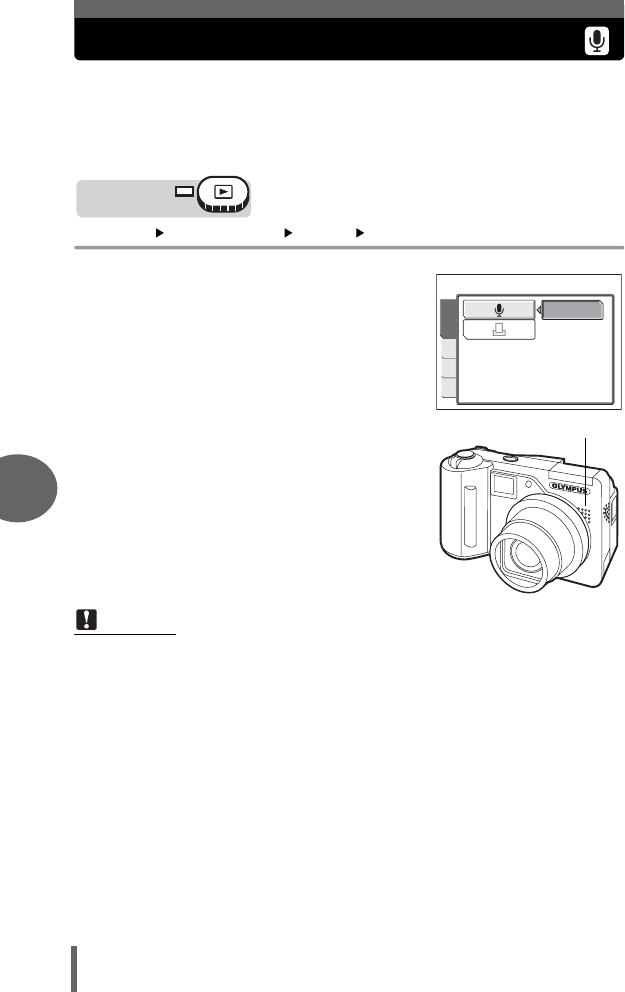
94
6
Playback
Recording sound
Sound can be added to a still picture that you have already taken. (This is
known as “after-recording”.) You can also re-record over the sound that
has already been recorded. Total recording time per picture is
approximately 4 seconds.
Select the still picture to which you want to add sound.
Top menu [MODE MENU] [PLAY] [R]g“Menus” (P.16)
1Press d to display [START].
2Aim the camera microphone
toward the sound you want to
record and press N to start
recording.
• The [BUSY] bar is displayed during
recording.
Note
• If the microphone is farther than 1 m (3.3 ft.) from the subject, sound may not
be recorded properly.
• If you re-record the sound, the original sound is erased.
• You may not be able to record sound when there is insufficient card memory
(the “CARD FULL” message is displayed).
• Sound recording may pick up camera noises, such as button operation or
shutter movement.
• Once sound is added to a picture, it is not possible to erase only the sound. In
this case, make a re-recording with silence.
Mode dial
START
EDIT
CARD
SET
PLAY
Microphone
d4250_e_00_0_bookfile.book Page 94 Friday, December 24, 2004 11:45 AM
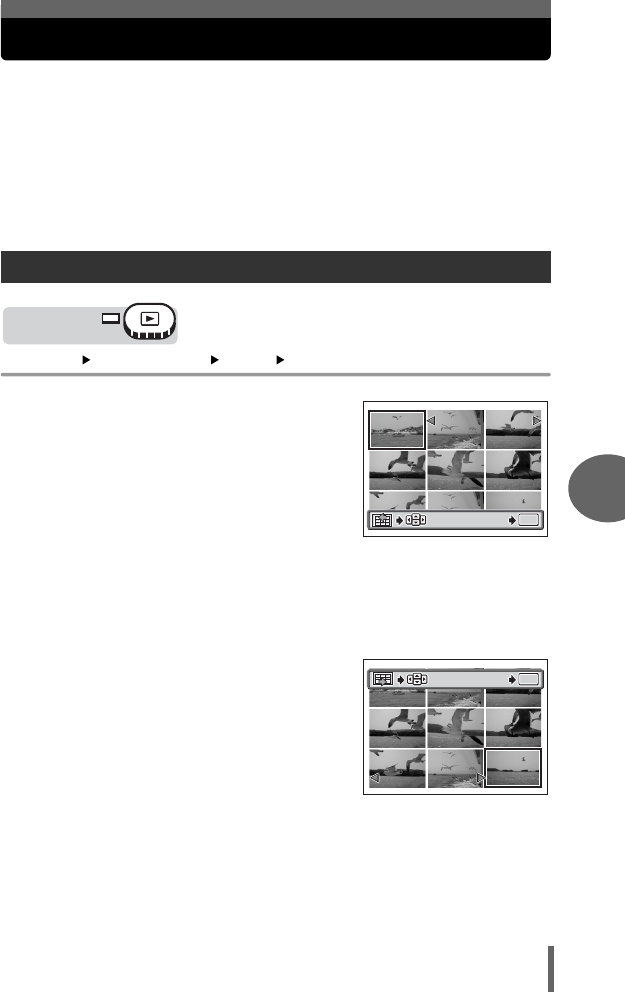
95
Playback
6
Playback
Editing movies
This function lets you create indexes and edit movies.
INDEX 9 frames extracted from a movie are displayed as an index and stored
on the card as a still picture.
g“Creating an index” (P.95)
EDIT This function lets you erase parts of the movie that you do not want.
g“Editing a movie” (P.96)
Select a picture with n and display the top menu.
Top menu [MODE MENU] [EDIT] [INDEX] g“Menus” (P.16)
1Select the first frame of the index
and press N.
a: Jumps to the first frame of the
movie.
c: Jumps to the last frame of the
movie.
d: Displays the next frame. The movie
can be played continuously by
holding the button down.
b: Displays the previous frame. The movie
can be played continuously in reverse
by holding the button down.
2As in Step 1, select the last frame
of the index and press N.
Creating an index
Mode dial
OK
OK
GO
GO
00:00
00:00
/00:36
00:36
00:00/00:36
OK
GO
OK
OK
GO
GO
OK
00:36
00:36
/00:36
00:36
00:36/00:36
GO
d4250_e_00_0_bookfile.book Page 95 Friday, December 24, 2004 11:45 AM
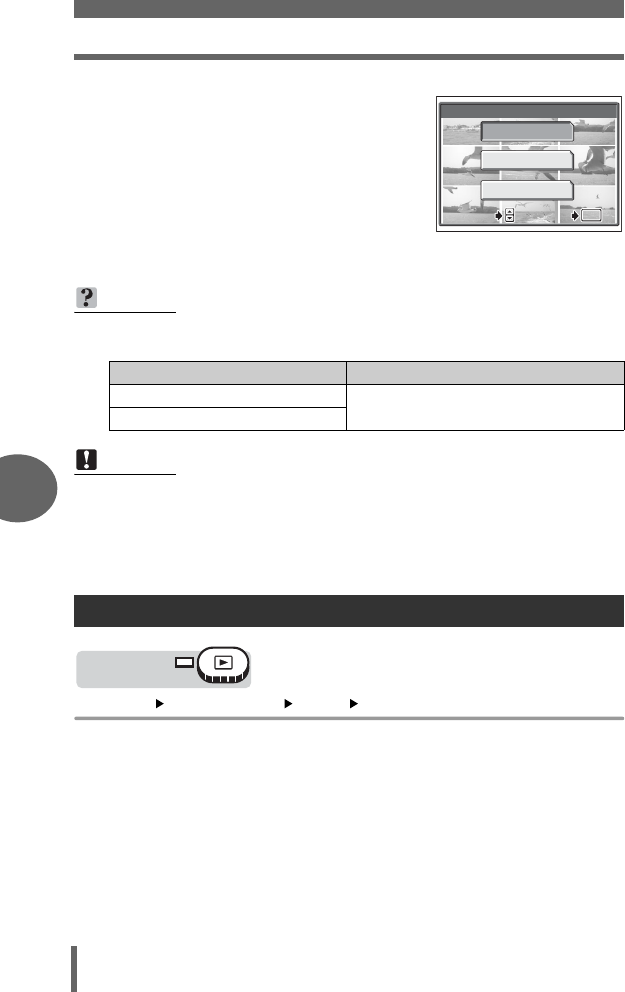
Editing movies
96
6
Playback
3Select [OK] and press N.
• The [BUSY] bar appears and after the 9
frames extracted from the movie appear as
an index display, the camera returns to the
playback mode. The index is stored as a
new picture.
• To select different frames, select [RESET]
and press N. Repeat the procedure from
Step 1.
• To quit the editing function, select [CANCEL] and press N.
Top menu [MODE MENU] [EDIT] [EDIT] g“Menus” (P.16)
TIPS
• The index is stored as a still picture in a different record mode from the original
movie.
Note
• The interval between the frames that are automatically extracted varies
depending on the length of the movie.
• An index consists of 9 frames.
• You cannot create an index if there is insufficient memory space on the card.
Editing a movie
INDEX
OK
RESET
CANCEL
SELECT
SELECT
GO
GO
OK
OK
SELECT GO
OK
Record mode when the movie was shot
Record mode when stored as an index
HQ SQ2 (1,024 × 768 pixels: HIGH)
SQ
Mode dial
d4250_e_00_0_bookfile.book Page 96 Friday, December 24, 2004 11:45 AM
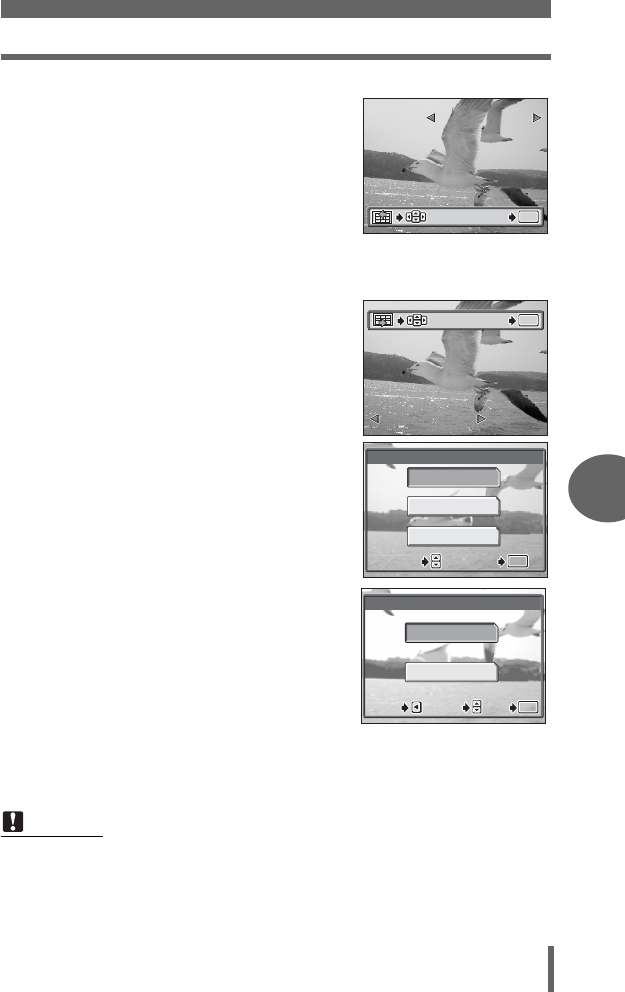
Editing movies
97
Playback
6
1Select the first frame of the part
you want to keep and press N.
a:
Jumps to the first frame of the movie.
c:
Jumps to the last frame of the movie.
d: Displays the next frame. The movie
can be played continuously by
holding the button down.
b: Displays the previous frame. The movie can be played continuously in
reverse by holding the button down.
2As in Step 1, select the last frame
of the part you want to keep and
press N.
3Select [OK] and press N.
• To select different frames, select
[RESET] and press N. Repeat the
procedure from Step 1.
• To quit the editing function, select
[CANCEL] and press N.
4Select [NEW FILE] or
[OVERWRITE] and press N.
NEW FILE Stores the edited movie as
a new movie.
OVERWRITE Stores the edited movie with
the same name as the
original. The original movie
is not stored.
• The [BUSY] bar appears and after the edited movie is stored as a new
movie or the original movie is overwritten, the camera returns to the
playback mode.
Note
• You cannot select [NEW FILE] if there is insufficient memory space on the card.
• The editing process of long movies is more time-consuming.
OK
OK
GO
GO
OK
GO
00:00
00:00
/00:36
00:36
00:00/00:36
00:36
00:36
/00:36
00:36
00:36/00:36
OK
OK
GO
GO
OK
GO
EDIT
OK
RESET
CANCEL
SELECT
SELECT
GO
GO
OK
OK
SELECT GO
OK
EDIT
NEW FILE
OVERWRITE
SELECT
SELECT
GO
GO
OK
OK
CANCEL
CANCEL
SELECT
GO
OK
CANCEL
d4250_e_00_0_bookfile.book Page 97 Friday, December 24, 2004 11:45 AM
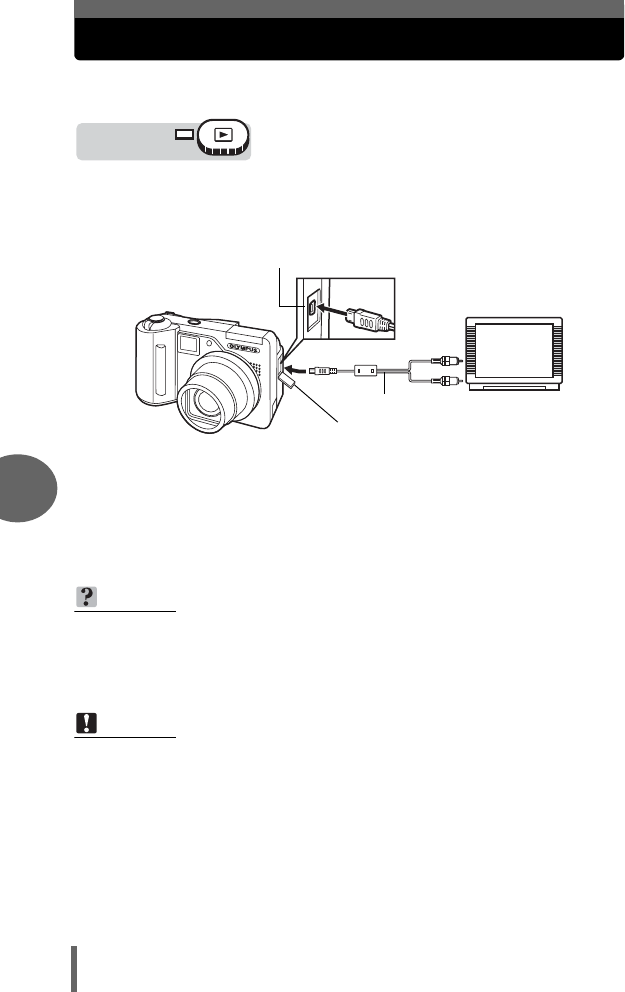
98
6
Playback
Playback on a TV
Use the AV cable provided with the camera to play back recorded images
on your TV. You can play back both still pictures and movies on your TV.
1
Make sure that the TV and camera are turned off. Connect the
multi-connector on the camera to the video input terminal on
the TV using the AV cable provided with the camera.
2Turn the TV on and set it to the video input mode.
• For details of switching to video input, refer to your TV’s instruction manual.
3Press the POWER switch to turn the camera on.
• The last picture taken is displayed on the TV. Use the arrow pad to select
the picture you want to display.
TIPS
• It is recommended that you use the optional AC adapter when playing back
pictures on a TV.
• The close-up playback, index display and slideshow functions can also be
used on a TV screen.
Note
• Make sure that the camera’s video output signal type is the same as the TV’s
video signal type. g“Video output selection” (P.99)
• The camera’s monitor turns off automatically when the AV cable is connected
to the camera.
• Be sure to use the AV cable provided to connect the camera to the TV.
• The picture may appear off-center on the TV screen.
Mode dial
Connect to the TV’s video input
(yellow) and audio input (white)
terminals.
AV cable (provided)
Connector cover
Multi-connector
d4250_e_00_0_bookfile.book Page 98 Friday, December 24, 2004 11:45 AM
Playback on a TV
99
Playback
6
You can select [NTSC] or [PAL] according to your TV’s video signal type. When
playing back pictures while connected to a TV in a foreign country, be sure to set the
[VIDEO OUT] setting accordingly. Select the video signal type before connecting the
AV cable. If you select the wrong video signal type, you will not be able to play back
the recorded pictures properly on the TV.
Top menu [SETUP] [VIDEO OUT] [NTSC] / [PAL]
Top menu [MODE MENU] [SETUP] [VIDEO OUT] [NTSC] / [PAL]
g“Menus” (P.16)
Video output selection
TIPS
TV video signal types & main regions
Check the video signal type before connecting the camera to the TV.
NTSC North America, Japan, Taiwan, Korea
PAL European countries, China
Mode dial
Mode dial
d4250_e_00_0_bookfile.book Page 99 Friday, December 24, 2004 11:45 AM
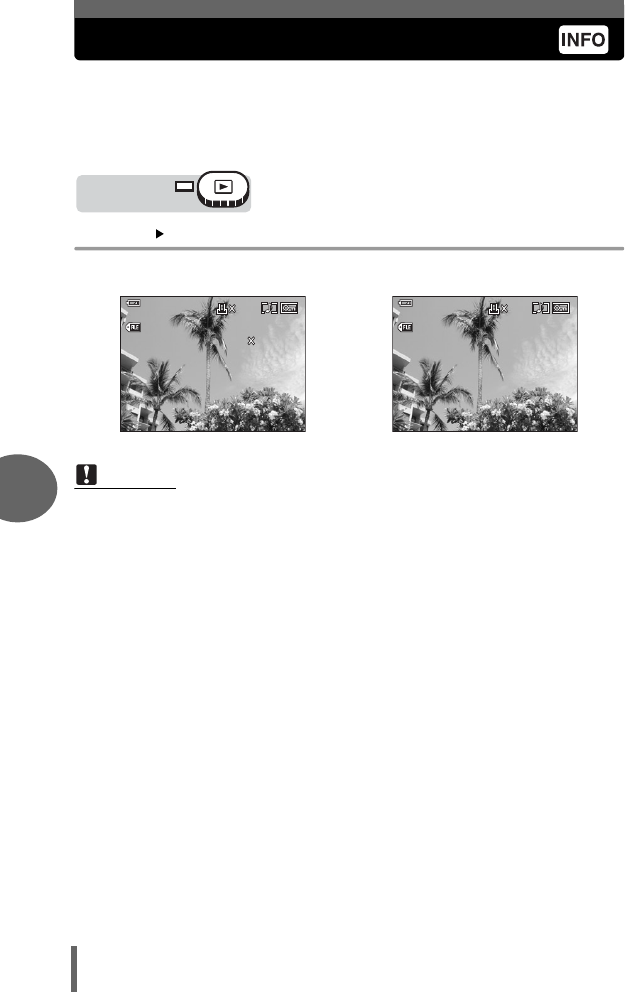
100
6
Playback
Information display
This function lets you display detailed shooting information on the monitor
for approx. 3 seconds in the playback mode. For details of the information
displayed, see “Monitor indications” (P.193).
The information display can be set separately for shooting mode and
playback mode. g“Displaying shooting information” (P.69)
Top menu [INFO] g“Menus” (P.16)
• Each time you select [INFO] from the top menu, the information display is
alternately turned on and off.
When [INFO] is on When [INFO] is off
Note
•
In some cases, setting [INFO] to on in
q
mode may not be able to display all the
shooting information if the picture was taken with a different camera.
• If [u] is set, the histogram is displayed regardless of whether
[INFO]
is set
to
on
or off.
Mode dial
’05
05
.
.
02
02
.
16 15
16 15
:
30
30
100
100
-
0030
0030
HQ
HQ
10
10
30
30
1/100
1/100
F
2.8
2.8
+2.0
+2.0
ISO
ISO
400
400
2592
2592
1944
1944
SIZE
SIZE
:
:
5
’05
05
.
02
02
.
16 15
16 15
:
30
30
30
30
100
100
-
0030
0030
HQ
HQ
10
10
d4250_e_00_0_bookfile.book Page 100 Friday, December 24, 2004 11:45 AM
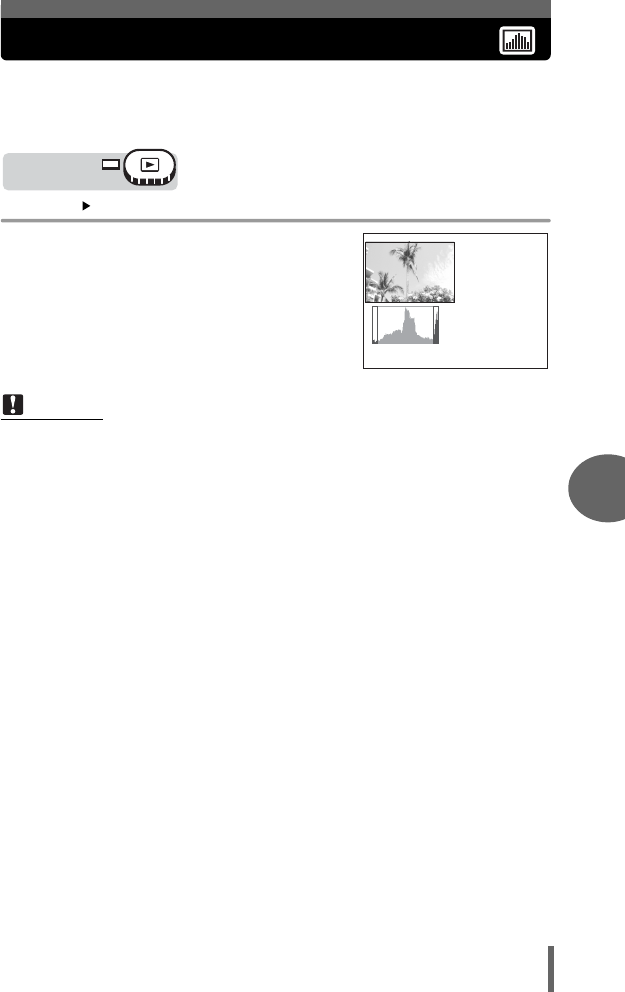
101
Playback
6
Playback
Histogram
When viewing still pictures, you can display a histogram showing the
luminance components.
The histogram display can be set separately for shooting mode and
playback mode. g“Histogram” (P.67)
Top menu [u]g“Menus” (P.16)
• Each time you select [u], the histogram
display is alternately turned on and off.
Note
• The histogram displayed during shooting may differ from the histogram
displayed during playback.
•
The histogram may not appear when you play back pictures shot on another camera.
Mode dial
’05
05
.
.
02
02
.
16 15
16 15
:
30
30
HQ
HQ
30
30
1/100
1/100
F
2.8
2.8
+2.0
+2.0
ISO
ISO
100
100
V
Histogram display
d4250_e_00_0_bookfile.book Page 101 Friday, December 24, 2004 11:45 AM
102
6
Playback
Protecting pictures
You are recommended to protect important pictures to avoid accidentally
erasing them. Protected pictures cannot be erased by the single-frame/all-
frame erase function, but they are all erased by formatting.
1Select the picture you want to
protect and press the 0
button.
g“Direct buttons” (P.13),
“Single-frame playback” (P.84)
• To cancel protection, press the 0
button again.
This function erases recorded pictures. Pictures can be erased either one
at a time or all the pictures on the card.
Note
•
You cannot erase protected pictures. Cancel protection before erasing such pictures.
• Once erased, pictures cannot be restored. Check each picture before erasing
to avoid accidentally erasing pictures you want to keep. g“Protecting
pictures” (P.102)
Mode dial
Displayed when a
picture is protected.
Erasing pictures
d4250_e_00_0_bookfile.book Page 102 Friday, December 24, 2004 11:45 AM
Erasing pictures
103
Playback
6
1Select the picture you want to
erase and press the S button.
g“Direct buttons” (P.13),
“Single-frame playback” (P.84)
•The [S ERASE] screen is displayed.
2Select [YES] and press N.
• The picture is erased and the menu is exited.
• To cancel single-frame erase, select [NO] and press N or press the S
button again.
This function erases all the pictures on the card.
Top menu [MODE MENU] [CARD] [ALL ERASE] g“Menus” (P.16)
1Select [YES] and press N.
• All the pictures are erased.
Single-frame erase
All-frame erase
Mode dial
YES
NO
SELECT
SELECT
GO
GO
OK
OK
SELECT GO
OK
ERASE
Mode dial
CAUTION ERASING ALL
NO
YES
SELECT GO
OK
ALL ERASE
d4250_e_00_0_bookfile.book Page 103 Friday, December 24, 2004 11:45 AM
104
6
Playback
Formatting
This function lets you format the memory card. Formatting prepares cards
to receive data. Before using non-OLYMPUS cards or cards which have
been formatted on a computer, you must format them with this camera.
All existing data, including protected pictures, are erased when the
card is formatted. Make sure that you save or transfer important data
to a computer before formatting the card.
Top menu [SETUP] [FORMAT]
Top menu [MODE MENU] [CARD] [FORMAT] g“Menus” (P.16)
1Select [YES] and press N.
• The [BUSY] bar is displayed while the
card is formatted.
Note
• Do not do any of the following during formatting as such actions may damage
the card.
Open the card cover, remove the battery, or connect or disconnect the AC
adapter (regardless of whether there is a battery in the camera or not).
Mode dial
Mode dial
CAUTION ERASING ALL
NO
SELECT GO
OK
YES
FORMAT
d4250_e_00_0_bookfile.book Page 104 Friday, December 24, 2004 11:45 AM
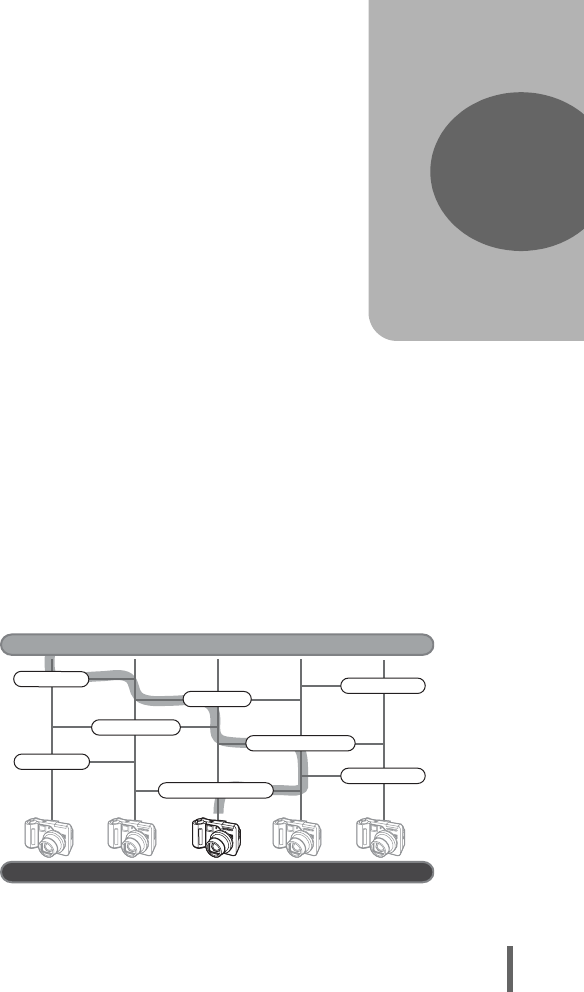
105
7 Settings
One of the key features of a digital camera
is that you can view the pictures you have
taken immediately.
But that isn’t all. Another advantage is that
you can customize the camera
to your own personal taste.
For example, you can set the startup screen
so that one of the pictures you have taken is
displayed when you turn the camera on.
That’s originality for you!
And if you lend the camera to friends from
abroad, you can select the appropriate
language for on-screen display.
Making use of these functions will make
such a difference to how much fun you get
out of your camera. Why not try them out?
7
Settings
Which language?
My Mode setup
Use the beep sound?
Use button operation beep?
What monitor brightness?
Setting shortcuts
Use shutter sound?
GOAL
START
Now you have your very own customized camera!
Playback volume?
d4250_e_00_0_bookfile.book Page 105 Friday, December 24, 2004 11:45 AM
106
7
Settings
All reset
This function lets you choose whether or not to save the current camera
settings after the power is turned off. The settings affected by [ALL
RESET] are listed on the next page.
The [ALL RESET] setting ([ON]/[OFF]) applies to all the modes. If [ALL
RESET] is set to [OFF] in one shooting mode, this setting applies to all the
other modes, both shooting and playback.
ON All settings are returned to the factory default settings after the power is
turned off. (factory default setting)
Example: If [ALL RESET] is set to [ON] and [K] is changed to [SQ1],
[K] returns to the factory default setting ([HQ]) when the
camera is turned on again.
OFF The settings made before the power is turned off are saved.
Top menu [SETUP] [ALL RESET] [OFF] / [ON]
Top menu [MODE MENU] [SETUP] [ALL RESET] [OFF] / [ON]
g“Menus” (P.16)
Note
• My Mode settings and the settings in the [SETUP] tab in the [MODE MENU]
([ALL RESET], [W], [8] etc.) are saved even when [ALL RESET] is set to
[ON].
Mode dial
Mode dial
d4250_e_00_0_bookfile.book Page 106 Friday, December 24, 2004 11:45 AM
All reset
107
Settings
7
(Functions that return to default settings when [ALL
RESET] is set [ON].
∗This sets whether the monitor turns on or not when the camera is turned on in
shooting mode.
Function
Factory
default
setting
Ref.
page Function
Factory
default
setting
Ref.
page
FNo. F2.8 P.46 R (still pictures) OFF P.81
SHUTTER 1/1000 P.47 R (movies) ON P.82
F0.0 P.59 hON P.73
FLASH MODE AUTO P.39 FUNCTION OFF P.78
w0.0 P.43 INFO OFF P.69
AF/MF AF P.52 uOFF P.67
LCD∗ON
(Lights) P.23 FRAME
ASSIST
OFF P.70
AE ESP P.54 TIMELAPSE 2 pictures
1 min. interval P.76
&/%OFF P.37
DRIVE oP.74 KHQ P.26
7±1.0,
3 shots P.75 WB AUTO P.60
PRESET WB 5P.61
ISO AUTO/80 P.58 >±0 P.63
SCENE kP.32 SHARPNESS ±0 P.64
#SLOW #SLOW1 P.44 CONTRAST ±0 P.65
NOISE
REDUCTION
OFF P.66 SATURATION ±0 P.65
SHQ, HQ 2592 × 1944 P.28
DIGITAL
ZOOM
OFF P.36 SQ1 1600 × 1200
NORMAL P.28
FULLTIME AF OFF P.50 SQ2 640 × 480
NORMAL P.28
AF iESP P.49
INFO OFF P.100
d4250_e_00_0_bookfile.book Page 107 Friday, December 24, 2004 11:45 AM
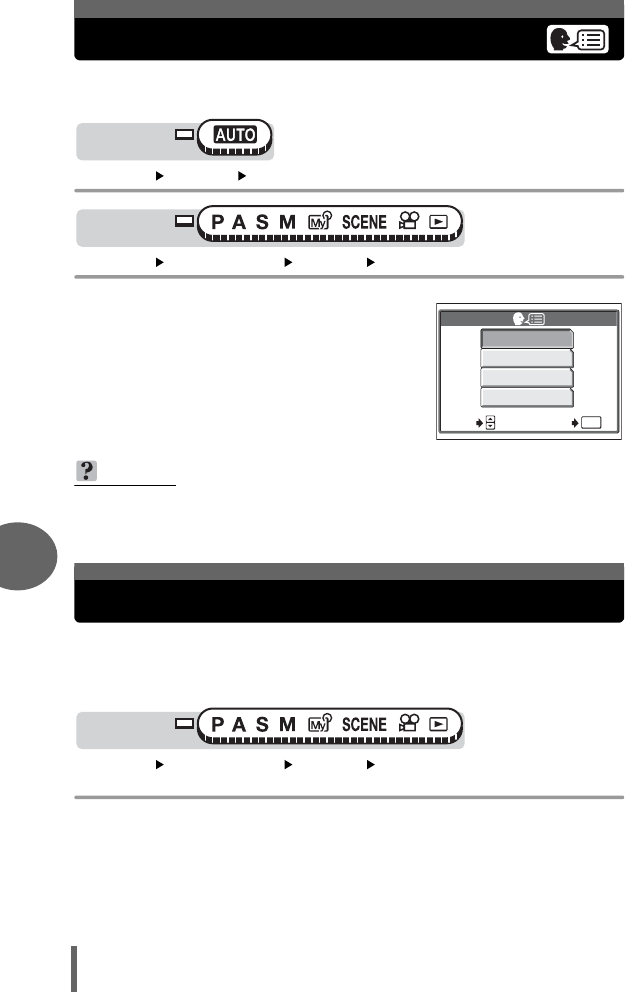
108
7
Settings
Selecting a language
You can select a language for on-screen display. Available language vary
depending on the area where you purchased this camera.
Top menu [SETUP] [W]
Top menu [MODE MENU] [SETUP] [W]g“Menus” (P.16)
1Select a language and press N.
You can select a picture and/or sound to be displayed/output when the
power is turned on and off. You can also register your favorite picture and
display it on the screen. g“Screen setup” (P.110)
Top menu [MODE MENU] [SETUP] [PW ON SETUP] /
[PW OFF SETUP] g“Menus” (P.16)
TIPS
• You can add an additional language to your camera by using the provided
OLYMPUS Master software. For details, refer to the help.
Mode dial
Mode dial
ENGLISH
FRANCAIS
SELECT
GO
OK
ESPAÑOL
PORTUGUES
Power on/Power off setup
Mode dial
d4250_e_00_0_bookfile.book Page 108 Friday, December 24, 2004 11:45 AM
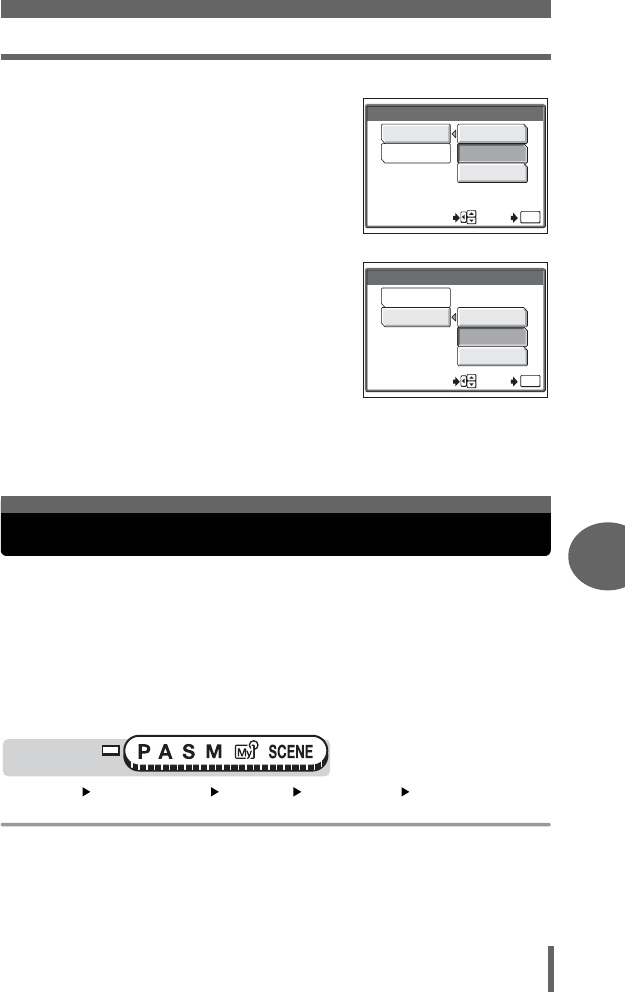
Rec view
109
Settings
7
1Select [OFF], [1] or [2] for
[SCREEN], then press b.
OFF No picture is displayed.
1A picture is displayed.
2The registered picture is displayed.
If there is no registered picture,
nothing is displayed.
2Select [OFF], [1] or [2] for
[SOUND], then press b.
OFF No startup/shutdown sound is
output.
1 / 2 Startup/shutdown sound is output.
• The volume level is the same as that set
for the playback volume.
g“Playback volume” (P.111)
3Press N.
You can choose whether or not to display the picture you have just taken
on the monitor.
ON The picture being recorded to the card is displayed. This is useful for making
a brief check of the picture you have just taken. Pressing the shutter button
halfway during Rec View lets you resume shooting immediately.
OFF The picture being recorded to the card is not displayed. This is useful when
you want to prepare for your next shot while the previous picture is being
recorded.
Top menu [MODE MENU] [SETUP] [REC VIEW] [OFF] / [ON]
g“Menus” (P.16)
PW ON SETUP
SCREEN
SOUND
OFF
1
2
SELECT GO
OK
[PW ON SETUP] screen
PW ON SETUP
SCREEN
SOUND OFF
1
2
SELECT GO
OK
[PW ON SETUP] screen
Rec view
Mode dial
d4250_e_00_0_bookfile.book Page 109 Friday, December 24, 2004 11:45 AM
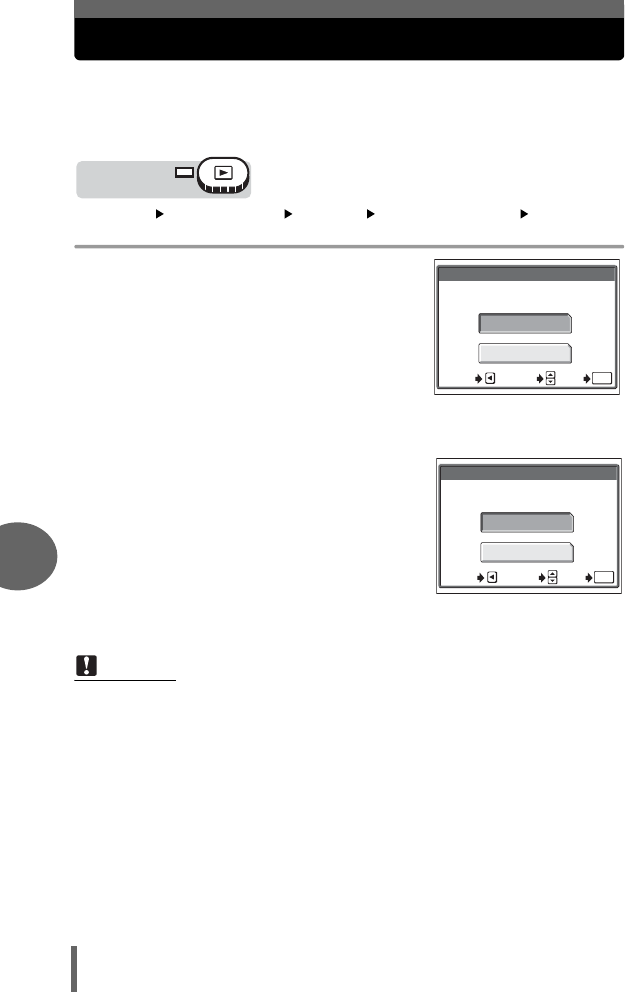
110
7
Settings
Screen setup
You can register your favorite picture for display when the power is turned
on and off. Register a picture from the pictures saved on the card and use
[PW ON SETUP] and [PW OFF SETUP] to display it on the startup/
shutdown screen. g“Power on/Power off setup” (P.108)
Top menu [MODE MENU] [SETUP] [SCREEN SETUP] [PW ON] /
[PW OFF] g“Menus” (P.16)
• If a picture is already registered, the [IMAGE
EXISTING] screen is displayed asking if you
want to cancel the currently registered picture
and register a new one. To register a new
picture, select [RESET] and press N. If you
select [KEEP], the screen returns to the menu.
1Select the picture you want to register and press N.
2Select [OK] and press N.
• The picture is registered and the screen
returns to the menu.
Note
• You cannot register a picture or movie frame that cannot be played back on this
camera.
Mode dial
RESET
KEEP
IMAGE EXISTING
SCREEN SETUP
SELECT
GO
OK
CANCEL
SCREEN SETUP
OK
CANCEL
SET AS PW ON SCREEN
SELECT
GO
OK
CANCEL
Registering a picture for
the [PW ON] screen
d4250_e_00_0_bookfile.book Page 110 Friday, December 24, 2004 11:45 AM
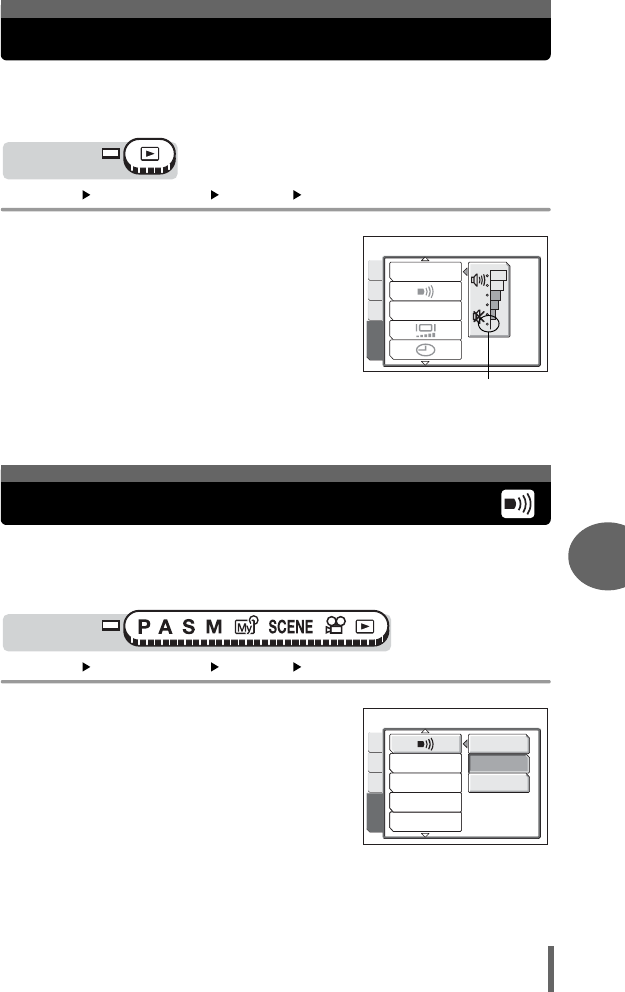
111
Settings
7
Playback volume
You can adjust the sound volume of still pictures and movies as well as the
volume of the sound generated when the power is turned on and off. There
are 5 levels to choose from.
Top menu [MODE MENU] [SETUP] [VOLUME] g“Menus” (P.16)
1Press ac to set the volume,
then press N.
You can adjust the volume of the beep sound used for warnings. Choose
from [HIGH] or [LOW]. You can turn the sound off completely by setting
[OFF].
Top menu [MODE MENU] [SETUP] [8]g“Menus” (P.16)
1Select [OFF], [LOW] or [HIGH]
and press N.
Mode dial
VOLUME
BEEP
EDITCARD
SETUP
PLAY
Selecting this level will
mute the sound completely.
Beep
Mode dial
BEEP
SHUTTER SOUND
MY MODE SETUP
FILE NAME
OFF
LOW
HIGH
PIC
CARD
SETUP
CAM
d4250_e_00_0_bookfile.book Page 111 Friday, December 24, 2004 11:45 AM
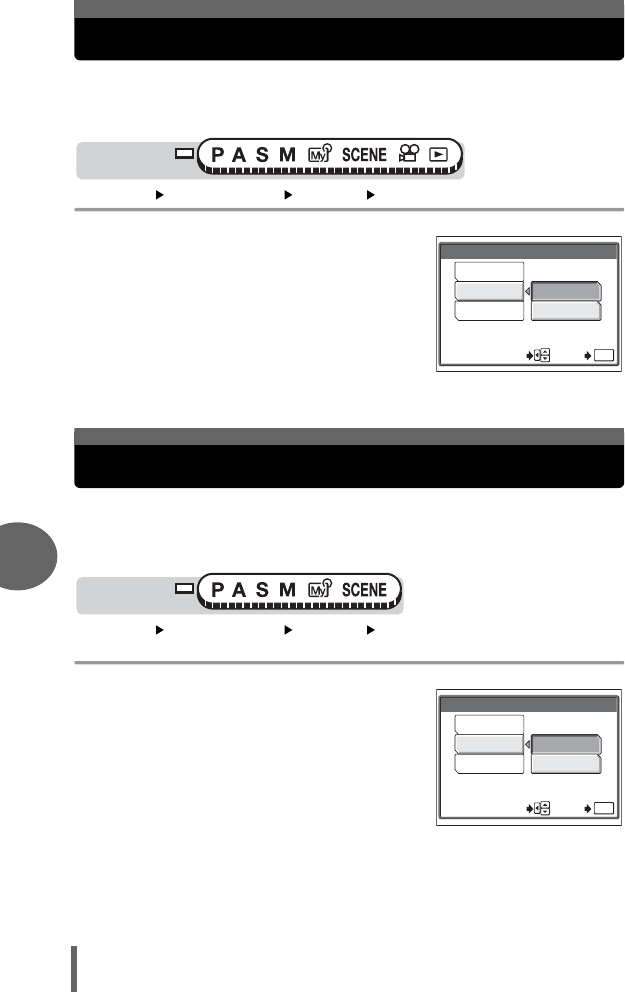
112
7
Settings
Button operation beep
You can choose from 2 different sounds for button operations. You can
also set the volume of the sound to [LOW] or [HIGH]. You can turn the
sound off completely by setting [OFF].
Top menu [MODE MENU] [SETUP] [BEEP] g“Menus” (P.16)
1Select [OFF], [1] or [2]. If you
selected [1] or [2], select [LOW]
or [HIGH] and press N.
You can choose from 2 different sounds for the shutter button. You can
also set the volume of the sound to [LOW] or [HIGH]. You can turn the
sound off completely by setting [OFF].
Top menu [MODE MENU] [SETUP] [SHUTTER SOUND]
g“Menus” (P.16)
1Select [OFF], [1] or [2]. If you
selected [1] or [2], select [LOW]
or [HIGH] and press N.
Mode dial
BEEP
OFF
1
LOW
HIGH
2
SELECT GO
OK
Shutter sound
Mode dial
SHUTTER SOUND
OFF
1
LOW
HIGH
2
SELECT GO
OK
d4250_e_00_0_bookfile.book Page 112 Friday, December 24, 2004 11:45 AM
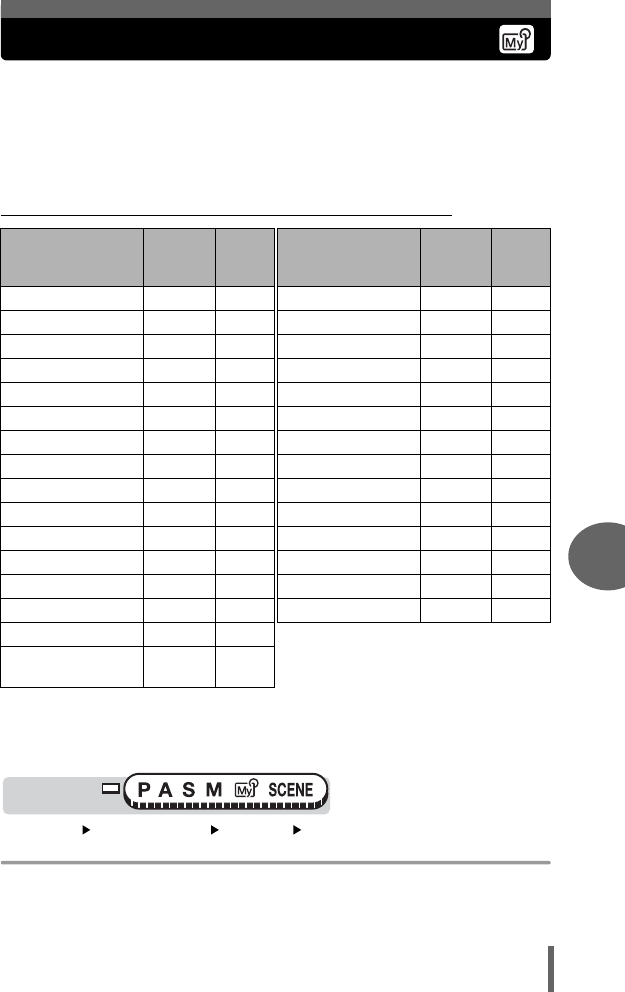
113
Settings
7
My Mode setup
You can set shooting-related functions in My Mode. You can also save the
current camera settings in My Mode.
When the mode dial is set to r, your customized settings are activated.
g“My Mode” (P.49)
You can save up to 4 different patterns in [s MY MODE 1] to [d MY
MODE 4]. Only [s MY MODE 1] has a factory default setting.
(Functions that can be set in [MY MODE SETUP]
∗1 This sets whether the monitor turns on or not when the camera is turned on.
∗2In r mode, the available zoom positions are 38mm, 80mm, 120mm, 160mm
and 190mm (these numbers are based on the focal length of a 35mm film
camera).
Top menu [MODE MENU] [SETUP] [MY MODE SETUP]
g“Menus” (P.16)
Function
Factory
default
setting
Ref.
page Function
Factory
default
setting
Ref.
page
P, A, S, M, fPP.12 DIGITAL ZOOM OFF P.36
FNo. F2.8 P.46 FULLTIME AF OFF P.50
SHUTTER 1/1000 P.47 PANORAMA OFF P.79
F0.0 P.59 FUNCTION OFF P.78
MONITOR∗1ON – INFO OFF P.69
ZOOM∗238mm – uOFF P.67
FLASH MODE AUTO P.39 R (still pictures) OFF P.81
YOFF P.77 FRAME ASSIST OFF P.70
AE ESP P.54 KHQ P.26
AF iESP P.49 WB AUTO P.60
&OFF P.37 >±0 P.63
DRIVE oP.74 SHARPNESS ±0 P.64
ISO AUTO P.58 CONTRAST ±0 P.65
w0.0 P.43 SATURATION ±0 P.65
#SLOW #
SLOW1
P.44
NOISE
REDUCTION OFF P.66
Mode dial
d4250_e_00_0_bookfile.book Page 113 Friday, December 24, 2004 11:45 AM
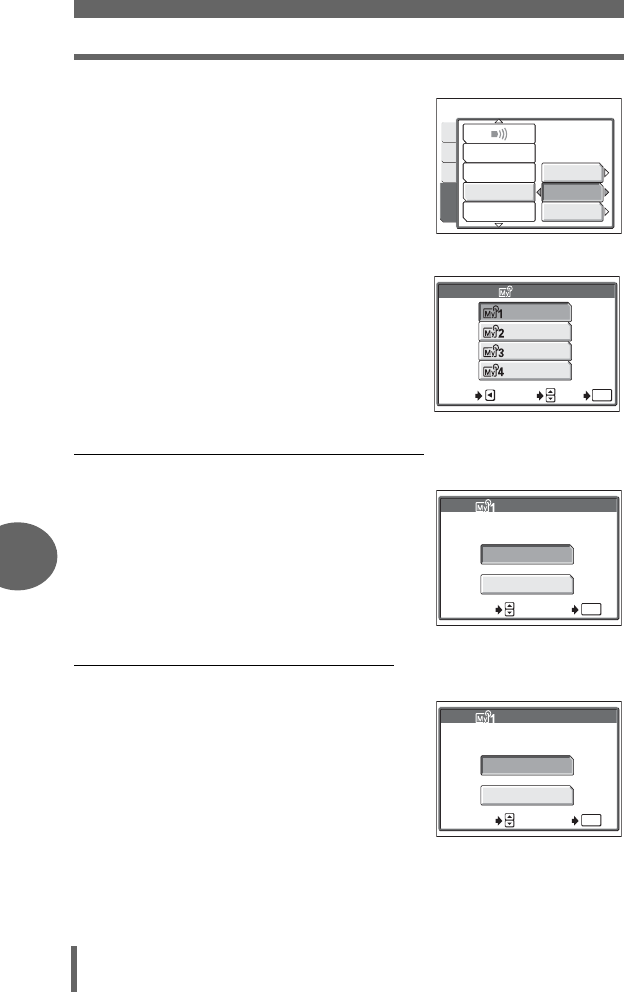
My Mode setup
114
7
Settings
1Select the type of [MY MODE
SETUP] and press d.
CURRENT Saves the current camera
settings.
RESET Restores the factory default
settings.
CUSTOM Saves settings one by one.
•The [r1/2/3/4] screen appears.
2Select a My Mode number and
press N.
(If you selected [CURRENT] in Step 1
3Select [SET] and press N.
• The current camera settings are saved
in the selected My Mode.
(If you selected [RESET] in Step 1
3Select [RESET] and press N.
• The settings in the selected My Mode
are reset.
If no settings are saved, My Mode
settings cannot be selected.
CURRENT
RESET
CUSTOM
BEEP
SHUTTER SOUND
MY MODE SETUP
FILE NAME
PIC
CARD
SETUP
CAM
MY MODE 1
MY MODE 2
MY MODE 3
MY MODE 4
SELECT
GO
OK
CANCEL
1/2/3/4
CANCEL
SET
SET CURRENT SETTING
SELECT GO
OK
MY MODE SETUP
MY MODE SETUP
CANCEL
RESET
RESET CURRENT SETTING
SELECT GO
OK
d4250_e_00_0_bookfile.book Page 114 Friday, December 24, 2004 11:45 AM
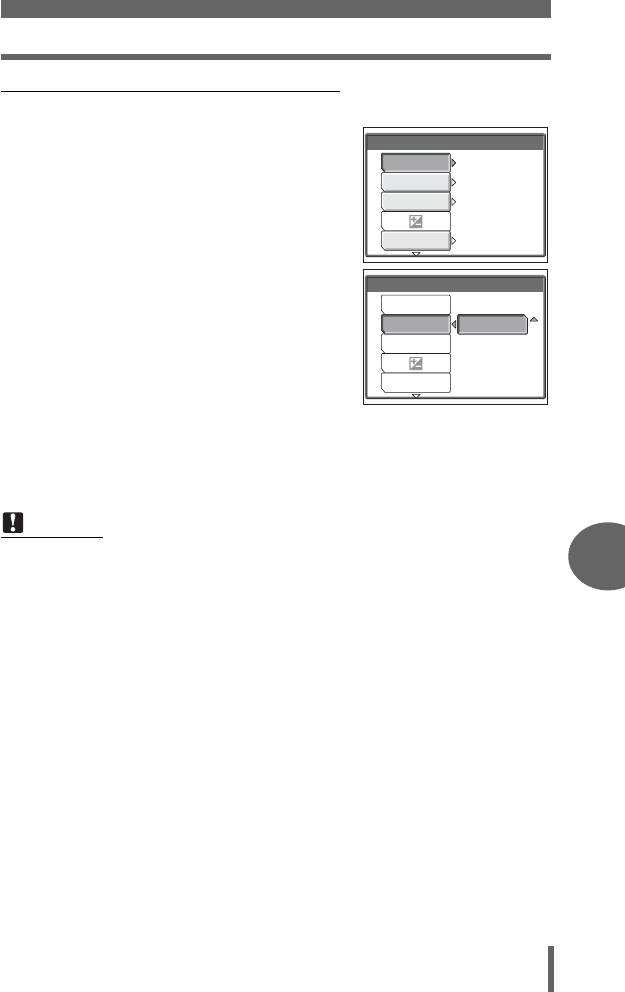
My Mode setup
115
Settings
7
(If you selected [CUSTOM] in Step 1
3Select the function you want to
save in My Mode and press d.
• For the available functions, see
“Functions that can be set in [MY MODE
SETUP]” (P.113).
Change the setting and press N.
• The setting is saved.
• You can also change the other custom
settings.
4When you have made all the settings you want, press N.
• The screen displayed in Step 1 appears.
Note
• Although the settings you are using can be saved in the [CURRENT] setting,
the zoom position will be saved as the closest of the 5 zoom settings in [MY
MODE SETUP].
MY MODE SETUP
P/A/S/M/SCENE
FNo.
F 2.8
1/1000
SHUTTER
MONITOR
M
ON
F 2.8
MY MODE SETUP
P/A/S/M/SCENE
FNo.
SHUTTER
MONITOR
d4250_e_00_0_bookfile.book Page 115 Friday, December 24, 2004 11:45 AM
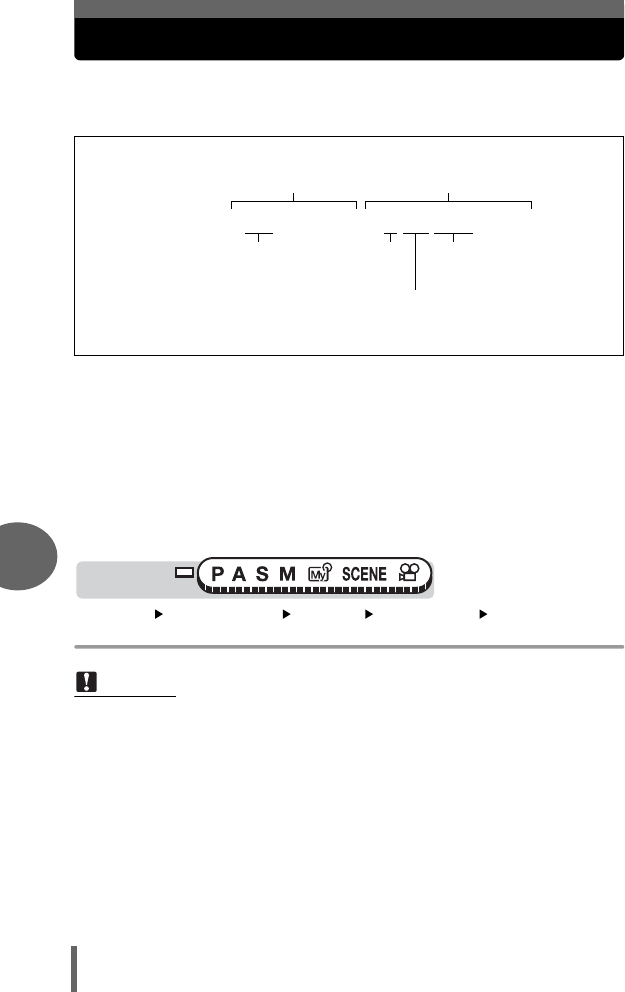
116
7
Settings
File name
The camera automatically creates file names and folder names for images
to be stored in. Files can be numbered from 0001 to 9999 and folders can
be numbered from 100 to 999. Examples are shown below.
There are two settings from which you can choose: [RESET] or [AUTO]. Choose the
one that is best for you when transferring images to a computer.
RESET The file number and folder number are reset every time a new card is
inserted in the camera. The folder number returns to No. 100 and the file
number returns to No. 0001. This method is useful when grouping files
on separate cards.
AUTO Even if a new card is inserted, the folder number and file number are
retained from the previous card, so the same file number is not used on
different cards. This helps you to manage multiple cards. This method is
useful when you want to manage all your files with sequential numbers.
Top menu [MODE MENU] [SETUP] [FILE NAME] [RESET] / [AUTO]
g“Menus” (P.16)
Note
• When the File No. reaches 9999, the file number returns to 0001 and the folder
number changes.
• When both the Folder and File No. reach their respective maximum number
(999/9999), the number of storable pictures becomes 0 even if the card is not
full. No more pictures can be taken. Replace the card with a new one.
\DCIM\***OLYMP\PMDD****.JPG
Folder No.
(100 – 999)
File nameFolder name
Month (1 – C)
Day (01 – 31)
File No.
(0001 – 9999)
Month: Jan. – Sep. = 1 – 9, Oct. = A, Nov. = B, Dec. = C
Still picture
Mode dial
d4250_e_00_0_bookfile.book Page 116 Friday, December 24, 2004 11:45 AM
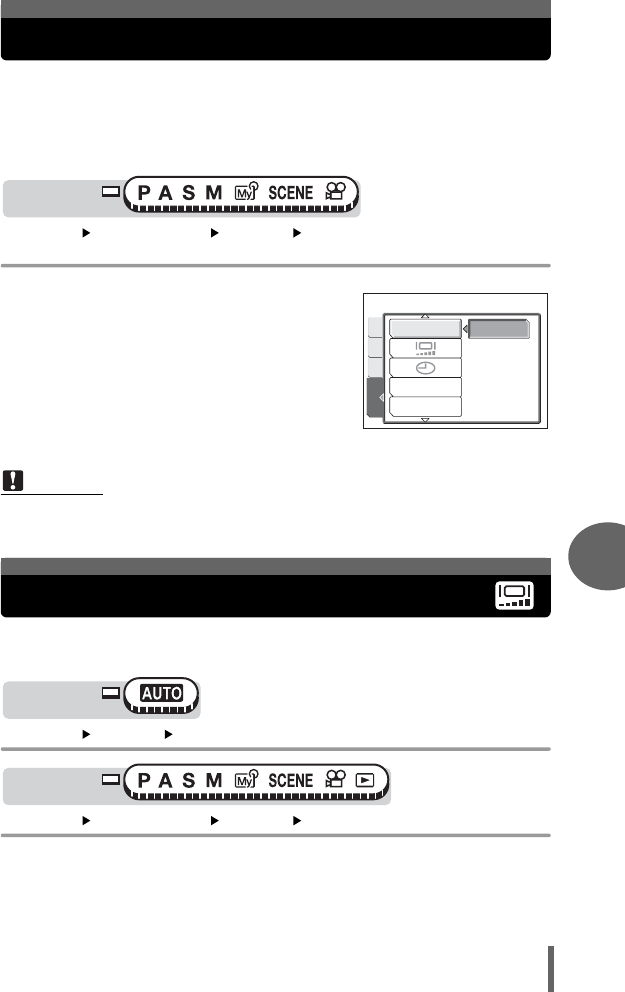
117
Settings
7
Pixel mapping
The pixel mapping feature allows the camera to check and adjust the CCD
and image processing functions. It is not necessary to operate this function
frequently. Approximately once a year is recommended. Wait at least one
minute after taking or viewing pictures to allow for proper performance of
the pixel mapping function.
Top menu [MODE MENU] [SETUP] [PIXEL MAPPING]
g“Menus” (P.16)
1When [START] appears, press
N.
• The [BUSY] bar is displayed during pixel
mapping. When pixel mapping is
finished, the screen returns to the mode
menu.
This function lets you adjust the brightness of the monitor to make it easier
to see the image.
Top menu [SETUP] [s]
Top menu [MODE MENU] [SETUP] [s]g“Menus” (P.16)
Note
• If you turn the camera off during pixel mapping, start again from Step 1.
Mode dial
PIXEL MAPPING
m/ft
VIDEO OUT
START
PIC
CARD
SETUP
CAM
Monitor brightness adjustment
Mode dial
Mode dial
d4250_e_00_0_bookfile.book Page 117 Friday, December 24, 2004 11:45 AM
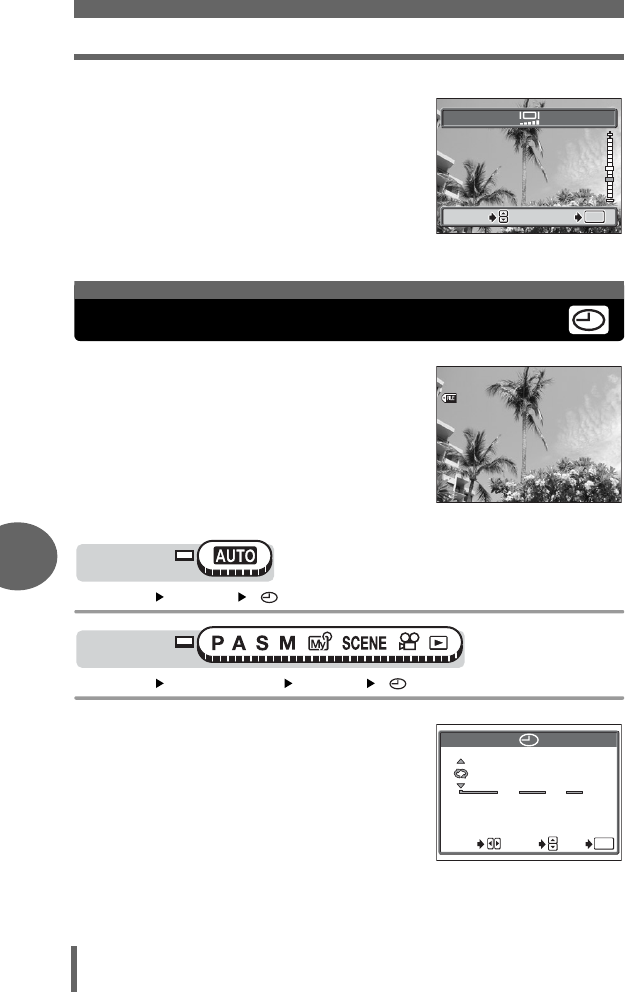
Setting the date and time
118
7
Settings
1Adjust the brightness while
looking in the monitor, and when
you have set the desired level,
press N.
•Pressing a brightens the monitor, and
pressing c darkens it.
This function lets you set the date and time.
The date and time is saved with each
image, and is used in the file name.
Top menu [SETUP] [ ]
Top menu [MODE MENU] [SETUP] [ ] g“Menus” (P.16)
1
Select one of the following date
formats: [Y-M-D] (Year/Month/
Day), [M-D-Y] (Month/Day/Year),
[D-M-Y] (Day/Month/Year), and
press
d
.
• Move to the year setting.
• The following steps show the procedure
used when the date and time settings
are set to [Y-M-D].
SELECT
SELECT
GO
GO
OK
OK
OK
GO
SELECT
Setting the date and time
’05
05
.
02
02
.
16 15
16 15
:
30
30
30
30
100
100
-
0030
0030
HQ
HQ
Mode dial
Mode dial
2005
.
01 01
00 00
:
YMD
.
GO
OK
SET
SELECT
d4250_e_00_0_bookfile.book Page 118 Friday, December 24, 2004 11:45 AM
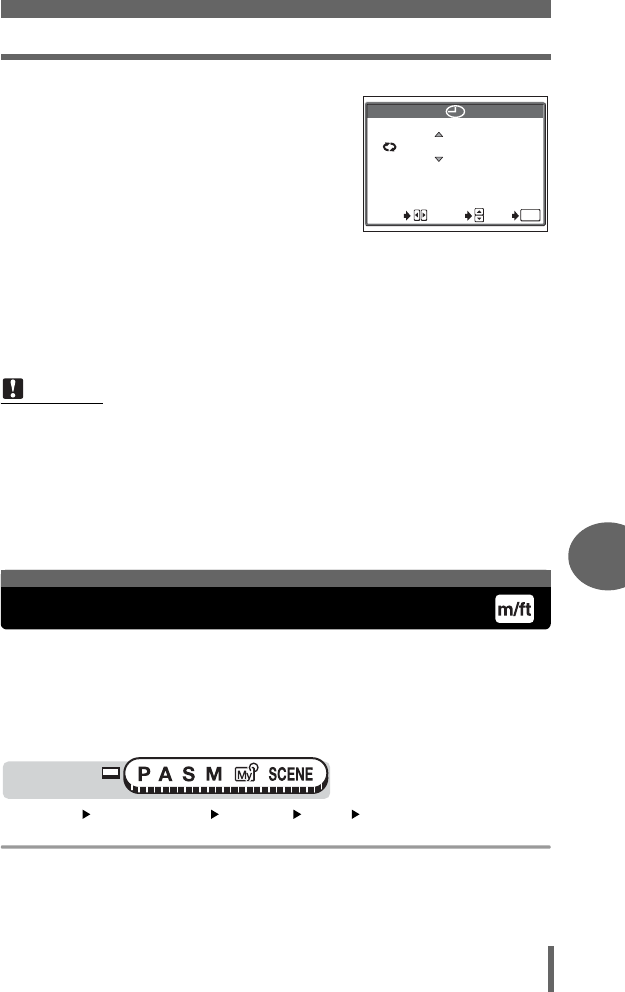
Measurement units (m/ft)
119
Settings
7
2Press ac to set the year, then
press d to move to the month
setting.
• To move back to the previous setting,
press b.
• The first two digits of the year are fixed.
3Repeat this procedure until the
date and time are completely set.
• The time is displayed in the 24-hour
format. Consequently, 2 p.m. is displayed as 14:00.
4Press N.
• For a more accurate setting, press N when the time signal hits 00 seconds.
The measurement unit can be selected from either meters or feet in the
manual focus mode.
mAt long ranges, the camera measures in meters, and at short ranges in
centimeters.
ft At long ranges, the camera measures in feet, and at short ranges in inches.
Top menu [MODE MENU] [SETUP] [m/ft] [m] / [ft]
g“Menus” (P.16)
Note
• The date and time settings will be returned to the factory default settings if the
camera is left without the battery for approximately 3 days. The settings will be
canceled more quickly if the battery was only loaded in the camera for a short
time before being removed. Before taking important pictures, check that the
date and time settings are correct.
• If the date and time setting is canceled, a warning is displayed on the monitor
the next time the camera is turned on. g“Error codes” (P.158)
2005
.
01 01
00 00
:
.
GO
OK
SET
SELECT
Measurement units (m/ft)
Mode dial
d4250_e_00_0_bookfile.book Page 119 Friday, December 24, 2004 11:45 AM
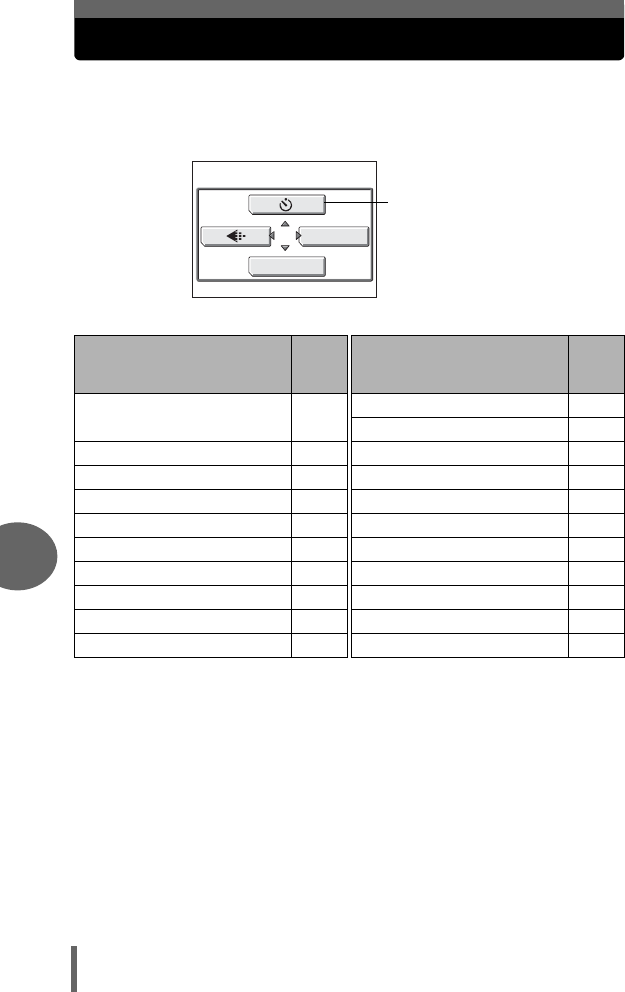
120
7
Settings
Shortcut
You can set a shortcut menu on the top menu in the still picture shooting
mode (P, A, S, M).
This is useful when you want to go quickly to frequently used functions.
Functions that can be
assigned to the shortcut
menus
Ref.
page
Functions that can be
assigned to the shortcut
menus
Ref.
page
AE/AF P.49,
54
FUNCTION P.78
INFO P.69
DRIVE P.74 uP.67
ISO P.58 R (still pictures) P.81
YP.77 FRAME ASSIST P.70
wP.43 TIMELAPSE P.76
#SLOW P.44 WB P.60
NOISE REDUCTION P.66 >P.63
DIGITAL ZOOM P.36 SHARPNESS P.64
FULLTIME AF P.50 CONTRAST P.65
PANORAMA P.79 SATURATION P.65
Default setting:Y
MONITOR OFF
MODE MENU
Shortcut menu
Top menu
d4250_e_00_0_bookfile.book Page 120 Friday, December 24, 2004 11:45 AM
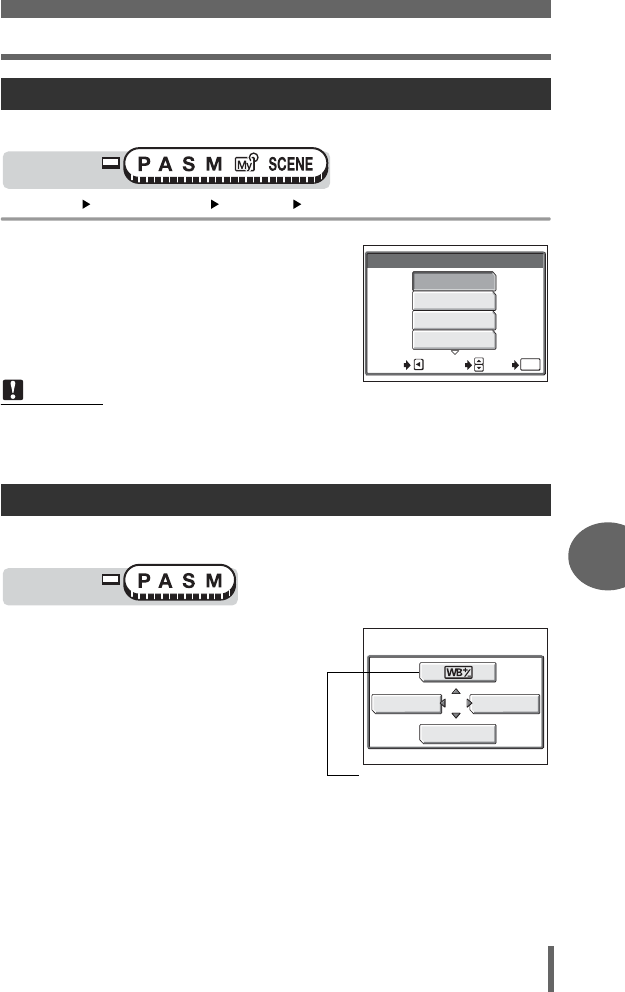
Shortcut
121
Settings
7
You can set a shortcut menu on the top menu.
Top menu [MODE MENU] [SETUP] [SHORT CUT] g“Menus” (P.16)
1Select a function and press N.
When you have set a shortcut menu, you can use it to jump to the setting screen for
that function.
1Press N to display the top
menu.
• The shortcut menus you have set
appear on the top menu.
Setting the shortcut menus
Note
• In the shortcut menu, the settings are saved in [SCENE] in f mode, and in
[r1/2/3/4] in r Mode.
• You cannot set different shortcut menus in each mode.
Using the shortcut menus
Mode dial
SHORT CUT
AE/AF
ISO
DRIVE
Y
SELECT
GO
OK
CANCEL
Mode dial
K
MONITOR OFF
MODE MENU
When [>] is set in
shortcut menu
d4250_e_00_0_bookfile.book Page 121 Friday, December 24, 2004 11:45 AM
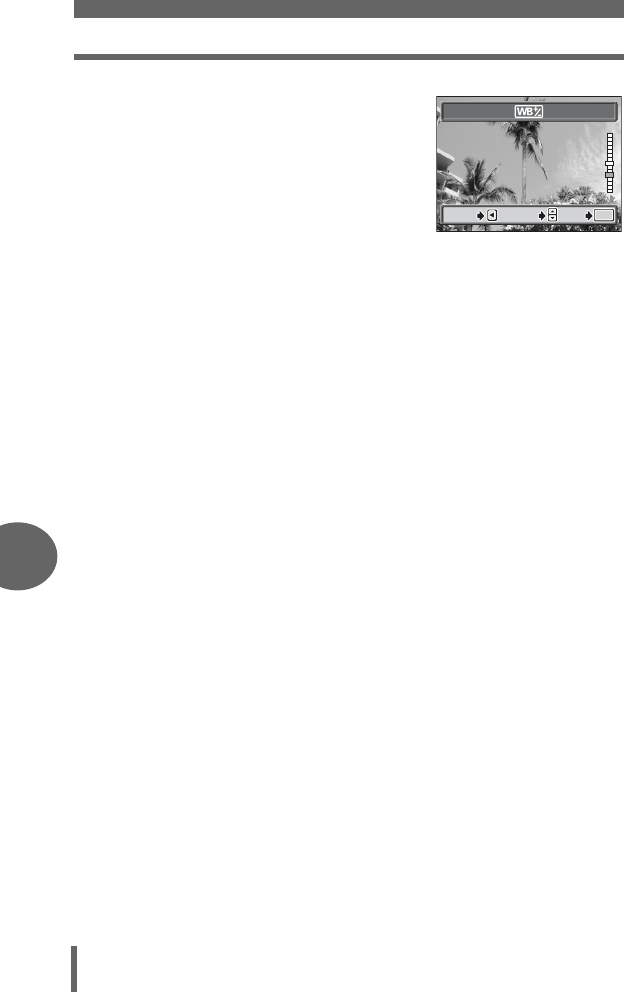
Shortcut
122
7
Settings
2Select a shortcut menu.
• The monitor jumps directly to the setting
screen for that function.
BLUE
RED
BLUE
RED
SELECT
SELECT
GO
GO
OK
OK
CANCEL
CANCEL
GO
OK
CANCEL SELECT
d4250_e_00_0_bookfile.book Page 122 Friday, December 24, 2004 11:45 AM
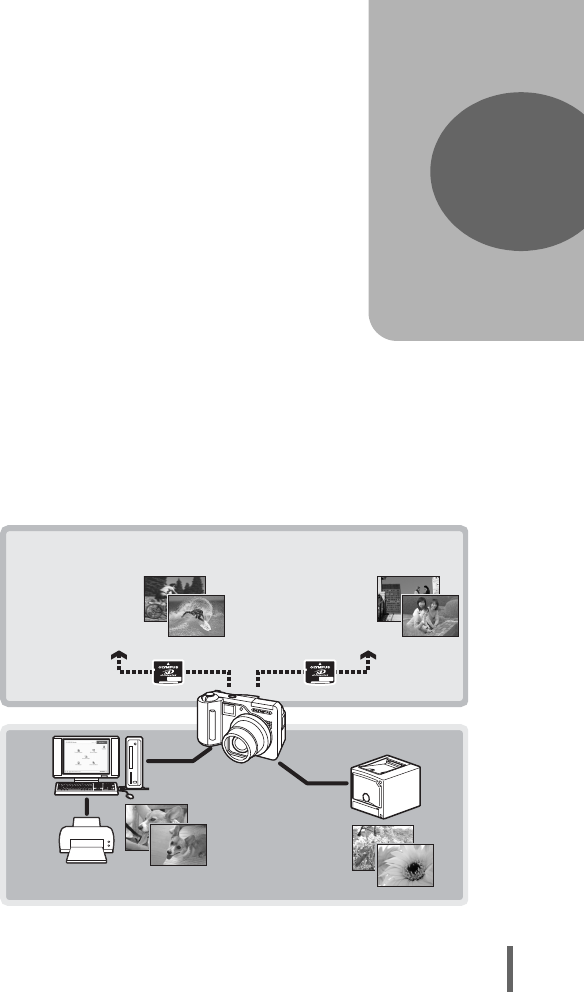
123
8 Printing pictures
You can print out the pictures you have
taken either at a photo store or at home on
your own printer.
If you go to a photo store, it is a good idea to
store the print reservation data on the card
first. This lets you select the pictures you
want to print and decide how many prints
you want.
If you print the pictures at home, you can
either connect the camera directly to the
printer or you can connect the camera to a
computer and download the pictures to the
computer first.
8
Printing pictures
Printing at the store
Printing at home
Select the pictures
you want to print
at the store
Use the camera to
select the pictures
you want to print
Print
reservation
DirectPrint
d4250_e_00_0_bookfile.book Page 123 Friday, December 24, 2004 11:45 AM
124
8
Printing pictures
Direct printing (PictBridge)
By connecting the camera to a PictBridge-compatible printer with the USB cable, you
can print out recorded pictures directly. With the camera connected to the printer,
select the pictures you want to print and the number of prints on the camera’s
monitor. It is also possible to print out pictures using the print reservation data.
g “Print settings (DPOF)” (P.134)
To find out if your printer is compatible with PictBridge, refer to the printer’s
instruction manual.
What is PictBridge?… It is the standard for connecting digital cameras and printers
of different manufacturers and printing out pictures directly.
STANDARD… All printers that support PictBridge have standard print settings. If [<
STANDARD] is selected on the settings screens (gP.128 to P.130), images are
printed according to these settings. Refer to the printer’s instruction manual for its
standard settings or contact the printer manufacturer.
Using the direct printing function
TIPS
• For details of printing paper types, ink cassettes, etc., refer to the printer’s
instruction manual.
Note
• It is recommended that you use the optional AC adapter when printing pictures.
If you are using batteries, make sure that they are fully charged. If the camera
stops operating while communicating with the printer, the printer may
malfunction or image data may be lost.
• Movies cannot be printed.
• The camera will not enter sleep mode when connected to the USB cable.
d4250_e_00_0_bookfile.book Page 124 Friday, December 24, 2004 11:45 AM
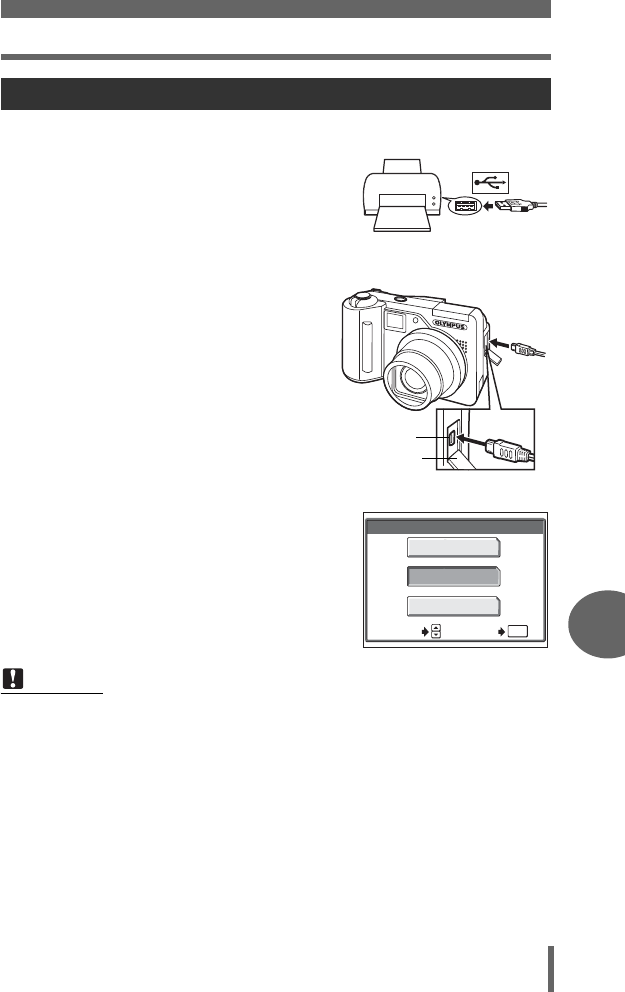
Direct printing (PictBridge)
125
Printing pictures
8
Use the USB cable provided to connect the camera to a PictBridge-compatible printer.
1Turn the printer on and plug the
printer end of the USB cable into
the printer’s USB port.
• For details of how to turn the printer on
and the position of the USB port, refer to
the printer’s instruction manual.
2Plug the USB cable into the
camera’s multi-connector.
• The monitor turns on and the
selection screen for the USB
connection is displayed.
3Select [PRINT] and press N.
• “ONE MOMENT” is displayed and the
camera and printer are connected. The
[PRINT MODE SELECT] screen is
displayed on the monitor. Select the
print settings on the camera’s monitor.
gGo to “Printing pictures” (P.126)
Connecting the camera to a printer
Note
• If [PC] is selected in step 3, the camera will not advance to the [PRINT MODE
SELECT] screen.
Connector cover
Multi-connector
USB
P C
PRINT
EXIT
SELECT GO
OK
d4250_e_00_0_bookfile.book Page 125 Friday, December 24, 2004 11:45 AM
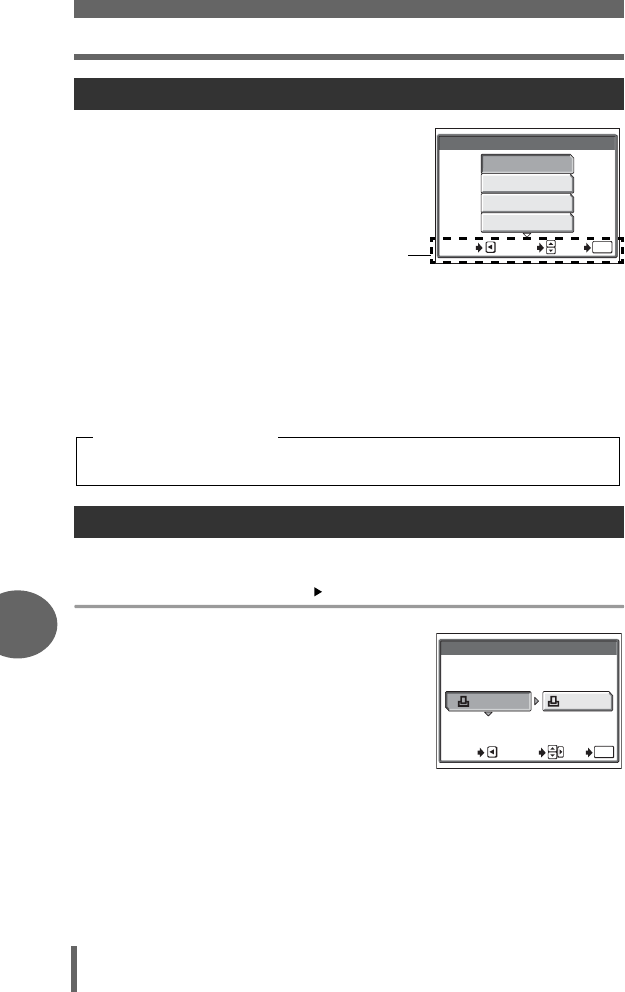
Direct printing (PictBridge)
126
8
Printing pictures
When the camera is connected to a PictBridge-
compatible printer, the [PRINT MODE SELECT]
screen is displayed on the monitor. Use this
screen to select the print mode. You can choose
from the following print modes.
PRINT Prints the selected picture.
ALL PRINT Prints all the pictures stored on the card.
MULTI PRINT Prints one picture in multiple layout format.
ALL INDEX Prints an index of all the pictures stored on the card.
PRINT ORDER Prints the pictures according to the print reservation data on the
card. If no print reservations have been made, this option is not
available. g“Print settings (DPOF)” (P.134)
The method described below is the easiest way to print out pictures. The selected
picture is printed using standard settings without the date, time or file name.
[PRINT MODE SELECT] screen [PRINT] g “Menus” (P.16)
1Press N without changing the
[SIZE] or [BORDERLESS]
settings.
• When the [PRINT PAPER] screen is not
displayed, go to Step 2.
• For details of the available paper sizes
and border settings, see “Setting the
size and border” (P.127).
Printing pictures
Easy printing
PRINT MODE SELECT
PRINT
ALL PRINT
MULTI PRINT
ALL INDEX
SELECT
GO
OK
EXIT
[PRINT MODE SELECT] screen
Operation guide
Available printing modes, paper sizes etc., vary depending on the printer you
use. Refer to the instruction manual for your printer.
Print modes and settings
PRINTPAPER
SIZE
BORDERLESS
STANDARD
SELECT
GO
OK
CANCEL
STANDARD
d4250_e_00_0_bookfile.book Page 126 Friday, December 24, 2004 11:45 AM
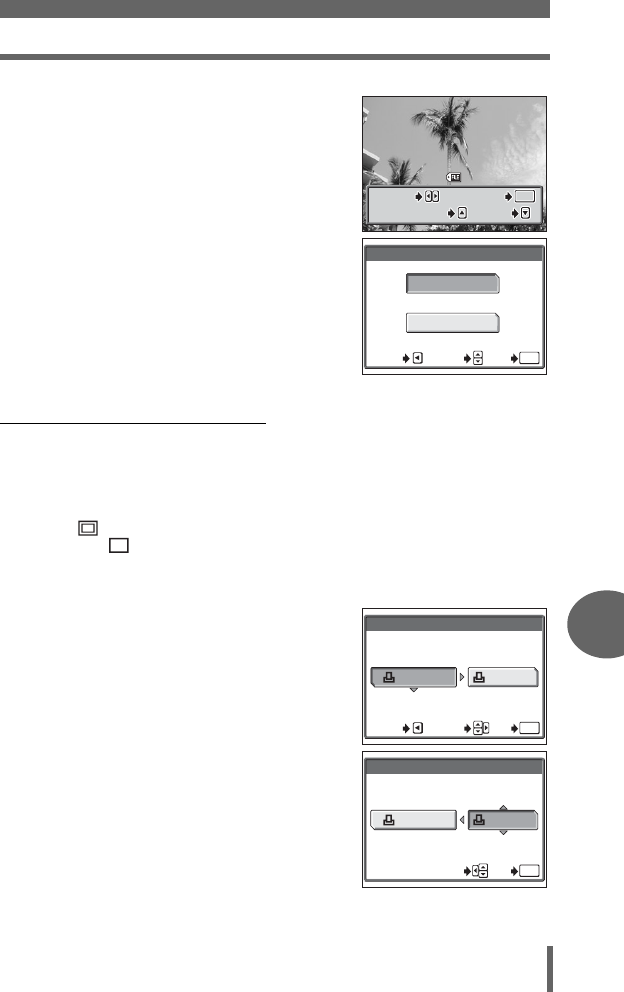
Direct printing (PictBridge)
127
Printing pictures
8
2Select the picture you want to
print and press N.
• The print screen is displayed.
3Select [OK] and press N.
• Printing starts.
• To cancel printing, select [CANCEL] and
press N. The [PRINT MODE SELECT]
screen is displayed.
• When printing is finished, the screen
returns to Step 2. Repeat Steps 2 and 3
and print all the pictures you want to
print.
(Setting the size and border
Select the paper size and border on the [PRINTPAPER] screen.
SIZE Choose from the available paper sizes on your printer.
BORDERLESS Select framed or unframed. In [MULTI PRINT] mode, you
cannot select the frame.
WITH ( ) The image is printed inside a blank frame.
WITHOUT ( ) The image is printed filling the entire page.
PICS/SHEET In [MULTI PRINT] mode, select from the available settings on
your printer.
1
Press
ac
on the [PRINTPAPER]
screen to select the paper size,
then press
d
.
2
Press
ac
to select framed or
unframed, then press
N
.
In [MULTI PRINT] mode, press
ac
to select the number of
pictures per sheet, then press
N
.
PRINT
PRINT
OK
OK
OK
MORE
MORE
SELECT
SELECT
PRINT
MORE
SINGLE PRINT
SINGLE PRINT
SINGLE PRINT
SELECT
100
100
-
0030
0030
PRINT
OK
CANCEL
SELECT
GO
OK
CANCEL
PRINTPAPER
SIZE
BORDERLESS
STANDARD
SELECT
GO
OK
CANCEL
STANDARD
PRINTPAPER
SIZE
BORDERLESS
STANDARD STANDARD
SELECT
GO
OK
d4250_e_00_0_bookfile.book Page 127 Friday, December 24, 2004 11:45 AM
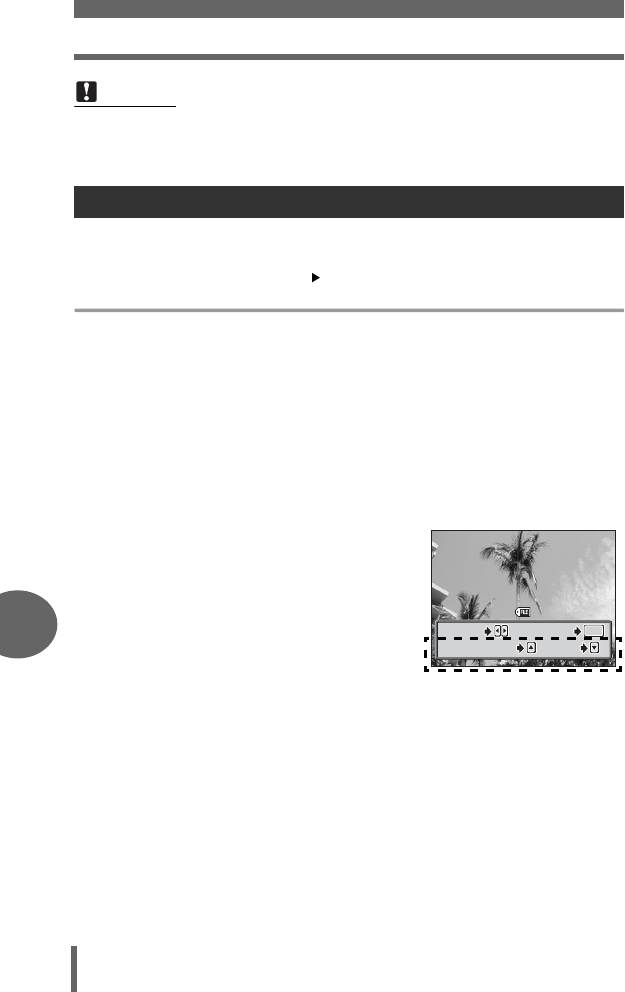
Direct printing (PictBridge)
128
8
Printing pictures
You can select the print mode on the [PRINT MODE SELECT] screen. The available
settings vary depending on the selected print mode.
[PRINT MODE SELECT] screen [PRINT] / [ALL PRINT] / [MULTI PRINT] /
[ALL INDEX] / [PRINT ORDER] g“Menus” (P.16)
1Select the item you want to set on the [PRINTPAPER] screen
and press N. g“Setting the size and border” (P.127)
• In [MULTI PRINT] mode, select the number of pictures per sheet instead of
framed or unframed.
• [BORDERLESS] is not available in [ALL INDEX] mode.
• If the [PRINTPAPER] screen is not displayed, [STANDARD] settings apply.
[PRINT] mode / [MULTI PRINT] mode: →Go to Step 2.
[ALL PRINT] mode: →Go to Step 4.
[ALL INDEX] mode / [PRINT ORDER] mode: →Go to Step 6.
2Select the picture you want to
print.
• Push the zoom lever toward W to display
the pictures in index format. You can
select the pictures you want to print from
the index.
3Select the print reservation method.
SINGLE PRINT Makes a single-frame print reservation for the selected
picture according to standard print settings.
MORE Sets the number of prints of the selected picture in the print
reservation data. You can also add the date or file name,
and trim the picture.
Note
• If the [PRINTPAPER] screen is not displayed, [SIZE], [BORDERLESS] and
[PICS/SHEET] are set to [STANDARD].
Printing by selecting a print mode
PRINT
PRINT
OK
OK
OK
MORE
MORE
SELECT
SELECT
PRINT
MORE
SINGLE PRINT
SINGLE PRINT
SINGLE PRINT
SELECT
100
100
-
0030
0030
d4250_e_00_0_bookfile.book Page 128 Friday, December 24, 2004 11:45 AM
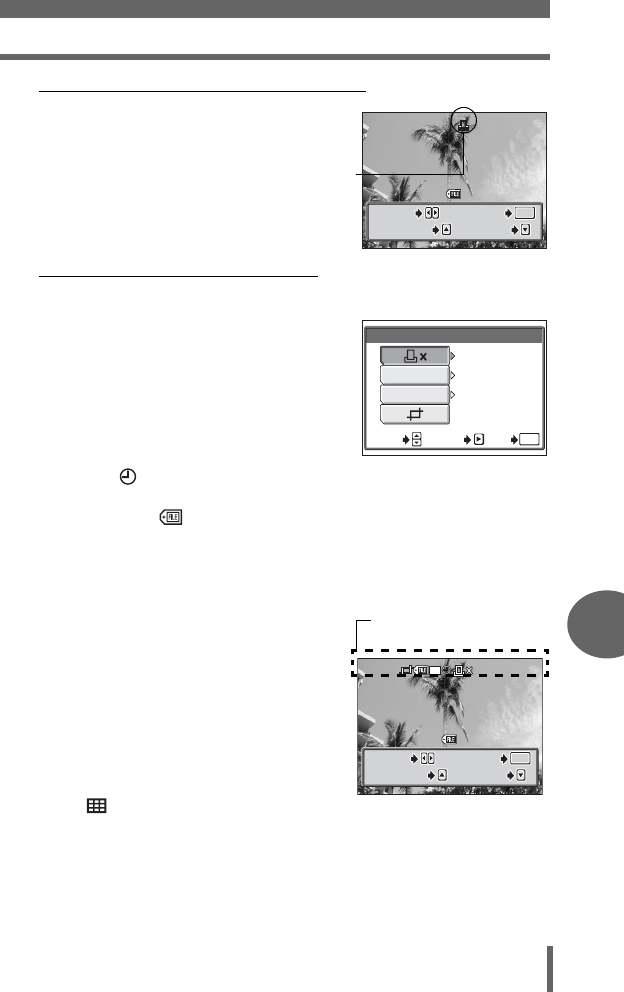
Direct printing (PictBridge)
129
Printing pictures
8
(Set a [SINGLE PRINT] reservation
cPress a.
•Press a when a picture with < is
displayed to cancel the reservation.
dGo to Step5.
(
Set [MORE] print reservations
cPress c.
dSelect the printing data that
you want included by
pressing d and then set each
item.
<× Sets the number of
prints. You can select
up to 10 prints.
DATE ( ) If you select [WITH], pictures are printed with the
date and time.
FILE NAME ( ) If you select [WITH], pictures are printed with the file
name.
PCrops part of a recorded picture so that only the
enlarged section is printed. g“Trimming” (P.131)
• [DATE] and [FILE NAME] are not available in [MULTI PRINT] mode.
eWhen you have completed
setting the printing data,
press N.
• The screen displayed in Step 2
appears.
• To print more than one picture in
[PRINT] or [MULTI PRINT] mode,
repeat Steps 2 and 3 and make
single or multiple print reservations
for all the pictures you want to print.
• is displayed in [MULTI PRINT]
mode.
fGo to Step 5.
100
100
-
0030
0030
PRINT
PRINT
OK
OK
OK
MORE
MORE
SELECT
SELECT
PRINT
MORE
CANCEL
CANCEL
SELECT
CANCEL
Print reservation icon
is displayed.
PRINT INFO
DATE
FILE NAME
WITHOUT
WITHOUT
1
GO
GO
OK
OK
SET
SET
SELECT
SELECT
GO
OK
SET
SELECT
10
10
PRINT
PRINT
OK
OK
OK
MORE
MORE
SELECT
SELECT
PRINT
MORE
CANCEL
CANCEL
SELECT
CANCEL
100
100
-
0030
0030
The settings you have
made are displayed.
d4250_e_00_0_bookfile.book Page 129 Friday, December 24, 2004 11:45 AM
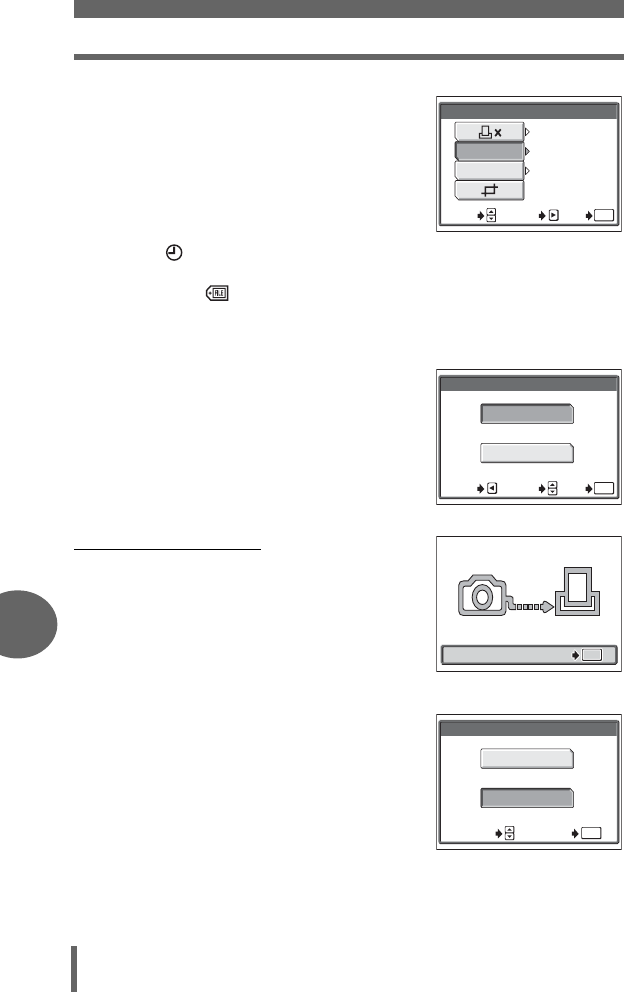
Direct printing (PictBridge)
130
8
Printing pictures
4Select the printing data and
press d to set each item.
• If printing data cannot be set for your
printer, the [PRINT INFO] screen is not
displayed. Go to Step 6.
• Only one print of each image can be
made at a time.
DATE ( ) If you select [WITH], pictures are printed with the date
and time.
FILE NAME ( ) If you select [WITH], pictures are printed with the file
name.
5Press N.
6Select [OK] and press N.
• Printing starts.
• When printing is finished, the monitor
returns to the [PRINT MODE SELECT]
screen.
g“Exiting direct printing” (P.132)
(To cancel printing
Pressing N during print data transfer displays
the screen for selecting whether to continue or
cancel printing. To cancel printing, select
[CANCEL] and press N.
PRINT INFO
DATE
FILE NAME
WITHOUT
WITHOUT
1
GO
GO
OK
OK
SET
SET
SELECT
SELECT
GO
OK
SET
SELECT
PRINT
OK
CANCEL
SELECT
GO
OK
CANCEL
PRINT
CONTINUE
CANCEL
SELECT GO
OK
OK
OK
CANCEL
CANCEL
OK
CANCEL
Screen during data transfer
d4250_e_00_0_bookfile.book Page 130 Friday, December 24, 2004 11:45 AM
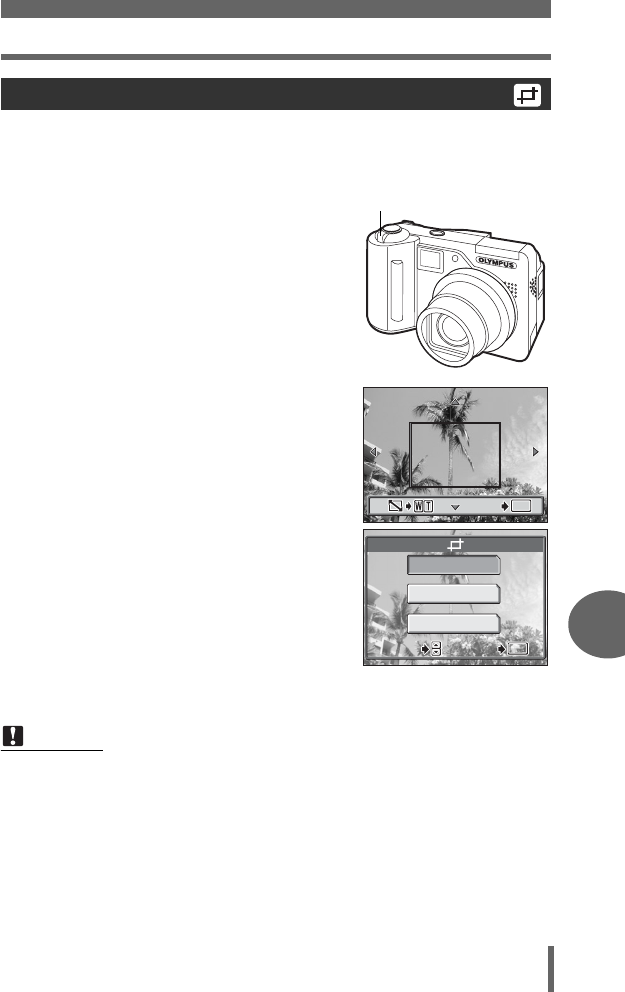
Direct printing (PictBridge)
131
Printing pictures
8
To trim a picture by [MORE] in [PRINT] or [MULTI PRINT] mode, follow the
procedure below.
1Use the arrow pad and zoom
lever to select the trimming
position and size.
•Press acbd to move the trimming
frame.
• Move the zoom lever toward W or T to
select the trimming size.
• If trimming has already been performed,
the [P] screen appears. Select
[RESET] and press N.
2Press N.
3Select [OK] and press N.
OK Saves the current trimming
size.
RESET Sets a new trimming size.
→Repeat the procedure from
Step 1.
CANCEL Cancels the current trimming
setting.
•Press N to complete trimming and return to the [PRINT INFO] screen.
Trimming
Note
• The size of the printed picture varies depending on the printer settings. If the
trimmed picture is small, printing magnification increases accordingly, resulting
in a printed picture with lower resolution.
• For the best results with enlarged prints, you are recommended to use the
[SHQ] or [HQ] mode.
OK
OK
OK
GO
GO
GO
Zoom lever
OK
RESET
CANCEL
SELECT
SELECT
GO
GO
OK
OK
SELECT GO
OK
d4250_e_00_0_bookfile.book Page 131 Friday, December 24, 2004 11:45 AM
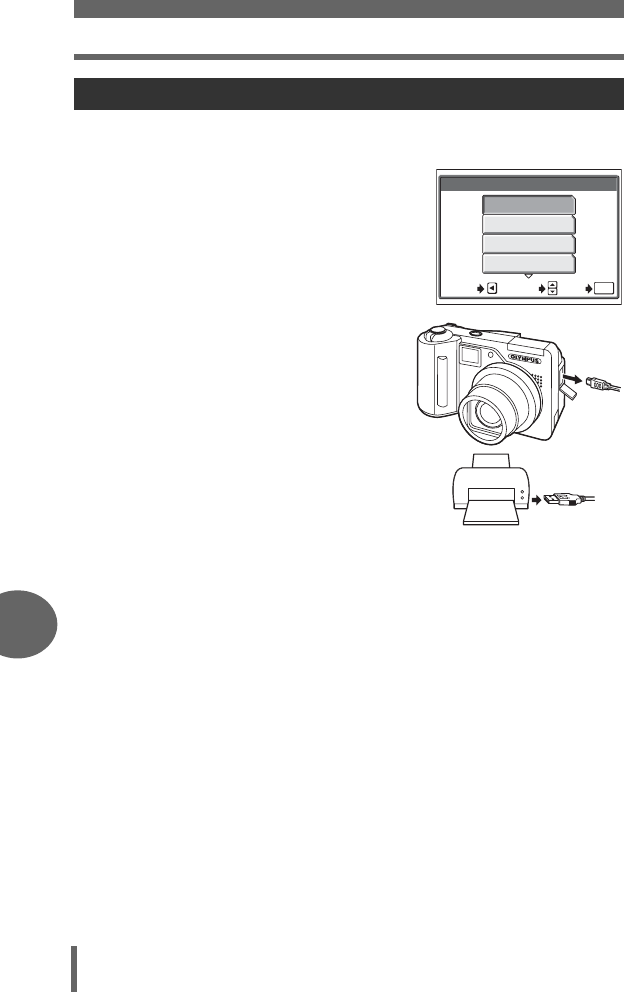
Direct printing (PictBridge)
132
8
Printing pictures
When you have finished printing, disconnect the camera from the printer.
1In the [PRINT MODE SELECT]
screen, select b.
• “REMOVE USB CABLE” is displayed.
2
Remove the USB cable from the
camera.
3Remove the USB cable from the
printer.
Exiting direct printing
PRINT MODE SELECT
PRINT
ALL PRINT
MULTI PRINT
ALL INDEX
SELECT
GO
OK
EXIT
d4250_e_00_0_bookfile.book Page 132 Friday, December 24, 2004 11:45 AM
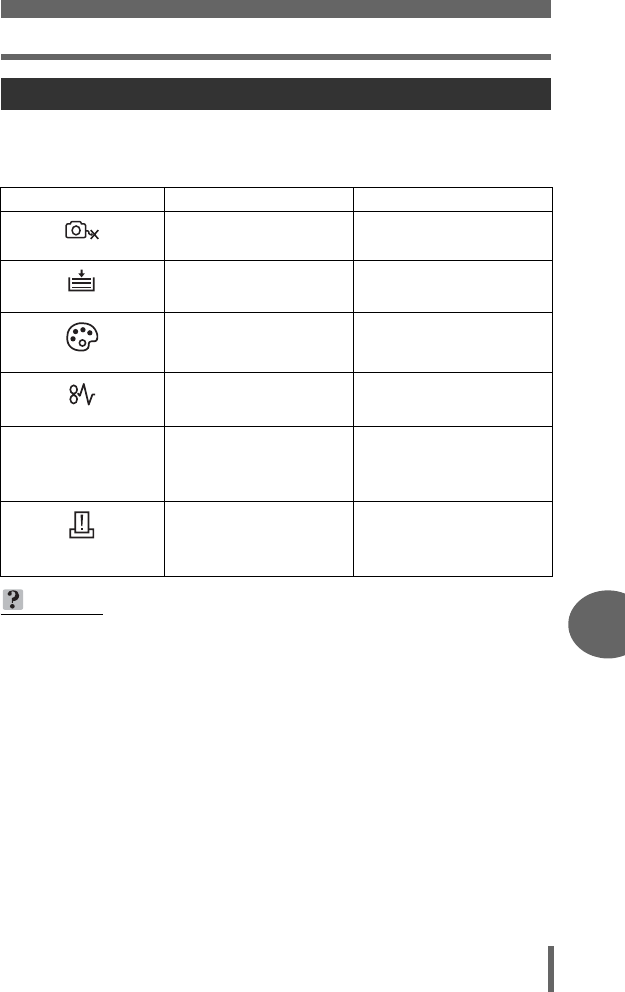
Direct printing (PictBridge)
133
Printing pictures
8
If an error code appears on the camera’s monitor during direct print setting or
printing, see the following table.
For more details, refer to the printer’s instruction manual.
If an error code is displayed
Monitor indication Possible cause Corrective action
NO CONNECTION
The camera is not connected
to the printer correctly.
Disconnect the camera and
connect it again correctly.
NO PAPER
There is no paper in the
printer.
Load some paper in the
printer.
NO INK
The printer has run out of
ink.
Replace the ink cartridge in
the printer.
JAMMED
The paper is jammed. Remove the jammed paper.
SETTINGS CHANGED
The printer’s paper cassette
has been removed or the
printer has been operated while
making settings on the camera.
Do not operate the printer
while making settings on the
camera.
PRINT ERROR
There is a problem with the
printer and/or camera.
Turn off camera and printer.
Check the printer and
remedy any problems before
turning the power on again.
TIPS
• If an error code other than those shown above is displayed, see “Error
codes” (P.158).
d4250_e_00_0_bookfile.book Page 133 Friday, December 24, 2004 11:45 AM
134
8
Printing pictures
Print settings (DPOF)
Print reservation allows you to save printing data (the number of prints and the date/
time information) with the pictures stored on the card.
With print reservation, you can print out pictures easily either at home using a
personal DPOF-compatible printer or at a print shop that supports DPOF. DPOF is
a standard format used to record automatic print information from digital cameras.
You can print out pictures automatically, at home or at a photo shop, by storing data,
such as which pictures you want to print and the number of prints, on the card.
Pictures with print reservations can be printed using the following procedures.
Printing using a DPOF-compatible print shop.
You can print the pictures using the print reservation data.
Printing using a DPOF-compatible printer.
Printing is possible directly from a card containing print reservation data without
using a computer. For more details, refer to the printer’s instruction manual. A
PC card adapter may also be necessary.
How to make print reservations
TIPS
Relation between printing and record mode when shooting
The resolution of a computer/printer is generally based on the number of dots
(pixels) per square inch. This is expressed in dpi (dots per inch). The higher the
dpi value, the better the printed results. Keep in mind, however, that the dpi of
the picture does not change. This means that when you print an image with a
higher resolution, the size of the printed picture will be smaller. Although you
can print magnified images, picture quality will decrease.
If you want to print large, high-quality pictures, set the record mode as high as
possible when taking the pictures. g“Record mode” (P.26)
d4250_e_00_0_bookfile.book Page 134 Friday, December 24, 2004 11:45 AM
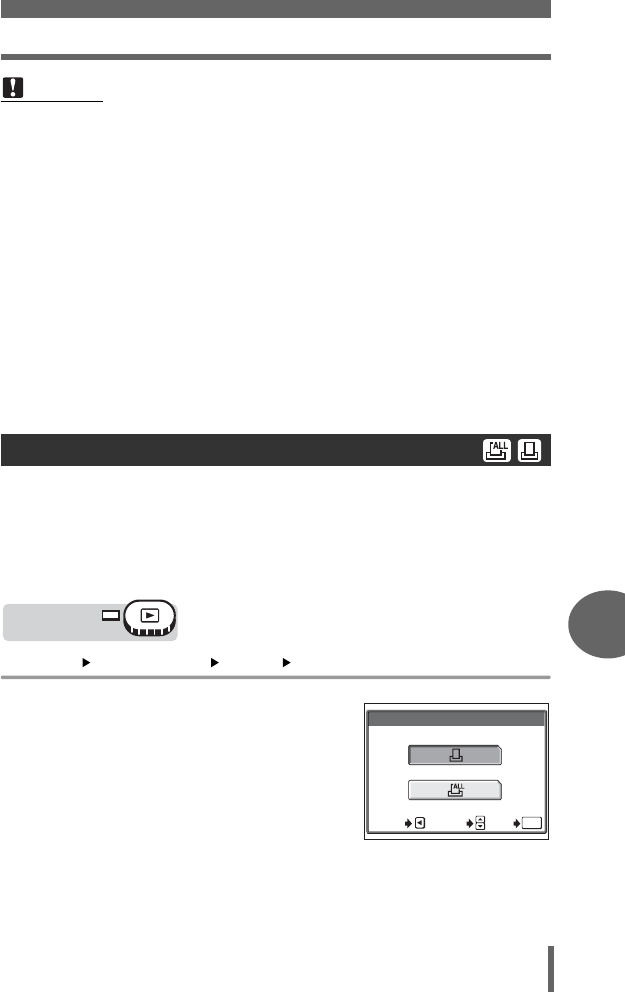
Print settings (DPOF)
135
Printing pictures
8
You can select all-frame reservation or single-frame reservation.
UMakes print reservations for all the pictures stored on the card. Select the
desired number of prints and whether you want the date and time included.
<Use this feature to print only selected pictures. Display the picture you want
to print and select the number of prints, whether you want the date and time
included, and whether you want to trim the picture.
Top menu [MODE MENU] [PLAY] [<]g“Menus” (P.16)
1Select [<] or [U] and press N.
•< → Go to Step 2.
•U → Go to Step 4.
Note
• DPOF reservations set by another device cannot be changed by this camera.
Make changes using the original device.
• If a card contains DPOF reservations set by another device, entering
reservations using this camera may overwrite the previous reservations.
• If there is not enough space in the card memory, you may not be able to enter
the reservation data. “CARD FULL” will be displayed.
• You can make DPOF print reservations for up to 999 images per card.
• Even if an image appears with the message “PICTURE ERROR”, it may be
possible to make print reservations. In this case, the print reservation icon (<)
does not appear when the image is displayed for full view. < appears when
multiple images are displayed (index display), allowing you to confirm the print
reservation.
• Not all functions may be available on all printers, at all print shops, or at all
photo labs.
• Some TIFF images cannot be printed.
• Print reservation may take a little time when saving printing data to a card.
All-frame reservation/Single-frame reservation
Mode dial
<
PRINT ORDER SETTING
SELECT
GO
OK
CANCEL
d4250_e_00_0_bookfile.book Page 135 Friday, December 24, 2004 11:45 AM
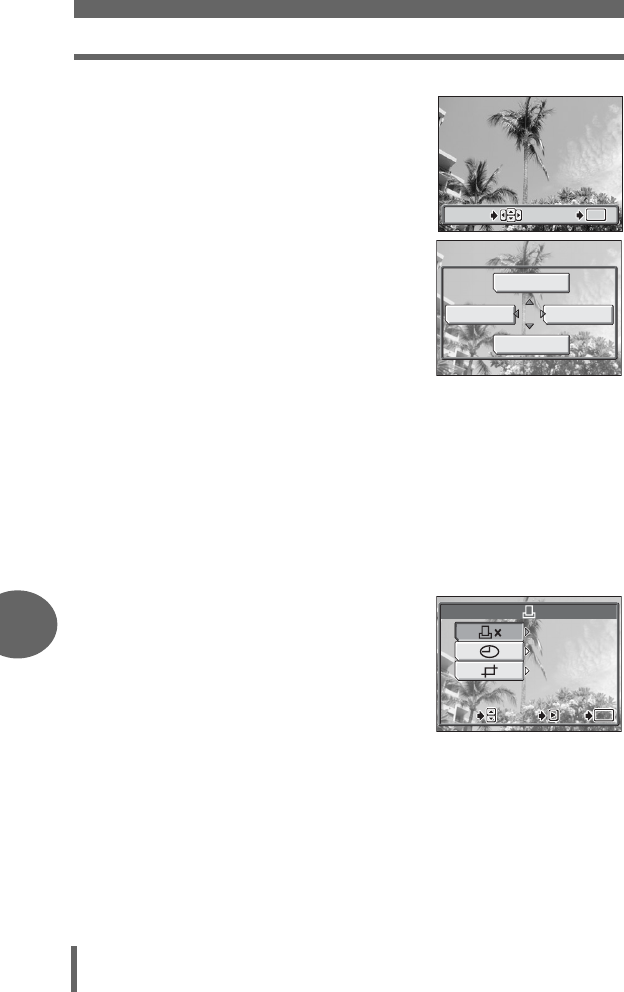
Print settings (DPOF)
136
8
Printing pictures
2Select the picture(s) you want to
print and press N.
3Select the appropriate item
according to the print
reservation that you want to
make.
MORE Sets the number of prints
and date/time printing data,
and trims the picture.
Proceeds to Step 4.
SINGLE PRINT
Sets the number of prints to
1 and returns to Step 2.
Date/time printing and
trimming are not available.
g“To exit single-frame reservation” (P.137)
CANCEL Cancels the print reservation for the displayed picture.
g“Resetting print reservation data” (P.139)
END Exits the print reservation function.
g“To exit single-frame reservation” (P.137)
4Select [<×] (number of prints),
[X] (date/time) or [P]
(trimming), and press d.
•[P] is not available for all-frame
reservation.
’05
05
.
02
02
.
16 15
16 15
:
30 30
30 30
HQ
HQ
OK
OK
SELECT
SELECT
OK
GO
GO
SELECT
GO
CANCEL
MOREEND
SINGLE PRINT
Single-frame reservation
screen
DATE
NO
0
GO
GO
OK
OK
SET
SET
SELECT
SELECT
GO
OK
SET
SELECT
Single-frame reservation
screen
d4250_e_00_0_bookfile.book Page 136 Friday, December 24, 2004 11:45 AM
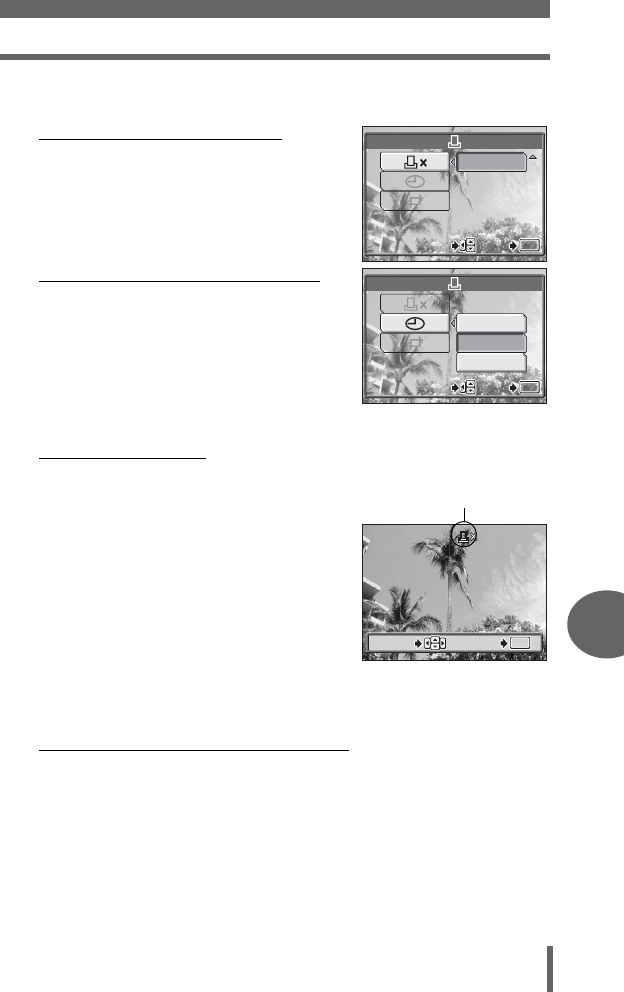
Print settings (DPOF)
137
Printing pictures
8
5Perform each setting.
(Set the number of prints
Select the number of prints and press N.
a: Increases the number.
c: Decreases the number.
(
Set the date/time printing data
Select [NO], [DATE] or [TIME], and press
N.
NO The pictures are printed without
the date and time.
DATE All the selected pictures are
printed with the shooting date.
TIME All the selected pictures are
printed with the shooting time.
(Trim the picture
g“Trimming” (P.138)
6After setting the number of prints
and date/time printing data and
trimming the picture, press N to
complete the print reservations.
•The < icon appears on the displayed
picture.
• If you made all-frame reservations, the
screen returns to the playback screen.
• If you made single-frame reservations,
the screen returns to Step 2. Repeat
Steps 2 to 6 to make print reservations for other images.
(To exit single-frame reservation
Select [END] on the single-frame menu to return to the [PRINT ORDER]
screen. Follow the operation guide and return to the playback screen.
0
SELECT
SELECT
GO
GO
OK
OK
SELECT GO
OK
NO
DATE
TIME
SELECT
SELECT
GO
GO
OK
OK
SELECT GO
OK
’05
05
.
02
02
.
16 15
16 15
:
30 30
30 30
HQ
HQ
2
OK
OK
SELECT
SELECT
OK
GO
GO
SELECT
GO
Print reservation icon
d4250_e_00_0_bookfile.book Page 137 Friday, December 24, 2004 11:45 AM
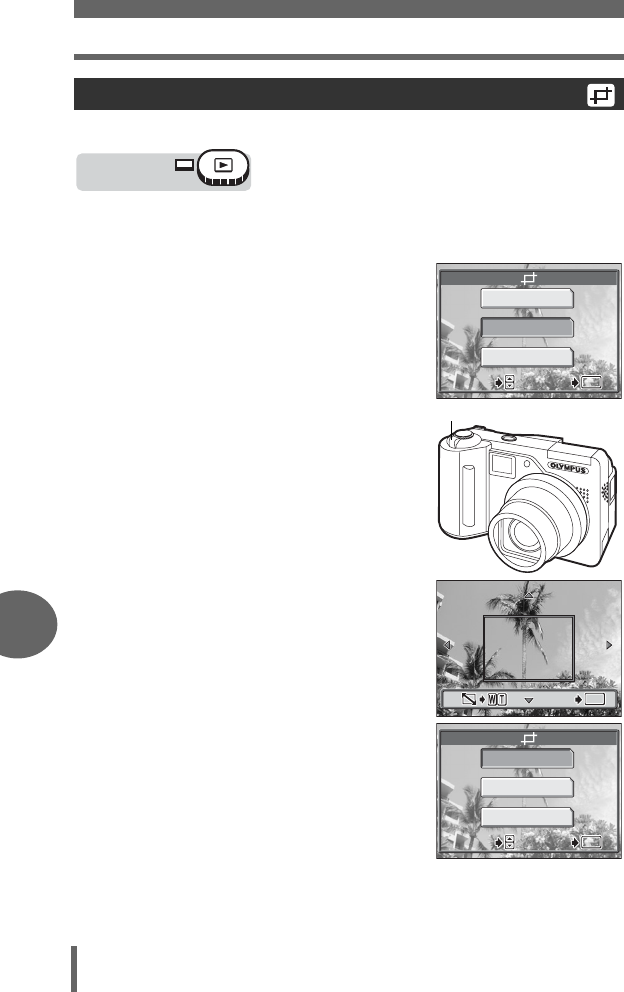
Print settings (DPOF)
138
8
Printing pictures
This function enables you to crop part of a recorded picture and print out the
enlarged section only.
1
Select [
P
] on the single-frame reservation screen and press
d
.
g“All-frame reservation/Single-frame reservation” (P.135)
• If trimming has already been performed,
the [P] screen appears. Select
[RESET] and press N.
2Use the arrow pad and zoom
lever to select the trimming
position and size.
•Press acbd to move the trimming
frame.
• Move the zoom lever toward W or T to
select the trimming size.
3Press N.
4Select [OK] and press N.
OK Saves the current trimming
size. Returns to the single-
frame reservation screen.
RESET Sets a new trimming size.
→Repeat the procedure from
Step 2.
CANCEL Cancels the current trimming
setting. Returns to the single-
frame reservation screen.
Trimming
Mode dial
OK
RESET
CANCEL
SELECT
SELECT
GO
GO
OK
OK
SELECT GO
OK
Zoom lever
OK
OK
OK
GO
GO
GO
OK
RESET
CANCEL
SELECT
SELECT
GO
GO
OK
OK
SELECT GO
OK
d4250_e_00_0_bookfile.book Page 138 Friday, December 24, 2004 11:45 AM
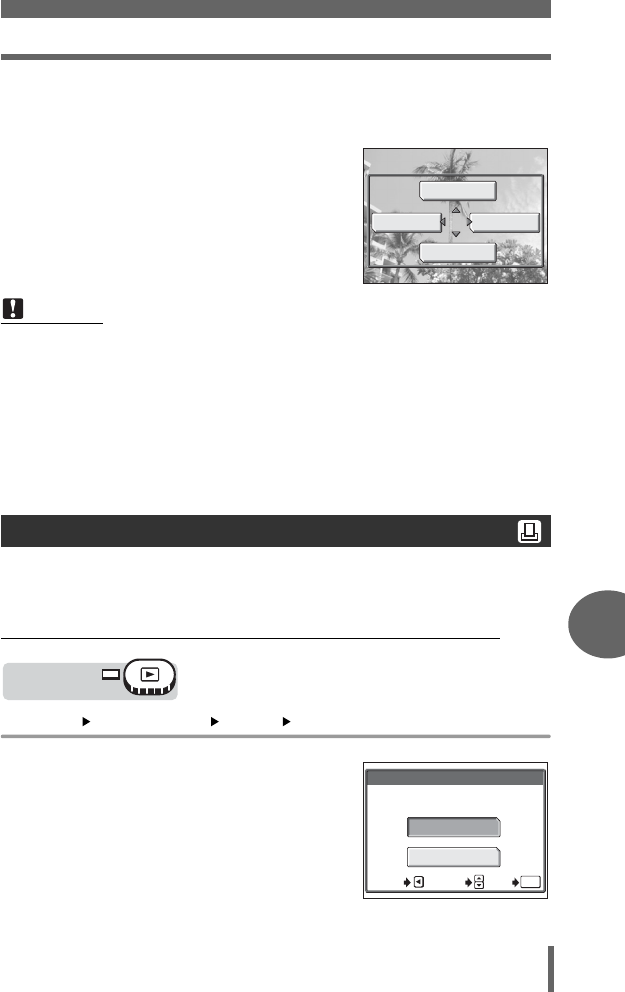
Print settings (DPOF)
139
Printing pictures
8
5Press N to complete the print reservations and return to the
picture selection screen, then press N again.
6Press b to select [END].
• The [PRINT ORDER] screen appears.
Follow the operation guide to return to
the playback screen.
This function allows you to reset the print reservation data for pictures stored on the
card.
You can reset all the print reservation data or just for selected pictures.
(To reset the print reservation data for all the pictures
Top menu [MODE MENU] [PLAY] [<]g“Menus” (P.16)
1Select [RESET] and press N.
• If there is no print reservation data
stored on the card, the [PRINT ORDER]
screen does not appear.
•Press b to return to the playback
screen.
Note
• The size of the printed picture varies depending on the printer settings. If the
trimmed picture is small, printing magnification increases accordingly, resulting
in a printed picture with lower resolution.
• For the best results with enlarged prints, It is recommended that you use the
[SHQ] or [HQ] mode.
• The original picture is not trimmed. If your printer does not have the trimming
function, the picture will be printed untrimmed.
• Do not rotate pictures that have been trimmed. Doing so could change the
cropped area.
Resetting print reservation data
CANCEL
MOREEND
SINGLE PRINT
Mode dial
<
SELECT
GO
OK
CANCEL
PRINT ORDERED
RESET
KEEP
d4250_e_00_0_bookfile.book Page 139 Friday, December 24, 2004 11:45 AM
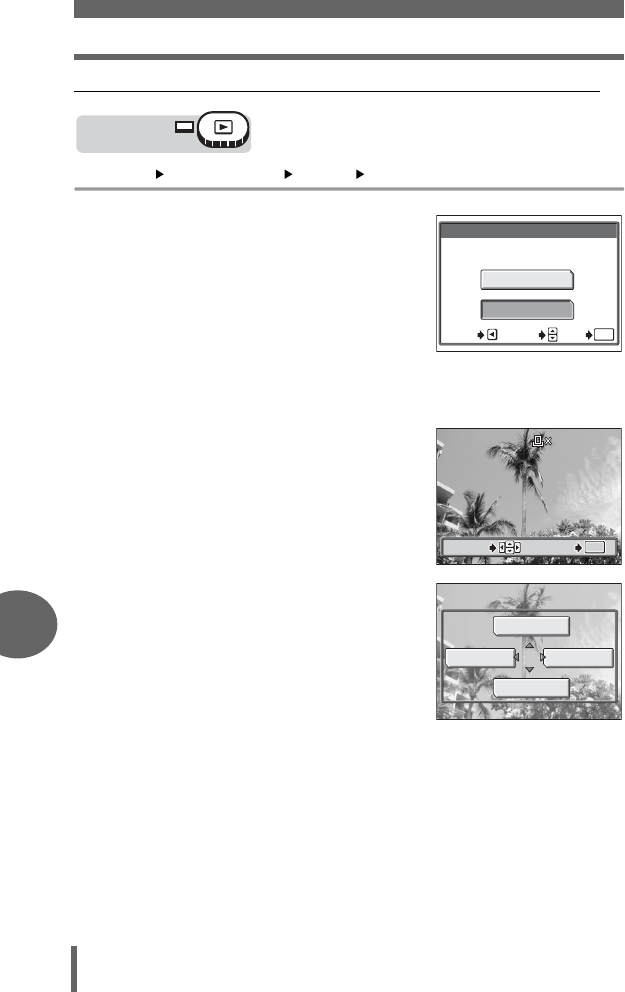
Print settings (DPOF)
140
8
Printing pictures
(To reset the print reservation data for a selected picture
Top menu [MODE MENU] [PLAY] [<]g“Menus” (P.16)
1Select [KEEP] and press N.
• If there is no print reservation data
stored on the card, the [PRINT ORDER]
screen does not appear.
2Select [<] and press N.
3Select the frame for which you
want to reset the print
reservation data using the arrow
pad and press N.
•
The single-frame reservation menu is
displayed.
4Select [CANCEL].
• The print reservation data is canceled
and the screen returns to Step 3.
5If you are finished resetting print
reservation data, press N.
•
The single-frame reservation menu is
displayed.
6Select [END].
• The [PRINT ORDER] screen appears. Follow the operation guide to return
to the playback screen.
Mode dial
PRINT ORDERED
RESET
KEEP
SELECT
GO
OK
CANCEL
<
’05
05
.
02
02
.
16 15
16 15
:
30 30
30 30
HQ
HQ
2
OK
OK
SELECT
SELECT
OK
GO
GO
SELECT
GO
CANCEL
MOREEND
SINGLE PRINT
d4250_e_00_0_bookfile.book Page 140 Friday, December 24, 2004 11:45 AM
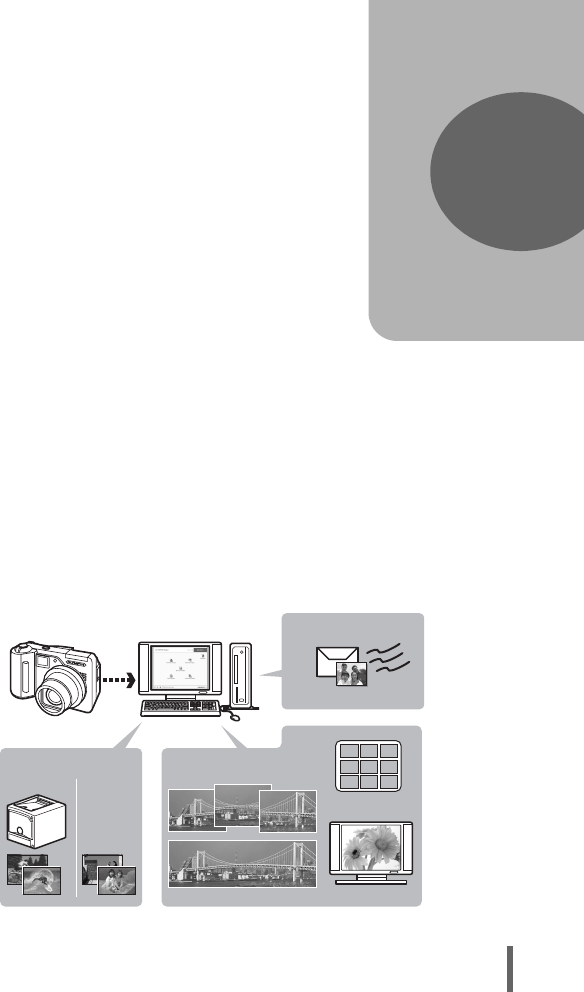
141
9 Connecting the camera to a computer
Viewing the pictures you have taken on your
computer is just one of the many ways you
can enjoy your pictures.
You can print out your favorite pictures, by
using the application software to download
your pictures from your camera and edit
them, or arrange them by date or category,
or attach them to e-mail and send them over
the Internet.
There are all kinds of ways you can use
your pictures with a computer. You can run
a slideshow, post your pictures on your
home page, create an album, or set your
favorite picture as your desktop wallpaper.
9
Connecting the
camera to a computer
E-mail
Album making
Wallpaper
Panorama building
Home printing
Online
printing
Print pictures Edit pictures
Share with friends
Upload pictures
d4250_e_00_0_bookfile.book Page 141 Friday, December 24, 2004 11:45 AM
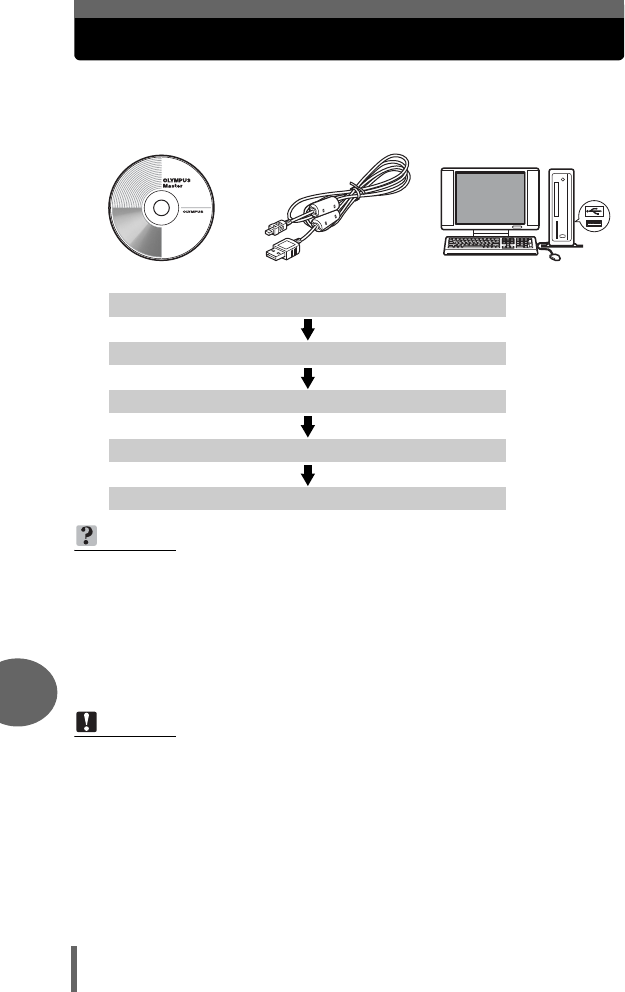
142
9
Connecting the camera to a computer
Flow
Using the USB cable provided with your camera, you can connect the
camera and computer and download (transfer) the images to your computer
using the OLYMPUS Master software, also provided with the camera.
Prepare the following items before starting.
OLYMPUS Master CD-ROM USB Cable
Computer equipped with a USB port
Install the OLYMPUS Master software gP.144
Connect the camera to the computer using the USB cable gP.147
Start up the OLYMPUS Master software gP.149
Download image files to the computer gP.151
Disconnect the camera from the computer gP.152
TIPS
Viewing and editing downloaded images
→If you want to process images using graphics applications, make sure you
download the images to your computer first. Depending on the software, the
image files may be damaged if the images are processed (rotated, etc.)
while they are still on the card.
If the data cannot be downloaded from the camera using the USB cable
→
Image files may be downloaded using the optional PC card adapter. For details,
visit the Olympus web site at the address shown on the back cover of this manual.
Note
• It is recommended that you use the optional AC adapter when connecting the
camera to a computer. If you use the battery, make sure that it is sufficiently
charged. The camera does not turn off automatically while it is connected to
(communicating with) a computer. If the battery power runs out, the camera will
stop whatever operation it is performing. This may result in a computer
malfunction, or loss of image data (file) being transmitted.
• Do not open the battery compartment / card cover or plug in or pull out the AC
adapter, while the camera is connected to the computer. Doing so could cause
the computer to malfunction.
•
Connecting the camera to a computer via a USB hub may cause unstable operation
if there is any problem with compatibility between the computer and the hub. In this
case, do not use a hub, but connect the camera directly to the computer.
d4250_e_00_0_bookfile.book Page 142 Friday, December 24, 2004 11:45 AM
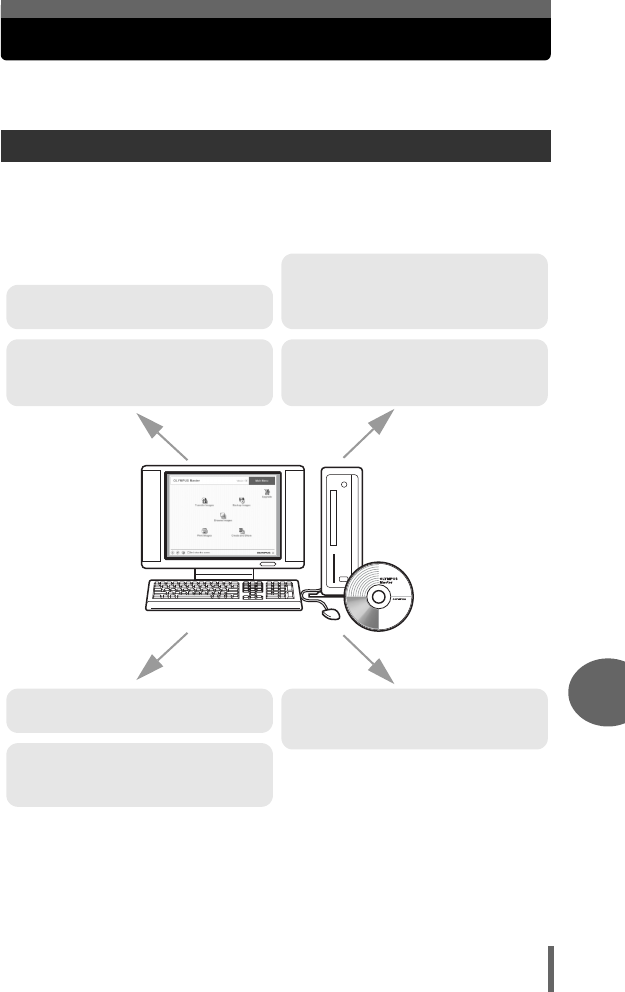
143
Connecting the camera to a computer
9
Using OLYMPUS Master
For editing and managing image files, install the OLYMPUS Master
software from the provided CD-ROM.
OLYMPUS Master is application software for editing images taken with a
digital camera on a computer. Installing it on your computer lets you do the
following:
For details of functions and operations other than the above, refer to the “Help” guide
and OLYMPUS Master reference manual.
What is OLYMPUS Master?
Download images from the camera or
other media
View images and movies
You can run a slideshow and play back
sound.
Manage images
You can organize your images using the
calendar display. Search the image you
want by date or keyword.
Make panoramic images
You can make panoramic images using
pictures taken in panorama mode.
Print images
You can print images and make indexes,
calendars and postcards.
Edit images
You can rotate images, trim them and
change the size.
Edit images with the filter and
correction functions
d4250_e_00_0_bookfile.book Page 143 Friday, December 24, 2004 11:45 AM
Using OLYMPUS Master
144
9
Connecting the camera to a computer
Before installing the OLYMPUS Master software, please confirm that your computer
is compatible with the following system requirements. For newer operating systems,
please refer to the Olympus web site as shown on the back cover of this manual.
(Operating environment
Windows
OS Windows 98SE/Me/2000 Professional/XP
CPU Pentium III 500MHz or later
RAM 128 MB or more (at least 256 MB is recommended)
Hard disk capacity 300 MB or more
Connector USB port
Monitor 1,024 × 768 pixels, 65,536 colors or more
Macintosh
OS Mac OS X 10.2 or later
CPU Power PC G3 500MHz or later
RAM 128 MB or more (at least 256 MB is recommended)
Hard disk capacity 300 MB or more
Connector USB port
Monitor 1,024 × 768 pixels, 32,000 colors or more
Installing OLYMPUS Master
Note
• Data transfer is only guaranteed on computers with a factory installed OS.
• To install the software in Windows 2000 Professional/XP, you must log on as a
user with administrators’ privileges.
• Internet Explorer and QuickTime 6 or later should be installed on your
computer.
• Windows XP corresponds to Windows XP Professional/Home Edition.
• Windows 2000 corresponds to Windows 2000 Professional.
• If you are using Windows 98SE, the USB driver is installed automatically.
d4250_e_00_0_bookfile.book Page 144 Friday, December 24, 2004 11:45 AM
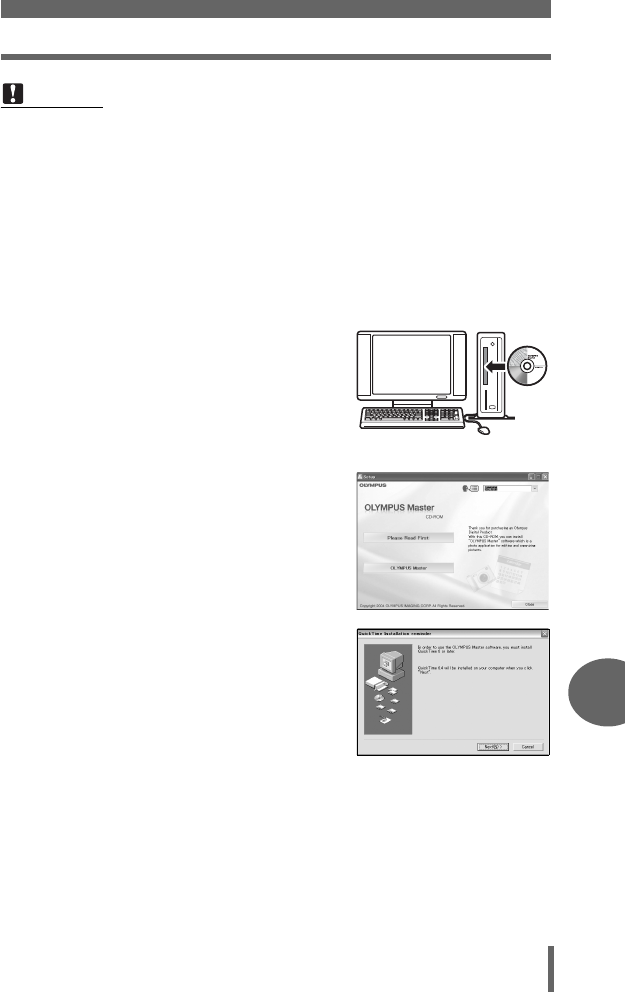
Using OLYMPUS Master
145
Connecting the camera to a computer
9
Windows
1Insert the CD-ROM into the CD-
ROM drive.
• The OLYMPUS Master setup screen is
displayed.
• If the screen is not displayed, double-click
the “My Computer” icon and click the CD-
ROM icon.
2Click the “OLYMPUS Master”.
• The QuickTime installation screen is
displayed.
• QuickTime is required to use
OLYMPUS Master. If the QuickTime
screen is not displayed, QuickTime 6 or
later is already installed on the
computer. In this case, go to step 4.
3Click “Next” and follow the on-
screen instructions.
• When the QuickTime licensing
agreement is displayed, read the
agreement and click “Agree” to
proceed with the installation.
• The OLYMPUS Master installation
screen is displayed.
Note
• Operation is only guaranteed on a Macintosh when the camera is connected to
a computer equipped with a built-in USB port.
• QuickTime 6 or later and Safari 1.0 or later must be installed.
• Be sure to remove the media (drag & drop onto the trash icon) before
performing the following operations. Failure to do so could result in unstable
computer operation and the need to reboot.
• Disconnect the cable connecting the camera to the computer
• Turn off the camera
• Open the card cover
d4250_e_00_0_bookfile.book Page 145 Friday, December 24, 2004 11:45 AM
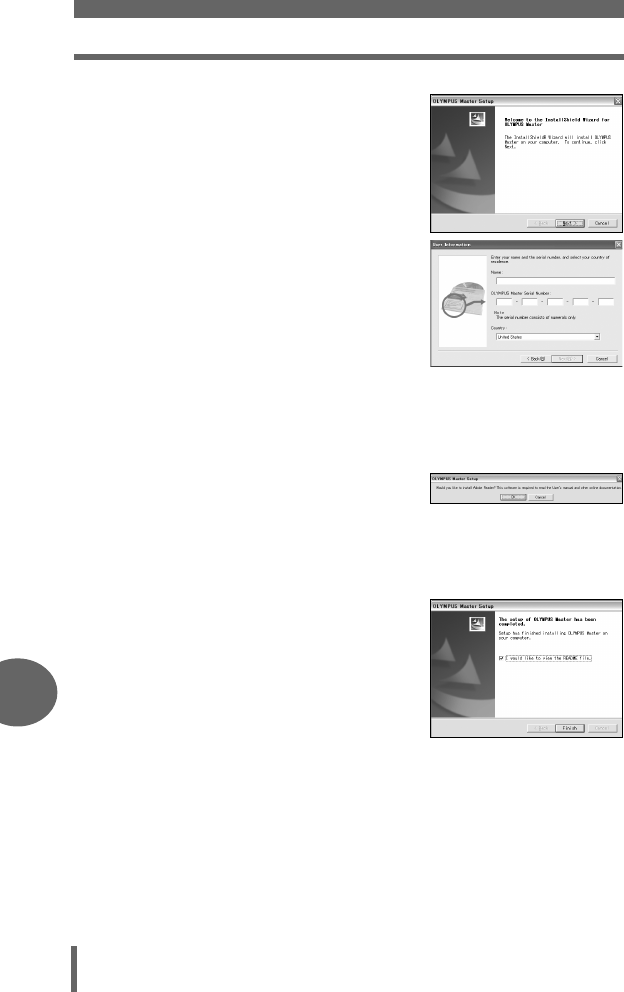
Using OLYMPUS Master
146
9
Connecting the camera to a computer
4Follow the on-screen instructions.
• When the OLYMPUS Master licensing
agreement is displayed, read the
agreement and click “Yes” to proceed with
the installation.
• When the “User Information” dialog box is
displayed, enter your “Name” and
“OLYMPUS Master Serial Number”; select
your country and click “Next”. Refer to the
sticker on the CD-ROM package for the
serial number.
• When the DirectX licensing agreement is
displayed, read the agreement and click
“YES”.
• A screen asking whether or not you want to install Adobe Reader is
displayed. Adobe Reader is required to read the OLYMPUS Master
instruction manual. If this screen is not displayed, Adobe Reader is already
installed on your computer.
5To install Adobe Reader, click
“OK”.
• To cancel installation, click “Cancel”.
Go to Step 7.
• The Adobe Reader installation screen is displayed. Follow the on-screen
instructions.
6Follow the on-screen
instructions.
• The screen confirming that installation
is completed is displayed. Click
“Finish”.
7Select the option to restart immediately when the screen
asking you if you wish to restart the computer is displayed
and click “OK”.
• The computer restarts.
• Remove the CD-ROM from the CD-ROM drive and store it.
d4250_e_00_0_bookfile.book Page 146 Friday, December 24, 2004 11:45 AM
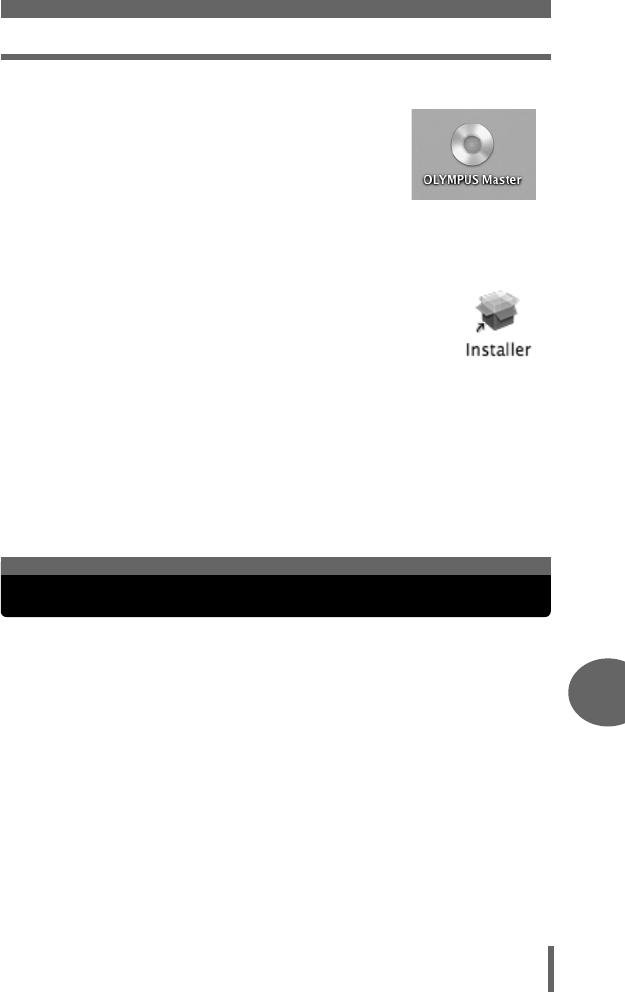
Connecting the camera to a computer
147
Connecting the camera to a computer
9
Macintosh
1Insert the CD-ROM into the CD-ROM
drive.
• The CD-ROM window is displayed.
• If the CD-ROM window is not displayed,
double-click the CD-ROM icon on the
desktop.
2Double-click on the desired language
folder.
3Double-click the “Installer” icon.
• The OLYMPUS Master installer starts up.
• Follow the on-screen instructions.
• When the OLYMPUS Master licensing agreement is
displayed, read the agreement and click “Continue” and
then “Agree” to proceed with the installation.
• The screen confirming that installation is completed is displayed.
4Click “Finish”.
• The first screen is displayed.
5Click “Restart”.
• The computer restarts.
• Remove the CD-ROM from the CD-ROM drive and store it.
Use the USB cable provided with the camera to connect the camera to
your computer.
1Plug the USB cable into the USB port on the computer.
• Refer to your computer’s instruction manual to locate the position of the
USB port.
Connecting the camera to a computer
d4250_e_00_0_bookfile.book Page 147 Friday, December 24, 2004 11:45 AM
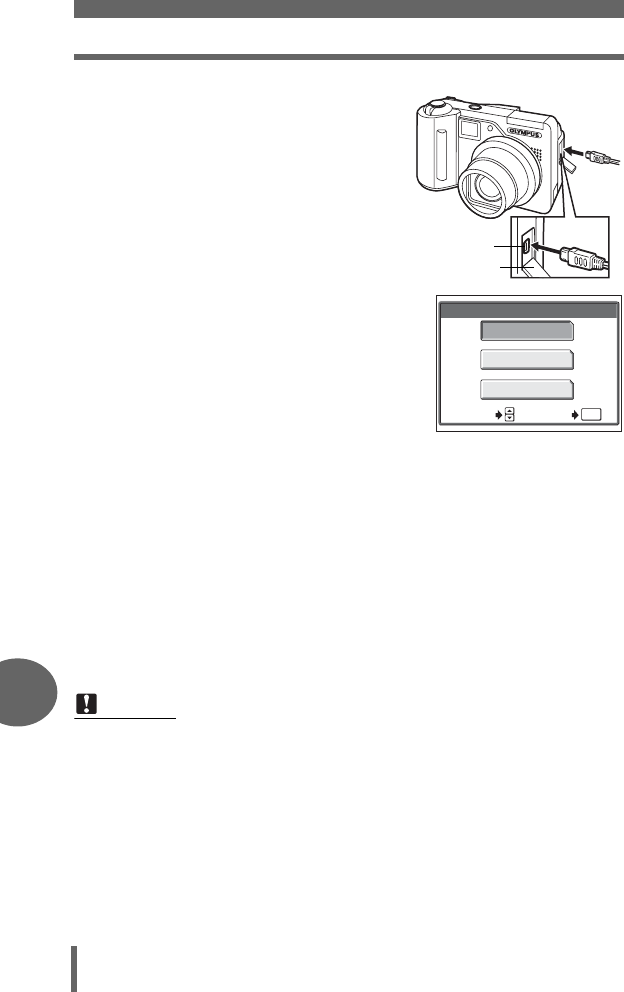
Connecting the camera to a computer
148
9
Connecting the camera to a computer
2Plug the other end of the
USB cable into the
camera’s multi-connector.
• The monitor turns on and the
selection screen for the USB
connection is displayed.
3Select [PC] and press N.
• If the selection screen
disappears, press the POWER switch to turn
the camera on again or disconnect the USB
cable and repeat the procedure from Step 2.
4The camera is recognized by the computer.
• Windows 98SE/Me/2000
When you connect the camera to your computer for the first time, the
computer attempts to recognize the camera. Click “OK” to exit the message
that is displayed. The camera is recognized as a “Removable Disk”.
•Windows XP
When the camera is connected to the computer, the screen for selecting an
image file operation is displayed. As OLYMPUS Master will be used to
download images, click “Cancel”.
•Mac OS X
The iPhoto program is the default application for managing digital images.
When you connect your digital camera for the first time, the iPhoto application
starts automatically, so close this application and start OLYMPUS Master.
Note
• The camera functions are disabled while the camera is connected to a
computer.
Multi-connector
Connector cover
USB
SELECT GO
OK
P C
PRINT
EXIT
d4250_e_00_0_bookfile.book Page 148 Friday, December 24, 2004 11:45 AM
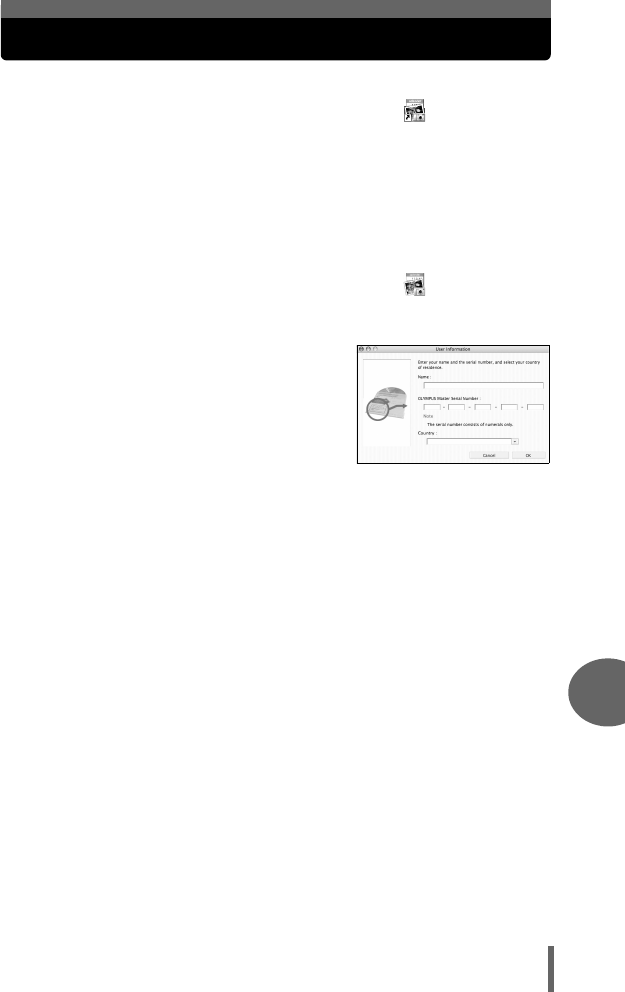
149
Connecting the camera to a computer
9
Starting up OLYMPUS Master
Windows
1Double-click the “OLYMPUS Master” icon on the
desktop.
• The main menu is displayed.
• When OLYMPUS Master is started up for the first time after installation, the
“Registration” dialog box is displayed before the main menu. Follow the
prompts and fill in the registration form.
Macintosh
1Double-click the “OLYMPUS Master” icon in the
“OLYMPUS Master” folder.
• The main menu is displayed.
• When OLYMPUS Master is started up for
the first time, the “User Information” dialog
box is displayed before the main menu.
Enter your “Name” and “OLYMPUS
Master Serial Number”, and select your
country.
• After the “User Information” dialog box, the
“Registration” dialog box is displayed.
Follow the prompts and fill in the
registration form.
d4250_e_00_0_bookfile.book Page 149 Friday, December 24, 2004 11:45 AM
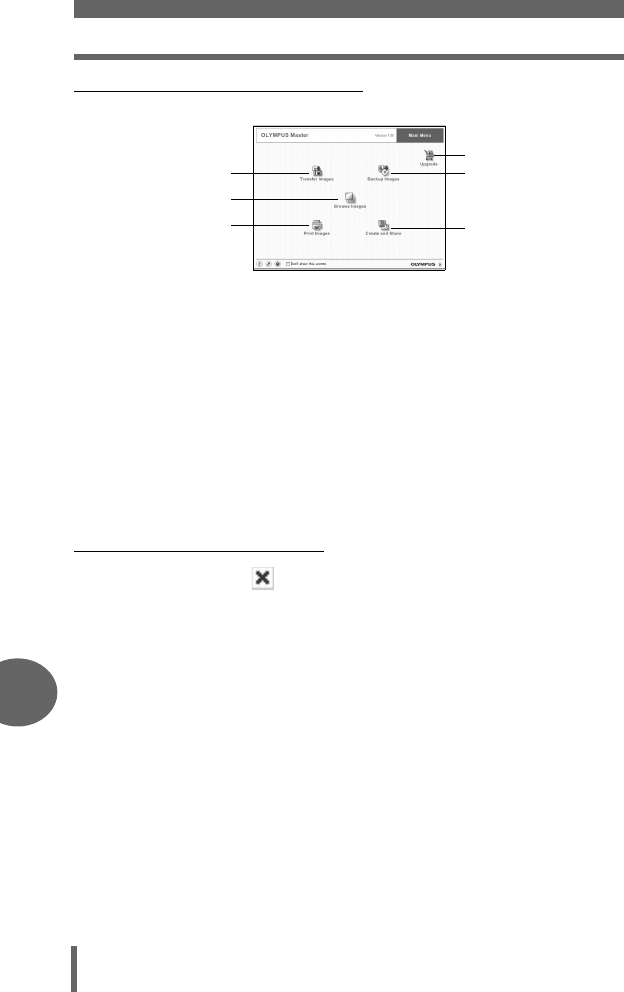
Starting up OLYMPUS Master
150
9
Connecting the camera to a computer
(OLYMPUS Master main menu
c“Transfer Images” button
Downloads images from the camera or other media.
d“Browse Images” button
Displays the browse window.
e“Print Images” button
Displays the print menu.
f“Create and Share” button
Displays the editing menu.
g“Backup Images” button
Creates backup images.
h“Upgrade” button
Displays window for optional upgrade to OLYMPUS Master Plus.
(To exit OLYMPUS Master
1Click the “Exit” on the main menu.
• OLYMPUS Master is exited.
cg
d
e
h
f
d4250_e_00_0_bookfile.book Page 150 Friday, December 24, 2004 11:45 AM
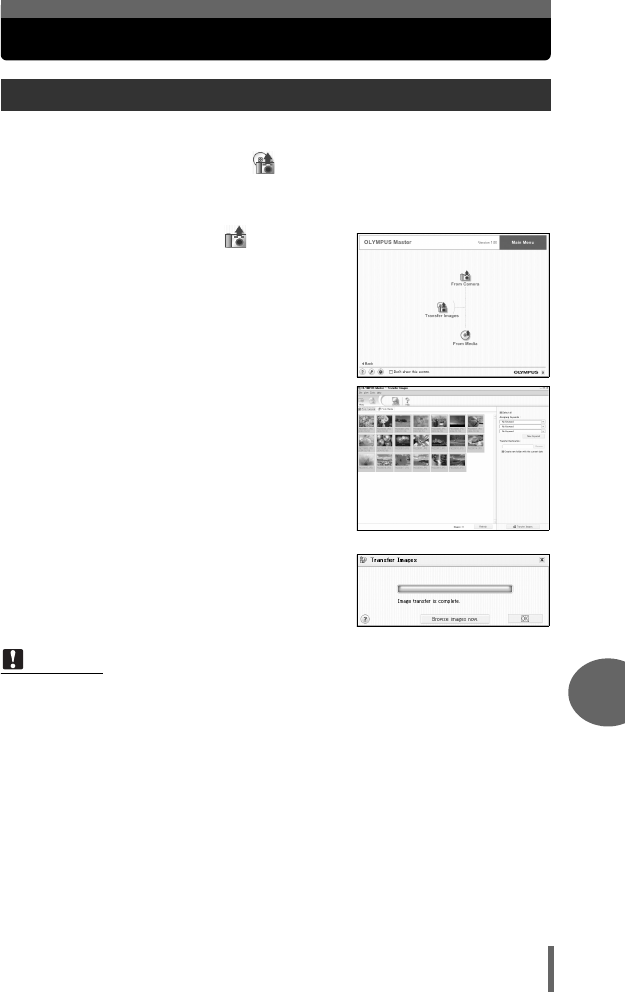
151
Connecting the camera to a computer
9
Displaying camera images on a computer
You can save camera images on your computer.
1Click “Transfer Images” on the OLYMPUS Master main
menu.
• The menu for selecting the source is displayed.
2Click “From Camera” .
• The window for selecting images is
displayed. All the images in the camera
are displayed.
3Select the image files and click
“Transfer Images”.
• A window indicating that the download
is complete is displayed.
4Click “Browse images now.”.
• The downloaded images are displayed
in the browse window.
•
To return to the main menu, click “Menu”
in the “Browse” window.
Downloading and saving images
Note
• The orange lamp blinks while downloading images. Do not do any of the
following while the lamp is blinking.
• Open the card cover.
• Remove the battery.
• Connect or disconnect the AC adapter.
d4250_e_00_0_bookfile.book Page 151 Friday, December 24, 2004 11:45 AM
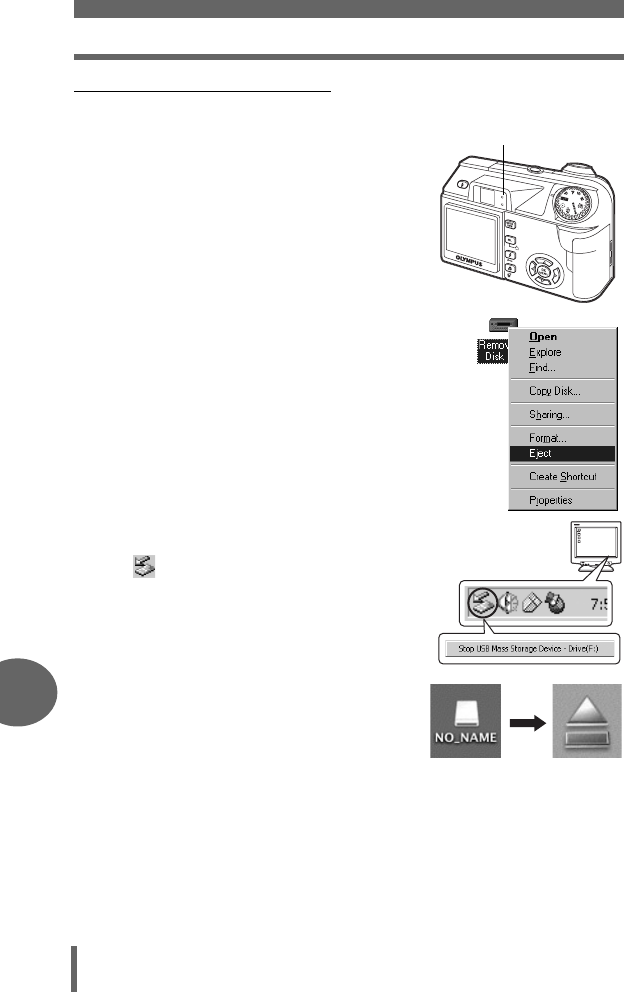
Displaying camera images on a computer
152
9
Connecting the camera to a computer
(To disconnect the camera
You can disconnect the camera after downloading the images to your computer.
1Make sure that the orange lamp
on the camera is off.
2Make the following preparations
for disconnecting the USB
cable.
Windows 98SE
1 Double-click the “My Computer” icon
and right-click the “Removable Disk”
icon to display the menu.
2 Click “Eject” on the menu.
Windows Me/2000/XP
1 Click the “Unplug or Eject Hardware” icon
in the system tray.
2 Click the message that is displayed.
3 When a message is displayed saying
that the hardware can be ejected
safely, click “OK”.
Macintosh
1 The trash icon changes to the eject icon
when the “Untitled” or “NO_NAME” icon
on the desktop is dragged. Drag and drop
it on the eject icon.
Orange lamp
d4250_e_00_0_bookfile.book Page 152 Friday, December 24, 2004 11:45 AM
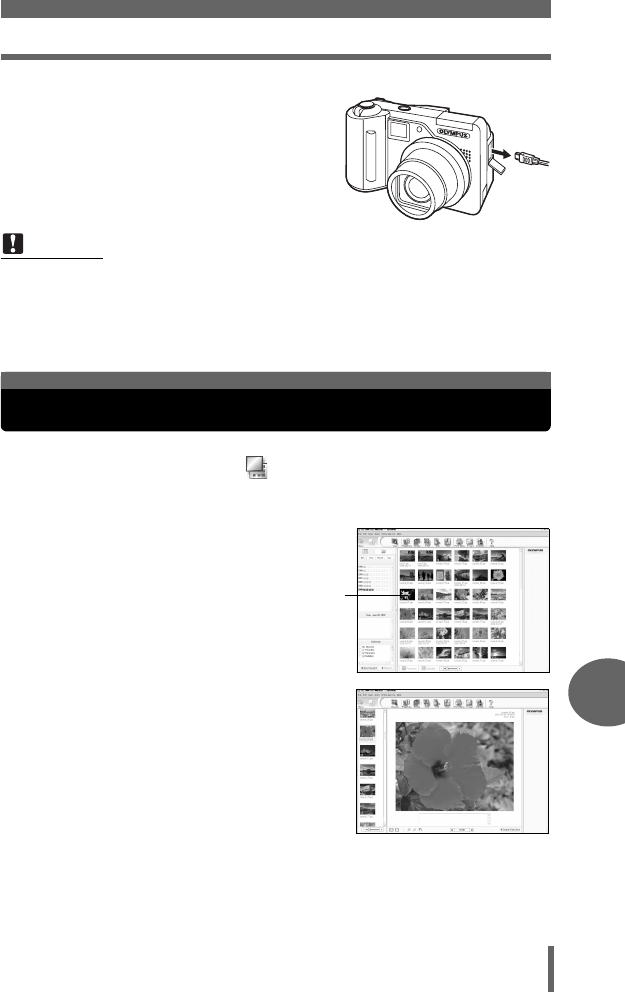
Viewing still pictures and movies
153
Connecting the camera to a computer
9
3Disconnect the USB cable from
the camera.
1Click “Browse Images” on the OLYMPUS Master main
menu.
• The “Browse” window is displayed.
2Double-click the still picture
thumbnail that you want to view.
• The camera switches to view mode and
the picture is enlarged.
• To return to the main menu, click “Menu”
in the “Browse Images” window.
Note
• Windows Me/2000/XP: When you click “Unplug or Eject Hardware”, a warning
message may be displayed. Make sure that image data is not being
downloaded from the camera and that all applications are closed. Click the
“Unplug or Eject Hardware” icon again and disconnect the cable.
Viewing still pictures and movies
Thumbnail
d4250_e_00_0_bookfile.book Page 153 Friday, December 24, 2004 11:45 AM
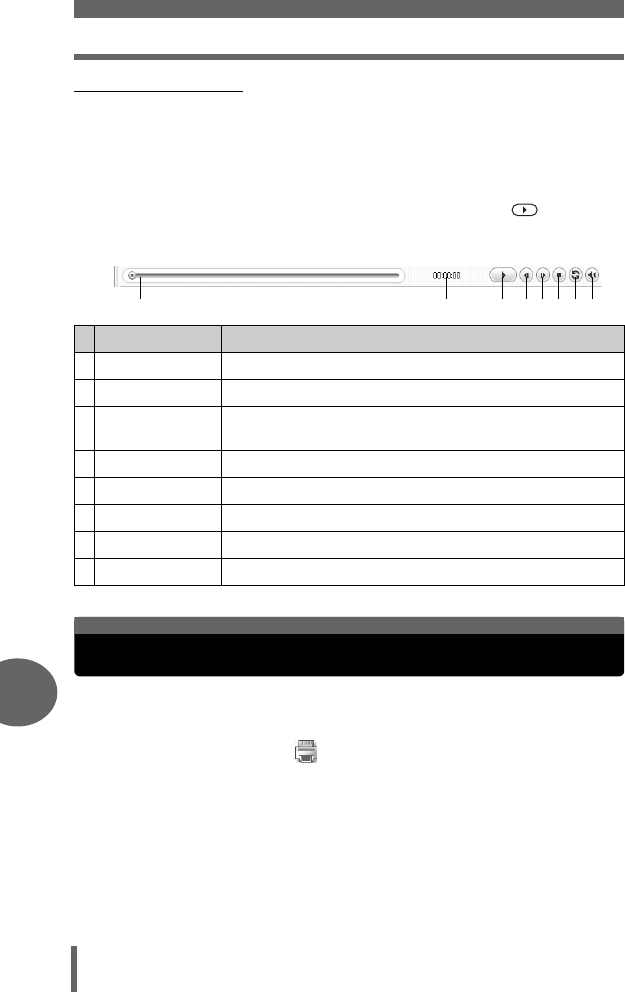
Printing pictures
154
9
Connecting the camera to a computer
(To view a movie
1Double-click the movie thumbnail that you want to see in the
“Browse” window.
• The camera switches to view mode and the first frame of the movie is
displayed.
2To play back the movie, click playback button at the
bottom of the screen.
The names and functions of the controller parts are shown below.
Pictures can be printed from the photo, index, postcard and calendar
menus. The explanation below uses the photo menu.
1Click “Print Images” on the OLYMPUS Master main
menu.
• The print menu is displayed.
Item Description
1 Playback slider Move the slider to select a frame.
2 Time display Displays the time that has elapsed during playback.
3Playback (pause)
button
Plays the movie. Functions as the pause button during
playback.
4 Back button Displays the previous frame.
5 Forward button Displays the next frame.
6 Stop button Stops playback and returns to the first frame.
7 Repeat button Plays the movie repeatedly.
8 Volume button Displays the volume adjustment slider.
1 2 3 4 5 6 7 8
Printing pictures
d4250_e_00_0_bookfile.book Page 154 Friday, December 24, 2004 11:45 AM
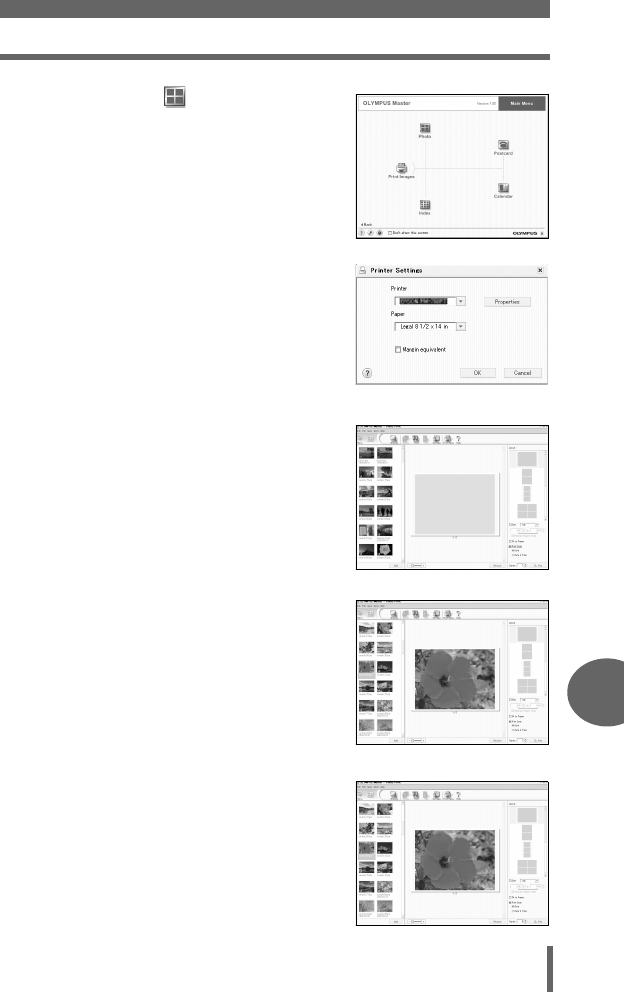
Printing pictures
155
Connecting the camera to a computer
9
2Click “Photo” .
• The “Photo Print” window is displayed.
3Click “Settings” in the “Photo
Print” window.
• The printer settings screen is displayed.
Make the necessary printer settings.
4Select a layout and size.
• To print the date and time with your
image, check the box next to “Print
Date”, and select between “Date” and
“Date & Time”.
5Select the thumbnail image that
you want to print and click
“Add”.
• A preview of the selected image is
displayed on the layout.
6Select the number of copies.
d4250_e_00_0_bookfile.book Page 155 Friday, December 24, 2004 11:45 AM

To download and save images to a computer without using OLYMPUS Master
156
9
Connecting the camera to a computer
7Click “Print”.
• Printing starts.
• To return to the main menu, click
“Menu”
in the “Photo Print” window.
This camera is compatible with USB mass storage. You can connect the
camera to your computer using the USB cable provided with the camera
to download and save images without using OLYMPUS Master. The
following environment is required to use the USB cable to connect the
camera to your computer.
Windows: Windows 98SE/Me/2000 Professional/XP
Macintosh: Mac OS 9.0 to 9.2/X
Note
• If your computer is running Windows 98SE, you will need to install the USB
driver. Before connecting the camera to your computer with the USB cable,
double-click the files from the following folders on the OLYMPUS Master CD-
ROM provided.
(Drive name):\USB\INSTALL.EXE
• Data transfer is not guaranteed in the following environments, even if your
computer is equipped with a USB port.
• Windows 95/98/NT 4.0
• Windows 98SE upgrades from Windows 95/98
• Mac OS 8.6 or earlier (However, data transfer is confirmed on Mac OS 8.6
equipped with a factory-installed USB port and USB MASS Storage Support
1.3.5.)
• Computers with a USB port added by means of an extension card, etc.
• Computers without a factory-installed OS and home-built computers.
To download and save images to a
computer without using OLYMPUS Master
d4250_e_00_0_bookfile.book Page 156 Friday, December 24, 2004 11:45 AM
157
10 Appendix
This chapter contains useful information
from OLYMPUS.
Here you will find what to do when you are
stuck or don’t understand the meaning of
the terms used in this manual. Refer to this
section for basic troubleshooting, camera
care and a full glossary to understanding the
terms used in this manual.
Appendix 10
?
?
d4250_e_00_0_bookfile.book Page 157 Friday, December 24, 2004 11:45 AM
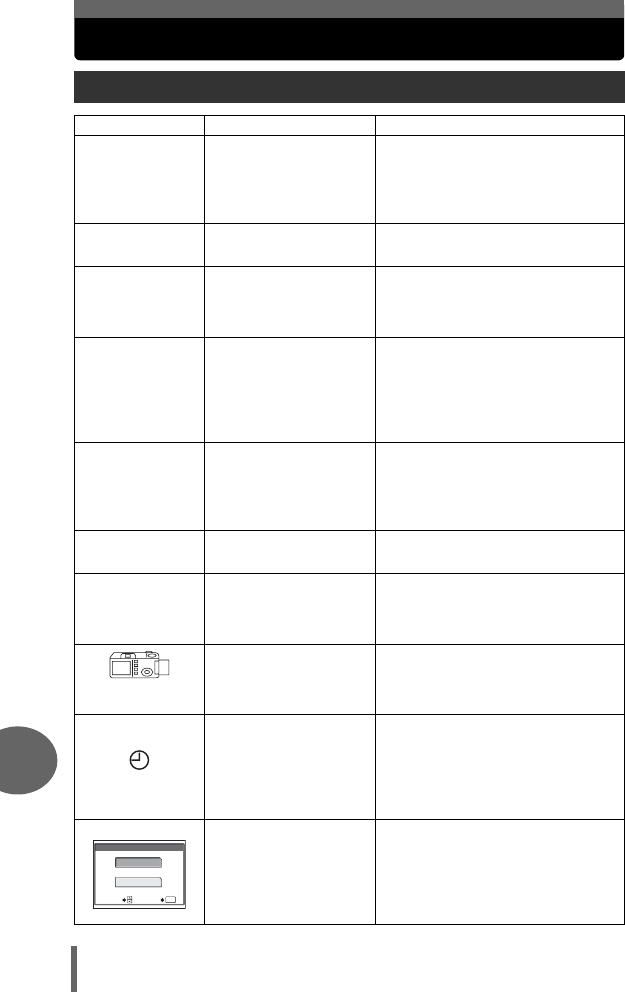
158
10
Appendix
Troubleshooting
Error codes
Monitor indication Possible cause Corrective action
q
NO CARD
The card is not inserted,
or it cannot be
recognized.
Insert a card, or remove the card
and insert it again correctly.
If the problem persists, format the
card. If the card cannot be
formatted, use a new card.
q
CARD ERROR
There is a problem with
the card.
This card cannot be used. Insert a
new card.
q
WRITE-
PROTECT
Writing to the card is
prohibited.
The recorded image has been
protected (read-only) on a computer.
Download the image to a computer
and cancel the read-only setting.
q
CARD FULL
The image capacity or
recording capacity of
the card has been
reached and no more
pictures or movies can
be taken.
Replace the card or erase unwanted
pictures. Before erasing, download
important images to a computer.
q
CARD FULL
The card is full. No more
pictures, movies or
information such as
print reservations can
be recorded.
Replace the card or erase unwanted
pictures. Before erasing, download
important images to a computer.
L
NO PICTURE
There are no pictures
on the card.
The card contains no pictures.
Record pictures.
r
PICTURE
ERROR
There is a problem with
the selected picture and
it cannot be played back
on this camera.
Use image processing software to
view the picture on a computer. If
that cannot be done, the image file
is damaged.
CARD-COVER
OPEN
The card cover is open. Close the card cover.
Y/M/D
When the camera is used
for the first time or the
battery has been
removed for a long time,
the date and time are on
the factory default setting.
Set the date and time.
This card cannot be
used with this camera
or the card is not
formatted.
Use a different card or format the
card.
• Select [POWER OFF] and press
N. Insert a new card.
• Select [FORMAT] and press N.
All data on the card is erased.
CARD SETUP
POWER OFF
FORMAT
SELECT GO
OK
d4250_e_00_0_bookfile.book Page 158 Friday, December 24, 2004 11:45 AM
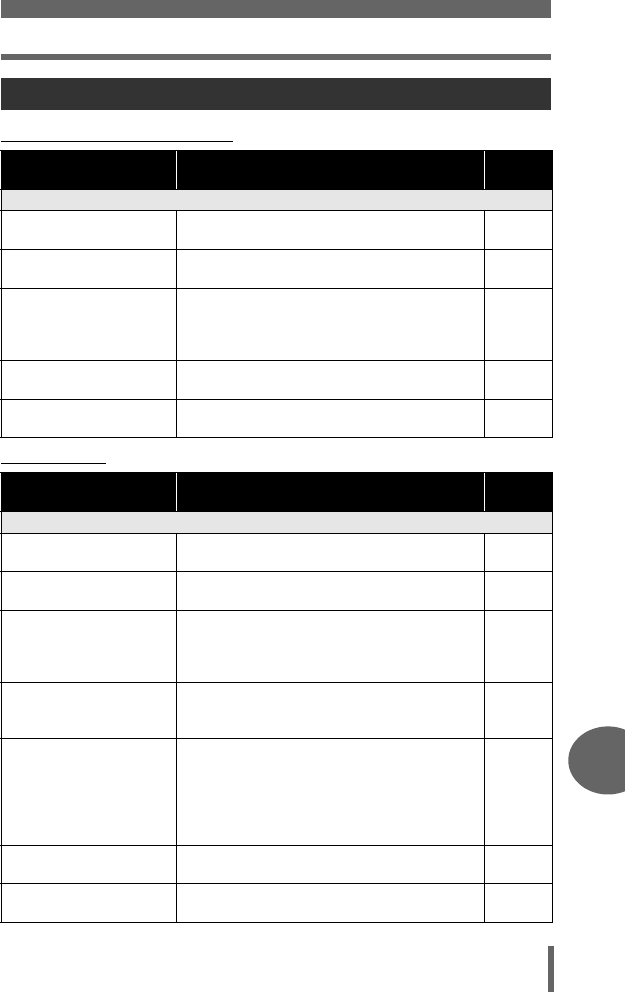
Troubleshooting
159
10
Appendix
(Preparatory operations
(Shooting
Troubleshooting
Possible cause Corrective action Ref.
page
The camera does not turn on or function buttons do not respond.
The power is off. Press the POWER switch to turn the camera
on.
–
The battery is
exhausted.
Change the battery. –
The battery is
temporarily unable to
function because of the
cold.
Warm the battery by putting it in your pocket
for a while.
–
The camera is in the
sleep mode.
Operate the camera (press the shutter button
or zoom lever).
–
The camera is connected
to a computer.
The camera will not operate while it is
connected to a computer.
–
Possible cause Corrective action Ref.
page
No picture is taken when the shutter button is pressed.
The battery is
exhausted.
Change the battery. –
The camera is in the
playback mode.
Set the mode dial to a mode other than q.P.12
The flash has not
finished charging.
Remove your finger from the shutter button,
and wait until the orange lamp and # (flash
charge) indication stop blinking before taking
the picture.
P.39
The card is full. Erase unwanted pictures or insert a new
card. Before erasing, download important
images to a computer.
P.102
The battery ran out of power
during shooting or while the
images were being written
to the card. (Monitor turns
off or the battery check
indicator blinks.)
Change the battery. (Wait until the orange
lamp beside the viewfinder stops blinking.)
–
The memory gauge is
full.
Wait until there is space in the memory
gauge.
–
There is a problem with
the card.
See “Error codes”. P.158
d4250_e_00_0_bookfile.book Page 159 Friday, December 24, 2004 11:45 AM
Troubleshooting
160
10
Appendix
The monitor does not turn on.
The camera is set to
[MONITOR OFF].
Press N in the shooting mode to display the
top menu, then press c to select
[MONITOR ON].
P.23
The viewfinder or monitor is hard to see.
There is condensation*
inside the camera.
Turn the camera off and wait until it dries
before turning it on again.
–
The brightness of the
monitor is not adjusted
properly.
Select [s] and adjust the brightness. P.117
The monitor is exposed
to direct sunlight.
Block the sunlight with your hand or use the
viewfinder.
–
Vertical lines appear on
the monitor screen
during shooting.
Aiming the camera at a bright subject in
sunlight may cause vertical lines to appear
on the screen. This is not a malfunction.
–
The date recorded with the image data is wrong.
The date/time is not set. Set the date/time. The clock adjustment is
not factory-preset.
P.118
The camera has been
left with the battery
removed.
If the camera is left for 3 days with the battery
removed, the date/time setting is canceled.
Set the date/time again.
P.118
The settings are returned to the factory default settings when the camera is turned
off.
[ALL RESET] is set to [ON].
Set [ALL RESET] to [OFF]. P.106
The picture is out of focus.
The subject was too
close.
Move further away from the subject. To take
pictures closer than 8 cm (3.2") with the zoom
in the maximum WIDE position, use the
super macro mode.
P.37
The subject is dark. Set [AF ILLUMINATOR] to [ON] in the mode
menu.
P.51
Auto focus is not
possible.
Use manual focus or focus lock to focus on
the subject and then shoot.
P.24,
52
There is condensation*
on the lens.
Turn the camera off and wait until it dries
before turning it on again.
–
Possible cause Corrective action Ref.
page
d4250_e_00_0_bookfile.book Page 160 Friday, December 24, 2004 11:45 AM
Troubleshooting
161
10
Appendix
The monitor goes off.
The camera is in the
sleep mode.
Operate the camera (press the shutter button
or zoom lever).
–
The power is turned off
with the monitor off.
If [ALL RESET] is set to [OFF], the camera
settings before the power was turned off
remain unchanged. Turn on the monitor, then
turn off the power.
P.23,
106
The flash does not fire.
The flash was closed. Press the flash button to make the flash pop
up.
P.39
The subject is
illuminated.
If you want the flash to fire on a brightly
illuminated subject, set the flash to fill-in
mode.
P.39
Sequential shooting or
auto bracketing is set.
The flash does not fire in the sequential
shooting or auto bracketing mode.
Set [DRIVE] to [o] in the mode menu.
P.74
The camera records
movies.
The flash does not fire in the movie mode.
Select a shooting mode other than n.
P.72
Super macro mode is
set.
The flash does not fire in the super macro
mode. Set [&] to [OFF] or [&].
P.37
Panorama mode is set. The flash does not fire in the panorama
mode.
P.79
The battery run time is brief.
You are using the
camera in a cold
environment.
Battery performance deteriorates in low
temperatures. Keep the camera warm by
putting it inside your coat or clothing.
–
The remaining battery
power is not indicated
correctly.
When battery consumption fluctuates
considerably, the camera may turn off
without displaying the battery warning
indicator. Change the battery.
–
The green and orange lamps on the side of the viewfinder blink simultaneously.
The battery is depleted. Change the battery. –
* Condensation: When it is cold outside, the water vapor in the air is rapidly cooled and
turns to droplets of water.
Condensation occurs when the camera is suddenly taken from a cold
place into a warm room.
Possible cause Corrective action Ref.
page
d4250_e_00_0_bookfile.book Page 161 Friday, December 24, 2004 11:45 AM
Troubleshooting
162
10
Appendix
(Playback of recorded images
Possible cause Corrective action Ref.
page
The picture is out of focus.
A subject unsuited to AF
was taken.
Use manual focus or focus lock to focus on
the subject and then shoot.
P.24,
52
The camera moved
when the shutter button
was pressed.
Hold the camera correctly and press the
shutter button gently.
P.22
The flash was closed in a
lighting condition
requiring use of the
flash.
Press the flash button to make the flash pop
up. Camera movement occurs easily with
slower shutter speeds. Use a tripod, or set
the flash mode to [AUTO].
P.39
The subject is dark. Set [AF ILLUMINATOR] to [ON] in the mode
menu.
P.51
The lens was dirty. Clean the lens. Use a commercially available
blower blush and then wipe with a lens
cleaner to remove dust. Mold may form on
the lens surface if the lens is left dirty.
P.166
The picture is too bright.
The flash was set to the
fill-in flash mode.
Select a flash mode other than fill-in flash. P.39
The center of the subject
is too dark.
If the center of the subject is too dark, the
surrounding area emerges as too bright.
Adjust the exposure compensation toward
minus (–).
P.59
The [ISO] is at a high
setting.
Set the [ISO] to [AUTO] or to a low sensitivity:
[80]
P.58
The aperture value is
small in A (M) mode.
Increase the aperture value or set the
camera to h / P mode.
P.46,
48
The shutter speed
setting is too slow in S
(M) mode.
Increase the shutter speed or set the camera
to h / P mode.
P.47,
48
d4250_e_00_0_bookfile.book Page 162 Friday, December 24, 2004 11:45 AM
Troubleshooting
163
10
Appendix
The picture is too dark.
The flash was blocked
by your finger.
Hold the camera correctly, keeping your
fingers away from the flash.
P.22
The subject was out of
the working range of the
flash.
Shoot within the flash working range. P.39
The flash was closed. Press the flash button to make the flash pop
up.
P.39
The subject was too
small and was backlit.
Set the flash to fill-in mode, or use the spot
metering mode.
P.39,
54
The sequential shooting
mode was used.
Higher shutter speeds are used during
sequential shooting, which may result in
pictures that are darker than usual. Set
[DRIVE] to [o] in the mode menu.
P.74
The center of the subject
is too bright.
If the center of the subject is too bright, the
image as a whole emerges darker. Adjust the
exposure compensation toward plus (+).
P.59
The aperture value
setting is too large in A
(M) mode.
Decrease the aperture value or set the
camera to h / P mode.
P.46,
48
The shutter speed
setting is too fast in S
(M) mode.
Reduce the shutter speed or set the camera
to h / P mode.
P.47,
48
The colors of pictures look unnatural.
Indoor lighting affected
the picture’s colors.
Set the white balance according to the
lighting.
P.60
No white in the picture. Include something white in the picture, or
shoot using the fill-in flash mode.
P.39
The white balance
setting is wrong.
Adjust the white balance according to the
light source.
P.60
Part of the picture is dark.
The lens was partly
blocked by your finger or
the strap.
Hold the camera correctly, keeping your
fingers and the strap away from the lens.
P.22
Possible cause Corrective action Ref.
page
d4250_e_00_0_bookfile.book Page 163 Friday, December 24, 2004 11:45 AM
Troubleshooting
164
10
Appendix
Pictures you have taken do not appear on the monitor.
The power is off. Set the mode dial to q, then press the
POWER switch to turn the camera on.
P.12
The camera is in the
shooting mode.
Press the QUICK VIEW button or set the
mode dial to q.
P.12,
13
There are no pictures on
the card.
“NO PICTURE” is displayed on the monitor.
Record pictures.
–
There is a problem with
the card.
See “Error codes”. P.158
The camera is
connected to a TV.
The monitor does not function when the AV
cable is connected to the camera.
P.98
Single-frame erase and all-frame erase cannot be performed.
The pictures are
protected.
Display pictures with 9 and press the 0
button to cancel protection.
P.102
No picture is displayed on the TV when connected to the camera.
The video output signal
is incorrect.
Set the video output signal according to the
region where used.
P.99
The TV video signal
setting is incorrect.
Set the TV to the video input mode. P.98
The monitor is hard to see.
The brightness of the
monitor is not adjusted
properly.
Select [s] and adjust the brightness. P.117
The monitor is exposed
to direct sunlight.
Block the sunlight with your hand or use the
viewfinder.
–
Possible cause Corrective action Ref.
page
d4250_e_00_0_bookfile.book Page 164 Friday, December 24, 2004 11:45 AM
Troubleshooting
165
10
Appendix
(When the camera is connected to a computer or printer
Possible cause Corrective action Ref.
page
The printer fails to connect.
PC was selected on the
monitor after connecting
the camera to the printer
with the USB cable.
Remove the USB cable, and start again from
Step 1 of “Connecting the camera to a
printer”.
P.125
The printer does not
support PictBridge.
Refer to the printer’s instruction manual or
contact the manufacturer.
–
The camera is not recognized by the computer.
The USB driver has not
been installed.
Install OLYMPUS Master. P.144
d4250_e_00_0_bookfile.book Page 165 Friday, December 24, 2004 11:45 AM
166
10
Appendix
Camera care
(Cleaning the camera
Exterior:
• Wipe gently with a soft cloth. If the camera is very dirty, soak the cloth in mild
soapy water and wring well. Wipe the camera with the damp cloth and then dry
it with a dry cloth. If you have used the camera at the beach, use a cloth soaked
in clean water and well wrung.
Viewfinder and monitor:
• Wipe gently with a soft cloth.
Lens:
• Blow dust off the lens with a commercial blower, then wipe gently with a lens
cleaner.
Card:
• Wipe gently with a soft, dry cloth.
(Storage
• When storing the camera for extended periods, remove the battery, AC adapter
and card, and keep in a cool, dry place that is well ventilated.
• Periodically replace the battery and test the camera functions.
Note
• Do not use strong solvents such as benzene or alcohol, or chemically treated
cloth.
• Mold may form on the lens surface if the lens is left dirty.
Note
•
Avoid leaving the camera in places where chemical products are handled since
this may result in corrosion.
d4250_e_00_0_bookfile.book Page 166 Friday, December 24, 2004 11:45 AM
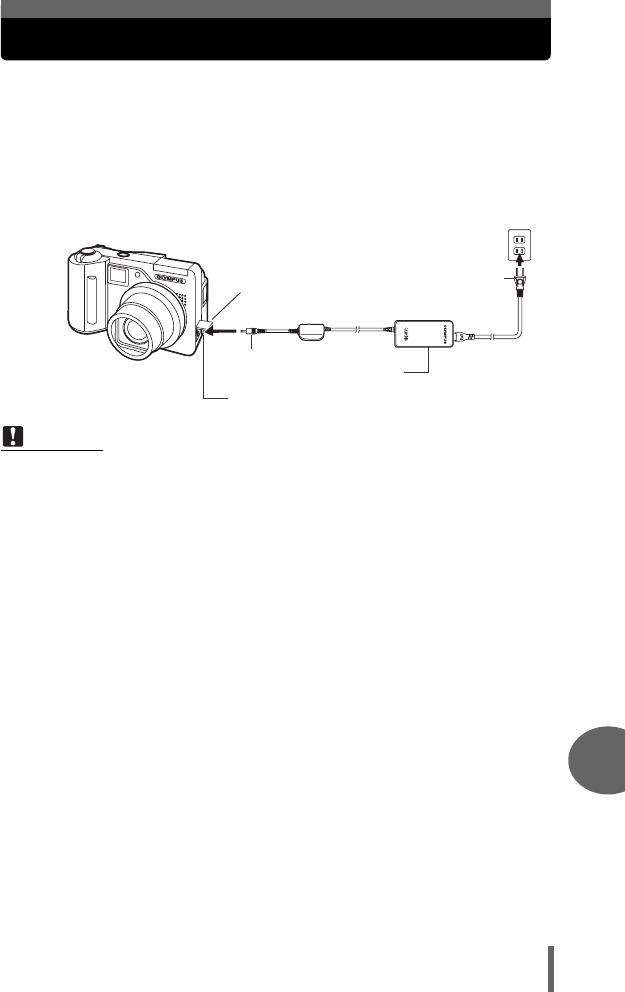
167
10
Appendix
AC adapter (optional)
An AC adapter is useful for time-consuming tasks such as image
downloads.
An optional Olympus AC adapter allows you to power your digital camera
from a common AC wall outlet. Be sure to use the specified AC adapter.
Use an AC adapter designed to operate on the AC voltage in the area the
camera is being used.
Consult your nearest Olympus dealer or Service center for details.
Note
• Do not remove or load the battery or connect or disconnect the AC adapter
while the camera is turned on. Doing so could affect the camera’s internal
settings or functions.
• Be sure to read the instruction manual for the AC adapter.
• When using an AC adapter, power is supplied to the camera by the AC adapter
even if batteries are loaded in the camera. The AC adapter does not charge
batteries in the camera.
DC-IN jack (black)
AC wall outlet
Power plug
AC adapter
Connection
cord plug
Connector cover
d4250_e_00_0_bookfile.book Page 167 Friday, December 24, 2004 11:45 AM
168
10
Appendix
Safety Precautions
WARNING
(Do not use the camera near flammable or explosive gases.
• To avoid causing a fire or explosion, never use the camera near
flammable or explosive gases.
(Do not use the flash on people (infants, small children, etc.) at
close range.
•
Use caution when taking flash pictures at close range. When you fire the
flash, you must be at least 1 m (3 ft.) away from the faces of your subjects,
especially when taking pictures of infants and small children. Firing the flash
too close to the subject’s eyes could cause a momentary loss of vision.
(Keep young children and infants away from the camera.
• Always use and store the camera out of the reach of young children and
infants to prevent the following dangerous situations which could cause
serious injury:
• Becoming entangled in the camera strap, causing strangulation.
• Accidentally swallowing the battery, cards or other small parts.
•
Accidentally firing the flash into their own eyes or those of another child.
• Accidentally being injured by the moving parts of the camera.
(Do not look at the sun or strong lights with the camera.
• To avoid damaging your eyes, never aim the camera directly into the
sun, or any other extremely bright light source.
(Do not touch charging batteries (included in some areas) or
the battery charger until charging is finished and the batteries
have cooled.
• The batteries and battery charger become hot while charging. A
specified AC adapter also becomes hot during long use. At these times,
they may cause minor burns.
(Do not use or store the camera in dusty or humid places.
• Using or storing the camera in dusty or humid places may result in a fire
or electric shock.
DANGER
If the product is used without observing the information given under
this symbol, serious injury or death may result.
WARNING
If the product is used without observing the information given under
this symbol, injury or death may result.
CAUTION
If the product is used without observing the information given under
this symbol, minor personal injury, damage to the equipment, or the
loss of valuable data may result.
Handling the Camera
d4250_e_00_0_bookfile.book Page 168 Friday, December 24, 2004 11:45 AM
Safety Precautions
169
10
Appendix
(Do not cover the flash with a hand while firing.
• Do not cover the flash with a hand while firing or touch it after it has just
been fired. It may be hot and cause minor burns. Avoid using the flash
for extended periods.
(Do not take apart or modify the camera.
• Never attempt to disassemble the camera. The internal circuits contain
high voltage points which could cause serious burns or electrical shock.
(Do not let water or foreign objects inside the camera.
• If the camera is accidentally dropped in water, or if liquid is spilled into
the camera, stop using it, allow it to dry, and then remove the battery.
Contact the nearest authorized Olympus service center.
CAUTION
(Stop using the camera immediately if you notice any unusual
odors, noise, or smoke around it.
• If you notice any unusual odors, noise, or smoke around the camera
during operation, switch it off immediately – and disconnect a specified
AC adapter (if attached). Allow the camera to sit idle for a few minutes to
cool. Take the camera outdoors, away from flammable objects, and
carefully remove the batteries. Never remove the batteries with bare
hands, which may cause a fire or burn your hands. Contact the nearest
Olympus service center immediately.
(Do not use the camera with wet hands.
• To avoid dangerous electrical shock, never hold or operate the camera
with wet hands.
(Do not leave the camera in places where it may be subject to
extremely high temperatures.
• Doing so may cause parts to deteriorate and, in some circumstances,
cause the camera to catch fire. Do not use the charger or AC adapter if
it is covered (such as a blanket). This could cause overheating, resulting
in fire.
(Handle the camera with care to avoid getting a low-
temperature burn.
• When the camera contains metal parts, overheating can result in a low-
temperature burn. Pay attention to the following:
•
When used for a long period, the camera will get hot. If you hold on to
the camera in this state, a low-temperature burn may be caused.
•
In places subject to extremely cold temperatures, the temperature of the
camera’s body may be lower than the environmental temperature. If
possible, wear gloves when handling the camera in cold temperatures.
(Be careful with the strap.
• Be careful with the strap when you carry the camera. It could easily catch
on stray objects – and cause serious damage.
d4250_e_00_0_bookfile.book Page 169 Friday, December 24, 2004 11:45 AM
Safety Precautions
170
10
Appendix
(Use only the AC adapter specified by Olympus.
• Never use any AC adapter except one specified by Olympus. Using a
different AC adapter may damage the camera or power source, or result
in accidents or fire. Ensure the adapter used is designed for your region
or country. For more information, contact the nearest Olympus service
center or the store of purchase. Olympus makes no representations or
warranties regarding any damages caused by AC adapters not
recommended by Olympus.
(Do not damage the power-supply cord.
• Never pull or modify the power-supply cord of the AC adapter or
accessories. Make sure only the plug is securely held during insertion
and removal from the outlet. Stop using the camera immediately, and
contact the nearest Olympus service center or the store of purchase if:
• The power-supply cord becomes hot, or it gives off smoke or unusual
odors.
• The power-supply cord is cut or damaged, or the plug has a faulty
contact.
d4250_e_00_0_bookfile.book Page 170 Friday, December 24, 2004 11:45 AM
Safety Precautions
171
10
Appendix
DANGER
• When using NiMH batteries (included in some areas), use only the Olympus
brand NiMH batteries and fitting charger.
• Never heat or incinerate batteries.
• Take precautions when carrying or storing batteries to prevent them from
coming into contact with any metal objects such as jewelry, pins, fasteners,
etc.
• Never store batteries where they will be exposed to direct sunlight, or
subjected to high temperatures in a hot vehicle, near a heat source, etc.
• To prevent causing battery leaks or damaging their terminals, carefully follow
all instructions regarding the use of batteries. Never attempt to disassemble
a battery or modify it in any way, by soldering, etc.
• Never attempt to connect a battery directly to a power outlet, or to a cigarette
lighter in a vehicle.
• If battery fluid gets into your eyes, flush your eyes immediately with clear,
cold running water and seek medical attention immediately.
• Always store batteries out of the reach of small children. If a child
accidentally swallows a battery, seek medical attention immediately.
Battery handling precautions
Follow these important guidelines to prevent batteries from leaking,
overheating, burning, exploding, or causing electrical shocks or burns.
d4250_e_00_0_bookfile.book Page 171 Friday, December 24, 2004 11:45 AM
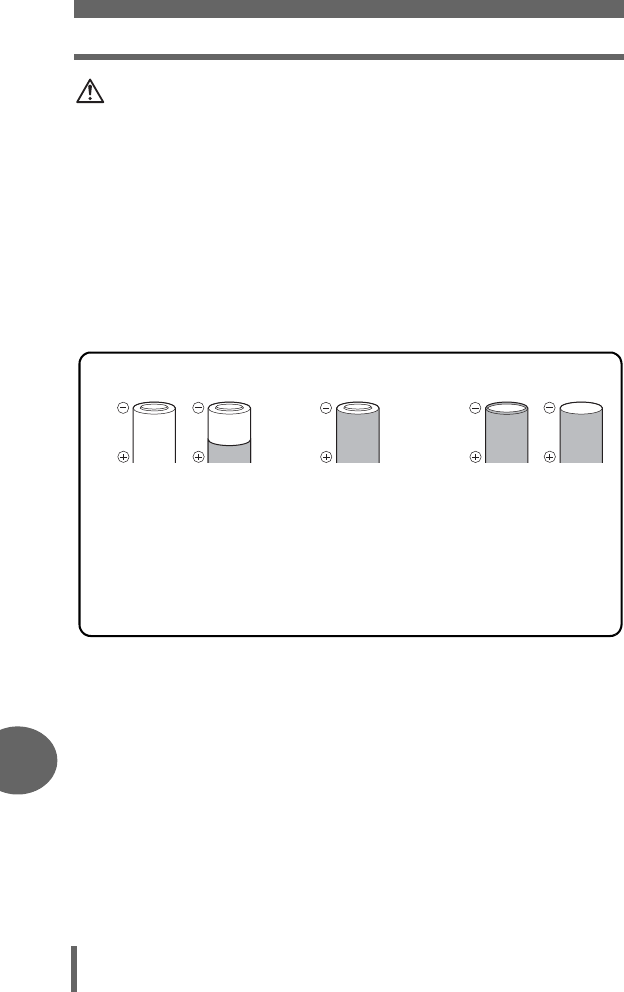
Safety Precautions
172
10
Appendix
WARNING
• Keep batteries dry at all times. Never allow them to come into contact with
fresh or salt water.
• To prevent batteries from leaking, overheating, or causing a fire or explosion,
use only batteries recommended for use with this product.
• Never mix batteries (old and new batteries, charged and uncharged
batteries, batteries of different manufacture or capacity, etc.).
• Never attempt to charge alkaline, lithium or CR-V3 lithium battery packs.
• Insert the battery carefully as described in the operating instructions. Never
load the battery with its +/- terminals reversed. Never force the battery into
the battery compartment.
• Do not use batteries if their body is not covered by the insulating sheet or if
the sheet is torn, as this may cause fluid leaks, fire, or injury. Do not use
these batteries even if they were purchased in this condition.
• If NiMH batteries (optional with certain models) are not charged within the
specified time, stop charging them and do not use them.
• Do not use a battery if it is cracked or broken.
• If a battery leaks, becomes discolored or deformed, or becomes abnormal in
any other way during operation, stop using the camera and consult your
dealer or an authorized Olympus service center. Continued use may result
in fire or electric shock.
• If a battery leaks fluid onto your clothing or skin, remove the clothing and
flush the affected area with clean, running cold water immediately. If the fluid
burns your skin, seek medical attention immediately.
• Never attempt to modify the battery compartment on the camera, never
insert anything (other than the recommended battery) into the battery
compartment.
• Never subject batteries to strong shocks or continuous vibration.
•The following AA (R6) batteries cannot be used.
Batteries whose
bodies are only
partially or not at all
covered by an
insulating sheet.
Batteries whose
terminals are flat and
not completely covered
by an insulating sheet.
(Such batteries cannot
be used even if the
-
terminals are partially
covered.)
Batteries whose -
terminals are raised,
but not covered by an
insulating sheet.
d4250_e_00_0_bookfile.book Page 172 Friday, December 24, 2004 11:45 AM
Safety Precautions
173
10
Appendix
CAUTION
• Before loading, always inspect the battery carefully for leaks, discoloration,
warping, or any other abnormality.
• The battery may become hot during prolonged use. To avoid minor burns, do
not remove it immediately after using the camera.
• Olympus NiMH batteries (included in some areas) are intended for use only
with Olympus digital cameras. Never use these batteries with any other
device.
• Always charge NiMH batteries (included in some areas) before using them
for the first time, or if they have not been used for a long period.
• Always charge sets of batteries (included in some areas) (2 or 4) together.
• Do not use alkaline batteries unless it is absolutely necessary. In some
cases, alkaline batteries may have a shorter service life than NiMH or CR-
V3 lithium battery packs. Alkaline battery performance is limited, especially
at low temperatures. The use of NiMH batteries is recommended.
• AA manganese (Zinc-Carbon) batteries cannot be used with this camera.
• When operating the camera with battery power at low temperatures, try to
keep the camera and spare batteries as warm as possible. Batteries which
run down at low temperatures may be restored after they are warmed at
room temperature.
• Recommended temperature ranges for NiMH batteries:
Operation ................. 0°C to 40°C (32°F to 104°F)
Charge ..................... 0°C to 40°C (32°F to 104°F)
Storage..................... –20°C to 30°C (–4°F to 86°F)
• Using, charging, or storing the batteries outside these ranges could shorten
battery life or affect battery performance. Always unload the batteries from
the camera before storing the camera for a long period.
• Before using NiMH or NiCd batteries, always read the provided instructions.
• The number of pictures you can take may vary depending on the shooting
conditions or batteries.
• Before going on a long trip, and especially before traveling abroad, purchase
an ample supply of extra batteries. The recommended batteries may be
difficult to obtain while traveling.
CAUTION FOR USAGE ENVIRONMENT
• To protect the high-precision technology contained in this product, never
leave the camera in the places listed below, no matter if in use or storage:
• Places where temperatures and/or humidity are high or go through
extreme changes. Direct sunlight, beaches, locked cars, or near other
heat sources (stove, radiator, etc.) or humidifiers.
• In sandy or dusty environments.
• Near flammable items or explosives.
• In wet places, such as bathrooms or in the rain. When using products with
weatherproof designs, read their manuals as well.
• In places prone to strong vibrations.
• Never drop the camera or subject it to severe shocks or vibrations.
d4250_e_00_0_bookfile.book Page 173 Friday, December 24, 2004 11:45 AM
Safety Precautions
174
10
Appendix
• When mounted on a tripod, adjust the position of the camera with the tripod
head. Do not twist the camera.
• Do not touch electric contacts on cameras.
• Do not leave the camera pointed directly at the sun. This may cause lens or
shutter curtain damage, color failure, ghosting on the CCD, or may possibly
cause fires.
• Do not push or pull severely on the lens.
• Before storing the camera for a long period, remove the battery. Select a
cool, dry location for storage to prevent condensation or mold from forming
inside the camera. After storage, test the camera by turning it on and
pressing the shutter release button to make sure that it is operating normally.
• Always observe the operating environment restrictions described in the
camera’s manual.
• The card is a precision electronic device. Do not bend it or subject it to impact
and keep it away from static electricity. The data stored on the card is saved
in a nonvolatile semiconductor memory, but it can be accidentally destroyed.
• Do not expose the card to water or leave it where there is a lot of dust.
• Avoid using or storing the card in places of high temperature and high
humidity.
• Avoid using near heat-generating or combustible materials.
• Fingerprints or dirt on the card contacts may prevent correct reading/writing
of data. Wipe the contacts gently with a soft dry cloth.
•The card has a limited product life. Eventually, writing or erasing data
from the card no longer becomes possible.
•Olympus is not responsible for any damage to data saved in other
media or loss of data stored on the card.
Card handling precautions
d4250_e_00_0_bookfile.book Page 174 Friday, December 24, 2004 11:45 AM
Safety Precautions
175
10
Appendix
• Do not push the monitor forcibly; otherwise the image may become vague,
resulting in a Display mode failure or damage to the monitor.
• A strip of light may appear on the top/bottom of the monitor, but this is not a
malfunction.
• When a subject is viewed diagonally in the camera, the edges may appear
zigzagged on the monitor. This is not a malfunction; it will be less noticeable
in playback mode.
• In places subject to low temperatures, the LCD monitor may take a long time
to turn on or its color may change temporarily. When using the camera in
extremely cold places, it is a good idea to occasionally place it in a warm
place. An LCD monitor exhibiting poor performance due to low temperatures
will recover in normal temperatures.
• The LCD used for the monitor is made with high-precision technology.
However, black spots or bright spots of light may appear constantly on the
LCD Monitor. Due to its characteristics or the angle at which you are viewing
the monitor, the spot may not be uniform in color and brightness. This is not
a malfunction.
LCD Monitor
d4250_e_00_0_bookfile.book Page 175 Friday, December 24, 2004 11:45 AM

176
10
Appendix
Glossary of terms
A (Aperture Priority) Mode
You set the aperture yourself and the camera automatically varies the shutter speed
so that the picture is taken with the best exposure.
AE (Automatic Exposure)
The camera automatically sets the exposure. The 3 AE modes available on this
camera are P mode, in which the camera selects both the aperture and shutter
speed, A mode, in which the user selects the aperture and the camera sets the
shutter speed, and S mode, in which the user selects the shutter speed and the
camera sets the aperture. In M mode, the user selects both the aperture and the
shutter speed.
Aperture
The adjustable lens opening which controls the amount of light that enters the
camera. The larger the aperture, the shorter the depth of field and the fuzzier the
background. The smaller the aperture, the greater the depth of field and the sharper
the background. Larger aperture values indicate smaller apertures, and smaller
aperture values indicate larger apertures.
CCD (Charge-Coupled Device)
This converts light passing through the lens into electrical signals. On this camera,
light is picked up and converted into RGB signals to build a single image.
Contrast Detection Method
This is used to measure the distance to the subject. The camera determines if the
image is focused by the level of contrast in the subject.
Conventional Photograph
This refers to recording images using silver halide (the method for recording images
in conventional, non-digital photography). This system is in contrast to still video and
digital photography.
DCF (Design Rule for Camera File System)
A standard for image files by the Japan Electronics and Information Technology
Industries Association (JEITA).
Depth of Field
The subject itself as well as some area to the front and rear of the subject are
focused. The entire depth of this focused area, from the front to the rear of the
subject, is called “depth of field”.
DPOF (Digital Print Order Format)
This is for saving desired print settings on digital cameras. By entering which images
to print and the number of copies of each, the user can easily have the desired
images printed by a printer or print lab that supports the DPOF format.
d4250_e_00_0_bookfile.book Page 176 Friday, December 24, 2004 11:45 AM
Glossary of terms
177
10
Appendix
Eclipsing (Vignetting)
This refers to when an object obscures part of the field of view so that the whole
subject is not photographed. Vignetting also refers to when the image seen through
the viewfinder does not exactly match the image shot through the objective lens, so
the photographed image includes objects not seen through the viewfinder. In
addition, vignetting can occur when an incorrect lens hood is used, causing
shadowing to appear in the corners of the image.
ESP (Electro-Selective Pattern) Light Metering/Digital ESP Light
Metering
This determines the exposure by metering and calculating the light levels in the
center and other areas of the image separately.
EV (Exposure Value)
A system for measuring exposure. EV0 is when the aperture is at F1 and the shutter
speed is 1 second. The EV then increases by 1 each time the aperture increases by
one F stop or the shutter speed increases by one increment. EV can also be used to
indicate brightness and ISO settings.
Exposure
The amount of light used to capture an image. The exposure is determined by the
time the shutter is open (shutter speed) and the amount of light that passes through
the lens (aperture).
Image size
The size of an image expressed by the number of pixels that make up the image. For
instance, a picture taken with an image size of 640 × 480 fills the computer screen
when the monitor setting is 640 × 480. However, if the monitor setting is
1,024 × 768, the picture only takes up part of the screen.
ISO
A method for indicating film speed by the International Organization for
Standardization (ISO) (ex. “ISO100”). Higher ISO values indicate greater sensitivity
to light, so images can be exposed even in low-light conditions.
JPEG (Joint Photographic Experts Group)
A compression format for still images. Photographs (images) shot using this camera
are recorded onto the card in JPEG format when the record mode is set to SHQ, HQ,
SQ1 or SQ2. By downloading these images to a personal computer, users can edit
them using graphics application software or view the images using an Internet web
browser.
M (Manual) Mode
The user sets both the aperture and shutter speed.
NTSC (National Television Systems Committee) / PAL (Phase
Alternating Line)
Television formats. NTSC is mainly used in Japan, North America and Korea. PAL
is mainly used in Europe and China.
P (Program) Mode
Also called Program AE mode. The camera automatically sets the best shutter
speed and aperture for the shot.
d4250_e_00_0_bookfile.book Page 177 Friday, December 24, 2004 11:45 AM
Glossary of terms
178
10
Appendix
PictBridge
A standard for connecting digital cameras and printers of different makers and
printing out pictures directly.
Pixels
A pixel is the smallest unit (dot) used to make up an image. Clear large-sized printed
images require millions of pixels.
S (Shutter Priority) Mode
Also called Shutter Priority AE mode. The user selects the shutter speed and the
camera automatically varies the aperture so that the picture is taken with the best
exposure.
Sleep Mode
A mode designed to save battery life. The camera automatically enters the sleep
mode if you do not operate it for a certain time. To exit the sleep mode, use any
button on the camera (shutter button, arrow pad, etc.).
TFT (Thin-Film Transistor) Color Monitor
A transistor color monitor constructed using thin-film technology.
TTL (Through-The-Lens) System
To help adjust exposure, a light receptor built into the camera directly measures the
light passing through the lens.
d4250_e_00_0_bookfile.book Page 178 Friday, December 24, 2004 11:45 AM
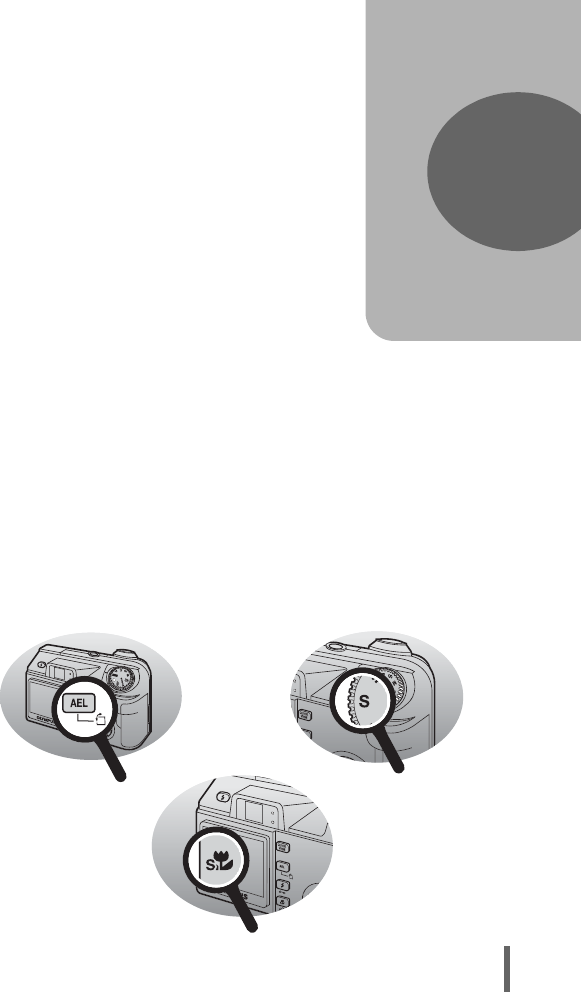
179
11 Miscellaneous
Miscellaneous
This chapter contains all the camera
functions described in Chapters 1 to 9.
Refer here for the names of the camera
parts and buttons, the names and meanings
of the icons that are displayed on the
monitor, and the lists of the top menus and
mode menus.
An index also helps you find the pages
where a function or item that you are looking
for appears. For effective use of the manual,
reference page numbers are listed next to
the names of the camera parts and in the
menu lists.
11
d4250_e_00_0_bookfile.book Page 179 Friday, December 24, 2004 11:45 AM
180
11
Miscellaneous
Menu list
Shooting mode menus (h)
*1
Available languages vary depending on the area where you purchased this camera.
Top menu Function Setting Ref.
page
SETUP FORMAT YES, ON P.104
ALL RESET ON, OFF P.106
W*1 P.108
sP.117
XP.118
VIDEO OUT NTSC, PAL P.99
YON, OFF P.77
KSHQ, HQ, SQ1, SQ2 P.26
MONITOR ON/OFF MONITOR OFF,
MONITOR ON
P.23
d4250_e_00_0_bookfile.book Page 180 Friday, December 24, 2004 11:45 AM
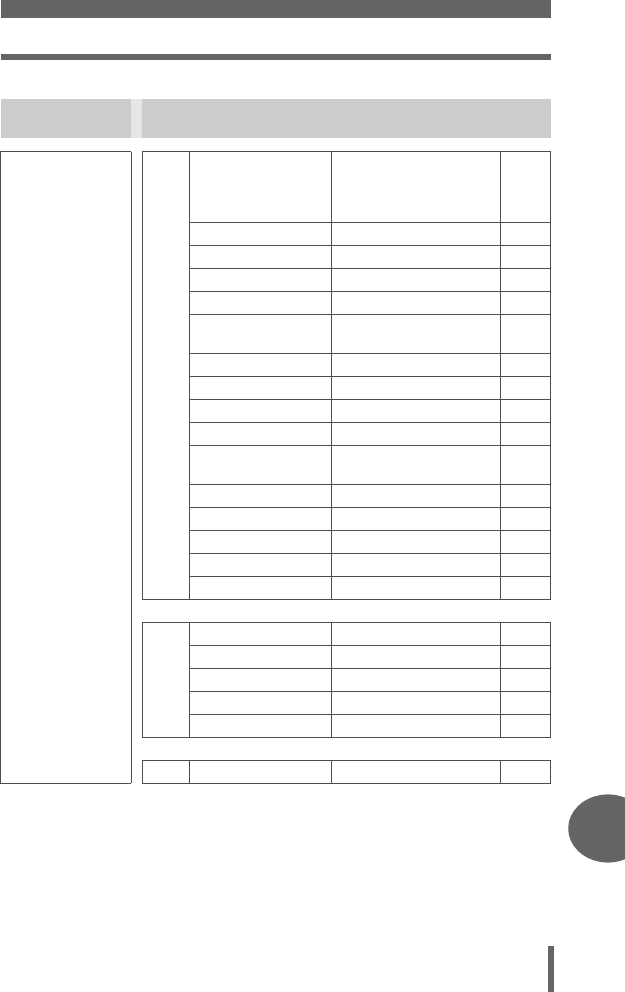
Menu list
181
11
Miscellaneous
Shooting mode menus (P, A, S, M, r, f)
Top menu Tab Function Setting Ref.
page
MODE MENU
CAMERA
AE/AF
AE:ESP,
5
,
MULTI METERING
AF:iESP, SPOT, AREA
P.54
P.49,
50
DRIVE o, j, 7P.74
ISO AUTO, 80, 100, 200, 400 P.58
YOFF, ON P.77
w-2.0 – +2.0 P.43
#SLOW #SLOW1, HSLOW,
#SLOW2
P.44
NOISE REDUCTION
*1
OFF, ON P.66
DIGITAL ZOOM OFF, ON P.36
FULLTIME AF OFF, ON P.50
PANORAMA*2 P.79
FUNCTION OFF, BLACK & WHITE,
SEPIA
P.78
INFO OFF, ON P.69
uOFF, ON, DIRECT P.67
R (still pictures) OFF, ON P.81
FRAME ASSIST OFF, ON P.70
TIMELAPSE OFF, ON P.76
PICTURE
WB AUTO, PRESET, VP.60
>RED7 – BLUE7 P.63
SHARPNESS -5 – +5 P.64
CONTRAST -5 – +5 P.65
SATURATION -5 – +5 P.65
CARD FORMAT YES, NO P.104
d4250_e_00_0_bookfile.book Page 181 Friday, December 24, 2004 11:45 AM
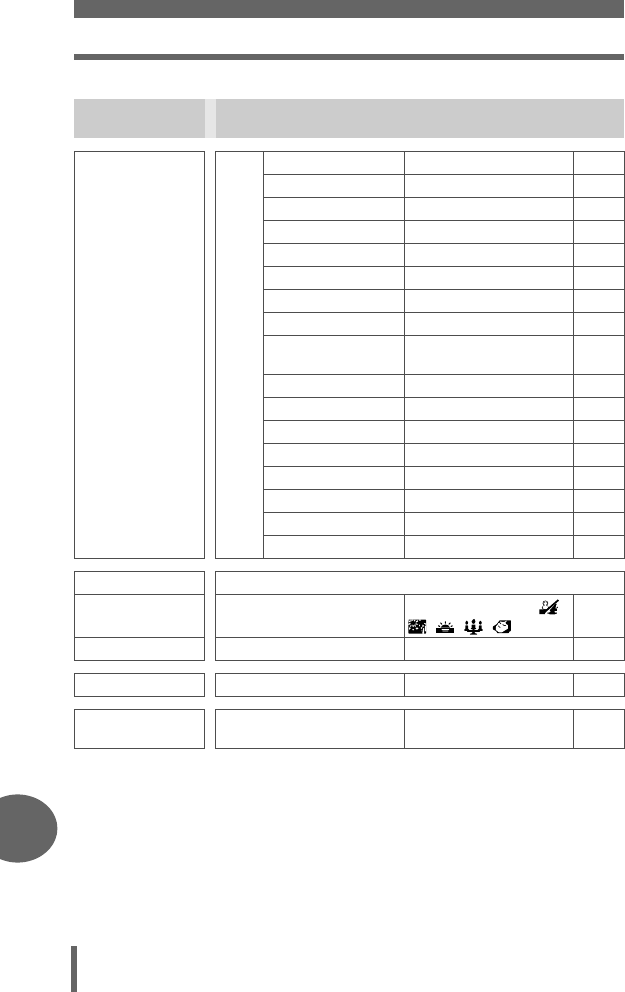
Menu list
182
11
Miscellaneous
Shooting mode menus (P, A, S, M, r, f)
*1 Not available in f mode.
*2 Not available in A/S/M mode.
*3 Only available in P/A/S/M modes.
*4 Only available in f mode.
*5 Only available in r mode.
*6
Available languages vary depending on the area where you purchased this camera.
Top menu Tab Function Setting Ref.
page
MODE MENU
SETUP
ALL RESET OFF, ON P.106
W*6 P.108
PW ON SETUP SCREEN, SOUND P.108
PW OFF SETUP SCREEN, SOUND P.108
REC VIEW OFF, ON P.109
8OFF, LOW, HIGH P.111
BEEP OFF, 1, 2 P.112
SHUTTER SOUND OFF, 1, 2 P.112
MY MODE SETUP CURRENT, RESET,
CUSTOM
P.113
FILE NAME RESET, AUTO P.116
PIXEL MAPPING P.117
sP.117
XP.118
m/ft m, ft P.119
VIDEO OUT NTSC, PAL P.99
AF ILLUMINATOR OFF, ON P.51
SHORT CUT P.120
(Y*3) Function set as shortcut
f*4 k, i, Q, R, j, ,
, , ,
P.32
r1/2/3/4 P.49
KSHQ, HQ, SQ1, SQ2 P.26
MONITOR ON/OFF MONITOR OFF,
MONITOR ON
P.23
d4250_e_00_0_bookfile.book Page 182 Friday, December 24, 2004 11:45 AM
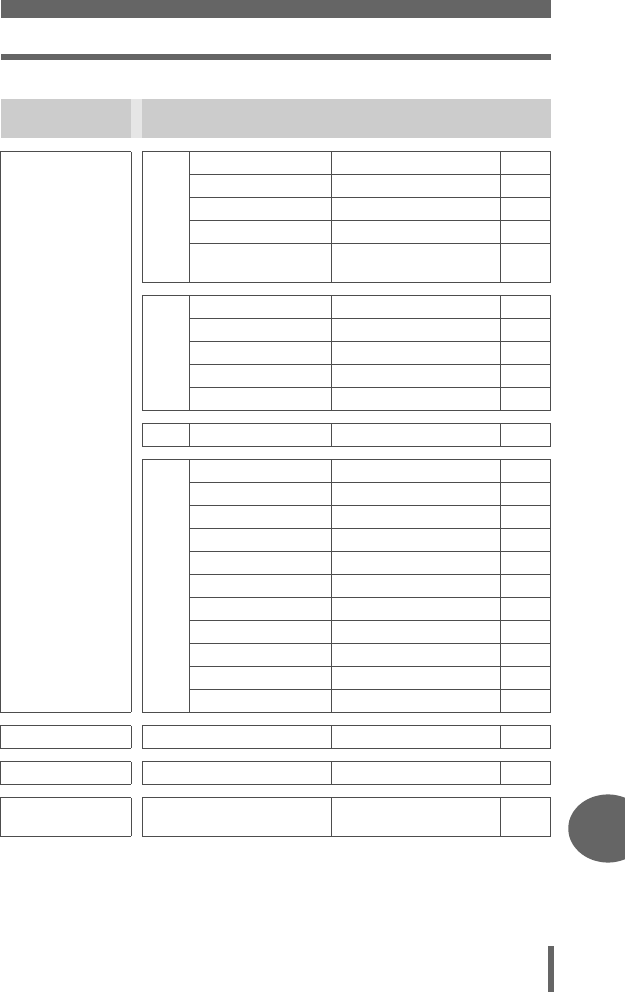
Menu list
183
11
Miscellaneous
Shooting mode menus (n)
*1
Available languages vary depending on the area where you purchased this camera.
Top menu Tab Function Setting Ref.
page
MODE MENU
CAMERA
DIGITAL ZOOM OFF, ON P.36
ISO AUTO, 80, 100, 200, 400 P.58
FULLTIME AF OFF, ON P.50
R (movies) OFF, ON P.82
FUNCTION OFF, BLACK & WHITE,
SEPIA
P.78
PICTURE
WB AUTO, PRESET, VP.60
>RED7 – BLUE7 P.63
SHARPNESS -5 – +5 P.64
CONTRAST -5 – +5 P.65
SATURATION -5 – +5 P.65
CARD FORMAT YES, NO P.104
SETUP
ALL RESET OFF, ON P.106
W*1 P.108
PW ON SETUP SCREEN, SOUND P.108
PW OFF SETUP SCREEN, SOUND P.108
8OFF, LOW, HIGH P.111
BEEP OFF, 1, 2 P.111
FILE NAME RESET, AUTO P.116
PIXEL MAPPING P.117
sP.117
XP.118
VIDEO OUT NTSC, PAL P.99
hOFF, ON P.73
KHQ, SQ P.27
MONITOR ON/OFF MONITOR OFF,
MONITOR ON
P.23
d4250_e_00_0_bookfile.book Page 183 Friday, December 24, 2004 11:45 AM
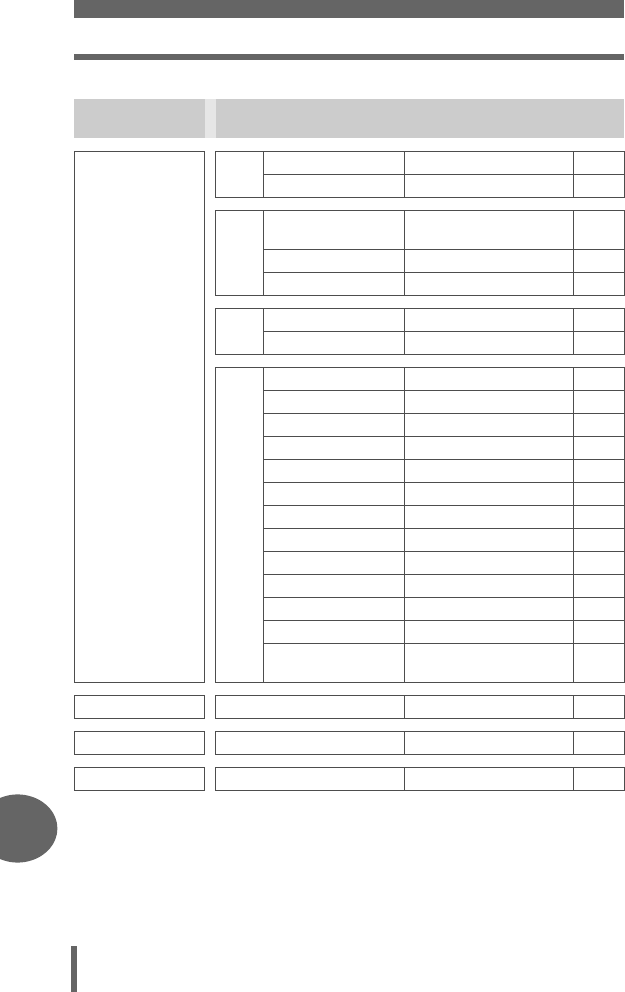
Menu list
184
11
Miscellaneous
Playback mode menus (q) (still pictures)
*1
Available languages vary depending on the area where you purchased this camera.
Top menu Tab Function Setting Ref.
page
MODE MENU PLAY RP.94
<P.134
EDIT Q640 × 480, 320 × 240,
CANCEL
P.91
PP, CANCEL P.92
REDEYE FIX P.93
CARD ALL ERASE YES, NO P.103
FORMAT YES, NO P.104
SETUP
ALL RESET OFF, ON P.106
W*1 P.108
PW ON SETUP SCREEN, SOUND P.108
PW OFF SETUP SCREEN, SOUND P.108
SCREEN SETUP P.110
VOLUME P.111
8OFF, LOW, HIGH P.111
BEEP OFF, 1, 2 P.112
sP.117
XP.118
VIDEO OUT NTSC, PAL P.99
G4, 9, 16 P.86
m SETUP NORMAL, SLIDE,
FADER, ZOOM
P.88
mP.88
INFO P.100
uP.101
d4250_e_00_0_bookfile.book Page 184 Friday, December 24, 2004 11:45 AM
Menu list
185
11
Miscellaneous
Playback mode menus (q) (movies)
*1
Available languages vary depending on the area where you purchased this camera.
Top menu Tab Function Setting Ref.
page
MODE MENU EDIT INDEX OK, RESET, CANCEL P.95
EDIT OK, RESET, CANCEL P.96
CARD ALL ERASE YES, NO P.103
FORMAT YES, NO P.104
SETUP
ALL RESET OFF, ON P.106
W*1 P.108
PW ON SETUP SCREEN, SOUND P.108
PW OFF SETUP SCREEN, SOUND P.108
VOLUME P.111
8OFF, LOW, HIGH P.111
BEEP OFF, 1, 2 P.112
sP.117
XP.118
VIDEO OUT NTSC, PAL P.99
G4, 9, 16 P.86
m SETUP NORMAL, SLIDE,
FADER, ZOOM
P.88
MOVIE PLAY P.90
INFO P.100
d4250_e_00_0_bookfile.book Page 185 Friday, December 24, 2004 11:45 AM
186
11
Miscellaneous
List of factory default settings
The functions are set as follows when the camera leaves the factory.
Shooting mode
FNo. F2.8
SHUTTER 1/1000
ZOOM 38 mm
LCD ON
F0.0
FLASH MODE
(h, A, S, M, P, f)AUTO
AF/MF AF
YOFF
METERING (AE) ESP
&/%OFF
DRIVE o
7±1.0 EV, 3
ISO AUTO (A, S, M: 80)
r1/2/3/4 MY MODE 1
SCENE k
w0.0
#SLOW #SLOW1
NOISE REDUCTION OFF
DIGITAL ZOOM OFF
FULLTIME AF OFF
AF MODE A, S, M, P, f: iESP
h, n: fixed on iESP
PANORAMA OFF
FUNCTION OFF
INFO OFF
AF area center
uOFF
R (still pictures) OFF
FRAME ASSIST OFF
TIMELAPSE OFF
d4250_e_00_0_bookfile.book Page 186 Friday, December 24, 2004 11:45 AM
List of factory default settings
187
11
Miscellaneous
TIMELAPSE 2 pictures, 1 min. interval
hON
R (movies) ON
Kh, A, S, M, P, f: HQ (2592 × 1944)
n:HQ (320×240)
SHQ 2592 × 1944
HQ 2592 × 1944
SQ1 1600 × 1200 NORMAL
SQ2 640 × 480 NORMAL
WB AUTO
>±0
SHARPNESS ±0
CONTRAST ±0
SATURATION ±0
REC VIEW ON
FILE NAME RESET
m/ft m
SHORT CUT Y
SHUTTER SOUND 1 - HIGH
AF ILLUMINATOR ON
d4250_e_00_0_bookfile.book Page 187 Friday, December 24, 2004 11:45 AM
List of factory default settings
188
11
Miscellaneous
Playback mode
Others
* Settings differ according to the region where the camera is sold.
INFO OFF
uOFF
9OFF
y0°
<OFF
G9
m SETUP SLIDE
ROFF
VOLUME 3
ALL RESET ON
WENGLISH
PW ON SETUP SCREEN: OFF, SOUND: OFF
PW OFF SETUP SCREEN: OFF, SOUND: OFF
sNORMAL
XY-M-D 2005.01.01 00:00
VIDEO OUT NTSC or PAL*
8HIGH
BEEP 1–HIGH
d4250_e_00_0_bookfile.book Page 188 Friday, December 24, 2004 11:45 AM
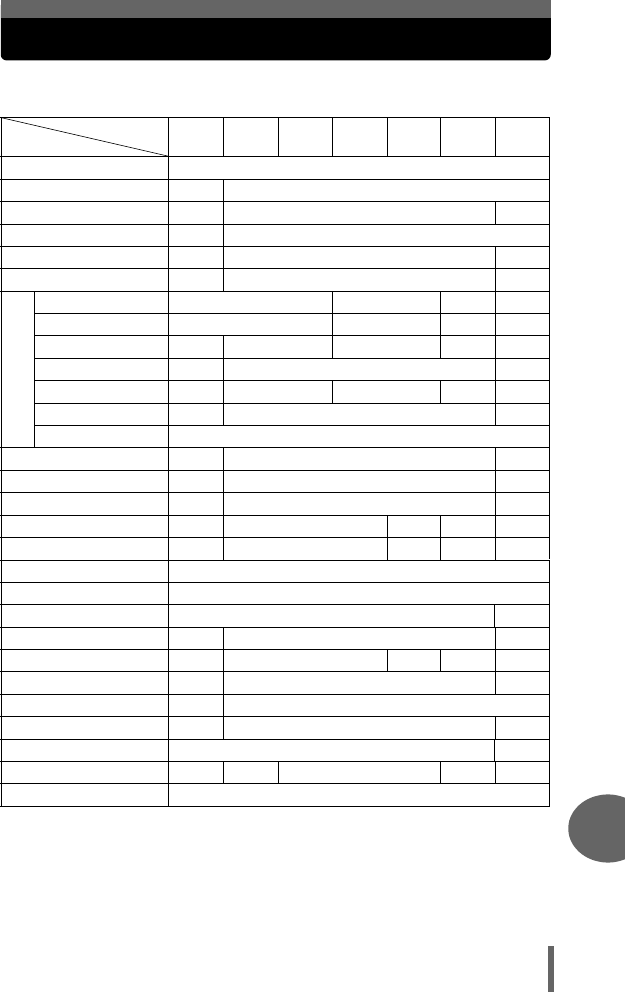
189
11
Miscellaneous
Modes and shooting functions
In
r
mode, available functions vary depending on the modes set in the MY
MODE SETUP menu.
Mode
Function hfASMPn
Zoom 9
DIGITAL ZOOM — 9
AF mode — 9—
FULLTIME AF — 9
AF area — 9—
MF — 9—
FLASH MODE
AUTO 9—9—
!9—9—
#—9—9—
#SLOW1 — 9—
HSLOW — 9—9—
#SLOW2 — 9—
$9
w—9—
#SLOW — 9*1 —
5—9—
MULTI METERING — 9—9—
AE LOCK — 9—9—
&9
%9
Y9—
j—9*2 —
7*2 —9—9—
TIMELAPSE — 9—
FUNCTION — 9
R (still pictures) — 9—
R (movies) — 9
PANORAMA — 9—9—
K9
d4250_e_00_0_bookfile.book Page 189 Friday, December 24, 2004 11:45 AM
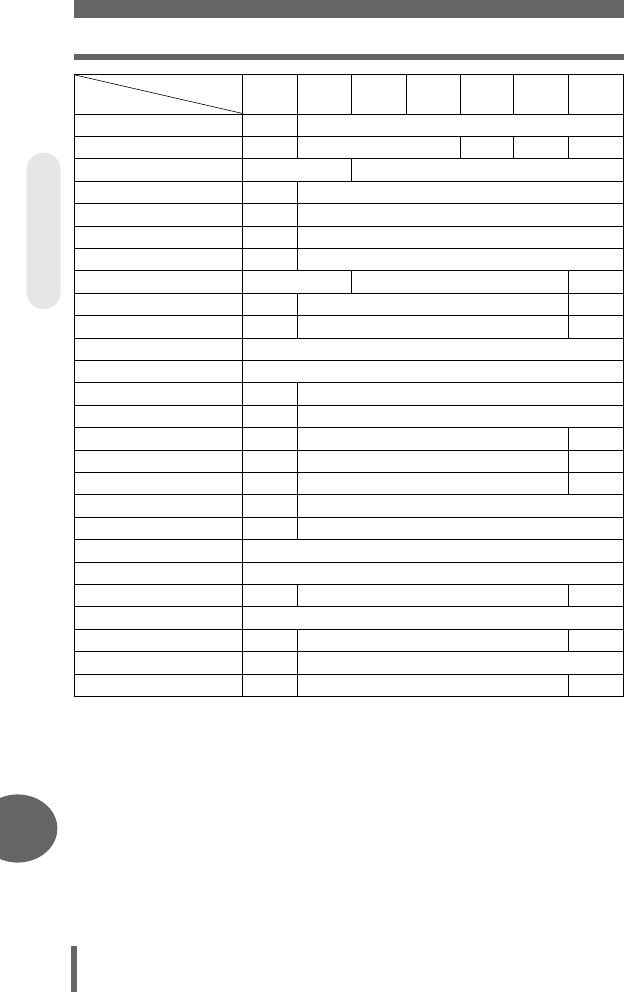
Modes and shooting functions
190
11
Miscellaneous
9: Available —: Not available
*1 [HSLOW] is not available in S/M modes.
*2 Not available when [NOISE REDUCTION] is turned on.
*3 [AUTO] setting is not available in A/S/M modes.
Mode
Function hfASMPn
ISO — 9*3
F—9—9—
WB — 9
>—9
SHARPNESS — 9
CONTRAST — 9
SATURATION — 9
NOISE REDUCTION — 9—
INFO — 9—
u—9—
ALL RESET 9
W9
PW ON SETUP — 9
PW OFF SETUP — 9
REC VIEW — 9—
FRAME ASSIST — 9—
MY MODE SETUP — 9—
FILE NAME — 9
PIXEL MAPPING — 9
s9
X9
m/ft — 9—
VIDEO OUT 9
SHORT CUT — 9—
8—9
SHUTTER SOUND — 9—
VISUAL INDEX
d4250_e_00_0_bookfile.book Page 190 Friday, December 24, 2004 11:45 AM
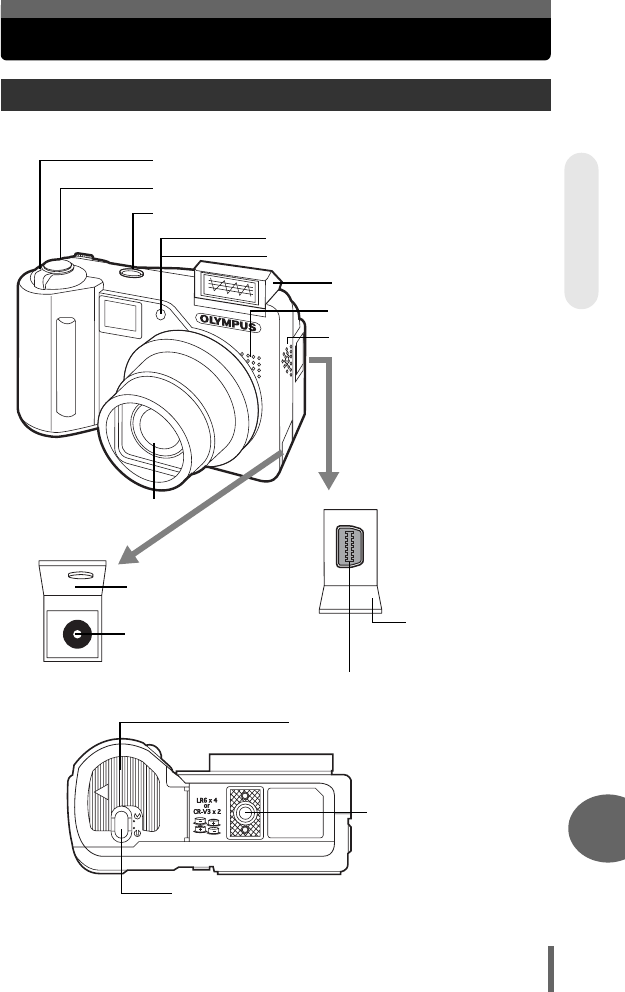
191
11
Miscellaneous
Names of parts
Camera
Lens
Microphone gP.81, 82, 94
Flash gP.39
Connector cover
gP.167
Shutter button
Zoom lever (W/T•GU) gP.35, 84, 85, 86
Speaker
Multi-connector gP.98, 125, 147
Connector cover
gP.98, 125, 147
Tripod socket
POWER switch
Self-timer lamp gP.77
AF Illuminator gP.51
DC-IN jack gP.167
Battery compartment cover
Battery compartment lock
VISUAL INDEX
d4250_e_00_0_bookfile.book Page 191 Friday, December 24, 2004 11:45 AM
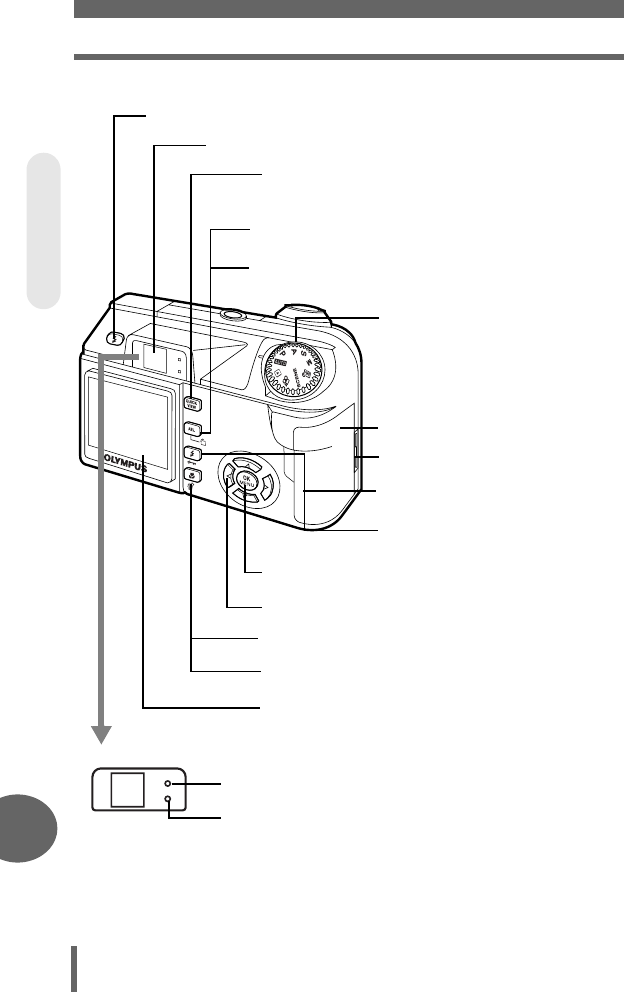
Names of parts
192
11
Miscellaneous
Viewfinder gP.23
AE lock button ([)
gP.13, 54, 56
Arrow pad (acbd) gP.19, 84
OK/MENU button (N) gP.14, 19, 52
Flash mode button (#)
gP.14, 41
Rotation button (y) gP.15, 89
QUICK VIEW button gP.13
Flash button gP.41
Mode dial gP.12
Monitor gP.23, 117, 193
Orange lamp gP.42, 152
Green lamp gP.24
Strap eyelet
Protect button (0)
gP.15, 102
Erase button (S) gP.15, 103
Macro button (&) gP.14, 37
Card cover
VISUAL INDEX
d4250_e_00_0_bookfile.book Page 192 Friday, December 24, 2004 11:45 AM
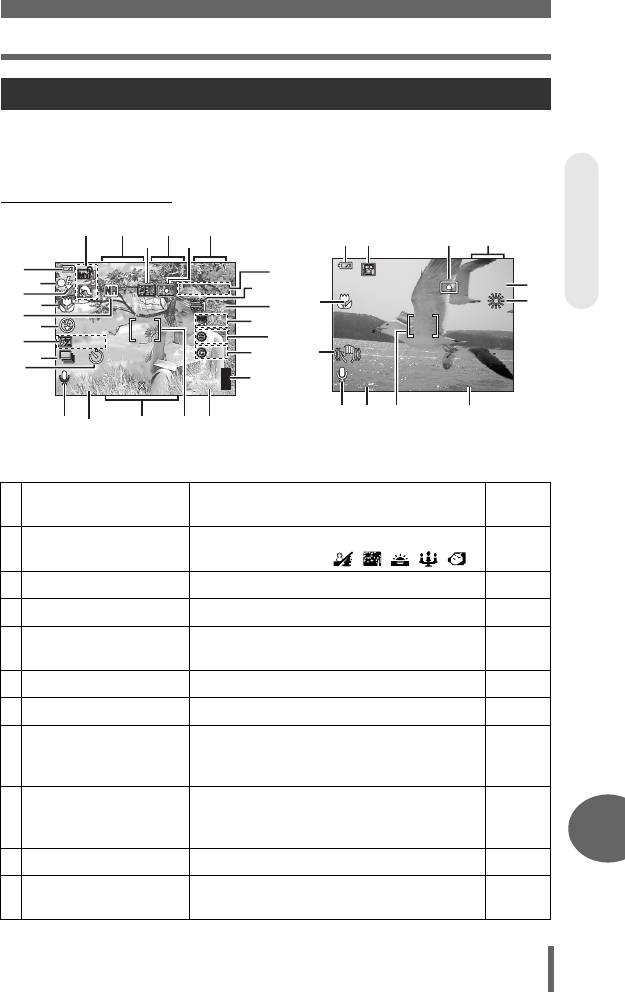
Names of parts
193
11
Miscellaneous
The [INFO] setting allows you to select how much information to display on the
screen. Screens with the information display set to [ON] are shown below.
g“Information display” (P.100)
(Shooting modes
Monitor indications
Still picture Movie
Item Indications Ref.
page
1 Shooting mode P, P, A, S, M, f, N, s
i, j, k, Q, R, , , , ,
P.12
P.32
2 Shutter speed 15" – 1/2000 P.47
3 Aperture value F2.8 – F8.0 P.46
4 Exposure compensation
Exposure differential
-2.0 – +2.0
-3.0 – +3.0
P.59
P.48
5 Battery check e, f–
6Green lamp {P.24
7 Flash stand-by
Camera movement
warning, Flash charge
# (Lights)
# (Blinks)
P.42
8 Macro mode
Super macro mode
Manual focus
&
%
MF
P.37
P.37
P.52
9 Noise reduction OP.66
10 Flash mode !, #, $, #SLOW1, HSLOW,
#SLOW2
P.39
ISO100
ISO100
+2.0
+2.0
+2
+2
+2
+2
+2
+2
B2
B2
30
30
30
2592 1944
2592 1944
HQ
HQ
30
30
30
F2.8
F2.8
1/1000
1/1000
+2.0
2.0
2120
1
15 16 1917 18
522
24
26
27
28
25
23
6
8
10
12
11
14
7
9
234
ISO100
ISO100
00:
0:
36
36
0 0:3 6
+2.0
+2.0
HQ
HQ
1421
22
8
13
23
5
15 18 1916
VISUAL INDEX
d4250_e_00_0_bookfile.book Page 193 Friday, December 24, 2004 11:45 AM
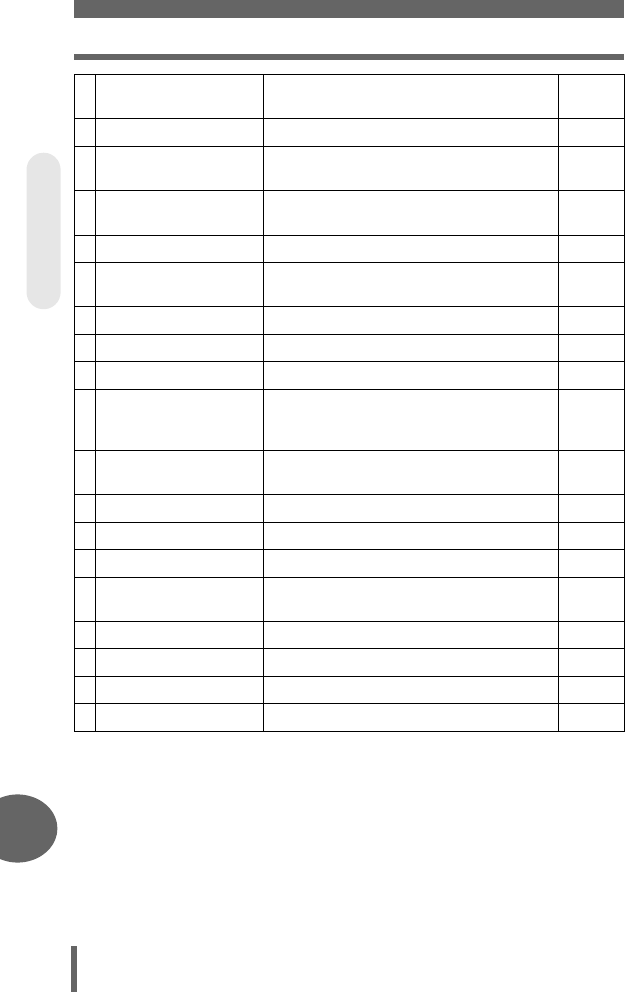
Names of parts
194
11
Miscellaneous
11 Flash intensity control w -2.0 – +2.0 P.43
12 Drive
Timelapse
o, j, 7
L
P.74
P.76
13 Camera movement
compensation
hP.73
14 Self-timer YP.77
15 Sound record RP.81, 82,
94
16 Record mode SHQ, HQ, SQ1, SQ2 P.26
17 Image size 2592 × 1944, 1280 × 960, etc. P.28
18 AF target mark [ ] P.24
19
Number of storable still
pictures
Remaining recording time
30
00:36
P.28
P.72
20 AE lock
AE memory
B
C
P.56
21 Spot metering nP.54
22 ISO ISO80, ISO100, ISO200, ISO400 P.58
23 White balance 5, 3, 1, w, x, y, VP.60
24 White balance
compensation
B1 – B7, R1 – R7 P.63
25 Saturation 6 -5 – +5 P.65
26 Sharpness N -5 – +5 P.64
27 Contrast J -5 – +5 P.65
28 Memory gauge a, b, c, d−
Item Indications Ref.
page
VISUAL INDEX
d4250_e_00_0_bookfile.book Page 194 Friday, December 24, 2004 11:45 AM
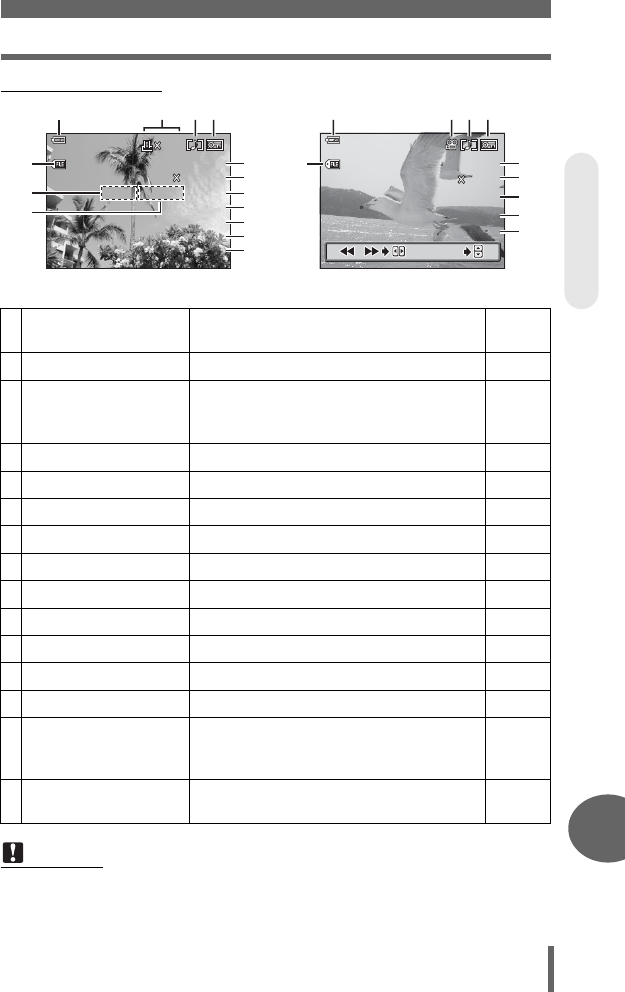
Names of parts
195
11
Miscellaneous
(Playback mode
Still picture Movie
Item Indications Ref.
page
1 Battery check e, f–
2 Print reservation/
number of prints
Movie
<×10
n
P.134
P.90
3 Sound record HP.81
4Protect 9P.102
5 Record mode SHQ, HQ, SQ1, SQ2 P.26
6 Image size 2592 × 1944, 1280 × 960, etc. P.28
7 Aperture value F2.8 – F8.0 P.46
8 Shutter speed 15" – 1/2000 P.47
9 Exposure compensation -2.0 – +2.0 P.59
10 White balance WB AUTO, 5, 3, 1, w, x, y, VP.60
11 ISO ISO80, ISO100, ISO200, ISO400 P.58
12 Date and time ’05.02.16 15:30 P.118
13 Frame number
Playing time/Total
recording time
30
00:00/00:36
P.134
P.90
14 File number M100 – 0030 P.116,
134
Note
• The indications that appear on a movie picture that has been selected and
displayed from the index display are different from those that appear when the
movie picture is displayed using the movie playback function.
’05
05
.
.
02
02
.
16 15
16 15
:
30
30
100
100
-
0030
0030
HQ
HQ
10
10
30
30
1/100
1/100
F
2.8
2.8
+2.0
+2.0
ISO
ISO
400
400
2592
2592
1944
1944
SIZE
SIZE
:
:
5
1
14
7
5
6
9
10
11
12
13
8
234
00
00
:
00/00
00/00
:
36
36
7
/7
/
100
100
-
0030
0030
HQ
HQ
320
320
240
240
SIZE
SIZE
:
:
’05
05
.
02
02
.
16 15
16 15
:
30
30
5
1
14
13
10
6
5
12
234
VISUAL INDEX
d4250_e_00_0_bookfile.book Page 195 Friday, December 24, 2004 11:45 AM

196
11
Index GLOSSARY INDEX
Index
For reference page numbers relating to camera parts, see “Names of
parts”.
1st curtain #SLOW1. . . . . . . . . 40, 44
1st curtain with red-eye reduction
HSLOW. . . . . . . . . . . . . . 41, 44
2nd curtain #SLOW2 . . . . . . . . 40, 44
3:2 . . . . . . . . . . . . . . . . . . . . . . . . . . 27
A
AC adapter. . . . . . . . . . . . . . . . . . . 167
AE . . . . . . . . . . . . . . . . . . . . . . . . . 176
AE lock B . . . . . . . . . . . . . . . 13, 56
AE memory C . . . . . . . . . . . . . . . 57
AF ILLUMINATOR . . . . . . . . . . . . . . 51
AF mode . . . . . . . . . . . . . . . . . . . . . 49
AF target mark . . . . . . . . . . . . . . 24, 50
ALL INDEX . . . . . . . . . . . . . . 126, 128
ALL PRINT. . . . . . . . . . . . . . . 126, 128
ALL RESET . . . . . . . . . . . . . . . . . . 106
All-frame erase R . . . . . . . . . . . . 103
All-frame reservation U . . . . . . . . 135
Aperture priority shooting A . . . 12, 46
Aperture value . . . . . . . . . . . . . . . . . 46
AREA . . . . . . . . . . . . . . . . . . . . . . . . 51
Auto bracketing 7 . . . . . . . . 74, 75
Auto focus AF . . . . . . . . . . . . . . 14, 25
Auto white balance . . . . . . . . . . . . . 60
Auto-flash. . . . . . . . . . . . . . . . . . 14, 39
AV cable . . . . . . . . . . . . . . . . . . . . . 98
B
Battery . . . . . . . . . . . . . . . . . . . . . . 171
Battery check . . . . . . . . . . . . . 193, 195
BEACH & SNOW . . . . . . . . . . . 33
BEEP BEEP . . . . . . . . . . . . . . . . . 112
Beep sound 8 . . . . . . . . . . . . . . . 111
BLACK & WHITE . . . . . . . . . . . . . . . 78
C
Calendar display . . . . . . . . . . . . . . . 86
Camera movement warning. . . . . . . 42
Card . . . . . . . . . . . . . . . . . . . . . 28, 174
CCD . . . . . . . . . . . . . . . . . . . . 117, 176
Close-up playback U . . . . . . . . . . . 84
Cloudy day 3 . . . . . . . . . . . . . . . . 60
Compression . . . . . . . . . . . . . . . . . . 27
CONSTRAST J . . . . . . . . . . . . . . . 65
D
Date and time X. . . . . . . . . . . . . 118
DCF . . . . . . . . . . . . . . . . . . . . . . . . 176
DIGITAL ZOOM. . . . . . . . . . . . . . . . 36
DIRECT (Histogram) . . . . . . . . . . . . 68
Direct printing. . . . . . . . . . . . . . . . . 124
DPOF. . . . . . . . . . . . . . . . . . . 134, 176
E
EDIT. . . . . . . . . . . . . . . . . . . . . . 95, 96
Error codes . . . . . . . . . . . . . . 133, 158
ESP metering. . . . . . . . . . . . . . 54, 177
EV . . . . . . . . . . . . . . . . . . . . . . 43, 177
Exposure . . . . . . . . . . . . . . 24, 55, 177
Exposure compensation . . . . . . . . . 59
Exposure differential . . . . . . . . . 48, 74
F
FADER. . . . . . . . . . . . . . . . . . . . . . . 88
FILE NAME . . . . . . . . . . . . . . . . . . 116
File name. . . . . . . . . . . . . . . . . . . . 116
File No . . . . . . . . . . . . . . . . . . . . . . 116
Fill-in flash #. . . . . . . . . . . . . . . 14, 39
FIREWORKS . . . . . . . . . . . . . . 33
Flash charging . . . . . . . . . . . . . . . . . 42
Flash intensity control w . . . . . . . . 43
Flash mode #. . . . . . . . . . . . . . 14, 39
Flash off $ . . . . . . . . . . . . . . . . 14, 39
Flash stand-by . . . . . . . . . . . . . . . . . 41
Fluorescent lam >. . . . . . . . . . . . . 60
Focus. . . . . . . . . . . . . . . . . . . . . 24, 49
Focus Lock . . . . . . . . . . . . . . . . . . . 24
Folder name. . . . . . . . . . . . . . . . . . 116
FORMAT I. . . . . . . . . . . . . . . . . . 104
FRAME ASSIST . . . . . . . . . . . . . . . 70
FULLTIME AF . . . . . . . . . . . . . . . . . 50
FUNCTION . . . . . . . . . . . . . . . . . . . 78
H
HIGH . . . . . . . . . . . . . . . . . . . . . . . . 26
Histogram u . . . . . . . . . . . . . 67, 101
HQ . . . . . . . . . . . . . . . . . . . . . . . 26, 30
I
iESP. . . . . . . . . . . . . . . . . . . . . . . . . 49
Image size . . . . . . . . . . . . . . . . 26, 177
d4250_e_00_0_bookfile.book Page 196 Friday, December 24, 2004 11:45 AM
Index
197
11
Index
GLOSSARY INDEX
INDEX . . . . . . . . . . . . . . . . . . . . . . . 95
Index display G . . . . . . . . . . . .85, 86
INFO INFO. . . . . . . . . . . . . . . . 69, 100
ISO. . . . . . . . . . . . . . . . . . . . . . 58, 177
J
JPEG . . . . . . . . . . . . . . . . . . . . . . . 177
L
LANDSCAPE Q. . . . . . . . . . . . . . . 32
LANDSCAPE+PORTRAIT k. . . . .32
M
Macro mode shooting &. . . . . .14, 37
Manual focus MF . . . . . . . . . . . . 14, 52
Manual shooting M . . . . . . . . . .12, 48
Measurement units m/ft m/ft . . . . . 119
Metering. . . . . . . . . . . . . . . . . . . . . . 54
MODE MEMU . . . . . . . . . . . . . . . . . 16
Monitor brightness adjustment s
. . . . . . . . . . . . . . . . . . . . . . . . . . 117
MONITOR OFF . . . . . . . . . . . . . . . . 23
MONITOR ON . . . . . . . . . . . . . . . . .23
Motion-JPEG . . . . . . . . . . . . . . .27, 28
MOVIE PLAYBACK q. . . . . . . . . .90
Movie recording n . . . . . . . . . . 12, 72
MULTI METERING . . . . . . . . . . . . .54
MULTI PRINT . . . . . . . . . . . .126, 128
My Mode r . . . . . . . . . . . . . . .12, 49
MY MODE SETUP r. . . . . . . . . .113
N
NIGHT SCENE R . . . . . . . . . . . . .33
NOISE REDUCTION O. . . . . . . . . 66
NORMAL . . . . . . . . . . . . . . . . . . . . . 88
NORMAL (Record mode). . . . . . . . .26
NTSC . . . . . . . . . . . . . . . . . . . . 99, 177
Number of storable still pictures. . . . 28
O
OLYMPUS Master . . . . . . . . .143, 149
One-touch white balance V . . 60, 62
Optical zoom . . . . . . . . . . . . . . . . . . 35
P
PAL . . . . . . . . . . . . . . . . . . . . . 99, 177
PANORAMA . . . . . . . . . . . . . . . . . . 79
PC . . . . . . . . . . . . . . . . . . . . . . . . .147
PictBridge. . . . . . . . . . . . . . . .124, 178
Picture rotation y . . . . . . . . . . . 15, 89
PIXEL MAPPING. . . . . . . . . . . . . . 117
Pixels . . . . . . . . . . . . . . . . . . . . 26, 178
Playback mode q . . . . . . . . . . 12, 84
Playback on a TV. . . . . . . . . . . . . . . 98
PORTRAIT i . . . . . . . . . . . . . . . . . 32
Preset white balance . . . . . . . . . 60, 61
Press fully . . . . . . . . . . . . . . . . . . . . 25
Press halfway . . . . . . . . . . . . . . . . . 24
PRINT . . . . . . . . . . . . . . . . . . 125, 126
PRINT ORDER . . . . . . . . . . . 126, 128
Print settings <. . . . . . . . . . . . . . . 134
Program shooting P. . . . . . . . . 12, 177
Protect 0 . . . . . . . . . . . . . . . 15, 102
PW OFF SETUP . . . . . . . . . . . . . . 108
PW ON SETUP . . . . . . . . . . . . . . . 108
R
REC VIEW . . . . . . . . . . . . . . . . . . . 109
Record mode K. . . . . . . . . . . . 26, 30
Recording sound R . . . . . . . 81, 82, 94
Recording sound with movies R . . . 82
Recording sound with still pictures R
. . . . . . . . . . . . . . . . . . . . . . . . . . . 81
REDEYE FIX . . . . . . . . . . . . . . . 91, 93
Red-eye reduction flash !. . . 14, 39
Remaining recording time . . . . . . . . 28
Resizing Q . . . . . . . . . . . . . . . . . . 91
S
SATURATION T . . . . . . . . . . . . . . 65
SCENE . . . . . . . . . . . . . . . . . . . . . . 32
Scene mode shooting f. . . 12, 32
SCREEN SETUP. . . . . . . . . . . . . . 110
Selecting a language W. . . . . . 108
Self-timer Y. . . . . . . . . . . . . . . . . . . 77
SEPIA . . . . . . . . . . . . . . . . . . . . . . . 78
Sequential shooting j. . . . . . . . . . 74
Setup . . . . . . . . . . . . . . . . . . . . . . . . 17
SETUP m . . . . . . . . . . . . . . . . . . . 88
SHARPNESS N . . . . . . . . . . . . . . . 64
Shooting mode. . . . . . . . . . . . . . . . . 12
SHORT CUT . . . . . . . . . . . . . . . . . 120
Shortcut Menus . . . . . . . . . . . . 16, 120
SHQ . . . . . . . . . . . . . . . . . . . . . . 26, 30
Shutter priority shooting S. . . . . 12, 47
SHUTTER SOUND . . . . . . . . . . . . 112
Shutter speed . . . . . . . . . . . . . . . . . 47
Single-frame erase S . . . . . . . 15, 103
Single-frame reservation <. . 135, 140
d4250_e_00_0_bookfile.book Page 197 Friday, December 24, 2004 11:45 AM

Index
198
11
Index GLOSSARY INDEX
Single-frame shooting o . . . . . . . . 74
Sleep mode . . . . . . . . . . . . . . . 84, 178
SLIDE . . . . . . . . . . . . . . . . . . . . . . . 88
Slideshow m . . . . . . . . . . . . . . . . . 88
Slow synchronization #SLOW
. . . . . . . . . . . . . . . . . . . . . 14, 40, 44
SPORT j . . . . . . . . . . . . . . . . . . . 33
SPOT (AF mode) . . . . . . . . . . . . . . . 49
Spot metering n . . . . . . . . . . . . . . 54
SQ . . . . . . . . . . . . . . . . . . . . . . . 26, 30
STANDARD < . . . . . . . . . . . . . . . 124
Sunny day 5 . . . . . . . . . . . . . . . . . 60
SUNSET . . . . . . . . . . . . . . . . . . 34
Super macro shooting % . . . . . 14, 37
T
TIME LAPSE L . . . . . . . . . . . . . . . 76
Top menu. . . . . . . . . . . . . . . . . . . . . 16
Trimming P . . . . . . . 91, 92, 131, 138
Tungsten light 1. . . . . . . . . . . . . . . 60
U
USB cable . . . . . . . . . . . 125, 147, 156
USB driver . . . . . . . . . . . . . . . 144, 156
V
VIDEO OUT . . . . . . . . . . . . . . . . . . . 99
VOLUME . . . . . . . . . . . . . . . . . . . . 111
W
White balance compensation >.63
White balance WB . . . . . . . . . . . . . . 60
X
xD-Picture Card . . . . . . . . . . . . . . . 174
Z
Zoom . . . . . . . . . . . . . . . . . . . . . 35, 89
d4250_e_00_0_bookfile.book Page 198 Friday, December 24, 2004 11:45 AM
http://www.olympus.com/
2005
VE907501
Shinjuku Monolith, 3-1 Nishi-Shinjuku 2-chome, Shinjuku-ku, Tokyo, Japan
Two Corporate Center Drive, PO Box 9058, Melville, NY 11747-9058, U.S.A. Tel. 631-844-5000
Technical Support (USA)
24/7 online automated help: http://www.olympusamerica.com/support
Phone customer support: Tel. 1-888-553-4448 (Toll-free)
Our phone customer support is available from 8 am to 10 pm
(Monday to Friday) ET
E-Mail: distec@olympus.com
Olympus software updates can be obtained at: http://www.olympus.com/digital
Premises: Wendenstrasse 14-18, 20097 Hamburg, Germany
Tel: +49 40-23 77 3-0 / Fax: +49 40-23 07 61
Goods delivery: Bredowstrasse 20, 22113 Hamburg, Germany
Letters: Postfach 10 49 08, 20034 Hamburg, Germany
European Technical Customer Support:
Please visit our homepage http://www.olympus-europa.com
or call our TOLL FREE NUMBER* : 00800 - 67 10 83 00
for Austria, Belgium, Denmark, Finland, France, Germany, Italy, Luxemburg, Netherlands,
Norway, Portugal, Spain, Sweden, Switzerland, United Kingdom
* Please note some (mobile) phone services/provider do not permit access or request an
additional prefix to +800 numbers.
For all not listed European Countries and in case that you can’t get connected
to the above mentioned number please make use of the following
CHARGED NUMBERS: +49 180 5 - 67 10 83 or +49 40 - 237 73 899
Our Technical Customer Support is available from 9 am to 6 pm MET (Monday to Friday)
d4250_e_00_0_bookfile.book Page 199 Friday, December 24, 2004 11:45 AM
