Panasonic DMC TZ80 Basic Operating Instructions TZ100 TZ101 TZ81 UGB EN
User Manual: panasonic DMC-TZ80 - Basic Operating Instructions Free User Guide for Panasonic Camera, Manual - page4
Open the PDF directly: View PDF  .
.
Page Count: 64
SQT1181-2
M0116KZ2067
Basic Operating Instructions
Digital Camera
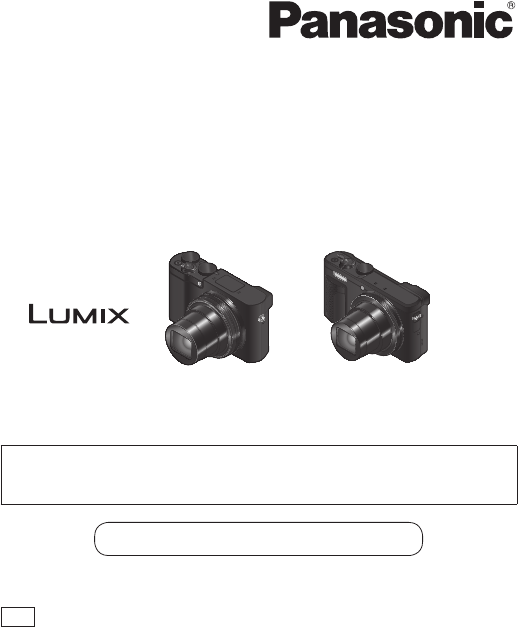
Model No. DMC-TZ100/DMC-TZ101
DMC-TZ80/DMC-TZ81
DMC-TZ100/DMC-TZ101 DMC-TZ80/DMC-TZ81
Please read these instructions carefully before using this product, and
save this manual for future use.
More detailed operating instructions are available in “Operating
Instructions for advanced features (PDF format)”. To read it, download
it from the website. (→45)
Web Site: http://www.panasonic.com
EB
Model number suffix “EB” denotes UK model.
2SQT1181 (ENG)
Dear Customer,
We would like to take this opportunity to thank you for purchasing this Panasonic
Digital Camera. Please read these Operating Instructions carefully and keep them
handy for future reference. Please note that the actual controls and components,
menu items, etc. of your Digital Camera may look somewhat different from those
shown in the illustrations in these Operating Instructions.
Carefully observe copyright laws.
• Recording of pre-recorded tapes or discs or other published or broadcast
material for purposes other than your own private use may infringe copyright
laws. Even for the purpose of private use, recording of certain material may be
restricted.
Information for Your Safety
WARNING:
To reduce the risk of fire, electric shock or product damage,
• Do not expose this unit to rain, moisture, dripping or splashing.
• Use only the recommended accessories.
• Do not remove covers.
• Do not repair this unit by yourself. Refer servicing to qualified service
personnel.
The socket outlet shall be installed near the equipment and shall be easily
accessible.
■ Product identification marking
Product Location
Digital camera Bottom

3
SQT1181 (ENG)
■ About the AC adaptor (supplied)
CAUTION!
To reduce the risk of fire, electric shock or product damage,
• Do not install or place this unit in a bookcase, built-in cabinet or in
another confined space. Ensure this unit is well ventilated.
• The unit is in the standby condition when the AC adaptor is connected. The
primary circuit is always “live” as long as the AC adaptor is connected to an
electrical outlet.
■ About the battery pack
CAUTION
• Danger of explosion if battery is incorrectly replaced. Replace only with the
type recommended by the manufacturer.
• When disposing of the batteries, please contact your local authorities or dealer
and ask for the correct method of disposal.
• Do not heat or expose to flame.
• Do not leave the battery(ies) in a car exposed to direct sunlight for a long period
of time with doors and windows closed.
Warning
Risk of fire, explosion and burns. Do not disassemble, heat above 60 °C or
incinerate.

4SQT1181 (ENG)
■ Cautions for Use
• Use a “High Speed HDMI micro cable” with the HDMI logo. Cables that do not
comply with the HDMI standards will not work.
“High Speed HDMI micro cable” (Type D-Type A plug, up to 2 m (6.6 feet) long)
Keep this unit as far away as possible from electromagnetic equipment (such
as microwave ovens, TVs, video games etc.).
• If you use this unit on top of or near a TV, the pictures and/or sound on this unit
may be disrupted by electromagnetic wave radiation.
• Do not use this unit near cell phones because doing so may result in noise
adversely affecting the pictures and/or sound.
• Recorded data may be damaged, or pictures may be distorted, by strong
magnetic fields created by speakers or large motors.
• Electromagnetic wave radiation may adversely affect this unit, disturbing the
pictures and/or sound.
• If this unit is adversely affected by electromagnetic equipment and stops
functioning properly, turn this unit off and remove the battery or disconnect AC
adaptor (supplied)/AC adaptor (DMW-AC10E: optional). Then reinsert the battery
or reconnect AC adaptor and turn this unit on.
Do not use this unit near radio transmitters or high-voltage lines.
• If you record near radio transmitters or high-voltage lines, the recorded pictures
and/or sound may be adversely affected.
5
SQT1181 (ENG)
Declaration of Conformity (DoC)
Hereby, “Panasonic Corporation” declares that this product is in
compliance with the essential requirements and other relevant provisions
of Directive 2014/53/EU.
Customers can download a copy of the original DoC to our RE products
from our DoC server:
http://www.doc.panasonic.de
Contact to Authorized Representative:
Panasonic Marketing Europe GmbH, Panasonic Testing Centre,
Winsbergring 15, 22525 Hamburg, Germany
Wireless transmitter:
Frequency range used: 2412 MHz to 2462 MHz (Central frequency)
Max. output power: 13 dBm (EIRP)
These symbols indicate separate collection of
waste electrical and electronic equipment or
waste batteries.
More detailed information is contained in
“Operating Instructions for advanced features
(PDF format)”.
6
SQT1181 (ENG)
Contents
■
Information for Your Safety ...................... 2
Preparations
■
Before use.................................................. 7
■
Standard accessories ............................... 8
■
Names and Functions of Main Parts ....... 9
■
Inserting and removing the battery
or SD memory card (optional) ................ 12
■
Charging the battery ............................... 13
■
Setting the clock ..................................... 15
Basics
■
Basic operations ..................................... 16
■
Setting the menu ..................................... 23
Recording
■
Taking pictures with automatic settings
(Intelligent Auto Mode) ........................... 24
■
Recording 4K photos .............................. 25
■
[Post Focus] ............................................ 28
■
Recording motion pictures .................... 31
■
[4K Live Cropping] .................................. 34
Playback
■
Viewing your pictures ............................. 36
■
[Light Composition] ................................ 37
Wi-Fi
■
What you can do with the
Wi-Fi® function ........................................ 39
■
Operating the camera by connecting
it to a smartphone ................................... 40
Others
■
Downloading software ............................ 43
■
Reading the Operating Instructions
(PDF format) ............................................ 45
■
List of monitor/viewfinder displays ....... 47
■
Menu list ................................................... 50
■
Q&A Troubleshooting ............................ 53
■
Specifications .......................................... 55
■
Digital Camera Accessory System ........ 61
In this manual, examples use illustrations and screens of DMC-TZ100/DMC-TZ101
unless otherwise indicated.
■ About the symbols in the text
Indicates that the menu can be set by pressing [MENU/SET] button.
In this Operating Instructions, steps for setting a menu item are described as
follows:
→ [Rec] → [Quality] → [ ]

7
SQT1181 (ENG)
Preparations Preparations
Before use
■ Camera handling
● Keep the camera away from excessive vibration, force, or pressure.
● The camera is not dust resistant, splash resistant, or waterproof.
Avoid using the camera in places with excessive dust or sand, or where water can come
into contact with the camera.
● Do not allow camera to come into contact with pesticides or volatile substances (can cause
surface damage or coating to peel).
■ Condensation (When the lens, the monitor or the viewfinder is
fogged up)
● Condensation may occur when the camera is exposed to sudden changes of temperature
or humidity. Avoid these conditions, which may make the lens, the monitor or the viewfinder
dirty, cause mould, or damage the camera.
● If condensation does occur, turn off the camera and wait about two hours before using it.
Once the camera adjusts to the surrounding temperature, the fogging will clear naturally.
■ Caring for your camera
● To clean your camera, remove the battery, the DC coupler (DMW-DCC11: optional) or a
card, or disconnect the power plug from the outlet, and wipe with a soft, dry cloth.
● Do not press the monitor with excessive force.
● Do not press the lens with excessive force.
● Do not keep rubber or plastic products in contact with the camera for a long period of time.
● Do not use solvents such as benzine, thinner, alcohol, kitchen detergents, etc., to clean the
camera, since it may deteriorate the external case or the coating may peel off.
● Do not leave the camera with the lens facing the sun, as rays of light from the sun may
cause it to malfunction.
● Do not extend the supplied cord or cable.
● While the camera is accessing the card (for an operation such as picture writing, reading,
deleting, or formatting), do not turn off the camera or remove the battery, card, AC adaptor
(supplied)/AC adaptor (DMW-AC10E: optional) or DC coupler (DMW-DCC11: optional).
● The data on the card may be damaged or lost due to electromagnetic waves, static
electricity or breakdown of the camera or the card. We recommend storing important data
on a PC etc.
● Do not format the card on your PC or other equipment. Format it on the camera only to
ensure proper operation.
8
Preparations
SQT1181 (ENG)
Standard accessories
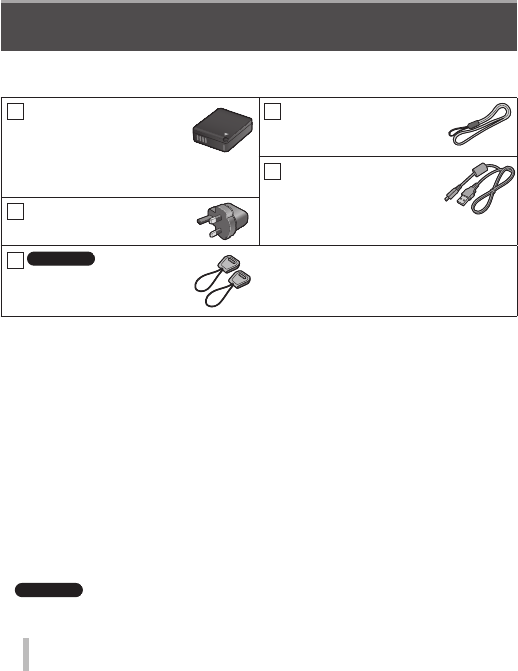
Check that all the accessories are supplied before using the camera. Part numbers
are as of January 2016. These may be subject to change.
Battery pack
DMW-BLG10E
• Charge the battery before
use.
• Battery pack is indicated as battery
pack or battery in the text.
AC adaptor
SAE0012F
Hand strap
VFC4297
USB connection cable
K1HY04YY0106
TZ100/TZ101
Shoulder strap adaptor
(2)
SYQ0694
• Use when attaching a shoulder strap
(commercially available). For details, refer
to “Operating Instructions for advanced
features (PDF format)”.
• Cards are optional. (SD Memory Card, SDHC Memory Card and SDXC
Memory Card are indicated as card in the text.)
– This unit is compatible with UHS- UHS Speed Class 3 standard SDHC/SDXC
memory cards.
– The following SD standard-based cards (Panasonic brand recommended) can
be used. Operation has been confirmed when using a Panasonic brand card.
SD Memory Card (512 MB to 2 GB)/SDHC Memory Card (4 GB to 32 GB)/
SDXC Memory Card (48 GB to 128 GB)
– Depending on recording conditions, the required card differs.
• Consult the dealer or your nearest Service Centre if you lose the supplied
accessories. (You can purchase the accessories separately.)
• Please dispose of all packaging appropriately.
•
TZ100/TZ101
Keep the shoulder strap adaptors out of reach of children to prevent swallowing.
• The illustrations and screens in this manual may differ from the actual product.
9
SQT1181 (ENG)
Preparations
Names and Functions of Main Parts
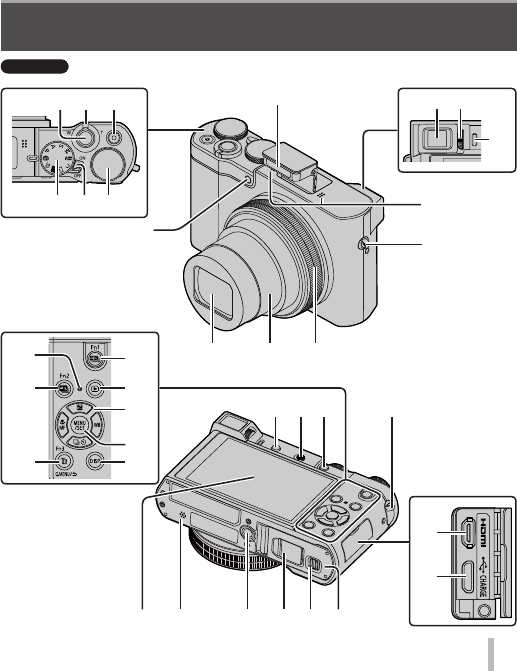
1 2 3
4 5 6
9 10
11
8
12
13
15 17
7
16
25
22
24
26
29
27
28
21
18 19 20 13
30
31
33 34 35 36 37 32
TZ100/TZ101
10
Preparations
SQT1181 (ENG)
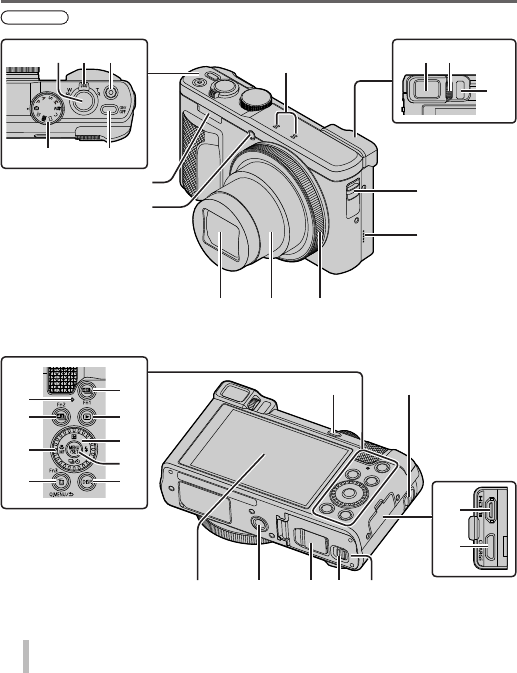
TZ80/TZ81
1 2
5 4
9 10
11
13
16 17
8
7
12
14
15
3
25
22
24
26
29
27
28
21
30
31
18
34 35 36 37
23
13
32
11
SQT1181 (ENG)
Preparations
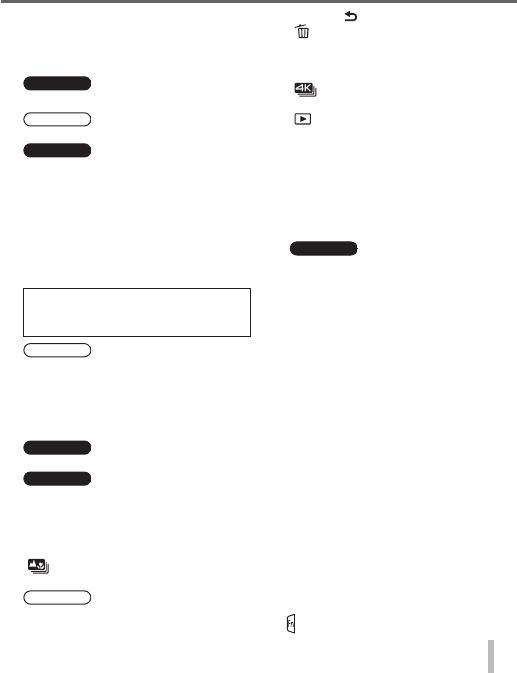
1 Shutter button (→17)
2 Zoom lever (→16)
3 Motion picture button (→32)
4 Mode dial (→18)
5
TZ100/TZ101
Camera [ON/OFF] switch
TZ80/TZ81
Camera [ON/OFF] button
6
TZ100/TZ101
Rear dial (→21)
7 Self-timer indicator/AF assist lamp
8 Flash
9 Viewfinder (→20, 47)
10 Diopter adjustment dial
11 Eye sensor (→20)
12 Stereo microphone
13 Strap eyelet
• To prevent dropping, be sure to
attach the supplied strap and fit it to
your wrist.
14
TZ80/TZ81
Speaker
15 Control ring (→21)
16 Lens barrel
17 Lens
18 [LVF] button (→20)/[Fn4] button
19
TZ100/TZ101
Flash open lever
20
TZ100/TZ101
[AF/AE LOCK] button
• You can take pictures by locking the
focus and/or exposure.
21 Charging lamp (→13)/
Wi-Fi® connection lamp
22 [ ] ([Post Focus]) button (→28)/
[Fn2] button
23
TZ80/TZ81
Control dial (→21)
24 [Q.MENU/ ] (Cancel) button/
[ ] (Delete) button (→36)/
[Fn3] button
• You can easily call some of the menu
items and set them during recording.
25 [ ] (4K photo mode) button (→25)/
[Fn1] button
26 [ ] (Playback) button (→36)
27 Cursor button (→19)
28 [MENU/SET] button
29 [DISP.] button
• Use this to change display.
30 [HDMI] socket
31 [CHARGE] socket (→13)
32 Touch screen (→22)/monitor (→47)
33
TZ100/TZ101
Speaker
34 Tripod mount
• Do not attach this unit to tripods that
have screws with a length of 5.5 mm
(0.22 inch) or more. Doing so may
damage this unit or the unit may not be
secured properly on the tripod.
35 DC coupler cover (→61)
36 Release lever (→12)
37 Card/Battery door (→12)
● Always use the supplied AC adaptor
or a genuine Panasonic AC adaptor
(DMW-AC10E: optional). (→61)
When using an AC adaptor (DMW-
AC10E: optional), ensure that the
Panasonic DC coupler (DMW-
DCC11: optional) and AC adaptor
(DMW-AC10E: optional) are used.
● [Fn5] to [Fn9] (→19) are touch icons.
They are displayed by touching the
[ ] tab on the recording screen.
12
Preparations
SQT1181 (ENG)
Inserting and removing the battery or SD memory
card (optional)
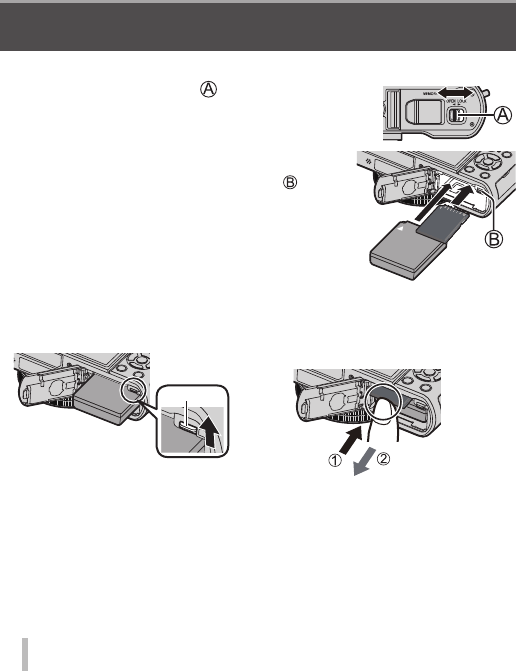
Make sure that the camera is turned off.
1 Slide the release lever ( ) to the [OPEN]
position and open the card/battery door
2 Insert the battery and card, making sure
that their orientation is correct
• Battery: Insert the battery all the way firmly and
check that it is locked by lever ( ).
• Card: Insert the card all the way firmly until it
clicks. Do not touch the terminals on the
back of the card.
3 Close the door
Slide the release lever to the [LOCK] position.
■ To remove
• To remove battery:
Move lever in direction of arrow.
Lever
• To remove card:
Push the card until it clicks, then pull
the card out.
Press Pull out
● Always use genuine Panasonic batteries (DMW-BLG10E).
● If you use other batteries, we cannot guarantee the quality of this product.
● Keep the Memory Card out of reach of children to prevent swallowing.
● We recommend using a Panasonic card.
13
SQT1181 (ENG)
Preparations
• The battery that can be used with this unit is DMW-BLG10E.
• The battery is not charged when the camera is shipped. Charge the battery
before use.
• We recommend charging in a location where the ambient temperature is
between 10 °C and 30 °C (50 °F to 86 °F).
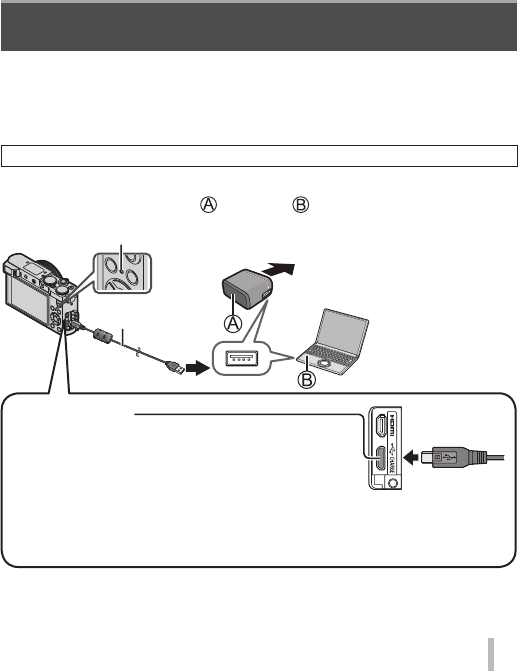
Make sure that the camera is turned off.
1 Insert the battery to this unit, and then connect this unit to the
AC adaptor (supplied) ( ) or a PC ( )
Computer
Getting ready:
Turn on the computer.
To the electrical outlet
USB connection cable
(supplied)
Charging lamp
[CHARGE] socket
• This terminal is located at the bottom when the
camera is in an upright position.
• Always check the direction of the pins and hold the plug straight to insert
or remove it. (If the cable is inserted in the wrong direction, the pins could
become deformed and cause faulty operation.) Also, do not insert into the
wrong socket. Doing so may cause damage to this unit.
Charging the battery

14
Preparations
SQT1181 (ENG)
■ Charging lamp
On: Charging in progress
Off: Charging stops (After charging stops, disconnect the camera from the
electrical outlet or your computer.)
Flashing: Charging error (→53)
■ Charging time (When using the AC adaptor (supplied))
Approx. 190 min.
● The battery is a rechargeable lithium ion battery. If the temperature is too high or too low, the
operating time of the battery will become shorter.
● The battery becomes warm after using and during and after charging. The camera also
becomes warm during use. This is not a malfunction.
● Do not leave any metal items (such as clips) near the contact areas of the power plug or
near the batteries.
● Store the battery in a cool and dry place with a relatively stable temperature. (Recommended
temperature: 15 °C to 25 °C (59 °F to 77 °F), Recommended humidity: 40%RH to 60%RH)
● Do not store the battery for a long time while fully charged. When storing the battery for
a long period of time, we recommend charging it once a year. Remove the battery from the
camera and store it again after it has completely discharged.
● Do not use any other USB connection cables except the supplied one.
● Do not use the AC adaptor (supplied) or the USB connection cable (supplied) with other
devices.
15
SQT1181 (ENG)
Preparations
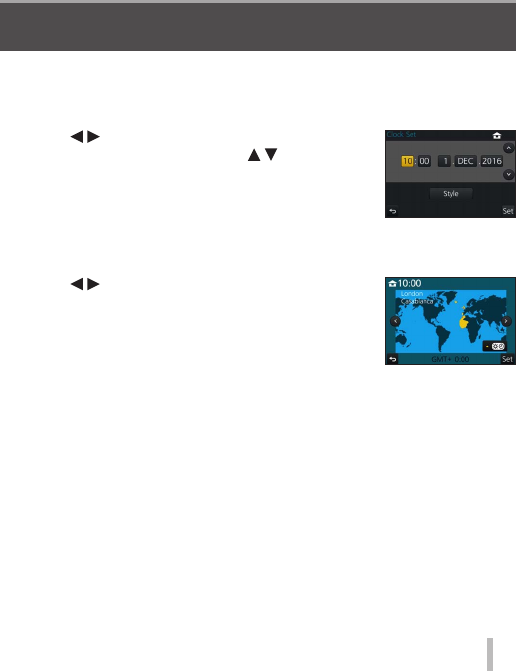
The clock is not set when the camera is shipped.
1 Turn the camera on
2 Press [MENU/SET]
3 Press to select the items (year, month,
day, hour, minute), and press to set
4 Press [MENU/SET]
5 When [The clock setting has been completed.]
is displayed, press [MENU/SET]
6 When [Please set the home area] is displayed, press
[MENU/SET]
7 Press to set your home area and press
[MENU/SET]
● You can change the clock setting with [Clock Set] in [Setup] menu.
Setting the clock
16
Basics
SQT1181 (ENG)
Basics
Basic operations
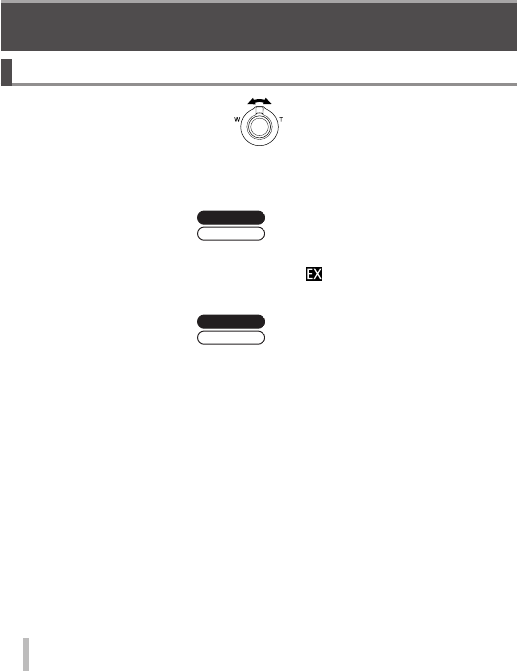
Zoom lever (Use zoom)
Capture a wider area
(wide-angle)
Enlarge the subject
(telephoto)
■ Zoom types and use
Optical Zoom:
You can zoom in without degrading the picture quality.
Maximum magnification:
TZ100/TZ101
10x
TZ80/TZ81
30x
Extra optical zoom:
This function works when picture sizes with [ ] have been selected in
[Picture Size]. Extra optical zoom allows you to zoom in using a higher zoom
ratio than optical zoom, without degrading the picture quality.
Maximum magnification:
TZ100/TZ101
20x
TZ80/TZ81
61.2x
Including the optical zoom ratio. The maximum zoom ratio varies depending on the
picture size.
[i.Zoom]:
You can use the camera’s intelligent resolution technology to increase
the zoom ratio up to 2x higher than the original zoom ratio with limited
deterioration of picture quality.
[Digital Zoom]:
Zoom 4x further than Optical/Extra optical zoom. When [Digital Zoom] is used
simultaneously with [i.Zoom], you can only increase the zoom ratio up to 2x.
(TZ100/TZ80)
Zoom 2x further than Optical/Extra optical zoom when [i.Zoom] is set to [OFF].
When [i.Zoom] is set to [ON], [Digital Zoom] is cancelled. (TZ101/TZ81)
Note that, with Digital Zoom, enlarging will decrease picture quality.
17
SQT1181 (ENG)
Basics
Shutter button (Taking pictures)
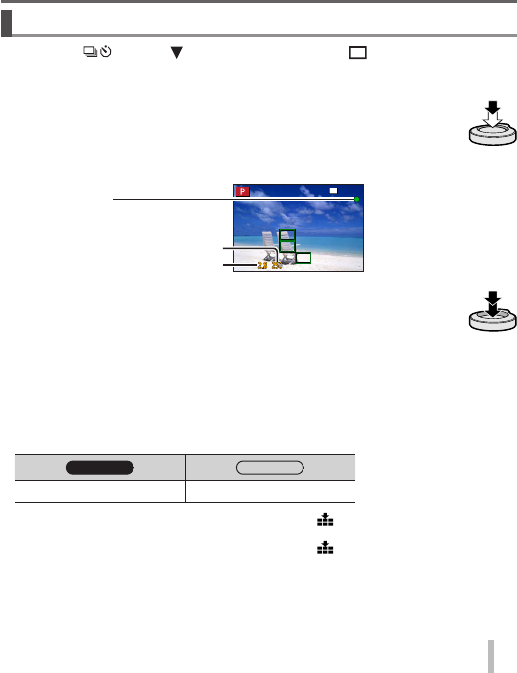
• Press the [ ] button ( ) to set the drive mode to [ ] ([Single]).
1 Press the shutter button halfway (press lightly) to
focus on the subject
• The aperture value and shutter speed are displayed. (If the
aperture value and shutter speed are shown in red and flashing,
you do not have the appropriate exposure, unless you are using
the flash.)
Focus display
( When focus is aligned: illuminated
When focus is not aligned: flashing)
Shutter speed
Aperture value
2 Press the shutter button fully (push the button all
the way), and take the picture
● Pictures can be taken only when the image is correctly focused as long as
the [Focus/Release Priority] is set to [FOCUS].
● Even during menu operation or picture playback, if you press the shutter button
halfway, you can instantly set the camera ready for recording.
■ Estimated number of recordable pictures
TZ100/TZ101
TZ80/TZ81
7201 8002
1 (When [Aspect Ratio] is set to [3:2], [Quality] is set to [ ], [Picture Size] is set to [L] (20M),
and using a card of 8 GB)
2 (When [Aspect Ratio] is set to [4:3], [Quality] is set to [ ], [Picture Size] is set to [L] (18M),
and using a card of 8 GB)
18
Basics
SQT1181 (ENG)
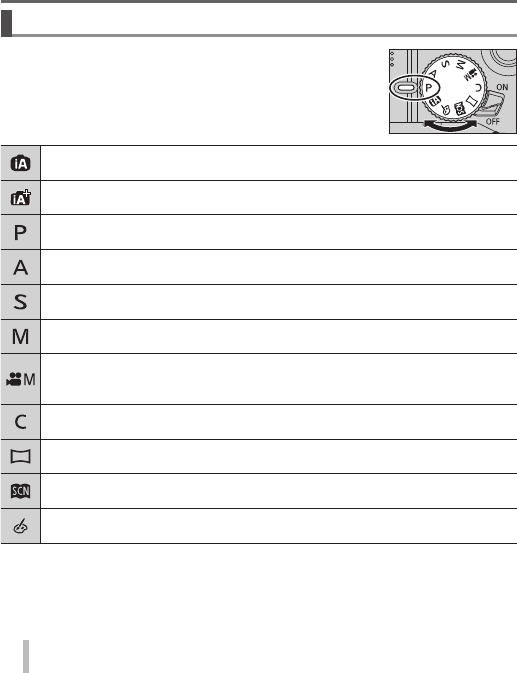
Mode dial (Select the recording mode)
1 Set to the desired recording mode
• Rotate the mode dial slowly to select the desired
mode.
Intelligent Auto Mode (→24)
Take pictures with automatic settings.
Intelligent Auto Plus Mode (→24)
Allow you to adjust the brightness (exposure) and colour hue as desired.
Programme AE Mode
Take pictures with automatic shutter speed and aperture value settings.
Aperture-Priority AE Mode
Determine aperture, then take pictures.
Shutter-Priority AE Mode
Determine shutter speed, then take pictures.
Manual Exposure Mode
Determine aperture and shutter speed, then take pictures.
Creative Video Mode
Determine aperture and shutter speed, then record motion pictures.
• You cannot take still pictures.
Custom Mode
Take pictures using pre-registered settings.
Panorama Shot Mode
Take panorama pictures.
Scene Guide Mode
Take pictures that match the scene being recorded.
Creative Control Mode
Take pictures by selecting your preferred picture effect.
19
SQT1181 (ENG)
Basics
Function buttons
• [Fn1] to [Fn4] are buttons on the camera.
• [Fn5] to [Fn9] are touch icons. They are displayed by touching the [ ] tab on the
recording screen.
• You can assign frequently-used functions to particular buttons with [Fn Button
Set] in [Custom] menu.
Cursor button
• This button is used to move the cursor on the menu screens and for other
functions.
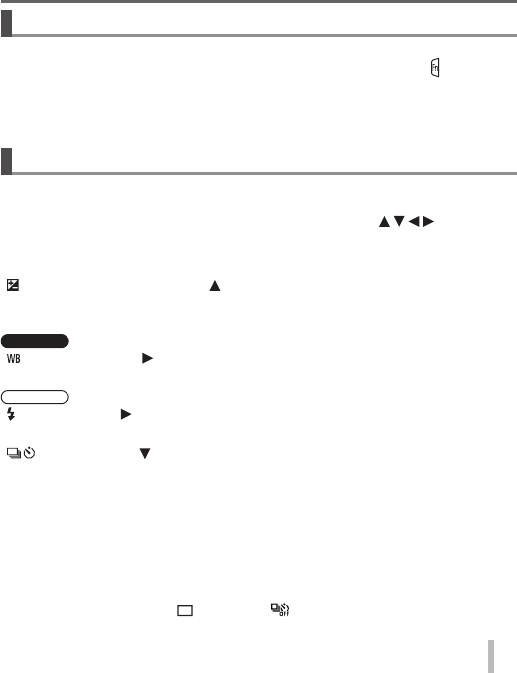
• In this manual, the button that is to be used is indicated by .
You can perform the following operations while recording. (Some items or settings
can not be selected depending on the mode or display style the camera is in.)
[ ] (Exposure compensation) ( )
• Corrects the exposure when there is a backlight or when the subject is too dark
or too bright.
TZ100/TZ101
[ ] (White balance) ( )
• Adjusts the colour depending on the light source to ensure natural colour.
TZ80/TZ81
[ ] (Flash mode) ( )
• Changes flash mode.
[ ] (Drive mode) ( )
• [Burst]1
– Records a burst of still pictures while you press the shutter button fully.
• [4K PHOTO]1 (→25)
– Records 4K photo.
• [Auto Bracket]1
– Records pictures with different exposure settings based on the exposure
compensation range.
• [Self Timer]1
1 To cancel drive mode, select [ ] ([Single]) or [ ] .
20
Basics
SQT1181 (ENG)
[ ] (Focus mode) ( )
• [AF]
– Focus is set automatically when the shutter button is pressed halfway.
• [ ] ([AF Macro])
– You can take pictures of a subject as close as 5 cm (0.16 feet)2/3 cm
(0.098 feet)3 from the lens by rotating the zoom lever upmost to Wide (1x).
• [ ] ([Macro Zoom])
– Use this setting to get close to the subject and then further enlarge when
taking the picture. You can take a picture with the digital zoom up to 3x while
maintaining the distance to the subject for the extreme Wide position (5 cm
(0.16 feet)2/3 cm (0.098 feet)3).
• [MF]
– Manual focus is convenient when you want to lock the focus to take pictures or
when it is difficult to adjust focus using auto focus.
2
TZ100/TZ101
3
TZ80/TZ81
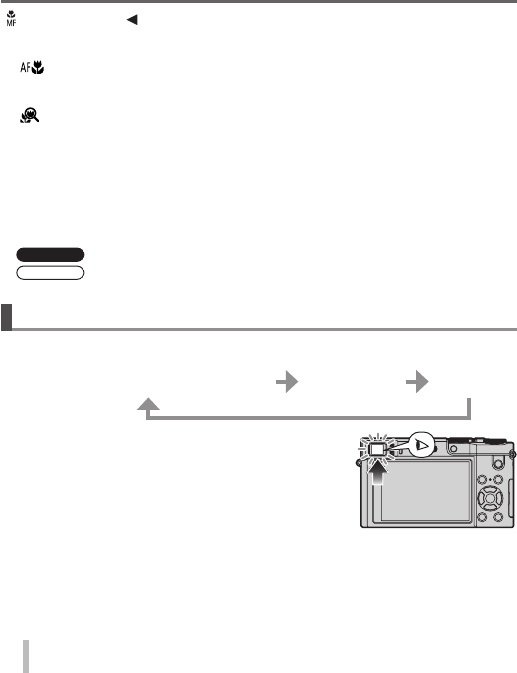
[LVF] button
1 Press [LVF] button
Automatic switching between
viewfinder and monitor (Eye sensor)
Viewfinder
display
Monitor
display
The eye sensor automatically switches the display to
viewfinder when your eye or an object moves close to the
viewfinder. When the eye or object moves away from the
viewfinder, the camera returns to monitor display.
21
SQT1181 (ENG)
Basics
TZ100/TZ101
Control ring/Rear dial
TZ80/TZ81
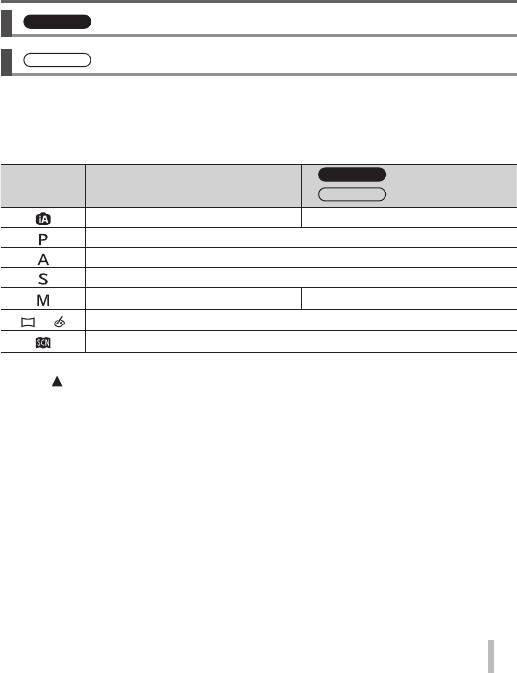
Control ring/Control dial
You can perform frequently used operations and settings directly.
Items that can be set vary depending on recording modes. Following are the pre-
assigned settings.
Mode dial Control ring1
TZ100/TZ101
Rear dial
TZ80/TZ81
Control dial
[ ] Step Zoom —
[ ] Programme Shift
[ ] Aperture adjustment
[ ] Shutter speed adjustment
[ ] Aperture adjustment2 Shutter speed adjustment2
[ ] / [ ] Picture effects change
[ ] Aperture adjustment3 / Shutter speed adjustment4
1 When Manual Focus is set, the control ring is assigned to focus adjustment.
2 Press to switch between shutter speed adjustment and aperture adjustment.
3 The operation is possible only when the Scene Guide Mode is set to [Appetizing Food].
4 The operation is possible only when the Scene Guide Mode is set to [Artistic Nightscape].
● You can change to your preferred settings using [Ring/Dial Set] from the
[Custom] menu. For details, refer to “Operating Instructions for advanced
features (PDF format)”.
22
Basics
SQT1181 (ENG)
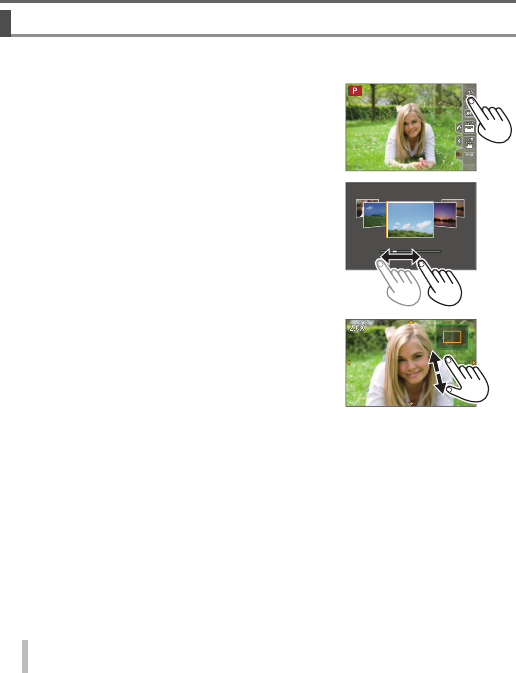
Touch screen (Touch operations)
Touch screen of this unit is capacitive. Touch the panel directly with your bare
finger.
Touch
To touch and release the touch screen. Be sure to
touch the centre of the desired icon.
Drag
To touch and slide your finger across the touch
screen. This can also be used to forward or rewind
a picture during playback, etc.
Pinch (spread/pinch)
On the touch screen, spread (pinch out) your
2 fingers to zoom in, and pinch (pinch in) your
2 fingers to zoom out.
23
SQT1181 (ENG)
Basics
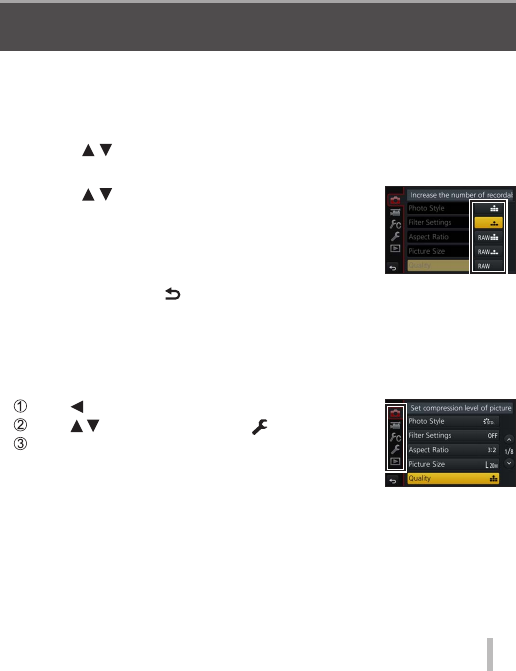
Setting the menu
You can use the menu to set camera and recording functions, operate playback
functions, and perform other operations.
• The setting methods vary depending on the menu item.
1 Press [MENU/SET] to bring up the menu
2 Press to select the menu item and press
[MENU/SET]
3 Press to select the setting and
press [MENU/SET]
4 Press [Q.MENU/ ] button repeatedly until the recording
or playback screen reappears
• During recording, the menu screen can also be exited by pressing the
shutter button halfway.
■ Switching menu type
Press after performing step 1 above
Press to select a tab such as [ ]
Press [MENU/SET]
■ Menu types (→50)
• [Rec]
• [Setup]
• [Motion Picture]
• [Playback]
• [Custom]
24
Recording
SQT1181 (ENG)
Recording
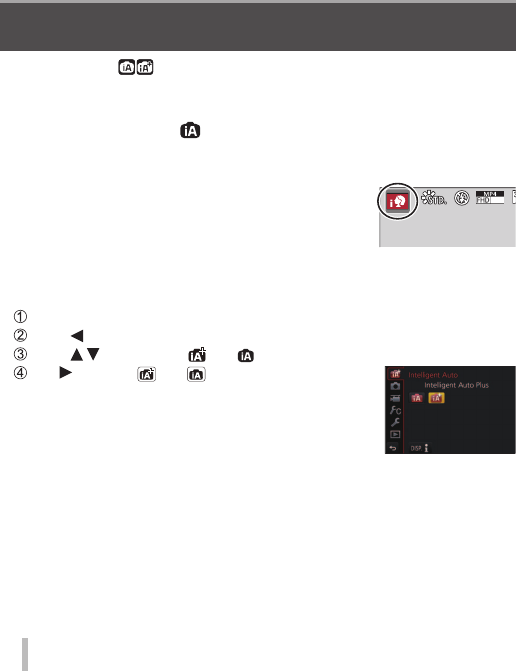
Taking pictures with automatic settings
(Intelligent Auto Mode)
Recording mode:
This mode is recommended for those who want to point and shoot as the camera
optimises settings to match the subject and recording environment.
1 Set mode dial to [ ]
• The camera will switch to either the most recently used of Intelligent Auto
Mode or Intelligent Auto Plus Mode.
2 Point the camera at the subject
• When the camera identifies the optimal scene, the
icon for each scene turns blue for 2 seconds and
then changes to the normal red indication.
50p
■ Switching between Intelligent Auto Plus Mode and Intelligent Auto
Mode
Press [MENU/SET]
Press
Press to select the [ ] or [ ] tab
Use to select [ ] or [ ] and press [MENU/SET]
• If [DISP.] button is pressed, the description of the
selected mode will be displayed.
25
SQT1181 (ENG)
Recording
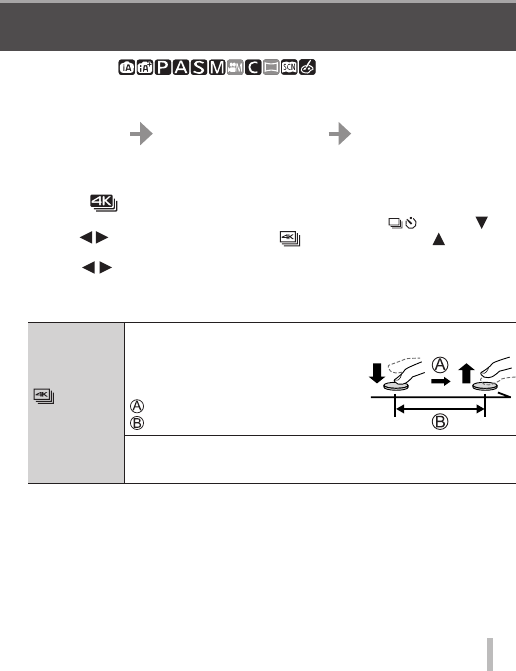
Recording 4K photos
Recording mode:
You can select the desired moment from a burst of 4K photos taken at 30 frames/
second and save that moment as a picture of approx. 8 million pixels.
Record a 4K photo Select and save pictures The picture is complete
• To record pictures, use a UHS Speed Class 3 card.
• When recording 4K photos, the angle of view becomes narrower.
1 Press [ ] button
• The same operation can be performed by pressing the [ ] button ( ),
using to select a 4K photo icon ([ ], etc.), and pressing .
2 Press to select the recording method and press
[MENU/SET]
• The recording method can also be set from [4K PHOTO] in the [Rec] menu.
[4K Burst]
For capturing the best shot of a fast-moving subject
Burst recording is performed while the
shutter button is pressed and held. The
shutter sound will be heard repeatedly.
• Audio recording: None
Press and hold
Recording is performed
Continuous recording length:
Same as when recording motion pictures with their file size set to [4K]
in [MP4] (→33)
26
Recording
SQT1181 (ENG)
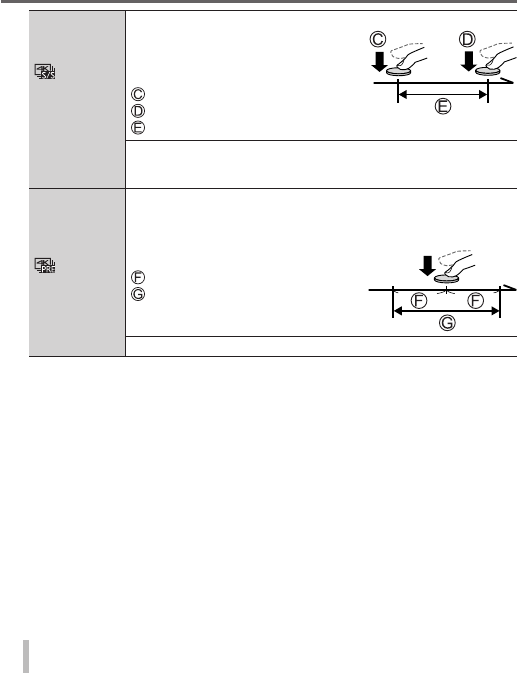
[4K Burst(S/S)]
“S/S” is an
abbreviation of
“Start/Stop”.
For capturing unpredictable photo opportunities
Burst recording starts when the shutter
button is pressed and stops when pressed
again. Start and stop tones will be heard.
• Audio recording: Available
Start (First)
Stop (Second)
Recording is performed
Continuous recording length:
Same as when recording motion pictures with their file size set to [4K]
in [MP4] (→33)
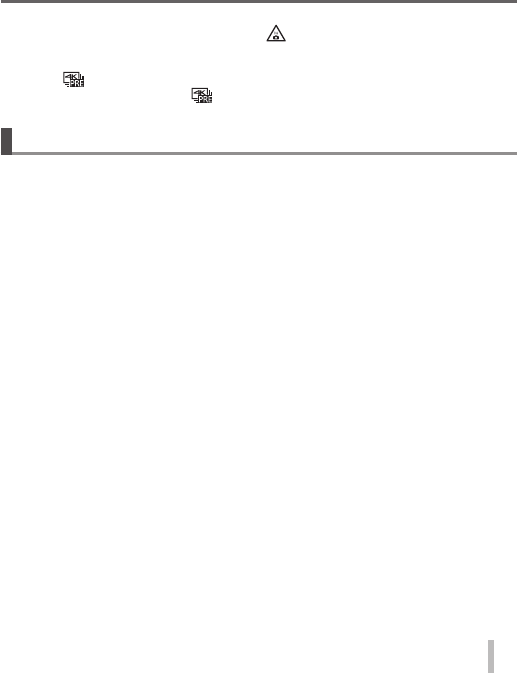
[4K Pre-Burst]
For recording as needed whenever a photo opportunity arises
Burst recording is performed for approximately 1 second before and
after the moment that the shutter button is pressed. The shutter sound
will be heard only once.
• Audio recording: None
Approximately 1 second
Recording is performed
Recording length: Approximately 2 seconds
Audio is not played back when you perform playback with the camera.
3 Record a 4K photo
• When you perform 4K burst photo recording, a 4K burst file will be saved in
the MP4 format.
• When [Auto Review] is enabled, the picture selection screen will be
displayed automatically.
• When using [Light Composition] (→37), it is recommended to use a tripod or
use a smartphone instead of the shutter and do remote recording (→42) to
control camera shaking.
27
SQT1181 (ENG)
Recording
● If the surrounding temperature is high, or 4K photos are recorded continuously,
or the temperature of the camera rises, [ ] may be displayed and recording
may be stopped halfway through to protect the camera. Wait until the camera
cools down.
● When [ ] ([4K Pre-Burst]) is set, the battery drains faster and the camera
temperature rises. Select [ ] ([4K Pre-Burst]) only when recording.
Selecting pictures from 4K burst file and saving
● The picture will be saved in JPEG format.
• For details, refer to “Operating Instructions for advanced features (PDF
format)” or “Quick Guide for 4K Photo (supplied)”.
28
Recording
SQT1181 (ENG)
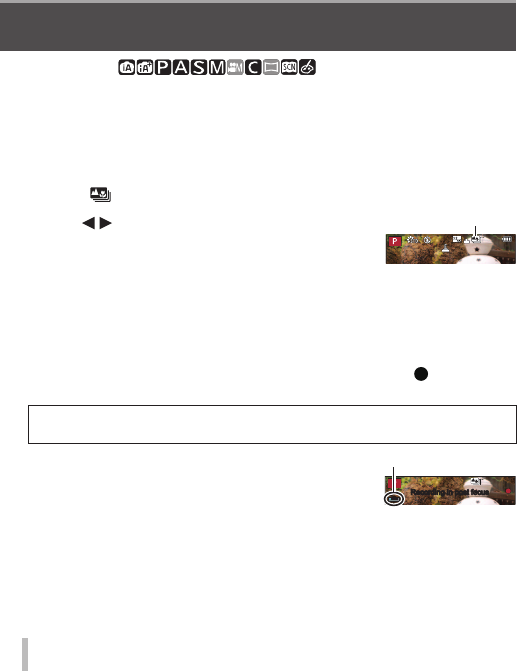
[Post Focus]
Recording mode:
You can record bursts of photos with the same quality as a 4K photo while
automatically changing the focus point ([Post Focus] recording). After recording,
you can select a point on the screen to save a picture with that point as the focus
point.
• To record pictures, use a UHS Speed Class 3 card.
• During recording, the angle of view will be narrower.
1 Press [ ] button
2 Press to select [ON] and press
[MENU/SET]
• It can also be set by going to the [Rec] menu and
selecting [ON] for [Post Focus].
[Post Focus] icon
3 Determine the composition and press the shutter button
halfway
• Auto Focus activates and automatically detects the focus point on the
screen.
• If there is no focus point on the screen, the Focus indicator ( (green))
blinks and you cannot record.
From halfway pressing the shutter button to completion of recording
• Do not change the distance to subject or the composition.
4 Press the shutter button fully to start
recording
Recording progress bar
Recording in post focusRecording in post focus
• The focus point changes automatically while recording. When the recording
progress bar disappears, recording automatically ends.
• A motion picture will be recorded in MP4 format. (No audio is recorded.)
29
SQT1181 (ENG)
Recording
● If the surrounding temperature is high, or [Post Focus] recording is performed
continuously, or the temperature of the camera rises, [ ] may be displayed and
recording may be stopped halfway through to protect the camera. Wait until the
camera cools down.
Select the focus point and save the picture
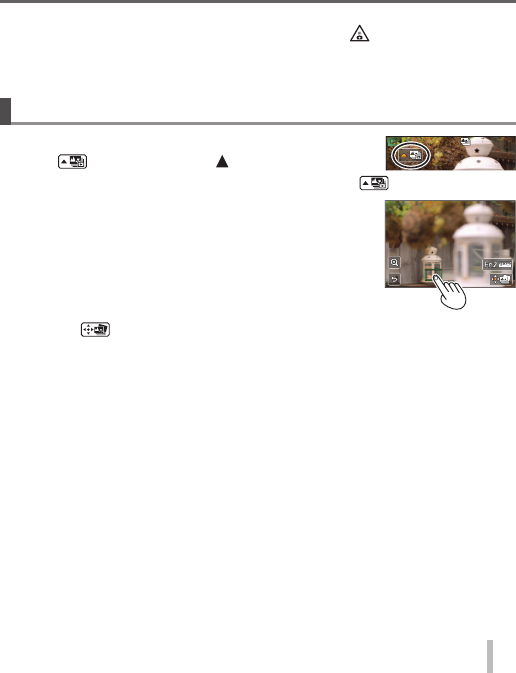
1 On the playback screen, select the image with
the [ ] icon and press
• The same operation can be performed by touching [ ] .
2 Select the focus point by touching it
• The picture will be displayed with the focus on the
selected point.
• The edge of the screen cannot be selected.
• If there are no pictures with the focus on the selected
point, a red frame will be displayed, and pictures
cannot be saved.
3 Touch [ ] to save the picture
• The picture will be saved in JPEG format.
• After saving, return to step 2.
30
Recording
SQT1181 (ENG)
■ Making fine adjustments to focus
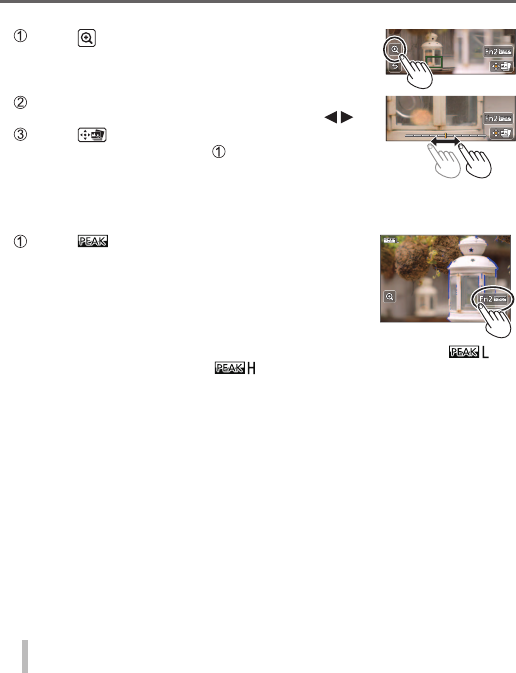
Touch [ ]
• The picture can be enlarged.
Drag the slide bar to make fine adjustments to focus
• The same operation can be performed using .
Touch [ ] to save the picture
• The screen returns to step .
■ Highlight in-focus portion with colour (Peaking)
Touch [ ]
• Each time the icon is touched, the setting is switched in order of [ ]
([Detect Level]: [LOW]) → [ ] ([Detect Level]: [HIGH]) → [OFF].
• The display colour will be the same as set in [Peaking] under the [Custom]
menu.
31
SQT1181 (ENG)
Recording
Recording motion pictures
Recording mode:
You can record full high-definition quality images that comply with the AVCHD
standard, as well as motion pictures recorded in MP4. You can also record a 4K
motion picture in MP4. Audio is recorded in stereo.
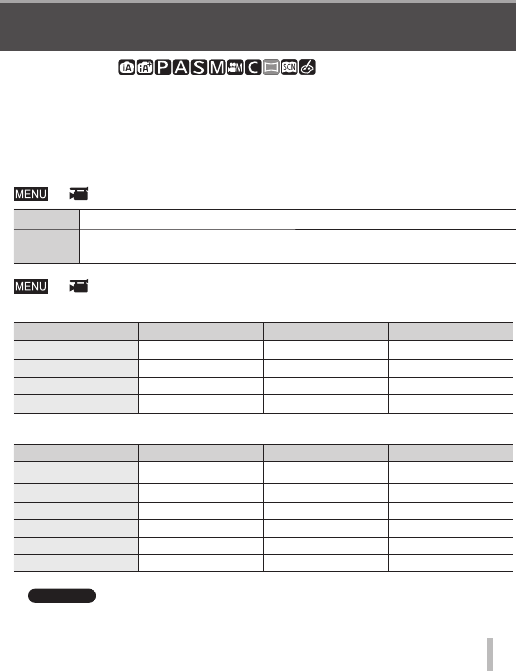
■ Setting the format, picture size and recording frame rate
→ [Motion Picture] → [Rec Format]
[AVCHD] This is a data format suitable for playback on high-definition TVs.
[MP4] This data format is suited for playing back motion pictures on a computer and
other such devices.
→ [Motion Picture] → [Rec Quality]
When [AVCHD] is selected
Item Picture size fps Bit rate (approx.)
[FHD/28M/50p]1 1920×1080 50p 28 Mbps
[FHD/17M/50i] 1920×1080 50i 17 Mbps
[FHD/24M/25p] 1920×1080 50i 24 Mbps
[FHD/24M/24p]2 1920×1080 24p 24 Mbps
When [MP4] is selected
Item Picture size fps Bit rate (approx.)
[4K/100M/25p] 3840×2160 25p 100 Mbps
[4K/100M/24p]2 3840×2160 24p 100 Mbps
[FHD/28M/50p] 1920×1080 50p 28 Mbps
[FHD/20M/25p] 1920×1080 25p 20 Mbps
[HD/10M/25p] 1280×720 25p 10 Mbps
[VGA/4M/25p] 640×480 25p 4 Mbps
1 AVCHD Progressive
2
TZ100/TZ101
32
Recording
SQT1181 (ENG)
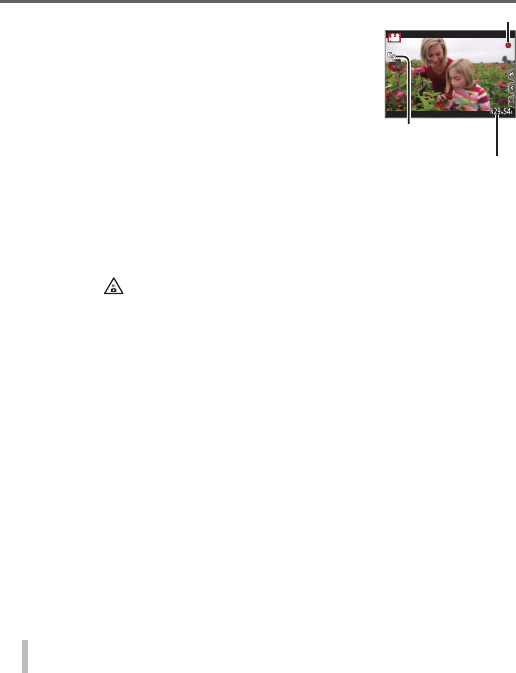
1 Press the motion picture button to start
recording
• Recording of motion picture appropriate for each
motion picture mode is possible.
• While you are recording motion pictures, the
recording status indicator (red) will flash.
• If some information is no longer displayed on the
screen, press the [DISP.] button or touch the monitor.
• If you press the shutter button down fully, you can
take still pictures while recording motion pictures.
• Immediately release the motion picture button after
pressing it.
Recording state indicator
Elapsed recording
time
Remaining recording
time
2 Press the motion picture button again to end recording
● If the surrounding temperature is high, or a motion picture is recorded
continuously, [ ] is displayed and recording may be stopped halfway through
to protect the camera. Wait until the camera cools down.
● With recording in a quiet environment, the sound of aperture, focus
and other actions may be recorded in motion pictures. This is not a
malfunction.
The focus operation during recording of motion pictures can be set to [OFF] in
[Continuous AF].
● [AVCHD] motion pictures:
Recording stops when the continuous recording time exceeds 29 minutes and
59 seconds.
● Motion pictures with their file size set to [FHD], [HD] or [VGA] in [MP4]:
Recording stops when the continuous recording time exceeds 29 minutes and
59 seconds or the file size exceeds 4 GB.
• Since the file size becomes larger with [FHD], recording with [FHD] will stop
before 29 minutes 59 seconds.
33
SQT1181 (ENG)
Recording
● Motion pictures with their file size set to [4K] in [MP4]:
Recording stops when the continuous recording time exceeds 15 minutes.
When you are using an SDHC memory card, you can continue recording without
interruption even if the file exceeds 4 GB, but the motion picture file will be
recorded and played back in separate files.
If using an SDXC Memory Card, you can record a motion picture in a single file
even if the size is greater than 4 GB.
Recording 4K motion pictures
Recording mode:
You can record high-resolution 4K motion pictures by setting [Rec Quality] to [4K].
• To record 4K motion pictures, use a UHS Speed Class 3 card.
• When you record 4K motion pictures, the angle of view will be narrower than
motion pictures of other sizes.
■ To record 4K motion pictures
Select the recording mode (→18)
Set the [Rec Format] in the [Motion Picture] menu to [MP4] (→31)
Set [Rec Quality] in the [Motion Picture] menu to [4K/100M/25p] or
[4K/100M/24p] (→31)
TZ100/TZ101
Start recording by pressing the motion picture button
Stop the recording by pressing the motion picture button again
34
Recording
SQT1181 (ENG)
[4K Live Cropping]
Recording mode:
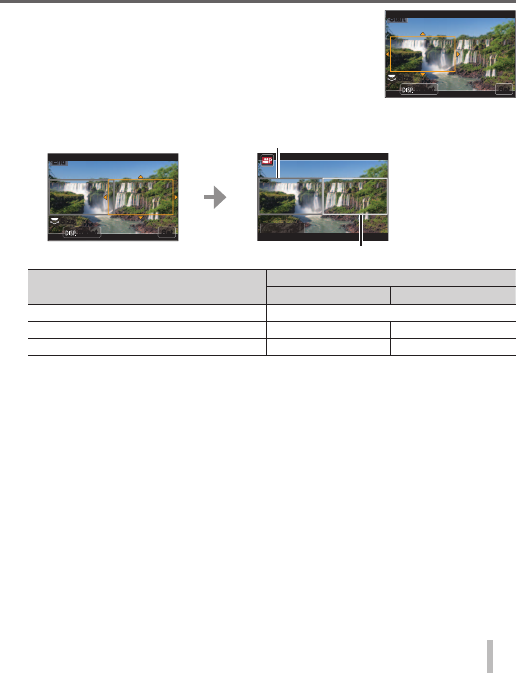
You can pan while recording subjects without horizontal shaking of the camera,
and you can zoom in and out during motion picture recording without using
zoom. During recording, you can crop your video down from the 4K angle of view
(3840×2160) to Full High Definition (1920×1080) by capturing the subject at a wide
angle of view and setting a crop start frame and crop end frame.
• Hold the camera firmly in place while recording.
• A motion picture will be recorded at [FHD/20M/25p] under [MP4].
Example of panning while recording.
Setting crop frames at 4K
angle of view
Screen moves from left to right
without moving the camera
1 Set mode dial to [ ]
2 Set the menu
→ [Motion Picture] → [4K Live Cropping]
3 Use to set panning or zooming time and press
[MENU/SET]
Settings: [40SEC] / [20SEC] / [OFF]
• The angle of view narrows.
35
SQT1181 (ENG)
Recording
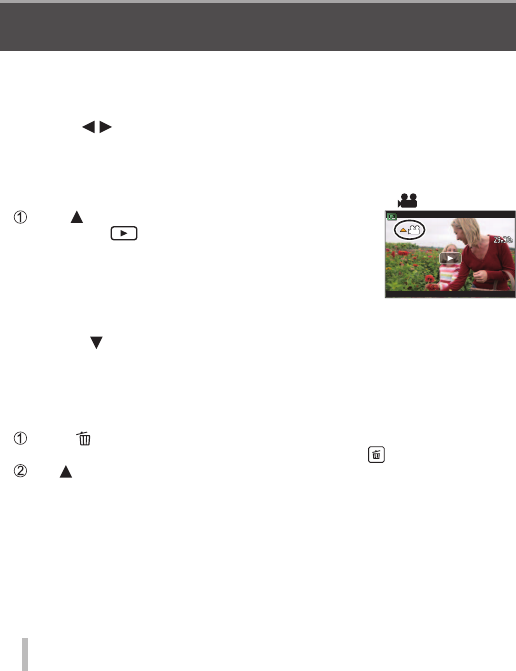
4 Set the crop start frame
SetSet
SizeSize
ResetReset
StartStart
5 Set the crop end frame
ResetReset
EndEnd
SetSet
SizeSize
Crop start frame
Fn1
Adjust.
Crop end frame
Movement of the image on the screen Frame size
Start frame End frame
Pan (move right and left) Same
Zoom in Large Small
Zoom out Small Large
■ Changing the position and size of a crop frame
Press [Fn1] button.
6 Press the motion picture button to start recording
The display switches to the angle of view set in step 4 and the panning or
zoom operation is displayed.
• Immediately release the motion picture button after pressing it.
• When the set operating time has elapsed, recording automatically ends.
• Zoom operation is not available.
■ To end [4K Live Cropping] recording midway
Press the motion picture button again during recording.
● [4K Live Cropping] recording cannot be performed when [High Speed Video] is
set.
36
Playback
SQT1181 (ENG)
Playback
Viewing your pictures
1 Press the playback button
• When the camera is switched to the playback screen from the recording
screen, the lens barrel is retracted after approx. 15 seconds.
2 Press to select a picture to be displayed
• Pictures can also be forwarded or rewound by dragging the screen
horizontally (→22).
■ Viewing motion pictures
• Motion pictures are displayed with the motion picture icon ([ ]).
Press to start playback
• Touching [ ] in the middle of the screen allows
you to play back motion pictures.
• If you press [MENU/SET] during a pause, you can
create a picture from a motion picture.
■ Sending pictures to the WEB services
If you press while a single picture is being displayed, you can send the picture
to the WEB service quickly. For details, refer to “Operating Instructions for
advanced features (PDF format)”.
■ Deleting pictures
Deleted pictures cannot be recovered.
Press [ ] button to delete displayed picture
• The same operation can be performed by touching [ ] .
Use to select [Delete Single] and press [MENU/SET]
■ Ending playback
Press the playback button again or press the motion picture button.
The playback can also be ended by pressing the shutter button halfway.
37
SQT1181 (ENG)
Playback
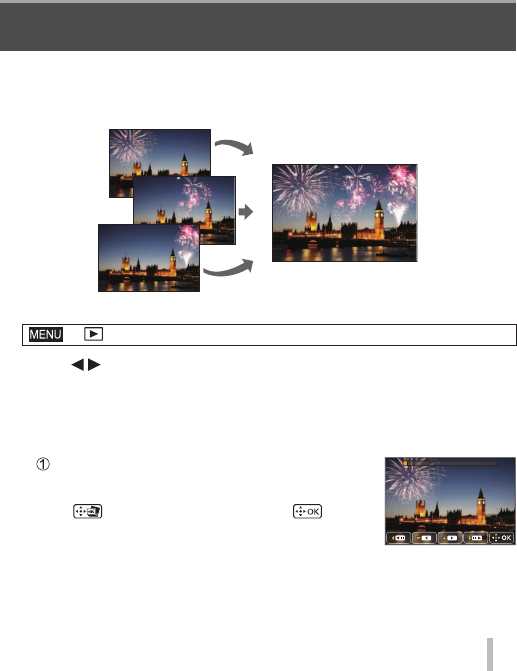
Select multiple frames from 4K burst files recorded in 4K Photo mode (→25) that
you wish to combine. Parts of the image that are brighter than the preceding frame
will be superimposed on the preceding frame to combine the frames into one
picture.
1 Set the menu
→ [Playback] → [Light Composition]
2 Using , select the 4K photo burst files and press [MENU/SET]
3 Choose the combining method and press [MENU/SET]
■ When [Composite Merging] is selected
Select the frames you wish to combine, and then camera superimposes
brighter parts of the image.
Select the frames
• Images displayed cannot be enlarged or shrunk
or shown as in slide view.
• [ ] in touch operation becomes [ ] .
[Light Composition]
38
Playback
SQT1181 (ENG)
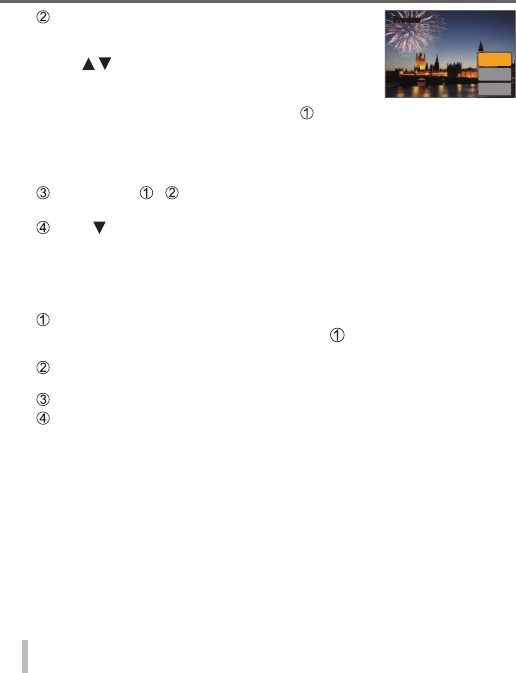
Press [MENU/SET]
The selected frames are remembered, and the
display goes to the preview screen.
Use to select items and press [MENU/SET] to
perform the following operations.
– [Next]: Lets you select more frames for
combining. Goes back to step .
– [Reselect]: Discards the frame selected
immediately before and lets you select
a different image.
– [Save]: Ends frame selection.
Next
Reselect
Save
Preview
Preview
Repeat steps - to select more frames to combine
• You can select up to 40 frames.
Press to select [Save] and press [MENU/SET]
■ When [Range Merging] is selected
Select the first and last frames, and the brighter parts of frames within that
range will be superimposed.
Select the frame of the first picture
The selection method is the same as in step when selecting [Composite
Merging].
Press [MENU/SET]
The position of the first picture will be remembered.
Select the frame of the last picture
Press [MENU/SET]
The position of the last picture will be remembered.
4 Select [Yes] at the confirmation screen and press [MENU/SET]
The combined picture is displayed.
• The picture will be saved in JPEG format.

39
SQT1181 (ENG)
Wi-Fi Wi-Fi
What you can do with the Wi-Fi® function
● Operating the camera by connecting it to a smartphone
You can easily set up a direct connection to your smartphone without entering a
password.
• Taking pictures via a smartphone (→42)
• Playing back pictures in the camera on a smartphone (→42)
• Saving pictures in the camera to a smartphone
• Sending pictures in the camera to social networking services
• Adding location information to pictures in the camera from a smartphone
• Combining motion pictures recorded with Snap Movie according to your
preference on a smartphone
● Displaying still pictures on a TV
● Wireless printing
● Sending pictures to AV device
● Sending pictures to a PC
● Using WEB services
• This manual uses the term “smartphone” for both smartphones and tablets
unless it is necessary to distinguish between them.
• For details, refer to “Operating Instructions for advanced features (PDF format)”.
• The camera cannot be used to connect to a public wireless LAN connection.
40
Wi-Fi
SQT1181 (ENG)
Operating the camera by connecting it to a
smartphone
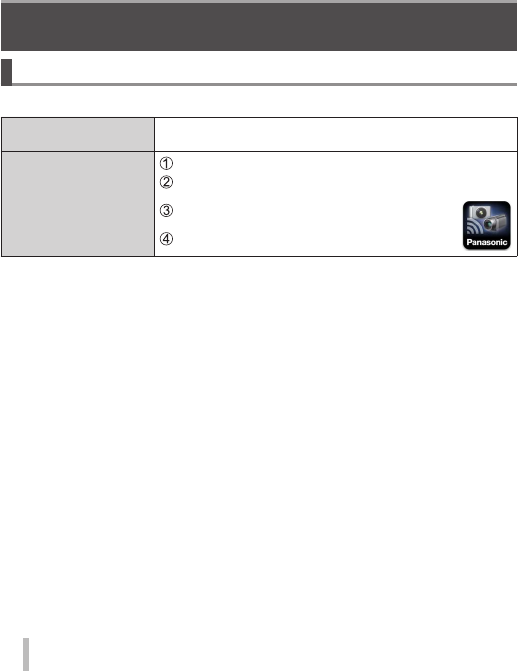
Installing the smartphone app “Panasonic Image App”
The “Image App” is an application provided by Panasonic.
Supported OS Android™: Android 4.0 or later
iOS: iOS 7.0 or later
Installation procedure Connect your device to a network
(Android) Select “Google PlayTM Store”
(iOS) Select “App StoreSM”
Enter “Panasonic Image App” or “LUMIX” to search
for the app
Select “Panasonic Image App” and install it
• Use the latest version.
• Supported OS versions as of January 2016. Supported OS versions may be changed without
prior notice.
• The service may not be able to be used properly depending on the type of smartphone being
used.
For the latest information on the “Image App”, refer to the support site below.
http://panasonic.jp/support/global/cs/dsc/ (This site is available in English only.)
• When downloading the app on a mobile network, high packet communication fees may be
incurred depending on the details of your contract.
• For details about the operating procedure, etc., refer to [Help] in the “Image App” menu.
• If you connect the camera and smartphone over a Wi-Fi connection and run “Image App”,
[Help] may not be displayed in the “Image App” menu for some smartphones. In such a case,
disconnect the Wi-Fi connection with the camera, connect the camera to a cellular data line
such as 3G and LTE, or the Internet to display [Help] in the “Image App” menu.
• Some of the screens and information provided in this document may be different depending on
the supported operating system and “Image App” version.
41
SQT1181 (ENG)
Wi-Fi
Connecting to a smartphone
You can easily establish a Wi-Fi connection on this unit without entering a
password on your smartphone.
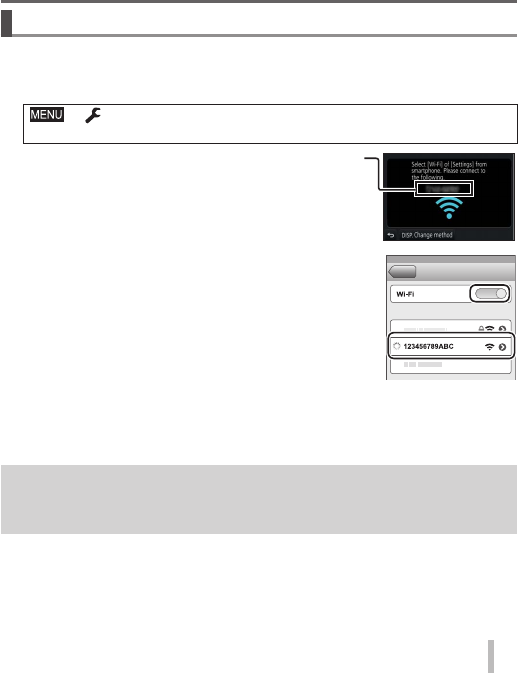
1 Select the menu on the camera
→ [Setup] → [Wi-Fi] → [Wi-Fi Function] → [New Connection]
→ [Remote Shooting & View]
• The information required for directly connecting your
smartphone to this unit (SSID) is displayed.
• You can also display the information by pressing the
function button that [Wi-Fi] function is assigned. (At
the time of purchase, [Wi-Fi] is assigned to [Fn5]
touch icon.)
2 Turn on the Wi-Fi function in the setting menu
of the smartphone
3 Select the SSID displayed on the screen of
the camera
4 On the smartphone, start “Image App”
• When the connection confirmation screen appears on the camera, select
[Yes] and press [MENU/SET]. (Only when making a connection for the first
time.)
[Wi-Fi Password] is set to [OFF] at the time of purchase. In [OFF] state, a
third party can tap into the Wi-Fi transmission and steal transmitted data.
Set [Wi-Fi Password] to [ON]. For details, refer to “Operating Instructions
for advanced features (PDF format)”.
42
Wi-Fi
SQT1181 (ENG)
■ Closing the connection
(On the camera) On the recording standby screen, terminate the connection
from the menu of the camera
→ [Setup] → [Wi-Fi] → [Wi-Fi Function] → [Yes]
(On your smartphone) Close “Image App”
• For details on how to close the application, refer to the operating
instructions of your device.
● When recording with [4K Pre-Burst] with the smartphone, terminate the
connection only after switching to 4K Burst recording by pressing [Q.MENU/ ]
button on the camera.
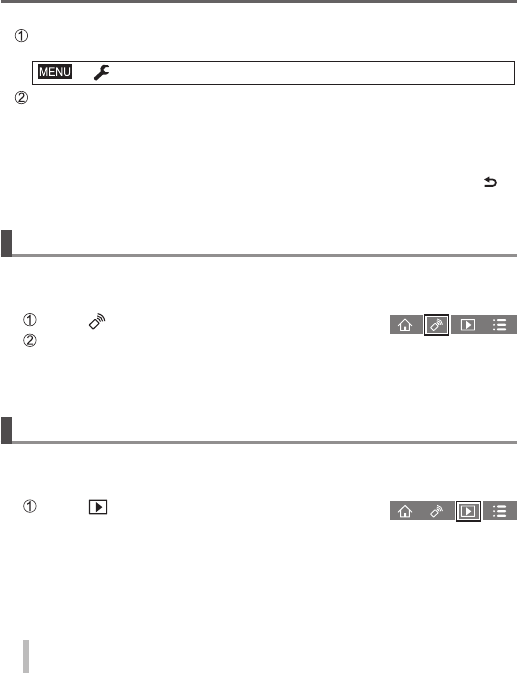
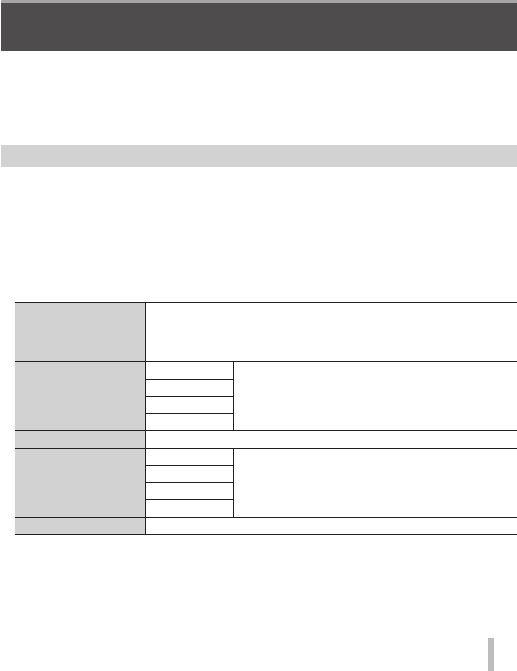
Taking pictures via a smartphone (remote recording)
1 Connect to a smartphone (→41)
2 Operate the smartphone
Select [ ]
Take pictures
• The recorded images are saved in the camera.
• Some settings are not available.
Playing back pictures in the camera on a smartphone
1 Connect to a smartphone (→41)
2 Operate the smartphone
Select [ ]
• When the picture is touched, it is played back at a
larger size.
43
SQT1181 (ENG)
Others Others
Downloading software
Still/motion pictures can be copied from the camera to your computer by
connecting the two together. If you wish to play back or edit pictures on a PC,
download software from the supplier’s website and install it on your PC.
● To download the software, your PC must be connected to the Internet.
● It may take time to download the software in some communication environments.
PHOTOfunSTUDIO 9.8 PE
You can capture still pictures or motion pictures to your PC, or organise captured
pictures by categorising by recording date, model name of the digital camera used
to record, etc. You can also correct still pictures, edit motion pictures, or write to
DVD.
• Check the website below to download/install the software.
The software is available for download until the end of March 2021.
http://panasonic.jp/support/global/cs/soft/download/d_pfs98pe.html
• Operating environment
Supported OS
Windows® 10 (32-bit/64-bit)
Windows® 8.1 (32-bit/64-bit)
Windows® 8 (32-bit/64-bit)
Windows® 7 (32-bit/64-bit) SP1
CPU
Windows® 10
Pentium® 4 2.8 GHz or higher
Windows® 8.1
Windows® 8
Windows® 7
Display
1024×768 pixels or more (1920×1080 pixels or more recommended)
RAM
Windows® 10
1 GB or more (32-bit) / 2 GB or more (64-bit)
Windows® 8.1
Windows® 8
Windows® 7
Free hard disk space 450 MB or more for installing software
• To edit 4K motion pictures, you need the 64-bit versions of Windows 10,
Windows 8.1, Windows 8, or Windows 7.
• Refer to the operating instructions of “PHOTOfunSTUDIO” (PDF) for further
information about the operating environment.

44
Others
SQT1181 (ENG)
SILKYPIX Developer Studio SE
This software develops and edits RAW file pictures. Edited pictures can be saved
in a file format such as JPEG or TIFF that can be displayed on a PC, etc.
• Check the website below to download/install the software.
http://www.isl.co.jp/SILKYPIX/english/p/
• Supported OS: Windows® 10 / 8.1 / 8 / 7
Mac® OS X v10.6 - v10.11
• For details on the operating environment and how to use the SILKYPIX
Developer Studio SE, refer to the “Help” or the Ichikawa Soft Laboratory’s
support website.
LoiLoScope 30 day full trial version
Motion pictures can be edited easily.
• Check the website below to download/install the software.
http://loilo.tv/product/20
• Supported OS: Windows® 10 / 8.1 / 8 / 7
• For more information on how to use LoiLoScope and its operating environment,
read the LoiLoScope manual available for download at the website.
45
SQT1181 (ENG)
Others
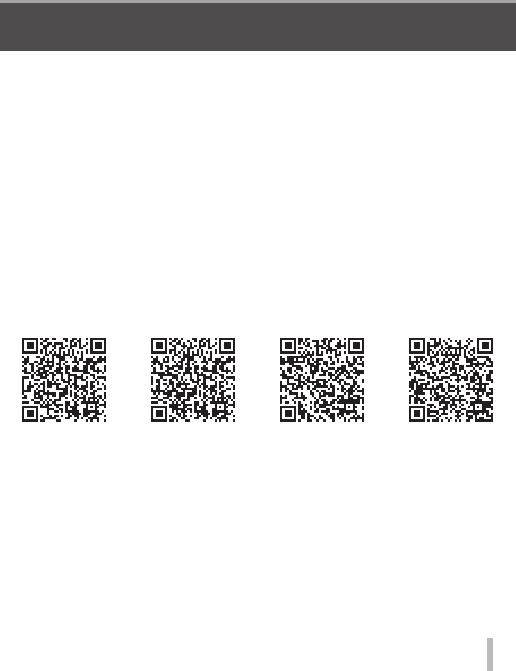
Reading the Operating Instructions (PDF format)
More detailed operating instructions are available in “Operating Instructions for
advanced features (PDF format)”. To read it, download it from the website.
DMC-TZ100
http://panasonic.jp/support/dsc/oi/index.html?model=DMC-TZ100&dest=EB
DMC-TZ101
http://panasonic.jp/support/dsc/oi/index.html?model=DMC-TZ101&dest=EG
DMC-TZ80
http://panasonic.jp/support/dsc/oi/index.html?model=DMC-TZ80&dest=EB
DMC-TZ81
http://panasonic.jp/support/dsc/oi/index.html?model=DMC-TZ81&dest=EG
DMC-TZ100 DMC-TZ101 DMC-TZ80 DMC-TZ81
• Click the desired language.
46
Others
SQT1181 (ENG)
■ Confirming URLs and QR codes with the camera
Set the menu
→ [Setup] → [Online Manual]
Use to select [URL display] or [QR Code display] and press [MENU/SET]
• The URL or QR code will be displayed on the camera monitor.
● You will need Adobe Reader to browse or print the Operating Instructions (PDF
format). You can download and install a version of Adobe Reader that you can
use with your OS from the following website. (As of January 2016)
http://www.adobe.com/products/acrobat/readstep2.html
47
SQT1181 (ENG)
Others
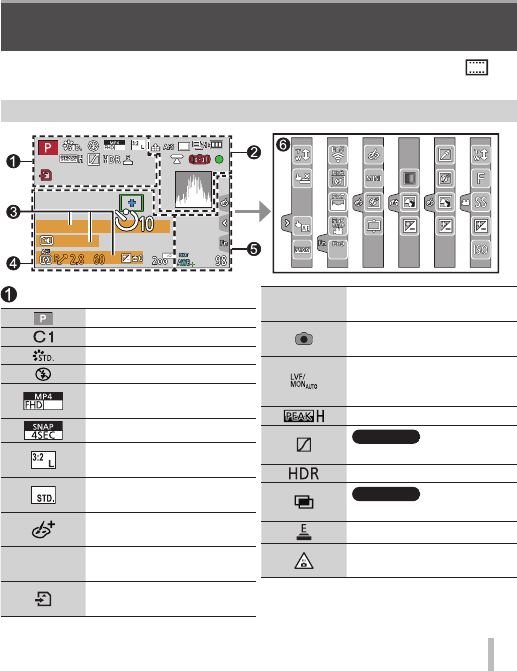
List of monitor/viewfinder displays
Recording mode (→18)
Custom Set
[Photo Style]
Flash Mode
50p
[Rec Format]/
[Rec Quality]
[Snap Movie]
[Aspect Ratio]/
[Picture Size]
Image size (Panorama
Shot Mode)
Picture effect (Filter)
adjustment display
EXPS Types of picture effects
(Filter)
Card (displayed only
during recording)
XXmXXs Elapsed recording
time1
Simultaneous recording
indicator
Automatic switching
between viewfinder and
monitor (→20)
[Peaking]
TZ100/TZ101
[Highlight Shadow]
[HDR]/[iHDR]
TZ100/TZ101
[Multi Exp.]
Electronic shutter
Overheat indicator
(→27, 29)
• The following images are examples of when the display screen is set to [ ]
(monitor style) in the monitor.
In recording
50p
48
Others
SQT1181 (ENG)
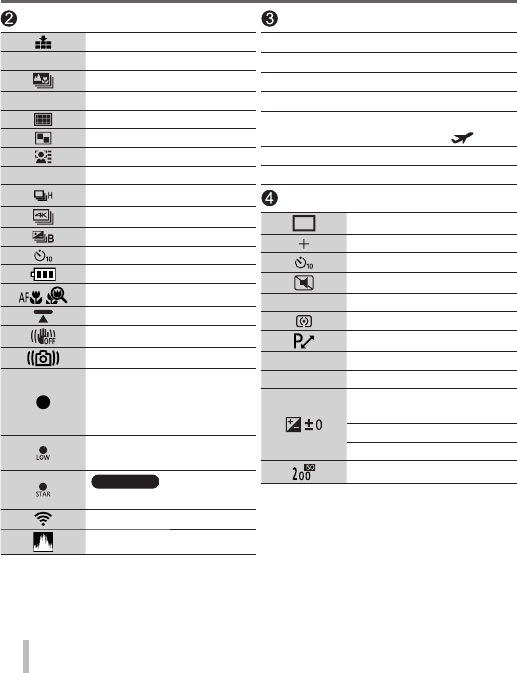
[Quality]
100fps [High Speed Video]
[Post Focus] (→28)
AFS [AFS/AFF/AFC]/MF
AF Mode
[Pull Focus]
[Face Recog.]
AFL AF Lock
Burst
[4K PHOTO] (→25)
[Auto Bracket]
[Self Timer]
Remaining battery
Macro recording (→20)
[Level Shot]
[Stabilizer]
Jitter alert
Recording state
(Flashes red.) (→32)/
Focus (Lights green.)
(→17)
Focus (Under low
illumination)
TZ100/TZ101
Focus (Starlight AF)
Wi-Fi connection status
Histogram
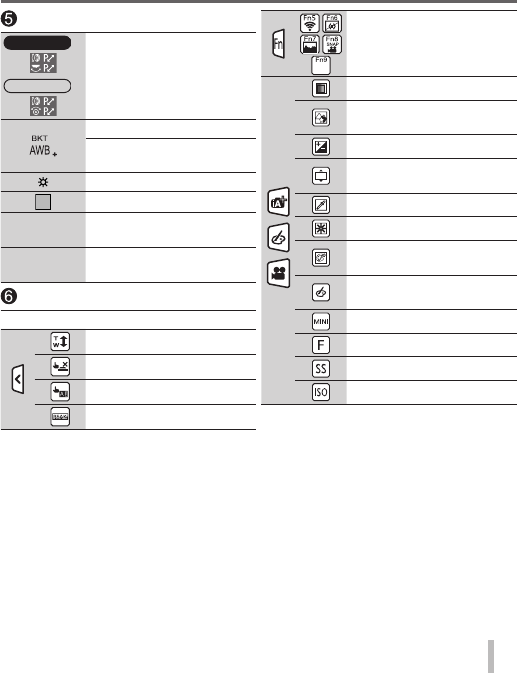
Name2
Travel elapsed days3
Age in years/months2
Location3
Current date/time3
Travel destination setting3:
Exposure meter
Zoom (→16)
AF area
Spot metering target
[Self Timer]4
[Silent Mode]
AEL AE Lock
[Metering Mode]
Programme Shift
2.85 Aperture value
60 Shutter speed
Exposure compensation
value
Brightness (exposure)
Manual Exposure Assist
ISO sensitivity
49
SQT1181 (ENG)
Others
TZ100/TZ101
TZ80/TZ81
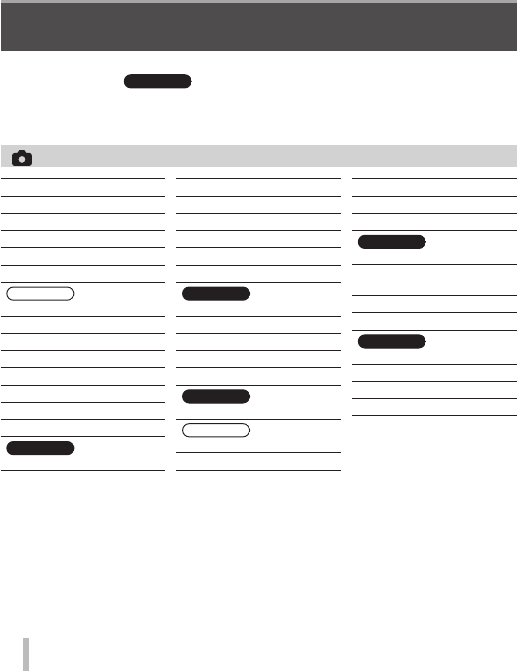
[Dial Guide]
White Balance Bracket
White Balance Fine
Adjustment
White Balance
Colouring
98 Number of recordable
pictures6
RXXmXXs Available recording
time1, 6
Touch tab
Touch zoom
Touch Shutter
[Touch AE]
[Peaking]
Function buttons (→19)
Colouring
Defocus control
function
Brightness (exposure)
Type of defocus
([Miniature Effect])
[One Point Color]
[Sunshine]
Picture effect (Filter)
adjustment display
Picture effects ON or
OFF
Picture effects (Filter)
Aperture value
Shutter speed
ISO sensitivity
1 [m] and [s] indicate “minute” and “second”.
2 This is displayed for about 5 seconds when the camera is turned on if the [Profile Setup]
setting is set.
3 This is displayed for about 5 seconds when the camera is turned on, after setting the clock
and after switching from Playback Mode to Recording mode.
4 This is displayed during countdown.
5 Values given are examples for DMC-TZ100/DMC-TZ101. The values you can set may vary
depending on the model.
6 It is possible to switch the display between the number of recordable pictures and available
recording time with the [Remaining Disp.] setting in the [Custom] menu.
• The information displayed, such as histograms, magnifications, and numeric
values, are only for the purpose of reference.
50
Others
SQT1181 (ENG)
Menu list
• The [Photo Style], [Filter Settings], [Sensitivity], [AF Mode], [AFS/AFF/AFC],
[Metering Mode],
TZ100/TZ101
[Highlight Shadow], [i.Dynamic], [i.Resolution],
[Diffraction Compensation], [i.Zoom] and [Digital Zoom] menu items are common
for both [Rec] and [Motion Picture] menus. If a setting in one menu is changed,
the setting with the same name in other menu will also be changed automatically.
[Rec]
[Photo Style]
[Filter Settings]
[Aspect Ratio]
[Picture Size]
[Quality]
[Sensitivity]
TZ80/TZ81
[White Balance]
[AF Mode]
[AFS/AFF/AFC]
[Metering Mode]
[Burst Rate]
[4K PHOTO]
[Auto Bracket]
[Self Timer]
TZ100/TZ101
[Highlight Shadow]
[i.Dynamic]
[i.Resolution]
[Post Focus]
[iHandheld Night Shot]
[iHDR]
[HDR]
TZ100/TZ101
[Multi Exp.]
[Time Lapse Shot]
[Stop Motion Animation]
[Panorama Settings]
[Shutter Type]
TZ100/TZ101
[Flash]
TZ80/TZ81
[Flash Adjust.]
[Red-Eye Removal]
[ISO Limit Set]
[ISO Increments]
[Extended ISO]
TZ100/TZ101
[Long Shtr NR]
[Diffraction
Compensation]
[i.Zoom]
[Digital Zoom]
TZ100/TZ101
[Color Space]
[Stabilizer]
[Face Recog.]
[Profile Setup]
51
SQT1181 (ENG)
Others
[Motion Picture]
[4K Live Cropping]
[Snap Movie]
[Rec Format]
[Rec Quality]
[Exposure Mode]
[High Speed Video]
[Continuous AF]
[Level Shot]
[Flkr Decrease]
[Silent Operation]
[Wind Noise Canceller]
[Zoom Mic]
[Cust.Set Mem.]
[Silent Mode]
[AF/AE Lock]
[AF/AE Lock Hold]
[Shutter AF]
[Half Press Release]
[Quick AF]
[Eye Sensor AF]
TZ100/TZ101
[Pinpoint AF Time]
TZ100/TZ101
[Pinpoint AF Display]
[AF Assist Lamp]
[Direct Focus Area]
[Focus/Release Priority]
[AF+MF]
[MF Assist]
[MF Assist Display]
[MF Guide]
[Peaking]
[Histogram]
[Guide Line]
[Highlight]
[Zebra Pattern]
[Monochrome Live View]
TZ100/TZ101
[Constant Preview]
[Expo.Meter]
[Dial Guide]
[LVF Disp.Style]
[Monitor Disp. Style]
[Rec Area]
[Remaining Disp.]
[Auto Review]
[Fn Button Set]
[Zoom lever]
[Zoom Resume]
TZ100/TZ101
[Q.MENU]
[Ring/Dial Set]
[Eye Sensor]
[Touch Settings]
[Touch Scroll]
[Menu Guide]
[Custom]
52
Others
SQT1181 (ENG)
[Setup]
[Online Manual]
[Clock Set]
[World Time]
[Travel Date]
[Wi-Fi]
[Beep]
[Live View Mode]
[Monitor Display]/
[Viewfinder]
[Monitor Luminance]
[Economy]
[USB Mode]
[TV Connection]
[Menu Resume]
[Menu Background]
[Menu Information]
[Language]
[Version Disp.]
[Exposure Comp. Reset]
[Self Timer Auto Off]
[No.Reset]
[Reset]
[Reset Wi-Fi Settings]
[Demo Mode]
[Format]
[Slide Show]
[Playback Mode]
[Location Logging]
TZ100/TZ101
[RAW Processing]
[Light Composition]
[Clear Retouch]
[Title Edit]
[Text Stamp]
[Video Divide]
[Time Lapse Video]
[Stop Motion Video]
[Resize]
[Cropping]
[Rotate]
[Rotate Disp.]
[Favorite]
[Print Set]
[Protect]
[Face Rec Edit]
[Picture Sort]
[Playback]

53
SQT1181 (ENG)
Others
Q&A Troubleshooting
• Performing [Reset] in the [Setup] menu may resolve the issue.
• Further information is provided in the “Operating Instructions for advanced
features (PDF format)”. Check it together with the information in this section.
The charging lamp blinks.
• Charging is being performed in a place with extremely high or low temperature.
→ Reconnect the USB connection cable (supplied) and retry charging in a place where
ambient temperature is 10 °C to 30 °C (50 °F to 86 °F) (temperature conditions also
apply to the battery itself).
• Charging is not possible if the power supply capacity of the computer is low.
This unit is turned off automatically.
• [Economy] is activated.
• The linked operation of VIERA Link (HDMI) is enabled.
→ If you are not using VIERA Link (HDMI), set [VIERA Link] to [OFF].
Sometimes focus adjustment with auto focus mode is difficult while
recording 4K motion pictures.
• This may occur when taking a picture by reducing the auto focus speed in order to adjust the
focus at high precision. This is not a malfunction.
The monitor display momentarily turns off.
• When the monitor display automatically switches between finder and monitor (→20), the
action of the eye sensor causes automatic switching of the display to the finder if the finder
gets close to the user’s eye or an object.

54
Others
SQT1181 (ENG)
It cannot connect to the wireless LAN. Radio waves get disconnected.
Wireless access point is not displayed.
General tips for using a Wi-Fi connection
• Use within the communication range of the wireless LAN network.
• If any device, such as microwave oven, cordless phone, etc., that uses 2.4 GHz frequency
are used nearby this unit simultaneously, radio waves may get interrupted.
→ Use them sufficiently away from the device.
• When the battery indicator is flashing red, the connection with other equipment may not
start or the connection may be disrupted. (A message such as [Communication error] is
displayed.)
• When this unit is placed on a metal table or shelf, the connection may not be established
easily because the camera is affected by radio waves. Use the camera away from metal
surfaces.
About a wireless access point
• Check if the wireless access point to connect is in operating state.
• The camera may not display or connect to a wireless access point depending on the radio
wave condition.
→ Perform the connection closer to the wireless access point.
→ Remove the obstacles between this unit and the wireless access point.
→ Change the direction of this unit.
→ Move the location or change the angle of the wireless access point.
→ Perform the [Manual Input].
• It may not display even if the radio waves exist depending on the setting of the wireless
access point.
• If the network SSID of the wireless access point is set not to broadcast, it may not be
detected.
→ Enter and set the network SSID. Alternatively, set the network SSID of the wireless access
point to broadcast.
• Connection types and security setting methods are different depending on the wireless
access point.
→ Refer to the operating instructions of the wireless access point.
• When the 5 GHz/2.4 GHz switchable wireless access point is connected to other equipment
using the 5 GHz band, it cannot be used simultaneously with this camera if it is not
compatible.
→ The use of a wireless access point that can use 5 GHz/2.4 GHz simultaneously is
recommended.
55
SQT1181 (ENG)
Others
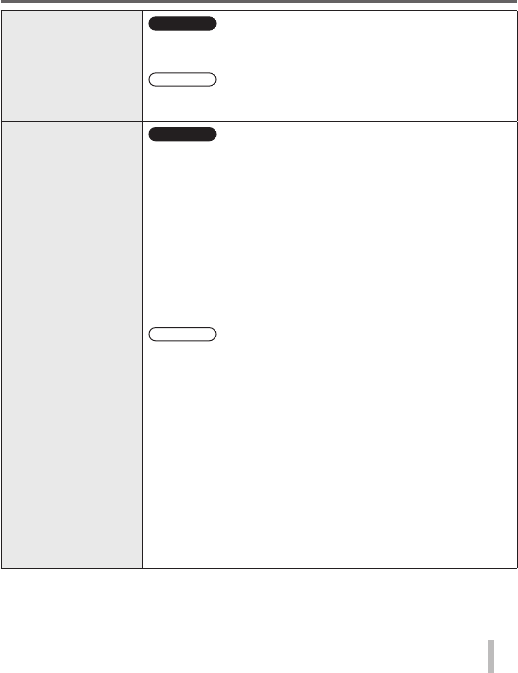
Specifications
Digital Camera: Information for your safety
Power Source DC 8.4 V ( 8.4 V)
Power
Consumption
TZ100/TZ101
2.3 W (When recording with monitor)
2.7 W (When recording with viewfinder)
1.5 W (When playing back with monitor)
1.5 W (When playing back with viewfinder)
TZ80/TZ81
2.2 W (When recording with monitor)
2.6 W (When recording with viewfinder)
1.5 W (When playing back with monitor)
1.5 W (When playing back with viewfinder)
Camera effective
pixels
TZ100/TZ101
20,100,000 pixels
TZ80/TZ81
18,100,000 pixels
Image sensor
TZ100/TZ101
1″ MOS sensor,
total pixel number 20,900,000 pixels
Primary colour filter
TZ80/TZ81
1/2.3″ MOS sensor,
total pixel number 18,900,000 pixels
Primary colour filter
56
Others
SQT1181 (ENG)
Lens
TZ100/TZ101
Optical 10x zoom
f=9.1 mm to 91 mm
(35 mm film camera equivalent: 25 mm to 250 mm)
Max. Wide: F2.8 to F8.0
Max. Tele: F5.9 to F8.0
TZ80/TZ81
Optical 30x zoom
f=4.3 mm to 129 mm
(35 mm film camera equivalent: 24 mm to 720 mm)
Max. Wide: F3.3 to F8.0
Max. Tele: F6.4 to F8.0
Image Stabiliser Optical method
Focus range
TZ100/TZ101
AF:
50 cm (1.6 feet) (Max. Wide)/
70 cm (2.3 feet) (Max. Tele) to
AF Macro/MF/Intelligent Auto/Motion picture:
5 cm (0.16 feet) (Max. Wide)/
70 cm (2.3 feet) (Max. Tele) to
TZ80/TZ81
AF:
50 cm (1.6 feet) (Max. Wide)/
2 m (6.6 feet) (Max. Tele) to
AF Macro/MF/Intelligent Auto/Motion picture:
3 cm (0.098 feet) (Max. Wide)/
2 m (6.6 feet) (Max. Tele) to
Shutter system Electronic shutter + Mechanical shutter
57
SQT1181 (ENG)
Others
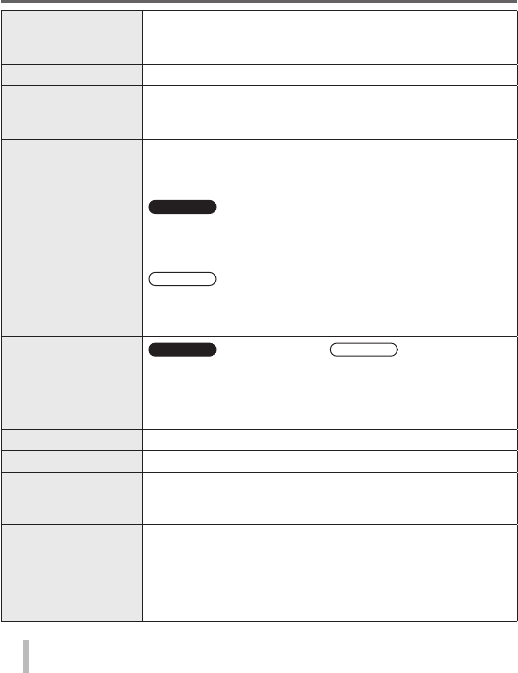
Minimum
Illumination
TZ100/TZ101
Approx. 9 lx (when i-Low light is used, the shutter speed is
1/25th of a second)
TZ80/TZ81
Approx. 10 lx (when i-Low light is used, the shutter speed
is 1/25th of a second)
Shutter speed
TZ100/TZ101
Still picture:
T (Time) (Max. approx. 120 seconds),
60 seconds to 1/2000th of a second
(When the mechanical shutter is used),
1 second to 1/16000th of a second
(When the electronic shutter is used)
Motion picture:
1/2 second to 1/16000th of a second
(When [M] is selected in Creative Video Mode, MF),
1/25th of a second to 1/16000th of a second
(Other than the above)
TZ80/TZ81
Still picture:
60 seconds to 1/2000th of a second
(When the mechanical shutter is used and [Artistic
Nightscape] is selected as the Scene Guide Mode),
4 seconds to 1/2000th of a second
(When the mechanical shutter is used, in cases other than
the above),
1 second to 1/16000th of a second
(When the electronic shutter is used)
Motion picture:
1/2 second to 1/16000th of a second
(When [M] is selected in Creative Video Mode, MF),
1/25th of a second to 1/16000th of a second
(Other than the above)
58
Others
SQT1181 (ENG)
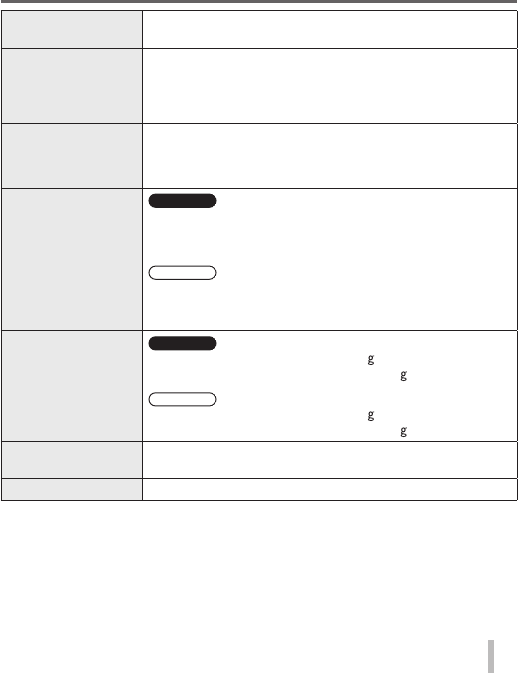
Exposure (AE) Programme AE (P)/Aperture-priority AE (A)/
Shutter-priority AE (S)/Manual exposure (M)/AUTO
Exposure Compensation (1/3 EV steps, -5 EV to +5 EV)
[Metering Mode] Multiple/Centre weighted/Spot
Monitor 3.0″ TFT LCD (3:2) (Approx. 1,040,000 dots)
(field of view ratio about 100%)
Touch screen
Viewfinder 0.2″ Colour LCD Live Viewfinder (4:3)
(Approx. 1,160,000 dots equivalent)
(field of view ratio about 100%)
TZ100/TZ101
[Magnification approx. 1.25x, 0.46x (35 mm film camera
equivalent), with 50 mm lens at infinity; -1.0 m-1]
(with diopter adjustment -4.0 to +4.0 diopter)
TZ80/TZ81
[Magnification approx. 2.59x, 0.46x (35 mm film camera
equivalent), with 50 mm lens at infinity; -1.0 m-1]
(with diopter adjustment -4.0 to +4.0 diopter)
Flash
TZ100/TZ101
Built-in pop up flash
TZ80/TZ81
Built-in flash
AUTO, AUTO/Red-Eye Reduction, Forced ON,
Forced ON/Red-Eye Reduction, Slow Sync.,
Slow Sync./Red-Eye Reduction, Forced OFF
Microphones Stereo
Speaker Monaural
Recording media SD Memory Card/SDHC Memory Card/
SDXC Memory Card
UHS- UHS Speed Class 3
Recording file
format
Still picture RAW/JPEG (based on Design rule for Camera File
system, based on Exif 2.3 standard/DPOF corresponding)
Motion picture AVCHD Progressive/AVCHD/MP4
59
SQT1181 (ENG)
Others
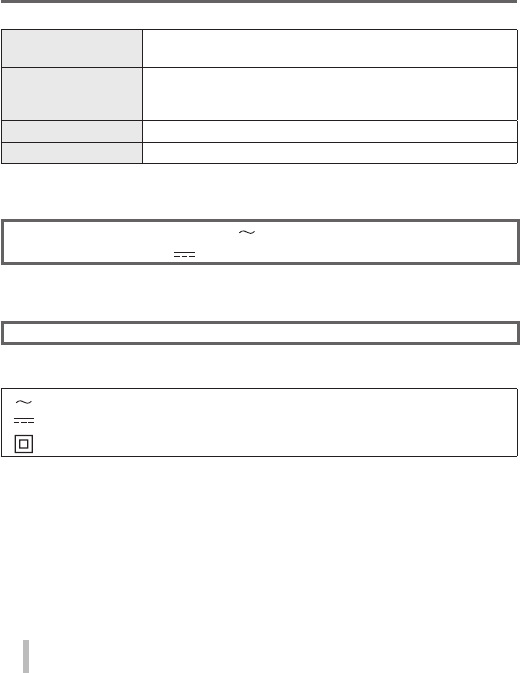
Audio compression
format
AVCHD: Dolby® Digital (2 ch)
MP4: AAC (2 ch)
Interface
Digital USB 2.0 (High Speed)
Data from the PC can not be written to the camera using
the USB connection cable.
Terminal
[HDMI] Micro HDMI Type D
[CHARGE] USB 2.0 micro-B
Dimensions
TZ100/TZ101
Approx. 110.5 mm (W) x 64.5 mm (H) x 44.3 mm (D)
[4.35″ (W) x 2.54″ (H) x 1.74″ (D)]
(excluding the projection part)
TZ80/TZ81
Approx. 112.0 mm (W) x 64.0 mm (H) x 38.0 mm (D)
[4.41″ (W) x 2.52″ (H) x 1.50″ (D)]
(excluding the projection part)
Mass
TZ100/TZ101
With card and battery: Approx. 310 (0.68 lb)
Excluding card and battery: Approx. 268 (0.59 lb)
TZ80/TZ81
With card and battery: Approx. 282 (0.62 lb)
Excluding card and battery: Approx. 240 (0.53 lb)
Operating
temperature 0 °C to 40 °C (32 °F to 104 °F)
Operating humidity 10%RH to 80%RH
60
Others
SQT1181 (ENG)
■ Wi-Fi
Compliance
standard IEEE 802.11b/g/n (standard wireless LAN protocol)
Frequency range
used
(central frequency)
2412 MHz to 2462 MHz (1 to 11 ch)
Encryption method Wi-Fi compliant WPA™/WPA2™
Access method Infrastructure mode
■ AC adaptor
(Panasonic SAE0012F): Information for your safety
Input: 110 V – 240 V 50/60 Hz 0.2 A
Output: 5 V 1.0 A
■ Battery Pack (lithium-ion)
(Panasonic DMW-BLG10E): Information for your safety
Voltage/capacity: 7.2 V/1025 mAh
The symbols on this product (including the accessories) represent the following:
AC
DC
Class II equipment (The construction of the product is double-insulated.)
Specifications are subject to change without notice.

61
SQT1181 (ENG)
Others
Digital Camera Accessory System
Battery pack
DMW-BLG10
The battery pack can be charged from the camera using
the AC adaptor (supplied).
AC adaptor
DMW-AC10
By using the AC adaptor (DMW-AC10: optional) and DC
coupler (DMW-DCC11: optional), you can record and play
back without worrying about the remaining battery charge.
• The AC adaptor (optional) can only be used with the
designated Panasonic DC coupler (optional). The AC
adaptor (optional) cannot be used by itself.
• When using an AC adaptor (optional), use the AC mains
lead supplied with the AC adaptor.
DC coupler
DMW-DCC11
● Part numbers are as of January 2016. These may be subject to change.
● Some optional accessories may not be available in some countries.
Sales and Support Information
Customer Communications Centre
• For customers within the U.K.: 0344 844 3899
• For customers within Ireland: 01 289 8333
• Monday - Friday 9:00am - 5:00pm (Excluding public holidays).
• For further support on your product, please visit our website:
www.panasonic.co.uk
Direct Sales at Panasonic U.K.
• Order accessory and consumable items for your product with ease and
confidence by phoning our Customer Communications Centre
Monday - Friday 9:00am - 5:00pm (Excluding public holidays).
• Or go on line through our Internet Accessory ordering application at
www.pas-europe.com.
• Most major credit and debit cards accepted.
• All enquiries transactions and distribution facilities are provided directly by
Panasonic U.K.
• It couldn’t be simpler!
• Also available through our Internet is direct shopping for a wide range of finished
products. Take a browse on our website for further details.

62 SQT1181 (ENG)
● SDXC Logo is a trademark of SD-3C, LLC.
● The terms HDMI and HDMI High-Definition Multimedia Interface, and the HDMI
Logo are trademarks or registered trademarks of HDMI Licensing, LLC in the
United States and other countries.
● HDAVI Control™ is a trademark of Panasonic Corporation.
● “AVCHD”, “AVCHD Progressive” and the “AVCHD Progressive” logo are
trademarks of Panasonic Corporation and Sony Corporation.
● Manufactured under license from Dolby Laboratories. Dolby and the double-D
symbol are trademarks of Dolby Laboratories.
● Pentium is a trademark of Intel Corporation in the U.S. and/or other countries.
● Windows is either registered trademark or trademark of Microsoft Corporation
in the United States and/or other countries.
● Mac and Mac OS are trademarks of Apple Inc., registered in the U.S. and other
countries.
● iPad, iPhone, iPod, and iPod touch are trademarks of Apple Inc., registered in
the U.S. and other countries.
● App Store is a service mark of Apple Inc.
● Android and Google Play are trademarks or registered trademarks of Google
Inc.
● The Wi-Fi CERTIFIED™ Logo is a certification mark of Wi-Fi Alliance®.
● The Wi-Fi Protected Setup™ Identifier mark is a certification mark of Wi-Fi
Alliance®.
● “Wi-Fi®” and “Wi-Fi Direct®” are registered trademarks of Wi-Fi Alliance®.
● “Wi-Fi Protected Setup™”, “WPA™”, and “WPA2™” are trademarks of Wi-Fi
Alliance®.
● DLNA, the DLNA Logo and DLNA CERTIFIED are trademarks, service marks,
or certification marks of the Digital Living Network Alliance.
● QR Code is a registered trademark of DENSO WAVE INCORPORATED.
● This product uses “DynaFont” from DynaComware Corporation. DynaFont is a
registered trademark of DynaComware Taiwan Inc.
● Other names, company names, and product names mentioned in these
instructions are trademarks or registered trademarks of the companies
concerned.

63
SQT1181 (ENG)

EU
Web Site: http://www.panasonic.com
© Panasonic Corporation 2016
Manufactured by: Panasonic Corporation
Kadoma, Osaka, Japan
Importer for Europe: Panasonic Marketing Europe GmbH
Panasonic Testing Centre
Winsbergring 15, 22525 Hamburg, Germany
