Parallels Remote Application Server 15.0 Administrator's Guide 15 AG EN
User Manual: parallels Remote Application Server - 15.0 - Administrator's Guide Free User Guide for Parallels Remote Application Server Software, Manual
Open the PDF directly: View PDF  .
.
Page Count: 234 [warning: Documents this large are best viewed by clicking the View PDF Link!]
- Introduction to Parallels Remote Application Server
- Installing Parallels Remote Application Server
- Getting Started with Parallels Remote Application Sever
- Sites and Administrators
- Terminal Servers
- VDI Hosts
- Remote PC’s
- Publishing and Filtering
- RAS Secure Client Gateways
- RAS Secure Client Gateway Overview
- Adding a RAS Secure Client Gateway
- Manually Adding a RAS Secure Client Gateway
- Checking the RAS Secure Client Gateway Status
- Managing RAS Secure Client Gateway
- Enabling and Disabling a RAS Secure Client Gateway
- Configuring the IP Address for Incoming Connections
- Configuring RAS Secure Client Gateway Network Options
- Enabling SSL Encryption on a RAS Secure Client Gateway
- Enabling HTML5 Support on the Gateway
- Changing the Gateway Mode and Forwarding Settings
- Support for Wyse Thin Client OS
- Filtering Access to RAS Secure Client Gateway
- Gateway Tunneling Policies
- RAS Web Portal
- Backup Publishing Agents
- Load Balancing
- Universal Printing
- Universal Scanning
- Managing Devices
- Reporting
- Connection and Authentication Settings
- RAS Publishing Agent Connection Settings
- Restricting Access by Parallels Client Type and Build Number
- Second Level Authentication
- Managing Parallels Remote Application Server
- Parallels Remote Application Server Status
- Licensing
- Managing Sessions
- Configuring Monitoring Counters and Email Alerts
- Viewing Parallels Remote Application Server Configuration Changes
- Configuring Auditing Logging
- Maintenance and Backup
- Exporting and Importing Farm Settings
- Problem Reporting and Troubleshooting
- Port Reference
- Index

Copyright © 1999-2016 Parallels IP Holdings GmbH and its affiliates. All rights reserved.
Parallels Remote
Application Server
Administrator's Guide
v15
Parallels IP Holdings GmbH
Vordergasse 59
8200 Schaffhausen
Switzerland
Tel: + 41 52 632 0411
Fax: + 41 52 672 2010
www.parallels.com
Copyright © 1999-2016 Parallels IP Holdings GmbH and its affiliates. All rights reserved.
This product is protected by United States and international copyright laws. The product’s underlying technology,
patents, and trademarks are listed at http://www.parallels.com/trademarks.
Microsoft, Windows, Windows Server, Windows NT, Windows Vista, and MS-DOS are registered trademarks of Microsoft
Corporation.
Apple, Mac, the Mac logo, Mac OS, iPad, iPhone, iPod touch, FaceTime HD camera and iSight are trademarks of Apple
Inc., registered in the US and other countries.
Linux is a registered trademark of Linus Torvalds.
All other marks and names mentioned herein may be trademarks of their respective owners.
Contents
Introduction to Parallels Remote Application Server...............................................9
What is Parallels Remote Application Server?.................................................................... 9
About This Document ..................................................................................................... 10
Terms and Abbreviations ................................................................................................ 10
Installing Parallels Remote Application Server ......................................................13
System Requirements .....................................................................................................13
Software Requirements ......................................................................................................... 13
Hardware Requirements........................................................................................................ 14
Installing Parallels Remote Application Server.................................................................. 15
Signing In to Parallels Business Account ......................................................................... 21
Activating Parallels Remote Application Server ................................................................ 23
Managing Your Licenses ................................................................................................. 23
Getting Started with Parallels Remote Application Sever .....................................24
Parallels Remote Application Server Console .................................................................. 24
Setting Up a Simple RAS Environment ............................................................................ 26
Add a Terminal Server ...........................................................................................................27
Publish an Application ........................................................................................................... 28
Invite Users............................................................................................................................ 28
Conclusion ............................................................................................................................ 32
Sites and Administrators.........................................................................................33
Sites and Management ................................................................................................... 33
Adding a New Site to the Farm.............................................................................................. 34
Managing Sites...................................................................................................................... 36
Administrators: Adding, Managing and Configuring ......................................................... 37
Adding an Administrator Account .......................................................................................... 37
Configuring Administrator Accounts Permissions .................................................................. 38
Managing Administrator Accounts......................................................................................... 39
Using Instant Messaging for Administrators........................................................................... 39

Contents
Joining Customer Experience Program ........................................................................... 40
Terminal Servers......................................................................................................41
Viewing the Available Terminal Servers ............................................................................ 41
Adding a Terminal Server ................................................................................................ 42
Installing RAS Terminal Server Agent Manually ...................................................................... 44
Configuring a Terminal Server ......................................................................................... 45
Check RAS Terminal Server Agent Status ............................................................................. 45
Change a Terminal Server Site Assignment ........................................................................... 46
View and Modify Terminal Server Properties.......................................................................... 46
Grouping Terminal Servers.............................................................................................. 50
Using a Terminal Server Scheduler.................................................................................. 51
Managing Logons From Client Sessions.......................................................................... 53
Publishing from a Terminal Server ................................................................................... 54
Publishing a Desktop from a Terminal Server ........................................................................ 54
Publishing an Application from a Terminal Server .................................................................. 57
Publishing a Web Application from a Terminal Server ............................................................ 60
Publishing a Network Folder from a Terminal Server.............................................................. 61
Publishing a Document from a Terminal Server ..................................................................... 63
VDI Hosts .................................................................................................................64
Adding a VDI Host .......................................................................................................... 64
Checking the RAS VDI Agent Status ..................................................................................... 66
Installing RAS VDI Agent Manually......................................................................................... 66
Installing an Appliance and Configuring a VDI Host.......................................................... 67
Managing RAS Templates...............................................................................................71
Creating a RAS Template ...................................................................................................... 72
How Virtual Guests Are Created From a Template ................................................................ 72
Configuring a RAS Template ................................................................................................. 73
RAS Template Maintenance .................................................................................................. 74
VDI Host Pool Management ............................................................................................ 75
Adding and Deleting Pools .................................................................................................... 76
Adding and Deleting Pool Members ...................................................................................... 76
Configuring Virtual Guests in a Pool....................................................................................... 77
Using the Wildcard Function.................................................................................................. 79

Contents
Persistent Guests............................................................................................................ 79
Publishing from a Guest .................................................................................................. 79
Publishing a Virtual Desktop from a Guest............................................................................. 79
Publishing an Application from a Guest ................................................................................. 80
Publishing a Web Application from a Guest........................................................................... 81
Publishing a Network Folder from a Guest............................................................................. 82
Publishing a Document from a Guest .................................................................................... 82
VDI Agent Technology..................................................................................................... 83
Citrix XenServer..................................................................................................................... 84
Microsoft Hyper-V ................................................................................................................. 92
VMWare vSphere ..................................................................................................................95
Remote PC’s..........................................................................................................111
Adding a Remote PC .................................................................................................... 111
Installing RAS PC Agent Manually ................................................................................. 112
Configuring a Remote PC ............................................................................................. 113
Publishing from a Remote PC ....................................................................................... 114
Publishing a Desktop from a Remote PC............................................................................. 114
Publishing an Application from a Remote PC ...................................................................... 115
Publishing a Web Application from a Remote PC ................................................................ 115
Publishing a Network Folder from a Remote PC.................................................................. 116
Publishing a Document from a Remote PC ......................................................................... 116
Publishing and Filtering.........................................................................................118
Managing Published Applications.................................................................................. 118
Managing Published Desktops ...................................................................................... 123
Managing Published Documents................................................................................... 124
Managing Published Folders ......................................................................................... 126
Filtering Rules by User, Client, IP, MAC, and Gateway................................................... 127
RAS Secure Client Gateways................................................................................130
RAS Secure Client Gateway Overview........................................................................... 130
Adding a RAS Secure Client Gateway ........................................................................... 132
Manually Adding a RAS Secure Client Gateway ............................................................132
Checking the RAS Secure Client Gateway Status ......................................................... 133
Managing RAS Secure Client Gateway.......................................................................... 134
Enabling and Disabling a RAS Secure Client Gateway......................................................... 134

Contents
Configuring the IP Address for Incoming Connections......................................................... 135
Configuring RAS Secure Client Gateway Network Options.................................................. 136
Enabling SSL Encryption on a RAS Secure Client Gateway................................................. 137
Enabling HTML5 Support on the Gateway .......................................................................... 139
Changing the Gateway Mode and Forwarding Settings....................................................... 142
Support for Wyse Thin Client OS ......................................................................................... 142
Filtering Access to RAS Secure Client Gateway................................................................... 143
Gateway Tunneling Policies........................................................................................... 143
Configuring Tunneling Policies............................................................................................. 143
RAS Web Portal.....................................................................................................144
RAS Web Portal: Prerequisites and Installation .............................................................. 144
Logging Into the Administrative Page ............................................................................ 146
Farm Settings................................................................................................................ 147
General Settings ........................................................................................................... 150
Backup Publishing Agents....................................................................................156
Adding a Backup Publishing Agent ............................................................................... 156
Managing Backup Publishing Agents ............................................................................ 157
Load Balancing......................................................................................................158
Resource Based & Round Robin Load Balancing.......................................................... 158
Load Balancing Advanced Settings............................................................................... 160
High Availability Load Balancing .................................................................................... 161
Configuring HALB Appliances in the RAS Console .............................................................. 162
Changing HALB Appliance Password.................................................................................. 164

Contents
Universal Printing ..................................................................................................166
Managing Universal Printing Servers.............................................................................. 166
Universal Printing Filtering ............................................................................................. 168
Font Management......................................................................................................... 169
Universal Scanning................................................................................................170
Managing Universal Scanning ....................................................................................... 170
Managing Scanning Applications................................................................................... 172
Managing Devices .................................................................................................173
Inviting Users to Connect Devices ................................................................................. 173
Monitoring Devices........................................................................................................ 175
Managing Windows Devices ......................................................................................... 176
Windows Desktop Replacement.......................................................................................... 179
Windows Device Groups............................................................................................... 182
Scheduling Windows Devices & Groups Power Cycles.................................................. 183
Managing Parallels Client Settings................................................................................. 184
Reporting ...............................................................................................................189
Deploy and Configure RAS Reports .............................................................................. 189
Advanced Settings .............................................................................................................. 190
RAS Reports................................................................................................................. 191
Connection and Authentication Settings..............................................................194
RAS Publishing Agent Connection Settings................................................................... 194
Restricting Access by Parallels Client Type and Build Number ...................................... 196
Second Level Authentication ......................................................................................... 196
Configuring Parallels Remote Application Server ................................................................. 197
Working with Safenet........................................................................................................... 200
Working with Deepnet ......................................................................................................... 203
Managing Parallels Remote Application Server...................................................217
Parallels Remote Application Server Status ................................................................... 217
Licensing ...................................................................................................................... 218
Managing Sessions....................................................................................................... 220
Configuring Monitoring Counters and Email Alerts ......................................................... 221
Configuring Monitoring Counters ......................................................................................... 221
Configuring SMTP Server Connection for System Notifications via Email............................. 221

Contents
Viewing Parallels Remote Application Server Configuration Changes............................. 222
Configuring Auditing Logging ........................................................................................ 222
Parallels Remote Application Server Logging Per Server ..................................................... 223
Parallels Remote Application Server Logging Per Site ......................................................... 223
Maintenance and Backup .............................................................................................224
Exporting and Importing Farm Settings ......................................................................... 224
Problem Reporting and Troubleshooting ....................................................................... 225
Port Reference.......................................................................................................229
Index ......................................................................................................................232
In This Chapter
What is Parallels Remote Application Server? ........................................................... 9
About This Document............................................................................................... 10
Terms and Abbreviations.......................................................................................... 10
What is Parallels Remote Application Server?
Parallels Remote Application Server provides vendor independent virtual desktop and application
delivery from a single platform. Accessible from anywhere with native clients and web enabled
solutions, like the Parallels RAS HTML5 Gateway, Parallels Remote Application Server allows you to
publish full desktops, applications and documents within a virtual environment, improving desktop
manageability, security and performance.
Parallels Remote Application Server extends Windows Terminal Services by using a customized
shell and virtual channel extensions over the Microsoft RDP protocol. It supports all major
Hypervisors from Microsoft, VMware, and others enabling the publishing of virtual desktops and
applications to the Parallels Client.
The product includes powerful universal printing and scanning functionality, high capacity resource
based load balancing and management features.
With the Parallels Client Manager Module for Parallels Remote Application Server you can also
centrally manage user connections and PCs converted into thin clients using the free Parallels
Client.
How does it work?
When a user requests a virtual desktop or application, the system finds a virtual guest on one of the
least loaded VDI hosts, or it finds a least loaded terminal server, and starts or restores an RDP
connection with it. Using Microsoft RDP protocol, the virtual desktop or published application is
presented to the user.
CHAPTER 1
Introduction to Parallels Remote Application
Server

10
Introduction to Parallels Remote Application Server
Users can connect to the Parallels Remote Application Server using Parallels Client (available at no
charge), which can run on Windows, Linux, OS X, Android, Chrome, and iOS. Users can also
connect via an HTML5 browser or Chromebook.
As newer versions of Windows keep on being developed as time goes by, how can you defend the
migration cost to your business? Parallels Remote Application Server can help. Desktop
replacement allows you to extend the lifespan of your hardware and delay migration to the latest
OSs to a time that suits you best. The Parallels Remote Application Server solution allows you to be
very flexible: you can lock machine configurations on the user side, placing your corporate data in
an extremely secure position; or you can opt to allow users to run some local and remote
applications. Parallels Client Desktop Replacement is able to reduce the operability of the local
machine by disabling the most common local configuration options, while guaranteeing the same
level of service and security afforded by thin clients, directly from your existing PCs.
About This Document
This guide is intended for system administrators responsible for installing and configuring Parallels
Remote Application Server. This guide assumes that the reader is familiar with Microsoft Terminal
Server and has an intermediate networking knowledge.
Terms and Abbreviations
The following terms and abbreviations are used in this guide.
Term/Abbreviation Description
RAS Console
Parallels Remote Application Server Console.
The RAS Console is the primary interface you use to
configure, manage, and run Parallels Remote
Application Server. As an administrator, you use the
RAS Console to manage farms, sites, terminal
servers, published resources, client connections, etc.
Category
In the RAS Console, categories are displayed in the
left pane of the main interface. Each category consists
of a number of settings related to a specific task or
operation.
The categories are:
• Start
• Farm
• Load Balancing
• Publishing
• Universal Printing
• Universal Scanning

11
Introduction to Parallels Remote Application Server
• Connection
• Client Manager
• Policies
• Administration
• Information
• Reporting
• Licensing
Farm A farm consists of a Parallels Remote Application
Server installation on a site or multiple sites.
Site
A site consists of at least one RAS Publishing Agent,
RAS Secure Client Gateway (or multiple gateways),
and RAS agents installed on Terminal Servers, VDI
hosts, and PCs.
Note that a given Terminal Server, VDI host, or PC
can be a member of only one site at any given time.
Licensing Server Site
The site where the main configuration database is
stored and manages all other sites in the RAS farm.
Other servers in a site can be upgraded to Licensing
Server if the main licensing server is not available.
Note: Upgrades of the Parallels Remote Application
Server MUST be applied to the licensing server site
first.
RAS Secure Client Gateway
RAS Secure Client Gateway tunnels all traffic needed
by applications on a single port and provides secure
connections
HTML5 Gateway
HTML5 Gateway provides clientless access to
published resources via web browser. HTML5 is a
part of the RAS Secure Client Gateway.
Publishing
The act of making items installed on a Remote
Desktop Server, VDI host or Remote PC available to
the users via the Parallels Remote Application Server.
RAS Publishing Agent RAS Publishing Agent provides load balancing of
published applications and desktops.
RAS Terminal Server Agent
RAS Terminal Server Agent collects information from
the MS RDS hosts required by the Publishing Agent
and transmits to it when required.
RAS PC Agent
RAS PC Agent collects information from Remote PC
hosts required by the Publishing Agent and transmits
to it when required.
RAS Guest Agent
RAS Guest Agent collects information from the VDI
desktop required by the Publishing Agent and
transmits to it when required.
RAS VDI Agent RAS VDI Agent collects information from the Parallels

12
Introduction to Parallels Remote Application Server
Remote Application Server Infrastructure and is
responsible for controlling VDI through its native API.
It also acts as a gateway between the Secure Client
Gateway or the client in direct mode and the RDP
server from the guest or VDI depending on VDI
implementation.
RAS Web Portal
RAS Web Portal is a web page with auto client
detection and a client distribution point. It provides
access to published resources via web browser and
allows white labeling.
RDS
Remote Desktop Services is a server role in Windows
Server that provides technologies to enable users to
connect to virtual desktops and session-based
desktops and applications. RDS replaced Terminal
Services beginning in Windows 2008 R2.
Terminal Services See RDS above.
HALB
HALB (High Availability Load Balancing) is a software
solution that sits between users and Parallels Secure
Client Gateways. Many HALB appliances can run
simultaneously, one acting as the master and the
others as slaves. The higher the number of HALB
appliances available, the lower the probability that
users will experience downtime. Master and slave
appliances share a common or virtual IP, also known
as VIP. Should the master HALB appliance fail, a
slave is promoted to master and takes its place
seamlessly without affecting the end user's
connection.

In This Chapter
System Requirements .............................................................................................. 13
Installing Parallels Remote Application Server ........................................................... 15
Signing In to Parallels Business Account .................................................................. 21
Activating Parallels Remote Application Server ......................................................... 23
Managing Your Licenses .......................................................................................... 23
System Requirements
Software Requirements
Core Parallels Remote Application Server Components
RAS Publishing Agent and RAS Secure Client Gateway (the core components of Parallels Remote
Application Server) must be installed on one of the following versions of Windows Server:
• Windows Server 2003 SP1 and newer
• Windows Server 2008
• Windows Server 2008 R2
• Windows Server 2012
• Windows Server 2012 R2
Note: Parallels Remote Application Server should not be installed on a domain controller or any other
server where a DHCP server is running.
RAS Terminal Server Agent
RAS Terminal Server Agent must be installed on one of the following versions of Windows Server:
• Windows Server 2003 SP1 and newer
• Windows Server 2008
CHAPTER 2
Installing Parallels Remote Application
Server
14
Installing Parallels Remote Application Server
• Windows Server 2008 R2
• Windows Server 2012
• Windows Server 2012 R2
Note: Remote Desktop Services (Terminal Services in Windows Server 2008 and earlier versions) must
be enabled.
Parallels Client
Parallels Client is approved for the following operating systems (both 32 bit and 64 bit systems are
supported, where applicable):
• Windows XP SP3, Vista, 7, 8.x, 10
• Windows Server 2003 SP1 and newer
• Windows Embedded
• Windows CE
• OS X 10.8 and newer
• iOS 7.0 and newer (iPhone and iPad)
• Android 2.2 and newer
• Chrome OS
• Windows Phone
• Ubuntu 12.04 LTS
• Ubuntu 14.04 LTS
• Open Suse 12.3
• OpenSuse 13.2
• Fedora 20
• Xubuntu 15.10
• Raspbian OS Wheezy
• Raspbian OS Jessie
Hardware Requirements
Parallels Remote Application Server is extensively tested on both physical and virtual platforms. The
minimum hardware requirements approved to run Parallels Remote Application Server are outlined
below.
• Physical Machines – Dual Core Processor and a minimum of 4GB RAM.
• Virtual Machines – Two Virtual Processors and a minimum of 4GB of virtual hardware memory.

15
Installing Parallels Remote Application Server
The server hardware requirements to install and configure Parallels Remote Application Server can
vary according to end-user requirements.
Typically for an installation of 30 users or under, Parallels Remote Application Server can be
installed on one high specification server and the resources published directly from it. For more
than 30 users, multiple servers may be required.
The below should be considered during the planning stage of a Parallels Remote Application Server
deployment:
• High specification servers should be used, consisting of multiple CPU cores, a high
specification disk transfer rate and plenty of RAM.
• Virtual machine hypervisors can be used as long as the resources required by the end-users
are calculated accordingly.
• Terminal servers should not exceed 50 users per terminal server in usage.
• The Secure Client Gateway should not exceed 200 users per server for incoming connections.
• When planning VDI Hypervisor resource requirements, extra requirements such as RAM usage
per virtual machine and disk space should be taken into account.
For port requirements, please see the Port Reference section (p. 229).
Installing Parallels Remote Application Server
To install Parallels Remote Application Server:
1 Before proceeding, make sure that you are logged into the computer where you'll be
performing the installation with an account that has administrative privileges.
2 Download the latest version of Parallels Remote Application Server from the Parallels website.
16
Installing Parallels Remote Application Server
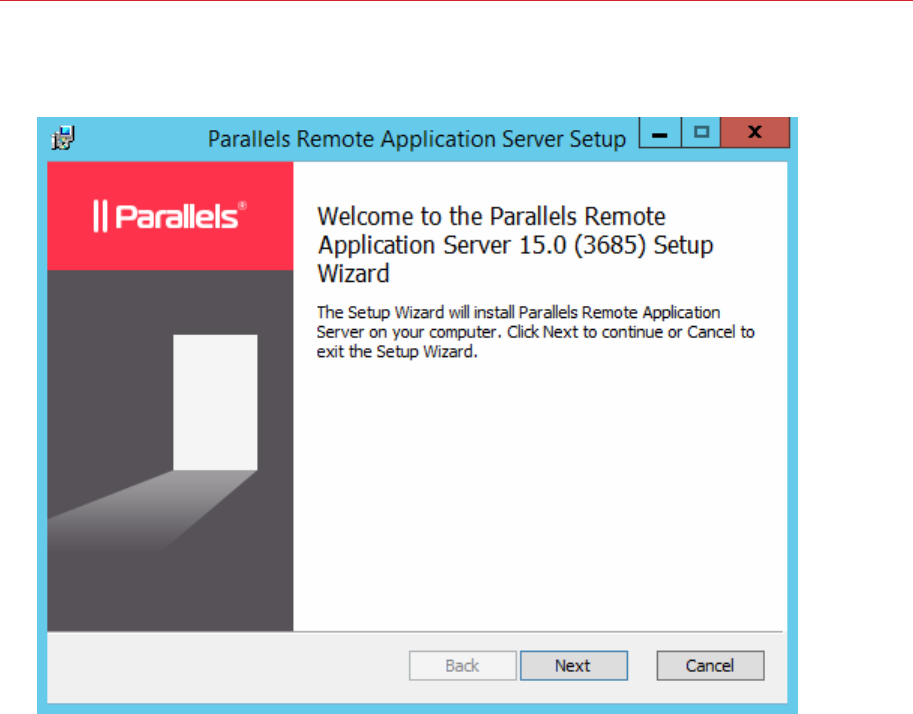
3 Double click the RASInstaller.msi file to launch the Parallels Remote Application Server
installation wizard.
4 Click Next.
5 Review and approve the end-user license agreement and click Next.
6 Specify the folder location where Parallels Remote Application Server will be installed and click
Next.
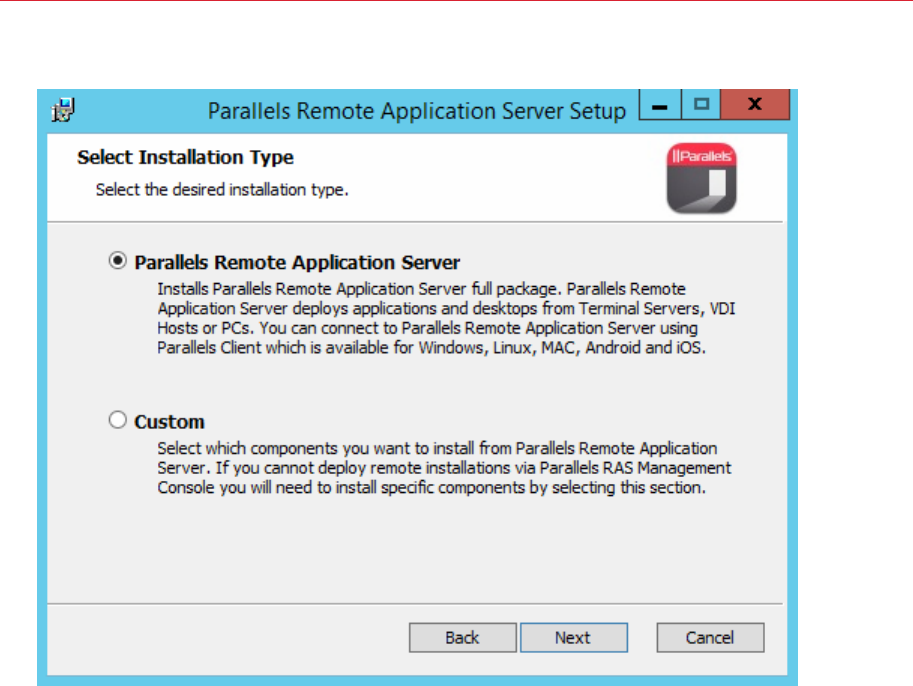
7 Select the installation type:
• Select Parallels Remote Application Server to run the default installation.
17
Installing Parallels Remote Application Server
• Select Custom and then (after clicking the Next button) specify the components to install.
8 Click Next.
18
Installing Parallels Remote Application Server
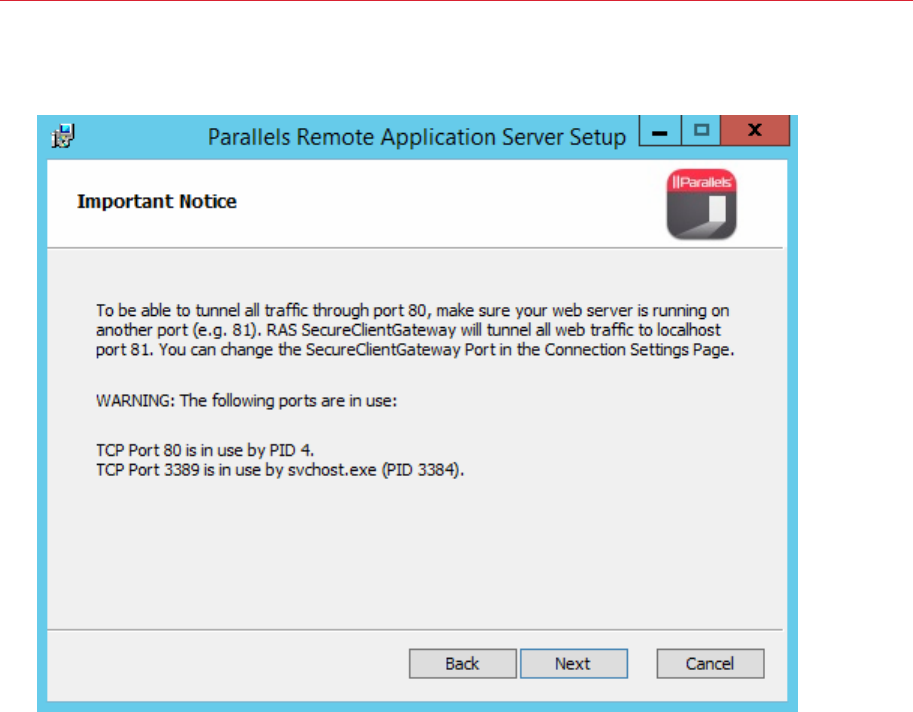
9 If there's a port conflict on your computer, review the notice on the Important Notice wizard
page. You can resolve the conflict later.
10 Click Next.
19
Installing Parallels Remote Application Server
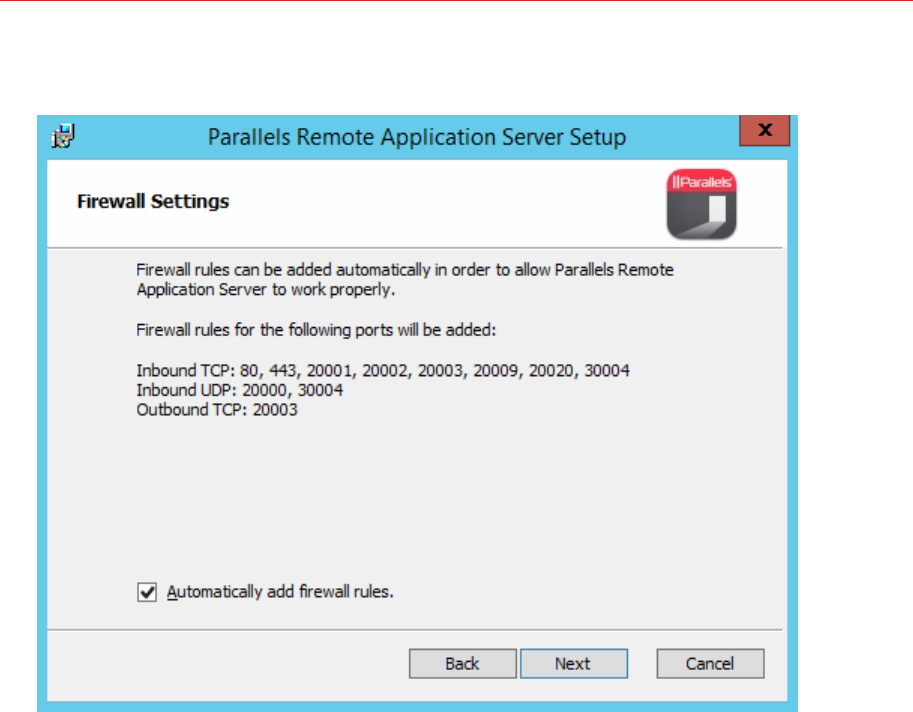
11 On the Firewall Settings page, select Automatically add firewall rules to automatically
configure the firewall on this computer for Parallels Remote Application Server to work properly.
12 Click Next and then click Install.
13 Wait for the installation to finish and click Finish.
20
Installing Parallels Remote Application Server
Logging Into RAS Console for the First Time
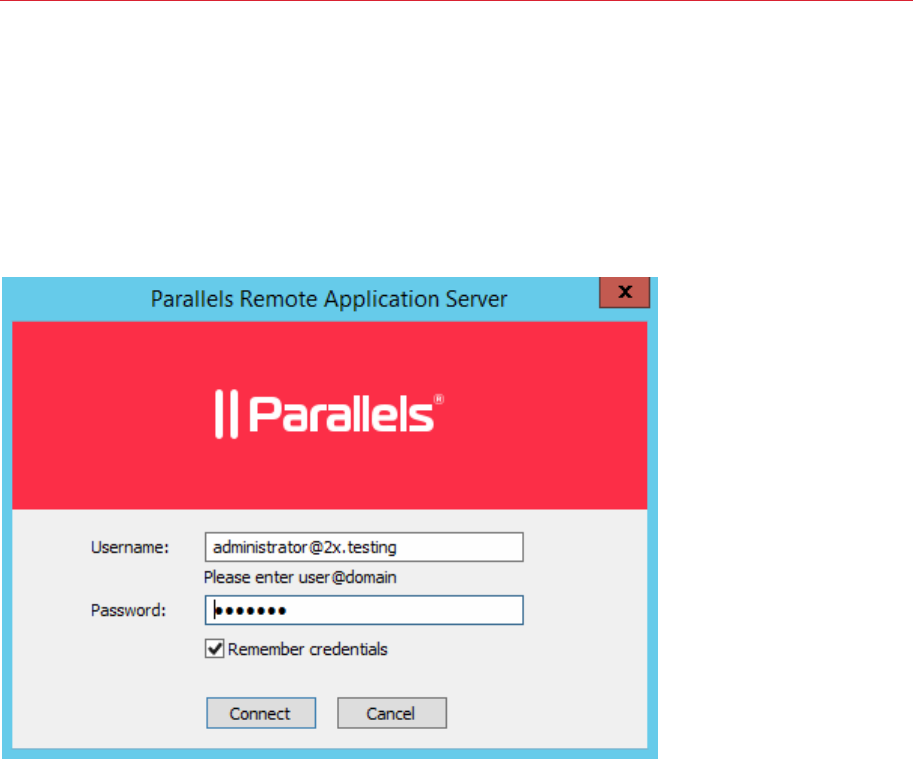
The first time the Parallels Remote Application Server Console is launched, you need to specify
credentials of a user with administrative privileges (usually a domain or local administrator). The user
name must be specified using the UPN format (e.g. administrator@domain.local). The
specified user will be automatically configured as the Parallels Remote Application Server
administrator.
21
Installing Parallels Remote Application Server
Signing In to Parallels Business Account
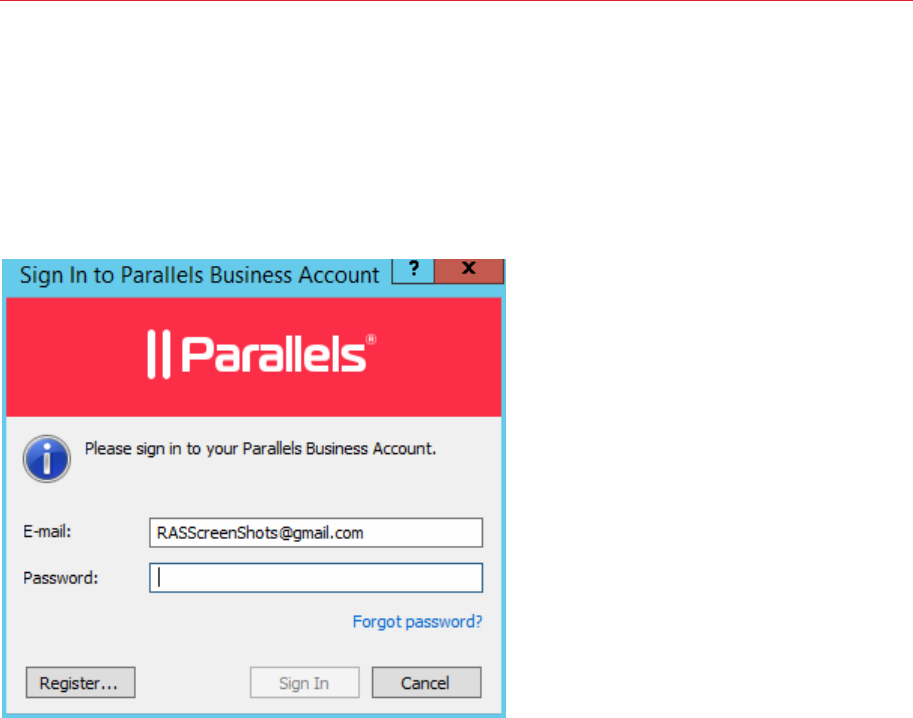
o begin using Parallels Remote Application Server and working with the RAS console, you need a
Parallels Business Account. When you run the RAS console for the first time, you'll see the Sign In
to Parallels Business Account dialog.
If you already have an account, provide the email address and password you used to register the
account and click Sign In.
To create a new Parallels Business Account:
22
Installing Parallels Remote Application Server
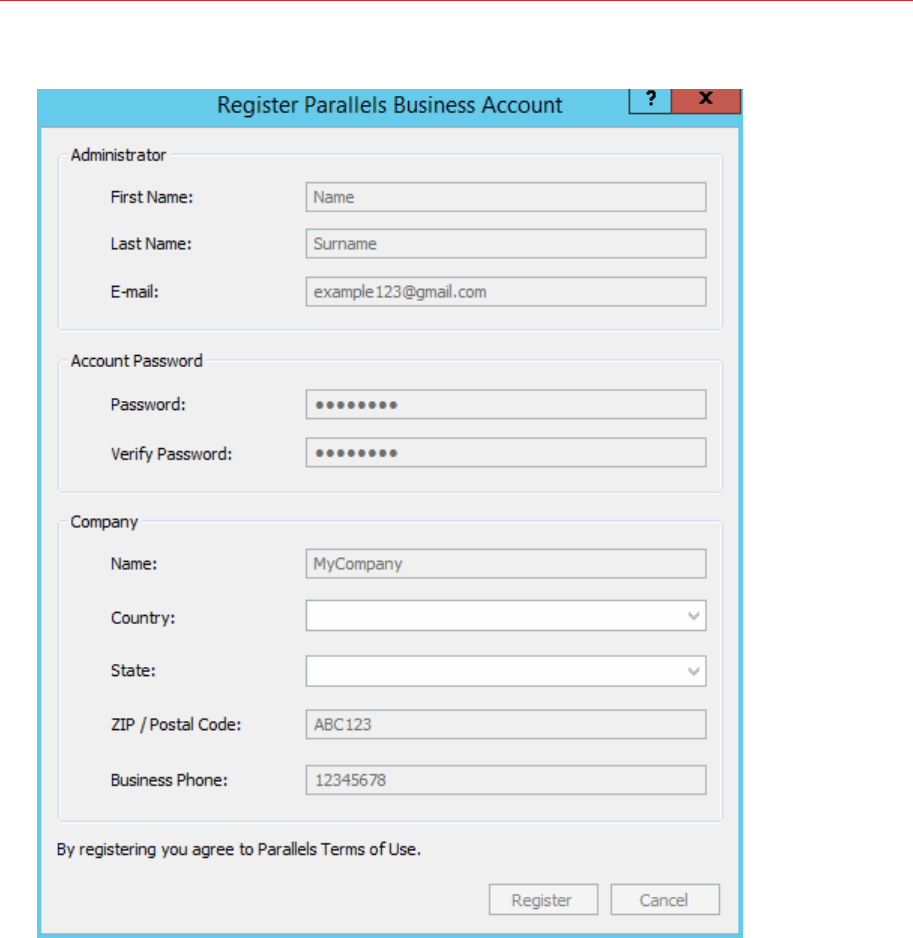
1 Click Register. The Register Parallels Business Account dialog opens.
2 If you have an existing 2X Remote Application Server license and are upgrading to the new
Parallels Remote Application Server, the Register Parallels Business Account dialog will be
prefilled with the information from your existing license. If you don't have an existing license (or if
you've installed Parallels Remote Application Server on a new server), you'll need to fill in the
registration information.
3 Click Register to create an account.
If you are upgrading an existing 2X license, the Migrating license key window will open and your
license will be migrated to the new Parallels Remote Application Server format. When the migration
is completed, your upgraded license key will be registered with your Parallels Business Account
and your Parallels Remote Application Server will be activated.

23
Installing Parallels Remote Application Server
If you don't have an existing 2X license, you should see the confirmation message saying that "Your
Parallels Business Account was registered successfully". Click OK to close the message box. In the
Sign In to Parallels Business Account dialog, provide the email address and password you used
to register your Parallels Business Account and click Sign In. You'll see the Activate Product
dialog. Read on to learn how to activate Parallels Remote Application Server.
Activating Parallels Remote Application Server
If you already have a Parallels Remote Application Server license key, select the Activate using
license key option and enter the key in the field provided. You can click the button next to the field
to see the list of subscriptions and/or permanent license keys you have registered with your
business account. If the list is empty, it means that you don't have any subscriptions or license
keys yet and need to purchase one first.
• To purchase a subscription online, click the Purchase a license link.
• You can also activate a trial version of Parallels Remote Application Server by selecting the
Activate trial version option.
After entering a license key (or selecting to activate a trial version), click Activate. You should see
the confirmation message that your Parallels Remote Application Server was activated successfully.
Managing Your Licenses
If later you need to view the Parallels Remote Application Server license information or if you decide
to switch to a different Parallels Business Account or activate Parallels Remote Application Server
using a different license key, you can do that from the Licensing category in the Parallels Remote
Application Server console. For more information, please see the Licensing section (p. 218).
In This Chapter
Parallels Remote Application Server Console............................................................ 24
Setting Up a Simple RAS Environment ..................................................................... 26
Parallels Remote Application Server Console
One of the fundamental features of Parallels Remote Application Server is the ability to publish
seamless applications individually to your users. This means users will only see the applications you
give them access to and not a full terminal service desktop.
The Parallels Remote Application Server Console is where you manage Parallels Remote
Application Server. Use the console to publish an application or a desktop, add a terminal server of
a VDI host to the farm, backup the Parallels Remote Application Server configuration and other
configuration changes.
CHAPTER 3
Getting Started with Parallels Remote
Application Sever
25
Getting Started with Parallels Remote Application Sever
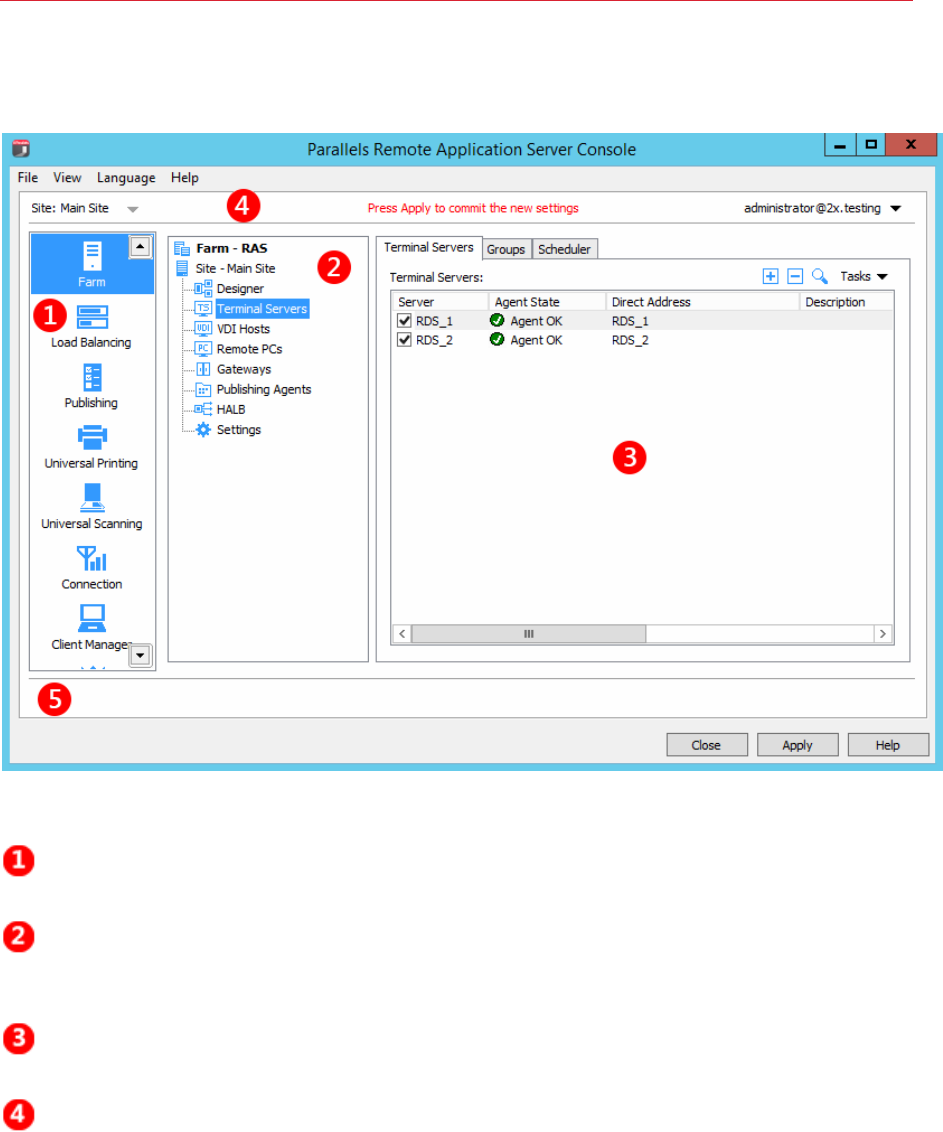
Parallels Remote Application Server Console Layout
The RAS Console consists of the following sections:
This section lists categories. Selecting a category will populate the right pane with
elements relevant to this category.
This section becomes available only for the Farm and the Publishing categories.
The navigation tree allows you to browse through the objects related to that
category.
This section displays the selected object or category properties, such as servers in
a farm or published application properties.
This information bar displays the site you are currently logged into and the user
account being used for the connection. Please also note the "Press Apply to
commit the new settings" message in the middle (in red). The message is displayed
when you made changes to one or more objects/items, but did not commit them
to Parallels Remote Application Server. Click the Apply button (at the bottom of the
screen) to commit the changes. If there are no currently pending changes, the
message is not displayed.
26
Getting Started with Parallels Remote Application Sever
The information bar at the bottom of the screen is used to display the most recent
console notification (if one is available).
Setting Up a Simple RAS Environment
In this section, we'll set up a simple Parallels Remote Application Server environment where all
required components run on a single server. Once you are familiar with the basic principles of
setting up a Parallels RAS environment, you can use the instructions provided here as a basis for
setting up a more advanced multi-server environment according to your needs.
To set up a Parallels RAS environment:
1 Log into the Parallels Remote Application Server console.
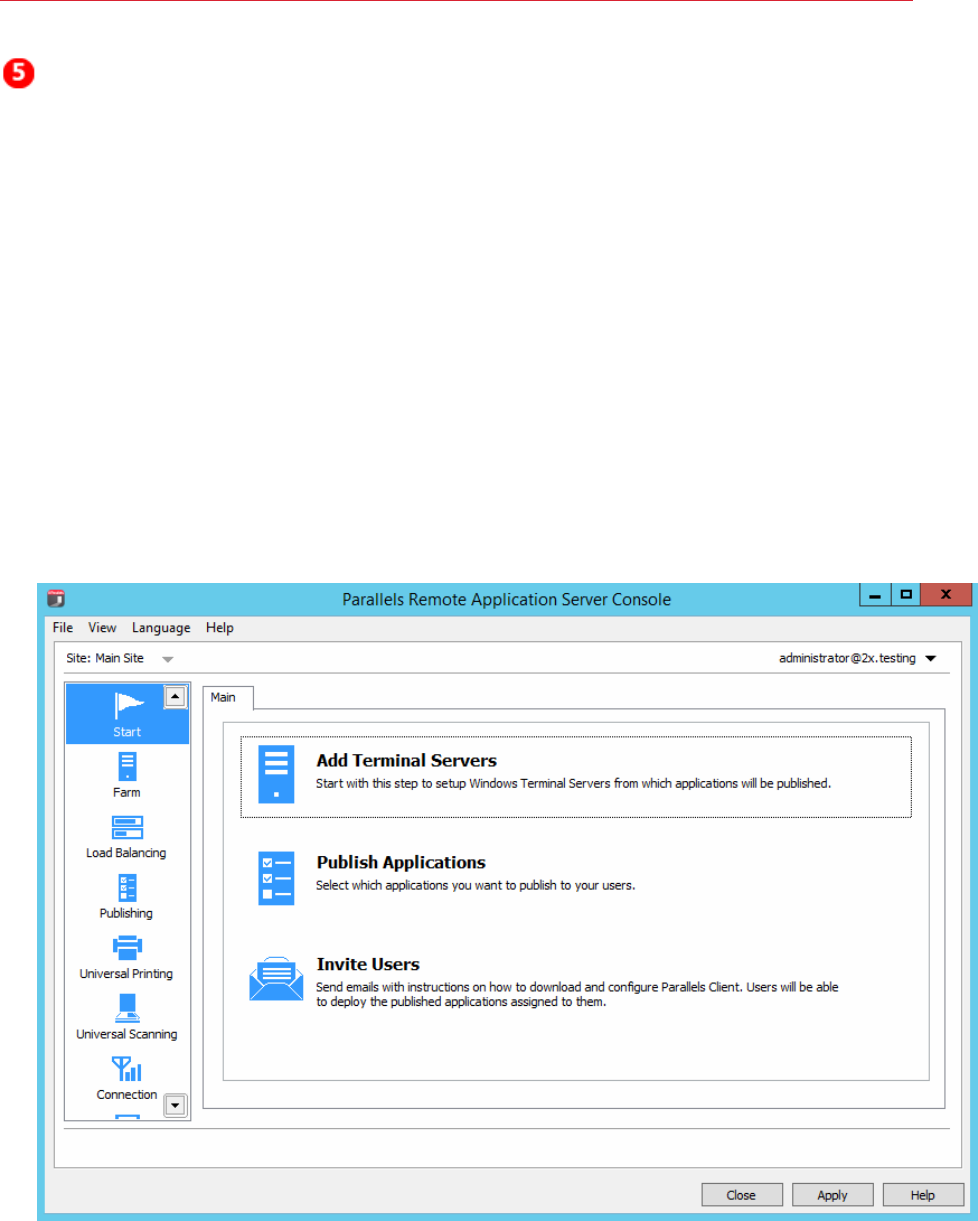
2 In the console, select the Start category. This category gives you access to three wizards that
you can use to easily perform essential tasks, such as adding terminal servers, publishing
applications, and inviting users to use those applications.
27
Getting Started with Parallels Remote Application Sever
Add a Terminal Server
First, we need to add a Terminal Server to the site. In this tutorial, we'll add the local server on
which Parallels Remote Application Server is installed.
To add a Terminal Server:
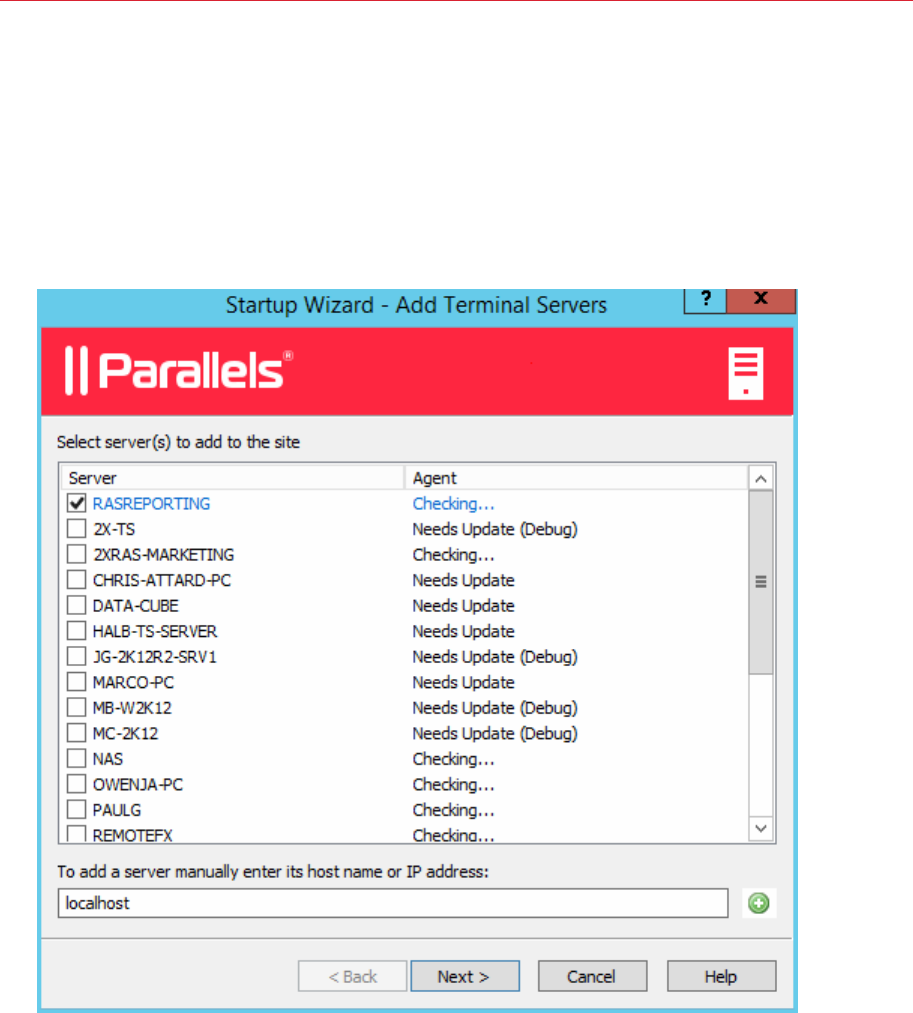
1 Click the Add Terminal Servers item. The Add Terminal Servers wizard opens.
2 On the first page, select the local server in the list or type the host name in the edit box at the
bottom of the page and then click the plus-sign icon.
3 Click Next.
4 On the next page, you can specify whether the firewall should be configured on the server and
the RDS role should be installed (and some others). Keep the default values and click Next.
5 Review the settings and click Next.
6 The Install Terminal Server Agent dialog opens. When the Terminal Server Agent is installed
on the server, click Done to close the dialog.
28
Getting Started with Parallels Remote Application Sever
7 Click Finish to close the wizard.
If you would like to verify that the Terminal Server has been added to the site, click the Farm
category (below the Start category) and then click Terminal Servers in the navigation tree (the
middle pane). The server should now be included in the Terminal Servers list. The Agent State
column may display a warning message. If it does, reboot the server. The Agent State column
should now say, "Agent OK", which means that your Terminal Server is fully operational.
Publish an Application
Now that you have a Terminal Server, you need to publish an application that it will serve to the
users. In this example, we'll publish the RAS Console application (you can publish any other
application that's available on the server if you like).
To publish an application:
1 Click the Publish Applications item.
Note: If you see a message box saying that there are no servers available, make sure that you added
the server as a Terminal Server to the site and then restarted it.
2 The Publish Applications wizard opens.
3 The first page of the wizard will not be displayed if you have just one Terminal Server. If you
have more than one Terminal Server, the page will be displayed and you can select the Terminal
Server(s) from which the application should be published. For instance, you can select the
Individual Servers option and then select the local server in the list.
4 On the next page, navigate to Parallels / Parallels Remote Application Server and select the
Parallels Remote Application Server Console application (or any other application that you
want to publish).
If you have more than one Terminal Server and select more than one server on the previous
screen, the Show applications not available on all target servers option becomes enabled. If
the option is cleared (default), the directory tree will contain applications that are available on
each and every server that you selected. If the option is selected, the tree will contain
applications that may be available on some server(s), but not on the others.
5 Click Next. Review the summary information and click Next again.
6 Click Finish when ready.
7 To verify that the application has been published, select the Publishing category and see that
the Parallels Remote Application Server Console application is present in the Published
Resources list (the middle pane).
Invite Users
Your Parallels RAS environment is now fully operational. You have a Terminal Server and a
published application. All you need to do now is invite your users to install the Parallels Client
software on their devices, which will enable them to use the published application.

29
Getting Started with Parallels Remote Application Sever
To invite users:
1 Click the Invite Users item. The Invite Users wizard opens.
2 If you haven't configured anything yet in your Parallels RAS installation, the first wizard page will
prompt you to configure a mailbox for sending notifications to your users.
3 Enter your outgoing mail server name and sender address (e.g. your email address). Choose
whether to use the TLS/SSL protocol and whether your SMTP server requires authentication
(provide the username and password if it does). You can also send a test email to test your
outgoing mail server settings.
4 Click Next.
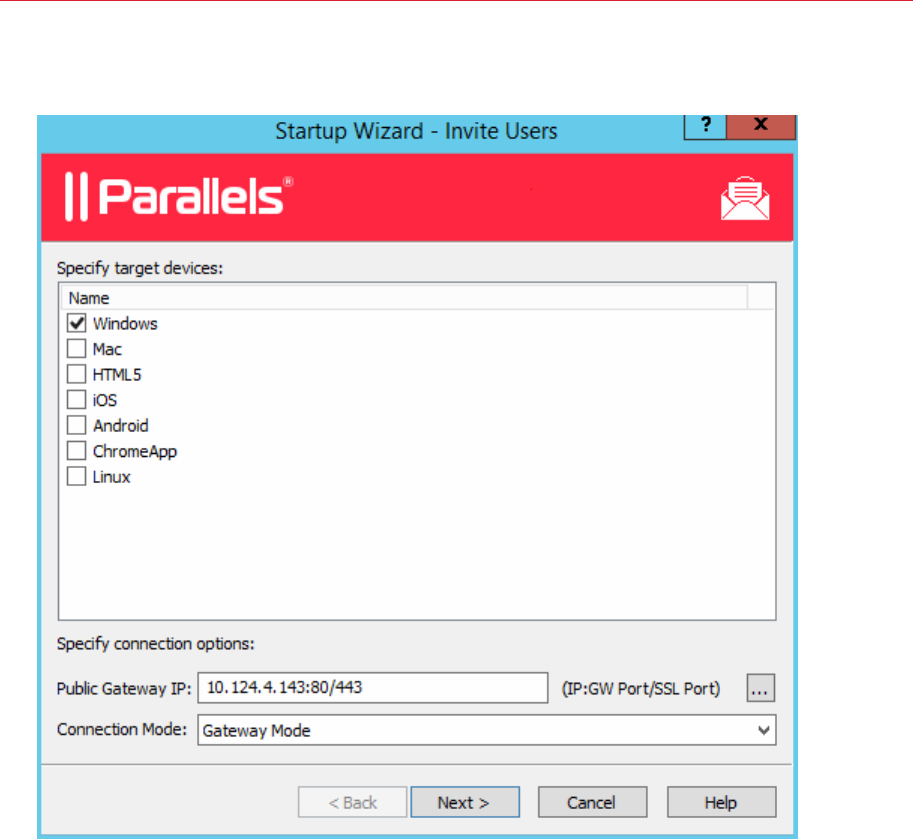
5 On the next page of the wizard, specify target devices and connection options:
• In the target devices list, select the types of devices to send an invitation to. Each target
device of a particular type will receive an email with instructions on how to download, install,
and configure the Parallels Client software on that device type.
• In the Public Gateway IP field, specify the RAS Secure Client Gateway domain name or IP
address. Please note that this can be a public IP address in order to reach the system from
a remote user. You can click the [...] button to select a gateway from the list.
30
Getting Started with Parallels Remote Application Sever
• In the Connection Mode drop-down list, select the RAS Secure Client Gateway connection
mode. Please note that SSL modes require the gateway to have SSL configured.
6 Click Next.
31
Getting Started with Parallels Remote Application Sever
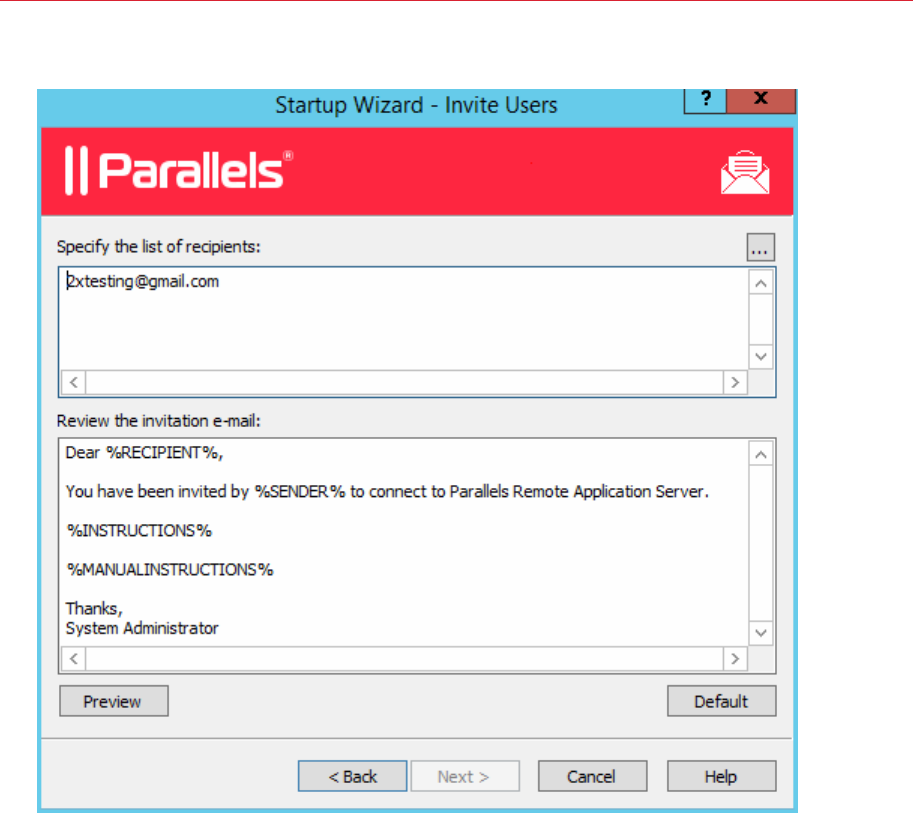
7 On the next page, specify the email recipients. Click the [...] button to select users or groups.
8 Review the invitation email template displayed in the Review the invitation e-mail box. You
can modify the template text as needed. The template also uses variables, which are explained
below.
• %RECIPIENT% — Specifies the name of a recipient to whom the email message is
addressed.
• %SENDER% — The sender's email address that you specified in the first step of this wizard
when you configured the outgoing email server settings.
• %INSTRUCTIONS% — Includes a script for automatic configuration of Parallels Client and a
link that will run it.
• %MANUALINSTRUCTIONS% — Includes instructions for manual configuration of Parallels
Client.

32
Getting Started with Parallels Remote Application Sever
The variables are defined dynamically depending on the type(s) of the target devices and other
settings. Normally, you should always include them in the message, so your users will receive all
the necessary instructions and links. To preview the message, click the Preview button. This
will open the HTML version of the message in a separate window. This is the email message
that your users will receive.
9 Click Next, review the settings that you specified, and click Next again to send the invitation
email to the selected users.
After you send the invitation email to your users, they'll be able to follow the instructions in it and
install Parallels Client on their devices. They will then be able to connect to Parallels Remote
Application Server and use the application that you published for them.
Conclusion
In this tutorial, we configured a simple Parallels Remote Application Server environment consisting
of one Terminal Server and one published application. We then configured a mailbox for outgoing
emails and sent an invitation email to our users with the instructions on how to install Parallels
Client, connect to Parallels Remote Application Server, and run the published application remotely.
In other words, we successfully created a fully functional Parallels Remote Application Server
serving applications to remote users!
If you wish, you can repeat the tutorial and add more Terminal Servers or publish more
applications, or send an invitation email to users of different types of devices. The instructions
remain essentially the same.
In This Chapter
Sites and Management............................................................................................. 33
Administrators: Adding, Managing and Configuring .................................................. 37
Joining Customer Experience Program..................................................................... 40
Sites and Management
Sites
A Parallels Remote Application Server farm can have multiple sites. Each site consists of at least
one RAS Publishing Agent, RAS Secure Client Gateway (or multiple gateways), and agents installed
on Terminal Servers, VDI hosts, and PCs. At least one server on a site has to be dedicated for
hosting the master RAS Publishing Agent and the RAS Secure Client Gateway. Note that a given
Terminal Server, VDI host, or PC can be a member of only one site at any given time.
The first default site added to the Parallels Remote Application Server farm is the Licensing Server,
where the main Parallels Remote Application Server configuration database is stored. Every
additional site on the farm will have a synced copy of the configuration database. When changes
are applied to a particular site, the main configuration database is automatically updated to contain
the changes.
CHAPTER 4
Sites and Administrators

34
Sites and Administrators
To manage sites in the Parallels Remote Application Server Console, click the Farm category. The
available sites are displayed in the middle pane.
Note: The Farm node is only available to administrators who have full permissions on the farm. For more
information about administrators and permissions refer to Administrators: Adding, Managing, and
Configuring (p. 37).
Adding a New Site to the Farm
To add a site to a farm:
1 In the RAS Console, select the Farm node and then select the farm in the navigation tree.
2 In the Tasks drop-down menu (the right pane, above the site list) and click Add (or click the +
icon).
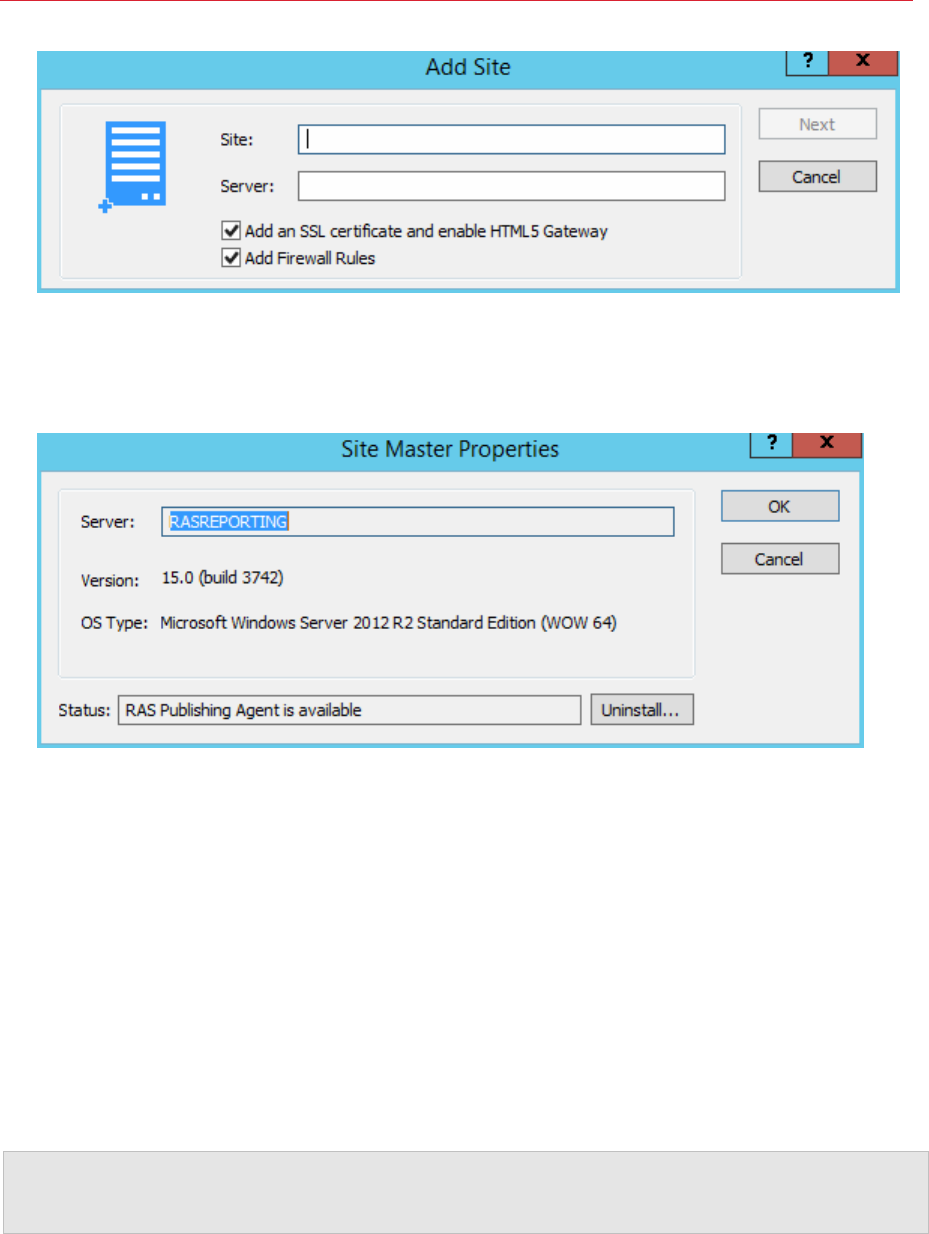
3 In the Add Site dialog:
• Specify a site name and the IP address or FQDN of the server where the master publishing
agent and gateway will be installed.
• Select the Add an SSL certificate and enable HTML5 Gateway option to automatically
create a self-signed certificate, enable SSL, and enable HTML5 support. For more info,
please see Enable HTML5 Support on the Gateway (p. 139).
35
Sites and Administrators
4 Click Next.
5 The Site Master Properties dialog opens. First, it verifies if RAS Publishing Agent is installed
on the specified site server. If it isn't, it will say so in the Status field. Click the Install button to
install the agent.
6 In the Install RAS Publishing Agent dialog, highlight the server name on which the RAS
Publishing Agent is to be installed.
7 (Optional) Select the option Override system credentials to specify and use different
credentials to connect to the server and install the agent.
8 Click Install to install the publishing agent and gateway. Click Done once it has been
successfully installed.
Accessing Site Configuration
Once a new site is created you can access its configuration by running the Parallels Remote
Application Server Console on the site server or by switching to its configuration from the Parallels
Remote Application Server Console as explained in the following section Switching Between Sites
Configurations.
Note: When running the Parallels Remote Application Server Console, you'll always be connected to the
main configuration database, even if running it from a site server. Once changes are applied,
configuration changes are replicated from the licensing server to the site servers.
36
Sites and Administrators
Switching Between Sites Configurations
From the Parallels Remote Application Server Console you can only view the configuration of one
site at a time. If you login as a farm administrator, the configuration of the Licensing Server site will
be loaded. If you login with an administrator that has access to a specific site, the configuration of
that site will be loaded.
To switch between the configuration of different sites from the Parallels Remote Application Server
Console follow the below procedure:
1 Open the Farm category and click on the Farm node from the navigation tree to access the list
of sites in the farm.
2 Select the site you want to configure and click Switch to this Site in the Tasks drop-down
menu. Alternatively you can use the top bar and select the site you want to switch to in the
Site drop-down list.
Managing Sites
Replicating Site Settings to all Sites
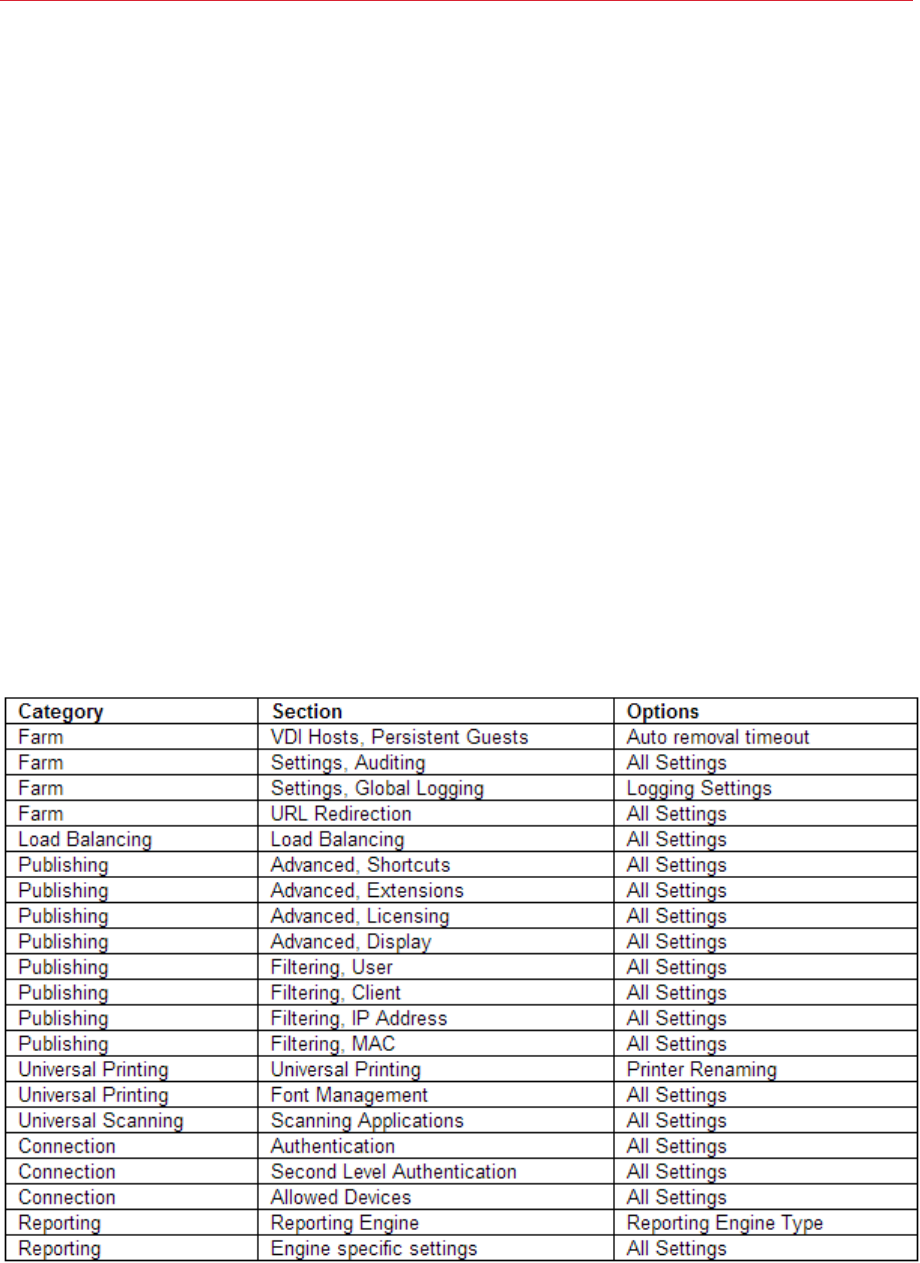
Any setting which is site dependant can be replicated to all other sites. Refer to the table below for
more specific information about which settings can be replicated to other sites.

37
Sites and Administrators
To replicate site setting to all other sites, select <site-name> / Settings in the middle pane and then
select the Replicate settings option (at the bottom of the Auditing tab page). Please note that this
option is hidden if you have just one site in the farm.
Overriding Site Replicated Settings
If an administrator who has permissions to enable or disable replication settings makes a change to
a specific setting, such setting is replicated to all other sites.
If an administrator has access to a particular site only, upon modifying site settings which have
been replicated, the replicated settings are overridden and the option Replicate Settings is
automatically cleared, therefore such settings will no longer be replicated to other sites.
Setting a Site as a Licensing Server
If the licensing server fails, or if you would like to set a different site as a Licensing Server, click on
the site name in the Farm node and then click Set Site as Licensing Server in the Tasks drop-
down menu.
Administrators: Adding, Managing and
Configuring
You can have more than one Parallels Remote Application Server administrator who can manage
the farm and the sites. If needed, you can configure permissions to limit access to specific
categories and sites.
If the Parallels Remote Application Server is installed in an Active Directory environment, any user
that has elevated privileges and write access to the installation directory can be configured as a
Parallels Remote Application Server administrator.
If the Parallels Remote Application Server is installed on a standalone machine, any user that has
elevated privileges and write access to the installation directory can be configured as a Parallels
Remote Application Server administrator.
Default Parallels Remote Application Server Administrator
The user you specified when you logged into the RAS Console for the first time is automatically
granted full permissions and can perform any task in the farm. There should always be at least one
enabled administrator with full permissions in the farm.
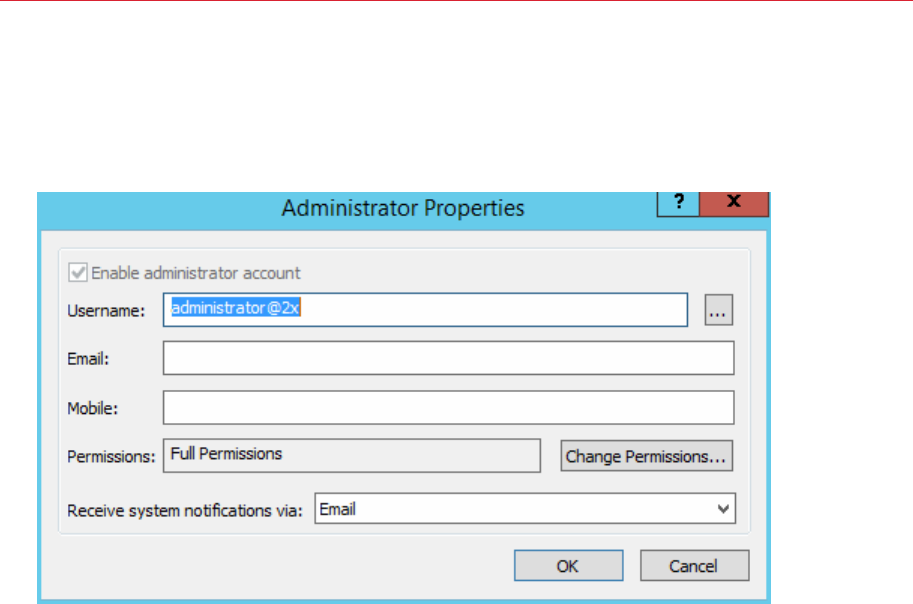
Adding an Administrator Account
To add an administrator account to the Parallels Remote Application Server:
38
Sites and Administrators
1 In the RAS Console, select the Administration category and then click the Administration tab
in the right pane.
2 Click the Tasks drop-down menu and choose Add.
3 The Administrator Properties dialog opens.
4 Specify a user name, email address, and the mobile phone number.
5 The Permissions field allows you to configure permissions for this user. By default, the Full
Permissions option is selected. To grant specific permissions, click the Change Permissions
button. For further instructions, please read the Configuring Administrator Accounts
Permissions section (p. 38).
6 In the Receive system notifications via drop-down list, select Email, so any system
notifications are sent to the specified email address. Select None to disable email system
notifications for this account.
7 Click OK to add the new administrator account.
Configuring Administrator Accounts Permissions
Administrator permissions can be configured when creating a new administrator account or from
the Properties of an existing account. Permissions can be assigned per category (e.g. Farm,
Publishing, Universal Printing, etc.) and also per site.
Select the Full Permissions option to enable the administrator to modify all categories, sites, and
global settings in the farm.
Select one or more options in the Site permissions section and then select one or more sties to
which these permissions should apply. You can grant the following permissions to an administrator:
• Allow Site changes. Can modify the following categories: Site, Load Balancing, Universal
Printing, Universal Scanning.

39
Sites and Administrators
• Allow Publishing changes. Can modify the Publishing category.
• Allow Connection changes. Can modify the Connection category.
• Allow viewing of RAS Reporting. Can view reports generated by the RAS Reporting engine.
• Allow viewing of Site Information. Can view (but not modify) the site information.
• Allow Session Management. Can manage running sessions.
• Allow Client Management changes. Can modify the Client Manager category.
• Allow access to Information. Can view the read-only Information category.
Managing Administrator Accounts
To view and modify administrator's accounts:
1 In the RAS Console, select the Administration category and click the Administration tab.
2 Right-click an account and choose Properties in the context menu.
3 Use the Administrator Properties dialog to modify the necessary information. For more info,
see Adding an Administrator Account (p. 37).
Logging off an Administrator
When an administrator is accessing a category (e.g. Universal Printing), the category is locked for all
other administrators. Therefore, upon trying to access a category locked by another administrator,
the administrator will be alerted with an error that the object is locked.
If you need to release a lock, you can do the following:
1 On the Administration tab page, click the Tasks drop-down menu and choose Show
Sessions.
2 In the Sessions dialog, select the administrator who's locking a category and then click Send
Message to communicate with the administrator or click Log Off.
Using Instant Messaging for Administrators
Parallels Remote Application Server administrators that are logged on to the same farm can
communicate with each other using a built-in instant messenger.
To communicate with an administrator (or all logged on administrators) using the instant
messenger:
1 In the RAS Console, select the Administration category.
2 Expand the drop-down menu next to your name (top-right corner of the console screen) and
click Chat....
3 The Parallels Remote Application Server Chat window opens.

40
Sites and Administrators
To send a message:
1 Type the message text in the lower input panel.
2 In the Logged on administrators list box, select a particular administrator to send the
message to or All to send the message to all logged on administrators.
3 Click Send.
4 Your message history is displayed in the Messages panel. To clear the history, click Clear All.
5 You can also view the chat history listing all messages between all administrators (not just your
own messages). To do so, select the Administration node in the console and then select the
Chat History tab.
Joining Customer Experience Program
Parallels Customer Experience Program helps us to improve the quality and reliability of Parallels
Remote Applications Server. If you accept to join the program, we will collect information about the
way you use Parallels Remote Application Server. We will not collect any personal data, like your
name, address, phone number, or keyboard input.
To jon the program:
1 In the RAS Console, select the Administration category.
2 In the right pane, click the CEP tab (you may need to scroll the right pane horizontally to see it).
3 Select the Join Parallels Customer Experience Program option.
After you join the program, CEP will automatically start to collect information about how you use
Parallels Remote Application Server. Data collected from you and other participants is combined
and thoroughly analyzed to help us improve Parallels Remote Application Server.
In This Chapter
Viewing the Available Terminal Servers ..................................................................... 41
Adding a Terminal Server ......................................................................................... 42
Configuring a Terminal Server................................................................................... 45
Grouping Terminal Servers ....................................................................................... 50
Using a Terminal Server Scheduler ........................................................................... 51
Managing Logons From Client Sessions................................................................... 53
Publishing from a Terminal Server............................................................................. 54
Viewing the Available Terminal Servers
To be able to publish applications and desktops for your users through Parallels Remote
Application Server, the farm must have one or more terminal servers.
To view the list of the terminal servers in the farm:
1 In the RAS Console, navigate to Farm / <site-name> / Terminal Servers.
2 The available terminal servers are displayed on the Terminal Servers tab page in the right
pane.
Filtering the Terminal Servers List
If you have an extensive list of terminal servers, you can filter it to display only the servers you want
to see:
1 Click the magnifying glass icon, which is located on a toolbar above the list.
2 An extra row is displayed at the top of the list where you can type a string in one or more
columns that will be used to filter the list.
3 For example, if you want to search for a server by its name, enter the text in the Server column.
You can type the entire server name or the first few characters until a match is found. The list
will be filtered as you type and only the matching server(s) will be displayed.
4 If you type a filter string in more than one column, they will be combined using the logical AND
operator.
5 To remove the filter and display the complete list, click the magnifying glass icon again.
CHAPTER 5
Terminal Servers
42
Terminal Servers
6 If you click the magnifying glass icon one more time, you'll see that the filter that you specified
earlier is still there. To remove it completely, simply delete the filter string(s) from the column(s).
Adding a Terminal Server
To be able to publish applications and desktops for your users through Parallels Remote
Application Server, you need to add one or more terminal servers to a site.
Note: To add a terminal server to a site, it must have the Remote Desktop Services (RDS) installed. RDS
was known as Terminal Services prior to Windows 2008 R2. On some older versions of Windows Server,
Terminal Services are not installed by default. The functionality described here allows you to install RDS
on a server right from the RAS Console.
Quickly Adding a Terminal Server
You can quickly add a Terminal Server to a site from the Start category in the RAS Console. The
Add Terminal Servers Wizard there implements a streamlined process that requires minimal user
interaction. The process is described in the Setting Up a Simple RAS Environment section (p.
26).
The rest of this section describes how to add a Terminal Server from the Farm category. This
process consists of more steps, but gives you more control over the available options.
Searching for Servers
You can search for servers in your Active Directory domain that meet the necessary requirements
to be used as terminal servers (see System Requirements).
To search for servers:
1 On the Terminal Servers tab page, click Tasks > Find.
2 The Find Servers dialog opens and begins to search for suitable servers. If no servers are
found, you'll see a message box where you can click OK to close the box and the dialog. In
such a case, you can add a server manually (jump to the Adding a Terminal Server Manually
subsection below).
3 If at least one suitable server is found, it will be displayed in the dialog.
4 Select a server that you would like to add as a terminal server to the site and verify whether the
RAS Terminal Server Agent is installed on it by looking at the Agent column. If the agent is not
installed, click the Install Agent button and follow the instructions. Make sure that you install
RDS on the server too (see the note above).
43
Terminal Servers
Adding a Terminal Server Manually
If you couldn't find any servers using the functionality described above, you can add a server
manually as follows:
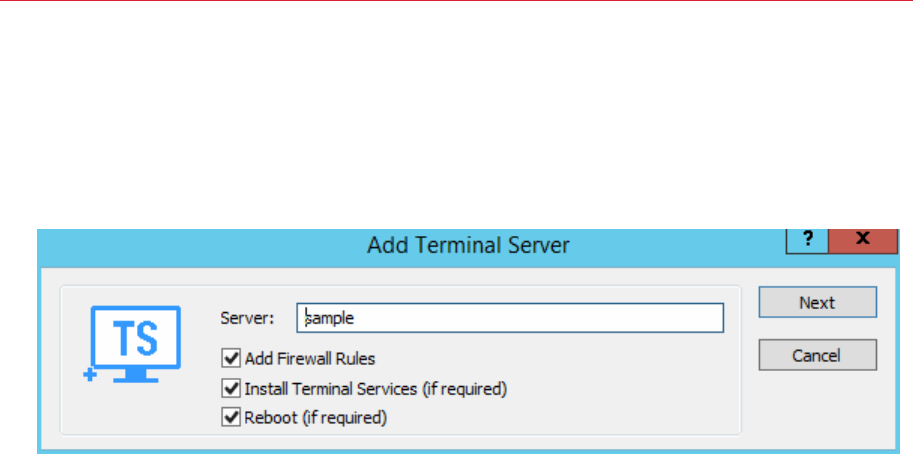
1 Click Add in the Tasks drop-down menu to launch the Add Terminal Server wizard.
2 In the Server field, specify the server IP address or FQDN.
3 Select the Add Firewall Rules option to automatically configure the firewall on the server.
4 Select the Install Terminal Services option if the server doesn't have it installed. See the note
at the beginning of this topic.
5 Select the Reboot option if required. Please note that this option is ignored if a reboot is
pending on a local machine (i.e. the reboot of a local machine will not be forced).
6 Click Next.
7 In the next step, a checking is performed if the RAS Terminal Server Agent is installed on the
server.
If the result is negative (agent is not installed):
a Click Install to push install the agent.
b In the Installing Terminal Server Agent dialog, select the server name on which the agent
is to be installed.
c (Optional) Select the Override system credentials option to specify and use different
credentials to connect to the server.
d Click Install to install the agent. Click Done once the agent is installed. If the push
installation of the RAS Terminal Server Agent fails (e.g. SMB share is not available, cannot
push agent due to firewall rules, etc.), refer to the Installing RAS Terminal Server Agent
Manually section (p. 44), which follows this one.
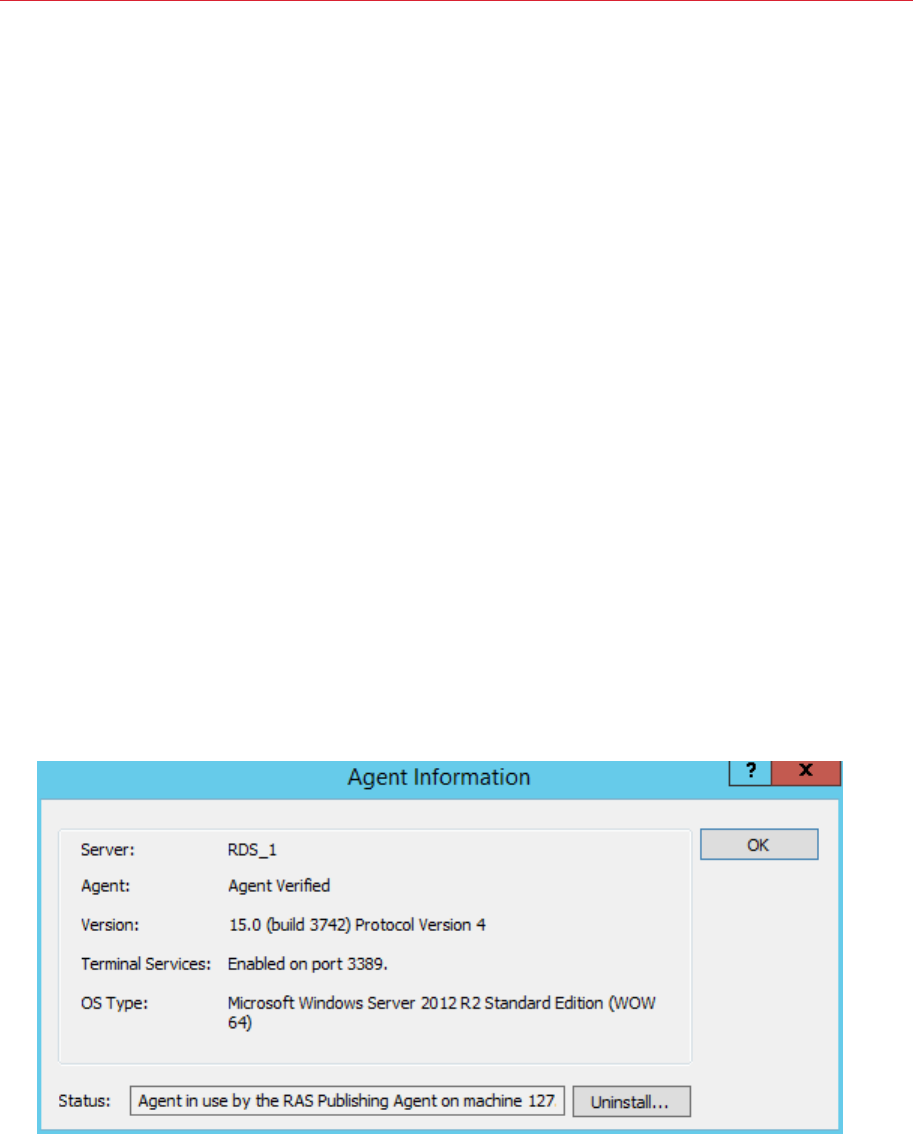
8 In the Agent Information dialog, click Add to add the terminal server to the Parallels Remote
Application Server farm.
9 Click Apply to commit the new settings.

44
Terminal Servers
Installing RAS Terminal Server Agent Manually
You may need to install the RAS Terminal Server Agent manually if the automatic push installation
cannot be performed. For instance, an SMB share may be not be available or the firewall rules may
interfere with the push installation, etc.
Installing RAS Terminal Server Agent Manually
1 Log into the server where the RAS Terminal Server Agent is to be installed using an
administrator account and close all other applications.
2 Copy the Parallels Remote Application Server installation file (RASInstaller.msi) to the
server and double-click it to launch the installation.
3 Once prompted, click Next and accept the End-User license agreement.
4 Specify the path where the RAS Terminal Server Agent should be installed and click Next.
5 Select Custom and click Next.
6 Click on RAS Terminal Server Agent and select Entire Feature will be installed on local
hard drive from the drop-down menu.
7 Ensure that all other components are deselected and click Next.
8 Click Install to start the installation.
9 Click Finish once the installation is finished.
The RAS Terminal Server Agent doesn't require any configuration. Once the agent is installed,
highlight the server name in the Parallels Remote Application Server Console and click Check
Agent in the Tasks drop-down menu to update the server status.
Uninstalling RAS Terminal Server Agent
To uninstall RAS Terminal Server Agent from a server:
1 Navigate to Start > Control Panel > Programs > Uninstall a Program.
2 Find Parallels Remote Application Server in the list of installed programs.
3 If you don't have any other Parallels RAS components on the server that you want to keep,
right-click Parallels Remote Application Server and then click Uninstall. Follow the
instructions to uninstall the program. You may skip the steps below.
4 If you have other RAS components that you want to keep on the server, right-click Parallels
Remote Application Server and then click Change.
5 Click Next on the Welcome page.
6 On the Change, repair, or remove page, select Change.
7 On the next page, select Custom.
45
Terminal Servers
8 Select RAS Terminal Server Agent, then click the drop-down menu in front of it, and click
Entire feature will be unavailable.
9 Click Next and complete the wizard.
Configuring a Terminal Server
Check RAS Terminal Server Agent Status
A terminal server must have a RAS Terminal Server Agent installed to provide the intended
functionality. In addition to the this, Remote Desktop Services (formerly Terminal Services) must be
installed in Windows on the server.
Normally, when you add a terminal server to a site in the RAS Console, the Terminal Server Agent
and the Remote Desktop Services are installed by default. However, if you skipped the installation
(or if you or someone uninstalled the agent or RDS from the server later), you can check their status
and take appropriate actions.
To check the RAS Terminal Server Agent and RDS status and install them if necessary:
1 First, you can look at the Agent State column in the Terminal Services list. If there's a
problem with the Terminal Server Agent or RDS, the column will display an appropriate error
message.
2 Right-click a server and then click Check Agent in the context menu. The Agent Information
dialog opens.
3 If the agent and/or Terminal Services (RDS) are not installed on the server, you need to install
them. To do so, click Install and follow the instructions.
4 After the installation is complete, you may need to reboot the terminal server on which the
installation was performed.

46
Terminal Servers
Change a Terminal Server Site Assignment
You can assign a terminal server to a different site in your farm if you need to do so. Please note
that this functionality is only available if you have more than one site in your farm.
To change the site assignment:
1 Right-click a terminal server and then click Change Site in the context menu. The Change Site
dialog opens.
2 Select a site in the list and click OK. The server will be moved to the Terminal Servers list of
the target site (Farm / <new-site-name> / Terminal Servers).
View and Modify Terminal Server Properties
To configure a Terminal Server:
1 In the RAS Console, navigate to Farm / <site-name> / Terminal Servers.
2 Right-click a server and click Properties in the context menu.
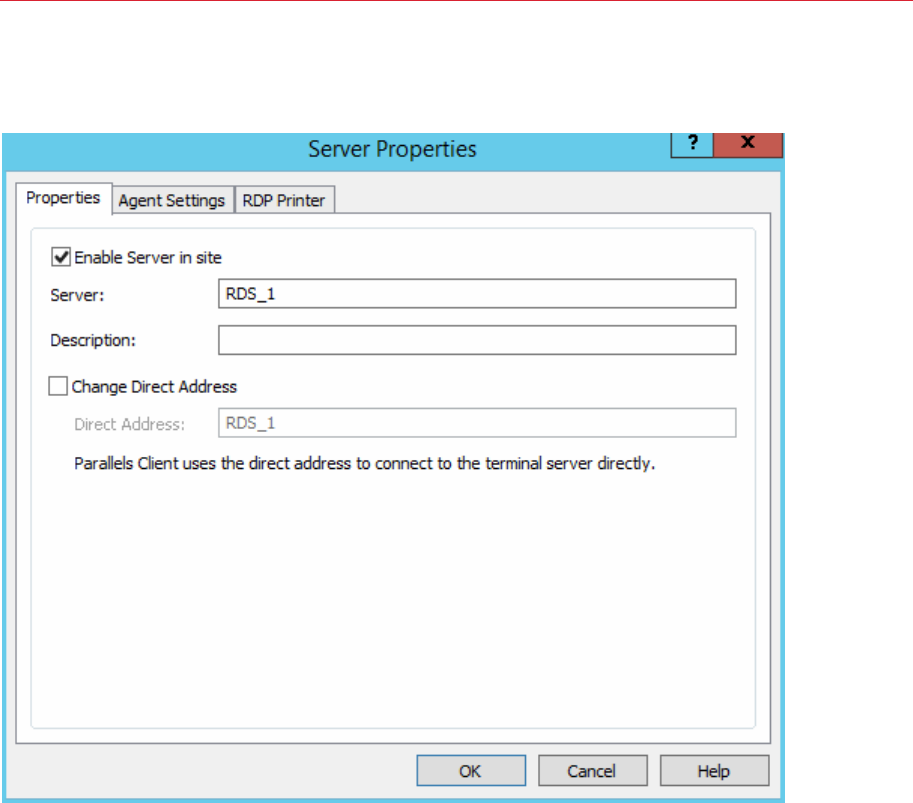
3 The Server Properties dialog opens where you can configure the terminal server.
The rest of this section describes how to set individual server configuration properties.
47
Terminal Servers
The Properties Tab Page
Select or clear the Enable Server in site option to enable or disable a server on the site. By
default, a server is enabled. A disabled server cannot serve published applications and virtual
desktops to clients.
Other elements on the Properties page are:
• Server — specifies the server name.
• Description — specifies the server description.
• Change Direct Address — select this option if you need to change the direct address that
Parallels Client uses to establish a direct connection with the terminal server.
48
Terminal Servers
The Agent Settings Tab Page
Each terminal server in the farm has a RAS Terminal Server Agent installed to provide a connection
between the Parallels Remote Application Server and the terminal server. Use the Agent Settings
tab page to configure the agent.
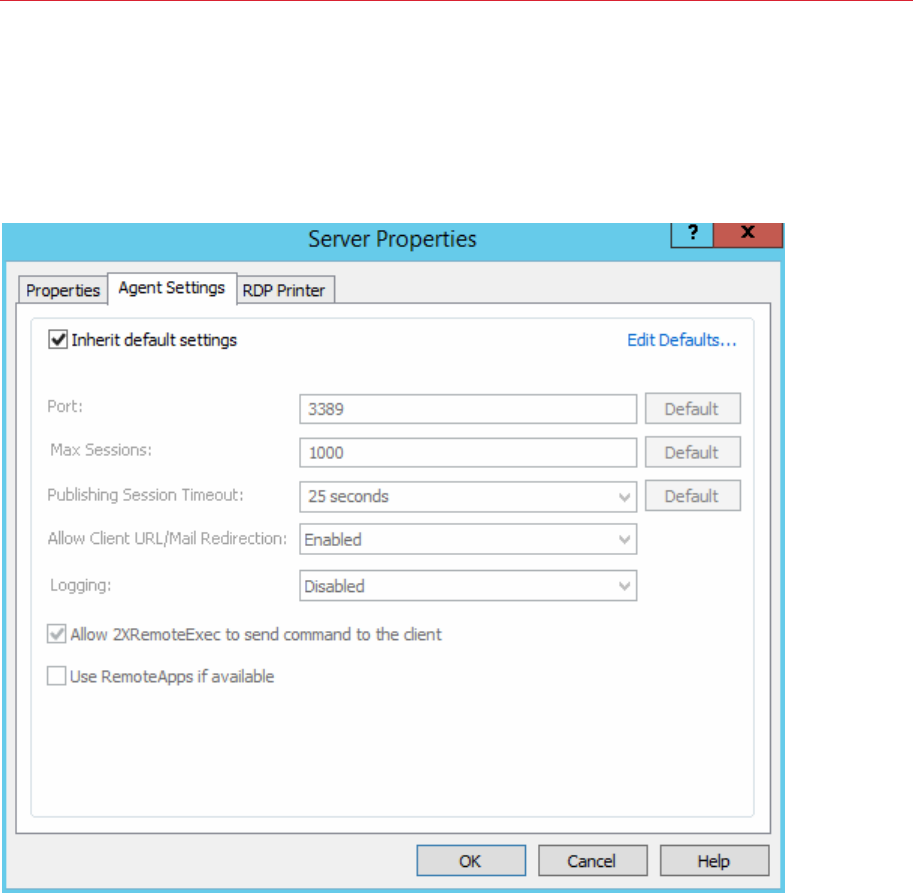
To use the default settings, select the Inherit default settings option. To view or modify the default
settings, click the Edit Defaults link.
If you want to specify custom settings for a given server, clear the Inherit default settings option
and specify agent properties as follows:
• Port. Specifies a different remote desktop connection port number if a non-default port is
configured on the server.
• Max Sessions. Specifies the maximum number of sessions.
• Publishing Session Timeout. Specifies the amount of time each session remains connected in
the background after the user has closed the published application. This option is used to avoid
unnecessary reconnections with the server.
49
Terminal Servers
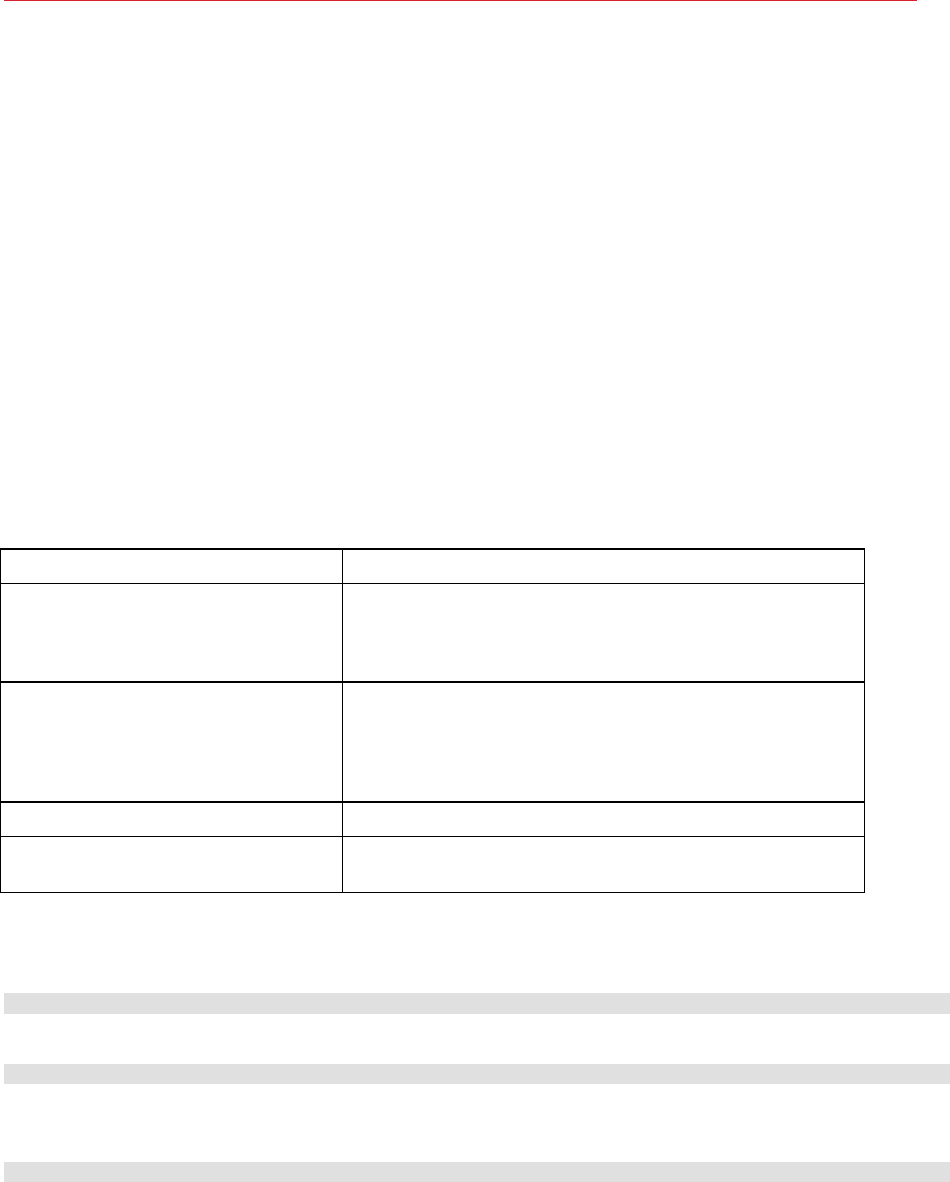
• Allow Client URL/Mail Redirection. Select this option to allow http and mailto links to be
opened using a local application on the client computer rather than the server’s resources. To
configure a list of URLs which should not be redirected, navigate to the URL Redirection tab in
the Settings node of a site.
• Logging. Enables or disables the RAS Terminal Server Agent logging. Such logging should only
be enabled if instructed by the Parallels Support.
• Use RemoteApps if available. Enable this option to allow use of remote apps for shell-related
issues when an app is not displayed correctly. This feature is supported on the Parallels Client
for Windows only.
• Allow 2XRemoteExec to send command to the client. Select this option to allow a process
running on the server to instruct the client to deploy an application on the client side. More on
2XRemoteExec in the following subsection.
Using RemoteExec
RemoteExec is a feature that facilitates the servers ability to send commands to the client. This is
done using the command line utility 2XRemoteExec.exe. Command line options include:
Command Line Parameter Parameter Description
-s Used to run the 2XRemoteExec command in ‘silent’ mode.
Without this parameter, the command will display pop up
messages from the application. If you include the parameter, the
messages will not be displayed.
-t Is used to specify the timeout until the application is started.
Timeout must be a value between 5000ms and 30000ms. Note
that the value inserted is in ‘ms’. If the timeout expires the
command returns with an error. Please note that the application
might still be started on the client.
-? Shows a help list of the parameters that 2XRemoteExec uses.
"Path for Remote Application" The Application that will be started on the client as prompted
from the server.
Examples:
The following command displays a message box describing the parameters that can be used.
2XRemoteExec -?
This command runs Notepad on the client.
2XRemoteExec C:\Windows\System32\Notepad.exe
In this example, the command opens the C:\readme.txt file in the Notepad on the client. No
message is shown and 2XRemoteExec would wait for 6 seconds or until the application is started.
2XRemoteExec C:\Windows\System32\Notepad.exe “C:\readme.txt”
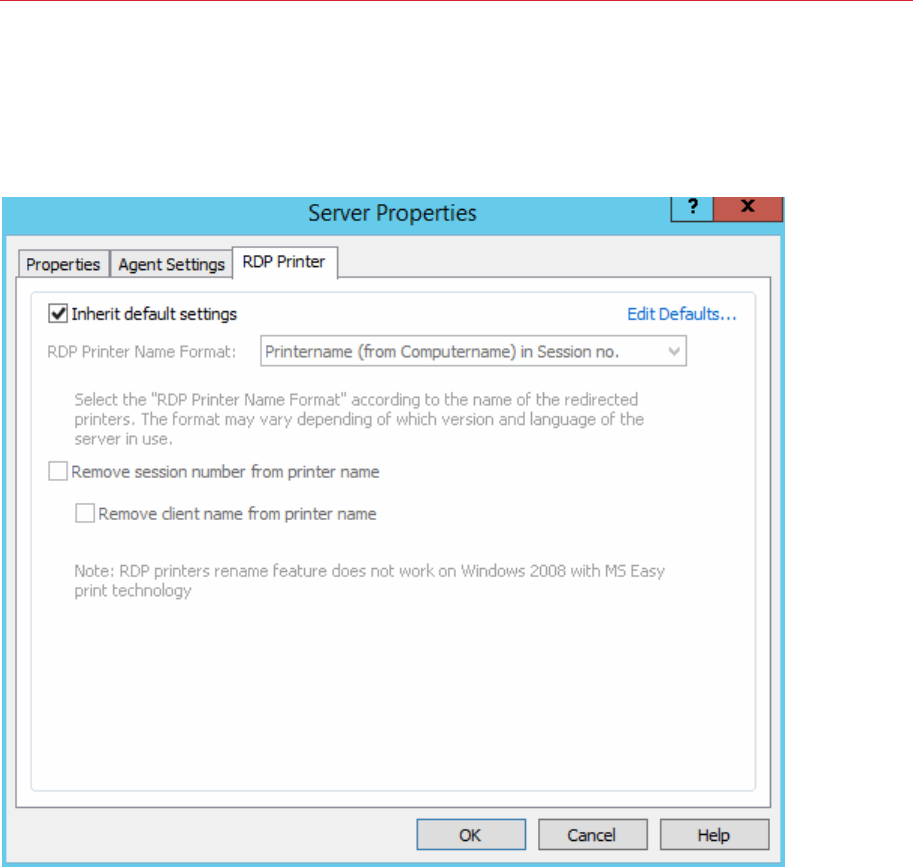
50
Terminal Servers
RDP Printer Tab Page
The RDP Printer tab page allows you to configure the renaming format of redirected printers. The
format may vary depending on which version and language of the server you are using.
To use the default RDP printer settings, select the Inherit default settings option. To view or
modify the default options, click the Edit Defaults link.
The RDP Printer Name Format drop-down list allows you to select a printer name format
specifically for the configured server.
Select the Remove session number from printer name and/or the Remove client name from
printer name to exclude the corresponding information from the printer name.
Grouping Terminal Servers
Terminal Servers groups can be used to specify from which group of servers a published resource
should be published in the wizard. It is highly recommended to use groups in a multi-server
environment to ease the management of publishing items.

51
Terminal Servers
To create or modify a terminal server group:
1 With Farm > Terminal Servers selected in the navigation tree, click the Groups tab.
2 To create a new group, click Add from the Tasks drop down menu (or click the + icon). To
modify an existing group, right-click it and then click Properties in the context menu.
3 In the Group Properties dialog, specify the group name and select the servers to add to the
group.
Using a Terminal Server Scheduler
The Scheduler tab page in the Terminal Servers view allows you to reboot or temporarily disable
servers according to a schedule.
To create a new scheduler task or modify an existing one:
1 In the RAS Console, navigate to Farm / <server-name> / Terminal Servers.
2 In the right pane, click the Scheduler tab.
3 To create a new task, click Add in the Tasks drop-down menu and select a desired task from
the following options:
• Disable Server
• Disable Server Group
• Reboot Server
• Reboot Server Group
To modify an existing task, right-click it and select Properties in the context menu. To delete a
task, right-click it and select Delete.
4 The schedule properties dialog will have slightly different options depending on the task type
that you choose in the Tasks > Add drop-down menu. The differences are described in the
following steps.
5 Select Enable Schedule to enable the task.
6 Specify the task name, target server (or server group if you've selected a group task), and an
optional description.
7 Specify the start date and time, duration, and the scope (the Repeat property). If you select
Never in the Repeat drop-down box, the task will run only once.
8 The Notify Users Message box allows you to type a message that will be sent to the users
before the task is executed (you can select the time period using the Send message [ ] before
action is triggered drop-down list).
9 The Options section will have different options depending on the task type:
• If a task is Disable Server or Disable Server Group, the available option is On Disable.
You can use it to specify how the active session states should be handled.

52
Terminal Servers
• If a task is Reboot Server or Reboot Server Group, the available options are Enable Drain
Mode and Force Server Reboot After (the options work together). If you enable the drain
mode, the following will happen. When the task triggers, new connections to a server will be
refused but active connections will continue to run. A server will be rebooted when all active
users end their sessions or when it's time to force reboot it, whichever comes first. For
active users not to lose their work, specify a message in the Notify Users Message box
advising them to save their work and log off. Please also see the Terminal Server Drain
Mode Examples subsection below.
10 Click OK to save the changes and close the dialog.
Terminal Server Drain Mode Examples
Example 1: Scheduling a server group for reboot without the drain mode
A server group contains 3 servers: A, B, C
• Date: 7/24/2015
• Start Time: 10:45am
• Send Message: 2 minutes before
Users with active sessions are notified 2 minutes before the server rebooting task is triggered.
Example 2: Scheduling a server group for reboot with the drain mode enabled
A server group containing 3 servers: A, B, C
• Date: 7/24/2015
• Start Time: 10:45am
• Drain mode: enabled
• Force reboot after: 3 hours
• Send Message: 2 minutes before
The session users are notified 2 minutes before the server rebooting task is triggered.
When the task is triggered:
1 The drain mode is enabled on the servers.
2 Server A and B have no active or disconnected sessions, so they are restarted immediately.
3 Server C still has open/disconnected sessions, so it continues to run until all users end their
sessions. If the server still has active sessions in three hours, the sessions are terminated and
the server is restarted.
Note: Computer Configuration / Administrative Templates / Windows Components / Remote
Desktop Services / Remote Desktop Session Host / Connection / Allow users to connect remotely
using remote desktop services must be set to Not configured, otherwise it takes precedence.

53
Terminal Servers
Managing Logons From Client Sessions
The logon management feature allows you to enables or disable logons from client sessions. The
feature performs the same tasks as the change logon command-line utility.
To manage logons from client sessions:
1 In the Parallels Remote Application Server Console, navigate to Farm / <site-name> / Terminal
Servers.
2 Select a terminal server and click Tasks > Control.
3 The Control menu item has the following submenu items:
• Enable logons — enables logons from client sessions, but not from the console. This
option performs the same action as the change logon /enable command.
• Disable logons and reconnections — disables subsequent logons from client sessions,
but not from the console. Does not affect currently logged on users. This option performs
the same action as change logon /disable command.
• Disable logons until server reboot — disables logons from new client sessions until the
computer is restarted, but allows reconnections to existing sessions. Same action as the
change logon /drainuntilrestart command.
To see the current logon control mode for a terminal server, right-click it and point to Control in the
context menu. The checked-out option indicates the current logon control mode of the selected
terminal server. To do this check from the command line, execute the change logon /QUERY
command on the server.
Please also note the following:
• When applying a logon control mode on a server, ensure that the agent state is updated
accordingly.
• You must set the logon control options for the servers one-by-one. If you need to do it for a
group of servers, you can use the scheduler (see Using a Terminal Server Scheduler (p. 51)).
• There's no option for disabling logons from new client sessions but allowing reconnections to
existing sessions (change logon /DRAIN) because its behavior is identical to the Disable
logons until server restart option (change logon /DRAINUNTILRESTART).
• Computer Configuration / Administrative Templates / Windows Components / Remote
Desktop Services / Remote Desktop Session Host / Connection / Allow users to connect
remotely using remote desktop services must be set to Not configured, otherwise it takes
precedence.

54
Terminal Servers
Publishing from a Terminal Server
This section of the guide describes how to publish resources hosted by a Terminal Server. The
publishing functionality described here is accessed from the Publishing category in the RAS
Console.
You can also publish resources using a publishing wizard in the Start category, as described in the
Setting Up a Simple RAS Environment section (p. 26). The Start category publishing wizard is a
simplified version that gives you convenient options of selecting the resources that you want to
publish. You may try both approaches and choose the one that better suits your needs.
Publishing a Desktop from a Terminal Server
To publish a desktop from a terminal server:
4 In the RAS Console, select the Publishing category and click the Add icon below the
Published Resources tree. This will launch the publishing wizard.
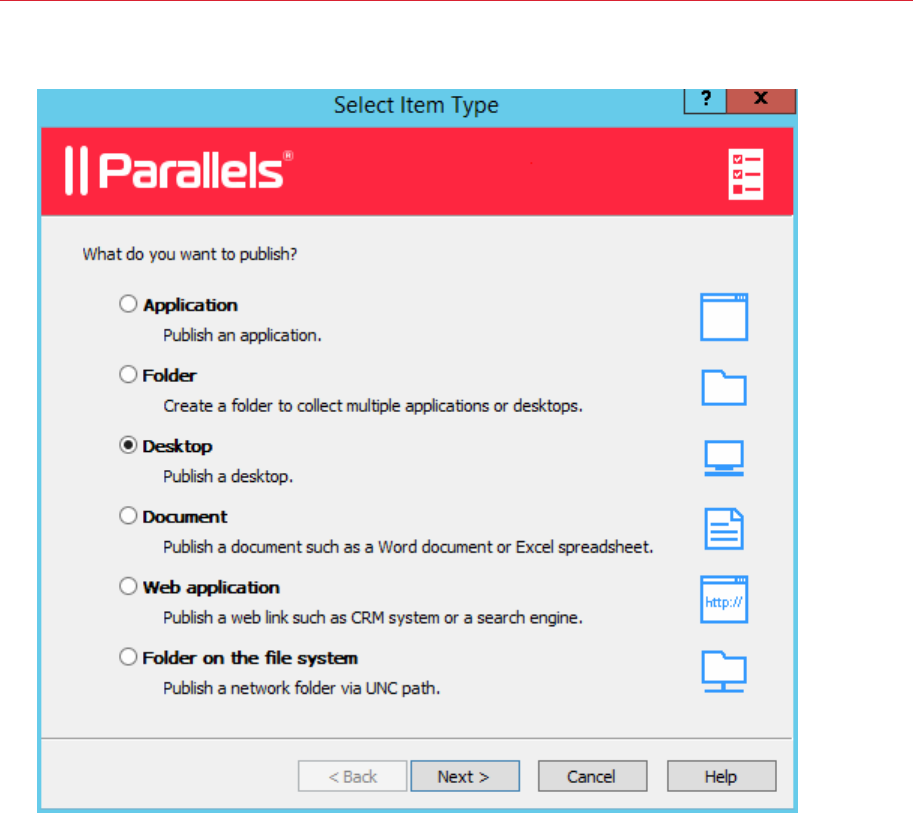
55
Terminal Servers
5 In the first step of the wizard, select Desktop and click Next.
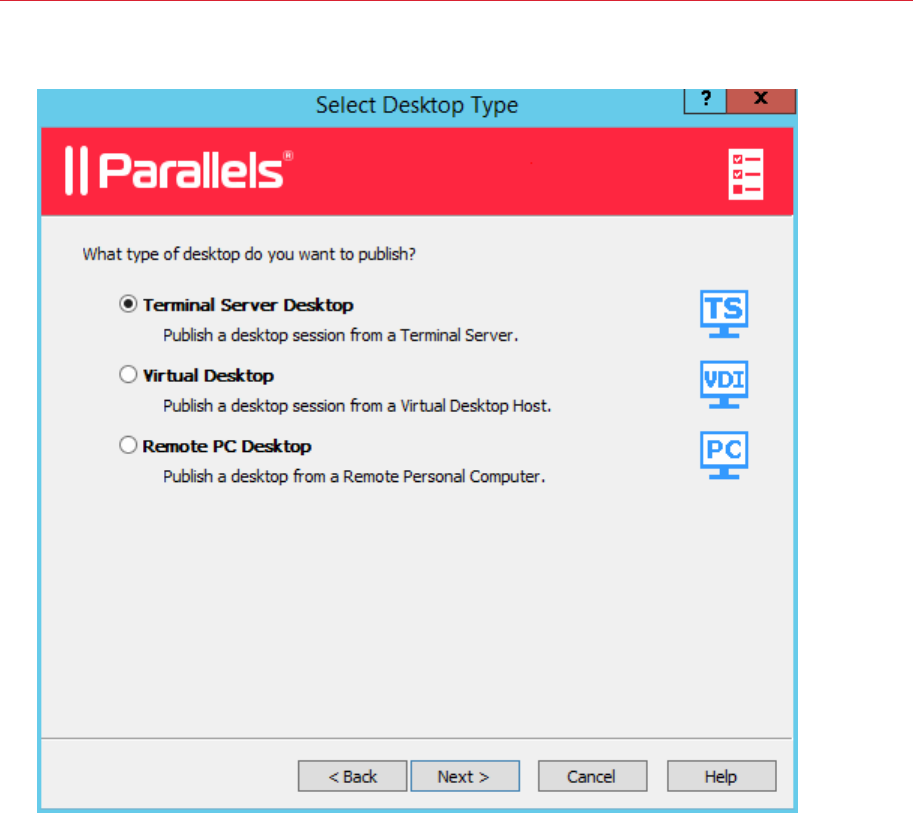
56
Terminal Servers
6 In the Select Desktop Type step, select Terminal Server Desktop and click Next.
7 Select the Terminal Server(s) which desktops you want to publish. You can select all servers on
the site, server group(s), or individual servers. Please note that if you have just one terminal
server, this step will be skipped.
8 Click Next.
9 In the next step:
• Specify a name and description for the shared desktop, and, optionally, change the icon.
• Select the Connect to console option, so that the users will be connecting to console
rather than a virtual session.
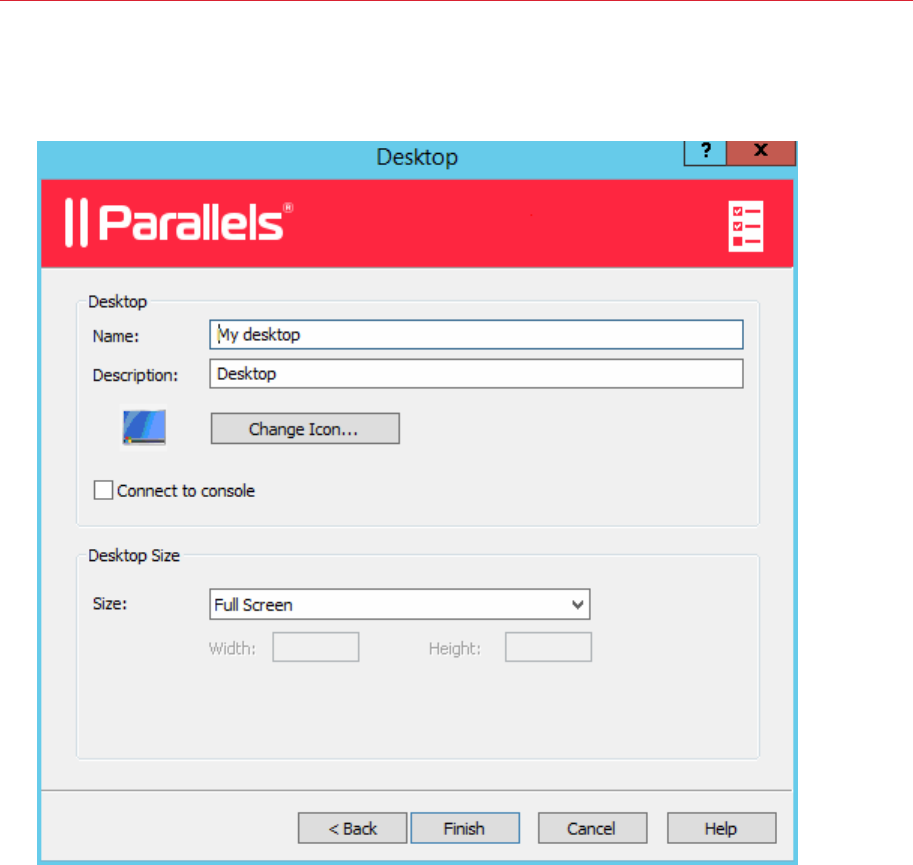
57
Terminal Servers
• Specify the desired screen resolution using the Size drop-down list. To set a custom width
and height of the screen, select Custom in the Size drop-down list and specify the desired
values in the fields provided.
10 When done, click Finish to publish the desktop.
Publishing an Application from a Terminal Server
To publish an application from a terminal server follow the below procedure:
1 In the RAS Console, select the Publishing category and then click the Add icon below the
Published Resources tree (or right-click inside the Published Resources box and click Add
in the context menu). This will launch the publishing wizard.
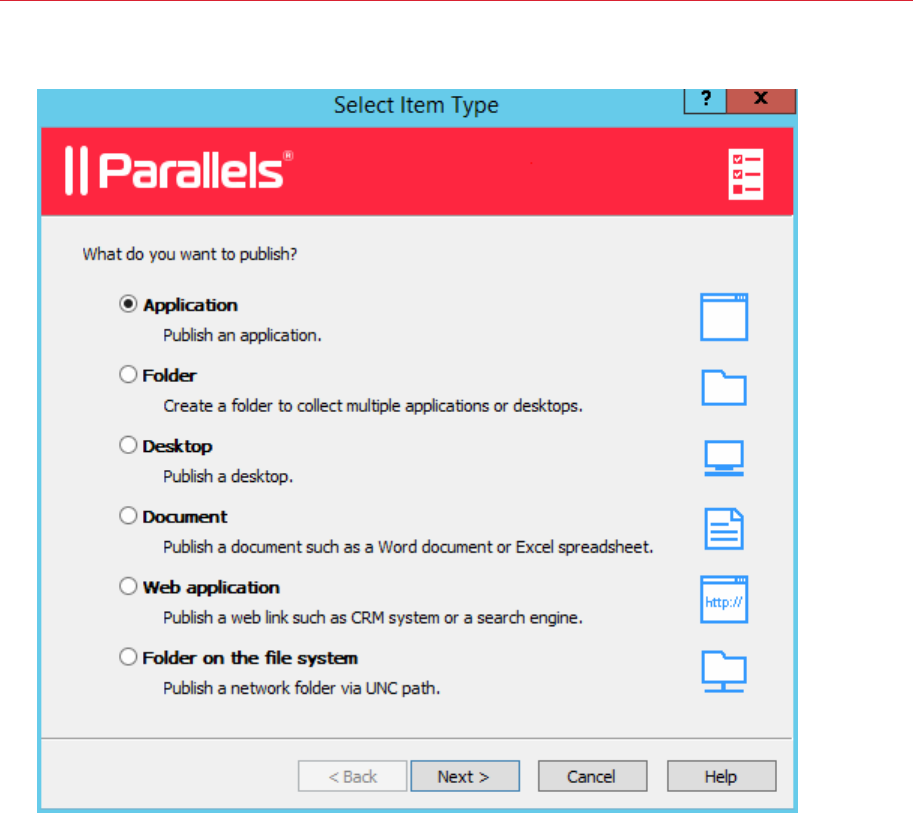
58
Terminal Servers
2 On the Select Item Type wizard page, select Application and click Next.
3 On the Select Server Type page, select Terminal Server and click Next.
4 One the Select Application Type page, select one of the following available options:
• Single Application. Choose this option to fully configure the application settings yourself
such as the executable path etc.
• Installed Application. Choose this option to publish an application that is already installed
on the server, therefore all of the application settings are automatically configured.
• Predefined Application. Choose this option to publish a commonly used Windows
application such as Windows Explorer.
5 Click Next.
6 On the Publish From page, specify from which terminal servers the application should be
published. You have the following options:
• All Servers in Site. If selected, the application will be published from all servers that are
available on the site.

59
Terminal Servers
• Server Groups. Select this option and then select individual server groups to publish the
application from.
• Individual Servers. Select this option and select individual servers to publish the application
from.
Please note that the Publish From wizard page will appear only if you have multiple terminal
servers. If you have just one server, this page will be skipped by the wizard. The page will also
be skipped if the application type that you are installing is Predefined Application.
7 Click Next.
8 Depending on the application type that you selected on the Select Application Type page, the
next wizard page will be one of the following:
• If you selected Single Application, the Application page will open where you have to
specify the application settings manually (more about this option later in this section).
• If you selected Installed Applications, the Installed Applications page will open listing
available applications (the applications are grouped by functionality). Select an application
you wish to install and click Next. Follows the instructions to complete the wizard.
• If you selected Predefined Application, the Select Predefined Applications page will
open listing available applications. Select an application you wish to publish and click Finish.
9 If you selected Single Application on the Select Application Type wizard page, the
Application page will open at this point. Specify the application settings as follows (see the
screenshot below):
Note that if you populate the Target field first using the "browse" button ([...]), the application
Name, Description, and icon will be chosen automatically. You can override this selection if
you wish.
• Name. Choose and type a name for the application.
• Description. Type an optional description.
• Run. Select the application window state (normal window, minimized, maximized).
• Change Icon. Change the application icon (optional).
• Server(s). Allows you to specify the rest of the server parameters individually for each server
the application was published from. Select a server from the drop-down list box and specify
the parameters. Repeat for other servers in the list.
• Target. Specify the application executable path and file name.
• Start in. If the Target field is valid, this field will be populated automatically. You can specify
your own path if needed.
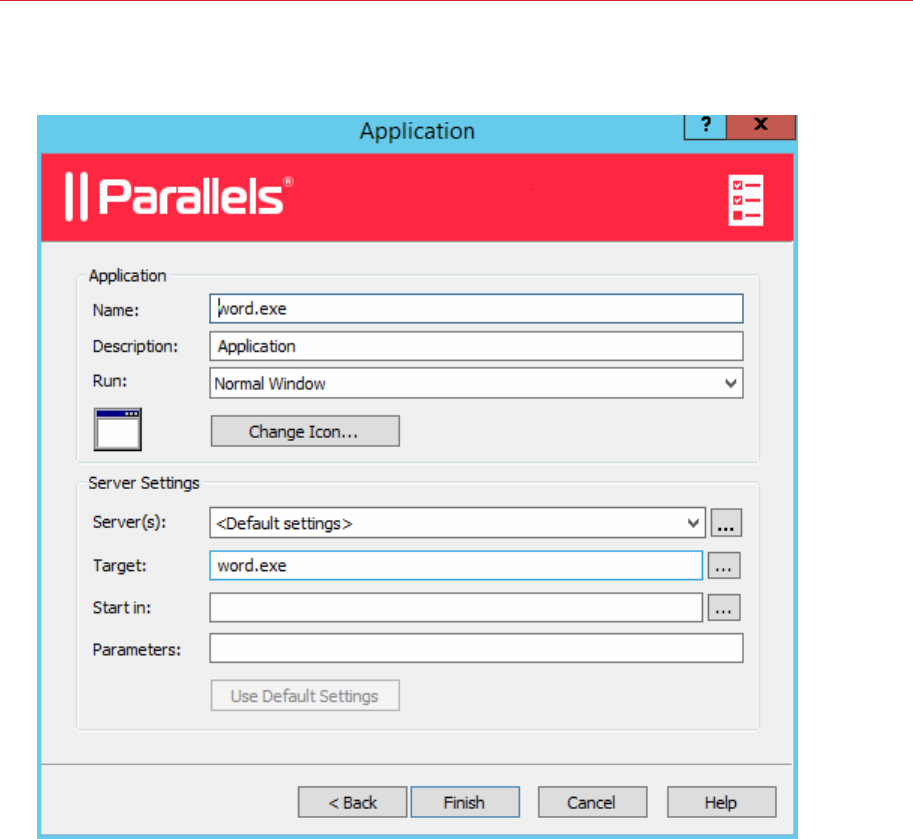
60
Terminal Servers
• Parameters. If the application accepts startup parameters, you can specify them in this
field.
10 When done, click Finish to publish the application.
Publishing a Web Application from a Terminal Server
A web application is like any other application that you can publish using the standard application
publishing functionality. However, to simplify publishing of straight URL links to web applications, a
separate publishing item type is available that allows you to accomplish this task with minimal
number of steps.
To publish a web application:
1 In the RAS Console, select the Publishing category and then click the Add icon below the
Published Resources tree (or right-click inside the Published Resources box and click Add
in the context menu). This will launch the publishing wizard.
2 On the Select Item Type wizard page, select Web Application and click Next.
3 On the Select Server Type page, select Terminal Server and click Next.

61
Terminal Servers
4 On the Publish From page, select the server(s) to publish from. Note that if you have just one
terminal server, the Publish From page will not appear.
5 On the Web Application wizard page that opens, specify the web application name,
description, window state, and the URL. Select the Force to use Internet Explorer option if
needed. To browse for a specific application icon, click Change Icon.
6 When done, click Finish to publish the application.
When published, the web application will appear in the Publishing > Published Resources list,
just like any other application.
Publishing a Network Folder from a Terminal Server
You can publish a filesystem folder via UNC path to open in Windows explorer. To minimize the
number of configuration steps, a special publishing item is available that allows you to publish a
network folder from a terminal server.
To publish a network folder:
1 In the RAS Console, select the Publishing category and then click the Add icon below the
Published Resources tree (or right-click inside the Published Resources box and click Add
in the context menu). This will launch the publishing wizard.
2 On the Select Item Type wizard page, select Folder on the file system and click Next.
3 On the Select Server Type page, select Terminal Server and click Next.
4 On the Publish From page, select the server(s) to publish from. Note that if you have just one
terminal server, the Publish From page will not appear.
5 On the UNC Folder wizard page, specify the usual application properties.
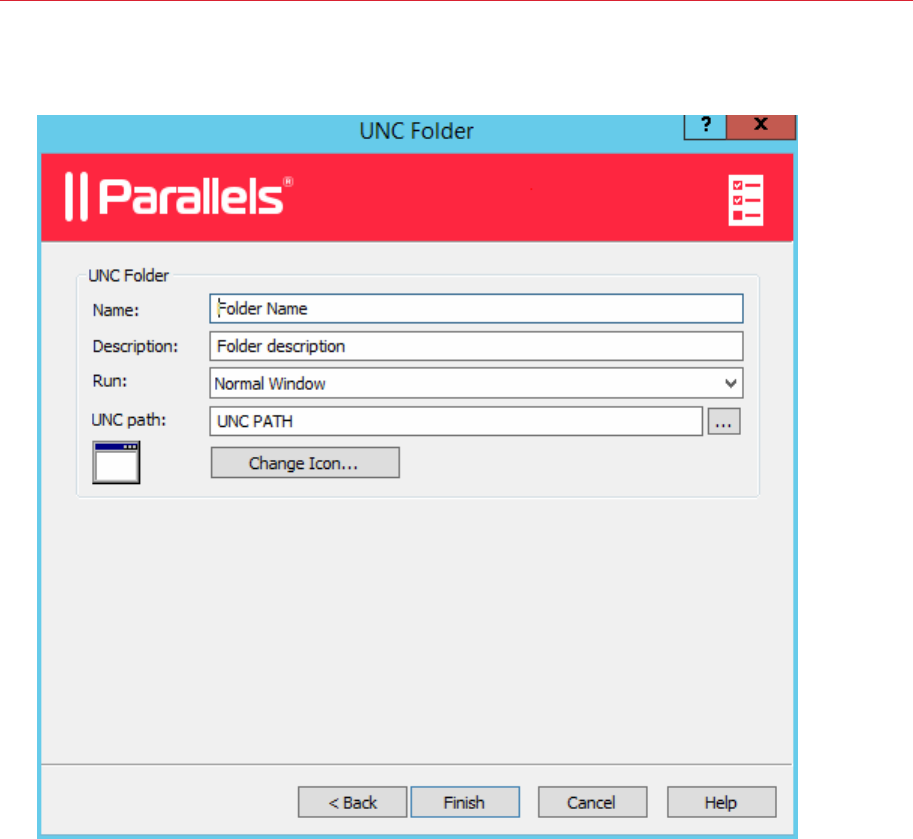
62
Terminal Servers
6 In the UNC path field, enter the UNC path of the folder you wish to publish. Click the [...]
button to browse for a folder (it may take some time for the Browse for Folder dialog to open).
7 Click Finish to publish the folder and close the wizard.
When published, the network folder will appear in the Publishing > Published Resources list, just
like any other application. If you select it and then click the Application tab, the application settings
will be as follows:
• The Target property will always be set to PublishedExplorer.exe. This binary is created
automatically (via agents pushing) and is simply a copy of the standard explorer.exe
executable.
• The Parameters property specifies the network folder that we want to publish. The folder path
can be in any format that the explorer.exe can handle.
Please note that although you have all standard application property tabs enabled for this
publishing item, at least the following items should be ignored, as they are completely irrelevant:
• Publish From
• File Extensions

63
Terminal Servers
Publishing a Document from a Terminal Server
To publish a document from a terminal server, follow the below procedure:
1 In the RAS Console, select the Publishing category and then click the Add icon below the
Published Resources tree (or right-click inside the Published Resources box and click Add
in the context menu). This will launch the publishing wizard.
2 On the Select Item Type wizard page, select Document and click Next.
3 Select Terminal Server and click Next.
4 Specify the content type of the document you want to publish. You can select the content type
from the predefined list or specify a custom content type in the Custom content types input
field.
5 Click Next when ready.
6 On the Publish From page, specify from which terminal servers the application should be
published. You have the following options:
• All Servers in Site. If selected, the application will be published from all servers that are
available on the site.
• Server Groups. Select this option and then select individual server groups to publish the
application from.
• Individual Servers. Select this option and select individual servers to publish the application
from.
Please note that the Publish From wizard page will appear only if you have multiple terminal
servers. If you have just one server, this page will be skipped by the wizard.
7 On the Application page, enter a name, an optional description, a Window state, and an icon if
needed.
8 Use the [...] button next to the Target input field to browse for the document. All other fields will
be automatically populated. To edit any of the auto populated fields, highlight them and enter
the required details.
9 (Optional) In the Parameters input field, specify the parameters to pass to the application when
it starts.
Note: Use the Server(s) drop down list to specify different document settings for a specific server in
case the document is configured differently on that particular server. The settings will be saved for each
server you select individually.
10 Click Finish to publish the document.

In This Chapter
Adding a VDI Host.................................................................................................... 64
Installing an Appliance and Configuring a VDI Host................................................... 67
Managing RAS Templates ........................................................................................ 71
VDI Host Pool Management ..................................................................................... 75
Persistent Guests ..................................................................................................... 79
Publishing from a Guest ........................................................................................... 79
VDI Agent Technology .............................................................................................. 83
Adding a VDI Host
A VDI host is a computer on which a hypervisor is running one or more virtual machines (also
known as virtual guests or simply guests). Each virtual machine runs an operating system called a
guest operating system. A host can run multiple virtual machines, each running a guest operating
system. Parallels Remote Application Server supports Windows as a guest operating system only.
By adding a VDI host to a Parallels Remote Application Server site, you can manage virtual
machines running on it, create new virtual machines from a template, and publish desktops and
applications from their respective guest operating systems.
Note: Before adding a server as a VDI host to a site, you need to install one of the supported hypervisors
on it. The VDI Agent Technology section (p. 83) provides information on how to install different
hypervisors. The rest of this section assumes that a hypervisor is already installed on a server.
Searching for VDI Hosts
To search for available VDI hosts on your network:
1 In the RAS console, navigate to the Farm / <site-name> / VDI Hosts node, where
<site_name> is the site to which you would like to add a VDI host.
2 On the Virtual Desktop Hosts tab page, click Tasks > Find.
3 The Find Virtual Desktop Hosts dialog opens and begins to search for VDI hosts. If no VDI
hosts are found, you can add a host manually (jump to the Manually Adding a VDI Host
subsection below).
CHAPTER 6
VDI Hosts
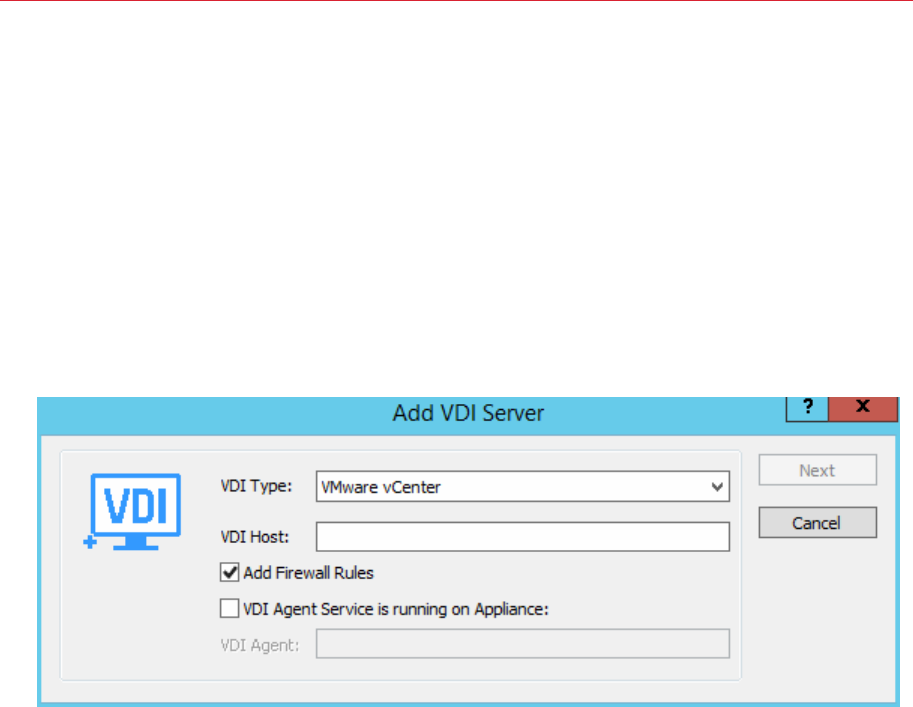
65
VDI Hosts
4 If at least one suitable VDI host is found, it will be displayed in the dialog. You can select the
Show all hosts option to display all available hosts, including the hosts that don't meet the
minimum system requirements. To refresh the list, click Refresh.
5 Verify that the host of interest has RAS VDI Agent installed by looking at the Agent column. If
the agent is not installed, click the Install Agent button and follow the instructions.
6 Click OK to add the VDI host to the site.
Manually Adding a VDI Host
To add a VDI host manually:
1 In the Tasks drop-down menu, click Add to launch the Add VDI Server wizard.
2 Select the hypervisor type that your VDI host is running and specify the host's IP address or
FQDN.
3 Select the Add Firewall Rules option to automatically configure the firewall on the server.
4 The VDI Agent-specific options behave differently for different hypervisor types. The VDI Agent
Technology section (p. 83) provides the complete details.
5 Click Next.
6 In this step, Parallels Remote Application Server checks if the RAS VDI Agent is installed on the
VDI host. If the agent is not installed, do the following:
a Click Install to push install the agent on the VDI host.
b In the Installing RAS VDI Host Agent dialog, highlight the server name on which the RAS
Agent is to be installed.
c (Optional) Select the Override system credentials option to specify and use different
credentials to log into to the target server.
d Click Install to install the agent.
e Click Done once the agent is installed. If the automatic installation of the RAS VDI Agent
fails, refer to the Installing RAS VDI Agent Manually section (p. 66).
7 Click Add to add the VDI host to the Parallels Remote Application Server farm.

66
VDI Hosts
Checking the RAS VDI Agent Status
The RAS VDI Agent must be installed on a VDI host in order for it to communicate with the
hypervisor and provide the remote desktop services.
To check the RAS VDI Agent status:
1 First, you can look at the Agent State column in the VDI Hosts list. If there's a problem with
the agent, the column will display an appropriate error message.
2 Right-click a host and then click Check Agent in the context menu. The VDI Agent
Information dialog opens displaying the information about the VDI Agent, VDI Services, and
other related info.
3 If the VDI Agent is not installed, click the Install button and follow the instructions. Similarly, if
VDI Services are not enabled, enable them.
Installing RAS VDI Agent Manually
You may need to install the RAS VDI Agent on a VDI host manually if the automatic push installation
cannot be performed. For instance, an SMB share may be not be available or the firewall rules may
interfere with the push installation, etc.
Installing RAS VDI Agent Manually
To install the agent:
1 Log into the server where the RAS VDI Agent is to be installed using an administrator account
and close all other applications.
2 Copy the Parallels Remote Application Server installation file (RASInstaller.msi) to the
server and double-click it.
3 Once prompted, click Next and accept the End-User license agreement.
4 Specify the path where the RAS Agent should be installed and click Next.
5 Select Custom and click Next.
6 Click on the RAS VDI Agent and select Entire Feature will be installed on local hard drive
from the drop-down menu.
7 Ensure that all other components are deselected and click Next.
8 Click Install to start the installation. Click Finish once the installation is finished.
The RAS VDI Agent does not require any configuration. Once the agent is installed, highlight the
server name in the RAS Console and click Check Agent. If the agent is installed properly, the
status should change to Agent Installed.

67
VDI Hosts
Uninstalling RAS VDI Agent
To uninstall the RAS VDI Agent from a server:
1 Navigate to Start > Control Panel > Programs > Uninstall a Program.
2 Find Parallels Remote Application Server in the list of installed programs.
3 If you don't have any other Parallels RAS components on the server that you want to keep,
right-click Parallels Remote Application Server and then click Uninstall. Follow the
instructions to uninstall the program. You may skip the rest of these instructions.
4 If you have other RAS components that you want to keep on the server, right-click Parallels
Remote Application Server and then click Change.
5 Click Next on the Welcome page.
6 On the Change, repair, or remove page, select Change.
7 On the next page, select Custom.
8 Select RAS VDI Agent, then click the drop-down menu in front of it, and click Entire feature
will be unavailable.
9 Click Next and complete the wizard.
Installing an Appliance and Configuring a VDI
Host
For some of the hypervisors, such as VMWare ESXi server, you have to configure and run an
appliance instead of the RAS VDI Agent. An appliance is a virtual machine, configured in a certain
way, which you can designate as RAS VDI Agent.
Installing the Appliance
For the information about how to install an appliance, refer to the VDI Agent Technology section
(p. 83).
Configuring a VDI Host
To configure a VDI host, select it in the Virtual Desktop Hosts list and click Tasks > Properties.
The Host Properties dialog opens.
Note: Some of the properties described below may be unavailable on some servers. This depends on
the type of the hypervisor installed on the host server.

68
VDI Hosts
Enabling or Disabling a VDI Host in the Farm
By default a VDI host is enabled in the farm. When it is disabled, published applications and virtual
desktops cannot be served from it. To disable a host, clear the Enable Host in site option on the
Properties tab page.
Configuring VDI Host Connection Settings
The following properties can be configured on the Properties tab page:
• VDI Type. Virtualization technology type.
• VDI Version. A version of the selected virtualization technology. If the hypervisor version that
you are using is not listed, select Other.
• VDI Host. The VDI host IP address.
• VDI Port. Port number on which the VDI host listens for incoming connections.
• VDI Agent. The appliance IP address (if the agent is running on an appliance).
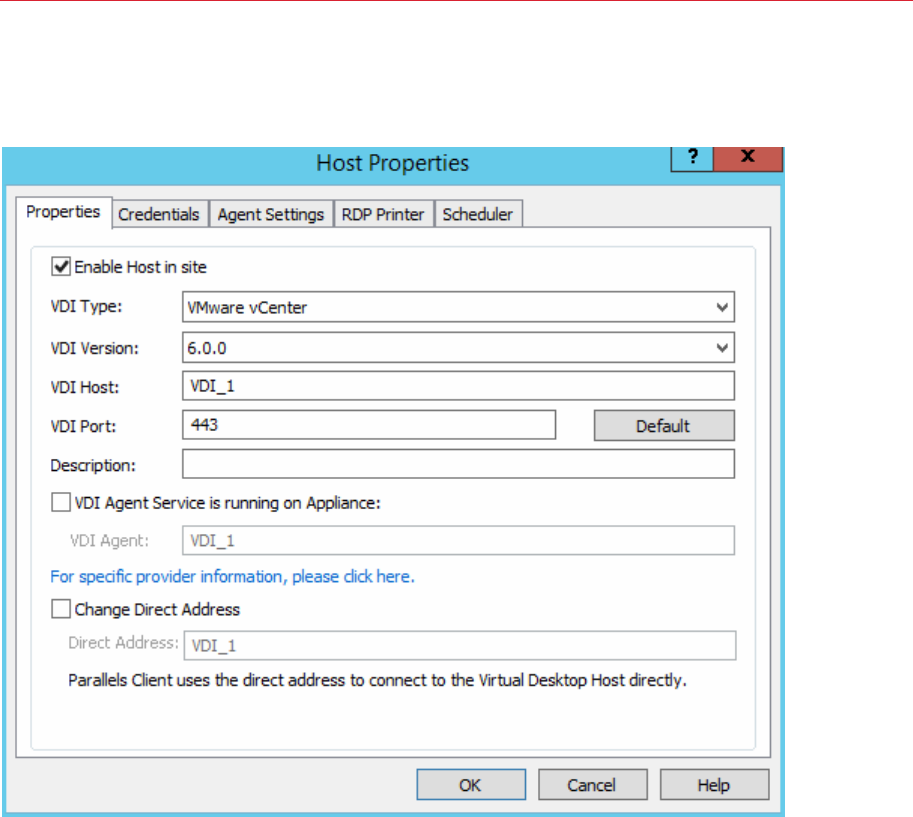
69
VDI Hosts
• Change Direct Address. If selected, allows to specify the IP address that can be used by
Parallels Clients to directly connect to the host. The direct address is only used in the Direct
Connection mode and it could be an internal or external IP address.
Specifying Credentials
On the Credentials tab page, specify the user name and password to log into the VDI host. Click
the Check Credentials button to verify the credentials that you've entered.
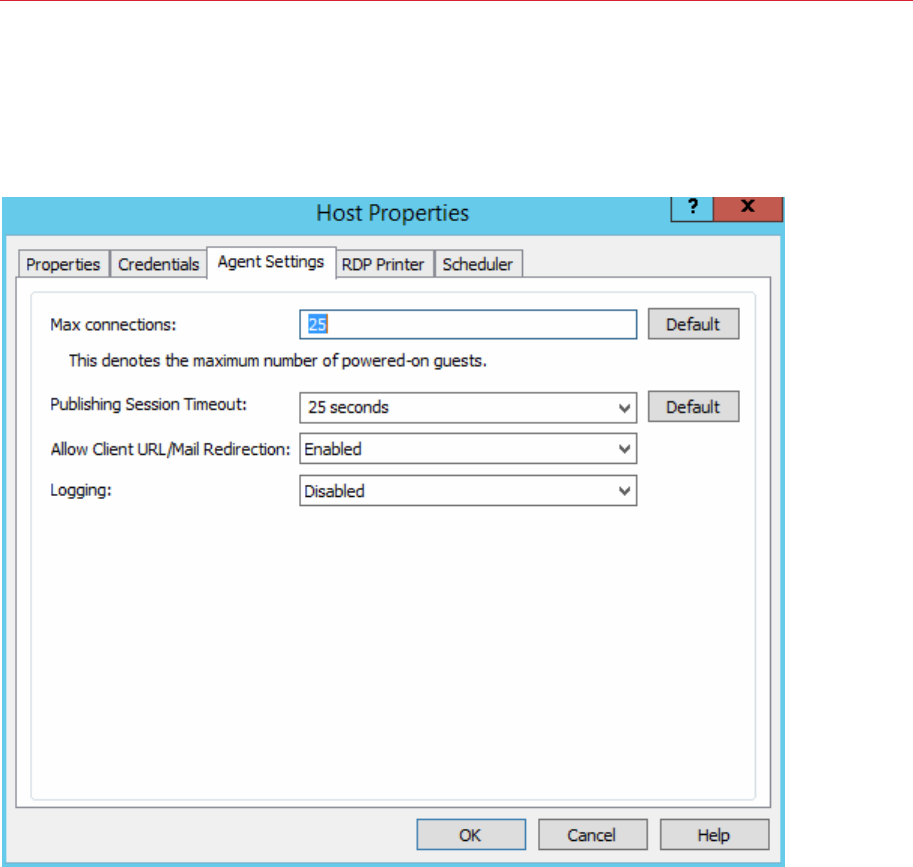
70
VDI Hosts
Configuring the RAS VDI Agent on the Server
Each VDI host in the farm has the RAS VDI Agent installed (or running as an appliance). The VDI
agent can be configured on the Agent Settings tab page.
• Max Connections. Specifies the maximum allowable number of powered-on guests.
• Publishing Session Timeout. Specifies the amount of time each session remains connected in
the background after the user has closed the published application. This option is used to avoid
unnecessary reconnections with guests.
• Allow Client URL/Mail Redirection. Select this option to allow http and mailto links to be
opened using a local application on the client computer rather than the server resources.
• Logging. Enable or disable the RAS VDI Agent logging. Logging should only be enabled if
instructed by the Parallels RAS Support.
Configuring RDP Printing
The RDP Printer tab allows you to configure the renaming format of redirected printers. The
format may vary depending on which version and language of the server you are using. Select the
RDP Printer Name Format option specifically for the configured server:

71
VDI Hosts
• Printername (from Computername) in Session no.
• Session no. (computername from) Printername
• Printername (redirected Session no)
The other RDP Printing options available in the RDP Printer tab are:
• Remove session number from printer name
• Remove client name from printer name
Configuring VDI Host Maintenance Time Window
The Scheduler tab page allows you to create a maintenance time window for the server. During
this time, published resources won’t be accessible from that server.
To configure a maintenance time window click Tasks > Add and then set the following options:
• Start date
• Time
• Duration
• Repeat
The On disable option allows you to specify what should happen to current sessions when a
scheduled task triggers.
Managing RAS Templates
RAS Templates are used to automate the creation and deployment of virtual guests in Parallels
Remote Application Server. A RAS Template is created as a copy of an existing virtual guest, but
cannot be run as a regular virtual guest. You can customize a RAS Template for use with Parallels
Remote Application Server and according to your needs. Once a template is ready, you can use it
to create virtual guest clones that will inherit all the properties of the template, but are created as
normal virtual guests from which you can serve applications, document, desktops, etc. to your
Remote Application Server users.
RAS Templates can only be created with the following versions of Windows as a guest OS (no
other operating system types are supported):
• Windows XP SP3
• Windows Vista
• Windows 7
• Windows 8
• Windows 10
72
VDI Hosts
Creating a RAS Template
Note: To create a template from an existing virtual guest, the guest operating system (Windows) must be
configured to obtain an IP address via DHCP server.
To create a new RAS Template:
1 In the RAS Console, navigate to Farm / <site-name> / VDI Hosts.
2 Select the RAS Templates tab in the right pane.
3 In the Tasks drop-down menu, click Add.
4 In the Virtual Guest List dialog, select a guest from which you would like to create a RAS
Template and click OK.
5 In the next step, Parallels Remote Application Server will check if the guest has the RAS Guest
Agent installed. If the agent is not installed, click Install and then specify credentials to log into
Windows in the virtual guest. Click Done when finished. If the automatic installation of the RAS
Guest Agent fails (e.g. an SMB share is not available or the firewall rules don't allow to perform
a push installation), try installing it manually by running the main Parallels Remote Application
Server installer (RASInstaller.msi) in Windows in the virtual guest. Use the Custom
installation option and select the RAS Guest Agent component to install.
6 In the Guest Agent Information dialog, click the Make Template button to create a RAS
Template.
7 The source virtual guest will be powered off (if needed) and the template creation process will
begin.
How Virtual Guests Are Created From a Template
After the RAS Template changes are committed to Parallels Remote Application Server, it will begin
creating virtual guests from the template, one guest at a time. The number of guests that will be
created is determined by the value specified in the Pre-Created Guests field on the Properties
page (see Configuring a RAS Template (p. 73)).
As soon as a user connection to a virtual guest, Parallels Remote Application Server begins
creating a new guest from the template, so the number of pre-created guests remains as
configured. Please note that creating a new guest from a template takes some time. If a virtual
guest is available when a user tries to connect to it, the user doesn't have to wait for the
connection. If a guest is in the middle of being created, and no other guests are available, the user
will have to wait.
When a virtual guest is no longer in use, and if the number of existing guests exceeds the "pre-
created" value, a guest is deleted after the time period specified in the Delete unused guest after
field on the Properties page. If you didn't select that option, a guest is never deleted, but the total
number of guests will never exceed the value specified in the Maximum guests field on the
Properties page.
73
VDI Hosts
Configuring a RAS Template
Once the template is created, the template configuration wizard will automatically open. You need
to complete the wizard before you can use the template to create virtual guest clones.
The RAS template configuration wizard consists of a few pages, which are described below.
Note: You can access the same configuration pages for an existing template by selecting it in the list and
then clicking Tasks > Properties. This will open a dialog (instead of the wizard, which is described
below), but the pages and configuration options will be the same.
Properties
On the Properties page, specify the following options:
• RAS Template. Choose and type a name for the template.
• Maximum Guests. Specify the maximum number of guest clones that can be created from the
template.
• Pre-created Guests. Specify the number of guest clones that will be automatically pre-created
so they become available for users to connect to immediately.
• Guest Name. Specify a name for guest clones that will be created from this template. A guest
ID will be appended to this name to make each guest's name unique.
• Delete unused guests. Enable this option to automatically delete guest clones that haven't
been used for a specified period of time. Use the after drop-down list to specify the period of
time.
Advanced
On the Advanced page, specify the following options:
• Folder. Specify the folder where guest clones created from this RAS Template will be stored.
This option is available if you are using Hyper-V, Hyper-V Failover Cluster, VMware vCenter and
Citrix XenServer.
• Native Pool. Specify the native pool to add the guest clones to. This option is available if you
are using VMware ESX and VMware vCenter.
SysPrep
On the SysPrep page, you can configure SysPrep settings in Windows inside the RAS Template.
The options are:
• Computer Name. Specifies the computer name that should be assigned to a guest clone.
• Owner Name. Specifies the owner name.

74
VDI Hosts
• Organization. Specifies the organization name.
• Administrative Password. Specifies the Windows administrator password.
• Join Workgroup. Select this option and specify a workgroup if you want a virtual guest clone
to be a part of a workgroup.
• Join domain. Select this option and specify a domain name and credentials if you want a
virtual guest clone to be a part of a domain.
License Keys
On the License page, you can specify the license key and the key limit for activation of Windows
installed in the RAS Template.
To add a key:
1 Click the Add button.
2 Type a valid key in the License key field.
3 In the Max. guests field, specify the maximum number of guests that can be created from this
template.
4 Click OK.
5 Click the Finish button to save the template configuration information.
If you need to change the template configuration information later, select it in the RAS Templates
list and click Tasks > Properties. Use the dialog that opens to view and modify the template
properties.
RAS Template Maintenance
In addition to viewing and modifying a template configuration properties, you can perform a number
of maintenance tasks on a template. These tasks are described below.
Viewing Virtual Guests Created from a Template
To view the list of virtual guests created from a template, select a template in the list and click
Tasks > Info. The Template Guests List dialog lists the virtual guests and their relevant
information. You can also see remaining licenses info at the bottom of the screen.
Updating the RAS Guest Agent Inside a Template
A RAS template should have the latest version of the RAS Guest Agent installed in it. The agent is
installed when you create a template. When a new version of the RAS Guest Agent becomes
available, it should be updated.
To check the RAS Guest Agent status inside a template, click Tasks > Update. If the agent is up
to date, a message box will be displayed confirming that it is.

75
VDI Hosts
If a newer version of RAS Guest Agent is available, you'll see a dialog asking you if you want to
update it. Click Yes to update the agent. If you click No, you can check the status again later and
update the agent at that time.
Using a Template Maintenance Mode
If you need to update Windows inside a template (e.g. install a service pack or a new software), you
need to put the template into the maintenance mode. To do so, select the template and click
Tasks > Maintenance.
While in the maintenance mode, guests cannot be created from the template, and it will be grayed
out in the RAS Templates list. In the maintenance mode, you can start the template as a normal
virtual machine and configure it as necessary. Once the changes are applied and the virtual
machine is shut down, click Tasks > Maintenance again to switch it to the standard template
mode.
Please note that any updates applied to Windows when a template is in maintenance mode will
only affect future clones. Existing guests that were created from this template will not be affected.
When you are done configuring a RAS Template, click the Apply button on the main RAS Console
window to commit the changes to Parallels Remote Application Server.
VDI Host Pool Management
Pools offer administrators more flexibility when managing an extensive number of virtual guests,
especially when they are implemented in large company infrastructures. The RAS Console provides
you with the framework and tools needed to create a complete Pool Management foundation.
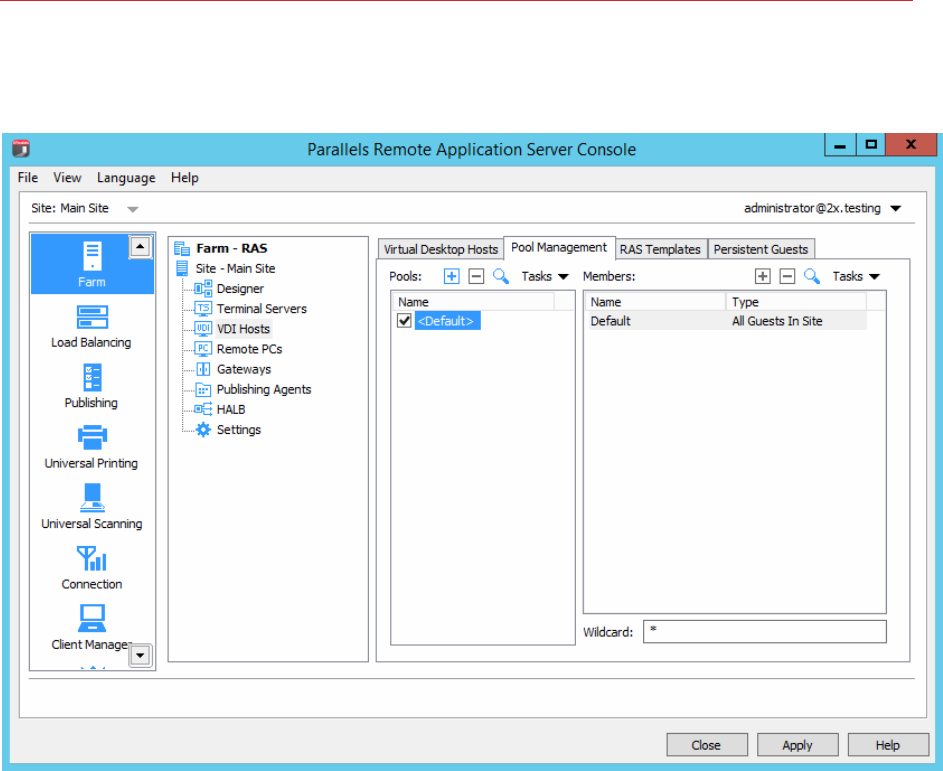
76
VDI Hosts
To manage pools, in the RAS Console, navigate to Farm / <site_name> / VDI Hosts and then click
the Pool Management tab.
Adding and Deleting Pools
To add a pool, click the Tasks drop-down menu above the Pools list and then click Add (or click
the plus-sign icon). Type a pool name and then click anywhere outside the edit field.
To delete a pool, right-click it and then click Delete (or click the minus-sign icon, or Tasks >
Delete).
Adding and Deleting Pool Members
A VDI pool can contain different types of members. These could be all available guests, specific
guests, guests that are created from a template, and even other pools.
To add a member to a pool:
1 Select a pool in the Pools list.
2 In the Tasks drop-down menu above the Members list, click Add and choose a member type
from the following list:

77
VDI Hosts
• All Guests in Site. All guests on all VDI hosts that are located on the site.
• All Guests in Host. All guests that are located on a particular VDI host. After clicking this
options, you'll be able to select a VDI host.
• Guest. A specific guest located in the farm. After clicking this options, you'll be able to
select a guest from the list.
• Native Pool. A group of guests that were natively configured in the hypervisor as a pool.
Please note that a hypervisor may use a different term for pools (e.g. "resource pools"). After
clicking this option, you'll be able to select a native pool from the list, if any are available.
• Pool. An existing pool in the Parallels Remote Application Server (pool nesting). After
clicking this option, you'll be able to select an existing pool from the list.
• RAS Template. Guests that are automatically created from a RAS Template. After selecting
this option, you'll be able to select a RAS template. For more information about RAS
Templates, refer to Managing RAS Templates (p. 71).
3 After you click one of the above menu items (except All Guests in Site), you will be presented
with the list of the available hosts, guests, pools, or templates from which you can make your
selection. The All Guests in Site item is simply added to the member list as it adds all available
guests to the pool.
To delete a member from a pool, select the pool, then select a pool member you wish to delete,
and then click Tasks > Delete.
Configuring Virtual Guests in a Pool
To configure a virtual guest included in a pool, select a pool and then click Tasks > Show Guests
in Pool to open the Virtual Guests List dialog.
Checking the RAS Guest Agent Status
A virtual guest should have the RAS Guest Agent installed in it. The agent is installed by default
when a guest is created from a RAS Template. If a guest was created outside the RAS Console
using the native hypervisor tools, it may not have the RAS Guest Agent installed in it. In such a
case, the guest will be able to serve only the desktop, but no applications or documents. As a
general rule, it is advisable that the RAS Guest Agent be installed in a virtual guest.
To check if the RAS Guest Agent is installed in a guest:
1 Select a guest in the list and then click Tasks > Check Agent.
2 The Guest Agent Information dialog opens displaying the information about the RAS Guest
Agent.
3 If the agent is not installed, click the Install button and follow the instructions. The agent will be
push installed in Windows running inside the virtual guest.

78
VDI Hosts
Performing Guest Power Operations
The power operations icons at the bottom of the dialog allow you to start, stop, suspend, and reset
a virtual guest.
Configuring Virtual Guest Properties
To view and modify properties of a virtual guest:
Select a guest and click Tasks > Properties. The Guest Advanced Settings dialog opens. In the
dialog, configure the following properties:
• Do not use this guest. If selected, the guest will not be used.
• Computer Name. Specifies the network name (domain name / IP address) that the system will
use to connect to this guest.
• Port. Specifies the port number that the system will use to connect to this guest.
• Override default settings. If cleared, the default settings will be used for the grayed out
properties. To override the default settings, select this option and specify your own values.
• To view and modify the default settings, click the Default Settings button. See Configuring
Default Guest Properties below for the info on how to set the default settings.
• Connection Timeout. If a connection with the guest cannot be established in this time period,
Parallels Remote Application Server will cancel the attempt to connect.
• Protocol. Specifies a protocol that Parallels Remote Application Server will use to
communicate with the guest.
• If session disconnects. Specifies the action that should be taken if a user disconnects from a
session. Use the after field to specify the amount of time that has to pass before the selected
action takes place.
• End a disconnected session. Specifies whether (and when) the disconnected session should
be ended. Please note that the user can reconnect to a previous session if the session is still
available.
Click OK to save the changes and close the dialog.
Configuring the Default Guest Settings
To configure the default guest settings, in the Virtual Guest List dialog, click Tasks > Default
Settings (or click the gear icon). Use the Default Guest Advanced Settings dialog to specify the
default settings. See above for the explanation of what these properties represent.

79
VDI Hosts
Using the Wildcard Function
Use the Wildcard input field at the bottom of the Pool Management tab to specify a wildcard to
indicate which guests should be available for users. If a guest's name matches the wildcard, it will
be available. If not, the users will not be able to use it. Use the the asterisk operator (*) to specify a
wildcard (e.g. ABC*, *ABC*).
Persistent Guests
When an application or a desktop published from a virtual guest is set as persistent, the first time a
user launches the application or desktop, the publishing agent will create a persistent guest rule.
Persistent Guest rules can be configured on the Persistent Guests tab page.
Deleting a Persistent Guest Rule
To delete a persistent guest rule highlight the rule on the Persistent Guests tab page and click
Tasks > Delete. If you want to delete all rules, select all rules by pressing CTRL+A and press the
delete key.
Configuring Automatic Deleting of Persistent Guest Rules
In the Auto remove persistence if guest was not used for drop-down menu (at the bottom of the
Persistent Guests tab) you can specify the maximum time an unused persistent guest rule is kept
before being automatically deleted. Alternately, you can also manually type in the desired time, for
example 1 week 3 days.
Publishing from a Guest
Publishing a Virtual Desktop from a Guest
To publish a virtual desktop from a guest or guest clone, follow the below procedure:
4 In the RAS Console, select the Publishing category and click the Add icon below the
Published Resources tree. This will launch the publishing wizard.
5 In the first step of the wizard select Desktop and click Next.
6 On the Select Desktop Type page, select Virtual Desktop and click Next.
7 On the Virtual Desktop page, enter a virtual desktop name, an optional description, and
change the icon if needed.
8 In the Properties section, specify from where the virtual desktop should be published.

80
VDI Hosts
First, you need to select an option in the Connect to drop-down list and then specify an
additional parameter in the field below it, as explained below:
• Any Guest. Use the from Pool drop-down list to specify a pool.
• Specific guest. Specify the guest by expanding the Guest drop-down menu and then
selecting the guest from a list.
• Guest. Specify the pool in the from Pool drop-down list and then specify where name
equals Username or IP.
• Specific RAS Template. Select a template by expanding the RAS Template drop-down list.
9 Select the Persistent option to create a persistent guest rule the first time the user connects.
10 In the Desktop Size section, specify the desktop screen resolution and size.
11 Click Finish when done.
Publishing an Application from a Guest
To publish an application from a guest or guest clone:
1 In the RAS Console, select the Publishing category and then click the Add icon below the
Published Resources tree (or right-click inside the Published Resources box and click Add
in the context menu). This will launch the publishing wizard.
2 On the Select Item Type wizard page, select Application and click Next.
3 On the Select Server Type page, select Virtual Guest and click Next.
4 On the Select Application Type page, select Single Application and click Next. The Virtual
Desktop Application page opens.
5 Enter a name and an optional description.
6 In the Run drop-down menu, specify if the application should run in a normal window,
maximized, or minimized.
7 In the Target field, specify the application that you want to publish. You may click the [...]
button to browse for it.
8 In the Start in field, specify (or browse for) the "start in" folder. Use Windows environment
variables if you are manually entering the path.
9 (Optional) In the Parameters input field, specify the parameters to pass to the application when
it starts.
10 In the Virtual Guest Settings section, specify from where the application should be published.
First, you need to select an option in the Connect to drop-down list and then specify an
additional parameter in the field below it, as explained below:
• Any Guest. Use the from Pool drop-down list to specify a pool.
• Specific guest. Specify the guest by expanding the Guest drop-down menu and then
selecting the guest from a list.

81
VDI Hosts
• Guest. Specify the pool in the from Pool drop-down list and then specify where name
equals Username or IP.
• Specific RAS Template. Select a template by expanding the RAS Template drop-down list.
11 Select the Persistent option to create a persistent guest rule the first time the user connects.
12 When done, click Finish to publish the application.
Publishing a Web Application from a Guest
A web application is like any other application that you can publish using the standard application
publishing functionality. However, to simplify publishing of straight URL links to web applications, a
separate publishing item type is available that allows you to accomplish this task with minimal
number of steps.
To publish a web application:
1 In the RAS Console, select the Publishing category and then click the Add icon below the
Published Resources tree (or right-click inside the Published Resources box and click Add
in the context menu). This will launch the publishing wizard.
2 On the Select Item Type wizard page, select Web Application and click Next.
3 On the Select Server Type page, select Virtual Guest and click Next.
4 On the Virtual Desktop Web Application wizard page that opens, specify the web application
name, description, window state, and the URL. Select the Force to use Internet Explorer
option if needed. To browse for a specific application icon, click Change Icon.
5 Use the Virtual Guest Settings section to specify from where the application should be
published.
The options are:
• Any Guest. Publish the application from any guest in the selected pool. Select this option
and then select a pool in the from Pool drop-down list.
• Specific guest. Publish the application from a specific guest. Select this option and then
select a guest in the from Pool drop-down list.
• Guest. Select this option and then select a pool in from Pool. In the where name equals
drop-down list, select Username or IP. The application will be published from a guest from
the selected pool whose name/IP matches the username/IP of the user connecting.
• Specific RAS Template. Publish the application from a specific RAS template. Select this
option and then select a template in the RAS Template drop-down list.
Select the Persistent option to create a persistent guest rule.
6 When done, click Finish to publish the application.

82
VDI Hosts
Publishing a Network Folder from a Guest
You can publishing a filesystem folder via UNC path to open in Windows explorer. To minimize the
number of configuration steps, a special publishing item is available that allows you to publish a
network folder from a guest.
To publish a network folder:
1 In the RAS Console, select the Publishing category and then click the Add icon below the
Published Resources tree (or right-click inside the Published Resources box and click Add
in the context menu). This will launch the publishing wizard.
2 On the Select Item Type wizard page, select Folder on the file system and click Next.
3 On the Select Server Type page, select Virtual Guest and click Next.
4 On the Virtual Desktop UNC Folder wizard page, specify the usual application properties.
5 In the UNC path field, enter the UNC path of the folder you wish to publish. Click the [...]
button to browse for a folder (it may take some time for the Browse for Folder dialog to open).
6 Specify the Virtual Guest Settings as described in Publishing an Application from a Guest
(p. 80).
7 Click Finish to publish the folder and close the wizard.
When published, the network folder will appear in the Publishing > Published Resources list, just
like any other application. To view its properties, select it and then click the Virtual Desktop
Application tab:
• The Target property will always be set to PublishedExplorer.exe. This binary is created
automatically (via agents pushing) and is simply a copy of the standard explorer.exe
executable.
• The Parameters property specifies the network folder that we want to publish. The folder path
can be in any format that the explorer.exe can handle.
Publishing a Document from a Guest
To publish a document from a guest or guest clone:
1 In the RAS Console, select the Publishing category and then click the Add icon below the
Published Resources tree (or right-click inside the Published Resources box and click Add
in the context menu). This will launch the publishing wizard.
2 On the Select Item Type wizard page, select Document and click Next.
3 Select Virtual Guest and click Next.
4 Specify the content type of the document you want to publish. You can select the content type
from the predefined list or specify a custom content type in the Custom content types input
field.
83
VDI Hosts
5 Click Next.
6 On the Virtual Desktop Application page, enter a name, an optional description, a Window
state, and an icon if needed.
7 Use the [...] button next to the Target input field to browse for the document. All other fields will
be automatically populated. To edit any of the auto populated fields, highlight them and enter
the required details.
8 (Optional) In the Parameters input field, specify the parameters to pass to the application when
it starts.
Note: Use the Server(s) drop down list to specify different document settings for a specific server in
case the document is configured differently on that particular server. The settings will be saved for each
server you select individually.
9 In the Virtual Guest Settings section, specify from where the virtual desktop should be
published.
First, you need to select an option in the Connect to drop-down list and then specify an
additional parameter in the field below it, as explained below:
• Any Guest. Use the from Pool drop-down list to specify a pool.
• Specific guest. Specify the guest by expanding the Guest drop-down menu and then
selecting the guest from a list.
• Guest. Specify the pool in the from Pool drop-down list and then specify where name
equals Username or IP.
• Specific RAS Template. Select a template by expanding the RAS Template drop-down list.
10 Select the Persistent option to create a persistent guest rule the first time the user connects.
11 Click Finish to publish the document.
VDI Agent Technology
Before adding a server as a VDI host to a site, you need to install a hypervisor on it. This section
describes how to install hypervisors supported by Parallels Remote Application Server.
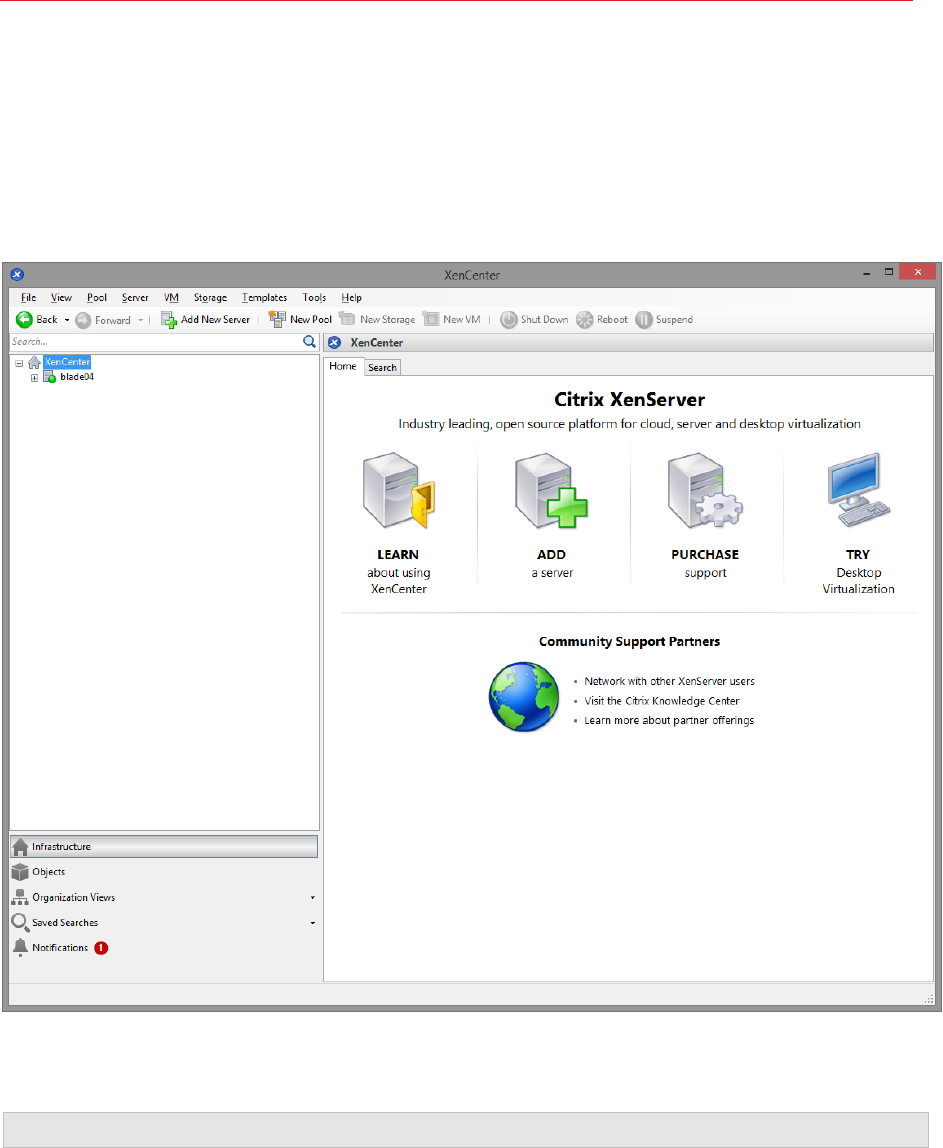
84
VDI Hosts
Citrix XenServer
Preparing Citrix XenServer for Parallels Remote Application Server
Before you set up your environment, please make sure that your XenCenter can connect to your
Citrix XenServer.
A guest operating system (Windows) must be created on the Citrix XenServer which features an
RDP server.
Important: Ideally, the guest name should be the same as the computer name.
Please install XenServer tools in the guest OS.
After the guest OS installation is complete, make sure that the RDP server is started. To confirm
that the server is running, launch a Remote Desktop Client and connect to the guest operating
system using the computer name (of the guest OS) and the RDP port (default RDP port is 3389).
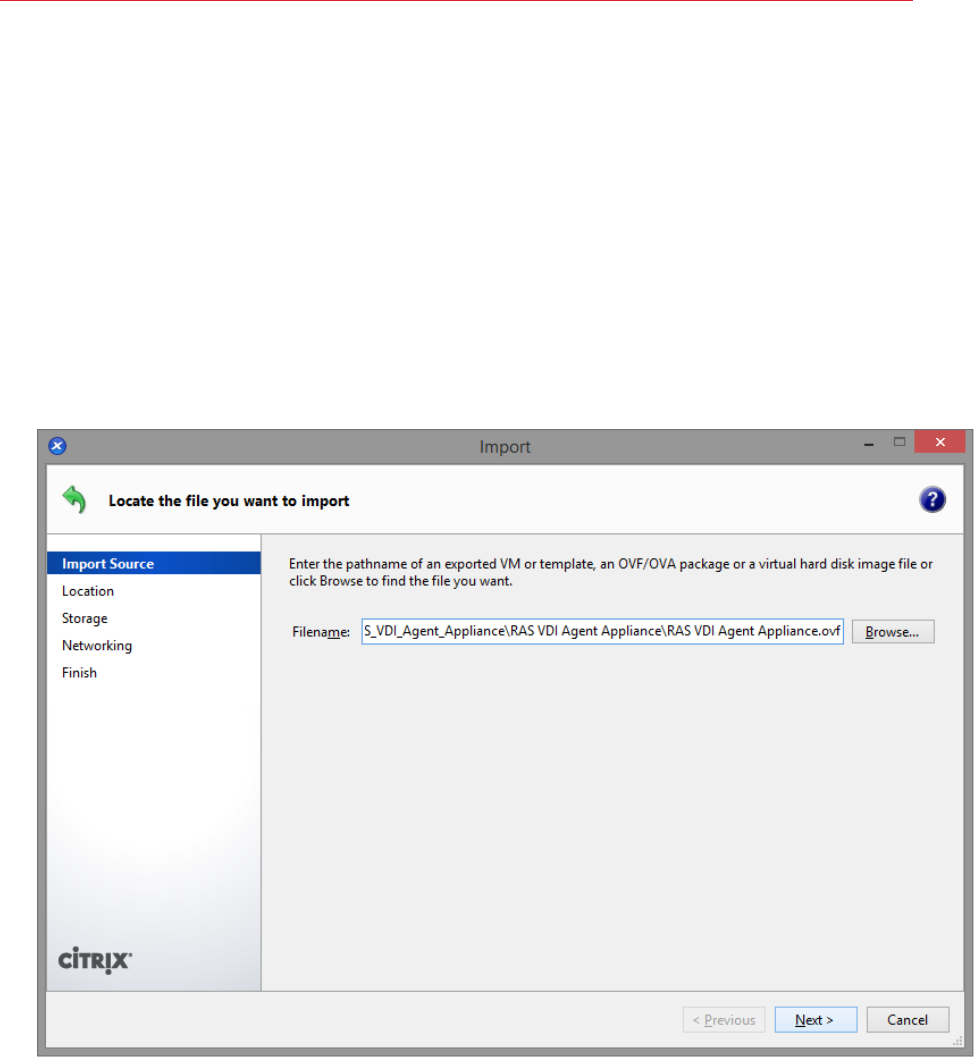
85
VDI Hosts
Setting up the RAS VDI Agent Appliance for Citrix XenServer
The RAS VDI Agent Appliance for Citrix XenServer can be downloaded from the following location:
http://download.parallels.com/ras/v15/RAS_VDI_Appliance.ova
Once the RAS VDI Agent Appliance is downloaded, it must be installed on a server.
To install the appliance:
1 Extract the ZIP file contents into a temporary directory.
2 Open XenCenter.
3 Right click on the host and choose Import.
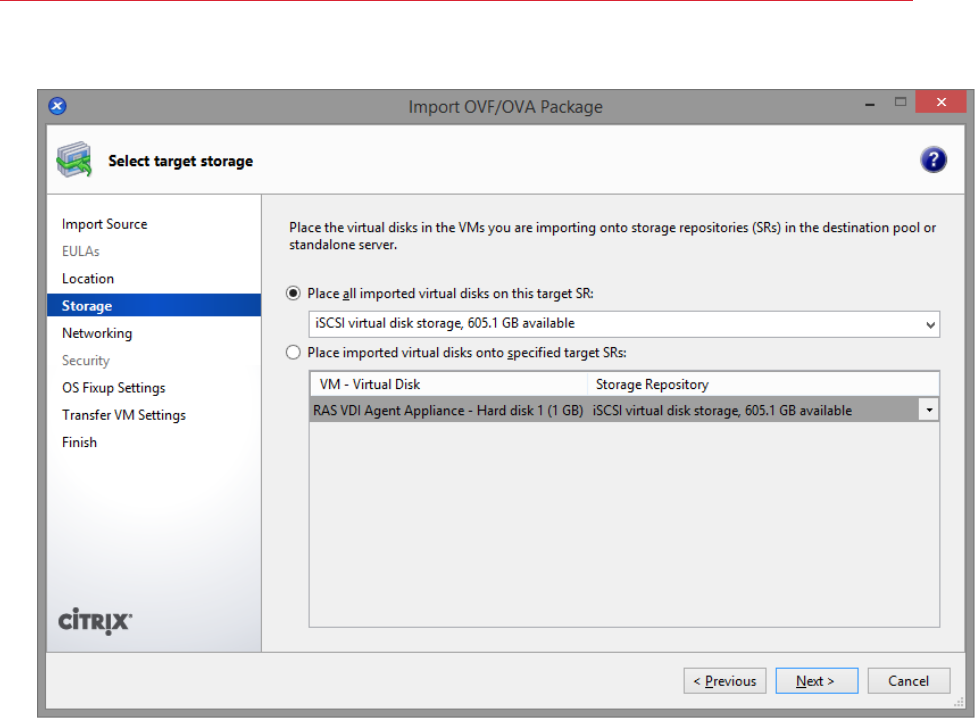
86
VDI Hosts
4 Choose the OVA file extracted from step 1.
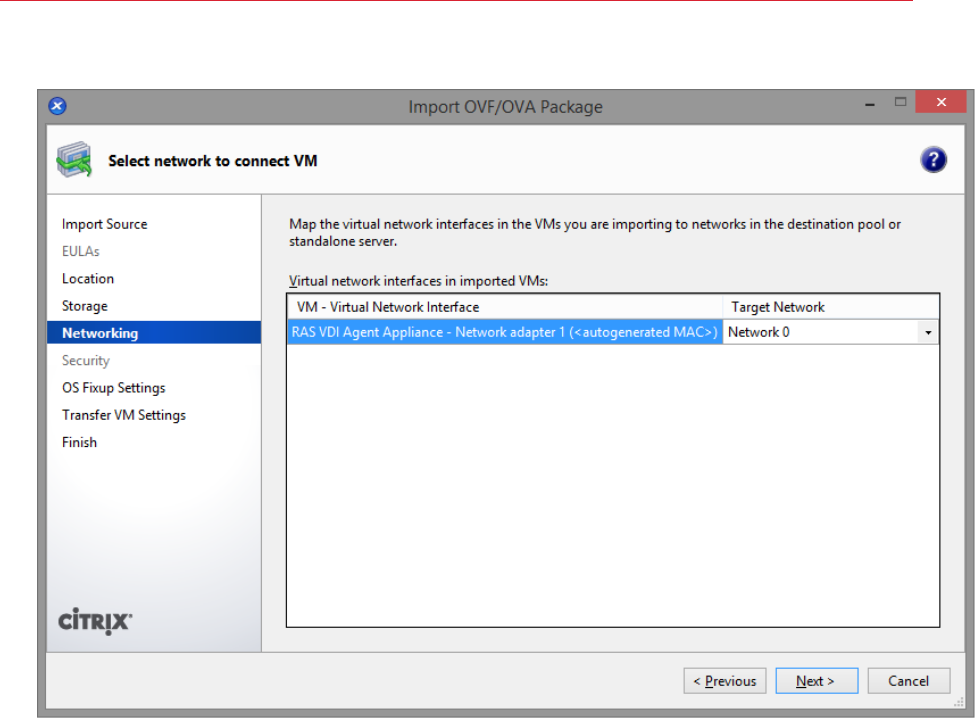
87
VDI Hosts
5 Choose the storage location and click Next.
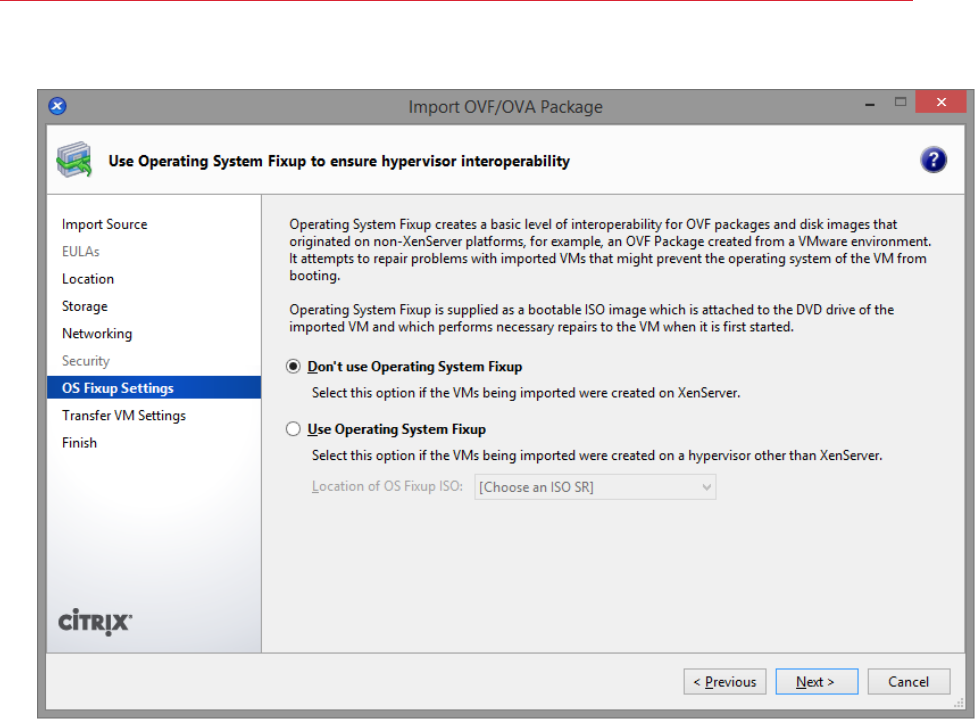
88
VDI Hosts
6 Configure the network settings and click Next.
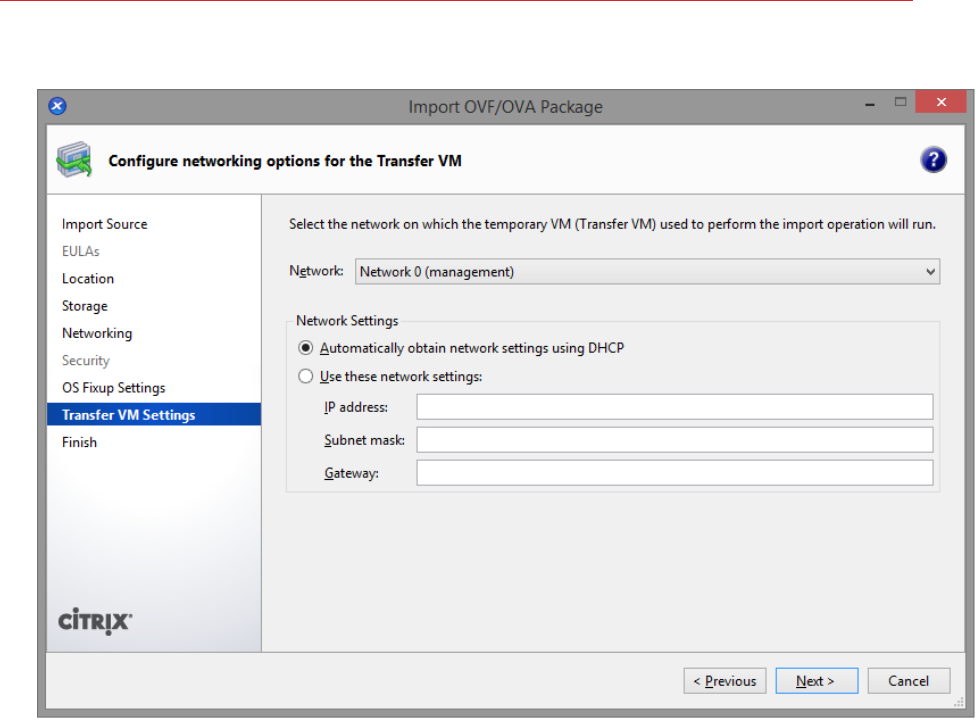
89
VDI Hosts
7 Choose not to use Operating System Fixup.
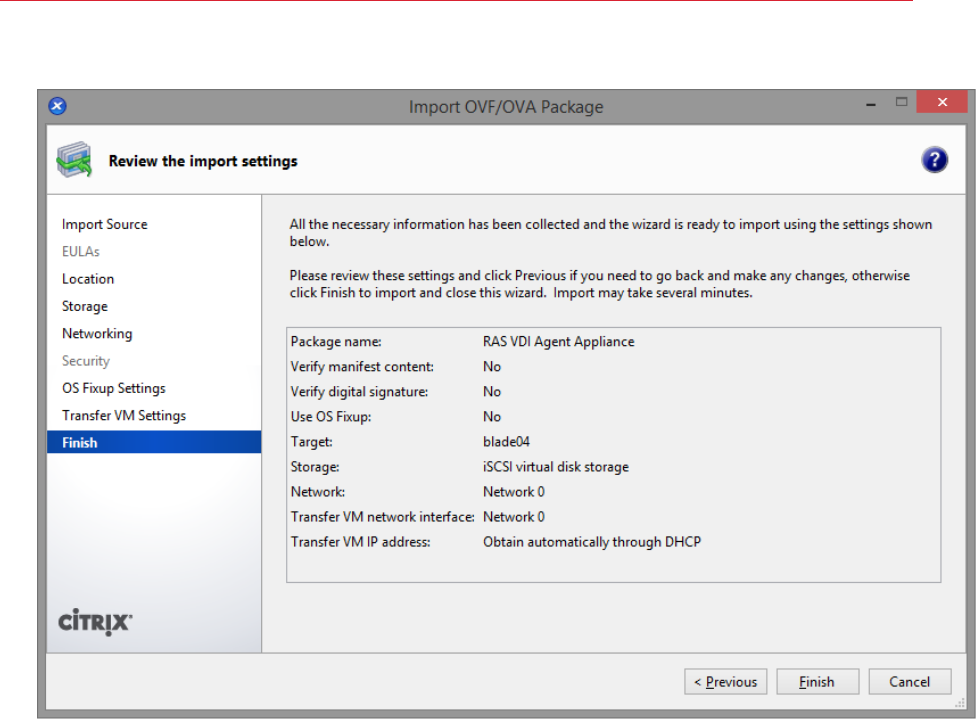
90
VDI Hosts
8 Select the network for importing the appliance and click Next.
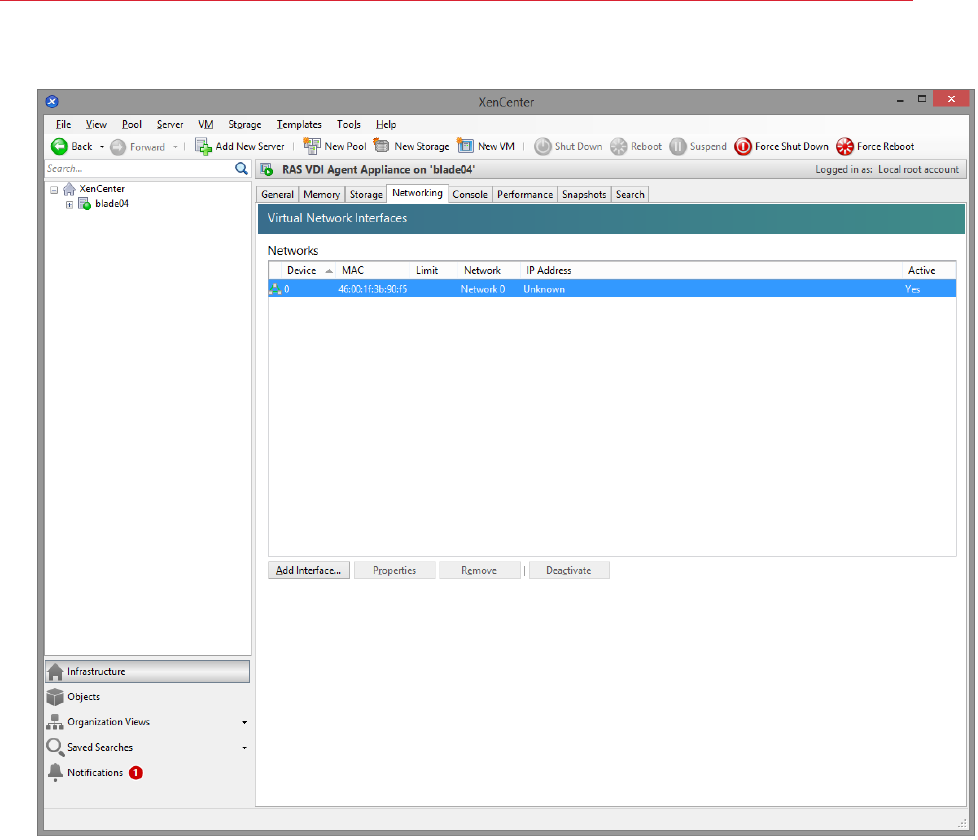
91
VDI Hosts
9 Click Finish and wait for the import job to complete.
The network administrator should assign a fixed IP address to the appliance.
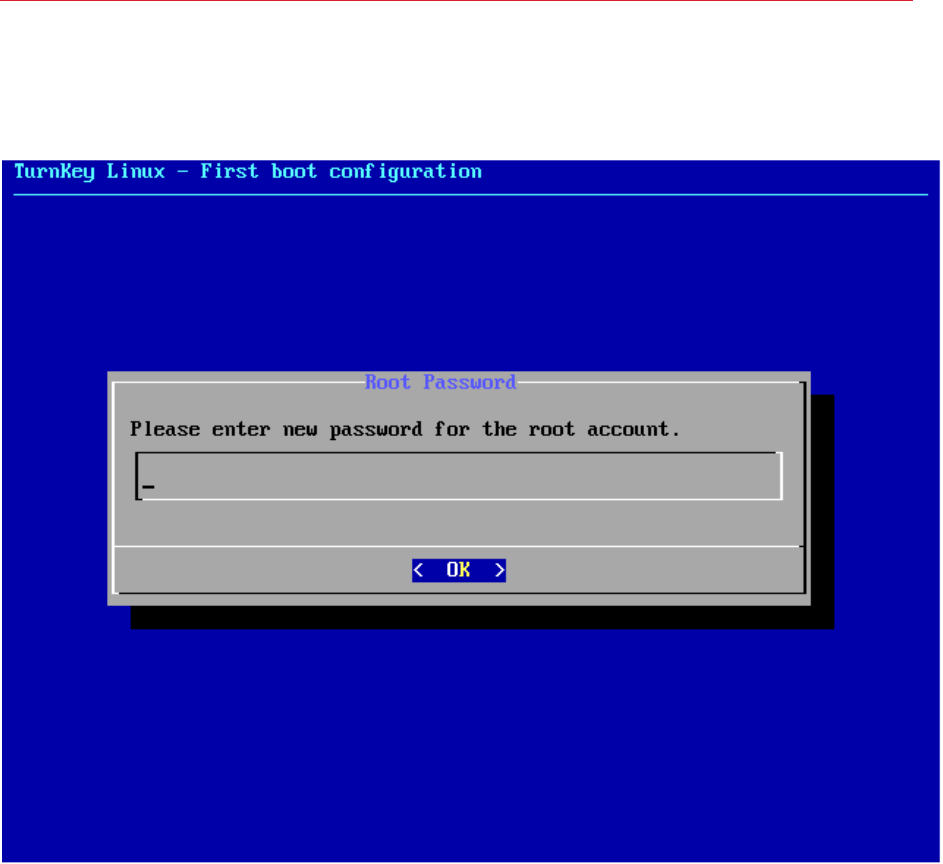
92
VDI Hosts
When using DHCP, take note of the MAC address assigned to the appliance and add a DHCP
reservation. If DHCP isn't available, a static IP address needs to be configured manually. Network
settings can be changed by going to the Advanced > Networking menu.
Microsoft Hyper-V
Preparing Hyper-V for Parallels Remote Application Server
RAS VDI Agent System Requirements
6.0.6001 Windows Server 2008 Standard (Full / Server Core)
6.0.6001 Windows Server 2008 Enterprise (Full / Server Core)
6.0.6001 Windows Server 2008 Datacenter (Full / Server Core)
6.1.7601 Windows Server 2008 R2 Standard (Full / Server Core)

93
VDI Hosts
6.1.7601 Windows Server 2008 R2 Enterprise (Full / Server Core)
6.1.7601 Windows Server 2008 R2 Datacenter (Full / Server Core)
6.1.7600 Hyper-V Server 2008 R2
6.2.9200 Windows Server 2012 Standard (Full / Server Core)
6.2.9200 Windows Server 2012 Datacenter (Full / Server Core)
6.2.9200 Hyper-V Server 2012
6.3.9600 Windows Server 2012 R2 Standard (Full / Server Core)
6.3.9600 Windows Server 2012 R2 Datacenter (Full / Server Core)
6.3.9600 Hyper-V Server 2012 R2
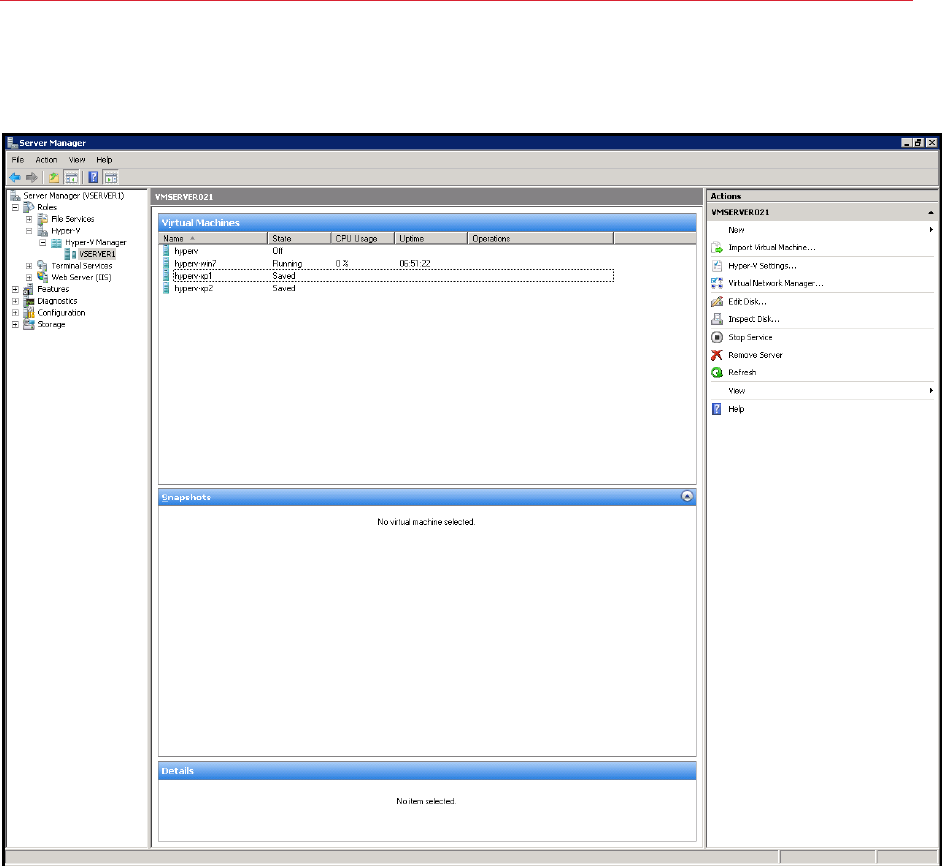
94
VDI Hosts
Before continuing to set up your environment please make sure that Hyper-V is installed and that
the role is enabled on your Windows Server.
A guest operating system (e.g. Windows) must be created on the Hyper-V server which features an
RDP server.
Important:
• The guest name must be the same as the computer name.
• The use of fixed IPs on the guest operating systems is preferred.
After the guest OS installation is complete, make sure that the RDP server is started. To confirm
that the server is running, launch a Terminal Server client on the host machine (the Hyper-V server)
and connect to the guest operating system using the computer name (of the guest OS) and the
RDP port (default RDP port is 3389).
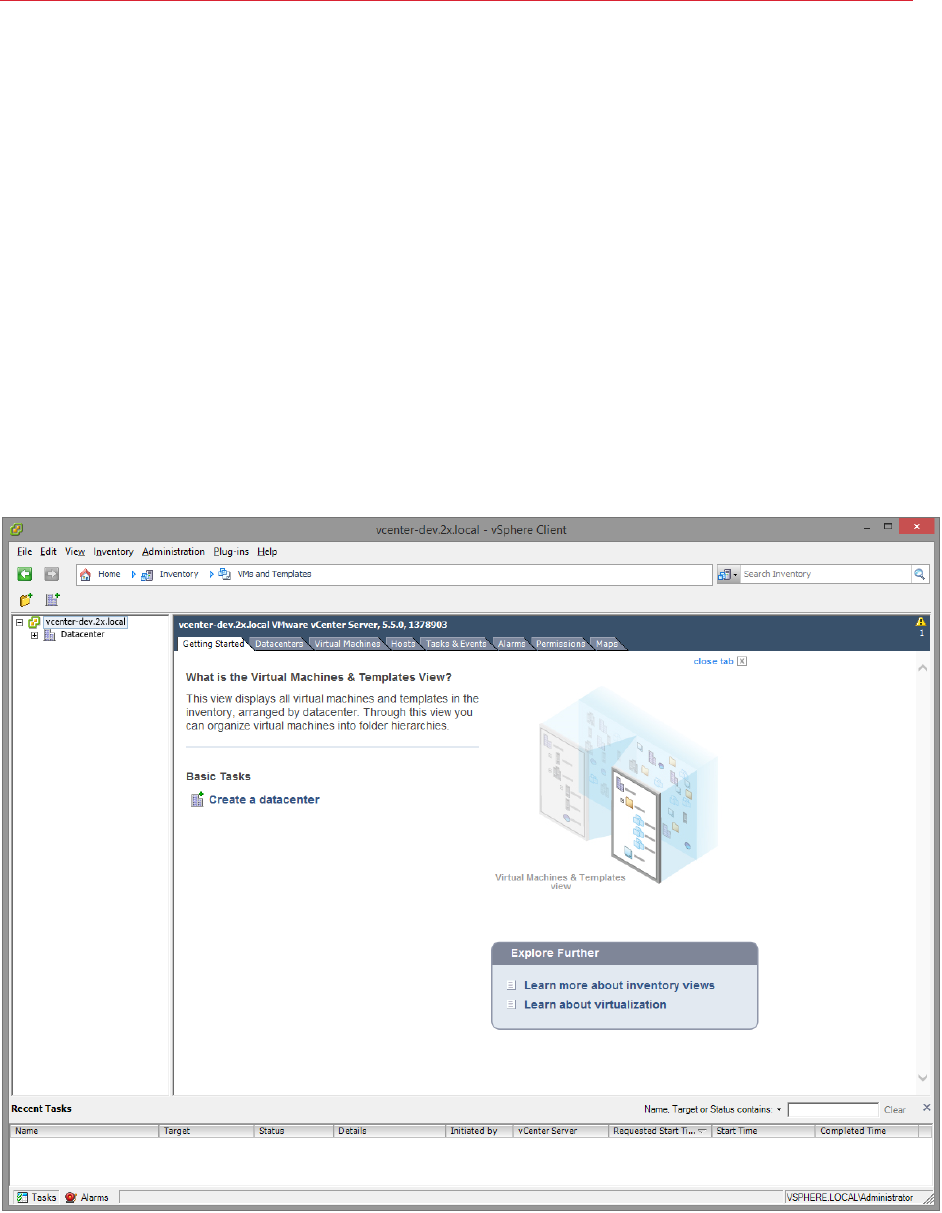
95
VDI Hosts
VMWare vSphere
Preparing VMware vSphere for Parallels Remote Application Server
RAS VDI Agent System requirements
• VMware ESXi
• VMware vSphere Client
• VMware vCenter
Starting from vSphere v5.1 it's possible to use the vSphere Web Client instead of the native
vSphere Client.
Before continuing to set up your environment, please make sure that your VMware vSphere Client
can connect to your VMware vSphere server.
A guest operating system (Windows) must be created on the VMware vSphere server which
features an RDP server.

96
VDI Hosts
Ideally, the guest name should be equal to the computer name.
The use of fixed IPs on the guest operating systems is preferred.
After the guest OS installation is complete, make sure that the RDP server is started. To confirm
that the server is running, launch a Remote Desktop Client and connect to the guest operating
system using the computer name (of the guest OS) and the RDP port (default RDP port is 3389).
Setting up the RAS VDI Agent Appliance for VMware vSphere
Instructions for the native vSphere Client:
1 Extract the ZIP file contents into a temporary directory.
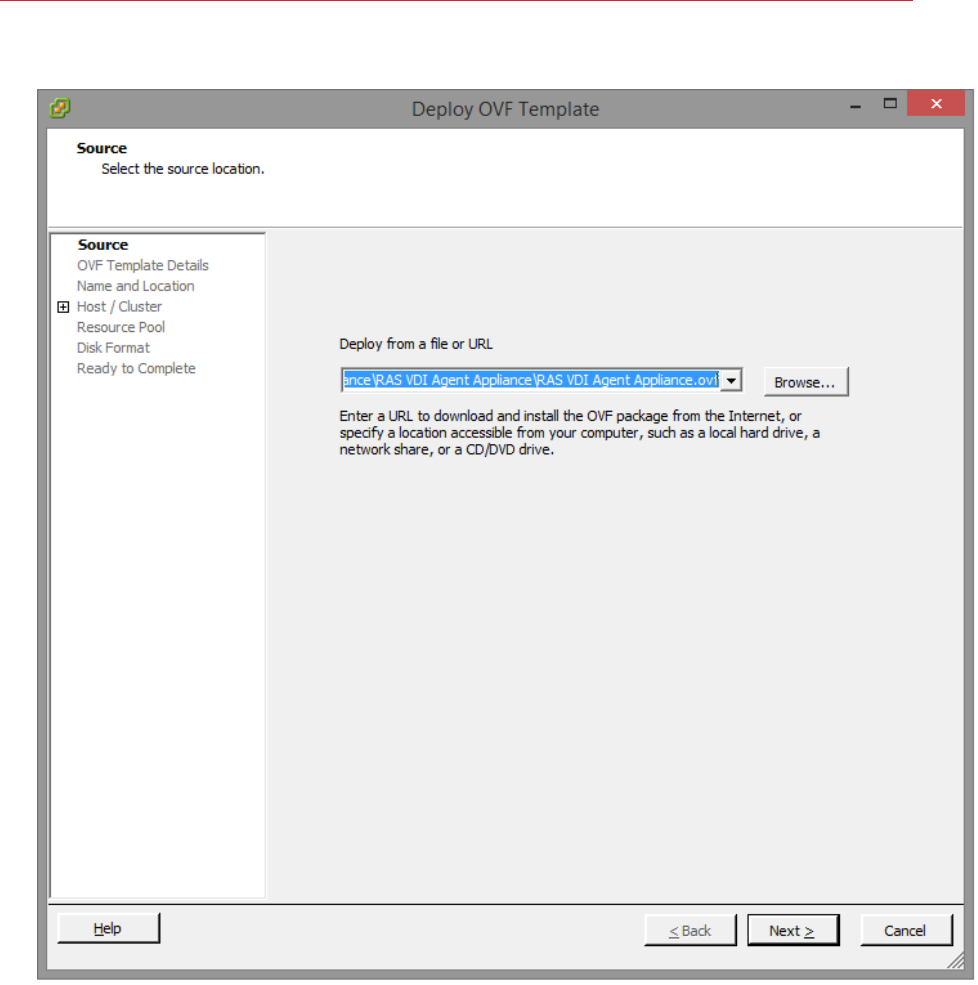
97
VDI Hosts
2 Login with the VMware vSphere client.
3 Select Deploy OVF Template from the file menu.
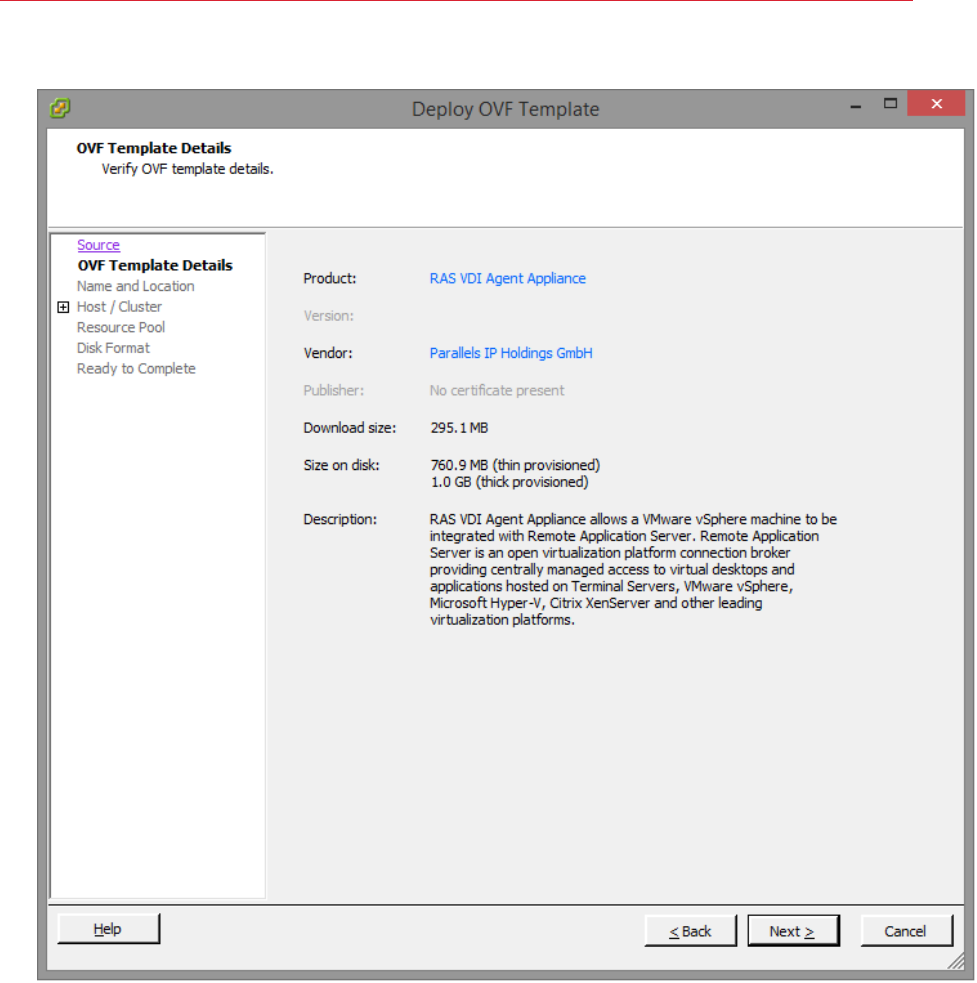
98
VDI Hosts
4 Browse to the folder where the ZIP file (containing the appliance) was extracted and click Next.
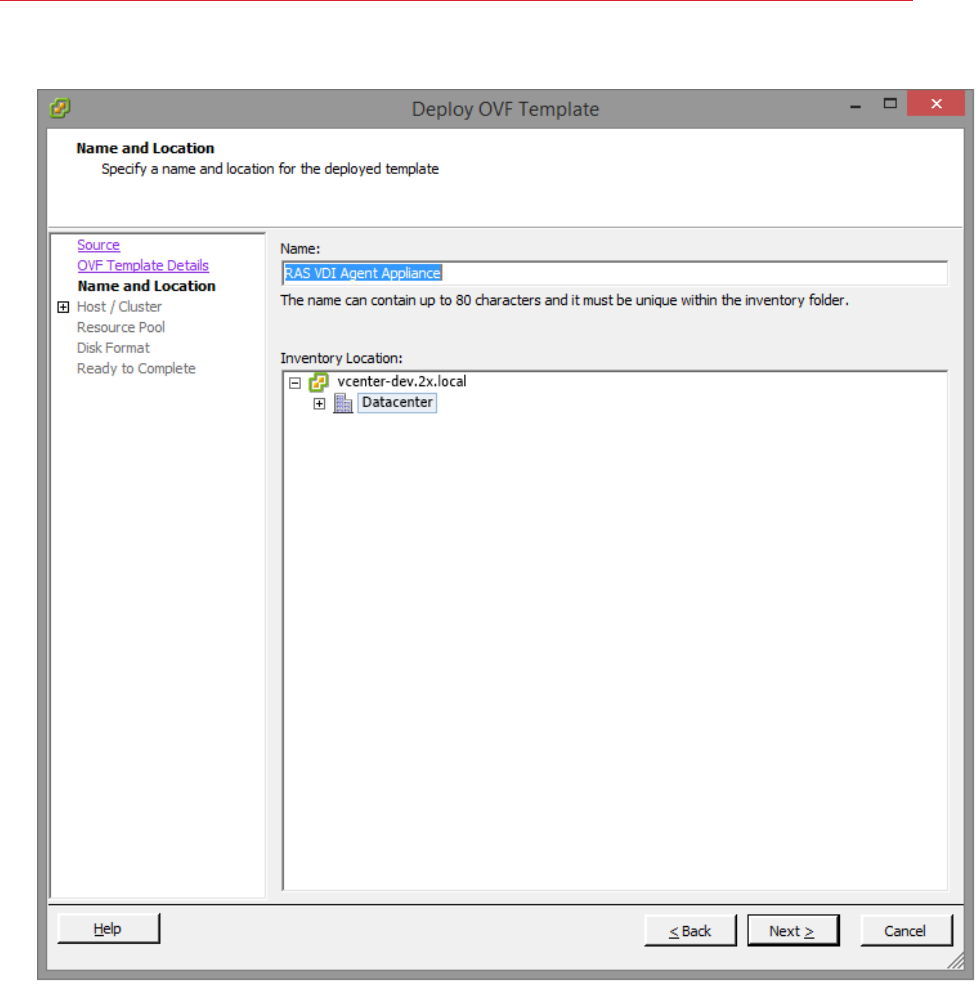
99
VDI Hosts
5 Review product details and click Next.
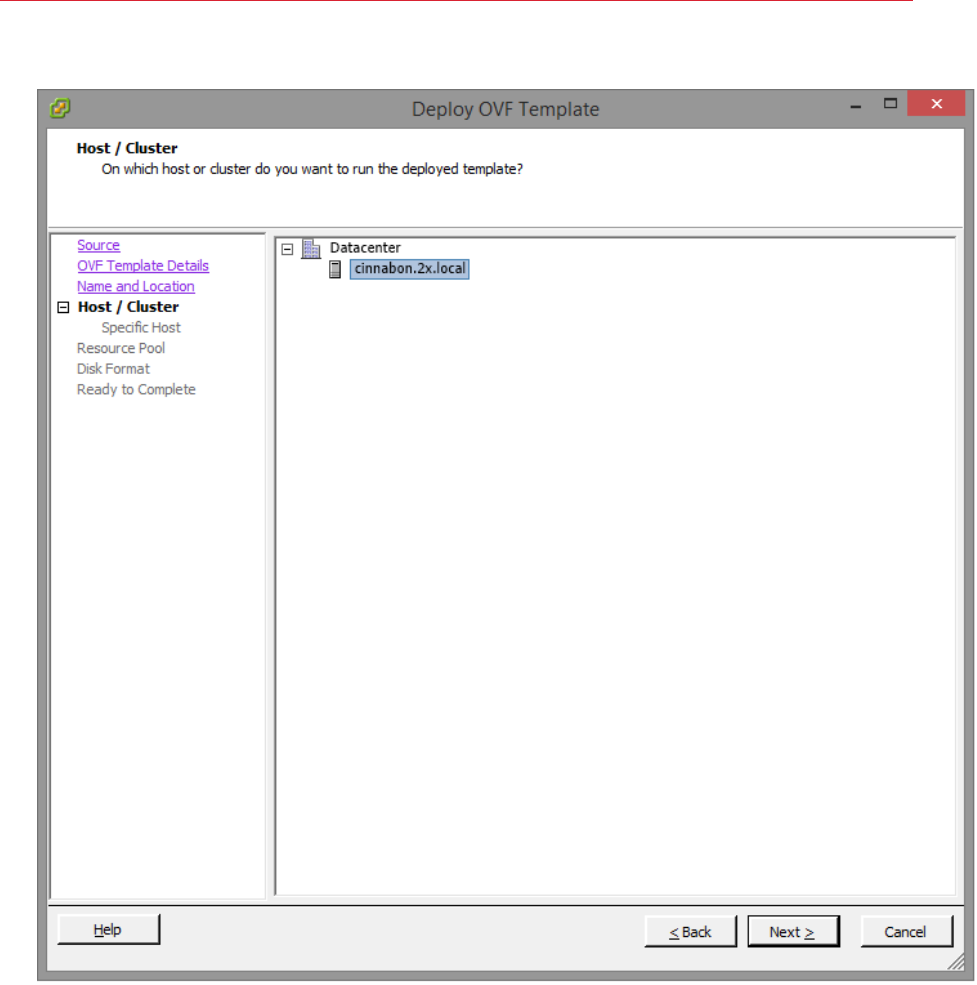
100
VDI Hosts
6 Choose a name and location for the deployed template and click Next.

101
VDI Hosts
7 Choose on which host or cluster to deploy the template and click Next.
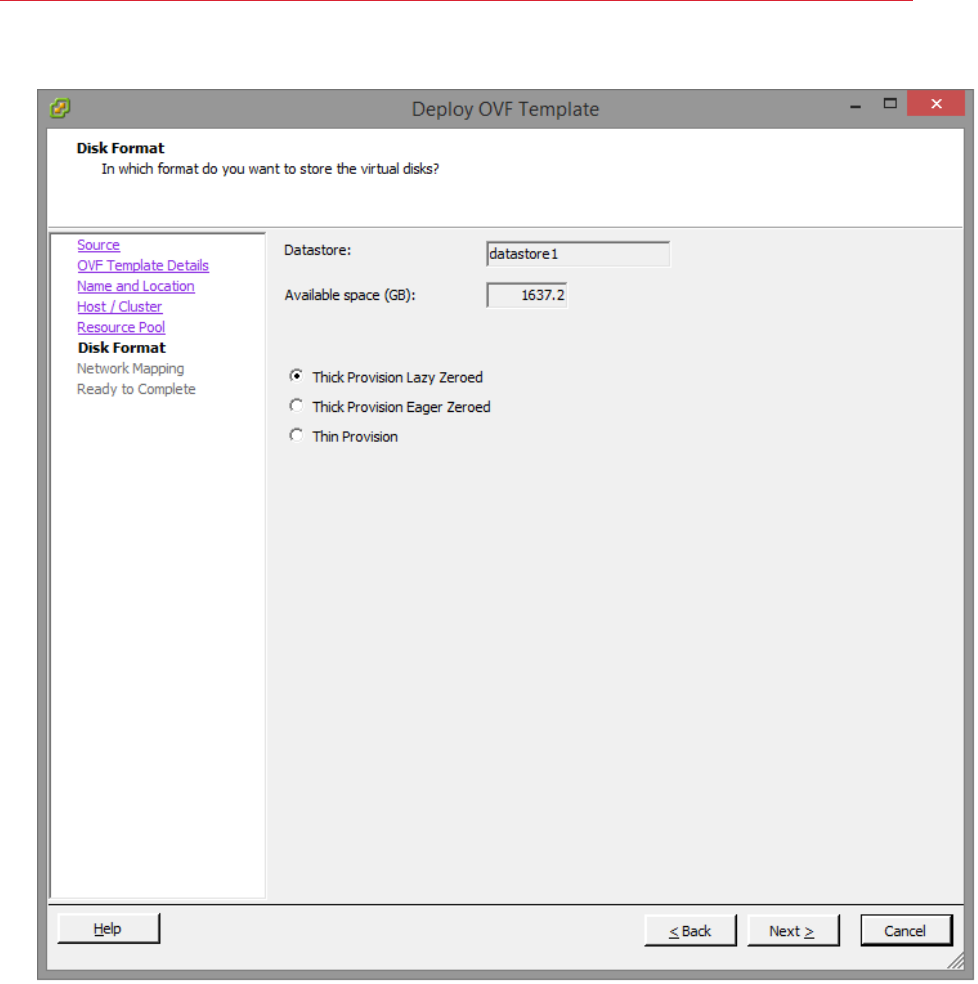
102
VDI Hosts
8 Choose the desired resource pool and click Next.
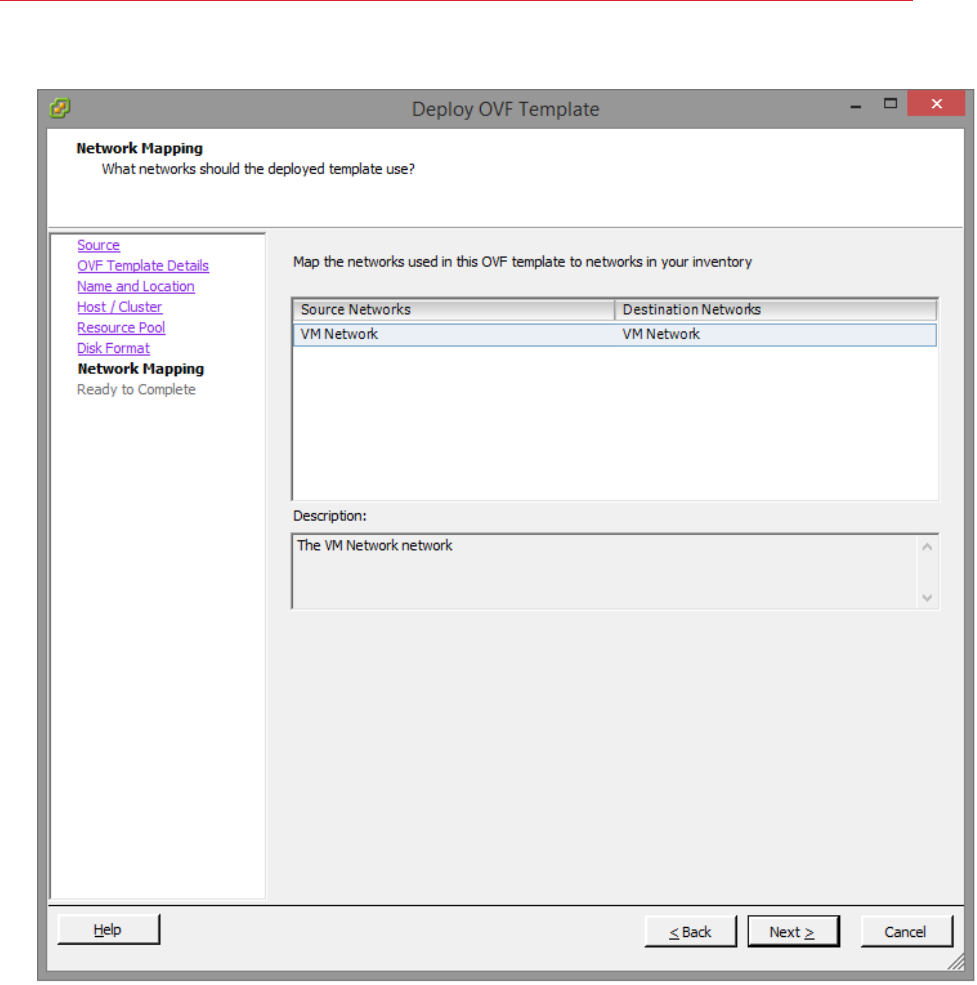
103
VDI Hosts
9 Choose the desired disk provisioning format and click Next.
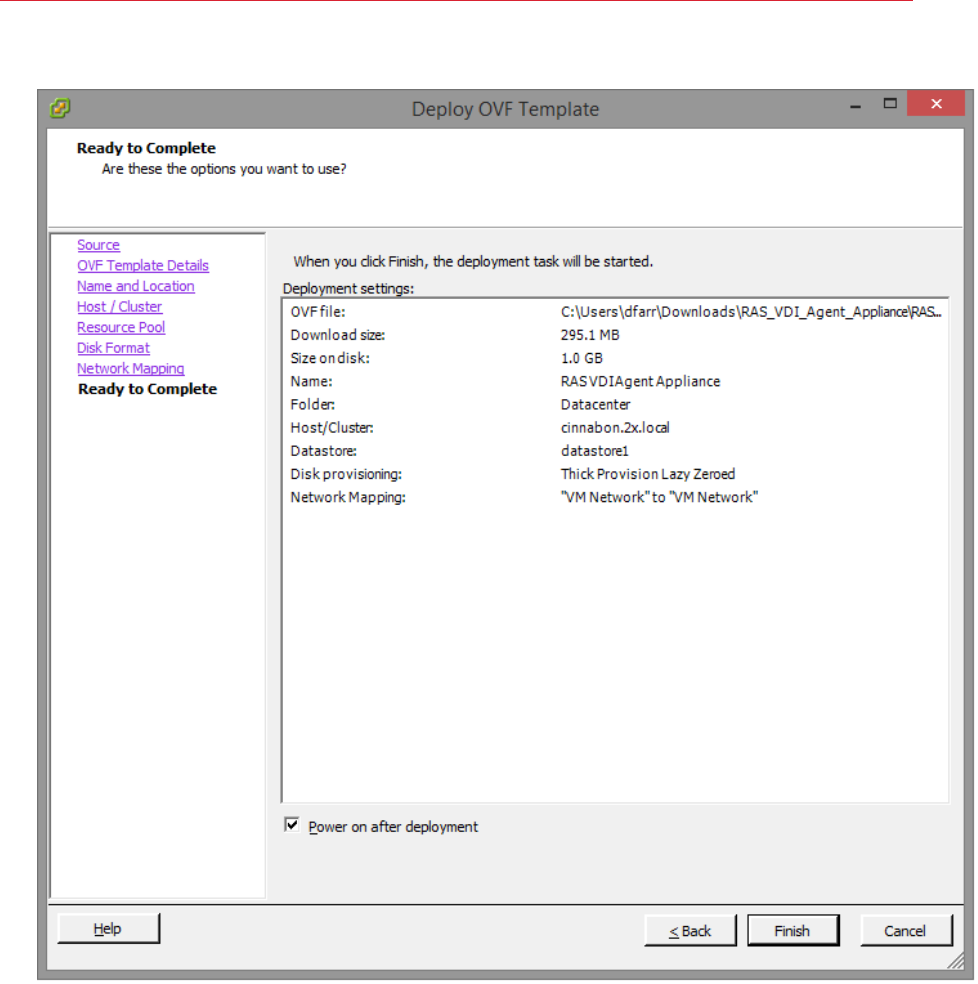
104
VDI Hosts
10 Choose the appropriate VDI network for the appliance and click Next.
11 Select the Power on after deployment option.
12 Click Finish and wait for the import job to complete.
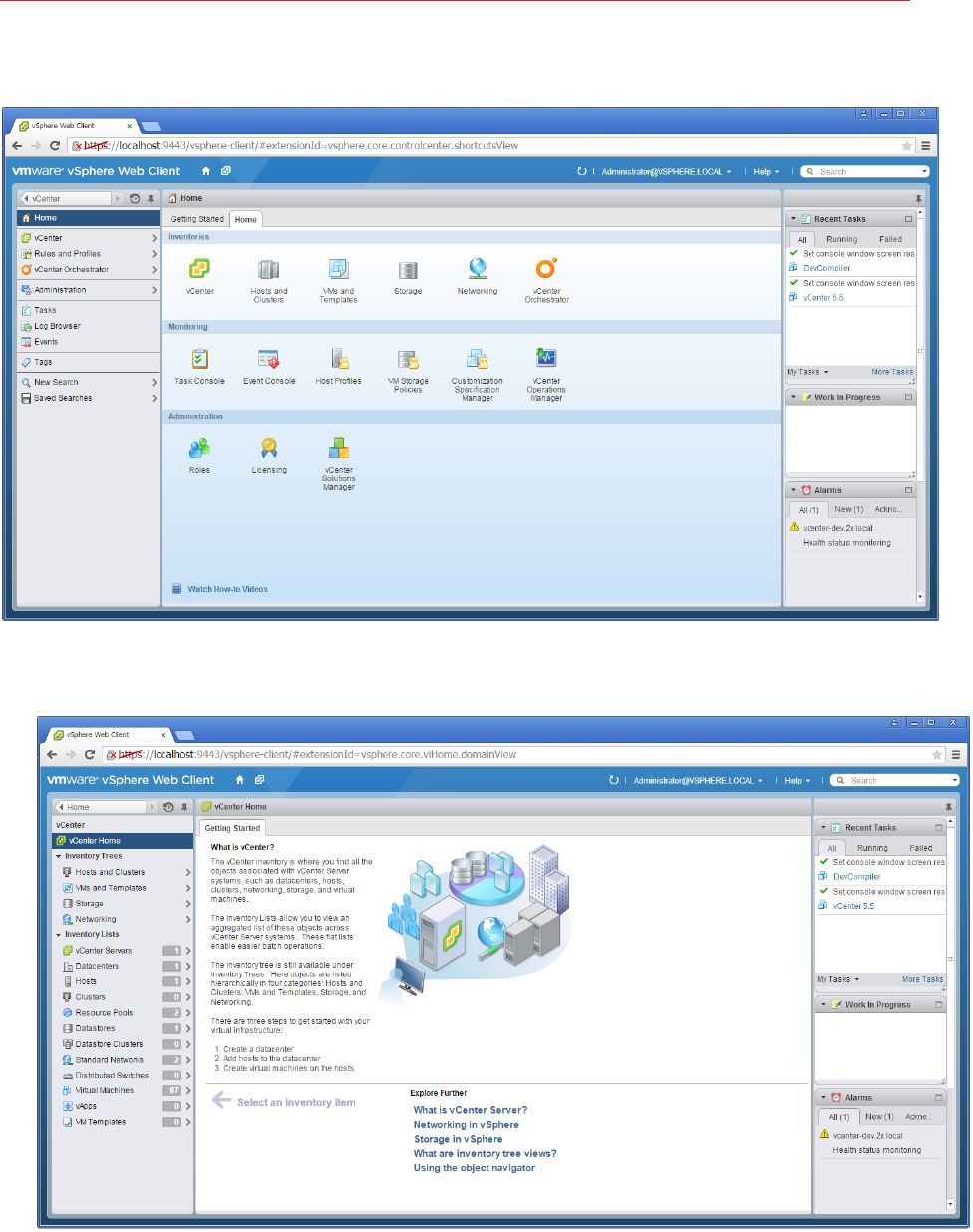
105
VDI Hosts
Instructions for the vSphere Web Client:
1 Extract the ZIP file contents into a temporary directory.
2 Login into the vSphere Web client.
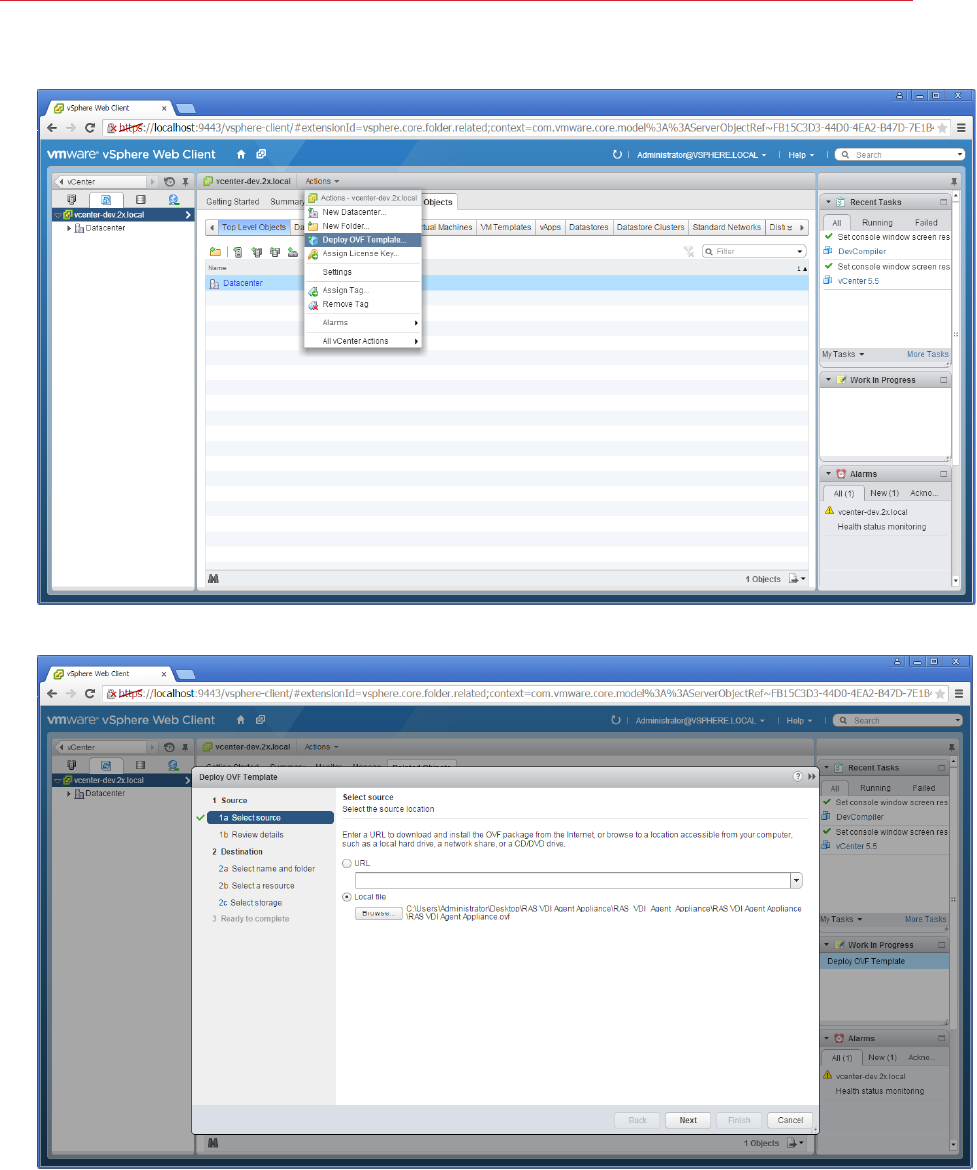
106
VDI Hosts
3 Navigate to Home > vCenter > VMs and Templates.
4 Choose vCenter host and select Deploy OVF Template from the Actions menu.
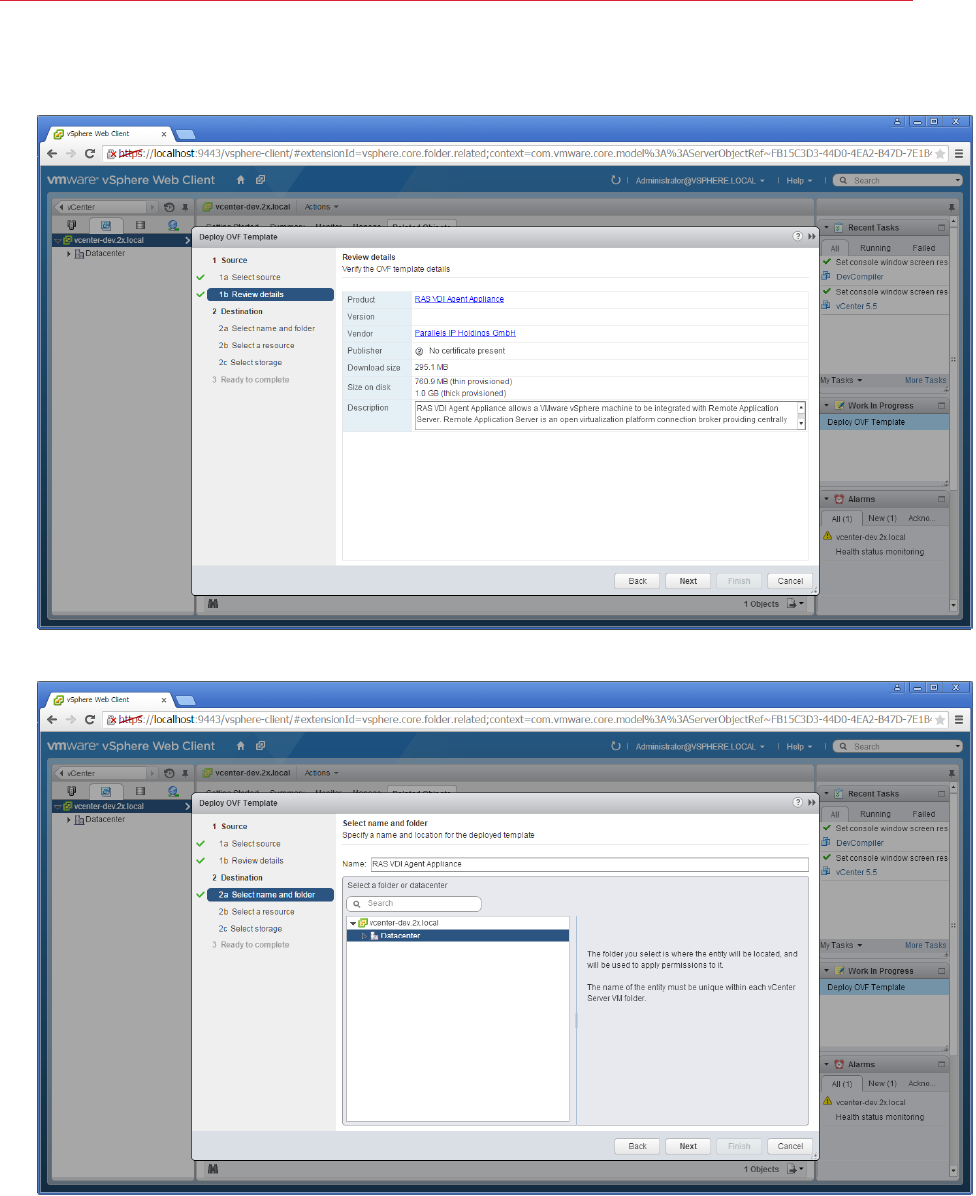
107
VDI Hosts
5 Choose Local file and browse to the folder where the ZIP file (containing the appliance) was
extracted and click Next.
6 Review product details and click Next.
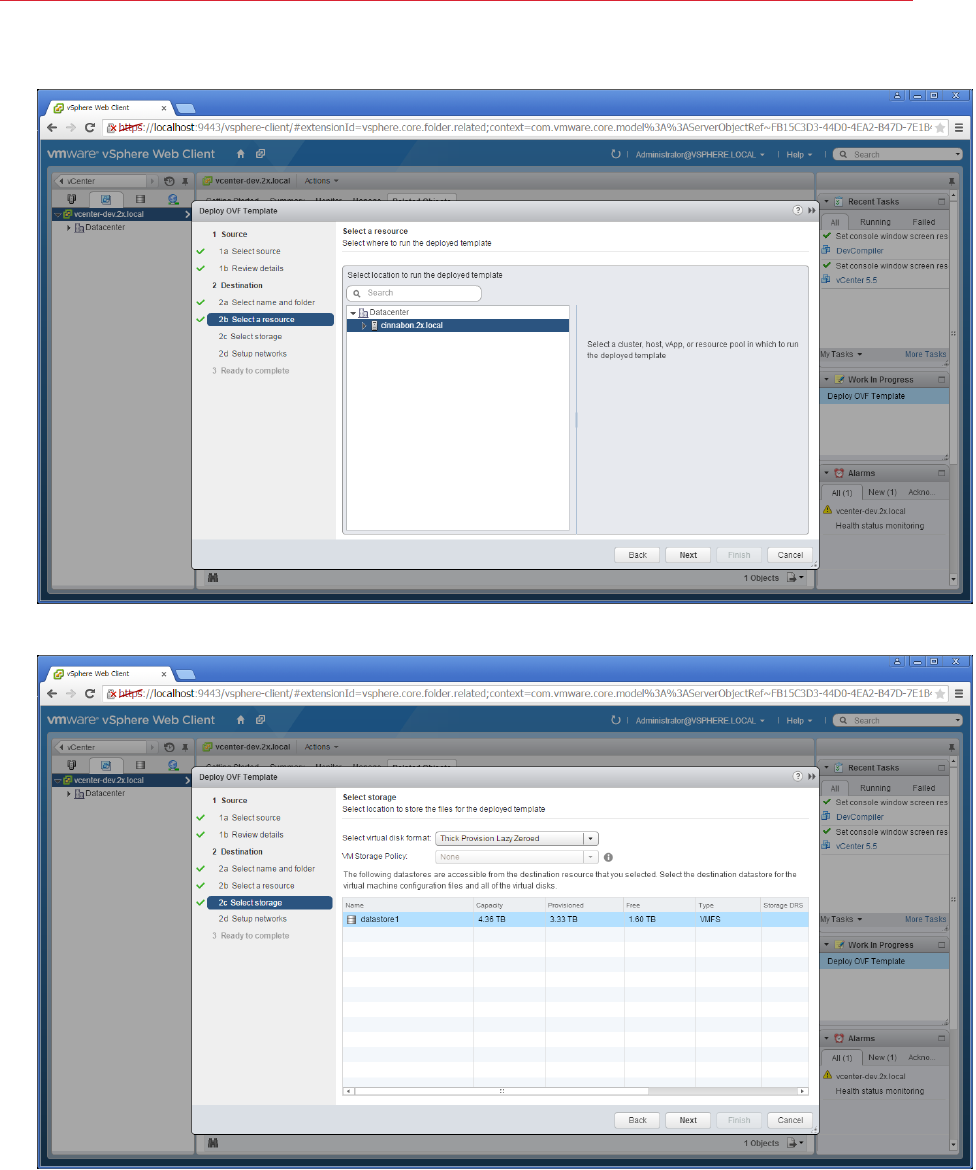
108
VDI Hosts
7 Choose a name and location for the deployed template and click Next.
8 Choose on which host or cluster to deploy the template and click Next.
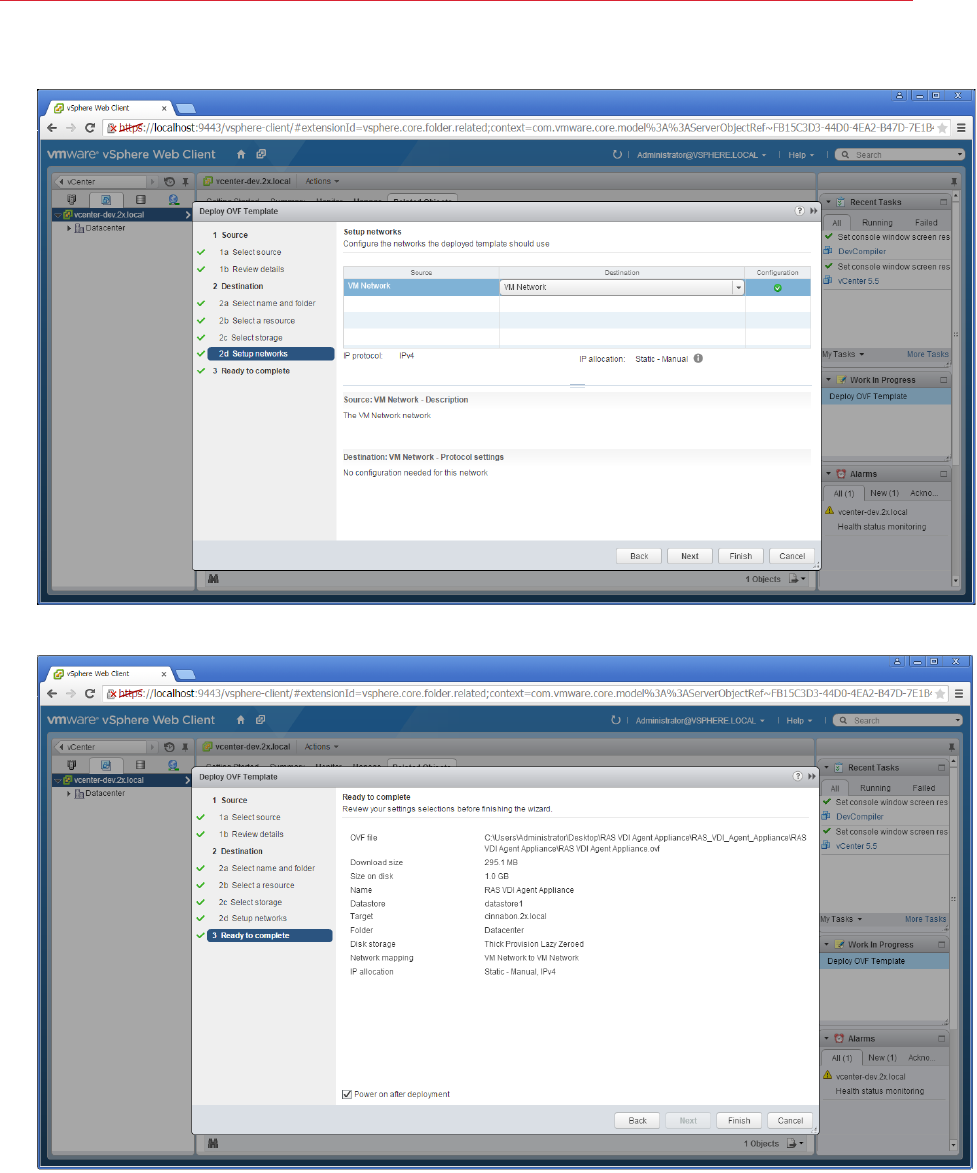
109
VDI Hosts
9 Choose the desired storage settings and click Next.
10 Choose the appropriate VDI network for the appliance and click Next.
11 Select the Power on after deployment option.
12 Click Finish and wait for the import job to complete.
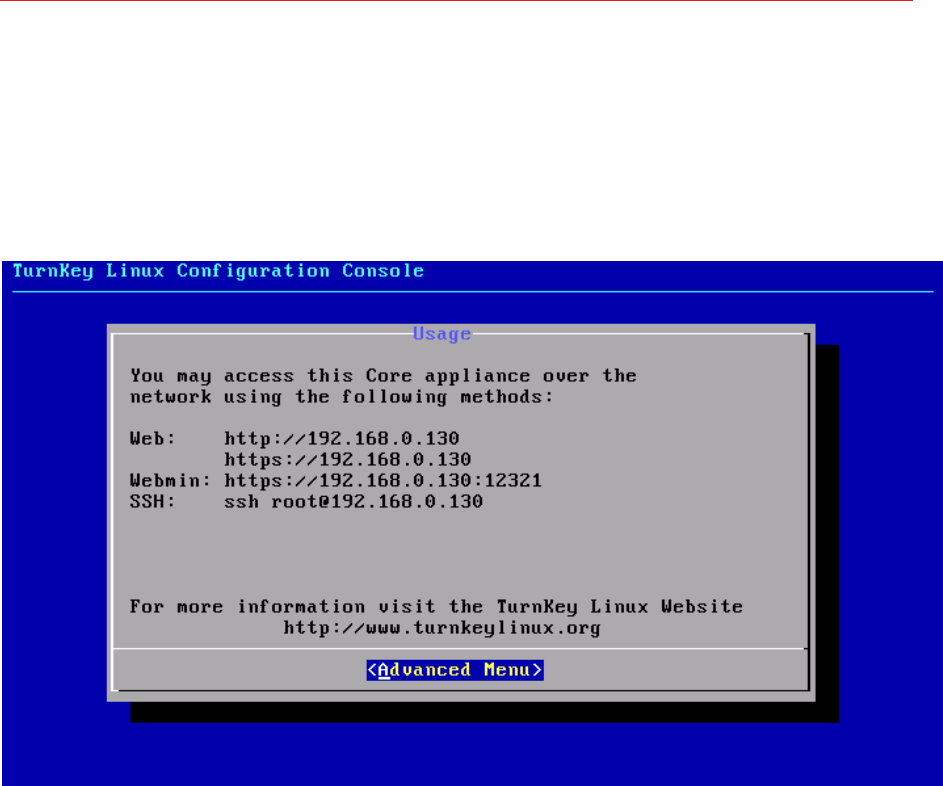
110
VDI Hosts
The network administrator should assign a fixed IP address to the appliance. When using DHCP,
take note of the MAC address assigned to the appliance and add a DHCP reservation. If DHCP
isn't available, a static IP needs to be configured manually. Network settings can be changed by
going to the Advanced > Networking menu.
Refer to VMware's website for further information on deploying virtual appliances with VMware
products.
In This Chapter
Adding a Remote PC ............................................................................................... 111
Installing RAS PC Agent Manually............................................................................. 112
Configuring a Remote PC......................................................................................... 113
Publishing from a Remote PC................................................................................... 114
Adding a Remote PC
Desktops and applications can also be published from a remote PC running a supported version of
Windows. A remote PC can be a physical box or a virtual machine treated as a standalone
computer, but typically they are physical computers. If you have virtual machines on your network,
it makes sense to use them as part of the VDI infrastructure as described in the VDI Hosts chapter
(p. 64). However, if you don't need virtual guest cloning or if your end users require full
administrative permissions for customization, you can use a virtual machine as a remote PC. It's up
to you.
Follow the below procedure to add a remote PC to the farm:
1 In the RAS Console, select the Farm category and click the Remote PCs node in the
navigational tree.
2 Click Add in the Tasks drop-down menu to launch the setup wizard.
3 Specify the IP address or FQDN of a remote PC. Click the Get MAC button to obtain the PC's
MAC address.
4 Click Next.
5 In this step, the Parallels Remote Application Server checks if the RAS PC Agent is installed on
the specified PC. If it's not installed, click Install to push install the agent on the PC. If the push
installation of RAS PC Agent fails (e.g. an SMB share is not available or the firewall rules don't
allow to perform it), please read the Installing RAS PC Agent Manually section that follows
this one.
6 Click Add to add the Remote PC to the Parallels Remote Application Server server farm.
CHAPTER 7
Remote PC’s

112
Remote PC’s
Installing RAS PC Agent Manually
You may need to install the RAS PC Agent manually if the automatic push installation cannot be
performed. For instance, an SMB share may be not be available or the firewall rules may interfere
with the push installation, etc.
Installing the RAS PC Agent Manually
1 Log into the PC where the RAS PC Agent is to be installed using an administrator account and
close all other applications.
2 Copy the Parallels Remote Application Server installation file (RASInstaller.msi) to the PC
and double click it to launch the installation.
3 Once prompted, click Next and accept the End-User license agreement.
4 Specify the path where the RAS PC Agent should be installed and click Next.
5 Select Custom and click Next.
6 Click on the RAS PC Agent and select Entire Feature will be installed on local hard drive
from the drop down menu.
7 Ensure that all other components are deselected and click Next.
8 Click Install to start the installation. Click Finish once the installation is finished.
RAS PC Agent does not require any configuration. Once the agent is installed, select the Remote
PC name in the Parallels Remote Application Server Console and click Check Agent. If the agent is
installed properly, the status should change to Agent Installed.
Uninstalling RAS Remote PC Agent
To uninstall RAS PC Agent from a server:
1 Navigate to Start > Control Panel > Programs > Uninstall a Program.
2 Find Parallels Remote Application Server in the list of installed programs.
3 If you don't have any other Parallels RAS components on the server that you want to keep,
right-click Parallels Remote Application Server and then click Uninstall. Follow the
instructions to uninstall the program. You may skip the rest of these instructions.
4 If you have other RAS components that you want to keep on the server, right-click Parallels
Remote Application Server and then click Change.
5 Click Next on the Welcome page.
6 On the Change, repair, or remove page, select Change.
7 On the next page, select Custom.

113
Remote PC’s
8 Select RAS PC Agent, then click the drop-down menu in front of it, and click Entire feature
will be unavailable.
9 Click Next and complete the wizard.
Configuring a Remote PC
To access the properties of a Remote PC, highlight the computer in the navigation tree and click
Tasks > Properties. This opens the Remote PC Properties dialog.
The Properties Tab Page
By default, a PC is enabled in the farm. When it is disabled, published applications and virtual
desktops cannot be served from it. To enable or disable a PC in the farm, select or clear the
Enable Remote PC option.
If the IP or MAC address of a remote PC has changed, modify them using the Remote PC and
MAC Address input fields.
The Change Direct Address option allows you to specify an IP address that Parallels Client can
use to connect to the PC directly. This address is only used in the Direct Connection mode and it
could be an internal or external IP address.
Note: The Wake On Lan option should be enabled in BIOS so the machine could be automatically turned
on. If you are using a virtual machine, the option is usually supported by a hypervisor natively or via a 3rd
party software. To test if the Wake On Lan option is turned on, close the Remote PC Properties dialog
and then click the Test Wake on LAN button, which is located below the Remote PCs list.
The Agent Settings Tab Page
Each Remote PC in the farm has a RAS Remote PC Agent installed to provide a connection
between the Parallels Remote Application Server and the PC. The agent can be configured on the
Agent Settings tab page.
Use the Port field, specify a different remote desktop connection port number.
To increase the connection timeout of a remote PC, select a value from the Connection Timeout
drop-down list.
To change the amount of time each session remains connected in the background after the user
has closed the published application specify a new value in the Publishing Session Timeout input
field. This option is used to avoid unnecessary reconnections with the PC.

114
Remote PC’s
To allow http and mailto links to be opened using a local application on the client computer rather
than the server’s resources, enable the option Allow Client URL/Mail Redirection. To configure a
list of URLs which should not be redirected, in the RAS Console, navigate to Farm / <site-name> /
Settings and click the URL Redirection tab.
Configuring RDP Printing for Remote PC
The RDP Printer tab allows you to configure the renaming format of redirected printers. The
format may vary depending on which version and language of the server you are using.
Set your RDP Printer Name Format specifically for the configured server by choosing any of the
below options from the RDP Printer Name Format drop down menu:
• Printername (from Computername) in Session no.
• Session no. (computername from) Printername
• Printername (redirected Session no)
The other RDP Printing options available in the RDP Printer tab are:
• Remove session number from printer name
• Remove client name from printer name
Publishing from a Remote PC
Publishing a Desktop from a Remote PC
To publish a desktop from a terminal server:
1 In the RAS Console, select the Publishing category and click the Add icon below the
Published Resources tree. This will launch the publishing wizard.
2 In the first step of the wizard select Desktop and click Next.
3 On the Select Desktop Type page, select Remote Desktop PC and click Next. The Remote
PC Desktop page opens.
4 Specify a name, an optional description, and change the icon if needed.
5 Click the [...] button next to the Selected Remote PC field to specify from which remote PC
the desktop should be published. In the box that opens, double-click a PC to select it.
6 Select the desired Desktop Size properties.
7 Click Finish to publish the desktop.

115
Remote PC’s
Publishing an Application from a Remote PC
To publish an application from a remote PC:
1 In the RAS Console, select the Publishing category and then click the Add icon below the
Published Resources tree (or right-click inside the Published Resources box and click Add
in the context menu). This will launch the publishing wizard.
2 On the Select Item Type wizard page, select Application and click Next.
3 On the Select Server Type page, select Remote PC and click Next.
4 On the Select Application Type page, select Single Application and click Next. The Remote
PC Application page opens.
5 Enter a name and an optional description.
6 In the Run drop-down menu, specify if the application should run in a normal window,
maximized, or minimized.
7 In the Target field, specify the application that you want to publish. You may click the [...]
button to browse for it.
8 In the Start in field, specify (or browse for) the "start in" folder. Use Windows environment
variables if you are manually entering the path.
9 (Optional) In the Parameters input field, specify the parameters to pass to the application when
it starts.
10 Click the [...] button in the Remote PC Settings section to select a remote PC from which the
application should be published. In the box that opens, double-click a PC to select it.
11 Select the Persistent option to create a persistent guest rule the first time the user connects.
12 When done, click Finish to publish the application.
Publishing a Web Application from a Remote PC
A web application is like any other application that you can publish using the standard application
publishing functionality. However, to simplify publishing of straight URL links to web applications, a
separate publishing item type is available that allows you to accomplish this task with minimal
number of steps.
To publish a web application:
1 In the RAS Console, select the Publishing category and then click the Add icon below the
Published Resources tree (or right-click inside the Published Resources box and click Add
in the context menu). This will launch the publishing wizard.
2 On the Select Item Type wizard page, select Web Application and click Next.
3 On the Select Server Type page, select Remote PC and click Next.

116
Remote PC’s
4 On the Remote PC Web Application wizard page that opens, specify the web application
name, description, window state, and the URL. Select the Force to use Internet Explorer
option if needed. To browse for a specific application icon, click Change Icon.
5 In the Remote PC Settings section, click the [...] button to select a remote PC.
6 Click Finish to publish the application.
Publishing a Network Folder from a Remote PC
You can publishing a filesystem folder via UNC path to open in Windows explorer. To minimize the
number of configuration steps, a special publishing item is available that allows you to publish a
network folder from a PC.
To publish a network folder:
1 In the RAS Console, select the Publishing category and then click the Add icon below the
Published Resources tree (or right-click inside the Published Resources box and click Add
in the context menu). This will launch the publishing wizard.
2 On the Select Item Type wizard page, select Folder on the file system and click Next.
3 On the Select Server Type page, select Remote PC and click Next.
4 On the Remote PC UNC Folder wizard page, specify the usual application properties.
5 In the UNC path field, enter the UNC path of the folder you wish to publish. Click the [...]
button to browse for a folder (it may take some time for the Browse for Folder dialog to open).
6 In the Remote PC Settings section, select the [...] button and then select a remote PC from
the list.
7 Click Finish to publish the folder and close the wizard.
Publishing a Document from a Remote PC
To publish a document from a remote PC clone:
1 In the RAS Console, select the Publishing category and then click the Add icon below the
Published Resources tree (or right-click inside the Published Resources box and click Add
in the context menu). This will launch the publishing wizard.
2 On the Select Item Type wizard page, select Document and click Next.
3 Select Remote PC and click Next.
4 Specify the content type of the document you want to publish. You can select the content type
from the predefined list or specify a custom content type in the Custom content types input
field.
5 Click Next.
6 On the Remote PC Application page, enter a name, an optional description, a desired window
state, and an icon if needed.

117
Remote PC’s
7 Use the [...] button next to the Target input field to browse for the document. All other fields will
be automatically populated. To edit any of the auto populated fields, highlight them and enter
the required details.
8 (Optional) In the Parameters input field, specify the parameters to pass to the application when
it starts.
9 Click the [...] button in the Remote PC Settings sections to browse for a remote PC from
which the document should be published. In the box that opens, double-click a PC to select it.
10 Click Finish to publish the document.
Publishing is one of the fundamental uses and features of the Parallels Remote Application Server.
With Parallels Remote Application Server you can publish:
• Applications
• Folders
• Desktops
• Documents
• Web Applications
• Network Folders
We've already discussed publishing earlier in this guide. This section provides additional information
about how to view and modify properties of a published resource.
In This Chapter
Managing Published Applications ............................................................................. 118
Managing Published Desktops ................................................................................. 123
Managing Published Documents .............................................................................. 124
Managing Published Folders..................................................................................... 126
Filtering Rules by User, Client, IP, MAC, and Gateway.............................................. 127
Managing Published Applications
Publishing and Application
The following sections of this guide describe in detail how to publish applications from different
types of machines:
• Publishing an Application from a Terminal Server (p. 57)
• Publishing an Application from a Virtual Guest (p. 80)
• Publishing an Application from a Remote PC (p. 114)
CHAPTER 8
Publishing and Filtering

119
Publishing and Filtering
Configuring a Published Application
When publishing an application using a wizard, you specify multiple application parameters such as
name, executable path, etc. You can modify these options after the application has been
published.
To modify a published application:
1 In the RAS Console, select the Publishing category and then select the application in the
Published Resources tree.
2 Use the tab pages in the right pane to change the application options as described in the
following subsections.
Configuring Sites through which a Published Application is Available
By default, a published application is available through all available sites. To restrict access to a
specific site or a group of sites, select the desired site(s) in the Sites tab. Please note that if you
have just one site, the Sites tab will be absent.
Configuring From Which Servers the Application is Published
You can specify the terminal servers from which an application will be published on the Publish
From tab page.
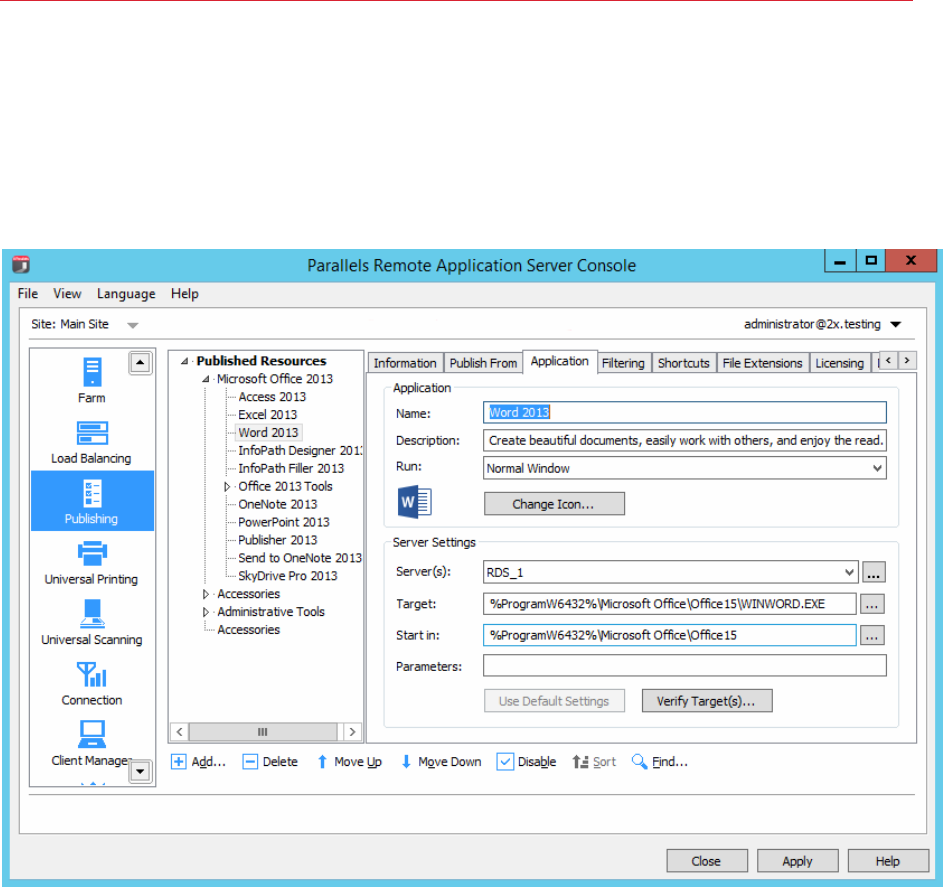
120
Publishing and Filtering
Configuring Server Specific Application Settings
The Application tab page displays the application-specific settings. This includes the basic
application settings (name, description, window state, icon) and the server settings, which include
the servers the application was published from, the application path and file name on a server, the
start-in folder, and parameters (if any).
If an application was published from multiple servers, the Server(s) drop-down list can be used to
select individual servers and see the Target, Start in, and Parameters values for a particular
server. By default, when you publish an application, these values apply to all servers an application
is published from. It is possible that one (or more) of the servers has the application installed in a
different folder, in which case the specified application path will be invalid.
To verify that the specified Target and Start In values are correct for all servers, click the Verify
Target(s) button. The Target Verifier dialog opens listing each server and the verification status in
the Progress column.
If the application is installed at a different path on one of the servers, the Progress column will
indicate an error. In such a case, close the Target Verifier dialog and then select the server in the
Server(s) drop-down list. Specify new values in the Target, Start In, and (if necessary) Parameters
fields specific for that server. Click Apply to save your changes.
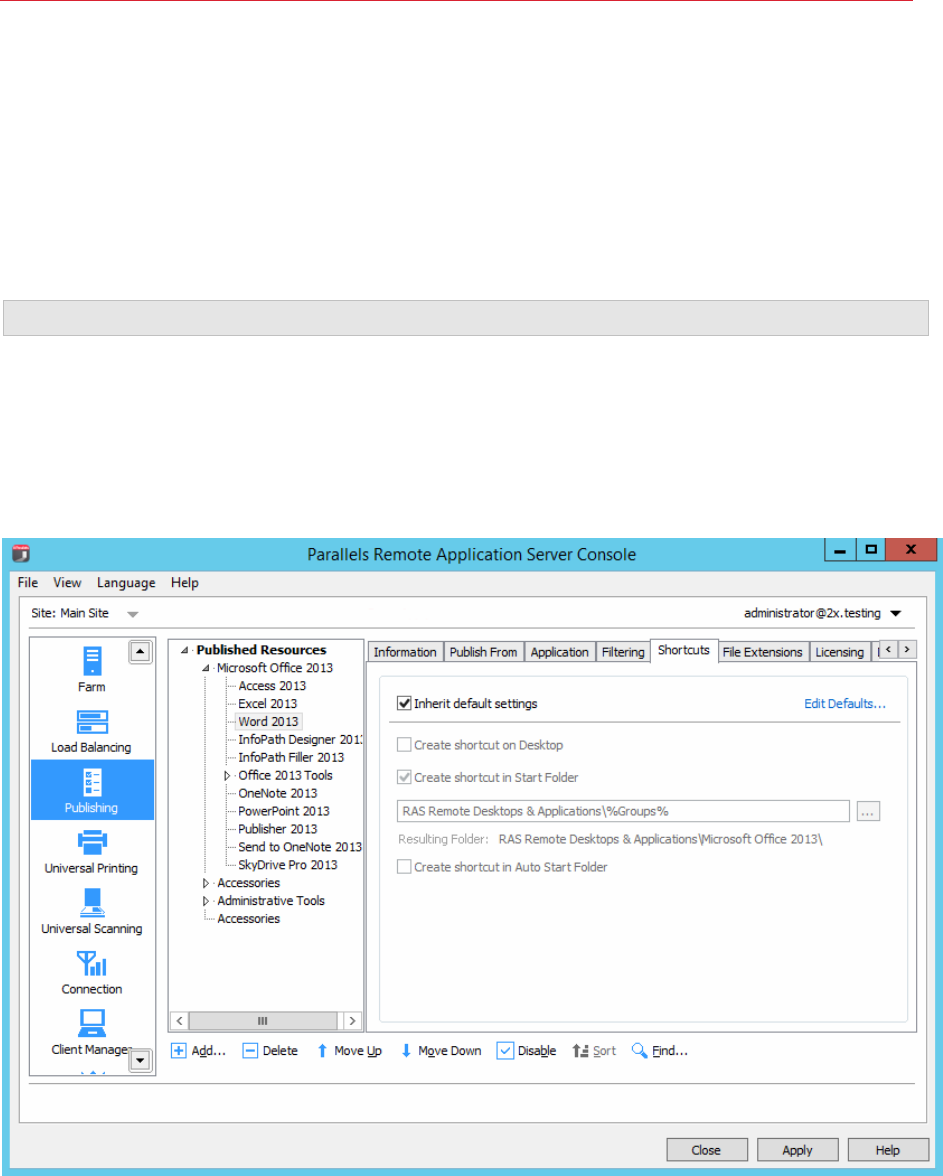
121
Publishing and Filtering
The Target Verifier dialog can also be used to verify the targets for all published applications at
once. To do so, right-click Published Resources (the root node of the Published Resources tree)
and then click Verify Target(s) in the context menu.
This time, the Target Verifier dialog will contain all published applications and their verification
status.
Configuring Shortcut Options for a Published Application
Note: This option is not available on all operating systems.
Click the Shortcuts tab to enable the creation of shortcuts on the user’s desktop, in the Start
folder, and shortcut in the Auto Start folder. When the Auto Start shortcut option is selected, the
application will be started when the operating system on the client is started.
To use the default settings, select the Inherit default settings option. You can view or modify the
default settings by clicking the Edit Defaults link.

122
Publishing and Filtering
Configuring File Extension Associations
To modify file extension association for a particular published application, click the File Extensions
tab.
A list of typically associated file extensions is automatically generated once an application is
published. If you would like to modify the preconfigured list and add, remove, or modify an existing
entry, select the Associate File Extensions option. To add a new extension to the list, click Add in
the Tasks drop-down menu (or click the + icon) and specify the desired extension.
To modify an existing association, highlight the extension and click Properties in the Tasks drop
down menu (or double-click the Parameters column) and type the parameter.
Configuring Licensing Options for Published Applications
Click the Licensing tab to configure the following licensing options:
• Disable session sharing. If this option is enabled, it allows you to isolate the published
application to one session. Therefore if the same application is launched twice, the two
instances of the application will run in two isolated sessions.
• Allow users to start only one instance of the application. If this option is enabled, a user can
only launch a single instance of the application.
• Concurrent Licenses. Use this option to specify the maximum number of concurrent instances
the application can run. E.g. if the license of the application allows you to only run 10 instances
of the application, set the Concurrent licenses option to 10 so once such limit is reached, other
users cannot initiate other instances.
• If limit is exceeded. From this drop down menu you can specify what action should the
Parallels Remote Application Server take in case any of the above licensing configured limits are
exceeded.
To use the default settings, select the Inherit default settings option. You can view or modify the
default settings by clicking the Edit Defaults link.
Configuring Display Settings for a Published Application
Click the Display tab to configure the color depth of the published application, resolution, width
and height. To use the default settings, select the Inherit default settings option. You can view or
modify the default settings by clicking the Edit Defaults link.
Filtering
Filtering is comprehensively described in the Filtering Rules by User, Client, MAC, and Gateway
section (p. 127).

123
Publishing and Filtering
Managing Published Desktops
Publishing a Desktop
The following sections of this guide describe in detail how to publish a desktop from different types
of machines:
• Publishing a Desktop from a Terminal Server (p. 54)
• Publishing a Virtual Desktop from a Guest (p. 79)
• Publishing a Desktop from a Remote PC (p. 114)
Configuring a Published Desktop
When publishing a desktop using a wizard, you have to specify the desktop settings, such as
display size, etc. You can modify these options after the desktop has been published.
To modify a published desktop, select it in the Published Resources tree in the Publishing
category.
Configuring From Which Sites a Published Desktop is Available
By default, a published desktop is available through all of the available sites. To restrict access to a
specific site or a site group, select a desktop in the Published Resources tree and then click the
Sites tab in the right pane. Select the sites from which the desktop should be available.
Note: For the Sites tab to be available, you need more than site in a farm.
Configuring From Which Terminal Servers a Desktop is Published
When configuring a Terminal Server desktop, you can specify from which servers it should be
published. To do so, click the Publish From tab and select the desired servers.
Configuring Desktop Resolution and Other Properties
Depending on the desktop type, click the Desktop, Remote PC Desktop, or Virtual Desktop tab
to configure the desktop name, description, icon, resolution, and some other settings.
Configuring Shortcuts Options for a Published Desktop
Click the Shortcuts tab to enable the creation of shortcuts on the user desktops, shortcuts in the
Start folder, and shortcut in the Auto Start folder. When the Auto Start shortcut is enabled, the
application will start when the user's computer is started.

124
Publishing and Filtering
Note: This option is not available on all operating systems.
The Filtering Tab
Filtering is comprehensively described in the Filtering Rules by User, Client, MAC, and Gateway
section (p. 127).
Managing Published Documents
Publishing a Document
The following sections of this guide describe in detail how to publish a document from different
types of machines:
• Publishing a Document from a Terminal Server (p. 63)
• Publishing a Document from a Remote PC (p. 116)
• Publishing a Document from a Guest (p. 82)
Configuring a Published Document
When publishing a document using a wizard, you have to specify the document settings. These
options can be modified after the document has been published.
To modify a published document, select it in the Published Resources tree in the Publishing
category and then use the tab pages in the right pane to configure the published document
settings.
Configuring From Which Sites a Published Document is Available
By default, a published document is available through all available sites. To restrict access to a
specific site or a site group, click the Sites tab in the right pane. Select the sites from which the
document should be available.
Note: For the Sites tab to be available, you need more than one site in a farm.
Configuring From Which Servers a Document is Published
Click the Publish From tab and select the servers from which the document should be published.
Please note that a server must have the application installed that can open this particular document
type.

125
Publishing and Filtering
Configuring Server-Specific Document Settings
By default, the settings configured in the Target (application path), Start In, and Parameters fields
apply to all servers a document is published from. If a document exists in a different folder on one
(or more) of the servers, you can specify the above settings for a specific server or servers
individually.
To do so:
1 Click the Application tab and.
2 Select a server in the Server(s) list.
3 Specify the Target, Start In, and Parameters (optional) properties. The values that you specify
will apply to the selected server only. Repeat the steps for other servers if needed.
4 Click the Verify Target(s) button to verify the document path on all servers from which this
application is published. The results are displayed in the Target Verifier dialog where you can
see whether the target is correct or not for each server.
Configuring Shortcuts Options for a Published Document
Click the Shortcuts tab to enable the creation of shortcuts on the user desktops, shortcuts in the
Start folder and shortcut in the Auto Start folder. When the Auto Start shortcut is enabled, the
application will start when the user's computer is started.
Note: This option is not available on all operating systems.
Configuring File Extension Associations
To modify file extension association for a particular published document, click the File Extensions
tab.
Note: A list of typically associated file extensions is automatically generated once a document is
published. If you would like to modify the preconfigured list, click the Associate File Extensions option.
To add a new extension to the list, click Tasks > Add and specify the extension
To modify the extension’s parameters, highlight the extension and click Tasks > Properties.
Configuring Licensing Options for Published Documents
Click the Licensing tab to configure any of the below licensing options:
Select the Inherit default settings option to use the defaults. To specify your own settings, clear
the option and set the following options:

126
Publishing and Filtering
• Disable session sharing. If this option is enabled, it allows you to isolate the published
application to one session. Therefore if the same application is launched twice, the multiple
instances of the application will run in the same isolated session.
• Allow users to start only one instance of the application. If this option is enabled, a user can
only launch a single instance of the application.
• Concurrent Licenses. Use this option to specify the maximum number of concurrent instances
the application can run. E.g. if the license of the application allows you to only run 10 instances
of the application, set the Concurrent licenses option to 10 so once such limit is reached, other
users cannot initiate other instances.
• If limit is exceeded. From this drop down menu you can specify what action should the
Parallels Remote Application Server take in case any of the above licensing configured limits
has been exceeded.
Configuring Display Settings for a Published Document
Click the Display tab to configure the color depth of the published document, resolution, width and
height. If these options are left at their default values, the client-specified options will take over.
You can also enable the option to wait for the Universal Printers to be redirected before the
application is loaded. When enabling this option, you can also configure the maximum wait time (in
seconds) for the Universal Printers to be redirected.
Filtering
Filtering is comprehensively described in the Filtering Rules by User, Client, IP, MAC and
Gateway section (p. 127).
Managing Published Folders
Folders can be used to organize published resources and to facilitate the filtering options. For
example, you can configure filtering options for a specific folder and then move the published
resources under the new folder so the filtering settings are inherited. For more information see
Filtering Rules by User, Client, IP, MAC, and Gateway (p. 127).
To publish a folder:
1 In the RAS Console, select the Publishing category and then click the Add icon below the
Published Resources tree. This will launch the publishing wizard.
2 On the first page, select Folder and click Next.
3 Specify a folder name, an optional description, and change the icon if desired.
4 Click Finish to publish the folder.

127
Publishing and Filtering
Managing Published Folders
To modify an existing published folder, select it in the Published Resources tree. Use the tab
pages in the right pane to specify the folder properties as follows:
• The Information tab page displays the folder information (read-only).
• The Sites tab page specifies through which sites the published folder is available.
• The Folder tab page specifies the folder name and description.
• The Filtering tab page specifies the filtering options. The filtering options will be inherited by all
other published resources in that folder.
Adding Published Resources to a Folder
To add a published resource to a folder, select the published resource in the Published
Resources tree and drag to the folder.
Filtering Rules by User, Client, IP, MAC, and
Gateway
By default, there are no filtering rules configured for a published resource, therefore it will be
available to anyone who is connected to the Parallels Remote Application Server. Filtering allows
you to control who can access a published resource. You can create several filtering rules based
on any of the following filtering options:
• User
• Client (managed client)
• IP Address
• MAC Address
• Gateway
Once you specify a filtering rule, only those users/computers who satisfy the criteria can access the
published resource.
To create a filtering rule, selecting a published resource in the Published Resources tree and click
the Filtering tab. Define a rule based on a specific criteria as described below.
Filtering by User
To allow a user (or multiple users) or a user group to access the published resource:
1 Select User in the Search Filtering Type drop down list.

128
Publishing and Filtering
2 Select the Allow the following Users option.
3 In the Default Object Type drop-down list, select whether this rule will apply to users, groups,
or both.
4 In the Browse Mode drop-down list, select the browsing mode you would like to use to
connect to Active Directory or Windows.
The options are:
• WinNT. WinNT is faster than LDAP but does not support group nesting. Used only for
backward compatibility.
• LDAP. LDAP supports group nesting but is slow. Used only for backward compatibility.
• Secure Identifier. This is the preferred and fastest method. It supports group nesting and
renaming.
5 Click Tasks > Add and specify a user or a group in the Select Users dialog. Click OK to a
user/group to the list on the Filtering tab page.
To convert users or groups specified using WinNT or LDAP, select the entry and then click Tasks >
Convert.
Filtering by Client
To allow a specific client or a list or clients to access the published resource, follow these steps:
1 Select Client in the Search Filtering Type drop-down list.
2 Select the Allow the following Clients option.
3 Click Tasks > Add and select the client(s) in the Select Client dialog.
4 Click OK to add the clients to the list.
Filtering by IP Address
To allow a specific IP address (or multiple addresses) or a range of IP addresses to access the
published resource, follow these steps:
1 In the Search Filtering Type drop-down list, select IP Address.
2 Select the Allow the following IPs option.
3 Click Tasks > Add in the IPv4 and/or IPv6 sections to specify the IP address or a range of IP
addresses and click OK.
Filtering by MAC Address
To allow a MAC address or a specific list of MAC addresses to access the published resource,
follow these steps:
1 In the Select Filtering Type drop-down list, select MAC.

129
Publishing and Filtering
2 Select the Allow the following MACs option.
3 Click Tasks > Add to select the MAC address(es) and click OK.
Filtering by Gateway
To allow users to connect to a published resource through a specific gateway, follow these steps:
1 Select the Gateway filtering type.
2 Select the Allow connections from the following gateway option.
3 Click Tasks > Add to specify the gateway and its IP address (if it has multiple IP addresses).
Configuring Multiple Filtering Rules
If multiple filtering rules are configured for a specific published resource, the connecting user has to
match ALL of them to be allowed access to the published resource.
In This Chapter
RAS Secure Client Gateway Overview...................................................................... 130
Adding a RAS Secure Client Gateway ...................................................................... 132
Manually Adding a RAS Secure Client Gateway........................................................ 132
Checking the RAS Secure Client Gateway Status..................................................... 133
Managing RAS Secure Client Gateway..................................................................... 134
Gateway Tunneling Policies ...................................................................................... 143
RAS Secure Client Gateway Overview
RAS Secure Client Gateway tunnels all Parallels Remote Application Server data on a single port. It
also provides secure connections and is the user connection point to Parallels Remote Application
Server.
By default, a RAS Secure Client Gateway is installed on the same server where the Parallels
Remote Application Server is installed. You can add additional RAS Secure Client Gateways to a
site to support more users, load balance connections, and provide redundancy.
CHAPTER 9
RAS Secure Client Gateways
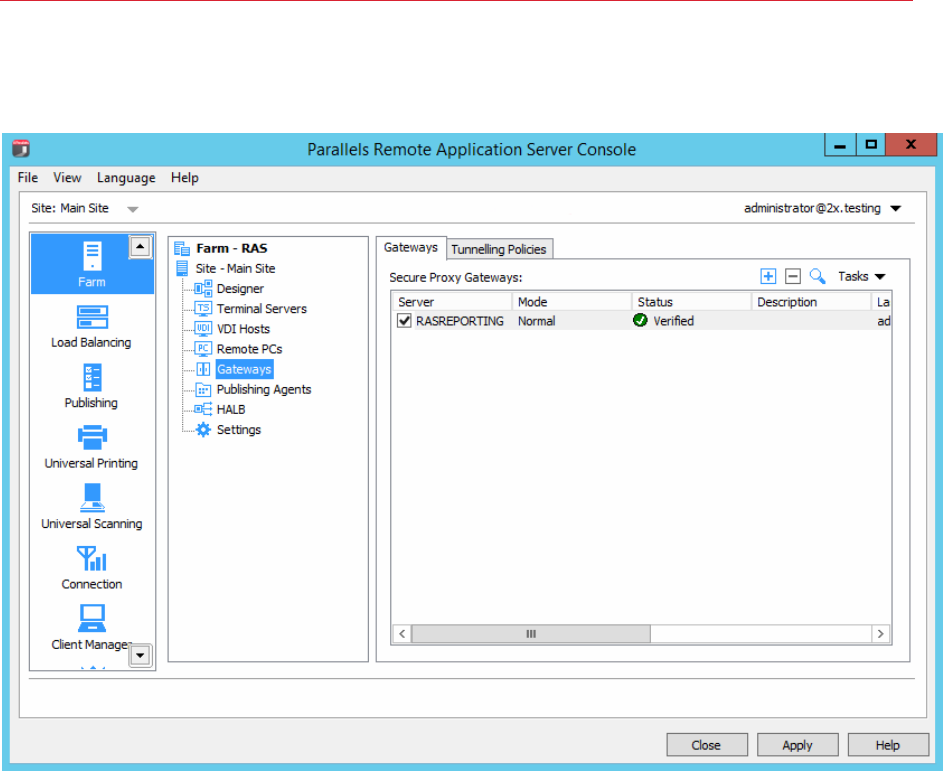
131
RAS Secure Client Gateways
To manage RAS Secure Client Gateways, in the RAS Console, navigate to Farm / <site-name> /
Gateways. Use the tab pages in the left pane to manage Gateways and Tunneling Policies.
How a RAS Secure Client Gateway Works
The following describes how a RAS Secure Client Gateway handles user connection requests:
1 The RAS Secure Client Gateway receives a user connection request.
2 It then forwards the request to all of the available RAS Publishing Agents in the farm.
3 A RAS Publishing Agent performs Load Balancing checks and an Active Directory security
lookup to obtain security permissions.
4 If the user requesting a published resource is granted access, the RAS Publishing Agent returns
the response to the gateway service including details about which terminal server the user can
connect to.
5 Depending on the connection mode, the client either connects through the gateway or
disconnects from it and then connects directly to the RDS Server.
RAS Secure Client Gateway Operation Modes
A RAS Secure Client Gateway can operate in one of the following modes:
132
RAS Secure Client Gateways
• Normal Mode. A RAS Secure Client Gateway in normal mode receives a user connection
requests and checks with the RAS Publishing Agent if the user making the request is allowed
access. Normal gateways can be used to support a larger number of requests and to improve
redundancy.
• Forward Mode. A RAS Secure Client Gateway in forwarding mode forwards all the user
connection requests to a preconfigured gateway. Gateways in forward mode are useful if
cascading firewalls are in use, to separate WAN connections from LAN connections and make
it possible to disconnect WAN segments in the event of issues without disrupting the LAN.
Note: Multiple RAS Secure Client Gateways are needed to configure a gateway to use the forward
mode.
Adding a RAS Secure Client Gateway
To add a RAS Secure Client Gateway to a site, follow these steps:
1 In the RAS Console, navigate to Farm / <site-name> / Gateways.
2 With the Gateways tab selected in the right pane, click Tasks > Add to start the Add RAS
Secure Client Gateway wizard.
3 Enter the server FQDN or IP (or click the [...] button to select a server from the list).
4 Select the gateway mode from the Mode drop down menu.
5 If you selected the Forwarding mode in the step above, select the destination gateway in the
Forward To drop-down list.
6 Select the Add an SSL certificate and enable HTML5 Gateway option to automatically
create a self-signed certificate, enable SSL, and enable HTML5 support. For more info, please
see Enable HTML5 Support on the Gateway (p. 139).
7 Select the Add Firewall Rules to automatically configure the firewall on the server hosting the
gateway.
8 Click Next.
9 On the next page, click Install to start the RAS Secure Client Gateway installation.
10 Click Done when the installation is finished.
Manually Adding a RAS Secure Client Gateway
To manually install a RAS Secure Client Gateway and add it to the farm, follow these steps:
1 Log into the server where you'll be installing the RAS Secure Client Gateway using an
administrator account.
2 Copy the Parallels Remote Application Server installation file (RASInstaller.msi) to the
server and double click it to launch the installation wizard.
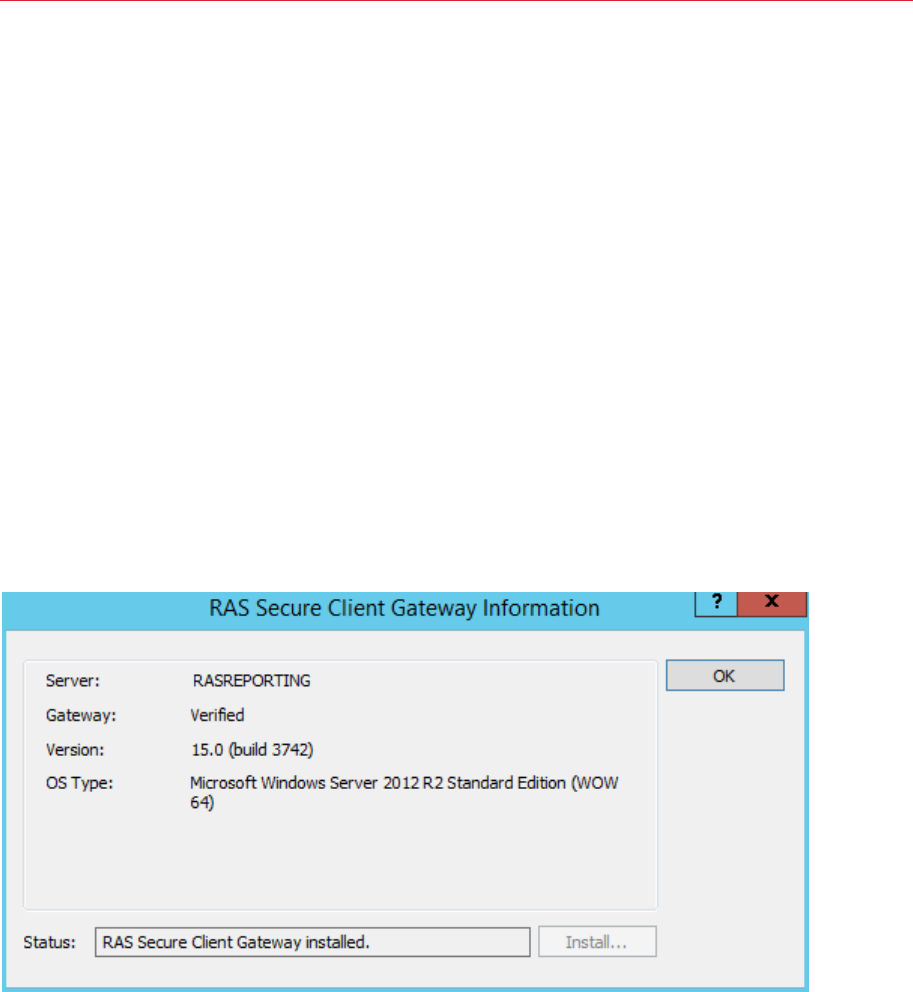
133
RAS Secure Client Gateways
3 Once prompted, click Next and accept the End-User license agreement.
4 Select the path where the RAS Secure Client Gateway should be installed and click Next.
5 Select Custom from the installation type screen and click Next.
6 Click on RAS SecureClientGateway in the feature tree and select Entire Feature will be
installed on local hard drive.
7 Ensure that all other components in the selection tree are cleared and click Next.
8 Click Install to start the installation.
9 When the installation is completed, click Finish to close the wizard.
10 After the installation is completed, open the RAS Console and specify the RAS Publishing
Agent that will manage the gateway.
Checking the RAS Secure Client Gateway Status
To check the status of a RAS Secure Client Gateway, right-click it and then click Check Status in
the context menu. The RAS Secure Client Gateway Information dialog opens.
The dialog displays the gateway information, including:
• The name of server on which the gateway resides.
• The verification status.
• Version number. The version number must match the Parallels Remote Application Server
version number.
• The operating system type that the host server is running.
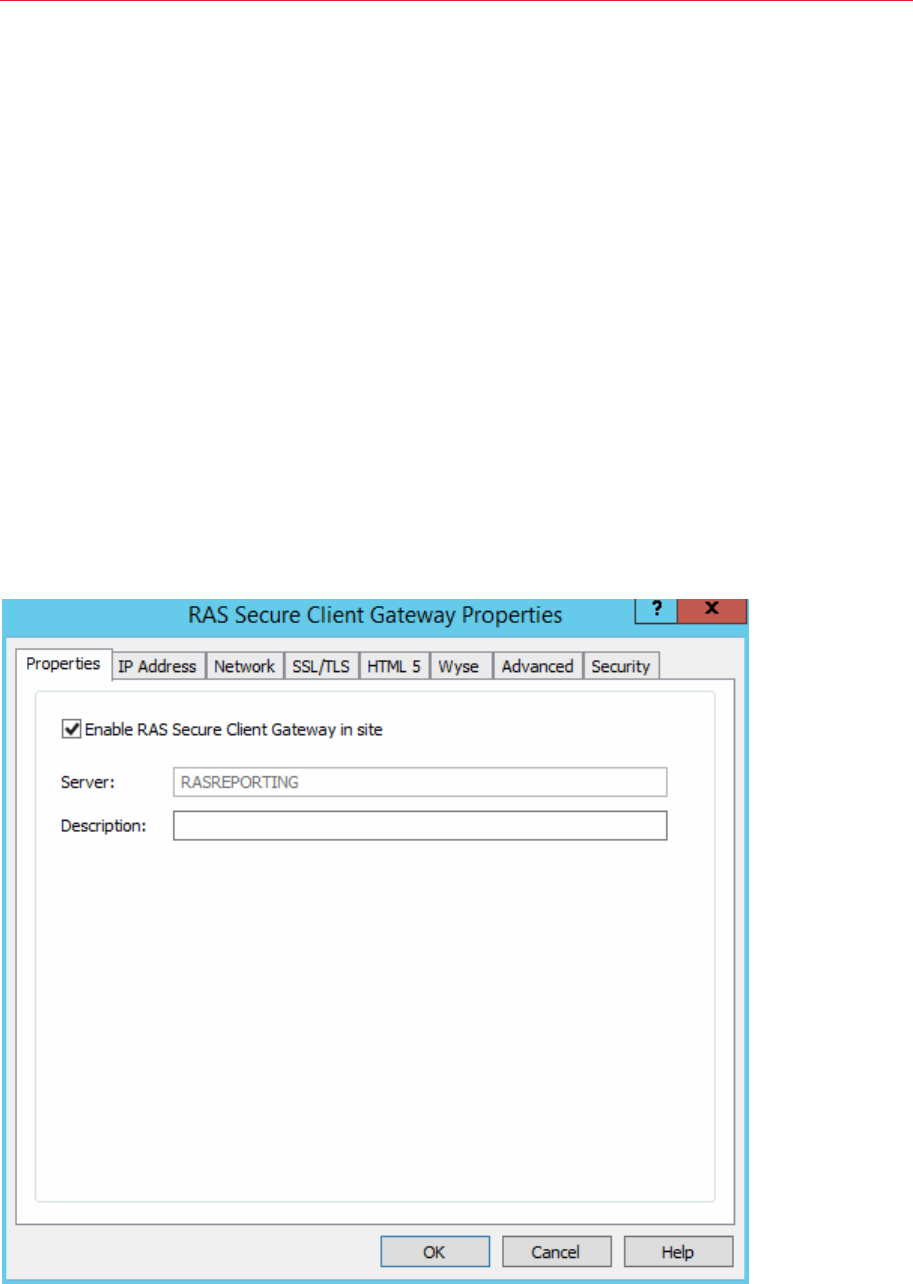
134
RAS Secure Client Gateways
The Status filed display the current RAS Secure Client Gateway status. If the status indicates a
problem (e.g. the gateway did not reply or the version of the gateway is wrong), click the Install
button to push install the gateway on the server. Wait for the installation to complete and verify the
status again.
Managing RAS Secure Client Gateway
To configure a RAS Secure Client Gateway:
1 In the RAS console, navigate to Farm / <site-name> / Gateways.
2 In the right pane, right-click a gateway and click Properties.
3 The RAS Secure Client Gateway Properties dialog opens.
Enabling and Disabling a RAS Secure Client Gateway
A RAS Secure Client Gateway is enabled on a site by default. To disable a gateway, clear the
Enable RAS Secure Client Gateway in site option.
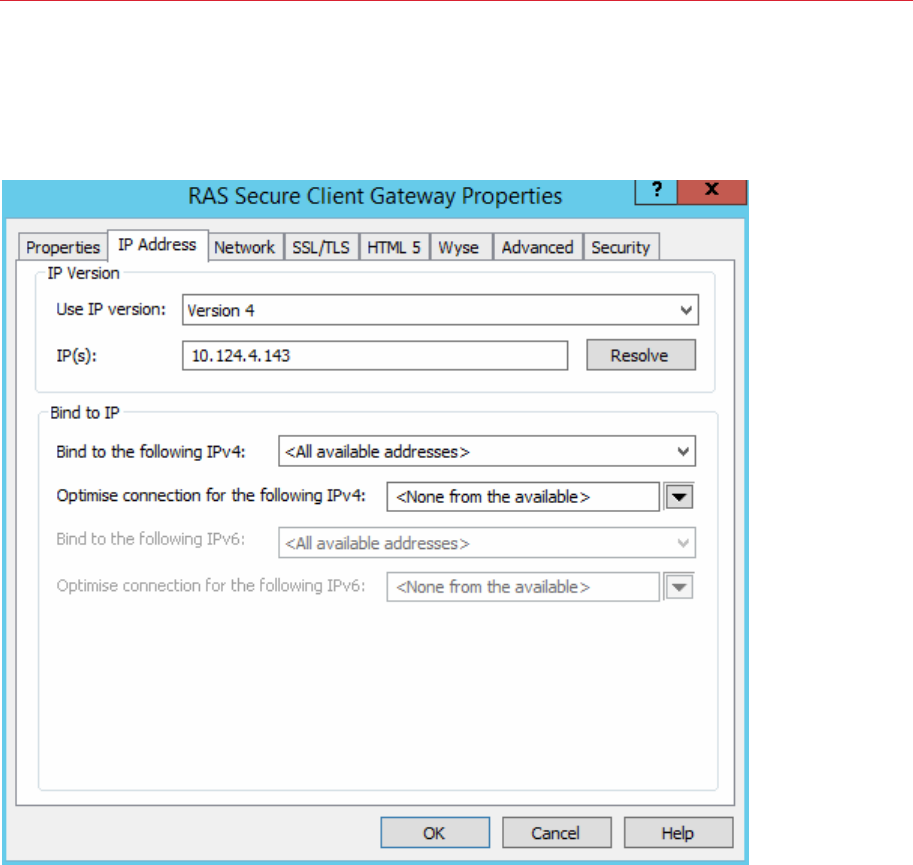
135
RAS Secure Client Gateways
Configuring the IP Address for Incoming Connections
Click the IP Address tab page to set the IP address options for incoming client connections.
RAS Secure Client Gateway recognizes both IPv4 and IPv6. By default, IPv4 is enabled. If a
gateway has IPv6 and IPv4 configured, you can specify whether the clients should be connecting
to using IPv4, IPv6, or both.
In the Use IP version drop-down list, select the IP version to use and then specify the
corresponding properties for the selected version (or both if you selected IPv4 and IPv6).
Click the Resolve button to resolve the IP addresses of the RAS Secure Client Gateway depending
on the IP version selected.
The Bind to the following IPv4/ IPv6 properties define the IP address on which the RAS Secure
Client Gateway listens for incoming connections. You can select a specific address or all available
addresses.
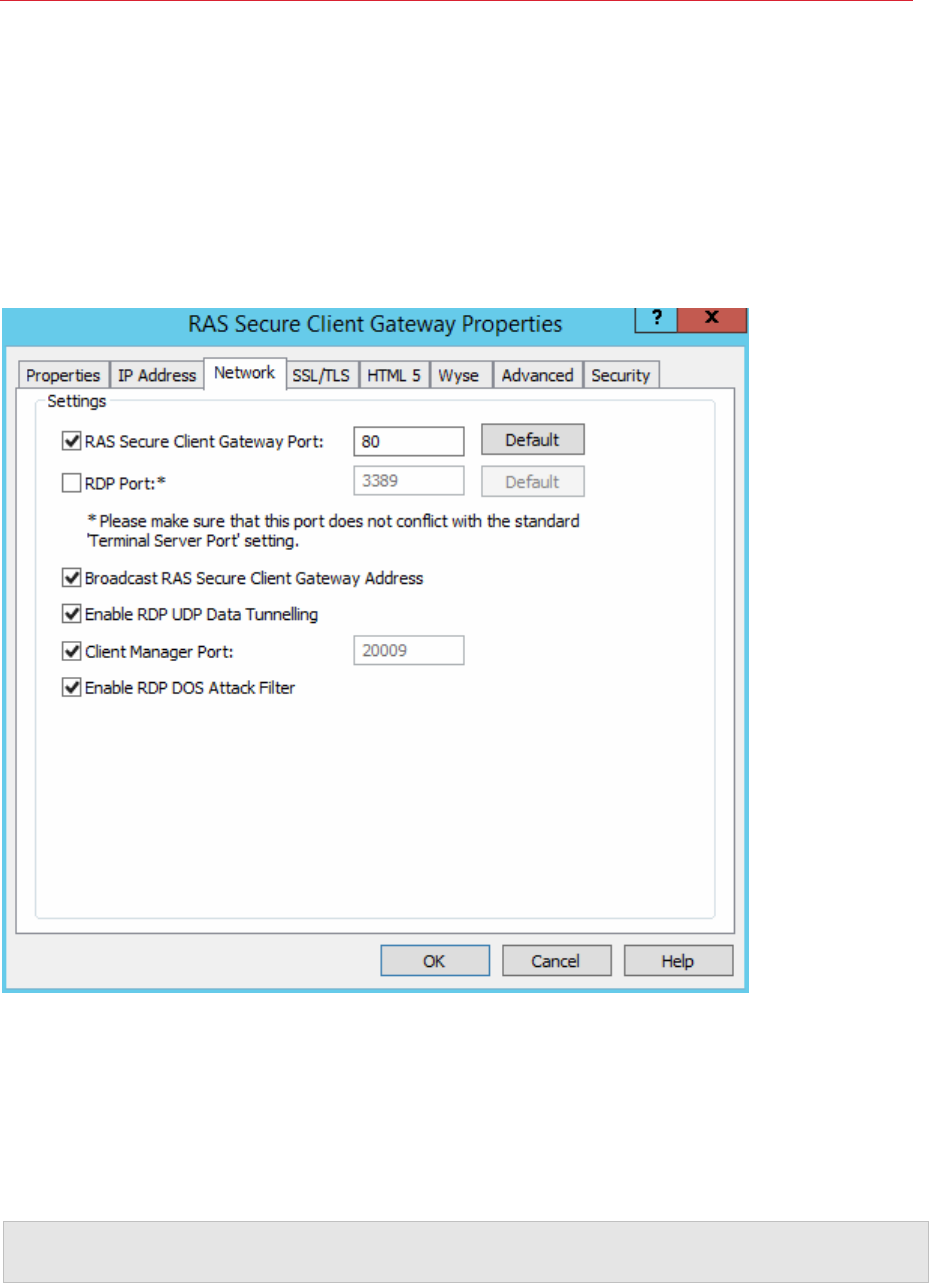
136
RAS Secure Client Gateways
The Optimize connection for the following IPv4/ IPv6 properties can be used when the
connection between this gateway and the Parallels Client has a high latency (such as the Internet),
this option will optimize traffic for better experience on the Parallels Client. You can select a specific
address, all available addresses, or none to disable this option.
Configuring RAS Secure Client Gateway Network Options
The Network tab page allows you to configure RAS Secure Client Gateway network options.
By default a RAS Secure Client gateway listens on TCP ports 80 and 443 to tunnel all Parallels
Remote Application Server traffic. To change the port, specify a new port in the RAS Secure Client
Gateway Port input field.
TCP port 3389 is used for clients that require basic load balanced desktop sessions. Connections
on this port do NOT support published items. To change the RDP port on a gateway select the
RDP Port option and specify a new port.
Note: If RDP port is changed, the users need to append the port number to their connection string in the
remote desktop client (e.g. [ip address]:[port]).

137
RAS Secure Client Gateways
To enable UDP tunneling on Windows devices, select the Enable RDP UDP Data Tunneling
option (default). To disable UDP tunneling, clear this option.
Select the Client Manager Port option to manage Windows devices from the Client
Manager category. This option is enabled by default.
The Enable RDP DOS Attack Filter option denies chains of uncompleted sessions from the same
IP address. For example, if a Parallels Client attempts to connect to the Parallels RAS with incorrect
credentials multiple times, Parallels RAS will deny further attempts. This option is enabled by
default.
The Broadcast RAS Secure Client Gateway Address option can be used to switch on the
broadcasting of the gateway address, so Parallels Clients can automatically find their primary
gateway. This option is enabled by default.
Enabling SSL Encryption on a RAS Secure Client Gateway
The traffic between the users and the RAS Secure Client Gateway is always encrypted. The
SSL/TLS tab page allows you to configure data encryption options. By default, a self-signed
certificate is installed during the RAS Secure Client Gateway installation and TLS v1.0, v1.1, or v1.2
is used.
To issue a new self-signed certificate:
1 Select the Enable SSL on Port option and specify a port number (default is 443).
2 (Optional) Select the SSL version accepted by the RAS Secure Client Gateway from the
Accepted SSL Versions drop-down list (default is TLS v1 - TLS v1.2).
The available options are:
• TLSv1.2 Only (Strong)
• TLSv1.1-TLSv1.2
• TLSv1-TLSv1.2
• SSLv3-TLSv1.2
• SSLv2-TLSv1.2 (Weak)
3 (Optional) Select the Cipher Strength as the certificate encryption algorithm strength of your
choice.
4 Click the Generate new certificate button and enter the required details.
Note: To enable SSL using a certificate from a trusted authority, follow the procedure below.
5 Click Save to save all the details and generate a new self-signed certificate. The private key file
and Certificate file will be automatically populated.
6 Click OK to save the options.

138
RAS Secure Client Gateways
Using a Custom Cipher
Use the Custom Cipher field to specify a custom cipher string of your choice in accordance with
the openSSL standards. Cipher strings used by Parallels Remote Application Server are described
below:
Low: ALL:!aNULL:!eNULL
Med: ALL:!aNULL:!ADH:!eNULL:!LOW:!EXP:RC4+RSA:+HIGH:+MEDIUM
High:
• Min SSLv2 - ALL:!aNULL:!ADH:!eNULL:!LOW:!MEDIUM:!EXP:+HIGH
• Min SSLv3 - ALL:!SSLv2:!aNULL:!ADH:!eNULL:!LOW:!MEDIUM:!EXP:+HIGH
• Min TLSv1 - ALL:!SSLv2:!SSLv3:!aNULL:!ADH:!eNULL:!LOW:!MEDIUM:!EXP:+HIGH
• Min TLSv1_1 - ALL:!SSLv2:!SSLv3:!TLSv1:!aNULL:!ADH:!eNULL:!LOW:!MEDIUM:!EXP:+HIGH
• Min TLSv1_2 -
ALL:!SSLv2:!SSLv3:!TLSv1:!TLSv1.1:!aNULL:!ADH:!eNULL:!LOW:!MEDIUM:!EXP:+HIGH
Note: By default only the connection between the gateway and the servers is encrypted. Change the
connection mode to the Gateway SSL Mode from the connection properties on all Parallels Clients to
also encrypt the connection between the users and the gateway.
Using a Certificate from a Trusted Authority for SSL
To enable SSL on a RAS Secure Client Gateway using a certificate obtained from a trusted
authority, do the following:
1 Click the Generate certificate request button. The Generate New Certificate dialog opens.
2 Fill in the required details and click Save.
3 Once the certificate is ready, a window will pop up with the certificate request information.
4 Click Copy to copy the request, so you can later send it to the certificate authority.
5 Once you receive the SSL certificate from the certificate authority, click the Import public key
button on the SSL/TLS tab page.
6 Browse for the certificate file containing the public key and click Open.
7 Click OK to save the settings.
Securing RDP-UDP Connections
A Parallels Client normally communicates with a RAS Secure Client Gateway over a TCP
connection. Recent Windows clients may also utilize a UDP connection to improve WAN
performance. To provide the SSL protection for UDP connections, DTLS must be used.

139
RAS Secure Client Gateways
To use DTLS on a RAS Secure Client Gateway:
1 On the SSL/TLS tab page, make sure that the Enable SSL on Port option is selected (default).
2 On the Network tab page (p. 136), make sure that the Enable RDP UDP Data Tunneling
option is selected (default).
The Parallels Clients must be configured to use the Gateway SSL Mode. This option can be set in
the Connections Settings > Connection Mode drop-down list on the client side.
Once the above options are correctly set, both TCP and UDP connections will be tunneled over
SSL.
Enabling HTML5 Support on the Gateway
Note: To enable HTML5 support on a gateway, SSL/TLS should be enabled and configured.
When HTML5 support is enabled on a RAS Secure Client Gateway (it is enabled by default), users
can launch and work with published applications inside an HTML5 enabled web browser (no RAS
client software is needed).
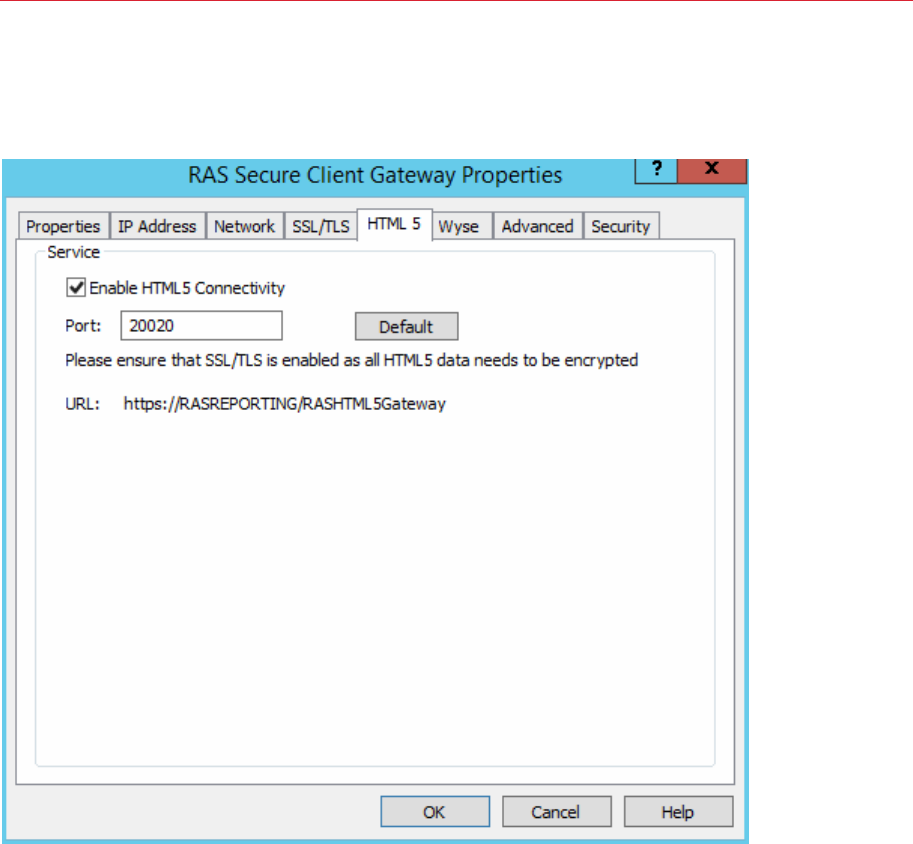
140
RAS Secure Client Gateways
To enable or disable HTML5 support on a gateway, select the Enable HTML5 Connectivity option
on the HTML5 tab. You can also specify the Port which the gateway uses to connect to the
HTML5 module.
Accessing the HTML5 Interface
To connect to the HTML5 interface of a gateway and to access published resources:
1 Open the following URL in an HTML5 enabled web browser:
https://[Hostname]/RASHTML5Gateway
2 On the login page, specify your user name and password and click Login.
3 Your published resources are displayed on the virtual desktop in the browser.
4 To launch an application, double-click on its icon. The application will run inside a browser and
will look no different than if run in an RDP environment or locally.
5 You can copy and paste text between the remote application and the local computer. To do
so:
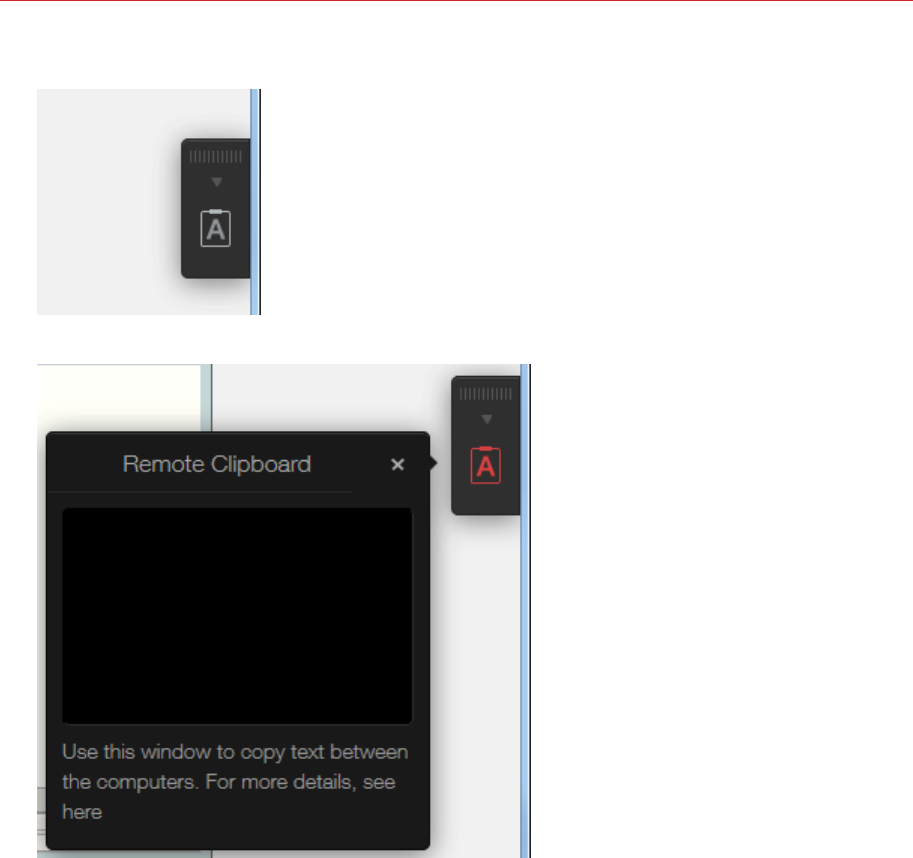
141
RAS Secure Client Gateways
a Click the toolbar on the right side of the browser window.
b This will open the Remote Clipboard window.
c To copy text from the local computer to a remote application, type (or paste) it in the
Remote Clipboard. The typed (or pasted) text is automatically saved in the remote computer
clipboard, so you can use a standard paste command (e.g. Ctrl+V) to paste it into a remote
application.
d To copy text from a remote application to the Remote Clipboard, highlight it and use the
standard copy command (e,g, Ctrl+C). The text will appear in the Remote Clipboard from
where you can copy it to any application locally.
6 The main menu of the RAS HTML5 interface includes the following menu items:
• Settings. Allows you to change the sound, redirection, and keyboard compatibility settings.
• Change Password. Allows you to change your password.
• The door-with-arrow icon disconnects from the HTML5 gateway.
142
RAS Secure Client Gateways
Changing the Gateway Mode and Forwarding Settings
To change the gateway mode from normal to forwarding mode or vice versa and configure related
settings click the Advanced tab on the RAS Secure Client Gateway Properties dialog.
Normal Mode
Select Forward requests to RAS Publishing Agent and HTTP Server to set the gateway to
normal mode.
From this tab you can also configure the HTTP server the gateway forwards requests to in the
HTTP Server(s) drop down menu. The HTTP servers entry can be setup with IPv6 servers. Please
note that the HTTP server needs to support the same IP version as that of the browser making the
request.
Forwarding Mode
Select Forward requests to next RAS Secure Client Gateway in chain (cascaded Firewall) to
set the gateway to forwarding mode.
Select the forwarding gateway from the Forwarding RAS Secure Client Gateway(s) drop down
menu.
Note: When a gateway is set to work in Forwarding mode, it's possible to forward the data to another
gateway which is listening on IPv6. It is recommended that gateways configured in forwarding mode are
set to forward data to a gateway with the same IP version.
Managing Multiple IP Addresses on a Gateway
If the server the RAS Secure Client Gateway is running on has multiple IP addresses, the gateway
will listen on all IP addresses by default. To configure the gateway to listen on a specific IP address,
select the IP address in the Bind Gateway to the following IP drop-down list.
Support for Wyse Thin Client OS
To publish applications from the Parallels Remote Application Server to Thin Clients using the Wyse
ThinClient OS, tick the Enable Wyse ThinOS Support option on the Wyse tab page.
By enabling this option, the RAS Secure Client Gateway will act as a Wyse broker. Once the DHCP
server is configured (as explained on the tab page), click the Test button to verify the DHCP server
settings.

143
RAS Secure Client Gateways
Filtering Access to RAS Secure Client Gateway
You can allow or deny users access to a gateway based on a MAC address.
To configure a list of allowed or denied MAC addresses, click the Security tab and select one of
the following options:
• Allow all except. All devices on the network will be allowed to connect to the gateway except
those included in this list. Click Tasks > Add to select a device or to specify a MAC address.
• Allow only. Only the devices with the MAC addresses included in the list are allowed to
connect to the gateway. Click Tasks > Add to select a device or to specify a MAC address.
Gateway Tunneling Policies
Tunneling policies can be used to load balance connections by assigning a group of terminal
servers to a specific RAS Secure Client Gateway or RAS Secure Client Gateway IP address.
To configure tunneling policies, navigate to Farm / <site-name> / Gateways and then click the
Tunneling Policies tab in the right pane.
Configuring Tunneling Policies
The <Default> policy is a preconfigured rule and is always the last one to catch all non-configured
gateway IP addresses and load balance the sessions between all servers in the farm. You can
configure the <Default> policy by right-clicking it and then clicking Properties in the context menu.
Adding a New Tunneling Policy
To add a new policy:
1 Click Tasks > Add.
2 Select a gateway IP address.
3 Specify to which Terminal Server(s) the users connecting to that specific gateway should be
forwarded to.
Managing a Tunneling Policy
To modify an existing Tunneling Policy, right-click it and then click Properties in the context menu.
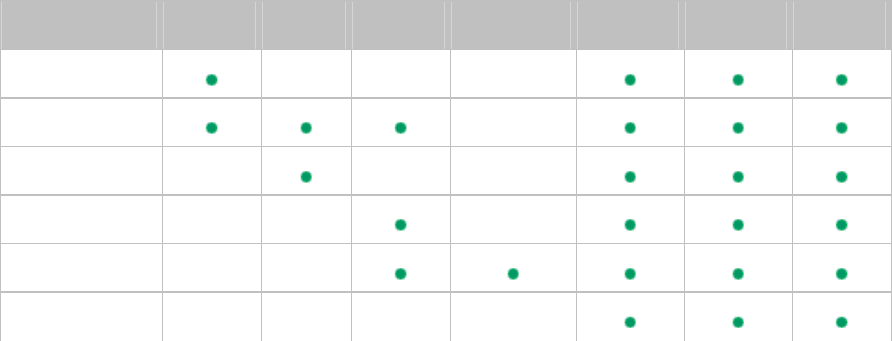
In This Chapter
RAS Web Portal: Prerequisites and Installation ......................................................... 144
Logging Into the Administrative Page........................................................................ 146
Farm Settings........................................................................................................... 147
General Settings....................................................................................................... 150
RAS Web Portal: Prerequisites and Installation
The RAS Web Portal allows users to launch published applications and desktops from different
farms.
Requirements
• Windows Server 2003 SP1, 2008, 2012, 2012 R2
• Microsoft .NET Framework 2.0, 3.0
• ASP.NET role
• IIS6 or IIS7
• Parallels Remote Application Server
Supported Client Operating Systems and Browsers
IE9 IE10 IE11 MS Edge Chrome FireFox Safari
Windows VIsta
Windows 7
Windows 8
Windows 8.1
Windows 10
Linux
CHAPTER 10
RAS Web Portal

145
RAS Web Portal
OS X
iOS
Android
Automatic Client Detection and Installation
IE9 IE10 IE11 MS Edge Chrome FireFox Safari
Windows VIsta
Windows 7
Windows 8
Windows 8.1
Windows 10
Linux
OS X
iOS
Android
Installation
We recommend that you do not install the RAS Web Portal on an Active Directory machine.
Run the RAS Web Portal setup program by double-clicking the RASWebPortal.msi or
RASWebPortal-x64.msi file on the IIS machine that will be used as your access point to the
published applications.
To install RAS Web Portal:
1 Run the RASWebPortal.msi or RASWebPortal-x64.msi file on the IIS machine that will
be used as your access point to the published applications.
2 The RAS Web Portal Setup wizard opens.
3 Read the info on the Welcome page and click Next.
4 On the next page, read the End-User License Agreement. If agreed, select the I accept the
terms in the License Agreement option and click Next.

146
RAS Web Portal
5 On the RAS Web Server Port page, specify the port number. The RAS Secure Client
Gateway is installed on port 80 by default and is configured to forward HTTP requests to the
local host on port 81. Therefore, clients will still be able to access the RAS Web Portal on port
80. You can choose to install the RAS Web Service on any other port, and also use an existing
port used by other web sites.
6 Click Next and then click Install.
7 Click Finish when the installation is completed.
Please note that IIS7 caches dynamic content as well as static content. To disable the caching for
.aspx, .asmx and .ashx pages for the RAS Web Portal directory with an asp.net page that depends
on the session state, perform the following on the RAS Web Server, 2XWebPortal, and
2XWebService.
Disabling Caching for folders consisting on .aspx, .asmx and .ashx
1 Run the Server Management console.
2 Navigate to Roles > Web Server (IIS) > Internet Information Services.
3 Repeat steps 4 to 12 for the following sites: RAS Web Server, 2XWebPortal, and
2XWebService.
4 Select the folder that contains the .aspx, .asmx and .ashx pages for which you need to disable
caching.
5 In the Feature View, double-click Output Caching.
6 If there is a rule there already for the .aspx extension, double click it and continue from step 8.
Otherwise right click and select Add.
7 Enter .aspx for the File name extension.
8 Check User-mode caching.
9 Select Prevent all caching.
10 Check Kernel-mode caching.
11 Select Prevent all caching.
12 Click OK.
13 Close the Server Management Console.
Logging Into the Administrative Page
After installing RAS Web Portal, open the following URL in a web browser:
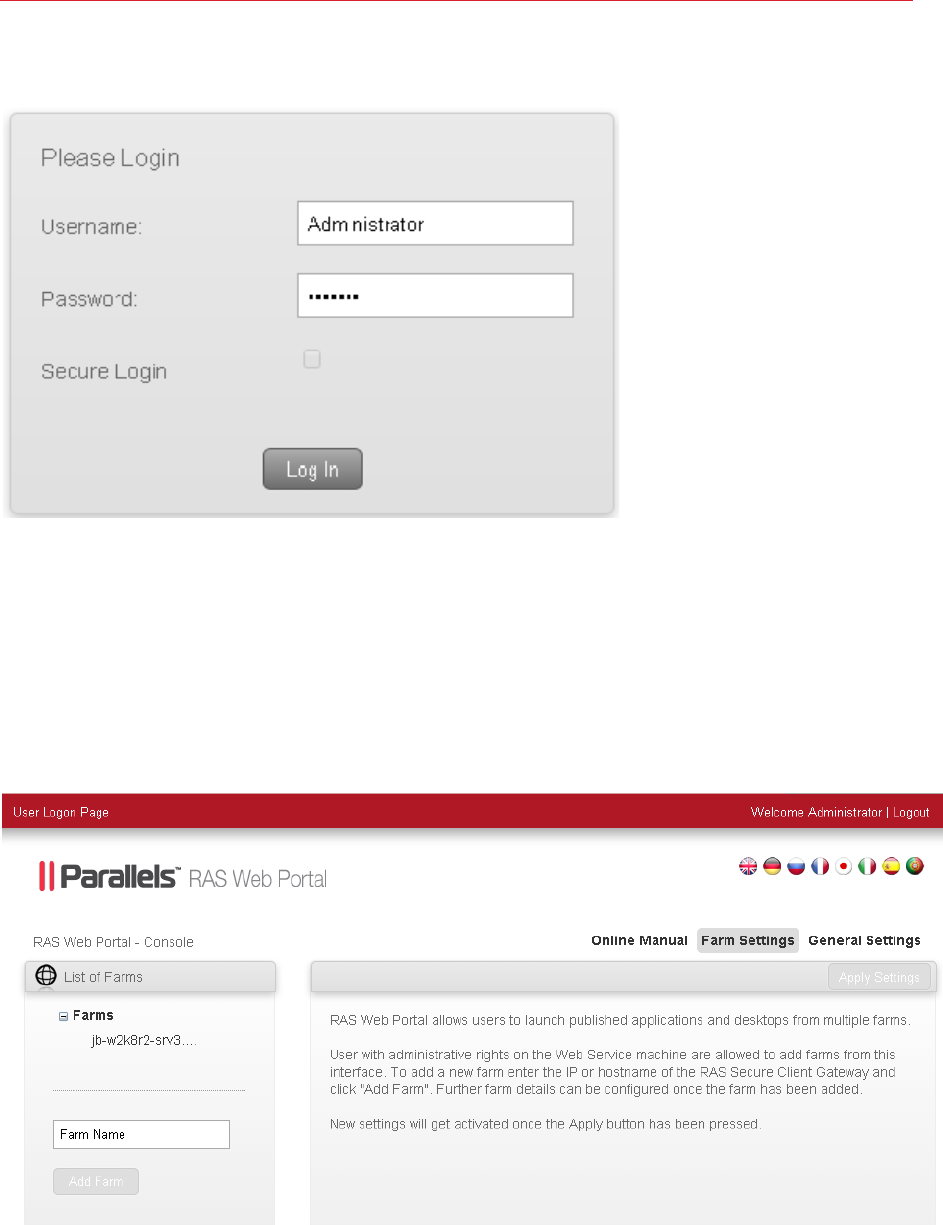
147
RAS Web Portal
http://localhost/2XWebPortal/Admin.aspx
Enter a user name and password of the user with administrative privileges and click Log In to log
into the RAS Web Portal.
Farm Settings
The Farm Settings page allows administrators to add multiple farms so that users can launch
published applications and desktop from the User Logon page.
To add a farm, type the IP address or hostname of the RAS Secure Client Gateway and click Add
Farm. The farm will be added to the left pane under the List of Farms tree.
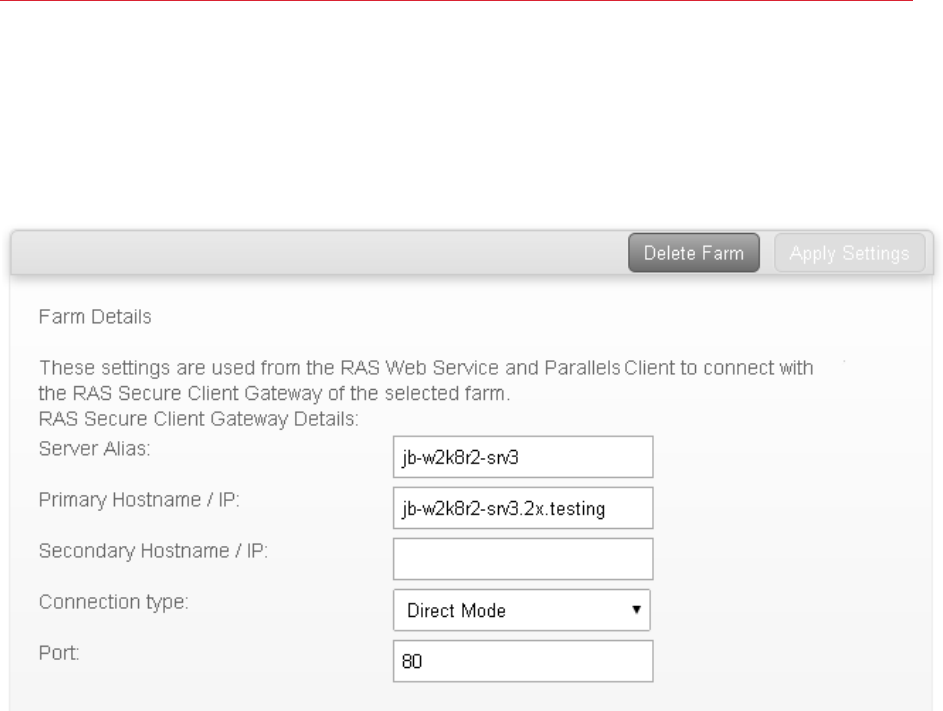
148
RAS Web Portal
Farm Details
The Farm Details page allows the administrator to configure properties. The following are the farm
details for the selected farm. These settings are used for the RAS Web Service and the Parallels
Client to connect to the RAS Secure Client Gateway.
Server Alias. Enter an Alias name that describes better the farm you added. The ‘Alias’ name
gives the connection a display name for better readability.
Primary Hostname / IP. This setting is added automatically when adding the farm. This would be
the IP / Hostname of the RAS Secure Client Gateway.
Secondary Hostname / IP. A secondary Hostname or IP can be added for another RAS Secure
Client Gateway. If the ‘Primary Hostname’ fails, there would be a secondary RAS Secure Client
Gateway which will provide published applications and desktops to the user.
Connection Type. This is automatically set to ‘Direct Mode’ when the farm is added. The
connection mode is the method the RAS Web Service uses to connect to the RAS Secure Client
Gateway. Set the connection mode to ‘SSL mode’ so that a secure connection is tunneled
between the RAS Web Service and the RAS Secure Client Gateway.
Port. The default port number is set to port 80. The port must be the same as that set on the RAS
Secure Client Gateway.

149
RAS Web Portal
Advanced Settings
The Advanced Settings page is used to overwrite farm settings in the Parallels Client. This will
change the settings in the Parallels Client without having the users tampering with the settings.
Set the advanced settings as described below.
Override RAS Secure Client Gateway IP/Host. Select the ‘Override RAS Secure Client Gateway
IP/Host’ to override the ‘Primary Hostname/IP’ of the farm. Optionally, the Secondary
Hostname/IP property can be specified.
Override Gateway Port. Select this setting to override the ‘Gateway’ port other than the default
port 80.
Override SSL Gateway Port. Select this setting to override the ‘Gateway SSL’ port other than the
default port 443.
Default Connection Mode. The connection mode for the farm can be overwritten from any of the
following:
• Auto — The ‘Connection Mode’ will be set automatically depending on the connection settings
configured on the farm.
• Gateway Mode — Clients are connected with the RAS Secure Client Gateway and the session
connection is tunneled through the first available connection. This mode is ideal for servers
which are only reachable via the gateway and do not require a high level of security.
• Direct Mode — Clients first connect to the RAS Secure Client Gateway for the best available
Server and then connect directly with that particular Server. This is best used when the client
and the server are on the same network.
• Gateway SSL Mode — Clients connect to the remote RAS Secure Client Gateway in a secure
mode. The data being tunneled is encrypted for having a secure connection.
• Direct SSL Mode — Clients first connect to the RAS Secure Client Gateway using SSL for the
best available server and then connect directly with that particular server. This is best when the
client and the server are on the same network and high security safeguards are required.
Applying the Settings
After configuring the settings for a farm, you can apply the settings by clicking the Apply Settings
button.
Deleting a Farm
To delete a farm, select the farm in the list and then click Delete Farm.
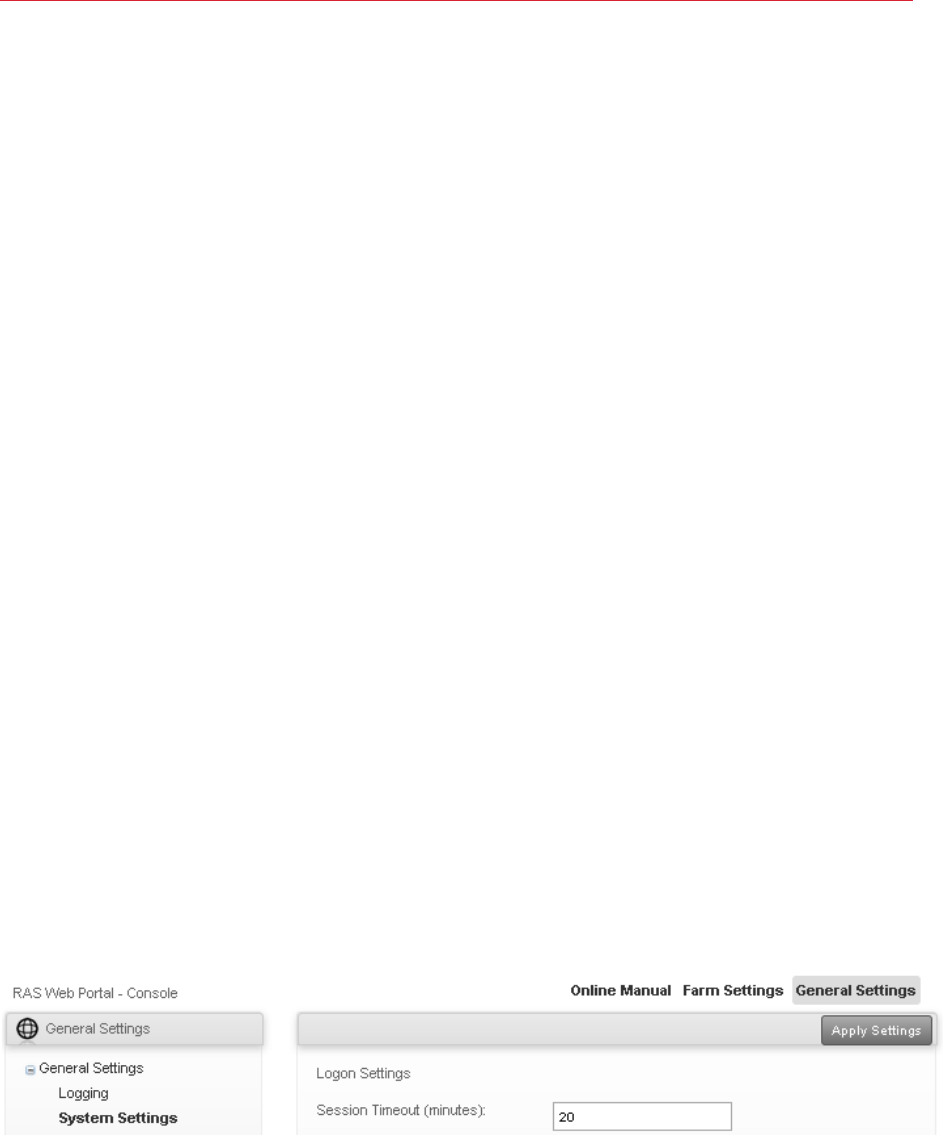
150
RAS Web Portal
General Settings
On the General Settings page, administrators can configure logging, session timeout and other
security settings, and can customize the appearance of the Parallels RAS Web Portal. Parallels
RAS Web Portal settings can be replicated to other servers for backup purposes. Administrators
can also check for the available Parallels RAS Web Portal updates.
Logging
Administrators can enable logging on the Parallels RAS Web Portal so that they can trace changes
being performed on the service.
Select Enable Logging so that the Parallels RAS Web Portal starts the logging any activity that is
performed.
You can refresh the log view by clicking the Refresh button.
To clear the log entries, click on Clear Log and the system will remove the previous logs from the
log view.
A copy of the current logs can be downloaded from the Parallels RAS Web Portal by clicking the
Download Repository. By default, a compressed log file is backed up on a weekly basis so that
administrators can backtrack any logs if needed.
System Settings
System Settings are divided in two sections: Logon settings and Security Settings.
In the Logon Settings section, the Session Timeout option specifies the possible idle time that
the Parallels RAS Web Portal logon and administrative pages can remain without interaction before
the pages prompt the user that the session has timeout and they will be automatically logged off
the Parallels RAS Web Portal. The session timeout value is set to 20 minutes.
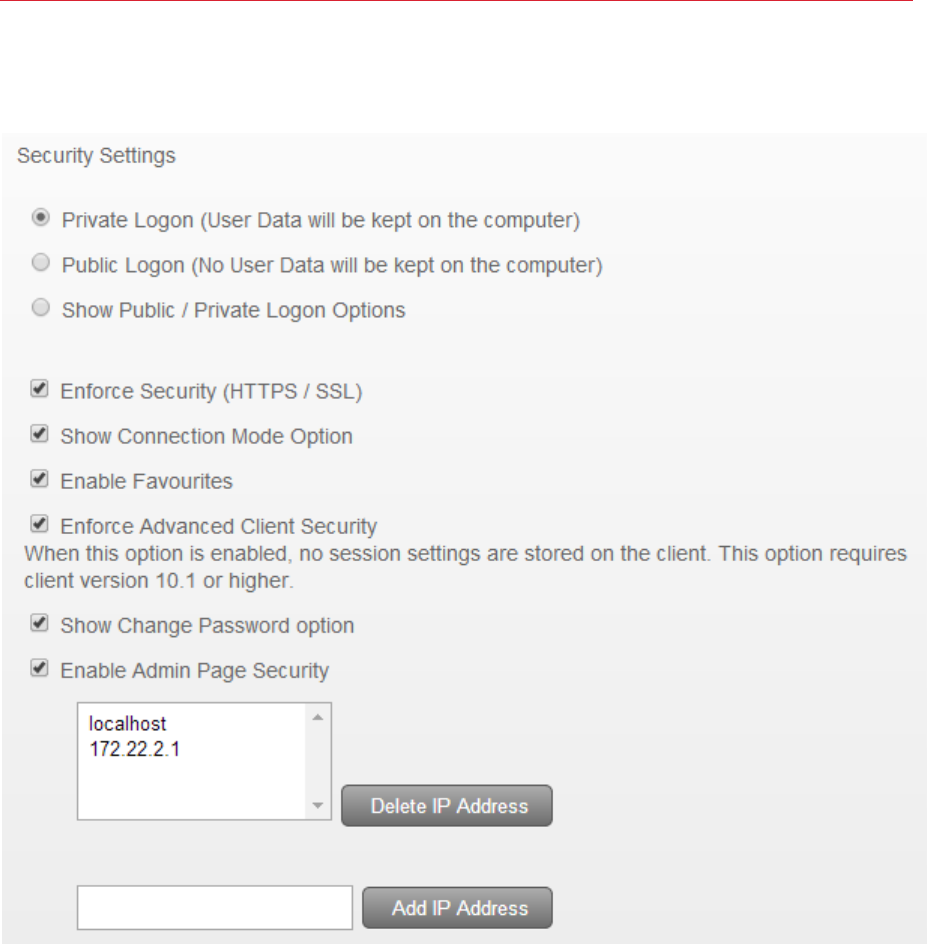
151
RAS Web Portal
The Security Settings enhance security when logging into Parallels RAS Web Portal and when
connecting to a RAS Secure Client Gateway.
The security settings that can be set are described below.
Private Logon. Selecting this option will allow user data to be stored on the local computer. The
data remains cached in the browser and will not be cleared when the user logs off the session.
Public Logon. Selecting this option will not allow user data to be stored on the local computer. The
data will not remain persistent and will be cleared when the user logs off the session.
Show Public / Private Logon Options. Enable this option to allow the users to choose whether to
connect as ‘Public’ or ‘Private’. This option will be displayed on the Parallels RAS Web Portal User
Logon Page.

152
RAS Web Portal
Enforce Security (HTTPS / SSL). Enable this option to force the user to connect to the Parallels
RAS Web Portal in SSL (HTTPS) mode. Users will not be allowed to connect to the ‘Farm’ if SSL is
not enabled from the RAS Console.
Enable Favorites. Enable this option to show Favorites inside the User Logon Page.
Enforce Advanced Client Security. Enable this option, to only open the .2xa files when the user is
logged on to the Parallels RAS Web Portal. Please note that a user cannot open the .2xa files when
the Parallels RAS Web Portal session times out.
Show changed Password option. Enable this option, to show the ‘Change Password’ option on
the User Logon Page.
Enable Admin Page Security. Enable this option so that administrators can only log into the
Administrative Page from a machine that matches an IP address from the specified list. To add an
IP Address, type it in the field provided and then click Add IP Address.
After configuring the System Settings, select Apply Settings so that the settings are saved.
Parallels Clients
To launch published applications and desktops, the Parallels Client needs to be installed on the
Client. The Parallels RAS Web Portal can be configured to detect the Parallels Client automatically.
To detect Parallels Client Installation, select the Client Detection option.
If Parallels client detection fails, users can be notified by means of Client Detection Failure
Options. The administrator can select from the following:
• Show error message and allow retest. Select this option so that an error message is shown
and the user is allowed to perform a retest to detect the Parallels Client. This option will not
provide the option to install the Parallels Client.
• Show error message and allow installation or retest. Select this option so that an error
message is shown, providing the option to install the Parallels Client. The user can also choose
to perform a retest to detect the Parallels Client.
• Show error message and allow installation. Select this option so that an error message is
shown and an option is provided to install the Parallels Client. This option will not give the option
to retest for Parallels Client detection.
• Show error message only. Select this option so that an error message is shown without
providing the option to install or retesting for Parallels Client.
The Parallels Client can be downloaded for different OS platforms. The table below illustrates the
platforms supported by the Parallels Client and the type of installation packages that can be
downloaded for every OS.
OS Installation Type Description

153
RAS Web Portal
Windows Full Client installation This will perform the Parallels Client installation
installing full resources.
Basic Client installation This will perform Parallels Client installation
using minimal resources.
Linux .deb package This will download the Debian package from the
Parallels website.
.rpm package This will download the RPM Package Manager
from the Parallels website.
.tar.bz2 This will download Parallels Client for Linux as a
compressed file from the Parallels website.
Mac .pkg This will download Parallels Client from the Mac
store and install it on the OS X desktop.
Android .apk This will download Parallels Client from the
Google Play and install it on the Android device.
iOS This will download Parallels Client from App
Store and install it on the iOS device.
Customized Appearance
Customized appearance allows administrators to customize how the Parallels RAS Web Portal
looks. Administrators can customize the Parallels RAS Web Portal by displaying a different
company name, adding a custom banner, changing color themes and more.
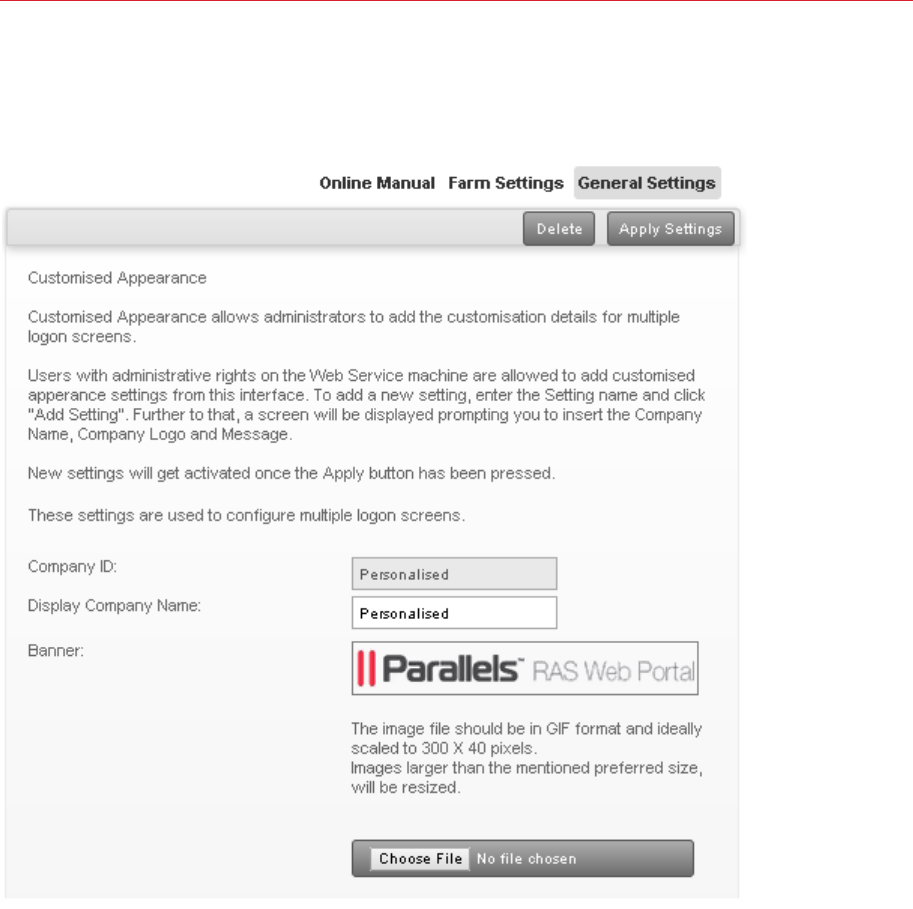
154
RAS Web Portal
To add settings to customize the appearance for Parallels RAS Web Portal, insert a friendly settings
name inside the input text fields. Click Add Settings or press Enter to start customizing
appearance settings.
You can customize settings as described below.
Company ID. This setting is set by default in the same name when creating settings to customize
the appearance for the Parallels RAS Web Portal.
Display Company Name. Type in a name that you want to display as company name other than
the default setting set when creating settings to customize appearance.
Banner. Custom banners can be added to the Parallels RAS Web Portal. The banner should be an
image in GIF format, and a size of not more than 300 x 40 pixels.
To upload a banner click the "Browse" button and select the banner. Click "Upload" so that the
banner will be uploaded to the RAS Web Service machine.
155
RAS Web Portal
Message. To display a message underneath the logon section when logging into Parallels RAS
Web Portal from the ‘User Logon Page’, type inside the input text field. This can be used to
describe the customized Parallels RAS Web Portal.
URL. The URL states provides the link so that users can connect to the customized Parallels RAS
Web Portal. This is automatically generated when creating new customized settings.
Note: The server which has the Parallels RAS Web Portal installation must be publicly accessible so that
users can access the User Logon page.
Default Domain. Insert the default domain so that users will automatically log with the default
domain when logging into the ‘User Logon Page’.
Color Modification. From this section, administrators can configure the color scheme for every
customized appearance. You can configure the colors by means of the color picker or color
themes as illustrated below. More color themes can be created by picking other colors from the
color picker. You can reset the Color Themes to default by clicking the Reset button.
In This Chapter
Adding a Backup Publishing Agent........................................................................... 156
Managing Backup Publishing Agents ....................................................................... 157
Adding a Backup Publishing Agent
To ensure users do not experience any interruption of the service due to a failure of the primary
RAS Publishing Agent, a backup Publishing Agent can be configured for each site in the Parallels
Remote Application Server farm.
To add a backup RAS Publishing Agent to a site:
1 In the RAS console, navigate to Farm / <site-name> / Publishing Agents.
2 In the Tasks drop-down menu, click Add to launch the Add RAS Publishing Agent wizard.
3 Specify the FDQN or IP address of the server that will host the new backup Publishing Agent.
4 Select the Install a gateway with a publishing agent option if you also want to install a RAS
Secure Client Gateway on the specified server. If you select this option, you may also select the
Add an SSL certificate and enable HTML5 Gateway option (for more info, please see
Enable HTML5 Support on the Gateway (p. 139)).
5 Select the Add Firewall Rules option to automatically configure the firewall on the server.
6 Click Next.
7 On the next page, click Install to install the RAS Publishing Agent on the server. The Installing
RAS Redundancy Service dialog opens.
8 Select the server on which the RAS Publishing Agent is to be installed and click Install.
9 Click Done.
10 Click OK to add the server to the farm.
CHAPTER 11
Backup Publishing Agents

157
Backup Publishing Agents
Managing Backup Publishing Agents
Enabling or Disabling a Backup Publishing Agent
To enable or disable a backup Publishing Agent on a site, select it in the Publishing Agents list
and then select or clear the check-box at the beginning of the row.
Changing Backup Publishing Agent Priority
Each RAS Publishing Agent in the list is given a priority. By default, the local RAS Publishing Agent
is given the Master priority which cannot be changed. To change the priority of other Publishing
Agents in the farm, select a Publishing Agent and use the Move Up and Move Down buttons to
move it up or down the list. The higher it is in the list, the higher priority it has.
Promoting a Backup Publishing Agent to the Master Publishing Agent
In case the primary Publishing Agent cannot be recovered, you can promote a Backup Publishing
Agent to Master as follows:
1 Open the Parallels Remote Application Server Console on the server that you would like to
promote (all required files are automatically installed when a server is added as a backup
Publishing Agent server).
2 Select the Farm category and navigate to the Publishing Agents node.
3 Select the RAS Publishing Agent and then click Promote Backup to Master in the Tasks
drop-down menu.
4 Click OK once the process is finished.
Deleting a Backup Publishing Agent
To delete a backup Publishing Agent, select it in the list and then click Delete in the Tasks drop-
down menu.
In This Chapter
Resource Based & Round Robin Load Balancing ..................................................... 158
Load Balancing Advanced Settings .......................................................................... 160
High Availability Load Balancing ............................................................................... 161
Resource Based & Round Robin Load Balancing
Load Balancer is designed to balance RDS and VDI Hosts connections made from Parallels Clients.
The following types of load balancing methods are available:
• Resource Based. Distributes sessions to servers depending on how busy the servers are.
Therefore a new incoming session is always redirected to the least busy server.
• Round Robin. Redirects sessions in sequential order. For example the first session is
redirected to server 1, the second session is redirected to server 2 and the third session is
redirected to server 1 again when there are two terminal servers in the farm.
Both methods are explained in this and the following subsections.
CHAPTER 12
Load Balancing
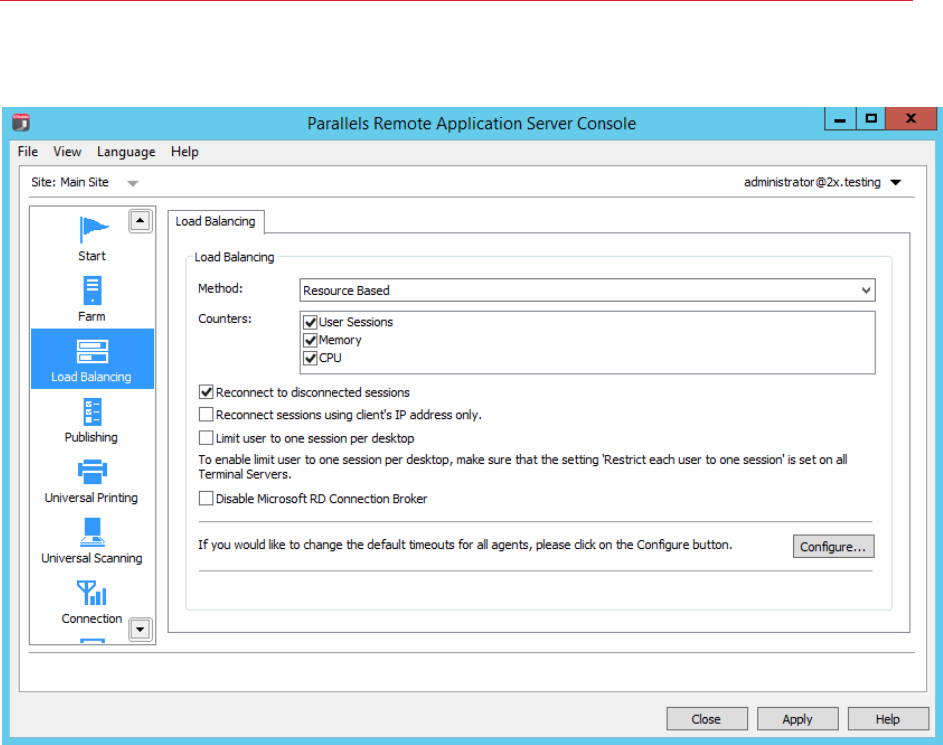
159
Load Balancing
Load Balancing options can be configured from the Load Balancing category in the RAS Console.
Enabling Resource Based Load Balancing
Load balancing is enabled by default when more than one server is available on the site. The
resource-based load balancing is the default method.
To switch back to resource-based from round-robin load balancing, select Resource Based in the
Method drop-down list.
Configuring Resource Counters
Resource-based load balancing uses the following list of counters to determine if a server is busier
than the other/s and vice versa:
• User sessions. Redirect users to a server with the least number of sessions
• Memory. Redirect users to the server with the best free/used RAM ratio
• CPU. Redirect users to the server with the best free/used CPU time ratio
When all of the counters are enabled, the RAS LoadBalancer adds the counter ratios together and
redirects the session to the server with the most favorable combined ratio.

160
Load Balancing
To remove a counter from the equation, clear the checkbox next to the counter name in the
Counters section.
Round Robin Load Balancing
Round-robin load balancing redirects sessions in sequential order. For example, with two RDS
servers in the farm, the first session is redirected to server 1, the second session is redirected to
server 2, and the third session is redirected to server 1 again.
Enabling Round Robin Load Balancing
To enable round-robin load balancing select Round Robin in the Method drop-down list.
Session Options
Reconnect to Disconnected Sessions. Enable this option to redirect incoming user sessions to a
previously disconnected session owned by the same user.
Reconnect sessions using client’s IP address only. When reconnecting to a disconnected
session, the Parallels Remote Application Server will match the username requesting to reconnect
with the username of the disconnected session to match the sessions. With this option enabled,
the Parallels Remote Application Server will determine to which disconnected session to reconnect
the session by matching the source IP address.
Limit Number of Sessions for Users. Enable this option to ensure that the same user does not
open multiple sessions.
Load Balancing Advanced Settings
Excluding a Process from the CPU Counter
To exclude a process so it does not affect the free/used CPU time ratio on a server follow the
procedure below:
• Click the Configure button at the bottom of the Load Balancing options.
• Select the Enable CPU Load Balancer option and click Exclude List.
• Click Add to select a process in the list of running processes. Alternatively you can specify a
process name in the Please Enter Process Name input field at the bottom of the dialog.
• Click OK to close the Processes Exclude List dialog or Add to add other processes.
To remove a process from the processes excluded list highlight the process and click Remove.

161
Load Balancing
High Availability Load Balancing
High Availability Load Balancing (HALB) is a software layer that sits between the user and RAS
Secure Client Gateways. Multiple HALB appliances can run simultaneously, one acting as the
master and the others as slaves. The higher the number of HALB appliances available, the lower
the probability that users will experience downtime. Master and slave appliances share a common
or virtual IP address (also known as VIP or VIPA). Should the master HALB appliance fail, a slave is
promoted to master and takes its place seamlessly without affecting the end user connection.
HALB setup is per site, which means that you need at least one HALB for each site. Since HALB is
a single point of contact for the client software, it is recommended to have at least two HALB
appliances per site for redundancy.
Setting up High Availability Load Balancing is a 2 stage process:
1 Installing a HALB appliance.
2 Configuring the HALB appliance in the RAS console.
Hypervisor Prerequisites
Before configuring HALB from the RAS console, first import a HALB appliance to either of the
following Hypervisor platforms; Microsoft Hyper-V, Virtual Box or VMware. An appliance is a pre-
configured virtual machine (including the operating system and other relevant settings).
Virtualbox/VMware
For Virtual Box or VMware, this appliance should be imported with either the OVA or zipped VMDK
appliance file obtained from the following locations:
• VMDK:
http://download.parallels.com/ras/v15/RAS_VDI_Appliance.vmdk.zip
• OVA: http://download.parallels.com/ras/v15/RAS_VDI_Appliance.ova
If deployed via the OVA file, the VM is applied with machine specifications already configured.
Alternatively deployment via the VMDK file deploys the VM without pre-configured specifications.
The minimum specifications for this VM are outlined below:
1 1 CPU
2 256 mb RAM
3 1 Network Card
Microsoft Hyper-V
For Microsoft Hyper-V this appliance should be imported with the VDH file obtained from this
location: http://download.parallels.com/ras/v15/RAS_HALB_Appliance.vhd.zip
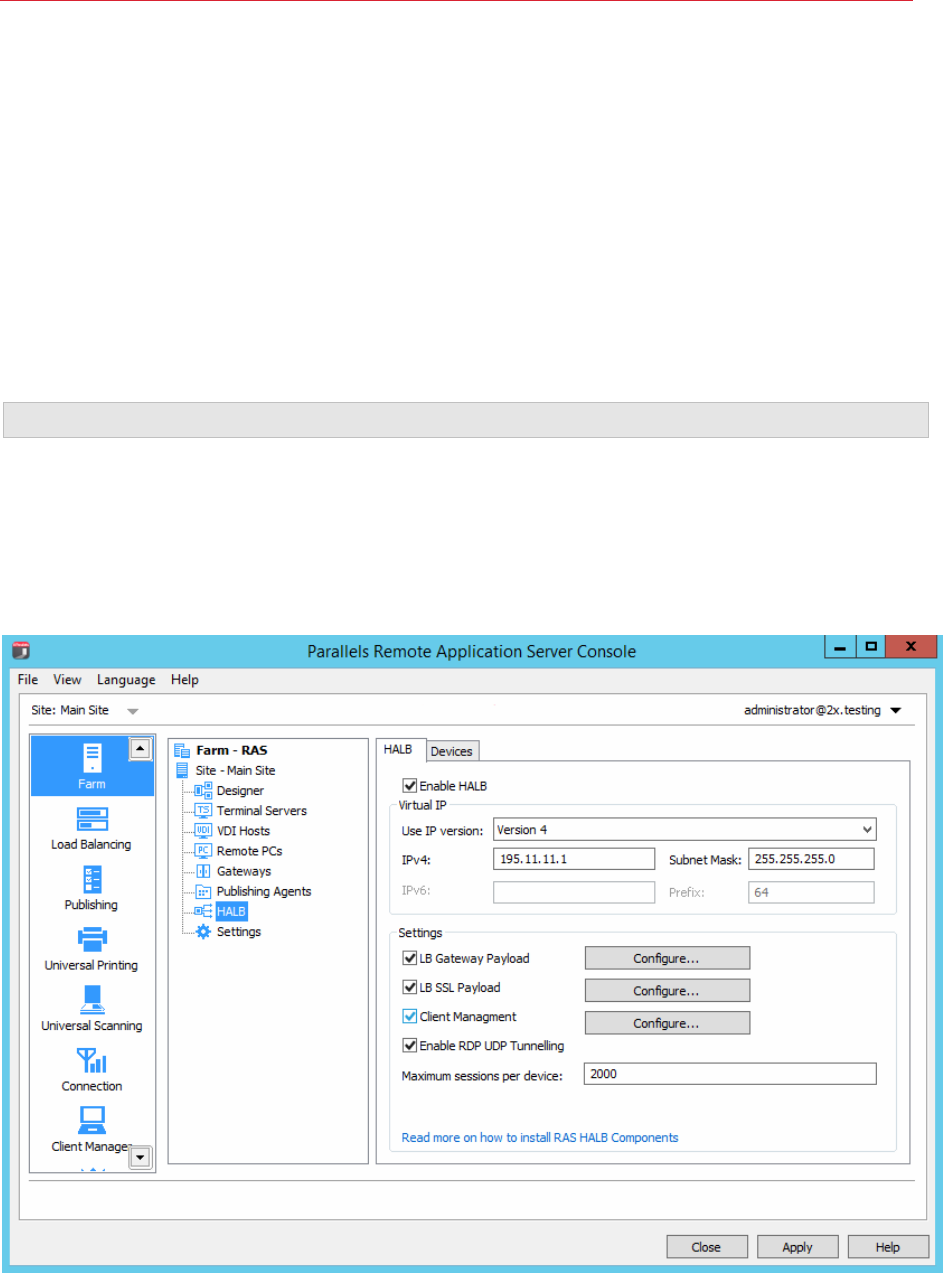
162
Load Balancing
Installing a HALB Appliance
The HALB appliance should be imported on a hypervisor running on a separate machine
connected to the same local network as Parallels RAS. Import the HALB appliance on a supported
Hypervisor according to the procedure below.
1 Import the HALB appliance file from the virtualization platform’s management console.
2 Power up (boot) the new appliance to display the HALB - First boot configuration screen.
3 Adjust the network settings (if necessary) and click ‘Apply’ to continue.
4 The Configuration Console is displayed and the HALB appliance is ready to be added to a RAS
farm.
Note: Repeat the process above to create multiple HALB appliances.
Configuring HALB Appliances in the RAS Console
After you install a HALB appliance, you need to configure it in the RAS console as follows:
In the RAS console, navigate to Farm / <site-name> / HALB.

163
Load Balancing
The HALB Tab Page
Select Enable HALB to enable High Availability Load Balancing.
Set the Virtual IP address options as follows:
• Select the IP version (IPV4, IPV6, or both) that you would like to use.
• Specify the IP address (or addresses if both version are selected) and their corresponding
property (subnet mask, prefix). This is the IP address that clients will connect to. This will also
be a floating IP address used by this and other HALB appliances.
Select the LB Gateway Payload option to load-balance normal gateway connections and then
click Configure.
1 In the HALB Configuration dialog, specify the port number that will be used by HALB
appliances to forward traffic to gateways (the port configured on the gateway).
2 Select the gateways that the HALB appliance will load-balance.
3 Click OK to close the HALB Configuration dialog and return to the HALB tab page.
If required, select the LB SSL Payload option to load-balance SSL connections and then click
Configure.
1 In the the HALB Configuration dialog, specify the port number that will be used by HALB
appliances to forward traffic gateways (443 by default).
2 In the Mode drop-down list, select Passthrough or SSL Offloading to specify where the SSL
decryption process is performed. By default, the SSL connections are tunneled directly to the
gateways (referred to as passthrough) where the SSL decryption process is performed.
If you select the SSL Offloading mode, click Configure. The SSL dialog opens.
The SSL Offloading mode requires an SSL certificate to be installed on HALB appliances.
Specify the following options in the SSL dialog to generate a new certificate:
• Accepted SSL Versions. Select an SSL version.
• Cipher Strength. Select the cipher strength of your choice. To specify a custom cipher,
select Custom and then specify the cipher in the Cipher field.
Click Generate new certificate and enter the required details. The Private Key file and
Certificate file options are populated automatically.
Alternatively, click Generate certificate request, fill in the details and click Save to bring up the
certificate request window. Click Copy to copy the request. This certificate request should be
sent to a certificate authority. Once you receive an SSL certificate from the certificate authority,
click the Import public key button and select the certificate file containing the public key.
3 In the HALB Configuration dialog, select the gateways that the HALB appliance will load-
balance and click OK to close the dialog.
Configure the remaining properties on the HALB tab page:
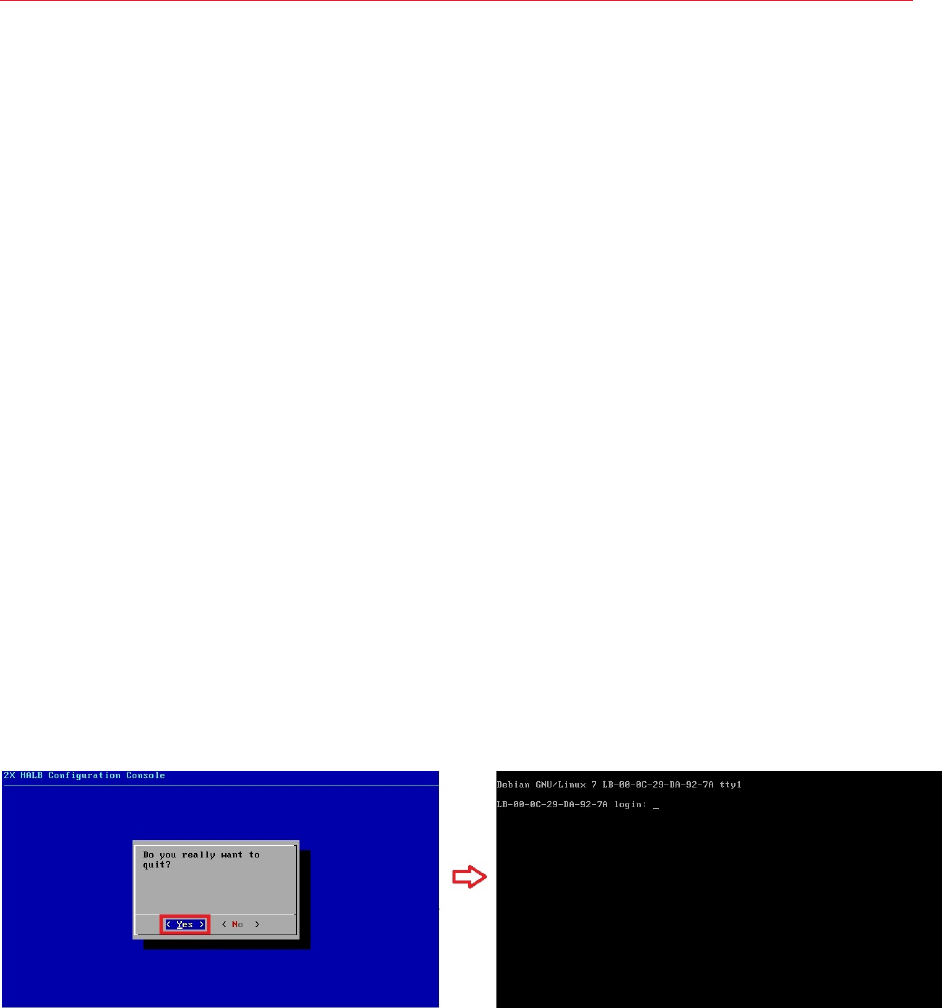
164
Load Balancing
1 Select the Client Management option to enable management of Windows devices connected
through HALB.
2 Select the Enable RDP UDP Data Tunneling option to enable UDP tunneling on Windows
devices.
3 The Maximum sessions per device property specifies the maximum number of simultaneous
connections allowed. Use the default value or specify your own.
The Devices Tab Page
1 Click the Devices tab to add HALB appliances that will be managed by this farm.
2 To add appliances:
3 Click Tasks > Add (or click the + icon) to bring up the Add HALB Devices dialog.
Parallels RAS is capable of detecting HALB appliances over the network and display them as a
list. Selecting detected HALB appliances from this list is the preferred method for adding new
appliances. If, for any reason, an appliance cannot be detected, you can add it manually by
specifying the appliance IP address in the IP Address field.
4 Click OK to close the Add HALB Devices dialog. The appliance is initialized and added to the
list on the Devices tab page.
5 Finally, click Apply for the new HALB configuration to be applied to all added HALB appliances.
For additional information, please see the following KB article: http://kb.parallels.com/en/123082
Changing HALB Appliance Password
When the HALB configuration console shown above is quit, login credentials are requested to log
back in. Follow the steps below to set login credentials for the HALB device.
1 Boot the Appliance.
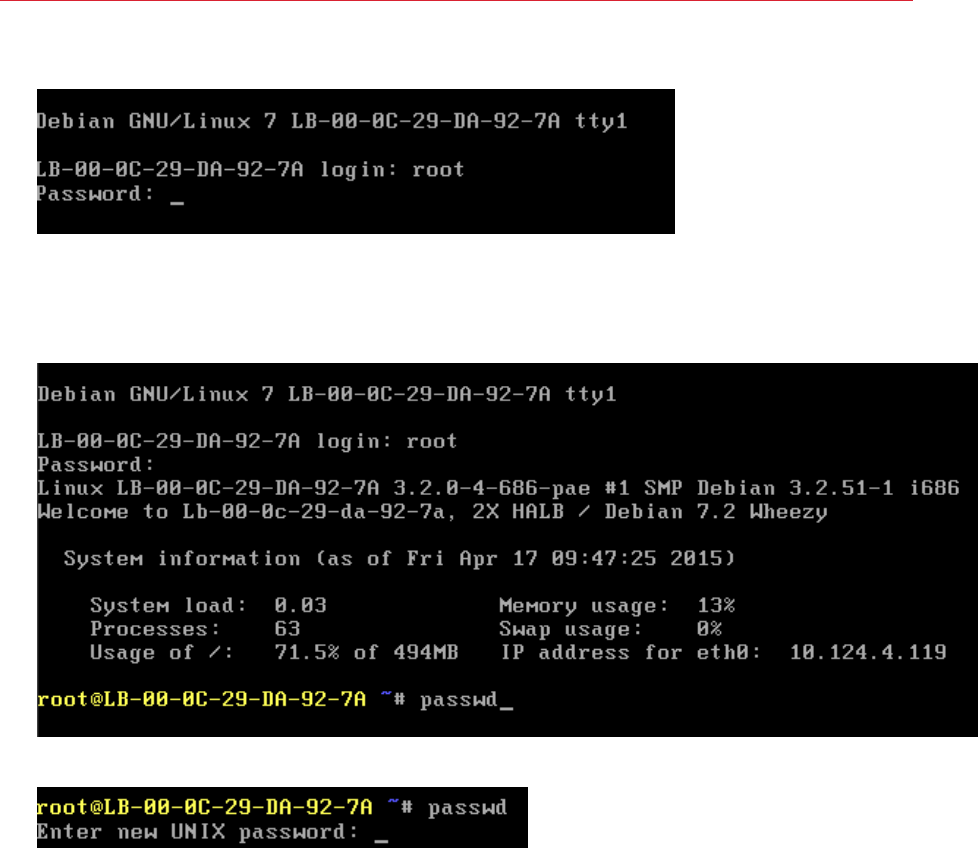
165
Load Balancing
2 Press the <ALT> – <F1> key combination. A login prompt should be displayed.
3 Type in the following credentials:
• login – root
• password – Pa$$w0rd (note that "0" is zero, not the letter "O").
4 Once logged in, execute the password changing command by typing passwd.
5 Type in and confirm the new password.
Upon completion you may login to the HALB device with the new password set after the HALB
configuration console is quit.
In This Chapter
Managing Universal Printing Servers......................................................................... 166
Universal Printing Filtering......................................................................................... 168
Font Management .................................................................................................... 169
Managing Universal Printing Servers
Printer redirection enables users who are connected to a remote desktop or accessing a published
application to print on their local printers. A local printer can be a printer physically connected to the
user's computer or a network printer attached via an IP address.
Universal Printing simplifies the printing process and solves most printer driver issues by not
requiring that the server has a printer driver for the user’s locally installed printer. Therefore a user
can always print regardless of the type and brand of the printer installed on the machine, and the
administrator doesn't have to install a printer driver for each different printer on the network.
CHAPTER 13
Universal Printing
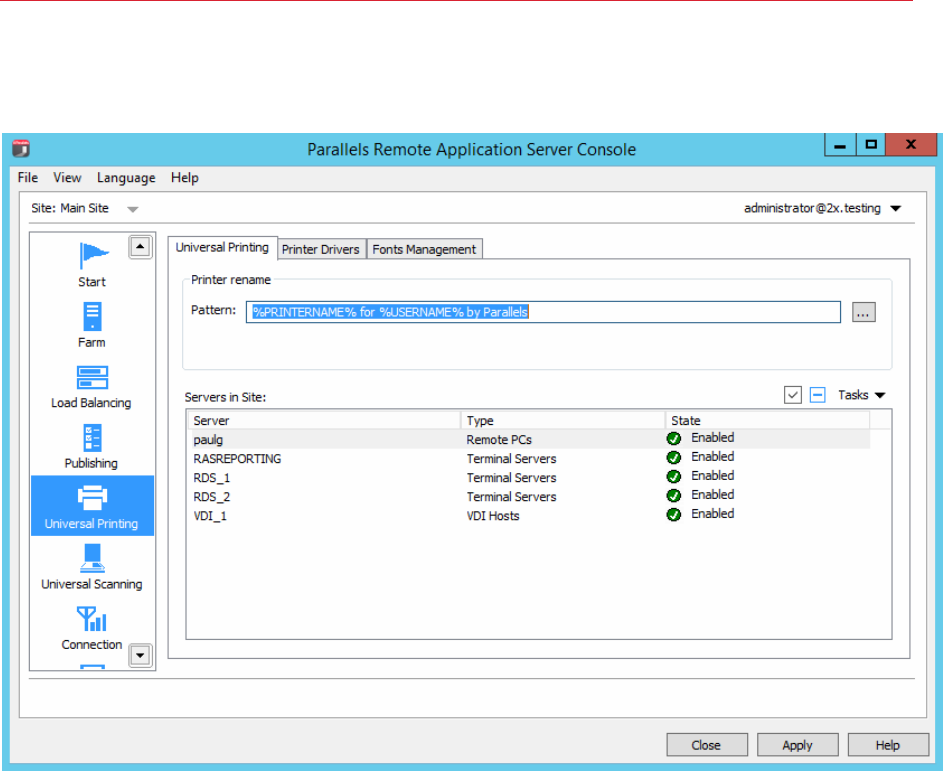
167
Universal Printing
To access the Universal Printing configuration, select the Universal Printing category in the RAS
Console.
By default, the Universal Printing driver is automatically installed with the Terminal Server, VDI Guest
and Remote PC agents. Therefore, upon adding a server to the farm the Universal Printing is
installed. The Universal Printing driver is available as a 32 bit and 64 bit versions.
Enabling and Disabling Universal Printing Support
To enable or disable Universal Printing support for a particular server, right-click the server in the
Servers in Site list and click Enable or Disable in the context menu.
Configuring a Printer Renaming Pattern
By default, Parallels Remote Application Server renames printers using the following pattern:
%PRINTERNAME% for %USERNAME% by RAS. For example, if a user named Alice, who has
PRINTER1 installed locally, connects to a remote desktop or published application, her printer is
renamed to "PRINTER1 for Alice by RAS".
To change the printer renaming pattern, specify a new pattern in the Printer rename / Pattern
input field. The variables available for renaming printers are:
168
Universal Printing
• %PRINTERNAME% — client side printer name
• %USERNAME% — username of the user connected to the server
• %SESSIONID% — session ID of the action session
• <2X Universal Printer> Legacy mode — This means that only one printer object will
be created in the terminal (RDP) session.
You can also configure a different printer renaming pattern specifically for each server from the
server properties.
Note: Redirected printers are only accessible by administrator and the user who redirected the printer.
Universal Printing Filtering
A system administrator can control the list of client-side printer drivers which should be allowed or
denied the Universal Printing redirection privileges.
Using this functionality you can:
• Avoid server resource overloading by non-useful printer redirection. Since the majority of users
choose to redirect all local printers (this is default setting), a large number of redirected devices
is created on the server which are not really used. It's mostly related to various paperless
printers like PDFCreator, Microsoft XPS Writer, or various FAX devices.
• Avoid server instability with certain printers. There are some printers that might create server
instability (spooler service component) and as the result deny printing services as a whole for all
connected users. It is very important that the administrator has the ability to include such drivers
to the "deny" list to continue running printing services.
To specify printer filtering:
1 In the Parallels Remote Application Server Console, navigate to Universal Printing / Printer
Drivers.
2 In the Mode drop-down list, select which printers should be allowed redirection from the
following options:
• Allow redirection of printers using any driver — (default) This option places no limitation
on the the type of driver a printer is using to use redirection privileges.
• Allow redirection of printers using one of the following drivers — Only the printers using
the drivers listed in the box below the Mode field are allowed redirection. To add a printer
driver to the list, click the Tasks > Add (or click the + icon) and type the printer driver name
in the edit field provided.

169
Universal Printing
• Allow redirection of printers which do not use the following drivers — This is probably
the most useful option in the context of this feature. The printers that use the drivers
specified in the list will be denied redirection privileges. All other printers will be allowed to
use redirection. To add a printer driver to the list, click the Tasks > Add (or click the + icon)
and type the printer driver name in the edit field provided.
3 To delete a printer driver from the list, click Tasks > Delete or click the minus-sign icon.
4 When done making changes, click the Apply button to save the changes.
5 Please note that:
• When adding a printer driver to the list, type the printer driver name, NOT the printer name.
• The driver names comparison is case insensitive and requires full match (no partial names,
no wildcards).
• The settings that you specify on this tab page affect the entire site (not an individual server).
Font Management
Fonts need to be embedded so that when printing a document using Universal Printing the
document is copied to the local spooler of the client machine to be printed. If the fonts are not
present on the client machine the print out would not be correct.
To control the embedding of fonts within a print job use the Fonts Management tab page and
check/uncheck the option Embed Fonts.
Excluding Fonts from Embedding
To exclude a specific font type from being embedded, click Tasks > Add in the Exclude the
following Fonts from embedding section and select a font from the list.
Automatically Install Fonts on Servers and Clients
To automatically install a specific font type on servers and clients, click Tasks > Add in the Auto
install fonts section and select the fonts from the list.
Note: By default, fonts added to the auto install list will be excluded from the embedding list because the
fonts would be installed on the Windows clients, therefore there is no need for them to be embedded.
Clear the option Automatically exclude font from embedding in the select font dialog so the font is not
excluded from the embedding list.
Resetting List of Excluded Fonts to Default
To reset the list of excluded fonts to default, click Tasks > Reset to Default.

In This Chapter
Managing Universal Scanning................................................................................... 170
Managing Scanning Applications.............................................................................. 172
Managing Universal Scanning
Scanner redirection enables users who are connected to a remote desktop or accessing a
published application to make a scan using the scanner that is connected to the client machine.
Universal Scanning uses TWAIN and WIA redirection to let any application using either technology
hardware connected to the client device for scanning. With Universal Scanning there is no need to
install any scanner driver on the server. Only one scanner is shown on the server regardless of the
number of users and sessions currently in use on the terminal server.
Note: The server feature Desktop Experience is required in order to enable both WIA and TWAIN
scanning on Terminal Servers.
CHAPTER 14
Universal Scanning
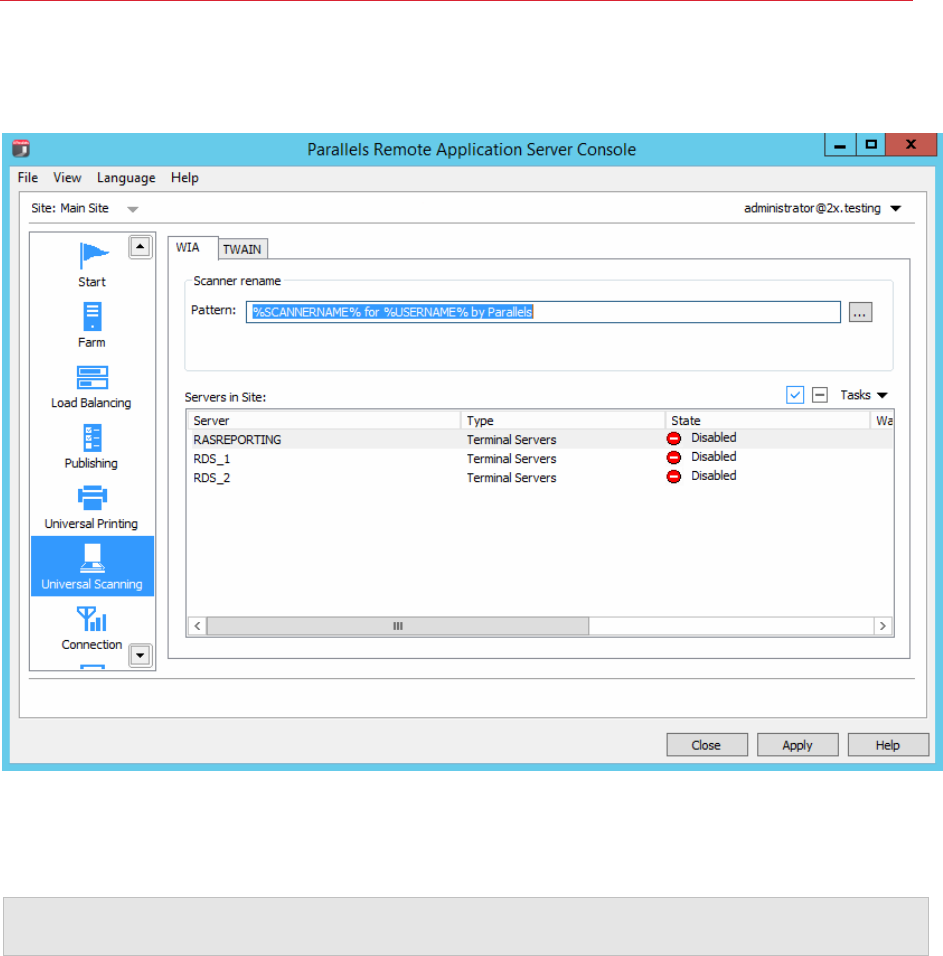
171
Universal Scanning
To access the Universal Scanning configuration, select the Universal Scanning category in the
RAS Console.
By default, the Universal Scanning driver is automatically installed with the Terminal Server, VDI
Guest, and Remote PC agents. Therefore, upon adding a server to the farm the Universal Scanning
is installed.
Note: The Universal Scanning driver is available as a 32 bit and 64 bit version. Currently, only 32 bit
applications are supported.
Configuring a Scanning Rename Pattern
By default, Parallels Remote Application Server renames the scanners using the following pattern:
%SCANNERNAME% for %USERNAME% by RAS. For example, if a user named Lois, who has
SCANNER1 installed locally, connects to a remote desktop or published application, her scanner is
renamed to "SCANNER1 for Lois by RAS".
To change the pattern used to rename scanners, specify a new pattern in the Scanner rename
pattern input field. The variables available for renaming scanners are:
• %SCANNERNAME% — client side scanner name

172
Universal Scanning
• %USERNAME% — username of the user connected to the server
• %SESSIONID% — session ID of the action session
You can also configure a different scanner renaming pattern specifically for each server from the
server properties.
Note: Redirected scanners are only accessible by administrator and the user who redirected the
scanner.
Enabling and Disabling Universal Scanning Support
To enable or disable WIA or Twain Universal Scanning support for a particular server, click the
WIA tab or the TWAIN tab, then right-click a server and click Enable or Disable in the context
menu.
Managing Scanning Applications
Adding a Scanning Application
TWAIN applications that will use the Universal Scanning feature have to be added in the TWAIN tab
by selecting the TWAIN Applications button so they can use the Twain driver, hence making it
easier for the administrator to set them up.
To add an application to the list of scanning applications:
1 With the Universal Scanning category selected in the RAS Console, click the TWAIN tab.
2 Click the Twain Applications button (below the Servers in Site list) and then click Add.
3 In the TWAIN Applications dialog, click Tasks > Add and browse for the application
executable. Select the executable and click Open.
Note: Some applications might use different or multiple executables. Make sure that all required
executables are added to the list of scanning applications.
Deleting a Scanning Application
To delete a scanning application from the list, highlight it and click Tasks > Delete.
Note: By deleting an application from the list of scanning applications the installation of the application
will not be affected.
In This Chapter
Inviting Users to Connect Devices ............................................................................ 173
Monitoring Devices................................................................................................... 175
Managing Windows Devices..................................................................................... 176
Windows Device Groups .......................................................................................... 182
Scheduling Windows Devices & Groups Power Cycles............................................. 183
Managing Parallels Client Settings ............................................................................ 184
Inviting Users to Connect Devices
Parallels Remote Application Server supports multiple platforms, ranging from desktop PCs and
Macs to mobile devices and ChromeApps. The Invitation Email feature is designed to reduce the
complexities involved in the installation and client rollout process. This feature allows the
administrator to send client installation and auto-configuration instructions to end users straight
from the RAS Console.
Quickly Sending an Invitation Email to Users
You can quickly send an invitation email to users from the Start category in the RAS Console. The
Invite Users Wizard there implements a streamlined process that requires minimal user
interaction. The process is described in the Setting Up a Simple RAS Environment section (p.
26).
The rest of this section describes how to invite users from the Administration category. This
process consists of more steps, but gives you more control over the available options.
Sending an Invitation Email to Users
The preferred (and more convenient) method of sending an invitation email is from the Start
category as described in the Setting Up a Simple RAS Environment section (p. 26). The
functionality described here is another way of doing it, so you can choose whichever method you
like best.
Before proceeding, first confirm you have correctly configured the mailbox as described in
Configuring SMTP Server Connection for System Notifications via Email (p. 221).
CHAPTER 15
Managing Devices
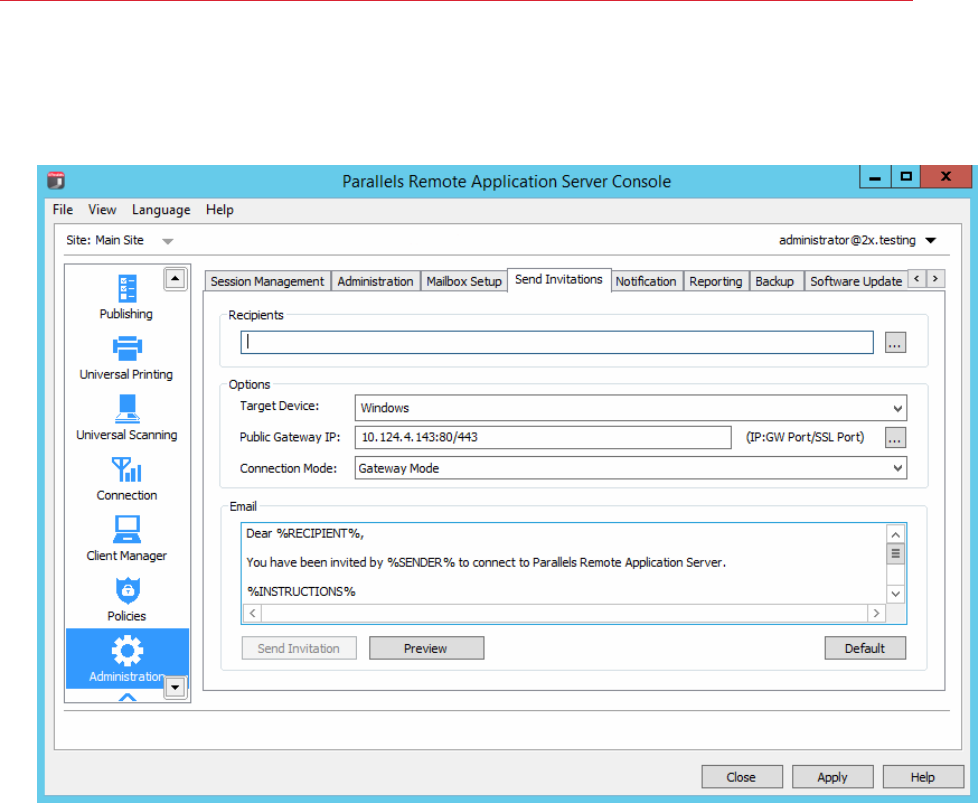
174
Managing Devices
To send an invitation email:
1 In the RAS Console, select the Administration category and then click the Send Invitations
tab in the right pane.
2 Select recipients in the Recipients section. You can browse your Active Directory and simply
select a user or a group.
3 In the Target Device drop-down list, select the platform that recipients are running. The
supported platforms are:
• Windows (XP—8.1)
• Mac (OS X)
• HTML5 (HTML5 enabled browsers)
• iOS
• Android
• ChromApp
• Linux
4 In the Public Gateway IP field, specify the the gateway domain name or IP address. Please
note that this can be a public IP address in order to reach the system from a remote user.

175
Managing Devices
5 In the Gateway Mode drop-down list, select a gateway connection mode. Note that SSL
modes require the gateway to have SSL configured.
6 The Email section displays the message template that will be used to create the message. You
can modify the template if you wish. The variables that can be used in the template are:
• %RECIPIENT% — Recipient username
• %SENDER% — The administrator account which the email is sent from.
• %INSTRUCTIONS% — Includes the automatic configuration process.
• %MANUALINSTRUCTIONS% — Includes the manual configuration process.
7 Upon completion, click the Preview button to preview your email message. If satisfied, click the
Send Invitation to send the email to the specified recipients.
Monitoring Devices
Device monitoring allows you to view Windows devices connected to the system, deploy and
manage Parallels Remote Application Server components on managed Windows devices,
configure Parallels Client installed on a Windows device, and perform other monitoring tasks.
To monitor Windows devices, select the Client Manager category in the RAS Console.
Device States
Devices that connect to the Parallels Remote Application Server can have any of the following
states:
• Off: Device is switched off.
• Booting: Device is booting.
• Installing: Device is installing.
• Connected: Device is connected.
• Logged On: Devices is logged on to the system.
• Restarting: Device is restarting.
• Standalone: Device has previously connected to the Parallels Remote Application Server but is
not using Parallels Client, therefore it cannot be managed.
• Needs Approval: Device needs approval to connect to the Parallels Remote Application
Server.
• Deny: Device has been denied access to the Parallels Remote Application Server.
• Not Support: Device is not supported by the Parallels Remote Application Server.
• Error: Device is experiencing errors.
• Foreign Managed: Connecting to the farm but managed by a different farm.

176
Managing Devices
• Not Manageable: Client not manageable due to incompatible client version or uninstalled
component.
Managing Windows Devices
The Client Manager feature allows the administrator to convert Windows devices running Windows
XP up to Windows 10 into a thin-client-like OS. To do this, the administrator must first select to
manage devices connecting to the farm. In order to be managed, Windows devices must be
running the latest version of the Parallels Client for Windows.
Below are the procedures required to connect the Parallels Client for Windows to a RAS farm and
further enroll and manage the device.
Install Parallels Client on a Windows Computer
To install and configure Parallels Client for Windows, follow the steps below. You can also read the
Parallels Client for Windows User's Guide for the complete instructions on how to install and
configure Parallels Client. Specifically, the guide provides instructions on how to install Parallels
Client using an invitation email.
1 Download the Parallels Client for Windows from one of the following locations:
• 32-bit: http://download.parallels.com/ras/v15/RASClient.msi
• 64-bit: http://download.parallels.com/ras/v15/RASClient-x64.msi
2 Double click the RASClient.msi or RASClient-x64.msi and follow the on-screen
instructions to complete the installation wizard.
3 Create a new RAS connection by clicking File > Add New Connection.
4 Select Parallels Remote Application Server and click OK.
5 Next, configure the following connection properties:
• Primary Connection — Specify the Parallels Remote Application Server FQDN or IP
address.
• User Credentials — Enter username, password, and domain.
6 Click OK to create the connection and then double-click it to connect to Parallels Remote
Application Server.
Upon completion, the Windows device will appear in the RAS Console (Client Manager / Devices
/ Devices list) and will have access to published resources.
Windows Device Enrollment
Features such as Power Off, Reboot, and Shadow require that the Windows device is managed.
Windows devices can be set to be automatically managed by your farm or require that the admin
approves them first.

177
Managing Devices
To approve a device to be managed in Parallels Remote Application Server:
1 In the RAS Console, navigate to Client Manager / Devices.
2 Select a device on the Devices tab page.
3 Click Tasks > Manage Device.
The device state will change to Pair pending until the device reconnects. Ensure the Client
Manager Port option is enabled for a gateway. To verify that it is:
1 Navigate to Farm / <site-name> / Gateways.
2 Select a gateway and click Tasks > Properties.
3 Click the Network tab and make sure that the Client Manager Port option is selected
Once the Parallels Client reconnects, the enrollment process is completed and the device state is
updated to Logged On, which indicates that it's now managed by Parallels Remote Application
Server.
Alternately, you can set Parallels Remote Application Server to automatically manage Windows
devices. To do so:
1 In the RAS Console, select the Client Manager category.
2 Click the Options tab.
3 Enable the Automatically manage Windows devices option.
The administrator can now check the state of the device and perform power control actions such
as Power On, Power Off, Reboot, and Logoff.
Note: Devices running older versions of Parallels Client cannot be managed and are marked as Not
Supported.
Shadow a Windows Device
By shadowing a Windows device, you can gain full access to Windows desktop on the device,
control applications running locally on the device, as well as any remote applications published
from Parallels Remote Application Server.
To shadow a Windows device:
1 In the RAS Console, navigate to Client Manager / Devices.
2 Select a device and click the Shadow icon below the device list.
Note: The Windows user will be prompted to allow the administrator to take control and can choose to
deny access. The Request Authorization prompt can be deactivated by the administrator from Client
Manager / Devices / <select Windows device> / Tasks > Properties > Shadowing.

178
Managing Devices
Desktop Replacement
The Replace desktop option limits users from changing system settings or installing new
applications. Replace the Windows Desktop with the Parallels Client to convert the Windows
operating system into a thin-client-like OS without replacing the operating system. This way, the
user can only deploy applications from the Parallels Client providing the administrator with a higher
level of control over connected devices. Additionally, the Kiosk Mode limits the user from power
cycling only when enabled.
To enable the Replace desktop feature:
1 Select a Windows device and click Tasks > Properties.
2 Click OS Settings.
3 Select the Replace Desktop option.
4 Click OK.
Note: This feature requires an administrative password set to switch between user and admin mode on
the Windows device. If Use Group Settings is enabled, settings are inherited from the group that the
device belongs to.
Switching to Admin Mode
In User Mode, the user is restricted to use only the applications provided by the administrator. In
order to change system settings, switch the device to administration mode.
Change to Admin Mode by right-clicking on the system tray icon, selecting Switch to admin mode
and providing the password configured.
The following table outlines features that are available in the Admin Mode and the User Mode.
Feature User Mode Admin
Mode
Parallels Client Global Options X
Parallels Client Farm Connection Properties X
Configuration of Local Applications X
Ability to add a New Parallels Remote Application
Server
X
Connection
Ability to add a New Standard RDP Connection X

179
Managing Devices
Ability to Manage Standard RDP Connections and
Folders
X
Display Settings X X
Mouse Settings X X
Printer Settings X
Task Manager X
Control Panel X
Command Prompt X
Windows Explorer X
Import / Export Settings X
Configuring Local Applications When Using the Parallels Client Desktop
Replacement
With the Replace Desktop option enabled, the administrator’s goal should be to deploy remote
applications or remote desktops and use the native OS to simply deploy the software needed to
connect remotely. However, in some instances, local applications may be required. The
administrator still has the ability to configure local applications to be shown within the Parallels
Client Desktop Replacement, however it is necessary to switch to admin mode prior to it.
Publish a local application according to the following steps:
1 Shadow the user’s session or use the user device station directly.
2 Switch the Parallels Client Desktop Replacement to admin mode.
3 Click File > Add New Application
4 Fill in the application information
5 Applications added will be visible in the Application Launcher.
6 Switch back to user mode once all the applications needed are configured.
Windows Desktop Replacement
This section explains what happens when the Replace Desktop option is enabled, and why it is
useful to administrators.
When enabled, the Replace Desktop feature allows the administrator to convert a standard
desktop into a limited device similar to a Thin Client, without replacing the operating system.

180
Managing Devices
The end user will not have access to Windows Explorer, Taskbar or any other component that
usually allows them to install new applications or change system settings. The user can now only
deploy applications configured within the Parallels Client. Applications can be remote applications
or desktops, and locally configured applications. Local applications are allowed, so that if specific
applications are needed and are not available remotely (e.g. software which communicates with
specific peripherals), the user can still deploy them. When the Replace Desktop option is applied,
the management component will do the following:
Feature XP Vista 7 8 8.1 10
Replace Desktop with Parallels Client X X X X X X
Disable Start Button X X X X X X
Restrict Control Panel Access X X X X X X
Disable Windows Key X X X X X X
Disable the Task Manager X X X X X X
Disable Quick Access Toolbar X X n/a n/a n/a n/a
Disable Security Manager/Action Center Notifications X X X X X X
Lock the Taskbar X X X X X X
Remove Pinned Applications n/a n/a X X X X
Disable Metro Screen (user logs directly to desktop) n/a n/a n/a X X X
Disable Hot Corners n/a n/a n/a X X X
Disable Charm Hints n/a n/a n/a X X X
Disable Help Aids n/a n/a n/a X X X
Disable Windows Sidebar n/a X X n/a n/a n/a
In this mode, the user also has access to the Mouse and Display Control Panel applets. The user
cannot change the Parallels Client Global Options and the Client Farm Connection Options.
Advanced management features can be enabled if the device is switched into administration mode.
If the Windows Desktop Replacement feature is switched off, all the restrictions are removed and
the standard desktop is made available to the user.
The following are the screenshots of a Windows 10 desktop before and after the Replace Desktop
option is enabled.
181
Managing Devices
Before

182
Managing Devices
After
Windows Device Groups
Windows Device Groups allow you to group managed Windows devices and administer them
together. When a Windows device becomes managed, it automatically inherits settings from the
default group.
Note: Specific devices within a group can be configured to override inherited settings from the group.
Creating a Windows Device Group
To create a Windows Device Group:
1 Navigate to the Windows Devices Groups tab in the Client Manager category and click
Tasks > Add.

183
Managing Devices
2 On the Main tab page, specify a group name and an optional description.
3 On the OS Settings tab page:
• Select the Replace desktop option to limit the interface of this groups devices. Specify the
Admin Mode Password required to switch the device between user and admin modes.
• Select the Enable Firewall option to add inbound ports. To add an inbound port, click
Tasks > Add.
4 On the Shadowing tab page, select the Request Authorization option to prompt a Windows
device user before remotely controlling their desktop. If enabled, the user can choose to decline
the connection.
Adding a Windows Device to a Group
To add a Windows device to a group:
1 Navigate to the Client Manager / Devices tab page.
2 Right-click a managed Windows device and then click Properties in the context menu.
3 On the Main tab page, click the Member of Group drop-down list and select a group.
4 Click OK.
The administrator can now perform power control actions such as Power On, Power Off, Reboot,
and Logoff on groups of devices.
Scheduling Windows Devices & Groups Power
Cycles
The Scheduler tab page of the Client Manager category can be used to schedule automatic
power operations on devices.
Adding a New Scheduler Task
To schedule a task:
1 On the Scheduler tab page, click Tasks > Add to open the Device Scheduler Properties
dialog.
2 Select the Enable this scheduled entry option.
3 Select the action in the Action drop-down list. Available actions are:
• Device Switch On
• Device Log Off
• Device Switch Off

184
Managing Devices
• Device Reboot
• Device Group Switch On
• Device Group Log Off
• Device Group Switch Off
• Device Group Reboot
4 Select a managed device or a group (depending on the action type that you selected) in the
Target drop-down list.
5 Specify the task start date and time.
6 Select the Repeat option from the following choices:
• Never (a task will run only once, as specified in the Start and Time fields)
• Every day
• Every week
• Every 2 weeks
• Every month
• Every year
7 Specify a friendly task description in the Description field.
8 Click OK to create the task.
Managing Scheduled Tasks
To modify an existing task, right-click it in the Schedule List and click Properties in the context
menu.
To enable or disable an event, right-click it, click Properties, and then select or clear the Enable
this scheduled entry option.
To execute a scheduled task immediately, right-click it and click Execute Now in the context
menu.
To delete a task, right-click it and then click Delete.
Managing Parallels Client Settings
The Policies category allows you to manage Parallels Client policies for all users on the network
who connect to a server in the farm. By adding client policies, you can group users and push
different Parallels Client settings to user devices. All desktop clients (Windows, Linux, OS X) are
supported.
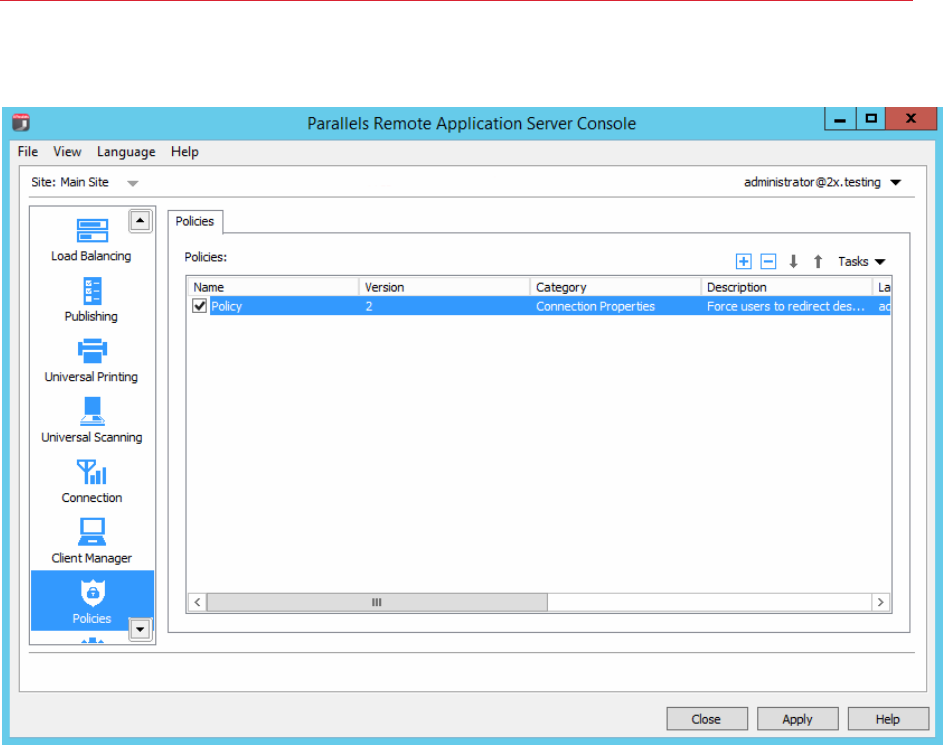
185
Managing Devices
To view, add, and modify Parallels Client policies, select the Policies category in the RAS console.
To add a new Parallels Client policy:
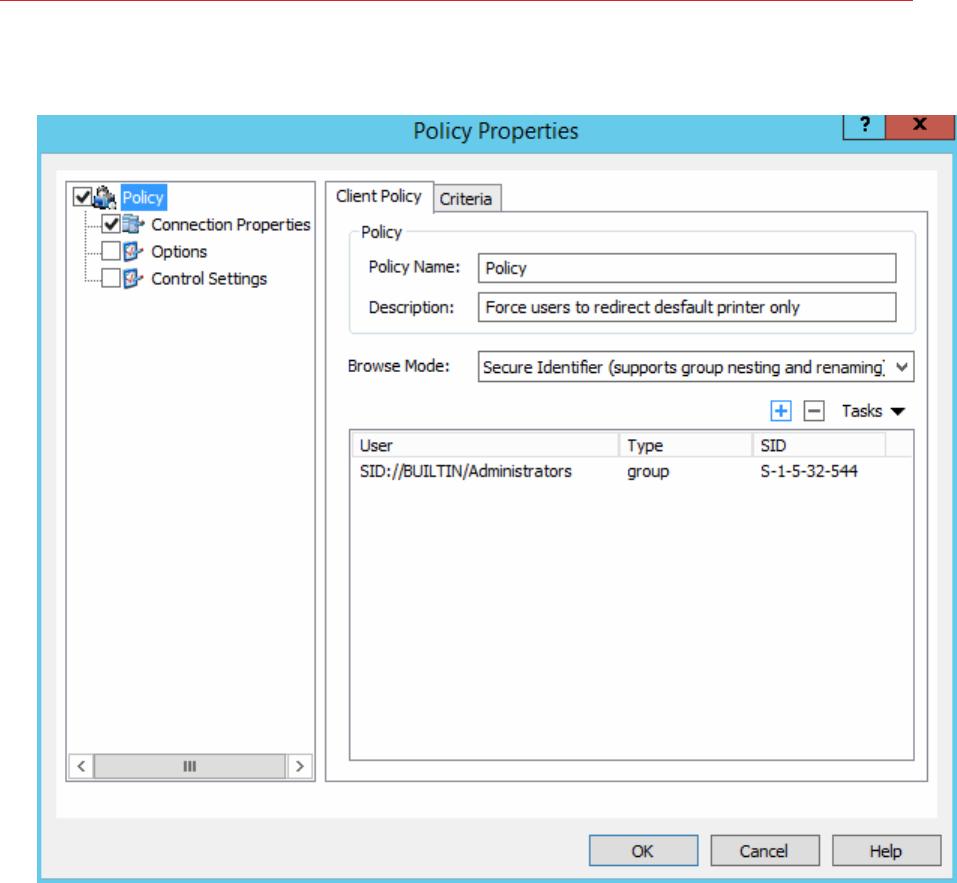
186
Managing Devices
1 Click the Tasks drop-down menu and then click Add (or click the + icon). The Policy
Properties dialog opens.
2 The left pane contains a navigation tree allowing you to select a group of options to configure.
3 Make sure the Policy node is selected and then specify a policy name and an optional
description.
4 In the Browse Mode drop-down list, select how you want to browse for users and groups. The
preferred mode is Secure Identifier (default). Other options exist for backward compatibility.
5 In the Tasks drop-down menu, click Add (or click the plus sign icon).
6 In the Select User and Groups dialog, specify the target users and/or groups.

187
Managing Devices
(Optional) Configure Criteria for the Client Policy
By default, a client policy applies to the configured users and groups in all situations. You can
define a criteria so the policy only applies when the criteria is matched. This functionality allows you
to create different policies for the same user, which will be applied depending on where the user is
connecting from and from which device.
To create a new criteria:
1 In the Policy Properties dialog, select Policy in the left pane and then select the Criteria tab in
the right pane.
2 In the Gateway section, select the criteria type in the first drop-down list and then specify the
values (if applicable) in the second drop-down list.
3 In the MAC Address section, select the criteria type in the first drop-down list and then specify
the values (if applicable) in the second drop-down list.
Configure Connection Properties and Options
To configure connection properties and options:
1 Select the Connection Properties node in the left pane and then select the connection
properties this policy will enforce.
2 Select the Options node in the left pane and then specify the options to restrict or enforce.
Configure Control Settings
The Control Settings options allow you to control various actions on the client side. These options
affect the following Parallels Clients:
• Windows
• Linux
• Mac
• Android
• iOS
• Windows Phone
To configure control settings:
1 Select the Control Settings node in the left pane.
2 On the Connections tab page, select (or clear) the following options:
• Do NOT add RAS connections. When a user presses the Add Connection button, an
RDP connection is immediately created.

188
Managing Devices
• Do NOT add Standard RDP connections. When a user presses the Add Connection
button, a RAS connection is immediately created
3 On the Password tab page, specify the following options:
• Do NOT save password. Option to save the password will not be shown to the user for
that particular connection. Password is never saved on a disk, but kept in memory until the
user closes the application.
• Do NOT change password. Option to change the password will not be shown in the
context menu for that particular connection.
4 On the Import and Export tab page:
• Do NOT import/export setting. The Import and Export buttons will not be shown to the
user.
When done configuring client policies, click OK to save the changes and close the Policy
Properties dialog.
To modify an existing client policy, right-click it and select Properties in the context menu.

In This Chapter
Deploy and Configure RAS Reports.......................................................................... 189
RAS Reports ............................................................................................................ 191
Deploy and Configure RAS Reports
To use the reporting functionality, you need to install and configure MS SQL Server and the RAS
Reporting Service. Before doing so, first check whether your server complies with the prerequisites
outlined below. Once confirmed, proceed with the installation and configuration process.
Environment Requirements
1 A machine running Windows Server 2008, Windows Server 2008 R2, Windows Server 2012 or
Windows Server 2012 R2
2 To view RAS reports, a default AD user account will be created by the RAS Reporting
installation process. The account name is RASREPORTINGVIEW.
3 Microsoft SQL Server 2008 SP1, Microsoft SQL Server 2008 R2 SP1 or Microsoft SQL Server
2012 - You are required to have a database instance installed either on the same machine
running Parallels Remote Application Server or a different machine running within your network.
SQL Server Configuration Requirements
1 MS SQL Server features installed: Database Engine Services, Reporting Services - Native,
Management Tools.
2 MS SQL Named Instance: RASREPORTING, Instance ID: RASREPORTING
3 SQL Server Administrators - SA (System Administrator), AD Administrator, System User.
4 SQL Server Reporting Services (SSRS) port set to 8085.
For the full step-by-step recommended MS SQL installation and configuration procedure, please
read the following KB article: http://kb.parallels.com/en/123083
Note: For installations running on a multi-server farm environment, it is recommended that MS SQL
Server is installed on a dedicated machine.
CHAPTER 16
Reporting

190
Reporting
Installing RAS Reporting
Log in to the machine running MS SQL Server with an account that has administrative privileges
(AD).
1 Download the latest version of the RAS Reporting setup from
http://download.parallels.com/ras/v15/RASReporting.msi
2 Double-click RASReporting.msi to run the installation wizard.
3 Click Next when prompted.
4 Review and approve the end-user license agreement and click Next.
5 Specify the target folder for the installation and click Next.
6 Click Install to commit the config and initiate the installation.
7 Click Finish.
Configure Reporting in the RAS Console
To configure RAS Reporting:
1 Select the Administration category in the RAS Console and then click the Reporting tab in the
right pane.
2 On the Reporting tab page, specify the following options:
• Select the Enable RAS Reporting option to enable the RAS reporting functionality.
• Server. Specify the IP address of the server hosting your SQL Server database where the
Reporting service is installed. If the database is located on the same machine where you
have Mobile Device Management installed, you can use localhost.
• Port. Specify the port used to communicate with the Reporting service.
• Prompt user for Login Details. Will prompt the user for AD credentials when generating
reports.
• Use following credentials. Specify AD username and password to be used each time a
report is generated
3 When done, click the Test Connection button to test the configuration.
4 Click Apply to commit the configuration.
Note: The default user RASREPORTINGVIEW is created during the installation process. Alternate users
need to be configured in SSRS with browser permissions.
Advanced Settings
Advanced settings allow the administrator to fine tune the data collected by the reporting service
and define for how long this data is retained before purged.

191
Reporting
To access the reporting advanced options:
In the RAS Console, navigate to Administration / Reporting. On the Reporting tab page, click the
Tracking Settings button. The Advanced Setting dialog opens.
In the Session Information section, configure the following options:
• Enable Tracking. Records sessions data (affects all reports except Server Reports).
• Retain information for. Specify the period session information is retained for before purged.
In the Server Counters Information section, configure the following:
• Enable Tracking. Records server counter data (affects Server Reports only).
• Retain information for. Specify the period server counters information is retained for before
purged.
• Track CPU / Memory counter when change is more than. Set the minimum CPU/Memory
resource usage required to record data.
RAS Reports
The RAS Reporting functionality includes 14 predefined reports in 5 groups:
1 User Reports. This group provides insight into how end users are interacting with Parallels
RAS and includes the following reports:
• User activity - shows all sessions produced by all users in the system. Report includes
information about each session; active time, idle time and disconnected time.
• User session activity - shows all sessions produced by a single user. Report includes
information about each session; active time, idle time and disconnected time.
• Devices used by user - shows information about the devices being used by a user. Report
includes information such as; device vendor, device model and total time used.
• Client operating system used by user - shows the operating system being used by a
particular user; operating system, total time used.
2 Group Reports. This group provides information about how groups of users are interacting
with Parallels RAS and includes the following reports:
• Groups activity - shows all sessions produced by all groups in the system. Report includes
information such as; active, idle and disconnected time.
• Group sessions activity - shows all sessions produced by a group in the system. Report
includes information about each session produced by each user in the group such as; start,
end, active, idle, disconnect and total time.
• Devices used by group - shows information about the devices being used by users that are
members of a particular group. Report includes information such as; device vendor, model
and total time used.

192
Reporting
• Client operating system used by the group - shows the operating system being used by
members of a particular group; operating system and total time used.
3 Devices Reports. This group provides information about the devices that are connecting to
Parallels RAS and includes the following reports:
• Devices used - shows all devices using the system. Report includes information such as;
manufacturer, model and the number of sessions opened by the device.
• Client operating system used - shows devices and corresponding operating systems that
are using the system. Report includes information such as; device model, operating system
and amount of devices.
• RDP version used - shows the Parallels Client version , the device using that version and
how many of those devices are being used.
4 Server Reports. This group provides information about activity about the Parallels RAS server
components and includes the following reports:
• Sessions activity on server - shows the session activity of users on a particular server.
Report includes information such as; start, end, active, idle and disconnect time.
• Server health by server - shows server CPU and RAM usage for a particular server in a
graph.
5 Application Reports. This group provides information about the applications used with
Parallels RAS and includes the following report:
• Applications usage - shows information about the applications used in the system. Report
includes information such as; application name, number of times used and the total time the
application was used for.
Note: The first time the reports are viewed, you may be requested to add http://<server domain/ IP> as
a trusted website. This will appear depending on the Parallels RAS machine’s "Internet Explorer
Enhanced Security Configuration".
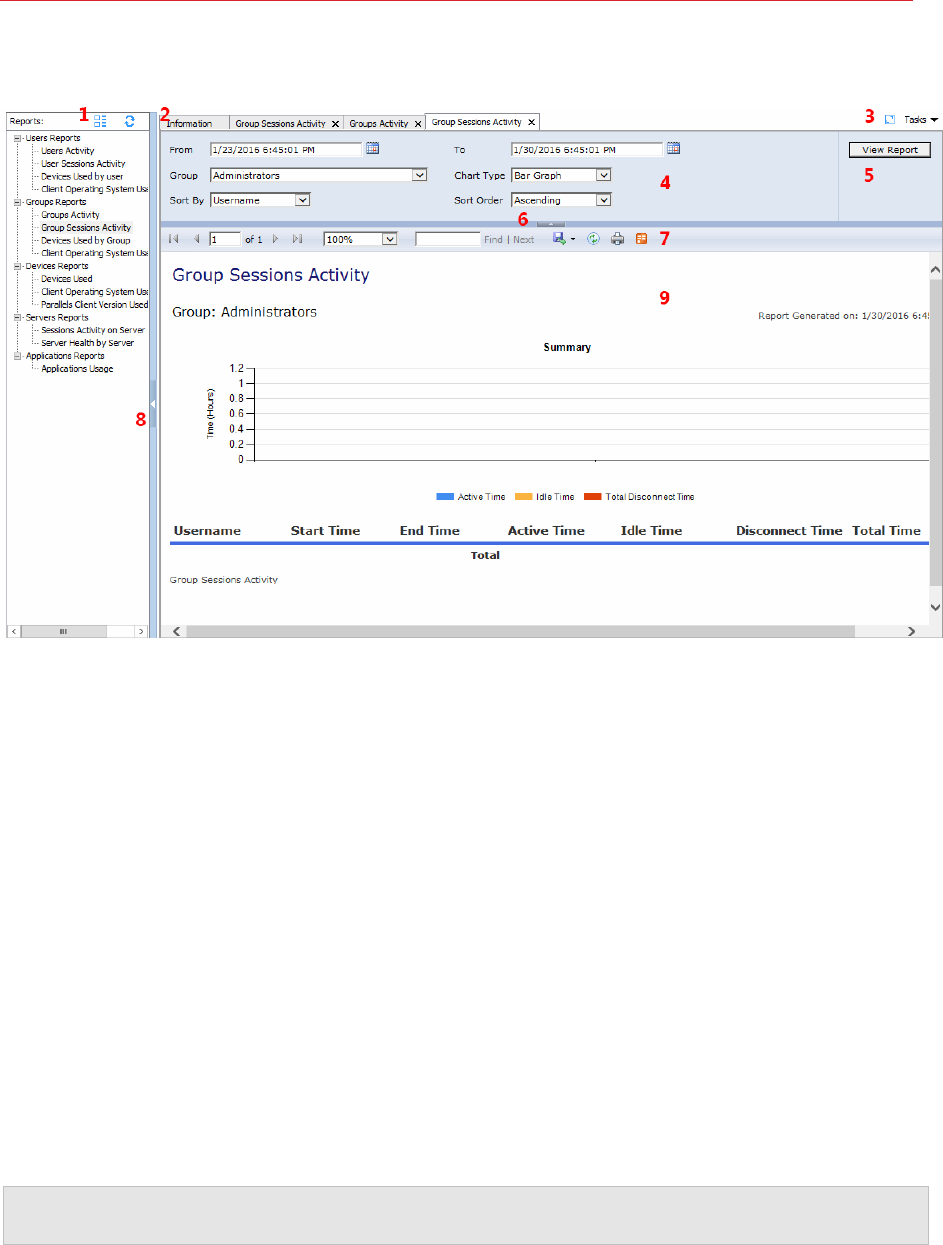
193
Reporting
To use RAS Reporting, select the Reporting category in the RAS Console.
The reporting interface consists of useful tools which are split into sections as described below:
1 Remove group nodes and refresh the list of reports available below.
2 Reports generated are retained as tabs shown in this section. Click a tab to review the report
generated and even cancel a tab to close a report.
3 The blue button expands the reporting interface into full screen, while the Tasks drop-down
menu allows you to apply the following actions to reports: Duplicate, Full screen, Close
report, Close other reports, Close reports on the right, and Close all reports.
4 This section lists the arguments available to apply constraints to reports such as the time frame
the report will cover and chart type. These change depending on the report selected.
5 The View Report button applies the constraints set in the section 4 to generate the report.
6 Click this arrow to collapse sections 4 and 5.
7 From this section, refresh the report, print the report, export the report to a data feed, or save
the report in any of the following formats; XML, CSV, PDF MHTML, TIFF and Word.
8 Click this arrow to collapse the reports listing.
9 This section displays the new report dialog or old report selected in section 2.
Note: Parallels RAS reporting requires MS SQL Server and the Reporting Service installed and
configured.
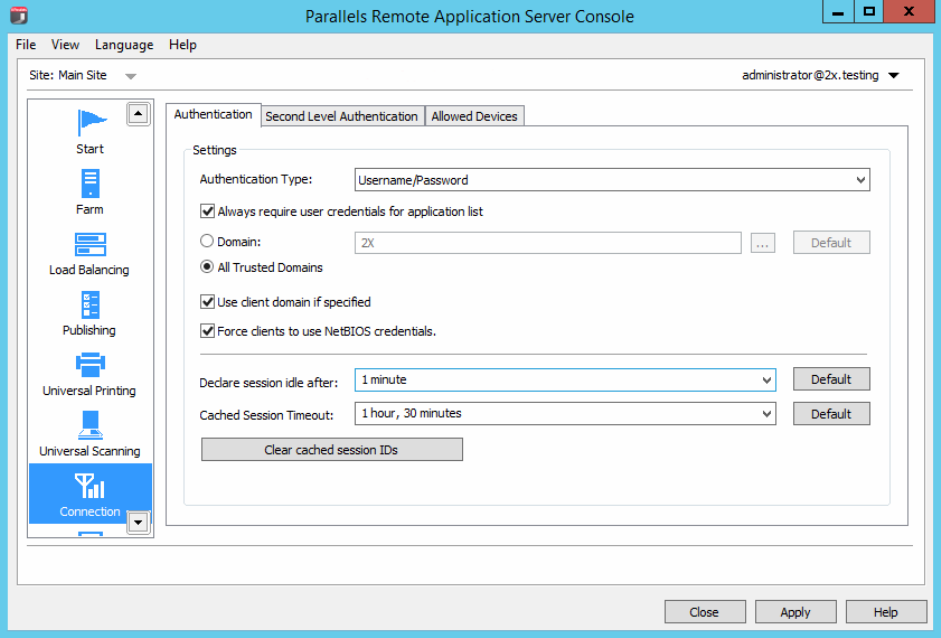
In This Chapter
RAS Publishing Agent Connection Settings .............................................................. 194
Restricting Access by Parallels Client Type and Build Number.................................. 196
Second Level Authentication .................................................................................... 196
RAS Publishing Agent Connection Settings
RAS Publishing Agent connection settings can be accessed from the Connection category
available in the system menu.
Follow the instruction below to configure RAS Publishing Agent connection settings.
CHAPTER 17
Connection and Authentication Settings

195
Connection and Authentication Settings
Choosing Authentication Type
In the Authentication Type drop-down list, select one of the following options:
• Username/Password. The user credentials are validated by the Windows system on which
RAS is running. The credentials used for Windows authentication are also used to log into an
RDP session.
• Smart Card. Uses smart card authentication. Similar to Windows authentication, smart card
credentials can be shared between both RAS and RDP. Hence, smart card credentials only
need to be entered once. Unlike Windows authentication, the user only needs to know the
smart card’s PIN. The username is obtained automatically from the smart card, so the user
doesn't need to provide it.
• Username/Password or Smart Card. Uses both Windows and smart card authentication.
Note that if smart card authentication is disabled, RAS Publishing Agent will not hook the Local
Security Authority Subsystem Service (LSASS).
Smart card support is available on Windows Server 2008, 2008 R2, 2012, 2012 R2.
Smart card authentication can be used in Parallels Client for Windows and Parallels Client for Linux.
Enforcing Authentication
By default, all users are required to authenticate the connection against Parallels Remote
Application Server before even viewing the list of the available published applications or desktops.
By disabling the option Always require user credentials for application list on the
Authentication tab page you can allow users to see the list of published resources without being
authenticated. As a result, the user will be able to see the list, but as soon as the user tries to open
an application or a desktop, the server will ask to supply credentials.
Configuring Authentication
Once authentication is enforced, you can configure the Parallels Remote Application Server to
authenticate users against a specific domain by entering the domain name in the Domain input
field.
Note: If the Use client domain if specified option is cleared, the domain name specified by the
administrator will be automatically populated in the Parallels Client.
Recommendation: After changing the domain names or some other authentication related
changes, click the Clear cached session IDs button.
• Force clients to use NetBIOS credentials. If this option is enabled, the Parallels Client will
replace the username with the NetBIOS username.
• Declare session idle after. This option affects reporting statistics, whereby a session is
declared idle after the amount of time specified without any activity.

196
Connection and Authentication Settings
• Cached Session Timeout. Specify the amount of time that a session is cached for (higher
amount of time reduces AD transactions).
• Authenticating Against Multiple Domains. If the users connecting to the Parallels Remote
Application Server are stored in different domains within a forest, select the All Trusted
Domains option.
Authenticating Against Non Domain Users
In order to authenticate users sessions against users specified on a standalone machine you must
enter the [workgroup_name] / [machine_name] instead of the domain name. For example if you
would like to authenticate users against a list of local users on a machine called SERVER1 that is a
member of the workgroup WORKGROUP, enter the following in the domain field:
WORKGROUP/SERVER1.
Restricting Access by Parallels Client Type and
Build Number
You can specify a minimum requirement for the Parallels Client type and version number in order
for it to access the system. If a Parallels Client type is excluded or if its version is lower than the
specified minimum, the device on which the Parallels Client is installed will be denied access.
To specify the Parallels Client version requirement:
1 In the RAS Console, select the Connection category and click the Allowed Devices tab.
2 In the Mode drop-down list, select from the following options:
• Allow all clients to connect to the system. No restrictions. All Parallels Client types and
versions are allowed access.
• Allow only the selected clients to connect to the system. Select this option and then
select the desired Parallels Client types in the Clients list. To set the Minimum build value,
right-click the client type and then click Properties in the context menu.
• Allow only the selected clients to list the published items. Select this option and then
select the desired Parallels Client types in the Clients list. To set the Minimum build value,
right-click the client type and then click Properties in the context menu.
If a Parallels Client trying to connect to the system doesn't satisfy the requirements, the device user
will receive an error and will be advised to contact the system administrator.
Second Level Authentication
By configuring a Second Level Authentication you are providing a higher level of security.
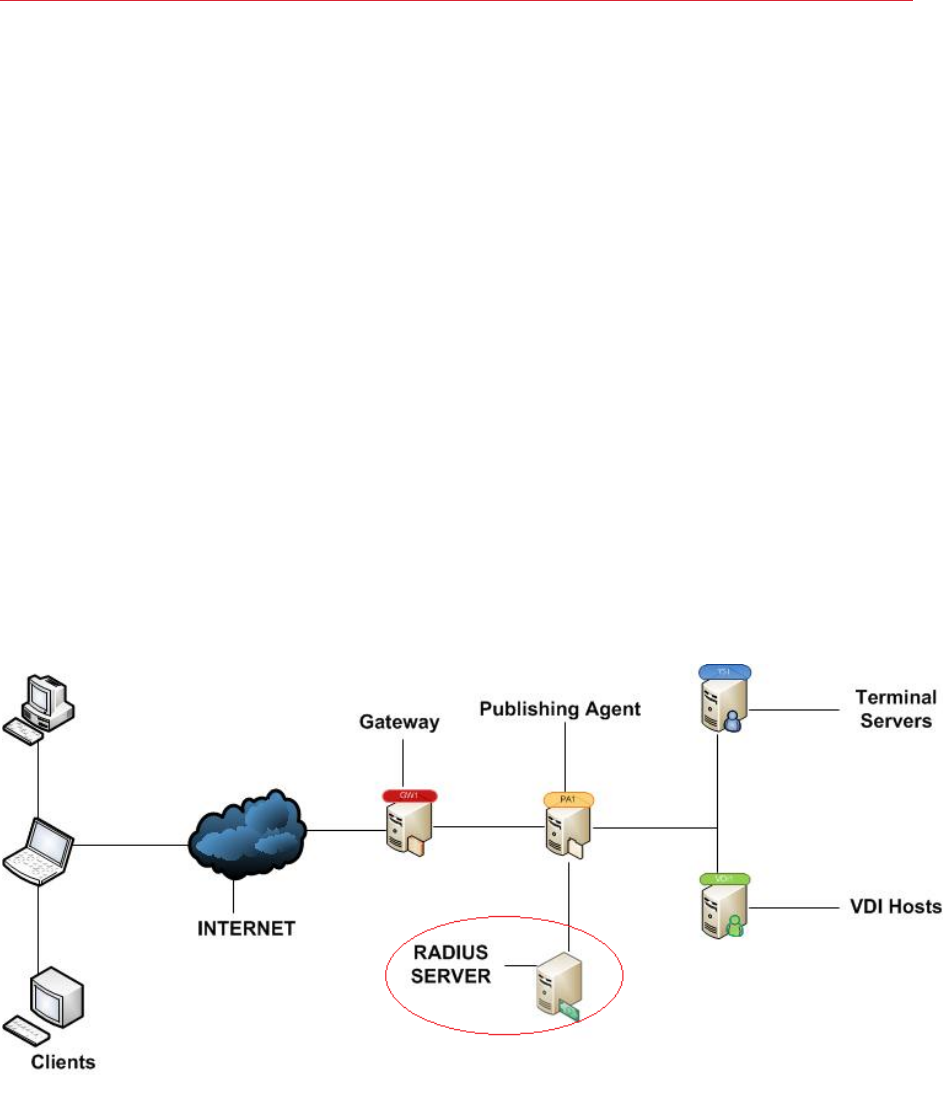
197
Connection and Authentication Settings
How it Works
Users will have to authenticate through two successive stages to get the application list. While the
first level of authentication will use the native authentication (Active Directory / LDAP) the second
level of authentication can be provided by using one of the following:
• Dualshield Authentication Platform
• Safenet Server
• Radius Server
Second level of authentication is more secure because as opposed to first level authentication,
instead of using a standard username and password it uses a static username and a onetime
password generated by a token.
Second Level Authentication can be configured from the Second Level Authentication tab in the
Connection category.
Configuring Parallels Remote Application Server
The below diagram shows a typical Parallels Remote Application Server scenario with Parallels
Publishing agent connected to a Radius server.
To configure Radius properties:
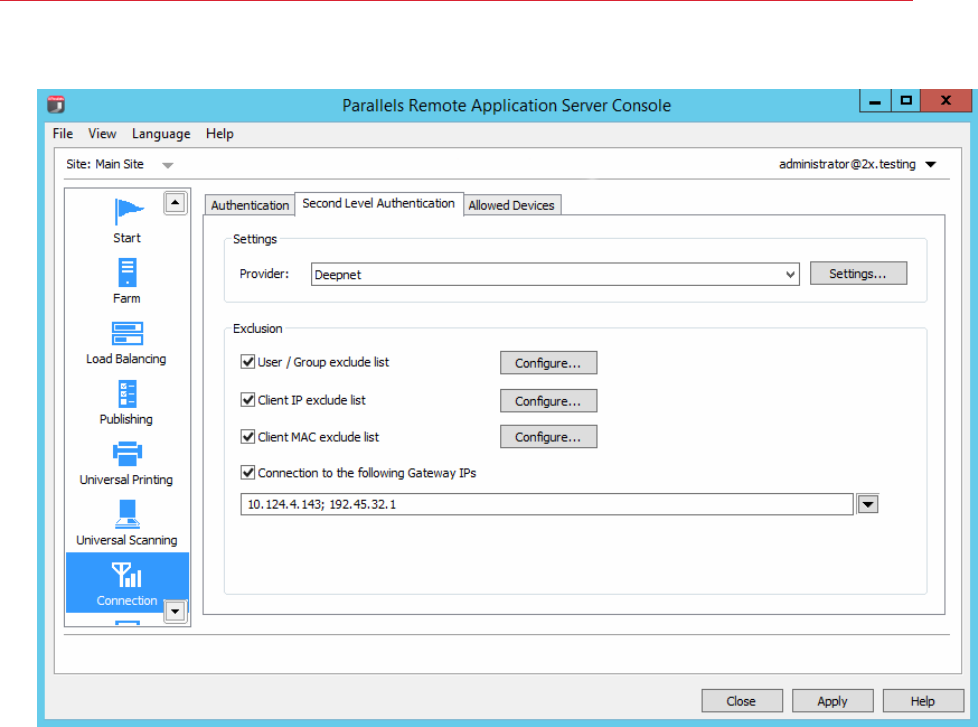
198
Connection and Authentication Settings
1 In Parallels RAS Console, navigate to the Connection > Second Level Authentication tab.
2 In the Provider drop-down list, select Radius.
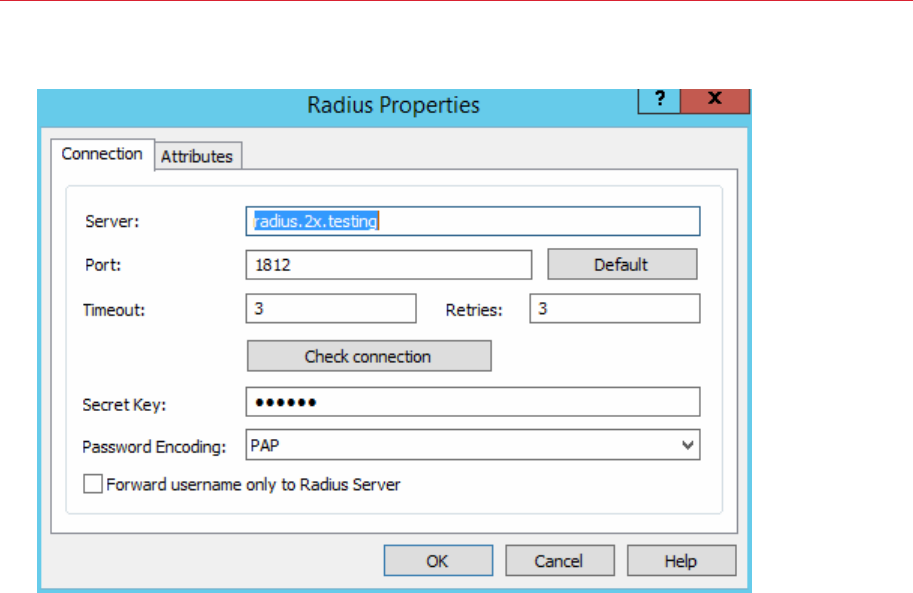
199
Connection and Authentication Settings
3 Click the Settings button. The Radius Properties dialog opens.
4 In the Server field, enter the hostname or IP address of the Radius Server.
5 In the Port field, enter the port number for the Radius Server.
6 In the Timeout field, specify the packet timeout in seconds.
7 In the Retries field, specify the number of retries when attempting to establish a connection.
8 Type the Secret Key and specify the Password Encoding, either PAP (Password
Authentication Protocol) or CHAP (Challenge Handshake Authentication Protocol), according to
the setting specified on the Radius Server.
9 Click OK when done.
10 Click the Check connection button to validate the connection. If the connection is configured
correctly, you will see a confirmation message.
11 If your Radius vendor requires specific attributes, click the Attribute tab and then select Add.
12 In the Vendor drop-down list, select the vendor.
13 In the Attribute list, select the vendor attribute.
14 In the Value field, enter the value for the selected attribute type (numeric, string, IP address,
date, etc).
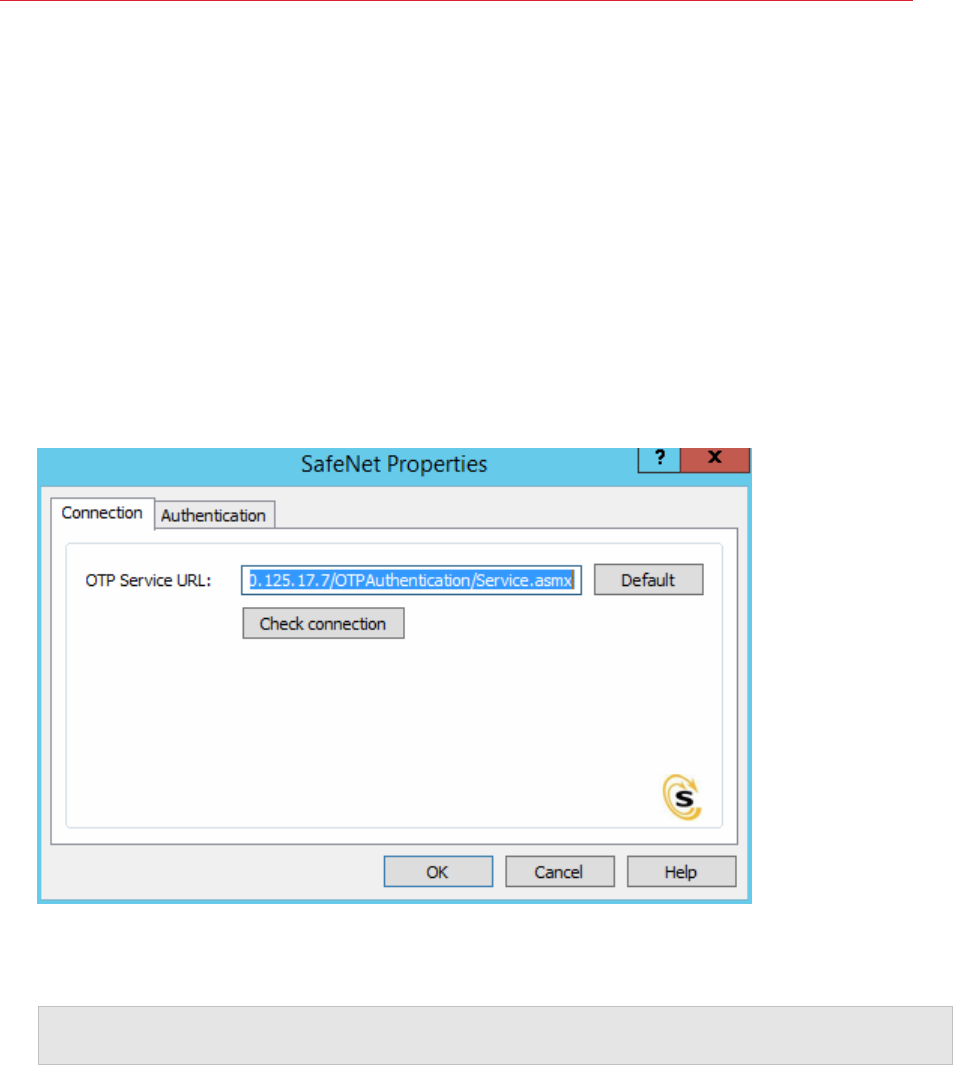
200
Connection and Authentication Settings
Working with Safenet
Configuring SafeNet
SafeNet Token Management System product provides a high-value of protection via secure tokens
which makes it a perfect tool for second-level authentication in Parallels Remote Application Server.
To configure SafeNet:
1 In the Parallels Remote Application Server console, navigate to the Connection / Second
Level Authentication tab.
2 In the Provider drop-down list, select SafeNet.
3 Click the Settings button. The SafeNet Properties dialog opens.
4 On the Connection tab page, enter the valid URL into the OTP Service URL field. To verify
that the connection with the OTP Service can be established, click the Check connection
button.
Note: RAS Publishing Agent communicates with the SafeNet Token Management System Server. It is
highly recommended to have this behind a firewall for security reasons.
5 Click the Authentication tab.
6 In the Mode drop-down list, select how you want your users to be authenticated.
Mandatory for all users: Every user using the system must login using two-factor
authentication.
The available modes are:

201
Connection and Authentication Settings
• Create token for Domain Authenticated Users: Allows Parallels Remote Application
Server to automatically create software tokens for Domain Authenticated Users. Choose a
token type from the drop down list. Note that this option only works with software tokens.
• Use only for users with a SafeNet account: Allows users that do not have a SafeNet
account to use the system without having to login using two-factor authentication.
7 In the TMS Web API URL field, enter the location of the SafeNet API URL.
8 In the User Repository field, enter the user repository destination.
9 Click OK to save the values and close the SafeNet Properties dialog.
Configure Exclusion Rules
On the Second Level Authentication tab page, specify the exclusion rules in the Exclusion
section.
To exclude a user or a group from second-level authentication:
1 Select the User/Group exclude list option and click Configure.
2 Click the Add button and select users and groups to exclude from second-level authentication.
To exclude a client IP address or IP address range from second-level authentication:
1 Select the Client IP exclude list option and click Configure.
2 Click the Add button and specify a single IP address or an IP address range.
3 Click OK and then OK again to save the changes and close the dialogs.
To exclude a client MAC address:
1 Select the Client MAC Exclude option and click Configure.
2 Click the Add button and select a client MAC address from the list.
To exclude gateway IP addresses:
1 Select the Connection to the following Gateway IPs option.
2 Type a gateway IP address or expand the drop-down list and select one or more IP addresses
from the list. Click the plus sign icon to add the available gateways to the list.
3 Click OK to save the selection close the dialog. The IP addresses will appear in the Connection
to the following Gateway IPs edit box.
Parallels Client
In the Parallels Client — New Account Info dialog:
1 Enter any four digits in the OTP PIN number field (these digits will be required further on in the
process).
2 Enter your email address and then click on OK.

202
Connection and Authentication Settings
3 Log into your email account and retrieve the email containing the information you will need to
activate your SafeNet authentication. An example of this email is shown below.
Activation Key: YZQHoczZWw3cBCNo
Token Serial: 4F214C507612A26A
Download MobilePASS client from:
http://localhost:80/TMSService/ClientDownload/MobilePASSWin.exe
*Login with domain credentials.
*Place the attached seed file in the same folder as the MobilePASS client.
Enter the One-Time Password to log into the Terminal Server Connection.
Application PIN: 4089
4 Download the MobilePASS client from the URL provided in the email.
5 Enter the Activation Key found in the SafeNet email.
6 Next, input the application PIN found in the email into the MobilePASS PIN field.
7 Click Generate to generate the eToken number and then click Copy.
8 Combine the OTP PIN and eToken in this order: OTP + eToken.
9 Enter this value into the Parallels Client and click OK to log in.
Parallels RAS Web Portal
If Safenet second level Authentication is enabled, logging to Parallels RAS Web Portal also requires
Second-Level Authentication.
1 Enter any four digits in the OTP Pin number field (these digits will be required further on in the
process).
2 Enter your email address and then click the Send OTP button.
3 Log into your email account and retrieve the email containing the information you will need to
activate your SafeNet authentication. An example of this email is shown below.
Activation Key: YZQHoczZWw3cBCNo
Token Serial: 4F214C507612A26A
Download MobilePASS client from:
http://localhost:80/TMSService/ClientDownload/MobilePASSWin.exe
*Login with domain credentials.
*Place the attached seed file in the same folder as the MobilePASS client.
Enter the One-Time Password to log into the Terminal Server Connection.
Application PIN: 4089
4 Download the MobilePASS client from the URL provided in the email.
5 Enter the Activation Key found in the SafeNet email.
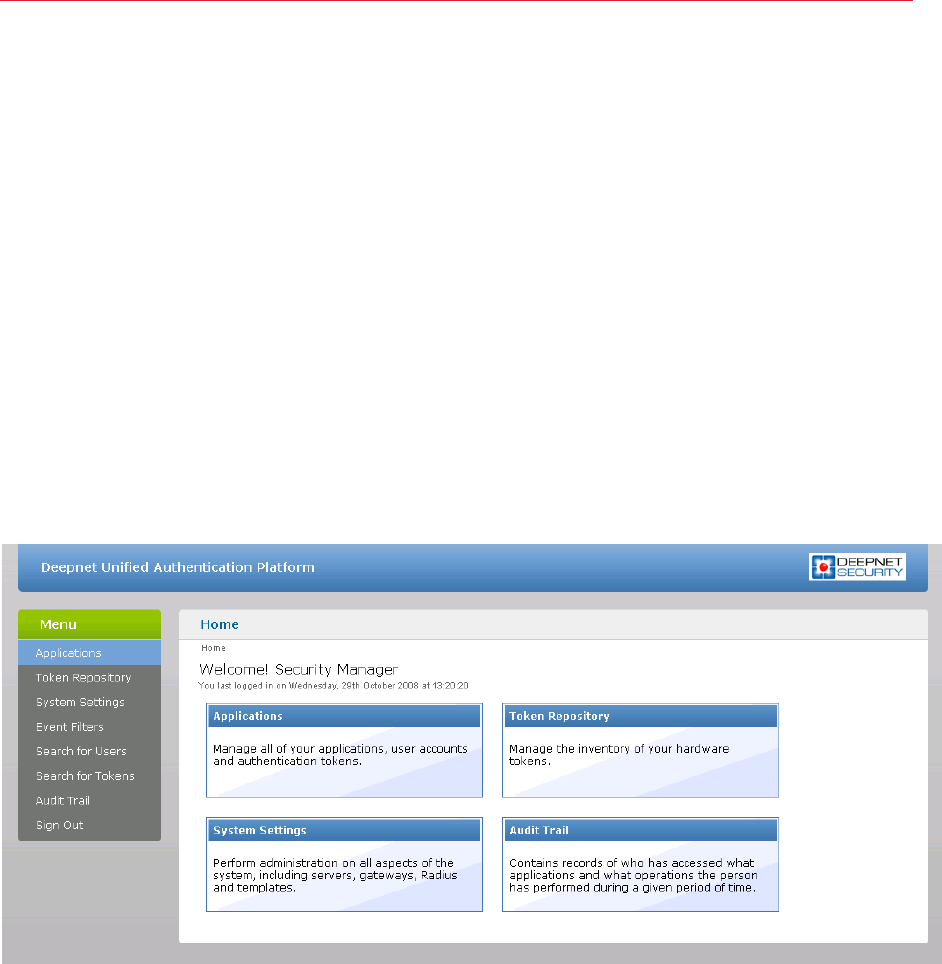
203
Connection and Authentication Settings
6 Next, input the application PIN found in the email into the MobilePASS PIN field.
7 Click Generate the eToken number and subsequently Copy.
8 Combine the OTP PIN and eToken in this order: OTP + eToken.
9 Enter this value into the Parallels RAS Web Portal and click OK to log in.
Working with Deepnet
Configuring Deepnet
Start by logging into the machine where Deepnet Unified Authentication is installed and open your
Internet browser. Since Deepnet is installed locally, use ‘localhost’ as the URL followed by the port
number which the Deepnet server will use to communicate with your applications (ex:
http://localhost:8080/).
You must then log into the Deepnet Management Console with the credentials that you had set
during the installation.
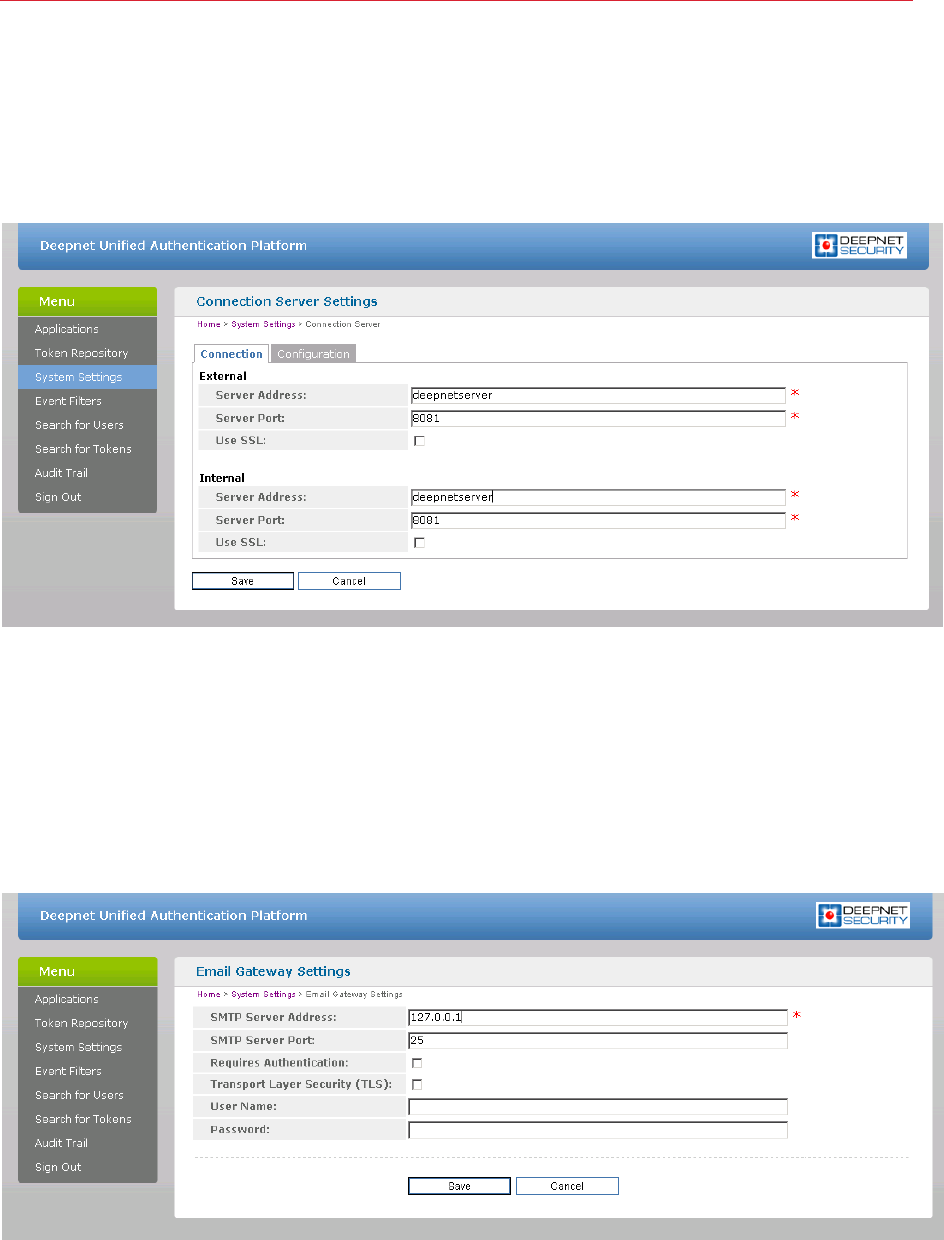
204
Connection and Authentication Settings
Servers
Ensure that the Communication Server, Connection Server and Authentication Server are properly
configured. For further information please refer to Deepnet Unified Authentication Platform
Administration Guide.
RAS Publishing Agent will communicate with the Authentication Server. It is highly recommended to
have this behind a Firewall for security reasons. Make sure that the Server Address and Server
Port are correct.
Gateways
Email or SMS Gateways must be configured correctly so that the Deepnet server is able to send
information, such as Activation codes, to the users.
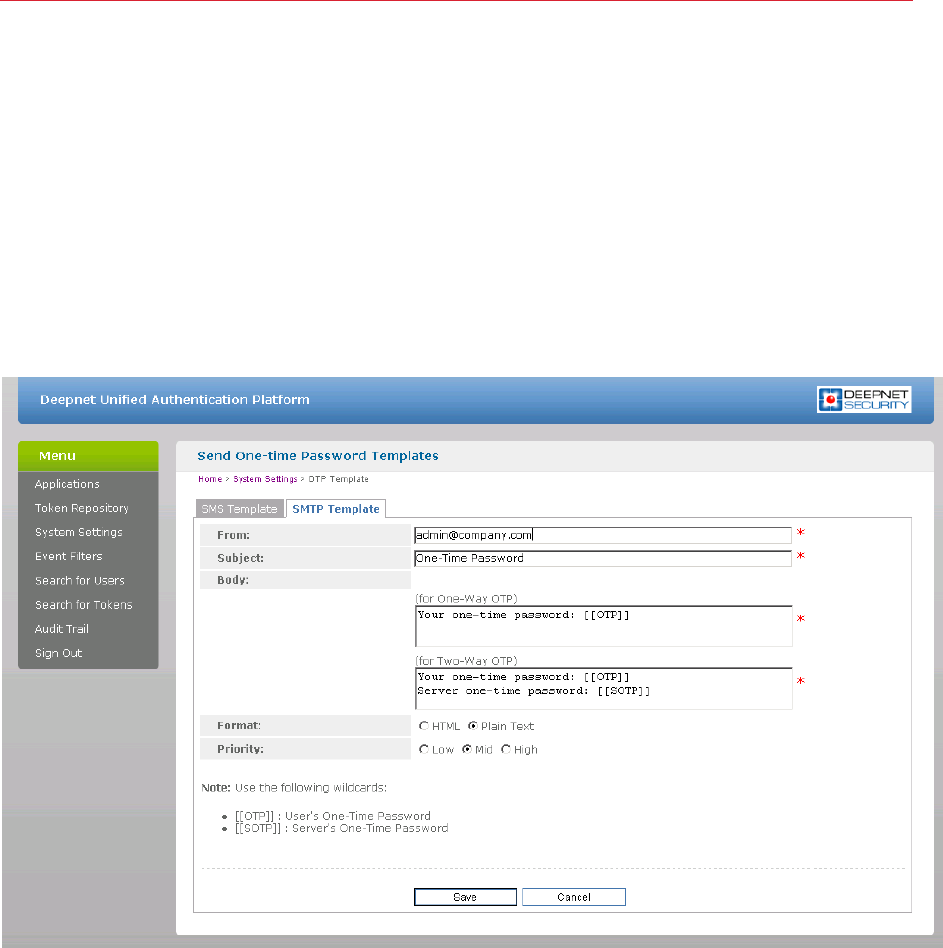
205
Connection and Authentication Settings
The E-Mail Gateway and/or SMS Gateway must be configured to be able to send messages to the
user. Enter the SMTP Server Address and SMTP Server Port of the server which will be used by
the Deepnet Unified Authentication to send e-mails. Remember to enter any username or
password used for the SMTP server.
Templates
Templates are used to set the structure of e-mails and SMS messages sent by the server. The
SMS template allows you to set the text for the Sender field, the message content and an optional
subject. Make sure that you use the preset wildcards to send unique information such as the One-
Time Password ([[OTP]]).
The E-mail template allows you to set the e-mail address that the user can reply to. This should be
set to the administrator’s e-mail. You can also set the e-mail’s Subject, Priority and Format. The
Body contains the actual content of the e-mail which should include the preset wildcard for the
unique information along with a message.
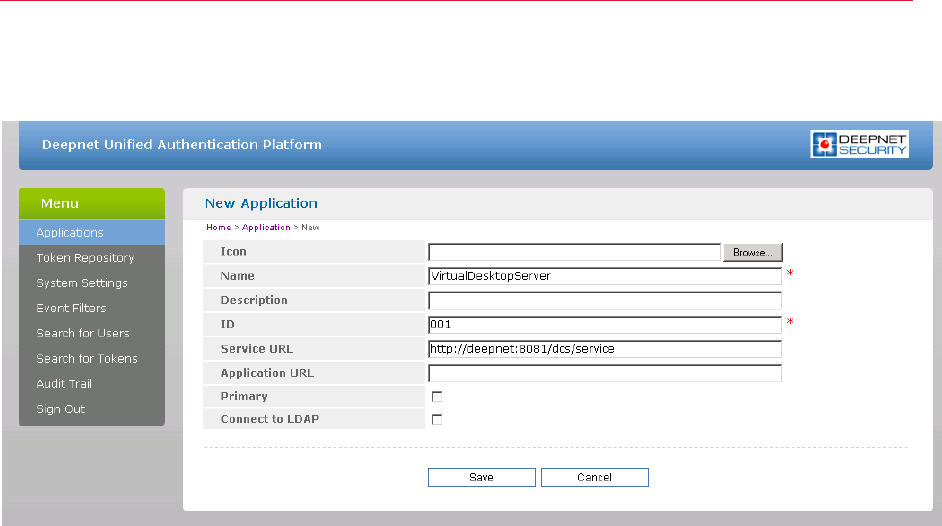
206
Connection and Authentication Settings
Applications
Click on New to add a new application. From the new form that loads you only need to set a Name
and an ID. Once this is done, click Save to save your settings.
Token Repository
If using hardware tokens such as SafeID the token information must first be imported using the
XML file provided. Click on Import and browse for the XML file provided. After the XML file has
been imported each hardware token must be assigned to a user.
Configure Parallels Remote Application Server
List of Supported Tokens
• SafeID
• FlashID
• MobileID
• QuickID
• GridID
• SecureID (RSA)
• DigiPass (Vasco)
Connect to Deepnet Unified Authentication
1 In the RAS Console, select the Connection category and then click the Second Level
Authentication tab.
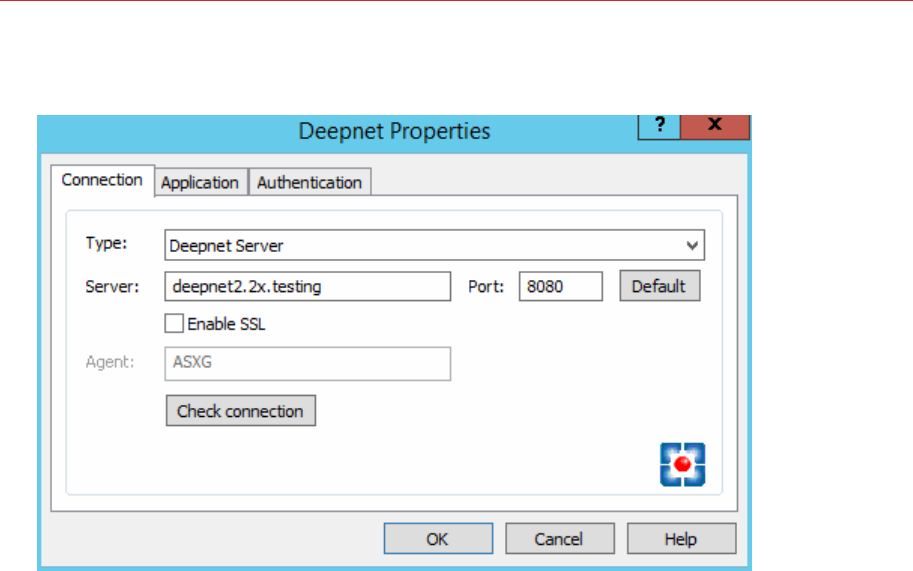
207
Connection and Authentication Settings
2 In the Provider drop-down list, select Deepnet and click the Settings button. The Deepnet
Properties dialog opens.
3 On the Connection tab page, enter the server name and port that you saved while setting up
your Authentication Sever. By default, the port number is set to 8080. Click on Check
Connection to test that your Authentication Server can be reached. You can choose to
connect over SSL to your Deepnet server.
4 Click the Application tab page.
5 Select the application profile that will use Deepnet to authenticate its users. You can also create
an application which will be added on the Deepnet server.
6 The Default Domain field enables you to choose the default domain user for authentication and
when users are added. Any Deepnet user accounts imported or verified will be done so using
this default domain.
7 Select the Use LDAP option when importing Deepnet user accounts and a group that contains
other sub-groups.
8 Click the Import Deepnet user accounts… button to automatically add the specified
users/groups to the Deepnet application.
9 Click the Verify Deepnet user account names button to check that all users in the Deepnet
application are in the following format: \\domain\username. Users added in the format of
username@domain will be automatically changed to the appropriate format and users without a
domain will have the default domain assigned to them.
10 Click the Authentication tab page.
11 In the Mode drop-down list, select the mode how you want your users to be authenticated:
• Mandatory for all users means that every user using the system must log in using two-
factor authentication.

208
Connection and Authentication Settings
• Create token for Domain Authenticated Users will allow RAS Application Server to
automatically create software tokens for Domain Authenticated Users. Choose a token type
from the drop down list. Note that this option only works with software tokens.
• Use only for users with a Deepnet account will allow users that do not have a Deepnet
account to use the system without have to login using two-factor authentication.
12 In the Allow Channels section, you can specify what channels are available to the user to
activate the token or when requesting a Quick ID OTP. For example, if you select Email, the
activation code can be sent only via email. If you select SMS, the activation code is sent via
SMS.
Creating User Accounts on Deepnet
When adding new user accounts on Deepnet, it is important that the domain name is included with
the Login Name of the user, therefore the entry should be in the following format:
\\domain\username.
Users created automatically by Parallels applications are already in that format but users imported
from the Deepnet console must be corrected.
To correct the usernames:
1 Open the Deepnet Properties dialog (Connection > Second Level Authentication >
Settings).
2 Select the Application tab.
3 Click the Verify Deepnet user account names button.
Note that users added in the format of username@domain will be automatically changed to the
appropriate format (\\domain\username).
Connect to a RAS Farm
Parallels Client
Once Deepnet is enabled, the users will have two-factor authentication. If using software tokens
such as QuickID the administrator does not have to create a token for each user. RAS Publishing
Agent will automatically create the token when the user tries to log in for the first time.
When a user tries to access a Parallels Connection from Parallels Client, he/she is first prompted for
the Windows username and password. If the credentials are accepted, RAS Publishing Agent will
communicate with the Deepnet server to create a unique token for that user.
The token then needs to be activated. Click on a button to send the activation code by e-mail or by
SMS depending on the channel selected when configuring Authentication section. A message will
then be sent containing the token activation code which will need to be inserted in the Activation
code text box.

209
Connection and Authentication Settings
If using MobileID or FlashID, an email about where you can download the appropriate software will
be sent to the user.
If using QuickID tokens, the application will ask for a One-Time Password which is sent by e-mail or
SMS.
If using a GridID, the user is given the opportunity to print the grid from the client itself. Note that
this is only available the first time the user logs on.
Parallels Web Portal
If Deepnet Unified Authentication is enabled, logging into Parallels Web Portal also requires
Second-Level Authentication.
Working with DualShield
Configuring DualShield 5.6+ Authentication Platform
DualShield 5.6+ Authentication Platform
This document explains how to integrate Deepnet DualShield Authentication Platform 5.6 or higher
with Parallels Remote Application Server 10.6 or higher. If using any other version prior to the
stated version please use RADIUS interface.
You may also read the following documentation on DualShield Authentication Platform:
1 DualShield Authentication Platform – Installation Guide
2 DualShield Authentication Platform – Quick Start Guide
3 DualShield Authentication Platform – Administration Guide
List of Supported Tokens by Parallels Remote Application Server
MobileID (FlashID is not integrated with MobileID)
1 QuickID
2 GridID
3 SafeID
4 SecureID (RSA)
5 DigiPass (Vasco)
If using hardware tokens such as SafeID the token information must first the XML file provided.
Click on ‘Import’ and browse for the XML file provided. After the XML file has been imported each
hardware token must be assigned to a user.
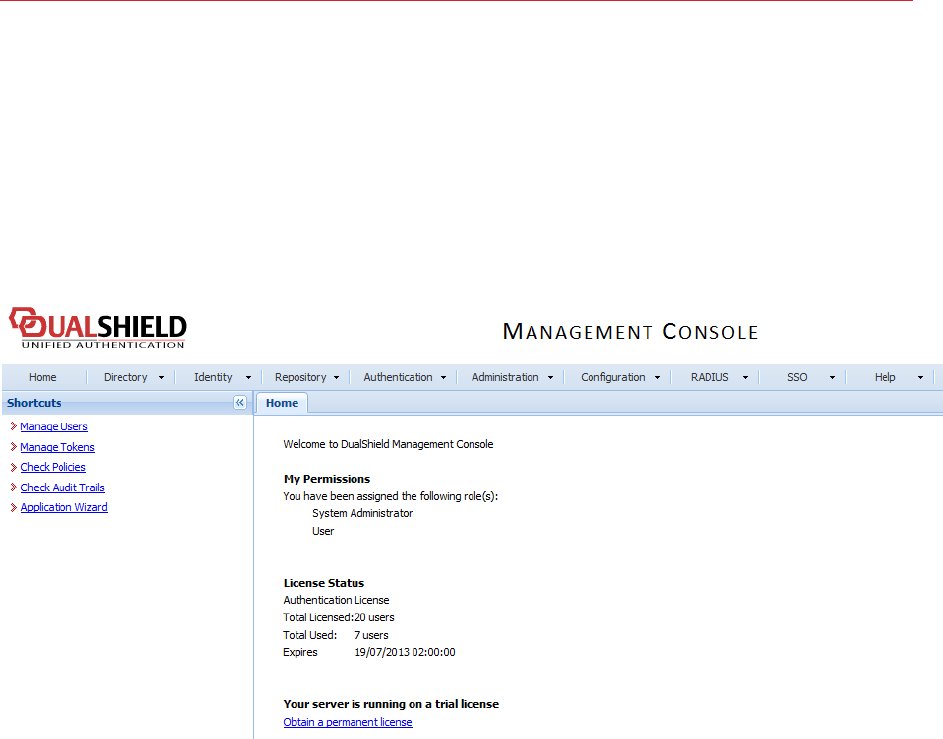
210
Connection and Authentication Settings
Configuring DualShield 5.6+ Authentication Platform
After following all the specified steps in “DualShield Authentication Platform – installation Guide” a
URP is automatically opened on your internet browser (http:// LOCALHOST:8073) which allows you
to logon to the Management Console of DualShield.
Login in to the DualShield Management Console with the default credentials (User: sa, Password:
sa). You will be prompted to change the default password.
Applications are set to provide a connection to realm, as the realm contains domains of users who
will be allowed the access to the application.
Realm is set for multiple domain users to be able to access the same application.
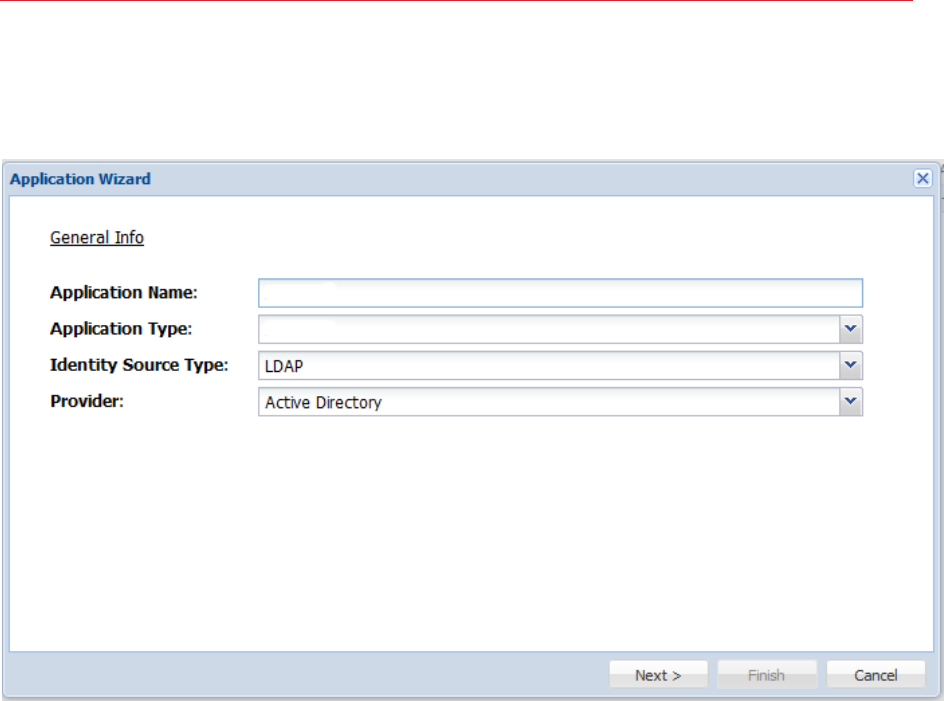
211
Connection and Authentication Settings
You need to create an Application which Parallels Remote Application Server will communicate
with. Click on Authentication > Application Wizard and enter the information shown below and
press Next.
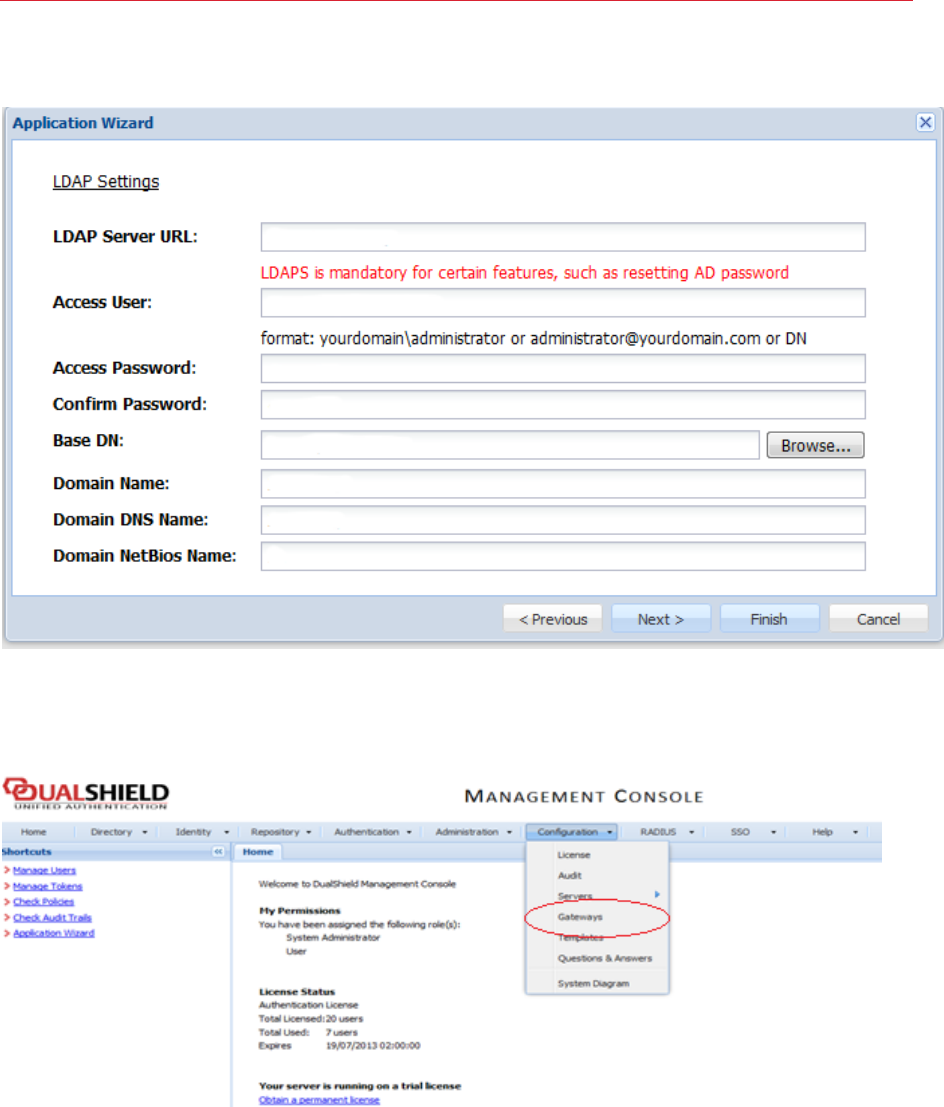
212
Connection and Authentication Settings
Specify the LDAP Server settings as shown below and press Finish.
After you have configured the application you need to configure an Email or SMS gateway which
are used by DualShield server to communicate with the end user. In this document we will be using
an Email gateway. Select Gateways from the Configuration menu.
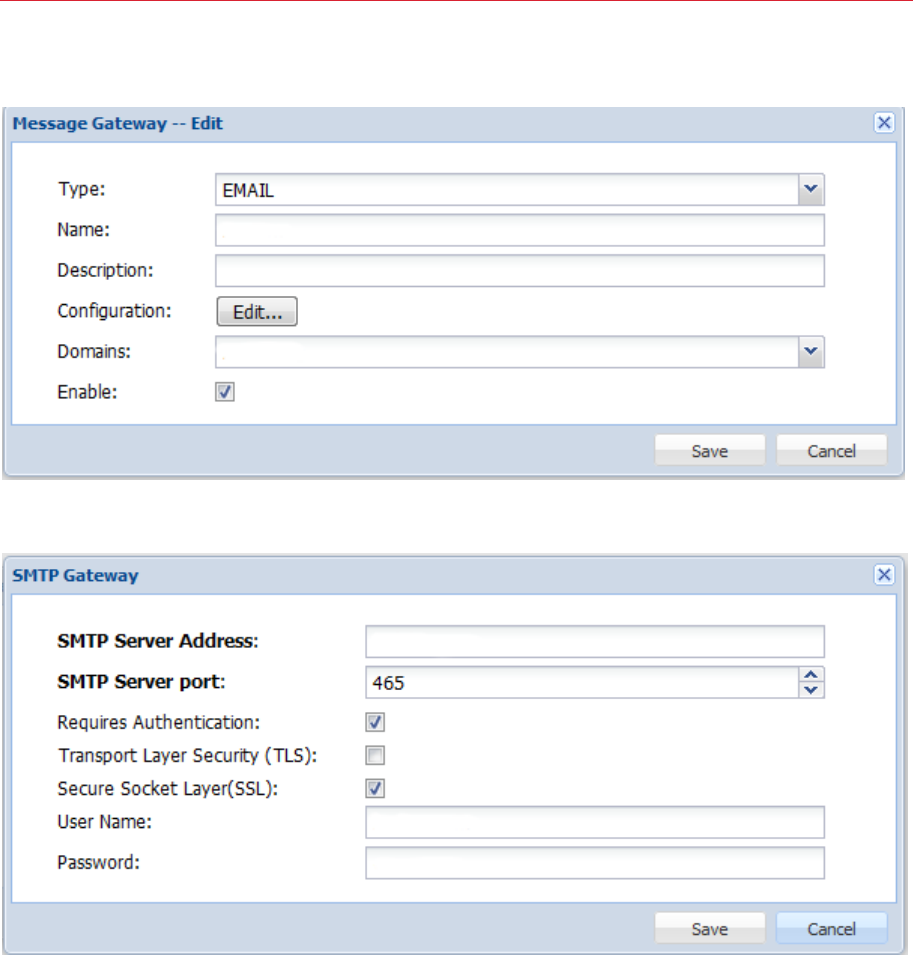
213
Connection and Authentication Settings
Configure your email gateway.
Click Edit to enter your SMTP server information
Configuring Parallels Remote Application Server to Use DualShield Authentication
Platform
To begin:
1 In the RAS Console, navigate to the Connection / Second Level Authentication tab page.
2 In the Provider drop-down list, select Deepnet.
3 Click the Settings button.
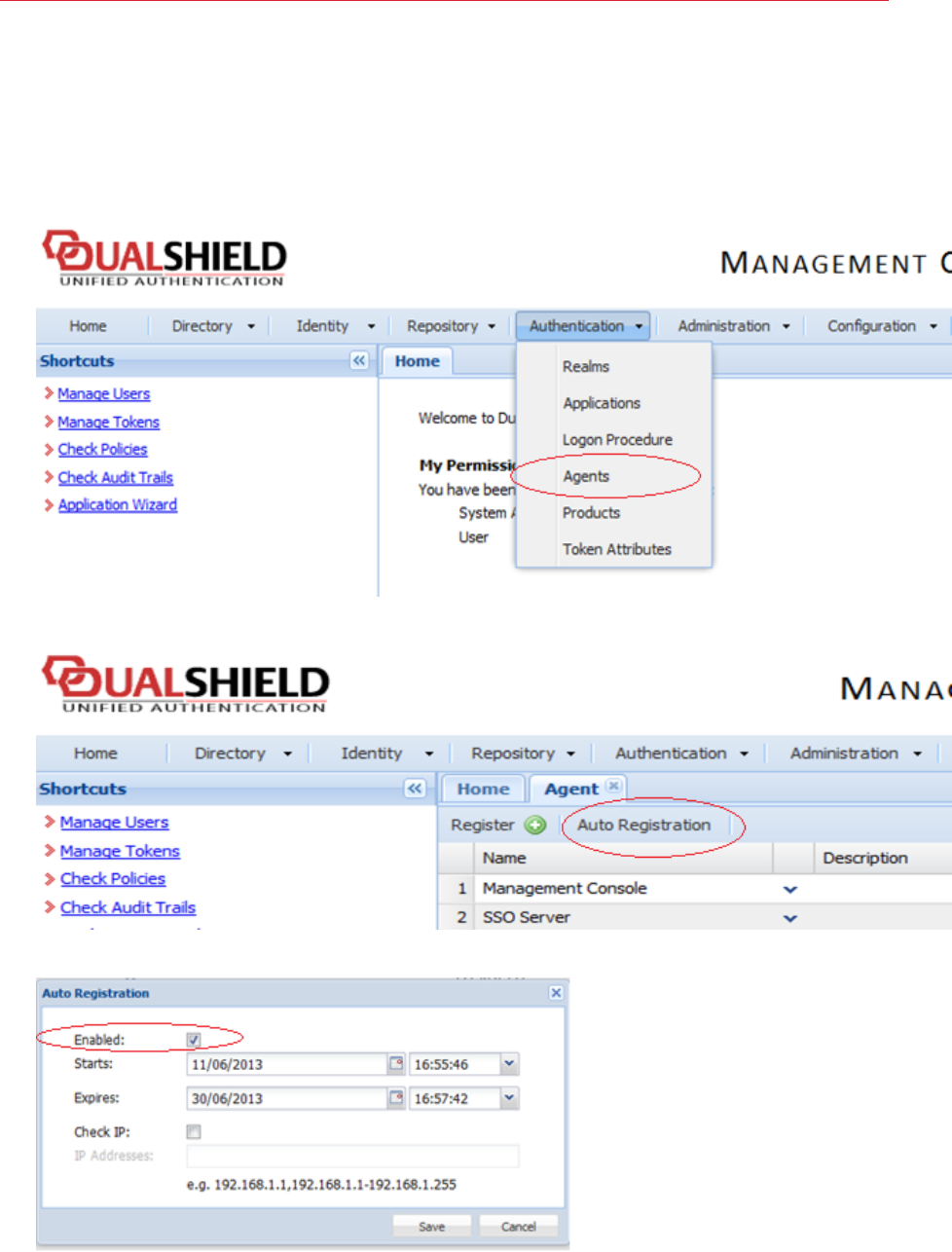
214
Connection and Authentication Settings
4 Click the Check Connection button to test that the authentication server can be reached and
to verify that the RAS Console is registered as a DualShield agent. If you see the "DeepNet
server not valid" message, you have either specified an incorrect server information or you need
to allow auto registration of the Parallels components as a DualShield agent.
5 Go back to the DualShield Management Console and select Agents from the Authentication
menu as shown below.
6 Select Auto Registration.
7 Select the Enabled option and set the date range.

215
Connection and Authentication Settings
8 Once the Agent Auto Registration is set, go back to the RAS Console and select Yes. You
should see a message that the Dual Shield agent has been successfully registered.
Please note that All RAS Publishing Agents must be registered with Deepnet DualShield server.
If you are using Backup Publishing Agents, you need to close all open windows until you can
press Apply in the RAS Console. This will inform all the agents to self-register as DualShield
agents.
9 In the Deepnet Properties dialog, click the Applications tab and browse for the Application
name previously created from the DualShield Management Console.
10 Click the Authentication tab and select how you want your users to be authenticated:
• Mandatory for all users means that every user using the system must log in using two-
factor authentication.
• Create token for Domain Authenticated Users will allow Parallels Remote Application
Server to automatically create software tokens for Domain Authenticated Users. Choose a
token type from the drop down list. Note that this option only works with software tokens,
such as QuickID and MobileID
• Use only for users with a DualShield account will allow users that do not have a
DualShield account to use the system without have to login using two-factor authentication.
11 Go back to the Connection > Second Level Authentication tab page.
12 In the Exclusion section, specify the exclusion rules:
• User / Group exclude list allows you to add users or groups within your active directory
that will be excluded from using DualShield Authentication.
• Client IP exclude list allows you to add IP addresses or a range of IP addresses that will be
excluded from using DualShield Authentication.
• Client MAC exclude list allows you to add a MAC addresses that will be excluded from
using DualShield Authentication.
• Connection to the following Gateway IPs allows you to set a Gateway where users
connected to the Gateway will be excluded from using DualShield Authentication.
Connect to a RAS Farm
Parallels Client
Once DualShield has been enabled the users will have two-factor authentication. If using software
tokens such as QuickID the administrator does not have to create a token for each user. RAS
Publishing Agent will automatically create the token when the user tries to log in for the first time.
When a user tries to access a RAS Connection from Parallels Client, he/she is first prompted for the
Windows username and password. If the credentials are accepted, RAS Publishing Agent will
communicate with the DualShield server to create a unique token for that user.
If using MobileID or QuickID an email about where you can download the appropriate software will
be sent to the user.

216
Connection and Authentication Settings
If using QuickID tokens, the application will ask for a One-Time Password which is sent by e-mail or
SMS.
When asked for OTP, enter the One-Time Password to log into the Parallels ApplicationServer XG
Gateway.
Parallels Web Portal
If DualShield Unified Authentication is enabled, logging to Parallels Web Portal also requires
Second-Level Authentication.
In This Chapter
Parallels Remote Application Server Status .............................................................. 217
Licensing.................................................................................................................. 218
Managing Sessions .................................................................................................. 220
Configuring Monitoring Counters and Email Alerts .................................................... 221
Viewing Parallels Remote Application Server Configuration Changes ........................ 222
Configuring Auditing Logging.................................................................................... 222
Maintenance and Backup......................................................................................... 224
Exporting and Importing Farm Settings..................................................................... 224
Problem Reporting and Troubleshooting .................................................................. 225
Parallels Remote Application Server Status
The Parallels Remote Application Server has several features which allow you to monitor the activity
on the farm and configure system notifications and several other options.
CHAPTER 18
Managing Parallels Remote Application
Server
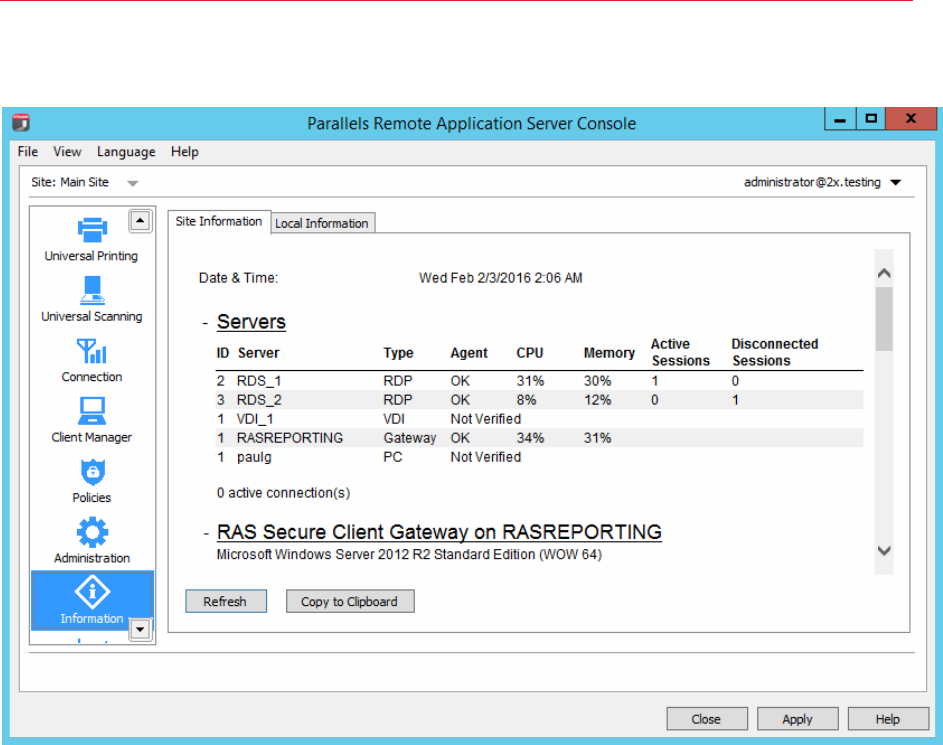
218
Managing Parallels Remote Application Server
To view the site information, in the RAS Console, select the Information category.
Review the information provided on the Site Information page, including available servers, their
types, Agent status, CPU utilization, etc. The page also shows the RAS Secure Client Gateway
information and other relevant info.
The Local Information tab pages shows the health of the RAS server host where the RAS Console
is running.
Licensing
The Licensing category allows you to manage your Parallels Remote Application Server license(s).
To manage your license(s), in the RAS console, select the Licensing category. The right pane
displays the current license information, including the following:
• Parallels Remote Application Server edition information
• The license expiration date
• The number of the concurrent user based licenses
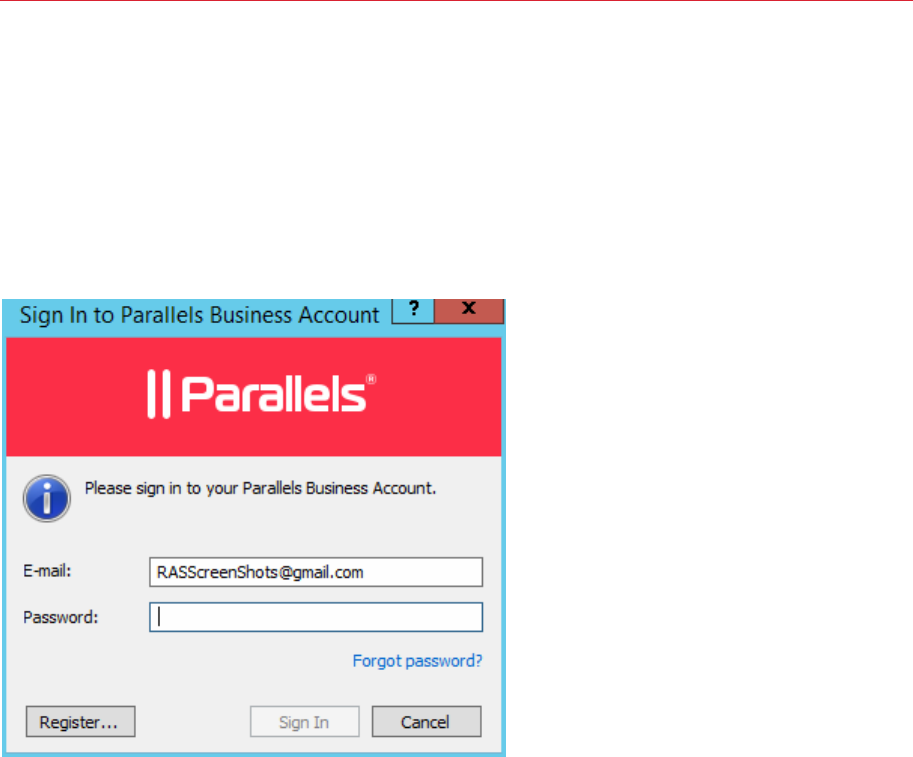
219
Managing Parallels Remote Application Server
• Peak users logged in (the number of and the date)
• Current users logged in (the number of)
• The license grace period
The Manage your license button allows you to switch to a new Parallels Business Account and to
activate Parallels Remote Application Server using a different license key. Click the button to open
the Sign in to Parallels Business Account dialog. This is the same dialog you used when you
signed in to Parallels Business Account for the first time.
If you would like to register a new Parallels Business Account, click the Register button, fill in the
registration form and then click Register to create an account. If you now sign-in using the new
account, you'll have to activate Parallels Remote Application Server using a different license key,
which you must purchase and register with the account.
To activate Parallels Remote Application Server using a different license key:
1 In the Sign In to Parallels Business Account dialog, provide the email address and password
you used to register your Parallels Business Account and click Sign In. You'll see the Activate
Product dialog.
2 Select the Activate using license key option and enter the key in the field provided. You can
click the button next to the field to see the list of subscriptions and/or permanent license keys
you have registered with your business account. If the list is empty, it means that you don't
have any subscriptions or license keys yet and need to purchase one first.
3 To purchase a subscription online, click the Purchase a license link.
4 You can also activate a trial version of Parallels Remote Application Server by selecting the
Activate trial version option.
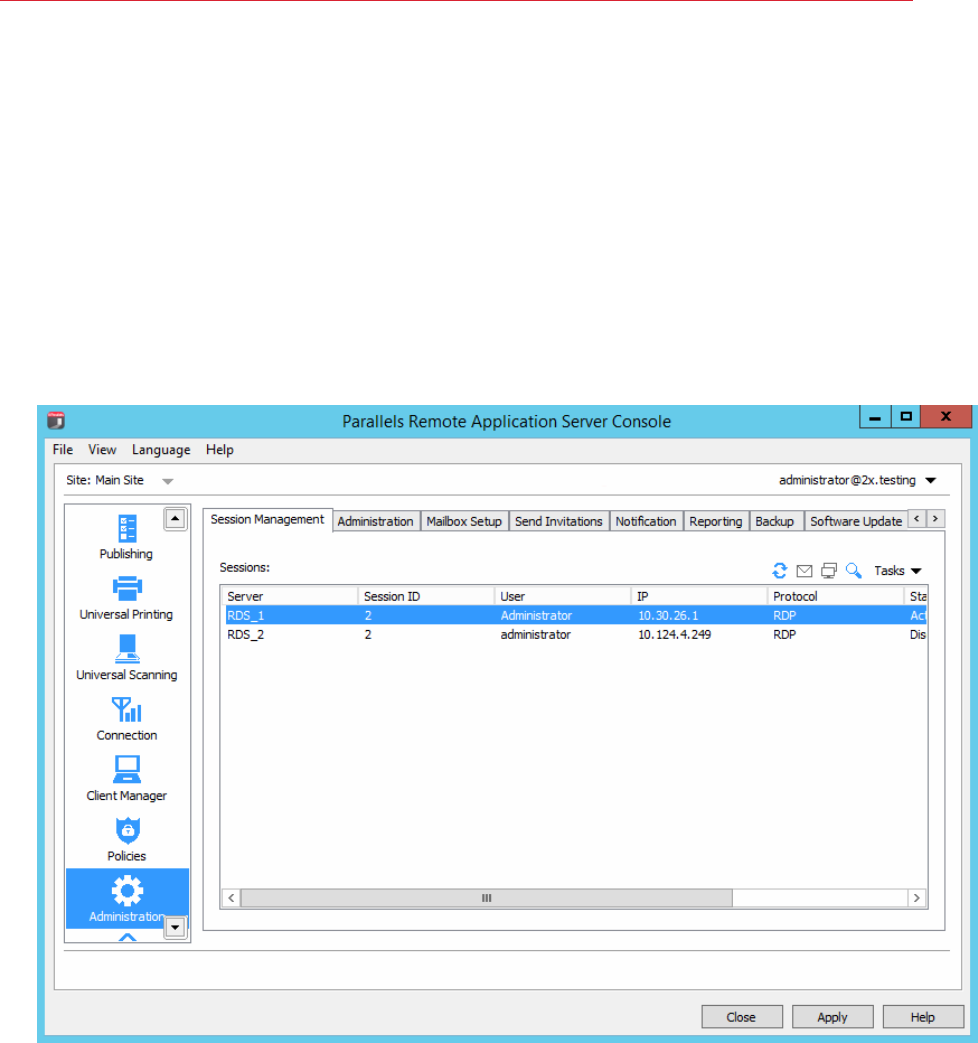
220
Managing Parallels Remote Application Server
5 After entering a license key (or selecting to activate a trial version), click Activate. You should
see the confirmation message that your Parallels Remote Application Server was activated
successfully.
Managing Sessions
The sessions management functionality allows you to disconnect, log off, and remotely control
active sessions on the host and the sites.
To manage sessions:
1 In the RAS Console, navigate to Administration / Session Management.
2 You can manage multiple sessions at the same time. Select one or more sessions that you'd
like to manage and then click the Tasks drop-down menu. In the menu, click an item
corresponding to the task you'd like to perform:
• Disconnect — disconnects selected sessions.
• Log Off — logs off session owners.
• Send Message — opens a dialog where you can type and send a message to the owners
of the selected sessions.

221
Managing Parallels Remote Application Server
• Remote Control — allows you to remotely control the selected user session. Note that this
option is only available when you select a single session.
Configuring Monitoring Counters and Email Alerts
Configuring Monitoring Counters
On the Notification tab page in the Administration category, you can enable, disable, and
configure notification counters, which are used to alert the administrator about system events via
email. These counter settings apply to all servers in the farm.
Counters for the following events are available:
• CPU utilization on a server is higher than the configured amount.
• Memory utilization on the server is higher than the configured amount.
• Number of sessions connected to a server is higher than the configured amount.
• Number of disconnected sessions is higher than the configured amount.
• RAS Terminal Server Agent has disconnected from or reconnected to the farm.
To configure notifications counters:
1 In the RAS Console, select the Administration category and then click the Notifications tab.
2 Select the desired event(s) and specify a value in the Parameters column (right-click an event
and click Edit).
3 In the Notification Interval field, specify the interval (in minutes) at which the notifications will be
emailed to the administrator.
Please note that the the mailbox should be configured in the RAS Console for the outgoing email
functionality to work. This mailbox is usually set up when you run the RAS Console for the first time
and then use the Start category to set up your first RAS environment. If you omitted this step, you
can set up a mailbox here. The mailbox setup procedure is described in the next section.
Configuring SMTP Server Connection for System Notifications via
Email
The Mailbox Setup tab page in the Administration category allows you to configure an SMTP
server for outgoing emails. The SMTP server is required for the administrator to receive system
event alerts (as described in the previous section) and to send invitation emails to the users.
To configure an SMTP server:
1 In the RAS Console, select the Administration category and then click the Mailbox Setup tab.
2 In the Mailbox Server field, type your mail server FDQN or IP address.

222
Managing Parallels Remote Application Server
3 In the Sender Address field, type the sender address.
4 Select the Use TLS / SSL and SMTP server requires authentication options if needed (type
the SMTP server username and password in the fields provided).
5 The Test Email section can be used to test your SMTP server configuration. You can type
more than email address, separated by a semicolon. Click Send Test Email to test the
settings.
Viewing Parallels Remote Application Server
Configuration Changes
To view the list of all configuration changes that's been done to your installation of Parallels Remote
Application Server:
1 In the RAS Console, select the Administration category and then click the Settings Audit tab.
2 Each entry in the Settings audit list corresponds to a task performed in the RAS Console by a
Parallels Remote Application Server administrator.
3 To refresh the list, click the "Refresh" icon (two arrows in a circle).
4 Double-click an entry in the list to view the corresponding configuration task details.
Configuring Auditing Logging
By default, auditing is disabled on the Parallels Remote Application Server. Auditing can be enabled
per server or per site, as described in the subsections that follow this section.
To enable and configure auditing, in the RAS Console, navigate to Farm / <site-name> / Settings.
Parallels Remote Application Server Auditing Logging
The auditing log contains information about the opened sessions and the total time for each
session.
Auditing logs can be configured on the Auditing tab page:
• The Process list contains processes that will NOT be included in the audit log file produced
when the View Audit button is clicked. To add or remove a process, click Tasks > Add or
Tasks > Delete. To rename a process, click Add > Properties. To reset the entire list and
display the default processes, click Add > Default.
• To enable or disable auditing logging, select Enabled or Disabled in the Auditing drop-down
list.
• To view the auditing log file, click the View Audit button.

223
Managing Parallels Remote Application Server
• To clear the log files, click the Clear Audit File button.
• Use the Backup log file drop-down list to specify how often the log file should be backed up.
Backup log files are stored in the same directory as the other log files. Backup log files can be
viewed from the Backups node in the RAS Monitor application.
Parallels Remote Application Server Logging Per Server
Parallels Remote Application Server logs are used by Parallels Support for troubleshooting
purposes, therefore this type of logging should only be enabled when instructed.
To manage troubleshooting log gathering for a particular server:
1 In the RAS Console, navigate to Farm / <site-name> / Terminal Servers.
2 To enable logging for a server, right-click the server and then click Enable logging in the
context menu.
3 To view the log file for a server, right-click the server and click Request Log in the context
menu.
4 To clear a server log file, right-click the server and then click Clear Log File in the context
menu.
Parallels Remote Application Server Logging Per Site
You can also enable, disable, and manage logging globally for all servers on a given site.
Note: When reporting a problem to Parallels Support it is useful to prepare the log file which can be
sent with the support request. To prepare the log file follow the below procedure:
To manage global logging:
1 In the RAS Console, navigate to Farm / <site-name> / Settings and click the Global Logging
tab.
2 Use the items in the Actions section to perform the following actions:
• Start All Logs. Enables logging on all servers within the site.
• Stop All Logs. Stops all logging.
• Retrieve All Logs. Retrieves all logs and saves them to a file (you'll need to specify the file
name and the target location).
• Clear All Logs. Clears all logs. Note that once you click this item, the logs will be cleared
with NO additional warning.
3 In the Settings section, specify how often the log file should be backed.

224
Managing Parallels Remote Application Server
Maintenance and Backup
Keeping Parallels Remote Application Server Up to Date
By default, Parallels Remote Application Server will check for updates each time the RAS Console
is started. To disable checking for updates, select the Administration category and click the
Software Update tab. Clear the Check for updates when launching Parallels Remote
Application Server Console option. To check for updates manually, click the Check Now button.
On the same Software Update tab page, a read-only list of modules used by the Parallels Remote
Application Server is displayed. You can ignore it unless specifically asked by the Parallels Support.
Backing Up the Parallels Remote Application Server Configuration
To backup the Parallels Remote Application Server farm configuration:
1 Select the Administration category and then click the Backup tab.
2 Click the Export icon.
3 You'll see a message box informing you that all sites will be synchronized before performing the
export procedure. Click Yes to continue with export or click No to abort it.
4 Specify the file name and target folder and click Save.
Note: A Parallels Remote Application Server configuration backup will only contain the actual
configuration. Non-related configuration objects such as downloaded OS, etc. are not included in the
backup.
To restore a configuration from a backup, click the Import icon and follow the instructions.
Exporting and Importing Farm Settings
A PowerShell interface is included in the Parallels Remote Application Server installation allowing
you to export and import farm settings. One of the uses of this interface is running automated tests.
Preconfigurations can be created, exported, and then imported for specific test scenarios. You can
also use it with Windows task scheduler for regular backups of farm settings.
Installing the Interface
First, you need to obtain the RAS_PS_Interface.zip file from the Parallels website and then do
the following:
1 Extract the RAS_PS_Interface.zip archive to your local hard drive.
225
Managing Parallels Remote Application Server
2 Start the 64-bit version of PowerShell.
3 Change directory to where you extracted the archive.
4 Run the following command:
Import-Module .\PSInterface.dll
Using the Interface
To export farm settings, execute the following command:
Get-Settings
To get help on how to use Get-Settings, run the following command:
help Get-Settings
To import farm settings:
Set-Settings
To get help:
help Set-Settings
Problem Reporting and Troubleshooting
If you are experiencing an issue with Parallels Remote Application Server, you can search for a
solution right from the RAS Console. If you can't find a solution, you can send a support request to
Parallels. This section describes how to accomplish these tasks.
Search for a Solution
To search for a solution from the RAS Console:
1 In the console, click Help on the main menu and then click Troubleshooting.
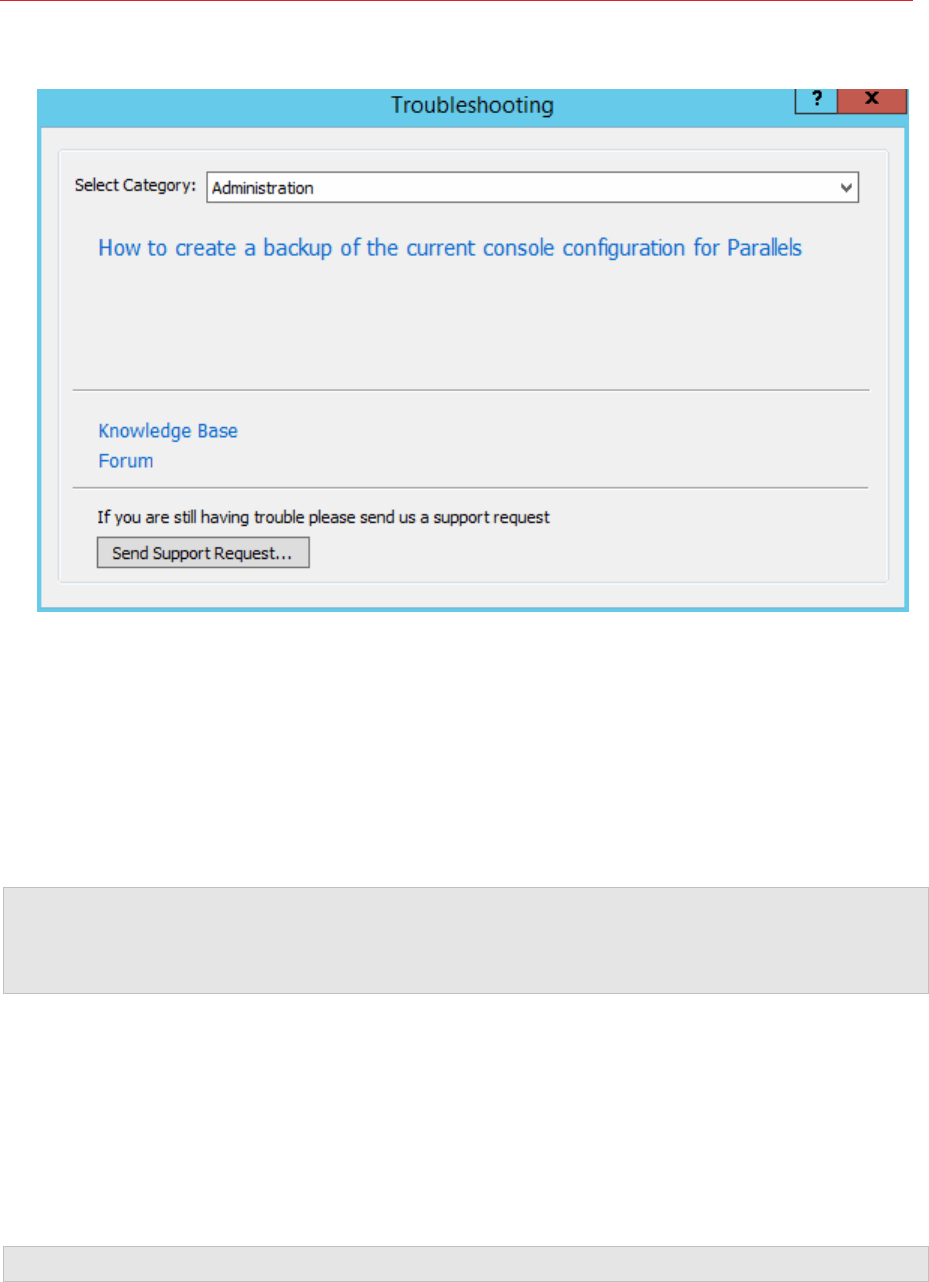
226
Managing Parallels Remote Application Server
2 The Troubleshooting dialog opens.
3 In the Select Category drop-down list, select a category you are having a problem with. The
area in the middle of the dialog will be populated with a list of existing KB articles related to that
category.
4 Click an article of interest to open and read it in a web browser.
5 You can also click the Knowledge Base link or the Forum link to go to the Parallels knowledge
base or the Parallels forum respectively.
Request Support
Note: A support request sent to Parallels automatically creates a support ticket, which is then sent to the
Parallels Support department. Please note that if you don't have a current RAS subscription or a support
contract, the ticket will NOT be created. In order to receive support, you will need to purchase a
subscription or a support contract.
If no articles are found for a given category or if you didn't find a solution for your problem, you can
send a request support to Parallels. Before you do, please make sure that Global Logging is
enabled and that you have a mailbox setup in the RAS Console.
To enable Global Logging:
1 In the RAS Console, navigate to Farm / <site-name> / Settings.
2 Click the Global Logging tab and then click the Start All Logs action item.
Note: If Global Logging was disabled, you need to reproduce the issue in order for it to be logged.
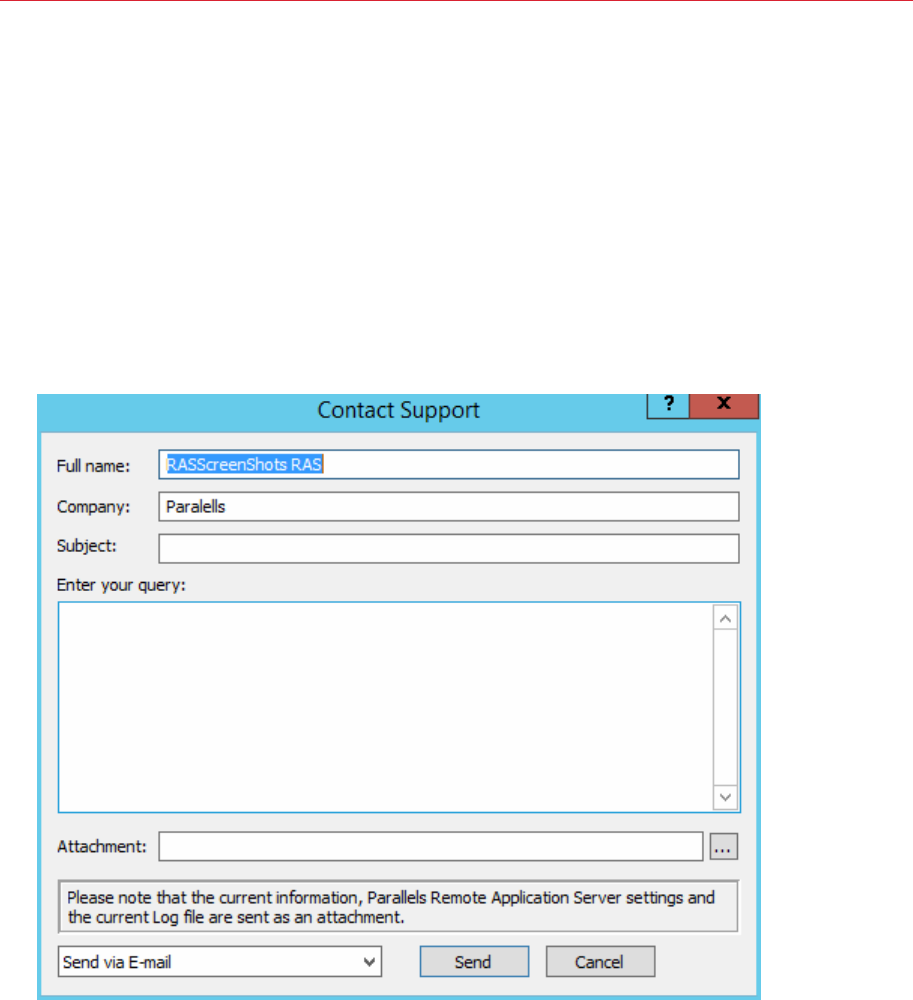
227
Managing Parallels Remote Application Server
If you haven't set up a mailbox yet, please do it as follows:
1 In the RAS Console, navigate to Administration / Mailbox Setup.
2 Enter your outgoing email server information, your email address, and the
security/authentication information if needed.
3 You can send a test email by entering an email address in the field provided and clicking the
Send Test Email button.
To send a support request to Parallels:
1 In the Troubleshooting dialog, click the Send Support Request button.
2 The Contact Support dialog opens.
3 Enter your full name and your company name.
4 Enter the subject. This will be used as a subject in the email that will be sent to Parallels
Support.
5 In the Enter your query box, describe the issue the best you can.
6 Use the Attachment field to attach a file to the email. Click the [...] button to browse for a file.
You can attach a picture or any other file that you think might help the Parallels Support to find
a solution. Please note that the log files and the Parallels Remote Application Server settings are
collected and attached to the email automatically, so you don't have to do it yourself.

228
Managing Parallels Remote Application Server
7 In the drop-down list at the bottom of the dialog, select whether you want to send the email or
save it (including the automatically collected information) as a zip file.
8 Depending on the action selected in the previous step, click Send to send the email or Save to
save it as a zip file on your local drive or a network folder.
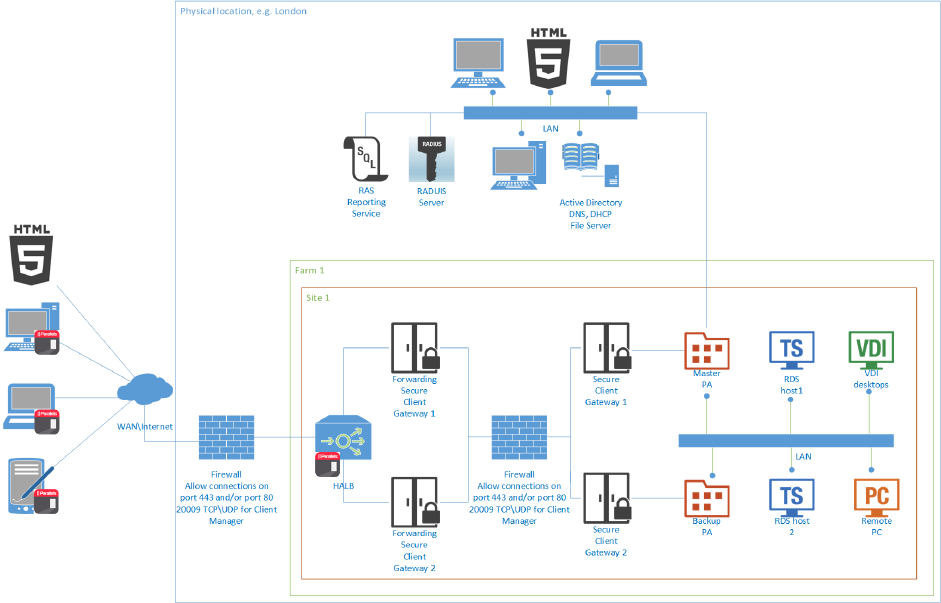
In Dual DMZ configuration with HALB for Forwarding Parallels Secure Client Gateways and Multiple
Parallels Secure Client Gateways, the redundant Parallels Publishing Agent and mixed desktop
scenario, the following port are used:
On the Firewall faces the Internet:
• TCP 80
• UDP 80 (if RDP-UDP is enabled)
• TCP 443 (if SSL is enabled)
• UDP 443 (if SSL and RDP-UDP is enabled)
• TCP 3389 (if RDP Load Balancing is enabled)
On the HALB appliance externally:
• TCP 80
CHAPTER 19
Port Reference

230
Port Reference
• TCP 443 (if SSL is enabled)
On the HALB appliance internally:
• TCP 80
• TCP 443 (if SSL is enabled)
• TCP 31006
• UDP 31006
• RAW 112 (VRRP)
Forwarding Parallels Secure Client Gateways communicates via:
• TCP 80
• UDP 80 (if RDP-UDP is enabled)
• TCP 443 (if SSL is enabled)
• UDP 443 (if SSL and RDP-UDP is enabled)
• TCP 3389 (if RDP Load Balancing is enabled)
• UDP 20000 (Gateway Lookup)
• UDP 20009 (if Client Manager is enabled)
Parallels Secure Client Gateways communicates via:
• TCP 80
• UDP 80 (if RDP-UDP is enabled)
• TCP 443 (if SSL is enabled)
• UDP 443 (if SSL and RDP-UDP is enabled)
• TCP 3389 (if RDP Load Balancing is enabled)
• UDP 20000 (Gateway Lookup)
• UDP 20009 (if Client Manager is enabled)
Parallels Publishing Agents communicate via:
• TCP 20001 – Redundancy Service
• TCP 20002 - Publishing Agent Service Port (communications with 2XSecureClientGateway and
UI Console)
• TCP 20003 - Terminal Server Agent Port (communications with Terminal Server agents)
Parallels Terminal Server Agents communicate via:
• TCP 30004 – Terminal Server Agent Communication Port
• UDP 30004 – Terminal Server Agent Communication Port
• TCP 3389 – Standard RDP Connections

231
Port Reference
• UDP 3389 – Standard RDP Connections
• TCP 30005 - Terminal Server Agent Communication Port (Shell + Printer Redirector)
Parallels VDI Agents communicate via:
• TCP 30006 – VDI Agent Communication Port
• UDP 30006 – VDI Agent Communication Port
• TCP 30007 – VDI Agent Communication Port
• TCP 30009 – VDI Agent Communication Port
• TCP 30005 - Terminal Server Agent Communication Port (Shell + Printer Redirector)
Parallels Remote PC Agents communicate via:
• UDP 30004
• TCP 3389 – Standard RDP Connections
• UDP 3389 – Standard RDP Connections
Parallels Client communicates via:
• TCP 80
• UDP 80 (if RDP-UDP is enabled)
• TCP 443 (if SSL is enabled)
• UDP 443 (if SSL and RDP-UDP is enabled)
• TCP 3389 – Standard RDP Connections
• UDP 3389 – Standard RDP Connections
• UDP 20009 — Client Manager
Internal Firewall Ports:
• Remote Install Push/Takeover of Software: TCP 135, 445, 49179
For Active Directory and Active Directory Domain Services Port Requirements see this article:
https://technet.microsoft.com/en-us/library/dd772723%28v=ws.10%29.aspx
For Remote Application Server firewall requirements, see this article:
http://kb.parallels.com/en/123255

Index
A
About This Document - 10
Activating Parallels Remote Application
Server - 23
Add a Terminal Server - 27
Adding a Backup Publishing Agent - 173
Adding a New Site to the Farm - 34
Adding a RAS Secure Client Gateway - 147
Adding a Remote PC - 125
Adding a Terminal Server - 43
Adding a VDI Host - 65
Adding an Administrator Account - 38
Adding and Deleting Pool Members - 78
Adding and Deleting Pools - 77
Administrators
Adding, Managing and Configuring - 38
Advanced Settings - 212
B
Backup Publishing Agents - 173
C
Change a Terminal Server Site Assignment -
47
Changing HALB Appliance Password - 182
Changing the Gateway Mode and Forwarding
Settings - 158
Check RAS Terminal Server Agent Status -
46
Checking the RAS Secure Client Gateway
Status - 148
Checking the RAS VDI Agent Status - 67
Citrix XenServer - 86
Conclusion - 32
Configure Parallels Remote Application Server
- 232
Configuring a RAS Template - 74
Configuring a Remote PC - 127
Configuring a Terminal Server - 46
Configuring Administrator Accounts
Permissions - 39
Configuring Auditing Logging - 249
Configuring Deepnet - 227
Configuring DualShield 5.6+ Authentication
Platform - 234
Configuring HALB Appliances in the RAS
Console - 179
Configuring Monitoring Counters - 248
Configuring Monitoring Counters and Email
Alerts - 248
Configuring Parallels Remote Application
Server - 221
Configuring Parallels Remote Application
Server to Use DualShield Authentication
Platform - 239
Configuring RAS Secure Client Gateway
Network Options - 152
Configuring SafeNet - 224
Configuring SMTP Server Connection for
System Notifications via Email - 248
Configuring the IP Address for Incoming
Connections - 151
Configuring Tunneling Policies - 159
Configuring Virtual Guests in a Pool - 78
Connect to a RAS Farm - 234, 242
Connection and Authentication Settings - 217
Creating a RAS Template - 73
Creating User Accounts on Deepnet - 233
D
Deploy and Configure RAS Reports - 211
E
Enabling and Disabling a RAS Secure Client
Gateway - 150
Enabling HTML5 Support on the Gateway -
155
Enabling SSL Encryption on a RAS Secure
Client Gateway - 153
Exporting and Importing Farm Settings - 251
Index

Index
F
Farm Settings - 164
Filtering Access to RAS Secure Client
Gateway - 159
Filtering Rules by User, Client, IP, MAC, and
Gateway - 142
Font Management - 187
G
Gateway Tunneling Policies - 159
General Settings - 167
Getting Started with Parallels Remote
Application Sever - 24
Grouping Terminal Servers - 51
H
Hardware Requirements - 14
High Availability Load Balancing - 178
How Virtual Guests Are Created From a
Template - 73
I
Installing an Appliance and Configuring a VDI
Host - 68
Installing Parallels Remote Application Server
- 13, 15
Installing RAS PC Agent Manually - 126
Installing RAS Terminal Server Agent
Manually - 45
Installing RAS VDI Agent Manually - 67
Introduction to Parallels Remote Application
Server - 9
Invite Users - 29
Inviting Users to Connect Devices - 193
J
Joining Customer Experience Program - 41
L
Licensing - 244
Load Balancing - 175
Load Balancing Advanced Settings - 178
Logging Into the Administrative Page - 162
M
Maintenance and Backup - 251
Managing Administrator Accounts - 40
Managing Backup Publishing Agents - 174
Managing Devices - 193
Managing Logons From Client Sessions - 54
Managing Parallels Client Settings - 206
Managing Parallels Remote Application
Server - 243
Managing Published Applications - 132
Managing Published Desktops - 137
Managing Published Documents - 139
Managing Published Folders - 141
Managing RAS Secure Client Gateway - 149
Managing RAS Templates - 72
Managing Scanning Applications - 191
Managing Sessions - 246
Managing Sites - 37
Managing Universal Printing Servers - 184
Managing Universal Scanning - 189
Managing Windows Devices - 196
Managing Your Licenses - 23
Manually Adding a RAS Secure Client
Gateway - 148
Microsoft Hyper-V - 97
Monitoring Devices - 195
P
Parallels RAS Web Portal - 226
Parallels Remote Application Server Console
- 24
Parallels Remote Application Server Logging
Per Server - 250
Parallels Remote Application Server Logging
Per Site - 250
Parallels Remote Application Server Status -
243
Parallels Web Portal - 242
Persistent Guests - 80
Port Reference - 256
Preparing Citrix XenServer for Parallels
Remote Application Server - 86
Preparing Hyper-V for Parallels Remote
Application Server - 97
Preparing VMware vSphere for Parallels
Remote Application Server - 101
Problem Reporting and Troubleshooting -
252
Publish an Application - 29
Publishing a Desktop from a Remote PC -
128

Index
Publishing a Desktop from a Terminal Server
- 55
Publishing a Document from a Guest - 84
Publishing a Document from a Remote PC -
130
Publishing a Document from a Terminal
Server - 64
Publishing a Network Folder from a Guest -
83
Publishing a Network Folder from a Remote
PC - 130
Publishing a Network Folder from a Terminal
Server - 62
Publishing a Virtual Desktop from a Guest -
81
Publishing a Web Application from a Guest -
82
Publishing a Web Application from a Remote
PC - 129
Publishing a Web Application from a Terminal
Server - 61
Publishing an Application from a Guest - 81
Publishing an Application from a Remote PC
- 129
Publishing an Application from a Terminal
Server - 58
Publishing and Filtering - 132
Publishing from a Guest - 81
Publishing from a Remote PC - 128
Publishing from a Terminal Server - 55
R
RAS Publishing Agent Connection Settings -
218
RAS Reports - 213
RAS Secure Client Gateway Overview - 145
RAS Secure Client Gateways - 145
RAS Template Maintenance - 75
RAS Web Portal - 160
Prerequisites and Installation - 160
Remote PC’s - 125
Reporting - 211
Resource Based & Round Robin Load
Balancing - 175
Restricting Access by Parallels Client Type
and Build Number - 220
S
Scheduling Windows Devices & Groups
Power Cycles - 205
Second Level Authentication - 220
Setting Up a Simple RAS Environment - 26
Signing In to Parallels Business Account - 21
Sites and Administrators - 33
Sites and Management - 33
Software Requirements - 13
Support for Wyse Thin Client OS - 158
System Requirements - 13
T
Terminal Servers - 42
Terms and Abbreviations - 10
U
Universal Printing - 184
Universal Printing Filtering - 186
Universal Scanning - 189
Using a Terminal Server Scheduler - 52
Using Instant Messaging for Administrators -
40
Using the Wildcard Function - 80
V
VDI Agent Technology - 85
VDI Host Pool Management - 76
VDI Hosts - 65
View and Modify Terminal Server Properties -
47
Viewing Parallels Remote Application Server
Configuration Changes - 249
Viewing the Available Terminal Servers - 42
VMWare vSphere - 101
W
What is Parallels Remote Application Server?
- 9
Windows Desktop Replacement - 200
Windows Device Groups - 204
Working with Deepnet - 227
Working with DualShield - 234
Working with Safenet - 224
