Parallels H Sphere 3.5.1 System Administrator Guide Hsphere Sysadmin En
User Manual: parallels H-Sphere - 3.5.1 - System Administrator Guide Free User Guide for Parallels H-Sphere Software, Manual
Open the PDF directly: View PDF  .
.
Page Count: 422 [warning: Documents this large are best viewed by clicking the View PDF Link!]
- Preface
- About This Guide
- Pre-configuration Wizard
- Software Used in Parallels H-Sphere
- Update of Operating Systems
- Network Address Translation (NAT)
- Server Time Synchronization
- Cron Scripts
- Traffic Calculation
- IP Migration (Changing IPs)
- Changing IPs on Systems Without NAT
- Changing External IPs on Systems with NAT
- Changing Internal IPs on Systems With NAT
- Configuring Parallels H-Sphere to Work on Two Sets of IPs
- Restarting Services
- Control Panel Server
- Understanding Control Panel Server Configuration
- Installed Software
- Interaction Between Servers
- Location of CP Files and Directories
- The Parallels H-Sphere Configuration File
- Control Panel Apache Server Configuration
- Control Panel Back-End Servlet Engine
- Reseller Configuration
- Reseller SSL Configuration
- CP SSL Configuration
- CP Apache Log Files
- CP Traffic Calculation
- The Parallels H-Sphere System Database
- The System Database Settings
- Logging into the System Database
- VACUUM Utility
- CP Mail Queue
- Logging in as the cpanel User
- Logging into Parallels H-Sphere System Database
- Launching Control Panel Cron Jobs
- Configuring Tomcat
- Running Java Command Line Tools
- DNSCreator
- IPMigratorFast
- PhysicalCreator
- PostApacheConfigs
- PostFTPConfigs
- ServerAliasesRenamer
- ChangeLServerId
- MIVAEmpresaFix
- KeyPairGenerator
- PGPEncrypter
- PGPMessageSigner
- PGPMessageVerify
- RepostResellerSSLConfigs
- ServiceZoneRenamer
- BillingEraser
- SetQuota
- UrchinReconfig
- OffLogs
- Reset Balance
- RegenerateIpsFile
- LicenseExtractor
- MailRelayCorrector
- Securing Your CP Server with SSL
- Upgrading Java
- Converting Parallels H-Sphere System Database from MS SQL to PgSQL
- Upgrading System Postgres
- Converting Parallels H-Sphere Database To UNICODE
- Accelerating Control Panel
- Changing CP URL
- Migrating Control Panel Server
- Generating SSH Keys for Parallels H-Sphere Servers
- Encrypting Trouble Tickets
- Customizing Domain Registration Lookup Script
- Understanding Control Panel Server Configuration
- Web Server
- Understanding Web Server Configuration
- Preventing Manipulation with Logs Directory Permissions
- Altering Virtual Host Configuration
- Calculating Web Traffic
- Adding Directories for User Homes
- Installing Ruby on Rails
- Installing Chili!Soft ASP
- Installing mod_perl
- Installing Zend Optimizer
- Mail System
- Understanding Parallels H-Sphere Mail
- Choosing Remote Web and MySQL Logical Servers for Horde Webmail Frontend
- Changing Mail Server Roles
- Blocking IPs on Mail Servers
- Adding Qmail Settings to IP/Subnet
- Bouncing Mail
- Configuring Qmail
- Choosing Remote MySQL Logical Server for SpamAssassin
- SPF and SRS
- Updating SpamAssassin Rulesets Automatically
- Migrating Mail Server/IP
- Moving Mail Domains
- Calculating Mail Traffic
- SpamGuard Setup
- DNS Server
- MySQL Server
- PostgreSQL Server
- Installing PostgreSQL Server
- Backing Up PostgreSQL Database
- Using VACUUM Utility
- Running PostgreSQL Scripts
- Changing Postgres User Password
- Localizing PostgreSQL
- Configuring Parallels H-Sphere to Use Non-Default MySQL/PostgreSQL Versions
- Choosing Remote Web Logical Servers for phpMyAdmin/phpPgAdmin Frontends
- Downgrading Postgres
- Windows Servers
- MSI Packages
- Winbox Directory Structure
- Restarting Winbox Service
- Restarting IIS
- Enabling Winbox Shared SSL
- Winbox Statistics
- Setting Up SharePoint to Use MSSQL Server
- Adding ODBC Resource
- Configuring ColdFusion
- Specifying Default ASP.NET Version
- Enabling ASP.NET 4.0
- Moving Log Files
- Removing Old Log Files
- Moving User Homes
- Changing hsadmin Login and Password
- Winbox IP Migration
- Winbox Security Scheme
- Calculating Winbox Traffic
- Microsoft SQL Server
- Dedicated Servers
- System Packages
- Common Packages
- hsphere-info: Collecting Information About Parallels H-Sphere Servers into XML Configs
- hsphere-update Package
- upackages Syntax
- Parallels H-Sphere Perl Modules
- Parallels H-Sphere Apache
- Parallels H-Sphere PHP
- Parallels SiteStudio Packages
- Common Packages
- Load Balancing
- Resources Migration
- Migratable Resources
- Migration Procedure
- Step 1. Create XML File Containing User Data
- Data Type Definitions
- DTD Chart
- Attributes Description
- Files
- XML Validation
- Step 2. Create XML File Containing Reseller Plan Data
- Step 3. Prepare The Target Control Panel
- Step 4. Create Reseller Plans
- Step 5. Create Resellers
- Step 6. Create End Users
- Troubleshooting
- Backup and Recovery
- Backing Up Parallels H-Sphere Control Panel Server
- Parallels H-Sphere Backup and Recovery List
- Recovering Parallels H-Sphere Control Panel
- Recovering Unix Hosted Parallels H-Sphere Servers
- Restoring Files and Directories from Backup
- Restoring the Parallels H-Sphere System Database From Backup
- Fixing Crashed Parallels H-Sphere Database
- Backing Up Winbox
- Recovering Winbox
- Step 1. Back Up User Content
- Step 2. Install Parallels H-Sphere
- Step 3. Set Up Dedicated IPs
- Step 4. Prepare Target Winbox for Physical Creator
- Step 5. Run PhysicalCreator on the CP Box
- Step 6. Restore Content from Backup
- Step 7. Install Shared SSL
- Step 8. Set Correct NTFS Permissions and Owner for the Home Directory
- Recovering Winbox Quota
- Miva
- Urchin
- RealServer
- Softaculous
Parallels® H-Sphere

Legal and Copyright Notice
ISBN: N/A
Parallels Holdings, Ltd.
c/o Parallels International GmbH
Vordergasse 59
CH-Schaffhausen
Switzerland
Phone: +41-526320-411
Fax: +41-52672-2010
© Copyright 2011,
Parallels, Inc.
All rights reserved
www.parallels.com
This product is protected by United States and international copyright laws. The product’s
underlying technology, patents, and trademarks are listed at
http://www.parallels.com/trademarks.
Microsoft, Windows, Windows Server, Windows NT, Windows Vista, and MS-DOS are
registered trademarks of Microsoft Corporation.
Linux is a registered trademark of Linus Torvalds.
Mac is a registered trademark of Apple, Inc.
All other marks and names mentioned herein may be trademarks of their respective owners.

Contents
Preface 12
Typographical Conventions ......................................................................................................... 12
Feedback ..................................................................................................................................... 13
About This Guide 14
Pre-configuration Wizard 15
Parallels H-Sphere config.xml ..................................................................................................... 18
Elements and Attributes .................................................................................................... 18
Software Used in Parallels H-Sphere 20
Integrated Third Party Products ................................................................................................... 21
Supplementary Software ............................................................................................................. 23
Used Libraries and Technologies ................................................................................................ 24
Update of Operating Systems 25
Updating FreeBSD Kernel ........................................................................................................... 26
Updating Linux ............................................................................................................................. 26
Linux Up2Date ................................................................................................................... 28
Linux Apt-Get..................................................................................................................... 28
Network Address Translation (NAT) 29
Configuring Newly Installed H-Sphere with NAT Support ........................................................... 30
Enabling NAT Support on a Live System .................................................................................... 31
Configuring NAT Firewall ............................................................................................................. 32
Migrating IPs with NAT ................................................................................................................ 32
Server Time Synchronization 33
NTP Time Servers ....................................................................................................................... 33
Cron Scripts 34
Control Panel Server Crons ......................................................................................................... 34
Web Server Crons ....................................................................................................................... 35
DNS Server Cron ......................................................................................................................... 35
Mail Server Crons ........................................................................................................................ 36
PostgreSQL/MySQL Server ........................................................................................................ 36
Traffic Calculation 37
Checking Traffic via Parallels H-Sphere Control Panel ............................................................... 38
Checking Traffic on Physical Servers .......................................................................................... 38

Preface 4
Processing Traffic by Crons ........................................................................................................ 39
HTTP traffic ....................................................................................................................... 39
User FTP traffic ................................................................................................................. 39
Virtual FTP traffic ............................................................................................................... 39
Mail traffic .......................................................................................................................... 39
Parsing Traffic by TrafficLoader .................................................................................................. 40
IP Migration (Changing IPs) 41
Changing IPs on Systems Without NAT ...................................................................................... 41
IP Migration Pre-requisites ................................................................................................ 42
IP Migration Map File ........................................................................................................ 43
Creating ipmigration.xml Manually .................................................................................... 44
Creating ipmigration.xml by Parallels H-Sphere IP Migrator ............................................. 44
IP Migration Step by Step .................................................................................................. 45
Changing External IPs on Systems with NAT ............................................................................. 54
Changing Internal IPs on Systems With NAT .............................................................................. 55
Configuring Parallels H-Sphere to Work on Two Sets of IPs ...................................................... 56
Restarting Services 57
Restarting Parallels H-Sphere Control Panel .............................................................................. 59
Restarting Parallels H-Sphere Database..................................................................................... 59
Restarting Web Server ................................................................................................................ 60
Restarting PostgreSQL Server .................................................................................................... 60
Restarting Mail Server ................................................................................................................. 62
Restarting MySQL Server ............................................................................................................ 62
Restarting Named ........................................................................................................................ 63
Control Panel Server 64
Understanding Control Panel Server Configuration .................................................................... 65
Installed Software .............................................................................................................. 65
Interaction Between Servers ............................................................................................. 66
Location of CP Files and Directories ................................................................................. 66
The Parallels H-Sphere Configuration File ........................................................................ 67
Control Panel Apache Server Configuration ..................................................................... 67
Control Panel Back-End Servlet Engine ........................................................................... 67
Reseller Configuration ....................................................................................................... 67
Reseller SSL Configuration ............................................................................................... 68
CP SSL Configuration ....................................................................................................... 68
CP Apache Log Files ......................................................................................................... 68
CP Traffic Calculation ........................................................................................................ 69
The Parallels H-Sphere System Database ....................................................................... 69
The System Database Settings ......................................................................................... 69
Logging into the System Database ................................................................................... 69
VACUUM Utility ................................................................................................................. 70
CP Mail Queue .................................................................................................................. 70
Logging in as the cpanel User ..................................................................................................... 71
Logging into Parallels H-Sphere System Database .................................................................... 71
Launching Control Panel Cron Jobs ............................................................................................ 71
CP Cron XML Configuration Files ..................................................................................... 72
Background Job Manager ................................................................................................. 72
Configuring Tomcat ..................................................................................................................... 72
Tomcat Configuration Files ............................................................................................... 73
Tomcat Log File ................................................................................................................. 73
Restarting Tomcat ............................................................................................................. 73
Customizing Tomcat Environment Variables .................................................................... 74

Preface 5
Running Java Command Line Tools ........................................................................................... 75
DNSCreator ....................................................................................................................... 76
IPMigratorFast ................................................................................................................... 77
PhysicalCreator ................................................................................................................. 78
PostApacheConfigs ........................................................................................................... 79
PostFTPConfigs ................................................................................................................ 79
ServerAliasesRenamer ..................................................................................................... 80
ChangeLServerId .............................................................................................................. 81
MIVAEmpresaFix............................................................................................................... 81
KeyPairGenerator .............................................................................................................. 82
PGPEncrypter.................................................................................................................... 82
PGPMessageSigner .......................................................................................................... 82
PGPMessageVerify ........................................................................................................... 83
RepostResellerSSLConfigs ............................................................................................... 83
ServiceZoneRenamer ....................................................................................................... 84
BillingEraser ...................................................................................................................... 84
SetQuota ........................................................................................................................... 85
UrchinReconfig .................................................................................................................. 85
OffLogs .............................................................................................................................. 86
Reset Balance ................................................................................................................... 87
RegenerateIpsFile ............................................................................................................. 88
LicenseExtractor ................................................................................................................ 88
MailRelayCorrector ............................................................................................................ 89
Securing Your CP Server with SSL ............................................................................................. 90
Disabling HTTP Access ..................................................................................................... 92
Switching Between IP and Domain Name ........................................................................ 93
Upgrading Java ............................................................................................................................ 93
Supported Versions ........................................................................................................... 93
Upgrade Procedure ........................................................................................................... 94
Converting Parallels H-Sphere System Database from MS SQL to PgSQL ............................... 96
Step 1. Convert Database from MSSQL Server to MySQL .............................................. 97
Step 2. Convert Database from MySQL Server to PgSQL ............................................... 98
Upgrading System Postgres ...................................................................................................... 100
Converting Parallels H-Sphere Database To UNICODE........................................................... 102
Accelerating Control Panel ........................................................................................................ 105
Parallels H-Sphere Java-related Issues .......................................................................... 106
Optimizing Parallels H-Sphere System Database ........................................................... 107
Troubleshooting ............................................................................................................... 113
Changing CP URL ..................................................................................................................... 113
Changing IP Address to Domain Name in CP URL ........................................................ 114
Changing Parallels H-Sphere Port .................................................................................. 114
Changing Entire CP URL ................................................................................................ 115
Setting Multiple Alternative CP URL's ............................................................................. 116
Migrating Control Panel Server ................................................................................................. 117
Generating SSH Keys for Parallels H-Sphere Servers ............................................................. 119
Encrypting Trouble Tickets ........................................................................................................ 120
Generating PGP Public Key and PGP Private Key ......................................................... 120
Enabling PGP Encryption In Your Support Center.......................................................... 121
Encrypting Texts With PGP Public Key ........................................................................... 121
Using Encrypted Parts in Trouble Tickets ....................................................................... 122
Customizing Domain Registration Lookup Script ...................................................................... 123
Web Server 124
Understanding Web Server Configuration ................................................................................. 125
FTP Server ...................................................................................................................... 126
SSL Implementation on Unix Web Servers ..................................................................... 131
Dedicated SSL................................................................................................................. 131
Shared SSL ..................................................................................................................... 131

Preface 6
Third Party Log Analyzers Integrated in Parallels H-Sphere .......................................... 132
WebShell ......................................................................................................................... 136
MnoGoSearch ................................................................................................................. 137
Parallels H-Sphere Jail .................................................................................................... 139
Preventing Manipulation with Logs Directory Permissions........................................................ 141
Altering Virtual Host Configuration ............................................................................................ 141
Calculating Web Traffic.............................................................................................................. 143
Using Third-Party Log Analyzers for Traffic Calculation ................................................. 144
Calculating Parallels H-Sphere Built-In Traffic ................................................................ 146
Adding Directories for User Homes ........................................................................................... 147
Installing Ruby on Rails ............................................................................................................. 147
Installing Chili!Soft ASP ............................................................................................................. 148
WORKFLOW ................................................................................................................... 148
Installing mod_perl..................................................................................................................... 155
Installing Zend Optimizer ........................................................................................................... 157
Mail System 159
Understanding Parallels H-Sphere Mail .................................................................................... 160
Mail Package ................................................................................................................... 161
Included Software ............................................................................................................ 161
Webmails ......................................................................................................................... 162
IMAP Server .................................................................................................................... 165
Choosing Remote Web and MySQL Logical Servers for Horde Webmail Frontend ................. 167
Changing Mail Server Roles ...................................................................................................... 168
Blocking IPs on Mail Servers ..................................................................................................... 170
Adding Qmail Settings to IP/Subnet .......................................................................................... 170
Bouncing Mail ............................................................................................................................ 171
1. Separate IP for Sending Bounced Mail ....................................................................... 171
2. Processing Error Responses ....................................................................................... 172
3. Bounced Message Delivery ......................................................................................... 173
Configuring Qmail ...................................................................................................................... 173
Antivirus and Antispam Filters (SpamAssassin and ClamAV) ........................................ 174
Integrated Antispam Addons ........................................................................................... 177
Qmail Server Settings ..................................................................................................... 178
Command Line Qmail Configuration ............................................................................... 190
Syslog Facility/Level Configuration For rblsmtpd ............................................................ 190
SMTP Log ........................................................................................................................ 191
Mail Client and ESMTP Destination Server .................................................................... 192
Qmail-spp Support .......................................................................................................... 193
Qmail TLS Support .......................................................................................................... 194
Integrated Plugins ........................................................................................................... 194
Choosing Remote MySQL Logical Server for SpamAssassin................................................... 195
SPF and SRS ............................................................................................................................ 196
SPF (Sender Policy Framework) ..................................................................................... 197
SRS (Sender Re-write Scheme) ..................................................................................... 199
Updating SpamAssassin Rulesets Automatically ...................................................................... 199
Sa-update Script .............................................................................................................. 200
Rules Du Jour Script ....................................................................................................... 200
Migrating Mail Server/IP ............................................................................................................ 204
Moving Mail Domains ................................................................................................................ 207
Calculating Mail Traffic .............................................................................................................. 208
Mail Traffic Log ................................................................................................................ 210
POP3 and IMAP Traffic ................................................................................................... 211
Web Mailing List Traffic ................................................................................................... 211
SpamGuard Setup ..................................................................................................................... 212
DNS Server 213

Preface 7
DNS Config Files ....................................................................................................................... 214
Parallels H-Sphere DNS Zones ....................................................................................... 214
Custom DNS Zones ........................................................................................................ 214
Reverse DNS ................................................................................................................... 215
Restarting Named ...................................................................................................................... 216
Bind 9.3 ...................................................................................................................................... 216
New Features .................................................................................................................. 217
Restarting Bind ................................................................................................................ 217
Using rndc ....................................................................................................................... 218
Adding DNS Servers.................................................................................................................. 219
Configuring Single DNS ............................................................................................................. 219
Installing and Configuring MyDNS ............................................................................................. 221
Installation ....................................................................................................................... 221
Uninstallation ................................................................................................................... 222
Migrating DNS from Bind to MyDNS ......................................................................................... 222
Moving DNS ............................................................................................................................... 223
Removing Broken DNS Zones .................................................................................................. 225
Removing User Domain Zone ......................................................................................... 227
Removing Service Domain Zone..................................................................................... 228
Using DNS Creator .................................................................................................................... 229
MySQL Server 230
Installing MySQL Server ............................................................................................................ 230
Step 1. Checking for MySQL on Your Box ...................................................................... 231
Step 2. Downloading MySQL .......................................................................................... 231
Step 3. Installing MySQL ................................................................................................. 231
Step 4. Configuring MySQL ............................................................................................. 232
Step 5. Adding MySQL Server to Parallels H-Sphere ..................................................... 232
Backing Up MySQL Database ................................................................................................... 232
Running Parallels H-Sphere MySQL Scripts ............................................................................. 233
Getting Remote Access to MySQL Logical Server .................................................................... 234
Enabling Linked Tables in phpMyAdmin ................................................................................... 235
Changing MySQL Root Password ............................................................................................. 236
Option 1 ........................................................................................................................... 237
Option 2 ........................................................................................................................... 238
Moving MySQL .......................................................................................................................... 239
Step 1. Preparing Servers ............................................................................................... 239
Step 2. Moving MySQL Content ...................................................................................... 239
Step 3. Updating System Database ................................................................................ 240
Step 4. Updating Resellers' Server Aliases ..................................................................... 240
Step 5. Synchronizing MySQL Content ........................................................................... 240
Step 6. Finalizing the Migration ....................................................................................... 241
Step 7. Checking Functionality ........................................................................................ 242
Moving MySQL Accounts .......................................................................................................... 242
PostgreSQL Server 244
Installing PostgreSQL Server .................................................................................................... 244
Step 1. Checking for PostgreSQL ................................................................................... 245
Step 2. Downloading PostgreSQL................................................................................... 245
Step 3. Installing PostgreSQL ......................................................................................... 246
Step 4. Configuring PostgreSQL ..................................................................................... 246
Backing Up PostgreSQL Database ........................................................................................... 247
Using VACUUM Utility ............................................................................................................... 247
Running PostgreSQL Scripts ..................................................................................................... 248
Changing Postgres User Password ........................................................................................... 249
Localizing PostgreSQL .............................................................................................................. 250
Configuring Parallels H-Sphere to Use Non-Default MySQL/PostgreSQL Versions ................ 250

Preface 8
Choosing Remote Web Logical Servers for phpMyAdmin/phpPgAdmin Frontends ................. 252
Downgrading Postgres .............................................................................................................. 253
Windows Servers 255
MSI Packages ............................................................................................................................ 256
Download and Installation ............................................................................................... 257
Packages Requiring Third-party Software ...................................................................... 258
Dependencies Tree ......................................................................................................... 258
Winbox Directory Structure ........................................................................................................ 259
HSphere .......................................................................................................................... 259
HShome ........................................................................................................................... 260
HSlogfiles ........................................................................................................................ 261
Restarting Winbox Service ........................................................................................................ 261
Restarting IIS ............................................................................................................................. 262
Enabling Winbox Shared SSL ................................................................................................... 262
Integrating Winbox Shared SSL ...................................................................................... 263
Updating Winbox Shared SSL ......................................................................................... 263
Winbox Statistics ....................................................................................................................... 264
Statistics Modules ........................................................................................................... 265
Setting Up SharePoint to Use MSSQL Server .......................................................................... 267
Preinstallation Requirements .......................................................................................... 267
Installing and Configuring SharePoint ............................................................................. 268
Adding ODBC Resource ............................................................................................................ 271
Interface ........................................................................................................................... 272
Configuration ................................................................................................................... 277
Configuring ColdFusion ............................................................................................................. 279
Specifying Default ASP.NET Version ........................................................................................ 280
Enabling ASP.NET 4.0 .............................................................................................................. 280
Moving Log Files ........................................................................................................................ 281
Removing Old Log Files ............................................................................................................ 282
Moving User Homes .................................................................................................................. 283
Changing hsadmin Login and Password ................................................................................... 283
Winbox IP Migration................................................................................................................... 284
Step 1. Bind Target IPs on Winbox ................................................................................. 284
Step 2. Add Double Bindings on IIS ................................................................................ 285
Step 3. Create Migration XML ......................................................................................... 285
Step 4. Run the Migration ................................................................................................ 286
Step 5. Remove Old IP Bindings on IIS .......................................................................... 286
Winbox Security Scheme .......................................................................................................... 287
Accounts Hierarchy ......................................................................................................... 288
IIS Security Management ................................................................................................ 289
NTFS permissions ........................................................................................................... 290
FrontPage Server Extensions Management Notes ......................................................... 290
ASP.NET Management Notes ......................................................................................... 291
Migration Notes ............................................................................................................... 291
Recovery Notes ............................................................................................................... 291
Calculating Winbox Traffic ......................................................................................................... 292
Microsoft SQL Server 293
Installing Microsoft SQL 2005 Server ........................................................................................ 294
Moving MS SQL Databases Across Servers ............................................................................. 295
Moving MS SQL Databases to a New Location ........................................................................ 296
Dedicated Servers 302
Configuring MRTG ..................................................................................................................... 303

Preface 9
Managing MRTG Service ................................................................................................ 303
Configuration Directory and File ...................................................................................... 303
Scripts Processing Data .................................................................................................. 303
RRD Files ........................................................................................................................ 304
The Problem with Calculating Large (>100mbps) Bandwidth Traffic .............................. 304
System Packages 305
Common Packages ................................................................................................................... 305
hsphere-info: Collecting Information About Parallels H-Sphere Servers into XML Configs306
hsphere-update Package ................................................................................................ 307
upackages Syntax ........................................................................................................... 307
Parallels H-Sphere Perl Modules .................................................................................... 309
Parallels H-Sphere Apache ............................................................................................. 311
Parallels H-Sphere PHP .................................................................................................. 322
Parallels SiteStudio Packages ................................................................................................... 332
Load Balancing 333
Load Balancers................................................................................................................ 335
Supported NAS................................................................................................................ 335
Load Balanced Cluster .................................................................................................... 335
Implementation of Load Balanced Cluster in Parallels H-Sphere ............................................. 336
Load Balanced Cluster in CP .......................................................................................... 337
Distribution of Requests Across Load Balanced Cluster ................................................ 337
Shared Content ............................................................................................................... 337
Specific Master/Slave Content ........................................................................................ 338
Synchronization Between Master and Slave Servers ..................................................... 338
Traffic Calculation ............................................................................................................ 339
Load Balanced Cluster Map ............................................................................................ 340
NAT Configuration for Load Balanced Clusters .............................................................. 341
Load Balancing Support in Parallels H-Sphere ......................................................................... 342
Installing Load Balanced Web/Mail Clusters in Parallels H-Sphere .......................................... 342
Step 1. Install and Configure Load Balancer ................................................................... 343
Step 2. Prepare NAS ....................................................................................................... 344
Step 3. Prepare Master and Slave Web/Mail Boxes ....................................................... 349
Step 4. Install Parallels H-Sphere to Load Balanced Parallels H-Sphere Clusters ........ 351
Quota Managers ........................................................................................................................ 352
Resources Migration 353
Migratable Resources ..................................................................................................... 353
Migration Procedure .................................................................................................................. 354
Step 1. Create XML File Containing User Data .............................................................. 354
Data Type Definitions ...................................................................................................... 357
DTD Chart ....................................................................................................................... 357
Attributes Description ...................................................................................................... 357
Files ................................................................................................................................. 359
XML Validation ................................................................................................................ 360
Step 2. Create XML File Containing Reseller Plan Data ................................................ 360
Step 3. Prepare The Target Control Panel ...................................................................... 366
Step 4. Create Reseller Plans ......................................................................................... 366
Step 5. Create Resellers ................................................................................................. 366
Step 6. Create End Users ............................................................................................... 367
Troubleshooting ............................................................................................................... 367
Backup and Recovery 368

Preface 10
Backing Up Parallels H-Sphere Control Panel Server .............................................................. 369
System DB Dump ............................................................................................................ 370
Parallels H-Sphere Backup and Recovery List ......................................................................... 370
Recovering Parallels H-Sphere Control Panel .......................................................................... 372
Step 1. Prepare for the Recovery .................................................................................... 372
Step 2. Recover System Data ......................................................................................... 372
Files and Directories To Be Recovered .......................................................................... 373
Recovering Unix Hosted Parallels H-Sphere Servers ............................................................... 374
Step 1. Prepare Crashed Server for Recovery ............................................................... 375
Step 2. Run Parallels H-Sphere Updater ........................................................................ 375
Step 3. Run the Recovery Tool ....................................................................................... 375
Step 4. Restore User Content ......................................................................................... 376
Restoring Files and Directories from Backup ............................................................................ 377
Restoring the Parallels H-Sphere System Database From Backup .......................................... 377
Restoring the Parallels H-Sphere Database on a Server with PostgreSQL Not Installed379
Restoring the Parallels H-Sphere Database Content if PostgreSQL Is Installed: ........... 380
Fixing Crashed Parallels H-Sphere Database ........................................................................... 381
Backing Up Winbox ................................................................................................................... 382
Backing Up the Metabase ............................................................................................... 383
Backing Up MS SQL Databases ..................................................................................... 383
Backing Up User Content ................................................................................................ 383
Recovering Winbox.................................................................................................................... 384
Step 1. Back Up User Content ........................................................................................ 384
Step 2. Install Parallels H-Sphere ................................................................................... 385
Step 3. Set Up Dedicated IPs .......................................................................................... 385
Step 4. Prepare Target Winbox for Physical Creator ...................................................... 385
Step 5. Run PhysicalCreator on the CP Box ................................................................... 386
Step 6. Restore Content from Backup ............................................................................ 387
Step 7. Install Shared SSL .............................................................................................. 388
Step 8. Set Correct NTFS Permissions and Owner for the Home Directory .................. 389
Recovering Winbox Quota ......................................................................................................... 390
Miva 391
Miva Installation for *nix ............................................................................................................. 391
Requirements .................................................................................................................. 391
Miva Empresa Installation ............................................................................................... 392
Miva Merchant Installation ............................................................................................... 395
Miva Installation for Windows .................................................................................................... 396
Updating Miva 4 to Miva 5 ......................................................................................................... 397
Urchin 398
Urchin 4 and 5 Installation on Unix ............................................................................................ 399
Urchin 4 and 5 Installation on Windows .................................................................................... 401
Urchin 4 And Urchin 5 Database Utilities .................................................................................. 402
Urchin Database Utilities ................................................................................................. 402
Urchin Database Tables .................................................................................................. 402
RealServer 405
RealServer Installation for Unix ................................................................................................. 406
RealServer Installation for Windows .......................................................................................... 412
RealServer Config File Example ............................................................................................... 412
Softaculous 420
Softaculous Installation for Unix ................................................................................................ 421

Preface 11

In this chapter:
Typographical Conventions ............................................................................... 12
Feedback .......................................................................................................... 13
Typographical Conventions
Before you start using this guide, it is important to understand the documentation
conventions used in it.
The following kinds of formatting in the text identify special information.
Formatting convention
Type of Information
Example
Special Bold
Items you must select,
such as menu options,
command buttons, or
items in a list.
Go to the System tab.
Titles of chapters,
sections, and
subsections.
Read the Basic
Administration chapter.
Italics
Used to emphasize the
importance of a point, to
introduce a term or to
designate a command
line placeholder, which is
to be replaced with a real
name or value.
The system supports the
so called wildcard
character search.
Monospace
The names of
commands, files,
directories, and domain
names.
The license file is located
in the
http://docs/common/
licenses directory.
CH A P T E R 1
Preface

Preface 13
Preformatted
On-screen computer
output in your command-
line sessions; source
code in XML, C++, or
other programming
languages.
# ls –al /files
total 14470
Preformatted
Bold
What you type,
contrasted with on-screen
computer output.
# cd /root/rpms/php
CAPITALS
Names of keys on the
keyboard.
SHIFT, CTRL, ALT
KEY+KEY
Key combinations for
which the user must
press and hold down one
key and then press
another.
CTRL+P, ALT+F4
Feedback
If you have found a mistake in this guide, or if you have suggestions or ideas on how to
improve this guide, please send your feedback using the online form at
http://www.parallels.com/en/support/usersdoc/. Please include in your report the
guide's title, chapter and section titles, and the fragment of text in which you have found
an error.
Welcome to the Parallels H-Sphere System Administrator Guide. It aims at system
administrators and explains how to install, configure and maintain Parallels H-Sphere
and its components.
CH A P T E R 2
About This Guide
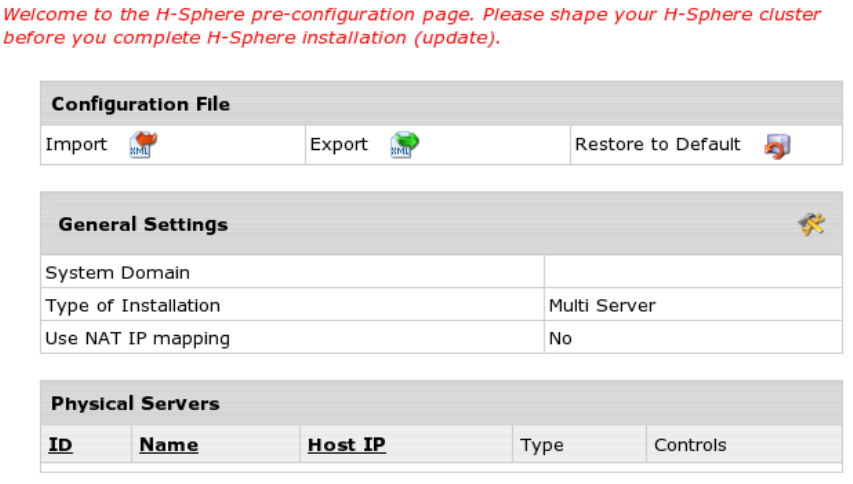
This document explains how to shape your Parallels H-Sphere cluster, add boxes and
hosting services and configure basic Parallels H-Sphere settings after Control Panel
installation.
CH A P T E R 3
Pre-configuration Wizard

16 Pre-configuration Wizard
Parallels H-Sphere Pre-Configuration Wizard writes the cluster configuration into the
specially formatted config.xml file (download sample config.xml from
http://hsphere.parallels.com/HSdocumentation/xmls/config.xml). The Configuration File
form on the main page enables you to:
Import: You upload the prepared XML file from a local machine to Parallels H-
Sphere and later reconfigure Parallels H-Sphere in the wizard.
Export: export config.xml with your Parallels H-Sphere cluster configuration to
your local machine.
Restore to Default: choose this option to recreate config.xml and to restart
configuring Parallels H-Sphere cluster in the wizard.
To complete the pre-configuration wizard:
1. Click the Edit General Settings icon on the right corner of the General Settings
caption and fill in the data on the page that appears:
System Domain: Specify the service domain name here.
One Server Installation: check this box if you need a single server installation.
Use NAT IP mapping: Check this box if you implement NAT (on page 29) on your
Parallels H-Sphere.
Press Submit and return to the main page of the wizard.
2. If you choose multiple server installation mode, you will see the Add
Physical Server icon on the right corner of the Physical Servers caption. Click
this icon and proceed to the form for adding new physical servers and
services.
Here you set physical server name, IP, root password to connect to, and choose
which hosting services (CP, Web, mail, DNS, MySQL, PostgreSQL) will be installed
there.
Note: At the moment, VPS, Windows, MRTG are not installed via Parallels H-
Sphere pre-configuration wizard.
Choose Use defaults for this server to apply default names for Parallels H-Sphere
logical servers on this server. By default, they are named webN, mailN, nsN, mailN,
mysqlN, respectively.
3. After you have added physical servers into Parallels H-Sphere cluster,
you will see them on the main page of the wizard.
Click the Edit icon in front of a physical server in the list and edit logical server
parameters. More on Logical Servers read in Parallels H-Sphere Service
Administrator Guide.
4. After you have done with Parallels H-Sphere configuration, press
Proceed Installation Wizard.
5. You will be taken to the Confirm Installation page. To complete installation
via CP web interface, click Yes, continue
6. On the page that appears check the servers you want to be
updated/installed and click Start.
To see the update log, click the server name link.

Pre-configuration Wizard 17
7. When update is finished and the light turns green, click Proceed to
complete installation.
8. On the page that appears, click Return to Admin CP.
You will be taken to the administrator control panel where you can maintain your
hosting business.
In this chapter:
Parallels H-Sphere config.xml ........................................................................... 18

18 Pre-configuration Wizard
Parallels H-Sphere config.xml
The config.xml file is used in Parallels H-Sphere Pre-configuration Wizard (on page 15).
It contains Parallels H-Sphere cluster configuration: physical servers with their IPs and
root passwords to install Parallels H-Sphere to, and logical servers to be installed on
these boxes.
During regular Parallels H-Sphere installation, config.xml is formed in Parallels H-
Sphere Pre-Configuration wizard in admin CP and is temporarily stored in the
~cpanel/.settings directory. After completing Parallels H- Sphere installation in
the postinstall mode, installer removes this file. However, the postinstall mode
won't continue if config.xml is missing or is different from the one used at the
installation.
When installer runs in the install mode, it is required that you specify location of the
correctly formed config.xml. See Appendix B. Installation Script Options of Parallels H-
Sphere Control Panel Installation Guide.
Elements and Attributes
In the following chart xml elements are marked in bold and their attributes -- in italics.
physicalServers - a list of Parallels H-Sphere physical servers, each of them
described as physicalServer with attributes:
id - id of the physical server
name - name of the physical server
password - root password to the physical server Each physicalServer contains ip and
logicalServers elements:
ip - server IP with attribute:
type - type of the physical server
Element ip contains such child elements:
addr - IP address
ipExt - external IP for NAT mapping
Note: If Parallels H-Sphere does not use NAT, this child element is redundant.
mask - IP mask
logicalServers - a list of Parallels H-Sphere logical servers each of them described
as logicalServer with attributes:
group - group of the logical server
id -id of the logical server
name - name of the logical server

Pre-configuration Wizard 19
Each logicalServer element contains ips element - a list of IPs, each of them
described as ip with the following child elements:
addr - IP address
ipExt - external IP for NAT mapping
Note: If Parallels H-Sphere does not use NAT this child element is redundant.
mask - IP mask
systemzone - a Parallels H-Sphere DNS zone
hsversion - a Parallels H-Sphere version
This chapter lists various types of software used in Parallels H-Sphere.
In this chapter:
Integrated Third Party Products ......................................................................... 21
Supplementary Software ................................................................................... 23
Used Libraries and Technologies ...................................................................... 24
CH A P T E R 4
Software Used in Parallels H-Sphere

Software Used in Parallels H-Sphere 21
Integrated Third Party Products
Even though we integrate or use the below products in Parallels H-Sphere, we do not
assume any responsibility for bugs in their source code. Should you have any problems
with these products, please contact the developers. The packages are listed in the
alphabetical order.
BS Counter http://www.stanback.net/programming/bscounter
"This is a web hit counter/tracker written in Perl, features include: blocking of multiple
hits from the same user, insertion of commas, text-based or graphical modes, supports
multiple counters from the same script, and tracks users' browsers, operating systems,
locations, top 20 referrers, and top 20 search engine keywords. (requires SSI OR
GD.pm)"
ezmlm http://www.ezmlm.org
"ezmlm is a modern mailing list manager. Its purpose is to efficiently send a message to
a large number of recipients with minimal delay. It allows automated additions and
subtractions from the subscriber database. In addition, it may keep an archive of
messages. It can also impose restrictions on what may be sent or retrieved and by
whom. Some mailing list managers keep a database of subscriber information and
tailor the message specifically for each subscriber. ezmlm sends the same message to
all subscribers. This is much more efficient. The benefits to the user are that on
average posts to ezmlm lists reach subscribers much faster than they would with other
mailing list manager."
FormMail http://www.scriptarchive.com/formmail.html
"FormMail is a generic WWW form to e-mail gateway, which will parse the results of
any form and send them to the specified user. This script has many formatting and
operational options, most of which can be specified through the form, meaning you
don't need any programming knowledge or multiple scripts for multiple forms. This also
makes FormMail a perfect system-wide solution for allowing users form-based user
feedback capabilities without the risks of allowing freedom of CGI access."
Miva Merchant http://www.miva.com
"Miva Merchant is a dynamic browser based storefront development and management
system that allows merchants to create and administrate multiple online stores from
anywhere in the world."
mnoGoSearch http://www.mnogosearch.org/
"mnoGoSearch (formerly known as UdmSearch) is a full-featured web search engine
software for intranet and internet servers. mnoGoSearch software has a number of
unique features, which makes it appropriate for a wide range of applications from
search within your site to specialized search systems such as cooking recipes or
newspaper searches, ftp archive search, MP3 search, news articles search or even
national-wide portal search engine."
ModLogAn http://jan.kneschke.de/projects/modlogan/
"ModLogAn is a modular logfile analyzer which is able to analyze logfiles from 15
different server types."

22 Software Used in Parallels H-Sphere
MySQL http://www.mysql.com
"MySQL is the world's most popular open source database, recognized for its speed
and reliability."
OpenSSL http://www.openssl.org
"The OpenSSL Project is a collaborative effort to develop a robust, commercial-grade,
full-featured, and Open Source toolkit implementing the Secure Sockets Layer (SSL
v2/v3) and Transport Layer Security (TLS v1) protocols as well as a full-strength
general purpose cryptography library managed by a worldwide community of volunteers
that use the Internet to communicate, plan, and develop the OpenSSL toolkit and its
related documentation." Parallels H-Sphere uses system OpenSSL packages. Make
sure you keep them updated. OpenSSL packages are upgraded as any other system
packages.
osCommerce http://www.oscommerce.com
"osCommerce is an online shop e-commerce solution under on going development by
the open source community. Its feature packed out-of-the-box installation allows store
owners to setup, run, and maintain their online stores with minimum effort and with
absolutely no costs or license fees involved."
phpBB http://www.phpbb.com
"phpBB is a high powered, fully scalable, and highly customisable open-source bulletin
board package. phpBB has a user-friendly interface, simple and straightforward
administration panel, and helpful FAQ. Based on the powerful PHP server language
and your choice of MySQL, MS-SQL, PostgreSQL or Access/ODBC database servers,
phpBB is the ideal free community solution for all web sites."
phpMyAdmin http://www.phpmyadmin.net
"phpMyAdmin is a tool written in PHP intended to handle the administration of MySQL
over the WWW. Currently it can create and drop databases, create/drop/alter tables,
delete/edit/add fields, execute any SQL statement, manage keys on fields."
Urchin http://www.urchin.com
"Urchin is the fastest and most accurate web analytics (web statistics) software
available." It is a commercial product and is available for Windows 2000, Linux RedHat,
and FreeBSD platforms."
WebBBS http://www.extropia.com/scripts/bbs.html
"eXtropia WebBBS allows a user to post messages as well as post replies to existing
messages. WebBBS keeps track of which messages are posts and which ones are
replies and displays them in a hierarchical tree-like fashion. Posts that start new topics
are at the top of each tree, and the replies are shown indented beneath the original
posts."
WebChat http://www.extropia.com/opensource.html
"eXtropia WebChat is a useful application that allows a number of people on the World
Wide Web to talk to one another simultaneously. The ability to chat on the Web can be
a quick way to hold a virtual meeting."

Software Used in Parallels H-Sphere 23
WebGuestbook http://www.extropia.com/opensource.html
eXtropia WebGuestbook is "configurable so that you can specify what your guestbook
file looks like and how the script-generated responses are displayed. If configured to do
so, WebGuestbook will email the guestbook administrator the text of new entries as
well as add them to the guestbook. The script will also respond to new entrants with a
configurable "Thank you" message... Finally, the application comes with the capability
of 'four letter word' filtering for a child-safe guestbook. You can censor words by adding
them to a list of 'bad words'."
Webalizer http://www.mrunix.net/webalizer/
"The Webalizer is a fast, free web server log file analysis program. It produces highly
detailed, easily configurable usage reports in HTML format, for viewing with a standard
web browser."
Supplementary Software
Apache http://www.apache.org/
The Apache web-server is used as the back-end for all of PSoft applications running on
the Unix platform. More information about configuring and maintaining Apache is
available at the Apache project site.
Postgresql http://www.postgresql.org/
While our products are designed to work with any SQL-compliant database server,
PostgreSQL is the server we use for internal development and testing. Their website
not only explains how to properly set up this free database, but also has some
information about SQL in general.
ProFTPD http://proftpd.net
"Highly configurable GPL-licensed FTP server software."
qmail http://www.qmail.org/top.html
"qmail is a secure, reliable, efficient, simple message transfer agent. It is designed for
typical Internet-connected UNIX hosts. As of October 2001, qmail is the second most
common SMTP server on the Internet, and has by far the fastest growth of any SMTP
server."
vpopmail http://www.inter7.com/vpopmail.html
"vpopmail (vchkpw) is a collection of programs and a library to automate the creation
and maintenance of virtual domain email configurations for qmail installations using
either a single UID/GID or any valid UID/GID in /etc/passwd with a home directory.
Features are provided in the library for other applications which need to maintain virtual
domain email accounts. It supports named or IP-based domains. It works with vqadmin,
qmailadmin, vqregister, sqwebmail, and courier-imap. It supports MySQL, Sybase,
Oracle, LDAP, and file-based (DJB constant database) authentication. It supports
SMTP authentication combined with the qmail-smtp-auth patch. It supports user quotas
and roaming users (SMTP relay after POP authentication)."

24 Software Used in Parallels H-Sphere
Used Libraries and Technologies
CGI http://cgi.resourceindex.com
Freemarker http://freemarker.sourceforge.net
Positive Software uses Freemarker 1.5.1 template format for Parallels H-Sphere and
Parallels SiteStudio. Please refer to this site for detailed information about the format
and capabilities of Freemarker.
HTML http://developer.netscape.com
Java 1.4 http://www.javasoft.com/
Perl http://www.perl.org/
PHP http://www.php.net/ and http://www.zend.com/
XML http://www.oasis-open.org/

We do not recommend major OS updates that result in changing of OSCODE (refer to
Appendix D of Parallels H-Sphere Installation Guide). Rather, perform server migration.
You can have it done by Parallels H-Sphere support team,
http://www.parallels.com/support/hsphere/, or migrate servers by yourself using the
following manuals:
Moving Mail Service (on page 204)
Moving DNS (on page 223)
Moving MySQL (on page 239)
Moving CP Server (on page 117)
However, if you did update your OS to another major version, delete the file
/hsphere/shared/bin/oscode.
In this chapter:
Updating FreeBSD Kernel ................................................................................. 26
Updating Linux .................................................................................................. 26
CH A P T E R 5
Update of Operating Systems

26 Update of Operating Systems
Updating FreeBSD Kernel
Parallels H-Sphere requires that FreeBSD kernel be compiled with quota enabled.
To update kernel on a FreeBSD server in an Parallels H-Sphere cluster:
1. Download and install FreeBSD kernel sources.
2. Under root, change directory to /usr/src/sys/i386/conf, where
the kernel source is located:
# cd /usr/src/sys/i386/conf
3. In this directory, you will have the default GENERIC kernel configuration
file, and, if the custom kernel compilation has been performed, a custom
kernel configuration file, for example MYKERNEL.
4. Open your current kernel configuration file (for example MYKERNEL) and
add the line:
options QUOTA
Important: We don't recommend modifying the default GENERIC file. Instead, copy
its content to a custom file (like MYKERNEL) and perform modifications there!
5. Compile and install the kernel:
# /usr/sbin/config MYKERNEL
# cd ../../compile/MYKERNEL
# make depend
# make
# make install
6. Reboot FreeBSD server to activate the new kernel settings.
For more information, see generic instructions on Building and Installing a Custom
Kernel (http://www.freebsd.org/doc/en_US.ISO8859-1/books/handbook/kernelconfig-
building.html).
Updating Linux
When you update Linux automatically by means of up2date (on page 28), apt-get (on
page 28), SWUP, yum (http://linux.duke.edu/projects/yum/) or other RPM updaters, you
must beforehand exclude some packages installed with Parallels H-Sphere from the
update list:
rh-postgres, postgresql, postgresql-server, postgresql-libs on CP and user
postgresql boxes
apache and apache-related packages on Parallels H-Sphere CP, WEB and MAIL
boxes

Update of Operating Systems 27
proftpd, frontpage and related packages on Parallels H-Sphere WEB boxes
qmail, vpopmail, ezmlm, sqwebmail and related packages on Parallels H-Sphere
MAIL boxes
bind and related packages on Parallels H-Sphere DNS boxes
XFree86 or xorg-x11 packages on CP. XFree86-deprecated-libs (or xorg-x11-
deprecated-libs) with dependences should be installed. This is critical particularly for
Parallels SiteStudio.
MySQL-server on Parallels H-Sphere MAIL and MySQL boxes
Please note that these packages are also to be removed while preparing servers to
Parallels H-Sphere installation.
If you have accidentally upgraded your RedHat without excluding these packages, you
need to downgrade PostgreSQL (on page 253).
In this section:
Linux Up2Date .................................................................................................. 28
Linux Apt-Get .................................................................................................... 28

28 Update of Operating Systems
Linux Up2Date
The up2date utility is used to upgrade the Linux Kernel on RedHat. For generic
information on up2date, please read Upgrading the Linux Kernel on Red Hat Linux
Systems (http://www.redhat.com/support/resources/howto/kernel-upgrade/).
Prior to updating your Linux with the up2date procedure, make sure you exclude
specific Parallels H-Sphere related services (on page 26) from the list of packages to
be updated.
Linux Apt-Get
Since the up2date (on page 28) utility has become a paid service by RedHat
(http://www.redhat.com/docs/manuals/RHNetwork/ref-guide/up2date.html), you may
use the free apt-get utility instead.
APT-RPM is a port of Debian's apt tools to a RPM based distribution. apt-get is an
advanced package management utility front-end to easily perform package installation,
upgrading and removal. Dependencies are automatically handled, so if you try to install
a package that needs others to be installed, it will download all needed packages and
install them. More information on apt-get can be found at http://apt.freshrpms.net/ or
http://pt-rpm.tuxfamily.org/.
Prior to updating your OS packages with apt-get, make sure you exclude specific
Parallels H-Sphere-related services (on page 26) from the apt-get configuration.
To exclude these packages, modify the corresponding part of your
/etc/apt/apt.conf file, similar to this:
// Completely ignore the following packages (not regexp)
// Ignore { };
Ignore { "bind-utils"; };
// Do not try to update the following packages
// Hold { };
Hold {
"rh-postgres*";
"postgresql*";
"apache*";
"proftp*";
"qmail*";
"vpopmail*";
"ezmlm*";
"sendmail*";
"bind*";
"XFree86-base-fonts*";
"XFree86-font-utils*";
"XFree86-libs*";
"XFree86-libs-data*";
"XFree86-xfs*";
"XFree86-Xvfb*";
MySQL*};

Parallels H-Sphere supports NAT (Network Address Translation) which allows you to
use internal IPs in your local area network. When configuring Parallels H-Sphere, use
internal IPs in all instances, and Parallels H-Sphere will convert them into external IPs
for the DNS settings and control panel web interface.
To enable NAT support in Parallels H-Sphere:
1. Log into Control Panel server as cpanel user:
1. Log in as root first:
$ su -
2. Log in as the cpanel user:
# su -l cpanel
2. Create the ips-map.xml file in the
~cpanel/shiva/psoft_config/ directory in the following format:
<ips>
<ip ext="external_ip" int="internal_ip"/>
. . .
</ips>
Example:
<ips>
<ip ext="65.219.197.236" int="192.168.1.27"/>
<ip ext="65.219.197.237" int="192.168.1.28"/>
<ip ext="65.219.197.238" int="192.168.1.29"/>
<ip ext="65.219.197.239" int="192.168.1.30"/>
<ip ext="65.219.197.242" int="192.168.1.31"/>
<ip ext="65.219.197.243" int="192.168.1.32"/>
<ip ext="65.219.197.244" int="192.168.1.33"/>
</ips>
3. Set the following record in
~cpanel/shiva/psoft_config/hsphere.properties:
IPS-XML-FILENAME =
/hsphere/local/home/cpanel/shiva/psoft_config/ips-map.xml
4. Restart Parallels H-Sphere to apply changes. To do this, run under
root:
For Linux:
/etc/rc.d/init.d/httpdcp stop
killall -9 java
sleep 10
/etc/rc.d/init.d/httpdcp start
CH A P T E R 6
Network Address Translation (NAT)

30 Network Address Translation (NAT)
For FreeBSD:
/usr/local/etc/rc.d/apachecp.sh stop
killall -9 java
sleep 10
/usr/local/etc/rc.d/apachecp.sh start
To disable NAT support
1. Remove the line mentioned in step 3 above from
hsphere.properties.
2. Restart Parallels H-Sphere.
See below for particular cases of configuring NAT in your Parallels H-Sphere cluster.
In this chapter:
Configuring Newly Installed H-Sphere with NAT Support .................................. 30
Enabling NAT Support on a Live System ........................................................... 31
Configuring NAT Firewall ................................................................................... 32
Migrating IPs with NAT ...................................................................................... 32
Configuring Newly Installed H-Sphere with
NAT Support
To configure newly Installed H-Sphere with NAT support:
1. Create ips-map.xml file and configure hsphere.properties to use
it as specified in the parent topic.
2. In the E.Manager menu, add your physical and logical servers with the
corresponding internal IPs as described in Parallels H-Sphere Adding
Servers and Services Guide.
3. Go to E.Manager -> DNS Manager and add DNS records with internal IPs as
described in DNS Records section of Parallels H-Sphere Service
Administrator Guide.
Note: Internal IPs will be transformed to the corresponding external IPs in DNS
zones configuration. There will be only external IPs in DNS zones configuration.
Should you still have problems with resolving your servers after that, run DNS Creator
(on page 229) using the following command under the cpanel user:
java psoft.hsphere.tools.DNSCreator -m db -dz
Network Address Translation (NAT) 31
Enabling NAT Support on a Live System
To add NAT support to a Parallels H-Sphere already configured with
external IPs:
1. Create ips-map.xml file and configure hsphere.properties to use
it as specified in the parent topic.
2. Replace external IPs in E.Manager -> P.Servers and L.Servers with internal
IPs.
Note: These internal IPs should be of the same type (shared, dedicated) as the
corresponding external IPs.
Example: If there was a shared 64.10.10.10 external IP, the corresponding
192.128.10.10 internal IP should also be configured as a shared IP.
In such a case, there will be no need to recreate DNS.
3. Replace external IPs in E.Manager -> DNS Manager with the corresponding
internal IPs.
Note: Internal IPs will be transformed to the corresponding external IPs in DNS
zones configuration. There will be only external IPs in DNS zones configuration.
Should you still have problems with resolving your servers after that, run DNS Creator
(on page 229) using the following command under the cpanel user:
java psoft.hsphere.tools.DNSCreator -m db -dz
32 Network Address Translation (NAT)
Configuring NAT Firewall
Some software (osCommerce, phpBB, and Parallels SiteStudio) connects to resources
by hostname (web.example.com, mysql.example.com). Since hostnames resolve
to external IPs, you need to configure your NAT firewall so that your physical servers
(web.example.com, mysql.example.com) can address themselves and each other
both by external and internal IPs.
Alternatively, if you have RedHat Linux running on all servers, you can add the
following rule to the iptables for each IP pair on every single box:
iptables -t nat -A OUTPUT -p tcp -d <external> -j DNAT --to <internal>
For example:
iptables -t nat -A OUTPUT -p tcp -d 65.219.197.236 -j DNAT --to
192.168.1.27 iptables -t nat -A OUTPUT -p tcp -d 65.219.197.237 -j DNAT
--to 192.168.1.28 iptables -t nat -A OUTPUT -p tcp -d 65.219.197.238 -j
DNAT --to 192.168.1.29 iptables -t nat -A OUTPUT -p tcp -d
65.219.197.239 -j DNAT --to 192.168.1.30 iptables -t nat -A OUTPUT -p
tcp -d 65.219.197.242 -j DNAT --to 192.168.1.31 iptables -t nat -A
OUTPUT -p tcp -d 65.219.197.243 -j DNAT --to 192.168.1.32 iptables -t
nat -A OUTPUT -p tcp -d 65.219.197.244 -j DNAT --to 192.168.1.33
Migrating IPs with NAT
For IP migration with NAT, see the section on changing IPs (on page 41).

This document explains how to automate adjusting your servers' time through Network
Time Protocol (NTP). Server time synchronization prevents various errors that you are
likely to run into unless your servers' time is correct. Automation of server time
synchronization is implemented through setting up crontab task for your NTP client.
To automate adjustment of your servers' time through NTP:
1. Make sure you have got an NTP client software installed on your
server(s). If not, download it from www.ntp.org.
2. Choose time server(s) (on page 33) and add it to your NTP client
configuration.
3. Log into your servers as root and use the crontab -e command to
add an NTP cron task.
In the following example your server time is checked with a time server
every 4 hours:
# date syncronization
0 */4 * * * /usr/sbin/ntpdate ntps1-{0,1,2}.uni-erlangen.de
In this chapter:
NTP Time Servers ............................................................................................. 33
NTP Time Servers
The following links will take you to the lists of time server hosts to choose from.
Public NTP Pool Time Servers (http://ntp.isc.org/bin/view/Servers/NTPPoolServers)
Public NTP Secondary (stratum 2) Time Servers
(http://ntp.isc.org/bin/view/Servers/StratumTwoTimeServers)
Public NTP Primary (stratum 1) Time Servers
(http://ntp.isc.org/bin/view/Servers/StratumOneTimeServers)
To find the time servers that best suit your server location and other requirements, go
to http://ntp.isc.org/bin/view/Servers/WebSearch
CH A P T E R 7
Server Time Synchronization

Parallels H-Sphere uses cron utility on Unix servers to schedule the automatic launch
of the Parallels H-Sphere scripts for updating system information, collecting traffic,
analyzing logs, etc.
To view the list of cron jobs on a server, type the following command under root on this
server:
# crontab -l
Crontab enables you to set the sequence and regularity of launching the scripts. To edit
crontab list, type the following command under root:
# crontab -u root -e
For more details on editing cron, read man 5 crontab.
Below see the list of cron jobs for Parallels H-Sphere logical servers.
In this chapter:
Control Panel Server Crons ............................................................................... 34
Web Server Crons ............................................................................................. 35
DNS Server Cron .............................................................................................. 35
Mail Server Crons .............................................................................................. 36
PostgreSQL/MySQL Server .............................................................................. 36
Control Panel Server Crons
30 5 * * * su -l cpanel -c "java psoft.hsphere.TrafficLoader"
0 4 * * * su -l cpanel -c "java psoft.hsphere.UsageLoader"
Here,
TrafficLoader is the Parallels H-Sphere Java utility to collect the traffic statistics
from the traffic logs to the Parallels H-Sphere database.
UsageLoader is the Parallels H-Sphere Java utility to collect disk usage statistics
into the Parallels H-Sphere database.
CH A P T E R 8
Cron Scripts

Cron Scripts 35
Web Server Crons
*/5 * * * * nice -15 /hsphere/shared/scripts/cron/apache-restart.pl
20 */2 * * * nice -15 /hsphere/shared/scripts/cron/analyze.pl
*/5 * * * * /hsphere/shared/scripts/cron/ftp-restart.pl
0 2 * * * nice -15 /hsphere/shared/scripts/cron/cron_rotate.pl
0 3 * * * nice -15 /hsphere/shared/scripts/cron/ftp_anlz.pl
0 4 * * * nice -15 /hsphere/shared/scripts/cron/ftp_anlz_user.pl
0 6 * * * nice -15 /hsphere/shared/scripts/cron/mnogosearch_index.pl
Here,
apache-restart.pl is the Parallels H-Sphere script to restart Apache web
server; Apache is restarted only if the /hsphere/shared/scripts/apache-
reconfig script has been launched by Parallels H-Sphere beforehand.
analyze.pl is the Parallels H-Sphere Perl script to calculate the traffic.
ftp-restart.pl is the Parallels H-Sphere script to restart FTP.
cron_rotate.pl is the Parallels H-Sphere Perl script to collect and rotate user
traffic for external traffic calculation programs like Modlogan, Webalizer or Urchin.
ftp_anlz.pl is the Parallels H-Sphere script to analyze virtual FTP traffic and
write it to the Parallels H-Sphere statistics directory.
ftp_anlz_user.pl is the Parallels H-Sphere script to analyze FTP traffic and
write it to the Parallels H-Sphere statistics directory.
mnogosearch_index.pl is the Parallels H-Sphere Perl script to update the
MnoGoSearch index.
DNS Server Cron
*/1 * * * * [ "x`ps -ax |grep -v grep|grep named`" = "x" ] &&
/hsphere/shared/scripts/cron/dns_check
dns_check is the Parallels H-Sphere shell script to check DNS settings.
36 Cron Scripts
Mail Server Crons
30 * * * * /hsphere/local/var/vpopmail/bin/clearopensmtp
*/20 * * * * /hsphere/local/sqwebmail/share/sqwebmail/cleancache.pl
0 3 * * * nice -15 /hsphere/shared/scripts/cron/mail_overlimit.pl
30 3 * * * nice -15 /hsphere/shared/scripts/cron/mail_anlz.sh
0 * * * * /hsphere/shared/bin/freshclam --quiet
Here,
clearopensmtp is the vpopmail utility to clean smtp logs.
cleancache.pl is the sqwebmail utility to clean the webmail cache.
mail_overlimit.pl is the Parallels H-Sphere Perl script to check overlimits on
the mail boxes.
mail_anlz.sh is the Parallels H-Sphere Perl script to analyze qmail traffic and
place it into the H-Shere statistics directory.
freshclam is the script to update ClamAV virus patterns.
PostgreSQL/MySQL Server
10 3 * * * nice -15 /hsphere/shared/scripts/cron/db_usage.pl
db_usage.pl is the Parallels H-Sphere Perl script to collect statistics on the database
usage for PostgreSQL and MySQL servers.
This chapter dwells specifically on the issues of traffic logs and traffic calculation.
In this chapter:
Checking Traffic via Parallels H-Sphere Control Panel ...................................... 38
Checking Traffic on Physical Servers ................................................................ 38
Processing Traffic by Crons .............................................................................. 39
Parsing Traffic by TrafficLoader ......................................................................... 40
CH A P T E R 9
Traffic Calculation

38 Traffic Calculation
Checking Traffic via Parallels H-Sphere
Control Panel
To check traffic using the control panel:
1. Log into your administrator control panel.
2. Check the traffic by going to Reports -> Transfer Traffic Report.
Read more in Reports section of Parallels H-Sphere Service Administrator Guide.
Checking Traffic on Physical Servers
Web, FTP and mail logs are located in the /hsphere/local/var/statistic
directory of the corresponding physical server.
Log are named as follows:
dd.mm.YYYY.txt - web logs
dd.mm.YYYY.gst.txt - ftp logs
dd.mm.YYYY.ftp.txt - virtual ftp logs
dd.mm.YYYY.qml - mail logs
where dd.mm.YYYY is the timestamp of log file creation date.
Here, mail logs are generated by the qmail server, and ftp logs by the proftpd utility.
Log files contain specially-formatted information tabulated as follows:
|name|xFer(kB)|Hits_All|Hits_HTML|
Here, name is the domain name, xFer is total traffic in kilobytes.
Processed traffic files are moved to the /hsphere/local/var/statistic/loaded
directory as .gz archives.
Refer to section Winbox Traffic Calculation (on page 292) to find out how traffic data on
Winbox is read using XMLs.

Traffic Calculation 39
Processing Traffic by Crons
HTTP traffic
Please refer to Web Traffic Calculation (on page 143) for details.
User FTP traffic
Cron runs the /hsphere/shared/scripts/cron/ftp_anlz_user.pl script on
everyday basis for collecting user FTP traffic.
ftp_anlz_user.pl parses the /hsphere/local/var/proftpd/xferlog FTP
log file and writes FTP traffic statistics into the timestamp-named
/hsphere/local/var/statistic/dd.mm.YYYY.gst.txt statistics files.
Virtual FTP traffic
Cron runs the /hsphere/shared/scripts/cron/ftp_anlz.pl script on everyday
basis for collecting virtual FTP traffic.
ftp_anlz.pl parses the
/hsphere/local/var/proftpd/logs/{vhost_id}.ftp.log logs files for each
virtual FTP account and writes traffic statistics into the timestamp-named
/hsphere/local/var/statistic/dd.mm.YYYY.ftp.txt statistics files.
Mail traffic
Cron runs the /hsphere/scripts/cron/mail_anlz.pl script on everyday basis
to collect mail traffic. The script analyzes the /var/log/maillog Qmail log file and
collects mail statistics into the specially formatted dd.mm.YYYY.qml.txt files in the
Parallels H-Sphere statistics directory (/hsphere/local/var/statistic).

40 Traffic Calculation
Parsing Traffic by TrafficLoader
1. TrafficLoader Parallels H-Sphere Java class is in charge of parsing the
server traffic. That's how it is launched by cron:
30 5 * * * su -l cpanel -c 'java psoft.hsphere.TrafficLoader'
TrafficLoader processes Web, mail, FTP and virtual FTP traffic in the formatted
statistics files located in the /hsphere/local/var/statistic directory and inserts
these lines into the translog table of the Parallels H-Sphere system database.
TrafficLoader also calls the /hsphere/shared/scripts/xfer_cat.pl script to
move the already loaded statistics files to the
/hsphere/local/var/statistic/loaded directory as .txt.gz archives.

This chapter explains how to change IPs on Unix/Linux servers for Parallels H-Sphere
2.4.x and up. If you have an older version, please get updated first.
In this chapter:
Changing IPs on Systems Without NAT ............................................................ 41
Changing External IPs on Systems with NAT .................................................... 54
Changing Internal IPs on Systems With NAT .................................................... 55
Configuring Parallels H-Sphere to Work on Two Sets of IPs.............................. 56
Changing IPs on Systems Without NAT
Parallels H-Sphere IP migration is performed by means of Java IP Migrator called by
the IPMIGR wrapper available for download from http://download.hsphere.parallels.com
website. IP Migrator will:
change Parallels H-Sphere physical, logical, and system IPs
update IPs in Parallels H-Sphere database
change IPs in the system files except network startup configuration
update IP-dependent resources such as apache, FTP and DNS
IP Migrator does not migrate NIC system files to avoid potential problems with server
inaccessibility. These files must be migrated manually by the local administrator.
IP Migrator does no modify reverse DNS configuration because Parallels H-Sphere
doesn't manage reverse DNS. For information on reverse DNS configuration, you may
refer to www.tldp.org/HOWTO/DNS-HOWTO-5.html#ss5.3
In this section:
IP Migration Pre-requisites ................................................................................ 42
IP Migration Map File ........................................................................................ 43
IP Migration Step by Step .................................................................................. 45
CH A P T E R 10
IP Migration (Changing IPs)

42 IP Migration (Changing IPs)
IP Migration Pre-requisites
Before you begin IP migration, do the following changes, and do not forget to undo
them after the migration:
1. Add the following line to the very beginning of the /hsphere/shared/scripts/apache-
reconfig script. This will prevent Apache from restarting gracefully after posting
each web site configuration:
exit 0
2. (Skip this step for IP Migrator 0.3 and up, and for Parallels H-Sphere 2.4.3
Patch 5. If you do the migration under FreeBSD, and IP to be bound is the
same as main IP, you need to perform this step notwithstanding the IP
Migrator version. Otherwise you system is at risk of get crashed.)
Add the following line to the very beginning of the
/hsphere/shared/scripts/ip-shared script. This will protect the main
Parallels H-Sphere IP.
exit 0
After that, replace the IP on the main network interface to the new IP for all boxes, and
set up the old IP as an alias for the new one.
Example:
eth0 Link encap:Ethernet HWaddr 00:D2:B5:A1:07:12
inet addr:[New_IP] Bcast:[New_Broadcast] Mask[New_NetMask]:
UP BROADCAST RUNNING MULTICAST MTU:1500 Metric:1
RX packets:269050319 errors:0 dropped:0 overruns:0 frame:11
TX packets:336024701 errors:0 dropped:0 overruns:19 carrier:0
collisions:0 txqueuelen:100
Interrupt:21 Base address:0x4000
eth0:0 Link encap:Ethernet HWaddr 00:D2:B5:A1:07:12
inet addr:[Old_IP] Bcast:[Old_Broadcast] Mask:[Old_NetMask]
UP BROADCAST RUNNING MULTICAST MTU:1500 Metric:1
Interrupt:21 Base address:0x4000
Important: If IP migration is performed whsphere-
apache.html#script_restarting_apache within one datacenter, make sure that your
servers can be accessed from the Internet at both old and new IPs. If you change to
IPs outside your datacenter, it would take a downtime before you make your servers
available on new IPs.
IP Migration (Changing IPs) 43
IP Migration Map File
Before you start IP migration, you may manually create an IP migration map file in the
cpanel user home directory ~cpanel/. The file contains the list of old IPs to be
migrated to new IPs. It can be either an XML file (on page 44), or a plain text file of the
following format:
IP_OLD1 IP_NEW1 [MASK_NEW1]
IP_OLD2 IP_NEW2 [MASK_NEW2]
...
IP_OLDn IP_NEWn [MASK_NEWn]
Specify the mask in the third column only if it differs from the default mask
(255.255.255.0) for this particular IP. Otherwise, omit it.
This manually created IP migration map file will be used by the Parallels H-Sphere IP
migrator (on page 47) script. IP migrator is able to convert plain text map files into XML
and provides interface to automatically create a ready-to-use map XML file according to
the admin's choice.
Important: IP migration map file must have the cpanel:cpanel ownership! Either
create it under the cpanel user (on page 71), or run under root:
chown cpanel:cpanel ipmap.xml
In this section:
IP Migration Map XML File ................................................................................ 44

44 IP Migration (Changing IPs)
IP Migration Map XML File
IP migration map XML file contains the set of IPs to be replaced with new ones. This
file must be created in the cpanel user home directory ~cpanel/ and must have
cpanel:cpanel ownership.
This document explains alternative ways of creating ipmigration.xml.
Creating ipmigration.xml Manually
IP migration XML has the following format:
<?xml version="1.0"?>
<!DOCTYPE ips [
<!ELEMENT ips (ip+)>
<!ELEMENT ip (#PCDATA)>
<!ATTLIST ip name CDATA #REQUIRED>
<!ATTLIST ip new_ip CDATA #REQUIRED>
<!ATTLIST ip new_mask CDATA "[New_NetMask]">
]>
<ips>
<!-- Delete the lines with IPs you don't want to migrate! -->
<ip name="[Old_IP1]" new_ip="[New_IP1]"/>
<ip name="[Old_IP2]" new_ip="[New_IP2]"/>
<ip name="[Old_IP3]" new_ip="[New_IP3]"/>
<ip name="[Old_IP4]" new_ip="[New_IP4]" new_mask="[New_NetMask2]"/>
</ips>
In the DTD header of the XML file, specify what attributes will be provided with each IP.
Set [New_NetMask] to the default netmask value for new IPs:
<!ATTLIST ip new_mask CDATA "255.255.255.0">
To set a different netmask for a particular IP, set the new_mask attribute in the ip tag
for that IP. Otherwise, omit the new_mask attribute.
In the <ips> ... </ips> block, list all old-new IP pairs, including users' dedicated
IPs. If you have specified the common netmask in the DTD header, you do not need to
set it in the definition line for each individual IP:
<ip name="[Old_IP]" new_ip="[New_IP]" />
If you have set new mask in the DTD header to #REQUIRED, you need to specify the
netmask parameter for each IP:
<ip name="[Old_IP]" new_ip="[New_IP]" new_mask="[New_NetMask]"/>
Creating ipmigration.xml by Parallels H-Sphere IP
Migrator
IP Migrator allows you to create ipmigration.xml automatically when you perform
migration by running the IP migrator script (on page 47).

IP Migration (Changing IPs) 45
IP Migration Step by Step
The steps below are performed on the server with the Control Panel installed.
1. Log into the CP server as root:
# su -
2. Download IP Migrator:
# wget http://download.hsphere.parallels.com/shiv/IPMIGR-
0.9.1.tgz
3. Untar the archive:
# tar -zxf IPMIGR-x.x.tgz
where x.x is IP Migrator version.
4. Enter the IP Migrator directory:
# cd IPMIGR
5. Install the IP Migrator:
# make install
This will install the following files:
~cpanel/ipmigrator - IP migrator itself
~cpanel/IPMigratorFast.jar - makes Parallels H-Sphere related
changes: in the system database, configs, etc.
~cpanel/shiva/ipm/ipmigr - makes changes in service config files on
Parallels H-Sphere servers
6. Stop Parallels H-Sphere (on page 59)
7. Back up Parallels H-Sphere system database (on page 369)
8. Log in as the cpanel user (on page 71)
9. Run the IP Migrator script (on page 47). The IP Migrator script is
located in the cpanel home directory.
10. Start Parallels H-Sphere (on page 59)
11. Remove the following line from
/hsphere/shared/scripts/apache-reconfig and from
/hsphere/shared/scripts/ip-shared:
exit 0
12. If the IPs have been migrated successfully and all IP-dependent
services seem to work fine, finish the migration by removing the old IPs.
To remove the old IPs, run:
./ipmigrator --clear-old-ips -- xml=<ipm_xml>
Where <ipm_xml> is the IP migration map XML file that you used for the migration.

46 IP Migration (Changing IPs)
Example:
./ipmigrator --clear-old-ips --xml=ipm1.xml
Parallels H-Sphere version is: 2.4.3.503. The new
IPMigratorFast will be used.
Removing old IPs
Done
13. Run the following Java tool to regenerate all config.xml files on all
servers according to the Parallels H-Sphere system database:
java psoft.hsinst.boxes.ClusterPreparer
In this section:
Running the IP Migrator Script ........................................................................... 47
IP Migration (Changing IPs) 47
Running the IP Migrator Script
This instruction guides you step-by-step through running the IP Migrator script which is
the main part of the IP migration (on page 41) procedure. The IP Migrator script is
located in the cpanel home directory. To start running the script, type:
./ipmigrator
Carefully follow the error notifications. You may also find more detailed information on
the migration process in the ~cpanel/Migration.log and the
/var/log/hsphere/hsphere.log files.
IP migrator will guide you through the following steps. Let's take an example with the
following physical servers:
-----------------------------------------------------------------------
----
Server ID Server Name Server IP Address
-----------------------------------------------------------------------
----
22 ns4.vps.psoft 192.168.112.234
21 ns3.vps.psoft 192.168.114.233
20 cp.vps.psoft 192.168.112.232
In this section:
Step 1. Changing Physical Server IPs ............................................................... 48
Step 2. Preparing IP Migration Map ................................................................... 49
Step 3. Reposting configs .................................................................................. 50
Step 4. Final Check ........................................................................................... 51
Step 5. Changing System and Logical IPs ......................................................... 53

48 IP Migration (Changing IPs)
Step 1. Changing Physical Server IPs
Enter ID of the server you want to change IPs for.
Type [q] to quit the script or [-] to skip this step.
[IPMigrator]: 21
Enter new 192.168.112.233 IP for ns3.vps.psoft:
[IPMigrator]: 192.168.112.233
Uploading front-end migration scripts...
=== 192.168.112.233 ===

IP Migration (Changing IPs) 49
Step 2. Preparing IP Migration Map
On this step, create or edit IP migration map. If you quit right after editing or creating
the file, your changes will not be lost.
Enter:
[f] to use existing IP migration map XML file (on page 44)
[l] to transform existing IP map plain text file with whitespace separated values to
XML format
[c] to create a new IP map XML structured file based on your Parallels H-Sphere
boxe(s) configuration
[e] to set the editor to open the IP map file with. By default, it is [vi]
[b] to go back to the previous step
[q] to quit the script
By default, script looks for the file in the current directory. Specify the full path if you
have it in a different location.
Examples:
[IPMigrator]: f
Current directory is: /hsphere/local/home/cpanel/
Enter the filename: ipm1.xml
[IPMigrator]: l
Current directory is: /hsphere/local/home/cpanel/
Enter the plain (text file with whitespace separated values) IP map
file name to load from: ipm1.txt
Current directory is: /hsphere/local/home/cpanel/
Enter the new (XML structured) IP map file name to load into: ipm1.xml
[IPMigrator]: c
Current directory is: /hsphere/local/home/cpanel/
Enter the plain IP map new file name be generated: ipm2.txt
50 IP Migration (Changing IPs)
Step 3. Reposting configs
Important! If you are migrating IPs of your webserver(s), check the corresponding
logical server(s).
On this step, check logical web servers you want to repost apache configurations for.
Say, you have the following logical web servers:
-----------------------------------------------------------------------
----
ID Server Name Server Role Process
27 web2.vps.psoft web servers No
24 web.vps.psoft web servers No
31 web3.vps.psoft web servers No
Enter:
[server_id] ID of the server you want to add to the migration list
[-] to start the migration
[b] to go back to the previous step
[q] to quit the script Example:
[IPMigrator]: 31

IP Migration (Changing IPs) 51
Step 4. Final Check
Warning! The rest of the steps imply physical changes. If you do not want the migration
to continue, make sure to quit the script now.
On this step check which files on your servers would be changed, except for Parallels
H-Sphere dependent resources.
Enter:
[server_id] ID of the server you want to preview the changes for
[-] to continue
[r] to roll the changes back
[b] to go back to the previous step
[q] to quit the script
[IPMigrator]: 320
Line 8: CP_HOST = 192.168.112.232
Line 119: PATH_SITE_STUDIO =
http://192.168.112.232:8080/studio/servlet/psoft.masonry.Builder
----
File /hsphere/local/home/cpanel/shiva/psoft_config/hsphere.properties
IP entries: --- 2
----------------
Line 2: 192.168.112.232:allow,RELAYCLIENT=""
Line 3: 192.168.112.233:allow,RELAYCLIENT=""
Line 4: 192.168.112.234:allow,RELAYCLIENT=""
----
File /hsphere/local/var/vpopmail/etc/tcp.smtp
IP entries: --- 3
----------------
Line 6: $cfgServers[1]['host'] = '192.168.112.233';
----
File /hsphere/shared/apache/htdocs/phpMyAdmin/config.inc.php
IP entries: --- 1
----------------
Line 21: <A href="http://192.168.112.232/cgi-bin/sqwebmail">SQWebMail -
mail client</A>><BR>
Line 22: <A href="http://192.168.112.232/horde/index.php">IMP - mail
client</A><BR>
Line 23: <A
href="http://192.168.112.232:8080/psoft/servlet/psoft.hsphere.CP?action
=change_mbox_password">Change your POP3 password</A><BR>
----
File /hsphere/shared/apache/htdocs/index.html
IP entries: --- 3
----------------
Line 288: <VirtualHost 192.168.112.232>
Line 296: ServerName 192.168.112.232
Line 310: #<VirtualHost #192.168.112.232>
Line 318: #ServerName #192.168.112.232
----
File /hsphere/local/config/httpd/httpd.conf
IP entries: --- 4
----------------

52 IP Migration (Changing IPs)
Line 3: Bind 192.168.112.232
----
File /hsphere/local/config/ftpd/proftpd.conf
IP entries: --- 1
----------------
Line 4: 192.168.112.236;
Line 5: 192.168.112.232; };
----
File /etc/named.conf
IP entries: --- 2
----------------
Line 1: 192.168.112.236 255.255.255.0
Line 2: 192.168.112.232 255.255.255.0
Line 3: 192.168.112.232 255.255.255.0
----
File /hsphere/local/network/ips
IP entries: --- 3
----------------
Line 2: 192.168.112.236 vps1.psoft
Line 3: 192.168.112.232 vps1.psoft
Line 4: 192.168.112.232 cp.vps.psoft
Line 5: 192.168.112.232 cp.vps.psoft
Line 6: 192.168.112.236 cp.vps.psoft
Line 7: 192.168.112.232 cp.vps.psoft
Line 9: 192.168.112.232 cp.vps.psoft
Line 10: 192.168.112.236 cp.vps.psoft
----
File /etc/hosts
IP entries: --- 8
----------------
Line 1: nameserver 192.168.112.232
Line 2: nameserver 192.168.112.236
Line 3: nameserver 192.168.112.233
Line 4: nameserver 192.168.112.234
----
File /etc/resolv.conf
IP entries: --- 4
----------------
----------------
If you want to proceed the IP changes in the files listed abowe use the
following command:
/hsphere/shared/scripts/ipm/ipmigr --action=process --scode=mncw <
ipmigration.xml
If you don't want to proceed any changes you can clear the temporary
files by running the following command:
/hsphere/shared/scripts/ipm/ipmigr --action=clear --scode=mncw <
ipmigration.xml

IP Migration (Changing IPs) 53
Step 5. Changing System and Logical IPs
The process will take a while to complete.
Example:
Changing IPs in:
-----------------------------------------------------------------------
----
Parallels H-Sphere Database... Done
-----------------------------------------------------------------------
----
Server configuration files... Done
-----------------------------------------------------------------------
----
Changing IP Dependent resources... Done
-----------------------------------------------------------------------
----
Fixing service zones
Done
-----------------------------------------------------------------------
----
Fixing Custom records
Done
-----------------------------------------------------------------------
----
Reposting SSL CP VHost configs
Done
-----------------------------------------------------------------------
----
Press Enter to continue:
When you have finished running the IP Migrator script, go on with the IP migration (on
page 41).

54 IP Migration (Changing IPs)
Changing External IPs on Systems with
NAT
This section explains how to change your external IPs on a system using NAT (see
details here (on page 29)). You may need to follow this instruction when you move to a
different location and would like to preserve your internal IP settings.
1. Change IPs in ~cpanel/shiva/psoft_config/ips-map.xml and
~cpanel/shiva/psoft_config/hsphere.properties
2. Change IPs in Parallels SiteStudio configs
/hsphere/shared/SiteStudio/psoft_config/*. You can use a
simple script:
#!/bin/sh
if [ $# = 0 ] ; then
echo $"Usage: changeip.sh OldIP NewIP"
exit 1
fi
for i in /hsphere/shared/SiteStudio/psoft_config/*.properties
do
echo "Processing $i";
echo ",s/$1/$2/g
wq" | ed $i
done
3. Change external IPs in httpd.conf on the web box.
4. Restart Parallels H-Sphere (on page 59)
5. Restart Apache (on page 311)
6. Log in as the cpanel user (on page 71) and recreate zones with the dns
creator:
java psoft.hsphere.tools.DNSCreator -m db -dz


56 IP Migration (Changing IPs)
Configuring Parallels H-Sphere to Work
on Two Sets of IPs
If you would like to ensure smooth change of IPs and have everything duplicated on the
old and new sets of IPs before making the switch, you need to do the following:
On the Web box:
1. Before the IP migration you need to copy the
/hsphere/local/config/httpd/sites directory to
/hsphere/local/config/httpd/sites.old to preserve your old
client's apache configs.
2. Go to /hsphere/local/config/httpd/sites.old and edit
index.conf changing sites to sites.old (cd
/hsphere/local/config/httpd/sites.old; perl -pi -e
's/sites/sites.old/' index.conf)
3. Copy namevh.conf to namevh.old.conf
4. Proceed with the IP migration.
5. Add the following lines at the bottom of the
/hsphere/local/config/httpd/httpd.conf file:
Include /hsphere/local/config/httpd/sites.old/[0-9]*.conf
Include /hsphere/local/config/httpd/namevh.old.conf
On the DNS servers:
6. Add your old DNS IPs to the /etc/named.conf config to force your DNS
servers to listen to the old IPs.
7. Bind your old IPs to the NIC on your servers.

This chapter explains how to start, stop, and restart daemon services on Parallels H-
Sphere servers under Linux and FreeBSD.
Important: Do not stop services with kill, as it may cause information loss!!!
Note: You can also restart services from the Admin CP as described in section System
Service Management of Parallels H-Sphere Service Administrator Guide.
Below instructions do not apply to restarting DNS server (named) for Bind 8.x (on page
63).
To start services, run:
Linux:
# /etc/rc.d/init.d/<SERVICE> start
FreeBSD:
# /usr/local/etc/rc.d/<SERVICE> start
To stop services, run:
Linux:
# /etc/rc.d/init.d/<SERVICE> stop
FreeBSD:
# /usr/local/etc/rc.d/<SERVICE> stop
To restart services, run:
Linux:
# /etc/rc.d/init.d/<SERVICE> restart
FreeBSD:
# /usr/local/etc/rc.d/<SERVICE> restart
An alternative method - and often more appropriate - is to stop and then start the
service:
Linux:
# /etc/rc.d/init.d/<SERVICE> stop
# sleep 10
# /etc/rc.d/init.d/<SERVICE> start
CH A P T E R 11
Restarting Services

58 Restarting Services
FreeBSD:
# /usr/local/etc/rc.d/<SERVICE> stop
# sleep 10
# /usr/local/etc/rc.d/<SERVICE> start
Note: While restarting Parallels H-Sphere (on page 59), run killall -9 java after
you stop and before you start CP.
Warning: Do not use kill -9 to stop named, as it may cause information loss!
Following are the commands to put in place of <SERVICE>:
Service
Linux
FreeBSD
Parallels H-Sphere
(tomcat)
httpdcp
apachecp.s
h
Parallels H-Sphere
Database
(PostgreSQL)
postgre
sql
010.pgsql.
sh
Apache
httpd
apache.sh
FTP
proftpd
proftpd.sh
Qmail
qmaild
qmaild.sh
SpamAssasin
spamd
spamd.sh
ClamAV
clamd
clamd.sh
PostgreSQL (User DB)
postgre
sql
010.pgsql.
sh
MySQL
mysqld
mysql-
server.sh
DNS (Bind 9.3 and up (on
page 216))
named
named.sh
ImapProxy
imappro
xy
imapproxy.
sh
In this chapter:
Restarting Parallels H-Sphere Control Panel ..................................................... 59
Restarting Parallels H-Sphere Database ........................................................... 59
Restarting Web Server ...................................................................................... 60
Restarting PostgreSQL Server .......................................................................... 60
Restarting Mail Server ....................................................................................... 62
Restarting MySQL Server .................................................................................. 62
Restarting Named ............................................................................................. 63

Restarting Services 59
Restarting Parallels H-Sphere Control
Panel
To restart Parallels H-Sphere Control Panel:
1. Log into the CP server as root.
2. Run:
Linux:
/etc/rc.d/init.d/httpdcp stop
/etc/rc.d/init.d/httpdcp start
FreeBSD:
/usr/local/etc/rc.d/apachecp.sh stop
/usr/local/etc/rc.d/apachecp.sh start
Restarting Parallels H-Sphere Database
Parallels H-Sphere database is used to store system data. It is not used for hosting.
Usually, it is located on the same server as the control panel and is installed and
executed under user pgsql (FreeBSD) or postgres (Linux).
To restart the database, execute:
Linux:
# /etc/rc.d/init.d/postgresql stop
# sleep 1
# /etc/rc.d/init.d/postgresql start
FreeBSD:
# /usr/local/etc/rc.d/010.pgsql.sh stop
# sleep 1
# /usr/local/etc/rc.d/010.pgsql.sh start

60 Restarting Services
Restarting Web Server
To restart Web server:
1. Login as root.
2. Execute the following command:
Linux:
# /etc/rc.d/init.d/httpd stop
# sleep 10
# /etc/rc.d/init.d/httpd start
FreeBSD:
# /usr/local/etc/rc.d/apache.sh restart
To restart FTP, run:
Linux:
# /etc/rc.d/init.d/proftpd stop
# sleep 1
# /etc/rc.d/init.d/proftpd start
FreeBSD:
# /usr/local/etc/rc.d/proftpd restart
Restarting PostgreSQL Server
To start PostgreSQL server, run:
Linux:
# /etc/rc.d/init.d/postgresql start
FreeBSD:
# /usr/local/etc/rc.d/010.pgsql.sh start
To stop PostgreSQL, run:
Linux:
# /etc/rc.d/init.d/postgresql stop
FreeBSD:
# /usr/local/etc/rc.d/010.pgsql.sh stop
To restart PostgreSQL, run:
Linux:

Restarting Services 61
# /etc/rc.d/init.d/postgresql restart
FreeBSD:
# /usr/local/etc/rc.d/010.pgsql.sh stop
# sleep 10
# /usr/local/etc/rc.d/010.pgsql.sh start

62 Restarting Services
Restarting Mail Server
To restart the mail server
1. Login as root
2. Execute the following command:
Linux:
# /etc/rc.d/init.d/qmaild stop
# sleep 1
# /etc/rc.d/init.d/qmaild start
FreeBSD:
# /usr/local/etc/rc.d/qmaild.sh stop
# sleep 1
# /usr/local/etc/rc.d/qmaild.sh start
To restart the auth daemon for sqWebMail under Linux, run:
# /hsphere/local/sqwebmail/libexec/authlib/authdaemond restart
Restarting MySQL Server
To start MySQL server, run:
Linux:
# /etc/rc.d/init.d/mysqld start
FreeBSD:
# /usr/local/etc/rc.d/mysql-server.sh start
To stop MySQL, run:
Linux:
# /etc/rc.d/init.d/mysqld stop
FreeBSD:
# /usr/local/etc/rc.d/mysql-server.sh start
To restart MySQL, run:
Linux:
# /etc/rc.d/init.d/mysqld restart

Restarting Services 63
FreeBSD:
# /usr/local/etc/rc.d/mysql-server.sh start stop
# sleep 10
# /usr/local/etc/rc.d/mysql-server.sh start start
Restarting Named
To start, stop, or restart named on the Parallels H-Sphere DNS server:
1. Log in as root.
2. Run the respective command below.
Warning: Do not use kill -9 to stop named, as it may cause information loss!!!
Linux:
starting: /etc/rc.d/init.d/named start
stopping: /etc/rc.d/init.d/named stop
restarting: /etc/rc.d/init.d/named restart
FreeBSD:
For Bind 9.3 and up (on page 216):
starting: /usr/local/etc/rc.d/named.sh start
stopping: /usr/local/etc/rc.d/named.sh stop
restarting: /usr/local/etc/rc.d/named.sh restart
For Bind 8.x:
starting: /usr/sbin/named -u named
stopping: /usr/sbin/ndc stop -u named
restarting: /usr/sbin/ndc restart -u named
Warning: Without "-u named", the command will run under root.
Usually, a Parallels H-Sphere DNS server contains a cron DNS check which starts
every 1 or 2 minutes and, if named is not started, starts it. Therefore, do not feel
alarmed if you stop named and see that it keeps working for another several minutes.
Control Panel (CP) is the Parallels H-Sphere logical representation for managing
servers and hosting resources via the web interface. It is implemented as a Java servlet
that runs on its own Apache server. CP is a separate logical server and is included in
every Parallels H-Sphere configuration.
In this chapter:
Understanding Control Panel Server Configuration ........................................... 65
Logging in as the cpanel User ........................................................................... 71
Logging into Parallels H-Sphere System Database ........................................... 71
Launching Control Panel Cron Jobs .................................................................. 71
Configuring Tomcat ........................................................................................... 72
Running Java Command Line Tools .................................................................. 75
Securing Your CP Server with SSL ................................................................... 90
Upgrading Java ................................................................................................. 93
Converting Parallels H-Sphere System Database from MS SQL to PgSQL ....... 96
Upgrading System Postgres .............................................................................. 100
Converting Parallels H-Sphere Database To UNICODE .................................... 102
Accelerating Control Panel ................................................................................ 105
Changing CP URL ............................................................................................. 113
Migrating Control Panel Server .......................................................................... 117
Generating SSH Keys for Parallels H-Sphere Servers ...................................... 119
Encrypting Trouble Tickets ................................................................................ 120
Customizing Domain Registration Lookup Script ............................................... 123
CH A P T E R 12
Control Panel Server

Control Panel Server 65
Understanding Control Panel Server
Configuration
This section provides the necessary information you need to know about the
configuration of Parallels H-Sphere control panel server.
In this section:
Installed Software .............................................................................................. 65
Interaction Between Servers.............................................................................. 66
Location of CP Files and Directories.................................................................. 66
The Parallels H-Sphere Configuration File ......................................................... 67
Control Panel Apache Server Configuration ...................................................... 67
Control Panel Back-End Servlet Engine ............................................................ 67
Reseller Configuration ....................................................................................... 67
CP SSL Configuration ....................................................................................... 68
CP Apache Log Files ......................................................................................... 68
CP Traffic Calculation ........................................................................................ 69
The Parallels H-Sphere System Database ........................................................ 69
CP Mail Queue .................................................................................................. 70
Installed Software
On control panel server the following software is used:
Apache server version 1.3.x and 2.2.xSSL support: OpenSSL
CP back-end servlet engine: Jakarta Tomcat (on page 72)
System database: PostgreSQL 7.4.x and up
SiteStudio - site builder optionally installed with H-Sphere on the CP server.

66 Control Panel Server
Interaction Between Servers
Servers in H-Sphere clusters communicate only through the Control Panel. There is no
way for servers like web and DNS exchange commands directly.
To communicate with Linux/Unix servers, CP uses Shell or Perl scripts via SSH
protocol (port 22) as the cpanel user.
Communication between the CP and Windows servers is performed through the SOAP
protocol, http://www.w3.org/TR/soap/, (port 10125) which allows for cross-platform
exchange of data in XML documents via HTTP.
Location of CP Files and Directories
By default, the cpanel user home directory is /hsphere/local/home/cpanel.
There you will find the following files and directories:
apache - CP Apache installation
apache/etc - CP Apache configuration
apache/etc/httpd.conf - CP Apache configuration file
shiva - H-Sphere related binary and config files
shiva/psoft_config - H-Sphere config files
shiva/psoft_config/hsphere.properties - H-Sphere config file
shiva/psoft_config/HS_VERSION - file that contains version number of H-
Sphere
shiva/shiva-templates - H-Sphere templates location, DocumentRoot for
Apache server.
shiva/shiva-templates/index.html - Redirect to control panel; served
when the http://cp.domain.com:8080/ CP URL is accessed
/hsphere/shared/SiteStudio/psoft_config/masonry.properties -
SiteStudio config file (could be on a different server)
IMPORTANT: To make changes in these files, log into the CP server as the cpanel
user.

Control Panel Server 67
The Parallels H-Sphere Configuration File
The H-Sphere configuration file should be located at
~cpanel/shiva/psoft_config/hsphere.properties
1. CP URL configuration - URL by which H-Sphere is called:
CP_HOST = cp.domain.com -- host name
CP_PORT = 8443 -- port
CP_PROTOCOL=https:// -- protocol
CP_URI = /psoft/servlet/psoft.hsphere.CP
Notes:
This is not the only place where those settings have to be altered.
URI cannot be changed here at the moment.
Make sure that DNS is properly configured if you want to change domain.
Make sure to alter Apache if you want to change domain and port.
2. Database settings
3. Log file:
log4j.appender.A1.File=/var/log/hsphere/hsphere.log - location of
the log file.
Control Panel Apache Server Configuration
CP Apache home directory is /hsphere/local/home/cpanel/apache.
All CP Apache server configurations are placed into the etc/jserv subdirectory of the
Apache home directory: /hsphere/local/home/cpanel/apache/etc/jserv.
This directory also has its symlink:
/hsphere/local/home/cpanel/apache/conf.
Control Panel Back-End Servlet Engine
CP server uses Jakarta Tomcat servlet engine and is automatically installed with
Tomcat (on page 72) embedded.
Reseller Configuration
/hsphere/local/home/cpanel/apache/etc/sites/ contains resellers' SSL
and virtual host configuration.
/hsphere/local/home/cpanel/apache/etc/{reseller_main_account_
name}.conf - reseller Apache virtual host configuration file.

68 Control Panel Server
/hsphere/local/home/cpanel/apache/etc/{reseller_main_account_
name}/ - reseller SSL directory.
Reseller SSL Configuration
If SSL is enabled for reseller, the following files are placed into the reseller SSL
directory:
server.crt - reseller SSL certificate
server.key - reseller SSL private key
CP SSL Configuration
In the /hsphere/local/home/cpanel/apache CP Apache home directory:
etc/ssl.crt/server.crt - file with server SSL certificates.
etc/ssl.csr/server.csr - file with SSL signing request.
etc/ssl.key/server.key - file with SSL/RSA private key.
CP Apache Log Files
Log files are located in the /hsphere/local/home/cpanel/apache/logs
directory.

Control Panel Server 69
CP Traffic Calculation
Traffic generated from browsing the Control Panel is not included in the summary
traffic. To track it, Parallels H-Sphere owners may set up any third-party utilities.
The Parallels H-Sphere System Database
The Parallels H-Sphere system database is used to store system data. In normal
Parallels H-Sphere configuration, it runs on PostgreSQL server. Usually, the system
database is located on the same server with the Control Panel.
The system database is not for user hosting! PostgreSQL hosting server cannot be
installed on the same box with the system database!
Note: The Parallels H-Sphere database is executed under the pgsql or postgres
user.
The System Database Settings
Database settings in hsphere.properties (this should be enough to connect to db):
DB_DRIVER = org.postgresql.Driver
DB_URL = jdbc:postgresql://127.0.0.1/hsphere - the system database
name, usually hsphere
DB_USER = wwwuser - the system db user name, usually wwwuser
DB_PASSWORD = your_db_password - the system db user password
DB_NEWID = SELECT nextval(''{0}'')
Logging into the System Database
To log into the system database:
1. Login as the cpanel user (on page 71) to the server where the system
database is located (usually, CP server).
2. Enter the hsphere database (usually, under the wwwuser user name):
# psql hsphere [user_name]
See also the instructions on:
restarting the system database (on page 59)
backing up the system database (on page 369)
upgrading the system PostgreSQL (on page 100)
the system database optimization (on page 105)
70 Control Panel Server
PostgreSQL localization (on page 250) (choosing the language for
PostgreSQL)
VACUUM Utility
The Postgres VACUUM instruction allows cleaning up the server transactions. Enter
the psql server:
# psql hsphere wwwuser
and type in the password set in hsphere.properties.
In the psql command line, type the 'vacuum full' command:
vacuum full;
The command may vary in different versions of Postgres.
Note: vacuum is a time-consuming procedure; it may take up to several hours to
complete.
CP Mail Queue
The mail queue file is assigned to store unsent CP messages (e.g., trouble tickets,
system notifications, mass mail, etc.) when CP is restarted - formerly, they were lost
after CP restart. Mail queue location is set in hsphere.properties:
MAIL_SWP=/hsphere/local/home/cpanel/shiva/mail.swp

Control Panel Server 71
Logging in as the cpanel User
Parallels H-Sphere control panel runs under the cpanel user on the CP server. You
need to log in as cpanel to perform many administrative tasks, such as CP
configuration, customization, access the system databse, running console Parallels H-
Sphere java tools, and many others.
Under cpanel, Parallels H-Sphere control panel communicates with other Parallels H-
Sphere boxes via SSH.
To log in as the cpanel user:
1. Log in as root first:
$ su -l
2. Log in as the cpanel user:
# su -l cpanel
Logging into Parallels H-Sphere System
Database
To run SQL queries against the Parallels H-Sphere system database, you need to be
logged into Parallels H-Sphere system database.
To log into Parallels H-Sphere System Database:
1. Log in as root on the CP server:
$ su -
2. Log in as the cpanel user:
# su -l cpanel
3. Connect to the system database:
# psql -d hsphere wwwuser
Launching Control Panel Cron Jobs
Along with the cron scripts (on page 34) that Parallels H-Sphere puts into its physical
servers' crontabs, there are several background jobs that are executed by Parallels H-
Sphere on the Control Panel server:
Accounting - does recurrent billing for end users
OverLimitCron - checks that the account is not going over the limit

72 Control Panel Server
ResellerCron - does billing for resellers
TrialCron - suspends expired trial accounts
RevenueCron - calculates summary billing info
ContentMovingCron - completes the process of moving user content
FailedSignupsCron - sends emails about failed signups (every 5 minutes)
TTAutocloseCron - closes trouble tickets answered certain time ago
VPSCron - queries the status of creating virtual servers (every 4 minutes)
ecCron - processes the external_credits table and adds payments performed
within an external payment system outside Parallels H-Sphere to this table as the
account credits, thus integrating external payments into Parallels H-Sphere. Read
more about external credits configuration in External Credits section of Parallels H-
Sphere Developer Guide.
These cron processes use the last_start table in the Parallels H-Sphere
database. This table contains the following fields:
name varchar(20) NOT NULL PRIMARY KEY,
value timestamp,
last_user int8
When Parallels H-Sphere is restarted, the values are read from this table for each cron:
name - CP cron job name as in the list above (corresponds to the cron tag's name
attribute in cron XML configuration file)
value - last time that cron was executed
last_user - user_id of the last user that was calculated with the cron (used only
for accounting and overlimit).
CP Cron XML Configuration Files
CP cron settings are defined and customized in the corresponding XML configuration
file described in CP Cron Configuration section of Parallels H-Sphere Developer
Guide. You can add new custom CP crons according to the instructions from Adding
Custom CP Cron Jobs of Parallels H-Sphere Developer Guide and/or change cron job
settings such as priority, starting time and period. Such customization can also be done
by means of Parallels H-Sphere packages (see Building Packages section of Parallels
H-Sphere Developer Guide).
Background Job Manager
Background Job Manager is a utility that allows you to enable, start and disable
selected cron jobs from the CP interface. Cron jobs are available from the Admin
control panel, the Background Job System section.
Configuring Tomcat

Control Panel Server 73
Tomcat installation is located in the /hsphere/local/home/cpanel/jakarta
directory.
Important: The core Parallels H-Sphere directories such as shiva, shiva-
templates, psoft, and psoft-config are located in the
/hsphere/local/home/cpanel/hsphere/WEB-INF/classes/ directory with
Parallels H-Sphere classes run by Tomcat. Symlinks to these new locations are put in
place of the old directories to preserve Parallels H-Sphere integrity with previous
versions' configuration.
Tomcat Configuration Files
Tomcat configuration files are located in the
/hsphere/local/home/cpanel/jakarta/conf directory:
/hsphere/local/home/cpanel/jakarta/conf/server.xml - XML config
file for Tomcat;
/hsphere/local/home/cpanel/hsphere/WEB-INF/web.xml - XML
configuration file where CP servlet configuration is set;
/hsphere/local/home/cpanel/apache/etc/mod_jk.conf - mod_jk
configuration. mod_jk is a Tomcat-Apache plug-in that handles the communication
between Tomcat and Apache. For more details, see Apache documentation on
mod_jk (http://jakarta.apache.org/tomcat/tomcat-3.3-doc/mod_jk-howto.html).
Tomcat Log File
Tomcat log file is
/hsphere/local/home/cpanel/jakarta/logs/catalina.out.
Jakarta connector log is
/hsphere/local/home/cpanel/apache/logs/mod_jk.log.
Restarting Tomcat
To stop Tomcat:
Run:
/hsphere/local/home/cpanel/jakarta/bin/catalina.sh stop
To start Tomcat:
Run:
/hsphere/local/home/cpanel/jakarta/bin/catalina.sh start
Tomcat is also restarted when restarting Parallels H-Sphere (Tomcat is restarted
together with CP Apache):
/etc/init.d/httpdcp restart

74 Control Panel Server
Note: Sometimes you might need to restart only CP Apache, keeping Tomcat running.
Then, use the following option:
/etc/init.d/httpdcp restartapache
Customizing Tomcat Environment Variables
The file ~cpanel/setenv.sh is designed to customize Tomcat environment
variables.
For example, to allocate Java memory in the range between 64 MB and 512 MB:
1. Log in as cpanel user (on page 71).
2. Stop Tomcat as described above.
3. Open ~cpanel/setenv.sh:
-bash-2.05b$ vi ~cpanel/setenv.sh
Set the following line in the file:
export CATALINA_OPTS="-Xms64M -Xmx512M"
4. Start Tomcat. You will see something like this:
Using external settings -Xms64M -Xmx512M
+ java version 1.4.x
Using CATALINA_BASE: /hsphere/local/home/cpanel/jakarta
Using CATALINA_HOME: /hsphere/local/home/cpanel/jakarta
Using CATALINA_TMPDIR:
/hsphere/local/home/cpanel/jakarta/temp
Using JAVA_HOME: /usr/java/jdk
5. Check Java to make sure the custom settings are applied:
-bash-2.05b$ ps auwx | grep java
cpanel 3010 99.9 29.6 436776 27652 pts/0 S 05:54 0:09
/usr/java/jdk/bin/java -Xms64M -Xmx512M -
Djava.awt.headless=true -
Djava.endorsed.dirs=/hsphere/local/home/cpanel/jakarta/common
/endorsed -classpath
/usr/java/jdk/lib/tools.jar:/hsphere/local/home/cpanel/jakart
a/bin/bootstrap.jar:/hsphere/local/home/cpanel/j
cpanel 3020 0.0 0.7 3680 664 pts/0 S 05:54 0:00 grep java

Control Panel Server 75
Running Java Command Line Tools
This document lists java command line tools that come with the standard Parallels H-
Sphere installation.
IMPORTANT: Before running a Java tool, make sure to log into CP server as the
cpanel user: su -l cpanel
In this section:
DNSCreator ....................................................................................................... 76
IPMigratorFast ................................................................................................... 77
PhysicalCreator ................................................................................................. 78
PostApacheConfigs ........................................................................................... 79
PostFTPConfigs ................................................................................................ 79
ServerAliasesRenamer...................................................................................... 80
ChangeLServerId .............................................................................................. 81
MIVAEmpresaFix .............................................................................................. 81
KeyPairGenerator .............................................................................................. 82
PGPEncrypter ................................................................................................... 82
PGPMessageSigner .......................................................................................... 82
PGPMessageVerify ........................................................................................... 83
RepostResellerSSLConfigs ............................................................................... 83
ServiceZoneRenamer ....................................................................................... 84
BillingEraser ...................................................................................................... 84
SetQuota ........................................................................................................... 85
UrchinReconfig .................................................................................................. 85
OffLogs ............................................................................................................. 86
Reset Balance ................................................................................................... 87
RegenerateIpsFile ............................................................................................. 88
LicenseExtractor................................................................................................ 88
MailRelayCorrector ............................................................................................ 89

76 Control Panel Server
DNSCreator
NAME: psoft.hsphere.tools.DNSCreator - Parallels H-Sphere DNS zones
recreator.
USAGE: java -Xms64M -Xmx512M psoft.hsphere.tools.DNSCreator -m
creation_method [-dz] -z zonename
OPTIONS:
-m| creation method. Possible values: db or rand:
db - pick NS servers as they are defined in the Parallels H-Sphere database
rand - pick NS servers randomly
-dz|--delete_zones - delete zones first. Add this option only if such zones already
exist. With this option, DNS creation will take at least twice more time.
-lids|--logical-servers - process zones which are on the logical servers with
the specified IDs. (This option makes sense if you have more than four logical name
servers with clearly defined Used By roles.)
-pip|--pServerIP - specifies a physical server by its primary IP. All necessary
logical server IDs are chosen automatically. Often -pip is used as an alternative to -
lids.
-z|--zone - recreate only one specified zone. Without this option, all zones will be
recreated.
Note: If both lids and -z parameters are specified, the -z parameter will be
ignored.
The tool also accepts zone names separated by line breaks:
java -Xms64M -Xmx512M psoft.hsphere.tools.DNSCreator -m creation_method
[-dz] < filename
where filename is the name of the file which contains zone names separated by line
breaks.
DNS Creator is used in Single DNS Configuration (on page 219), Changing IPs on
Systems Using NAT (on page 41), Moving DNS (on page 223) and in Moving Mail
Accounts (on page 207).

Control Panel Server 77
IPMigratorFast
NAME: psoft.hsphere.tools.IPMigratorFast - Parallels H-Sphere IP migration utility
SYNOPSIS:
java -Xms64M -Xmx512M psoft.hsphere.tools.IPMigratorFast [options]
ipmigration.
OPTIONS:
--help - shows this screen
--ip-change - change IP
--repost-configs - repost IP dependemd resources
--recreate-zone - change and repost DNS records
--service-zone - change service zone server IP
--custom-rec - process service DNS records
--lServerIds=,,..., - to specify logical server ids
--repost-cp-ssl - Repost SSL CP VHost configs
--clear-old-ips - remove old ips from database and servers

78 Control Panel Server
PhysicalCreator
Physical Creator is a java class that generates web hosting resources and
configurations on web, win, and mail servers using the data in the Parallels H-Sphere
system database. This utility is used to recover and migrate user accounts. It is
included into standard Parallels H-Sphere installation.
To run Physical Creator:
1. Log into the control panel server as cpanel (on page 71).
2. Back up the content of the ~cpanel/shiva/psoft/ directory.
3. Run Physical Creator:
java -Xms64M -Xmx512M psoft.hsphere.tools.PhysicalCreator
OPTIONS
where:
Xms64M - recommended minimum memory for this process
Xmx512M - recommended maximum memory for this process OPTIONS:
-h|--help - shows the list of available options
-rg|--rgroup - resource group to perform operations with The following
resource groups are allowed:
unixweb - Unix virtual hosting resources
winweb - Windows virtual hosting resources
mysql - MySQL resources
mail - Mail resources
-co|--create-only - performs creation resources routines only
-do|--delete-only - performs delete resources routines only
-rc|--recreate - performs both delete and creation resources routines
-lid|--lserverId - process accounts on logical server with given number
-accs|--accounts - account IDs separated by comma, e.g.:
java -Xms64M -Xmx512M psoft.hsphere.tools.PhysicalCreator
-rg winweb -co -lid 26 -accs 1725895 > creator.log 2>&1 &
-st|--start-from - account ID. Process will start from this account ID. E.g.:
java -Xms64M -Xmx512M psoft.hsphere.tools.PhysicalCreator
-rg winweb -co -lid 26 -st 1590055 > creator.log 2>&1 &
Here is another example of the entire command:
bash-2.05a$ java psoft.hsphere.tools.PhysicalCreator -rg
unixweb -co -lid 25
This command will create:
empty home dirs

Control Panel Server 79
default configuration of FTP and HTTP virtual hosts on unix logical server with
ID 25
If PhysicalCreator hangs on one of the accounts, kill it, debug the issue, and then
resume the process starting with this account, e.g.:
java -Xms64M -Xmx512M psoft.hsphere.tools.PhysicalCreator -rg
winweb -co -lid 26 -st 1590055 > creator.log 2>&1 &
4. Restore the backup of the ~cpanel/shiva/psoft/ directory to the
original (recovery) or target (move) location.
5. Restart Parallels H-Sphere (on page 59).
PostApacheConfigs
Usage:
java -Xms64M -Xmx512M psoft.hsphere.tools.PostApacheConfigs [-lid n ] [
-ic ]
-lid|--lserverid n work only on accounts on logical server with passed
number
-ic|--initcontent initialize content
-h|--help print this message
PostFTPConfigs
NAME:
psoft.hsphere.tools.PostFTPConfigs - Parallels H-Sphere virtual FTP hosts
generator utility
SYNOPSIS:
java -Xms64M -Xmx512M psoft.hsphere.tools.PostFTPConfigs options
OPTIONS:
-h|--help - shows this screen
-acc|--acountId number - process only account with given number
-lid|--lserverId - process only accounts on logical server with given number
-all|--all - process all virtual FTPs

80 Control Panel Server
ServerAliasesRenamer
NAME:
psoft.hsphere.tools.ServerAliasesRenamer
This Parallels H-Sphere tool recreates server aliases for resellers.
SYNOPSIS:
java -Xms64M -Xmx512M psoft.hsphere.tools.ServerAliasesRenamer
[options]
Usage:
java -Xms64M -Xmx512M psoft.hsphere.tools.ServerAliasesRenamer
OPTIONS:
--help - shows this screen
--xml - run the tool for determined xml file
--lserver ... - run the tool for determined Logical Server IDs

Control Panel Server 81
ChangeLServerId
NAME:
psoft.hsphere.tools.ChangeLServerId - changing logical server id in Parallels
H-Sphere database
SYNOPSIS:
java -Xms64M -Xmx512M psoft.hsphere.tools.ChangeLServerId
[options]
OPTIONS:
--help - shows this screen
-a|--account ACCOUNT_ID -f|--from LOGICAL_SERVER_ID_1 -t|--to
LOGICAL_SERVER_ID_2
where
ACCOUNT_ID - id of the account you want to change;
LOGICAL_SERVER_ID_1 - id of the logical server you want to change from;
LOGICAL_SERVER_ID_2 - id of the logical server you want to change to;
SAMPLE:
java -Xms64M -Xmx512M psoft.hsphere.tools.ChangeLServerId -a 1000 -f 1
-t 2
This tool is also used in Moving Mail Accounts (on page 207).
MIVAEmpresaFix
"MIVAEmpresaFix" utility.
Adds MivaEmpresa resource to the plans
Adds this resource to users which already have MivaMerchant in use.
Works for Unix and Windows plans
Usage:
java -Xms64M -Xmx512M psoft.hsphere.tools.MIVAEmpresaFix

82 Control Panel Server
KeyPairGenerator
Parallels H-Sphere PGP key pair generator.
USAGE:
java -Xms64M -Xmx512M psoft.hsphere.tools.KeyPairGenerator
-i|--identification <youridentification string>
-s|--subkeyidentification <your session key identification>
-e|--encryptphrase <phrase for encryption/decryption private key>
-prf|--privatekeyfile <file where private key will be saved>
-pcf|--publickeyfile <file where public key will be saved>
This tool is used in PGP Encryption in Trouble Tickets (on page 120).
PGPEncrypter
java -Xms64M -Xmx512M psoft.hsphere.tools.PGPEncrypter
-m "This is a message to encrypt"
-f "This is a file where encrypted phrase will be saved"
-k "/path/to/PGP_Public_Key/file"
This tool is used for PGP Encryption in Trouble Tickets (on page 120).
PGPMessageSigner
Misconfiguration Parallels H-Sphere PGP message signer.
Usage:
java -Xms64M -Xmx512M psoft.hsphere.tools.PGPMessageSigner
-m|--message <Message to sign> or -mf|--messagefile
</path/to/file/with/message/to/sign>
-f|--file </path/to/file/for/signed/message>
-k|--key </path/to/private/key/file>
-p|--codephrase <private code phrase>

Control Panel Server 83
PGPMessageVerify
Misconfiguration Parallels H-Sphere PGP message verify.
Usage:
java -Xms64M -Xmx512M psoft.hsphere.tools.PGPMessageVerify
-f|--messagefile </path/to/file/for/signed/message>
-k|--key </path/to/public/key/file>
RepostResellerSSLConfigs
NAME:
psoft.hsphere.tools.RepostResellerSSLConfigs This Parallels H-Sphere tool recreates
virtual host config files for resellers.
SYNOPSIS:
java -Xms64M -Xmx512M psoft.hsphere.tools.RepostResellerSSLConfigs
[options]
OPTIONS:
--help - shows this screen
--process - run the tool for all config files
--reseller <res_name_1> <res_name_2>...<res_name_n> - run the tool for
determined reseller user names.

84 Control Panel Server
ServiceZoneRenamer
Utility for changing service zone name. Changes zone name, LServers names, rebuilds
DNS.
WARNING: USE ONLY ON EMPTY INSTALLATION OF H-SPHERE.
Usage:
java -Xms64M -Xmx512M psoft.hsphere.tools.ServiceZoneRenamer -oz
zone_name -nz
zone_name
-oz|--old_zone Name of the currently present service zone
-nz|--new_zone Name which should be set to service zone
BillingEraser
Permanently erases billing history of accounts. Before running this utility, stop Parallels
H-Sphere and back up Parallels H-Sphere system database.
SYNOPSIS:
java -Xms64M -Xmx512M psoft.hsphere.tools.BillingEraser --accounts
list_of_account_ids --resellers list_of_reseller_ids
NOTE:
When --resellers option is used, the utility erases billing history for the specified
reseller and all his users.
There is no possibility to do it only for a reseller account (without touching users).
Using --accounts and --resellers parameters simultaneously is disabled.
Specified accounts and reseller ids are delimited with commas.

Control Panel Server 85
SetQuota
NAME:
java -Xms64M -Xmx512M psoft.hsphere.tools.SetQuota
This Parallels H-Sphere tool resets quota on a web box according to the data found in
Parallels H-Sphere DB for each account located on each logical server.
SYNOPSIS:
psoft.hsphere.tools.SetQuota [options]
OPTIONS:
--help - shows help
-lid|--lserverid - process accounts located on Logical Server with specified ID
only
UrchinReconfig
NAME:
psoft.hsphere.tools.UrchinReconfig - Regenerate Urchin config. Used, for
example, after account migration to restore Urchin settings for moved domains.
SYNOPSIS:
java -Xms64M -Xmx512M psoft.hsphere.tools.UrchinReconfig [options]
OPTIONS:
--help - shows help
-a|--accounts - list of account IDs delimited with ',', or 'all' for all accounts
-s|--servers - list of logical server IDs delimited with ',', or 'all' for all servers
SAMPLE:
java -Xms64M -Xmx512M psoft.hsphere.tools.UrchinReconfig -a
'1002,8383,1237' -s '12,35,37'
java -Xms64M -Xmx512M psoft.hsphere.tools.UrchinReconfig -a all -s all

86 Control Panel Server
OffLogs
-bash-2.05b$ java -Xms64M -Xmx512M psoft.hsphere.tools.OffLogs --help
NAME:
psoft.hsphere.tools.OffLogs - Regenerate users' logs and stats config
SYNOPSIS:
java -Xms64M -Xmx512M psoft.hsphere.tools.OffLogs [options]
OPTIONS:
--help - shows this screen
-a|--accounts list of account IDs, or all for 'all' accounts, ','
- delimiter -s|--servers list of logical server IDs, or 'all' for all servers, ','
- delimiter -e|--errorlog re-generate errorlog only
-ag|--agentlog re-generate agentlog only
-r|--referrerlog re-generate referrerlog only
-t|--transferlog re-generate transferlog only
-w|--webalizer re-generate webalizer only
-m|--modlogan re-generate modlogan only
-aw|--awstats re-generate awstats only
SAMPLE:
java -Xms64M -Xmx512M psoft.hsphere.tools.OffLogs -a '1002,8383,1237' -
s '12,35,37'
java -Xms64M -Xmx512M psoft.hsphere.tools.OffLogs -a all -s all
java -Xms64M -Xmx512M psoft.hsphere.tools.OffLogs -s 24 -aw -w

Control Panel Server 87
Reset Balance
NAME:
psoft.hsphere.tools.ResetBalance
This Parallels H-Sphere tool resets billing balance using different criteria. By default,
the tool runs only in information mode.To fix balances, run utility with --process
option.
SYNOPSIS:
java -Xms64M -Xmx512M psoft.hsphere.tools.ResetBalance options
OPTIONS:
-h|--help - shows this screen
-acc|--acountId number - process only accounts with given number
-all|--all - process all accounts
-b|--balance <ld balance> - process accounts with balance equal to <balance
for process>
-n|--newbalance <new balance> - set balance to <balance for process>
-d|--description - <credit description> - notes which will be added to
credit operation
--process - to force process, otherwise only affected accounts will show

88 Control Panel Server
RegenerateIpsFile
NAME:
psoft.hsphere.tools.RegenerateIpsFile
This Parallels H-Sphere tool regenerates file /hsphere/local/network/ips on
Unix physical box
SYNOPSIS:
java -Xms64M -Xmx512M psoft.hsphere.tools.RegenerateIpsFile options
OPTIONS:
--help - shows this screen
-all - regenerate on all physical boxes
-pid - regenerate on physical servers with specified IDs
LicenseExtractor
A tool to import License info to a file or print it to console screen.
NAME:
psoft.hsphere.tools.LicenseExtractor
Imports License info to a file or prints it to console screen.
SYNOPSIS:
java psoft.hsphere.tools.LicenseExtractor [options]
OPTIONS:
--help - shows this screen
--file </path/to/file>
</path/to/file> - absolute path to the file and file name where license info will be
imported;
without options - shows license info to console screen.

Control Panel Server 89
MailRelayCorrector
If you've updated Parallels H-Sphere to 3.1 Beta 1, run this tool to create virtual users
for every mail resource: mailbox, alias, forward, autoresponder, mailing list, and mail
sms if mail relay is enabled for mail domain.
NAME:
psoft.hsphere.tools.MailRelayCorrector
Processes all mail resources (mailbox, forward, alias, autoresponder, mailing list, sms)
for maildomains with enabled mail relays and creates vitrtual users for each of them.
USAGE EXAMPLES:
java -Xms64M -Xmx512M psoft.hsphere.tools.MailRelayCorrector -a
1233,1254
java -Xms64M -Xmx512M psoft.hsphere.tools.MailRelayCorrector -lid 7
java -Xms64M -Xmx512M psoft.hsphere.tools.MailRelayCorrector -d
my_maildomain.com
java -Xms64M -Xmx512M psoft.hsphere.tools.MailRelayCorrector --all
OPTIONS:
-h|--help - shows this screen
--all or without any parameter - process all accounts
-a|--accounts - process accounts' IDs separated by comma
-lid|--lserverId - process accounts on logical server with given number
-d|--domains - process domains separated by comma

90 Control Panel Server
Securing Your CP Server with SSL
This document gives a step-by-step instruction on how to secure your CP apache
server with a regular SSL certificate.
Note: You can secure your control panel with a wildcard certificate if you install it on the
same domain name. For example, if your cp domain name is cp.example.com, you
can secure it by installing wildcard certificate to example.com.
We recommend that you configure your system to be accessible both by http and https,
because Parallels SiteStudio does not fully support https protocol.
To secure your CP with regular SSL:
1. Create or choose a directory to store SSL-related files. E.g.:
#mkdir cert
Make this directory available only for root:
#chmod 700 cert
Go to this directory:
#cd cert
2. Generate an SSL private key with the OpenSSL utility:
#openssl genrsa -des3 -out server.key 2048
When prompted for a pem phrase, enter any combination of 4 characters, e.g.
1234. A unique private key will be generated into the server.key file.
For more, read modssl documentation (http://www.modssl.org/source/mod_ssl-
2.8.16-1.3.29.tar.gz).
3. Copy this file to a secure location. You will need it later.
4. Make the newly generated file readable only by root:
#chmod 600 server.key
5. To view the content of the private key file, use the command:
#openssl rsa -noout -text -in server.key
6. Remove pass phrase from the private key:
#openssl rsa -in server.key -out server.key.unsecure
7. Now you don't need the private key with the pass phrase any more.
Overwrite it with the private key without the pass phrase:
#cp server.key.unsecure server.key
8. Generate an SSL certificate signing request based on the private key:
#openssl req -new -key server.key -out server.csr
You will have to answer many questions related to your company. Your answers are
required to be included in the certificate.

Control Panel Server 91
Note: Common name is the URL at which you want your control panel to be
available, e.g. cp.yourdomain.com (not yourdomain.com).
9. Check the content of the certificate request file:
#openssl req -noout -text -in server.csr
If you find a mistake in the data you have submitted, you can re-generate the
request anew.
10. Make sure to back up your SSL files:
# mkdir backup
# chmod 700 backup
# cp ./*.* backup/
11. Send the generated CSR file to a trusted Certificate Authority for
signing. They will send you back the certificate. Save it as server.crt.
12. To view the content of the certificate, run:
# openssl x509 -noout -text -in server.crt
13. Save the private key and the certificate:
# cp -f ./server.key
/hsphere/local/home/cpanel/apache/etc/ssl.key/
# cp -f ./server.crt
/hsphere/local/home/cpanel/apache/etc/ssl.crt/
14. Important: Make sure to back up the ssl.key and ssl.crt files to a safe
location. You may need them in the future.
15. If your certificate was signed by a non-trusted certificate authority, run
the following command:
# cp -f ./ca-bundle.crt
/hsphere/local/home/cpanel/apache/etc/ssl.crt/
16. If your certificate doesn't require chain certificate, skip this item.
Otherwise, do the following:
a Store chain certificate in file:
/hsphere/local/home/cpanel/apache/etc/ssl.crt/ca.crt
b Create custom CP apache config template if you do not have any (see
Appendix C of Parallels H-SPhere Installation Guide)
c Add line (according to Step 2 "Edit template" in the above mentioned
document):
SSLCertificateChainFile
/hsphere/local/home/cpanel/apache/etc/ssl.crt/ca.crt
to file:
/hsphere/local/home/cpanel/apache/etc/httpd.conf.tmpl.custom
17. Open the file hsphere.properties:
# vi
/hsphere/local/home/cpanel/shiva/psoft_config/hsphere.propert
ies

92 Control Panel Server
and change lines:
CP_PORT = 8080
CP_PROTOCOL=http://
to:
CP_PORT = 8443
CP_PROTOCOL=https://
18. Restart Parallels H-Sphere (on page 59).
19. Check the log file:
# vi /hsphere/local/home/cpanel/apache/logs/ssl_engine_log
Now your control panel must be available at both
http://cp.yourdomain.com:8080 and https://cp.yourdomain.com:8443
In this section:
Disabling HTTP Access ..................................................................................... 92
Switching Between IP and Domain Name ......................................................... 93
Disabling HTTP Access
We don't recommend disabling HTTP access, because it is required by Parallels
SiteStudio. Still, if you have chosen to disable http, do the following:
1. Open the file ~cpanel/apache/etc/httpd.conf
2. If you would like to exclude http access and use only secure
connections, comment out the line "Listen 8080" in the block
IfDefine SSL.
3. Restart Parallels H-Sphere (on page 59).

Control Panel Server 93
Switching Between IP and Domain Name
You cannot have your control panel available both by domain name and IP address.
You can have only one.
To switch between IP and domain name control panel access:
1. Open the
/hsphere/local/home/cpanel/shiva/psoft_config/hsphere.
properties file.
2. Set the value of CP_HOST to your new CP URL/IP. Make sure not to
change the value of the PATH_SITE_STUDIO property.
3. Save and exit the file.
4. Restart Parallels H-Sphere (on page 59).
Check for feedback from Parallels H-Sphere owners on how to use Parallels H-Sphere
with POP3 SSL, IMAP SSL, SMTP SSL and SFTP:
http://forum.psoft.net/showthread.php?threadid=3187.
Upgrading Java
This section explains how to upgrade Java SDK on the Parallels H-Sphere control
panel server.
In this section:
Supported Versions .......................................................................................... 93
Upgrade Procedure ........................................................................................... 94
Supported Versions
Linux
It is recommended that Linux owners use the Java SDK 1.4.2 by Sun Microsystems
(http://java.sun.com/j2se/1.4.2/). This applies to all products in the RedHat Linux
product line.
FreeBSD
Java 1.4.2 is implemented on CP server under FreeBSD 4.x. Please update your
Parallels H-Sphere to the latest version where you can update Java to 1.4.2.

94 Control Panel Server
Upgrade Procedure
You have two alternative ways to upgrade Java. Choose one of the alternatives below.
In this section:
Automatically By Means of Parallels H-Sphere Update Script ........................... 94
Manually from Java 1.4.2 SDK by Sun Microsystems (Linux Only) .................... 95
Automatically By Means of Parallels H-Sphere Update Script
To upgrade Java automatically:
1. Log into the CP server as root:
# su -
2. Download the upgrade package for your Parallels H-Sphere version
from http://download.hsphere.parallels.com, untar it and execute.
3. In the upgrade script interface, type the following option to update Java
to 1.4.2:
javaupdate
This will update your Java to 1.4.2 and will also update your Parallels H-Sphere Java
classes.

Control Panel Server 95
Manually from Java 1.4.2 SDK by Sun Microsystems (Linux
Only)
To upgrade Java manually:
1. Log into the CP server as root:
# su -
2. Stop Parallels H-Sphere:
# /etc/rc.d/init.d/httpdcp stop
3. Stop all java processes on your system:
# killall java
4. Set up Java JDK 1.4.2 following the instructions by Sun Microsystems
(http://java.sun.com/j2se/1.4.2/install-linux.html).
5. Update symlink /usr/java/jdk/ to point to your installation, for
example to /usr/java/jdk1.4.2_06.
If you don't have the /usr/java/jdk/ symlink:
1. Create it to point to your installation.
2. In the file
/hsphere/local/home/cpanel/apache/etc/jserv/jserv.propertie
s, set the following:
wrapper.bin=/usr/java/jdk/bin/java
wrapper.classpath=/usr/java/jdk/jre/lib/rt.jar
6. Skip this step if you don't run Parallels SiteStudio.
Open the file /hsphere/shared/SiteStudio/imaker.sh and check if it has
the line:
JAVA_HOME=`su -l cpanel -c 'echo $JAVA_HOME'`
If it doesn't, update the JAVA_HOME parameter in this file, e.g.:
JAVA_HOME=/usr/java/jdk1.4.2
7. To ensure correct work with OpenSRS, download the "Unlimited
Strength" Jurisdiction Policy Files from
http://java.sun.com/products/jce/index-14.html#UnlimitedDownload. The
files for version 1.4.2 can be downloaded from page
http://java.sun.com/j2se/1.4.2/download.html#docs, section "Other
Downloads". Put the files in the directory
JAVA_HOME/jre/lib/security where JAVA_HOME is the Java SDK
home directory.
8. Upgrade to one of the latest versions of Parallels H-Sphere.
9. Start Parallels H-Sphere:
# /etc/rc.d/init.d/httpdcp start

96 Control Panel Server
Converting Parallels H-Sphere System
Database from MS SQL to PgSQL
PgSQL is the only supported format for the Parallels H-Sphere system database. The
conversion procedure suggested in this section takes two steps listed below.
In this section:
Step 1. Convert Database from MSSQL Server to MySQL ............................... 97
Step 2. Convert Database from MySQL Server to PgSQL ................................ 98

Control Panel Server 97
Step 1. Convert Database from MSSQL Server to
MySQL
To Convert database from MSSQL to MySQL:
1. Rename the following fields:
table esc_rules: rename interval to interval2
table revenue: rename usage to usage2
This must be done to avoid conflicts in MySQL, and must be changed back in the
MySQL dump.
2. Download the mssql2mysql.exe convertor from
http://download.hsphere.parallels.com/shiv/db_convert/mssql2mysql.ex
e
3. Start mssql2mysql.exe and configure setting for MSSQL/MySQL
servers (hosts, usernames, passwords, new database name for mysql)
and save settings.
If you get warnings about missing componenets, download and run the
MtaEdt22.exe utility from
http://download.hsphere.parallels.com/shiv/db_convert/MtaEdt22.exe. It will
download and set up all missing components.
4. Click Connect to connect to mssql database and select the database
to convert.
5. Select all necessary tables or press Select All to select all tables
6. Click Start to start database conversion
7. To see the database after the conversion:
mysql hsphere_mysql (for example)

98 Control Panel Server
Step 2. Convert Database from MySQL Server to PgSQL
Execute all suggested queries in one transaction. Replace PG_HOST_NAME with the
name of the host where PgSQL server is running, like example.com.
1. Download the mysql/pgsql dump convertor archive from
http://download.hsphere.parallels.com/shiv/db_convert/my2pg.tgz and
unpack it:
tar zxvf my2pg.tgz
2. Dump tables and data from mysql:
mysqldump.exe hsphere_mysql > hsphere_dump
3. As the result, you will get a MySQL dump with table structure and data
(hsphere_dump)
4. In MySQL dump, rename the following fields:
table esc_rules: rename interval2 to interval
table revenue: rename usage2 to usage
5. Convert mysql dump to pgsql dump:
my2pg.pl hsphere_dump > hsphere_pgsql
As the result, you will get a converted dump (hsphere_pgsql)
6. Replace TIMESTAMP to TIMESTAMP WITH TIME ZONE.
7. If the database already exists, delete it:
dropdb -h PG_HOST_NAME -U wwwuser hsphere_pgsql
8. Create a new (empty) database:
createdb -h PG_HOST_NAME -U wwwuser hsphere_pgsql
9. Restore the database from dump (tables and data):
psql -h PG_HOST_NAME -d hsphere_pgsql -U wwwuser -f
hsphere_pgsql > migrate_errors
-d - database name
-f - file with dump
As a result, you will see convertion results in the migrate_errors file.
10. Connect to the database and check all tables and data:
psql -h PG_HOST_NAME -d hsphere_pgsql -U wwwuser
11. For each record of the sequences table, run the following two
commands against the Postgres DB:
CREATE SEQUENCE "<seq_name>" start <id>;
SELECT nextval ('<seq_name>');

Control Panel Server 99
For example, for the record newid -> 276488, execute the following SQL
statements:
CREATE SEQUENCE "newid" start 276488;
SELECT nextval ('newid');

100 Control Panel Server
Upgrading System Postgres
This document expalins how to update your system and user PostgreSQL from version
7.3.x to version 7.4.7 which is faster, uses server memory more effectively, and
includes security fixes.
Important: If your PosgtreSQL version is lower than 7.3, please upgrade it to v. 7.3
first.
To check your PostgreSQL version:
1. Log into your control panel server as root:
su -
2. Execute:
psql --version
This update includes the following:
PostgreSQL Security Release for 7.4.7, http://www.postgresql.org/about/news.281
Postgres server and client software updates, including:
perl client library on all boxes (install if missing)
server software with data conversion to the current version format
FreeBSD eliminated PL/PgSQL parser vulnerability to buffer overflows
(http://www.freebsd.org/ports/portaudit/6b4b0b3f-8127-11d9-a9e7-
0001020eed82.html).
Make sure that your system satisfies the following requirements:
Current PostgreSQL updated to version 7.3.
hsphere database converted to UNICODE (on page 102).
IMPORTANT: You are highly recommended to backup your databases into a directory
other than Postgres home directory so you do not lose data if anything goes wrong.
To upgrade system Postgres:
1. Log into your control panel server as root:
su -
2. Download the PostgreSQL 7.4.7 upgrade script from the downloads
site:
For Linux:
wget http://download.hsphere.parallels.com/shiv/HS/u-pgsql-
7.4.7.tar.gz
Control Panel Server 101
For FreeBSD:
fetch http://download.hsphere.parallels.com/shiv/HS/u-pgsql-
7.4.7.tar.gz
3. Unpack the archive:
tar -zxf u-pgsql-7.4.7.tar.gz
4. Enter the unpacked directory:
cd u-pgsql-7.4.7
5. To upgrade all PostgreSQL servers, run the update.sh script:
sh update.sh
To run the script and view the messages that appeared during installation, run the
following command:
sh update.sh | tee update.log
It will copy the messages to the log file.
Note: If the script runs into an error on a user database server, you are notified of it, the
script skips the box and turns to the next one. When you are through with the update,
see recover-howto-eng.txt file to lean how to recover the box that hasn't got
updated. When you fix the error, you'll need to update this box manually.

102 Control Panel Server
Converting Parallels H-Sphere Database
To UNICODE
The system database must be in UNICODE (UTF-8).
To convert your database to Unicode:
1. Stop the control panel
Log in as root and stop the control panel:
For Linux:
/etc/rc.d/init.d/httpdcp stop
killall -9 java
For FreeBSD:
/usr/local/etc/rc.d/apachecp.sh stop
killall -9 java
2. Find out your current database encoding
Type:
su -l cpanel -c 'psql hsphere'
hsphere# \encoding
If the encoding is UNICODE (UTP-8), you have found what you need. If not, the
next step is to dump Parallels H-Sphere system database.
3. Dump Parallels H-Sphere system database
1. Create and enter backup directory:
mkdir pg_backup
cd pg_backup
2. Get the password for wwwuser. You'll need it to query the database:
cat ~cpanel/shiva/psoft_config/hsphere.properties | grep PASS
3. Dump Parallels H-Sphere system database.
Export schema:
pg_dump -u -s -f schema.db hsphere
chmod 600 schema.db
cp -p schema.db schema_backup.db
Export data:
pg_dump -u -a -f data.db hsphere
chmod 600 data.db
cp -p data.db data_backup.db

Control Panel Server 103
Notes:
1. If your system database is large, the dump can take several hours to
complete. You can speed it up by setting
fsync=off
in postgresql.conf. When you are done, unset this option back for safety
reasons.
2. The dump file is created with 644 permissions by default; you need to set
more secure 600 permissions to prevent the data from being read by other
users.
4. For additional security, you may disallow access to the backup directory for all
other users:
chmod 700
4. Convert the dump to UNICODE.
Convert the dump into Unicode with the iconv utility.
Linux:
iconv --from-code=<REGIONAL_ENCODING> --to-code=UTF-8 -o
utf_data.db data.db
mv utf_data.db data.db
FreeBSD:
iconv -f <REGIONAL_ENCODING> -t UTF-8 data.db > utf_data.db
mv utf_data.db data.db
If your dump file exceeds 2GB:
1. Split it into smaller files, 1GB each:
split -b 1024m data.db data_db
2. Run iconvfor for each of these files to convert them to UNICODE:
iconv --from-code=<REGIONAL_ENCODING>--to-code=UTF-8 -o
utf_data_db.aa data_db.aa
iconv --from-code=<REGIONAL_ENCODING>--to-code=UTF-8 -o
utf_data_db.ab data_db.ab
...
3. Join them back into data.db:
cat utf_data_db.aa utf_data_db.ab utf_data_db.ac ... >
data.db
Here, <REGIONAL_ENCODING> is the source encoding. For example, for native US
English encoding:
Linux:
iconv --from-code=ISO-8859-1 --to-code=UTF-8 -o utf_data.db
data.db
FreeBSD:
iconv -f ISO-8859-1 -t UTF-8 data.db > utf_data.db
The resulting data.db file will contain the data converted to Unicode.

104 Control Panel Server
For better security, run the following command:
chmod 600 data.db
5. Save the postgres directory in a backup location.
1. Stop the database:
For Linux:
/etc/rc.d/init.d/postgresql stop
For FreeBSD:
/usr/local/etc/rc.d/010.pgsql.sh stop
2. Save the postgres directory:
For Linux:
cp -pR ~postgres/data ./
For FreeBSD:
cp -pR ~pgsql/data ./
3. Start the database:
For Linux:
/etc/rc.d/init.d/postgresql start
For FreeBSD:
/usr/local/etc/rc.d/010.pgsql.sh start
6. Recreate Parallels H-Sphere database.
1. Delete old Parallels H-Sphere database:
# su -l cpanel
$ dropdb hsphere
2. Create database:
createdb -E UNICODE -U wwwuser hsphere
3. Create Parallels H-Sphere DB schema:
psql -q -U wwwuser -f schema.db hsphere
4. Import Parallels H-Sphere system data:
psql -q -U wwwuser -f data.db hsphere
Note: If you face problems with importing data, please see the Troubleshooting
(on page 105) section in CP Acceleration guide.
5. If you added
fsync=off
to postgresql.conf, don't forget to delete it.
6. Start the Control Panel (on page 59).

Control Panel Server 105
Accelerating Control Panel
When your Control Panel is slow or you have high CPU/memory load, you can do a few
steps to accelerate its performance.
In this section:
Parallels H-Sphere Java-related Issues ............................................................. 106
Optimizing Parallels H-Sphere System Database .............................................. 107
Troubleshooting................................................................................................. 113

106 Control Panel Server
Parallels H-Sphere Java-related Issues
1. Tomcat Optimization
Customize Tomcat environment variables (on page 72).
2. NFU Cache Optimization
NFU cache parameters have to be set depending on your server memory size and the
number of accounts and domains in your system. If a lot of new accounts/domains are
added to Parallels H-Sphere, we recommend to reconfigure NFU cache.
To reconfigure NFU cache:
1. Stop the Control Panel.
2. Set NFU parameters in hsphere.properties.
Check hsphere.log for NFU messages:
grep NFU /var/log/hsphere/hsphere.log
You would receive the lines like these:
2003-02-26 08:08:29,190 [Thread-11] DEBUG psoft.hsphere.CP -
Resource NFU cache:initial size:5000 size:142 max size:5000
rate:0.0
2003-02-26 08:08:29,190 [Thread-11] DEBUG psoft.hsphere.CP -
ResourceId NFU cache:initial size:25000 size:161 max
size:25000 rate:0.87
2003-02-26 08:08:29,190 [Thread-11] DEBUG psoft.hsphere.CP -
SharedObject NFU cache:initial size:5000 size:0 max size:5000
rate:0.0
Here, you should pay attention to the "size" and "rate" parameters. If the "initial
size" is close to the "max size" and rate is lower than 0.75, it is appropriate to
increase the size of NFU cache. For this, you need to insert two parameters to
hsphere.properties:
NFU_CACHE_MULTIPLIER = 5
NFU_CACHE_MULTIPLIER_MAX = 10
In this example, cache size would increase five times, and if necessary (e.g., for
accounting) it could be increased ten times.
3. Start the Control Panel.

Control Panel Server 107
Optimizing Parallels H-Sphere System Database
To optimize the system database, perform operations listed in this section.
In this section:
Converting Bigint to Int4 .................................................................................... 108
Updating Moddb ................................................................................................ 109
Performing VACUUM ........................................................................................ 110
Optimizing Postgres .......................................................................................... 111
Upgrading Postgres to the Latest Version ......................................................... 113
108 Control Panel Server
Converting Bigint to Int4
Skip this procedure if you have have already performed it.
Postgres migration from int8 to int4 is very effective if you host more than 500
accounts. (By default, Postgres can't index fields of the int8 type.)
You need to perform it once at any time.
For this procedure, find the partition with sufficient amount of free space.
1. Stop the Control Panel (check hsphere.log that no crons are running)
2. Export schema:
pg_dump -u -s -f db_old.db hsphere
chmod 600 db_old.db
cp db_old.db db.db
Note: dump file is created with 644 permissions by default; you need to set more
secure 600 permissions to prevent the data from being read by other users.
3. Convert int8 to int4:
vi db.db
In vi editor, change every instance of bigint and int8 to int4 by typing the following
commands:
%s/bigint/int4/g
%s/int8/int4/g
4. Then, still editing db.db in vi, change type back to int8 for the ip_num
column in the l_server_ips table and its index.
a find the ip_num definition in the CREATE TABLE "l_server_ips" ( ...
); command:
ip_num int4 NOT NULL
- and change int4 to int8;
b find the index creation command:
CREATE INDEX "l_server_ips_numkey" on "l_server_ips" using
btree ( "ip_num" "int4_ops" );
- and change int4_ops to int8_ops.
5. Export Data:
pg_dump -u -a -f data.db hsphere
chmod 600 data.db
Note: dump file is created with the 644 permissions by default; you need to set
more secure 600 permissions to prevent the data from being read by other users.
6. Recreate DB:
dropdb -U wwwuser hsphere
createdb -U wwwuser hsphere

Control Panel Server 109
7. Create Schema:
psql -q -U wwwuser -f db.db hsphere
8. Import Data:
psql -q -U wwwuser -f data.db hsphere
9. Start the Control Panel.
Updating Moddb
Note: Prior to running moddb, update your Parallels H-Sphere to the latest version.
Moddb is one of the scripts included in the Parallels H-Sphere update. However, it is
not automatically performed during the Parallels H-Sphere installation. You should
launch it manually and only once. To do this:
1. Stop the Control Panel.
2. Make moddb:
1. Download the Parallels H-Sphere update (to the installed version)
2. Run the update script. For example, for the Parallels H-Sphere 2.3.2 Patch 5
update script:
#sh ./U23.2P5
3. Choose the moddb option.
This option will back up old Parallels H-Sphere database and modify Parallels H-
Sphere DB scheme (increase some fields length, e.g: email, notes,
suspend/resume reason etc.).
Note: You may be prompted for your Parallels H-Sphere DB password under
Postgres versions starting from 7.2.x. Enter the password to complete the
procedure.
3. Start the Control Panel.

110 Control Panel Server
Performing VACUUM
VACUUM should be performed regularly (e.g., once a week). You may put the
corresponding script into cron.
Mind, however, that this procedure requires a lot of system resources and creates a
high server load.
We recommend you to back up the database before performing vacuumdb. Be careful:
if the server gets down during this process, some data may be lost!
To backup your system database, run the hs_bck script:
/hsphere/shared/scripts/cron/hs_bck,
or
cd /hsphere/shared/backup
./hs_bck hs_bck.cfg
Do the following procedure to apply VACUUM to your system:
1. Log into the server as root:
su - postgres
for FreeBSD:
su - pgsql
2. Connect to the database:
psql -U wwwuser -d hsphere
3. Do vacuum:
hsphere$ vacuum full;
or
vacuum analyze;
or
vacuum;
depending on the PostgreSQL server version
Note: vacuum is a time-consuming procedure; it may take up to several hours to
complete!

Control Panel Server 111
Optimizing Postgres
You can enhance CP productivity by optimizing some Postgres parameters in the
postgresql.conf file. Default values of these parameters are intended for less
powerful workstations, and therefore these values should be significantly increased for
better performance on servers with multiple CPUs, large RAM, and with large and
intensively used databases.
Consider reconfiguration of the following parameters (please refer to PostgreSQL
documentation, http://www.postgresql.org/docs/7.4/interactive/runtime-config.html, for
details):
shared_buffers - size of shared buffers for the use of Postgres server
processes. It is measured in disk pages, which are normally 8kB. Default value is
64, i.e., 512 kB RAM. We recommend increasing this parameter:
for middle-size database and 256-512 MB available RAM: to 16-32 MB (2048-
4096)
for large database and 1-4 GB available RAM: to 64-256 MB (8192-32768)
sort_mem - size of RAM allocated for sorting query results. Measure unit is 1kB.
Default value is 1024. We recommend setting this parameter to 2-4% of available
RAM.
wal_buffers - size of the transaction log buffer. Measure unit is 8kB. Default
value is 8. It can be increased to 256-512 for better processing of complex
transactions.
max_connections - the maximum number of connections to a database at a time.
Default value is 32. We recommend increasing it to at least 64.
checkpoint_segments - maximum distance between automatic WAL (Write-
Ahead Log) checkpoints. Measured in log file segments (each segment is normally
16 megabytes). Default value is 3. We recommend increasing this parameter if data
is being actively accessed and modified.
checkpoint_timeout - maximum time for transaction, in seconds. Default value
is 3000. We recommend increasing this parameter at least 10 times.
effective_cache_size - sets the optimizer's assumption about the effective
size of the disk cache. Measure unit is 8kB. Default value is 1000. If you have
enough memory, we recommend setting this parameter to 25-50% of available
RAM.
WARNING: For FreeBSD, kernel recompilation is required before changing memory
usage parameters in postgresql.conf! Read Managing Kernel Resources,
http://www.postgresql.org/docs/7.4/interactive/kernel-resources.html, in PostgreSQL
documentation.
To reconfigure Postgres parameters:
1. Stop Postgres.
2. Modify the ~postgres/data/postgresql.conf file (in Parallels H-
Sphere 2.5 and up, modify its custom template as described in
Appendix C of Parallels H-Sphere Installation Guide).

112 Control Panel Server
Here is an example of PostgreSQL configuration for a server with 4 CPUs, 4GB
RAM, with 2.5 GB database dump and a separate hard drive allocated for
transaction logs:
sort_mem = 131072
shared_buffers = 262144
max_connections = 64
wal_buffers=1000
checkpoint_segments = 9
checkpoint_timeout = 3600
effective_cache_size = 100000
3. Start Postgres and make sure it's working properly. If parameters are
incorrect, Postgres might not start. In this case, please also set the
SHMALL and SHMMAX kernel parameters according to the rules
described in the RedHat documentation at
http://www.redhat.com/docs/manuals/database/RHDB-2.1-
Manual/admin_user/kernel-resources.html.
4. Start Postgres.
In this section:
Moving Transaction Logs to a Separate Hard Drive .......................................... 112
Moving Transaction Logs to a Separate Hard Drive
If the system database is large (more than 1G), we recommend allocating a separate
hard drive for its transaction logs. It is especially helpful for the database migration or
recovery (on page 377).
To move transaction logs to another hard drive:
1. Stop Postgres.
2. Mount a new hard drive.
3. Move the data/pg_xlog directory from the PostgreSQL home
directory to the new disk.
4. Create the data/pg_xlog symlink to the new location in place of the
moved directory.
5. Start Postgres.

Control Panel Server 113
Upgrading Postgres to the Latest Version
See Upgrading System Database (on page 100).
Troubleshooting
Sometimes while importing data you may get the message like this:
psql:data.db:527111: ERROR: copy: line 422025, Bad float8 input format
-- underflow psql:data.db:527111: PQendcopy: resetting connection
This means that Postgres cannot interpret data it has just exported.
You need to open the data.db file:
vi data.db
and remove the line which number is calculated in the example above as
N=527111+422025. This line would contain a float8 number like 1.2e-318. After
removing that line, you need to recreate and reload the database.
Changing CP URL
This section tells you how to modify the URL of your control panel.
In this section:
Changing IP Address to Domain Name in CP URL ........................................... 114
Changing Parallels H-Sphere Port ..................................................................... 114
Changing Entire CP URL ................................................................................... 115
Setting Multiple Alternative CP URL's ................................................................ 116

114 Control Panel Server
Changing IP Address to Domain Name in CP URL
Sometimes, mostly when you have just installed Parallels H-Sphere, you receive the
following error while trying to access your Control Panel by domain name:
Control Panel Error
You have entered invalid control panel location. Please enter your account login and
password.
In this case, you need to change your hostname to your CP domain name instead of
the IP address:
1. Log into your CP server as the cpanel user (on page 71).
2. Edit the hsphere.properties file:
vi ~cpanel/shiva/psoft_config/hsphere.properties
In the CP_HOST field, enter the domain name instead of the IP address.
Important: If you changed the PATH_SITE_STUDIO variables in
~cpanel/shiva/psoft_config/hsphere.properties file to a domain name,
make sure to change IP to the domain name in all SS conf files
(/hsphere/shared/SiteStudio/psoft_config/).
3. Restart Parallels H-Sphere (on page 59).
Changing Parallels H-Sphere Port
By default, Parallels H-Sphere is configured to use port 8080, and it is not
recommended to use other ports. However, if you still need to change the port:
1. Login to CP server as the cpanel user (on page 71).
2. Edit ~cpanel/shiva/psoft_config/hsphere.properties:
CP_PORT = <CUSTOM_CP_PORT>
DEFAULT_CP_PORT = <CUSTOM_CP_PORT>
If you are running Parallels SiteStudio, also update this line:
PATH_SITE_STUDIO = Error! Hyperlink reference not valid.
3. Edit /hsphere/local/home/cpanel/apache/conf/httpd.conf
as described in Appendix C of Parallels H-Sphere Installation Guide:
Port <CUSTOM_CP_PORT>
4. If you are running Parallels SiteStudio, update all Parallels SiteStudio
configuration files that are located in
/hsphere/shared/SiteStudio/psoft_config/.

Control Panel Server 115
Changing Entire CP URL
Control Panel runs on the Tomcat servlet engine (on page 72) and therefore CP URL
pathname configuration differs from that of JServ (on page 64) in prevous versions.
A typical Parallels H-Sphere control panel URL looks similar to
http://example.com:8080/psoft/servlet/psoft.hsphere.CP/
where:
example.com is the domain name,
psoft/servlet is the mount point,
psoft.hsphere.CP is the servlet name.
1. Login to CP server as the cpanel user (on page 71).
2. Edit ~cpanel/shiva/psoft_config/hsphere.properties to
change your servlet name and mount point:
# old settings -- commented out
# UPLOADER_URL = /psoft/servlet/psoft.hsphere.Uploader
# DOWNLOAD_URI = /psoft/servlet/psoft.hsphere.Downloader
# CP_URI = /psoft/servlet/psoft.hsphere.CP
# CLIENT_CP_URL = psoft.hsphere.CP
# new settings
UPLOADER_URL = /cp/servlet/hsphere.Uploader
DOWNLOAD_URI = /cp/servlet/hsphere.Downloader
CP_URI = /cp/servlet/hsphere.CP
CLIENT_CP_URL = hsphere.CP
Important: To avoid problems, please check that the same servlet name and mount
point are set in all these parameters! CP_URI takes the precedence otherwise.
3. Logout from cpanel back to root and run the
jakarta_servlet_upt.pl script to apply the new servlet name and
mount point to the Tomcat configuration files (on page 72) and to the
index page template ~cpanel/shiva/shiva-
templates/index.html:
cd ~cpanel/shiva/psoft_config
./jakarta_servlet_upt.pl
The script replaces old servlet name and mount point in the following files:
~cpanel/hsphere/WEB-INF/web.xml
~cpanel/apache/etc/mod_jk.conf
~cpanel/jakarta/conf/server.xml
~cpanel/shiva/shiva-templates/index.html
Original configuration files are backed up:
~cpanel/hsphere/WEB-INF/web.xml.ORG
~cpanel/apache/etc/mod_jk.conf.ORG
~cpanel/jakarta/conf/server.xml.ORG
~cpanel/shiva/shiva-templates/index.html.ORG
116 Control Panel Server
Important: Don't forget to run this script after the Parallels H-Sphere update to
apply your CP URL customization in the new version!
4. Restart Parallels H-Sphere (on page 59).
Setting Multiple Alternative CP URL's
To specify several alternative CP URL's for main Admin CP:
1. Log into your CP server as the cpanel user (on page 71).
2. Enter the hsphere.properties file:
vi ~cpanel/shiva/psoft_config/hsphere.properties
3. In the CP_HOST field, set several host names using semicolon as
separator:
CP_HOST=cp.testhost.com;cp.testhost1.com;10.0.1.20
4. Restart Parallels H-Sphere (on page 59).

Control Panel Server 117
Migrating Control Panel Server
By server migration we mean moving applications and data from one server to another
while keeping old IPs for the new server.
Note: We highly recommend performing the CP server migration only if you have
practical experience with Unix-based systems. We will not be responsible for the
results of migration.
It is not recommended to erase data on the old server in case you forget to move
something or if you need any data from the old server. It is safer to shut down the old
server after you check the functionality upon migration.
To perform Control Panel server migration:
1. Install Parallels H-Sphere Control Panel software on the target server
(make sure to use the same Parallels H-Sphere version that is running
on the source server).
Note: If your source server is also running Site Studio, make sure to install Site
Studio on the target server as well.
2. Stop Control Panel (on page 59) and SiteStudio on both source and
target servers.
3. Dump Parallels H-Sphere and Site Studio databases on the source
server and then restore them on the target server. Use our
documentation (on page 100) for more info.
4. Move the following directories to the new server:
Directory
Files
/hsphere/local/home/cpa
nel/shiva/psoft_config/
Parallels H-Sphere configuration and
properties files
/hsphere/shared/SiteStu
dio/psoft_config/
Parallels SiteStudio configuration and
properties files
/hsphere/local/home/cpa
nel/apache/etc/
Apache configuration and properties
files
/hsphere/local/home/cpa
nel/shiva/shiva-
templates/IMAGES
Control Panel icons and images
/hsphere/local/home/cpa
nel/shiva/custom
Custom Control Panel templates
/hsphere/shared/SiteStu
dio/var/websites
Parallels SiteStudio user data
/hsphere/local/home/cpa
nel/.kb/
Parallels H-Sphere knowledge bases

118 Control Panel Server
/hsphere/local/home/cpa
nel/.attachments/
Trouble Ticket system attachments
/hsphere/local/home/cpa
nel/shiva/packages
Parallels H-Sphere Packages (this
directory may be missing, if so –
don't move it)
Alternatively, use rsync to move necessary data to the new server:
rsync -arlpogvzt -e ssh $login@$ip:$folder $folder if
you are using rsync on the target server
rsync -arlpogvzt -e ssh $folder $login@$ip:$folder if
you are using rsync on the source server
Note: $login usually is root.
1. After moving the directories listed above, restore the correct password for database
access from Control Panel.
To find out, what password is set currently, on Linux run:
grep wwwuser /var/lib/pgsql/data/global/pg_ps
on FreeBSD, run:
grep wwwuser /usr/local/pgsql/data/global/pg_ps
Restore the password by editing
/hsphere/local/home/cpanel/shiva/psoft_config/hsphere.propert
ies on the target server, changing the value – to the currently set password - in the
line with “DB_PASSWORD =” and saving this file.
2. Switch IPs between the old and new servers.
To find main server IP in Linux, go to:
/etc/sysconfig/network-scripts/ifcfg-eth0
To find main server IP in FreeBSD, go to:
/etc/rc.conf
Also, please make sure that main server IPs are excluded from the
/hsphere/local/network/IPs file (corresponding IP on the corresponding
server).
5. Prevent the startup of Control Panel service on the source server on
reboot:
For Linux, run:
chkconfig --level2345 httpdcp off
For FreeBSD, run:
chmod 000 /usr/local/etc/rc.d/apachecp.sh
6. Reboot both servers and the router. Router reboot is needed to clear
ARP cache. You can also do it using other methods.
7. Check the Control Panel functionality.
If you want to perform Server/IP migration, skip steps 6-8 and follow the instruction on
Changing IPs (on page 41) instead.

Control Panel Server 119
Generating SSH Keys for Parallels H-
Sphere Servers
Parallels H-Sphere Control Panel interacts with its Unix-based servers via SSH
protocol. For user to have permanent access to Parallels H-Sphere remote servers and
to log into them automatically without entering password each time, the SSH public
keys for the cpanel user on the CP box should be copied and added to each Unix box
in Parallels H-Sphere cluster.
Normally, Parallels H-Sphere does this automatically during installation. However,
sometimes there is a need to regenerate or restore SSH keys. This document will guide
you through the process of generating SSH keys on the CP box and adding them to
each Parallels H-Sphere server.
To generate SSH keys:
1. Enter the CP box as the cpanel user (on page 71).
2. Check if you have SSH public keys generated for the cpanel user.
RSA:
$ cat ~cpanel/.ssh/identity.pub
DSA:
$ cat ~cpanel/.ssh/id_dsa.pub
3. If any of these files does not exist, generate missing SSH key for the
cpanel user by the corresponding command (passphrases must be
empty):
RSA:
$ ssh-keygen -t rsa1
DSA:
$ ssh-keygen -d
4. Place the public SSH keys of the CP server's cpanel user into the
corresponding files in the /root/.ssh folder on each Parallels H-
Sphere box:
1. Log into an Parallels H-Sphere box as root.
2. Create the authentication key files for root if they don't exist:
RSA:
# touch /root/.ssh/authorized_keys
DSA:
# touch /root/.ssh/authorized_keys2

120 Control Panel Server
3. Insert the RSA key from the ~cpanel/.ssh/identity.pub file on the CP
server into /root/.ssh/authorized_keys on this box,
and the DSA key from ~cpanel/.ssh/id_dsa.pub into
/root/.ssh/authorized_keys2, respectively.
Encrypting Trouble Tickets
PGP encryption mechanism is implemented in Parallels H-Sphere trouble ticket system
to encode and decode secure parts of TT messages.
PGP encryption is implemented on the basis of the Cryptix package
(http://www.cryptix.org/products/openpgp/index.html). Cryptix is a Java implementation
for OpenPGP (http://www.ietf.org/html.charters/openpgp-charter.html). Cryptix jar files
should be located in the ~cpanel/java_rt directory and their names should be
included into CLASSPATH:
cryptix-jce-provider.jar
cryptix-message-api.jar
cryptix-openpgp-provider.jar
cryptix-pki-api.jar
cryptix32.jar
In this section:
Generating PGP Public Key and PGP Private Key ............................................ 120
Enabling PGP Encryption In Your Support Center ............................................. 121
Encrypting Texts With PGP Public Key ............................................................. 121
Using Encrypted Parts in Trouble Tickets .......................................................... 122
Generating PGP Public Key and PGP Private Key
To generate a pair of PGP public and private keys, use any PGP encryption program.
Or, you may use the KeyPairGenerator Java tool integrated into Parallels H-Sphere:
java psoft.hsphere.tools.KeyPairGenerator
-i "This is a main identification string"
-s "identification_string_for_ subkey"
-e "PGP_Code_Phrase"
-prf "/path/PGP_Private_Key/file"
-pcf "/path/to/PGP_Public_Key/file"

Control Panel Server 121
Enabling PGP Encryption In Your Support Center
Set PGP Private Key and PGP Code Phrase in the Settings/Tech Support menu in the admin
panel to be able to decode encrypted texts directly from TT Administration Center.
Encrypting Texts With PGP Public Key
PGP Public Key should be made available to customers to encrypt their messages.
Information may be encrypted by means of the PGPEncrypter Java tool in Parallels H-
Sphere:
java psoft.hsphere.tools.PGPEncrypter
-m "This is a message to encrypt"
-f "This is a file where encrypted phrase will be saved"
-k "/path/to/PGP_Public_Key/file"

122 Control Panel Server
Using Encrypted Parts in Trouble Tickets
The following example represents the completely formed message with encrypted
information:
information is beyond -----BEGIN PGP MESSAGE-----
Version: Cryptix OpenPGP 0.20030205
hQEOA/d04g5fFsn0EAP+LZ+xiV66LWcK/xoRd7aFvUiSnJOZD57hiuACvccPPc2A
eOFELnqdnOcbabXbsG7W7YfYCYfGQzqesOeTfxoO/EX0tB9WGHZ45pZfBYRJC517
F4Olfg0+KES5l1/oEaGgy77jzSPAYfsYDOYnrKW2f0ldIBAk37MnjY4Uk+09I6oD
/3FJxlEF4p2G4lZ1tAFJAHAdgN1TivZQ3cJ24fTd0sFzRbuo2GeirF7jC35Rl7hN
vDwCnqNWIPMpHrs4uAO0svD/nKSDML+LIPCoK9YUr+NKj1ECUyXIAzfNK0Oo8nyN
foNzqe3zfY0148yL0gYtDrKR8SPa+ILQv/30Ke7lr1YdpCo9H+U4dLUBNRLkNveK
Ls9MyuleAd20M0Hlm0mxAMGEK2avjHj0dU+PDi8=
=fHh9
-----END PGP MESSAGE----- the invisible
In the CP trouble ticket center this message will be displayed as:
information is beyond ----BEGIN PGP MESSAGE----secure information----
END PGP MESSAGE---- the invisible.
In order to read the encrypted information, click on the link Click here to access
encrypted information. Decrypted information would appear in a separate window.
The ticket's encrypted part would not be revealed in the reply message received by the
customer:
======== CUT HERE =========
Your support request was answered:
Created: Feb 11, 2004 3:27:45 PM
Last Mod: Feb 11, 2004 3:28:02 PM
Assigned To: admin(Admin Account1)
[Feb 11, 2004 3:28:46 PM]
A: Hello
-------------------------------------------------------
[Feb 11, 2004 3:27:45 PM]
Q: information is beyond | secure information | the invisible.
To learn more about encrypted messages in trouble tickets, please refer to the
Providing Customer Support documentation in Parallels H-Sphere Service
Administrator Guide.

Control Panel Server 123
Customizing Domain Registration Lookup
Script
Custom domain registration lookup script is
/hsphere/shared/scripts/custom_reg. H-Sphere uses the whois command to
figure out whether domain is already registered or not. Different domain registration
servers respond in different way, so it is almost impossible to keep the script up-to-date
to properly support all potential TLD's.
In H-Sphere 3.2 we introduce the built-in /hsphere/shared/scripts/custom_reg
with a minimal code. Instead, H-Sphere system administrator will be able to create and
customize the /hsphere/shared/scripts/pkg_scripts/custom_reg script. H-
Sphere will check if the latter script exists and thus invoke it.
Here is an example of the script:
#!/bin/sh
free_domain_pattern="No match for"
if [[ $1 = *.be ]]; then
free_domain_pattern="Status:\s*FREE"
fi
if [[ $1 = *.mobi ]]; then
free_domain_pattern="NOT FOUND"
fi
if [[ $1 = *.nl ]]; then
free_domain_pattern="is free"
fi
if [[ $1 = *.it ]]; then
free_domain_pattern="Status:\s*AVAILABLE"
fi
if [[ $1 = *.uk ]]; then
free_domain_pattern="This domain name has not been registered."
fi
if [[ $1 = *.eu ]]; then
free_domain_pattern="Status:\s*FREE"
fi
if [[ $1 = *.name ]]; then
free_domain_pattern="No match."
fi
whois $1 | grep "$free_domain_pattern" 2>&1 >/dev/null; echo $?
This chapter instructs you on some task you may need to perform on Parallels H-
Sphere Unix Web server.
In this chapter:
Understanding Web Server Configuration ......................................................... 125
Preventing Manipulation with Logs Directory Permissions ................................. 141
Altering Virtual Host Configuration ..................................................................... 141
Calculating Web Traffic ..................................................................................... 143
Adding Directories for User Homes ................................................................... 147
Installing Ruby on Rails ..................................................................................... 147
Installing Chili!Soft ASP ..................................................................................... 148
Installing mod_perl ............................................................................................ 155
Installing Zend Optimizer ................................................................................... 157
CH A P T E R 13
Web Server

Web Server 125
Understanding Web Server Configuration
The following software is installed on Parallels H-Sphere Unix Web boxes:
Core services:
Apache Web Server: support of Apache 1.3.x and 2.2.x. PHP comes as separate
packages.
ProFTPd FTP Server (on page 126)
Additional software:
SSL support: OpenSSL (on page 131)
PHP (on page 322):
PHP 4 - all supported Parallels H-Sphere versions;
PHP 5 - Parallels H-Sphere 2.5 and up.
Perl (on page 309)
Third-party log analyzers (on page 132) (Web statistics calculators):
Webalizer, ModLogAn, AWStats - included into Parallels H-Sphere default
installation
Urchin v.3.xx, 4.xx, 5.xx - supported but not included to the installation
Webshell (on page 136) - Parallels H-Sphere integrated Web directory file manager
MnoGoSearch (on page 137) - search engine that indexes websites by keywords
Jail (on page 139) - chrooted shell environment with a set of widely used utilities
and file managers
Security schemes:
Webbox security scheme (on page 141) - preventing manipulation with logs
directory permissions.
In this section:
FTP Server ........................................................................................................ 126
SSL Implementation on Unix Web Servers ........................................................ 131
Third Party Log Analyzers Integrated in Parallels H-Sphere .............................. 132
WebShell ........................................................................................................... 136
MnoGoSearch ................................................................................................... 137
Parallels H-Sphere Jail ...................................................................................... 139

126 Web Server
FTP Server
Parallels H-Sphere FTP is based on ProFTPd server and installed on Web boxes as
hsphere-ftp-<version>-<build> package, where <version> is ProFTPd version, and <build>
is this package's build number.
ProFTPd binary is /hsphere/shared/sbin/proftpd.
Please refer to the original ProFTPd site for Configuration Directive List,
http://www.proftpd.org/docs/directives/linked/configuration.html.
There are two kinds of FTP:
User FTP: When a new user account is created, its user is provided with the FTP
account and thus may download/upload files from/to the user's home directory
(/hsphere/local/home/<user_name>) by FTP using its name and password.
Virtual (anonymous) FTP: a service provided only for dedicated IP accounts,
enables to create virtual accounts to download/upload files from/to virtual account
directories that are located within the account home directory, and provides
anonymous access to the public directory.
In this section:
User FTP ........................................................................................................... 127
Virtual FTP ........................................................................................................ 129
FTP Over SSL/TLS ........................................................................................... 130

Web Server 127
User FTP
Log File
When a user uploads or downloads data, the corresponding record is made in the log
files:
/hsphere/local/var/proftpd/xferlog - FTP log
/hsphere/local/var/proftpd/tls.log - TLS/SSL log
Configuration
/hsphere/shared/config/ftpd - FTP configuration directory
/hsphere/shared/config/ftpd/proftpd.conf - FTP configuration file
/hsphere/shared/config/ftpd/proftpd.conf.shared - FTP subaccounts'
configuration file
/hsphere/local/config/ftpd/lservers/web_<Shared_IP>.conf - configuration
files of logical servers' vitrual hosts
/hsphere/local/config/ftpd/sites - users' vitrual hosts
Read how to make changes into FTP config files in Appendix C. Customizing Server
Configuration Files of Parallels H-Sphere Installation Guide.
Download/Upload Permissions
Users can download and upload files from his document root directory
(/hsphere/local/home/<user_name>/<domain_name>) after they log in by FTP
entering their login name (<user_name>) and password:
ftp user_name@domain_name
User FTP Traffic Calculation
Cron (on page 34) runs the
/hsphere/shared/scripts/cron/ftp_anlz_user.pl script on everyday basis
for collecting user FTP traffic.
ftp_anlz_user.pl parses the /hsphere/local/var/proftpd/xferlog FTP
log file and writes FTP traffic statistics into the
/hsphere/local/var/statistic/dd.mm.YYYY.gst.txt statistics files.

128 Web Server
The TrafficLoader (on page 37) Java class utility is launched by cron to process FTP
traffic statistics and load it to the system database. TrafficLoader also calls the
/hsphere/shared/scripts/xfer_cat.pl to gzip outdated statistics files and
move them into the loaded directory where they are stored as
dd.mm.YYYY.gst.txt.gz archives.

Web Server 129
Virtual FTP
Log File
For each virtual account, its own configuration file is located in the
/hsphere/local/var/proftpd/logs/ directory. File format: <vhost_id>.ftp.log.
For example, wwwuser has virtual FTP enabled for the test.psoft virtual host, and
vhost_id=1208 is the virtual host identifier. When the virtual FTP user test3 connects
by FTP to the virtual host (ftp test3@test.psoft), he would be allowed to
download and upload (if permissions to write are set to that virtual host) from
/hsphere/local/home/wwwuser/1208 directory for downloads and
/hsphere/local/home/wwwuser/1208/incoming directory for uploaded files.
The log records would be added to
/hsphere/local/var/proftpd/logs/1208.ftp.log
The same is true for anonymous FTP account. If this option is enabled for the test.psoft
virtual host, any user may connect by FTP using anonymous login and any email as a
password, and all his downloads would go to
/hsphere/local/home/wwwuser/1208 directory, uploads to the
/hsphere/local/home/wwwuser/1208/incoming subdirectory.
Configuration
Configuration directory is /hsphere/local/config/ftpd.
The sites subdirectory contains configuration files <vhost_id>.conf. These files are
generat ed by Parallels H-Sphere when the new virtual FTP server is created, by
parsing the /hsphere/local/home/cpanel/shiva/shiva-
templates/common/ftp/ftp.config template where the structure of virtual host
configuration is set.
The sites/index.conf file contains the inclusions of the <vhost_id>.conf files.
The sites/<vhost_id>.passwd files contain information on the following accounts:
- <web_user_name> - name of the web user under which account this virtual host is
enabled. Thus, user may log on by his name and password to connect by FTP to the
virtual host FTP directory.
- <anonymous> - if anonymous FTP is switched on, anonymous connection may be
installed by the outsider.
- the list of virtual FTP users with their base64-encoded passwords.
/hsphere/local/config/ftpd/proftpd.conf - configuration file. It includes the
user FTP configuration file and sites/index.conf file.
Virtual FTP Traffic Calculation

130 Web Server
Cron (on page 34) runs the /hsphere/shared/scripts/cron/ftp_anlz.pl
script daily to collect virtual FTP traffic statistics.
The script parses the virtual FTP log files and writes traffic statistics into the timestamp-
named /hsphere/local/var/statistic/dd.mm.YYYY.ftp.txt statistics files.
The TrafficLoader (on page 37) Java class utility is launched by cron to process
anonymous FTP traffic statistics and load it to the system database. TrafficLoader also
calls the /hsphere/shared/scripts/xfer_cat.pl to gzip outdated statistics files
and move them into the loaded directory where they are stored as
dd.mm.YYYY.ftp.txt.gz archives.
FTP Over SSL/TLS
Parallels H-Sphere 3.1 implements FTP over SSL/TLS by adding mod_tls module
(http://www.castaglia.org/proftpd/doc/contrib/ProFTPD-mini-HOWTO-TLS.html). If client
software supports TLS, encryption is used, if not - FTP client operates in ordinary
mode.
FTP over SSL/TLS works with shared SSL certificates (on page 131) on standard FTP
ports (20/21).
The /hsphere/local/config/ftpd/scripts/ftp-sharedssl.sh script which
runs after installing the FTP software creates virtual configs from the
/hsphere/local/config/ftpd/lsrv.conf.tmpl template for each shared IP -
/hsphere/local/config/ftpd/lservers/web_<Shared_IP>.conf that take
proftpd configuration from the lservers directory.
ftp-sharedssl.sh script runs also after each restarting of the FTP server, and all
virtual hosts are regenerated anew.
Please refer to FTP client software which support FTP over SSL:
http://www.ford-hutchinson.com/~fh-1-pfh/ftps-ext.html#client
http://hp.vector.co.jp/authors/VA027031/orenosv/ftps.html
http://www.vicman.net/lib/ftps/client

Web Server 131
SSL Implementation on Unix Web Servers
This document covers SSL implementation on Parallels H-Sphere Unix Web servers.
SSL is implemented by the mod_ssl Apache utility and uses OpenSSL package
installed on the box. Parallels H-Sphere uses native OpenSSL packages installed with
operating systems.
There are two SSL modes: dedicated and shared.
Dedicated SSL
In dedicated SSL mode, a single SSL certificate is issued for a dedicated IP.
For dedicated IPs, SSL keys are located in the user home directory:
/hsphere/local/home/<user_name>/ssl.conf/<domain_name>/
If SSL is enabled, the following files will be placed to this directory:
server.crt - SSL certificate
server.key - SSL private key
Shared SSL
In shared SSL mode, one SSL certificate would be used for all IPs under the same
domain zone.
Directories with SSL certificates and keys are located in the Apache config directory
(/hsphere/shared/apache/config/).
/hsphere/shared/apache/conf/ssl.shared - directory for shared SSL
certificates and keys.
Shared SSL directory structure:
ssl.shared/<domain_name> - directory with SSL certificate and private key for a
domain
With SSL enabled, the following files are placed into this directory:
server.crt - SSL Certificate
server.key - SSL Private Key
server.csr - SSL signing request (if certificate has been generated by Parallels
H-Sphere SSL generator tool)
When the user turns SSL off, the files remain on the server. When the user turns SSL
back on, they are overwritten with the new files.

132 Web Server
Third Party Log Analyzers Integrated in Parallels H-
Sphere
Parallels H-Sphere integrates the following third-party log analyzers (traffic calculators):
Webalizer
ModLogAn
AWStats
Urchin
Please also refer to Web Traffic Calculation in Parallels H-Sphere (on page 143).
In this section:
Webalizer .......................................................................................................... 133
ModLogAn ......................................................................................................... 134
AWStats ............................................................................................................ 135
Urchin ................................................................................................................ 135

Web Server 133
Webalizer
Webalizer (http://www.webalizer.com/) is one of the most popular traffic log analyzers.
It is included to default Parallels H-Sphere installation and available for Linux-hosted
accounts. Webalizer analyzes transfer log and generates readable HTTP transfer
reports for a domain.
To activate the Webalizer resource, the Transfer Log resource must be enabled.
Webalizer is installed as the hsphere-webalizer-<version>-<build> package, where
<version> is Webalizer version, and <build> is this package's build number.
/hsphere/shared/bin/webalizer - Webalizer installation directory.
/hsphere/shared/apache/conf/webalizer_user.cfg - Webalizer config file.
In Parallels H-Sphere scripts directory, the following scripts are used for Webalizer
activation and update:
/hsphere/shared/scripts/webalizer-init - script for starting Webalizer
/hsphere/shared/scripts/webalizer-stop - stop Webalizer
/hsphere/shared/scripts/webalizer-update.pl - Perl script for
Webalizer update
Webalizer directory for a domain:
/hsphere/local/home/<user>/<domain.name>/webalizer/.
Webalizer statistics for a domain can be viewed at Error! Hyperlink reference
not valid.
For the location of user log files, please refer to Third-Party Traffic Calculation (on page
143).

134 Web Server
ModLogAn
ModLogAn, http://www.modlogan.org/, is a third-party traffic calculation utility, similar to
Webalizer.
To activate the ModLogAn resource, Transfer Log must be enabled.
ModLogAn is installed as the hsphere-modlogan-<version>-<build> package, where
<version> is ModLogAn version, and <build> is this package's build number.
/hsphere/shared/bin/modlogan - ModLogAn installation directory.
/hsphere/shared/apache/conf/modlogan_user.cfg - ModLogAn config file.
In the Parallels H-Sphere scripts directory, the following scripts are used for ModLogAn
activation and update:
/hsphere/shared/scripts/modlogan-init - script for ModLogAn
initialization.
/hsphere/shared/scripts/modlogan-stop - stop ModLogAn
/hsphere/shared/scripts/modlogan-update.pl - Perl script for ModLogAn
update
ModLogAn directory for a domain:
/hsphere/local/home/<user>/<domain.name>/modlogan/.
ModLogAn statistics for a domain can be viewed at Error! Hyperlink reference
not valid.
For the location of user log files, please refer to Third-Party Traffic Calculation (on page
143).

Web Server 135
AWStats
AWStats is a free tool that generates advanced graphical web server statistics reports.
AWStats is set up on each Unix/Linux and Windows web server with Parallels H-
Sphere installation or upgrade. Statistics is calculated for each domain separately.
AWStats is installed as the hsphere-awstats-<version>-<build> package, where
<version> is AWStats version, and <build> is this package's build number.
AWStats installation directory: /hsphere/shared/awstats.
Each domain has its own AWStats configuration file:
/hsphere/local/home/<user>/<domain.name>/cgi-
bin/awstats.<domain.name>.conf
AWStats log directory for a domain:
/hsphere/local/home/<user>/<domain.name>/awstats/data/
AWStats statistics for a domain can be viewed at Error! Hyperlink reference
not valid.
For the location of user log files, please refer to Third-Party Traffic Calculation (on page
143).
Urchin
Urchin is a third party Web analytics software integrated into Parallels H-Sphere. Urchin
is installed and configured separately (on page 399).
Urchin directory: /hsphere/local/urchin.
Urchin collects statistics for each domain into the
/hsphere/local/urchin/var/logs/urchin-<domain_id>.log files. This
statistics is transferred to the Urchin remote server via HTTP by means of the print-
log.pl script located in cgi-bin directory of each domain directory.
Log file with Urchin history: /hsphere/local/urchin/data/history.

136 Web Server
WebShell
WebShell is the Parallels H-Sphere web-based file manager that enables to browse,
access, and protect remote directories without knowing the Unix file structure. It allows
to copy, move, delete, and rename files and directories in the home directory on the
server. Also, it can be used to upload, download, compress and decompress files as
well as preview them in the browser.
WebShell is installed with Web server by means of hsphere-webshell package.
/hsphere/shared/apache/htdocs/webshell4 - Webshell 4 installation directory.
In this section:
WebShell CGI Mode .......................................................................................... 136
WebShell CGI Mode
Regular WebShell (SO mode) requires that certain modules (exec, proc_open, and
some others) are enabled in php.ini. However, more restricted security schemes have
these modules disabled. In this case, WebShell CGI mode is developed to work in
standalone PHP environment.
WebShell CGI mode package is hsphere-webshell-cgi.
/hsphere/shared/apache/htdocs/webshell5 - Webshell CGI directory.
To switch to WebShell CGI mode:
1. Go to admin CP, E.Manager -> Servers -> L.Servers menu.
2. Choose WebShell5 (CGI Mode) option in Additional Options.
After that, WebShell in CGI mode will be available for a virtual host at: Error!
Hyperlink reference not valid.
Specific WebShell CGI Mode features:
User authentication procedure uses unixserver daemon (based on daemontools)
with pwgetquota utility
pwgetquota utility: returns user quota limits and login status
standalone PHP instructions are added to the .htaccess file in the webshell5
directory and to Apache's httpd.conf

Web Server 137
MnoGoSearch
MnoGoSearch, http://www.mnogosearch.org/, is a web search engine that searches
your site by keywords. It can run on both intranet and Internet pages. MnoGoSearch is
installed into Parallels H-Sphere from a single package hsphere-mnogosearch-
<version>-<build>, where <version> is MnoGoSearch version, and <build> is this
package's build number.
All MnoGoSearch files are installed in /hsphere/shared/mnogosearch, except for
mnogosearch-init and mnogosearch-set scripts, that are placed to
/hsphere/shared/scripts.
For the proper work of MnoGoSearch, you will also need the file
~httpd/conf/mnogosearch.conf that assigns domains but is not included in the
package hsphere-mnogosearch-x.x.x.
In this section:
MnoGoSearch Configuration Scripts ................................................................. 138
MnoGoSearch frontend ..................................................................................... 139

138 Web Server
MnoGoSearch Configuration Scripts
mnogosearch-init
mnogosearch-init script is used to enable/disable MnoGoSearch.
Usage:
mnogosearch-init [ -f homedir ] [ -u login ] [ -g group ] [ -d domain ]
[ -l dblogin ] [ -p dbpasswd ] [ -t dbhost ] [ -n dbname ] [ -a
user_action ]
Where:
homedir - user home directory
login - user name
group - the group to which the user belongs
domain - domain name
dblogin - MnoGoSearch database login
dbpasswd - MnoGoSearch database password
dbhost - MnoGoSearch database host
dbname - MnoGoSearch database name
user_action - 'set' parameter adds MnoGoSearch, 'drop' removes When
MnoGoSearch is being enabled, this script:
creates for the domain folder /user_homedir/mnogosearch/domain_name
where it places the files indexer.conf and search.htm. A user can configure
these files to customize indexer and frontend.
in the folder /user_homedir/domain_name, creates the folder
fe_mnogosearch where it places PHP-frontend. Now, the MnoGoSearch can be
found at Error! Hyperlink reference not valid.
creates the table structures by running:
/hsphere/shared/mnogosearch/sbin/indexer -Ecreate
user_homedir/mnogosearch/domain_name/indexer.conf
performs indexing.
When MnoGoSearch is being disabled, the mnogosearch-init script removes all the
custom settings.
mnogosearch-set
mnogosearch-set script is used to add/remove startup links from the server.
Usage:
mnogosearch-set [ -a | -r ] [ -d domain ] [ -u URL ]
Where:
-a - adds startup URL

Web Server 139
-r - removes existing entering URL
domain - domain for which these changes are done
URL - URL which is to be added or removed This script is executed when the
startup link in the field "Add new MnoGoSearch URL" is submitted. It adds/removes
the startup URLs into/from the file
user_homedir/mnogosearch/domain_name/indexer.conf
MnoGoSearch frontend
MnoGoSearch frontend written in Perl is replaced with PHP-based frontend.
To use MnoGoSearch with PHP frontend, PHP must include mnogosearch-php-
extension. See Parallels H-Sphere PHP (on page 322) documentation.
Parallels H-Sphere Jail
Parallels H-Sphere jail shell provides chrooted shell environment with a set of widely
used utilities and file managers. It is implemented via hsphere-jail-<version>
package.
If the corresponding resource is enabled for the account, user's SSH access is realised
in the chrooted enviroment limited by the user home directory.
During jail execution by the SSHD daemon the formed jail skeletons are bound to the
corresponding mount points in the user's home. For this purpose jaild daemon is
used, which communicates with jail client via a UNIX socket. If none ssh connections
are established by unix user, the mount points become unmounted by the related cron
task during next 2 minutes.
In this section:
Utilities .............................................................................................................. 139
File Managers ................................................................................................... 140
Scripts ............................................................................................................... 140
Utilities
hsphere-jail package includes a set of the following widely used utilities: cat, echo,
ln, mkdir, ps, rm, sh, cp, date, kill, ls, mv, pwd, rmdir, sleep, md5/md5sum, ping, awk,
diff, find, id, sed, tar, whereis, basename, dirname, grep, ldd, sort, touch, which, cut, du,
head, more, tail, vi, whoami, clear.
These utilities with the corresponding list of required libraries and share configuration
directories/dbs are formed in the predefined location during package install and may be
recreated in the case of system update via native package managers.

140 Web Server
File Managers
The following widely used file managers are available:
mc (http://www.ibiblio.org/mc) - GNU Midnight Commander
ytree (http://www.han.de/~werner/ytree.html) - Ytree a UNIX Filemanager
vifm (http://vifm.sourceforge.net/) - ViFM a UNIX Filemanager
Scripts
List of the included scripts follows:
/hsphere/local/config/jail/scripts/check_jail checks whether
utilities and their libraries, which are included in the jail environment, were changed
(for example after system update). If so, the
/hsphere/local/config/jail/scripts/config_jail is executed.
/hsphere/local/config/jail/scripts/config_jail is used for forming
jail environment and executed in the post-install package section or via the
/hsphere/local/config/jail/scripts/check_jail script.
/hsphere/local/config/jail/scripts/jailmount is a realization of jaild
daemon which accepts connection from the jail client when establishing ssh
connection. It requires daemon tools and unixserver installed on the boxes.
/hsphere/local/config/jail/scripts/jailumount is a cron task
responsible for unmounting unused mountpoints initiated during previous SSH
connections by users with valid jail shell.

Web Server 141
Preventing Manipulation with Logs
Directory Permissions
The security scheme prevents untrusted users from manipulating logs directory and
prohibits users other than httpd from entering user directory. The example of the
permissions and groups associated with the directories in the security scheme is as
follows:
d---rwx--t 3 root january 4096 Dec 8 20:32 january
where:
d---rwx--t - permissions with a sticky bit that prevents users from making any
changes to logs directory
root - owner of the directory (should not coincide with the user name)
january - directory name
4096 - size in bytes
Dec 8 20:32 - date of last modification
january - user home directory name Use logslock utility to put/remove immutable flag
from the ~userhome/logs directory:
logslock -h
Usage:
/hsphere/shared/bin/logslock [ -p directory ] [ -u directory ] [-s] [-
a]
p : set sticky bit on home directory
u : unset sticky bit from home directory
a : unset sticky bit from home directories of Parallels H-Sphere users
s : set sticky bit on home directories of Parallels H-Sphere users
Note: The above mentioned permission settings for user home directory may cause
user access denial via ssh if public key authentication is used. To avoid the problem,
you can disable strict sshd mode by editing sshd_config file and restarting sshd
daemon (/etc/ssh/sshd_config file on Linux).
Altering Virtual Host Configuration

142 Web Server
Sometimes you might want to alter Parallels H-Sphere so it creates some additional
entries in Virtual Host config files for a particular plan. You might need it to integrate
java hosting, or some 3rd party CGI. For this, you would have to edit the file
common/domain/vhost.config
vhost.config is the file for virtual host configuration. It has a form of a template, like
any other template used in Parallels H-Sphere. You should read the guide on template
customization in Parallels H-Sphere Customization Guide and create custom templates
directory as well as make a copy of the file before you start modifing the file.
First of all, choose a paramter to separate one plan from another. To do that, go to
Plans->Manage, and click settings next to the plan. Set variable, like TOMCAT_SUPPORT
1. After that, open the vhost.config template, and add:
<if account.plan.values.TOMCAT_SUPPORT == "1">
...
</if>
Within this IF clause, do whatever you got to do for that virtual host config. This way,
only plans with that setting would have this entry.
There are 3 scripts that are used for domain, on domain creation, deletion, and when
some alteration to the config is done. This is how they are called:
On domain creation:
apache-vhost
apache-saveconf
On domain removal:
apache-delconf
On update:
apache-saveconf
Script
Description
Parameters
/hsphere/shared/sc
ripts/apache-
saveconf
creates a site
configuration file
$1 - id of the site
/hsphere/shared/sc
ripts/apache-
delconf
deleting vhost file
$1 - id of site configuration
removed (we don't remove files)

Web Server 143
/hsphere/shared/sc
ripts/apache-vhost
creating vhost
directory
$1 - directory inside user
directory
$2 - username
$3 - group name
$4 - permission to the directory
$5 - domain
$6 - instant alias
$7 - cpanel login
$8 - control panel url
$9 - Parallels SiteStudio url
$10 - Parallels SiteStudio class
name (you should not care
about those, it is done for the
first page the user will see)
Calculating Web Traffic
Important: Parallels H-Sphere 2.5 Beta 1 and up introduces a completely different
approach for traffic calculation and log rotation. Now it takes into account both incoming
and outgoing traffic. Therefore, after you upgrade from Parallels H-Sphere version
earlier than 2.5, your clients may find their traffic relatively increased.
There are two types of traffic calculation in Parallels H-Sphere:
Traffic calculation by third-party log analyzers - Parallels H-Sphere writes log files
for each customer's domain into respective directories to make them available for
third-party log analyzers included into default installation: Webalizer, Modlogan, and
AWStats.
Parallels H-Sphere built-in traffic calculation - Parallels H-Sphere provides its own
mechanism of traffic calculation used in billing. Parallels H-Sphere traffic reports are
available in admin CP as Transfer Traffic Report in the Reports menu.
In this section:
Using Third-Party Log Analyzers for Traffic Calculation ..................................... 144
Calculating Parallels H-Sphere Built-In Traffic ................................................... 146

144 Web Server
Using Third-Party Log Analyzers for Traffic Calculation
HTTP Logs for each domain are located in the
/hsphere/local/home/{user}/logs/<domain.name>/ directory, in the following
files, provided respective resources are enabled:
Transfer log: the <domain.name> file;
Agent log: agent_log
Referrer log: referrer_log
Error log: error_log
Here, <user> is account name, and <domain.name> is user domain name.
Log Rotation
Parallels H-Sphere runs daily cron script
/hsphere/shared/scripts/cron/cron_rotate.pl:
0 2 * * * nice -15 /hsphere/shared/scripts/cron/cron_rotate.pl
Log rotation data is taken from the
/hsphere/local/config/httpd/logrotate_confs/ directory. The files there
look like:
Transfer log: <domain.name>.transferlog.conf
Agent log: <domain.name>.agentlog.conf
Referrer log: <domain.name>.referrerlog.conf
Error log: <domain.name>.errorlog.conf The cron_rotate.pl script:
1. Rotates current log files in the /hsphere/local/home/{user}/logs/{domain.name}/
directory into the {domain.name}.1, {domain.name}.2.gz, {domain.name}.3.gz etc.
files (the first one NOT being gziped). For example:
-rw------- 1 user29 user29 0 Jan 9 20:24 domain29.test
-rw------- 1 user29 user29 392000 Jan 9 20:24 domain29.test.1
-rw------- 1 user29 user29 1495 Jan 9 20:24
domain29.test.2.gz
-rw------- 1 user29 user29 1496 Jan 9 20:11
domain29.test.3.gz
...
1. Runs Webalizer's, Modlogan's and AWStat's command-line utilities that
parse current logs and store them into respective directories for each
domain in format readable for these analyzers.
2. Webalizer, ModLogAn and AWStats take statistics from the access log
files already rotated. Currently used access log files for
Webalizer/Modlogan/AWStats are specified in the respective
<LOG>.<domain.name>.txt files:
Webalizer: webalizer.<domain.name>.txt
Modlogan: modlogan.<domain.name>.txt

Web Server 145
AWStats: awstats.<domain.name>.txt
cron_rotate.pl uses the /hsphere/shared/scripts/getlogs.pl script to
update the latest log file name specified in these files. Also, it calls Webalizer's,
Modlogan's and AWStat's command-line utilities that parse current logs and store
them into respective directories for each domain in format readable for these
analyzers:
Webalizer: /hsphere/local/home/<user>/<domain.name>/webalizer/
Modlogan: /hsphere/local/home/<user>/<domain.name>/modlogan/
AWStats: /hsphere/local/home/<user>/<domain.name>/awstats/data/

146 Web Server
Calculating Parallels H-Sphere Built-In Traffic
Traffic Log
Parallels H-Sphere uses the mod_psoft_traffic module to write a more informative
and convenient traffic log into the
/hsphere/local/var/httpd/logs/traffic_log file. Traffic log has the
following format:
<unix_timestamp> <domain_name> <incoming_traffic> <outgoing_traffic>
For example:
1102091887 domain.com 623 623
1102091888 domain.com 65 132
Analyzing Logs
Parallels H-Sphere runs daily the /hsphere/shared/scripts/cron/analyze.pl
cron (on page 34) script:
0 0 * * * nice -15 /hsphere/shared/scripts/cron/analyze.pl
/hsphere/local/var/httpd/logs/traffic_log
The script parses traffic_log and writes specially formatted dd.mm.YYYY.txt http
log files in the /hsphere/local/var/statistic directory (dd.mm.YYYY is date
timestamp).
Log format:
|<domain.name>|incoming_traffic|outgoing_traffic|
TrafficLoader
TrafficLoader Parallels H-Sphere Java class is in charge of parsing server traffic. It is
launched daily by cron (on page 34):
30 5 * * * su -l cpanel -c 'java psoft.hsphere.TrafficLoader'
TrafficLoader processes Web, mail, FTP and virtual FTP traffic in the formatted
statistics files located in the /hsphere/local/var/statistic directory and inserts
these lines into the translog table of the Parallels H-Sphere system database.
TrafficLoader also calls the /hsphere/shared/scripts/xfer_cat.pl script to
rotate the already loaded statistics files to the
/hsphere/local/var/statistic/loaded directory as dd.mm.YYYY.txt.gz
archives.

Web Server 147
Adding Directories for User Homes
In the default Parallels H-Sphere configuration, user homes are located in
/hsphere/local/home. In some situations, you may want to add more directories for user
homes, for instance:
You need to add a new hard drive. In this case you must mount the new HDD
partition next to the existing home directory:
/hsphere/local/home2/
You have web and Unix RealServer running on the same box, but would like to
keep their user homes in different directories. In this case you must create a
directory for RealServer user homes:
/hsphere/local/realhome/
You can't add directories for user homes outside /hsphere/local/ subtree,
because this is where apache suexec is configured to run users' cgi scripts.
To add a directory for user homes:
1. In your admin cp, select L.Servers in the E.MANAGER -> Servers menu.
2. Select the server you've added the directory for, and at the bottom of
the page that appears enter the name of the new directory.
As a result of this procedure, old user homes will remain functional in their old location,
and new user homes will be created in the new directory regardless of the plan.
Installing Ruby on Rails
Parallels H-Sphere includes support for Ruby on Rails
(http://www.rubyonrails.org/down) via FastCGI. However, before enabling it in hosting
plans, administrators need to manually install Ruby on Rails on their Unix Web servers.
To install Ruby on Rails:
1. Log into CP server as cpanel.
2. ssh to a Web server where you will install Ruby on Rails.
3. Install the Ruby package from its home page:
1. Download the latest ruby package with wget for Linux or fetch for FreeBSD (in
this document we use version 1.8-5p2 as an example, but the version could be
updated):
wget http://ftp.ruby-lang.org/pub/ruby/1.8/ruby-1.8.5-
p2.tar.gz
2. Untar the package:

148 Web Server
tar zxvf ruby-1.8.5-p2.tar.gz
cd ruby-1.8.5-p2
3. Compile and install the package:
./configure
make
make install
4. Install Ruby Gems:
1. Download the latest Ruby Gems version with wget for Linux or fetch for
FreeBSD (in this document we use version 0.9.4 as an example, but this version
could be updated):
wget http://rubyforge.org/frs/download.php/17190/rubygems-
0.9.4.tgz
2. Untar the package:
tar xzvf rubygems-0.9.4.tgz
cd rubygems-0.9.4
ruby setup.rb
5. Complete Ruby on Rails installation:
gem install rails --include-dependencies
gem install -y fcgi -- --build-flags --with-fcgi-
dir=/hsphere/shared/
After that, switch the Ruby on Rails resource on under Web Services in a Unix hosting
plan to enable RoR for users.
Installing Chili!Soft ASP
This guide describes the installation of Chili!Soft ASP to Parallels H-Sphere web box.
It is advisable to read the README file that contains Chili!ASP bundle to get familiar
with Chili!ASP general issues and features.
WORKFLOW
1. Download Chili!Soft ASP tarball.
2. Run the command
# mkdir casp
3. Run the command
# tar xf chiliasp-3.6.2L.1047a.tar -C casp
4. Run the command
# cd casp && ./install

Web Server 149
5. You will see dialogue windows in the order set below. We shall lead you
though the procedure and give you the responces required for the
correct Sun Chili!Soft ASP installation.
On each step, you will have to choose one of the options suggested.
The default choice is shown in square brackets e.g. [1], the option that
you need to choose is shown in bold in the description below next to the
default one, e.g. [1] 2 -- the correct choice is option 2.
Step I.
--------------------------------------------------------------------
Sun Chili!Soft ASP - Installation
--------------------------------------------------------------------
Setup will now install the files needed to run and configure Sun Chili!Soft ASP to a
directory that you specify. To accept the default (shown in brackets below), press
Enter. To specify a different directory, enter the pathname and then press Enter.
Note: Configuration options specific to this installation are contained in the directory
that you specify. Make a note of this location, so you can easily find Sun Chili!Soft
ASP files at a later time.
------------------------------------------------------------------
Enter the directory in which to install Sun Chili!Soft ASP [/opt/casp]
/hsphere/shared/casp
Extracting files to /hsphere/shared/casp ...
+ bean-classes package . done.
+ bean-jre package ......... done.
+ bean package . done.
+ caspdoc package ................ done.
+ caspsamp package ... done.
+ casp package . done.
+ chilicom package ... done.
+ components package . done.
+ installer package . done.
+ license package . done.
+ module package . done.
+ odbc-direct-40 package ........ done.
+ odbc-opensource package . done.
+ server package .. done.
+ sqlnk-4_51 package . done.
+ chili-tools-linux2 package .. done.
+ supporting binary / library packages . done.
Step II.
--------------------------------------------------------------------
Sun Chili!Soft ASP - Product Serial Number
--------------------------------------------------------------------
Sun Chili!Soft ASP requires a valid serial number to run. If you downloaded this
product from the Web, you should have received an e-mail message that included
your serial number. If you are installing this product from a CD-ROM, the serial
number is printed on the CD-ROM case. If you do not have a serial number, enter
'n' below to receive a 30-day trial license.

150 Web Server
Note: iPlanet 6.0 users are already licensed to use this product and do not need to
enter a serial number. If you are using iPlanet 6.0, enter 'n' below to receive a full,
unlimited license.
--------------------------------------------------------------------
Do you have a Sun Chili!Soft ASP Product Serial Number (y/n)? [y] y
Note: If you wish to exit out of the license key installer, type none.
Enter your Sun Chili!Soft ASP Product Serial Number
[none] Y_O_U_R_ S_E_R_I_A_L
Step III.
----------------------------------------------------------------------
Sun Chili!Soft ASP - Bundled Apache 1.3.19 Configuration
----------------------------------------------------------------------
Sun Chili!Soft ASP includes a ready-to-run Apache 1.3.19 Web server that is
configured with Microsoft (TM) FrontPage 2002 Server
Extensions support and EAPI (Extended API). If you have not yet configured a Web
server, you now have the option to install this preconfigured Apache Web server.
Note: Sun ChiliSoft ASP supports but does not install FrontPage 2002 Server
Extensions; those must be obtained from Microsoft. For more information about Sun
Chili!Soft ASP support for FrontPage 2002 Server Extensions, see 'Chapter 3' in our
production documentation. For more information about EAPI, including the mod_ssl
/ OpenSSL module, visit www.modssl.org
---------------------------------------------------------------------
Would you like to install the bundled Apache 1.3.19 Web server (y/n)? [n] n
Step IV.
---------------------------------------------------------------------
Sun Chili!Soft ASP - Language Selection
---------------------------------------------------------------------
Sun Chili!Soft ASP supports various languages. Select the language you want to
use from the list below.
1. English - US
2. English - British
3. Japanese Shift-JIS
4. German
5. Dutch
6. Spanish
7. French
---------------------------------------------------------------------
Which language would you like to use? [1] 1

Web Server 151
Step V.
---------------------------------------------------------------------
Sun Chili!Soft ASP - Configuring Java Support
---------------------------------------------------------------------
The Sun Chili!Beans component allows you to directly access Java objects and
classes from inside your ASP scripts. For this functionality to be provided, a Java
runtime environment (JRE) must be installed. Sun Chili!Soft ASP includes JRE
1.3.1. While other JREs are supported, the use of JRE 1.3.1 is strongly
recommended. Choose option 1 to use the bundled JRE.
1. Use the bundled JRE 1.3.1.
2. Specify the path to an existing JRE.
3. Disable Java support.
---------------------------------------------------------------------
Which JRE would you like to use? [1] 3
Are you sure you want to disable Java support (y/n)? [n] y
Step VI.
---------------------------------------------------------------------
Sun Chili!Soft ASP - Web Server Auto-Detection
---------------------------------------------------------------------
Setup will now conduct a search of your system to generate a list of installed Web
servers. On the next screen, you have the option to enable ASP support for one of
these detected Web servers. If you want to skip this step, you can specify the
pathname to a specific Web server by choosing option 4 below.
1. Exhaustive search (slow)
2. Search in: /usr, /opt, /etc, /var (moderate)
3. Search the common Web server locations (fast)
4. Don't search (specify Web server on next screen)
----------------------------------------------------------------------
Which type of search would you like to perform? [2] 4
Step VII.
------------------------------------------------------------------
Sun Chili!Soft ASP - Web Server Configuration
------------------------------------------------------------------
No Web servers have been detected. As options, you can manually specify Web
server information to aid in detection, direct Setup to try to detect more Web
servers, or delay Web server configuration until another time.
1. Specify the Web server.
2. Attempt to auto-detect more Web servers.
3. Do not configure a Web server.
-------------------------------------------------------------------
Which configuration option would you like to perform? [1] 1

152 Web Server
Step VIII.
--------------------------------------------------------------------
Sun Chili!Soft ASP - User-specifed Web Server Configuration
--------------------------------------------------------------------
Listed below are the types of Web servers to which this version of Sun Chili!Soft
ASP will install:
1. Apache
2. Netscape / iPlanet
3. Zeus
4. Cancel user-specified Web server configuration.
----------------------------------------------------------------------
Which Web server type do you want to configure? [1] 1
BEFORE REPLYING TO THE NEXT QUESTION, DO THE FOLLOWING STEPS
FROM ANOTHER SERVER CONSOLE:
a) check if your version of Parallels H-Sphere Apache server is different from the
suported bundle version
# /hsphere/shared/apache/bin/httpd -v
b) if it is, do two additional steps:
#mkdir -p
/hsphere/shared/casp/module/linux2_optimized/apache_1.3.{corresponding_numbe
r}/eapi
#cp
/hsphere/shared/casp/module/linux2_optimized/apache_{number_of_bundle_vesion
}/mod_casp2.so \
/hsphere/shared/casp/module/linux2_optimized/apache_1.3.{corresponding_numbe
r}/eapi
c) return to the installation console.
NOTE: Regardless of this fact, you may be able to build your own module that
supports this version of Apache. Refer to Sun Chili!Soft ASP documentation for
information on building your own module. After the module has been built, proceed
to the following steps:
(1) # mkdir -p
/hsphere/shared/casp/module/linux2_optimized/apache_1.3.23/ea
pi
(2)# cp <generated build dir>/mod_casp2.so
/hsphere/shared/casp/module/linux2_optimized/apache_1.3.23/ea
pi
(3) Re-run the the installer by executing the following script:
HASH(0x81b9b84)-{asphome}/INSTALL/install
After placing the file into the created module directory, the installer will recognize it
as a supported Web server and act accordingly.

Web Server 153
Step IX.
---------------------------------------------------------------------
Sun Chili!Soft ASP - Apache Configuration
---------------------------------------------------------------------
Because of the way the Apache Web server works, few of the configuration
questions listed below can be answered outright. However, wherever possible,
default values have been provided for some of the questions.
Note: To exit Web server configuration, type 'none' for the listed option.
---------------------------------------------------------------------
Enter the path and file name of the Apache Web server configuration file:
[none] /hsphere/shared/apache/conf/httpd.conf
Enter the path and file name of the Apache binary:
[/hsphere/shared/apache/bin/httpd]
Step X.
---------------------------------------------------------------------
Sun Chili!Soft ASP - Web Server Configuration
---------------------------------------------------------------------
The following list contains all currently detected Web servers. If the Web server for
which you want to enable ASP support appears below, enter the number that
corresponds to the Web server. If the Web server is not listed, you can manually
specify Web server information to aid in detection, direct Setup to try to detect more
Web servers, or delay Web server configuration until another time.
1. Apache Secure Server
Settings file: /hsphere/shared/apache/conf/httpd.conf
Port: 80
2. Specify the Web server.
3. Attempt to auto-detect more Web servers.
4. Do not configure a Web server.
----------------------------------------------------------------------
Which configuration option would you like to perform? [1] 1
Step XI.
---------------------------------------------------------------------
Sun Chili!Soft ASP - Web Server Verification
---------------------------------------------------------------------
Setup has automatically detected the following information about the Web server
you selected on the previous screen. If the information is correct, type 'y' and press
Enter. If the information is incorrect type 'n', press Enter, and then select 'Specify
the Web server' from the menu.
Web server information:
Main configuration file: /hsphere/shared/apache/conf/httpd.conf
Binary: /hsphere/shared/apache/bin/httpd
Version: 1.3.19
Type: Apache
Port: 80
Root: /hsphere/shared/apache
---------------------------------------------------------------------
The Web server information is correct (y/n). [n] y

154 Web Server
Step XII.
---------------------------------------------------------------------
Sun Chili!Soft ASP - Server Configuration
---------------------------------------------------------------------
Setup will now configure the Sun Chili!Soft ASP Server. Unless you are an
experienced Sun Chili!Soft ASP user, it is strongly recommended that you use the
default configuration settings (option 1, below). If you choose the custom
configuration option, you will be asked to specify a number of settings. For detailed
information about configuring Sun Chili!Soft ASP, see 'Chapter 3' in the product
documentation.
1. Default configuration.
2. Customize configuration.
3. Choose another Web server to install to.
----------------------------------------------------------------------
Select a configuration option. [1] 1
Step XIII.
----------------------------------------------------------------------
Chili!Soft ASP - Administration Console Installation
----------------------------------------------------------------------
Setup will now install the Sun Chili!Soft ASP Adminstation Console. Unless you are
an experienced Sun Chili!Soft ASP user, it is strongly recommened that you choose
the default configuration (option 1, below). If you choose the custom configuration
option, you will be asked to specify a number of settings. For detailed information
about configuring the Sun Chili!Soft ASP Adminstration Console, see 'Chapter 3' in
the product documentation.
Note: If you choose the 'Default configuration' option, the username and password
will be set to default values. To protect the security of your server, you should
change these settings immediately after installation. For more infromation, see the
product documentation.
1. Default configuration
2. Custom configuration
----------------------------------------------------------------------
Select a configuration option for the Administration Console. [1] 1
Step XIV.
---------------------------------------------------------------------
Sun Chili!Soft ASP - Administration Console Information
---------------------------------------------------------------------
Setup has finished installing the Administration Console. To configure Sun Chili!Soft
ASP, you can connect to the Administration
Console from a URL or from the command line, as shown below. For more
information about configuring Sun Chili!Soft ASP, see 'Chapter 3' in the product
documentation. It is a good idea to print this page for future reference.
---------------------------------------------------------------------
To connect from a browser, use this URL: http://gargona.psoft:5100
To start, stop and add users, use this script: /var/casp/admtool
The console's username is: admin
The console's password is: root
To continue, press Enter.

Web Server 155
Step XV.
----------------------------------------------------------------------
Sun Chili!Soft ASP - Setup Complete
----------------------------------------------------------------------
Sun Chili!Soft ASP has been successfully installed! Important next steps:
-- Read the README file that came with Sun Chili!Soft ASP. This file contains the
latest installation and application notes.
-- Read the 'Getting Started' section in the 'Sun Chili!Soft ASP Quick Start Guide.'
This guide provides basic information about getting started with Sun Chili!Soft ASP,
and points you to additional resources.
-- Take a moment to register this product. By registering you will be eligible for 30
days of free introductory support. Register at: http://www.chilisoft.com/register
----------------------------------------------------------------------
Summary file: /var/casp/logs/install_summary
6. If the installation was performed correctly, corresponding Chili!ASP
services should be activated. Use
# ps -ax | grep casp
Also, check the httpd.conf file for the presence of additional directives. Use
# grep casp /hsphere/shared/apache/conf/httpd.conf
7. If all is OK, copy the web content of ASP test scripts into corresponding
default "DocumentRoot" directory
# cp -Rp /hsphere/shared/casp/caspsamp
/hsphere/shared/apache/htdocs/
8. Check the operation of ASP test scripts via the URL
http://your_webserver_name/caspsamp
9. You may reinstall Chili!ASP. In this case, you need to execute the
/hsphere/shared/casp/unistall script prior to the re-installation.
NOTE: It is advisable to avoid restarting Apache when installing Chili!Soft ASP even if
suggested so by the installation script.
Installing mod_perl
This guide describes the installation of mod_perl to Parallels H-Sphere box.
As Apache server is installed without mod_perl support during Parallels H-Sphere
installation, the simplest way to include this extension is through building mod_perl as a
DSO outside the Apache source tree via the new Apache 1.3 support tool apxs
(APache eXtension).
To install mod_perl:

156 Web Server
1. Download the latest mod_perl source and documentation from
http://perl.apache.org. Complete documentation may be found at
http://www.cpan.org/modules/by-module/DB_File. The Apache-
mod_perl_guide installer is located at the same address.
2. Fulfill the following build steps:
% tar xzvf mod_perl-x.xx.tar.gz
% cd mod_perl-x.xx
% perl Makefile.PL \
USE_APXS=1 \
WITH_APXS=/hsphere/shared/apache/bin/apxs \
EVERYTHING=1 \
[...]
% make && make install
This will build the DSO libperl.so outside the Apache source tree with the new
Apache 1.3.x support tool apxs and install it into the existing Apache hierarchy. For
example, if you want to use mod_perl for Web server, you need to set
WITH_APXS=/hsphere/shared/apache/bin/apxs. Following the successfull
installation the following should appear:
a /hsphere/shared/apache/libexec/libperl.so file
b two additional directives in the
/hsphere/local/config/httpd/httpd.conf file (see config file
customization from Appendix C of Parallels H-Sphere Installation Guide for
making changes into httpd.conf):
LoadModule perl_module libexec/libperl.so
AddModule mod_perl.c
3. To make sure that mod_perl works correctly, you may test it by entering
in the httpd.conf file a test line similar to the one below:
Alias /perl/ /path_to_directory/
PerlModule Apache::Registry
<Location /perl>
SetHandler perl-script
PerlHandler Apache::Registry
Options ExecCGI
allow from all
PerlSendHeader On
</Location>
and create the specified above perl script without mentioning the perl interpreter:
/hsphere/shared/SiteStudio/public_html/perl/test.pl
Next, check if it works correctly by trying out the link:
http://some_url/perl/test.pl
NOTE: If you plan on intensely using the mod_perl feature, it should be properly
documented. Download and install the documentation at
http://www.cpan.org/modules/by-module/DB_File.

Web Server 157
Installing Zend Optimizer
Zend Optimizer is a free application that runs files encoded by Zend Encoder,
enhancing the running speed of PHP applications. This free application uses multi-pass
code optimizations to speed up PHP applications. The increase in speed reduces CPU
load for the server typically cutting latency time in by 20-50%.
1. To start the installation, you have to download Zend Optimizer. You can
do that from the site www.zend.com/store/free_download.php?pid=13.
You should have PHP version 4.1.0 or higher.
2. Login to your web box where Zend Optimizer has to be installed.
3. For Zend installation, you must have the file php.ini in the directory:
~httpd/conf/php4/php.ini or ~httpd/conf/php5/php.ini.
~httpd/conf/php.ini links to the file corresponding to php version
being active.
Since the distribution doesn't include this file, you have to copy php.ini to the
directory specified above, or, place there a symlink to the php.ini in your PHP
installation directory.
4. Go to the directory where your Zend distribution is downloaded and
extract it using the following command:
tar xzf Zend*****.tar.gz - the asterisks stand for any characters
After executing this command, Zend Optimizer directory will be created. The exact
name of this directory depends on the Zend version and system characters.
5. To proceed with the installation, enter the following commands:
cd Zendoptimizer*** (the asterisks stand for any characters) - move to the
directory where your Zend lies
./install.sh - start Zend installation
6. Read the license carefully. If you agree, enter Yes, otherwise enter No.
You will be asked to choose the directory where you want to install
Zend (/usr/lib/Zend by default). The installer will also ask you of the
Apache bin directory (it is by default /hsphere/shared/apache/bin)
and of the location of php.ini (~httpd/conf/php4/php.ini or
~httpd/conf/php5/php.ini) Follow the further instructions.
7. Finally, the installer would suggest to restart Apache. You must do it
either directly from the installer or manually (on page 60) after the
installation.
8. If apache crashes with a segmentation fault error, the most probable
reason is that the file usr/local/lib/php.ini was created
incorrectly. Open it with a text editor and remove all lines except the
first five so php.ini file looks as follows:
158 Web Server
zend_gui_password=your_encoded_zend_gui_password
[PHP]
zend_extension=/usr/local/Zend/lib/ZendOptimizer.so
zend_optimizer.optimization_level=15
9. Check if Zend was succefully installed by putting a php file with the
following content to any directory of your site:
<? phpinfo(); ?>
Then open this file in a browser. Zend Optimizer sections must appear. If your Zend
Optimizer was installed successfully, the following items will be enabled:
Optimization Pass 1
Enabled
Optimization Pass 2
Enabled
Optimization Pass 3
Enabled
Zend Loader
Enabled
10. If one of the given items was not enabled, contact Zend Optimizer
support.
This chapter describes tasks you may need to do on your Parallels H-Sphere mail
server(s).
In this chapter:
Understanding Parallels H-Sphere Mail ............................................................. 160
Choosing Remote Web and MySQL Logical Servers for Horde Webmail Frontend 167
Changing Mail Server Roles .............................................................................. 168
Blocking IPs on Mail Servers ............................................................................. 170
Adding Qmail Settings to IP/Subnet................................................................... 170
Bouncing Mail .................................................................................................... 171
Configuring Qmail .............................................................................................. 173
Choosing Remote MySQL Logical Server for SpamAssassin ............................ 195
SPF and SRS .................................................................................................... 196
Updating SpamAssassin Rulesets Automatically ............................................... 199
Migrating Mail Server/IP .................................................................................... 204
Moving Mail Domains ........................................................................................ 207
Calculating Mail Traffic ...................................................................................... 208
SpamGuard Setup ............................................................................................. 212
CH A P T E R 14
Mail System

160 Mail System
Understanding Parallels H-Sphere Mail
Parallels H-Sphere mail system consists of the following blocks:
1. Parallels H-Sphere Mail Package (on page 161): includes Qmail SMTP
server with a number of antispam/antivirus and other extensions,
vpopmail POP3 server, and a number of other applications.
2. Parallels H-Sphere Webmails (on page 162): two analogous webmail
applications, SqWebMail and IMP to manage mail through web
interface. System administrators can choose which of them will be
offered to hosting customers. Apache used by these packages is the
same as on the Parallels H-Sphere web servers.
3. Parallels H-Sphere IMAP Server (on page 165): Courier-IMAP server
package. It is included into Parallels H-Sphere mail system by default.
4. Daemontools (http://cr.yp.to/daemontools.html): a collection of tools for
managing UNIX services (such as ClamAV) adapted for Parallels H-
Sphere.
All mail system components are installed with Parallels H-Sphere by default.
In this section:
Mail Package ..................................................................................................... 161
Webmails .......................................................................................................... 162
IMAP Server ...................................................................................................... 165

Mail System 161
Mail Package
Parallels H-Sphere mail service is represented by mail package called hsphere-mail-
service-4-<version>.
Included Software
Parallels H-Sphere mail service includes popular mail applications:
hsphere-qmail (http://www.qmail.org/top.html) - message transfer utility on the
modified sendmail protocol. (See Qmail configuration (on page 173) manual)
hsphere-vpopmail (http://www.inter7.com/vpopmail.html) - virtual mail utility on the
POP protocol.
hsphere-ucspi (http://cr.yp.to/ucspi-tcp.html) - tcp server and related utilities.
hsphere-autorespond - autoresponder.
hsphere-ezmlm (http://www.ezmlm.org/) - mailing list manager.
clamav (http://clamdmail.sourceforge.net/) - qmail antivirus module.
spamassassin (http://www.spamassassin.org/index.html) with additional perl
modules - qmail antispam module.
Also, ClamAV and SpamAssassin require MySQL to store antivirus/antispam data, and
they run under the supervise utility of DJB daemontools.

162 Mail System
Webmails
Parallels H-Sphere comes with such webmail clients as:
IMP that includes horde (http://www.horde.org/) and its plugins:
imp (http://www.horde.org/imp/)
kronolith (http://www.horde.org/kronolith/)
mnemo (http://www.horde.org/mnemo/)
nag (http://www.horde.org/nag/)
turba (http://www.horde.org/turba/)
SqWebMail (http://www.inter7.com/sqwebmail/sqwebmail.html)
ImapProxy (on page 165)
The default client is IMP, and you don't need to do anything to use it. To enable
SqWebMail over IMP, see Enabling SqWebMail below.
Horde IMP webmail client is installed on each mail server. In earlier versions, it was
installed on one of the Parallels H-Sphere web servers.
In this section:
Enabling SqWebMail ......................................................................................... 162
Setting SMTP Server for IMP ............................................................................ 163
Enabling/Disabling ImapProxy ........................................................................... 163
Localizing Webmails .......................................................................................... 164
ImapProxy ......................................................................................................... 165
Enabling SqWebMail
To set SqWebmail instead of IMP:
1. Log into the CP server as the cpanel user (on page 71).
2. Open the hsphere.properties file:
vi ~cpanel/shiva/psoft_config/hsphere.properties
3. Comment out the following line:
WEB_MAIL = IMP
4. Restart Parallels H-Sphere (on page 59).

Mail System 163
Setting SMTP Server for IMP
IMP configuration is written in the ~httpd/htdocs/horde/config/conf.php file.
IMP is configured in such a way that it uses local sendmail as SMTP server by default.
IMP is automatically switched to use external SMTP server when smdcheck qmail
parameter (on page 173) is enabled. When you make an update to a version, reenable
the parameter. If you want to make an update with disabled smdcheck parameter,
execute the following script:
/hsphere/shared/scripts/mailsend_type.sh smtp
Usage:
mailsend_type.sh [ smtp | sendmail ]
To configure IMP to use external SMTP server, modify conf.php in the
following way:
1. Change the mailer type to smtp. For this, change the line:
$conf['mailer']['type'] = 'sendmail';
to:
$conf['mailer']['type'] = 'smtp';
2. Uncomment the following line and specify the smtp server:
$conf['mailer']['params'] = array('host' =>
'smtp.example.com');
where smtp.example.com should be a valid smtp server name.
Enabling/Disabling ImapProxy
ImapProxy 1.2.4, which is included in Webmail package, is disabled by default.
To enable it, run the script:
/hsphere/shared/scripts/imapproxy-init set
To disable ImapProxy 1.2.4, run:
/hsphere/shared/scripts/imapproxy-init drop

164 Mail System
Localizing Webmails
The /hsphere/local/config/mail/scripts/add_locales script that fixes the
Horde localization problem on TRUSTIX OSs is included into the package.
Usage:
add_locales [ locale1 locale2 ... localeN ] [ usage ] [ list ]
Where:
no options - adds all supported by HORDE locales
locale1 ... localeN - adds listed locales
list - lists all supported by Horde locales
usage - prints this message
This script is called out from the post-install script and during the hsphere-webmails
installation adds utf8 locales only for Russian, Italian, French, German, Dutch, Spanish,
Portugese.
To add the languages supported by Horde but not installed with package by default, run
the script with necessary language codes (the codes should be delimited by a space).
For instance, to add Hungarian and Chinese, run:
/hsphere/local/config/mail/scripts/add_locales hu_HU zh_CN
You can view all possible language codes by running:
/hsphere/local/config/mail/scripts/add_locales list
Note: you need to have the package glibc-locales installed on the server for the
proper work of the script!

Mail System 165
ImapProxy
ImapProxy component is by default included into Parallels H-Sphere Webmail package.
ImapProxy is a daemon that proxies IMAP transactions between an IMAP client and an
IMAP server. The general idea is that the client should never know that it's not talking
to the real IMAP server. The only thing that makes this a slightly unique Imap Proxy
server is that it caches server connections.
The ImapProxy daemon is /hsphere/shared/bin/in.imapproxyd.
The startup script for ImapProxy daemon is /etc/init.d/imapproxy for Linux and
/usr/local/etc/rc.d/imapproxy.sh for FreeBSD.
Usage of ImapProxy daemon:
Linux:
/etc/init.d/imapproxy [ start | stop | restart | stat | help ]
FreeBSD:
/usr/local/etc/rc.d/imapproxy.sh [ start | stop | restart | stat | help
]
where:
start starts in.imapproxyd service
stop stops in.imapproxyd service
restart stops and restarts the in.imapproxyd service
stat displays status of in.imapproxyd service
help displays help message
This startup script uses daemontools (http://cr.yp.to/daemontools.html).
ImapProxy daemon listens to 144 port, and turns to 143, which is a default courier-imap
port. Imp is configured to turn to 144 port, so imp connects to courier-imap through 144
port (through ImapProxy daemon).
Package includes statistic tool for ImapProxy: /hsphere/shared/bin/pimpstat.
Usage of /hsphere/shared/bin/pimpstat:
/hsphere/shared/bin/pimpstat -f imapproxy.conf
where imapproxy.conf is the configuration file for ImapProxy located at
/hsphere/local/config/mail/imapproxy directory.
IMAP Server
Parallels H-Sphere IMAP Server is represented with two components:
courier-imap (http://www.courier-mta.org/imap/)
courier-authlib (http://www.courier-mta.org/authlib/)

166 Mail System
Courier-IMAP is a standalone IMAP server that can be used with Parallels H-Sphere
Qmail server to provide IMAP access to Maildirs.
Courier-IMAP is included into Parallels H-Sphere mail system by default.
IMAP server comes with IMAP Before SMTP Authentication support.
In this section:
Starting IMAP Server ......................................................................................... 166
Configuring IMP with IMAP ................................................................................ 166
Starting IMAP Server
Courier-IMAP server is started automatically with Parallels H-Sphere by running the
following commands:
Linux:
/sbin/chkconfig --level 2345 courier-imapd on
/etc/rc.d/init.d/courier-imapd start
/etc/rc.d/init.d/courier-imapd-ssl start
FreeBSD:
/usr/local/etc/rc.d/courier-imapd.sh start
/usr/local/etc/rc.d/courier-imapd-ssl.sh start
Note: In order for IMAP SSL to start, SSL certificate must be uploaded through the
Control Panel.
Configuring IMP with IMAP
To configure IMP to work with IMAP:
1. Log into the CP server as the cpanel user (on page 71).
2. Open the hsphere.properties file:
vi ~cpanel/shiva/psoft_config/hsphere.properties
3. Add the following line:
MAIL_PROTOCOL=imap
4. Restart Parallels H-Sphere (on page 59).

Mail System 167
Choosing Remote Web and MySQL
Logical Servers for Horde Webmail
Frontend
Parallels H-Sphere mail logical server is by default installed on a physical box together
with Web and MySQL servers on the same box, thus Webmail frontend uses Apache
and MySQL on the same server.
It is made possible to choose an alternative remote Web and MySQL servers for Horde
Webmail frontend. This is in particular important for the implementation of load
balanced mail cluster (on page 342) where it is required that Webmail is configured to
use remote Web and MySQL servers. Also, now you can configure one Horde Webmail
frontend to manage multiple mail servers.
To choose remote Web and MySQL servers for Webmail:
1. Login as cpanel user (on page 71) and set the following property in
~cpanel/shiva/psoft_config/hsphere.properties:
EXTERNAL_SERVICE_USAGE = TRUE
Then, restart Parallels H-Sphere (on page 59) to apply changes.
Important: If EXTERNAL_SERVICE_USAGE is not set or is not TRUE, you won't be
able to choose external Web and MySQL servers for Webmail!
2. In admin CP, go to E.Manager -> Servers -> L.Servers, proceed to settings
for this mail logical server, and Choose Unix Hosting server for Horde
under Mail Server Additional Options.
3. Proceed to the selected Web (Unix Hosting) logical server settings in
the E.Manager -> Servers -> L.Servers list and select a remote MySQL
server for Horde database from the Choose External Horde DB Server
dropdown menu.
4. Login to CP server as root, download and run the Parallels H-Sphere
updater with the hspackages reconfig option:
hspackages reconfig=frontend
Note: Regular Parallels H-Sphere update automatically includes the reconfig
option. However, for best performance we recommend running Parallels H-Sphere
updater with this option separately.
More about Parallels H-Sphere updater read in the Update Guide.
5. To move Horde's Web and DB content to respective remote Web and
MySQL logical server locations, run the following script on the source
box:
/hsphere/pkg/scripts/uprocedures/dbs_content -h

168 Mail System
Usage:
dbs_content [ -h ] -d dbtype [ -i ip ] [ -p password ]
dbtype: horde or spamassassin or phpmyadmin
ip: this option is required only in the case, if redefinition took place from current
external MySQL server to another one or MySQL service, located on the corresponding
mail logical server
password: this option is required only in the case if redefinition took place from
current external MySQL server to MySQL service, located on the corresponding mail
logical server
Changing Mail Server Roles
This document explains how to have incoming mail queued on a relay mail server while
the master mail server is down or otherwise unable to receive mail.
For this, you need to do two things:
1. Mark the backup mail server as relay.
2. Allow relaying in the plan so that users can use the relay server.
Every active mail server can be either relay or master+relay.
master+relay means that (1) new mail domains will be created on this server and
(2) the server will receive mail for domains on other mail servers.
relay (secondary queue server) means that new domains won't be created on this
server, but the server will relay mail for domains on other servers.
By default, all mail servers are set as master and relay, which is the recommended
configuration.
Note: If you do not want to use a server with new domains (neither host new domains
nor relay mail for them), make it unavailable for signup.
Important: It is highly recommended to move static mail relays from a Web server to a
dedicated mail relay server, as Web content on the same server with mail relay may
become a target for spambot attacks!
To change the role of a mail server at the system level:
1. Log into the control panel as admin.
2. Go to E.Manager-> Servers -> L.Servers and select the mail server.
At the bottom of the form that appears, choose server role from the drop-down box.
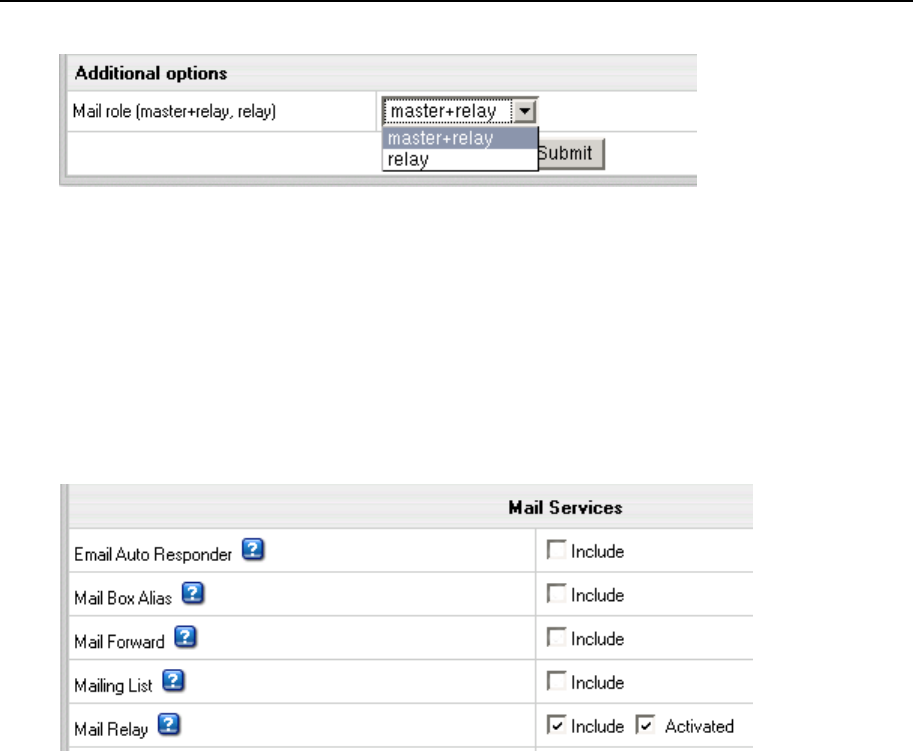
Mail System 169
You can allow or disallow relaying mail for a specific plan. With relaying allowed, mail to
accounts under this plan will be queued on other servers when their mail server is
down.
1. Log into the control panel as admin.
2. Select Plans->Manage.
3. Choose the plan.
4. On the first step of the wizard, check Include for Mail Relay.
If mail relays are allowed in the plan, users can choose a relay server for a specific
account in their User control panel. If the server is down, mail for this account will be
queued on this relay server.
1. Log into this account.
2. Go to Mail Info menu.
3. Turn Mail Relay on.
This will add an MX record for the server that was set as relay.

170 Mail System
Blocking IPs on Mail Servers
To fight spam or block unwanted emails, you can block specific IPs from sending you
mail. The incoming messages from this IP will bounce back to the sender.
To deny relay to specific IP:
1. Go to E.Manager -> Servers - > Mail Servers:
2. At the bottom of the page choose mail server from the drop-down box.
3. Enter necessary IP/subnet.
4. Enter note, if necessary, and click the Add button.
The blocked IP will appear in the Mail Server Relays section
You can remove the blocked IP from the list at any moment by clicking the Trash
icon on the right.
Adding Qmail Settings to IP/Subnet
To add mail relay and other Qmail settings to a chosen IP/subnet.
1. Go to E.Manager -> Servers - > Mail Servers:
2. Click the Add button and fill in the form:
Choose mail server from the drop-down box
Enter necessary IP/subnet and a comment, if necessary,
Set Qmail parameters. Some of them are checked to use default value. To enter
custom value, uncheck it.
Note: To deny mail relay, go to Blocking IP (on page 170).
3. Click Submit. The record will appear in the Mail Relays section
You can remove the record from the list at any moment by clicking the Trash icon on the
right.

Mail System 171
Bouncing Mail
When a mail server accepts a message and later decides that it can't deliver the
message, it is required to send back a bounce email to the sender of the original
message. These bounce emails are often misdirected.
This document outlines the correct configuration of mail server where mail bouncing
should always work. Mail servers are by default configured in accordance with this
scheme.
Mail bouncing policy implies the following three independent strategies:
1. Separate bounce IP
2. Processing error responses
3. Bounced mail delivery
See Qmail bounce parameters (on page 173) for details.
In this section:
1. Separate IP for Sending Bounced Mail .......................................................... 171
2. Processing Error Responses ......................................................................... 172
3. Bounced Message Delivery ........................................................................... 173
1. Separate IP for Sending Bounced Mail
Separate IP for sending bounced mail allows sending bounces, but isolates them to a
different IP address (so that spamcop can block them without blocking other mail).
How to configure:
The respective bounce IP network alias must be up. Then, specify the bounce IP in the
/var/qmail/control/bouncingip file and restart qmail or set the bouncingip
parameter in the Qmail Settings form in the administrator CP.
After that, restart qmail.

172 Mail System
2. Processing Error Responses
There are 2 main error status groups:
temporary errors: delivery of such messages is done during queue lifetime period
permanent errors: after the first delivery attempt the message is queued as a
bounce message
In many cases temporary error status is inadequate. For example, the absence of
mailbox or quota overlimit is sometimes considered by a remote box as a temporary
error - as a result, the message may remain in the queue during lifetime period.
hsphere-mail-service packages adds a possibility to configure 3 additional
states:
1. Consider temporary errors as permanent errors for local mail delivery
2. Consider temporary errors as permanent errors for remote mail delivery
3. Consider temporary errors as permanent errors for local and remote mail delivery
How to configure:
Set the temperror parameter in /var/qmail/control/options:
temperror=0 or absent (default) - common behavior;
temperror=1 - consider temporary errors as permanent errors for local mail
delivery;
temperror=2 - consider temporary errors as permanent errors for remote mail
delivery;
temperror=3 - consider temporary errors as permanent errors for local and remote
mail delivery.

Mail System 173
3. Bounced Message Delivery
Bounced message delivery is performed in 3 ways:
1. Simple bouncing: message is bounced.
2. Double bouncing: message is sent to a predefined location.
3. Triple bouncing: - message is discarded.
Current mail configuration allows regarding double bounce as triple bounce. We have
added a possibility to configure common bounce delivery as double bouncing or even
triple bouncing. This may be useful when queue grows big and common message
delivery suffers. However, in many cases this configuration is not recommended and
should be applied only in critical situations.
How to configure:
Set the strictbounce parameter in /var/qmail/control/options if necessary:
strictbounce=1 - consider simple bounce as double bounce
strictbounce=2 - consider simple bounce and double bounce as triple bounce
Configuring Qmail
Parallels H-Sphere offers enhanced Qmail SMTP server configuration. Most
enhancements have been added to fight spam at the server level.
In this section:
Antivirus and Antispam Filters (SpamAssassin and ClamAV) ............................ 174
Integrated Antispam Addons ............................................................................. 177
Qmail Server Settings ....................................................................................... 178
Command Line Qmail Configuration .................................................................. 190
Syslog Facility/Level Configuration For rblsmtpd ............................................... 190
SMTP Log ......................................................................................................... 191
Mail Client and ESMTP Destination Server ....................................................... 192
Qmail-spp Support ............................................................................................ 193
Qmail TLS Support ............................................................................................ 194
Integrated Plugins ............................................................................................. 194
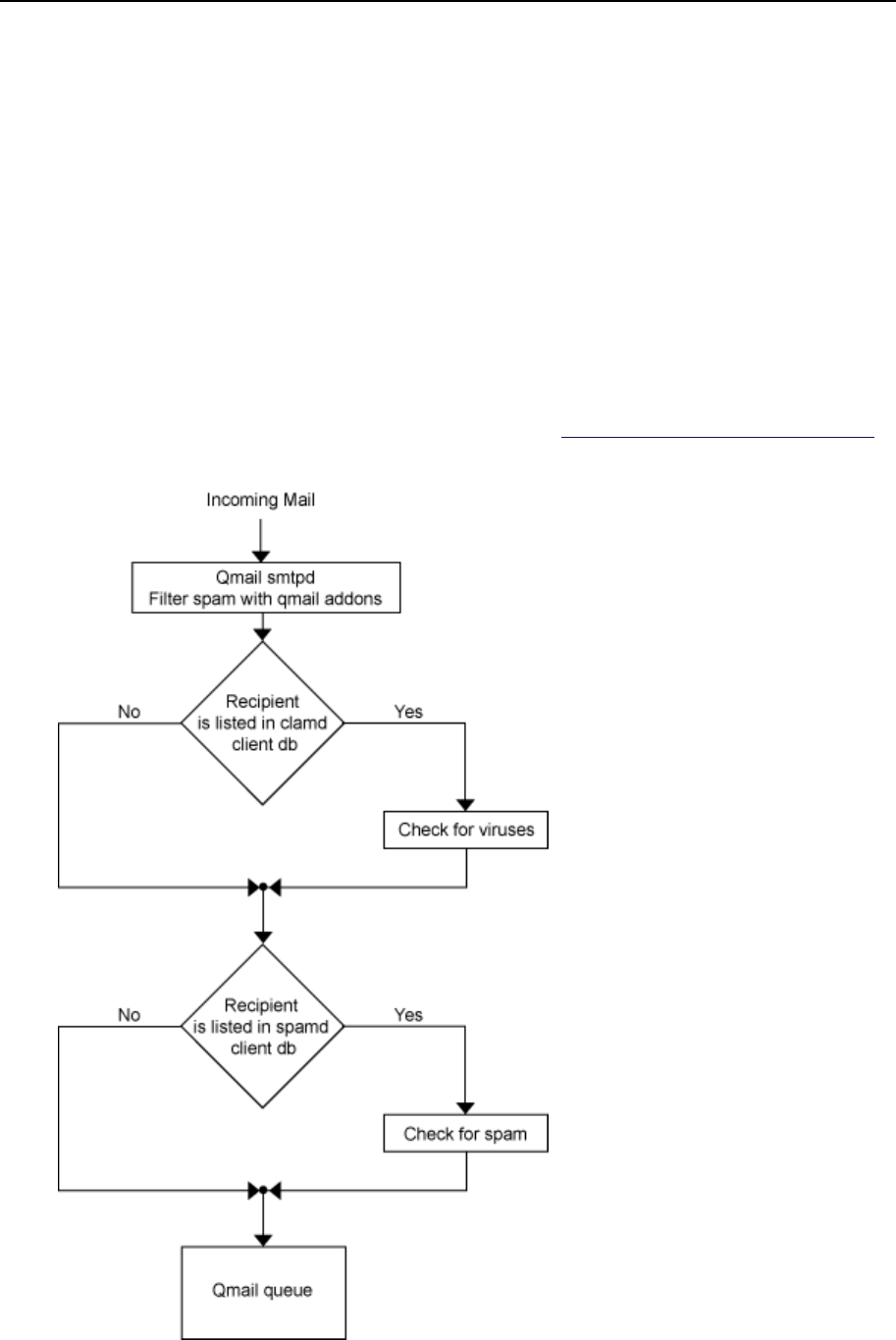
174 Mail System
Antivirus and Antispam Filters (SpamAssassin and
ClamAV)
Qmail incorporates SpamAssassin and ClamAV filters at the server level. It uses an
improved qmail-queue patch concept, where the use of the QMAILQUEUE variable is
replaced with checking recipient addresses against the clamavclients and
spamdclients databases (see the drawing). Parallels H-Sphere users can add their
mail addresses to the database to have them checked for spam and viruses. User-
defined antispam preferences are stored in a MySQL database.
Mail is filtered by standalone clamd and spamd services. We had to get rid of the
Qmail-Scanner perl wrapper, because it is rather heavy and unreliable for high load
SMTP servers. Instead, we use clamdmail software, http://clamdmail.sourceforge.net/,
which is fast and adapted to working with clamd and/or spamd.

Mail System 175
In this section:
Updating Virus Patterns ..................................................................................... 175
Enabling Antivirus and Antispam ....................................................................... 175
Configuring ClamAV and SpamAssassin at the Server Level ............................ 175
Restarting ClamAV and SpamAssassin ............................................................. 175
Updating ClamAV Database .............................................................................. 176
User Settings ..................................................................................................... 176
Updating Virus Patterns
Mail server cron has a script that updates virus patterns every day at 12AM. You can
manually change the timing of the cron.
Enabling Antivirus and Antispam
ClamAV and Spamassasin have been added to Parallels H-Sphere as resources, and
can be enabled and disabled from the control panel:
1. Global Settings. In Plans -> Globals, check Antispam and Antivirus and
click Submit Query.
2. Plans. In Plans -> Plans select the plans where you would like to enable
spam and virus protection. On the first page of the wizard, enable
Antispam and Antivirus. Optionally, set prices for these resources on the
subsequent steps.
Configuring ClamAV and SpamAssassin at the Server Level
ClamAV: edit file /hsphere/local/config/mail/clamav/clamav.conf.
The format and options of this file are fully described in the clamav.conf(5) manual.
Remember - you must remove the "Example" directive. Be careful not to change the
values of LocalSocket and TCPSocket.
SpamAssassin: edit file
/hsphere/local/config/mail/spamassassin/local.cf as suggested in
Spamassassin documentation
(http://www.spamassassin.org/doc/Mail_SpamAssassin_Conf.html). Note that
external modules like Bayesian rules, razor2, dcc, and pyzor are not included, so
please be careful not to enable related options.
Restarting ClamAV and SpamAssassin
See Restarting Services (on page 57).

176 Mail System
Updating ClamAV Database
Each hour cron updates ClamAV antivirus databases. Execute crontab -l to see the
list of cron tasks for a mail server. The following line indicates that ClamAV database is
updated each hour:
0 * * * * /hsphere/shared/bin/freshclam --quiet
ClamAV database update is configured in
/hsphere/local/config/mail/clamav/freshclam.conf.
User Settings
ClamAV and Spamassasin settings can be configured per maildomain and individual
mailbox. Please see Parallels H-Sphere User Guide for details.

Mail System 177
Integrated Antispam Addons
Besides SpamAssassin, Parallels H-Sphere Qmail includes a series of third party and
in-house antispam addons:
Fehcom Spamcontrol patch, http://www.fehcom.de/qmail/spamcontrol.html, (based
on the spamcontrol-2.4.17 release) provided with opportunity to switch whitelist
extensions on and off dynamically
qmail-smtpd badmailfrom-unknown addon,
http://www.lamer.de/maex/creative/software/qmail/103-bmfunk/
Qmail patch, http://www.qmail.org/big-concurrency.patch, to allow Qmail to use a
concurrency greater than 240
doublebounce-trim patch, http://www.qmail.org/doublebounce-trim.patch, to discard
doublebounces without queuing them
Jose Luis Painceira's patch that deletes the body of bouncing messages
(http://qmail.org/qmail-send.mimeheaders.tar.gz). This patch is based on Fred
Lindberg's patch that preserves the MIME-ness of bouncing MIME messages
(http://www.ezmlm.org/pub/patches/qmail-mime.tgz)
qmail-maildir++.patch (from Vpopmail distribution)
Parallels addon that checks if the sender's address in POP-before-SMTP
authentication is local and the recipient's address is remote;
Parallels addon that checks if domain name in the sender's address matches the
domain name used in SMTP authentication.
Andre Oppermann's ext-todo patch, http://www.nrg4u.com/qmail/ext_todo-
20030105.patch, which solves the 'silly qmail syndrome'. That's where qmail spends
more time processing incoming email than scheduling deliveries.
big-DNS patch, http://www.ckdhr.com/ckd/qmail-103.patch, which fixes oversize
DNS packet problem.
Modified version of Qmail chkuser 0.6 patch (http://www.shupp.org/) that checks if
the vpopmail recipient is valid before accepting the message.
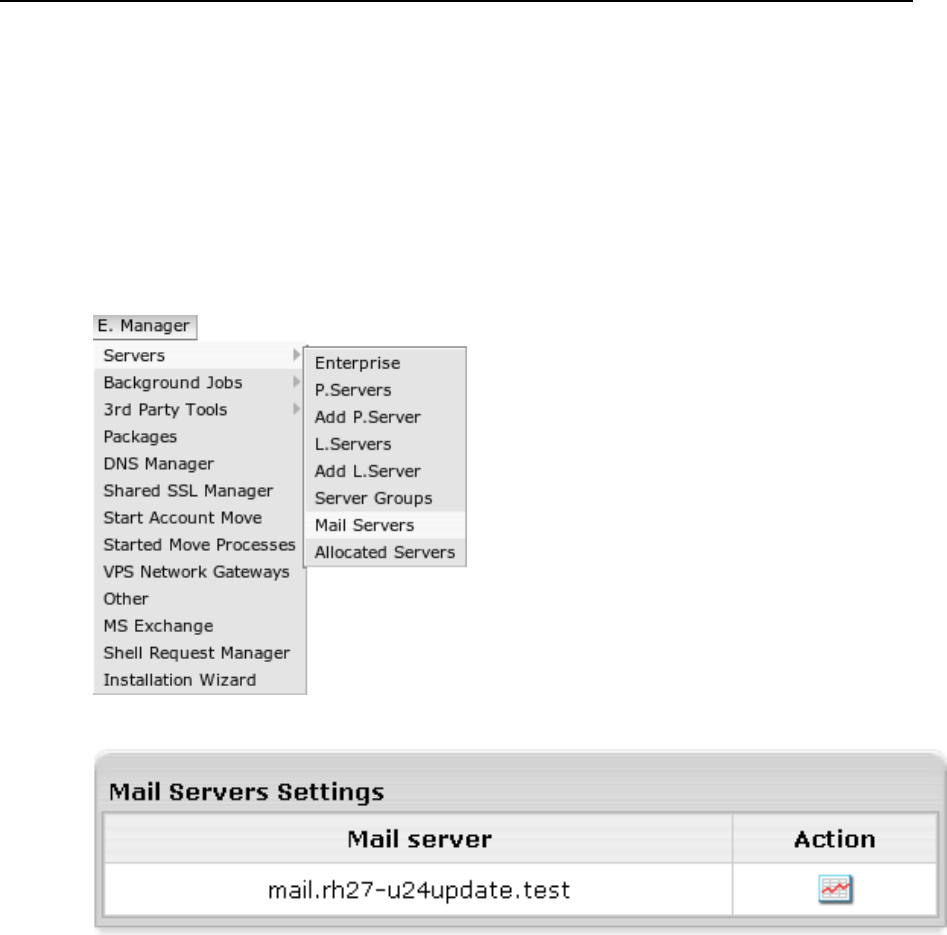
178 Mail System
Qmail Server Settings
Default Qmail server settings, including antispam options, can be configured in the
admin control panel in the E.Manager/Servers/Mail Servers menu.
To configure Qmail settings:
1. Select Mail Servers from the E.Manager -> Servers menu:
2. Click the Action icon in the Mail Server Settings section:
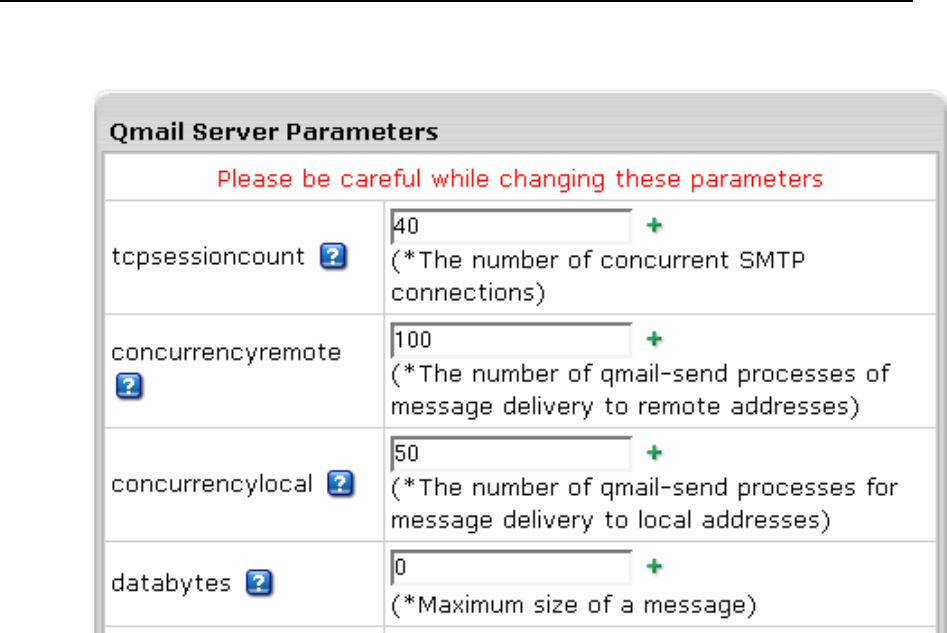
Mail System 179
3. Edit qmail settings following on-screen explanations and click Submit:

180 Mail System
IMPORTANT:
Values can be of three types:
Text: can be either a line, like @12.34.56.78, or a list, for example a list of
addresses in badmailfrom.
badmailfrom is the file that containts a list of senders mail isn't accepted from.
Number, like 1000 in databytes.
databytes is the file that contains the maximum allowed size of a message.
Boolean, like 0 or 1 in smtpauth.
0 disables SMTP Auth, 1 enables it.
Note: 0 is also set by default if the corresponding control file is absent.
Thus, for example, if you have to enable SMTP Auth, you create/modify the
/var/qmail/control/smtpauth control file and put 1 in it. To disable SMTP Auth,
put 0 in the control file or just delete the control file.
Also, text values may contain patterns: wildcard expressions to set the range of emails,
domains and IPs for filtering rules.
Control characters in patterns:
Exclamation mark (!): allows you to INCLUDE particular clients/addresses by
simply putting an exclamation mark (!) as first character in the line.
Asterisk (*): General pattern matching character; one or more preceding.
Question Mark (?): Match zero or one preceding.
Backslash (\): Literal expression of following character, eg. \[.
Match one from a set ([...]): i.e. [Ff][Aa][Kk][Ee] matches FAKE, fake, FaKe,
FAKe etc.
Qmail settings:
tcpsessioncount: the number of concurrent SMTP connections. Default: 40.
After setting this parameter, Qmail restart (on page 62) is required.
concurrencyremote: the number of qmail-send processes of message delivery
to remote addresses. Default: 100. Max: 500. If Max is exceeded, Max value is set.
concurrencylocal: the number of qmail-send processes for message delivery to
local addresses. Default: 50. Max: 500. If Max is exceeded, Max value is set.
databytes: maximum size of a message. Default: 0 (unlimited).
queuelifetime: the message queue lifetime in seconds. Default: 604800 (1
week).
bouncefrom: the email user messages are bounced from.
Default: MAILER-DAEMON;
maxrecipients: maximum number of recipients in the "TO:", "CC:", and "BCC"
fields. Default: 0 (unlimited).
maxwrongrcpt: maximum number of wrong recipients in the envelope. Default: 0
(unlimited).
timeoutsmtpd: TCP connection timeout in seconds. Default: 1200.

Mail System 181
newline: accept or reject mail from mail user agents (MUA) that send commands
without CR (carriage return). Default: 0 (disabled);
stripsinglequotes: enable or disable stripping single quotes (referred to in the
spamcontrol manual as the feature that may cause unpredictable results). Default: 0
(disabled);
lowercase: enable or disable conversion of mail address to lowercase; it may be
useful in filtering patterns, for case-sensitive rules. Default: 0 (disabled).
badmailfrom: list of sender addresses whose emails will be rejected. A line in
badmailfrom may be of the form @host, meaning every address at host.
Default: the badmailfrom file is absent (all sender addresses are allowed); See also
splithorizon.
badmailpatterns: the same as standard badmailfrom but with patterns.
Example:
*@earthlink.net
!fred@earthlink.net
[0-9][0-9][0-9][0-9][0-9]@[0-9][0-9][0-9].com
answerme@save*
*%*;
Default: the badmailpatterns file is absent (all sender addresses are allowed); See
also splithorizon.
badmailfrom-unknown: if the domain part of sender's address matches a host in
this list, qmail checks if sender's IP has a PTR record. Example:
http://www.lamer.de/maex/creative/software/qmail/103-bmfunk/badmailfrom-
unknown. Default: the badmailfrom-unknown file is absent (reverse DNS check
is disabled for all IPs).
badhelo: filter HELO/EHLO sequence issued by SMTP client; See also
splithorizon.
badrcptto: list of recipient addresses for which all mail is blocked. A line in
badrecipient may be of the form @host, meaning every address at the host.
Default: the badrcptto file is absent (no recepient addresses are blocked).
badrcptpatterns: the same as badrcptto but with patterns. It allows qmail-smtpd
to reject SPAM E-Mail including the signature
*\[dd.dd.dd.dd\]*
in the badrcptpatterns file, where dd.dd.dd is the IP address in brackets. Default: the
badrcptpatterns file is absent (no recipient addresses are blocked).
blackholedsender: the same as badmailpatterns but quits the session
immediately even if quitasap is disabled.
relayclients: list of IP addresses of clients allowed to relay mail through this
host. Addresses in relayclients may be wildcarded:
192.168.0.1:
192.168.1.:
Default: the relayclients file is absent (all client IPs are allowed to relay mail via this
host).
182 Mail System
relaydomains: list of host and domain names allowed to relay mail through this
host. This is an additional mail relay check by the domain name, in case if relay via
the tcp.cdb static relay database is forbidden. More on mail relays read in Parallels
H-Sphere Service Administrator Guide, SMTP Mail Relays section.
Addresses in relaydomains may be wildcarded:
heaven.af.mil:
.heaven.af.mil:
Default: the relaydomains file is absent (all domains are allowed to relay mail).
relaymailfrom: list of senders ("Mail From:") allowed to relay independently even
if open relay is closed. Entries in relaymailfrom can be E-Mail addresses, or just the
domain (with the @ sign). Unlike relaydomains, native addresses should be
entered. Examples:
joeblow@domain1.com
@domain2.com
Default: the relaymailfrom file is absent (no senders are allowed to relay
independently).
Important: For antispam security reasons, we strongly recommend not to add this
parameter to SMTP configuration.
quitasap: enables (1) or disables (0) quitting of SMTP session immediately if one
of the above rules works. Default: 0 (no quitting). Enabling this option is
recommended only in case of spam attacks or huge spam traffic to your server. If
working, quitasap breaks SMTP connection if at least one of the following
parameters is enabled, the result of its check being negative:
SPF check
smdcheck
mfdnscheck
no openrelay for sender IP
badmailfrom
badmailfrom-unknown
badrcptto
userchk
maxrecipients
smtpauth
antivirus
antispam
badhelo
helodnscheck
Use the quitasap option with precaution as breaking of SMTP connection is contrary
to the requirements of correct SMTP server operation.

Mail System 183
tarpitcount: the number of recipients after which qmail switches on delay before
sending the message to the next portion of recipients.
Default: 0 (no tarpitting);
tarpitdelay: the time in seconds of delay to be introduced after each
subsequent RCPT TO:. Default: 5.
mfdnscheck: enables (1) or disables (0) DNS check of domain name in sender's
address. If enabled, no local domain check is performed.
Default: 0 (disabled);
nomfdnscheck: list of domain names that aren't checked for existence. The list
has the same format as for relaymailfrom. Default: the nomfdnscheck file is absent
(if mfdnscheck is enabled, all domains are checked for existence);
helodnscheck: in a manner similar to mfdnscheck, performs check for
HELO/EHLO smtp commands instead of RCPT TO:. See also splithorizon.
splithorizon: if 1, helodnscheck, badhelo, badmailfrom, and badmailpatterns
checks for SMTP sessions with open relay mfdnscheck are not performed.
userchk: enables (1) or disables (0) check that the vpopmail recipient is valid
before accepting the message. Default: 0 (disabled);
smdcheck: allows only local domains in the MAIL FROM address if mail is sent
remotely. If the option is enabled, SMTP is used, otherwise - Sendmail is.
Default: 0 (any sender address is allowed).
authsender: if set to 1, it requires the domain name in user address during SMTP
authentication to coincide with the domain name in the MAIL FROM address field.
a By default: '0' if smtpauth parameter is OFF.
By default: '2' if smtpauth parameter is ON.
Note: value '2' is used as additional procedure providing correct traffic calculation in
case of dynamic open relay. In this case, instead of recording mail envelop sender
domain, traffic log records the domain used in SMTP authentication).
rblhosts: RBL (Remote Black List) database hosts. Example:
dnsbl.njabl.org
spamguard.leadmon.net
Allowed anti-RBL source addition (http://cr.yp.to/ucspi-tcp/rblsmtpd.html). Format of
anti-RBL source : a:domainname. Default: the rblhosts file is absent (RBL check
is disabled: no external RBL databases is being checked).
Note 1: Parallels H-Sphere Qmail MTA is built with "A" record patch, so it's possible
to enable DNSBL, which doesn't support "TXT" DNS records. For instance, Trend
Micro Network Reputation Services DNSBL
(http://us.trendmicro.com/us/products/enterprise/network-reputation-
services/index.html). You can enable its support via Mail Service Settings in the
Admin CP. At the moment, you can do it by adding the string:
"activationcode.r.mail-abuse.com:blocked using Trend Micro
RBL+, please see http://www.mail-abuse.com/cgi-
bin/lookup?ip_address=%IP%"
Note 2:
a Quotation marks are necessary.

184 Mail System
b For commercial RBL, like Trend Micro RBL+
(http://us.trendmicro.com/us/products/enterprise/network-reputation-
services/index.html), after the service is rendered, the corresponding value
should be set instead of activationcode.
qmailspp: Enables Qmail plugin support. Default: 0 (disabled).
flagfailclosed: Always consider dns lookups failure as a temporary error, 451.
Default: 0 (disabled).
flagrblbounce: Consider RBL error status code as a fatal (553), instead of
default policy, temporary error (451). Default: 0 (disabled).
stricthelocheck parameter (options file, disabled by default), which considers
HELO command obligatory.
chksignature: (options file), which provide badsignatures filtering for mail
resources with enabled antivirus check. Default: 0 (disabled).
chkloadertype: (options file), which provide badloadertypes filtering for mail
resources with enabled antivirus check. Default: 0 (disabled).
Both chksignature and chkloadertype include a wire-speed filtering of E-Mails
containing BASE64 encoded attachments with about 99,5% efficiency:
http://www.fehcom.de/qmail/docu/virus_2004.pdf
Note: chksignature provides a
robust MIME type identification.
Particular MIME types can be
added on-the-fly (based on the
idea of Russell Nelson's (and
Charles Cazabon's) to filter
Windows executables attached as
BASE64 encoded MIME parts in
the E- Mail. Included the following
signatures, which detect specific
common, double and triple Base
64 Windows Executable
(control/badsignatures):
TVqQAAMAA
TVpQAAIAA
TVpAALQAc
TVpyAXkAX
TVrmAU4AA
TVrhARwAk
TVoFAQUAA
TVoAAAQAA
TVoIARMAA
TVouARsAA
TVrQAT8AA
TVrvAEQAe
UEsDBAoAA
VFZxUUFBT
VkZaeFVVR
ZGltIGZpb
Note: chkloadertype provides a
high efficient and unique Loader
type recognition. Though this
procedure is more heavy, than
signature check and is less
recommended. Predefined
loadertype check is oriented on the
Kernel32.dll search (specific
Loader types for the Windows OS
are included in
control/badloadertypes):
Mi5kb
MzIuZ
MyLmR
MyLkR
Mi5ET
My5le

Mail System 185
Note: The list of signatures is static, not configurable via CP interface. If you want to
add something, you should edit the corresponding control files: badloadertypes and
badsignatures.
sms: Restriction of Max messages for one email value for Mail SMS resource (Max
value: 3). Default: 3.
spamglobal: Antispam check of all incoming mail. Default: 0 (disabled).
clamglobal: Antivirus check of all incoming mail. Default: 0 (disabled).
skipcachk: ClamAV (Antivirus Filter) check restriction. Default: 0 (disabled).
skipsachk: Spamassassin (AntiSpam Filter) check restriction. Default: 0
(disabled).
periplimit: enter the number of simultaneous SMTP connections from the same
IP.
noathost: demands fully qualified domain email address in RCPT TO and MAIL
FROM smtp commands. Default: 0 (disabled). If you enable this parameter, you will
never get reject/bounce messages, or return receipts, and you may get other mail
server admins upset at you if they have to deal with your bounce messages. Since
this is contrary to the requirements of correct SMTP server operation (Mailservers
are required by RFC1123 5.2.9 to accept mail from "<>"), use noathost parameter
with precaution.
sanetcheck: enables/disables network check for SpamAssassin. Default: 0
(disabled). By default, SpamAssassin performs only local tests. By enabling this
parameter you can also enable network tests for SpamAssassin, such as
DCC_CHECK (Distributed Checksum Clearinghouse is an anti-spam content filter),
URIDNSBL (look up URLs found in the message against several DNS) etc. These
network test use internet resources. Network tests must be set in the additional
configuration file
(/hsphere/local/config/mail/spamassassin/custom.cf). A path to this
file is set via the include directive of the main SpamAssasin local.cf file. Use this
additional configuration file for plugins and options of SpamAssassin.
spamdchildren: specifies the number of forked spamd child processes. Default:
10. We recommend to increase it for servers with large number of smtpd
connections.
rcptdnschecks: allows only existing mail domain names of recipients. Default: 0
(off).
uquotacheck: provides message bouncing during SMTP session in case of
mailbox quota overflow. Default: 0 (off).
localtime: provides generation of date stamps in local timezones for various
qmail programs. Default: 0 (off).
samsgsize: maximum message size, in bytes to be send to spamd.
catchall: provides ability to disable the work of 'Catch All' options independently
of user settings. Default: 1 (enabled).
rejectdiscardedmail: rejects incoming messages to mailboxes with discard
option at SMTP level. Default: 0 (disabled).
skipsachk, skipcachk: skip Spamassassin (SA)/Antivirus (CA) check:
skipcachk=0 and/or skipsachk=0 or absent: default settings - always CA
and/or SA check, if enabled

186 Mail System
skipcachk=1 and/or skipsachk=1: for SMTP authenticated users CA and/or
SA heck skipped
skipcachk=2 and/or skipsachk=2: for SMTP connections with dynamic or
static open relays or for SMTP authenticated users CA and/or SA check skipped
Note: As an example of patterns, see the canonical method filter for spam e-mail in
README_SPAMCONTROL
(http://www.fehcom.de/qmail/spamcontrol/README_spamcontrol.html).
In this section:
Mail Client Headers ........................................................................................... 186
Autoresponder Settings ..................................................................................... 186
Bounce Message Customization ....................................................................... 187
Mail Protocols .................................................................................................... 187
SPF (Sender Policy Framework) ....................................................................... 188
SRS (Sender Rewriting Scheme) ...................................................................... 189
Mail Client Headers
X-Originating-IP and X-Envelope-To mail client headers are included in
Parallels H-Sphere by default. They introduce the following controls:
xoriginatingip: includes X-Originating-IP header into mail client according to
AOL recommendations, http://postmaster.aol.com/faq/forwarding.html (enabled by
default)
xenveloptoheader: includes X-Envelope-To header which is required by some
mail clients to identify real envelope sender (disabled by default)
Autoresponder Settings
Parallels H-Sphere provides autoresponder policy. Enter the necessary parameters and
click Submit:

Mail System 187
patterns_policy - autoresponder is working only if Sender Filter is configured
in user CP. The default value is 0 (disabled).
autoreply_policy - provides autoreply if SENDER originating IP corresponds to
a target receipient IP or Subnet only
Bounce Message Customization
Parallels H-Sphere enables bounce and doublebounce messaging in case mail failed to
be delivered. Enter the necessary parameters and click Submit:
bouncingip: parameter removed in Parallels H-Sphere 3.0 RC 2, added a
separate Outgoing IP to mail server. Once you add it via Admin CP, it will disappear
from Qmail parameters.
bouncefrom: the email user messages are bounced from. Default: MAILER-
DAEMON;
bouncehost: the literal name or bouncehost IP. If a message is permanently
undeliverable, qmail-send sends a single-bounce notice back to the message's
envelope sender, from: bouncefrom@bouncehost. Default: mail server name.
doublebouncehost: the literal name doublebouncehost or IP. If a single-bounce
notice is permanently undeliverable, qmail-send sends a double-bounce notice to
doublebounceto@doublebouncehost. Default: mail server name.
doublebounceto: the user email to receive doublebounce messages.
bouncesubject: enter bounce message subject.
bouncemessage: enter the text of the bounce message.
doublebouncesubject: enter doublebounce message subject.
doublebouncemessage: enter the text of the doublebounce message.
temperror: considers temporary error a permanent one for local, remote, and
local & remote mails.
strictbounce: strictbounce allows for bounce to act as double bounce and for
bounce and double bounce to act as triple bounce (when bounce message is
discarded).
Mail Protocols
Choose a system SMTP relay for your mail server - POP before SMTP and SMTP
AUTH.
smtpauth: enables SMTP AUTH extension
Default: 0 (AUTH LOGIN/PLAIN/CRAM-MD5 SMTP extension is disabled)
popbeforesmtp: enables POP-BEFORE-SMTP
opensmtptimeout: allows to set open relay lifetime, in minutes, after POP-before-
SMTP authentication. Default: 180 min.

188 Mail System
SPF (Sender Policy Framework)
Parallels H-Sphere's SPF (on page 196) implementation at the SMTP server level is
based on this qmail patch: http://www.saout.de/misc/spf/. It introduces the following
qmail controls:
spfbehavior: turns SPF checking on/off. The default value is 0 (off). You can
specify a value between 0 and 6:
0: Never do SPF lookups, don't create Received-SPF headers
1: Only create Received-SPF headers, never block
2: Use temporary errors when you have DNS lookup problems
3: Reject mails when SPF resolves to fail (deny)
4: Reject mails when SPF resolves to softfail
5: Reject mails when SPF resolves to neutral
6: Reject mails when SPF does not resolve to pass
Values bigger than 3 are strongly discouraged.
Important: This setting can be overridden using the environment variable
SPFBEHAVIOR, e.g. from tcpserver rules.
Note: If RELAYCLIENT is set, SPF checks won't run at all. (This also includes
SMTP-AUTH and similar patches)
spfrules: sets a line with local rules, i.e., rules that are executed before the real
SPF rules for a domain would fail (fail, softfail, neutral).
They are also executed for domains that don't publish SPF entries.
spfguess: sets a line with guess rules, i.e., rules that are used if the domain
doesn't publish SPF rules. The local spfrules are always executed afterwards.
spfexp: customized SPF explanation. The explanation is the line returned to the
SMTP sender when a mail is rejected at the SMTP level. You can use macro
expansion. If a domain specifies its own explanation it is going to be used instead.
The SMTP answer when rejecting mails will look like: 550 the expanded SPF
explanation (#5.7.1)

Mail System 189
SRS (Sender Rewriting Scheme)
SRS (on page 196) is implemented with the following qmail control files located in the
/var/qmail/control/srs directory:
revers_srs_secrets: contains keys called secrets to form hash for SRS
address for reverse mail. The file contains the list of secrets, each in separate line.
The most recent key is on top of the list. Qmail takes it first when checking SRS
address, and if it doesn't fit, Qmail takes these keys one after another. If none fit,
the message will be rejected. The file has 400 permissions and vpopmail:vchkpw
ownership.
srs_secrets: secrets for SRS address in forwards. The file has 400 permissions
and qmaill:qmail ownership.
srs_secrets_age: an auxiliary file containing information when each key in
revers_srs_secrets and srs_secrets was created. It is generated by the
/var/qmail/bin/setsrssecret script and consists of the lines in the following
format:
key timestamp
srs_max_age: an integer value (in seconds) for the maximum permitted age of a
rewritten address. SRS rewritten addresses expire after a specified number of days
after which it is assumed no more bounces may be generated in response to the
original mail. Mail sent to expired SRS address is dropped without ceremony. The
default (about a month) should be appropriate for all purposes.
These controls are initiated and set by running the /var/qmail/bin/setsrssecret
script. You can run this script also as cron (on page 34) on mail servers.
Read more about SRS qmail controls at http://www.libsrs2.org/docs/index.html.

190 Mail System
Command Line Qmail Configuration
Qmail installation directory is usually /var/qmail/.
SMTPd configuration files are also called control files. Each SMTP parameter is
configured in its own control file with the same name, for example,
/var/qmail/control/smtpauth for smtpauth parameter.
All controls are placed in one configuration file, /var/qmail/control/options.
To view SMTP server configuration, run the qmail-showctl utility, under root:
# /var/qmail/bin/qmail-showctl
You will get the list of SMTP parameters. Each line in the list has the following format:
smtp_parameter: [(Default.)] Value
Each stmp_parameter may be set in its own control file with the same name located in
the /var/qmail/control directory.. The file contains the parameter's value. If the
file is not found, the default value is taken and the default notification (Default.)
shows up in the configuration list.
Syslog Facility/Level Configuration For rblsmtpd
rblsmtpd is a generic tool to block mail from RBL-listed sites. It is located in
/hsphere/shared/bin/rblsmtpd.
It is possible to customize syslog facility/level settings for rblsmtpd to redirect messages
to custom log files. The following facilities/levels are customizable (read man 3
syslog for details):
Facilities
Levels
LOG_AUTH
LOG_AUTHPRIV
LOG_CRON
LOG_DAEMON
LOG_FTP
LOG_KERN
LOG_LOCAL0 ...
LOG_LOCAL7
LOG_LPR
LOG_MAIL (default)
LOG_NEWS
LOG_SYSLOG
LOG_USER
LOG_UUCP
LOG_EMERG
LOG_ALERT
LOG_CRIT
LOG_ERR
LOG_WARNING
LOG_NOTICE (default for
FreeBSD)
LOG_INFO (default for Linux)
LOG_DEBUG

Mail System 191
Custom facility/level records are set in the /var/qmail/control/rblsyslog file,
for example:
LOG_LOCAL7:LOG_WARNING
Also you must add the respective record in /etc/syslog.conf (see man
syslog.conf for details) to redirect messages to a new log file, for example:
local7.warn /var/log/myrbllog
File /var/qmail/control/sysfacility contains name of syslog facility (one from
among LOG_LOCAL0 ... LOG_LOCAL7) used to gather mail traffic statistics (on page
208).
SMTP Log
Maillog format is extended:
remote IPs of SMTP sessions are logged by default;
smtplog parameter is introduced in the /var/qmail/control/options file:
0 default logging mode
1: restricted mode of SMTP session logging
2: complete SMTP logging
This parameter is not included in CP and is not modified in admin interface, as it
serves for debug purpose only.

192 Mail System
Mail Client and ESMTP Destination Server
Mail client can check if the following extensions are available on the destination server
and, if so, use them.
ESMTP STARTTLS extension defined in RfC RFC3207
ESMTP SIZE extension defined in RfC 1870
ESMTP PIPELINING extension defined in RfC 2920
By default, only ESMTP SIZE/PIPELINING check is provided if destination server
supports them.
Switching over qmail-remote client to use them is made via mconnectext control
file with content of the following format:
iii
where i equals 0 or 1 and
First 'i' corresponds to STARTTLS
Second 'i' corresponds to SIZE
Third 'i' corresponds to PIPELINING

Mail System 193
Qmail-spp Support
Parallels H-Sphere adds a qmail-spp engine (http://qmail-spp.sourceforge.net/) which
provides plugin support to qmail`s SMTP daemon (qmail-smtpd). It`s written entirely in
C using native qmail libraries, so it does not create any dependencies. Qmail-spp
engine implementation is aimed to add rblspp plugin as a replacement for rblsmtpd.
To make the server and plugins work faster, follow the rules:
Use the engine only as circumstances may require, i.e. to add new plugins
Do not run plugins via system shell, that means without adding ":" just before plugin
path. Avoid command line parametres or plugins written on shell/perl
Use full pathes to plugins
Accumulate functionality in one particular plugin rather than use different plugins
Configuration Details
Qmail-spp support can be enabled via CP interface and configured in
/var/qmail/control/options file (qmailspp boolean parameter). When qmail-spp
engine is involved, qmail-smtpd tries to read the main default configuration file of qmail-
spp /var/qmail/control/smtpplugins that consists of few sections one for each
command:
connection - for plugins run just after client connection
helo - for HELO/EHLO
mail - for MAIL
rcpt - for RCPT
data - for DATA
auth - for AUTH
Mind that you have to specify full pathes to plugins while configuring qmail-spp. To find
more info on syntax, refer to qmail-spp documentation (http://qmail-
spp.sourceforge.net/doc/).
To add plugins to conf file, use the following utility:
/var/qmail/bin/spp-conf -h
Usage:
-a|-r|-R -h -b -s -p plugin_name -t category_name
plugins must be located at /var/qmail/control/plugins directory.
plugin_name: relative plugin name
category_name: connection, auth, helo, mail, rcpt, data
-a : add plugin (by default)
-r : remove plugin
-R : remove all plugins
-b : input from stdin set of rows, format: category_name;plugin_name
-s : plugin is executed via shell -i : check and fix plugin permissions

194 Mail System
Qmail TLS Support
In mail service configured with SSL, TLS is disabled by default (mail-ssl-proto
script was used to switch it on).
To enable TLS support (with possible protocols: SSLv2, SSLv3, TLSv1, by default
SSLv3 only), run:
/hsphere/local/config/mail/scripts/mail-ssl-proto -r -t SSLv3,TLSv1
Where:
mail-ssl-proto script sets list of SSL protocols used by mail service.
-r provides mail service restart.
Integrated Plugins
Rblspp Plugin
Rblspp plugin was added as a replacement for rblsmtpd. It resolves the RBL check
delay problem for successful SMTP authenticated connections. For this, ucspi-tcp-
0.88-rblspp.patch patch was combined with
(http://xs3.b92.net/tomislavr/qmail.html#ii) ifauthskip.c, and command line
parametres were removed to speed up the plugin launch.
If RBL check is involved but plugin support is disabled, default rblsmtpd scheme is
used.

Mail System 195
Choosing Remote MySQL Logical Server
for SpamAssassin
Parallels H-Sphere mail logical server is by default installed on a physical box together
with Web and MySQL servers on the same box, thus SpamAssassin uses MySQL
database on the same server.
It is made possible to choose an alternative remote MySQL server for SpamAssassin
database. This is in particular important for the implementation of load balanced mail
cluster (on page 342) where it is required that SpamAssassin is configured to use
remote MySQL servers.
To choose a remote remote MySQL server for SpamAssassin:
1. Login as cpanel user (on page 71) and set the following
property in
~cpanel/shiva/psoft_config/hsphere.properties:
EXTERNAL_SERVICE_USAGE = TRUE
Then, restart Parallels H-Sphere (on page 59) to apply changes.
Important: If EXTERNAL_SERVICE_USAGE is not set or is not TRUE, you won't
be able to choose an external MySQL server for SpamAssassin!
2. In admin CP, go to E.Manager -> Servers -> L.Servers, proceed to settings
for this mail logical server, and select a MySQL server from the Choose
External Spamassassin DB Server dropdown menu in Mail Server Additional
Options.
3. Login to CP server as root, download and run the Parallels H-Sphere
3.0 RC 4+ updater with the hspackages reconfig option:
hspackages reconfig=spamassassin
Note: Regular Parallels H-Sphere update to 3.0 RC 4 and up automatically includes
the reconfig option. However, for best performance we recommend running
Parallels H-Sphere updater with this option separately.
4. To move SpamAssassin DB content from the older local MySQL DB, run
the following script on the source box:
/hsphere/pkg/scripts/uprocedures/dbs_content -h
Usage:
dbs_content [ -h ] -d dbtype [ -i ip ] [ -p password ]
dbtype: horde or spamassassin or phpmyadmin
ip: this option is required only in the case, if redefinition took place from current
external MySQL server to another one or MySQL service, located on the
corresponding mail logical server.

196 Mail System
password: this option is required only in the case, if redefinition took place from
current external MySQL server to MySQL service, located on the corresponding
mail logical server.
SPF and SRS
Sender Policy Framework (SPF) (http://spf.pobox.com/) is a mechanism for
preventing sender forgery in SMTP transaction, thus allowing domain owners control
over who may send mail from their domain.
Sender Rewriting Scheme (SRS) (http://spf.pobox.com/srs.html) is a mechanism for
rewriting sender addresses when a mail is forwarded in such a way that mail forwarding
continues to work in an SPF compliant world.
SRS can work without SPF, but not vice versa, i.e., issues with forwards may arise if
SPF is implemented without SRS.
WARNING: If SRS is enabled in Parallels H-Sphere, the problems may arise with
forwarding mail to servers where SRS is not supported. In such cases, mail may return
undelivered back to users. The next Parallels H-Sphere mail service package will
provide a more friendly way to handle forwards to such servers.
This documentation explains the arrangement of these resources at the server level.
Please read how to enable and configure SPF and SRS in admin CP in Parallels H-
Sphere Service Administrator Guide.
In this section:
SPF (Sender Policy Framework) ....................................................................... 197
SRS (Sender Re-write Scheme) ........................................................................ 199

Mail System 197
SPF (Sender Policy Framework)
SPF is implemented at the level of:
DNS TXT records
SMTP server.
DNS TXT Records
Once the SPF resource is enabled in Parallels H-Sphere, DNS TXT records will be
provided for each A and MX records in E.Manager->DNS Manager.
DNS TXT records have the following format:
domain.com IN TXT "v=spf1 spf_string"
Here, spf1 is SPF version, and spf_string takes the combination of the so-called
mechanisms: "a, ptr, mx, ip4, include, all". all is a finalizing
mechanism and must be placed at the end.
Please read more explanations on mechanisms in TXT DNS records
(http://spf.pobox.com/mechanisms.html).
Each mechanism may have a prefix pointing to a certain type of processing messages:
- fail (message is rejected)
~ softfail (message is passed with warning)
+ pass (message is passed - the default prefix value)
? neutral Thus, the simplest SPF record will be:
domain.com IN TXT "v=spf1 -all"
It means that you deny sending any mail from this domain, i.e., you may use this
domain for any hosting except mail hosting. (-all is thus somewhat similar to deny all in
Apache).
Example:
Consider the following record:
domain.com IN TXT "v=spf1 mx a:test.com/24 ptr:test2.com -all"
If a message is sent with MAIL FROM: test@test3.com and from the client IP
4.5.6.7, SMTP server will check:
a whether test3.com MX records (at least one of them) are resolved to IP 4.5.6.7;
b whether the IP 4.5.6.7 is in a test.com's IP subnet (mask 255.255.255.0);
c whether the PTR record for IP 4.5.6.7 is resolved to test2.com;
If none of the above conditions are met, then the last directive -all meaning "deny
all other" takes effect, and the message will be rejected.
The include directive is used if you wish to delegate SPF check for another domain,
for example:

198 Mail System
"v=spf1 include:example.net -all"
SMTP Server
At the level of qmail server, the following SMTP parameters should be configured in
respective files in /var/qmail/control directory:
spfbehavior
spfrules
spfguess
spfexp
For more details, refer to Qmail Configuration (on page 173) and SPF Implementation
for Qmail (http://www.saout.de/misc/spf/).

Mail System 199
SRS (Sender Re-write Scheme)
SRS mechanism is used in two cases:
To form SRS-compliant mail address for forwarding messages via forward mail
resources, in accordance with SRS convention;
To form reverse SRS-compliant reverse mail address in case of reply.
Parallels H-Sphere provides the following Qmail controls for SRS (they are located in
the /var/qmail/control/srs/ directory):
SRS secrets files: reverse_srs_secrets (for reverse mail) and srs_secrets
(for forwards). These files contain a set of lines with keys, each key in a separate
line. These keys, called secrets, are used to validate hash from SRS formatted e-
mail address. The most recent key is on top of the list. Qmail takes it first when
checking SRS address, and if it doesn't fit, Qmail takes these keys one after
another. If none fit, the message will be rejected.
The revers_srs_secrets file has 400 permissions and vpopmail:vchkpw
ownership.
The srs_secrets file has 400 permissions and qmaill:qmail ownership.
srs_maxage - an integer value for the maximum permitted age of a rewritten
address. SRS rewritten addresses expire after a specified number of days after
which it is assumed no more bounces may be generated in response to the original
mail. Mail sent to expired SRS address is dropped without ceremony. The default
(about a month) should be appropriate for all purposes.
For details, please refer to http://www.libsrs2.org/docs/index.html.
The script /var/qmail/bin/setsrssecret runs as cron (on page 34) on mail
servers to set these controls.
Updating SpamAssassin Rulesets
Automatically
Below are two scripts used for automatical update of SpamAssassin rulesets.
In this section:
Sa-update Script................................................................................................ 200
Rules Du Jour Script ......................................................................................... 200

200 Mail System
Sa-update Script
Sa-update (http://saupdates.openprotect.com/) is a script aimed at the dynamic update
of basic spam assassin rules to catch different kind of spam. It provides a possibility to
add other channels, but at your own risk.
By default sa-update script is located at:
/hsphere/local/config/mail/spamassassin/sa-update-keys - pgp
key-rings. It is automatically formed in the post install section for default chanel.
/hsphere/local/config/mail/spamassassin/sa-update - directory
where updated rules are located.
The /hsphere/local/config/mail/spamassassin/scripts/saupdate script
that updates/checks for new rules can be customized according to your own needs by
adding new rules. This script remains untouched after further hsphere-mail-service
updates.
Rules Du Jour Script
RulesDuJour (http://www.exit0.us/index.php?pagename=RulesDuJour) is a bash script
aimed at automatical download of new versions of SpamAssassin rulesets as the
authors release new versions. As FreeBSD does not include bash by default, Parallels
H-Sphere mail service package containing RulesDuJour also includes the bash
installation for FreeBSD. This script must run daily as a cron task to keep additional
custom SpamAssassin rules up to date.
At the mail server level, RulesDuJour is implemented by the following scripts:
Initialization script:
/hsphere/local/config/mail/spamassassin/scripts/init_rules_du_
jour
Deletion script:
/hsphere/local/config/mail/spamassassin/scripts/delete_rules_d
u_jour
RulesDuJour SA ruleset update script:
/hsphere/local/config/mail/spamassassin/scripts/rules_du_jour
In this section:
Initialization Script ............................................................................................. 201
Configuration File .............................................................................................. 202

Mail System 201
Initialization Script
Initialization script is launched upon enabling the Automatic Ruleset Update (Rules Du Jour)
option in SpamAssassin Manager via the administrator control panel:
1. It creates the default RulesDuJour config file
/hsphere/local/config/mail/spamassassin/rulesdujour. The init
script syntax (run it with the -h option to get help):
#
/hsphere/local/config/mail/spamassassin/scripts/init_rules_du
_jour -h
Usage:
init_rules_du_jour [ -r rulesets ] [ -e email ]
rulesets: list of comma separated ruleset; possible values:
TRIPWIRE EVILNUMBERS SARE_RANDOM (default: all)
email: address where e-mail notifications on SA rulesets
update go (default: none)
The script is used to set values for SA rulesets to be updated and the e-mail
address where update notifications will be sent. See Configuration File for details.
2. It adds the RulesDuJour SA ruleset update script
/hsphere/local/config/mail/spamassassin/scripts/rules_du_jour
to mail server cron jobs (on page 34) starting daily at 1:00 AM:
0 1 * * *
/hsphere/local/config/mail/spamassassin/scripts/rules_du_jour

202 Mail System
Configuration File
Initialization forms the RulesDuJour config file
/hsphere/local/config/mail/spamassassin/rulesdujour. It has the
following format:
# cat rulesdujour.default
TRUSTED_RULESETS="TRIPWIRE EVILNUMBERS SARE_RANDOM"
SA_DIR=/hsphere/local/config/mail/spamassassin
EMAIL_RDJ_UPDATE_ONLY=
SINGLE_EMAIL_ONLY=true
MAIL_ADDRESS=
SA_LINT="/hsphere/shared/bin/spamassassin --lint"
SA_RESTART="/etc/rc.d/init.d/spamd restart"
TMPDIR="${SA_DIR}/RulesDuJour"
This sample config file is for Linux servers. For FreeBSD, it has a different spamd
restart format:
SA_RESTART="/usr/local/etc/rc.d/spamd.sh restart"
Two config files variables - TRUSTED_RULESETS and MAIL_ADDRESS - can be set by
the init script and via Control Panel at the SpamAssassin Manager page:
TRUSTED_RULESETS - choose under what categories custom rulesets need to
be included and updated:
BLACKLIST a blacklist of spammers.
BLACKLIST_URI looks for these domains inside URL's in the message.
BOGUSVIRUS lists bogus virus warnings and similar.
RANDOMVAL list of tags spammers sometimes forget to convert in spam.
SARE_ADULT designed to catch spam with "Adult" material.
SARE_BAYES_POISON_NXM using lists of words with equal length.
SARE_BML designed to catch "business, marketing and educational" spam.
SARE_BML_PRE25X designed to catch "business, marketing and educational"
spam.
SARE_FRAUD designed to catch "Nigerian 419", "International Lotto", etc. type
scams.
SARE_FRAUD_PRE25X designed to catch "Nigerian 419", "International Lotto",
etc. type scams.
SARE_HEADER contain Header rules that are not found in other SARE
rulesets.
SARE_OEM tries to detect people selling OEM software to consumers.
SARE_RANDOM tries to detect common mis-fires on bulk mail software. Many
signs are found like: %RND_NUMBER, etc.
SARE_SPECIFIC ruleset which flags specific spam and/or spam from specific
spammers.
SARE_SPOOF tries to detect common spoofing attempts by spammers. Many
use a Message-ID of one provider but the message was never passed through
the suggested system.

Mail System 203
TRIPWIRE searches for 3 characters that shouldn't be together. This is based
on the English language.
RANDOMVAL lists tags spammers sometimes forget to convert in spam.
SARE_EVILNUMBERS lists addresses and phone numbers harvested from
spam.
SARE_GENLSUBJ contains Subject header rules that are not found in other
SARE rulesets.
SARE_HIGHRISK is developed because there are spam signs which readily
detect spam, and which in our testing do not flag significant ham, but
theoretically there is no reason for such rules not to flag ham. We therefore
consider these to be "high risk" rules, useful for many systems at this time, but
not suitable for systems that must be very conservative and cautious in their
spam detection.
SARE_HTML contains HTML coding rules that detect various spammer tricks
applied through HTML coding within messages.
SARE_OBFU looks for obfuscation within emails. It looks for the various tricks
spammers use to hide their message from spam filters, while keeping their
messages readable to humans. It treats these as spamsign.
SARE_REDIRECT detects commonly abused redirectors and uri obfuscation
techniques.
SARE_SPAMCOP_TOP200 contains top 200 spam relays condensed into as
few rules as possible.
SARE_STOCKS contains set of rules for stock spams.
SARE_UNSUB looks for common unsubscribe phrases and codes in spam.
SARE_URI contains files look for spamsign in URI links within emails. It is not
intended to replace SURBL or BigEvil, but instead will use characteritics that
these domain-based tests cannot track.
SARE_WHITELIST used to whitelist newsletters and mailing lists that are
controlled/monitored to be free of spam, but might occasioanlly be flagged as
spam by SpamAssassin because of "spammy" contents.
ZMI_GERMAN contains German ruleset.
MAIL_ADDRESS - the e-mail address where SA ruleset update notifications will be
sent. If the field is empty, no notifications will be sent.

204 Mail System
Migrating Mail Server/IP
To move the mail server to another machine:
1. Prepare Servers
1. Prepare a new box with a mail server.
2. Create a new physical server and add a mail server group (or add this group to
the physical server you are planning to move mail server to).
3. Disable signup for the mail server.
2. Move Mail Content
1. As the cpanel user (on page 71), ssh to your target mail server:
ssh root@<TARGET_MAIL_SERVER_IP>
2. Move the following directories from the source to the target mail server:
rsync -arzgop -e ssh
root@<SOURCE_MAIL_SERVER_IP>:/hsphere/local/var/vpopmail/domains/
/hsphere/local/var/vpopmail/domains/
rsync -arzgop -e ssh
root@<SOURCE_MAIL_SERVER_IP>:/hsphere/local/var/vpopmail/etc/
/hsphere/local/var/vpopmail/etc/
rsync -arzgop -e ssh
root@<SOURCE_MAIL_SERVER_IP>:/var/qmail/control/
/var/qmail/control/
rsync -arzgop -e ssh
root@<SOURCE_MAIL_SERVER_IP>:/var/qmail/users/ /var/qmail/users/
rsync -arzgop -e ssh root@<SOURCE_MAIL_SERVER_IP>:~mysql/horde/
~mysql/horde/
rsync -arzgop -e ssh
root@<SOURCE_MAIL_SERVER_IP>:~mysql/spamassassin/
~mysql/spamassassin/
3. Update System Database
1. Stop the Control Panel (on page 59).
2. Log into the Parallels H-Sphere system database (on page 71) and run the
following queries:
update l_server set p_server_id=<TARGET_PHYSICAL_SERVER_ID> where
id=<MAIL_LOGICAL_SERVER_ID>;
(1 record)
update l_server_ips set ip='<TARGET_MAIL_SERVER_IP>',
mask='<TARGET_MAIL_SERVER_MASK>' where
l_server_id=<MAIL_LOGICAL_SERVER_ID> and flag=4;
(1 record)
3. Start the Control Panel (on page 59).
4. Update Reseller's Server Aliases

Mail System 205
As the cpanel user, run the following java tool:
java psoft.hsphere.tools.ServerAliasesRenamer --lserver
<MAIL_LOGICAL_SERVER_ID>
5. Mail Content Final move
1. Stop the mail and mysql service (on page 57) on the source server
2. As the cpanel user (on page 71), ssh to your target mail server:
ssh root@<TARGET_MAIL_SERVER_IP>
3. Repeat rsync commands from Step 2 from the target server
rsync -arzgop -e ssh
root@<SOURCE_MAIL_SERVER_IP>:/hsphere/local/var/vpopmail/domains/
/hsphere/local/var/vpopmail/domains/
rsync -arzgop -e ssh
root@<SOURCE_MAIL_SERVER_IP>:/hsphere/local/var/vpopmail/etc/
/hsphere/local/var/vpopmail/etc/
rsync -arzgop -e ssh
root@<SOURCE_MAIL_SERVER_IP>:/var/qmail/control/
/var/qmail/control/
rsync -arzgop -e ssh
root@<SOURCE_MAIL_SERVER_IP>:/var/qmail/users/ /var/qmail/users/
rsync -arzgop -e ssh root@<SOURCE_MAIL_SERVER_IP>:~mysql/horde/
~mysql/horde/
rsync -arzgop -e ssh
root@<SOURCE_MAIL_SERVER_IP>:~mysql/spamassassin/
~mysql/spamassassin/
4. Start the mysql service (on page 57) if you have a mysql service on the source
box.
6. Enable Qmail Forwarding For The Time of DNS Propagation
The possibility to use POP3-before-SMTP and SMTP AUTH Authentication for the
time of migration has been implemented since mail2-all4 (/misc/mail2_all4.html). If
your Parallels H-Sphere uses an older mail package, please skip this step.
1. Start source mail server with the "forward" parameter:
/etc/init.d/qmaild forward
When prompted "Enter IP address of the destination mail server: ", enter the IP of
the target physical server. This IP will be added to files
/var/qmail/control/destip and /var/qmail/control/smtproutes
and will be used for further server restarts.
2. On the target mail server, add the IP of the source server as an IP with open
relay.
NOTE: qmail forward switches the source SMTP server into relay mode and
forwards POP3 traffic to the target server with simultaneous POP3-before-
SMTP authentication on the source box. This is done to keep using the old
box until the target server's DNS settings are propagated across the
Internet. It usually takes up to 2 or 3 days. After that, you can stop the
source server.
7. Change the A DNS record for main zone.

206 Mail System
Go to the E-Manager -> DNS Manager and delete the A DNS record with the old IP and
add it with the new IP.
8. Finish off the migration
1. Check if you have ~qmaild/control/outgoingip file. If yes, change the IP
in this file to the new one.
2. Restart qmail service (on page 57) on the target box.
3. On CP server, check the
~cpanel/shiva/psoft_config/hsphere.properties file. Here, find the
SMTP_HOST parameter. If it is set to the old mail server IP, reset it to the new
IP or to the SMTP server's hostname.
4. If SMTP_HOST parameter was changed, restart the Control Panel (on page 59).
9. Check mail server functionality.

Mail System 207
Moving Mail Domains
Moving mail domains in Parallels H-Sphere is not fully automated, which means it can
be applied to individual domains or small groups of domains. The below procedure
doesn't work well with large groups of mail domains or entire resellers.
Please be prepared that due to the propagation of the new IP address, mail domain
move can result in up to 24 hour downtime and inability to edit the mail boxes.
To move a group of user domains from one mail server to another:
1. On the new mail server, log in as root and run the following commands
for each domian:
1. Register a new mail domain:
~vpopmail/bin/vadddomain <DOMAIN_NAME> <ANYPASS>
2. If the domain you are moving has domain aliases, set up each alias by the
following command:
~vpopmail/bin/vaddaliasdomain <DOMAIN_NAME> <ALIAS_NAME>
3. Get the location of this domain directory:
~vpopmail/bin/vdominfo <DOMAIN_NAME>
4. Remove the content of this directory:
rm -rf <DOMAIN_DIRECTORY>
5. Copy the content of the original maildomain directory from the source server:
scp -r root@<OLD_SERVER_IP>:<SOURCE_DOMAIN_DIRECTORY>
<DOMAIN_DIRECTORY>
6. Update ownership of the domain directory and its content:
chown -R vpopmail:vchkpw <DOMAIN_DIRECTORY>
where:
<DOMAIN_NAME> is the mail domain
<ANYPASS> is any string. Later it will be replaced with the real password
<DOMAIN_DIRECTORY> is the location of the domain directory on the target server
<SOURCE_DOMAIN_DIRECTORY> is the location of the domain directory on the source
server
<OLD_SERVER_IP> is the IP address of the source mail server.
7. Restart mail server (on page 62) to apply changes.
2. If the domain directory path is different on the source and target
servers:
1. Go to the domain directory on the target server and update all mailbox paths in
the vpasswd file and all files that have names beginning with .qmail-.
2. Add and delete a temporary mailbox to apply changes:

208 Mail System
[root@mail3 example.com]# ~vpopmail/bin/vadduser
blala@example.com
Please enter password for blala@example.com:
enter password again:
[root@mail3 example.com]# ~vpopmail/bin/vdeluser
blala@example.com
3. On the old mail server, log in as root and delete the domains using this
command for each domain:
~vpopmail/bin/vdeldomain <DOMAIN_NAME>
4. Important! Back up the Parallels H-Sphere system database.
5. Log into the system database (on page 71) and run the following
queries:
1. Set new logical server id for each domain name:
UPDATE mail_services SET mail_server=<NEW_LSERVER_ID> WHERE
id=(SELECT child_id FROM parent_child WHERE child_type=1000
AND parent_id=(SELECT id FROM domains WHERE
name='<DOMAIN_NAME>'));
2. Get current values from the MX and CNAME records for the moved domains:
SELECT r.id, r.name, r.type, r.data, r.ttl, r.pref FROM
domains d, parent_child p1, parent_child p2, dns_records r
WHERE d.name='<DOMAIN_NAME>' AND d.id = p1.parent_id AND
p1.child_type=1000 AND p1.child_id = p2.parent_id AND
p2.child_id = r.id AND (p2.child_type=1007 OR
p2.child_type=3006);
3. Update MX and CNAME records with the new values:
UPDATE dns_records SET data='<TARGET_MAIL_SERVER_NAME>' WHERE
id in (<MX_ID>, <CNAME_ID>);
where <MX_ID> and <CNAME_ID> are the record IDs you got on the previous step.
4. Restart Parallels H-Sphere (on page 59) to apply changes.
6. As the cpanel user (on page 71), update your DNS settings using the
DNS Creator utility:
java psoft.hsphere.tools.DNSCreator -m db -dz -z <DOMAIN_NAME>
where <DOMAIN_NAME> is the domain name you are updating MX and CNAME for.
Calculating Mail Traffic
This document explains how Parallels H-Sphere collects and rotates mail traffic.
Parallels H-Sphere cron script (on page 34) responsible for analyzing mail traffic is
/hsphere/shared/scripts/cron/mail_anlz.sh. The script runs daily,
processes the qmail traffic log file (on page 34) and collects mail statistics into the
specially formatted dd.mm.YYYY.qml.txt log files in the Parallels H-Sphere statistics
directory /hsphere/local/var/statistic. Here, dd.mm.YYYY is current date
timestamp.

Mail System 209
dd.mm.YYYY.qml.txt log files contain lines of the following format:
|name|xFer(kB)|Hits_All|Hits_HTML|
where name is the domain name, xFer is the total traffic in kilobytes.
Then, Parallels H-Sphere TrafficLoader utility is launched by cron to collect mail traffic
from the statistics directory and to store it into the system database. TrafficLoader also
calls the /hsphere/shared/scripts/xfer_cat.pl script to move the already
loaded mail statistics files to the /hsphere/local/var/statistic/loaded
directory as dd.mm.YYYY.qml.txt.gz archives.
In this section:
Mail Traffic Log .................................................................................................. 210
POP3 and IMAP Traffic ..................................................................................... 211
Web Mailing List Traffic ..................................................................................... 211
210 Mail System
Mail Traffic Log
qmail writes a detailed mail traffic log to the /var/hsphere/mail/logs/stats file.
To view detailed descriptive mail statistics from this file, run:
/var/qmail/bin/mailstatistics -v -f /var/hsphere/mail/logs/stats
The -v option provides a verbose mode.
Log records in the file have the following format:
date host msg_type[pid]:
timestamp|sender|recipient|bytes|status|attempts
Here:
date: date where the message is sent or received, e.g., "Jun 20 18:20:14"
host: mail server host, e.g., "mail.example.com"
msg_type: in for incoming thread, and out for outgoing thread
pid: PID of the process
timestamp: UNIX timestamp (in seconds since 1 Jan 1970) of the date when the
message is sent, e.g., 1119280814
sender: message sender's e-mail address
recipient: message recipient's e-mail address. For multiple recipients each one a
separate line in the log
bytes: message size
status: message status. It is different for incoming and outgoing mail
Incoming mail:
success - message is received successfully
timeout - no response from the source host while receiving the message
rejclam - message is received completely but detected as infected when the
proper mail resource is configured to remove virused message
rejspam - message is received completely but detected as spam when: (1) the
proper mail resource is configured to remove spam message or (2) when the
score of the spam message exceeds the MaxScore parameter
manyhops - message is looping
mboxoverquota - over quota
badmime - used bad mime type of the mail message
bytestooverflow - message exceeds size limit Outgoing mail:
success - message is sent successfully
timeout - no response from destination host while sending the message
partial - malformed incoming message
readerr - internal server problems
attempts: number of data transfers per one SMTP session Example:

Mail System 211
tail -f /var/hsphere/mail/logs/stats
Jun 20 18:20:14 mail.example.com in[16723]:
1119280814|test@yahoo.com|postmaster@test.com|69|success
Jun 20 18:20:14 mail.example.com in[16723]:
1119280814|test@yahoo.com|test@test.com|69|success
POP3 and IMAP Traffic
To view detailed descriptive IMAP statistics, run:
cat /var/hsphere/mail/logs/stats|grep -i imap
POP3 statistics:
cat /var/hsphere/mail/logs/stats|grep -i pop3
POP3 and IMAP traffic have the same format as Qmail traffic (on page 125), except the
e-mail addresses there look like imap@<account> for POP3 and pop3@<account> for
POP3.
Web Mailing List Traffic
To view detailed descriptive web mailing list statistics, run:
cat /var/hsphere/mail/logs/stats | grep maillist
Web mailing list traffic has the same format as Qmail traffic, except that in sender field
it includes 'web@maillist' to identify its type.

212 Mail System
SpamGuard Setup
To set up SpamGuard:
1. Download SpamGuard: http://www.enderunix.org/spamguard/
2. Execute tar xfz spamguard-x.x.tar.gz
3. Go to /root/inst/spamguard-x.x/
4. Read the INSTALL and README files
5. Install SpamGuard following the instructions in the INSTALL and
README files
IMPORTANT: You must put all your system domain names to the Spamguard's ignore
list to avoid any casual chance of their appearance in the blacklist!
Please follow instructions in the POST-INSTALL file.
Warning: For the time being, there is no effective way of combining mailing lists and
spamguard protection. You need to configure spamguard manually by setting the
maximum allowed number of recipients.
Parallels H-Sphere DNS service can use either MyDNS (on page 221) or the bind8.x,
9.x package. If you use the Linux RedHat autoupdates, be careful not to update bind.
To disallow user zones on a particular DNS server, disable user signup for this logical
server through Parallels H-Sphere web interface. This way, old customers will keep
using it, and new customers won't.
Resellers can run on dedicated and shared IPs. You can disable dedicated IP hosting
for resellers. Read how to configure DNS for resellers in Parallels H-Sphere Service
Administrator Guide.
Parallels H-Sphere does not provide support for Reverse DNS.
In this chapter:
DNS Config Files ............................................................................................... 214
Restarting Named ............................................................................................. 216
Bind 9.3 ............................................................................................................. 216
Adding DNS Servers ......................................................................................... 219
Configuring Single DNS ..................................................................................... 219
Installing and Configuring MyDNS ..................................................................... 221
Migrating DNS from Bind to MyDNS .................................................................. 222
Moving DNS ...................................................................................................... 223
Removing Broken DNS Zones ........................................................................... 225
Using DNS Creator ............................................................................................ 229
CH A P T E R 15
DNS Server

214 DNS Server
DNS Config Files
The main configuration file location is /etc/named.conf
It contains the following data:
--
options {
directory "/hsphere/local/var/named";
listen-on { 127.0.0.1;
YOUR_IP_1;
YOUR_IP_2;
...
YOUR_IP_N; };
notify-source ;
pid-file "/hsphere/local/var/named/named.pid";
};
zone "." IN { type hint; file "local/named.ca"; };
zone "localhost" IN { type master; file "local/localhost.zone"; allow-
update
{ none; }; };
zone "0.0.127.in-addr.arpa" IN { type master; file "local/named.local";
allow-update { none; }; };
include "zones_index.conf";
acl anyip{any;};
--
Parallels H-Sphere DNS Zones
The main named directory both on master and slave DNS servers is
/hsphere/local/var/named/.
It contains the zones_index.conf file, the zones_(NUMBER).conf files and the
zones(NUMBER) directories, where (NUMBER) = 1, 2, ... , 22
This structure contains Parallels H-Sphere DNS info and files. To find a zone, execute
the following commands:
# cd /hsphere/local/var/named/
# grep "Zone.Name.com" *.conf
It will return the data which contains the zone file location. But please do not modify it
manually, especially, if you do not understand what you do.
The localhost and 0.0.127.in-addr.arpa zones files are located in the
/hsphere/local/var/named/local/ directory.
Custom DNS Zones
If you need to add a custom zone, we recommend placing it into this directory. Note
that Parallels H-Sphere won't manage your custom zones, you will have to manage
them manually.

DNS Server 215
Reverse DNS
Parallels H-Sphere does not manage reverse DNS. To configure reverse DNS globally
for the main Parallels H-Sphere domain, Parallels H-Sphere owner's ISP or domain
registration company should accordingly configure reverse DNS for this domain on their
DNS servers.

216 DNS Server
Restarting Named
To start, stop, or restart named on the Parallels H-Sphere DNS server:
1. Log in as root.
2. Run the respective command below.
Warning: Do not use kill -9 to stop named, as it may cause information loss!!!
Linux:
starting: /etc/rc.d/init.d/named start
stopping: /etc/rc.d/init.d/named stop
restarting: /etc/rc.d/init.d/named restart
FreeBSD:
For Bind 9.3 and up (on page 216):
starting: /usr/local/etc/rc.d/named.sh start
stopping: /usr/local/etc/rc.d/named.sh stop
restarting: /usr/local/etc/rc.d/named.sh restart
For Bind 8.x:
starting: /usr/sbin/named -u named
stopping: /usr/sbin/ndc stop -u named
restarting: /usr/sbin/ndc restart -u named
Warning: Without "-u named", the command will run under root.
Usually, a Parallels H-Sphere DNS server contains a cron DNS check which starts
every 1 or 2 minutes and, if named is not started, starts it. Therefore, do not feel
alarmed if you stop named and see that it keeps working for another several minutes.
Bind 9.3
This section outlines some peculiarities of Bind 9.3 in comparison with Bind 8.x.
In this section:
New Features .................................................................................................... 217
Restarting Bind .................................................................................................. 217
Using rndc ......................................................................................................... 218

DNS Server 217
New Features
Bind 9.3 is started/stopped/restarted via hsphere-daemontools-0.76-1, the package
built on the basis of DJB daemontools (http://cr.yp.to/daemontools.html). This
package is included into Parallels H-Sphere installation and is used with the
Parallels H-Sphere mail service (on page 161) package.
The named daemon is administered by the rndc utility, not by ndc.
ndc restart is no longer supported.
Restarting Bind
Since Bind 9.3, the Daemon Tools' svc utility is called in the named daemon to stop,
start and restart.
The procedure of stopping/starting/restarting named (on page 63) remains the same.
However, you may use Bind stop/start/restart using svc as an alternative:
Enter the /service directory:
cd /service
This directory is used by daemontools and contains symlinks to standard service
directories.
To stop Bind, run:
/command/svc -kd named
To start Bind, run:
/command/svc -u named
This sequence is equivalent to restarting named.

218 DNS Server
Using rndc
Bind includes a utility called rndc which allows you to use command line statements to
administer the named daemon, locally, or remotely.
Managing DNS Zones
To reload a DNS zone:
rndc reload <ZONE>
To reload all DNS zones:
rndc reload
After that, only changed zones will be reloaded.
To suspend updates to a dynamic zone:
rndc freeze <ZONE>
To enable updates to a frozen dynamic zone and reload it:
rndc thaw <ZONE>
Run rndc for more options.
rndc Config File
/etc/rndc.conf
If rndc is unable to connect to named, check the /etc/rndc.conf and
/etc/named.conf. For details on rndc configuration, run:
rndc-confgen
WARNING: It is strongly unrecommended to manually edit the configuration files, as it
may lead to misconfiguration in dynamic zone updates! Please also read how to
customize config file for DNS from Appendix C of Parallels H-Sphere Installation Guide.

DNS Server 219
Adding DNS Servers
There are two possible options to set up DNS servers:
put each named to separate boxes
put all DNS servers to one box
Note: The latter option requires the so-called single DNS configuration. For more
details, click here (on page 219).
To add Parallels H-Sphere DNS server to a new physical box:
1. Prepare the box for DNS service installation according to the
instructions from Parallels H-Sphere Installation Guide.
2. Download and run the installation script according to the Adding
Servers and Services Guide.
If you need to add a DNS server to a live Parallels H-Sphere physical server, follow the
instruction on adding services.
Configuring Single DNS
Single DNS configuration enables to allocate two or more DNS servers on one physical
box. In this mode, Parallels H-Sphere emulates full-featured DNS configuration where
each DNS server has its own bound IP. This allows customers with a single box
installation to use services, such as OpenSRS domain registration, that require at least
two DNS servers.
WARNING: Single DNS mode is available only if all DNS servers are configured
on one physical box! You cannot have two DNS logical servers on one box if you
have another DNS server on a separate box.
To put an extra DNS server to single DNS configuration:
1. Add another DNS logical server to the physical server with DNS via the
interface as described in Parallels H-Sphere Service Administrator
Guide.
2. Log in as cpanel user and run the following java tools:
ClusterPreparer:
su - cpanel -c "java psoft.hsinst.boxes.ClusterPreparer"
DNSCreator:
su - cpanel -c "java psoft.hsphere.tools.DNSCreator -m rand"
Read more about DNSCreator options (on page 229).

220 DNS Server
3. Execute:
/hsphere/local/config/bind/scripts/config_bind
4. Restart named service.

DNS Server 221
Installing and Configuring MyDNS
MyDNS is a DNS server for UNIX that serves records directly from an SQL database
and can be used in Parallels H-Sphere as an alternative to bind (on page 213).
Currently Parallels H-Sphere supports MyDNS to work only with MySQL.
Installation
To configure Parallels H-Sphere to work with MyDNS:
1. Download the latest version of MyDNS from http://mydns.bboy.net.
2. Install and configure MyDNS version that is served by MySQL DB on a
new or any of your existing Parallels H-Sphere servers following the
MyDNS installation instructions
(http://mydns.bboy.net/doc/html/mydns_2.html#SEC2).
You can either install MyDNS .rpm package or compile it.
Warning: Do not rename the 'mydns' MySQL DB created during the installation.
3. Add the following lines into the
~cpanel/shiva/psoft_config/hsphere.properties file:
MYDNS_USER = <login>
MYDNS_PASS = <password>
MYDNS_DB_HOST = <IP>
Where:
login is the MySQL user name to access MyDNS MySQL DB with
select/insert/update/delete privileges. You will need to create one more MySQL
user than is described in MyDNS installation instructions and GRANT ALL
privileges
password is the password for MyDNS user login
IP is the IP of the server with MySQL DB created during the installation
4. In the admin control panel check if MyDNS name server is listed as a
server group. If it's not, log into the system database (on page 71) and
execute:
INSERT INTO l_server_groups (id, type_id, name) VALUES (21,
2, 'MyDNS name server');
5. Restart your CP (on page 59).
6. If you install MyDNS on a new server, add this physical server as
described in Parallels H-Sphere Service Administrator Guide.
7. Add MyDNS logical server(s) via the interface with the MyDNS name
server group and check if it is available for signup.

222 DNS Server
Uninstallation
To remove Parallels H-Sphere DNS service, remove the 'hsphere-bind' package by
running:
rpm -e hsphere-bind-XXX
Note: After running this command, commands like host, dig, nslookup and others may
disappear.
Therefore, it is recommended that afterwards you install additional packages: bind-
libs-XXX.rpm and bind-utils-XXX.rpm.
Migrating DNS from Bind to MyDNS
To migrate DNS from BIND to MyDNS:
1. Execute steps1-3 of Installing and Configuring MyDNS (on page 221).
MyDNS front end servers must be installed on the servers where you
have got Parallels H-Sphere BIND name servers installed.
2. Restart CP (on page 59)
3. Log to CP server as the cpanel user (on page 71)
4. To transfer DNS zones and records to MyDNS, run:
java psoft.hsphere.tools.MigratorToMyDNS [-dz|--delete_zones]
If you specify -dz or --delete_zones option, then the utility will try to delete each
DNS zone on the new set of DNS logical servers before recreating them.
5. Restart CP (on page 59).
6. Stop Bind.
7. Add external DNS server to /etc/resolv.conf as described in Appendix C.
Customizing Configuration Files of Parallels H-Sphere Installation Guide
for each MyDNS server.

DNS Server 223
Moving DNS
DNS servers can be moved only to Linux/Unix boxes. You can't move DNS to a
Windows platform.
1. Prepare a new box with DNS using Parallels H-Sphere installer.
2. Using E.Manager, create a new physical server and add the DNS server
group (or add this group to the physical server you are planing to move
DNS server to).
3. Stop the Control Panel (on page 59).
4. Log into the system database (on page 71) and run the following DB
queries:
update l_server set p_server_id=[new_p_server_id] where
id=[id_of_DNS_logical_server];
update l_server_ips set ip='[new_DNS_server_IP]',
mask='[new_DNS_server_mask]' where
l_server_id=[id_of_DNS_logical_server] and flag=4;
select * from l_server_ips where
l_server_id=[id_of_DNS_logical_server] and flag in (5,6);
5. Move all IPs selected from Parallels H-Sphere database (with flags 5
and 6) to the new server. This means that you need to remove these
IPs from the network interface on the old DNS server,
/etc/named.conf ("Listen on" directive) and
/hsphere/local/network/ips files, and set them on new server
(on network interface, /etc/named.conf and
/hsphere/local/network/ips files).
6. Perform this step ONLY if you are running two DNS servers on one box
and are separating them. This must be done on the source server.
Go to the directory /hsphere/shared/scripts/MultiDNS/ and copy its
contents one level higher overwriting the target files:
# cd /hsphere/shared/scripts/MultiDNS/
# cp ./* ../
7. Move DNS data. You can choose between two possibilities: physical
move or recreation of DNS zones.
Physical move:
1. Move the /hsphere/local/var/named directory from old DNS server to the new
server.
2. Change the ownership of moved files to named:named:
chown -R named:named /hsphere/local/var/named
3. On the rest of DNS servers, for slave zones which had masters set to the old
DNS server IP, change it to the new DNS server IP (using SED or any other
method).

224 DNS Server
4. Restart named (on page 63).
DNS recreation tool:
1. Log into your CP server as the cpanel user (on page 71).
2. Execute the following command (it may take a while if you have many DNS
zones):
java psoft.hsphere.tools.DNSCreator -m db -dz
8. Start the Control Panel (on page 59).
9. Change the IP in A DNS record for the DNS server in the service DNS
zone (using the Control Panel).

DNS Server 225
Removing Broken DNS Zones
This document contains step-by-step instruction on how to remove the DNS zone if,
while adding DNS zone for a domain, the following error message shows up:
Zone ... has been taken
See also the troubleshooter
(http://hsphere.parallels.com/HSdocumentation/FAQ/troubleshooter.php).
Note: Here, we deal with such issues where, by some reason, DNS zone was not
correctly created or not completely removed from the system. We do not consider
cases where this DNS zone exists on a live account.
First of all, you need to check from the CP interface if this domain zone is indeed
removed. For this, choose the Search/In resellers menu and search for the domain name.
If no account is found, you need to remove the DNS zone from the Parallels H-Sphere
database.
1. We strongly recommend you to back the database up before you make changes in
it.
2. Use transactions when you modify tables. Transactions have the following format:
begin; - start the transaction. [statements for modifying data: delete, insert,
update, and the like]
rollback; - rollback the transaction; also perform rollback when you make a
syntax error in the previous statement.
commit; - commit the transaction.
Use either rollback; or commit; to finish the transaction.
The following tables and fields are considered in this guide:
dns_zones - the list of DNS zones.
dns_zones.id - DNS zone resource identifier;
dns_zones.name - DNS zone domain name.
parent_child - the tree of resources related to accounts. Account is a root
resource. Certain account resources (parent resources) may have child resources.
parent_child.account_id=accounts.id - account identifier;
parent_child.parent_id - parent resource identifier;
parent_child.child_id - child resource identifier. DNS zone is a child
resource to the account.
accounts - the list of accounts.
accounts.id - account identifier;
account.deleted - contains the date when the account has been deleted, or
NULL if the account is alive;

226 DNS Server
users - the list of end users.
users.id - user id;
users.reseller_id=resellers.id - id of the reseller under whom this user is
created; 1 if the user has no reseller.
user_account - the table which maintains the user-account correspondence. It
links the users and accounts tables.
user_account.user_id=users.id - user id;
user_account.account_id=accounts.id - account id for this user.
resellers - the list of resellers.
resellers.id - reseller id.
e_zones - the list of service DNS zones.
e_zones.id=dns_zones.id - service DNS zone id;
e_zones.reseller_id=resellers.id - id of the reseller who hosts this zone.
1. Check if the DNS zone is present in the database:
select * from dns_zones where name = 'domain.com';
Here, domain.com is the DNS zone name.
2. Find out the type of the DNS zone (user DNS zone or service DNS
zone).
select account_id from parent_child where child_id =
<dns_zone_id>;
If the query returns nothing, the DNS zone is the service DNS zone.
Otherwise, it is the user DNS zone. parent_child.account_id is the account
under which this DNS zone is created.
In this section:
Removing User Domain Zone ........................................................................... 227
Removing Service Domain Zone ....................................................................... 228

DNS Server 227
Removing User Domain Zone
1. Check if the account for the DNS zone is deleted:
select deleted from accounts where id = <account_id>;
2. If accounts.deleted is not NULL, it means that the account has been
deleted.
In this case, it is required to remove all records with this account id from the
parent_child table:
begin;
delete from parent_child where account_id = <account_id> and
account_id <> child_id;
commit;
3. If account.deleted is NULL, check if there is a user for this account:
select * from user_account where account_id = <account_id>;
If this query returns nothing, we have got an error: account exists, but no user
corresponds to this account. In this case, you should run the DeletedAccounts
Java utility:
1. Log into your control panel server as cpanel user running the following
command:
su -l cpanel
2. Execute the following command:
java psoft.hsphere.tools.DeleteAccounts
Then, enter the ids of the accounts you wish to delete, or create the file with these
account ids in separate lines and redirect it to the standard input of the above
command:
3. Make sure you are logged as cpanel user.
4. Execute the following command:
java psoft.hsphere.tools.DeleteAccounts <
file_with_account_ids
Note: DeleteAccounts should not be used against reseller accounts!

228 DNS Server
Removing Service Domain Zone
1. Find the reseller id for this DNS zone:
select reseller_id from e_zones where id = <dns_zone_id>;
2. Find the reseller in the resellers and users table:
select * from resellers where id = <reseller_id>;
select* from users where id = <reseller_id>;
3. If the reseller is not found in any of these tables:
1. Change the reseller id to 1 in the e_zones table:
begin;
update e_zones set reseller_id = 1 where id = <dns_zones_id>;
commit;
2. Restart CP.
3. Remove the DNS zone from the CP admin interface in the E.Manager/DNS Settings
menu.

DNS Server 229
Using DNS Creator
DNS Creator is a utility that re-creates DNS data to new DNS servers. Use this utility to
republish DNS data to a different box or add an extra DNS server.
To create DNS:
1. Log into your control panel server as the cpanel user (on page 71).
2. Run DNS Creator:
java psoft.hsphere.tools.DNSCreator -m creation_method [-dz]
[-z zonename]
-m creation method. Possible values: db or rand
db - pick NS servers as they are defined in the Parallels H-Sphere database
rand - pick NS servers randomly
-dz|--delete_zones - delete zones first. Add this option only if such zones
already exist. With this option, DNS creation will take at least twice more time.
-lids|--logical-servers - process zones which are on the logical servers
with the specified IDs.
-pip|--pServerIP - specifies a physical server by its primary IP. All necessary
logical server IDs are chosen automatically. Often -pip is used as an alternative to -
lids.
-z|--zone - recreate only one specified zone. Without this option, all zones will
be recreated.
Note: If both lids and -z parameters are specified, the -z parameter will be
ignored.
Note: If you are adding an extra DNS server, specify -m rand or else this new DNS
server will be available only for new signups.
Please be patient. If you have hundreds of domains, this utility might take hours to have
executed.

This chapter describes some task you may need to perform on your Parallels H-Sphere
MySQL server.
MySQL server log file is/var/log/mysqld.
MySQL comes with PhpMyAdmin (http://www.phpmyadmin.net/) which is a MySQL
administration Web interface written in PHP. It is installed as an hsphere-
phpmyadmin-<version>-<build> package, where <version> is PhpMyAdmin version, and
<build> is this package's build number.
PhpMyAdmin installation directory is
/hsphere/shared/apache/htdocs/phpMyAdmin.
In this chapter:
Installing MySQL Server .................................................................................... 230
Backing Up MySQL Database ........................................................................... 232
Running Parallels H-Sphere MySQL Scripts ...................................................... 233
Getting Remote Access to MySQL Logical Server ............................................. 234
Enabling Linked Tables in phpMyAdmin ............................................................ 235
Changing MySQL Root Password ..................................................................... 236
Moving MySQL .................................................................................................. 239
Moving MySQL Accounts .................................................................................. 242
Installing MySQL Server
Below is the procedure of installing MySQL database software and adding MySQL
server to Parallels H-Sphere cluster.
In this section:
Step 1. Checking for MySQL on Your Box ......................................................... 231
Step 2. Downloading MySQL............................................................................. 231
Step 3. Installing MySQL ................................................................................... 231
Step 4. Configuring MySQL ............................................................................... 232
Step 5. Adding MySQL Server to Parallels H-Sphere ........................................ 232
CH A P T E R 16
MySQL Server

MySQL Server 231
Step 1. Checking for MySQL on Your Box
First, check whether MySQL database server is installed. You can do this by entering
the following command into your command prompt:
which mysql
If it returns you a path, for example "/usr/bin/mysql", you have MySQL database
software installed. Alternatively, you can try to find an installation of MySQL by running
the following command in your command prompt:
rpm -qa | grep -i mysql
If this gives you something like:
mysql-4.0.16-0
mysql-client-4.0.16-0
you already have MySQL DBMS installed.
Step 2. Downloading MySQL
If you do not have MySQL installed, download MySQL binary RPM distribution. On the
Web site www.mysql.com, go to the Download section, select the latest stable release,
than select "The server for i386 systems" from the "Standard binary RPMs" list. Also, you will
need client programs, so go back to the Download section and download "client programs
for i386 systems" from the "Standard binary RPMs" list.
Step 3. Installing MySQL
Now that you have downloaded MySQL database software installation package,
execute the following command:
rpm -ivh /path/to/downloaded/mysql-4.xx.xx-x.rpm
where mysql-4.xx.xx-x.rpm is MySQL binary RPM distribution filename.

232 MySQL Server
Step 4. Configuring MySQL
To get MySQL working, you now need to configure the software installed.
Connection from Parallels H-Sphere to MySQL database is performed via SSH. In
order to connect to MySQL database with a user name and password, put the
.my.cnf file in the home directory of the user under which SSH connection is
established. Typically, it is the mysql user. To find out the path to the MySQL home
directory, log in as the mysql user under root, and then type pwd:
# su - mysql
# pwd
Or, finger the mysql user for details:
# finger mysql
In .my.cnf, you must insert the following lines:
[client]
user=login_of_some_highly_privileged_user
password=his_password
where login_of_some_highly_privileged_user is the login name of MySQL
database user which have insert, update, delete, select, privileges on MySQL system
database (those called mysql). his_password is the plain text password of this user.
WARNING: For security reasons, you MUST set access type for .my.cnf file to 0400
or 0600.
Step 5. Adding MySQL Server to Parallels H-Sphere
After you have installed and configured MySQL software on a new box, add MySQL
server to Parallels H-Sphere cluster as described in Adding Servers and Services
Guide. If MySQL is installed on a live Parallels H-Sphere box, add MySQL as a new
Parallels H-Sphere service.
Backing Up MySQL Database
To back up MySQL database, back up the MySQL home directory, or use the
mysqldump utility to dump the database. Type 'man mysql', 'man mysqldump' or see
MySQL documentation (http://www.mysql.com/documentation/) for details.

MySQL Server 233
Running Parallels H-Sphere MySQL
Scripts
On the MySQL database box the following scripts are installed in
/hsphere/shared/scripts:
mysql-change-user-password - changes user password
mysql-change-user-password.sh - changes user password
mysql-db-size - calculates database size
mysql-db-size.pl - calculates database size
mysql-drop-database - drops database
mysql-drop-database.sh - drops database
mysql-resume-user - resumes suspended user
mysql-resume-user.sh - resumes suspended user
mysql-create-db - creates database
mysql-create-db.sh - creates database
mysql-db-users - lists MySQL database users who have any privilege on this
database
mysql-db-users.sh - lists MySQL database users who have any privilege on this
database
mysql-get-login.pl - gets superuser login and password
mysql-get-login.pl.sh - gets superuser login and password
mysql-revoke-all - revokes all user privileges on database
mysql-revoke-all.sh - revokes all user privileges on database
mysql-create-user - creates MySQL user
mysql-create-user.sh - creates MySQL user
mysql-delete-user - deletes MySQL user
mysql-delete-user.sh - deletes MySQL user
mysql-grant-priv - grants given privilege on given database to given user
mysql-grant-priv.sh - grants given privilege on given database to given user
mysql-suspend-user - suspends MySQL user
mysql-suspend-user.sh - suspends MySQL user
All scripts accept some command line parameters. All scripts consist of two parts. The
first part, typically without extension, sets some necessary variables and then calls out
the second part of the script under sudo.
INFO: fix_perm.sh scripts sets the needed owner and rights to mysql scripts.
WARNING: Some of these scripts are different on the FreeBSD systems, so copy the
corresponding script versions from /hsphere/shared/scripts/FreeBSD.
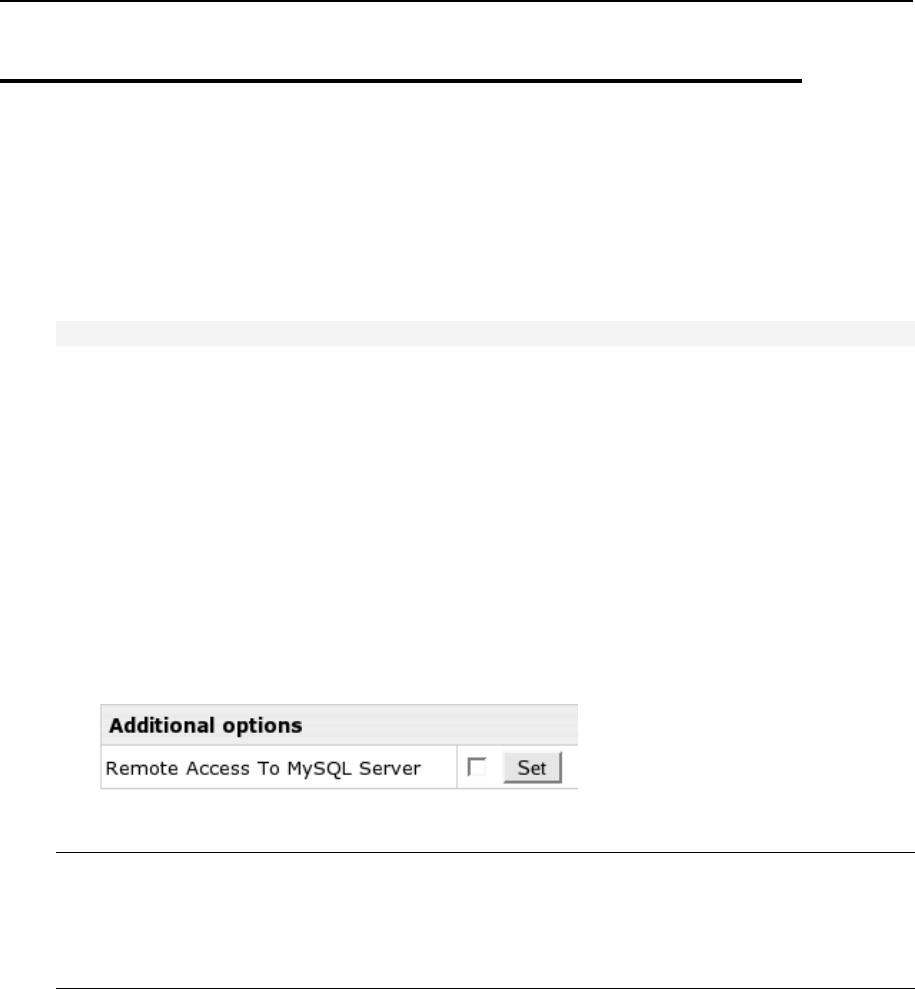
234 MySQL Server
Getting Remote Access to MySQL Logical
Server
By default, MySQL client connects to MySQL server on localhost (127.0.0.1). It is
possible to configure MySQL client to use the -h option to connect to the MySQL
server remotely by the logical server IP:
mysql -h <mysql_logical_server_ip>
This feature is, in particular, required in some custom MySQL configurations where one
MySQL client (bound to the physical server IP) connects to several MySQL servers on
different boxes (bound to the logical server IPs).
To enable or disable remote access to particular MySQL logical servers in
the Control Panel:
1. Go to the admin Control Panel, E.Manager menu, L.Server.
2. Choose a MySQL logical server from the list of logical servers.
3. Under Additional Options, check or uncheck the option Remote Access To
MySQL Server and press Set:
4. Confirm your choice on the page that appears.
WARNING: 1) Remote access to MySQL server is currently incompatible with Parallels
H-Sphere mail system! You must not enable remote MySQL access on physical
servers with live mail!
2) You must not change logical server IP on or add another server IP to MySQL logical
server where remote access is enabled to!

MySQL Server 235
Enabling Linked Tables in phpMyAdmin
Newer versions of phpMyAdmin give the following error if not configured accordingly:
"Error
The additional features for working with linked tables have been
deactivated."
These features include bookmarks, comments, SQL-history, PDF generation, field
contents transformation, etc.
To enable new phpMyAdmin features:
1. Log into the web server as root. This must be the web server where
phpMyAdmin is installed. The ID of this logical server is specified in
/hsphere/local/home/cpanel/shiva/psoft_config/hsphere.
properties on the CP server.
2. Create phpmyadmin database. If you are running Web and MySQL
servers on the same box:
mysql -u root -p<password> <
/hsphere/shared/apache/htdocs/phpMyAdmin/scripts/create_table
s.sql
If they are on different boxes:
mysql -h <MYSQL_SERVER_IP> -u root -p<PASSWORD> <
/hsphere/shared/apache/htdocs/phpMyAdmin/scripts/create_table
s.sql
3. Give necessary permissions to the controluser.
If you are running Web and MySQL servers on different boxes, first log into the
MySQL server as root.
mysql# GRANT SELECT, INSERT, UPDATE, DELETE ON phpmyadmin.*
TO 'phpuser'@'%';
4. Enter the following values in the file
/hsphere/shared/apache/htdocs/phpMyAdmin/config.inc.ph
p on the web server:
$cfgServers[1]['pmadb'] = 'phpmyadmin';
$cfgServers[1]['table_info'] = 'pma_table_info';
$cfgServers[1]['pdf_pages'] = 'pma_pdf_pages';
$cfgServers[1]['history'] = 'pma_history';
$cfgServers[1]['column_info'] = 'pma_column_info';
$cfgServers[1]['table_coords'] = 'pma_table_coords';
$cfgServers[1]['relation'] = 'pma_relation';
$cfgServers[1]['bookmarktable'] = 'pma_bookmark';

236 MySQL Server
Changing MySQL Root Password
This document explains how to change the root user password in MySQL access
privilege database.
In this section:
Option 1 ............................................................................................................ 237
Option 2 ............................................................................................................ 238

MySQL Server 237
Option 1
1. Login as root to the box with the MySQL server.
2. Stop MySQL server (on page 62).
3. Open the mysql server startup script. This is the file you have just
executed to stop MySQL server.
4. Find the line that contains the mysqld_safe command and add --skip-
grant-tables as its parameter.
5. Start MySQL server (on page 62).
6. Login as the mysql user and connect to the mysql user/permission
database and run the update queries:
# mysql -u root mysql
mysql> UPDATE user SET Password=PASSWORD('newrootpassword')
WHERE User='root';
mysql> FLUSH PRIVILEGES;
replacing newrootpassword with the new root password to the box with the
MySQL server.
7. Exit mysql database by typing \q.
8. Exit mysql user console by typing exit.
9. Stop MySQL server (on page 62).
10. Open the mysql server startup script and remove the --skip-grant-
tables parameter you added above.
11. Start MySQL server (on page 62).
12. Open the file ~mysql/.my.cnf and update the password in the
corresponding line.

238 MySQL Server
Option 2
1. Stop the MySQL daemon:
kill `pidof mysqld`
ps auxw | grep mysql
2. Temporarily create a text file in the following location:
/hsphere/local/config/mysql/file_name
This file must contain a string with an sql command similar to this one:
SET PASSWORD FOR 'root'@'localhost' =
PASSWORD('your_new_mysql_password');
3. Manually start mysql with a special option:
mysqld_safe --init-file=/hsphere/local/config/mysql/file_name
&
4. Check whether the new password is working:
mysql -p
If everything is fine, you'll get a screen like this:
Welcome to the MySQL monitor. Commands end with ; or \g.
Your MySQL connection id is 2 to server version: 5.0.27-
standard-log
Type 'help;' or '\h' for help. Type '\c' to clear the buffer.
5. Kill mysql:
kill `pidof mysqld`
6. Remove the temporary file:
rm -f /hsphere/local/config/mysql/file_name
7. Start MySQL server (on page 62).
8. Open the file ~mysql/.my.cnf and update the password in the
corresponding line.
This option 2 is simpler, faster and more secure than the first one as there is neither
editing the script rc.d/mysqld startup nor using the command --skip-grant-
tables.

MySQL Server 239
Moving MySQL
This section explains how to move MySQL service between boxes of an Parallels H-
Sphere cluster.
In this section:
Step 1. Preparing Servers ................................................................................. 239
Step 2. Moving MySQL Content ........................................................................ 239
Step 3. Updating System Database ................................................................... 240
Step 4. Updating Resellers' Server Aliases ....................................................... 240
Step 5. Synchronizing MySQL Content ............................................................. 240
Step 6. Finalizing the Migration ......................................................................... 241
Step 7. Checking Functionality .......................................................................... 242
Step 1. Preparing Servers
1. Update your Parallels H-Sphere to the latest version.
2. Apply the latest MySQL update, if any, after the installation of your
Parallels H-Sphere.
3. Prepare a new box with MySQL (on page 230) using Parallels H-Sphere
installer.
4. In E.Manager, disable signup for the MySQL server.
Step 2. Moving MySQL Content
1. Log into the targer box as root:
ssh root@<TARGET_MYSQL_SERVER_IP>
2. Stop MySQL service (on page 62).
3. Move the mysql/ directory from the source server:
rsync -arzgop -e ssh root@<SOURCE_MYSQL_SERVER_IP>:~mysql/
~mysql/
4. Start MySQL service (on page 62).

240 MySQL Server
Step 3. Updating System Database
1. Stop the Control Panel (on page 59).
2. Log into the Parallels H-Sphere system database (on page 71) and run
the following queries:
update l_server set p_server_id=<TARGET_PHYSICAL_SERVER_ID>
where id=<MYSQL_LOGICAL_SERVER_ID>;
(1 record)
update l_server_ips set ip='<TARGET_MYSQL_SERVER_IP>',
mask='<TARGET_MYSQL_SERVER_MASK>' where
l_server_id=<MYSQL_LOGICAL_SERVER_ID> and flag=4;
(1 record)
3. Start the Control Panel (on page 59).
Step 4. Updating Resellers' Server Aliases
As the cpanel user, run ServerAliasRenamer:
java psoft.hsphere.tools.ServerAliasesRenamer --lserver
<MYSQL_LOGICAL_SERVER_ID>
Step 5. Synchronizing MySQL Content
1. Stop MySQL service on the source box.
2. Repeat all of Step 2 above.
3. If the source box has a mail service, log in there and start MySQL
service.

MySQL Server 241
Step 6. Finalizing the Migration
1. Go to E.Manager -> DNS Manager and choose to edit the main service DNS
zone. Change the IP in the A DNS record for the MySQL server.
2. Open the file conifig.inc.php in the PhpMyAdmin directory. Change
the IP of MySQL server in $cfgServers[$i]['host']. $i is the
number of the MySQL server in PhpMyAdmin configuration:
$i=1,2,..
3. Check if any of the customer scripts use the MySQL server IP and
update all instances.
4. Install (http://www.quietsche-entchen.de/download/tcpproxy-2.0.0-
beta15.tar.gz) and configure (http://www.quietsche-entchen.de/cgi-
bin/wiki.cgi/-wiki/proxies/TcpProxy) TCP proxy on the old server to
ensure that MySQL hostname resolves to the new IP address during the
propagation period.

242 MySQL Server
Step 7. Checking Functionality
Now that you have finished the migration, visit a few user websites that use MySQL
and verify that everything works smoothly.
Moving MySQL Accounts
WARNING: The undermentioned procedure is recommended for experienced Parallels
H-Sphere owners only!
All MySQL resources of the particular Parallels H-Sphere account are called MySQL
account hereinafter. The following steps explain how to move all databases of a
particular Parallels H- Sphere account to a new logical MySQL server and apply
changes to the Parallels H-Sphere database.
To move MySQL account:
1. Log into the source MySQL server and get MySQL root password that
will be generated after entering the following command:
# cat ~mysql/.my.cnf
2. Export user account databases on source MySQL server with the help
of mysqldump utility:
# mysqldump -Q -uroot -p DBNAME > DBNAME.sql
where DBNAME is the database name.
This should be applied to every user database within the account.
3. Dump user database privileges on source MySQL server:
# mysqldump -c -e -Q -t mysql -uroot -p db -w "db like
'USERNAME_%'" > USERNAME_mysql.db.sql
where USERNAME is an Parallels H-Sphere user prefix for database.
4. Log into CP server. Change MySQL logical server id for the account:
# su - cpanel
# java -Xms64M -Xmx256M psoft.hsphere.tools.ChangeLServerId -
a ACC_ID --from OLD_LID --to NEW_LID
where:
ACC_ID - the account id
OLD_LID - source logical mysql server ID
NEW_LID - target mysql logical server ID
5. Create empty databases on the target MySQL server:
# su - cpanel
# java -Xms64M -Xmx256M psoft.hsphere.tools.PhysicalCreator -
rg mysql -co -lid NEW_LID -accs ACC_ID

MySQL Server 243
6. Transfer all DBNAME.sql and USERNAME_mysql.db.sql files from the
source server to the target MySQL server.
7. Log into the target MySQL server and get MySQL root password that
will be generated after entering the following command:
# cat ~mysql/.my.cnf
8. Import databases:
# mysql -uroot -p DBNAME < DBNAME.sql
9. Restore user database privileges:
# mysql -uroot -p mysql < USERNAME_mysql.db.sql
# mysqladmin reload -p
10. Restart Parallels H-Sphere CP (on page 59).
11. Make sure to check MySQL dbs functionality on the target server. If it is
ok, you may delete MySQl databases from the source server by running
the following commands:
/hsphere/shared/scripts/mysql-drop-database DBNAME
/hsphere/shared/scripts/mysql-delete-user USERNAME
Perform steps 2,3,8,9,11 for each MySQL db and user of the current Parallels H-
Sphere account on the source MySQL server.

This chapter describes some task you may need to perform on your Parallels H-Sphere
PostgreSQL server.
PostgreSQL log file is /var/log/pgsql.
PostgreSQL server comes with PhpPgAdmin (http://phppgadmin.sourceforge.net/)
which is a PostgreSQL administration Web interface written in PHP. It is installed with
PostgreSQL server as a hsphere-phppgadmin-<version>-<build> package, where
<version> is PhpPgAdmin version, and <build> is this package's build number.
IPhpPgAdmin installation directory is
/hsphere/shared/apache/htdocs/phpPgAdmin.
In this chapter:
Installing PostgreSQL Server ............................................................................ 244
Backing Up PostgreSQL Database.................................................................... 247
Using VACUUM Utility ....................................................................................... 247
Running PostgreSQL Scripts ............................................................................. 248
Changing Postgres User Password ................................................................... 249
Localizing PostgreSQL ...................................................................................... 250
Configuring Parallels H-Sphere to Use Non-Default MySQL/PostgreSQL Versions 250
Choosing Remote Web Logical Servers for phpMyAdmin/phpPgAdmin Frontends 252
Downgrading Postgres ...................................................................................... 253
Installing PostgreSQL Server
Below is the procedure of installing PostgreSQL database software and adding
PostgreSQL server to Parallels H-Sphere cluster.
In this section:
Step 1. Checking for PostgreSQL ...................................................................... 245
Step 2. Downloading PostgreSQL ..................................................................... 245
Step 3. Installing PostgreSQL ............................................................................ 246
Step 4. Configuring PostgreSQL ....................................................................... 246
CH A P T E R 17
PostgreSQL Server

PostgreSQL Server 245
Step 1. Checking for PostgreSQL
First, check if you have PostgreSQL database server already installed.
You may do this by entering the following command into your command prompt:
which psql
If you get the following (or similar):
/usr/local/pgsql/bin/psql
this means you have already got PostgreSQL database software installed.
Using the rpm -q command (on RedHat servers) is an alternative way to check if
PostgreSQL is installed. Type the following command in your command prompt:
rpm -qa | grep postgresql
If you get
postgresql-7.3.4-x
or something alike when the command is executed, it will mean that you already have
PostgreSQL database software installed.
Now you may use the existing one or install a later version of PostgreSQL.
Step 2. Downloading PostgreSQL
Note: skip this step if PostgreSQL has been already installed.
If you don't have PostgreSQL installed, you will need to download PostgreSQL from
binary RPM distribution from www.postgresql.org or its mirror sites.
Find RPM file which is usually stored in the software/download directory and
download it.

246 PostgreSQL Server
Step 3. Installing PostgreSQL
Install the PostgreSQL database software. Do this by the following command:
On RedHat servers:
rpm -i postgresql_rpm_file_name
where postgresql_rpm_file_name is PostgreSQL binary RPM distribution.
On FreeBSD servers:
pkg_add postgresql_pkg_file_name
where postgresql_pkg_file_name is PostgreSQL package for FreeBSD.
Step 4. Configuring PostgreSQL
1. Prior to configuration, you need to start PostgreSQL for the first time to initialize the
PostgreSQL service database and to create the necessary files and directories.
On RedHat servers, PostgreSQL service is initialized automatically on the first
PostgreSQL start:
/etc/rc.d/init.d/postgresql start
On FreeBSD servers, you need to initialize it manually before you start PostgreSQL:
su - pgsql -c initdb
/usr/local/etc/rc.d/010.pgsql.sh start
2. To configure the access to PostgreSQL DBs, go to PostgreSQL home directory. It is
usually /usr/local/pgsql. To find out what is the path to PostgreSQL home
directory, login as postgres user under root and type pwd:
# su - postgres
# pwd
or, finger postgres to get info about the postgres user:
# finger postgres
In this directory, find the data/pg_hba.conf file. Open it and find the records similar
to the ones below:
TYPE
DATABASE
USER
IP_ADDRESS
MASK
AUTHTYPE
MAP
local
all
all
trust
host
all
all
127.0.0.1
255.255.255.255
password
host
all
all
0.0.0.0
0.0.0.0
password

PostgreSQL Server 247
If the 'AUTHTYPE' parameter is set to trust, you must change the authentication
option to password.
* For more detailed configuration, see pg_hba.conf file.
Warning: If during the update process you get the message:
WARNING: pg_hba.conf must be configured more strictly.
it means that pg_hba.conf for a given Postgres database should be configured to
restrict IP access to Postgres databases from outside the Parallels H-Sphere cluster. It
is especially important to ensure that IP access to the Parallels H-Sphere system
database is provided only from CP.
See also: Setting password for the PostgreSQL user (on page 249) (postgres on
RedHat, pgsql on FreeBSD).
Backing Up PostgreSQL Database
Back up the PostgreSQL home directory or make the database export by the means of
PostgreSQL. Type 'man psql' or see Postgres documentation
(http://www.postgresql.org/docs/) for details.
Using VACUUM Utility
The Postgres VACUUM command enables to clean up the server transactions.
Enter the psql server:
# psql database_name [user_name]
In the psql command line, type the 'vacuum full' command:
vacuum full;
Or, write a shell script performing this procedure and add it to cron jobs on the
PostgreSQL server to be launched regularly.
Note: vacuum is a time-consuming procedure; it may take up to several hours to
complete!

248 PostgreSQL Server
Running PostgreSQL Scripts
On the PostgreSQL database box in the /hsphere/shared/scripts directory, the
following scripts are installed:
pgsql-change-user-password - changes user password
pgsql-change-user-password.sh - changes user password
pgsql-create-db - creates PostgreSQL database
pgsql-create-db.sh - creates PostgreSQL database
pgsql-create-user - creates PostgreSQL user
pgsql-create-user.sh - creates PostgreSQL user
pgsql-db-size - calculates database size
pgsql-db-size.pl - calculates database size
pgsql-delete-user - deletes PostgreSQL user
pgsql-delete-user.sh - deletes PostgreSQL user
pgsql-drop-database - drops PostgreSQL database
pgsql-drop-database.sh - drops PostgreSQL database
pgsql-get-login - gets PostgreSQL superuser login and password
pgsql-get-login.pl - gets PostgreSQL superuser login and password
pgsql-resume-user - resumes the suspended user
pgsql-resume-user.sh - resumes the suspended user
pgsql-setenv - sets PostgreSQL environment variables
pgsql-suspend-user - suspends PostgreSQL user
pgsql-suspend-user.sh - suspends PostgreSQL user
All scripts accept some command line parameters. All scripts consist of two parts. The
first part, typically without extension, sets necessary variables and then calls the
second part of the script under sudo.
INFO: fix_perm.sh scripts sets needed owner and rights to Postgres scripts.

PostgreSQL Server 249
WARNING: Some of these scripts are different on FreeBSD systems, so copy
corresponding versions of scripts from /hsphere/shared/scripts/FreeBSD.
Changing Postgres User Password
Changing the password for the postgres user (pgsql in FreeBSD) differs depending
on the version of PostgreSQL installed. To check the version, type under root:
# psql --version
PostgreSQL 7.4.7 is used in the latest versions of Parallels H-Sphere for both the
Parallels H-Sphere system database (on page 69) and user databases (on page 244).
The postgres/pgsql password is changed in the PostgreSQL service database. This
is a more secure way than having the passwords stored in a file.
1. Run under root:
In RedHat:
psql -d template1 -U postgres (enter the template1 service database)
alter user postgres with password 'postgres_password'; (run
query to change the password)
In FreeBSD:
psql -d template1 -U pgsql
alter user pgsql with password 'pgsql_password';
2. Restart Postgres (on page 60) to apply changes.

250 PostgreSQL Server
Localizing PostgreSQL
To set up a custom language support when entering data into
PostrgreSQL:
1. Recompile PostgreSQL using the following keys:
--enable-locale (enable locale support)
--enable-recode (enable Cyrillic recode support)
--with-mb=WIN (enable multi-byte support, e.g. WIN)
2. Create Parallels H-Sphere database supporting the new encoding (e.g.
WIN).
NOTE: if the browser encoding does not agree with the database encoding, it is
impossible to guarantee a correct record in the database.
In the ~cpanel/shiva/psoft_config/hsphere.properties configuration file,
replace
DB_URL = jdbc:postgresql://127.0.0.1/hsphere
with
DB_URL =
jdbc:postgresql://127.0.0.1/hsphere?charSet=<YOUR_LANGUAGE_ENCODIN
G>
For instance, Russian language support takes the following line:
DB_URL = jdbc:postgresql://127.0.0.1/hsphere?charSet=WIN
Configuring Parallels H-Sphere to Use
Non-Default MySQL/PostgreSQL Versions
You can use versions of MySQL/PostgreSQL other than those included into Parallels
H-Sphere updater. For instance, when updating to Parallels H-Sphere 3.0 with MySQL
5.0.x and Postgres 7.4.x there may be a necessity to use MySQL 4.1.x included into
Parallels H-Sphere 2.5.0 or Postgres 8.0.x enabled for a certain operational system. In
such a situation Parallels H-Sphere updater allows excluding default versions of
MySQL/PostgreSQL, as well as updating and configuring them by means of native
system package managers.
To make sure CP properly works with such custom MySQL/PostgreSQL
versions:

PostgreSQL Server 251
1. Exclude MySQL/PostgreSQL from Parallels H-Sphere 3.0+ updater
To exclude the above mentioned packages, run one of the following updater
commands:
exclude-mysql=show|add|del
exclude-postgresql=show|add|del
If custom MySQL/PostgreSQL has to be set not for all MySQL/PostgreSQl logical
servers, set a list of specific IPs. To do this, refer to the section on Parallels H-
Sphere Update Package of the Update Guide.
2. Configure MySQL/PostgreSQL to support non-default
MySQL/PostgreSQL versions
To add an Parallels H-Sphere configuration to MySQL and PostgreSQl
services:
For MySQL:
1. Create ~mysql/.my.cnf file which contains:
cat ~mysql/.my.cnf
[client]
user=root
password=PASSWORD
2. Set necessary file permissions:
chmod 0400 ~mysql/.my.cnf
chown mysql:mysql ~mysql/.my.cnf
3. Configure /etc/my.cnf file (if any) according to your needs
For PostgreSQL:
1. Create pgsql (FreeBSD) or postgres (Linux) database user,
hereafter PGUSER
2. If you customize CP PostgreSQL, create wwwuser, i.e. Parallels H-
Sphere main PostgreSQL database user
3. According to PGDATADIR variable (from startup file), create:
$PGDATADIR /global/pg_ps
and add a string in the following format:
user password
4. Set permissions:
chown $PGUSER:$PGUSER $PGDATADIR /global/pg_ps
chmod 600 $PGDATADIR /global/pg_ps
5. Configure ~$PGDATADIR/pg_hba.conf by setting the list of subnets
and providing password type for validation
6. If you customize a CP PostgreSQL, make sure you have correctly set a
wwwuser access password to a database. You can check in the
~cpanel/shiva/psoft_config/hsphere.properties file

252 PostgreSQL Server
7. Provide a PostgreSQL logs rotation according to syslog facility specified
in ~$PGDATADIR/postgresql.conf configuration file.
Note: to check that MySQL/PgSQL is properly configured, run the following script:
/hsphere/pkg/scripts/uprocedure/dbs_check
Choosing Remote Web Logical Servers
for phpMyAdmin/phpPgAdmin Frontends
Parallels H-Sphere logical web server is by default installed on a physical box together
with PostgreSQL/MySQL logical servers, thus phpMyAdmin and phpPgAdmin frontends
use Apache on the same server.
It is possible to choose an alternative remote Web logical server for phpMyAdmin and
phpPgAdmin. Now you can configure one phpMyAdmin/phpPgAdmin frontend to
manage multiple database servers.
To choose remote Web servers for phpMyAdmin:
1. Login as cpanel user (on page 71) and set the following property in
~cpanel/shiva/psoft_config/hsphere.properties:
EXTERNAL_SERVICE_USAGE = TRUE
Then, restart Parallels H-Sphere (on page 59) to apply changes.
Important: If EXTERNAL_SERVICE_USAGE is not set or is not TRUE, you will not
be able to choose an external Web server for phpMyAdmin!
2. In admin CP, go to E.Manager -> Servers -> L.Servers, proceed to settings
for this MySQL logical server, and Choose Unix Hosting server for
phpMyAdmin under Additional Options.
3. Login to CP server as root, download and run the Parallels H-Sphere
3.0 RC 4+ updater with the hspackages reconfig option:
hspackages reconfig=frontend
Note: Regular Parallels H-Sphere update to 3.0 RC 4 and up automatically includes
the reconfig option. However, for best performance we recommend running
Parallels H-Sphere updater with this option separately.
4. To move phpMyAdmin content to respective remote Web logical server
location, run the following script on the source box:
/hsphere/pkg/scripts/uprocedures/dbs_content -h
Usage: dbs_content [ -h ] -d dbtype [ -i ip ] [ -p password ]
dbtype: horde or spamassassin or phpmyadmin
ip: this option is required only in the case, if redefinition took place from current
external MySQL server to another one or MySQL service, located on the
corresponding mail logical server.

PostgreSQL Server 253
password: this option is required only in the case, if redefinition took place from
current external MySQL server to MySQL service, located on the corresponding
mail logical server.
To choose remote Web servers for phpPgAdmin:
1. Login as cpanel user (on page 71) and set the following property in
~cpanel/shiva/psoft_config/hsphere.properties:
EXTERNAL_SERVICE_USAGE = TRUE
Then, restart Parallels H-Sphere (on page 59) to apply changes.
Important: If EXTERNAL_SERVICE_USAGE is not set or is not TRUE, you won't be
able to choose an external Web server for phpPgAdmin!
2. In admin CP, go to E.Manager -> Servers -> L.Servers, proceed to settings
for this PostgreSQL logical server, and Choose Unix Hosting server for
phpPgAdmin under Additional Options.
Note: For security reasons, it is not possible to choose Web logical server on the
CP box for phpPgAdmin.
3. Login to CP server as root, download and run the Parallels H-Sphere
3.0 RC 4+ updater with the hspackages reconfig option:
hspackages reconfig=frontend
Note: Regular Parallels H-Sphere update to 3.0 RC 4 and up automatically includes
the reconfig option. However, for best performance we recommend running
Parallels H-Sphere updater with this option separately.
Downgrading Postgres
Parallels H-Sphere works correctly only with Postgres 7.x. Thus, if you have
accidentally upgraded Postgres package on your CP server to version 8.x and higher,
you need to perform its downgrade to the version you had.
To downgrade Postgres:
1. Log into the control panel server as root.
2. Back up CP postgres home dir.
3. Back up the file /etc/init.d/postgresql.
4. Stop the control panel. (on page 59)
5. Stop Postgres:
/etc/rc.d/init.d/postgresql stop
6. Check what postgres packages are installed:
rpm -qa | grep -i postgres

254 PostgreSQL Server
7. Uninstall postgres:
rpm -e --nodeps `rpm -qa| grep -i postgres`
8. Install an earlier version of postgres packages. The installations are
available on your CP server in the directory
/hsphere/install/pkg/<CP_OS>/
9. Start Postgres:
/etc/rc.d/init.d/postgresql start
10. Start the control panel. (on page 59)
This chapter is dedicated to Parallels H-Sphere Windows hosting server configuration.
In this chapter:
MSI Packages ................................................................................................... 256
Winbox Directory Structure ................................................................................ 259
Restarting Winbox Service ................................................................................ 261
Restarting IIS .................................................................................................... 262
Enabling Winbox Shared SSL ........................................................................... 262
Winbox Statistics ............................................................................................... 264
Setting Up SharePoint to Use MSSQL Server ................................................... 267
Adding ODBC Resource .................................................................................... 271
Configuring ColdFusion ..................................................................................... 279
Specifying Default ASP.NET Version ................................................................ 280
Enabling ASP.NET 4.0 ...................................................................................... 280
Moving Log Files ............................................................................................... 281
Removing Old Log Files .................................................................................... 282
Moving User Homes .......................................................................................... 283
Changing hsadmin Login and Password ........................................................... 283
Winbox IP Migration .......................................................................................... 284
Winbox Security Scheme .................................................................................. 287
Calculating Winbox Traffic ................................................................................. 292
CH A P T E R 18
Windows Servers

256 Windows Servers
MSI Packages
Parallels H-Sphere Winbox installation and update is performed from MSI packages
each responsible for a particular functionality:
HsCore - core of Parallels H-Sphere Winbox service
HsInstaller - Parallels H-Sphere Winbox installer
HsGeneralHosting - provides FTP hosting services
HsMSSQL - Parallels H-Sphere MSSQL hosting server (requires MSSQL server
installed on the box)
HsRSync - RSync utitity
HsWeb - provides Parallels H-Sphere Web resources for Windows hosting
HsAspNetSqlEMan - supports ASP.NET Enterprise manager
HsSharePoint - SharePoint hosting (requires SharePoint installed)
HsColdFusion - ColdFusion hosting (requires ColdFusion installed)
HsWebalizer - Webalizer
HsUrchin - integrates the Google Analytics tool (requires Urchin installed)
HsMiva - integrates Miva tool (requires Miva installed)
HsPerl - Perl
HsAWStats - AWStats
HsStats - Winbox statistics resource
HsPHP - PHP hosting, includes both PHP 4 and 5 version
HsWebShell - WebShell Web File Manager
HsOsCommerce - OsCommerce
HsPhpBB - PhpBB
HsEasyAppSvc - provides EasyApp service to enable installation of EasyApp
collection
Each package filename has the following notation:
<PACKAGE_TITLE>_<HS_VERSION>.<BUILD>.<TIMESTAMP>.msi
where:
<PACKAGE_TITLE> is the name of the package (see the list above)
<HS_VERSION> is Parallels H-Sphere version
<BUILD> is the package build
<TIMESTAMP> is the package build timestamp (days from 1 Jan 2000)
Example: HsGeneralHosting_3.2.152.3195.msi.
In this section:

Windows Servers 257
Download and Installation ................................................................................. 257
Packages Requiring Third-party Software ......................................................... 258
Dependencies Tree ........................................................................................... 258
Download and Installation
Parallels H-Sphere MSI packages are downloaded from the
http://download.hsphere.parallels.com/shiv/HS/WINDOWS/ location.
There can be several cases of installing these packages:
Automatic
The first step is downloading and running the HsCore package. Installation/update
of the rest of the packages is managed from the admin CP by means of the Update
Wizard. The wizard runs them from the
<HS_HOME>\data\services\installer folder, where <HS_HOME> is
Parallels H-Sphere home location (C:\Program Files\HSphere by
default)
In case of upgrade from H-Sphere 2.5/3.0:
1. Older H-Sphere home folder will be forcefully moved to C:\Program
Files\HSphere.
2. Older PHP packages will be replaced by HsPHP.
3. Older EasyApp collection will be built into a separate MSI package and installed
into the H-Sphere Winbox framework.
Istallation of the Bundles
Download and run the Windows server installation bundles in accordance with the
hosting type:
Windows Web hosting: HS_WinHosting_Bundle<HS_VERSION>.exe
MS SQL hosting: HS_MSSQL_Bundle_<HS_VERSION>.exe
Windows Web + MS SQL hosting:
HS_WinHosting_MSSQL_Bundle_<HS_VERSION>.exe
Manual
Not recommended! You can also manually install/update Parallels H-Sphere Winbox
by downloading these packages and running them one by one, according to their
dependencies.
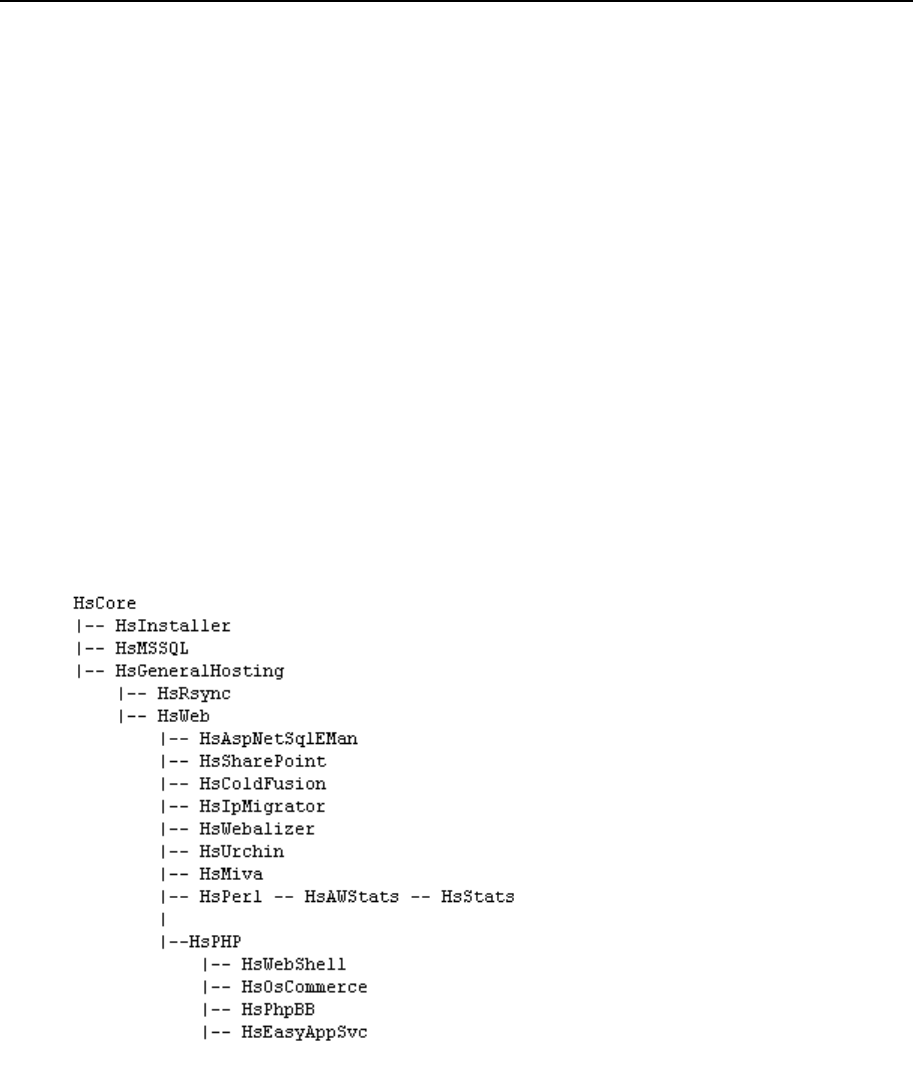
258 Windows Servers
Packages Requiring Third-party Software
HsMSSQL, HsSharePoint, HsColdFusion, HsUrchin and HsMiva integrate third-
party products into Parallels H-Sphere environment and require respective software
installed. Please refer to separate documents for specific guidelines on their
configuring:
SharePoint (on page 267)
ColdFusion (on page 279)
Miva (on page 396)
Urchin (on page 401)
Dependencies Tree
Parallels H-Sphere Update Wizard installs the packages in the following sequence:

Windows Servers 259
Winbox Directory Structure
Parallels H-Sphere Winbox installation creates three major directories:
HSphere
HShome
HSlogfiles
In this section:
HSphere ............................................................................................................ 259
HShome ............................................................................................................ 260
HSlogfiles .......................................................................................................... 261
HSphere
HSphere directory (typically created in C:\Program Files\) includes the following
directories:
3rdparty – Third party software which is used by Parallels H-Sphere;
bin - Parallels H-Sphere binary files;
logs - Parallels H-Sphere log files;
Config - Parallels H-Sphere configuration file (hsphere.config);
data - Various data which is created by H-Sphere components.

260 Windows Servers
HShome
The location of home directory depends on the type of Winbox installation:
fresh installation - Winbox directory is installed to the path specified in a
corresponding Physical server profile. If it is not set there, Parallels H-Sphere
Winbox installer will automatically create it on NTFS partition with the largest free
space.
manual installation - Winbox directory is created at the location you specify in a
manual installation.
HShome directory contains all user homes. Each home directory has account owner's
name. A typical user home has the following directories:
logs
domain1.com
domain2.com
...
domainN.com
Each domain directory has content similar to the following:
cgi-bin
dir1
dir2
...
dirN
logs directory would have subdirectories for each domain:
domain1.com - (log files in exYYMMDDHH.log W3SVC format)
domain2.com - (-//-)
...
domainN.com - (-//-)
Note that cgi-bin is not a required directory in the site structure and depends on
whether the cgi directory resource is enabled for the site. The same is true of log files
for individual sites, since Parallels H-Sphere has the transfer log resource that allows
users to access log files for their site(s).

Windows Servers 261
HSlogfiles
HSlogfiles directory includes HTTP and FTP logs for all users. It is a common
directory which is located aside from log directories in user homes. You can set a
location of this directory during the Parallels H-Sphere Winbox installation. Typically, it
is located in the disk root directory (<drive>:\hslogfiles) and has the following
content structure:
hslogfiles
|
|--- W3SVC1 - (log files for 1 site in exYYMMDDHH.log W3SVC format)
|--- W3SVC2 - (-//-)
| :
|--- W3SVCn - (-//-)
|
|--- MSFTPSVC1 - (log files for 1 site in exYYMMDDHH.log W3SVC format)
|--- MSFTPSVC2 - (-//-)
| :
|--- MSFTPSVCn - (-//-)
Restarting Winbox Service
To stop Parallels H-Sphere service on an Parallels H-Sphere Windows server, run in
command prompt:
net stop HSphere
net stop HsQuotas
To start Parallels H-Sphere service on a Winbox, run:
net start HSphere
net start HsQuotas

262 Windows Servers
Restarting IIS
To restart IIS on an Parallels H-Sphere Windows server, run in command prompt:
iisreset /stop
iisreset /start
Or, simply:
iisreset /restart
Enabling Winbox Shared SSL
Starting with WINDOWS 2003 SP1, IIS 6.0 supports host headers in SSL bindings
(http://www.microsoft.com/technet/prodtechnol/WindowsServer2003/Library/IIS/596b91
08-b1a7-494d-885d-f8941b07554c.mspx?mfr=true).
Requirements: Windows 2003 with SP1 or Windows 2000 server; Parallels H-Sphere
3.0 Final
This document covers Winbox Shared SSL integration and update.
In this section:
Integrating Winbox Shared SSL ........................................................................ 263
Updating Winbox Shared SSL ........................................................................... 263

Windows Servers 263
Integrating Winbox Shared SSL
IIS 6.0
Shared SSL service virtual hosts are not used anymore.
Admin shared SSL creation:
Post certificate and key to the server. The name of key container is {3716B9D2-
2486-446a-9281-E4D1CA03EC0A}_<wild-card domain name>
User shared SSL creation:
Enable SSL with appropriate shared SSL certificate for customer's virtual host
Set the SecureBindings? of customer's virtual host to <IP>:443:<domain alias>
where domain alias is 3rd level domain alias for customer shared SSL.
Updating Winbox Shared SSL
If there is shared SSL hosting on the server managed, the upgrade procedure
automatically migrates shared SSL to a new scheme. It detects shared SSL by
existence of virtual hosts with Parallels H-Sphere shared SSL Log plugin log plugin and
by HKLM\SOFTWARE\Psoft\HSphere\SharedSSL\Virtual registry key
existence. Before performing migration, it makes IIS metabase backup called
sharedSSL used to restore metabase if something goes wrong. Migration procedure
makes the following changes:
IIS 6.0
Shared SSL service virtual hosts are removed.
User host:
enables SSL with appropriate wild-card certificate for customer's virtual host
sets secure binding to <IP>:443:<domain alias> where "domain alias" is 3rd level
domain alias for customer shared SSL

264 Windows Servers
Winbox Statistics
Parallels H-Sphere Winbox has the following log plugins installed:
1. Parallels H-Sphere Web Log plugin: a standard log plugin for virtual
host designed to calculate statistics info only. Besides, for a particular
site it generates HTTP log files similar to W3C log format files in the
site's log directory.
2. Parallels H-Sphere Web Transfer Log plugin: can work instead of the
Web Log plugin. It also implements the transfer log and AWStats log
generating functionality beyond the standard behavior.
3. Parallels H-Sphere Shared SSL Log plugin: used only on shared SSL
sites.
4. Parallels H-Sphere Guest FTP Log plugin: installed on the default
FTP host to collect FTP statistics on account basis.
5. Parallels H-Sphere FTP Log plugin: installed on each anonymous
FTP site to collect FTP statistics on FTP site basis.
Please mind the restrictions common to all Parallels H-Sphere log plugins:
1. All log files are rotated daily and there is no way to change this rotation
period.
2. Log format settings can't be changed for Parallels H-Sphere log plugins.
In this section:
Statistics Modules ............................................................................................. 265

Windows Servers 265
Statistics Modules
Services.Stats.dll
Location: ...\HSphere\bin\services\Services.Stats.dll
H-Sphere invokes Service.Stats.dll daily at 00:01 AM. However, if HSphere.exe is
restarted between 00:00 AM and 06:00 AM, Service.Stats.dll will start together with
Parallels H-Sphere.exe; the next day Service.Stats.dll will run at 00:01 as usual.
When invoked Service.Stats.dll performs the following:
1. Rotates logs (W3SVC, W3FTP) in ...\hslogfiles\, analyzes every
log file and, if a log was created more than a month ago, moves that file
to the archive of log files for that month. Archives are never rotated;
2. Collects Webalizer statistics;
3. Collects AWstats statistics;
4. Cleanses log files in the users homes;
5. Executes wawrapper.exe and awstats_updateall.pl;
Rotates the user's log files in the ...\home\<account_name>\log\<domain_name>
directories. All log files created more then a week ago will be deleted.
WaWrapper.exe
Location: ...\HSphere\bin\wawrapper.exe.
WaWrapper.exe analyzes the webalizer.current files for each domain.
If the webalizer.current file is not corrupted, WaWrapper.exe creates a backup
copy of it in the ...\HSphere\wawrapper directory and names it by the name of the
domain where the webalizer.current resides.
If the webalizer.current file is corrupted, wawrapper.exe deletes it and restores
the backup copy from ...\HSphere\wawrapper directory.
Then, it copies the files hostslist.txt, webalizer.conf, Webalizer.exe to the
temp directory and executes Webalizer.exe for each group of records from the
hostslist.txt file.
Webalizer is a third-party product installed apart of Parallels H-Sphere. Its target
location is specified by customer during installation.
The number of records in each group is set by default to 1. You can change this value
by adding the HostsInPackage parameter to the registry key
HKEY_LOCAL_MACHINE\SOFTWARE\Psoft\HSphere\WaWrapper. The
HostsInPackage value is unsigned integer.

266 Windows Servers
Wawrapper.exe monitors Webalizer's read/write operations. If a period between
read/write operations is greater than timeout, WaWrapper kills this webalizer process
and all records in this group adds to the ...\Webalizer\errhostslist.txt file.
The default timeout is 60 seconds. You can change this value by adding the Timeout
parameter to the registry key
HKEY_LOCAL_MACHINE\SOFTWARE\Psoft\HSphere\WaWrapper. The Timeout
value is unsigned integer, in seconds.
If Webalizer.exe returns an error code other than 0, all records in a group will be added
to errhostslist.txt.
Important: With lots of statistics, it may take up to several days or even weeks for
Webalizer.exe to process it. In such cases, some of the statistics may be lost.
Awstats_updateall.pl
Location: ...\HSphere\3rdparty\AWStats\tools\awstats_updateall.pl
awstats_updateall.pl is an AWStats tool for automatic statistics processing on all
domains for which the AWStats resource is turned on in CP. AWStats automatically
rotates the processed records to the awstats.log files in domain log directories.
Module Log Files
Services.Stats.dll: ...\HSphere\log\services\stats\*.*
WaWrapper.exe: ...\HSphere\logs\wawrapper\*.*
Awstats_updateall.pl: ...\HSphere\3rdparty\AWStats\common.log

Windows Servers 267
Setting Up SharePoint to Use MSSQL
Server
This document gives you information on how to install Microsoft Windows SharePoint
Services on your Windows 2003 web servers.
According to Microsoft
(http://www.microsoft.com/windowsserver2003/technologies/sharepoint/default.mspx),
Windows SharePoint Services technology "is an integrated portfolio of collaboration
and communication services designed to connect people, information, processes, and
systems both within and beyond the organizational firewall. SharePoint sites provide a
central repository for documents, information, and ideas, and enable users to work
interactively with these items."
Currently we support Windows SharePoint Services v2 with Service Pack 2,
http://www.microsoft.com/downloads/details.aspx?FamilyID=3144b72b-b4f2-46da-
b4b6-c5d7485f2b42&DisplayLang=en.
In this section:
Preinstallation Requirements ............................................................................ 267
Installing and Configuring SharePoint ............................................................... 268
Preinstallation Requirements
Before you install Microsoft Windows SharePoint Services on your Web server, make
sure that you have installed the required hardware and software.
Required
Details
Important: SharedPoint and MSSQL should be installed on one and same
physical server.
Server Hardware
Intel Pentium III (and later) compatible
processor
CPU/550 MHZ 1 CPU (2 recommended)
512 MB RAM
Operation System
Microsoft Windows Server 2003:
Standard Edition
Enterprise Edition
Datacenter Edition
Server Software
(Web application
server)
NTFS file system
Microsoft ASP.NET
Internet Information Services in IIS 6.0 worker process
isolation mode with the SMTP service

268 Windows Servers
Server Databases*
Microsoft SQL Server 2000 Service Pack 3 or later
Microsoft SQL Server 2005
Browser Client
Microsoft Internet Explorer 5.01 or later
Microsoft Internet Explorer 5.5 or later
Netscape Navigator version 6.2 or later
Mozilla 1.4 or later
* Microsoft Windows SharePoint Services SQL Server 2000 Desktop Engine (WMSDE)
is not supported by Parallels H-Sphere.
Installing and Configuring SharePoint
To install and configure SharePoint Services, follow the procedure below.
In this section:
Step 1. Installing MSSQL Server ....................................................................... 268
Step 2. Selecting Authentication Mode for SQL Server...................................... 269
Step 3. Installing SharePoint ............................................................................. 270
Step 4. Configure Parallels H-Sphere to Use SharePoint .................................. 271
Step 1. Installing MSSQL Server
Prior to installing SharePoint, you need to install MSSQL Server. You can chose
between:
MSSQL Server 2000
MSSQL Server 2005 (on page 294)

Windows Servers 269
Step 2. Selecting Authentication Mode for SQL Server
In order to allow Windows SharePoint Services to connect to your SQL Server
database, it is recommended that you configure the SQL Server database to use
Windows authentication.
For SQL Server 2000:
1. On your server computer, go to Start -> All Programs -> Microsoft SQL
Server -> Enterprise Manager.
2. In Enterprise Manager, click the plus sign (+) next to Microsoft SQL
Servers.
3. Click the plus sign (+) next to the SQL ServerGroup.
4. Right-click the SQL Server name, and go to Properties.
5. In the Properties dialog box, click the Security tab.
6. In the Authentication section:
If you want use the MSSQL Server only for Microsoft Windows SharePoint
Services, select only Windows Authentication mode.
If you want use the MSSQL Server both for Microsoft Windows SharePoint
Services and hosting, select SQL Server and Windows Authentication
mode.
7. Click OK.
Note: If you have used a domain account that does not already have database creation
rights in SQL Server, you can give the account this access using Enterprise Manager in
SQL Server 2000, as a temporary solution.
For SQL Server 2005:
1. On your server computer, go to Start -> All Programs -> Microsoft SQL
Server 2005 -> SQL Server Management Studio.
2. On the Connect to Server screen, select the name of the local server
from the Server name drop-down list.
3. On the Server Properties - Server name screen, click Security in the
Select a page section.
4. In the Server Authentication section:
If you want use the MSSQL Server only for Microsoft Windows SharePoint
Services, select only Windows Authentication mode.
If you want use the MSSQL Server both for Microsoft Windows SharePoint
Services and hosting, select SQL Server and Windows Authentication
mode.
5. Click OK.

270 Windows Servers
Note: If you have used a domain account that does not already have database creation
rights in SQL Server, you can give the account this access using SQL Server
Management Studio, as a temporary solution.
Step 3. Installing SharePoint
By default, when you install Windows SharePoint Services, the Setup program installs
WMSDE (Microsoft Windows SharePoint Services SQL Server Desktop Engine).
Parallels H-Sphere does not support WMSDE. To use SharePoint with SQL Server,
run Setup with the Server Farm option. Server Farm option allows supporting a
larger set of Web sites.
1. Download and install SharePoint:
http://www.microsoft.com/windowsserver2003/technologies/sharepoint/d
efault.mspx
WARNING: During SharePoint setup, you may get the error when connecting to
http://localhost:SharePointPort/. To solve it, you should remove the string <identity
impersonate="true" /> from C:\Program Files\Common Files\Microsoft
Shared\Web Server
Extensions\60\template\admin\1033\web.config. Also please check the
Authentication Methods for SharePoint Central Administration WebSite in IIS. And if
Basic authentication is disabled, enable it.
2. Go to SharePoint Central Administration:
Start/Settings/Control Panel/Administrative
Tools/SharePoint Central Administration
3. Configure Administrative Virtual Server in the Server Configuration tab:
Select Use an existing application pool and chose StsAdminAppPool
Go to Security Configuration and select NTLM
Click OK
4. Configure Database Server in the Server Configuration tab:
Select Database Server and enter your MSSQL Server IP or MSSQL instance
In SQL Server database name enter your SharePoint Main DB NAME
Set Windows authentication
5. In Active Directory Account Creation choose Users already have domain
accounts. Do not create active directory accounts.
6. Click OK

Windows Servers 271
Step 4. Configure Parallels H-Sphere to Use SharePoint
1. If you installed Microsoft Windows SharePoint Services after Parallels
H-Sphere is updated, run the Parallels H-Sphere updater again.
2. Open HSphere.config file located in the {disk}\Program
Files\HSphere\Config\ directory and make sure the correct name
of your MSSQL server was set in the SharePoint resource setting during
Parallels H-Sphere update.
3. Restart Parallels H-Sphere service:
net stop hsphere
net start hsphere
Adding ODBC Resource
This document explains how to add your own ODBC drivers to Parallels H-Sphere
Winbox. Please contact us if this document doesn't work for your version of Parallels H-
Sphere.
In this section:
Interface ............................................................................................................ 272
Configuration ..................................................................................................... 277

272 Windows Servers
Interface
The following scripts are used:
odbc-getdrivers.asp
odbc-getparams.asp
odbc-createdatasrc.asp
odbc-updatedatasrc.asp
odbc-deletedatasrc.asp
In this section:
odbc-getdrivers.asp .......................................................................................... 272
odbc-getparams.asp ......................................................................................... 273
odbc-createdatasrc.asp .................................................................................... 273
odbc-updatedatasrc.asp ................................................................................... 275
odbc-deletedatasrc.asp ..................................................................................... 275
odbc-getdrivers.asp
description: returns a list of available ODBC divers
parameters:
none
return value:
successful - 0<list of driver names>
fail - error message
comments:
script returns the list of drivers that are both installed on the box and supported by
Parallels H-Sphere 2.x (they are registered in ODBCIniFile).

Windows Servers 273
odbc-getparams.asp
description:
returns a list of addmissible attributes for this ODBC driver
both methods "GET" and "POST" are supported
parameters:
driver - driver name
return value:
successful - 0<list of admissible driver attributes>
fail - error message
comments:
every parameter has the following format:
<attribute name>|<type>|<default
value>|<description>|[<value1[;value2[;value3...]
See below for details on this format.
odbc-createdatasrc.asp
description:
creates new data source
only "POST" method is supported
parameters:
driver-name
DSN - name of the new data source
user-name - user's accout name
<list of admissible attributes of this ODBC driver and their values>
return value:
successful - 0
fail - error message
comments:

274 Windows Servers
1) all attributes with empty values are ignored;
2) all attributes with a type path (see below) get a path to user's homedir, but the
existence of this path is not verified
3) data source name is created according to the pattern: user-name + DSN

Windows Servers 275
odbc-updatedatasrc.asp
description:
updates parameters of the existing data source
only "POST" method is supported
parameters:
driver-name
DSN - name of the new data source
user-name - user's accout name
<list of admissible attributes of this ODBC driver and their values>
return value:
successful - 0
fail - error message
comments:
default values are set for attributes that have not been specified or have empty values.
all comments to data source creation are also true of data source update.
odbc-deletedatasrc.asp
description:
deletes existing data source.
both "GET" and "POST" methods are supported
parameters:
driver-name
DSN - name of the new data source.
user-name - user's accout name
return value:
successful - 0
fail - error message
comments:

276 Windows Servers
no comments

Windows Servers 277
Configuration
To configure ODBC use a file of the below format. Full path to this file is registered in
conf.inc (the "ODBCIniFile" variable). By default it is called "odbcdrv.ini" and sits in the
directory with ASP scripts.
This file has a usual windows .ini file format, i.e. is broken into sections with headings
enclosed in square brackets. Every section corresponds to an ODBC driver, its name
being the heading of the section. The body of the section includes driver attributes in
the following format:
<attribute name>=<type>|<default value>|<description>|[<value1[;value2[;value3...]
where:
<attribute name> - name of the ODBC driver attribute (e.g. DBC)
<type> - typically a string of the type: <typeid>_[required|optinal], where typeid is
the name of the type, e.g. "string", that can be required or optional depending on the
parameter. Can take the following values:
path_required - required path (an individual path type is required to identify
relative path to userhome dir)
path_optional - optional path
string_required - required string
string_optional - optional string
string_password - password
integer_required - mandatory integer value
integer_optional - optional integer value
select_required - mandatory list of values
select_optional - optional list of values
trigger - radio-button switch
<default value> - default value for the given attribute; a space if missing (NOT AN
EMPTY STRING!)
<description> - attribute description
<value1[;value2[;value3... - values for the list; must be filled only for the
'select' types. Use semicolon (;) as delimiter.
To add a new ODBC driver to the ODBCIniFile, add a new section with the heading
identical to the name of the driver and the attributes that are described according to the
above rules.
Note: When a user enables an ODBC resource, Parallels H-Sphere lists drivers that
can be found both among those installed on the server and those in the odbcdrv.ini file.
The obcdrv.ini file contains:
[Microsoft Paradox Driver (*.db )]
[Microsoft Access Driver (*.mdb)]
[Microsoft Visual FoxPro Driver]
[Microsoft dBase Driver (*.dbf)]

278 Windows Servers
[Microsoft Excel Driver (*.xls)]
[SQL Server]
[MySQL]
[MySQL ODBC 3.51 Driver]
[PostgreSQL]
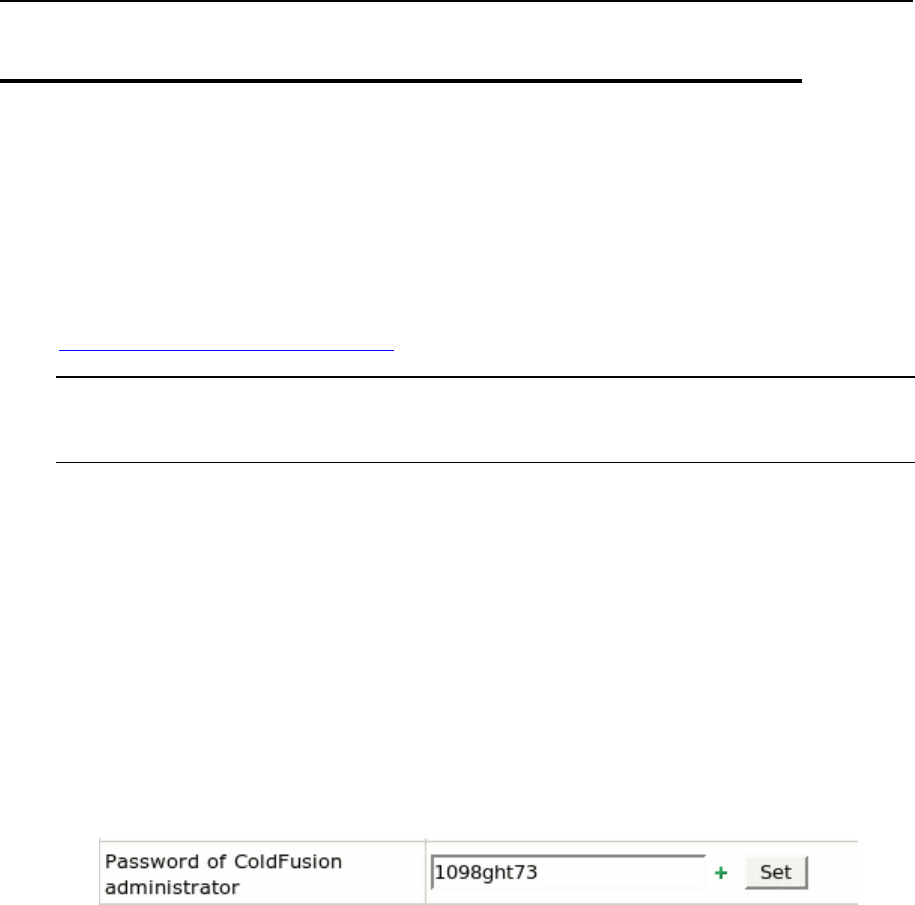
Windows Servers 279
Configuring ColdFusion
ColdFusion includes a server and a development toolset designed to integrate
databases and Web pages. With ColdFusion Fusion, a user can enter a zip code on a
Web page, and the server would query a database and present the results in the HTML
form.
For extensive coverage of ColdFusion, please refer to
http://www.adobe.com/downloads/.
WARNING: We currently don't recommend updating Parallels H-Sphere to version 2.5
and up when there are 512 and more ColdFusion mappings on a Windows server (i.e.,
ColdFusion is turned on for more than 511 Winbox users)!
To configure ColdFusion for Parallels H-Sphere:
1. Buy ColdFusion license package.
2. Install ColdFusion on your Windows box following the directions of the
Wizard. (Parallels H-Sphere 2.5 and up supports 6.0, 6.1, 7.0, and 9.0
ColdFusion versions).
3. Install latest Parallels H-Sphere Winbox 3.1 Beta 2 or higher.
When performing the step-by-step installation procedure, set also ColdFusion
admin password via the interface after a logical win server have been added. To do
this, Go to E. Manager -> Servers - > L.Servers and click the logical win server name.
Enter the password in the Additional options section and click Set:
You may also install ColdFusion on a ready Parallels H-Sphere 3.1 Beta 2 and higher
Winbox. For this, do the following:
1. Perform steps 1 and 2 described above.
2. Enter ColdFusion admin password via the interface.
3. Run Parallels H-Sphere Update Wizard.

280 Windows Servers
Specifying Default ASP.NET Version
When an ASP.NET resource is enabled in a plan, the default ASP.NET version is used
during account creation. This version depends on the Winbox' OS:
On Windows 2003, the default ASP.NET version is 1.1
On Windows 2008 and later, the default ASP.NET version is 2.0
Starting with H-Sphere 3.4.1 you can control the default ASP.NET version for Windows
2003 boxes. To specify ASP.NET 2.0 as a default do the following:
1. Open the HSphere\Config\hsphere.config file and modify the asp_net
resource declaration.
This declaration
<resource name="asp_net" … />
you should modify to:
<resource name="asp_net" … >
<prop name="defaultversion" value="2.0.50727"
description="Default ASP.NET version for new sites." />
</resource>
2. Restart H-Sphere on the box.
Enabling ASP.NET 4.0
On Windows 2008 x64 H-Sphere supports ASP.NET 4.0. We recommend installing it
(refer to http://msdn.microsoft.com/en-us/library/5a4x27ek.aspx for instructions) before
the H-Sphere. However, it is also possible to install ASP.NET 4.0 later. In this case the
following steps are needed to make it work properly after the installation:
1. In machine.config files residing in
%windir%\Microsoft.NET\Framework\v4.0.30319\Config and
%windir%\Microsoft.NET\Framework64\v4.0.30319\Config
the following changes should be made:
1. Attribute allowDefinition="MachineOnly" should be added to the
<section name=“identity”/> tag.
2. <identity impersonate="true" /> tag should be added to the
<system.web> section.
2. Ensure that ASP.NET 4.0 ISAPI modules are added to the IIS and are
allowed.
3. Restart Parallels H-Sphere Winbox service (on page 261).

Windows Servers 281
Moving Log Files
This document explains how to change the HSLOGFILES directory location on Winbox.
This may be required, for instance, if you are replacing your HDD.
1. Link the new HDD to the old HSLogs location. This can be done with
Sysinternals Junction
(http://www.sysinternals.com/ntw2k/source/misc.shtml#junction) or any
other utility of this kind.
2. Copy logs into the 'hslogfiles' directory on the new HDD.
3. Update value of 'logsdir' property in
\HSphere\Config\hsphere.config.
4. Restart hsphere services.

282 Windows Servers
Removing Old Log Files
User log files are stored for 7 days and then automatically removed.
To remove old log files manually:
1. Go to the HSphere\Config\ directory. In the hsphere.config file
find the directory where logs are stored.
// path to directory where logs are located
logPath = "d:\\HSlogfiles"
1. Go to the respective directory (cd d:\hslogfiles)
Here you will find directories containing web and ftp log files for each domain
e.g.: W3SVC1, W3SVC2, W3SVC3, MSFTP1, MSFTP2, MSFTP3 and so on.
2. Enter "del /s /q <mask>" command in the command line where
<mask> is the mask for the files to be removed.
* You can use a wildcard in the mask.
Names of the log files have the following appearance:
exyymmddhh.log or just exyymmddhh
where
ex - the essential part of the name
yy - two-digit year value
mm - two-digit month value
dd - two-digit day value
hh - two-digit hour value
Examples of how to use the del command:
del /s /q ex01* - removes all files for the year 2001
del /s /q ex0102* - removes all files for February, 2001
del /s /q ex??02* - removes all files for February of all the years
? - Any single character
* - Zero or more characters

Windows Servers 283
Moving User Homes
This document explains how to move the directory for user homes to a different
location. This may be required, for instance, if you are replacing your hard drive with a
bigger one.
Winbox supports only one directory for user homes, which means you can't add
another directory for user homes to use alongside with the one you already have.
To change HSHOME directory:
1. Add new HDD
2. Create new HSHOME directory
3. Copy all user content into the new HSHOME directory with Xcopy. For
example, to copy from disk D: to disk F:, execute in the command
prompt:
Xcopy d:\hshome f:\hshome /O/E
4. Change the path to HSHOME directory in:
Registry key
HKEY_LOCAL_MACHINE\SOFTWARE\Psoft\HSphere\HsGeneralHosting\
QuotaService\HomeDir
[H-Sphere installation]\Config\hsphere.config
5. Restart all Parallels H-Sphere services
6. Link the new HDD to the old home dir location. This can be done with
Sysinternals Junction
(http://download.hsphere.parallels.com/shiv/WinBox/linkmagic.exe) or
any other utility of this kind.
7. Move quota entries for all accounts using the QuotaMove utility
(http://download.hsphere.parallels.com/shiv/WinBox/QuotaMove.exe).
For example, to move quote entries from disk D: to disk F:, execute in
the command prompt:
QuotaMove.exe d:\ f:\
Changing hsadmin Login and Password
Parallels H-Sphere control panel accesses Windows boxes with the hsadmin user.
To change the hsadmin login and password:

284 Windows Servers
1. Generate a new password hash using the following tool:
http://download.hsphere.parallels.com/shiv/WinBox/HashGenerator.zip
In cmd window, run:
> HashGenerator.exe "password"
2. Put the new hash to the following line in the
\HSphere\Config\hsphere.config file:
"prop name="password" value="new_HASH" description="Parallels
H-Sphere user password"
3. Restart Parallels H-Sphere services and change the password on your
administrator control panel for the Windows physical server.
Winbox IP Migration
This section explains how to migrate a pool of IPs on Parallels H-Sphere Winbox,
including physical server IPs, logical server IPs, and user dedicated IPs. It is important
that Parallels H-Sphere Winbox software is working correctly at the time of migration.
In this section:
Step 1. Bind Target IPs on Winbox .................................................................... 284
Step 2. Add Double Bindings on IIS................................................................... 285
Step 3. Create Migration XML ........................................................................... 285
Step 4. Run the Migration .................................................................................. 286
Step 5. Remove Old IP Bindings on IIS ............................................................. 286
Step 1. Bind Target IPs on Winbox
Make sure all the target IPs are up. If they aren't you can either bind them manually or
use the following steps:
1. Create a file named, for instance, target_ips.txt with the list of IPs and
masks to bind, as follows:
<IP1> <netmask>
<IP2> <netmask>
...
<IPn> <netmask>
2. Download IpCreator utility from
http://download.hsphere.parallels.com/shiv/WinBox/ipcreator.exe.
3. Run the IpCreator utility:
IpCreator.exe target_ips.txt > log.txt

Windows Servers 285
Step 2. Add Double Bindings on IIS
On this step, we will duplicate IP bindings for virtual web hosts on IIS to use old and
new IP bindings simultaneously, which will help us avoid DNS propagation downtime.
1. Create a file named, for instance, ip_map.txt with space separated old
and new IP correspondences, according to the following format:
<old IP1> <new IP1>
<old IP2> <new IP2>
...
<old IPn> <new IPn>
2. Download IpMigrator utility from
http://download.hsphere.parallels.com/shiv/WinBox/ipmigrator.exe.
3. Run the IpMigrator utility:
ipmigrator.exe ip_map.txt > ipmigrator.log
Note: IpMigrator inserts new bindings AFTER the corresponding old bindings in the IIS
metabase. Parallels H-Sphere uses the first binding to obtain virtual web host name
and IP, which means, while the old bindings exist in the bindings list, Parallels H-
Sphere will manage resources with the old IP. For instance, Parallels H-Sphere will add
host aliases to the old IP's. Thus it is strongly recommended to remove old IP bindings
as soon as they are not needed.
Step 3. Create Migration XML
Create file ipmigration.xml of the following format and put it on the CP server:
<?xml version="1.0"?>
<!DOCTYPE ips [
<!ELEMENT ips (ip+)>
<!ELEMENT ip (#PCDATA)>
<!ATTLIST ip name CDATA #REQUIRED>
<!ATTLIST ip new_ip CDATA #REQUIRED>
<!ATTLIST ip new_mask CDATA "[New_NetMask]">
]>
<ips>
<!-- Delete the lines with IPs you don't want to migrate! -->
<ip name="[Old_IP1]" new_ip="[New_IP1]"/>
<ip name="[Old_IP2]" new_ip="[New_IP2]"/>
<ip name="[Old_IP3]" new_ip="[New_IP3]"/>
<ip name="[Old_IP4]" new_ip="[New_IP4]" new_mask="[New_NetMask2]"/>
</ips>
You can find more information on ipmigration.xml in Changing IPs for the Parallels H-
Sphere Cluster (on page 41).

286 Windows Servers
Step 4. Run the Migration
1. Stop Parallels H-Sphere (on page 59)
2. Execute the following commands one by one on the CP server. Replace
<LS_ID> with the ID of the Winbox logical server. To find out the ID of the
logical server, go to E.Manager -> L.Servers in Parallels H-Sphere admin
panel.
java -Xms64M -Xmx512M psoft.hsphere.tools.IPMigratorFast --
ip-change --lServerIds=<LS_ID> ipmigration.xml
java -Xms64M -Xmx512M psoft.hsphere.tools.IPMigratorFast --
recreate-zone --lServerIds=<LS_ID> ipmigration.xml
java -Xms64M -Xmx512M psoft.hsphere.tools.IPMigratorFast --
service-zone --lServerIds=<LS_ID> ipmigration.xml
java -Xms64M -Xmx512M psoft.hsphere.tools.IPMigratorFast --
custom-rec --lServerIds=<LS_ID> ipmigration.xml
3. Start Parallels H-Sphere (on page 59)
Step 5. Remove Old IP Bindings on IIS
At this point in time, you have duplicate bindings of new and old IPs. It is recommended
that you remove old IP bindings as soon as DNS servers across the world refresh
themselves (usually in no more than 2 days).
The old bindings on IIS can be removed with the IpChange utility (), which uses the
same IP map file as the IpMigrator utility (step 2 above).
1. Download IpChange utility from
http://download.hsphere.parallels.com/shiv/WinBox/ipchange.exe
2. Run IpChange utility:
ipchange.exe ip_map.txt > ipchange.log
3. Restart Parallels H-Sphere (on page 59).

Windows Servers 287
Winbox Security Scheme
Parallels H-Sphere introduces a Winbox security scheme. The goal of the scheme is to
get rid of 'LOCAL SYSTEM' identity for application pool processes of IIS 6.0, to
simplify some tasks such as managing FrontPage and ASP.NET, and to make Parallels
H-Sphere accounts hierarchy more structural.
In this section:
Accounts Hierarchy ........................................................................................... 288
IIS Security Management .................................................................................. 289
NTFS permissions ............................................................................................. 290
FrontPage Server Extensions Management Notes ............................................ 290
ASP.NET Management Notes ........................................................................... 291
Migration Notes ................................................................................................. 291
Recovery Notes ................................................................................................. 291

288 Windows Servers
Accounts Hierarchy
Features:
There are several predefined security groups:
HS_ACCTS - contains all accounts created by Parallels H-Sphere on this server
HS_FTP_ACCTS - contains accounts created by Parallels H-Sphere which are
used as FTP logins for Parallels H-Sphere users
HS_IUSR_ACCTS - contains accounts which are used as anonymous for
Parallels H-Sphere virtual hosts
HS_FTP_SUBACCTS - contains accounts which are used as sub FTP logins
During creation of a user, a special group is being created named as <user
name>_group. This group contains all accounts related to a particular Parallels H-
Sphere account, such as FTP login account, anonymous accounts for every virtual
host owned by this user, and sub FTP logins accounts.
The following improvements have been made to accounts hierarchy:
a subaccount is no longer a member of <main account>_group
<main account>_subaccts group is being created for each account that has
subaccounts
any subaccount of a particular account becomes a member of <main
account>_subaccts group
NTFS permissions to particular subaccount home directory are given explicitly for
this subaccount in addition to existing NTFS permissions for this directory

Windows Servers 289
IIS Security Management
Features:
The FTP account login is not used anymore as anonymous web access for all sites
owned by the user. Instead of this, for each virtual host a separate account with
random password is being created during virtual host creation procedure.
The password synchronization IIS feature which requries 'LOCAL SYSTEM'
identity for web application process is not used anymore. The reason for this is that
this account and randomly generated password is registered in the metabase as
anonymous for this particular virtual host.
An account is being added to HS_ACCTS, HS_IUSR_ACCTS and Parallels H-Sphere
account group. Each anonymous login has the following format:
<IUSR_user name>_<virtual host number> where <user name> is Parallels H-Sphere FTP
account title and <virtual host number> is number of particular virtual web host owned
by this Parallels H-Sphere account.
Now each IIS web application process is run under 'NETWORK SERVICE' identity.
There is a number of Parallels H-Sphere modules run in IIS web processes which
should perform some privileged operations such as read/write files or register keys
protected by NTFS permissions. That is why Parallels H-Sphere creates a special
'HsISAPIAcct' account as a member of the 'Local Administrators' group.
This account is used by Parallels H-Sphere IIS modules to perform such privileged
operations. In addition, its password is being regenerated each time IIS is started
for security reason.

290 Windows Servers
NTFS permissions
There are permission schemes which are used for Windows 2003 and Windows 2008.
Windows 2003/2008
The following NTFS permissions are set for a user home directory:
Local Administrator group: FULL ACCESS
SYSTEM: FULL ACCESS
NETWORK SERVICE: READ ACCESS
<FTP account name>_group local group: MODIFY,READ,WRITE,EXECUTE,LIST
FOLDER CONTENT
The following permissions are added to <Parallels H-Sphere dir>bin directory:
NETWORK SERVICE: READ,EXECUTE,LIST FOLDER CONTENT
Relevant to both platforms
The following NTFS permissions are used for ODBC DSN registry key:
Local Administrator group: FULL ACCESS
SYSTEM: FULL ACCESS
<FTP account name>_group local group: QUERY VALUE,SET VALUE,CREATE
SUBKEY,ENUMERATE SUBKEYS,NOTIFY
FrontPage Server Extensions Management Notes
The following changes were made to FPSE management as a part of a new scheme:
Anonymous access is assigned to Browser role for any FPSE enabled virtual host
<FTP account name>_group local group is set as FPSE administrator for any FPSE
enabled virtual host
HsAuth ISAPI filter is no more used for FPSE enabled virtual hosts

Windows Servers 291
ASP.NET Management Notes
The ASP.NET management operations, which enable and disable ASP.NET
service for a particular virtual web host, are based on the .NET framework
configuration file machine.config.
The following fragment is added to the machine.config file for a particular virtual
host if ASP.NET is being disabled for this virtual host:
<location path="<virtual host domain name>"
allowOverride="false">
<system.web>
<authorization>
<deny users="*"/>
</authorization>
</system.web>
</location>>
When ASP.NET service is enabled for a particular virtual host, it is being removed
from machine.config file, if found.
Migration Notes
During the Winbox upgrade, all existing accounts will be automatically migrated to a
new security scheme. This process migrates account settings, web settings, NTFS
permissions for home directories and ODBC DSNs, ASP.NET settings, FPSE
settings and can take significant time.
The migration procedure is performed once. If it's necessary for some reason to
repeat the migration, the NewSecurity line should be removed from <Parallels H-
Sphere.NET dir>bininstall.history file.
Migration process can be monitored using migration log which can be found in the
update.log log file of upgrade tool.
Important: during the migration, IIS servers will be automatically restarted on Windows
2003.
Recovery Notes
To perform server recovery (on page 384) or server to server movement, use the
SetScrtNs.exe tool which is a new analogue of the SetScrt.exe tool. It has the
same purpose as the older version, but sets the correct permissions for a new security
scheme.
Download SetScrtNs Tool:
http://download.hsphere.parallels.com/shiv/WinBox/SetScrtNs20.exe
292 Windows Servers
Calculating Winbox Traffic
In Parallels H-Spherethe system writes winbox traffic data to XML logfiles:
YYYY-MM-DD.web.xml - http traffic,
YYYY-MM-DD.ftpg.xml - guest ftp traffic,
YYYY-MM-DD.ftpa.xml - anonymous ftp traffic.
Example:
<TrafficEntries>
<DailyEntries Date="2005-10-28" Type="web">
<Entry Name="domain1.wincp241.test">
<Incoming>7782</Incoming>
<Outgoing>39060</Outgoing>
<Hits>15</Hits>
<HtmlHits>8</HtmlHits>
</Entry>
<Entry Name="domain2.wincp241.test">
<Incoming>3493</Incoming>
<Outgoing>38549</Outgoing>
<Hits>8</Hits>
<HtmlHits>2</HtmlHits>
</Entry>
</DailyEntries>
</TrafficEntries>
These xml files are saved to the C:\HSphere.NET\data\services\traffic\
directory. Once a day TrafficLoader (on page 37) parses these files using SOAP and
writes statistic data into the translog table of the Parallels H-Sphere system
database. After that these files are deleted and created anew on the next day.

Microsoft SQL, like other commercial third party products, is purchased and installed
separately from Parallels H-Sphere.
Microsoft SQL Server is a fully Web-enabled database with the ability to query the
database through a browser and rich Extensible Markup Language (XML) support. In
addition, Microsoft SQL Server holds benchmark records for scalability and reliability,
both of which are crucial for the success of an enterprise database.
For extensive coverage of Microsoft SQL Server, please refer to
http://www.microsoft.com/sql/default.asp.
In this chapter:
Installing Microsoft SQL 2005 Server ................................................................ 294
Moving MS SQL Databases Across Servers ..................................................... 295
Moving MS SQL Databases to a New Location ................................................. 296
CH A P T E R 19
Microsoft SQL Server

294 Microsoft SQL Server
Installing Microsoft SQL 2005 Server
This document explains how to install MS SQL database software and integrate it with
the Parallels H-Sphere system.
Parallels H-Sphere 2.5.0 and higher supports Microsoft SQL Server 2005
(http://www.microsoft.com/technet/prodtechnol/sql/2005/default.mspx).
MS SQL server can be installed on Parallels H-Sphere Windows server. This means
the server must have Parallels H-Sphere Windows software installed and be added to
the Parallels H-Sphere configuration.
To add MS SQL 2005 to winbox with Parallels H-Sphere installed:
1. Install ASP.NET 2.0 and check the version of ASP.NET.
RootVer must be 2.0.XXXX, not 1.1.XXXX in the registry
HKLM/Software/Microsoft/ASP.NET.
If RootVer is 1.1.XXXX:
Go to C:\Windows\Microsoft.NET\Framework\v2.0.5xx\ through
command line
Run from command line:
aspnet_regiis -r
Restart IIS :
iisreset /restart
2. Install MS SQL server following the directions of the installation wizard.
If you installed SQL 2005, you should also install SQL Server
Management Studio Express.
3. In SQL Server Managment Studio Express create login with system
administrator privileges for the MS SQL server. As a rule, login 'sa' is
used.
4. Configure Parallels H-Sphere connection settings to work with MS SQL
server:
Note: Parallels H-Sphere 3.0 + uses Windows authentication method to connect to
MSSQL server. Therefore MSSQL server should be installed locally on the same
server with Parallels H- Sphere.
Go to /hsphere.net/bin/hsphere.config file and make sure the
NAME_OF_YOUR_SQL_SERVER is set correctly in:
prop name="server" value="NAME_OF_YOUR_SQL_SERVER"
description="MSSQL server name or IP"
5. Go to SQLServer Properties -> Security. Chose SQL Server
Authentication and Windows Authentication to allow Parallels H-Sphere
and your customers to access MS SQL server remotely.

Microsoft SQL Server 295
6. Make sure that MS SQL server IP set as a logical server IP in the
E.Manager menu is set in Start -> Programs -> MSSQL 2005 Server ->
Configuration Tools -> SQL Server Configuration Manager -> SQL
Server Network Configuration -> Protocols for MSSQLSERVER ->
TCP/IP(enabled) -> Properties -> IP Addresses tab. Make sure this IP is
there with Active and Enabled set to Yes.
7. In your CP add MS SQL server group to the physical winboxes with MS
SQL installed.
8. Add logical MS SQL servers in CP and add IP addresses for it.
9. On winboxes run the following commands:
net stop hsphere
net start hsphere
10. Turn on MS SQL servers in the user's Plan Edit Wizard. After that, try
creating MS SQL databases from user's CP.
Moving MS SQL Databases Across
Servers
To move the databases from one MS SQL server to another:
1. Install the new MS SQL server, keeping the same path to databases as
for the old server. That means, databases on the new server should be
located on the same disc and necessarily in the same directory as for
the old server. For example, on the old server data is located on
d:\mssql\data\, so the data on the new server should be located in
the same directory.
2. Stop the new MS SQL server.
3. Copy all MS SQL database files including the "master" database which
keeps all logins information and other necessary information.
Important: All database files should be put into the same directory as for the old
server.
4. Start the new MS SQL server.
5. Change the MS SQL logical server IP to the new MS SQL server IP in
the Control Panel.
6. All resellers should reconfigure MS SQL server aliases to use the new
IP for the MS SQL server.

296 Microsoft SQL Server
Moving MS SQL Databases to a New
Location
This document describes how to change the location of the data and log files for any
MS SQL database. There are two ways to move MS SQL databases:
Method 1
(preferable)
1. Create new MS SQL data location (E:\MSSQL\data\)
2. Stop MS SQL server
3. Move all databases to a new location (move *.mdf and *.ldf files)
4. Create junction link between old and new MS SQL data folders. This
can be done with Sysinternals Junction
(http://download.hsphere.parallels.com/shiv/WinBox/linkmagic.exe) or
any other utility of this kind
5. Start MS SQL server
In case you have some databases with different from default locations:
1. Detach these databases
2. Copy these databases from old location to a new location
3. Attach these databases from a new location
Method 2
1. Go to MS SQL Enterprise Manager
2. Choose the MS SQL server Properties option. For this, go to Expand SQL
Server Group > MS SQL server <SQL Server_Name>
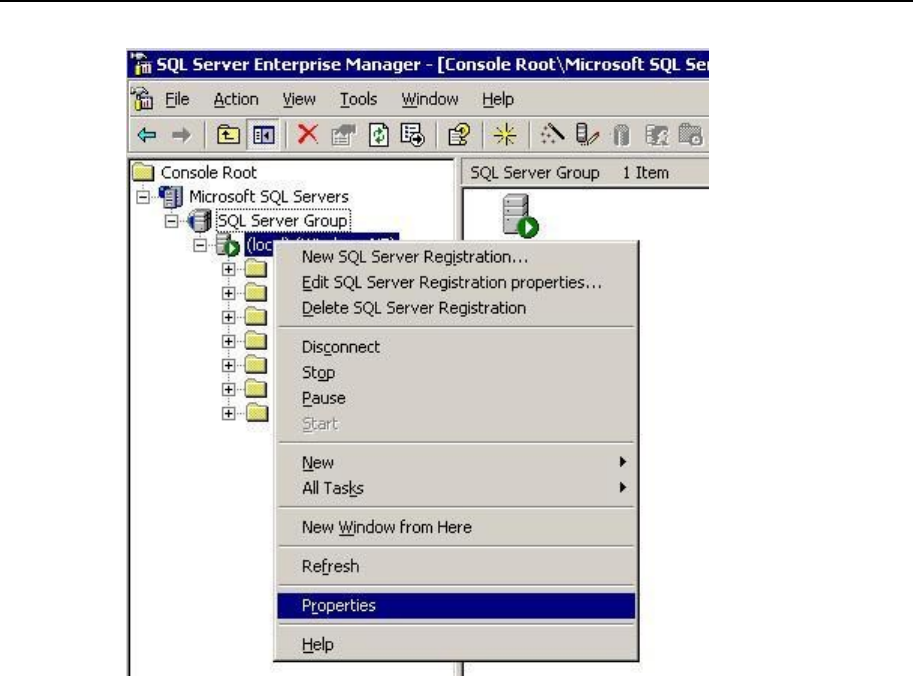
Microsoft SQL Server 297
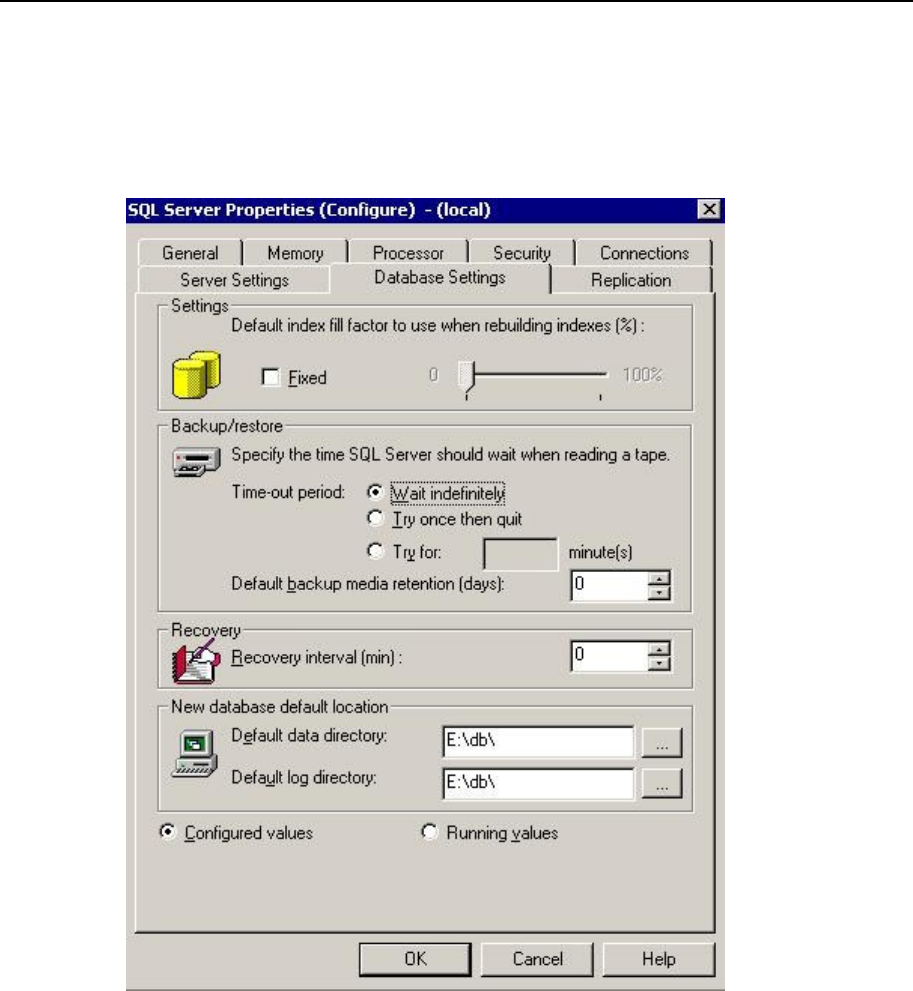
298 Microsoft SQL Server
3. On the Database Settings tab, change New database location and set
the path to:
Default data directory, i.e. a new logical disk (E:\MSSQL\DATA\)
Default log directory (E:\MSSQL\DATA\)
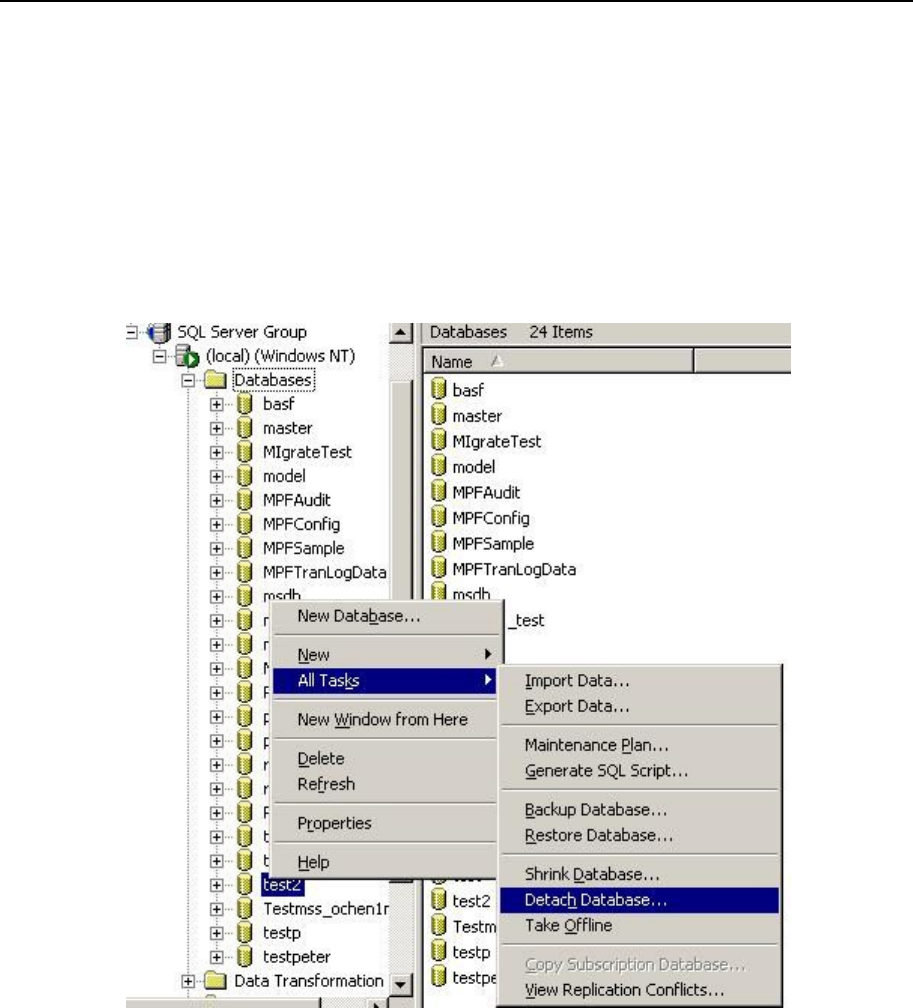
Microsoft SQL Server 299
4. Create the following folder E:\MSSQL\DATA\
5. Set the same NTFS permissions as in the folder [drive]:\Program
Files\Microsoft SQL\Server\MSSQL\DATA (the path where DB's
are located).
6. Go to MS SQL Enterprise Manager > Databases and right click on the
Necessary database > All tasks > Detach Database with the option Update statistics
prior detach. Make sure to check database and database log files
locations before detaching a database.
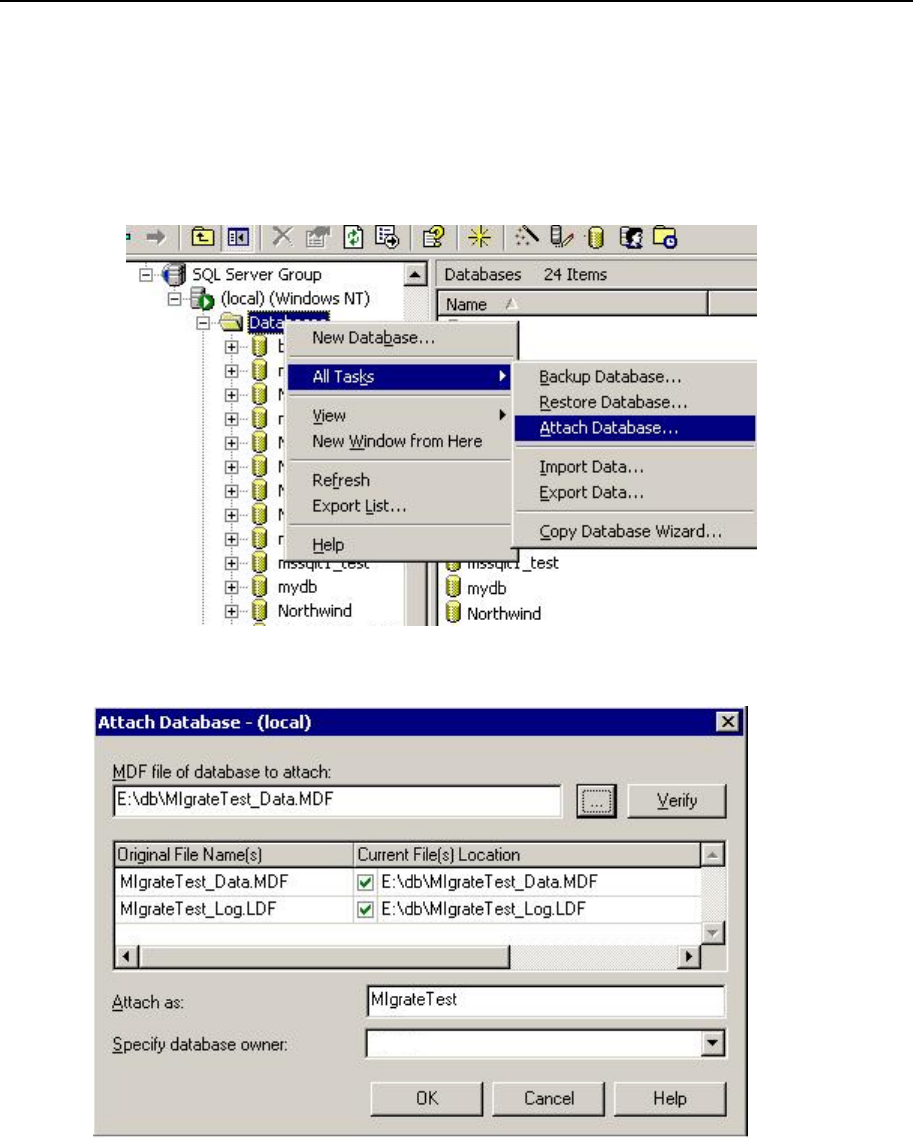
300 Microsoft SQL Server
7. Go to [drive]:\Program Files\Microsoft SQL
Server\MSSQL\DATA and copy Detached DB files (*.mdf and *.ldf) to a
new folder E:\MSSQL\DATA\
8. Go to MS SQL Enterprise Manager > Databases and right click Databases >
Attach Database.
9. Put the path to the necessary database (E:\MSSQL\DATA\) and select
hsadmin in Specify database owner field.

Dedicated Servers 303
Configuring MRTG
In Parallels H-Sphere the MRTG software (http://mrtg.hdl.com/mrtg.html) is used for the
dedicated hosting feature. This software is installed to Parallels H-Sphere as a logical
server from hsphere-mrtg-rrd-X-X package, where X-X is the latest available
version.
Mrtg service is managed by supervise, similarly to clamd, spamd, ftpd, and bind.
Apache service with configured VirtualHost for mrtg service is required which is
provided by Apache configuration.
Mrtg works with RRDtool (http://people.ee.ethz.ch/~oetiker/webtools/rrdtool/) which
improves its performance and graphing flexibility. RRDtool is used as the logger to
MRTG. It stores data samples on each of the network switch interfaces (ports) in a
separate RRD. To minimize size of the database files, RRD uses the consolidation
mechanism. It guarantees that the database does not grow over time and that old data
is automatically eliminated. However this leads to degradation of accuracy. For the
sake of high degree of data accuracy, space for 10080 samples (35 days) is allocated.
The DSBandwidthLoader daily cron acquires data from RRDs and stores it into the
hsphere database.
Managing MRTG Service
For Linux:
/etc/init.d/mrtg stop | start | restart | stat
For FreeBSD:
/usr/local/etc/rc.d/mrtg.sh stop | start | restart | stat
Configuration Directory and File
Mrtg configuration directory is /hsphere/local/config/mrtg.
/hsphere/local/config/mrtg/mrtg.conf - mrtg configuration file. It has an
include for /hsphere/local/config/mrtg/ports/index.conf which in its
turn contains includes for files corresponding to each opeational switch port. Such
files are generated dynamically via CP interface when switch ports are assigned to
dedicated servers.
Scripts Processing Data
/hsphere/local/config/mrtg/scripts/getstatistics - gathers data from
each port file.
/hsphere/local/config/mrtg/scripts/setstartbill - sets the start billing
period date.
/hsphere/local/config/mrtg/scripts/formgraph - draws traffic graphs.

304 Dedicated Servers
RRD Files
Mrtg writes RRD files to /hsphere/local/config/mrtg/rrd directory. In its
subdirectories image files with bandwidth representations for chosen periods are
located:
~httpd/htdocs/rrd/d - day
~httpd/htdocs/rrd/w - week
~httpd/htdocs/rrd/m - month
~httpd/htdocs/rrd/y - year
The Problem with Calculating Large (>100mbps)
Bandwidth Traffic
It is a known issue that MRTG with 32-bit counters doesn't calculate correctly the traffic
when bandwidth exceeds 100 Mbps. A solution is to switch to 64-bit counter by
choosing SNMPv2c/SNMPv3 protocols. This, however, may not work because some
devices don't support these protocols.
To switch to SNMPv2c/SNMPv3, you need to manually customize:
1. Log into the CP server as cpanel user.
2. Copy the default template ~cpanel/shiva/shiva-
templates/common/ds/mrtg_target.config to the custom
~/shiva/custom/shiva-
templates/common/ds/mrtg_target.config location. Please
carefully follow the template customization procedure described in
Parallels H-Sphere Customization Guide.
3. Edit the first line with ${port}:${com_name}@${device}: according
to the MRTG Reference (http://oss.oetiker.ch/mrtg/doc/mrtg-
reference.en.html).
For example, to switch to SNMPv2c, the line will be like this:
Target[${target}]: <if
config.REVERSE_DEDICATED_SERVER_TRAFFIC != "TRUE">-
</if>${port}:${com_name}@${device}:::::2
For more advanced configuration please refer to MRTG Reference.
4. Restart Parallels H-Sphere to apply customization.

Parallels H-Sphere installation is modular, its packages independent and self-
configurable. It is possible to use standard package managers (on page 26) like yum,
up2date or apt-get for scheduled updates of Parallels H-Sphere services, instead
of running occasional update scripts or updating Parallels H-Sphere versions.
In this chapter:
Common Packages ........................................................................................... 305
Parallels SiteStudio Packages ........................................................................... 332
Common Packages
Common packages are those used for different types of H-Sphere servers. For
example, hsphere-apache is installed on Web, mail, MySQL (for PhpMyAdmin), and
PostgreSQL (for PhpPgAdmin) servers; and the hsphere-scripts package is installed on
every Unix server.
Below is the reference on some common packages.
In this section:
hsphere-info: Collecting Information About Parallels H-Sphere Servers into XML Configs 306
hsphere-update Package .................................................................................. 307
Parallels H-Sphere Perl Modules ....................................................................... 309
Parallels H-Sphere Apache ............................................................................... 311
Parallels H-Sphere PHP .................................................................................... 322
CH A P T E R 21
System Packages

306 System Packages
hsphere-info: Collecting Information About Parallels H-
Sphere Servers into XML Configs
Parallels H-Sphere includes the hsphere-info package installed on each Parallels
H-Sphere Unix server. The package installs the /hsphere/shared/bin/hsinfo
script on each server, and the script collects information about this server into the
/hsphere/shared/etc/config.xml file.
hsfinfo Usage:
hsinfo [ -ame ] [ -p box IP ] [ -g group ] [ -t type ] [ -f xmlfile ] [
-s delimiter ]
hsinfo -l [ -p box IP ] [ -g group ] [ -s delimiter ] [ -f xmlfile ]
hsinfo -i [ -ame ] [ -g group ] [ -f xmlfile ] [ -s delimiter ]
hsinfo -n [ -p box IP ] [ -g group ] [ -f xmlfile ]
hsinfo -o a[ddress]|i[nterface]|n[umber] [ -f xmlfile ]
hsinfo -d [ -f xmlfile ]
hsinfo -v [ -f xmlfile ]
hsinfo -G
hsinfo -T
hsinfo -h -l list of logical server names
-i list of physical server IPs -n domain name of the logical
server
-d servise zone name -p phisical box IP (default: local physical
box)
-v hspere version
-a show IP address -m show mask
-e show external IP addreyyss
-o show network interface name of the physical IP
-G list of possible logical server groups
-T list of possible IP types
-h help
by default show only IP addresses
group: cp, mail, unix_hosting, windows_hosting, mysql, pgsql, mssql,
dns, mrtg, system (default: all)
type: system, service, shared, dedicated, resellerSSL, resellerDNS, all
(default: service)
xmlfile: XML file location (default: /hsphere/shared/etc/config.xml)
The /hsphere/shared/etc/config.xml file contains information about physical
and logical server names, IDs, IP addresses; system zones; current Parallels H-Sphere
version, etc.
Download sample config.xml from
http://download.hsphere.parallels.com/HSdocumentation/xmls/config.xml.
This sample XML is for NAT configured Parallels H-Sphere cluster (on page 29).
Otherwise, if external IPs are used for H-Sphere logical and physical servers, the extIP
attribute is omitted, for example:
<ip type="shared">
<addr>11.22.33.44</addr>
<mask>255.255.255.0</mask>
</ip>

System Packages 307
hsphere-update Package
The hsphere-update package is installed on each Parallels H-Sphere box. When
updating Parallels H-Sphere, it runs the upackages script on the CP box to update
Parallels H-Sphere packages on each box to their latest version.
upackages Syntax
upackages [ -h ] [ -i ] [ -f ] [ -s ] [ -v version ] [ -V ] [ -e
show|add:pattern,...|del:pattern,...|del:all ] [ -p ] [ -w ] [ -m ] [ -
j ] [-P] [-r ] [ -u ] [ -P ] [ -n ] [ -M ] [ -S ] [ -R ] [ -N ] [ -I ]
[ -o ]
Where:
-h - help information
-i - ignore md5 sum of the downloaded packages, only warning
-f - force mode, update packages by force, when md5 sum of the installed hsphere
package differs from downloaded package
-s - update only packages change, which takes place in the hsphere subversion
according to corresponding version
-v version, format U[version]/U[subversion]. If not specified,
/hsphere/shared/etc/hsversion file is checked
-V - verbose mode
-e - [show|add:pattern1,pattern2,...|del:pattern1,pattern2,...|del:all] - show, set
or delete a list of the packages belonging to a service specified by pattern
(patternN), which must be skipped during the update on all or particular HS
boxes. The following services (patternN) are available for excluding: dns, mysql,
postgresql.
Note: Use this carefully as HS packages are connected with HS version. This may
be used if you have a customized version of the specific HS package or if you
update system packages, like MySQL server, via native OS package manager, etc.
For example:
hspackages exclude=add:mysql ips=192.168.1.10
-p - PostgreSQL update (for new HS box this is done by default)
-w - Site Studio update
-m - MyDNS service is used instead of Bind 9.3.x, Update of the bind will be
skipped.
-j - required during IP migration
-r - package update strictly according to package list (by default update of packages
with higher version skipped)
-t [php,httpd,ftpd,mysql,pgsql,cphttpd,named] - place custom templates in the
required location for further editing
-P - private update (for testing purpose)
-u - source URL for packages download redefinition
-n - skip restart of postgres and httpdcp at the end of update

308 System Packages
-M - update modes (presingle, hspresingle, postsingle, hspostsingle,
cpinstall, hsupdate, postgres, sitestudio, update, ipmigration,
deploy) :
presingle - single server package mode
hspresingle - 'presingle' mode, except sitestudio installation
postsingle - single server deploy mode
hspostsingle - 'postsingle' mode, except sitestudio postconf
cpinstall - control panel preinstall procedure
update - full update (all packages update)
hsupdate - 'update' mode, except sitestudio update
postgres - postgres update
sitestudio - sitestudio update
ipmigration - reconfiguring IP dependent information
deploy - deploy mode (general box post-reconfiguration)
-S - slave installation/update mode - provides installation/update of web or mail
slave box
-R mask1[,mask2,...] - revert mode, provides downgrade of a set of packages with
mask1[,mask2,...]
-N - this option allows to force install/update for the deprecated OS/soft listed in
http://hsphere.parallels.com/eol.html, if possible
-I - this option allows to get exclude package list from stdin (used in HS 3.1 for
different update profile configuration in CP interface). Retrieved package list is
merged with pre-configured exclude package list
-o - skips pre-configured exclude package list during update
For instance, install packages for Parallels H-Sphere 2.5 Patch 6 with md5 sum of
the downloaded files ignored:
upackages -i -v U25.0/U25.0P6

System Packages 309
Parallels H-Sphere Perl Modules
All necessary Perl modules used by Parallels H-Sphere on supported OS are installed
from a single package hsphere-perl-x-x.
There is no need to update Parallels H-Sphere Perl modules by yourself, as when Perl
version is updated/downgraded, the
/hsphere/local/config/perl/hspmod.switch utility is used to switch Perl to a
proper Parallels H-Sphere Perl modules version. hspmod.switch has the following
syntax:
hspmod.switch { -l | -v perl_version }
Where:
-l lists all possible Parallels H-Sphere perl module versions you may switch to.
-v switches to the modules of proper perl_version, which must be specified in 0-9.0-
9.0-9 format.
The modules for both native OS perl and currently stable perl are included into the
latest perl package update.
To see the list of modules with their versions for the specific hsphere-perl package,
run the following command (specify the build instead of x-x):
rpm -q --provides hsphere-perl-x- x
The above mentioned modules are installed with hsphere-perl and required for
proper Parallels H-Sphere work.
WARNING: Do not update or change any configuration of your system Perl, as it will
most likely damage your Parallels H-Sphere installation.
The topic below provides the list of supported Perl versions.
In this section:
Supported Perl Versions .................................................................................... 310

310 System Packages
Supported Perl Versions
Below is the list of Perl packages required for Parallels H-Sphere on supported
operating systems. Please make sure that your operating system has the correct Perl
version installed according to the following table.
To check the version of Perl installed on your box, run:
perl -V
Operating System
Supported Perl Versions
RedHat EL 3, CentOS 3.x, White Box
EL 3.x
Perl 5.8.0; 5.8.7; 5.8.8; 5.10.0
RedHat EL 4, CentOS 4.x, White Box
EL 4.x
Perl 5.8.5; 5.8.7; 5.8.8; 5.10.0
RedHat EL 4, CentOS 4.x, White Box
EL 4.x (x86_64)
Perl 5.8.5; 5.8.7; 5.8.8; 5.10.0
RedHat EL 5, CentOS 5.x
Perl 5.8.8; 5.10.0
RedHat EL 5, CentOS 5.x (x86_64)
Perl 5.8.8; 5.10.0
FreeBSD 6.1
Perl 5.8.7; 5.8.8; 5.8.9; 5.10.0
FreeBSD 6.2
Perl 5.8.7; 5.8.8; 5.8.9; 5.10.0
FreeBSD 6.3
Perl 5.8.7; 5.8.8; 5.8.9; 5.10.0
FreeBSD 6.4
Perl 5.8.7; 5.8.8; 5.8.9; 5.10.0
FreeBSD 7.0
Perl 5.8.7; 5.8.8; 5.8.9; 5.10.0
FreeBSD 7.1
Perl 5.8.8; 5.8.9; 5.10.0
FreeBSD 7.2
Perl 5.8.9; 5.10.0
FreeBSD 7.3
Perl 5.10.1

System Packages 311
Parallels H-Sphere Apache
In Parallels H-Sphere 3.1 Beta 1 the Web service functionality was greatly extended
and improved to allow for more flexibility both in administering Unix web boxes and in
end user Web settings.
This chapter describes the main features of the Web service software and includes
information on Apache configuration useful for Parallels H-Sphere system
administrators.
In this section:
Web Service Packages ..................................................................................... 311
Support of Apache 2.2.x and 1.3.x .................................................................... 312
Tuning Web Service from the CP Interface ........................................................ 313
Apache Modules................................................................................................ 316
Apache Configuration ........................................................................................ 319
Web Statistics Software ..................................................................................... 321
Apache Logs and Web Traffic Calculation in Parallels H-Sphere ....................... 321
Log Rotate Config File ....................................................................................... 321
Apache Suexec ................................................................................................. 322
Web Service Packages
Apache 2.2 underwent significant changes since 1.3 version. Accordingly, there are
PHP modules compatible with each particular Apache version that is indicated in the
name of PHP package (1x or 2x). The cgi/cli part of PHP is assembled and works
based on Apache 1.3. Only the pear part of PHP is common for the two Apache
versions.
Here is the list of web service software packages for Parallels H-Sphere 3.1 Beta 1 and
up (note that versions are just examples that may differ from current ones):
Package
Description
hsphere-apache2-h3.1-2.2.6-x
Apache 2.2.x binaries, modules, libraries
and headers
hsphere-apache-h3.1-1.3.39-x
Apache 1.3.x binaries, modules, libraries
and headers
hsphere-apache-shared-h3.1-
1-x
Configuration template files, scripts, startup
files, etc. common for Apache 1.3.x and
2.2.x
hsphere-apache-utils-h3.1-1-
x
Utilities used when parsing apache logs,
lynx browser, etc.
hsphere-php4-1x-4.4.7-x
libphp4 for Apache 1.3.x
hsphere-php4-2x-4.4.7-x
libphp4 for Apache 2.2.x
hsphere-php4-cgi-4.4.7-x
CLI and CGI php4 binaries
hsphere-php4-pear-4.4.7-x
PEAR for PHP4

312 System Packages
hsphere-php4-plugins-4.4.7-x
Set of plugins, their confs, which may work
in pair with CLI, CGI or libphp4
hsphere-php5-1x-5.2.4-x
libphp5 for Apache 1.3.x
hsphere-php5-2x-5.2.4-x
libphp5 for Apache 2.2.x
hsphere-php5-cgi-5.2.4-x
CLI and CGI php4 binaries
hsphere-php5-pear-5.2.4-x
PEAR for PHP5
hsphere-php5-plugins-5.2.4-x
Set of plugins, their confs, which may work
in pair with CLI, CGI or libphp5
Support of Apache 2.2.x and 1.3.x
In addition to Apache 1.3.x, support of Apache 2.2.x is implemented. There are two
modes of Apache 2.2.x:
MPM prefork (http://httpd.apache.org/docs/2.2/mod/prefork.html)
MPM worker (http://httpd.apache.org/docs/2.2/mod/worker.html)
For the MPM worker mode, cgi requests are processed via mod_cgid.

System Packages 313
Tuning Web Service from the CP Interface
In Parallels H-Sphere 3.1 Beta 1 and up there is a possibility to choose some Web
settings for a physical Web server right from administrator's cp interface:
switch between Apache versions
Note: this setting is available for all physical boxes.
enable additional Apache modules
when enabling apache_security module, set also mod_security options
set PHP configuration
when enabling fastcgi mode, configure its VirtualHost options
disable unnecessary PHP plugins
Note: For more detailed information, refer to section Advanced Web Server Settings of
Parallels H-Sphere Service Administrator Guide.
All webbox related settings chosen from the cp interface are stored in the following file:
/hsphere/shared/scripts/scripts.cfg
Such changes are applied immediately by the script:
/hsphere/shared/scripts/manage-service.sh httpd restart
The settings are stored in the configuration file in the form of 'prefix_title=value.
There are several groups of settings:
In this section:
Apache Settings ................................................................................................ 313
PHP Settings ..................................................................................................... 314
Fastcgi Settings ................................................................................................. 315
Apache Settings
These are settings for enabling/disabling Apache modules. The prefix is apache. Here
is the list of possible settings:
Title
Default Value
Comments
apache_libphp
4
1
apache_libphp
5
0
apache_ssl
1
apache_scgi
0
apache_frontp
age
0
Ignored in Apache 2

314 System Packages
apache_throttl
e
0
Ignored in Apache 2
apache_status
0
apache_fastcgi
0
apache_securit
y
0
apache_cache
0
apache_securit
y2
0
Ignored in Apache 1
apache_versio
n
1
Apache version. Only for Apache 2.
apache_mpm
prefork
MPM mode: prefork or worker. Only for
Apache 2
All independent modules are implemented via specific templates each allowing for
customization. They have their own config files which are inserted in the main config file
using the include directive. The main config file is also realized via independent
templates for Apache 1.3.x and 2.2.x.
PHP Settings
For each Apache version/mode (Apache 1.3.x or 2.2.x MPM prefork and MPM worker)
there is a possibility to operate PHP in 6 modes: libphp5, libphp4, cgi-php5,
cgi-php4, fastcgi-php4, fastcgi-php5. The prefix is 'php'. Here is the list
of possible settings:
Title
Default Value
Comments
php_libph
p4
2
php_fastc
gi4
0
Needs mod_fastcgi being enabled for Apache
php_cgi4
1
php_libph
p5
0
If the value is other than 0, the value for php_libphp4 has
to be 0
php_fastc
gi5
2
php_cgi5
1

System Packages 315
Fastcgi Settings
Fastcgi (http://www.fastcgi.com/mod_fastcgi/docs/mod_fastcgi.htm), unlike the regular
cgi, keeps the activated module e.g. php loaded for some time after the call. All further
calls are carried out quicker that preserves time for programs being loaded. However,
the number of programs that can be stored in the fastcgi operating memory is
limited.
All programs loaded by fastcgi are performed with the privileges of the user who
owns the corresponding virtual host. That is why they can only serve calls to this
particular virtual host. This means that if all users will have fastcgi, this may cause
considerable delays and enormous increase in server load.
We recommend selective approach to enabling fastcgi, i.e. after enabling it for
heavily visited virtual hosts monitor the server load for several days. If after such
monitoring the load is found permissible, enable fastcgi for more users and so on.
The same is with with fastcgi parameters. They are set on the server level and can't
be changed for a particular virtual host. There is not direct way to check effectiveness
of these parameters - only indirect observance based on server operating. That is why
change these parameters with precaution.
The prefix is 'fcgi_'. Here is the list of possible settings:
Title
Default Value
Comments
autoUpdate
There may be a serious problem when
this option is used with -restart.
flush
0
gainValue
0.5
idle-timeout
30
[seconds]
initial-env
FCGI_ROL
E
Allows to check which fastcgi setting is
being used. RubyOnRails may need
additional variables.
init-start-delay
1 [seconds]
killInterval
300
[seconds]
listen-queue-
depth
100
maxClassProces
ses
10
It must be <= to -maxProcesses (this is
not programmatically enforced)
maxProcesses
50
It must be >= to -maxClassProcesses (this
is not programmatically enforced)
minProcesses
5
multiThreshold
50
If only one instance remains,
singleThreshold is used instead

316 System Packages
pass-header
This option makes available the contents
of headers which are normally not
available (e.g. Authorization)
priority
0
processSlack
5
restart
Causes the process manager to restart
dynamic applications upon failure (similar
to static applications)
restart-delay
5 [seconds]
singleThreshold
0
Changing this is not recommended
(especially if -appConnTimeout is set)
startDelay
3 [seconds]
Must be less than appConnTimeout to
be effective
updateInterval
300
[seconds]
Apache Modules
The core of hsphere-apache contains only two modules: http_core.c and
mod_so.c. The rest are compiled as DSO, and their list can be obtained by running:
for Apache 1.3:
ls /hsphere/shared/apache/libexec/
for Apache 2.2:
ls /hsphere/shared/apache2/modules/
Modules in different Apache versions may have distinction in their titles and
configuration directives. Apache 2.2 lacks some modules present in 1.3 version, their
functionalities being substituted by other modules, except for mod_throttle and
mod_frontpage which are not supported in 2.2 version.
Compatibility of Apache 1.3 and 2.2 is achieved in Parallels H-Sphere via the
mod_macro module. Apache 2.2 adds several new modules to extend functionality.
See below the comparative list of modules (the titles correspond to *.so files):
Apache 1.3
Apache 2.2
libphp4*
libphp4*
libphp5**
libphp5**
libproxy***
libssl
mod_ssl
mod_access

System Packages 317
mod_actions
mod_actions
mod_alias
mod_alias
mod_asis
mod_auth
mod_auth_anon
mod_auth_basic
mod_auth_db
mod_auth_dbm
mod_authz_dbm
mod_auth_digest
mod_auth_external
mod_authnz_extern
al
mod_auth_kerb
mod_auth_kerb
mod_authn_anon
mod_authn_dbd
mod_authn_dbm
mod_authn_default
mod_authn_file
mod_authz_default
mod_authz_groupfil
e
mod_authz_host
mod_authz_owner
mod_authz_user
mod_autoindex
mod_autoindex
mod_cache
mod_cern_meta
mod_cern_meta
mod_cgi
mod_cgi
mod_cgid
mod_dav
mod_dav_fs
mod_dbd
mod_define
mod_deflate
mod_digest
mod_dir
mod_dir
mod_disk_cache
mod_dumpio
mod_env
mod_env

318 System Packages
mod_expires
mod_expires
mod_ext_filter
mod_extract_forwar
ded
mod_extract_forwar
ded
mod_fastcgi
mod_fastcgi
mod_filter
mod_frontpage
mod_gzip
mod_headers
mod_headers
mod_ident
mod_imagemap
mod_imap
mod_include
mod_include
mod_info
mod_info
mod_log_agent
mod_log_config
mod_log_config
mod_log_forensic
mod_log_forensic
mod_log_referer
mod_logio
mod_macro
mod_macro
mod_mem_cache
mod_mime
mod_mime
mod_mime_magic
mod_mime_magic
mod_mmap_static
mod_negotiation
mod_negotiation
mod_psoft_traffic
mod_rewrite
mod_rewrite
mod_scgi
mod_scgi
mod_security
mod_security
mod_security2
mod_setenvif
mod_setenvif
mod_speling
mod_speling
mod_status
mod_status
mod_suexec
mod_throttle
mod_unique_id
mod_unique_id
mod_userdir
mod_userdir
mod_usertrack
mod_usertrack

System Packages 319
mod_version
mod_vhost_alias
mod_vhost_alias
Notes:
*Part of the hsphere-php5-Xx-<PHPVER> package where X is apache version (1 or
2).
**Part of the hsphere-php4-Xx-<PHPVER> package where X is apache version (1 or 2).
***This module provides for an HTTP 1.1 caching proxy server.
Apache Configuration
Apache 1.3
Apache 2.2
/hsphere/shared/apache
/hsphere/shared/apache2
Comments: Apache home directory
/hsphere/local/config/httpd
/hsphere/local/config/httpd2
Comments: Apache configuration directory
~httpd/conf ->
/hsphere/local/config/httpd
Comments: The symlink from home directory
Configuration File
/hsphere/local/config/httpd/httpd
.conf
/hsphere/local/config/httpd2/httpd
.conf
Comments: This file contains server wide configuration (modules enabled, their parameters
set etc.). We don't recommend that changes are made to this file.
When Apache modules are enable/disabled from the interface, the configuration files are left
unchanged. This interface feature is implemented via the comand line Apache using
<IfDefine ...> directives and corresponding global symbols.
These files are customized using config file templates.
More on config file template customization read in Appendix C of Parallels H-Sphere
Installation Guide.
Custom Configuration File
/hsphere/local/config/httpd/custo
m.conf
/hsphere/local/config/httpd2/custo
m.conf
Comments: We recommend that this file is used for making changes to the wide
configuration, and for enabling additional modules in particular. This may facilitate finding
configuration errors in case the server cannot start.
When Apache is launched, the custom configuration file is the second to be processed after
httpd.conf. After that, virtual hosts configuration is picked up.
System Virtual Hosts Config
/hsphere/local/config/httpd/namev
h.conf
/hsphere/local/config/httpd2/namev
h.conf

320 System Packages
Comments: This file contains list of all system (not user!) virtual hosts. Apache supports
virtual host of 3 types - name- based, IP-based and port-based. Parallels H-Sphere uses
name-based virtual hosts by default but the other types can be used as well. The
configuration file contains information on host type for each IP. This file is processed after
custom.conf but before processing the configuration of virtual hosts.
Virtual Hosts (Logical Servers) Configs
/hsphere/local/config/httpd/conf/
lservers/
mail.conf, mrtg.conf,
mysql.conf...
/hsphere/local/config/httpd2/conf/
lservers/
mail.conf, mrtg.conf,
mysql.conf...
Comments: For each logical server a virtual host is created. Before, when accessing the box
by its logical name it was possible to view, for instance, sources of phpMyAdmin. Now with
each logical name having its own virtual host such a possibility is eliminated.
These files are customized using templates.
More on config file template customization read in Appendix C of Parallels H-Sphere
Installation Guide.
/hsphere/local/config/httpd/sites/
Comments: This directory contains files for user virtual hosts. A link to this directory is
included to the configuration directory of Apache 2.2. This means that configuration files of
user virtual host are common for the two Apache versions.
Syntactical differences in directives between 1.3 and 2.2 versions are leveled by mod_macro
module introduced in Parallels H-Sphere 3.1 and up, i.e. macros are used instead of
configuration directives. mod_macro is a third-party module to the Apache Http Server
distributed with a BSD-style license like Apache. It allows the definition and use of macros
within Apache runtime configuration files. The syntax is a natural extension to apache html-
like configuration style.
Macros are placed to ./macro of the Apache configuration directory. Macros for Apache 1.3
are different from those for Apache 2.2.

System Packages 321
Web Statistics Software
Apache 2.2.x
General web statistics is gathered using general mod_log_config and mod_logio
modules. mod_log_config is patched to provide logging to the server log even if
custom logs are redefined at the virtual host level. For this purpose,
AlwaysServerLogs directive is added.
Apache 1.3.x
General web statistics is gathered using the mod_psoft_traffic apache module.
Apache Logs and Web Traffic Calculation in Parallels H-Sphere
Apache logs are located in the /hsphere/local/var/httpd/logs/ directory. Also,
each hosted Web domain has its own logs in the
/hsphere/local/home/<user>/logs/<domain.name>/ directory (see Web traffic
calculation (on page 143)).
There are two types of Web traffic calculation in Parallels H-Sphere:
third-party traffic calculation - Parallels H-Sphere writes traffic log files to each
domain's directory to make them available for third-party log analyzers: Webalizer,
Modlogan, and AWStats
Parallels H-Sphere built-in traffic calculation - Parallels H-Sphere provides its own
mechanism of traffic calculation used in billing.
Please refer to a separate section on Web traffic calculation and log rotation (on page
143).
Log Rotate Config File
/hsphere/local/config/httpd/rotatelog.cfg - log rotate config file which
includes all log confs located in the
/hsphere/local/config/httpd/logrotate_conf/ directory:
<domain.name>.transferlog.conf - config file for transfer log rotation for a
domain
<domain.name>.errorlog.conf - config file for error log rotation for a domain
<domain.name>.agentlog.conf - config file for agent log rotation for a domain
<domain.name>.referrerlog.conf - config file for referrer log rotation for a
domain

322 System Packages
Apache Suexec
Parallels H-Sphere WebBox Apache suexec is configured to run users' CGI scripts only
within the /hsphere/local/home/ directory, recursively. Thus, a user may run
his/her own cgi scripts only if he/she has fourth nesting level within the Parallels H-
Sphere user home directory, for example, /hsphere/local/home/user_home1.
Parallels H-Sphere PHP
PHP is assembled into separate Parallels H-Sphere packages:
Package
Description
hsphere-php4-1x-<vesion>
libphp4 for Apache 1.3.x
hsphere-php4-2x-<vesion>
libphp4 for Apache 2.2.x
hsphere-php4-cgi-<vesion>
CLI and CGI php4 binaries
hsphere-php4-pear-<vesion>
PEAR for PHP4
hsphere-php4-plugins-<vesion>
Set of plugins, their confs, which may work in
pair with CLI, CGI or libphp4
hsphere-php5-1x-<vesion>
libphp5 for Apache 1.3.x
hsphere-php5-2x-<vesion>
libphp5 for Apache 2.2.x
hsphere-php5-cgi-<vesion>
CLI and CGI php4 binaries
hsphere-php5-pear-<vesion>
PEAR for PHP5
hsphere-php5-plugins-<vesion>
set of plugins, their confs, which may work in
pair with CLI, CGI or libphp5
In this section:
Configuring PHP from the Interface ................................................................... 323
PHP Components .............................................................................................. 323
Objects in PHP 5 ............................................................................................... 323
PHP Test Page ................................................................................................. 324
Customizing php.ini Configuration File .............................................................. 324
PHP Modules Installed with Parallels H-Sphere PHP Packages ........................ 324
Configuring PHP Safe Mode ............................................................................. 329
Adding PHP Extensions .................................................................................... 330

System Packages 323
Configuring PHP from the Interface
In Parallels H-Sphere 3.1+ administrators have more capacity in configuring PHP while
users can choose between PHP 4 and 5. Please refer to the section on Apache in
Parallels H-Sphere 3.1+ (on page 311) where this functionality is described.
PHP Components
Ldap
Ldap support has been included to php-core, which is one of the reasons why horde
may start to slow down when sending mail. It happens because horde is trying to
connect to available ldap servers that are very slow by themselves.
Pear
Another important peculiarity of the new PHP packages is support of pear. To view
which packages from pear repository have been installed, run:
/hsphere/shared/phpX/bin/pear list
To view the list of all pear packages available in the repository, run:
pear list-all
To check which pear packages need to be upgraded, run:
pear list-upgrades
To upgrade all pear packages installed, run:
pear upgrade-all
Pecl
As for the PECL repository, 2 packages from it (Fileinfo and SQLite) have been
included to PHP4 and one (Fileinfo) to PHP5. In PHP5, SQLite is supported from php-
core.
Objects in PHP 5
PHP5 has undergone some principal changes in the way it works with objects. That is
why some programs that work fine with PHP4 may not work with PHP5. To ensure
PHP5 support, all third-party products included to Parallels H-Sphere have been
updated to the latest available version.

324 System Packages
PHP Test Page
New PHP packages have been assembled to perfectly fit mail web-interfaces, and
horde in particular. This means that PHP test page can be obtained from
http:/<box_IP>/horde/test.php. Here, pay attention to memory_limit value. We
recommend that it is either -1 (disabled) or 8 MB.
Customizing php.ini Configuration File
If you want to customize PHP config files for PHP 4 and PHP 5, please refer to
Appendix C. Customizing Server Configuration Files By Means of Templates of
Parallels H-Sphere Installation Guide.
PHP Modules Installed with Parallels H-Sphere PHP Packages
Standard PHP Installation has the following modules enabled:
PHP extensions
php4
php5
before 4.4.4
4.4.4+
before 5.1.6
5.1.6+

System Packages 325
bcmath
so
so
so
so
bz2
so
core
so
core
calendar
so
so
so
so
ctype
core
core
core
core
curl
so
so
so
so
date
-
-
core
core
dba
core
core
core
core
dbase
so
so
so
so
dbx
so
so
-
-
dom
-
-
core
core
domxml
so
so
-
-
exif
so
so
-
so
fileinfo
so
so
so
so
filepro
so
so
so
*
ftp
so
core
so
core
gd
so
core
so
core
gettext
so
core
so
core
gmp
so
so
so
so
hash
-
-
core
core
iconv
so
so
so
so
imap
so
so
so
so
ldap
core
so
core
so
libxml
-
-
core
core
mbstring
core
core
core
core
mcal
so
so
-
*
mcrypt
so
core
so
core

326 System Packages
mhash
so
core
so
core
mime_magic
core
core
core
core
mnogosearch
so
so
so
so
mysql
so
so
so
so
mysqli
-
-
-
so
ncurses
so
so
so
so
odbc
so
so
so
so
openssl
core
core
core
core
overload
core
core
-
*
pcntl
so
so
so
so
pdf
so
so
-
-
pcre
core
core
core
core
PDO
-
-
core
core
pgsql
so
so
so
so
posix
core
core
core
core
pspell
so
so
so
so
Reflection
-
-
core
core
session
core
core
core
core
shmop
so
so
so
so
SimpleXML
-
-
core
core
soap
-
-
so
so
sockets
core
core
so
core
SPL
-
-
core
core
sqlite
so
so
core
so
standard
core
core
core
core
swf
removed
-
-
-

System Packages 327
sysvmsg
so
so
so
so
sysvsem
so
so
so
so
sysvshm
so
so
so
so
tokenizer
core
core
core
core
xml
core
core
core
core
xmlrpc
so
so
so
so
xmlreader
-
-
core
core
xmlwriter
-
-
core
core
xsl
-
-
core
core
xslt
so
so
-
-
yp
so
so
-
*
zip
so
core
-
-
zlib
core
core
core
core

328 System Packages
Detailed information on PHP modules find in PHP Manual,
http://www.php.net/manual/en/
Notes:
mcal extension has been moved to the PECL repository (http://pecl.php.net/) and is
no longer bundled with PHP as of version 5.0.0.
yp extension has been moved to the PECL repository and is no longer bundled with
PHP as of version 5.1.0.
filepro extension has been moved to the PECL repository and is no longer bundled
with PHP since version 5.2.0.
overload extension: see the page
http://www.php.net/manual/en/language.oop5.overloading.php for more information.
PHP Modules Default Location
To check php modules default location, run:
# /hsphere/shared/php/<PHPVERSION>/bin/php-config --extension-dir
This directory is linked to hsphere catalogue structure
/hsphere/shared/apache/libexec/php<PHPVERSION>ext
To list installed so-modules, run:
# ls /hsphere/shared/apache/libexec/php<PHPVERSION>ext/*.so
Enabling/Disabling PHP Modules
Modules are added one by one with ini-files of the same name that can be found in
/hsphere/local/config/httpd/php<PHPVERSION>/php.d
If an ini-file contains extension=extname.so line, php at startup loads a
corresponding extension module. Mind, any text following an unquoted semicolon ";" is
ignored, thus the module indicated in the line; extension=extname.so won't load.
At updates coming after hsphere-php4-4.4.4-2 ini-files are not overwritten (as in earlier
versions), but remain unchanged. Only for extensions that do not have corresponding
ini-file, ini-files are created according to the procedure above.
php.info
php.info gathers info on php core, modules, apache environment etc. You can run it as
console command:
/hsphere/shared/php4/bin/php-cli -i |less
or screen its output at Error! Hyperlink reference not valid.

System Packages 329
Configuring PHP Safe Mode
Important: PHP safe mode is not supported, you can use it at your own risk.
PHP safe mode is turned off by default in the original Parallels H-Sphere configuration.
To turn it on, set safe_mode=On in the php.ini file (usually, in the
/usr/local/lib directory). Please note that php.ini must be customized by means of
the respective custom config file template.
To use default Parallels H-Sphere configuration for PHP with safe mode
on:
1. Take the default php.ini installed with standard Parallels H-Sphere
PHP packages.
2. Turn the safe mode on.
3. Copy that file to the PHP installation directory (usually,
/usr/local/lib).
Read more on PHP safe mode configuration in PHP documentation
(http://www.php.net/manual/en/features.safe-mode.php#ini.safe-mode).
To turn the safe mode off for an individual account, edit/add the following directives in
the /hsphere/local/config/httpd/httpd.conf Apache configuration file on the
Web server.
<Directory /hsphere/local/home/wwwuser>
<IfModule mod_php4.c>
php_admin_flag safe_mode off
php_admin_value upload_tmp_dir "/tmp"
php_admin_value session.save_path "/tmp"
</IfModule>
<IfModule mod_php5.c>
php_admin_flag safe_mode off
php_admin_value upload_tmp_dir "/tmp"
php_admin_value session.save_path "/tmp"
</IfModule>
</Directory>
To have IMP Horde web mail (on page 162) working when the safe mode is on, set the
following directive in /hsphere/local/config/httpd/httpd.conf on the Web
server and make changes in the respective custom configuration file template):
<Directory /hsphere/shared/apache/htdocs/horde>
<IfModule mod_php4.c>
php_admin_flag safe_mode off
php_admin_value upload_tmp_dir "/tmp"
php_admin_value session.save_path "/tmp"
</IfModule>
<IfModule mod_php5.c>
php_admin_flag safe_mode off
php_admin_value upload_tmp_dir "/tmp"
php_admin_value session.save_path "/tmp"
</IfModule>

330 System Packages
</Directory>
To configure Webshell 4 (on page 136) so that it would work with the safe mode
globally on:
<Directory /hsphere/shared/apache/htdocs/webshell4>
<IfModule mod_php4.c>
php_admin_flag safe_mode off
php_admin_value upload_tmp_dir "/tmp"
php_admin_value session.save_path "/tmp"
</IfModule>
<IfModule mod_php5.c>
php_admin_flag safe_mode off
php_admin_value upload_tmp_dir "/tmp"
php_admin_value session.save_path "/tmp"
</IfModule></Directory>
Restart Apache (on page 60) after performing necessary modifications.
Adding PHP Extensions
PHP 4 and PHP 5 packages include almost all commonly used extensions. So, before
you start re-compiling PHP, make sure that an extension you need to add is indeed
absent. See the list of modules included in PHP 4 and PHP 5 (on page 324).
In this section:
Compilation Requirements ................................................................................ 330
Adding New Extensions ..................................................................................... 331
Adding PEAR Modules ...................................................................................... 331
Adding PECL Modules ...................................................................................... 331
Enabling/Disabling Built-in PHP Modules .......................................................... 332
Compilation Requirements
Before the compilation, check that the following libraries are installed:
autoconf
automake
libtool
zlib-devel
mysql-devel
postgresql-devel
Other required libraries are listed in the documentation to respective modules.
Please also take into account that PHP 4 and PHP 5 have different module structures.
For example, the domxml module of PHP 4 is absent in PHP 5.

System Packages 331
Adding New Extensions
PHP packages are built from modules. To include a new module, use phpize in the
following way:
# tar zxf your_module.tgz
# cd your_module
# /hsphere/shared/php4/bin/phpize
# ./configure --with-php-config=/hsphere/shared/<PHPVERSION>/bin/php-
config
# make
# make install
<PHPVERSION> is php4 or php5, depending on PHP version.
To find out where a new extension is compiled to and where all other PHP extensions
are located, run:
# /hsphere/shared/<PHPVERSION>/bin/php-config --extension-dir
Aslo you can use additional options in configuration string, for example:
./configure --with-php-config=/hsphere/shared/php4/bin/php-config --
with-mssql=/usr/local/freetds --enable-msdblib
Adding PEAR Modules
To install PEAR modules, run:
# /hsphere/shared/<PHPVERSION>/bin/pear install your_module
Read the PEAR Command line installer
(http://pear.php.net/manual/en/installation.cli.php) documentation for details.
Adding PECL Modules
PECL modules can be installed either by phpize or by pear. See Installation of
PECL extensions (http://www.php.net/manual/en/install.pecl.php) in PHP Guide.

332 System Packages
Enabling/Disabling Built-in PHP Modules
Modules that are installed with PHP packages are enabled by default.
To disable (or enable) a module:
1. Go to the directory where respective .ini file for a module is located:
# cd /hsphere/local/config/httpd/<PHPVERSION>/php.d/
Here, <PHPVERSION> is php4 or php5.
2. Open the <module_name>.ini file for edit. See the list of PHP modules
(on page 324).
3. Comment the line extension=<module_name>.so to disable the module:
; extension=<module_name>.so
Uncomment this line to enable the module.
4. Restart Apache (on page 60) on the Web server to apply changes.
Parallels SiteStudio Packages
Parallels SiteStudio is installed in two separate Parallels H-Sphere packages:
hsphere-sitestudio-core-<version>
hsphere-sitestudio-templates-<version> To install Parallels SiteStudio
packages, go to /hsphere/install and run:
make ss-install
This command launches the script which downloads and installs the necessary
packages (e.g. xorg-x11-libs) and then installs Parallels SiteStudio.
Imaker is run under the imaker user (not root!).
If previous Parallels SiteStudio version was installed from a .tgz archive, the new one
is installed over it without uninstalling the older version.
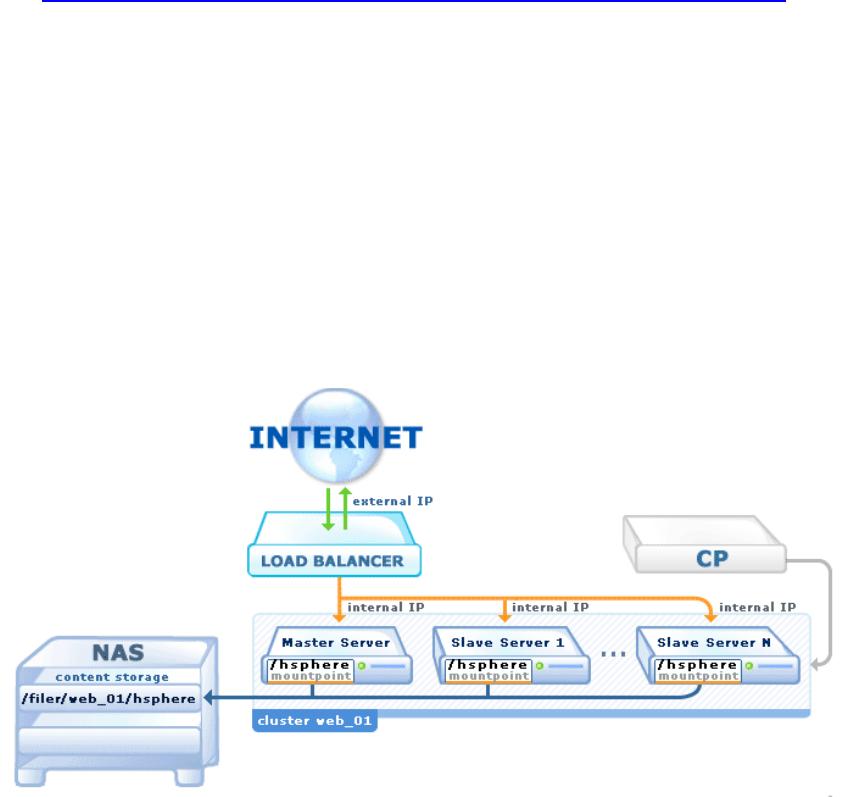
It is possible to add load balanced (LB) Web and mail clusters to Parallels H-Sphere.
Load balancing implies balancing server traffic amongst multiple computers (LB
cluster) which Parallels H-Sphere regards and operates with as a single server.
Load balanced cluster solution in Parallels H-Sphere requires 4 or more physical
servers:
Load Balancer: any solution like Cytrix® NetScaler
(http://www.citrix.com/English/ps2/products/subfeature.asp?contentID=22314) for
balancing traffic across the web/mail servers. Load Balancer directs traffic to
another server if the first one is currently overloaded. It can also allow the service to
continue even if one of the servers is down.
One master and one or more slave servers form a load balanced Web/mail cluster.
All these servers are being added to Parallels H-Sphere as physical servers, with all
related packages installed, but Parallels H-Sphere logical servers are created only
on master servers, and Parallels H-Sphere operates with load balanced cluster only
via master server.
NAS (Network Attached Storage): shared storage for master and slave servers.
NAS is a highly reliable server with enough space for storing data. Web/mail content
directories are mounted to the NAS where the content is actually stored. Web and
mail servers can jointly use one NAS or have their own NAS for Web and for mail.
Figure 1: Simple Load Balanced system with one Web cluster:
CH A P T E R 22
Load Balancing
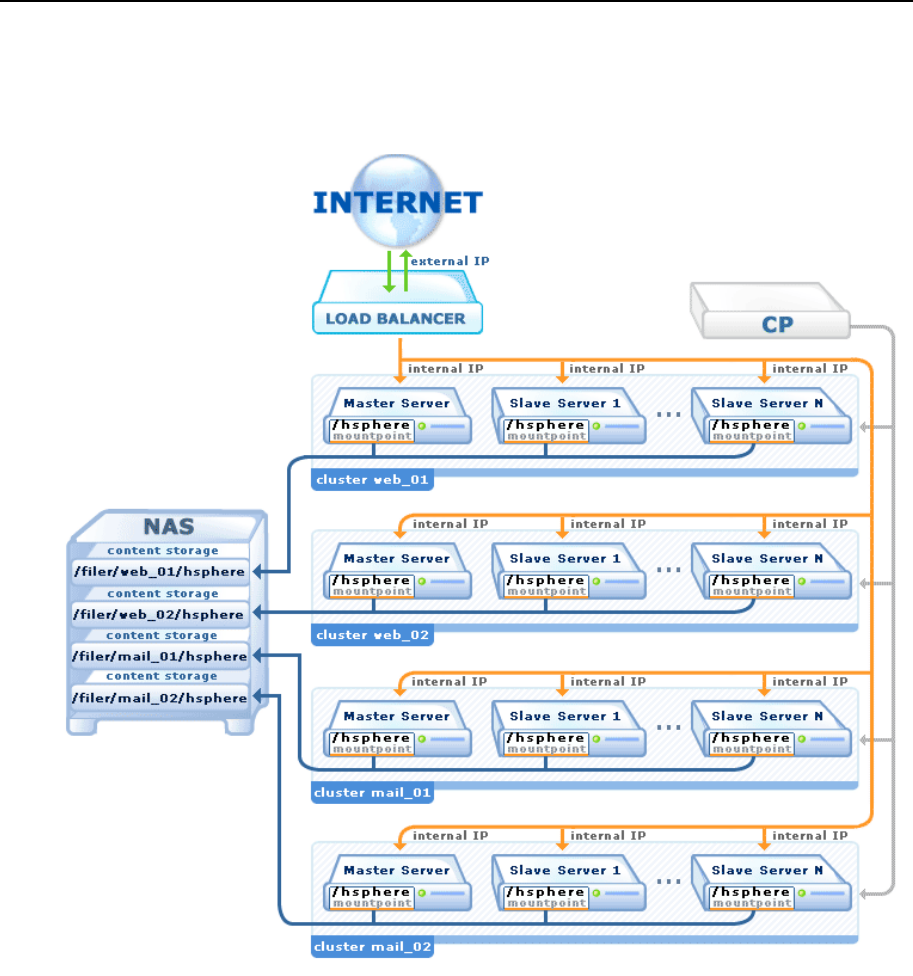
334 Load Balancing
Figure 2: More complex Load Balanced system with two mail and two web clusters:

Load Balancing 335
Load Balancers
You need to purchase, install and configure any load balancer solution, for example,
Cytrix® NetScaler
(http://www.citrix.com/English/ps2/products/subfeature.asp?contentID=22314).
This task is beyond the scope of Parallels H-Sphere documentation.
Supported NAS
The following file storage systems (on page 352) are supported by Parallels H-Sphere:
NAS
Notation
Supported in Parallels H-Sphere
Generic Linux NFS (on page
342)
UNIX
3.0 RC 1 and up
RedHat GFS (on page 342)
UNIX
3.0 RC 4 and up
NetApp
(http://www.netapp.com/prod
ucts/filer/)
NET_APP
2.3 and up to 2.5
3.0 RC 1 and up
BlueArc
(http://www.bluearc.com/)
BLUE_ARC
2.4.3 Patch 10 and up
2.5 Beta 5 and up
EMC Celerra
(http://www.emc.com/product
s/networking/servers/index.js
p)
EMC_CELERRA
2.4.3 Patch 10 and up
2.5 Beta 5 and up
Note: All Parallels H-Sphere customers will be recommended to choose shared Linux
NFS as the most simple and reliable solution.
Load Balanced Cluster
Loab balanced cluster consists of one master and one or more slave servers regarded
by Parallels H-Sphere as a single server.
Master and slave servers are added to Parallels H-Sphere as physical servers.
Master-slave relations between these servers are set in admin CP.
Only master server is added as Web/mail logical server to Parallels H-Sphere. CP
communicates only with master server.

336 Load Balancing
Requests are passed to external IPs routed by the load balancer. Load balancer
distributes requests evenly across the master and slave servers (internal IPs
corresponding to external IP). For this purpose, NAT must be properly configured
on load balanced cluster servers.
Master and slave server share the same Parallels H-Sphere related directories
where all user content, scripts, and the majority of Parallels H-Sphere related
binaries are located. These directories are actually stored on the NAS and mounted
from master and slave servers via NFS.
Along with shared storage, master and slave servers have their own unique IP-
specific logs and configs which are synchronized by special cron scripts run on
these servers.
See load balanced cluster scheme with generic Linux NFS shared storage (on page
336).
In this chapter:
Implementation of Load Balanced Cluster in Parallels H-Sphere ....................... 336
Load Balancing Support in Parallels H-Sphere .................................................. 342
Installing Load Balanced Web/Mail Clusters in Parallels H-Sphere ................... 342
Quota Managers................................................................................................ 352
Implementation of Load Balanced Cluster
in Parallels H-Sphere
This section describes load balanced Web/mail cluster scheme for generic Linux NFS
(on page 342) NAS.
In this section:
Load Balanced Cluster in CP ............................................................................ 337
Distribution of Requests Across Load Balanced Cluster ................................... 337
Shared Content ................................................................................................. 337
Specific Master/Slave Content .......................................................................... 338
Synchronization Between Master and Slave Servers ........................................ 338
Traffic Calculation ............................................................................................. 339
Load Balanced Cluster Map .............................................................................. 340
NAT Configuration for Load Balanced Clusters ................................................. 341

Load Balancing 337
Load Balanced Cluster in CP
Master and slave servers are added to Parallels H-Sphere as physical servers.
Master-slave relations between these servers are set in admin CP.
Only master server is added as Web/mail logical server to Parallels H-Sphere. CP
communicates only with master server.
Distribution of Requests Across Load Balanced Cluster
Parallels H-Sphere regards Web or mail load balanced cluster as a single server.
Requests are passed to external IPs routed by the load balancer. Load balancer
distributes requests evenly across the master and slave servers (internal IPs
corresponding to external IP).
Shared Content
Master and slave servers share the same /hsphere directory mounted by NFS to the
/filer/<cluster_type>_<cluster_id>/ directory on the NAS where load balanced
cluster content is actually stored. Here, <cluster_type> is mail or web, and <cluster_id> is
cluster id - there may be multiple load balanced clusters mounted to the NAS: 01, 02, ...
(See the illustration (on page 333) for 2 Web and 2 mail clusters.)
All user content, scripts, and the majority of Parallels H-Sphere related binaries are
installed into the /hsphere directory and shared by master and all slaves.
Follow the Adding Load Balanced Clusters on Shared Linux NFS (on page 342)
instructions to learn how to correctly mount the shared storage on the NAS to the
master and slave servers.

338 Load Balancing
Specific Master/Slave Content
Along with the common shared storage, master and slave servers have their own
Parallels H-Sphere specific (Apache, FTP) and IP-dependent (network) logs and
configuration:
Both master and slave servers have unique Apache logs stored locally in the
/var/log/hsphere/httpd directory instead of the default
/hsphere/local/var/httpd/logs directory.
On the master server, Apache, FTP and network configuration is located in the
/hsphere directory (which is a mountpoint to the NAS and is common for the master
and the slave servers):
/hsphere/local/config/httpd/
/hsphere/local/config/ftpd/
/hsphere/local/network/
On slave servers, however, this data is unique and is stored locally in the
/etc/hsphere directory:
/etc/hsphere/httpd/
/etc/hsphere/ftpd/
/etc/hsphere/network/
Parallels H-Sphere updater running with the hspackages slaves=web|mail|all
option creates the /etc/hsphere directory data on slave servers.
Synchronization Between Master and Slave Servers
The special cron script /hsphere/shared/scripts/cron/lb_sync.sh runs each
minute on each slave server to synchronize data on master and slave servers. It parses
and synchronizes:
User Apache/ProFTPd config files
/etc/hsphere/[httpd|ftpd]/sites/*.conf, and
/etc/hsphere/network/ips
the /etc/passwd, /etc/shadow, /etc/group files.

Load Balancing 339
Traffic Calculation
User logs are located in the /hsphere/local/home/<user>/logs/domain.com/
directory. On master server, log filenames look like:
{domain.name}
referrer_log
access_log
error_log
Slave servers write the following logs:
{domain.name}_SRV-N
referrer_log_SRV-N
access_log_SRV-N
error_log_SRV-N
where N is slave server id: 1, 2, ...
The /hsphere/shared/scripts/cron/cron-rotate.pl script has been adapted
to calculate statistics on load balanced cluster. It runs on master and slave servers by
the following scheme:
on slave servers (e.g., 1:30am):
synchronizes logrotate conf files on master and slaves: It parses log rotate
configs in the /hsphere/local/config/httpd/logrotate_confs/
directory on the master server. They point to the user logs located in the
/hsphere/local/home/<user>/logs/domain.com/ directory. On master
server, log filenames look like:
{domain.name}
referrer_log
access_log
error_log
Slave servers write the following logs:
{domain.name}-SRV-N
referrer_log-SRV-N
access_log-SRV-N
error_log_SRV-N
where N is slave server id: 1, 2, ... cron-rotate.pl merges data and synchronizes
respective master and slave logs.
rotates logs on slave servers
restarts Apache
on master server (e.g., 2:00am):
rotates logs on the master
restarts Apache
merges master and slave logs
launches log analyzers (Webalizer, AWStats, ModLogAn)

340 Load Balancing
Load Balanced Cluster Map
The following two files construct load balanced cluster map. At the moment, they need
to be created manually on master and slave servers:
/hsphere/local/config/lb.map - created on the master server and has the following
format:
<Master_IP>|<Slave1_IP>|...|<SlaveN_IP>
The lines of the same format should be also added for each dedicated IP bound on
the cluster:
<Master_Dedicated_IP>|<Slave1_Dedicated_IP>|...|<SlaveN_Dedicated_IP>
/etc/hsphere/lb.id - created on both the master and slave servers and contains the
following line:
<CLUSTER_TYPE>|<SERVER_ID>
where <CLUSTER_TYPE> is mail or web; <SERVER_ID> is LB server id: 0 for master, 1
for the first slave, 2 for the second slave, etc.
For example, for slave server with <Slave2_IP> in LB Web cluster the lb.id file will
look like:
web|2

Load Balancing 341
NAT Configuration for Load Balanced Clusters
To configure load balanced Web/mail cluster with NAT, you must have NAT turned on
(on page 29) in Parallels H-Sphere and put external Web/mail server IP routed by the
Load Balancer into correspondence with the master server's internal IP.
For example, for a load balanced Web cluster with one master and 4 slave servers,
where the master Web server's internal IP 192.168.0.100 corresponds to the
external IP 12.34.56.100 bound to the Load Balancer.
In the ~cpanel/shiva/psoft_config/ips-map.xml file on the CP server there should be
the following record:
<ips>
. . .
<ip ext="12.34.56.100" int="192.168.0.100"/>
. . .
</ips>
All dedicated IPs on the master server must be also associated with corresponding
IPs on the Load Balancer and similar records must be added to the ip-map.xml file:
<ip ext="LB_Dedicated_IP" int="Master_Dedicated_IP"/>
Also, you should have external IP in the E.Manager -> DNS Manager -> Service Zone
menu in admin CP. For example:
www.test.com 3600 IN A 12.34.56.100
mail.test.com 3600 IN MX 12.34.56.111

342 Load Balancing
Load Balancing Support in Parallels H-
Sphere
This document explains functionality of the scripts that enable distribution of load
balance between Apache and Virtual FTP servers.
apache-confsynch.pl accounts for synchronization of Apache config files on slave
servers. Amount of slave servers and their IDs are set at master server in the
/hsphere/local/config/slaves.conf file. The script, also, creates
need_restart.txt on each slave to mark it as liable to restart.
apache-need-restart.pl runs on slave servers, checks if need_restart.txt is
available there and marks them as liable to restart. In other words this script servers
as a layer between LB apache restart and standard apache-restart.
apache-reconfig.pl is a modification of a standard apache-reconfig script/file(?)
that is executed on slaves and is only different from it in that it sets required level of
restart for slaves (either gracefull or force).
apache-repair.pl is a modification of a standard apache-repair.pl script and is only
different in that it sets exclusive lock for /etc/passwd, /etc/shadow,
/etc/groups so to ensure these files are not locked by rsync and so a user can
be started. Otherwise, all files will be marked as bad.
ftp_anlz.pl gathers and analyses statistics
ftp_anlz_user.pl gathers and analyses user statistics.
ftp-confsynch.pl accounts for the same as apache-confsynch.pl on Virtual FTP
severs.
ftp-need-restart.pl accounts for the same as apache-need-restart.pl on Virtual FTP
severs.
ftp-restart.pl is the same as Apache, but for Virtual FTP
master-ipsynch.pl runs on a master server and formats data for slave servers so
IPs are up according to IP mapping set in the
/hsphere/local/config/map_table.txt file on each slave.
slave-ipupdate.pl puts up IPs formed by the master-ipsynch.pl script.
As of now Apache and Virtual FTP config files synchronization is executed on master
server, yet it is expected to be moved onto slave servers.
Installing Load Balanced Web/Mail
Clusters in Parallels H-Sphere
Load balanced cluster solution requires 3 or more physical servers:

Load Balancing 343
Load Balancer: any solution like Cytrix® NetScaler
(http://www.citrix.com/English/ps2/products/subfeature.asp?contentID=22314) for
load balancing across the web/mail servers. Load Balancer directs traffic to another
server if the first one is currently overloaded.
NAS (aka Filer): Server/client shared storage solution for web/mail content. NAS
may be installed on the same server with load balancer or on a separate server.
Also, Web and mail servers can jointly use one NAS or have their own NAS one for
Web and one for mail. In this documentation we consider the following NAS's:
Generic Linux NFS
NetApp Filer hardware
RedHat GFS
At least two boxes (master and slave) for web/mail servers. Load balanced
solution implies one master server and one or more slave servers.
To create Web/mail load balanced clusters integrated into Parallels H-
Sphere:
1. Install and configure Load Balancer (on page 343)
2. Prepare NAS (on page 344)
3. Prepare master and slave Web/mail boxes (on page 349)
4. Install Parallels H-Sphere to load balanced Web/mail clusters (on page
351)
In this section:
Step 1. Install and Configure Load Balancer ..................................................... 343
Step 2. Prepare NAS ........................................................................................ 344
Step 3. Prepare Master and Slave Web/Mail Boxes .......................................... 349
Step 4. Install Parallels H-Sphere to Load Balanced Parallels H-Sphere Clusters 351
Step 1. Install and Configure Load Balancer
Purchase, install and configure load balancer solution like Cytrix® NetScaler.

344 Load Balancing
Step 2. Prepare NAS
Follow procedures below for:
NetApp hardware (on page 342)
Linux NFS shared storage (on page 342)
RedHat GFS (on page 342)
In this section:
NetApp Hardware .............................................................................................. 345
Generic Linux NFS ............................................................................................ 346
RedHat GFS ...................................................................................................... 348

Load Balancing 345
NetApp Hardware
1. Purchase NetApp NAS from www.netapp.com, install and configure the
NAS according to the NetApp Documentation
(http://www.netapp.com/products/filer/). Create volumes/qtrees on the
box where NetApp NAS is to be installed.
2. Configure your NetApp NAS to add load balanced cluster in Parallels H-
Sphere (read the NetApp Manual at
http://ecserv1.uwaterloo.ca/netapp/man/ for commands):
1. Telnet to the NetApp NAS:
telnet <NAS_IP>
Here, <NAS_IP> is the NetApp NAS IP.
2. Get the list of the NAS partitions with the qtree command:
# qtree
3. To enable disk quota management, export the /etc directory on the NetApp NAS
and allow to mount it only from the CP box:
# exportfs -o access=<CP_IP>,root=<CP_IP>,rw=<CP_IP> /etc
Here, <CP_IP> is the CP server IP.
4. To enable user disk space management on the web/mail servers, export the
user storage directory on the NetApp NAS allow to mount it from the physical
web/mail boxes:
# exportfs -o
access=<Master_IP>:<Slave1_IP>[:<Slave2_IP>:...],root=<Master
_IP>:<Slave1_IP>[:...],rw=<Master_IP>:<Slave1_IP>[:...]
<NAS_WebPath>
Here, <Master_IP>:<Slave1_IP>[:<Slave2_IP>:...] is the list of master and slave
web/mail server IPs separated with colon (:), <NAS_WebPath> is the user storage
directory.
5. Exit telnet session on the NetApp NAS.
3. Prepare NetApp NAS to Work With Parallels H-Sphere
1. Grant rsh access to the NetApp NAS from the CP box to root and cpanel user.
2. Grant nfs access to the /etc directory for the CP box in rw mode.
3. Grant nfs access to the home directory on the storage partition (e.g.,
/vol/vol0/home) for the CP box in rw mode with root privileges (e.g., -
access=192.168.0.9:192.168.0.10, root=192.168.0.8:192.168.0.9:192.168.0.10).
4. On CP server, set the QUOTA_MANAGER property in
~cpanel/shiva/psoft_config/hsphere.properties to support NetApp quota
manager on LB cluster:
QUOTA_MANAGER = NET_APP
More about external quota manager support in Parallels H-Sphere (on page 352).
346 Load Balancing
Generic Linux NFS
Important: For correct load balanced cluster implementation, NFS must be of version
3.
1. Login as root to a new Linux server assigned for NAS and create a
separate partition for shared file storage. This partition must be on a
separate hard drive on a separate controller and must not be /var or
/usr. We recommend naming it /filer to avoid possible confusion.
2. Install/update the quota-3.x package from the following location:
# rpm -Uvh
http://download.hsphere.parallels.com/shiv/HS/<OSCODE>/sysuti
ls/quota-3.xx-x.i386.rpm
where <OSCODE> is a mnemonic code for operating system supported by Parallels
H-Sphere (see OSCODE notation in Appendix D of Parallels H-Sphere Update
Guide).
Important: The quota package includes NFS support, which is essential for load
balanced cluster implementation. Generic quota package has NFS support disabled
by default!
3. Add the "usrquota" option to the /filer partition in /etc/fstab:
LABEL=/filer /filer ext3 defaults,usrquota 1 1
To apply changes, run:
# mount -o remount /filer
# quotacheck -m /filer
# quotaon /filer
4. On the /filer partition, create directories for load balanced cluster
file storage:
# mkdir -p /filer/<CLUSTER_TYPE>_<CLUSTER_ID>/hsphere
where <CLUSTER_TYPE> is web or mail, and <CLUSTER_ID> is a cluster id (there may
be multiple clusters mounted to the same NAS).
For example, for the first Web cluster it will be /filer/web_01/hsphere.
5. Stop all services except ssh, portmap, and nfs related services. Check
the status by the chkconfig command:
# chkconfig --list
6. To enable user disk space management on the web/mail servers, export
the user storage directory on the generic Linux NAS. For this, add the
following lines for all clusters to the /etc/exports file on the NAS
server:
Load Balancing 347
/filer/<CLUSTER_TYPE>_<CLUSTER_ID>/hsphere
<Master_IP>(rw,async,no_wdelay,insecure,no_root_squash)
/filer/<CLUSTER_TYPE>_<CLUSTER_ID>/hsphere
<Slave1_IP>(rw,async,no_wdelay,insecure,no_root_squash)
/filer/<CLUSTER_TYPE>_<CLUSTER_ID>/hsphere
<Slave2_IP>(rw,async,no_wdelay,insecure,no_root_squash)
...
To apply changes, run:
# exportfs -a
7. Skip this step for mail server clusters.
Edit the /etc/init.d/nfs file. Find the line with daemon rpc.rquotad and add
the -S option to the end of the line, like this:
daemon rpc.rquotad $RPCRQUOTADOPTS -S
After that, restart NFS:
# chkconfig --level 345 nfs on
# /etc/init.d/nfs restart
Important: NFS configuration on the NAS may differ depending on the hardware
parameters, the number of clusters, quota and load on the servers. To properly
configure NAS please refer to the following guides:
https://www.redhat.com/f/pdf/rhel4/NFSv4WP.pdf
http://www.citi.umich.edu/projects/nfs-perf/results/cel/dnlc.html
http://www.oreilly.com/catalog/nfs2/chapter/ch15.html

348 Load Balancing
RedHat GFS
To prepare NAS for RedHat GFS filer
(http://www.redhat.com/software/rha/gfs/):
1. Install and configure RedHat GFS cluster on a filer according to the
following documentation:
http://www.redhat.com/docs/manuals/csgfs/browse/rh-gfs-en/index.html
http://www.redhat.com/docs/manuals/csgfs/browse/rh-cs-en/index.html
http://www.tldp.org/HOWTO/LVM-HOWTO/index.html
2. Setup GFS file system type on a logical volume on the filer, like this:
# gfs_mkfs -p lock_type -t cluster_name:gnbd_device -j 2
/dev/vg_name/lv_name
where lock_type is a GFS locking type, cluster_name is a GFS cluster name,
gnbd_device is a GNBD device name, vg_name is a volume group name, and
lv_name is a logical volume name. Further on in the document we will use the
following example:
# gfs_mkfs -p lock_dlm -t alpha_cluster:gfs1 -j 2
/dev/vg01/lv01
3. Start GNBD server:
# gnbd_serv
Upon successful start, you'll get the following output:
gnbd_serv: startup succeeded
4. Export logical volume with GFS file system:
# gnbd_export -d /dev/vg01/lv01 -e gfs1
You should get the following output:
gnbd_clusterd: connected
gnbd_export: created GNBD gfs1 serving file /dev/vg01/lv01

Load Balancing 349
Step 3. Prepare Master and Slave Web/Mail Boxes
Before you install Parallels H-Sphere packages to master and slave servers, please
make sure to meet the following requirements for correct load balancing:
All boxes in LB cluster must have the same OS version installed on. For RedHat
GFS, all servers must be RedHat servers. In case of generic Linux NFS or NetApp,
master/slave servers under FreeBSD are supported in HS 3.0 RC 4 and up.
The /hsphere directory on a Web server should not be created a separate
partition!
The operations on master and slave servers are made under root.
1. Create the /hsphere directory on the master and all slave servers:
# mkdir /hsphere
2. If you are using GFS, run on each master and slave servers:
1. Load kernel module:
# modprobe gnbd
2. Import GFS file system from the NAS server:
# gnbd_import -i FILER_NAME
where FILER_NAME is the NAS server domain name. You should get the
following output:
gnbd_import: created gnbd device gfs1
gnbd_monitor: gnbd_monitor started. Monitoring device #0
gnbd_recvd: gnbd_recvd started
3. Mount the storage directory on the NAS server to /hsphere directory on
the master and all slave servers.
a For RedHat GFS:
Add the following mountpoint to /etc/fstab on the master and all slave servers:
/dev/gnbd/gfs1 /hsphere gfs defaults 0 0
Mount the GFS logical volume on the master and all slave servers:
# mount -t gfs /dev/gnbd/gfs1 /hsphere
b For generic Linux NFS or NetApp:
Add the following mountpoint to /etc/fstab on the master and all slave
servers:
<NAS_IP>:/filer/<CLUSTER_TYPE>_<CLUSTER_ID>/hsphere /hsphere nfs
defaults,nfsvers=3,rsize=32768,wsize=32768 0 0
For mail server cluster, also add these mountpoints on all servers:
<NAS_IP>:/filer/<CLUSTER_TYPE>_<CLUSTER_ID>/users /var/qmail/users
nfs defaults,nfsvers=3 0 0
<NAS_IP>:/filer/<CLUSTER_TYPE>_<CLUSTER_ID>/control
/var/qmail/control nfs defaults,nfsvers=3 0 0
To mount the directory, run:

350 Load Balancing
# mount -a && mount
4. On the master server, create the /hsphere/local/config/lb.map
file of the following format:
<Master_IP>|<Slave1_IP>|...|<SlaveN_IP>
Note: The lines of the same format should be also added for each dedicated IP
bound on the cluster:
<Master_Dedicated_IP>|<Slave1_Dedicated_IP>|...|<SlaveN_Dedicated_IP>
5. On every master and slave server, create the /etc/hsphere/lb.id
file with the line of the following format:
<CLUSTER_TYPE>|<SERVER_ID>
where <CLUSTER_TYPE> is mail or web; <SERVER_ID> is LB server id: 0 for master, 1
for the first slave, 2 for the second slave, etc.
For example, for slave server with <Slave2_IP> in LB Web cluster the lb.id file will
look like:
web|2
6. Generate SSH keys to access the master's root from each slave server
without password.
1. Log into each slave server as root.
2. Create public key on each slave server:
# ssh-keygen -t dsa
3. Log from each slave server to the master server as root and insert the contents
of the /root/.ssh/id_dsa.pub file from each slave server into the
/root/.ssh/authorized_keys2 file of the master server.
4. Log from the each slave server into the master server as root once again to
ensure slave servers are able to log into the master without password:
# ssh root@<Master_IP>
Answer yes to all prompts. This will add the master server to the list of known
hosts (/root/.ssh/known_hosts) of a slave server. After that, load
balancing synchronization scripts will work without password prompts.
7. Important: To make sure Parallels H-Sphere related data is correctly
synchronized on master and slave servers, add time synchronization
(on page 33) to the master and slave servers' crontabs.

Load Balancing 351
Step 4. Install Parallels H-Sphere to Load Balanced
Parallels H-Sphere Clusters
1. Log into Parallels H-Sphere admin CP (it is assumed you have Parallels
H-Sphere 3.0 and up already installed).
2. Add master and all slave servers as physical servers to Parallels H-
Sphere.
3. Set master-slave relations between master and slave physical servers.
This is described in the section Load Balanced Server Clusters of
Parallels H-Sphere Service Administrator Guide.
4. Add Web/mail logical server only to master physical server. Do not
add logical servers to slave servers!
In logical server options you need to set Load Balancer Server Parameters:
File Server Type: file storage OS type (on page 333), like UNIX for generic
Linux NFS
File Server: file storage volume location, like
<NAS_IP>:/filer/<CLUSTER_TYPE>_<CLUSTER_ID>/ in the above example
File Path: (optional) file storage path to Parallels H-Sphere installation directory,
like /filer/<CLUSTER_TYPE>_<CLUSTER_ID>/hsphere in the above example
File server Volume ID: file storage volume ID, like
<CLUSTER_TYPE>_<CLUSTER_ID> in the above example.
5. For mail LB cluster, it is required to configure Horde Webmail frontend
(on page 167) to use external Web server and external MySQL
database server, and also to configure SpamAssassin (on page 195) to
external MySQL database.
6. Configure NAT for LB Web/mail clusters
Parallels H-Sphere Control Panel works with only one logical server (that is, master
server) for each load balanced Web cluster. To configure load balanced Web/mail
cluster with NAT, you must have NAT turned on (on page 29) in Parallels H-Sphere
and put external Web/mail server IP routed by the Load Balancer into
correspondence with the master server's internal IP.
For example, for a load balanced Web cluster with one master and 4 slave servers,
where the master Web server's internal IP 192.168.0.100 corresponds to the
external IP 12.34.56.100 bound to the Load Balancer.
In the ~cpanel/shiva/psoft_config/ips-map.xml file on the CP server
there should be the following record:
<ips>
. . .
<ip ext="12.34.56.100" int="192.168.0.100"/>
. . .
</ips>

352 Load Balancing
All dedicated IPs on the master server must be also associated with
corresponding IPs on the Load Balancer and similar records must be added to
the ip-map.xml file:
<ip ext="LB_Dedicated_IP" int="Master_Dedicated_IP"/>
Also, you should have external IP in the E.Manager -> DNS Manager -> Service Zone
menu in admin CP. For example:
www.test.com 3600 IN A 12.34.56.100
mail.test.com 3600 IN MX 12.34.56.111
7. Download the latest Parallels H-Sphere updater of Parallels H-Sphere
3.0 RC 1 and up and follow the instructions on adding new servers into
Parallels H-Sphere to install Parallels H-Sphere related packages only
on master server.
8. In the updater's command line, run one of the following commands to
complete installation and configuration on slave servers:
hspackages slaves=web
hspackages slaves=mail
hspackages slaves=all
More about updater options read in Parallels H-Sphere Update Guide.
Quota Managers
Parallels H-Sphere supports quota management for third party file storage systems like
BlueArc or NetApp for load balanced Web/mail clusters (on page 333). If not specified
otherwise, Parallels H-Sphere uses generic Linux/FreeBSD server quota manager.
To set a third party NAS quota manager, add the QUOTA_MANAGER variable in
~cpanel/shiva/psoft_config/hsphere.properties, for example, like this:
QUOTA_MANAGER = BLUE_ARC
The following quota managers are supported:
UNIX - generic Linux/FreeBSD quota manager (default)
NET_APP - NetApp quota manager (http://www.netapp.com/products/filer/)
BLUE_ARC - BlueArc quota manager (http://www.bluearc.com/)
EMC_CELERRA - EMC Celerra quota manager
(http://www.emc.com/products/networking/servers/index.jsp)
This chapter explains how to migrate resources into Parallels H-Sphere from Parallels
H-Sphere and other control panels using XML-structured data. It can also serve as a
guide to setting up a large number of Parallels H- Sphere users at a time. You are
expected to have an installed and configured Parallels H-Sphere control panel on the
target server.
Migratable Resources
Users can be migrated with the following resources:
User contact and billing info
Domains (with or without DNS)
DNS: custom A, MX, CNAME records; domain vhost aliases; domain aliases with
their DNS and mail configuration
Web: settings, FrontPage, CGI, CGIDir, MIME, PHP, SSI, ErrorDoc, ErrorLog,
TransferLog, Webalizer, ModLogAn, RefferrerLog, AgentLog, Vhost alias, Directory
indexes, Redirect, Urchin3, Urchin4, ASP, ASP.NET, ColdFusion, MSSQLManager
Mail: Mailboxes, Autoresponder for mailboxes, Mailforwards, Mailing lists
FTP: resources: virtual hosts, anonymous virtual hosts, virtual host directories with
permissions, virtual host users, FTP subaccounts (Unix)
MySQL: users, databases with user permissions
PostgreSQL: users, databases
MSSQL: users, logins, databases
ODBC: dsn records with params
Crontab: crontab records for users The following resources are NOT YET implemented
in XML migration mechanism:
DNS: instant access domain alias
Web: SSL, Shared SSL, MivaEmpresa, MivaCart, osCommerce, PhpBB
In this chapter:
Migration Procedure .......................................................................................... 354
CH A P T E R 23
Resources Migration

354 Resources Migration
Migration Procedure
The migration procedure takes the steps below.
In this section:
Step 1. Create XML File Containing User Data ................................................. 354
Step 2. Create XML File Containing Reseller Plan Data .................................... 360
Step 3. Prepare The Target Control Panel......................................................... 366
Step 4. Create Reseller Plans ........................................................................... 366
Step 5. Create Resellers ................................................................................... 366
Step 6. Create End Users .................................................................................. 367
Troubleshooting................................................................................................. 367
Step 1. Create XML File Containing User Data
Create xml and dtd files to migrate resellers and end users or end users without
resellers.
If you are moving users from Parallels H-Sphere, do it with the UserInfoExtractor utility
as suggested in Creating User Migration XMLs in Parallels H-Sphere (on page 355).
If you are moving users from a different control panel, follow the instruction on Creating
User Migration XMLs Outside Parallels H-Sphere (on page 359).
In this section:
Creating User Migration XMLs in Parallels H-Sphere ........................................ 355
Creating User Migration XMLs Outside Parallels H-Sphere ............................... 359

Resources Migration 355
Creating User Migration XMLs in Parallels H-Sphere
This document explains how to create XML files with Parallels H-Sphere reseller and
end user data for migration to a different Parallels H-Sphere cluster.
User info can be obtained and formatted with the UsersInfoExtractor utility
executed under Control Panel user (on page 71).
UsersInfoExtractor extracts resellers into the migrate_resellers.xml, and
their end users separately into migrate_users.xml.
UsersInfoExtractor runs with the following parameters:
-resellers - extracts only resellers into the migrate_resellers.xml file:
java psoft.hsphere.migrator.UsersInfoExtractor [-force] -
resellers OPTIONS
where OPTIONS include:
-resellersbynames - extract listed resellers:
java psoft.hsphere.migrator.UsersInfoExtractor [-force] -
resellers -resellersbynames <RESELLER-1> ... <RESELLER-N>
-resellersfromfile - extract resellers listed in a plain text file:
java psoft.hsphere.migrator.UsersInfoExtractor [-force] -
resellers -resellersfromfile /home/resellers.txt
-usersbynames - extract resellers for listed individual users:
java psoft.hsphere.migrator.UsersInfoExtractor [-force] -
resellers -usersbynames <USERNAME-1> ... <USERNAME-N>
-usersfromfile - extract resellers for individual users listed in a plain text file:
java psoft.hsphere.migrator.UsersInfoExtractor [-force] -
resellers -usersfromfile /home/users.txt
-usersbylserver - extract resellers for all users located on a specified logical
server:
java psoft.hsphere.migrator.UsersInfoExtractor [-force] -
resellers -usersbylserver <LSERVER_ID>
-users - extracts end users into the migrate_users.xml file. This option is
meant by default if both -resellers and -users options are omitted in the
command:
java psoft.hsphere.migrator.UsersInfoExtractor [-force] [-
users] OPTIONS
where OPTIONS include:
-usersbynames - extract listed end users by usernames:
java psoft.hsphere.migrator.UsersInfoExtractor [-force] -
users -usersbynames <USERNAME-1> ... <USERNAME-N>
-usersfromfile - extract users by usernames listed in a plain text file:
java psoft.hsphere.migrator.UsersInfoExtractor [-force] -
users -usersfromfile /home/users.txt

356 Resources Migration
-resellersbynames - extract users that belong to listed resellers:
java psoft.hsphere.migrator.UsersInfoExtractor [-force] -
users -resellersbynames <RESELLER-1> ... <RESELLER-N>
-resellersfromfile - extract users that belong to resellers listed in a plain
text file:
java psoft.hsphere.migrator.UsersInfoExtractor [-force] -
users -resellersfromfile /home/resellers.txt
-usersbylserver - extract users located on a certain logical server:
java psoft.hsphere.migrator.UsersInfoExtractor [-force] -
users -usersbylserver <LSERVER_ID>
Use the force parameter to ignore errors. Error messages will be written to
migrate_errors.log.
Important: Note that you must specify user and reseller names, not ids!
Important: If you are migrating master admin's end users, you just extract them into
migrate_users.xml without extracting master admin as reseller.
See also:
Sample xml file with reseller data:
http://hsphere.parallels.com/HSdocumentation/xmls/migrate_resellers_25.xml
Sample xml file with end user data:
http://hsphere.parallels.com/HSdocumentation/xmls/migrate_users_25.xml
Sample dtd file for resellers:
http://hsphere.parallels.com/HSdocumentation/xmls/resellers.dtd
Explanations to dtd file for resellers (on page 357)
Sample dtd file for end users:
http://hsphere.parallels.com/HSdocumentation/xmls/users.dtd
Explanations to dtd file for end users:
http://hsphere.parallels.com/HSdocumentation/xmls/userxml/
In this section:
DTD Structure of Reseller XML Migration File ................................................... 357

Resources Migration 357
DTD Structure of Reseller XML Migration File
Data Type Definitions
Here is the DTD structure defined in resellers.dtd:
<?xml version="1.0" encoding="UTF-8"?>
<!ELEMENT resellers (reseller*, users?)>
<!ELEMENT reseller (info+,administrator,zone*,users?)>
<!ELEMENT zone (instantalias*)>
<!ELEMENT instantalias (#PCDATA)>
<!ELEMENT administrator (#PCDATA)>
<!ATTLIST reseller login CDATA #REQUIRED>
<!ATTLIST reseller password CDATA #REQUIRED>
<!ATTLIST reseller plan CDATA #REQUIRED>
<!ATTLIST administrator login CDATA #REQUIRED>
<!ATTLIST administrator password CDATA #REQUIRED>
<!ATTLIST administrator email CDATA #REQUIRED>
<!ATTLIST zone name CDATA #REQUIRED>
<!ATTLIST zone email CDATA #REQUIRED>
<!ATTLIST instantalias prefix CDATA #REQUIRED>
<!ATTLIST instantalias tag CDATA #REQUIRED>
<!ENTITY % users_rules SYSTEM "users.dtd"> %users_rules;
DTD Chart
The above structure may be represented graphically in the following chart:
resellers
/ ...
reseller
|
____________/|
/ |
/ / \
/ / \
info / \
| administrator zone
| |
item instantalias
Attributes Description
reseller:
login - reseller login
password - reseller password
plan - the plan the reseller is signed up for

358 Resources Migration
info (contact/billing signup information): (see signup fields description in the section
User Signup Customization of Parallels H-Sphere Customization Guide)
type="_ci_" (contact info) or type="_bi_" (billing info)
administrator:
login - reseller admin cp login
password - reseller admin cp password
email - reseller admin email address
zone:
name - the name of the reseller service zone
email - email for the reseller service zone (for example, if it is
reseller@example.com, it must be set as reseller.example.com)
instantalias:
prefix - prefix to be added to instant aliases for this zone (for example, u)
tag - shared IP tag for the instant alias (usually, 2)
XML example with reseller data:
http://hsphere.parallels.com/HSdocumentation/xmls/migrate_resellers_25.xml

Resources Migration 359
Creating User Migration XMLs Outside Parallels H-Sphere
This section explains how to format user data for migration from third party hosting
systems into Parallels H-Sphere. Use it to:
migrate direct end users, resellers, and resellers' end users;
migrate only direct end users if you don't have resellers.
Files
Create the following files:
resellers.dtd - data type definitions for resellers
example: http://hsphere.parallels.com/HSdocumentation/xmls/resellers.dtd
explanation (on page 357)
users.dtd - data type definitions for end users
example: http://hsphere.parallels.com/HSdocumentation/xmls/users.dtd
explanation: http://hsphere.parallels.com/HSdocumentation/xmls/userxml/
migrate_resellers.xml - XML file containing reseller data only
example:
http://hsphere.parallels.com/HSdocumentation/xmls/migrate_resellers_25.xml
explanation (on page 357)
migrate_users.xml - XML file containing user data only
example:
http://hsphere.parallels.com/HSdocumentation/xmls/migrate_users_25.xml
explanation: http://hsphere.parallels.com/HSdocumentation/xmls/userxml/
You may have data for hundreds and thousands of users in the xml file.
Alternatively, you may set DTD definitions directly within the XML file:
<?xml version="1.0" encoding="utf-8"?>
<!DOCTYPE users [
// DTD rules as in users.dtd
. . .
]>
<users>
. . .
We recommend defining DTD externally, using our latest DTD:
<!DOCTYPE users SYSTEM "users.dtd">
<!DOCTYPE resellers SYSTEM "resellers.dtd">
DTD files help ensure that all XMLs are formatted the right way. But please note that
XML files will be created no matter DTD file exists or not.
Warning: If you make a mistake in DTD definitions, migration may fail.

360 Resources Migration
XML Validation
Once you have created the XML, please do the following:
1. Validate the user data xml files with any xml validation software.
2. Make sure the xml file does not contain user with the login "admin".
3. Make sure that mail sections of each user don't contain mail loops.
4. Ensure that the billing period starting date has the MM/DD/YY format.
5. Make sure that in the user tag the value of the login attribute is unique and doesn't
begin with a number (this value will be used as the Parallels H-Sphere control panel
login name).
Now you are ready to create the accounts.
Step 2. Create XML File Containing Reseller Plan Data
Note: Skip this step if you are migrating only master admin's end users.
Create XML files for the reseller plans to be migrated. If you migrate from Parallels H-
Sphere, use the PlanExtractor utility. Otherwise, create plan XML according to our
documentation. Please refer to Migrating Plans with XML (on page 361) for details.
In this section:
Migrating Plans with XML .................................................................................. 361

Resources Migration 361
Migrating Plans with XML
Plan settings are stored in XML format, which allows extracting and moving them to
other locations.
Migratable Plans. Migratable plans include all non-reseller plans, namely: Unix,
Windows, Admin, MySQL, E-Mail, Unix Real Server, Windows Real Media. All end user
plans, including those of master admin and resellers, are migratable.
Migration Tools. Plans are migrated with two Java classes, PlanExtractor and
PlanCreator, located in the ~cpanel/shiva/psoft/hsphere/migrator/
directory.
1) PlanExtractor is a Java utility to extract Parallels H-Sphere plans into XML format.
Extracted plans are stored in the plans.xml file.
2) PlanCreator is a tool for importing plans to a new CP from the file plans.xml with
plans extracted by PlanExtractor.
Also, you'll need to place the following files in the
~cpanel/shiva/psoft/hsphere/migrator/ directory:
plans.xml (http://hsphere.parallels.com/HSdocumentation/xmls/plans.xml) - XML-
formatted information about plans extracted by PlanExtractor.
plans.dtd (http://hsphere.parallels.com/HSdocumentation/xmls/plans.dtd) - DTD
scheme for plans.xml.
migrate_plans.log - messages about errors occurred during plan extraction.
In this section:
Plan Extractor .................................................................................................... 362
Plan Creator ...................................................................................................... 362
XML Document Structure .................................................................................. 363
XML Elements and Attributes ............................................................................ 364

362 Resources Migration
Plan Extractor
Log into CP server as cpanel (on page 71) and run PlanExtractor:
java psoft.hsphere.migrator.PlanExtractor [-force] -resellername
res_name [-plans the list of plan names] [-ids the list of plan ids]
Options:
The -force option is used to ignore all possible errors while extracting plans.
The -resellername option requires the username of the reseller whose plans are
extracted. To extract plans for master admin, use option -resellername admin.
The -plans option requires names of plans to be extracted for this reseller. If a
plan name contains spaces, it must be quoted, e.g.:
-plans Unix1 'Reseller 2' WinBest33
If you omit both -plans and -ids, all plans will be extracted.
The -ids option requires IDs of plans to be extracted for this reseller. If you omit
both -plans and -ids, all plans will be extracted.
Examples:
java psoft.hsphere.migrator.PlanExtractor -force -resellername RESELLER
-plans silver 'unix gold'
java psoft.hsphere.migrator.PlanExtractor -force -resellername RESELLER
-ids 7564 7675
java psoft.hsphere.migrator.PlanExtractor -force -resellername RESELLER
java psoft.hsphere.migrator.PlanExtractor -resellername admin -plans
silver -resellername RESELLER -ids 7564
PlanExtractor writes error messages to migrate_plans.log.
Plan Creator
Run PlanCreator as cpanel with the following syntax:
java psoft.hsphere.migrator.PlanCreator [-active] -d plans.xml [-
createprices]
Options:
-active - if possible, activate plans after they are created.
-d plans.xml - specify plan XML file to be taken.
-createprices - create prices for plans.
Make sure to restart Parallels H-Sphere (on page 59) after running PlanCreator.
PlanCreator writes error messages to migrate_plans.log.

Resources Migration 363
XML Document Structure
The structure of plans.xml looks as follows:
plans
/ ...
plan
____________/\_________________________
/ | \
periods options \ ...
/ ... | ...
_________/\______________________________
period /|\ / | |
\
_____/ | \____ resource ifresource ifgroup
LogicalGroup
/ | \ | | ... | ...
/ | \ | ... __|__ ___|___
/ | \ | / \ / \
customparam postparam param____|____ resource ifgroup resource
LogicalGroup
/ | \ | | ... |
special fields price... ___|___ ...
| ... / \
special resource LogicalGroup
|
...
Example of plans.xml: http://hsphere.parallels.com/HSdocumentation/xmls/plans.xml
DTD Scheme: http://hsphere.parallels.com/HSdocumentation/xmls/plans.dtd

364 Resources Migration
XML Elements and Attributes
1. plan - plan description:
name - plan name
reseller - reseller name (if not avaliable, admin is assumed)
wizard - wizard name
2. period - plan periods:
id - period id
size - period duration
type - period type (DAY, WEEK, MONTH, YEAR)
discountusage - usage discount (%)
discountsetup - setup discount (%)
discountunit - recurrent discount (%)
3. param - plan parameters used for the plan creation:
name - parameter name
value - parameter value Parameters:
trial - billing type: 0 - Without billing, 1 - Paid, 2 - Trial
trial_duration - trial period for the billing type trial
trial_credit - credit limit for the billing type trial
hard_credit - credit limit
send_invoice - enable e-mail invoice notification
mixedip - default IP type (shared or dedicated)
shared_ip_tag - shared IP Tag
calias - instant alias for the given shared IP tag
stopgapalias - stopgap domain for the given shared IP tag
money_back - enable money back
money_back_days - money back guarantee in days
periods - the number of plan periods
4. postparam - parameters to be set after the plan creation:
name - parameter name
value - parameter value Parameters:
contactinfo - enable contact info
billinginfo - enable billing info
_template - default template

Resources Migration 365
_TEMPLATES_DIR - template directory
5. customparam - custom parameters to be set after the plan creation:
name - parameter name
value - parameter value
6. resource - resources available for the plan.
Check corresponding plan wizard XML documents in the
~cpanel/psoft/hsphere/plan/wizard/xml/ directory for the list of available
resources and the way they are set:
name - resource name
enable - is resource enabled
include - is resource included
active - is resource activated
7. price - resource price:
id - price id
freeunits - free units
setup - setup units
unit - monthly units
usage - extra units
8. LogicalGroup - the plan's logical group:
name - logical group name
type - logical group type
groupid - logical group id
9. special - special resource parameters:
name - special field name
value - special field value

366 Resources Migration
Step 3. Prepare The Target Control Panel
Before you start creating accounts from the xml files, log as cpanel user (on page 71),
go to the target Parallels H-Sphere control panel and do the following:
1. Make sure that the names of the plans are exactly the same as those in
your user data xml file. To get a list of all reseller and user plans in the
system, run:
java psoft.hsphere.migrator.ResellerUserCreator -d
migrate_resellers.xml -dl -pp
2. In the xml file, find users that have empty or filled mysql tag. In the
control panel, enable MySQL resource for the plans you are migrating
these users to.
3. If you intend to migrate the existent user content into Parallels H-
Sphere, include but deactivate FrontPage in all plans you are migrating
your customers to, and in which FrontPage will be used.
4. If you want to preserve original billing period start date, make sure that
the billing periods have the same duration and go in the same order as
those in your old control panel.
Step 4. Create Reseller Plans
Note: Skip this step if you don't have resellers.
If you have resellers, run PlanCreator to create reseller plans on the target Parallels H-
Sphere installation, for example:
java psoft.hsphere.migrator.PlanCreator -active -d plans.xml
Please refer to Migrating Plans with XML (on page 361) for details.
Step 5. Create Resellers
To create resellers, run ResellerUserCreator:
java psoft.hsphere.migrator.ResellerUserCreator -d
migrate_resellers.xml -l migrate.log -dl
Resources Migration 367
Step 6. Create End Users
To migrate end users, run CommonUserCreator:
java psoft.hsphere.migrator.CommonUserCreator -d migrate_users.xml -l
migrate.log -dl
Note: To prevent double charges for resources billed on the monthly basis, such as
Traffic and Disk Usage, CommonUserCreator shifts start date for them to the day
before the date of migration.
Troubleshooting
If the migration software fails to create a reseller/end user account, it will return an error
and stop the migration. In this case, read the messages on the screen to find which
user caused the failure, read the log file and try to remove the cause of the error.
Note: If the domain tag of this user in the XML file contains the ip attribute and if the IP
in this user's domain was created before the error occurred, go to the Parallels H-
Sphere control panel and delete this IP.
Then, proceed with the migration using the above command plus one of these two
options:
-r user_login - proceed with the migration starting with the user with this login
name;
-rc user_login - delete this user and then proceed with the migration starting with
this user.
The full command must look like this:
a) for a reseller's end user:
java psoft.hsphere.migrator.ResellerUserCreator -d
migrate_resellers.xml -l migrate.log -dl -r user_login
b) for a direct end user:
java psoft.hsphere.migrator.CommonUserCreator -d migrate_users.xml -l
migrate.log -dl -r user_login
This chapter explains how to back up Parallels H-Sphere system and user data.
Backup of the Control Panel server with the PostgreSQL system database is done by
the Parallels H-Sphere backup script. It requires PostgreSQL client version 7.3 or
higher installed and the psql program available in the system paths on the CP server.
Backing up content on the Unix servers is performed manually. See the backup and
recovery list (on page 370) of Parallels H-Sphere related directories and files.
We recommend that you set up a separate server to store backup archives.
In this chapter:
Backing Up Parallels H-Sphere Control Panel Server ....................................... 369
Parallels H-Sphere Backup and Recovery List .................................................. 370
Recovering Parallels H-Sphere Control Panel ................................................... 372
Recovering Unix Hosted Parallels H-Sphere Servers ........................................ 374
Restoring Files and Directories from Backup ..................................................... 377
Restoring the Parallels H-Sphere System Database From Backup.................... 377
Fixing Crashed Parallels H-Sphere Database ................................................... 381
Backing Up Winbox ........................................................................................... 382
Recovering Winbox ........................................................................................... 384
Recovering Winbox Quota ................................................................................. 390
CH A P T E R 24
Backup and Recovery

Backup and Recovery 369
Backing Up Parallels H-Sphere Control
Panel Server
This section explains how to back up the Control Panel server with the system
database by means of the backup script.
The backup script located in the /hsphere/shared/backup directory. The script
includes the following files:
hs_bck - the main script file
hs_bck.cfg - custom configuration file. This is the file to store the list of directories
to back up.
hs_bck.cfg.org - default configuration file. It can be overwritten with Parallels H-
Sphere updates. This is where you can find the updated list of parameters to
the hs_bck script if it has been changed in a new version.
hs_bck.txt - description/readme file.
You need to configure the script by editing the hs_bck.cfg file.
To back up Parallels H-Sphere CP server:
1. Log into the CP server as root:
su -
2. cd into the backup script directory:
cd /hsphere/shared/backup
3. Make sure the files hs_bck.cfg and hs_bck.cfg.org are identical
in what is not your custom settings. The format of the
hs_bck.cfg.org file may change with Parallels H-Sphere updates,
and it is important to ensure that the backup script is launched with
correct parameters.
4. In hs_bck.cfg, edit the list of directories and databases to back up.
See the backup and recovery list (on page 370).
5. In hs_bck.cfg, edit the the backup storage directory, the number of
latest backups to be stored (7 by default), the log file, etc.
6. Run the backup script.
For regular automatic backups, add the execution of the hs_bck file into the CP
server crontab configuration (on page 34), e.g.:
<TIME> /hsphere/shared/backup/hs_bck hs_bck.cfg 2>&1 >
/dev/null
For example, to run the backup script every day at 6:13 AM, add the following
line:
370 Backup and Recovery
13 6 * * * /hsphere/shared/backup/hs_bck
/hsphere/shared/backup/hs_bck.cfg 2>&1 > /dev/null
For additional parameters to this script, please run:
/hsphere/shared/backup/hs_bck
System DB Dump
In addition to backing up the pgsql directory on the CP server, the backup script can
also create a dump of Parallels H-Sphere system database and Parallels SiteStudio
databases. For this, make sure the following directories are listed:
PROP_FILE
/hsphere/local/home/cpanel/shiva/psoft_config/hsphere.properties
PROP_FILE /hsphere/shared/SiteStudio/psoft_config/counter.properties
PROP_FILE /hsphere/shared/SiteStudio/psoft_config/poll.properties
PROP_FILE /hsphere/shared/SiteStudio/psoft_config/guestbook.properties
If Parallels H-Sphere database is large, the dump can take several hours to complete.
You can speed it up by setting fsync=off
in postgresql.conf. When you are done, unset this option back for safety reasons.
Parallels H-Sphere Backup and Recovery
List
Following is the list of directories and files to back up and recover. Backup can be done
by means of the Parallels H-Sphere backup script (on page 369) on the CP server or
manually on other Parallels H-Sphere servers.
Item
Comment
Control Panel Server
/hsphere/local/home/cpanel/hsphere/WEB
-INF/classes/psoft_config/
Parallels H-Sphere configuration and properties files
/hsphere/shared/SiteStudio/studio/WEB-
INF/classes/psoft_config/
Parallels SiteStudio configuration and properties
files
/hsphere/local/home/cpanel/apache/etc/
Apache configuration and properties files
/hsphere/local/home/cpanel/hsphere/WEB
-INF/classes/shiva-templates/IMAGES/
Control Panel icons and images
/hsphere/local/home/cpanel/hsphere/WEB
-INF/classes/custom/
Custom Control Panel templates, etc.
/hsphere/shared/SiteStudio/var/website
s/
Parallels SiteStudio user data
/var/lib/pgsql/
Parallels H-Sphere and Parallels SiteStudio system
databases and database settings

Backup and Recovery 371
/hsphere/local/home/cpanel/.kb/
/hsphere/local/home/cpanel/.attachment
s/
Parallels H-Sphere knowledge bases
/hsphere/local/home/cpanel/shiva/packa
ges
Parallels H-Sphere packages
Web Server
/hsphere/local/home/
User Home Directories
/usr/local/frontpage/
FrontPage Extensions settings
/hsphere/local/config/
httpd and ftp configs
/var/spool/cron/ (Linux)
/var/cron/tabs/ (FreeBSD)
Customer Crontabs
/hsphere/shared/apache/htdocs/phpMyAdm
in/config.inc.php
phpMyAdmin configuration file
/hsphere/shared/apache/htdocs/phpPgAdm
in/conf/config.inc.php
phpPgAdmin configuration file
/hsphere/local/network/
ips file, etc.
/hsphere/shared/awstats/wwwroot/cgi-
bin/
AWS configs et al.
Mail Server
/hsphere/local/var/vpopmail/etc/
vpopmail settings
/hsphere/local/var/vpopmail/domains/
Mail domains
/var/qmail/control/
Settings for qmail addons
/var/qmail/users/
qmail users
/hsphere/local/config/
httpd and ftp configs
/var/lib/mysql/ (Linux)
/var/db/mysql/ (FreeBSD)
MySQL databases (used to store user settings
for integrated antispam and antivirus software)
/hsphere/shared/apache/htdocs/horde/co
nfig/conf.php
Horde settings
DNS Server
/etc/named.conf
/etc/rndc.conf
Main DNS config files
/hsphere/local/var/named/
DNS zone files
MySQL Server
/var/lib/mysql/ (Linux)
/var/db/mysql/ (FreeBSD)
MySQL settings and databases
User PostgreSQL Server
/var/lib/pgsql/ (Linux)
/usr/local/pgsql/ (FreeBSD)
User postgres settings and databases

372 Backup and Recovery
Recovering Parallels H-Sphere Control
Panel
This document provides a general outline on how to recover Parallels H-Sphere Control
Panel to a new server if the old one has crashed due to hardware or other problems.
We will be looking into two situations:
You have been having hardware problems that didn't affect the HDD, and you can
access the HDD. This also applies to hacked servers. In this case, you'll have to
mount the HDD of the crashed server to the new server to copy below system data
from it.
You've had a HDD failure and/or the HDD is inaccessible. In this case, you'll have
to restore below system data from a backup (on page 369).
In either case it is presumed that your old server is down and no Parallels H-Sphere
servers are running.
This instruction doesn't give file/directory locations for FreeBSD, because Linux is the
recommended operating system for the CP server.
Step 1. Prepare for the Recovery
1. On the target server, install exactly the same version of Parallels H-
Sphere Control Panel as on the source server.
2. Make sure the source and target servers have the same versions of all
software packages. For example, make sure that the target server has
the same version of PostgreSQL as the source server.
3. Stop Parallels H-Sphere CP (on page 59) and stop PostgreSQL service
(on page 60) on the target server.
Step 2. Recover System Data
1. Log into the target server as root.
2. Copy files and directories in the table below from the source server or
backup to the target server.
If you are recovering from a backup made by the backup script (on page 369),
untar the backup archive copy the below directories.
If you are recovering data from the HDD of the crashed server, just copy the
below directories:
rsync -arlpogvzt -e ssh SOURCE_SERVER_IP:DIRECTORY_PATH
TARGET_DIRECTORY_PATH

Backup and Recovery 373
3. Restore the backed up SSH keys from the
~cpanel/.ssh/identity.pub and ~cpanel/.ssh/id_dsa.pub
into the /root/.ssh/authorized_keys and
/root/.ssh/authorized_keys2, respectively, instead of the new
keys generated on the target server after Step 1. Please refer the
Generating SSH Keys for Parallels H-Sphere Servers (on page 119)
document for details.
4. On multiserver Parallels H-Sphere cluster, test inter-server
communication via SSH without login. For example:
su -l cpanel
ssh root@cp_server_ip
exit
ssh root@second_server_ip
exit
and so on.
5. Sometimes, in order to restore some core templates and images, you
may need to run the Parallels H-Sphere update script for this version
with the hsonlycpupdate option.
6. Start Parallels H-Sphere CP (on page 59) and PostgreSQL (on page 60)
on the target server.
Note: If PostgreSQL does not run smoothly after its start, remove the the
postmaster.pid file in /var/lib/pgsql
7. You may test the Parallels H-Sphere database by running:
su -l cpanel -c 'psql hsphere'
This should result in a successful log into the database from the command line.
Files and Directories To Be Recovered
Item
Comment
~cpanel/shiva/psoft_config/
Parallels H-Sphere configuration and
properties files
/hsphere/shared/SiteStudio/psoft_c
onfig/
Parallels SiteStudio configuration and
properties files
~cpanel/apache/etc/
Apache configuration and properties files
~cpanel/shiva/shiva-
templates/IMAGES
Control Panel icons and images
~cpanel/shiva/custom
Custom Control Panel templates, etc.
/hsphere/shared/SiteStudio/var/web
sites
Parallels SiteStudio user data
/var/lib/pgsql (on Linux)
/usr/local/pgsql (on FreeBSD)
Parallels H-Sphere and Parallels SiteStudio
system databases and database settings

374 Backup and Recovery
~cpanel/.kb/
~cpanel/.attachments/
Parallels H-Sphere knowledge bases
~cpanel/.ssh/identity.pub
~cpanel/.ssh/id_dsa.pub
SSH keys to be restored into the
/root/.ssh/authorized_keys and
/root/.ssh/authorized_keys2,
respectively, instead of the new keys
generated on the target server after Step 1
(fresh Parallels H-Sphere installation).
Recovering Unix Hosted Parallels H-
Sphere Servers
This document explains how to recover non-CP Linux/FreeBSD boxes. If you are
restoring CP, see Recovering Control Panel (on page 372).
Important: To successfully recover a crashed server, you must meet the following
requirements:
1. You must have all user content and configuration files previously backed up (on page
369).
2. You must have the physical and logical server structure of the crashed server
preserved in the administrator CP in the E.Manager menu.
We suggest the procedure below.
In this section:
Step 1. Prepare Crashed Server for Recovery .................................................. 375
Step 2. Run Parallels H-Sphere Updater ........................................................... 375
Step 3. Run the Recovery Tool .......................................................................... 375
Step 4. Restore User Content............................................................................ 376

Backup and Recovery 375
Step 1. Prepare Crashed Server for Recovery
1. Prepare the server where the crashed box's services and content are to
be restored, according to Parallels H-Sphere installation requirements
described in the Installation Guide.
2. Make sure this "blank" server is bound to the same IP the crashed
server had.
3. Place the cpanel user's public SSH keys (on page 119) from the CP
server to the server to be recovered so that you can connect via SSH
from CP server's root to the new box without password.
Step 2. Run Parallels H-Sphere Updater
1. Log into the CP server as root:
$ su -l
2. Download the update script of the Parallels H-Sphere version you were
running on the crashed server. If you already have an older version of
the updater in the current directory, please remove or rename this file
before the download.
3. Run the updater on the directory where you have downloaded it. See
the Update Guide for details.
4. Restore the crashed server software by typing in the following command
in the updater's command line prompt:
hspackages ips=<CRASHED_SERVER_IP>
Step 3. Run the Recovery Tool
Web, Mail, MySQL, PgSQL servers: To restore your Parallels H-Sphere physical
resources (Unix users and configuration), log in as the cpanel user (on page 71) and
run PhysicalCreator (on page 78).
Note: Do not confuse the account ID with the server ID you used when generating
configuration files. Account IDs could be found in the accounts table of the Parallels H-
Sphere system database.
DNS server: For DNS servers, log in as the cpanel user (on page 71) and run DNS
Creator (on page 229):
java psoft.hsphere.tools.DNSCreator -m db

376 Backup and Recovery
Step 4. Restore User Content
To restore data from the backup, check with the backup and recovery list (on page 370)
for for this server. Restore listed directories from /var/backup/<ARCHIVE>.tgz or
custom backup directory into the appropriate locations.
More on backup recovery (on page 377).

Backup and Recovery 377
Restoring Files and Directories from
Backup
This document explains how to recover Parallels H-Sphere user and system data you
have backed up according to the manual on backing up Parallels H-Sphere (on page
369).
Parallels H-Sphere backup location is set in the
/hsphere/shared/backup/hs_bck.cfg config file. The default location is
/var/backup.
hs_bck stores the system data backup (with user content if configured in
hs_bck.cfg) in the following files in the BCK_DIR directory:
<ARCHIVE>.tgz - the latest backup; <ARCHIVE> is the name of the backup file set in
hs_bck.cfg. This is the default name:
BACKUP hs_bck
Older backup files are named <ARCHIVE>.1.tgz, <ARCHIVE>.2.tgz, ...
hsphere.sql - the Parallels H-Sphere system database backup
counter.sql, poll.sql, guestbook.sql - Parallels SiteStudio system
databases are also backed up if Parallels SiteStudio is set up with Parallels H-
Sphere.
To restore data from the backup, check with the backup and recovery list (on page 370)
for the directories that need to be recovered for this server. Restore these directories
from <ARCHIVE>.tgz into the appropriate locations on the server.
Restoring the Parallels H-Sphere System
Database From Backup
This documentation explains how to restore the Parallels H-Sphere system database
from a backup made by the Parallels H-Sphere hs_bck (on page 369) script. If you
back up your system PostgreSQL database manually using pg_dump, the procedure
would be basically the same, except for the backup names and locations.
The backup destination directory for the /hsphere/shared/backup/hs_bck script
is set in the /hsphere/shared/backup/hs_bck.cfg config file. The default
location is:
BCK_DIR /var/backup
hs_bck stores the system data backup in the following files in the BCK_DIR directory:
<ARCHIVE>.tgz - the system data content; <ARCHIVE> is the name of the backup file
set in hs_bck.cfg:
BACKUP hs_bck

378 Backup and Recovery
Older backup files are named <ARCHIVE>.1.tgz, <ARCHIVE>.2.tgz, ...
hsphere.sql - backup of the Parallels H-Sphere system database
counter.sql, poll.sql, guestbook.sql - Parallels SiteStudio system
databases are also backed up if Parallels SiteStudio is integrated with Parallels H-
Sphere.
Below are two cases restoring the database depending on PostgreSQL installed or not
on the server.
In this section:
Restoring the Parallels H-Sphere Database on a Server with PostgreSQL Not Installed 379
Restoring the Parallels H-Sphere Database Content if PostgreSQL Is Installed: 380

Backup and Recovery 379
Restoring the Parallels H-Sphere Database on a Server
with PostgreSQL Not Installed
1. Log into the erver as root:
su -
2. Install PostgreSQL to the server.
3. Start PostgreSQL for the first time:
On RedHat servers:
/etc/rc.d/init.d/postgresql start
On FreeBSD servers, you need to initiate the PostgreSQL service database
manually before you start Postgres:
su - pgsql -c initdb
/usr/local/etc/rc.d/010.pgsql.sh start
4. Log in as PosgreSQL user:
On RedHat servers (the PostgreSQL service database is initiated automatically on
login):
su - postgres
On FreeBSD servers:
su - pgsql
5. Create the user wwwuser:
createuser wwwuser
Answer yes to all prompts.
6. Enter the PostgreSQL service database:
psql template1
7. Restore the wwwuser password:
alter user wwwuser with password 'old_password';
alter user pgsql with password 'old_password';
Here, old_password is the wwwuser password to be restored.
8. Quit from PostgreSQL:
\q
9. Configure PostgreSQL passwords in the ~pgsql/data/pg_hba.conf
file, according to instructions provided in this file.
10. Optimize Postgres (on page 111) for better PostgreSQL performance on
powerful servers, esp. when the database is large (more than 1GB).

380 Backup and Recovery
Note: It is helpful to set fsync=false in postgresql.conf for the time of
recovery. This allows to speed up the process. However, please beware that this
may damage the database integrity, and we recommend using this option only on
reliable hardware! Don't forget to return to fsync=true after the recovery is
complete!
11. Restart PostgreSQL (on page 60).
12. Create Parallels H-Sphere database by running:
createdb -E UNICODE -U wwwuser hsphere
Parallels SiteStudio databases are created in the similar way.
13. Import the database content from the backup:
psql -U wwwuser -f <HS_BCK>/hsphere.sql hsphere
where <HS_BCK> is the backup directory. Parallels SiteStudio databases are
imported in the similar way.
Restoring the Parallels H-Sphere Database Content if
PostgreSQL Is Installed:
1. Log in to the CP server as root:
su -
2. Drop the Parallels H-Sphere database:
dropdb -U wwwuser hsphere
3. Create the Parallels H-Sphere database:
createdb -E UNICODE -U wwwuser hsphere
4. Optimize Postgres (on page 111) for better PostgreSQL performance on
powerful servers, esp. when the database is large (more than 1GB).
Note: It is helpful setting fsync=false in postgresql.conf for the time of
recovery. This allows to speed up the process. However, please beware that this
may damage the database integrity, and we recommend using this option only on
reliable hardware! Don't forget to return to fsync=true after the recovery is
complete!
5. Import the database content from the backup:
psql -U wwwuser -f <HS_BCK>/hsphere.sql hsphere
where <HS_BCK> is the backup directory.
Parallels SiteStudio databases are restored in the same way.

Backup and Recovery 381
Fixing Crashed Parallels H-Sphere
Database
Sometimes PostgreSQL database can get corrupted to the point of no return. That
might manifest itself in things like:
hsphere=# VACUUM ;
ERROR: Relation 71343 does not exist
This usually means that index is corrupted.
To recover from the problem:
1. Login as root:
su -
2. Stop Postgres (on page 59) if it is running.
3. Make sure that no Postgres processes are running using the command:
ps auxw | grep post
If any of them are running, kill them.
4. Remove Postgres' pid file:
rm -f PGSQL_HOME/data/postmaster.pid
From now on, we note PGSQL_HOME as the Postgres home directory which is
/var/lib/pgsql on RedHat servers, and /usr/local/pgsql on FreeBSD.
5. Switch to Postgres user:
# su - postgres (on RedHat)
# su - pgsql (on FreeBSD)
6. Backup PostgreSQL database stored in the PGSQL_HOME/data
directory:
cp -r PGSQL_HOME/data pgdata.backup
7. Try to connect to the Parallels H-Sphere database in single mode:
postgres -D PGSQL_HOME/data -O -P hsphere
There can be errors like:
FindExec: found "/usr/bin/postmaster" using argv[0]
2002-03-22 13:42:46 [6002] DEBUG: database system was shut down at
2002-03-22 11:46:11 CET
2002-03-22 13:42:46 [6002] DEBUG: ReadRecord: invalid resource manager
id 157 at (0, 561372168)
2002-03-22 13:42:46 [6002] DEBUG: Invalid primary checkPoint record
2002-03-22 13:42:46 [6002] DEBUG: Invalid RMID in secondary checkPoint
record

382 Backup and Recovery
2002-03-22 13:42:46 [6002] FATAL 2: Unable to locate a valid CheckPoint
record
2002-03-22 13:42:46 [6002] DEBUG: proc_exit(2)
2002-03-22 13:42:46 [6002] DEBUG: shmem_exit(2)
2002-03-22 13:42:46 [6002] DEBUG: exit(2)
/usr/bin/postmaster: reaping dead processes...
/usr/bin/postmaster: Startup proc 6002 exited with ...
The messages like:
ReadRecord: invalid resource manager
and other are culprit of the error.
In case of the above errors, do the following:
1. Execute:
pg_resetxlog PGSQL_HOME/data
(this will reset the write-ahead log and other control information of a PostgreSQL
database cluster; they are important but this is the only way to recover).
2. Try to log into Postgres again in single mode:
postgres -D PGSQL_HOME/data -O -P hsphere
3. Once you are in, type:
reindex database hsphere;
4. Exit the database:
\q
5. Finally, start Postgres (on page 59) and see if everything is working.
Here, two Postgres tools are used:
reindex database to recover corrupted indexes
pg_resetxlogs to reset write-ahead log files and the state of Postgres.
Backing Up Winbox
This document explains how to back up your
Windows server settings stored in the MetaBase,
MS SQL database
user content
In this section:
Backing Up the Metabase ................................................................................. 383
Backing Up MS SQL Databases ....................................................................... 383
Backing Up User Content .................................................................................. 383

Backup and Recovery 383
Backing Up the Metabase
1. Go to Start -> Programs -> Administrative Tools -> Computer
Management.
2. In the left tree, unfold Services and Applications.
3. Right-click Internet Information Services and select Backup/Restore
Configuration.
4. In the window that appears, click Create Backup.
Usually, IIS metabase backup files are located in the following directory:
C:\WINNT\system32\inetsrv\MetaBack\
Backing Up MS SQL Databases
1. Go to Start -> Programs -> Microsoft SQL Server -> Enterprise
Manager.
2. Unfold the left menu tree until you see the name of the logical server.
Click it.
3. Click Tools on the toolbar and select Backup Database.
Backing Up User Content
1. Go to Start -> Programs -> Accessories -> System Tools -> Backup.
2. Select Backup Wizard
3. On the first step of the wizard, select Back up selected files, drives, or
network data.

384 Backup and Recovery
Recovering Winbox
This document explains how to restore Parallels H-Sphere Winbox configuration using
the Physical Creator (on page 78) utility. If you have access to user homes, you can
recover user content from this directory. If you don't, you'll need an earlier backup (on
page 382) with preserved directory structure (on page 259).
We suggest the recovery procedure below.
In this section:
Step 1. Back Up User Content ........................................................................... 384
Step 2. Install Parallels H-Sphere ...................................................................... 385
Step 3. Set Up Dedicated IPs ............................................................................ 385
Step 4. Prepare Target Winbox for Physical Creator ......................................... 385
Step 5. Run PhysicalCreator on the CP Box ...................................................... 386
Step 6. Restore Content from Backup ............................................................... 387
Step 7. Install Shared SSL ................................................................................ 388
Step 8. Set Correct NTFS Permissions and Owner for the Home Directory ....... 389
Step 1. Back Up User Content
1. Stop IIS by running the following commands from the command prompt:
iisreset /stop
net stop w3svc
net stop ftp
2. Rename the directory containing Parallels H-Sphere user homes. It will
be used later to recover user content. If you don't have access to user
homes, you'll have to recover user content from a backup.
3. Start IIS:
iisreset /start
4. Create an empty HSHOME directory

Backup and Recovery 385
Step 2. Install Parallels H-Sphere
1. Make sure to have IIS (WebService) and FTP (IIS or Serv-U) installed.
For information on IIS, run from the command prompt:
%SystemRoot%\System32\Inetsrv\iis.msc
For information on Serv-U FTP, check the task manager or Service Managere (full
name : Serv-U FTP Server, short name: servu)
FTP can be missing if the server is running only MS SQL.
2. Follow Winbox preinstallation procedure as suggested in the Winbox
Installation Guide.
3. Follow Winbox installation procedure.
4. After the installation, set up WebShell4.
Step 3. Set Up Dedicated IPs
1. Go to the Parallels H-Sphere admin control panel and select the Winbox
in L.Servers of the E.Manager -> Servers menu.
2. Copy all Busy Dedicated IPs and their netmasks from the list of IPs into
a text file the IPs to create a file with the following format:
192.0.34.166 255.255.255.0
160.79.224.130 255.255.255.0
81.3.94.100 255.255.255.0
3. Download IpCreator:
http://download.hsphere.parallels.com/shiv/WinBox/ipcreator.exe.
4. Bind IPs using the IpCreator utility, passing the file with IPs as a
parameter:
IpCreator.exe FILE_WITH_IPS > log.txt
Step 4. Prepare Target Winbox for Physical Creator
In the command prompt of the Winbox server, run:
net stop HsQuotas

386 Backup and Recovery
Step 5. Run PhysicalCreator on the CP Box
1. Go to the Parallels H-Sphere admin control panel, select P.Servers of the
E.Manager -> Servers menu, and click server info for the Winbox in
question.
2. Check if server info shows on the page that appears. If not, the CP
server can't communicate with the Winbox; make sure to fix this issue
before proceeding.
3. Downolad tail utility for Windows
(http://download.hsphere.parallels.com/shiv/WinBox/tail.exe) and put it
into the WINDOWS (win2003) or WINNT (win2000) directory.
4. Log into the system database (on page 71) and run the following DB
query to find out the number of domains to create:
select count(*) from iis_vhost i,parent_child p,accounts
a,user_account ua where i.id=p.child_id and p.account_id =
a.id and a.deleted is null and ua.account_id = a.id and
(a.demo <> 1 OR demo IS NULL) and host_id = ???;
replacing ??? with the ID of the logical server you are recovering.
5. Run PhysicalCreator as the cpanel user (on page 71):
java -Xms64M -Xmx512M psoft.hsphere.tools.PhysicalCreator -rg
winweb -co -lid LOGICAL_SERVER_ID > creator.log 2>&1 &
6. In the command line on the Winbox, run tail -f action.log to
monitor the creation of Winbox resources.
7. In another command line window, periodically check the number of
created domains by running:
find "CreateWebHost(" <HS_DIRECTORY>\logs\action.log /c
for example:
find "CreateWebHost(" d:\hsphere\logs\action.log /c

Backup and Recovery 387
Step 6. Restore Content from Backup
1. Update Parallels H-Sphere to restore original skeleton and renamed
scripts.
2. Back up IIS metabase using built-in IIS backup tools.
3. Stop IIS:
iisreset /stop
net stop w3svc
net stop ftp
4. Copy user content to the directory for user homes.
5. Start IIS:
iisreset /start
6. In the command prompt of the Winbox server, run:
net start HsQuotas

388 Backup and Recovery
Step 7. Install Shared SSL
1. In the admin control panel, install completely new Certificate key and
file pair as described in Parallels H-Sphere Service Administrator Guide.
You can get them in
/hsphere/shared/apache/conf/ssl.shared/<domain.name>/ on
any Unix/Linux web server. This will repost the wildcard certificate on all
servers, including the Winbox you are recovering.
2. Download Recreation scripts
(http://download.hsphere.parallels.com/shiv/WinBox/ReCreateAddScript
s.zip) in a zip archive and unpack them to a separate directory on the
Winbox, for example recreation_scripts.
3. Log into the system database (on page 71) and run the following DB
query to select the domain names with shared SSL enabled:
select s.name,hostnum,d.name from shared_ssl s, parent_child
p1, parent_child p2, domains d, iis_vhost h where s.id =
p1.child_id and p1.parent_id = p2.child_id and p2.parent_id =
d.id and p2.child_id = h.id and h.host_id= ???;
replacing ??? with the ID of the logical server you are recovering.
4. Copy results of the query into a text file in the recreation_scripts
directory and name it, for instance, S_SSL.txt. It will have the following
format:
sname1 | hostnum1 | domain_name1
sname2 | hostnum2 | domain_name2
...
snameN | hostnumN | domain_nameN
where:
snameX is the third level domain secured with the wildcard certificate, e.g.
user22.yourdomain.com
hostnumX is the domain ID in IIS
domain_nameX is the corresponding second level domain, e.g. user22.com.
5. Enter the recreation_scripts directory and run the following
command:
sslprepare.bat %1 %2 %3 %4 %5 > SetSSL.txt
where:
rem %1 is the file name you have created (e.g. S_SSL.txt)
rem %2 - Winbox IP
rem %3 - Service domain used for shared SSL
rem %4 - Parallels H-Sphere login used at Winbox installation
rem %5 - Parallels H-Sphere password used at Winbox installation.
6. Open SetSSL.txt and remove the first part leaving only the list of
links.

Backup and Recovery 389
7. Run the following command:
WGET.EXE -i SetSSL.txt
This will recreate all Shared SSL resources on the Winbox.
Step 8. Set Correct NTFS Permissions and Owner for
the Home Directory
1. Download SetScrt Tool:
http://download.hsphere.parallels.com/shiv/WinBox/SetScrtNs20.exe
2. Run it to set correct owner and NTFS permissions on user home
directories:
SetScrtNs20 /ftp:<number> /users:<file>
where:
ftp - default Parallels H-Sphere ftp host number
users - user list file
3. Check the log files for report.
Note: Read on NTFS Permissions (on page 287)

390 Backup and Recovery
Recovering Winbox Quota
To recover Winbox quota:
1. Download Recreation scripts
(http://download.hsphere.parallels.com/shiv/WinBox/ReCreateAddScript
s.zip) in a zip archive and unpack them to a separate directory on the
Winbox, for example recreation_scripts.
2. Log into the system database (on page 71) and run the following DB
query to select the users and their space limit:
select unix_user.login, quotas.size_mb from unix_user,
parent_child, quotas where hostid=??? and
parent_child.parent_id=unix_user.id and
parent_child.child_id=quotas.id and
parent_child.child_type=4001;
replacing ??? with the ID of the logical server you are recovering.
3. Copy results of the query into a text file in the recreation_scripts
directory and name it, for instance, quotat.txt.
4. Enter the recreation_scripts directory and run the following command:
Rquota.bat %1 %2 %3 %4 > quota.txt
where:
rem %1 - file name, e.g. quota.txt
rem %2 - Winbox IP
rem %3 - Parallels H-Sphere login used at Winbox installation
rem %4 - Parallels H-Sphere password used at Winbox installation
5. Open quota.txt and remove the first part leaving only the list of links.
6. Run the following command:
WGET.EXE -i quota.txt
This will recreate quota resource on the Winbox.

Like all third party commercial products, Miva Empresa and Miva Merchant are
purchased and installed separately from Parallels H-Sphere. Miva Merchant
(http://www.miva.com/products/merchant) requires Miva Empresa
(http://www.miva.com/products/empresa) also known as Miva Virtual Machine or
'mivavm' for web server XML scripting, e-commerce and database capabilities.
Miva Merchant 5.x is supported starting with Parallels H-Sphere 2.4.3 Patch 1
inclusive. It requires Miva Empresa 5.02 and higher.
Miva Merchant 4.14 and later is supported from Parallels H-Sphere 2.3 RC 4
inclusive. It requires Miva Empresa 4.02 and higher.
For extensive coverage of Miva products, please visit http://www.miva.com/products.
In this chapter:
Miva Installation for *nix ..................................................................................... 391
Miva Installation for Windows ............................................................................ 396
Updating Miva 4 to Miva 5 ................................................................................. 397
Miva Installation for *nix
Requirements
Installed and properly configured Parallels H-Sphere system.
One valid Miva Empresa license.
At least one valid Miva Merchant license.
In this section:
Miva Empresa Installation ................................................................................. 392
Miva Merchant Installation ................................................................................ 395
CH A P T E R 25
Miva

392 Miva
Miva Empresa Installation
To install Miva Empresa:
1. Log into the web server as root.
2. Change directory to /hsphere/shared/miva. If you don't have this
directory, create it first and set ownership to root:root and
permissions to 755:
mkdir /hsphere/shared/miva
chown root:root /hsphere/shared/miva
chmod 755 /hsphere/shared/miva
3. Download Miva virtual machine distribution file from
http://www.miva.com/products/empresa/download/ to
/hsphere/shared/miva.
Linux: mivavm-vX.XX-linux_glibc2.tar.gz
FreeBSD: mivavm-vX.XX-freebsd_45.tar.gz
Here, mivavm is the product name, vX.XX its version name, linux_glibc2 is
Linux glibc2 package, freebsd_45 is FreeBSD 4.5 operation system.
4. Untar the unloaded file:
tar xfz <DistributionFileName>
5. Move the content of the directory mivavm-vX.XX to
/hsphere/shared/miva:
mv mivavm-vX.XX/* .
rm -rf mivavm-vX.XX
6. Set ownership to root:root on the content of the directory
/hsphere/shared/miva:
chown -R root:root /hsphere/shared/miva
7. Move file cgi-bin/mivavm-vX.XX to directory
/hsphere/shared/miva:
mv cgi-bin/mivavm-vX.XX mivavm
8. If you need to use commerce libraries you got from Miva, copy them to
directory lib/commerce, then create links to them as follows:
ln -s /hsphere/shared/miva/lib/commerce/uupsrss-vX.XX-linux-
glibc2.so
/hsphere/shared/miva/lib/commerce/uupsrss.so
ln -s /hsphere/shared/miva/lib/commerce/cybercash-vX.XX-
linux-glibc2.so
/hsphere/shared/miva/lib/commerce/cybercash.so
ln -s /hsphere/shared/miva/lib/commerce/ics2-vX.XX-linux-
glibc2.so /hsphere/shared/miva/lib/commerce/ics2.so
ln -s /hsphere/shared/miva/lib/commerce/linkpoint-vX.XX-
linux-glibc2.so

Miva 393
/hsphere/shared/miva/lib/commerce/linkpoint.so
ln -s /hsphere/shared/miva/lib/commerce/authnet-vX.XX-linux-
glibc2.so
/hsphere/shared/miva/lib/commerce/authnet.so
9. If you have more than one web server, repeat the above steps for all
web servers where you want to have Miva installed.
When the Miva Empresa resource is turned on:
In the domain home directory
(/hsphere/local/home/<user_name>/<domain_name>/), the cgi-bin is
createdthe mivavm and mivavm.conf files are copied to this cgi-bin directory
the libmivaconfig.so symlink to
/hsphere/shared/miva/lib/config/3x.so is created there
In the user home directory (/hsphere/local/home/<user_name>/), create the
mivadata directory, and the <domain_name> subdirectory there, with the same
name as the domain subdirectory in the user home directory.
In the Apache configuration file for this domain, the Miva compiled script MIME type
is added:
application/x-miva-compiled .mvc
Here,
- mivavm is a CGI application that executes complied Miva scripts;
- mivavm.conf is the Miva Empresa configuration file.
The mivavm.conf file may look like this:
mivaroot=&[document_root]
stdmodedatadir=/hsphere/local/home/miva/mivadata/miva.com
securityoptions=15
<COMMERCE-LIB METHOD= "UPSCost"
LIBRARY="/hsphere/shared/miva/lib/commerce/upsrss.so">
<COMMERCE-LIB METHOD= "CyberCash"
LIBRARY="/hsphere/shared/miva/lib/commerce/cybercash.so">
<COMMERCE-LIB METHOD= "ICS2"
LIBRARY="/hsphere/shared/miva/lib/commerce/ics2.so">
<COMMERCE-LIB METHOD= "LinkPoint"
LIBRARY="/hsphere/shared/miva/lib/commerce/linkpoint.so">
<COMMERCE-LIB METHOD= "AuthorizeNet"
LIBRARY="/hsphere/shared/miva/lib/commerce/authnet.so">
<BUILTIN-LIB LIBRARY =
"/hsphere/shared/miva/lib/builtins/crypto.so">

394 Miva
<BUILTIN-LIB LIBRARY =
"/hsphere/shared/miva/lib/builtins/system.so">
<BUILTIN-LIB LIBRARY =
"/hsphere/shared/miva/lib/builtins/file.so">
<BUILTIN-LIB LIBRARY =
"/hsphere/shared/miva/lib/builtins/math.so">
<BUILTIN-LIB LIBRARY =
"/hsphere/shared/miva/lib/builtins/string.so">
<BUILTIN-LIB LIBRARY =
"/hsphere/shared/miva/lib/builtins/time.so">
cadir=/hsphere/shared/miva/certs
openssl=/usr/lib/libssl.so
openssl_crypto=/usr/lib/libcrypto.so
where:
mivaroot is the Miva Web root directory, the same as the domain's
DocumentRoot directory
stdmodedatadir is a directory where Miva Empresa data is stored
COMMERCE-LIB METHOD is a Payment Instrument, a commercial library to support
automatic payments from credit cards via merchant gateway
BUILTIN-LIB LIBRARY is a standard (built-in) library that contains basic system
functions
cadir is a directory with SSL certificates
openssl is the path to the OpenSSL library
openssl_crypto is the path to encryption libraries
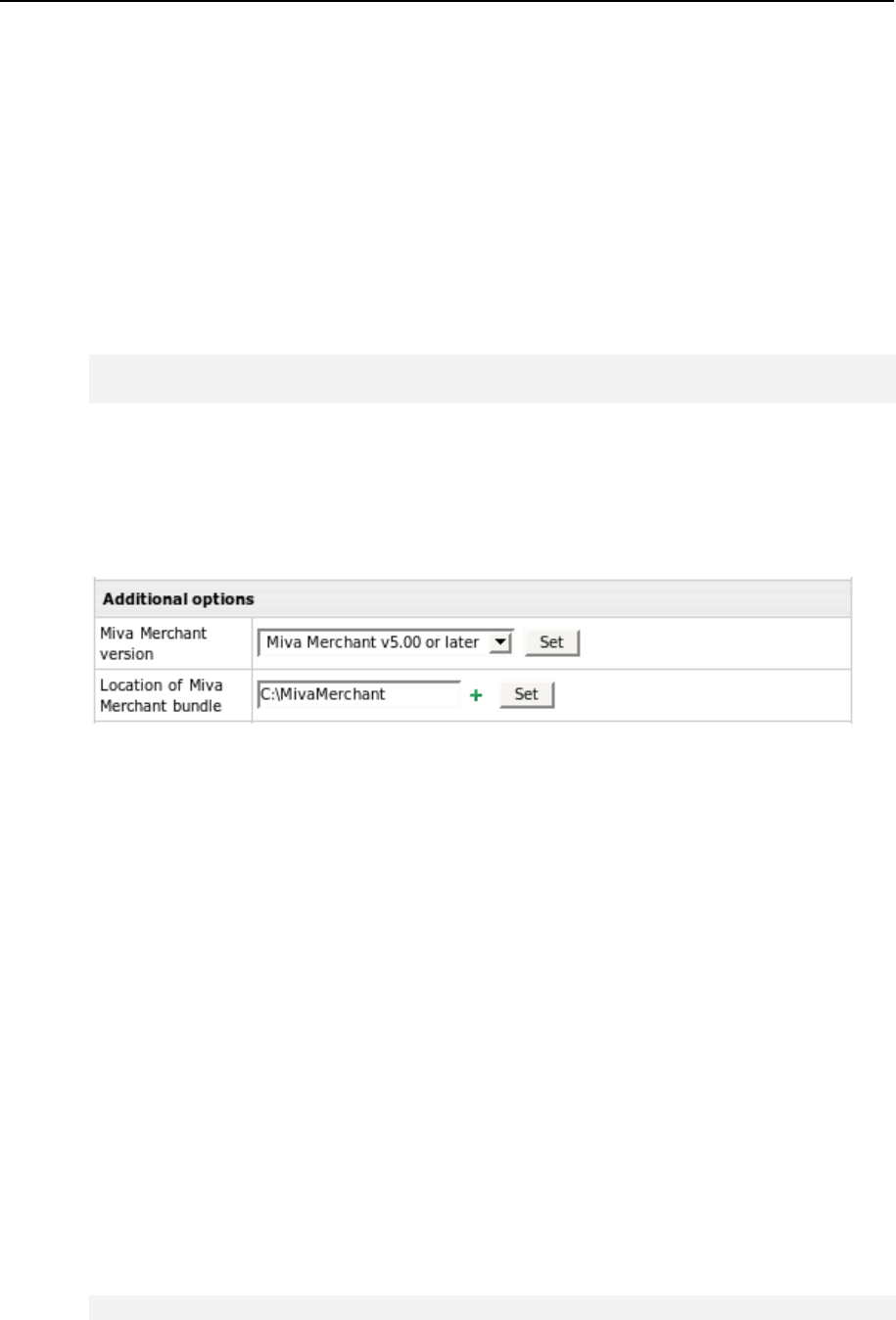
Miva 395
Miva Merchant Installation
To install Miva Merchant:
1. Log into the web server as root.
2. Copy file Merchant-vY.YY-bundle.tar.gz to
/hsphere/shared/miva. vY.YY is Miva Merchant version.
3. Create a link to Merchant-vY.YY-bundle.tar.gz:
ln -s /hsphere/shared/miva/Merchant-vY.YY-bundle.tar.gz
Merchant-bundle
4. In the admin control panel, select Globals in the Plans menu and make
sure Miva Empresa Engine and MIVA Resource are enabled.
5. Select L.Servers in the E.Manager -> Servers menu, then click the web
server, and at the bottom of the page that appears select the version of
Miva Merchant:
6. If you have more than one web server, repeat the above steps for all
web servers where you want to have Miva installed.
7. Log into your admin Control Panel, select Miva Merchant Lic. in the 3rd party
Tools menu and enter your Miva Merchant licenses:
Notes:
Login and Password for Miva admin interface are the same as for FTP unless a
user has activated the original Miva Merchant setup.
If Miva is enabled, the user can't remove the cgi-bin directory and CGI handler with
the .cgi extension in Parallels H-Sphere.
mivadata and all its content is not removed when Miva resource is removed.
To make Miva work via SSL (htpps), an SSL certificate is required. If a user cannot
connect to Miva site by SSL (https://), log into your Miva Merchant control panel via
http, go to the Domain Settings page -> Site configuration tab and check secure
URLs.
You can install two instances of Miva on one logical server, one version 4.12 and
older, the other 4.14 or later.
To enable Miva Merchant Follow Symlinks in mivaroot and stddatadir, you
need to add the following line into the miva.conf file:
securityoptions=15
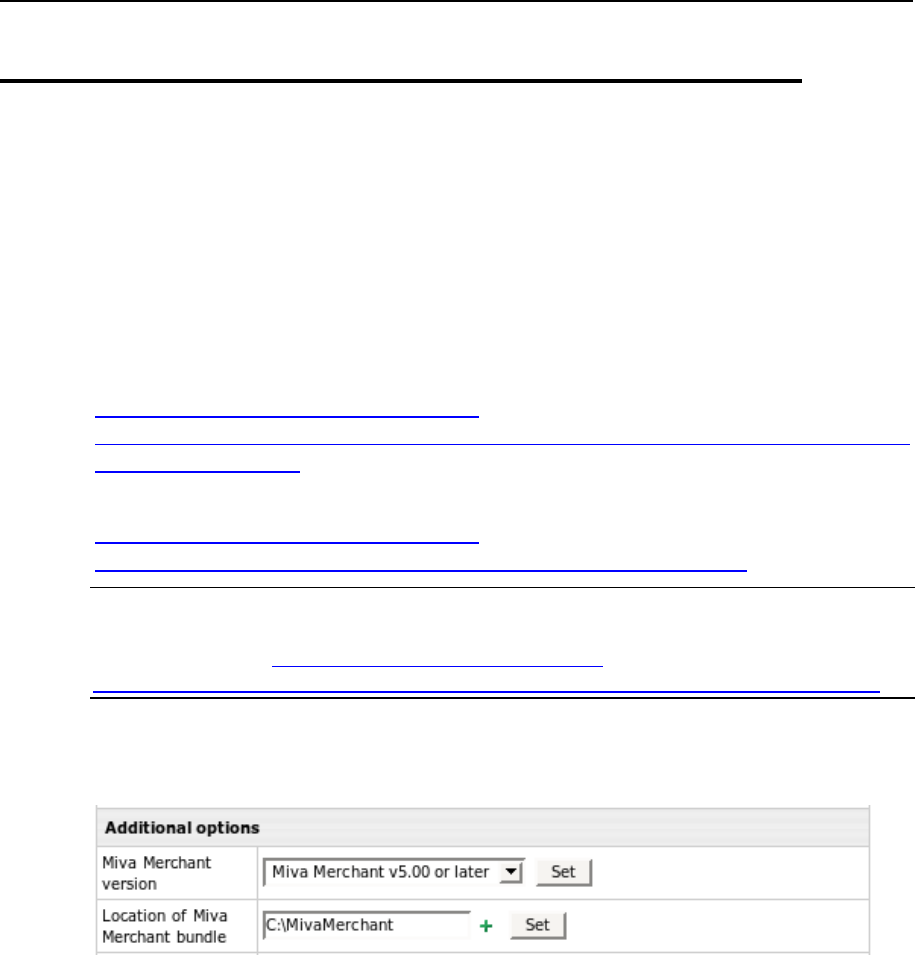
396 Miva
Miva Installation for Windows
It is recommended to install Miva products prior to Parallels H-Sphere Winbox software.
If you choose to do so, simply install Miva Empresa and Miva Merchant following Miva
documentation. Afterwards, install Parallels H- Sphere winbox software, and the
installation wizard will guide you through the Miva configuration procedure.
To install Miva on a running Winbox:
1. Install Miva Empresa VM as described at
http://docs.mivamerchant.com/en-
US/merchant/WebHost/webhelp/install_miva_empresa_vm_on_windows
_2000_server.htm.
2. Install Miva Merchant as described in Miva documentation at
http://docs.mivamerchant.com/en-
US/merchant/WebHost/webhelp/web_host_resources.htm.
Note: Since version 3.1, Parallels H-Sphere supports only Miva 5 for Windows
platforms. If you move to Miva 5 and need to upgrade Miva Merchant stores, follow
the instructions at http://docs.mivamerchant.com/en-
US/merchant/WebHost/webhelp/upgrade_to_merchant_5_from_merchant_4.htm.
3. Go to your admin control panel, select E.Manager -> L.Servers, click the
Windows server, and at the bottom of the page that appears specify the
version of Miva Merchant. Specify also its location on your box:

Miva 397
4. Run Parallels H-Sphere Update Wizard from the administrator control
panel.
5. Optionally, install miva commerce libraries.
6. Log into your admin Control Panel, select Miva Merchant Lic. in the 3rd party
Tools menu and enter your Miva Merchant licenses.
7. Enable Miva in your hosting plans.
Once you have enabled Miva, users can turn them on in their control panels. User's
miva login and password are same as for FTP.
Updating Miva 4 to Miva 5
We do not support Miva 4 and Miva 5 running on the same web server. To upgrade
Miva Merchant and Miva Empresa, you need to uninstall version 4 and then set up
version 5.0.
Since these two versions use different system libraries, customer stores also need to
be updated to Miva 5.
To update the stores, please use Miva tools, as we do not provide any update utilities.
This chapter describes how to install Urchin 4 and Urchin 5 on your Parallels H-Sphere
servers.
Urchin 4 and 5 can be installed on any Parallels H-Sphere *nix server. It does not
require any special configuration and once installed, can poll statistics from all web
servers and winboxes.
In this chapter:
Urchin 4 and 5 Installation on Unix .................................................................... 399
Urchin 4 and 5 Installation on Windows ............................................................. 401
Urchin 4 And Urchin 5 Database Utilities ........................................................... 402
CH A P T E R 26
Urchin

Urchin 399
Urchin 4 and 5 Installation on Unix
To install Urchin:
1. Go to the Urchin home page (http://www.google.com/urchin/index.html)
and click the Download link.
2. Select the installer that most closely matches your platform. The name
of the installer includes the Urchin version and the operating system
type (e.g., urchin4100_redhat6x.sh).
Note: Currently, only versions 5.7.03 and below are supported.
If necessary, upload the installer to a temporary location on the system where you
are installing Urchin. If you are not on the console, telnet (or use ssh if available) to
the system and cd to the directory where the installer is located.
3. From the command line, type the name of the installer. For example:
./urchin4100_redhat7x.sh
This unpacks the files that comprise the installation kit.
4. From the command line, execute the main installation script by typing:
./install.sh
The script prompts you for input as needed; just follow the instructions.
5. Following the instructions of the manual, configure Urchin in the
directory /hsphere/local/urchin.
Note: Urchin port and owner can be set by default (9999, nobody).
6. Create directory /hsphere/local/urchin/var/logs by running:
mkdir /hsphere/local/urchin/var/logs
7. Set directory owner the same as for Urchin on step 5:
chown nobody:nobody /hsphere/local/urchin/var/logs
Important: Make steps 8-12 on all web boxes.
8. Check httpd.conf for Script Alias directive in the shared IP Virtual Host
(usually /hsphere/local/sqwebmail directory). If this directory
doesn't exist - create it with 755 permissions.
9. Copy print-log.pl script from the /hsphere/shared/scripts
directory:
cp /hsphere/shared/scripts/print-log.pl
/hsphere/local/sqwebmail/cgi-bin/
10. Set 755 permissions for this script:
chmod 755 /hsphere/local/sqwebmail/cgi-bin/print-log.pl

400 Urchin
11. Create loglist file:
touch /hsphere/local/sqwebmail/cgi-bin/loglist
12. Set owner and group for this file to httpd:
chown httpd:httpd /hsphere/local/sqwebmail/cgi-bin/loglist
13. In the hsphere.properties file, configure the following variables:
URCHIN_SERVER_ID = [URCHIN_SERVER_ID]
ID of the logical server where Urchin is installed. You can get the logical server
ID in E.Manager
URCHIN_PORT = [URCHIN_PORT]
the port taken by Urchin
URCHIN_SCHEDULER_START = [URCHIN_SCHEDULER_START]
URCHIN_SCHEDULER_FINISH = [SCHEDULER_FINISH]
the hours when statistics is collected. e.g, 2 and 4 means statistics will be
collected between 2 and 4 AM
URCHIN_PROTOCOL = [URCHIN_PROTOCOL]
the protocol to connect to the Urchin control panel, can be http or https. The
default is http
URCHIN_SERVERNAME = [URCHIN_SERVERNAME]
Urchin server URL, should be set in addition to URCHIN_SERVER_ID on
systems with NAT support (on page 29) (the Urchin server in this case has a
local IP). In other cases, you should comment out or skip setting this parameter.
14. Restart Parallels H-Sphere (on page 59) for changes to take effect.

Urchin 401
Urchin 4 and 5 Installation on Windows
1. Install Urchin as instructed by the Urchin Installation Guide (Windows)
at
http://www.google.com/support/urchin45/bin/answer.py?answer=28546&
topic=7372.
2. Log in to Parallels H-Sphere control panel server as root.
3. In the hsphere.properties file, configure the following variables:
URCHIN_SERVER_ID = <LSERVER_ID>
ID of the logical server where Urchin4 is installed
URCHIN_PORT = <SERVER_PORT>
port where Urchin is installed
URCHIN_SCHEDULER_START = <SCHEDULER_START_HOUR>
URCHIN_SCHEDULER_FINISH = <SCHEDULER_STOP_HOUR>
the hours when statistics is collected, e.g. between 2 and 4
URCHIN_PROTOCOL = <PROTOCOL>
the protocol to connect to the Urchin control panel, e.g., http or https.
4. Restart HSphere (on page 59) for changes to take effect.

402 Urchin
Urchin 4 And Urchin 5 Database Utilities
Urchin Database Utilities
Urchin 4/5 installation includes utilities to insert, edit, and delete records in Urchin
database. The only two ways to change data in Urchin internal database are through
Urchin Control Panel or by the means of Urchin database utilities.
The following Urchin database utilities are located in the util subdirectory of the
Urchin installation directory (/hsphere/shared/urchin for Unix, C:\Program
Files\Urchin for Windows):
uconf-import (not used for Parallels H-Sphere Windows accounts) is a utility that
imports XML data to Urchin database. XML data may be transferred to the standard
input or taken from an XML file.
For more details on uconf-import options, see the manual on the Urchin
Documentation Center at http://help.urchin.com/index.cgi?id=1489
uconf-driver (uconf-driver.exe for Windows) is a utility that allows inserting,
deleting or updating database tables.
Visit Urchin Documentation Center for the uconf-driver options at
http://help.urchin.com/index.cgi?id=1051.
Urchin Database Tables
1. Logfile is the table that holds log file locations. In Parallels H-Sphere, Urchin log
files are accessed remotely via HTTP protocol. Log file is returned by the print-
log.pl script.
Here is an example of XML representaion of a Logfile table record:
<Logfile Name="urchin.com">
ct_name=urchin.com
cr_type=remote
ct_loglocation=/hsphere/local/urchin/var/logs/
cr_protocol=http
ct_server=63.212.171.4
ct_port=80
ct_remotelocation=cgi-bin/print-
log.pl?urchin&urchin.com&xgyvijmuxpuad07p1w/nuw==&.gz
cs_logformat=ncsa
</Logfile>
Field description:
Field name
XML Representation
Description
Name
<Logfile
Name="urchin.com
">
Record name, coincides with the domain name
in Parallels H-Sphere.

Urchin 403
ct_name
ct_name=urchin.c
om
The name of a domain where statistics is
collected.
cr_type
cr_type=remote
Type of access to log files; it is always "remote"
in Parallels H-Sphere
ct_loglocati
on
ct_loglocation=/
hsphere/local/ur
chin/var/logs/
On remote access to this directory, log files
with Web boxes' collected statistics are taken.
cr_protocol
cr_protocol=http
Protocol used to access log files; it is always
"http" in Parallels H-Sphere;
ct_server
ct_server=63.212
.171.4
IP of the logical server where log files are
located.
ct_remoteloc
ation
ct_remotelocatio
n= cgi-
bin/print-
log.pl?urchin&ur
chin.com&xgyvijm
uxpuad07p1w/nuw=
=&.gz
Location of log files; in Parallels H-Sphere, it is
set as the URI of a CGI script that collects
statistics from remote log files, with a query
string containing the script parameters.
cs_logformat
cs_logformat=ncs
a
Log file format: ncsa for Unix, w3c for
Windows.
2. Profile is a table used to access statistics in the form of charts, diagrams, etc.
Here is an example of XML representation of a Profile table record:
<Profile Name="urchin.com">
ct_name=urchin.com
ct_website=http://urchin.com
ct_reportdomains=urchin.com,www.urchin.com
cs_llist="urchin.com"
</Profile>
Table field description:
Field name
XML Representation
Description
Name
<Profile
Name="urchin.com">
Record name, coinsides with the
domain name in Parallels H-Sphere.
ct_name
ct_name=urchin.com
The name of a domain where
statistics is being collected.
ct_website
ct_website=http://urchi
n.com
Web site URL.
ct_reportdoma
ins
ct_reportdomains=urchin
.com,www.urchin.com
Possible ways to access domain,
domain names separated with
commas
cs_llist
cs_llist="urchin.com"
The domain where log file is located;
this field is used to link this table to the
Logfile table.
3. User is the table where the list of users is stored. User names are identical to
Parallels H-Sphere account names. Access to reports is also set in this table.
Here is an example of XML representation of a Users table record:
<User Name="Urchin">
ct_name=Urchin
404 Urchin
ct_password=USCC|3980261512
cs_rlist="urchin.com"
</User>
Table field description:
Field name
XML Representation
Description
Name
<User Name="Urchin">
Record name, coincides with the domain
name in Parallels H-Sphere.
ct_name
ct_name=Urchin
User name.
ct_passwo
rd
ct_password=USCC|398026
1512
User's password.
cs_rlist
cs_rlist="urchin.com"
The list of available reports.
4. Task is the table that contains tasks for collecting statistics.
Here is an example of XML representation of a Task table record:
<Task Name="urchin.com">
ct_name=urchin.com
cr_frequency=5
cs_hour=4
cs_minute=0
</Task>
Field
name
XML Representation
Description
Name
<Task
Name="urchin.com">
Record name, coincides with the domain name
in Parallels H-Sphere.
ct_name
ct_name=urchin.com
Domain name.
cr_frequ
ency
cr_frequency=5
Task launching frequency; 5 means it would
launch every 24 hours.
cs_hour
cs_minut
e
cs_hour=4,
cs_minute=0
Task launching time.
Parallels H-Sphere supports all versions of RealServer that have ISPHosting support. If
your license does not support ISPHosting, contact your RealServer account
representative to obtain a license key that has the same number of streams and
properly enables ISP hosting.
In this chapter:
RealServer Installation for Unix ......................................................................... 406
RealServer Installation for Windows .................................................................. 412
RealServer Config File Example ........................................................................ 412
CH A P T E R 27
RealServer

406 RealServer
RealServer Installation for Unix
RealServer can be installed on a web box or a separate box with apache.
To install RealServer for Unix:
1. Install RealServer with ISPHosting support on a web box or a separate
box into /hsphere/shared/RealServer as instructed by RealServer
documentation at http://www.realnetworks.com/products/server/. If you
set it up on a web box, specify 8080 port instead of the default 80,
which is used by apache. During the installation, note the following
data, as you will need them on subsequent steps:
RealServer IP
RealServer Admin Port
Administrator Login
Administrator Password
2. Add the following line to the RealServer crontab:
0 7 * * * nice -15
/hsphere/shared/scripts/cron/rmserver_analyze.pl
3. Launch RealServer with the following command:
/hsphere/shared/RealServer/Bin/rmserver rmserver.cfg &
4. Log into your RealServer interface using administrator login and
password. To get there, type this URL in address field of your browser:
http://RS_IP:ADMIN_PORT/admin/index.html
replacing RS_IP and ADMIN_PORT with the RealServer IP and admin port you
were given during the installation.
5. In the left menu, select Server Setup -> Mount Points.
6. In the form that appears, add mount point /shiva/ ->
/hsphere/local/home:
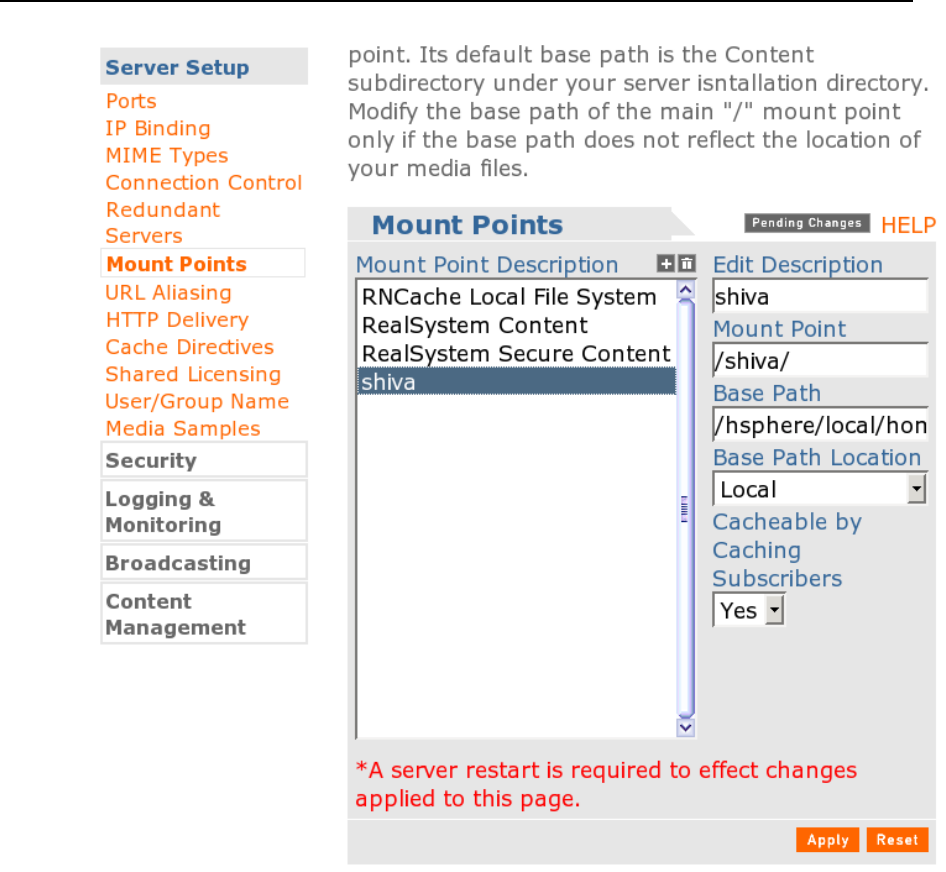
RealServer 407
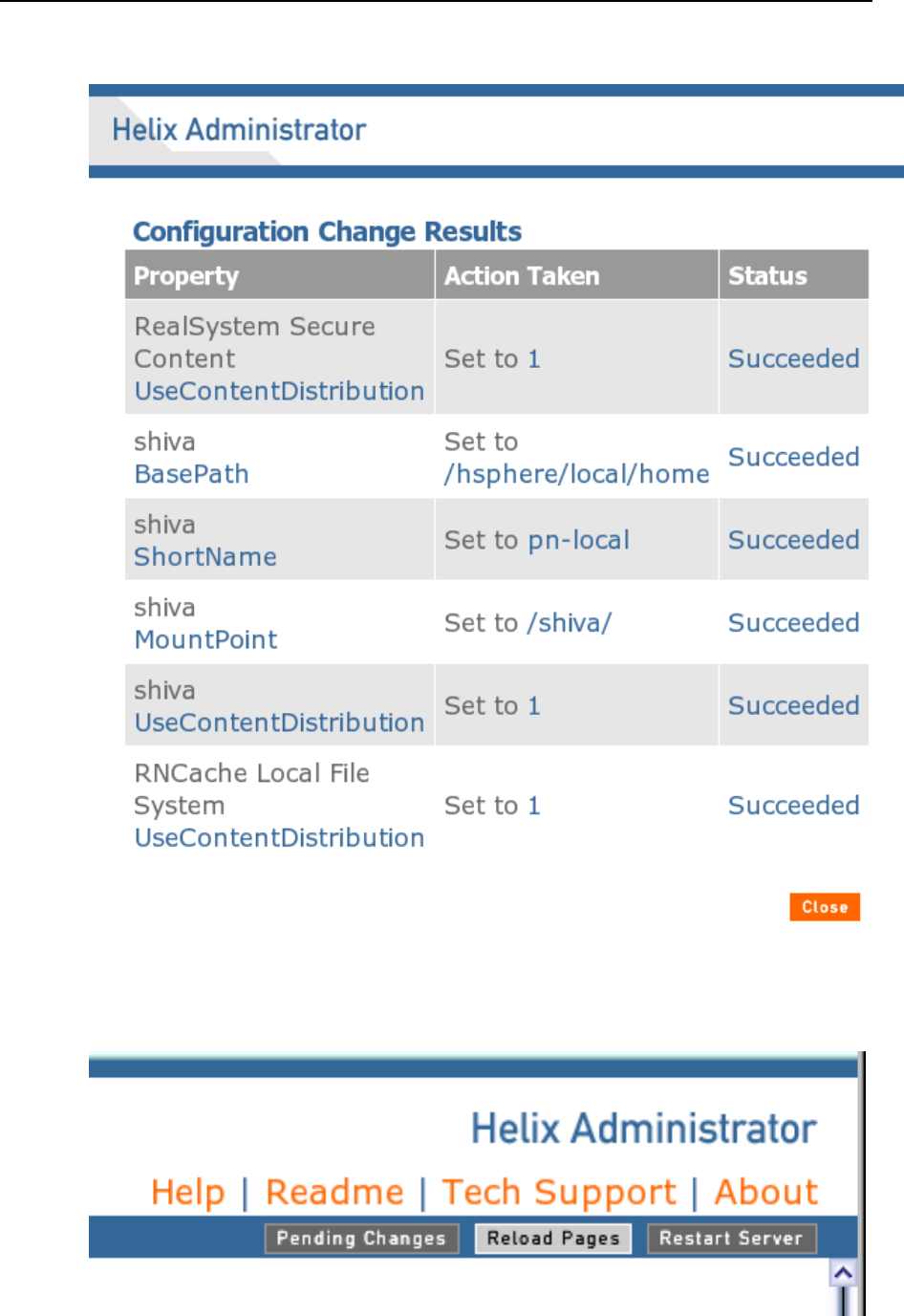
408 RealServer
7. Click Apply. The status window will open:
Close this window.
8. Click Restart Server in the upper right corner of the browser window to
restart RealServer:
RealServer 409
9. Select Content Management -> ISP Hosting in the left menu:
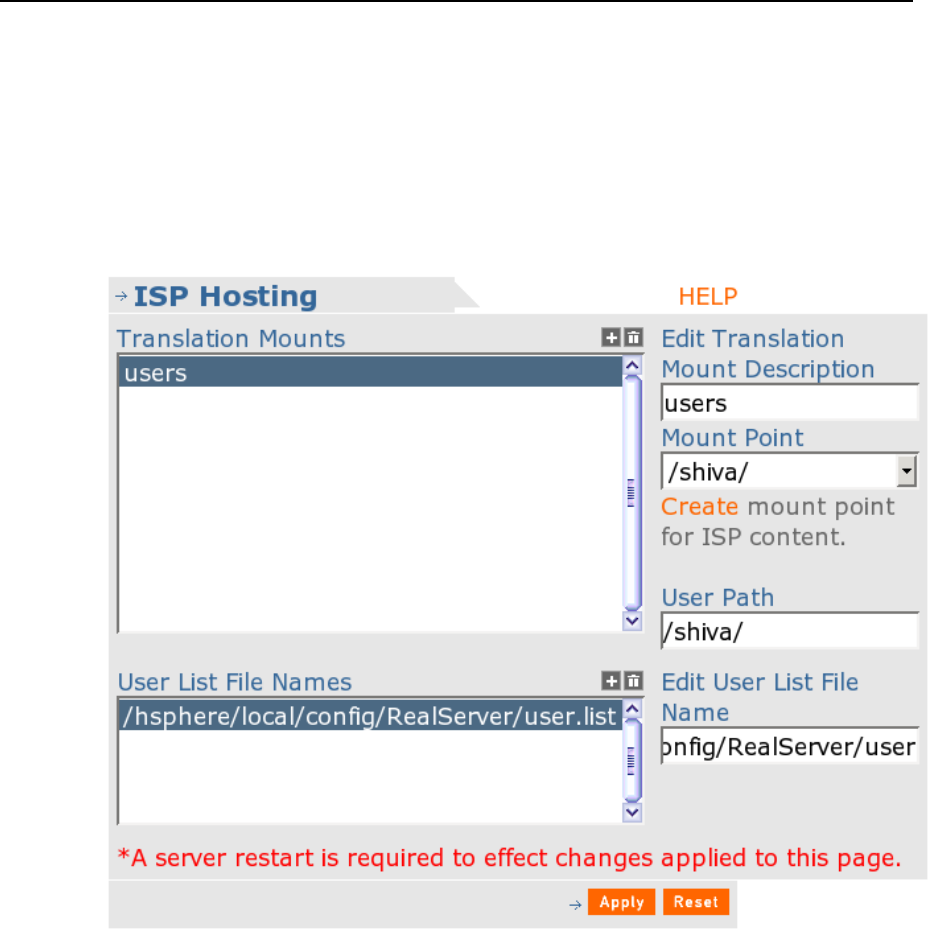
410 RealServer
10. In the ISP Hosting form, add the following settings:
Translation Mounts: user
User List File Name: /hsphere/local/config/RealServer/user.list
Description: users
Mount Point: /shiva/
User Path: /shiva/
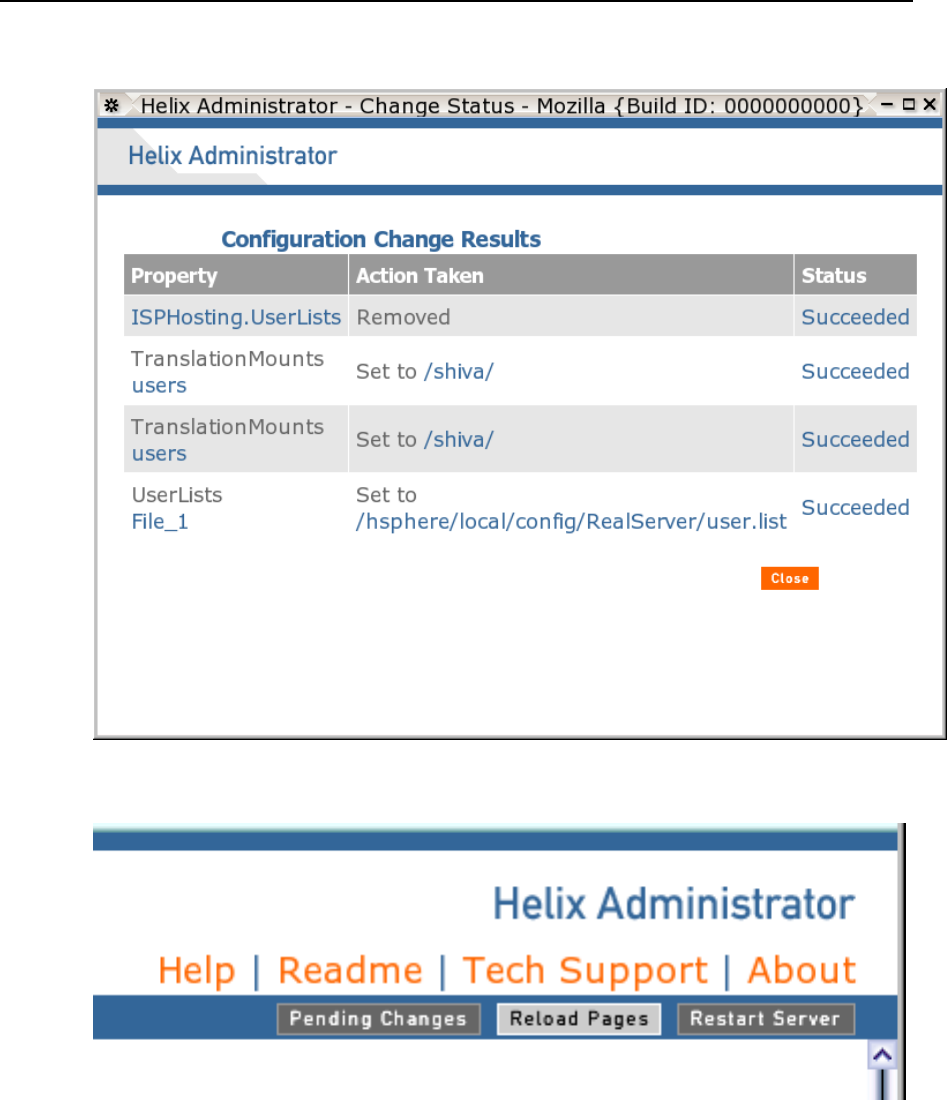
RealServer 411
11. Click Apply. The status window will open:
Close this window.
12. Click About in the upper left corner of the browser window:

412 RealServer
You will get a window with information about your license.
13. Go to the admin control panel and add the box to Parallels H-Sphere as
suggested in Adding Servers Step-By-Step of the Service Administrator
Guide.
14. Now you can proceed to RealServer settings that are not related to
Parallels H-Sphere.
Here is an example of RealServer configuration file:
http://hsphere.parallels.com/HSdocumentation/sysadmin/rmserver.cfg.html.
RealServer Installation for Windows
To install RealServer for Windows:
1. Install RealServer with ISPHosting support
2. Add mount point /shiva/ -> /user's_home_directory
*You can learn your home directory in the conf.inc file, next to the UserHome
line.
3. Restart RealServer.
4. After that, at the ISPHosting page in the Translation Mounts window:
add users (Description: users; Mount Point: /shiva/; User Path: /shiva/)
add user list (Edit User List File Name in the directory where Parallels H-Sphere is
installed: /HSPhere/RealServer/user.list)
RealServer Config File Example
<!-- S Y S T E M -->
<Var ProcessorCount="1"/>
<!-- P A T H S -->
<Var LogPath="/var/hsphere/rmserver/rmaccess.log"/>
<Var ErrorLogPath="/var/hsphere/rmserver/rmerror.log"/>
<Var PidPath="/var/hsphere/rmserver/rmserver.pid"/>
<Var PluginDirectory="/hsphere/shared/RealServer/Plugins"/>
<Var SupportPluginDirectory="/hsphere/shared/RealServer/Lib"/>
<Var LicenseDirectory="/hsphere/shared/RealServer/License"/>
<!-- P O R T S -->
<!--UNIX customers must have root privileges to execute the server -->
<!--with the RTSP port set to 554. -->
<!--The following are the default ports that RealPlayer and -->
<!--RealPlayer Plus clients will connect to for an URL that has -->
<!--no port specified: --> <!-- RTSP: 554 --> <!-- PNM: 7070 -->
<!-- HTTP: 80 (...then 8080 if 80 is unavailable) -->
<Var RTSPPort="554"/>
<Var PNAPort="7070"/>
<Var HTTPPort="8080"/>
<Var MonitorPort="9090"/>

RealServer 413
<Var AdminPort="27781"/>
<!-- P A S S W O R D S -->
<Var MonitorPassword="123456"/>
<!-- A L L O W A N C E -->
<Var ValidPlayersOnly="0"/>
<Var EnableCookieBasedIDs="0"/>
<!-- L O G G I N G -->
<Var LoggingStyle="5"/> <Var StatsMask="3"/>
<!-- L I V E A R C H I V I N G -->
<List Name="LiveArchive">
<List Name="*">
<Var TargetDirectory="/Archive/"/>
<Var BandwidthNegotiation="0"/>
<Var FileSize="0"/>
<Var FileTime="0m0h0d"/>
<Var NoArchive="0"/>
</List>
</List>
<!-- H T T P S U P P O R T -->
<List Name="HTTPDeliverable">
<Var Path_0="/admin"/>
<Var Path_1="/ramgen"/>
<Var Path_2="/farm"/>
<Var Path_3="/httpfs"/>
<Var Path_4="/viewsource"/>
</List>
<!-- <Var Path_0="/scalable"/> -->
<!-- M I M E T Y P E S -->
<List Name="MimeTypes">
<List Name="text/html">
<Var Ext_1="html"/>
<Var Ext_2="htm"/>
</List>
<List Name="audio/x-pn-realaudio">
<Var Ext_1="ram"/>
</List>
<List Name="image/gif">
<Var Ext_1="gif"/>
</List>
<List Name="image/jpg">
<Var Ext_1="jpg"/>
<Var Ext_2="jpeg"/>
</List>
</List>
<!-- A U T H E N T I C A T I O N -->
<List Name="AuthenticationRealms">
<List Name="SecureAdmin">
<Var Realm="ultra.shiva.AdminRealm"/>
<List Name="BasicAuthenticator">
<Var PluginID="rn-auth-basic"/>
<Var DatabaseID="Admin_Basic"/>
</List>
</List>
<List Name="SecureEncoder">
<Var Realm="ultra.shiva.EncoderRealm"/>
<List Name="RN5Authenticator">
<Var PluginID="rn-auth-rn5"/>
<Var DatabaseID="Encoder_RN5"/>
</List>
</List>

414 RealServer
<List Name="SecureContent">
<Var Realm="ultra.shiva.ContentRealm"/>
<List Name="RN5Authenticator">
<Var PluginID="rn-auth-rn5"/>
<Var DatabaseID="Content_RN5"/>
</List>
</List>
</List>
<!-- C O M M E R C E -->
<List Name="CommerceRules">
<List Name="SecureUserContent">
<Var ProtectedVirtualPath="/secure"/>
<Var Realm="ultra.shiva.ContentRealm"/>
<!-- <Var UseGUIDValidation="True"/ -->
<Var EvaluatePermissions="0"/>
<Var DatabaseID="Content_RN5"/>
<!-- <Var AllowDuplicateIDs="True"/ -->
</List>
<List Name="SecureG2LiveContent">
<Var ProtectedVirtualPath="/encoder/secure"/>
<Var Realm="ultra.shiva.ContentRealm"/>
<!-- <Var UseGUIDValidation="True"/ -->
<Var EvaluatePermissions="0"/>
<Var DatabaseID="Content_RN5"/>
<!-- <Var AllowDuplicateIDs="True"/ -->
</List>
<List Name="SecurePreG2LiveContent">
<Var ProtectedVirtualPath="/live/secure"/>
<Var Realm="ultra.shiva.ContentRealm"/>
<!-- <Var UseGUIDValidation="True"/ -->
<Var EvaluatePermissions="0"/>
<Var DatabaseID="Content_RN5"/>
<!-- <Var AllowDuplicateIDs="True"/ -->
</List>
<List Name="SecurePlayerContent">
<Var ProtectedVirtualPath="/secure/player"/>
<Var UseGUIDValidation="0"/>
<Var EvaluatePermissions="0"/>
<Var DatabaseID="PlayerContent"/>
<!-- <Var AllowDuplicateIDs="True"/ -->
</List>
</List>
<List Name="GUIDRegistrationPrefixes">
<List Name="PlayerContentRegistration">
<Var GUIDRegistrationPrefix="register"/>
<Var DatabaseID="PlayerContent"/>
</List>
</List>
<!-- D A T A B A S E S -->
<List Name="Databases">
<List Name="Admin_Basic">
<Var PluginID="rn-db-flatfile"/>
<Var Path="/hsphere/shared/RealServer/adm_b_db"/>
</List>
<List Name="Encoder_RN5">
<Var PluginID="rn-db-flatfile"/>
<Var Path="/hsphere/shared/RealServer/enc_r_db"/>
</List>
<List Name="Content_RN5">
<Var PluginID="rn-db-flatfile"/>

RealServer 415
<Var Path="/hsphere/shared/RealServer/con_r_db"/>
</List>
<List Name="PlayerContent">
<Var PluginID="rn-db-flatfile"/>
<Var Path="/hsphere/shared/RealServer/con_p_db"/>
</List>
</List>
<!-- V I E W S O U R C E -->
<List Name="ViewSourceConfiguration">
<Var ViewSourceLongName="View Source Tag FileSystem"/>
<List Name="/">
<Var AllowViewSource="1"/>
<Var HidePaths="1"/>
</List>
</List>
<!-- C O N T E N T B R O W S I N I G -->
<List Name="ContentBrowsing">
<List Name="BrowsableMountPoints">
<Var Mount_1="/"/>
<Var Mount_2="/shiva/"/>
</List>
<List Name="IndexExtensions">
<Var Ext_1="*"/>
</List>
</List>
<!-- F I L E S Y S T E M S -->
<!-- ---------------------- -->
<List Name="FSMount">
<!-- Local File System; Media -->
<List Name="RealSystem Content">
<Var ShortName="pn-local"/>
<Var MountPoint="/"/>
<Var BasePath="/hsphere/shared/RealServer/Content"/>
</List>
<!-- Local File System; Secure Media -->
<List Name="RealSystem Secure Content">
<Var ShortName="pn-local"/>
<Var MountPoint="/secure/"/>
<Var BasePath="/hsphere/shared/RealServer/Secure"/>
</List>
<!-- Local File System; HTML -->
<List Name="RealSystem Administrator HTML">
<Var ShortName="pn-local"/>
<Var MountPoint="/admin/html/"/>
<Var
BasePath="/hsphere/shared/RealServer/RealAdministrator"/>
</List>
<!-- Local File System; DOCS -->
<List Name="RealSystem Administrator DOCS">
<Var ShortName="pn-local"/>
<Var MountPoint="/admin/Docs/"/>
<Var
BasePath="/hsphere/shared/RealServer/RealAdministrator/Docs"/>
</List>
<!-- Local File System; IMAGES -->
<List Name="RealSystem Administrator IMAGES">
<Var ShortName="pn-local"/> <Var
MountPoint="/admin/images/"/>
<Var
BasePath="/hsphere/shared/RealServer/RealAdministrator/images"/>

416 RealServer
</List>
<!-- Local File System; JAVAMONITOR -->
<List Name="RealSystem Administrator JAVAMONITOR">
<Var ShortName="pn-local"/>
<Var MountPoint="/admin/JavaMonitor/"/>
<Var
BasePath="/hsphere/shared/RealServer/RealAdministrator/JavaMonitor"/>
</List>
<!-- XML Tag Handler File System -->
<List Name="Real System Administrator SSI">
<Var ShortName="pn-xmltag"/>
<Var MountPoint="/admin/includes/"/>
<Var BaseMountPoint="/admin/html/"/>
<List Name="TagHandlers">
<Var h1="pn-includer"/>
<Var h2="pn-vsrctaghdlr"/>
</List>
</List>
<!-- Admin File System -->
<List Name="RealSystem Administrator Files">
<Var ShortName="pn-admin"/>
<Var MountPoint="/admin/"/>
<Var BaseMountPoint="/admin/includes/"/>
<Var Realm="ultra.shiva.AdminRealm"/>
</List>
<!-- Splitter Broadcast -->
<List Name="Splitter_DoubleURL">
<Var ShortName="pn-splitter"/>
<Var MountPoint="/split/"/>
<Var Port="3030"/>
</List>
<!-- G2 Encoders -->
<List Name="RealSystem G2 Encoders">
<Var ShortName="pn-encoder"/>
<Var MountPoint="/encoder/"/>
<Var Port="4040"/>
<Var EncoderRealm="ultra.shiva.EncoderRealm"/>
</List>
<!-- Pre-G2 Encoders -->
<List Name="Pre-RealSystem G2 Encoders">
<Var ShortName="pn-live3"/>
<Var MountPoint="/live/"/>
<Var Port="5050"/>
<!-- Var Password="123456"/ -->
</List>
<!-- RAM File Generator -->
<List Name="RAM File Generator">
<Var ShortName="pn-ramgen"/>
<Var MountPoint="/ramgen/"/>
</List>
<!-- View Source File system -->
<List Name="View Source File System">
<Var ShortName="pn-vsrcfsys"/>
<Var MountPoint="/vsrcfsys/"/>
</List>
<!-- View Source Tag File System; Source Insertion -->
<List Name="View Source Tag FileSystem">
<Var ShortName="pn-xmltag"/>
<Var MountPoint="/viewsource/"/>
<Var BaseMountPoint="/vsrcfsys/"/>

RealServer 417
<List Name="TagHandlers">
<List Name="ViewSource Tag Handler">
<Var ShortName="pn-vsrctaghdlr"/>
</List>
</List>
</List>
<!-- General Ad Insertion -->
<List Name="General Ad Insertion">
<Var ShortName="pn-xmltag"/>
<Var MountPoint="/adtag/general/"/>
<Var BaseMountPoint="/"/>
<List Name="TagHandlers">
<List Name="Ad Tag Replacement Plugin">
<Var ShortName="rn-adtaghandler"/>
<Var AdRetrievalMountPoint="/httpfs/"/>
<Var AdPlaybackMountPoint="/httpfs/"/>
<Var
AdURL="http://www.real.com/ads/g2ads_def.html"/>
<Var Rotate="0"/> <Var Bitrate="4000"/>
<Var Interval="30"/> <Var
RotationMountPoint="/shellfs/"/>
</List>
</List>
</List>
<!-- Banner Ad SMIL Generation -->
<List Name="Banner Ad SMIL Generation">
<Var ShortName="pn-smilgen"/>
<Var MountPoint="/smilgen/banner/"/>
<Var BaseMountPoint="/"/>
<Var Layout="AdBottom"/>
<Var OuterPadding="5"/>
<Var InnerPadding="5"/>
<Var BGColor="black"/>
<Var AdType="Banner"/>
<Var EnablePlaylist="0"/>
<Var AdWidth="468"/>
<Var AdHeight="60"/>
</List>
<!-- Lead-in Ad SMIL Generation -->
<List Name="Lead-in Ad SMIL Generation">
<Var ShortName="pn-smilgen"/>
<Var MountPoint="/smilgen/leadin/"/>
<Var BaseMountPoint="/"/>
<Var Layout="AdCenter"/>
<Var OuterPadding="5"/>
<Var InnerPadding="5"/>
<Var BGColor="black"/>
<Var AdType="Leadin"/>
<Var EnablePlaylist="0"/>
<Var AdWidth="468"/>
<Var AdHeight="60"/>
</List>
<!-- Continuous Rotating Banner Ad SMIL Generation -->
<List Name="Continuous Rotating Banner Ad SMIL Generation">
<Var ShortName="pn-smilgen"/>
<Var MountPoint="/smilgen/rbanner/"/>
<Var BaseMountPoint="/"/>
<Var Layout="AdBottom"/>
<Var OuterPadding="5"/>
<Var InnerPadding="5"/>

418 RealServer
<Var BGColor="black"/>
<Var AdType="RotatingBanner"/>
<Var EnablePlaylist="0"/>
<Var AdWidth="468"/>
<Var AdHeight="60"/>
</List>
<!-- HTTP File System -->
<List Name="HTTP File System">
<Var ShortName="pn-http"/>
<Var MountPoint="/httpfs/"/>
<Var ConnectionTimeout="10"/>
<Var ServerTimeout="10"/>
<Var MangleCookies="0"/>
</List>
<!-- RealSystem Shell File System -->
<List Name="RealSystem Shell File System">
<Var ShortName="pn-shell"/>
<Var MountPoint="/shellfs/"/>
<Var AdRetrievalMountPoint="/httpfs/"/>
<Var AdPlaybackMountPoint="/httpfs/"/>
</List>
<List Name="Users">
<Var MountPoint="/shiva/"/>
<Var BasePath="/hsphere/local/real/home/"/>
<Var ShortName="pn-local"/>
</List>
</List>
<!-- C A C H I N G -->
<Var TSPort="7802"/>
<Var TSEnable="1"/>
<Var TSLog="1"/>
<Var TSLogPath="/hsphere/shared/RealServer/Logs/cache.log"/>
<!-- M U L T I C A S T -->
<List Name="Multicast">
<List Name="ControlList">
<List Name="100">
<Var Allow="Any"/>
</List>
</List>
<Var RTSPPort="554"/>
<Var PNAPort="7070"/>
<Var DeliveryOnly="0"/>
<Var Resend="1"/>
<Var TTL="16"/>
</List>
<List Name="MediaExportInterface">
<Var LogFile="/hsphere/shared/RealServer/Logs/cache.log"/>
<Var LoggingEnabled="1"/>
<Var TransferSize="2048"/>
<Var Enabled="1"/>
<Var ListenPort="7878"/>
<Var ChainingID="007b4603"/>
<Var Tracemask="0x0"/>
<Var LogFormat="MEI1"/>
<Var Timeout="120"/>
</List>
<Var CloakingHint="1"/>
<Var Capacity="10000"/>
<Var PlusOnly="0"/>
<Var MaxBandwidth="0"/>

RealServer 419
<Var User="%-1"/>
<Var RTSPMessageDebug="0"/>
<Var LiveFileBandwidthNegotiation="0"/>
<Var MonitorConnections="4"/>
<Var Group="%-1"/>
<Var MinPlayerProtocol="0"/>
<Var ClientConnections="0"/>
<List Name="ISPHosting">
<List Name="TranslationMounts">
<List Name="users">
<Var UserPath="/shiva/"/>
<Var MountPoint="/shiva/"/>
</List>
</List>
<List Name="UserLists">
<Var File_2="/hsphere/local/config/RealServer/user.list"/>
</List>
</List>

Softaculous (http://www.softaculous.com/) is an auto installer of web applications. It is a
third-party software that can be installed on H-Sphere-managed web servers. Only
UNIX boxes are supported.
In this chapter:
Softaculous Installation for Unix ........................................................................ 421
CH A P T E R 28
Softaculous

Softaculous 421
Softaculous Installation for Unix
There are two steps in Softaculous installation. First you need to install Softaculous on
each UNIX box. This process is described in documentation provided by Softaculous.
At the second step, you should enable Softaculous support in H-Sphere.
To install Softaculous:
1. Enable PHP and set PHP 5 as default PHP version on all Unix web
servers on page Enterprise Manager / Physical Servers / <unix server> /
“Physical Server Parameters” button / PHP Configuration.
2. Follow the Softaculous installation instructions and install Softaculous
on each of the UNIX boxes separetely. Installation should be done in
the directory <apache_default_document_root>, value can be
found in config files
/hsphere/shared/apache/conf/lservers/web_<service_id>.conf
/hsphere/shared/apache2/conf/lservers/web_<service_id>.conf
, depending on apache version.
Normally <apache_default_document_root> setting is
/hsphere/shared/apache/htdocs.
3. Enable Softaculous in H-Sphere:
Log into your CP server as the cpanel user (see page 71).
Open hsphere.properties file:
vi ~cpanel/shiva/psoft_config/hsphere.properties
Uncomment the Softaculous settings as displayed below:
SOFTACULOUS_URL=softaculous/
SOFTACULOUS_ADMIN_URL=softaculous-admin/
, where SOFTACULOUS_URL and SOFTACULOUS_ADMIN_URL is the path on
UNIX box document root to Softaculous user and administrator interface
respectively.
Open the config file allow_access.properties:
vi ~cpanel/shiva/psoft_config/allow_access.properties
Allow access to H-Sphere XML API from the Unix boxes where Softaculous has
been enabled. Add the following line:
ACCESS_ALLOW = <client_ip1>;<client_ip2>;<...>
(see page
http://www.psoft.net/HSdocumentation/devel/hs_xml_api_security.html#access_
allow for details)
Restart the H-Sphere control panel (see page 59).
4. Log in as a site administrator and verify that Softaculous button is
displayed on page Enterprise Manager / Logical Servers / <Logical
server> / Additional options.

422 Softaculous
5. Log in as a site user and verify that Softaculous button is displayed on
page Web Options.
