Parallels H Sphere 3.6.3 Customization Guide Hsphere Custom Eng
User Manual: parallels H-Sphere - 3.6.3 - Customization Guide Free User Guide for Parallels H-Sphere Software, Manual
Open the PDF directly: View PDF  .
.
Page Count: 130 [warning: Documents this large are best viewed by clicking the View PDF Link!]
Printed on 11 December, 2013
Parallels H-Sphere 3.6.3 Customization
Guide

Legal and Copyright Notice
Parallels IP Holdings GmbH
Vordergasse 59
CH-Schaffhausen
Switzerland
Phone: +41-526320-411
Fax: +41-52672-2010
Copyright © 2012 Parallels IP Holdings GmbH. All rights reserved.
www.parallels.com
This product is protected by United States and international copyright laws. The product’s
underlying technology, patents, and trademarks are listed at
http://www.parallels.com/trademarks.
Microsoft, Windows, Windows Server, Windows NT, Windows Vista, and MS-DOS are
registered trademarks of Microsoft Corporation.
Linux is a registered trademark of Linus Torvalds.
Mac is a registered trademark of Apple, Inc.
All other marks and names mentioned herein may be trademarks of their respective owners.

Contents
Preface 6
Typographical Conventions ........................................................................................................... 6
Feedback ....................................................................................................................................... 7
Introduction To Parallels H-Sphere Customization 8
Template Customization 10
Understanding Parallels H-Sphere Templates ............................................................................ 11
What Are Templates ......................................................................................................... 11
Location of Templates ....................................................................................................... 11
System E-Mail Notification Templates .............................................................................. 11
Skeletons ........................................................................................................................... 12
Web Interface Templates .................................................................................................. 12
Designs ............................................................................................................................. 14
Replacements ................................................................................................................... 14
Template Directory Structure ............................................................................................ 14
Template Lookup Sequence ............................................................................................. 15
Customizing Templates Step by Step ......................................................................................... 16
Pre-Cautions ..................................................................................................................... 16
Pre-Requisites ................................................................................................................... 16
Step-By-Step Template Customization Procedure ........................................................... 16
Compiling Templates With Client-Side Form Validation ............................................................. 18
Customizing Skeleton Templates ................................................................................................ 19
Adding Context Help Pages ........................................................................................................ 19
System E-Mail Templates ........................................................................................................... 21
Customizing User Signup ............................................................................................................ 24
Design Customization 30
Skin And Icon Set Customization ................................................................................................ 31
Design XML Customization ............................................................................................... 31
Implementation of Custom Design Templates .................................................................. 32
Design XML Configuration .......................................................................................................... 34
Icons .................................................................................................................................. 34
Skill Icon Groups ............................................................................................................... 35
Icon Image Sets ................................................................................................................ 36
Common Images ............................................................................................................... 37
Color Types ....................................................................................................................... 37
Designs ............................................................................................................................. 38
Interface Controls And Colors in Templates ............................................................................... 40
Interface Colors ................................................................................................................. 41
Adding Custom Icons .................................................................................................................. 42
Menu Customization 45
Menu XML Customization ........................................................................................................... 46
Changing Menu Structure ........................................................................................................... 46
Location ............................................................................................................................. 46
XML Structure ................................................................................................................... 47
Modifying Menu Groups And Items ................................................................................... 47
4
Configuring Individual Menu Layouts For Different Hosting Plans ................................... 48
Assigning External Links to Menu Items ........................................................................... 49
Menu Design Customization ....................................................................................................... 51
Interface Text Customization (Language Bundles) 54
Understanding Interface Text (Language) Bundles .................................................................... 55
Interface Text Customization ....................................................................................................... 57
Language Bundle Compiler ......................................................................................................... 58
Localization 61
Adding New Languages To Parallels H-Sphere .......................................................................... 62
Translating Language Bundles ......................................................................................... 62
Adding New Language Bundles Into Parallels H-Sphere ................................................. 63
With packages ................................................................................................................... 63
Compiling bundles ............................................................................................................. 63
Changing Language of Context Help .......................................................................................... 65
Updating Translation of Parallels H-Sphere Interface ................................................................. 66
XML Customization 67
Merging XML Configuration Files ................................................................................................ 68
XML Manager .............................................................................................................................. 70
XML Manager Implementation .......................................................................................... 70
XML Merge Processing Instructions ................................................................................. 72
Creating Plan Wizards with XML ................................................................................................. 74
Introduction ........................................................................................................................ 74
Adding a New Wizard to the List of Plan Wizards............................................................. 75
Defining Plan Wizard ......................................................................................................... 75
Adding Custom CP Cron Jobs .................................................................................................... 80
CP Cron XML Configuration .............................................................................................. 82
Adding Custom Promotion Validators and Calculators ............................................................... 84
Adding Custom MS Exchange Plans into Parallels H-Sphere .................................................... 87
Customizing E-Mail Notification List ............................................................................................ 90
Using Variables in Parallels H-Sphere E-Mail Notifications .............................................. 92
Packages 108
Building Packages ..................................................................................................................... 109
Step 1. Preconfiguration .................................................................................................. 110
Step 2. Configuration ...................................................................................................... 112
Step 3. Package Builder .................................................................................................. 114
Building Language Packages .................................................................................................... 114
Java Tools For Packaging ......................................................................................................... 116
Package Configurator ..................................................................................................... 117
Package Builder .............................................................................................................. 119
Package Installer ............................................................................................................. 119
Package Uninstaller ........................................................................................................ 120
Package Checker ............................................................................................................ 120
Package XML Configuration File (_pkg.xml) ............................................................................. 121
Template Customization With Packages .................................................................................. 123
XML Customization With Packages .......................................................................................... 125
Package Installation .................................................................................................................. 126
Package Uninstallation .............................................................................................................. 127
Package Upgrade ...................................................................................................................... 128


In this chapter:
Typographical Conventions ............................................................................... 6
Feedback .......................................................................................................... 7
Typographical Conventions
Before you start using this guide, it is important to understand the documentation
conventions used in it.
The following kinds of formatting in the text identify special information.
Formatting convention
Type of Information
Example
Special Bold
Items you must select,
such as menu options,
command buttons, or
items in a list.
Go to the System tab.
Titles of chapters,
sections, and subsections.
Read the Basic
Administration chapter.
Italics
Used to emphasize the
importance of a point, to
introduce a term or to
designate a command line
placeholder, which is to be
replaced with a real name
or value.
The system supports the
so called wildcard
character search.
Monospace
The names of commands,
files, directories, and
domain names.
The license file is located
in the
http://docs/common/
licenses directory.
CH A P T E R 1
Preface

7
Preformatted
On-screen computer
output in your command-
line sessions; source code
in XML, C++, or other
programming languages.
# ls –al /files
total 14470
Preformatted
Bold
What you type, contrasted
with on-screen computer
output.
# cd /root/rpms/php
CAPITALS
Names of keys on the
keyboard.
SHIFT, CTRL, ALT
KEY+KEY
Key combinations for
which the user must press
and hold down one key
and then press another.
CTRL+P, ALT+F4
Feedback
If you have found a mistake in this guide, or if you have suggestions or ideas on how to
improve this guide, please send your feedback using the online form at
http://www.parallels.com/en/support/usersdoc/. Please include in your report the
guide‟s title, chapter and section titles, and the fragment of text in which you have
found an error.

There are the following tiers of Parallels H-Sphere control panel customization:
Basic interface settings can be configured through the control panel. The Look and Feel
menu allows to set skins and colors, images and icons, and some interface texts.
Advanced interface customization is what goes beyond the scope of the Control Panel
settings. It is performed on the Parallels H-Sphere CP server by designers and
programmers with administrative rights, in order to create or modify Parallels H-
Sphere interface elements.
Parallels H-Sphere Packages (.hsp) are installable addons that extend H-Sphere
functionality. This is a way to share custom elements between Parallels H-Sphere
installations. Third parties can use it to develop and distribute packages that add
new or extend/override standard Parallels H-Sphere functionality. Documentation
on building packages is introduced in Parallels H-Sphere Developer Guide.
This Customization Guide explains how to customize the following Parallels H-Sphere
elements:
Customizable
Elements
Description
Templates
Design and control patterns for dynamic HTML
generation. They are to be modified if you need to
restructure the layout of certain pages of the Control
Panel interface, or to change the look of the Control
Panel header and footer.
System E-Mail
Notifications
A special type of templates used to generate standard
email notifications sent by Parallels H-Sphere.
Context Help
A special type of templates to generate context help
for certain elements of the Control Panel interface.
GUI Texts
Standard messages and labels that appear on the
interface pages are placed in the special configuration
files and may be set for different languages.
Localization
Adding new languages to the interface and modifying
language files with interface texts in different
languages.
CP Menu
Generating and modifying control panel menus and
submenus and adding external links to the menu.
GUI Design
(Skins And Icon
Parallels H-Sphere interface design has a broader
meaning than just configuration of certain color
CH A P T E R 2
Introduction To Parallels H-Sphere
Customization
9
Sets)
schemes and the corresponding icon sets, what is
called the skin. It also determines the set of skins
available for this design, specifies the sets of icons in
the Quick Access page and enables to override the
standard settings with the custom ones.
CP Crons
Parallels H-Sphere utilities regularily executed on the
Control Panel server.
Plan Wizards
Custom plan wizards defined and configured in XML
documents.
Merchant
Gateways
The media for making real-time payments with online
credit card processing centers automatically from the
CP.
Web Payment
Systems
The media for making payments manually from the
web interface of the payment systems.
Signup Forms
Generating custom signup forms to sign up users
aside from the standard signup procedure provided in
Parallels H-Sphere, as well as modifying the standard
signup pages.
Warning:
1. Advanced customization may produce unpredictable results after updating Parallels
H-Sphere, since updates affect the template structure and the page generation.
2. Advanced customization performed by Parallels H-Sphere customers is done at their
own risk and is not supported by the Parallels.
This section explains how to customize Parallels H-Sphere templates.
In this chapter:
Understanding Parallels H-Sphere Templates ................................................... 11
Customizing Templates Step by Step ................................................................ 16
Compiling Templates With Client-Side Form Validation ..................................... 18
Customizing Skeleton Templates ...................................................................... 19
Adding Context Help Pages .............................................................................. 19
System E-Mail Templates .................................................................................. 21
Customizing User Signup .................................................................................. 24
CH A P T E R 3
Template Customization

11
Understanding Parallels H-Sphere
Templates
What Are Templates
Parallels H-Sphere templates lay behind the Parallels H-Sphere Control Panel Web
interface. For the most part, templates are written using Freemarker Java processing
language for dynamic content generation.
Location of Templates
Template root directory
Parallels H-Sphere template root directory is by default ~cpanel/shiva/shiva-
templates. It is set by the TEMPLATE_PATH parameter in the
~cpanel/shiva/psoft_config/hsphere.properties file:
TEMPLATE_PATH = /hsphere/local/home/cpanel/shiva/shiva-
templates/
Default (common) design directory
Design, or skin, is the Control Panel GUI representation. Each design is defined by its
own sets of templates, images, CSS styles, JavaScripts, etc. The most important part
of GUI, templates, are placed in separate subdirectories of the template root directory
in accordance with a design they belong to. The special common subdirectory is used
to store templates that are the same for different designs. Also, this directory contains
templates for the Left Menu design which is the default Parallels H-Sphere design. The
path to this directory, relative to TEMPLATE_PATH, is set in hsphere.properties:
DEFAULT_TEMPLATES = common/
Important: Common template directory must always exist!
Custom template directory
Custom template directory is usually ~cpanel/shiva/custom/templates. Its
location is set in hsphere.properties:
USER_TEMPLATE_PATH=/hsphere/local/home/cpanel/shiva/custom/te
mplates/
Custom templates directory structure should correspond with the default template root
directory (shiva-templates) tree. However, you should be aware that templates in
the custom template directory override the corresponding templates in the default
template directory, thus all modifications and new features in existing default templates
coming with new Parallels H-Sphere releases would be also overriden by custom
templates. Therefore, only customized templates should be placed to your custom
template directory.
System E-Mail Notification Templates

12
System email notifications templates are used to generate standard Parallels H-Sphere
e-mail messages sent to customers or to admins on certain events related to account
management, billing, and the like. It is made possible to edit these messages directly
from Control Panel, in plain text or HTML and for each of the available languages,
without the need of customizing the default templates.
E-mail templates are located in the ~cpanel/shiva/shiva-
templates/common/mail directory and have .txt extension. See the list of the
system e-mail templates (on page 21).
Skeletons
Skeleton templates, or skeletons, are special templates designed to generate user
default sites for newly created domains in corresponding domain subdirectories of user
home directories. Skeleton templates are written in HTML (without Freemarker
instructions) and located in the /hsphere/shared/skel directory. See how to
modify default skeletons (on page 19).
Web Interface Templates
Templates for generating Control Panel interface pages are of the following types:
main templates
control templates
submit templates
function templates
special purpose templates
context help page templates
Main Templates
Main, or basic, templates are templates for generating the entire Web page in CP. The
code of a main template represents a framework that contains calls of functions (on
page 21) for generation of the page header, menu and footer, and includes control
templates for processing forms.
Main templates are .html files located in the ~cpanel/shiva/shiva-
templates/<design>/ directories for each design (on page 21).
Control Templates
Contol templates, or controls, are responsible for generation and management of forms
in the working area of Parallels H-Sphere interface. They represent the part of HTML
code included in the main templates.
Control templates are with or without form field validation mechanism implemented:
Client-side form validation: .html.in templates provide client-side form validation.
They need to be compiled to apply changes made in them. The corresponding .html
templates are generated as the result of compilation of .html.in templates of the
same name. Thus, if there is a pair of .html and .html.in templates with the
same name, it is recommended to modify the .html.in template and then to
recompile it. Read more about compiling templates with client-side validation (on
page 18).

13
No field validation mechanism is implemented in .html templates that do not have the
initial .html.in templates of the same name. Changes in .html templates take
effect immediately.
Control templates are located in the ~cpanel/shiva/shiva-
templates/<design>/control directories for each group of main templates.
Control templates assign submit templates that do not have visual HTML
representation and serve solely to process form submits.
Submit Templates
Submit templates do not have visual representation. They contain instructions to be
performed upon the form submit. These templates provide server-side validation of
submitted data and scenarios of subsequent actions if submit is successful or if an
error occurs. Submit template files have .sbm extension.
Function Templates
These templates contain collections of functions (or macros) used in other templates,
for example, for drawing menu, footer and header.
~cpanel/shiva/shiva-templates/common/functions - generic macro
collection, Does not depend on designs.
~cpanel/shiva/shiva-templates/<design>/menu.fn - functions for drawing
menu for a particular design.
~cpanel/shiva/shiva-templates/<design>/design.fn - functions for
drawing interface elements for a particular design (implemented for common and
XPressia/XPressia Lite designs)
~cpanel/shiva/shiva-templates/<design>/extra.fn - extra functions.
~cpanel/shiva/shiva-
templates/common/control/signup_function.html - functions for signup
templates.
Templates For Special Purposes
There are some Web interface templates that do not fall into any of the above
mentioned categories. They are designed for special tasks such as to draw a menu on
the left, or the page header or footer, or login page, etc. Some special purpose
templates are located in the ~cpanel/shiva/shiva-
templates/<design>/design/ directory, some like signup_top.html.in or
signup_bottom.html in the ~cpanel/shiva/shiva-
templates/<design>/signup directory. There is no general classification for such
templates.
Context Help Templates
Context help templates are special templates for generating online help message in
popup windows. Each context help template has its topic header and body. They can
be modified as usual Parallels H-Sphere templates.
Online help files are located in the ~cpanel/shiva/shiva-
templates/common/online_help directory. They have .oh extension and contain
the text in HTML format. See the instructions how to add context help pages to
Parallels H-Sphere interface (on page 19). Also read about context help in different
languages (on page 65).

14
Designs
Design, or skin, is the Control Panel GUI representation. It provides a different look of
menu (left menu or dropdown menu on the top, or no menu present at all), CSS styles,
colors and images, and the Quick Access page with icon links to different CP pages.
These are basic Parallels H-Sphere designs whose templates are located in the
corresponding design template directories of ~cpanel/shiva/shiva-templates
(referred to as <design> in the document):
common - the left-menu design (Left Menu in CP). All core templates are made for this
design scheme. Other templates that do not depend on design, inlcuding online
help templates (on page 11) and system e-mail notification templates (on page 11),
are also located there.
nomenu - the design with no left menu (No Menu in CP). It is turned on as the default
user design after the Parallels H-Sphere installation.
text_based is the alternative look of the No Menu design (Text-Based in CP) where only
captions with no icons are provided in the Quick Access menu page.
xcp - the XPressia design with dropdown menus, extensive use of CSS styles and
other advancements.
xcpl - the XPressia Lite design, a simpler and faster implementation of XPressia.
reloaded - the XP Reloaded design introduced in H-Sphere 3.0.
If a certain template is not found for a particular design, Parallels H-Sphere gets that
template in the common directory.
The default design configuration file design_config.xml is located in the
~cpanel/shiva/psoft/hsphere/ directory.
Replacements
Replacements are templates that override basic templates for particular plans.
Replacements‟ root directory for each design is the ~cpanel/shiva/shiva-
templates/<design>/replacements directory. Replacements are located in
separate subdirectories specified in plan settings as the Template Directory parameter,
relative to the replacement directory.
Parallels H-Sphere first searches for a template in the
<design>/replacements/<plan> directory which has the same structure as the
<design> directory. If the template is not found, it starts to look for it in the <design>
directory. Read more about template lookup sequence (on page 11).
Template Directory Structure
~cpanel/shiva/shiva-templates/<design> - template directory for one of the
Parallels H-Sphere basic designs.
~cpanel/shiva/shiva-templates/common/JS - JavaScript functions (used
for all designs)
~cpanel/shiva/shiva-templates/<design>/design - contains templates for
special purposes such as login page, password reminder page, header and footer
templates and the like.
~cpanel/shiva/shiva-templates/<design>/CSS - CSS styles for a design.

15
~cpanel/shiva/shiva-templates/<design>/<subdir> - main templates are
placed into separate subdirectories, according to their tasks, e.g., admin,
billing, MSSQL, etc.
~cpanel/shiva/shiva-templates/<design>/control/<subdir> -
corresponding control templates.
~cpanel/shiva/shiva-templates/<design>/submit/<subdir> - corresponding
submit templates.
~cpanel/shiva/shiva-templates/<design>/replacements/ - template
replacements for different types of plans.
~cpanel/shiva/shiva-templates/<design>/replacements/<plan>/<subdir>
- template replacements overriding templates in corresponding subdirectories for
that design. directory.
~cpanel/shiva/shiva-
templates/<design>/replacements/control/<resources> - control templates
for corresponding replacements.
~cpanel/shiva/shiva-
templates/<design>/replacements/submit/<resources> - submit
templates for corresponding replacements.
Template Lookup Sequence
1. Parallels H-Sphere searches for a template of a particular design first in
the custom template directory in replacements, then, if the template is
not found there, it proceeds to the corresponding default template
directory:
~cpanel/shiva/custom/templates/<design>/replacements/
~cpanel/shiva/shiva-templates/<design>/replacements/
2. If the template is not found in replacements, Parallels H-Sphere
searches in the design directory, first in among the custom templates,
then amonng the corresponding default templates:
~cpanel/shiva/custom/templates/<design>/
~cpanel/shiva/shiva-templates/<design>/
3. If the template is not found for this design, the search continues in the
same sequence in the common design template directory:
~cpanel/shiva/custom/templates/common/replacements/
~cpanel/shiva/shiva-templates/common/replacements/
~cpanel/shiva/custom/templates/common/
~cpanel/shiva/shiva-templates/common/

16
Customizing Templates Step by Step
This document will guide you through the generic step-by-step instruction on
customizing templates. This implies you are already familiar with the concept of
templates (on page 11) in Parallels H-Sphere.
It is possible to create and install packages of templates. Read more about template
packages in Developer Guide.
Pre-Cautions
1. Advanced customization may produce unpredictable results after
updating Parallels H-Sphere, since updates affect the template
structure and the page generation.
2. Advanced customization performed by Parallels H-Sphere customers is
done at their own risk and is not supported by the PSoft team.
3. Template customization affects ALL Parallels H-Sphere accounts, regardless of their
plans!
In terms of Parallels H-Sphere customization, only two types of accounts are
customized, regardless of plans: admin accounts which are Parallels H-Sphere
administrative accounts, and user accounts - all other accounts. Reseller accounts
are regarded as user accounts, except for the reseller administrative account which
relates to the admin account type.
Pre-Requisites
Before you do any customization, log into CP server under root as the cpanel (on
page 130) user.
Make sure templates have the cpanel:cpanel ownership. Mind, however, that
images, CSS and JavaScript files and directories have cpanel:httpdcp
ownership and you must not change their ownership to cpanel:cpanel. Parallels
H-Sphere updater checks and automatically sets correct ownership and
permissions on respective default and custom files and directories (this does not
refer to Parallels H-Sphere packages).
Note: We don‟t recommend changing manually the ownership and permissions of
default templates!
The make directive which is performed to rebuild *.html templates should be run
ONLY under cpanel.
Do not use whitespaces in the template filenames!
Do not make any changes to the default templates, because:
1. You may need them to restore the original setup;
2. You will lose all your changes with the next upgrade.
Instead, follow the step-by-step instructions specified below.
Step-By-Step Template Customization Procedure
17
1. On the CP server, log in as the cpanel (on page 130) user.
2. In the ~cpanel/shiva/ directory, create the custom template
directory custom/templates/ if it doesn‟t exist.
3. In the ~cpanel/shiva/psoft_config/hsphere.properties file,
find the USER_TEMPLATE_PATH parameter. Here, the full to your
custom template directory must be specified:
USER_TEMPLATE_PATH=/hsphere/local/home/cpanel/shiva/custom/te
mplates/
The directory name must end with a slash. Don‟t do anything if the directory name
is already there.
Warning: Don‟t change the TEMPLATE_PATH variable in hsphere.properties!
TEMPLATE_PATH points to the default template directory. If you change it, you
won‟t see any updates in the default templates.
4. Copy the templates you would like to customize into
shiva/custom/templates/, preserving their file paths relative to
this directory.
For instance, if you are going to customize the ~cpanel/shiva/shiva-
templates/path_to_template/FILE,
copy it to ~cpanel/shiva/custom/templates/path_to_template/FILE.
The original configuration can be restored without server restart by simply deleting
your custom files from the custom template directory.
Warning: Don‟t copy the whole directory content! Your custom templates will
override the default templates and you won‟t see the new features and bugfixes that
come with new versions!
5. Modify the templates you have copied to the
~cpanel/shiva/custom/templates/ directory.
The following documents will be helpful:
Interface Controls and Colors (on page 40)
Skin and Icon Set Customization (on page 31)
Edit Interface Texts (on page 57)
Important:
1. We don‟t recommend inserting the interface text directly into the templates. Use
text labels defined in language bundles (on page 55) to ensure multilingual
support.
2. Parallels H-Sphere uses the Unicode (UTF-8) charset for all languages.
Therefore, text directly inserted into templates (i.e., not by means of text labels
defined in language bundles) must be in the UTF-8 encoding.
6. Restart Parallels H-Sphere (on page 130).

18
Compiling Templates With Client-Side
Form Validation
There are two types of templates that are responsible for generating Control Panel web
content:
*.html.in templates with client-side form validation that require compilation
before modifications in them would take effect, and
*.html templates that provide server-side form validation and don‟t need to be
recompiled after their modification.
This document provides step-by-step instructions on how to compile control panel
templates with the client-side validation of HTML form input fields.
To compile templates with client-side form validation:
1. Log into the control panel server as the cpanel (on page 130)
user.
To implement customization correctly, all template files and directories should have
the cpanel:cpanel ownership.
2. Check settings in
~cpanel/shiva/psoft_config/hsphere.properties:
1. Check the TEMPLATE_PATH parameter. It should point to the default template
directory. Default setting is:
TEMPLATE_PATH = /hsphere/local/home/cpanel/shiva/shiva-
templates/
2. Uncomment the USER_TEMPLATE_PATH parameter and set it to your custom
templates directory, for example:
USER_TEMPLATE_PATH =
/hsphere/local/home/cpanel/shiva/custom/templates/
3. Check the JS (JavaScripts) and IMAGES parameters:
JS =
IMAGES =
By default, JS and IMAGES are left blank. It means that javascripts and images
are placed inside each design directory (on page 11). You don‟t need to change
these parameters if you have default system settings.
3. Go to the default templates directory (DocumentRoot,
~cpanel/shiva/shiva-templates by default). Check parameters in
the configure file:
SHIVA_ROOT - Parallels H-Sphere Control Panel‟s root directory
(~cpanel/shiva by default)
HSPHERE_PROPERTIES - path to the hsphere.properties file.
4. Run ./configure in the templates directory. This will create
Makefile‟s for all of designs.

19
Warning: Running ./configure clean would remove ALL the compiled
templates in the nested directories and delete ALL Makefile‟s created by the
previous configure execution! After that, your control panel interface would not
show up correctly!
5. To compile all modified templates, run make or make all in your
default templates directory (gmake for FreeBSD). If you need just to
modify one template, run make from the directory where this template is
located.
Warning: Running the make clean command from a certain template directory
would clear all the compiled template files (*.html) in the nested directories! After
that, your control panel interface would not show up correctly!
Customizing Skeleton Templates
When an end-user adds a new domain, the system generates initial web site based on
skeleton templates. Skeleton templates are written in HTML. Unlike FreeMarker
templates (on page 10), Skeleton templates are customized right in the directory they
are located.
To modify Skeleton templates:
1. Log in as the cpanel (on page 130) user.
2. Enter the Skeleton template directory:
cd /hsphere/shared/skel
3. Customize the template files directly according to your needs.
Please only pay attention that with each automatic upgrade of web boxes, all the
customizations get lost. So, after performing the customization, backup the templates
into a safe location to get them back working after performing box upgrades.
Adding Context Help Pages
Context help (or online help) is implemented through special templates, each with a
topic header and a body. Context help files are located in the
/hsphere/local/home/cpanel/shiva/shiva-
templates/common/online_help directory. They have .oh extension and contain
text in HTML format. Context help may be implemented in different languages (on page
65).
To add a new context help page to Parallels H-Sphere interface:
1. Log into the CP server as the cpanel (on page 130) user.
2. Create an online help file and put it anywhere inside
~cpanel/shiva/shiva-templates/common/online_help/. You
can create new subdirectories for your files where necessary.

20
3. In ~cpanel/shiva/psoft/hsphere/online_help.xml, add an
id/file correspondence, where file is the path and filename of the context
help file, and id is the string that will be used in the template.
4. Find the template where the context help icon will be added. The
easiest way to find the name of the template is to view html page
source code. The templates you need are located in
~cpanel/shiva/shiva-templates/common/control/. More
about templates (on page 11)
5. Add context help function call to the template. The function call has the
following syntax:
<call draw_help(“HELP_ID”,”LABEL”)>
where HELP_ID is the id of the file specified in
~cpanel/shiva/psoft/hsphere/online_help.xml, and LABEL is the
description used as the title in the html link.
If the second parameter is left empty, the default text (“Click to get help”) is
used. For example:
<call draw_help(“admin-emanager-l_availableforsignup”,””)>
Alternatively, you can call the function that draws help PLUS gives a link to send a
trouble ticket:
<call draw_tt_help(“RESOURCE_ID”, “HELP_ID”, “LABEL”)>
6. In plan creation and edit wizard templates, context help file IDs are
passed with resource calls:
<call service(TAG,PARENT,STRMOD,CAN_ENABLED,OH_ID)>
where OH_ID is the id of the file specified in
~cpanel/shiva/psoft/hsphere/online_help.xml. For example:
<call service(“asp”, “hosting”,””,”1”,”admin-editwizard-
w_asp”)>
7. If the edited template is in *.html.in format, run make in this
template‟s directory.
8. Restart Parallels H-Sphere (on page 130).
21
System E-Mail Templates
System e-mail notifications are messages Parallels H-Sphere automatically sends to
customers.
It is possible to edit system emails in the admin CP interface, in the
Settings/Notifications/E-Mail Notifications menu (see Parallels H-Sphere Administrator
Guide for details). Both default messages and messages in each interface language
can be customized there. Custom modifications are stored in the Parallels H-Sphere
database and do not affect the system email templates. On the contrary, default
settings can be restored from the templates.
This document explains where to find the default system email templates and how to
customize them.
Note: Support info and checks info is modified in the Settings -> Look and Feel -> Misc.Text
menu by filling in the Customer Support Info and Checks Info forms.
Important: It is strongly recommended not to touch the default system email
templates; instead, you should edit notifications in the administrator‟s Control Panel to
be able to restore default texts from the templates.
Here is the list of default templates for system email messages (located in the
~cpanel/shiva/shiva-templates/common/mail/ directory) that can be
customized via CP interface:
Template
Filename
Notification Sent
Welcome
Letter
new_account.txt
to customer on account
activation
Welcome
Letter for
Moderated
Accounts
new_account_moderated.txt
to customer on
moderated check
account registration
(accounts waiting
activation)
Welcome
Letter For
Moderated
Account
with CC
new_account_moderated_cc.
txt
to customer on
moderated credit card
registration
Welcome
Letter For
Moderated
Trial
Account
trial_moderated.txt
to customer on
moderated trial account
registration
Trial
Registration
trial_account.txt
to customer on account
trial period expiration

22
Invoice
invoice.txt
to customer: - on each
paid operation
- at the beginning of
the next billing period
- on switching to
another billing period
Money Back
money_back.txt
to admin when a user
chooses to cancel
hosting and wants
his/her money back
Overlimit
Notification
overlimit.txt
to customers when
they reach traffic or
disk usage limit
Account
Suspended
Notification
suspended_account.txt
to customers when
their accounts get
suspended
Account
Resumed
Notification
resumed_account.txt
to customers when
their accounts get
suspended
Accounting
Error letter
accounting_error.txt
to admin on accounting
error
Lost
Password
forgot_passwd.txt
to customers after they
enter their email
address on the “forgot
your password” page
Failed
Signup
Notification
you_have_files_signups.tx
t
to admin when
customer signup fails
Domain
Transfer
Message
tranfer_domain.txt
to customers
explaining how to
transfer an external
domain
Internal
Ticket
ticket_internal.txt
to admin in case of
internal problems
Shell
Access
Notificaton
ssh_notification.txt
to the customer when
Shell Access is granted
or refused (disabled)
Welcome
Letter (Tax
Exemption)
new_account_tax_exemption
.txt
to new customers
awaiting approval of
their Tax Exemption
Codes

23
Tax
Exemption
Approved
Notification
(Moderated
Accounts)
tax_exemption_approved_ne
w.txt
to new customers
signed up to tax
exemption plan,
awaiting moderation
Tax
Exemption
Rejected
Notification
(Moderated
Accounts)
tax_exemption_rejected_ne
w.txt
to new customers
signed up to tax
exemption plan, on
failing to verify tax
exemption data
Tax
Exemption
Approved
Notification
(Live
Accounts)
tax_exemption_approved.tx
t
to customers on tax
exemption approval
Tax
Exemption
Rejected
Notification
(Live
Accounts)
tax_exemption_rejected.tx
t
to customers on failing
to verify tax exemption
data
Below is the list of templates for standard texts sent as mass mail. Messages in these
templates cannot be customized via Parallels H-Sphere interface:
Template
Filename
Notification Sent
Welcome Letter
welcome.txt
optionally from mass
mail
User login and
password
login_psw.txt
optionally from mass
mail
User balance
balance.txt
optionally from mass
mail

24
Customizing User Signup
This document explains how to modify standard user signup (order) forms or replace
them with custom forms.
Before you begin signup customization, please note the following:
The default signup forms contain validation scripts. It is recommended that your
custom signup forms also provide a client side validation mechanism (on page 18).
When Parallels H-Sphere server-side validation rejects user data, the user is
redirected to the error page generated based on the template
~cpanel/shiva/shiva-templates/common/signup/end.html, which has
the look and feel of the standard Parallels H-Sphere interface and links to the
STANDARD Parallels H-Sphere signup forms. Normally, you would want to
customize this template to ensure that:
it has the look and feel of your custom signup forms,
it gives a way to go back to the signup forms, then modify and re-submit the
signup data.
The template has been written in FreeMarker, and in order to make changes to its
code, please become familiar with the FreeMarker technology, the documentation
available at http://freemarker.org. The way you customize the page will totally
depend on how you organize your signup forms.
Custom signup fields must match those in the default signup. If more fields are
added in newer versions, you will need to update your custom forms.
Your signup script has to put the collected data into the html fields below and submit
them to the following URL:
<form name=”login” action=”psoft.hsphere.CP” method=”POST”>
or
<form name=”login”
action=”protocol://cp.domain.name:PORT/psoft/servlet/psoft.hs
phere.CP” method=”POST”>.
For example:
<form name=”login”
action=”http://www.psoft.net:8080/psoft/servlet/psoft.hsphere
.CP” method=”POST”>
Note: psoft.hsphere.CP is case sensitive!
Some signup texts can be customized through the control panel from Look And Feel ->
Signup Texts. If you have customized texts through the control panel, they will override
the texts in your custom signup forms, so you may need to remove them.
Signup fields:
Basic (service fields required for signup)
User Contact Info
Billing Info (not used for trial registration)
Credit Cards
Billing Period
25
Domains
Domain Registration
Domain Regisration Contact Info
Basic (service fields required for signup)
Field name
Possible Values
Explanation
_eul_accept
“1”
Accept terms of End User License
Agreement
_mod
“signup” - transfer domain,
“opensrs” - domain
registration,
“nodomain” - stopgap
domain,
“3ldomain” - third level
domain,
“service” - service domain,
“empty” - signup without
domain
Signup mode
action
“signup”
Service parameter
plan_id
numeric
Number of the plan for signup
signup
“yes”
Service parameter
login
alphanumeric
user login
password
alphanumeric
user password
password2
alphanumeric
Confirm user password
template_name
“submit/signup/end.sbm”
(“submit/signup/end_osrs
.sbm” for Domain registration)
The so-called submit template
located in the
~cpanel/shiva/shiva-
templates/common directory
and used to perform server-side
form validation.
admin_signup
“yes” - if we sign user up from
the admin panel
Service parameter
User Contact Info
Field name
Possible Values
Explanation
_ci_first_name
alphanumeric
User‟s first name
_ci_last_name
alphanumeric
User‟s last name
_ci_address1
alphanumeric
User‟s address 1
_ci_address2
alphanumeric
User‟s address 2
_ci_city
alphanumeric
User‟s city of residence
_ci_company
alphanumeric
User‟s company name
_ci_country
alphanumeric
User‟s country code
_ci_email
alphanumeric
User‟s contact e-mail address
_ci_phone
numeric
User‟s phone number
26
_ci_postal_code
numeric
User‟s zip code
_ci_state
e.g.: “NY”; “NA” for
non US or Canada
residents.
User‟s state code. In the custom form for non
US or Canada residents, you should add this
field as hidden.
_ci_state2
alphanumeric
User‟s state or province for non US and
Canada residents. Should be present in the
custom form only in case _ci_state=‟NA‟.
_promo_code
alphanumeric
PROMO code for subsidized plan. Contains
2-20 chars and starts from the letter.
Billing Info (not used for trial registration)
Field name
Possible Values
Explanation
_bi_first_nam
e
alphanumeric
User‟s first name
_bi_last_name
alphanumeric
User‟s last name
_bi_address1
alphanumeric
User‟s address 1
_bi_address2
alphanumeric
User‟s address 2
_bi_city
alphanumeric
User‟s city of residence
_bi_company
alphanumeric
User‟s company name
_bi_country
alphanumeric
User‟s country code
_bi_email
alphanumeric
User‟s contact e-mail address
_bi_phone
numeric
User‟s phone number
_bi_postal_co
de
numeric
User‟s zip code
_bi_state
e.g.: “NY”; “NA” for non US
or Canada residents.
User‟s state code. In the custom form
for non US or Canada residents, you
should add this field as hidden.
_bi_state2
alphanumeric
User‟s state or province for non US or
Canada residents. Should be present in
the custom form only in case
_bi_state=‟NA‟.
_bi_type
“CC” - credit card,
“Check” - check or
bank transfer,
“PayPal” - PayPal,
“2CheckOut” -
2CheckOut,
“TRIAL”
Payment type
Credit Cards
Field name
Possible Values
Explanation
_bi_cc_name
alphanumeric
Credit card name
_bi_cc_number
numeric
Credit Card number
27
_bi_cc_type
strings available in
the Merchant
Gateway
Manager: “VISA”,
“MC”, etc.
Credit Card type
_bi_cc_exp_month
two digits
the month of Credit Card expiry date
_bi_cc_exp_year
four digits
the year of Credit Card expiry date
Below are the fields for Solo/Switch debit cards used in some countries:
Field name
Possible Values
Explanation
_bi_cc_issues_no
alphanumeric
Issue number
_bi_cc_start_mon
th
two digits
Card Start Month
_bi_cc_start_yea
r
four digits
Card Start Year
Billing Period
Field name
Possible Values
Explanation
_bp
0 or a positive
integer
Sequence number of the billing period in the
list of billing periods for the selected plan. To
see the list of the billing periods, go to your
control panel, click the Settings link for this
plan and scroll down to the Billing
configuration section.
Domains
Field name
Possible Values
Explanation
type_domain
“transfer_new_misc_domain” - transfer
domain without registrar changes
“domain_transfer” - transfer domain with
registrar changes
“without_domain” - stopgap domain
“3ldomain” - third level domain
“service_domain” - service domain
“empty_domain” - signup without domain
“new_opensrs_domain” - register new domain
Type of new domain
_mod
“signup” - transfer domain without registrar
changes
“dtransfer” - transfer domain with registrar
changes. It accepts the same fields as
OpenSRS registration except the period
field and extra contact/billing info for
domain registration.
“nodomain” - stopgap domain
“3ldomain” - third level domain
“service” - service domain
“empty” - signup without domain
“opensrs” - register new domain
Domain registration
mode.
28
domain_name
alphanumeric
Domain name; may be
omitted if
type_domain=”empt
y_domain”
Domain Registration
Field name
Possible Values
Explanation
period
numeric
Registrar‟s periods (years)
_srs_owner_first_nam
e
alphanumeric
User‟s first name
_srs_owner_last_name
alphanumeric
User‟s last name
_srs_owner_address1
alphanumeric
User‟s address 1
_srs_owner_address2
alphanumeric
User‟s address 2
_srs_owner_city
alphanumeric
User‟s city of residence
_srs_owner_org_name
alphanumeric
User‟s company name
_srs_owner_country
alphanumeric
User‟s country code
_srs_owner_email
alphanumeric
User‟s contact e-mail address
_srs_owner_phone
numeric
User‟s phone number
_srs_owner_postal_co
de
numeric
User‟s zip code
_srs_owner_state
e.g.: “NY”; “NA” for
non US or Canada
residents.
User‟s state code. In the custom form
for non US or Canada residents, you
should add this field as hidden.
_srs_owner_state2
alphanumeric
User‟s state or province for non US or
Canada residents. Should be present
in the custom form only in case
_srs_owner_state=‟NA‟.
Domain Registration Contact Info
Field name
Possible Values
Explanation
_srs_billing_first_name
alphanumeric
User‟s first name
_srs_billing_last_name
alphanumeric
User‟s last name
_srs_billing_address1
alphanumeric
User‟s address 1
_srs_billing_address2
alphanumeric
User‟s address 2
_srs_billing_city
alphanumeric
User‟s city of residence
_srs_billing_org_name
alphanumeric
User‟s company name
_srs_billing_country
alphanumeric
User‟s country code
_srs_billing_email
alphanumeric
User‟s contact e-mail address
_srs_billing_phone
numeric
User‟s phone number
_srs_billing_postal_code
numeric
User‟s zip code

29
_srs_billing_state
e.g.: “NY”; “NA” for
non US or Canada
residents.
User‟s state code. In the
custom form for non US or
Canada residents, you should
add this field as hidden.
_srs_billing_state2
alphanumeric
User‟s state or province for
non US or Canada residents.
Should be present in the
custom form only in case
_srs_billing_state=‟NA
‟.
This chapter explains how to customize graphic elements of the Parallels H-Sphere
Web interface.
In this chapter:
Skin And Icon Set Customization ...................................................................... 31
Design XML Configuration ................................................................................. 34
Interface Controls And Colors in Templates ...................................................... 40
Adding Custom Icons ........................................................................................ 42
CH A P T E R 4
Design Customization

Ошибка! Используйте вкладку "Главная" для применения Heading 1 к тексту, который должен здесь отображаться. 31
Skin And Icon Set Customization
Parallels H-Sphere interface design has a broader meaning than just configuration of
certain color schemes and the corresponding icon sets, what is called the skin. It also
determines the set of skins available for this design, specifies the sets of icons in the
Quick Access page and enables to override the standard settings with the custom ones.
To provide multiple design support, Parallels H-Sphere uses the
design_config.xml file, which can be found in the
/hsphere/local/home/cpanel/shiva/psoft/hsphere/ directory. Its structure
is explained in the Design XML Configuration (on page 34) guide.
The current document shows you how to customize this file to add your own designs,
color schemes, colors and images. For this, you need to:
1. customize design_config.xml
2. implement custom design templates
Design XML Customization
A designer should have access to the Parallels H-Sphere server as the cpanel user.
To implement customization correctly, all template files and directories should have
cpanel:cpanel ownership. In version 2.5 and up templates, images, CSS and
JavaScript files and directories must have cpanel:httpdcp ownership.
Important: We don‟t recommend you to modify the default
~cpanel/shiva/psoft/hsphere/design_config.xml file. These modifications
will be lost with the next Parallels H-Sphere updates.
There are the following ways of customizing design XML configuration:
With packages
You can customize design_config.xml by means of packages. In this case, within
a package you create custom XML file that will be merged with default XML
configuration (on page 68).
Merging custom XML configuration
Instead of creating a package, create a custom XML configuration file to be merged
with the default XML configuration (on page 68) and a custom package XML if
installed.
Overrriding default XML configuration with custom XML configuration
1. You create the custom design configuration file and perform
modifications there:
2. Login to the CP server as the cpanel (on page 130) user under root.
3. Copy the standard design_config.xml file to a certain custom
directory (it may be ~cpanel/shiva/custom/xml):
cp ~cpanel/shiva/psoft/hsphere/design_config.xml
~cpanel/shiva/custom/xml/design_config.xml

32 Ошибка! Используйте вкладку "Главная" для применения Heading 1 к тексту, который должен здесь
отображаться.
4. Make changes into the custom design_config.xml structure (on
page 34).
5. In ~cpanel/shiva/psoft_config/hsphere.properties, change the
DESIGN_SCHEME_CONFIG variable to point to this new file:
DESIGN_SCHEME_CONFIG =
/hsphere/local/home/cpanel/shiva/custom/xml/design_config.xml
Implementation of Custom Design Templates
Custom design templates are created in the ~cpanel/shiva/custom/templates
custom template directory. In order to implement these custom designs, the symlinks to
them should be put into the Apache DocumentRoot directory which is set by default to
the ~cpanel/shiva/shiva-templates standard templates directory.
However, on the subsequent Parallels H-Sphere update all symlinks in
~cpanel/shiva/shiva-templates would be lost, and custom designs would not
be displayed correctly.
To avoid this, we suggest to use another directory as DocumentRoot and to create
there the symlinks to ALL design directories, for both custom designs and the Parallels
H-Sphere built-in designs.
Warning: Don‟t change the TEMPLATE_PATH variable in hsphere.properties!
TEMPLATE_PATH points to the default template directory. If you change it, you won‟t
see any updates in the default templates.
1. Log into the CP server as the cpanel (on page 130) user.
2. Create the ~cpanel/shiva/web directory.
3. Create the symlinks to the design directories using the ln -s
command.
You should have something similar to this:
$ pwd
/hsphere/local/home/cpanel/shiva/web
$ ls -la

Ошибка! Используйте вкладку "Главная" для применения Heading 1 к тексту, который должен здесь отображаться. 33
...
lrwxrwxrwx 1 cpanel cpanel 55 Jun 4 08:55 common ->
/hsphere/local/home/cpanel/shiva/shiva-templates/common
lrwxrwxrwx 1 cpanel cpanel 46 Jun 2 13:39 counter ->
/hsphere/shared/SiteStudio/public_html/counter
lrwxrwxrwx 1 cpanel cpanel 47 Jun 2 13:39 custom-images ->
/hsphere/local/home/cpanel/shiva/custom/images/
lrwxrwxrwx 1 cpanel cpanel 50 Jun 2 13:39 custom-templates ->
/hsphere/local/home/cpanel/shiva/custom-templates/
lrwxrwxrwx 1 cpanel cpanel 48 Jun 2 13:40 guestbook ->
/hsphere/shared/SiteStudio/public_html/guestbook
lrwxrwxrwx 1 cpanel cpanel 55 Jun 2 13:42 IMAGES ->
/hsphere/local/home/cpanel/shiva/shiva-templates/IMAGES
lrwxrwxrwx 1 cpanel cpanel 46 Jun 2 13:40 masonry ->
/hsphere/shared/SiteStudio/public_html/masonry
lrwxrwxrwx 1 cpanel cpanel 55 Jun 4 08:55 nomenu ->
/hsphere/local/home/cpanel/shiva/shiva-templates/nomenu
lrwxrwxrwx 1 cpanel cpanel 43 Jun 2 13:40 poll ->
/hsphere/shared/SiteStudio/public_html/poll
lrwxrwxrwx 1 cpanel cpanel 48 Jun 2 13:41 shiva-templates ->
/hsphere/local/home/cpanel/shiva/shiva-templates
lrwxrwxrwx 1 cpanel cpanel 59 Jun 4 08:55 text_based ->
/hsphere/local/home/cpanel/shiva/shiva-templates/text_based
lrwxrwxrwx 1 cpanel cpanel 62 Jun 2 15:19 YourDesign1 ->
/hsphere/local/home/cpanel/shiva/custom/templates/YourDesign1
lrwxrwxrwx 1 cpanel cpanel 62 Jun 2 15:19 YourDesign2 ->
/hsphere/local/home/cpanel/shiva/custom/templates/YourDesign2
Here, the counter, guestbook, masonry, and poll directories are Parallels
SiteStudio-related directories; YourDesign1 and YourDesign2 are custom
design directories.
4. Make the ~cpanel/shiva/web directory in the DocumentRoot
directory. To do this, in the ~cpanel/apache/etc/httpd.conf
Apache configuration file change the DocumentRoot global definition
line:
DocumentRoot “/hsphere/local/home/cpanel/shiva/shiva-
templates”
to the following line:
DocumentRoot “/hsphere/local/home/cpanel/shiva/web”
Then, delete all other instances of the DocumentRoot definition (for virtual hosts) in this
file. Also, delete all DocumentRoot definitions in all configuration files located in the
~cpanel/apache/etc/sites directory.
4. Logout from cpanel back to root and restart Parallels H-Sphere (on page 130).

34 Ошибка! Используйте вкладку "Главная" для применения Heading 1 к тексту, который должен здесь
отображаться.
Design XML Configuration
Parallels H-Sphere design configuration is represented in the design_config.xml
file, which can be found by default in the
/hsphere/local/home/cpanel/shiva/psoft/hsphere/ directory. You can
customize (on page 31) this XML configuration to add your own designs, color
schemes, colors and images.
This document explains all important parts of the design configuration file, including:
Icons
Skill Icon Groups
Icon Image Sets
Common Images
Color Types
Designs (Skins)
Important:
1) Do not make changes into the default XML configuration file! Instead, follow
instructions on design.xml customization (on page 31).
2) Changing design XML configuration implies proper knowledge of XML. Errors in
XML structure may badly damage your Control Panel interface.
Icons
By icon we mean an Parallels H-Sphere control that provides quick access to a certain
functional page of the control panel. All Parallels H-Sphere icons are displayed only on
the Quick Access page, which is based on the quick/quick_view.html template.
icon
An icon description includes the following:
id - the mnemonic system name of the icon
url_param - typically, the name of the base template for the functional page this icon
links to. Multiple url parameters are separated with the & delimiter
rtype - the list of Parallels H-Sphere resource types whose availability determines
whether the icon will be drawn. It may include simple resource types separated by
semicolons and commas in the following way:
res1 - simple resource type, icon will appear if the resource is available;
res1, res2, res3 - group of resources where all of them must be available
to show an icon (operation „AND‟);
res1; res2; res3 - icon will be shown if any of the resources is available
(operation „OR‟). Example: rtype=”webalizer; modlogan; urchin”
res1,res2; res3,res4; res5,res6 - combination of groups where an
icon will be shown if any of the groups: res1,res2 or res3,res4 or
res5,res6 includes both available resources. If translated to C or Java, this
would mean (res1 & res2) || (res3 & res4) || (res5 & res6)

Ошибка! Используйте вкладку "Главная" для применения Heading 1 к тексту, который должен здесь отображаться. 35
platform - operating system (unix|win2k) on which plans using this icon are
based. If platform=unix or platform=win2k, this means that the icon is
displayed for Unix-based or Windows-based plans, respectively. If the platform
attribute is left empty, the icon is available for all plans.
label - mnemonic id of the caption under the icon image. It must be defined in the
hsphere_lang.properties file
tip - mnemonic id of the HTML tooltip of the icon. It must be defined in the
hsphere_lang.properties file
help - reserved for future use.
One icon can have many visual representations. This means that it will have a different
look depending on which icon image set was selected by the user. You can specify
which icon image sets will be available for each individual design, for example:
<allowed_icon_image_sets>
<set id=”wooden”/>
<set id=”square_set”/>
<set id=”cartoon_set”/>
<set id=”bubble_set”/>
</allowed_icon_image_sets>
Skill Icon Groups
In terms of the Parallels H-Sphere interface visual settings, only two types of accounts
are customized, regardless of plans:
admin accounts which are Parallels H-Sphere administrative accounts,
user accounts - all other accounts.
Reseller accounts are regarded as user accounts, except for the reseller administrative
account which relates to the admin account type.
Skill icon groups determine the structure of the icon groups in the Quick Access page for
these two types of accounts and are defined as follows:
<skill_icon_sets account_type=”account_type”>
<skill_set id=”standard”
label=”icon_skill_set.standard_account_type_l”>
<icon_group id=”group_id” label=”icongroups.group_id”>
<icon id=”icon_id1”/>
. . .
</icon_group>
. . .
</skill_set>
<skill_set id=”advanced”
label=”icon_skill_set.advanced_account_type_l”>
<icon_group id=”group_id” label=”icongroups.group_id”>
<icon id=”icon_id1”/>
. . .
</icon_group>
. . .
</skill_set>
<skill_set id=”simplified”
label=”icon_skill_set.simplified_account_type_l”>
<icon_group id=”group_id” label=”icongroups.group_id”>
<icon id=”icon_id1”/>

36 Ошибка! Используйте вкладку "Главная" для применения Heading 1 к тексту, который должен здесь
отображаться.
. . .
</icon_group>
. . .
</skill_set>
</skill_icon_sets>
Account types:
admin for admin accounts
user for user accounts.
Skill set ids are of the following types:
standard for the common (left menu) interface.
advanced for the „no menu‟ interface.
simplified skill set may be chosen for any of the two types of accounts.
Icon groups are defined within the skill_set element structure. The icon group id
attribute corresponds to menu groups, such as Info, FTP, mail, etc., and is a mnemonic
identifier of the icon group (mail, admin_mail, and the like).
icon_group construction enlists the set of icons which are displayed in this icon
group. Each icon is defined in the icons construction described above in the previous
section.
Icon Image Sets
By icon image set we mean the set of icons corresponding to a certain Parallels H-
Sphere color scheme:
<icon_image_sets base_dir=”/IMAGES”>
<icon_image_set id=”image_set_id” label=”iconsets.image_set_id”
dir=”relative_image_set_dir”>
<preview_image file=”/IMAGES/previews/icons_default.gif”
width=”375” height=”60”/>
<image id=”icon_id” file=”filename_with_relative_path” width=”xx”
height=”yy”/>
. . .
</icon_image_set>
. . .
</icon_image_sets>
base_dir attribute defines the directory where the Parallels H-Sphere images, both
standard and custom, are to be stored. Typically, it is the IMAGES directory in the
Apache document root directory (usually, ~cpanel/shiva/shiva-templates).
Note: The base image directory is actually relative to the alternative directory for
images which is located in the document root. This directory is set in the IMAGES
variable in the hsphere.properties file. If it is not set there, base_dir
contains the path relative to the document root.
icon_image_set
The icon_image_set element sets the list of images corresponding to a color
scheme.
Attributes:

Ошибка! Используйте вкладку "Главная" для применения Heading 1 к тексту, который должен здесь отображаться. 37
id attribute refers to mnemonic name of the color scheme. It is default for the default
color scheme; cocoa, bubble and some other schemes go with Parallels H-Sphere
installation, while others may be created manually.
dir is the path relative to the base_dir directory. If it is empty, images are located in
the base images directory.
preview_image
The preview_image tag refers to the preview image appeared in the Parallels H-
Sphere Look and Feel interface when choosing the available design. The following
attributes are determined for the preview image:
file - filename and path to the preview image relative to the document root directory.
width, height - image width and height.
image - image description tag.
Please keep in mind that the image should be set for EACH color scheme. In order to
add a new image, first, add the image definition to the icons tag, and then add image
elements with the same id attribute to EACH icon_image_set element.
The following attributes should be set:
id attribute value refers to the icon described in the icons section.
file is the image filename with the path relative to the icon image set subdirectory of
the image set basic directory.
For example, if base_dir=”/IMAGES” and dir=”wooden”, then images for
wooden scheme will be located in /IMAGES/wooden directory. However, if
dir=””, then, to do so that Parallels H-Sphere would find, let say, a GIF image,
you should set the file attribute as file=”wooden/name_of_the_file.gif”.
width, height - image width and height. Unless these parameters are not changed,
the user custom image would be displayed by Parallels H-Sphere with this width
and height, regardless of the image size parameters.
Common Images
Common images are the set of images that have the same look in all designs, such as,
arrows, bullets, home icon, etc.
The common_images element structure is as follows:
<common_images base_dir=”/IMAGES/”>
<image id=”spacer” file=”spacer.gif” width=”1” height=”1”/>
<image id=”arrow” file=”arrow.gif” width=”22” height=”22”/>
. . .
</common_images>
The base_dir attribute is defined in the same way as for the icon image sets.
The image id attribute is an image mnemonic name used in templates.
Color Types
Color types comprise all possible interface entities for which colors are set: basic text,
background, header, menu, error messages, etc.
The following attributes are present in the color_type tag:
id is a mnemonic color type identifier later used in designs description;

38 Ошибка! Используйте вкладку "Главная" для применения Heading 1 к тексту, который должен здесь
отображаться.
label is a mnemonic id to the caption under which this color type is configured in the
CP interface.
Designs
Design, or skin, is a GUI representation including certain icon image sets and color
schemes. The following designs are included into the default Parallels H-Sphere
installation:
common is the Left Menu design. All basic templates are made for this design
scheme.
nomenu (No Menu) is the design with no left menu. It is turned on as the default user
design after the Parallels H-Sphere installation.
text-based (Text-Based) is the alternative look of the nomenu design where only
captions with no icons are provided in the Quick Access menu page.
xcp, xcpl - XPressia and XPressia Lite are designs with dropdown menus.
reloaded (XP Reloaded) is a left-menu design, default in Parallels H-Sphere 3.1 and
up.
design
Attributes of the design element:
id is a design mnemonic identifier: nomenu, common, text-based, xcp, xcpl,
reloaded.
label is a mnemonic id to the design name in the CP interface.
template_dir is a directory relative to the document root directory where where
template files for this design are located.
default_color_scheme is the default color scheme identifier (see below, the
color_scheme tag description).
preview_image
The preview_image tag defines the design preview image settings. The structure is
the same as for the icon image sets.
colors
The colors element defines all available colors for this design. They are taken by
default for every color scheme. Individual color settings for each color scheme could be
defined in the corresponding color_scheme constructions (see description below).
Color id attribute refers to the color type identifier (see Color types).
base_images
base_images is the set of images that look the same for all color schemes in this
design. The base_images tag structure is the same as for the common images.
image_sets
The image_sets element contains the settings for each image set enabled for this
design. base_dir attribute points to the images directory (usually, IMAGES). The
element includes the following tags:
the set_images element contains the list of images in a standard image
description which are taken by default for this design.

Ошибка! Используйте вкладку "Главная" для применения Heading 1 к тексту, который должен здесь отображаться. 39
the image_set tag contains image definitions for a color scheme to override the
set_images default definitions. Here you may set an alternative directory where
images for this color scheme will be searched, or modify settings so that an image
will be taken from a file different from the default image file. image_set may contain
image tags for images with alternative settings (for example, if the image file name
is different from the default one).
Attributes:
id - identifier for a color scheme (for example, default or cocoa);
label - color scheme label;
dir - alternative image directory relative to the base_dir directory; if it is empty the
image search would be performed in the base_dir directory (usually, IMAGES).
For example, if we need to change the banner.jpg image to banner1.jpg in
the default color scheme so that this image would be searched in the base
directory, the image tag should be inserted into the image_set construction in the
following way:
<image_set id=”default” label=”imagesets.default” dir=””/>
<image id=”banner” file=”banner1.jpg” width=”468”
height=”60”/>
</image_set>
allowed_skill_icon_sets
The allowed_skill_icon_sets tags are used to determine a skill icon set for user
and admin accounts (see Skill icon groups):
<allowed_skill_icon_sets account_type=”user”>
<set id=”standard”/>
</allowed_skill_icon_sets>
allowed_icon_image_sets
The allowed_icon_image_sets tags determine icon image sets that would be
available for each account type (see Icon sets):
<allowed_icon_image_sets account_type=”admin”>
<set id=”default”/>
</allowed_icon_image_sets>
color_scheme
color_scheme sets page colors, image sets and icon image sets in this design.
Attributes:
id - color scheme identifier (for example, blue_haze or default);
label - color scheme label defined in hsphere.properties;
image_set - image set identifier (for example, blue_haze or default);
icon_image_set - icon image set identifier (for example, blue_haze or default).
The color_scheme element may include the color tags to set colors for this color
scheme. If these colors are not set here, default colors would be taken from the
colors tag definition for this design.
Example:
<color_scheme id=”marsh” image_set=”marsh”
icon_image_set=”marsh” label=”imagesets.marsh”>
<color id=”logo_bgcolor” value=”#C9D1CA”/>
. . .
40 Ошибка! Используйте вкладку "Главная" для применения Heading 1 к тексту, который должен здесь
отображаться.
</color_scheme>
Interface Controls And Colors in
Templates
This document introduces basic Freemarker functions related to interface controls
(images, buttons, interface texts, etc.) and interface colors in Parallels H-Sphere
templates.
To generate HTML representation of Parallels H-Sphere control panel, we use Java
and Java-based FreeMarker package. Parallels H-Sphere templates contain calls to
FreeMarker functions, variables, and substitutions. Due to the added support of
multiple designs in user‟s control panel, some of the functions needed to be changed. If
you are using templates that have been developed for Parallels H-Sphere earlier than
2.1, you need to bring parameters in all FreeMarker function calls in line with the
following list:
Inserting HTML images:
<function draw_image(image_id)>
<function draw_image_width(image_id, image_width)>
<function draw_image_alt(image_id, alt_msg)>
<function draw_image_align(image_id, img_align)>
<function draw_image_align_alt(image_id, img_align, alt_msg)>
<function draw_spacer(s__width,s__height)>
Inserting ON/OFF buttons:
<function draw_state(state,toDisableURL,toEnableURL)>
<function draw_state_on(toDisableURL)>
<function draw_state_off(toEnableURL)>
<function draw_off()>
<function draw_on()>
<function draw_on_always()>
Inserting other control images:
<function draw_add(addURL, label)>
<function draw_edit(editURL, label)>
<function draw_delete(deleteURL, label)>
<function draw_change(editURL, label)>
<function draw_select(selectURL, label)>
<function draw_fix(selectURL, label)>
<function draw_setup(selectURL, label)>
<function draw_select_signup(plan)>
<function draw_select_adminsignup(plan)>
<function draw_preview(previewURL, label)>
<function draw_preview_large(previewURL, label)>
<function draw_launch(launchURL, label)>
<function draw_launch_large(launchURL, label)>
<function draw_uninstall(launchURL, label)>
<function draw_credit(jumpURL, label)>
Ошибка! Используйте вкладку "Главная" для применения Heading 1 к тексту, который должен здесь отображаться. 41
<function draw_enlarge_credit(jumpURL, label)>
<function draw_debit(jumpURL, label)>
<function draw_set_period_begin(jumpURL, label)>
<function draw_login_account(loginURL, label)>
<function draw_suspend_account(toSuspendURL, label)>
<function draw_resume_account(toResumeURL, label)>
<function draw_delete_account(toDeleteURL, label)>
<function draw_mail_type(editURL, image_id, label)>
<function draw_mailbox_type(editURL)>
<function draw_mailforward_type(editURL)>
<function draw_mailalias_type(editURL)>
<function draw_maillist_type(editURL)>
<function draw_submit(field_name, image_id)>
<function draw_oscommerce(previewURL, label)>
<function draw_oscommerce_admin(previewURL, label)>
Inserting text labels/messages:
<function draw_colored_label(llabel,lcolor)>
<function draw_colored_label_bold(llabel,lcolor)>
<function draw_label(label)>
<function draw_label_bold(label)>
<function draw_header(header)>
<function draw_important_label(label)>
<function draw_important_header(header)>
Inserting basic link elements (t - target, p - picture, a - alt):
<function draw_link(url,label)>
<function draw_tlink(url,target,label)>
<function draw_plink(url, image_id)>
<function draw_palink(url, image_id, alter)>
<function draw_ptlink(url, target, image_id)>
<function draw_ptalink(url, target, image_id, alter)>
<function draw_onclick_palink(img, onClick, alt)>
Drawing traffic and disk usage charts:
<function draw_load_diagram(d_value, d_limit, d_app_percent,
d_width)>
<function draw_diagram_legend()>
Interface Colors
Designs in Parallels H-Sphere have customizable color schemes. To display interface
elements, we use colors, each having its own id_handle. For example, bgcolor is the
id for the background of the HTML page other than the menu and the header. Its color
can be set in the Look And Feel menu.
To get the RGB value of the color by color_id, the following syntax is used:
${design.color(“color_id”)}
Note: the color_id value must be replaced with an approprate handle and must be
enclosed in double quotation marks.
Some colors are predefined in the functions file:

42 Ошибка! Используйте вкладку "Главная" для применения Heading 1 к тексту, который должен здесь
отображаться.
<assign LIGHT_STRIP=design.color(“table_light_strip”)>
<assign DARK_STRIP=design.color(“table_dark_strip”)>
<assign HEADER_COLOR=design.color(“header_color”)>
<assign ERROR_COLOR = design.color(“error_color”)>
<assign BG_COLOR = design.color(“bgcolor”)>
Use them as follows:
${BG_COLOR}
Adding Custom Icons
To provide multiple design support, Parallels H-Sphere uses the
design_config.xml file, which can be found in the
/hsphere/local/home/cpanel/shiva/psoft/hsphere/ directory. Its structure
is explained in the Design XML Configuration (on page 34) guide.
The current document provides an example of how to customize this file to add your
own custom icons. For this, you need to:
1. Create custom design_config file in custom location that will be merged
with the default XML configuration file (on page 68). Your
design_config.xml should include only differences in relation to the
original Parallels H-Sphere one.
2. As Parallels H-Sphere supports several icon sets, create an icon for
each icon set and include information about this icon location into your
custom design_config.xml. To do this:
1. Declare the url and the image id that will be used for your icon:
<design_config>
<icons>
<icon id=”custom_mail_icon”
url_param=”template_name=email/custom_email.html”
rtype=”” platform=””
label=”quick.your_custom_mail_web_app”
tip=”quick.your_custom_mail_web_app” help=””/>
</icons>
</design_config>
Where:
The email/custom_email.html is a custom template from which a
customer will be redirected to your url.
The quick.your_custom_mail_web_app label should be described in the
customized hsphere_lang.properties file.
2. Specify the place where the icon will be displayed. It can be included into the
Quick Access page for the Admin Account or end user Quick Access page:
<design_config>
...
...
<skill_icon_sets account_type=”user”>
<skill_set id=”advanced”
label=”icon_skill_set.advanced_user_l”>

Ошибка! Используйте вкладку "Главная" для применения Heading 1 к тексту, который должен здесь отображаться. 43
<icon_group id=”mail” label=”icongroups.mail”>
<icon id=”custom_mail_icon”/>
</icon_group>
</skill_set>
<skill_set id=”standard”
label=”icon_skill_set.standard_user_l”>
<icon_group id=”mail” label=”icongroups.mail”>
<icon id=”custom_mail_icon”/>
</icon_group>
</skill_set>
</skill_icon_sets>
</design_config>
So, your icon will be included into standard and advanced Quick Access of the
Mail section.
3. Describe which image will be used for each icon set. Use the custom image
directory to store your new icons
/hsphere/local/home/cpanel/shiva/custom/images:
<design_config>
...
...
<icon_image_sets base_dir=”/CUSTOM_IMAGES”>
<icon_image_set id=”default” label=”iconsets.default” dir=””>
<image id=”custom_mail_icon” file=”custom_mail_icon.gif”
width=”46” height=”49”/>
</icon_image_set>
<icon_image_set id=”blue_haze” label=”iconsets.blue_haze”
dir=”blue_haze”>
<image id=”custom_mail_icon” file=”custom_mail_icon.gif”
width=”46” height=”49”/>
</icon_image_set>
<icon_image_set id=”cocoa” label=”iconsets.cocoa”
dir=”pebble”>
<image id=”custom_mail_icon” file=”custom_mail_icon.gif”
width=”46” height=”49”/>
</icon_image_set>
<icon_image_set id=”marsh” label=”iconsets.marsh”
dir=”marsh”>
<image id=”custom_mail_icon” file=”custom_mail_icon.gif”
width=”46” height=”49”/>
</icon_image_set>
<icon_image_set id=”wooden” label=”quick.iconsets.wooden”
dir=”ICONS/wooden”>
<image id=”custom_mail_icon” file=”custom_mail_icon.gif”
width=”48” height=”48”/>
</icon_image_set>
<icon_image_set id=”square_set”
label=”quick.iconsets.square_set” dir=”ICONS/square_set”>
<image id=”custom_mail_icon” file=”custom_mail_icon.gif”
width=”48” height=”48”/>
</icon_image_set>
<icon_image_set id=”cartoon_set”
label=”quick.iconsets.cartoon_set” dir=”ICONS/cartoon_set”>
<image id=”custom_mail_icon” file=”custom_mail_icon.gif”
width=”48” height=”48”/>
</icon_image_set>

44 Ошибка! Используйте вкладку "Главная" для применения Heading 1 к тексту, который должен здесь
отображаться.
<icon_image_set id=”bubble_set”
label=”quick.iconsets.bubble_set” dir=”ICONS/bubble_set”>
<image id=”custom_mail_icon” file=”custom_mail_icon.gif”
width=”48” height=”48”/>
</icon_image_set>
<icon_image_set id=”xcp1_set” label=”quick.iconsets.xcp1_set”
dir=”ICONS/xcp1”>
<image id=”custom_mail_icon” file=”custom_mail_icon.png”
width=”48” height=”48”/>
</icon_image_set>
<icon_image_set id=”xcpl_set” label=”quick.iconsets.xcpl_set”
dir=”ICONS/xcp1”>
<image id=”custom_mail_icon” file=”custom_mail_icon.gif”
width=”48” height=”48”/>
</icon_image_set>
</icon_image_sets>
</design_config>
3. Create images for each icon set and place them into the corresponding
directories. The base directory for your images is
/hsphere/local/home/cpanel/shiva/custom/images.
Control Panel menu customization affects the following elements:
menu structure (on page 46): by customizing the menu XML configuration file, you can
restructure menu, add/delete menu groups and items, configure menu layouts for
individual plans, add external links to menu.
menu texts (on page 57): texts for menu item labels are stored in menu language
bundles.
menu design (on page 51): you can change the menu appearance: color, bullets, etc.
In this chapter:
Menu XML Customization ..................................................................................46
Changing Menu Structure ..................................................................................46
Menu Design Customization ..............................................................................51
CH A P T E R 5
Menu Customization

46 Ошибка! Используйте вкладку "Главная" для применения Heading 1 к тексту, который должен здесь
отображаться.
Menu XML Customization
The Control Panel menu structure (on page 46) is represented in an XML file. Its
default location is set in ~cpanel/shiva/psoft_config/hsphere.properties
by the MENU_CONFIG parameter:
MENU_CONFIG=/hsphere/local/home/cpanel/shiva/psoft/hsphere/me
nu.xml
You should not make changes in the default menu.xml file, because these changes
will be lost with the next Parallels H-Sphere upgrade. Instead, you create custom XML
files that either override or merge changes with default configuration.
Below are the alternative ways to customize menu.xml.
With Packages
You create a custom menu.xml file within an Parallels H-Sphere package (on page
108). After the package is installed, this custom XML configuration will be merged
with default XML configuration.
Merging custom XML configuration
If you need minor modifications in menu configuration, you don‟t need to rebuild a
package. Instead, you create a custom XML configuration (on page 46) file to be
merged with the default XML configuration and a custom package XML if installed.
In this case, you avoid changing the default MENU_CONFIG property in
hsphere.properties and use the CUSTOM_MENU_CONFIG parameter to specify
your custom menu.xml location.
Changing Menu Structure
Parallels H-Sphere‟s control panel menu structure is defined in XML file,
~cpanel/shiva/psoft/hsphere/menu.xml by default.
This document explains how you can make changes into the XML structure in order to:
modify menu items and groups
configure individual menu layouts for different plans
add external links to menu items
Location
The default location of menu.xml is set in
~cpanel/shiva/psoft_config/hsphere.properties:
MENU_CONFIG =
/hsphere/local/home/cpanel/shiva/psoft/hsphere/menu.xml
Texts for menu elements are set in language bundles:
MENU_BUNDLE = psoft.hsphere.lang.menu

Ошибка! Используйте вкладку "Главная" для применения Heading 1 к тексту, который должен здесь отображаться. 47
You should not make changes into the default
~cpanel/shiva/psoft/hsphere/menu.xml file! There are several ways how to
customize menu XML data correctly, and they are explained in a separate Menu XML
Customization (on page 46) document.
Here in the text we refer to menu.xml assuming it is correctly customized according to
menu.xml customization rules.
XML Structure
menu.xml consists of the following blocks going one after another:
1. DTD Scheme:
http://hsphere.parallels.com/HSdocumentation/xmls/menu.dtd;
2. definition of menu groups (tag <menus>)
3. definition of menu layouts for different hosting plans (tag <interface>)
Here is an example of menu.xml:
http://hsphere.parallels.com/HSdocumentation/xmls/menu.xml.
Modifying Menu Groups And Items
Groups of menu items are set within the menus tag. Each group is defined by a menu
tag and comprises definitions of items in this group (menuitem tags), as well as
inclusions of submenus (initmenu tags).
<menus>
<menu name=”SomeMenu” label=”somemenu.label”
defaultitem=”SomeMenu-Item1” tip=”somemenu.tip”>
<menuitem name=”SomeMenu-Item1” label=”somemenu.edit.label”
URL=”template1.html” resource=”” tip=”somemenu.edit.tip”/>
<menuitem name=”SomeMenu-Item2” label=”somemenu.add.label”
URL=”template2.html” resource=”” tip=”somemenu.add.tip”/>
. . .
<initmenu name=”SomeSubmenu”>
. . .
</menu>
. . .
<menu name=”SomeSubmenu” label=”somesubmenu.label”
defaultitem=”SomeSubmenu-Item1” tip=”somesubmenu.tip”>
<menuitem name=”SomeSubmenu-Item1”
label=”somesubmenu.item1.label”
URL=”submenu_template1.html” resource=””
tip=”somesubmenu.item1.tip”/>
. . .
</menu>
. . .
</menus>
These menu groups are grouped into different menu layouts defined below in
menu.xml within the interface container.
menu
Attributes of the menu tag:
name - the name of the group.

48 Ошибка! Используйте вкладку "Главная" для применения Heading 1 к тексту, который должен здесь
отображаться.
label - the mnemonic identifier of the text label for the menu group name displayed
in CP. This label is set in the menu.properties bundle, for example:
somemenu.label = Sample Menu Group
See more about interface text bundles (on page 57).
defaultitem - the name of the menu item that becomes active by default when the
menu group is opened; contains the menu item name (the name attribute of the
menu tag).
tip - the menu group tooltip label set in the menu.properties bundle. menuitem
Attributes of the menuitem tag:
name - the name of the item.
label - the menu item mnemonic identifier from the menu.properties bundle (see
explanation above for the label attribute of the menu tag).
URL - the template file the item refers to, the pathname is relative to each design
directory in the template directory. Read more in Understanding Templates (on
page 11) for template directory structure.
resource - the resource name that must exist in the account for this item to be shown
in the menu.
tip - the menu item tooltip label set in menu.properties.
initmenu
Attributes of the initmenu tag:
name - name of the menu group referred to the name attribute of the menu tag
described among other menus in the menus container.
According to menu.xml customization rules (on page 46), you can do the following
modifications in the structure of menu items and groups:
1. add/delete menu groups, items and submenus, and edit their attributes.
2. choose menu items to be activated by default when menu group is
opened in CP.
3. restructure the order of menu items within a group.
Configuring Individual Menu Layouts For Different
Hosting Plans
Each hosting plan in Parallels H-Sphere may have its own menu configuration set in
menu.xml after the description of menu groups. Plan menu structure is set by the
menudef tag within the interface container. For example:
<interface>
. . .
<menudef id=”TestPlan”>
<initmenu name=”acct-pref”/>
<initmenu name=”billing”/>
<initmenu name=””/>
<menuitem name=”logout” label=”logout.label”
URL=”design/logout.html&action=logout” resource=””
tip=”logout.tip”/>
</menudef>

Ошибка! Используйте вкладку "Главная" для применения Heading 1 к тексту, который должен здесь отображаться. 49
. . .
</interface>
The menudef tags contain sets of menu groups (on page 46) and separate items in
order of their appearance in Parallels H-Sphere interface. The name attribute of
initmenu tags points to the name of the respective menu group defined above in
menu.xml in the menus container.
The value for the id attribute of the menudef tag (TestPlan in the example above) must
be the same as of the menuId parameter in the Plan Settings form (the Plans menu, the
Settings icon for the plan, in admin CP). Please refer to the Plan Settings document in
the Parallels H-Sphere Administrator Guide.
These are default menu identifiers for the standard Parallels H-Sphere plan types:
unix - Unix plan;
admin - Admin plan;
ttadmin - Trouble Ticket Admin plan;
bill - Billing plan;
reseller - Reseller plan;
winduz - Windows plan;
real - Real Server plan;
mysql - MySQL Only plan;
email_only - Mail Only plan;
vps - VPS plan.
To add your custom menu and assign it to a specific plan:
1. According to menu.xml customization rules (on page 46), add the new
menudef structure for the plan and fill it with menu groups and items
as shown in the above example:
<menudef id=”custom_menuId”>
...
</menudef>
2. In the admin control panel, in the plan‟s Settings form, set the menuId
custom value to custom_menuId (read the Plan Settings document in the
Parallels H-Sphere Administrator Guide for details.)
Assigning External Links to Menu Items
It is not possible to put a direct URL to the external page in the menu XML description.
The path in the URL attribute of the menuitem element is relative to design
subdirectories of the template directory (~cpanel/shiva/shiva-templates by
default) and will be searched by Parallels H-Sphere according to its template lookup
sequence (on page 11).
A solution is in creating a template (specially-formatted HTML document) redirecting to
an external URL.
Consider an example of menu customization where to a certain external page on
logout from admin CP.
We assume that menu.xml (on page 46) and the template (on page 10) created are
customized properly according to the respective customization rules.
50 Ошибка! Используйте вкладку "Главная" для применения Heading 1 к тексту, который должен здесь
отображаться.
Note: Alternatively, instead of creating a new logout_redirect.html template with an
external link, you may customize the standard logout.html template without
customizing menu.xml. The example below is given merely to illustrate menu.xml
customization.
1. In menu.xml, find the element corresponding to the admin plan:
<menudef id=”admin”>
This would mean we are going to change CP menu only for the admin user and the
change would not affect resellers and other plans.
2. Within this menudef element, find the line:
<menuitem name=”logout” label=”logout.label”
URL=”design/logout.html&action=logout” resource=””
tip=”logout.tip”/>
3. Change the URL attribute to the HTML file which would redirect to the
URL you want. It is preferable to place this file to the
~cpanel/shiva/shiva-templates/common/misc directory. In this
case, the URL attribute should be set as:
URL=”misc/logout_redirect.html”
4. In the specified directory, create the redirecting HTML file. Parallels H-
Sphere will search for it in
~cpanel/shiva/custom/templates/common/misc/logout_red
irect.html.
The HTML redirecting document will be organized as follows:
<HTML>
<HEAD>
<meta HTTP-EQUIV=”refresh” CONTENT=”0; URL=http://external_link”>
</HEAD>
<BODY>
</BODY>
</HTML>
5. Restart Parallels H-Sphere (on page 130).
6. Refresh browser to see the changes. It is better to log out and in again.
Ошибка! Используйте вкладку "Главная" для применения Heading 1 к тексту, который должен здесь отображаться. 51
Menu Design Customization
This document explains how to change the appearance of the navigation menu in the
Parallels H-Sphere control panel. You are expected to be familiar with the FreeMarker
technology and with Parallels H-Sphere templates (on page 11).
The template to be customized is ~cpanel/shiva/shiva-
templates/common/menu.fn. The instruction below is the regular way of template
customization. This customization can be also performed by means of Parallels H-
Sphere packages (on page 108).
1. Login as the cpanel (on page 130) user from root.
2. Create the ~cpanel/shiva/custom directory if it doesn‟t exist yet.
3. Inside the custom/ directory, create the following directories if they
aren‟t there:
templates/
images/
bundles/
Note: If the images/ directory is created, there must be a symlink to this directory
from the Apache document root (which is the default template directory
~cpanel/shiva/shiva-templates); if not, users should place their images into
the IMAGES directory.
4. Put your images into the images/ directory and your interface text files
(on page 57) (bundles) into the bundles/ directory.
5. In the templates/ directory, create the common/ directory if it doesn‟t
exist and copy the menu.fn file from the shiva-
templates/common/ directory into that directory.
6. Make changes in the custom menu.fn. The following Freemarker
functions are used in menu.fn to draw the navigation menu:
<function draw_menu(activeItem)>;
<function draw_sub(item, level)>;
<function draw_item(item, level)>;
<function draw_blank_menu()>.
These functions draw different elements of the control panel menu. If you change
them, please note that the HTML tags you add must be well ordered and valid. For
example, you have to make sure that the number of columns in the menu table,
which is set in draw_menu, is the same in all these functions.
1. The draw_menu function calls the other mentioned functions to draw the menu
and also defines the menu table as follows:
<TABLE WIDTH=”100%” BORDER=”0” CELLPADDING=”0”
CELLSPACING=”0”>.
2. The draw_sub function draws the menu item which is the node for the
submenu (group name):
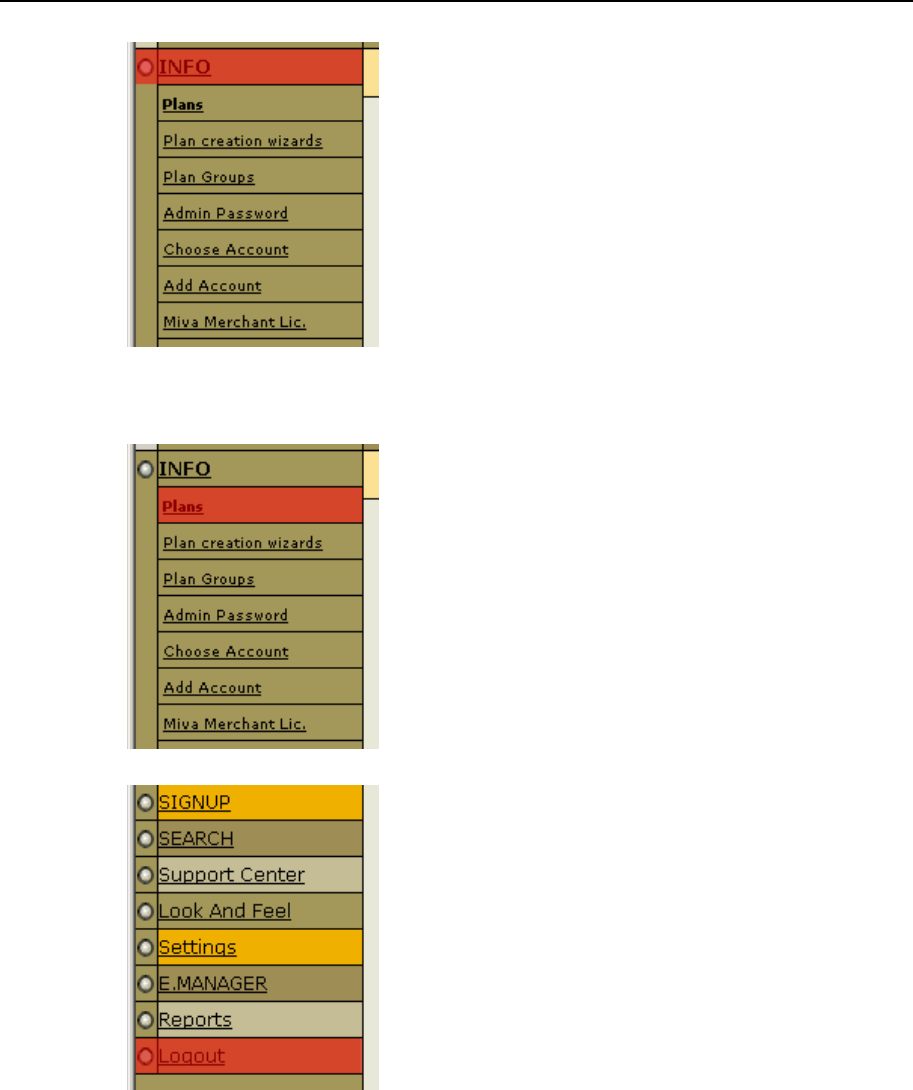
52 Ошибка! Используйте вкладку "Главная" для применения Heading 1 к тексту, который должен здесь
отображаться.
The menu_was_drawn variable is used to figure out how to show the next item.
3. The draw_item function draws the menu item which does not have a
submenu. It may be a second-level item:
Or, it could be even a first-level item that does not fall into any menu group:
Ошибка! Используйте вкладку "Главная" для применения Heading 1 к тексту, который должен здесь отображаться. 53
4. The draw_sub_items function checks the type of the menu item and calls the
function draw_item or draw_sub.
If you don‟t want to use a standard Parallels H-Sphere image, change the
following calls:
<call draw_image(“standard-image-mnemonic-id”)>
with:
<IMG SRC=”path_to_your_image/replacing_image” WIDTH=”xx”
HEIGHT=”yy”></TD>
where path_to_your_image could be set either as the /IMAGES URL relative to the
Apache document root, or as any absolute URL to your image, like
http://www.yourdomain.com/replacing/image/dir/.
7. Open the ~cpanel/shiva/psoft_config/hsphere.properties
file, uncomment and correct (if necessary) the following lines:
USER_TEMPLATE_PATH =
/hsphere/local/home/cpanel/shiva/custom/templates/
CUSTOM_MENU_BUNDLE = custom.bundles.menu
See more about template customization (on page 10) and menu.xml customization
(on page 46).
Note: Don‟t initialize the variables you are not using!
8. Login as root and restart Parallels H-Sphere (on page 130).
This chapter explains how to add and modify texts in the Parallels H-Sphere Control
Panel interface.
In this chapter:
Understanding Interface Text (Language) Bundles ........................................... 55
Interface Text Customization ............................................................................. 57
Language Bundle Compiler ............................................................................... 58
CH A P T E R 6
Interface Text Customization (Language
Bundles)

Ошибка! Используйте вкладку "Главная" для применения Heading 1 к тексту, который должен здесь отображаться. 55
Understanding Interface Text (Language)
Bundles
Interface texts are defined in key=value sets collected in separate files for each
language and encoding, where key is a mnemonic identifier for the text, and value is the
text itself that is different for each language and encoding. Such files are called
resource bundles, or language bundles, or simply bundles. Parallels H-Sphere
templates (on page 11) include mnemonic identifiers and thus generate language-
independent dynamic content.
We distinguish the following types of language bundles:
Default bundles - bundles installed with Parallels H-Sphere and containing default
interface text values.
Custom bundles - bundles created by H-Sphere customers that adding new interface
texts or overriding the default ones.
Internal bundles - resulting bundles whereto default and custom bundles are merged
after language bundle compilation.
Default bundles
Default bundle location is set in
~cpanel/shiva/psoft_config/hsphere.properties:
TEMPLATE_BUNDLE=psoft.hsphere.lang.hsphere_lang
It means that default bundles are set in the following files of the
~cpanel/shiva/psoft/hsphere/lang/ directory.
hsphere_lang.properties - default English bundle.
Important: Starting with Parallels H-Sphere 3.0 RC 1, menu.properties and
messages.properties with navigation menu and system email notification texts
become deprecated, and all labels are collected in a single
hsphere_lang.properties for each language!
hsphere_lang_<language>_<COUNTRY>_<ENCODING>.properties - default language
bundles in other languages.
Please refer to the tables of canonical identifiers:
Language: http://www.ics.uci.edu/pub/ietf/http/related/iso639.txt
Countries: http://www.chemie.fu-berlin.de/diverse/doc/ISO_3166.html
Encodings (charsets or variants):
http://java.sun.com/j2se/1.4.2/docs/guide/intl/encoding.doc.html
Note: For CP server under FreeBSD, use canonical encodings for Java 1.3:
http://java.sun.com/j2se/1.3/docs/guide/intl/encoding.doc.html.
All source bundles, in whatever encoding they were created, are compiled into Unicode
(UTF-8). Therefore, in most cases <ENCODING> and <COUNTRY> identifiers may be
omitted in bundle names according to the following rules:
Some languages have different character sets, e.g., standard Chinese and
simplified Chinese. In such case you cannot omit the encoding in bundle names.
56 Ошибка! Используйте вкладку "Главная" для применения Heading 1 к тексту, который должен здесь
отображаться.
Standard Chinese (Big5 encoding) bundle will look like:
hsphere_lang_zh_CN_Big5.properties
Simplified Chinese (EUC_CN encoding) bundle will be:
hsphere_lang_zh_CN_EUC_CN.properties
Some languages have variations in different countries, e.g., Portuguese (Portugal) and
Portuguese (Brazil). Then, you specify language and country for each case:
Portuguese (Portugal) bundle will be: hsphere_lang_pt_PT.properties
Portuguese (Brazil) bundle will be: hsphere_lang_pt_BR.properties
If you know for sure the language won‟t be used for other countries, you may omit
the country identifier.
For example, for Russian: hsphere_lang_ru.properties
Important: In any case, you must fully specify the correct language, country and
encoding identifiers in the LANG_LIST parameter in hsphere.properties or in
package properties file for Parallels H-Sphere packages (on page 108). In particular,
Parallels H-Sphere should know in what encoding the bundles were created to be able
to convert them to Unicode.
LANG_LIST contains definitions for the languages, delimited with whitespace, each
including the following components:
<language>_<COUNTRY>_<ENCODING>|<HTML_ENCODING>:misc.langs.<LABEL>
lang
Here:
<HTML_ENCODING> is HTML-compliant encoding (parameter deprecated since 2.4
and is not really used but must still be specified for the sake of compatibility);
misc.langs.<LABEL>lang is the label for the language name in Parallels H-Sphere
interface. These labels are set in the bundles in the following way:
misc.langs.rulang = Russian
Custom Bundles
Default bundle directory is being rewritten with each Parallels H-Sphere update. So, if
you make changes in the default bundles or add new bundles to the default bundle
directory, you will lose all such modifications.
Instead, you use custom bundles to modify and expand default bundles.
Custom bundle location is set in hsphere.properties in the
CUSTOM_TEMPLATE_BUNDLE parameter. For example:
CUSTOM_TEMPLATE_BUNDLE=custom.bundles.hsphere_lang
It means that custom bundles will be searched by Parallels H-Sphere in the
~cpanel/shiva/custom/bundles/ custom bundle directory.
Custom bundle files are of the same filename format as in the default bundle directory.
To customize texts in the default bundles, files with the same names are created in the
custom bundle directory; they contain only labels to be added or to override the default
texts. New language bundles are also created in the custom bundle directory, and you
don‟t worry they‟ll be lost with the next updates.
See the following documents for customization instructions:

Ошибка! Используйте вкладку "Главная" для применения Heading 1 к тексту, который должен здесь отображаться. 57
Interface Text Customization (on page 57)
Adding New Language To Parallels H-Sphere (on page 62)
It is also possible to build installable packages with custom bundles.
Internal Bundles
Default and custom bundles, along with bundles coming with Parallels H-Sphere
packages (on page 108), are compiled and merged into the so-called internal bundles
located in the ~cpanel/shiva/languages directory. It is there that Parallels H-
Sphere takes bundles from.
Internal bundles location can be changed. You either set
INT_LANGBUNDLE_DIRECTORY to override the whole internal bundles directory
(~cpanel/languages/), or set INT_TEMPLATE_BUNDLE to override the respective
internal bundle.
Please refer to Compiling Language Bundles (on page 58) for details.
Bundle Lookup Sequence
Parallels H-Sphere searches for text labels in language bundles in the following order:
The search is made in the internal bundle directory (~cpanel/shiva/languages by
default):
1. hsphere_lang_<language>_<COUNTRY>_<ENCODING>.properties
2. hsphere_lang_<language>_<COUNTRY>.properties
3. hsphere_lang_<language>.properties
4. hsphere_lang.properties (default English text)
If no appropriate labels are found, the user will get a corresponding notification and a
possibility to send a trouble ticket.
Note: No different encodings for languages are present in internal bundles. Language
bundle compiler (on page 58) converts all regional data in default and custom language
bundles into UTF-8 format.
Interface Text Customization
This document dwells on interface text customization methods. It implies you are
familiar with the concept of language bundles (on page 55).
These are the following alternative ways to customize texts:
With packages
Packages are helpful when you want to add a new language (on page 114) to Parallels
H-Sphere. In this case, you build new language bundles into a portable package easily
installed on other Parallels H- Sphere clusters (on page 126).
Compiling bundles
This scheme of customizing bundles enables you to apply modifications by merging
custom bundles with default bundles without building and installing packages. Read
more about compiling bundles (on page 58).

58 Ошибка! Используйте вкладку "Главная" для применения Heading 1 к тексту, который должен здесь
отображаться.
1. Log into CP server as cpanel (on page 130) user.
2. All affected files must have cpanel:cpanel ownership.
3. Create custom bundle directory, e.g.,
~cpanel/shiva/custom/bundles if it is not created yet.
4. Set custom bundle location in
~cpanel/shiva/psoft/hsphere/lang/hsphere_lang.propert
ies (if it‟s not set):
CUSTOM_TEMPLATE_BUNDLE=custom.bundles.hsphere_lang
5. Find the string you want to modify among default or custom bundles.
Create the corresponding custom bundle file if it doesn‟t exist to place
modified string there.
6. For example, you are going to change the label Shell Access to SSH
Access. It is set in the
~cpanel/shiva/psoft/hsphere/lang/hsphere_lang.propert
ies file. Create the file
~cpanel/shiva/custom/bundles/hsphere_lang.properties if
it isn‟t there already.
7. Copy the line with the identifier and the value you want to change into
the custom bundle and change its value the way you want. You should
use two single quotes (apostrophes) instead of one in labels containing
Freemarker variables in curly brackets, such as {0}. For example:
search.view_invoice = View Client‟s Invoice
but:
billing.del_no = No, I don”t want to delete {0}
8. Run language bundle compiler (on page 58) to implement
customization:
java psoft.hsphere.LangBundlesCompiler
Language Bundle Compiler
Language bundles (on page 55) - default, custom, and those installed with Parallels H-
Sphere packages (on page 126) - are compiled and merged into the resulting internal
bundles located in the internal bundle directory, ~cpanel/shiva/languages by
default. Instead of parsing default and custom bundles, Parallels H-Sphere takes
interface texts directly from this directory.
Merging language bundles is performed by a Java tool called language bundle compiler:
java psoft.hsphere.LangBundlesCompiler
Language bundle compiler works in the following way:
1. Bundle compiler parses the LANG_LIST parameters set in:
package properties files for all packages installed in Parallels H-Sphere: usually,
~cpanel/shiva/packages/PackageName/default.properties, where
PackageName is the name of the package without its version and build number;

Ошибка! Используйте вкладку "Главная" для применения Heading 1 к тексту, который должен здесь отображаться. 59
the default ~cpanel/shiva/psoft_config/hsphere.properties file;
LANG_LIST contains definitions for the languages, delimited with whitespace,
each including the following components:
<language>_<COUNTRY>_<ENCODING>|<HTML_ENCODING>:misc.langs.<LABEL>la
ng
Here:
<language>, <COUNTRY>, and <ENCODING> are Java locale identifiers. For detailed
description and the tables of canonical identifiers, please refer to Understanding
Language Bundles) (on page 55). <ENCODING> is an encoding in which bundles
were created and saved,
<HTML_ENCODING> is the HTML-compliant encoding (this parameter is
deprecated since 2.4 and is not really used but must still be specified for the
sake of compatibility);
misc.langs.<LABEL>lang is a label for language name set in language bundles.
1. According to Java locale identifiers set in the LANG_LIST parameters,
bundle compiler looks for the bundles:
hsphere_lang.properties
hsphere_lang_<language>.properties
hsphere_lang_<language>_<COUNTRY>.properties
hsphere_lang_<language>_<COUNTRY>_<ENCODING>.properties
in the following directories, in order of priority:
installed package bundles directory: ~cpanel/shiva/packages/PackageName/
Package bundle location is set in the package properties file
~cpanel/shiva/packages/PackageName/default.properties:
TEMPLATE_BUNDLE=packages.PackageName.hsphere_lang
custom bundles directory: ~cpanel/shiva/custom/bundles/
Custom bundle location is set in
~cpanel/shiva/psoft_config/hsphere.properties:
CUSTOM_TEMPLATE_BUNDLE=custom.bundles.hsphere_lang
default bundles directory: ~cpanel/shiva/psoft/hsphere/lang/
Default bundle location is set in hsphere.properties:
TEMPLATE_BUNDLE=psoft.hsphere.lang.hsphere_lang
See Introduction To Bundles (on page 55) for details.
2. Bundle compiler merges default, custom and package bundles with the
same filenames and save the resulting bundles in UTF-8 format into the
internal bundle directory ~cpanel/shiva/languages/.
See Bundle Lookup Sequence (on page 55).
Notes:
If the ~cpanel/shiva/languages directory is not found, language bundle
compiler will be launched automatically and will create this directory with the
resulting bundles.
To override the default internal bundle directory, set the
INT_LANGBUNDLE_DIRECTORY parameter in hsphere.properties. Or, set
INT_TEMPLATE_BUNDLE to override the location of the respective internal bundles.

60 Ошибка! Используйте вкладку "Главная" для применения Heading 1 к тексту, который должен здесь
отображаться.
When a text label is set several times, e.g., in a package bundle and in a
custom/default bundle, package bundle takes precedence and override labels set in
custom or default bundles. The order of priority is: package bundles, custom
bundles, default bundles.
Depending on bundle encodings specified in the LANG_LIST parameters, bundle
compiler converts all regional language bundles into UTF-8. This is done due to the
Java restrictions in relation to regional encodings: Java can work only with ISO-
8859-1 and Unicode symbols.
Encoding conversion hints:
To convert regional symbols into Unicode, you can use the native2ascii JDK tool:
http://java.sun.com/j2se/1.4.2/docs/tooldocs/windows/native2ascii.html.
To convert a language bundle file into Unicode, you can also run make in the
~cpanel/shiva/psoft/hsphere/lang directory.
This chapter dwells on adding new Parallels H-Sphere localization.
In this chapter:
Adding New Languages To Parallels H-Sphere ................................................. 62
Changing Language of Context Help ................................................................. 65
Updating Translation of Parallels H-Sphere Interface ........................................ 66
CH A P T E R 7
Localization
62 Ошибка! Используйте вкладку "Главная" для применения Heading 1 к тексту, который должен здесь
отображаться.
Adding New Languages To Parallels H-
Sphere
This document introduces methods of adding languages to Parallels H-Sphere
interface. We presume you are familiar with the concept of language bundles (on page
55).
Translating Language Bundles
Note: Parallels H-Sphere developers are not responsible for adding languages to
Parallels H-Sphere interface and updating translation (on page 66) of the default
English bundles. It is entirely up to Parallels H-Sphere owners. All language bundle
translations included into Parallels H-Sphere interface or localization packages are
kindly provided by our customers.
Default Parallels H-Sphere interface language is English. The default English interface
labels are located in the ~cpanel/shiva/psoft/hsphere/lang directory in the
hsphere_lang.properties file.
Note: Since H-Sphere 3.0, menu.properties and messages.properties with
menu labels and system e-mail notification texts are collected in a single
hsphere_lang.properties file.
You can also download default (English) language bundles from our site:
http://hsphere.parallels.com/downloads/English.zip
Translate these files and save new language bundles to a separate location as:
hsphere_lang_<language>_<COUNTRY>_<ENCODING>.properties
here, <language>, <COUNTRY>, and <ENCODING> are Java locale identifiers. For detailed
description and the tables of canonical identifiers, please refer to Understanding
Language Bundles (on page 55).
For example, for Portuguese (Brazil) it will be hsphere_lang_pt_BR.properties.
Please take into account the following considerations on translating the bundles:
Using quotes in the text: If a label or message has a Freemarker variable in curly
brackets, e.g. {0}, single quotes and apostrophes („) must be replaced with two
single quotes (“). For example, in English we write:
search.view_invoice = View Client‟s Invoice
but:
billing.del_no = No, I don”t want to delete {0}
Updating the translation: With upcoming versions of Parallels H-Sphere, default
English texts may be changed and new labels may be added, so you need to
update translation (on page 66) of your language bundles accordingly.
Encoding: Translation can be performed in any encoding. All language bundles are
converted into UTF-8 during their compilation (on page 62).

Ошибка! Используйте вкладку "Главная" для применения Heading 1 к тексту, который должен здесь отображаться. 63
Right-to-left languages (Arabic, Hebrew, etc.): Parallels H-Sphere supports right to left
languages, such as Arabic or Hebrew. On this step, you need to specify whether
the target language is “left to right” or “right to left”. In the file
hsphere_lang_<LANGUAGE_CODE>.properties, add the following lines:
######################################################
# “text_direction” is a special label used to define
# which text direction is appropriate for the current
# language bundle.
# There are 2 possible values:
# - “ltr” means “Left to right”;
# - “rtl” means “Right to left”.
text_direction = ltr
Adding New Language Bundles Into Parallels H-Sphere
Parallels H-Sphere provides the following alternative ways of adding new languages:
With packages
Parallels H-Sphere provides an easy way to add languages by installing packages (on
page 126) (.hsp files) to the system. You may install ready-to-use and portable
packages to any of your Parallels H-Sphere control panels or build language packages
yourself (on page 114).
Compiling bundles
Instead of building a package, you create new language bundles in custom bundle
directory and run language bundle compiler (on page 58).
1. Login as the cpanel (on page 130) user. All affected files must have
cpanel:cpanel ownership.
2. Create custom bundle directory, e.g., ~/shiva/custom/bundles if it
is not created yet.
3. Set custom bundle location in
~cpanel/shiva/psoft_config/hsphere.properties (if it‟s not
set):
CUSTOM_TEMPLATE_BUNDLE=custom.bundles.hsphere_lang
4. Create the files hsphere_lang.properties, menu.properties, and
messages.properties in the ~/shiva/custom/bundles directory if
they are not there. Even if you don‟t need to modify them, they are
important for correct bundle compilation:
cd ~cpanel/shiva/custom/bundles
touch hsphere_lang.properties
5. Copy the translated language bundles (on page 62) to
~cpanel/shiva/custom/bundles. For example, for Portuguese
(Brazil):
cd ~cpanel/shiva/custom/bundles
cp /some/location/hsphere_lang_pt_BR.properties .

64 Ошибка! Используйте вкладку "Главная" для применения Heading 1 к тексту, который должен здесь
отображаться.
6. To ensure that the new language is available to choose from the
interface, add a label for your language (ID and definition) into the
~cpanel/shiva/custom/bundles/hsphere_lang.properties
file, following the pattern:
misc.langs.<LABEL>lang = <LANGUAGE> (<COUNTRY>)
For example, for Portuguese (Brazil):
misc.langs.ptlang = Portugu\u00eas (Brasil)
Notes:
1. Default (English) language bundles are written in the ISO-8859-1 encoding.
Special Latin and non-Latin characters must be presented in Unicode. Use the
native2ascii JDK tool to convert these symbols into Unicode characters
(\uxxxx notations, like “\u00ea” instead of “e” in the example above).
2. If the original language name significantly differs from that in English, (especially
for non-Latin alphabets), we recommend adding its English transcription, e.g.:
misc.langs.de_atlang = Deutch (\u00d6sterreich) - German
(Austria)
7. Add new language to the list of languages available in Parallels H-
Sphere. For this, add the language and encoding of the translated files
to the LANG_LIST parameter in
~cpanel/shiva/psoft_config/hsphere.properties. For
example:
LANG_LIST = en_US_ISO8859_1|ISO-8859-1:misc.langs.englang
pt_BR_ISO-8859-15|ISO-8859-15:misc.langs.ptlang
This line contains definitions for the languages that come with Parallels H-Sphere,
delimited with whitespace, each including the following components:
<language>_<COUNTRY>_<ENCODING>|<HTML_ENCODING>:misc.langs.<LABEL>la
ng
Here, misc.langs.<LABEL>lang; is the label with the language name, which is set in
the previous step.
8. In hsphere.properties set system locale and encoding to custom
values. The locale should correspond to the Java ISO standards, the
encoding must correspond to the browser standards. For example,
settings for the Portuguese (Brazil) language will look as follows:
# Override system locale
LOCALE = pt_BR
# Encoding
ENCODING = UTF-8
The LOCALE value will affect not only the interface language, but also the currency,
date, time, days of the week and other locale settings.
9. Run language bundle compiler (on page 58) to implement new bundles
into Parallels H-Sphere:
java psoft.hsphere.LangBundlesCompiler
10. Restart Parallels H-Sphere (on page 130).
Ошибка! Используйте вкладку "Главная" для применения Heading 1 к тексту, который должен здесь отображаться. 65
Changing Language of Context Help
Online help texts are hard-coded in special Parallels H-Sphere templates (on page 11)
with .oh extension located in the ~cpanel/shiva/shiva-
templates/common/online_help/ directory.
Carefully follow the procedure outlined in the Customizing Templates (on page 10)
document, with the following considerations specific to context help templates:
Copy the online help files from the ~cpanel/shiva/shiva-
templates/common/online_help/ folder to the custom template directory
~cpanel/shiva/custom/templates/common/online_help/, to files whose
names contain identifiers for target language, country and encoding, in the format
similar to that of language bundles (on page 55):
cp ~cpanel/shiva/shiva-
templates/common/online_help/some/dir/helpfile.oh
~cpanel/shiva/custom/templates/common/online_help/some/dir/helpfile_<
LANGUAGE>_<COUNTRY>.oh
Consider the following example for the Russian language:
cp ~cpanel/shiva/shiva-
templates/common/online_help/user/b_invoice/01balance.oh
~cpanel/shiva/custom/templates/common/online_help/user/b_invo
ice/01balance_ru_RU.oh
Important: Parallels H-Sphere uses the UTF-8 charset for all languages. Therefore,
text directly inserted into templates (i.e., not by means of text labels defined in
language bundles (on page 55)) must be in the UTF-8 encoding. Other regional
encodings (for example, Windows-1251 for Russian) must not be used anymore in
context help templates, and texts there must be converted into UTF-8.
Translate the heading and the body of each help file in the corresponding encoding.
66 Ошибка! Используйте вкладку "Главная" для применения Heading 1 к тексту, который должен здесь
отображаться.
Updating Translation of Parallels H-
Sphere Interface
With every update of Parallels H-Sphere, your translation of the control panel interface
becomes outdated, and you need to update translation in language bundles (on page
55).
Note: Parallels H-Sphere developers are not responsible for adding languages to
Parallels H-Sphere interface and updating translation of the default English bundles. It
is entirely up to Parallels H-Sphere owners. All language bundle translations included
into Parallels H-Sphere interface are kindly provided by our customers.
Parallels H-Sphere comes with a script that finds differences between two files: the
new English file and its old translated version. This script, diff_labels.pl, is
located in the ~cpanel/shiva/psoft/hsphere/lang/ default bundle directory.
To compare these 2 files with a new English language bungle with outdat, do the
following:
1. Log into your CP server as the cpanel (on page 130) user.
2. Go to the default bundle directory:
cd shiva/psoft/hsphere/lang/
3. Execute the following command:
./diff_labels.pl hsphere_lang.properties
/path/to/hsphere_lang_<LOCALE>.properties >
/path/to/hsphere_lang_<LOCALE>.diff
./diff_labels.pl menu.properties /path/to/menu_<LOCALE>.properties
> menu_<LOCALE>.diff
./diff_labels.pl messages.properties
/path/to/messages_<LOCALE>.properties >
/path/to/messages_<LOCALE>.diff
Here, /path/to/ is a path to language bundles in another language (they may not be
located in the default bundle directory), <LOCALE> contains language, country and
encoding identifier in accordance with language bundle filename format (on page
55).
The tool will write all the differences between these updated default language
bundles and their previous translation into the corresponding .diff files.
4. Customize your language bundles (on page 57) by adding translated
labels from the resulting .diff files.

The following Parallels H-Sphere components are configured by means of XML files
located in the ~cpanel/shiva/psoft/hsphere/ directory:
Component
Property
Filename
CP Skins (Designs)
DESIGN_SCHEME_CONFIG
design_config.xml
CP Menu
MENU_CONFIG
menu.xml
CP Crons
CRON_CONFIG
cron_config.xml
Online (Context)
Help
HELP_CONFIG,
ONLINE_HELP_CONFIG
help.xml
help_url.xml
Promotion
Validators And
Calculators
PROMO_CONFIG
promotion/xml/promotions.
xml
Merchant
Gateways
MERCHANT_GATEWAYS_CO
NF
merchants.xml
Domain Registrars
REGISTRAR_CONF
registrar.xml
E-Mail Notifications
USER_EMAILS
user_emails.xml
Custom XML files can be merged with default XML files by means of XML merger (on
page 70). Instead of moving and changing a default XML file, a small custom file is
created containing only the changes to be implemented, and its location is specified in
~cpanel/shiva/psoft_config/hsphere.properties in the parameter with the
“CUSTOM_” prefix added to the default parameter name. For example:
MENU_CONFIG =
/hsphere/local/home/cpanel/shiva/psoft/hsphere/menu.xml
CUSTOM_MENU_CONFIG =
/hsphere/local/home/cpanel/shiva/custom/xml/menu.xml
In this chapter:
Merging XML Configuration Files ...................................................................... 68
XML Manager .................................................................................................... 70
Creating Plan Wizards with XML ....................................................................... 74
Adding Custom CP Cron Jobs ........................................................................... 80
Adding Custom Promotion Validators and Calculators ...................................... 84
Adding Custom MS Exchange Plans into Parallels H-Sphere ............................ 87
Customizing E-Mail Notification List .................................................................. 90
CH A P T E R 8
XML Customization

68 Ошибка! Используйте вкладку "Главная" для применения Heading 1 к тексту, который должен здесь
отображаться.
Merging XML Configuration Files
To customize XML configuration files:
1. Login as the cpanel (on page 130) user.
2. Create a directory for custom XML configuration files if it does not exist,
for example, ~cpanel/custom/xml.
3. In the custom directory, create a custom XML file if it hasn‟t been
created yet. Here, you add only those tags that need to be added or
modified with relation to the default XML file. Please follow the rules for
merging XMLs.
For example, if you need just to add a new item to the menu, the custom
menu.xml file will look like:
<?xml version=”1.0”?>
<!DOCTYPE config [
<!ELEMENT config (menus,interface)>
<!ELEMENT menus (menu+)>
<!ELEMENT menu (menuitem*,initmenu*)>
<!ELEMENT menuitem (#PCDATA)>
<!ELEMENT initmenu (#PCDATA)>
<!ELEMENT interface (menudef+)>
<!ELEMENT menudef (initmenu*,menuitem*)>
<!ATTLIST menudef id CDATA #REQUIRED>
<!ATTLIST menu name CDATA #REQUIRED>
<!ATTLIST menu label CDATA #REQUIRED>
<!ATTLIST menu platform_type CDATA “”>
<!ATTLIST menu resource CDATA “”>
<!ATTLIST menu defaultitem CDATA #REQUIRED>
<!ATTLIST menu tip CDATA “”>
<!ATTLIST menuitem name CDATA #REQUIRED>
<!ATTLIST menuitem label CDATA #REQUIRED>
<!ATTLIST menuitem URL CDATA #REQUIRED>
<!ATTLIST menuitem platform_type CDATA “”>
<!ATTLIST menuitem resource CDATA “”>
<!ATTLIST menuitem tip CDATA “”>
<!ATTLIST menuitem check_type CDATA “1”>
<!ATTLIST menuitem new_window CDATA “0”>
<!ATTLIST initmenu name CDATA #REQUIRED>
]>
<config>
<menus>
<menu name=”info” label=”info.label” defaultitem=”info-plans”
tip=”info.tip”>
<menuitem name=”new_item” label=”NEW PAGE”
URL=”/newpage.html” resource=”” tip=”Positive Software
Corporation”/>
</menu>
</menus>
</config>
Ошибка! Используйте вкладку "Главная" для применения Heading 1 к тексту, который должен здесь отображаться. 69
Important: In the custom XML file to be merged with the default one, you must
define the same DTD structure!
4. In ~cpanel/shiva/psoft_config/hsphere.properties, add the
location for the custom XML file, for instance:
CUSTOM_MENU_CONFIG =
/hsphere/local/home/cpanel/shiva/custom/xml/menu.xml
5. Login as root (log off from cpanel) and restart Parallels H-Sphere (on
page 130).

70 Ошибка! Используйте вкладку "Главная" для применения Heading 1 к тексту, который должен здесь
отображаться.
XML Manager
XML Manager serves for loading custom XMLs into Parallels H-Sphere and merging
them with the standard, or default, Parallels H-Sphere XML configuration files. This
enables to extend Parallels H-Sphere by adding new elements, like custom menu
items, without changing the standard XML configuration files. This mechanism makes
customization more flexible to the Parallels H-Sphere updates. Now you don‟t need to
apply custom settings each time the standard configuration files are rewritten by new
releases.
XML Manager Implementation
XMLManager is the subclass of the psoft.hsphere.util class of Parallels H-Sphere
utilities. XMLManager returns either Document object or TemplateXML object.
XMLManager searches for custom XML configuration files, by the key, not by the
filename:
1. in hsphere.properties;
2. in the predefined values (see
psoft.hsphere.util.PackageConfigurator).
For example, the menu XML configuration file is set in hsphere.properties as follows:
MENU_CONFIG =
/hsphere/local/home/cpanel/shiva/psoft/hsphere/menu.xml
XMLManager looks for the MENU_CONFIG key instead of the full pathname
(/hsphere/local/home/cpanel/shiva/psoft/hsphere/menu.xml).
XMLManager may also process the group of XML files. It is currently implemented for
XML plan wizards (on page 74), where the key is compounded from the corresponding
path + the name of XML file, like:
XMLManager.getXML(PLAN_WIZARDS_DIR, “unix.xml”);
Example:
Consider an example of merging menu default and custom menu XMLs. For details,
please refer to Menu Customization in Customization Guide.
1. Log in as the cpanel user.
2. Create custom XML file and specify its location as
CUSTOM_XML_CONFIG in hsphere.properties (see XML Merge
Customization in Customization Guide for details):
MENU_CONFIG =
/hsphere/local/home/cpanel/shiva/psoft/hsphere/menu.xml
CUSTOM_MENU_CONFIG =
/hsphere/local/home/cpanel/shiva/custom/xml/test1_menu.xml
3. To add a custom menu item,
~cpanel/shiva/custom/xml/test1_menu.xml should look like
this:
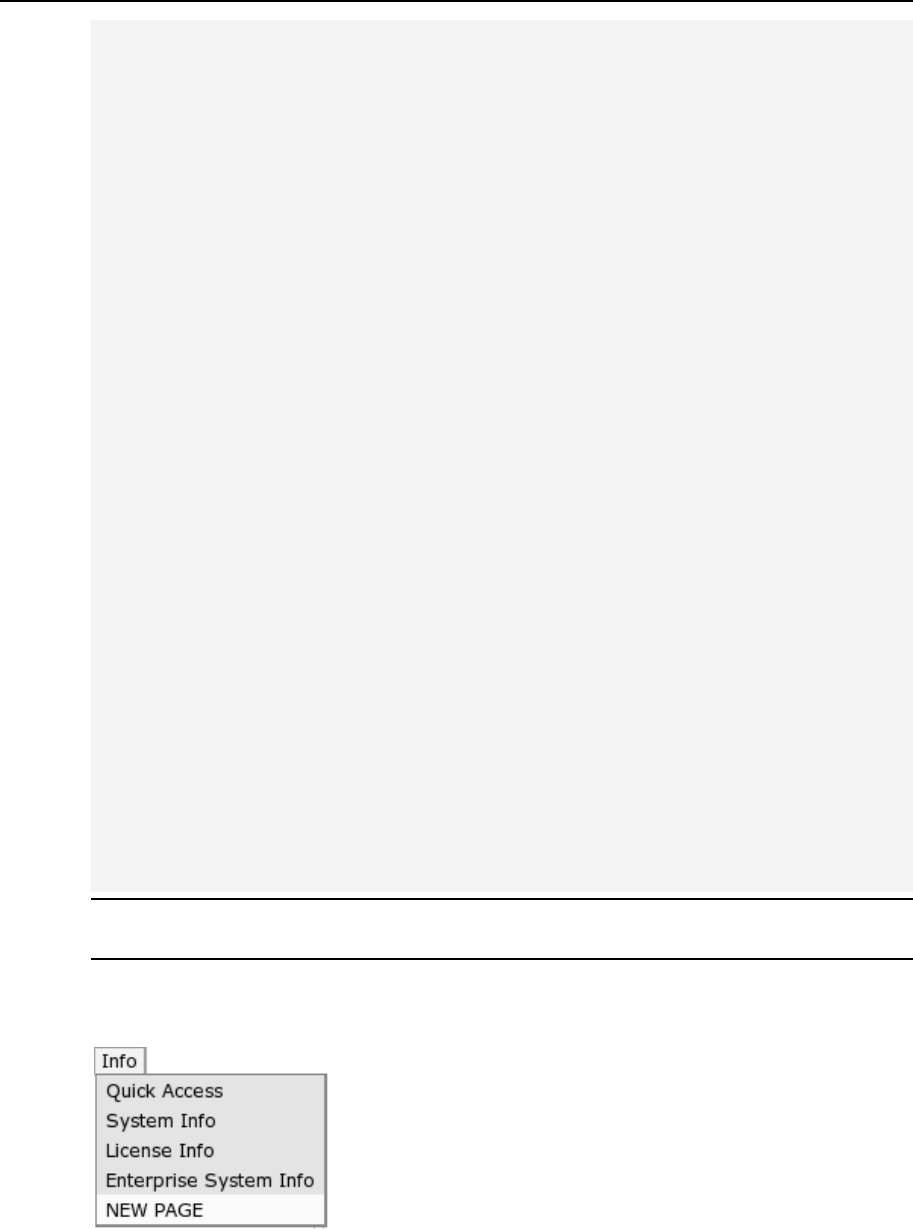
Ошибка! Используйте вкладку "Главная" для применения Heading 1 к тексту, который должен здесь отображаться. 71
<?xml version=”1.0”?>
<!DOCTYPE config [
<!ELEMENT config (menus,interface)>
<!ELEMENT menus (menu+)>
<!ELEMENT menu (menuitem*,initmenu*)>
<!ELEMENT menuitem (#PCDATA)>
<!ELEMENT initmenu (#PCDATA)>
<!ELEMENT interface (menudef+)>
<!ELEMENT menudef (initmenu*,menuitem*)>
<!ATTLIST menudef id CDATA #REQUIRED>
<!ATTLIST menu name CDATA #REQUIRED>
<!ATTLIST menu label CDATA #REQUIRED>
<!ATTLIST menu platform_type CDATA “”>
<!ATTLIST menu resource CDATA “”>
<!ATTLIST menu defaultitem CDATA #REQUIRED>
<!ATTLIST menu tip CDATA “”>
<!ATTLIST menuitem name CDATA #REQUIRED>
<!ATTLIST menuitem label CDATA #REQUIRED>
<!ATTLIST menuitem URL CDATA #REQUIRED>
<!ATTLIST menuitem platform_type CDATA “”>
<!ATTLIST menuitem resource CDATA “”>
<!ATTLIST menuitem tip CDATA “”>
<!ATTLIST menuitem check_type CDATA “1”>
<!ATTLIST menuitem new_window CDATA “0”>
<!ATTLIST initmenu name CDATA #REQUIRED>
]>
<config>
<menus>
<menu name=”info” label=”info.label” defaultitem=”info-plans”
tip=”info.tip”>
<menuitem name=”xyz-wow” label=”NEW PAGE” URL=”/newpage.html”
resource=”” tip=”Positive Software Corporation”/>
</menu>
</menus>
</config>
Note: In the custom XML file to be merged with the default one, you must define
the same DTD structure!
Also note that we don‟t copy the whole structure of the standard menu.xml file. The
custom menu will be merged with the standard menu in the following way (the NEW
PAGE item in the INFO menu):

72 Ошибка! Используйте вкладку "Главная" для применения Heading 1 к тексту, который должен здесь
отображаться.
4. To check if the merge is performed correctly, run the DOMLoader utility
and check out.xml afterwards:
java psoft.util.xml.DOMLoader
/hsphere/local/home/cpanel/shiva/psoft/hsphere/menu.xml
/hsphere/local/home/cpanel/shiva/custom/xml/test1_menu.x
ml > out.xml
With DOMLoader, you may merge more than two XML files:
java psoft.util.xml.DOMLoader file1.xml file2.xml ...
fileN.xml > out.xml
XML Merge Processing Instructions
In your custom XML configuration files you should use the processing instructions to
change or remove certain fragments in the default configuration file, instead of merging
these fragments directly.
There are 4 major processing instructions:
<?change?>
<?remove?>
<?merge?>
<?changeattr?>
The merge instruction is used by default and can be omitted.
The <?changeattr?> instruction is added to customize tag attributes in XML
documents.
In order to change, remove, or merge an element, you need to create a well formed
XML document, which describes the location of this element relative to other elements.
Leave out the elements you don‟t want to change/remove/merge. Put the instruction
before the XML element that needs to be changed/removed/merged.
Examples:
1) To remove a certain (tt) item from the the default menu
configuration:
<?xml version=”1.0”?>
<!DOCTYPE config [
<!ELEMENT config (menus,interface)>
<!ELEMENT menus (menu+)>
<!ELEMENT menu (menuitem*,initmenu*)>
<!ELEMENT menuitem (#PCDATA)>
<!ELEMENT initmenu (#PCDATA)>
<!ELEMENT interface (menudef+)>
<!ELEMENT menudef (initmenu*,menuitem*)>
<!ATTLIST menudef id CDATA #REQUIRED>
<!ATTLIST menu name CDATA #REQUIRED>
<!ATTLIST menu label CDATA #REQUIRED>
<!ATTLIST menu platform_type CDATA “”>
<!ATTLIST menu resource CDATA “”>

Ошибка! Используйте вкладку "Главная" для применения Heading 1 к тексту, который должен здесь отображаться. 73
<!ATTLIST menu defaultitem CDATA #REQUIRED>
<!ATTLIST menu tip CDATA “”>
<!ATTLIST menuitem name CDATA #REQUIRED>
<!ATTLIST menuitem label CDATA #REQUIRED>
<!ATTLIST menuitem URL CDATA #REQUIRED>
<!ATTLIST menuitem platform_type CDATA “”>
<!ATTLIST menuitem resource CDATA “”>
<!ATTLIST menuitem tip CDATA “”>
<!ATTLIST menuitem check_type CDATA “1”>
<!ATTLIST menuitem new_window CDATA “0”>
<!ATTLIST initmenu name CDATA #REQUIRED>
]>
<config>
<interface>
<menudef id=”unix”>
<?remove?>
<initmenu name=”tt”/>
</menudef>
</interface>
</config>
2) To replace the whole icon section to the one with only 3 icons:
<?change?>
<icons>
<icon id=”changelanguage”
url_param=”template_name=misc/langs.html”
rtype=”” platform=”” label=”nomenu.language” tip=”” help=””/>
<icon id=”changedesign”
url_param=”template_name=misc/user_account_lf.html” rtype=””
platform=””
label=”nomenu.lookfeel.alt” tip=”” help=””/>
<icon id=”cgiwiz_formmail”
url_param=”template_name=quick/choice_script.html&sname=formm
ail”
rtype=”hosting” platform=”unix”
label=”quick.quickview.cgiwiz_formmail”
tip=”quick.quickview.cgiwiz_formmail”
help=””/>
</icons>
3) To remove a certain (cgiwiz_formmail) icon from the default
configuration:
<icons>
<icon id=”changelanguage”
url_param=”template_name=misc/langs.html”
rtype=”” platform=”” label=”nomenu.language” tip=”” help=””/>
<icon id=”changedesign”
url_param=”template_name=misc/user_account_lf.html” rtype=””
platform=””
label=”nomenu.lookfeel.alt” tip=”” help=””/>
<?remove?>
<icon id=”cgiwiz_formmail”

74 Ошибка! Используйте вкладку "Главная" для применения Heading 1 к тексту, который должен здесь
отображаться.
url_param=”template_name=quick/choice_script.html&sname=formm
ail”
rtype=”hosting” platform=”unix”
label=”quick.quickview.cgiwiz_formmail”
tip=”quick.quickview.cgiwiz_formmail”
help=””/>
</icons>
4) To change and add tag’s attributes:
<?changeattr newtag=”xyz” tip=”My Tip”?>
<icon id=”changelanguage”
url_param=”template_name=misc/langs.html”
rtype=”” platform=”” label=”nomenu.language” tip=”” help=””/>
The resulting element will look like:
<icon id=”changelanguage”
url_param=”template_name=misc/langs.html”
rtype=”” platform=”” label=”nomenu.language” tip=”My Tip”
help=”” newtag=”xyz”/>
Creating Plan Wizards with XML
This document explains how to customize plan wizards by modifying plan wizard XML
configuration files.
Introduction
Parallels H-Sphere supports XML-based plan wizards. Wizards are located in the
~cpanel/shiva/psoft/hsphere/plan/wizard/xml directory. Location can be
altered by setting PLAN_WIZARDS_DIR in
~cpanel/shiva/psoft_config/hsphere.properties to a target directory.
PLAN_WIZARDS_DIR =
/hsphere/local/home/cpanel/shiva/psoft/hsphere/plan/wizard/xm
l
The list of wizards is defined in the plan_wizards.xml file, which is by default
located in the plan wizards directory. The file‟s name and location is set in the
PLAN_WIZARDS parameter in hsphere.properties (the full path to the file is required):
PLAN_WIZARDS =
/hsphere/local/home/cpanel/shiva/psoft/hsphere/plan/wizard/xm
l/plan_wizards.xml
Important: When you customize plan wizard XMLs make sure the
PLAN_WIZARDS_DIR and PLAN_WIZARDS parameters are set in
hsphere.properties.
You can also customize plan wizard XML files by means of Parallels H-Sphere
packages (on page 108).

Ошибка! Используйте вкладку "Главная" для применения Heading 1 к тексту, который должен здесь отображаться. 75
Adding a New Wizard to the List of Plan Wizards
To add a new wizard, add the following line to the list of wizards in
plan_wizards.xml:
<wizard name=”NAME” description=”DESCRIPTION”/>
Here,
name - the name of a plan‟s XML file. It must be specified without .xml extension
(.xml will be appended automatically). The file contains plan wizard specification.
description is a language bundle label defined in
~cpanel/shiva/psoft/hsphere/lang/hsphere_lang.properties. It
should not contain the lang.
Example:
<wizard name=”unix” description=”planeditor.res_unix”/>
Here, Unix plan XML definition file is
~cpanel/shiva/psoft/hsphere/xml/unix.xml, and the plan‟s description is set
in the lang.planeditor.res_unix label in
~cpanel/shiva/psoft/hsphere/lang/hsphere_lang.properties.
Defining Plan Wizard
Plan wizard definition starts with creating a new .xml file. See unix.xml
(http://hsphere.parallels.com/HSdocumentation/xmls/unix.xml) as an example of
planwizard definition.
<PlanWizard>
The root XML tag is <PlanWizard>:
<PlanWizard name=”NAME” description=”DESCRIPTION”>
Attributes:
name: should match the filename (without .xml prefix) and the corresponding name
attribute in plan_wizards.xml.
description: language bundle with plan wizard description from
hsphere_lang.properties without “lang.” prefix.
<DefaultName>
DefaultName is the name that will serve as the default plan name in creating plans.
<DefaultName>name</DefaultName>
<DefaultValues>
DefaultValues is a construction where the plan‟s default values are set. Usually, the
add _template and menuId values are added here.
<DefaultValues>
<value name=”NAME1”>VALUE1</value>
<value name=”NAME2”>VALUE2</value>
...
</DefaultValues>

76 Ошибка! Используйте вкладку "Главная" для применения Heading 1 к тексту, который должен здесь
отображаться.
<categories>
The categories tag defines plan resources. Resources are grouped into categories
and described within the <category> tags. Each category tag can have the
description attribute which is optional. Categories are used in plan wizard screens
to group resources into logical groups.
<categories>
<category>
...
</category>
<category description=”DESCRIPTION”>
...
</category>
</category>
<resource>
The <resource> tag within the <category> construction defines the resource class,
name, description and includes the following attributes if necessary:
name - name of the resource, like account, mailbox;
class - name of the resource class;
help (optional) - description of the resource from the hsphere_lang.properties
file;
unit (optional) - units for the resource, MB or GB;
required (optional) - if it is set to 1, the resource is required in the plan and regarded
to be automatically included to the plan;
include (optional) - if it is set to 1, the resource will be marked as included by default
to the plan wizard;
active (optional) - if active parameter is not set, no active checkbox will be available
for the resource. Otherwise, if it is set to 1, resource will be marked as active by
default. Any other value - active checkbox will be present but not checked;
noprice (optional) - if 1, the wizard will not prompt to enter pricing for the resource;
ifresource (optional) - list of resources separated by the vertical bar „|‟ character. If
any of the resources are included to or required in the plan, this resource will also
be included.
<field>
Inside the <resource> construction, the <field> tag allows to get more info from the
user for a resource specified. The data will be returned as a part of HTTP request and
can be used later via the #name parameter.
Attributes:
name - name of the field, you can retrieve it later via the #name parameter;
label - label from hsphere_lang.properties, refers to a caption to be displayed in the
wizard;
type - type of the field to be displayed: textbox|checkbox.
If type = “textbox”, the following attributes are set:
value - the default value;

Ошибка! Используйте вкладку "Главная" для применения Heading 1 к тексту, который должен здесь отображаться. 77
planvalue - name of the resource plan value (value defined in the plan); While editing
the plan, the wizard will try to retrieve this value and show it as the textbox value;
size - size of the textbox;
check - yafv check (not implemented yet).
Example:
<field type=”textbox” name=”max_conn”
label=”planeditor.max_connections” value=”10”
planvalue=”MAX_CONN” size=”4” check=”vPriceReq”/>
<LogicalGroup>
The <LogicalGroup> tag defines a logical server, allows user to select one logical
server if several are present.
Attributes:
name - name of the group;
type - type of the group;
help - help message;
default - default group.
Example:
<LogicalGroup name=”unix_real” type=”unix_real” help=”admin-
editwizard-o_lsgunix_real”/>
<ifresource>
The <ifresource> element allows to group resources/LogicalGroup and activate
them for the plan, only if the resource is enabled via global resources, or for the reseller
plan.
Attributes:
name - resource name. Will be checked by admin.isResourceDisabled;
description - description of the resource from hsphere_lang.propeperties.
<ifgroup>
The <ifgroup> element works in the same way as ifresource but checks if the
server group is available.
Attributes:
name - server group name;
else - resource name to show as unavailable.
<resources>
The <resources> element is used to define resources and their initialization
sequence.
Resources are defined in the resources element in the custom res_RESOURCE_NAME
child tag where RESOURCE_NAME is the resource mnemonic identifier.
For example, for the unixuser resource the tag would look like:
<res_unixuser> </res_unixuser>

78 Ошибка! Используйте вкладку "Главная" для применения Heading 1 к тексту, который должен здесь
отображаться.
<mod>
The <mod> tags determine what mods will be defined in the plan.
Attributes:
name - name of the mod; “” if missing;
ifresource - list of resources delimited with „|‟. If any of those resources will be
available in plan, i.e., required, selected through the Web as included, or derived as
included, the mod will be defined in the plan, otherwise it won‟t be defined.
<initresource>
The <initresource> tags inside mod constructions define what child resources are
created with the creation of this resource.
Attributes:
name - name of the resource. The system automatically checks if the resource is
included in the plan before adding the initresource;
ifactive - list of resources delimited with „|‟. If any of these resources are selected in
the plan wizard as activated, the initresource is created; otherwise, it won‟t be
created, but will be available for creation by account owners.
unique (optional) - a flag to mark the initresource whose mod will be changed in the
plan wizard. For example, you may set initresource for the IP resource to shared IP,
and then change shared IP to dedicated IP in the plan wizard in Control Panel. In
this case, if you don‟t set the unique attribute in the initresource tag, another
initresource record will be added to the system database and that will cause serious
malfunctions.
However, if unique=”1” is set, no new initresouce record will be created when
another mod is selected; instead, the existing initresource record will be modified.
Example:
<initresource name=”ip” mod=”shared” unique=”1”/>
<initvalue>
The <initvalue> tag defines initial plan values.
Initvalues are passed to the resource constructor as a Collection, and you need to be
very careful with their order. Initvalue names aren‟t used as keys. Typically, the
constructor would read initvalues like this:
Iterator i = initValues.iterator();
value1 = (String) i.next();
value2 = (String) i.next();
Attributes:
type - one of the following types as defined in psoft.hsphere.plan.InitValue:
static - the value enclosed in the tag.
field - the value taken from the submitted form by the name enclosed in the tag.
relative - the value obtained with the TemplateModel get(String key)
method of the resource chain from the current resource up the resources tree. The
search stops upon finding the first not null value.

Ошибка! Используйте вкладку "Главная" для применения Heading 1 к тексту, который должен здесь отображаться. 79
absolute - the value obtained with the TemplateModel get(String key)
method of the current resource. Unlike „relative‟, it allows getting values of
TemplateHash returned by the TemplateModel get method.
Example: A resource returns a hash accessible from TemplateModel
get(String key) by the key a. This hash, in its turn, contains a value
accessible by the key b. To access this value, you need to set initvalue to a.b.
relative_rec - implements embedding as in „absolute‟ with support of ascending
recursion as in „relative‟.
absolute_rec - implements embedding, but calls TemplateModel get(String
key) of the top resource in the tree - the account.
hostgroup - is used to get a random HostEntry object within the given logical server
group. The value of the group is stored as a plan value with id „_HOST_‟ + value of
the current init value.
plan_free - returns free units for the current resource if applicable.
plan_value - returns plan value accessible by the current initvalue as key.
label - is not used anymore, can be considered a comment.
The initvalue tag content is a string. If it starts with #, the value will be used as a
name of the parameter which is passed via http request.
Here are several pre-defined variables that could serve as the initvalue tag
content:
$STOPGAP_ZONE
$STOPGAP_PREFIX
$INSTANT_ZONE
$INSTANT_PREFIX Example:
<initvalue type=”static” label=”Home
Directory”>#homedir</initvalue> <initvalue
type=”static”>$INSTANT_PREFIX</initvalue>
<if>
The <if> tag allows to include initresources or initvalues under a certain condition. For
example:
<if type=”eq” left=”#mixedip” right=”dedicated”>
<true><initresource name=”ip” mod=”dedic_no_a”/></true>
<false><initresource name=”ip” mod=”shard_no_a”/></false>
</if>
Here, the value of the mixedip parameter that is passed via HTTP request is checked
for being equal to the value of the dedicated parameter.
<values>
The <values> element includes the <value> constructions inside.
<value>
The <value> tag defines the resource values in the plan.
Attributes:
name - mnemonic identifier. If the tag content string starts with #, the value will be
used as a name of the parameter that is passed via HTTP request.

80 Ошибка! Используйте вкладку "Главная" для применения Heading 1 к тексту, который должен здесь
отображаться.
Example:
<value name=”SSI”>1</value>
<special>
The <special> element is used to define some additional settings such as tld pricing.
It allows to add checkbox to any resource and, if checkbox is selected, to include
another template.
To define the special attribute for a resouce, create the <res_RESOURCE_NAME> tag
(like <res_opensrs>) inside the <special> element (you can have multiple tags
inside the special section).
<field>
Inside <res_RESOURCENAME> tag, the <field> tag is used to define the HTML field.
Attributes:
type - checkbox type;
name - name of the checkbox field;
label - label from hsphere_lang.properties referrring to the field caption;
value - value of the checkbox;
checked - equals 1 if checked.
<include>
Inside the <field> element, the <include> tag defines a template to be included.
Attributes:
ifvalue - a value to match against the field; if it matches, the template is included;
name - the name of the template to be included.
Example:
<special>
<res_opensrs>
<field type=”checkbox” name=”leave_osrs_prices”
label=”planwizard.leave_osrs_prices” value=”1” checked=”1”>
<include ifvalue=”” name=”admin/wizards/tldprices.html”/>
</field>
</res_opensrs>
</special>
Adding Custom CP Cron Jobs
CP cron jobs are internal Parallels H-Sphere Java utilities that perform regular tasks
such as accounting, trouble ticket management, etc.
It is possible to manage crons in XML configuration files (on page 82) and to add
custom cron jobs.
To create a custom cron job:

Ошибка! Используйте вкладку "Главная" для применения Heading 1 к тексту, который должен здесь отображаться. 81
1. Log in as the cpanel (on page 130) user.
2. Create the cron job class.
3. Extend the abstract class
psoft.hsphere.background.BackgroundJob and implement the
method:
protected abstract void processJob() throws Exception
4. Add the custom cron job class to CLASSPATH set in the
.bash_profile file located in the ~panel home directory.
5. Create the custom cron XML configuration file if it is not created yet.
We recommend to add all custom cron jobs into the custom cron
configuration file, not to the standard cron XML configuration file (on
page 82).
1. Create the custom cron configuration file, for example,
~cpanel/shiva/custom/xml/cron_config.xml
2. The XML structure of the custom cron config file should be the same as of the
standard cron configuration file.
DTD Scheme:
http://hsphere.parallels.com/HSdocumentation/xmls/cron_config.dtd
Example: http://hsphere.parallels.com/HSdocumentation/xmls/cron_config.xml
1. Set the full pathname to the custom cron configuration file in
~cpanel/shiva/psoft_config/hsphere.properties:
CRON_CONFIG =
/hsphere/local/home/cpanel/shiva/custom/xml/cron_config.xml
6. Add the custom cron job to the custom cron configuration file.
Add a new group of jobs if required or add your custom cron job there, or, add your
custom job to an existing group. Group is set by the group tag. Jobs are set in the
cron tags within their groups. For example:
<config>
...
<group name=”GroupN” maxpriority=”10” defpriority=”3”>
<!-- priority of jobs within the group is ranked from 1 to
10;
if job priority is not specified, it is 3 by default -->
...
<job name=”CustomCron” class=”custom.cron.CustomCron”
starttime=”5:00” period=”1440”/>
<!-- job starts every day (1440 minutes) at 5am -->
...
<group>
</config>
XML syntax is described in the CP Cron XML Configuration (on page 82) guide.
In this section:
CP Cron XML Configuration .............................................................................. 82

82 Ошибка! Используйте вкладку "Главная" для применения Heading 1 к тексту, который должен здесь
отображаться.
CP Cron XML Configuration
Control Panel cron configuration is represented in XML format in the
~cpanel/shiva/psoft/hsphere/cron_config.xml file. Its location is set by the
CRON_CONFIG parameter in hsphere.properties:
CRON_CONFIG = /hsphere/local/home/cpanel/shiva/psoft/hsphere/cron_config.xml
DTD Scheme:
http://download.hsphere.parallels.com/HSdocumentation/xmls/cron_config.dtd
Example:
http://download.hsphere.parallels.com/HSdocumentation/xmls/cron_config.xml
Cron jobs are grouped according to their purpose. Default group is CRON. Cron groups
are set in the group constructions that contain the job tags describing jobs in these
groups:
<config>
<group name=”CRON” maxpriority=”10” defpriority=”3”>
<!-- priority of jobs within the group is ranked from 1 to
10;
if job priority is not specified, it is 3 by default -->
...
<job name=”CustomCron” class=”custom.cron.CustomCron”
db_mark=”C_CRON”
starttime=”now+15m” period=”15”/>
<!-- job starts in 15 minutes after CP start and runs every
15 minutes -->
...
</group>
...
</config>
Group attributes:
name - group name;
disabled - group jobs are all disabled if disabled=”1”. If not set, disabled is set to
0 (enabled);
maxpriority - sets the maximum number to which job priority within a group is scaled.
For example, if maxpriority is 15, then job priority within a group is from 1 to 15,
where 1 is the least priority, and 15 is the maximum priority. If this option is not set,
maximum priority for a group is 10 by default;
defpriority - set the default job priority. If the job‟s priority attribute is not set, the job
priority will be equal to the group‟s defpriority value.
defperiod - sets the default launching period for group jobs, in minutes;
maxjobcount - maximum number of jobs in the group running at a time.
Job attributes:
name - job name;
class - a fully qualified Java class name for the cron job (see Adding Custom CP
Crons (on page 80) for instructions on adding custom cron job classes);
disabled - if set to 1, the job is disabled; otherwise, it is enabled;
priority - if set, overrides the default group priority;

Ошибка! Используйте вкладку "Главная" для применения Heading 1 к тексту, который должен здесь отображаться. 83
starttime - time when the job starts first. Format:
HH:MM - time in hours and minutes, for example, 5:15;
now - job starts immediately after CP start/restart;
now+HHhMMm - job starts in HH hours MM minutes after CP start/restart, for
example, now+15m, now+2h, now+2h15m.
If starttime is not set, the job won‟t start automatically.
period - sets the job launching period, in minutes; if not set, the job won‟t run;
maxinstancecount - maximum number of job instances running at a time.
threadcount - maximum number of threads running at a time in a multi-thread job.
db_mark - points to the job name in the Parallels H-Sphere database (value of the
name field in the last_start table).
See CP Crons in H-Sphere Sysadmin Guide for the last_start table description.

84 Ошибка! Используйте вкладку "Главная" для применения Heading 1 к тексту, который должен здесь
отображаться.
Adding Custom Promotion Validators and
Calculators
Parallels H-Sphere allows to define custom promotions - flexible discount systems -
and assign them for individual plans.
Usually, a customer enters a certain promotion code on signup, the system verifies the
entered code if it proves to be valid and corresponds to the chosen plan, that user
signs up with that discount. This is called a codeable promotion. There are also
codeless promotions that don‟t require a code. Discount depends on a particular
promotion and the way the discount is calculated.
This document explains how to add and configure custom promotion validators and
calculators.
To add a custom promotion validator or calculator to Parallels H-Sphere:
1. Log into the CP server as the cpanel (on page 130) user.
2. Create a custom promotion validator or calculator:
To create a promotion validator, use the the
psoft.hsphere.promotion.PromoValidator Java class interface:
http://hsphere.parallels.com/HSdocumentation/sdk/api/psoft/hsphere/promotion/
PromoValidator.html.
The class can also extend the AbstractPromoDataStorage class to store
the validator‟s data in the Parallels H- Sphere database:
http://hsphere.parallels.com/HSdocumentation/sdk/api/psoft/hsphere/promotion/
AbstractPromoDataStorage.html.
To create a promotion calculator, use the
psoft.hsphere.promotion.calc.PromoCalculator Java class
interface:
http://hsphere.parallels.com/HSdocumentation/sdk/api/psoft/hsphere/promotion/
calc/PromoCalculator.html.
The class can also extend the AbstractPromoDataStorage class to store
the calculator‟s data in the Parallels H- Sphere database:
http://hsphere.parallels.com/HSdocumentation/sdk/api/psoft/hsphere/promotion/
AbstractPromoDataStorage.html.
Example:
package psoft.hsphere.promotion.calc;
import psoft.hsphere.promotion.AbstractPromoDataStorage;
import psoft.hsphere.Session;
import psoft.hsphere.Account;
import psoft.util.USFormat;
import java.util.Hashtable;
public class PercentDiscountCalc
extends AbstractPromoDataStorage implements PromoCalculator {
private double discountPercent;
public PercentDiscountCalc(long promoId) throws Exception {

Ошибка! Используйте вкладку "Главная" для применения Heading 1 к тексту, который должен здесь отображаться. 85
super(promoId);
discountPercent =
USFormat.parseDouble((String) data.get(“discount_percent”));
}
public PercentDiscountCalc(long promoId, Hashtable data)
throws Exception {
super(promoId, data);
discountPercent =
USFormat.parseDouble((String) data.get(“discount_percent”));
}
public int getDataType() {
return 2;
}
public double getPromoDiscount(Account a, double sum) {
return sum*discountPercent/100;
}
public void updateData(long promoId, Hashtable data) throws
Exception {
super.updateData(promoId, data);
Session.getLog().debug(“Updating discount percent”);
discountPercent =
USFormat.parseDouble((String) data.get(“discount_percent”));
}
}
3. Configure custom promotion validator or calculator in the XML
configuration file.
All promotion validators and calculators should be added to and configured in the
promotions.xml file. Its default location is
~cpanel/shiva/psoft/hsphere/promotion/xml/. The file location can be
altered with the PROMO_CONFIG and CUSTOM_PROMO_CONFIG properties in
~cpanel/shiva/psoft_config/hsphere.properties:
PROMO_CONFIG=/hsphere/local/home/cpanel/shiva/psoft/hsphere/p
romotion/xml/promotions.xml
CUSTOM_PROMO_CONFIG=/hsphere/local/home/cpanel/shiva/custom/x
ml/promotions.xml
promotions.xml should be customized according to XML customization (on page
68) rules.
DTD Structure: http://hsphere.parallels.com/HSdocumentation/xmls/promotions.dtd
Example: http://hsphere.parallels.com/HSdocumentation/xmls/promotions.xml
Elements and attributes:
<promotions> - contains all defined promotion validators.
<promo> - configuration of a particular promotion validator.
Attributes:
id - a unique promotion identifier: 1,2,...
description - a short description of a validator. It shows up in the dropdown list of
promotions in Control Panel.

86 Ошибка! Используйте вкладку "Главная" для применения Heading 1 к тексту, который должен здесь
отображаться.
class - a name of a Java class for this validator.
itype - a type of the validator‟s interface. If it is set to “AUTO”, interface for
adding the validator parameter will be built automatically, depending on
parameters defined for the validator or calculator; otherwise, values of the
add_template and edit_template attributes will be used as template names for
adding/editing set of data which is required for a given promotion validator.
add_template - a name of a template for adding the validator data; the value of
this attribute will take effect only in case if itype is not set to “AUTO”.
edit_template - a name of a template for editing the validator data; the value of
this attribute will take effect only in case if itype is not set to “AUTO”.
<calculators> - contains all defined promotion calculators.
<calc> - configuration of a particular promotion calculator. Attributes have the same
meaning as for promotion validators.
<params> - contains all parameters used by promotion validators or calculators.
<param> - configuration of a particular parameter.
Attributes:
label - a name of a label in
~cpanel/psoft/hsphere/lang/hsphere_lang.properties with the
message that appears on the page where users enters a promo code.
name - the parameter‟s name. The AbstractPromoDataStorage object
stores validators‟ or calculators‟ data from HttpRequest using this name with the
prefix pv_ for a validator and pc_ for a calculator. For example, if
name=”percent”, AbstractPromoDataStorage expects the pv_percent
variable for the validator and the pc_percent variable for the calculator to be
present in HttpRequest.

Ошибка! Используйте вкладку "Главная" для применения Heading 1 к тексту, который должен здесь отображаться. 87
Adding Custom MS Exchange Plans into
Parallels H-Sphere
Since version 2.5 Parallels H-Sphere provides integration with Microsoft Exchange mail
hosting plans. The following four default MS Exchange plans are already included into
Parallels H-Sphere as resources:
Base Mail
Gold Mail
Platinum Mail
Platinum Mail Pro
Parallels H-Sphere admin can also import more plans created on MS Exchange server
into Parallels H-Sphere as MS Exchange hosting resources. This document is an
example of a step-by-step procedure on how to do it:
1. Create a custom msExchangePlans.xml file with description of your
new custom MsExchange plan (it will be merged with the standard
msExchangePlans.xml):
<plans>
<plan type=”new_plan”>
<planName>NewPlanName</planName>
<planDescription>New MS Exchange Plan
Name</planDescription>
<planFeatures>
. . . .
<feature>
<featureName>some_feature</featureName>
<featureDescription>This feature‟s
description</featureDescription>
<featureValue>some_value</featureValue>
</feature>
. . . .
</planFeatures>
</plan>
</plans>
2. Create the msexchange.xml file that will be merged with the standard
hsphere plan wizard xml (msexchange.xml):

88 Ошибка! Используйте вкладку "Главная" для применения Heading 1 к тексту, который должен здесь
отображаться.
<PlanWizard name=”msexchange”
description=”planeditor.res_msexchange”>
<categories>
<category description=”planeditor.other”>
<resource name=”new_plan” required=”1”
class=”psoft.hsphere.resource.mpf.hostedexchange.HostedExchan
gePlan”/>
</category>
</categories>
<resources>
<res_bizuser>
<mod name=”new_plan”>
<initresource name=”new_plan”/>
</mod>
</res_bizuser>
</resources>
</PlanWizard>
where new_plan is the name of the MS Exchange hosting plan you are adding. This
name must not exceed 10 symbols.
Notes:
1. Don‟t copy content of the existing standard HS MsExchange plan xml file.
2. Parallels H-Sphere 2.5 and up implements a Java utility that fetches this
information from MS Exchange hosting server:
java psoft.hsphere.tools.HePlanExctractor
This utility prints XML output with properties of all available MS Exchange
hosting plans. Or, you can obtain plan features in XML form in the
HostedExchange Web interface under the GetPlanDetail service.
3. Read more how to merge custom XML files in Customization Guide.
3. Log into the CP server as the cpanel user.
4. Create a special location where you will assemble and build a package
describing your MsExchange plan, for example,
~cpanel/shiva/custom/Packages:
mkdir ~cpanel/shiva/custom/Packages
5. Run package configurator (on page 109):
cd ~cpanel/shiva/custom/Packages
java psoft.hsp.tools.PkgConfigurator—with-
prefix=./ms_customization—with-xmls—with-properties—with-sql
Package configurator will create the ms_customization directory, which includes the
following structure:
src/pkg_config/ - directory with the default.properties file
src/pkg_xmls/ - directory directory where you will place msExchangePlans.xml
and msexchange.xml
src/_pkg.xml - file to set package name, version, build, vendor and description
src/_SCRIPTS/_pkg.sql - file to add the SQL query that will be executed during the
package installation
1. Set the package name, version, build, vendor, description in
src/_pkg.xml:

Ошибка! Используйте вкладку "Главная" для применения Heading 1 к тексту, который должен здесь отображаться. 89
<?xml version=”1.0” encoding=”UTF-8”?>
<pkg build=”00” description=”Description for test package”
info=”Additional information” name=”MSExchangeCustomization”
vendor=”Vendor” version=”00.00.00”>
<xmls src=”pkg_xmls/”/>
<config path=”pkg_config/default.properties”/>
Note: Package name can‟t contain spaces and special characters.
2. Edit src/_SCRIPTS/_pkg.sql. Add the following line into it:
INSERT INTO type_name (id, name, price, description, rprice)
VALUES („resource_type_id‟, „new_plan‟, „RFS‟, „resource_type_description‟,
„RFS‟);
where:
resource_type_id is an integer from the range 20100-21490, unique in the
type_name.
new_plan is a resource type name, up to 10 symbols string without spaces.
resource_type_description is your plan description.
RFS - price type, should be RFS for all MS Exchange plans you add.
For example, a standard MS Exchange plan will have the following records:
hsphere=# SELECT * from type_name where description like
‘Hosted Exchange%’;
id | name | price | description | rprice | required |
priority | ttl
------+------------+-------+---------------------------------
--------+--------+----------+----------+-----
7222 | plat_mailp | RFS | Hosted Exchange Platinum Mail Plus
Plan | RFS | | |
7219 | base_mail | RFS | Hosted Exchange Base Mail Plan | RFS
| | |
7221 | plat_mail | RFS | Hosted Exchange Platinum Mail Plan |
RFS | | |
7220 | gold_mail | RFS | Hosted Exchange Gold Mail Plan | RFS
| | |
3. Copy the prepared msExchangePlans.xml and msexchange.xml
files to ms_cutomization/src/pkg_xmls/:
cp /some/location/msExchangePlans.xml
~cpanel/shiva/custom/Packages/ms_customization/src/pkg_xmls/
cp /some/location/msexchange.xml
~cpanel/shiva/custom/Packages/ms_customization/src/pkg_xmls/
4. Edit src/pkg_config/default.properties:
Add properties that specify location of xml file implemented in this package:
PLAN_WIZARDS_DIR=.
HOSTED_EXCHANGE_PLANS = msExchangePlans.xml
Return from the package directory and run package builder (on page 116):
cd ~cpanel/shiva/custom/Packages
java psoft.hsp.tools.PkgBuilder—with-source=ms_customization
The hsp package, for example, MSExchangeCustomization-00.00.00-01.hsp,
will be created in the directory.
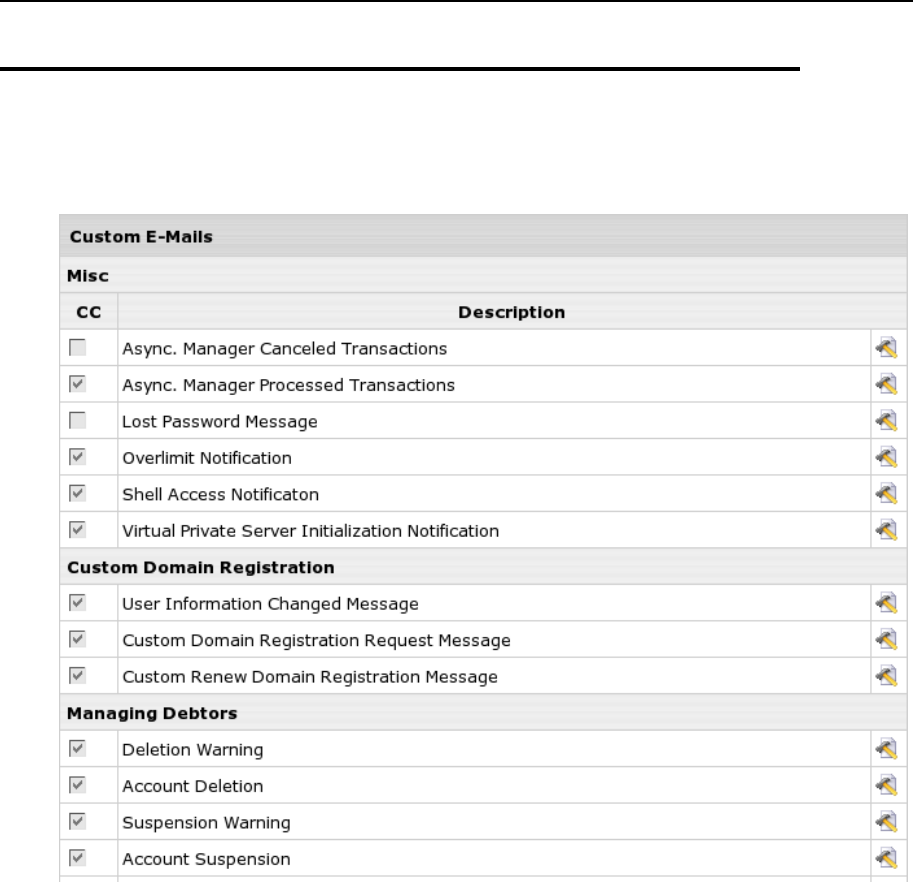
90 Ошибка! Используйте вкладку "Главная" для применения Heading 1 к тексту, который должен здесь
отображаться.
Customizing E-Mail Notification List
Parallels H-Sphere e-mail notifications can be customized directly in CP admin
interface as in the Settings->E-Mail Notifications menu.

Ошибка! Используйте вкладку "Главная" для применения Heading 1 к тексту, который должен здесь отображаться. 91
The list of e-mail notifications is set in the
~cpanel/shiva/psoft/hsphere/user_emails.xml XML configuration file. It is
customizable by means of Parallels H-Sphere packages (on page 125).
DTD Scheme: http://hsphere.parallels.com/HSdocumentation/xmls/user_emails.dtd
Example: http://hsphere.parallels.com/HSdocumentation/xmls/user_emails.xml
user_emails.xml has the following structure:
groups - container for description of the groups of e-mail notifications. (In Settings->E-
Mail Notifications, notifications are displayed in groups, according to their purpose.)
group - tag for the group description.
Attributes:
id - group identifier.
name - group name, corresponds to the label in language bundles (on page 55)
(~cpanel/languages/hsphere_lang.properties).
emails - container for description of e-mail notifications.
email - tag with notification description.
Attributes:
tag - notification tag. Corresponds to the notification‟s ce.TAG_NAME.title
(name of the notification in the list in CP), and ce.TAG_NAME.desc (short
description in the list) labels in hsphere_lang.properties, where
TAG_NAME is the value set in the tag attribute of the notification in
user_emails.xml
group_id - corresponds to the id attribute of the group to which this e-mail
notification belongs to.
template - pathname to the corresponding system e-mail notification template,
relative to the ~cpanel/shiva/shiva-templates/common directory of
default Parallels H-Sphere templates. For example,
template=”mail/custom_registrar_registration.txt” points to the
~cpanel/shiva/shiva-templates/common/mail/new_account.txt
template for the “welcome” message on creating a new account.
massmail_applicable - if set to 1, this notification is available for mass mail
delivery.
admin_only - if admin_only=”true”, this notification is available only from the
admin CP.
no_cc - if no_cc=”true”, no copies (the BCC: field) of this e-mail notification
are sent to the addresses defined in the CP admin‟s Settings->Notification
Recipients menu. That corresponds to unchecking the Sent CC checkbox while
editing the notification in CP.
subject - tag with the subject of the e-mail message to be sent to customers.
In this section:
Using Variables in Parallels H-Sphere E-Mail Notifications ................................92

92 Ошибка! Используйте вкладку "Главная" для применения Heading 1 к тексту, который должен здесь
отображаться.
Using Variables in Parallels H-Sphere E-Mail
Notifications
Parallels H-Sphere e-mail notifications can be customized directly in CP admin
interface in the Settings->E-Mail Notifications menu.
This document aims at advanced customization of these messages. It contains the
description of basic notification variables.
Below is the table illustrating which variables are used in which notifications. The
notifications are grouped and named according to their XML configuration file,
user_emails.xml. The Tag column corresponds to the names of the notifications set
in the tag attributes in user_emails.xml. In the Variables column, only variables
specific to that particular notifications are listed. Standard variables are variables
common for all notifications. Properties and methods for variables are listed below.
The List of Notification Variables
Tag
Description
Variables
Misc
LOST_PASSWORD
Lost Password
Message
standard variables
OVERLIMIT
Overlimit Notification
suspend
over_limit_res
standard variables
SSH_NOTIFICATION
Shell Access
Notification
result
subject
standard variables
VPS_INIT
Virtual Private Server
Initialization
Notification
vpsname
ips
ci
standard variables
Custom Domain Registration
ASYNC_CANCELED
Async. Manager
Canceled
Transactions
Not implemented
ASYNC_DONE
Async. Manager
Processed
Transactions
d
toolbox
CUSTOM_REGISTRAR_CONTACT_CHAN
GED
User Information
Changed Message
registrant
tech
admin
billing
domain_name
renew_days

Ошибка! Используйте вкладку "Главная" для применения Heading 1 к тексту, который должен здесь отображаться. 93
email_days
standard variables
CUSTOM_REGISTRAR_REGISTRATION
Custom Domain
Registration Request
Message
registrant
tech
admin
billing
domain_name
renew_days
email_days
standard variables
CUSTOM_REGISTRAR_RENEW
Custom Renew
Domain Registration
Message
registrant
domain_name
renew_days
email_days
period
standard variables
Managing Debtors
DEBT_DEL_NOT
Deletion Warning
bill
negative_date
current_date
suspend_date
delete_date
standard variables
DEBT_DEL_REASON
Account Deletion
bill
negative_date
current_date
suspend_date
delete_date
standard variables
DEBT_SUSP_NOT
Suspension Warning
bill
negative_date
current_date
suspend_date
delete_date
standard variables
DEBT_SUSP_REASON
Account Suspension
Not implemented
DEBT_WARN_NOTIFICATION
Outstanding Balance
Notification
bill
negative_date
current_date
suspend_date
delete_date
standard variables
TRIAL_SUSP_REGISTER
Trial Suspension
Notification
standard variables
Welcome Messages
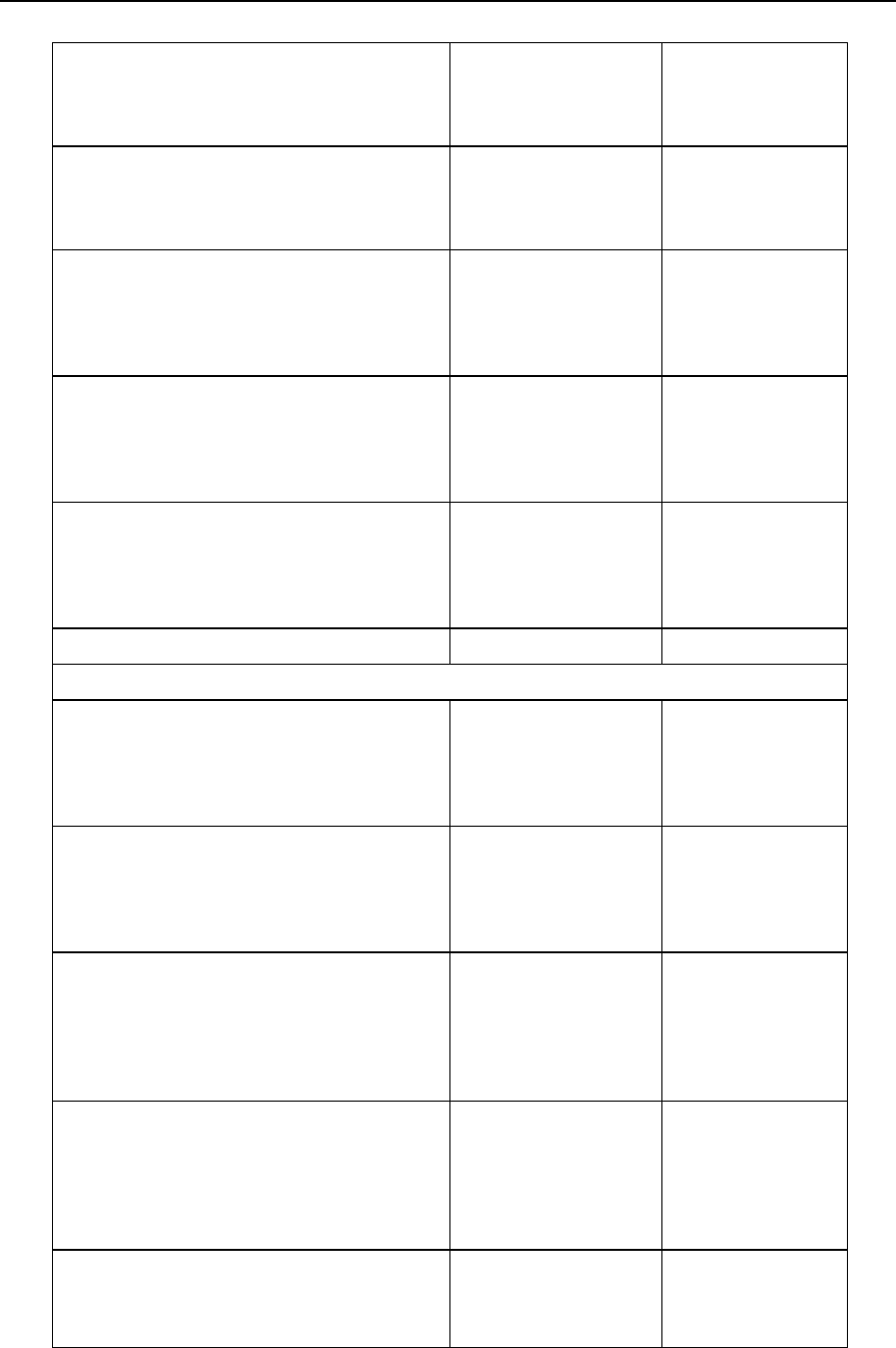
94 Ошибка! Используйте вкладку "Главная" для применения Heading 1 к тексту, который должен здесь
отображаться.
FAILED_SIGNUP
Failed Signup
Notification
failed_signups_q
accounts
lang
NEW_ACCOUNT
Welcome Letter
bi
ci
standard variables
NEW_MODERATED
Welcome Letter For
Moderated Accounts
bi
ci
reseller_url
standard variables
NEW_MODERATED_CC
Welcome Letter For
Moderated Account
with CC
bi
ci
reseller_url
standard variables
TRIAL_MODERATED
Welcome Letter For
Trial/Moderated
Account
bi
ci
reseller_url
standard variables
TRIAL_REGISTER
Trial Registration
standard variables
Tax Exemptions
ACCOUNT_TEXEMPT_APPROVED
Tax Exemption
Approved Notification
(Live Accounts)
bi
ci
date
standard variables
ACCOUNT_TEXEMPT_REJECTED
Tax Exemption
Rejected Notification
(Live Accounts)
bi
ci
date
standard variables
MODERATED_TEXEMPT_APPROVED
Tax Exemption
Approved Notification
(Moderated Accounts)
bi
ci
date
request
standard variables
MODERATED_TEXEMPT_REJECTED
Tax Exemption
Rejected Notification
(Moderated Accounts)
bi
ci
date
request
standard variables
NEW_MODERATED_TEXEMPT
Welcome Letter (Tax
Exemption)
bi
ci
reseller_url
standard variables
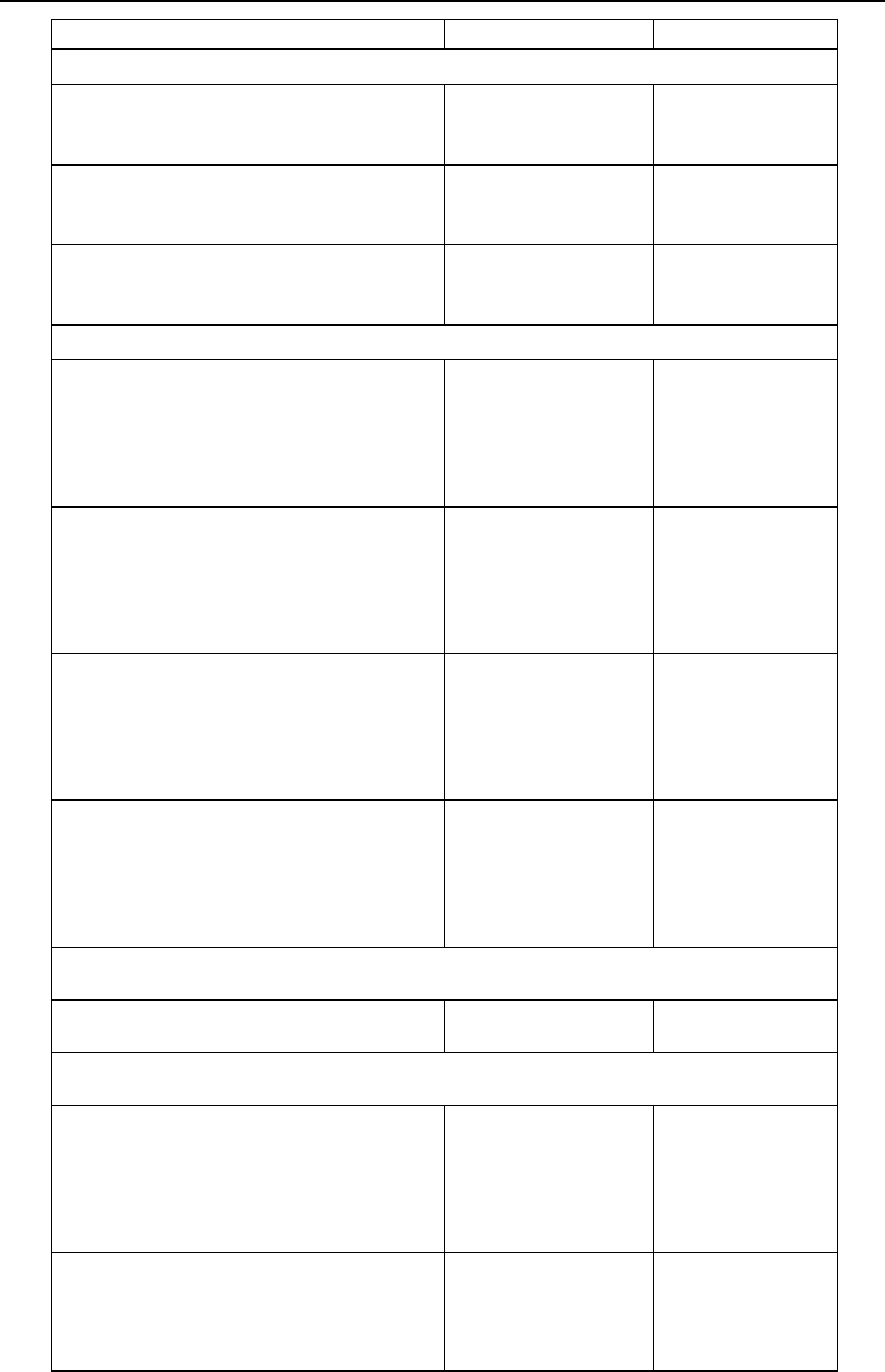
Ошибка! Используйте вкладку "Главная" для применения Heading 1 к тексту, который должен здесь отображаться. 95
Domain Registration
DOMAIN_TRANSFER
Domain Transfer
Message
domain
standard variables
REGISTRAR_EXPIRED_WARN
Expired Domain
Registration
Notification
osrs
standard variables
REGISTRAR_RENEW_WARN
Domain Registration
Renew Warning
osrs
standard variables
Managing Trials
TRIAL_APPROACH_NOT
Trial Expiry Warning
current_date
delete_date
suspension_date
trial_days_till
standard variables
TRIAL_DEL_NOT
Deletion Warning
current_date
delete_date
suspension_date
trial_days_till
standard variables
TRIAL_DEL_REASON
Account Deletion
current_date
delete_date
suspension_date
trial_days_till
standard variables
TRIAL_SUSP_NOT
Suspension Warning
current_date
delete_date
suspension_date
trial_days_till
standard variables
Trouble Ticket System
INTERNAL_TICKET
Internal Ticket
standard variables
Accounting
ACCOUNTING_ERROR
Accounting Error letter
error
date
stack
error_subject
standard variables
INVOICE
Order Confirmation
entries
taxes
subtotal
total
reseller_url
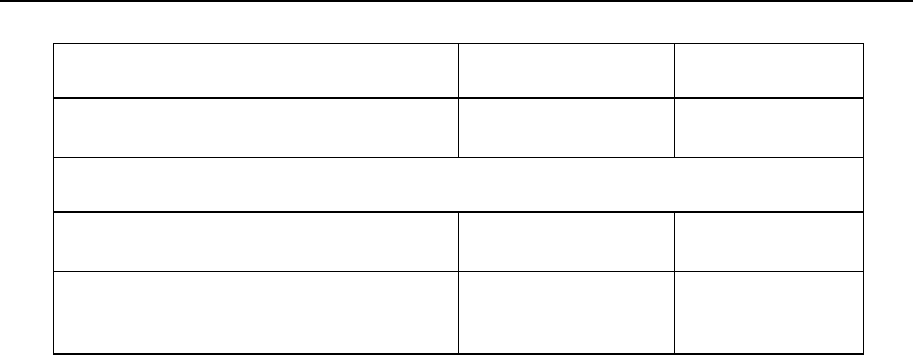
96 Ошибка! Используйте вкладку "Главная" для применения Heading 1 к тексту, который должен здесь
отображаться.
standard variables
MONEY_BACK
Money Back
Notification
standard variables
Suspend/Resume
RESUME
Account Resumed
Notification
standard variables
SUSPEND
Account Suspended
Notification
reason
standard variables
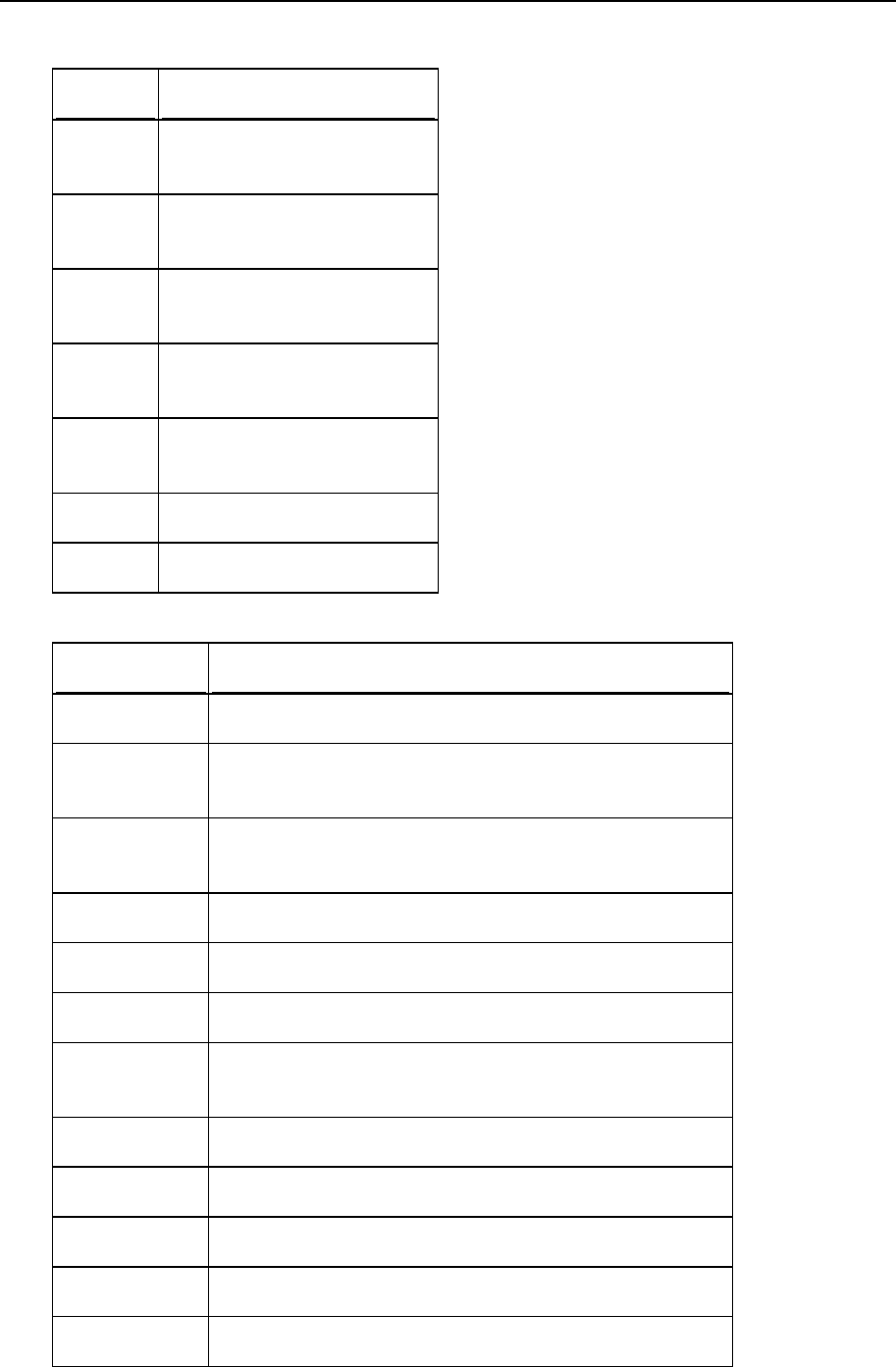
Ошибка! Используйте вкладку "Главная" для применения Heading 1 к тексту, который должен здесь отображаться. 97
Standard Variables
Variable
Description
account
The instance of the
Account object
user
The instance of the User
object
plan
The instance of the Plan
object
toolbox
The instance of the Toolbox
object
config
Values from
hsphere.properties
settings
Current reseller settings
lang
The Lang object
Special Variables
Variable
Description
suspend
The date when account will be suspended
over_limit_res
The list of overlimited resources: Traffic, Quota,
SummaryQuota
result
The result of the request (OK, REFUSED,
DISABLED), used only in SSH_NOTIFICATION
subject
The result description, used in SSH_NOTIFICATION
vpsname
VPS server name
ips
List of VPS server IPs
d
The instance of the AsyncDescriptor object, used
only in ASYNC_DONE
registrant
The same as ContactInfo
tech
Tech info
admin
Admin info
billing
Registrar Billing Info
domain_name
Domain name

98 Ошибка! Используйте вкладку "Главная" для применения Heading 1 к тексту, который должен здесь
отображаться.
renew_days
Renew domains that many days before domain
expiration
email_days
Warn users about domain expiration that many days
in advance
period
Renewal period, in years
bill
The instance of the Bill object
negative_date
Outstanding balance date
current_date
Current date
suspend_date
The date when account will be suspended
delete_date
The date when account will be deleted
failed_signups
_q
Failed signups counter, only for FAILED_SIGNUP
accounts
List of accounts with failed signup, only for
FAILED_SIGNUP
bi
The instance of the BillingInfo object
ci
The instance of the ContactInfo object
date
Current date
request
Fake request object
reseller_url
Reseller URL
suspension_d
ate
The date when the account will be suspended
trial_days_till
Days left till the end of the trial period
error
Error message
stack
Java stack trace
error_subject
Error‟s short description
entries
The list of bill entries
taxes
List of taxes
subtotal
The total, without taxes
total
The total, with taxes
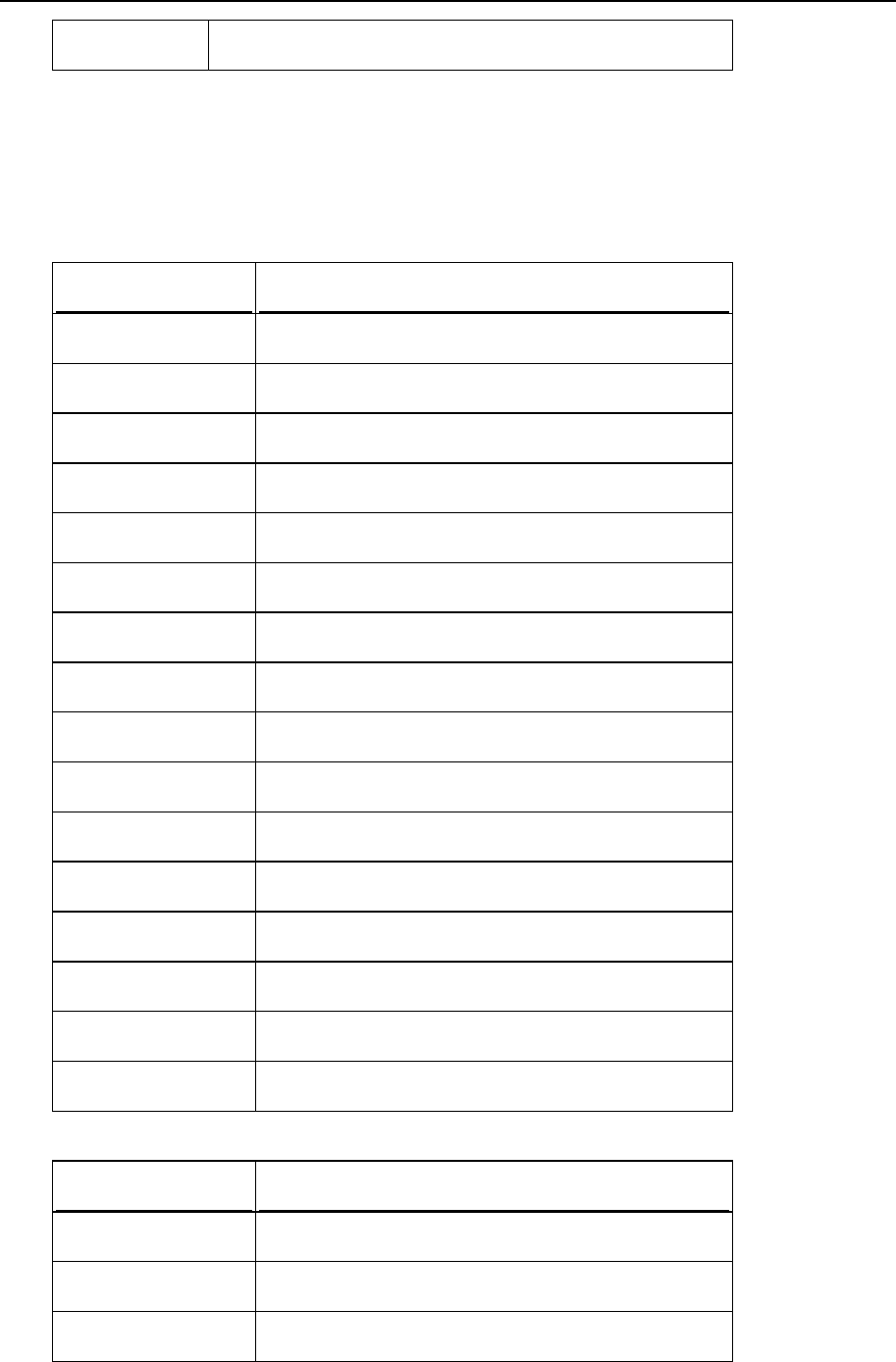
Ошибка! Используйте вкладку "Главная" для применения Heading 1 к тексту, который должен здесь отображаться. 99
reason
Reason for suspension, used only in SUSPEND
Properties and Methods
Many variables used in e-mail notifications are instances of Parallels H-Sphere objects.
Below is the table with the description of methods and properties of respective objects
(in bold).
Account
Property/Method
Description
id
Account ID
description
Description
periodId
Billing period ID
bi
The BillingInfo object
ci
The ContactInfo object
bill
The Bill object
plan
The Plan object
planId
Plan ID
receive_invoice
Flag indicating if the invoice is received
suspend_reason
Reason for suspension
password
Password
login
Login
trial_time_left
Time left from trial account creation
p_end
Billing period end date
exhaustion_date
Exhaustion date
created
Account creation date
User
Property/Method
Description
login
Login
password
Password
reseller_id
Reseller ID
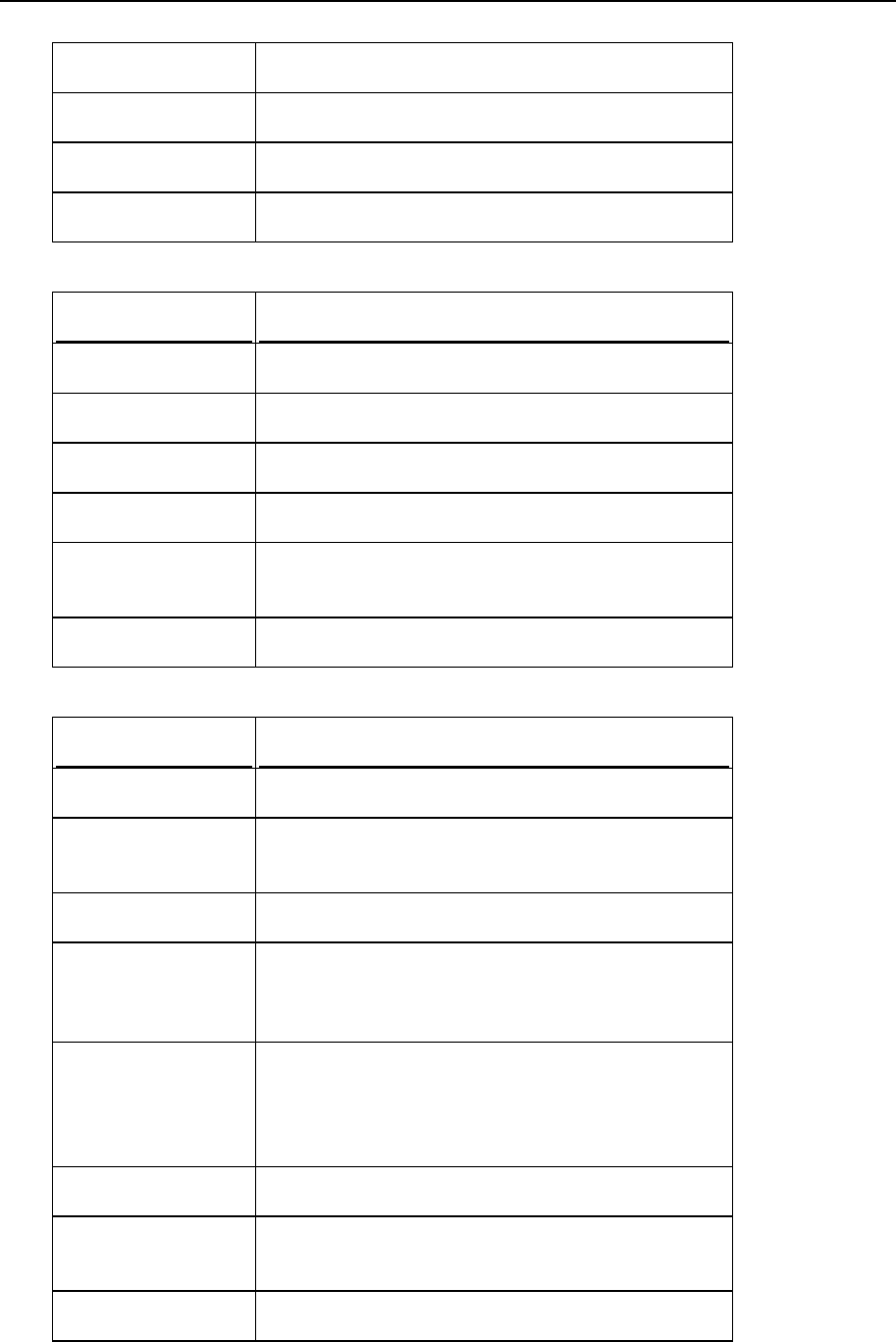
100 Ошибка! Используйте вкладку "Главная" для применения Heading 1 к тексту, который должен здесь
отображаться.
reseller_url
Reseller‟s CP URL
reseller_context_url
Reseller Context URL
prefix
Prefix for databases
isdemo
Flag indicating that the account is in demo mode
Plan
Property/Method
Description
id
Plan ID
description
Description
reseller_id
Reseller ID
disabled
Flag indicating that plan is disabled
isPromocodeApplic
able
Flag indicating if promocode is available
type
Plan type
Toolbox
Property/Method
Description
getInvoice(modId)
Returns an Invoice object
calculateTaxes(tota
l[,bi_id])
Calculates taxes
currency(value)
Returns a string with currency representation
numberToCurLocal
e(value,useGroupin
g)
Converts a number to current locale
getPaymentLink(ga
teway, sbalance,
prefix, account,
description)
Returns payment link
int2ext(ip)
Converts internal IP to external
lt(val1,val2)
Compares two variables. Returns 1 if val<val2,
else 0
sub(val1,val2)
Subtracts val2 from val1
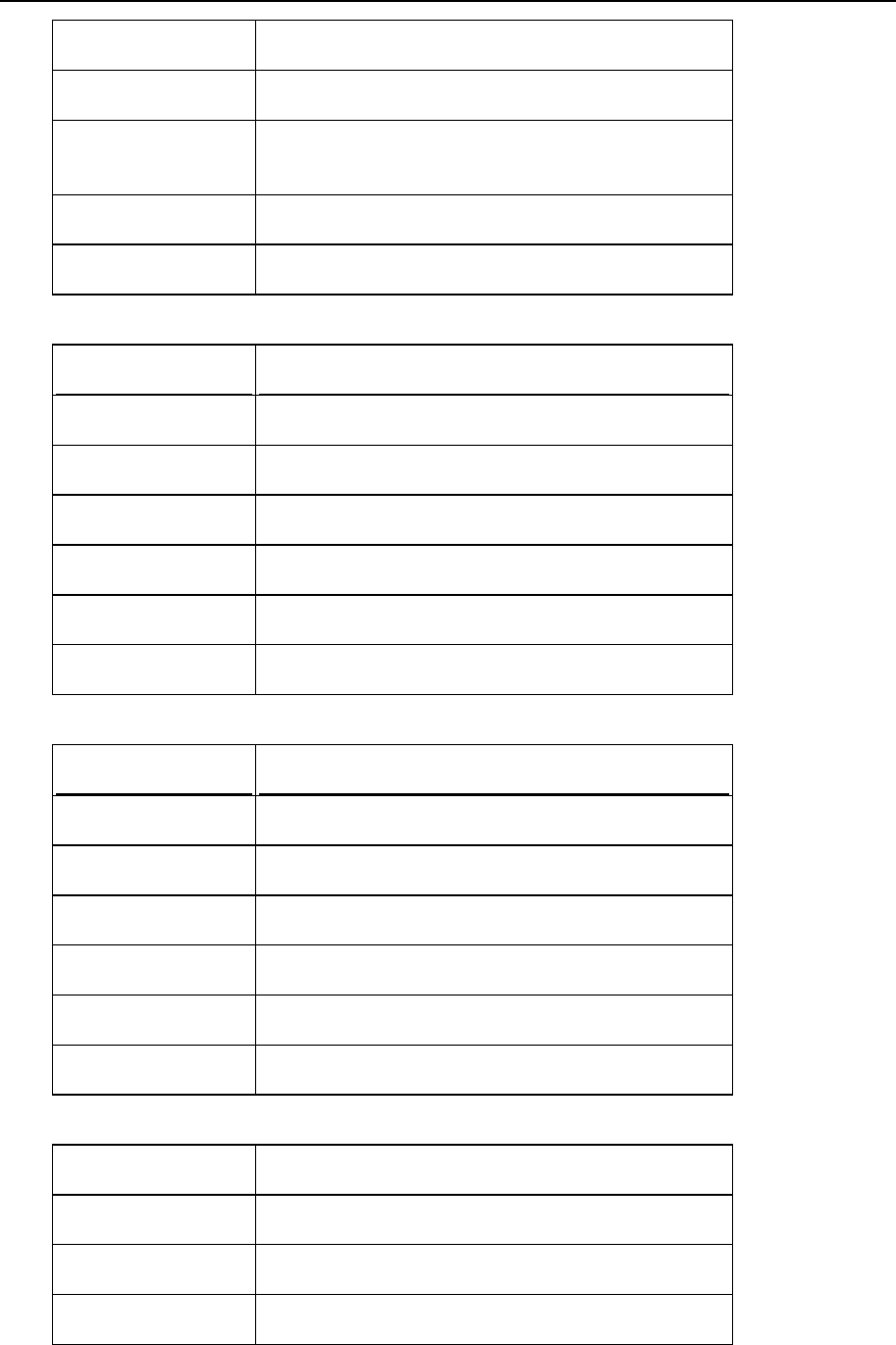
Ошибка! Используйте вкладку "Главная" для применения Heading 1 к тексту, который должен здесь отображаться.101
mul(val1,val2)
Multiplies val1 and val2
taxes
The list of taxes
displayBalance(bal
ance)
Returns a string with the balance
now
Current date
date
Current date
Traffic
Property/Method
Description
traffic
Current traffic
size
Traffic limit
tt_type
Traffic type
text_traffic
Text representation of traffic amount
info
Current traffic status
start_date
Date when traffic calculation is started
Quota
Property/Method
Description
limitMb
Quota size, in MB
limitFiles
Limit of used files
usedMb
Disk space now in use, in MB
usedFiles
Used files counter
info
Current quota status
start_date
Date when disk usage calculation is started
SummaryQuota
limitMb
Disk usage limit
usedMb
Current disk usage, in MB
lastDayUsedMb
The last day usage, in MB
info
Current disk usage status
102 Ошибка! Используйте вкладку "Главная" для применения Heading 1 к тексту, который должен здесь
отображаться.
start_date
Date when disk usage calculation is started
short_start_date
Disk usage calculation starting date, short
format
ContactInfo
Property/Method
Description
first_name
First name
last_name
Last name
org_name
Company name
address1
Address
address2
Second address
address3
Third address
city
City
state
State
country
Country
postal_code
ZIP code
phone
Phone number
fax
Fax number
email
E-mail address
BillingInfo
Property/Method
Description
id
Billing contact info identifier
bi_id
Bill id
name
Name
first_name
First name
last_name
Last name
org_name
Company name
address1
Address

Ошибка! Используйте вкладку "Главная" для применения Heading 1 к тексту, который должен здесь отображаться.103
address2
Second address
city
City
state
State
state2
Second state
country
Country
postal_code
ZIP code
phone
phone number
fax
Fax number
email
E-mail address
reason
Reason for suspension
type
Payment type: CC - credit card, CHECK - check,
TRIAL - trial account.
pi
The PaymentInfo object
exemption_code
Tax exemption code
negative_date
Outstanding balance date
PaymentInfo
Property/Method
Description
number
CC number
hNumber
Hidden number
cvv_checked
Flag indicating that CVV is checked
exp
CC expiration date
exp_year
CC expiration year
exp_month
CC expiration month
exp_day
CC expiration day
start_date
CC creation date
start_year
CC creation year
start_month
CC creation month
104 Ошибка! Используйте вкладку "Главная" для применения Heading 1 к тексту, который должен здесь
отображаться.
start_day
CC creation day
issue_no
Issue number
name
CC name
expired
Flag indicating if CC is expired
info
CC info
type
CC type
fatts
Failed Charge Attempts Counter
fatts_info
Failed Charge Attempts info
is_fatts_checked
Flag indicating if Fatts control is activated
AsyncDescriptor
Property/Method
Description
user_id
User id
user
the User object
rid
Resource id
description
Description
start_date
Start date
last_check
Last check
state
State
max_delay
Maximum delay
interval
Interval
error
Error message
error_code
Error code
Bill
Property/Method
Description
id
Bill id
opened
Date when the billing period is opened

Ошибка! Используйте вкладку "Главная" для применения Heading 1 к тексту, который должен здесь отображаться.105
closed
Date when the billing period is closed
entries
List of billing entries
description
Description
desc_plan
Plan description
desc_short
Short description
start_balance
Start of the billing period
end_balance
End of the billing period
debits
Debit
credits
Credit
change
Difference
amount
Amount
subamount
Amount without taxes
balance
Balance
credit
Credit
customCredit
Custom credit
negativeDate
Outstanding balance
format_opened
Formatted date when the billing period was
opened
format_closed
Formatted date when the billing period was
closed
to_pay
Negative balance
taxes
List of taxes
total_taxes
Taxes, total
BillEntry
Property/Method
Description
id
Billing entry id
bill_id
Billing period id
description
Description
106 Ошибка! Используйте вкладку "Главная" для применения Heading 1 к тексту, который должен здесь
отображаться.
is_credit
Flag indicating if credit is added
tax
Tax
amount
Amount
balance
Balance
note
Note
type
Payment type
canceled
Flag indicating if the billing entry is canceled
billing_info_id
Billing info id
date
Date when the billing entry is added
format_date
Formatted date when the billing entry was
added
Invoice
Property/Method
Description
localized_total
The total in local currency
total
The total
subtotal
The total without taxes
entries
Billing entries
taxes
List of taxes
Examples of Usage
Labels from language bundles
Labels from the hsphere_lang.properties language bundles (on page 55) are
called by means the lang variable.
For example, the massmail.welcome_login label is called:
${lang.massmail.welcome_login}
In more complex cases, labels may contain arguments within their text, for example:
massmail.welcome_header = Dear {0} {1},
where the arguments {0} and {1} stand for a customer‟s first name and last name,
respectively.
To call such labels with arguments:

Ошибка! Используйте вкладку "Главная" для применения Heading 1 к тексту, который должен здесь отображаться.107
${lang.massmail.welcome_header(account.ci.first_name,account.
ci.last_name)}
Please refer to the description of account and ci.
Getting credit card information
The pi variable returns information about user credit card. For example, to get credit
card number:
${account.bi.pi.number}
Packages (.hsp) are addons extending the default functionality of Parallels H-Sphere.
This chapter explains how to build and install packages into Parallels H-Sphere.
In this chapter:
Building Packages ............................................................................................. 109
Building Language Packages ............................................................................ 114
Java Tools For Packaging ................................................................................. 116
Package XML Configuration File (_pkg.xml) ...................................................... 121
Template Customization With Packages ........................................................... 123
XML Customization With Packages ................................................................... 125
Package Installation .......................................................................................... 126
Package Uninstallation ...................................................................................... 127
Package Upgrade ............................................................................................. 128
CH A P T E R 9
Packages

Ошибка! Используйте вкладку "Главная" для применения Heading 1 к тексту, который должен здесь отображаться.109
Building Packages
Parallels H-Sphere offers an interface for integrating custom plugins, or packages. With
these packages, you may add new or override default Parallels H-Sphere functionality.
Packages can be used to integrate the following elements:
resources: new or custom Java classes
system scripts (in the /hsphere/shared/scripts directory)
templates: new or custom templates
images: custom images
menu: Control Panel menu elements
interface: Control Panel skins and icon sets
language bundles: adding new languages to Parallels H-Sphere interface or updating
language files
context help: context help XML file customization
plans: XML plan wizards (on page 74)
crons: new or custom CP cron jobs (on page 82)
promotions: custom promotion validators and calculators
SQL quieries: making changes into the Parallels H-Sphere database
third party RPMs and tarballs to be included into Parallels H-Sphere scripts.
These components are built into one portable .hsp file which can be easily installed
(on page 126) by an Parallels H-Sphere system administrator.
Building packages is performed in the following steps:
1. preconfiguration:
determine package configuration: what resources, templates, systems scripts,
XML configuration files, language bundles, jars, etc. would be included into a
package
prepare package content: make sure the files to be included to a package are
located in the corresponding directories you will specify in the package
configurator‟s command line
run package configurator to collect package source files into one preconfigured
package source directory
2. configuration:
set package info: package name, version, build, etc.
set package custom properties configuration: custom XML configs, language
bundles, etc.
check and manually add source files wherever needed
3. building: assemble the package into one Java archive file with .hsp
extension
In this section:
Step 1. Preconfiguration .................................................................................... 110
Step 2. Configuration ......................................................................................... 112
Step 3. Package Builder .................................................................................... 114

110 Ошибка! Используйте вкладку "Главная" для применения Heading 1 к тексту, который должен здесь
отображаться.
Step 1. Preconfiguration
1. Log into the CP server as cpanel user.
2. Run package configurator to prepare the structure of your package. The
format is:
java psoft.hsp.tools.PkgConfigurator—with-prefix[=TARGET_DIR]
[WITH-OPTIONS] [-l LOG_FILE [-dl]]
Here:
TARGET_DIR is the directory where the package will be assembled. Package
configurator creates the directory structure where you will later add files to build
the package. If the specified directory does not exist, the configurator will try to
create it. If TARGET_DIR is omitted, the directory structure will be created in the
current directory.
WITH-OPTIONS: you choose the options to specify which components you will
include into the package: templates, language bundles, images, scripts, etc.
See Package Tools (on page 116) for details.
LOG_FILE: with the -l option, package configurator writes its actions to a log file
where you could check if it worked through correctly; -dl is a detailed log
mode.
Example:
cd ~cpanel/shiva/custom/Packages
java psoft.hsp.tools.PkgConfigurator—with-prefix=./MyPackage—
with-properties—with-templates—with-lang-bundle—with-classes—
with-scripts—with-xmls -l conf.log -dl
Notes on usage:
1. It is convenient to create a special location where you will assemble
your packages. For example, you can create the
~cpanel/shiva/custom/Packages directory and specify the
MyPackage subdirectory as TARGET_DIR for package configurator.
2. Normally, you don‟t need to specify paths in WITH-OPTIONS. In such case,
package configurator will create empty directories (with empty default
files for some options) within the TARGET_DIR directory, and you will be
able to add the files later.
Inside the package directory (specified in the—with-prefix option), package
configurator creates:
the package configuration file _pkg.xml. In this XML file you define the package info
(name, version, build, vendor, description) and configure what elements will be
included into the package.
the src directory where all source files are collected in the following directories and
files specified in _pkg.xml, in accordance with the configurator‟s options chosen:
templates/ - custom templates;
pkg_classes/ - custom Java classes;

Ошибка! Используйте вкладку "Главная" для применения Heading 1 к тексту, который должен здесь отображаться.111
pkg_scripts/ - custom scripts;
pkg_xmls/ - custom XML configuration files;
pkg_jars/ - 3rd party JARs;
pkg_config/ - custom package properties (the empty default.properties file
created);
pkg_lang_bundle/ - language bundles
pkg_images/ - custom images
pkg_tarballs/ - 3rd-party tarballs (.tgz archives)
pkg_rpms/ - 3rd-party RPMs
_SCRIPTS/_pkg.sql - SQL queries to be performed upon the Parallels H-
Sphere database
_SCRIPTS/_pre-install - script to be executed before the package installation
(on page 126)
_SCRIPTS/_post-install - script to be executed after the package installation
_SCRIPTS/_pre-uninstall - script to be executed before the package
uninstallation (on page 127)
_SCRIPTS/_post_uninstall - script to be executed after the package
uninstallation
112 Ошибка! Используйте вкладку "Главная" для применения Heading 1 к тексту, который должен здесь
отображаться.
Step 2. Configuration
Package Configuration File (_pkg.xml)
DTD Scheme: http://hsphere.parallels.com/HSdocumentation/xmls/package.dtd
Description of Tags and Attributes in _pkg.xml (on page 121)
Example: http://hsphere.parallels.com/HSdocumentation/xmls/package.dtd
According to the options selected, package configurator creates the package
configuration file _pkg.xml which looks similar to this:
<?xml version=”1.0” encoding=”utf-8”?>
<pkg build=”00” description=”Description for test package”
info=”Additional information” name=”NameOfThePackage”
vendor=”Vendor” version=”00.00.00”>
<scripts src=”pkg_scripts/”/>
<templates src=”templates/”/>
<classes src=”pkg_classes/”/>
<xmls src=”pkg_xmls/”/>
<config path=”pkg_config/default.properties”/>
</pkg>
Here, define the package name, description, vendor, version and build. This may look
like:
<pkg build=”2” description=”Test Package”
info=”This is a package built for test purposes”
name=”MyPackage”
vendor=”Company Name” version=”1.0.1”>
In the above example, the package will be built into the MyPackage-1.0.1-2.hsp
file.
You may not need to edit paths specified in _pkg.xml.
Package Properties File (default.properties)
If you run the package configurator with the—with-properties option, package
configurator creates the empty src/pkg_config/default.propeties file. It has
the same syntax as the default Parallels H-Sphere properties file
~cpanel/shiva/psoft_config/hsphere.properties. Package properties will
customize the default properties in hsphere.properties.
1. You must not change settings in hsphere.properties;
2. The package‟s default.properties file should contain only settings
to be added to/override the settings in hsphere.properties. Don’t
copy the whole content of hsphere.properties!
Templates
The src/templates/ directory with custom templates must have a structure similar to that
of the Parallels H-Sphere custom templates (on page 11) directory.

Ошибка! Используйте вкладку "Главная" для применения Heading 1 к тексту, который должен здесь отображаться.113
Important: For those templates that have both .html and .html.in files, you should
include only .html.in templates sources into the package. They should be
automatically compiled during installation.
Read a separate document on customizing templates with packages (on page 123).
XML Configuration Files
The pkg_xmls/ directory will include custom XML configuration files, such as menu.xml
(see Menu XML Customization (on page 46)) or design-config.xml (see Design
XML Customization (on page 34)).
If you are planning to include XML configuration files into your package, you must run
package configurator with the—with-xmls—with-properties options. The—
with-properties option will create the package properties file, where you will set
the corresponding properties for custom XML config files to be included to the package.
1. In default.properties, specify just the names of the XML config
files to be customized, without paths to them, for example:
DESIGN_SCHEME_CONFIG=design_config.xml
MENU_CONFIG=menu.xml
2. Make sure that custom XML config files contain only those tags that
need to be customized. Package builder will automatically find and
merge custom XML configuration with default configuration (on page
70).
Read a separate document on customizing XML configuration files with packages (on
page 125).
Language Bundles
If you include language bundles to the package, you must run package configuration
with the—with-lang-bundle—with-properties options. The—with-
properties option is used to create the package properties file.
1) Add custom language bundle files:
Copy your customized language bundle file to the src/pkg_lang_bundle
directory:
hsphere_lang_<language>_<COUNTRY>.properties
For example, language bundles for Portuguese (Brazil) will be:
hsphere_lang_pt_BR.properties
If you are not changing the default language file, add empty files with these names
to the src/pkg_lang_bundle directory:
cd src/pkg_lang_bundle
touch hsphere_lang.properties
This is required for correct bundle compilation (on page 58).
In default.properties, add the following lines:
TEMPLATE_BUNDLE=packages.PackageName.hsphere_lang
The package properties will be merged with the default settings in
hsphere.properties.

114 Ошибка! Используйте вкладку "Главная" для применения Heading 1 к тексту, который должен здесь
отображаться.
2) Adding a new language to Parallels H-Sphere: see Building New
Language Packages (on page 114)
Scripts
The pkg_scripts/ directory will have a tree of subdirectories, their level reflecting the
server type, OS family, OS name. For example, if you need to integrate a script that will
run on the CP server with RedHat Enterprise Linux EL 4, you will have to put your
script into the directory src/pkg_scripts/CP/Linux/RHEL4/
Classes
The pkg_classes/ directory will have a tree of Java classes similar to the Parallels H-
Sphere resource tree in /hsphere/local/home/cpanel/shiva/.
Step 3. Package Builder
Run package builder to build the package. Use the—help option to see the list of
possible parameters:
java psoft.hsp.tools.PkgBuilder—help
The command will look similar to the following:
java psoft.hsp.tools.PkgBuilder—with-source=./MyPackage
Package builder checks if all required files in the source directory are present, forms
one jar file of Java classes (if they are present), and makes a package as one jar file
with the .hsp extension (e.g., MyPackage-1.0.1- 2.hsp) in the source directory
(./MyPackage in the example above).
After the package is built successfully, the package is ready to use. It can be easily
installed (on page 126) and uninstalled (on page 127) on other Parallels H-Sphere
clusters.
Building Language Packages
This document will guide you through the process of building a package (on page 109)
that adds a new language to Parallels H-Sphere interface. A package is built into one
portable .hsp file and can be easily installed by a Parallels H- Sphere system
administrator.
Please also refer to the collection of Parallels H-Sphere language packages:
http://www.psoft.net/downloads/index.html#languages.
To build a language package, you should be familiar with the concept of language
bundles (on page 55) and the way they are compiled.
Let us take Portuguese (Brazil) as a sample language to be added. We assume you
have the language bundles already translated.
1. Log into the CP server as cpanel user (on page 130).
Ошибка! Используйте вкладку "Главная" для применения Heading 1 к тексту, который должен здесь отображаться.115
2. Create a special location where you will assemble and build your
packages, for example, ~cpanel/shiva/custom/Packages:
mkdir ~cpanel/shiva/custom/Packages
3. Run package configurator:
cd ~cpanel/shiva/custom/Packages
java psoft.hsp.tools.PkgConfigurator—with-prefix=./pt_BR—
with-properties—with-lang-bundle
4. Package configurator will create the pt_BR directory, which includes
the following structure:
src/_pkg.xml - package configuration file
src/pkg_lang_bundle/ - directory where you will place new language files
src/pkg_config/default.properties - custom package properties file
(initially empty)
5. Set the package name, version, build, vendor, description in
src/_pkg.xml:
<pkg build=”1” name=”Language_PT_BR” description=”Portuguese
(Brazil) Language Package”
info=”Package for installation of the Portuguese (Brazil)
language into Parallels H-Sphere”
vendor=”Sample Company Inc.” version=”0.0.1”>
6. You don‟t need to edit other tags in _pkg.xml.
7. Copy the translated language files into
pt_BR/src/pkg_lang_bundle/:
Important: Starting with Parallels H-Sphere 3.0 RC 1, menu.properties and
messages.properties become deprecated, and all labels are collected a single
hsphere_lang.properties file for each language!
cd src/pkg_lang_bundle/
cp /some/location/hsphere_lang_pt_BR.properties .
8. Create the empty file hsphere_lang.properties in the
pt_BR/src/pkg_lang_bundle/ directory:
touch hsphere_lang.properties
9. These files are required for correct bundle compilation during the
package installation.
10. Add the misc.langs.<LABEL>lang label with the name of the new
language into hsphere_lang.properties. This text will appear as
the new language option in the Change Language dropdown menus in
Parallels H-Sphere.
misc.langs.ptlang = Portugu\u00eas (Brasil)
Notes:
1) Default (English) language bundles are written in the ISO-8859-1 encoding.
Special Latin and non-Latin characters must be converted into Unicode. Use the
native2ascii JDK tool
(http://java.sun.com/j2se/1.4.2/docs/tooldocs/windows/native2ascii.html) to convert
these symbols into Unicode characters (\uxxxx notations, like “Portugu\u00eas”
instead of “Portugues” in the example above).

116 Ошибка! Используйте вкладку "Главная" для применения Heading 1 к тексту, который должен здесь
отображаться.
2) If the original language name significantly differs from that in English, (especially
for non-Latin alphabets), we recommend adding its English transcription, e.g.:
misc.langs.de_atlang = Deutch (\u00d6sterreich) - German
(Austria)
11. Edit src/pkg_config/default.properties:
12. Add properties that specify location of language bundles implemented
in this package. The format is:
TEMPLATE_BUNDLE=packages.PackageName.hsphere_lang
Here, PackageName is the value of the name attribute of the pkg tag in _pkg.xml.
In our example, we add the following lines to default.properties:
TEMPLATE_BUNDLE=packages.Language_PT_BR.hsphere_lang
13. Add the new language to the list of languages available in Parallels H-
Sphere. Set the language and encoding of the translated language files
in the LANG_LIST parameter. The format is:
LANG_LIST =
<language>_<COUNTRY>_<ENCODING>|<HTML_ENCODING>:misc.langs.<LABEL>la
ng
Here:
<language>, <COUNTRY>, and <ENCODING> are Java locale identifiers. For detailed
description and the tables of canonical identifiers, please refer to Understanding
Language Bundles (on page 55).
<HTML_ENCODING> is the HTML-compliant encoding (this parameter is
deprecated since 2.4 and is not really used but must still be specified for the
sake of compatibility);
misc.langs.<LABEL>lang is the previously set language label.
For Portuguese (Brazil):
LANG_LIST = pt_BR_ISO-8859-15|ISO-8859-15:misc.langs.ptlang
Notes:
Don‟t specify other languages into LANG_LIST in default.properties!
During the package installation, the package properties will be customize the
default properties in
~cpanel/shiva/psoft_config/hsphere.properties.
You must specify the correct encoding in which the language bundle files were
created and saved. During the package installation, language bundle compiler
will convert these files into UTF-8.
14. Return from the package directory and run package builder (on page
116):
cd ~cpanel/shiva/custom/Packages
java psoft.hsp.tools.PkgBuilder—with-source=./pt_BR
The package Language_PT_BR.0.0.1-1.hsp will be created in the pt_BR
directory. It is ready to be installed (on page 126) on Parallels H-Sphere.
Java Tools For Packaging

Ошибка! Используйте вкладку "Главная" для применения Heading 1 к тексту, который должен здесь отображаться.117
Packages are configured, built and installed by means of Java classes located in the
directory /hsphere/local/home/cpanel/shiva/psoft/hsp/tools/:
Package configurator: psoft.hsp.tools.PkgConfigurator
Package builder: psoft.hsp.tools.PkgBuilder
Package installer: psoft.hsp.tools.PkgInstaller
Package unistaller: psoft.hsp.tools.PkgUnInstaller
Package checker: psoft.hsp.tools.PkgRecheck
Package Configurator
Package Configurator (PkgConfigurator) is a tool to configure directory structure for
assembling Parallels H-Sphere packages. PkgConfigurator creates the package
directory skeleton and populates it with files used by the package. The parameters
specify the types of the files and where they must be copied from. The source locations
must have the correct directory structure. If the path parameter is omitted, the directory
skeleton is created empty, and the files will have to be copied manually.
java psoft.hsp.tools.PkgConfigurator
• with-prefix[=/path/to/directory]
[ --with-templates[=/path/to/directory] ]
[ --with-images[=/path/to/directory] ]
[ --with-properties[=/path/to/directory] ]
[ --with-xmls[=/path/to/directory] ]
[ --with-classes[=/path/to/directory] ]
[ --with-scripts[=/path/to/directory] | --with-
scripts-advanced[=/path/to/directory] ]
[ --with-scripts-advanced ]
[ --with-lang-bundle[=/path/to/directory] ]
[ --with-preinstall[=/path/to/file] ]
[ --with-postinstall[=/path/to/file] ]
[ --with-preupgrade[=/path/to/file] ]
[ --with-postupgrade[=/path/to/file] ]
[ --with-preuninstall[=/path/to/file] ]
[ --with-postuninstall[=/path/to/file] ]
[ --with-jars[=/path/to/directory] ]
[ --with-rpms ]
[ --with-tarballs ]
[ --with-sql[=/path/to/file] ]
[ --with-sql-uninstall[=/path/to/file] ]
[ --with-sql-upgrade[=/path/to/file] ]
[ --with-uninstall-sql[=/path/to/file] ]
[ - l log_file [ -dl ] ]
Allowed parameters:
--with-prefix[=/path/to/directory]
Specifies the directory where the package skeleton will be generated. If the
parameter is omitted, the current working directory will be used as the destination
folder.
[ --with-templates[=/path/to/directory] ]

118 Ошибка! Используйте вкладку "Главная" для применения Heading 1 к тексту, который должен здесь
отображаться.
Specifies that the package contains templates. The template files must be located
relative to the custom templates directory. If the path parameter is omitted, the
default directory skeleton will be generated in the package‟s templates directory,
otherwise, templates located in the specified path will be copied to the package
directory.
[ --with-images[=/path/to/directory] ]
Specifies that the package contains images. The path to the custom directory
should be specified.
[ --with-properties[=/path/to/directory] ]
Specifies that the package requires custom .properties file to be appended to
hsphere.properties. If the parameter path is present, the .properties file
will be copied from the path specified.
[ --with-xmls[=/path/to/directory] ]
Specifies that the package uses custom XML configuration files. This allows to
customize menu, hosting plans, CP design.
Important: Run this option with the—with-properties option to add custom
XML files location into the package properties file.
[ --with-classes[=/path/to/directory] ]
Specifies that the package contains java classes. This allows to add new classes
and override Parallels H-Sphere core classes.
[ --with-scripts[=/path/to/directory] | --with-scripts-
advanced[=/path/to/directory] ]
Specifies that the package contains system scripts. This allows to add new scripts
and override core Parallels H-Sphere scripts.
[ --with-lang-bundle[=/path/to/directory] ]
Specifies that the package contains language bundle files. This allows to define
new languages and override the default language dependent elements.
Important: Run this option with the—with-properties option to add custom
language bundle configuration into the package properties file.
[ --with-preinstall[=/path/to/file] ]
Specifies that the package contains a pre-installed script which will be executed
before the installation of the package.
[ --with-postinstall[=/path/to/file] ]
Specifies that the package contains a postinstall script which will be executed after
the deployment of package files.
[ --with-preupgrade[=/path/to/file] ]
Specifies that the package contains the script which will be executed before the the
package upgrade.
[ --with-postinstall[=/path/to/file] ]
Specifies that the package contains the script which will be executed after the
package upgrade.
[ --with-preuninstall[=/path/to/file] ]
Specifies that the package contains a pre-uninstall script which will be executed
before the deletion of package files.
[ --with-postuninstall[=/path/to/file] ]

Ошибка! Используйте вкладку "Главная" для применения Heading 1 к тексту, который должен здесь отображаться.119
Specifies that the package contains a post-uninstall script which will be executed
after the deletion of package files.
[ --with-jars[=/path/to/directory]
Specifies that the package contains Java libraries.
[ --with-rpms ]
Specifies that the package contains third party products supplied as RPMs.
[ --with-tarballs ]
Specifies that the package contains third party products supplied as tarballs (.tgz
files).
[ --with-sql[=/path/to/file] ]
Specifies that the package contains SQL file(s) which will be executed against
Parallels H-Sphere database after the deployment of the package files and before
the execution of the package preinstall script if it is pre-configured.
[ --with-sql-upgrade[=/path/to/file] ]
Specifies that the package will have the file with SQL queries to be run upon the
package upgrade.
[ --with-uninstall-sql[=/path/to/file] ]
Specifies that the package will have the file with SQL queries to be run upon the
package uninstallation.
[ -l log_file [ -dl ] ]
Creates and writes configuration process messages to a log file; -dl is a detailed log
mode.
Example:
java psoft.hsp.tools.PkgConfigurator—with-prefix=./SuperPKG—
with-templates—with-classes—with-scripts—with-properties -l
conf.log -dl
The package source files consisting of templates, Java classes, system scripts and the
custom properties file will be copied to the SuperPKG subdirectory of the current
directory.
Package Builder
Package builder is a tool to build a package as one jar file after the package is pre-
configured (on page 109) by package configurator and all required tuning is performed.
Package builder checks if all required files in the package source directory are present,
checks the config file and the package properties file if they are present, forms one jar
file from Java classes if they are present and makes a package as one jar file with
.hsp extension.
java psoft.hsp.tools.PkgBuilder—with-source=/path/to/package/source
Example:
java psoft.hsp.tools.PkgBuilder—with-source=./SuperPKG
Package Installer

120 Ошибка! Используйте вкладку "Главная" для применения Heading 1 к тексту, который должен здесь
отображаться.
java psoft.hsp.tools.PkgInstaller—
package=/path/to/package/file [--upgrade] [--check-only] [--
force]
Options:
--package=/path/to/package/file
Specifies the path to the built package. Parallels H-Sphere package is a Java
archive file (JAR) with the .hsp extension.
[--upgrade]
Use this option if you upgrade the package already installed on your Parallels H-
Sphere. With this option, you can easily upgrade the package without uninstallation
of the older package and restarting Parallels H-Sphere after the uninstallation.
[--check-only]
Makes utility not install the package but only perform a check routine if the package
can be installed.
[--force]
Forces the package installation even if conflicts were detected. For example, if you
are installing two packages that use exactly the same file, install the first one
without, and the second one with the—force option. The first instance of the file
will be replaced with the second. Use this option only if you are sure this won‟t
damage other packages.
See Package Installation (on page 126) for details.
Package Uninstaller
java psoft.hsp.tools.PkgUnInstaller—pkg-name=PACKAGE_NAME [--
force]
Options:
--pkg-name=PACKAGE_NAME - specify the package name. It should be
without the version and build number, as in the Package Name column in the list of
installed packages (Settings -> Packages menu in admin panel).
For example, if the package installed is MyPackage-1.0.1-2.hsp, package
name to be specified is MyPackage:
java psoft.hsp.tools.PkgUnInstaller—pkg-name=MyPackage
--force - force the uninstallation.
Package Checker
Scripts, tarballs, and rpms included into Parallels H-Sphere packages are copied to the
~cpanel/shiva/packages/PACKAGE_NAME directory on the CP server. If needed,
use java psoft.hsp.tools.PkgRecheck to check package integrity and reinstall
the missing files from the *.hsp file.
This is true only for new Parallels H-Sphere packages. You will need to copy *.hsp
packages already installed on your boxes to the corresponding
~cpanel/shiva/packages/PACKAGE_NAME directories on the CP server.
Ошибка! Используйте вкладку "Главная" для применения Heading 1 к тексту, который должен здесь отображаться.121
java psoft.hsp.tools.PkgRecheck [--pkg-name=PACKAGE_NAME] [--
force]
Options:
[--pkg-name=PACKAGE_NAME]
Specifies the path to the package checked; otherwise, checks all installed
packages.
[--force]
Reinstalls missing package files on remote physical boxes.
Package XML Configuration File
(_pkg.xml)
DTD Scheme:
http://download.hsphere.parallels.com/HSdocumentation/xmls/package.dtd
Example: http://download.hsphere.parallels.com/HSdocumentation/xmls/_pkg.xml
Tags and attributes:
pkg - package information. It is set manually in _pkg.xml after package
configurator (on page 116) run.
Attributes:
name - package name.
description - brief description.
info - additional info.
vendor - package vendor.
version - package version.
build - package build.
scripts - system scripts to be included into the package. This tag appears if package
configurator runs with the—with-scripts option.
Attributes:
src - directory in the package src/ directory where scripts are collected. It is
pkg_scripts by default. You may not need to change it.
classes - classes to be included into the package. This tag appears if package
configurator runs with the—with-classes option.
Attributes:
src - directory in the package src/ directory where classes are collected. It is
pkg_classes by default. You may not need to change it.
jars - jar files to be included into the package. This tag appears if package
configurator runs with the—with-jars option.
Attributes:
src - directory in the package src/ directory where classes are collected. It is
pkg_jars by default. You may not need to change it.
templates - custom templates to be included into the package. This tag appears if
package configurator runs with the—with-templates option.
Attributes:

122 Ошибка! Используйте вкладку "Главная" для применения Heading 1 к тексту, который должен здесь
отображаться.
src - directory in the package src/ directory where templates are collected. It is
templates by default. You may not need to change it.
xmls - custom XML configuration files to be included into the package. This tag
appears if package configurator runs with the—with-xmls and—with-
properties options.
Attributes:
src - directory in the package src/ directory where custom XMLs are collected.
It is pkg_xmls by default. You may not need to change it.
images - custom images to be included into the package. This tag appears if
package configurator runs with the—with-images and—with-properties
option.
Attributes:
src - directory in the package src/ directory where images are collected. It is
pkg_images by default. You may not need to change it.
lang_bundles - custom language bundles to be included into the package. This tag
appears if package configurator runs with the—with-lang-bundle and—with-
properties options.
Attributes:
src - directory in the package /src directory where language bundles are
collected. It is pkg_lang_bundle by default. You may not need to change it.
sql - file with SQL queries to make changes in the Parallels H-Sphere database.
This tag appears if package configurator runs with the—with-sql option.
Attributes:
src - file location in the package src/ directory where scripts are collected. It is
_SCRIPTS/_pkg.sql by default. You may not need to change it.
config - custom language bundles to be included into the package. This tag appears
if package configurator runs with the—with-properties option.
Attributes:
path - file pathname relative to the package src/ directory. It is
pkg_config/default.properties by default. You may not need to
change it.
actions - container tag for the scripts running before and after the package
installation and uninstallation. They are created in the src/_SCRIPTS directory by
default. You may not need to change their location.
pre_install - tag with location of the script that runs before the package installation.
This file (src/_SCRIPTS/_pre-install by default) is created empty when
package configurator runs with the—with-preinstall option.
post_install - tag with location of the script that runs after the package installation.
This file (src/_SCRIPTS/_post-install by default) is created empty when
package configurator runs with the—with-postinstall option.
pre_uninstall - tag with location of the script that runs before package uninstallation.
This file (src/_SCRIPTS/_pre-uninstall by default) is created empty when
package configurator runs with the—with-preuninstall option.
post_uninstall - tag with location of the script that runs after the package
uninstallation. This file (src/_SCRIPTS/_post_uninstall by default) is
created empty when package configurator runs with the—with-postuninstall
option.

Ошибка! Используйте вкладку "Главная" для применения Heading 1 к тексту, который должен здесь отображаться.123
rpms - container tag for the list of rpm tags with third-party RPMs (.rpm files) to be
included into the package. The rpms and rpm tags appear when package
configurator run with the—with-rpms option.
rpm - third party RPM file information. During the package installation these RPMs
will be copied to the /hsphere/shared/scripts/pkg_rpms/ directory to all servers
belonging to a logical server group specified in the server_group attribute.
Attributes:
name - RPM filename without .rpm extension.
server_group - Parallels H-Sphere logical server group this RPM relates to: WEB,
MAIL, DNSANY applies tarballs to all logical server groups.
tarballs - container tag for the list of tarball tags with third-party tarballs (.tgz files) to
be included into the package. The tarballs and tarball tags appear when package
configurator run with the—with-tarballs option.
tarball - third party .tgz package file information. During the package installation
these tarballs will be copied to the /hsphere/shared/scripts/3rd_party/
directory to all servers belonging to a logical server group specified in the
server_group attribute.
Attributes:
name - tarball filename without .tgz extension.
server_group - Parallels H-Sphere logical server group this tarball relates to:
WEB, MAIL, DNS; ANY applies tarballs to all logical server groups.
platform - tags (at least one; may be more than one) included into the tarball and
rpm tags to specify location of third-party tarballs or RPMs for corresponding OS
types.
Attributes:
name - server OS type supported in Parallels H-Sphere: RH72, RH73, RHES,
RHAS, RHAS3, FBSD4, ANY for all of the previously mentioned supported OSs.
location - tarball/RPM location for this type of platform. Location may be an URL:
http://... or ftp://..., or it may be BUILT-IN.
If location=”BUILT-IN”, the file will be taken from the OS type subdirectory
(the name attribute of the platform tag) of the tarballs/RPMs directory
(pkg_tarballs for tarballs or pkg_rpms for RPMs in the package‟s src/ directory).
For example: src/pkg_rpms/RHEL4/rpm_name.rpm for an RPM file for
RedHat Enterprise Linux EL 4 platform, where rpm_name is set in the name
attribute of the rpm tag.
See also Building Packages (on page 109) guide for package configuration details.
Template Customization With Packages
This documentation dwells on preparation and peculiarities of building the Parallels H-
Sphere packages (on page 109) containing templates (on page 11).
Preparation
Before you build a package out of your custom templates, make sure customization
you need to build into a package has already been performed correctly, that custom
directories are correctly defined in the Parallels H-Sphere properties file and that
custom templates have correct pathes in the custom template directory.
124 Ошибка! Используйте вкладку "Главная" для применения Heading 1 к тексту, который должен здесь
отображаться.
Note: Parallels H-Sphere upgrade script would automatically create the custom
template directory and the custom image directory if they haven‟t been created before.
If so, just skip certain steps below.
1. Login to the CP server as cpanel (on page 130) user.
All customization should be done under cpanel, and all affected files should have
cpanel:cpanel ownership.
2. In the ~cpanel/shiva/psoft_congig/hsphere.properties file,
add or comment out the corresponding lines to specify the correct paths
to the directories where you wish to have your custom templates and
custom images. Create these directories if they do not exist yet. The
default paths are:
USER_TEMPLATE_PATH=/hsphere/local/home/cpanel/shiva/custom/te
mplates
USER_IMAGE_PATH=/hsphere/local/home/cpanel/shiva/custom/image
s
3. Add symlinks to the custom image directory from the default template
directory (~cpanel/shiva/shiva-templates/):
ln -s /hsphere/local/home/cpanel/shiva/custom/images
/hsphere/local/home/cpanel/shiva/shiva-
templates/CUSTOM_IMAGES
This will create the CUSTOM_IMAGES symlink directory in the default template
directory.
4. Make sure your custom templates are located in the custom template
directory, and your custom images in the custom image directory. To
correctly implement new templates or to override default templates or
images, the directory structure within the custom directories should be
identical to the default directories.
5. To implement custom templates, follow instructions outlined in the
Template Customization (on page 10) guide.
6. To implement custom images for Parallels H-Sphere skins and icon
sets, assign the dir attribute in the design_config.xml file to
/CUSTOM_IMAGES instead of default /IMAGES. For example:
<icon_image_sets base_dir=”/CUSTOM_IMAGES”>
For details of customizing designs, please read Skin and Icon Set Customization (on
page 31) in Customization Guide.
Building Packages Containing Templates
After you have prepared custom templates for creating a package, follow the general
instructions on building packages (on page 109), with certain considerations specific to
the templates:
You should include only .html.in template sources. They will be compiled
automatically during the package installation.

Ошибка! Используйте вкладку "Главная" для применения Heading 1 к тексту, который должен здесь отображаться.125
If you customize the Control Panel menu or skins, you need to run the package
configurator with the—with-xmls option to add custom menu.xml and design-
config.xml files to the package, and with the—with-properties option to
plug in these custom XMLs to the system.
See also Building Packages with XMLs (on page 125) for details.
XML Customization With Packages
This document dwells on building Parallels H-Sphere packages to customize XML
configuration files.
Some custom XML files can be merged with default XMLs by means of XML merger
(on page 70). Instead of moving and changing a default XML file, a small custom file is
created containing necessary changes and its location is specified in
~cpanel/shiva/psoft_config/hsphere.properties in the parameter with the
“CUSTOM_” prefix added to the default parameter name, e.g.:
MENU_CONFIG =
/hsphere/local/home/cpanel/shiva/psoft/hsphere/menu.xml
CUSTOM_MENU_CONFIG =
/hsphere/local/home/cpanel/shiva/custom/xml/menu.xml
To build packages with custom XMLs:
1. Log into CP server as the cpanel (on page 130) user.
2. Create Custom XML files
Custom XML files should contain only parts to be added to or to modify default
XMLs. During the package installation (on page 126) these custom files will be
merged with default XMLs. Please refer to the XML Manager (on page 70) guide for
examples.
3. Run Package Configurator.
Run package configurator (on page 109) in the package directory you created with
the following options, at least:
--with-prefix=path/to/package/directory: specify a target directory
(relative to the current directory) where all package files will be collected and the
package will be configured (on page 109). We will call it package directory later
in the text.
Hint: You may create a special directory with corresponding package
directories where you assemble package source files. For example, it may
be ~cpanel/shiva/custom/packages.
--with-xmls[=path/to/xml/directory]: specify directory with custom
XML files. Note that if you don‟t specify the directory, the empty src/pkg_xmls
directory will be created in the package directory and you will need to copy
custom XML files there manually.
--with-properties[=path/to/package/properties/directory]:
this option is required to include custom XML files to the package properties in
order to merge custom XMLs with default XMLs on package installation. If you
don‟t specify the directory, the empty
src/pkg_config/default.properties file will be created in the package
directory.

126 Ошибка! Используйте вкладку "Главная" для применения Heading 1 к тексту, который должен здесь
отображаться.
Thus, package configurator‟s command line will look like:
$ su -l cpanel
bash-2.05a$ java psoft.hsp.tools.PkgConfigurator—with-
prefix=/hsphere/local/home/cpanel/shiva/custom/packages/MyPacka
ge—with-properties—with-xmls
4. Configure the Package
To include custom XMLs into the package configuration, add corresponding
parameters into the package properties file. Go to the src/pkg_config directory
of the package directory (~cpanel/custom/packages/MyPackage in the above
example).
Edit the default.properties file. It will be empty if you did not specify the path
to the package properties file in the—with-properties option of package
configurator.
You don‟t need to copy all contents of the default hsphere.properties file to
your package properties file. Only add custom parameters that will be merged with
the default ones when the package is installed.
In the package properties file, specify just the names of the XML config files to be
customized (on page 67), without paths to the. For example, to include changes in
menu and designs, just add these lines to the properties file:
# Custom design
DESIGN_SCHEME_CONFIG=design_config.xml
# Custom menu
MENU_CONFIG=menu.xml
After you have configured package properties, proceed to other package
configuration options (on page 109) required.
5. Run Package Builder
Run package builder (on page 116) to build the package, for example:
java psoft.hsp.tools.PkgBuilder—with-
source=/hsphere/local/home/cpanel/custom/packages/MyPackage
The package will be assembled to the .hsp Jar file in the current directory.
6. Install the Package
Login as cpanel and run package installer (on page 126), for example:
java psoft.hsp.tools.PkgInstaller—package=./MyPackage
Package Installation
This document explains how to install custom packages on standard Parallels H-
Sphere.
To install a Parallels H-Sphere package:
1. Login to CP server as the cpanel (on page 130) user.
2. Install the package using the Package Installer tool. Use the—help option
for the syntax:

Ошибка! Используйте вкладку "Главная" для применения Heading 1 к тексту, который должен здесь отображаться.127
java psoft.hsp.tools.PkgInstaller—
package=/path/to/package/file [--upgrade] [--check-only] [--
force]
Options description:
• package=/path/to/package/file
Specifies the path to the built package. Parallels H-Sphere package is a Java
archive file (JAR) with .hsp extension.
[--check-only]
Makes utility not install the package but only perform a check routine if the package
can be installed.
[--upgrade]
Use this option if you upgrade the package already installed on your Parallels H-
Sphere. With this option, you can easily upgrade the package (on page 128)
without uninstallation of the older package and restarting Parallels H-Sphere after
the uninstallation (on page 127).
[--force]
Forces the package installation even if conflicts were detected. For example, if you
are installing two packages that use exactly the same file, install the first one
without, and the second one with the—force option. The first instance of the file
will be replaced with the second. Use this option only if you are sure this won‟t
damage other packages.
3. Restart Parallels H-Sphere (on page 130).
4. Check whether all Parallels H-Sphere package components have been
successfully installed.
The files installed with the package will be copied to the
~cpanel/shiva/packages/PackageName directory, where PackageName is the
name of the package without its version and build number. For example, after
installation of the MyPackage-1.0.1-2.hsp package its files will be stored in
the ~cpanel/shiva/packages/MyPackage directory.
If some package components (scripts, 3rd-party bundles, etc.) of Parallels H-
Sphere *.hsp packages are missing after the installation or on newly added
Parallels H-Sphere physical boxes, run the Parallels H-Sphere update script
with the 3rdpackages option. See the Parallels H-Sphere Upgrade Guide for
the update script options details.
After you installed a package, it will be added to the list of installed packages in
your admin Control Panel, in the Settings->Packages menu. Click a package to
check its details and files installed by that package. This is helpful to find out
whether all package files are installed correctly.
If something goes wrong during or after the installation, you can uninstall the package
(on page 127).
Package Uninstallation
To uninstall a package:
1. Log into CP server as cpanel (on page 130) user.
2. Run package uninstaller:
128 Ошибка! Используйте вкладку "Главная" для применения Heading 1 к тексту, который должен здесь
отображаться.
java psoft.hsp.tools.PkgUnInstaller—pkg-name=PackageName [--
force]
Options:
• pkg-name=PackageName
Specify the package name. It should be without the version and build number, as in
the Package Name column in the list of installed packages in the Settings/Packages
menu in admin panel.
For example, if the package installed is MyPackage-1.0.1-2.hsp, package
name to be specified is MyPackage:
java psoft.hsp.tools.PkgUnInstaller—pkg-name=MyPackage
• force - force the uninstallation (no prompts to be shown).
3. Restart Parallels H-Sphere (on page 130).
Package Upgrade
To upgrade an installed package to its newer version, run the package installer tool
with the—upgrade option. With this option, you don‟t need to care about uninstalling
the older package and restarting Parallels H-Sphere before updating the package.
To upgrade a package:
1. Login to CP server as cpanel (on page 130) user.
2. Install the new package with the—upgrade option:
java psoft.hsp.tools.PkgInstaller—
package=/path/to/package/file—upgrade
Package Installer options (on page 126)
3. Restart Parallels H-Sphere (on page 130).
The package files will be installed to the ~cpanel/shiva/packages/PackageName
directory, where PackageName is the name of the package without its version and build
number. For example, after installation of the MyPackage-1.0.1-2.hsp package its
files will be stored in the ~cpanel/shiva/packages/MyPackage directory.
To ensure the package is upgraded, check the Settings->Packages menu in admin
interface for the package version and the package files installed.
130 Ошибка! Используйте вкладку "Главная" для применения Heading 1 к тексту, который должен здесь
отображаться.
Logging in as the cpanel User
Parallels H-Sphere control panel runs under the cpanel user on the CP server. You
need to log in as cpanel to perform many administrative tasks, such as CP
configuration, customization, access the system databse, running console Parallels H-
Sphere java tools, and many others.
Under cpanel, Parallels H-Sphere control panel communicates with other Parallels H-
Sphere boxes via SSH.
To log in as the cpanel user:
1. Log in as root first:
$ su -l
2. Log in as the cpanel user:
# su -l cpanel
Restarting Parallels H-Sphere Control
Panel
To restart Parallels H-Sphere Control Panel:
1. Log into the CP server as root.
2. Run:
Linux:
/etc/rc.d/init.d/httpdcp stop
killall -9 java
sleep 10
/etc/rc.d/init.d/httpdcp start
FreeBSD:
/usr/local/etc/rc.d/apachecp.sh stop
killall -9 java
sleep 10
/usr/local/etc/rc.d/apachecp.sh start
