Pinnacle InstantCopy Us M3 M2 Man Instant Copy 8.0 Instruction Manual 8 Eng
User Manual: pinnacle InstantCopy - 8.0 - Instruction Manual Free User Guide for Pinnacle Instant Software, Manual
Open the PDF directly: View PDF  .
.
Page Count: 45

Pinnacle
InstantCopy
User Guide
ii Pinnacle InstantCopy
Pinnacle InstantCopy – Quick Start Guide
Copyright © Pinnacle Systems Inc. All rights reserved.
No part of this manual may be reproduced or transferred to
other media without explicit written permission from Pinnacle
Systems Inc.
All brand or product names are trademarks or registered
trademarks of their respective holders.
This manual is printed on chlorine-free paper using environ-
mentally safe ink.
Pinnacle Systems has written this manual to the best of its
knowledge, but does not guarantee that the programs/systems
will fulfill the desires of the user.
No warranty is made as to the specifications of features.
Pinnacle Systems retains the right to make alterations to the
content of the manual without the obligation to inform third
parties.
All tenders, sales, supply and manufacturing contracts from
Pinnacle Systems, including consultancy, installation and other
contractual performance are subject exclusively to the General
Sales and Delivery Terms of Pinnacle Systems.

Contents iii
Contents
CONTENTS................................................................... III
CHAPTER 1: INTRODUCING INSTANTCOPY ............. 1
CHAPTER 2: USING INSTANTCOPY ........................... 3
Erasing CD-RWs..................................................................................... 5
A closer look at disc copying......................................................................6
Copying from a hard drive....................................................................... 6
Copying to a hard drive ........................................................................... 6
Copying a CD or a data DVD..................................................................7
Copying DVD video to DVD .................................................................. 7
Copying DVD video to VCD or S-VCD .................................................8
Writing to multiple drives......................................................................10
InstantCopy settings................................................................................. 10
General settings ..................................................................................... 11
DVD settings ......................................................................................... 13
CD settings ............................................................................................ 17
Write settings......................................................................................... 19
Read settings..........................................................................................22
Activity log............................................................................................ 24
CHAPTER 3: ADVANCED OPTIONS.......................... 25
The Device Properties dialog box............................................................25
General ..................................................................................................26
Writer..................................................................................................... 27
Disc........................................................................................................28
Settings .................................................................................................. 29
iv Pinnacle InstantCopy
APPENDIX A: REFERENCE TOPICS ......................... 31
The write methods .................................................................................31
The closing methods.............................................................................. 32
Measuring storage.................................................................................. 33
APPENDIX B: LICENSE AGREEMENT ...................... 35
INDEX .......................................................................... 39

Chapter 1: Introducing InstantCopy 1
Chapter 1:
Introducing InstantCopy
InstantCopy is an easy-to-use program for copying CDs
and DVDs. Despite its surface simplicity, InstantCopy
has many powerful features, for example:
• Copy DVD video to either DVD or CD.
• Copy a dual-layer DVD to a single writable DVD
using your choice of automatic or user-configured
compression.
• Perform copies – even those requiring compression –
directly from one disc to another, without having to
use your hard drive for intermediate storage.
To install InstantCopy:
1. Switch on your computer.
Windows will start automatically on most systems.
If it does not, start Windows manually.
Note: You must log in with administrator rights to
carry out the installation.
2. Insert the InstantCopy CD-ROM.
The set-up program will start automatically on most
systems. If it does not, double-click the My Com-
puter icon on the Windows desktop, open the CD-
ROM drive in Windows Explorer, and double-click
the “Setup” or “Setup.exe” file.
The language used by the set-up program is deter-
mined by your Regional Settings in the Windows
Control Panel.
2 Pinnacle InstantCopy
3. Follow the instructions provided within the installer
program for entering your user information and for
setting the directory where InstantCopy should be
installed on your system. Click the Next button to
advance from one screen to the next.
4. After the installation is complete, you should be
able to run InstantCopy from your Start menu.
Chapter 2: Using InstantCopy 3
Chapter 2:
Using InstantCopy
InstantCopy can be started in two different ways:
• With the InstantCopy command on your Windows
Start menu.
• From the local menu of your disc-burner device. To
access this, click on the device with the right mouse
button and choose Copy CD/DVD from the local
menu.
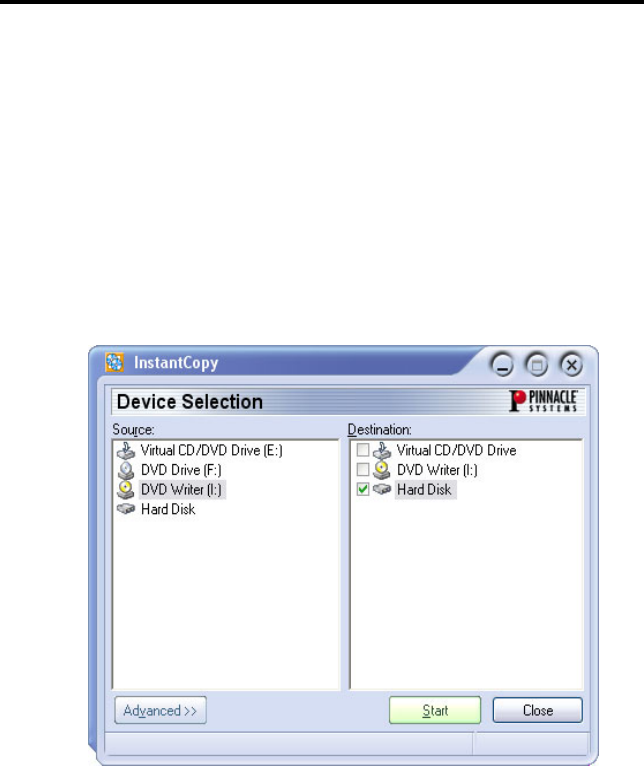
The InstantCopy windows appears:
All connected drives are automatically shown in the
Source and/or Destination device selection lists.

4 Pinnacle InstantCopy
Copying a disc
Most disc copies can be performed simply by selecting
the source and destination drives and pressing the Start
button.
There are three possibilities:
• Copying from CD to CD.
• Copying from DVD to CD.
• Copying from DVD to DVD.
In each case, the disc you are copying to must be
recordable (CD-R, DVD-R) or rewritable (CD-RW,
DVD-RW), but the disc you are copying from can be of
any type that is readable in the source drive.
Of course, InstantCopy also provides a number of ways
of customizing the copy process for particular
requirements. Please see “A closer look at disc
copying” (page 6) and “InstantCopy settings” (page 10)
for details.
Note: You are responsible for ensuring that your disc
copying does not infringe any copyright restrictions on
the source material. Copyright considerations aside,
many DVD discs include built-in protection that
prevents them from being copied.
To copy a disc using default settings:
1. Select a drive on the Source side of the InstantCopy
window by clicking on the drive name.
2. Select one or more drives on the Destination side.
For special considerations that apply when copying
to more than one drive, please see “Writing to
multiple drives” on page 10.
3. Press the Start button to begin copying.
Chapter 2: Using InstantCopy 5
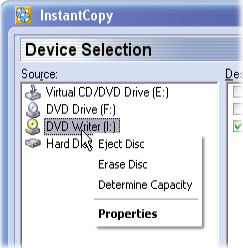
Device menu
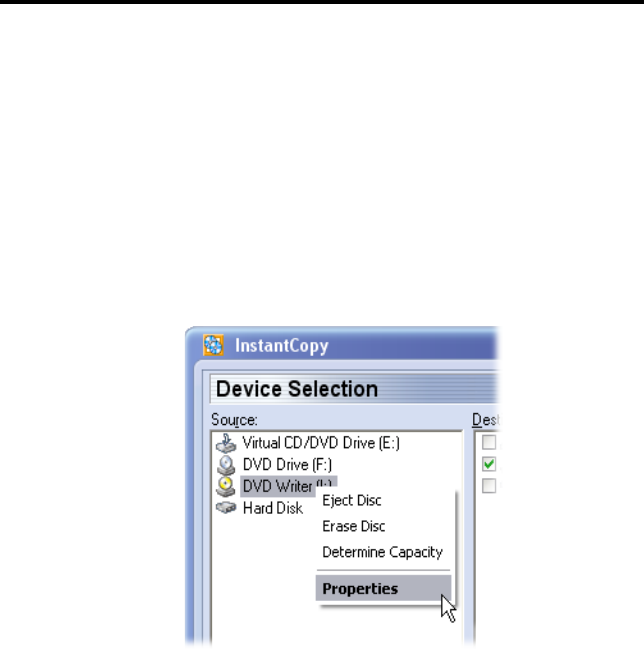
If you right-click the name of a disc device in the
Source and Destination lists, a pop-up “context” menu
appears:
Eject Disc simply opens the tray on the specified drive
if it is currently closed.
Erase Disc erases the current contents of the disc in the
drive if that disc is rewritable (RW). See “Erasing CD-
RWs” below.
Determine Capacity tests the actual maximum writing
capacity of the disc in the drive. This should be
somewhat greater than the disc’s nominal capacity, and
can be used for “oversize writing” on some recorders
when the disc at once write method is used.
Properties opens the Device Properties dialog box,
which is described in detail beginning on page 25.
Erasing CD-RWs
InstantCopy allows you to erase CD-RW discs. To
erase a CD-RW, right click on the CD recorder in the
Source or Destination list and select Erase Disc from
the context menu. You can specify Quick or Complete.
The erase method you should use depends on your CD-
RWs and the CD recorder.
6 Pinnacle InstantCopy
A CLOSER LOOK AT DISC COPYING
As we have seen, the first step in the copying process is
to select the source and target drives in the InstantCopy
window.
In addition, InstantCopy provides numerous settings
that allow you to adjust and customize the copying
process. These are available through the Advanced
button. See “InstantCopy settings” (page 10) for more
information.
Copying from a hard drive
If a hard drive is chosen as the source of a copy, the
data to be copied must be in one of these formats:
• A disc image file with the extension pdi.
• A CUE file.
• In the case of a video DVD, a local copy of the files
as they should appear on the DVD. InstantCopy will
ask you to choose an ifo file that is contained in a
folder named “Video_ts”. That folder is created if
you use a third-party product to copy a DVD to the
hard drive, or if you use InstantCopy to copy a DVD
that does not have CSS encryption.
Copying to a hard drive
Copying from CD or DVD to the hard drive creates a
pdi file, which can be the source for subsequent copies
to disc. This is one way to go about making multiple
copies of a disc: first create a pdi image file on the hard
drive, then make the copies from there.
Chapter 2: Using InstantCopy 7
Copying a CD or a data DVD
After you have selected the source and target drives,
and perhaps adjusted some settings, simply click on
Start and follow the instructions in the program.
Copying DVD video to DVD
Start the copying process as usual, by selecting the
drives, adjusting any settings as needed, and clicking
Start.
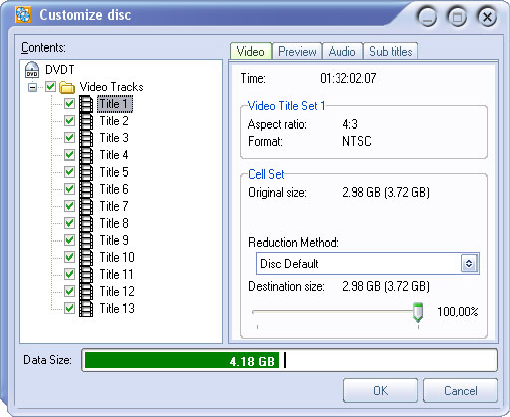
If you have selected Customized Resize in your DVD
Settings (see page 13), the Customize Disc dialog box
will shortly appear:
This dialog lets you edit and delete DVD content, set
up the video quality of the individual titles, and remove
audio and subtitle tracks from the list of items to be
copied. Omitting unneeded tracks from the copy leaves
8 Pinnacle InstantCopy
more room for video data on the target disc, which in
general means higher-quality video.
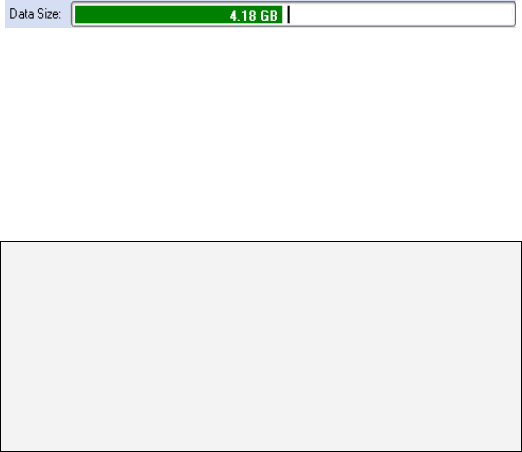
You can achieve optimum picture quality for the
currently selected track by ensuring that the Data Size
bar is set as high as possible (but remains within the
green area) after your adjustments have been made.
You can check the contents of individual video tracks
by means of the Preview tab.
In order to create DVDs that can be played on stand-
alone DVD players, “PCM” or “AC3” audio tracks
must be available. Other audio tracks can be
deactivated to make way for higher-quality video.
Note: The Customize Disc dialog box may sometimes
appear even if you have selected Automatic Resize as
your copy method. This occurs in those cases where
the program needs your input to produce the best copy.
Under either method, the dialog may even appear
twice, if InstantCopy’s further analysis of the source
disc indicates a need for more user input.
Copying DVD video to VCD or S-VCD
VCD (Video CD) and S-VCD (Super Video-CD) are
disc formats for storing video on CD media. This
allows you to copy DVD discs even with a CD burner
(though you will still need a DVD-ROM drive to read
the source disc). Most DVD players will play back
VCDs, but S-VCDs are less widely supported.
If you are copying to CD, begin by inserting a blank
CD in the target drive and clicking Start.
Chapter 2: Using InstantCopy 9
Next, whether you are copying to a CD or to the hard
disk, choose VCD or S-VCD as the target format, and
click Start.
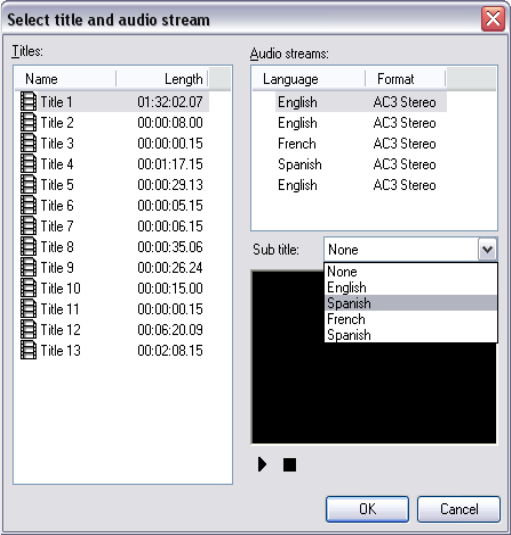
Because it is not possible to include audio tracks or
more than one subtitle track in the copy, the Select
Title And Audio Stream dialog box is displayed:
This dialog lets you choose one language (if multiple
languages are available on the source disk) and one
subtitle track (if there is more than one) for each track
on the source DVD.
Audio streams
Select which one of the listed audio tracks you wish to
copy.
10 Pinnacle InstantCopy
Subtitle
The subtitles you copy onto VCD or S-VCD are not
stored separately as they are on the DVD but are
instead inserted directly into the video picture. They
can therefore not be turned off. This is why you have
the option of None when selecting the subtitles to copy.
After you have made your selections on the Select Title
And Audio Stream dialog box, click OK to begin the
copying process. The data from the DVD is converted
to the target format and copied onto as many CDs as
required.
Writing to multiple drives
InstantCopy enables you to write to several drives
simultaneously. You can achieve this simply by
selecting all the drives in the Destination list that you
want to write to. The drives must be of the same type
and able to write at the same speed. The best results are
obtained when the same recorder models are used.
INSTANTCOPY SETTINGS
Although in many cases you should be able to copy
discs successfully using just the default settings,
InstantCopy lets you adjust numerous options if
required.
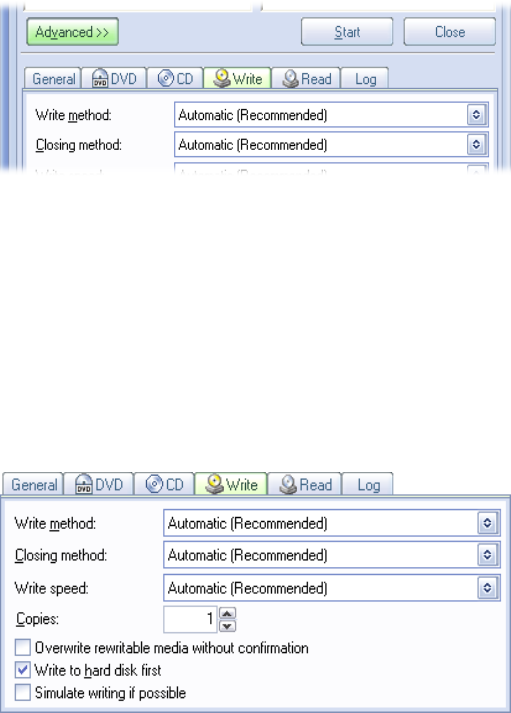
To access all the available settings, click the Advanced
button in the main InstantCopy window. This opens a
new area at the bottom of the window with tabs to
select the category of setting that you want to view or
adjust.
Chapter 2: Using InstantCopy 11
Open the settings area of the InstantCopy window by
clicking the Advanced button. In this illustration, the
Write settings are currently selected.
General settings
These are global or miscellaneous settings that affect
multiple aspects of the copying process.
Temporary directory
The temporary directory specifies the directory for
buffered data. For optimum results, this directory
should be located on the fastest hard disk drive on your
system, and that drive should have at least enough free
space to accommodate a full disc’s worth of data (about
800 MB for a CD, and 4.7 GB for a DVD).
12 Pinnacle InstantCopy
After simulation
In cases where there is concern that a copy done under
some particular set-up might fail, you have the option
of running a simulated copy to test the set-up without
wasting a disc. See “Simulate writing if possible” on
page 22 for more information.
The After simulation setting determines how the write
process will run after a successful simulation run:
• Start writing after confirming means that user
confirmation will be requested before the write
process is begun.
• Start writing without confirming continues into the
writing phase without requiring user input.
Programming interface type
This setting specifies how InstantCopy should commu-
nicate with the disc hardware. The default choice,
Automatic, is equivalent to ASAPI. The other choices
are Windows SPTI and ASPI.
Pinnacle recommends the default setting, but the other
interfaces are available for particular circumstances.
Disable screensaver while writing
Some screen savers require a lot of system resources
while they are running, and can thus interfere with
copying if they activate while InstantCopy is writing to
the disc. Select this option to prevent your screen saver
from activating during the write process.
Chapter 2: Using InstantCopy 13
DVD settings
This group of settings affect the way InstantCopy
copies a DVD video disc to a recordable DVD or CD.
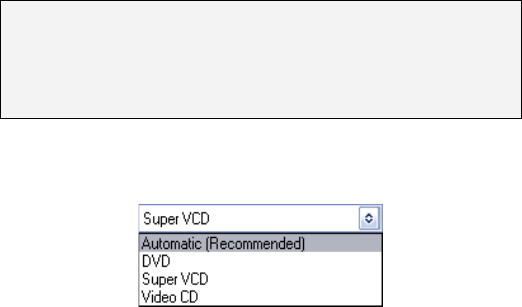
Copy method
These options affect the amount of data from the source
DVD that will be written to the destination disc(s).
Most commercial DVDs are “dual-layered”, meaning
that there can be up to 8.4 GB of data on one side of the
disc. The laser in the DVD player reads the first layer,
which can be up to 4.7 GB, then refocuses deeper into
the disc to read the second layer. Because the capacity
of a blank DVD recordable disc is 4.7 GB, it would
ordinarily be impossible to copy a dual-layer DVD
onto one layer. However, the sophisticated technology
built into InstantCopy is able to compress the dual-
layer DVD onto a single layer with minimal loss of
quality. To increase the quality still further,
InstantCopy allows you to remove unwanted material
14 Pinnacle InstantCopy
such as trailers, special features and extra audio
language tracks.
Automatic resize: With this option, InstantCopy auto-
matically reduces the size of the source data on a dual-
layer DVD to fit within the storage capacity of a
recordable blank DVD (4.7 GB).
Main movie only: Only the main movie track and the
main audio track are copied. Other video on the source
disc, including menus and other short items, is ignored.
Customized resize: This option lets you manually
optimize the methods used to reduce the size of the
video and audio data that will be copied. See “A closer
look at copying” on page 6 for details.
Direct: This option creates an unmodified copy of the
source DVD. A successful copy under this method
requires that the amount of data on the source DVD is
no larger than the capacity of the target DVD.
When is a GB not a GB? Please see “Measuring
storage” on page 33 for details about the units of
storage, and why your 4.5 GB computer file is too
large for your 4.7 GB DVD disc.
Preferred destination
The Automatic option sets the output disc type to DVD.
The choice of destination disc will be reflected in the
disc customization dialogs (see page 6). You have
many more customization options for DVDs than for
the other types of disc.
Chapter 2: Using InstantCopy 15
Reduction method
This option specifies the approach that InstantCopy
should use when compressing a dual-layer disc onto a
single recordable DVD.
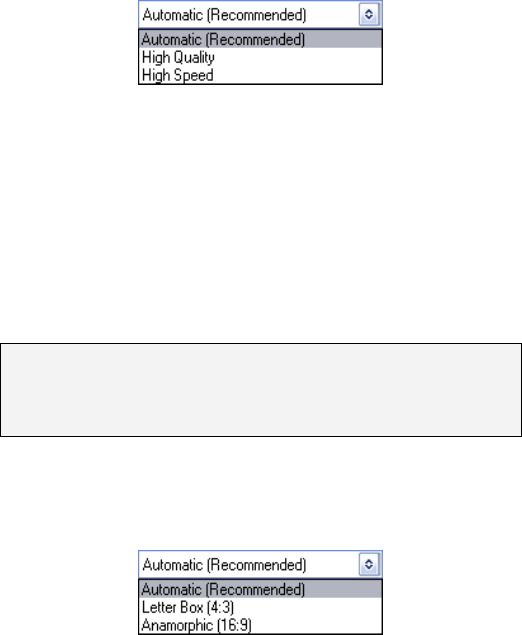
The Automatic (default) choice is High Quality. When
High Speed mode is selected, the compression will be
up to four times faster, but you may expect slightly
lower quality.
Note: If you have selected the customized resize copy
method (see above), you will have the opportunity to
set the reduction method on a track-by-track basis.
CD aspect ratio
This setting only applies to copies from DVD to VCD
or S-VCD. It lets you specify how the wider frame-size
of the DVD video should be adapted to the squarer
(four to three) format of the target disc.
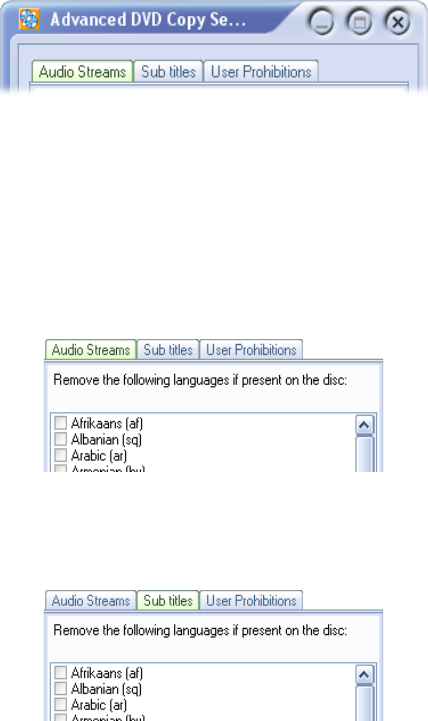
The Automatic option is equivalent to selecting the
Letter Box option, which creates a letterbox copy with
a side ratio of 4:3. The Anamorphic option is suitable
for playing back on televisions that support the 16:9
widescreen format.
16 Pinnacle InstantCopy
Settings
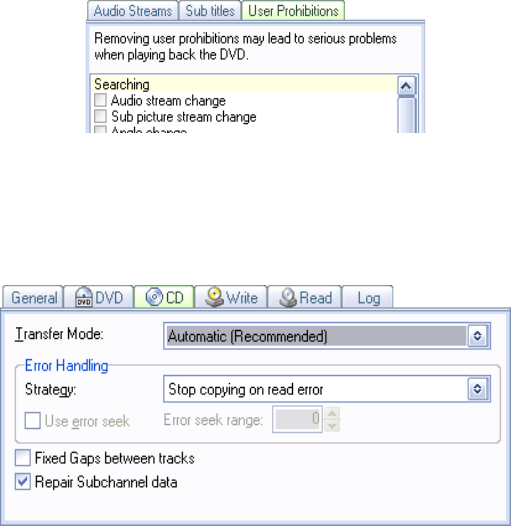
The Settings button provides access to the Advanced
DVD Copy Settings dialog box, with three additional
tabs that you can use to further customize your DVD
copying.
Each tab lets you control which components, if any, of
the indicated type of additional content you want to
include in the copy.
Audio streams: Many DVDs include audio content in
multiple languages. Check or uncheck the boxes on this
page according to whether or not you want content in
the corresponding language to be copied.
Sub titles: The Subtitles page is organized in exactly
the same way, but this time you’re specifying whether
subtitle tracks in the given languages will be copied.
User prohibitions: Among the information stored on a
DVD disc is a set of user prohibition codes. These tell
playback equipment to disallow particular options or
Chapter 2: Using InstantCopy 17
navigation actions. In most cases, the prohibited actions
simply don’t apply to the content, making it at best
pointless to cancel the prohibitions. When the
capability is needed, however, checking the boxes will
remove chosen prohibitions from the copy even if they
occur on the source disc.
CD settings
The settings on this tab apply when the source disc for
the copy is a CD.
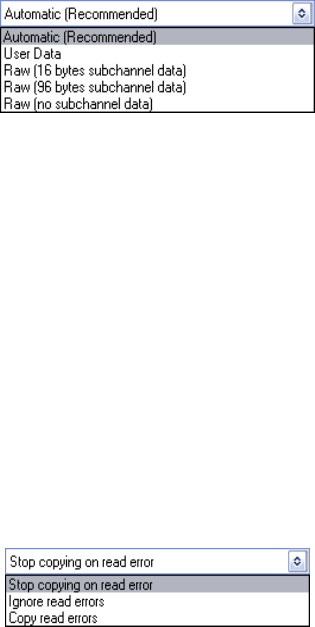
Transfer mode
The transfer mode defines which data from the CD are
read and written. The available modes are User Data
and Raw.
In Raw mode, which is not supported by all drives, all
the information stored on the disc is transferred in
unmodified form, including control and other data that
are not ordinarily passed on. In the User Data mode,
18 Pinnacle InstantCopy
which should work with every drive combination, the
extra data is not transmitted.
Raw mode, when available, is the recommended setting
only if an exact copy is required. For normal copies,
User data is preferred.
The Automatic option defaults to User Data as the
transfer mode. For copy-protected disks, you may be
able to achieve a working copy using one of the other
options.
Error handling
Strategy: InstantCopy can handle errors reported by
the source drive in three different ways:
• Errors abort the process.
• Error reports are ignored: the copy operation
continues as though no error had been detected.
• Errors are copied: the same error is reproduced at the
equivalent location on the target disc.
When you choose Ignore read errors, these further
settings become available:
Use error seek and Error seek range: When an
attempt is made to read data from defective or
protected areas of a disc, it can take a long time to read
a sector. To speed up this process, InstantCopy can test
Chapter 2: Using InstantCopy 19
for defective sectors in steps whose size is set by the
Error seek range control. If a good sector is reported,
InstantCopy seeks back to find the first available
readable sector and continues to copy. The higher the
step width, the faster the process becomes, but the
greater the chance of missing smaller readable areas.
Useful values for the step width generally lie between
100 and 1000.
Fixed gaps between tracks
Check this box to set the pause between CD tracks to
two seconds instead of the original pause length. This
can be used to compensate for a drive that can’t
reliably detect the original pause.
Repair subchannel data
Subchannel data are pieces of information in addition
to the data on the disk. In the case of copy-protected
disks these may intentionally be a disk ID, for example.
In this case, you should dea4ctivate this check box.
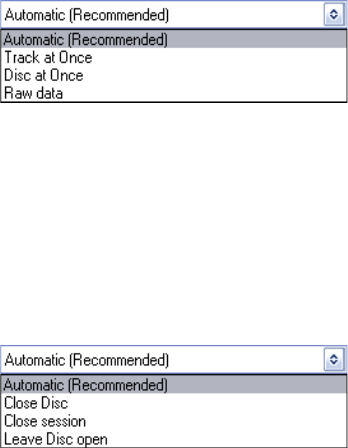
Write settings
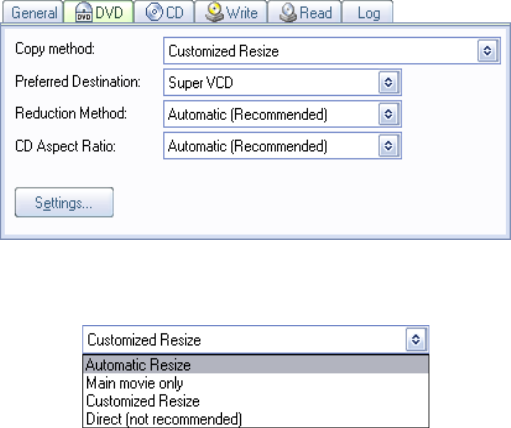
The Write tab gives you control over settings that affect
the way writing to disc is carried out by InstantCopy.
20 Pinnacle InstantCopy
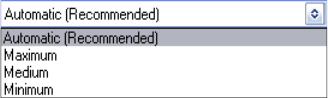
Write method
The write methods available to you depend on your
disc burner hardware and drivers. See “The Write
Methods” on page 31 for more information.
If you choose the Automatic option, the default write
method – Disc at Once – will be used.
Closing method
This setting defines how the writing process is finished.
See “The Closing Methods” on page 32 for more
information.
The Automatic option defaults to Close session.
However, if you have selected Automatic or Disc at
Once as the write method, the Close Disc method will
always be used.
Copies
Enter the number of copies of the source disc you wish
to create. InstantCopy will prompt you to insert new
blank discs as required.
Write speed
InstantCopy normally selects the highest writing speed
allowed by your disc-burning hardware. However,
Chapter 2: Using InstantCopy 21
sometimes it can be useful to choose a lower speed,
whether to decrease the demands on your system, or to
allow for speed limitations in the device being copied
from. This may be of particular value when reading
from a CD-ROM, where even small errors can lead to a
significant deterioration in the reading speed.
Under the Automatic setting the write speed will be set
to High. If you have already inserted a disc into the
drive, only the speeds that are actually available for the
target disc will be displayed.
Overwrite rewritable media without confirmation
By default, InstantCopy warns you before it begins to
copy if the target CD or DVD is rewritable (as opposed
to “write-once”), since any files that are already on the
disc will be destroyed in the process. It is
recommended that you keep the default setting. How-
ever, if you don’t want to be warned, check this box.
Write to hard disk first
Optical drives are usually not as fast as hard disks, and
the effective read speed may be further reduced if
errors occur. If it falls too low, the data will not be
delivered to the target device quickly enough, and write
errors will occur.
Selecting Write to hard disk first causes the data to be
buffered to the hard disk drive before being copied to
the target device.
22 Pinnacle InstantCopy
Simulate writing if possible
Successful writing to a CD or DVD depends on an
uninterrupted flow of data from the source drive. If an
interruption does occur (due to a read failure, for
example), the write process cannot continue.
If you anticipate possible problems with a disc copy,
you can perform a simulated write first by checking
this box before starting the copy. During the simula-
tion, all read and write operations are executed
normally, but the write laser is switched off. If the
writing procedure is discontinued, the destination disc
is not affected and can be used after correcting the
error.
If you are not sure about the performance of your
system you should always try a simulation before the
actual write.
Note: Not all disc burners support switching off the
laser as required for simulated writing.
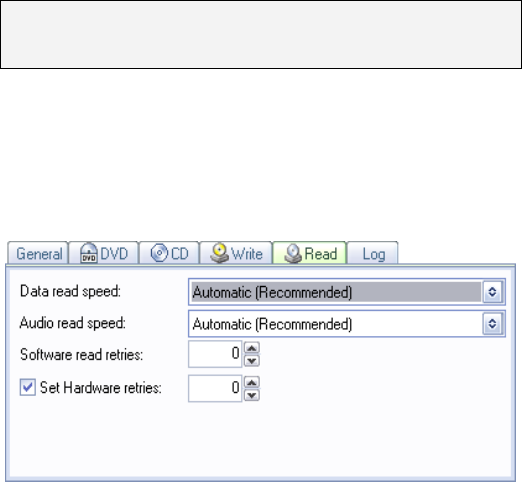
Read settings
The Read tab lets you control settings relating to
reading from a source drive.
Chapter 2: Using InstantCopy 23
Data read speed
This setting controls the speed at which data tracks are
read. We suggest using the highest available speed,
because drives will automatically move down to a
lower speed if read errors occur. The Automatic
(default) read speed therefore corresponds to
Maximum.
If you have already inserted a disc into the drive, only
the read speeds that are actually available for that disc
will appear in the list.
Audio read speed
Use this setting to set the speed at which audio tracks
are read. The optimum speed depends on your drive.
With some drives, for instance, the audio quality gets
worse at higher speeds. For direct copying from one
optical disc device to another, the read speed should be
at least double the write speed.
If you choose the Automatic option, the read speed will
be set to Maximum.
Software read retries
This value specifies how many attempts the software
should make to read a sector when read errors are
reported by the drive. A normal value is 10 attempts.
For special uses like copying discs with known read
errors, you can decrease the value to speed up the
process. The recommended minimum value is 3.
Hardware read retries
This value specifies the number of times the hardware
will read a sector until a read error is reported. A
normal value is 10 attempts and, as with Software read
24 Pinnacle InstantCopy
retries, you can try decreasing the value to speed up the
process. A reasonable minimum value for typical
drives is 3.
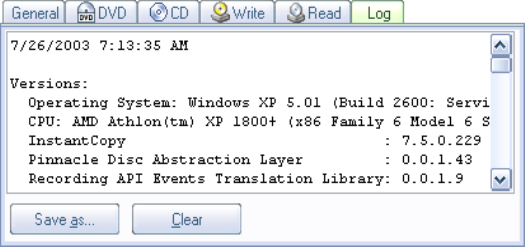
Activity log
Here you will find a report of InstantCopy’s activities
during the current session.
Chapter 3: Advanced options 25
Chapter 3:
Advanced options
In most circumstances, you should be able to operate
InstantCopy successfully without having to modify the
settings described here for your optical disc drives.
When required, however, you can access these settings
for the devices listed in the InstantCopy window.
THE DEVICE PROPERTIES DIALOG BOX
Access the property settings for an optical disc device
by clicking the drive in the Source or Destination
device lists with your right mouse button and selecting
Properties from the local menu. The settings are in
groups, accessed by tabs across the top of the dialog.
26 Pinnacle InstantCopy
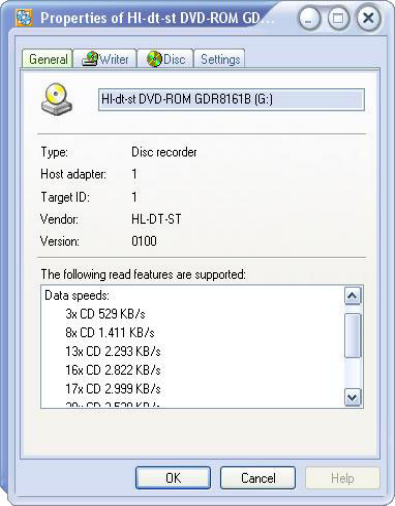
General
The General tab of the Device Properties dialog box
displays the type of device along with version and
manufacturer information. The list of read features
shows the disc types and speeds supported, and
additional features like the ability to read ISRC
(International Standard Recording Code) and UPC
(Universal Product Code).
Chapter 3: Advanced options 27
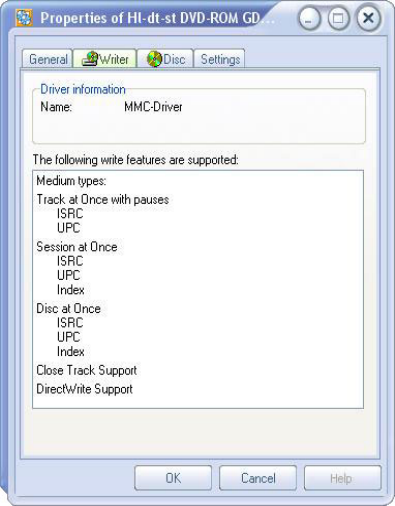
Writer
This tab of the Device Properties dialog box provides
driver and feature information about the currently-
selected disc writer device.
28 Pinnacle InstantCopy
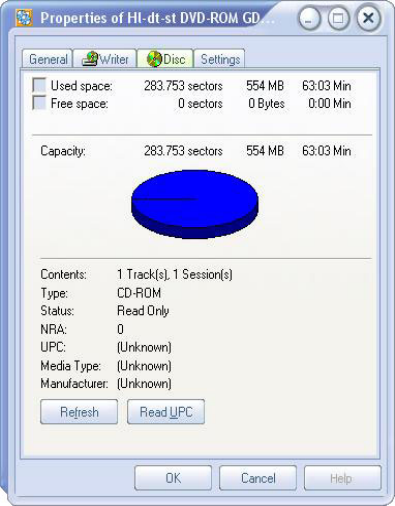
Disc
The Disc properties tab provides information about the
disc currently in the drive. Click the Refresh button if
you insert a new disc while the properties dialog is
displaying. The Read UPC button lets you read the
disc’s UPC (Universal Product Code) if your drive
supports this feature.
Chapter 3: Advanced options 29
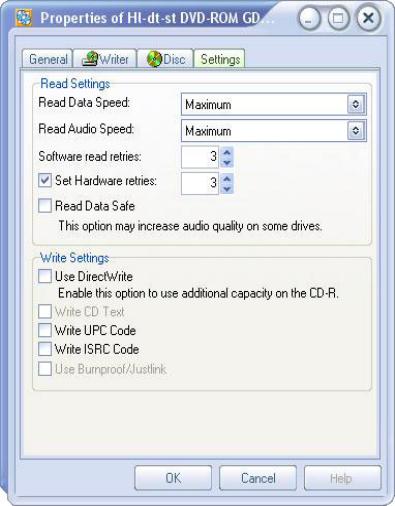
Settings
Some of the settings on this page are the same as those
provided on the InstantCopy Read tab (see “Read
settings” on page 22). It doesn’t matter which location
you access them from.
Read data speed: This is the same as Data read speed
on the Read tab.
Read audio speed: This is the same as Audio read
speed on the Read tab.
Software read retries: This is the same as Software
read retries on the Read tab.
Set hardware retries: This is the same as Set
hardware retries on the Read tab.
30 Pinnacle InstantCopy
Use DirectWrite: Oversize writing – that is, writing
more data on a CD-R(W) than the guaranteed capacity
of the disc – is possible if this option is checked.
However, the option only works with disc-at-once
recording and only with some CD recorders.
Depending on the brand of disc you choose, up to
20MB of extra space may be available for copying.
If you are not sure whether the disc size is sufficient,
you can find out by right-clicking the drive and
selecting Determine capacity (but be prepared for a
somewhat lengthy operation). In any case, InstantCopy
has an internal database that includes capacity
information for most CD-R(W)s, so this step is not
usually required.
Write CD Text: CD-Text is optional added text
information included on some CDs and readable by
some players. Check this box if your drive is able to
write CD-Text and you want to use this feature.
Write UPC Code: Check this box if your drive is able
to write UPC (Universal Product Code) codes and you
want to use this feature. Be sure to use valid UPC
numbers, as invalid codes can cause the write process
to fail.
Write ISRC Code: Check this box if your drive is able
to write ISRC (International Standard Recording Code)
codes and you want to use this feature. Invalid ISRC
codes can cause the write process to fail.
Use Burnproof/Justlink: Burnproof and Justlink are
technologies for preventing write errors due to “buffer
underruns”. Such errors occur when the destination
drive requests data faster than the source drive can
supply it. If your disc burner supports either
technology, you can enable it by checking this box.

Appendix A: Reference topics 31
Appendix A:
Reference topics
These topics provide additional details on the “write
methods” and “closing methods” that are available to
you when creating discs.
The write methods
InstantCopy provides three standard methods of writing
data onto the destination disc. Not all disc-burners
support all three.
Track at once
This method is available for nearly all recorders. The
tracks are written one by one and the table of contents
is written after the last track.
Until you finalize the disc you can add more sessions
after the first as long as there is enough space left on
the disc.
Please note that an Audio CD player can only detect
the first session on such a “multi-session” disc. If you
want to write additional audio tracks, do not close the
session after the first write.
A disadvantage of the Track at once write mode is that
there will be a brief pause between tracks (up to two
seconds) and there may be some hiss or crackle.
Because of this, the Disc at once mode is suggested for
audio discs.
32 Pinnacle InstantCopy
Disc at once
Using this write method, all the data that will
eventually appear on the disc are written it in one pass.
This makes it possible for the software to control the
pauses between tracks. You cannot add data to a disc
written with this method. Its main advantage is the
optimum utilization of space, the option of using
DirectWrite (when supported by the recorder) and the
absence of glitches between audio tracks. Tracks can be
appended to one another without pauses if desired.
Raw
Using this write method, the data are written to the disc
in one pass. Unlike Disc at once, where some of the
data written to the disc are created by the burner itself,
in Raw mode all data are controlled by the program,
making it possible to write data to the disc which
otherwise couldn’t be written. With this feature,
InstantCopy is able to duplicate the source data exactly.
The closing methods
The closing method defines how the write process is
finished. Your choice of closing method determines
whether you can write more data to the disc or not –
unless your write method is Disc at once
Leave disc open
This method finishes the writing of the track. The
current session stays open, however, and more tracks
can be added to it. CD-ROM drives and Audio CD
players are not able to use these CDs until they have
been finalized.
Appendix A: Reference topics 33
Close session
Once the session has been closed, or finalized, most
drives are able to read the disc. Of course the medium
itself must be readable. Not all CD-ROM drives can
read CD-RWs, while a normal CD player is not capable
of reading multi-session discs and will detect only the
first session on your CD. If you are creating an Audio
CD, all the tracks should therefore be written one
session: don’t finalize the disc until all your last track
has been written.
Close disc
This option is a kind of write protection for the disc. If
you select this option, no one can change the content of
the disc (although the disc can still be erased if it is
rewritable).
Measuring storage
A blank DVD is often said to hold 4.7 GB of data.
Unfortunately, even that seemingly simple statement is
rather misleading, because the “GB” unit is used to
mean two different things. The result is that the 4.5 GB
file on your hard drive will not fit on your 4.7 GB disc
– it’s too big!
Computer storage is almost always organized in powers
of two, so “round numbers” of bytes are quantities like
1024 (two raised to the tenth power). One common
way to refer to the size of a computer file, or a chunk of
computer memory, is in terms of how many 1024-byte
“slices” it contains. Those slices are usually called
kilobytes (abbreviated KB or Kbyte) simply because of
the accident that 1024 is quite close to 1000, which is
given the prefix “kilo” in the SI system of measurement
used by scientist and engineers.
34 Pinnacle InstantCopy
For instance, 4096 bytes is equivalent to exactly four
kilobytes, and not 4.096 kilobytes as normal SI usage
would indicate.
With larger quantities, this small but manageable
confusion of terms becomes more tangled. What do we
mean by a megabyte (MB or Mbyte)? One might
suppose it to be any of these:
• A million bytes exactly, after the SI “mega” prefix;
• 1000 KB, or 1,024,000 bytes;
• 1024 KB, or 1,048,576 byte.
In fact, and again because of the way storage is actually
organized, the third of these is generally preferred.
The same reasoning holds true when we move up to the
next SI prefix and talk about gigabytes (GB or Gbyte).
Rather than exactly one billion (one thousand million)
bytes, we generally use “gigabyte” to mean 1024 MB,
or 1,073,741,824 bytes.
The file sizes reported by Windows (in Windows
Explorer, for example) are “correct” according to this
normal usage. Unfortunately, the manufacturers of
DVDs have chosen to use the SI meaning of “giga”, so
a “4.7 GB” disc in fact has a capacity of 4,700,000,000
bytes – which corresponds to only about 4.37 GB in
terms of computer storage.

Appendix B: License Agreement 35
Appendix B:
License Agreement
Pinnacle End User License Agreement
This End User License Agreement (“License”) is a legal agreement
between you and Pinnacle Systems (“Pinnacle”) regarding Pinnacle’s
software and the accompanying documentation (collectively, the
“Software”). CAREFULLY READ THE FOLLOWING LICENSE.
USING THIS SOFTWARE INDICATES YOUR ACCEPTANCE OF
THIS LICENSE. IF YOU DO NOT ACCEPT OR UNDERSTAND
THE TERMS OF THIS LICENSE, YOU SHOULD NOT INSTALL
THE SOFTWARE AND PROMPTLY RETURN THIS PRODUCT
TO YOUR VALUE-ADDED RESELLER.
1. License Grant. Subject to the restrictions set forth below, this
License grants you a non-exclusive, perpetual license to (a) install the
Software on only one computer; (b) use or authorize use of the
Software on only one computer; (c) make one copy of the Software, in
machine-readable form, solely for backup purposes; provided you
include all copyright and other proprietary rights notices on the copy
and (d) transfer the Software and this License to another party if the
other party agrees to accept the terms and conditions of this License.
If you transfer the Software, you must at the same time either transfer
all copies to the same party or destroy any copies not transferred. If
you transfer possession of any copy of the Software to another party,
your License is automatically terminated.
2. License Restrictions. You may not, or allow any third party to, (a)
rent, lease, sell, loan or otherwise transfer the Software or any of your
rights and obligations under this License; (b) install the Software on a
network for use by multiple users, unless each user has purchased a
license; (c) reverse-engineer, decompile or disassemble the Software
or hardware in whole or in part; (d) remove or destroy any copyright
notices or other proprietary markings of the Software or any third-
party software; (e) modify or adapt the Software, merge the Software
into another program or create derivative works based on the
Software; (f) make copies of or distribute, for profit or otherwise, the
Software, except as expressly provided above; (g) make any
alteration, modification, connection, disconnection, improvement or
adjustment of any kind to or use the Software except as explicitly
contemplated in the enclosed documentation and in this License and
36 Pinnacle InstantCopy
(h) sublicense, transfer or assign this License or any of the rights and
obligations granted under this License, except as explicitly
contemplated in this License. Any purported transfer or assignment
will be void.
3. Export Restrictions. The export and re-export of Pinnacle
software products are controlled by the United States Export
Administration Regulations and such software may not be exported or
re-exported to any country to which the United States embargoes
goods. In addition, Pinnacle software may not be distributed to
persons on the Table of Denial Orders, the Entity List, or the List of
Specially Designated Nationals. By downloading or using a Pinnacle
software product you are certifying that you are not a national of any
country to which the United States embargoes goods and that you are
not a person on the Table of Denial Orders, the Entity List, or the List
of Specially Designated Nationals.
4. Ownership. The license granted hereunder does not constitute a
transfer or sale of ownership rights in or to the Software. Except for
the license rights granted above, Pinnacle retains all right title and
interest in and to the Software including all intellectual property rights
therein. The Software is protected by applicable intellectual property
laws, including United States copyright laws and international
treaties.
5. Third Party Proprietary Property. This Software may contain
the proprietary property of others, which has been licensed to
Pinnacle, your use of the Software is expressly conditioned on your
agreement not to remove any copyright notices or other proprietary
markings of the third party software.
6. Security. You acknowledge and agree that in order to protect the
integrity of certain third party content, Pinnacle and/or its licensors
may provide for Software security related updates that will be
automatically downloaded and installed on your computer. Such
security related updates may impair the Software (and any other
software on your computer which specifically depends on the
Software) including disabling your ability to copy and/or play
"secure" content, i.e. content protected by digital rights management.
In such an event, Pinnacle and/or its licensors shall use reasonable
efforts to promptly post notices on Pinnacle’s web site explaining the
security update and providing instructions to end-users for obtaining
new versions or further updates of the Software that restore access to
secure content and related features.
7. Term and Termination. This License shall be effective upon
installation of the Software and shall terminate upon the earlier of (a)
Appendix B: License Agreement 37
your failure to comply with any term of this License; (b) return,
destruction or deletion of all copies of the Software in your possession
or (c) transfer of the Software and this License to another party in
accordance with Section 1(d). Pinnacle’s rights and your obligations
shall survive termination of this License.
8. Limited Warranty. Pinnacle warrants to the original licensee that
the Software, as delivered, will perform in accordance with the
accompanying documentation for a period of 30 days from the date of
the original purchase (“Limited Warranty”). Pinnacle’s entire liability
and your exclusive remedy for breach of the preceding Limited
Warranty shall be, at Pinnacle’s sole option, repair or replacement of
the Software that does not meet the warranty set forth herein and that
is returned to Pinnacle. This limited warranty shall be void if failure
of the Software has resulted from any accident, abuse, misuse or
misapplication by you. Any replacement Software will be warranted
for the remainder of the original warranty period or 30 days,
whichever is longer.
9. NO OTHER WARRANTIES. EXCEPT AS SET FORTH
ABOVE, THE SOFTWARE IS PROVIDED ON AN “AS IS” BASIS.
YOU ASSUME ALL RESPONSIBILITIES FOR THE QUALITY
AND PERFORMANCE OF THE SOFTWARE. TO THE
MAXIMUM EXTENT PERMITTED BY APPLICABLE LAW,
PINNACLE DISCLAIMS ALL WARRANTIES, EITHER EXPRESS
OR IMPLIED, INCLUDING BUT NOT LIMITED TO IMPLIED
WARRANTIES OF MERCHANTABILITY,
NONINFRINGEMENT, AND FITNESS FOR A PARTICULAR
PURPOSE. LICENSOR DOES NOT WARRANT THAT THE
FUNCTIONS CONTAINED IN THE SOFTWARE WILL MEET
YOUR REQUIREMENTS, BE UNINTERRUPTED OR ERROR
FREE.
10. LIMITATION OF LIABILITY. YOU AGREE THAT IN NO
EVENT WILL PINNACLE BE LIABLE FOR ANY
CONSEQUENTIAL, SPECIAL, INDIRECT, INCIDENTAL OR
PUNITIVE DAMAGES WHATSOEVER, EVEN IF PINNACLE
HAS BEEN ADVISED OF THE POSSIBILITY OF SUCH
DAMAGES. IN NO EVENT SHALL PINNACLE’S LIABILITY
EXCEED THE TOTAL AMOUNT OF THE FEES PAID FOR THE
SOFTWARE. Some states/jurisdictions do not allow the limitation or
exclusion of incidental or consequential damages in certain
circumstances, so the above limitations may not apply in some
circumstances.
11. General. This License is governed by the laws of the State of
California and by the federal laws of the United States, without
38 Pinnacle InstantCopy
reference to conflict of laws principles. The federal and state courts
within the County of Santa Clara, California shall have excusive
jurisdiction to adjudicate any dispute arising out of this License and
you hereby consent to the personal jurisdiction of the federal and state
courts within the County of Santa Clara, California. This License is
the entire agreement between you and Pinnacle and supersedes any
other communication with respect to the Software. No modification of
or amendment to this License will be effective unless in writing
signed by both parties. If any provision of this License is held invalid
or unenforceable, the remainder of this License will continue in full
force and effect.

Index 39
Index
Activity log, 24
Advanced
Button, 10
Advanced button, 6
Advanced DVD Copy Settings
Dialog box, 16
Advanced options, 25
After simulation, 12
Anamorphic (aspect ratio setting), 15
ASAPI, 12
ASPI, 12
Audio read speed, 23, 29
Audio streams (DVD copy setting), 16
Automatic changeover detection (with
ASPI), 12
Automatic resize (copy method), 14
Automatic Resize option, 8
Burnproof, 30
Button
Read UPC, 28
Start, 4
Buttons
Advanced, 6, 10
CD aspect ratio setting, 15
CD settings, 17
CD text, 30
Changeover detection (with ASPI), 12
Close disc (write method), 33
Close session (write method), 33
Closing method (Write setting), 20
Closing methods, 32
Copies, number of (Write setting), 20
Copy method, 13
Copy protection, 4
Copying
Advanced DVD settings, 16
CD or data DVD, 7
Closer look, 6
Discs, 4
DVD video to CD, 8
DVD video to DVD, 7
From hard drive, 6
Speed vs. quality, 15
To hard drive, 6
To multiple drives, 10
Using default settings, 4
Copyright, 4
Customize Disc dialog box, 7
Customized resize (copy method), 14
Customized Resize option, 7
Data read speed, 23, 29
Destination device, 3
Determine Capacity command, 5, 30
Device menu, 5
Device Properties dialog box, 25
Device selection, 3
Dialog boxes
Advanced DVD Copy Settings, 16
Customize Disc, 7
Device Properties, 25
Select Title And Audio Stream, 9
Direct (copy method), 14
DirectWrite, 30, 32
Disable screensaver while writing, 12
Disc at once, 32
Disc drives, optical. See Optical disc
drives
Discs
Copying. See Copying discs
Copy-protected, 4
Determining capacity of, 5, 30
Ejecting, 5
Erasing, 5
Dual-layered DVDs, 13
DVD settings, 13
DVD video
Copying to CD, 8
Copying to DVD, 7
Eject Disc command, 5
40 Pinnacle InstantCopy
Erase disc, 5
Erase Disc command, 5
Error handling (CD setting), 18
EULA (License Agreement), 35
Fixed gaps (CD setting), 19
General settings, 11
Gigabyte (GB), 33
Hard drive
Copying from, 6
Copying to, 6
Hardware read retries, 23, 29
Installing InstantCopy, 1
ISRC, 26, 30
Justlink, 30
Kilobyte (KB), 33
Language tracks, 7, 9
Leave disc open (write method), 32
Letterbox (aspect ratio setting), 15
License agreement, 35
Log, 24
Main movie only (copy method), 14
Measuring storage, 33
Megabyte (MB), 33
Multiple output drives, 10
Optical disc drives
Properties, 5
Options. See Settings
Oversize writing, 30
Overwrite rewritable media (Write
setting), 21
Preferred destination setting, 14
Programming interface type, 12
Properties (of optical disc drives), 5
Quality, 23
Raw (write method), 32
Raw vs. user data (transfer modes), 17
Read audio speed. See Audio read
speed
Read data speed. See Data read speed
Read settings, 22
Read UPC button, 28
Reduction method setting, 15
Reference topics, 31
Repair subchannel data (CD setting),
19
Screen saver, 12
Select Title And Audio Stream dialog
box, 9
Settings, 6
Advanced DVD copying, 16
After simulation, 12
Audio read speed, 23, 29
Automatic Resize, 8
CD, 17
CD aspect ratio, 15
Closing method, 20
Copies (number of), 20
Copy method, 13
Customized Resize, 7
Data read speed, 23, 29
Disable screensaver while writing, 12
DVD, 13
Error handling, 18
Fixed gaps between tracks, 19
General, 11
Hardware read retries, 23, 29
Introduced, 10
Overwrite rewritable media, 21
Preferred destination, 14
Programming interface type, 12
Read, 22
Reduction method, 15
Repair subchannel data, 19
Simulate writing if possible, 22
Software read retries, 23, 29
Temporary directory, 11
Transfer mode, 17
Use Burnproof/Justlink, 30
Write, 19
Write CD text, 30
Write ISRC code, 30
Write method, 20
Write speed, 20
Write to hard disk first, 21
Write UPC code, 30
Set-up, 1
Simulate writing if possible (Write
setting), 22
Simulation, after, 12
Index 41
Software read retries, 23, 29
Source device, 3
SPTI, 12
Start button, 4
Starting InstantCopy, 3
Storage, measurement of, 33
Subchannel data, 18, 19
Subtitles, 7, 9
Subtitles (DVD copy setting), 16
S-VCD (Super Video-CD), 8
Temporary directory, 11
Track at once, 31
Transfer mode (CD setting), 17
UPC, 26, 30
User data vs. raw (transfer modes), 17
User prohibitions (DVD copy setting),
16
VCD (Video-CD), 8
Widescreen TV, 15
Write method (Write setting), 20
Write methods, 31
Write process, 12
Write settings, 19
Write speed (Write setting), 20
Write to hard disk first (Write setting),
21
