Prosoft Drive Genius 4 Operation Manual EN
User Manual: prosoft Drive Genius - 4 - Operation Manual Free User Guide for Prosoft Drive Genius Software, Manual
Open the PDF directly: View PDF  .
.
Page Count: 49

Table of Contents
1 Introduction
1.1 System Requirements
1.2 Latest version of the software
1.3 Technical Support
1.4 Drive Genius 4 Features
1.5 Drive Genius 4 Activation
1.5.1 Demo
2 Using Drive Genius 4
2.1 Monitoring Drive Genius 4 activity
2.2 Using drives with multiple volumes
2.3 Using Drive Genius 4 with older versions of OS X
3 DrivePulse™
4 SPEEDUP
4.1 Defragment
4.2 Speed
5 CLEANUP
5.1 DriveSlim™
5.1.1 Find Duplicates
5.1.2 Find Large Files
5.1.3 Selecting files to delete
5.2 Clone
5.3 Secure Erase
5.4 IconGenius™
5.5 Drive Information
6 PROTECT
6.1 BootWell™
6.2 Instant DrivePulse™
6.3 Physical Check
6.3.1 Revive damaged areas
6.3.2 Extended check
6.4 Consistency Check
6.5 Repair
6.6 Rebuild
6.7 Fix Permissions
6.8 Active Files
7 Drive Genius 4 Menu
7.1 Preferences
7.2 Uninstall
8 Questions and Answers
9 Acknowledgements
Using Drive Genius 4 Table of Contents
1 Introduction
Thank you for purchasing Drive Genius 4.
Drive Genius 4 is a collection of utilities that help maintain and protect all of the important data on your computer.
Drive Genius 4 is the next advance in Prosoft Engineering’s award winning drive maintenance and management utilities.
Drive Genius 4 improves on its powerful set of utilities to optimize drive performance, protect data, and provide easy-to-
use, yet powerful features for your storage needs.
DrivePulse™ is a core utility that automatically monitors the performance and health of all your drives. This monitoring
system detects any potential physical issues, data corruption, and excessive fragmentation on your drives. DrivePulse will
alert you of possible issues before they become serious problems.
1.1 System Requirements
OS X 10.8.3 or later
At least 1GB of RAM
Drive Genius 4 fully supports the latest Apple technologies, including Fusion and FileVault2 drives.
Please see the “Using Drive Genius 4 with older versions of OS X” section for information on using Drive Genius 4
with OS X versions older than the required minimum above.
1.2 Latest version of the software
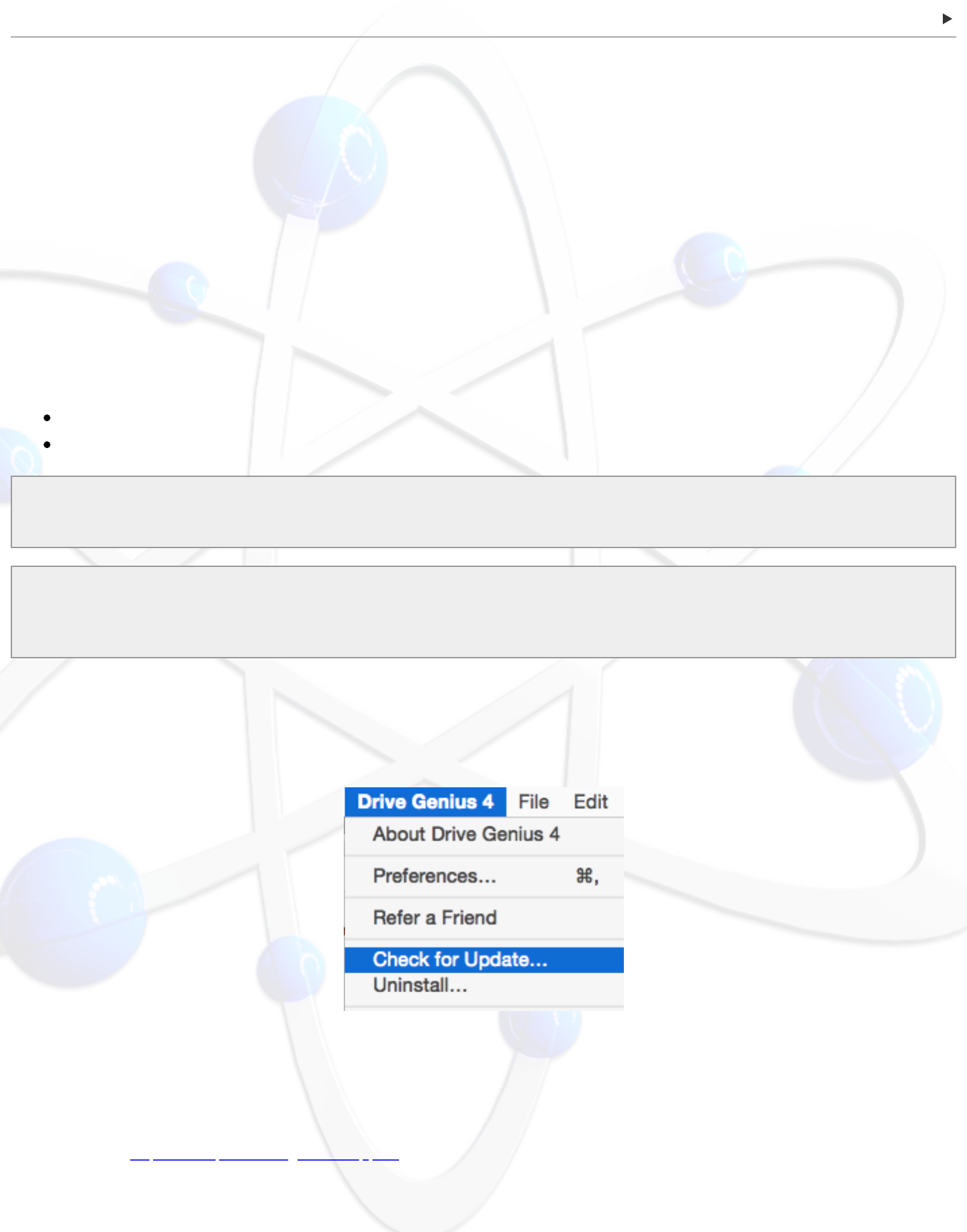
By default, Drive Genius 4 automatically checks for updates. You may also manually check for an update by selecting
“Check for Update” from the Drive Genius 4 menu.
Manually checking for an update
1.3 Technical Support
Our technical support is free and can be accessed by email or phone.
Support FAQs: http://www.prosofteng.com/support
Email Address: support@prosofteng.com
Phone Number: (925) 426-6306
Support Hours: Monday – Friday, 7AM – 5PM (PST)

Mailing Address:
Prosoft Engineering, Inc.
1599 Greenville Road
Livermore, CA 94550
1.4 Drive Genius 4 Features
Drive Genius 4 optimizes drive performance, protects data, and provides easy-to-use yet powerful features for your
storage needs. Drive Genius 4 automatically monitors your drives’ integrity and performance characteristics, and provides
utilities to repair or optimize detected issues. Its capabilities go beyond other drive utilities with advanced physical and
data integrity checking, including heuristic failure prediction.
The utilities included in Drive Genius 4 are:
DrivePulse™
DrivePulse is an always-on utility that automatically monitors drives for potential issues. DrivePulse’s optimized scheduling
engine ensures that system performance is never impacted while your computer is in use. And the DrivePulse historical
heuristics engine can even predict drive failure before it actually occurs.
SPEEDUP
Defragment: Optimize your drive for maximum performance.
Speed: Test optimal raw drive speed.
CLEANUP
Find Duplicates: Find and remove duplicate files.
Find Large Files: Find and remove unused large files.
Clone: Create an exact copy of your drive.
Secure Erase: Securely erase drives, files and folders using a pattern of your choice.
IconGenius™: Set a custom icon for a drive or folder.
Information: Detailed information about drive characteristics and structure.
PROTECT
BootWell™: Create a secondary startup drive that can be used to maintain, repair, or recover your primary startup
drive.
Instant DrivePulse: Run the most common DrivePulse tests manually.
Physical Check: Check for hardware problems that may result from a damaged drive.
Consistency Check: Check for drive/data corruption.
Repair: Repair a corrupted drive.
Rebuild: Rebuild the folder structure of a drive.
Fix Permissions: Fix system permission inconsistencies that can cause erratic system behavior.
Active Files: Determine what applications have files/folders open on a drive.
1.5 Drive Genius 4 Activation
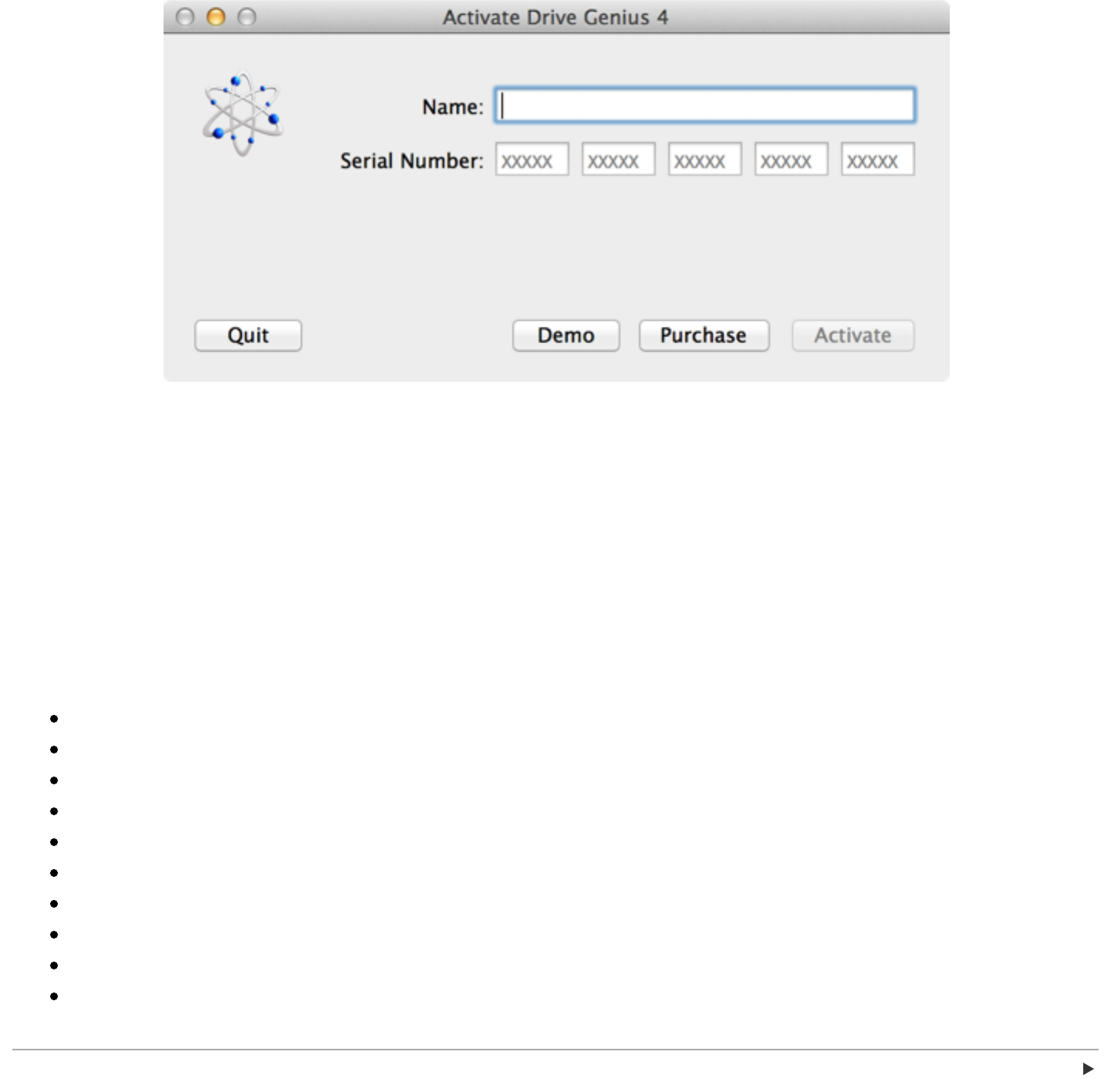
On first launch, you will be prompted to enter your serial number (sent to you by email, or provided in your retail box copy).
This serial number will activate all features of Drive Genius 4. Please keep this number in a safe place for reinstallation,
upgrades, and technical support.
Using Drive Genius 4
Enter your serial number or click on the Purchase button to activate Drive Genius 4
If you have downloaded a demo of Drive Genius 4 and wish to purchase a serial number, click on the Purchase button to
purchase and automatically activate Drive Genius 4.
1.5.1 Demo
Drive Genius 4 includes a demo mode for evaluation purposes.
In demo mode, Drive Genius 4 will allow viewing of utility results; such as viewing the fragmentation level of a drive or
corruption check results. However, the demo will not optimize or repair drives.
The following restrictions are in place while demo mode is active:
DrivePulse monitoring is available for 30 days after the first launch.
Instant DrivePulse is not available.
Advanced Physical Check options are not available.
Repair and Rebuild are not available.
DriveSlim™ file removal is not available.
Defragmenting is not available.
Clone is not available.
BootWell™ is not available.
IconGenius™ is not available.
Active Files results are not available.
Table of Contents
Introduction DrivePulse™ Table of Contents
2 Using Drive Genius 4
Most Drive Genius 4 utilities require a three-step process to complete a task:
1. Select a drive (or file/folder).
2. Select a utility.
3. Set utility options (if any) and run the utility.
Prosoft recommends backing-up your data before using most Drive Genius 4 utilities. Backing up on a regular basis is your best defense against data loss. The Clone utility
can be used to make an exact copy of any drive.
Drive Genius 4’s main window displays a list of currently attached drives in addition to any files and folders that have been added in the current session.
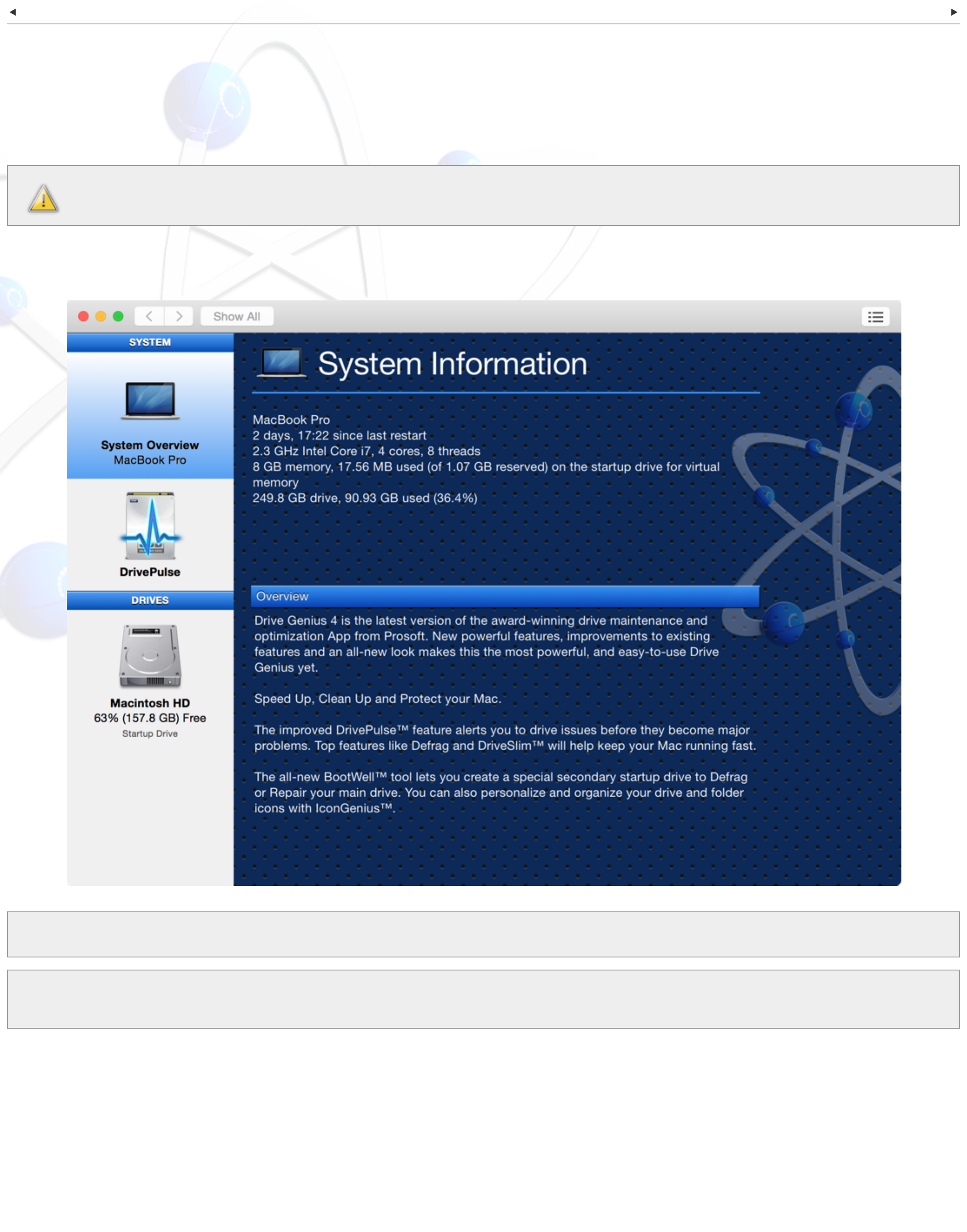
When launched Drive Genius 4 displays an overview of your system. This includes time since last restart, various hardware characteristics, memory statistics and the total used space of all
attached drives.
Drive Genius 4 system overview
Drive Genius 4 ignores the following drives: read-only disk images from local drives, all disk images from network drives, optical drives, RAM disks and iPods.
Files and folders can be added to Drive Genius 4 by dragging them to the Drive Genius 4 Dock icon, the Drive Genius 4 main window or through the standard Open and Open Recent
items in the File menu.
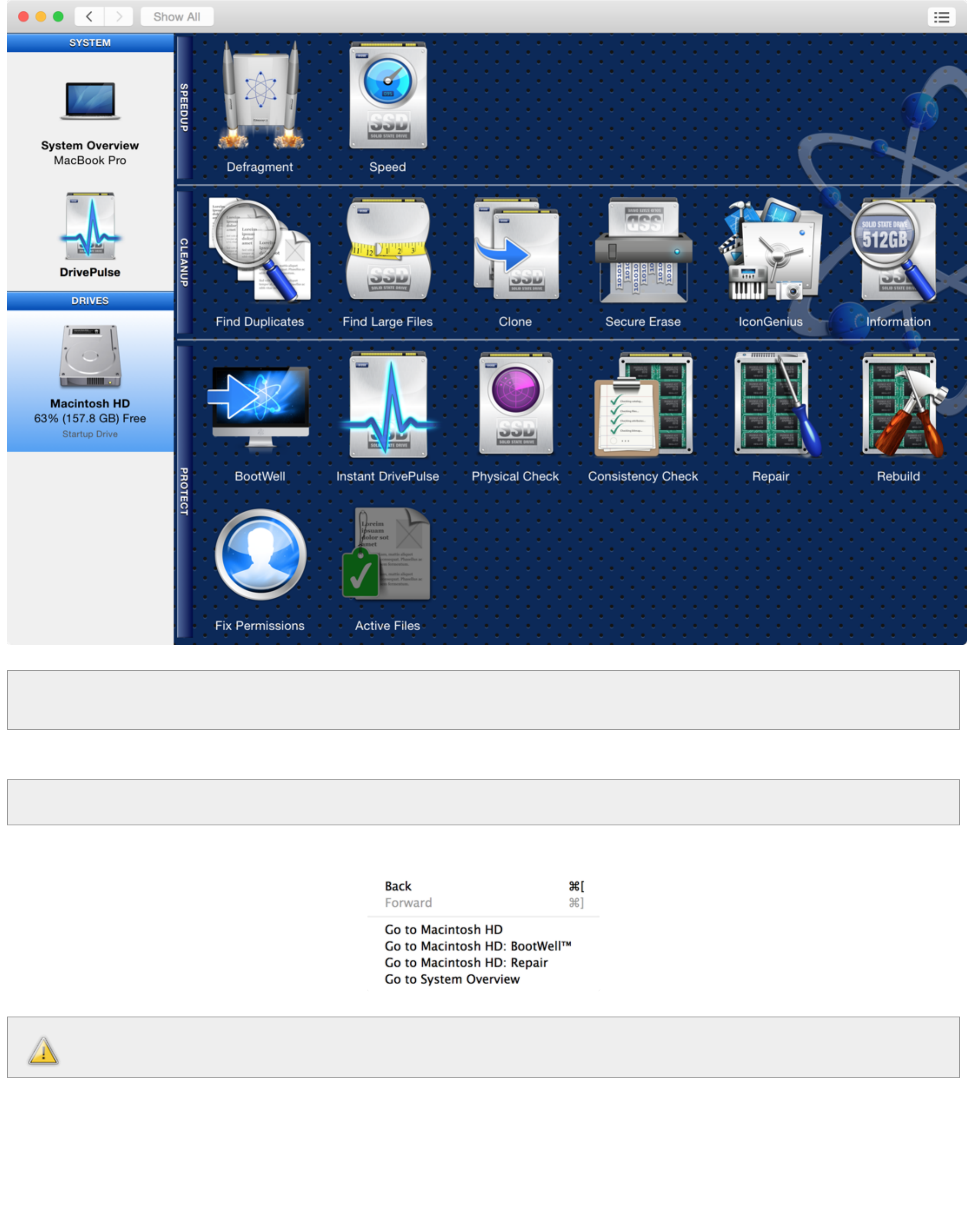
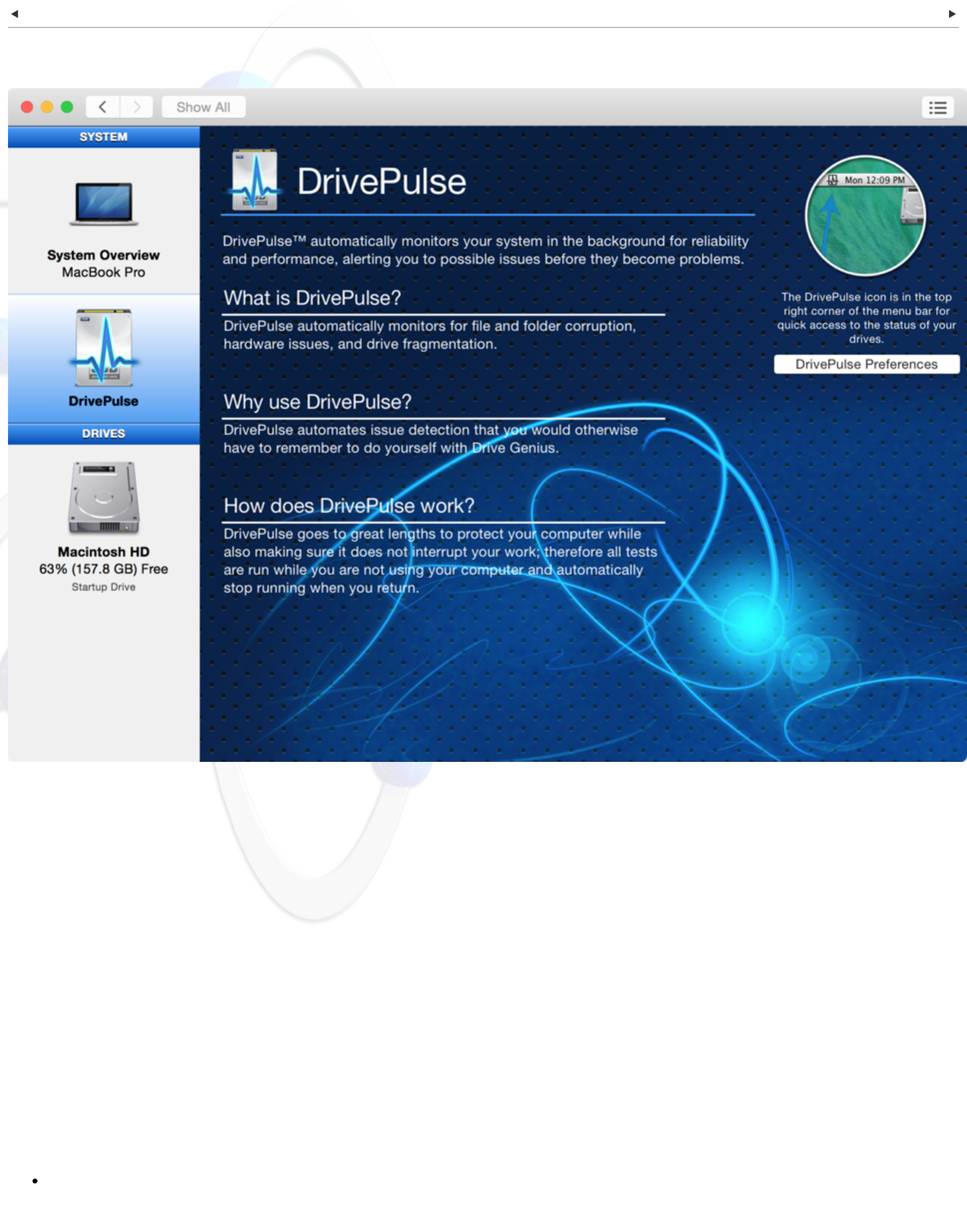
To display the applicable utilities for a drive, file, or folder, simply click on it in the list.
To select a utility, click on the utility icon and from there you can run the utility.
Drive Genius 4 applicable utilities
Drive Genius 4 will disable utility icons that are not applicable to the currently selected drive, file or folder. If you hover your mouse cursor over a disabled icon, a tooltip will appear to
explain why the utility is disabled.
Once a utility is running, you can use other drives, files, folders or even other utilities on the same drive without having to wait for the current utility to finish. Drive Genius 4 will properly
schedule multiple utilities on multiple drives so you can continue using Drive Genius 4 while work is being done.
You can use the “Show All” button in the Drive Genius 4 toolbar to go back to an item’s utility list when a utility is active.
Drive Genius 4 keeps a session history of selected items and utilities in its History menu. You can go back to a specific item and/or utility using this menu or the back/forward buttons in the
toolbar.
Drive Genius 4 history
Drive Genius 4 will prevent automatic computer sleep while a utility is running.
2.1 Monitoring Drive Genius 4 activity
Drive Genius 4 allows multiple utilities to be run on multiple drives in parallel and allows multiple utilities to be queued on a single drive. To monitor the activity of drives and their utilities, either
select “Activity” from the “Window” menu or click on the activity icon in the toolbar.
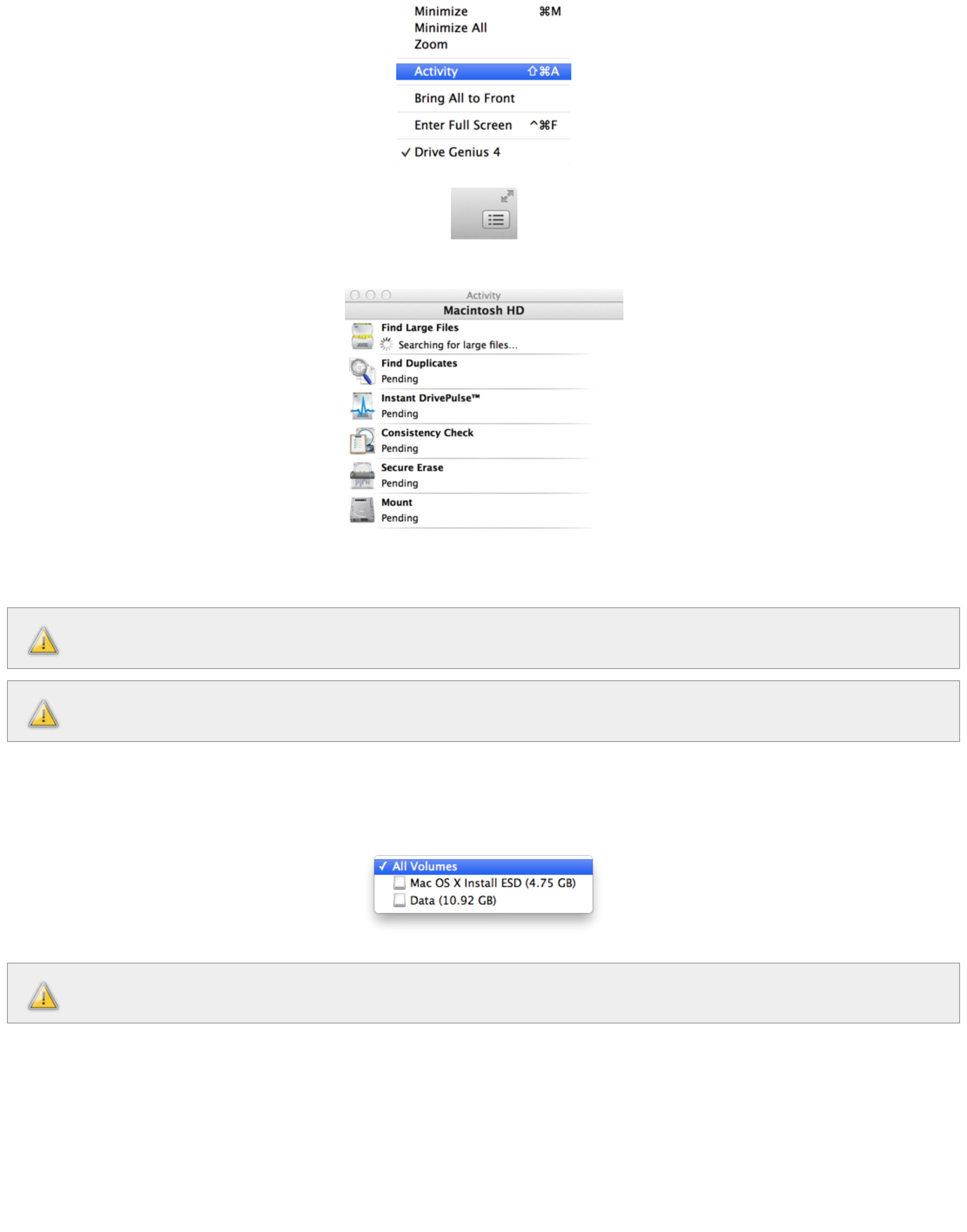
Activity menu
Activity toolbar icon
Respectively, these will open a standalone window or a transient pop-up window.
Activity window
Either window provides a full list of all drives and their running / pending utilities. If you click on a utility item, it will open the corresponding full utility in the main window.
Some activity items are transient items that are not associated with any utility; clicking on these items will not do anything.
The standalone window and the popup window cannot be open at the same time.
2.2 Using drives with multiple volumes
Drive Genius 4 presents a simplified interface that hides the distinction between volumes and drives when there is a 1:1 mapping between the two.
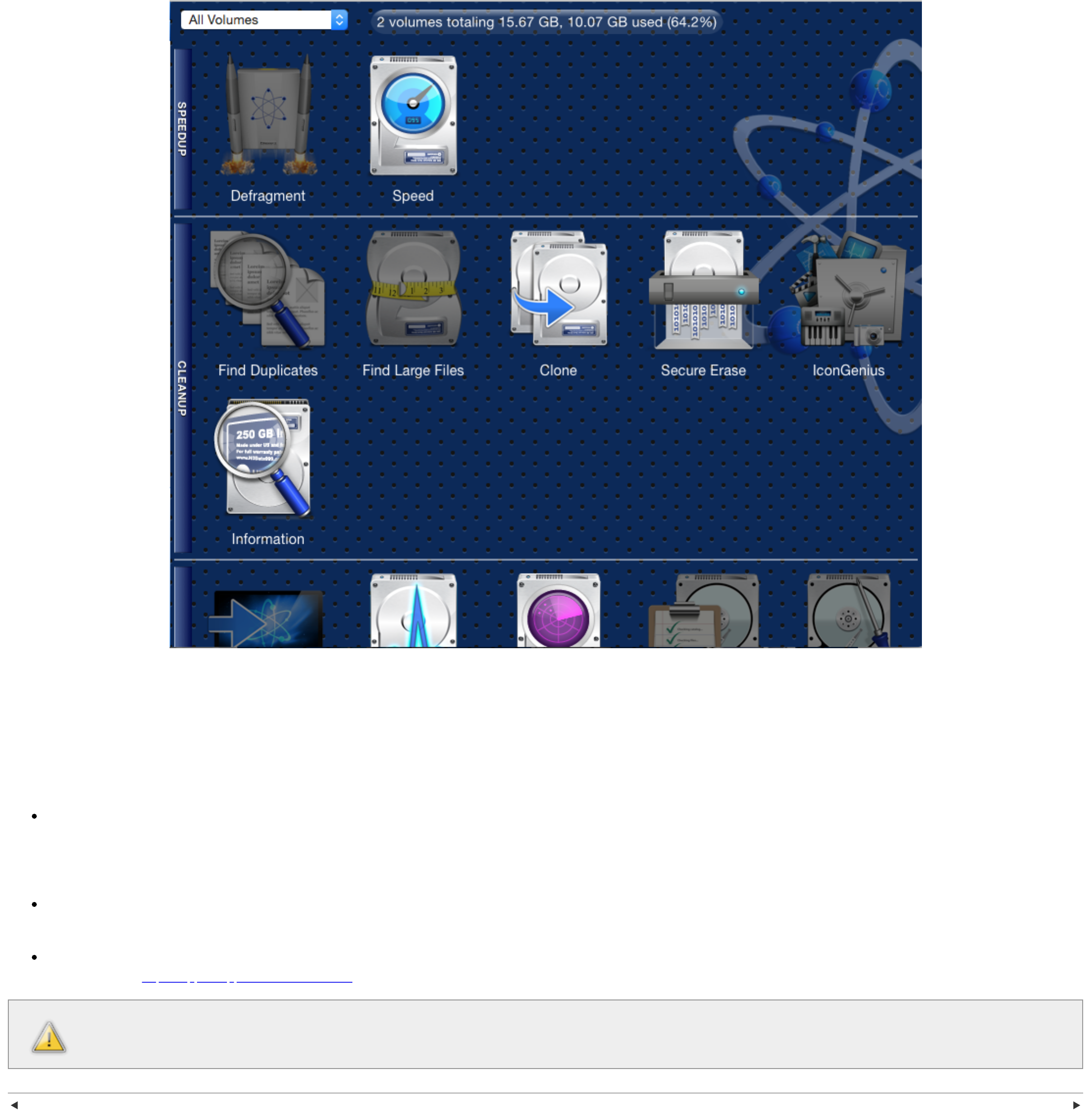
However when a drive contains multiple volumes then a distinction has to be made so you can operate on individual volumes. In this case, Drive Genius 4 will present a menu allowing
selection of the drive or individual volumes.
Multiple volumes menu
When a utility is working on a drive with multiple volumes, then the volume selection menu will be disabled.
Introduction DrivePulse™
Multiple volumes utility selection
Utilities will enable and disable themselves as different volumes are selected or when “All Volumes” (the whole drive) is selected.
2.3 Using Drive Genius 4 with older versions of OS X
Drive Genius 4 can be used for offline maintenance and repair of drives that have older, unsupported versions of OS X installed.
Options that don’t require a second computer
If your older computer supports the Drive Genius 4 required minimum OS X version then you can use an existing secondary startup drive (or create one) with the minimum required OS
X version to install Drive Genius 4 and then startup from that drive to work with the older OS X drive.
Options that require a second computer
If your older computer supports the Drive Genius 4 required minimum OS X version then you can create a BootWell drive on another computer running Drive Genius 4 and then startup
the older computer from the BootWell drive to work with the older OS X drive.
Start the older computer in Target Disk mode (by holding down the “T” key while restarting) and then connect it to a new computer with a supported OS X version to work with the older
OS X drive. See http://support.apple.com/kb/PH10725 for more information on Target Disk mode.
Target Disk mode requires both computers have a Thunderbot™ connection or a Firewire™ connection. In addition both computers must have the latest Apple firmware
installed on them as old firmware versions may contain Target Disk mode bugs.
Table of Contents
Using Drive Genius 4 SPEEDUP Table of Contents
3 DrivePulse™
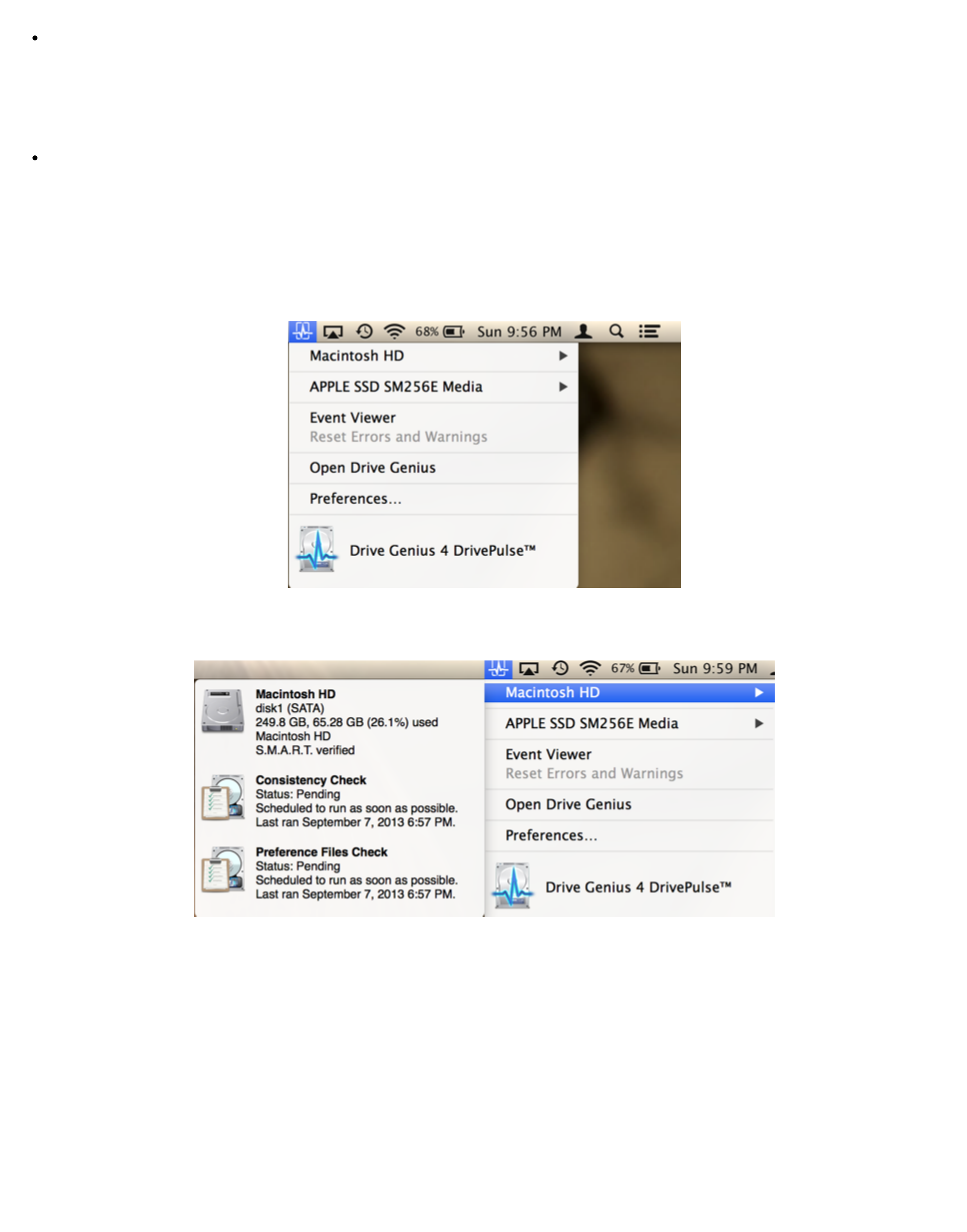
DrivePulse overview
DrivePulse uses the advanced tests provided by Drive Genius 4 to fully automate drive integrity testing. DrivePulse’s optimized scheduling engine ensures that tests
never impact the computer while it’s in use. And the DrivePulse historical heuristics engine can even predict drive failure before it actually occurs.
In addition to integrity testing, DrivePulse also includes a feature to enhance system and application usage. Automatic Drive Activity Management ensures that drives
are always immediately available for use by without delays associated to inactive drives needing to be reactivated by the system.
Minimal System Impact
DrivePulse’s raison d’être is to protect your computer from drive failures before they happen while ensuring that you never notice that DrivePulse is protecting your
system.
To meet this goal, DrivePulse uses an advanced scheduling engine to automatically start and stop tests as the computer moves between idle and active states
respectively.
Idle state is determined by computer activity, CPU use, and system activity (such as Time Machine backups).
In addition DrivePulse will stop all tests when the computer switches to battery power and resume tests when mains power is restored.
Finally, when DrivePulse does determine the computer is in an idle state and schedules tests to run, those tests are run at a reduced priority so other applications
have precedence over DrivePulse.
Tests
In addition to the scheduled drive tests that monitor for corruption and performance issues, DrivePulse also monitors for the following issues:
Corrupted preference files
Corrupt preference files are a common source of misbehaving or crashing applications. DrivePulse automatically verifies both user and system preferences and alerts
you of corrupted files so they can be moved to the trash.
Drives low on free space
OS X requires a minimal amount of free space for all drives, but the startup drive in particular is sensitive to free space. If drive free space is too low, it can lead to lost
data, application crashes, or even system crashes.
DrivePulse’s low free-space detection enhances the system built-in detection by automatically adjusting for system use (including virtual memory, sleep images, etc)
and warning you of low free-space before it becomes a true problem.
Changes to system login items
DrivePulse monitors all login item launch methods in OS X, including legacy methods. While changes to login items are normal when installing applications, login
items are also popular avenues for malware infestation.
DrivePulse will automatically alert you to additions, removals and changes in any OS X login item database.
Status
The DrivePulse icon will appear in the top right corner of the menu bar to quickly view the status of currently connected drives.
DrivePulse Menu
Move the cursor over any drive menu item to view the status of a drive. This status menu shows the tests that are scheduled for the selected drive and the next time
those tests will be attempted.
DrivePulse drive status
DrivePulse will notify you with an alert if there are any issues found by the tests that require action on your part.
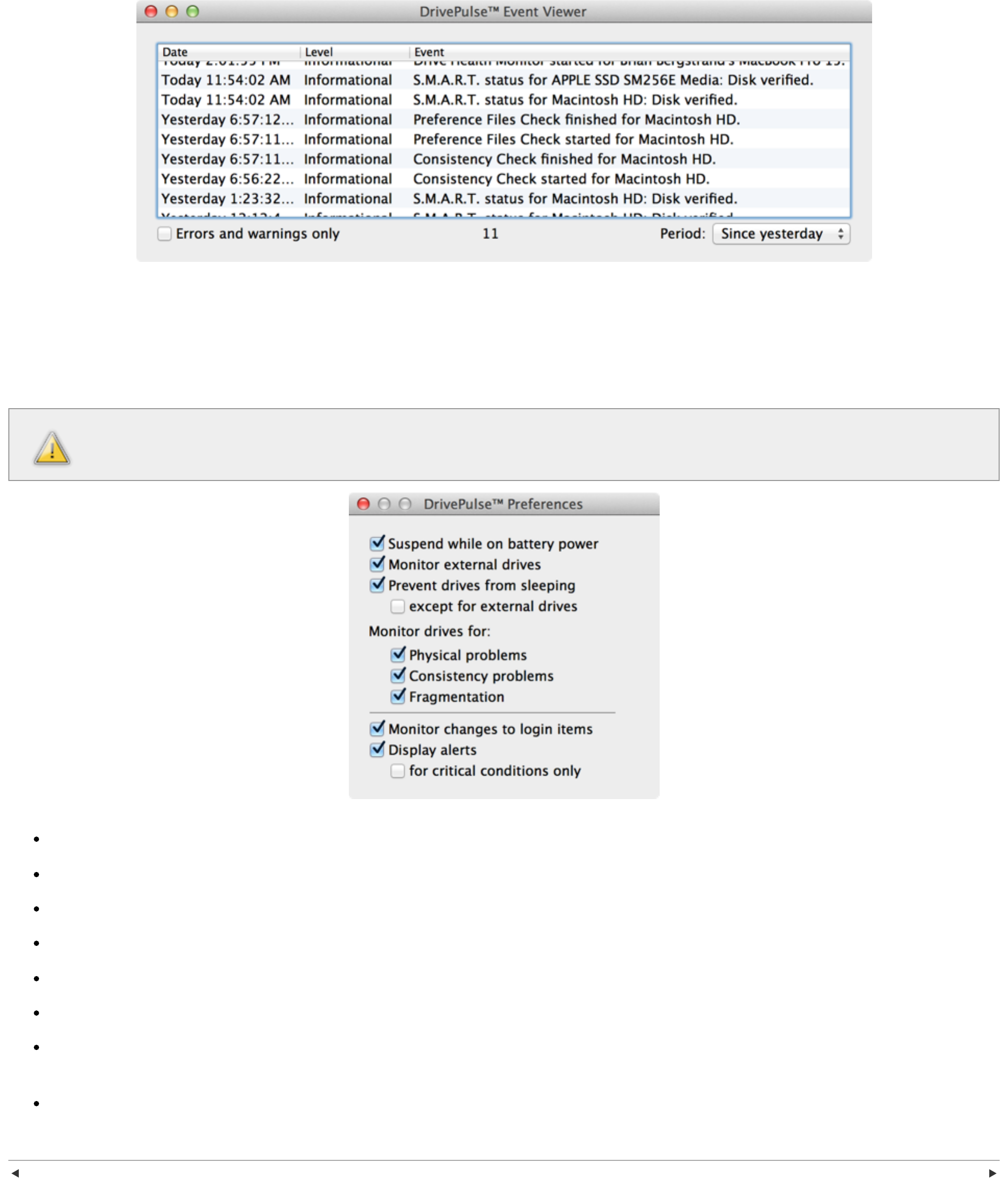
Selecting “Event Viewer” will display detailed information regarding DrivePulse’s tests. This provides a recent history of the tests performed by DrivePulse and errors
or warnings produced by those tests.
Using Drive Genius 4 SPEEDUP
Event Viewer
“Reset Errors and Warnings” will reset DrivePulse’s error state for the current session. The error state is automatically reset the next time a test is performed
successfully, but you can manually reset the state before then if you’ve determined all errors are resolved.
“Open Drive Genius” is a quick shortcut to open the Drive Genius 4 application.
Preferences
Prosoft has tuned the DrivePulse default preferences for maximum protection and minimal system impact. Unless you have specific reasons to
change the defaults, we do not recommend doing so.
DrivePulse Preferences
Suspend while on battery power When enabled, DrivePulse will suspend all tests on all drives while the computer is running on battery power.
Monitor external drives: When enabled, external drives are monitored for issues. When disabled, external drives are ignored.
Prevent drives from sleeping: When enabled, Automatic Drive Activity Management is enabled to prevent system and application hangs due to sleeping disks.
Physical problems: When enabled, DrivePulse checks drives for physical damage. This test is scheduled to run once a month.
Consistency problems: When enabled, DrivePulse checks drives for data corruption issues. This test is scheduled to run once a day.
Fragmentation: When enabled, DrivePulse checks drives for data fragmentation that can lead to poor performance. This test is scheduled to run once a week.
Monitor changes to login items: When enabled, the system is monitored for changes to items that automatically open during login and generates a notification
when a change occurs. This is a common avenue for malware to insert itself into the system.
Display alerts: When enabled, notifications are displayed for any warnings or errors that tests find. If Critical conditions only is enabled, then you will only be
alerted to found errors and not warnings. You can always use the Event Viewer history to review any issues that have been found in the recent past.
Table of Contents
DrivePulse™ CLEANUP Table of Contents
4 SPEEDUP
4.1 Defragment
Defragment is not available for SSD / Fusion drives as they do not benefit from the defragmentation process.
Adding and deleting files to and from your drive will cause the drive to become fragmented. When files are written to the drive, the
system will search for empty space on the drive to write data to. If the found space is too small to fit all of the file’s data, it will write
part of the data to one area and the remaining data to other areas of the hard drive. This way no disk space is wasted. However, this
will cause the drive to slow down as multiple areas of the hard drive will need to be scanned to locate and read the file’s data the
next time you want to use it.
The more writing and deleting that is done to the drive, the more fragmented the drive will become. This process will gradually have
an impact on the drive’s performance. This is why using Drive Genius 4 to defragment your hard drive is an excellent way to boost
the overall performance of your drives and thus your computer. Drive Genius 4 reorders all of the non-contiguous data areas into a
one contiguous area and all of the empty areas into another contiguous area. (The same reordering process is also performed for
every single file on the drive.)
Defragment displays fragmentation information in two separate tabs: Drive Fragmentation and File Fragmentation.
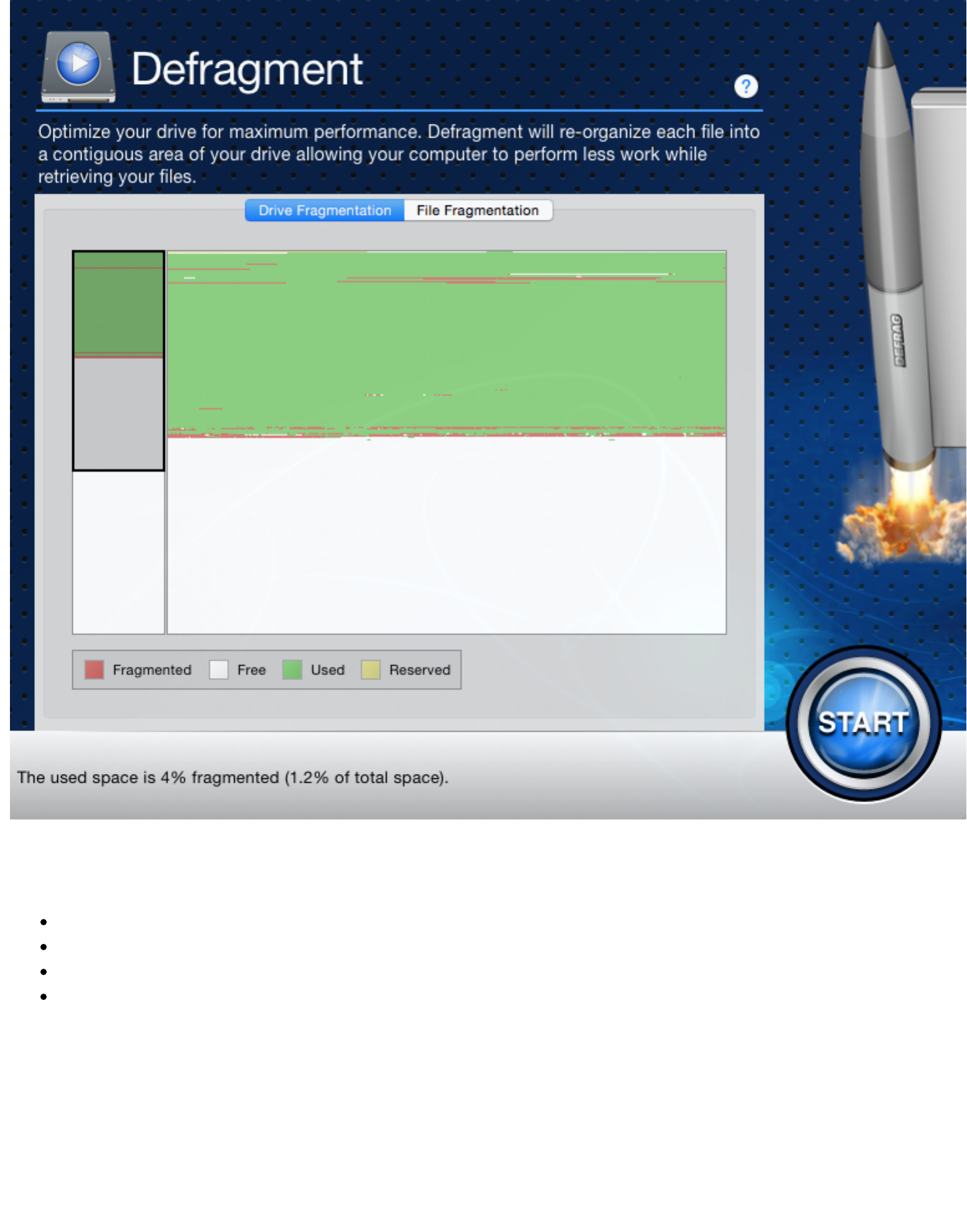
Drive Fragmentation
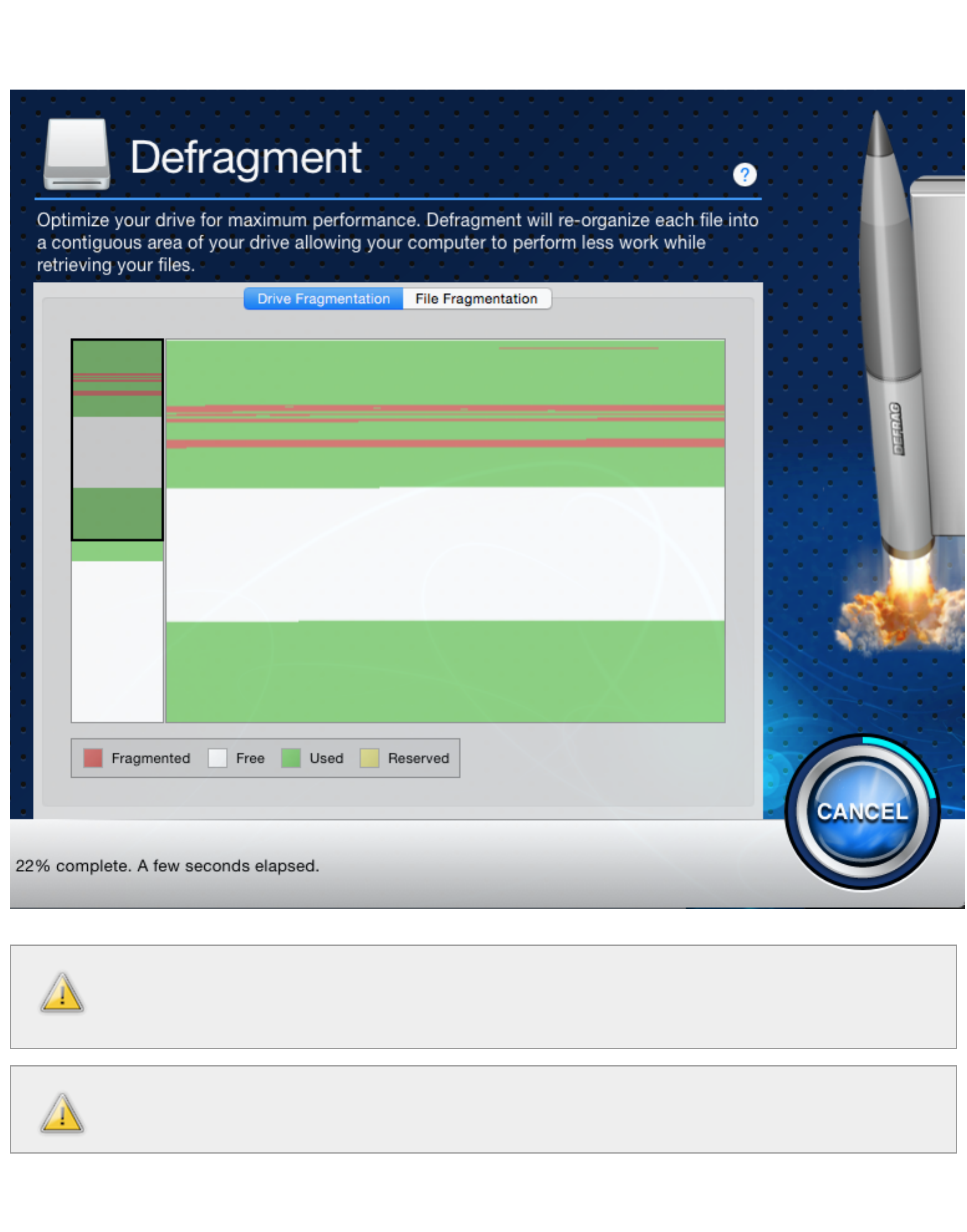
Drive Fragmentation will display a graphical representation for a quick overview of how data is ordered on the drive and how
fragmented the drive is. Four different colors are displayed to indicate the data usage:
The red portion represents fragmented data
The white portion represents free space
The green portion represents data that is not fragmented.
The yellow portion represents reserved data required by OS X that cannot be defragmented.
In the screenshot above you can see there is a large free space area followed by a large data area, which is then followed by
another larger free space area. The data area itself is slightly fragmented with most of the fragmentation centered at the end of the
data area (where new data is likely to be written).
Drive Genius 4 has not recommended a defragment for the drive since its fragmentation percentage is within the normal range;
however you may still wish to defragment a drive like this to merge the two separate free space areas.
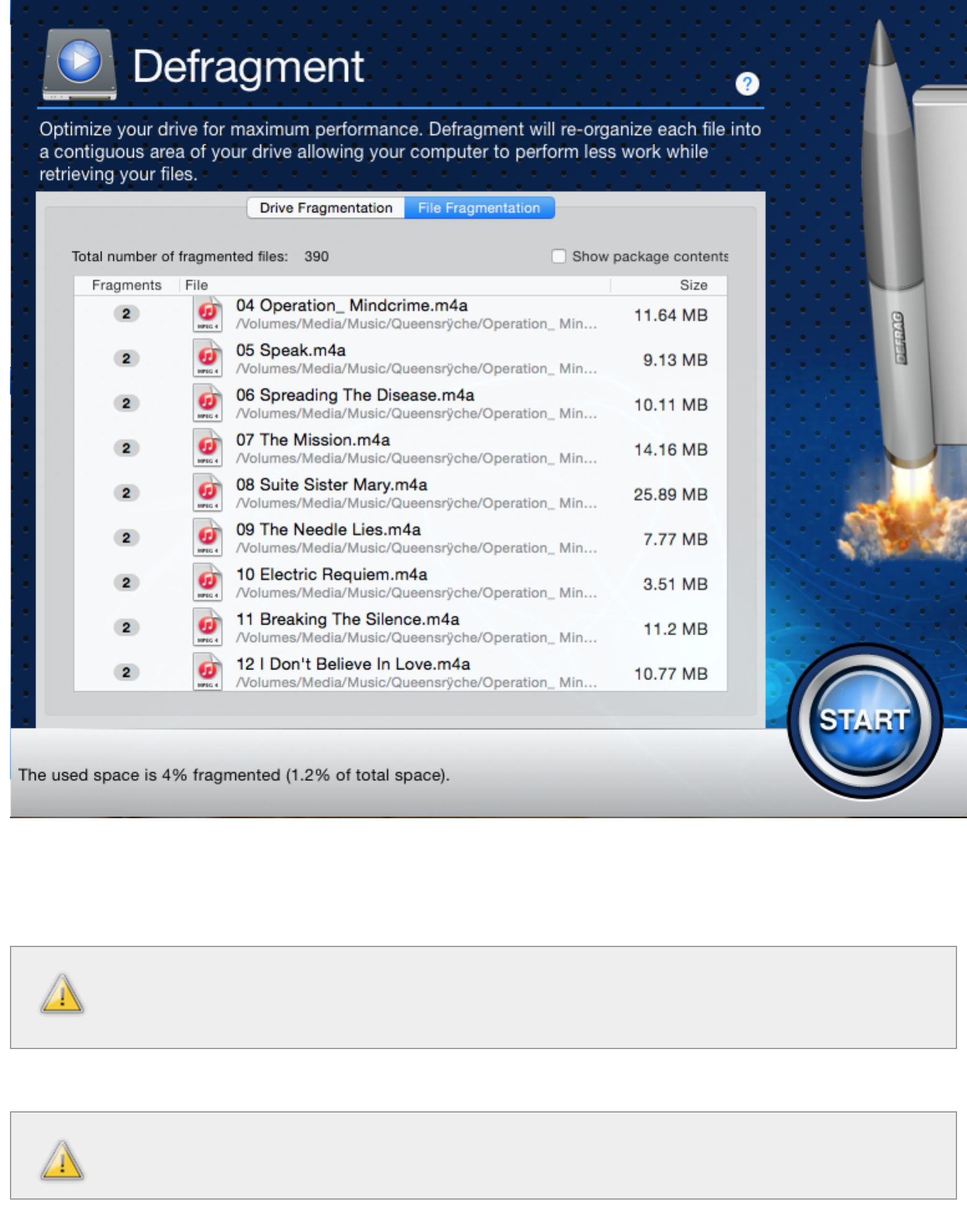
File Fragmentation
File Fragmentation will display a list of the files that are fragmented. For each fragmented file, the number of fragments the file is
split into, and total size of the file is shown. The more fragments the file is split into, the longer it will take to access the file’s data. If
a file you regularly access is fragmented, you should defragment the drive to improve the file’s performance and accessibility; this is
especially true for large media files (music, photos, movies, etc) and database files.
Defragmenting a startup drive and then starting up from the drive will immediately re-fragment the drive as log files,
virtual memory files, and OS cache files are created. This is completely normal for a startup drive and these types of
fragmented files can be ignored.
The Defragment Process
Prosoft recommends backing-up your data before defragmenting a drive. Backing up on a regular basis is your best
defense against data loss. The Clone utility can be used to make an exact copy of your drive.
Defragment will do a basic health check for both logical and physical problems before starting the actual defragment process. If any
problems are found the defragment process will not run.
Click the “Start” button to begin.
Defragment of external drive
It can take from half an hour to a day to defragment large drive (depending on how fragmented it is). DrivePulse will
automatically notify you when your drives cross a certain fragmentation threshold. You can then schedule a block of
time to defragment the fragmented drive.
Defragment requires that you restart from a BootWell drive to run it on your primary startup drive.
4.2 Speed
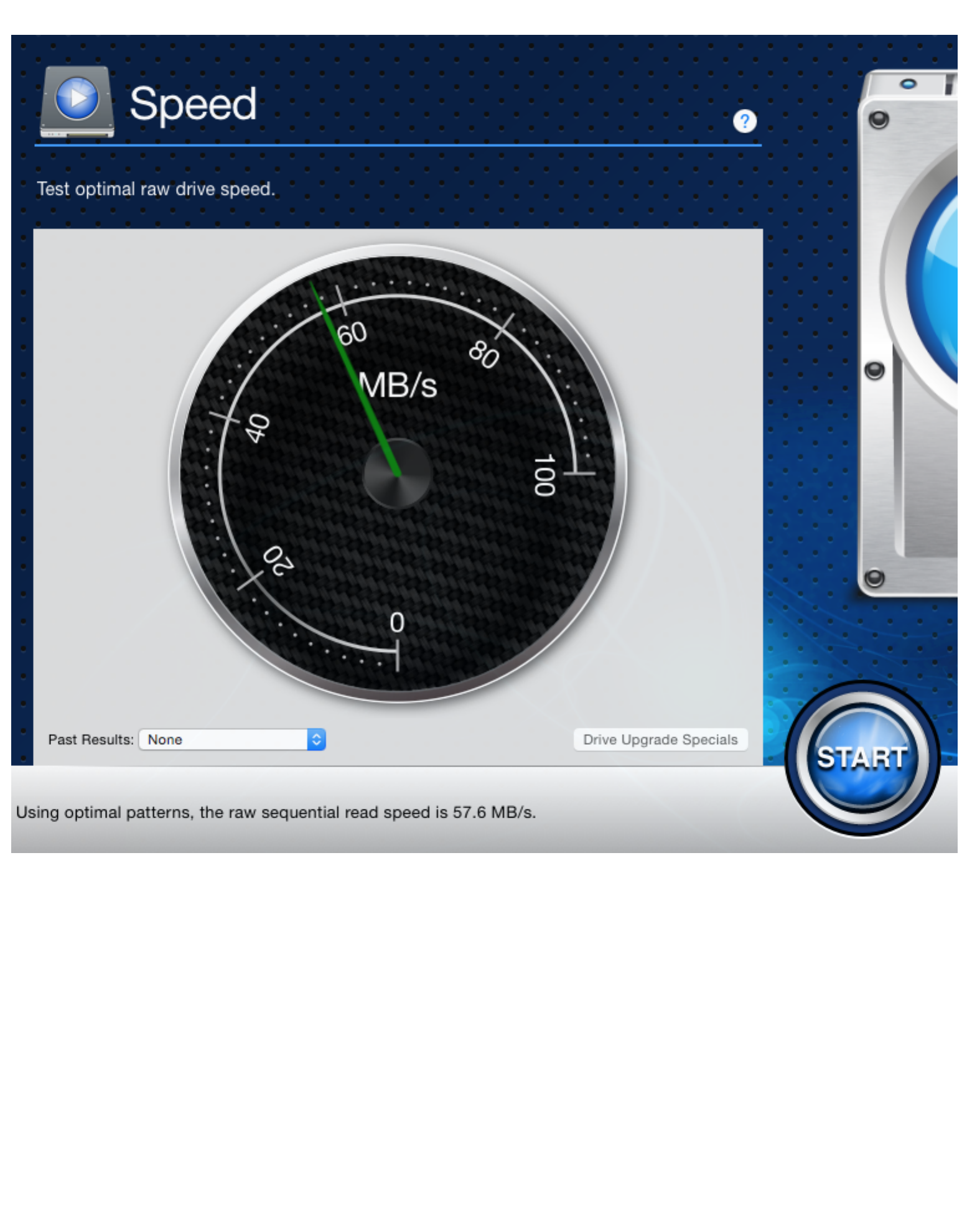
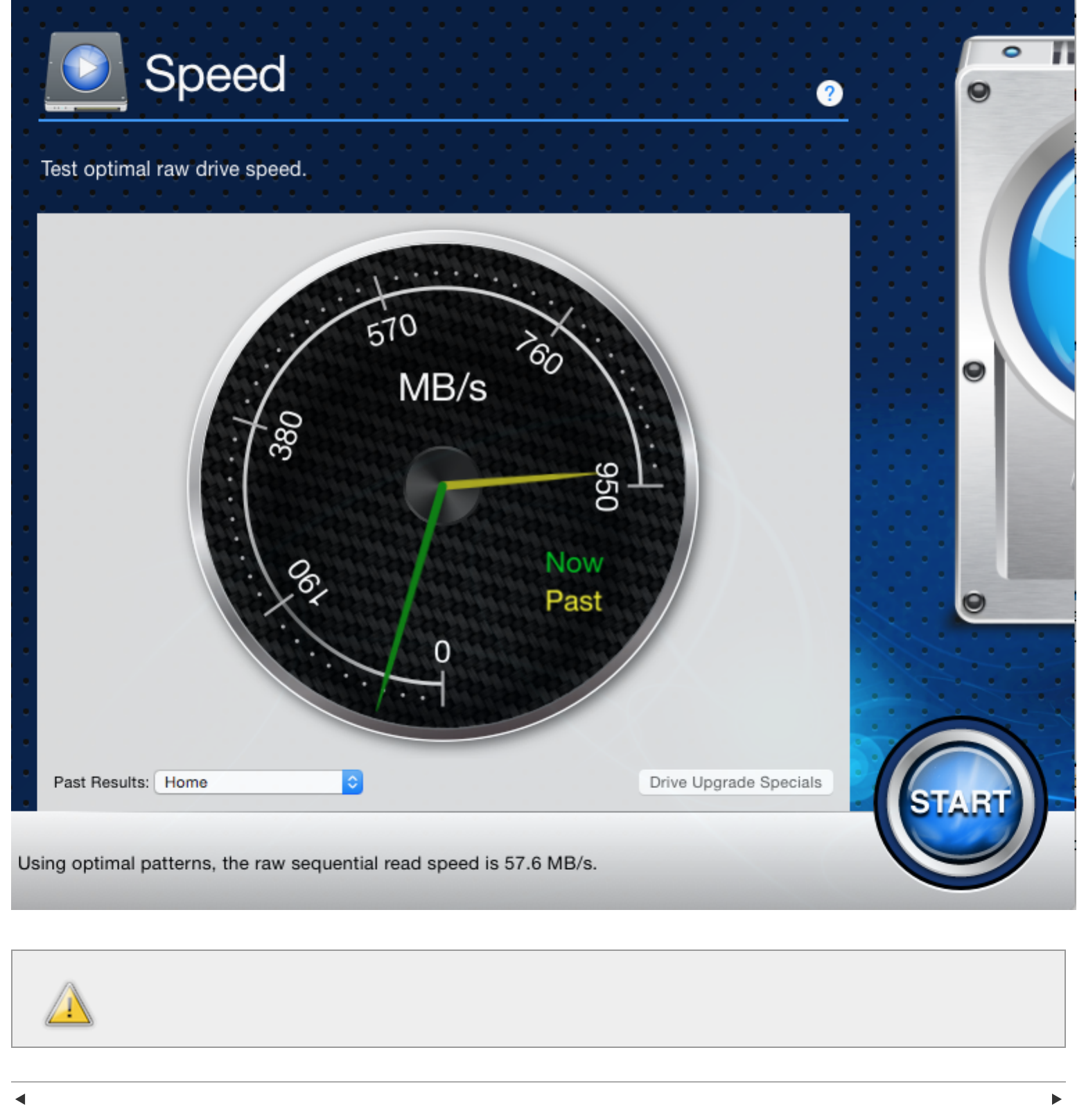
The Speed utility measures the optimal raw performance of your drives.
Speed test results
The test measures raw drive speed, not actual use speed when reading and writing files.
Tests are saved automatically and can be used to compare the raw performance of different drives.
SPEEDUP PROTECT Table of Contents
5 CLEANUP
5.1 DriveSlim™
DriveSlim consists of utilities to help recover drive space by deleting duplicate, or unused files. DriveSlim will find and recommend files
that provide the best opportunity to recover free space.
DriveSlim ignores system files. This is done to prevent accidental system corruption.
5.1.1 Find Duplicates
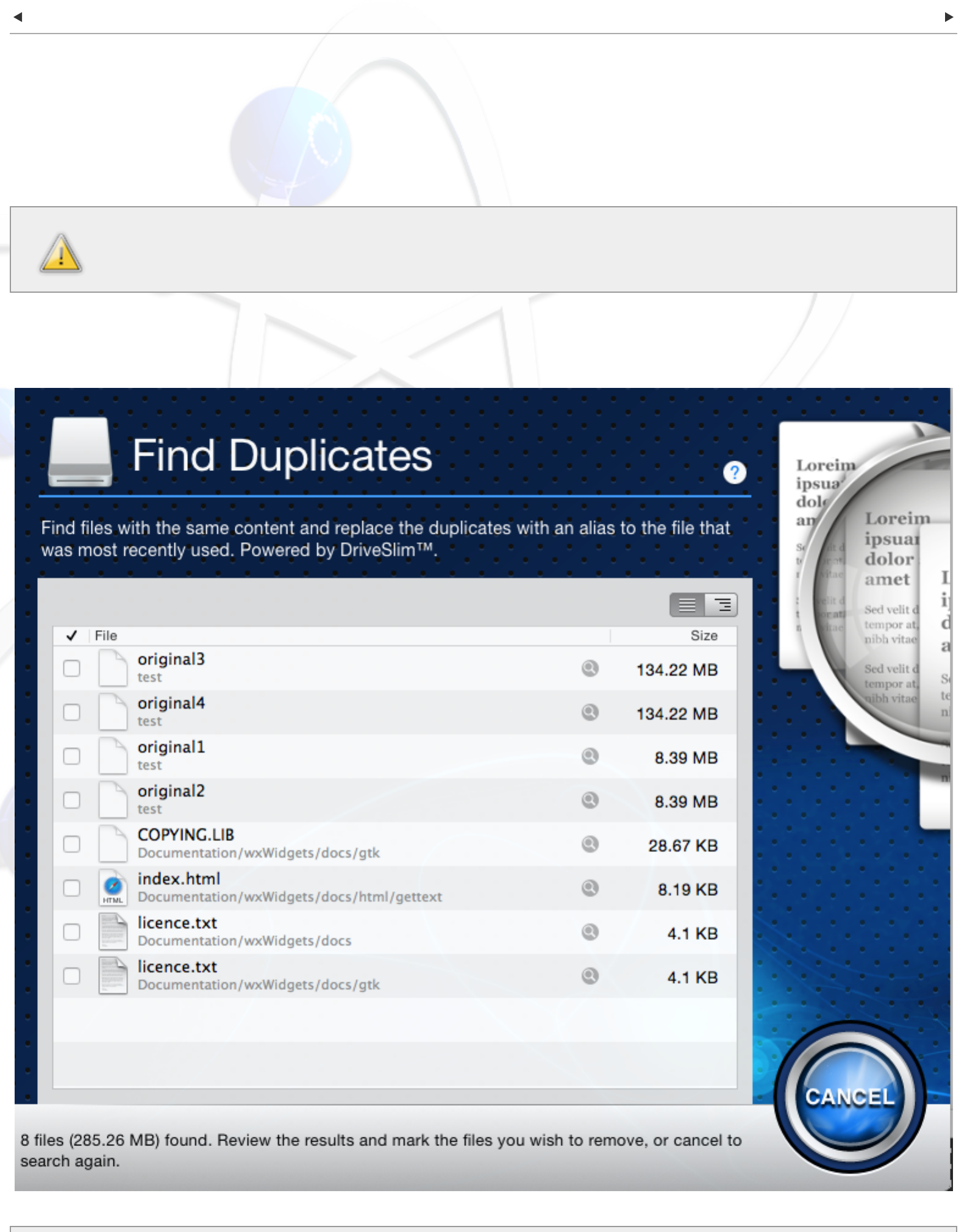
Finds all duplicate files larger than 1KB.
DriveSlim Duplicate results
Duplicate files are found by content only and the most recently used file is selected as the master. When removing a
duplicate file, it is replaced with an alias so the file is still accessible by all of its various names.
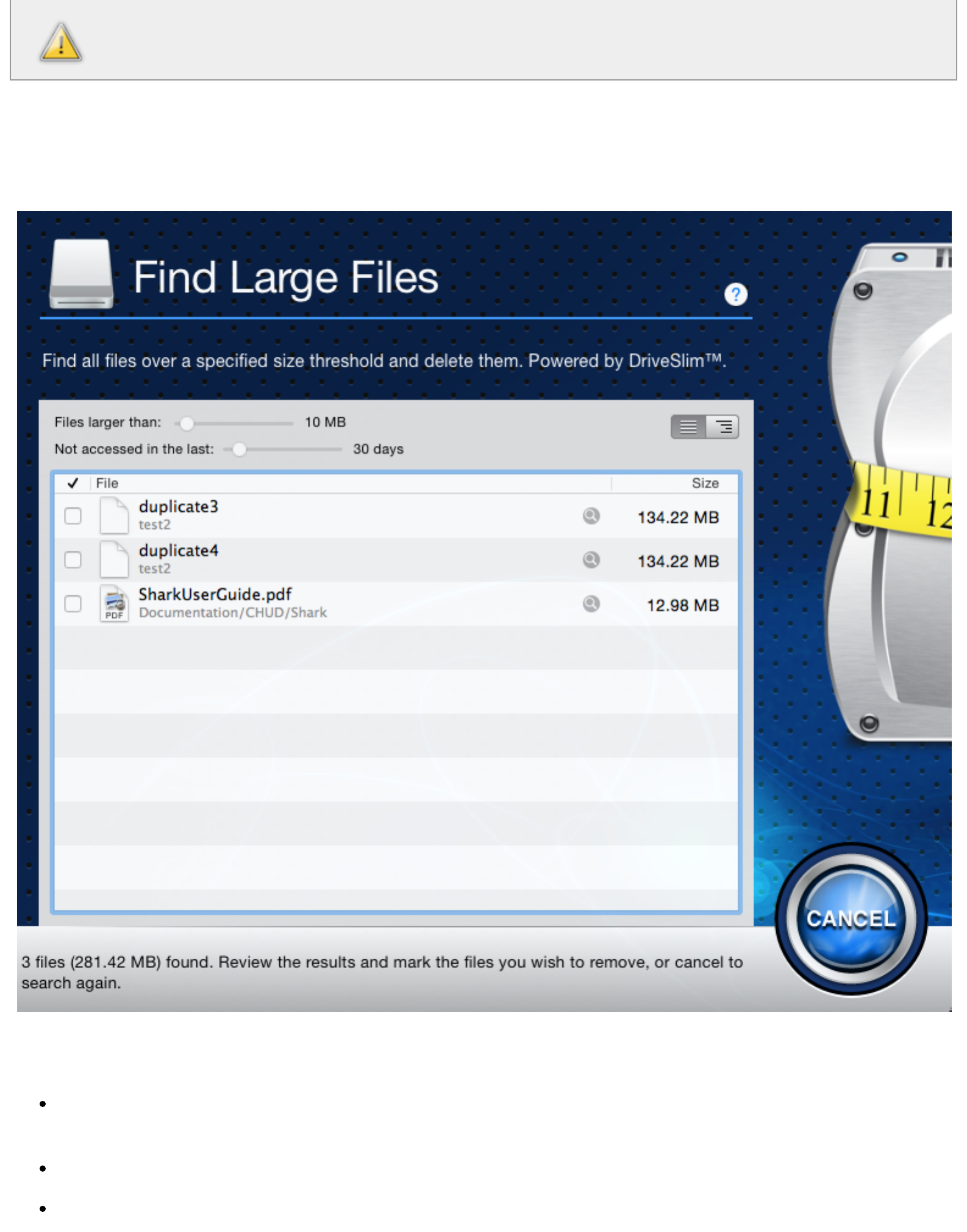
5.1.2 Find Large Files
Finds files that are larger than a set minimum size and have not been accessed in a period of time you specify.
The minimum size can be from 5MB to 100MB. The last accessed period can be from 0 to 365 days.
DriveSlim Large Files results
File List Tips
Hover your mouse over a file for a few seconds to display a tooltip containing extended file information and the master file for
duplicates.
Click the magnifying glass icon next to any file to reveal that file in the Finder.
The list of files can be organized in alphabetical order by clicking on the “File” column heading, or by size by clicking on the
“Size” column heading.
5.1.3 Selecting files to delete
Please make sure you have a current backup before slimming a drive or folder. If a file is removed by mistake the only
way to recover it will be via a backup.
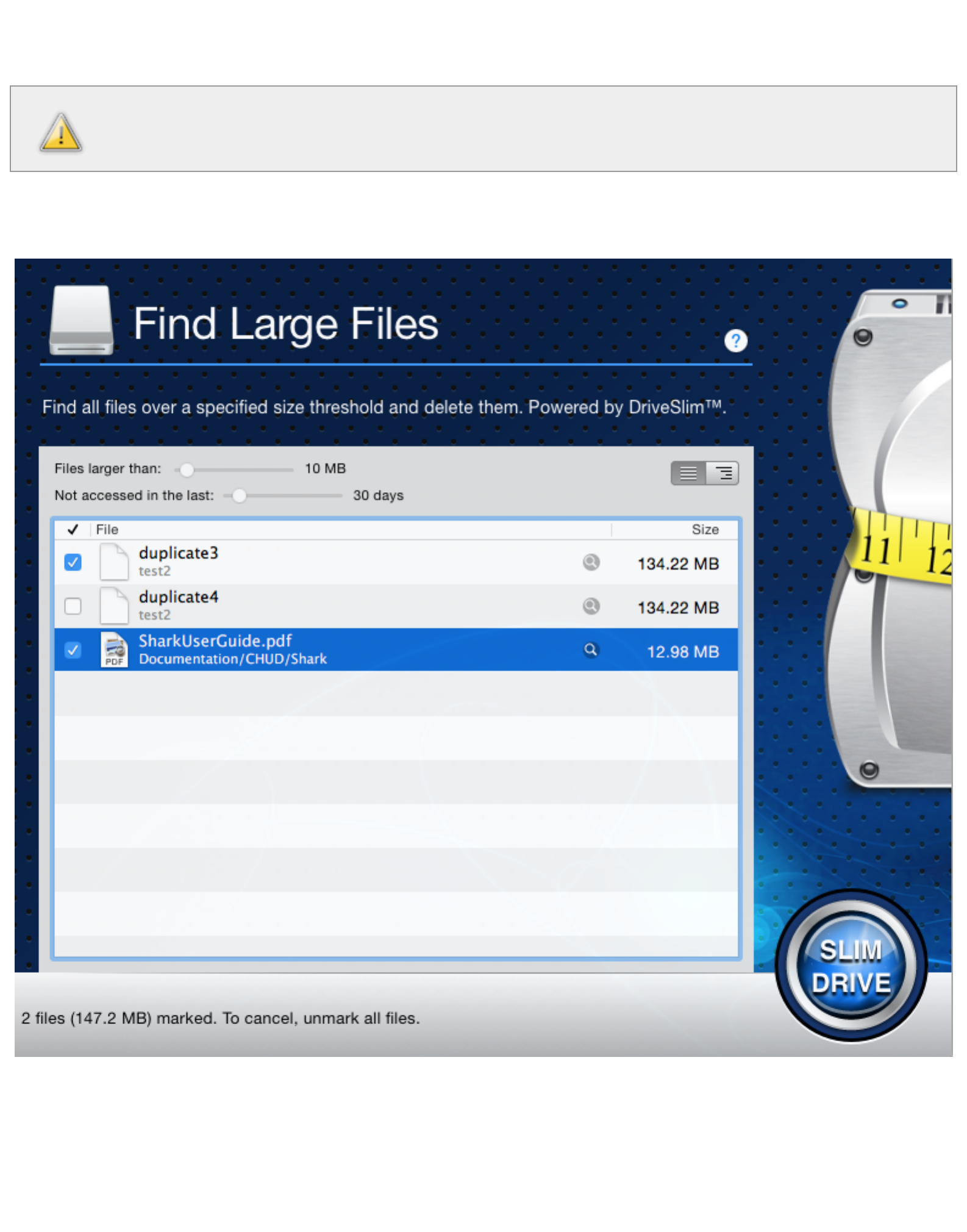
Once DriveSlim’s search is complete, a list of files will be provided that meet the search criteria you have chosen. Although the files
may meet the criteria, it is your choice to remove any of the listed files. Be sure to thoroughly review the list of files to prevent removing
any important files you may be using.
Selecting Files to Delete
Mark any files you want to delete and click on the Slim Drive button to delete the files. To cancel DriveSlim, unmark all files and click on
the Cancel button.
5.2 Clone
The Clone utility copies all data from a source drive to a destination drive. All data and metadata (dates, file permissions, etc) are
copied when cloning a drive.
Drive Genius 4 uses one of two methods when cloning a drive. If possible it will obtain exclusive access to the drive and perform a raw
disk copy. If exclusive access cannot be obtained (e.g. the startup drive) then Clone will perform a file-based copy. With either method,
your data is duplicated to the new drive.
A raw drive clone is preferred as data can be changed by other applications while a file-based clone is running. In
addition a raw drive clone performs an extra data verification step while cloning a drive to ensure the cloned data is an
exact duplicate of the source data. This extra verification step is not performed with a file-based clone.
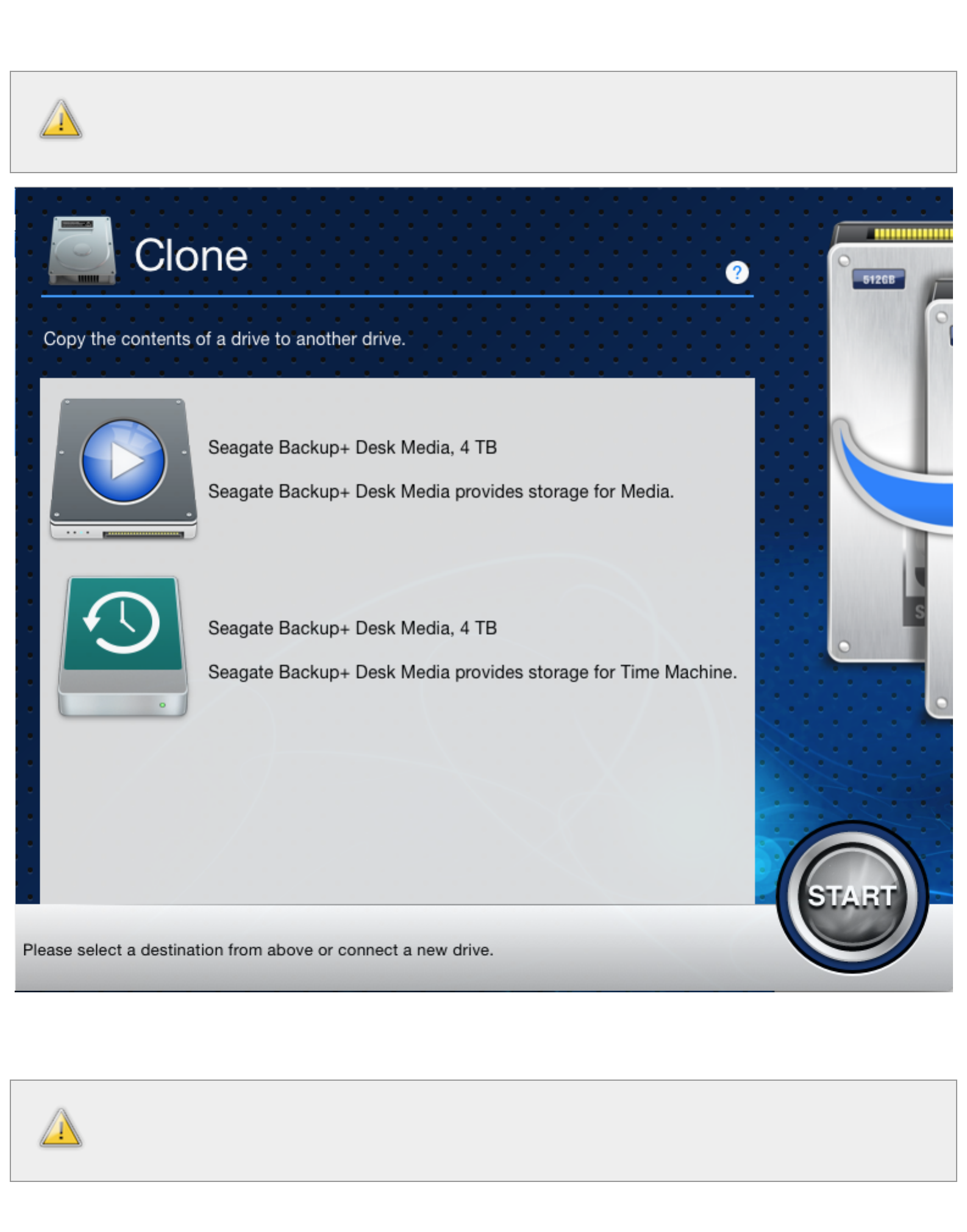
Clone – selecting a destination drive
To perform a clone, select a destination drive from the list and click the “Start” button. Clone will perform a basic health check of both
the source drive and the destination drive. If either has problems Drive Genius 4 will warn you before attempting to clone the drive.
When performing a raw copy, it is possible for an attached drive to be missing as a destination option even though it is
large enough. This is due to fundamental hardware differences. In this case, you can select an individual volume to
clone, or try attaching a new drive.
Drive Genius 4 will automatically erase and format the destination drive if necessary. If the destination drive contains
data you wish to keep, you should choose a different drive.
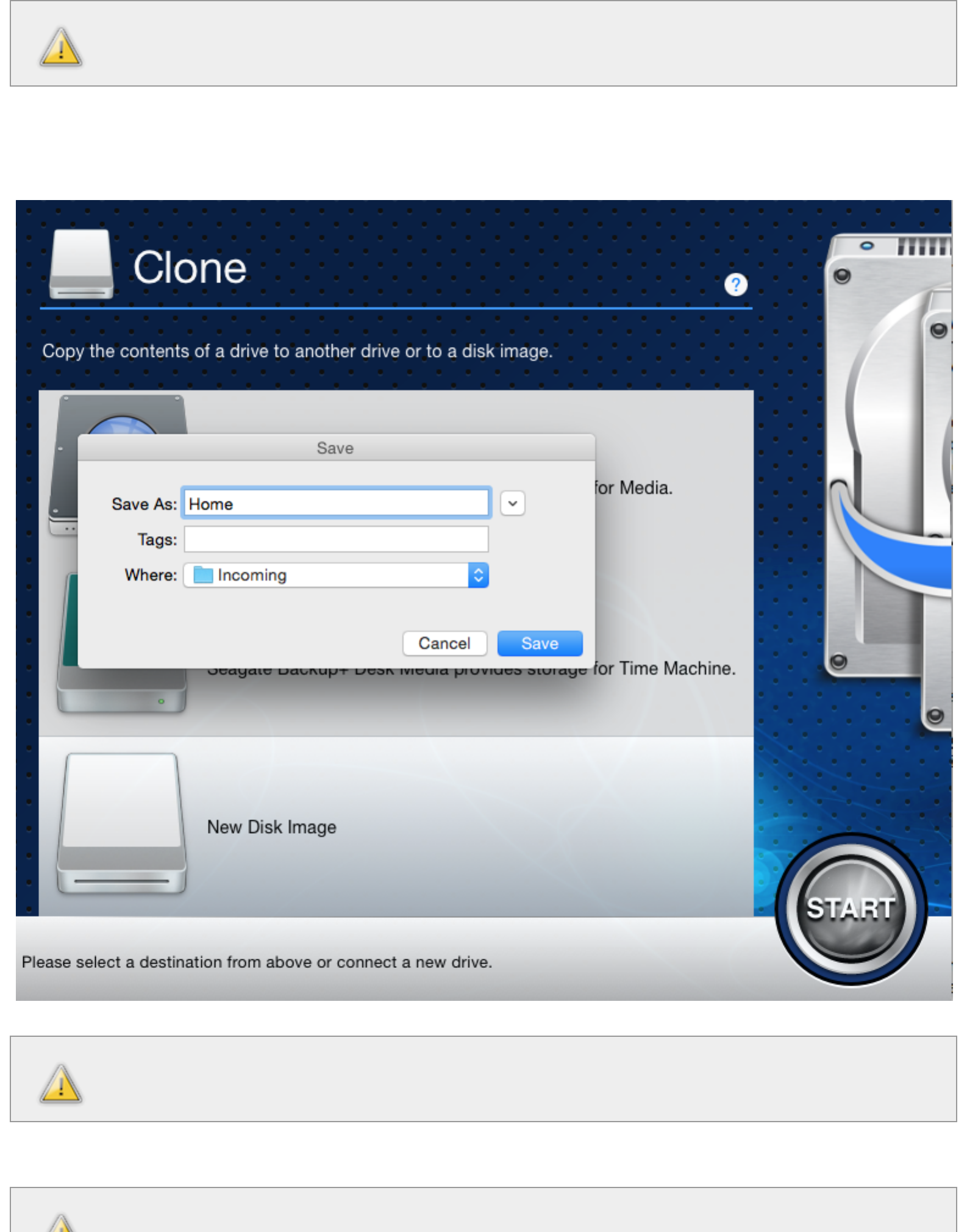
Cloning to a Disk Image
For some drives, it is possible to clone them to a disk image file. Cloning to a disk image requires exclusive access to the drive;
therefore the current startup drive cannot be cloned to a disk image file.
Cloning to a disk imge
The disk image option is not shown for drives that do not support cloning to a disk image.
5.3 Secure Erase
Please make sure you have a current backup of important data before securely erasing a drive or folder. Once data is
securely erased, the only way to recover it will be via a backup.
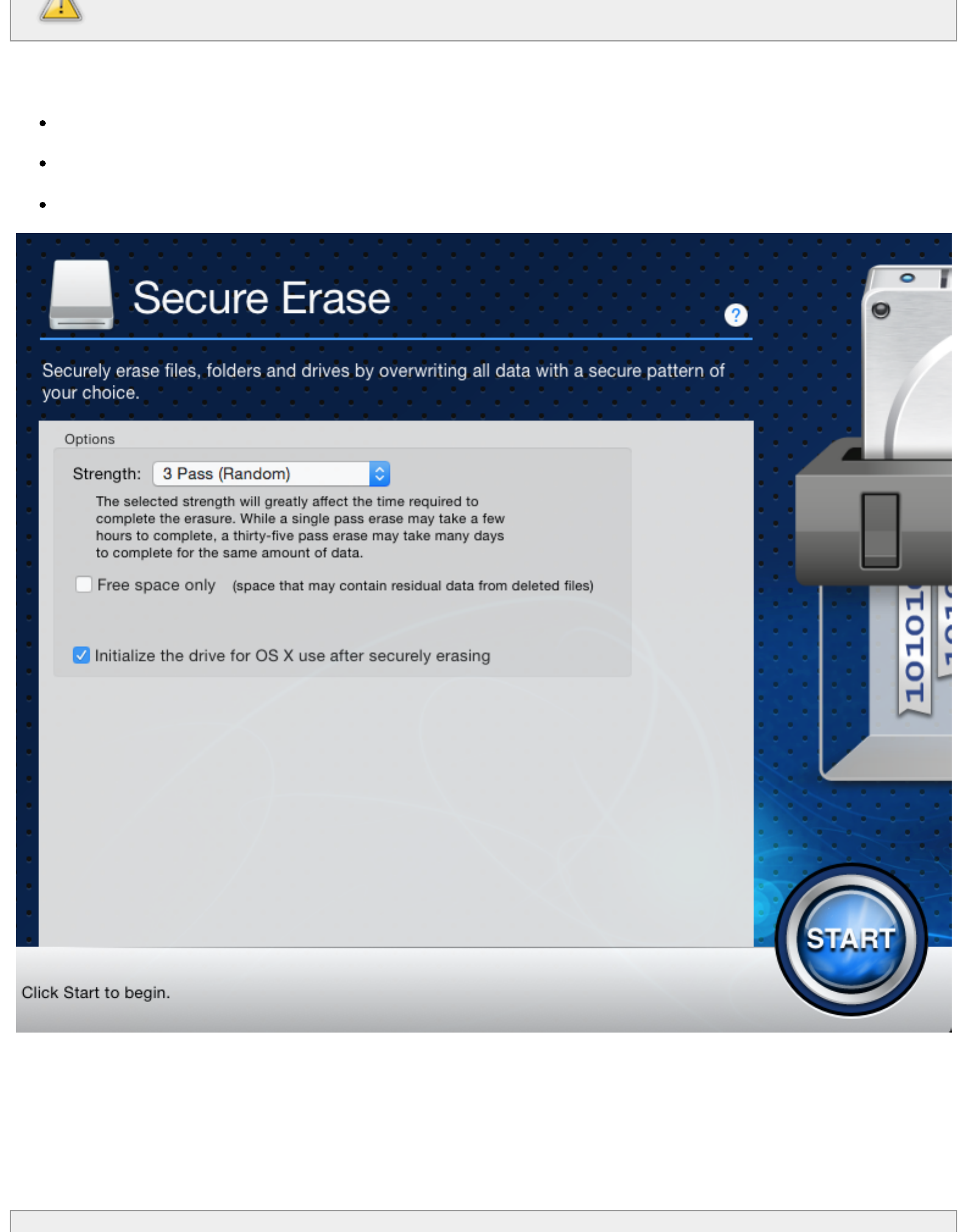
Drive Genius 4’s Secure Erase utility is used for securely erasing drives, files or folders (and all of their data). There are many reasons
to perform a secure erase instead of simply dragging files and folders to the Finder’s Trash. A few common uses are:
Destroy sensitive information, such as financial documents.
Destroy all personal information before reselling or repurposing a computer.
Job requirements that require protection of work related information.
Whole Drive Secure Erase
The only secure way to erase your data is by overwriting it with new (preferably random) patterns. Drive Genius 4 has many standard
patterns to choose from and several conform to the United States Department of Defense standards for drive sanitation.
Secure Erase offers the following patterns: 1 Pass (Zeros), 1 Pass (Random), 3 Pass (Random), or 7 Pass (DoD) to ensure original
data cannot be recovered. Drive Genius 4 also features a 35 Pass (Gutmann) option, which overwrites every block of data 35 times
with a complex array of patterns. Drive Genius 4’s Secure Erase function conforms to the U.S. Department of Defense standard for
drive sanitization (DoD 5220.22 M), and it works with all drives.
US Department of Defense in the clearing and sanitizing standard DoD 5220.22-M recommends the approach “Overwrite all
addressable locations with a character, its complement, then a random character, verify for clearing and sanitizing information
on the writable media”.
The more passes a pattern performs the less chance there is of recovery; however, the time required to securely erase
an item increases with each additional pass. Drive Genius 4 defaults to 3 random passes as that offers the best security
while keeping the erase time reasonable.
Secure Erase Free Space
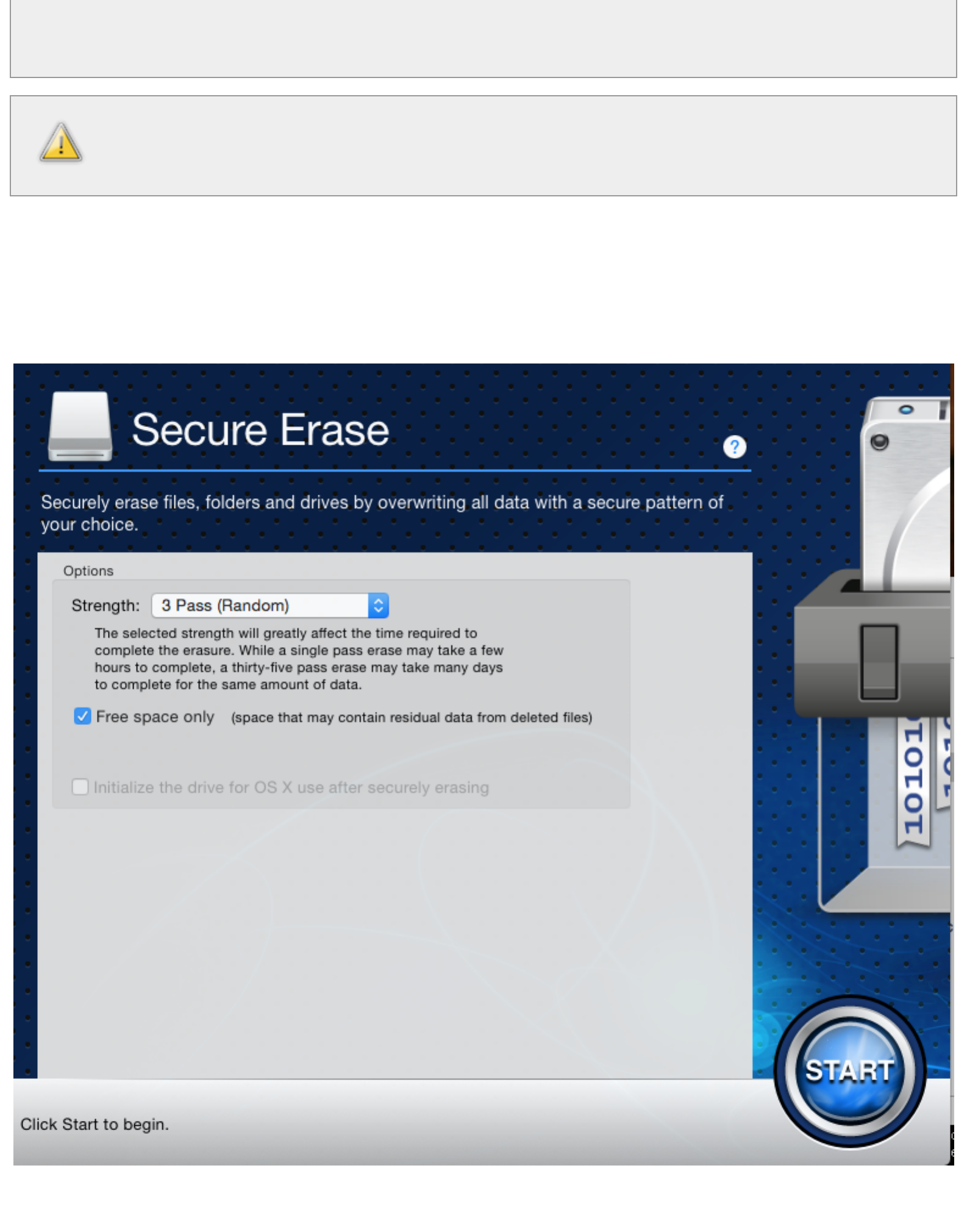
Secure Erase can also permanently erase the free space on your drives so temporary file data and old file data that was not securely
erased cannot be retrieved.
This option does not require exclusive access to a drive, and is therefore an effective sanitation procedure for drives that are used on a
regular basis, including your primary startup drive.
Free Space Secure Erase

If you erase a drive’s free space, recovery of deleted files on that drive will be impossible.
Secure Erase process
To begin a Secure Erase, choose the strength – the default “3 Pass (Random)” is sufficient for most cases – and then then click the
“Start” button. Drive Genius 4 will obtain exclusive access to the drive if necessary and begin erasing the drive.
If the Free Space option is not enabled, erasing a drive will permanently remove all data. After the drive is completely erased, Drive
Genius 4 will initialize it for OS X use.
For a whole drive (non-Free Space) erase, Secure Erase requires that you restart from a Recovery drive to run it on
your primary startup drive.
Erasing files or folders stored on an SSD drive will not actually erase the data. This is due to the way SSDs write and
store data. Therefore the only way to securely destroy files and folders is to perform a Free Space erase of the drive
after erasing all files you want to destroy.
Securely Erasing a File or Folder from the Finder
DrivePulse adds the ability to easily securely erase a file or folder from the Finder. Simply select the files/folders you want to erase in
the Finder and then select “Drive Genius Secure Erase” from the Finder’s services menu.
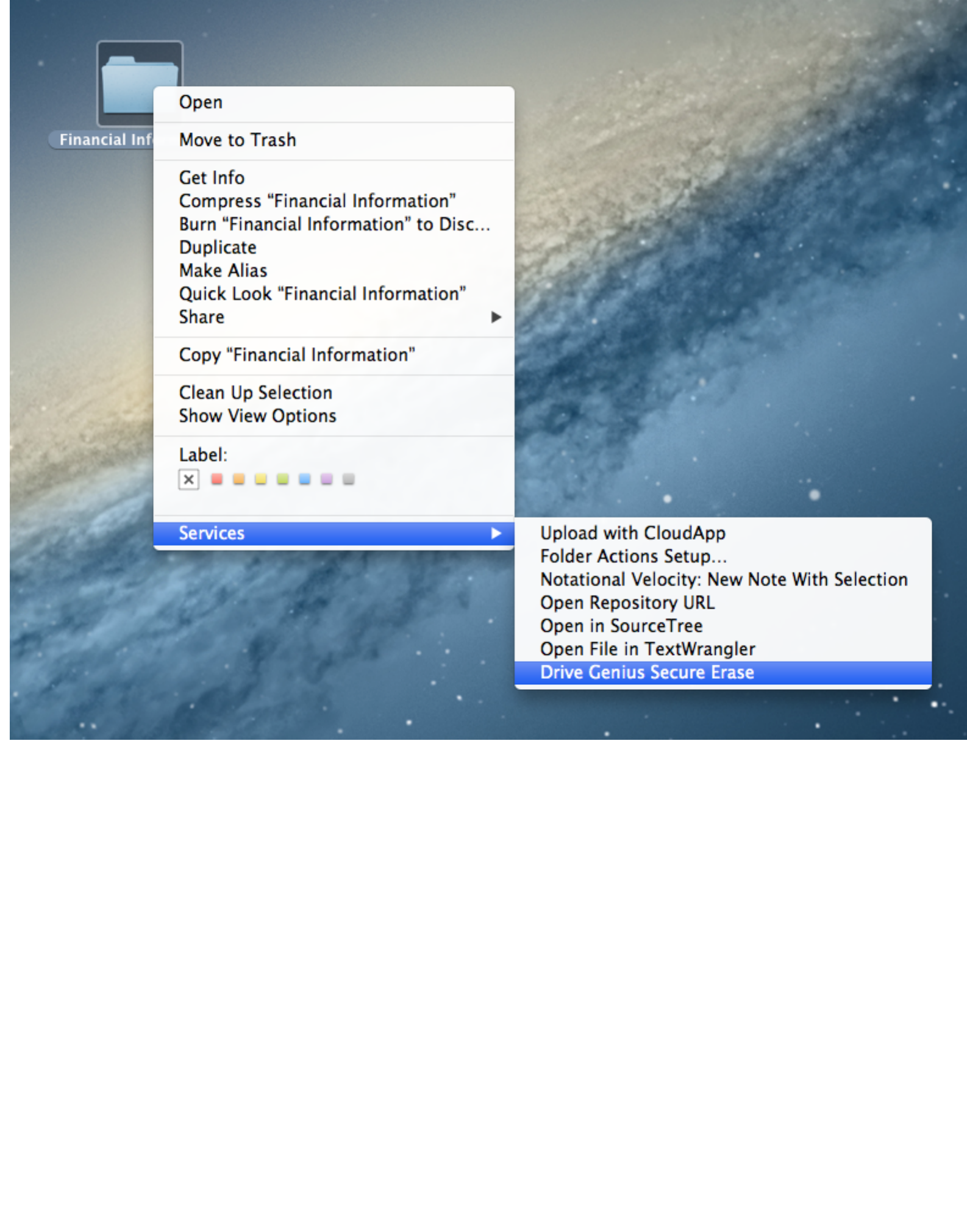
Secure Erase from the Finder
5.4 IconGenius™
IconGenius provides a multitude of custom designed icons for you to customize your drive and folder icons.
Icons are arranged in various collections. Click a collection name in the list to load a collection.
Setting a custom icon
To set a custom icon, select the icon you want, and then click the “Set Icon” button.
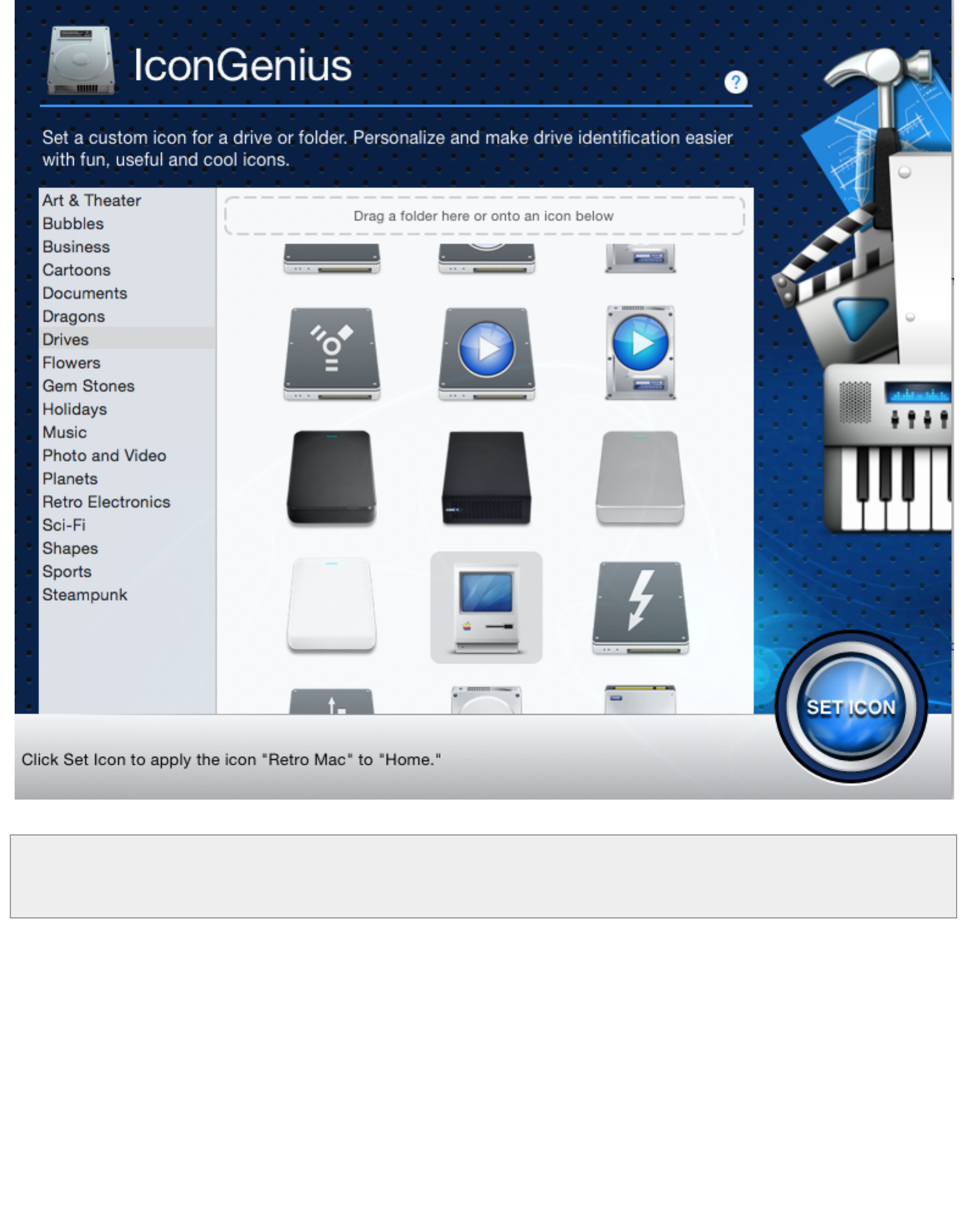
Setting a custom icon
Tip: You can view a high-quality preview of an icon by selecting an icon and clicking the space-bar key once. You can then
move to other icons in the collection using the left or right arrow keys.
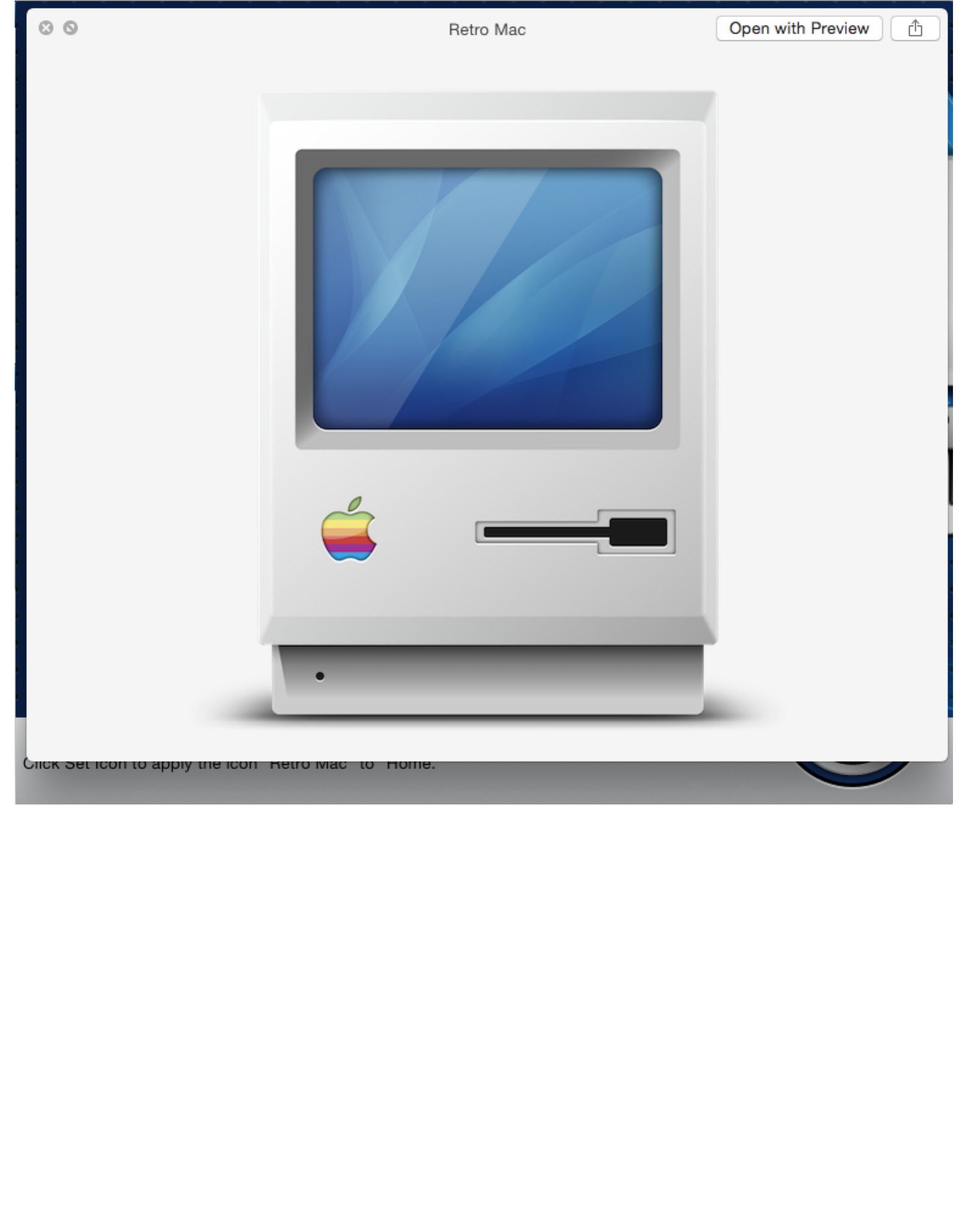
IconGenius high-quality preview
Removing a custom icon
When no icon is selected and the drive/folder has an existing custom icon, IconGenius will offer the ability to remove the existing
custom icon.
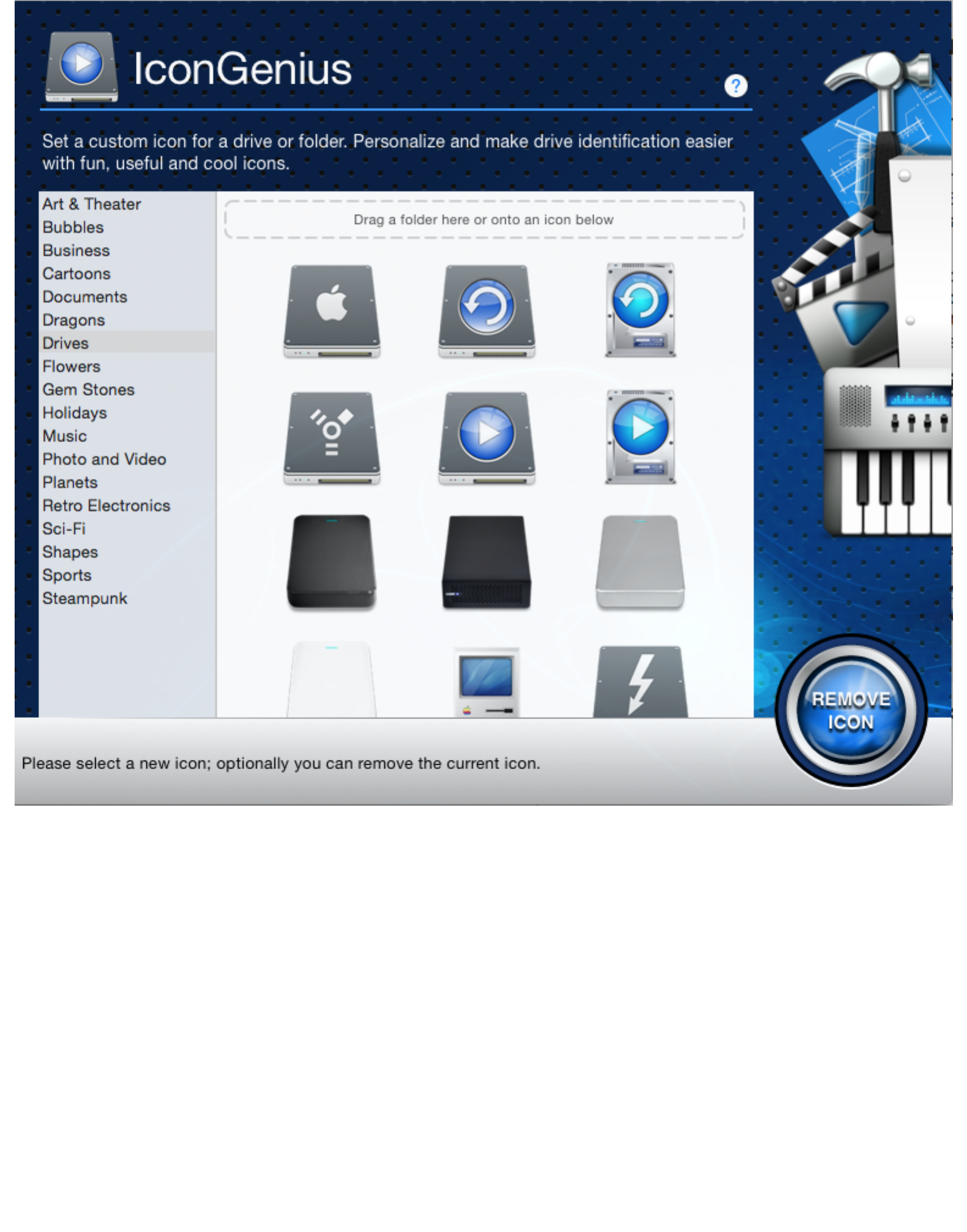
Removing a custom icon
5.5 Drive Information
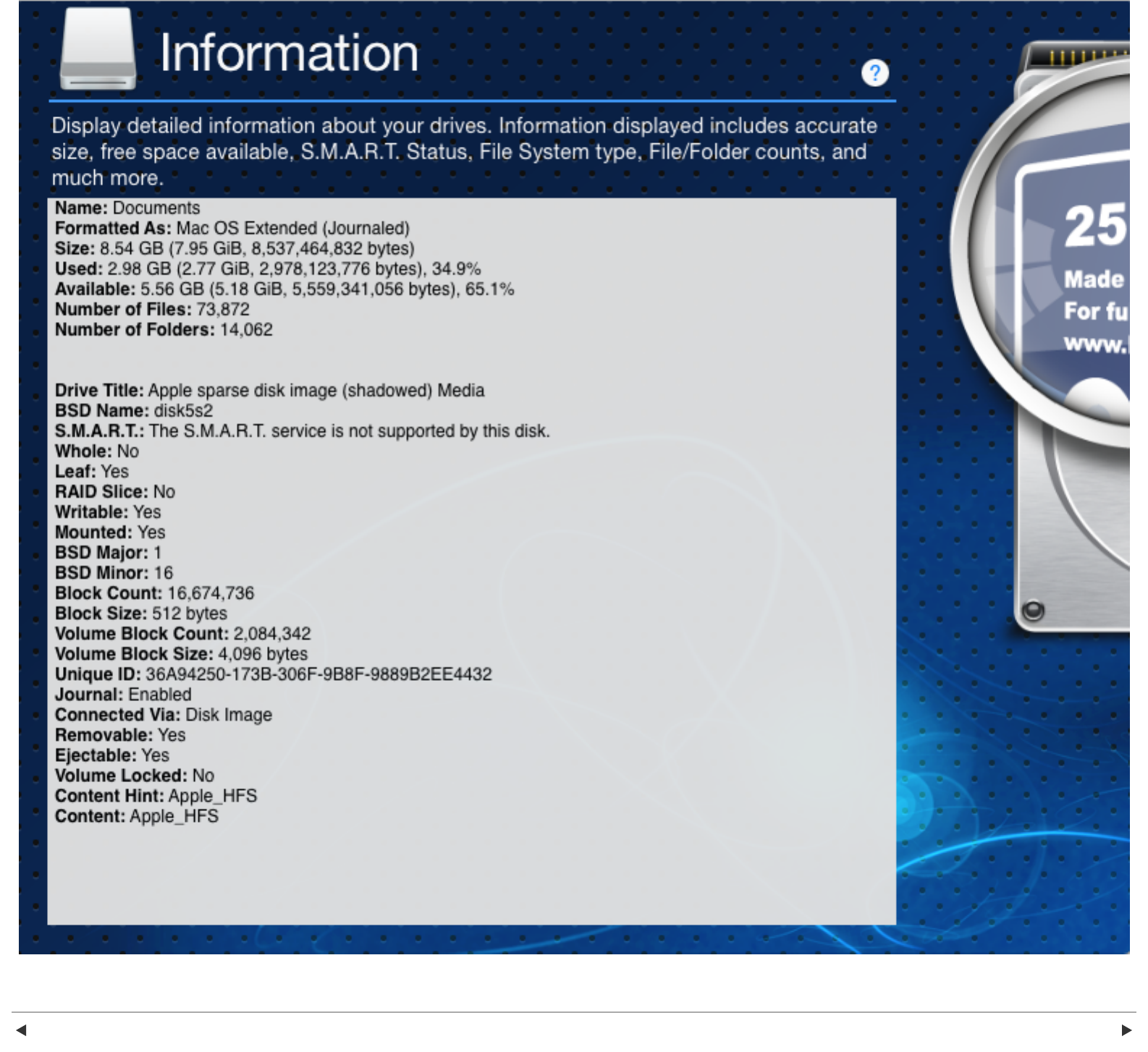
Information provides technical drive details such as: block counts, OS X kernel information and other low-level information that expert
users may find useful. The information can be saved to a text file by selecting “Save” from the “File” menu.
CLEANUP Drive Genius 4 Menu Table of Contents
6 PROTECT
6.1 BootWell™
A BootWell drive can be used to maintain, repair, or recover your primary startup drive in the event of a primary drive error.
For maintenance purposes, most Drive Genius 4 utilities work on the primary startup drive “live” with no need for a secondary startup
drive. However all repair and recovery utilities require starting your computer from a secondary drive so they can have exclusive
access to your primary drive.
The utilities that require a secondary startup drive are:
The advanced Physical Check options.
Repair
Rebuild
Defragment
The whole-drive Secure Erase option.
These utilities will automatically prompt you to restart using a BootWell drive as needed.
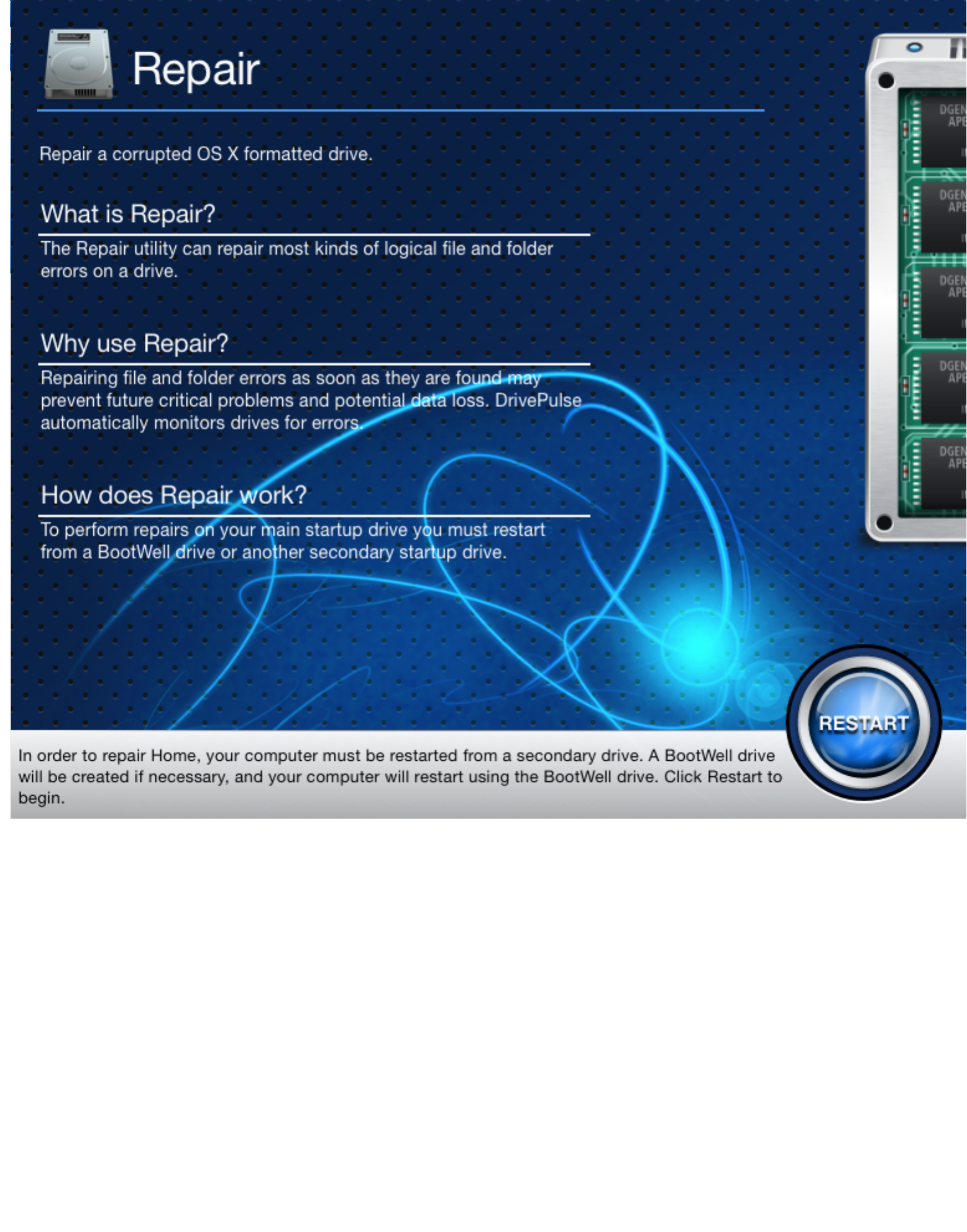
The Repair utility prompting for a restart
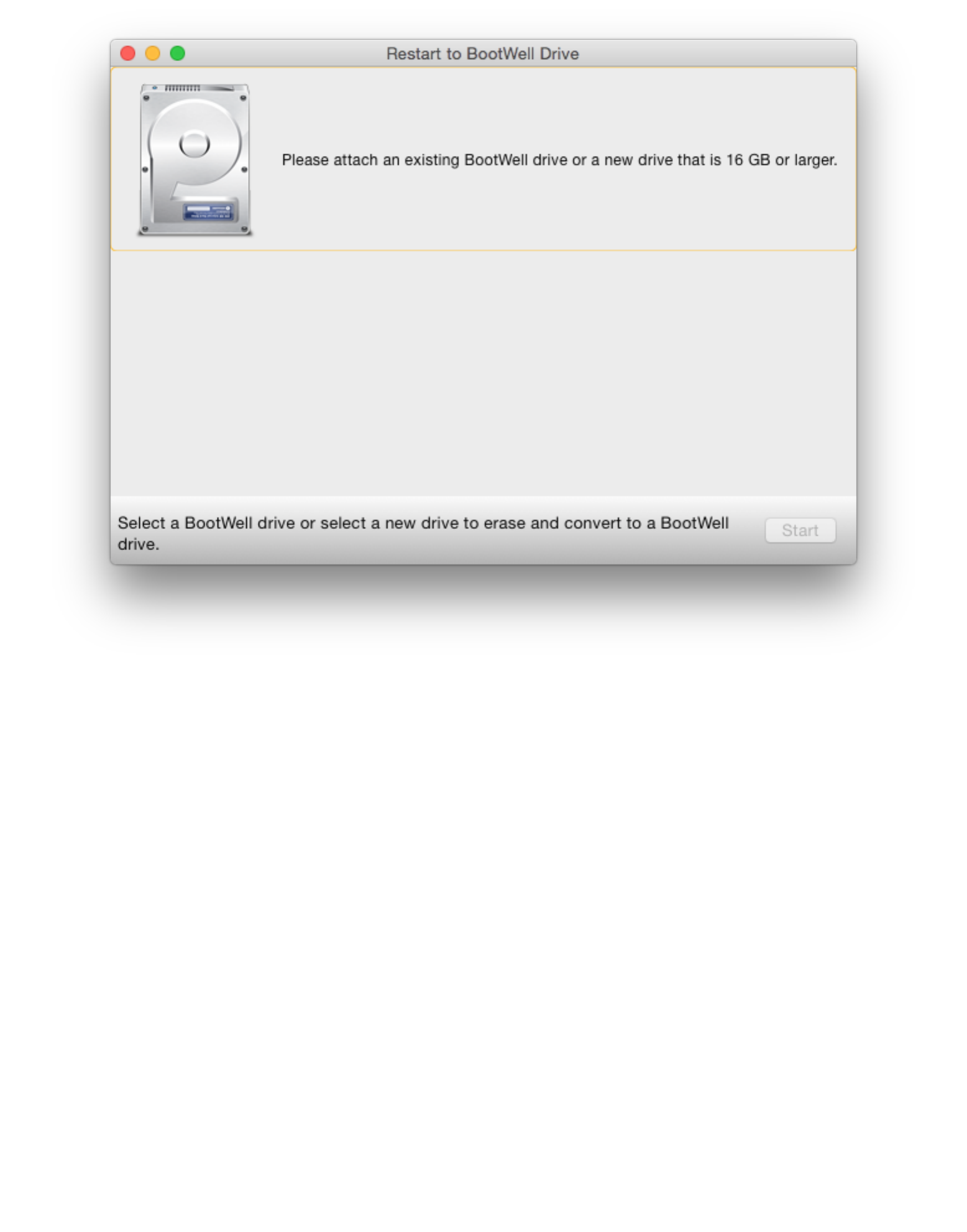
The Restart to BootWell Drive window
When prompted by a utility you can create a BootWell drive using any 16GB or larger drive and then restart; or attach an existing
BootWell drive.
If you would like to pre-create a BootWell drive for emergency use, then simply select your current startup drive, select the
“BootWell” utility and finally choose a secondary drive that can be erased and formatted for use as a Drive Genius 4 BootWell drive.
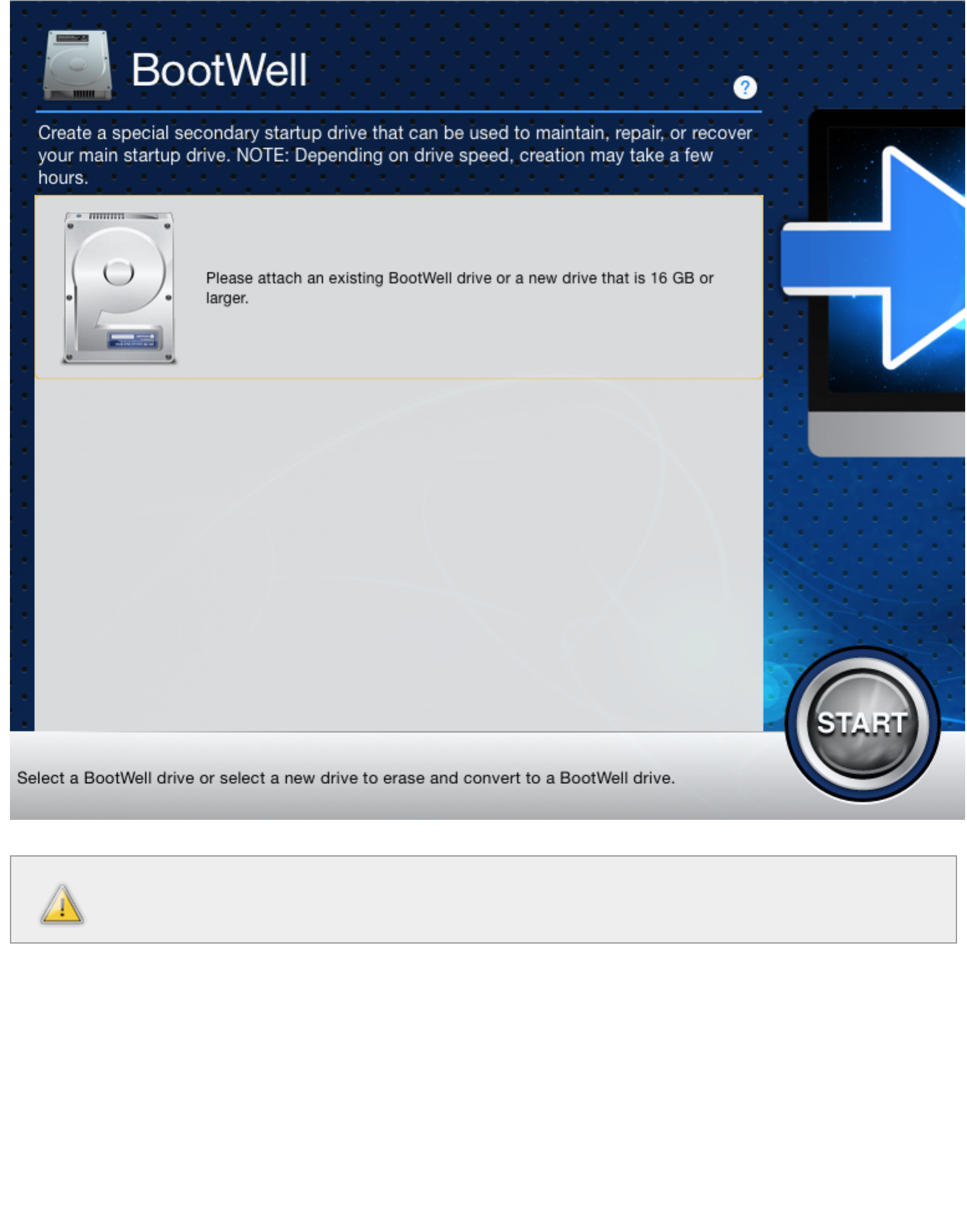
The BootWell utility waiting for a secondary drive
Secondary drives selected for BootWell use, will be erased and reformatted.
6.2 Instant DrivePulse™
Instant DrivePulse will run the most common DrivePulse tests on a drive and provide a pass/fail status for each test. Since
DrivePulse will not run its tests until the computer is idle, this utility can be used to immediately test a drive.
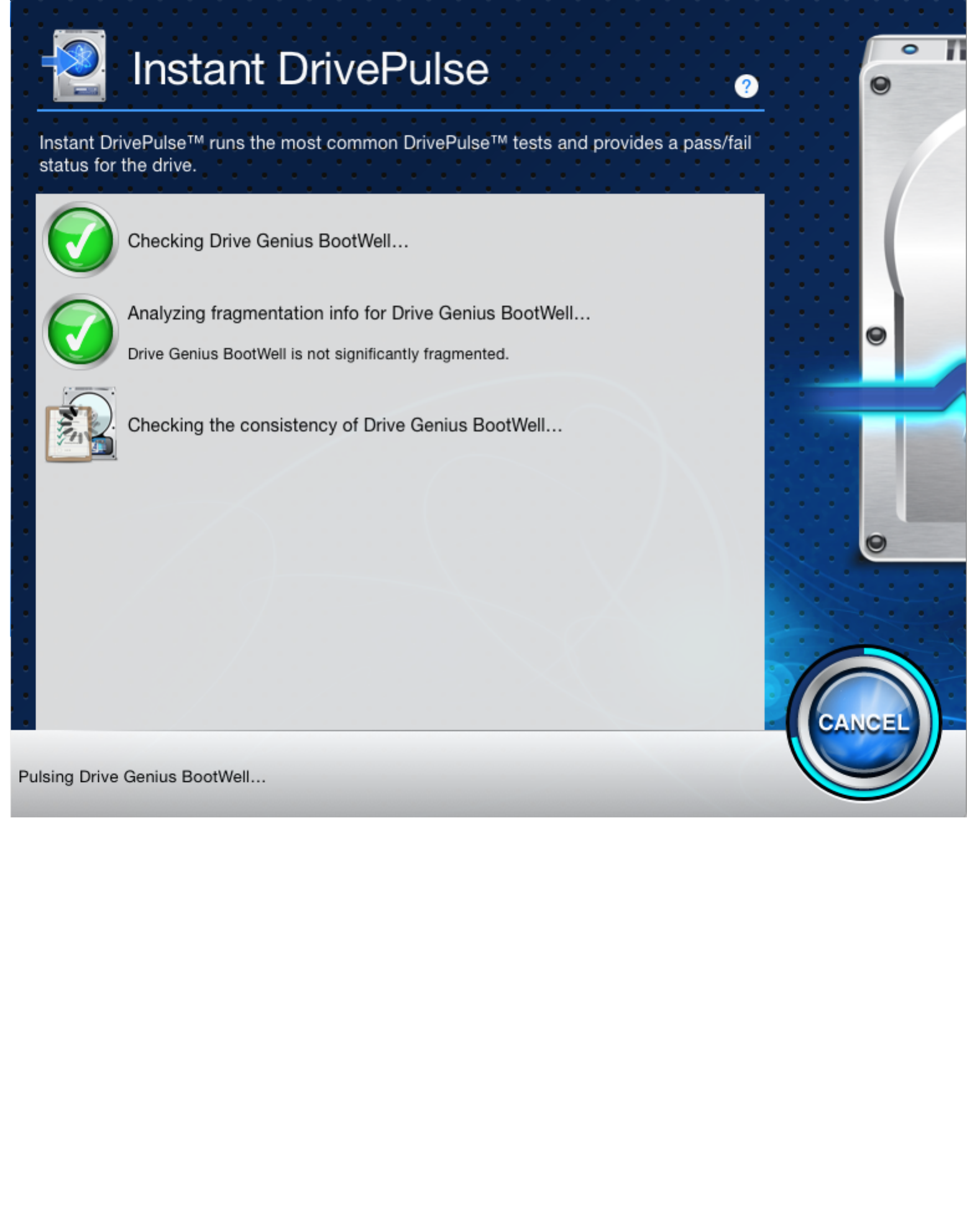
Instant DrivePulse running
6.3 Physical Check
Physical Check is designed to detect hardware issues with drives. It goes through extensive tests to determine if there are possible
hardware issues.
Data on a hard drive is stored in a series of small, atomic data areas (technical terms for these are blocks and/or sectors). During
normal operation every data area should be able to be written to and read from again without stalling or worse a change in data
contents between a write and a read.
However, since drives are mechanical devices, a drive can develop hardware problems where one or more data areas may lose
storage capacity and become unreadable. Physical Check reads every data area on a drive in sequence and determines whether
the drive reports an error for any of these reads. It can also do much more advanced tests at the expense of greatly increased
testing time.
The time required for a Physical Check test to complete is dependent on the drive’s size, speed, and its physical health.
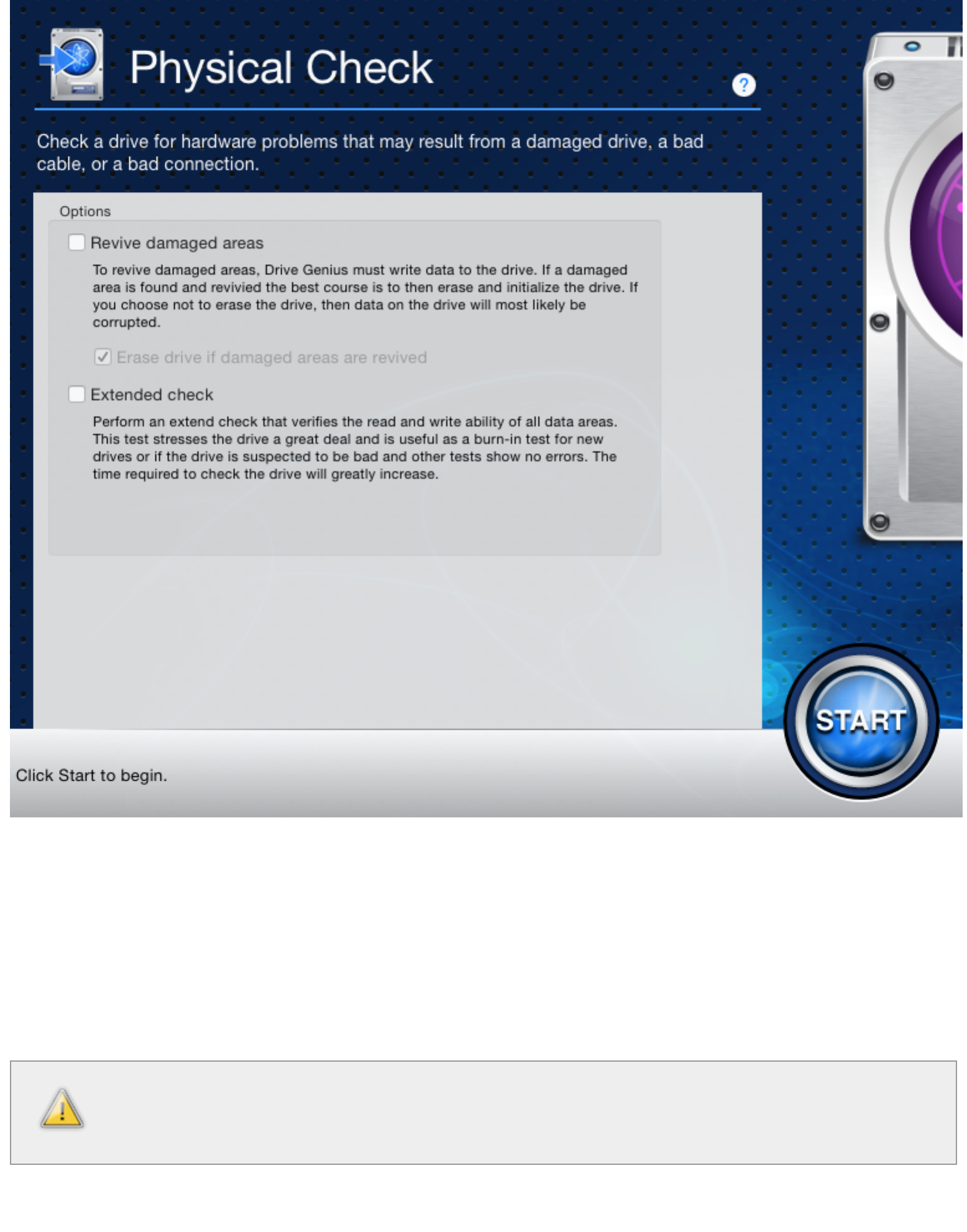
Physical Check utility
6.3.1 Revive damaged areas
Most modern drives will automatically reallocate any bad data areas they encounter to another area on the drive. Each drive has a
reserved amount of space to handle these reallocations.
If Drive Genius 4 or DrivePulse informs you it has found bad areas, or you suspect there are bad areas on a drive you can enable
Revive damaged areas to allow Drive Genius 4 to instruct the hard drive to reallocate any bad data areas that are found.
When Drive Genius 4 finds a bad area, it will attempt to read the information from the bad area and write it back to the same area.
This will kick-in the drive’s reallocation mechanism and move the data area contents to a new area.
Please note that bad data area reallocation will likely result in data loss as the contents of bad areas may not be
retrievable. Therefore, Drive Genius 4 defaults to erasing and formatting the drive if data areas are reallocated. If you
want to attempt to recover data from the drive - even though it may be corrupt - you can disable the erase option.
6.3.2 Extended check

The extended check option will verify the read and write ability of every data area on the drive. Unlike the Revive option, which only
attempts writes for bad areas, the Extended check option will read and write the contents of every single data area on the drive;
possibly multiple times.
This process goes through great pains to bypass all operating system layers and directly interact with the drive’s data; therefore
enabling Extended scan will greatly increase the time needed to complete the scan.
If you have the time to let the Extended check complete, it will find faults with the drive even when other tests, other utilities or
vendors themselves declare the drive to be in good condition.
Due to the stress placed on a drive with the Extended check option enabled, it is not recommended for SSD drives.
6.4 Consistency Check
Consistency Check verifies the file and folder structures of OS X formatted drives.
If an issue is found during the check, Drive Genius 4 will offer to Repair the drive.
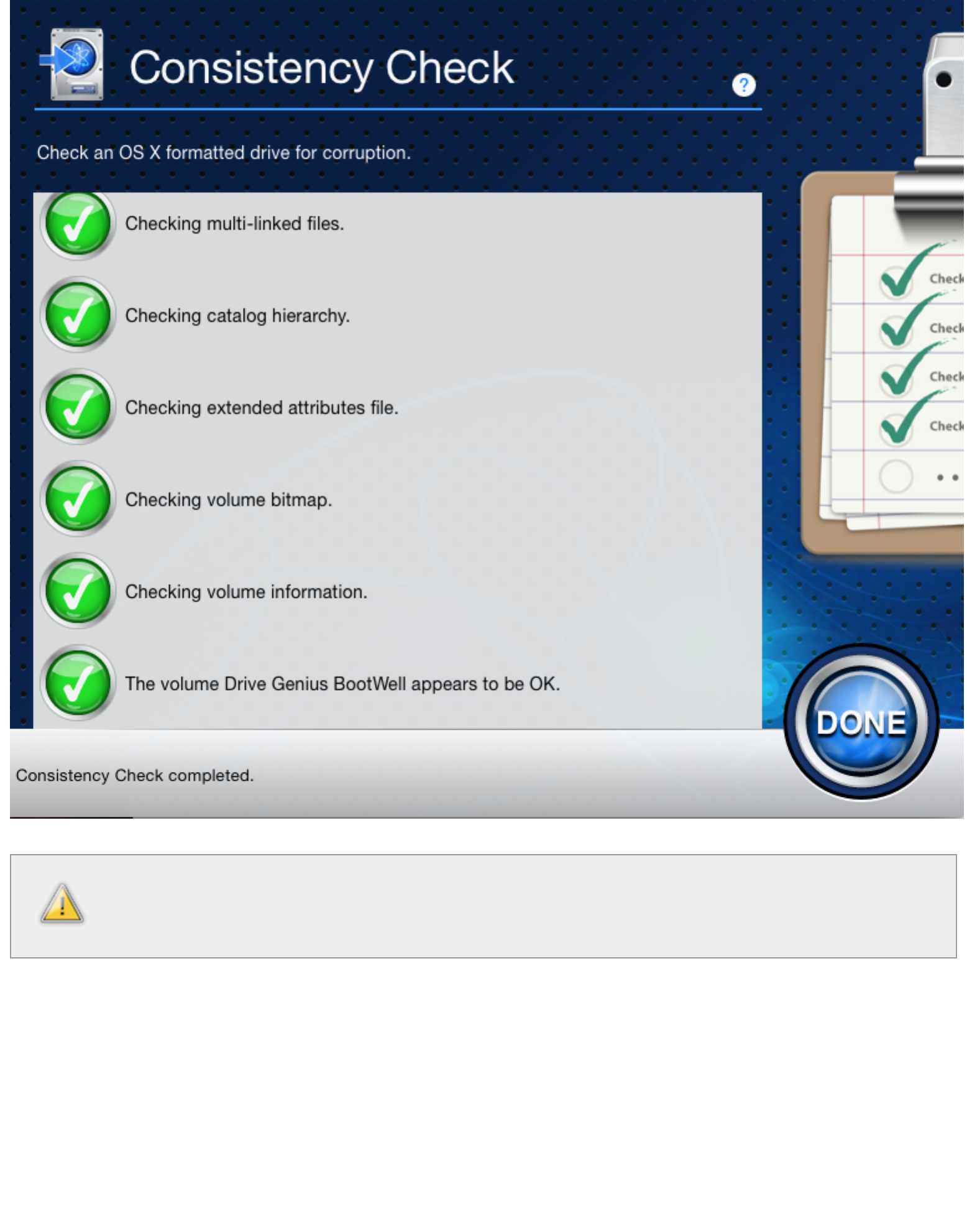
Consistency Check results
A check of the current startup drive may cause Drive Genius 4 or the system itself to pause and become
unresponsive. This is normal during a check of the startup drive and the system will return to normal operation when
the check is complete.
6.5 Repair
Repair is a utility for repairing most kinds of logical file and folder errors on a drive.
Repair should be run whenever Drive Genius 4 or DrivePulse notifies you of a Consistency Check failure. It is not necessary to run
Repair in other circumstances.
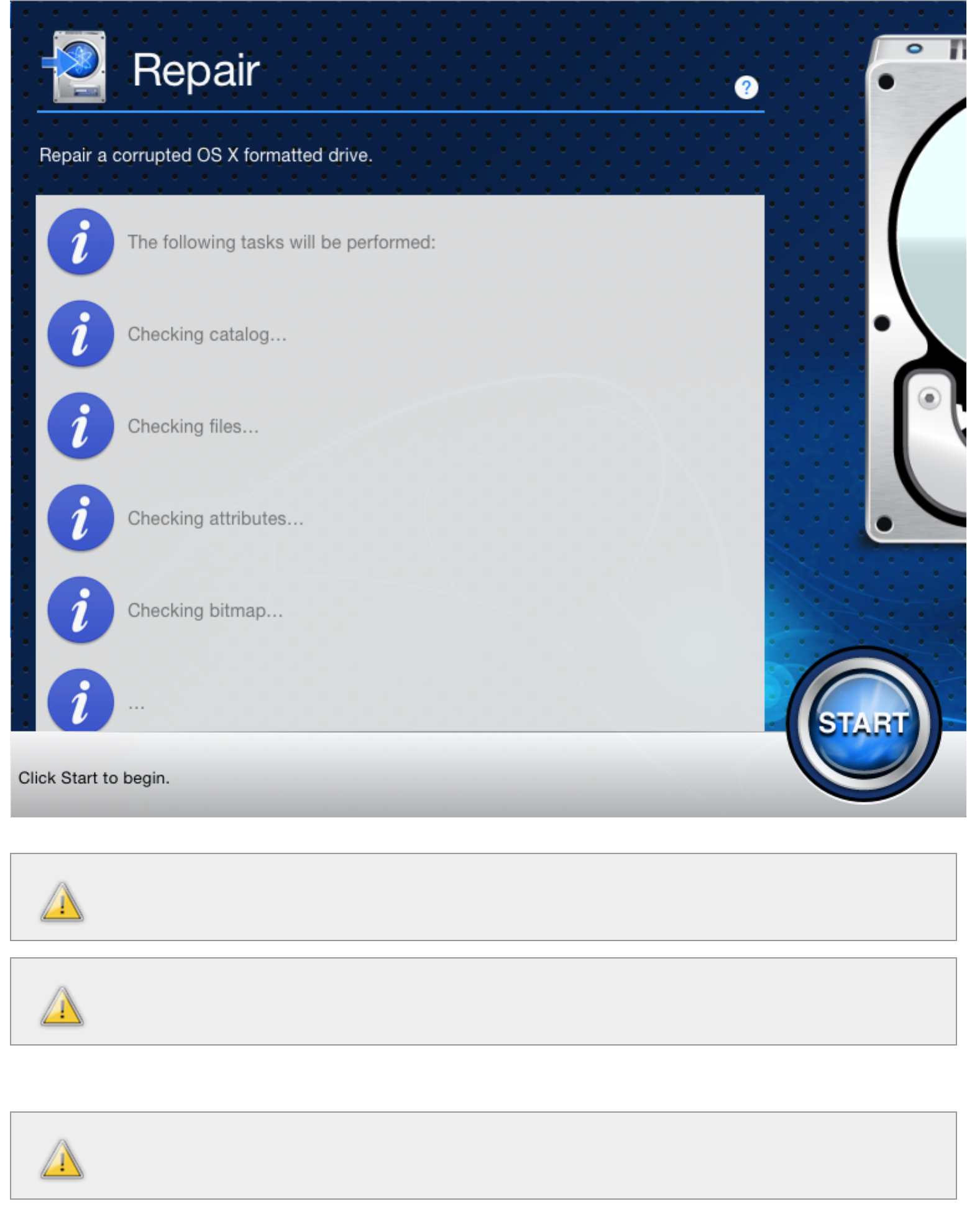
Repair utility
Repair requires that you restart from a BootWell drive to run it on your primary startup drive.
Repair does not handle physical defects. The Physical Check utility will do so. Please note that DrivePulse will
automatically check your drives for both logical and physical problems and notify you if an issue is found.
6.6 Rebuild
Rebuild is a specialized utility and Prosoft does not recommend its use in normal drive maintenance procedures.
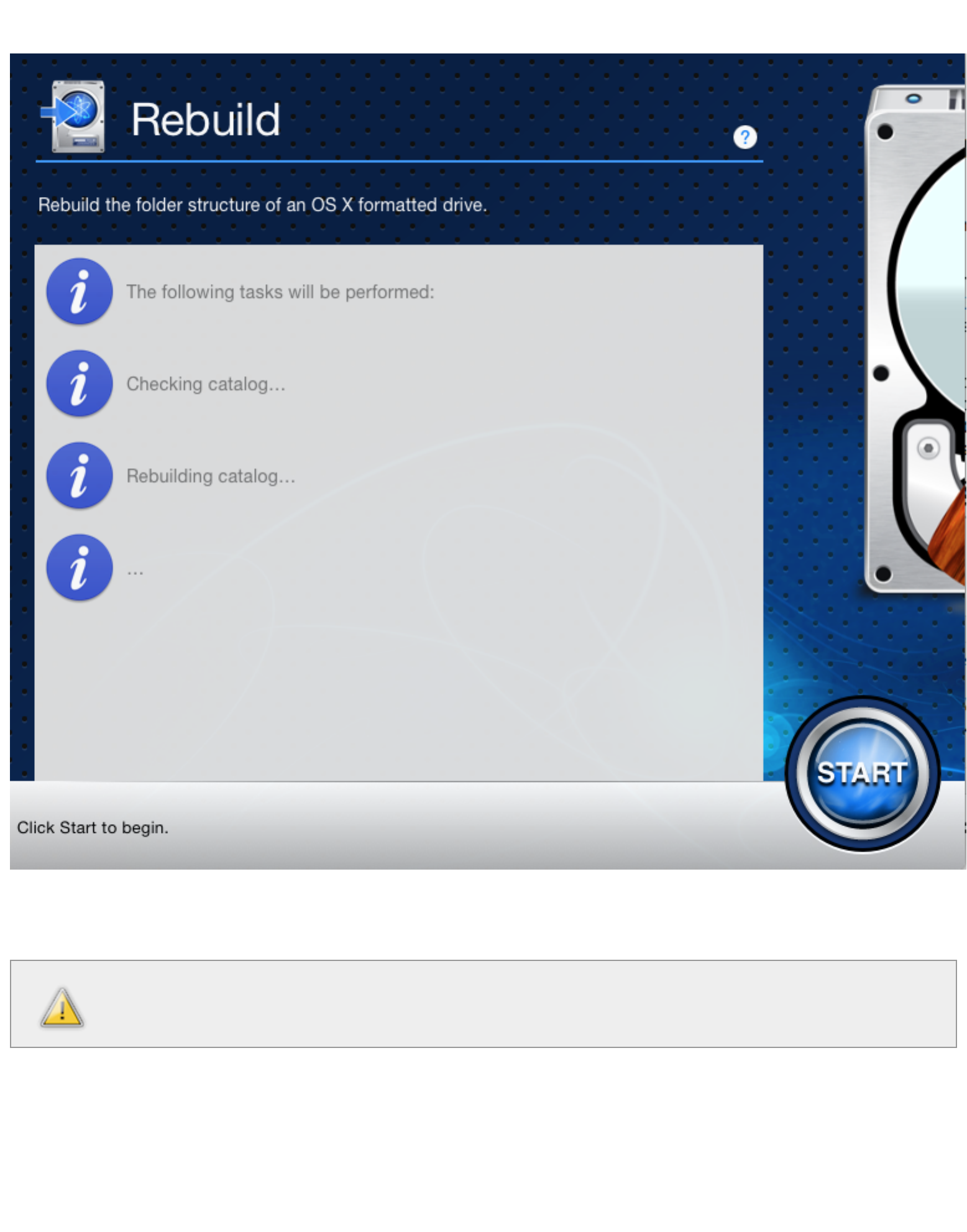
Rebuild is a utility for reconstructing the catalog of files and folders on OS X formatted drives. This will rebuild the directory of the
drive (known as the Catalog B-Tree) that contains information pertaining to the location of all files on the drive.
Rebuild utility
Rebuild addresses a very specific set of problems; namely “lost” files that are still on the drive but are no longer accessible because
the location pointers to the data have been lost or corrupted.
Rebuild requires that you restart from a BootWell drive to run it on your primary startup drive.
6.7 Fix Permissions
Fix Permissions repairs incorrect file and folder ownership and permissions on startup drives according to Apple specifications.
Permission issues can result from bad application installers and lead to applications failing to open or randomly crashing. If you are
experiencing these symptoms, Fix Permissions may be able to resolve them.
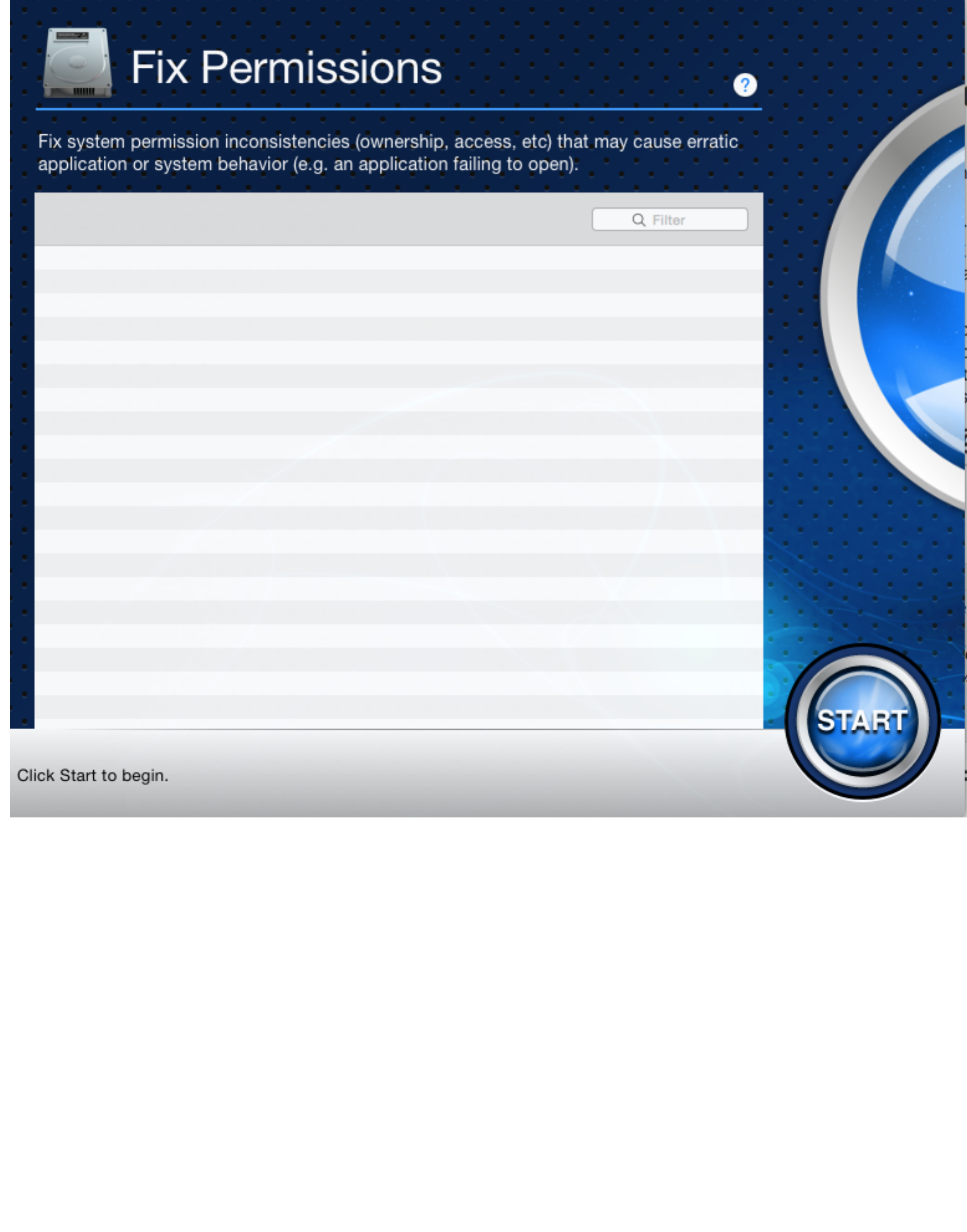
Fix Permissions utility
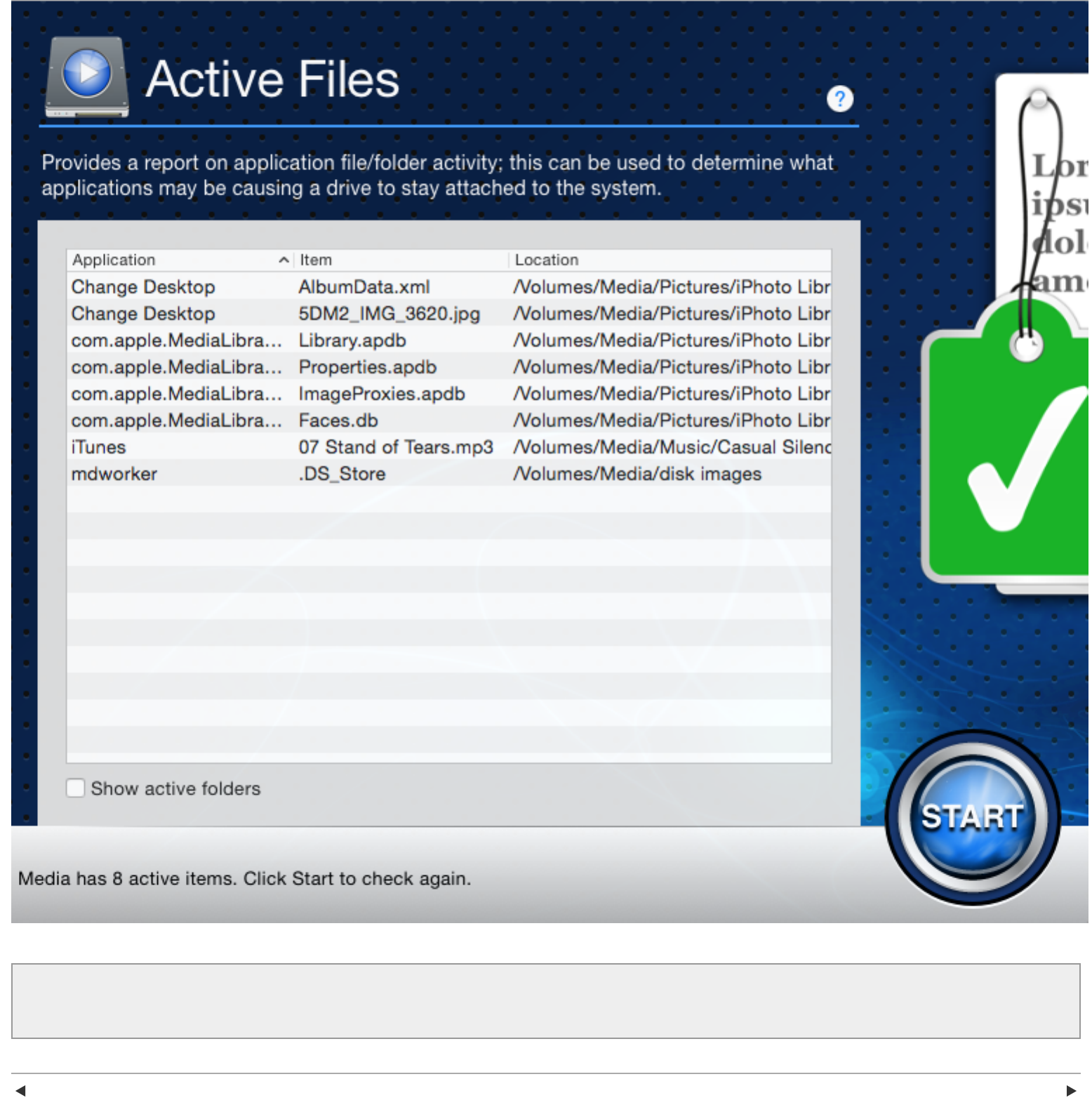
6.8 Active Files
The Active Files utility shows files and folders that are in use on the selected drive. In addition to the item (file/folder) name it shows
the application that is using the item and the item’s parent folder.
This is very useful when a drive cannot be ejected, as you can find the application that is using the drive and quit it.
PROTECT Questions and Answers Table of Contents
7 Drive Genius 4 Menu
The Drive Genius 4 menu provides access to preferences, uninstall and other Prosoft resources.
7.1 Preferences
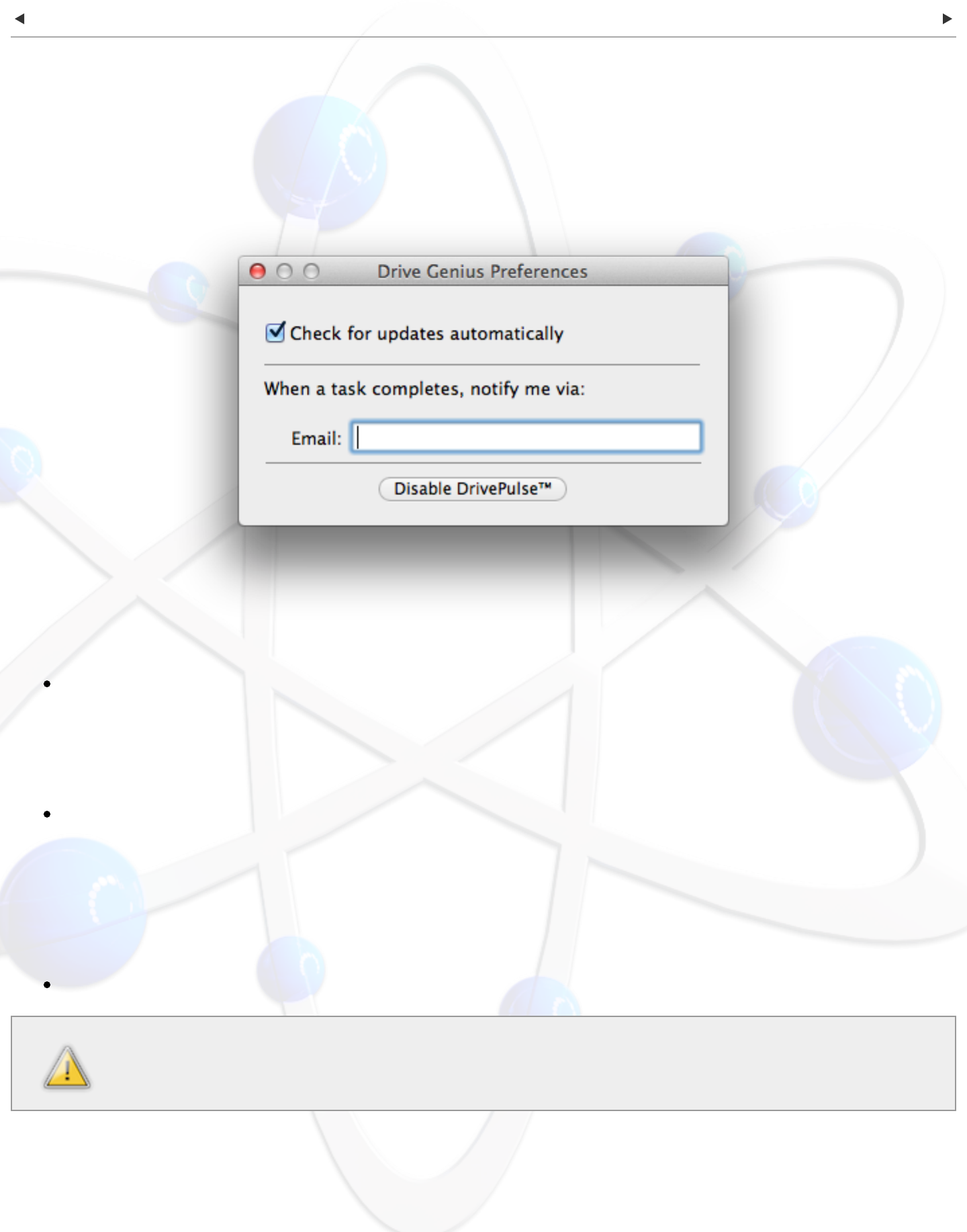
Preferences Window
Check for updates automatically: Enabling this option will have Drive Genius 4 inform you of any updates and
allow you to download and install the latest version.
If automatic update checks are enabled, Drive Genius 4 will send anonymous information about your system (CPU,
Memory, etc) to Prosoft. This information helps us improve Drive Genius 4.
Email Notifications: Enter an email address to have Drive Genius 4 email you when a utility you have started
completes. More than one email address can be included by using a comma “,” to separate addresses.
Drive Genius 4 sends emails using the default email application. Apple’s Mail, Microsoft Entourage, and Stickshift
Software’s Mailsmith are supported; if one of these is not the default email application, Drive Genius 4 will attempt to use
Apple’s Mail application. Your email application must be configured correctly for emails to be sent. Email notifications are
only sent if your computer is not being used.
Disable DrivePulse Disables DrivePulse.
DrivePulse is a critical component of Drive Genius 4 and certain features will not work if it is disabled (such
as Verify Preferences). Prosoft strongly recommends that DrivePulse is always enabled.
Refer a friend
Refer Drive Genius 4 to family and friends via Prosoft’s web site.
PROTECT Questions and Answers
Check for Update
Manually check for Drive Genius 4 updates.
7.2 Uninstall
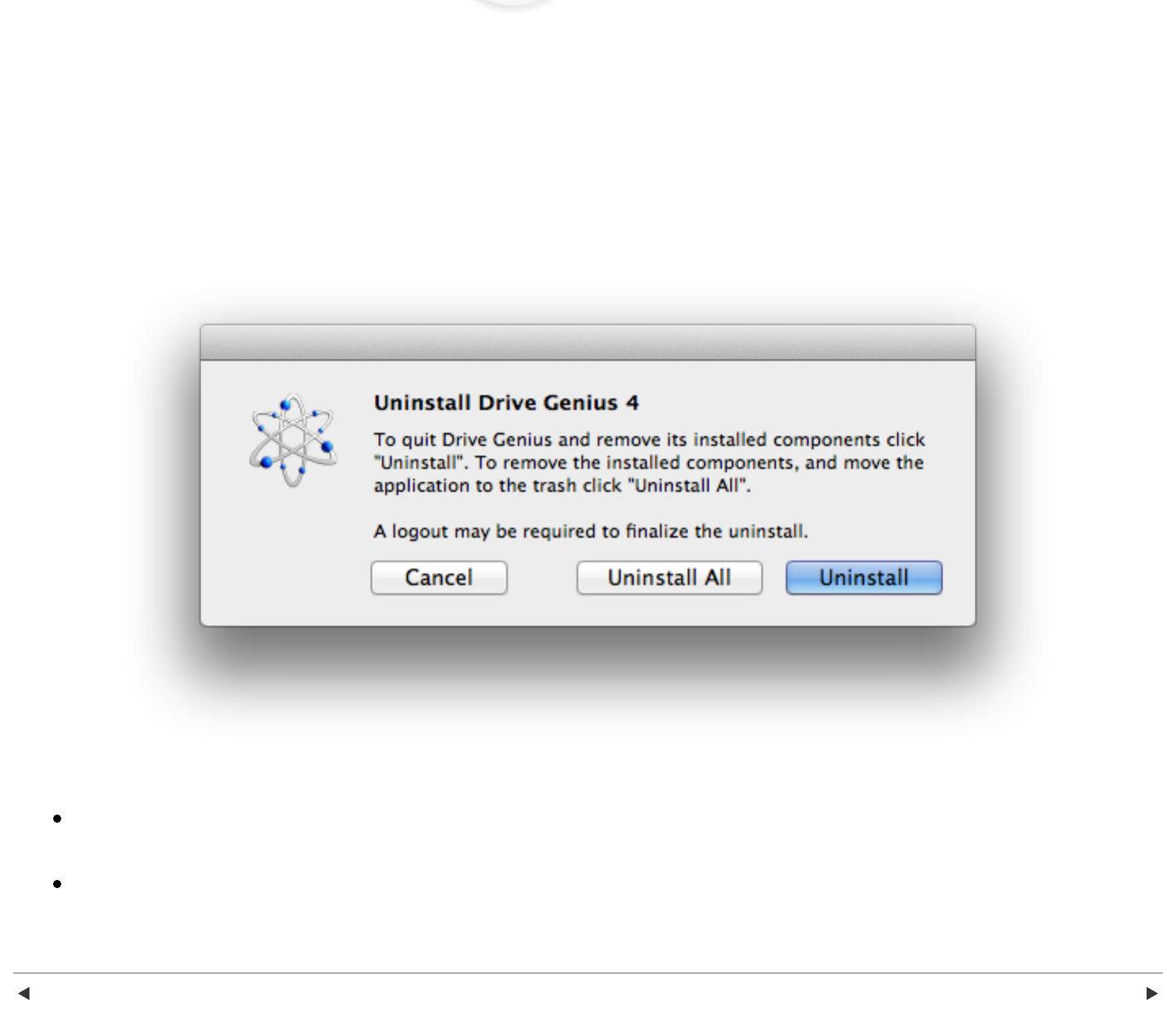
To completely remove Drive Genius 4 and its components from your system, select “Uninstall” from the Drive Genius 4
menu. A prompt will appear to confirm you want to uninstall the application and will require administrator authentication to
complete the process:
Uninstall Confirmation
Uninstall: Drive Genius 4 will remove only its installed components, but will leave the application and its
preferences in place.
Uninstall All: Drive Genius 4 will perform an uninstall as outlined above and then move the application and its
preferences to the Trash.
Table of Contents
Drive Genius 4 Menu Acknowledgements Table of Contents
8 Questions and Answers
Can Drive Genius 4 be used with OS X 10.7.5 and earlier.
Yes. There are several options that will allow Drive Genius 4 to operate on older OS X startup drives. Please see the
“Using Drive Genius 4 with older versions of OS X” section for more information.
DriveSlim is showing me a lot of files to delete. Which files should I select?
You should only delete files you are familiar with and are not using (files you know can be safely deleted). If you see
unfamiliar files, the best course of action is to assume those files are related to OS X or applications and leave those files
alone. DriveSlim will show all files on your drive according to the options you have selected; it makes a best effort to filter
files that it knows should not be deleted. However, it is ultimately your responsibility to determine which files to delete.
Do I need to restart from a BootWell drive to use DriveSlim?
No. Since DriveSlim does not need exclusive access to drives, you may run the DriveSlim utilities on the startup drive
without restarting.
Will Drive Genius 4 work with RAID drives?
Yes. Hardware based RAID, Apple software RAID and SoftRAID are supported.
Does Drive Genius 4 support Drobo drives?
No. Drobos are proprietary devices and due to the way they store and manipulate data on multiple physical drives, Drive
Genius 4 cannot safely manipulate that same data. It is the decision of Data Robotics, Inc to not share the technical
information necessary to safely support Drobo devices.
Does Drive Genius 4 work with Boot Camp?
Yes. However support for Windows formatted drives is limited. See the next question.
Does Drive Genius 4 work with ExFAT/FAT32/NTFS formatted drives?
Drive Genius 4 provides limited support for FAT32, ExFAT and NTFS formats.
Should sleep mode be disabled prior to running a utility?
No. Drive Genius 4 prevents the system from automatically sleeping while a utility is running. Although the display may
turn off during a long process, the system will not sleep while a utility is running. If the display goes to sleep, simply move
the mouse or tap the keyboard to wake up the display.
Can Drive Genius 4 clone the startup drive to another hard drive?
Yes.
Does a Clone destination drive have to be larger than the source drive?
No.

Drive Genius 4 Menu Acknowledgements
Will Drive Genius 4 report a problem during a Clone if the source drive is
corrupted?
No. Since Drive Genius 4 uses a bit-by-bit copy, every problem will be copied over without regard for the corruption on the
drive. This will result in a direct copy of the source drive. If the source drive is failing to attach or startup, the destination
drive will also have the same issues. This is ideal for creating a copy of a bad drive for the purpose of troubleshooting,
such as using Prosoft’s Data Rescue to scan for data from the duplicated device.
Table of Contents
Questions and Answers Table of Contents
9 Acknowledgements
Drive Genius 4 is copyright 2004-2014 Prosoft Engineering, Inc..
BootWell™, DrivePulse™, DriveSlim™, and IconGenius™ are trademarks of Prosoft Engineering, Inc. All other
trademarks are the property of their respective owners.
Drive Genius 4 uses the following third-party software libraries:
Boost
http://www.boost.org/
Boost Software License - Version 1.0 - August 17th, 2003
Permission is hereby granted, free of charge, to any person or organization obtaining a copy of the software and
accompanying documentation covered by this license (the “Software”) to use, reproduce, display, distribute, execute, and
transmit the Software, and to prepare derivative works of the Software, and to permit third-parties to whom the Software is
furnished to do so, all subject to the following:
The copyright notices in the Software and this entire statement, including the above license grant, this restriction and the
following disclaimer, must be included in all copies of the Software, in whole or in part, and all derivative works of the
Software, unless such copies or derivative works are solely in the form of machine-executable object code generated by a
source language processor.
THE SOFTWARE IS PROVIDED “AS IS”, WITHOUT WARRANTY OF ANY KIND, EXPRESS OR IMPLIED, INCLUDING
BUT NOT LIMITED TO THE WARRANTIES OF MERCHANTABILITY, FITNESS FOR A PARTICULAR PURPOSE, TITLE
AND NON-INFRINGEMENT. IN NO EVENT SHALL THE COPYRIGHT HOLDERS OR ANYONE DISTRIBUTING THE
SOFTWARE BE LIABLE FOR ANY DAMAGES OR OTHER LIABILITY, WHETHER IN CONTRACT, TORT OR
OTHERWISE, ARISING FROM, OUT OF OR IN CONNECTION WITH THE SOFTWARE OR THE USE OR OTHER
DEALINGS IN THE SOFTWARE.
The Lean Mean C++ Option Parser
http://optionparser.sourceforge.net
Copyright (C) 2012 Matthias S. Benkmann
The “Software” in the following 2 paragraphs refers to this file containing the code to The Lean Mean C++ Option Parser.
The “Software” does NOT refer to any other files which you may have received alongside this file (e.g. as part of a larger
project that incorporates The Lean Mean C++ Option Parser).
Permission is hereby granted, free of charge, to any person obtaining a copy of this software, to deal in the Software
without restriction, including without limitation the rights to use, copy, modify, merge, publish, distribute, sublicense, and/or
sell copies of the Software, and to permit persons to whom the Software is furnished to do so, subject to the following
conditions: The above copyright notice and this permission notice shall be included in all copies or substantial portions of
the Software.
THE SOFTWARE IS PROVIDED “AS IS”, WITHOUT WARRANTY OF ANY KIND, EXPRESS OR IMPLIED, INCLUDING
BUT NOT LIMITED TO THE WARRANTIES OF MERCHANTABILITY, FITNESS FOR A PARTICULAR PURPOSE AND
NONINFRINGEMENT. IN NO EVENT SHALL THE AUTHORS OR COPYRIGHT HOLDERS BE LIABLE FOR ANY
CLAIM, DAMAGES OR OTHER LIABILITY, WHETHER IN AN ACTION OF CONTRACT, TORT OR OTHERWISE,
ARISING FROM, OUT OF OR IN CONNECTION WITH THE SOFTWARE OR THE USE OR OTHER DEALINGS IN THE
SOFTWARE.
MABGTimer

https://github.com/mikeash/MABGTimer
Copyright (c) 2010, Michael Ash All rights reserved.
Redistribution and use in source and binary forms, with or without modification, are permitted provided that the following
conditions are met:
Redistributions of source code must retain the above copyright notice, this list of conditions and the following disclaimer.
Redistributions in binary form must reproduce the above copyright notice, this list of conditions and the following
disclaimer in the documentation and/or other materials provided with the distribution.
Neither the name of Michael Ash nor the names of its contributors may be used to endorse or promote products derived
from this software without specific prior written permission.
THIS SOFTWARE IS PROVIDED BY THE COPYRIGHT HOLDERS AND CONTRIBUTORS “AS IS” AND ANY EXPRESS
OR IMPLIED WARRANTIES, INCLUDING, BUT NOT LIMITED TO, THE IMPLIED WARRANTIES OF
MERCHANTABILITY AND FITNESS FOR A PARTICULAR PURPOSE ARE DISCLAIMED. IN NO EVENT SHALL THE
COPYRIGHT HOLDER OR CONTRIBUTORS BE LIABLE FOR ANY DIRECT, INDIRECT, INCIDENTAL, SPECIAL,
EXEMPLARY, OR CONSEQUENTIAL DAMAGES (INCLUDING, BUT NOT LIMITED TO, PROCUREMENT OF
SUBSTITUTE GOODS OR SERVICES; LOSS OF USE, DATA, OR PROFITS; OR BUSINESS INTERRUPTION)
HOWEVER CAUSED AND ON ANY THEORY OF LIABILITY, WHETHER IN CONTRACT, STRICT LIABILITY, OR TORT
(INCLUDING NEGLIGENCE OR OTHERWISE) ARISING IN ANY WAY OUT OF THE USE OF THIS SOFTWARE, EVEN
IF ADVISED OF THE POSSIBILITY OF SUCH DAMAGE.
Oniguruma
http://www.geocities.jp/kosako3/oniguruma/
Copyright (c) 2002-2009 K.Kosako All rights reserved.
Redistribution and use in source and binary forms, with or without modification, are permitted provided that the following
conditions are met: 1. Redistributions of source code must retain the above copyright notice, this list of conditions and the
following disclaimer. 2. Redistributions in binary form must reproduce the above copyright notice, this list of conditions and
the following disclaimer in the documentation and/or other materials provided with the distribution.
THIS SOFTWARE IS PROVIDED BY THE AUTHOR AND CONTRIBUTORS “AS IS” AND ANY EXPRESS OR IMPLIED
WARRANTIES, INCLUDING, BUT NOT LIMITED TO, THE IMPLIED WARRANTIES OF MERCHANTABILITY AND
FITNESS FOR A PARTICULAR PURPOSE ARE DISCLAIMED. IN NO EVENT SHALL THE AUTHOR OR
CONTRIBUTORS BE LIABLE FOR ANY DIRECT, INDIRECT, INCIDENTAL, SPECIAL, EXEMPLARY, OR
CONSEQUENTIAL DAMAGES (INCLUDING, BUT NOT LIMITED TO, PROCUREMENT OF SUBSTITUTE GOODS OR
SERVICES; LOSS OF USE, DATA, OR PROFITS; OR BUSINESS INTERRUPTION) HOWEVER CAUSED AND ON ANY
THEORY OF LIABILITY, WHETHER IN CONTRACT, STRICT LIABILITY, OR TORT (INCLUDING NEGLIGENCE OR
OTHERWISE) ARISING IN ANY WAY OUT OF THE USE OF THIS SOFTWARE, EVEN IF ADVISED OF THE
POSSIBILITY OF SUCH DAMAGE.
Sparkle
https://github.com/sparkle-project/Sparkle
Copyright (c) 2006-2013 Andy Matuschak.
Copyright (c) 2009-2013 Elgato Systems GmbH.
Copyright (c) 2011-2014 Kornel Lesiński.
Copyright (c) 2014 C.W. Betts.
Copyright (c) 2014 Petroules Corporation.
Copyright (c) 2014 Big Nerd Ranch.

Questions and Answers
All rights reserved.
Permission is hereby granted, free of charge, to any person obtaining a copy of this software and associated
documentation files (the “Software”), to deal in the Soft ware without restriction, including without limitation the rights to
use, copy, modify, merge, publish, distribute, sublicense, and/or sell copies of the Software, and to permit persons to
whom the Software is furnished to do so, subject to the following conditions:
The above copyright notice and this permission notice shall be included in all copies or substantial portions of the
Software.
THE SOFTWARE IS PROVIDED “AS IS”, WITHOUT WARRANTY OF ANY KIND, EXPRESS OR IMPLIED, INCLUDING
BUT NOT LIMITED TO THE WARRANTIES OF MERCHANTABILITY, FITNESS FOR A PARTICULAR PURPOSE AND
NONINFRINGEMENT. IN NO EVENT SHALL THE AUTHORS OR COPYRIGHT HOLDERS BE LIABLE FOR ANY
CLAIM, DAMAGES OR OTHER LIABILITY, WHETHER IN AN ACTION OF CONTRACT, TORT OR OTHERWISE,
ARISING FROM, OUT OF OR IN CONNECTION WITH THE SOFTWARE OR THE USE OR OTHER DEALINGS IN THE
SOFTWARE.
EXTERNAL LICENSES
bspatch.c and bsdiff.c, from bsdiff 4.3 http://www.daemonology.net/bsdiff/: Copyright (c) 2003-2005 Colin Percival.
SUDSAVerifier.m: Copyright (c) 2011 Mark Hamlin.
All rights reserved.
Redistribution and use in source and binary forms, with or without modification, are permitted providing that the following
conditions are met:
1. Redistributions of source code must retain the above copyright notice, this list of conditions and the following
disclaimer.
2. Redistributions in binary form must reproduce the above copyright notice, this list of conditions and the following
disclaimer in the documentation and/or other materials provided with the distribution.
THIS SOFTWARE IS PROVIDED BY THE AUTHOR “AS IS” AND ANY EXPRESS OR IMPLIED WARRANTIES,
INCLUDING, BUT NOT LIMITED TO, THE IMPLIED WARRANTIES OF MERCHANTABILITY AND FITNESS FOR A
PARTICULAR PURPOSE ARE DISCLAIMED. IN NO EVENT SHALL THE AUTHOR BE LIABLE FOR ANY DIRECT,
INDIRECT, INCIDENTAL, SPECIAL, EXEMPLARY, OR CONSEQUENTIAL DAMAGES (INCLUDING, BUT NOT LIMITED
TO, PROCUREMENT OF SUBSTITUTE GOODS OR SERVICES; LOSS OF USE, DATA, OR PROFITS; OR BUSINESS
INTERRUPTION) HOWEVER CAUSED AND ON ANY THEORY OF LIABILITY, WHETHER IN CONTRACT, STRICT
LIABILITY, OR TORT (INCLUDING NEGLIGENCE OR OTHERWISE) ARISING IN ANY WAY OUT OF THE USE OF THIS
SOFTWARE, EVEN IF ADVISED OF THE POSSIBILITY OF SUCH DAMAGE.
Table of Contents
