Samsung Galaxy Note 8 (SM N950U1) Quick Reference Guide GEN SM N950U1 QG EN
User Manual: samsung Galaxy Note 8 (SM-N950U1) - Quick Reference Guide Free User Guide for Samsung GALAXY Series Mobile Phone, Manual - page2
Open the PDF directly: View PDF  .
.
Page Count: 28

2
Samsung Care
How can we help you?
Samsung Premium Care
With Samsung Premium Care, you
get more than just protection for your
device. Just pick the time and place,
and a team of experts will meet you
for setup, troubleshooting, repairs and
replacements.
To enroll, visit samsung.com/us/support/
premium-care
Samsung+ app
• Samsung+ provides personalized, live
expert support for your Samsung devices
on your phone. For more information,
visit samsung.com/us/samsung-plus
Get to know your product
• To access user manuals, tips and more
visit samsung.com/us/support
Contact us for help
• For hardware or software support call us
at 800.SAMSUNG or visit
samsung.com/us/support/contact
• To nd a service location near you
visit support-us.samsung.com/cyber/
locator/asc_locator.jsp
3
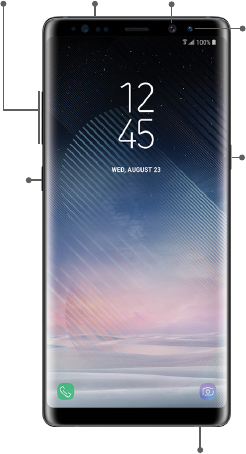
Know your device
Front view
Volume
Keys
+
-
SIM/microSD
Card Tray
Front
Camera
Iris
Scanner
Bixby
Key
Power/
Lock Key
S Pen
4
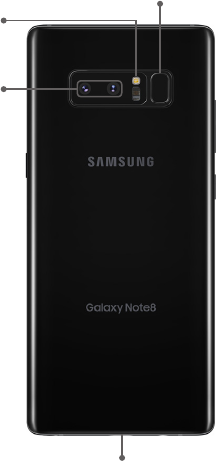
Back view
Fingerprint Scanner
Dual
Camera
Flash
USB/Charger Port
5
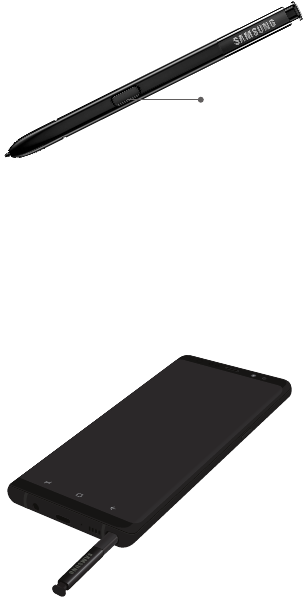
S Pen
The S Pen™ enables fast, accurate, and
precise input while providing a natural
writing experience.
Remove the S Pen to launch Air command,
for quick access to handy tools.
To remove the S Pen:
◆Push the S Pen inward, and then pull it
out to remove it from the device.
S Pen button
6
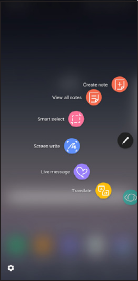
Use the S Pen
Express yourself! Write and draw directly
into emails or the calendar, as well as
Word®, Excel®, PowerPoint®, and PDF
documents. Capture your ideas in S Note
and even write a note on the back of a
picture.
• Create note: Quickly
create short notes.
• View all notes: View all
notes created.
• Smart select: Outline,
crop, edit and share a
screen with others.
• Screen write: Capture
a screen, and write or
draw on it.
• Live message: Create
live messages, and
GIFs.
• Translate: Translate and hear
pronunciations.
• Bixby Vision: Shop and discover
images, products, and places.
• Add shortcuts: Select an app
to add to the Air command menu.
7
Device setup
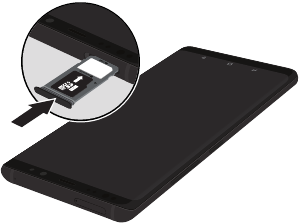
Insert a SIM and microSD card
Ifyou need to replace your SIM card or
insert a microSD™ card, follow these steps.
1. Hold the device securely.
2. Use the SIM removal tool that came
with your device to open the
SIM/microSD card tray.
• With the carrier logo facing up, place
the SIM card into the tray.
• With the gold contacts facing down,
place the optional microSD card into
the tray.*
3. Gently push the tray into the slot.
Note: *microSD card sold separately.
8
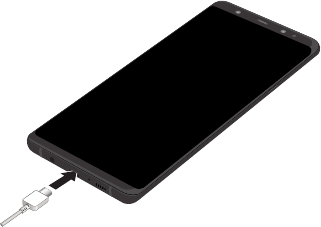
Charge the device
Before turning on your phone, charge it
fully.
Your device comes with an Adaptive Fast
Charging charger and a USB cable. Plug
the smaller end of the cable into the
USB/charger port on your device and the
larger end into the charger. Then plug the
charger into an electrical outlet to charge
the device.
Note: Use only charging devices that
are approved by Samsung. Samsung
accessories are designed for your device
to maximize battery life. Using other
accessories may void your warranty and
may cause damage.
9
Turn the device on and off
• To turn on, press and hold the
Power/Lock key.
• To turn off, press and hold Power/Lock
key and follow the prompts.
Lock and unlock the screen
Use your device’s screen lock features to
secure your device.
• To lock, press the Power/Lock key.
• To unlock, press the Power/Lock key,
and then swipe your nger across
the screen.
Configure your device
When you rst turn on your device, you
need to set up a few things.
1. Select a language and tap START or
ACCESSIBILITY.
2. Follow the prompts to complete the
setup process.
10
Samsung Smart Switch
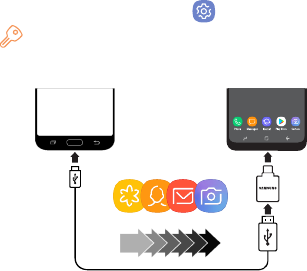
Easily transfer your photos, videos, music,
apps and more with Samsung Smart
Switch™.
Use the USB connector that came with your
new device to transfer content.
Select Smart Switch during setup, or open
it later from the Home screen by swiping
up for Apps and tapping Settings g
Cloud and accounts g Smart Switch.
Note: For more information and a list of
compatible devices visit
samsung.com/smartswitch.
Old Device New Galaxy
11
Home screen
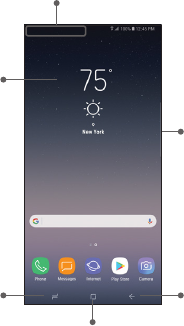
The Home screen is the starting point for
using your device.
• Swipe up or down to open the Apps
panel.
• Swipe the Home screen left for
additional panels.
• Swipe the Edge handle to access
Edge panels.
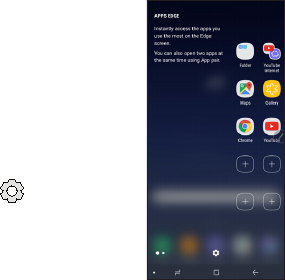
• Swipe right to open Bixby.
Edge Handle
Widgets
Notifications
Recent Apps Back
Home
12
Customize your device
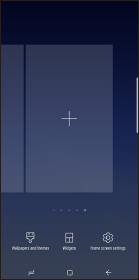
◆Touch and hold a blank space on a
home screens to access options.
• Wallpapers and themes: Change the
look of the Home and Lock screens
with a variety of wallpapers, icons,
and themes. You can also customize
icons and the Always on Display
screen.
• Widgets: Drag a widget to an empty
space on the Home screen for quick
access to applications.
• Home screen settings: Customize the
look of the Home screen.
FPO
13
Always on
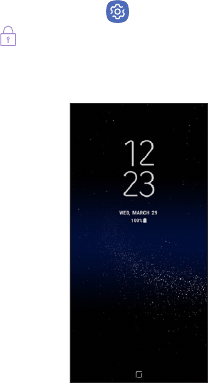
With Always On, time, date, and
notications are always displayed in
standby mode, without unlocking your
device.
Enable always on
◆From the Home screen, swipe up for
Apps and tap Settings g
Lock screen and security g
Always On Display.
14
Volume and ringtones
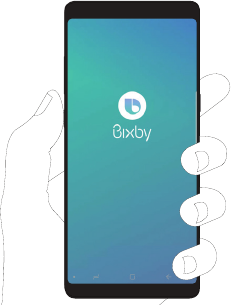
◆From the Home screen, swipe up for
Apps and tap Settings g
Sounds and vibration.
• Tap Volume to increase or decrease
device volume settings.
• Tap Ringtone to select a ringtone.
16
Edge screen
The Edge screen provides a shortcut to
call, text or email favorite contacts and
much more.
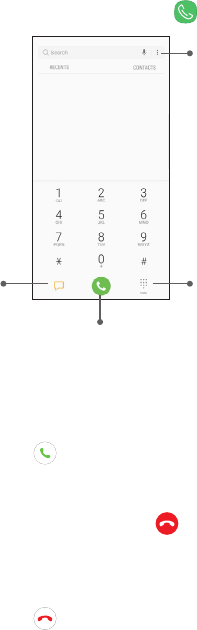
1. From the Home
screen, swipe the
Edge handle
to display the
Edge panels.
2. Swipe left or right to
view Edge screens.
3. Tap to customize,
download, and add
new Edge panels.

18
Calls
Make a call
◆From the Home screen, tap Phone.
Answer a call
◆From the incoming call screen, touch
and slide Answer in any direction.
End a call
◆From the call screen, tap End call.
Reject a call
◆From the incoming call screen, touch
and slide Reject in any direction to
route the call to your voicemail system.
Options
Messages
Hide keypad
Dial number
19
Voicemail
Set up voicemail
1. From the Home screen, tap Phone.
2. Touch and hold .
Access voicemail
1. From the Home screen, tap Phone.
2. Touch and hold .

20
Contacts
Create a contact
1. From the Home screen, swipe up for
Apps and tap Contacts.
2. Tap to add a new contacts.
3. Enter the desired information and tap
SAVE to store the new entry.
Edit a contact
1. From the Home screen, swipe up for
Apps and tap Contacts.
2. Tap a contact name from the list and
tap Details g EDIT.
3. Edit the desired information and tap
SAVE.
Delete a contact
1. From the Home screen, swipe up for
Apps and tap Contacts.
2. Touch and hold a contact name from the
list and tap DELETE.
21
Messages
Create and send a message
1. From the Home screen, tap
Messages.
2. Tap to add a recipient.
3. Enter the recipient’s phone number or
email address.
4. Tap to compose a message.
5. Tap the Enter message eld and use the
keypad to enter a message.
• Tap Attach and select a file type.
• Tap Emoticons to choose an
emoticon.
6. Review the message and tap .

22
Gmail
Use Gmail™ to send and receive email.
Before you can access Gmail, you must rst
sign in to or create a new Google account.
◆From the Home screen, swipe up for
Apps and then tap Gmail.
• Tap Add an email address to create a
new Gmail account or to log in to an
existing Gmail account.
• Tap TAKE ME TO GMAIL if you have an
account set up on your device.
Set up Email accounts
Congure Email for most accounts in just a
few steps.
1. From the Home screen, swipe up for
Apps and tap Email.
2. Enter your email address and password
into the appropriate elds and tap
SIGN IN.
3. Follow the prompts to complete the
setup.
4. Tap DONE to store the new account.
23
Camera
Take pictures and record videos with the
Camera app.
Capture a photo
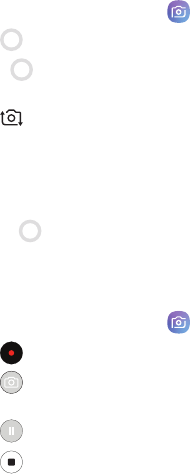
◆From the Home screen, tap Camera.
• Tap to take a photo.
• Drag left or right to zoom in or
out.
• Tap or swipe up to take selfies.
• Swipe right to select a mode.
• Swipe left to select an effect.
Note: When using the camera in landscape
mode, drag up or down to zoom in or
out.
Record a video
◆From the Home screen, tap Camera.
• Tap to begin recording.
• Tap to capture a picture while
recording.
• Tap to pause a recording.
• Tap to finish recording a video.
24
Internet
Access the Internet with a fully‑featured
web browser. You can view the latest news,
check the weather, and follow your stocks.
◆From the Home screen, swipe up for
Apps and tap the Samsung folder g
Internet.
Enter a URL
◆From any webpage, tap the address
field, enter the web address and tap
Go on the keyboard.
Open a new tab
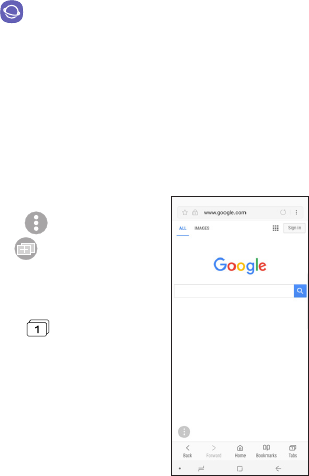
1. From the browser,
tap Quick menu
g New tab.
A new window
displays.
2. Tap Tabs to
view the number of
windows open or to
navigate between
windows.*
Note: The number of tabs open displays in
the square. You can also tap
Tabs g NEW TAB to open a new window.*
25
Connections
Bluetooth
1. From the Home screen, swipe up for
Apps and tap Settings g
Connections g Bluetooth.
2. Tap On/Off to turn on Bluetooth®.
3. Tap a device from the list to initiate
pairing.
4. Enter the passkey/PIN code, if required,
and tap OK. When connected,
displays in the status bar.
Wi-Fi
1. From the Home screen, swipe up for
Apps and tap Settings g
Connections g Wi-Fi.
2. Tap On/Off to turn on Wi‑Fi®.
3. Tap a network and enter the password
if prompted. When connected,
displays in the status bar.

26
Security
Screen lock
The Screen lock menu allows you to choose
from a variety of locking features.
1. From the Home screen, swipe up for
Apps and tap Settings g
Lock screen and security g
Screen lock type.
2. Tap a screen lock type and follow the
prompts to begin registration:
• Swipe
• Pattern
• PIN
• Password
• None
• Face
• Fingerprints
• Iris*
Note: *The Iris Scanner is not intended to be
used as a medical device and the biometric
data collected and stored locally by the
mechanism is not intended to be used for
any diagnostic, therapeutic, or preventative
purposes. Please follow all instructions for
use of this feature. For more information,
refer to the online support content or visit:
samsung.com/us/irisscanner.