Samsung SM R765T (T Mobile) Quick Start Guide TMO Gear S3 QSG EN
Gear S3 Frontier (T-Mobile) - Quick Start Guide TMO_SM-R765T_QG_EN Free User Guide for Samsung SmartWatch and Wearable, Manual
User Manual: samsung SM-R765T (T-Mobile) - Quick Start Guide Free User Guide for Samsung SmartWatch and Wearable, Manual
Open the PDF directly: View PDF  .
.
Page Count: 29
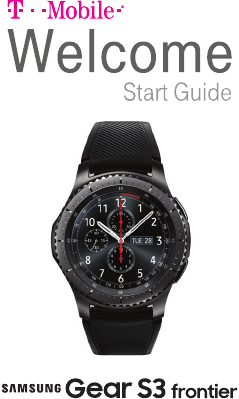
©2016 Samsung Electronics America, Inc. Samsung
and Samsung Gear S are both trademarks of Samsung
Electronics Co., Ltd. LTE is a trademark of ETSI. T-Mobile
and the magenta color are registered trademarks of
Deustche Telekom AG. Other company and product
names mentioned herein may be trademarks of their
respective owners. Device and screen images simulated.
Appearance of device may vary.
GH68-46972A
Printed in Vietnam
TC S534369.1
TMO GearS3frontier_QRM_English_GSG.indd All Pages 10/11/16 10:10 AM
1
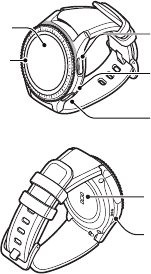
Device layout
To turn on the Gear S3, press and
hold the Home/Power button.
Bezel
Touchscreen
Back button
Microphone
Home/Power
button
Heart rate
sensor
Speaker
2
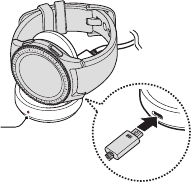
Charge device
Fully charge the Gear S3 before
using it.
Wireless
charger dock
3
Pair
Download the Samsung Gear
app
◆To connect the Gear S3 to a
smartphone, download the
Samsung Gear app onto your
smartphone from Galaxy Apps or
the Google Play™ store.
Compatible with select devices using Android 4.4
and later with at least 1.5 GB RAM. Supported
devices may vary by carrier and device. Some
features may not be available. For best results,
connect with compatible Samsung Galaxy
devices. For a list of compatible smartphones,
please visit samsung.com/gearS3.

4
Pair the Gear S3 to a
smartphone
1. Ensure the Gear S3 is on.
From the smartphone:
2. Turn Bluetooth® on.
3. Open the Samsung Gear app
and tap CONNECT TO GEAR.
4. Confirm the passkey on both
devices, and tap OK.
5. Follow the prompts to complete
the setup.
5
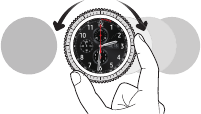
Navigation
• Rotate the bezel left to view
notifications, or rotate it right to
view widgets.
Swipe left to view widgets or right
to view notifications.
• Rotate the bezel to highlight
an application and then tap the
application to open it.
• Rotate the bezel right or left to
return to a previous screen.
Swipe left or right to return to a
previous screen.
6
Customization
Always on
Set the Gear S3 to always display the
watch screen.
◆From the Apps screen, tap
Settings → Style and tap
Watch always on.
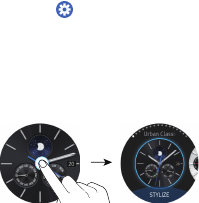
Change watch faces
1. From the Watch screen, touch and
hold the screen.
2. Rotate the bezel or swipe to scroll
through watch faces.
7
3. Tap a watch face to select it,
and then tap OK.
Note: Tap STYLIZE to customize
the watch. To download
additional watch faces
directly from the Gear S3,
tap Get more watch faces.
8
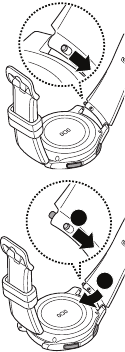
Change watch bands
1. To remove,
push the pin
tab inward to
release the
strap.
2. To connect,
push the pin
tab inward while
aligning the
strap with the
pin holes.
1
2
9
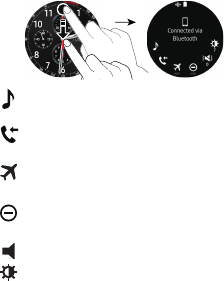
Status panel
View the current status and configure
basic settings.
◆From the Watch screen, swipe
down from the top edge.
Plays music saved on the Gear S3
or smartphone.
Adjusts the device volume.
Adjusts the screen brightness.
Disconnects the device from all
networks in Airplane mode.
Turns off vibration, incoming calls,
and alerts in Do not disturb mode.
Forward calls from your Gear S3
to your phone.
10
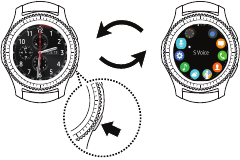
Apps screen
The Apps screen displays icons for
all apps.
1. From the Watch screen, press the
Home button to open the Apps
screen.
2. To view additional panels, rotate
the bezel, or swipe left or right.
11
Widgets
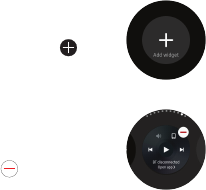
Add widgets
◆From the Widget
screen, scroll to
the end, tap
then select a widget.
Remove widgets
◆Tap and hold a
widget and then
tap .
12
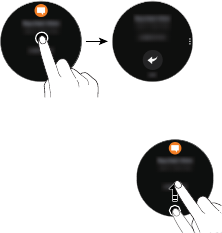
Notifications
Stay up to date with events,
notifications, and messages.
View a notification
When a notification is received, tap the
notification to view details.
Delete a notification
While viewing a
notification, swipe up
from the bottom edge of
the screen to delete.

13
Phone
Use the Gear S3 to make and
answer calls.
Make a call
◆Tap Apps → Phone → enter a
number using the keypad, and
then tap .
Note: To use calling features, the
Gear S3 must be paired
with a smartphone and
connected using Bluetooth.
14
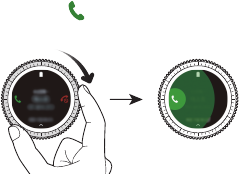
Answer a call
◆To answer an incoming call, rotate
the bezel right or swipe right to
Answer .
15
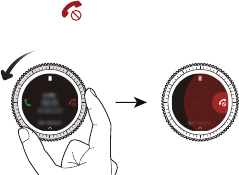
Reject a call
◆To reject an incoming call, rotate
the bezel left or swipe left to
Reject and send the caller to
voice mail.
16
Messages
View and reply to messages, or call
the sender using the Gear S3.
View messages
1. From the Apps screen, tap
Messages .
2. Scroll through the message list.
Tap a message to view
the conversation.
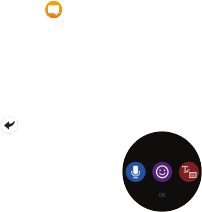
Reply to a message
◆Tap to reply
with a preloaded
quick response or tap
one of the following
options:
17
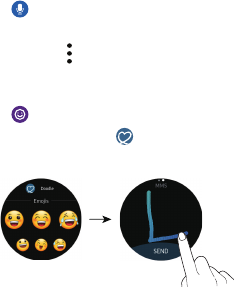
Voice input
Tap and speak to enter a message.
To change the language recognized,
tap Options → Language.
Emoticons
Tap and select the emoticon to
send or tap Doodle at the top of
the screen, to draw the message.
18
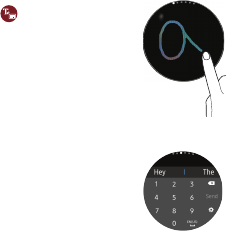
Handwriting and keyboarding
Tap to open
handwriting mode and
write on the screen.
Rotate the bezel to
enter text using
the keyboard.
19
S Health
S Health helps you manage wellness
and fitness.
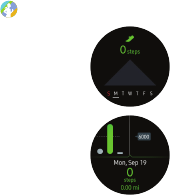
Steps
Count the number of steps taken, and
measure the distance traveled.
1. From the Apps screen, tap
S Health .
2. Rotate the bezel
clockwise to
open the steps
tracker.
Tap the screen to
view a graph of the
step count records.
20
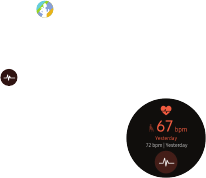
Heart rate
Measure and record your heart rate.
1. From the Apps screen, tap
S Health .
2. Rotate the bezel clockwise and
open the heart rate tracker screen.
3. Tap to begin
measuring your
heart rate. After a
moment, your current
heart rate will be
displayed on
the screen.

21
Find my device
If the Gear S3 or the connected
smartphone is misplaced, use the
Samsung Gear app to find it.
Find my Gear S3
1. From the smartphone, tap
Samsung Gear →
Find my gear.
2. Tap Start .
Find My Phone
1. From the Gear S3 Apps screen,
tap Find My Phone .
2. Tap Start .

22
Samsung Pay
Pay almost anywhere that accepts a
debit, credit, or gift card.
Set up
1. From the Gear S3, press and
hold the Back button to launch
Samsung Pay .
2. Rotate the bezel to the right to and
follow the prompts to complete
the setup.
Make a payment
1. From the Gear S3, press and hold
the Back button to launch
Samsung Pay .
2. Enter the four-digit PIN you set up
previously.
23
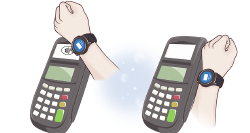
3. When the card is displayed, tap
Pay and hold the Gear S3 near
the terminal.
Important: Use the Samsung Pay
application for up to 5 transactions
without the smartphone. This may
vary depending on the bank/
institution issuing the account.
24
APPROVED FIRMWARE
VERSIONS
This device will only operate with
firmware versions that have been
approved for use by T-Mobile and the
device manufacturer. If unauthorized
firmware is placed on the device it will
not function.
25
ADDITIONAL INFORMATION
Use of some content or features may
incur separate, additional charges
and/or require qualifying service, or
access to a Wi-Fi connection.
Coverage not available in some
areas. See Terms and Conditions
(including arbitration provision) at
T-Mobile.com, for rate plan information,
charges for features and services, and
restrictions and details.
©2016 Samsung Electronics America, Inc. Samsung
and Samsung Gear S are both trademarks of Samsung
Electronics Co., Ltd. LTE is a trademark of ETSI. T-Mobile
and the magenta color are registered trademarks of
Deustche Telekom AG. Other company and product
names mentioned herein may be trademarks of their
respective owners. Device and screen images simulated.
Appearance of device may vary.
GH68-46972A
Printed in Vietnam
TC S534369.1
TMO GearS3frontier_QRM_English_GSG.indd All Pages 10/11/16 10:10 AM
