Sony Mobile Communications AB Smart Band Talk User Guide EN SWR30
User Manual: sony SmartBand Talk - User Guide Free User Guide for Sony SmartWatch and Wearable, Manual
Open the PDF directly: View PDF  .
.
Page Count: 24

User guide
SmartBand Talk
SWR30
Contents
Basics.............................................................................................3
Introduction........................................................................................3
Hardware overview............................................................................3
Understanding the display.................................................................4
Interacting with the SmartBand Talk.................................................4
Charging your SmartBand Talk..........................................................4
Assembly...........................................................................................5
Turning on and off..............................................................................6
Still mode...........................................................................................6
Setting up your SmartBand Talk....................................................7
Preparing to use your SmartBand Talk..............................................7
Reconnecting your SmartBand Talk..................................................8
Resetting your SmartBand Talk.........................................................8
Settings for your SmartBand Talk..................................................9
Using the SmartBand Talk application..............................................9
Controlling applications with your SmartBand Talk...........................9
SmartBand Talk alarm.....................................................................10
Notifications.....................................................................................11
Handling calls...................................................................................13
Do not disturb..................................................................................13
Power management.........................................................................14
Wearing style...................................................................................14
Display colour..................................................................................15
Sleep tracking..................................................................................15
Google Fit........................................................................................15
Voice search....................................................................................16
Locating your SmartBand Talk........................................................16
Selecting a watch face for your SmartBand Talk............................16
Logging your activities using the Lifelog application...................18
Using the Lifelog application...........................................................18
Setting goals....................................................................................20
Logging sleep with your SmartBand Talk........................................20
Creating life bookmarks...................................................................20
Synchronising data with the Lifelog application..............................21
Important information...................................................................22
Using your SmartBand Talk in wet and dusty conditions................22
Legal information.............................................................................23
2
This is an Internet version of this publication. © Print only for private use.
Basics
Introduction
The SmartBand Talk is both a standalone device as well as a companion product that
connects wirelessly via Bluetooth® with Android™ smartphones and tablets. Worn
on your dominant wrist, it can monitor your body movements and interact with your
Android™ device to generate data about your daily life and habits. For example, the
SmartBand Talk counts your steps and records data about your physical state while
you sleep, walk or run. Together with the Lifelog application, you can set personal
goals and then track your progress in a comprehensive and easily viewable format.
The accessory also helps you to stay organised and manage common day-to-day
tasks. For example, you can use it to handle alarms, phone calls and text messages,
and to record voice notes. And with dozens of applications available for your
SmartBand Talk on Google Play™, you can add new features regularly.
Before you can get started using your SmartBand Talk, you must download the
SmartBand Talk application and set up the accessory to work with your phone or
tablet. Refer to the relevant setup information for more details. Also, remember that
your Android™ device must run the Android™ software version 4.4 or higher and
support the Bluetooth® version 3.0 profile.
Hardware overview
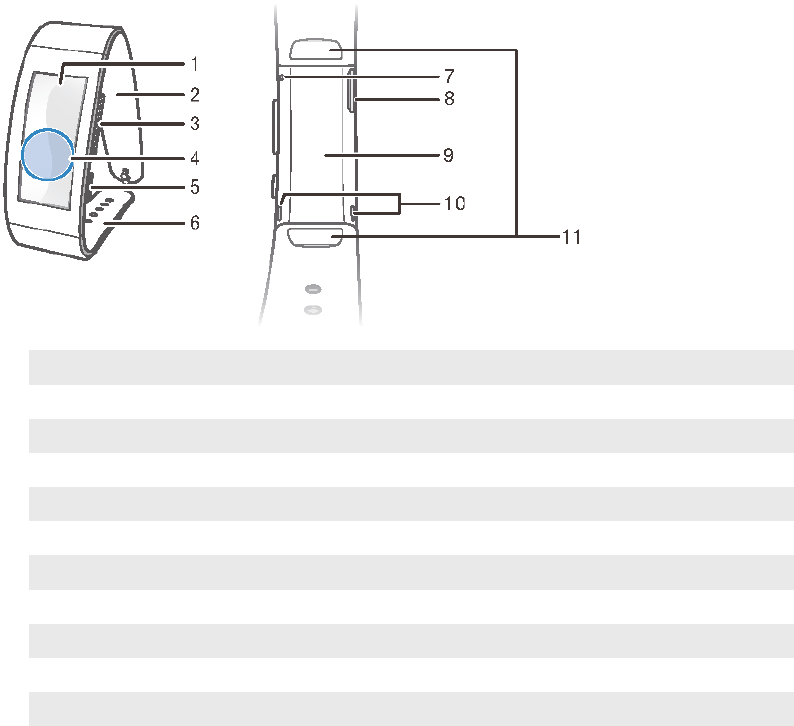
1 Screen
2 Wristband strap 1
3 Volume key
4 NFC detection area
5 Power key/Function key
6 Wristband strap 2
7 Microphone
8 Micro USB port
9 Core unit
10 Speakers
11 Attachment clips
3
This is an Internet version of this publication. © Print only for private use.
Understanding the display
Your SmartBand Talk features an E Ink® display that uses electronic ink technology
to reproduce the appearance of ordinary ink on paper. In an E Ink® display, no
backlight is used. Instead, ambient light from the environment is reflected from the
surface of the display, making it more comfortable to read. The image on your E Ink®
screen is retained even when power to the screen is turned off. Also note that when
the content displayed on the screen changes, there is a brief transition time. This is
normal E Ink® display behavior.
Interacting with the SmartBand Talk
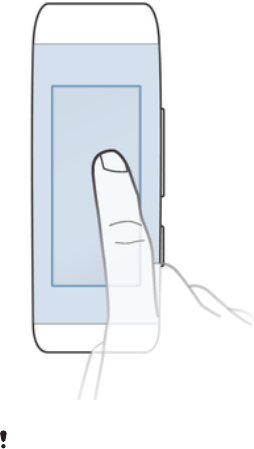
You can control applications by firmly tapping the SmartBand Talk and you can
navigate from screen to screen by pressing the function key. If the screen is idle for
30 seconds, the idle mode screen becomes active.
Tapping
•Handle installed applications, for example, add bookmarks.
The display of the SmartBand Talk is not touch sensitive. Remember to firmly tap the
SmartBand Talk in order for the device to register a command. Also note that the screen does
not recognise swiping movements.
Function key
You can use the function key to navigate between different screens and applications.
To navigate from one screen to another
•Short press the function key.
To exit an application
•Long press the function key. After the application closes, the idle mode screen
becomes active.
Charging your SmartBand Talk
Before using your SmartBand Talk for the first time, you need to charge it for
approximately 30 minutes. Sony chargers are recommended.
If your SmartBand Talk is not used during charging, it takes 45 to 70 minutes to fully
charge it depending on the type of charger used.
4
This is an Internet version of this publication. © Print only for private use.
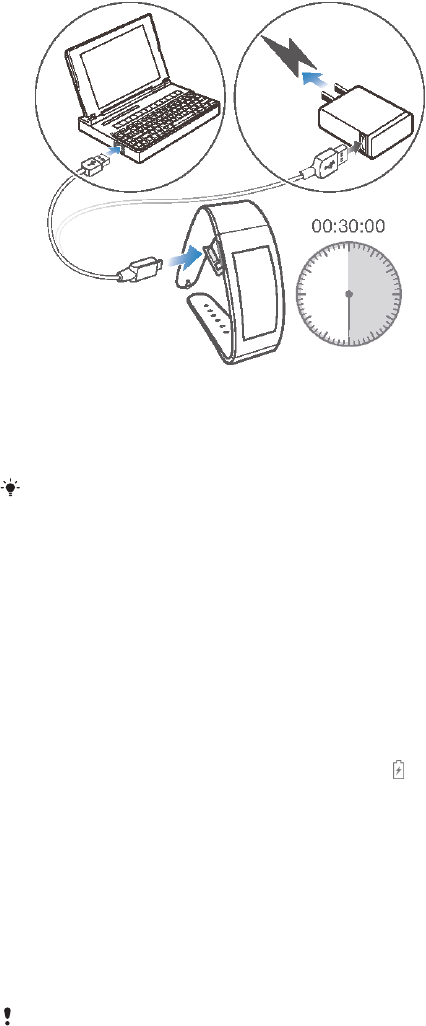
To charge your SmartBand Talk
1Plug one end of the USB cable into the charger or into the USB port of a
computer.
2Plug the other end of the cable into the Micro USB port of your SmartBand
Talk.
If you are charging the device for the first time, make sure you charge it for at least 30
minutes.
To check the battery level of your SmartBand Talk
•From the main application screen of your Android™ device, find and tap
SmartBand™ Talk > STATUS.
Low battery level notification
When your SmartBand Talk is on and the battery level goes below 15 percent, it
emits one short vibration and a warning notification appears on the screen to indicate
that the battery is low. The warning gets repeated when the battery reaches charge
levels of 10 and 5 percent, respectively. displays permanently on your SmartBand
Talk when the battery runs out of power, indicating that you need to charge it.
To dismiss a battery warning notification
•Short press the function key.
Assembly
To personalise your SmartBand Talk, you can replace the wristband with bands of
different colour and length, which can be purchased separately.
When you change the wristband, you may also have to replace the attachment clips with clips
of a suitable size or type.
5
This is an Internet version of this publication. © Print only for private use.

To remove the wristband
1Insert a fingernail, or a similar object, into the gap near each attachment clip,
then drag out and fully remove the clips.
2Remove the wristband straps from the core unit of the accessory.
Turning on and off
To turn on your SmartBand Talk
•Press and hold down the power key until the device vibrates.
To turn off your SmartBand Talk
•Press and hold down the power key until your SmartBand Talk vibrates and the
screen goes blank.
Still mode
Your SmartBand Talk has a feature called Still mode. When your SmartBand Talk is
absolutely still and does not receive any notifications or calls for 20 minutes, it enters
Still mode and the screen goes blank. As soon as your SmartBand Talk is moved or
receives an incoming call or notification, it exits Still mode automatically.
Still mode is enabled on your SmartBand Talk by default and cannot be set or turned off.
6
This is an Internet version of this publication. © Print only for private use.
Setting up your SmartBand Talk
Preparing to use your SmartBand Talk
For your SmartBand Talk to work properly, you must install the latest version of the
SmartBand Talk application on the Android™ device, and then pair and connect it
with your Android™ device. You also need to install the Lifelog application, which
adds extra features and functions that allow you to, for example, see more detailed
information about your daily activities.
You can set up your SmartBand Talk using NFC, which launches the pairing,
connection and setup procedures automatically, or you can use the manual
Bluetooth® option which requires some extra steps, for example, to download and
install some necessary applications.
A setup wizard in the SmartBand Talk application guides you through the process of
setting up your SmartBand Talk for the first time.
All applications required for the SmartBand Talk to work are available on Google Play™.
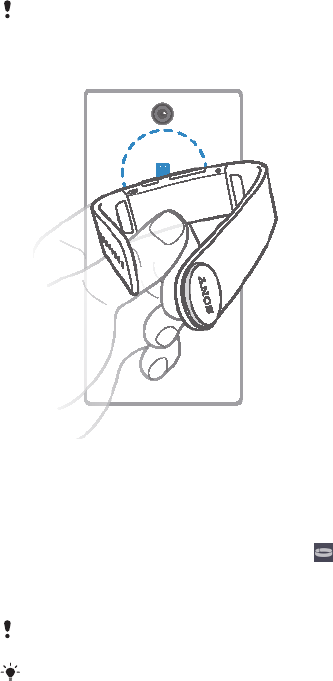
To set up your SmartBand Talk using NFC
1Make sure that your SmartBand Talk has been charged for at least 30 minutes.
2Android™ device: Make sure that the NFC function is turned on and that the
screen is active and unlocked.
3Place the Android™ device over your SmartBand Talk so that the NFC area of
each device touches the other. appears briefly in the status bar and
permanently in the Notification panel when a connection with the SmartBand
Talk is active.
You can set up your SmartBand Talk using NFC even when the SmartBand Talk is turned off.
You can drag down the status bar to open the Notification panel and get quick access to the
SmartBand application and the Lifelog application.
7
This is an Internet version of this publication. © Print only for private use.

To set up your SmartBand Talk using Bluetooth®
1Make sure that your SmartBand Talk has been charged for at least 30 minutes.
2Android™ device: Make sure that you have installed or updated the SmartBand
Talk application to the latest version.
3Turn on your SmartBand Talk.
4Android™ device: Turn on the Bluetooth® function, then scan for Bluetooth®
devices and select SWR30 in the list of available devices.
5Android™ device: Follow the instructions that appear on the screen. appears
briefly in the status bar and permanently in the Notification panel when a
connection with the SmartBand Talk is active.
You can drag down the status bar to open the Notification panel and get quick access to the
SmartBand application and the Lifelog application.
To install the SmartBand Talk application
1From the main application screen of your Android™ device, find and tap Play
Store to open the Google Play™ application.
2Tap the search icon, then search for “SmartBand Talk”.
3After the search results appear, tap SmartBand™ Talk, then follow the relevant
instructions to download and install the application.
You can only install the SmartBand™ Talk application on an Android™ device, for example, an
Android™ smartphone or tablet.
Reconnecting your SmartBand Talk
In cases where a connection gets lost, for example, when the connected Android™
device goes out of range, your SmartBand Talk automatically performs a series of
reconnection attempts. When this happens, you can use the function key to force the
accessory to try reconnecting, or you can use NFC to reconnect the two devices.
To force the SmartBand Talk to try reconnecting
•Press the function key.
To reconnect your SmartBand Talk using NFC
1Android™ device: Make sure that the NFC function is turned on and that the
screen is active and unlocked.
2Place the Android™ device over your SmartBand Talk so that the NFC
detection area of each device touches the other.
Resetting your SmartBand Talk
Reset your SmartBand Talk if it behaves unexpectedly or if you want to connect it to
a new device.
To perform a factory data reset
1Turn off your SmartBand Talk.
2Press and hold down the power key, volume up and down keys simultaneously
until you feel three short vibrations followed by one longer vibration, then
release the keys.
You need to pair the SmartBand Talk with your Android™ device again.
To force your SmartBand Talk to shut down
•Long press the power key.
8
This is an Internet version of this publication. © Print only for private use.
Settings for your SmartBand Talk
Using the SmartBand Talk application
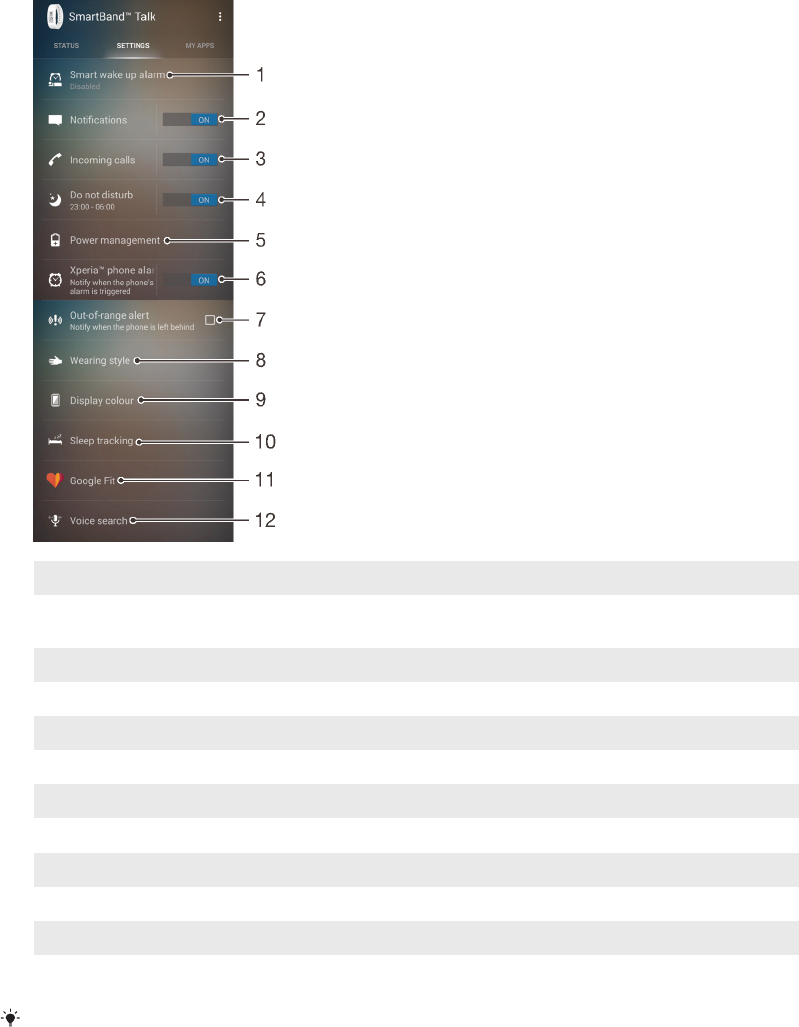
You can view and change settings for your SmartBand Talk by using the SmartBand
Talk application on your Android™ device.
1 Turn smart wake up alarms on or off as well as add, edit or delete them.
2 Turn the notifications function on or off.
Select which notifications to forward to your SmartBand Talk.
3 Select whether you want to handle incoming calls using your SmartBand Talk.
4 Turn the “do not disturb” function on or off, or change the interval time.
5 Turn STAMINA mode on or off.
6 Enable Xperia™ phone alarm notifications.
7 Select to get notified when you leave your device behind.
8 Set the text orientation.
9 Select the display background colour.
10 Select the sleep tracking type.
11 Synchronise your SmartBand Talk with the Google Fit application.
12 Open the Android™ voice input settings to change the language and other options.
You can tap or drag the relevant slider to the on or off position depending on whether you
want to receive notifications and incoming calls or activate the “do not disturb” and other
functions. You can also tap on the name of each function to view more information about how
to adjust related settings.
Controlling applications with your SmartBand Talk
You can add up to nine applications at a time for use with your SmartBand Talk. You
can then use your SmartBand Talk to control how the selected applications function
on the connected Android™ device. For example, if you add the relevant media
9
This is an Internet version of this publication. © Print only for private use.

player application, you can use the SmartBand Talk to control the playback of media
files on the connected Android™ device. For each added application, you can edit
the settings at any time.
To select an application for use with your SmartBand Talk
1From the main application screen of your Android™ device, find and tap
SmartBand™ Talk > MY APPS > ADD APPS.
2Touch and hold the application that you want to select, then drag it to position
under “Add apps” and follow the on-screen instructions.
3To download more applications, tap GET MORE APPS, then follow the
download instructions.
To rearrange the list of selected applications
1From the main application screen of your Android™ device, find and tap
SmartBand™ Talk > MY APPS.
2Touch and hold the application that you want to move, then drag it to the
desired position.
To edit settings for a selected application
1From the main application screen of your Android™ device, find and tap
SmartBand™ Talk > MY APPS.
2Select an application, then edit the settings as desired.
To remove a selected application
1From the main application screen of your Android™ device, find and tap
SmartBand™ Talk > MY APPS.
2Touch and hold the application that you want to delete, then drag it to .
SmartBand Talk alarm
Your SmartBand Talk has two different alarm functions. One is the Xperia™ phone
alarm function, which only works when your SmartBand Talk is connected to an
Xperia™ device. The other is the smart wake up function, which wakes you up within
a selected time frame after you have reached a state of light sleep so that you wake
up feeling refreshed. The smart wake up function works whether an Android™ device
is connected or not.
Alarm notifications from an Xperia™ device
Your SmartBand Talk vibrates when pre-set alarms go off on a connected Xperia™
device.
To enable alarm notifications from an Xperia™ device
1From the main application screen of your Xperia™ device, find and tap
SmartBand™ Talk > SETTINGS.
2Drag the slider beside Xperia™ phone alarm to the right.
3Tap Xperia™ phone alarm > Alarm sound and vibration and select an option.
To snooze an alarm on your Xperia™ device when your SmartBand Talk vibrates
•Short press the function key.
To turn off an alarm when your SmartBand Talk vibrates
•Long press the function key.
Smart wake up alarms
You can set one or several smart wake up alarms in the SmartBand Talk SWR30
application. The smart wake up alarm wakes you up at the best time based on your
sleep cycle. The alarm notifies you with a continuous vibration. After you set a time
frame for when you would like to be awoken by the alarm, your SmartBand Talk
10
This is an Internet version of this publication. © Print only for private use.
registers when you have reached a state of light sleep (after a period of deep sleep)
and then wakes you up.
For example, if you set a smart wake up alarm for between 06:30 and 07:00 AM, the
alarm wakes you up sometime between 06:30 and 07:00 AM when you reach a state
of light sleep. If you do not reach a state of light sleep during this period, the smart
wake up alarm wakes you up at 07:00 AM.
If you want to add, remove or change a smart wake up alarm, your SmartBand Talk must be
connected to the Android™ device.
To add a smart wake up alarm
1From the main application screen of your Android™ device, find and tap
SmartBand™ Talk > SETTINGS.
2Tap Smart wake up alarm, then tap .
3Tap Time, then scroll up or down to adjust the time and tap Set.
4Tap Repeat, then mark the days on which you want the alarm to recur and tap
OK.
5Tap Alarm window and select an option.
6Mark the Alarm sound checkbox if you want a sound alert.
7When you’re finished, tap Done.
If the Alarm sound checkbox is checked, the volume of the alarm sound on your SmartBand
Talk starts low and then increases gradually.
To edit an existing smart wake up alarm
1From the main application screen of your Android™ device, find and tap
SmartBand™ Talk > SETTINGS.
2Tap Smart wake up alarm, then tap the alarm that you want to edit.
3Edit the options as desired.
4When you’re finished, tap Done.
To delete a smart wake up alarm
1From the main application screen of your Android™ device, find and tap
SmartBand™ Talk > SETTINGS.
2Tap Smart wake up alarm, then touch and hold the alarm that you want to
delete.
3Tap , then tap Yes.
To turn on a smart wake up alarm
1From the main application screen of your Android™ device, find and tap
SmartBand™ Talk > SETTINGS.
2Tap Smart wake up alarm.
3Scroll to the alarm that you want to turn on, then drag the relevant slider switch
to the right.
Notifications
All notifications that appear in the status bar on a connected Android™ device can be
forwarded to your SmartBand Talk. You can use the SmartBand Talk application to
select which notifications to forward.
Depending on the message type, you can read a message preview or the full
message by firmly tapping your SmartBand Talk. You can also perform actions such
as “Open in phone”, “Mark as read”, “Block”, “Dismiss” and so on.
11
This is an Internet version of this publication. © Print only for private use.
To turn on the notification function
1From the main application screen of your Android™ device, find and tap
SmartBand™ Talk > SETTINGS.
2Drag the slider beside Notifications to the right.
3If you are turning on the notifications function for the first time, follow the
instructions that appear on the screen to give the SmartBand Talk application
access to your notifications.
To select which notifications to forward to your SmartBand Talk
1From the main application screen of your Android™ device, find and tap
SmartBand™ Talk > SETTINGS > Notifications.
2Tap Get notification from.
3In the list that appears, mark or unmark the desired options.
To hide sender’s name from notification message on your SmartBand Talk
1From the main application screen of your Android™ device, find and tap
SmartBand™ Talk > SETTINGS > Notifications.
2Mark the Privacy checkbox.
To select the notification text size on your SmartBand Talk
1From the main application screen of your Android™ device, find and tap
SmartBand™ Talk > SETTINGS > Notifications.
2Tap Notification text size, then select an option.
To read a notification displayed on the screen of your SmartBand Talk
1Firmly tap the notification or short press the volume down key to open it.
2Short press the volume up or down key to scroll through the notification.
To read a notification from the Notification extension of your SmartBand Talk
1Short press the function key to navigate to the Notification extension.
2Short press the volume up or down key to highlight the notification that you
want to read.
3Firmly tap the highlighted notification to open it.
4Short press the volume up or down key to scroll through the notification.
To close or exit a notification on your SmartBand Talk
•Short press the function key.
To dismiss all notifications from the Notification extension
1Short press the function key to navigate to the Notification extension.
2Short press the volume down key to highlight the item “Dismiss all
notifications”.
3Firmly tap the highlighted “Dismiss all notifications”.
Notification actions on your SmartBand Talk
You can perform specific actions after receiving notifications forwarded to your
SmartBand Talk. The actions available after receiving a notification depends on the
type of application that sends the notification. The following lists the most common
actions that you can perform:
•Mark as read: Mark a notification as read in the notifying application, and then
remove it from the notification list in your SmartBand Talk and the status bar in the
connected Android™ device.
•Reply: Reply to a message with a short voice to text reply (about 5 seconds) or with
the pre-defined quick replies using your SmartBand Talk.
•Open in phone: Open a notification and the related application in the connected
Android™ device.
•Block: Block the related application from forwarding the notifications to your
SmartBand Talk.
12
This is an Internet version of this publication. © Print only for private use.

•Dismiss: Clear a notification from the notification list in your SmartBand Talk and the
status bar in the connected Android™ device.
To perform an action to an open notification using your SmartBand Talk
1Short press the volume up or down key to highlight the action that you want to
perform.
2Firmly tap the highlighted action, and follow the on-screen instructions if there
are any.
Handling calls
Your SmartBand Talk notifies you with continuous vibrations when a call comes in.
You can choose to answer the call on your Android™ device or to answer and handle
it directly on your SmartBand Talk by speaking into the microphone of the device.
You can also use your SmartBand Talk to reject an incoming call and hang up on an
ongoing call. To handle calls and receive call notifications directly on your SmartBand
Talk, you must first enable the relevant settings in the SmartBand Talk application.
To enable your SmartBand Talk to receive incoming call
1From the main application screen of your Android™ device, find and tap
SmartBand™ Talk > SETTINGS.
2Drag the slider beside Incoming calls to the right.
To answer an incoming call using your SmartBand Talk
1When the call comes in, short press the function key. The voice of the caller
can be heard through the speakers on your SmartBand Talk.
2To talk to the caller, hold the accessory with a 20 cm range of your mouth and
speak into the microphone.
If you want to answer the incoming call using your handset, you can select the option on the
ongoing call screen of your Android™ device, then the call is in the device you chose to
answer with.
To reject an incoming call using your SmartBand Talk
•Long press the function key.
To silence an incoming call using your SmartBand Talk
•Long press the volume key up or down.
To hang up on an ongoing call using your SmartBand Talk
•Short press the function key.
To mute or unmute an ongoing call using your SmartBand Talk
•During the call, long press the function key.
Do not disturb
You can turn off the notifications and events sounds or vibrations by turning on the
“do not disturb” function. But when this function is on, the alerting functions, such as
the smart wake up alarm, the Xperia™ phone alarm and locating SmartBand Talk
function, remain activated.
To turn on the “do not disturb” function
1From the main application screen of your Android™ device, find and tap
SmartBand™ Talk > SETTINGS.
2Drag the slider beside Do not disturb to the right.
13
This is an Internet version of this publication. © Print only for private use.

To set the “do not disturb” interval
1From the main application screen of your Android™ device, find and tap
SmartBand™ Talk > SETTINGS >Do not disturb.
2Drag the slider beside Do not disturb to the right.
3Tap Repeat.
4Tap the start time, then scroll up or down to edit accordingly and tap Set.
5Tap the end time, then scroll up or down to edit accordingly and tap Set.
6Tap Done.
Power management
To extend the battery life of your SmartBand Talk, you can activate STAMINA mode
from the settings. When this mode is activated, diagonal lines overlap the screen and
the STAMINA mode icon appears in the top right corner of your SmartBand Talk. In
STAMINA mode, several functions are disabled and you can't perform the following:
•Receive calls on your SmartBand Talk.
•Forward notifications to your SmartBand Talk.
•Get notified when your SmartBand Talk and your Android™ device are out of the
connection range.
However, the activity logging and the smart wake up functions still work as normal.
To activate STAMINA mode
1From the main application screen of your Android™ device, find and tap
SmartBand™ Talk > SETTINGS.
2Tap Power management.
3Drag the slider beside STAMINA mode to the right.
To deactive STAMINA mode
1From the main application screen of your Android™ device, find and tap
SmartBand™ Talk > SETTINGS.
2Tap Power management.
3Drag the slider beside STAMINA mode to the left.
4Short press the function key of your SmartBand Talk.
To temporarily deactive STAMINA mode
•Short press the function key.
When you temporarily disable STAMINA mode on your SmartBand Talk, all functions are
available as normal. If no activity is performed on your SmartBand Talk for 20 seconds, it
reverts to an idle screen and returns to STAMINA mode.
To activate low battery mode
1From the main application screen of your Android™ device, find and tap
SmartBand™ Talk > SETTINGS.
2Tap Power management.
3Drag the slider beside Low battery mode to the right.
When low battery mode is on, your SmartBand Talk enters STAMINA mode automatically
when its battery is low.
Wearing style
You can set the display orientation of your SmartBand Talk according to which arm
you wear it on.
14
This is an Internet version of this publication. © Print only for private use.

To select the display orientation
1From the main application screen of your Android™ device, find and tap
SmartBand™ Talk > SETTINGS.
2Tap Wearing style, then select an option.
3Tap OK.
Display colour
You can change the display colour for your SmartBand Talk from black to white, or
vice versa.
To change the display colour
1From the main application screen of your Android™ device, find and tap
SmartBand™ Talk > SETTINGS.
2Tap Display colour, then select an option.
3Tap OK.
Sleep tracking
Your SmartBand Talk tracks your sleep status based on a certain type of inactivity.
To improve the sleep tracking accuracy, you can choose the sleep tracking type, in
case that your SmartBand Talk mistakenly records all your inactivity status as sleep
period. For example, if you keep still when you watch TV or read books before going
to sleep.
To activate the automatic sleep tracking
1From the main application screen of your Android™ device, find and tap
SmartBand™ Talk > SETTINGS.
2Tap Sleep tracking > Automatic sleep tracking.
Automatic sleep tracking is the default mode of the sleep tracking function.
To customise the sleep tracking period
1From the main application screen of your Android™ device, find and tap
SmartBand™ Talk > SETTINGS.
2Tap Sleep tracking > Custom sleep tracking > Only track sleep between.
3Tap the start time, then scroll up or down to edit accordingly and tap Set.
4Tap the end time, then scroll up or down to edit accordingly and tap Set.
5Tap Done.
Google Fit
Google Fit is a health-tracking platform developed by Google. By synchronising your
SmartBand Talk with Google Fit, you can easily integrate data about your fitness
activities from various sources to help you better understand your progress.
When you activate Google Fit on your SmartBand Talk, the data logged by your
SmartBand Talk can be viewed in the Google Fit application, which can be
downloaded from Google Play™.
Your SmartBand Talk is optimised for use with the Lifelog application so that both interfaces
display the same data about your fitness activities. However, due to different programming
and different synchronisation intervals, the data displayed in the Google Fit application may
differ from the data shown on your SmartBand Talk and in the Lifelog application. It's
recommended to use the application that best suits your needs.
To synchronise your SmartBand Talk with the Google Fit application
1From the main application screen of your Android™ device, find and tap
SmartBand™ Talk > SETTINGS > Google Fit.
2Drag the slider beside Connect to Google Fit to the right.
15
This is an Internet version of this publication. © Print only for private use.

Voice search
You can use voice commands to reply to a message, determine your location, check
the weather report, confirm your schedule and so on. Voice search forwards the
search commands to the default voice search application of the connected Android™
device. Voice search availability and its supported languages depend on the voice
search application installed on the connected Android™ device. To use the voice
search function in your SmartBand Talk, you must install a voice search application,
such as Google Now, on your Android™ device first.
To set the voice input options
1From the main application screen of your Android™ device, find and tap
SmartBand™ Talk > SETTINGS > Voice search.
2Tap Settings, and follow the on-screen instructions and options.
You should restart your Android™ device if the voice search language is changed.
To trigger voice search
1Navigate to the home screen.
2Hold and press the volume up key for about 2 seconds until the speaker image
appears on the screen.
3Speak a command after you hear the “beep” sound.
Your SmartBand Talk reverts to the home screen after the voice command has been accepted
or when an error occurs.
Locating your SmartBand Talk
In case you forget where you left it, you can locate your SmartBand Talk by activating
the ringer remotely.
To use the remote ring function
1From the main application screen of your Android™ device, find and tap
SmartBand™ Talk > STATUS.
2Tap LOCATE SMARTBAND™. Your SmartBand Talk starts to ring loudly.
3To stop the ringing, press any key on your SmartBand Talk or tap Stop sound
alert on your Android™ device.
Selecting a watch face for your SmartBand Talk
You can select from several different types of watch faces for your SmartBand Talk
and customise them. You can select what types of information are displayed for each
watch face you set. You can choose information such as the date, temperature or
weather. In addition, you can select the background image of the watch face from the
album of the Android™ device connected to your SmartBand Talk.
To select a watch face for your SmartBand Talk
1From the main application screen of your Android™ device, find and tap
SmartBand™ Talk > MY APPS.
2Tap SELECT WATCH FACE, then select a watch face.
3If you want to change the display format for the watch face, tap and select
an option.
16
This is an Internet version of this publication. © Print only for private use.

To select an image for the watch face
1From the main application screen of your Android™ device, find and tap
SmartBand™ Talk > MY APPS.
2Tap SELECT WATCH FACE > Custom image > .
3Tap SELECT IMAGE, and then select an image.
4Adjust the position and the size of the marquee to crop the image, and then
tap Crop.
The SmartBand Talk application uses the default image picker installed in your Android™
device to crop images, so the user interface for editing or selecting an image may differ
between devices.
17
This is an Internet version of this publication. © Print only for private use.
Logging your activities using the Lifelog
application
Using the Lifelog application
The Lifelog application records your physical, social and entertainment activities. For
example, you can see if you’ve been walking or running and how you communicate
with your friends. You can also see what pictures you took and what music you
listened to. To start using the Lifelog application, you need to download it from
Google Play™ and then set up an account.
The statistics that the Lifelog application generates from your physical activities, for example,
walking distance and calorie count, are based on the height and weight data you provide.
Results may vary from user to user. Also, remember that you need an active Internet
connection to synchronise data to the Lifelog application on your Android™ device.
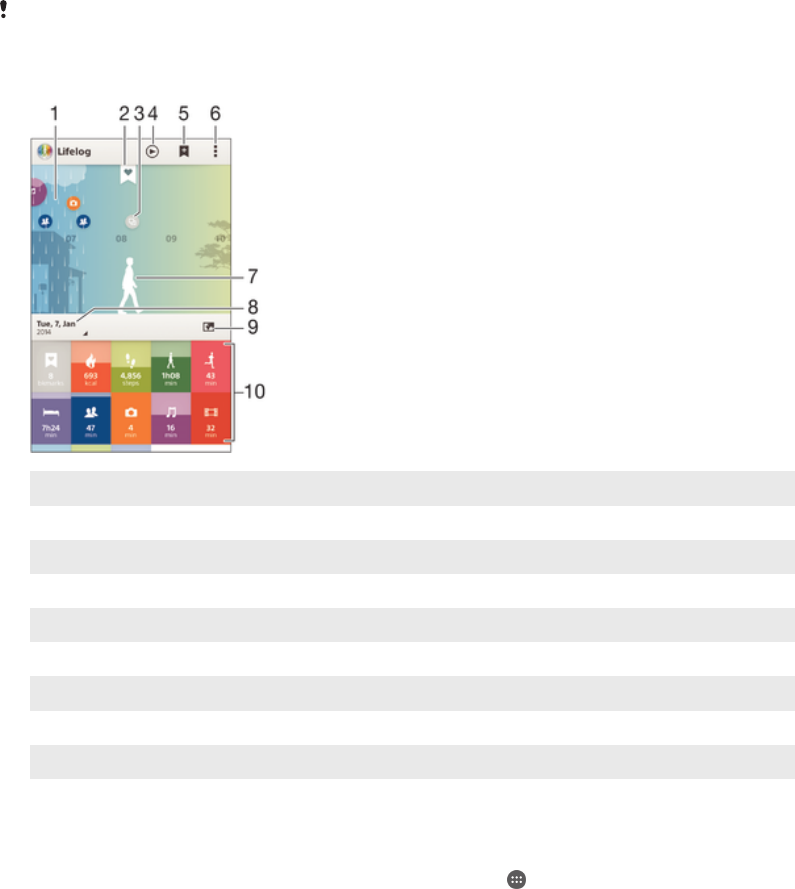
1 Show all logged activities and life bookmarks
2 View detailed information about a life bookmark
3 View information about application usage
4 View all logged activities since the start of the day
5 Add a life bookmark
6 View menu options
7 Physical activities log
8 View all logged activities for the selected day
9 Switch between dashboard and map view
10 Activities dashboard
To set up an account for the Lifelog application
1From the Home screen of your Android™ device, tap , then find and tap
Lifelog.
2Follow the instructions that appear on the screen and accept the terms and
conditions.
3Create a new account or select to use an existing one. Sony PlayStation®
Network accounts can also be used.
4Follow the instructions that appear on the screen to create a Lifelog account.
18
This is an Internet version of this publication. © Print only for private use.
To log in to the Lifelog application
1From the Home screen of your Android™ device, tap , then find and tap
Lifelog.
2Follow the instructions that appear on the screen and accept the terms and
conditions.
Adjusting the stride length for walking and running
The Lifelog application uses the number of steps you have taken and your stride
length to calculate the distance you have walked or run. The automatic stride length
used by default is based on your gender and height. If you feel that the distances
measured by the Lifelog application are not accurate enough, you can adjust your
stride length.
To adjust the stride length for walking
1From the Home screen of your Android™ device, tap , then find and tap
Lifelog.
2Tap > Settings > Profile.
3Find and tap Stride length.
4Unmark the Automatic checkbox if it is marked, then scroll up or down to
adjust the setting and tap Set.
To adjust the stride length for running
1From the Home screen of your Android™ device, tap , then find and tap
Lifelog.
2Tap > Settings > Profile.
3Find and tap Running stride length.
4Unmark the Automatic checkbox if it is marked, then scroll up or down to
adjust the setting and tap Set.
Activity box overview
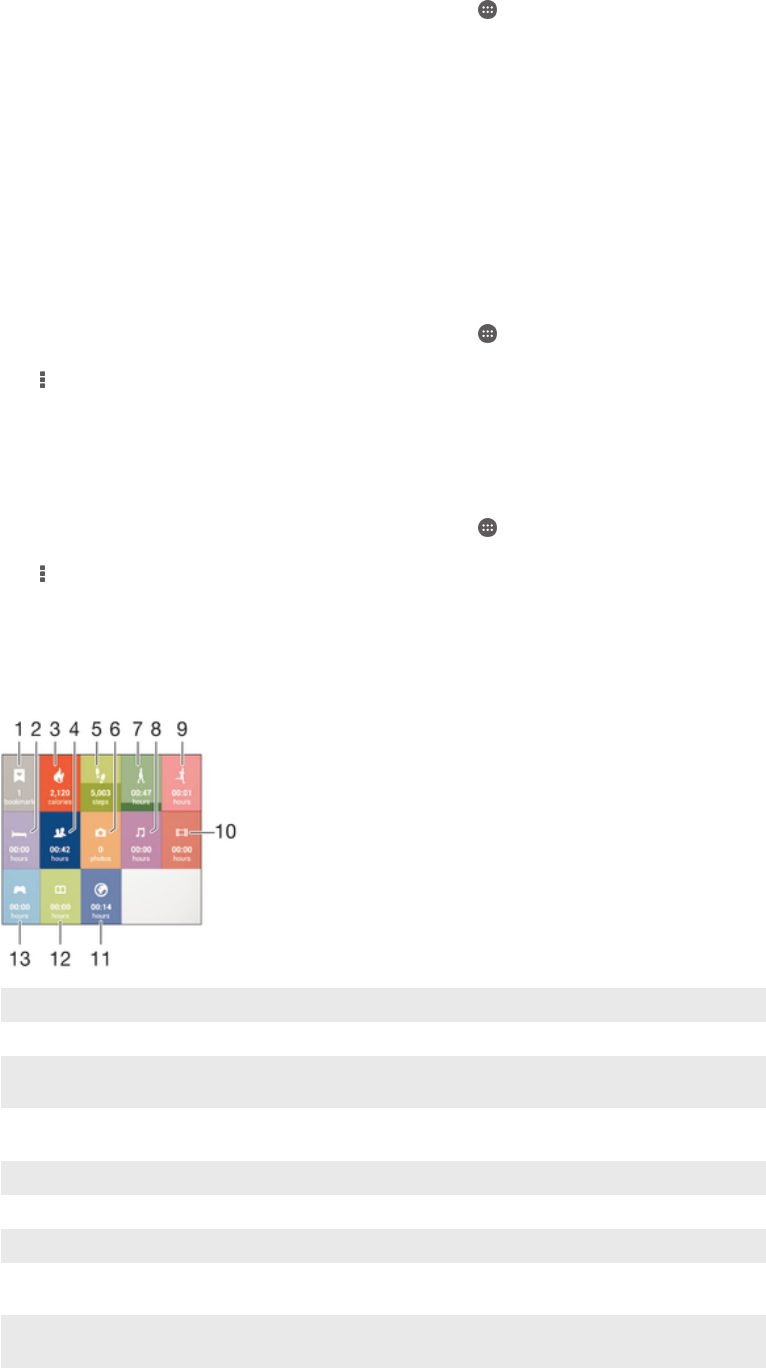
1 View all logged life bookmarks
2 View your sleep hours and check the quality of your sleep based on the information collected
3 View the amount of active calories that you have burned while exercising and the passive calories
that you have burned while not exercising
4 View the time you have spent using communication applications from Google Play™ and some
other applications such as the Phone and the Messaging applications from Sony
5 View the number of steps you have taken and logged in the Lifelog application
6 View how many photos you have taken
7 View the total time you have spent walking for longer than just a few steps
8 View the time you have spent listening to music using applications from Google Play™ and some
other applications such as the "WALKMAN" application
9 View the total time you have spent running with a high steps-per-minute ratio for longer than just a
few steps
19
This is an Internet version of this publication. © Print only for private use.
10 View your total time spent watching movies, TV shows and other video content using applications
from Google Play™ and some other applications
11 View your total time spent browsing while using applications from Google Play™ and some other
web browsers
12 View your total time spent reading books or comics using applications from Google Play™ and
some other applications
13 View your total time spent playing games using applications from Google Play™ and PlayStation®
Store
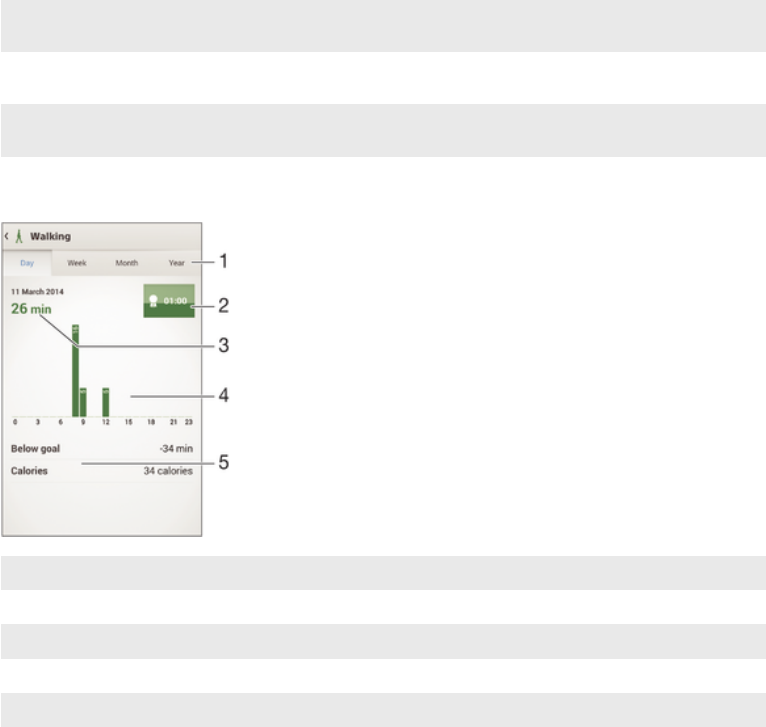
Activity overview
1 Show data in a day, week, month or year view
2 Show your current goal status
3 Show the current activity in different units
4 Show the amount of activity using the chosen unit type
5 Details about your activity
Setting goals
Set goals for activities in your daily life, for example, the number of steps to take, the
distance you want to walk, or the amount of calories you want to burn.
To set a goal
1In the Lifelog application, tap the activity that you want to set a goal for.
2Tap Day, then tap the goal dashboard.
3Scroll up or down to adjust the value for your goal, then tap Set.
Logging sleep with your SmartBand Talk
Your SmartBand Talk can log the hours you sleep, as well as the status for light
sleep, deep sleep and your awake time during sleep hours, to help you understand
your sleep quality. The data that your SmartBand Talk tracks is logged in the Lifelog
application.
To view your sleep data
•In the Lifelog application, tap Sleep from the Activities dashboard.
Creating life bookmarks
Use your SmartBand Talk to create life bookmarks. Life bookmarks save information
about time, location and audio notes, and help you remember special occasions. For
location data to be gathered, you must have an active Internet connection.
20
This is an Internet version of this publication. © Print only for private use.

To use the audio note feature, you must select the Life bookmark application for use
with your accessory.
To create a life bookmark on an Android™ device using the Lifelog application
1Android™ device: In the Lifelog application, tap .
2Follow the on-screen instructions.
3If necessary, add text notes, then tap OK.
To select the Life bookmark application for use with your SmartBand Talk
1From the main application screen of your Android™ device, find and tap
SmartBand™ Talk > MY APPS.
2Tap ADD APPS and select Life Bookmark.
To create a life bookmark using your SmartBand Talk
1Make sure that your SmartBand Talk is turned on and the Life bookmark
application is enabled in the SmartBand Talk application on your Android™
device.
2Using the function key, navigate to the Life bookmark screen.
3To log the place and time, and to record an audio note, firmly tap on the
SmartBand Talk and speak into the SmartBand Talk. You can record 10
seconds of audio.
Synchronising data with the Lifelog application
When your SmartBand Talk is connected to your Android™ device, data gets
synchronised automatically to the Lifelog application. When the SmartBand Talk gets
disconnected from the Android™ device, it can continue to collect data until the
memory becomes full. It’s therefore recommended to synchronise data between the
two devices regularly to free up memory on your SmartBand Talk.
21
This is an Internet version of this publication. © Print only for private use.

Important information
Using your SmartBand Talk in wet and dusty conditions
Your SmartBand Talk is waterproof and dust tight in compliance with the Ingress
Protection (IP) ratings IP65 and IP68, as explained in the table below.
These specific IP ratings mean that your SmartBand Talk is dust resistant and is
protected against low pressure water stream as well as against the effects of
immersion for 30 minutes in fresh (non-saline) water up to 1.5 metres deep.
You can use your SmartBand Talk:
•in dusty environments, for example, on a windy beach.
•when your fingers are wet.
•in some extreme weather conditions, for example, when it’s snowing or raining.
•in fresh (non-saline) water depths of 1.5 metres or less, for example, in a fresh water
lake or river.
•in a chlorinated swimming pool.
The unit should be rinsed with fresh water after use in chlorinated water.
After exposure to water, the acoustic performance of the device may be reduced until
the sound output ports have dried out.
Even if your SmartBand Talk is resistant to dust and water, you should avoid
exposing it unnecessarily to environments with excessive dust, sand and mud or to
moist environments with extreme high or low temperatures. The waterproof ability of
the micro USB port cannot be guaranteed in all environments or conditions.
Never immerse your SmartBand Talk in salt water or let the micro USB port come in
contact with salt water. For example, if you’re at the beach, remember to keep your
SmartBand Talk away from the sea water. Also, never expose the SmartBand Talk to
any liquid chemicals. For example, if you’re washing dishes by hand using liquid
detergent, avoid bringing your SmartBand Talk in contact with the detergent. After
exposure to non-fresh water, rinse your SmartBand Talk using fresh water.
Normal wear and tear along with damage to your SmartBand Talk can reduce its
ability to resist dust or moisture. After using the SmartBand Talk in water, dry off the
areas around the micro USB port.
All compatible accessories, including batteries, chargers and micro USB cables, are
not waterproof and dust resistant on their own.
Your warranty does not cover damage or defects caused by abuse or improper use
of your SmartBand Talk (including use in environments where the relevant IP rating
limitations are exceeded). If you have any further questions about the use of your
accessory, refer to our Customer support service for help. To view more specific
information about water resistance, go to
support.sonymobile.com
.
Ingress Protection Rating
Your SmartBand Talk has an IP rating, which means it has undergone certified tests
to measure its resistance levels to both dust and water. The first digit in the two-digit
IP rating indicates the level of protection against solid objects, including dust. The
second digit indicates how resistant the device is to water.
Resistance to solid objects and dust Resistance to water
IP0X: No special protection IPX0. No special protection
IP1X. Protected against solid objects
> 50 mm in diameter IPX1. Protected against dripping water
IP2X. Protected against solid objects >
12.5 mm in diameter IPX2. Protected against dripping water when tilted up to 15
degrees from normal position
IP3X. Protected against solid objects >
2.5 mm in diameter IPX3. Protected against spraying water
22
This is an Internet version of this publication. © Print only for private use.
IP4X. Protected against solid objects > 1
mm in diameter IPX4. Protected against splashing water
IP5X. Protected against dust; limited
ingress (no harmful deposit) IPX5. Protected against water jet spray for at least 3 minutes
IP6X. Dust tight IPX6. Protected against heavy jet spray for at least 3 minutes
IPX7. Protected against the effects of immersion in up to 1
metre of water for 30 minutes
IPX8. Protected against the effects of continued immersion in
water depths greater than 1 metre. The exact conditions are
specified for each device by the manufacturer.
Legal information
Sony SWR30
Prior to use, please read the
Important information
leaflet separately provided.
This User guide is published by Sony Mobile Communications Inc. or its local affiliated company, without any
warranty. Improvements and changes to this User guide necessitated by typographical errors, inaccuracies of
current information, or improvements to programs and/or equipment, may be made by Sony Mobile
Communications Inc. at any time and without notice. Such changes will, however, be incorporated into new
editions of this User guide.
All rights reserved.
©2015 Sony Mobile Communications Inc.
Interoperability and compatibility among Bluetooth® devices varies. Device generally supports products
utilizing Bluetooth spec. 1.2 or higher, and Headset or Handsfree profile.
Sony is the trademark or registered trademark of Sony Corporation. Bluetooth is the trademark of the
Bluetooth (SIG) Inc. and is used under license. All other marks are the property of their respective owners. All
rights reserved.
All product and company names mentioned herein are the trademarks or registered trademarks of their
respective owners. Any rights not expressly granted herein are reserved. All other trademarks are property of
their respective owners.
Visit
www.sonymobile.com
for more information.
All illustrations are for illustration only and may not accurately depict the actual accessory.
23
This is an Internet version of this publication. © Print only for private use.
Declaration of Conformity
We, Sony Mobile Communications AB of
Nya Vattentornet
SE-221 88 Lund, Sweden
declare under our sole responsibility that our product
Sony type RD-0140
and in combination with our accessories, to which this declaration relates is in
conformity with the appropriate standards EN 300 328:V1.8.1, EN 301 489-17:V2.2.1,
EN 301 489-3:V1.6.1 and EN 60 950-1:2006 +A11:2009
+A1:2010+A12:2011+A12:2011 following the provisions of, Radio Equipment and
Telecommunication Terminal Equipment directive 1999/5/EC.
Lund, July 2014
Pär Thuresson,
Quality Officer, SVP, Quality & Customer Services
FCC Statement
This device complies with Part 15 of the FCC rules. Operation is subject to the following two
conditions: (1) This device may not cause harmful interference, and (2) This device must
accept any interference received, including interference that may cause undesired operation.
Any change or modification not expressly approved by Sony may void the user's authority to operate the
equipment.
This equipment has been tested and found to comply with the limits for a Class B digital device, pursuant to
Part 15 of the FCC Rules. These limits are designed to provide reasonable protection against harmful
interference in a residential installation. This equipment generates, uses and can radiate radio frequency
energy and, if not installed and used in accordance with the instructions, may cause harmful interference to
radio communications. However, there is no guarantee that interference will not occur in a particular
installation.
If this equipment does cause harmful interference to radio or television reception, which can be determined by
turning the equipment off and on, the user is encouraged to try to correct the interference by one or more of
the following measures:
•Reorient or relocate the receiving antenna.
•Increase the separation between the equipment and receiver.
•Connect the equipment into an outlet on a circuit different from that to which the receiver is connected.
•Consult the dealer or an experienced radio/TV technician for help.
AVISO IMPORTANTE PARA MÉXICO
La operación de este equipo está sujeta a las siguientes dos condiciones: (1) es posible que este equipo o
dispositivo no cause interferencia perjudicial y (2) este equipo o dispositivo debe aceptar cualquier
interferencia, incluyendo la que pueda causar su operación no deseada.
Para consultar la información relacionada al número del certificado, refiérase a la etiqueta del empaque y/o del
producto.
Alimentación: 5,0 Vcc
Industry Canada Statement
This device complies with RSS-210 of Industry Canada.
Operation is subject to the following two conditions: (1) this device may not cause interference, and (2) this
device must accept any interference, including interference that may cause undesired operation of the device.
This Class B digital apparatus complies with Canadian ICES-003.
Cet appareil numérique de la classe B est conforme à la norme NMB-003 du Canada.
Avis d’industrie Canada
Le présent appareil est conforme aux CNR d'Industrie Canada applicables aux appareils radio exempts de
licence.
L'exploitation est autorisée aux deux conditions suivantes: (1) l'appareil ne doit pas produire de brouillage, et,
and (2) l'utilisateur de l'appareil doit accepter tout brouillage radioélectrique subi, même si le brouillage est
susceptible d'en compromettre le fonctionnement.
24
This is an Internet version of this publication. © Print only for private use.
