Sony Sound Forge Pro 10 Upgrade Highlights 10.0 High Lights Pro10 Enu
User Manual: sony Sound Forge Pro - 10.0 - Upgrade HighLights Free User Guide for Sony Sound Forge Software, Manual
Open the PDF directly: View PDF  .
.
Page Count: 8
- File menu changes
- Edit menu changes
- View menu changes
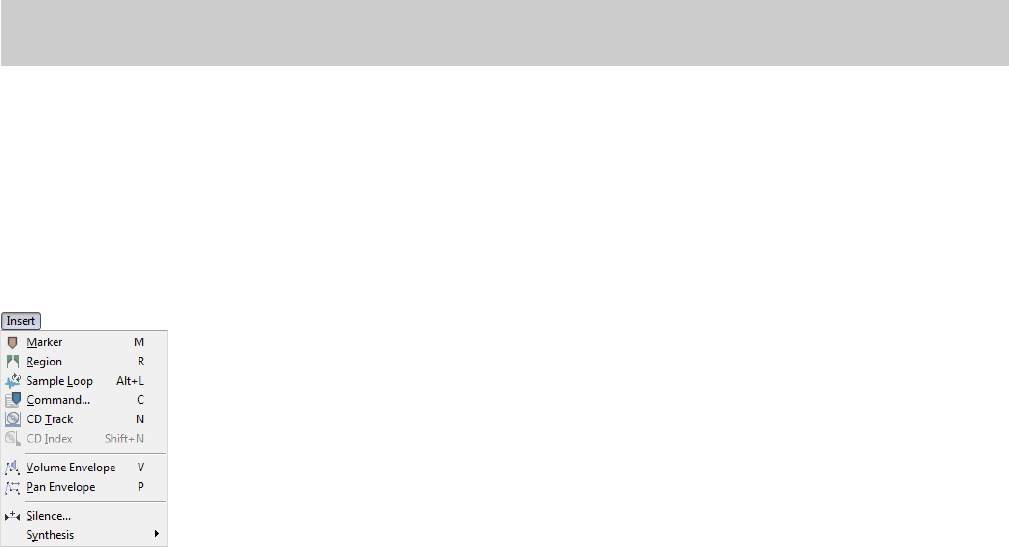
- New Insert menu
- Special menu removed
- Process menu changes
- Tools menu changes
- Options menu changes
- Navigation toolbar changes
- Status/Selection toolbar changes
- New Insert toolbar
- Process toolbar changes
- Tools toolbar changes
- ACID Loop Creation Tools toolbar removed
- Properties window redesigned
- Inserting markers and regions
- Creating loops
- Creating loops for ACID software
- Keyboard shortcut changes
2 | SOUND FORGE PRO 10 UPGRADE HIGHLIGHTS
File menu changes
The following features are obsolete and have been removed from the File menu:
• Export to Net MD
• Export to CD Architect
• Export All to CD Architect
Use your Net MD device to import audio files.
Sound Forge Pro 10 software includes support for disc-at-once CD burning. CD Architect software is still included.
Edit menu changes
The Preview Cut/Cursor and Pre-Roll to Cursor commands have been moved to the new Transport menu that is not displayed by
default. Select the Show Transport menu check box on the General tab of the Preferences dialog to display the Transport menu.
View menu changes
The Volume Envelope and Pan Envelope commands previously found on the View menu can now be found on the Insert menu.
The Regions List and Playlist commands can now be found on the View > Metadata submenu.
New Insert menu
A new Insert menu has been added to include such commands as Marker, Region, and Silence.
Note:
The keyboard shortcuts for these commands—Ctrl+K for Preview Cut/Cursor and Ctrl+Shift+K for Pre-Roll to Cursor—have
not changed.
SOUND FORGE PRO 10 UPGRADE HIGHLIGHTS | 3
Special menu removed
The Special menu has been removed, and the options previously found on the menu have been reorganized to group related functions
together. Options that are no longer needed have been removed.
Process menu changes
The Insert Silence command has been moved to the new Insert menu.
Tools menu changes
The Synthesis commands (DTMF/MF Tones, FM, and Simple) have been moved to the new Insert menu.
Options menu changes
The Paste Events command has been renamed Paste Markers/Regions to avoid confusion with the new Event tool.
Navigation toolbar changes
The Insert Marker button ( ) has been moved to the new Insert toolbar.
The Double Selection ( ), Halve Selection ( ), Shift Selection Left ( ), and Shift Selection Right ( ) buttons have been moved
from the ACID Loop Creation Tools toolbar to the Navigation toolbar.
The tempo information previously displayed in the Tempo box on the ACID Loop Creation Tools toolbar can now be found on the
Navigation toolbar as well as in the Tempo box in the ACID Properties window (View > Metadata > ACID Properties).
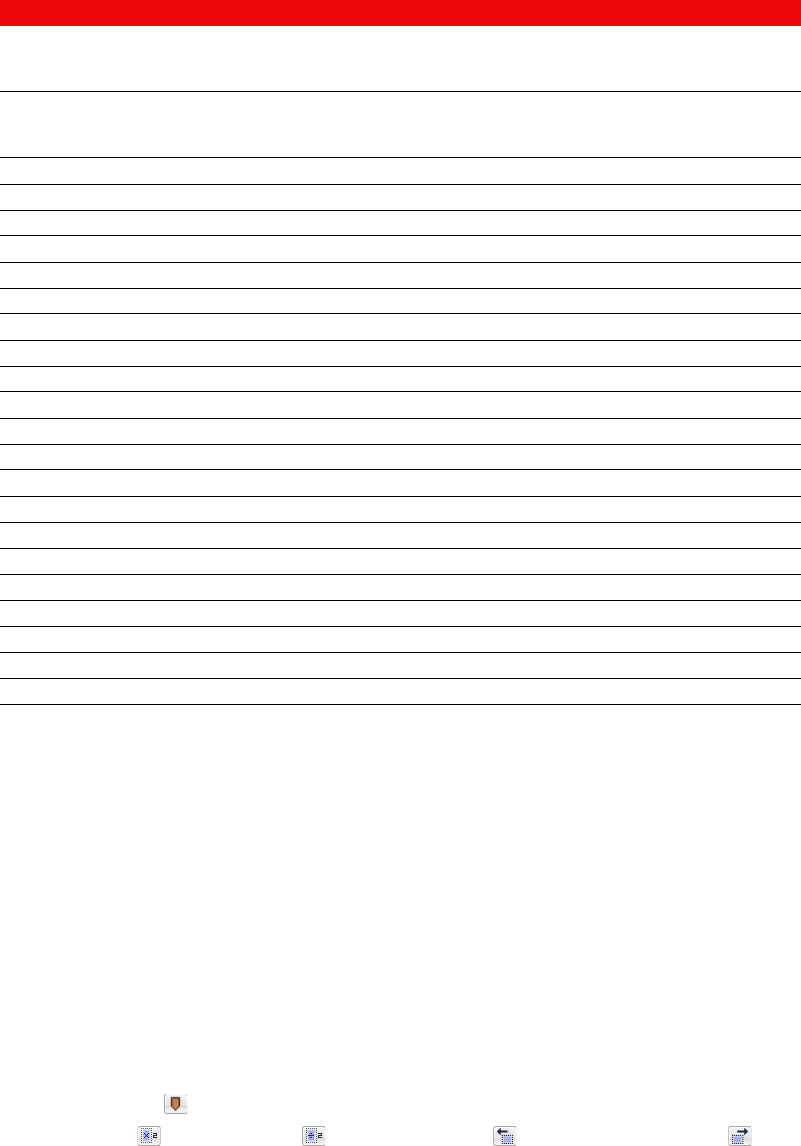
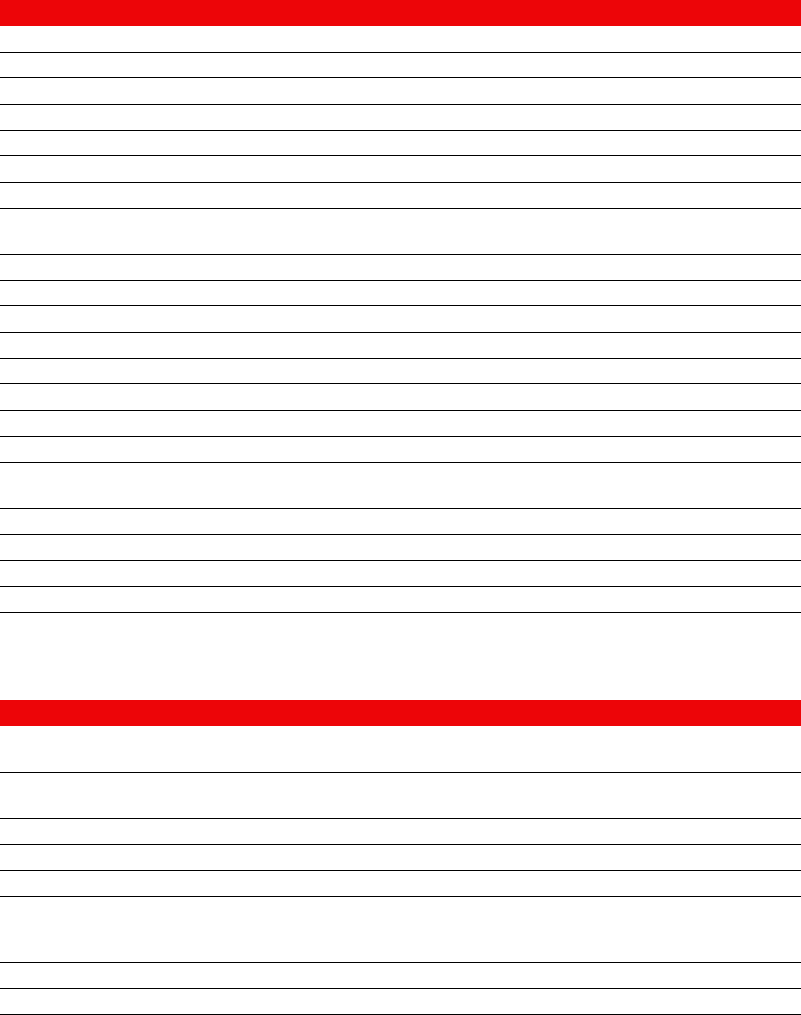
Previous location New location
Special > Transport > Record, Play All, Play, Pause,
Stop, Go to Start, Rewind, Forward, and Go to End
New Transport menu that is not displayed by default. Select the
Show Transport menu check box on the General tab of the
Preferences dialog to display this menu.
Special > Transport > Play Normal Mode, Play
Plug-In Chainer Mode, Play as Sample Mode, and
Play as Cutlist Mode
Options > Transport
Special > Regions List Edit > Regions List
Special > Playlist/Cutlist Edit > Playlist/Cutlist
Special > ACID Looping Tools > Halve Selection Edit > Selection > Halve
Special > ACID Looping Tools > Double Selection Edit > Selection > Double
Special > ACID Looping Tools > Shift Selection Left Edit > Selection > Shift Left
Special > ACID Looping Tools > Shift Selection Right Edit > Selection > Shift Right
Special > ACID Looping Tools > Rotate Audio Process > Rotate Audio
Special > Edit Sample View > Metadata > Sampler Loops
Special > Edit Tempo Options > Status Format > Edit Tempo
Special > Center Cursor Edit > Center Cursor
Special > Insert Marker Insert > Marker
Special > Insert Region Insert > Region
Special > Insert Sample Loop Insert > Sample Loop
Special > Insert Command Insert > Command
Special > Mark In Edit > Selection > Mark In
Special > Mark Out Edit > Selection > Mark Out
Special > Cycle Selection Edit > Selection > Cycle
Special > Toggle Selection Edit > Selection > Toggle
Special > Undo/Redo History > Clear Edit > Clear Undo/Redo History
Special > Undo/Redo History > Clear All Obsolete.
Special > Rebuild Peak Data Obsolete.
4 | SOUND FORGE PRO 10 UPGRADE HIGHLIGHTS
Status/Selection toolbar changes
The Edit Tempo button ( ) has been moved from the ACID Loop Creation Tools toolbar to the Status/Selection toolbar.
New Insert toolbar
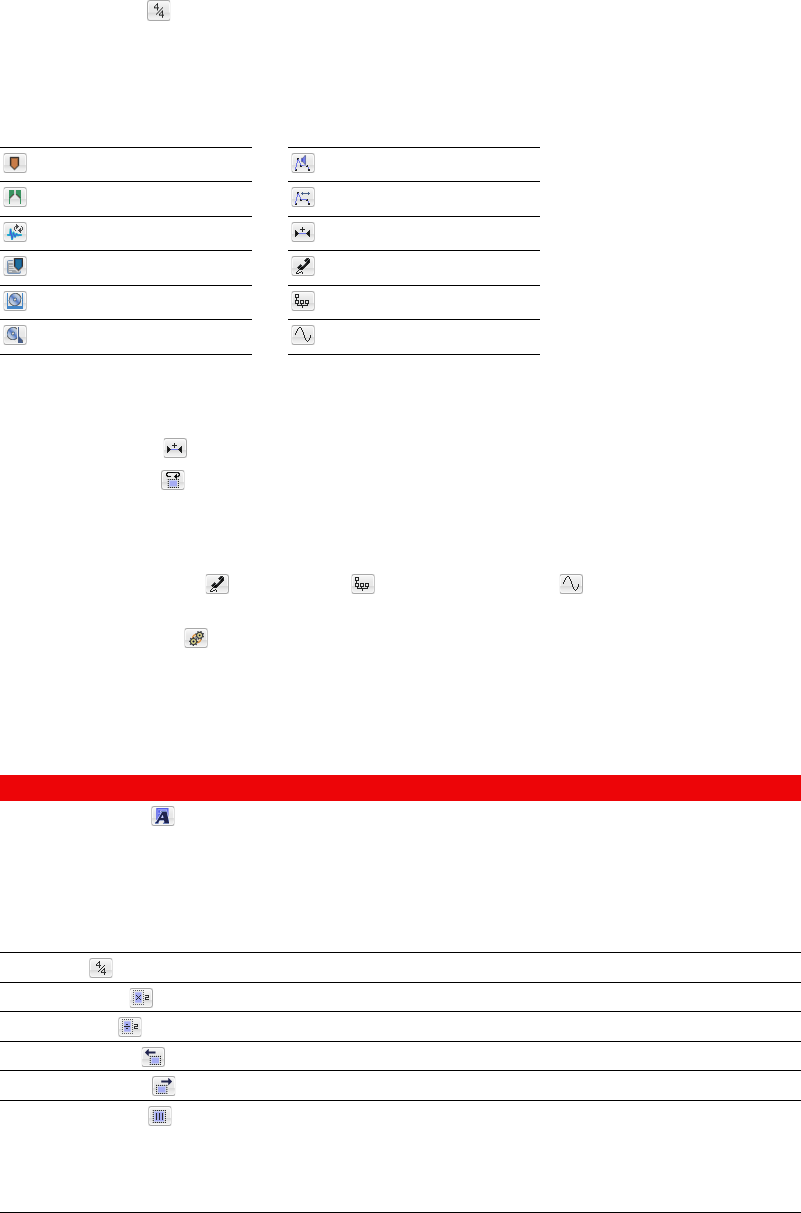
A new Insert toolbar has been created to contain buttons corresponding to the commands in the new Insert menu.
Process toolbar changes
The Insert Silence button ( ) has been moved to the new Insert toolbar.
The Rotate Audio button ( ) has been moved from the ACID Loop Creation Tools toolbar to the Process toolbar.
Tools toolbar changes
The DTMF/MF Tones Synthesis ( ), FM Synthesis ( ), and Simple Synthesis ( ) buttons have been moved to the new Insert
toolbar.
The Batch Converter button ( ) has been added to the Tools toolbar. It is also still available on the Scripting toolbar.
ACID Loop Creation Tools toolbar removed
The ACID Loop Creation Tools toolbar has been removed. Some buttons have been moved to other toolbars.
The tempo information previously displayed in the Tempo box on the ACID Loop Creation Tools toolbar can now be found on the
Navigation toolbar as well as in the Tempo box in the ACID Properties window (View > Metadata > ACID Properties).
Insert Marker Insert Volume Envelope
Insert Region Insert Pan Envelope
Insert Sample Loop Insert Silence
Insert Command DTMF/MF Tones Synthesis
Insert CD Track FM Synthesis
Insert CD Index Simple Synthesis
Button New location
Edit ACID Properties ( )No longer available on a toolbar by default. You can add this
button to a toolbar using the Customize Toolbar dialog. For
more information, see the full Sound Forge Pro User Manual or the
online help.
From the View menu, choose Metadata, and then choose ACID
Properties from the submenu to display the ACID Properties
window.
Edit Tempo ( )Status/Selection toolbar
Double Selection ( )Navigation toolbar
Halve Selection ( )Navigation toolbar
Shift Selection Left ( )Navigation toolbar
Shift Selection Right ( )Navigation toolbar
Selection Grid Lines ( )No longer available on a toolbar by default. You can add this
button to a toolbar using the Customize Toolbar dialog. For
more information, see the full Sound Forge Pro User Manual or the
online help.
From the Options menu, choose Selection Grid Lines.
SOUND FORGE PRO 10 UPGRADE HIGHLIGHTS | 5
Properties window redesigned
The Properties window has been redesigned and is now available from the View menu by choosing File Properties. The following
sections list the Properties window tabs from Sound Forge 9 and where the properties previously on those tabs can be found in Sound
Forge Pro 10.
General tab
Summary tab
Property New location
File name File Properties window
Location File Properties window
File size File Properties window
File attributes File Properties window
Last saved File Properties window
File type File Properties window
Audio Format File Properties window
Audio Attributes Divided into Audio sample rate, Audio bit depth, and Audio
channels properties in File Properties window.
Audio Length File Properties window
Regions/Markers Rgns/Play/Cmds property in the Open dialog
Command markers Rgns/Play/Cmds property in the Open dialog
Playlist Rgns/Play/Cmds property in the Open dialog
ACID chunk ACID property in the Open dialog
Media Mgr chunk Removed.
Unity note MIDI Unity note property in the Sampler Loops window
Loop(s) Loops property in the Open dialog
SMPTE SMPTE format and SMPTE offset properties in the Sampler
Loops window
Sector aligned Removed.
Junk chunks Removed.
Padding chunks Removed.
Additional chunks Removed.
Property New location
Title Name/Title (CD Text) property in the CD Information and
Summary Information windows
Artist Artist (CD Text) property in the CD Information and Summary
Information windows
Engineer CD Information and Summary Information windows
Copyright CD Information and Summary Information windows
Comments CD Information and Summary Information windows
Extended Summary Information window (Right-click, choose Insert from
the shortcut menu, and then choose additional properties to
add to the file.)
Load Removed.
Picture Removed.
6 | SOUND FORGE PRO 10 UPGRADE HIGHLIGHTS
Format tab
Video tab
The Attach/Detach button on the Video tab is now the Attach Video/Detach Video command on the File menu.
Display tab
The options that were available on the Display tab for customizing data windows can now be found on the Data Window submenu on
the Options menu or by right-clicking the edit tool selector in a data window.
Inserting markers and regions
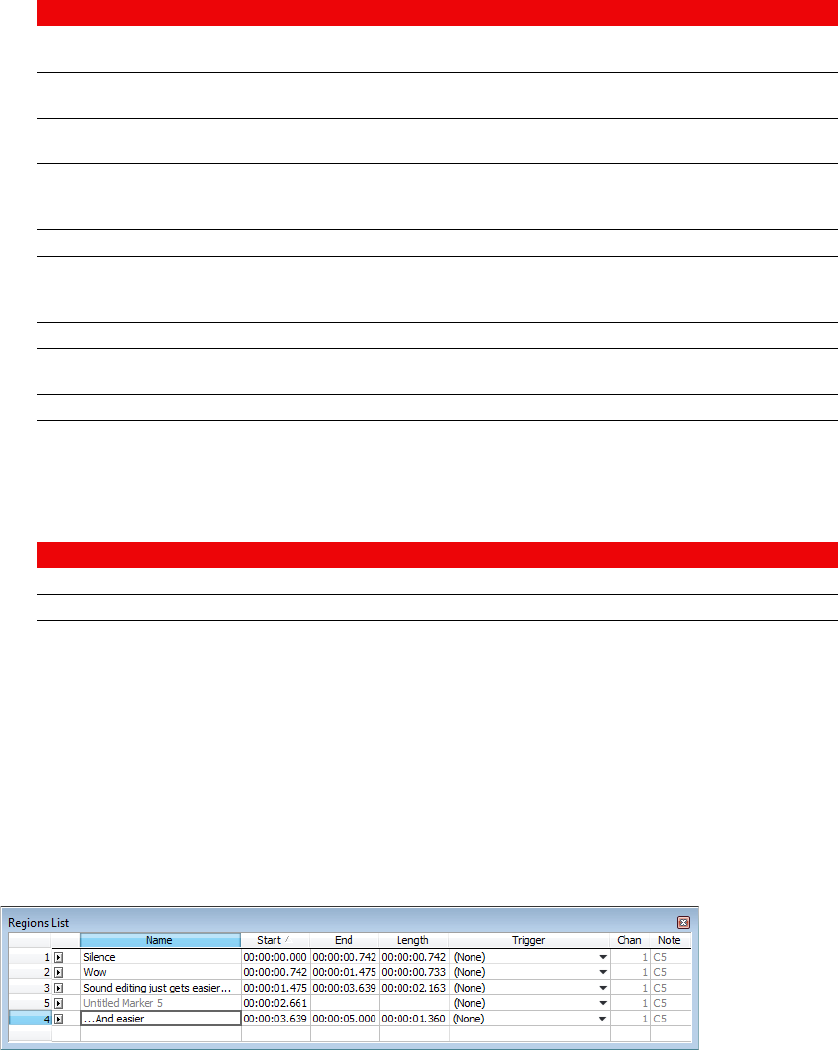
When you choose Marker or Region from the new Insert menu, the Insert Marker/Region dialog no longer appears. Use the Regions List
to edit markers and regions the way you used to in the Insert Marker/Region dialog.
From the View menu, choose Metadata, and then choose Regions List to display the Regions List.
Creating loops
The Edit Sample dialog has been replaced by the Sampler Loops window (View > Metadata > Sampler Loops), and the procedures for
creating sustaining and release loops have changed accordingly. For more information, see the full Sound Forge Pro User Manual or the
online help.
Property New Location
Sample rate Audio sample rate property in the File Properties window or the
Sample Rate box in the status bar
Bit-depth Audio bit depth property in the File Properties window or the
Bit Depth box in the status bar
Channels Audio channels property in the File Properties window or the
Channels box in the status bar
Source Audio sample rate, Audio bit depth, and Audio channels
properties in the File Properties window or the Sample Rate, Bit
Depth, and Channels boxes in the status bar
Process/DSP Removed.
Playback Audio sample rate, Audio bit depth, and Audio channels
properties in the File Properties window or the Sample Rate, Bit
Depth, and Channels boxes in the status bar
Cursor position Selection Start box in the data window
Sample value Sample value at cursor property in the Statistics window.
(Choose Sample Value from the Level Format drop-down list.)
Sound data size Audio length property in the File Properties window
Property New location
Field order Video field order property in the File Properties window
Pixel aspect ratio Video pixel aspect ratio property in the File Properties window
SOUND FORGE PRO 10 UPGRADE HIGHLIGHTS | 7
Creating loops for ACID software
The Edit ACID Properties dialog has been replaced by the ACID Properties window (View > Metadata > ACID Information), and the
procedures for creating one-shots, loops, and Beatmapped files have changed accordingly. For more information, see the full Sound Forge
Pro User Manual or the online help.
Keyboard shortcut changes
The following keyboard shortcuts have changed. Both the old shortcut and new shortcut are listed for reference.
Magnification and view shortcuts
Regions List shortcuts
Playlist/Cutlist shortcuts
Note:
You can no longer create ACID 2.0 disk-based files in Sound Forge Pro 10.
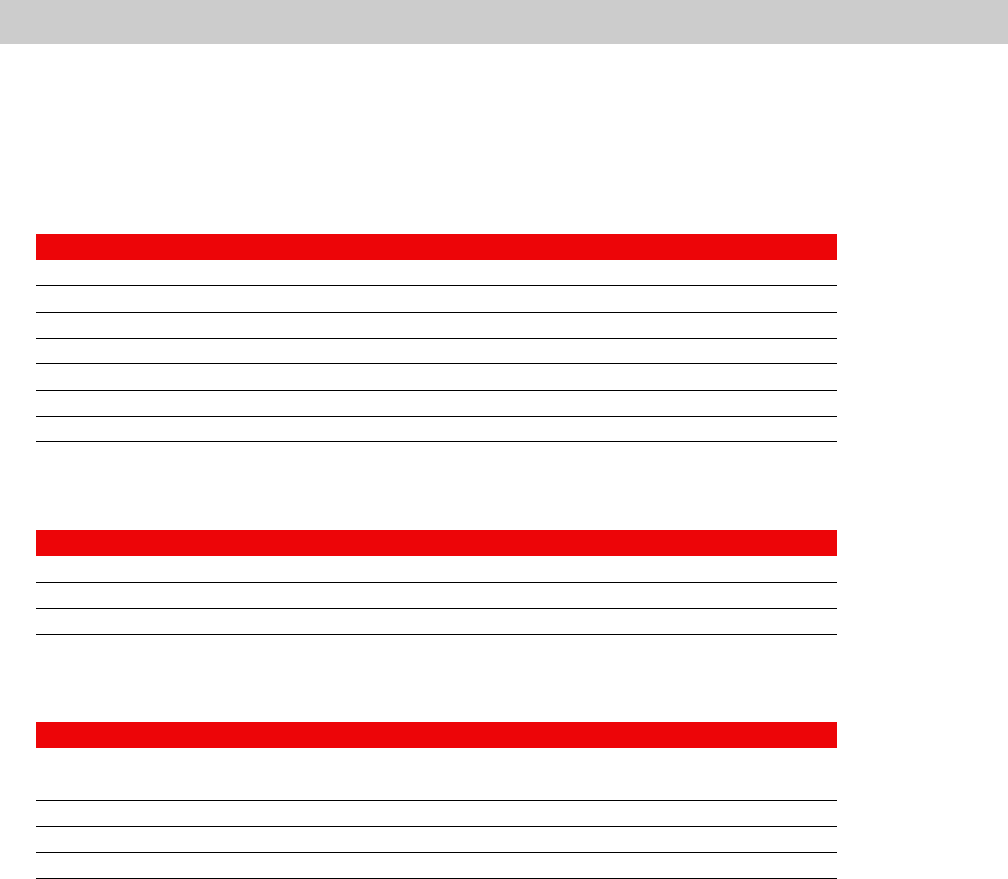
Command Old shortcut New shortcut
Show/set input focus to the Regions List Alt+2 Ctrl+Alt+M, 0
Show/set input focus to the Playlist/Cutlist window Alt+3 Ctrl+Alt+M, 1
Show/set input focus to the Video Preview window Alt+4 Alt+3
Show/set input focus to the Time Display window Alt+5 Alt+4
Show/set input focus to the Channel Meters window Alt+6 Alt+5
Show/set input focus to the Hardware Meters window Ctrl+Alt+3 Alt+6
Show/set input focus to the Loop Tuner window Ctrl+Alt+4 Ctrl+Alt+3
Command Old shortcut New shortcut
Create region from the current selection Shift+A Ctrl+I
Replicate selected region Shift+R Ctrl+D
Update region to match selection Shift+U Ctrl+U
Command Old shortcut New shortcut
Add or remove a stop point on the active playlist entry Shift+S
Shift+8
Ctrl+E
Ctrl+8
Toggle pre-roll on and off for the playlist Shift+P Ctrl+P
Add selected Regions List item to playlist Shift+A Ctrl+I
Replicate selected playlist region Shift+R Ctrl+D
© 2009. Sony Creative Software Inc. All rights reserved. (09/09) Sound Forge is a trademark of Sony Creative Software Inc. or its affiliates in the United
States and other countries. “Sony” and are registered trademarks of Sony Corporation. All other trademarks are the trademarks or registered
trademarks of their respective owners in the United States and other countries.
