Vmware Using HTML Access Horizon 4.5 Client 45 En
User Manual: vmware Horizon Client 4.5 - Using HTML Access Free User Guide for VMware Horizon Software, Manual
Open the PDF directly: View PDF  .
.
Page Count: 50
- Using HTML Access
- Contents
- Using HTML Access
- Setup and Installation
- System Requirements for HTML Access
- Preparing Connection Server and Security Servers for HTML Access
- Configure View to Remove Credentials From Cache
- Prepare Desktops, Pools, and Farms for HTML Access
- Configure HTML Access Agents to Use New SSL Certificates
- Configure HTML Access Agents to Use Specific Cipher Suites
- Configuring iOS to Use CA-Signed Certificates
- Upgrading the HTML Access Software
- Uninstall HTML Access from View Connection Server
- Data Collected by VMware
- Configuring HTML Access for End Users
- Using a Remote Desktop or Application
- Feature Support Matrix
- Internationalization
- Connect to a Remote Desktop or Application
- Connect to a Server in Workspace ONE Mode
- Use Unauthenticated Access to Connect to Remote Applications
- Shortcut Key Combinations
- International Keyboards
- Screen Resolution
- H.264 Decoding
- Setting the Time Zone
- Using the Sidebar
- Use Multiple Monitors
- Using DPI Synchronization
- Sound
- Copying and Pasting Text
- Transferring Files Between the Client and a Remote Desktop
- Using the Real-Time Audio-Video Feature for Webcams and Microphones
- Log Off or Disconnect
- Reset a Remote Desktop or Remote Applications
- Restart a Remote Desktop
- Index

Using HTML Access
VMware Horizon HTML Access 4.5
VMware Horizon 7 7.2
This document supports the version of each product listed and
supports all subsequent versions until the document is
replaced by a new edition. To check for more recent editions of
this document, see http://www.vmware.com/support/pubs.
EN-002529-00
Using HTML Access
2 VMware, Inc.
You can find the most up-to-date technical documentation on the VMware Web site at:
hp://www.vmware.com/support/
The VMware Web site also provides the latest product updates.
If you have comments about this documentation, submit your feedback to:
docfeedback@vmware.com
Copyright © 2013–2017 VMware, Inc. All rights reserved. Copyright and trademark information.
VMware, Inc.
3401 Hillview Ave.
Palo Alto, CA 94304
www.vmware.com
Contents
Using HTML Access 5
1Setup and Installation 7
System Requirements for HTML Access 7
Preparing Connection Server and Security Servers for HTML Access 9
Firewall Rules for HTML Access 10
Congure View to Remove Credentials From Cache 11
Prepare Desktops, Pools, and Farms for HTML Access 11
Congure HTML Access Agents to Use New SSL Certicates 13
Add the Certicate Snap-In to MMC on a View Desktop 13
Import a Certicate for the HTML Access Agent into the Windows Certicate Store 14
Import Root and Intermediate Certicates for the HTML Access Agent 15
Set the Certicate Thumbprint in the Windows Registry 15
Congure HTML Access Agents to Use Specic Cipher Suites 16
Conguring iOS to Use CA-Signed Certicates 16
Upgrading the HTML Access Software 17
Uninstall HTML Access from View Connection Server 17
Data Collected by VMware 17
2Conguring HTML Access for End
Users 19
Congure the VMware Horizon Web Portal Page for End Users 19
Using URIs to Congure HTML Access Web Clients 22
Syntax for Creating URIs for HTML Access 22
Examples of URIs 24
HTML Access Group Policy Seings 26
3Using a Remote Desktop or Application 27
Feature Support Matrix 28
Internationalization 29
Connect to a Remote Desktop or Application 29
Trust a Self-Signed Root Certicate 31
Connect to a Server in Workspace ONE Mode 31
Use Unauthenticated Access to Connect to Remote Applications 32
Shortcut Key Combinations 33
International Keyboards 36
Screen Resolution 36
H.264 Decoding 37
Seing the Time Zone 37
Using the Sidebar 37
Use Multiple Monitors 40
VMware, Inc. 3
Using DPI Synchronization 41
Sound 42
Copying and Pasting Text 42
Use the Copy and Paste Feature 42
Transferring Files Between the Client and a Remote Desktop 44
Download Files from a Desktop to the Client 44
Upload Files from the Client to a Desktop 44
Using the Real-Time Audio-Video Feature for Webcams and Microphones 45
Log O or Disconnect 45
Reset a Remote Desktop or Remote Applications 46
Restart a Remote Desktop 47
Index 49
Using HTML Access
4 VMware, Inc.

Using HTML Access
This guide, Using HTML Access, provides information about installing and using the HTML Access feature
of VMware Horizon™ 7 to connect to virtual desktops without having to install any software on a client
system.
The information in this document includes system requirements and instructions for installing
HTML Access software on a View server and in a remote desktop virtual machine so that end users can use
a Web browser to access remote desktops.
I This information is wrien for administrators who already have some experience using View
and VMware vSphere. If you are a novice user of View, you might occasionally need to refer to the step-by-
step instructions for basic procedures in the View Installation documentation and the View Administration
documentation.
VMware, Inc. 5
Using HTML Access
6 VMware, Inc.

Setup and Installation 1
Seing up a View deployment for HTML Access involves installing HTML Access on View Connection
Server, opening the required ports, and installing the HTML Access component in the remote desktop
virtual machine.
End users can then access their remote desktops by opening a supported browser and entering the URL for
View Connection Server.
This chapter includes the following topics:
n“System Requirements for HTML Access,” on page 7
n“Preparing Connection Server and Security Servers for HTML Access,” on page 9
n“Congure View to Remove Credentials From Cache,” on page 11
n“Prepare Desktops, Pools, and Farms for HTML Access,” on page 11
n“Congure HTML Access Agents to Use New SSL Certicates,” on page 13
n“Congure HTML Access Agents to Use Specic Cipher Suites,” on page 16
n“Conguring iOS to Use CA-Signed Certicates,” on page 16
n“Upgrading the HTML Access Software,” on page 17
n“Uninstall HTML Access from View Connection Server,” on page 17
n“Data Collected by VMware,” on page 17
System Requirements for HTML Access
With HTML Access the client system does not require any software other than a supported browser. The
View deployment must meet certain software requirements.
N Starting with version 7.0, View Agent is renamed Horizon Agent.
Browser on client
systems Browser Version
Chrome 57, 58
Internet Explorer 11
Safari 9, 10
Safari on mobile device iOS 9, iOS 10
VMware, Inc. 7

Browser Version
Firefox 52, 53
Microsoft Edge 38, 40
Client operating
systems Operating System Version
Windows 7 SP1 (32- and 64-bit)
Windows 8.x (32- and 64-bit)
Windows 10 (32- and 64-bit)
Mac OS X 10.11 (El Capitan)
macOS 10.12.x (Sierra)
iOS 9
iOS 10
Chrome OS 28.x and later
Remote desktops HTML Access requires Horizon Agent 7.0 or later, and supports all the
desktop operating systems that Horizon 7.0 supports. For more information,
see the topic "Supported Operating Systems for Horizon Agent" in version
7.0 or later of View Installation.
Pool settings HTML Access requires the following pool seings, in Horizon
Administrator:
nThe Max resolution of any one monitor seing must be 1920x1200 or
higher so that the remote desktop has at least 17.63 MB of video RAM.
If you plan to use 3D applications or if end users will use a Macbook
with Retina Display or a Google Chromebook Pixel, see “Screen
Resolution,” on page 36.
nThe HTML Access seing must be enabled.
Conguration instructions are provided in “Prepare Desktops, Pools, and
Farms for HTML Access,” on page 11.
Connection Server Connection Server with the HTML Access option must be installed on the
server.
When you install the HTML Access component, the VMware Horizon View
Connection Server (Blast-In) rule is enabled in the Windows Firewall, so
that the rewall is automatically congured to allow inbound trac to TCP
port 8443.
Security Server The same version as Connection Server must be installed on the security
server.
If client systems connect from outside the corporate rewall, VMware
recommends that you use a security server. With a security server, client
systems will not require a VPN connection.
N A single security server can support up to 800 simultaneous
connections to Web clients.
Using HTML Access
8 VMware, Inc.
Third-party firewalls Add rules to allow the following trac:
nServers (including security servers, Connection Server instances, and
replica servers): inbound trac to TCP port 8443.
nRemote desktop virtual machines: inbound trac (from servers) to TCP
port 22443.
Display protocol for
Horizon
VMware Blast
When you use a Web browser to access a remote desktop, the VMware Blast
protocol is used rather than PCoIP or Microsoft RDP. VMware Blast uses
HTTPS (HTTP over SSL/TLS).
Preparing Connection Server and Security Servers for HTML Access
Administrators must perform specic tasks so that end users can connect to remote desktops using a Web
browser.
Before end users can connect to Connection Server or a security server and access a remote desktop, you
must install Connection Server with the HTML Access component and install security servers.
Following is a check list of the tasks you must perform in order to use HTML Access:
1 Install Connection Server with the HTML Access option on the server or servers that will compose a
Connection Server replicated group.
By default, the HTML Access component is already selected in the installer. For installation instructions,
see the View Installation documentation.
N To check whether the HTML Access component is installed, you can open the Uninstall a
Program applet in the Windows operating system and look for View HTML Access in the list.
2 If you use security servers, install Security Server.
For installation instructions, see the View Installation documentation.
I The version of Security Server must match the version of Connection Server.
3 Verify that each Connection Server instance or security server has a security certicate that can be fully
veried by using the host name that you enter in the browser.
For more information, see the View Installation documentation.
4 To use two-factor authentication, such as RSA SecurID or RADIUS authentication, verify that this
feature is enabled on Connection Server.
For more information, see the topics about two-factor authentication in the View Administration
documentation.
I If you enable the Hide domain list in client user interface seings and select two-factor
authentication (RSA SecureID or RADIUS) for the Connection Server instance, do not enforce Windows
user name matching. Enforcing Windows user name matching will prevent users from being able to
enter domain information in the user name text box and login will always fail. For more information,
see the topics about two-factor authentication in the View Administration document.
5 If you use third-party rewalls, congure rules to allow inbound trac to TCP port 8443 for all security
servers and Connection Server hosts in a replicated group, and congure a rule to allow inbound trac
(from View servers) to TCP port 22443 on remote desktops in the datacenter. For more information, see
“Firewall Rules for HTML Access,” on page 10.
Chapter 1 Setup and Installation
VMware, Inc. 9
6 To provide users unauthenticated access to published applications in Horizon Client, you must enable
this feature in Connection Server. For more information, see the topics about unauthenticated access in
the View Administration document.
After the servers are installed, if you look in Horizon Administrator, you will see that the Blast Secure
Gateway seing is enabled on the applicable Connection Server instances and security servers. Also, the
Blast External URL seing is automatically congured to use for the Blast Secure Gateway on the applicable
Connection Server instances and security servers. By default, the URL includes the FQDN of the secure
tunnel external URL and the default port number, 8443. The URL must contain the FQDN and port number
that a client system can use to reach this Connection Server host or security server host. For more
information, see "Set the External URLs for a Connection Server Instance," in the View Installation
documentation.
N You can use HTML Access with VMware Workspace ONE to allow users to connect to their desktops
from an HTML5 browser. For information about installing Workspace ONE and conguring it for use with
Connection Server, see the Workspace ONE documentation. For information about pairing Connection
Server with a SAML Authentication server, see the View Administration document.
Firewall Rules for HTML Access
To allow client Web browsers to use HTML Access to make connections to security servers, View
Connection Server instances, and remote desktops, your rewalls must allow inbound trac on certain TCP
ports.
HTML Access connections must use HTTPS. HTTP connections are not allowed.
By default, when you install a View Connection Server instance or security server, the VMware Horizon
View Connection Server (Blast-In) rule is enabled in the Windows Firewall, so that the rewall is
automatically congured to allow inbound trac to TCP port 8443.
Table 1‑1. Firewall Rules for HTML Access
Source
Default
Source
Port Protocol Target
Default
Target
Port Notes
Client Web
browser
TCP
Any
HTTPS Security
server or
View
Connection
Server
instance
TCP 443 To make the initial connection to Horizon, the Web browser
on a client device connects to a security server or Horizon
Connection Server instance on TCP port 443.
Client Web
browser
TCP
Any
HTTPS Blast Secure
Gateway
TCP 8443 After the initial connection to Horizon is made, the Web
browser on a client device connects to the Blast Secure
Gateway on TCP port 8443. The Blast Secure Gateway must
be enabled on a security server or Horizon Connection Server
instance to allow this second connection to take place.
Blast Secure
Gateway
TCP
Any
HTTPS HTML
Access agent
TCP
22443
If the Blast Secure Gateway is enabled, after the user selects a
remote desktop, the Blast Secure Gateway connects to the
HTML Access agent on TCP port 22443 on the desktop. This
agent component is included when you install Horizon
Agent.
Client Web
browser
TCP
Any
HTTPS HTML
Access agent
TCP
22443
If the Blast Secure Gateway is not enabled, after the user
selects a View desktop, the Web browser on a client device
makes a direct connection to the HTML Access agent on TCP
port 22443 on the desktop. This agent component is included
when you install Horizon Agent.
Using HTML Access
10 VMware, Inc.

Configure View to Remove Credentials From Cache
You can congure View to remove a user's credentials from cache when a user closes a tab that connects to a
remote desktop or application, or closes a tab that connects to the desktop and application selection page, in
the HTML Access client.
When this feature is disabled (the default seing), the credentials remain in cache.
N When you enable this feature, the credentials are also removed from cache when a user refreshes the
desktop and application selection page or the remote session page, or runs a URI command in the tab that
contains the remote session. If the server presents a self-signed certicate, the credentials are removed from
cache after a user launches a remote desktop or application and accepts the certicate when the security
warning appears.
Prerequisites
This feature requires Horizon 7 version 7.0.2 or later.
Procedure
1 In Horizon Administrator, select View > Global and click Edit in the General
pane.
2 Select the Clean up credential when tab closed for HTML Access check box.
3 Click OK to save your changes.
Your changes take eect immediately. You do not need to restart Connection Server.
Prepare Desktops, Pools, and Farms for HTML Access
Before end users can access a remote desktop or application, administrators must congure certain pool and
farm seings and install Horizon Agent on remote desktop virtual machines and RDS hosts in the data
center.
The HTML Access client is a good alternative when Horizon Client software is not installed on the client
system.
N The Horizon Client software oers more features and beer performance than the HTML Access
client. For example, with the HTML Access client, some key combinations do not work in the remote
desktop, but these key combinations do work with Horizon Client.
Prerequisites
nVerify that your vSphere infrastructure and Horizon components meet the system requirements for
HTML Access.
See “System Requirements for HTML Access,” on page 7.
nVerify that the HTML Access component is installed with Connection Server on the host or hosts and
that the Windows rewalls on Connection Server instances and any security servers allow inbound
trac on TCP port 8443.
See “Preparing Connection Server and Security Servers for HTML Access,” on page 9.
nIf you use third-party rewalls, congure a rule to allow inbound trac from Horizon servers to TCP
port 22443 on Horizon desktops in the data center.
nVerify that the virtual machine you plan to use as a desktop source or RDS host has the following
software installed: a supported operating system and VMware Tools.
Chapter 1 Setup and Installation
VMware, Inc. 11
For a list of the supported operating systems, see “System Requirements for HTML Access,” on page 7.
nFamiliarize yourself with the procedures for creating pools and farms and entitling users. See the topics
about creating pools and farms in Seing Up Desktops and Applications in View.
nTo verify that the remote desktop or application is accessible to end users, verify that you have
Horizon Client software installed on a client system. You will test the connection by using the
Horizon Client software before aempting to connect from a browser.
For Horizon Client installation instructions, see the Horizon Client documentation site at
hps://www.vmware.com/support/viewclients/doc/viewclients_pubs.html.
nVerify that you have one of the supported browsers for accessing a remote desktop. See “System
Requirements for HTML Access,” on page 7.
Procedure
1 For RDS desktops and applications, use Horizon Administrator to create or edit the farm and enable the
Allow HTML Access to desktops and applications on this farm option in the farm seings.
2 For single-session desktop pools, use Horizon Administrator to create or edit the desktop pool so that
the pool can be used with HTML Access.
a Enable the HTML Access in the Desktop Pool seings.
The HTML Access seing does not appear in the Add Desktop Pool wizard when you create RDS
desktop pools. Instead, you enable the Allow HTML Access to desktops and applications on this
farm option when creating or editing the farm of RDS hosts.
b In the pool seings, verify that the Max resolution of any one monitor seing is 1920x1200 or
higher.
3 After the pools are created, recomposed, or upgraded to use Horizon Agent with the HTML Access
option, use Horizon Client to log in to a desktop or application.
With this step, before you aempt to use HTML Access, you verify that the pool is working correctly.
4 Open a supported browser and enter a URL that points to your Connection Server instance.
For example:
https://horizon.mycompany.com
Be sure to use https in the URL.
5 On the Web page that appears, click VMware Horizon HTML Access and log in as you would with the
Horizon Client software.
6 On the desktop and application selection page that appears, click an icon to connect.
You can now access a remote desktop or application from a Web browser when you are using a client device
that does not or cannot have Horizon Client software installed in its operating system.
What to do next
For added security, if your security policies require that the Blast agent on the remote desktop uses an SSL
certicate from a certicate authority, see “Congure HTML Access Agents to Use New SSL Certicates,” on
page 13.
Using HTML Access
12 VMware, Inc.

Configure HTML Access Agents to Use New SSL Certificates
To comply with industry or security regulations, you can replace the default SSL certicates that are
generated by the HTML Access Agent with certicates that are signed by a Certicate Authority (CA).
When you install the HTML Access Agent on View desktops, the HTML Access Agent service creates
default, self-signed certicates. The service presents the default certicates to browsers that use
HTML Access to connect to View.
N In the guest operating system on the desktop virtual machine, this service is called the VMware Blast
service.
To replace the default certicates with signed certicates that you obtain from a CA, you must import a
certicate into the Windows local computer certicate store on each View desktop. You must also set a
registry value on each desktop that allows the HTML Access Agent to use the new certicate.
If you replace the default HTML Access Agent certicates with CA-signed certicates, VMware
recommends that you congure a unique certicate on each desktop. Do not congure a CA-signed
certicate on a parent virtual machine or template that you use to create a desktop pool. That approach
would result in hundreds or thousands of desktops with identical certicates.
Procedure
1Add the Certicate Snap-In to MMC on a View Desktop on page 13
Before you can add certicates to the Windows local computer certicate store, you must add the
Certicate snap-in to the Microsoft Management Console (MMC) on the View desktops where the
HTML Access Agent is installed.
2Import a Certicate for the HTML Access Agent into the Windows Certicate Store on page 14
To replace a default HTML Access Agent certicate with a CA-signed certicate, you must import the
CA-signed certicate into the Windows local computer certicate store. Perform this procedure on
each desktop where the HTML Access Agent is installed.
3Import Root and Intermediate Certicates for the HTML Access Agent on page 15
If the root certicate and intermediate certicates in the certicate chain are not imported with the SSL
certicate that you imported for the HTML Access Agent, you must import these certicates into the
Windows local computer certicate store.
4Set the Certicate Thumbprint in the Windows Registry on page 15
To allow the HTML Access Agent to use a CA-signed certicate that was imported into the Windows
certicate store, you must congure the certicate thumbprint in a Windows registry key. You must
take this step on each desktop on which you replace the default certicate with a CA-signed certicate.
Add the Certificate Snap-In to MMC on a View Desktop
Before you can add certicates to the Windows local computer certicate store, you must add the Certicate
snap-in to the Microsoft Management Console (MMC) on the View desktops where the HTML Access Agent
is installed.
Prerequisites
Verify that the MMC and Certicate snap-in are available on the Windows guest operating system where the
HTML Access Agent is installed.
Procedure
1 On the View desktop, click Start and type mmc.exe.
2 In the MMC window, go to File > Add/Remove Snap-in.
Chapter 1 Setup and Installation
VMware, Inc. 13
3 In the Add or Remove Snap-ins window, select and click Add.
4 In the Certicates snap-in window, select Computer account, click Next, select Local computer, and
click Finish.
5 In the Add or Remove snap-in window, click OK.
What to do next
Import the SSL certicate into the Windows local computer certicate store. See “Import a Certicate for the
HTML Access Agent into the Windows Certicate Store,” on page 14.
Import a Certificate for the HTML Access Agent into the Windows Certificate
Store
To replace a default HTML Access Agent certicate with a CA-signed certicate, you must import the CA-
signed certicate into the Windows local computer certicate store. Perform this procedure on each desktop
where the HTML Access Agent is installed.
Prerequisites
nVerify that the HTML Access Agent is installed on the View desktop.
nVerify that the CA-signed certicate was copied to the desktop.
nVerify that the Certicate snap-in was added to MMC. See “Add the Certicate Snap-In to MMC on a
View Desktop,” on page 13.
Procedure
1 In the MMC window on the View desktop, expand the (Local Computer) node and select
the Personal folder.
2 In the Actions pane, go to More Actions > All Tasks > Import.
3 In the Certicate Import wizard, click Next and browse to the location where the certicate is stored.
4 Select the certicate le and click Open.
To display your certicate le type, you can select its le format from the File name drop-down menu.
5 Type the password for the private key that is included in the certicate le.
6 Select Mark this key as exportable.
7 Select Include all extendable properties.
8 Click Next and click Finish.
The new certicate appears in the (Local Computer) > Personal > folder.
9 Verify that the new certicate contains a private key.
a In the (Local Computer) > Personal > folder, double-click the new
certicate.
b In the General tab of the Certicate Information dialog box, verify that the following statement
appears: You have a private key that corresponds to this certificate.
What to do next
If necessary, import the root certicate and intermediate certicates into the Windows certicate store. See
“Import Root and Intermediate Certicates for the HTML Access Agent,” on page 15.
Congure the appropriate registry key with the certicate thumbprint. See “Set the Certicate Thumbprint
in the Windows Registry,” on page 15.
Using HTML Access
14 VMware, Inc.
Import Root and Intermediate Certificates for the HTML Access Agent
If the root certicate and intermediate certicates in the certicate chain are not imported with the SSL
certicate that you imported for the HTML Access Agent, you must import these certicates into the
Windows local computer certicate store.
Procedure
1 In the MMC console on the View desktop, expand the (Local Computer) node and go to the
Trusted Root Authorities > folder.
nIf your root certicate is in this folder, and there are no intermediate certicates in your certicate
chain, skip this procedure.
nIf your root certicate is not in this folder, proceed to step 2.
2 Right-click the Trusted Root Authorities > folder and click All Tasks >
Import.
3 In the Certicate Import wizard, click Next and browse to the location where the root CA certicate is
stored.
4 Select the root CA certicate le and click Open.
5 Click Next, click Next, and click Finish.
6 If your server certicate was signed by an intermediate CA, import all intermediate certicates in the
certicate chain into the Windows local computer certicate store.
a Go to the (Local Computer) > Intermediate Authorities >
folder.
b Repeat steps 3 through 6 for each intermediate certicate that must be imported.
What to do next
Congure the appropriate registry key with the certicate thumbprint. See “Set the Certicate Thumbprint
in the Windows Registry,” on page 15.
Set the Certificate Thumbprint in the Windows Registry
To allow the HTML Access Agent to use a CA-signed certicate that was imported into the Windows
certicate store, you must congure the certicate thumbprint in a Windows registry key. You must take this
step on each desktop on which you replace the default certicate with a CA-signed certicate.
Prerequisites
Verify that the CA-signed certicate is imported into the Windows certicate store. See “Import a Certicate
for the HTML Access Agent into the Windows Certicate Store,” on page 14.
Procedure
1 In the MMC window on the View desktop where the HTML Access Agent is installed, navigate to the
(Local Computer) > Personal > folder.
2 Double-click the CA-signed certicate that you imported into the Windows certicate store.
3 In the Certicates dialog box, click the Details tab, scroll down, and select the Thumbprint icon.
Chapter 1 Setup and Installation
VMware, Inc. 15

4 Copy the selected thumbprint to a text le.
For example: 31 2a 32 50 1a 0b 34 b1 65 46 13 a8 0a 5e f7 43 6e a9 2c 3e
N When you copy the thumbprint, do not to include the leading space. If you inadvertently paste
the leading space with the thumbprint into the registry key (in Step 7), the certicate might not be
congured successfully. This problem can occur even though the leading space is not displayed in the
registry value text box.
5 Start the Windows Registry Editor on the desktop where the HTML Access Agent is installed.
6 Navigate to the HKEY_LOCAL_MACHINE\SOFTWARE\VMware, Inc.\VMware Blast\Config registry key.
7 Modify the SslHash value and paste the certicate thumbprint into the text box.
8 Reboot Windows.
When a user connects to a desktop through HTML Access, the HTML Access Agent presents the CA-signed
certicate to the user's browser.
Configure HTML Access Agents to Use Specific Cipher Suites
You can congure the HTML Access Agent to use specic cipher suites instead of the default set of ciphers.
By default, the HTML Access Agent requires incoming SSL connections to use encryption based on certain
ciphers that provide strong protection against network eavesdropping and forgery. You can congure an
alternative list of ciphers for the HTML Access Agent to use. The set of acceptable ciphers is expressed in the
OpenSSL format. which is described at hps://www.openssl.org/docs/manmaster/man1/ciphers.html.
Procedure
1 Start the Windows Registry Editor on the desktop where the HTML Access Agent is installed.
2 Navigate to the HKEY_LOCAL_MACHINE\SOFTWARE\VMware, Inc.\VMware Blast\Config registry key.
3 Add a new String (REG_SZ) value, SslCiphers, and paste the cipher list in the OpenSSL format into the
text box.
4 Restart the VMware Blast service to make your changes take eect.
In the Windows guest operating system, the service for the HTML Access Agent is called VMware Blast.
To revert to using the default cipher list, delete the SslCiphers value and restart the VMware Blast service.
Do not simply delete the data part of the value because the HTML Access Agent will then treat all ciphers as
unacceptable, in accordance with the OpenSSL cipher list format denition.
When the HTML Access Agent starts, it writes the cipher denition in the VMware Blast service's log le.
You can discover the current default cipher list by inspecting the logs when the VMware Blast service starts
with no SslCiphers value congured in the Windows Registry.
The HTML Access Agent's default cipher denition might change from one release to the next to provide
improved security.
Configuring iOS to Use CA-Signed Certificates
To use HTML Access on iOS devices, you need to install SSL certicates that are signed by a Certicate
Authority (CA) instead of the default SSL certicates that are generated by the View Connection Server or
the HTML Access Agent.
For instructions, see "Congure Horizon Client for iOS to Trust Root and Intermediate Certicates" in the
View Installation document.
Using HTML Access
16 VMware, Inc.
Upgrading the HTML Access Software
For most versions of HTML Access, upgrading involves simply upgrading Connection Servers and View
Agent.
When you upgrade HTML Access, make sure that the corresponding version of View Connection Server is
installed on all the instances in a replicated group.
When you upgrade Connection Server, HTML Access is automatically installed or upgraded.
N To check whether the HTML Access component is installed, you can open the Uninstall a Program
applet in the Windows operating system and look for HTML Access in the list.
Uninstall HTML Access from View Connection Server
You can remove HTML Access by using the same method you use to remove other Windows software.
Procedure
1 On the View Connection Server hosts where HTML Access is installed, open the Uninstall a Program
applet provided by the Windows Control Panel.
2 Select the program VMware Horizon 7 HTML Access and click Uninstall.
3 (Optional) In the Windows Firewall for that host, verify that TCP port 8443 no longer allows inbound
trac.
What to do next
Disallow inbound trac to TCP port 8443 on the Windows Firewall of any paired security servers. If
applicable, on third-party rewalls, change the rules to disallow inbound trac to TCP port 8443 for all
paired security servers and this View Connection Server host.
Data Collected by VMware
If your company participates in the customer experience improvement program, VMware collects data from
certain client elds. Fields containing sensitive information are made anonymous.
VMware collects data on the clients to prioritize hardware and software compatibility. If a Horizon
administrator has opted to participate in the customer experience improvement program, VMware collects
anonymous data about your deployment to improve VMware's response to customer requirements. No data
that identies your organization is collected. Client information is sent rst to Connection Server and then
on to VMware, along with data from servers, desktop pools, and remote desktops.
To participate in the VMware customer experience improvement program, the administrator who installs
Connection Server can opt in while running the Connection Server installation wizard, or an administrator
can set an option in Horizon Administrator after the installation.
Table 1‑2. Client Data Collected for the Customer Experience Improvement Program
Description Field name
Is This Field
Made
Anonymous
? Example Value
Company that produced the
application
<client-vendor> No VMware
Product name <client-product> No VMware Horizon HTML Access
Client product version <client-version> No 4.5.0-build_number
Chapter 1 Setup and Installation
VMware, Inc. 17
Table 1‑2. Client Data Collected for the Customer Experience Improvement Program (Continued)
Description Field name
Is This Field
Made
Anonymous
? Example Value
Client binary architecture <client-arch> No Examples include the following
values:
nbrowser
narm
Native architecture of the browser <browser-arch> No Examples include the following
values:
nWin32
nWin64
nMacIntel
niPad
Browser user agent string <browser-user-agent> No Examples include the following
values:
nMozilla/5.0 (Windows NT 6.1;
WOW64)
nAppleWebKit/703.00 (KHTML,
like Gecko)
nChrome/3.0.1750
nSafari/703.00
nEdge/13.10586
Browser's internal version string <browser-version> No Examples include the following
values:
n7.0.3 (for Safari),
n44.0 (for Firefox)
n13.10586 (for Edge)
Browser's core implementation <browser-core> No Examples include the following
values:
nChrome
nSafari
nFirefox
nInternet Explorer
nEdge
Whether the browser is running on a
handheld device
<browser-is-
handheld>
No true
Using HTML Access
18 VMware, Inc.

Configuring HTML Access for End
Users 2
You can change the appearance of the Web page that end users see when they enter the URL for
HTML Access. You can also set group policies that control the image quality, the ports used, and other
seings.
This chapter includes the following topics:
n“Congure the VMware Horizon Web Portal Page for End Users,” on page 19
n“Using URIs to Congure HTML Access Web Clients,” on page 22
n“HTML Access Group Policy Seings,” on page 26
Configure the VMware Horizon Web Portal Page for End Users
You can congure this Web page to show or hide the icon for downloading Horizon Client or the icon for
connecting to a remote desktop through HTML Access. You can also congure other links on this page.
By default, the web portal page shows both an icon for downloading and installing the native
Horizon Client, and an icon for connecting through HTML Access. The download link used is determined
from the default values dened in the portal-links-html-access.properties le.
In some cases, however, you might want to have the links to point to an internal Web server, or you might
want to make specic client versions available on your own server. You can recongure the portal page to
point to a dierent download URL by modifying the contents of the portal-links-html-access.properties
le. If that le is unavailable or is empty, and the oslinks.properties le exists, the oslinks.properties le
is used to determine the link value for the installer le.
The oslinks.properties le is installed in the installation-directory\VMware\VMware
View\Server\broker\webapps\portal\WEB-INF folder. If this le is missing during the HTML Access session,
the download link will direct users to https://www.vmware.com/go/viewclients by default. The le contains
the following default values:
link.download=https://www.vmware.com/go/viewclients
# download Links for particular platforms
link.win32=https://www.vmware.com/go/viewclients#win32
link.win64=https://www.vmware.com/go/viewclients#win64
link.linux32=https://www.vmware.com/go/viewclients#linux32
link.linux64=https://www.vmware.com/go/viewclients#linux64
link.mac=https://www.vmware.com/go/viewclients#mac
link.ios=https://itunes.apple.com/us/app/vmware-view-for-ipad/id417993697
link.android=https://play.google.com/store/apps/details?id=com.vmware.view.client.android
link.chromeos=https://chrome.google.com/webstore/detail/vmware-horizonclient/
pckbpdplfajmgaipljfamclkinbjdnma
link.winmobile=https://www.microsoft.com/en-us/store/p/vmware-horizon-client/9nblggh51p19
VMware, Inc. 19
You can make installer links for specic client operating systems in either the portal-links-html-
access.properties or oslinks.properties le. For example, if you browse to the portal page from a Mac OS X
system, the link for the native Mac OS X installer appears. For Windows or Linux clients, you can make
separate links for 32-bit and 64-bit installers.
I If you upgraded from View Connection Server 5.x or an earlier release and did not have the
HTML Access component installed, and if you previously edited the portal page to point to your own server
for downloading Horizon Client, those customizations might be hidden after you install View Connection
Server 6.0 or later. With Horizon 6 or later, the HTML Access component is automatically installed during
an upgrade of View Connection Server.
If you already installed the HTML Access component separately for View 5.x, any customizations you made
to the Web page are preserved. If you did not have the HTML Access component installed, any
customizations you had made are hidden. The customizations for earlier releases reside in the portal-
links.properties le, which is no longer used.
Procedure
1 On the View Connection Server host, open the portal-links-html-access.properties le with a text
editor.
The location of this le is CommonAppDataFolder\VMware\VDM\portal\portal-links-html-
access.properties. For Windows Server 2008 operating systems, the CommonAppDataFolder directory is
C:\ProgramData. To display the C:\ProgramData folder in Windows Explorer, you must use the Folder
Options dialog box to show hidden folders.
If the portal-links-html-access.properties le does not exist and the oslinks.properties le does,
open the <installation-directory>\VMware\VMware View\Server\broker\webapps\portal\WEB-
INF\oslinks.properties le to modify the URLs to use for downloading specic installer les.
N Customizations for View 5.x and earlier releases resided in the portal-links.properties le,
which is located in the same CommonAppDataFolder\VMware\VDM\portal\ directory as the portal-links-
html-access.properties le.
2 Edit the conguration properties to set them appropriately.
By default, both the installer icon and the HTML Access icon are enabled and a link points to the client
download page on the VMware Web site. To disable an icon, which removes the icon from the Web
page, set the property to false.
N The oslinks.properties le can only be used to congure the links to the specic installer les.
It does not support the other options listed below.
Option Property Setting
Disable HTML Access enable.webclient=false
If this option is set to false but the enable.download option is set to true,
the user is taken to a Web page for downloading the native Horizon Client
installer. If both options are set to false, the user sees the following
message: "Contact your local administrator for instructions
on accessing this Connection Server."
Disable downloading Horizon Client enable.download=false
If this option is set to false but the enable.webclient option is set to true,
the user is taken to the HTML Access login Web page. If both options are
set to false, the user sees the following message: "Contact your local
administrator for instructions on accessing this Connection
Server."
Change the URL of the Web page
for downloading Horizon Client
link.download=https://url-of-web-server
Use this property if you plan to create your own Web page.
Using HTML Access
20 VMware, Inc.

Option Property Setting
Create links for specific installers The following examples show full URLs, but you can use relative URLs if
you place the installer les in the downloads directory, which is under the
C:\Program Files\VMware\VMware View\Server\broker\webapps\
directory on View Connection Server, as described in the next step.
nGeneral link to download installer:
link.download=https://server/downloads
n32-bit Windows installer:
link.win32=https://server/downloads/VMware-Horizon-
Client-x86-build#.exe
n64-bit Windows installer:
link.win64=https://server/downloads/VMware-Horizon-
Client-x86_64-build#.exe
nWindows Phone installer:
link.winmobile=https://server/downloads/VMware-Horizon-
Client-build#.appx
n32-bit Linux installer:
link.linux32=https://server/downloads/VMware-Horizon-
Client-build#.x86.bundle
n64-bit Linux installer:
link.linux64=https://server/downloads/VMware-Horizon-
Client-build#.x64.bundle
nMac OS X installer:
link.mac=https://server/downloads/VMware-Horizon-Client-
build#.dmg
niOS installer:
link.ios=https://server/downloads/VMware-Horizon-Client-
iPhoneOS-build#.ipa
nAndroid installer:
link.android=https://server/downloads/VMware-Horizon-
Client-AndroidOS-build#.apk
nChrome OS installer:
link.chromeos=https://server/downloads/VMware-Horizon-
Client-ChromeOS-build#.apk
Change the URL for the Help link in
the login page
link.help
By default, this link points to a help system hosted on the VMware Web
site. The Help link appears at the boom of the login page.
3 To have users download installers from a location other than the VMware Web site, place the installer
les on the HTTP server where the installer les will reside.
This location must correspond to the URLs you specied in the portal-links-html-access.properties
le or the oslinks.properties le from the previous step. For example, to place the les in a downloads
directory on the View Connection Server host, use the following path:
C:\Program Files\VMware\VMware View\Server\broker\webapps\downloads
The links to the installer les could then use relative URLs with the format /downloads/client-
installer-file-name.
4 Restart the View Web Component service.
Chapter 2 Configuring HTML Access for End Users
VMware, Inc. 21
Using URIs to Configure HTML Access Web Clients
Using uniform resource identiers (URIs), you can create a Web page or an email with links that end users
click to launch the HTML Access Web client, connect to View Connection Server, and launch a specic
desktop or application with specic conguration options.
You can simplify the process of connecting to a remote desktop or application by creating Web or email links
for end users. You create these links by constructing URIs that provide some or all of the following
information, so that your end users do not need to supply it:
nView Connection Server address
nPort number for View Connection Server
nActive Directory user name
nRADIUS or RSA SecurID user name, if dierent from Active Directory user name
nDomain name
nDesktop or application display name
nActions including browse, reset, log o, and start session
Syntax for Creating URIs for HTML Access
Syntax includes a path part to specify the server, and, optionally, a query to specify a user, desktop or
application, and actions or conguration options.
URI Specification
Use the following syntax to create URIs for launching HTML Access Web clients:
https://authority-part[/?query-part]
authority-part Species the server address and, optionally, a non-default port number.
Server names must conform to DNS syntax.
To specify a port number, use the following syntax:
server-address:port-number
query-part Species the conguration options to use or the actions to perform. Queries
are not case-sensitive. To use multiple queries, use an ampersand (&)
between the queries. If queries conict with each other, the last query in the
list is used. Use the following syntax:
query1=value1[&query2=value2...]
Observe the following guidelines when creating the query-part:
nIf you do not use at least one of the supported queries, the default
VMware Horizon Web portal page is displayed.
nIn the query part, some special characters are not supported, and you
must use the URL encoding format for them, as follows: For the pound
symbol (#) use %23, for the percent sign (%) use %25, for the ampersand
(&) use %26, for the at sign (@) use %40, and for the backslash (\) use %5C.
For more information about URL encoding, go to
hp://www.w3schools.com/tags/ref_urlencode.asp.
Using HTML Access
22 VMware, Inc.
nIn the query part, non-ASCII characters must rst be encoded according
to UTF-8 [STD63], and then each octet of the corresponding UTF-8
sequence must be percent-encoded to be represented as URI characters.
For information about encoding for ASCII characters, see the URL
encoding reference at hp://www.utf8-chartable.de/.
Supported Queries
This topic lists the queries that are supported for the HTML Access Web client. If you are creating URIs for
multiple types of clients, such as desktop clients and mobile clients, see the Using VMware Horizon Client
document for each type of client system.
action Table 2‑1. Values That Can Be Used With the action Query
Value Description
browse Displays a list of available desktops and applications hosted on the
specied server. You are not required to specify a desktop or
application when using this action.
start-session Starts the specied desktop or application. If no action query is
provided and the desktop or application name is provided,
start-session is the default action.
reset Shuts down and restarts the specied desktop. Unsaved data is
lost. Reseing a remote desktop is the equivalent of pressing the
Reset buon on a physical PC. This action is not valid for an
application.
logoff Logs the user out of the guest operating system in the remote
desktop. This action is not valid for an application.
restart Shuts down and restarts the primary desktop after the user
conrms the restart operation request. This action is not valid for
an application.
applicationId The application display name. The display name is the name specied in
Horizon Administrator when the application pool was created. If the display
name has a space in it, the browser uses %20 to represent the space.
args Species command-line arguments to add to remote application launch. Use
the syntax args=value, where value is a string. Use percent encoding for the
following characters:
nFor a colon (:), use %3A
nFor a back slash (\), use %5C
nFor a space ( ), use %20
nFor a double quotation mark ("), use %22
For example, to specify the lename "My new file.txt" for the Notepad++
application, use %22My%20new%20file.txt%22.
desktopId The desktop display name. The display name is the name specied in View
Administrator when the desktop pool was created. If the display name has a
space in it, the browser uses %20 to represent the space.
domainName The NETBIOS domain name associated with the user who is connecting to
the remote desktop or application. For example, use mycompany rather than
mycompany.com.
Chapter 2 Configuring HTML Access for End Users
VMware, Inc. 23
tokenUserName The RSA or RADIUS user name. Use this query only if the RSA or RADIUS
user name is dierent from the Active Directory user name. If you do not
specify this query and RSA or RADIUS authentication is required, the
Windows user name is used.
userName The Active Directory user who is connecting to the remote desktop or
application. The user name can be in one of the following formats:
nuserName
ndomainName%5CuserName
nuser principal name (UPN), that is, userName@domainName
unauthenticatedAccess
Enabled
If this option is set to true, the Unauthenticated Access feature is enabled by
default. The HTML Access Web client is launched and an anonymous user
account is displayed. An example of the syntax is
unauthenticatedAccessEnabled=true.
unauthenticatedAccess
Account
Sets the account to use if the Unauthenticated Access feature is enabled. If
Unauthenticated Access is disabled, then this query is ignored. An example
of the syntax using the anonymous1 user account is
unauthenticatedAccessAccount=anonymous1
Examples of URIs
You can create hypertext links or buons with a URI and include these links in email or on a Web page. Your
end users can click these links to, for example, open a particular remote desktop or application with the
startup options you specify.
URI Syntax Examples
Each URI example is followed by a description of what the end user sees after clicking the URI link. Queries
are not case-sensitive. For example, you can use domainName or domainname.
1https://horizon.mycompany.com/?domainName=finance&userName=fred
The HTML Access Web client is launched and connects to the horizon.mycompany.com server. In the
login box, the User name text box is populated with the name fred, and the Domain text box is
populated with . The user must supply only a password.
2https://horizon.mycompany.com/?userName=finance%5Cfred
The HTML Access Web client is launched and connects to the horizon.mycompany.com server. In the
login box, the User name text box is populated with the name . The user must supply only
a password.
3https://horizon.mycompany.com/?userName=fred@finance
The HTML Access Web client is launched and connects to the horizon.mycompany.com server. In the
login box, the User name text box is populated with the name . The user must supply only
a password.
4https://horizon.mycompany.com/?desktopId=Primary%20Desktop&action=start-session
The HTML Access Web client is launched and connects to the horizon.mycompany.com server. The login
box prompts the user for a user name, domain name, and password. After a successful login, the client
connects to the desktop whose display name is displayed as Primary Desktop, and the user is logged in
to the guest operating system.
5https://horizon.mycompany.com/?applicationId=Notepad&action=start-session
Using HTML Access
24 VMware, Inc.
The HTML Access Web client is launched and connects to the horizon.mycompany.com server. The login
box prompts the user for a user name, domain name, and password. After a successful login, the
Notepad application is launched.
6https://horizon.mycompany.com:7555/?desktopId=Primary%20Desktop
This URI has the same eect as the previous example, except that it uses the nondefault port of 7555 for
Connection Server. (The default port is 443.) Because a desktop identier is provided, the desktop is
launched even though the start-session action is not included in the URI.
7https://horizon.mycompany.com/?applicationId=Primary%20Application&desktopId=Primary
%20Desktop
This URI species both an application and a desktop. When you specify both an application and a
desktop, only the desktop is launched.
8https://horizon.mycompany.com/?desktopId=Primary%20Desktop&action=reset
The HTML Access Web client is launched and connects to the horizon.mycompany.com server. The login
box prompts the user for a user name, domain name, and password. After a successful login, the client
displays a dialog box that prompts the user to conrm the reset operation for Primary Desktop.
N This action is available only if the Horizon administrator has allowed end users to reset their
machines.
9https://horizon.mycompany.com/?My%20Notepad++?args=%22My%20new%20file.txt%22
Opens My Notepad++ on server horizon.mycompany.com and passes the argument My new file.txt in
the application launch command. The lename is enclosed in double quotes because it contains spaces.
10 https://horizon.mycompany.com/?Notepad++%2012?args=a.txt%20b.txt
Opens Notepad++ 12 on server horizon.mycompany.com and passes the argument a.text b.txt in the
application launch command. Because the argument is not enclosed in double quotes, a space separates
the lenames and the two les are opened separately in Notepad++.
N Applications can dier in the way they use command-line arguments. For example, if you pass
the argument a.txt b.txt to WordPad, WordPad opens only one le, a.txt.
11 https://horizon.mycompany.com/?desktopId=Primary%20Desktop&action=restart
The HTML Access Web client is launched and connects to the horizon.mycompany.com server. The login
box prompts the user for a user name, domain name, and password. After a successful login, the client
displays a dialog box that prompts the user to conrm the restart operation for Primary Desktop.
N This action is available only if the Horizon administrator has allowed end users to restart their
machines.
12 https://horizon.mycompany.com/?
unauthenticatedAccessEnabled=true&unauthenticatedAccessAccount=anonymous_user1
The HTML Access Web client is launched and connects to the horizon.mycompany.com server using the
anonymous_user1 account.
Chapter 2 Configuring HTML Access for End Users
VMware, Inc. 25
HTML Code Examples
You can use URIs to make hypertext links and buons to include in emails or on Web pages. The following
examples show how to use the URI from the rst URI example to code a hypertext link that says, Test Link,
and a buon that says, .
<html>
<body>
<a href="https://horizon.mycompany.com/?domainName=finance&userName=fred">Test Link</a><br>
<form><input type="button" value="TestButton" onClick="window.location.href=
'https://horizon.mycompany.com/?domainName=finance&userName=fred'"></form> <br>
</body>
</html>
HTML Access Group Policy Settings
HTML Access uses the VMware Blast protocol. You congure group policies for HTML Access by
conguring group policies for the VMware Blast protocol.
For more information, see "Conguring Policies for Desktop and Application Pools" and "VMware Blast
Policy Seings" in the Conguring Remote Desktop Features in Horizon 7 document.
Using HTML Access
26 VMware, Inc.

Using a Remote Desktop or
Application 3
The client provides a navigation sidebar with toolbar buons so that you can easily disconnect from a
remote desktop or application or use a buon click to send the equivalent of the Ctrl+Alt+Delete key
combination.
This chapter includes the following topics:
n“Feature Support Matrix,” on page 28
n“Internationalization,” on page 29
n“Connect to a Remote Desktop or Application,” on page 29
n“Connect to a Server in Workspace ONE Mode,” on page 31
n“Use Unauthenticated Access to Connect to Remote Applications,” on page 32
n“Shortcut Key Combinations,” on page 33
n“International Keyboards,” on page 36
n“Screen Resolution,” on page 36
n“H.264 Decoding,” on page 37
n“Seing the Time Zone,” on page 37
n“Using the Sidebar,” on page 37
n“Use Multiple Monitors,” on page 40
n“Using DPI Synchronization,” on page 41
n“Sound,” on page 42
n“Copying and Pasting Text,” on page 42
n“Transferring Files Between the Client and a Remote Desktop,” on page 44
n“Using the Real-Time Audio-Video Feature for Webcams and Microphones,” on page 45
n“Log O or Disconnect,” on page 45
n“Reset a Remote Desktop or Remote Applications,” on page 46
n“Restart a Remote Desktop,” on page 47
VMware, Inc. 27
Feature Support Matrix
When you access a remote desktop or application from the browser-based HTML Access client, some
features are not available.
Feature Support for Single-User Virtual Machine Desktops
Table 3‑1. Features Supported Through HTML Access
Feature
Windows
7 Desktop
Windows
8.x
Desktop
Windows
10
Desktop
Windows
Server
2008 R2
Desktop
Windows
Server
2012 R2
Desktop
Windows Server
2016 Desktop
RSA SecurID or RADIUS X X X X X X
Single sign-on X X X X X X
RDP display protocol
PCoIP display protocol
VMware Blast display
protocol
X X X X X X
USB redirection
Real-Time Audio-Video
(RTAV)
X X X X X X
Wyse MMR
Windows Media MMR
Virtual printing
Location-based printing X X X X X X
Smart cards
Multiple monitors X X X X X X
For descriptions of these features and their limitations, see the View Architecture Planning document.
Feature Support for Session-Based Desktops and Hosted Applications on RDS
Hosts
RDS hosts are server computers that have Windows Remote Desktop Services and View Agent installed.
Multiple users can have desktop and application sessions on an RDS host simultaneously. An RDS host can
be either a physical machine or a virtual machine.
N The following table contains rows only for the features that are available from RDS hosts if you use
HTML Access. Additional features are available if you use natively installed Horizon Client, such as
Horizon Client for Windows.
Table 3‑2. Features Supported for HTML Access to RDS Hosts with View Agent 6.1.1 or Later, or Horizon
Agent 7.0 or Later, Installed
Feature
Windows Server 2008 R2
RDS Host
Windows Server 2012 or
2012 R2 RDS Host Windows Server 2016
RSA SecurID or RADIUS X X Horizon Agent 7.0.2 and
later
Single sign-on X X Horizon Agent 7.0.2 and
later
Using HTML Access
28 VMware, Inc.
Table 3‑2. Features Supported for HTML Access to RDS Hosts with View Agent 6.1.1 or Later, or Horizon
Agent 7.0 or Later, Installed (Continued)
Feature
Windows Server 2008 R2
RDS Host
Windows Server 2012 or
2012 R2 RDS Host Windows Server 2016
VMware Blast display
protocol
X X Horizon Agent 7.0.2 and
later
Location-based printing X (virtual machine only) X (virtual machine only) Horizon Agent 7.0.2 and
later (virtual machine only)
Real-Time Audio-Video
(RTAV)
Horizon Agent 7.0.2 and
later
Horizon Agent 7.0.2 and
later
Horizon Agent 7.0.3 and
later
Multiple monitors (for
session-based desktops
only)
X X X
For information about which editions of each guest operating system are supported, or which service packs,
see "Supported Operating Systems for Horizon Agent" in the View Installation document.
Internationalization
The user interface and documentation are available in English, Japanese, French, German, Simplied
Chinese, Traditional Chinese, Korean, and Spanish.
For information about which language packs you must use in the client system, browser, and remote
desktop, see “International Keyboards,” on page 36.
Connect to a Remote Desktop or Application
Use your Active Directory credentials to connect to the remote desktops and applications that you are
authorized to use.
Prerequisites
nObtain login credentials, such as an Active Directory user name and password, RSA SecurID user name
and passcode, or RADIUS authentication user name and passcode.
nObtain the NETBIOS domain name for logging in. For example, you might use mycompany rather than
mycompany.com.
Procedure
1 Open a browser and enter the URL for the Connection Server instance.
In the URL, use https and use the fully qualied domain name; for example:
https://horizon.company.com.
Connections to Connection Server always use SSL. The default port for SSL connections is 443. If
Connection Server is not congured to use the default port, use the format shown in this example:
horizon.company.com:1443.
The VMware Horizon Web portal appears. By default, this page shows both an icon for downloading
and installing the native Horizon Client and an icon for connecting through HTML Access.
Chapter 3 Using a Remote Desktop or Application
VMware, Inc. 29

2 (Optional) Select the Click here to skip this screen and always use HTML Access check box.
Your selection is stored in the local storage for the browser you are currently using. The next time you
enter the URL for the Connection Server instance using the same browser type and same client
machine, you will be taken directly to the Login screen. If you use a dierent browser type on the same
client machine or if you use the same type of browser on a dierent client machine, the VMware
Horizon Web portal appears. Clear your browser's cache if you want the VMware Horizon Web Portal
to appear.
3 Click the VMware Horizon HTML Access icon.
4 In the Login dialog box, if you are prompted for RSA SecurID credentials or RADIUS authentication
credentials, enter the user name and passcode, and click Login.
The passcode might include both a PIN and the generated number on the token.
5 If you are prompted a second time for RSA SecurID credentials or RADIUS authentication credentials,
enter the next generated number on the token.
Do not enter your PIN and do not enter the same generated number entered previously. If necessary,
wait until a new number is generated.
If this step is required, it is required only when you mistype the rst passcode or when conguration
seings in the RSA server change.
6 In the Login dialog box, enter your login credentials.
a In the Username text box, enter your valid Active Directory user name in either username,
domain\username, or username@domain format.
If the Domain text box is disabled, you must use either the domain\username or username@domain
format.
b Enter your password.
c (Optional) If the Domain text box is enabled, select a domain name, if it is not already correctly
populated.
N To cancel the login process, click Cancel before the login process nishes.
7 (Optional) If you have to set the time zone that is used in the remote desktop or application manually,
click the toolbar buon in the upper-right corner of the desktop and application selector
screen. Turn o the Set Time Zone Automatically option and select one of the time zones from the
drop-down menu. See “Seing the Time Zone,” on page 37.
8 (Optional) On the desktop and application selection screen, before you select the item you want to
access, to mark a remote desktop or application as a favorite, click the gray star inside the icon for the
desktop or application.
The star icon turns from gray to yellow. The next time you log in, you can click the star icon in the
upper-right part of the browser window to display only favorites.
9 Click the icon for the remote desktop or application that you want to access.
The remote desktop or application is displayed in your browser. A navigation sidebar is also available.
You can click the tab at the left side of the browser window to display the sidebar. You can use the
sidebar to access other remote desktops or applications, display the Seings window, copy and paste
text, and more.
What to do next
If, soon after connecting to a desktop or application, you get disconnected and see a prompt asking you to
click a link to accept the security certicate, you can select whether to trust the certicate. See “Trust a Self-
Signed Root Certicate,” on page 31.
Using HTML Access
30 VMware, Inc.
Trust a Self-Signed Root Certificate
In some cases, when connecting to a remote desktop or application for the rst time, you might be prompted
by the browser to accept the self-signed certicate used by the remote machine. You must trust the certicate
before the connection can be made to the remote desktop or application.
Most browsers will give you the option to permanently trust the self-signed certicate. If you do not choose
to permanently trust the certicate, you must verify the certicate every time you restart your browser. If
you are using a Safari browser, you must permanently trust the security certicate in order to establish the
connection.
Procedure
1 If your browser presents an untrusted certicate warning or a warning that your connection is not
private, examine the certicate to verify that it matches the certicate that is used by your company.
You might need to contact your Horizon administrator for assistance. For example, in a Chrome
browser, you might use the following procedure.
a Click the lock icon in the address bar.
b Click the information link.
c Verify that the certicate matches the certicate that is used by your company.
You might need to contact your Horizon administrator for assistance.
2 Accept the security certicate.
Each browser has its own browser-specic prompts for accepting or always trusting a certicate. For
example, in a Chrome browser, you can click the Advanced link on the browser page, and click Proceed
to server-name (unsafe).
In a Safari browser, use the following procedure to permanently trust the certicate.
a Click the Show buon when the untrusted certicate dialog box appears.
b Select the Always Trust check box and click Continue.
c When prompted, provide your password and click Update .
The remote desktop or application is launched.
Connect to a Server in Workspace ONE Mode
Beginning with Horizon 7 version 7.2, an administrator can enable Workspace ONE mode on a Connection
Server instance.
When Workspace ONE mode is enabled, you can connect to the server only through Workspace ONE Web
Portal. You will be redirected to the Workspace ONE Web Portal when you try to connect to the server
through HTML Access. After you connect to the server through Workspace ONE Web Portal, you can start
remote desktops and applications only through Workspace ONE Web Portal.
You might encounter the following problems when Workspace ONE mode is enabled.
nYou cannot connect to the server through HTML Access. You might not be able to reach the server, or
you might see a message stating that the server expects to receive your login credentials from another
application or server.
nAfter you start a desktop or application through Workspace ONE Web Portal, you cannot see or start
your remote desktops or applications in HTML Access.
Chapter 3 Using a Remote Desktop or Application
VMware, Inc. 31

Use Unauthenticated Access to Connect to Remote Applications
A Horizon administrator can use the Unauthenticated Access feature to create Unauthenticated Access users
and entitle those users to remote applications on a Connection Server instance. Unauthenticated Access
users can log in to the server anonymously to connect to their remote applications.
Prerequisites
nPerform the administrative tasks described in “Preparing Connection Server and Security Servers for
HTML Access,” on page 9.
nSet up Unauthenticated Access users on the Connection Server instance. For information, see
"Providing Unauthenticated Access for Published Applications" in the View Administration document.
Procedure
1 Open a browser. Use one of the following URI syntaxes to connect to the Connection Server instance on
which you have unauthenticated access to remote applications.
nhps://authority-part?unathenticatedAccessEnabled=true
nhps://authority-part?
unathenticatedAccessEnabled=true&unauthenticatedAccessAccount=anonymous_account
In the above URI syntaxes, the authority-part species the server address and, optionally, a non-default
port number. Server names must conform to a DNS syntax. To specify a port number, use the following
syntax: server-address:port-number . The anonymous_account is the Unauthenticated Access user account
created for logging in anonymously.
Connections to Connection Server always use SSL. The default port for SSL connections is 443. If
Connection Server is not congured to use the default port, use the format shown in this example:
horizon.company.com:1443.
2(Optional) If you did not specify the unauthenticatedAccessAccount query, select an
Unauthenticated Access user account from the User account drop-down menu, if necessary, and click
Submit.
If only one Unauthenticated Access user account is available, the user account is selected by default.
The application selection window appears.
3 Click the icon for the remote application that you want to access.
The remote application is displayed in your browser. A navigation sidebar is also available. You can
click the tab at the left side of the browser to display the sidebar. You can use the sidebar to access other
remote applications, display the Seings window, copy and paste text, and more.
N You cannot reconnect to unauthenticated application sessions. When you disconnect from the
client, the RDS host logs o the local user session automatically.
Using HTML Access
32 VMware, Inc.
Shortcut Key Combinations
Regardless of the language used, some key combinations cannot be sent to the to a remote desktop or
application.
Web browsers allow some key presses and key combinations to be sent to both the client and the destination
system. For other keys and key combinations, the input is processed only locally and is not sent to the
destination system. The key combinations that work on your system depend on the browser software, the
client operating system, and the language seings.
N If you are using a Mac, you can map the Command key to the Windows Ctrl key when using the key
combinations to select, copy, and paste text. To enable this feature, you can click the Open Window
toolbar buon in the sidebar and turn on Enable Command-A, Command-C, Command-V, and Command-
X. (This option appears in the Seings window only if you are using a Mac.)
The following keys and keyboard combinations often do not work in remote desktops:
nCtrl+T
nCtrl+W
nCtrl+N
nCommand key
nAlt+Enter
nCtrl+Alt+any_key
I To input Ctrl+Alt+Del, use the Send Ctrl+Alt+Delete toolbar buon located at the top of
the sidebar.
nCaps Lock+modier_key (such as Alt or Shift)
nFunction keys, if you are using a Chromebook
nWindows key combinations
The following Windows key combinations do work in remote desktops if you enable the Windows key for
desktops. To enable this key, you can click the Open Window toolbar buon in the sidebar and
turn on Enable Windows Key for Desktops.
I After you turn on Enable Windows Key for Desktops, you must press Ctrl+Win (on Windows
systems), Ctrl+Command (on Macs), or Ctrl+Search (on Chromebooks) to simulate pressing the Windows
key.
These key combinations do not work for remote applications provided by RDS hosts. They do work as listed
for Windows Server 2008 R2 and Windows Server 2012 R2 single-user desktops and session-based desktops
provided by an RDS host.
Some key combinations that work in remote desktops with a Windows 8.x or Windows Server 2012 R2
operating system do not work in remote desktops with a Windows 7, Windows Server 2008 R2, or Windows
10 operating system.
Table 3‑3. Windows Key Shortcuts for Windows 10 Remote Desktops
Keys Action Limitations
Win Open or close Start.
Win+A Open Action center.
Win+E Open File Explorer.
Chapter 3 Using a Remote Desktop or Application
VMware, Inc. 33

Table 3‑3. Windows Key Shortcuts for Windows 10 Remote Desktops (Continued)
Keys Action Limitations
Win+G Open game bar when a game is open.
Win+H Open the Share charm.
Win+I Open the Seings charm.
Win+K Open the Connection quick action.
Win+M Minimize all windows.
Win+R Open the Run dialog box.
Win+S Open Search.
Win+X Open the Quick Link menu.
Win+, (comma) Temporarily peek at the desktop.
Win+Pause Display the System Properties dialog box. There is no Pause key on
Chromebooks or Macs.
Win+Shift+M Restore minimized windows on the desktop. Does not work in Safari browsers.
Win+Alt+Num Open the desktop and open the jump list for the app pinned to
the taskbar in the position indicated by the number.
Does not work on a Chromebook.
Win+Enter Open Narrator.
Table 3‑4. Windows Key Shortcuts for Windows 8.x and Windows Server 2012 R2 Remote Desktops
Keys Action Limitations
Win+F1 Open Windows Help and Support. Does not work in Safari browsers.
Win Show or hide the Start screen.
Win+B Set focus on the notication area.
Win+C Open the Charms panel.
Win+D Display and hide the desktop. Does not work in Safari browsers.
Workaround: Press Command-D
on Macs.
Win+E Open File Explorer.
Win+H Open the Share charm.
Win+I Open the Seings charm.
Win+K Open the Devices charm.
Win+M Minimize all windows.
Win+Q Open the Search charm to search everywhere or within the
open app, if the app supports app search.
Win+R Open the Run dialog box.
Win+S Open the Search charm to search Windows and the Web.
Win+X Open the Quick Link menu.
Win+Z Show the commands available in the app.
Win+, (comma) Temporarily display the desktop, as long as you continue
pressing the keys.
N Does not work on
Windows 2012 R2 operating
systems.
Win+Pause Display the System Properties dialog box. There is no Pause key on
Chromebooks or Macs.
Using HTML Access
34 VMware, Inc.

Table 3‑4. Windows Key Shortcuts for Windows 8.x and Windows Server 2012 R2 Remote Desktops
(Continued)
Keys Action Limitations
Win+Shift+M Restore minimized windows on the desktop. Does not work in Safari browsers.
Workaround: Press Command-D
on Macs.
Win+Alt+Num Open the desktop and open the jump list for the app pinned to
the taskbar in the position indicated by the number.
Does not work on a Chromebook.
Win+Up Arrow Maximize the window. Does not work on a Chromebook.
Win+Down Arrow Remove current app from the screen or minimize the desktop
window.
Does not work on a Chromebook.
Win+Left Arrow Maximize the app or desktop window to the left side of the
screen.
Does not work on a Chromebook.
Win+Right Arrow Maximize the app or desktop window to the right side of the
screen.
Does not work on a Chromebook.
Win+Home Minimize all but the active desktop window (restores all
windows when you press Win+Home a second time).
Does not work in Safari browsers.
Win+Shift+Up
Arrow
Stretch the desktop window to the top and boom of the
screen.
Does not work on a Chromebook.
Win+Shift+Down
Arrow
Restore the desktop window vertically, while maintaining
width, after pressing Win+Shift+Up to stretch the window, or
minimize active desktop window.
Does not work on a Chromebook.
Win+Enter Open Narrator.
Table 3‑5. Windows Key Shortcuts for Windows 7 and Windows Server 2008 R2 Remote Desktops
Keys Action Limitations
Win Open or close the Start menu.
Win+Pause Display the System Properties dialog box. There is no Pause key on
Chromebooks or Macs.
Win+D Display and hide the desktop. Does not work in Safari browsers.
Workaround: Press Command-D
on Macs.
Win+M Minimize all windows.
Win+E Open the Computer folder.
Win+R Open the Run dialog box.
Win+Up Arrow Maximize the window. Does not work on a Chromebook.
Win+Down Arrow Minimize the window. Does not work on a Chromebook.
Win+Left Arrow Maximize the app or desktop window to the left side of the
screen.
Does not work on a Chromebook.
Win+Right Arrow Maximize the app or desktop window to the right side of the
screen.
Does not work on a Chromebook.
Win+Home Minimize all but the active desktop window. Does not work in Safari browsers.
Win+Shift+Up
Arrow
Stretch the desktop window to the top and boom of the
screen.
Does not work on a Chromebook.
Win+G Cycle through running desktop gadgets.
Win+U Open the Ease of Access Center.
Chapter 3 Using a Remote Desktop or Application
VMware, Inc. 35
International Keyboards
When using non-English keyboards and locales, you must use certain seings in your client system,
browser, and remote desktop. Some languages require you to use an IME (input method editor) on the
remote desktop.
With the correct local seings and input methods installed, you can input characters for the following
languages: English, Japanese, French, German, simplied Chinese, traditional Chinese, Korean, and
Spanish.
Table 3‑6. Required Input Language Settings
Language
Input Language on
the Local Client
System
IME Required on
the Local Client
System?
Browser and Input
Language on the
Remote Desktop
IME Required on
the Remote
Desktop?
English English No English No
French French No French No
German German No German No
Chinese (Simplied) Chinese (Simplied) English Input Mode Chinese (Simplied) Yes
Chinese (Traditional) Chinese (Traditional) English Input Mode Chinese (Traditional) Yes
Japanese Japanese English Input Mode Japanese Yes
Korean Korean English Input Mode Korean Yes
Spanish Spanish No Spanish No
Screen Resolution
If the Horizon Administrator congures a remote desktop with the correct amount of video RAM, the Web
client can resize a remote desktop to match the size of the browser window. The default conguration is
36MB of video RAM, which is comfortably more than minimum requirement of 16MB if you are not using
3D applications.
If you use a browser or Chrome device that has a high pixel density resolution, such as a Macbook with
Retina Display or a Google Chromebook Pixel, you can set the remote desktop or application to use that
resolution. Turn on the High Resolution Mode option in the Seings window, which is available from the
sidebar. (This option only appears in the Seings window if you are using a high-resolution display or a
normal display that uses a scale that is greater than 100 percent.)
To use the 3D rendering feature, you must allocate sucient VRAM for each remote desktop.
nThe software-accelerated graphics feature, available with vSphere 5.0 or later, allows you to use 3D
applications such as Windows Aero themes or Google Earth. This features requires 64MB to 128MB of
VRAM.
nThe shared hardware-accelerated graphics feature (vSGA), available with vSphere 5.1 or later, allows
you to use 3D applications for design, modeling, and multimedia. This feature requires 64MB to 512MB
of VRAM. The default is 96MB.
nThe dedicated hardware-accelerated graphics feature (vDGA), available with vSphere 5.5 or later,
dedicates a single physical GPU (graphical processing unit) on an ESXi host to a single virtual machine.
Use this feature if you require high-end, hardware-accelerated workstation graphics. This feature
requires 64MB to 512MB of VRAM. The default is 96MB.
When 3D rendering is enabled, the maximum number of monitors is 1 and the maximum resolution is 3840
x 2160.
Using HTML Access
36 VMware, Inc.

Similarly, if you use a browser on a device that has a high pixel density resolution, such as a Macbook with
Retina Display or a Google Chromebook Pixel, you must allocate sucient VRAM for each remote desktop.
I Estimating the amount of VRAM you need for the VMware Blast display protocol is similar to
estimating how much VRAM is required for the PCoIP display protocol. For guidelines, see the section
"RAM Sizing for Specic Monitor Congurations When Using PCoIP" of the topic "Estimating Memory
Requirements for Virtual Desktops," in the View Architecture Planning document.
H.264 Decoding
If you use a Chrome browser, you can allow H.264 decoding in the HTML Access client for remote desktop
and application sessions.
When you allow H.264 decoding, the HTML Access client uses H.264 decoding if the agent supports H.264
encoding. If the agent does not support H.264 encoding, the HTML Access client uses JPEG/PNG decoding.
If you are connected to a remote desktop or application, you can allow H.264 decoding by turning on the
Allow H.264 decoding option in the Seings window, which is available from the sidebar. You must
disconnect and reconnect to the remote desktop or application for the new seing to take eect.
If you are not connected to a remote desktop or application, you can click the toolbar buon in the
upper-right corner of the desktop and application selector screen and turn on the Allow H.264 decoding
option in the Seings window. The new seing takes eect for any sessions that are connected after you
change the seing.
Setting the Time Zone
The time zone used in a remote desktop or application is automatically set to the time zone in your local
machine. However, when using the HTML Access client, you might need to manually set the time zone if it
cannot be correctly determined due to some daylight saving policies.
To manually set the correct time zone information to use before you connect to a remote desktop or
application, click the toolbar buon in the upper-right corner of the desktop and application
selector screen. Turn o the Set Time Zone Automatically option in the Seings window and select one of
the time zones from the drop-down menu.
The value you selected is saved as your preferred time zone to use when connecting to a remote desktop or
application.
If you are already connected to a remote desktop or application, return to the desktop and application
selector screen to change the current time zone seing. The Set Time Zone Automatically option is not
available from the Seings window that is accessible from the sidebar.
Using the Sidebar
After you connect to a remote desktop or hosted application, you can use the sidebar to launch other
applications and desktops, switch between running desktops and applications, and perform other actions.
When you access a remote application or desktop, the sidebar appears on the left side of the screen. Click the
sidebar tab to display or hide the sidebar. You can also slide the tab up and down.
Chapter 3 Using a Remote Desktop or Application
VMware, Inc. 37
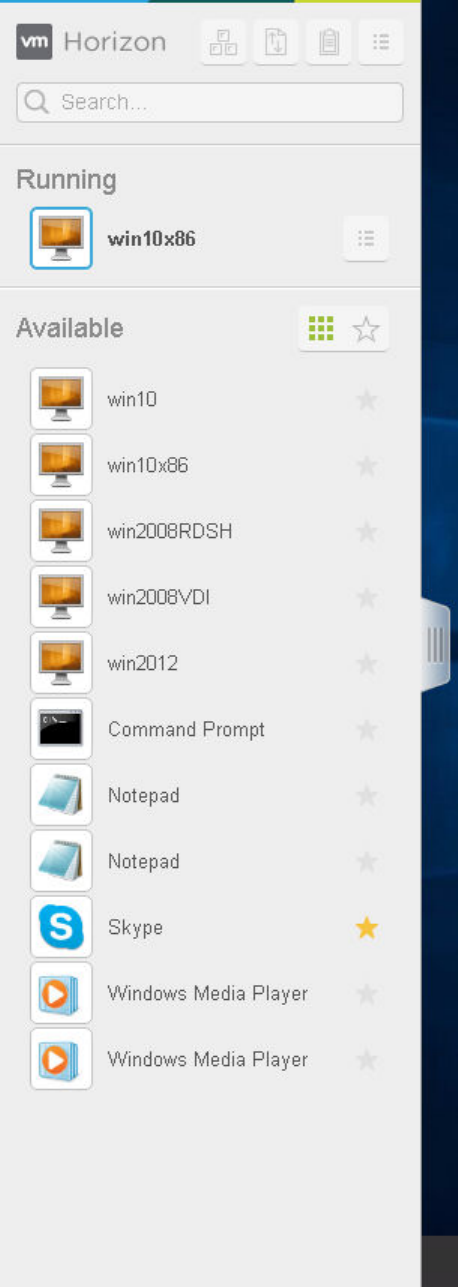
Figure 3‑1. Sidebar That Appears When You Launch a Remote Desktop or Application
Using HTML Access
38 VMware, Inc.
Click the expander arrow next to a running application to see the list of documents opened from that
application. Note, however, that if you have, for example, two Excel documents open from separate Excel
programs hosted on two dierent servers, the Excel application will be listed twice in Running list in the
sidebar.
From the sidebar, you can perform several actions.
Table 3‑7. Sidebar Actions
Action Procedure
Show the sidebar When you have a remote application or desktop open, click the sidebar tab. When
the sidebar is open, you can still perform actions in the application or desktop
window.
Hide the sidebar Click the sidebar tab.
Launch a remote application or
desktop
Click the name of an application or desktop under Available in the sidebar. The
desktops are listed rst.
Search for a remote application or
desktop
nClick in the Search box and begin typing the name of the application or
desktop.
nTo launch an application or desktop, click the name of the application or
desktop in the search results.
nTo return to the home view of the sidebar, tap the X in the search box.
Create a list of favorite applications
and desktops
Click the gray star next to the name of the desktop or application in the Available
list in the sidebar. You can then click the Show Favorites toolbar buon (star icon)
next to Available to display a list of only favorites.
Switch between applications or
desktops
Click the application le name or desktop name in the Running list in the sidebar.
Open the Copy & Paste panel Click the Copy & Paste buon at the top of the sidebar. Use this buon for
copying text to and from applications on your local client system. For more
information, see “Copying and Pasting Text,” on page 42. On iOS Safari, this
buon is not available because the copy and paste feature is not supported.
Open the File Transfer window Click the File Transfer buon at the top of the sidebar to download les from, or
upload les to, the remote desktop. For more information, see “Download Files
from a Desktop to the Client,” on page 44 and “Upload Files from the Client to a
Desktop,” on page 44.
Enable Command-A, Command-C,
Command-V, and Command-X
This option appears in the Seings window only if you are using a Mac. Click the
Open Menu toolbar buon at the top of the sidebar and then click . When
this feature is enabled, The Command key on the Mac is mapped to the Ctrl key
on the remote Windows desktop or application. For example, pressing Command-
A on a Mac keyboard will have the eect of pressing Ctrl+A on the remote
Windows desktop or application.
Close a running desktop Click the Open Menu buon next to the desktop name in the Running list in the
sidebar and select the action you want:
nSelect Close to disconnect from the desktop without logging o from its
operating system. Note, however, that your View administrator can congure
your desktop to automatically log o when disconnected. In that case,
unsaved changes in open applications will be lost.
nSelect Log to log o from the operating system and disconnect from the
desktop. Any unsaved changes in open applications will be lost.
Close a running application Click the X next to the le name under the application name in the Running list in
the sidebar. Click the X next to the application name to quit the application and
close all open les for that application.
You are prompted to save changes made to the les.
Reset a desktop Click the Open Menu buon next to the desktop name in the Running list in the
sidebar and select Reset. Any les that are open on the remote desktop will be
closed without being saved rst. You can reset a desktop only if your
administrator has enabled this feature.
Chapter 3 Using a Remote Desktop or Application
VMware, Inc. 39
Table 3‑7. Sidebar Actions (Continued)
Action Procedure
Restart a desktop Click the Open Menu buon next to the desktop name in the Running list in the
sidebar and select Restart. The desktop operating system usually prompts you to
save any unsaved data before it restarts. You can restart a desktop only if your
administrator has enabled this feature.
Reset all running applications Click the Open Menu toolbar buon at the top of the sidebar, click , and
click Reset all your running applications. All unsaved changes are lost.
Use key combinations that include
the Windows key
Click the Open Menu toolbar buon at the top of the sidebar, click , and
turn on Enable Windows Key for Desktops. For more information, see “Shortcut
Key Combinations,” on page 33.
Send Ctrl+Alt+Del to current work
area
Click the Send Ctrl+Alt+Del toolbar buon at the top of the sidebar.
Disconnect from the server Click the Open Menu toolbar buon at the top of the sidebar, or else click the
Horizon logo at the top of the sidebar, and click Log .
Use high-resolution mode on
machines with a high-resolution
display (such as Retina Macbook
Pro)
Click the Open Menu toolbar buon at the top of the sidebar, click , and
turn on High Resolution Mode.
Allow H.264 decoding (Chrome only) Click the Open Menu toolbar buon at the top of the sidebar, click
, and turn on Allow H.264 decoding. For more information, see “H.264
Decoding,” on page 37.
Use multiple monitors (Chrome version 55 or later only) Click the Open Menu toolbar buon at the top
of the sidebar and select Display . For more information, see “Use
Multiple Monitors,” on page 40
Call out or dismiss the soft
keyboard
(iOS Safari only) Click the keyboard icon at the top of the sidebar. You can also call
out or dismiss the soft keyboard by tapping the screen with three ngers.
Display help topics Click the Open Menu toolbar buon at the top of the sidebar, or else click the
Horizon logo at the top of the sidebar, and click Help.
Display the About VMware Horizon
box
Click the Open Menu toolbar buon at the top of the sidebar, or else click the
Horizon logo at the top of the sidebar, and click About.
Use Multiple Monitors
By using a Chrome browser (version 55 or later), you can use multiple monitors in HTML Access Web client
to display a remote desktop window.
You can add up to one additional monitor to your primary monitor to display the current remote desktop
window to which you are connected. For example, if you have three monitors, you can specify that the
remote desktop window appears on only two of those monitors. Adjacent monitors must be selected for the
multiple-monitor setup. The monitors can be positioned side by side or stacked vertically.
Beginning with HTML Access Web client 4. 5, the per device DPI synchronization is applied when the
multiple-monitor feature is enabled. If you are using two monitors that have dierent DPI seings, the DPI
seings on the HTML Access agent are set to the same DPI seing value used by the monitor of the client
machine that was used to start the HTML Access Web client session.
Procedure
1 Start Horizon Client and log in to a server.
2 In the desktop and application selection window, click the icon for the remote desktop that you want to
access.
3 To display the sidebar, click the sidebar tab.
Using HTML Access
40 VMware, Inc.

4 Click the Open Menu toolbar buon at the top of the sidebar, select Display .
5 In the Display Seings dialog box, click Add Display.
N If the Display Selector browser window does not appear, add your Horizon server's FQDN
address into the Pop-up exceptions section of your browser's Content window.
6 Drag the Display Selector window so that it appears in the other monitor display that you want to use.
The message in the Display Selector browser window changes and a gray rectangular icon is added.
7 In the Display Selector browser window, click the + monitor icon to conrm that you want to use the
current monitor display.
The Waiting for other displays message appears on the current monitor display and the gray monitor
icon in the Display seings window in your primary display changes to a green color.
8 Click OK in the Display Seings window when you are done adding the monitor displays that you
want to use for the session.
The Display Seings window is dismissed, the Waiting for other displays message is cleared in the
non-primary monitor display and displays the remote desktop window.
9 To exit the multiple displays mode, press Esc and click Yes in the Exit the multiple displays mode
dialog box to conrm.
N Each time you have to use the Esc key in the remote desktop, open the sidebar tab, click the
Open Menu toolbar buon at the top of the sidebar, and select Send ESC.
Using DPI Synchronization
The DPI Synchronization feature ensures that the remote desktop's DPI seing matches the client machine's
DPI seing for new remote sessions. When you start a new session, Horizon Agent sets the DPI value in the
remote desktop to match the DPI value of the client machine.
The DPI Synchronization feature cannot change the DPI seing for active remote sessions. If you reconnect
to an existing remote session, the Display Scaling feature scales the remote desktop or application
appropriately.
The DPI Synchronization feature is enabled when the High Resolution Mode seing is disabled in the
Seings window. Beginning with HTML Access version 4.5, if an administrator disables the Horizon Agent
DPI Synchronization group policy seing, the DPI Synchronization feature can be disabled, but the Display
Scaling feature cannot be disabled. You must log out and log in again to make any conguration changes
take eect. For more information, see the Conguring Remote Desktop Features in Horizon 7 document.
The DPI Synchronization feature requires Windows 7 or later for single-session desktops, Windows Server
2008 R2 or later for published desktops and applications on RDS hosts, Horizon Agent 7.0.2 or later, and
HTML Access version 4.4 or later.
Following are tips for using the DPI Synchronization feature:
nIf you change the DPI seing on the client machine, you must log out and log in again to make
Horizon Client aware of the new DPI seing on the client machine. This requirement applies even if the
client machine is running Windows 10.
nIf you start a remote session on a client machine that has a DPI seing of more than 100 percent, and
then use the same session on another client machine that has a dierent DPI seing of more than 100
percent, you must log out and log back in to the session on the second client machine to make DPI
synchronization work on the second client machine.
Chapter 3 Using a Remote Desktop or Application
VMware, Inc. 41

nAlthough Windows 10 and Windows 8.x machines support dierent DPI seings on dierent monitors,
the DPI Synchronization feature uses the DPI value that is set on the client machine's monitor in which
the Web browser used for launching the HTML Access client session is located. HTML Access does not
support dierent DPI seings in dierent monitors.
nIf an administrator changes the DPI Synchronization group policy seing value for Horizon Agent,
you must log out and log in again to make the new seing take eect.
nIf you want to sync up with another monitor with a dierent DPI seing, you must log out of the
remote desktop or application, drag the Web browser used for launching the HTML Access client
session to the other monitor, and log back in to the remote desktop or application to make the DPI
seings match between the client system and remote desktop or application.
Sound
You can play sound in your remote desktops and applications, but some limitations apply.
By default, sound playback is enabled for remote desktops and applications, although your View
administrator can set a policy to disable sound playback.
Take into account the following guidelines:
nTo turn up the volume, use the sound control on your client system, not the sound control in the remote
desktop or application.
nOccasionally, the sound might go out of sync with the video.
nIn conditions of heavy network trac, or if the browser is performing a lot of tasks (I/O), sound quality
might be reduced. Some browsers work beer than others in this regard.
Copying and Pasting Text
It is possible to copy text to and from remote desktops and applications. Your View administrator can set
this feature so that copy and paste operations are allowed only from your client system to a remote desktop
or application, or only from a remote desktop or application to your client system, or both, or neither.
Administrators congure the ability to copy and paste by using group policies that pertain to View Agent or
Horizon Agent in remote desktops. For more information, see “HTML Access Group Policy Seings,” on
page 26. Administrators can also use group policies to restrict clipboard formats during copy and paste
operations. Because HTML Access supports transferring only text in the clipboard, only the text lters work
with the HTML Access client. For information about using group policies to lter clipboard formats, see the
Conguring Remote Desktop Features in Horizon 7 document.
You can copy up to 1 MB of text, including any Unicode non-ASCII characters. You can copy text from your
client system to a remote desktop or application, or the reverse, but the pasted text is plain text.
You cannot copy and paste graphics. You also cannot copy and paste les between a remote desktop and the
le system on your client computer.
N The copy and paste feature is not supported on iOS Safari.
Use the Copy and Paste Feature
To copy and paste text, you must use the Copy & Paste buon located at the top of the sidebar.
This procedure describes how to use the Copy & Paste window to copy text from your local client system to
a remote application or how to copy text from a remote application to your local client system. If, however,
you are copying and pasting text between remote applications and desktops, you can simply copy and paste
as you normally would, and there is no need to use the Copy & Paste window.
Using HTML Access
42 VMware, Inc.
The Copy & Paste window, which you can open from the buon at the top of the HTML Access sidebar, is
required only for synchronizing the Clipboard on your local system with the Clipboard in the remote
machine.
The text in the Copy & Paste window displays one of the following messages to indicate in which direction
the user can copy and paste content.
nUse this panel to copy & paste content between your local client and remote
desktop/application.
nUse the panel to copy & paste content from your local client to remote desktop/application.
nUse the panel to copy & paste content from your remote desktop/application to local client.
Prerequisites
If you are using a Mac, verify that you have enabled the seing for mapping the Command key to the
Windows Ctrl key when using the key combinations to select, copy, and paste text. Click the Open
Window toolbar buon in the sidebar and turn on Enable Command-A, Command-C, Command-V, and
Command-X. (This option appears in the Seings window only if you are using a Mac.)
The View administrator must either leave the default policy in eect, which allows users to copy from client
systems and paste into their remote desktops and applications, or else the administrator must congure
another policy that allows copying and pasting. For more information, see “HTML Access Group Policy
Seings,” on page 26.
Procedure
nTo copy text from your client system to the remote desktop or application:
a Copy the text in local client application.
b In your browser, click the HTML Access sidebar tab to open the sidebar, and click Copy & Paste at
the top of the sidebar.
The Copy & Paste window appears. If previously copied text already appears in the window, that
text will be replaced when you paste in the newly copied text.
c Press Ctrl+V (or Command-V on Macs) to paste the text into the Copy & Paste window.
The following message appears briey: "Remote Clipboard Synced."
d Click in the remote application where you want to past the text and press Ctrl+V.
The text is pasted into the remote application.
nTo copy text from your remote desktop or application to your client system:
a Copy the text in your remote application.
b In your browser, click the HTML Access sidebar tab to open the sidebar, and click Copy & Paste at
the top of the sidebar.
The Copy & Paste window appears with the text already pasted in it. The following message
appears briey: "Remote Clipboard Synced."
c Click in the Copy & Paste window and press Ctrl+C (or Command-C on Macs) to copy again.
The text will not be selected when you do this action, and you cannot select the text. The following
message appears briey: "Copied from Clipboard Panel."
d On your client system, click where you want to paste the text and press Ctrl+V.
The text is pasted into the application on your client system.
Chapter 3 Using a Remote Desktop or Application
VMware, Inc. 43

Transferring Files Between the Client and a Remote Desktop
With the le transfer feature, you can transfer (upload and download) les between the client and a remote
desktop. File transfer to or from applications is not supported.
The Horizon administrator can congure the ability to allow, disallow, or allow in one direction only, the
transfer of les by modifying the transfer group policy seing for the VMware Blast protocol.
The default is upload only. If the Disabled both upload and download value is selected in the
transfer group policy seing for the VMware Blast protocol, the File Transfer buon is disabled. If
Enabled upload only value is selected, only the Upload tab is displayed in the Transfer Files dialog
window. If Enabled download only value is selected, only the Download tab is displayed in the
Transfer Files dialog window. For more information, see “HTML Access Group Policy Seings,” on page 26.
You can download a le up to 500 MB in size, and upload a le up to 2 GB in size. For 32-bit Internet
Explorer 11, downloading a le larger than 300 MB might not work. To resolve the issue, run Internet
Explorer 11 in 64-bit mode.
You cannot download or upload folders, or les that have a size of zero.
Safari on iOS and Safari 8 do not support upload or download. Safari 9 or later do not support download.
If le transfer is in progress in a desktop session and the user opens a connection to a second desktop, and if
a security warning is displayed (this can happen if no valid certicate was installed, for example), ignoring
the warning and continuing to connect to the second desktop will cause the le transfer in the rst desktop
session to abort. This is expected behavior.
N The ability to download is aected by the group policy seing for clipboard redirection. If clipboard
redirection is disabled from the server to the client, then le download is also disabled.
Download Files from a Desktop to the Client
With Horizon Client you can download les from a remote desktop to the client machine.
Procedure
1 Click the le transfer icon at the top of the sidebar.
The Transfer Files window opens.
2 Click Download.
3 Select one or more les on the remote desktop.
4 Press Ctrl+c to start the download.
5 After the download is complete, click the download icon to save the les on the client machine.
Upload Files from the Client to a Desktop
With Horizon Client you can upload les from the client machine to a remote desktop.
Procedure
1 Click the le transfer icon at the top of the sidebar.
The Transfer Files window opens.
2 Click Upload.
3 Drag and drop les into the Transfer Files window or click Choose Files to select les.
The selected les are uploaded to the My Documents folder.
Using HTML Access
44 VMware, Inc.

With Internet Explorer 11 and Chrome on ChromeBook, if you drag and drop folders, les of zero size,
or les larger than 2 GB, you get an error message as expected. After you dismiss the error message,
you can no longer drag and drop les that can be transferred.
Using the Real-Time Audio-Video Feature for Webcams and
Microphones
With the Real-Time Audio-Video feature, you can use your client machine's webcam or microphone in a
remote desktop or application. Real-Time Audio-Video is compatible with standard conferencing
applications and browser-based video applications, and supports standard webcams, audio USB devices,
and analog audio input.
Real-Time Audio-Video is supported only in Chrome, Microsoft Edge, and Firefox. The default video
resolution is 320 x 240. The default Real-Time Audio-Video seings work well with most webcam and audio
applications. For information about changing the Real-Time Audio-Video seings, see "Conguring Real-
Time Audio-Video Group Policy Seings" in the Conguring Remote Desktop Features in Horizon 7 document.
When a remote desktop or application is connected to the client machine's webcam or microphone, before
the remote desktop or application can use to the webcam or microphone, the browser might ask for
permission. Dierent browsers behave dierently.
nMicrosoft Edge asks for permission every time. You cannot change this behavior. For more information,
see hps://blogs.windows.com/msedgedev/2015/05/13/announcing-media-capture-functionality-in-
microsoft-edge.
nFirefox asks for permission every time. You can change this behavior. For more information, see
hps://support.mozilla.org/en-US/kb/permissions-manager-give-ability-store-passwords-set-cookies-
more?redirectlocale=en-US&redirectslug=how-do-i-manage-website-permissions.
nChrome asks for permission the rst time. If you allow the device to be used, Chrome does not ask for
permission again.
When a remote desktop is connected to the client machine's webcam or microphone, an icon for each device
appears at the top of the sidebar. A red question mark appears over the device icon in the sidebar to indicate
the permission request. If you allow a device to be used, the red question mark disappears. If you reject a
permission request, the device icon disappears.
If Real-Time Audio-Video is being used in a remote desktop or application session and you open a
connection to a second desktop or application, and if a security warning appears (for example, if a valid
certicate was not installed), ignoring the warning and continuing to connect to the second desktop or
application causes Real-Time Audio-Video to stop working in the rst session.
Log Off or Disconnect
With some congurations, if you disconnect from a remote desktop without logging o, applications in the
desktop can remain open. You can also disconnect from a server and leave remote applications running.
Procedure
nLog out of the server and disconnect from (but do not log out from) the desktop or quit the hosted
application.
Option Action
From the desktop and application
selector screen, before connecting
to a remote desktop or application
Click the Log Out toolbar buon in the upper-right corner of the screen.
From the sidebar when connected
to a remote desktop or application
Click the Log out toolbar buon at the top of the sidebar.
Chapter 3 Using a Remote Desktop or Application
VMware, Inc. 45
nClose a remote application.
Option Action
From within the application Quit the application in the usual manner, for example, click the X (Close)
buon in the corner of the application window.
From the sidebar Click the X next to the application le name in the Running list in the
sidebar.
nLog o or disconnect from a remote desktop.
Option Action
From within the desktop OS To log o, use the Windows Start menu to log o.
From the sidebar To log o and disconnect, click the Open Menu toolbar buon next to the
desktop name in the Running list in the sidebar and select Log . Files
that are open on the remote desktop will be closed without being saved
rst.
To disconnect without logging o, click the Open Menu toolbar buon
next to the desktop name in the Running list and select Close.
N Your View administrator can congure your desktop to
automatically log o when disconnected. In that case, any open
applications in your desktop are closed.
Using an URI To log o, use the URI https://ConnectionServerFQDN?
desktopId=desktop_name&action=logoff.
Reset a Remote Desktop or Remote Applications
You might need to reset a remote desktop if the desktop operating system stops responding and restarting
the remote desktop does not solve the problem. Reseing remote applications quits all open applications.
Reseing a remote desktop is the equivalent of pressing the Reset buon on a physical PC to force the PC to
restart. Any les that are open on the remote desktop are closed and are not saved.
Reseing remote applications is the equivalent of quiing the applications without saving any unsaved
data. All open remote applications are closed, even applications that come from dierent RDS server farms.
You can reset a remote desktop only if a Horizon administrator has enabled the desktop reset feature for the
desktop.
For information about enabling the desktop reset feature, see the Seing Up Virtual Desktops in Horizon 7 or
Seing Up Published Desktops and Applications in Horizon 7 document.
Procedure
uUse the Reset command.
Option Action
Reset remote applications from the
application selector screen
From the desktop and application selector screen, before connecting to a
remote desktop or remote application, to reset all running remote
applications, click the toolbar buon in the upper-right corner of
the screen, anc click Reset.
Reset a remote desktop from the
sidebar
When connected to a remote desktop, click the Open Menu toolbar buon
next to the desktop name in the Running list in the sidebar and select
Reset.
Reset remote applications from the
sidebar
To reset all running applications, click the Open Window toolbar
buon at the top of the sidebar, and click Reset.
Reset a remote desktop using an
URI
To reset a remote desktop, use the URI
https://ConnectionServerFQDN?
desktopId=desktop_name&action=reset.
Using HTML Access
46 VMware, Inc.

When you reset a remote desktop, the operating system in the remote desktop reboots and Horizon Client
disconnects and logs o from the desktop. When you reset remote applications, the applications quit.
What to do next
Wait an appropriate amount of time for system startup before aempting to reconnect to the remote desktop
or application.
Restart a Remote Desktop
You might need to restart a remote desktop if the desktop operating system stops responding. Restarting a
remote desktop is the equivalent of the Windows operating system restart command. The desktop operating
system usually prompts you to save any unsaved data before it restarts.
You can restart a remote desktop only if a Horizon administrator has enabled the desktop restart feature for
the desktop.
For information about enabling the desktop restart feature, see the Seing Up Virtual Desktops in Horizon 7 or
Seing Up Published Desktops and Applications in Horizon 7 document.
Procedure
uUse the Restart command.
Option Action
From the sidebar When connected to a remote desktop, click the Open Menu toolbar buon
next to the desktop name in the Running list in the sidebar and select
Restart.
Using a URI To restart a desktop, use the URI https://ConnectionServerFQDN?
desktopId=desktop_name&action=restart.
The operating system in the remote desktop reboots and Horizon Client disconnects and logs o from the
desktop.
What to do next
Wait an appropriate amount of time for system startup before you aempt to reconnect to the remote
desktop.
If restarting the remote desktop does not solve the problem, you might need to reset the remote desktop. See
“Reset a Remote Desktop or Remote Applications,” on page 46.
Chapter 3 Using a Remote Desktop or Application
VMware, Inc. 47
Using HTML Access
48 VMware, Inc.
Index
B
Blast Agent 11
C
certificates, setting the thumbprint in the
Windows registry 15
cipher suites, configuring for HTML Access
Agents 16
clearing credentials cache 11
configuration settings 19
copy text 42
copying text 42
Ctrl+Alt+Delete 33
customer experience program, desktop pool
data 17
D
desktop
log off from 45
reset 46
disconnecting from a remote desktop 45
download files from a desktop to the client 44
downloading files 44
DPI synchronization 41
F
feature support matrix 28
firewall rules, HTML Access 10
H
H.264 Decoding 37
Horizon Client, disconnect from a desktop 45
Horizon View HTML Access 5
HTML Access
configuring group policies 26
installing Horizon Client on 7
upgrading 17
HTML Access Agent
configuring cipher suites 16
configuring SSL certificates 13
importing a certificate 14
HTML Access page 19
HTML Access Web client 5
I
IME (input method editor) 36
installation 7
intermediate certificates, importing into the
Windows store 15
iOS, configuring to use CA-signed
certificates 16
K
keyboards 36
L
log off 45
logging in 29
M
MMC, adding the Certificate snap-in 13
monitors 36
multiple monitors 40
P
paste text 42
pasting text 42
R
real-time audio-video 45
remote desktop 27
reset desktop 46
restart desktop 47
root certificate, importing into the Windows
store 15
S
screen resolution 36
security servers 9
self-signed security certificates 31
Send Ctrl+Alt+Del menu command 33
setup 7
shortcut key combinations 33
sidebar 37
sound playback 42
SSL certificates, configuring for HTML Access
Agents 13
system requirements, for HTML Access 7
T
TCP ports, HTML Access 10
text, copying 42
VMware, Inc. 49
time zone 37
transferring files 44
U
Unauthenticated AccessUnauthenticated
Access 32
uninstall HTML Access 17
upload files from a desktop to the client 44
uploading files 44
URI examples 24
URI syntax for HTML Access web clients 22
URIs (uniform resource identifiers) 22
V
video RAM 36
W
Web client, system requirements for HTML
Access 7
Web Portal 19
webcam 45
Windows Certificate Store, importing a certificate
for the HTML Access Agent 14
Workspace ONE 31
Using HTML Access
50 VMware, Inc.
