Vmware Site Recovery Manager Installation And Configuration VCenter 5.5 V Center Upgrade Srm Install Config 5
User Manual: vmware vCenter Site Recovery Manager - 5.5 - Installation and Upgrade Free User Guide for VMware vCenter Software, Manual
Open the PDF directly: View PDF  .
.
Page Count: 108 [warning: Documents this large are best viewed by clicking the View PDF Link!]
- Site Recovery Manager Installation and Configuration
- Contents
- About Site Recovery Manager Installation and Configuration
- Overview of VMware vCenter Site Recovery Manager
- Site Recovery Manager System Requirements
- Creating the SRM Database
- SRM Authentication
- Installing SRM
- Upgrading SRM
- Configuring Array-Based Protection
- Installing vSphere Replication
- Deploy the vSphere Replication Appliance
- Configure vSphere Replication Connections
- Reconfigure the vSphere Replication Appliance
- Reconfigure General vSphere Replication Settings
- Change the SSL Certificate of the vSphere Replication Appliance
- Change the Password of the vSphere Replication Appliance
- Change Keystore and Truststore Passwords of the vSphere Replication Appliance
- Configure vSphere Replication Network Settings
- Configure vSphere Replication System Settings
- Reconfigure vSphere Replication to Use an External Database
- Use the Embedded vSphere Replication Database
- Deploy an Additional vSphere Replication Server
- Register an Additional vSphere Replication Server
- Reconfigure vSphere Replication Server Settings
- Unregister and Remove a vSphere Replication Server
- Uninstall vSphere Replication
- Unregister vSphere Replication from vCenter Server if the Appliance Was Deleted
- Upgrading vSphere Replication
- Creating SRM Placeholders and Mappings
- Installing SRM to Use with a Shared Recovery Site
- Limitations of Using SRM in Shared Recovery Site Configuration
- SRM Licenses in a Shared Recovery Site Configuration
- Install SRM In a Shared Recovery Site Configuration
- Install SRM Server on Multiple Protected Sites to Use with a Shared Recovery Site
- Install Multiple SRM Server Instances on a Shared Recovery Site
- Install the SRM Client Plug-In In a Shared Recovery Site Configuration
- Connect to SRM in a Shared Recovery Site Configuration
- Connect the SRM Sites in a Shared Recovery Site Configuration
- Configure Placeholders and Mappings in a Shared Recovery Site Configuration
- Use Array-Based Replication in a Shared Recovery Site Configuration
- Use vSphere Replication in a Shared Recovery Site Configuration
- Troubleshooting SRM Installation and Configuration
- Cannot Restore SQL Database to a 32-Bit Target Virtual Machine During SRM Upgrade
- SRM Server Does Not Start
- vSphere Client Cannot Connect to SRM
- Site Pairing Fails Because of Different Certificate Trust Methods
- Error at vService Bindings When Deploying the vSphere Replication Appliance
- OVF Package is Invalid and Cannot be Deployed
- vSphere Replication Appliance or vSphere Replication Server Does Not Deploy from the SRM Interface
- Connection Errors Between vSphere Replication and SQL Server Cannot be Resolved
- 404 Error Message when Attempting to Pair vSphere Replication Appliances
- vSphere Replication Service Fails with Unresolved Host Error
- Increase the Memory of the vSphere Replication Server for Large Deployments
- vSphere Replication Appliance Extension Cannot Be Deleted
- Uploading a Valid Certificate to vSphere Replication Results in a Warning
- vSphere Replication Status Shows as Disconnected
- vSphere Replication Server Registration Takes Several Minutes
- vSphere Replication is Inaccessible After Changing vCenter Server Certificate
- Index

Site Recovery Manager Installation and
Configuration
vCenter Site Recovery Manager 5.5
This document supports the version of each product listed and
supports all subsequent versions until the document is
replaced by a new edition. To check for more recent editions
of this document, see http://www.vmware.com/support/pubs.
EN-001111-00
Site Recovery Manager Installation and Configuration
2 VMware, Inc.
You can find the most up-to-date technical documentation on the VMware Web site at:
http://www.vmware.com/support/
The VMware Web site also provides the latest product updates.
If you have comments about this documentation, submit your feedback to:
docfeedback@vmware.com
Copyright © 2008–2013 VMware, Inc. All rights reserved. This product is protected by U.S. and international copyright and
intellectual property laws. VMware products are covered by one or more patents listed at
http://www.vmware.com/go/patents.
VMware is a registered trademark or trademark of VMware, Inc. in the United States and other jurisdictions. All other marks
and names mentioned herein may be trademarks of their respective companies.
VMware, Inc.
3401 Hillview Ave.
Palo Alto, CA 94304
www.vmware.com
Contents
About Site Recovery Manager Installation and Configuration 7
1Overview of VMware vCenter Site Recovery Manager 9
About Protected Sites and Recovery Sites 10
Using Array-Based Replication with SRM 12
Using vSphere Replication with SRM 13
Using Array-Based Replication and vSphere Replication with SRM 17
SRM and vCenter Server 18
2Site Recovery Manager System Requirements 21
SRM Licensing 21
SRM Network Ports 22
Operational Limits of SRM 22
3Creating the SRM Database 23
Configure Microsoft SQL Server for SRM 23
Configure Oracle Server for SRM 24
Create an ODBC System DSN for SRM 24
4SRM Authentication 27
Requirements When Using Public Key Certificates with SRM 28
5Installing SRM 29
Install the SRM Server 29
Install the SRM Client Plug-In 32
Connect to SRM 33
Connect the Protected and Recovery Sites 33
Install the SRM License Key 34
Modify the Installation of an SRM Server 35
Repair the Installation of an SRM Server 36
6Upgrading SRM 39
Information That SRM Upgrade Preserves 39
Types of Upgrade that SRM Supports 40
Order of Upgrading vSphere and SRM Components 40
Upgrade SRM 41
Revert to a Previous Release of SRM 47
7Configuring Array-Based Protection 49
Install Storage Replication Adapters 49
Configure Array Managers 50
VMware, Inc. 3
Rescan Arrays to Detect Configuration Changes 51
Edit Array Managers 51
8Installing vSphere Replication 53
Deploy the vSphere Replication Virtual Appliance 54
Configure vSphere Replication Connections 55
Reconfigure the vSphere Replication Appliance 56
Deploy an Additional vSphere Replication Server 67
Register an Additional vSphere Replication Server 68
Reconfigure vSphere Replication Server Settings 68
Unregister and Remove a vSphere Replication Server 69
Uninstall vSphere Replication 70
Unregister vSphere Replication from vCenter Server if the Appliance Was Deleted 70
9Upgrading vSphere Replication 73
Upgrade vSphere Replication 74
10 Creating SRM Placeholders and Mappings 79
About Placeholder Virtual Machines 79
About Inventory Mappings 80
About Placeholder Datastores 81
Configure Datastore Mappings for vSphere Replication 82
11 Installing SRM to Use with a Shared Recovery Site 83
Limitations of Using SRM in Shared Recovery Site Configuration 85
SRM Licenses in a Shared Recovery Site Configuration 85
Install SRM In a Shared Recovery Site Configuration 86
Use Array-Based Replication in a Shared Recovery Site Configuration 91
Use vSphere Replication in a Shared Recovery Site Configuration 92
12 Troubleshooting SRM Installation and Configuration 95
Cannot Restore SQL Database to a 32-Bit Target Virtual Machine During SRM Upgrade 96
SRM Server Does Not Start 97
vSphere Client Cannot Connect to SRM 98
Site Pairing Fails Because of Different Certificate Trust Methods 99
Error at vService Bindings When Deploying the vSphere Replication Appliance 99
OVF Package is Invalid and Cannot be Deployed 100
vSphere Replication Appliance or vSphere Replication Server Does Not Deploy from the SRM
Interface 100
Connection Errors Between vSphere Replication and SQL Server Cannot be Resolved 100
404 Error Message when Attempting to Pair vSphere Replication Appliances 101
vSphere Replication Service Fails with Unresolved Host Error 102
Increase the Memory of the vSphere Replication Server for Large Deployments 102
vSphere Replication Appliance Extension Cannot Be Deleted 102
Uploading a Valid Certificate to vSphere Replication Results in a Warning 103
vSphere Replication Status Shows as Disconnected 103
vSphere Replication Server Registration Takes Several Minutes 103
vSphere Replication is Inaccessible After Changing vCenter Server Certificate 104
Site Recovery Manager Installation and Configuration
4 VMware, Inc.
Site Recovery Manager Installation and Configuration
6 VMware, Inc.

About Site Recovery Manager Installation and
Configuration
Site Recovery Manager Installation and Configuration provides information about how to install, upgrade, and
configure VMware vCenter Site Recovery Manager.
This information also provides a general overview of Site Recovery Manager.
For information about how to perform day-to-day administration of Site Recovery Manager, see Site
Recovery Manager Administration.
Intended Audience
This information is intended for anyone who wants to install, upgrade, or configure Site Recovery Manager.
The information is written for experienced Windows or Linux system administrators who are familiar with
virtual machine technology and datacenter operations.
VMware, Inc. 7
Site Recovery Manager Installation and Configuration
8 VMware, Inc.

Overview of
VMware vCenter Site Recovery
Manager 1
VMware vCenter Site Recovery Manager (SRM) is a business continuity and disaster recovery solution that
helps you to plan, test, and run the recovery of virtual machines between a protected vCenter Server site
and a recovery vCenter Server site.
You can configure SRM to work with several third-party disk replication mechanisms by configuring array-
based replication. Array-based replication surfaces replicated datastores to recover virtual machine
workloads. You can also use host-based replication by configuring SRM to use VMware vSphere Replication
to protect virtual machine workloads.
You can use SRM to implement different types of recovery from the protected site to the recovery site.
Planned Migration The orderly evacuation of virtual machines from the protected site to the
recovery site. Planned Migration prevents data loss when migrating
workloads in an orderly fashion. For planned migration to succeed, both
sites must be running and fully functioning.
Disaster Recovery Similar to planned migration except that disaster recovery does not require
that both sites be up and running, for example if the protected site goes
offline unexpectedly. During a disaster recovery operation, failure of
operations on the protected site are reported but otherwise ignored.
SRM orchestrates the recovery process with the replication mechanisms, to minimize data loss and system
down time.
nAt the protected site, SRM shuts down virtual machines cleanly, if the protected site is still running.
nSRM powers on the replicated virtual machines at the recovery site according to a recovery plan.
A recovery plan specifies the order in which virtual machines start up on the recovery site. A recovery plan
specifies network parameters, such as IP addresses, and can contain user-specified scripts that SRM can run
to perform custom recovery actions.
SRM lets you test recovery plans. You conduct tests by using a temporary copy of the replicated data in a
way that does not disrupt ongoing operations at either site.
nAbout Protected Sites and Recovery Sites on page 10
In a typical SRM installation, the protected site provides business-critical datacenter services. The
recovery site is an alternative facility to which SRM can migrate these services.
nUsing Array-Based Replication with SRM on page 12
When you use array-based replication, one or more storage arrays at the protected site replicate data
to peer arrays at the recovery site. With storage replication adapters (SRAs), you can integrate SRM
with a wide variety of arrays.
VMware, Inc. 9
nUsing vSphere Replication with SRM on page 13
SRM can use vSphere Replication to replicate data to servers at the recovery site.
nUsing Array-Based Replication and vSphere Replication with SRM on page 17
You can use a combination of array-based replication and vSphere Replication in your SRM
deployment.
nSRM and vCenter Server on page 18
SRM Server operates as an extension to the vCenter Server at a site. Because the SRM Server depends
on vCenter Server for some services, you must install and configure vCenter Server at a site before you
install SRM.
About Protected Sites and Recovery Sites
In a typical SRM installation, the protected site provides business-critical datacenter services. The recovery
site is an alternative facility to which SRM can migrate these services.
The protected site can be any site where vCenter Server supports a critical business need. The recovery site
can be located thousands of miles away from the protected site. Conversely, the recovery site can be in the
same room as a way of establishing redundancy. The recovery site is usually located in a facility that is
unlikely to be affected by environmental, infrastructure, or other disturbances that affect the protected site.
The vSphere configurations at each site must meet requirements for SRM.
nEach site must have at least one datacenter.
nIf you are using array-based replication, identical replication technologies must be available at both
sites and the sites must be paired.
nThe recovery site must have hardware, network, and storage resources that can support the same
virtual machines and workloads as the protected site. You can oversubscribe the recovery site by
running additional virtual machines there that are not protected. In this case, during a recovery you
must suspend non-critical virtual machines on the recovery site.
nThe sites must be connected by a reliable IP network. If you are using array-based replication, ensure
that your network connectivity meets the arrays' network requirements.
nThe recovery site should have access to comparable public and private networks as the protected site,
although not necessarily the same range of network addresses.
Pairing the Protected and Recovery Sites
You must pair the protected and recovery sites before you can use SRM.
SRM includes a wizard that guides you through the site-pairing process. You must establish a connection
between the sites and you must provide authentication information for the two sites so that they can
exchange information. Site pairing requires vSphere administrative privileges at both sites. To begin the site-
pairing process, you must know the user name and password of a vSphere administrator at each site. If you
are using vSphere Replication, you must pair the vSphere Replication appliances.
Site Recovery Manager Installation and Configuration
10 VMware, Inc.
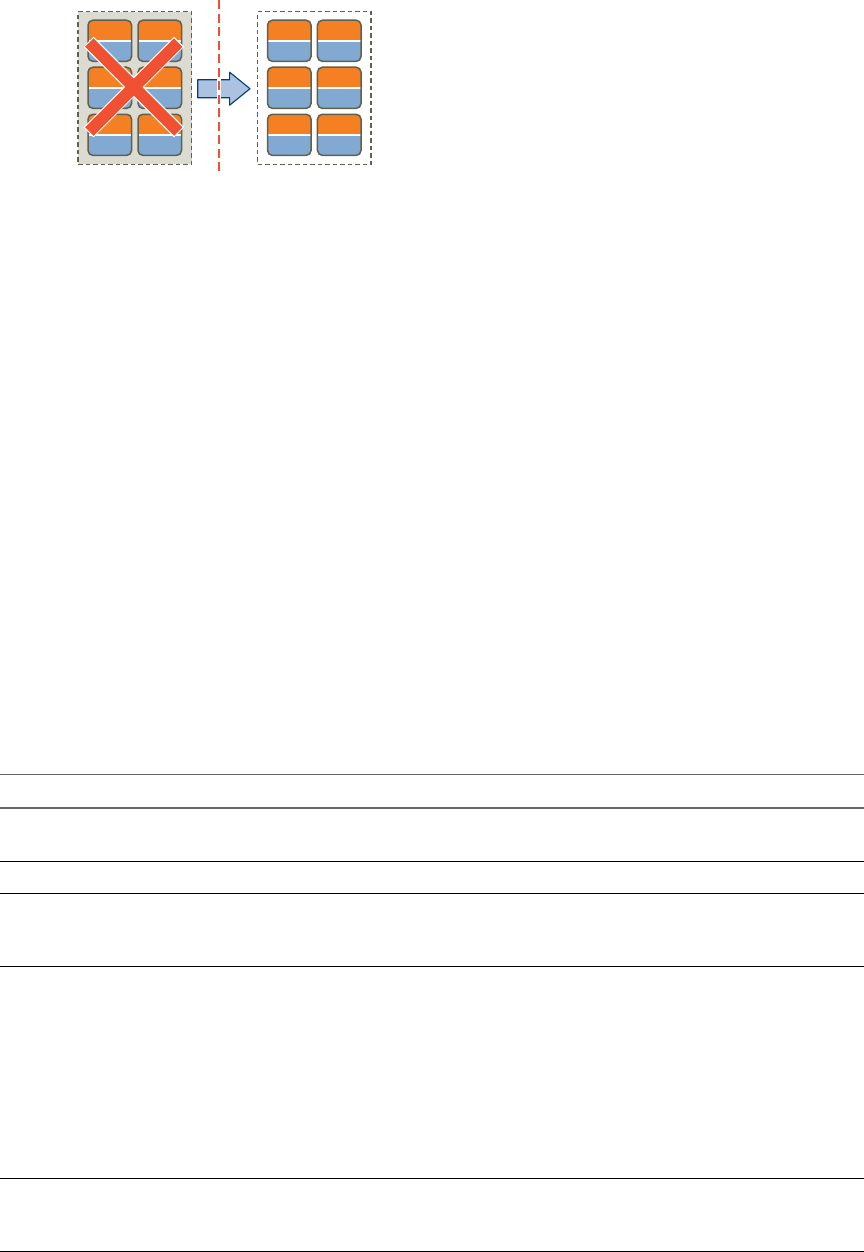
Figure 1‑1. SRM Site Pairing and Recovery Process
apps
OS
apps
OS
apps
OS
apps
OS
apps
OS
apps
OS
Site A
Protected
site goes
offline
Replica
virtual
machines
power on
Virtual machines replicate from site A to site B
Site B
apps
OS
apps
OS
apps
OS
apps
OS
apps
OS
apps
OS
Protection group
Bidirectional Protection
You can use a single set of paired SRM sites to protect virtual machines in both directions. Each site can
simultaneously be a protected site and a recovery site, but for a different set of virtual machines.
You can implement bidirectional protection by using either array-based replication or vSphere Replication.
If you are using array-based replication, each of the array’s LUNs replicates in only one direction. Two
LUNs in paired arrays can replicate in different directions from each other.
For information about the numbers of virtual machines for which you can establish bidirectional protection
between two sites, see http://kb.vmware.com/kb/2034768.
Heterogeneous Configurations on the Protected and Recovery Sites
The configurations of the SRM and vCenter Server installations can be different on each of the protected and
recovery sites.
Some components in the SRM and vCenter Server installations must be identical on each site. Because the
protected and recovery sites are often in different physical locations, some components on the protected site
can be of a different type to their counterparts on the recovery site.
Although components can be different on each site, you must use the types and versions of these
components that SRM supports. See the Site Recovery Manager Compatibility Matrixes for information.
Table 1‑1. Heterogeneity of SRM Components Between Sites
Component Heterogeneous or Identical Installations
SRM Server Must be the same version on both sites. The SRM version
must be the same as the vCenter Server version.
vCenter Server Must be the same version on both sites.
vSphere Replication Must be the same version on both sites. The
vSphere Replication version must be the same as the SRM
version and the vCenter Server version.
Authentication method Must be the same on both sites. If you use autogenerated
certificates to authenticate between the SRM Server
instances on each site, you must use autogenerated
certificates on both sites. If you use custom certificates that
are signed by a certificate authentication service, you must
use such certificates on both sites. Similarly, the
authentication method that you use between SRM Server
and vCenter Server must be the same on both sites. If you
use different authentication methods on each site, site
pairing fails.
vCenter Server Appliance or standard vCenter Server
instance
Can be different on each site. You can run a vCenter Server
Appliance on one site and a standard vCenter Server
instance on the other site.
Chapter 1 Overview of VMware vCenter Site Recovery Manager
VMware, Inc. 11
Table 1‑1. Heterogeneity of SRM Components Between Sites (Continued)
Component Heterogeneous or Identical Installations
Storage arrays for array-based replication Can be different on each site. You can use different
versions of the same type of storage array on each site, or
different types of storage array. The SRM Server instance
on each site requires the appropriate storage replication
adapter (SRA) for each type or version of storage array for
that site. Check SRA compatibility with all versions of
storage array to ensure compatibility.
SRM database Can be different on each site. You can use different
versions of the same type of database on each site, or
different types of database on each site.
Host operating system of the SRM Server installation Can be different on each site. You can run different
versions of the host operating system and the host
operating system can run in different locales on each site.
Host operating system of the vCenter Server installation Can be different on each site. You can run different
versions of the host operating system and the host
operating system can run in different locales on each site.
Example: Heterogenous Configurations on the Protected and Recovery Sites
The SRM and vCenter Server installations might be in different countries, with different setups.
nSite A in Japan:
nSRM Server runs on Windows Server 2008 in the Japanese locale
nSRM extends a vCenter Server Appliance instance
nSRM Server uses an SQL Server database
nSite B in the United States:
nSRM Server runs on Windows Server 2012 in the English locale
nSRM extends a standard vCenter Server instance that runs on Windows Server 2008 in the English
locale
nSRM Server uses an Oracle Server database
Using Array-Based Replication with SRM
When you use array-based replication, one or more storage arrays at the protected site replicate data to peer
arrays at the recovery site. With storage replication adapters (SRAs), you can integrate SRM with a wide
variety of arrays.
To use array-based replication with SRM, you must configure replication first before you can configure SRM
to use it.
If your storage array supports consistency groups, SRM is compatible with vSphere Storage DRS and
vSphere Storage vMotion. You can use Storage DRS and Storage vMotion to move virtual machine files
within a consistency group that SRM protects. If your storage array does not support consistency groups,
you cannot use Storage DRS and Storage vMotion in combination with SRM.
You can protect virtual machines that contain disks that use VMware Virtual Flash storage. Since the host to
which a virtual machine recovers might not be configured for Virtual Flash, SRM disables Virtual Flash on
disks when it starts the virtual machines on the recovery site. After the recovery, you can migrate the virtual
machine to a host with Virtual Flash storage and manually restore the original Virtual Flash setting on the
virtual machine.
Site Recovery Manager Installation and Configuration
12 VMware, Inc.
Storage Replication Adapters
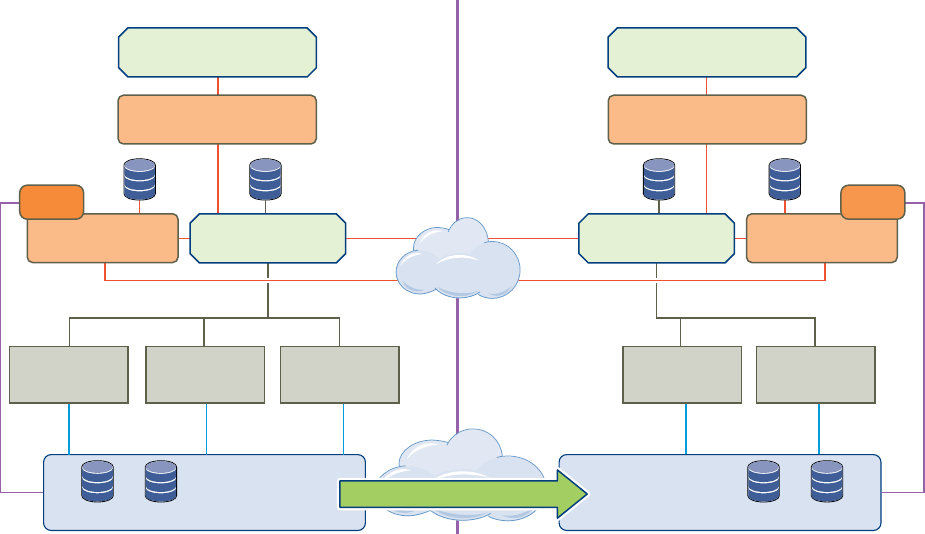
Storage replication adapters are not part of an SRM release. Your array vendor develops and supports them.
You can download storage replication adapters by going to
https://my.vmware.com/web/vmware/downloads and selecting VMware vCenter Site Recovery Manager >
View Components > Go to Downloads. VMware does not support SRAs that you download from other
sites. You must install an SRA specific to each array that you use with SRM on the SRM Server host. SRM
supports the use of multiple SRAs.
Figure 1‑2. SRM Architecture with Array-Based Replication
ESXi
Server
ESXi
Server
SRM plug-in
vSphere Client
Protected Site
SRM plug-in
vSphere Client
Recovery Site
ESXi
Server
ESXi
Server
vCenter Server
VMFS VMFS
Storage
VMFS
VMFS
Storage
ESXi
Server
SRM Server SRM Server
SRA
vCenter Server
SRA
Array based replication
Using vSphere Replication with SRM
SRM can use vSphere Replication to replicate data to servers at the recovery site.
You deploy vSphere Replication as a virtual appliance. The vSphere Replication appliance contains two
components.
nA vSphere Replication management server:
nConfigures the vSphere Replication server on the recovery site.
nEnables replication from the protected site.
nAuthenticates users and checks their permissions to perform vSphere Replication operations.
nManages and monitors the replication infrastructure.
nA vSphere Replication server:
nListens for virtual machine updates from the vSphere Replication host agent on the protected site.
nApplies the updates to the virtual disks on the recovery site.
If necessary, you can deploy multiple vSphere Replication servers on a site to balance the replication load
across your virtual infrastructure.
Chapter 1 Overview of VMware vCenter Site Recovery Manager
VMware, Inc. 13
For information about the loads that a vSphere Replication management server and a vSphere Replication
server can support, see http://kb.vmware.com/kb/2034768.
vSphere Replication does not require storage arrays. The vSphere Replication storage replication source and
target can be any storage device, including, but not limited to, storage arrays. You can use Virtual SAN
(VSAN) storage with vSphere Replication.
NOTE vSphere 5.5 includes Virtual SAN as an experimental feature. You can perform testing with Virtual
SAN, but it is not supported for use in a production environment. See the release notes for this release for
information about how to enable Virtual SAN.
You can configure vSphere Replication to regularly create and retain snapshots of protected virtual
machines on the recovery site. Taking multiple point-in-time (MPIT) snapshots of virtual machines allows
you to retain more than one replica of a virtual machine on the recovery site. Each snapshot reflects the state
of the virtual machine at a certain point in time. You can select which snapshot to recover when you use
vSphere Replication to perform a recovery.
vSphere Replication is compatible with vSphere Storage vMotion and vSphere Storage DRS on the protected
site. You can use Storage vMotion and Storage DRS to move the disk files of a virtual machine that
vSphere Replication protects, with no impact on replication.
Figure 1‑3. SRM Architecture with vSphere Replication
SRM plug-in
vSphere Client
Protected Site
SRM plug-in
vSphere Client
Recovery Site
ESXi
Server
VR Agent
ESXi
Server
VR Agent
vCenter Server
VMFS VMFS
Storage
VMFS
VMFS
Storage
ESXi
Server
VR Agent
SRM Server
VR Appliance
Network
File Copy
ESXi
SRM Server
Additional
VR Server
Network
File Copy
ESXi
VR Appliance
vSphere replication
vCenter Server
Site Recovery Manager Installation and Configuration
14 VMware, Inc.

How vSphere Replication Works
With vSphere Replication, you can configure replication of a virtual machine from a source site to a target
site, monitor and manage the status of the replication, and recover the virtual machine at the target site.
When you configure a virtual machine for replication, the vSphere Replication agent sends changed blocks
in the virtual machine disks from the source site to the target site, where they are applied to the copy of the
virtual machine. This process occurs independently of the storage layer. vSphere Replication performs an
initial full synchronization of the source virtual machine and its replica copy. You can use replication seeds
to reduce the amount of time and bandwidth required for the initial replication.
During replication configuration, you can set a recovery point objective (RPO) and enable retention of
instances from multiple points in time (MPIT).
As administrator, you can monitor and manage the status of the replication. You can view information for
incoming and outgoing replications, source and target site status, replication issues, and for warnings and
errors.
vSphere Replication stores replication configuration data in its embedded database. You can also configure
vSphere Replication to use an external database.
Contents of the vSphere Replication Appliance
The vSphere Replication appliance provides all the components that vSphere Replication requires.
nAn embedded database that stores replication configuration and management information.
nA vSphere Replication Management Server and a vSphere Replication Server that provide the core of
the vSphere Replication infrastructure.
You can use vSphere Replication immediately after you deploy the appliance. The vSphere Replication
appliance provides a virtual appliance management interface (VAMI) that you can use to reconfigure the
appliance after deployment, if necessary. For example, you can use the VAMI to change the appliance
security settings, change the network settings, or configure an external database. You can deploy additional
vSphere Replication Servers using a separate .ovf package.
Compatibility of vSphere Replication with Other vSphere Features
vSphere Replication is compatible with certain other vSphere management features.
You can safely use vSphere Replication in combination with certain vSphere features, such as vSphere
vMotion. Some other vSphere features, for example vSphere Distributed Power Management, require
special configuration for use with vSphere Replication.
Table 1‑2. Compatibility of vSphere Replication with Other vSphere Features
vSphere Feature
Compatible with
vSphere Replication Description
vSphere vMotion Yes You can migrate replicated virtual machines by using vMotion.
Replication continues at the defined recovery point objective (RPO) after
the migration is finished.
vSphere Storage
vMotion
Yes You can move the disk files of a replicated virtual machine on the source
site using Storage vMotion with no impact on the ongoing replication.
vSphere High
Availability
Yes You can protect a replicated virtual machine by using HA. Replication
continues at the defined RPO after HA restarts a virtual machine.
vSphere Replication does not perform any special HA handling. You can
protect the vSphere Replication appliance itself by using HA.
Chapter 1 Overview of VMware vCenter Site Recovery Manager
VMware, Inc. 15

Table 1‑2. Compatibility of vSphere Replication with Other vSphere Features (Continued)
vSphere Feature
Compatible with
vSphere Replication Description
vSphere Fault
Tolerance
No vSphere Replication cannot replicate virtual machines that have fault
tolerance enabled. You cannot protect the vSphere Replication appliance
itself with FT.
vSphere DRS Yes Replication continues at the defined RPO after resource redistribution is
finished.
vSphere Storage
DRS
Yes You can move the disk files of a replicated virtual machine on the source
site using Storage DRS with no impact on the ongoing replication.
VMware Virtual
SAN datastore
Experimental You can use VMware Virtual SAN datastores as a target datastore when
configuring replications. See “Using vSphere Replication with Virtual
SAN Storage,” on page 16.
NOTE vSphere 5.5 includes Virtual SAN as an experimental feature. You
can perform testing with Virtual SAN, but it is not supported for use in a
production environment. See the release notes for this release for
information about how to enable Virtual SAN.
vSphere
Distributed
Power
Management
Yes vSphere Replication coexists with DPM on the source site.
vSphere Replication does not perform any special DPM handling on the
source site. Disable DPM on the target site to allow enough hosts as
replication targets.
VMware vSphere
Flash Read Cache
Yes You can replicate virtual machines that contain disks that use VMware
vSphere Flash Read Cache storage. Since the host to which a virtual
machine recovers might not be configured for Flash Read Cache,
vSphere Replication disables Flash Read Cache on disks when it starts
the virtual machines on the target site. After the recovery, you can
migrate the virtual machine to a host with Flash Read Cache storage and
restore the original Flash Read Cache setting on the virtual machine.
vCloud APIs Not applicable No interaction with vSphere Replication.
vCenter
Chargeback
Not applicable No interaction with vSphere Replication
VMware Data
Recovery
Not applicable No interaction with vSphere Replication.
Using vSphere Replication with Virtual SAN Storage
You can use VMware Virtual SAN datastores as a target datastore when configuring replications.
NOTE vSphere 5.5 includes Virtual SAN as an experimental feature. You can perform testing with Virtual
SAN, but it is not supported for use in a production environment. See the release notes for this release for
information about how to enable Virtual SAN.
vSphere Replication does not support replicating or recovering virtual machines to the root folders with
user-friendly names on Virtual SAN datastores. These names can change, which causes replication errors.
When selecting Virtual SAN datastores, always select folders with UUID names, which do not change.
Configuring Replications
When configuring replications for a single virtual machine, vSphere Replication creates the destination
folder that you choose, obtains the UUID reference for that folder, and then uses the UUID name rather than
the user-friendly name. The UUID name is visible when vSphere Replication displays the target folders
when reconfiguring replications.
When configuring replication for multiple virtual machines using the multi-VM wizard, create a root folder
in the vSAN datastore, obtain its UUID name and use this folder by the UUID in the replication wizard.
Site Recovery Manager Installation and Configuration
16 VMware, Inc.

Configuring Replications by Using Replication Seeds
When copying replication seed files to the target datastore, you can use the vSphere Web Client to create a
new root folder on a virtual SAN datastore, or place the files in an existing folder. When you configure
replications that use replication seeds, you must select the folder by using its UUID name. Selecting the
user-friendly folder names is not supported.
Reconfiguring Replications
If you want to change the destination folder for a disk or the virtual machine config files, you must use the
following options:
nSelect the UUID name of an existing folder.
nAllow vSphere Replication to create a new folder and obtain its UUID name.
Using Array-Based Replication and vSphere Replication with SRM
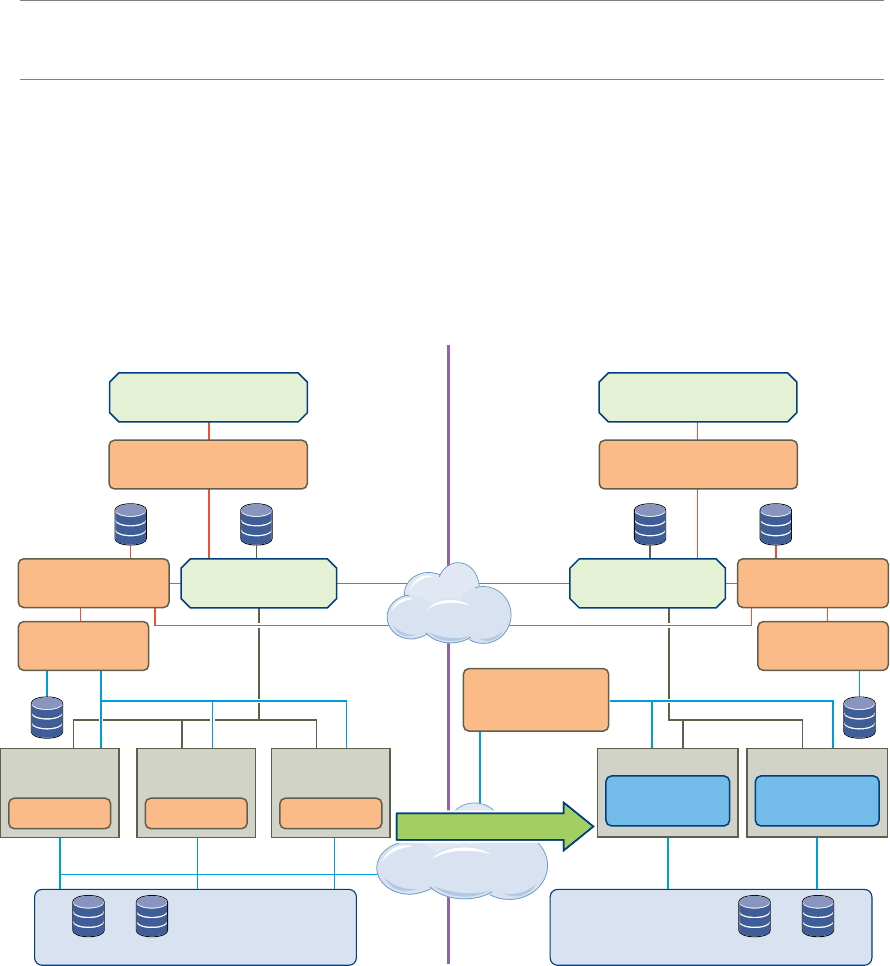
You can use a combination of array-based replication and vSphere Replication in your SRM deployment.
To create a mixed SRM deployment that uses array-based replication and vSphere Replication, you must
configure the protected and recovery sites for both types of replication.
nSet up and connect the storage arrays and install the appropriate storage replication adapters (SRA) on
both sites.
nDeploy vSphere Replication appliances on both sites and configure the connection between the
appliances.
nConfigure virtual machines for replication using either array-based replication or vSphere Replication,
as appropriate.
NOTE Do not attempt to configure vSphere Replication on a virtual machine that resides on a datastore
that you replicate by using array-based replication.
You create array-based protection groups for virtual machines that you configure with array-based
replication, and vSphere Replication protection groups for virtual machines that you configure with
vSphere Replication. You cannot mix replication types in a protection group. You can mix array-based
protection groups and vSphere Replication protection groups in the same recovery plan.
Chapter 1 Overview of VMware vCenter Site Recovery Manager
VMware, Inc. 17

Figure 1‑4. SRM Architecture with Array-Based Replication and vSphere Replication
SRM plug-in
vSphere Client
Protected Site
SRM plug-in
vSphere Client
Recovery Site
ESXi
Server
VR Agent
ESXi
Server
VR Agent
vCenter Server
VMFS VMFS
Storage
VMFS
VMFS
Storage
Array based replication
ESXi
Server
VR Agent
SRM Server
VR Appliance
Network
File Copy
ESXi
SRM Server
Additional
VR Server
Network
File Copy
ESXi
VR Appliance
vSphere replication
SRA
vCenter Server
SRA
SRM and vCenter Server
SRM Server operates as an extension to the vCenter Server at a site. Because the SRM Server depends on
vCenter Server for some services, you must install and configure vCenter Server at a site before you install
SRM.
SRM takes advantage of vCenter Server services, such as storage management, authentication,
authorization, and guest customization. SRM also uses the standard set of vSphere administrative tools to
manage these services.
You can use SRM and vSphere Replication with the vCenter Server Appliance or with a standard
vCenter Server installation. You can have vCenter Server Appliance on one site and a standard
vCenter Server installation on the other.
How Changes to vCenter Server Inventory Affect SRM
Because SRM protection groups apply to a subset of the vCenter Server inventory, changes to the protected
inventory made by vCenter Server administrators and users can affect the integrity of SRM protection and
recovery. SRM depends on the availability of certain objects, such as virtual machines, folders, resource
pools, and networks, in the vCenter Server inventory at the protected and recovery sites. Deletion of
resources such as folders or networks that are referenced by recovery plans can invalidate the plan.
Renaming or relocating objects in the vCenter Server inventory does not affect SRM, unless it causes
resources to become inaccessible during test or recovery.
SRM can tolerate certain changes at the protected site without disruption.
nDeleting protected virtual machines.
nDeleting an object for which an inventory mapping exists.
Site Recovery Manager Installation and Configuration
18 VMware, Inc.
SRM can tolerate certain changes at the recovery site without disruption.
nMoving placeholder virtual machines to a different folder or resource pool.
nDeleting an object for which an inventory map exists.
SRM and the vCenter Server Database
If you update the vCenter Server installation that SRM extends, do not reinitialize the vCenter Server
database during the update. SRM stores identification information about all vCenter Server objects in the
SRM database. If you reinitialize the vCenter Server database, the identification data that SRM has stored no
longer matches identification information in the new vCenter Server instance and objects are not found.
SRM and Other vCenter Server Solutions
You can run other VMware solutions such as vCenter Update Manager, vCenter Server Heartbeat, VMware
Fault Tolerance, vSphere Storage vMotion, vSphere Storage DRS, and vCenter CapacityIQ in deployments
that you protect using SRM. However, use caution before connecting other VMware solutions to the
vCenter Server instance to which the SRM Server is connected. Connecting other VMware solutions to the
same vCenter Server instance as SRM might cause problems when you upgrade SRM or vSphere. Check the
compatibility and interoperability of these solutions with SRM before by consulting the VMware Product
Interoperability Matrixes at http://partnerweb.vmware.com/comp_guide2/sim/interop_matrix.php?.
Chapter 1 Overview of VMware vCenter Site Recovery Manager
VMware, Inc. 19
Site Recovery Manager Installation and Configuration
20 VMware, Inc.
Site Recovery Manager System
Requirements 2
The system on which you install vCenter Site Recovery Manager must meet specific hardware requirements.
Table 2‑1. SRM System Requirements
Component Requirement
Processor 2.0GHz or higher Intel or AMD x86 processor
Memory 2GB minimum
Disk Storage 5GB minimum
Networking 1 Gigabit recommended for communication between SRM
sites.
Use a trusted network for the management of ESXi hosts.
For information about supported platforms and databases, see the Site Recovery Manager Compatibility
Matrixes, at https://www.vmware.com/support/srm/srm-compat-matrix-5-5.html.
nSRM Licensing on page 21
After you install SRM, it remains in evaluation mode until you install an SRM license key.
nSRM Network Ports on page 22
SRM Server instances use several network ports to communicate with each other, with client plug-ins,
and with vCenter Server. If any of these ports are in use by other applications or are blocked on your
network, you must reconfigure SRM to use different ports.
nOperational Limits of SRM on page 22
Each SRM server can support a certain number of virtual machines, protection groups, datastore
groups, vSphere Replication management server instances per host, and vSphere Replication servers
per vSphere Replication appliance.
SRM Licensing
After you install SRM, it remains in evaluation mode until you install an SRM license key.
After the evaluation license expires, existing protection groups remain protected and you can recover them,
but you cannot create new protection groups or add virtual machines to an existing protection group until
you obtain and assign a valid SRM license key. Obtain and assign SRM license keys as soon as possible after
installing SRM.
To obtain SRM license keys, go to the SRM Product Licensing Center at
http://www.vmware.com/products/site-recovery-manager/buy.html, or contact your VMware sales
representative.
VMware, Inc. 21
SRM License Keys and vCenter Server Instances in Linked Mode
If your vCenter Server instances are connected with vCenter Server instances in linked mode, you install the
same SRM license on both vCenter Server instances.
SRM License Keys and Protected and Recovery Sites
SRM requires a license key that specifies the number of virtual machines that you can protect at a site.
nInstall SRM license keys at one site to enable recovery.
nInstall the same SRM license keys at both sites to enable bidirectional operation, including reprotect.
SRM checks for a valid license whenever you add a virtual machine to or remove a virtual machine from a
protection group. If licenses are not in compliance, vSphere triggers a licensing alarm. Configure alerts for
triggered licensing events so that licensing administrators receive a notification by email.
Example: SRM Licenses Required for Recovery and Reprotect
You have a site that contains 25 virtual machines for SRM to protect.
nFor failover, you require a license for 25 virtual machines, that you install on the protected site to allow
one-way protection from the protected site to the recovery site.
nFor reprotect, you require a license for 25 virtual machines, that you install on the protected and the
recovery site to allow bidirectional protection between both sites.
SRM Network Ports
SRM Server instances use several network ports to communicate with each other, with client plug-ins, and
with vCenter Server. If any of these ports are in use by other applications or are blocked on your network,
you must reconfigure SRM to use different ports.
SRM uses default network ports for intrasite communication between hosts at a single site and intersite
communication between hosts at the protected and recovery sites. You can change these defaults when you
install SRM. Beyond these standard ports, you must also meet network requirements of your particular
array-based replication provider.
You can change the network ports from the defaults when you first install SRM. You cannot change the
network ports after you have installed SRM.
For a list of all the ports that must be open for SRM and vSphere Replication, see
http://kb.vmware.com/kb/1009562.
For the list of default ports that all VMware products use, see http://kb.vmware.com/kb/1012382.
Operational Limits of SRM
Each SRM server can support a certain number of virtual machines, protection groups, datastore groups,
vSphere Replication management server instances per host, and vSphere Replication servers per
vSphere Replication appliance.
For details about the operational limits of SRM and vSphere Replication, see
http://kb.vmware.com/kb/2034768.
Site Recovery Manager Installation and Configuration
22 VMware, Inc.

Creating the SRM Database 3
The SRM Server requires its own database, which it uses to store data such as recovery plans and inventory
information.
The SRM database is a critical part of an SRM installation. You must create the SRM database and establish a
database connection before you can install SRM.
SRM cannot use the vCenter Server database because it has different database schema requirements. You
can use the vCenter Server database server to create and support the SRM database.
Each SRM site requires its own instance of the SRM database. Use a different database server instance to run
the individual SRM databases for each site. If you use the same database server instance to run the databases
for both sites, and if the database server experiences a problem, neither SRM site will work and you will not
be able to perform a recovery.
SRM does not require the databases on each site to be identical. You can run different versions of a
supported database from the same vendor on each site, or you can run databases from different vendors on
each site. For example, you can run different versions of Oracle Server on each site, or you can have an
Oracle Server database on one site and an SQL Server database on the other.
If you are updating SRM to a new version, you can use the existing database. Before you attempt an SRM
environment upgrade, make sure that both SRM Server databases are backed up. Doing so helps ensure that
you can revert back to the previous version after the upgrade, if necessary.
For the list of database software that SRM supports, see the Site Recovery Manager Compatibility Matrixes.
nConfigure Microsoft SQL Server for SRM on page 23
When you create a Microsoft SQL Server database, you must configure it correctly to support SRM.
nConfigure Oracle Server for SRM on page 24
When you create a Oracle Server database, you must configure it correctly to support SRM.
nCreate an ODBC System DSN for SRM on page 24
You must provide SRM with a system database source name (DSN) for a 64-bit open database
connectivity (ODBC) connector. The ODBC connector allows SRM to connect to the SRM database.
Configure Microsoft SQL Server for SRM
When you create a Microsoft SQL Server database, you must configure it correctly to support SRM.
You use SQL Server Management Studio to create and configure an SQL Server database for SRM to use.
This information provides the general steps that you must perform to configure an SQL Server database for
SRM to use. For specific instructions, see the SQL Server documentation.
VMware, Inc. 23
If you install SQL Server on a different machine to SRM Server, both of the SRM Server and SQL Server
machines must belong to the same domain. You then create a domain user that has the SQL Server login and
that also has access to SRM Server.
For information about database sizing, see the Sizing calculator for vCenter Site Recovery Manager databases -
MSSQL at http://www.vmware.com/products/site-recovery-manager/resource.html.
Procedure
1 Select an authentication mode when you create the database instance.
Option Description
Windows authentication The database user account must be the same user account that you use to
run the SRM service.
SQL Authentication Leave the default local system user.
2 Create the SRM database user account.
3 Grant the SRM database user account the bulk insert, connect, and create table permissions.
4 Create the database schema.
The SRM database schema must have the same name as the database user account.
5 Set the SRM database user as the owner of the SRM database schema.
6 Set the SRM database schema as the default schema for the SRM database user.
7 (Optional) If you are using SQL Server 2012, configure the NT AUTHORITY\SYSTEM login.
Option Action
General:: Default database Type the database name.
Server Roles Select the Public and Admin roles.
User Mapping Select the check box to map the login to the database.
Configure Oracle Server for SRM
When you create a Oracle Server database, you must configure it correctly to support SRM.
You create and configure an Oracle Server database for SRM by using the tools that Oracle Server provides.
This information provides the general steps that you must perform to configure an Oracle Server database
for SRM. For instructions about how to perform the relevant steps, see the Oracle documentation.
For information about database sizing, see the Sizing calculator for vCenter Site Recovery Manager databases -
Oracle at http://www.vmware.com/products/site-recovery-manager/resource.html.
Procedure
1 When creating the database instance, specify UTF-8 encoding.
2 Create the SRM database user account.
3 Grant the SRM database user account the connect, resource, create session privileges and permissions.
Create an ODBC System DSN for SRM
You must provide SRM with a system database source name (DSN) for a 64-bit open database connectivity
(ODBC) connector. The ODBC connector allows SRM to connect to the SRM database.
You can create the ODBC system DSN before you run the SRM installer by running Odbcad32.exe, the 64-bit
Windows ODBC Administrator tool.
Site Recovery Manager Installation and Configuration
24 VMware, Inc.

Alternatively, you can create an ODBC system DSN by running the Windows ODBC Administrator tool
during the SRM installation process.
Prerequisites
You created the database instance to connect to SRM.
Procedure
1 Double-click the Odbcad32.exe file at C:\Windows\System32 to open the 64-bit ODBC Administrator tool.
IMPORTANT Do not confuse the 64-bit Windows ODBC Administrator tool with the 32-bit ODBC
Administrator tool located in C:\Windows\SysWoW64. Do not use the 32-bit ODBC Administrator tool.
2 Click the System DSN tab and click Add.
3 Select the appropriate ODBC driver for your database software and click Finish.
Option Action
SQL Server Select SQL Server Native Client 10.0.
Oracle Server Select Microsoft ODBC for Oracle.
4 (Optional) Create a SQL Server data source for the database.
a Provide the details for the data source.
Option Action
Name Type a name for this data source, for example SRM.
Description Type a description of the data source, for example SRM.
Server Select the running database instance to which to connect or type the
address of the database server.
b Select the authentication method that corresponds to the database that you created and click Next.
c Click Next to retain the default settings for this database connection and click Finish.
5 (Optional) Create an Oracle Server data source for the database and click Next.
Option Action
Data Source Name Type a name for this data source, for example SRM.
Description Type a description of the data source, for example SRM.
TNS Service Name Type the address of the database server in the format
database_server_address:1521/database_name.
User ID Type the database user name.
6 Click Test Data Source to test the connection and click OK if the test succeeds.
If the test does not succeed, check the configuration information and try again.
7 Click OK to exit the Windows ODBC Administrator tool.
The ODBC driver for your database is ready to use.
Chapter 3 Creating the SRM Database
VMware, Inc. 25
Site Recovery Manager Installation and Configuration
26 VMware, Inc.

SRM Authentication 4
All communications between SRM and vCenter Server instances take place over SSL connections and are
authenticated by public key certificates or stored credentials.
When you install an SRM Server, you must choose either credential-based authentication or custom
certificate-based authentication. By default, SRM uses credential-based authentication, but custom
certificate-based authentication can alternatively be selected. The authentication method you choose when
installing the SRM Server is used to authenticate connections between the SRM Server instances at the
protected and recovery sites, and between SRM and vCenter Server.
IMPORTANT You cannot mix authentication methods between SRM Server instances at different sites and
between SRM and vCenter Server.
Credential-Based Authentication
This is the default authentication method that SRM uses. If you are using credential-based authentication,
SRM stores a user name and password that you specify during installation, and then uses those credentials
when connecting to vCenter Server. SRM also creates a special-purpose certificate for its own use. This
certificate includes additional information that you supply during installation.
NOTE Even though SRM creates and uses this special-purpose certificate when you choose credential-based
authentication, credential-based authentication is not equivalent to certificate-based authentication in either
security or operational simplicity.
Custom Certificate-Based Authentication
If you have or can acquire a PKCS#12 certificate signed by a trusted authority, use custom certificate-based
authentication. Public key certificates signed by a trusted authority streamline many SRM operations and
provide the highest level of security. Custom certificates that SRM uses have special requirements. See
“Requirements When Using Public Key Certificates with SRM,” on page 28.
If you use custom certificate-based authentication, you must use certificates signed by trusted authority on
the vCenter Server and SRM Server instances on both the protected site and the recovery site.
Certificate Warnings
If you are using credential-based authentication, attempts by the SRM Server to connect to vCenter Server
produce a certificate warning because the trust relationship asserted by the special-purpose certificates
created by SRM and vCenter Server cannot be verified by SSL. A warning allows you to verify the
thumbprint of the certificate used by the other server and confirm its identity. To avoid these warnings, use
certificate-based authentication and obtain your certificate from a trusted certificate authority.
VMware, Inc. 27

Requirements When Using Public Key Certificates with SRM
If you installed SSL certificates issued by a trusted certificate authority (CA) on the vCenter Server that
supports SRM, the certificates you create for use by SRM must meet specific criteria.
While SRM uses standard PKCS#12 certificate for authentication, it places a few specific requirements on the
contents of certain fields of those certificates. These requirements apply to the certificates used by both
members of an SRM Server pair.
NOTE The certificate requirements for vSphere Replication differ from those of SRM. If you use
vSphere Replication with public key certificates, see “Requirements When Using a Public Key Certificate
with vSphere Replication,” on page 59.
nThe certificates must have a Subject Name value constructed from the following components.
nA Common Name (CN) attribute, the value of which must be the same for both members of the
pair. A string such as SRM is appropriate here.
nAn Organization (O) attribute, the value of which must be the same as the value of this attribute in
the supporting vCenter Server certificate.
nAn Organizational Unit (OU) attribute, the value of which must be the same as the value of this
attribute in the supporting vCenter Server certificate.
nThe certificate used by each member of an SRM Server pair must include a Subject Alternative Name
attribute the value of which is the fully-qualified domain name of the SRM Server host. This value will
be different for each member of the SRM Server pair. Because this name is subject to a case-sensitive
comparison, use lowercase letters when specifying the name during SRM installation.
nIf you are using an openssl CA, modify the openssl configuration file to include a line like the
following if the SRM Server host's fully-qualified domain name is srm1.example.com:
subjectAltName = DNS: srm1.example.com
nIf you are using a Microsoft CA, refer to http://support.microsoft.com/kb/931351 for information on
how to set the Subject Alternative Name.
nIf both SRM Server and vCenter Server run on the same host machine, you must provide two
certificates, one for SRM and one for vCenter Server. Each certificate must have the Subject Alternative
Name attribute set to the fully-qualified domain name of the host machine. Consequently, from a
security perspective, it is better to run SRM Server and vCenter Server on different host machines.
nThe certificate used by each member of an SRM Server pair must include an extendedKeyUsage or
enhancedKeyUsage attribute the value of which is serverAuth, clientAuth. If you are using an openssl
CA, modify the openssl configuration file to include a line like the following:
extendedKeyUsage = serverAuth, clientAuth
nThe SRM certificate password must not exceed 31 characters.
nThe SRM certificate key length must be a minimum of 2048-bits.
nSRM accepts certificates with MD5RSA and SHA1RSA signature algorithms, but these are not
recommended. Use SHA256RSA or stronger signature algorithms.
NOTE vSphere Replication does not support or accept MD5RSA certificates.
Site Recovery Manager Installation and Configuration
28 VMware, Inc.

Installing SRM 5
You must install an SRM Server at the protected site and also at the recovery site.
SRM requires a vCenter Server instance of the equivelent version at each site before you install SRM Server.
The SRM installer must be able to connect with this vCenter Server instance during installation.
After you install the SRM Server instances, you can download the SRM client plug-in from the SRM Server
instance by using the Manage Plug-ins menu from your vSphere Client. You use the SRM client plug-in to
configure and manage SRM at each site.
Procedure
1Install the SRM Server on page 29
You must install an SRM Server at the protected site and at the recovery site.
2Install the SRM Client Plug-In on page 32
To install the SRM client plug-in, you use a vSphere Client to connect to the vCenter Server at the
protected or recovery site. You download the plug-in from the SRM Server and enable it in the
vSphere Client.
3Connect to SRM on page 33
You use the vSphere Client to connect to SRM.
4Connect the Protected and Recovery Sites on page 33
Before you can use SRM, you must connect the protected and recovery sites. The sites must
authenticate with each other. This is known as site pairing.
5Install the SRM License Key on page 34
The SRM Server requires a license key to operate. Install an SRM license key as soon as possible after
you install SRM.
6Modify the Installation of an SRM Server on page 35
To change the information that you supplied when you installed the SRM Server, you can run the
SRM installer in modify mode.
7Repair the Installation of an SRM Server on page 36
You can run the SRM installer in repair mode to repair an SRM Server installation.
Install the SRM Server
You must install an SRM Server at the protected site and at the recovery site.
SRM requires the equivalent version of vCenter Server. You must install the same version of SRM Server
and vCenter Server on both sites. You cannot mix SRM and vCenter Server versions across sites.
VMware, Inc. 29
For environments with a small number of virtual machines to protect, you can run SRM Server and
vCenter Server on the same system. For environments that approach the maximum limits of SRM and
vCenter Server, install SRM Server on a system that is different from the system on which vCenter Server is
installed. If SRM Server and vCenter Server are installed on the same system, administrative tasks might
become more difficult to perform in large environments.
If you are upgrading an existing SRM installation, see Chapter 6, “Upgrading SRM,” on page 39.
Prerequisites
nInstall the same version of vCenter Server as the version of SRM to install.
nConfigure and start the SRM database service before you install the SRM Server. See Chapter 3,
“Creating the SRM Database,” on page 23.
nDownload the SRM installation file to a folder on the machine on which to install SRM.
nSRM requires a database source name (DSN) for 64-bit open database connectivity (ODBC). You can
create the ODBC system DSN before you run the SRM installer, or you can create the DSN during the
installation process. For details about creating the ODBC system DSN, see “Create an ODBC System
DSN for SRM,” on page 24.
nVerify that you have the following information:
nA user account with sufficient privileges to install SRM. This account is often an Active Directory
domain administrator, but can also be a local administrator.
nThe fully qualified domain name (FQDN) or IP address of the site’s vCenter Server instance. The
server must be running and accessible during SRM installation. You must use the address format
that you use to connect SRM to vCenter Server when you later pair the SRM sites. Using FQDNs is
preferred, but if that is not universally possible, use IP addresses for all cases.
nThe user name and password of the vCenter Server administrator account.
nA user name and password for the SRM database.
nIf you are using certificate-based authentication, the pathname to an appropriate certificate file. See
Chapter 4, “SRM Authentication,” on page 27 and “Requirements When Using Public Key
Certificates with SRM,” on page 28.
Procedure
1 Double-click the SRM installer icon, select an installation language, and click OK.
2 Follow the prompts and accept the license agreement.
3 Click Change to change the folder in which to install SRM, select a target volume, and click Next.
The default installation folder for SRM is C:\Program Files\VMware\VMware vCenter Site Recovery
Manager. If you use a different folder, the pathname cannot be longer than 170 characters including the
end slash, and cannot include non-ASCII characters.
4 Select whether to install vSphere Replication and click Next.
If you connect SRM to a vCenter Server instance that is already running vSphere Replication as a
registered extension, you must still select the Install vSphere Replication option. Selecting this option
installs components that SRM requires to work with vSphere Replication. You can also install
vSphere Replication after you install SRM by running the installer again in Repair mode.
Site Recovery Manager Installation and Configuration
30 VMware, Inc.
5 Type information about the vCenter Server instance at the site where you are installing SRM and click
Next.
Option Action
vCenter Server Address Type the host name or IP address of vCenter Server. Enter the host name
in lowercase letters. After installation is complete and you are configuring
the connection between the protected and recovery sites, supply this host
name or IP address exactly as you enter it here, because it is subject to
case-sensitive comparisons.
IMPORTANT Note the address format that you use to connect SRM to
vCenter Server. You must use the same address format when you later pair
the SRM sites. If you use an IP address to connect SRM to vCenter Server,
you must use this IP address when pairing the SRM sites. If you use
certificate-based authentication, the address of SRM Server must be the
same as the Subject Alternative Name (SAN) value of the SRM certificate.
This is usually the fully qualified domain name of the SRM Server host.
vCenter Server Port Accept the default or enter a different port.
vCenter Server Username Type the user name of an administrator of the specified vCenter Server
instance.
vCenter Server Password Type the password for the specified user name. The password text box
cannot be empty.
6 (Optional) If you are using credential-based authentication, verify the vCenter Server certificate and
click Yes to accept it.
If you are using certificate-based authentication, there is no prompt to accept the certificate.
7 Select an authentication method and click Next.
Option Description
Use credential-based authentication a Select Automatically generate certificate and click Next.
b Type text values for your organization and organization unit, typically
your company name and the name of your group in the company.
Use certificate-based authentication a Select Use a PKCS #12 certificate file and click Next.
b Type the path to the certificate file. The certificate file must contain
exactly one certificate with exactly one private key matching the
certificate.
c Type the certificate password.
d The local host value must be the same as the Subject Alternative Name
(SAN) value of the SRM Server certificate. This is usually the fully
qualified domain name of the SRM Server host.
8 Type the administrator and host configuration information and click Next.
Option Description
Local Site Name A name for this installation of SRM. A suggested name is generated, but
you can type any name. It cannot be the same name that you use for
another SRM installation with which this one will be paired.
Administrator E-mail Email address of the SRM administrator, for potential use by
vCenter Server.
Additional E-mail An optional email address of another SRM administrator, for potential use
by vCenter Server.
Chapter 5 Installing SRM
VMware, Inc. 31

Option Description
Local Host Name or IP address of the local host. This value is obtained by the SRM
installer and needs to be changed only if it is incorrect. For example, the
local host might have more than one network interface and the one
detected by the SRM installer is not the interface you want to use. If you
use certificate-based authentication, the Local Host value must be the same
as the SAN value of the supplied certificate. This is usually the fully
qualified domain name of the SRM Server host.
Listener Ports SOAP and HTTP port numbers to use.
API Listener Port SOAP port number for API clients to use.
The SRM installer supplies default values for the listener ports. Do not change them unless the defaults
would cause port conflicts.
9 Provide the SRM database configuration information and click Next.
Option Action
Database Client Select a database client type from the drop-down menu.
Data Source Name Select an existing 64-bit DSN from the drop-down menu. You can also
click ODBC DSN Setup to start the Windows 64-bit ODBC Administrator
tool, to view the existing DSNs, or to create a new 64-bit system DSN.
Username Type a user ID valid for the specified database.
Password Type the password for the specified user ID.
Connection Count Type the initial connection pool size. If all connections are in use and a
new one is needed, a connection is created as long as it does not exceed the
maximum number of connections allowed. It is faster for SRM to use a
connection from the pool than to create one. In most cases, it is not
necessary to change this setting. Before changing this setting, consult with
your database administrator.
Max Connections Type the maximum number of database connections that can be open
simultaneously. If the database administrator has restricted the number of
connections that the database can have open, this value cannot exceed that
number. In most cases, it is not necessary to change this setting. Before
changing this setting, consult with your database administrator.
10 Click Install.
11 When the installation is finished, click Finish.
What to do next
Repeat the installation process on the recovery site.
Install the SRM Client Plug-In
To install the SRM client plug-in, you use a vSphere Client to connect to the vCenter Server at the protected
or recovery site. You download the plug-in from the SRM Server and enable it in the vSphere Client.
When you install the SRM Server, the SRM client plug-in becomes available as a download from the
vCenter Server instance that the SRM Server installation extends. You can download, install, and enable the
SRM client plug-in on any host where a vSphere Client is installed.
Prerequisites
Verify that you installed SRM Server instances at the protected and recovery sites.
Procedure
1 Start the vSphere Client and connect to vCenter Server at either the protected or recovery site.
Site Recovery Manager Installation and Configuration
32 VMware, Inc.

2 Select Plugins > Manage Plug-ins.
3 Under Available Plug-ins, locate VMware vCenter Site Recovery Manager Extension and click
Download and Install.
4 Review and accept the certificate.
This step only occurs if you use certificate-based authentication.
5 After the download finishes, click Run to start the installation wizard, select the installation language,
and click OK.
6 Click Next to start the installation, then click Next again at the VMware Patents page.
7 Select I accept the terms in the license agreement, and click Next.
8 Click Install.
9 When the installation finishes, click Finish.
If the installation replaced any open files, you are prompted to shut down and restart Windows.
Connect to SRM
You use the vSphere Client to connect to SRM.
SRM does not require that you connect to a specific SRM site in an SRM deployment. You can change the
protected and recovery sites by connecting to vCenter Server at either site.
Prerequisites
nVerify that you installed SRM Server instances at the protected and recovery sites.
nVerify that you installed the SRM client plug-in in the vSphere Client.
nVerify that you have a user account that is paired with a role that has the necessary permissions to
connect to SRM.
Procedure
1 Open a vSphere Client and connect to vCenter Server on either the protected site or the recovery site.
2 On the vSphere Client Home page, click the Site Recovery icon.
Connect the Protected and Recovery Sites
Before you can use SRM, you must connect the protected and recovery sites. The sites must authenticate
with each other. This is known as site pairing.
When you enter the address of the vCenter Server instance on the recovery site, take a note of the address
format that you use. You must use the same address format that you use to connect the SRM sites for later
configuration operations. You must enter exactly the same vCenter Server address format here that you
entered when installing the SRM Server at the recovery site. If you used an IP address when installing the
SRM Server at the recovery site, use an IP address to pair the SRM sites. If you entered a hostname when
installing the SRM Server, use the same hostname to pair the SRM sites.
IMPORTANT SRM does not support network address translation (NAT). If the network that you use to
connect the SRM sites uses NAT, attempting to connect the sites results in an error. Use credential-based
authentication and network routing without NAT when connecting the sites.
If you are using an untrusted certificate, several of the steps in this procedure produce certificate warnings.
You can ignore the warnings.
Chapter 5 Installing SRM
VMware, Inc. 33
Prerequisites
nVerify that you installed SRM Server instances at the protected and recovery sites.
nVerify that you installed the SRM client plug-in in the vSphere Client.
Procedure
1 In the vSphere Client, connect to the SRM Server on the protected site.
2 Click Sites in the left pane and click Configure Connection on either the Summary tab or the Getting
Started tab.
3 On the Remote Site Information page, type the IP address or hostname of the vCenter Server instance at
the recovery site and the port to which to connect and click Next.
Port 80 is used for the initial connection to the remote site. After the initial HTTP connection is made,
the two sites establish an SSL connection for subsequent connections.
4 On the vCenter Server Authentication page, provide the vCenter administrator user name and
password for the recovery site and click Next.
You must enter exactly the same information here that you entered when installing the SRM Server at
the recovery site.
5 On the Complete Connections page, click Finish after all of the site paring steps have completed
successfully.
6 In the Remote vCenter Server window, enter credentials for the vCenter Server instance at the recovery
site.
7 Connect another vSphere Client instance to the vCenter Server instance on the recovery site and go to
the SRM interface.
8 In the Remote vCenter Server window, enter credentials for the vCenter Server instance at the protected
site.
Install the SRM License Key
The SRM Server requires a license key to operate. Install an SRM license key as soon as possible after you
install SRM.
SRM uses the vSphere licensing infrastructure for license management. Additionally, vSphere itself needs to
be licensed sufficiently for SRM to protect and recover virtual machines.
Procedure
1 Open a vSphere Client and connect to a vCenter Server instance on which SRM is installed.
2 On the vSphere Client Home page, click Licensing.
3 For the View by mode, select Product.
4 Click Manage vSphere Licenses.
5 On the Add License Keys page, enter the SRM license key in the vSphere license keys text box, type an
optional label for the key, and click Add License Keys.
6 Review the details of the SRM license and click Next.
7 Click the Solutions tab in the Assign Licenses page.
8 Select VMware vCenter Site Recovery Manager in the Asset panel.
9 Select the SRM license key from the list of available licenses, and click Next.
10 Click Next to skip the Remove License Keys page.
Site Recovery Manager Installation and Configuration
34 VMware, Inc.

11 Click Finish to confirm the license changes.
What to do next
Repeat the process to assign SRM license keys to all appropriate vCenter Server instances.
Modify the Installation of an SRM Server
To change the information that you supplied when you installed the SRM Server, you can run the SRM
installer in modify mode.
Installing the SRM Server binds the installation to a number of values that you supply, including the
vCenter Server instance to extend, the SRM database DSN and credentials, the type of authentication, and so
on. The SRM installer supports a modify mode that allows you to change certain values that you configured
when you installed SRM Server.
nThe user name and password of the vCenter Server administrator
nThe user name, password, and connection numbers for the SRM database
nThe type of authentication (certificate-based or credential-based), the authentication details, or both
The installer's modify mode presents modified versions of some of the pages that are part of the SRM Server
installation.
CAUTION Updating the certificate affects the thumbprint, which can affect the connection between the
protected site and the recovery site. Check the connection between the protected site and the recovery site
after you run the installer in modify mode. For information about how to configure the connection between
the protected site and the recovery site, see “Connect the Protected and Recovery Sites,” on page 33.
Prerequisites
Verify that you have administrator privileges on the SRM Server or that you are a member of the
Administrators group. If you are a member of the Administrators group but you are not an administrator,
disable Windows User Account Control (UAC) before you attempt the change operation.
Procedure
1 Log in to the SRM Server host.
2 Open Programs and Features from the Windows Control Panel.
3 Select the entry for VMware vCenter Site Recovery Manager and click Change.
4 Click Next.
5 Select Modify and click Next.
6 Type the username and password for the vCenter Server instance.
You cannot use the installer's repair or modify mode to change the vCenter Server address or port.
When you click Next, the installer contacts the specified vCenter Server instance and validates the
information you supplied.
Chapter 5 Installing SRM
VMware, Inc. 35

7 Select an authentication method and click Next.
Option Description
Leave the current authentication
method unchanged
Select Use existing certificate. If the installed certificate is not valid, this
option is unavailable.
Use credential-based authentication Select Automatically generate certificate to generate a new certificate.
Use certificate-based authentication Select Use a PKCS #12 certificate file to upload a new certificate.
If you do not select Use existing certificate, you are prompted to supply additional authentication
details such as certificate location or strings to use for Organization and Organizational Unit.
8 Provide or change the database configuration information and click Next.
Option Description
Username A user ID valid for the specified database.
Password The password for the specified user ID.
Connection Count The initial connection pool size.
Max Connections The maximum number of database connection open simultaneously.
9 Select Use existing database or Recreate the database and click Next.
Option Description
Use existing database Preserves the contents of the existing database.
Recreate the database Overwrites the existing database and deletes its contents.
10 Click Install to modify the installation.
The installer makes the requested modifications and restarts the SRM Server.
11 When the modification operation is finished and the SRM Server restarts, log in to the SRM interface in
the vSphere Client to check the status of the connection between the protected site and the recovery site.
12 (Optional) If the connection between the protected site and the recovery site is broken, reconfigure the
connection, starting from the SRM Server that you updated.
Repair the Installation of an SRM Server
You can run the SRM installer in repair mode to repair an SRM Server installation.
Running the installer in repair mode fixes missing or corrupted files, shortcuts, and registry entries in the
SRM Server installation. Running the installer in repair mode also allows you to install vSphere Replication
if you did not do so when you installed SRM.
CAUTION Do not run the SRM installer in repair mode on the protected site and on the recovery site
simultaneously.
Prerequisites
Verify that you have administrator privileges on the SRM Server or that you are a member of the
Administrators group. If you are a member of the Administrators group but you are not an administrator,
disable Windows User Account Control (UAC) before you attempt the change operation.
Procedure
1 Log in to the SRM Server host.
2 Open Programs and Features from the Windows Control Panel.
Site Recovery Manager Installation and Configuration
36 VMware, Inc.
3 Select the entry for VMware vCenter Site Recovery Manager and click Change.
4 Click Next.
5 Select Repair and click Next.
6 (Optional) If you did not install vSphere Replication when you installed SRM, select whether to install it
now.
If you already installed vSphere Replication, this option does not appear.
7 Click Install to repair the installation and optionally install vSphere Replication.
The installer makes the requested repairs, optionally installs vSphere Replication, and restarts the
SRM Server.
Chapter 5 Installing SRM
VMware, Inc. 37
Site Recovery Manager Installation and Configuration
38 VMware, Inc.

Upgrading SRM 6
You can upgrade existing SRM installations. The SRM upgrade process preserves existing information about
SRM configurations.
You must upgrade versions of SRM earlier than 5.0 to SRM 5.0 or 5.0.1 before you can upgrade to SRM 5.5.
IMPORTANT Upgrading vCenter Server directly from 4.1.x to 5.5 is a supported upgrade path. However,
upgrading SRM directly from 4.1.x to 5.5 is not a supported upgrade path. When upgrading a
vCenter Server 4.1.x instance that includes an SRM installation, you must upgrade vCenter Server to version
5.0.x before you upgrade SRM to 5.0 or 5.0.1. If you upgrade vCenter Server from 4.1.x to 5.5 directly, when
you attempt to upgrade SRM from 4.1.x to 5.0 or 5.0.1, the SRM upgrade fails. SRM 5.0.x cannot connect to a
vCenter Server 5.5 instance.
For the supported upgrade paths for other SRM releases, see the release notes for those releases.
Alternatively, see the Solution Upgrade Path section of the VMware Product Interoperability Matrixes at
http://partnerweb.vmware.com/comp_guide2/sim/interop_matrix.php?.
To revert to SRM 5.0.x or 5.1.x after upgrading to SRM 5.5, see “Revert to a Previous Release of SRM,” on
page 47.
nInformation That SRM Upgrade Preserves on page 39
The SRM upgrade procedure preserves information from existing installations.
nTypes of Upgrade that SRM Supports on page 40
Upgrading SRM requires that you upgrade vCenter Server. SRM supports different upgrade
configurations.
nOrder of Upgrading vSphere and SRM Components on page 40
You must upgrade the components in your vSphere and SRM environment in the correct order.
nUpgrade SRM on page 41
You perform several tasks to upgrade SRM.
nRevert to a Previous Release of SRM on page 47
To revert to a previous release of SRM, you must uninstall SRM from the protected and recovery sites
and uninstall any instances of the SRM client plug-in. You can then reinstall the previous release.
Information That SRM Upgrade Preserves
The SRM upgrade procedure preserves information from existing installations.
SRM preserves settings and configurations that you created for the previous release.
nDatastore groups
VMware, Inc. 39

nProtection groups
nInventory mappings
nRecovery plans
nIP customizations for individual virtual machines
nCustom roles and their memberships
nSRM object permissions in vSphere
nCustom alarms and alarm actions
nTest plan histories
nSecurity certificates
nMass IP customization files (CSVs)
IMPORTANT During an upgrade, SRM preserves only protection groups and recovery plans that are in a
valid state. SRM discards protection groups or recovery plans that are in an invalid state.
Types of Upgrade that SRM Supports
Upgrading SRM requires that you upgrade vCenter Server. SRM supports different upgrade configurations.
Table 6‑1. Types of vCenter Server and SRM Upgrades
Upgrade Type Description Supported
In-place upgrade of SRM The simplest upgrade path. This path
involves upgrading the
vCenter Server instances associated
with SRM before upgrading
SRM Server.
Yes
Upgrade SRM with migration To migrate an SRM to a different host
or virtual machine as part of the SRM
upgrade, stop the existing
SRM Server. Do not uninstall the
previous release of SRM Server and
make sure that you retain the
database contents. Run the new
version of the SRM installer on the
new host or virtual machine,
connecting to the existing database.
Yes
New SRM Server installation with
migration
Create new installations of
vCenter Server and migrate
SRM Server to these new
vCenter Server instances.
No. You cannot migrate SRM Server to
a new installation of vCenter Server.
SRM requires unique object identifiers
on the vCenter Server that are not
available if you use a new
vCenter Server installation. To use a
new vCenter Server installation you
must create a new SRM Server
installation.
Order of Upgrading vSphere and SRM Components
You must upgrade the components in your vSphere and SRM environment in the correct order.
You must upgrade certain components of your vSphere environment before you upgrade SRM. You must
upgrade SRM Server before you upgrade other SRM components and vSphere Replication.
Site Recovery Manager Installation and Configuration
40 VMware, Inc.

Upgrade the components on the protected site before you upgrade the components on the recovery site.
Upgrading the protected site first allows you to perform a disaster recovery on the recovery site if you
encounter problems during the upgrade that render the protected site unusable. The exception is the ESXi
hosts, which you can upgrade after you finish upgrading the other components on the protected and
recovery sites.
IMPORTANT If you configured bidirectional protection, in which each site acts as the recovery site for the
virtual machines on the other site, upgrade the most critical of the sites first.
1 Upgrade vCenter Server on the protected site.
2 Upgrade SRM Server on the protected site.
3 Upgrade the storage replication adapters (SRA) on the protected site.
4 Upgrade the vSphere Replication appliance on the protected site.
5 Upgrade any additional vSphere Replication server instances on the protected site.
6 Upgrade vCenter Server on the recovery site.
7 Upgrade SRM Server on the recovery site.
8 Upgrade the storage replication adapters (SRA) on the recovery site.
9 Upgrade the vSphere Replication appliance on the recovery site.
10 Upgrade any additional vSphere Replication server instances on the recovery site.
11 Configure the connection between the SRM sites and vSphere Replication appliances.
12 Verify that your protection groups and recovery plans are still valid.
13 Upgrade ESXi Server on the recovery site.
14 Upgrade ESXi Server on the protected site.
15 Upgrade the virtual hardware and VMware Tools on the virtual machines on the ESXi hosts.
Upgrade SRM
You perform several tasks to upgrade SRM.
You must perform the upgrade tasks in order. Complete all of the upgrade tasks on the protected site first,
then complete the tasks on the recovery site.
Prerequisites
You must upgrade versions of SRM earlier than 5.0 to SRM 5.0 or 5.0.1 before you can upgrade to SRM 5.5.
IMPORTANT Upgrading vCenter Server directly from 4.1.x to 5.5 is a supported upgrade path. However,
upgrading SRM directly from 4.1.x to 5.5 is not a supported upgrade path. When upgrading a
vCenter Server 4.1.x instance that includes an SRM installation, you must upgrade vCenter Server to version
5.0.x before you upgrade SRM to 5.0 or 5.0.1. If you upgrade vCenter Server from 4.1.x to 5.5 directly, when
you attempt to upgrade SRM from 4.1.x to 5.0 or 5.0.1, the SRM upgrade fails. SRM 5.0.x cannot connect to a
vCenter Server 5.5 instance.
Procedure
1Prepare for SRM Upgrade on page 42
Before you can upgrade SRM, you must perform preparatory tasks.
2Upgrade the SRM Server Without Migration on page 42
You can upgrade the SRM Server on the same host as an existing SRM Server installation.
Chapter 6 Upgrading SRM
VMware, Inc. 41

3Upgrade the SRM Server with Migration on page 44
You can upgrade SRM and migrate the SRM Server to a different host than the previous SRM Server
installation.
4Upgrade the SRM Client Plug-In on page 46
You must upgrade the SRM client plug-in for all vSphere Client instances that you use to manage
SRM.
5Configure the Upgraded SRM Installation on page 47
You must configure the upgraded components to establish a working SRM installation.
Prepare for SRM Upgrade
Before you can upgrade SRM, you must perform preparatory tasks.
SRM 5.0.x uses a 32-bit open database connectivity (ODBC) database source name (DSN), but SRM 5.5
requires a 64-bit DSN to connect to the SRM database. If you are upgrading from SRM 5.0.x, you must create
a 64-bit DSN. See “Create an ODBC System DSN for SRM,” on page 24.
Prerequisites
You must upgrade versions of SRM earlier than 5.0 to SRM 5.0 or 5.0.1 before you can upgrade to SRM 5.5.
IMPORTANT Upgrading vCenter Server directly from 4.1.x to 5.5 is a supported upgrade path. However,
upgrading SRM directly from 4.1.x to 5.5 is not a supported upgrade path. When upgrading a
vCenter Server 4.1.x instance that includes an SRM installation, you must upgrade vCenter Server to version
5.0.x before you upgrade SRM to 5.0 or 5.0.1. If you upgrade vCenter Server from 4.1.x to 5.5 directly, when
you attempt to upgrade SRM from 4.1.x to 5.0 or 5.0.1, the SRM upgrade fails. SRM 5.0.x cannot connect to a
vCenter Server 5.5 instance.
Procedure
1 Log in to the machine on the protected site on which you have installed SRM.
2 Back up the SRM database by using the tools that the database software provides.
3 (Optional) If you are upgrading from SRM 5.0.x, create a 64-bit DSN.
4 Upgrade the vCenter Server instance to which SRM connects to vCenter Server 5.5.
If you are upgrading from vCenter Server and SRM 4.1.x, you must upgrade the vCenter Server and
SRM Server instances in the correct sequence before you can upgrade to SRM 5.5.
a Upgrade vCenter Server from 4.1.x to 5.0.x.
b Upgrade SRM from 4.1.x to 5.0.x.
c Upgrade vCenter Server from 5.0.x to 5.5.
Upgrade the SRM Server Without Migration
You can upgrade the SRM Server on the same host as an existing SRM Server installation.
To upgrade SRM and migrate the SRM Server to a different host, see “Upgrade the SRM Server with
Migration,” on page 44.
When you upgrade an existing version of the SRM Server, the SRM installer reuses information about
vCenter Server connections, certificates, and database configuration from the existing installation. The
installer populates the text boxes in the installation wizard with the values from the previous installation.
Site Recovery Manager Installation and Configuration
42 VMware, Inc.

An upgrade without migration provides a quick way to upgrade the SRM Server to a new release without
changing any of the information that you provided for the current installation. To change any installation
information, for example, database connections, the authentication method, certificate location, or
administrator credentials, you must run the installer in modify mode after you upgrade an existing
SRM Server.
If you connect SRM to a vCenter Server instance that is already running vSphere Replication as a registered
extension, you must still select the Install vSphere Replication option. Selecting this option installs
components that SRM requires to work with vSphere Replication. You can also install vSphere Replication
after you install SRM by running the installer again in Repair mode.
If existing configuration information is invalid for the upgrade, the upgrade fails. For example, the upgrade
fails if the database is not accessible at the same DSN, or if vCenter Server is not accessible at the same port.
IMPORTANT If you created custom permissions that you assigned to the SRM 5.0 service instance, you must
upgrade the SRM Server with migration. If you upgrade the SRM Server without migration, custom
permissions are lost. See “Upgrade the SRM Server with Migration,” on page 44.
Prerequisites
nYou completed the tasks in “Prepare for SRM Upgrade,” on page 42.
nLog into the SRM host to upgrade. Log in using an account with sufficient privileges. This is often an
Active Directory domain administrator, but can also be a local administrator.
nDownload the SRM installation file to a folder on the SRM Server host.
Procedure
1 Double-click the SRM installer icon, select an installation language, and click OK.
2 If you are upgrading from SRM 5.0.x, click OK to confirm that you created a 64-bit ODBC DSN to
connect SRM to the existing database.
This prompt does not appear when you upgrade from SRM 5.1.
3 Follow the prompts and accept the license agreement.
4 Click Change to change the folder in which to install SRM, select a target volume, and click Next.
The default installation folder for SRM is C:\Program Files\VMware\VMware vCenter Site Recovery
Manager. If you use a different folder, the pathname cannot be longer than 170 characters including the
end slash, and cannot include non-ASCII characters.
5 Select whether to install vSphere Replication and click Next.
6 Provide the username and password for vCenter Server and click Next.
You cannot change the vCenter Server instance to which SRM connects. To connect to a different
vCenter Server instance, you must install a new SRM Server.
7 (Optional) If you are using credential-based authentication, verify the vCenter Server certificate and
click Yes to accept it.
If you are using certificate-based authentication, there is no prompt to accept the certificate.
8 Click Yes to confirm that you want to overwrite the existing SRM extension on this vCenter Server
instance.
Chapter 6 Upgrading SRM
VMware, Inc. 43
9 Select an authentication method and click Next.
Option Description
Use credential-based authentication a Select Automatically generate certificate and click Next.
b Type text values for your organization and organization unit, typically
your company name and the name of your group in the company.
Use certificate-based authentication a Select Use a PKCS #12 certificate file and click Next.
b Type the path to the certificate file. The certificate file must contain
exactly one certificate with exactly one private key matching the
certificate.
c Type the certificate password.
d The local host value must be the same as the Subject Alternative Name
(SAN) value of the SRM Server certificate. This is usually the fully
qualified domain name of the SRM Server host.
10 Verify the Administrator E-mail and Local Host values and click Next.
11 Select the 64-bit ODBC DSN from the Data Source Name drop-down menu, provide the username and
password for the database, and click Next.
12 Select Use existing database and click Next.
CAUTION If you select Recreate the database the installer overwrites the existing database and you lose
all configuration information from the previous installation.
13 Click Install.
Upgrade the SRM Server with Migration
You can upgrade SRM and migrate the SRM Server to a different host than the previous SRM Server
installation.
To upgrade SRM and keep the SRM Server on the same host as the previous installation, see “Upgrade the
SRM Server Without Migration,” on page 42.
To upgrade SRM and migrate the SRM Server to a different host, you create a new SRM Server installation
on the new host, and connect it to the SRM database from the previous installation.
If you connect SRM to a vCenter Server instance that is already running vSphere Replication as a registered
extension, you must still select the Install vSphere Replication option. Selecting this option installs
components that SRM requires to work with vSphere Replication. You can also install vSphere Replication
after you install SRM by running the installer again in Repair mode.
Prerequisites
nYou completed the tasks in “Prepare for SRM Upgrade,” on page 42.
nLog into the SRM host to upgrade. Log in using an account with sufficient privileges. This is often an
Active Directory domain administrator, but can also be a local administrator.
nLog in to the host on which to install the new version of SRM Server.
nDownload the SRM installation file to a folder on the new SRM Server host.
Procedure
1 Stop the SRM Server service on the old SRM Server host.
IMPORTANT Do not uninstall the previousSRM Server installation.
2 On the host on which to install the new version of SRM Server, double-click the SRM installer icon,
select an installation language, and click OK.
Site Recovery Manager Installation and Configuration
44 VMware, Inc.
3 Follow the prompts and accept the license agreement.
4 Click Change to change the folder in which to install SRM, select a target volume, and click Next.
The default installation folder for SRM is C:\Program Files\VMware\VMware vCenter Site Recovery
Manager. If you use a different folder, the pathname cannot be longer than 170 characters including the
end slash, and cannot include non-ASCII characters.
5 Select whether to install vSphere Replication and click Next.
6 Enter information about the upgraded vCenter Server instance that you used with the previous
SRM Server installation and click Next.
Option Action
vCenter Server Address Type the host name or IP address of vCenter Server. Enter the host name
in lowercase letters. After installation is complete and you are configuring
the connection between the protected and recovery sites, supply this host
name or IP address exactly as you enter it here, because it is subject to
case-sensitive comparisons.
IMPORTANT Note the address format that you use to connect SRM to
vCenter Server. You must use the same address format when you later pair
the SRM sites. If you use an IP address to connect SRM to vCenter Server,
you must use this IP address when pairing the SRM sites. If you use
certificate-based authentication, the address of SRM Server must be the
same as the Subject Alternative Name (SAN) value of the SRM certificate.
This is usually the fully qualified domain name of the SRM Server host.
vCenter Server Port Accept the default or enter a different port.
vCenter Server Username Type the user name of an administrator of the specified vCenter Server
instance.
vCenter Server Password Type the password for the specified user name. The password text box
cannot be empty.
7 (Optional) If you are using credential-based authentication, verify the vCenter Server certificate and
click Yes to accept it.
If you are using certificate-based authentication, there is no prompt to accept the certificate.
8 Select an authentication method and click Next.
Option Description
Use credential-based authentication a Select Automatically generate certificate and click Next.
b Type text values for your organization and organization unit, typically
your company name and the name of your group in the company.
Use certificate-based authentication a Select Use a PKCS #12 certificate file and click Next.
b Type the path to the certificate file. The certificate file must contain
exactly one certificate with exactly one private key matching the
certificate.
c Type the certificate password.
d The local host value must be the same as the Subject Alternative Name
(SAN) value of the SRM Server certificate. This is usually the fully
qualified domain name of the SRM Server host.
9 Type the administrator and host configuration information and click Next.
Option Description
Local Site Name A name for this installation of SRM. A suggested name is generated, but
you can type any name. It cannot be the same name that you use for
another SRM installation with which this one will be paired.
Administrator E-mail Email address of the SRM administrator, for potential use by
vCenter Server.
Chapter 6 Upgrading SRM
VMware, Inc. 45

Option Description
Additional E-mail An optional email address of another SRM administrator, for potential use
by vCenter Server.
Local Host Name or IP address of the local host. This value is obtained by the SRM
installer and needs to be changed only if it is incorrect. For example, the
local host might have more than one network interface and the one
detected by the SRM installer is not the interface you want to use. If you
use certificate-based authentication, the Local Host value must be the same
as the SAN value of the supplied certificate. This is usually the fully
qualified domain name of the SRM Server host.
Listener Ports SOAP and HTTP port numbers to use.
API Listener Port SOAP port number for API clients to use.
The SRM installer supplies default values for the listener ports. Do not change them unless the defaults
would cause port conflicts.
10 Provide the connection information for the SRM database that you used with the previous installation,
and click Next.
Option Action
Database Client Select a database client type from the drop-down menu.
Data Source Name Select an existing 64-bit DSN that connects to the SRM database that you
used with the previous installation.
Username Type a valid user ID for the specified database.
Password Type the password for the specified user ID.
Connection Count Type the initial connection pool size. In most cases, it is not necessary to
change this setting. Before changing this setting, consult with your
database administrator.
Max Connections Type the maximum number of database connections that can be open
simultaneously. In most cases, it is not necessary to change this setting.
Before changing this setting consult with your database administrator.
11 Select Use existing database and click Next.
CAUTION If you select Recreate the database the installer overwrites the existing database and you lose
all configuration information from the previous installation.
12 Click Install.
13 When the installation is finished, click Finish.
Upgrade the SRM Client Plug-In
You must upgrade the SRM client plug-in for all vSphere Client instances that you use to manage SRM.
Prerequisites
nVerify that you upgraded vCenter Server, the SRM Server, and the vSphere Client.
nLog in to the machine on which the vSphere Client is installed.
nUninstall the old SRM client plug-in, if it is installed.
Procedure
1 Start the vSphere Client and connect to vCenter Server at either the protected or recovery site.
2 Select Plugins > Manage Plug-ins.
Site Recovery Manager Installation and Configuration
46 VMware, Inc.
3 Under Available Plug-ins, locate VMware vCenter Site Recovery Manager Extension and click
Download and Install.
4 Review and accept the certificate.
This step only occurs if you use certificate-based authentication.
5 After the download finishes, click Run to start the installation wizard, select the installation language,
and click OK.
If you did not uninstall the previous version of the SRM client plug-in, the installer prompts you to do
so and stops the installation.
6 Click Next to start the installation, then click Next again at the VMware Patents page.
7 Select I accept the terms in the license agreement, and click Next.
8 Click Install.
9 When the installation finishes, click Finish.
If the installation replaced any open files, you are prompted to shut down and restart Windows.
What to do next
Repeat this process for other vSphere Client instances that you use to connect to this SRM site.
Configure the Upgraded SRM Installation
You must configure the upgraded components to establish a working SRM installation.
SRM 5.5 is a 64-bit application. If you are upgrading from SRM 5.0.x and you use array-based replication,
even if you performed an in-place upgrade of SRM, you must install 64-bit storage array adapters (SRA) that
are compatible with SRM 5.5.
Prerequisites
You upgraded vCenter Server, the vSphere Client, SRM, and the SRM client to version 5.5.
Procedure
1 In the SRM client, select Sites > Summary and click Configure Connection to pair the SRM Server
instances.
2 (Optional) If you use array-based replication, reinstall and reconfigure the SRA on the SRM Server hosts
that you upgraded.
You must perform these tasks on both sites.
a Reinstall all SRAs.
b Click Rescan SRAs in the Array Managers > SRAs tab.
c Reconfigure all array managers with the correct credentials.
Revert to a Previous Release of SRM
To revert to a previous release of SRM, you must uninstall SRM from the protected and recovery sites and
uninstall any instances of the SRM client plug-in. You can then reinstall the previous release.
Prerequisites
nVerify that your installation of vCenter Server supports the SRM release that you are reverting to. For
information about the vCenter Server releases that support different versions of SRM, see the Site
Recovery Manager Compatibility Matrixes, at http://www.vmware.com/support/pubs/srm_pubs.html. For
information about reverting a vCenter Server installation, see the vSphere documentation.
Chapter 6 Upgrading SRM
VMware, Inc. 47
nVerify that you made a backup of the SRM database before you upgraded SRM from a previous release
to this release.
Procedure
1 Use the Windows Control Panel options to uninstall SRM at the protected and recovery sites.
If you connected the SRM Server instances at the protected and recovery sites, you must uninstall SRM
at both sites. If you uninstall SRM from one side of a site pairing but not the other, the database on the
remaining site becomes inconsistent.
2 Use the Windows Control Panel options to uninstall the SRM plug-in from any vSphere Client instances
on which you installed it.
3 Restore the SRM database from the backup that you made when you upgraded SRM from the previous
release.
You must restore the database on both sites so they are synchronized. For instructions about how to
restore a database from a backup, see the documentation from your database vendor.
4 Install the previous release of SRM Server on the protected and recovery sites.
5 Install the previous release of the SRM client plug-in on any vSphere Client instances that you use to
connect to SRM.
6 Reestablish the connection between the SRM Server instances on the protected and recovery sites.
If you restored a backup of the SRM database from the previous version, any configurations or protection
plans that you created before you upgraded SRM are retained.
Site Recovery Manager Installation and Configuration
48 VMware, Inc.

Configuring Array-Based Protection 7
After you pair the protected and recovery sites, you must configure protection for virtual machines. If you
are using array-based replication, you must configure storage replication adapters (SRAs) at each site.
If you are using only vSphere Replication, you do not require an SRA. See Chapter 8, “Installing vSphere
Replication,” on page 53.
Procedure
1Install Storage Replication Adapters on page 49
If you are using array-based replication, you must install a Storage Replication Adapter (SRA) specific
to each storage array that you use with SRM. An SRA is a program that an array vendor provides that
enables SRM to work with a specific kind of array.
2Configure Array Managers on page 50
After you pair the protected site and recovery site, configure their respective array managers so that
SRM can discover replicated devices, compute datastore groups, and initiate storage operations.
3Rescan Arrays to Detect Configuration Changes on page 51
SRM checks arrays for changes to device configurations every 24 hours. However, you can force an
array rescan at any time.
4Edit Array Managers on page 51
Use the Edit Array Manager wizard to modify an array manager's name or other settings, such as the
IP address or user name and password.
Install Storage Replication Adapters
If you are using array-based replication, you must install a Storage Replication Adapter (SRA) specific to
each storage array that you use with SRM. An SRA is a program that an array vendor provides that enables
SRM to work with a specific kind of array.
You must install an appropriate SRA on the SRM Server hosts at the protected and recovery sites. If you use
more than one type of storage array, you must install the SRA for each type of array on both of the
SRM Server hosts.
NOTE You can configure SRM to use more than one type of storage array, but you cannot store the virtual
machine disks for a single virtual machine on multiple arrays from different vendors. You must store all of
the disks for a virtual machine on the same array.
Storage replication adapters come with their own installation instructions. You must install the version of an
SRA that corresponds to a specific SRM version. Install the same version of the SRA at both sites. Do not mix
SRA versions.
VMware, Inc. 49
If you are using vSphere Replication, you do not require an SRA.
Prerequisites
nDownload the SRA by going to https://my.vmware.com/web/vmware/downloads and selecting
VMware vCenter Site Recovery Manager > Download Product > Go to Downloads > Go to
Downloads. VMware does not support storage replication adapters downloaded from other sites.
nRead the documentation provided with your SRA. SRAs do not support all features that storage arrays
support. The documentation that your SRA provides details what the SRA supports and requires. For
example, HP and EMC have detailed physical requirements which must be met for the SRA to perform
as expected.
nInstall SRM Server before you install the SRAs.
nYour SRA might require the installation of other vendor-provided components. You might need to
install some of these components on the SRM Server host. Other components might require only
network access by the SRM Server. For the latest information on such requirements, review the release
notes and readme files for the SRAs you are installing.
nEnable the storage array's capability to create snapshot copies of the replicated devices. See your SRA
documentation.
Procedure
1 Install the SRA on each SRM Server host.
The installer installs the SRA in C:\Program Files\VMware\VMware vCenter Site Recovery
Manager\storage\sra.
2 Using the vSphere Client, connect to SRM, select Array Managers in the left pane, click the SRAs tab,
and click Rescan SRAs.
This action refreshes SRA information, allowing SRM to discover the SRA.
Configure Array Managers
After you pair the protected site and recovery site, configure their respective array managers so that SRM
can discover replicated devices, compute datastore groups, and initiate storage operations.
You typically configure array managers only once, after you connect the sites. You do not need to
reconfigure them unless array manager connection information or credentials change, or you want to use a
different set of arrays.
Prerequisites
nConnect the sites as described in “Connect the Protected and Recovery Sites,” on page 33.
nInstall SRAs at both sites as described in “Install Storage Replication Adapters,” on page 49.
Procedure
1 Select Array Managers in the SRM interface, and select the site on which you want to configure array
managers.
2 Click the Summary tab and click Add Array Manager.
3 Type a name for the array in the Display Name text box.
Use a descriptive name that makes it easy for you to identify the storage associated with this array
manager.
Site Recovery Manager Installation and Configuration
50 VMware, Inc.
4 Select the array manager type that you want SRM to use from the SRA Type drop-down menu.
If no manager type appears, rescan for SRAs or check that you have installed an SRA on the SRM Server
host.
5 Provide the required information for the type of SRA you selected.
The SRA creates these text boxes. For more information about how to fill in these text boxes, see the
documentation that your SRA vendor provides. Text boxes vary between SRAs, but common text boxes
include IP address, protocol information, mapping between array names and IP addresses, and user
name and password.
6 Click Finish.
7 Repeat steps Step 1 through Step 6 to configure an array manager for the recovery site.
8 Select an array in the Array Managers panel and click the Array Pairs tab.
9 (Optional) Click Refresh to scan for new array pairs.
10 Select an array pair in the Discovered Array Pairs panel, and click Enable.
If you have added array managers, but no array pairs are visible, click Refresh to collect the latest
information about array pairs.
Rescan Arrays to Detect Configuration Changes
SRM checks arrays for changes to device configurations every 24 hours. However, you can force an array
rescan at any time.
You can reconfgure the frequency with which SRM preforms regular array scans by changing the
storage.minDsGroupComputationInterval option in Advanced Settings. See Change Storage Settings in Site
Recovery Manager Administration.
Configuring array managers causes SRM to compute datastore groups based on the set of replicated storage
devices that it discovers. If you change the configuration of the array at either site to add or remove devices,
SRM must rescan the arrays and recompute the datastore groups.
Procedure
1 Click Array Managers and select an array.
2 Click the Devices tab.
The Devices tab provides information about all the storage devices in the array, including the local
device name, the device it is paired with, the direction of replication, the protection group to which the
device belongs, whether the datastore is local or remote, and the consistency group ID for each SRA
device.
3 Click Refresh to rescan the arrays and recompute the datastore groups.
Edit Array Managers
Use the Edit Array Manager wizard to modify an array manager's name or other settings, such as the IP
address or user name and password.
For more information about how to fill in the adapter fields, see the documentation that your SRA vendor
provides. While fields vary among SRAs, common fields include IP address, protocol information, mapping
between array names and IP addresses, and user names and passwords.
Procedure
1 Click Array Managers in the left pane, and select an array manager.
2 Right-click an array and select Edit Array Manager.
Chapter 7 Configuring Array-Based Protection
VMware, Inc. 51
3 Modify the name for the array in the Display Name field.
Use a descriptive name that makes it easy for you to identify the storage associated with this array
manager. You cannot modify the array manager type.
4 Modify the adapter information.
These fields are created by the SRA.
5 Click Finish to complete the modification of the array manager.
Site Recovery Manager Installation and Configuration
52 VMware, Inc.

Installing vSphere Replication 8
vSphere Replication uses the replication technologies included in ESXi with the assistance of virtual
appliances to replicate virtual machines between source and target sites.
The vSphere Replication appliance registers with the corresponding vCenter Server instance. For example,
on the source site, the vSphere Replication appliance registers with the vCenter Server instance on the
source site.
The vSphere Replication appliance contains a vSphere Replication server that manages the replication
process. To meet the load balancing needs of your environment, you might need to deploy additional
vSphere Replication servers at each site. Additional vSphere Replication servers that you deploy are
themselves virtual appliances. You must register any additional vSphere Replication servers with the
vSphere Replication appliance on the corresponding site.
The vSphere Replication appliance provides a virtual appliance management interface (VAMI). You can use
this interface to reconfigure the vSphere Replication database, network settings, public-key certificates, and
passwords for the appliances.
Before you can use vSphere Replication with SRM, you must configure the SRM infrastructure.
nWhen installing SRM, make sure that you select the vSphere Replication option. If you did not select the
vSphere Replication option when you installed SRM, you can add that option by running the installer
again in repair mode.
nPair the SRM Server instances as described in “Connect the Protected and Recovery Sites,” on page 33.
The Getting Started page in the vSphere Replication view of the SRM interface provides guidance to ensure
that you complete the installation and configuration process correctly.
Procedure
1Deploy the vSphere Replication Virtual Appliance on page 54
vSphere Replication is distributed as an OVF virtual appliance. You must deploy the appliance at both
of the primary and secondary sites.
2Configure vSphere Replication Connections on page 55
To use vSphere Replication between two sites managed by different vCenter Server instances, you
need to configure a connection between the two vSphere Replication appliances.
3Reconfigure the vSphere Replication Appliance on page 56
If necessary, you can reconfigure the vSphere Replication appliance settings by using the virtual
appliance management interface (VAMI).
4Deploy an Additional vSphere Replication Server on page 67
The vSphere Replication appliance includes a vSphere Replication server. However, you might need
to deploy multiple vSphere Replication servers to meet your load balancing needs.
VMware, Inc. 53
5Register an Additional vSphere Replication Server on page 68
If you deploy additional vSphere Replication servers, you must register these servers with the
vSphere Replication appliance to enable them as traffic handlers at the recovery site.
6Reconfigure vSphere Replication Server Settings on page 68
The vSphere Replication appliance contains a vSphere Replication server. If you deploy additional
vSphere Replication servers, the server settings are established during deployment. You can modify
the settings after you deploy the server.
7Unregister and Remove a vSphere Replication Server on page 69
If you deployed additional vSphere Replication server instances that you no longer require, you must
unregister them from the vSphere Replication appliance before you delete them.
8Uninstall vSphere Replication on page 70
You uninstall vSphere Replication by unregistering the appliance from vCenter Server and removing
it from your environment.
9Unregister vSphere Replication from vCenter Server if the Appliance Was Deleted on page 70
If the vSphere Replication appliance virtual machine does not exist because it was deleted, you cannot
use the virtual appliance management interface (VAMI) to unregister vSphere Replication from
vCenter Server. Instead, you can use the Managed Object Browser (MOB) to delete the
vSphere Replication extension.
Deploy the vSphere Replication Virtual Appliance
vSphere Replication is distributed as an OVF virtual appliance. You must deploy the appliance at both of
the primary and secondary sites.
SRM deploys the OVF file from the vCenter Server instance that SRM extends. The vSphere Replication OVF
file is also available at C:\Program Files\VMware\VMware vCenter Site Recovery
Manager\www\vSphere_Replication_SRM_OVF10.ovf on the SRM Server machine. If deploying the
vSphere Replication OVF from the default location fails or is slow, you can also deploy it from SRM Server.
Prerequisites
nYou opted to install vSphere Replication when you installed SRM.
nIn the vSphere Client, go to Administration > vCenter Server Settings > Advanced Settings on the
vCenter Server instance on which you are deploying vSphere Replication. Verify that the
VirtualCenter.FQDN value is set to a fully-qualified domain name or a literal address.
Procedure
1 Select vSphere Replication in the SRM interface.
2 Click Deploy VR Appliance in the Summary tab.
3 Click OK to start the Deploy OVF Template wizard.
4 Click Next to deploy the OVF file from the default location.
5 Review the virtual appliance details and click Next.
6 Accept the default name and destination folder or provide a new name and folder for the virtual
appliance, and click Next.
7 Follow the prompts to select a destination host, datastore, and disk format for the virtual appliance.
Site Recovery Manager Installation and Configuration
54 VMware, Inc.
8 Set the appliance properties, and click Next.
Option Description
Password Type and confirm a root password for the appliance.
Initial Configuration Use the embedded vSphere Replication database. If you use the embedded
database, you can use vSphere Replication immediately after deployment.
Deselect the checkbox to use vSphere Replication with an external
database. If you use an external database, you must set up the database
before you can use vSphere Replication.
Networking Properties If you do not set network settings, the appliance uses DHCP. Set a static IP
address for the appliance. You can also reconfigure network settings after
deployment by using the virtual appliance management interface (VAMI).
9 Review the binding to the vCenter Extension vService and click Next.
10 (Optional) Select the Power on virtual machine check box and click Finish.
If you deploy the vSphere Replication OVF file from the default location, the check box is selected
automatically.
11 Repeat the procedure to install vSphere Replication on the secondary site.
When the OVF deployment finishes and the appliance has booted, vSphere Replication registers as an
extension with vCenter Server. The vSphere Replication appliance appears under the site name in the
vSphere Replication tab of the SRM interface. vSphere Replication is ready for use immediately after you
deploy the appliance. No manual configuration or registration is required.
What to do next
Connect the vSphere Replication sites. You can also perform optional reconfiguration of the
vSphere Replication appliance.
Configure vSphere Replication Connections
To use vSphere Replication between two sites managed by different vCenter Server instances, you need to
configure a connection between the two vSphere Replication appliances.
You can complete this process on either site on which you have installed a vSphere Replication appliance. If
you are using an untrusted certificate, certificate warnings might appear during the process. You can also
configure connection between the two sites when you configure a replication.
Prerequisites
Verify that you have deployed SRM at two sites and configured the connection between the SRM sites.
Verifiy that you have deployed the vSphere Replication appliances at the two sites.
Procedure
1 Click vSphere Replication in the left pane of the SRM interface, and select a site.
A site is indicated by a folder icon.
2 Click the Summary tab.
3 Click Configure VR Connection.
4 Click Yes to confirm that you want to connect the sites.
5 Click OK.
Chapter 8 Installing vSphere Replication
VMware, Inc. 55
Reconfigure the vSphere Replication Appliance
If necessary, you can reconfigure the vSphere Replication appliance settings by using the virtual appliance
management interface (VAMI).
You provide the settings for the vSphere Replication appliance in the Deploy OVF wizard when you deploy
the appliance. If you selected automatic configuration of the appliance using an embedded database, you
can use the vSphere Replication appliance immediately after deployment. If necessary you can modify the
configuration settings of the vSphere Replication appliance after you deploy it.
nReconfigure General vSphere Replication Settings on page 56
You can use vSphere Replication immediately after you deploy the vSphere Replication appliance. If
necessary, you can reconfigure the general settings after deployment in the virtual appliance
management interface (VAMI).
nChange the SSL Certificate of the vSphere Replication Appliance on page 57
vSphere Replication appliance uses certificate-based authentication for all connections that it
establishes with vCenter Server and remote site vSphere Replication appliances.
nChange the Password of the vSphere Replication Appliance on page 60
You set the password of the vSphere Replication appliance when you deploy the appliance. You can
change the password after installation by using the virtual appliance management interface (VAMI).
nChange Keystore and Truststore Passwords of the vSphere Replication Appliance on page 60
To increase security, you can change the default passwords of the vSphere Replication appliance
keystore and truststore. If you copy the keystores from the appliance to another machine, VMware
recommends that you change the passwords before the copy operation.
nConfigure vSphere Replication Network Settings on page 61
You can review current network settings and change address and proxy settings for
vSphere Replication. You might make these changes to match network reconfigurations.
nConfigure vSphere Replication System Settings on page 62
You can view the vSphere Replication system settings to gather information about the
vSphere Replication appliance. You can also set the system time zone, and reboot or shut down the
appliance.
nReconfigure vSphere Replication to Use an External Database on page 63
The vSphere Replication appliance contains an embedded vPostgreSQL database that you can use
immediately after you deploy the appliance, without any additional database configuration. If
necessary, you can reconfigure vSphere Replication to use an external database.
nUse the Embedded vSphere Replication Database on page 66
If you configured vSphere Replication to use an external database, you can reconfigure
vSphere Replication to use the embedded database.
Reconfigure General vSphere Replication Settings
You can use vSphere Replication immediately after you deploy the vSphere Replication appliance. If
necessary, you can reconfigure the general settings after deployment in the virtual appliance management
interface (VAMI).
The general settings of the vSphere Replication appliance include the name and IP address of the
vSphere Replication appliance, the address and port of the vCenter Server instance to which it connects, and
an administrator email address. You can change the general settings from the default values in the virtual
appliance management interface (VAMI).
Site Recovery Manager Installation and Configuration
56 VMware, Inc.
For example, you can reconfigure the address of the vSphere Replication appliance if you did not specify a
fixed IP address when you deployed the appliance, and DHCP changes the address after deployment.
Similarly, you can update the address of the vCenter Server instance if the address changes after
deployment.
Prerequisites
nVerify that the vSphere Replication appliance is powered on.
nYou must have administrator privileges to configure the vSphere Replication appliance.
Procedure
1 Connect to the VAMI of the vSphere Replication appliance in a Web browser.
The URL for the VAMI is https://vr-appliance-address:5480.
You can also access the VAMI by clicking Configure VR Appliance in the Summary tab in the
vSphere Replication view of the SRM interface.
2 Review and confirm the browser security exception, if applicable, to proceed to the login page.
3 Type the root user name and password for the appliance.
You configured the root password during the OVF deployment of the vSphere Replication appliance.
4 Select the VR tab and click Configuration.
5 Type the address of the vSphere Replication appliance or click Browse to select an IP address from a
list.
6 Type the address of the vCenter Server instance to use with this installation.
You must use the same address format that you used when you installed vCenter Server.
For example, if you used a fully qualified domain name during installation, you must use that FQDN. If
you used an IP address, you must use that IP address.
7 Type an administrator email address.
8 Click Save and Restart Service to apply the changes.
You reconfigured the general settings of the vSphere Replication appliance.
Change the SSL Certificate of the vSphere Replication Appliance
vSphere Replication appliance uses certificate-based authentication for all connections that it establishes
with vCenter Server and remote site vSphere Replication appliances.
vSphere Replication does not use username and password based authentication. vSphere Replication
generates a standard SSL certificate when the appliance first boots and registers with vCenter Server. The
default certificate policy uses trust by thumbprint.
You can change the SSL certificate, for example if your company's security policy requires that you use trust
by validity and thumbprint or a certificate signed by a certification authority. You change the certificate by
using the virtual appliance management interface (VAMI) of the vSphere Replication appliance. For
information about the SSL certificates that vSphere Replication uses, see “vSphere Replication Certificate
Verification,” on page 58 and “Requirements When Using a Public Key Certificate with vSphere
Replication,” on page 59.
Prerequisites
nVerify that the vSphere Replication appliance is powered on.
nYou must have administrator privileges to configure the vSphere Replication appliance.
Chapter 8 Installing vSphere Replication
VMware, Inc. 57

Procedure
1 Connect to the VAMI of the vSphere Replication appliance in a Web browser.
The URL for the VAMI is https://vr-appliance-address:5480.
You can also access the VAMI by clicking Configure VR Appliance in the Summary tab in the
vSphere Replication view of the SRM interface.
2 Type the root user name and password for the appliance.
You configured the root password during the OVF deployment of the vSphere Replication appliance.
3 (Optional) Click the VR tab and click Security to review the current SSL certificate.
4 Click Configuration.
5 (Optional) To enforce verification of certificate validity, select the Accept only SSL certificates signed
by a trusted Certificate Authority check box.
See “vSphere Replication Certificate Verification,” on page 58 for details of how vSphere Replication
handles certificates.
6 Generate or install a new SSL certificate.
Option Action
Generate a self-signed certificate Click Generate and Install. Using a self-signed certificate provides trust by
thumbprint only and might not be suitable for environments that require
high levels of security. You cannot use a self-signed certificate if you
selected Accept only SSL certificates signed by a trusted Certificate
Authority.
Upload a certificate Click Browse to select a PKCS#12 certificate and click Upload and Install.
Public key certificates must meet certain requirements. See “Requirements
When Using a Public Key Certificate with vSphere Replication,” on
page 59.
7 Click Save and Restart Service to apply the changes.
You changed the SSL certificate and optionally changed the security policy to use trust by validity and
certificates signed by a certificate authority.
NOTE If you change the SSL certificate, the vSphere Replication status changes to disconnected. Validate the
certificate to reconnect the source and target sites before replicating a virtual machine.
vSphere Replication Certificate Verification
vSphere Replication verifies the certificates of vCenter Server and remote vSphere Replication servers.
All communication between vCenter Server, the local vSphere Replication appliance, and the remote
vSphere Replication appliance goes through a vCenter Server proxy at port 80. All SSL traffic is tunnelled.
Site Recovery Manager Installation and Configuration
58 VMware, Inc.
vSphere Replication can trust remote server certificates either by verifying the validity of the certificate and
its thumbprint or by verifying the thumbprint only. The default is to verify by thumbprint only. You can
activate the verification of the certificate validity in the virtual appliance management interface (VAMI) of
the vSphere Replication appliance by selecting the option Accept only SSL certificates signed by a trusted
Certificate Authority when you upload a certificate.
Thumbprint Verification vSphere Replication checks for a thumbprint match. vSphere Replication
trusts remote server certificates if it can verify the the thumbprints through
secure vSphere platform channels or, in some rare cases, after the user
confirms them. vSphere Replication only takes certificate thumbprints into
account when verifying the certificates and does not check certificate
validity.
Verification of
Thumbprint and
Certificate Validity
vSphere Replication checks the thumbprint and checks that all server
certificates are valid. If you select the Accept only SSL certificates signed by
a trusted Certificate Authority option, vSphere Replication refuses to
communicate with a server with an invalid certificate. When verifying
certificate validity, vSphere Replication checks expiration dates, subject
names and the certificate issuing authorities.
In both modes, vSphere Replication retrieves thumbprints from vCenter Server. vSphere Replication refuses
to communicate with a server if the automatically determined thumbprint differs from the actual
thumbprint that it detects while communicating with the respective server.
You can mix trust modes between vSphere Replication appliances at different sites. A pair of
vSphere Replication appliances can work successfully even if you configure them to use different trust
modes.
Requirements When Using a Public Key Certificate with vSphere Replication
If you enforce verification of certificate validity by selecting Accept only SSL certificates signed by a
trusted Certificate Authority in the virtual appliance management interface (VAMI) of the
vSphere Replication appliance, some fields of the certificate request must meet certain requirements.
vSphere Replication can only import and use certificates and private keys from a file in the PKCS#12 format.
Sometimes these files have a .pfx extension.
nThe certificate must be issued for the same server name as the value in the VRM Host setting in the
VAMI. Setting the certificate subject name accordingly is sufficient, if you put a host name in the VRM
Host setting. If any of the certificate Subject Alternative Name fields of the certificate matches the VRM
Host setting, this will work as well.
nvSphere Replication checks the issue and expiration dates of the certificate against the current date, to
ensure that the certificate has not expired.
nIf you use your own certificate authority, for example one that you create and manage with the
OpenSSL tools, you must add the fully qualified domain name or IP address to the OpenSSL
configuration file.
nIf the fully qualified domain name of the appliance is VR1.example.com, add subjectAltName = DNS:
VR1.example.com to the OpenSSL configuration file.
nIf you use the IP address of the appliance, add subjectAltName = IP: vr-appliance-ip-address to
the OpenSSL configuration file.
nvSphere Replication requires a trust chain to a well-known root certificate authority.
vSphere Replication trusts all the certificate authorities that the Java Virtual Machine trusts. Also, you
can manually import additional trusted CA certificates in /opt/vmware/hms/security/hms-
truststore.jks on the vSphere Replication appliance.
Chapter 8 Installing vSphere Replication
VMware, Inc. 59
nvSphere Replication accepts MD5 and SHA1 signatures, but VMware recommends that you use
SHA256 signatures.
nvSphere Replication does not accept RSA or DSA certificates with 512-bit keys. vSphere Replication
requires at least 1024-bit keys. VMware recommends using 2048-bit public keys. vSphere Replication
shows a warning if you use a 1024-bit key.
Change the Password of the vSphere Replication Appliance
You set the password of the vSphere Replication appliance when you deploy the appliance. You can change
the password after installation by using the virtual appliance management interface (VAMI).
Prerequisites
nVerify that the vSphere Replication appliance is powered on.
nYou must have administrator privileges to configure the vSphere Replication appliance.
Procedure
1 Connect to the VAMI of the vSphere Replication appliance in a Web browser.
The URL for the VAMI is https://vr-appliance-address:5480.
You can also access the VAMI by clicking Configure VR Appliance in the Summary tab in the
vSphere Replication view of the SRM interface.
2 Type the root user name and password for the appliance.
You configured the root password during the OVF deployment of the vSphere Replication appliance.
3 Click the VR tab and click Security.
4 Type the current password in the Current Password text box.
5 Type the new password in the New Password and the Confirm New Password text boxes.
The password must be a minimum of eight characters. vSphere Replication does not support blank
passwords.
6 Click Apply to change the password.
Change Keystore and Truststore Passwords of the vSphere Replication
Appliance
To increase security, you can change the default passwords of the vSphere Replication appliance keystore
and truststore. If you copy the keystores from the appliance to another machine, VMware recommends that
you change the passwords before the copy operation.
The keystore and truststore passwords might be stored in an access restricted config file.
vSphere Replication has the following keystores:
n/opt/vmware/hms/security/hms-keystore.jks, which contains the vSphere Replication appliance
private key and certificate.
n/opt/vmware/hms/security/hms-truststore.jks, which contains additional CA certificates besides the
ones that Java already trusts.
Procedure
1 To change the hms-keystore.jks password, log in as root.
Site Recovery Manager Installation and Configuration
60 VMware, Inc.
2 Obtain the current hms-keystore password.
# /opt/vmware/hms/hms-configtool -cmd list | grep keystore
Example of the output hms-keystore-password = old_password
3 Change the hms-keystore password.
# /usr/java/default/bin/keytool -storepasswd -storepass old_password -new new_password -
keystore /opt/vmware/hms/security/hms-keystore.jks
4 Change the vSphere Replication appliance private key password.
# /usr/java/default/bin/keytool -keypasswd -alias jetty -keypass
old_password -new new_password -storepass new_password -keystore
/opt/vmware/hms/security/hms-keystore.jks
5 Update the configuration with the new password.
/opt/vmware/hms/hms-configtool -cmd reconfig -property
'hms-keystore-password=new_password'
6 Reboot the appliance for the changes to take effect.
# reboot
7 To change the hms-truststore.jks password, log in as root.
8 Obtain the current hms-truststore password.
# /opt/vmware/hms/hms-configtool -cmd list | grep truststore
Example of the output: hms-truststore-password = old_password
9 Change the hms-truststore password.
# /usr/java/default/bin/keytool -storepasswd -storepass
old_password -new new_password -keystore
/opt/vmware/hms/security/hms-truststore.jks
10 Update the configuration with the new password.
/opt/vmware/hms/hms-configtool -cmd reconfig -property
'hms-truststore-password=new_password'
11 Restart the vSphere Replication service.
# service hms restart
Configure vSphere Replication Network Settings
You can review current network settings and change address and proxy settings for vSphere Replication.
You might make these changes to match network reconfigurations.
Prerequisites
nVerify that the vSphere Replication appliance is powered on.
nYou must have administrator privileges to configure the vSphere Replication appliance.
Procedure
1 Connect to the VAMI of the vSphere Replication appliance in a Web browser.
The URL for the VAMI is https://vr-appliance-address:5480.
You can also access the VAMI by clicking Configure VR Appliance in the Summary tab in the
vSphere Replication view of the SRM interface.
Chapter 8 Installing vSphere Replication
VMware, Inc. 61
2 Type the root user name and password for the appliance.
You configured the root password during the OVF deployment of the vSphere Replication appliance.
3 Click the Network tab.
4 Click Status to review current network settings.
5 Click Address to review or modify IPv4 and IPv6 address settings.
IP Address Type Option Description
IPv4 DHCP DHCP is not recommended if the IP address of the appliance might change if it
reboots.
IPv4 Static With a static IPv4 address, you can modify the IP settings, DNS settings, netmask, and
host name information.
IPv4 None Deactivates IPv4 addresses.
IPv6 Auto Automatic assignment of IPv6 addresses is not recommended if the IP address of the
appliance might change if it reboots.
IPv6 Static With a static IPv6 address, you can modify the IP address and the address prefix.
6 Click Save Settings.
If you do not click Save Settings, changes are discarded.
7 Click Proxy to review or modify proxy settings.
a Select Use a proxy server to use a proxy server.
b Type a proxy server name in the HTTP Proxy Server text box.
c Type a proxy port in the Proxy Port text box.
d (Optional) Type a proxy server user name and password.
8 Click Save Settings.
If you do not click Save Settings, changes are discarded.
What to do next
A network address change might require you to reconnect the source and target sites and might also require
a change of certificate if you have activated verification of certificate validity.
Configure vSphere Replication System Settings
You can view the vSphere Replication system settings to gather information about the vSphere Replication
appliance. You can also set the system time zone, and reboot or shut down the appliance.
Prerequisites
nVerify that the vSphere Replication appliance is powered on.
nYou must have administrator privileges to configure the vSphere Replication appliance.
Procedure
1 Connect to the VAMI of the vSphere Replication appliance in a Web browser.
The URL for the VAMI is https://vr-appliance-address:5480.
You can also access the VAMI by clicking Configure VR Appliance in the Summary tab in the
vSphere Replication view of the SRM interface.
2 Type the root user name and password for the server.
Site Recovery Manager Installation and Configuration
62 VMware, Inc.

3 Click the System tab.
4 Click Information.
You can review information about vSphere Replication, and reboot or shutdown the appliance.
Option Description
Vendor Vendor name
Appliance Name vSphere Replication appliance name
Appliance Version vSphere Replication version
Hostname Hostname of the appliance
OS Name Operating system name and version
OVF Environment: View Displays information about the OVF environment
Reboot Reboots the virtual appliance
Shutdown Shuts down the virtual appliance
Shutting down the vSphere Replication appliance stops configured replications and prevents you from
configuring replication of new virtual machines as well as modifying existing replication settings.
5 Click Time Zone.
Option Description
System Time Zone Time zones are available from the drop-down list
Save Settings Saves settings
Cancel Changes Discards changes
Reconfigure vSphere Replication to Use an External Database
The vSphere Replication appliance contains an embedded vPostgreSQL database that you can use
immediately after you deploy the appliance, without any additional database configuration. If necessary,
you can reconfigure vSphere Replication to use an external database.
Each vSphere Replication appliance requires its own database. If the database at either site is corrupted,
vSphere Replication does not function. vSphere Replication cannot use the vCenter Server database because
it has different database schema requirements. However, if you do not use the embedded
vSphere Replication database you can use the vCenter database server to create and support an external
vSphere Replication database.
You might need to use an external database to improve performance or load balancing, for easier backup, or
to meet your company's database standards.
NOTE vSphere Replication server inside the vSphere Replication appliance uses its own embedded database
and config files. Configuring VRMS to use external database does not provide protection of losing the
vSphere Replication appliance or any Additional vSphere Replication Server appliance.
If you reinitialize the database after you deploy vSphere Replication, you must go to the
vSphere Replication virtual appliance management interface (VAMI) to reconfigure vSphere Replication to
use the new database connection.
Prerequisites
nVerify that the vSphere Replication appliance is powered on.
nYou must have administrator privileges to configure the vSphere Replication appliance.
Chapter 8 Installing vSphere Replication
VMware, Inc. 63

nYou must create and configure the external database before you connect it to vSphere Replication. See
“Databases that vSphere Replication Supports,” on page 64 for the configuration requirements for
each supported type of database.
Procedure
1 Connect to the VAMI of the vSphere Replication appliance in a Web browser.
The URL for the VAMI is https://vr-appliance-address:5480.
You can also access the VAMI by clicking Configure VR Appliance in the Summary tab in the
vSphere Replication view of the SRM interface.
2 Type the root user name and password for the appliance.
You configured the root password during the OVF deployment of the vSphere Replication appliance.
3 Select the VR tab and click Configuration.
4 Select Manual configuration to specify a configuration or select Configure from an existing VRM
database to use a previously established configuration.
5 In the DB text boxes, provide information about the database for vSphere Replication to use.
Option Setting
DB Type Select SQL Server or Oracle.
DB Host IP address or fully qualified domain name of the host on which the database server is running.
DB Port Port on which to connect to the database.
DB Username Username for the vSphere Replication database user account that you create on the database server.
DB Password Password for the vSphere Replication database user account that you create on the database server.
DB Name Name of the vSphere Replication database instance.
DB URL Auto-generated and hidden by default. Advanced users can fine-tune other database properties by
modifying the URL, for example if you use a named instance of SQL Server.
6 Click Save and Restart Service to apply the changes.
You configured vSphere Replication to use an external database instead of the database that is embedded in
the vSphere Replication appliance.
Databases that vSphere Replication Supports
The vSphere Replication virtual appliance includes the VMware standard embedded vPostgreSQL database.
You can also configure vSphere Replication to use an external database.
Automated migration between the embedded database and any external databases is not supported in any
direction. If you must configure an external database, you must manually migrate the data or manually
recreate all replications.
You can configure vSphere Replication to use one of the supported external databases.
nMicrosoft SQL
nOracle
External vPostgreSQL databases are not supported. vSphere Replication supports the same database
versions as vCenter Server. For supported database versions, see the VMware Product Interoperability Matrixes
at http://partnerweb.vmware.com/comp_guide2/sim/interop_matrix.php?.
Site Recovery Manager Installation and Configuration
64 VMware, Inc.
Configure Microsoft SQL Server for vSphere Replication
When you create a Microsoft SQL Server database, you must configure it correctly to support
vSphere Replication.
You use SQL Server Management Studio to create and configure an SQL Server database for
vSphere Replication.
This information provides the general steps that you must perform to configure an SQL Server database for
vSphere Replication. For instructions about how to perform the relevant steps, see the SQL Server
documentation.
Prerequisites
Verify that the SQL Server Browser service is running.
Procedure
1 Select Mixed Mode Authentication when you create the database instance.
The vSphere Replication appliance and the database server run on different hosts, so you must use
mixed mode authentication and not Windows Authentication.
2 Use either a named instance or the default instance of SQL Server.
If you intend to use dynamic TCP ports, you must use a named instance of SQL Server.
3 Enable TCP on the database instance.
4 Set a TCP port.
Option Action
Static TCP port Set the TCP port to the default of 1433.
Dynamic TCP port a Use a named instance of SQL Server. You can only use dynamic ports
with a named instance of SQL Server.
b Select the Show DB URL check box in the virtual appliance
management interface (VAMI) of the vSphere Replication appliance.
c Modify the DB URL value. Replace port=port_number with
instanceName=instance_name in the URL.
dUse the PortQuery command from a remote machine to check that the
port on which the SQL Server Browser service runs is not blocked by a
firewall. The SQL Server Browser runs on port 1434. Type the
PortQuery command in a terminal window.
PortQry.exe -n Machine_Name -p UDP -e 1434
5 Verify that the firewall on the database server permits inbound connections on the TCP port.
6 Create the vSphere Replication security login.
7 Create the vSphere Replication database and set the vSphere Replication security login as the database
owner.
8 Keep the dbo user and dbo schema settings.
Because the vSphere Replication security login is the database owner, it maps to the database user dbo
and uses the dbo schema.
Configure Oracle Server for vSphere Replication
You must configure an Oracle Server database correctly to support vSphere Replication.
You create and configure an Oracle Server database for vSphere Replication by using the tools that Oracle
Server provides.
Chapter 8 Installing vSphere Replication
VMware, Inc. 65
This information provides the general steps that you must perform to configure an Oracle Server database
for vSphere Replication. For instructions about how to perform the relevant steps, see the Oracle
documentation.
Procedure
1 When creating the database instance, specify UTF-8 encoding.
2 Create the vSphere Replication database user account.
3 If they are not selected already, select the CONNECT and RESOURCE roles.
These roles provide the privileges that vSphere Replication requires.
Use the Embedded vSphere Replication Database
If you configured vSphere Replication to use an external database, you can reconfigure vSphere Replication
to use the embedded database.
The vSphere Replication appliance includes an embedded vPostgreSQL database. The embedded database
is preconfigured for use with vSphere Replication and is enabled if you accept the default Performs initial
configuration of the appliance using an embedded database option when you deploy the
vSphere Replication appliance. If you reconfigured vSphere Replication to use an external database after
deployment, you can switch to the embedded database. After switching databases, you must manually
configure replications again as the replication management data is not migrated to the database. You can
use the reset feature in the embedded database to drop replications, site connections and external
vSphere Replication registrations.
Prerequisites
nVerify that the vSphere Replication appliance is powered on.
nYou must have administrator privileges to configure the vSphere Replication appliance.
nYou must have reconfigured vSphere Replication to use an external database.
Procedure
1 Connect to the VAMI of the vSphere Replication appliance in a Web browser.
The URL for the VAMI is https://vr-appliance-address:5480.
You can also access the VAMI by clicking Configure VR Appliance in the Summary tab in the
vSphere Replication view of the SRM interface.
2 Type the root user name and password for the appliance.
You configured the root password during the OVF deployment of the vSphere Replication appliance.
3 Select the VR tab and click Configuration.
4 Select Configure using the embedded database.
5 (Optional) Click Reset Embedded Database to reset the database.
6 Click Save and Restart Service to apply the changes.
You configured vSphere Replication to use the embedded vSphere Replication database.
Site Recovery Manager Installation and Configuration
66 VMware, Inc.

Deploy an Additional vSphere Replication Server
The vSphere Replication appliance includes a vSphere Replication server. However, you might need to
deploy multiple vSphere Replication servers to meet your load balancing needs.
vSphere Replication server is distributed as an OVF virtual appliance. SRM deploys the OVF file from the
vCenter Server instance that SRM extends. The vSphere Replication server OVF file is also available at
C:\Program Files\VMware\VMware vCenter Site Recovery
Manager\www\vSphere_Replication_Server_SRM_OVF10.ovf on the SRM Server machine. If deploying the
vSphere Replication server OVF from the default location fails or is slow, you can also deploy it from
SRM Server.
You can deploy multiple vSphere Replication servers to route traffic from source hosts to target datastores
without traveling between different sites managed by the same vCenter Server.
For information about the loads that a vSphere Replication management server and a vSphere Replication
server can support, see http://kb.vmware.com/kb/2034768.
Prerequisites
nDeploy vSphere Replication appliances on the protected and recovery sites.
nConnect the vSphere Replication appliances.
nDeploy vSphere Replication servers on a network that allows them to communicate with the
vSphere Replication appliances on the protected and recovery sites.
nVerify that the vSphere Replication servers can communicate with the ESXi Server instances on the
primary site that hosts the replicated virtual machines.
nConnect to SRM as described in “Connect to SRM,” on page 33.
Procedure
1 Click vSphere Replication in the SRM interface, and click the Summary tab.
2 Click Deploy VR Server.
3 Click OK to start the Deploy OVF Template wizard.
4 Click Next to deploy the OVF file from the default location.
5 Review the virtual appliance details and click Next.
6 Accept the default name and destination folder or provide a new name and folder for the virtual
appliance, and click Next.
7 Follow the prompts to select a destination host, datastore, and disk format for the virtual appliance.
8 Set the appliance properties, and click Next.
Option Description
Password Type and confirm a root password for the appliance.
Networking Properties If you do not set network settings, the appliance uses DHCP. Set a static IP
address for the appliance. You can also reconfigure network settings after
deployment by using the virtual appliance management interface (VAMI).
9 Review your settings and select Power on after deployment to start the appliance immediately after
deployment completes.
If you deploy the vSphere Replication server OVF file from the default location, the Power on after
deployment check box is selected automatically.
Chapter 8 Installing vSphere Replication
VMware, Inc. 67
10 Click Finish.
What to do next
When the OVF file has deployed, register the vSphere Replication server with the vSphere Replication
appliance.
Register an Additional vSphere Replication Server
If you deploy additional vSphere Replication servers, you must register these servers with the
vSphere Replication appliance to enable them as traffic handlers at the recovery site.
Prerequisites
Verify that the vSphere Replication appliance is deployed and configured.
Verify that the additional vSphere Replication server is deployed.
Procedure
1 Click vSphere Replication in the left pane, select a site, and click Register VR Server in the Summary
tab.
2 Select a virtual machine in the inventory that is a working vSphere Replication server, and click OK.
The newly registered vSphere Replication server appears in the list.
3 Click Yes to confirm registration of the vSphere Replication server.
Reconfigure vSphere Replication Server Settings
The vSphere Replication appliance contains a vSphere Replication server. If you deploy additional
vSphere Replication servers, the server settings are established during deployment. You can modify the
settings after you deploy the server.
A vSphere Replication server does not require additional configuration through the virtual appliance
management interface (VAMI) after deployment. To increase security, you can change the root password of
the vSphere Replication server and install a new certificate. Using a self-signed certificate provides the
benefit of public-key based encryption and authentication, although using such a certificate does not
provide the level of assurance offered when you use a certificate signed by a certificate authority.
You can also reconfigure the network settings for the vSphere Replication server virtual appliance.
Prerequisites
You deployed an optional vSphere Replication server in addition to the vSphere Replication appliance, and
the server is powered on.
Procedure
1 In the SRM interface, select vSphere Replication.
2 Select a vSphere Replication server and click the Configure VR Server link.
Alternatively, you can connect to the Web interface of the vSphere Replication server by entering the
server's IP address and port 5480 in a browser. A sample address might be https://192.168.1.2:5480.
3 Log in to the vSphere Replication server configuration interface as root.
Use the root password you set when you deployed the vSphere Replication server.
4 Click the VRS tab.
Site Recovery Manager Installation and Configuration
68 VMware, Inc.

5 (Optional) Click Configuration to generate or upload a new certificate.
Option Action
Generate and install a self-signed
certificate
Click Generate and Install.
Upload an existing SSL certificate Click Browse next to the Upload PKCS#12 (*.pfx) file text box to browse
for an existing certificate, and click Upload and Install.
6 (Optional) Click Security to change the Super User password for the vSphere Replication server.
root is the Super User.
7 (Optional) Click the Network tab to change the network settings.
Option Action
View current network settings Click Status.
Set static or DHCP IPv4 or IPv6
addresses
nClick Address, and select DHCP, Static, or None for IPv4 addresses.
nSelect Auto or Static for IPv6 addresses. If you select Static, type the
default gateway and DNS server addresses to use.
Configure proxy server Click Proxy, select the Use a proxy server check box, and type the proxy
server address and port number.
Save Settings If you do not click Save Settings, changes are discarded.
8 (Optional) Select VRS > Configuration > Restart to restart the vSphere Replication service.
9 (Optional) Select System > Reboot to reboot the vSphere Replication server appliance.
What to do next
If you change the SSL certificate of the vSphere Replication server and the server is already registered, the
vSphere Replication status is disconnected. Click Register VR Server in the vSphere Replication view of the
SRM interface to validate the certificate and reconnect the vSphere Replication appliance with the additional
server.
Unregister and Remove a vSphere Replication Server
If you deployed additional vSphere Replication server instances that you no longer require, you must
unregister them from the vSphere Replication appliance before you delete them.
Prerequisites
You deployed and registered a vSphere Replication server that you no longer require. Make sure it does not
serve any replications, otherwise the operations will fail.
Procedure
1 Select the vSphere Replication view in the SRM interface.
2 Select the vSphere Replication server to remove and click the Virtual Machines tab.
3 Select the virtual machines that the vSphere Replication server manages.
nClick Remove Replication to stop replication of a virtual machine.
nClick Configure Replication to use a different virtual vSphere Replication server to handle the
replication of a virtual machine.
4 Right-click the vSphere Replication server to remove and select Remove VR Server.
Removing the vSphere Replication server unregisters it from the vSphere Replication management
server in the vSphere Replication appliance.
Chapter 8 Installing vSphere Replication
VMware, Inc. 69
5 In the Hosts and Clusters view, power off and delete the vSphere Replication server virtual machine.
Uninstall vSphere Replication
You uninstall vSphere Replication by unregistering the appliance from vCenter Server and removing it from
your environment.
Prerequisites
nVerify that the vSphere Replication virtual appliance is powered on.
nStop all existing outgoing or incoming replications to the site.
nDisconnect any connections to other vSphere Replication sites.
Procedure
1 Connect to the VAMI of the vSphere Replication appliance in a Web browser.
The URL for the VAMI is https://vr-appliance-address:5480.
You can also access the VAMI by clicking Configure VR Appliance in the Summary tab in the
vSphere Replication view of the SRM interface.
2 Select the Configuration tab.
3 Click Unregister from vCenter Server.
4 In the vSphere Client, power off and delete the vSphere Replication appliance.
You removed vSphere Replication from your environment.
Unregister vSphere Replication from vCenter Server if the Appliance
Was Deleted
If the vSphere Replication appliance virtual machine does not exist because it was deleted, you cannot use
the virtual appliance management interface (VAMI) to unregister vSphere Replication from vCenter Server.
Instead, you can use the Managed Object Browser (MOB) to delete the vSphere Replication extension.
Prerequisites
Log in to https://<vCenter_Server_address>/mob/?moid=ExtensionManager with vCenter Server credentials.
Procedure
1 In the extensionList property, click the corresponding link for the com.vmware.vcHms extension key to
check the key details.
2 Verify that the displayed data is for a vSphere Replication appliance that is already lost.
3 In ExtensionManager, click unregisterExtension.
4 Type com.vmware.vcHms for the extension key value, and click Invoke Method.
5 Verify that the result displays void and not an error message.
An error message might appear if the specified extension is not registered, or if an unexpected runtime
error occurs.
6 Close the window.
7 Refresh the ExtensionManager page and verify that the extensionList entry does not include
com.vmware.vcHms.
Site Recovery Manager Installation and Configuration
70 VMware, Inc.
What to do next
Deploy a new vSphere Replication appliance and perform any optional configuration.
Chapter 8 Installing vSphere Replication
VMware, Inc. 71
Site Recovery Manager Installation and Configuration
72 VMware, Inc.

Upgrading vSphere Replication 9
If you installed vSphere Replication as part of a previous SRM installation, you must upgrade
vSphere Replication after you upgrade SRM.
If you upgrade SRM, vSphere Replication is not upgraded automatically. You must upgrade
vSphere Replication as a separate process from upgrading SRM.
The quickest way to upgrade vSphere Replication is to use vSphere Update Manager. If you cannot use
Update Manager, you can upgrade vSphere Replication by using the virtual appliance management
interface (VAMI) of the vSphere Replication appliances. Upgrading vSphere Replication by using the VAMI
requires more steps than upgrading by using Update Manager.
You might have installed an earlier version of vSphere Replication as part of an SRM installation, or you
might have installed the standalone version of vSphere Replication.
nvSphere Replication 1.0.x was delivered with SRM 5.0.x.
nvSphere Replication 5.1.x was delivered with SRM 5.1.x and is also available as a standalone product,
independently of SRM.
You can upgrade vSphere Replication 1.0.x and 5.1.x to vSphere Replication 5.5. The upgrade preserves the
configuration from the previous installation, including the database configuration, certificates,
vSphere Replication site pairings, registered vSphere Replication servers, and configured replications.
In SRM 5.0 the vSphere Replication management server and the vSphere Replication server are separate
appliances. In SRM 5.1 and later and vSphere Replication 5.1 and later, vSphere Replication is a single
appliance named the vSphere Replication appliance, that contains both the vSphere Replication
management server and a vSphere Replication server.
When upgrading vSphere Replication 1.0.x to vSphere Replication 5.5, the upgrade process upgrades the
vSphere Replication management server to the combined vSphere Replication 5.5 appliance. As a
consequence, an upgraded installation of vSphere Replication uses the vSphere Replication server that is
embedded in the combined appliance. If your infrastructure uses more than one vSphere Replication server,
you must upgrade them to vSphere Replication 5.5 and reregister them with the vSphere Replication
appliance.
NOTE After you upgrade vSphere Replication 1.0.x, the port on which the vSphere Replication appliance
publishes the VAMI changes from 8080 to 5480.
VMware, Inc. 73
Using Standalone vSphere Replication with SRM
vSphere Replication 5.1 and later is available as a standalone extension of vCenter Server, that is
independent of SRM. If you installed a standalone version of vSphere Replication and then install SRM, all
existing pairings and replications are immediately accessible through the SRM user interface, except for
pairings and replications in a single vCenter Server. Pairings and replications in a single vCenter Server are
visible only in the vSphere Replication user interface.
Migration of the vSphere Replication database is not supported. If you upgrade vSphere Replication 5.1 to
SRM 5.5, vSphere Replication uses the embedded database. The standalone version of vSphere Replication
and SRM can coexist and work together in the same infrastructure. For example, you can replicate 100
virtual machines with vSphere Replication but choose to protect only 50 of them by using SRM. You can
manage all of the replications by using either the vSphere Replication interface in the vSphere Web Client or
by using the SRM interface. Some limitations apply to the management of the replications, depending on
which interface you use.
nYou cannot manage replications in a single vCenter Server instance in the SRM interface.
nYou cannot use the vSphere Replication interface in the vSphere Web Client to manually recover virtual
machines that SRM protects.
nYou must use the vSphere Web Client to configure vSphere Replication to retain point-in-time
snapshots of virtual machines.
Update Releases
You can obtain update releases of vSphere Replication 5.5 by using Update Manager or by using the VAMI
of the vSphere Replication appliance.
Upgrade vSphere Replication
You can upgrade vSphere Replication by using either vSphere Update Manager or by using the virtual
appliance management interfaces (VAMI) of the vSphere Replication management server and
vSphere Replication servers.
In SRM 5.0 the vSphere Replication management server and the vSphere Replication server are separate
appliances. In SRM 5.1 and later and vSphere Replication 5.1 and later, vSphere Replication is a single
appliance named the vSphere Replication appliance, that contains both the vSphere Replication
management server and a vSphere Replication server.
Upgrade vSphere Replication By Using vSphere Update Manager
You can upgrade vSphere Replication by using vSphere Update Manager.
Update Manager 5.5 contains the upgrade information for vSphere Replication 5.5. Using Update Manager
is the easiest way to upgrade vSphere Replication, especially for large SRM environments that contain
multiple vSphere Replication servers. You can upgrade multiple vSphere Replication servers at the same
time.
In SRM 5.0 the vSphere Replication management server and the vSphere Replication server are separate
appliances. In SRM 5.1 and later and vSphere Replication 5.1 and later, vSphere Replication is a single
appliance named the vSphere Replication appliance, that contains both the vSphere Replication
management server and a vSphere Replication server.
If you are upgrading from vSphere Replication 1.0.x, you must perform an intermediate upgrade before you
upgrade to vSphere Replication 5.5. If you are upgrading from vSphere Replication server 5.1, you do not
perform an intermediate upgrade.
Site Recovery Manager Installation and Configuration
74 VMware, Inc.

Prerequisites
nYou upgraded vCenter Server, the vSphere Client, SRM, and the SRM client to version 5.5.
nFor the list of vSphere Replication appliances, vSphere Replication management servers, and
vSphere Replication servers to upgrade, consult the vSphere Replication upgrade report that the SRM
installer generated at the end of the SRM upgrade.
nVerify that you installed Update Manager 5.5 and installed the Update Manager client plug-in on the
vCenter Server instance that you use to connect to SRM.
Procedure
1 In the Update Manager interface, click the Configuration tab, click Download Settings, and select the
VMware VAs download source.
You can deselect all other download sources.
2 Click Apply and click Download Now to download the latest updates.
3 Click the Baselines and Groups tab, select VMs/VAs, and click Create to create an upgrade baseline for
virtual appliances.
4 Type a name and a description for this upgrade baseline, and select VA Upgrade as the baseline type.
5 Click Add Multiple Rules and set the upgrade rules to create the upgrade baseline.
Option Description
Vendor Select VMware Inc.
Appliances Select vSphere Replication Appliance and vSphere Replication Server
Upgrade To Select Latest
6 Click OK, click Next, and click Finish.
The upgrade baseline is created.
7 In the VMs and Templates view, select the vSphere Replication 5.1.x appliance or the
vSphere Replication 5.0.x management server in the Inventory, and click the Update Manager tab.
8 Click Attach, select the baseline that you created, and click Attach to attach the baseline to the
vSphere Replication appliance.
9 Click Scan to discover the upgrade version available.
10 Click Remediate and follow the prompts to start the upgrade of the vSphere Replication appliance.
You can monitor the progress of the upgrades in the Recent Tasks panel and verify that the appliance is
upgraded after the task finishes.
The vSphere Replication 1.0.x management server or the vSphere Replication 5.1 appliance is upgraded
to the vSphere Replication 5.5 appliance.
11 Select a vSphere Replication server in the Inventory and click the Update Manager tab.
12 Click Attach, select the baseline that you created, and click Attach to attach the baseline to the
vSphere Replication server.
13 Click Remediate and follow the prompts to start the upgrade of the vSphere Replication server.
nIf you are upgrading from vSphere Replication 5.1.x, this completes the upgrade of the
vSphere Replication server to version 5.5.
nIf you are upgrading from vSphere Replication 5.0.x, the upgrade of the vSphere Replication server
is not complete. The version of the vSphere Replication server after the initial upgrade is 1.0.999.
Click Remediate again to complete the upgrade of the vSphere Replication server to version 5.5.
Chapter 9 Upgrading vSphere Replication
VMware, Inc. 75
14 Repeat Step 11 to Step 13 for all vSphere Replication servers.
What to do next
If you configured vSphere Replication to accept only certificates that are signed by a trusted certificate
authority, after an upgrade you must reconnect the vSphere Replication appliances.
Upgrade vSphere Replication by Using the VAMI
You can upgrade vSphere Replication by using the virtual appliance management interface (VAMI) of the
vSphere Replication management server.
In SRM 5.0 the vSphere Replication management server and the vSphere Replication server are separate
appliances. In SRM 5.1 and later and vSphere Replication 5.1 and later, vSphere Replication is a single
appliance named the vSphere Replication appliance, that contains both the vSphere Replication
management server and a vSphere Replication server.
Prerequisites
You upgraded vCenter Server, the vSphere Client, SRM, and the SRM client to version 5.5.
Procedure
1 Connect to the VAMI of the vSphere Replication 1.0.x management server or vSphere Replication 5.1.x
appliance in a Web browser.
nThe URL for the VAMI of the vSphere Replication management server in SRM 5.0 is https://vrms-
address:8080.
nThe URL for the VAMI of the vSphere Replication appliance in SRM 5.1.x is https://vrms-address:
5480.
2 Type the root user name and password for the vSphere Replication management server appliance.
You configured the root password during the OVF deployment of the vSphere Replication management
server.
3 Click the Update tab.
4 Click Check Updates.
By default, the VAMI shows the most recently available version. If you want to upgrade to an update
release of an older version when the next major release is already available, you must manually change
the upgrade URL:
a Click Settings.
b Select Use Specified Repository and paste the update URL into the Repository URL text box.
See the release notes of the update release for the exact URL.
c Click Save Settings.
d Click Status.
e Click Check Updates.
The update checker shows that a new version is available.
5 Click Install Updates and click OK.
6 When the update finishes, select the System tab, and click Reboot.
7 Repeat the process on the target site.
Site Recovery Manager Installation and Configuration
76 VMware, Inc.
What to do next
If you configured vSphere Replication to accept only certificates that are signed by a trusted certificate
authority, after an upgrade you must reconnect the vSphere Replication appliances.
If your SRM 5.1.x infrastructure uses more than one vSphere Replication server, or if you are upgrading
from SRM 5.0.x, upgrade the vSphere Replication server appliances.
Upgrade vSphere Replication Servers by Using the VAMI
If your infrastructure uses more than one vSphere Replication server, you must upgrade all of the
vSphere Replication servers that you use with SRM.
If you are upgrading from vSphere Replication 1.0.x, the process to upgrade the vSphere Replication server
is a two-step process. To upgrade version 1.0.x of the vSphere Replication server, you first perform an
intermediate upgrade. From the intermediate upgrade version of the vSphere Replication server, you
upgrade to version 5.5 of the vSphere Replication server. Upgrading the vSphere Replication server from
version 5.1 is a one-step process.
Prerequisites
Verify that you upgraded the vSphere Replication management server from SRM 5.0.x or the
vSphere Replication appliance from SRM 5.1 to the vSphere Replication 5.5 appliance.
Procedure
1 In a Web browser, connect to the VAMI of the vSphere Replication server to upgrade.
The URL for the VAMI of the vSphere Replication server is https://vr-server-address:5480.
2 Type the root user name and password for the vSphere Replication server appliance.
3 Click the Update tab.
4 Click Check Updates.
By default, the VAMI shows the most recently available version. If you want to upgrade to an update
release of an older version when the next major release is already available, you must manually change
the upgrade URL:
a Click Settings.
b Select Use Specified Repository and paste the update URL into the Repository URL text box.
See the release notes of the update release for the exact URL.
c Click Save Settings.
d Click Status.
e Click Check Updates.
The update checker shows that a new version is available.
5 Click Install Updates and click OK.
nIf you are upgrading from vSphere Replication 5.1.x, this completes the upgrade of the
vSphere Replication server to version 5.5.
nIf you are upgrading from vSphere Replication 1.0.x, the upgrade of the vSphere Replication server
is not complete. The version of the vSphere Replication server after the initial upgrade is 1.0.999.
Click Check Updates and Install Updates again to complete the upgrade of the
vSphere Replication server to version 5.5.
6 After the upgrade finishes, click the System tab and click Reboot.
Chapter 9 Upgrading vSphere Replication
VMware, Inc. 77
7 Repeat the procedure to upgrade other vSphere Replication server instances that you deployed with the
previous version.
Upgrade vSphere Replication Without Internet Access
In environments where you do not have access to the Internet, you can upgrade the vSphere Replication
appliance and the vSphere Replication server by using a downloaded ISO image.
Prerequisites
nUpgrade the vCenter Server instance that vSphere Replication extends.
nUpgrade SRM by running the new version of the SRM installer.
nDownload the VMware-vSphere_Replication-5.5.x.x-build_number.iso ISO image from the vSphere
downloads page. Copy the ISO image file to a datastore that is accessible from the vCenter Server
instance that you use with vSphere Replication.
Procedure
1 In the vSphere Client, power off the vSphere Replication management server virtual machine.
2 Right-click the vSphere Replication virtual machine and select Edit Settings.
3 In Virtual Hardware, select CD/DVD Drive > Datastore ISO File.
4 Navigate to the ISO image in the datastore.
5 For File Type, select ISO Image and click OK.
6 For New device, select CD/DVD Drive and click Add.
7 Check the box to connect at power on and follow the prompts to add the CD/DVD Drive to the
vSphere Replication virtual machine.
8 Restart the vSphere Replication virtual machine.
9 In a Web browser, log in to the virtual appliance managment interface (VAMI).
If you are updating vSphere Replication 5.1, go to https://vr_appliance_address:5480.
If you are upgrading vSphere Replication 1.0.x, go to https://vr_appliance_address:8080.
10 Click the Update tab.
11 Click Settings and select Use CDROM Updates, then click Save.
12 Click Status and click Check Updates.
The appliance version appears in the list of available updates.
13 Click Install Updates and click OK.
14 After the updates install, click the System tab and click Reboot to complete the upgrade.
What to do next
If you have been using vSphere Replication with SRM 5.0.x or 5.1.x and your infrastructure uses more than
one vSphere Replication server, you must upgrade the vSphere Replication servers to 5.5. Complete these
steps to upgrade each vSphere Replication server.
Site Recovery Manager Installation and Configuration
78 VMware, Inc.

Creating SRM Placeholders and
Mappings 10
When you use SRM to configure the protection for virtual machines, you reserve resources on the recovery
site by creating placeholders. You map the resources of the protected virtual machines to resources on the
recovery site.
nAbout Placeholder Virtual Machines on page 79
When you add a virtual machine or template to a protection group, SRM creates a placeholder virtual
machine at the recovery site.
nAbout Inventory Mappings on page 80
You must create inventory mappings so that SRM can create placeholder virtual machines.
nAbout Placeholder Datastores on page 81
For every virtual machine in a protection group, SRM creates a placeholder virtual machine at the
recovery site. You must identify a datastore on the recovery site in which SRM can store the
placeholder virtual machines.
nConfigure Datastore Mappings for vSphere Replication on page 82
You configure datastore mappings to determine which datastores vSphere Replication uses to store
replicated virtual machine disks and configuration files at the recovery site.
About Placeholder Virtual Machines
When you add a virtual machine or template to a protection group, SRM creates a placeholder virtual
machine at the recovery site.
SRM reserves a place for protected virtual machines in the inventory of the recovery site by creating a subset
of virtual machine files. SRM uses that subset of files as a placeholder to register a virtual machine with
vCenter Server on the recovery site. The presence of placeholder in the recovery site inventory provides a
visual indication to SRM administrators that the virtual machines are protected. The placeholders also
indicate to vCenter Server administrators that the virtual machines can power on and start consuming local
resources when SRM tests or runs a recovery plan.
When you recover a protected virtual machine by testing or running a recovery plan, SRM replaces its
placeholder with the recovered virtual machine and powers it on according to the settings of the recovery
plan. After a recovery plan test finishes, SRM restores the placeholders and powers off the virtual machines
as part of the cleanup process.
VMware, Inc. 79
About Placeholder Virtual Machine Templates
When you protect a template on the protected site, SRM creates the placeholder template by creating a
virtual machine in the default resource pool of a compute resource and then by marking that virtual
machine as a template. SRM selects the compute resource from the set of available compute resources in the
datacenter on the recovery site to which the folder of the virtual machine on the protected site is mapped.
All the hosts in the selected compute resource must have access to at least one placeholder datastore. At
least one host in the compute resource must support the hardware version of the protected virtual machine
template.
About Inventory Mappings
You must create inventory mappings so that SRM can create placeholder virtual machines.
Inventory mappings provide a convenient way to specify how SRM maps virtual machine resources at the
protected site to resources at the recovery site. SRM applies these mappings to all members of a protection
group when you create the group. You can reapply mappings whenever necessary, for example when you
add new members to a group.
SRM does not enforce an inventory mapping requirement. If you create a protection group without defining
inventory mappings, you must configure each protected virtual machine individually or use the Configure
All option. SRM cannot protect a virtual machine unless it has valid inventory mappings for key virtual
machine resources.
nNetworks
nFolders
nCompute resources
nPlaceholder datastores
After you configure mappings at the protected site when you configure protection, configure inventory
mappings at the recovery site to enable reprotect.
When SRM creates a placeholder virtual machine, SRM derives its folder and compute resource assignments
from inventory mappings that you establish at the protected site. A vCenter Server administrator at the
recovery site can modify folder and compute resource assignments as necessary.
Configuring Inventory Mappings for Individual Virtual Machines
You can configure mappings for individual virtual machines in a protection group. If you create inventory
mappings for a site, you can override them by configuring the protection of individual virtual machines. If
you must override inventory mappings for some members of a protection group, use the vSphere Client to
connect to the recovery site, and edit the settings of the placeholder virtual machines or move them to a
different folder or resource pool.
Changing Inventory Mappings
If you change existing inventory mappings for a site, the changes do not affect virtual machines that SRM
already protects. SRM only applies the new mappings to newly added virtual machines or if you repair a
lost placeholder for a particular virtual machine.
Because placeholder virtual machines do not support NICs, you cannot change the network configurations
of placeholder virtual machines. You can only change the network for a placeholder virtual machine in the
inventory mappings. If no mapping for a network exists, you can specify a network when you configure
protection for an individual virtual machine. Changes that you make to the placeholder virtual machine
override the settings that you establish when you configure the protection of the virtual machine. SRM
preserves these changes at the recovery site during the test and recovery.
Site Recovery Manager Installation and Configuration
80 VMware, Inc.
How SRM Applies Mappings During Reprotect
During reprotect, SRM converts the virtual machines from the original protected site into placeholders, to
protect the recovered virtual machines that were formerly the placeholder virtual machines on the recovery
site. In most cases, the previously protected virtual machines and their devices are used during reprotect. If
you add devices to a virtual machine after the virtual machine is recovered, or if original protected virtual
machines are deleted, SRM uses mappings during reprotect.
Select Inventory Mappings
Inventory mappings provide default locations and networks for virtual machines to use when SRM creates
placeholder virtual machines on the recovery site.
Unless you intend to configure mappings individually for each member of a protection group, you should
configure inventory mappings for a site before you create protection groups.
Procedure
1 Click Sites in the left pane of the SRM interface and select the site for which to configure inventory
mappings.
2 Select a tab for a type of inventory object to configure.
3 Select an inventory object and click Configure Mapping.
4 Expand the inventory items and navigate to the resources on the recovery site to which to map the
protected site resource.
Option Action
Resource Mappings Select a resource pool, a host, or a cluster on the recovery site. You can also
click New Resource Pool to create a resource pool on the host on the
recovery site in which to place the recovered virtual machines. You cannot
create a new resource pool on a cluster.
Folder Mappings Select a datacenter or virtual machine folder on the recovery site. You can
also click New Folder to create a virtual machine folder on the host on the
recovery site in which to place the recovered virtual machines. You cannot
create a new folder on a cluster.
Network Mappings Select a network on the recovery site to use to connect the recovered
virtual machines.
The selected resource appears in the Recovery Site Resource column. The path to the resource relative
to the root of the vCenter Server on the recovery site appears in the Recovery Site Path column.
5 Repeat Step 2 through Step 4 for all resource types for which to establish mappings.
About Placeholder Datastores
For every virtual machine in a protection group, SRM creates a placeholder virtual machine at the recovery
site. You must identify a datastore on the recovery site in which SRM can store the placeholder virtual
machines.
After you select the datastore to contain the placeholder virtual machines, SRM reserves a place for
protected virtual machines in the inventory on the recovery site. SRM creates a set of virtual machine files
on the specified datastore at the recovery site and uses that subset to register the placeholder virtual
machine with vCenter Server on the recovery site.
To enable planned migration and reprotect, you must select placeholder datastores at both sites.
Placeholder datastores must meet certain criteria.
nFor clusters, the placeholder datastores must be visible to all of the hosts in the cluster.
Chapter 10 Creating SRM Placeholders and Mappings
VMware, Inc. 81

nYou cannot select replicated datastores as placeholder datastores.
Configure a Placeholder Datastore
You can specify a placeholder datastore for SRM to use for the storage of placeholder virtual machines.
Prerequisites
Verify that you connected and paired the protected and recovery sites.
Procedure
1 Select Sites in the left pane of the SRM interface, and select a site.
2 Click the Placeholder Datastores tab.
3 Click Configure Placeholder Datastore.
4 Expand the folders to find a datastore to designate as the location for placeholder virtual machines,
click the datastore, and click OK.
NOTE If an array manager is replicating datastores, but the array manager is not configured with SRM,
the option to select the replicated datastore might be available. Do not select replicated datastores.
Previously configured and replicated datastores appear but you cannot select them.
The selected placeholder datastore appears in the Datastore column. If the datastore is on a standalone
host, the host name appears. If the datastore is on a host that is in a cluster, the cluster name appears.
Configure Datastore Mappings for vSphere Replication
You configure datastore mappings to determine which datastores vSphere Replication uses to store
replicated virtual machine disks and configuration files at the recovery site.
You can use datastore mappings when you configure vSphere Replication for virtual machines as a way to
select the default destination datastores.
You configure datastore mappings from the source datastores of the virtual machines being configured for
replication to destination datastores for the replicated files. A source datastore can be a single datastore that
contains a single virtual machine, or it can be many datastores with many virtual machines with files spread
across the datastores.
When you configure replication for a single virtual machine, you can override the datastore mappings for a
site, but when you configure replication for multiple virtual machines, you can use only the site-wide
datastore mappings, and you cannot override them.
Procedure
1 Click vSphere Replication in the left pane, and select a site.
2 Click the Datastore Mappings tab, and select a source datastore.
3 Click Configure Mapping.
4 Browse through the hierarchy of datastores at the recovery site and select a datastore to which to map.
Site Recovery Manager Installation and Configuration
82 VMware, Inc.

Installing SRM to Use with a Shared
Recovery Site 11
With SRM, you can connect multiple protected sites to a single recovery site. The virtual machines on the
protected sites all recover to the same recovery site. This configuration is known as a shared recovery site, a
many-to-one, or an N:1 configuration.
In the standard one-to-one SRM configuration, you use SRM to protect a specific instance of vCenter Server
by pairing it with another vCenter Server instance. The first vCenter Server instance, the protected site,
recovers virtual machines to the second vCenter Server instance, the recovery site.
Another example is to have multiple protected sites that you configure to recover to a single, shared
recovery site. For example, an organization can provide a single recovery site with which multiple protected
sites for remote field offices can connect. Another example for a shared recovery site is for a service provider
that offers business continuity services to multiple customers.
In a shared recovery site configuration, you install one SRM Server instance on each protected site. On the
recovery site, you install multiple SRM Server instances to pair with each SRM Server instance on the
protected sites. All of the SRM Server instances on the shared recovery site connect to the same
vCenter Server instance. You can consider the owner of an SRM Server pair to be a customer of the shared
recovery site.
You can use either array-based replication or vSphere Replication or a combination of both when you
configure SRM Server to use a shared recovery site.
Example: Using SRM with Multiple Protected Sites and a Shared
Recovery Site
An organization has two field offices and a head office. Each of the field offices is a protected site. The head
office acts as the recovery site for both of the field offices. Each field office has an SRM Server instance and a
vCenter Server instance. The head office has two SRM Server instances, each of which is paired with an
SRM Server in one of the field offices. Both of the SRM Server instances at the head office extend a single
vCenter Server instance.
nField office 1
nSRM Server A
nvCenter Server A
nField office 2
nSRM Server B
nvCenter Server B
nHead office
nSRM Server C, that is paired with SRM Server A
VMware, Inc. 83
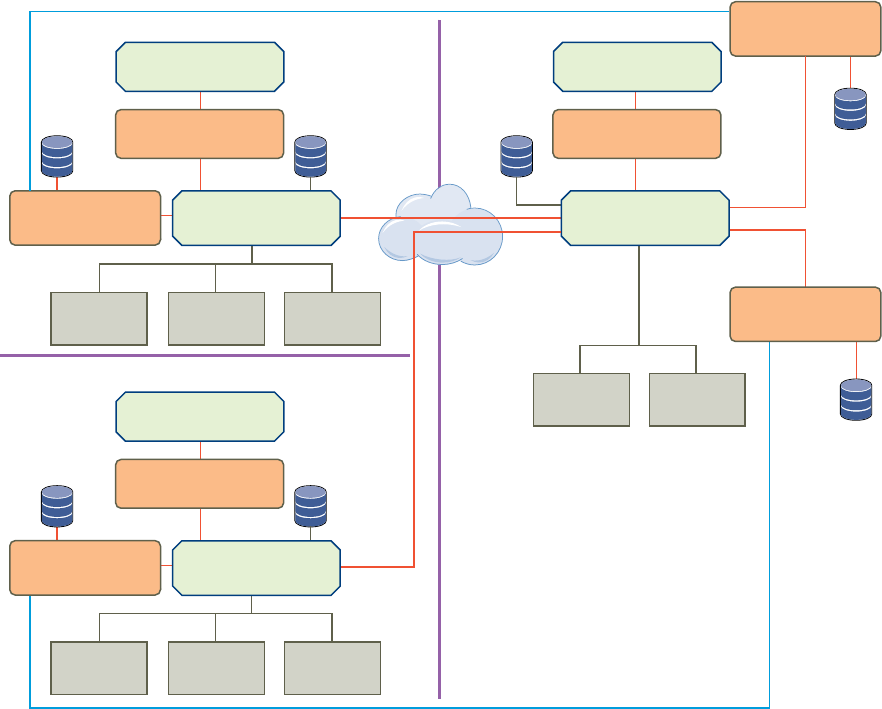
nSRM Server D, that is paired with SRM Server B
nvCenter Server C, that is extended by SRM Server C and SRM Server D
Figure 11‑1. Example of Using SRM in a Shared Recovery Site Configuration
SRM plug-in
vSphere Client
Protected Site Shared Recovery Site
ESXi
Server
SRM plug-in
vSphere Client
ESXi
Server
ESXi
Server
vCenter Server
B
ESXi
Server
SRM Server
B
Field office 2
ESXi
Server
vCenter Server
A
ESXi
Server
SRM Server
A
SRM Server
C
ESXi
Server
ESXi
Server
vCenter Server
C
Field office 1
SRM Server
D
SRM plug-in
vSphere Client
Head Office
nLimitations of Using SRM in Shared Recovery Site Configuration on page 85
When you configure SRM to use a shared recovery site, SRM supports the same operations as it does
in a standard one-to-one configuration. Configuring for a shared recovery site support is subject to
some limitations.
nSRM Licenses in a Shared Recovery Site Configuration on page 85
If you configure SRM to use with a shared recovery site, you can assign licenses individually on the
shared recovery site. You can also share a license between all SRM Server instances on the shared
recovery site.
nInstall SRM In a Shared Recovery Site Configuration on page 86
To install SRM in a shared recovery site configuration, you deploy SRM Server on one or more
protected sites, and deploy a corresponding number of SRM Server instances on the shared recovery
site.
nUse Array-Based Replication in a Shared Recovery Site Configuration on page 91
You can use array-based replication with SRM in a shared recovery site configuration in the same way
as you do in a standard one-to-one configuration.
Site Recovery Manager Installation and Configuration
84 VMware, Inc.
nUse vSphere Replication in a Shared Recovery Site Configuration on page 92
You can use vSphere Replication with SRM in a shared recovery site configuration in the same way
that you do in a standard one-to-one configuration.
Limitations of Using SRM in Shared Recovery Site Configuration
When you configure SRM to use a shared recovery site, SRM supports the same operations as it does in a
standard one-to-one configuration. Configuring for a shared recovery site support is subject to some
limitations.
nYou cannot reconfigure an existing one-to-one SRM installation to use a shared recovery site. You can
only configure new SRM installations to use with a shared recovery site.
nFor each shared recovery site customer, you must install SRM Server once at the customer site and
again at the recovery site.
nYou must specify the same SRM extension ID when you install the SRM Server instances on the
protected site and on the shared recovery site.
nYou must install each SRM Server instance at the shared recovery site on its own host machine. You
cannot install multiple instances of SRM Server on the same host machine.
nEach SRM Server instance on the protected site and on the shared recovery site requires its own
database.
nYou can create a shared protected site by registering multiple SRM Server instances with a single
vCenter Server instance on the protected site. This configuration creates a single point of failure on the
protected site, so this configuration is not advisable in production environments. Setting up shared
protection sites might be useful for testing in a lab environment.
nBoth sites must use the same authentication method. If you use certificate-based authentication, the
certificates on both sites must be configured in the same way. If you use credential-based
authentication, both sites must specify the same values for the Organization and Organization Unit. The
value that you specify for the Organization in the VMware vCenter Site Recovery Manager Plugin
Identifier page of the SRM installer has no relation to the value that you specify for the Organization
when you configure credential-based authentication. See Chapter 4, “SRM Authentication,” on page 27.
nA single shared recovery site can support a maximum of ten protected sites. You can run concurrent
recoveries from multiple sites. See KB 2008061 for the number of concurrent recoveries that you can run
with array-based replication and with vSphere Replication.
nWhen connecting to SRM on the shared recovery site, every customer can see all of the SRM extensions
that are registered with the shared recovery site, including company names and descriptions. All
customers of a shared recovery site can have access to other customers’ folders and potentially to other
information at the shared recovery site.
SRM Licenses in a Shared Recovery Site Configuration
If you configure SRM to use with a shared recovery site, you can assign licenses individually on the shared
recovery site. You can also share a license between all SRM Server instances on the shared recovery site.
In a shared recovery site configuration, you install SRM license keys on each of the protected sites to enable
recovery. You can install the same license key on the shared recovery site and assign it to the partner
SRM Server instance to enable bidirectional operation, including reprotect. You can use the same license key
for both SRM Server instances in the SRM pair, in the same way as for a one-to-one configuration.
Alternatively, you can install one SRM license key on the shared recovery site. All SRM Server instances on
the shared recovery site share this license. In this configuration, you must ensure that you have sufficient
licenses for the total number of virtual machines that you protect on the shared recovery site, for all
protected sites.
Chapter 11 Installing SRM to Use with a Shared Recovery Site
VMware, Inc. 85
Example: Sharing SRM Licenses on a Shared Recovery Site
You connect two protected sites to a shared recovery site. You install a single SRM license on the shared
recovery site.
nIf you protect 20 virtual machines on protected site A, you require a license for 20 virtual machines on
protected site A to recover these virtual machines to the shared recovery site.
nIf you protect 10 virtual machines on protected site B, you require a license for 10 virtual machines on
protected site B to recover these virtual machines to the shared recovery site.
nYou share a SRM license for 25 virtual machines between two SRM Server instances, C and D, on the
shared recovery site. The SRM Server instances on sites A and B connect to SRM Server instances C and
D respectively.
Because you have a license for 25 virtual machines on the shared recovery site, the total number of virtual
machines for which you can perform reprotect after a recovery is 25. If you recover all of the virtual
machines from sites A and B to the shared recovery site and attempt to perform reprotect, you have
sufficient licenses to reprotect only 25 of the 30 virtual machines that you recovered. You can reprotect all 20
of the virtual machines from site A to reverse protection from SRM Server C to site A. You can reprotect
only 5 of the virtual machines to reverse protection from SRM Server D to site B.
In this situation, you can purchase licenses for more virtual machines for the shared recovery site.
Alternatively, you can add the license keys from sites A and B to vCenter Server on the shared recovery site,
and assign the license from site A to SRM Server C and the license from site B to SRM Server D.
Install SRM In a Shared Recovery Site Configuration
To install SRM in a shared recovery site configuration, you deploy SRM Server on one or more protected
sites, and deploy a corresponding number of SRM Server instances on the shared recovery site.
You can only pair protected and recovery sites that have the same SRM extension ID.
Procedure
1Install SRM Server on Multiple Protected Sites to Use with a Shared Recovery Site on page 87
You install SRM Server to use with a shared recovery site by running the SRM installer from the
command line with a custom setup option.
2Install Multiple SRM Server Instances on a Shared Recovery Site on page 88
In a shared recovery site configuration, you can install multiple SRM Server instances that all extend
the same vCenter Server instance.
3Install the SRM Client Plug-In In a Shared Recovery Site Configuration on page 88
After you install SRM Server instances on the shared recovery site, you must install the SRM client
plug-in.
4Connect to SRM in a Shared Recovery Site Configuration on page 89
When you log in to SRM on a site on which more than one SRM Server is running, SRM prompts you
to select one of the SRM Server instances to which to connect.
5Connect the SRM Sites in a Shared Recovery Site Configuration on page 90
In a shared recovery site configuration, you connect the SRM sites in the same way as for a standard
one-to-one configuration.
6Configure Placeholders and Mappings in a Shared Recovery Site Configuration on page 90
When you configure placeholders and mappings in a shared recovery site configuration, the
customers of the shared recovery site can share the resources on the recovery site. Alternatively, you
can assign isolated resources to each customer.
Site Recovery Manager Installation and Configuration
86 VMware, Inc.
Install SRM Server on Multiple Protected Sites to Use with a Shared Recovery
Site
You install SRM Server to use with a shared recovery site by running the SRM installer from the command
line with a custom setup option.
When you run the installer from the command line with the custom setup option, the SRM installer presents
additional screens on which you specify a unique SRM extension ID.
For each protected site, you must install one instance of SRM Server at the protected site and one instance of
SRM Server at the recovery site. You can only pair SRM Server instances that have the same SRM extension
ID. Each protected site must include its own vCenter Server instance.
Prerequisites
nDownload the SRM installation file to a folder on the SRM Server host.
nThis information presumes knowledge of the standard procedure for installing SRM. See “Install the
SRM Server,” on page 29 for information about a standard SRM installation.
Procedure
1 Start the SRM installer by typing the custom setup command in a command line terminal.
VMware-srm-version-build_number.exe /v"CUSTOM_SETUP=1"
2 Follow the prompts to begin the SRM installation.
3 At the VMware vCenter Site Recovery Manager Plugin Identifier page of the installer, select Custom
SRM Plugin Identifier and click Next.
4 Provide information to identify this custom SRM extension and click Next.
Option Description
SRM ID Type a unique identifier for this pair of SRM Server instances. The SRM ID
can be a string of up to 29 ASCII characters from the set of ASCII upper-
lower-case characters, digits, the underscore, the period, and the hyphen.
You cannot use the underscore, period, and hyphen as the first or last
characters of the SRM ID, and they cannot appear adjacent to one another.
Organization Type a string of up to 50 ASCII characters to specify the organization that
created the extension.
Description Type a string of up to 50 ASCII characters to provide a description of the
extension.
5 Follow the prompts to complete the remainder of the installation.
6 Repeat the procedure on each of the sites to protect.
Connect each SRM Server to its own vCenter Server instance. Assign a unique SRM ID to each
SRM Server.
What to do next
For each SRM Server that you installed on a protected site, install a corresponding SRM Server instance on
the shared recovery site.
Chapter 11 Installing SRM to Use with a Shared Recovery Site
VMware, Inc. 87
Install Multiple SRM Server Instances on a Shared Recovery Site
In a shared recovery site configuration, you can install multiple SRM Server instances that all extend the
same vCenter Server instance.
The SRM Server instances that you install on a shared recovery site each correspond to an SRM Server on a
protected site.
Prerequisites
nYou created one or more protected sites, each with an SRM Server instance for which you configured a
unique SRM ID.
nDownload the SRM installation file to a folder on the SRM Server host.
nThis information presumes knowledge of the standard procedure for installing SRM. See “Install the
SRM Server,” on page 29 for information about a standard SRM installation.
Procedure
1 Start the SRM installer by typing the custom setup command in a command line terminal.
VMware-srm-version-build_number.exe /v"CUSTOM_SETUP=1"
2 At the VMware vCenter Site Recovery Manager Plugin Identifier page of the installer, select Custom
SRM Plugin Identifier and click Next.
3 Provide information to identify this SRM extension as the partner of an SRM Server server on a
protected site, and click Next.
Option Description
SRM ID Type the same SRM ID as you provided for the corresponding SRM Server
instance on the protected site. For example, if you set the SRM ID of the
SRM Server instance on the protected site to SRM-01, set the SRM ID to
SRM-01.
Organization Type a string of up to 50 ASCII characters to specify the organization that
created the extension.
Description Type a string of up to 50 ASCII characters to provide a description of the
extension.
4 Follow the prompts to complete the remainder of the installation.
5 Repeat Step 1 to Step 4 to install an SRM Server with an SRM ID that matches an SRM Server on
another protected site.
Each additional SRM Server instance that you install connects to the vCenter Server instance on the
shared recovery site.
What to do next
Install the SRM client plug-in.
Install the SRM Client Plug-In In a Shared Recovery Site Configuration
After you install SRM Server instances on the shared recovery site, you must install the SRM client plug-in.
After you install the SRM client plug-in, client plug-ins from other SRM Server instances running on the
same shared site show as Available in the Manage Plug-ins interface. Install the client plug-in only once.
Subsequent installations overwrite each other.
Site Recovery Manager Installation and Configuration
88 VMware, Inc.
Prerequisites
nYou installed one or more SRM Server instances on a shared recovery site.
nYou assigned the same SRM extension ID to an SRM Server instance on a protected site and to an
SRM Server instance on the shared recovery site.
Procedure
1 Connect the vSphere Client to vCenter Server on the shared recovery site.
2 Select Plugins > Manage Plug-ins.
3 Under Available Plug-ins, locate VMware vCenter Site Recovery Manager Extension and click
Download and Install.
A client plug-in is available from each of the SRM Server instances that are running on the shared
recovery site. You can install the SRM client plug-in from any SRM Server instance. Install the client
plug-in only once. Subsequent installations overwrite each other.
4 Follow the prompts of the installer to complete the installation of the SRM client plug-in.
5 Repeat Step 1 through Step 4 to install the SRM client plug-in on all instances of the vSphere Client that
you use to connect to SRM on the protected and recovery sites.
What to do next
Connect the protected sites to the shared recovery site.
Connect to SRM in a Shared Recovery Site Configuration
When you log in to SRM on a site on which more than one SRM Server is running, SRM prompts you to
select one of the SRM Server instances to which to connect.
For each SRM Server instance that is running at the shared recovery site, the prompt lists the SRM ID,
organization, and description that you supplied when you installed SRM Server.
Prerequisites
nYou installed one or more SRM Server instances on a shared recovery site.
nYou assigned the same SRM extension ID to an SRM Server instance on a protected site and to an
SRM Server instance on the shared recovery site.
nYou connected the vSphere Client to vCenter Server on the shared recovery site.
nYou installed the SRM client plug-in.
Procedure
1 Click Home in the vSphere Client.
2 Click Site Recovery under Solutions and Applications.
3 Select the SRM ID of the SRM Server instance to connect to and click Open.
What to do next
Configure the connections between the protected sites and the shared recovery site.
Chapter 11 Installing SRM to Use with a Shared Recovery Site
VMware, Inc. 89
Connect the SRM Sites in a Shared Recovery Site Configuration
In a shared recovery site configuration, you connect the SRM sites in the same way as for a standard one-to-
one configuration.
If you start the site connection from one of the protected sites, SRM uses the SRM ID that you set during
installation to connect to the correct SRM Server instance on the recovery site.
If you start the site connection from one of the SRM Server instances on the shared recovery site, and you try
to connect to a protected site that has an SRM Server extension with a different SRM ID, the connection fails
with an error.
Prerequisites
nYou installed SRM Server on one or more protected sites.
nYou installed one or more SRM Server instances on a shared recovery site.
nYou assigned the same SRM extension ID to an SRM Server instance on a protected site and to an
SRM Server instance on the shared recovery site.
nYou installed the SRM client plug-in.
Procedure
1 Log in to SRM on a protected site or log in to one of the SRM instances on the shared recovery site.
2 Select Sites, click the Summary tab, and click Configure Connection.
3 Type the address of the vCenter Server on the remote site and click Next.
nIf you logged in to SRM on a protected site, type the address of vCenter Server on the shared
recovery site.
nIf you logged in to SRM on the shared recovery site, type the address of vCenter Server on the
corresponding protected site. The SRM extension of this vCenter Server instance must have an
SRM ID that matches theSRM ID of the SRM instance from which you are connecting.
4 Follow the prompts to accept certificates and provide the login credentials for vCenter Server on the
remote site and click Finish.
Configure Placeholders and Mappings in a Shared Recovery Site Configuration
When you configure placeholders and mappings in a shared recovery site configuration, the customers of
the shared recovery site can share the resources on the recovery site. Alternatively, you can assign isolated
resources to each customer.
On a shared recovery site, multiple customers share a single vCenter Server instance. In some cases,
multiple customers can share a single ESXi host on the recovery site. You can map the resources on the
protected sites to shared resources on the shared recovery site. You might share resources on the recovery
site if you do not need to keep all of the customers' virtual machines separate, for example if all of the
customers belong to the same organization.
You can also create isolated resources on the shared recovery site and map the resources on the protected
sites to their own dedicated resources on the shared recovery site. You might use this configuration if you
must keep all of the customers' virtual machines separate from each other, for example if all of the
customers belong to different organizations.
For information about how to assign permissions to allow users to access the resources on a shared recovery
site, see Site Recovery Manager Administration.
Site Recovery Manager Installation and Configuration
90 VMware, Inc.

Prerequisites
nYou installed SRM in a shared recovery site configuration.
nYou connected the protected sites with the shared recovery site.
nFamiliarize yourself with the procedure for configuring placeholders and mappings. For information
about configuring placeholders and mappings in a standard configuration, see Chapter 10, “Creating
SRM Placeholders and Mappings,” on page 79.
Procedure
1 Click Sites in the SRM interface on the protected sites and use the Resource Mappings, Folder
Mappings, Network Mappings, and Placeholder Datastores tabs to configure the mappings.
Option Action
Share customer resources Map the resources, networks, and datastores on the protected sites to a
common datacenter, network, and placeholder datastore on the shared
recovery site. You can create individual folders for each customer on the
recovery site and map the folders on the protected sites to the individual
folders.
Isolate customer resources Map the resources, networks, folders, and datastores on the protected sites
to separate datacenters, networks, folders, and placeholder datastores on
the shared recovery site.
2 (Optional) If you use vSphere Replication, select vSphere Replication > Datastore Mappings on the
protected sites to map the datastores to a datastore or datastores on the shared recovery site.
The datastore mappings determine in which datastores on the recovery site vSphere Replication places
replicated virtual machines.
Option Action
Share customer resources Map the datastores on the protected sites to a common datastore on the
shared recovery site. You can create individual folders for each customer
on the recovery site and map the folders on the protected sites to the
individual folders.
Isolate customer resources Map the datastores on the protected sites to separate datastores on the
shared recovery site.
Use Array-Based Replication in a Shared Recovery Site Configuration
You can use array-based replication with SRM in a shared recovery site configuration in the same way as
you do in a standard one-to-one configuration.
To use array-based replication with SRM in a shared recovery site configuration, you must install storage
arrays and storage replication adapters (SRA) on each of the protected sites. Each protected site can use a
different type of storage array.
Each protected site can either share the same storage on the shared recovery site, or you can allocate storage
individually for each protected site. The type of storage that you use on the shared recovery site can be
different than the storage that you use on the protected sites. You can use storage from multiple vendors on
the shared recovery site. You must install the appropriate SRA for each type of storage that you use on the
shared recovery site.
For information about protection and recovery limits when you use array-based replication with SRM in a
shared recovery site configuration, see KB 2008061.
Prerequisites
nYou installed SRM in a shared recovery site configuration.
Chapter 11 Installing SRM to Use with a Shared Recovery Site
VMware, Inc. 91

nYou connected the protected sites with the shared recovery site.
nFamiliarize yourself with the procedure for configuring array-based replication. For information about
how to configure array-based replication in a standard configuration, see Chapter 7, “Configuring
Array-Based Protection,” on page 49.
Procedure
1 Set up storage arrays on the protected sites following the instructions that your storage array provides.
2 Install the appropriate SRAs on SRM Server systems on the protected sites.
3 Install the appropriate SRAs on SRM Server systems on the shared recovery site.
4 Configure the array managers on the protected sites and on the shared recovery sites.
5 Configure the mappings from the resources on the protected sites to resources on the shared recovery
site and configure the placeholder datastores.
The shared recovery site is ready to receive replicated virtual machines that you recover from the protected
sites by using array-based replication.
Use vSphere Replication in a Shared Recovery Site Configuration
You can use vSphere Replication with SRM in a shared recovery site configuration in the same way that you
do in a standard one-to-one configuration.
You deploy one vSphere Replication appliance on each protected site. You deploy only one
vSphere Replication appliance on the shared recovery site. All of the vSphere Replication appliances on the
protected sites connect to this single vSphere Replication appliance on the recovery site. You deploy the
vSphere Replication appliances in the same way as for a standard one-to-one configuration.
IMPORTANT Deploy only one vSphere Replication appliance on the shared recovery site. If you deploy
multiple vSphere Replication appliances on the shared recovery site, each new vSphere Replication
appliance overwrites the registration of the previous vSphere Replication appliance with vCenter Server.
This overwrites all existing replications and configurations.
You can deploy the vSphere Replication appliance on the shared recovery site from any of the SRM
instances on the shared recovery site. After deployment, the vSphere Replication appliance registers with
vCenter Server on the shared recovery site and is available to all of the SRM instances on the shared
recovery site.
You can deploy multiple additional vSphere Replication servers on the shared recovery site to distribute the
replication load. For example, you can deploy on the shared recovery site a vSphere Replication server for
each of the protected sites that connects to the shared recovery site. For information about protection and
recovery limits when using vSphere Replication with SRM in a shared recovery site configuration, see KB
2008061.
Prerequisites
nYou installed SRM in a shared recovery site configuration.
nYou connected the protected sites with the shared recovery site.
nFamiliarize yourself with the procedure for deploying vSphere Replication. For information about a
standard vSphere Replication installation, see Chapter 8, “Installing vSphere Replication,” on page 53.
Procedure
1 Deploy a vSphere Replication appliance on each of the protected sites.
2 Deploy one vSphere Replication appliance on the shared recovery site.
Site Recovery Manager Installation and Configuration
92 VMware, Inc.
3 Log in to SRM on each of the protected sites and configure the vSphere Replication connection to the
recovery site.
All of the vSphere Replication appliances on the protected sites connect to the same vSphere Replication
appliance on the recovery site.
4 (Optional) Deploy additional vSphere Replication servers on the shared recovery site.
5 (Optional) Register the additional vSphere Replication servers with the vSphere Replication appliance
on the shared recovery site.
The vSphere Replication servers become available to all SRM instances on the shared recovery site.
6 Configure the mappings from the resources on the protected sites to resources on the shared recovery
site and configure the placeholder datastores.
7 Configure the vSphere Replication datastore mappings from the protected sites to datastores on the
shared recovery site.
The shared recovery site is ready to receive replicated virtual machines that you recover from the protected
sites by using vSphere Replication.
Chapter 11 Installing SRM to Use with a Shared Recovery Site
VMware, Inc. 93
Site Recovery Manager Installation and Configuration
94 VMware, Inc.

Troubleshooting SRM Installation and
Configuration 12
Known troubleshooting information can help you diagnose and correct problems during the installation and
configuration of SRM.
Solution
nCannot Restore SQL Database to a 32-Bit Target Virtual Machine During SRM Upgrade on page 96
You might encounter problems restoring a SQL database on a 32-bit target virtual machine when you
upgrade or migrate SRM.
nSRM Server Does Not Start on page 97
SRM depends on other services. If one of those services is not running, the SRM Server does not start.
nvSphere Client Cannot Connect to SRM on page 98
Connecting to the SRM interface in the vSphere Client fails.
nSite Pairing Fails Because of Different Certificate Trust Methods on page 99
If you use custom certificates that a certificate authority signs, connecting the SRM sites fails if the root
certificate from the certificate authority is not present on SRM Server.
nError at vService Bindings When Deploying the vSphere Replication Appliance on page 99
When you deploy the vSphere Replication appliance, you get an error at vService bindings in the
Deploy OVF Template wizard.
nOVF Package is Invalid and Cannot be Deployed on page 100
When you attempt to deploy OVF for the vSphere Replication appliance, an OVF package error might
occur.
nvSphere Replication Appliance or vSphere Replication Server Does Not Deploy from the SRM
Interface on page 100
If problems occur when you use the SRM interface to deploy a vSphere Replication appliance or a
vSphere Replication server, you can deploy the OVF manually.
nConnection Errors Between vSphere Replication and SQL Server Cannot be Resolved on page 100
You cannot resolve a connection error between the vSphere Replication appliance and SQL Server.
n404 Error Message when Attempting to Pair vSphere Replication Appliances on page 101
Pairing vSphere Replication appliances might result in a 404 error message.
nvSphere Replication Service Fails with Unresolved Host Error on page 102
If the address of vCenter Server is not set to a fully qualified domain name (FQDN) or to a literal
address, the vSphere Replication service can stop unexpectedly or fail to start after a reboot.
VMware, Inc. 95
nIncrease the Memory of the vSphere Replication Server for Large Deployments on page 102
If you deploy an additional vSphere Replication server, you might need to increase the memory of the
vSphere Replication server if that server manages large numbers of virtual machines.
nvSphere Replication Appliance Extension Cannot Be Deleted on page 102
If you delete the vSphere Replication appliance virtual machine, the virtual appliance management
interface (VAMI) is not available to delete the appliance extension that still exists in vCenter Server.
nUploading a Valid Certificate to vSphere Replication Results in a Warning on page 103
When you upload a custom certificate to the vSphere Replication appliance, you see a warning even if
the certificate is valid.
nvSphere Replication Status Shows as Disconnected on page 103
The status of the vSphere Replication appliance shows as Disconnected if you are running the SRM
client plug-in on Windows XP SP2 x64.
nvSphere Replication Server Registration Takes Several Minutes on page 103
vSphere Replication server registration might take a long time depending on the number of hosts in
the vCenter Server inventory.
nvSphere Replication is Inaccessible After Changing vCenter Server Certificate on page 104
If you change the SSL certificate of vCenter Server, you cannot access vSphere Replication.
Cannot Restore SQL Database to a 32-Bit Target Virtual Machine
During SRM Upgrade
You might encounter problems restoring a SQL database on a 32-bit target virtual machine when you
upgrade or migrate SRM.
Problem
If you use an SQL Express database and upgrade or migrate SRM to a new database server, restoring the
database on a 32-bit operating system might fail.
Use Attach rather than Restore when you migrate the SQL Express database on the 64-bit target virtual
machine rather than on a 32-bit target virtual machine.
If you use SQL Express bundled with vCenter Server, note the following conditions:
nIf you uninstall vCenter Server, SQL Express is also removed and you lose all your SRM data.
nCreate and manage a separate database instance in the SQL Express server. SRM does not install on a
database, that is pointed to by a DSN that contains vCenter Server data, regardless of database vendor,
version, or edition.
Solution
1 To install SQL Express and migrate the database during SRM upgrade, stop the SRM service and back
up your database.
2 Install SQL Express on the new host or virtual machine.
3 Copy the backup file to the new host or virtual machine and restore the database from it.
4 Create a system DSN that points to the restored database.
5 Install SRM and select Use existing database for both migration and upgrade.
Site Recovery Manager Installation and Configuration
96 VMware, Inc.
SRM Server Does Not Start
SRM depends on other services. If one of those services is not running, the SRM Server does not start.
Problem
After you install, repair, or modify SRM by running the SRM installer, or after you reboot the SRM Server,
the SRM Server does not start.
Cause
The SRM Server might not start if vCenter Server is not running, if it cannot connect to the SRM database, or
if other services that SRM requires are not running.
Solution
1 Verify that the vCenter Server instance that SRM extends is running.
If the vCenter Server service is running on a different host to the SRM Server and the vCenter Server
service stops, the SRM Server will start succesfully and then stop after a short period.
2 Verify that the SRM database service is running.
3 Log in to the machine on which you installed the SRM Server.
4 Verify that SRM can connect to vCenter Server.
a Open Programs and Features from the Windows Control Panel.
b Select the entry for VMware vCenter Site Recovery Manager and click Change.
c Click Next.
d Select Modify.
e Check that the address for vCenter Server is correct.
If the vCenter Server address has changed since you installed SRM, for example if the
vCenter Server machine uses DHCP instead of a static address, remove, reinstall, and reconfigure
SRM.
f Type the vCenter Server password and click Next.
If the vCenter Server password has changed since you installed SRM, type the new password.
g Select Use existing certificate and click Next.
h Type the credentials for the SRM database and click Next.
If the connection to the database fails, close the SRM installer and go to Step 5.
i Select Use existing database and click Next.
j Click Install to update the SRM configuration, or click Cancel if you made no changes.
5 Verify that SRM can connect to the SRM database.
a Open the Windows ODBC Data Source Administrator utility, C:\Windows\System32\Odbcad32.exe.
b Select the system DSN that you created for SRM and click Configure.
c Check that SRM is attempting to connect to the correct database server and click Next.
d Enter the login credentials for the SRM database and click Next.
e Review the database settings on the next pages, and click Finish.
Chapter 12 Troubleshooting SRM Installation and Configuration
VMware, Inc. 97

f Click Test Data Source.
If the connection is configured correctly, the ODBC Data Source Test window shows a positive
result.
g If the connection test fails, reconfigure the SRM database by using the administration software
from your database provider.
6 Verify that the SRM database permits sufficient connections.
If the SRM logs contain the message GetConnection: Still waiting for available connections,
increase the maximum number of database connections.
NOTE Consult with your database administrator before changing these settings.
a Open the vmware-dr.xml file in a text editor.
You find the vmware-dr.xml file in the C:\Program Files\VMware\VMware vCenter Site Recovery
Manager\config folder on the SRM Server host.
b Change the <connectionCount> value to increase the size of the pool of database connections from
the default of 5.
<connectionCount>10</connectionCount>
c Change the <maxConnections> value to increase the maximum number of database connections
from the default of 20.
<maxConnections>30</maxConnections>
d Restart the SRM service.
7 Open the Windows Server Manager utility and select Configuration > Services.
8 Verify that the services that SRM requires are running.
nWindows Server
nWindows Workstation
nProtected Storage
9 Select the VMware vCenter Site Recovery Manager Server service in the Windows Server Manager
utility and click Start or Restart.
vSphere Client Cannot Connect to SRM
Connecting to the SRM interface in the vSphere Client fails.
Problem
When you click the Site Recovery icon in the Home page of the vSphere Client, the connection to SRM fails
with the message:
Connection to local Site Recovery Manager https:SRM_address:8095/dr failed
The SRM logs show a certificate error.
Failed to establish connection to VMware vCenter.
: std::exception 'class Vmacore::Ssl::SSLVerifyException'
"SSL Exception:
The remote host certificate has these problems:
* The host name used for the connection does not match the subject name on the host certificate
* The host certificate chain is not complete.
Site Recovery Manager Installation and Configuration
98 VMware, Inc.
Cause
This problem can occur if the certificate for vCenter Server does not match the certificate that SRM requires,
for example if the certificate for vCenter Server changed since you installed SRM.
Solution
Restore the vCenter Server certificate to the certificate that you used when you installed SRM or install a
new vCenter Server certificate.
Site Pairing Fails Because of Different Certificate Trust Methods
If you use custom certificates that a certificate authority signs, connecting the SRM sites fails if the root
certificate from the certificate authority is not present on SRM Server.
Problem
When you try to connect SRM sites, the connection fails with the error Local and Remote servers are using
different certificate trust methods.
Cause
You did not install the root certificate for the certificate authority that signs the SRM certificate on
SRM Server.
Solution
1 Use the Windows Certificate Manager utility to install the root certificate for the certificate authority
that you use to sign the SRM certificate.
The Certificate Manager utility is at C:\Windows\System32\certmgr.msc on the SRM Server host.
2 From the Windows Control Panel, run the SRM installer in Modify mode.
3 At the Certificate Type Selection page of the installer, select Use a PKCS#12 certificate file and browse
to the custom SRM certificate.
4 Follow the prompts and click Finish to run the SRM installer in Modify mode.
Error at vService Bindings When Deploying the vSphere Replication
Appliance
When you deploy the vSphere Replication appliance, you get an error at vService bindings in the Deploy
OVF Template wizard.
Problem
When you deploy the vSphere Replication, an error appears at vService bindings in the Deploy OVF
Template wizard.
Unsupported section '{http://www.vmware.com/schema/ovf}vServiceDependencySection'(A vService
dependency)
Cause
This error is typically the result of the vCenter Management Web service being paused or stopped.
Solution
Attempt to start the vCenter Management Web service. If vCenter Server is running as a Linux virtual
appliance, reboot the appliance.
Chapter 12 Troubleshooting SRM Installation and Configuration
VMware, Inc. 99

OVF Package is Invalid and Cannot be Deployed
When you attempt to deploy OVF for the vSphere Replication appliance, an OVF package error might occur.
Problem
The error OVF package is invalid and cannot be deployed might appear while you attempt to deploy the
vSphere Replication appliance.
Cause
This problem is due to the vCenter Server port being changed from the default of 80.
Solution
If possible, change the vCenter Server port back to 80.
vSphere Replication Appliance or vSphere Replication Server Does
Not Deploy from the SRM Interface
If problems occur when you use the SRM interface to deploy a vSphere Replication appliance or a
vSphere Replication server, you can deploy the OVF manually.
Problem
Deployment of the vSphere Replication appliance or vSphere Replication server from the SRM interface
fails.
Solution
1 Select File > Deploy OVF Template in the vSphere Client.
2 Navigate to the vSphere Replication appliance or vSphere Replication server OVF file in the www
directory in the SRM installation.
Option OVF File
vSphere Replication appliance C:\Program Files\VMware\VMware vCenter Site Recovery
Manager\www\vSphere_Replication_SRM_OVF10.ovf
vSphere Replication server C:\Program Files\VMware\VMware vCenter Site Recovery
Manager\www\vSphere_Replication_Server_SRM_OVF10.ovf
3 Follow the prompts to deploy the vSphere Replication appliance or the vSphere Replication server.
Connection Errors Between vSphere Replication and SQL Server
Cannot be Resolved
You cannot resolve a connection error between the vSphere Replication appliance and SQL Server.
Problem
vSphere Replication might not be able to connect to SQL Server, and you have insufficient information to
solve this problem.
Cause
Several issues can cause this problem, and initially available information about the problem is insufficient to
affect a resolution.
Site Recovery Manager Installation and Configuration
100 VMware, Inc.
Solution
1 Use a file management tool to connect to the vSphere Replication appliance.
For example, you might use SCP or WinSCP. Connect using the root account, which is the same account
used to connect to the VAMI.
2 Delete any files you find in /opt/vmware/hms/logs.
3 Connect to the VAMI and attempt to save the vSphere Replication configuration.
This action recreates the SQL error.
4 Connect to the vSphere Replication appliance again and find the hms-configtool.log file which is
in /opt/vmware/hms/logs.
This log file contains information about the error that just occurred. Use this information to
troubleshoot the connection issue, or provide the information to VMware for further assistance. See
“Reconfigure vSphere Replication to Use an External Database,” on page 63.
404 Error Message when Attempting to Pair vSphere Replication
Appliances
Pairing vSphere Replication appliances might result in a 404 error message.
Problem
vSphere Replication might fail with a 404 error when you are pairing vSphere Replication appliances.
This problem happens if you paired the SRM Server instances by using a vCenter Server address that differs
from the address in the vCenter Server Address entry in the vSphere Replication virtual appliance
management interface (VAMI).
Cause
By default, vSphere Replication uses the IP address of the vCenter Server instance to connect to
vCenter Server.
If you paired the SRM sites using host names, the vSphere Replication pairing fails with an error.
Unexpected status code: 404
The vCenter Server address value in the VAMI must match the address that you provide when you connect
the sites.
nIf you used an IP address to pair the SRM sites, you must use the same IP address to connect
vSphere Replication to vCenter Server.
nIf you used a host name to pair the SRM sites, you must use the same host name to connect
vSphere Replication to vCenter Server.
Solution
1 Connect to the VAMI of the vSphere Replication appliance in a Web browser.
The URL for the VAMI is https://vr-appliance-address:5480.
You can also access the VAMI by clicking Configure VR Appliance in the Summary tab in the
vSphere Replication view of the SRM interface.
2 Type the same IP address or host name for vCenter Server as you used when you configured the
pairing of the SRM sites.
3 Click Save and Restart Service to apply the changes.
Chapter 12 Troubleshooting SRM Installation and Configuration
VMware, Inc. 101
vSphere Replication Service Fails with Unresolved Host Error
If the address of vCenter Server is not set to a fully qualified domain name (FQDN) or to a literal address,
the vSphere Replication service can stop unexpectedly or fail to start after a reboot.
Problem
The vSphere Replication service stops running or does not start after a reboot. The error unable to resolve
host: non-fully-qualified-name appears in the vSphere Replication logs.
Solution
1 In the vSphere Client, select Administration > vCenter Server Settings > Advanced Settings and check
that the VirtualCenter.FQDN key is set to either a fully qualified domain name or to a literal address.
2 Connect to the VAMI of the vSphere Replication appliance in a Web browser.
The URL for the VAMI is https://vr-appliance-address:5480.
You can also access the VAMI by clicking Configure VR Appliance in the Summary tab in the
vSphere Replication view of the SRM interface.
3 Enter the same FQDN or literal address for vCenter Server as you set for the VirtualCenter.FQDN key.
4 Click Save and Restart Service to apply the changes.
Increase the Memory of the vSphere Replication Server for Large
Deployments
If you deploy an additional vSphere Replication server, you might need to increase the memory of the
vSphere Replication server if that server manages large numbers of virtual machines.
Problem
vSphere Replication supports a maximum of 100 virtual machines per vSphere Replication server.
Replication of more than 100 virtual machines on a single vSphere Replication server can cause memory
swapping on the vSphere Replication server, which affects performance.
Solution
For deployments that exceed 100 virtual machines per vSphere Replication server, increase the RAM of the
vSphere Replication server virtual machine from the default of 512MB to 1GB.
Alternatively, deploy additional vSphere Replication servers and balance the replication load accordingly.
vSphere Replication Appliance Extension Cannot Be Deleted
If you delete the vSphere Replication appliance virtual machine, the virtual appliance management interface
(VAMI) is not available to delete the appliance extension that still exists in vCenter Server.
Problem
Deleting the vSphere Replication appliance does not remove the vSphere Replication extension from
vCenter Server.
Solution
1 Use the Managed Object Browser (MOB) to delete the vSphere Replication extension manually.
2 Redeploy the appliance and reconfigure the replications.
See “Unregister vSphere Replication from vCenter Server if the Appliance Was Deleted,” on page 70
Site Recovery Manager Installation and Configuration
102 VMware, Inc.
Uploading a Valid Certificate to vSphere Replication Results in a
Warning
When you upload a custom certificate to the vSphere Replication appliance, you see a warning even if the
certificate is valid.
Problem
When you use the virtual appliance management interface (VAMI) in Internet Explorer to upload
certificates to the vSphere Replication appliance, you see a certificate error:
The certificate installed with warnings. Remote VRM systems with the 'Accept only SSL
certificate signed by a
trusted CA' option enabled may be unable to connect to this site for the following reason: The
certificate was not issued
for use with the given hostname: vr_appliance_hostname.
Solution
Ignore this error, or connect to the VAMI by using a supported browser other than Internet Explorer.
vSphere Replication Status Shows as Disconnected
The status of the vSphere Replication appliance shows as Disconnected if you are running the SRM client
plug-in on Windows XP SP2 x64.
Problem
The status of the vSphere Replication appliance shows as Disconnected in the Summary tab for a
vSphere Replication site. Attempting to reconfigure the connection results in the error Lost connection to
local VRMS server at server_address:8043. (The client could not send a complete request to the
server 'server_address'. (The underlying connection was closed: An unexpected error occurred on a
send.)).
Cause
This problem occurs because the SRM client plug-in and vSphere Client cannot negotiate cryptography
when the SRM client plug-in runs on older versions of Windows. If you run the desktop version of vSphere
Client and SRM client plug-in on Windows XP SP2 x64, you might encounter incompatibilities between
server and client cryptography support. SRM does not support older Windows XP x64 service packs.
Windows XP SP3 x86 is not affected by this issue. SRM does not support older Windows XP x86 service
packs.
Solution
Download and install the Microsoft Hotfix from Microsoft KB 948963
http://support.microsoft.com/kb/948963. This hotfix is not applied in any regular Windows updates so you
must manually download and apply the fix.
vSphere Replication Server Registration Takes Several Minutes
vSphere Replication server registration might take a long time depending on the number of hosts in the
vCenter Server inventory.
Problem
If the vCenter Server inventory contains a few hundred or more hosts, the Register VR Server task takes
more than a few minutes to complete.
Chapter 12 Troubleshooting SRM Installation and Configuration
VMware, Inc. 103
Cause
vSphere Replication updates each host's SSL thumbprint registry. The vCenter Server Events pane displays
Host is configured for vSphere Replication for each host as the vSphere Replication server registration
task progresses.
Solution
1 Wait for the registration task to complete.
After it finishes, you can use vSphere Replication for incoming replication traffic.
2 Alternatively, edit /opt/vmware/hms/conf/hms-configuration.xml and change hms-config-host-at-
hbr-threadpool-size parameter to a higher value to enable parallel processing of more hosts at a time
and restart the vSphere Replication management server /etc/init.d/hms restart
vSphere Replication is Inaccessible After Changing vCenter Server
Certificate
If you change the SSL certificate of vCenter Server, you cannot access vSphere Replication.
Problem
vSphere Replication uses certificate-based authentication to connect to vCenter Server. If you change the
vCenter Server certificate, vSphere Replication is inaccessible.
Cause
The vSphere Replication database contains the old vCenter Server certificate.
Solution
1 Power off and power on the vSphere Replication appliance.
vSphere Replication obtains the new certificate from vCenter Server when it powers on.
2 (Optional) If you configured vSphere Replication to use an external database, log into the virtual
appliance management interface (VAMI) of the vSphere Replication appliance and click Configuration
> Save and Restart Service.
Do not change any configuration information before clicking Save and Restart Service.
vSphere Replication restarts with the new vCenter Server certificate.
Site Recovery Manager Installation and Configuration
104 VMware, Inc.
Index
Numerics
404 Error when pairing vSphere Replication
appliances 101
A
array managers
and storage replication adapters 50
edit 51
replicated device discovery 50
to configure 50
to rescan arrays 51
array-based replication, and vSphere
Replication 17
authentication
certificate warnings and 27
methods used by Site Recovery Manager 27
B
bidirectional protection 11
C
certificate
change type 35
public key 27
SRM requirements for 28
to update 35
certificate authority root certificate 99
certificate warning 27
changing keystore password; changing truststore
password 60
client plug-in, upgrade 46
compatibility with vSphere features 15
connect to SRM 33
D
database
backup requirements 47
change connection details 35
configure Oracle Server 24
Connection Count value 23
Max Connections value 23
Site Recovery Manager 23
vCenter 18
datastore, protected 12
datastore group, maximum number
supported 22
datastore mappings, configure 82
deleting vSphere Replication appliance
extension 102
deleting vSphere Replication using MOB 70
disaster recovery 9
H
High Availability 15
host-based replication 13
I
increase memory of vSphere Replication
server 102
installation
of storage replication adapter 49
repair 36
revert to a previous release 47
Site Recovery Manager servers 29
Site Recovery Manager client plug-in 32
troubleshooting 95
inventory mappings, create 81
L
licensing
about 21
failover 21
linked mode 21
reprotect 21
shared recovery site 21, 85
SRM license key 34
M
many-to-one configuration 83, 85–92
mappings 79
MPIT 13
N
N:1 configuration 83, 85–92
NAT support 33
network settings, vSphere Replication
appliance 61
O
operational limits 22
OVF, cannot be deployed 100
VMware, Inc. 105
P
permissions required 33
placeholder datastore, add 82
placeholder datastores 81
placeholder virtual machine templates 79
placeholder virtual machines 79
placeholders 79
planned migration 9
plug-in
Site Recovery Manager client 32
to install 32
point-in-time recovery 13
ports, used by SRM 22
protected and recovery sites
different configurations 11
heterogeneous 11
protected site
configure array managers for 50
configuring 49
host compatibility requirements 10
to designate 33
protection group, maximum number
supported 22
public key certificates, vSphere Replication
requirements 59
R
recovery, diagram 10
recovery site
configure array managers for 50
configuring 49
host compatibility requirements 10
to designate 33
replication
array-based 12
troubleshooting 102
reprotect 9
restoring SQL Express during SRM upgrade 96
S
security settings, vSphere Replication
appliance 60
shared recovery site
connect sites 90
connect to SRM 89
install client plug-in 88
install SRM Server on protected site 87
install SRM Server on recovery site 88
installation 86
installing 83
licensing 85
limitations 85
placeholders and mappings 90
using SRM with 83
with array-based replication 91
with vSphere Replication 92
site pairing, fails 99
Site Recovery Manager, and other vCenter
Server Solutions 18
sites
pairing 10
protected 10
recovery 10
SRA, See storage replication adapter
SRM architecture diagram
array-based replication 12
array-based replication and vSphere
Replication 17
vSphere Replication 13
SRM configuration 7
SRM database
configure SQL Server 23
ODBC system DSN 24
SRM installation 7
SRM license key, to install 34
SRM overview 9
SRM Server
fails to start 97
required services 97
troubleshooting 97
SRM upgrade, preparation 42
SSL certificate
change 57
vSphere Replication 57
Storage vMotion, with array-based replication 12
Storage DRS, with array-based replication 12
storage replication adapter
and array managers 50
to download 49
to install 49
supported databases 64
system requirements 21
T
troubleshooting, installation 95
U
uninstall vSphere Replication 70
upgrade
client plug-in 46
configure installation 47
order 40
preserved information 39
supported types 40
with migration 44
without migration 42
upgrading, SRM 39
Site Recovery Manager Installation and Configuration
106 VMware, Inc.
upgrading vSphere Replication without Internet
access 78
using virtual SAN datastores in vSphere
Replication 16
V
vCenter, and Site Recovery Manager 18
vCenter Server
change connection information 35
change credentials used by Site Recovery
Manager 35
change SSL certificate 104
vCenter Server Appliance, and SRM 18
vCenter Server cannot connect to SRM 98
Virtual Flash 12
Virtual SAN 13, 15
virtual appliance, unregister 70
virtual machines, maximum number
supported 22
VSAN 13
vSphere features, compatibility with 15
vSphere Replication
and array-based replication 17
certificate warning 103
custom certificates 103
deployment 54
disconnected error 103
external database 63
features unavailable 99
how it works 15
install after SRM installation 36
installing 53
introduction 13
operational limits 22
SQL Server connection fails 100
standalone 73
ugrade 73
update releases 73
upgrade 74
upgrade using Update Manager 74
vSphere Replication server
change certificate 68
deploy 67
deploy manually 100
network settings 68
reconfigure 68
register 68
remove 69
restart 68
role 13
settings 68
unregister 69
upgrade using VAMI 77
vSphere Flash Read Cache 15
vSphere Replication appliance
certificate verification 58
connect 55
contents 15
embedded database 66
general settings 56
network settings 61
pair 55
reboot 62
reconfigure 56
shutdown 62
system settings 62
time zone 62
upgrade using VAMI 76
VAMI 15
virtual appliance management interface 15
vSphere Replication management server
role 13
upgrade using VAMI 76
vSphere Replication database
configure Oracle Server 65
configure SQL Server 65
vSphere Replication pairing, unresolved host
error 102
vSphere Replication Server registration takes
several minutes 103
Index
VMware, Inc. 107
Site Recovery Manager Installation and Configuration
108 VMware, Inc.
