Vmware Installing And Configuring VRealize Orchestrator VRealize. 7.1 V Realize 71 Ig En
User Manual: vmware vRealize Orchestrator - 7.1 - Installing and Configuring Free User Guide for VMware vRealize Software, Manual
Open the PDF directly: View PDF  .
.
Page Count: 84
- Installing and Configuring VMware vRealize Orchestrator
- Contents
- Installing and Configuring VMware vRealize Orchestrator
- Introduction to VMware vRealize Orchestrator
- Orchestrator System Requirements
- Setting Up Orchestrator Components
- Installing and Upgrading Orchestrator
- Configuring vRealize Orchestrator in the Orchestrator Appliance
- Log In to Control Center
- Orchestrator Network Ports
- Selecting the Authentication Type
- Configuring the Orchestrator Database Connection
- Manage Certificates
- Configure the Orchestrator Plug-Ins
- Start the Orchestrator Server
- Orchestrator Availability and Scalability
- Configuring the Customer Experience Improvement Program
- Using the API services
- Additional Configuration Options
- Configuration Use Cases and Troubleshooting
- Register Orchestrator as a vCenter Server Extension
- Unregister Orchestrator Authentication
- Changing SSL Certificates
- Cancel Running Workflows
- Enable Orchestrator Server Debugging
- Back Up the Orchestrator Configuration and Elements
- Backing Up and Restoring vRealize Orchestrator
- Disaster Recovery of Orchestrator by Using Site Recovery Manager
- Setting System Properties
- Where to Go From Here
- Index

Installing and Configuring VMware
vRealize Orchestrator
vRealize Orchestrator 7.1
This document supports the version of each product listed and
supports all subsequent versions until the document is
replaced by a new edition. To check for more recent editions of
this document, see http://www.vmware.com/support/pubs.
EN-002239-00
Installing and Configuring VMware vRealize Orchestrator
2 VMware, Inc.
You can find the most up-to-date technical documentation on the VMware Web site at:
hp://www.vmware.com/support/
The VMware Web site also provides the latest product updates.
If you have comments about this documentation, submit your feedback to:
docfeedback@vmware.com
Copyright © 2008–2016 VMware, Inc. All rights reserved. Copyright and trademark information.
VMware, Inc.
3401 Hillview Ave.
Palo Alto, CA 94304
www.vmware.com
Contents
Installing and Conguring VMware vRealize Orchestrator 7
1Introduction to VMware vRealize Orchestrator 9
Key Features of the Orchestrator Platform 9
Orchestrator User Types and Related Responsibilities 11
Orchestrator Architecture 11
Orchestrator Plug-Ins 12
2Orchestrator System Requirements 13
Hardware Requirements for the Orchestrator Appliance 13
Supported Directory Services 13
Browsers Supported by Orchestrator 14
Orchestrator Database Requirements 14
Software Included in the Orchestrator Appliance 14
Password Requirements 14
Level of Internationalization Support 15
3Seing Up Orchestrator Components 17
vCenter Server Setup 17
Authentication Methods 17
Seing Up the Orchestrator Database 18
4Installing and Upgrading Orchestrator 19
Download and Deploy the Orchestrator Appliance 19
Power On the Orchestrator Appliance and Open the Home Page 20
Change the Root Password 21
Enable or Disable SSH Administrator Login on the vRealize Orchestrator Appliance 21
Congure Network Seings for the Orchestrator Appliance 22
Upgrade Orchestrator Appliance 5.5.x and Later to 7.x 22
Upgrade Orchestrator Appliance by Using the Default VMware Repository 22
Upgrade Orchestrator Appliance by Using an ISO Image 23
Upgrade Orchestrator Appliance by Using a Specied Repository 24
Upgrade an Orchestrator Cluster 5.5.x and Later to 7.x 25
Upgrade an Orchestrator Cluster 7.0 to 7.1 25
5Conguring vRealize Orchestrator in the Orchestrator Appliance 27
Log In to Control Center 28
Orchestrator Network Ports 28
Selecting the Authentication Type 29
Conguring LDAP Seings 30
Conguring vRealize Automation Authentication 33
VMware, Inc. 3
Conguring vCenter Single Sign-On Seings 34
Conguring the Orchestrator Database Connection 36
Import the Database SSL Certicate 36
Congure the Database Connection 37
Export the Orchestrator Database 38
Import an Orchestrator Database 39
Manage Certicates 39
Manage Orchestrator Certicates 39
Congure the Orchestrator Plug-Ins 40
Manage the Orchestrator Plug-Ins 41
Uninstall a Plug-In 41
Reinstall Plug-Ins 42
Start the Orchestrator Server 44
Orchestrator Availability and Scalability 44
Congure an Orchestrator Cluster 45
Monitoring and Synchronizing an Orchestrator Cluster 47
Conguring a Load Balancer 47
Conguring the Customer Experience Improvement Program 48
Categories of Information That VMware Receives 48
Join the Customer Experience Improvement Program 48
6Using the API services 49
Managing SSL Certicates and Keystores by Using the REST API 49
Delete an SSL Certicate by Using the REST API 49
Import SSL Certicates by Using the REST API 50
Create a Keystore by Using the REST API 51
Delete a Keystore by Using the REST API 51
Add a Key by Using the REST API 52
Automating the Orchestrator Conguration by Using the Control Center REST API 52
7Additional Conguration Options 53
Create a New User in Control Center 53
Export the Orchestrator Conguration 54
Import the Orchestrator Conguration 54
Migrating the Orchestrator Conguration 55
Migrate the Orchestrator Conguration 55
Conguring the Workow Run Properties 56
Orchestrator Log Files 57
Logging Persistence 57
Orchestrator Logs Conguration 58
Inspect the Workow Logs 58
Filter the Orchestrator Logs 59
8Conguration Use Cases and Troubleshooting 61
Register Orchestrator as a vCenter Server Extension 61
Unregister Orchestrator Authentication 62
Changing SSL Certicates 62
Adding a Certicate to the Local Store 62
Installing and Configuring VMware vRealize Orchestrator
4 VMware, Inc.
Change the Certicate of the Orchestrator Appliance Management Site 63
Cancel Running Workows 63
Enable Orchestrator Server Debugging 64
Back Up the Orchestrator Conguration and Elements 64
Backing Up and Restoring vRealize Orchestrator 66
Back Up vRealize Orchestrator 67
Restore a vRealize Orchestrator Instance 68
Disaster Recovery of Orchestrator by Using Site Recovery Manager 69
Congure Virtual Machines for vSphere Replication 69
Create Protection Groups 69
Create a Recovery Plan 70
Organize Recovery Plans in Folders 71
Edit a Recovery Plan 71
9Seing System Properties 73
Disable Access to the Orchestrator Client By Nonadministrators 73
Seing Server File System Access for Workows and Actions 74
Rules in the js-io-rights.conf File Permiing Write Access to the Orchestrator System 74
Set Server File System Access for Workows and Actions 74
Set Access to Operating System Commands for Workows and Actions 75
Set JavaScript Access to Java Classes 76
Set Custom Timeout Property 76
10 Where to Go From Here 79
Log In to the Orchestrator Client from the Orchestrator Appliance Web Console 79
Index 81
Contents
VMware, Inc. 5
Installing and Configuring VMware vRealize Orchestrator
6 VMware, Inc.

Installing and Configuring
VMware vRealize Orchestrator
Installing and Conguring VMware vRealize Orchestrator provides information and instructions about
installing, upgrading and conguring VMware® vRealize Orchestrator.
Intended Audience
This information is intended for advanced vSphere administrators and experienced system administrators
who are familiar with virtual machine technology and datacenter operations.
VMware, Inc. 7
Installing and Configuring VMware vRealize Orchestrator
8 VMware, Inc.

Introduction to
VMware vRealize Orchestrator 1
VMware vRealize Orchestrator is a development- and process-automation platform that provides a library
of extensible workows to allow you to create and run automated, congurable processes to manage
VMware products as well as other third-party technologies.
vRealize Orchestrator automates management and operational tasks of both VMware and third-party
applications such as service desks, change management systems, and IT asset management systems.
This chapter includes the following topics:
n“Key Features of the Orchestrator Platform,” on page 9
n“Orchestrator User Types and Related Responsibilities,” on page 11
n“Orchestrator Architecture,” on page 11
n“Orchestrator Plug-Ins,” on page 12
Key Features of the Orchestrator Platform
Orchestrator is composed of three distinct layers: an orchestration platform that provides the common
features required for an orchestration tool, a plug-in architecture to integrate control of subsystems, and a
library of workows. Orchestrator is an open platform that can be extended with new plug-ins and libraries,
and can be integrated into larger architectures through a REST API.
The following list presents the key Orchestrator features.
Persistence Production grade databases are used to store relevant information, such as
processes, workow states, and conguration information.
Central management Orchestrator provides a central way to manage your processes. The
application server-based platform, with full version history, can store scripts
and process-related primitives in the same storage location. . This way, you
can avoid scripts without versioning and proper change control on your
servers.
VMware, Inc. 9
Check-pointing Every step of a workow is saved in the database, which prevents data-loss if
you must restart the server. This feature is especially useful for long-running
processes.
Control Center The Control Center interface increases the administrative eciency of
vRealize Orchestrator instances by providing a centralized administrative
interface for runtime operations, workow monitoring, unied log access
and congurations, and correlation between the workow runs and system
resources. The vRealize Orchestrator logging mechanism is optimized with
an additional log le that gathers various performance metrics for vRealize
Orchestrator engine throughput.
Versioning All Orchestrator Platform objects have an associated version history. Version
history is useful for basic change management when distributing processes
to project stages or locations.
Scripting engine The Mozilla Rhino JavaScript engine provides a way to create building
blocks for Orchestrator Platform. The scripting engine is enhanced with basic
version control, variable type checking, name space management, and
exception handling. The engine can be used in the following building blocks:
nActions
nWorkows
nPolicies
Workflow engine The workow engine allows you to automate business processes. It uses the
following objects to create a step-by-step process automation in workows:
nWorkows and actions that Orchestrator provides
nCustom building blocks created by the customer
nObjects that plug-ins add to Orchestrator
Users, other workows, schedules or policies can start workows.
Policy engine You can use the policy engine to monitor and generate events to react to
changing conditions in the Orchestrator server or plugged-in technology.
Policies can aggregate events from the platform or any of the plug-ins, which
helps you to handle changing conditions on any of the integrated
technologies.
Security Orchestrator provides the following advanced security functions:
nPublic Key Infrastructure (PKI) to sign and encrypt content imported
and exported between servers.
nDigital Rights Management (DRM) to control how exported content can
be viewed, edited, and redistributed.
nSecure Sockets Layer (SSL) to provide encrypted communications
between the desktop client and the server and HTTPS access to the Web
front end.
Installing and Configuring VMware vRealize Orchestrator
10 VMware, Inc.
nAdvanced access rights management to provide control over access to
processes and the objects manipulated by these processes.
Encryption vRealize Orchestrator uses a FIPS-compliant Advanced Encryption Standard
(AES) with a 256-bit cipher key for encryption of strings. The cipher key is
randomly generated and is unique across appliances that are not part of a
cluster. All nodes in a cluster share the same cipher key.
Orchestrator User Types and Related Responsibilities
Orchestrator provides dierent tools and interfaces based on the specic responsibilities of the global user
roles. In Orchestrator, you can have users with full rights, that are a part of the administrator group
(Administrators) and users with limited rights, that are not part of the administrator group (End Users).
Users with Full Rights
Orchestrator administrators and developers have equal administrative rights, but are divided in terms of
responsibilities.
Administrators This role has full access to all of the Orchestrator platform capabilities. Basic
administrative responsibilities include the following items:
nInstalling and conguring Orchestrator
nManaging access rights for Orchestrator and applications
nImporting and exporting packages
nRunning workows and scheduling tasks
nManaging version control of imported elements
nCreating new workows and plug-ins
Developers This user type has full access to all of the Orchestrator platform capabilities.
Developers are granted access to the Orchestrator client interface and have
the following responsibilities:
nCreating applications to extend the Orchestrator platform functionality
nAutomating processes by customizing existing workows and creating
new workows and plug-ins
Users with Limited Rights
End Users End users can run and schedule workows and policies that the
administrators or developers make available in the Orchestrator client.
Orchestrator Architecture
Orchestrator contains a workow library and a workow engine to allow you to create and run workows
that automate orchestration processes. You run workows on the objects of dierent technologies that
Orchestrator accesses through a series of plug-ins.
Orchestrator provides a standard set of plug-ins, including a plug-in for vCenter Server, to allow you to
orchestrate tasks in the dierent environments that the plug-ins expose.
Chapter 1 Introduction to VMware vRealize Orchestrator
VMware, Inc. 11
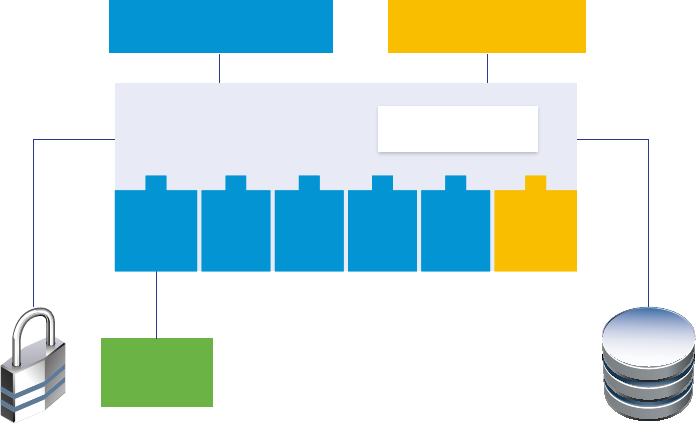
Orchestrator also presents an open architecture to allow you to plug in external third-party applications to
the orchestration platform. You can run workows on the objects of the plugged-in technologies that you
dene yourself. Orchestrator connects to an authentication provider to manage user accounts, and to a
database to store information from the workows that it runs. You can access Orchestrator, the Orchestrator
workows, and the objects it exposes through the Orchestrator client interface, or through Web services.
Figure 1‑1. VMware vRealize Orchestrator Architecture
Authentication
Providers
vCenter
Server
Orchestrator
database
vRealize Orchestrator
Client application Web services REST
workflow libraryworkflow engine
vCenter
Server
XML SSH SQL SMTP 3rd-party
plug-in
Orchestrator Plug-Ins
Plug-ins allow you to use Orchestrator to access and control external technologies and applications.
Exposing an external technology in an Orchestrator plug-in allows you to incorporate objects and functions
in workows that access the objects and functions of that external technology.
The external technologies that you can access by using plug-ins can include virtualization management
tools, email systems, databases, directory services, and remote control interfaces.
Orchestrator provides a set of standard plug-ins that you can use to incorporate into workows such
technologies as the VMware vCenter Server API and email capabilities. By using the plug-ins, you can
automate the delivery of new IT services or adapt the capabilities of existing vRealize Automation
infrastructure and application services. In addition, you can use the Orchestrator open plug-in architecture
to develop plug-ins to access other applications.
The Orchestrator plug-ins that VMware develops are distributed as .vmoapp les. For more information
about the Orchestrator plug-ins that VMware develops and distributes, see
hp://www.vmware.com/support/pubs/vco_plugins_pubs.html. For more information about third-party
Orchestrator plug-ins, see hps://solutionexchange.vmware.com/store/vco.
Installing and Configuring VMware vRealize Orchestrator
12 VMware, Inc.

Orchestrator System Requirements 2
Your system must meet the technical requirements that are necessary for Orchestrator to work properly.
For a list of the supported versions of vCenter Server, the vSphere Web Client, vRealize Automation, and
other VMware solutions, as well as compatible database versions, see VMware Product Interoperability
Matrix.
This chapter includes the following topics:
n“Hardware Requirements for the Orchestrator Appliance,” on page 13
n“Supported Directory Services,” on page 13
n“Browsers Supported by Orchestrator,” on page 14
n“Orchestrator Database Requirements,” on page 14
n“Software Included in the Orchestrator Appliance,” on page 14
n“Password Requirements,” on page 14
n“Level of Internationalization Support,” on page 15
Hardware Requirements for the Orchestrator Appliance
The Orchestrator Appliance is a precongured Linux-based virtual machine. Before you deploy the
appliance, verify that your system meets the minimum hardware requirements.
The Orchestrator Appliance has the following hardware conguration:
n2 CPUs
n6 GB of memory
n17 GB hard disk
Do not reduce the default memory size, because the Orchestrator server requires at least 2 GB of free
memory.
Supported Directory Services
If you plan to use an LDAP server for authentication, ensure that you set up and congure a working LDAP
server.
N LDAP authentication is deprecated and will not be supported in future versions.
Orchestrator supports these directory service types.
nWindows Server Active Directory
VMware, Inc. 13

nOpenLDAP
I Multiple domains that have a two-way trust, but are not in the same tree, are not supported
and do not work with Orchestrator. The only conguration supported for multi-domain Active Directory is
domain tree. Forest and external trusts are not supported.
Browsers Supported by Orchestrator
Control Center requires a Web browser.
You must use one of the following browsers to connect to Control Center.
nMicrosoft Internet Explorer 10 or later
nMozilla Firefox
nGoogle Chrome
Orchestrator Database Requirements
The Orchestrator server requires a database. The precongured in Orchestrator PostgreSQL database is
production ready. You can also use an external database, depending on your environment.
For a list of the supported database versions, see VMware Product Interoperability Matrix.
Software Included in the Orchestrator Appliance
The Orchestrator Appliance is a precongured virtual machine optimized for running Orchestrator. The
appliance is distributed with preinstalled software.
The Orchestrator Appliance package contains the following software:
nSUSE Linux Enterprise Server 11 Update 3 for VMware, 64-bit edition
nPostgreSQL
nOrchestrator
The default Orchestrator Appliance database conguration is production ready.
The default in-process LDAP conguration is suitable only for experimental and testing purposes. To use
the Orchestrator Appliance in a production environment, you must set up a new directory service, and
congure the Orchestrator server to work with it. You can also congure the Orchestrator server to
authenticate through vRealize Automation, vSphere, or vCenter Single Sign-On. For more information
about conguring external LDAP or Single Sign-On, see “Selecting the Authentication Type,” on page 29.
For information about conguring a database for production environments, see “Seing Up the
Orchestrator Database,” on page 18.
N LDAP authentication is deprecated and will not be supported in future versions.
Password Requirements
When you congure the root password of the Orchestrator Appliance, you must comply with the predened
password requirements.
The root password that you dene when you deploy the Orchestrator Appliance from an OVF template
must contain at least eight characters.
Installing and Configuring VMware vRealize Orchestrator
14 VMware, Inc.

When you change a local user password from Control Center, the new password is not accepted, unless it
meets all requirements.
nThe password must be at least eight characters long.
nThe password must contain at least one digit.
nThe password must contain at least one uppercase leer.
nThe password must contain at least one lowercase leer.
nThe password must contain at least one special character.
N Non-ASCII or extended ASCII characters are not supported. Such characters might be accepted when
you dene the password, but cause failures during save operations and when joining an Orchestrator node
to a cluster.
Level of Internationalization Support
Orchestrator supports internationalization level 1.
Non-ASCII Character Support in Orchestrator
Although Orchestrator is not localized, it can run on a non-English operating system and support non-
ASCII text.
Table 2‑1. Non-ASCII Character Support in Orchestrator GUI
Support for Non-ASCII Characters
Orchestrator Item Description Field Name Field
Input and Output
Parameters Attributes
Action Yes No No No
Folder Yes Yes - -
Conguration element Yes Yes - No
Package Yes Yes - -
Policy Yes Yes - -
Policy template Yes Yes - -
Resource element Yes Yes - -
Workow Yes Yes No No
Workow
presentation display
group and input step
Yes Yes - -
Non-ASCII Character Support for Oracle Databases
To store characters in the correct format in an Oracle database, set the NLS_CHARACTER_SET parameter to
AL32UTF8 before conguring the database connection and building the table structure for Orchestrator. This
seing is crucial for an internationalized environment.
Chapter 2 Orchestrator System Requirements
VMware, Inc. 15
Installing and Configuring VMware vRealize Orchestrator
16 VMware, Inc.

Setting Up Orchestrator Components 3
When you download, and deploy the Orchestrator Appliance, the Orchestrator server is precongured.
After deployment, the service starts automatically.
To enhance the availability and scalability of your Orchestrator setup, follow these guidelines:
nInstall and congure a database and congure Orchestrator to connect to it.
nInstall and congure an authentication provider and congure Orchestrator to work with it.
This chapter includes the following topics:
n“vCenter Server Setup,” on page 17
n“Authentication Methods,” on page 17
n“Seing Up the Orchestrator Database,” on page 18
vCenter Server Setup
Increasing the number of vCenter Server instances in your Orchestrator setup causes Orchestrator to
manage more sessions. Each active session results in activity on the corresponding vCenter Server, and too
many active sessions can cause Orchestrator to experience timeouts when more than 10 vCenter Server
connections occur.
For a list of the supported versions of vCenter Server, see VMware Product Interoperability Matrix.
N You can run multiple vCenter Server instances on dierent virtual machines in your Orchestrator
setup if your network has sucient bandwidth and latency. If you are using LAN to improve the
communication between Orchestrator and vCenter Server, a 100 Mb line is mandatory.
Authentication Methods
To authenticate and manage user permissions, Orchestrator requires a connection to an LDAP server, a
connection to a Single Sign-On server, or a connection to vRealize Automation.
N LDAP authentication is deprecated and will not be supported in future versions.
When you download, and deploy the Orchestrator Appliance, the Orchestrator server is precongured to
work with the in-process ApacheDS LDAP server distributed with the appliance. The default in-process
LDAP conguration is suitable testing purposes only. To use Orchestrator in a production environment, you
must set up either an LDAP server, a vCenter Single Sign-On server, or set up a connection with vRealize
Automation and congure Orchestrator to work with it.
VMware, Inc. 17

Connect to the LDAP server that is physically closest to your Orchestrator server to avoid long response
times for LDAP queries that slow down system performance. Orchestrator supports the Active Directory
and OpenLDAP service types.
To improve the performance of the LDAP queries, keep the user and group lookup base as narrow as
possible. Limit the users to targeted groups that need access, rather than including whole organizations with
many users who do not need access. The resources that you need depend on the combination of database
and directory service you choose. For recommendations, see the documentation for your LDAP server.
To use the vCenter Single Sign-On authentication method, you must rst install vCenter Single Sign-On. You
must congure the Orchestrator server to use the vCenter Single Sign-On server that you installed and
congured.
You can use Single Sign-On authentication through vRealize Automation and vSphere from the
authentication seings in Control Center.
Setting Up the Orchestrator Database
Orchestrator requires a database to store workows and actions.
When you download, and deploy the Orchestrator Appliance, the Orchestrator server is precongured to
work with the PostgreSQL database distributed with the appliance. The default Orchestrator Appliance
database conguration is production ready. However, to use Orchestrator in a high-load production
environment, you must set up a separate database and congure Orchestrator to work with it from Control
Center.
Orchestrator server supports Oracle, Microsoft SQL Server, and PostgreSQL databases.
The common workow for seing up the Orchestrator database consists of the following steps:
1 Create a database. For more information about creating a database, see the documentation of your
database provider.
2 Enable remote connection for the database.
3Congure the database connection parameters. For more information, see “Conguring the
Orchestrator Database Connection,” on page 36.
If you plan to set up an Orchestrator cluster, you must congure the database to accept multiple connections
so that it can accept connections from the dierent Orchestrator server instances in the cluster.
The database setup can aect Orchestrator performance. Install the database on a machine other than the
one on which the Orchestrator server is installed. This approach ensures that the JVM and database server
do not share CPU, RAM, and I/O.
The location of the database is important because almost every activity on the Orchestrator server triggers
operations on the database. To avoid latency in the database connection, connect to the database server that
is geographically closest to your Orchestrator server and that is on the network with the highest available
bandwidth.
The size of the Orchestrator database varies depending on the setup and how workow tokens are handled.
Allocate approximately 50 KB for each vCenter Server object and 4 KB for each workow run.
C Verify that at least 1 GB of disk space is available on the machine where the Orchestrator database
is installed.
Insucient hard disk space might cause the Orchestrator server and client not to function correctly.
Installing and Configuring VMware vRealize Orchestrator
18 VMware, Inc.

Installing and Upgrading
Orchestrator 4
Orchestrator consists of a server component and a client component.
The Orchestrator installable client can run on 64-bit Windows, Linux, and Mac machines.
To use Orchestrator, you must start the Orchestrator Server service and then start the Orchestrator client.
You can change the default Orchestrator conguration seings by using the Orchestrator Control Center.
This chapter includes the following topics:
n“Download and Deploy the Orchestrator Appliance,” on page 19
n“Upgrade Orchestrator Appliance 5.5.x and Later to 7.x,” on page 22
n“Upgrade an Orchestrator Cluster 5.5.x and Later to 7.x,” on page 25
n“Upgrade an Orchestrator Cluster 7.0 to 7.1,” on page 25
Download and Deploy the Orchestrator Appliance
Download and install an Orchestrator Appliance by deploying it from a template.
Prerequisites
nVerify that vCenter Server is installed and running.
nVerify that the host on which you are deploying the appliance meets the minimum hardware
requirements. For more information, see “Hardware Requirements for the Orchestrator Appliance,” on
page 13.
nIf your system is isolated and without Internet access, you must download the .ova le for the
appliance from the VMware Web site.
Procedure
1 Log in to the vSphere Web Client as an administrator.
2 In the vSphere Web Client, select an inventory object that is a valid parent object of a virtual machine,
such as a data center, folder, cluster, resource pool, or host.
3 Select Actions > Deploy OVF Template.
4 Enter the path or the URL to the .ova le and click Next.
5 Review the OVF template details and click Next.
6 Accept the terms in the license agreement and click Next.
7 Enter a name and location for the deployed appliance, and click Next.
VMware, Inc. 19

8 Select a host, cluster, resource pool, or vApp as a destination on which you want the appliance to run,
and click Next.
9 Select a format in which you want to save the virtual disk and the storage of the appliance.
Format Description
Thick Provisioned Lazy Zeroed Creates a virtual disk in a default thick format. The space required for the
virtual disk is allocated when the virtual disk is created. If any data
remains on the physical device, it is not erased during creation, but is
zeroed out on demand later on rst write from the virtual machine.
Thick Provisioned Eager Zeroed Supports clustering features such as Fault Tolerance. The space required
for the virtual disk is allocated when the virtual disk is created. If any data
remains on the physical device, it is zeroed out when the virtual disk is
created. It might take much longer to create disks in this format than to
create disks in other formats.
Thin Provisioned Format Saves hard disk space. For the thin disk, you provision as much datastore
space as the disk requires based on the value that you select for the disk
size. The thin disk starts small and, at rst, uses only as much datastore
space as the disk needs for its initial operations.
10 Select the options that you want to enable and set the initial password for the root user account.
Your initial password must be at least eight characters long.
I The password for the root account of the Orchestrator Appliance expires after 365 days.
You can increase the expiry time for an account by logging in to the Orchestrator Appliance as root, and
running passwd -x number_of_days name_of_account. If you want to increase the
Orchestrator Appliance root password to innity, run passwd -x 99999 root.
11 (Optional) Congure the network seings, and click Next.
By default, the Orchestrator Appliance uses DHCP. You can change this seing and assign a xed IP
address from the appliance Web console.
12 Review the Ready to Complete page and click Finish.
The Orchestrator Appliance is successfully deployed.
Power On the Orchestrator Appliance and Open the Home Page
To use the Orchestrator Appliance, you must rst power it on and get an IP address for the virtual
appliance.
Procedure
1 Log in to the vSphere Web Client as an administrator.
2 Right-click the Orchestrator Appliance and select Power > Power On.
3 On the Summary tab, view the Orchestrator Appliance IP address.
4 In a Web browser, go to the IP address of your Orchestrator Appliance virtual machine.
hp://orchestrator_appliance_ip
Installing and Configuring VMware vRealize Orchestrator
20 VMware, Inc.

Change the Root Password
For security reasons, you can change the root password of the Orchestrator Appliance.
I The password for the root account of the Orchestrator Appliance expires after 365 days. You
can increase the expiry time for an account by logging in to the Orchestrator Appliance as root, and running
passwd -x number_of_days name_of_account. If you want to increase the Orchestrator Appliance root
password to innity, run the passwd -x 99999 root command.
Prerequisites
nDownload and deploy the Orchestrator Appliance.
nVerify that the appliance is up and running.
Procedure
1 In a Web browser, go to hps://orchestrator_appliance_ip:5480.
2 Type the appliance user name and password.
3 Click the Admin tab.
4 In the Current administrator password text box, type the current root password.
5 Type the new password in the New administrator password and Retype new administrator password
text boxes.
6 Click Change password.
You successfully changed the password of the root Linux user of the Orchestrator Appliance.
Enable or Disable SSH Administrator Login on the vRealize Orchestrator
Appliance
You can enable or disable the ability to log in as root to the Orchestrator Appliance using SSH.
Prerequisites
nDownload and deploy the Orchestrator Appliance.
nVerify that the appliance is up and running.
Procedure
1 In a Web browser, go to hps://orchestrator_appliance_ip:5480.
2 Log in as root.
3 On the Admin tab, select SSH service enabled to enable the Orchestrator SSH service.
4 (Optional) Click Administrator SSH login enabled to allow log in as root to the Orchestrator Appliance
using SSH.
5 Click Save .
SSH Status appears as Running.
Chapter 4 Installing and Upgrading Orchestrator
VMware, Inc. 21

Configure Network Settings for the Orchestrator Appliance
Congure network seings for the Orchestrator Appliance to assign a static IP address and dene the proxy
seings.
Prerequisites
nDownload and deploy the Orchestrator Appliance.
nVerify that the appliance is up and running.
Procedure
1 In a Web browser, go to hps://orchestrator_appliance_ip:5480.
2 Log in as root.
3 On the Network tab, click Address.
4 Select the method by which the appliance obtains IP address seings.
Option Description
DHCP Obtains IP seings from a DHCP server. This is the default seing.
Static Uses static IP seings. Type the IP address, netmask, and gateway.
Depending on your network seings, you might have to select IPv4 and IPv6 address types.
5 (Optional) Type the necessary network conguration information.
6 Click Save .
7 (Optional) Set the proxy seings and click Save .
Upgrade Orchestrator Appliance 5.5.x and Later to 7.x
vRealize Orchestrator 7.x supports in-place upgrade from version 5.5.x and 6.0.x.
You can upgrade your existing Orchestrator Appliance through the virtual appliance management interface
(VAMI).
Upgrade Orchestrator Appliance by Using the Default VMware Repository
You can congure Orchestrator to download the upgrade package from the default VMWare repository.
Prerequisites
nUnmount all network le systems. For more information, see the vSphere Virtual Machine Administration
documentation.
nIncrease the memory of the Orchestrator Appliance to at least 6 GB. For more information, see the
vSphere Virtual Machine Administration documentation.
nTake a snapshot of the Orchestrator virtual machine. For more information, see the vSphere Virtual
Machine Administration documentation.
nIf you use an external database, back up the database.
nIf you use the precongured in Orchestrator PostgreSQL database, back up the database by using the
Export Database menu in Control Center.
Procedure
1 Go to the VAMI at hps://orchestrator_server:5480 and log in as root.
Installing and Configuring VMware vRealize Orchestrator
22 VMware, Inc.
2 On the Update tab, click .
The radio buon next to the Use Default Repository option is selected.
3 On the Status page, click Check Updates.
The system checks for available updates.
4 If any updates are available, click Install Updates.
5 Accept the VMware End-User License Agreement to proceed with the upgrade.
6 To complete the update, restart the Orchestrator Appliance.
7 (Optional) On the Update tab, verify that the latest version of the Orchestrator Appliance is successfully
installed.
You have successfully upgraded the Orchestrator Appliance.
What to do next
Verify that Orchestrator is congured properly at the Validate page in Control Center.
Upgrade Orchestrator Appliance by Using an ISO Image
You can congure Orchestrator to download the upgrade package from an ISO image le mounted to the
CD-ROM drive of the appliance.
Prerequisites
nUnmount all network le systems. For more information, see the vSphere Virtual Machine Administration
documentation.
nIncrease the memory of the Orchestrator Appliance to at least 6 GB. For more information, see the
vSphere Virtual Machine Administration documentation.
nTake a snapshot of the Orchestrator virtual machine. For more information, see the vSphere Virtual
Machine Administration documentation.
nIf you use an external database, back up the database.
nIf you use the precongured in Orchestrator PostgreSQL database, back up the database by using the
Export Database menu in Control Center.
Procedure
1 Download the VMware vRealize Orchestrator Appliance version .iso Update Repository Archive
from the ocial VMware download site.
2 Connect the CD-ROM drive of the Orchestrator Appliance virtual machine. For more information, see
the vSphere Virtual Machine Administration documentation.
3 Mount the ISO image le to the CD-ROM drive of the appliance. For more information, see the vSphere
Virtual Machine Administration documentation.
4 Go to the VAMI at hps://orchestrator_server:5480 and log in as root.
5 On the Update tab, click .
6 Select the radio buon next to the Use CD-ROM updates option.
7 Return to the Status page.
The version of the available upgrade is displayed.
8 Click Install Updates.
Chapter 4 Installing and Upgrading Orchestrator
VMware, Inc. 23
9 Accept the VMware End-User License Agreement to proceed with the upgrade.
10 To complete the update, restart the Orchestrator Appliance.
11 (Optional) On the Update tab, verify that the latest version of the Orchestrator Appliance is successfully
installed.
You have successfully upgraded the Orchestrator Appliance.
What to do next
Verify that Orchestrator is congured properly at the Validate page in Control Center.
Upgrade Orchestrator Appliance by Using a Specified Repository
You can congure Orchestrator to use a local repository, on which you have uploaded the upgrade archive.
Prerequisites
nUnmount all network le systems. For more information, see the vSphere Virtual Machine Administration
documentation.
nIncrease the memory of the Orchestrator Appliance to at least 6 GB. For more information, see the
vSphere Virtual Machine Administration documentation.
nTake a snapshot of the Orchestrator virtual machine. For more information, see the vSphere Virtual
Machine Administration documentation.
nIf you use an external database, back up the database.
nIf you use the precongured in Orchestrator PostgreSQL database, back up the database by using the
Export Database menu in Control Center.
Procedure
1 Prepare the local repository for upgrades.
a Install and congure a local Web server.
b Download the VMware-vRO-Appliance-version-build_number-updaterepo.zip from the ocial
VMware download site.
c Extract the .ZIP archive to the local repository.
2 Go to the VAMI at hps://orchestrator_server:5480 and log in as root.
3 On the Update tab, click .
4 Select the radio buon next to the Use Repository option.
5 Enter the URL address of the local repository by pointing to the Update_Repo directory.
http://local_web_server:port/build/mts/release/bora-build_number/publish/exports/Update_Repo
6 If the local repository requires authentication, enter user name and password.
7 Click Save .
8 On the Status page, click Check Updates.
The system checks for available updates.
9 If any updates are available, click Install Updates.
10 Accept the VMware End-User License Agreement to proceed with the upgrade.
11 To complete the update, restart the Orchestrator Appliance.
Installing and Configuring VMware vRealize Orchestrator
24 VMware, Inc.
12 (Optional) On the Update tab, verify that the latest version of the Orchestrator Appliance is successfully
installed.
You have successfully upgraded the Orchestrator Appliance.
What to do next
Verify that Orchestrator is congured properly at the Validate page in Control Center.
Upgrade an Orchestrator Cluster 5.5.x and Later to 7.x
You can upgrade an Orchestrator cluster to version 7.x by upgrading a single instance and joining nodes
that are freshly installed on version 7.x.
Prerequisites
nTake a snapshot of all vRealize Orchestrator server nodes.
nBack up the Orchestrator shared database.
Procedure
1 Stop the Orchestrator services vco-server, vco-configurator, and vco-proxy on all cluster nodes.
2 Upgrade only one of the Orchestrator server instances in your cluster.
See “Upgrade Orchestrator Appliance by Using the Default VMware Repository,” on page 22.
3 Start the conguration service of the Orchestrator server that you upgraded and log in to Control
Center as root.
4 Go to the Validate page to check the state of the system components.
5 Deploy a new Orchestrator appliance on the upgraded version.
6Congure the new node with the network seings of an existing instance.
7 From the Orchestrator Cluster Management page in Control Center, join the new node to the upgraded
node of your cluster.
8 Restart the Orchestrator servers from the Startup Options page in Control Center to match the
conguration ngerprints between the nodes.
9 Verify that the vRealize Orchestrator cluster is congured properly by opening the Validate
page in Control Center.
10 (Optional) Repeat Step 5 to Step 9 for each node in the cluster.
You have successfully upgraded the Orchestrator cluster.
Upgrade an Orchestrator Cluster 7.0 to 7.1
In the cluster, multiple Orchestrator server instances work together. If you have already set up a cluster of
Orchestrator server instances, you can upgrade the cluster to the latest Orchestrator version by upgrading its
nodes.
Procedure
1 Stop the Orchestrator services vco-server, vco-configurator, and vco-proxy on all cluster nodes.
2 Upgrade one of the Orchestrator server instances in the cluster.
See “Upgrade Orchestrator Appliance by Using the Default VMware Repository,” on page 22.
Chapter 4 Installing and Upgrading Orchestrator
VMware, Inc. 25
3 Start the conguration service of the Orchestrator server that you upgraded and log in to Control
Center as root.
4 Go to the Validate page and check the state of the system components.
5 Upgrade all other Orchestrator server instances in the cluster.
6 Restart the Orchestrator servers from the Startup Options page in Control Center to match the
conguration ngerprints between the nodes.
7 Verify that the vRealize Orchestrator cluster is congured properly by opening the Validate
page in Control Center.
You have successfully upgraded the Orchestrator cluster.
Installing and Configuring VMware vRealize Orchestrator
26 VMware, Inc.

Configuring vRealize Orchestrator in
the Orchestrator Appliance 5
Although the Orchestrator Appliance is a precongured Linux-based virtual machine, you must congure
the default vCenter Server plug-in and the other default Orchestrator plug-ins. You might also want to
change the Orchestrator seings.
If you want to use the Orchestrator Appliance in a medium or large-scale environment, change the
authentication provider to ensure optimal performance.
N LDAP authentication is deprecated and will not be supported in future versions.
The Orchestrator Appliance contains a precongured PostgreSQL database and an in-process ApacheDS
LDAP server. The PostgreSQL database and ApacheDS LDAP server are accessible only locally from the
virtual appliance Linux console.
Preconfigured Software Default User Group Or User Password
Embedded PostgreSQL User: vmware vmware
In-Process ApacheDS LDAP User group: vcoadmins
User: vcoadmin
By default, the admin user is set up as an Orchestrator administrator.
vcoadmin
In-Process ApacheDS LDAP User group: vcousers
User: vcouser
vcouser
The precongured PostgreSQL database is production ready. To use the Orchestrator appliance in a high-
load production environment, replace the precongured PostgreSQL with an external database instance. For
more information about seing up an external database, see “Conguring the Orchestrator Database
Connection,” on page 36.
In-Process ApacheDS LDAP is suitable for testing purposes only. To use the Orchestrator appliance in a
production environment, congure a directory service with external support or use vRealize Automation,
vSphere, and vCenter Single Sign-On authentication. For information about seing up an external directory
service or vRealize Automation, vSphere, and vCenter Single Sign-On authentication providers, see
“Selecting the Authentication Type,” on page 29.
This chapter includes the following topics:
n“Log In to Control Center,” on page 28
n“Orchestrator Network Ports,” on page 28
n“Selecting the Authentication Type,” on page 29
n“Conguring the Orchestrator Database Connection,” on page 36
n“Manage Certicates,” on page 39
VMware, Inc. 27

n“Congure the Orchestrator Plug-Ins,” on page 40
n“Start the Orchestrator Server,” on page 44
n“Orchestrator Availability and Scalability,” on page 44
n“Conguring the Customer Experience Improvement Program,” on page 48
Log In to Control Center
To start the conguration process, you must access the Control Center.
Procedure
1 Access Control Center by going to hps://your_orchestrator_server_IP_or_DNS_name:8281 in a Web
browser and clicking Orchestrator Control Center or navigating directly to
hps://your_orchestrator_server_IP_or_DNS_name:8283/vco-controlcenter.
2 Log in with the default user name and the password that you initially set up.
nUser name: root
You cannot change the default user name.
nPassword: your_password
I The password for the root account of the Orchestrator Appliance expires after 365 days.
You can increase the expiry time for an account by logging in to the Orchestrator Appliance as root, and
running passwd -x number_of_days name_of_account. If you want to increase the
Orchestrator Appliance root password to innity, run passwd -x 99999 root.
You successfully logged in to Control Center.
Orchestrator Network Ports
Orchestrator uses specic ports to communicate with the other systems. The ports are set with a default
value that cannot be changed.
Default Configuration Ports
To provide the Orchestrator service, you must set default ports and congure your rewall to allow
incoming TCP connections.
N Other ports might be required if you are using custom plug-ins.
Table 5‑1. VMware vRealize Orchestrator Default Configuration Ports
Port Number Protocol Source Target Description
HTTP server
port
8280 TCP End-user
Web browser
Orchestrator
server
The requests sent to Orchestrator default HTTP Web
port 8280 are redirected to the default HTTPS Web
port 8281.
HTTPS server
port
8281 TCP End-user
Web browser
Orchestrator
server
The access port for the Web Orchestrator home page.
Web
conguration
HTTPS access
port
8283 TCP End-user
Web browser
Orchestrator
conguration
The SSL access port for the Web UI of Orchestrator
conguration.
Installing and Configuring VMware vRealize Orchestrator
28 VMware, Inc.

External Communication Ports
You must congure your rewall to allow outgoing connections so that Orchestrator can communicate with
external services.
Table 5‑2. VMware vRealize Orchestrator External Communication Ports
Port Number Protocol Source Target Description
LDAP 389 TCP Orchestrator
server
LDAP server The lookup port of your LDAP Authentication
server.
N LDAP authentication is deprecated and will
not be supported in future versions.
LDAP using
SSL
636 TCP Orchestrator
server
LDAP server The lookup port of your secure LDAP
Authentication server.
LDAP using
Global Catalog
3268 TCP Orchestrator
server
Global Catalog
server
The port to which Microsoft Global Catalog server
queries are directed.
vCenter Single
Sign-On server
7444 TCP Orchestrator
server
vCenter Single
Sign-On server
The port used to communicate with the vCenter
Single Sign-On server when you congure the
vCenter Single Sign-On authentication (legacy)
with vCenter Single Sign-On 5.5.
SQL Server 1433 TCP Orchestrator
server
Microsoft SQL
Server
The port used to communicate with the Microsoft
SQL Server instances that are congured as the
Orchestrator database.
PostgreSQL 5432 TCP Orchestrator
server
PostgreSQL
Server
The port used to communicate with the PostgreSQL
Server that is congured as the Orchestrator
database.
Oracle 1521 TCP Orchestrator
server
Oracle DB
Server
The port used to communicate with the Oracle
Database Server that is congured as the
Orchestrator database.
SMTP Server
port
25 TCP Orchestrator
server
SMTP Server The port used for email notications.
vCenter Server
API port
443 TCP Orchestrator
server
vCenter Server The vCenter Server API communication port used
by Orchestrator to obtain virtual infrastructure and
virtual machine information from the orchestrated
vCenter Server instances.
Selecting the Authentication Type
To work properly and manage user permissions, Orchestrator requires a method of authentication.
Orchestrator supports the following types of authentication.
LDAP authentication Orchestrator connects to a working LDAP server.
N LDAP authentication is deprecated and will not be supported in
future versions.
vRealize Automation
authentication
Orchestrator is authenticated through the vRealize Automation component
registry.
vSphere authentication Orchestrator is authenticated through Platform Services Controller.
vCenter Single Sign-On
authentication (legacy)
Orchestrator uses vCenter Single Sign-On Server 5.5 as an authentication
provider.
Chapter 5 Configuring vRealize Orchestrator in the Orchestrator Appliance
VMware, Inc. 29

When you download, and deploy the Orchestrator Appliance, the Orchestrator server is precongured to
work with the in-process ApacheDS LDAP directory service that is embedded in the appliance.
I If you want to use Orchestrator through the vSphere Web Client for managing vSphere
inventory objects, you must congure Orchestrator to work with the same Platform Service Controller to
which both vCenter Server and vSphere Web Client are connected.
Configuring LDAP Settings
You can congure Orchestrator to connect to a working LDAP server on your infrastructure to authenticate
users and to manage user permissions.
N LDAP authentication is deprecated and will not be supported in future versions.
If you are using secure LDAP over SSL, Windows Server 2008 or 2012, and AD, verify that the LDAP Server
Signing Requirements group policy is disabled on the LDAP server.
I Multiple domains that are not in the same tree, but have a two-way trust, are not supported
and do not work with Orchestrator. The only conguration supported for multi-domain Active Directory is
domain tree. Forest and external trusts are not supported.
1Import the LDAP Server SSL Certicate on page 30
If your LDAP server uses SSL, you can import the SSL certicate le to Control Center and enable
secure connection between Orchestrator and LDAP.
2Congure the LDAP Authentication on page 31
To connect Orchestrator to a directory server instance, you must provide the host, port, and search
base of the LDAP server to generate the connection URL. You must also provide the user credentials
and the user and group lookup paths so that the LDAP users can authenticate against the Orchestrator
client.
3Common Active Directory LDAP Errors on page 33
When you encounter the LDAP:error code 49 error message and experience problems connecting to
your LDAP authentication server, you can check which LDAP function is causing the problem.
Import the LDAP Server SSL Certificate
If your LDAP server uses SSL, you can import the SSL certicate le to Control Center and enable secure
connection between Orchestrator and LDAP.
You can import the LDAP SSL certicate from the page in Control Center.
Prerequisites
nIf you are using LDAP servers, Windows Server 2008, Windows Server 2012, and Active Directory,
verify that the LDAP Server Signing Requirements group policy is disabled on the LDAP server.
nObtain a self-signed server certicate or a certicate that is signed by a Certicate Authority.
nCongure your LDAP server for SSL access. See the documentation of your LDAP server for
instructions.
nExplicitly specify the trusted certicate to perform the SSL authorization correctly.
Procedure
1 Log in to Control Center as root.
2 Click .
3 On the Trusted tab, click Import.
Installing and Configuring VMware vRealize Orchestrator
30 VMware, Inc.

4 Load the LDAP SSL certicate from a URL or a le.
Option Action
Import from URL or proxy URL Type the URL of the LDAP server:
https://your_LDAP_server_IP_address or
your_LDAP_server_IP_address:port
Import from file Obtain the LDAP SSL certicate le and browse to import it.
5 Click Import.
A message conrming that the import is successful appears.
The imported certicate appears in the Trusted SSL certicates list. The secure connection between
Orchestrator and your LDAP server is activated.
What to do next
When you generate the LDAP connection URL, you should enable SSL on the Authentication
Provider page in Control Center.
Configure the LDAP Authentication
To connect Orchestrator to a directory server instance, you must provide the host, port, and search base of
the LDAP server to generate the connection URL. You must also provide the user credentials and the user
and group lookup paths so that the LDAP users can authenticate against the Orchestrator client.
The supported directory service types are Active Directory over LDAP and directory services based on
OpenLDAP.
N If you change the LDAP server or the directory service type after you assign access permissions on
workows or actions to Orchestrator objects, you must reset these permissions.
If you change the LDAP seings after you congure custom applications that collect and store user
information, the LDAP authentication records become invalid when used on the new LDAP database.
Prerequisites
Use the detailed seings information to congure the LDAP authentication. See “LDAP Authentication
Seings,” on page 32.
Procedure
1 Log in to Control Center as root.
2 Click Authentication Provider.
3 Select LDAP Authentication from the Authentication mode drop-down menu.
4 From the LDAP client drop-down menu, select the type of directory server that you want to use.
5Congure the LDAP server in your environment.
6 Click Save Changes.
7 Enter credentials for an LDAP user on the Test Login to test whether this user can access the
Orchestrator client.
After a successful login, the system checks if the user is part of the Orchestrator Administrator group.
Chapter 5 Configuring vRealize Orchestrator in the Orchestrator Appliance
VMware, Inc. 31

What to do next
Congure the database. For more information, see “Conguring the Orchestrator Database Connection,” on
page 36.
LDAP Authentication Settings
For a successful connection between Orchestrator and the directory server, you must congure the LDAP
authentication seings to match the specic LDAP server seings.
Table 5‑3. LDAP Authentication Options
Options Descriptions
Primary LDAP host The IP address or the DNS name of the rst host on which
Control Center veries user credentials.
Secondary LDAP host The IP address or the DNS name of the host on which
Control Center veries user credentials, if the primary
LDAP host becomes unavailable.
Port The value of the lookup port of your LDAP server.
N Orchestrator supports the Active Directory
hierarchical domain structure. If your domain controller is
congured to use Global Catalog, you must use port 3268.
You cannot use the default port 389 to connect to the Global
Catalog server.
Root The root namespace container.
If your domain name is company.org, your root container is
dc=company,dc=org.
N To improve the performance in large service
directories, you can narrow the search base by dening a
specic container in the tree structure. For example, rather
than searching in the entire directory, you can specify
ou=employees,dc=company,dc=org. This search lter
returns all the users in the Employees organizational unit.
The values that you enter in the required text boxes
generate the following LDAP connection URL:
ldap://DomainController:
389/ou=employees,dc=company,dc=org.
Use SSL If this option is enabled, the connection between
Orchestrator and LDAP is encrypted.
N If your LDAP uses SSL, you must rst import the
SSL certicate and restart the Orchestrator server service.
See “Import the LDAP Server SSL Certicate,” on page 30.
User name The name of a user account that has permissions to browse
the directory tree.
You can specify the user name in Active Directory in one of
the following formats:
nBare user name, for example:user
nDistinguished name, for example:
cn=user,ou=employees,dc=company,dc=org
nPrincipal name, for example: user@company.org
Password The password for the user account that has permissions to
browse the directory tree.
User lookup base An LDAP container or organizational unit where
Orchestrator searches for potential users.
Admin group The Admin group must be an LDAP group to which you
grant administrative privileges for Orchestrator.
For example, Domain Admins.
Installing and Configuring VMware vRealize Orchestrator
32 VMware, Inc.

Table 5‑3. LDAP Authentication Options (Continued)
Options Descriptions
Request timeout A value in milliseconds that determines the period in
which the Orchestrator server sends a query to the service
directory and expects a reply.
If the timeout period elapses, modify this value to check
whether the timeout occurs in the Orchestrator server.
Host reachable timeout A value in milliseconds that determines the timeout period
for the connectivity check to the destination host.
Dereference links When this option is selected, the LDAP server resolves user
aliases to the searched user object.
Filter aributes Filters the LDAP aributes that the LDAP lookup returns.
Selecting this check box makes searching in LDAP faster by
not returning certain aributes.
However, you might need to use some extra LDAP
aributes for automation later.
Common Active Directory LDAP Errors
When you encounter the LDAP:error code 49 error message and experience problems connecting to your
LDAP authentication server, you can check which LDAP function is causing the problem.
Table 5‑4. Common Active Directory Authentication Errors
Error Description
525 The user is not found.
52e The user credentials are not valid.
530 The user is not allowed to log in at this time.
531 The user is not allowed to log in to this workstation.
532 The password has expired.
533 This user account has been disabled.
701 This user account has expired.
773 The user must reset their password.
775 The user account has been locked.
Configuring vRealize Automation Authentication
You can congure Orchestrator to authenticate through the vRealize Automation component registry.
Prerequisites
Install and congure vRealize Automation and verify that your vRealize Automation server is running.
Procedure
1 Log in to Control Center as root.
2 Click Authentication Provider.
3 Select vRealize Automation from the Authentication mode drop-down menu.
4 In the Host address text box, enter your vRealize Automation host address and click Connect.
5 Click Accept .
Chapter 5 Configuring vRealize Orchestrator in the Orchestrator Appliance
VMware, Inc. 33
6 In the User name and Password text boxes, enter the credentials of the vRealize automation
administrator account.
The account is temporarily used only for registering or removing Orchestrator as a solution.
7 (Optional) Select the licenses check box.
8 Click Register.
9 In the Default tenant text box, enter the default domain to authenticate a user who logs in without a
domain name. The default value is vsphere.local.
10 In the Admin group text box, enter an administrators group and click Search.
11 Select an administrators group.
12 Click Save Changes.
A message indicates that you saved successfully.
What to do next
For the changes to take eect, restart the Orchestrator server from the Startup Options page in Control
Center.
Configuring vCenter Single Sign-On Settings
VMware vCenter Single Sign-On is an authentication service that implements the brokered authentication
architectural paern. You can congure Orchestrator to connect to a vCenter Single Sign-On instance,
running a Platform Services Controller server.
The vCenter Single Sign-On server provides an authentication interface called Security Token Service (STS).
Clients send authentication messages to the STS, which checks the user's credentials against one of the
identity sources. Upon successful authentication, STS generates a token.
The Platform Services Controller contains the vCenter Single Sign-On administrative interface, which part of
the vSphere Web Client. To congure vCenter Single Sign-On and manage vCenter Single Sign-On users and
groups, you log in to the vSphere Web Client as a user with vCenter Single Sign-On administrator
privileges. This might not be the same user as the vCenter Server administrator. You must provide the
credentials on the vSphere Web Client login page, and upon authentication, you can access the vCenter
Single Sign-On administration tool to create users and assign administrative permissions to other users.
Using the vSphere Web Client, you authenticate to vCenter Single Sign-On by providing your credentials on
the vSphere Web Client login page. You can then view all of the vCenter Server instances for which you
have permissions. After you connect to vCenter Server, no further authentication is required. The actions
that you can perform on objects depend on the user's vCenter Server permissions on those objects.
For more information about Platform Services Controller, see vSphere Security.
After you congure Orchestrator to authenticate through vCenter Single Sign-On, make sure that you
congure it to work with the vCenter Server instances registered with the vSphere Web Client using the
same vCenter Single Sign-On instance.
When you log in to the vSphere Web Client, the Orchestrator Web plug-in communicates with the
Orchestrator server on behalf of the user prole you used to log in.
Installing and Configuring VMware vRealize Orchestrator
34 VMware, Inc.

Configure Authentication Through vSphere Platform Services Controller
You register the Orchestrator server with a vCenter Single Sign-On server by using the vSphere
authentication mode in Control Center. Use vCenter Single Sign-On authentication with vCenter Server 6.0
and later.
Prerequisites
Install and congure VMware vCenter Single Sign-On and verify that your vCenter Single Sign-On server is
running.
I Ensure that the clocks of the Orchestrator server and the vCenter Server Appliance are
synchronized. Otherwise you might receive cryptic vCenter Single Sign-On errors.
Procedure
1 Log in to Control Center as root.
2 Click Authentication Provider.
3 Select vSphere from the Authentication mode drop-down menu.
4 In the Host address text box, enter your Platform Services Controller host address and click Connect.
5 Click Accept .
6 In the User name and Password text boxes, enter the credentials of the vCenter Single Sign-On
administrator account.
The account is temporarily used only for registering or removing Orchestrator as a solution.
7 (Optional) Select the licenses check box.
8 Click Register.
9 In the Default tenant text box, enter the default domain to authenticate a user who logs in without a
domain name. The default value is vsphere.local.
10 Click Save Changes.
A message indicates that you saved successfully.
You successfully registered Orchestrator with vCenter Single Sign-On.
Register Orchestrator as a vCenter Single Sign-On (Legacy) Solution
You can register the Orchestrator server with a vCenter Single Sign-On server by using the Single Sign-On
legacy authentication mode in Control Center. Use Single Sign-On legacy authentication only with vCenter
Server version 5.5 and its respective update releases starting with Update 2.
Prerequisites
Install and congure VMware vCenter Single Sign-On and verify that your vCenter Single Sign-On server is
running.
I Ensure that the clocks of the Orchestrator server and the vCenter Server Appliance are
synchronized. Otherwise you might receive cryptic vCenter Single Sign-On errors.
Procedure
1 Log in to Control Center as root.
2 Click Authentication Provider.
Chapter 5 Configuring vRealize Orchestrator in the Orchestrator Appliance
VMware, Inc. 35
3 Select SSO (legacy) from the Authentication mode drop-down menu.
4 In the Admin URL text box, enter the URL for the vCenter Single Sign-On administration service
interface.
https://your_vcenter_single_sign_on_server:7444/sso-adminserver/sdk/vsphere.local
5 In the STS URL text box, enter the URL for the vCenter Single Sign-On token service interface.
https://your_vcenter_single_sign_on_server:7444/sts/STSService/vsphere.local
6 Click Connect.
7 Click Accept .
8 In the User name and Password text boxes, enter the credentials of the vCenter Single Sign-On
administrator.
The account is temporarily used only for registering or removing Orchestrator as a solution.
9 Click Register.
You successfully registered Orchestrator with vCenter Single Sign-On.
Configuring the Orchestrator Database Connection
The Orchestrator server requires a database for storing data.
When you download, and deploy the Orchestrator Appliance, the Orchestrator server is congured to work
with the PostgreSQL database preinstalled in the appliance.
The precongured Orchestrator PostgreSQL database is production ready. For beer performance in a high-
load production environment, install a separate relational database management system (RDBMS) and
create a database for Orchestrator. For more information about creating a database for Orchestrator, see
“Seing Up the Orchestrator Database,” on page 18. To use the external database with Orchestrator,
congure the database for remote connection.
Import the Database SSL Certificate
If your database uses SSL, you must import the SSL certicate to Control Center and establish a secure
connection between Orchestrator and the database.
Prerequisites
nCongure your database for SSL access. See your database documentation for instructions.
nObtain a self-signed server certicate or a certicate that is signed by a Certicate Authority.
nExplicitly specify the trusted certicate to perform the SSL authorization correctly.
Procedure
1 Log in to Control Center as root.
2 Click .
3 On the Trusted tab, click Import.
Installing and Configuring VMware vRealize Orchestrator
36 VMware, Inc.

4 Load the database SSL certicate from a URL or a le.
Option Action
Import from URL or proxy URL Enter the URL of the database server:
https://your_database_server_IP_address or
your_database_server_IP_address:port
Import from file Obtain the database SSL certicate le and browse to import it.
The imported certicate appears in the Trusted SSL certicates list. The secure connection between
Orchestrator and your database is activated.
What to do next
When you congure the database connection, you must enable SSL on the Database page in
Control Center.
Configure the Database Connection
To establish a connection to the Orchestrator database, you must set the database connection parameters.
Prerequisites
nSet up a new database to use with the Orchestrator server. See “Seing Up the Orchestrator Database,”
on page 18.
nIf you use an SQL Server database congured to use dynamic ports, verify that the SQL Server Browser
service is running.
nTo prevent transactional deadlocks when using Microsoft SQL Server database, you must enable the
ALLOW_SNAPSHOT_ISOLATION and READ_COMMITTED_SNAPSHOT database options.
nIf your Microsoft SQL Server database uses dynamic ports, ensure that the SQL Server Browser is
running.
nTo avoid an ORA-01450 error when using the Oracle database, verify that you have congured the size of
the database block properly. The minimum required size depends on the size of the block your Oracle
database index is using.
nTo store characters in the correct format in an Oracle database, set the NLS_CHARACTER_SET parameter to
AL32UTF8 before conguring the database connection and building the table structure for Orchestrator.
This seing is crucial for an internationalized environment.
nTo congure Orchestrator to communicate with the database over a secure connection, make sure that
you import the database SSL certicate. For more information, see “Import the Database SSL
Certicate,” on page 36.
Procedure
1 Log in to Control Center as root.
2 Click Database.
3 From the Database type drop-down menu, select the type of database that you want Orchestrator
server to use.
Option Description
Oracle Congures Orchestrator to work with an Oracle database instance.
SQL Server Congures Orchestrator to work with a Microsoft SQL Server database
instance.
Chapter 5 Configuring vRealize Orchestrator in the Orchestrator Appliance
VMware, Inc. 37

Option Description
PostgreSQL Congures Orchestrator to work with a PostgreSQL database instance.
In-Process DerbyDB Congures Orchestrator to work with the in-process DerbyDB database.
N You must not use DerbyDB for production environments.
4 Enter the database connection parameters and click Save changes.
Option Description
Server address The database server IP address or DNS name.
This option is applicable for all databases.
Port The database server port is used for communication with your database.
This option is applicable for all databases.
Use SSL Select Use SSL to use an SSL connection to the database. To use this
option, you must make sure that you import the database SSL certicate
into Orchestrator.
This option is applicable for all databases.
Database name The full unique name of your database. The database name is specied in
the SERVICE_NAMES parameter in the initialization parameter le.
This option is valid only for SQL Server, and PostgreSQL databases.
User name The user name that Orchestrator uses to connect to and operate the
selected database. The name you select must be a valid user on the target
database with db_owner rights.
This option is applicable for all databases.
Password The password for the user name.
This option is applicable for all databases.
Instance name (if any) The name of the database instance that can be identied by the
INSTANCE_NAME parameter in the database initialization parameter le.
This option is valid only for SQL Server and Oracle databases.
Domain To use Windows authentication, enter the domain name of the SQL Server
machine, for example company.org.
To use SQL authentication, leave this text box blank.
This option is valid only for SQL Server and species whether you want to
use Windows or SQL Server authentication.
Use Windows authentication mode
(NTLMv2)
Select to send NTLMv2 responses when using Windows authentication.
This option is valid only for SQL Server.
If the specied parameters are correct, a message states that the connection to the database is successful.
5 Update the table structure for Orchestrator, if required.
6 Click Save changes.
The database connection is successfully congured.
Export the Orchestrator Database
Create an archive with a full backup of the server database. The database can only be exported if it is
PostgreSQL and running on Linux.
Procedure
1 Log in to Control Center as root.
2 Click Export Database.
3 Select whether to export workow tokens and log events with the database.
Installing and Configuring VMware vRealize Orchestrator
38 VMware, Inc.

4 Click Export Database
Control Center creates a vco-db-dump-databaseName@hostname.gz le on the machine that you installed the
Orchestrator server on. You can use this le to clone and to restore the system.
Import an Orchestrator Database
You can import a previously exported database after you reinstall Orchestrator or if a system failure occurs.
Prerequisites
The new Orchestrator database must be empty.
Procedure
1 Log in to Control Center as root.
2 Click Import Database.
3 Browse to and select the .gz le that you exported from your previous installation.
4 Click Import Database
A message states that the database is successfully imported. The new system acquires the database of the
old system.
Manage Certificates
Issued for a particular server and containing information about the server public key, the certicate allows
you to sign all elements created in Orchestrator and guarantee authenticity. When the client receives an
element from your server, typically a package, the client veries your identity and decides whether to trust
your signature.
I You cannot change the server certicate if Orchestrator uses the in-process Apache Derby
database.
Manage Orchestrator Certificates
You can manage the Orchestrator certicates from the page in Control Center or through the
Orchestrator client, by using the SSL Trust Manager workows in the Conguration workow category.
Import a Certificate to the Orchestrator Trust Store
Control Center uses a secure connection to communicate with vCenter Server, relational database
management system (RDBMS), LDAP, Single Sign-On, and other servers. You can import the required SSL
certicate from a URL or a PEM-encoded le. Each time you want to use an SSL connection to a server
instance, you must import the corresponding certicate from the Trusted tab on the
page and import the corresponding SSL certicate.
You can load the SSL certicate in Orchestrator from a URL address or a PEM-encoded le.
Option Description
Import from URL or proxy URL The URL of the remote server:
https://your_server_IP_address or your_server_IP_address:port
Import from Path to the PEM-encoded certicate le.
Chapter 5 Configuring vRealize Orchestrator in the Orchestrator Appliance
VMware, Inc. 39

Generate a Self-Signed Server Certificate
The Orchestrator Appliance includes a self-signed certicate that is generated automatically, based on the
network seings of the appliance. If the network seings of the appliance change, you must generate a new
self-signed certicate manually. You can create a self-signed certicate to guarantee encrypted
communication and provide a signature for your packages. However, the recipient cannot be sure that the
self-signed package is in fact a package issued by your server and not a third party claiming to be you. To
prove the identity of your server, use a certicate signed by a Certicate Authority.
You can generate a self-signed certicate on the Orchestrator Server SSL tab from the
page in Control Center.
Option Description
Signature Algorithm Encryption algorithm to generate a digital signature.
Common Name Host name of the Orchestrator server.
Organization Name of your organization. For example, VMware.
Organizational Unit Name of your organizational unit. For example, R&D.
Country Code Country code abbreviation. For example, US.
Orchestrator generates a server certicate that is unique to your environment. The details about the public
key of the certicate appear in the Orchestrator Server SSL tab. The private key is stored in the
vmo_keystore table of the Orchestrator database.
Import an Orchestrator Server SSL Certificate
vRealize Orchestrator uses an SSL certicate to identify itself to clients and remote servers during secure
communication. By default, Orchestrator includes a self-signed SSL certicate that is generated
automatically, based on the network seings of the appliance. You can import an SSL certicate signed by a
Certicate Authority to avoid certicate trust errors.
You must import a certicate signed by a Certicate Authority as a PEM-encoded le that contains the
public and the private key.
Package Signing Certificate
Packages exported from an Orchestrator server are digitally signed. Import, export, or generate a new
certicate to be used for signing packages. Package signing certicates are a form of digital identication
that is used to guarantee encrypted communication and a signature for your Orchestrator packages.
The Orchestrator Appliance includes a package signing certicate that is generated automatically, based on
the network seings of the appliance. If the network seings of the appliance change, you must generate a
new package signing certicate manually.
N The Orchestrator Appliance includes a self-signed package signing certicate that is generated
automatically during the initial Orchestrator conguration. You can change the package signing certicate,
after which, all future exported packages are signed with the new certicate.
Configure the Orchestrator Plug-Ins
The default Orchestrator plug-ins are congured only through workows.
If you want to congure any of the default Orchestrator plug-ins, you need to use the specic workow
from the Orchestrator client.
Installing and Configuring VMware vRealize Orchestrator
40 VMware, Inc.

Manage the Orchestrator Plug-Ins
In the Manage Plug-Ins page of Control Center, you can view a list of all plug-ins that are installed in
Orchestrator and perform basic management actions.
Change Plug-Ins Logging Level
Instead of changing the logging level for Orchestrator, you can change it only for specic plug-ins.
Install a New Plug-In
With the Orchestrator plug-ins, the Orchestrator server can integrate with other software products. The
Orchestrator Appliance includes a set of preinstalled plug-ins and you can also install custom plug-ins.
All Orchestrator plug-ins are installed from Control Center. The le extensions that can be used are .vmoapp
and .dar. A .vmoapp le can contain a collection of several .dar les and can be installed as an application,
while a .dar le contains all the resources associated with one plug-in.
Disable a Plug-In
You can disable a plug-in by deselecting the Enable check box next to the name of the plug-in.
This action does not remove the plug-in le. For more information on uninstalling a plug-in in Orchestrator,
see “Uninstall a Plug-In,” on page 41.
If you change the Orchestrator database, you must reinstall the existing plug-ins. See, “Reinstall Plug-Ins,”
on page 42.
Uninstall a Plug-In
You can use Control Center to disable a plug-in, but this action does not remove the plug-in le from the
Orchestrator Appliance le system. To remove the plug-in le, you must log in to the Orchestrator appliance
and remove the plug-in le manually.
Procedure
1 Log in to the Orchestrator Appliance as root over SSH.
2 Open the /etc/vco/app-server/plugins/_VSOPluginInstallationVersion.xml le with a text editor.
a Delete the line of code that corresponds to the plug-in that you want to remove.
3 Navigate to /var/lib/vco/app-server/plugins.
4 Delete the .dar archives that contain the plug-in that you want to remove.
5 Restart the vRealize Orchestrator services.
The plug-in is removed from Control Center.
6 Log in to the Orchestrator client.
7 Select Administer from the drop-down menu in the upper-left corner.
8 Click the Packages view.
9 Right-click the package that you want to delete, and select Delete element with content.
N Orchestrator elements that are locked in the read-only state, for example workows in the
standard library, are not deleted.
10 Click Delete all.
11 Restart the vRealize Orchestrator services.
Chapter 5 Configuring vRealize Orchestrator in the Orchestrator Appliance
VMware, Inc. 41
You removed all custom workows, actions, policies, congurations, seings, and resources related to the
plug-in.
Reinstall Plug-Ins
You must reinstall all Orchestrator plug-ins when you change the database server.
Prerequisites
Stop the Orchestrator server service from the Startup Options page in Control Center.
Procedure
1 Log in to Control Center as root.
2 Click Troubleshooting.
3 Click Force Plug-ins Reinstall.
The installed plug-ins are forced to reinstall the next time the Orchestrator server service starts.
Configure the Database Connection
To establish a connection to the Orchestrator database, you must set the database connection parameters.
Prerequisites
nSet up a new database to use with the Orchestrator server. See “Seing Up the Orchestrator Database,”
on page 18.
nIf you use an SQL Server database congured to use dynamic ports, verify that the SQL Server Browser
service is running.
nTo prevent transactional deadlocks when using Microsoft SQL Server database, you must enable the
ALLOW_SNAPSHOT_ISOLATION and READ_COMMITTED_SNAPSHOT database options.
nIf your Microsoft SQL Server database uses dynamic ports, ensure that the SQL Server Browser is
running.
nTo avoid an ORA-01450 error when using the Oracle database, verify that you have congured the size of
the database block properly. The minimum required size depends on the size of the block your Oracle
database index is using.
nTo store characters in the correct format in an Oracle database, set the NLS_CHARACTER_SET parameter to
AL32UTF8 before conguring the database connection and building the table structure for Orchestrator.
This seing is crucial for an internationalized environment.
nTo congure Orchestrator to communicate with the database over a secure connection, make sure that
you import the database SSL certicate. For more information, see “Import the Database SSL
Certicate,” on page 36.
Procedure
1 Log in to Control Center as root.
2 Click Database.
Installing and Configuring VMware vRealize Orchestrator
42 VMware, Inc.

3 From the Database type drop-down menu, select the type of database that you want Orchestrator
server to use.
Option Description
Oracle Congures Orchestrator to work with an Oracle database instance.
SQL Server Congures Orchestrator to work with a Microsoft SQL Server database
instance.
PostgreSQL Congures Orchestrator to work with a PostgreSQL database instance.
In-Process DerbyDB Congures Orchestrator to work with the in-process DerbyDB database.
N You must not use DerbyDB for production environments.
4 Enter the database connection parameters and click Save changes.
Option Description
Server address The database server IP address or DNS name.
This option is applicable for all databases.
Port The database server port is used for communication with your database.
This option is applicable for all databases.
Use SSL Select Use SSL to use an SSL connection to the database. To use this
option, you must make sure that you import the database SSL certicate
into Orchestrator.
This option is applicable for all databases.
Database name The full unique name of your database. The database name is specied in
the SERVICE_NAMES parameter in the initialization parameter le.
This option is valid only for SQL Server, and PostgreSQL databases.
User name The user name that Orchestrator uses to connect to and operate the
selected database. The name you select must be a valid user on the target
database with db_owner rights.
This option is applicable for all databases.
Password The password for the user name.
This option is applicable for all databases.
Instance name (if any) The name of the database instance that can be identied by the
INSTANCE_NAME parameter in the database initialization parameter le.
This option is valid only for SQL Server and Oracle databases.
Domain To use Windows authentication, enter the domain name of the SQL Server
machine, for example company.org.
To use SQL authentication, leave this text box blank.
This option is valid only for SQL Server and species whether you want to
use Windows or SQL Server authentication.
Use Windows authentication mode
(NTLMv2)
Select to send NTLMv2 responses when using Windows authentication.
This option is valid only for SQL Server.
If the specied parameters are correct, a message states that the connection to the database is successful.
5 Update the table structure for Orchestrator, if required.
6 Click Save changes.
The database connection is successfully congured.
Chapter 5 Configuring vRealize Orchestrator in the Orchestrator Appliance
VMware, Inc. 43
Start the Orchestrator Server
To work with Orchestrator, ensure that the Orchestrator server service has started.
Prerequisites
Verify that Orchestrator is congured properly by opening the Validate Conguration page in Control
Center.
Procedure
1 Log in to Control Center as root.
2 Click Startup Options.
3 If the Orchestrator server has stopped, click Start.
The Orchestrator server status appears as RUNNING. The rst boot can take 5-10 minutes because the
server is installing the Orchestrator plug-ins content in the database tables. The Orchestrator server
status can be Running, Undened, and Stopped.
A message states that the service has started successfully.
What to do next
Log in to the Orchestrator client and run or schedule workows on the vCenter Server inventory objects or
other objects that Orchestrator accesses through its plug-ins.
Orchestrator Availability and Scalability
To increase the availability of the Orchestrator services, start multiple Orchestrator server instances in a
cluster with a shared database. vRealize Orchestrator works as a single instance until it is congured to
work as part of a cluster.
Orchestrator Cluster
Multiple Orchestrator server instances with identical server and plug-ins congurations work together in a
cluster and share one database.
All Orchestrator server instances communicate with each other by exchanging heartbeats. Each heartbeat is
a timestamp that the node writes to the shared database of the cluster at a certain time interval. Network
problems, an unresponsive database server, or overload might cause an Orchestrator cluster node to stop
responding. If an active Orchestrator server instance fails to send heartbeats within the failover timeout
period, it is considered non-responsive. The failover timeout is equal to the value of the heartbeat interval
multiplied by the number of the failover heartbeats. It serves as a denition for an unreliable node and can
be customized according to the available resources and the production load.
An Orchestrator node enters standby mode when it loses connection to the database, and remains in this
mode until the database connection is restored. The other nodes in the cluster take control of the active
work, by resuming all interrupted workows from their last unnished items, such as scriptable tasks or
workow invocations.
Installing and Configuring VMware vRealize Orchestrator
44 VMware, Inc.

Orchestrator does not provide a built-in tool for monitoring the cluster status and sending failover
notications. You can monitor the cluster state by using an external component such as a load balancer. To
check whether a node is running, you can use the health status REST API service at
hps://your_orchestrator_server_IP_or_DNS_name:8281/vco/api/healthstatus and check the status of the node.
I Workow development does not support having more than one active Orchestrator server in a
cluster. If you have more than one active Orchestrator node in a cluster, when dierent users use the
dierent Orchestrator nodes to modify the same resource, concurrency problems occur. To have more than
one active Orchestrator server node in a cluster, you must rst develop the workows that you need. After
that you can set up Orchestrator to work in a cluster.
Configure an Orchestrator Cluster
To increase the availability of Orchestrator services, you can create a cluster of Orchestrator server instances.
An Orchestrator cluster consists of at least two Orchestrator server instances that share one database.
Prerequisites
nInstall at least two Orchestrator server instances.
nCongure the external database that you plan to use as a shared database, so that it can accept
connections from the dierent Orchestrator instances.
To prevent transactional deadlocks when using Microsoft SQL Server database, you must enable the
ALLOW_SNAPSHOT_ISOLATION and READ_COMMITTED_SNAPSHOT database options.
nIf your Microsoft SQL Server database uses dynamic ports, ensure that the SQL Server Browser is
running.
nSynchronize the clocks of the virtual machines that the Orchestrator server instances are installed on.
Procedure
1Congure the rst Orchestrator node.
a Log in to Control Center of the rst Orchestrator server as root.
b Stop the Orchestrator server service from the Startup Options page.
cCongure the connection to the external shared database. For more information, see “Conguring
the Orchestrator Database Connection,” on page 36.
Changes in conguration, such as certicates, licensing, and authentication provider, must be made
after the Orchestrator instances are congured to work with the shared database.
d On the Troubleshooting page, click Force plug-ins reinstall.
eCongure the authentication provider. See “Selecting the Authentication Type,” on page 29.
f (Optional) Set any additional system properties. See Chapter 9, “Seing System Properties,” on
page 73 for reference.
g (Optional) Open the Logging Integration page and congure Orchestrator to use a remote log
server.
Chapter 5 Configuring vRealize Orchestrator in the Orchestrator Appliance
VMware, Inc. 45

h (Optional) On the Orchestrator Node tab of the Orchestrator Cluster Management page,
provide values for the Orchestrator node seings and click Save.
Option Description
Number of active nodes The maximum number of active Orchestrator server instances in the
cluster.
Active nodes are the Orchestrator server instances that run workows
and respond to client requests. If an active Orchestrator node stops
responding, an inactive Orchestrator server instance replaces it.
The default number of active Orchestrator nodes in a cluster is one.
Heartbeat interval (in
milliseconds)
The time interval, in milliseconds, between two network heartbeats that
an Orchestrator node sends to show that it is running.
The default value is 12 seconds.
Number of failover heartbeats The number of absent heartbeats before an Orchestrator node is
considered failed.
The default value is ten heartbeats.
The default failover timeout is 2 minutes and is equal to the value of the default heartbeat interval
multiplied by the number of the default failover heartbeats.
i Verify that the node is congured properly at the Validate page in Control Center.
j (Optional) Install the external plug-ins.
k Start the Orchestrator server service on the rst Orchestrator node.
l On the Startup Options page, make sure that the Active Fingerprint string and the
Pending Fingerprint string match.
N You might need to refresh the Startup Options page several times until the two strings
match.
m (Optional) Congure the external plug-ins.
2Congure the Orchestrator cluster.
a Log in to Control Center of the second Orchestrator server as root.
b Click the Join Node To Cluster tab in the Orchestrator Cluster Management page.
c In the Host name text box, enter the host name or IP address of the rst Orchestrator server
instance.
d In the User name and Password text boxes, enter your Control Center credentials.
e Click Join.
The Orchestrator instance clones the conguration of the node, to which it joins.
You have successfully congured a cluster of Orchestrator instances.
What to do next
You can add more Orchestrator server active nodes to the cluster by changing the value of the Number of
active nodes text box in the Orchestrator Cluster Management page.
Installing and Configuring VMware vRealize Orchestrator
46 VMware, Inc.

Monitoring and Synchronizing an Orchestrator Cluster
After you create a cluster, you can monitor the states of the cluster nodes and take further actions to keep the
nodes synchronized.
You can check the conguration synchronization states of the Orchestrator instances that are joined in a
cluster from the Orchestrator Node tab of the Orchestrator Cluster Management page.
I Control Center reports the state of the local node compared to the other nodes in the cluster.
Configuration Synchronization State Local Node Remote Node
Synchronized The conguration of the local node
did not change from the last restart.
The conguration of the remote node
is the same as the conguration of the
local node.
The node must be restarted The conguration of the local node
changed or was replicated from the
remote node. Restart the local node to
apply the pending conguration.
The conguration of the remote node
is synchronized with the local node
but is not applied. Restart the remote
node to apply the conguration.
A conguration synchronization is
required
N/A The active conguration of the remote
node is dierent from the active
conguration of the local node.
The Control Center of the node is not
available
N/A The Control Center service (vco-
configurator) of the remote node is
stopped or not reachable. The
synchronization state cannot be
retrieved.
Not available. Local node is missing The local node is not in the list of
cluster nodes. The synchronization
state of the local node cannot be
retrieved.
N/A
Push Configuration and Restart Nodes
When you change a conguration on the local node, use the Push and restart nodes drop-
down menu option to copy the local node conguration to all other nodes in the cluster. If you want to copy
the conguration and restart the nodes later, use the Push option.
Removing a Node from an Orchestrator Cluster
If you want to remove a node from a cluster, you must congure the node to work with a database that is
not used by an Orchestrator cluster.
N When you change the database of a node, you must either import or regenerate the certicates and
the license.
If Control Center shows nodes that are no longer part of the cluster, access the advanced Orchestrator
Cluster Management page, at hps://your_orchestrator_server_IP_or_DNS_name:8283/vco-
controlcenter/#/control-app/ha?remove-nodes to remove the leftover records.
Configuring a Load Balancer
Load balancers distribute work among servers in high-availability deployments.
After you congure the Orchestrator cluster, you can set up a load balancer to distribute trac among
multiple instances of vRealize Orchestrator. For more information, see vRealize Orchestrator Load
Balancing.
Chapter 5 Configuring vRealize Orchestrator in the Orchestrator Appliance
VMware, Inc. 47
Configuring the Customer Experience Improvement Program
If you choose to participate in the Customer Experience Improvement Program (CEIP), VMware receives
anonymous information that helps to improve the quality, reliability, and functionality of VMware products
and services.
Categories of Information That VMware Receives
The Customer Experience Improvement Program (CEIP) provides VMware with information that enables
VMware to improve the VMware products and services and to x problems. When you choose to participate
in CEIP, VMware regularly collects certain types of technical information about your use of the VMware
products and services in CEIP reports.
To learn about the types of information VMware collects and how it uses this information, visit the VMware
CEIP Portal at hp://www.vmware.com/trustvmware/ceip.html
Join the Customer Experience Improvement Program
Join the Customer Experience Improvement Program from Control Center.
Procedure
1 Log in to Control Center as root and open the Customer Experience Improvement Program page.
2 Select the Join the Customer Experience Improvement Program check box to enable CEIP or deselect
the check box to disable the Program and then click Save.
3 (Optional) Deselect the Automatic proxy discovery check box if you want to add a proxy host
manually.
Installing and Configuring VMware vRealize Orchestrator
48 VMware, Inc.

Using the API services 6
In addition to conguring Orchestrator by using Control Center, you can modify the Orchestrator server
conguration seings by using the Orchestrator REST API, the Control Center REST API, or the command
line utility, stored in the appliance.
The Conguration plug-in is included by default in the Orchestrator package. You can access the
Conguration plug-in workows from either the Orchestrator workow library or the Orchestrator REST
API. With these workows, you can change the trusted certicate and keystore seings of the Orchestrator
server. For information on all available Orchestrator REST API services calls, see the Orchestrator REST API
Reference documentation, located at hps://orchestrator_server_IP_or_DNS_name:8281/vco/api/docs.
nManaging SSL Certicates and Keystores by Using the REST API on page 49
In addition to managing SSL certicates by using Control Center, you can also manage trusted
certicates and keystores when you run workows from the Conguration plug-in or by using the
REST API.
nAutomating the Orchestrator Conguration by Using the Control Center REST API on page 52
The Control Center REST API provides access to resources for conguring the Orchestrator server. You
can use the Control Center REST API with third-party systems to automate the Orchestrator
conguration.
Managing SSL Certificates and Keystores by Using the REST API
In addition to managing SSL certicates by using Control Center, you can also manage trusted certicates
and keystores when you run workows from the Conguration plug-in or by using the REST API.
The Conguration plug-in contains workows for importing and deleting SSL certicates and keystores.
You can access these workows by navigating to Library > > SSL Trust Manager and Library
> > Keystores in the Workows view of the Orchestrator client. You can also run these
workows by using the Orchestrator REST API.
Delete an SSL Certificate by Using the REST API
You can delete an SSL certicate by running the Delete trusted certicate workow of the Conguration
plug-in or by using the REST API.
Procedure
1 Make a GET request at the URL of the Workow service of the Delete trusted certicate workow.
GET https://{orchestrator_host}:{port}/vco/api/workflows?conditions=name=Delete trusted
certificate
VMware, Inc. 49

2 Retrieve the denition of the Delete trusted certicate workow by making a GET request at the URL of
the denition.
GET https://{orchestrator_host}:{port}/vco/api/workflows/8a70a326-ffd7-4fef-97e0-2002ac49f5bd
3 Make a POST request at the URL that holds the execution objects of the Delete trusted certicate
workow.
POST https://{orchestrator_host}:{port}/vco/api/workflows/8a70a326-
ffd7-4fef-97e0-2002ac49f5bd/executions/
4 Provide the name of the certicate you want to delete as an input parameter of the Delete trusted
certicate workow in an execution-context element in the request body.
Import SSL Certificates by Using the REST API
You can import SSL certicates by running a workow from the Conguration plug-in or by using the REST
API.
You can import a trusted certicate from a le or a URL. For information about importing certicates in
Orchestrator by using Control Center, see “Manage Orchestrator Certicates,” on page 39.
Procedure
1 Make a GET request at the URL of the Workow service.
Option Description
Import trusted certificate from a file Imports a trusted certicate from a le.
Import trusted certificate from URL Imports a trusted certicate from a URL address.
Import trusted certificate from URL
using proxy server
Imports a trusted certicate from a URL address by using a proxy server.
Import trusted certificate from URL
with certificate alias
Imports a trusted certicate with a certicate alias, from a URL address.
To import a trusted certicate from a le, make the following GET request:
GET https://{orchestrator_host}:{port}/vco/api/workflows?conditions=name=Import
trusted certificate from a file
2 Retrieve the denition of the workow by making a GET request at the URL of the denition.
To retrieve the denition of the Import trusted certicate from a le workow, make the following GET
request:
GET https://{orchestrator_host}:{port}/vco/api/workflows/93a7bb21-0255-4750-9293-2437abe9d2e5
3 Make a POST request at the URL that holds the execution objects of the workow.
For the Import trusted certicate from a le workow, make the following POST request:
POST https://{orchestrator_host}:
{port}/vco/api/workflows/93a7bb21-0255-4750-9293-2437abe9d2e5/executions
Installing and Configuring VMware vRealize Orchestrator
50 VMware, Inc.

4 Provide values for the input parameters of the workow in an execution-context element of the request
body.
Parameter Description
cer The CER le from which you want to import the SSL certicate.
This parameter is applicable for the Import trusted certicate from a le
workow.
url The URL from which you want to import the SSL certicate. For non-HTPS
services, the supported format is IP_address_or_DNS_name:port.
This parameter is applicable for the Import trusted certicate from URL
workow.
Create a Keystore by Using the REST API
You can create a keystore by running the Create a keystore workow of the Conguration plug-in or by
using the REST API.
Procedure
1 Make a GET request at the URL of the Workow service of the Create a keystore workow.
GET https://{orchestrator_host}:{port}/vco/api/workflows?conditions=name=Create a keystore
2 Retrieve the denition of the Create a keystore workow by making a GET request at the URL of the
denition.
GET https://{orchestrator_host}:{port}/vco/api/workflows/6c301bff-e8fe-4ae0-
ad08-5318178594b3/
3 Make a POST request at the URL that holds the execution objects of the Create a keystore workow.
POST https://{orchestrator_host}:{port}/vco/api/workflows/6c301bff-e8fe-4ae0-
ad08-5318178594b3/executions/
4 Provide the name of the keystore you want to create as an input parameter of the Create a keystore
workow in an execution-context element in the request body.
Delete a Keystore by Using the REST API
You can delete a keystore by running the Delete a keystore workow of the Conguration plug-in or by
using the REST API.
Procedure
1 Make a GET request at the URL of the Workow service of the Delete a keystore workow.
GET https://{orchestrator_host}:{port}/vco/api/workflows?conditions=name=Delete a keystore
2 Retrieve the denition of the Delete a keystore workow by making a GET request at the URL of the
denition.
GET https://{orchestrator_host}:
{port}/vco/api/workflows/7a3389eb-1fab-4d77-860b-81b66bb45b86/
3 Make a POST request at the URL that holds the execution objects of the Delete a keystore workow.
POST https://{orchestrator_host}:
{port}/vco/api/workflows/7a3389eb-1fab-4d77-860b-81b66bb45b86/executions/
4 Provide the keystore you want to delete as an input parameter of the Delete a keystore workow in an
execution-context element in the request body.
Chapter 6 Using the API services
VMware, Inc. 51
Add a Key by Using the REST API
You can add a key by running the Add key workow of the Conguration plug-in or by using the REST
API.
Procedure
1 Make a GET request at the URL of the Workow service of the Add key workow.
GET https://{orchestrator_host}:{port}/vco/api/workflows?conditions=name=Add key
2 Retrieve the denition of the Add key workow by making a GET request at the URL of the denition.
GET https://{orchestrator_host}:{port}/vco/api/workflows/6c301bff-e8fe-4ae0-
ad08-5318178594b3/
3 Make a POST request at the URL that holds the execution objects of the Add key workow.
POST https://{orchestrator_host}:{port}/vco/api/workflows/6c301bff-e8fe-4ae0-
ad08-5318178594b3/executions/
4 Provide the keystore, key alias, PEM-encoded key, certicate chain and key password as input
parameters of the Add key workow in an execution-context element in the request body.
Automating the Orchestrator Configuration by Using the Control
Center REST API
The Control Center REST API provides access to resources for conguring the Orchestrator server. You can
use the Control Center REST API with third-party systems to automate the Orchestrator conguration.
The root endpoint of the Control Center REST API is hps://orchestrator_server_IP_or_DNS_name:8283/vco-
controlcenter/api. For information on all available service calls that you can make to the Control Center
REST API, see the Control Center REST API Reference documentation, at
hps://orchestrator_server_IP_or_DNS_name:8283/vco-controlcenter/docs.
Command-Line Utility
You can use the Orchestrator command-line utility to automate the Orchestrator conguration.
Access the command-line utility by logging in to the Orchestrator Appliance as root over SSH. The utility is
located in /var/lib/vco/tools/configuration-cli/bin. To see the available conguration options,
run ./vro-configure.sh --help.
Installing and Configuring VMware vRealize Orchestrator
52 VMware, Inc.

Additional Configuration Options 7
You can use Control Center to change the default Orchestrator behavior.
This chapter includes the following topics:
n“Create a New User in Control Center,” on page 53
n“Export the Orchestrator Conguration,” on page 54
n“Import the Orchestrator Conguration,” on page 54
n“Migrating the Orchestrator Conguration,” on page 55
n“Conguring the Workow Run Properties,” on page 56
n“Orchestrator Log Files,” on page 57
Create a New User in Control Center
To avoid potential security issues, instead of changing the root password, you can create a new user account
and assign it a password at any time. By creating this new user account, you disable the access of the root
account to Control Center.
Procedure
1 Log in to Control Center as root.
2 On the page, click Change Credentials.
3 In the Old password text box, enter your current password.
4 In the New user name text box, enter the new user name.
5 In the New password text box, enter the new password.
6 Reenter the new password to conrm it.
7 Click Change Credentials.
VMware, Inc. 53

Export the Orchestrator Configuration
Control Center provides a mechanism to export the Orchestrator conguration seings to a local le. You
can use the mechanism to take a snapshot of your system conguration at any moment and import this
conguration into a new Orchestrator instance.
You should export and save your conguration seings regularly, especially when making modications,
performing maintenance tasks, or upgrading the system.
I Keep the le with the exported conguration safe and secure, because it contains sensitive
administrative information.
Procedure
1 Log in to Control Center as root.
2 Click Export/Import .
3 Select the type of les you want to export.
N If you select Export plug-in and the plug-in congurations contain encrypted
properties, you must also select Export server to successfully decrypt the data when
importing.
4 (Optional) Enter a password to protect the conguration le.
Use the same password when you import the conguration later.
5 Click Export.
Orchestrator creates an orchestrator-config-export-hostname-dateReference.zip le that is downloaded
on your local machine. You can use this le to clone or to restore the system.
N If you choose to clone the Orchestrator instance, you must not import the database seings to the
cloned Orchestrator. You must congure a connection to a dierent external database, instead.
Import the Orchestrator Configuration
You can restore a previously exported system conguration after you reinstall Orchestrator or if a system
failure occurs.
If you use the import procedure to clone the Orchestrator conguration, the vCenter Server plug-in
conguration becomes invalid and does not work, because a new vCenter Server plug-in ID is generated.
Prerequisites
Stop the Orchestrator server from the Startup Options page in Control Center.
Procedure
1 Log in to Control Center as root.
2 Click Export/Import and navigate to the Import tab.
3 Browse to and select the .zip le that you exported from your previous installation.
4 Enter the password that you used when exporting the conguration.
This step is not necessary if you have not exported the conguration with a password.
5 Click Import.
Installing and Configuring VMware vRealize Orchestrator
54 VMware, Inc.

6 Select the type of les you want to import.
I Do not use Force import plug-ins, unless you want all the plug-ins with new versions to be
substituted with previous versions that the exported le might contain. Version incompatibility might
cause the plug-ins to stop working.
7 Click Finish Import.
A message states that the conguration is successfully imported. The new system replicates the old
conguration completely.
What to do next
nVerify that vRealize Orchestrator is congured properly by opening the Validate page in
Control Center.
nRestart the Orchestrator server from the Startup Options page in Control Center for the changes to take
eect.
Migrating the Orchestrator Configuration
The Orchestrator migration tool is used to migrate VMware vCenter Orchestrator 5.5.x and VMware
vRealize Orchestrator 6.0.x Windows standalone congurations to VMware vRealize Orchestrator 7.x. The
Orchestrator Migration Tool bundles the conguration seings, plug-ins, plug-in congurations, certicates,
and license information into an archive that can be imported into vRealize Orchestrator 7.x.
The following command-line options can be used with the vro-migrate export command:
Option Description
password Set a password to protect the exported archive. If no password is provided the archive is not protected.
vroRootPath Specify the root path of the vRealize Orchestrator server.
Migrate the Orchestrator Configuration
Migrate your 5.5.x and 6.0.x Orchestrator Windows standalone conguration to the Orchestrator Appliance.
Prerequisites
nStop the source and destination Orchestrator servers.
nBack up the database of the source Orchestrator server, including the database schema.
nYou must set the PATH environment variable by pointing it to the bin folder of the Java JRE installed with
Orchestrator.
Procedure
1 Download the migration tool from the destination Orchestrator server.
a Log in to Control Center as root.
b Open the Export/Import page and click the Migrate tab.
c Download the migration tool as specied in the description, or download it directly from
hps://orchestrator_server_IP_or_DNS_name:8283/vco-controlcenter/api/server/migration-tool.
Chapter 7 Additional Configuration Options
VMware, Inc. 55

2 Export the Orchestrator conguration from the source Orchestrator server.
a Unzip the downloaded archive and place the folder in the Orchestrator install folder.
The default path to the Orchestrator install folder in a Windows-based installation is C:\Program
Files\VMware\Orchestrator.
b Use the Windows command prompt to navigate to the bin folder under the Orchestrator install
folder.
By default, the path to the bin folder is C:\Program Files\VMware\Orchestrator\migration-
cli\bin.
c Run the export command from the command line.
C:\Program Files\VMware\Orchestrator\migration-cli\bin\vro-migrate.bat
export
This command combines the VMware vRealize Orchestrator conguration les and plug-ins into
an export archive.
The archive is created in the same folder as the migration-cli folder.
3 Import the conguration to the destination Orchestrator server.
a Open Export/Import in Control Center and click the Migrate tab.
b Click Import.
c Select the type of les that you want to import.
N
If the source and destination Orchestrator servers are congured to use the same external database,
leave the Migrate database check box unselected to avoid upgrading the database schema
to the newer version. Otherwise the source Orchestrator environment stops working.
d Click Finish Migration.
A message indicates that the migration nished successfully.
What to do next
nVerify that vRealize Orchestrator is congured properly by opening the Validate page in
Control Center.
nRestart the Orchestrator server from the Startup Options page in Control Center for the changes to take
eect.
Configuring the Workflow Run Properties
By default, you can run up to 300 workows per node and up to 10,000 workows can be queued if the
number of actively running workows is reached.
When the Orchestrator node has to run more than 300 concurrent workows, the pending workow runs
are queued. When an active workow run completes, the next workow in the queue starts to run. If the
maximum number of queued workows is reached, the next workow runs fail until one of the pending
workows starts to run.
On the Advanced Options page in Control Center, you can congure the workow run properties.
Installing and Configuring VMware vRealize Orchestrator
56 VMware, Inc.

Option Description
Enable safe mode If safe mode is enabled, all running workows are canceled and are not resumed on
the next Orchestrator node start.
Number of concurrent running
The maximum number of concurrent Orchestrator node workows that run
simultaneously.
Maximum amount of running
in the queue
The number of workow run requests that the Orchestrator node accepts before
becoming unavailable.
Maximum number of preserved
runs per
The maximum number of nished workow runs kept as history per workow in a
cluster. If the number is exceeded, the oldest workow runs are deleted.
Log events expiration days The number of days log events for the cluster are kept in the database before being
purged.
Orchestrator Log Files
VMware Technical Support routinely requests diagnostic information when you submit a support request.
This diagnostic information contains product-specic logs and conguration les from the host on which
the product runs.
You can download a zip bundle that includes the Orchestrator conguration les and log les from the
Export Logs menu in Control Center.
Table 7‑1. Orchestrator Log Files list
File Name Location Description
scripting.log /var/log/vco/app-server Provides scripting log messages of workows and
actions. Use the scripting.log le to isolate
workow runs and action runs from normal
Orchestrator operations. This information is also
included in the server.log le.
server.log /var/log/vco/app-server Provides information about all activities on the
Orchestrator server. Analyze the server.log le
when you debug Orchestrator or any application
that runs on Orchestrator.
metrics.log /var/log/vco/app-server Contains runtime information about the server. The
information is added to this log le once every 5
minutes.
localhost_access_log.txt /var/log/vco/app-server This is the HTTP request log of the server.
localhost_access_log.date.txt /var/log/vco/configuration This is the HTTP request log of the Control Center
service.
controlcenter.log /var/log/vco/configuration The log le of the Control Center service.
Logging Persistence
You can log information in any kind of Orchestrator script, for example workow, policy, or action. This
information has types and levels. The type can be either persistent or non-persistent. The level can be DEBUG,
INFO, WARN, ERROR, TRACE, and FATAL.
Table 7‑2. Creating Persistent and Non-Persistent Logs
Log Level Persistent Type Non-Persistent Type
DEBUG Server.debug("short text", "long
text");
System.debug("text")
INFO Server.log("short text", "long text"); System.log("text");
Chapter 7 Additional Configuration Options
VMware, Inc. 57

Table 7‑2. Creating Persistent and Non-Persistent Logs (Continued)
Log Level Persistent Type Non-Persistent Type
WARN Server.warn("short text", "long text"); System.warn("text");
ERROR Server.error("short text", "long text"); System.error("text");
Persistent Logs
Persistent logs (server logs) track past workow run logs and are stored in the Orchestrator database. To
view server logs, you must select a workow, a completed workow run, or a policy and click the Events
tab in the Orchestrator client.
Non-Persistent Logs
When you use a non-persistent log (system log) to create scripts, the Orchestrator server noties all running
Orchestrator applications about this log, but this information is not stored in the database. When the
application is restarted, the log information is lost. Non-persistent logs are used for debugging purposes and
for live information. To view system logs, you must select a completed workow run in the Orchestrator
client and click Logs on the Schema tab.
Orchestrator Logs Configuration
On the Logs page in Control Center, you can set the level of server log that you require. If either
of the logs is generated multiple times a day, it becomes dicult to determine what causes problems.
The default log level of the server log is INFO. Changing the log level aects all new messages that the server
enters in the logs and the number of active connections to the database. The logging verbosity decreases in
descending order.
C Only set the log level to DEBUG or ALL to debug a problem. Do not use these seings in a
production environment because it can seriously impair performance.
Log Rotation Settings
To prevent the server log from becoming too large, you can set the maximum le size and count of the
server log by modifying the values in the Max count and Max size (MB) text boxes.
Orchestrator Log Files Export
You can use Control Center to generate a ZIP archive of troubleshooting information containing
conguration, server, wrapper, and installation log les.
The log information is stored in a ZIP archive named vco-logs-date_hour.zip.
Inspect the Workflow Logs
You can quickly inspect and export the system logs and server logs of nished workows by accessing the
Inspect Workows page in Control Center.
N When you are using Orchestrator as part of a cluster, the system logs are saved on only the server
node, from which the workow is started.
I Log information is stored temporarily.
nSystem logs are stored in les up to 10 MB in size. The maximum number of log les is 5 per node.
nServer logs are stored for 15 days in the database.
Installing and Configuring VMware vRealize Orchestrator
58 VMware, Inc.
Procedure
1 Log in to Control Center as root.
2 Click Inspect .
3 Click the Finished tab.
4 (Optional) Select the type of workow tokens that you want to inspect, select the date range and click
Apply.
5 (Optional) Search a workow by name, ID, or token ID.
6 Click on the token ID you want to inspect.
The workow execution log view appears in full screen.
7 Inspect the system logs and server logs.
8 (Optional) Click Export Token Logs to export the workow token logs in a .zip le.
Filter the Orchestrator Logs
You can lter the Orchestrator server logs for a specic workow run and collect diagnostic data about the
workow run.
The Orchestrator logs contain a lot of useful information which you can monitor in real time. When multiple
instances of the same workow are running at the same time, you can track the dierent workow runs by
ltering the diagnostic data about each run in the Orchestrator live log stream.
Procedure
1 Log in to Control Center as root.
2 Click Live Log Stream.
3 In the search bar, enter your search parameters.
For example, you can lter the logs by a user name, workow name, workow ID, or a token ID.
4 (Optional) Select Case sensitive and Filter (grep) to lter the search results further.
By selecting Filter (grep) the live stream only shows the lines that match your search parameters.
The Orchestrator live log stream is ltered according to your search parameters.
What to do next
You can use third-party log analyzing tools, if you want to lter old logs, that are not accessible through the
Live Log Stream page in Control Center.
Chapter 7 Additional Configuration Options
VMware, Inc. 59
Installing and Configuring VMware vRealize Orchestrator
60 VMware, Inc.

Configuration Use Cases and
Troubleshooting 8
You can congure the Orchestrator server to work with the vCenter Server appliance, you can also uninstall
plug-ins from Orchestrator, or change the self-signed certicates.
The conguration use cases provide task ows that you can perform to meet specic conguration
requirements of your Orchestrator server, as well as troubleshooting topics to understand and solve a
problem, if a workaround exists.
This chapter includes the following topics:
n“Register Orchestrator as a vCenter Server Extension,” on page 61
n“Unregister Orchestrator Authentication,” on page 62
n“Changing SSL Certicates,” on page 62
n“Cancel Running Workows,” on page 63
n“Enable Orchestrator Server Debugging,” on page 64
n“Back Up the Orchestrator Conguration and Elements,” on page 64
n“Backing Up and Restoring vRealize Orchestrator,” on page 66
n“Disaster Recovery of Orchestrator by Using Site Recovery Manager,” on page 69
Register Orchestrator as a vCenter Server Extension
After you register Orchestrator server with vCenter Single Sign-On and congure it to work with
vCenter Server, you must register Orchestrator as an extension of vCenter Server.
Procedure
1 Log in to the Orchestrator client as an administrator.
2 Click the view.
3 In the workows hierarchical list, expand Library > vCenter > .
4 Right-click the Register vCenter Orchestrator as a vCenter Server extension workow and select Start
.
5 Select the vCenter Server instance to register Orchestrator with.
6 Enter hps://your_orchestrator_server_IP_or_DNS_name:8281 or the service URL of the load balancer that
redirects the requests to the Orchestrator server nodes.
7 Click Submit.
VMware, Inc. 61
Unregister Orchestrator Authentication
Unregister Orchestrator as a Single Sign-On solution from the Congure Authentication Provider page in
Control Center.
If you want to recongure the Orchestrator vCenter Single Sign-On or vRealize Automation authentication
you must rst unregister the Orchestrator authentication.
Procedure
1 Log in to Control Center as root.
2 Click Authentication Provider.
3 Click Unregister.
4 (Optional) Enter your credentials if you want to delete registration data from the identity server.
5 Click Unregister from the Identity service section.
You have successfully unregistered your Orchestrator server instance.
Changing SSL Certificates
By default, the Orchestrator server uses a self-signed SSL certicate to communicate remotely with the
Orchestrator client. You can change the SSL certicates if, for example, your company security policy
requires you to use its SSL certicates.
When you aempt to use Orchestrator over a trusted SSL Internet connection, and you open Control Center
in a Web browser, you receive a warning that the connection is untrusted, if you use Mozilla Firefox, or that
problems have been detected with the Web site’s security certicate, if you use Internet Explorer.
After you click Continue to this website (not recommended), even if you have imported the SSL certicate
in the trusted store, you continue to see the Certicate Error red notication in the address bar of the Web
browser. You can work with Orchestrator in the Web browser, but a third-party system might not work
properly when aempting to access the API over HTTPS.
You might also receive a certicate warning when you start the Orchestrator client and aempt to connect to
the Orchestrator server over an SSL connection.
You can resolve the problem by installing a certicate signed by a commercial certicate authority (CA). To
stop receiving a certicate warning from the Orchestrator client, add your root CA certicate to the
Orchestrator keystore on the machine on which the Orchestrator client is installed.
Adding a Certificate to the Local Store
After you receive a certicate from a CA, you must add the certicate to your local storage to work with
Control Center without receiving certicate warnings or error messages.
This workow describes the process of adding the certicate to your local storage by using Internet
Explorer.
1 Open Internet Explorer and go to hps://orchestrator_server_IP_or_DNS_name:8283/.
2 When prompted, click Continue to this website (not recommended).
The certicate error appears on the right side of the address bar in Internet Explorer.
3 Click the Certicate Error and select View .
4 Click Install .
Installing and Configuring VMware vRealize Orchestrator
62 VMware, Inc.
5 On the Welcome page of the Certicate Import Wizard, click Next.
6 In the Certicate Store window, select Place all in the following store.
7 Browse and select Trusted Root Authorities.
8 Complete the wizard and restart Internet Explorer.
9 Navigate to the Orchestrator server over your SSL connection.
You no longer receive warnings, and you do not receive a Certicate Error in the address bar.
Other applications and systems, such as VMware Service Manager, must have access to the Orchestrator
REST APIs though an SSL connection.
Change the Certificate of the Orchestrator Appliance Management Site
The Orchestrator Appliance uses Light HTTPd to run its own management site. You can change the SSL
certicate of the Orchestrator Appliance management site if, for example, your company security policy
requires you to use its SSL certicates.
Prerequisites
By default the Orchestrator Appliance SSL certicate and private key are stored in a PEM le, which is
located at: /opt/vmware/etc/lighttpd/server.pem. To install a new certicate, ensure that you export your
new SSL certicate and private key from the Java keystore to a PEM le.
Procedure
1 Log in to the Orchestrator Appliance Linux console as root.
2 Locate the /opt/vmware/etc/lighttpd/lighttpd.conf le and open it in an editor.
3 Find the following line:
#### SSL engine
ssl.engine = "enable"
ssl.pemfile = "/opt/vmware/etc/lighttpd/server.pem"
4 Change the ssl.pemfile aribute to point to the PEM le containing your new SSL certicate and
private key.
5 Save the lighttpd.conf le.
6 Run the following command to restart the light-hpd server.
service vami-lighttp restart
You successfully changed the certicate of the Orchestrator Appliance management site.
Cancel Running Workflows
Cancel workows when the Orchestrator server is stopped, otherwise the operation might not be successful.
Prerequisites
Stop the Orchestrator server from the Startup Options page in Control Center.
Procedure
1 Log in to Control Center as root.
2 Click Troubleshooting.
Chapter 8 Configuration Use Cases and Troubleshooting
VMware, Inc. 63

3 Cancel running workows.
Option Description
Cancel all workflow runs Enter a workow ID, to cancel all tokens for that workow. If the server is
not stopped, the workow tokens might not be cancelled.
Cancel workflow runs by ID Enter all token IDs you want to cancel. Separate them with a comma. If the
server is not stopped, the workow tokens might not be cancelled.
Cancel all tokens Cancel all running workows on the server. You must stop the server to
use this option.
On the next server start, the workows are set in a cancelled state.
What to do next
Verify that the workows are cancelled from the Inspect page in Control Center.
Enable Orchestrator Server Debugging
You can start the Orchestrator server in debug mode to debug issues when developing a plug-in.
Procedure
1 Log in to Control Center as root.
2 Click Orchestrator Debugging.
3 Click Enable debugging.
4 (Optional) Enter a port, dierent from the default one.
5 (Optional) Click Suspend.
By selecting this option, you must aach a debugger before starting the Orchestrator server.
6 Click Save.
7 Open the Startup Options page in Control Center and click Restart.
The Orchestrator server is suspended upon start until you aach a remote Java debugger to the dened port.
Back Up the Orchestrator Configuration and Elements
You can take a snapshot of your Orchestrator conguration and import this conguration into a new
Orchestrator instance to back up your Orchestrator conguration. You can also back up the Orchestrator
elements that you modied.
If you edit any standard workows, actions, policies, or conguration elements, and then import a package
containing the same elements with a higher Orchestrator version number, your changes to the elements are
lost. To make modied and custom elements available after the upgrade, you must export them in a package
before you start the procedure.
Each Orchestrator server instance has unique certicates, and each vCenter Server plug-in instance has a
unique ID. The certicates and the unique ID dene the identity of the Orchestrator server and the
vCenter Server plug-in. If you do not back up the Orchestrator elements or export the Orchestrator
conguration for backup purposes, make sure that you change these identiers.
Procedure
1 Log in to Control Center as root.
2 Click Export/Import .
Installing and Configuring VMware vRealize Orchestrator
64 VMware, Inc.

3 Select the type of les you want to export.
4 (Optional) Enter a password to protect the conguration le.
Use the same password when you import the conguration.
5 Click Export.
6 Log in to the Orchestrator client application.
7 Create a package that contains all the Orchestrator elements that you created or edited.
a Click the Packages view.
b Click the menu buon in the title bar of the Packages list and select Add package.
c Enter a name for the new package and click OK.
The syntax for package names is domain.your_company.folder.package_name..
For example, com.vmware.myfolder.mypackage.
d Right-click the package and select Edit.
e On the General tab, add a description for the package.
f On the tab, add workows to the package.
g (Optional) Add policy templates, actions, conguration elements, resource elements, and plug-ins
to the package.
8 Export the package.
a Right-click the package you want to export, and select Export package.
b Browse to and select a location where you want to save the package and click Open.
c (Optional) Use the corresponding certicate to sign the package.
d (Optional) Impose restrictions on the exported package.
e (Optional) To apply restrictions for the contents of the exported package, deselect the options as
required.
Option Description
Export version history The version history of the package is not exported.
Export the values of the
configuration settings
The aribute values of the conguration elements in the package are
not exported.
Export global tags The global tags in the package are not exported.
f Click Save.
9 Import the Orchestrator conguration to the new Orchestrator server instance.
a Log in to Control Center of the new Orchestrator instance as root.
b Click Export/Import and navigate to the Import tab.
c Browse to select the .zip le you exported from your previous installation.
d Type the password you used while exporting the conguration.
This step is not necessary if you have not specied a password.
e Click Import.
Chapter 8 Configuration Use Cases and Troubleshooting
VMware, Inc. 65

10 Import the package that you exported to the new Orchestrator instance.
a Log in to the Orchestrator client application of the new Orchestrator instance.
b From the drop-down menu in the Orchestrator client, select Administer.
c Click the Packages view.
d Right-click in the left pane and select Import package.
e Browse to and select the package that you want to import and click Open.
Certicate information about the exporter appears.
f Review the package import details and select Import or Import and trust provider.
The Import package view appears. If the version of the imported package element is later than the
version on the server, the system selects the element for import.
g Deselect the elements that you do not want to import.
For example, deselect custom elements for which later versions exist.
h (Optional) Deselect the Import the values of the check box if you do not
want to import the aribute values of the conguration elements from the package.
i From the drop-down menu, choose whether you want to import tags from the package.
Option Description
Import tags but preserve existing
values
Import tags from the package without overwriting existing tag values.
Import tags and overwrite existing
values
Import tags from the package and overwrite their values.
Do not import tags Do not import tags from the package.
j Click Import selected elements.
Backing Up and Restoring vRealize Orchestrator
You can use vSphere Data Protection to back up and restore a virtual machine (VM) that contains a
vRealize Orchestrator instance.
vSphere Data Protection is a VMware disk-based backup and recovery solution designed for vSphere
environments. vSphere Data Protection is fully integrated with vCenter Server. With
vSphere Data Protection, you can manage backup jobs and store backups in deduplicated destination
storage locations. After you deploy and congure vSphere Data Protection, you can access
vSphere Data Protection by using the vSphere Web Client interface to select, schedule, congure, and
manage backups and recoveries of virtual machines. During a backup, vSphere Data Protection creates a
quiesced snapshot of the virtual machine. Deduplication is automatically performed with every backup
operation.
For information about how to deploy and congure vSphere Data Protection, see the vSphere Data Protection
Administration documentation.
Installing and Configuring VMware vRealize Orchestrator
66 VMware, Inc.

Back Up vRealize Orchestrator
You can back up your vRealize Orchestrator instance as a virtual machine.
You can export your database prior to the full VM backup. For information on how to export your database,
see “Export the Orchestrator Database,” on page 38. If vRealize Orchestrator and the external database are
on dierent machines, you must back up the database separately.
N To ensure that all components of a VM in a single product are backed up together, store the VMs of
your vRealize Orchestrator environment in a single vCenter Server folder and create a backup policy job for
that folder.
Prerequisites
nVerify that the vSphere Data Protection appliance is deployed and congured. For information about
how to deploy and congure vSphere Data Protection, see the vSphere Data Protection Administration
documentation.
nUse the vSphere Web Client to log in to the vCenter Server instance that manages your environment.
Log in as the user with administrator privileges that was used during the vSphere Data Protection
conguration.
Procedure
1 On the vSphere Web Client Home page, click vSphere Data Protection.
2 Select your vSphere Data Protection appliance from the VDP appliance drop-down menu and click
Connect.
3 On the Started tab, click Create Backup Job.
4 Click Guest Images to back up your vRealize Orchestrator instance and click Next.
5 Select Full Image to back up the entire virtual machine and click Next.
6 Expand the Virtual Machines tree and select the check box of your vRealize Orchestrator VM.
7 Follow the prompts to set the backup schedule, retention policy, and name of the backup job.
For more information about how to back up and restore virtual machines, see the vSphere Data Protection
Administration documentation.
Your backup job appears in the list of backup jobs on the Backup tab.
8 (Optional) Open the Backup tab, select your backup job and click Backup now to back up your
vRealize Orchestrator.
N Alternatively, you can wait for the backup to start automatically according to the schedule that
you set.
The backup process appears on the Recent Tasks page.
The image of your VM appears in the list of backups on the Restore tab.
What to do next
Open the Restore tab and verify that the image of your VM is in the list of backups.
Chapter 8 Configuration Use Cases and Troubleshooting
VMware, Inc. 67

Restore a vRealize Orchestrator Instance
You can restore your vRealize Orchestrator instance on its original location or on a dierent location on the
same vCenter Server.
If your vRealize Orchestrator and external database run on dierent machines, you must rst restore the
database and then the vRealize Orchestrator VM.
Prerequisites
nVerify that the vSphere Data Protection appliance is deployed and congured. For information about
how to deploy and congure vSphere Data Protection, see the vSphere Data Protection Administration
documentation.
nBack up your vRealize Orchestrator instance. See “Back Up vRealize Orchestrator,” on page 67.
nUse the vSphere Web Client to log in to the vCenter Server instance that manages your environment.
Log in as the user with administrator privileges that you used during the vSphere Data Protection
conguration.
Procedure
1 On the vSphere Web Client Home page, click vSphere Data Protection.
2 Select your vSphere Data Protection appliance from the VDP appliance drop-down menu and click
Connect.
3 Open the Restore tab.
4 From the list of backup jobs, select the vRealize Orchestrator backup that you want to restore.
N If you have multiple VMs, you must restore them simultaneously so that they are synchronized.
5 To restore your vRealize Orchestrator instance on the same vCenter Server, click the Restore icon and
follow the prompts to set the location on your vCenter Server where to restore your
vRealize Orchestrator.
Do not select Power On, as the appliance must be the last component to be powered on. For
information about how to back up and restore a virtual machine, see the vSphere Data Protection
Administration documentation.
A message that states that the restore is successfully initiated appears.
6 (Optional) Power on your database hosts if they are external and restore your load balancer
conguration.
7 Power on the vRealize Orchestrator Appliance.
The restored vRealize Orchestrator VM appears in the vCenter Server inventory.
What to do next
Verify that vRealize Orchestrator is congured properly by opening the Validate page in
Control Center.
Installing and Configuring VMware vRealize Orchestrator
68 VMware, Inc.
Disaster Recovery of Orchestrator by Using Site Recovery Manager
You must congure Site Recovery Manager to protect your vRealize Orchestrator. Secure this protection by
completing the common conguration tasks for Site Recovery Manager.
Prepare the Environment
You must ensure that you meet the following prerequisites before you start conguring
Site Recovery Manager.
nVerify that vSphere 5.5 is installed on the protected and recovery sites.
nVerify that you are using Site Recovery Manager 5.8.
nVerify that vRealize Orchestrator is congured.
Configure Virtual Machines for vSphere Replication
You must congure the virtual machines for vSphere Replication or array based replication in order to use
Site Recovery Manager.
To enable vSphere Replication on the required virtual machines, perform the following steps.
Procedure
1 In the vSphere Web Client, select a virtual machine on which vSphere Replication should be enabled
and click Actions > All vSphere Replication Actions > Replication.
2 In the Replication type window, select Replicate to a vCenter Server and click Next.
3 In the Target site window, select the vCenter for the recovery site and click Next.
4 In the Replication server window, select a vSphere Replication server and click Next.
5 In the Target location window, click Edit and select the target datastore, where the replicated les will
be stored and click Next.
6 In the Replication options window, keep the default seing and click Next.
7 In the Recovery seings window, enter time for Recovery Point Objective (RPO) and Point in time
instances, and click Next.
8 In the Ready to complete window, verify the seings and click Finish.
9 Repeat these steps for all virtual machines on which vSphere Replication must be enabled.
Create Protection Groups
You create protection groups to enable Site Recovery Manager to protect virtual machines.
When you create protection groups, wait to ensure that the operations nish as expected. Make sure that
Site Recovery Manager creates the protection group and that the protection of the virtual machines in the
group is successful.
Prerequisites
Verify that you performed one of the following tasks:
nIncluded virtual machines in datastores for which you congured array-based replication
nCongured vSphere Replication on virtual machines
nPerformed a combination of some or all of the above
Chapter 8 Configuration Use Cases and Troubleshooting
VMware, Inc. 69

Procedure
1 In the vSphere Web Client, select Site Recovery > Protection Groups.
2 On the Objects tab, click the icon to create a protection group.
3 On the Protection group type page, select the protected site, select the replication type, and click Next.
Option Action
Array-based replication groups Select Array Based Replication (ABR) and select an array pair.
vSphere Replication protection
group
Select vSphere Replication.
4 Select datastore groups or virtual machines to add to the protection group.
Option Action
Array-based replication protection
groups
Select datastore groups and click Next.
vSphere Replication protection
groups
Select virtual machines from the list, and click Next.
When you create vSphere Replication protection groups, only virtual machines that you congured for
vSphere Replication and that are not already in a protection group appear in the list.
5 Review your seings and click Finish.
You can monitor the progress of the creation of the protection group on the Objects tab under
Protection Groups.
nIf Site Recovery Manager successfully applied inventory mappings to the protected virtual machines,
the protection status of the protection group is OK.
nIf Site Recovery Manager successfully protected all of the virtual machines associated with the storage
policy, the protection status of the protection group is OK.
Create a Recovery Plan
You create a recovery plan to establish how Site Recovery Manager recovers virtual machines.
Procedure
1 In the vSphere Web Client, select Site Recovery > Recovery Plans.
2 On the Objects tab, click the icon to create a recovery plan.
3 Enter a name and description for the plan, select a folder, then click Next.
4 Select the recovery site and click Next.
5 Select the group type from the menu.
Option Description
VM protection groups Select this option to create a recovery plan that contains array-based
replication and vSphere Replication protection groups.
Storage policy protection groups Select this option to create a recovery plan that contains storage policy
protection groups.
The default is VM protection groups.
N If using stretched storage, select Storage policy protection groups for the group type.
Installing and Configuring VMware vRealize Orchestrator
70 VMware, Inc.

6 Select one or more protection groups for the plan to recover, and click Next.
7 Click the Test Network value, select a network to use during test recovery, and click Next.
The default option is to create an isolated network automatically.
8 Review the summary information and click Finish to create the recovery plan.
Organize Recovery Plans in Folders
You can create folders in which to organize recovery plans.
Organizing recovery plans into folders is useful if you have many recovery plans. You can limit the access to
recovery plans by placing them in folders and assigning dierent permissions to the folders for dierent
users or groups.
Procedure
1 In the Home view of the vSphere Web Client, click Site Recovery.
2 Expand Inventory Trees and click Recovery Plans.
3 Select the Related Objects tab and click Folders.
4 Click the Create Folder icon, enter a name for the folder to create, and click OK.
5 Add new or existing recovery plans to the folder.
Option Description
Create a new recovery plan Right-click the folder and select Create Recovery Plan.
Add an existing recovery plan Drag and drop recovery plans from the inventory tree into the folder.
6 (Optional) To rename or delete a folder, right-click the folder and select Rename Folder or Delete
Folder.
You can only delete a folder if it is empty.
Edit a Recovery Plan
You can edit a recovery plan to change the properties that you specied when you created it. You can edit
recovery plans from the protected site or from the recovery site.
Procedure
1 In the vSphere Web Client, select Site Recovery > Recovery Plans.
2 Right-click a recovery plan, and select Edit Plan.
You can also edit a recovery plan by clicking the Edit recovery plan icon in the Recovery Steps view in
the Monitor tab.
3 (Optional) Change the name or description of the plan in the Recovery Plan Name text box, and click
Next.
4 On the Recovery site page, click Next.
You cannot change the recovery site.
5 (Optional) Select or deselect one or more protection groups to add them to or remove them from the
plan, and click Next.
6 (Optional) Click the test network to select a dierent test network on the recovery site, and click Next.
Chapter 8 Configuration Use Cases and Troubleshooting
VMware, Inc. 71
7 Review the summary information and click Finish to make the specied changes to the recovery plan.
You can monitor the update of the plan in the Recent Tasks view.
Installing and Configuring VMware vRealize Orchestrator
72 VMware, Inc.

Setting System Properties 9
You can set system properties to change the default Orchestrator behavior.
This chapter includes the following topics:
n“Disable Access to the Orchestrator Client By Nonadministrators,” on page 73
n“Seing Server File System Access for Workows and Actions,” on page 74
n“Set Access to Operating System Commands for Workows and Actions,” on page 75
n“Set JavaScript Access to Java Classes,” on page 76
n“Set Custom Timeout Property,” on page 76
Disable Access to the Orchestrator Client By Nonadministrators
You can congure the Orchestrator server to deny access to the Orchestrator client to all users who are not
members of the Orchestrator administrator group.
By default, all users who are granted execute permissions can connect to the Orchestrator client. However,
you can limit access to the Orchestrator client to Orchestrator administrators by seing an Orchestrator
conguration system property.
I If the property is not congured, or if the property is set to false, Orchestrator permits access to
the Orchestrator client by all users.
Procedure
1 Log in to Control Center as root.
2 Click System Properties.
3
Click the Add icon ( ).
4 In the Key text box enter com.vmware.o11n.smart-client-disabled.
5 In the Value text box enter true.
6 (Optional) In the Description text box enter Disable Orchestrator client connection.
7 Click Add.
8 Click Save changes from the pop-up menu.
A message indicates that you have saved successfully.
9 Restart the Orchestrator server.
VMware, Inc. 73

You disabled access to the Orchestrator client to all users other than members of the Orchestrator
administrator group.
Setting Server File System Access for Workflows and Actions
In Orchestrator, the workows and actions have limited access to specic le system directories. You can
extend access to other parts of the server le system by modifying the js-io-rights.conf Orchestrator
conguration le.
Rules in the js-io-rights.conf File Permitting Write Access to the Orchestrator
System
The js-io-rights.conf le contains rules that permit write access to dened directories in the server le
system.
Mandatory Content of the js-io-rights.conf File
Each line of the js-io-rights.conf le must contain the following information.
nA plus (+) or minus (-) sign to indicate whether rights are permied or denied
nThe read (r), write (w), and execute (x) levels of rights
nThe path on which to apply the rights
Default Content of the js-io-rights.conf File
The default content of the js-io-rights.conf conguration le in the Orchestrator Appliance is as follows:
-rwx /
+rwx /var/run/vco
-rwx /etc/vco/app-server/security/
+rx /etc/vco
+rx /var/log/vco/
The rst two lines in the default js-io-rights.conf conguration le allow the following access rights:
-rwx / All access to the le system is denied.
+rwx /var/run/vco Read, write, and execute access is permied in the /var/run/vco directory.
Rules in the js-io-rights.conf File
Orchestrator resolves access rights in the order they appear in the js-io-rights.conf le. Each line can
override the previous lines.
I You can permit access to all parts of the le system by seing +rwx / in the js-io-rights.conf
le. However, doing so represents a high security risk.
Set Server File System Access for Workflows and Actions
To change which parts of the server le system that workows and the Orchestrator API can access, modify
the js-io-rights.conf conguration le. The js-io-rights.conf le is created when a workow aempts to
access the Orchestrator server le system.
Procedure
1 Log in to the Orchestrator Appliance Linux console as root.
2 Navigate to /etc/vco/app-server.
Installing and Configuring VMware vRealize Orchestrator
74 VMware, Inc.

3 Open the js-io-rights.conf conguration le in a text editor.
4 Add the necessary lines to the js-io-rights.conf le to allow or deny access to areas of the le system.
For example, the following line denies the execution rights in the /path_to_folder/noexec directory:
-x /path_to_folder/noexec
/path_to_folder/noexec retains execution rights, but /path_to_folder/noexec/bar does not. Both
directories remain readable and writable.
You modied the access rights to the le system for workows and for the Orchestrator API.
Set Access to Operating System Commands for Workflows and
Actions
The Orchestrator API provides a scripting class, Command, that runs commands in the Orchestrator server
host operating system. To prevent unauthorized access to the Orchestrator server host, by default,
Orchestrator applications do not have permission to run the Command class. If Orchestrator applications
require permission to run commands on the host operating system, you can activate the Command scripting
class.
You grant permission to use the Command class by seing an Orchestrator conguration system property.
Procedure
1 Log in to Control Center as root.
2 Click System Properties.
3
Click the Add icon ( ).
4 In the Key text box, enter com.vmware.js.allow-local-process.
5 In the Value text box, enter true.
6 In the Description text box, enter a description for the system property.
7 Click Add.
8 Click Save changes from the pop-up menu.
A message indicates that you have saved successfully.
9 Restart the Orchestrator server.
You granted permissions to Orchestrator applications to run local commands in the Orchestrator server host
operating system.
N By seing the com.vmware.js.allow-local-process system property to true, you allow the Command
scripting class to write anywhere in the le system. This property overrides any le system access
permissions that you set in the js-io-rights.conf le for the Command scripting class only. The le system
access permissions that you set in the js-io-rights.conf le still apply to all scripting classes other than
Command.
Chapter 9 Setting System Properties
VMware, Inc. 75

Set JavaScript Access to Java Classes
By default, Orchestrator restricts JavaScript access to a limited set of Java classes. If you require JavaScript
access to a wider range of Java classes, you must set an Orchestrator system property to allow this access.
Allowing the JavaScript engine full access to the Java virtual machine (JVM) presents potential security
issues. Malformed or malicious scripts might have access to all of the system components to which the user
who runs the Orchestrator server has access. Consequently, by default the Orchestrator JavaScript engine
can access only the classes in the java.util.* package.
If you require JavaScript access to classes outside of the java.util.* package, you can list in a conguration
le the Java packages to which to allow JavaScript access. You then set the com.vmware.scripting.rhino-
class-shutter-file system property to point to this le.
Procedure
1 Create a text conguration le to store the list of Java packages to which to allow JavaScript access.
For example, to allow JavaScript access to all the classes in the java.net package and to the
java.lang.Object class, you add the following content to the le.
java.net.*
java.lang.Object
2 Save the conguration le with an appropriate name and in an appropriate place.
3 Log in to Control Center as root.
4 Click System Properties.
5
Click the Add icon ( ).
6 In the Key text box enter com.vmware.scripting.rhino-class-shutter-file.
7 In the Value text box enter the path to your conguration le.
8 In the Description text box enter a description for the system property.
9 Click Add.
10 Click Save changes from the pop-up menu.
A message indicates that you have saved successfully.
11 Restart the Orchestrator server.
The JavaScript engine has access to the Java classes that you specied.
Set Custom Timeout Property
When vCenter Server is overloaded, it takes more time to return the response to the Orchestrator server than
the 20000 milliseconds set by default. To prevent this situation, you must modify the Orchestrator
conguration le to increase the default timeout period.
If the default timeout period expires before the completion of certain operations, the Orchestrator server log
contains errors.
Operation 'getPropertyContent' total time : '5742228' for 1823 calls, mean time : '3149.0', min
time : '0', max time : '32313' Timeout, unable to get property 'info'
com.vmware.vmo.plugin.vi4.model.TimeoutException
Installing and Configuring VMware vRealize Orchestrator
76 VMware, Inc.

Procedure
1 Log in to Control Center as root.
2 Click System Properties.
3
Click the Add icon ( ).
4 In the Key text box enter com.vmware.vmo.plugin.vi4.waitUpdatesTimeout.
5 In the Value text box enter the new timeout period in milliseconds.
6 (Optional) In the Description text box enter a description for the system property.
7 Click Add.
8 Click Save changes from the pop-up menu.
A message indicates that you have saved successfully.
9 Restart the Orchestrator server.
The value you set overrides the default timeout seing of 20000 milliseconds.
Chapter 9 Setting System Properties
VMware, Inc. 77
Installing and Configuring VMware vRealize Orchestrator
78 VMware, Inc.

Where to Go From Here 10
When you have installed and congured vRealize Orchestrator, you can use Orchestrator to automate
frequently repeated processes related to the management of the virtual environment.
nLog in to the Orchestrator client, run, and schedule workows on the vCenter Server inventory objects
or other objects that Orchestrator accesses through its plug-ins. See Using the
VMware vRealize Orchestrator Client.
nDuplicate and modify the standard Orchestrator workows and write your own actions and workows
to automate operations in vCenter Server.
nDevelop plug-ins and Web services to extend the Orchestrator platform.
nRun workows on your vSphere inventory objects by using the vSphere Web Client.
Log In to the Orchestrator Client from the Orchestrator Appliance
Web Console
To perform general administration tasks or to edit and create workows, you must log in to the Orchestrator
client interface.
The Orchestrator client interface is designed for developers with administrative rights who want to develop
workows, actions, and other custom elements.
I Ensure that the clocks of the Orchestrator Appliance and the Orchestrator client machine are
synchronized.
Prerequisites
nDownload and deploy the Orchestrator Appliance.
nVerify that the appliance is up and running.
Procedure
1 In a Web browser, go to the IP address of your Orchestrator Appliance virtual machine.
hp://orchestrator_appliance_ip
2 Click Start Orchestrator Client.
3 Type the IP or the domain name of the Orchestrator Appliance in the Host name text box.
The IP address of the Orchestrator Appliance is displayed by default.
4 Log in by using the Orchestrator client user name and password.
If you are using vRealize Automation authentication, vCenter Single Sign-On, or another directory
service as an authentication method, type the respective credentials to log in to the Orchestrator client.
VMware, Inc. 79

5 In the Security Warning window select an option to handle the certicate warning.
The Orchestrator client communicates with the Orchestrator server by using an SSL certicate. A
trusted CA does not sign the certicate during installation. You receive a certicate warning each time
you connect to the Orchestrator server.
Option Description
Ignore Continue using the current SSL certicate.
The warning message appears again when you reconnect to the same
Orchestrator server, or when you try to synchronize a workow with a
remote Orchestrator server.
Cancel Close the window and stop the login process.
Install this certificate and do not
display any security warnings for it
anymore.
Select this check box and click Ignore to install the certicate and stop
receiving security warnings.
You can change the default SSL certicate with a certicate signed by a CA. For more information about
changing SSL certicates, see Installing and Conguring VMware vRealize Orchestrator.
What to do next
You can import a package, start a workow, or set root access rights on the system.
Installing and Configuring VMware vRealize Orchestrator
80 VMware, Inc.
Index
A
add, certificate 62
additional configuration options 53
array based recovery plan, create 70
assign static IP 22
audience 7
authentication type 29
availability 17
B
back up, configuration 64
backing up Orchestrator 66
C
cancel running workflows, cancel workflow
IDs 63
cancel workflows 63
change Orchestrator appliance password 21
change the management site SSL certificate 63
check-pointing 9
cluster mode 44, 45
Command scripting class 75
Commandline Tool 49
configuration
database connection 36, 37, 42
export configuration settings 54
import configuration settings 54
configure virtual machines for vSphere
replication 69
configuring
network settings 22
Orchestrator server 27
proxy settings 22
configuring vCenter Single Sign-On 35
content, js-io-rights.conf file 74
Control Center 28
Control Center REST API 52
customer experience improvement program,
collected information 48
D
database
connection parameters 37, 42
import SSL certificate 36
installation 18
Oracle 18
server size 18
setup 18
SQL Server 18
SQL Server Express 18
database requirements 14
debug mode 64
debug logging 41
debugging 64
default ports
command port 28
data port 28
HTTP port 28
HTTPS port 28
LDAP port 28
LDAP with Global Catalog 28
LDAP with SSL 28
lookup port 28
messaging port 28
Oracle port 28
SMTP port 28
SQL Server port 28
vCenter API port 28
Web configuration HTTP access port 28
Web configuration HTTPS access port 28
deploy the Orchestrator appliance 19
disable access to Orchestrator client 73
disable SSH login 21
disabling 48
disaster recovery 69
download the Orchestrator appliance 19
E
enable SSH login 21
enabling 48
export database 38
F
file system
access from workflows 74
set workflow access 74
filtering, Orchestrator log 59
finished workflows, workflow logs 58
VMware, Inc. 81
H
hardware requirements, Orchestrator
Appliance 13
I
i18n support 15
import database 39
inspect workflows 58
installing Orchestrator 19
internationalization 15
ISO image 23
J
JavaScript 76
js-io-rights.conf file
content 74
rules 74
L
LDAP
authentication 31, 32
LDAP Server Signing Requirements 30
SSL certificate 30
LDAP errors
525 33
52e 33
530 33
531 33
532 33
533 33
701 33
773 33
775 33
levels or rights, js-io-rights.conf file 74
live stream 59
load balancer 47
local store, certificate 62
log files 59
log in to
Linux console 20
Orchestrator client 79
login 28
logs
non-persistent logs 57
persistent logs 57
M
maximum concurrent workflows 56
maximum pending workflows 56
migrate configuration 55
migrating Orchestrator configuration 55
migration 55
migration tool 55
N
non-ASCII characters 15, 37, 42
O
operating system commands, accessing 75
Orchestrator, register as an extension 61
Orchestrator appliance
change password 21
deploy 19
download 19
upgrade 22, 24
Orchestrator cluster, upgrade 25
Orchestrator plug-ins 12
Orchestrator version 14
Orchestrator API
file system access 74
js-io-rights.conf file 74
Orchestrator Appliance
hard disk 13
memory 13
system requirements 13
Orchestrator architecture 11
Orchestrator client, disable access 73
Orchestrator elements, back up 64
Orchestrator overview 9
Orchestrator server debugging 64
Orchestrator server restoring 67
Orchestrator server backing up 67
OS 14
P
password 53
password requirements 14
persistence 9
plug-ins, removing a plug-in 41
policy engine 9
power on 20
protection groups
array-based replication 69
create 69
storage policy 69
vSphere Replication 69
R
recovery plan, to change properties of 71
recovery plans
add to folder 71
create folders 71
rename folder 71
reinstall plug-ins 42
REST API
add a key 52
create a keystore 51
Installing and Configuring VMware vRealize Orchestrator
82 VMware, Inc.
delete a keystore 51
delete SSL certificate 49
manage SSL certificate 49
SSL certificate import 50
restore Orchestrator 68
restore Orchestrator Server 68
restore Orchestrator VM 68
restoring Orchestrator 66
right denial, js-io-rights.conf file 74
right permission, js-io-rights.conf file 74
rules, js-io-rights.conf file 74
S
scalability 17
scenario 61
scripting
access to Java classes 76
accessing operating system commands 75
shutter system property 76
scripting engine 9
security 9
server certificate
CA-signed 39
self-signed 39
server log
exporting 58
log level 58
server mode 44
services
starting 44
VMware vRealize Orchestrator server 44
setup guidelines
directory services 17
LDAP server 17
vCenter Server 17
vCenter Single Sign-On 17
SSH login 21
SSL certificates 62
SSL trust manager 49
system properties 56, 73, 76
system requirements
directory services 13
Orchestrator Appliance 13
supported browsers 14
supported databases 14
T
timeout 76
U
unregister Orchestrator authentication 62
upgrading Orchestrator 19
use case 61
user permissions 29
user roles 11
V
vCenter Server 61
vCenter Single Sign-On, registration 35
versioning 9
VMware vRealize Orchestrator server, installing
as Windows service 44
vRealize Automation authentication 33
vSphere authentication 35
W
what to do next 79
workflow engine 9
Index
VMware, Inc. 83
Installing and Configuring VMware vRealize Orchestrator
84 VMware, Inc.
