3Com WL311 Wireless Building-to-Building Bridge WL-311 User Manual TZ UG

3Com Corporation Wireless Building-to-Building Bridge WL-311 TZ UG

manual

Wireless Building-to-Building BridgeWL-311Wireless Network SolutionUser Guidehttp://www.3com.com/http://www.3com.com/productregPublished June 2001User guide version 1.0.0
3Com Corporation ■5400 Bayfront Plaza ■Santa Clara, California ■95052-8145 ■U.S.A.Copyright © 2001 3Com Corporation. All rights reserved. 3Com is a registered trademark and the 3Com logo is a trademark of 3Com Corporation. Assembled in the USA.No part of this documentation may be reproduced in any form or by any means or used to make any derivative work (such as translation, transformation, or adaptation) without written permission from 3Com Corporation.3Com Corporation reserves the right to revise this documentation and to make changes in content from time to time without obligation on the part of 3Com Corporation to provide notification of such revision or change.3Com Corporation provides this documentation without warranty, term, or condition of any kind, either implied or expressed, including, but not limited to, the implied warranties, terms or conditions of merchantability, satisfactory quality, and fitness for a particular purpose. 3Com may make improvements or changes in the product(s) and/or the program(s) described in this documentation at any time.If there is any software on removable media described in this documentation, it is furnished under a license agreement included with the product as a separate document, in the hard copy documentation, or on the removable media in a directory file named LICENSE.TXT or !LICENSE.TXT. If you are unable to locate a copy, please contact 3Com and a copy will be provided to you.UNITED STATES GOVERNMENT LEGENDIf you are a United States government agency, then this documentation and the software described herein are provided to you subject to the following: All technical data and computer software are commercial in nature and developed solely at private expense. Software is delivered as “Commercial Computer Software” as defined in DFARS 252.227-7014 (June 1995) or as a “commercial item” as defined in FAR 2.101(a) and as such is provided with only such rights as are provided in 3Com’s standard commercial license for the Software. Technical data is provided with limited rights only as provided in DFAR 252.227-7015 (Nov 1995) or FAR 52.227-14 (June 1987), whichever is applicable. You agree not to remove or deface any portion of any legend provided on any licensed program or documentation contained in, or delivered to you in conjunction with, this User Guide.Unless otherwise indicated, 3Com registered trademarks are registered in the United States and may or may not be registered in other countries.3Com is a registered trademark and the 3Com logo is a trademark of 3Com Corporation.Microsoft, Windows, and Windows NT are registered trademarks of Microsoft Corporation. Wi-Fi is a trademark of the Wireless Ethernet Compatibility Alliance.All other company and product names may be trademarks of the respective companies with which they are associated.
Contents1IntroductionPoint-to-Point Topology 1Point-to-Multipoint Topology 2Antennas and Cables 3Omnidirectional Antenna 3Flat-panel Directional Antenna 3Selecting an Antenna 4Antenna Options 4Selecting a Cable 4Cable Options 42Installing the Hardware and SoftwareWireless Bridge Kit Contents 5System Requirements 5Physical Dimensions 6LED Indicators 7Bridge Placement Considerations 7Indoor Location 7Outdoor Location 7Considering Antenna Placement 8Proper Grounding 8Alignment 8Polarization 8Installing the Hardware 9Installing the Wireless Bridge Manager Software 113Configuring the BridgeStarting the Bridge Manager 13Scanning for Bridge Groups 14Selecting a Bridge to Configure 15Setting Network and Security Values 16Network Settings 17Security Settings 1840-bit Shared Key Encryption Settings 19128-bit Shared Key 21Setting Network Transmission Options 23Setting the Transmit Rates 24Setting Medium Reservation 24Setting the Channel 24
Contents4Using System Tools and Viewing InformationAccessing System Tools 25Saving and Loading Configurations 26Saving a Configuration 26Loading a Configuration 27Resetting the Unit 27Resetting the Unit to Factory Defaults 28Using the Reset to Default Icon 29Resetting by Using the Configuration Button 29Updating the Bridge Firmware 30Setting the Password 32Using the Log Viewer 33Event Log 33Forward Table 34Association Log 35Viewing Signal Strength with the RSSI Monitor 36Long Term Statistics 37Moving Window Statistics 37Viewing System Information 375Troubleshooting Bridge ProblemsUpgrading Firmware 39Diagnosing Problems 39Handling Event Log Errors 40Handling Terminal Configurator Error Codes 40ATechnical SpecificationsSupported Standards 41Network Standard 41Network Architecture Types 41Network Connection Type 41Bridging Protocol 41Encryption 41Security 41Power Specifications 41Available Transmit Power Settings 41Radio Specifications 42Frequency Band 42Range 42Wireless Medium 42Media Access Protocol 42Modulation 42Operating Channels 42Nonoverlapping Channels 42Sensitivity and Data Rate 42Receive Sensitivity 42Data Rates Supported 42
ContentsConfiguration and Management Features 42Local Configuration 42Remote Configuration Support 42Dimensions 43Environmental 43BUsing the Terminal ConfiguratorEstablishing a Direct Serial Connection 45Establishing a Telnet Connection 46Using the Terminal Configurator 47Main Menu Overview 47Edit Configuration Menu Overview 48Using The Editor 48Configuration File Format 48File Contents 49System 49[configure] 49[bridge] 49Bridged Ethernet (lan0) 49[hardware] 49[encryption] 50[rmp] 50[bootp] 50[ip] 51Error Codes 51IndexLimited Warranty and Regulatory Compliance Information3Com Corporation Limited WarrantyRegulatory Compliance Information
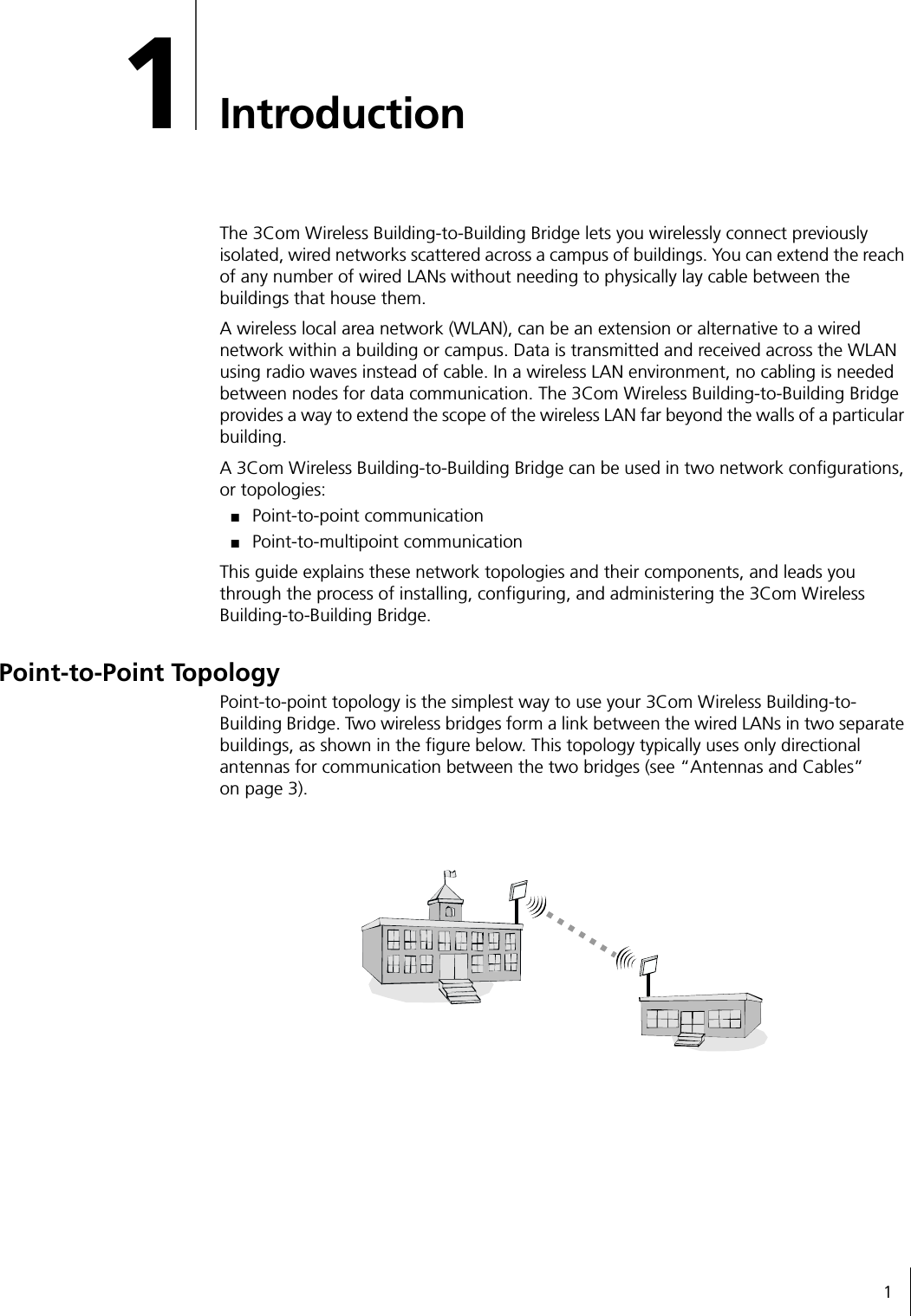
11IntroductionThe 3Com Wireless Building-to-Building Bridge lets you wirelessly connect previously isolated, wired networks scattered across a campus of buildings. You can extend the reach of any number of wired LANs without needing to physically lay cable between the buildings that house them.A wireless local area network (WLAN), can be an extension or alternative to a wired network within a building or campus. Data is transmitted and received across the WLAN using radio waves instead of cable. In a wireless LAN environment, no cabling is needed between nodes for data communication. The 3Com Wireless Building-to-Building Bridge provides a way to extend the scope of the wireless LAN far beyond the walls of a particular building.A 3Com Wireless Building-to-Building Bridge can be used in two network configurations, or topologies:■Point-to-point communication■Point-to-multipoint communicationThis guide explains these network topologies and their components, and leads you through the process of installing, configuring, and administering the 3Com Wireless Building-to-Building Bridge.Point-to-Point TopologyPoint-to-point topology is the simplest way to use your 3Com Wireless Building-to-Building Bridge. Two wireless bridges form a link between the wired LANs in two separate buildings, as shown in the figure below. This topology typically uses only directional antennas for communication between the two bridges (see “Antennas and Cables”on page 3).
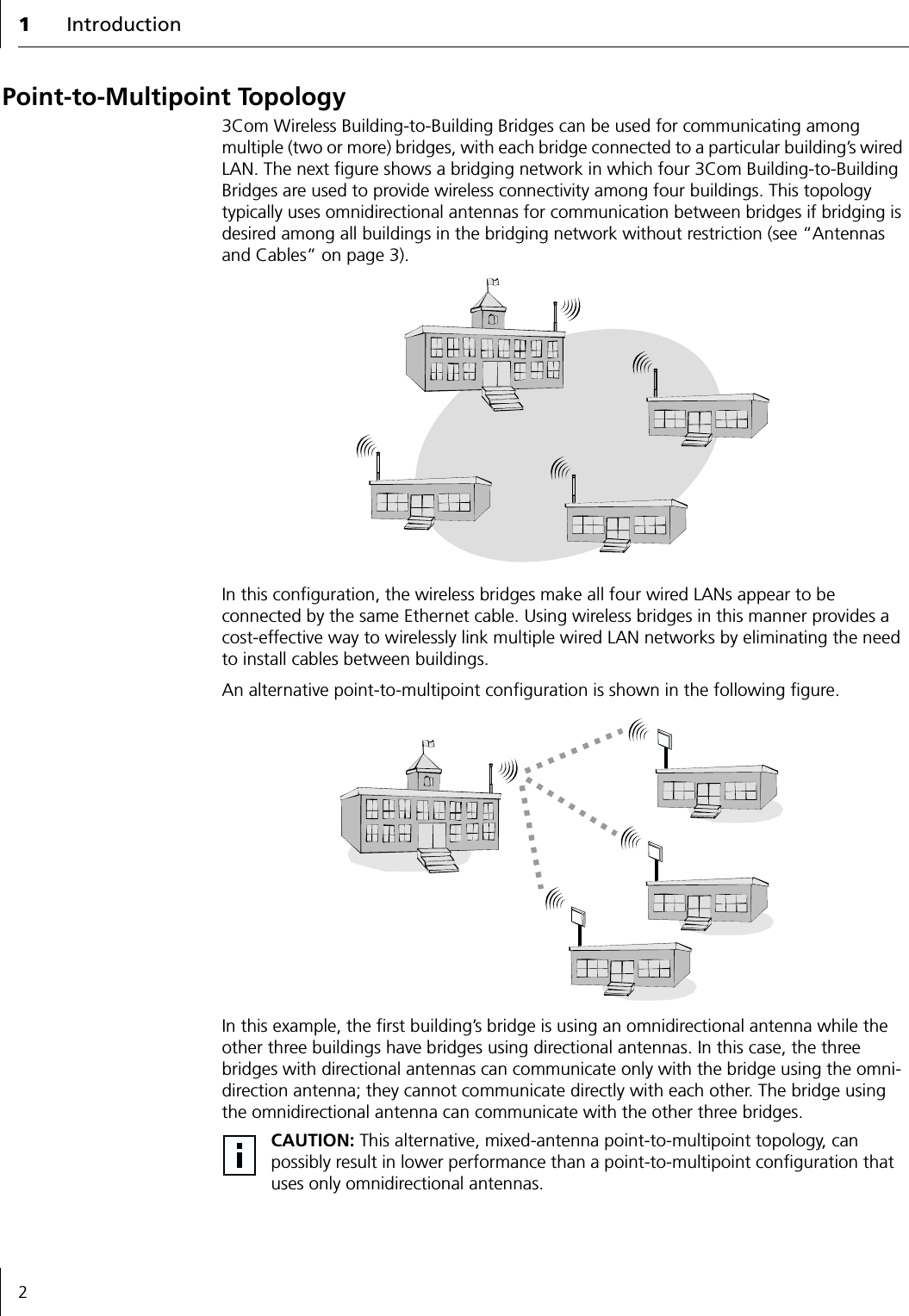
1Introduction2Point-to-Multipoint Topology3Com Wireless Building-to-Building Bridges can be used for communicating among multiple (two or more) bridges, with each bridge connected to a particular building’s wired LAN. The next figure shows a bridging network in which four 3Com Building-to-Building Bridges are used to provide wireless connectivity among four buildings. This topology typically uses omnidirectional antennas for communication between bridges if bridging is desired among all buildings in the bridging network without restriction (see “Antennas and Cables” on page 3).In this configuration, the wireless bridges make all four wired LANs appear to be connected by the same Ethernet cable. Using wireless bridges in this manner provides a cost-effective way to wirelessly link multiple wired LAN networks by eliminating the need to install cables between buildings.An alternative point-to-multipoint configuration is shown in the following figure. In this example, the first building’s bridge is using an omnidirectional antenna while the other three buildings have bridges using directional antennas. In this case, the three bridges with directional antennas can communicate only with the bridge using the omni-direction antenna; they cannot communicate directly with each other. The bridge using the omnidirectional antenna can communicate with the other three bridges.CAUTION: This alternative, mixed-antenna point-to-multipoint topology, can possibly result in lower performance than a point-to-multipoint configuration that uses only omnidirectional antennas.
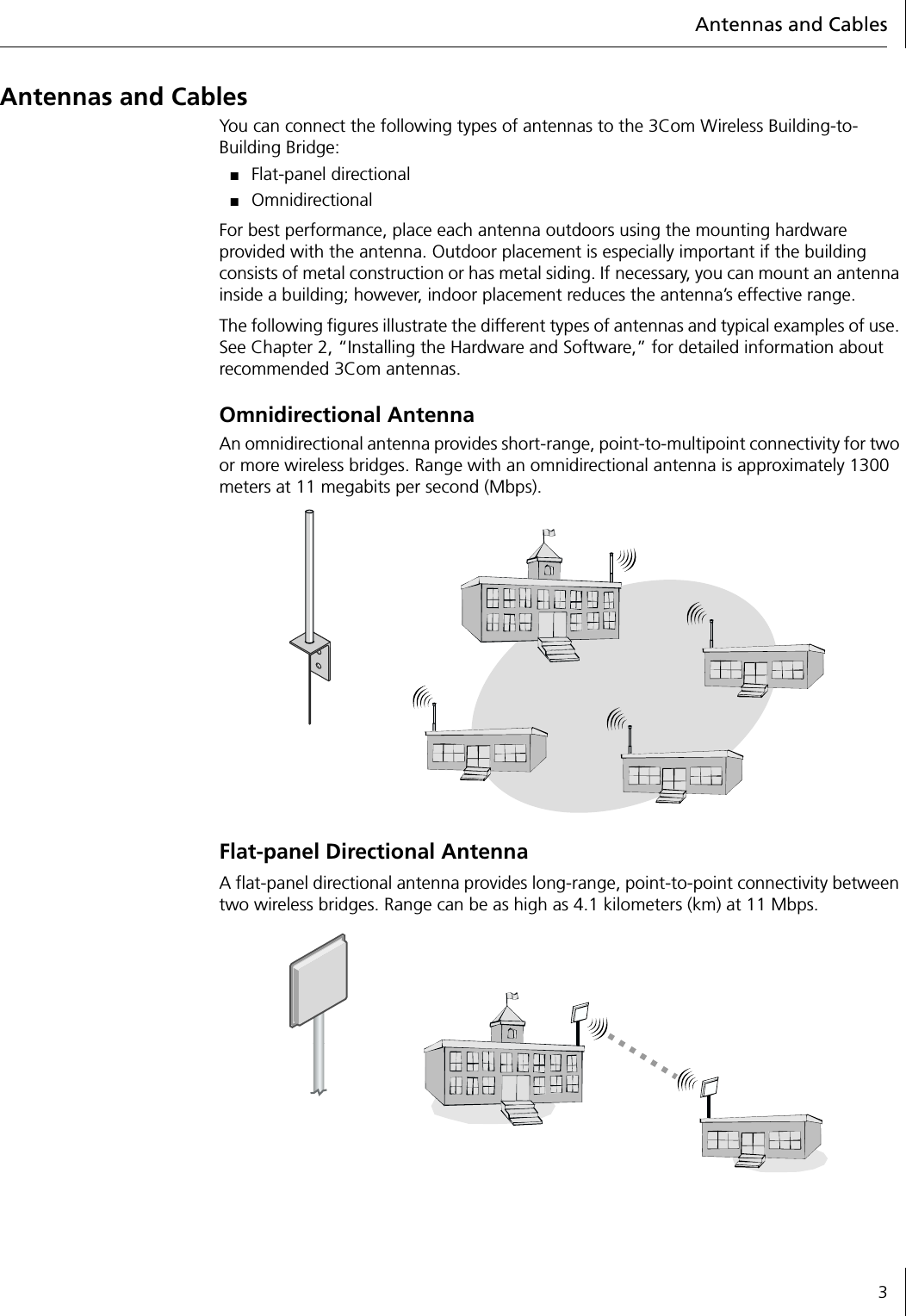
Antennas and Cables3Antennas and CablesYou can connect the following types of antennas to the 3Com Wireless Building-to-Building Bridge:■Flat-panel directional■Omnidirectional For best performance, place each antenna outdoors using the mounting hardware provided with the antenna. Outdoor placement is especially important if the building consists of metal construction or has metal siding. If necessary, you can mount an antenna inside a building; however, indoor placement reduces the antenna’s effective range.The following figures illustrate the different types of antennas and typical examples of use. See Chapter 2, “Installing the Hardware and Software,” for detailed information about recommended 3Com antennas.Omnidirectional AntennaAn omnidirectional antenna provides short-range, point-to-multipoint connectivity for two or more wireless bridges. Range with an omnidirectional antenna is approximately 1300 meters at 11 megabits per second (Mbps).Flat-panel Directional AntennaA flat-panel directional antenna provides long-range, point-to-point connectivity between two wireless bridges. Range can be as high as 4.1 kilometers (km) at 11 Mbps.
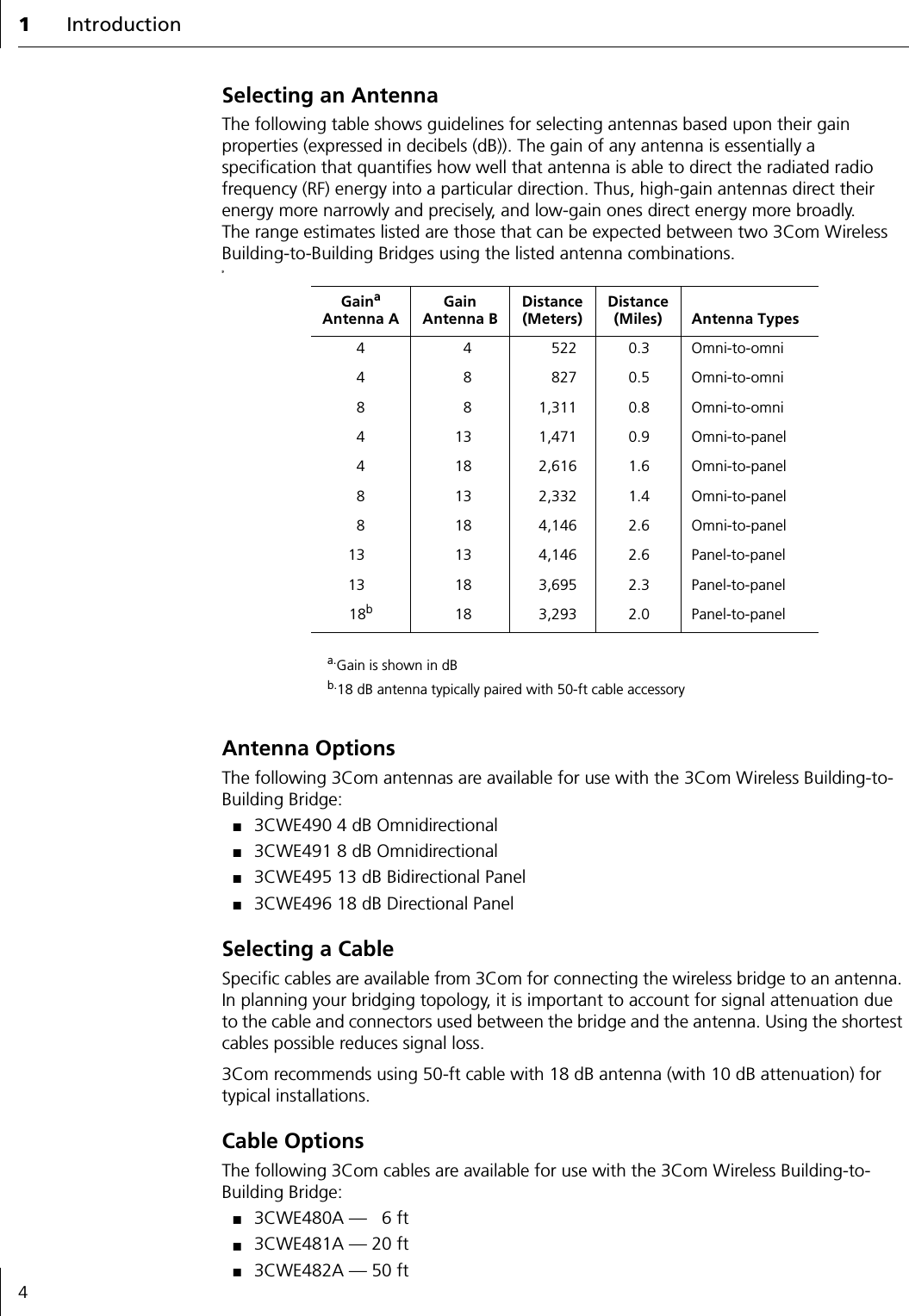
1Introduction4Selecting an AntennaThe following table shows guidelines for selecting antennas based upon their gain properties (expressed in decibels (dB)). The gain of any antenna is essentially a specification that quantifies how well that antenna is able to direct the radiated radio frequency (RF) energy into a particular direction. Thus, high-gain antennas direct their energy more narrowly and precisely, and low-gain ones direct energy more broadly. The range estimates listed are those that can be expected between two 3Com Wireless Building-to-Building Bridges using the listed antenna combinations.9Antenna OptionsThe following 3Com antennas are available for use with the 3Com Wireless Building-to-Building Bridge:■3CWE490 4 dB Omnidirectional■3CWE491 8 dB Omnidirectional■3CWE495 13 dB Bidirectional Panel■3CWE496 18 dB Directional PanelSelecting a CableSpecific cables are available from 3Com for connecting the wireless bridge to an antenna. In planning your bridging topology, it is important to account for signal attenuation due to the cable and connectors used between the bridge and the antenna. Using the shortest cables possible reduces signal loss.3Com recommends using 50-ft cable with 18 dB antenna (with 10 dB attenuation) for typical installations.Cable OptionsThe following 3Com cables are available for use with the 3Com Wireless Building-to-Building Bridge:■3CWE480A — 6 ft■3CWE481A — 20 ft■3CWE482A — 50 ftGainaAntenna Aa.Gain is shown in dBGainAntenna BDistance (Meters)Distance (Miles) Antenna Types4 4 522 0.3 Omni-to-omni4 8 827 0.5 Omni-to-omni8 8 1,311 0.8 Omni-to-omni4 13 1,471 0.9 Omni-to-panel4 18 2,616 1.6 Omni-to-panel8 13 2,332 1.4 Omni-to-panel8 18 4,146 2.6 Omni-to-panel13 13 4,146 2.6 Panel-to-panel13 18 3,695 2.3 Panel-to-panel18bb.18 dB antenna typically paired with 50-ft cable accessory18 3,293 2.0 Panel-to-panel
52Installing the Hardware and SoftwareThis chapter describes the contents of the 3Com Wireless Building-to-Building Bridge package, system requirements, configuration guidelines, and hardware and software installation procedures.Wireless Bridge Kit ContentsIn your 3Com Wireless Building-to-Building Bridge package, you will find the following components:■3Com Wireless Building-to-Building Bridge■RJ-45 Ethernet crossover cable■5.2V Universal AC-to-DC power supply and cord■Mounting hardware■Printed quick start guide with warranty■Installation CD containing this user guide and configuration softwareIf any of these items is missing or damaged, please contact the place of purchase or 3Com Customer Support (http://support.3com.com).System RequirementsBefore you can install a set of wireless bridges, your system environment must satisfy the conditions listed below. You need to have:■Physically isolated Ethernet LANs■Two or more 3Com Wireless Building-to-Building Bridges■One antenna with cable for each wireless bridge unit (can be purchased separately from 3Com as an accessory)■Computer with Windows 95, 98, Me, Windows 2000, or Windows NT installedCAUTION: Installing the 3Com Wireless Building-to-Building Bridge, cables, and antennas should be done only by professional network personnel.
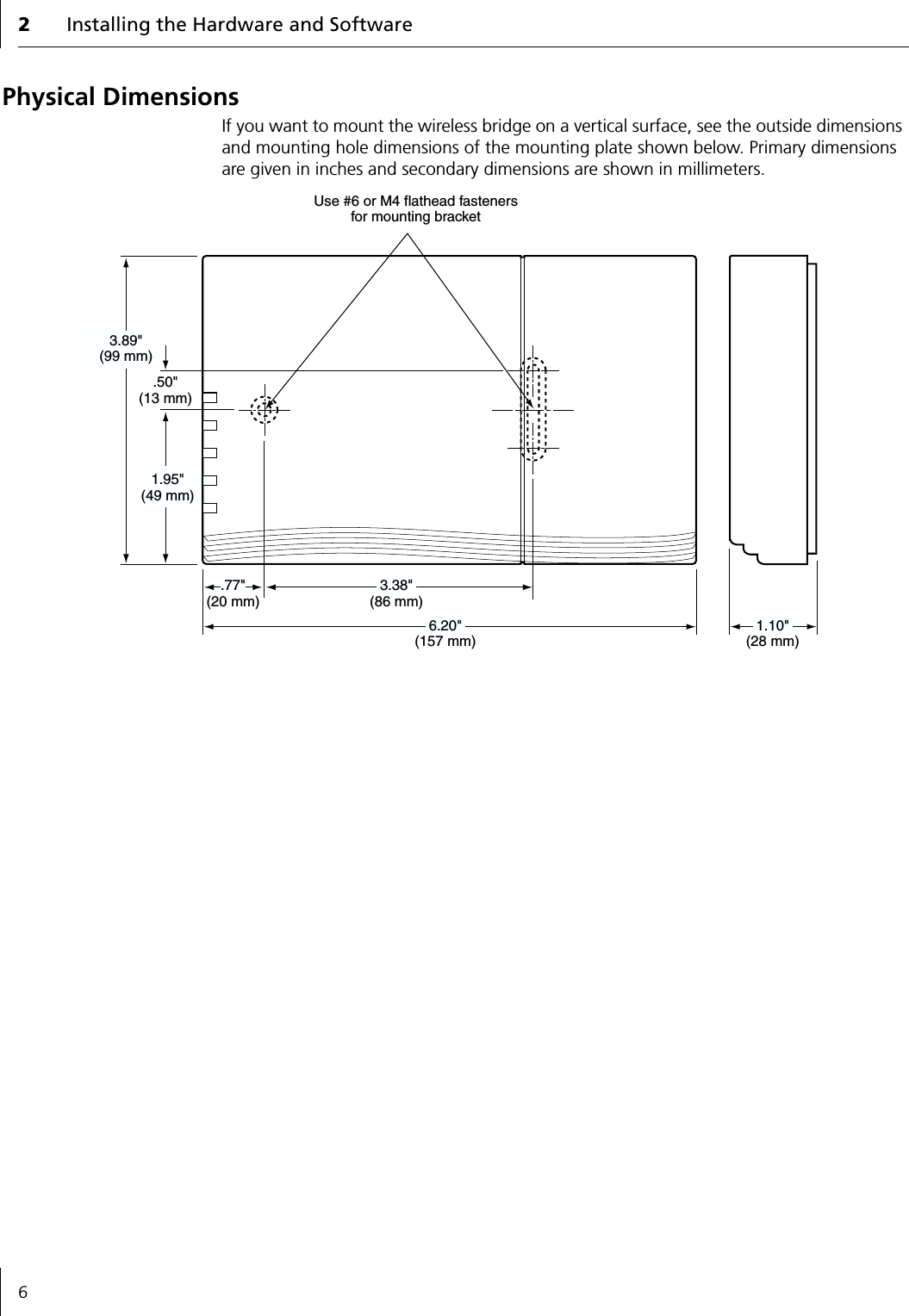
2Installing the Hardware and Software6Physical DimensionsIf you want to mount the wireless bridge on a vertical surface, see the outside dimensions and mounting hole dimensions of the mounting plate shown below. Primary dimensions are given in inches and secondary dimensions are shown in millimeters.3.38"(86 mm).50"(13 mm)6.20"(157 mm).77"(20 mm)1.10"(28 mm)1.95"(49 mm)3.89"(99 mm)Use #6 or M4 flathead fastenersfor mounting bracket
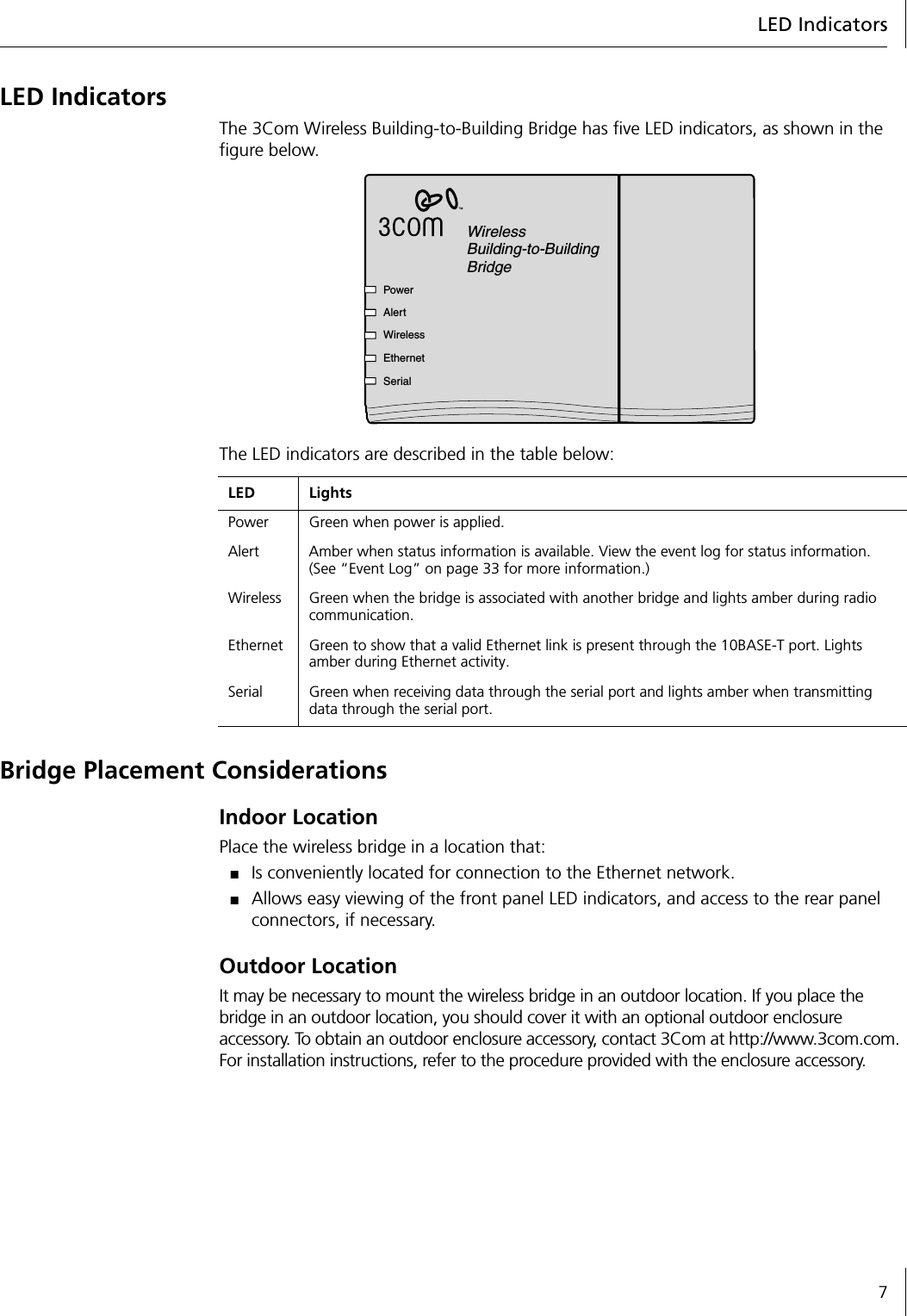
LED Indicators7LED IndicatorsThe 3Com Wireless Building-to-Building Bridge has five LED indicators, as shown in the figure below.The LED indicators are described in the table below:Bridge Placement ConsiderationsIndoor LocationPlace the wireless bridge in a location that:■Is conveniently located for connection to the Ethernet network.■Allows easy viewing of the front panel LED indicators, and access to the rear panel connectors, if necessary.Outdoor LocationIt may be necessary to mount the wireless bridge in an outdoor location. If you place the bridge in an outdoor location, you should cover it with an optional outdoor enclosure accessory. To obtain an outdoor enclosure accessory, contact 3Com at http://www.3com.com. For installation instructions, refer to the procedure provided with the enclosure accessory.LED LightsPower Green when power is applied.Alert Amber when status information is available. View the event log for status information. (See “Event Log” on page 33 for more information.)Wireless Green when the bridge is associated with another bridge and lights amber during radio communication.Ethernet Green to show that a valid Ethernet link is present through the 10BASE-T port. Lights amber during Ethernet activity.Serial Green when receiving data through the serial port and lights amber when transmitting data through the serial port.WirelessBuilding-to-BuildingBridgePowerAlertWirelessEthernetSerial
2Installing the Hardware and Software8Considering Antenna PlacementYou can place the antenna either indoors or outdoors. An outdoor location, such as a rooftop, provides the following advantages:■Fewer obstacles to signal paths between wireless bridges■Increased antenna range■Fewer multipath problemsProper GroundingTo ensure the physical safety of anyone near the antenna and to prevent damage to the wireless bridge, follow the building codes for antenna installations in your area. This approach typically means making certain that antennas and antenna masts are appropriately grounded to prevent injury or damage from lightning strikes.Most of the antennas shipped with the wireless bridge do not have an electrical connection between the mask mount and the coaxial cable shield. However, adding a lightning arrestor will correct that situation by grounding the outer shield as recommended. In some arrestor designs, there is also some over-voltage protection for the signal sent down the cable. If you use such a component, be sure that it is designed to pass signals used in the 2.5 GHz signal range (many inexpensive units are available with F connectors, but these are typically designed for cable TV-UHF applications and may degrade the signals in the band used by the wireless bridge).AlignmentPosition each antenna so that there are minimal obstacles between it and any other antenna with which it will communicate. While maintaining a direct line of sight between antennas is not strictly necessary, such an arrangement helps to ensure a strong signal.Align each directional antenna to point at the antenna with which it will communicate. If you place two directional antennas at different heights, tilt them up or down toward each other for optimal signal strength. Make sure that the angle of tilt is identical for each antenna: the antenna faces should be parallel.While aligning the antenna, you may want to use the Wireless Bridge Manager Received Signal Strength Indicator (RSSI) Monitor tool (preferably loaded on a mobile PC that can be used at the antenna site) to adjust the antenna to achieve the maximum possible received signal strength. See “Viewing Signal Strength with the RSSI Monitor” on page 36 for more information.PolarizationPolarization is a physical phenomenon of radio signal propagation. In general, any two antennas that are to form a link with each other must be set for the same polarization. If for example, two antennas for a link are linearly polarized, they must both be vertically polarized or horizontally polarized. If both antennas do not have the same polarization, the link will either work poorly, or not at all.The situation where one antenna is vertically polarized and the other is horizontally polarized is known as cross-polarization.Antenna polarity should be identical for each antenna in a bridging link or network. Vertical polarization is preferred in most cases. Make sure that every directional antenna is properly oriented for vertical polarization (according to the polarization indicator shown on the antenna panel).Omnidirectional antennas should be vertically aligned in relation to the ground.
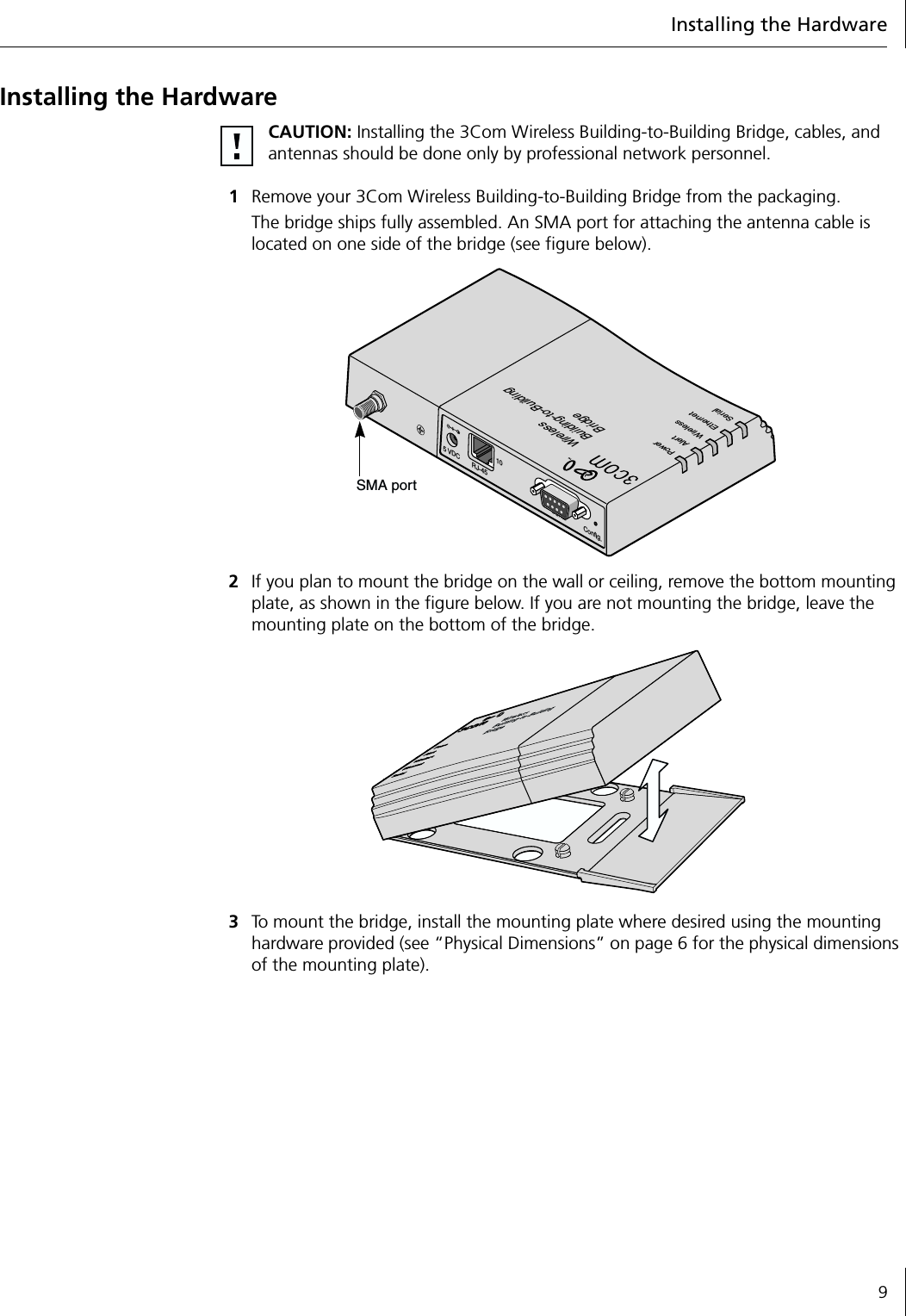
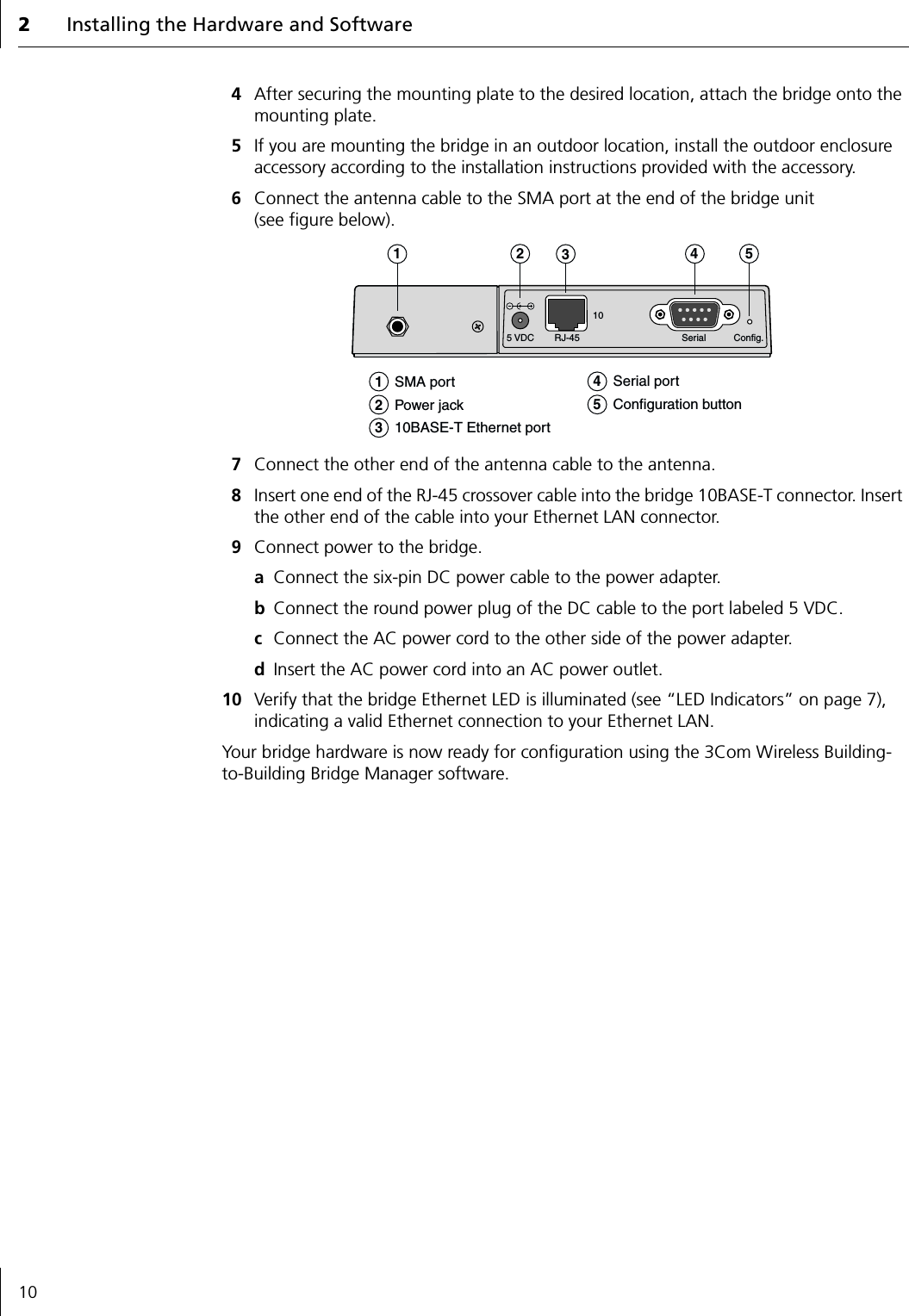
Installing the Hardware9Installing the Hardware1Remove your 3Com Wireless Building-to-Building Bridge from the packaging.The bridge ships fully assembled. An SMA port for attaching the antenna cable is located on one side of the bridge (see figure below).2If you plan to mount the bridge on the wall or ceiling, remove the bottom mounting plate, as shown in the figure below. If you are not mounting the bridge, leave the mounting plate on the bottom of the bridge.3To mount the bridge, install the mounting plate where desired using the mounting hardware provided (see “Physical Dimensions” on page 6 for the physical dimensions of the mounting plate).CAUTION: Installing the 3Com Wireless Building-to-Building Bridge, cables, and antennas should be done only by professional network personnel.WirelessBuilding-to-BuildingBridgePowerAlertWirelessEthernetSerial5 VDC10Config.SerialRJ-45SMA port
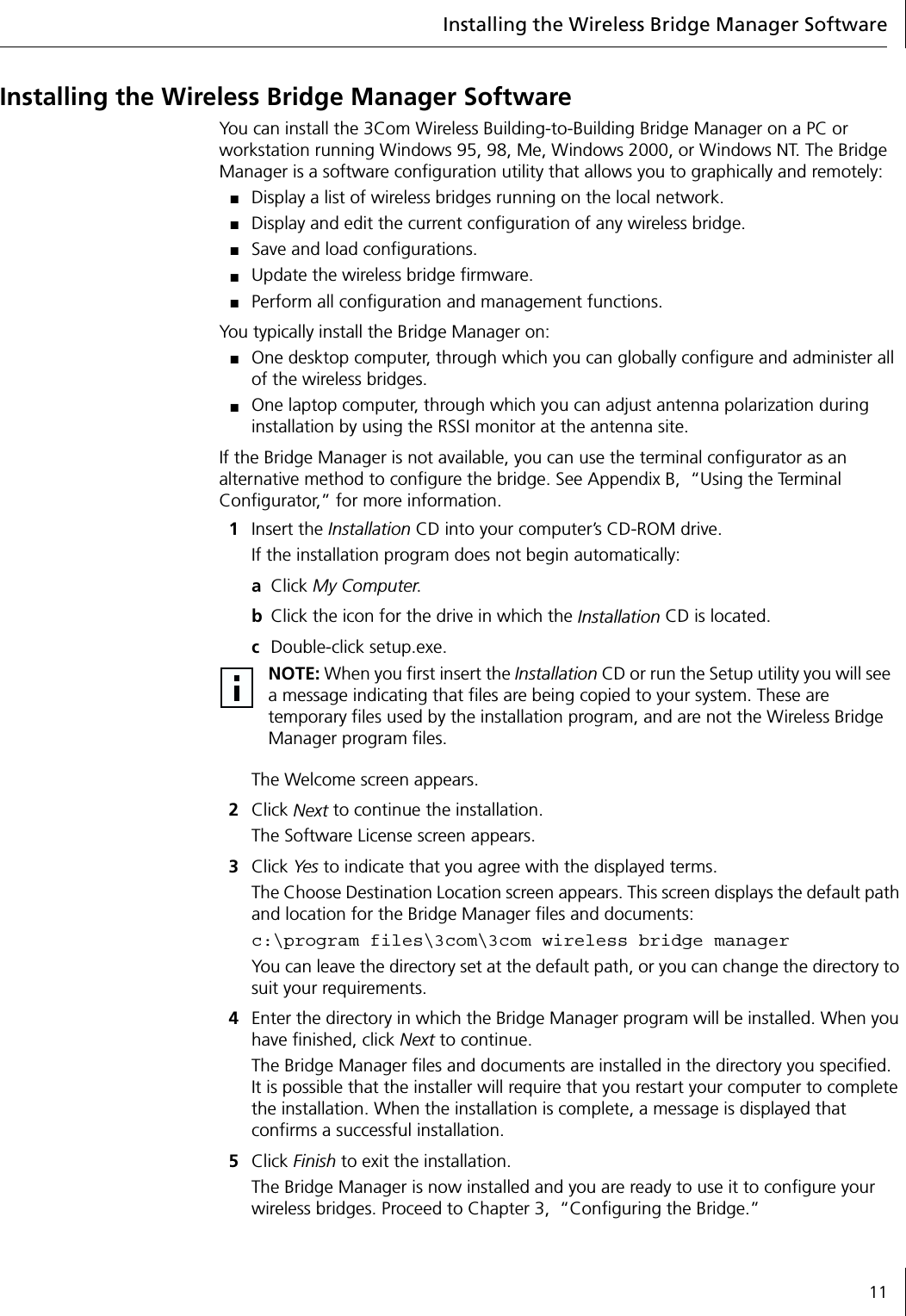
2Installing the Hardware and Software104After securing the mounting plate to the desired location, attach the bridge onto the mounting plate.5If you are mounting the bridge in an outdoor location, install the outdoor enclosure accessory according to the installation instructions provided with the accessory.6Connect the antenna cable to the SMA port at the end of the bridge unit (see figure below).7Connect the other end of the antenna cable to the antenna.8Insert one end of the RJ-45 crossover cable into the bridge 10BASE-T connector. Insert the other end of the cable into your Ethernet LAN connector.9Connect power to the bridge.aConnect the six-pin DC power cable to the power adapter.bConnect the round power plug of the DC cable to the port labeled 5 VDC.cConnect the AC power cord to the other side of the power adapter.dInsert the AC power cord into an AC power outlet.10 Verify that the bridge Ethernet LED is illuminated (see “LED Indicators” on page 7), indicating a valid Ethernet connection to your Ethernet LAN.Your bridge hardware is now ready for configuration using the 3Com Wireless Building-to-Building Bridge Manager software.5 VDC RJ-45 Serial Config.101   SMA port2   Power jack3   10BASE-T Ethernet port4   Serial port5   Configuration button12345
Installing the Wireless Bridge Manager Software11Installing the Wireless Bridge Manager SoftwareYou can install the 3Com Wireless Building-to-Building Bridge Manager on a PC or workstation running Windows 95, 98, Me, Windows 2000, or Windows NT. The Bridge Manager is a software configuration utility that allows you to graphically and remotely:■Display a list of wireless bridges running on the local network.■Display and edit the current configuration of any wireless bridge.■Save and load configurations.■Update the wireless bridge firmware.■Perform all configuration and management functions.You typically install the Bridge Manager on:■One desktop computer, through which you can globally configure and administer all of the wireless bridges.■One laptop computer, through which you can adjust antenna polarization during installation by using the RSSI monitor at the antenna site.If the Bridge Manager is not available, you can use the terminal configurator as an alternative method to configure the bridge. See Appendix B,  “Using the Terminal Configurator,” for more information.1Insert the Installation CD into your computer’s CD-ROM drive.If the installation program does not begin automatically:aClick My Computer.bClick the icon for the drive in which the Installation CD is located.cDouble-click setup.exe.The Welcome screen appears.2Click Next to continue the installation.The Software License screen appears.3Click Yes to indicate that you agree with the displayed terms.The Choose Destination Location screen appears. This screen displays the default path and location for the Bridge Manager files and documents:c:\program files\3com\3com wireless bridge managerYou can leave the directory set at the default path, or you can change the directory to suit your requirements.4Enter the directory in which the Bridge Manager program will be installed. When you have finished, click Next to continue.The Bridge Manager files and documents are installed in the directory you specified. It is possible that the installer will require that you restart your computer to complete the installation. When the installation is complete, a message is displayed that confirms a successful installation.5Click Finish to exit the installation.The Bridge Manager is now installed and you are ready to use it to configure your wireless bridges. Proceed to Chapter 3,  “Configuring the Bridge.”NOTE: When you first insert the Installation CD or run the Setup utility you will see a message indicating that files are being copied to your system. These are temporary files used by the installation program, and are not the Wireless Bridge Manager program files.
133Configuring the BridgeThis chapter describes how to add a 3Com Wireless Building-to-Building Bridge to your wireless network using the Wireless Bridge Manager configuration utility.The 3Com Wireless Building-to-Building Bridge Manager software communicates with each wireless bridge using a non-routable protocol. Therefore, your wireless bridges must be accessible on the local subnet to communicate with the Bridge Manager.Starting the Bridge ManagerTo run the Wireless Bridge Manager, follow these steps:1On the Windows taskbar, click Start.2Select Programs and then select the Program Group you created when you installed the Wireless Bridge Manager (see “Installing the Wireless Bridge Manager Software” on page 11).3Select the 3Com Wireless Bridge Manager entry.The 3Com Wireless Building-to-Building Bridge Manager screen appears and the Bridge Manager automatically scans the network for currently accessible bridge groups. (See the next section,”Scanning for Bridge Groups,” for more information about bridge groups.)
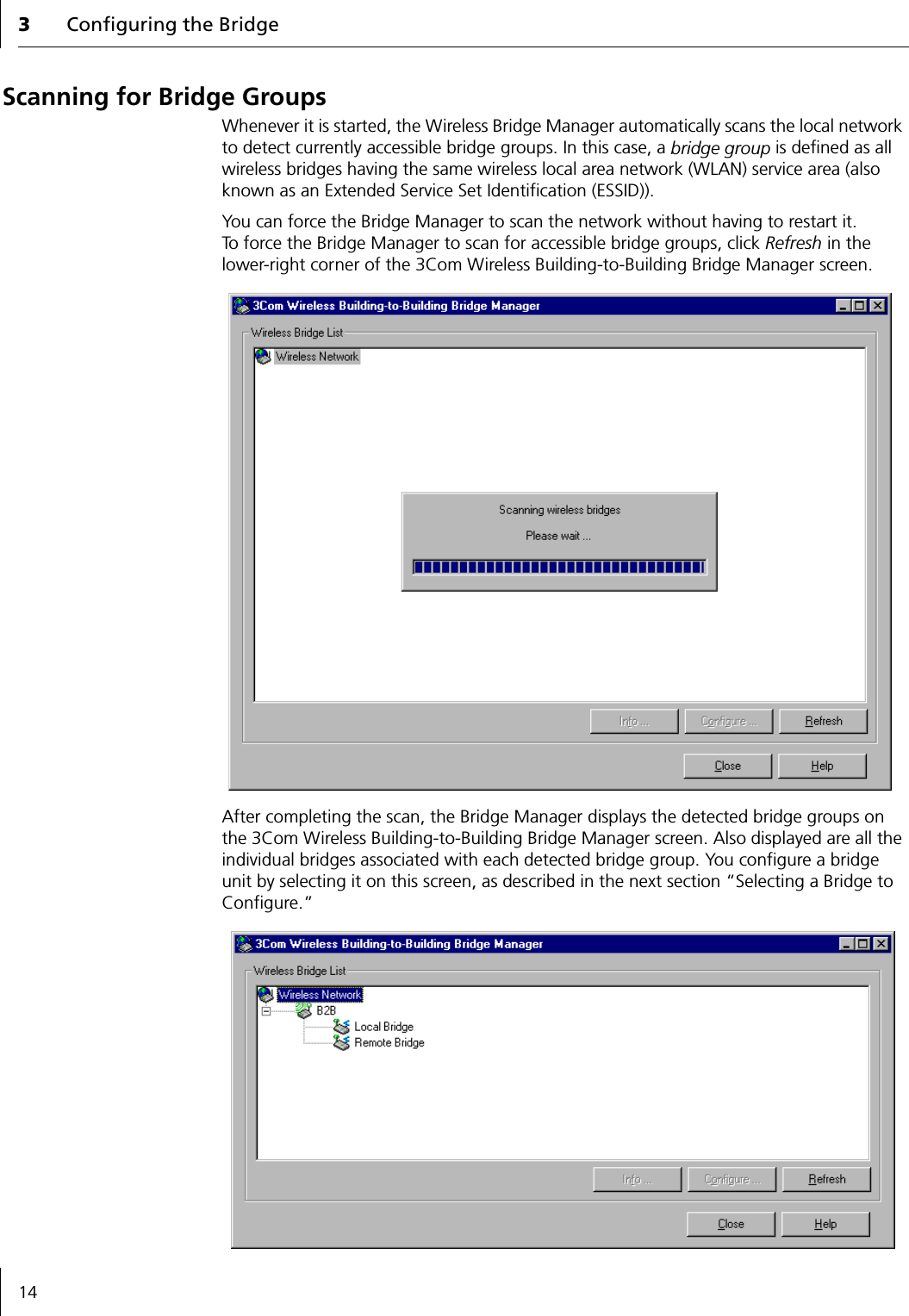
3Configuring the Bridge14Scanning for Bridge GroupsWhenever it is started, the Wireless Bridge Manager automatically scans the local network to detect currently accessible bridge groups. In this case, a bridge group is defined as all wireless bridges having the same wireless local area network (WLAN) service area (also known as an Extended Service Set Identification (ESSID)).You can force the Bridge Manager to scan the network without having to restart it. To force the Bridge Manager to scan for accessible bridge groups, click Refresh in the lower-right corner of the 3Com Wireless Building-to-Building Bridge Manager screen.After completing the scan, the Bridge Manager displays the detected bridge groups on the 3Com Wireless Building-to-Building Bridge Manager screen. Also displayed are all the individual bridges associated with each detected bridge group. You configure a bridge unit by selecting it on this screen, as described in the next section “Selecting a Bridge to Configure.”
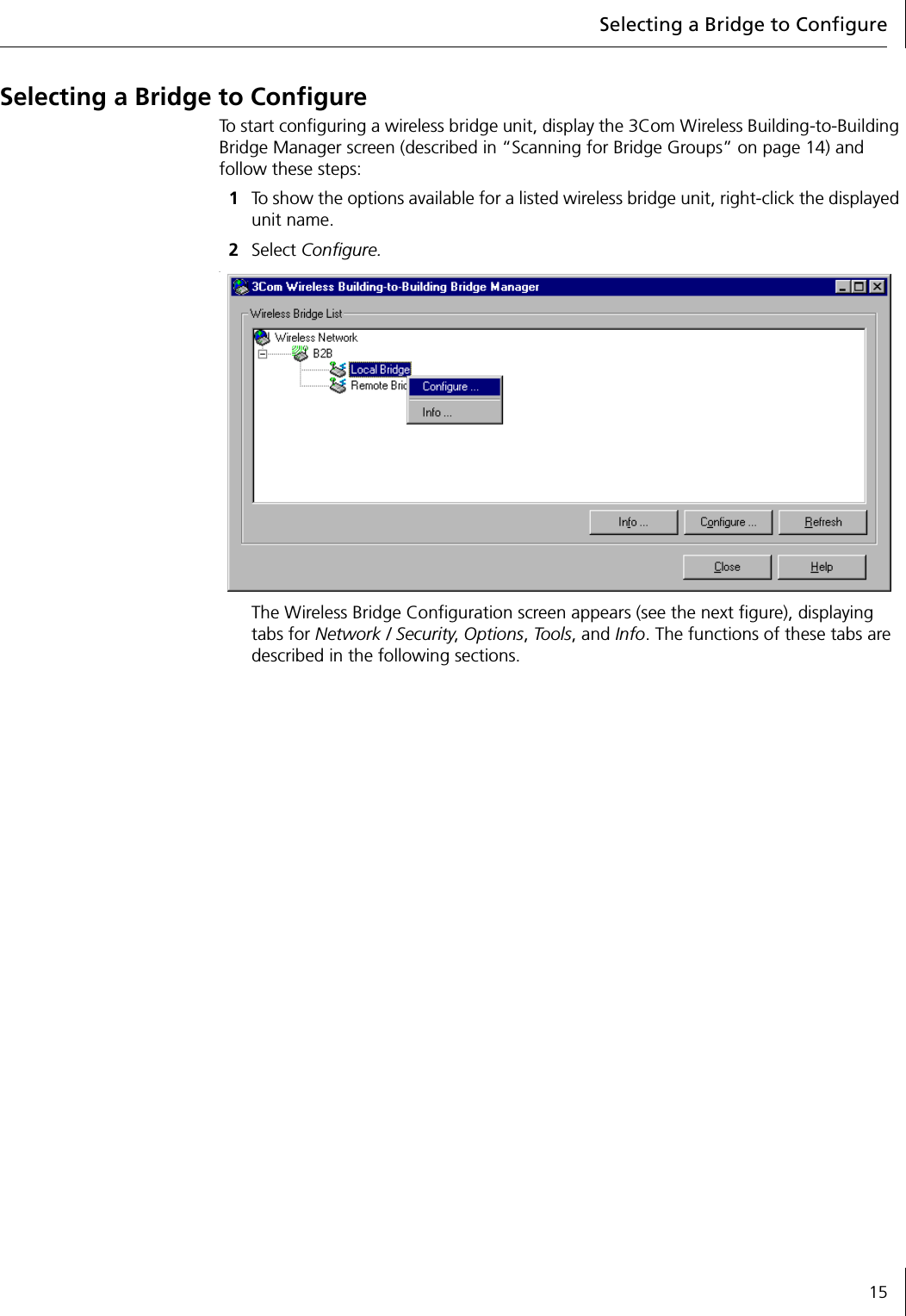
Selecting a Bridge to Configure15Selecting a Bridge to ConfigureTo start configuring a wireless bridge unit, display the 3Com Wireless Building-to-Building Bridge Manager screen (described in “Scanning for Bridge Groups” on page 14) and follow these steps:1To show the options available for a listed wireless bridge unit, right-click the displayed unit name.2Select Configure..The Wireless Bridge Configuration screen appears (see the next figure), displaying tabs for Network / Security, Options, Tools, and Info. The functions of these tabs are described in the following sections.
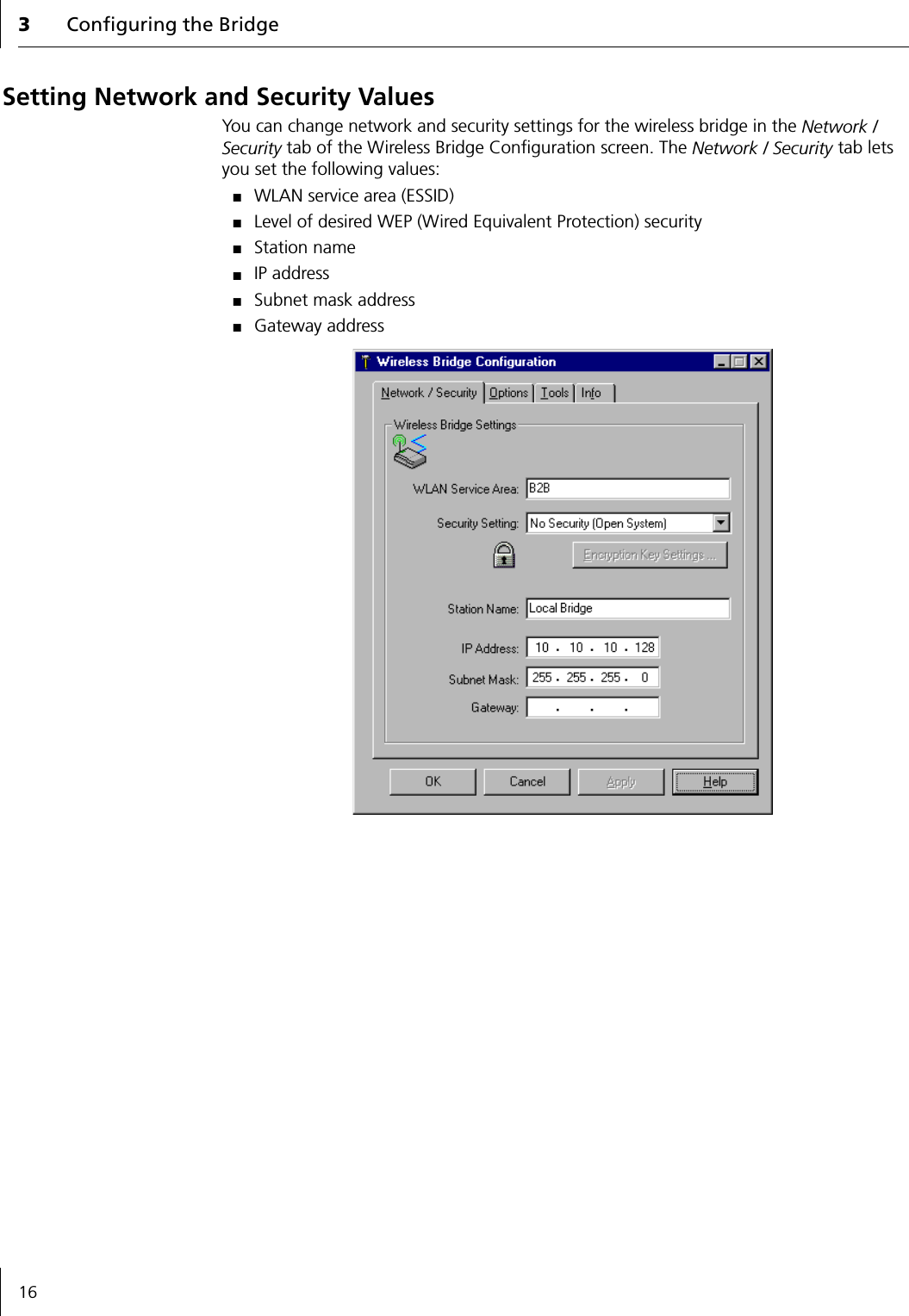
3Configuring the Bridge16Setting Network and Security ValuesYou can change network and security settings for the wireless bridge in the Network / Security tab of the Wireless Bridge Configuration screen. The Network / Security tab lets you set the following values:■WLAN service area (ESSID)■Level of desired WEP (Wired Equivalent Protection) security■Station name■IP address■Subnet mask address■Gateway address
Setting Network and Security Values17Network SettingsNetwork settings determine the wireless network with which the bridge can associate. Some wireless LANs are set up with different WLAN service areas. The WLAN service area is used to specify a unique wireless network. Wireless bridges use the WLAN service area to connect to a specific network. Only bridges with the same WLAN service area can associate with each other; they cannot communicate with bridges that have different WLAN service areas.To  c h a n g e  th e  Network / Security tab settings:1Enter the name of a WLAN service area.The WLAN service area (ESSID) is used to specify a unique wireless network. The service area name can be up to 32 alphanumeric characters long. Only bridges with the same WLAN service area can associate with each other; they cannot communicate with bridges that have different WLAN service areas.2Use the Security Setting pull-down menu to select one of the following WEP security settings:■No Security (Open System)■40-bit shared key for basic encryption■128-bit shared key for strong encryptionUsing either a 40-bit or 128-bit shared key setting, all wireless bridges in a single wireless LAN service area (sharing the same ESSID) must share the same security key. The security settings for any associating bridge pair must match exactly. For more information about the security settings, see the next section, “Security Settings.”3Enter the Station Name.The station name is an arbitrary identifier for each wireless bridge. This value lets you conveniently identify the bridges with the Wireless Bridge Manager. Assigning a meaningful station name to each wireless bridge is recommended. Like the WLAN Service Area Name (step 1), this field uses any alphanumeric combination.4Enter the IP Address you want to assign to the wireless bridge.The IP address is the network address that will be used by other computers to communicate with the wireless bridge. Assigning an IP address to the bridge is required only if you plan to use Telnet for remote configuration. (See Appendix B,  “Using the Terminal Configurator,” for more information about using Telnet.)5Enter the Subnet Mask value.This value defines the range of IP addresses available within your local network. Assigning a subnet mask address to the bridge is required only if you plan to use Telnet for remote configuration.6If your network uses a gateway (router or firewall), enter the Gateway IP address.You must enter the IP address of your gateway if you plan to use Telnet to administer the wireless bridge from computers on a different subnet. You may leave this field blank if no gateway is present or needed. Assigning a gateway address to the bridge is required only if you plan to use Telnet for remote configuration.7Click Apply.When the wireless bridge has joined your wireless network by associating with another wireless bridge, the radio association LED will light green.
3Configuring the Bridge18Security SettingsEnabling security is the best way to protect your data from unauthorized observers. 3Com recommends using the strongest encryption setting supported by your wireless bridge.The 3Com Wireless Building-to-Building Bridge supports the following levels of hardware encryption:Both basic and strong shared-key security settings use industry-standard 802.11 Wired Equivalent Privacy (WEP) encryption methods. Using either setting, all wireless bridges in a single wireless LAN service area must share the same security key. The WEP key settings for any associating bridge pair must match exactly. You can set the WEP keys in one of two ways. You can:■Have the keys automatically generated — Allows you to easily enter any string of characters (as you would enter a password) that will automatically generate the WEP keys in hexadecimal notation the same way for every wireless bridge you configure.■Enter the keys manually — Allows you to use an existing set of encryption keys, but requires that you manually enter four long series of hexadecimal numbers in exactly the same way for every wireless bridge you configure.NOTE: The 128-bit encryption setting may not be available to you, depending on U.S. export restrictions to your country.Security Level DescriptionNo Security (Open System) No encryption. The network communications could be intercepted by unintended recipients.40-bit shared key Basic encryption.128-bit shared key Strong encryption.
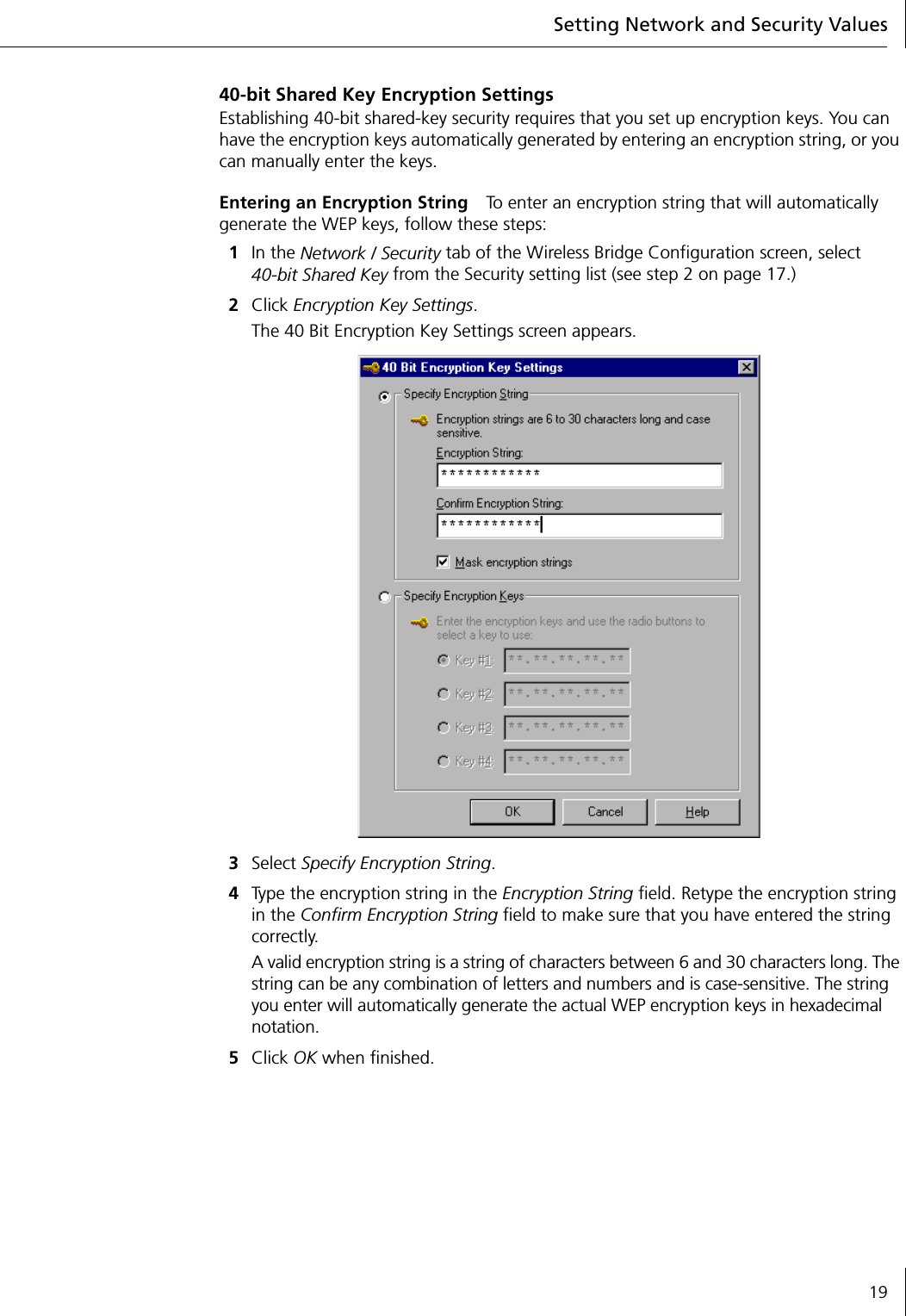
Setting Network and Security Values1940-bit Shared Key Encryption SettingsEstablishing 40-bit shared-key security requires that you set up encryption keys. You can have the encryption keys automatically generated by entering an encryption string, or you can manually enter the keys.Entering an Encryption String To enter an encryption string that will automatically generate the WEP keys, follow these steps:1In the Network / Security tab of the Wireless Bridge Configuration screen, select40-bit Shared Key from the Security setting list (see step 2 on page 17.)2Click Encryption Key Settings.The 40 Bit Encryption Key Settings screen appears.3Select Specify Encryption String.4Type the encryption string in the Encryption String field. Retype the encryption string in the Confirm Encryption String field to make sure that you have entered the string correctly.A valid encryption string is a string of characters between 6 and 30 characters long. The string can be any combination of letters and numbers and is case-sensitive. The string you enter will automatically generate the actual WEP encryption keys in hexadecimal notation.5Click OK when finished.
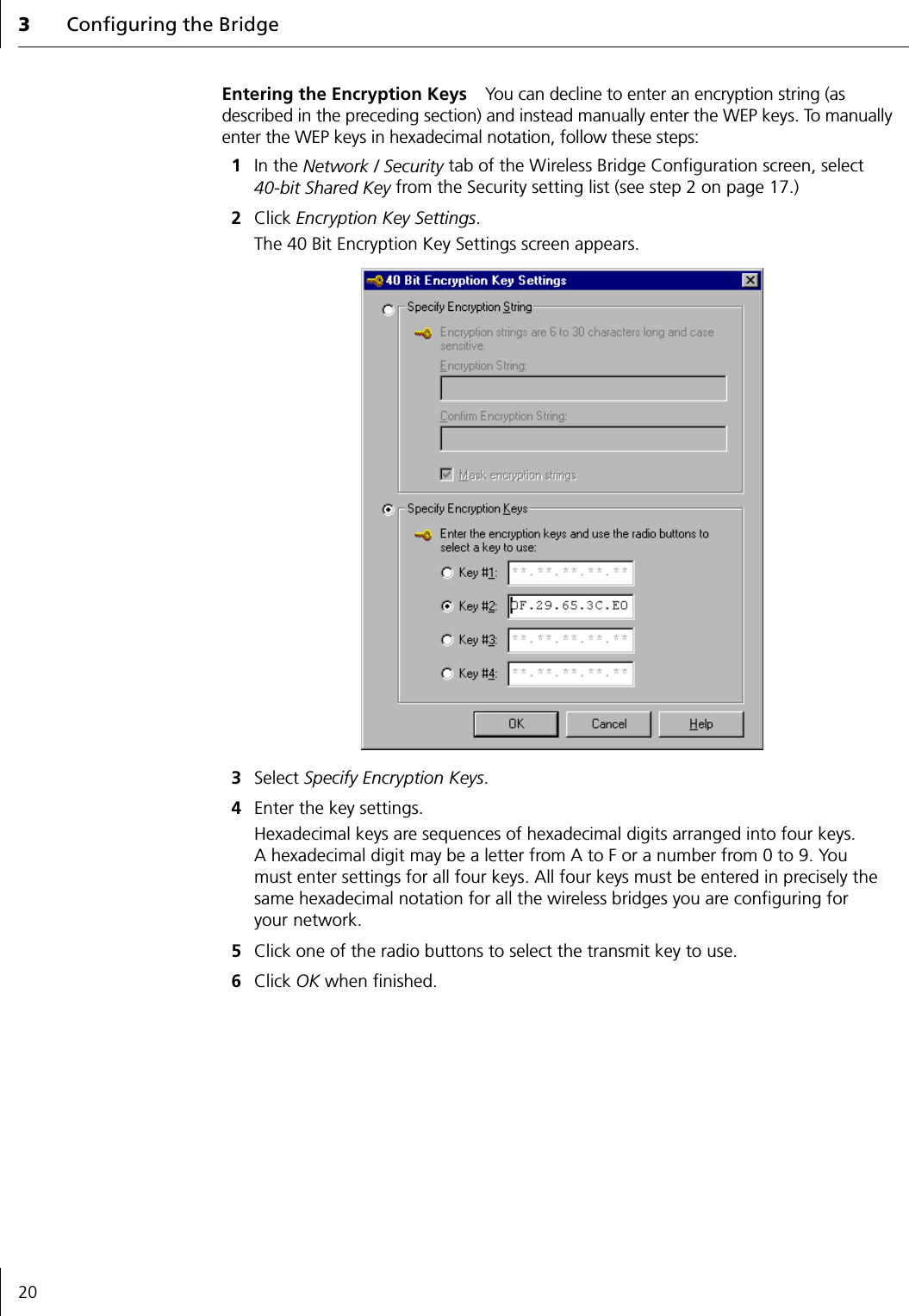
3Configuring the Bridge20Entering the Encryption Keys You can decline to enter an encryption string (as described in the preceding section) and instead manually enter the WEP keys. To manually enter the WEP keys in hexadecimal notation, follow these steps:1In the Network / Security tab of the Wireless Bridge Configuration screen, select 40-bit Shared Key from the Security setting list (see step 2 on page 17.)2Click Encryption Key Settings.The 40 Bit Encryption Key Settings screen appears.3Select Specify Encryption Keys.4Enter the key settings.Hexadecimal keys are sequences of hexadecimal digits arranged into four keys. A hexadecimal digit may be a letter from A to F or a number from 0 to 9. You must enter settings for all four keys. All four keys must be entered in precisely the same hexadecimal notation for all the wireless bridges you are configuring for your network.5Click one of the radio buttons to select the transmit key to use.6Click OK when finished.
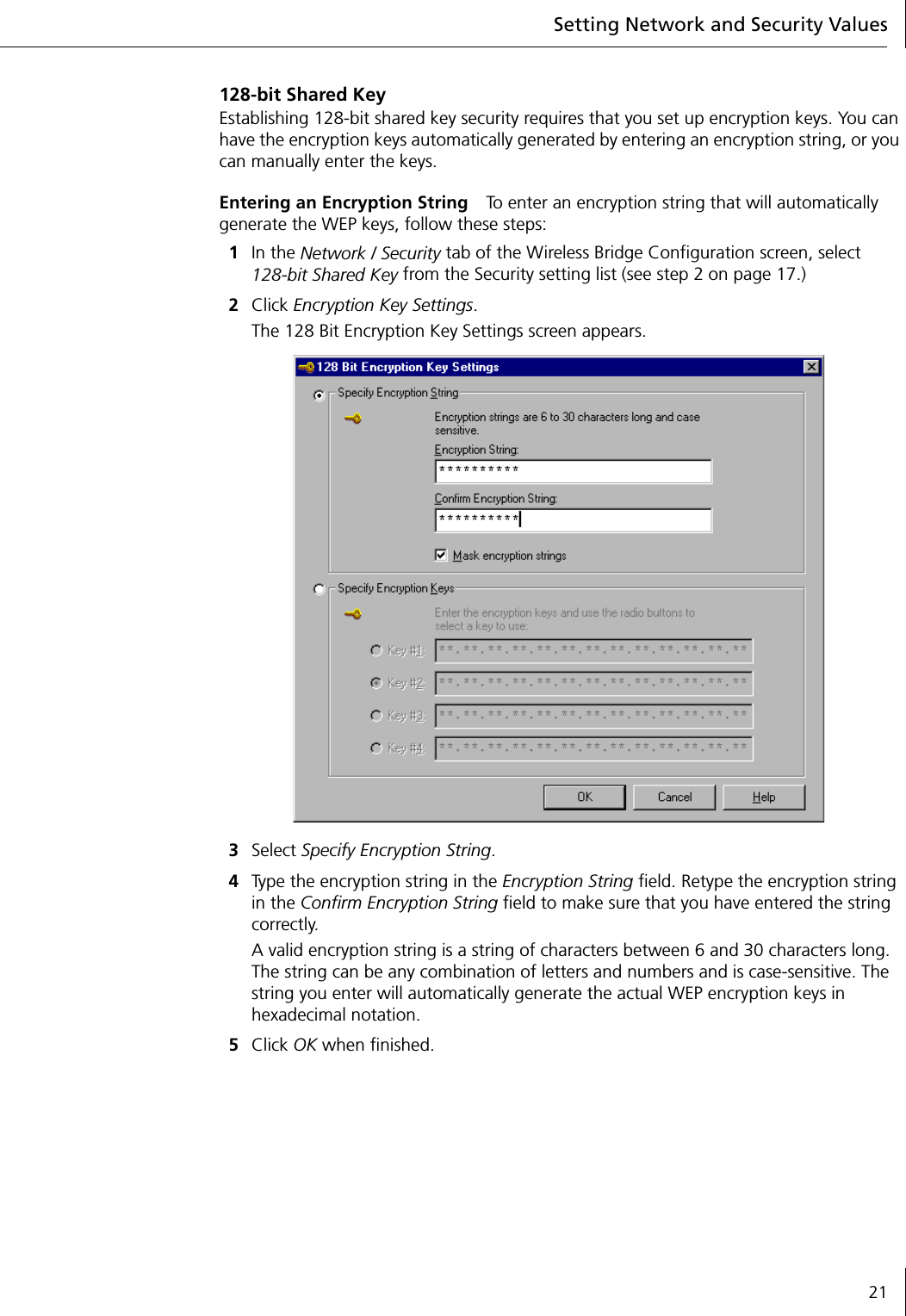
Setting Network and Security Values21128-bit Shared KeyEstablishing 128-bit shared key security requires that you set up encryption keys. You can have the encryption keys automatically generated by entering an encryption string, or you can manually enter the keys.Entering an Encryption String To enter an encryption string that will automatically generate the WEP keys, follow these steps:1In the Network / Security tab of the Wireless Bridge Configuration screen, select 128-bit Shared Key from the Security setting list (see step 2 on page 17.)2Click Encryption Key Settings.The 128 Bit Encryption Key Settings screen appears.3Select Specify Encryption String.4Type the encryption string in the Encryption String field. Retype the encryption string in the Confirm Encryption String field to make sure that you have entered the string correctly.A valid encryption string is a string of characters between 6 and 30 characters long. The string can be any combination of letters and numbers and is case-sensitive. The string you enter will automatically generate the actual WEP encryption keys in hexadecimal notation.5Click OK when finished.
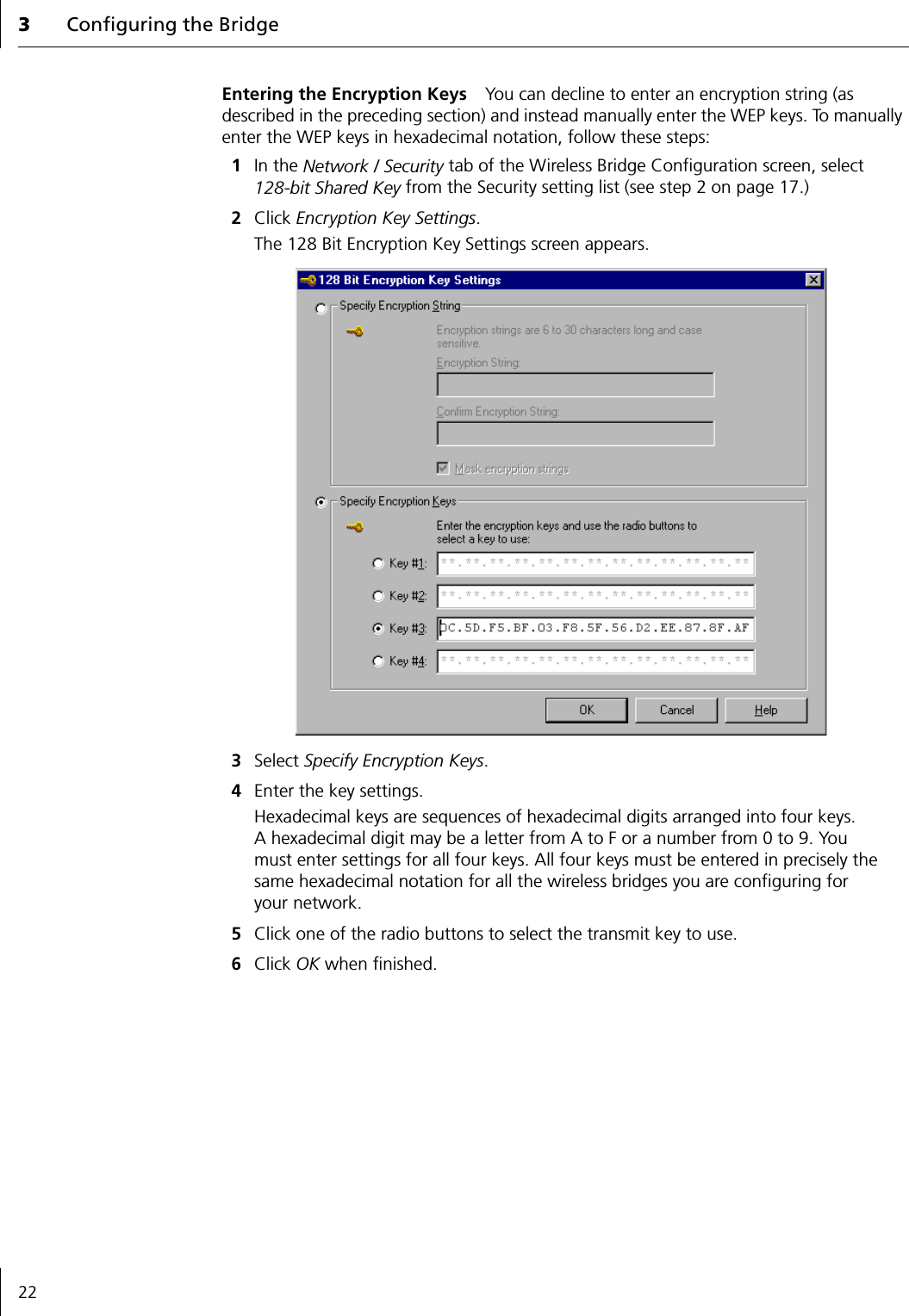
3Configuring the Bridge22Entering the Encryption Keys You can decline to enter an encryption string (as described in the preceding section) and instead manually enter the WEP keys. To manually enter the WEP keys in hexadecimal notation, follow these steps:1In the Network / Security tab of the Wireless Bridge Configuration screen, select 128-bit Shared Key from the Security setting list (see step 2 on page 17.)2Click Encryption Key Settings.The 128 Bit Encryption Key Settings screen appears.3Select Specify Encryption Keys.4Enter the key settings.Hexadecimal keys are sequences of hexadecimal digits arranged into four keys. A hexadecimal digit may be a letter from A to F or a number from 0 to 9. You must enter settings for all four keys. All four keys must be entered in precisely the same hexadecimal notation for all the wireless bridges you are configuring for your network.5Click one of the radio buttons to select the transmit key to use.6Click OK when finished.
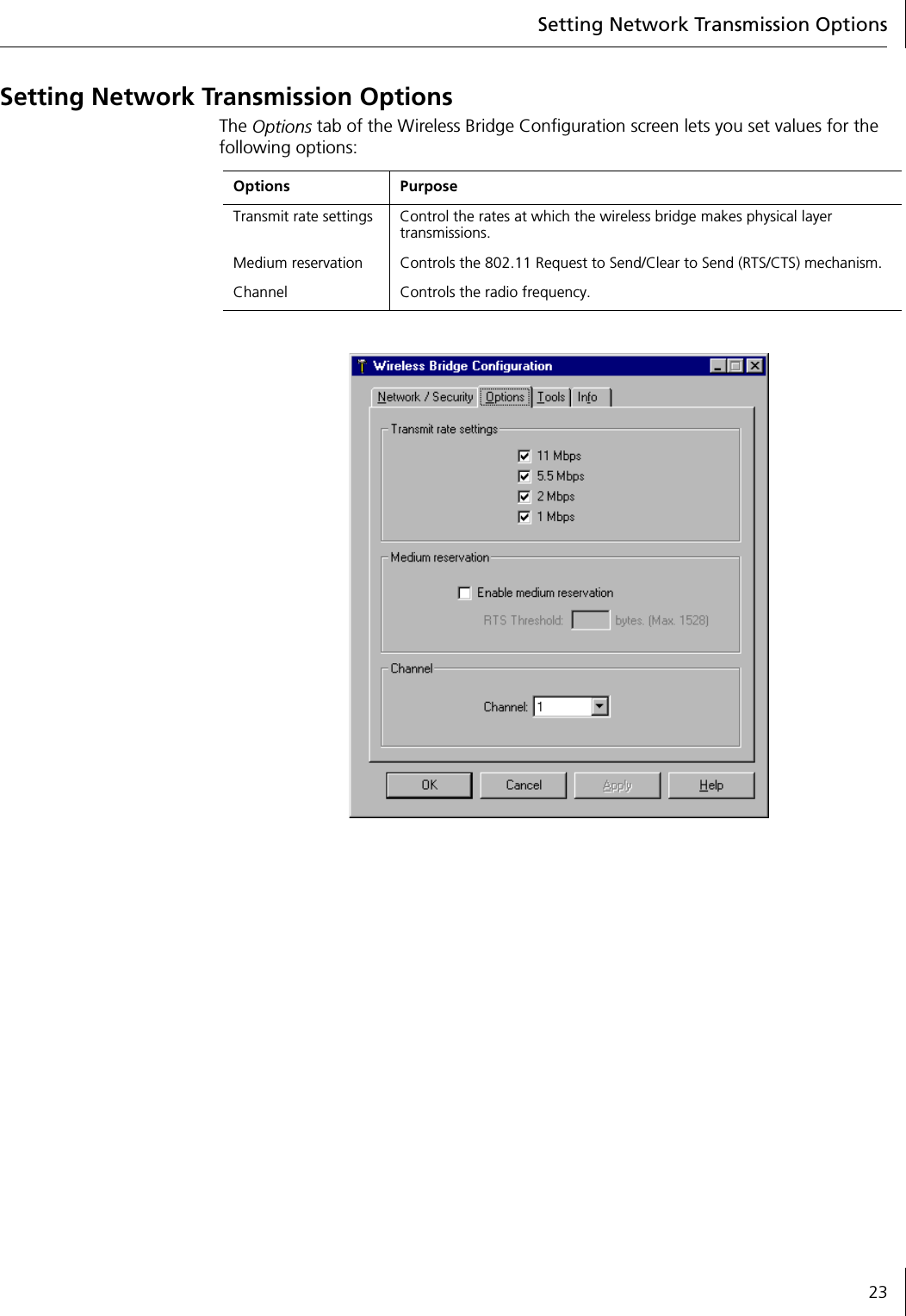
Setting Network Transmission Options23Setting Network Transmission OptionsThe Options tab of the Wireless Bridge Configuration screen lets you set values for the following options:Options PurposeTransmit rate settings Control the rates at which the wireless bridge makes physical layer transmissions.Medium reservation  Controls the 802.11 Request to Send/Clear to Send (RTS/CTS) mechanism.Channel Controls the radio frequency.
3Configuring the Bridge24Setting the Transmit RatesThe transmit-rate-settings parameter controls the rates at which the wireless bridge makes physical layer transmissions. The rates listed are those supported by the 802.11b radio. These rates refer to the physical layer transmissions, and do not necessarily correspond to the data throughput that you will achieve. Data throughput is affected by many factors, including distance, signal quality, and network protocol.Use the check boxes to specify the allowed transmit rates for the radio. If you select multiple allowed transmit rates the unit will automatically use the highest available rate based on signal quality. When the signal quality is poor the radio will drop back to lower rates.If you force the radio to a lower rate, then it will operate better with poor signal quality. If you force the radio to a higher rate, then it will operate only when the signal quality is high. In general, you should leave this setting at the default of all rates allowed.The following table shows the allowable combinations of transmit rate settings. You should use the same transmit rate settings for all wireless bridges sharing WLAN service area (ESSID):Setting Medium ReservationThe medium reservation parameter controls the 802.11 Request to Send/Clear to Send (RTS/CTS) mechanism. It is used to force the radio to perform a Request to Send and receive a Clear to Send before transmitting packets. One of the bridges in the system acts as the coordinator for all transmissions. The coordinator issues the Clear to Send messages for all other bridges that are making Requests to Send. There is not a way to specify which bridge will be the coordinator.When medium reservation is enabled you must specify the RTS threshold. The threshold is the packet length, in bytes, above which the radio will make the RTS and wait for CTS before sending the packet. For example, if you enable medium reservation with an RTS threshold of 500, then all packets of length greater than or equal to 500 bytes will not be transmitted until the radio first issues an RTS and then receives a CTS from the coordinator. Packets less than 500 bytes will be sent as soon as the channel is free, without first undergoing the RTS/CTS mechanism.Setting the ChannelThe 802.11 standard specifies a number of different frequency channels. The regulatory bodies of your country control the frequency channels that you may use. Use the pull-down menu to see the list of channels supported by your wireless bridge unit.NOTE: 3Com recommends that you select all the Transmit rate settings (11, 5.5, 2, 1 Mbps) to achieve the best performance.Combination Settings (On) DescriptionA 1, 2, 5.5, 11 Mbps 11 Mbps with auto-fallbackB 1, 2 Mbps 2 Mbps with auto-fallbackC 1 Mbps 1 MbpsNOTE: To ensure operation on a specific channel, all bridges with the same WLAN Service Area Name (see step 1 on page 17) must have the same channel setting.
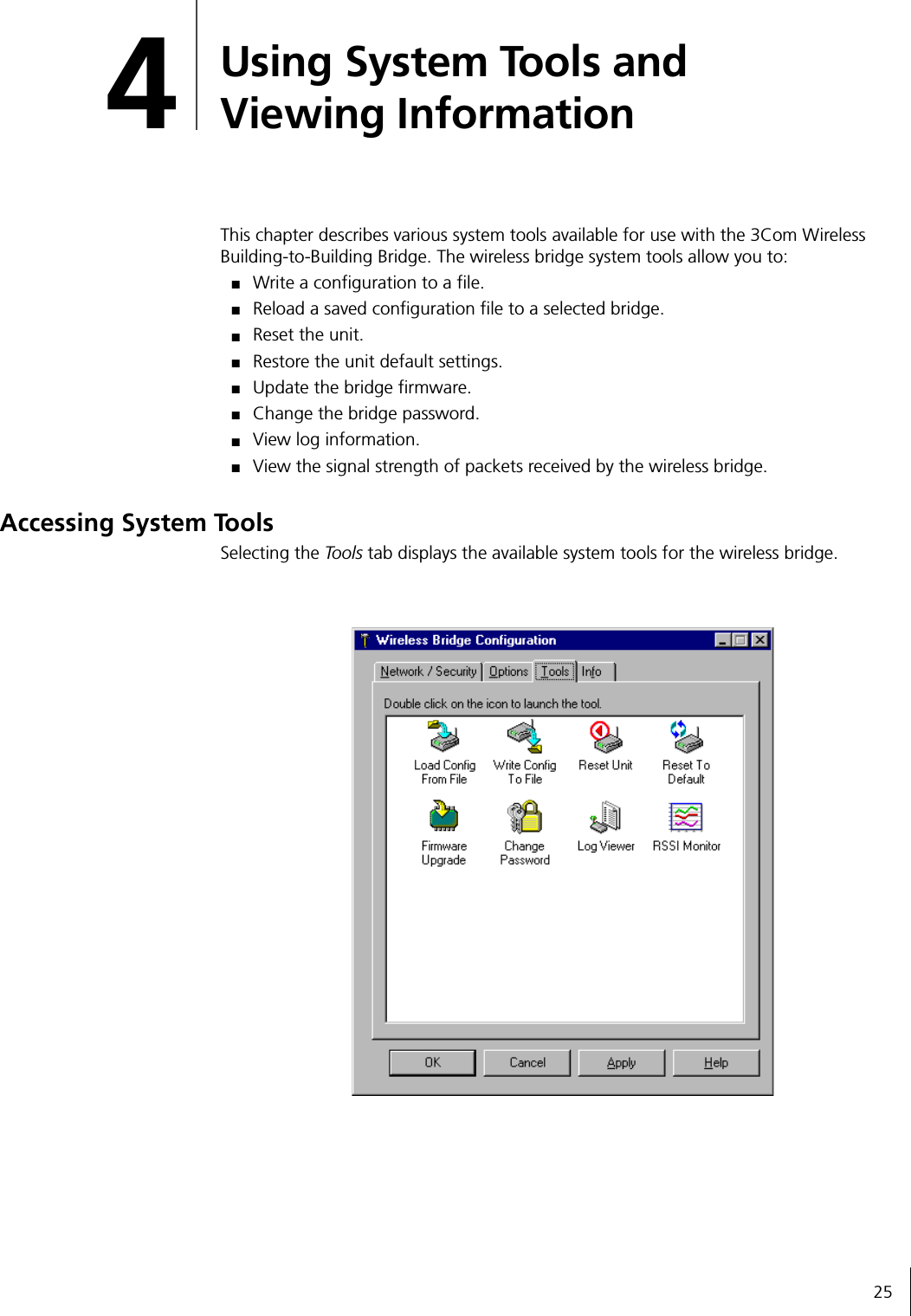
254Using System Tools and Viewing InformationThis chapter describes various system tools available for use with the 3Com Wireless Building-to-Building Bridge. The wireless bridge system tools allow you to:■Write a configuration to a file.■Reload a saved configuration file to a selected bridge.■Reset the unit.■Restore the unit default settings.■Update the bridge firmware.■Change the bridge password.■View log information.■View the signal strength of packets received by the wireless bridge.Accessing System ToolsSelecting the Tools tab displays the available system tools for the wireless bridge.
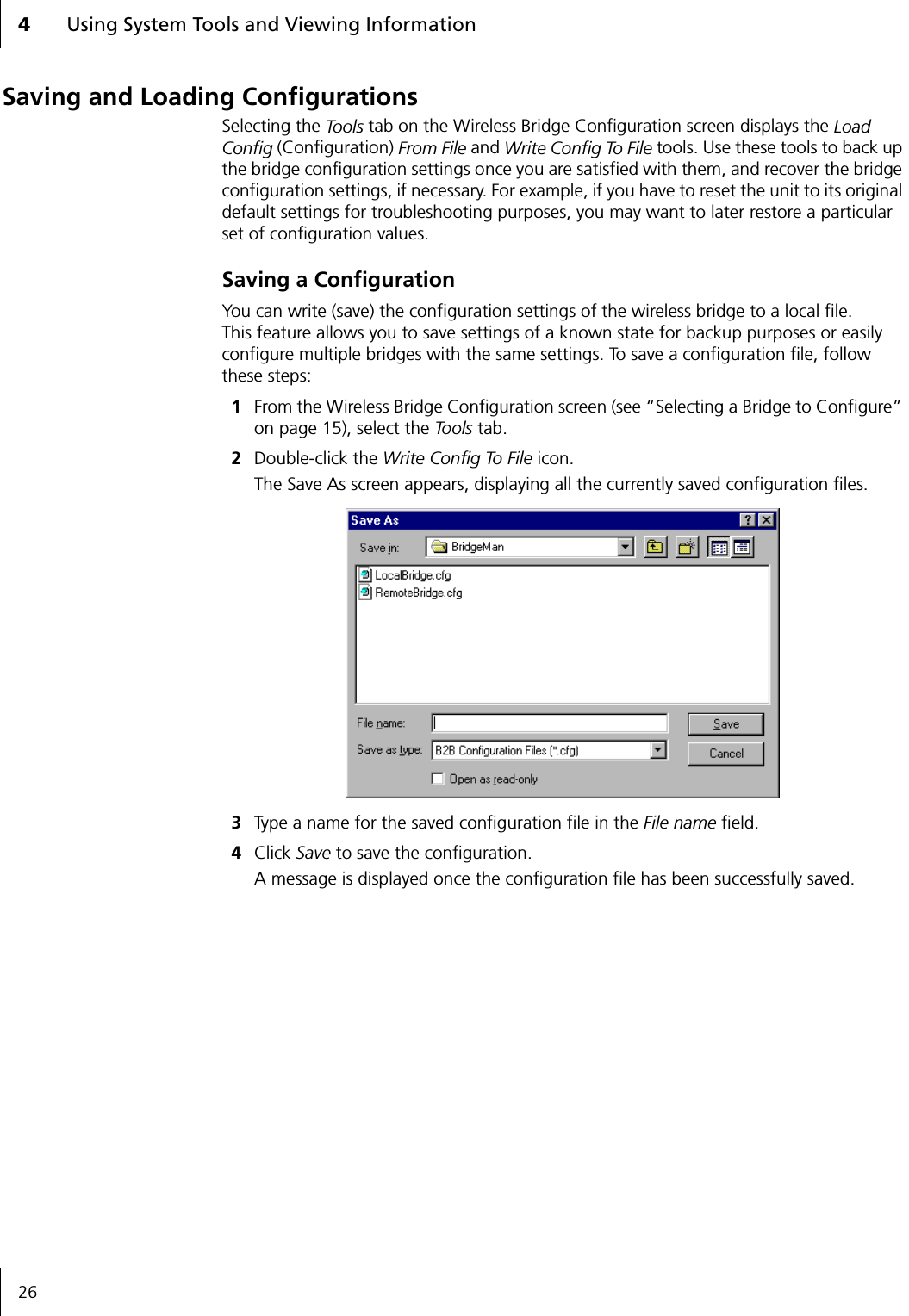
4Using System Tools and Viewing Information26Saving and Loading ConfigurationsSelecting the Tools tab on the Wireless Bridge Configuration screen displays the Load Config (Configuration) From File and Write Config To File tools. Use these tools to back up the bridge configuration settings once you are satisfied with them, and recover the bridge configuration settings, if necessary. For example, if you have to reset the unit to its original default settings for troubleshooting purposes, you may want to later restore a particular set of configuration values.Saving a ConfigurationYou can write (save) the configuration settings of the wireless bridge to a local file. This feature allows you to save settings of a known state for backup purposes or easily configure multiple bridges with the same settings. To save a configuration file, follow these steps:1From the Wireless Bridge Configuration screen (see “Selecting a Bridge to Configure” on page 15), select the To o l s  tab.2Double-click the Write Config To File icon.The Save As screen appears, displaying all the currently saved configuration files.3Type a name for the saved configuration file in the File name field.4Click Save to save the configuration.A message is displayed once the configuration file has been successfully saved.
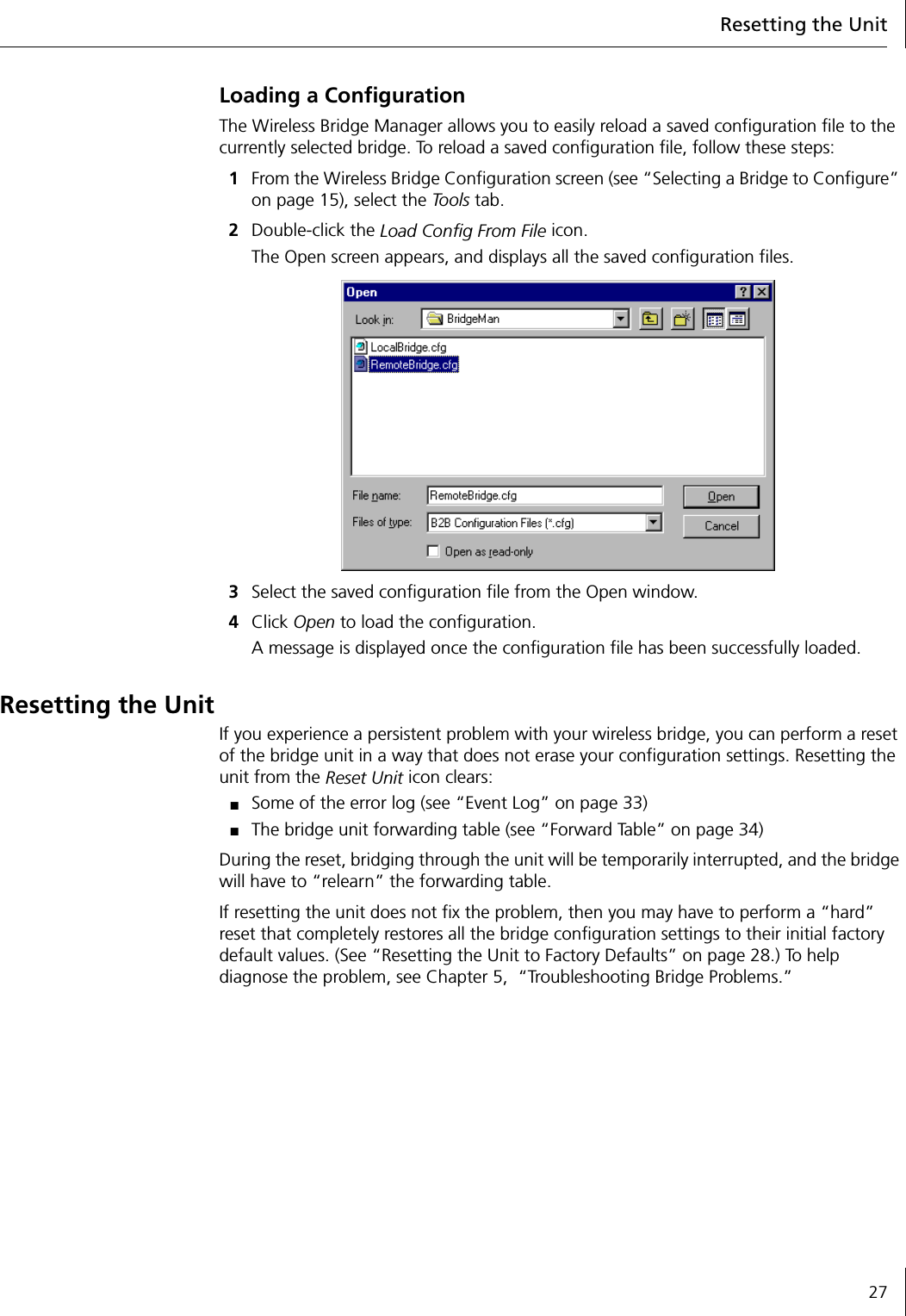
Resetting the Unit27Loading a ConfigurationThe Wireless Bridge Manager allows you to easily reload a saved configuration file to the currently selected bridge. To reload a saved configuration file, follow these steps:1From the Wireless Bridge Configuration screen (see “Selecting a Bridge to Configure” on page 15), select the To o l s  tab.2Double-click the Load Config From File icon.The Open screen appears, and displays all the saved configuration files.3Select the saved configuration file from the Open window.4Click Open to load the configuration.A message is displayed once the configuration file has been successfully loaded.Resetting the UnitIf you experience a persistent problem with your wireless bridge, you can perform a reset of the bridge unit in a way that does not erase your configuration settings. Resetting the unit from the Reset Unit icon clears:■Some of the error log (see “Event Log” on page 33)■The bridge unit forwarding table (see “Forward Table” on page 34)During the reset, bridging through the unit will be temporarily interrupted, and the bridge will have to “relearn” the forwarding table.If resetting the unit does not fix the problem, then you may have to perform a “hard” reset that completely restores all the bridge configuration settings to their initial factory default values. (See “Resetting the Unit to Factory Defaults” on page 28.) To help diagnose the problem, see Chapter 5,  “Troubleshooting Bridge Problems.”
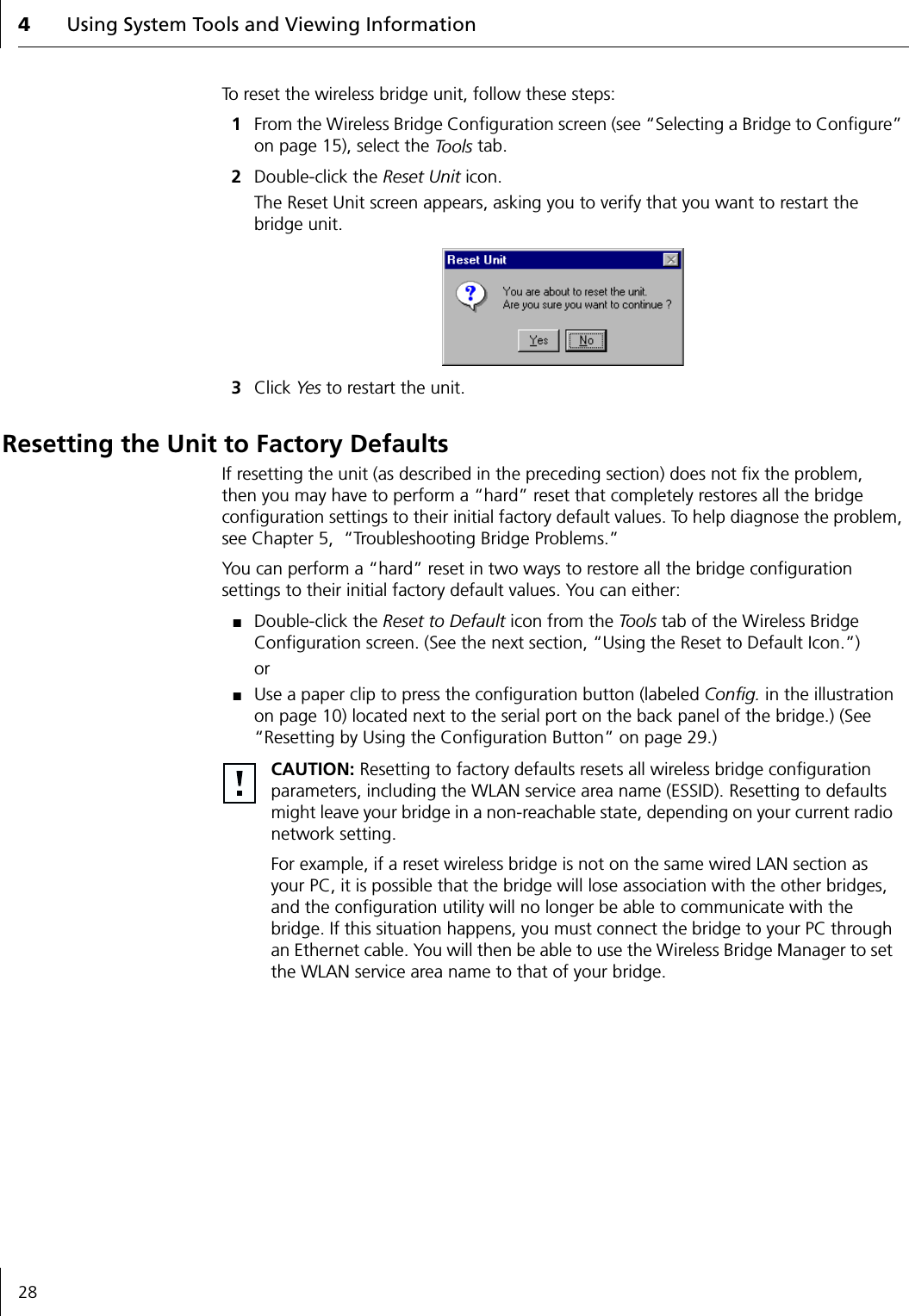
4Using System Tools and Viewing Information28To reset the wireless bridge unit, follow these steps:1From the Wireless Bridge Configuration screen (see “Selecting a Bridge to Configure” on page 15), select the To o l s  tab.2Double-click the Reset Unit icon.The Reset Unit screen appears, asking you to verify that you want to restart the bridge unit.3Click Yes to restart the unit.Resetting the Unit to Factory DefaultsIf resetting the unit (as described in the preceding section) does not fix the problem, then you may have to perform a “hard” reset that completely restores all the bridge configuration settings to their initial factory default values. To help diagnose the problem, see Chapter 5,  “Troubleshooting Bridge Problems.”You can perform a “hard” reset in two ways to restore all the bridge configuration settings to their initial factory default values. You can either:■Double-click the Reset to Default icon from the Tools tab of the Wireless Bridge Configuration screen. (See the next section, “Using the Reset to Default Icon.”)or■Use a paper clip to press the configuration button (labeled Config. in the illustration on page 10) located next to the serial port on the back panel of the bridge.) (See “Resetting by Using the Configuration Button” on page 29.) CAUTION: Resetting to factory defaults resets all wireless bridge configuration parameters, including the WLAN service area name (ESSID). Resetting to defaults might leave your bridge in a non-reachable state, depending on your current radio network setting.For example, if a reset wireless bridge is not on the same wired LAN section as your PC, it is possible that the bridge will lose association with the other bridges, and the configuration utility will no longer be able to communicate with the bridge. If this situation happens, you must connect the bridge to your PC through an Ethernet cable. You will then be able to use the Wireless Bridge Manager to set the WLAN service area name to that of your bridge.
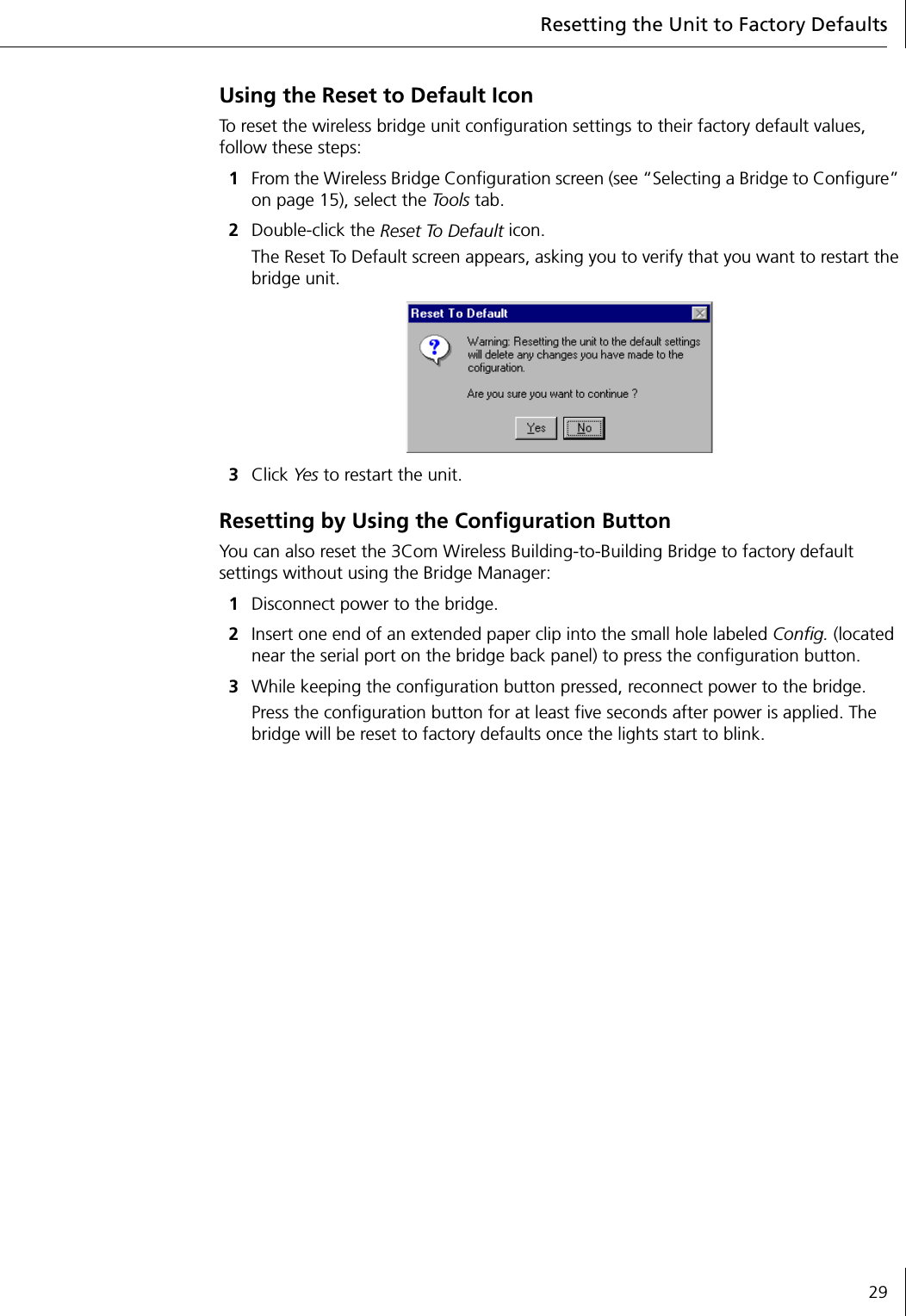
Resetting the Unit to Factory Defaults29Using the Reset to Default IconTo reset the wireless bridge unit configuration settings to their factory default values, follow these steps:1From the Wireless Bridge Configuration screen (see “Selecting a Bridge to Configure” on page 15), select the To o l s  tab.2Double-click the Reset To Default icon.The Reset To Default screen appears, asking you to verify that you want to restart the bridge unit.3Click Yes to restart the unit.Resetting by Using the Configuration ButtonYou can also reset the 3Com Wireless Building-to-Building Bridge to factory default settings without using the Bridge Manager:1Disconnect power to the bridge.2Insert one end of an extended paper clip into the small hole labeled Config. (located near the serial port on the bridge back panel) to press the configuration button.3While keeping the configuration button pressed, reconnect power to the bridge.Press the configuration button for at least five seconds after power is applied. The bridge will be reset to factory defaults once the lights start to blink.
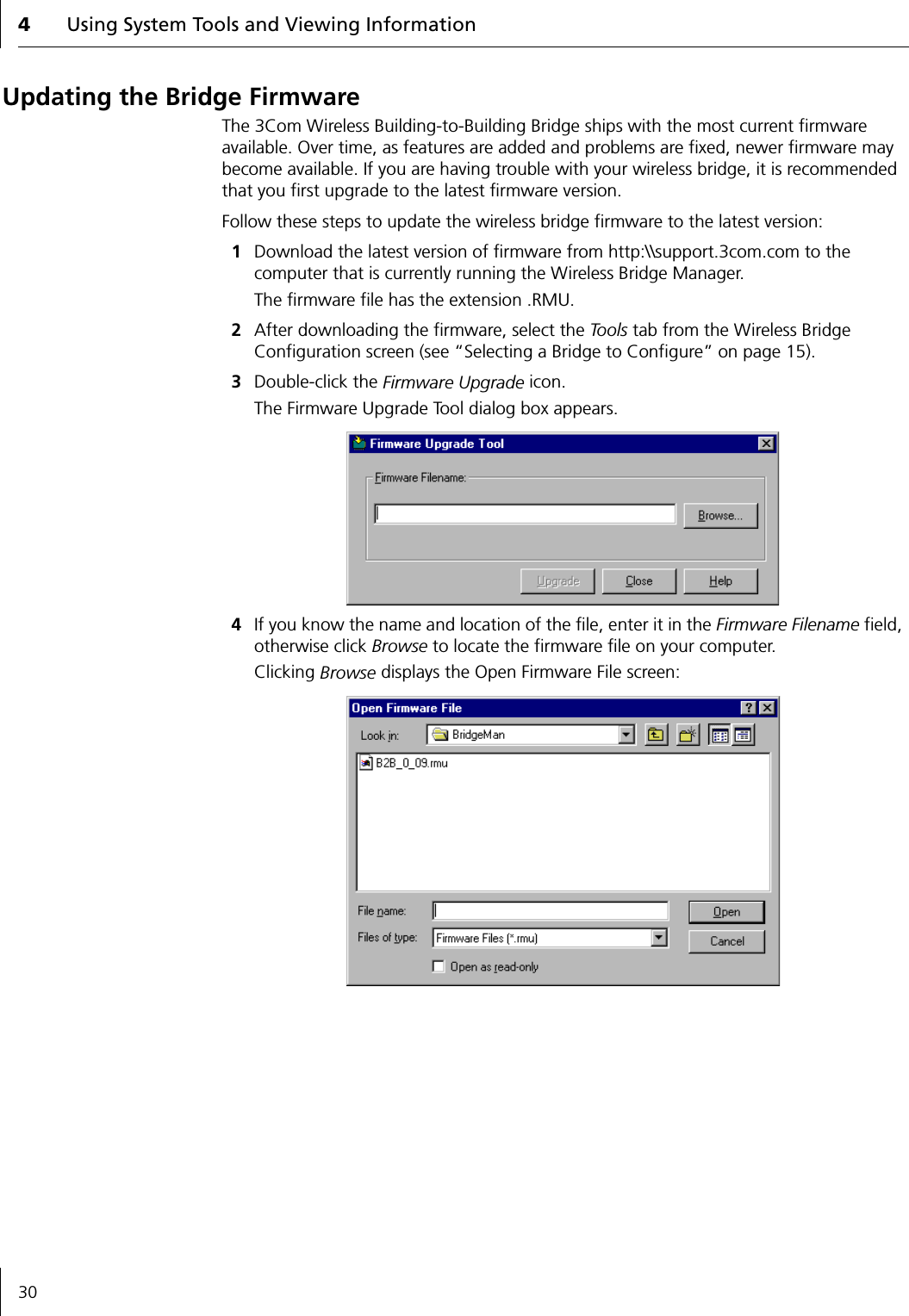
4Using System Tools and Viewing Information30Updating the Bridge FirmwareThe 3Com Wireless Building-to-Building Bridge ships with the most current firmware available. Over time, as features are added and problems are fixed, newer firmware may become available. If you are having trouble with your wireless bridge, it is recommended that you first upgrade to the latest firmware version.Follow these steps to update the wireless bridge firmware to the latest version:1Download the latest version of firmware from http:\\support.3com.com to the computer that is currently running the Wireless Bridge Manager.The firmware file has the extension .RMU.2After downloading the firmware, select the To o ls  tab from the Wireless Bridge Configuration screen (see “Selecting a Bridge to Configure” on page 15).3Double-click the Firmware Upgrade icon. The Firmware Upgrade Tool dialog box appears.4If you know the name and location of the file, enter it in the Firmware Filename field, otherwise click Browse to locate the firmware file on your computer. Clicking Browse displays the Open Firmware File screen:
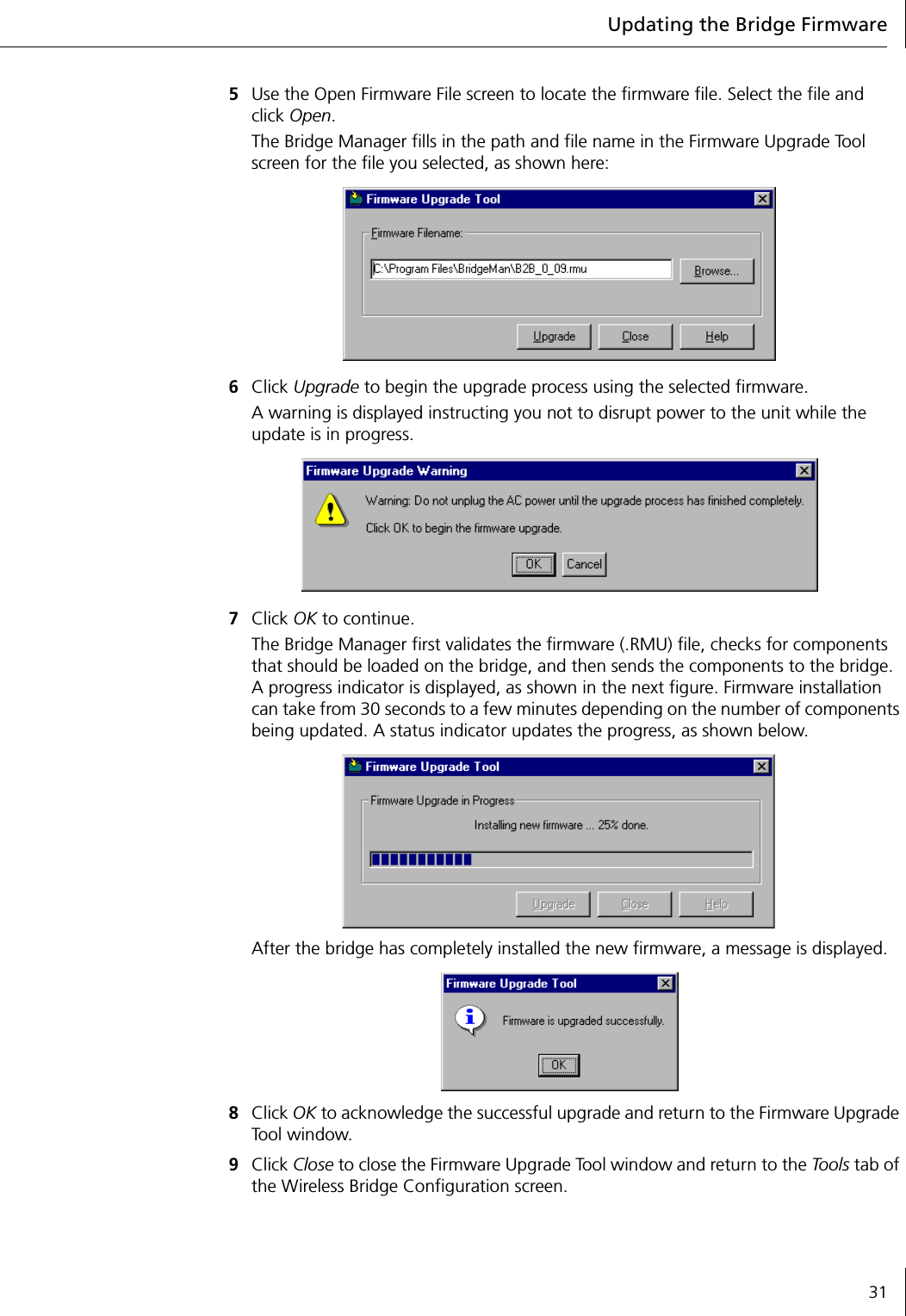
Updating the Bridge Firmware315Use the Open Firmware File screen to locate the firmware file. Select the file and click Open. The Bridge Manager fills in the path and file name in the Firmware Upgrade Tool screen for the file you selected, as shown here:6Click Upgrade to begin the upgrade process using the selected firmware.A warning is displayed instructing you not to disrupt power to the unit while the update is in progress.7Click OK to continue.The Bridge Manager first validates the firmware (.RMU) file, checks for components that should be loaded on the bridge, and then sends the components to the bridge. A progress indicator is displayed, as shown in the next figure. Firmware installation can take from 30 seconds to a few minutes depending on the number of components being updated. A status indicator updates the progress, as shown below.After the bridge has completely installed the new firmware, a message is displayed.8Click OK to acknowledge the successful upgrade and return to the Firmware Upgrade Tool window.9Click Close to close the Firmware Upgrade Tool window and return to the Tools tab of the Wireless Bridge Configuration screen.
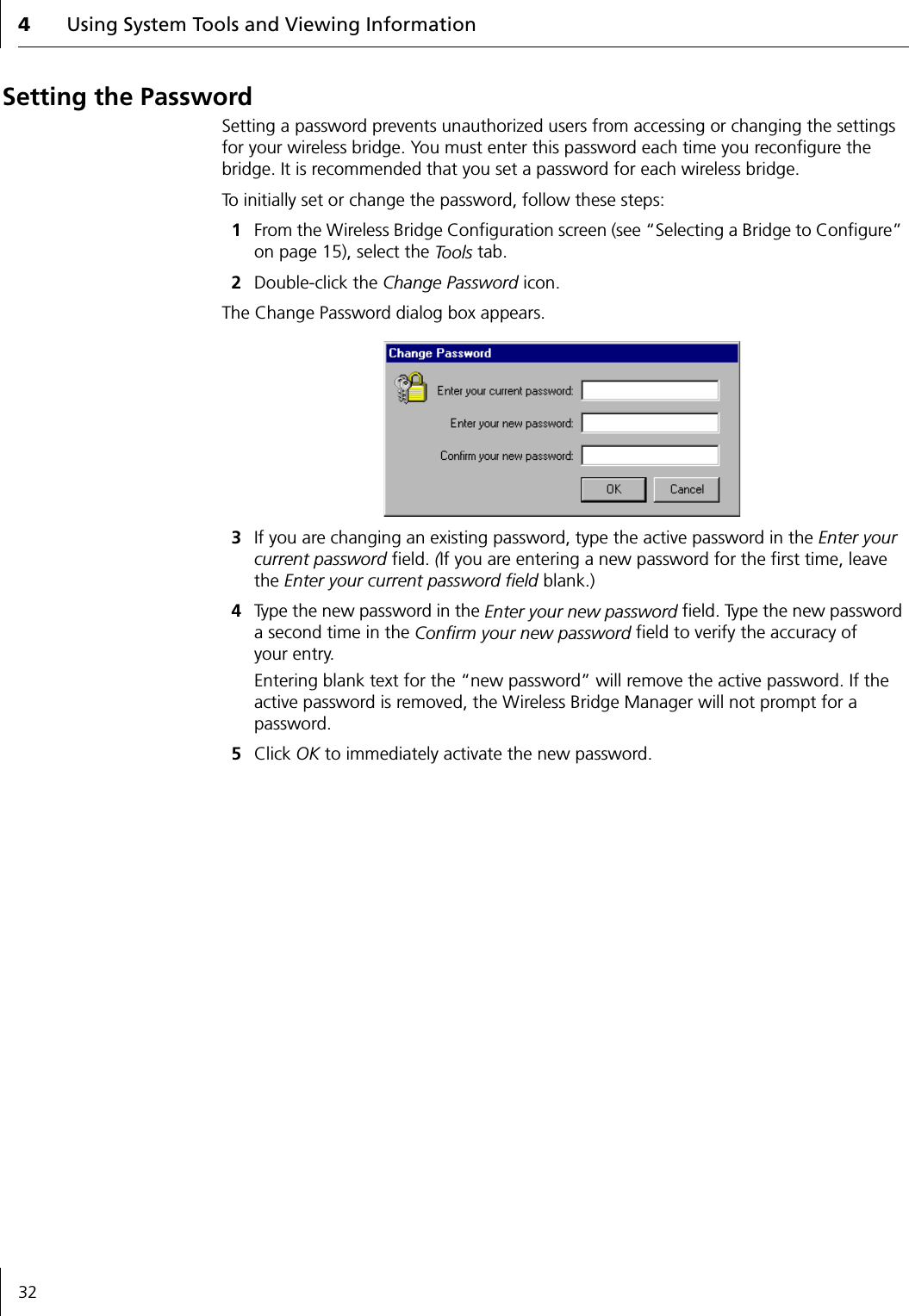
4Using System Tools and Viewing Information32Setting the PasswordSetting a password prevents unauthorized users from accessing or changing the settings for your wireless bridge. You must enter this password each time you reconfigure the bridge. It is recommended that you set a password for each wireless bridge.To initially set or change the password, follow these steps:1From the Wireless Bridge Configuration screen (see “Selecting a Bridge to Configure” on page 15), select the To o l s  tab.2Double-click the Change Password icon.The Change Password dialog box appears.3If you are changing an existing password, type the active password in the Enter your current password field. (If you are entering a new password for the first time, leave the Enter your current password field blank.)4Type the new password in the Enter your new password field. Type the new password a second time in the Confirm your new password field to verify the accuracy of your entry.Entering blank text for the “new password” will remove the active password. If the active password is removed, the Wireless Bridge Manager will not prompt for a password.5Click OK to immediately activate the new password.
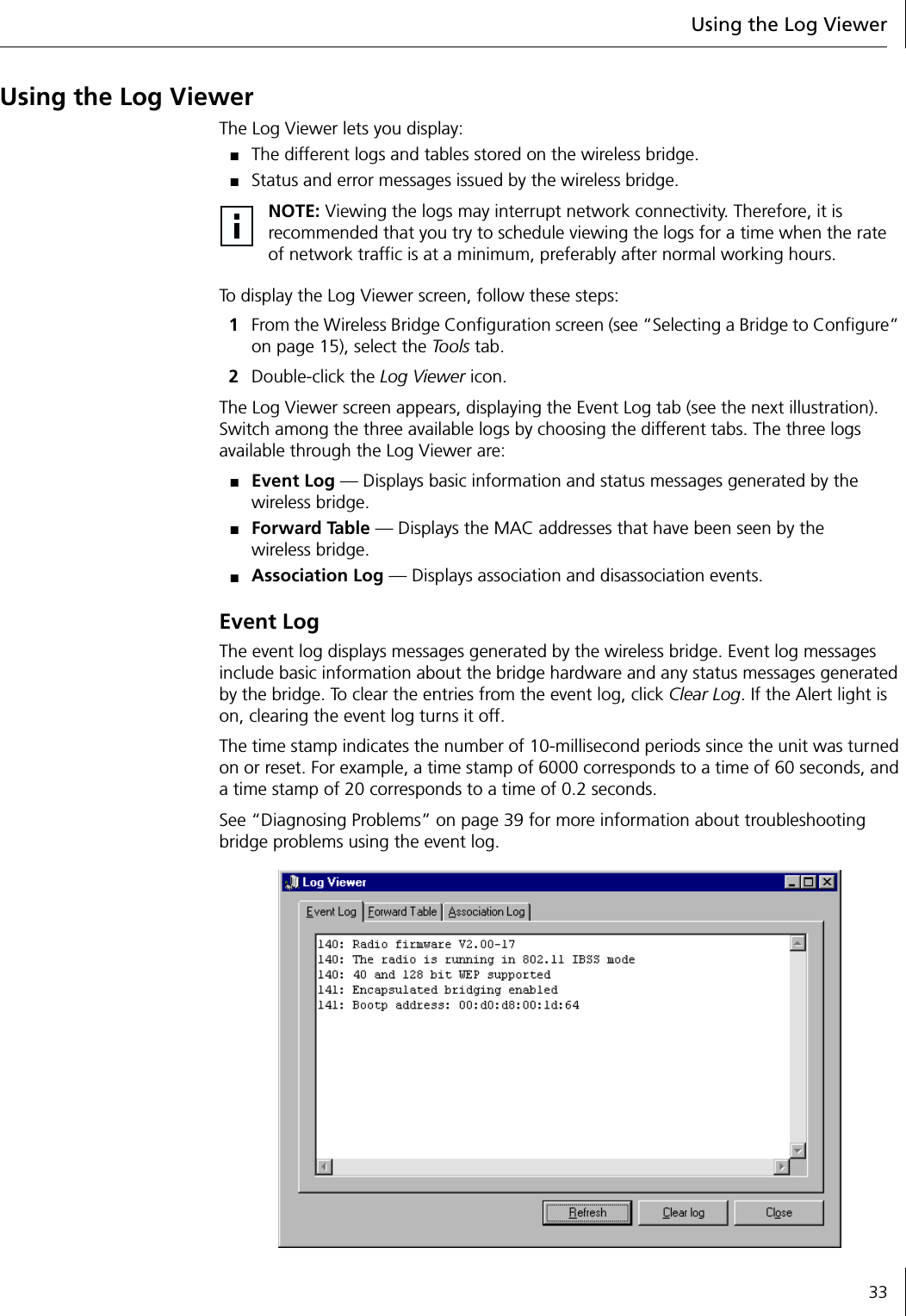
Using the Log Viewer33Using the Log ViewerThe Log Viewer lets you display:■The different logs and tables stored on the wireless bridge.■Status and error messages issued by the wireless bridge.To display the Log Viewer screen, follow these steps:1From the Wireless Bridge Configuration screen (see “Selecting a Bridge to Configure” on page 15), select the To o l s  tab.2Double-click the Log Viewer icon.The Log Viewer screen appears, displaying the Event Log tab (see the next illustration). Switch among the three available logs by choosing the different tabs. The three logs available through the Log Viewer are:■Event Log — Displays basic information and status messages generated by the wireless bridge.■Forward Table — Displays the MAC addresses that have been seen by the wireless bridge.■Association Log — Displays association and disassociation events.Event LogThe event log displays messages generated by the wireless bridge. Event log messages include basic information about the bridge hardware and any status messages generated by the bridge. To clear the entries from the event log, click Clear Log. If the Alert light is on, clearing the event log turns it off.The time stamp indicates the number of 10-millisecond periods since the unit was turned on or reset. For example, a time stamp of 6000 corresponds to a time of 60 seconds, and a time stamp of 20 corresponds to a time of 0.2 seconds.See “Diagnosing Problems” on page 39 for more information about troubleshooting bridge problems using the event log.NOTE: Viewing the logs may interrupt network connectivity. Therefore, it is recommended that you try to schedule viewing the logs for a time when the rate of network traffic is at a minimum, preferably after normal working hours.
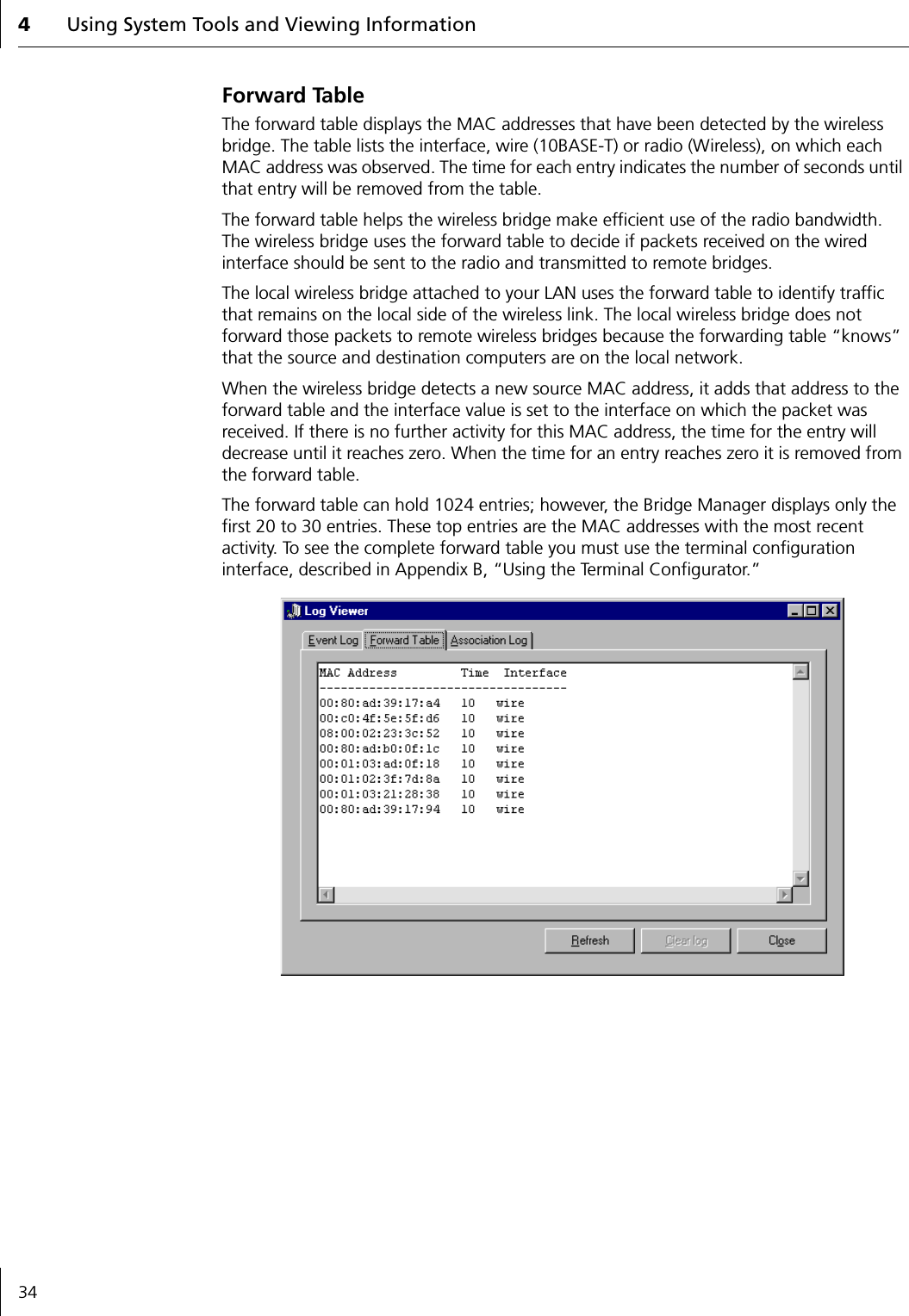
4Using System Tools and Viewing Information34Forward TableThe forward table displays the MAC addresses that have been detected by the wireless bridge. The table lists the interface, wire (10BASE-T) or radio (Wireless), on which each MAC address was observed. The time for each entry indicates the number of seconds until that entry will be removed from the table.The forward table helps the wireless bridge make efficient use of the radio bandwidth. The wireless bridge uses the forward table to decide if packets received on the wired interface should be sent to the radio and transmitted to remote bridges.The local wireless bridge attached to your LAN uses the forward table to identify traffic that remains on the local side of the wireless link. The local wireless bridge does not forward those packets to remote wireless bridges because the forwarding table “knows” that the source and destination computers are on the local network.When the wireless bridge detects a new source MAC address, it adds that address to the forward table and the interface value is set to the interface on which the packet was received. If there is no further activity for this MAC address, the time for the entry will decrease until it reaches zero. When the time for an entry reaches zero it is removed from the forward table.The forward table can hold 1024 entries; however, the Bridge Manager displays only the first 20 to 30 entries. These top entries are the MAC addresses with the most recent activity. To see the complete forward table you must use the terminal configuration interface, described in Appendix B, “Using the Terminal Configurator.”
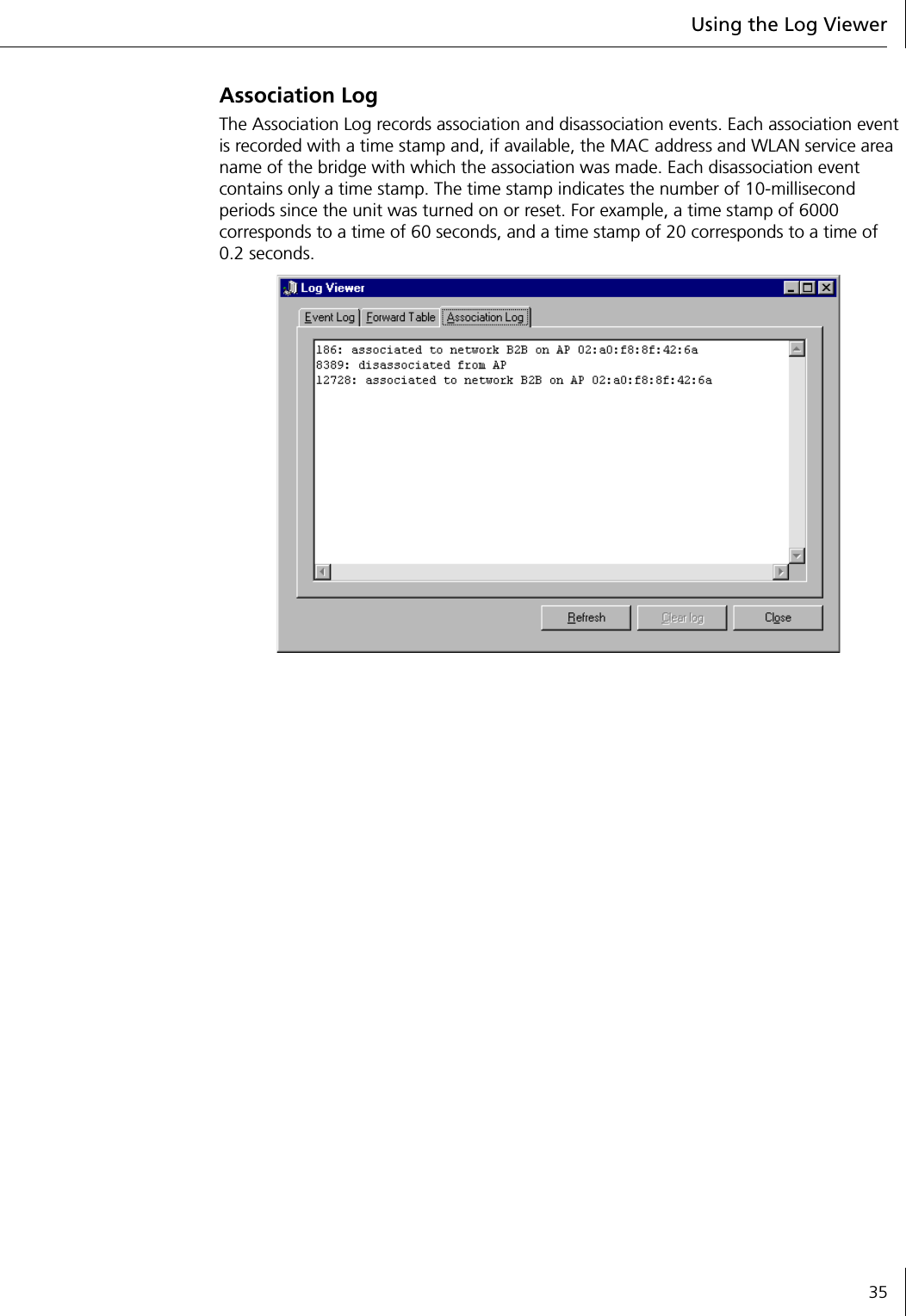
Using the Log Viewer35Association LogThe Association Log records association and disassociation events. Each association event is recorded with a time stamp and, if available, the MAC address and WLAN service area name of the bridge with which the association was made. Each disassociation event contains only a time stamp. The time stamp indicates the number of 10-millisecond periods since the unit was turned on or reset. For example, a time stamp of 6000 corresponds to a time of 60 seconds, and a time stamp of 20 corresponds to a time of 0.2 seconds.
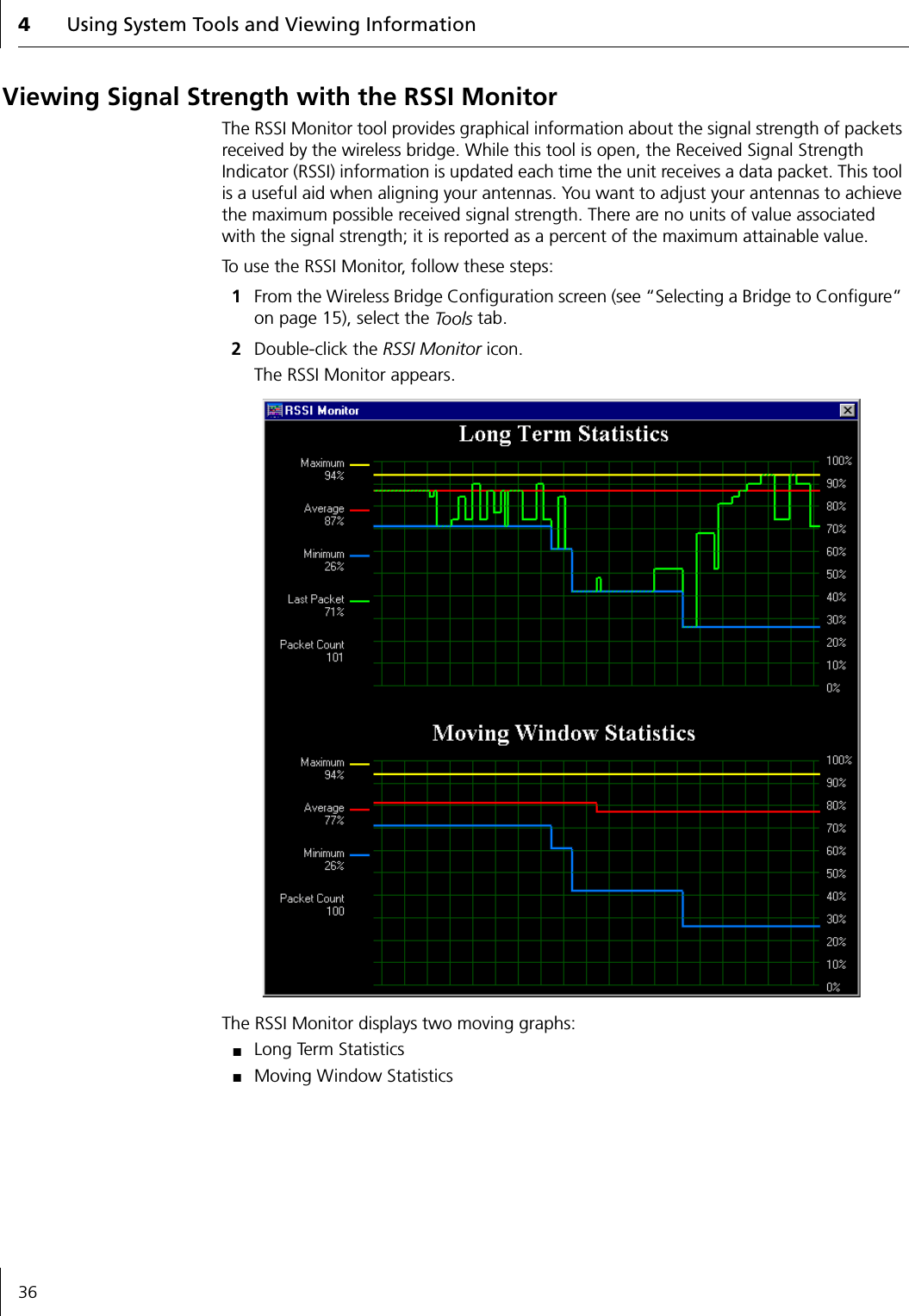
4Using System Tools and Viewing Information36Viewing Signal Strength with the RSSI MonitorThe RSSI Monitor tool provides graphical information about the signal strength of packets received by the wireless bridge. While this tool is open, the Received Signal Strength Indicator (RSSI) information is updated each time the unit receives a data packet. This tool is a useful aid when aligning your antennas. You want to adjust your antennas to achieve the maximum possible received signal strength. There are no units of value associated with the signal strength; it is reported as a percent of the maximum attainable value.To use the RSSI Monitor, follow these steps:1From the Wireless Bridge Configuration screen (see “Selecting a Bridge to Configure” on page 15), select the To o l s  tab.2Double-click the RSSI Monitor icon.The RSSI Monitor appears.The RSSI Monitor displays two moving graphs:■Long Term Statistics■Moving Window Statistics
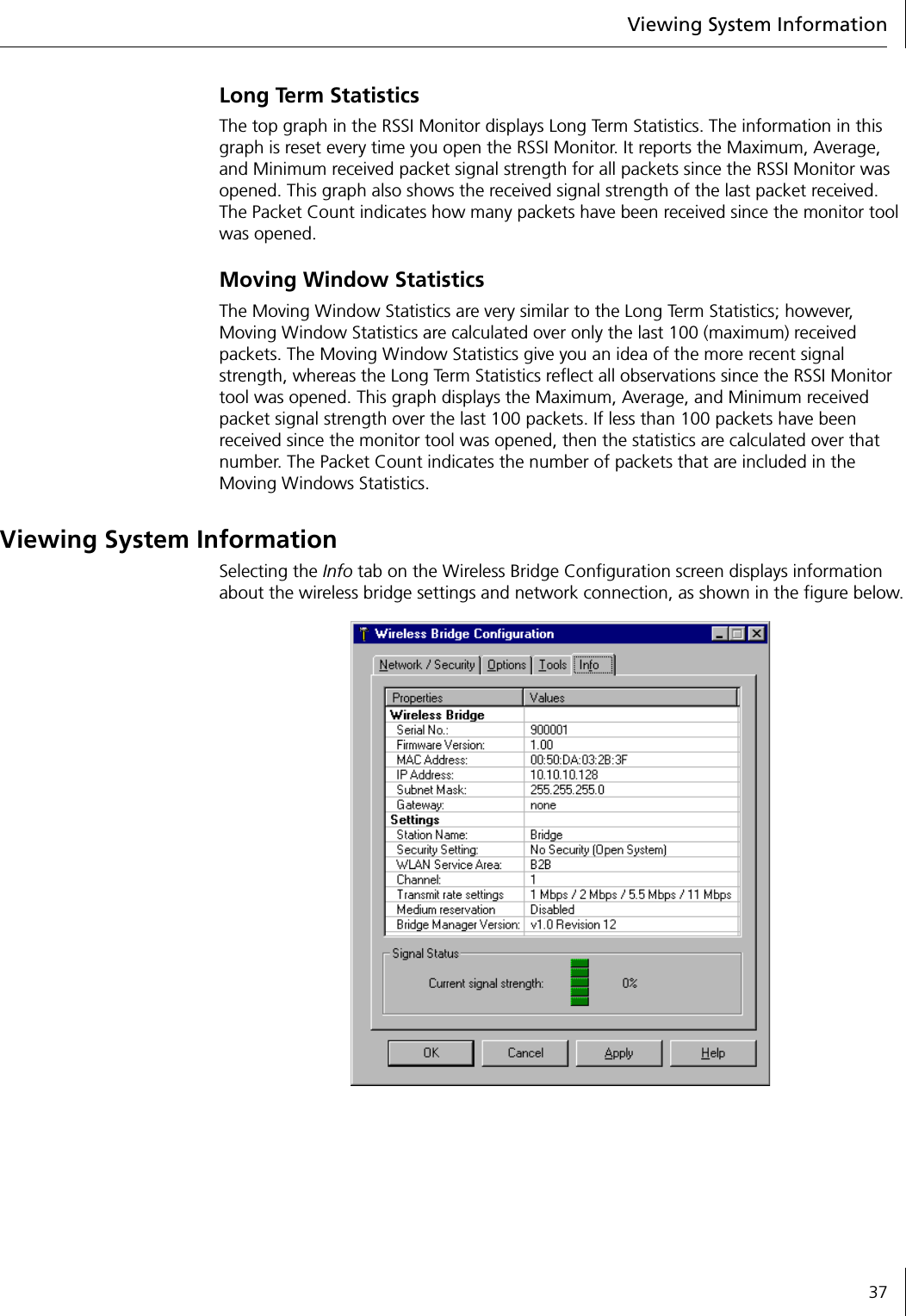
Viewing System Information37Long Term StatisticsThe top graph in the RSSI Monitor displays Long Term Statistics. The information in this graph is reset every time you open the RSSI Monitor. It reports the Maximum, Average, and Minimum received packet signal strength for all packets since the RSSI Monitor was opened. This graph also shows the received signal strength of the last packet received. The Packet Count indicates how many packets have been received since the monitor tool was opened.Moving Window StatisticsThe Moving Window Statistics are very similar to the Long Term Statistics; however, Moving Window Statistics are calculated over only the last 100 (maximum) received packets. The Moving Window Statistics give you an idea of the more recent signal strength, whereas the Long Term Statistics reflect all observations since the RSSI Monitor tool was opened. This graph displays the Maximum, Average, and Minimum received packet signal strength over the last 100 packets. If less than 100 packets have been received since the monitor tool was opened, then the statistics are calculated over that number. The Packet Count indicates the number of packets that are included in the Moving Windows Statistics.Viewing System InformationSelecting the Info tab on the Wireless Bridge Configuration screen displays information about the wireless bridge settings and network connection, as shown in the figure below.
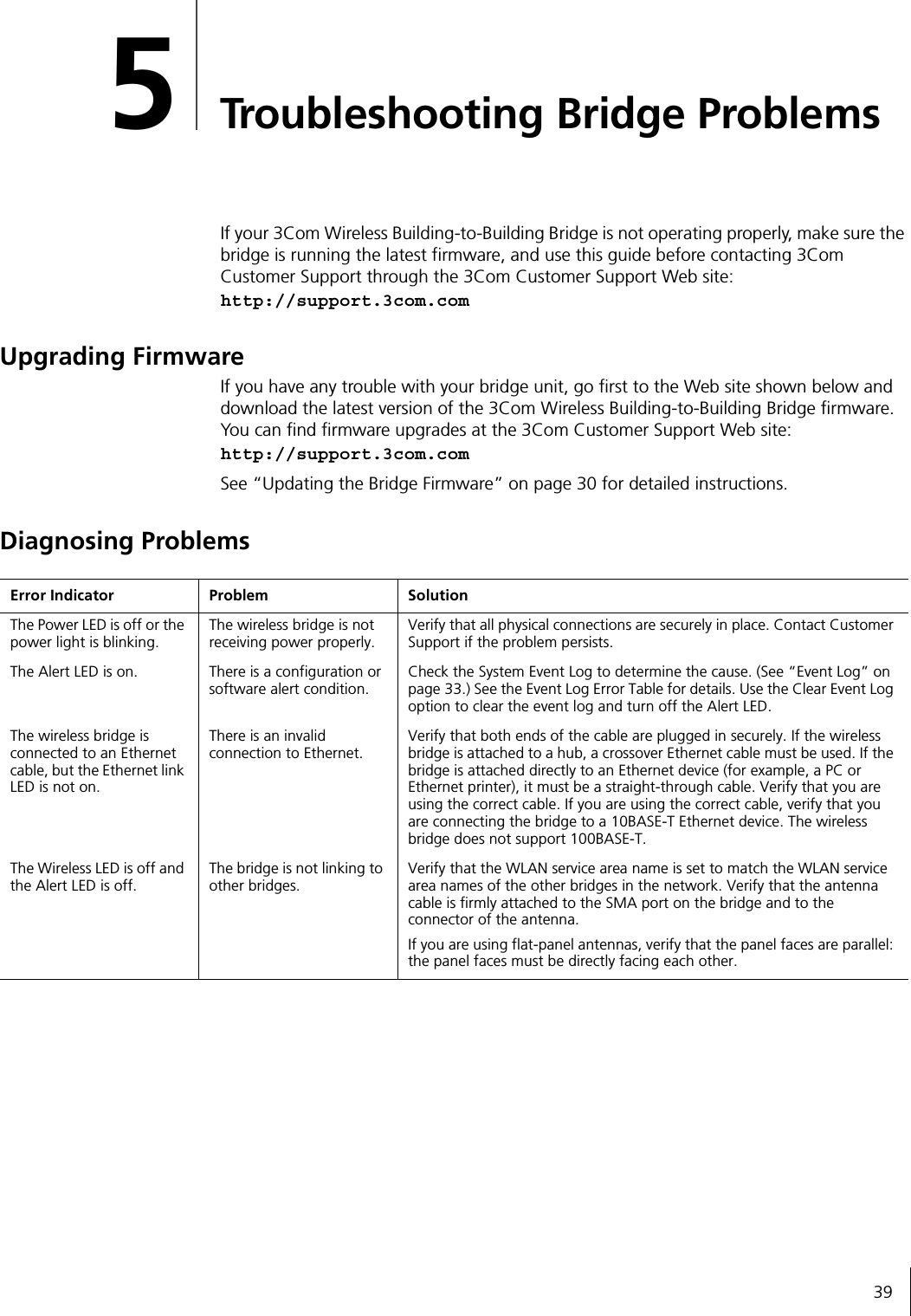
395Troubleshooting Bridge ProblemsIf your 3Com Wireless Building-to-Building Bridge is not operating properly, make sure the bridge is running the latest firmware, and use this guide before contacting 3Com Customer Support through the 3Com Customer Support Web site:http://support.3com.comUpgrading FirmwareIf you have any trouble with your bridge unit, go first to the Web site shown below and download the latest version of the 3Com Wireless Building-to-Building Bridge firmware. You can find firmware upgrades at the 3Com Customer Support Web site:http://support.3com.comSee “Updating the Bridge Firmware” on page 30 for detailed instructions.Diagnosing ProblemsError Indicator Problem SolutionThe Power LED is off or the power light is blinking.The wireless bridge is not receiving power properly.Verify that all physical connections are securely in place. Contact Customer Support if the problem persists.The Alert LED is on. There is a configuration or software alert condition.Check the System Event Log to determine the cause. (See “Event Log” on page 33.) See the Event Log Error Table for details. Use the Clear Event Log option to clear the event log and turn off the Alert LED.The wireless bridge is connected to an Ethernet cable, but the Ethernet link LED is not on.There is an invalid connection to Ethernet.Verify that both ends of the cable are plugged in securely. If the wireless bridge is attached to a hub, a crossover Ethernet cable must be used. If the bridge is attached directly to an Ethernet device (for example, a PC or Ethernet printer), it must be a straight-through cable. Verify that you are using the correct cable. If you are using the correct cable, verify that you are connecting the bridge to a 10BASE-T Ethernet device. The wireless bridge does not support 100BASE-T.The Wireless LED is off and the Alert LED is off.The bridge is not linking to other bridges.Verify that the WLAN service area name is set to match the WLAN service area names of the other bridges in the network. Verify that the antenna cable is firmly attached to the SMA port on the bridge and to the connector of the antenna.If you are using flat-panel antennas, verify that the panel faces are parallel: the panel faces must be directly facing each other.
5Troubleshooting Bridge Problems40Handling Event Log ErrorsThe following table lists event log errors. (See “Using the Log Viewer” on page 33 for more information about accessing the event log.) All entries in the event log are preceded by a number. This number is a time stamp used by Customer Support, but is not relevant to looking up items in this table.Handling Terminal Configurator Error CodesSee Appendix B,  “Using the Terminal Configurator,” for detailed information about using the Terminal Configurator method to configure your 3Com Wireless Building-to-Building Bridge.Error Code DescriptionUART Error – No Rx Buffer AvailableData is being sent to the UART at a rate faster than it can clear its receive buffers, and data is being lost.Note that if you are using the serial port menu system for configuration, flow control will not be enabled in the wireless bridge. To avoid getting this error while in the serial port configuration system, simply type slower.Initialization of interface "lan0" failed.The bridge could not be initialized.Try each of the following steps in order. If any of these steps succeeds, there is no need to perform any of the later steps; otherwise continue to the next step.1Reset the wireless bridge.2Unplug the power, wait for approximately 30 seconds and then reapply power.3Reset the wireless bridge to the factory default configuration and reset the wireless bridge.4Contact 3Com Customer Support if the problem persists.Error Code DescriptionXxxx: [yyyy]: section does not existSection named yyyy in configuration file named xxxx was missing.Save your current configuration (if applicable). Reset the wireless bridge configuration to factory defaults. Reset the wireless bridge. Restore configuration (if applicable).Xxxx: [yyyy]: “zzzz”:entry refers to non-existent sectionEntry zzzz refers to a section that is not located in file xxxx.Save your current configuration (if applicable). Reset the wireless bridge configuration to factory defaults. Restore configuration (if applicable).Xxxx: [yyyy]: "zzzz":entry does not existEntry zzzz in section yyyy of file xxxx was missing.Save your current configuration (if applicable). Reset the wireless bridge configuration to factory defaults. Reset the wireless bridge. Restore configuration (if applicable).Xxxx: [yyyy]: "zzzz":entry is invalidEntry zzzz in section yyyy of file xxxx contains an invalid value.Check the entry in the configuration for zzzz. If you cannot find zzzz in the wireless bridge Bridge Manager program, you may have to use the serial port or Telnet configuration menus.Xxxx: <[yyyy]zzzz>:Unable to add route.Route values are out of range compared to the interface values.Set the route value to “automatic.” If “automatic” does not work for your wireless bridge, check the values you set for the route to make sure they correspond to your other IP parameters.Xxxx: file does not exist. Configuration file could not be found.Reset the configuration to factory defaults, and reset the wireless. If the problem persists, contact 3Com Customer Support.
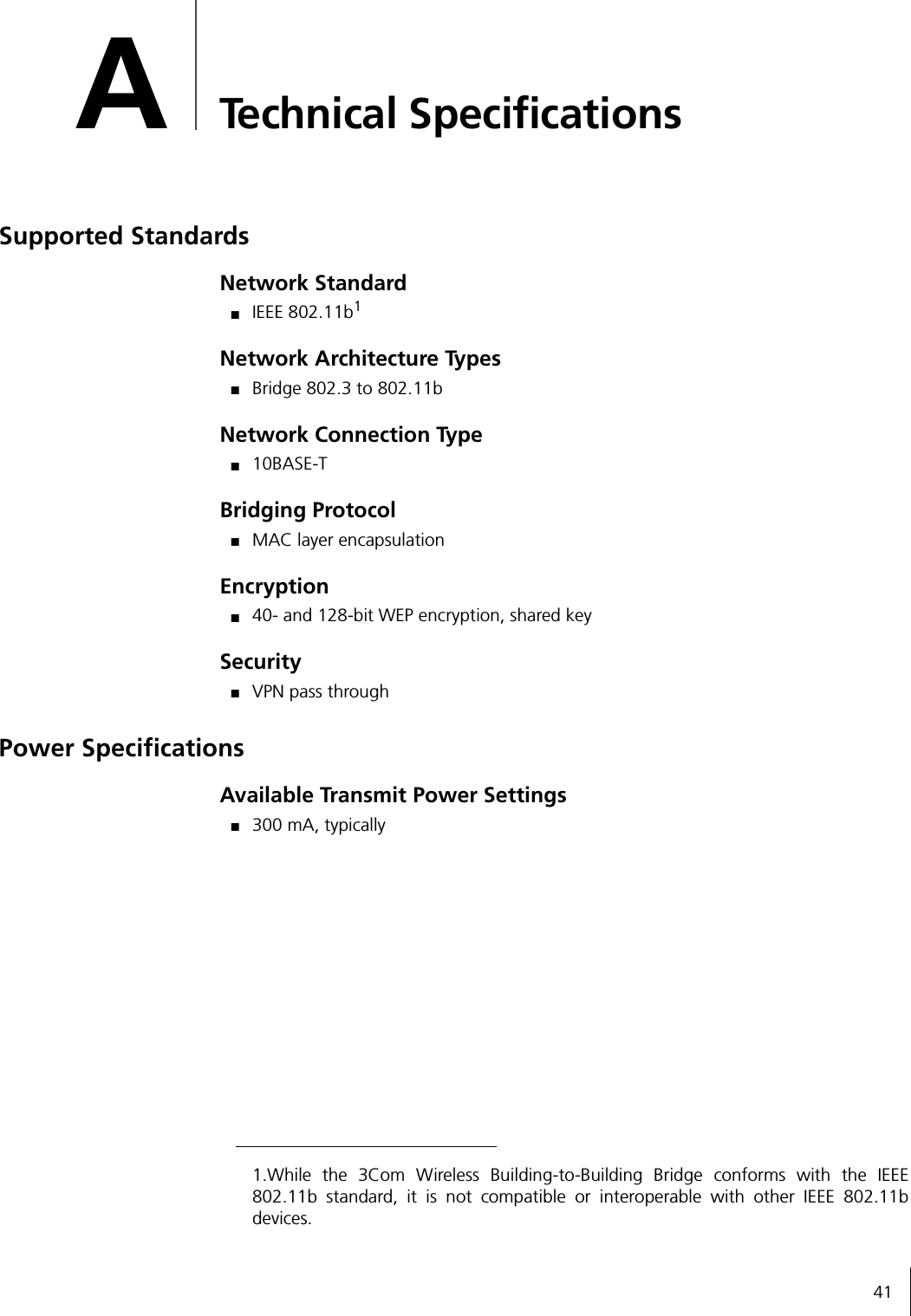
41ATechnical SpecificationsSupported StandardsNetwork Standard■IEEE 802.11b1Network Architecture Types■Bridge 802.3 to 802.11bNetwork Connection Type■10BASE-TBridging Protocol■MAC layer encapsulationEncryption■40- and 128-bit WEP encryption, shared keySecurity■VPN pass throughPower SpecificationsAvailable Transmit Power Settings■300 mA, typically1.While the 3Com Wireless Building-to-Building Bridge conforms with the IEEE802.11b standard, it is not compatible or interoperable with other IEEE 802.11bdevices.
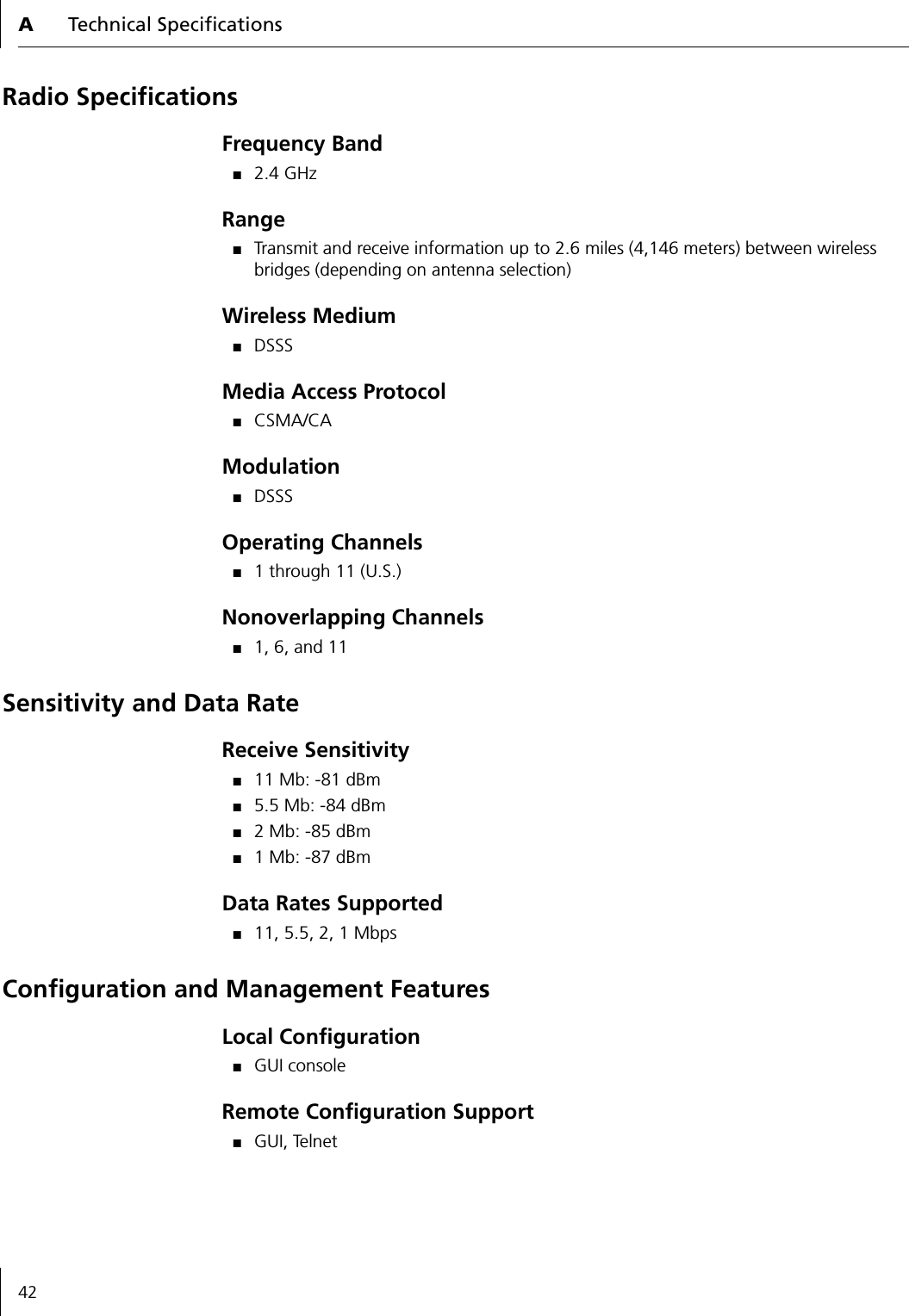
ATechnical Specifications42Radio SpecificationsFrequency Band■2.4 GHzRange■Transmit and receive information up to 2.6 miles (4,146 meters) between wireless bridges (depending on antenna selection)Wireless Medium■DSSSMedia Access Protocol■CSMA/CAModulation■DSSSOperating Channels■1 through 11 (U.S.)Nonoverlapping Channels■1, 6, and 11Sensitivity and Data RateReceive Sensitivity■11 Mb: -81 dBm■5.5 Mb: -84 dBm■2 Mb: -85 dBm■1 Mb: -87 dBmData Rates Supported■11, 5.5, 2, 1 MbpsConfiguration and Management FeaturesLocal Configuration■GUI consoleRemote Configuration Support■GUI, Telnet
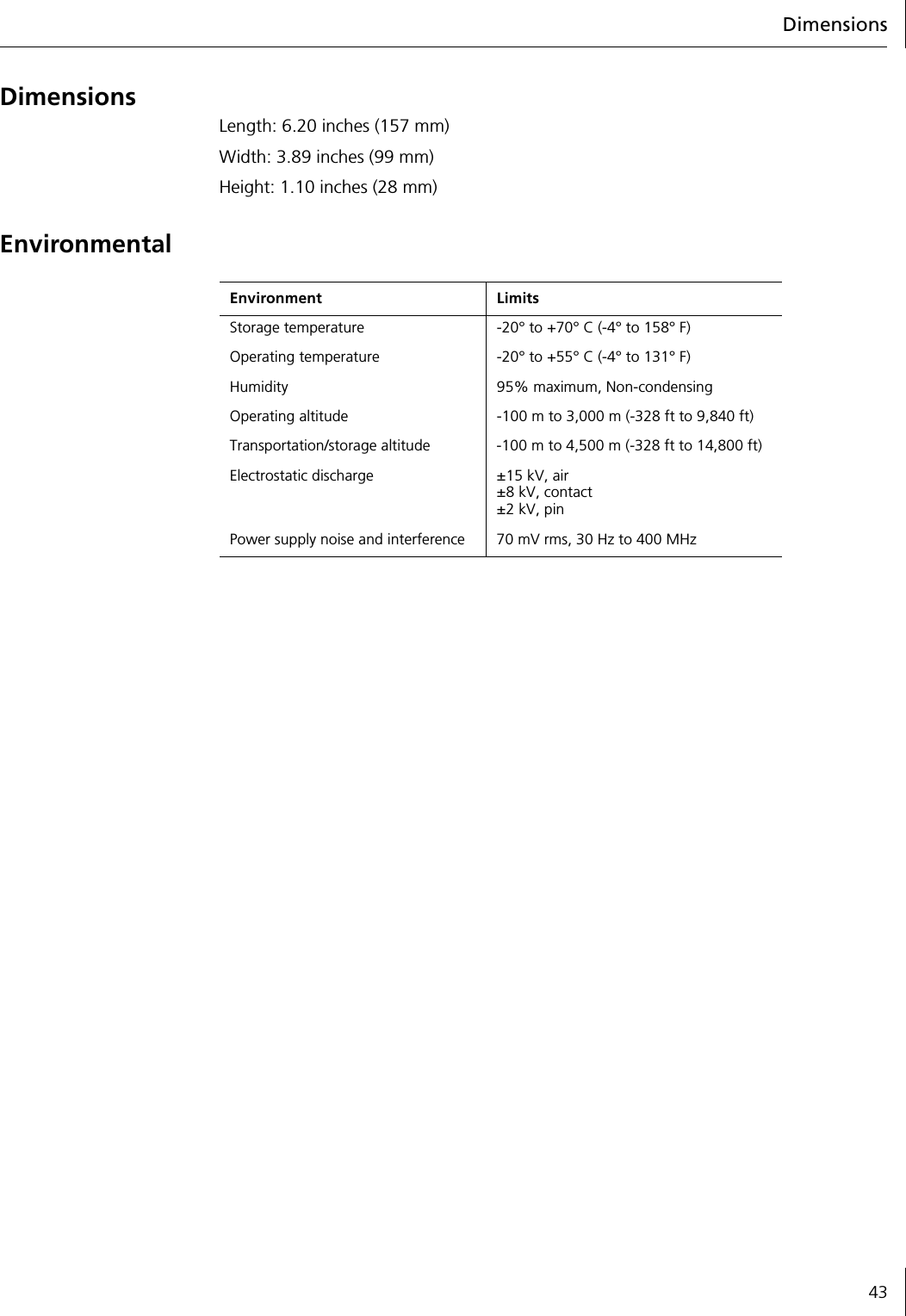
Dimensions43DimensionsLength: 6.20 inches (157 mm)Width: 3.89 inches (99 mm)Height: 1.10 inches (28 mm)EnvironmentalEnvironment LimitsStorage temperature -20° to +70° C (-4° to 158° F)Operating temperature -20° to +55° C (-4° to 131° F)Humidity 95% maximum, Non-condensingOperating altitude -100 m to 3,000 m (-328 ft to 9,840 ft)Transportation/storage altitude -100 m to 4,500 m (-328 ft to 14,800 ft)Electrostatic discharge ±15 kV, air±8 kV, contact±2 kV, pinPower supply noise and interference 70 mV rms, 30 Hz to 400 MHz
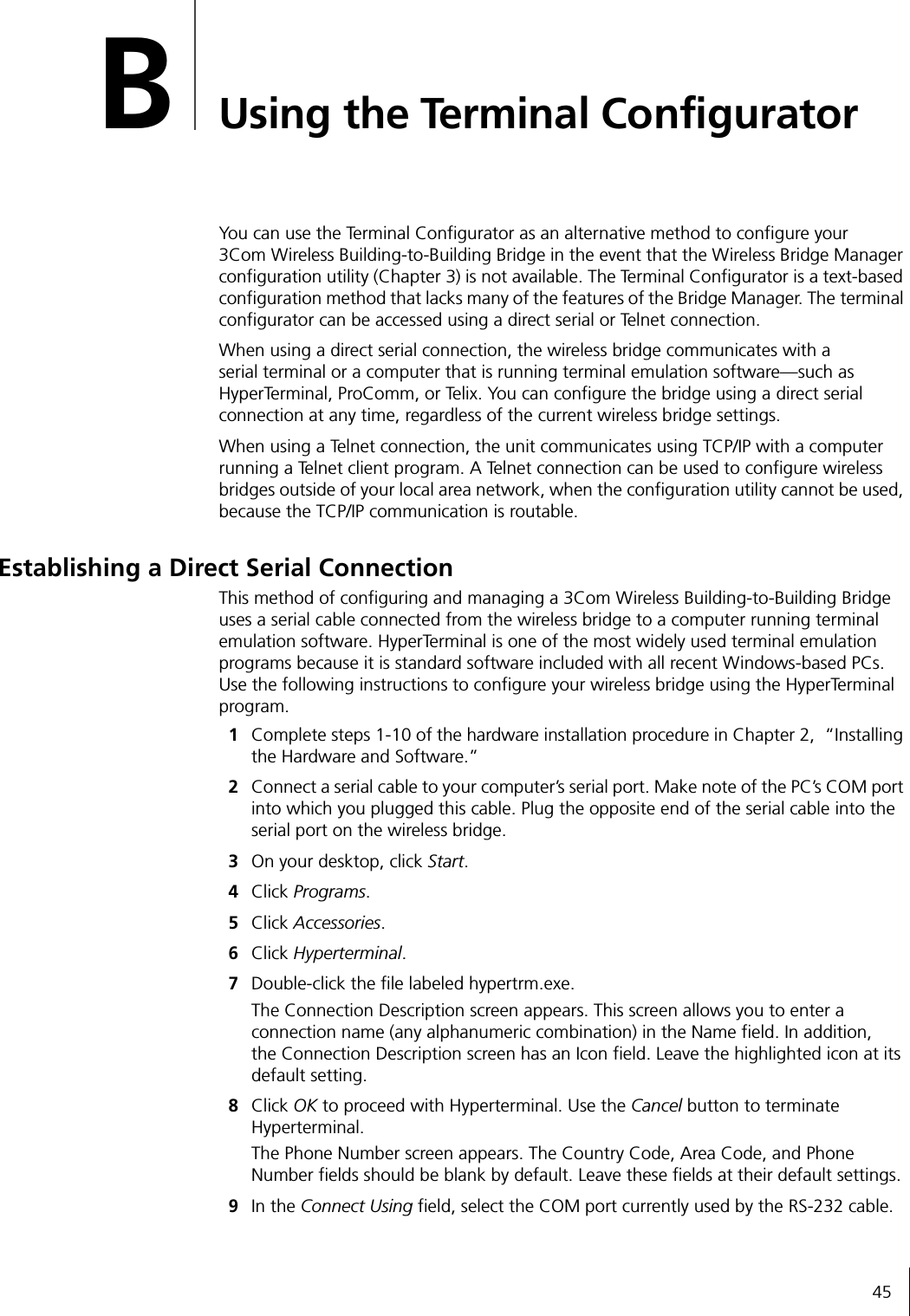
45BUsing the Terminal ConfiguratorYou can use the Terminal Configurator as an alternative method to configure your 3Com Wireless Building-to-Building Bridge in the event that the Wireless Bridge Manager configuration utility (Chapter 3) is not available. The Terminal Configurator is a text-based configuration method that lacks many of the features of the Bridge Manager. The terminal configurator can be accessed using a direct serial or Telnet connection.When using a direct serial connection, the wireless bridge communicates with a serial terminal or a computer that is running terminal emulation software—such as HyperTerminal, ProComm, or Telix. You can configure the bridge using a direct serial connection at any time, regardless of the current wireless bridge settings.When using a Telnet connection, the unit communicates using TCP/IP with a computer running a Telnet client program. A Telnet connection can be used to configure wireless bridges outside of your local area network, when the configuration utility cannot be used, because the TCP/IP communication is routable.Establishing a Direct Serial ConnectionThis method of configuring and managing a 3Com Wireless Building-to-Building Bridge uses a serial cable connected from the wireless bridge to a computer running terminal emulation software. HyperTerminal is one of the most widely used terminal emulation programs because it is standard software included with all recent Windows-based PCs. Use the following instructions to configure your wireless bridge using the HyperTerminal program.1Complete steps 1-10 of the hardware installation procedure in Chapter 2,  “Installing the Hardware and Software.”2Connect a serial cable to your computer’s serial port. Make note of the PC’s COM port into which you plugged this cable. Plug the opposite end of the serial cable into the serial port on the wireless bridge.3On your desktop, click Start.4Click Programs.5Click Accessories.6Click Hyperterminal.7Double-click the file labeled hypertrm.exe.The Connection Description screen appears. This screen allows you to enter a connection name (any alphanumeric combination) in the Name field. In addition, the Connection Description screen has an Icon field. Leave the highlighted icon at its default setting.8Click OK to proceed with Hyperterminal. Use the Cancel button to terminate Hyperterminal.The Phone Number screen appears. The Country Code, Area Code, and Phone Number fields should be blank by default. Leave these fields at their default settings.9In the Connect Using field, select the COM port currently used by the RS-232 cable.
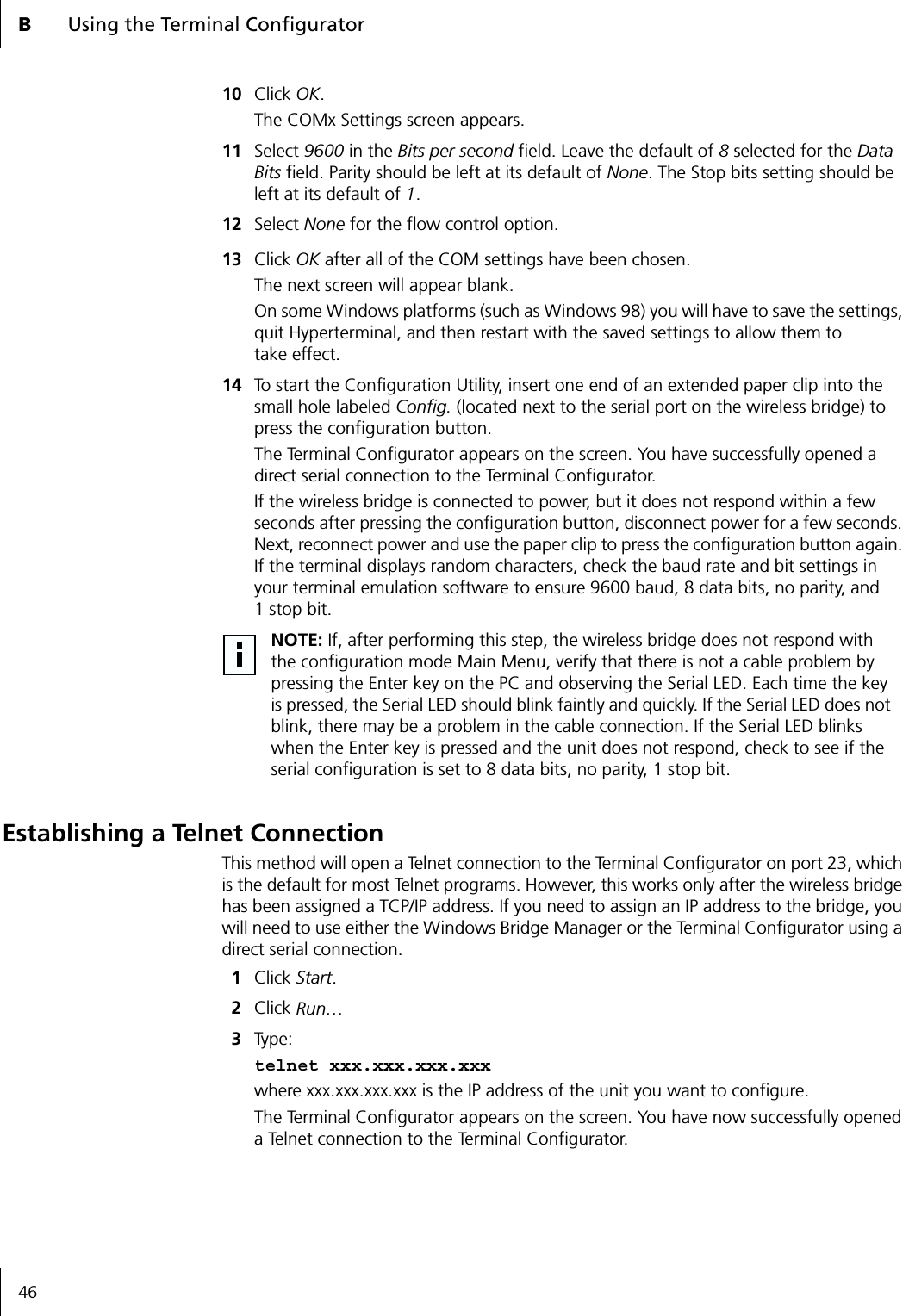
BUsing the Terminal Configurator4610 Click OK. The COMx Settings screen appears.11 Select 9600 in the Bits per second field. Leave the default of 8 selected for the Data Bits field. Parity should be left at its default of None. The Stop bits setting should be left at its default of 1. 12 Select None for the flow control option.13 Click OK after all of the COM settings have been chosen.The next screen will appear blank.On some Windows platforms (such as Windows 98) you will have to save the settings, quit Hyperterminal, and then restart with the saved settings to allow them to take effect.14 To start the Configuration Utility, insert one end of an extended paper clip into the small hole labeled Config. (located next to the serial port on the wireless bridge) to press the configuration button.The Terminal Configurator appears on the screen. You have successfully opened a direct serial connection to the Terminal Configurator.If the wireless bridge is connected to power, but it does not respond within a few seconds after pressing the configuration button, disconnect power for a few seconds. Next, reconnect power and use the paper clip to press the configuration button again. If the terminal displays random characters, check the baud rate and bit settings in your terminal emulation software to ensure 9600 baud, 8 data bits, no parity, and 1stop bit.Establishing a Telnet ConnectionThis method will open a Telnet connection to the Terminal Configurator on port 23, which is the default for most Telnet programs. However, this works only after the wireless bridge has been assigned a TCP/IP address. If you need to assign an IP address to the bridge, you will need to use either the Windows Bridge Manager or the Terminal Configurator using a direct serial connection.1Click Start.2Click Run…3Ty pe : telnet xxx.xxx.xxx.xxxwhere xxx.xxx.xxx.xxx is the IP address of the unit you want to configure.The Terminal Configurator appears on the screen. You have now successfully opened a Telnet connection to the Terminal Configurator.NOTE: If, after performing this step, the wireless bridge does not respond with the configuration mode Main Menu, verify that there is not a cable problem by pressing the Enter key on the PC and observing the Serial LED. Each time the key is pressed, the Serial LED should blink faintly and quickly. If the Serial LED does not blink, there may be a problem in the cable connection. If the Serial LED blinks when the Enter key is pressed and the unit does not respond, check to see if the serial configuration is set to 8 data bits, no parity, 1 stop bit.
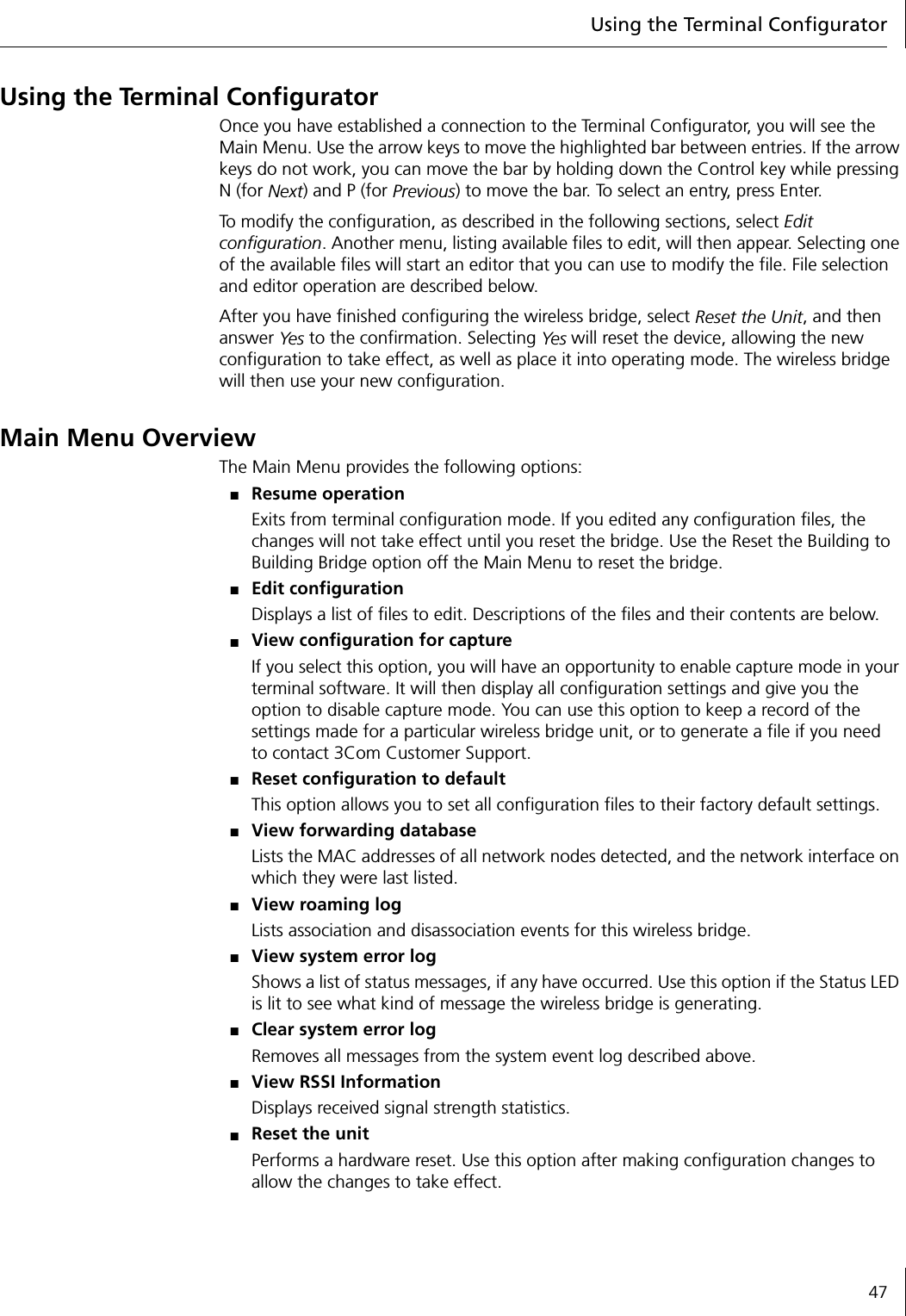
Using the Terminal Configurator47Using the Terminal ConfiguratorOnce you have established a connection to the Terminal Configurator, you will see the Main Menu. Use the arrow keys to move the highlighted bar between entries. If the arrow keys do not work, you can move the bar by holding down the Control key while pressing N (for Next) and P (for Previous) to move the bar. To select an entry, press Enter.To modify the configuration, as described in the following sections, select Edit configuration. Another menu, listing available files to edit, will then appear. Selecting one of the available files will start an editor that you can use to modify the file. File selection and editor operation are described below.After you have finished configuring the wireless bridge, select Reset the Unit, and then answer Ye s to the confirmation. Selecting Yes will reset the device, allowing the new configuration to take effect, as well as place it into operating mode. The wireless bridge will then use your new configuration.Main Menu OverviewThe Main Menu provides the following options:■Resume operationExits from terminal configuration mode. If you edited any configuration files, the changes will not take effect until you reset the bridge. Use the Reset the Building to Building Bridge option off the Main Menu to reset the bridge.■Edit configurationDisplays a list of files to edit. Descriptions of the files and their contents are below.■View configuration for captureIf you select this option, you will have an opportunity to enable capture mode in your terminal software. It will then display all configuration settings and give you the option to disable capture mode. You can use this option to keep a record of the settings made for a particular wireless bridge unit, or to generate a file if you need to contact 3Com Customer Support.■Reset configuration to defaultThis option allows you to set all configuration files to their factory default settings.■View forwarding databaseLists the MAC addresses of all network nodes detected, and the network interface on which they were last listed.■View roaming logLists association and disassociation events for this wireless bridge.■View system error logShows a list of status messages, if any have occurred. Use this option if the Status LED is lit to see what kind of message the wireless bridge is generating.■Clear system error logRemoves all messages from the system event log described above.■View RSSI InformationDisplays received signal strength statistics.■Reset the unitPerforms a hardware reset. Use this option after making configuration changes to allow the changes to take effect.
BUsing the Terminal Configurator48Edit Configuration Menu OverviewThe Edit Configuration Menu contains three selections:■Return to Main MenuGoes back to the previous menu selections.■SystemDisplays the editor screen with the configuration file for system options.■Bridged Ethernet (lan0)Displays the editor screen with the configuration file for the radio parameters and IP network settings.Using The EditorSelecting one of the configuration files above will bring that file into the editor. Once inside the editor, you may use arrow keys to move the cursor around. If the arrow keys do not work with your terminal emulator, press Ctrl+P for up [previous], Ctrl+N for down [next], Ctrl+B for left [back], and Ctrl+F for right [forward] for cursor motion.For faster motion, press Ctrl+A to jump to the beginning of the line, and Ctrl+E to jump to the end. (Those familiar with the Emacs editor should feel comfortable with these keystrokes.)To make changes in the editor, simply move the cursor to the point you want to change and start typing. You can delete text behind the cursor by moving the cursor to the position immediately following the character you want to remove, and then by pressing either the Backspace or Delete keys, or by typing Ctrl+H. To delete text in front of the cursor, press Ctrl+D. To delete text from the cursor to the end of the line, press Ctrl+K.After editing is completed, save these changes by pressing Ctrl+W. After the changes are saved, the Edit Configuration menu will return to the screen. Although changes will be saved, they will not take effect until you power the wireless bridge off and back on. If you decide that you do not want to save the changes you have made, press Ctrl+X. The editor will ask you for confirmation, and then will return you to the Edit Configuration Menu.Screen corruptions or confusions may occur due to many terminal emulation software packages not emulating VT100 correctly. If the screen display becomes corrupted or confused as you type, press Ctrl+L to force a screen to redraw the image.Configuration File FormatThose familiar with the Windows WIN.INI file format will recognize the format of the configuration file. The file is divided into sections that define a particular grouping of options. Each section contains a section header at the top, shown as a string of text surrounded by square brackets: [ ]. This string is the section title. After each section header, there is a list of entries containing equal signs. The text before the equal sign is a key and the text after the equal sign is the value. Changing the value of different keys is how configuration changes are performed.Comments may be stored in the configuration file by inserting a pound sign (#) before the text to be added. This allows room for an explanation as to why certain settings have been made, who made the changes, etc. You may write anything in a comment, but the comment ends at the end of the line. You can create multi-line comments by inserting the # at the beginning of each line. For example:# This is a comment.# This is line #2 of the comment.this = no comment# But this is one.
File Contents49File ContentsSystem[configure]This section contains settings that pertain to the operation of the Configuration menus. Currently, there is only one: password.■password This setting allows the creation of a password that will be asked for upon entry to the Configuration screen. Up to 15 alphanumeric characters will be accepted. Do NOT use any characters other than numbers and letters in this password. Although the password is not hidden from the screen while editing, it will be hidden when entering configuration.[bridge]This section contains variables that are not specific to the radio.■AP refresh period This parameter has a default value of zero, which disables this function. Leave the AP refresh period at its default setting unless you are instructed to do otherwise by 3Com Technical Support.■encapsulation This parameter has a default value of on allowing bridging to occur. Leave the encapsulation set to its default value unless you are instructed to do otherwise by 3Com Technical Support.Bridged Ethernet (lan0)[hardware]This section contains settings for the actual wireless bridge radio hardware.■ESSID This parameter specifies the wireless network with which the wireless bridge will be connecting. Alphanumeric values may be used in this field. All wireless bridges must have the same ESSID to form a connection.■station name This parameter names an individual wireless bridge. The station name is used only for convenience of the network administrator and does not impact device operation. You may use any alphanumeric name.■mac address This parameter specifies Media Access Control, which is a unique alphanumeric address that defines each node of the network. This address should always be set to the default value of universal.■operating mode This parameter specifies the operating mode, which should always be set to the default value of ibss.■medium reservation This parameter controls the 802.11 RTS/CTS threshold. The default value is none, which disables medium reservation. Specify a packet length, in bytes, to enable RTS/CTS medium reservation for packets larger than the indicated size.■channel This parameter selects the channel setting for the radio. All wireless bridges in a single network should have the same channel setting.■mac timeout This parameter controls the low-level MAC timeout. Do not change this parameter from its default value of 324 unless instructed to do so by 3Com technical support.NOTE: Activating the refresh period does not impair the performance of the wireless bridge.
BUsing the Terminal Configurator50■transmit rate This parameter controls the data rate at which the radio transmits. Legal values are: 1, 2, 5, and 11.■antenna diversity This parameter controls antenna diversity. The wireless bridge has only a single antenna, so this parameter should always be kept at its default value of no.■enable encryption This parameter indicates whether WEP encryption by the radio is desired or not. Setting of the various encryption options is done in the [encryption] section.[encryption]This section contains the configuration parameters that are used when encryption is enabled. If encryption is not enabled, these parameters have no effect on the wireless bridge operation.■transmit key  This value sets which of the following keys are used to encrypt transmitted data. The default setting for this value is 1.■encryption key 1-4 This value is one of the keys to use for encrypting and decrypting data on the radio. The key should be specified as either a 10-digit or a26-digit hexadecimal number. Note that the number should always have a 0x before the hexadecimal digits. Use 10 digits for a 64-bit key, and 26 digits for a 128-bit key.[rmp]This section contains only a single low-level configuration parameter.■ethertype This value should be changed only if requested by 3Com Technical Support.[bootp]This section contains parameters to configure and enable bootp for the wireless bridge. You can configure the wireless bridge to determine its IP information from a bootp server. When enabled, the wireless bridge attempts to get its IP Address, Netmask, and Gateway information from the bootp server.■enable bootp This parameter should be set to Yes to enable bootp. Default value is No.■server ip address This parameter should be set to force the wireless bridge to get bootp information from a specific server. Using the default value causes the wireless bridge to broadcast the requests to all available servers.■server name This parameter has no impact on the operation of the wireless bridge bootp function, and is simply copied into the bootp messages. If your server requires a server name in bootp requests, then enter that name here.■server port This parameter specifies the port on which the bootp server is listening. It is unlikely that you should ever have to change this setting.■host port This parameter specifies the port from which the wireless bridge makes the bootp request. It is unlikely that you should ever have to change this setting.
Error Codes51[ip]This section contains values for configuring the IP protocol. IP information is only necessary to “ping” the wireless bridge, or to “Telnet” to it. You are not required to set IP address information for normal operation of the wireless bridge, or to configure it using the Wireless Bridge Manager.■ip address This value specifies the IP address that will be used by other computers to communicate with a particular wireless bridge.■netmask When connected logically (AND) to the IP address, this value specifies the range of IP addresses within the local network.■broadcast In the local network, this value is the IP address used to refer to all computers simultaneously. The default automatic will work for almost all configurations. There should be no need to change this value.■route For the bridge, this value refer to section names that specify the routing options. The default of automatic will work for most configurations.■gateway If present, this value specifies the IP address of your Internet router or firewall. By default, this value is set to none. Change this value to the IP address of your gateway if you intend to connect to the wireless bridge from a computer outside your subnet.Error CodesError Code DescriptionXxxx: [yyyy]: section does not existSection named yyyy in configuration file named xxxx was missing.Save your current configuration (if applicable). Reset the wireless bridge configuration to factory defaults. Reset the wireless bridge. Restore configuration (if applicable).Xxxx: [yyyy]: “zzzz”:entry refers to non-existent sectionEntry zzzz refers to a section that is not located in file xxxx.Save your current configuration (if applicable). Reset the wireless bridge configuration to factory defaults. Restore configuration (if applicable).Xxxx: [yyyy]: "zzzz":entry does not existEntry zzzz in section yyyy of file xxxx was missing.Save your current configuration (if applicable). Reset the wireless bridge configuration to factory defaults. Reset the wireless bridge. Restore configuration (if applicable).Xxxx: [yyyy]: "zzzz":entry is invalidEntry zzzz in section yyyy of file xxxx contains an invalid value.Check the entry in the configuration for zzzz. If you cannot find zzzz in the wireless bridge Bridge Manager program, you may have to use the serial port or Telnet configuration menus.Xxxx: <[yyyy]zzzz>:Unable to add route.Route values are out of range compared to the interface values.Set the route value to automatic. If automatic does not work for your wireless bridge, check the values you set for the route to make sure they correspond to your other IP parameters.Xxxx: file does not exist. Configuration file could not be found.Reset the configuration to factory defaults, and reset the wireless. If the problem persists, contact 3Com Customer Support.
53IndexNumerics10BASE-T Ethernet port 10128-bit shared key security 1840-bit shared key security 18AAlert light 33, 39aligning antennas 36altitude specificationoperating 43transportation/storage 43antenna selection tables 4antennasaligning 8, 36flat-panel directional 3gain considerations of 4grounding 8high-gain, omnidirectional 3lightning awareness 8omnidirectional 3placing for optimal results 3, 8polarization 8selecting 4association log 35Bbackplate 10bridged Ethernet, terminal configurator 49Ccable connections 10cables, overview 4changingnetwork and security settings 16passwords 32channel setting 24Clear to Send, see Request to Send/Clear to Sendconfigurationbutton 10, 29file format, terminal configurator 48loading 16, 27saving 15, 26screen 14configuringnetwork settings 17password 32connectors 10contents, kit 5CTS, see Request to Send/Clear to Sendcustomer support 39Ddata and sensitivity rate 42diagnosis, problem 39dimensions 6, 43direct serial connection 45direct serial connection, establishing 45discharge, electronic 43Eeditor, terminal configurator 48electronic discharge specification 43encryptionkeys 20settings 18string 19encryption string 21environmental specifications 43error codes, terminal configurator 40, 51ESSID (Extended Service Set Identifier) 14Ethernet link LED 39Ethernet port 10event log 33, 40Extended Service Set Identifier, see ESSIDFfactory defaults, resetting to 28, 37features, configuration and management 42firmwareupdating procedure 30upgrades 39forward table 34Ggain, antenna 4gateway IP address 17gateway, using a 17grounding antennas 8guidelines, security 18Hhardware installation 9hexadecimal keys 20, 22humidity specification 43Hyperterminal 45IIEEE 802.11b 41indicators, LED 7Info tab 37installinghardware 9Wireless Bridge Manager software 11interference specification 43IP address 17Kkit contents 5LLED indicators 7Alert 7Ethernet 7Power 7Serial 7Wireless 7lightning 8loading a configuration 16, 27logassociation 35event 33viewer screen 33MMAC address, forward table 34medium reservation setting 24metal building construction, problems with 3mounting plate removal 9moving window statistics 37NNetwork / Security tab 16network settings, configuring 17no security 17, 18noise specification 43Oopen system 18operatingaltitude 43temperature 43Options tab 23
Index54Ppasswordchanging 32removing 32polarization 8ports 10power jack 10Power LED 39power light 39power specifications 41power supply noise and interference specification 43problem diagnosis 39product dimensions 43Rradio specifications 42Received Signal Strength Indicator, see RSSI monitorremoving the mounting plate 9Request to Send/Clear to Send 24resetting to factory defaults 28, 37RSSI monitor 36RTS/CTS, see Request to Send/Clear to SendSsaving a configuration 15, 26screenconfiguration 14log viewer 33security128-bit shared key 17, 1840-bit shared key 17, 18guidelines 18network settings and 16none 18open system 17settings 18security setting 17sensitivity and data rate 42serial connection 45serial port 10settingschannel 24encryption 18medium rate 24network 17password 32security 17, 18transmit rate 24signal attenuation 4SMA port 10specificationsenvironmental 43power 41radio 42technical 41standards, supported 41station name 17statisticslong term 37moving window 37storage temperature 43storage/transportation altitude specification 43subnet mask 17supported standards 41system requirements 5Ttechnical specifications 41technical support 39Tel n e t c o nn e ct i o nassigning an IP address for 17establishing 46terminal configurator 46temperatureoperating 43storage 43terminal configurator 45bridged Ethernet 49configuration file format 48editor 48error codes 40, 51main menu overview 47using 47Tools tab 25transmit rate settings 24transportation/storage altitude specification 43UUART error 40updating firmware procedure 30using a gateway 17WWEP security settings 17wireless bridge kit contents 5wireless LAN service area 17Wireless LED 39WLAN service area, setting up 17
55Limited Warranty and Regulatory Compliance Information3Com Corporation Limited WarrantyThis warranty applies to customers located in the United States, Australia, Canada (except Quebec), Ireland, New Zealand, U.K., and other English language countries, and countries for which a translation into the local language is not provided3Com Wireless Building-to-Building BridgeHARDWARE3Com warrants to the end user ("Customer") that this hardware product will be substantially free from material defects in workmanship and materials, under normal use and service, for the following length of time from the date of purchase from 3Com or its authorized reseller:Warranty duration.One (1) year.3Com’s sole obligation under this express warranty shall be, at 3Com’s option and expense, to repair the defective product or part, deliver to Customer an equivalent product or part to replace the defective item, or if neither of the two foregoing options is reasonably available, refund to Customer the purchase price paid for the defective product.  All products that are replaced will become the property of 3Com.  Replacement products or parts may be new or reconditioned.  3Com warrants any replaced or repaired product or part for ninety (90) days from shipment, or the remainder of the initial warranty period, whichever is longer.SOFTWARE3Com warrants to Customer that each software program licensed from it, except as noted below, will perform in substantial conformance to its published program specifications, for a period of ninety (90) days from the date of purchase from 3Com or its authorized reseller.  3Com warrants the media containing software against failure during the warranty period.  No updates are provided under this warranty.  3Com's sole obligation under this express warranty shall be, at 3Com's option and expense, to refund the purchase price paid by Customer for any defective software product, or to replace any defective media with software which substantially conforms to applicable 3Com published program specifications.  Customer assumes responsibility for the selection of the appropriate applications program and associated reference materials.3Com makes no warranty or representation that its software products will meet Customer’s requirements or work in combination with any hardware or applications software products provided by third parties, that the operation of the software products will be uninterrupted or error free, or that all defects in the software products will be corrected.  For any third party products listed in the 3Com software product documentation or specifications as being compatible, 3Com will make reasonable efforts to provide compatibility, except where the non-compatibility is caused by a "bug" or defect in the third party's product or from use of the software product not in accordance with 3Com’s published specifications or user manual.THIS 3COM PRODUCT MAY INCLUDE OR BE BUNDLED WITH THIRD PARTY SOFTWARE.  THE WARRANTY PROVISIONS OF THIS DOCUMENT DO NOT APPLY TO SUCH THIRD PARTY SOFTWARE.  IF A SEPARATE END USER LICENSE AGREEMENT HAS BEEN PROVIDED FOR SUCH THIRD PARTY SOFTWARE, USE OF THAT SOFTWARE WILL BE GOVERNED BY THAT AGREEMENT.  FOR ANY APPLICABLE WARRANTY, PLEASE REFER TO THE END USER LICENSE AGREEMENT GOVERNING THE USE OF THAT SOFTWARE.OBTAINING WARRANTY SERVICECustomer must contact a 3Com Corporate Service Center or an Authorized 3Com Service Center within the applicable warranty period to obtain warranty service authorization.  Dated proof of purchase from 3Com or its authorized reseller may be required.  A User Service Order (USO), Return Material Authorization (RMA) or Service Repair Order (SRO) number will be issued.  This number must be marked on the outside of the package.  The product must be packaged appropriately for safe shipment and sent prepaid.  It is recommended that returned products be insured or sent by a method that provides for tracking of the package.  Responsibility for loss or damage does not transfer to 3Com until the returned item is received by 3Com.  3Com will make commercially reasonable efforts to ship the repaired or replaced item to Customer, at 3Com's expense, not later than thirty (30) days after 3Com receives the defective product.  3Com will retain risk of loss or damage until the item is delivered to Customer.3Com shall not be responsible for any software, firmware, information, or memory data of Customer contained in, stored on, or integrated with any products returned to 3Com for repair, whether under warranty or not.
Limited Warranty and Regulatory Compliance Information56WARRANTIES EXCLUSIVE, WARRANTY DISCLAIMERTO THE FULL EXTENT ALLOWED BY LAW, THE FOREGOING WARRANTIES AND REMEDIES ARE EXCLUSIVE AND ARE IN LIEU OF ALL OTHER WARRANTIES, TERMS, OR CONDITIONS, EXPRESS OR IMPLIED, EITHER IN FACT OR BY OPERATION OF LAW, STATUTORY OR OTHERWISE, INCLUDING, WITHOUT LIMITATION, WARRANTIES OF MERCHANTABILITY, FITNESS FOR A PARTICULAR PURPOSE, SATISFACTORY QUALITY, CORRESPONDENCE WITH DESCRIPTION, NON-INFRINGEMENT AND QUIET ENJOYMENT, ALL OF WHICH ARE EXPRESSLY DISCLAIMED.  3COM NEITHER ASSUMES NOR AUTHORIZES ANY OTHER PERSON TO ASSUME FOR IT ANY OTHER LIABILITY IN CONNECTION WITH THE SALE, INSTALLATION, MAINTENANCE OR USE OF THIS PRODUCT.3COM SHALL NOT BE LIABLE UNDER THIS WARRANTY IF ITS TESTING AND EXAMINATION DISCLOSE THAT THE ALLEGED DEFECT OR MALFUNCTION IN THE PRODUCT DOES NOT EXIST OR WAS CAUSED BY CUSTOMER'S OR ANY THIRD PERSON'S MISUSE, NEGLECT, IMPROPER INSTALLATION OR TESTING, UNAUTHORIZED ATTEMPTS TO OPEN, REPAIR OR MODIFY THE PRODUCT, OR ANY OTHER CAUSE BEYOND THE RANGE OF THE INTENDED USE, OR BY ACCIDENT, FIRE, LIGHTNING, POWER CUTS OR OUTAGES, OTHER HAZARDS, OR ACTS OF GOD.LIMITATION OF LIABILITYTO THE FULL EXTENT ALLOWED BY LAW, 3COM ALSO EXCLUDES FOR ITSELF AND ITS LICENSORS AND SUPPLIERS ANY LIABILITY, WHETHER BASED IN CONTRACT OR TORT (INCLUDING NEGLIGENCE), FOR INCIDENTAL, CONSEQUENTIAL, INDIRECT, SPECIAL, OR PUNITIVE DAMAGES OF ANY KIND, OR FOR LOSS OF REVENUE OR PROFITS, LOSS OF BUSINESS, LOSS OF INFORMATION OR DATA, OR OTHER FINANCIAL LOSS ARISING OUT OF OR IN CONNECTION WITH THE SALE, INSTALLATION, MAINTENANCE, USE, PERFORMANCE, FAILURE, OR INTERRUPTION OF ITS PRODUCTS, EVEN IF 3COM OR ITS AUTHORIZED RESELLER HAS BEEN ADVISED OF THE POSSIBILITY OF SUCH DAMAGES, AND LIMITS ITS LIABILITY TO REPAIR, REPLACEMENT, OR REFUND OF THE PURCHASE PRICE PAID, AT 3COM'S OPTION.  THIS DISCLAIMER OF LIABILITY FOR DAMAGES WILL NOT BE AFFECTED IF ANY REMEDY PROVIDED HEREIN SHALL FAIL OF ITS ESSENTIAL PURPOSE.Some countries, states, or provinces do not allow the exclusion or limitation of implied warranties or the limitation of incidental or consequential damages for certain products supplied to consumers, or the limitation of liability for death or personal injury, so the above limitations and exclusions may be limited in their application to you.  When the implied warranties are not allowed to be excluded in their entirety, they will be limited to the duration of the applicable written warranty.  This warranty gives you specific legal rights which may vary depending on local law.GOVERNING LAWThis Limited Warranty shall be governed by the laws of the State of California, U.S.A., and by the laws of the United States, excluding their conflicts of laws principles.  The United Nations Convention on Contracts for the International Sale of Goods is hereby excluded in its entirety from application to this Limited Warranty.3Com Corporation5400 Bayfront PlazaP.O. Box 58145Santa Clara, CA 95052-8145 USA(408) 326-50004/12/01v8.2
Regulatory Compliance Information57Regulatory Compliance InformationFCC RADIO-FREQUENCY EXPOSURE NOTICEThis device generates and radiates radio-frequency energy. In order to comply with FCC radio-frequency radiation exposure guidelines for an uncontrolled environment, this equipment has to be installed and operated while maintaining a minimum body to antenna distance of at least 2 meters.This product does not contain any user serviceable components. Any unauthorized product changes or modifications will invalidate 3Com’s warranty and regulatory approvals. This product must be installed by a professional technician/installer.FCC PART 15 NOTICE (APPLICABLE TO USE WITHIN THE USA)This device complies with part 15 of the FCC Rules. Operation is subject to the following two conditions: (1) This device may not cause harmful interference, and (2) this device must accept any interference received, including interference that may cause undesired operation.WARNING: This equipment has been tested and found to comply with the limits for a Class B digital device, pursuant to Part 15 of the FCC Rules. These limits are designed to provide reasonable protection against harmful interference in a residential installation. This equipment generates, uses and can radiate radio frequency energy and, if not installed and used in accordance with the instructions, may cause harmful interference to radio communications. However, there is no guarantee that interference will not occur in a particular installation. If this equipment does cause harmful interference to radio or television reception, which can be determined by turning the equipment off and on, the user is encouraged to use a professional technician to correct the interference by one or more of the following measures:• Reorient or relocate the receiving antenna.• Increase the separation between the equipment and receiver.• Connect the equipment into an outlet on a circuit different from the one which the receiver is connected to.The user may find the following booklet prepared by the Federal Communications Commission helpful:The Interference HandbookThis booklet is available from the U.S. Government Printing Office, Washington, D.C. 20402. Stock No. 004-000-00345-4.MANUFACTURER’S DECLARATION OF CONFORMITY3Com Corporation5400 Bayfront PlazaP.O. Box 58145Santa Clara, CA 95054-8145(408) 326-5000Declares that the product:Date: 31 May 2001Brand Name: 3Com CorporationModel Number: WL-311Equipment Type: Wireless LANComplies with Part 15 of the FCC rules. Operation is subject to the following two conditions: (1) this device may not cause harmful interference, and (2) this device must accept any interference received, including interference that may cause undesired operation.3Com CorporationTested to ComplyWith FCC StandardsFOR HOME OR OFFICE USE
Limited Warranty and Regulatory Compliance Information58INDUSTRY CANADA NOTICE (APPLICABLE TO USE WITHIN CANADA)This Class B digital apparatus complies with Canadian ICES-003.To prevent radio interference to the licensed service, this device is intended to be operated indoors and away from windows to provide maximum shielding. Equipment (or its transmit antenna) that is installed outdoors is subject to licensing.AVIS DE CONFORMITÉ À LA RÉGLEMENTATION D’INDUSTRIE CANADACet appareil numérique de la classe B est conform à la norme NMB-003 du Canada.Pour empêcher que cet appareil cause du brouillage au service faisant l'objet d'une licence, cet appareil doit être utilisé à l'intérieur seulement et devrait être placé loin des fenêtres afin de fournir un écran de blindage maximal.EUROPEAN COMMUNITY - CE NOTICEMarking by the symbol:   indicates compliance of this equipment to the R&TTE Directive 1999/5/EC. Such marking is indicative that this equipment meets or exceeds the following technical standards:■ETS 300 328 - Electromagnetic compatibility and Radio spectrum Matters (ERM); Wideband Transmission systems; data transmission equipment operating in the 2,4 GHz ISM band and using spread spectrum modulation techniques■ETS 300 826 - Electromagnetic compatibility and Radio spectrum Matters (ERM); ElectroMagnetic Compatibility (EMC) standard for 2,4 GHz wideband transmission systems and HIgh PErformance Radio Local Area Network (HIPERLAN) equipment■ES 59005 - Considerations for the evaluation of human exposure to electromagnetic fields (EMF's) from mobile telecommunication equipment (MTE) in the frequency range 30 MHz - 6 GHz ■EN 55022 - Limits and Methods of Measurement of Radio Interference Characteristics of Information Technology Equipment. (CISPR 22 Class B).■EN 60950 - Safety of information technology equipment, including electrical business equipment.SAFETY COMPLIANCE NOTICEThis device has been tested and certified according to the following safety standards and is intended for use only in Information Technology Equipment which has been tested and certified to these or other equivalent standards:■UL Standard 1950 / CSA C22.2 No. 950■IEC 60950■EN 60950Published June, 2001
Limited Warranty andRegulatory Compliance Information3Com Corporation Limited WarrantyThis warranty applies to customers located in the United States, Australia, Canada (except Quebec), Ireland, New Zealand, U.K., and other English language countries, and countries for which a translation into the local language is not provided3Com Wireless Building-to-Building BridgeHARDWARE3Com warrants to the end user ("Customer") that this hardware product will be substantially free from material defects in workmanship and materials, under normal use and service, for the following length of time from the date of purchase from 3Com or its authorized reseller:Warranty duration.One (1) year.3Com’s sole obligation under this express warranty shall be, at 3Com’s option and expense, to repair the defective product or part, deliver to Customer an equivalent product or part to replace the defective item, or if neither of the two foregoing options is reasonably available, refund to Customer the purchase price paid for the defective product.  All products that are replaced will become the property of 3Com.  Replacement products or parts may be new or reconditioned.  3Com warrants any replaced or repaired product or part for ninety (90) days from shipment, or the remainder of the initial warranty period, whichever is longer.SOFTWARE3Com warrants to Customer that each software program licensed from it, except as noted below, will perform in substantial conformance to its published program specifications, for a period of ninety (90) days from the date of purchase from 3Com or its authorized reseller.  3Com warrants the media containing software against failure during the warranty period.  No updates are provided under this warranty.  3Com's sole obligation under this express warranty shall be, at 3Com's option and expense, to refund the purchase price paid by Customer for any defective software product, or to replace any defective media with software which substantially conforms to applicable 3Com published program specifications.  Customer assumes responsibility for the selection of the appropriate applications program and associated reference materials.3Com makes no warranty or representation that its software products will meet Customer’s requirements or work in combination with any hardware or applications software products provided by third parties, that the operation of the software products will be uninterrupted or error free, or that all defects in the software products will be corrected.  For any third party products listed in the 3Com software product documentation or specifications as being compatible, 3Com will make reasonable efforts to provide compatibility, except where the non-compatibility is caused by a "bug" or defect in the third party's product or from use of the software product not in accordance with 3Com’s published specifications or user manual.THIS 3COM PRODUCT MAY INCLUDE OR BE BUNDLED WITH THIRD PARTY SOFTWARE.  THE WARRANTY PROVISIONS OF THIS DOCUMENT DO NOT APPLY TO SUCH THIRD PARTY SOFTWARE.  IF A SEPARATE END USER LICENSE AGREEMENT HAS BEEN PROVIDED FOR SUCH THIRD PARTY SOFTWARE, USE OF THAT SOFTWARE WILL BE GOVERNED BY THAT AGREEMENT.  FOR ANY APPLICABLE WARRANTY, PLEASE REFER TO THE END USER LICENSE AGREEMENT GOVERNING THE USE OF THAT SOFTWARE.OBTAINING WARRANTY SERVICECustomer must contact a 3Com Corporate Service Center or an Authorized 3Com Service Center within the applicable warranty period to obtain warranty service authorization.  Dated proof of purchase from 3Com or its authorized reseller may be required.  A User Service Order (USO), Return Material Authorization (RMA) or Service Repair Order (SRO) number will be issued.  This number must be marked on the outside of the package.  The product must be packaged appropriately for safe shipment and sent prepaid.  It is recommended that returned products be insured or sent by a method that provides for tracking of the package.  Responsibility for loss or damage does not transfer to 3Com until the returned item is received by 3Com.  3Com will make commercially
Limited Warranty and Regulatory Compliance Informationreasonable efforts to ship the repaired or replaced item to Customer, at 3Com's expense, not later than thirty (30) days after 3Com receives the defective product.  3Com will retain risk of loss or damage until the item is delivered to Customer.3Com shall not be responsible for any software, firmware, information, or memory data of Customer contained in, stored on, or integrated with any products returned to 3Com for repair, whether under warranty or not.WARRANTIES EXCLUSIVE, WARRANTY DISCLAIMERTO THE FULL EXTENT ALLOWED BY LAW, THE FOREGOING WARRANTIES AND REMEDIES ARE EXCLUSIVE AND ARE IN LIEU OF ALL OTHER WARRANTIES, TERMS, OR CONDITIONS, EXPRESS OR IMPLIED, EITHER IN FACT OR BY OPERATION OF LAW, STATUTORY OR OTHERWISE, INCLUDING, WITHOUT LIMITATION, WARRANTIES OF MERCHANTABILITY, FITNESS FOR A PARTICULAR PURPOSE, SATISFACTORY QUALITY, CORRESPONDENCE WITH DESCRIPTION, NON-INFRINGEMENT AND QUIET ENJOYMENT, ALL OF WHICH ARE EXPRESSLY DISCLAIMED.  3COM NEITHER ASSUMES NOR AUTHORIZES ANY OTHER PERSON TO ASSUME FOR IT ANY OTHER LIABILITY IN CONNECTION WITH THE SALE, INSTALLATION, MAINTENANCE OR USE OF THIS PRODUCT.3COM SHALL NOT BE LIABLE UNDER THIS WARRANTY IF ITS TESTING AND EXAMINATION DISCLOSE THAT THE ALLEGED DEFECT OR MALFUNCTION IN THE PRODUCT DOES NOT EXIST OR WAS CAUSED BY CUSTOMER'S OR ANY THIRD PERSON'S MISUSE, NEGLECT, IMPROPER INSTALLATION OR TESTING, UNAUTHORIZED ATTEMPTS TO OPEN, REPAIR OR MODIFY THE PRODUCT, OR ANY OTHER CAUSE BEYOND THE RANGE OF THE INTENDED USE, OR BY ACCIDENT, FIRE, LIGHTNING, POWER CUTS OR OUTAGES, OTHER HAZARDS, OR ACTS OF GOD.LIMITATION OF LIABILITYTO THE FULL EXTENT ALLOWED BY LAW, 3COM ALSO EXCLUDES FOR ITSELF AND ITS LICENSORS AND SUPPLIERS ANY LIABILITY, WHETHER BASED IN CONTRACT OR TORT (INCLUDING NEGLIGENCE), FOR INCIDENTAL, CONSEQUENTIAL, INDIRECT, SPECIAL, OR PUNITIVE DAMAGES OF ANY KIND, OR FOR LOSS OF REVENUE OR PROFITS, LOSS OF BUSINESS, LOSS OF INFORMATION OR DATA, OR OTHER FINANCIAL LOSS ARISING OUT OF OR IN CONNECTION WITH THE SALE, INSTALLATION, MAINTENANCE, USE, PERFORMANCE, FAILURE, OR INTERRUPTION OF ITS PRODUCTS, EVEN IF 3COM OR ITS AUTHORIZED RESELLER HAS BEEN ADVISED OF THE POSSIBILITY OF SUCH DAMAGES, AND LIMITS ITS LIABILITY TO REPAIR, REPLACEMENT, OR REFUND OF THE PURCHASE PRICE PAID, AT 3COM'S OPTION.  THIS DISCLAIMER OF LIABILITY FOR DAMAGES WILL NOT BE AFFECTED IF ANY REMEDY PROVIDED HEREIN SHALL FAIL OF ITS ESSENTIAL PURPOSE.Some countries, states, or provinces do not allow the exclusion or limitation of implied warranties or the limitation of incidental or consequential damages for certain products supplied to consumers, or the limitation of liability for death or personal injury, so the above limitations and exclusions may be limited in their application to you.  When the implied warranties are not allowed to be excluded in their entirety, they will be limited to the duration of the applicable written warranty.  This warranty gives you specific legal rights which may vary depending on local law.GOVERNING LAWThis Limited Warranty shall be governed by the laws of the State of California, U.S.A., and by the laws of the United States, excluding their conflicts of laws principles.  The United Nations Convention on Contracts for the International Sale of Goods is hereby excluded in its entirety from application to this Limited Warranty.3Com Corporation5400 Bayfront PlazaP.O. Box 58145Santa Clara, CA 95052-8145 USA(408) 326-50004/12/01v8.2
Regulatory Compliance InformationREGULATORY COMPLIANCE INFORMATIONFCC RADIO-FREQUENCY EXPOSURE NOTICEThis device generates and radiates radio-frequency energy. In order to comply with FCC radio-frequency radiation exposure guidelines for an uncontrolled environment, this equipment has to be installed and operated while maintaining a minimum body to antenna distance of at least 2 meters.This product does not contain any user serviceable components. Any unauthorized product changes or modifications will invalidate 3Com’s warranty and regulatory approvals. This product must be installed by a professional technician/installer.FCC PART 15 NOTICE (APPLICABLE TO USE WITHIN THE USA)This device complies with part 15 of the FCC Rules. Operation is subject to the following two conditions: (1) This device may not cause harmful interference, and (2) this device must accept any interference received, including interference that may cause undesired operation.WARNING: This equipment has been tested and found to comply with the limits for a Class B digital device, pursuant to Part 15 of the FCC Rules. These limits are designed to provide reasonable protection against harmful interference in a residential installation. This equipment generates, uses and can radiate radio frequency energy and, if not installed and used in accordance with the instructions, may cause harmful interference to radio communications. However, there is no guarantee that interference will not occur in a particular installation. If this equipment does cause harmful interference to radio or television reception, which can be determined by turning the equipment off and on, the user is encouraged to use a professional technician to correct the interference by one or more of the following measures:• Reorient or relocate the receiving antenna.• Increase the separation between the equipment and receiver.• Connect the equipment into an outlet on a circuit different from the one which the receiver is connected to.The user may find the following booklet prepared by the Federal Communications Commission helpful:The Interference HandbookThis booklet is available from the U.S. Government Printing Office, Washington, D.C. 20402. StockNo.004-000-00345-4.MANUFACTURER’S DECLARATION OF CONFORMITY3Com Corporation5400 Bayfront PlazaP.O. Box 58145Santa Clara, CA 95054-8145(408) 326-5000Declares that the product:Date: 31 May 2001Brand Name: 3Com CorporationModel Number: WL-311Equipment Type: Wireless LANComplies with Part 15 of the FCC rules. Operation is subject to the following two conditions: (1) this device may not cause harmful interference, and (2) this device must accept any interference received, including interference that may cause undesired operation.
Regulatory Compliance InformationINDUSTRY CANADA NOTICE (APPLICABLE TO USE WITHIN CANADA)This Class B digital apparatus complies with Canadian ICES-003.To prevent radio interference to the licensed service, this device is intended to be operated indoors and away from windows to provide maximum shielding. Equipment (or its transmit antenna) that is installed outdoors is subject to licensing.AVIS DE CONFORMITÉ À LA RÉGLEMENTATION D’INDUSTRIE CANADACet appareil numérique de la classe B est conform à la norme NMB-003 du Canada.Pour empêcher que cet appareil cause du brouillage au service faisant l'objet d'une licence, cet appareil doit être utilisé à l'intérieur seulement et devrait être placé loin des fenêtres afin de fournir un écran de blindage maximal.EUROPEAN COMMUNITY - CE NOTICEMarking by the symbol: indicates compliance of this equipment to the R&TTE Directive 1999/5/EC. Such marking is indicative that this equipment meets or exceeds the following technical standards:■ETS 300 328 - Electromagnetic compatibility and Radio spectrum Matters (ERM); Wideband Transmission systems; data transmission equipment operating in the 2,4 GHz ISM band and using spread spectrum modulation techniques■ETS 300 826 - Electromagnetic compatibility and Radio spectrum Matters (ERM); ElectroMagnetic Compatibility (EMC) standard for 2,4 GHz wideband transmission systems and HIgh PErformance Radio Local Area Network (HIPERLAN) equipment■ES 59005 - Considerations for the evaluation of human exposure to electromagnetic fields (EMF's) from mobile telecommunication equipment (MTE) in the frequency range 30 MHz - 6 GHz ■EN 55022 - Limits and Methods of Measurement of Radio Interference Characteristics of Information Technology Equipment. (CISPR 22 Class B).■EN 60950 - Safety of information technology equipment, including electrical business equipment.SAFETY COMPLIANCE NOTICEThis device has been tested and certified according to the following safety standards and is intended for use only in Information Technology Equipment which has been tested and certified to these or other equivalent standards:■UL Standard 1950 / CSA C22.2 No. 950■IEC 60950
Regulatory Compliance Information■EN 60950Published June, 2001Quick Start Guide Version 1.0.0
Limited Warranty andRegulatory Compliance Information3Com Corporation Limited WarrantyThis warranty applies to customers located in the United States, Australia, Canada (except Quebec), Ireland, New Zealand, U.K., and other English language countries, and countries for which a translation into the local language is not provided3Com Wireless Building-to-Building BridgeHARDWARE3Com warrants to the end user ("Customer") that this hardware product will be substantially free from material defects in workmanship and materials, under normal use and service, for the following length of time from the date of purchase from 3Com or its authorized reseller:Warranty duration.One (1) year.3Com’s sole obligation under this express warranty shall be, at 3Com’s option and expense, to repair the defective product or part, deliver to Customer an equivalent product or part to replace the defective item, or if neither of the two foregoing options is reasonably available, refund to Customer the purchase price paid for the defective product.  All products that are replaced will become the property of 3Com.  Replacement products or parts may be new or reconditioned.  3Com warrants any replaced or repaired product or part for ninety (90) days from shipment, or the remainder of the initial warranty period, whichever is longer.SOFTWARE3Com warrants to Customer that each software program licensed from it, except as noted below, will perform in substantial conformance to its published program specifications, for a period of ninety (90) days from the date of purchase from 3Com or its authorized reseller.  3Com warrants the media containing software against failure during the warranty period.  No updates are provided under this warranty.  3Com's sole obligation under this express warranty shall be, at 3Com's option and expense, to refund the purchase price paid by Customer for any defective software product, or to replace any defective media with software which substantially conforms to applicable 3Com published program specifications.  Customer assumes responsibility for the selection of the appropriate applications program and associated reference materials.3Com makes no warranty or representation that its software products will meet Customer’s requirements or work in combination with any hardware or applications software products provided by third parties, that the operation of the software products will be uninterrupted or error free, or that all defects in the software products will be corrected.  For any third party products listed in the 3Com software product documentation or specifications as being compatible, 3Com will make reasonable efforts to provide compatibility, except where the non-compatibility is caused by a "bug" or defect in the third party's product or from use of the software product not in accordance with 3Com’s published specifications or user manual.THIS 3COM PRODUCT MAY INCLUDE OR BE BUNDLED WITH THIRD PARTY SOFTWARE.  THE WARRANTY PROVISIONS OF THIS DOCUMENT DO NOT APPLY TO SUCH THIRD PARTY SOFTWARE.  IF A SEPARATE END USER LICENSE AGREEMENT HAS BEEN PROVIDED FOR SUCH THIRD PARTY SOFTWARE, USE OF THAT SOFTWARE WILL BE GOVERNED BY THAT AGREEMENT.  FOR ANY APPLICABLE WARRANTY, PLEASE REFER TO THE END USER LICENSE AGREEMENT GOVERNING THE USE OF THAT SOFTWARE.OBTAINING WARRANTY SERVICECustomer must contact a 3Com Corporate Service Center or an Authorized 3Com Service Center within the applicable warranty period to obtain warranty service authorization.  Dated proof of purchase from 3Com or its authorized reseller may be required.  A User Service Order (USO), Return Material Authorization (RMA) or Service Repair Order (SRO) number will be issued.  This number must be marked on the outside of the package.  The product must be packaged appropriately for safe shipment and sent prepaid.  It is recommended that returned products be insured or sent by a method that provides for tracking of the package.  Responsibility for loss or damage does not transfer to 3Com until the returned item is received by 3Com.  3Com will make commercially
Limited Warranty and Regulatory Compliance Informationreasonable efforts to ship the repaired or replaced item to Customer, at 3Com's expense, not later than thirty (30) days after 3Com receives the defective product.  3Com will retain risk of loss or damage until the item is delivered to Customer.3Com shall not be responsible for any software, firmware, information, or memory data of Customer contained in, stored on, or integrated with any products returned to 3Com for repair, whether under warranty or not.WARRANTIES EXCLUSIVE, WARRANTY DISCLAIMERTO THE FULL EXTENT ALLOWED BY LAW, THE FOREGOING WARRANTIES AND REMEDIES ARE EXCLUSIVE AND ARE IN LIEU OF ALL OTHER WARRANTIES, TERMS, OR CONDITIONS, EXPRESS OR IMPLIED, EITHER IN FACT OR BY OPERATION OF LAW, STATUTORY OR OTHERWISE, INCLUDING, WITHOUT LIMITATION, WARRANTIES OF MERCHANTABILITY, FITNESS FOR A PARTICULAR PURPOSE, SATISFACTORY QUALITY, CORRESPONDENCE WITH DESCRIPTION, NON-INFRINGEMENT AND QUIET ENJOYMENT, ALL OF WHICH ARE EXPRESSLY DISCLAIMED.  3COM NEITHER ASSUMES NOR AUTHORIZES ANY OTHER PERSON TO ASSUME FOR IT ANY OTHER LIABILITY IN CONNECTION WITH THE SALE, INSTALLATION, MAINTENANCE OR USE OF THIS PRODUCT.3COM SHALL NOT BE LIABLE UNDER THIS WARRANTY IF ITS TESTING AND EXAMINATION DISCLOSE THAT THE ALLEGED DEFECT OR MALFUNCTION IN THE PRODUCT DOES NOT EXIST OR WAS CAUSED BY CUSTOMER'S OR ANY THIRD PERSON'S MISUSE, NEGLECT, IMPROPER INSTALLATION OR TESTING, UNAUTHORIZED ATTEMPTS TO OPEN, REPAIR OR MODIFY THE PRODUCT, OR ANY OTHER CAUSE BEYOND THE RANGE OF THE INTENDED USE, OR BY ACCIDENT, FIRE, LIGHTNING, POWER CUTS OR OUTAGES, OTHER HAZARDS, OR ACTS OF GOD.LIMITATION OF LIABILITYTO THE FULL EXTENT ALLOWED BY LAW, 3COM ALSO EXCLUDES FOR ITSELF AND ITS LICENSORS AND SUPPLIERS ANY LIABILITY, WHETHER BASED IN CONTRACT OR TORT (INCLUDING NEGLIGENCE), FOR INCIDENTAL, CONSEQUENTIAL, INDIRECT, SPECIAL, OR PUNITIVE DAMAGES OF ANY KIND, OR FOR LOSS OF REVENUE OR PROFITS, LOSS OF BUSINESS, LOSS OF INFORMATION OR DATA, OR OTHER FINANCIAL LOSS ARISING OUT OF OR IN CONNECTION WITH THE SALE, INSTALLATION, MAINTENANCE, USE, PERFORMANCE, FAILURE, OR INTERRUPTION OF ITS PRODUCTS, EVEN IF 3COM OR ITS AUTHORIZED RESELLER HAS BEEN ADVISED OF THE POSSIBILITY OF SUCH DAMAGES, AND LIMITS ITS LIABILITY TO REPAIR, REPLACEMENT, OR REFUND OF THE PURCHASE PRICE PAID, AT 3COM'S OPTION.  THIS DISCLAIMER OF LIABILITY FOR DAMAGES WILL NOT BE AFFECTED IF ANY REMEDY PROVIDED HEREIN SHALL FAIL OF ITS ESSENTIAL PURPOSE.Some countries, states, or provinces do not allow the exclusion or limitation of implied warranties or the limitation of incidental or consequential damages for certain products supplied to consumers, or the limitation of liability for death or personal injury, so the above limitations and exclusions may be limited in their application to you.  When the implied warranties are not allowed to be excluded in their entirety, they will be limited to the duration of the applicable written warranty.  This warranty gives you specific legal rights which may vary depending on local law.GOVERNING LAWThis Limited Warranty shall be governed by the laws of the State of California, U.S.A., and by the laws of the United States, excluding their conflicts of laws principles.  The United Nations Convention on Contracts for the International Sale of Goods is hereby excluded in its entirety from application to this Limited Warranty.3Com Corporation5400 Bayfront PlazaP.O. Box 58145Santa Clara, CA 95052-8145 USA(408) 326-50004/12/01v8.2
Regulatory Compliance InformationREGULATORY COMPLIANCE INFORMATIONFCC RADIO-FREQUENCY EXPOSURE NOTICEThis device generates and radiates radio-frequency energy. In order to comply with FCC radio-frequency radiation exposure guidelines for an uncontrolled environment, this equipment has to be installed and operated while maintaining a minimum body to antenna distance of at least 2 meters.This product does not contain any user serviceable components. Any unauthorized product changes or modifications will invalidate 3Com’s warranty and regulatory approvals. This product must be installed by a professional technician/installer.FCC PART 15 NOTICE (APPLICABLE TO USE WITHIN THE USA)This device complies with part 15 of the FCC Rules. Operation is subject to the following two conditions: (1) This device may not cause harmful interference, and (2) this device must accept any interference received, including interference that may cause undesired operation.WARNING: This equipment has been tested and found to comply with the limits for a Class B digital device, pursuant to Part 15 of the FCC Rules. These limits are designed to provide reasonable protection against harmful interference in a residential installation. This equipment generates, uses and can radiate radio frequency energy and, if not installed and used in accordance with the instructions, may cause harmful interference to radio communications. However, there is no guarantee that interference will not occur in a particular installation. If this equipment does cause harmful interference to radio or television reception, which can be determined by turning the equipment off and on, the user is encouraged to use a professional technician to correct the interference by one or more of the following measures:• Reorient or relocate the receiving antenna.• Increase the separation between the equipment and receiver.• Connect the equipment into an outlet on a circuit different from the one which the receiver is connected to.The user may find the following booklet prepared by the Federal Communications Commission helpful:The Interference HandbookThis booklet is available from the U.S. Government Printing Office, Washington, D.C. 20402. StockNo.004-000-00345-4.MANUFACTURER’S DECLARATION OF CONFORMITY3Com Corporation5400 Bayfront PlazaP.O. Box 58145Santa Clara, CA 95054-8145(408) 326-5000Declares that the product:Date: 31 May 2001Brand Name: 3Com CorporationModel Number: WL-311Equipment Type: Wireless LANComplies with Part 15 of the FCC rules. Operation is subject to the following two conditions: (1) this device may not cause harmful interference, and (2) this device must accept any interference received, including interference that may cause undesired operation.
Regulatory Compliance InformationINDUSTRY CANADA NOTICE (APPLICABLE TO USE WITHIN CANADA)This Class B digital apparatus complies with Canadian ICES-003.To prevent radio interference to the licensed service, this device is intended to be operated indoors and away from windows to provide maximum shielding. Equipment (or its transmit antenna) that is installed outdoors is subject to licensing.AVIS DE CONFORMITÉ À LA RÉGLEMENTATION D’INDUSTRIE CANADACet appareil numérique de la classe B est conform à la norme NMB-003 du Canada.Pour empêcher que cet appareil cause du brouillage au service faisant l'objet d'une licence, cet appareil doit être utilisé à l'intérieur seulement et devrait être placé loin des fenêtres afin de fournir un écran de blindage maximal.EUROPEAN COMMUNITY - CE NOTICEMarking by the symbol: indicates compliance of this equipment to the R&TTE Directive 1999/5/EC. Such marking is indicative that this equipment meets or exceeds the following technical standards:■ETS 300 328 - Electromagnetic compatibility and Radio spectrum Matters (ERM); Wideband Transmission systems; data transmission equipment operating in the 2,4 GHz ISM band and using spread spectrum modulation techniques■ETS 300 826 - Electromagnetic compatibility and Radio spectrum Matters (ERM); ElectroMagnetic Compatibility (EMC) standard for 2,4 GHz wideband transmission systems and HIgh PErformance Radio Local Area Network (HIPERLAN) equipment■ES 59005 - Considerations for the evaluation of human exposure to electromagnetic fields (EMF's) from mobile telecommunication equipment (MTE) in the frequency range 30 MHz - 6 GHz ■EN 55022 - Limits and Methods of Measurement of Radio Interference Characteristics of Information Technology Equipment. (CISPR 22 Class B).■EN 60950 - Safety of information technology equipment, including electrical business equipment.SAFETY COMPLIANCE NOTICEThis device has been tested and certified according to the following safety standards and is intended for use only in Information Technology Equipment which has been tested and certified to these or other equivalent standards:■UL Standard 1950 / CSA C22.2 No. 950■IEC 60950
Regulatory Compliance Information■EN 60950Published June, 2001Quick Start Guide Version 1.0.0

Navigation menu