3J Tech DWRWIFIROUTER Dedicated WiFi Router User Manual

3J Tech. Co., Ltd. Dedicated WiFi Router Users Manual

Users Manual

          Dedicated Wifi Router (DWR)  User’s Guide    Version: 1.1  Date: October 17, 2008        3JTech Co., Ltd. 2F, No. 342, Fu-Shing N. Rd. Taipei, Taiwan Tel: +886-2-2500 6916 e-mail: info@3jtech.com.tw
http://www.3jtech.com.tw http://www.pnpipcameras.com  DWR User’s Guide   Copyright of 3JTech Co., Ltd. (also doing business as A3J Engineering Inc.) 2  Revision History Version Date  Changes 1.0 09/18/2008  First Release of DWR User’s Guide 1.1  10/17/2008  Add the FCC Caution  Table of Contents Revision History-------------------------------------------------------- 2 TABLE OF CONTENTS -------------------------------------------------- 2 CHAPTER 1. PRODUCT OVERVIEW ----------------------------------------- 4 1.1 INTRODUCTION------------------------------------------------------ 4 1.2 FEATURES --------------------------------------------------------- 5 1.3 PACKAGE CONTENTS ------------------------------------------------- 5 CHAPTER 2. PHYSICAL DESCRIPTION -------------------------------------- 6 2.1 PANELS ---------------------------------------------------------- 6 2.1.1 Front and Rear Panels --------------------------------------------6 2.1.2 Bottom Panel---------------------------------------------------7 2.2 ILLUSTRATION ------------------------------------------------------7 2.2.1 Front and Rear Panel Information ----------------------------------- 8 WAN Port --------------------------------------------------------8 LAN1~LAN 4 Port Network Connectors --------------------------------- 8 wifi ANT SMA Connector -------------------------------------------- 8 Power Supply Connector -------------------------------------------- 8 LEDs ----------------------------------------------------------- 8 2.2.2 Bottom Panel Information -----------------------------------------8 Reset Button------------------------------------------------------ 8 2.2.3 LED Description on the Front Panel --------------------------------- 8 CHAPTER 3. INSTALLATION--------------------------------------------- 10 3.1 HARDWARE INSTALLATION --------------------------------------------- 10 3.2 SOFTWARE INSTALLATION --------------------------------------------- 10 3.2.1 Software Configuration ------------------------------------------ 10 3.2.2 Prepare your PC for DWR Configuration ----------------------------- 11 3.2.3 Connect to DWR ----------------------------------------------- 13 3.2.4 Management and Configuration on DWR ----------------------------- 13 3.2.4.1 Status ---------------------------------------------------- 13 3.2.4.2 Setup Wizard----------------------------------------------- 16 Operation Mode------------------------------------------------- 16 Time Zone Setting ----------------------------------------------- 17 LAN Interface Setup --------------------------------------------- 17 WAN Interface Setup --------------------------------------------- 17 3.2.4.3 Operation Mode--------------------------------------------- 18 3.2.4.4 Wireless - Basic Settings ------------------------------------- 19 3.2.4.5 Wireless - Advanced Settings ---------------------------------- 20 3.2.4.6 Wireless - Access Control ------------------------------------ 22
http://www.3jtech.com.tw http://www.pnpipcameras.com  DWR User’s Guide   Copyright of 3JTech Co., Ltd. (also doing business as A3J Engineering Inc.) 3   3.2.4.7 WDS Settings ---------------------------------------------- 23 3.2.4.8 Site Survey ------------------------------------------------ 24 3.2.4.9 LAN Interface Setup ----------------------------------------- 25 3.2.4.10 WAN Interface Setup---------------------------------------- 27 Static IP ------------------------------------------------------ 27 DHCP Client --------------------------------------------------- 29 PPPoE -------------------------------------------------------- 30 PPTP--------------------------------------------------------- 33 3.2.4.11 Firewall - Port Filtering ------------------------------------- 35 3.2.4.12 Firewall - IP Filtering --------------------------------------- 36 3.2.4.13 Firewall - MAC Filtering ------------------------------------- 37 3.2.4.14 Firewall - Port Forwarding ----------------------------------- 38 3.2.4.15 Firewall – URL Filtering ------------------------------------- 39 3.2.4.16 Firewall - DMZ -------------------------------------------- 40 3.2.4.17 Management - Statistics ------------------------------------- 41 3.2.4.18 Management - DDNS --------------------------------------- 42 3.2.4.19 Management - Time Zone Setting ------------------------------ 43 3.2.4.20 Management – Denial-of-Service ------------------------------ 44 3.2.4.21 Management - Log ----------------------------------------- 45 3.2.4.22 Management - Upgrade Firmware------------------------------ 46 3.2.4.23 Management - Save/ Reload Settings --------------------------- 46 3.2.4.24 Management - Password Setup -------------------------------- 47 3.2.4.25 Logout--------------------------------------------------- 48 APPENDIX A – FCC CAUTION -------------------------------------------- 49
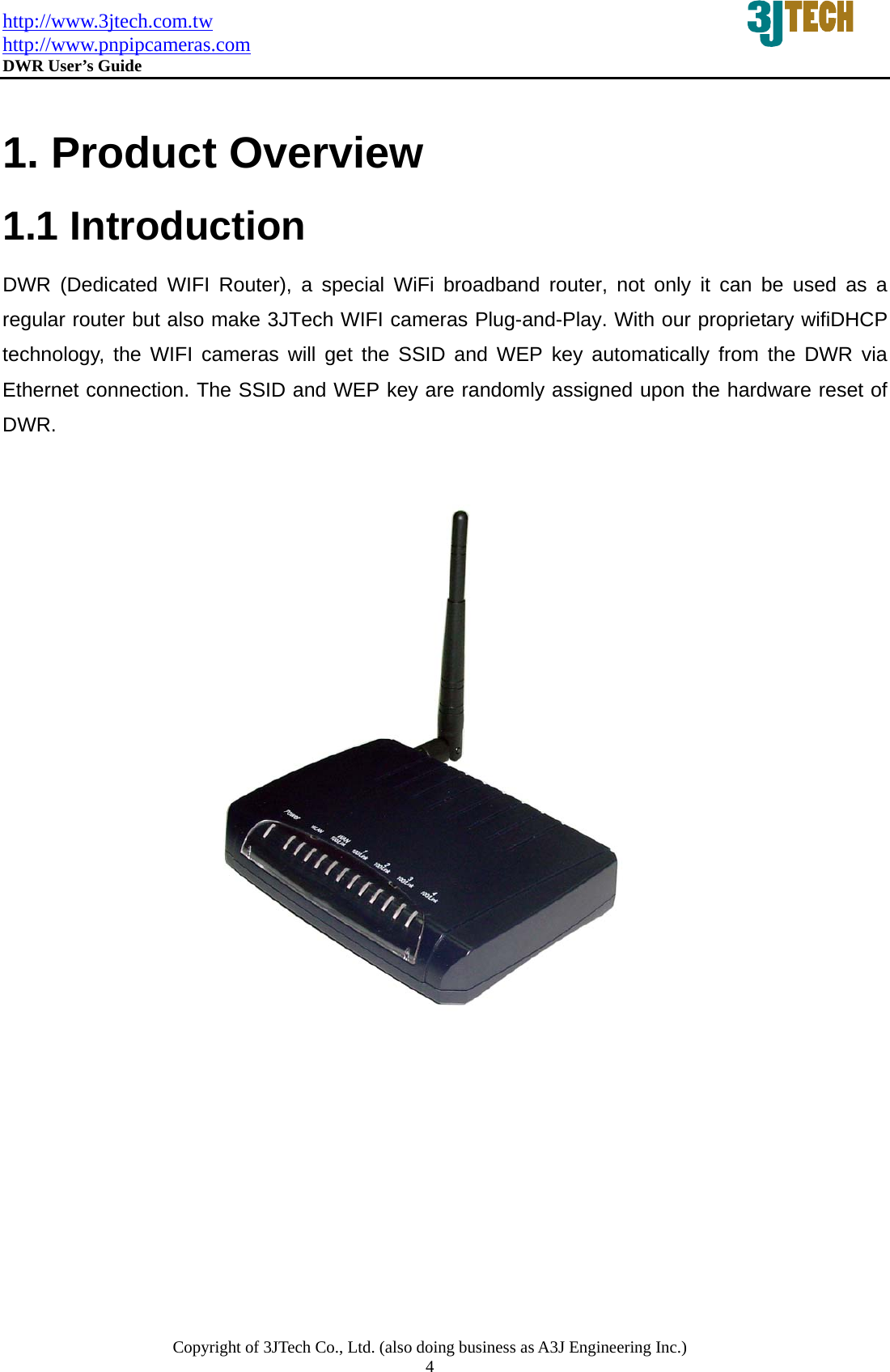
http://www.3jtech.com.tw http://www.pnpipcameras.com  DWR User’s Guide   Copyright of 3JTech Co., Ltd. (also doing business as A3J Engineering Inc.) 4   1. Product Overview 1.1 Introduction  DWR (Dedicated WIFI Router), a special WiFi broadband router, not only it can be used as a regular router but also make 3JTech WIFI cameras Plug-and-Play. With our proprietary wifiDHCP technology, the WIFI cameras will get the SSID and WEP key automatically from the DWR via Ethernet connection. The SSID and WEP key are randomly assigned upon the hardware reset of DWR.
http://www.3jtech.com.tw http://www.pnpipcameras.com  DWR User’s Guide   Copyright of 3JTech Co., Ltd. (also doing business as A3J Engineering Inc.) 5  1.2 Features y  As VPN client or pass-through. y  Offer 3JTech’s Wifi camera to be Plug-and-Play wifi cameras. 1.3 Package Contents ─  1 x DWR Router ─  1 x CD with Quick Installation Guide and User’s Manual ─  1 x RJ45 Ethernet Cable ─  1 x Power Adapter
http://www.3jtech.com.tw http://www.pnpipcameras.com  DWR User’s Guide   Copyright of 3JTech Co., Ltd. (also doing business as A3J Engineering Inc.) 6  2. Physical Description The following information contains the physical description of DWR. This includes the functions and the locations of each connector and indicator. This information provides useful reference when installing the product. Please familiarize yourself with DWR.  2.1 Panels 2.1.1 Front and Rear Panels For more related description, please refer to the Section 2.2 and Section 2.2.1.        23514
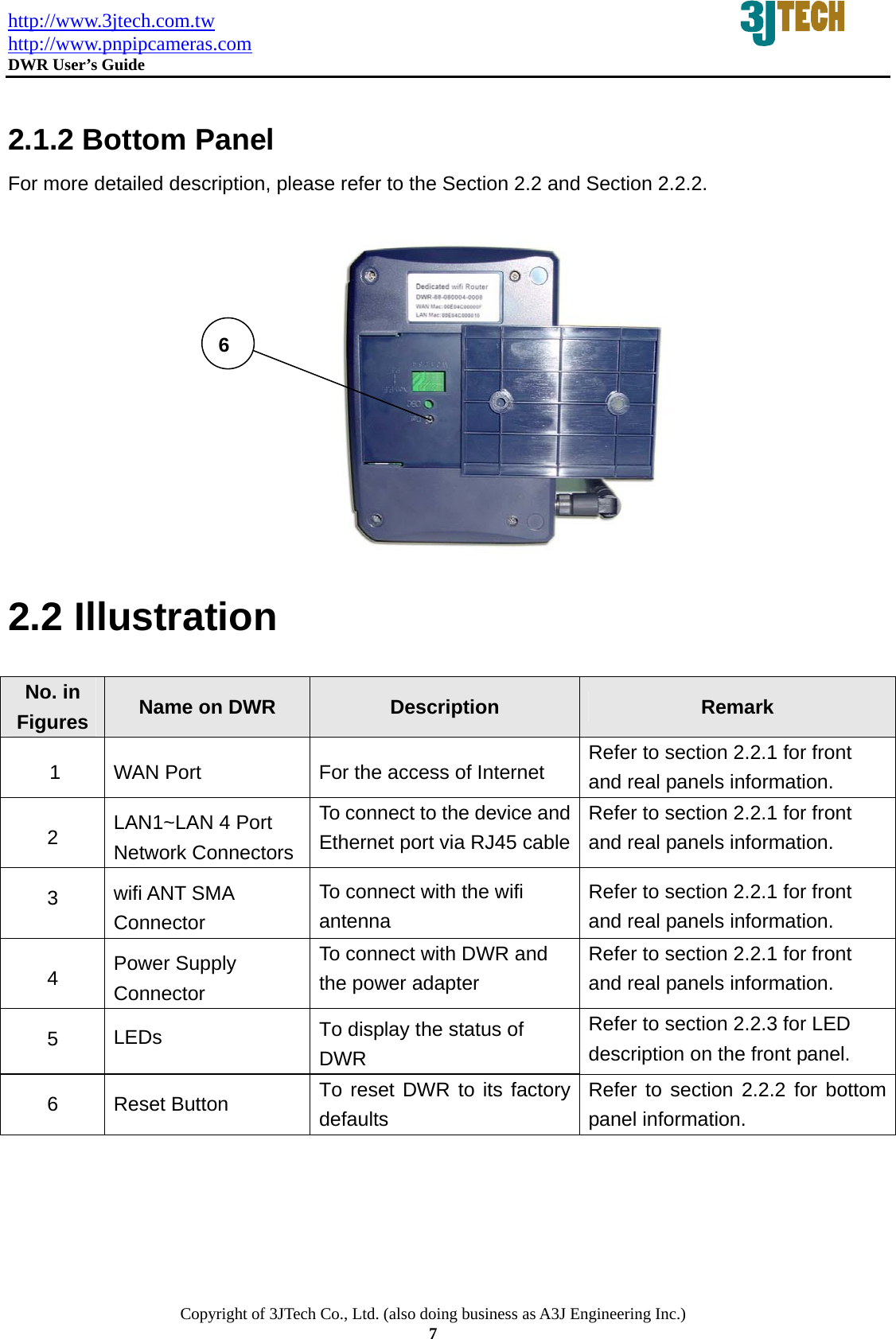
http://www.3jtech.com.tw http://www.pnpipcameras.com  DWR User’s Guide   Copyright of 3JTech Co., Ltd. (also doing business as A3J Engineering Inc.) 7  2.1.2 Bottom Panel For more detailed description, please refer to the Section 2.2 and Section 2.2.2.              2.2 Illustration  No. in Figures  Name on DWR    Description  Remark 1  WAN Port  For the access of Internet  Refer to section 2.2.1 for front and real panels information. 2  LAN1~LAN 4 Port Network Connectors To connect to the device and Ethernet port via RJ45 cableRefer to section 2.2.1 for front and real panels information. 3  wifi ANT SMA Connector  To connect with the wifi antenna  Refer to section 2.2.1 for front and real panels information. 4  Power Supply Connector To connect with DWR and the power adapter   Refer to section 2.2.1 for front and real panels information. 5  LEDs   To display the status of DWR Refer to section 2.2.3 for LED   description on the front panel. 6 Reset Button  To reset DWR to its factory defaults Refer to section 2.2.2 for bottom panel information.  6
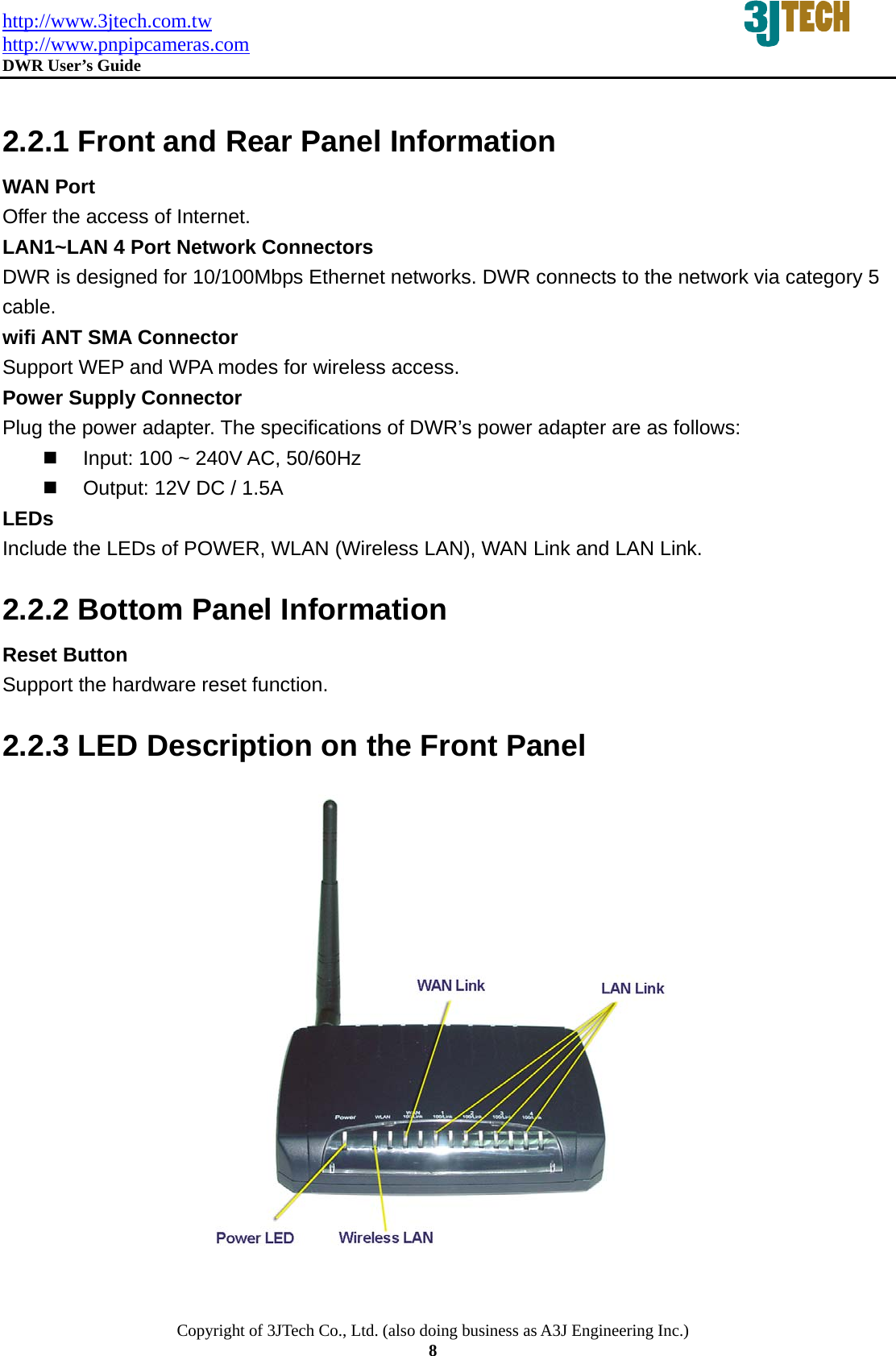
http://www.3jtech.com.tw http://www.pnpipcameras.com  DWR User’s Guide   Copyright of 3JTech Co., Ltd. (also doing business as A3J Engineering Inc.) 8  2.2.1 Front and Rear Panel Information WAN Port Offer the access of Internet. LAN1~LAN 4 Port Network Connectors DWR is designed for 10/100Mbps Ethernet networks. DWR connects to the network via category 5 cable. wifi ANT SMA Connector   Support WEP and WPA modes for wireless access. Power Supply Connector Plug the power adapter. The specifications of DWR’s power adapter are as follows:     Input: 100 ~ 240V AC, 50/60Hz   Output: 12V DC / 1.5A LEDs Include the LEDs of POWER, WLAN (Wireless LAN), WAN Link and LAN Link. 2.2.2 Bottom Panel Information Reset Button Support the hardware reset function. 2.2.3 LED Description on the Front Panel
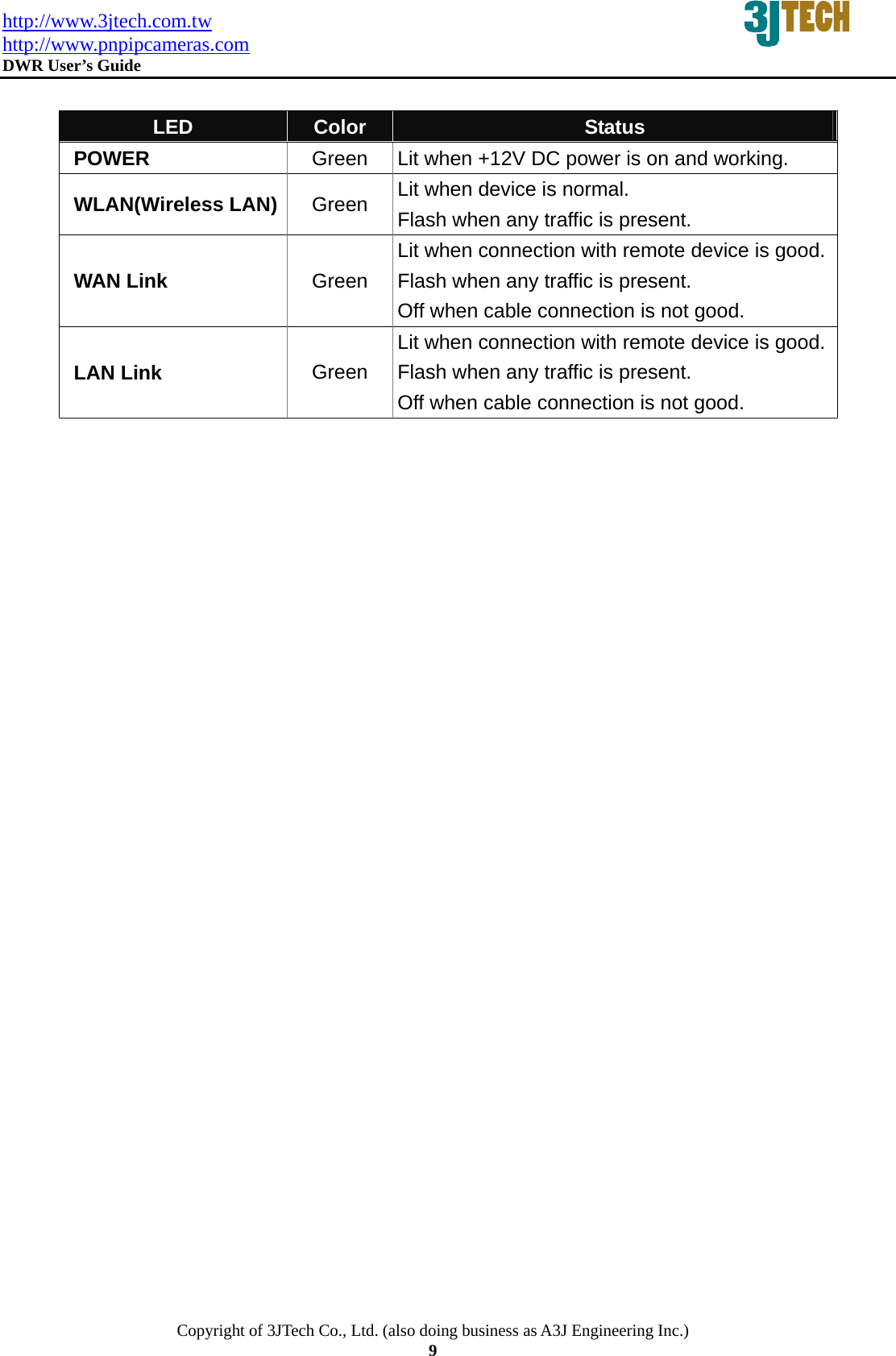
http://www.3jtech.com.tw http://www.pnpipcameras.com  DWR User’s Guide   Copyright of 3JTech Co., Ltd. (also doing business as A3J Engineering Inc.) 9  LED  Color  Status POWER  Green  Lit when +12V DC power is on and working. WLAN(Wireless LAN) Green  Lit when device is normal.   Flash when any traffic is present. WAN Link  Green Lit when connection with remote device is good.Flash when any traffic is present. Off when cable connection is not good.  LAN Link Green Lit when connection with remote device is good.Flash when any traffic is present. Off when cable connection is not good.
http://www.3jtech.com.tw http://www.pnpipcameras.com  DWR User’s Guide   Copyright of 3JTech Co., Ltd. (also doing business as A3J Engineering Inc.) 10  3. Installation 3.1 Hardware Installation Step 1: Place DWR to the best optimum transmission location. The best transmission location for your DWR is usually at the geographic center of your wireless network, with line of sign to all of your mobile stations. Step 2: Connect DWR to your wired network. Connect the Ethernet WAN interface of DWR by category 5 Ethernet cable to your switch/ hub/ xDSL modem or cable modem. A straight-through Ethernet cable with appropriate cable length is needed. Step 3: Supply DC power to DWR. Use only the AC/DC power adapter supplied with DWR; it may occur damage by using a different type of power adapter. 3.2 Software Installation There is no software drivers, patches or utilities installation needed, but only the configuration settings. Please refer to this chapter which will instruct you how to configure and manage DWR through the web user interface it supports. With this facility, you can easily access and monitor through any one LAN port of DWR.  NOTE: It will take about 55 seconds to complete the boot up sequence after powering on DWR.  3.2.1 Software Configuration In DWR, it supports a simple user management function to configure the system. The DWR is delivered with the following factory default parameters on the Ethernet LAN interfaces. Default IP Address: 192.168.8.1 Default IP subnet mask: 255.255.255.0 WEB login User Name: cameras WEB login Password: cameras
http://www.3jtech.com.tw http://www.pnpipcameras.com  DWR User’s Guide   Copyright of 3JTech Co., Ltd. (also doing business as A3J Engineering Inc.) 11  3.2.2 Prepare your PC for DWR Configuration    For OS of Microsoft Windows 95/ 98/ Me:   1. Click the Start button and select Settings, then click Control Panel. The Control Panel window will appear.  NOTE: Windows Me users may not see the Network control panel. If so, select View all Control Panel options on the left side of the window.  2.  Move mouse and double-click the right button on Network icon. The Network window will appear. 3.  Check the installed list of Network Components. If TCP/IP is not installed, click the Add button to install it; otherwise go to step 6. 4.  Select Protocol in the Network Component Type dialog box and click Add button. 5.  Select TCP/IP in Microsoft of Select Network Protocol dialog box then click OK button to install the TCP/IP protocol, it may need the Microsoft Windows CD to complete the installation. Close and go back to Network dialog box after the TCP/IP installation. 6.  Select TCP/IP and click the Properties button on the Network dialog box. 7.  Select Specify an IP address and type in values as following example. 9 IP Address: 192.168.8.1, any IP address within 192.168.8.1 to 192.168.8.253 is good to connect the Wireless LAN Access Point. 9  IP Subnet Mask: 255.255.255.0 8. Click OK and reboot your PC after completing the IP parameter settings.
http://www.3jtech.com.tw http://www.pnpipcameras.com  DWR User’s Guide   Copyright of 3JTech Co., Ltd. (also doing business as A3J Engineering Inc.) 12   For OS of Microsoft Windows 2000, XP:   1.  Click the Start button and select Settings, then click Control Panel. The Control Panel window will appear. 2.  Move mouse and double-click the right button on Network and Dial-up Connections icon. Move mouse and double-click the Local Area Connection icon. The Local Area Connection window will appear. Click Properties button in the Local Area Connection window. 3.  Check the installed list of Network Components. If TCP/IP is not installed, click the Add button to install it; otherwise go to step 6. 4.  Select Protocol in the Network Component Type dialog box and click Add button. 5.  Select TCP/IP in Microsoft of Select Network Protocol dialog box then click OK button to install the TCP/IP protocol, it may need the Microsoft Windows CD to complete the installation. Close and go back to Network dialog box after the TCP/IP installation. 6.  Select TCP/IP and click the Properties button on the Network dialog box. 7.  Select Specify an IP address and type in values as following example. 9  IP Address: 192.168.8.1, any IP address within 192.168.8.1 to 192.168.8.253 is good to connect the Wireless LAN Access Point. 9  IP Subnet Mask: 255.255.255.0 8. Click OK to complete the IP parameter settings.     For OS of Microsoft Windows NT:   1. Click the Start button and select Settings, then click Control Panel. The Control Panel window will appear. 2.  Move mouse and double-click the right button on Network icon. The Network window will appear. Click Protocol tab from the Network window. 3.  Check the installed list of Network Protocol window. If TCP/IP is not installed, click the Add button to install it; otherwise go to step 6. 4.  Select Protocol in the Network Component Type dialog box and click Add button. 5.  Select TCP/IP in Microsoft of Select Network Protocol dialog box then click OK button to install the TCP/IP protocol, it may need the Microsoft Windows CD to complete the installation. Close and go back to Network dialog box after the TCP/IP installation. 6.  Select TCP/IP and click the Properties button on the Network dialog box. 7.  Select Specify an IP address and type in values as following example. 9 IP Address: 192.168.8.1, any IP address within 192.168.8.1 to 192.168.8.253 is good to connect the Wireless LAN Access Point. 9  IP Subnet Mask: 255.255.255.0 8. Click OK to complete the IP parameter settings.
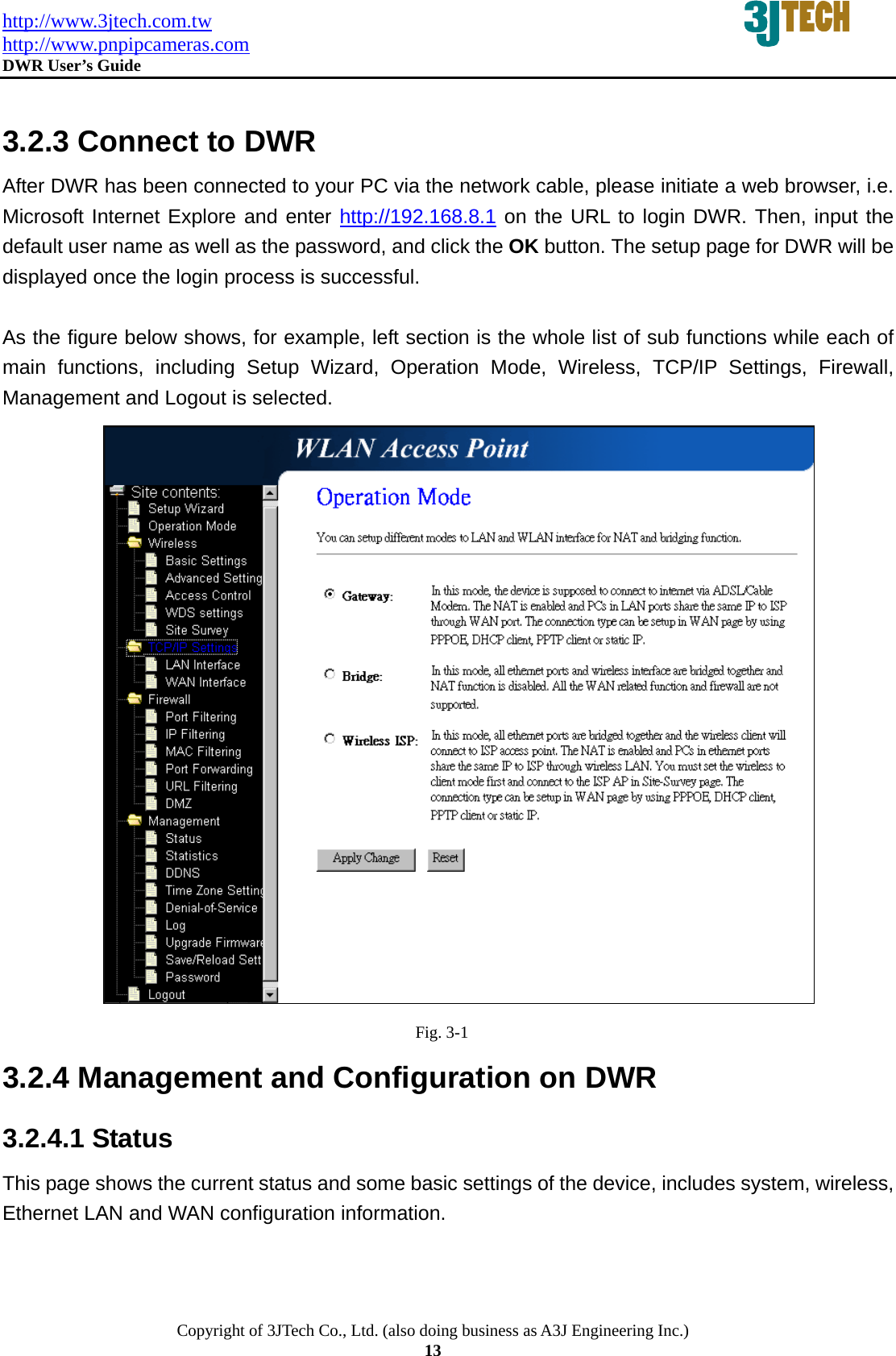
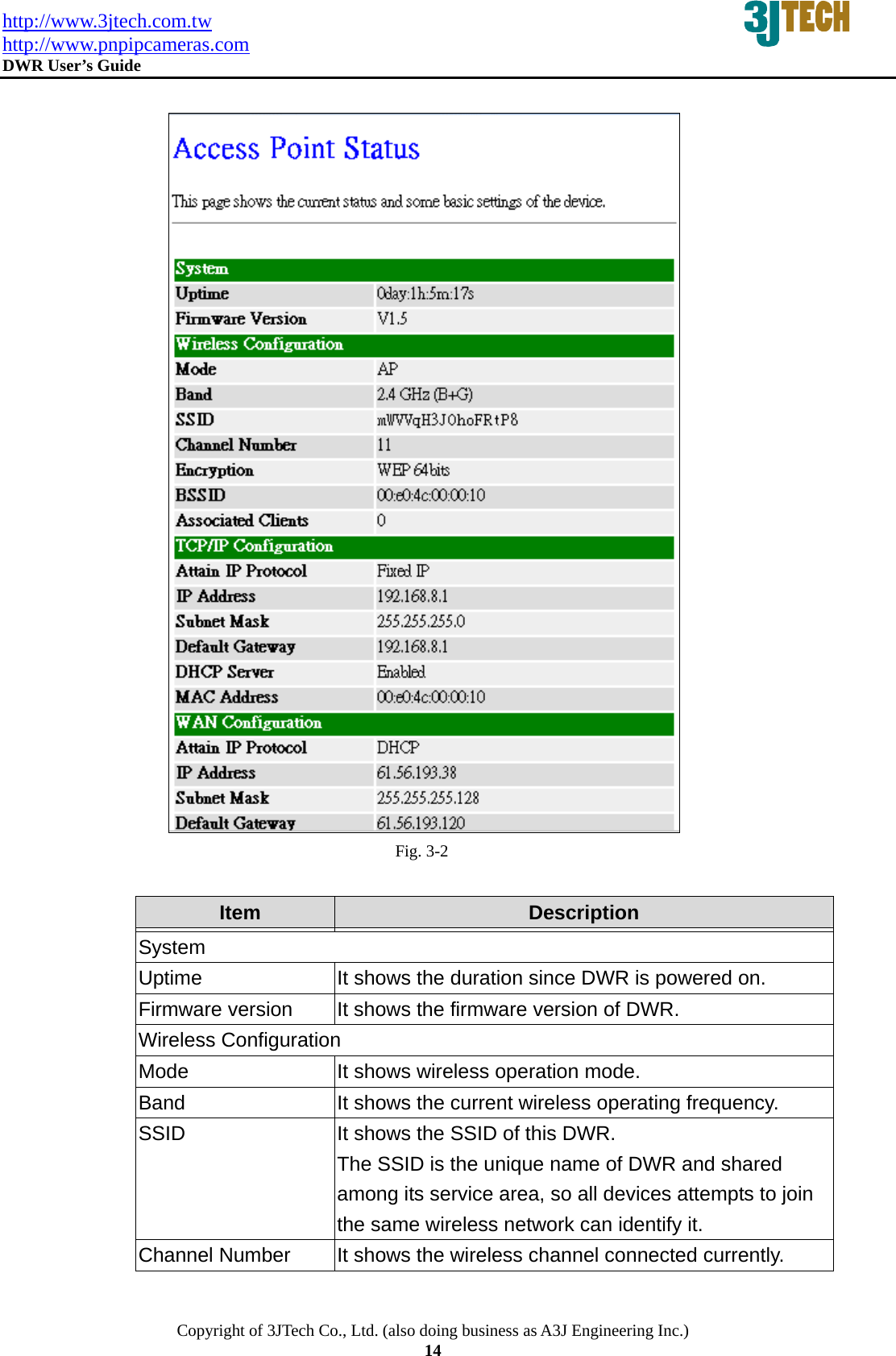
http://www.3jtech.com.tw http://www.pnpipcameras.com  DWR User’s Guide   Copyright of 3JTech Co., Ltd. (also doing business as A3J Engineering Inc.) 13  3.2.3 Connect to DWR After DWR has been connected to your PC via the network cable, please initiate a web browser, i.e. Microsoft Internet Explore and enter http://192.168.8.1 on the URL to login DWR. Then, input the default user name as well as the password, and click the OK button. The setup page for DWR will be displayed once the login process is successful.  As the figure below shows, for example, left section is the whole list of sub functions while each of main functions, including Setup Wizard, Operation Mode, Wireless, TCP/IP Settings, Firewall, Management and Logout is selected.                                           Fig. 3-1 3.2.4 Management and Configuration on DWR 3.2.4.1 Status This page shows the current status and some basic settings of the device, includes system, wireless, Ethernet LAN and WAN configuration information.
http://www.3jtech.com.tw http://www.pnpipcameras.com  DWR User’s Guide   Copyright of 3JTech Co., Ltd. (also doing business as A3J Engineering Inc.) 14                                          Fig. 3-2  Item  Description   System Uptime  It shows the duration since DWR is powered on.   Firmware version  It shows the firmware version of DWR. Wireless Configuration Mode  It shows wireless operation mode. Band  It shows the current wireless operating frequency. SSID  It shows the SSID of this DWR. The SSID is the unique name of DWR and shared among its service area, so all devices attempts to join the same wireless network can identify it. Channel Number  It shows the wireless channel connected currently.
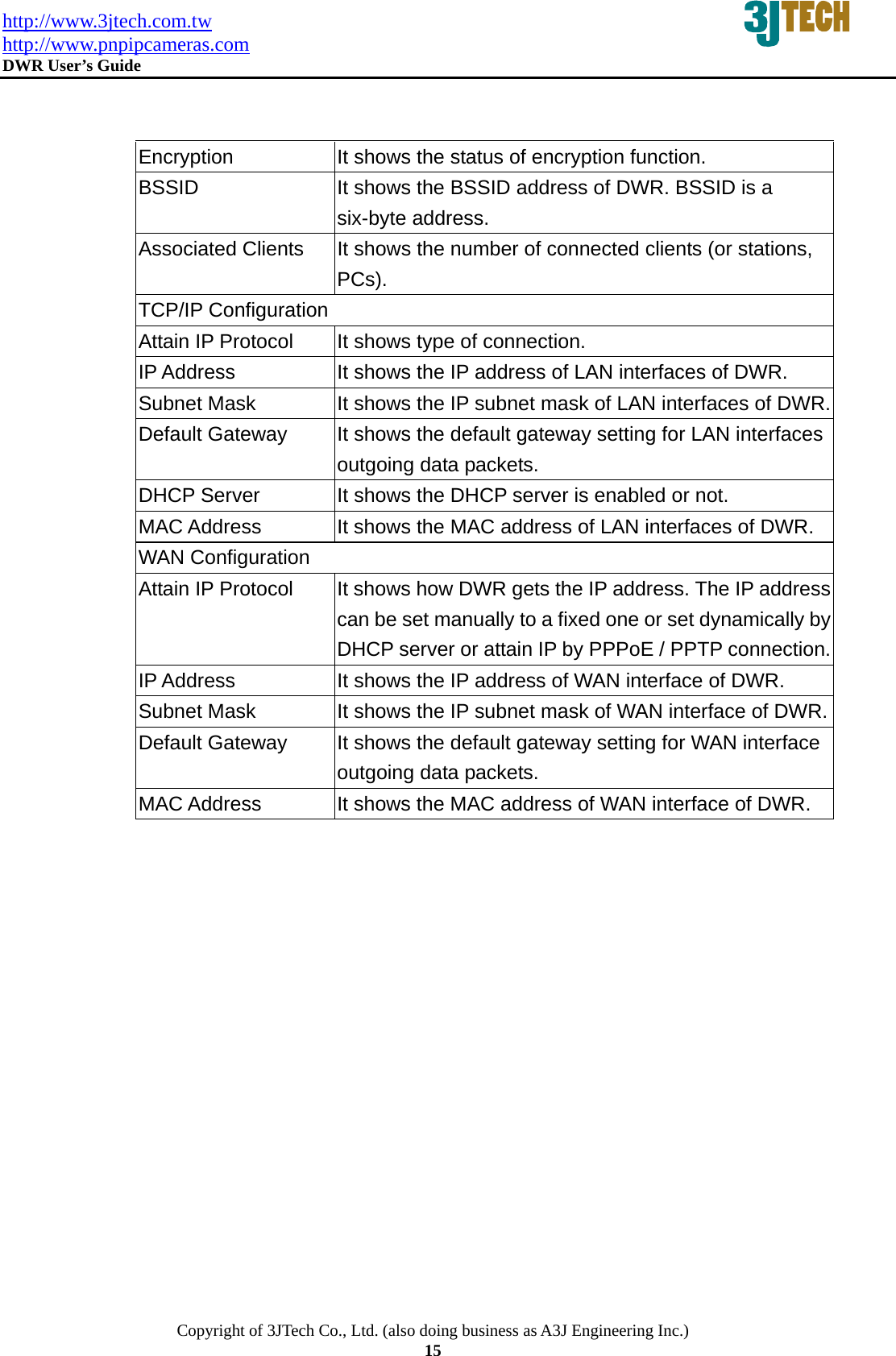
http://www.3jtech.com.tw http://www.pnpipcameras.com  DWR User’s Guide   Copyright of 3JTech Co., Ltd. (also doing business as A3J Engineering Inc.) 15   Encryption  It shows the status of encryption function. BSSID  It shows the BSSID address of DWR. BSSID is a six-byte address. Associated Clients  It shows the number of connected clients (or stations, PCs).  TCP/IP Configuration Attain IP Protocol  It shows type of connection. IP Address  It shows the IP address of LAN interfaces of DWR. Subnet Mask  It shows the IP subnet mask of LAN interfaces of DWR.Default Gateway  It shows the default gateway setting for LAN interfaces outgoing data packets. DHCP Server  It shows the DHCP server is enabled or not. MAC Address  It shows the MAC address of LAN interfaces of DWR. WAN Configuration Attain IP Protocol  It shows how DWR gets the IP address. The IP address can be set manually to a fixed one or set dynamically by DHCP server or attain IP by PPPoE / PPTP connection.IP Address  It shows the IP address of WAN interface of DWR. Subnet Mask  It shows the IP subnet mask of WAN interface of DWR.Default Gateway  It shows the default gateway setting for WAN interface outgoing data packets. MAC Address  It shows the MAC address of WAN interface of DWR.
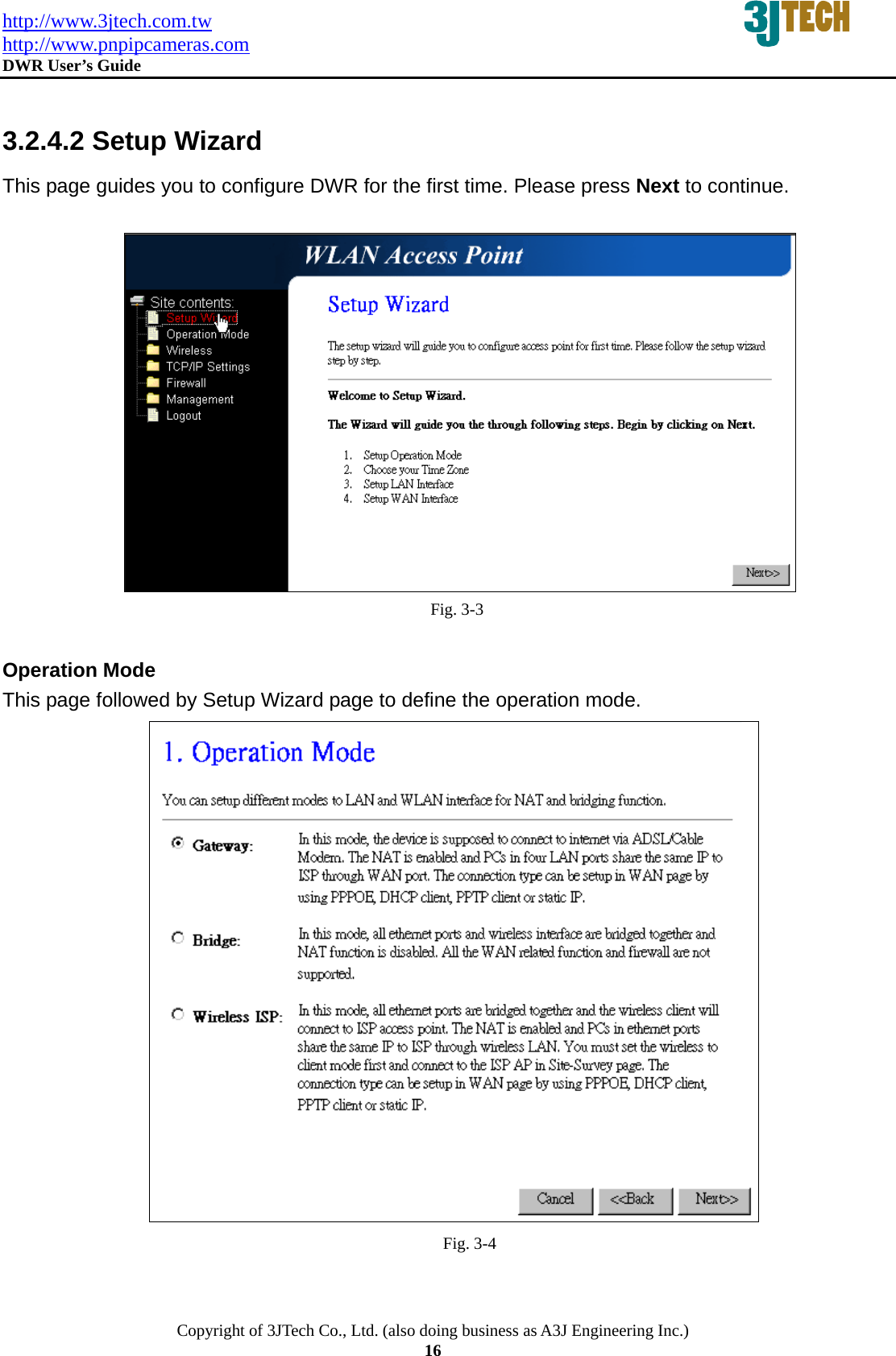
http://www.3jtech.com.tw http://www.pnpipcameras.com  DWR User’s Guide   Copyright of 3JTech Co., Ltd. (also doing business as A3J Engineering Inc.) 16  3.2.4.2 Setup Wizard This page guides you to configure DWR for the first time. Please press Next to continue.   Fig. 3-3  Operation Mode This page followed by Setup Wizard page to define the operation mode.  Fig. 3-4
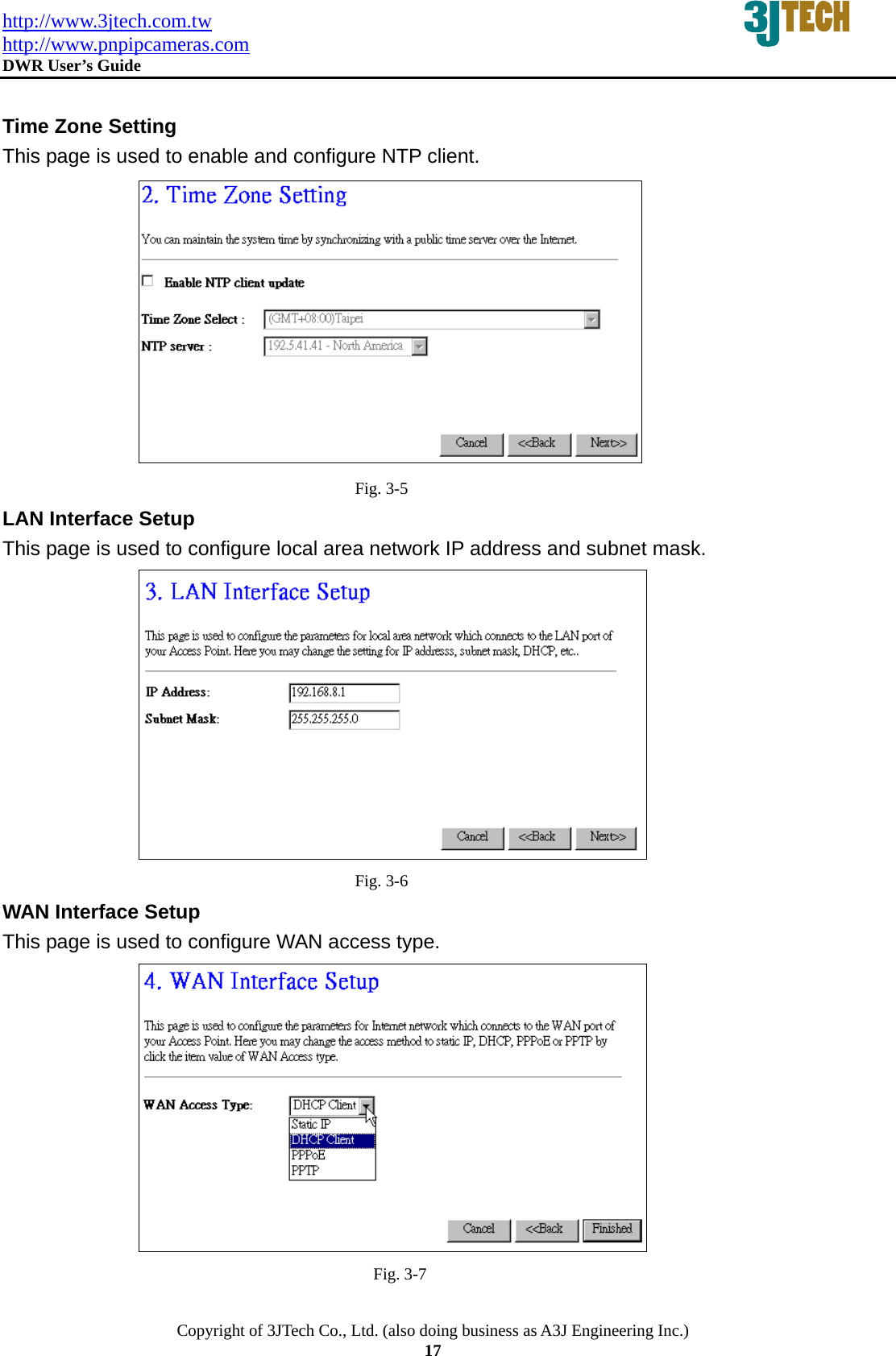
http://www.3jtech.com.tw http://www.pnpipcameras.com  DWR User’s Guide   Copyright of 3JTech Co., Ltd. (also doing business as A3J Engineering Inc.) 17  Time Zone Setting This page is used to enable and configure NTP client.  Fig. 3-5 LAN Interface Setup This page is used to configure local area network IP address and subnet mask.  Fig. 3-6 WAN Interface Setup This page is used to configure WAN access type.  Fig. 3-7
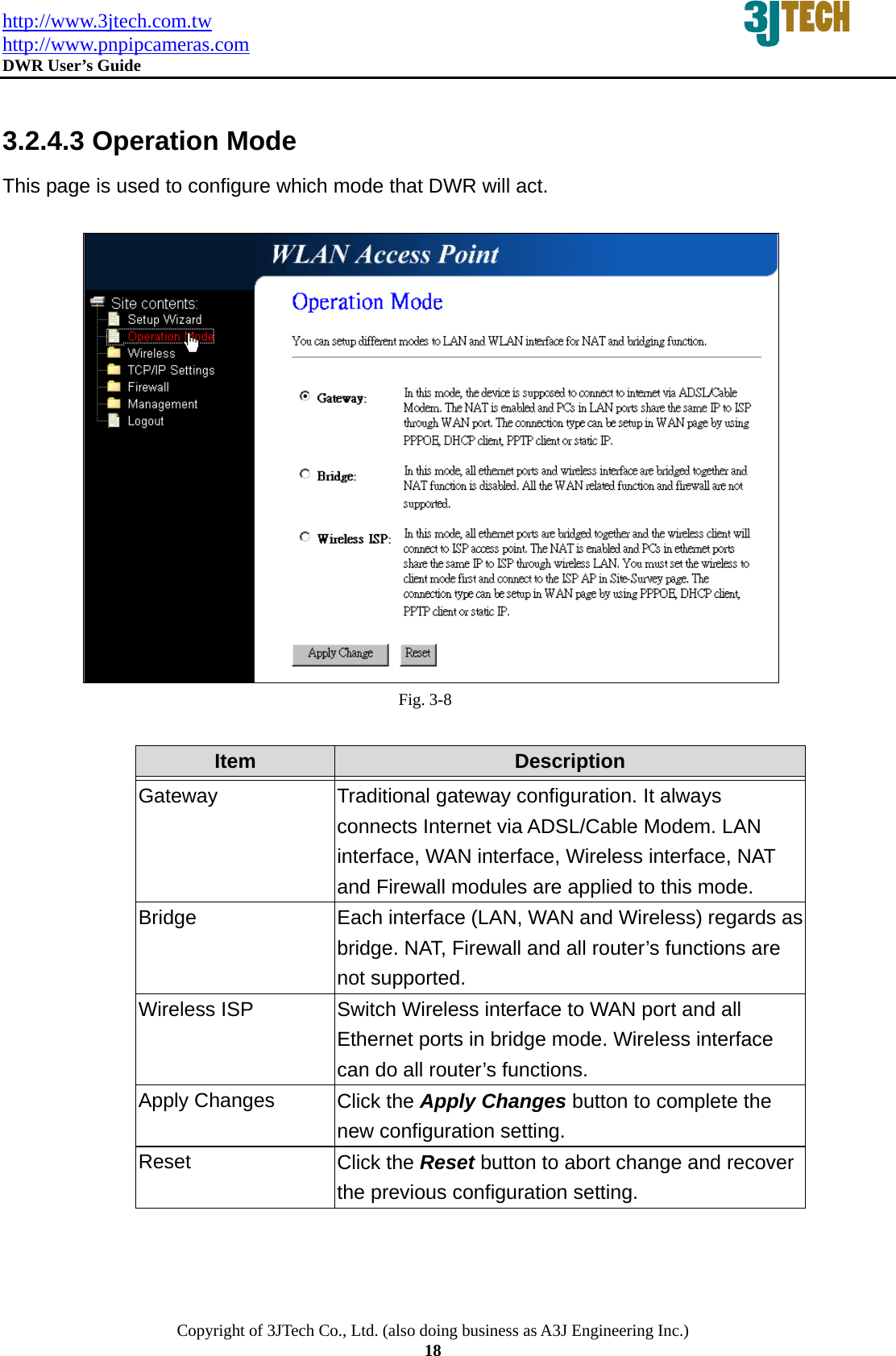
http://www.3jtech.com.tw http://www.pnpipcameras.com  DWR User’s Guide   Copyright of 3JTech Co., Ltd. (also doing business as A3J Engineering Inc.) 18  3.2.4.3 Operation Mode This page is used to configure which mode that DWR will act.   Fig. 3-8  Item  Description   Gateway Traditional gateway configuration. It always connects Internet via ADSL/Cable Modem. LAN interface, WAN interface, Wireless interface, NAT and Firewall modules are applied to this mode. Bridge  Each interface (LAN, WAN and Wireless) regards as bridge. NAT, Firewall and all router’s functions are not supported. Wireless ISP  Switch Wireless interface to WAN port and all Ethernet ports in bridge mode. Wireless interface can do all router’s functions. Apply Changes  Click the Apply Changes button to complete the new configuration setting. Reset  Click the Reset button to abort change and recover the previous configuration setting.
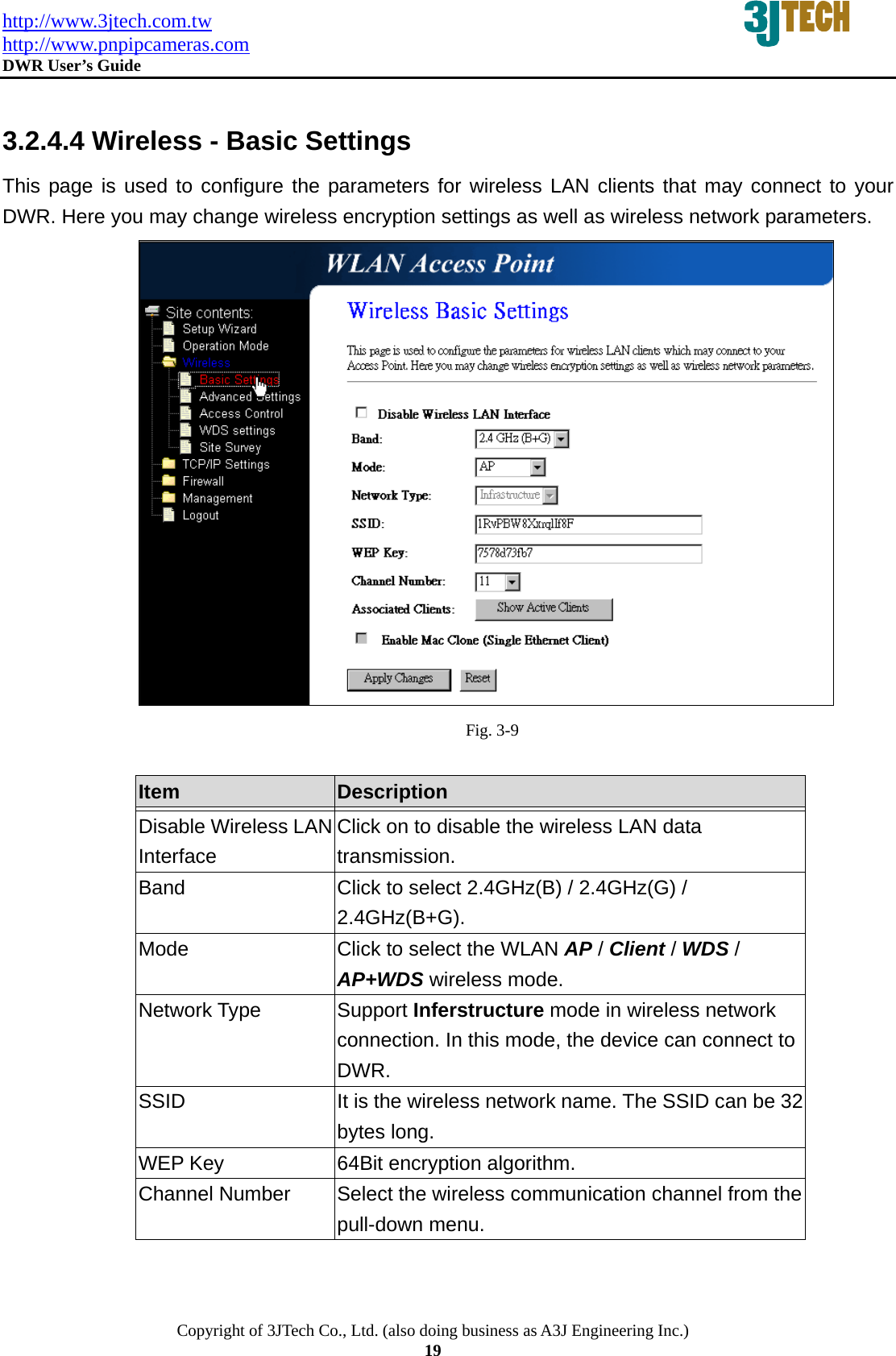
http://www.3jtech.com.tw http://www.pnpipcameras.com  DWR User’s Guide   Copyright of 3JTech Co., Ltd. (also doing business as A3J Engineering Inc.) 19  3.2.4.4 Wireless - Basic Settings This page is used to configure the parameters for wireless LAN clients that may connect to your DWR. Here you may change wireless encryption settings as well as wireless network parameters.  Fig. 3-9  Item  Description   Disable Wireless LAN Interface Click on to disable the wireless LAN data transmission. Band  Click to select 2.4GHz(B) / 2.4GHz(G) / 2.4GHz(B+G). Mode  Click to select the WLAN AP / Client / WDS / AP+WDS wireless mode. Network Type  Support Inferstructure mode in wireless network connection. In this mode, the device can connect to DWR.  SSID  It is the wireless network name. The SSID can be 32 bytes long. WEP Key  64Bit encryption algorithm.   Channel Number  Select the wireless communication channel from the pull-down menu.
http://www.3jtech.com.tw http://www.pnpipcameras.com  DWR User’s Guide   Copyright of 3JTech Co., Ltd. (also doing business as A3J Engineering Inc.) 20  Associated Clients  Click the Show Active Clients button to open Active Wireless Client Table that shows the MAC address, transmit-packet, receive-packet and transmission-rate for each associated wireless client. Enable Mac Clone (Single Ethernet Client) Take Laptop NIC MAC address as wireless client MAC address. [Client Mode only] Apply Changes  Click the Apply Changes button to complete the new configuration setting. Reset  Click the Reset button to abort change and recover the previous configuration setting. 3.2.4.5 Wireless - Advanced Settings These settings are only for more technically advanced users who have a sufficient knowledge about wireless LAN. These settings should not be changed unless you know what effect the changes will have on your DWR.                                                 Fig. 3-10
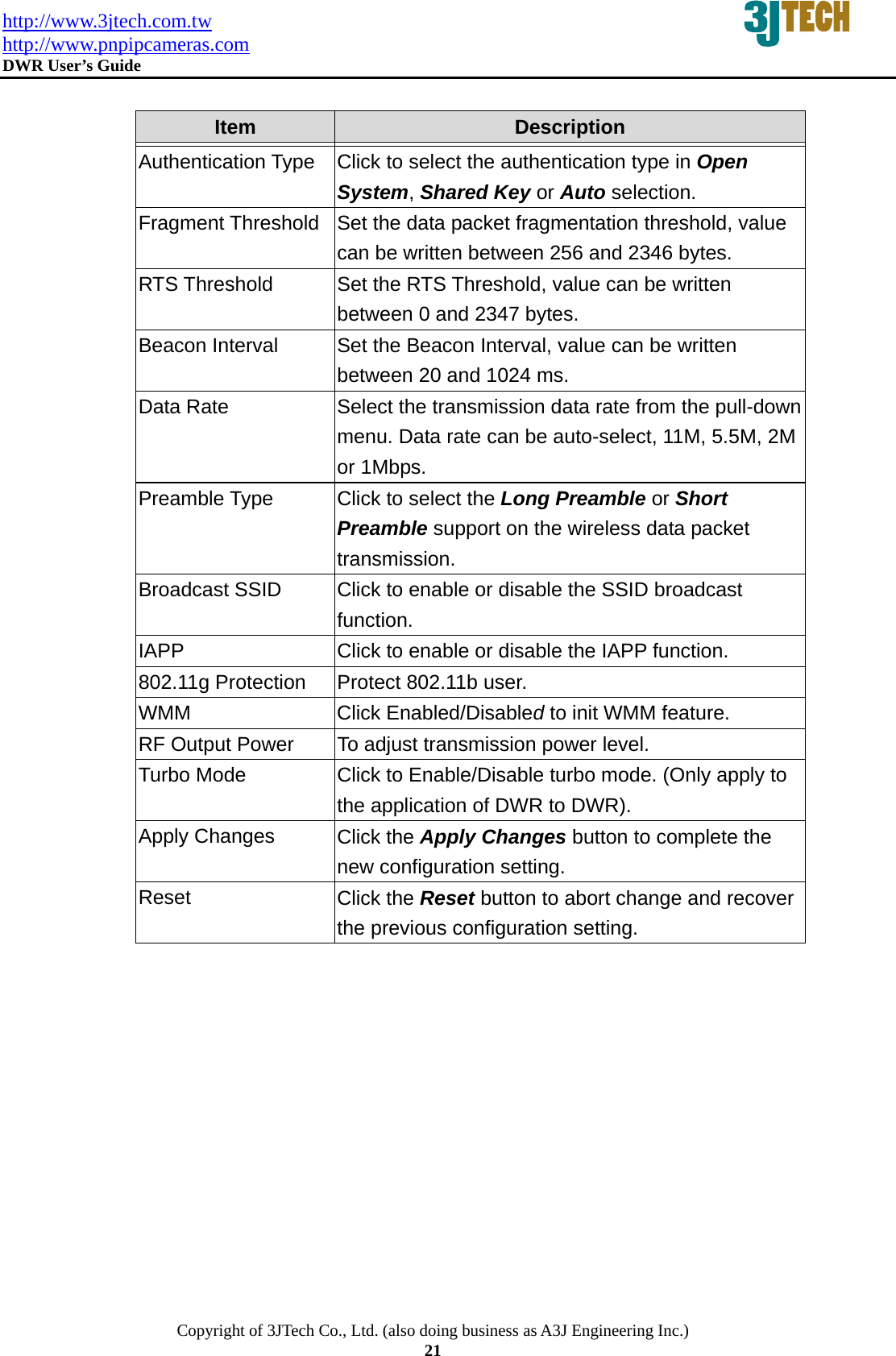
http://www.3jtech.com.tw http://www.pnpipcameras.com  DWR User’s Guide   Copyright of 3JTech Co., Ltd. (also doing business as A3J Engineering Inc.) 21  Item  Description   Authentication Type  Click to select the authentication type in Open System, Shared Key or Auto selection. Fragment Threshold  Set the data packet fragmentation threshold, value can be written between 256 and 2346 bytes. RTS Threshold  Set the RTS Threshold, value can be written between 0 and 2347 bytes. Beacon Interval  Set the Beacon Interval, value can be written between 20 and 1024 ms. Data Rate  Select the transmission data rate from the pull-down menu. Data rate can be auto-select, 11M, 5.5M, 2M or 1Mbps.   Preamble Type  Click to select the Long Preamble or Short Preamble support on the wireless data packet transmission.  Broadcast SSID  Click to enable or disable the SSID broadcast function.  IAPP  Click to enable or disable the IAPP function. 802.11g Protection  Protect 802.11b user. WMM Click Enabled/Disabled to init WMM feature. RF Output Power  To adjust transmission power level. Turbo Mode  Click to Enable/Disable turbo mode. (Only apply to the application of DWR to DWR). Apply Changes  Click the Apply Changes button to complete the new configuration setting. Reset  Click the Reset button to abort change and recover the previous configuration setting.
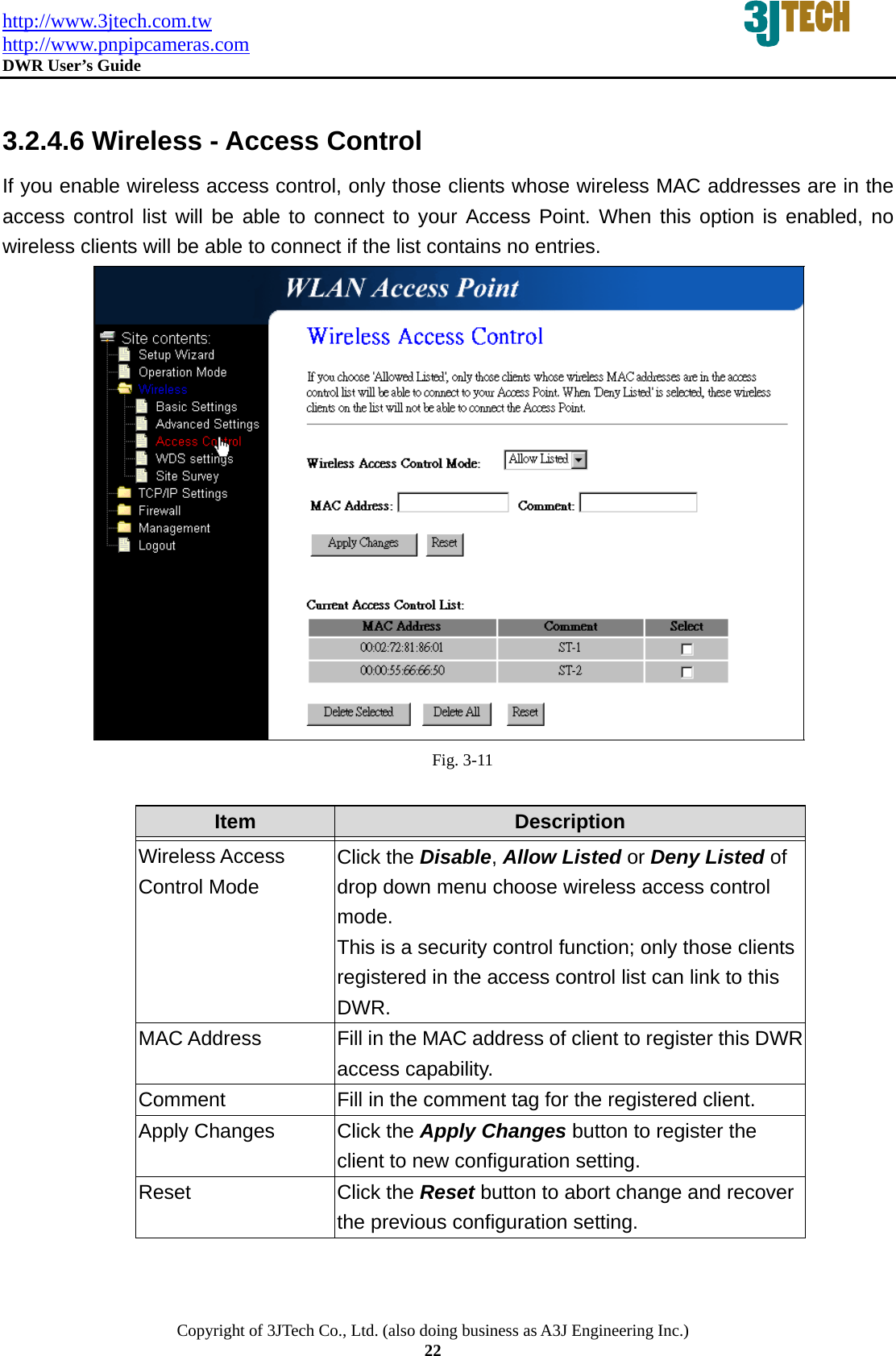
http://www.3jtech.com.tw http://www.pnpipcameras.com  DWR User’s Guide   Copyright of 3JTech Co., Ltd. (also doing business as A3J Engineering Inc.) 22  3.2.4.6 Wireless - Access Control If you enable wireless access control, only those clients whose wireless MAC addresses are in the access control list will be able to connect to your Access Point. When this option is enabled, no wireless clients will be able to connect if the list contains no entries.  Fig. 3-11  Item  Description   Wireless Access Control Mode Click the Disable, Allow Listed or Deny Listed of drop down menu choose wireless access control mode. This is a security control function; only those clients registered in the access control list can link to this DWR.  MAC Address  Fill in the MAC address of client to register this DWRaccess capability. Comment  Fill in the comment tag for the registered client. Apply Changes  Click the Apply Changes button to register the client to new configuration setting. Reset  Click the Reset button to abort change and recover the previous configuration setting.
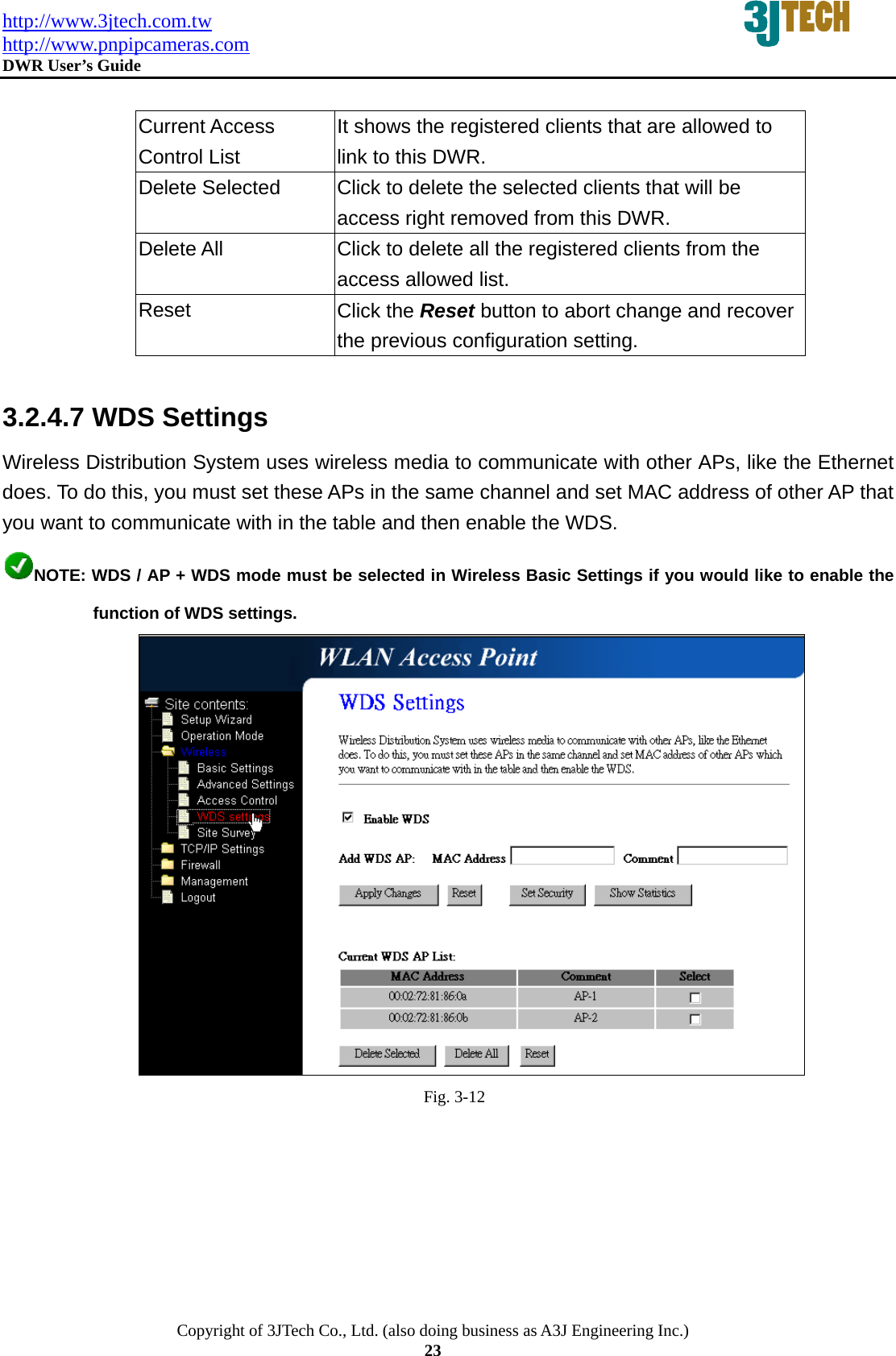
http://www.3jtech.com.tw http://www.pnpipcameras.com  DWR User’s Guide   Copyright of 3JTech Co., Ltd. (also doing business as A3J Engineering Inc.) 23  Current Access Control List It shows the registered clients that are allowed to link to this DWR. Delete Selected  Click to delete the selected clients that will be access right removed from this DWR. Delete All  Click to delete all the registered clients from the access allowed list.   Reset  Click the Reset button to abort change and recover the previous configuration setting.  3.2.4.7 WDS Settings Wireless Distribution System uses wireless media to communicate with other APs, like the Ethernet does. To do this, you must set these APs in the same channel and set MAC address of other AP that you want to communicate with in the table and then enable the WDS. NOTE: WDS / AP + WDS mode must be selected in Wireless Basic Settings if you would like to enable the function of WDS settings.  Fig. 3-12
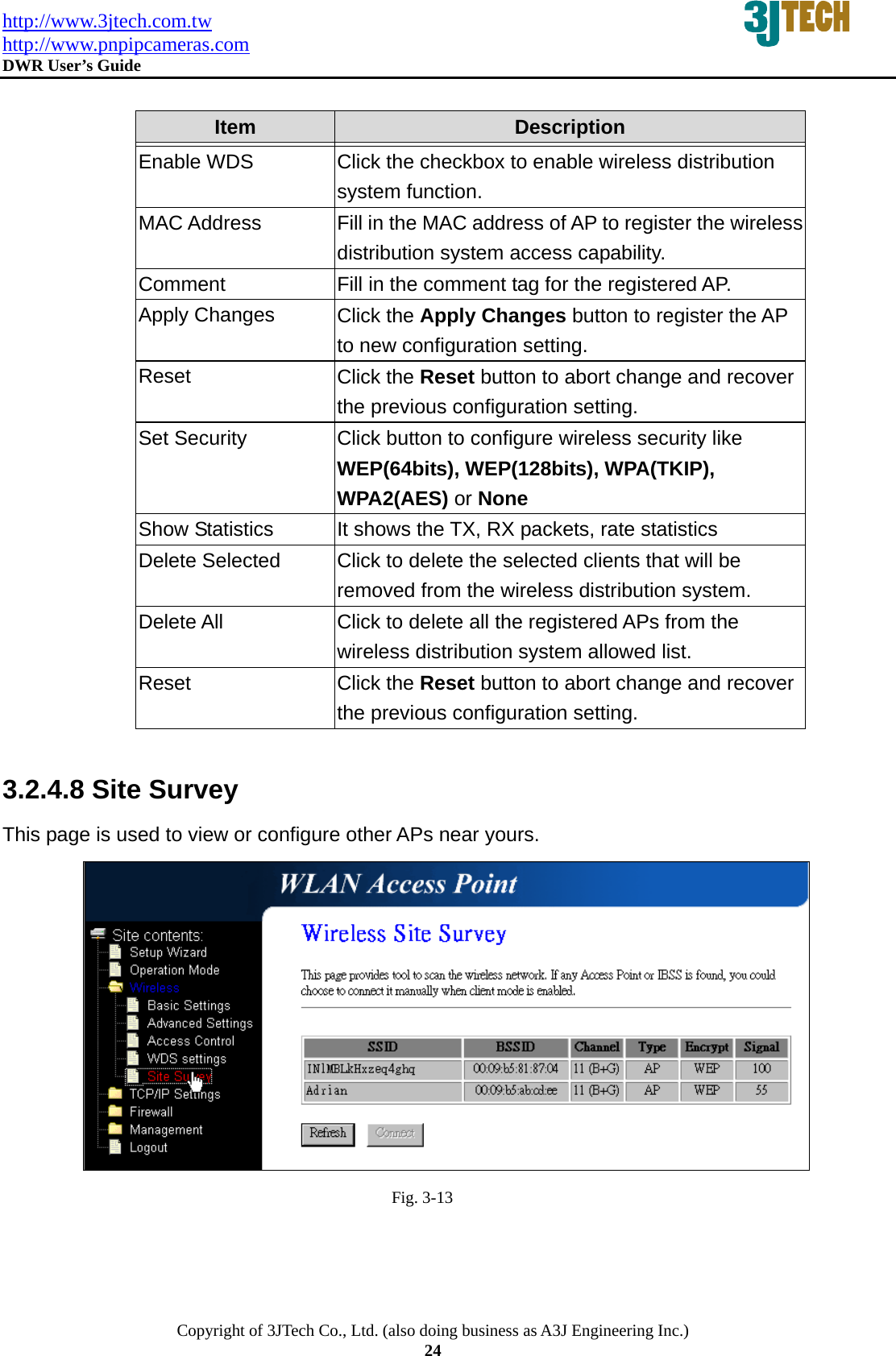
http://www.3jtech.com.tw http://www.pnpipcameras.com  DWR User’s Guide   Copyright of 3JTech Co., Ltd. (also doing business as A3J Engineering Inc.) 24  Item  Description   Enable WDS  Click the checkbox to enable wireless distribution system function.   MAC Address  Fill in the MAC address of AP to register the wireless distribution system access capability. Comment  Fill in the comment tag for the registered AP. Apply Changes  Click the Apply Changes button to register the AP to new configuration setting. Reset  Click the Reset button to abort change and recover the previous configuration setting. Set Security  Click button to configure wireless security like WEP(64bits), WEP(128bits), WPA(TKIP), WPA2(AES) or None Show Statistics  It shows the TX, RX packets, rate statistics Delete Selected  Click to delete the selected clients that will be removed from the wireless distribution system. Delete All  Click to delete all the registered APs from the wireless distribution system allowed list.   Reset  Click the Reset button to abort change and recover the previous configuration setting.  3.2.4.8 Site Survey This page is used to view or configure other APs near yours.  Fig. 3-13
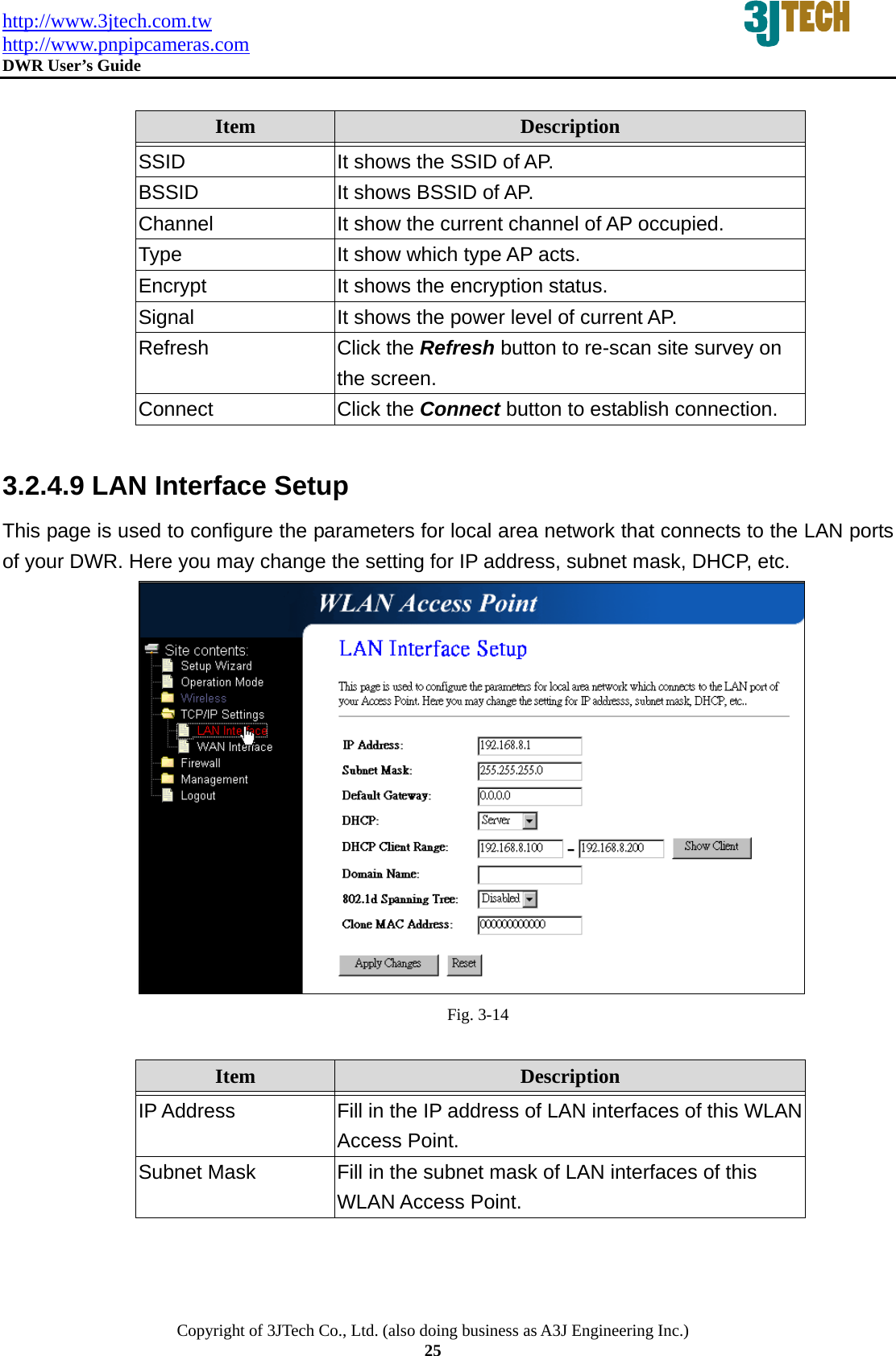
http://www.3jtech.com.tw http://www.pnpipcameras.com  DWR User’s Guide   Copyright of 3JTech Co., Ltd. (also doing business as A3J Engineering Inc.) 25  Item  Description   SSID  It shows the SSID of AP. BSSID  It shows BSSID of AP. Channel  It show the current channel of AP occupied. Type  It show which type AP acts. Encrypt  It shows the encryption status. Signal  It shows the power level of current AP. Refresh  Click the Refresh button to re-scan site survey on the screen. Connect  Click the Connect button to establish connection.  3.2.4.9 LAN Interface Setup This page is used to configure the parameters for local area network that connects to the LAN ports of your DWR. Here you may change the setting for IP address, subnet mask, DHCP, etc.  Fig. 3-14  Item  Description   IP Address  Fill in the IP address of LAN interfaces of this WLAN Access Point. Subnet Mask  Fill in the subnet mask of LAN interfaces of this WLAN Access Point.
http://www.3jtech.com.tw http://www.pnpipcameras.com  DWR User’s Guide   Copyright of 3JTech Co., Ltd. (also doing business as A3J Engineering Inc.) 26  Default Gateway  Fill in the default gateway for LAN interfaces out going data packets. DHCP  Click to select Disabled, Client or Server in different operation mode of wireless Access Point. DHCP Client Range  Fill in the start IP address and end IP address to allocate a range of IP addresses; client with DHCP function set will be assigned an IP address from the range. Show Client  Click to open the Active DHCP Client Table window that shows the active clients with their assigned IP address, MAC address and time expired information. [Server mode only] Domain Name Assign Domain Name and dispatch to DHCP clients. It is optional field. 802.1d Spanning Tree Select to enable or disable the IEEE 802.1d Spanning Tree function from the pull-down menu. Clone MAC Address  Fill in the MAC address that is the MAC address to be cloned.   Apply Changes  Click the Apply Changes button to complete the new configuration setting. Reset  Click the Reset button to abort change and recover the previous configuration setting.
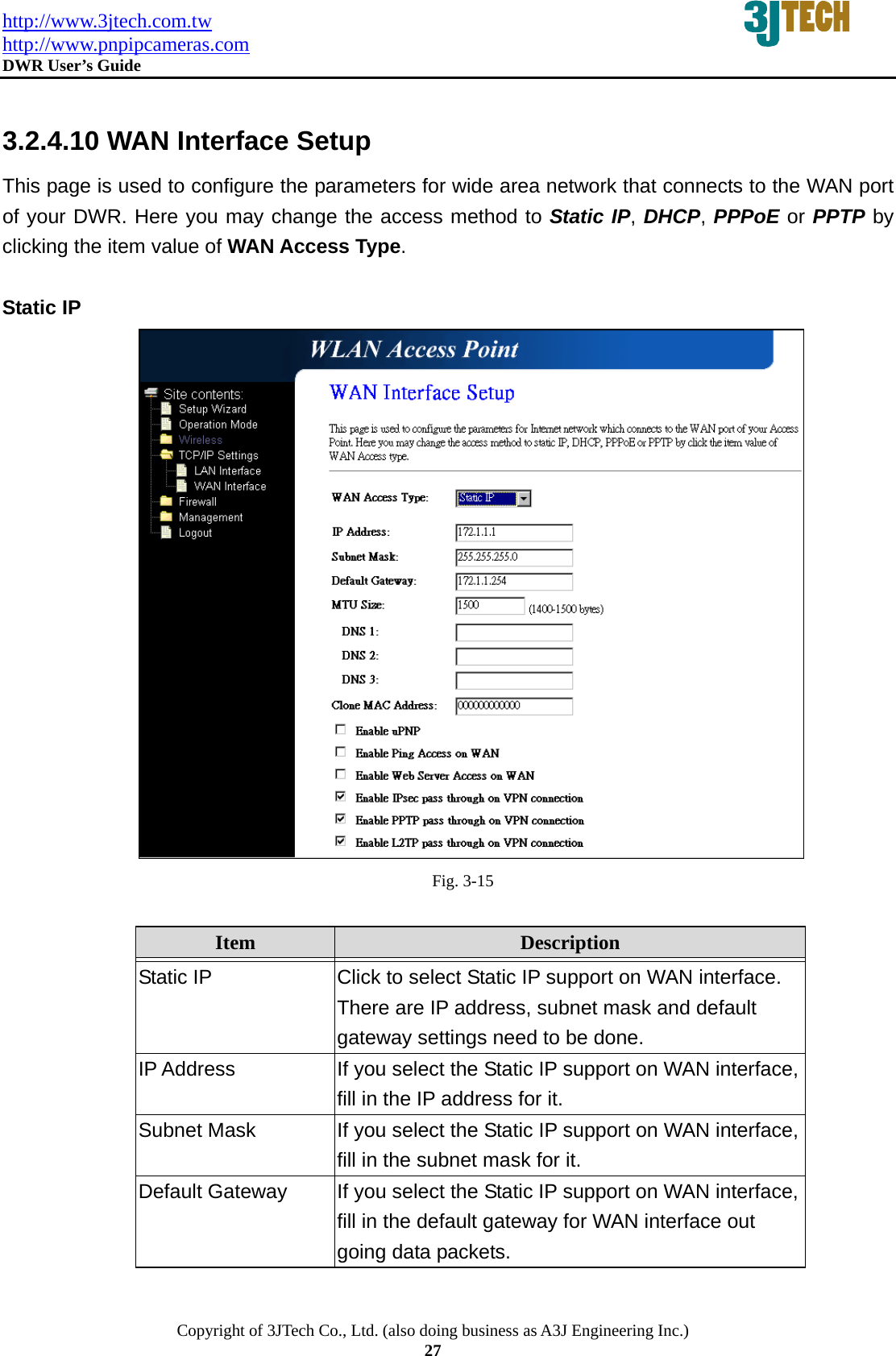
http://www.3jtech.com.tw http://www.pnpipcameras.com  DWR User’s Guide   Copyright of 3JTech Co., Ltd. (also doing business as A3J Engineering Inc.) 27  3.2.4.10 WAN Interface Setup This page is used to configure the parameters for wide area network that connects to the WAN port of your DWR. Here you may change the access method to Static IP, DHCP, PPPoE or PPTP by clicking the item value of WAN Access Type.   Static IP  Fig. 3-15  Item  Description   Static IP  Click to select Static IP support on WAN interface. There are IP address, subnet mask and default gateway settings need to be done. IP Address  If you select the Static IP support on WAN interface, fill in the IP address for it. Subnet Mask  If you select the Static IP support on WAN interface, fill in the subnet mask for it. Default Gateway  If you select the Static IP support on WAN interface, fill in the default gateway for WAN interface out going data packets.
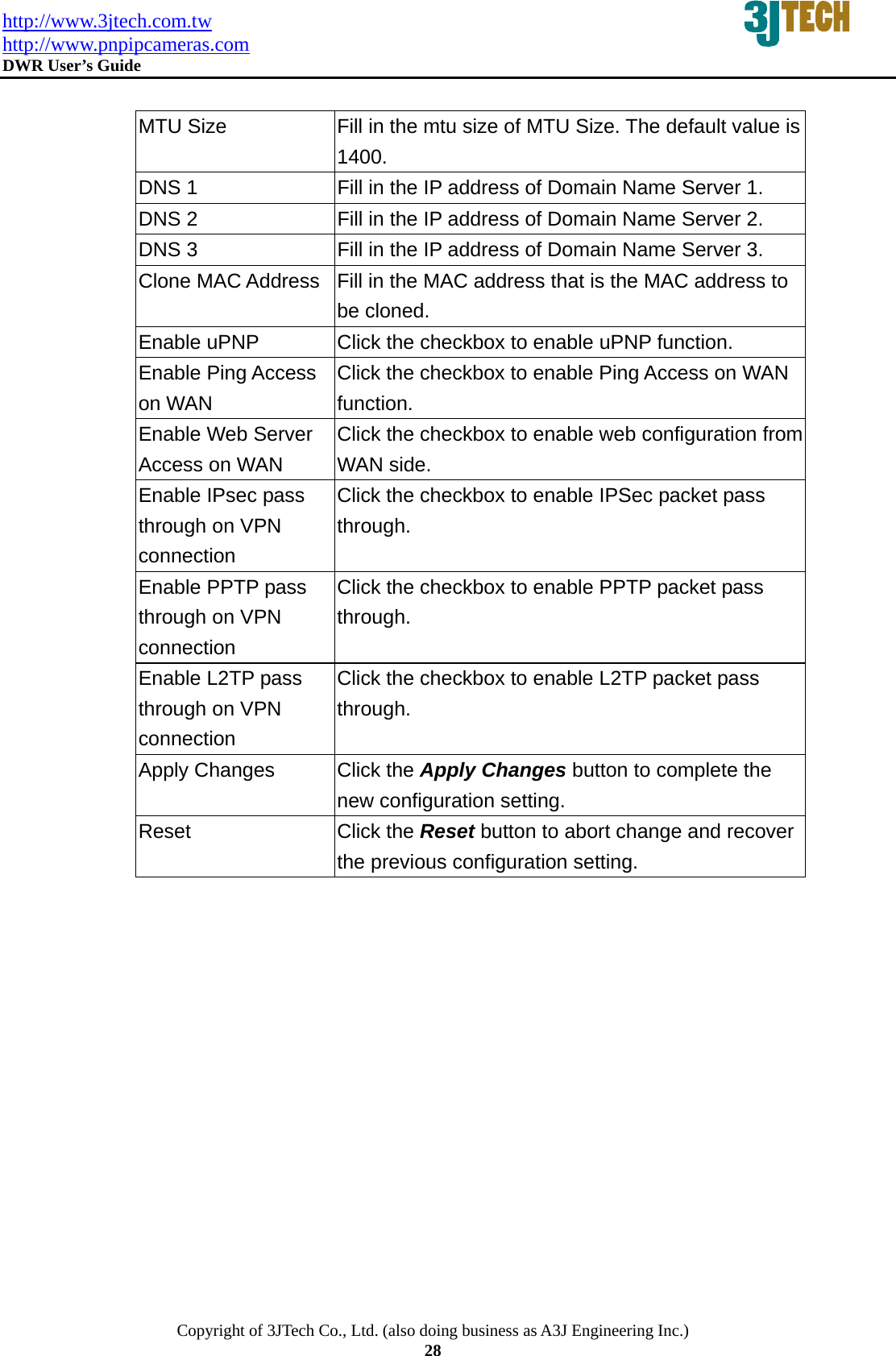
http://www.3jtech.com.tw http://www.pnpipcameras.com  DWR User’s Guide   Copyright of 3JTech Co., Ltd. (also doing business as A3J Engineering Inc.) 28  MTU Size  Fill in the mtu size of MTU Size. The default value is 1400. DNS 1  Fill in the IP address of Domain Name Server 1. DNS 2  Fill in the IP address of Domain Name Server 2. DNS 3  Fill in the IP address of Domain Name Server 3. Clone MAC Address  Fill in the MAC address that is the MAC address to be cloned. Enable uPNP  Click the checkbox to enable uPNP function. Enable Ping Access on WAN Click the checkbox to enable Ping Access on WAN function.  Enable Web Server Access on WAN Click the checkbox to enable web configuration from WAN side. Enable IPsec pass through on VPN connection Click the checkbox to enable IPSec packet pass through. Enable PPTP pass through on VPN connection Click the checkbox to enable PPTP packet pass through. Enable L2TP pass through on VPN connection Click the checkbox to enable L2TP packet pass through. Apply Changes  Click the Apply Changes button to complete the new configuration setting. Reset  Click the Reset button to abort change and recover the previous configuration setting.
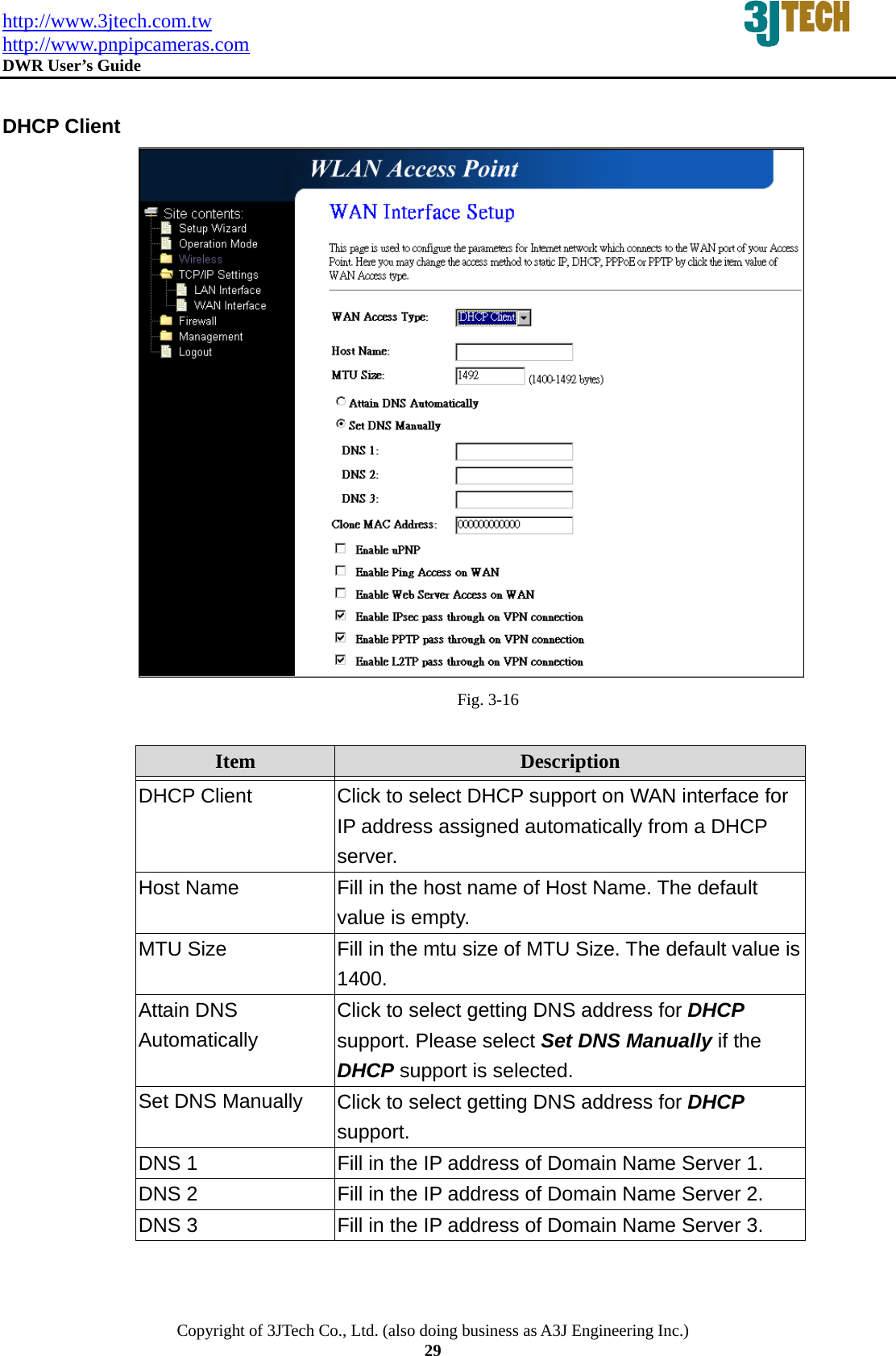
http://www.3jtech.com.tw http://www.pnpipcameras.com  DWR User’s Guide   Copyright of 3JTech Co., Ltd. (also doing business as A3J Engineering Inc.) 29  DHCP Client  Fig. 3-16  Item  Description   DHCP Client  Click to select DHCP support on WAN interface for IP address assigned automatically from a DHCP server. Host Name  Fill in the host name of Host Name. The default value is empty. MTU Size  Fill in the mtu size of MTU Size. The default value is 1400. Attain DNS Automatically Click to select getting DNS address for DHCP support. Please select Set DNS Manually if the DHCP support is selected. Set DNS Manually  Click to select getting DNS address for DHCP support. DNS 1  Fill in the IP address of Domain Name Server 1. DNS 2  Fill in the IP address of Domain Name Server 2. DNS 3  Fill in the IP address of Domain Name Server 3.
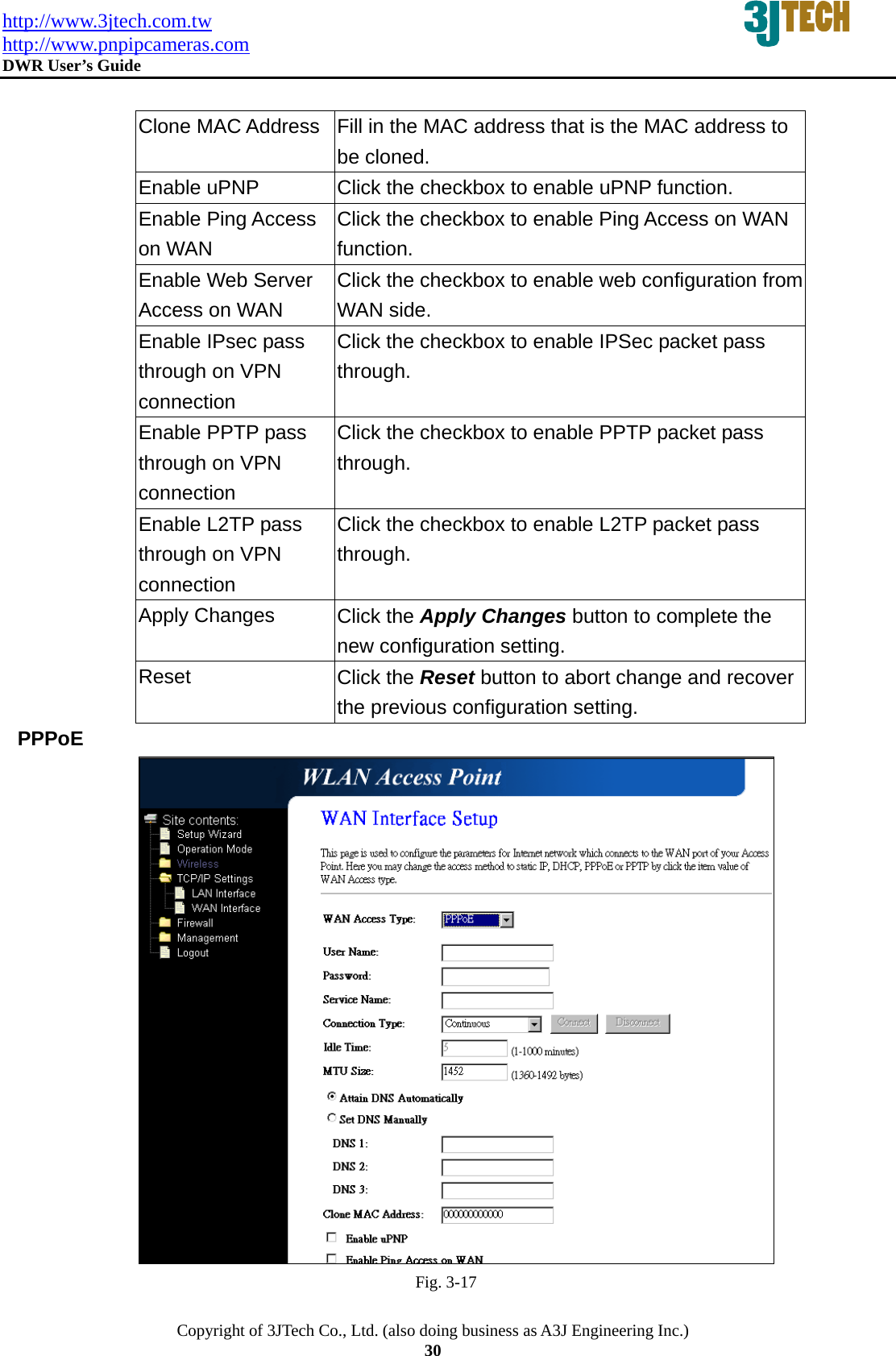
http://www.3jtech.com.tw http://www.pnpipcameras.com  DWR User’s Guide   Copyright of 3JTech Co., Ltd. (also doing business as A3J Engineering Inc.) 30  Clone MAC Address  Fill in the MAC address that is the MAC address to be cloned.   Enable uPNP  Click the checkbox to enable uPNP function. Enable Ping Access on WAN Click the checkbox to enable Ping Access on WAN function. Enable Web Server Access on WAN Click the checkbox to enable web configuration from WAN side. Enable IPsec pass through on VPN connection Click the checkbox to enable IPSec packet pass through. Enable PPTP pass through on VPN connection Click the checkbox to enable PPTP packet pass through. Enable L2TP pass through on VPN connection Click the checkbox to enable L2TP packet pass through. Apply Changes  Click the Apply Changes button to complete the new configuration setting. Reset  Click the Reset button to abort change and recover the previous configuration setting.  PPPoE  Fig. 3-17
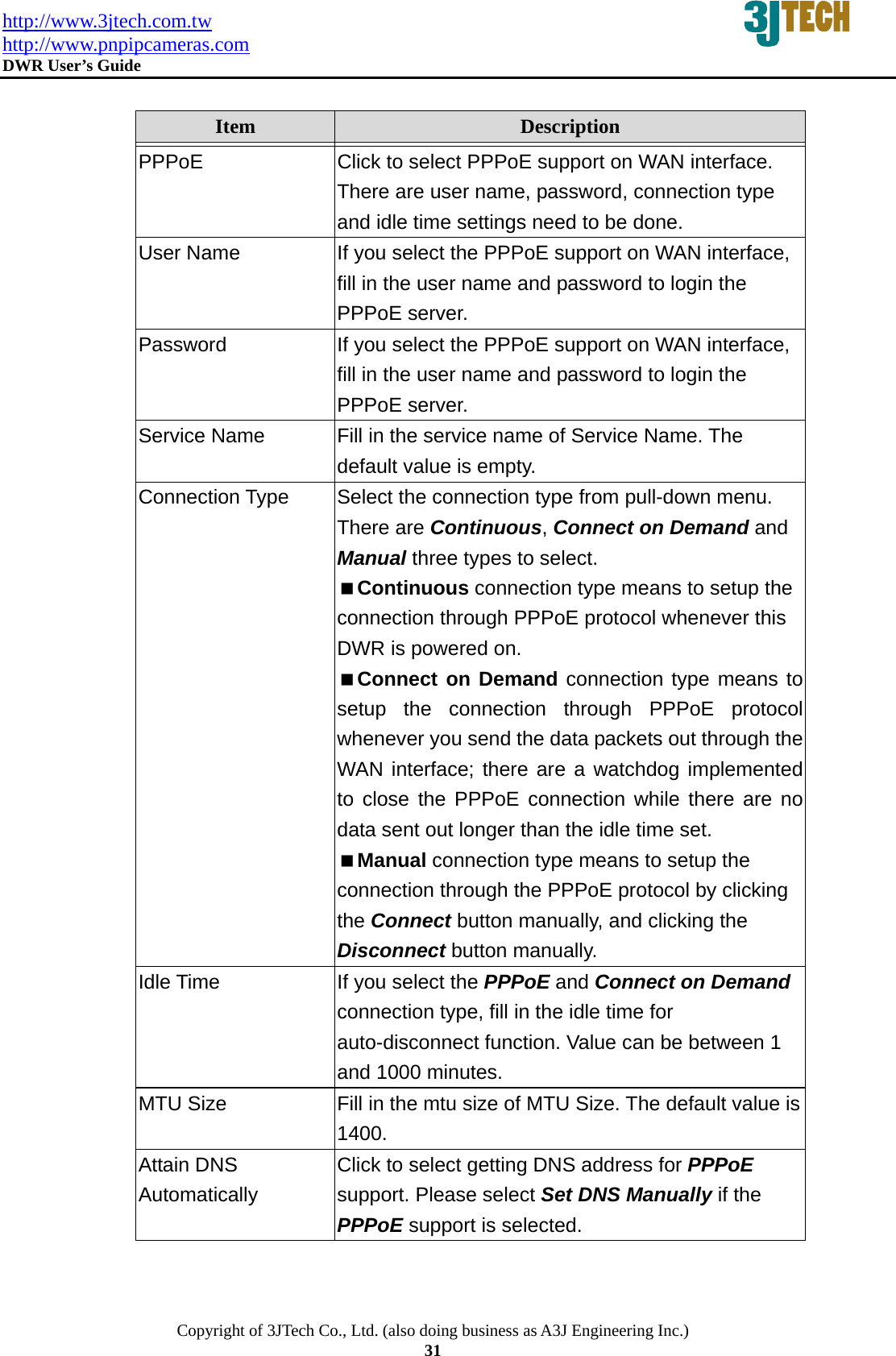
http://www.3jtech.com.tw http://www.pnpipcameras.com  DWR User’s Guide   Copyright of 3JTech Co., Ltd. (also doing business as A3J Engineering Inc.) 31  Item  Description   PPPoE  Click to select PPPoE support on WAN interface. There are user name, password, connection type and idle time settings need to be done. User Name  If you select the PPPoE support on WAN interface, fill in the user name and password to login the PPPoE server. Password  If you select the PPPoE support on WAN interface, fill in the user name and password to login the PPPoE server. Service Name  Fill in the service name of Service Name. The default value is empty. Connection Type  Select the connection type from pull-down menu. There are Continuous, Connect on Demand and Manual three types to select. Continuous connection type means to setup the connection through PPPoE protocol whenever this DWR is powered on. Connect on Demand connection type means to setup the connection through PPPoE protocol whenever you send the data packets out through the WAN interface; there are a watchdog implemented to close the PPPoE connection while there are no data sent out longer than the idle time set. Manual connection type means to setup the connection through the PPPoE protocol by clicking the Connect button manually, and clicking the Disconnect button manually. Idle Time  If you select the PPPoE and Connect on Demand connection type, fill in the idle time for auto-disconnect function. Value can be between 1 and 1000 minutes. MTU Size  Fill in the mtu size of MTU Size. The default value is 1400.  Attain DNS Automatically Click to select getting DNS address for PPPoE support. Please select Set DNS Manually if the PPPoE support is selected.
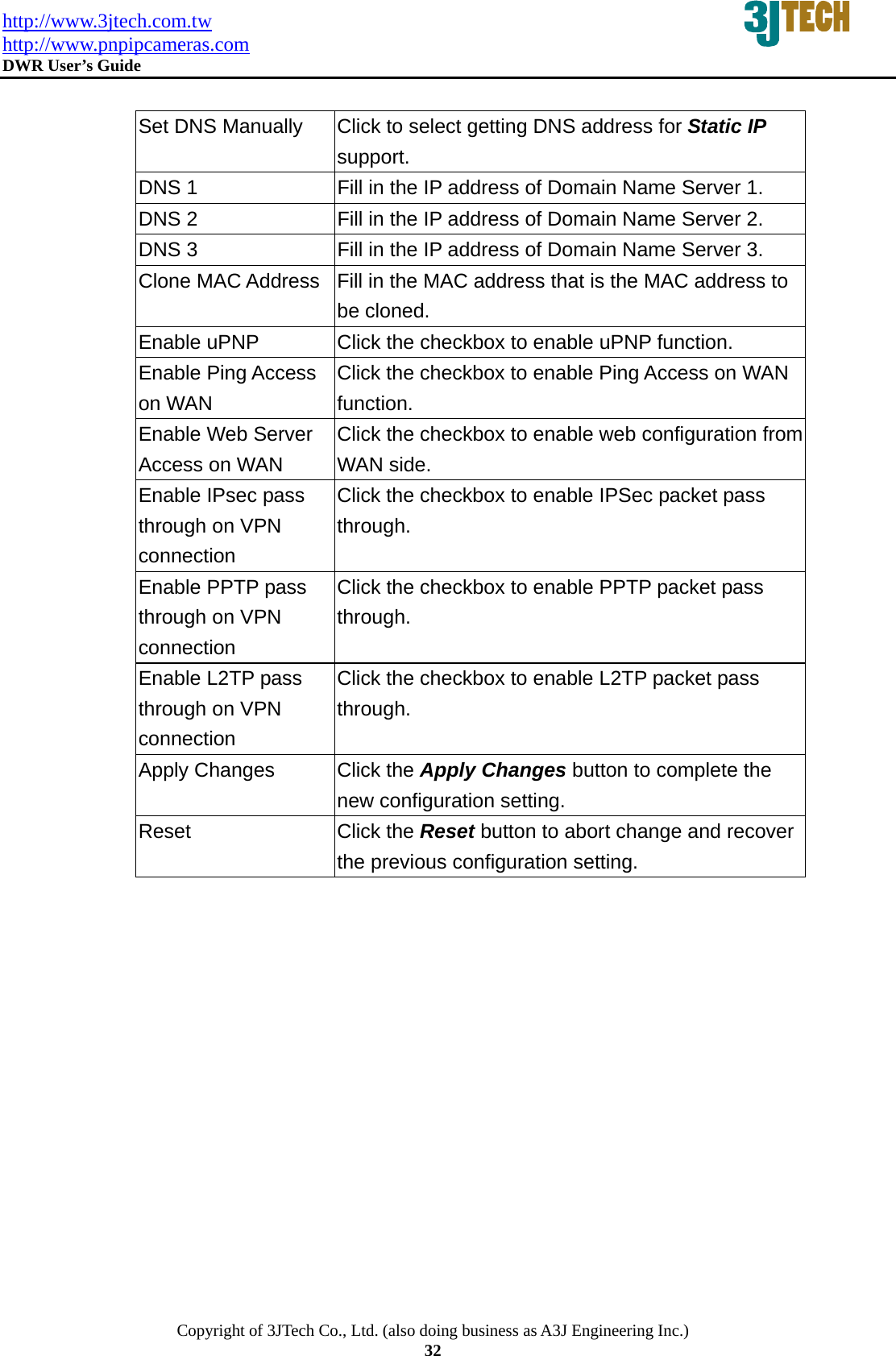
http://www.3jtech.com.tw http://www.pnpipcameras.com  DWR User’s Guide   Copyright of 3JTech Co., Ltd. (also doing business as A3J Engineering Inc.) 32  Set DNS Manually  Click to select getting DNS address for Static IP support. DNS 1  Fill in the IP address of Domain Name Server 1. DNS 2  Fill in the IP address of Domain Name Server 2. DNS 3  Fill in the IP address of Domain Name Server 3. Clone MAC Address  Fill in the MAC address that is the MAC address to be cloned.   Enable uPNP  Click the checkbox to enable uPNP function. Enable Ping Access on WAN Click the checkbox to enable Ping Access on WAN function. Enable Web Server Access on WAN Click the checkbox to enable web configuration from WAN side. Enable IPsec pass through on VPN connection Click the checkbox to enable IPSec packet pass through. Enable PPTP pass through on VPN connection Click the checkbox to enable PPTP packet pass through. Enable L2TP pass through on VPN connection Click the checkbox to enable L2TP packet pass through. Apply Changes  Click the Apply Changes button to complete the new configuration setting. Reset  Click the Reset button to abort change and recover the previous configuration setting.
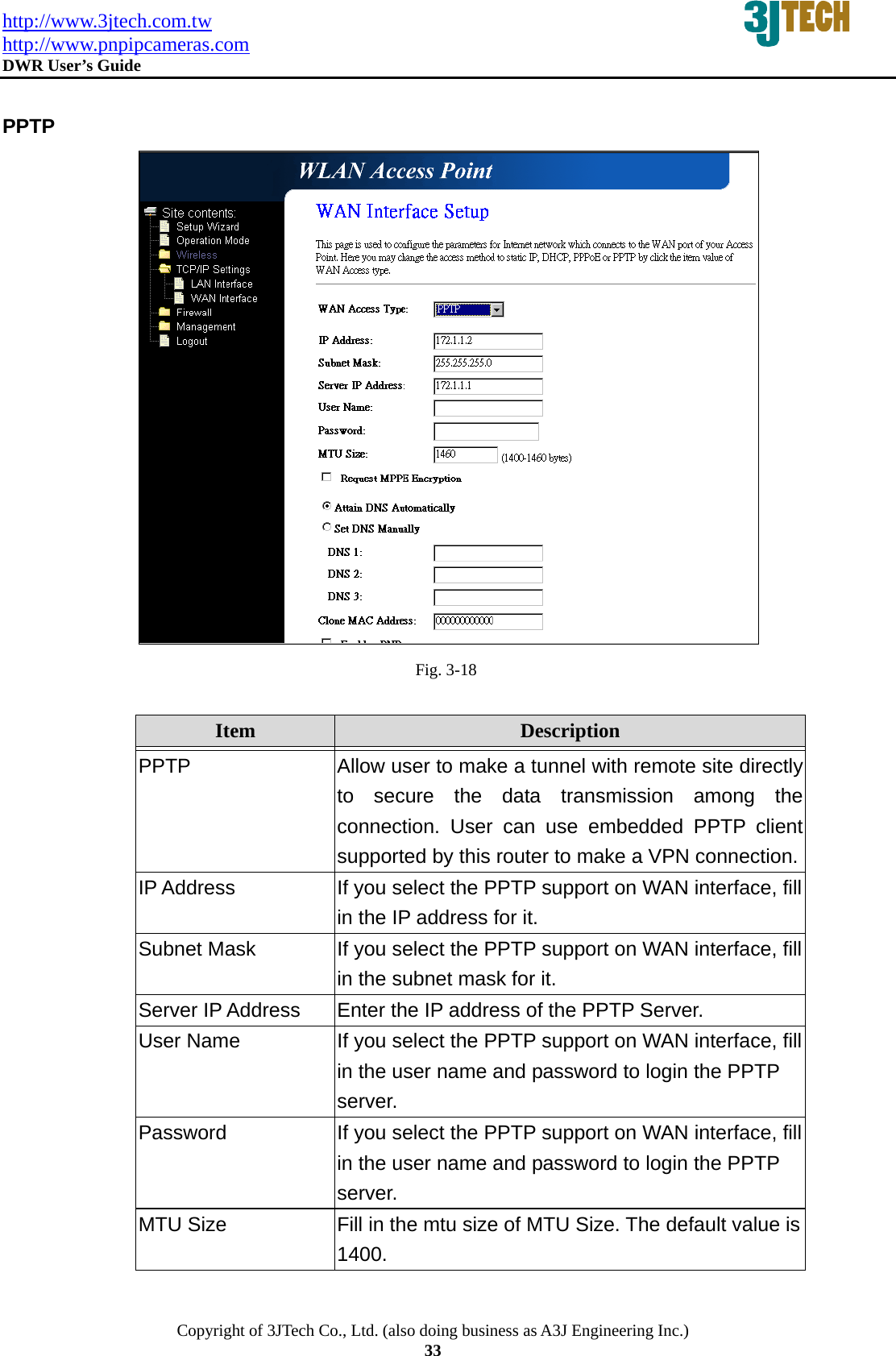
http://www.3jtech.com.tw http://www.pnpipcameras.com  DWR User’s Guide   Copyright of 3JTech Co., Ltd. (also doing business as A3J Engineering Inc.) 33  PPTP  Fig. 3-18  Item  Description   PPTP Allow user to make a tunnel with remote site directly to secure the data transmission among the connection. User can use embedded PPTP client supported by this router to make a VPN connection.IP Address  If you select the PPTP support on WAN interface, fill in the IP address for it. Subnet Mask  If you select the PPTP support on WAN interface, fill in the subnet mask for it. Server IP Address  Enter the IP address of the PPTP Server. User Name  If you select the PPTP support on WAN interface, fill in the user name and password to login the PPTP server. Password  If you select the PPTP support on WAN interface, fill in the user name and password to login the PPTP server. MTU Size  Fill in the mtu size of MTU Size. The default value is 1400.
http://www.3jtech.com.tw http://www.pnpipcameras.com  DWR User’s Guide   Copyright of 3JTech Co., Ltd. (also doing business as A3J Engineering Inc.) 34  Request MPPE Encryption Click the checkbox to enable request MPPE encryption. Attain DNS Automatically Click to select getting DNS address for PPTP support. Please select Set DNS Manually if the PPTP support is selected. Set DNS Manually  Click to select getting DNS address for PPTP support. DNS 1  Fill in the IP address of Domain Name Server 1. DNS 2  Fill in the IP address of Domain Name Server 2. DNS 3  Fill in the IP address of Domain Name Server 3. Clone MAC Address  Fill in the MAC address that is the MAC address to be cloned.   Enable uPNP  Click the checkbox to enable uPNP function. Enable Ping Access on WAN Click the checkbox to enable Ping Access on WAN function. Enable Web Server Access on WAN Click the checkbox to enable web configuration from WAN side. Enable IPsec pass through on VPN connection Click the checkbox to enable IPSec packet pass through. Enable PPTP pass through on VPN connection Click the checkbox to enable PPTP packet pass through. Enable L2TP pass through on VPN connection Click the checkbox to enable L2TP packet pass through. Apply Changes  Click the Apply Changes button to complete the new configuration setting. Reset  Click the Reset button to abort change and recover the previous configuration setting.
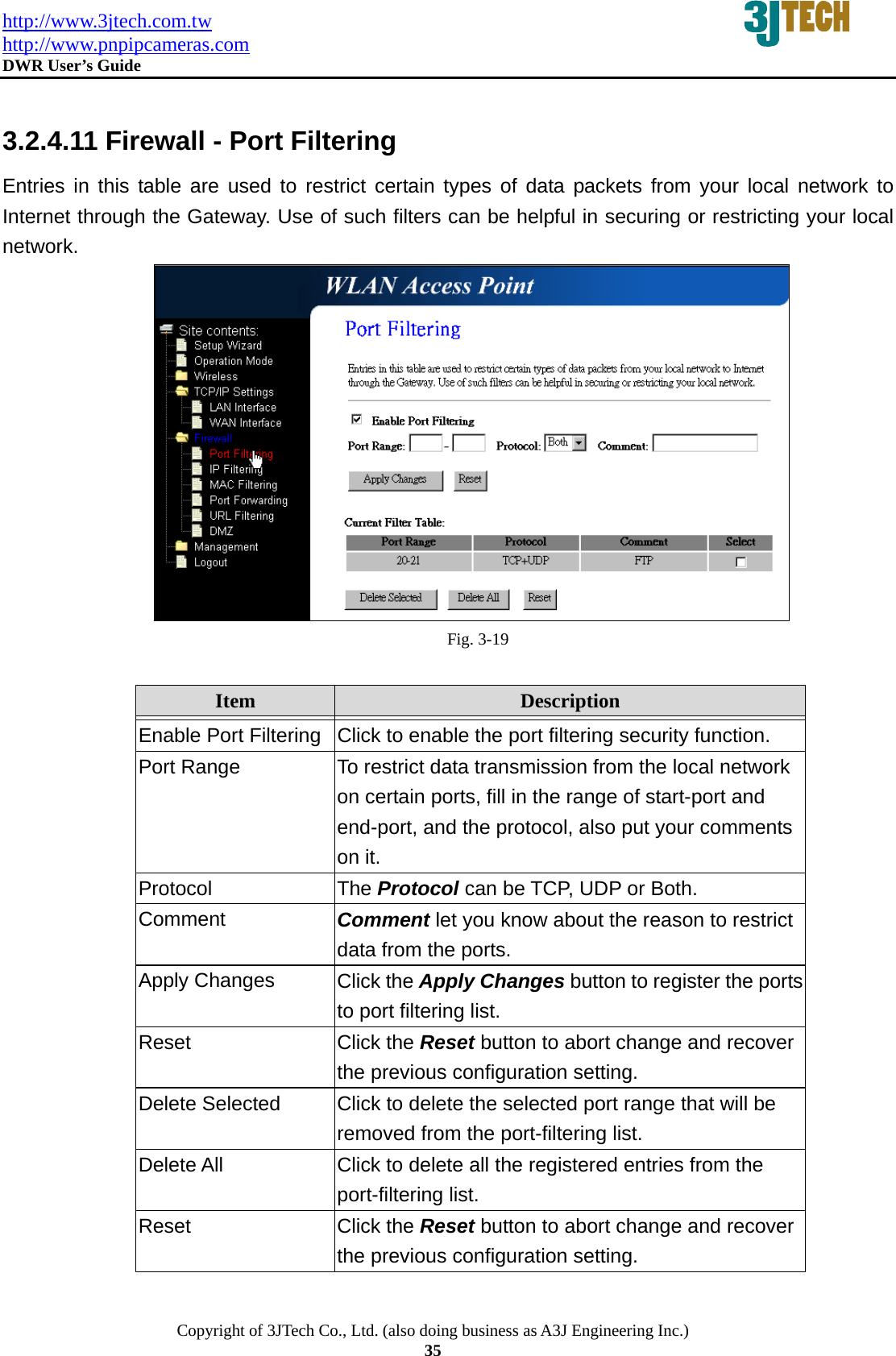
http://www.3jtech.com.tw http://www.pnpipcameras.com  DWR User’s Guide   Copyright of 3JTech Co., Ltd. (also doing business as A3J Engineering Inc.) 35  3.2.4.11 Firewall - Port Filtering Entries in this table are used to restrict certain types of data packets from your local network to Internet through the Gateway. Use of such filters can be helpful in securing or restricting your local network.  Fig. 3-19  Item  Description   Enable Port Filtering  Click to enable the port filtering security function. Port Range  To restrict data transmission from the local network on certain ports, fill in the range of start-port and end-port, and the protocol, also put your comments on it. Protocol  The Protocol can be TCP, UDP or Both. Comment  Comment let you know about the reason to restrict data from the ports. Apply Changes  Click the Apply Changes button to register the ports to port filtering list. Reset  Click the Reset button to abort change and recover the previous configuration setting. Delete Selected  Click to delete the selected port range that will be removed from the port-filtering list. Delete All  Click to delete all the registered entries from the port-filtering list.   Reset  Click the Reset button to abort change and recover the previous configuration setting.
http://www.3jtech.com.tw http://www.pnpipcameras.com  DWR User’s Guide   Copyright of 3JTech Co., Ltd. (also doing business as A3J Engineering Inc.) 36 3.2.4.12 Firewall - IP Filtering Entries in this table are used to restrict certain types of data packets from your local network to Internet through the Gateway. Use of such filters can be helpful in securing or restricting your local network.  Fig. 3-20  Item  Description   Enable IP Filtering  Click to enable the IP filtering security function. Local IP Address  To restrict data transmission from local network on certain IP addresses, fill in the IP address and the protocol, also put your comments on it. Protocol  The Protocol can be TCP, UDP or Both. Comment  Comment let you know about the reason to restrict data from the IP address. Apply Changes  Click the Apply Changes button to register the IP address to IP filtering list. Reset  Click the Reset button to abort change and recover the previous configuration setting. Delete Selected  Click to delete the selected IP address that will be removed from the IP-filtering list. Delete All  Click to delete all the registered entries from the IP-filtering list.   Reset  Click the Reset button to abort change and recover the previous configuration setting.
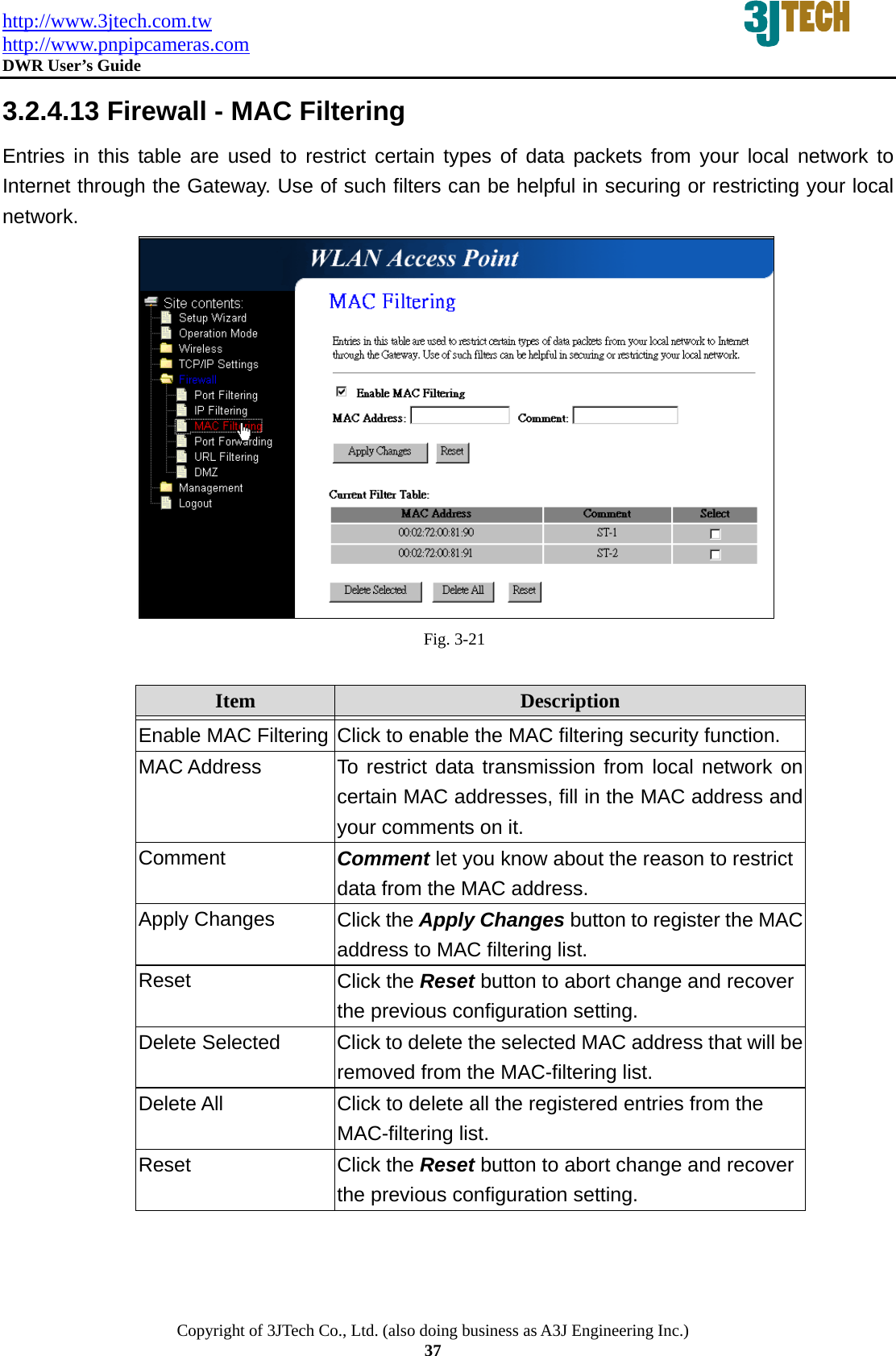
http://www.3jtech.com.tw http://www.pnpipcameras.com  DWR User’s Guide   Copyright of 3JTech Co., Ltd. (also doing business as A3J Engineering Inc.) 37 3.2.4.13 Firewall - MAC Filtering Entries in this table are used to restrict certain types of data packets from your local network to Internet through the Gateway. Use of such filters can be helpful in securing or restricting your local network.  Fig. 3-21  Item  Description   Enable MAC Filtering Click to enable the MAC filtering security function. MAC Address  To restrict data transmission from local network on certain MAC addresses, fill in the MAC address and your comments on it. Comment  Comment let you know about the reason to restrict data from the MAC address. Apply Changes  Click the Apply Changes button to register the MAC address to MAC filtering list. Reset  Click the Reset button to abort change and recover the previous configuration setting. Delete Selected  Click to delete the selected MAC address that will be removed from the MAC-filtering list. Delete All  Click to delete all the registered entries from the MAC-filtering list.   Reset  Click the Reset button to abort change and recover the previous configuration setting.
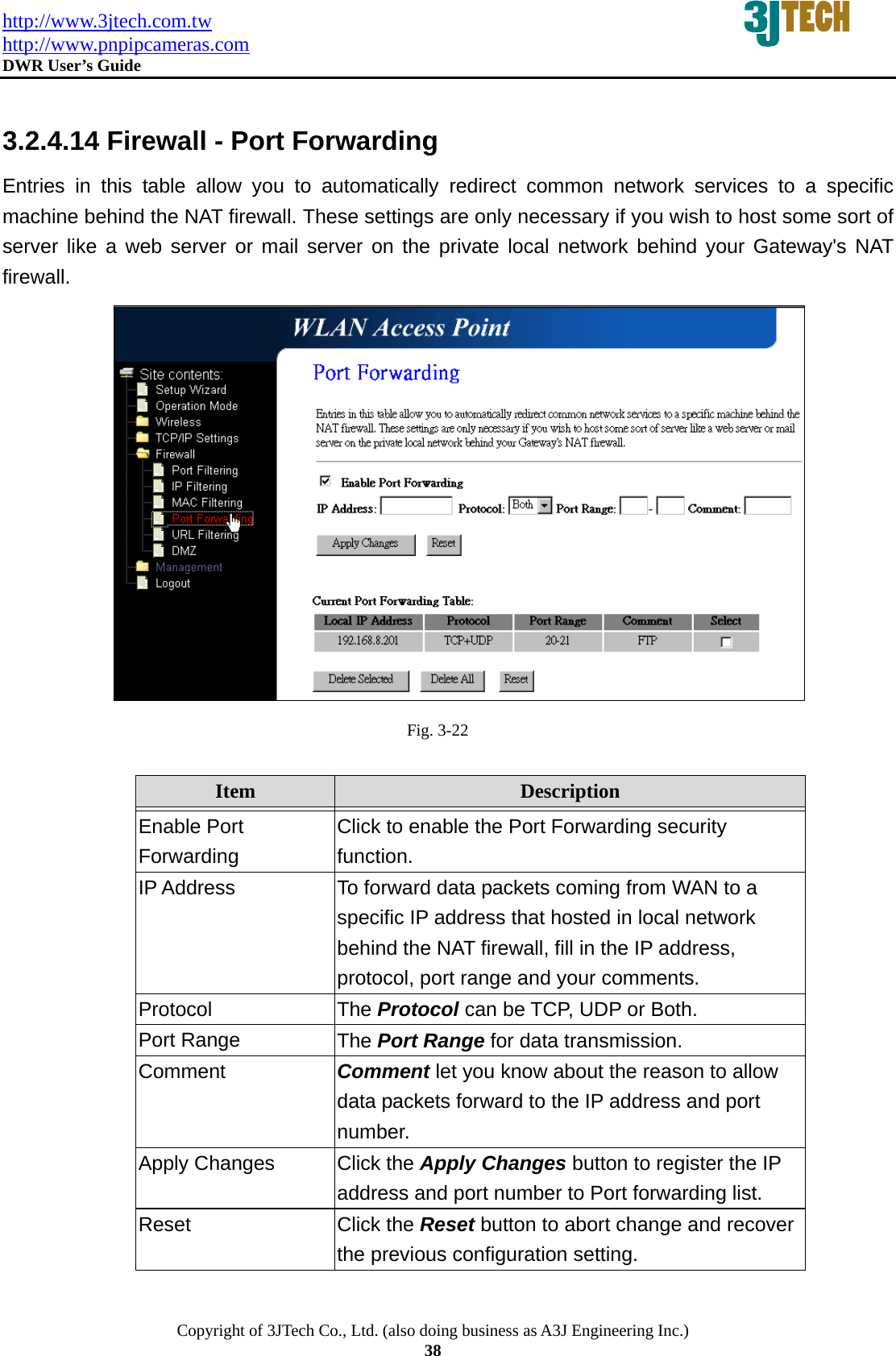
http://www.3jtech.com.tw http://www.pnpipcameras.com  DWR User’s Guide   Copyright of 3JTech Co., Ltd. (also doing business as A3J Engineering Inc.) 38  3.2.4.14 Firewall - Port Forwarding Entries in this table allow you to automatically redirect common network services to a specific machine behind the NAT firewall. These settings are only necessary if you wish to host some sort of server like a web server or mail server on the private local network behind your Gateway's NAT firewall.  Fig. 3-22  Item  Description   Enable Port Forwarding Click to enable the Port Forwarding security function. IP Address  To forward data packets coming from WAN to a specific IP address that hosted in local network behind the NAT firewall, fill in the IP address, protocol, port range and your comments. Protocol  The Protocol can be TCP, UDP or Both. Port Range  The Port Range for data transmission. Comment  Comment let you know about the reason to allow data packets forward to the IP address and port number. Apply Changes  Click the Apply Changes button to register the IP address and port number to Port forwarding list. Reset  Click the Reset button to abort change and recover the previous configuration setting.
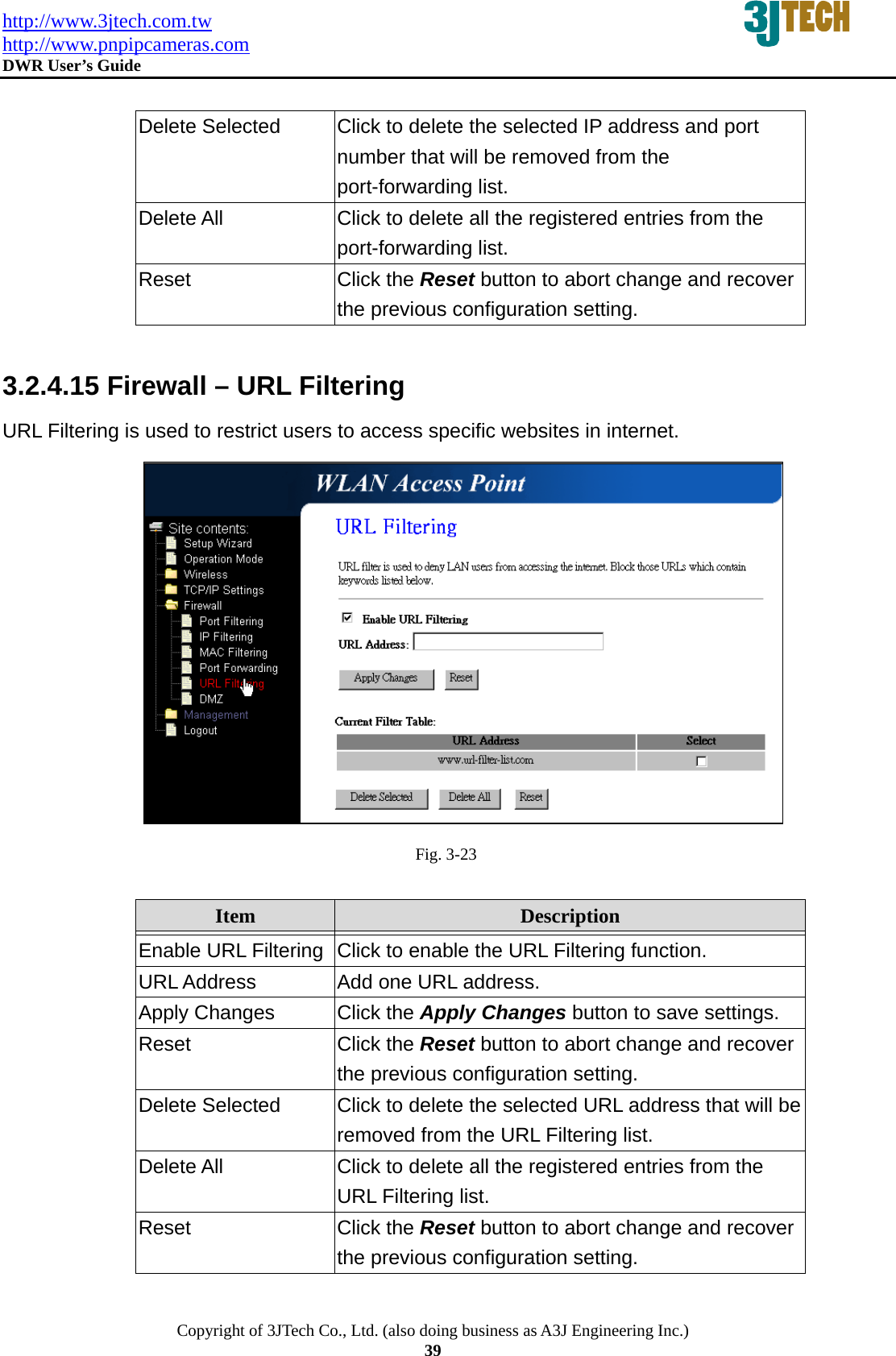
http://www.3jtech.com.tw http://www.pnpipcameras.com  DWR User’s Guide   Copyright of 3JTech Co., Ltd. (also doing business as A3J Engineering Inc.) 39  Delete Selected  Click to delete the selected IP address and port number that will be removed from the port-forwarding list. Delete All  Click to delete all the registered entries from the port-forwarding list.   Reset  Click the Reset button to abort change and recover the previous configuration setting.  3.2.4.15 Firewall – URL Filtering URL Filtering is used to restrict users to access specific websites in internet.  Fig. 3-23  Item  Description   Enable URL Filtering  Click to enable the URL Filtering function. URL Address  Add one URL address. Apply Changes  Click the Apply Changes button to save settings. Reset  Click the Reset button to abort change and recover the previous configuration setting. Delete Selected  Click to delete the selected URL address that will be removed from the URL Filtering list. Delete All  Click to delete all the registered entries from the URL Filtering list.   Reset  Click the Reset button to abort change and recover the previous configuration setting.
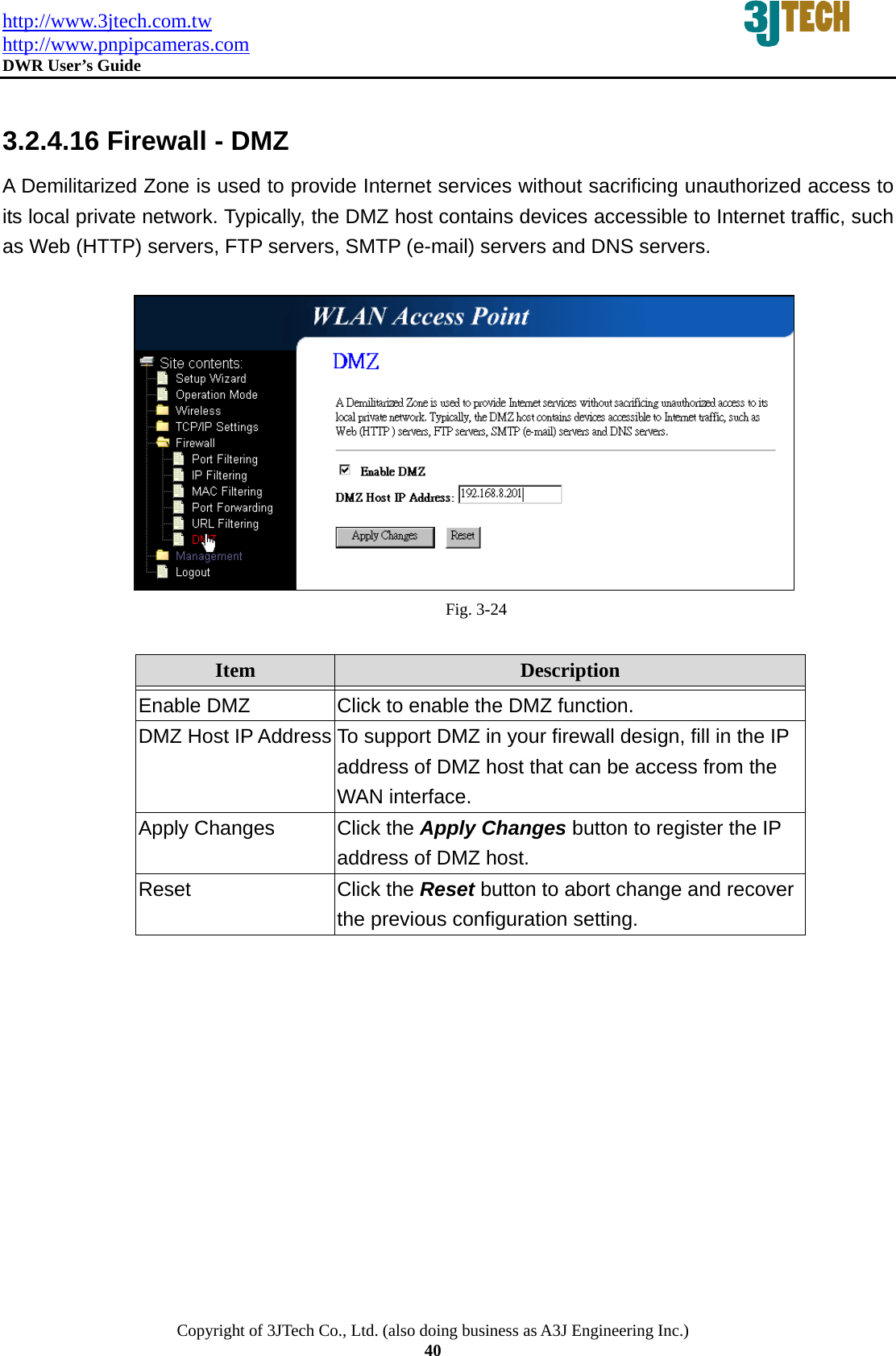
http://www.3jtech.com.tw http://www.pnpipcameras.com  DWR User’s Guide   Copyright of 3JTech Co., Ltd. (also doing business as A3J Engineering Inc.) 40  3.2.4.16 Firewall - DMZ A Demilitarized Zone is used to provide Internet services without sacrificing unauthorized access to its local private network. Typically, the DMZ host contains devices accessible to Internet traffic, such as Web (HTTP) servers, FTP servers, SMTP (e-mail) servers and DNS servers.                                               Fig. 3-24  Item  Description   Enable DMZ  Click to enable the DMZ function. DMZ Host IP Address To support DMZ in your firewall design, fill in the IP address of DMZ host that can be access from the WAN interface. Apply Changes  Click the Apply Changes button to register the IP address of DMZ host. Reset  Click the Reset button to abort change and recover the previous configuration setting.
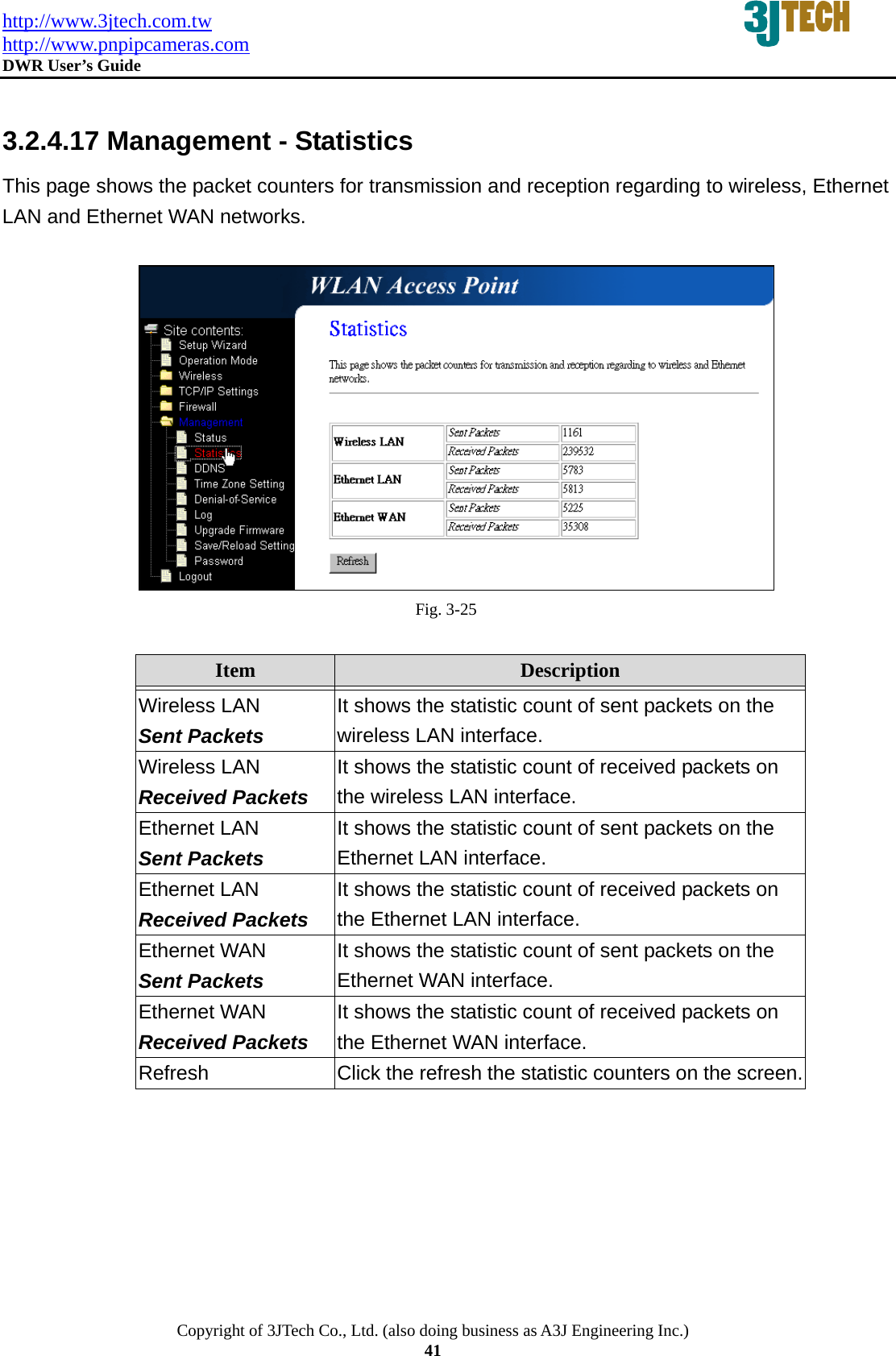
http://www.3jtech.com.tw http://www.pnpipcameras.com  DWR User’s Guide   Copyright of 3JTech Co., Ltd. (also doing business as A3J Engineering Inc.) 41  3.2.4.17 Management - Statistics This page shows the packet counters for transmission and reception regarding to wireless, Ethernet LAN and Ethernet WAN networks.   Fig. 3-25  Item  Description   Wireless LAN Sent Packets It shows the statistic count of sent packets on the wireless LAN interface. Wireless LAN Received Packets It shows the statistic count of received packets on the wireless LAN interface. Ethernet LAN Sent Packets It shows the statistic count of sent packets on the Ethernet LAN interface. Ethernet LAN Received Packets It shows the statistic count of received packets on the Ethernet LAN interface. Ethernet WAN Sent Packets It shows the statistic count of sent packets on the Ethernet WAN interface. Ethernet WAN Received Packets It shows the statistic count of received packets on the Ethernet WAN interface. Refresh  Click the refresh the statistic counters on the screen.
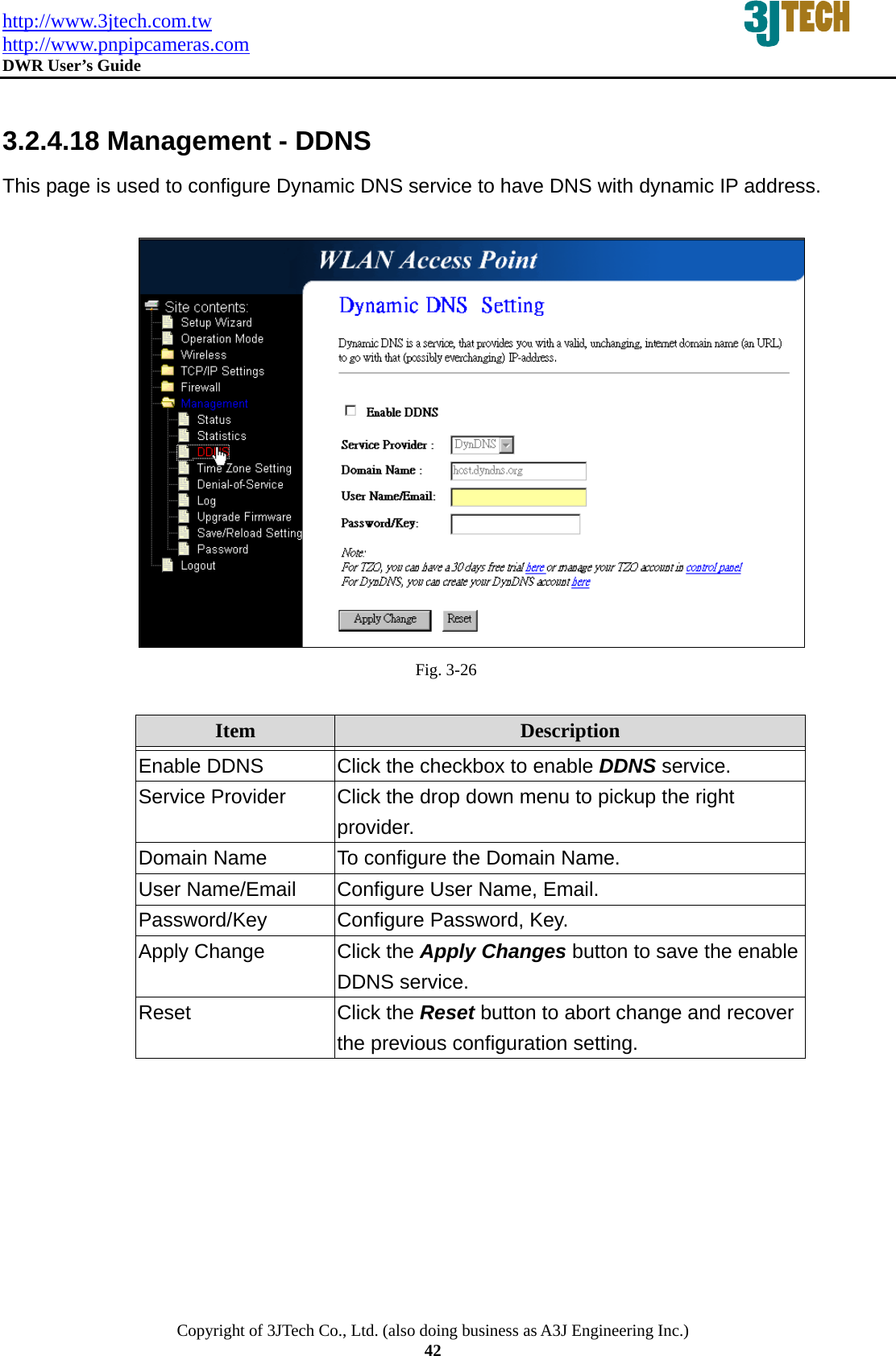
http://www.3jtech.com.tw http://www.pnpipcameras.com  DWR User’s Guide   Copyright of 3JTech Co., Ltd. (also doing business as A3J Engineering Inc.) 42  3.2.4.18 Management - DDNS This page is used to configure Dynamic DNS service to have DNS with dynamic IP address.   Fig. 3-26  Item  Description   Enable DDNS  Click the checkbox to enable DDNS service.   Service Provider  Click the drop down menu to pickup the right provider. Domain Name  To configure the Domain Name. User Name/Email  Configure User Name, Email. Password/Key Configure Password, Key. Apply Change  Click the Apply Changes button to save the enable DDNS service. Reset  Click the Reset button to abort change and recover the previous configuration setting.
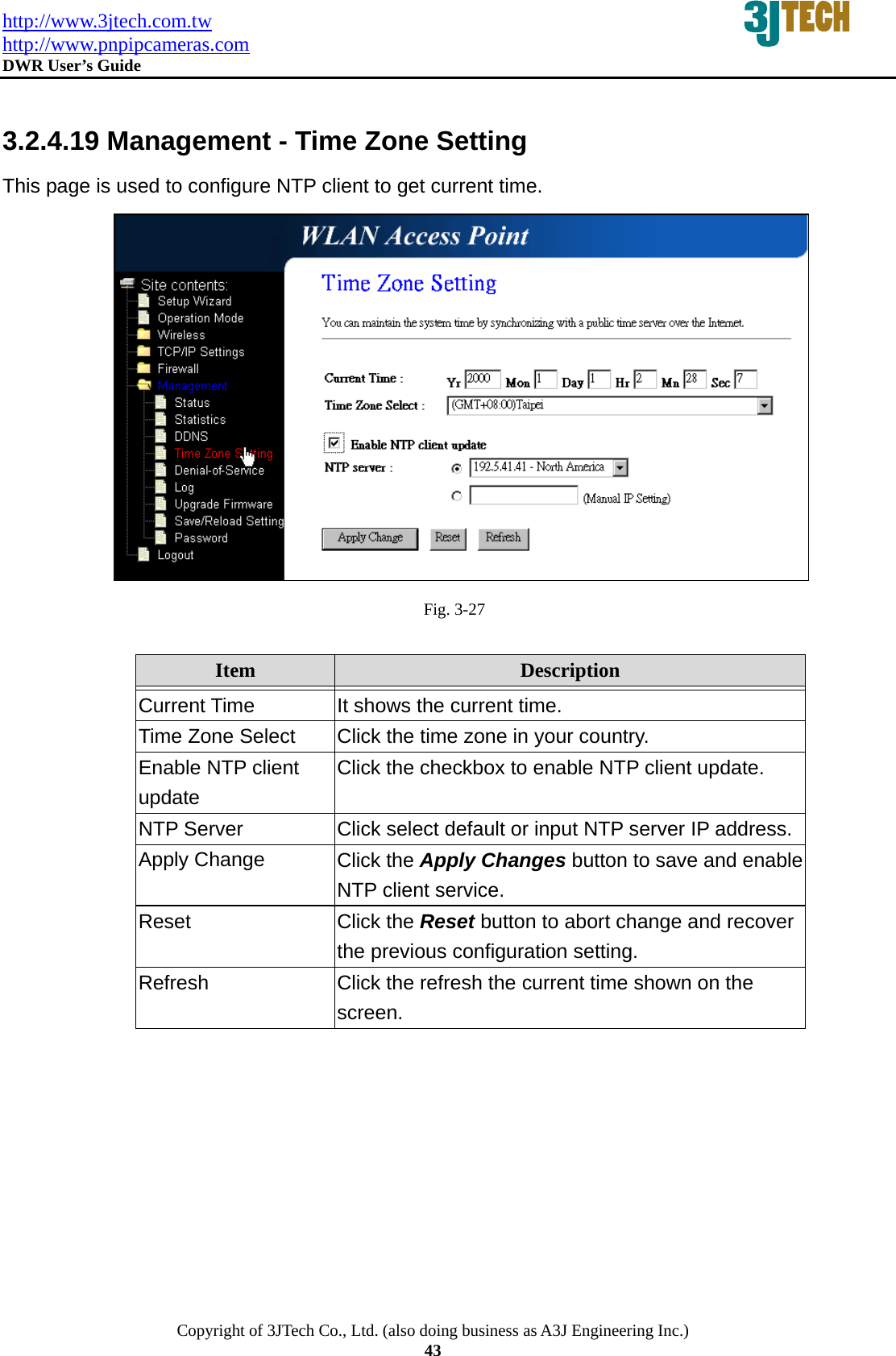
http://www.3jtech.com.tw http://www.pnpipcameras.com  DWR User’s Guide   Copyright of 3JTech Co., Ltd. (also doing business as A3J Engineering Inc.) 43  3.2.4.19 Management - Time Zone Setting This page is used to configure NTP client to get current time.  Fig. 3-27  Item  Description   Current Time  It shows the current time. Time Zone Select  Click the time zone in your country. Enable NTP client update Click the checkbox to enable NTP client update.   NTP Server  Click select default or input NTP server IP address.Apply Change  Click the Apply Changes button to save and enable NTP client service. Reset  Click the Reset button to abort change and recover the previous configuration setting. Refresh  Click the refresh the current time shown on the screen.
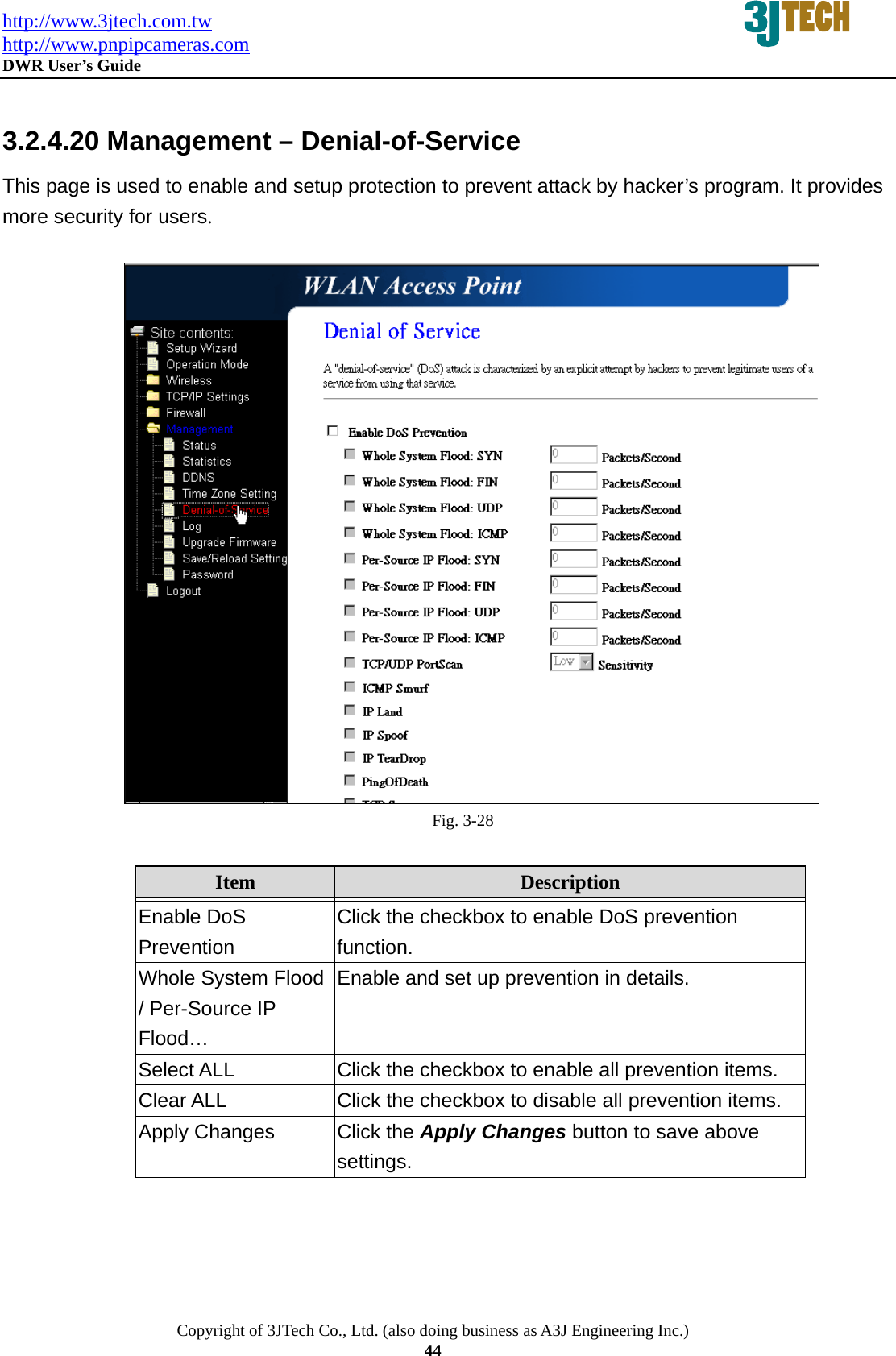
http://www.3jtech.com.tw http://www.pnpipcameras.com  DWR User’s Guide   Copyright of 3JTech Co., Ltd. (also doing business as A3J Engineering Inc.) 44  3.2.4.20 Management – Denial-of-Service This page is used to enable and setup protection to prevent attack by hacker’s program. It provides more security for users.   Fig. 3-28  Item  Description   Enable DoS Prevention Click the checkbox to enable DoS prevention function. Whole System Flood / Per-Source IP Flood… Enable and set up prevention in details. Select ALL  Click the checkbox to enable all prevention items. Clear ALL  Click the checkbox to disable all prevention items. Apply Changes  Click the Apply Changes button to save above settings.
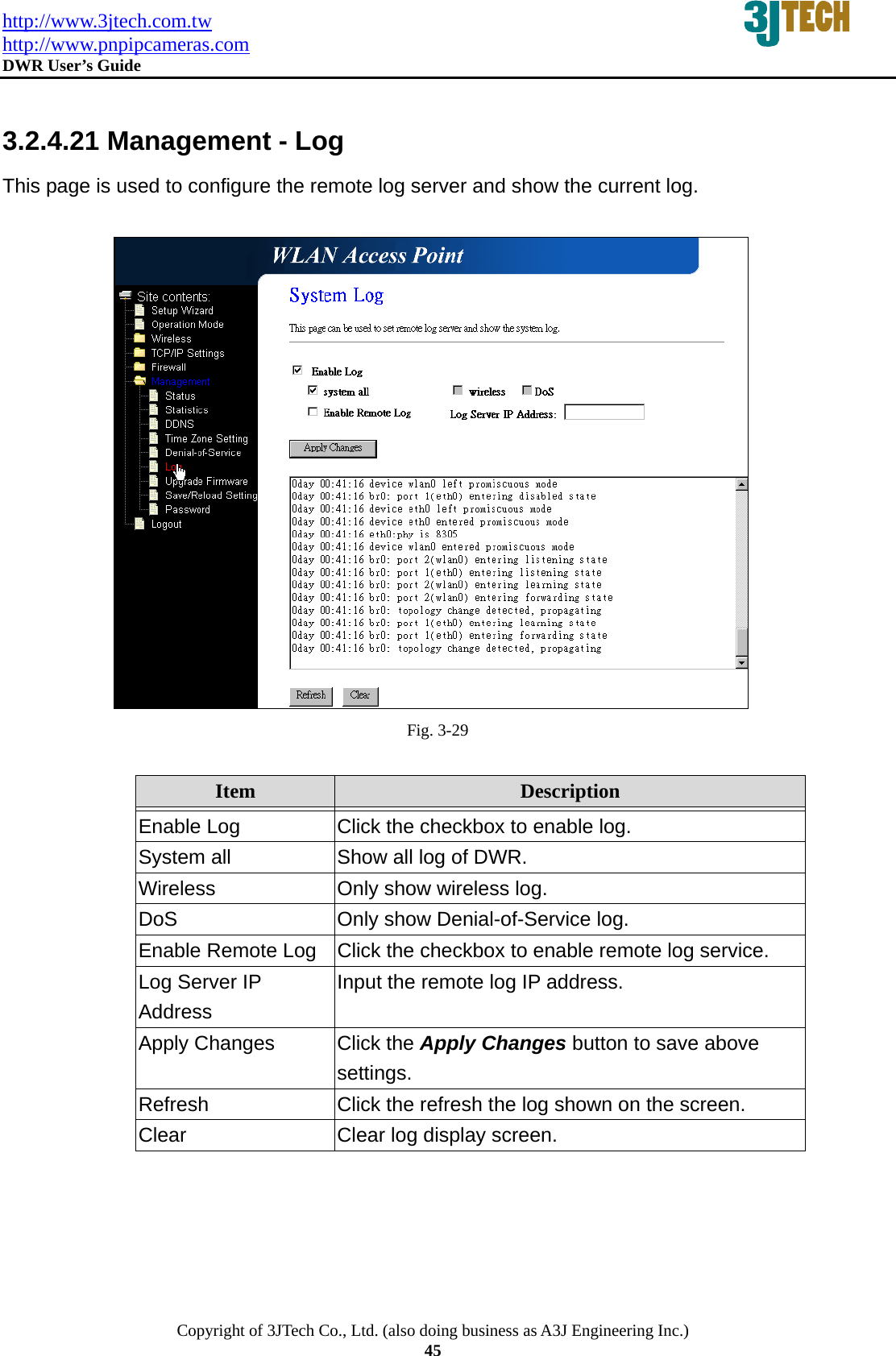
http://www.3jtech.com.tw http://www.pnpipcameras.com  DWR User’s Guide   Copyright of 3JTech Co., Ltd. (also doing business as A3J Engineering Inc.) 45  3.2.4.21 Management - Log This page is used to configure the remote log server and show the current log.   Fig. 3-29  Item  Description   Enable Log  Click the checkbox to enable log. System all  Show all log of DWR. Wireless  Only show wireless log. DoS  Only show Denial-of-Service log. Enable Remote Log  Click the checkbox to enable remote log service. Log Server IP Address Input the remote log IP address. Apply Changes  Click the Apply Changes button to save above settings. Refresh  Click the refresh the log shown on the screen. Clear  Clear log display screen.
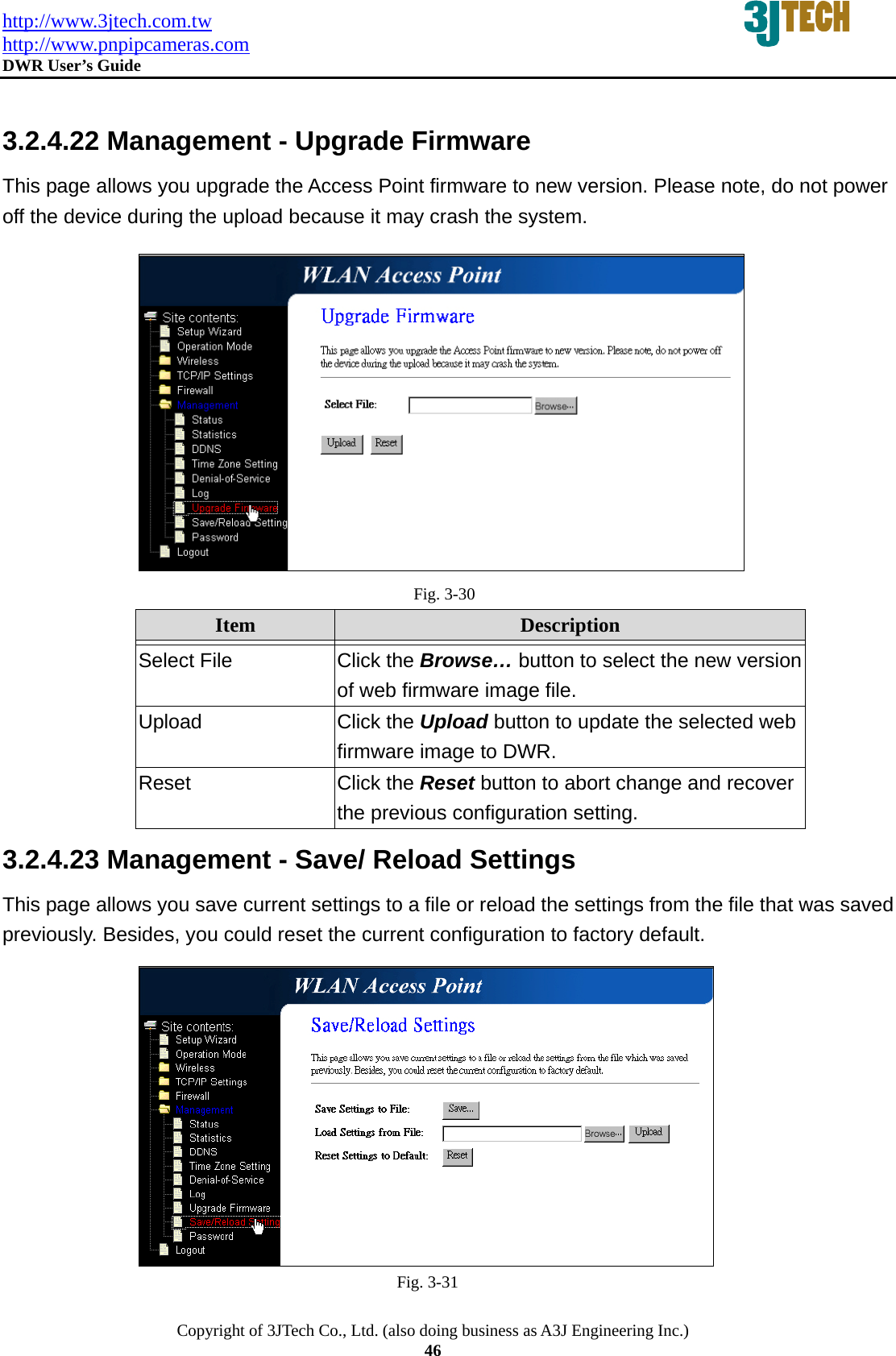
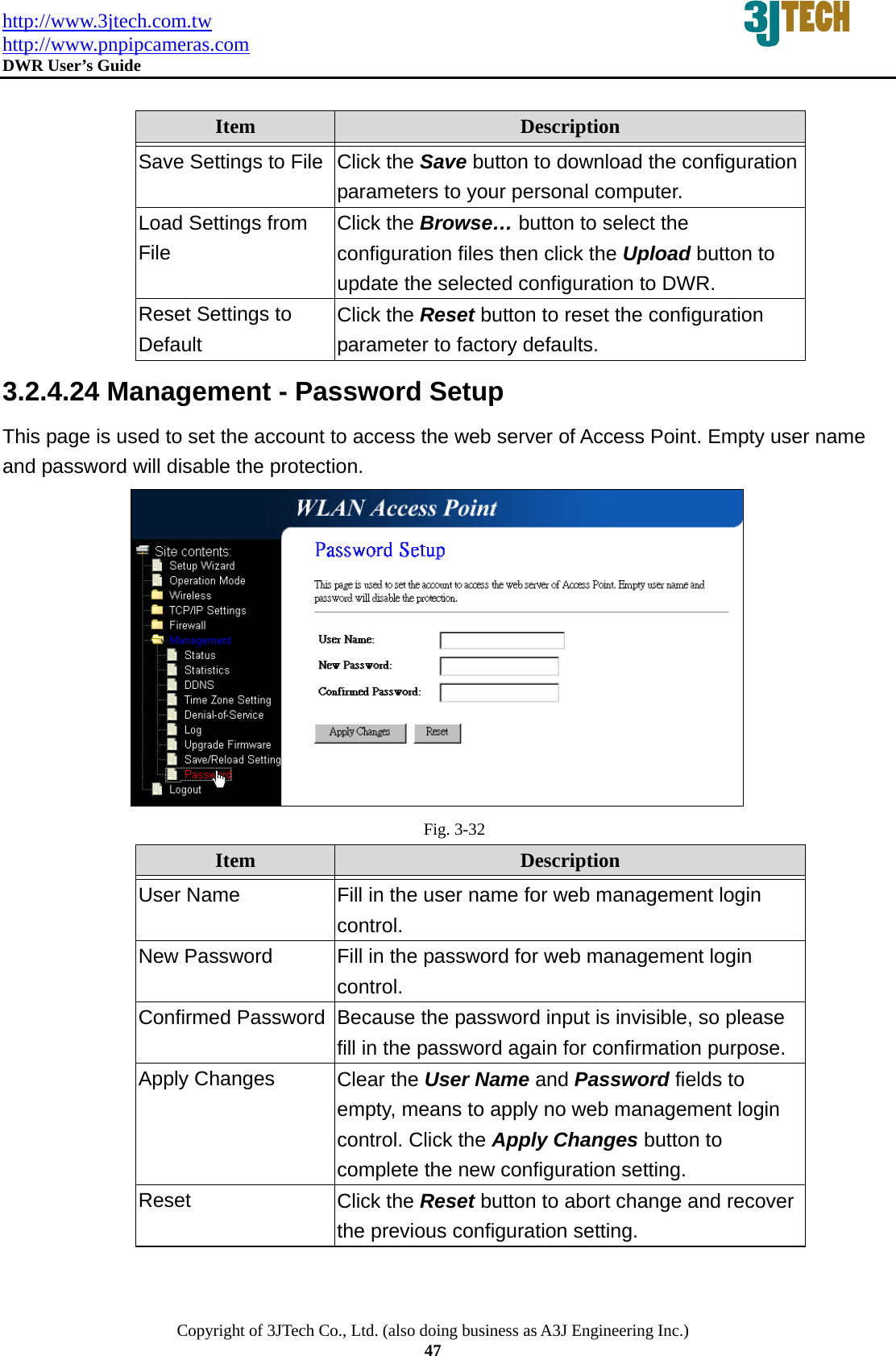
http://www.3jtech.com.tw http://www.pnpipcameras.com  DWR User’s Guide   Copyright of 3JTech Co., Ltd. (also doing business as A3J Engineering Inc.) 46  3.2.4.22 Management - Upgrade Firmware This page allows you upgrade the Access Point firmware to new version. Please note, do not power off the device during the upload because it may crash the system.  Fig. 3-30 Item  Description   Select File  Click the Browse… button to select the new version of web firmware image file. Upload  Click the Upload button to update the selected web firmware image to DWR. Reset  Click the Reset button to abort change and recover the previous configuration setting. 3.2.4.23 Management - Save/ Reload Settings This page allows you save current settings to a file or reload the settings from the file that was saved previously. Besides, you could reset the current configuration to factory default.  Fig. 3-31
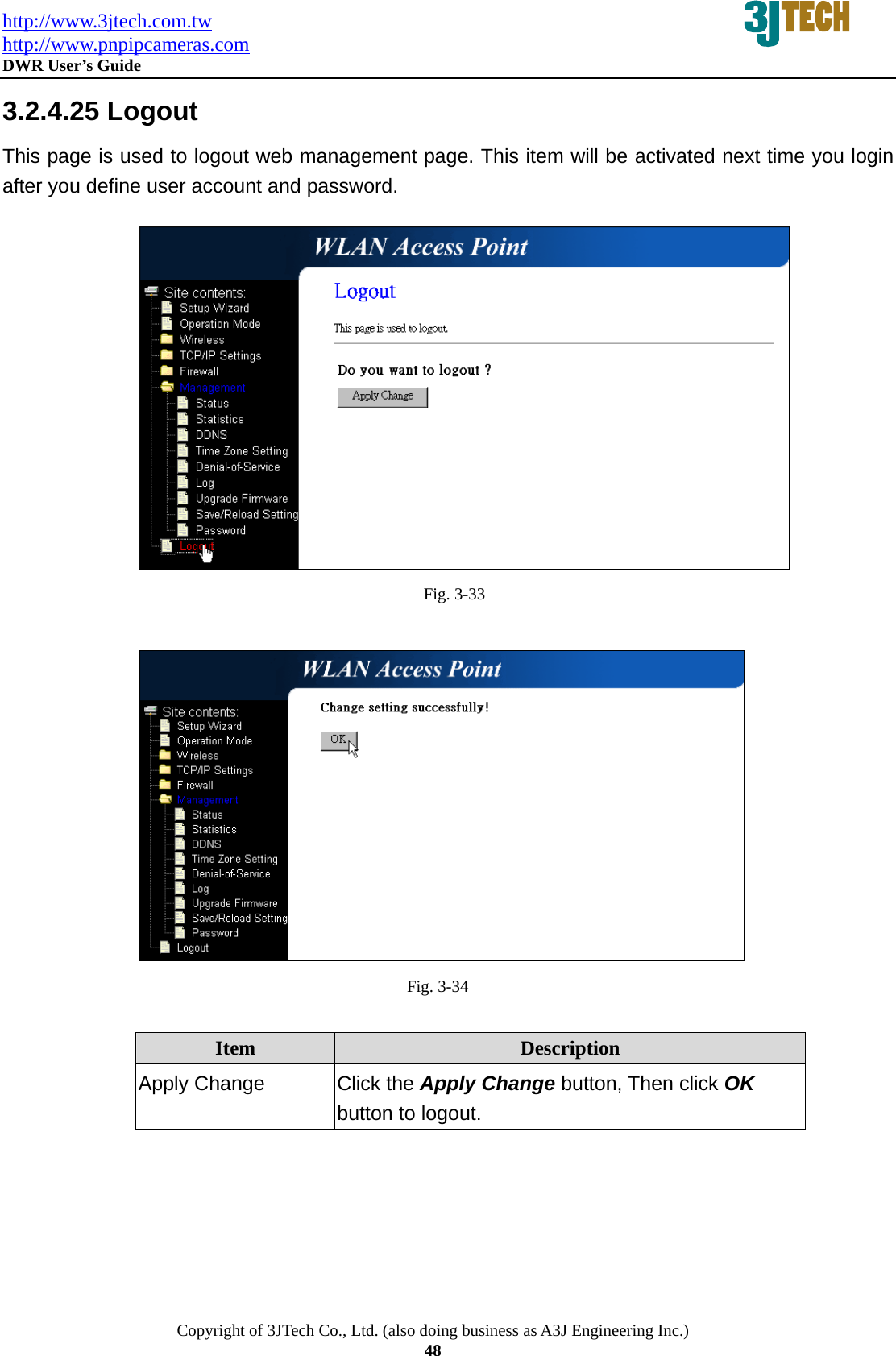
http://www.3jtech.com.tw http://www.pnpipcameras.com  DWR User’s Guide   Copyright of 3JTech Co., Ltd. (also doing business as A3J Engineering Inc.) 47  Item  Description   Save Settings to File  Click the Save button to download the configuration parameters to your personal computer. Load Settings from File Click the Browse… button to select the configuration files then click the Upload button to update the selected configuration to DWR. Reset Settings to Default Click the Reset button to reset the configuration parameter to factory defaults. 3.2.4.24 Management - Password Setup This page is used to set the account to access the web server of Access Point. Empty user name and password will disable the protection.  Fig. 3-32 Item  Description   User Name  Fill in the user name for web management login control. New Password  Fill in the password for web management login control. Confirmed Password  Because the password input is invisible, so please fill in the password again for confirmation purpose. Apply Changes  Clear the User Name and Password fields to empty, means to apply no web management login control. Click the Apply Changes button to complete the new configuration setting. Reset  Click the Reset button to abort change and recover the previous configuration setting.
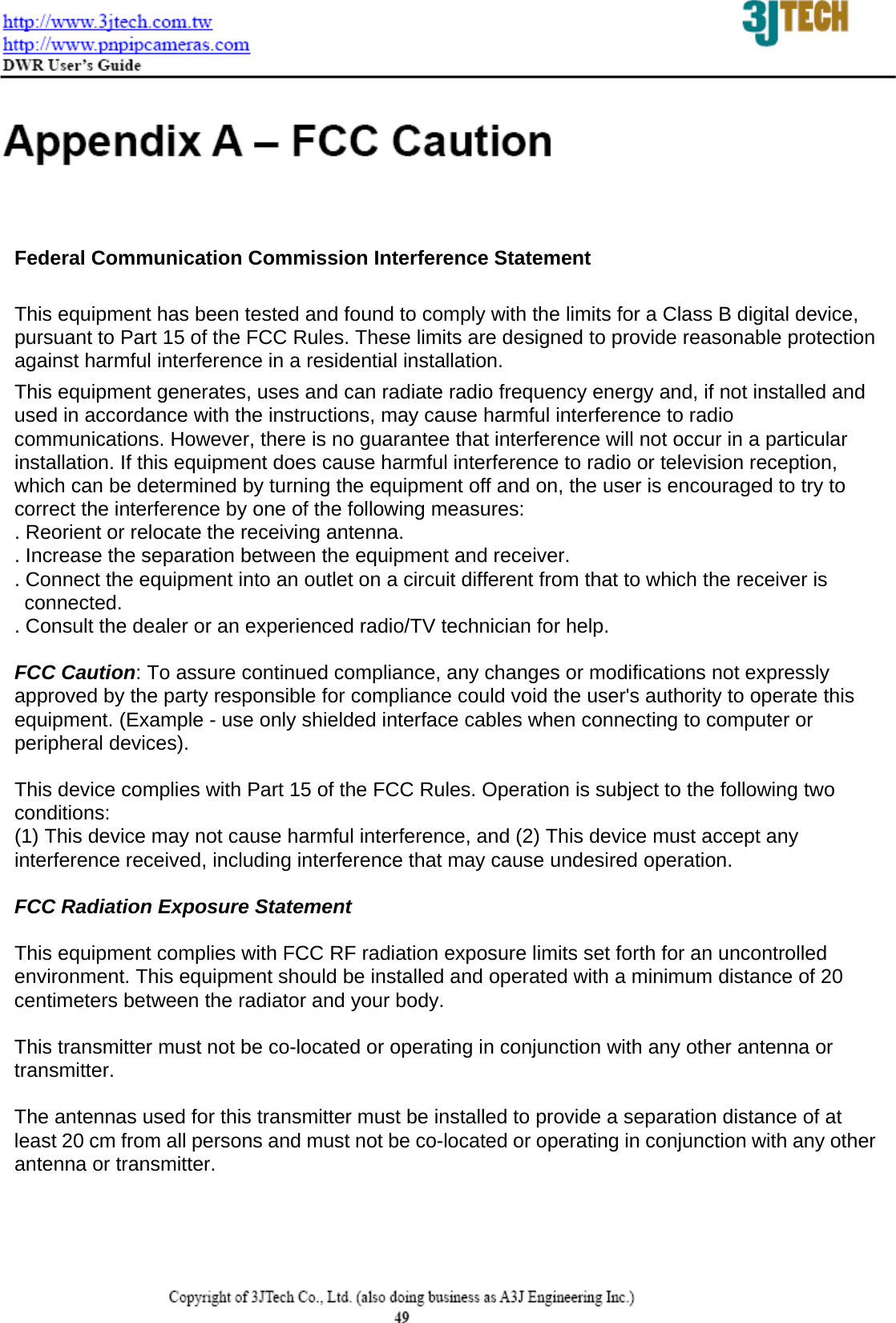
http://www.3jtech.com.tw http://www.pnpipcameras.com  DWR User’s Guide   Copyright of 3JTech Co., Ltd. (also doing business as A3J Engineering Inc.) 48 3.2.4.25 Logout This page is used to logout web management page. This item will be activated next time you login after you define user account and password.  Fig. 3-33   Fig. 3-34  Item  Description   Apply Change  Click the Apply Change button, Then click OK button to logout.
 Federal Communication Commission Interference Statement  This equipment has been tested and found to comply with the limits for a Class B digital device, pursuant to Part 15 of the FCC Rules. These limits are designed to provide reasonable protection against harmful interference in a residential installation. This equipment generates, uses and can radiate radio frequency energy and, if not installed and used in accordance with the instructions, may cause harmful interference to radio communications. However, there is no guarantee that interference will not occur in a particular installation. If this equipment does cause harmful interference to radio or television reception, which can be determined by turning the equipment off and on, the user is encouraged to try to correct the interference by one of the following measures: . Reorient or relocate the receiving antenna. . Increase the separation between the equipment and receiver. . Connect the equipment into an outlet on a circuit different from that to which the receiver is    connected. . Consult the dealer or an experienced radio/TV technician for help.  FCC Caution: To assure continued compliance, any changes or modifications not expressly approved by the party responsible for compliance could void the user's authority to operate this equipment. (Example - use only shielded interface cables when connecting to computer or peripheral devices).  This device complies with Part 15 of the FCC Rules. Operation is subject to the following two conditions: (1) This device may not cause harmful interference, and (2) This device must accept any interference received, including interference that may cause undesired operation.  FCC Radiation Exposure Statement  This equipment complies with FCC RF radiation exposure limits set forth for an uncontrolled environment. This equipment should be installed and operated with a minimum distance of 20 centimeters between the radiator and your body.  This transmitter must not be co-located or operating in conjunction with any other antenna or   transmitter.  The antennas used for this transmitter must be installed to provide a separation distance of at least 20 cm from all persons and must not be co-located or operating in conjunction with any other antenna or transmitter.

Navigation menu