ACE BAYOU OCPBT20 X ROCKER User Manual
ACE BAYOU CORP. X ROCKER Users Manual
Users Manual
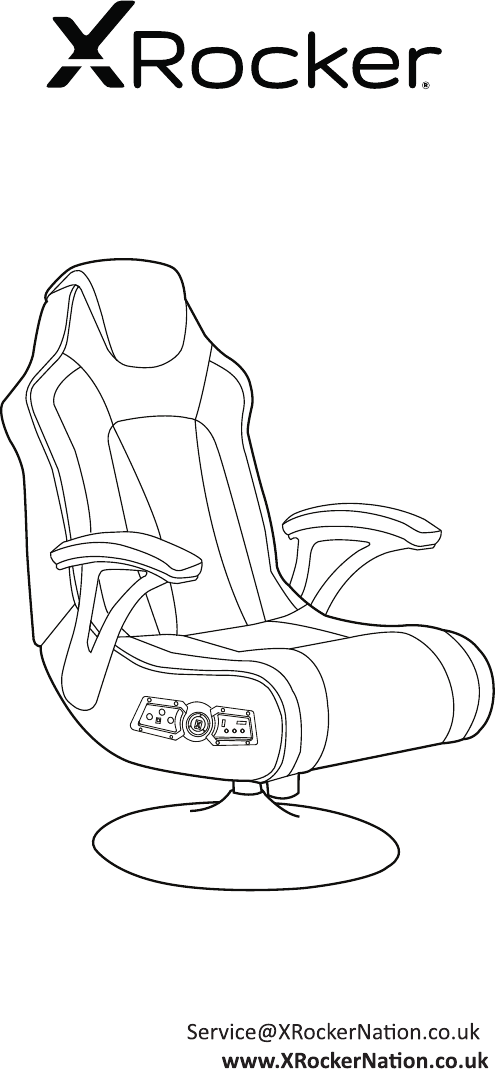
User Manual Item no: 5105801
Need Help? Email:
Phone: 01274 683 109
IMPORTANT: You must keep your original retail receipt as proof of purchase.
Torque

2
Thank you for purchasing this X Rocker gaming
chair. You are now close to enhancing your
favourite games with glorious audio!
To get started, please assemble the chair using
the assembly instrucons on the separate leaet
and then follow the instrucons in this manual to
get rocking!
Table of contents
3 Box contents and control panel overview
4 Wireless connecon guide: PS4
5 Wireless connecon guide: Xbox One
6 Wireless connecon guide: TV (All systems)
7 Wired connecon guide: TV (All consoles)
8 Wired connecon guide: PS4 Controller only
9 Bluetooth connecon guide
10 Troubleshoong ps
11 Health and safety informaon
12 Power supply safety informaon
Welcome to X Rocker!
3
+
+
+ +
+
+
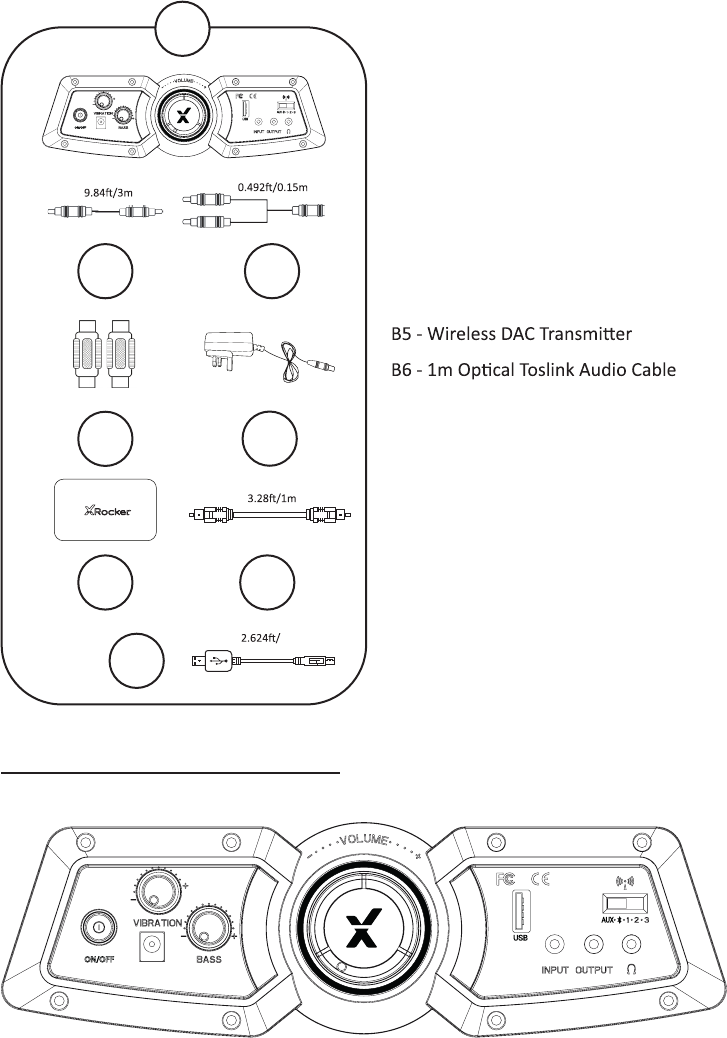
Control panel overview
B1 - 3m 3.5mm to 3.5mm Audio cable
B2 - 15cm RCA to female 3.5mm audio cable
B3 - RCA female to female adapters
B4 - Power supply Cable
B7 - Micro USB Cable
0.8m
B
B1
B3
B5 B6
B4
B2
+B7
4
Step 3:
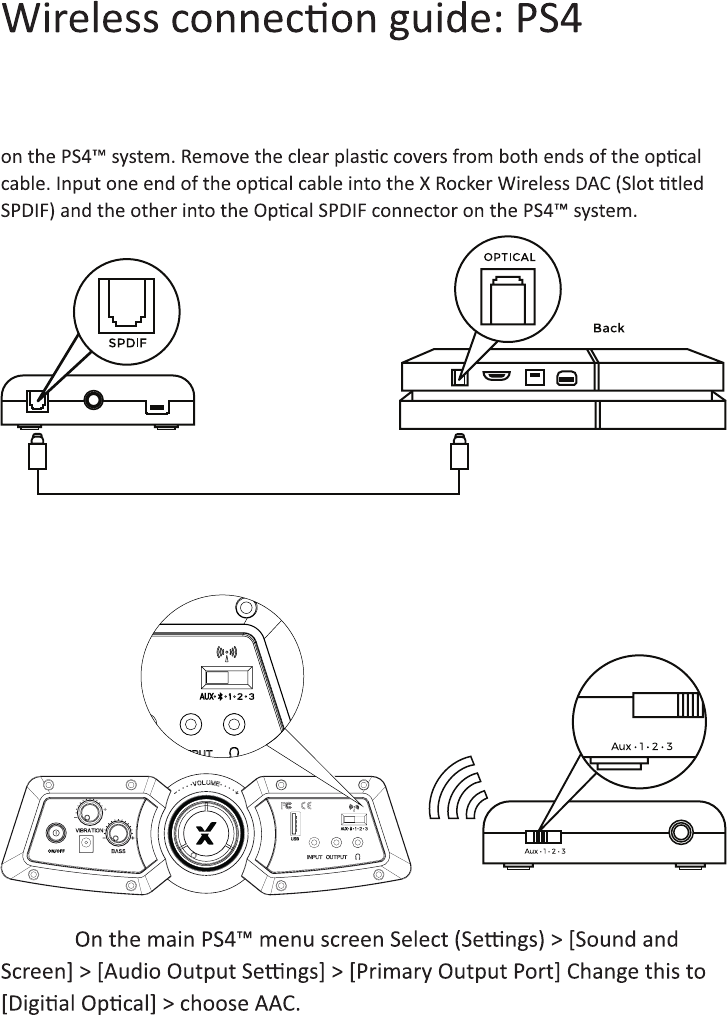
Step 1: Make sure that the PS4™ system is switched OFF. Insert the micro USB cable
into the X Rocker DAC converter and the other end into one of the front USB ports
Step 2: Turn the PS4™ system back on. Select one of the wireless bands
(1,2,3) on the wireless DAC and then switch to the corresponding band on
the chair.
Save, exit and enjoy!
5
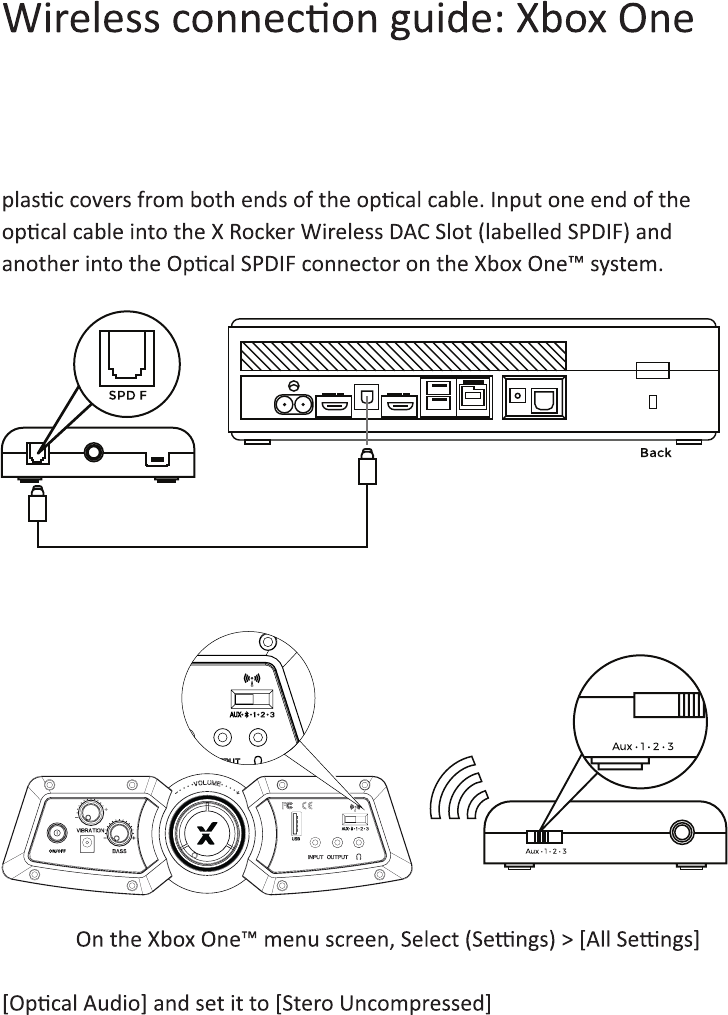
Step 1: Make sure that the Xbox One™ system is switched OFF. Insert the
micro USB cable into the X Rocker DAC converter and the other end into
one of the back USB ports on the Xbox One™ system. Remove the clear
Step 2: Turn the Xbox One™ system back on. Select one of the wireless
bands (1,2,3) on the wireless DAC and then switch to the corresponding
band on the chair.
Step 3:
> [Display and Sound] > [Audio Output] > under [Digital Audio], select
I
Save, exit and enjoy!
6
Wireless connecon guide: TV
(All systems)
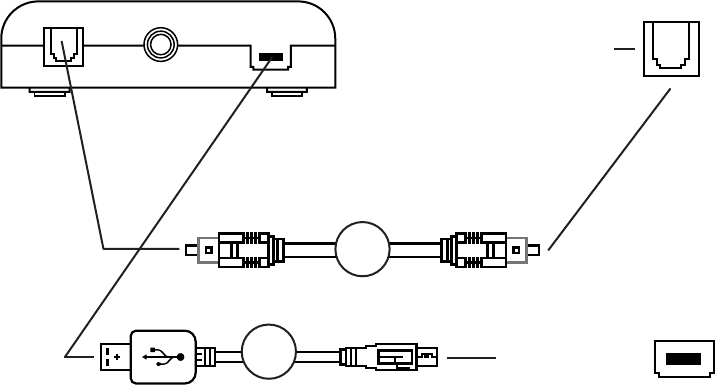
1. Connect B6 Opcal Cable to the B5 Wirelesss DAC transmier’s SPDIF Port.
2. Connect other end of B6 Opcal Cable to the TV Opcal socket.
3. Connect Micro USB Cable to the transmier and other end to an
available USB socket on the TV.
4. Once connected to your TV, increase volume to 50% of the maxiumum
for the best sound level.**
* N.B: If your TV does not feature an SPDIF or OPTICAL OUT Socket then you can
instead use the 3.5mm audio connecon to connect to a headphone socket.
** Depending on your TV you may need to enable the Opcal output seperately.
B7
B6
Transmier
TV/SPDIF/Opcal Socket
TV USB socket
7
Wired connecon guide: TV
(All consoles)
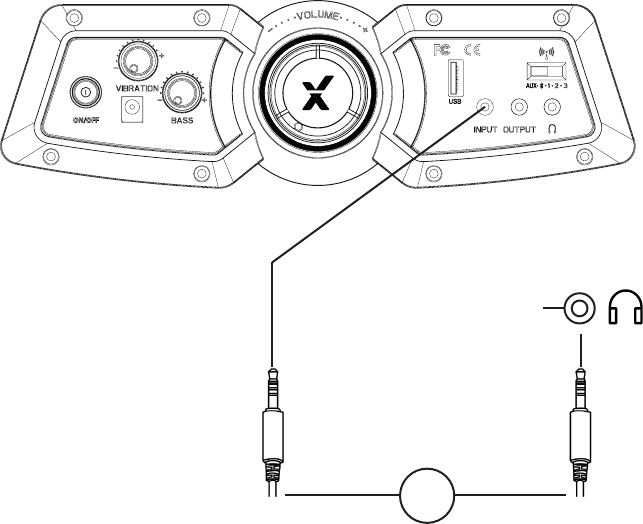
1. Connect B1 Cable to X Rocker control panel MP3 INPUT sockets.
2. Connect other end of B1 3.5mm end into the headphone socket of
your television.
3. Once connected to your TV, increase volume to 50% of the maximum
for the best sound level. **
** Depending on your TV you may need to increase the headphone
volume separately in the TV sound sengs.
TV/Mobile/Tablet
B1
8
Wired connecon guide: PS4
Controller only
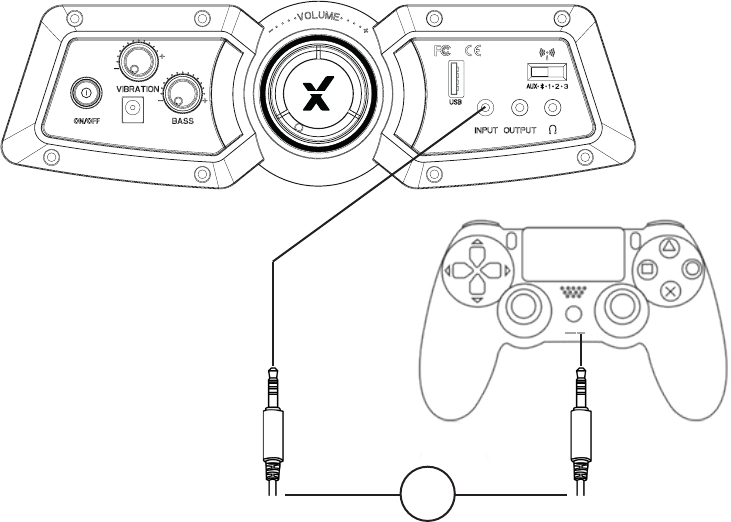
1. Connect the B1 cable to the boom of the PS4 controller via the
headset socket.
2. Connect the other end of the B1 cable to the chair via the green port.
3. With the PS4 turned on, go to the main menu (or locate the main
menu screen). Press and hold the PS buon on the PS4 controller unl
the quick menu appears on screen.
4. In this menu select [Adjust sound and devices]
5. Then select [output to headphones]
6. Change the seng from [Chat Only] to [All audio]
7. Make sure the volume in the previous menu is set to the maximum.
8. Set the control panel Wireless switch to the ‘OFF’ posion.
B1
9
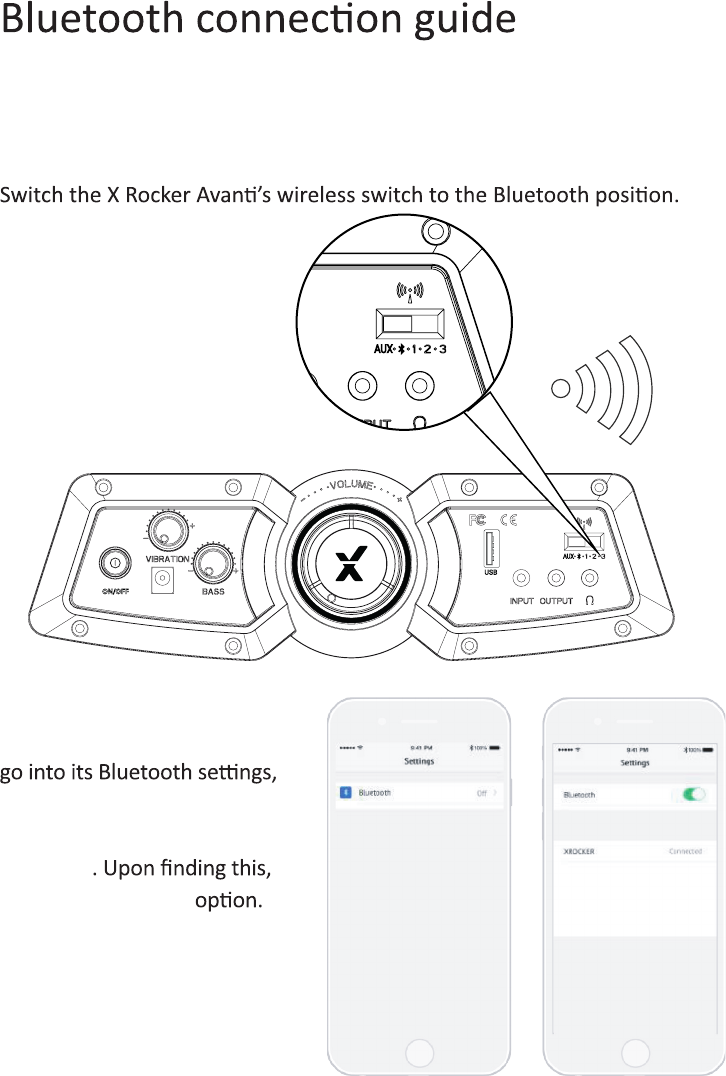
Step 1:
Step 2:
On the Audio output device
turn Bluetooth on if it is not
on already and search for
XROCKER
select the XROCKER
If a passcode is required the four
digit code will be ‘0000’.

10
Troubleshoong ps
• Make sure that the power cable is
connected correctly.
• Make sure that the power supply at the
power source is working correctly.
• With the chair turned to the ON posion,
give the power cable a slight wiggle in the
port. If any lights icker (or not)
then please contact support (details below).
• Review the connecon methods on
the previous page and try alternave
connecon methods if possible.
• Conrm that the device/system is
correctly congured as per previous
connecon guide.
• Make sure that the wireless channel
switcher is in the corresponding posion
that suits your connecon method.
(1,2,3 for wireless and AUX for wired
connecons).
• Please make sure that the volume of
the source device is at a higher level to
strengthen the audio signal.
• Please contact X Rocker support
(service@XRockerNaon.co.uk) regarding
this issue.
• In this case, try another of the three
wireless bands to isolate the signal.
No power going to control panel
Issue Troubleshoong steps
No sound
Wireless transmier cuts out during
gameplay/No vibraon or subwoofer
sound via analogue connecon
The cables connected to my
X Rocker have been broken
accidentally
Interference over wireless connecon
11
Health and safety informaon
• Avoid immersing or allowing the X Rocker to come into contact
with liquids.
• Please consult X Rocker Support before unscrewing any of the electrical
components on the chair.
• Please be mindful of any cabling laid out between the X Rocker and
power source/audio device.
• Please be mindful of cabling aached when moving/swivelling
the X Rocker.
• If the cables or electrical equipment are broken then this may present
a choking risk, please contact Support for replacements and dispose of
these parts safely.
• Do not stand on the X Rocker or exceed the 120kg weight limit via
other means.
• Do not lean back on the chair to the point in which the pedestal would
li o the ground.
• X Rocker armrests are designed for support and comfort during
gameplay, please do not use these as support for geng in/out of
the chair.
• Playing audio for long periods at loud volumes may contribute to
dicules in hearing.
• Please be considerate to others when playing audio through the
X Rocker speakers at higher volumes.

12
Power Supply unit trademark: BI;
Model name: B18-090200-I;
Input: 100-240V~, 50/60 Hz, 0.8 A;
Output: 9 VDC, 2A;
ATTENTION:
A. For Power Adapter, the apparatus shall not be exposed to dripping
or splashing and that no objects filled with liquids, such as vases,
shall be placed on the apparatus;
B. For Power Adapter, the MAINS plug is used as the disconnect device,
the disconnect device shall remain readily operable;
C.Only use the attachments/accessories specified by manufacturer.
FCC NOTE: This equipment has been tested and found to comply with the limits for a Class B digital device, pursuant to
Part 15 of the FCC Rules. These limits are designed to provide reasonable protection against harmful interference in a
residential installation. This equipment generates, uses and can radiate radio frequency energy and, if not installed and
used in accordance with the instructions, may cause harmful interference to radio communications. However, there is no
guarantee that interference will not occur in a particular installation.
If this equipment does cause harmful interference to radio or television reception, which can be determined by turning the
equipment off and on, the user is encouraged to try to correct the interference by one or more of the following measures:
-- Reorient or relocate the receiving antenna.
-- Increase the separation between the equipment and receiver.
-- Connect the equipment into an outlet on a circuit different from that to which the receiver is connected.
-- Consult the dealer or an experienced radio/TV technician for help.
FCC Radiation Exposure Statement:
This equipment complies with FCC radiation exposure limits set forth for an uncontrolled environment.
This transmitter must not be co-located or operating in conjunction with any other antenna or transmitter.
IC
This device complies with Industry Canada licence-exempt RSS standard(s). Operation is subject to the following two conditions:
(1) this device may not cause interference, and
(2) this device must accept any interference, including interference that may cause undesired operation of the device.
Le présent appareil est conforme aux CNR d'Industrie Canada applicables aux appareils radio exempts. L'exploitation
est autorisée aux deux conditions suivantes :
(1) l'appareil ne doit pas causer d'interférences, et
(2) l'utilisateur de l'appareil doit accepter tout brouillage radioélectrique subi, même si le brouillage est susceptible d'en
compromettre le fonctionnement.
IC Radiation Exposure Statement:
This equipment complies with Canada radiation exposure limits set forth for uncontrolled environments.
This transmitter must not be co-located or operating in conjunction with any other antenna or transmitter.
Déclaration d’IC sur l’exposition aux radiations:
Cet équipement est conforme aux limites d’exposition aux radiations définies par le Canada pour des environnements
non contrôlés.
Cet émetteur ne doit pas être installé au même endroit ni utilisé avec une autre antenne ou un autre émetteur. 7
Caution: The user is cautioned that changes or modifications not expressly approved by the party responsible
for compliance could void the user's authority to operate the equipment.
Need Help? Email: service@acecasual.com Web: www.xrockernation.com Phone: 866-969-2603
Need Help? Email: Service@XRockerNaon.co.uk
Phone: 01274 683 109
www.XRockerNaon.co.uk
IMPORTANT: You must keep your original retail
receipt as proof of purchase.