AEE Wireless Technology AT202 Weatherproof Wireless Color Camera User Manual 202AC OM
Shenzhen AEE Wireless Technology Co., Ltd. Weatherproof Wireless Color Camera 202AC OM
Manual
The users manual or instruction manual for an intentional or unintentional
radiator shall caution the user that changes or modifications not expressly
approved by the party responsible for compliance could void the user's
authority to operate the equipment. In cases where the manual is provided
only in a form other than paper, such as on a computer disk or over the
Internet, the information required by this section may be included in the
manual in that alternative form, provided the user can reasonably be expected
to have the capability to access information in that form.
TABLE OF CONTENTS
INTRODUCTION 1~3
EU Environmental Protection
Waste electrical products should not be disposed of with
household waste. Please recycle where facilities exist.
Check with your Local Authority or retailer for recycling
advice.
PRODUCT 4~6
Package Contents
Feature Locations
Adapter
4
5
6
SPECIFICATIONS 13
TROUBLESHOOTING 14
INSTALLATION & USAGE 7~12
Installation
Camera Channel Setup
Fix the Camera
7~8
9
Night Vision
10
10
Receiver Mode Setup 11~12
Notice
Restrictions
Maintenance
Approval Information
1
3
3
2

INTRODUCTION
Thank you for your interest and support in our product and purchasing this
wireless camera kit. This product works at ISM-2.4GHz frequency band,
which could be legally used worldwide without permission.
We feel confident that you will be pleased with the quality and features of
this product.
The camera is made of alloyed shell and special weather-proof enclosure
that protect it against powder and water sprays. It passed the IP54 testing.
This camera features one CMOS image sensor and a transmitting
module to capture the image and transmit them wirelessly; the receiver
features a receiving module to receive and output AV signals.
Notice
Notice: 2.4GHz wireless camera works at ISM band. It may cause
interference with other wireless equipment that operates at the same
band. Please turn off one of the equipments to eliminate the interference.
Product Assurance: 2.4GHz wireless camera will emit electromagnetic
wave, just like other wireless products. But the output power of this
products is less than other wireless products such as mobile phones.
The 2.4GHz wireless camera meets wireless frequency security standards
and recommended indexes while working. These standards and indexes
are certificated by academic organization and represent the cogitative
research of the scientific workers who continuously explore and annotate
the involved fields. So we believe that our products are safe for customers.
1

2
This equipment has been tested and found to comply with the limits for a
Class B digital device, pursuant to Part 15 of the FCC rules. These limits
are designed to provide reasonable protection against harmful
interference in a residential installation. This equipment generates, uses
and can radiate radio frequency energy and, if not installed and used in
accordance with the instructions, may cause harmful interference to
radio communications. However, there is no guarantee that interference
will not occur in a particular installation. If this equipment does cause
harmful interference to radio or television reception, which can be
determined by turning the equipment off and on, the user is encouraged
to try to correct the interference by one or more of the following
measures:
-Reorient or relocate the receiving antenna.
-Increase the separation between the equipment and the receiver.
-Connect the equipment into an outlet on a circuit different from that to
which the receiver is connected.
-Consult the dealer or an experienced radio/TV technician for help.
This device complies with Part 15 of the FCC Rules. Operation is subject
to the following two conditions:
(1) This device may not cause harmful interference, and
(2) this device must accept any interference received, including
interference that may cause undesired operation Changes and
modification not expressly approved by the manufacturer or registrant
of this equipment can void your authority to operate this equipment
under Federal Communications Commissions rules.
All our products meet the requirements of approval FCC, and are
granted the FCC certification. They are authorized to bear FCC mark.
Approval Information

1. DO NOT use this product to violate one's privacy. Monitoring one's
activities without consent is illegal and this product is not designed
and manufactured for such purpose;
2. DO NOT put this product near any medical equipment. Radio
waves might potentially cause breakdown of electrical medical
equipment. So this product should be placed at least 1 feet away
from any heart pacemaker. Radio waves might potentially
influence heart pacemaker and lead to respiratory disturbance;
3. DO NOT use this product for any illegal activities. We shall not be
responsible for any consequences of illegal acts committed by the
user.
Restrictions
1. Ensure the sufficient ventilation space is available;
2. Do not shake or strike the product;
3. Keep it dry and dustless and avoid exposing it to direct sunlight;
4. Do not place product near any magnetic objects;
5. Avoid putting the product in places where the constantly changed
temperature or humidity occurs;
6. Keep product away from heat sources such as electric heater;
7. Do not use the camera near aggressive chemicals;
8. Do not use the camera in the places which are enclosed by metal.
The surrounding metal like lifter, cabin, may shield the electro-
magnetic wave, and result in failure of signal reception;
9. Please obey the local government's environment protection policy;
10. Please turn off the power when left unused;
11. Do not disassemble or repair the camerar; doing so might cause
damages to the product.
Maintenance
3
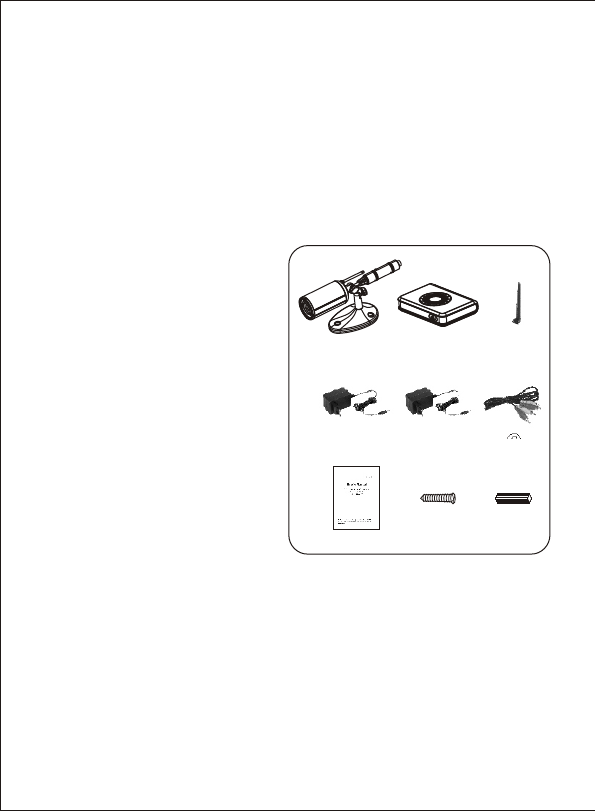
① 2.4GHz Wireless Camera×1
② 2.4GHz Wireless Receiver×1
③ Antenna for Receiver ×1
④ Adapter for Camera×1
⑤ Adapter for Receiver ×1
⑥ AV Cable ×1
⑦ User's Manual × 1
⑧ Mounting Screw × 3
⑨ Anchor for Screw × 3
① ② ③
④ ⑤ ⑥
This package comes with the following items. Please check whether
they are all included in the packaging box, if one or some is missing,
contact the retailer for replacement.
Package Contents
PRODUCT
Note:
The pictures may vary from the actual objects.
⑦
4
⑧ ⑨
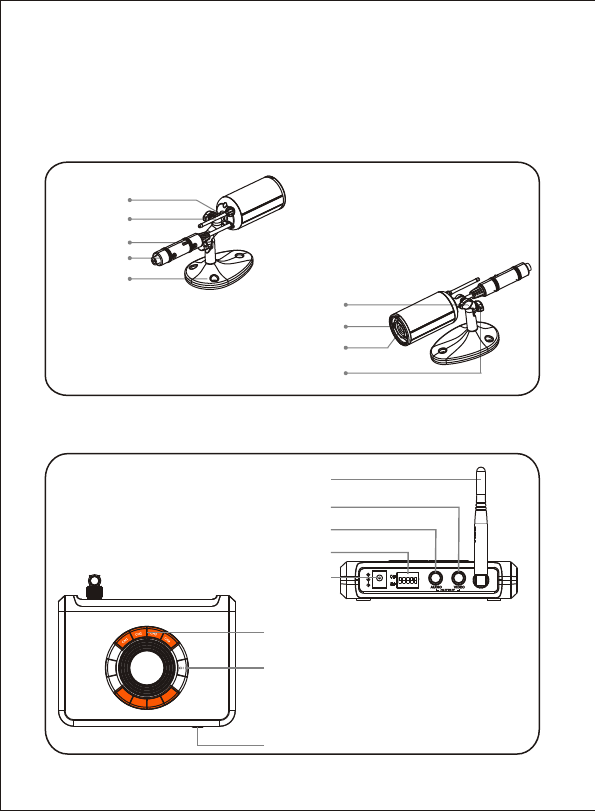
Feature Locations
1. CAMERA
2. RECEIVER
5
Power Jack
Universal
Bracket
Antenna
Dip Switch
MIC Hole
Power ON/OFF
Channel Indicator
Channel Select/
Mode Switch Button
Antenna
Mode Control
DC Power Jack
Audio Output
Video Output
Lens
Infrared Lights
Fastener 1
Fastener 2
6
This product always conforms to the authenticated AC adapter. The
adapter should be marked one of the following:
Note:
When using the power adapter, make sure the rating voltage on it is compatible
with that of the device to avoid potential damages resulting from incorrect usage
of power supply.
UL Mark
American power
supply authentication
SAA Mark
Australia power
supply authentication
GS Mark
German power
supply authentication
CCC Mark
China power
supply authentication
European Union power
supply authentication
CE Mark PSE Mark
Japan power
supply authentication
Adapter
Installation
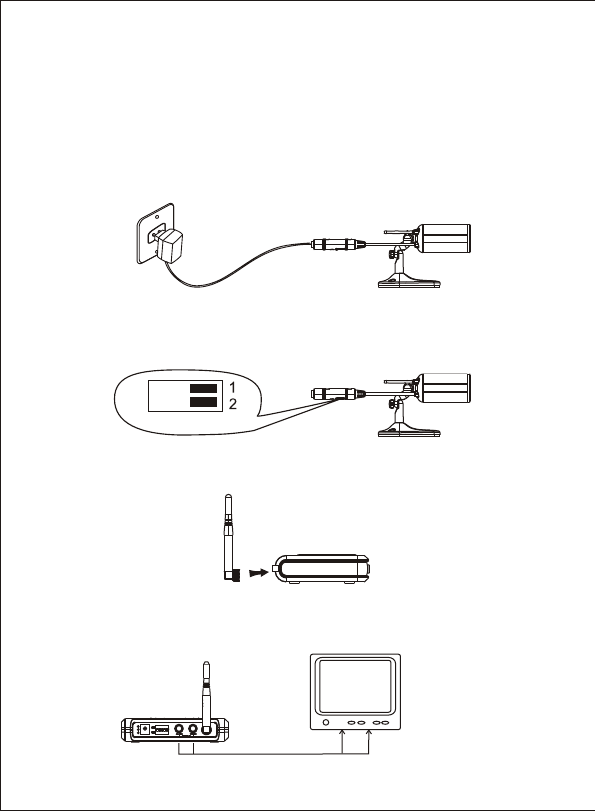
3. Connect the antenna to the receiver.
1. Connect the adapter (DC 8V 300mA) to the camera.
4. Connect the receiver to a monitor/TV with AV cable (yellow for video
and red for audio). Turn on the monitor/TV and select AV mode.
INSTALLATION & USAGE
7
2. Set the camera to one desired channel.
Channel Switch
Default Setting
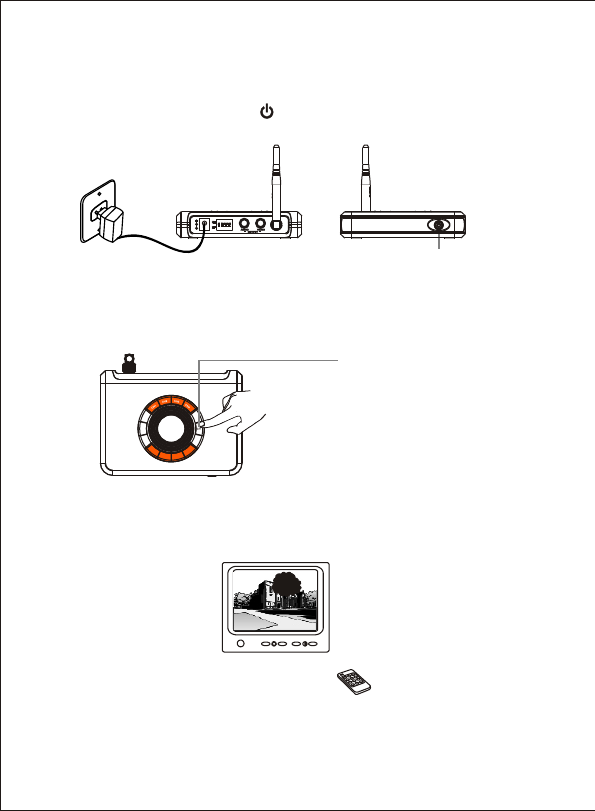
6. Press the Channel Select Button "CH" on the receiver until the channel
indicator matches to the channel on the corresponding camera, and
the monitor/TV will display pictures.
8
Channel Select Button “CH"
7. Adjust the brightness, contrast and color of the monitor/TV for the
perfect effect.
5. Connect the power jack of adapter (DC 7.5V 300mA) to receiver.
Press the Power ON/OFF button and the channel indicator lights
up green.
" "
Power ON/OFF Button

Fix the Camera
Screw anchors
Please follow the steps below if you want to fix the camera to wall or
ceiling.
1.1 Secure the three screw anchors into wall (or ceiling) according holes
in the camera bracket;
1.2 Align holes in the camera bracket and the anchors, and locate the
camera on the wall with three screws.
2. Adjust the angle
1. Locate the camera
2.1 Unscrew Fastener 1, adjust the camera to an appropriate angle,
and then fasten it.
2.2 Unscrew Fastener 2 to adjust the camera to an appropriate angle,
and then fasten it.
9
1.1 1.2
Fastener 1
Fastener 2
180°
180°
Camera Channel Setup
Night Vision
The built-in Infra-red lights in camera provide 7m night vision range for
24hrs surveillance. The Infra-red lights will be automatically activated at
night or in dark places. The picture will turn Black & White (monochrome)
in Night Vision status.
Built-in IR lights for
7m Night Vision Range
10
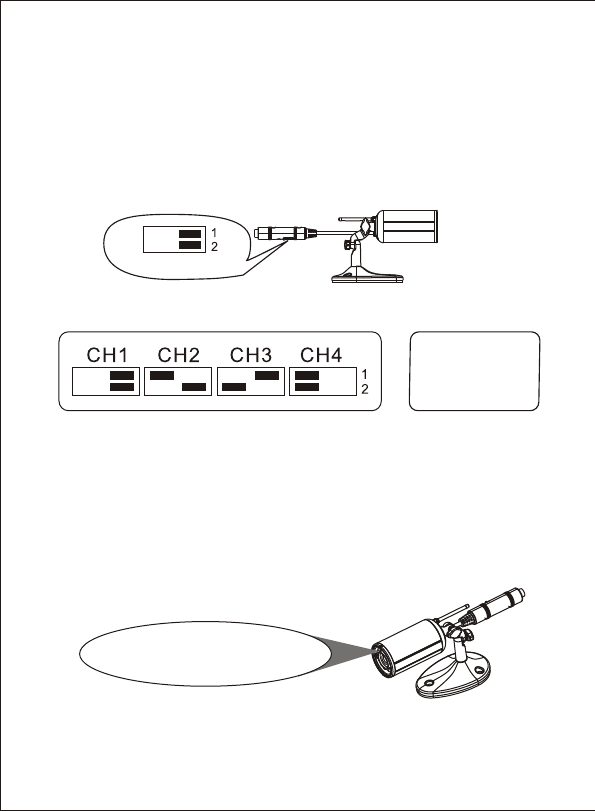
This camera has 4 selectable channels to avoid possible interference
from other nearby wireless devices.
Channel Switch
Default Setting
Channel Frequency
CH1=2,414MHz;
CH2=2,432MHz;
CH3=2,450MHz;
CH4=2,468MHz
Channel Switch Setup Diagram
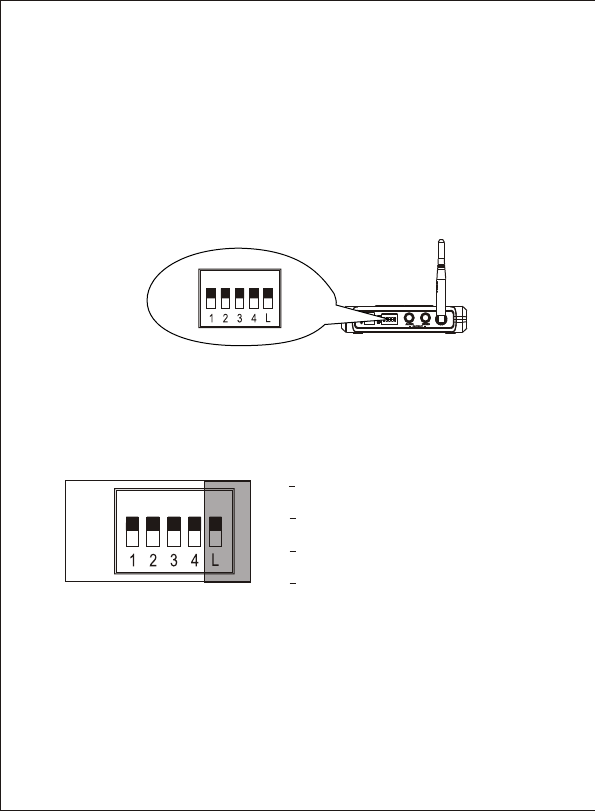
The receiver can support up to 4 cameras working at the same time.
You are allowed to set the Mode Control as described below. The
Mode Control has the precedence over other buttons.
Default Setting
Receiver Mode Setup
1CH1 Enable (Default)
CH1 Disable
ON:
OFF:
2CH2 Enable (Default)
CH2 Disable
ON:
OFF:
3CH3 Enable (Default)
CH3 Disable
ON:
OFF:
4CH4 Enable (Default)
CH4 Disable
ON:
OFF:
You can confirm which channel is set to receive signal from correspond-
ing camera. With this function, you could set the unused channels to
OFF, so that they will be skipped during the Manual mode or Channel
Scan mode.
Channel Set
CHANNEL M
ON
OFF
CHANNEL M
ON
OFF
11
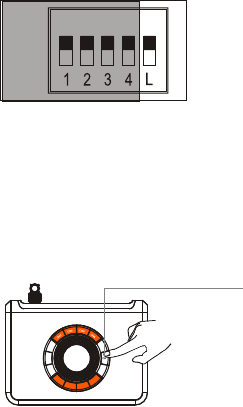
Channel-scan Set
Manual Mode (Default)
Channel-scan Mode
M:
L:
Notes:
Press the Channel Select Button at the channel scan mode, the current
channel will be looped to the next one immediately.
Slide the Mode Control switch to M to exit the channel scan mode.
"CH"
Tip:
You could also activate channel-scan function by pressing and holding the
Channel Select Button more than 5s at Manual mode and deactivate it
by pressing the button again.
"CH"
Channel Select Button "CH”
Press and hold more than 5s to activate;
Press again to deactivate
CHANNEL M
ON
OFF
1. Manual mode: Slide Mode Control switch to M to enter Manual
mode. In this mode, the receiver channel won't change until you
press the Channel Select Button ;"CH"
2. Channel Scan mode: Slide Mode Control switch to L to enter
channel scan mode. In this mode, all the available channels will
display one by one looping in turn per 5s. So you can watch the
situations from up to 4 different cameras via one receiver.
12
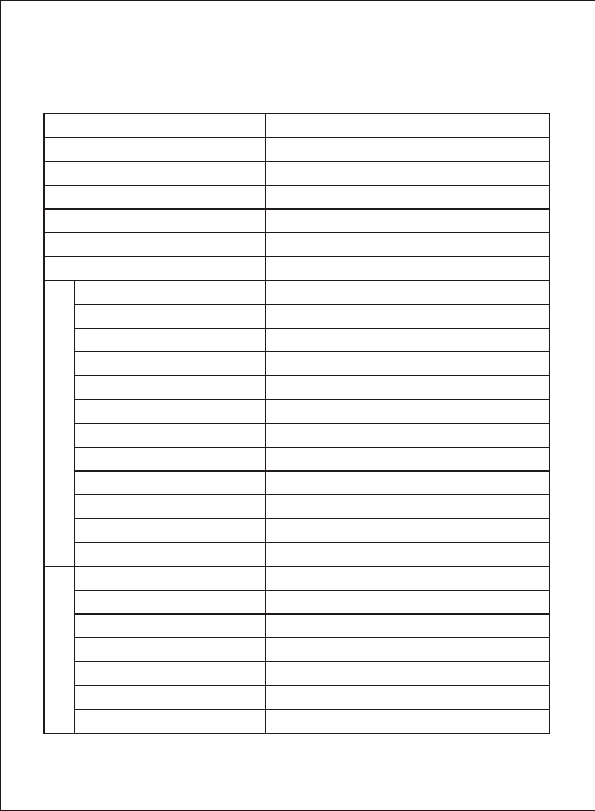
SPECIFICATIONS
* Specifications are subject to minor change without prior notice.
Items Value
Transmission Frequency ISM 2,400MHz~ 2,483MHz
Antenna Type Omni
Power Supply DC 8V 300mA
Storage Humidity ≤85% RH
Storage Temperature
Imaging Sensor CMOS
CMOS Total Pixels 510 492 (NTSC)×
S/N Ratio 40dB (AGC OFF)
Horizontal Resolution 380 TV Lines
Minimum Illumination 5 Lux/F1.2(IR OFF) & 0 Lux (IR ON)
Transmission Power 2mW (FCC)
Transmission Distance 100m (Without Block)
Consumption Current
200mA (IR ON)/90mA(IR OFF)
Dimensions (WxDxH) 27mm x 27mm x 60mm (Main Body)
Weight Approx.200g (Main Body)
Receiving Sensitivity -85dBm
Consumption Current 240mA (Max.)
Video Output Level
Audio Output Level
Dimensions (WxDxH)
Weight Approx.126g (Main Body)
Operating Temperature
115mmx85mmx24mm (Main Body)
Ca era
m
Receiver
-20 C~+60 C /-4 ~+140
o o o o
F F
-10 C~+50 C /+14 ~+122
o o o o
F F
Power Supply DC 7.5V 300mA
Night Vision Range 7m
Weather-proof Level IP54 (Main Body)
1V @75
p-p Ω
1V @10k
p-p Ω
13
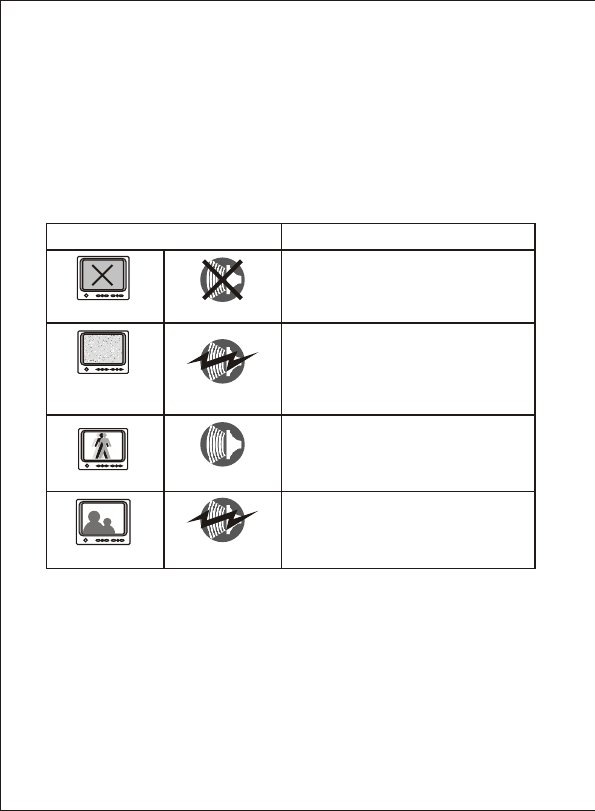
TROUBLESHOOTING
When you experience the operation problems, please check and try
the following yourself before claiming that it is the defective product
or consulting the experienced technician.
Abnormal Phenomena Possible Reasons/Solutions
Check whether the camera/receiver
is connected to power supply and
powered on.
1. Check if the channel of receiver is
the same as that of camera;
2. Check the distance & blocks.
No image
Snowflakes
on image
No sound
Noisy
1. Interfered with other devices;
2. Check the distance & blocks.
Ghost image
Interfered with other devices nearby;
Remove or turn off such devices.
Normal image Noisy
Normal sound