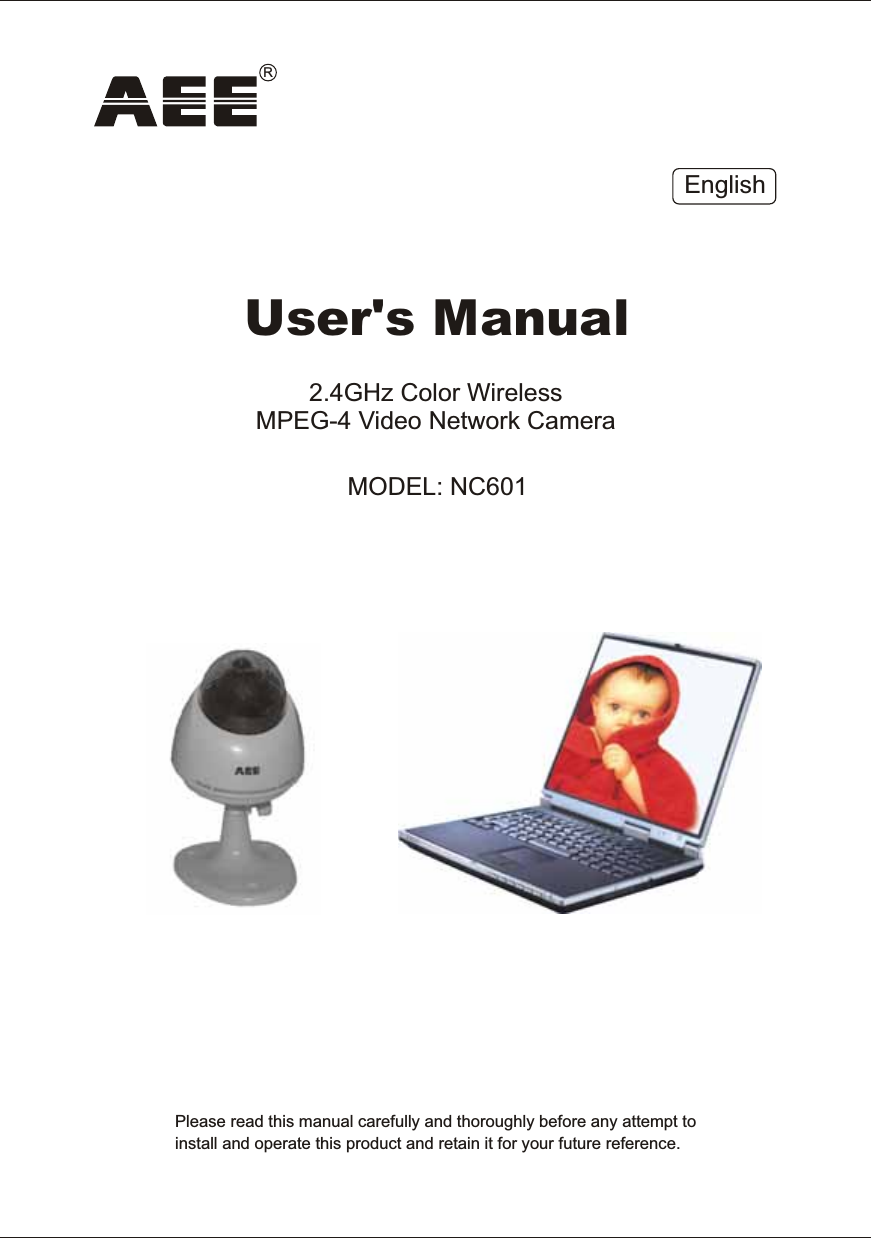
AEE Wireless Technology NC601 2.4GhZ Color Wireless MEPG-4 Video Network Camera User Manual

Shenzhen AEE Wireless Technology Co., Ltd. 2.4GhZ Color Wireless MEPG-4 Video Network Camera

Manual

Please  read  this  manual  carefully  and  thoroughly  before  any  attempt  toinstall  and  operate  this  product  and  retain  it  for  your  future  reference.User's  Manual2.4GHz  Color  Wireless MPEG-4  Video  Network  Camera MODEL:  NC601EnglishR
EU  Environmental  ProtectionWaste  electrical  products  should  not  be  disposed  of  with household  waste.  Please  recycle  where  facilities  exist. Check  with  your  Local  Authority  or  retailer  for  recycling advice.
IP  Finder  InstallationNetwork  Parameters29~49INTRODUCTION 1~5Maintenance 3Restrictions 2Copyright 2Warranty    2Notice 1Package  Contents 6Camera  Feature  Locations 76~8PRODUCTUPnP  Function 18~211715~16Proxy  Server  Setting13~14Network  Camera  Configuration  Type 11~12Network  Camera  Installation 9~10PREPARATION 9~24Adapter 8Approval  Information  (FCC/CE)1TABLE  OF  CONTENTSPC  System  Requirements 8Internet  Explorer  Security  Setting 21~23Set  the  Network  Camera  as  Virtual  Server 23Power  on  the  Network  Camera 24NETWORK  CAMERA  SCREEN  AND  SETUP  WINDOW 25~51Main  Features 4~5Network  Camera  Setting  InterfaceOperating  BarMisc  SetupDate  &  TimeUser  ManagementSystem  IdentityFTP  SetupE-mail  SetupMotion  Detection  SetupUPnP  SetupDDNS  SetupPPPoE  SetupEthernet  SetupWireless  SetupPan/Tilt  SetupCamera  Setup27~28Firmware  UpgradeBackup  or  Reset48~4947464543~44424140393835~373433323130CAMERANETWORKALARMTOOLS25-26Review  images  from  the  Network  Camera
50GLOSSARY 56TROUBLESHOOTING 55SPECIFICATIONS 5452~53System  InformationReboot  SystemWizardSupport50515150~51Speedread  your  Network  CameraDEFAULT  SETTINGS
INTRODUCTIONThank  you  for  your  interest  and  support  in  our  product  and  purchasing  this  wireless  home  network  camera.   This  product eel  confident  that  you  will  be  pleased  with  the  quality  and  features  of  this product. works  at  ISM-2.4GHz  frequency  band,  which  could  be  legally  used  worldwide  without permission.  We  f  NoticeThis  product  may  cause  interferences  with  other  wireless  equipment  that  operates  at  2.4GHz  ISM  band. Please  turn  off  one  of  the  equipments  to  eliminate  the  interference. Product  AssuranceThis  camera  will  emit  electromagnetic  wave,  just  like  other  wireless  products.  But  its  transmitting  power  is lesser  than  other  wireless  products  such  as  mobile  phones.  The  2.4GHz  wireless  camera  meets  wireless frequency  security  standards  and  recommended  indexes  while  working.  These  standards  and  indexes  arecertificated  by  academic  organization  and  represent  the  cogitative  research  of  the  scientific  workers  who continuously  explore  and  annotate  the  involved  fields.  So  we  believe  that  our  products  are  safe  for customers.1All  our  products  meet  the  requirements  of  approval  FCC  or  CE,  and  are  granted  the  FCC  or  CE certification.  They  are  authorized  to  bear  FCC  or  CE  mark. Approval  InformationAfter  testing  the  product,  we  confirm  that  it  complies  with  the  provision  for  class  C  digital  equipment  in  the 15th  part    in  FCC  regulation;  and  the  receiver  complies  with  the  limitations  for  class  B  digital  equipment  in Part  15  of  FCC  regulation.  The  product  generates,  applies  and  emits  radio  waves.  It  might  cause  harmful interferences  to  wireless  communication  if  not  be  installed  and  used  following  the  description  of  the  manual. The  product  may  cause  interference  in  residential  area,  and  the  customer  should  take  remedies  to eliminate  the  interference  at  their  own  costs.  If  the  product  causes  any  harmful  interference  to  wireless equipment  or  disturbs  the  receiving  of  TV  signals  (it  can  be  identified  by  turning  on  and  off  the  product), you  can  solve  the  trouble  by  following  methods:FCC This  product  complies  with  standards  including  Low  Voltage  Device  Directive  73/23/EEC;  EMC Directive  89/336/EEC  and  R&TTE  Directive  1999/5/EC.  It  passed  the  subject  tests  by  the  authority concerned  and  is  authorized  to  bear  CE  mark.CE This  product  meets  the  requirements  specified  in  Part  15  of  FCC  Regulation.  Operation  rests  with  the   following  two  conditions:        (1)  The  equipment  should  not  cause  any  harmful  interference;        (2)  The  equipment  must  receive  and  process  any  interference,  including  any  possible  interference  caused              by  operation  mistakes.         (1)  Readjust  the  product  or  put  it  in  another  place;        (2)  Extend  the  distance  between  the  equipment  interfered  and  the  product;  and        (3)  Refer  to  dealers  or  experienced  radio  electrician  for  help.
    CopyrightThis  manual  is  furnished  under  license  and  may  be  used  or  copied  only  in  accordance  with  the  terms  of such  license.  Except  as  permitted  by  such  license,  no  part  of  this  publication  may  be  reproduced,  stored  in a  retrieval  system,  or  transmitted,  in  any  form  or  any  means,  electronic,  mechanical,  recording,  or otherwise,  including  translation  to  another  language  or  format,  without  prior  written  permission  of  AEE Technology.      WarrantyAEE  Technology  warrants  that  this  product  will  be  free  from  defects  in  materials  and  workmanship  for period  of  time  specified.  This  limited  warranty  shall  commence  from  the  date  of  purchase.  AEE  Technology product's  warranty  is  not  transferable  and  is  limited  to  the  original  purchaser.  If  the  product  is  found  to  be defective  then,  as  your  sole  remedy  and  as  the  manufacturer's  only  obligation,  AEE  Technology  will repair  or  replace  the  product. 2This  warranty  shall  not  apply  to  products  that  have  been  subjected  to  abuse,  misuse,  abnormal  electrical or  environmental  conditions,  normal  wear  and  tear  or  any  condition  other  than  what  can  be  considered normal  use.Should  you  have  problems,  please  consult  the  local  dealer.The  content  of  this  manual  is  furnished  for  informational  use  only,  is  subject  to  change  without  notice,  and should  not  be  construed  as  a  commitment  by  AEE  Technology.AEE  Technology  assumes  no  responsibility  or  liability  for  any  errors  or  inaccuracies  that  may  appear  in  this booklet.  All  other  product  names,  trademarks  and  registered  trademarks  in  this  document  are  the properties  of  their  respective  holders. 1.  DO  NOT  use  this  product  to  violate  one's  privacy.  Monitoring  one's  activities  without  consent  is  illegal         and  this  product  is  not  designed  and  manufactured  for  such  purpose; 2.  DO  NOT  put  this  product  near  any  medical  equipment.  Radio  waves  might  potentially  cause  breakdown        of  electrical  medical  equipment.         So  this  product  should  be  placed  at  least  1  feet  away  from  any  heart  pacemaker.  Radio  waves  might         potentially  influence  heart  pacemaker  and  lead  to  respiratory  disturbance;3.  DO  NOT  use  this  product  for  any  illegal  activities.    AEE  Technology  shall  not  be  responsible  for  any        consequences  of  illegal  acts  committed  by  the  user.Restrictions
1.      Ensure  the  sufficient  ventilation  space  is  available;2.      Do  not  shake  or  strike  the  product;3.      Keep  it  dry  and  dustless  and  avoid  exposing  it  to  direct  sunlight;4.      Do  not  place  the  product  near  any  magnetic  objects; 5.      Avoid  putting  the  product  in  places  where  the  constantly  changed  temperature  or  humidity  occurs;6.      Keep  the  product  away  from  heat  sources  such  as  electric  heater;7.      Do  not  use  the  camera  near  aggressive  chemicals;8.      Do  not  use  this  camera  near  water,  for  example,  near  a  bath  tub,  wash  bowl,  kitchen  sink  or  laundry             tub,  in  a  wet  basement  or  near  a  swimming  pool  and  the  like;9.      Do  not  use  the  camera  in  the  places  which  are  enclosed  by  metal.  The  surrounding  metal  like  lifter,             cabin,  may  shield  the  electromagnetic  wave,  and  result  in  failure  of  signal  reception;10. Please  obey  the  local  government's  environment  protection  policy;11.  Please  turn  off  the  power  when  left  unused;12.  Do  not  disassemble  or  repair  the  camera;  doing  so  might  cause  damages  to  the  product.Maintenance3
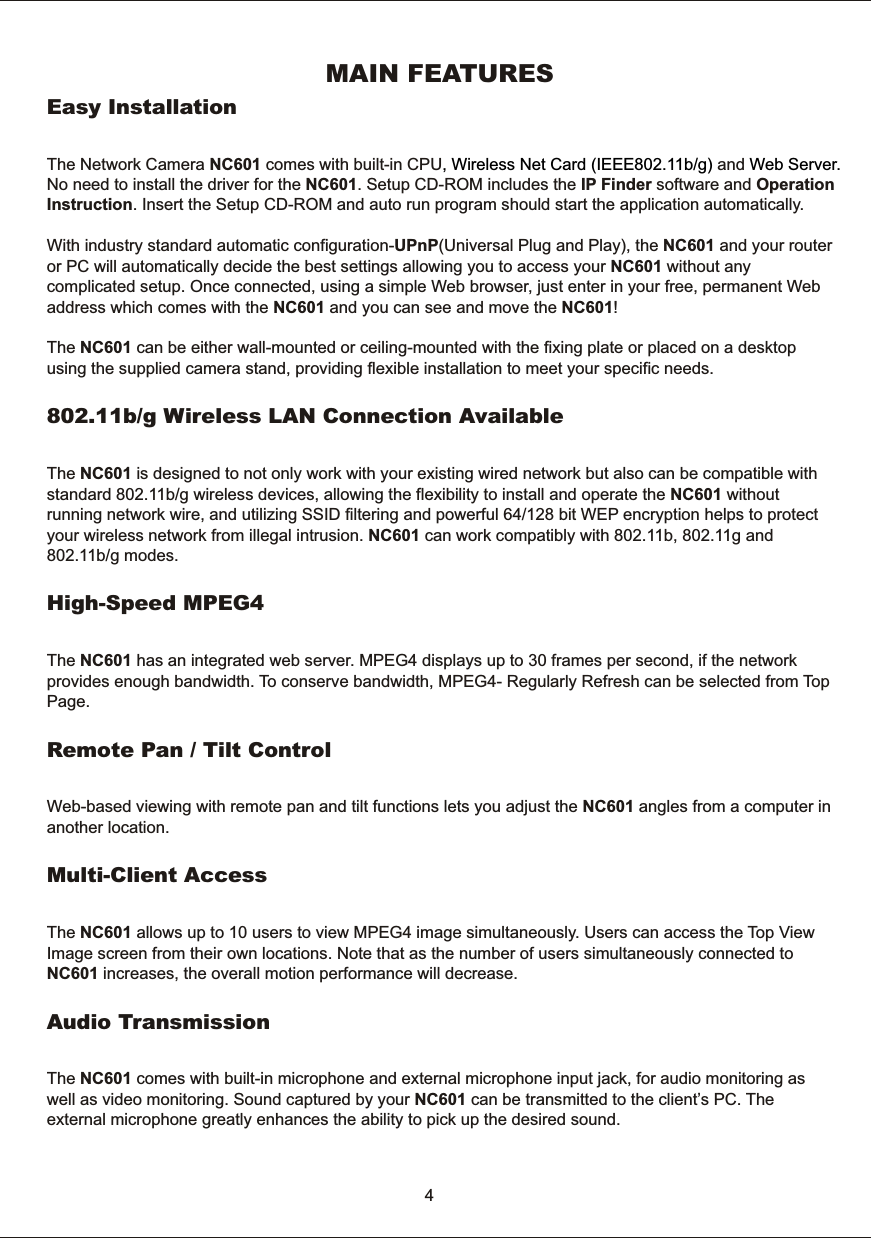
MAIN  FEATURESEasy  InstallationThe  Network  Camera  NC601  comes  with  built-in  CPU and No  need  to  install  the  driver  for  the  NC601.  Setup  CD-ROM  includes  the  IP  Finder  software  and  Operation Instruction.  Insert  the  Setup  CD-ROM  and  auto  run  program  should  start  the  application  automatically.With  industry  standard  automatic  configuration-UPnP(Universal  Plug  and  Play),  the  NC601  and  your  router or  PC  will  automatically  decide  the  best  settings  allowing  you  to  access  your  NC601  without  any complicated  setup.  Once  connected,  using  a  simple  Web  browser,  just  enter  in  your  free,  permanent  Web address  which  comes  with  the  NC601  and  you  can  see  and  move  the  NC601! The  NC601  can  be  either  wall-mounted  or  ceiling-mounted  with  the  fixing  plate  or  placed  on  a  desktop using  the  supplied  camera  stand,  providing  flexible  installation  to  meet  your  specific  needs.802.11b/g  Wireless  LAN  Connection  AvailableThe  NC601  is  designed  to  not  only  work  with  your  existing  wired  network  but  also  can  be  compatible  with standard  802.11b/g  wireless  devices,  allowing  the  flexibility  to  install  and  operate  the  NC601  without running  network  wire,  and  utilizing  SSID  filtering  and  powerful  64/128  bit  WEP  encryption  helps  to  protect your  wireless  network  from  illegal  intrusion.  NC601  can  work  compatibly  with  802.11b,  802.11g  and 802.11b/g  modes.High-Speed  MPEG4The  NC601  has  an  integrated  web  server.  MPEG4  displays  up  to  30  frames  per  second,  if  the  network provides  enough  bandwidth.  To  conserve  bandwidth,  MPEG4-  Regularly  Refresh  can  be  selected  from  Top Page.Remote  Pan  /  Tilt  Control Web-based  viewing  with  remote  pan  and  tilt  functions  lets  you  adjust  the  NC601  angles  from  a  computer  inanother  location.Multi-Client  Access The  NC601  allows  up  to  10  users  to  view  MPEG4  image  simultaneously.  Users  can  access  the  Top   View Image  screen  from  their  own  locations.  Note  that  as  the  number  of  users  simultaneously  connected  to NC601  increases,  the  overall  motion  performance  will  decrease.Audio  TransmissionThe  NC601  comes  with  built-in  microphone  and  external  microphone  input  jack,  for  audio  monitoring  as well  as  video  monitoring.  Sound  captured  by  your  NC601  can  be  transmitted  to  the  client’s  PC.  The external  microphone  greatly  enhances  the  ability  to  pick  up  the  desired  sound.  ,  Wireless  Net  Card  (IEEE802.11b/g)  Web Server. 4
5Motion  Detection  FunctionThe  NC601  can  detect  the  change  of  picture  being  monitored.  Once  anything  happens,  it  will  email  to  yourdesignated  email  addresses  (maximum  3)  and  send  the  picture  captured  to  designated  FTP  server.  You could  receive  message  and  take  action  immediately  when  an  alarm  triggered.Authentication Authentication  window  requires  you  to  enter  the  administrator/general  user  ID  and  password.  Password security  can  prevent  unregistered  users/intruders  from  accessing  your  image  from  their  web  browsers.
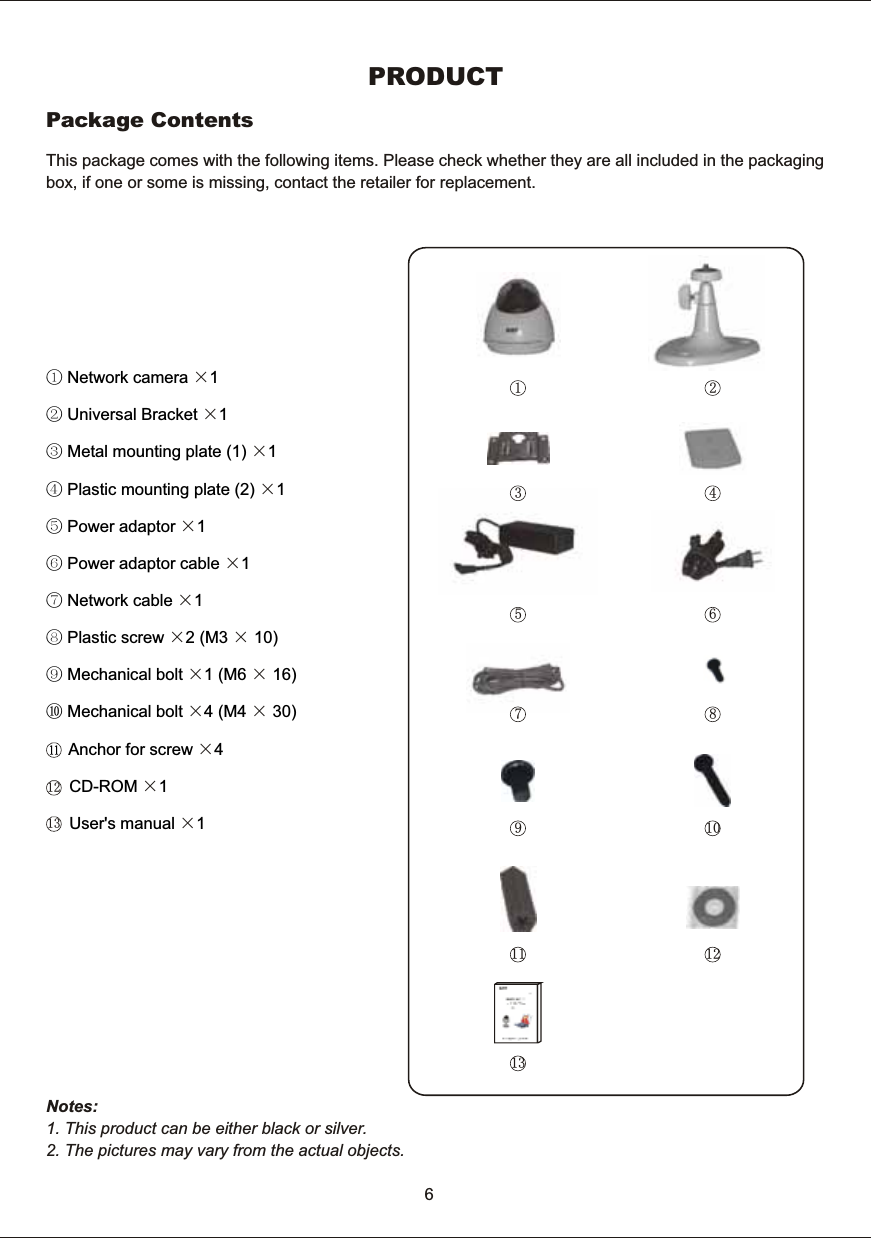
6This  package  comes  with  the  following  items.  Please  check  whether  they  are  all  included  in  the  packaging box,  if  one  or  some  is  missing,  contact  the  retailer  for  replacement.Package  ContentsPRODUCTNotes: 1.  This  product  can  be  either  black  or  silver.2.  The  pictures  may  vary  from  the  actual  objects.① Network  camera  1② Universal  Bracket  1③ Metal  mounting  plate  (1)  1④ Plastic  mounting  plate  (2)  1 ⑤  Power  adaptor  1⑥ Power  adaptor  cable  1⑦ Network  cable  1⑧  Plastic  screw  2  (M3    10)⑨ Mechanical  bolt  1  (M6    16)⑩  Mechanical  bolt  4  (M4    30)          Anchor  for  screw  4           CD-ROM  1          User's  manual  1 ××××××××××××××××1213123 4567891011 1213
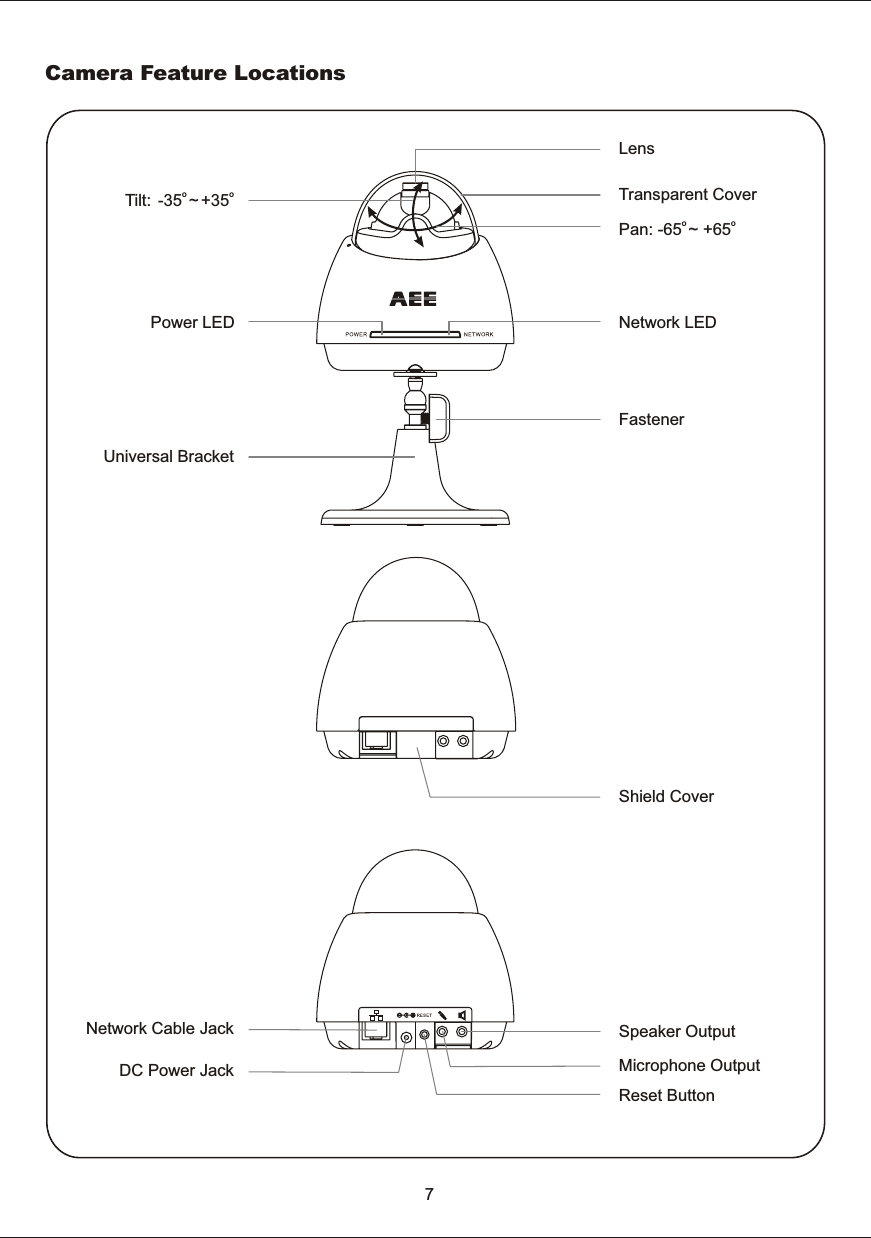
Camera  Feature  Locations7Transparent  CoverLensNetwork  LEDUniversal  BracketSpeaker  OutputMicrophone  OutputReset  ButtonDC  Power  JackNetwork  Cable  JackPower  LEDo  oPan:  -65 ~  +65  o    oTilt:  -35 ~ +35Shield  CoverFastener
8This  product  always  conforms  to  the  authenticated  AC  adapter.  The  adapter  should  be  marked  one  of  the following:Note:When  using  the  power  adapter,  make  sure  the  rating  voltage  on  it  is  compatible  with  that  of  the  device  to  avoid  potential damages  resulting  from  incorrect  usage  of  power  supply.   AdapterUL  MarkAmerican  powersupply  authenticationSAA  MarkAustralia  powersupply  authenticationGS  MarkGerman  powersupply  authenticationCCC  MarkChina  powersupply  authenticationEuropean  Union  powersupply  authenticationCE  Mark PSE  MarkJapan  powersupply  authenticationThe  PC  (Personal  Computer)  and  the  network  must  meet  the  following  technical  specifications  for  NC601to  work  properly. PC  System  Requirements1.  Processor:             2. RAM:                                 128 MB or more.  OS( :          Windows  2000/XP.  Web  Browser:                                        Internet  Explorer  Version  5.   or NC601                                    Intel  Pentium  III,  800MB  or  Higher  (Pentium  IV,  2  GHz  or  Higher                                               recommended)3.  Color  Monitor:                                        Suggest  at  least  800x600  and  the  latest  driver  for  the  Display  Adapter4 Operating  System)5 0 above  (DirectX  8.1  or  later)6.  Network  Protocol:                            TCP/IP  network  protocol  installed. 7. Interface:                               10/100  Mbps  Ethernet®  card  for  your  network  connection   Note:    The    comes  with  setup  CD-ROM,  suggest  the  CD-ROM  Drive  available  to  install  the  IP  Finder  software.
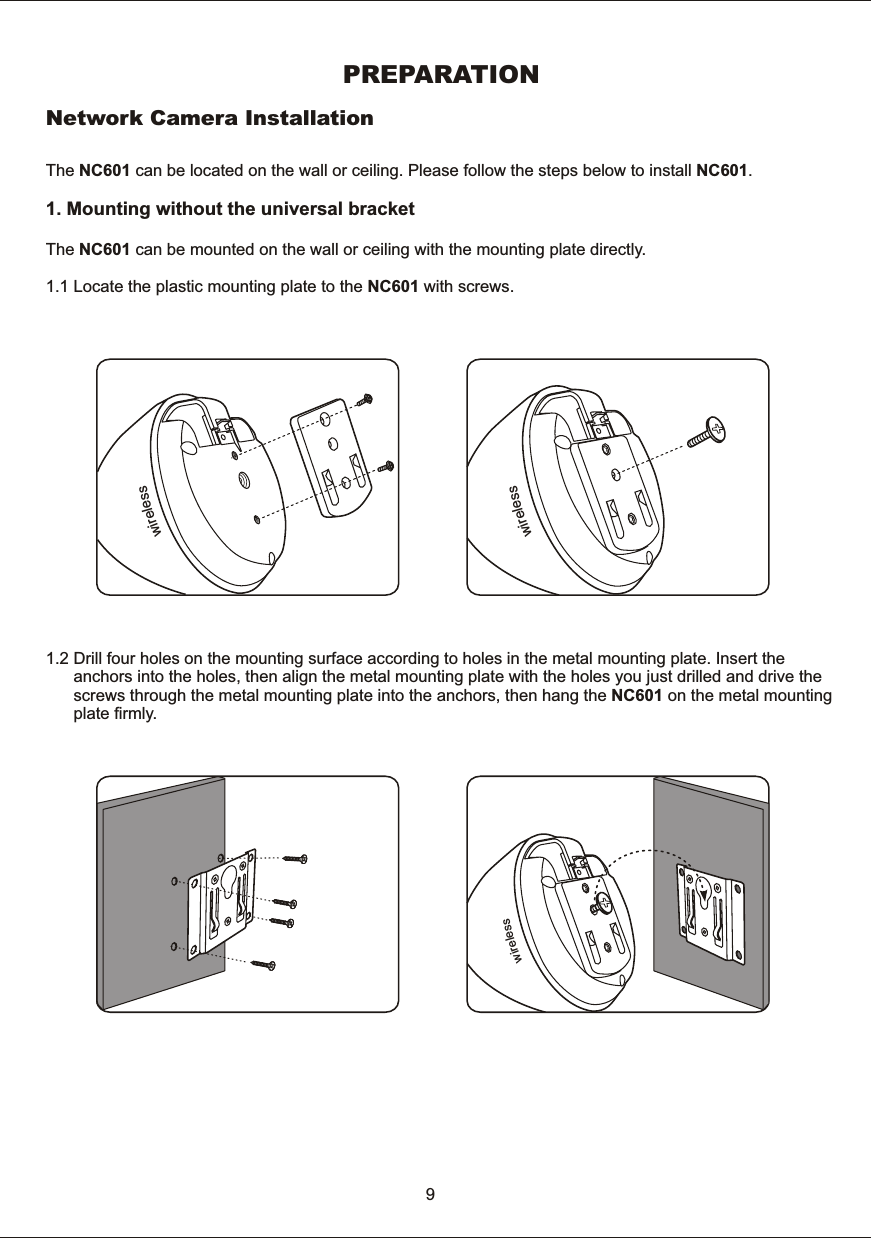
PREPARATIONNetwork  Camera  InstallationThe  NC601  can  be  located  on  the  wall  or  ceiling.  Please  follow  the  steps  below  to  install  NC601.1.  Mounting  without  the  universal  bracketThe  NC601  can  be  mounted  on  the  wall  or  ceiling  with  the  mounting  plate  directly. 1.1  Locate  the  plastic  mounting  plate  to  the  NC601  with  screws.1.2  Drill  four  holes  on  the  mounting  surface  according  to  holes  in  the  metal  mounting  plate.  Insert  the             anchors  into  the  holes,  then  align  the  metal  mounting  plate  with  the  holes  you  just  drilled  and  drive  the            screws  through  the  metal  mounting  plate  into  the  anchors,  then  hang  the  NC601  on  the  metal  mounting             plate  firmly.   9sseleriwsseleriwsseleriw
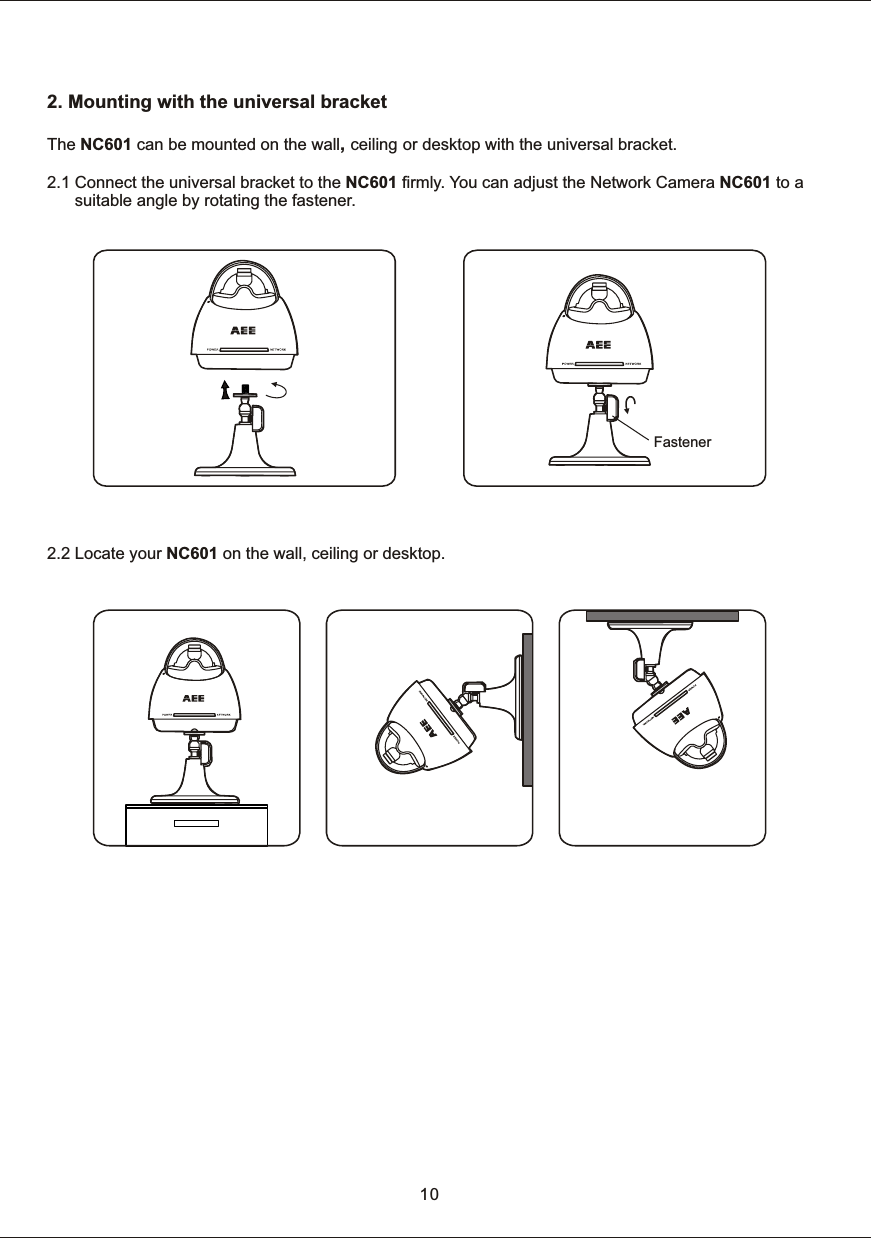
2.  Mounting  with  the  universal  bracketThe  NC601  can  be  mounted  on  the  wall,  ceiling or  desktop  with  the  universal  bracket. 2.1  Connect  the  universal  bracket  to  the  NC601  firmly.  Yo u  can  adjust  the  Network  Camera  NC601  to  a             suitable  angle  by  rotating  the  fastener. 2.2  Locate  your  NC601  on  the  wall,  ceiling  or  desktop.   Fastener10
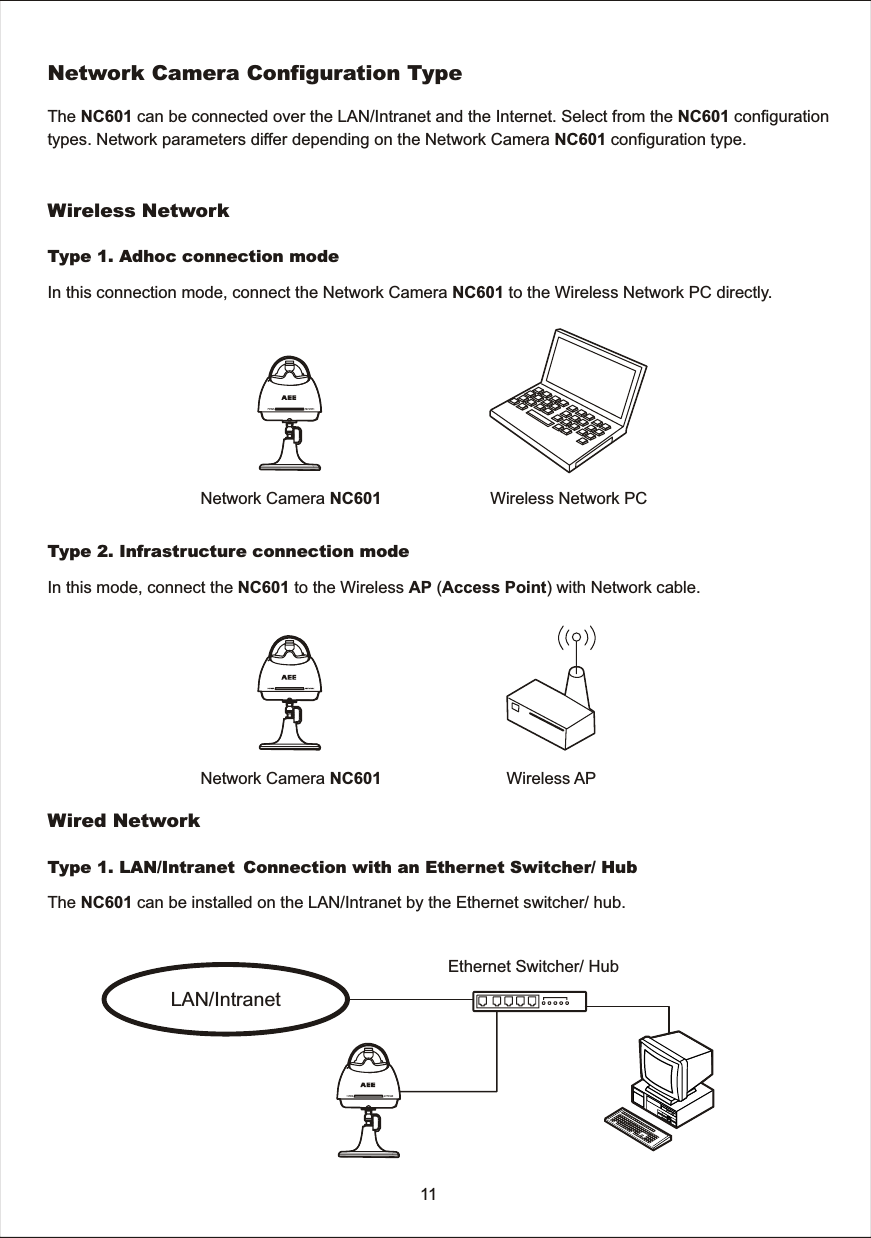
In  this  mode,  connect  the  NC601  to  the  Wireless  AP  (Access  Point)  with  Network  cable. In  this  connection  mode,  connect  the  Network  Camera  NC601  to  the  Wireless  Network  PC  directly.Wireless  Network  PCThe  NC601  can  be  connected  over  the  LAN/Intranet  and  the  Internet.  Select  from  the  NC601  configurationtypes.  Network  parameters  differ  depending  on  the  Network  Camera  NC601  configuration  type. Network  Camera  Configuration  TypeType  1.  Adhoc  connection  modeWireless  NetworkType  2.  Infrastructure  connection  modeWireless  APWired  NetworkThe  NC601  can  be  installed  on  the  LAN/Intranet  by  the  Ethernet  switcher/  hub.Type  1.  LAN/Intr anet Connection  with  an  Ethernet  Switcher/  HubLAN/IntranetEthernet  Switcher/  Hub11Network  Camera  NC601Network  Camera  NC601
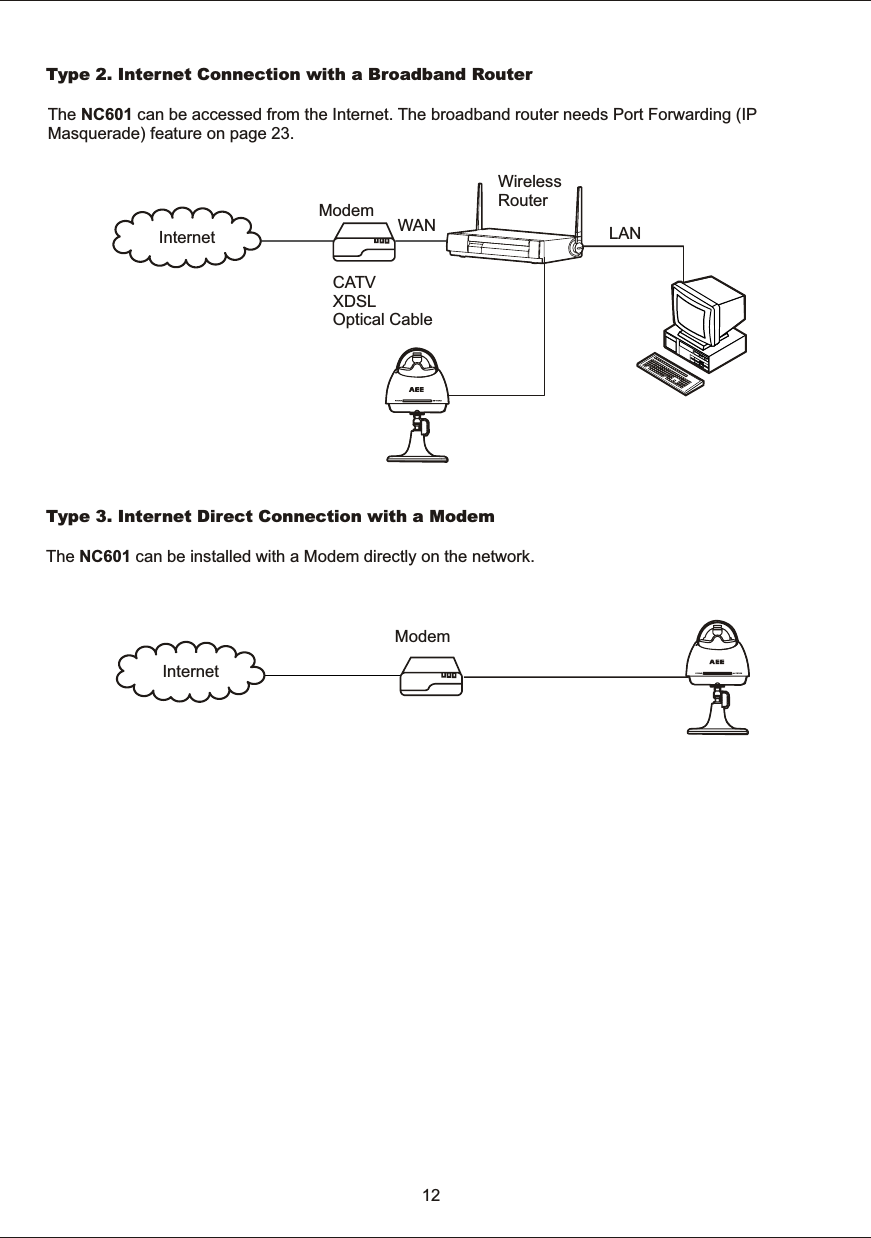
Type  2.  Internet  Connection  with  a  Broadband  RouterThe  NC601  can  be  accessed  from  the  Internet.  The  broadband  router  needs  Port  Forwarding  (IP Masquerade)  feature  on  page  23.InternetModem WANCATVXDSLOptical  CableWirelessRouterLANType  3.  Internet  Direct  Connection  with  a  ModemThe  NC601  can  be  installed  with  a  Modem  directly  on  the  network.   12InternetModem
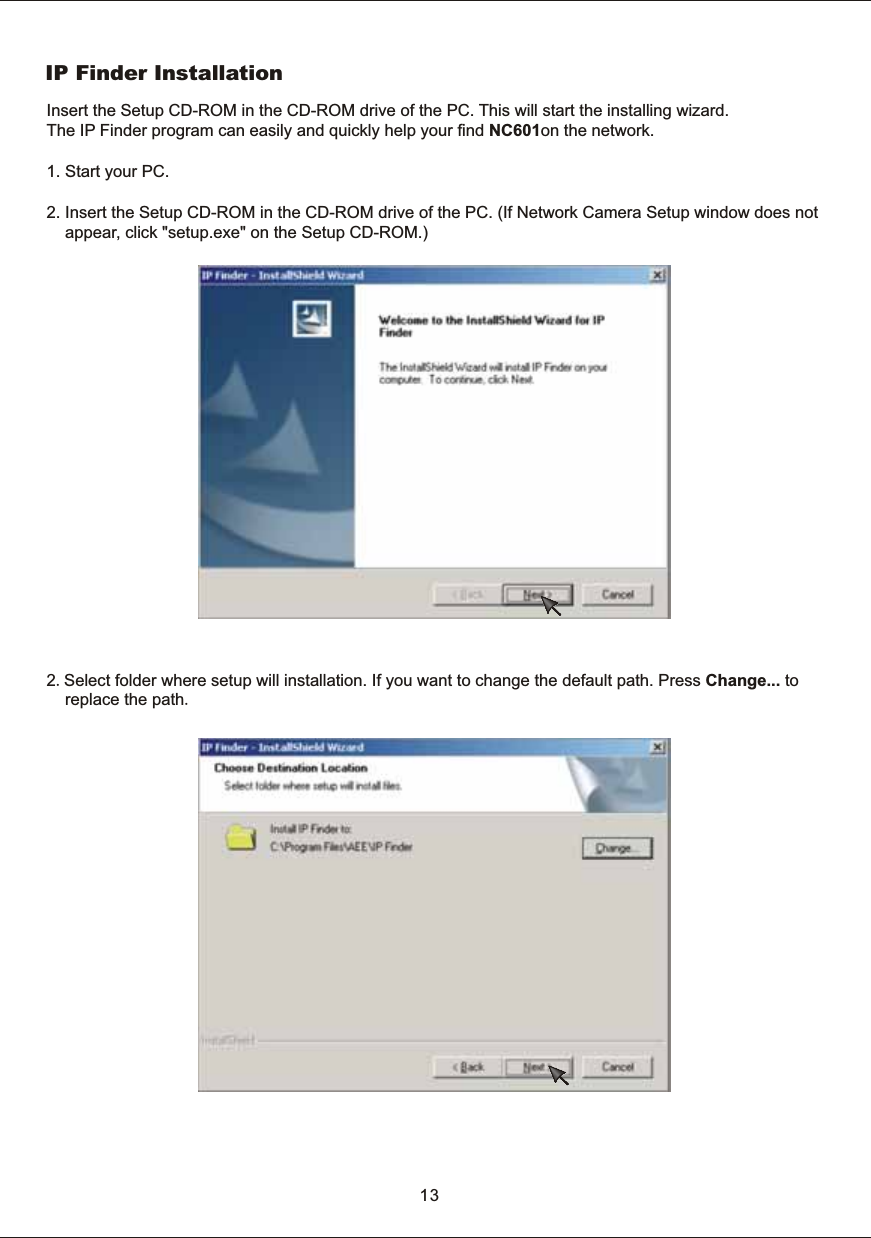
IP  Finder  Installation132.Select  folder  where  setup  will  installation.  If  you  want  to  change  the  default  path.  Press  Change...  to        replace  the  path.Insert  the  Setup  CD-ROM  in  the  CD-ROM  drive  of  the  PC.  This  will  start  the  installing  wizard. The  IP  Finder  program  can  easily  and  quickly  help  your  find  NC601on  the  network. 1.  Start  your  PC.2.  Insert  the  Setup  CD-ROM  in  the  CD-ROM  drive  of  the  PC.  (If  Network  Camera  Setup  window  does  not         appear,  click  "setup.exe"  on  the  Setup  CD-ROM.)
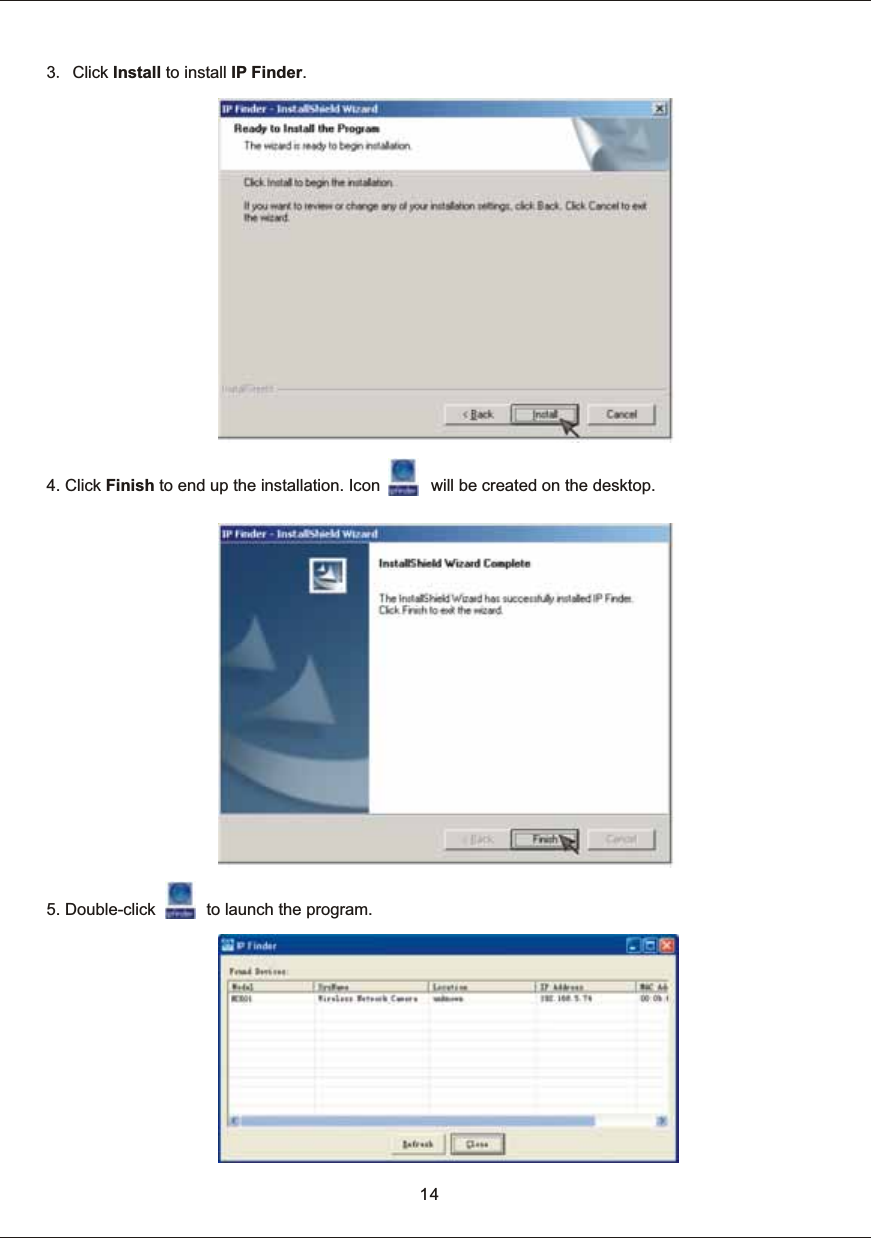
143.  Click  Install  to  install  IP  Finder.5.  Double-click                      to  launch  the  program.4.  Click  Finish  to  end  up  the  installation.  Icon                      will  be  created  on  the  desktop.
Network  ParametersHow  to  refer  the  network  parameters  from  the  PC If  you  cannot  get  the  network  parameters,  you  can  refer  to  the  network  parameters  except  for  IP  address from  the  PC  on  the  same  network  in  the  following  procedure.When  using  Windows  2000  or  Windows  XP1.  Click  [Start]  –>  [Program]  (–>  [Accessories])  –>  [MS-DOS®  (Command)  Prompt].  MS-DOS  Prompt  window  opens.  These  steps  are  slightly  different  depending  on  the  operating  system.2.  Enter  "ipconfig  /all"  and  press  [Enter]. 3.  Enter  "exit"  and  press  [Enter]  to  close  the  window. 15Use  IP  Finder  to  find  IP  address  of  your  network  camera1.  Connect  your  NC601  and  PC  with  RJ-45  cable.2.  Double-click  icon                    .  The  following  window  appears.  IP  address  may  differ  according  to  different         network  environment.  Take  the  192.168.0.100  as  example:
Setting  IP  Address  of  the  PC1.  Follow  the  steps  below,  appropriate  for  your  operating  system  to  open  TCP/IP  Properties  window  on  the         PC. Windows  2000 [Start]  –>  [Settings]  –>  [Control  Panel]  –>  [Network  and  Dial-up  Connections]  –> [Local  Area  Connection  Icon] in  use  –>  [Properties]  –>  Select  Internet  Protocol  [TCP/IP]  –> [Properties]  –>  [Use  the  following  IP  address] Windows  XP [Start]  (–>  [Settings])  –>  [Control  Panel]  –>  [Network  and  Internet  Connections]  –> [Network  Connections]  –>  [Local  Area  Connection  Icon]  in  use  –>  [Properties]  –>  Select  Internet Protocol  [TCP/IP]  –>  [Properties]  –>  [Use  the  following  IP  address] 2.  TCP  IP  Properties  window  appears.  Set  "192.168.0.X”    in  the  IP  address  data  field  and  "255.255.255.0"           in  the  Subnet  Mask  data  field  (X  can  be  0~255  except  100).  This  makes  the  camera  and  your  PC  in  the           same  net  segment. 3.  Click  [OK]. Shield  CoverNote:If  you  forget  your  settings,  you  can  remove  the  shield  cover,  press  the  RESET  button  on  the  NC601  to  enable  the  defaultsettings.  You  may  refer  to  the  Default  Settings  section  on  page  52~53  for  more  details.16
Proxy  Server  SettingA  proxy  server  may  prevent  you  from  connecting  directly  to  NC601  in  some  corporate  environments.  The web  browser  can  set  up  the  IP  address  communication  without  using  a  proxy  server.  Consult  your  ISP  ornetwork  administrator.   Note: A  proxy  server  is  generally  used  to  maintain  security  on  a  network  that  offers  an  Internet  connection.  The network  of  NC601  with  the  proxy  server  may  cause  some  problems  to  the  image  quality  such  as  taking much  time  in  refresh  interval.  Consult  your  ISP  or  network  administrator  for  details. 1.  Start  up  the  Internet  Explorer.2.  Select  [Tools]  –>  [Internet  Options...]  –>  [Connections]  tab  and  click  [LAN  Settings].  See  if  the  Use           a  proxy  server  check  box  is  checked  or  not  in  the  next  window.  When  checked,  click  [Advanced...].3.  Enter  the  IP  address  of  your  NC601  assigned  from  your  ISP  or  network  administrator  into  the  [Do  not         use  proxy  server  for  addresses  beginning  with  data]  field.   4.  Click  [OK]  on  all  of  the  opening  windows. 17See  if  the  check  boxis  checked  or  notWhen  checked,  click[Advanced...]When  not  checked,  click  [Cancel].  Your  proxy  server  settings  cause  no  problems.
UPnP  FunctionUPnP  means  Universal  Plug  and  Play.  This  function  is  only  suitable  for  Windows  XP.  Please  take  the following  steps  to  activate  this  function.1.  Click  [Start]  (–>  [Settings])  –>  [Control  Panel]–>  [Add/Remove  Programs] 2.  Click  [Add/Remove  Windows  Components].18
3.  Double-click  [Networking  Services].4.  Activate  the  UPnP  function.19
5.  Click  [OK].6.  Click  [Next].7.  Click  [Finish].  The  UPnP  function  is  enabled.20
Notes:      After  the  UPnP  function  is  enabled,  click  My  Network  Places,  you  will  see  the  icon            the  Network  Camera  is connected  correctly.   21Internet  Explorer  Security  SettingsActiveX  will  be  used  during  reviewing  the  pictures  from  the  NC601  via  Internet  Explorer.  Please  take  thefollowing  steps  to  reset  the  Internet  Explorer  safety.1.  Click  [Start]  (–>  [Settings])  –>  [Control  Panel]–>  [Internet  Options].
2.  Click  [Security]–>  [Custom  Level].223.  Set  the  security  as  the  following,  and  reset  the  security  to  Medium,  then  click  OK.
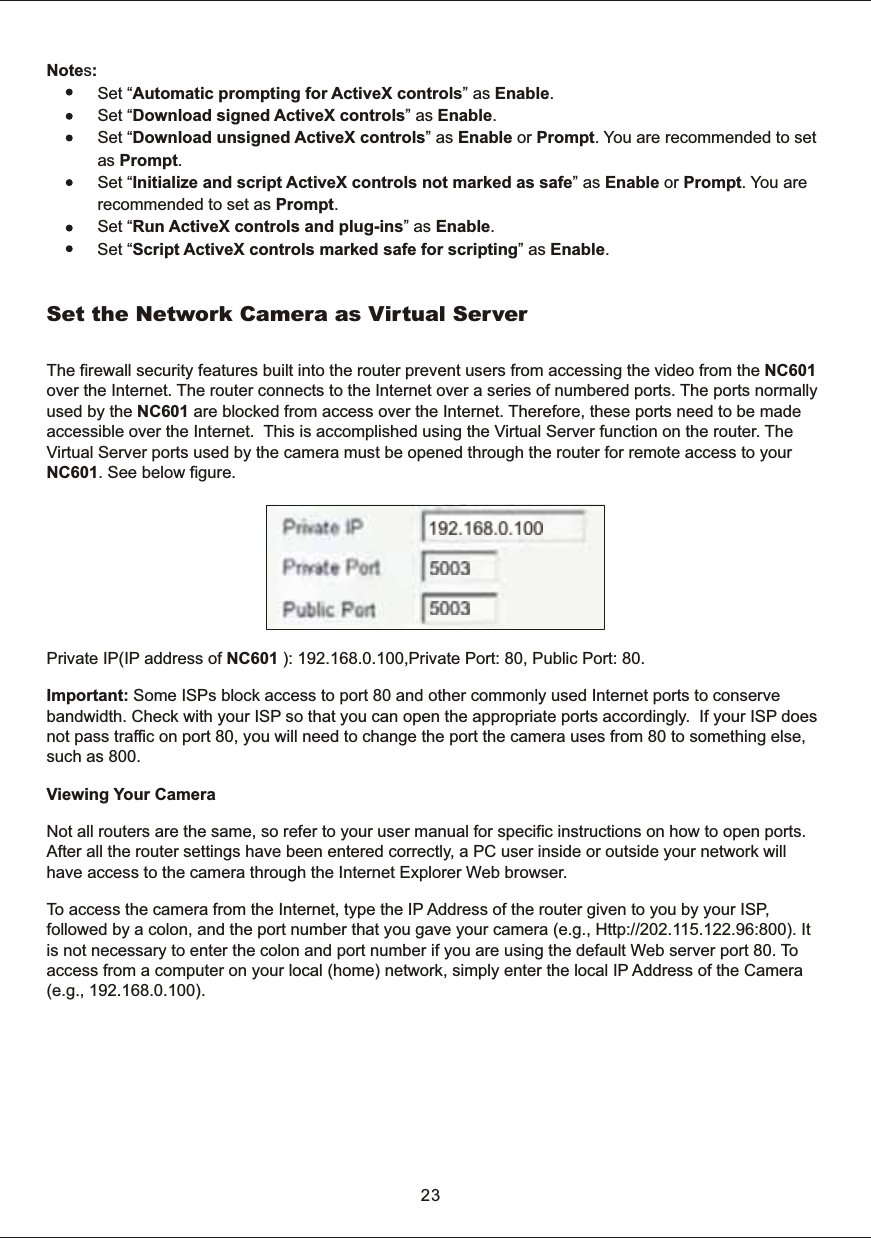
23Notes:            Set “Automatic  prompting  for  ActiveX  controls”  as  Enable.           Set “Download  signed  ActiveX  controls”  as  Enable.           Set “Download  unsigned  ActiveX  controls”  as  Enable  or  Prompt.  You  are  recommended  to  set            as Prompt.           Set “Initialize  and  script  ActiveX  controls  not  marked  as  safe”  as  Enable  or  Prompt.  You  are                       recommended  to  set  as  Prompt.           Set “Run  ActiveX  controls  and  plug-ins”  as  Enable.           Set “Script  ActiveX  controls  marked  safe  for  scripting”  as  Enable.The  firewall  security  features  built  into  the  router  prevent  users  from  accessing  the  video  from  the  NC601 over  the  Internet.  The  router  connects  to  the  Internet  over  a  series  of  numbered  ports.  The  ports  normallyused  by  the  NC601  are  blocked  from  access  over  the  Internet.  Therefore,  these  ports  need  to  be  made accessible  over  the  Internet.    This  is  accomplished  using  the  Virtual  Server  function  on  the  router.  The Virtual  Server  ports  used  by  the  camera  must  be  opened  through  the  router  for  remote  access  to  your NC601.  See  below  figure.Private  IP(IP  address  of  NC601  ):  192.168.0.100,Private  Port:  80,  Public  Port:  80. Important:  Some  ISPs  block  access  to  port  80  and  other  commonly  used  Internet  ports  to  conserve bandwidth.  Check  with  your  ISP  so  that  you  can  open  the  appropriate  ports  accordingly.    If  your  ISP  does not  pass  traffic  on  port  80,  you  will  need  to  change  the  port  the  camera  uses  from  80  to  something  else, such  as  800. Viewing  Your  Camera Not  all  routers  are  the  same,  so  refer  to  your  user  manual  for  specific  instructions  on  how  to  open  ports. After  all  the  router  settings  have  been  entered  correctly,  a  PC  user  inside  or  outside  your  network  will have  access  to  the  camera  through  the  Internet  Explorer  Web  browser. To  access  the  camera  from  the  Internet,  type  the  IP  Address  of  the  router  given  to  you  by  your  ISP, followed  by  a  colon,  and  the  port  number  that  you  gave  your  camera  (e.g.,  Http://202.115.122.96:800).  It is  not  necessary  to  enter  the  colon  and  port  number  if  you  are  using  the  default  Web  server  port  80.  To  access  from  a  computer  on  your  local  (home)  network,  simply  enter  the  local  IP  Address  of  the  Camera (e.g.,  192.168.0.100).Set  the  Network  Camera  as  Virtual  Server
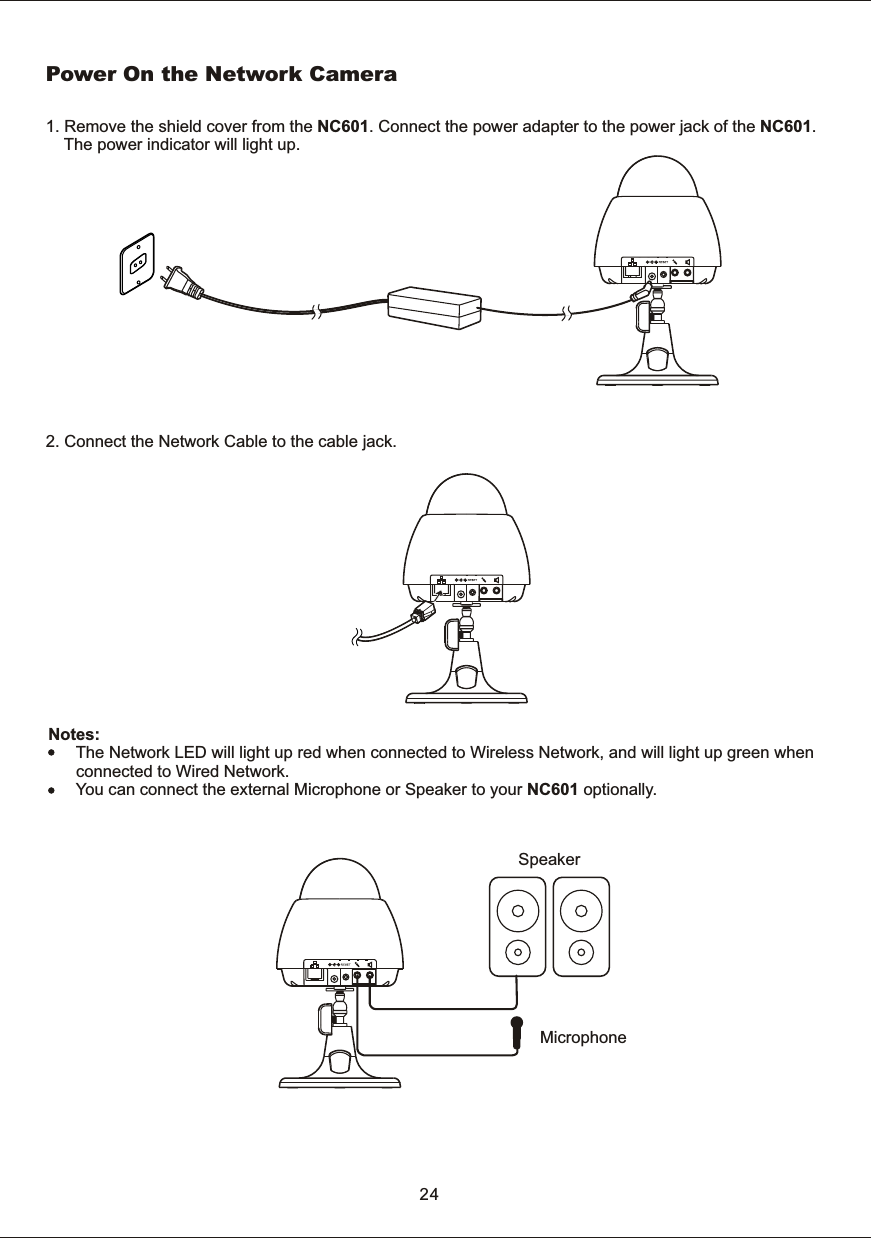
Power  On  the  Network  Camera1.  Remove  the  shield  cover  from  the  NC601.  Connect  the  power  adapter  to  the  power  jack  of  the  NC601.         The  power  indicator  will  light  up.2.  Connect  the  Network  Cable  to  the  cable  jack.Notes:             The  Network  LED  will  light  up  red  when  connected  to  Wireless  Network,  and  will  light  up  green  when             connected  to  Wired  Network.       You  can  connect  the  external  Microphone  or  Speaker  to  your  NC601  optionally. SpeakerMicrophone24
NETWORK  CAMERA  SCREEN  AND  SETUP  WINDOWYou  can  select  one  of  the  three  ways  to  review  the  pictures  from  the  NC601.1.  Input  the  IP  address  (or  URL)  of  the  NC601  on  the  Web  Browser.  Yo u  will  see  the  home  page.        Click  [Enter].Notes:        Through  this  welcome  page,  you  are  allowed  to  enter  the  picture  viewing  interface  or  enter  the         system  setting  interface.  After  inputting  the  correct  username  (the  default  is  admin,  in  lowercase)  and         password  (the  default  is  admin,  in  lowercase),  you  could  choose  to  click  on  the  item  Enter  to  access        the  picture  viewing  interface  or  the  item  Setting  to  access  the  system  setting  interface.                       The  general  users  assigned  by  the  administrator  are  not  allowed  to  enter  the  system  setting  interface.         They  can  only  be  allowed  to  enter  the  picture  viewing  interface.25Review  images  from  the  Network  Camera
2.  If  your  OS  is  Windows  XP,  click  [My  Network  Places],  double  click  the  icon    You  will  see  the  home  page,  click  [Enter].26Note: If  DHCP  server  is  installed  in  your  network,  the IP  address  of  your network  camera  may not be  the  default  value 192.168.0.100.  We  recommend  you  use  IP  Finder  to  get  the default IP  address  of  your  camera  then. 3.  Make  sure  the  IP  address  of  the  NC601  the  same  net  segment  as  that  of  the  PC  .  Run  the  IP  Finder         and  double-click  the  related  NC601  IP  address.
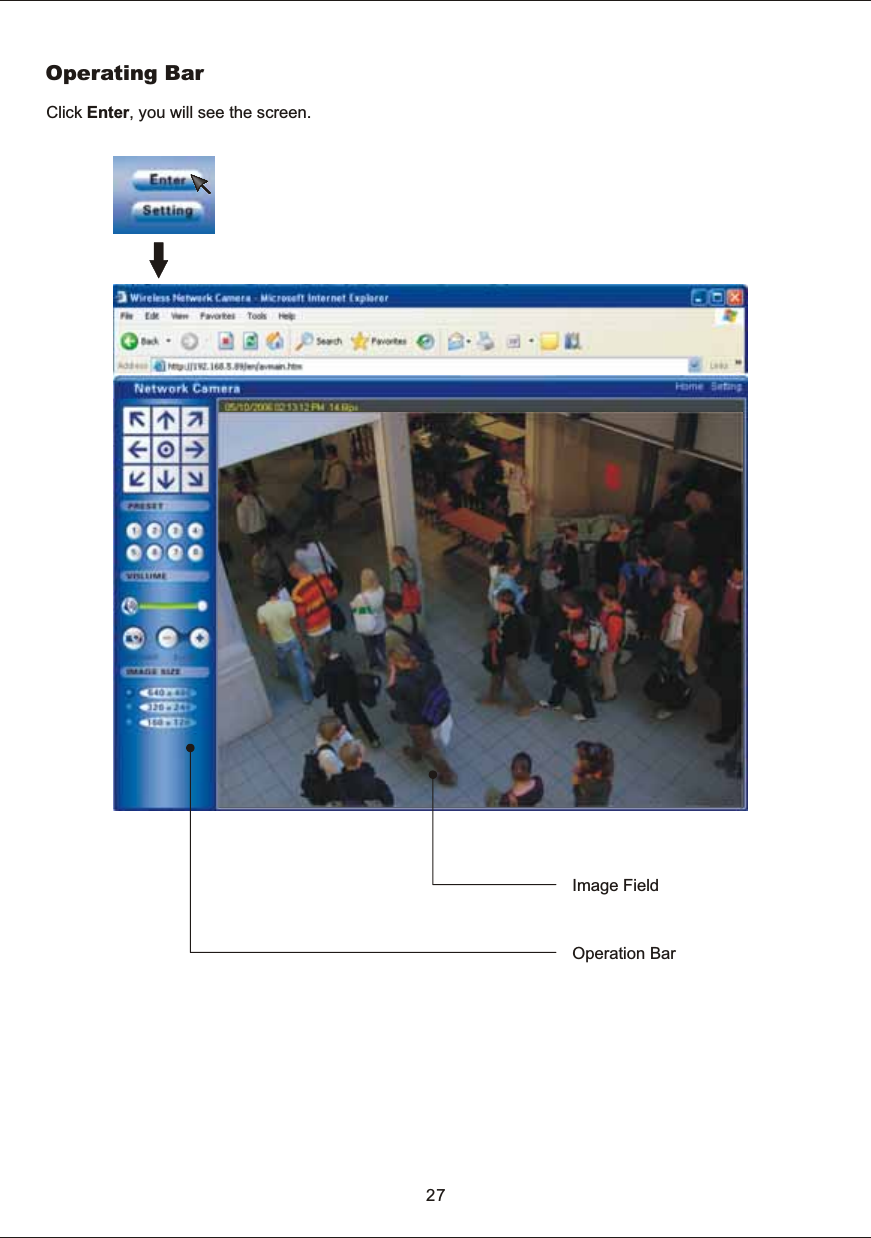
Operating  BarClick  Enter,  you  will  see  the  screen.Operation  Bar27Image  Field
(1)  Pan/Tilt  buttonEach  surrounding  arrow  of  Pan/Tilt  moves  the  lens  Up,  Down,  Right, Left.(2)  Home  position  button Moves  the  lens  to  Home  Position. (3)  Preset  ButtonsAll  eight  preset  buttons  and  home  position  button  can  be  overridden. Lens  moves  to  the  preset/  home  position  when  clicking  each  registered button.  Blue/  White  buttons  mean  Registered/  Not  registered.(4)  Mute4.1)  Press  Mute  button                    to  turn  on/off  the  volume4.2)  Slide  the  slide  block  horizontally  to  adjust  volume  per  your  request(5)  SnapshotPress  the  Snapshot  button  to  obtain  a  snapshot  of  present  detective image.Press  Save  to  store  it  in  your  computer,  and  it  will  be  automatically named  by  present  data  &  timePress  Cancel  to  exit.(6)  Zoom  inPress  Zoom+  to  magnify  image  area  to  see  the  details,  and  press Zoom-  to  return  the  normal  view(7)  Image  size: Three  Image  Size  options  for  your  request:  [640x480],  [320x240]  and [160x120].(1)  Pan/Tilt  button(2)  Home  position  button4.1)Mute  button(5)  Snapshot  button4.2)  Slide  block(6)  Zoom  in/out  button(7)  Image  resolution(3)  Preset  button28Note:  The  Pan/Tilt  function  makes  it  possible  that  clicking  on  the  Image  Field  will  turn  the  lens  to  directions  you  like.
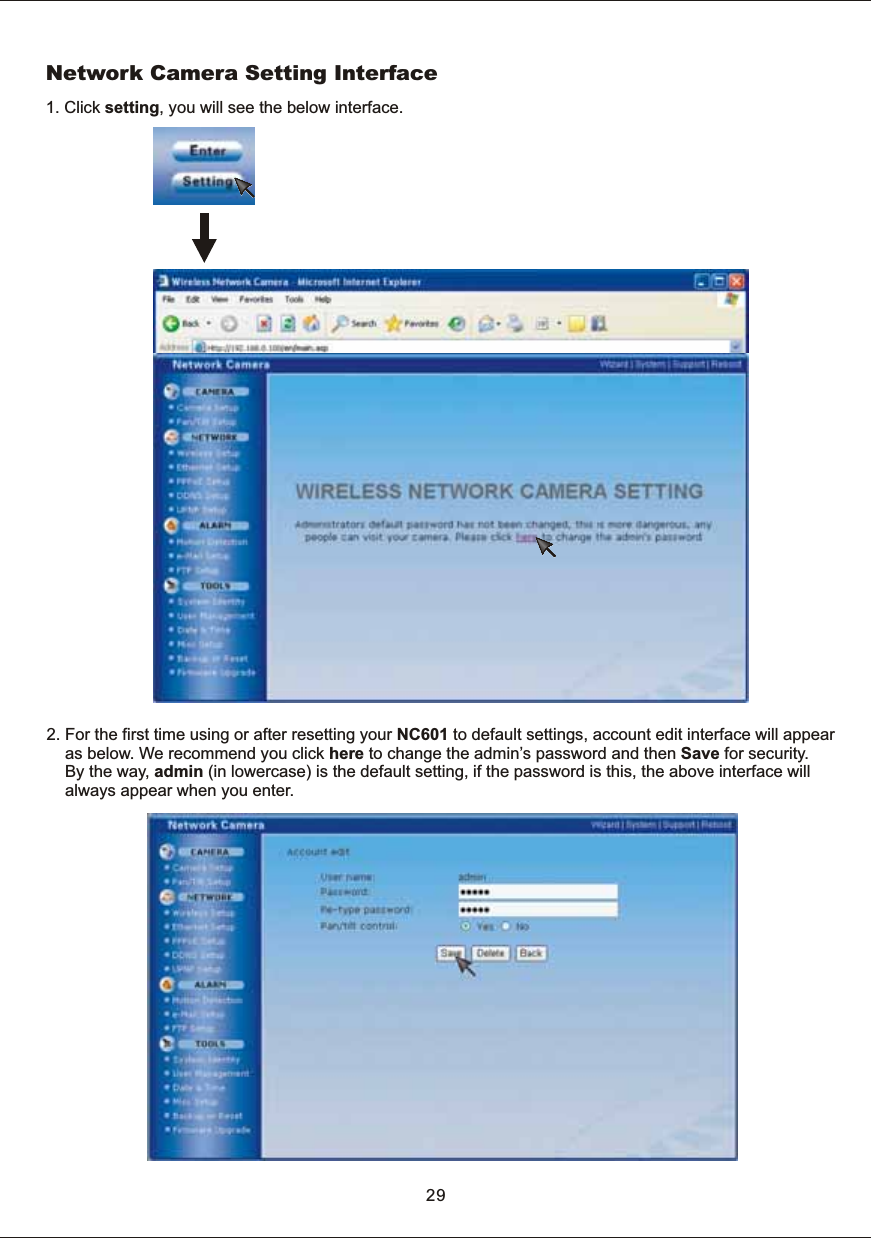
Network  Camera  Setting  Interface2.  For  the  first  time  using  or  after  resetting  your  NC601  to  default  settings,  account  edit  interface  will  appear         as  below.  We  recommend  you  click  here  to  change  the  admin’s  password  and  then  Save  for  security.         By  the  way,  admin  (in  lowercase)  is  the  default  setting,  if  the  password  is  this,  the  above  interface  will         always  appear  when  you  enter. 291.  Click  setting,  you  will  see  the  below  interface.
For  camera  setup,  you  can  set  Image  size  ,  Frame  rate,  Bit  rate,  Frequency  and  so  on.  You  can  also  turn the  built-in  Microphone  on,  adjust  Mic  volume  and  set  the  Audio  bit  rate.[Image  size]  640  x  480(VGA),  320  x  240(QVGA),  160  x  120(QQVGA)[Frame  rate]  10/15/20/25/30(fps)  five  options  for  your  request.[Bit  rate]  Five  options  for  your  request:  512,  768,  1024,  1536,  2048(kbps). [Frequency]  50Hz  &  60Hz  for  your  request.[Image  revolution]  Display  images  upside  down. [Microphone]  Turn  on/off  the  built-in  microphone.[Mic  volume]  Adjust  the  volume  of  the  microphone,  0~15  options  for  your  request.[Audio  bit  rate]  Audio  clips  transmission  speed. Click  Apply  to  confirm  your  settings.Note:1.  For  Image  size,  smaller  the  image  size,  unclearer  but  smoother  the  picture.2.  For  Bit  rate,  lower  the  bit  rate,  lower  the  image  quality3.  For  Frequency:3.1)  Generally  speaking,  50Hz  is  often  used  in  China,  Australia  and  Europe,  60Hz  used  in  the  USA,  Canada,  Japan and  Korea.  The  frequency  should  match  that  of  your  country,  otherwise,  the  interruption  and    interference  occur. 3.2)  For  50Hz,  maximum  admitted  frame  rate  is  25fps,  while  60Hz  is  30fps.Camera  Setup30CAMERA
[Preset  number]  1~8  up  to  8  preset  positions  can  be  memoried.Call:  Turn  the  lens  to  the  very  position  you  select.Add:  Add  new  preset  position(s)Delete:  Delete  former  preset  position(s)[Preset  position  name]  Name  for  the  preset  position  you  set.[Pan/  tilt  function]  Enable  the  lens  circumvolution  function  or  disable  on  the  operation  bar. Click  on  Apply  to  confirm  your  setting  to  enable/disable  Pan/Tilt  function. Pan/  Tilt  setupPan/Tilt  operation  can  move  the  lens  130°  horizontally  and  70°  vertically.  This  movable  lens  extends  your visual  angle.  The  registered  Preset  Position  can  be  demonstrated  on  the  Operation  bar(Refer  to  page  27).31
NETWORKWireless  setupThe  NC601  corresponds  to  the  wireless  system  based  on  IEEE802.11b/g.  Encryption  establishes  the security  to  prevent  unauthorized  users  to  access  the  wireless  data  communication.[SSID]  Type  the  ID  to  identify  the  wireless  network  you  want  to  access  using  up  to  32  ASC   characters. For  your  security,  be  sure  to  change  the  factory  setting. [Mode]  Infrastructure  mode  and  Adhoc  modeSelect  Adhoc  mode  when  connecting  to  computer  directly,elect  Infrastructure  mode  when  connecting  to  computer  via  an  access  point  or  a  radio  router.[Status]  Show  the  status  of  the  wireless  connection.[Encryption]  Select  the  key  length,  either  64  or  128  bits.[Key  type] You  can  type  the  WEP  key  either  in  hexadecimal  numbers  or  ASC characters.[WEP  key]  Specify  up  to  4  WEP  keys.Note: You  can  use  the  present  SSID  or  you  can  click  Search...  to  search  new  SSID.  And  then  click  Apply  to  use  it,  or  Back  to cancel  it.ⅡAdhoc  Mode:   Infrastructure  Mode:  SⅡ32
Ethernet setupObtain  an  IP  address  automatically(DHCP): If  DHCP  server  is  installed  on  the  network,  select  it  when  the  IP  address  is  assigned  by  DHCP  server.  IP address  is  assigned  automatically.Note: If  DHCP  server  is  installed  on  your  network,  the  interface  may  differ  from  the  above  image  after  clicking  on  Ethernet setup.Use  the  following  IP  address:Select  this  when  a  fixed  IP  is  set.[IP  address]  Type  the  IP  address  of  your  camera[Subnet  mask]  Type  the  subnet  mask[Default  gateway]  Type  the  default  gatewayAlways  use  the  following  DNS  server  address: [Primary  DNS  IP  address]  Type  the  IP  address  of  the  primary  DNS  server[Secondary  DNS  IP  address]  Type  the  IP  address  of  the  secondary  DNS  server,  if  necessaryHTTP  port  numberThe  default  HTTP  port  number  is  80.33
PPPoE setupThe  NC601  can  be  installed  alone  without  PC  on  the  network.  Some  XDSL  services  use  PPPoE  (Point-to-Point  Protocol  over  Ethernet  ).[PPPoE  dial-up]  Enable  or  disable  PPPoE  connection[e-Mail  notification]  Remind  you  with  IP  address  of  your  NC601  if  Enable  selected.  The  precondition  is that  you  have  set  the  relative  parameters  in  your  e-mail  set  (Refer  to  page  40  for  E-mail  alarm  setup).[Service  name]  Either  an  ISP  name  or  a  class  of  service  that  is  configured  on  the  PPPoE  server. [User  name]  Type  a  user  name. [Password]  Type  a  password.[Re-type  password] To  confirm  the  password,  type  the  same  characters  as  you  typed  in  the  Password box.Click  on  Apply  to  confirm  your  settings.34How  to  access  via  PPPoE  connection1.  After  the  ,  reboot  your  network  camera.2.  Connect  the  camera  to  internet.  Refer  to  Wired  Network-Type  3.  Internet  Direct  Connection  with  a Modem  on  the  network  on  Page  12.Thus  you  can  access  your  camera  via  DDNS  or  IP  address  reminded  by  e-mail.setup
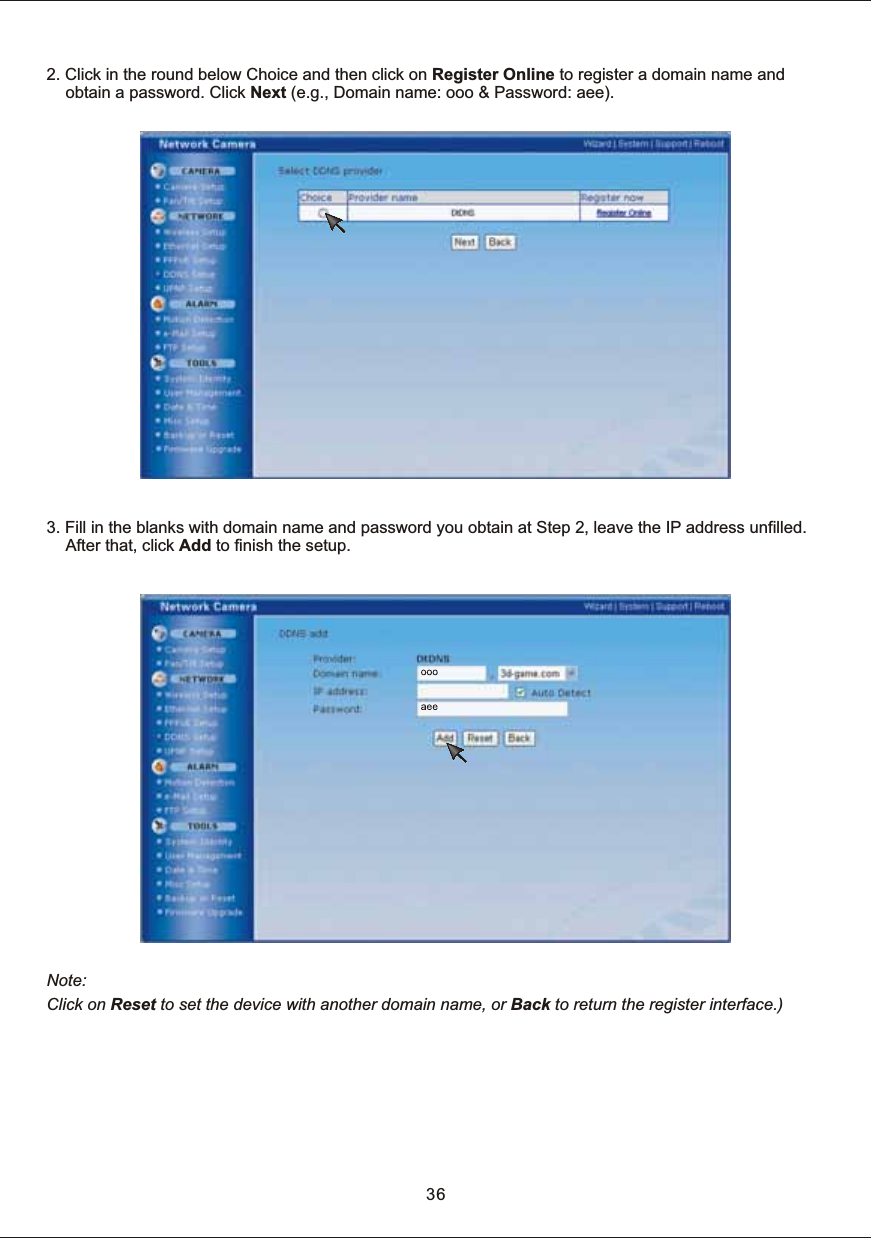
35DDNS setupVerify  that  your  ISP  supports  DHCP.  If  your  ISP  supports  DHCP,  or  if  you  assign  a  domain  name  to  the NC601,  you  need  to  contract  and  register  for  DDNS  service.  If  you  set  static  global  IP  address  to  the NC601  and  the  broadband  router,  you  do  not  need  to  register  DDNS  service.[Dynamic  DNS  status]  Enable  or  disable  DDNS  connectionClick  Apply  to  confirm  [Dynamic  DNS  status]  setting  (enable/disable)[DDNS  list]  Show  the  added  dynamic  domain  nameClick  Add  to  add  new  dynamic  domain  name(s)Click  Refresh  to  Refresh  DDNS  statusHow  to  add  DDNS1.  Firstly  Enable  the  Dynamic  DNS  function  and  then  click  Add.
2.  Click  in  the  round  below  Choice and  then  click  on  Register  Online  to  register  a  domain  name  and obtain  a  password.  Click  Next  (e.g.,  Domain  name:  ooo  &  Password:  aee). 3.  Fill  in  the  blanks  with  domain  name  and  password  you  obtain  at  Step  2,  leave  the  IP  address  unfilled. After  that,  click  Add  to  finish  the  setup. Note: Click  on  Reset  to  set  the  device  with  another  domain  name,  or  Back  to return  the  register  interface.)36
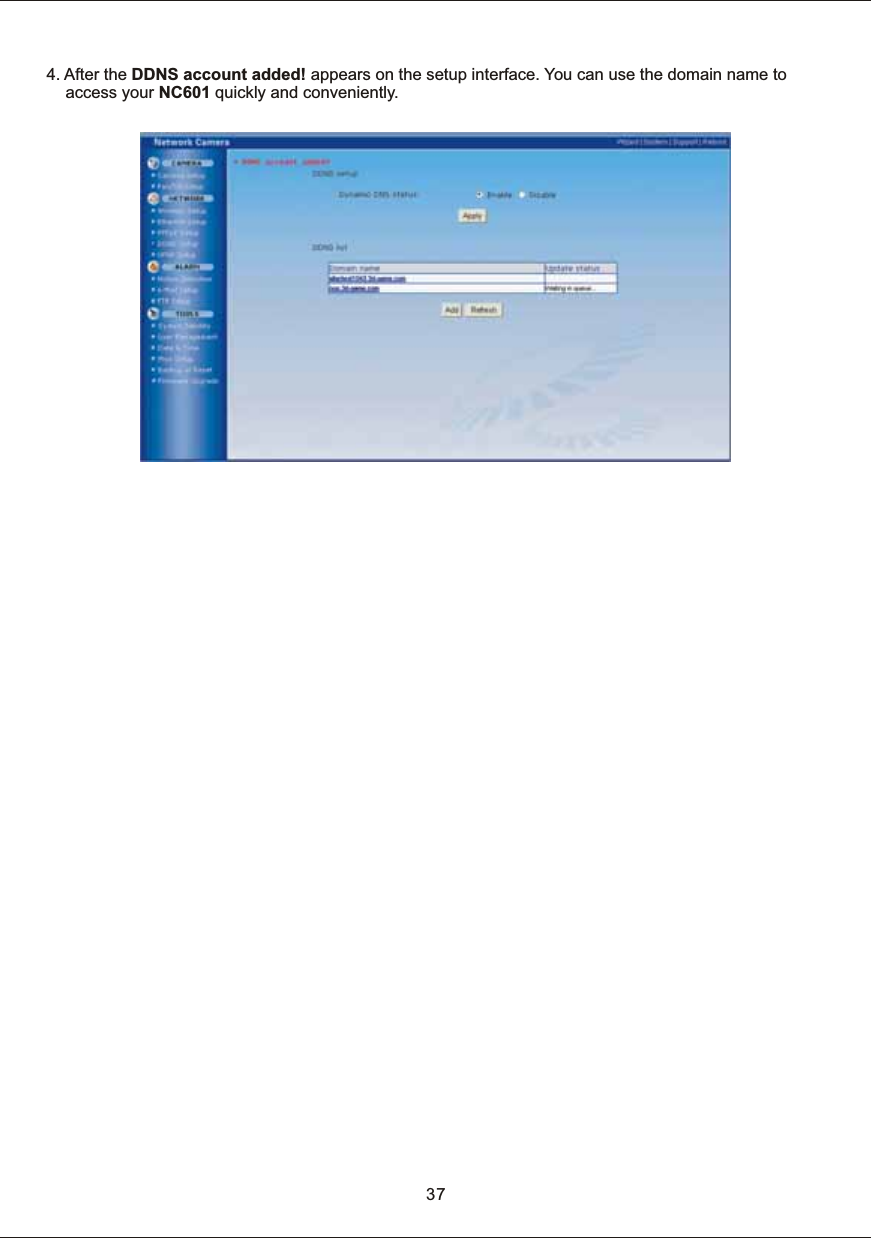
4.  After  the  DDNS  account  added!  appears  on  the  setup  interface.  Yo u   can  use  the  domain  name  to access  your  NC601  quickly  and  conveniently.37
UPNP setupUPnP  function  requires  a  Windows  XP  operating  system.  It  is  a  quick  way  to  find  Network  Camera  in  your network. Firstly  you  need  to  active  the  UPNP  function  on  your  PC,  please  refer  to  page  18-21  for  more  details.[UPNP]  Enable  or  disable  the  UPNP  function.Press  Apply  to  enable  or  disable  this  function.38
ALARMMotion  DetectionAs  the  alarm/timer  trigger,  Motion  Detection  can  activate  the  Image  Transfer  feature,  which  can  send  the images  via  e-mail  or  FTP  (File  Transfer  Protocol).  The  alarm/timer  trigger  can  be  set  on  this  window.[Window]  Up  to  four  windows  for  you  to  detect  and  alarm.[Threshold]  Setup  the  threshold,  once  exceed  the  limit,  alarm  will  be  triggered.[Sensitivity]  Set  the  measurable  difference  between  two  sequential  images  that  would  indicate  motion.Note: 1.  When  remove  a  window  (for  example,  Window  1,  to  another  place,  please  press  Apply  to        make  the  new  detective  area  in  effect)  .2.  Only  the  checked  window  area  is  effectively  set  for  alarm.3.  It  is  easier  to  trigger  the  alarm  that  you  slide  the  slide  block  of  to  left  and  that  of         the  sensitivity  to  right. threshold The  checked  window  is  effectively  set  as  an  alarm  trigger. External  Sensor  Input  of  External  I/O  activates  the  alarm  trigger39
E-mail  Alarm  setupNC601  can  transfer  the  image  via  E-mail.  The  alarm/timer  trigger  can  be  set  on  Motion  Detection window. [Motion  detection]  Trigger  to  the  alarm[Periodical  send]  Trigger  to  the  alarm [Interval  time]  Sending  image  frequency  when  enable  the  Periodical  send  trigger[SMTP  server  name]  Type  the  name  or  IP  address  of  the  SMTP  server  you  want  to  use  for  sending  an  e-mail[SMTP  server  port]  The  default  value  is  25[Authentication]  Select  the  authentication  required  when  you  send  an  e-mail.[User  name]  &  [Password]  Type  the  user  name  and  password  of  the  user  who  has  the  mail  account. This  setting  is  necessary  when  the  SMTP  server  which  sends  e-mail  performs  authentication[Re-type  password]  Re-type  the  password  above  to  confirm[Sender  e-mail  address]  Set  the  e-mail  address  by  which  you  want  to  send  e-mail[Receiver  e-mail  address]  Set  the  e-mail  address  by  which  you  want  to  receive  e-mail(Up  to  3  receivers' e-mail  address  can  be  set)[Subject]  Subject  of  the  alarm  e-mail[Message]  Description  of  the  e-mail[File  attachment]  Attach  images  shot  by  network  camera  or  not  (On/Off).Note: The  Alarm  mode  ,  which  uses  the  Network  Camera  internal  clock.,  can  send  the  e-mail  without  transferring  the  image.   Make  sure  Date  and  Time  has  been  configured.40
FTP   Alarm setupNC601  can  also  transfer  the  image  via  FTP.  The  alarm/timer  trigger  can  be  set  on  MotionDetection  window. [Motion  detection]  Trigger  to  the  alarm[Periodical  send]  Trigger  to  the  alarm[Interval  time]  Sending  image  frequency  when  the  trigger  is  Periodical  send[FTP  server  name]  It  can  be  domain  name  or  IP  address[FTP  server  port]  The  default  port  number  is  21[Anonymous]  Enable  or  disable  anonymous  visiting[User  name]  Type  your  user  name[Password]  Type  your  password[Re-type  password]  Re-type  your  password[Passive mode]  Apply  passive  mode  or  not[Remote path]  Path  to  FTP  server  where  to  save  the  alarm  imagesClick  on  Apply  to  confirm  your  settings  above.41
TOOLSSystem  Identity[System  Name]  Name  for  the  present  NC601,  to  distinguish  from  other  camera(s)  in  the  network[System  Contact]  Note  the  connecting  data  of  the  NC601[System  Location]  Note  the  NC601  location42TIP:These  information  you  fill  in  can  be  displayed  on  and  very  important  to  the  IP  Finder.  It  can  help  to  distinguish  different Network  Cameras  in  the  network.  See  the  below  figure.
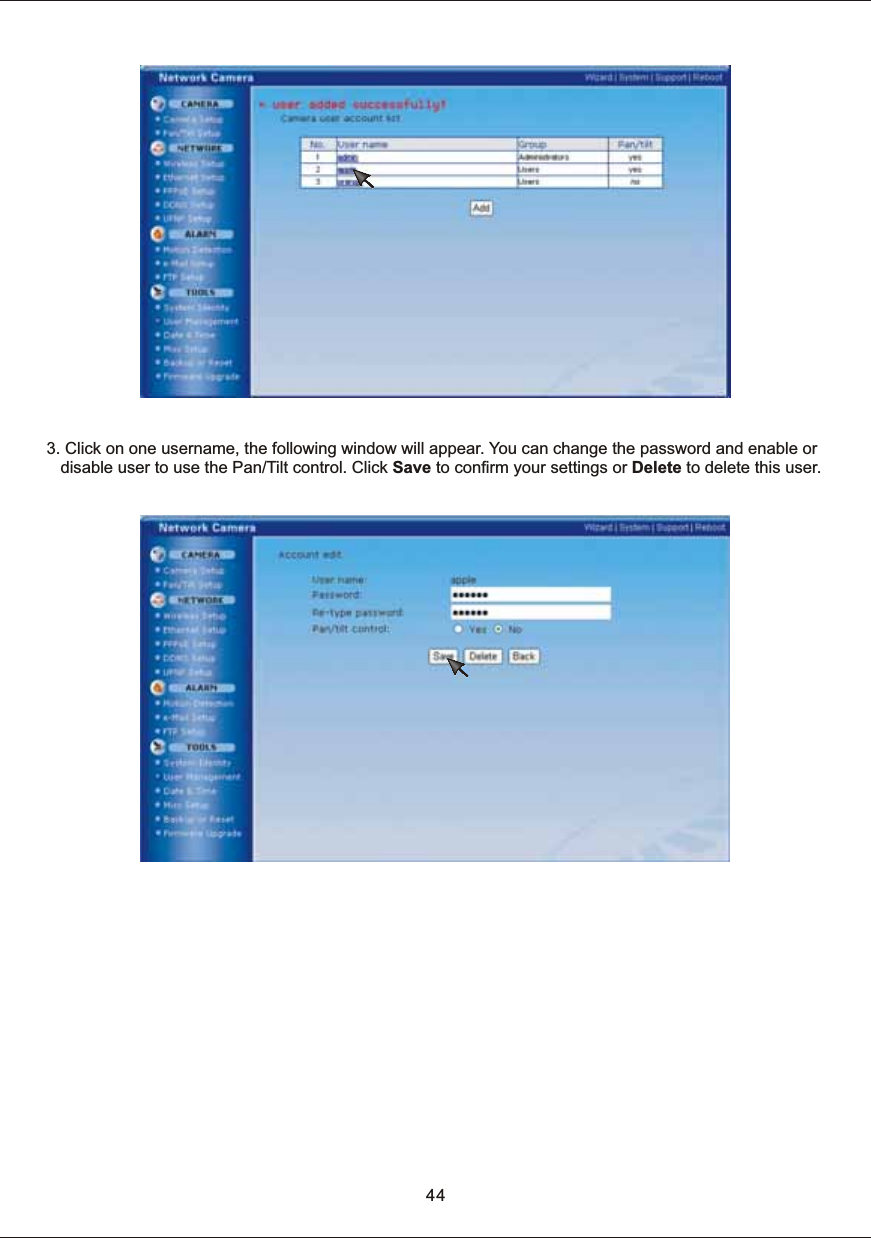
43User  Mana gement[Add]  Up  to  64  users  (including  the  admin)  can  be  set[Pan/tilt]  Indicate  whether  or  not  users  can  use  the  Pan/tilt  functionNote: 1.  Maximum  to  10  users  are  allowed  to  access  the  camera  simultaneously. 2.  As  the  number  of  users  simultaneously  connected  to  Network  Camera  increases,  the  overall  motion  performance will  decrease.How  to  add  users1.  Click  Add.2.  Type  a  user  name  and  password.  Re-type  the  password  to  confirm  your  password.  Select  Yes  or  No  for        the  Pan/Tilt  control.  Then  click  on  Add.  One  user  has  been  added.
3.  Click  on  one  username,  the  following  window  will  appear.  You  can  change  the  password  and  enable  or       disable  user  to  use  the  Pan/Tilt  control.  Click  Save  to  confirm  your  settings  or  Delete  to  delete  this  user.44
[Current  device  time]  Internal  time  for  NC601[Proposed  device  time]  External  time  for  NC601  (time  of  client  server  PC) [Select  to  change  the  time  zone  for  the  device  location]  choose proper  time  zone [Auto  time  setting(SNTP)]  Enable  or  disable  this  function[Time  server]  Type  one  NTP  server  name  in  the  boxNote: 1.  If  this  NTP  server  cannot  work  in  gear,  the  NC601  will  be  synchro  with  the  clients’  PC.2.  With  built-in  RTC(Real-time  Clock)  ,  this  device  keeps  track  of  the  time  even  when  the  power  supply  is  cut  off.Date  &  Time45
MISC  setup 46[LED  control]  Turn  on/off  the  power  &  network  LED  indicator  of  NC601Click  Apply  to  confirm  your  above  setting.
Backup or ResetNote: 1.  Do  not  turn  off  the  power  during  the  Reset  to  Factory  Default.  It  may  interrupt  the  NC601  operation.2.  If  Reset  to  Factory  Default  is  used,  all  user  settings  will  be  lost,  and  you  will  have  to  reconfigure  the  entire  camera.47[Reset]  Initialize  all  the  parameters  to  the  factory  default.  Note  that  all  customer-applied  settings  will  be lost,  requiring  you  to  reconfigure  Network  Camera.[Backup]  Backup  the  present  configuration  for  future  reference.[Search...]  Search  for  the  very  backup  configuration  and  click  Restore  to  restore  the  configuration  to  your Network  Camera.[Restore]  Click  Restore  button  to  start  restoring  a  former  backup  settings
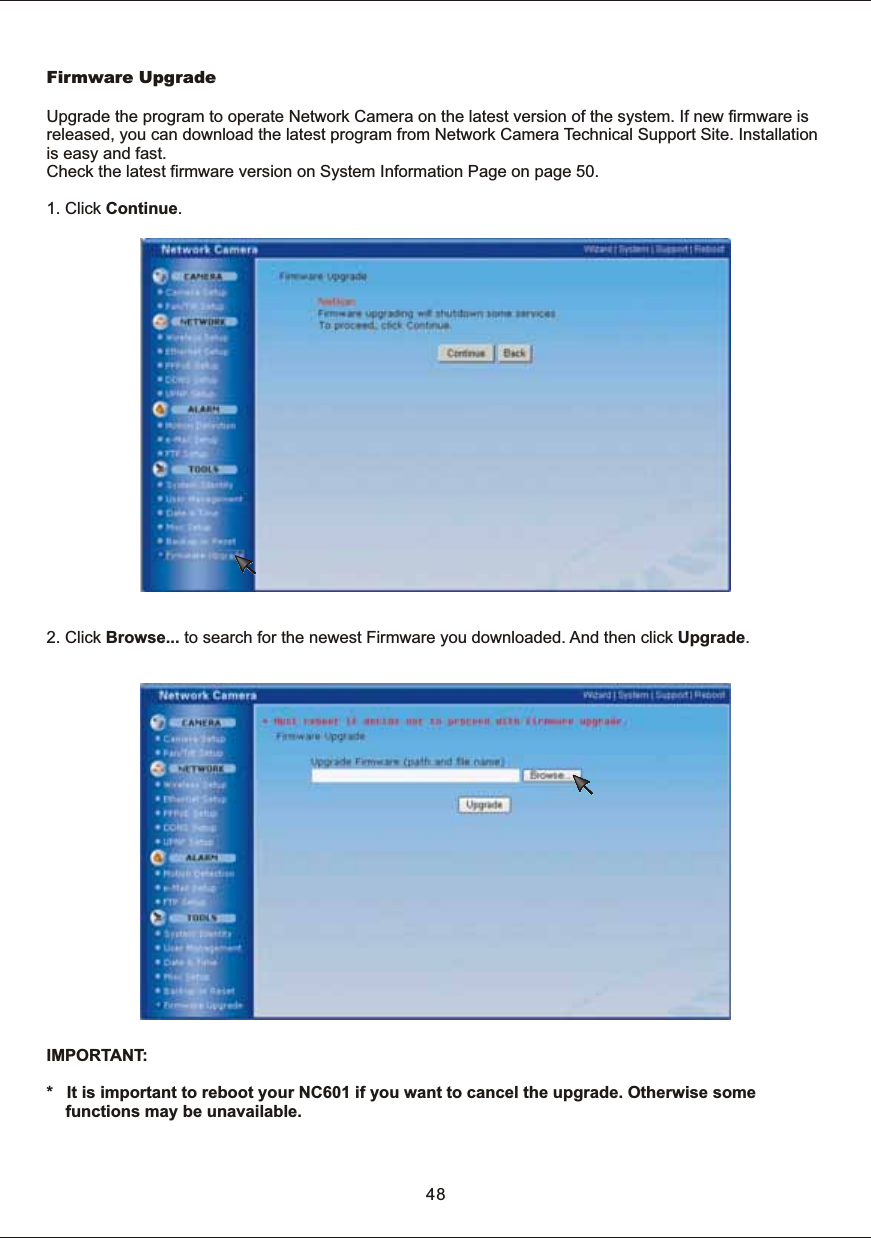
2.  Click  Browse...  to  search  for  the  newest  Firmware  you  downloaded.  And  then  click  Upgrade.48Firmware  UpgradeUpgrade  the  program  to  operate  Network  Camera  on  the  latest  version  of  the  system.  If  new  firmware  is released,  you  can  download  the  latest  program  from  Network  Camera  Technical  Support  Site.  Installation is  easy  and  fast.Check  the  latest  firmware  version  on  System  Information  Page  on  page  50.1.  Click  Continue.IMPORTANT: *      It  is  important  to  reboot  your  NC601  if  you  want  to  cancel  the  upgrade.  Otherwise  some functions  may  be  unavailable.
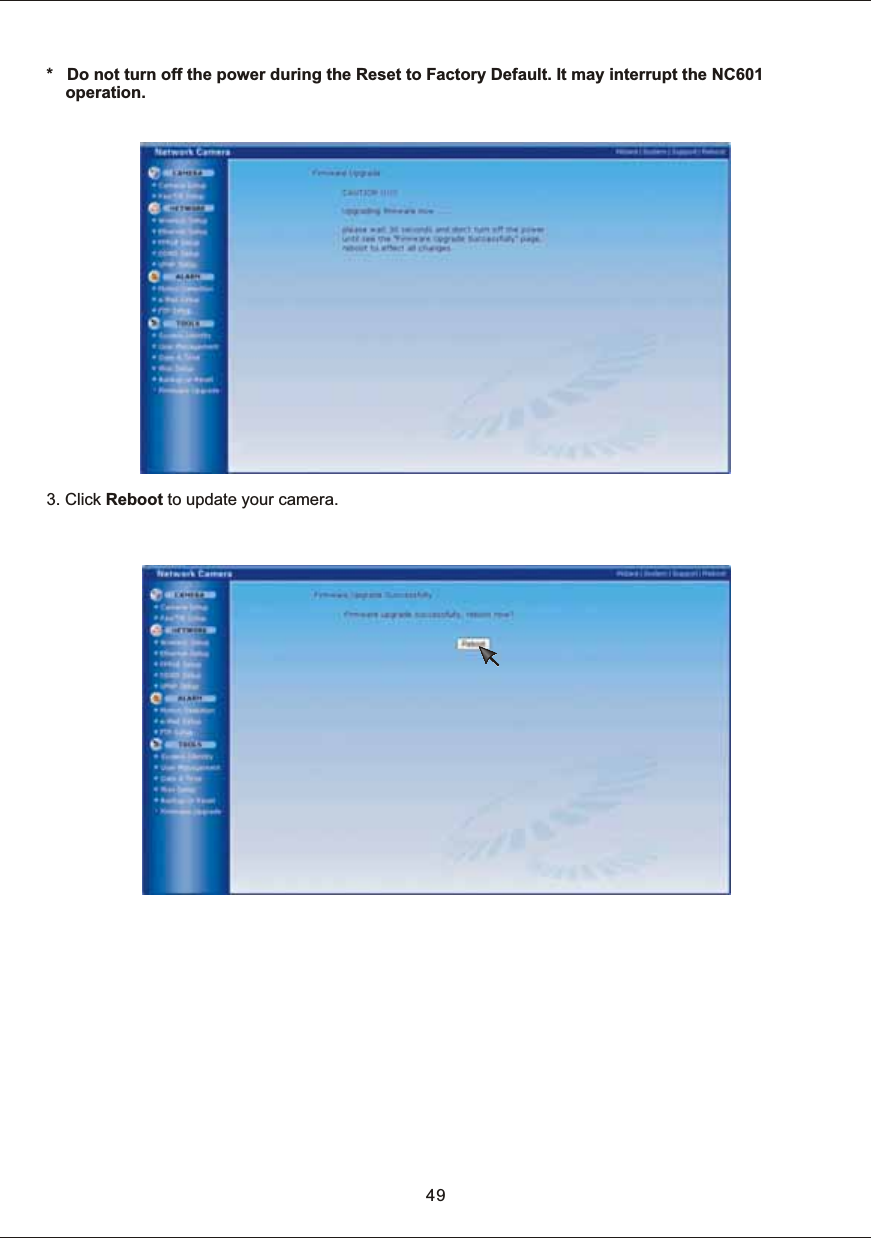
*      Do  not  turn  off  the  power  during  the  Reset  to  Factory  Default.  It  may  interrupt  the  NC601 operation.493.  Click  Reboot  to  update  your  camera.
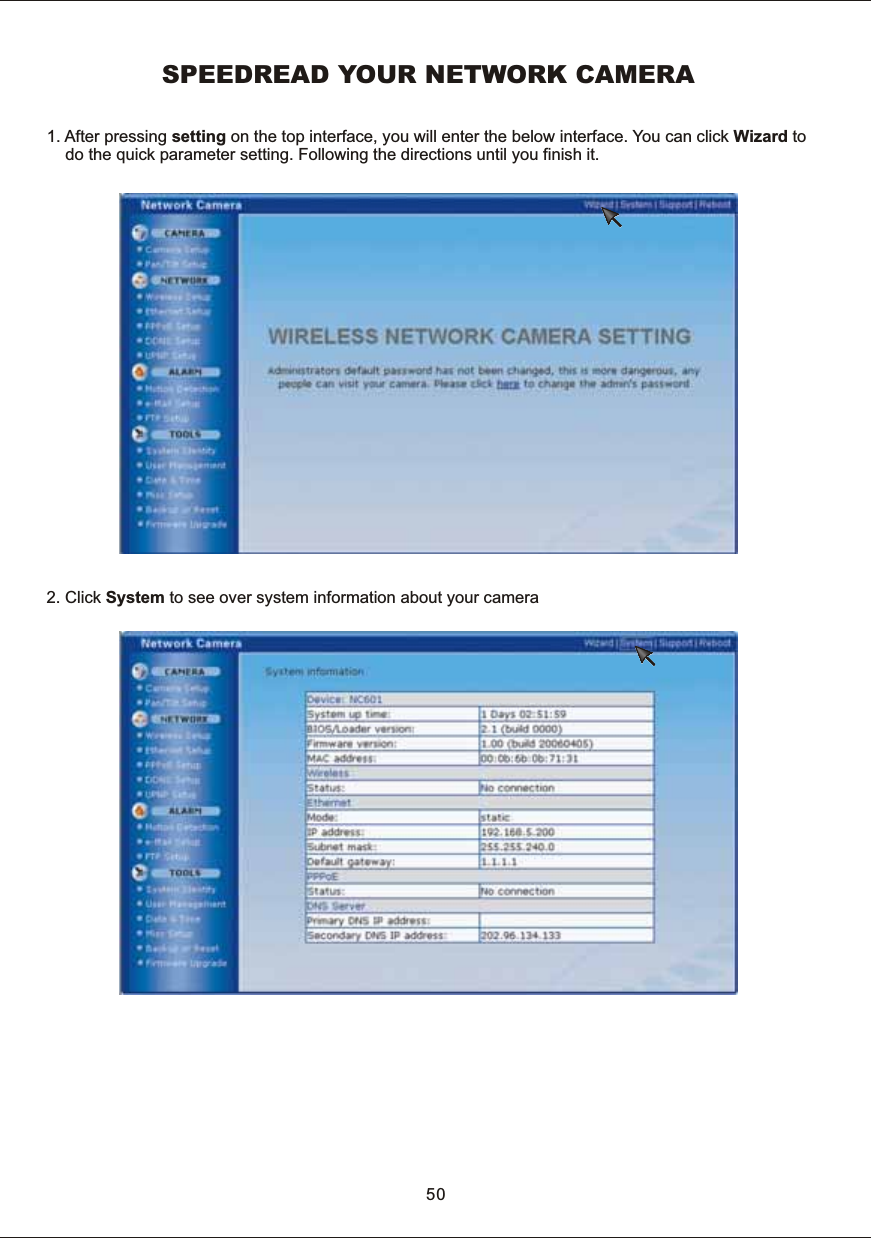
1.  After  pressing  setting  on  the  top  interface,  you  will  enter  the  below  interface.  Yo u   can  click  Wizard  to         do  the  quick  parameter  setting.  Following  the  directions  until  you  finish  it. 2.  Click  System  to  see  over  system  information  about  your  cameraSPEEDREAD  YOUR  NETWORK  CAMERA50
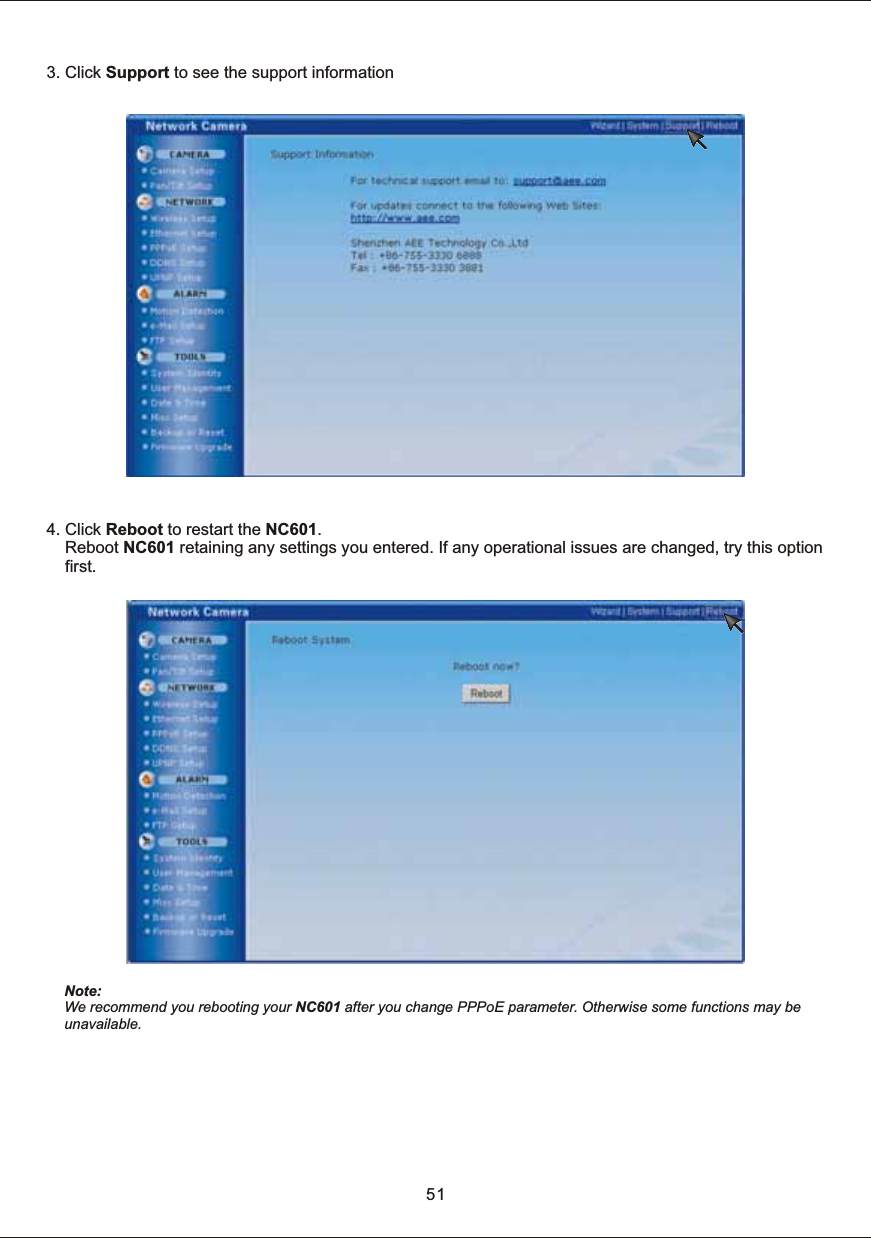
3.  Click  Support  to  see  the  support  information 4.  Click  Reboot  to  restart  the  NC601.        Reboot  NC601  retaining  any  settings  you  entered.  If  any  operational  issues  are  changed,  try  this  option        first.Note: We  recommend  you  rebooting  your  NC601  after  you  change  PPPoE  parameter.  Otherwise  some  functions  may  be unavailable.51
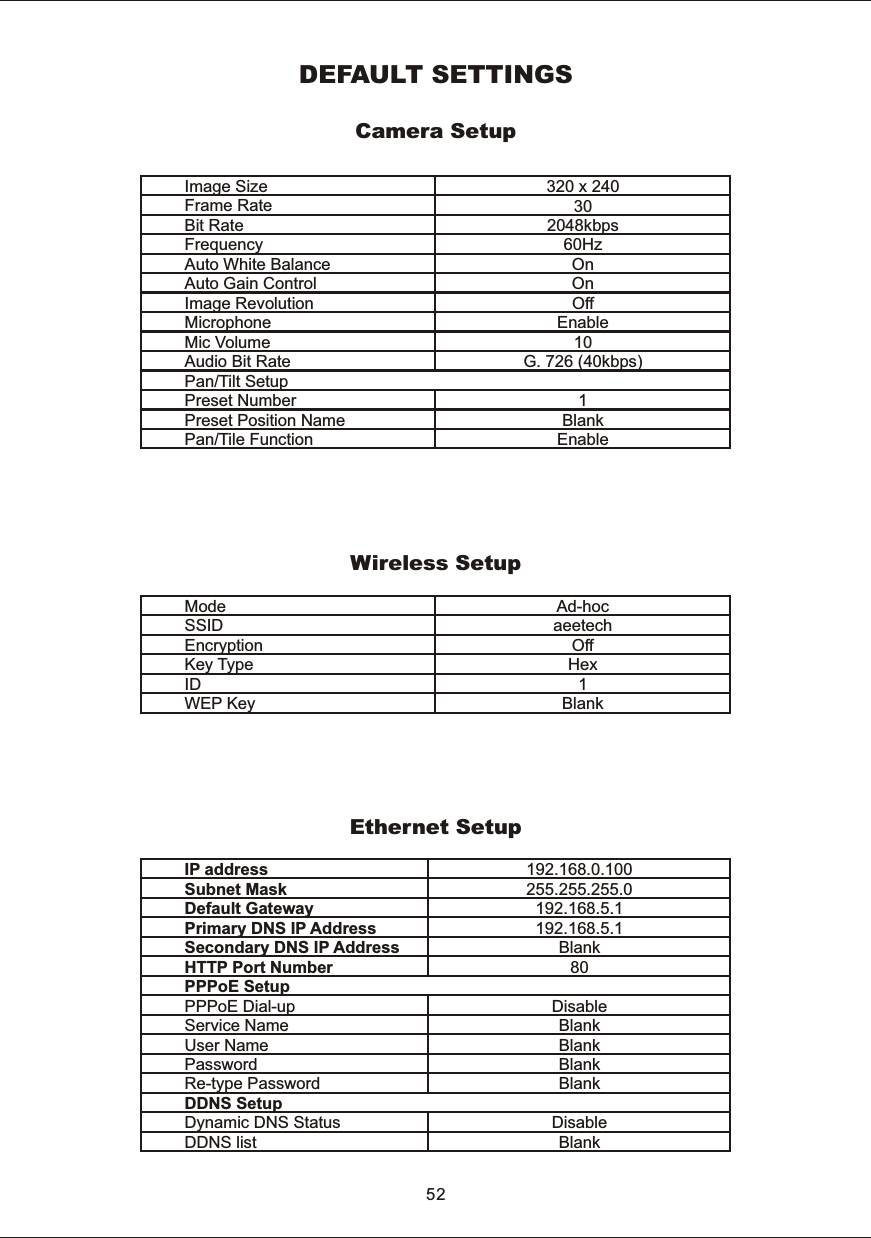
IP  addressSubnet  MaskDefault  GatewayPrimary  DNS  IP  AddressSecondary  DNS  IP  AddressHTTP  Port  NumberPPPoE  SetupPPPoE  Dial-upService  NameUser  NamePasswordRe-type  PasswordDDNS  SetupDynamic  DNS  StatusDDNS  list192.168.0.100255.255.255.0192.168.5.1192.168.5.1Blank80DisableBlankBlankBlankBlankDisableBlankDEFAULT  SETTINGSImage  SizeFrame  RateBit  RateFrequencyAuto  White  BalanceAuto  Gain  ControlImage  RevolutionMicrophoneMic  VolumeAudio  Bit  RatePan/Tilt  SetupPreset  NumberPreset  Position  NamePan/Tile  Function320  x  240302048kbps60HzOnOnOffEnable10G.  726  (40kbps)1BlankEnableCamera  SetupModeSSIDEncryptionKey  TypeIDWEP  KeyAd-hocaeetechOffHex1BlankWireless  SetupEthernet  Setup52
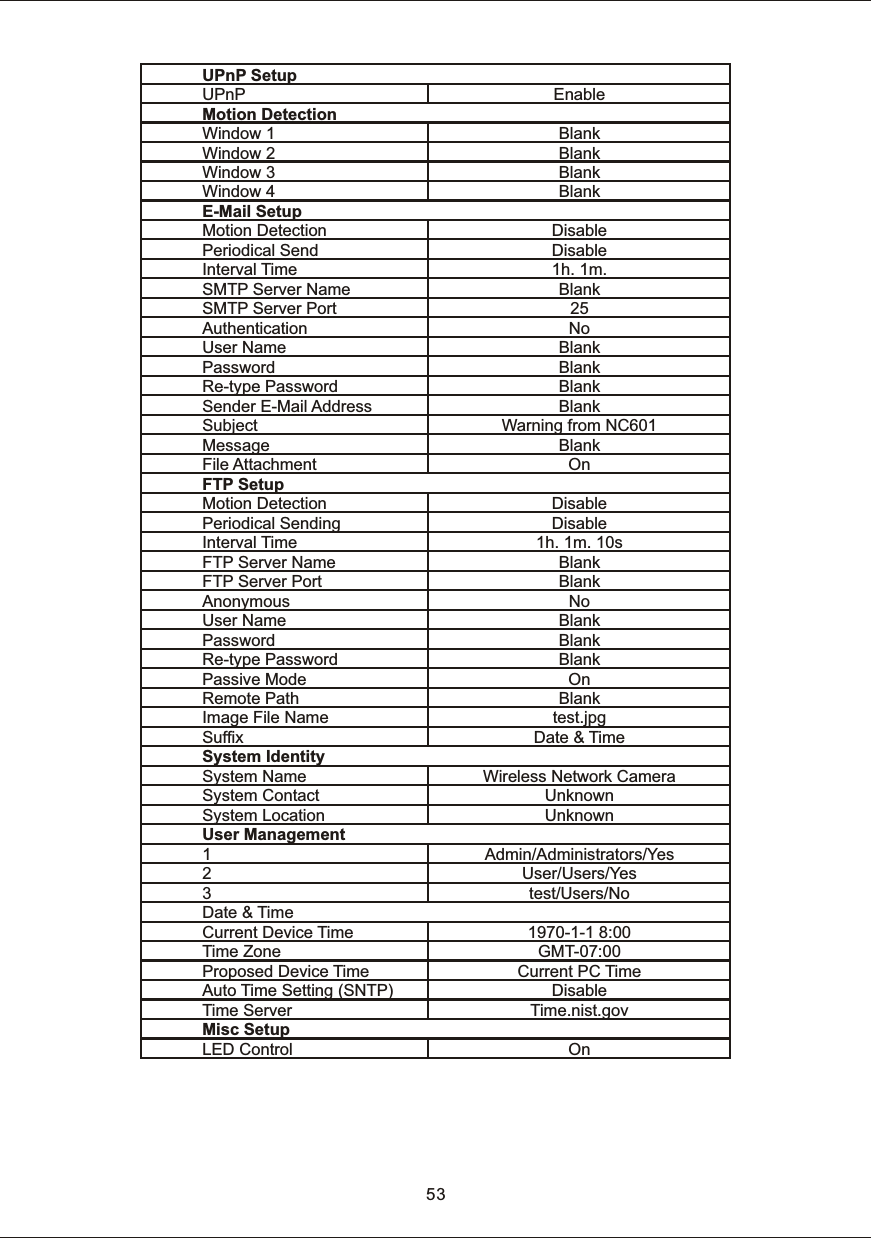
UPnP  SetupUPnPMotion  DetectionWindow  1Window  2Window  3Window  4E-Mail  SetupMotion  DetectionPeriodical  SendInterval  TimeSMTP  Server  NameSMTP  Server  PortAuthenticationUser  NamePasswordRe-type  PasswordSender  E-Mail  AddressSubjectMessageFile  AttachmentFTP  SetupMotion  DetectionPeriodical  SendingInterval  TimeFTP  Server  NameFTP  Server  PortAnonymousUser  NamePasswordRe-type  PasswordPassive  ModeRemote  PathImage  File  NameSuffixSystem  IdentitySystem  NameSystem  ContactSystem  LocationUser  Management123Date  &  TimeCurrent  Device  TimeTime  ZoneProposed  Device  TimeAuto  Time  Setting  (SNTP)Time  ServerMisc  SetupLED  ControlEnableBlankBlankBlankBlankDisableDisable1h.  1m.Blank25NoBlankBlankBlankBlankWarning  from  NC601BlankOnDisableDisable1h.  1m.  10sBlankBlankNoBlankBlankBlankOnBlanktest.jpgDate  &  TimeWireless  Network  CameraUnknownUnknownAdmin/Administrators/YesUser/Users/Yestest/Users/No1970-1-1  8:00GMT-07:00Current  PC  TimeDisableTime.nist.govOn53
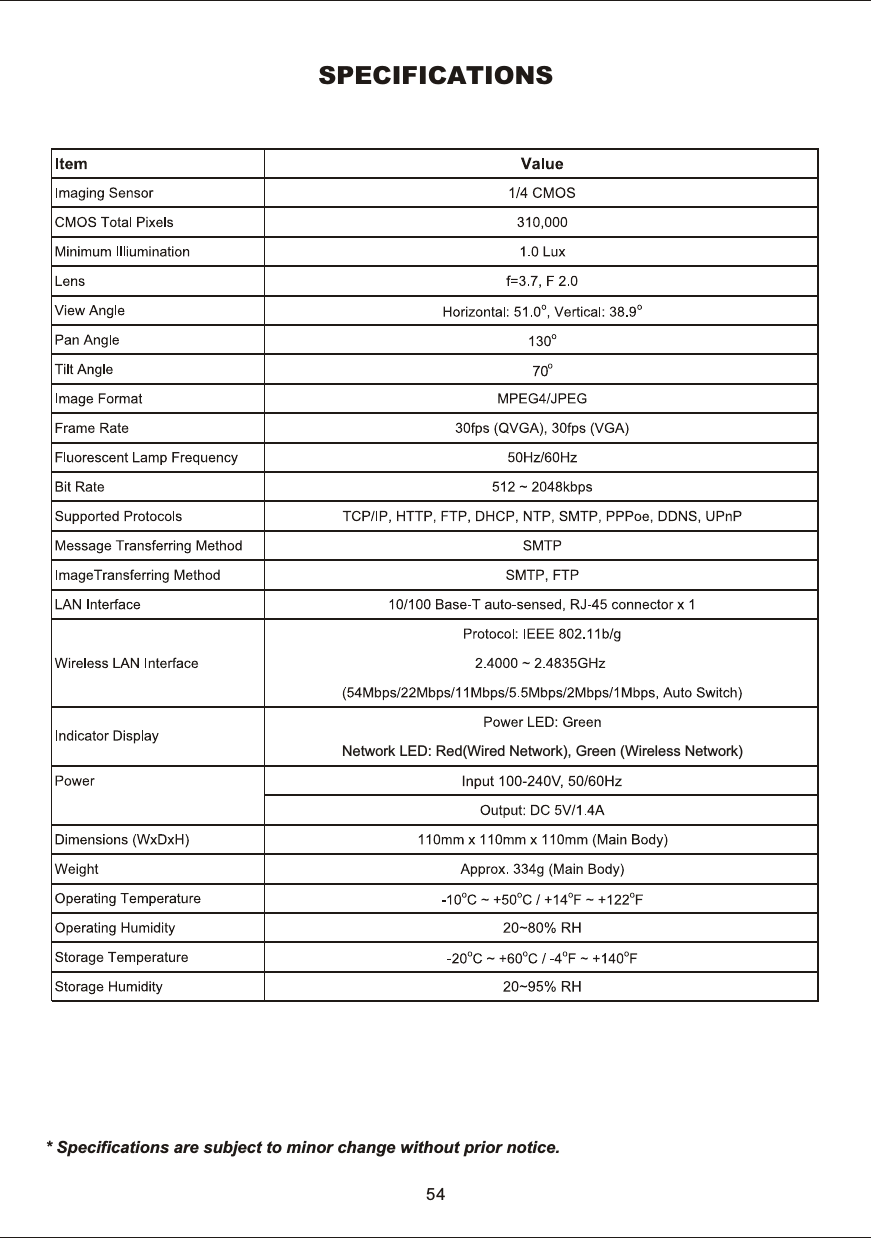
SPECIFICATIONS*  Specifications  are  subject  to  minor  change  without  prior  notice.Network  LED:  Red(Wired  Network),  Green  (Wireless  Network)54
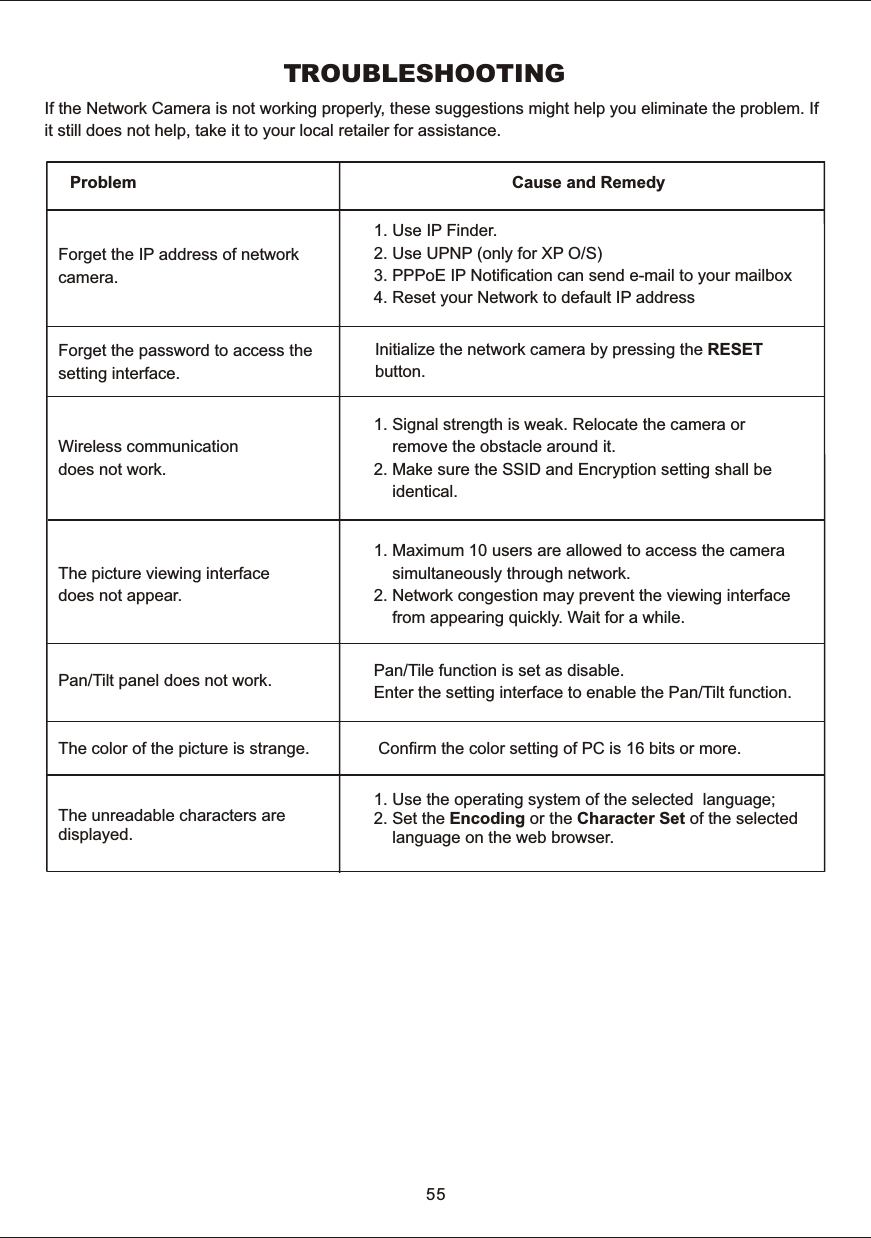
TROUBLESHOOTINGIf  the  Network  Camera  is  not  working  properly,  these  suggestions  might  help  you  eliminate  the  problem.  Ifit  still  does  not  help,  take  it  to  your  local  retailer  for  assistance.Problem Cause  and  Remedy1.  Use  IP  Finder.2.  Use  UPNP  (only  for  XP  O/S)3.  PPPoE  IP  Notification  can  send  e-mail  to  your  mailbox4.  Reset  your  Network  to  default  IP  address  Initialize  the  network  camera  by  pressing  the  RESET  button.Pan/Tile  function  is  set  as  disable.Enter  the  setting  interface  to  enable  the  Pan/Tilt  function.     1.  Maximum  10  users  are  allowed  to  access  the  camera           simultaneously  through  network. 2.  Network  congestion  may  prevent  the  viewing  interface         from  appearing  quickly.  Wait  for  a  while.Forget  the  IP  address  of  network camera.Forget  the  password  to  access  the setting  interface.The  picture  viewing  interface does  not  appear.Pan/Tilt  panel  does  not  work.Wireless  communication does  not  work.1.  Signal  strength  is  weak.  Relocate  the  camera  or         remove  the  obstacle  around  it.2.  Make  sure  the  SSID  and  Encryption  setting  shall  be           identical.The  color  of  the  picture  is  strange.   Confirm  the  color  setting  of  PC  is  16  bits  or  more.The  unreadable  characters  are displayed.1.  Use  the  operating  system  of  the  selected    language;2.  Set  the  Encoding  or  the  Character  Set   of  the  selected         language  on  the  web  browser.55
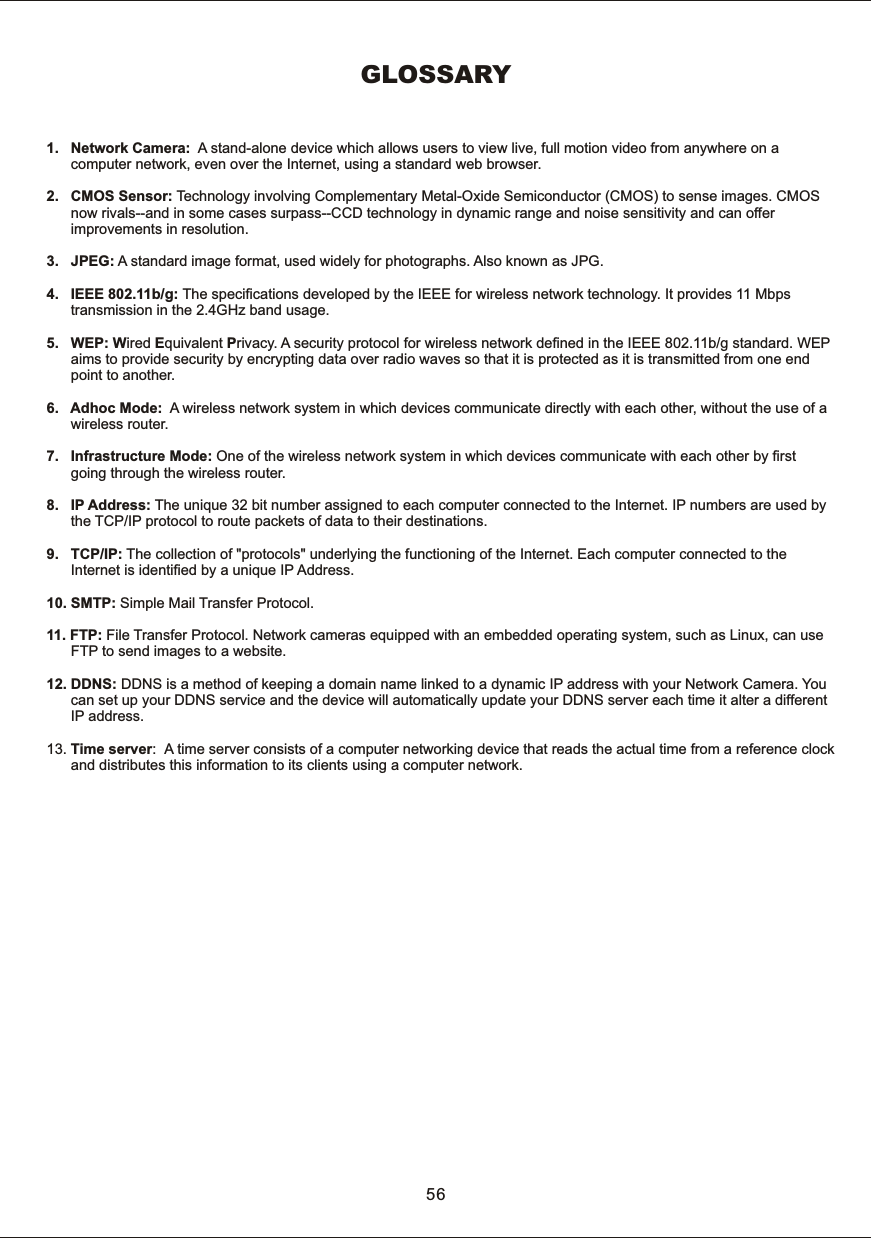
GLOSSARY1.      Network  Camera:    A  stand-alone  device  which  allows  users  to  view  live,  full  motion  video  from  anywhere  on  a             computer  network,  even  over  the  Internet,  using  a  standard  web  browser.2.      CMOS  Sensor:  Technology  involving  Complementary  Metal-Oxide  Semiconductor  (CMOS)  to  sense  images.  CMOS      now  rivals--and  in  some  cases  surpass--CCD  technology  in  dynamic  range  and  noise  sensitivity  and  can  offer             improvements  in  resolution. 3.      JPEG:  A  standard  image  format,  used  widely  for  photographs.  Also  known  as  JPG.4.      IEEE  802.11b/g: The  specifications  developed  by  the  IEEE  for  wireless  network  technology.  It  provides  11  Mbps             transmission  in  the  2.4GHz  band usage.5.      WEP:  Wired  Equivalent  Privacy.  A  security  protocol  for  wireless  network  defined  in  the  IEEE  802.11b/g  standard.  WEP            aims  to  provide  security  by  encrypting  data  over  radio  waves  so  that  it  is  protected as  it  is  transmitted  from  one  end             point  to  another.6.      Adhoc  Mode:    A  wireless  network  system  in  which  devices  communicate  directly  with  each  other,  without  the  use  of  a       wireless  router.7.      Infrastructure  Mode:  One  of  the  wireless  network  system  in  which  devices  communicate  with  each  other  by  first             going  through  the  wireless  router. 8.      IP  Address:  The  unique  32  bit  number  assigned  to  each  computer  connected  to  the  Internet.  IP  numbers  are  used  by       the  TCP/IP  protocol  to  route  packets  of  data  to  their  destinations. 9.      TCP/IP:  The  collection  of  "protocols"  underlying  the  functioning  of  the  Internet.  Each  computer  connected  to  the       Internet  is  identified  by  a  unique  IP  Address.10.  SMTP:  Simple  Mail  Transfer  Protocol.11.  FTP:  File  Transfer  Protocol.  Network  cameras  equipped  with  an  embedded  operating  system,  such  as  Linux, can use             FTP  to  send  images  to  a  website.12. DDNS:  DDNS  is  a  method  of  keeping  a  domain  name  linked  to  a  dynamic  IP  address  with  your  Network  Camera.  You            can  set  up  your  DDNS  service  and  the  device  will  automatically  update  your  DDNS  server  each  time  it  alter  a  different             IP  address.13.  Time  server:   A  time  server  consists  of  a  computer  networking  device  that  reads  the  actual  time  from  a  reference  clock            and  distributes  this  information  to  its  clients  using  a  computer  network. 56
AEE TECHNOLOGY CO., LTD.R

Navigation menu