AIJI System AP-200 Fixed WLL Telephone (PCS CDMA) User Manual 2

AIJI System Co., Ltd. Fixed WLL Telephone (PCS CDMA) Users Manual 2

Users Manual 2

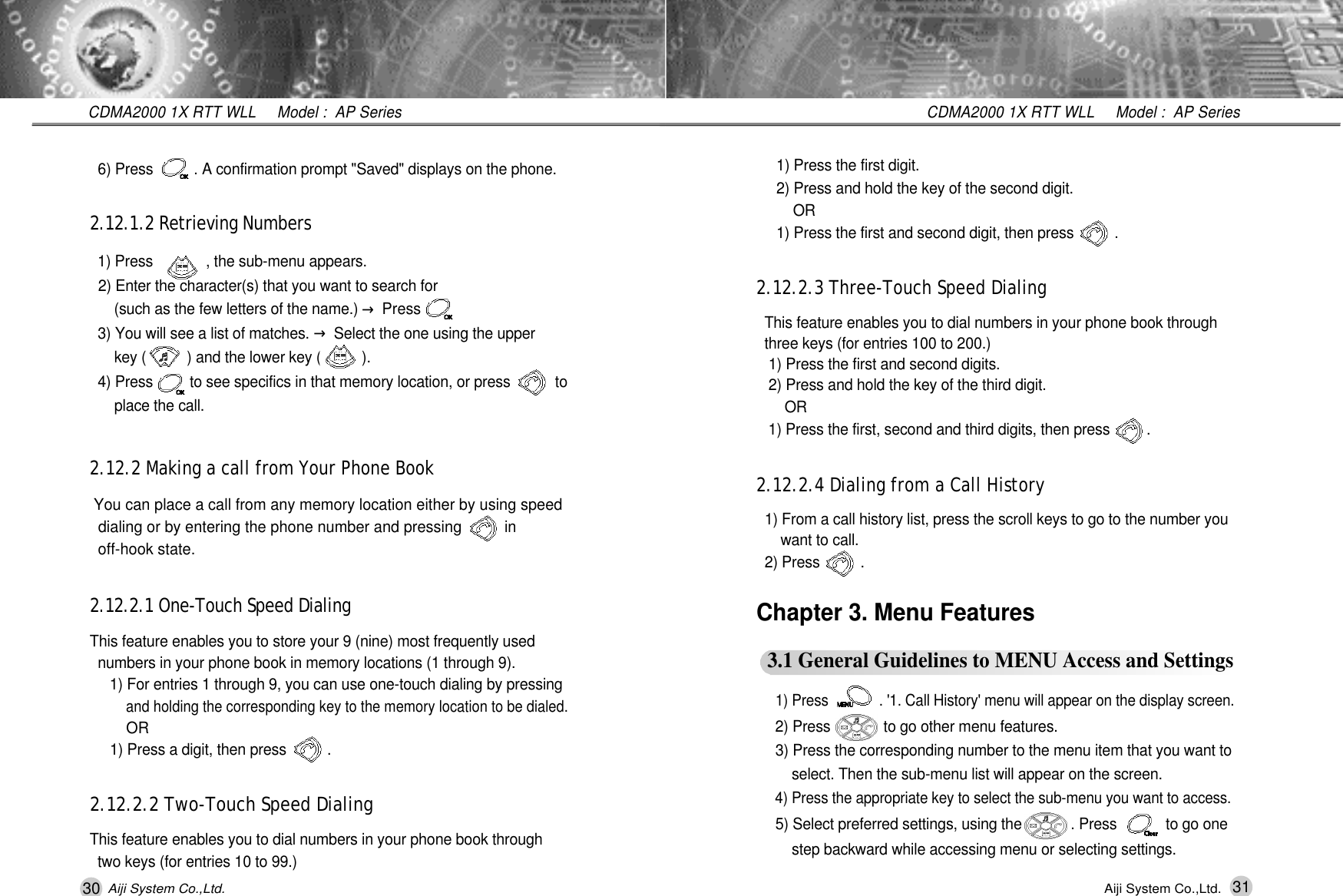
30 31CDMA2000 1X RTT WLL     Model :  AP SeriesCDMA2000 1X RTT WLL     Model :  AP SeriesAiji System Co.,Ltd. Aiji System Co.,Ltd.1) Press the first digit.2) Press and hold the key of the second digit. O R1) Press the first and second digit, then press          .2.12.2.3 Three-Touch Speed DialingThis feature enables you to dial numbers in your phone book through three keys (for entries 100 to 200.)1) Press the first and second digits.2) Press and hold the key of the third digit.O R1) Press the first, second and third digits, then press         .2.12.2.4 Dialing from a Call History1) From a call history list, press the scroll keys to go to the number you  want to call.2) Press          .  Chapter 3. Menu Features3.1 General Guidelines to MENU Access and Settings1) Press             . '1. Call History' menu will appear on the display screen.2) Press             to go other menu features.3) Press the corresponding number to the menu item that you want to select. Then the sub-menu list will appear on the screen.4) Press the appropriate key to select the sub-menu you want to access.5) Select preferred settings, using the            . Press            to go one step backward while accessing menu or selecting settings.6) Press          . A confirmation prompt "Saved" displays on the phone.2.12.1.2 Retrieving Numbers1) Press             , the sub-menu appears. 2) Enter the character(s) that you want to search for (such as the few letters of the name.) →Press     3) You will see a list of matches. →Select the one using the upper key (          ) and the lower key (          ).4) Press         to see specifics in that memory location, or press           to place the call.2.12.2 Making a call from Your Phone BookYou can place a call from any memory location either by using speed dialing or by entering the phone number and pressing          in off-hook state. 2.12.2.1 One-Touch Speed DialingThis feature enables you to store your 9 (nine) most frequently used  numbers in your phone book in memory locations (1 through 9).1) For entries 1 through 9, you can use one-touch dialing by pressing and holding the corresponding key to the memory location to be dialed. OR 1) Press a digit, then press          .2.12.2.2 Two-Touch Speed DialingThis feature enables you to dial numbers in your phone book through  two keys (for entries 10 to 99.)
32 33CDMA2000 1X RTT WLL     Model :  AP SeriesCDMA2000 1X RTT WLL     Model :  AP SeriesAiji System Co.,Ltd. Aiji System Co.,Ltd.Setting Va l u e1. Clear the call history in a sub-menu- Recent Calls / Incoming Calls / Outgoing Calls / Missed Calls2. All History- Clear all calls listed in Recent Calls, Incoming Calls, Outgoing Calls / MissedCalls and Missed Calls1. By Name- When the box appears, enter the name and press [OK]- You can just enter the first few letters of the name, then press [OK]. Your phone shows  the closest matching name.2. By Location- Entry Number 001 ~ 200 in the phone3. By Number- When the box appears, enter the phone number and press [OK]- You can just enter the few digits of the full     number, then press [OK].Your phone shows the closest matching  phone number.4. By Group-  No Group / Family / Friend / O f f i c e / No   Group  / No Group   - You can change Group name  of 'No Group 1' and 'No Group 2'Name (16chr) / Location (001~200) / Mobile(16chr) / Home (16chr) / Office (16chr) /Group(16chr) / Ring Main MenuCallHistoryPhonebookS u b - M e n u7.Clear H i s t o r y1.Find Entry2.New Entry3.2 List of Menu StateSetting Va l u e1. Display the latest 30 calls incoming,  outgoing  and missed calls.- No. and caller's name or phone number are listed2. Check talk time- Select one among listed calls and press [OK]1. Latest 20 incoming calls are listed- No., Caller's Name or Phone Number and Call Time are listed2. Check talk time- Select one among listed calls and press [OK].1. Latest 20 outgoing calls are listed- No., Caller's Name or Phone Number and   Call Time are listed2. Check talk time- Select one among listed calls and press [OK].1. Latest 20 missed calls are listed- No., Caller's Name or Phone Number and Call Time are listed2. Check incoming time- Select one among listed calls and press [OK].Last call / Incoming calls / Outgoing calls / Total callsDuring a call, used to save a phone numberthe other party tells you during a call withoutwriting it down. The phone number is saved inCall Memo up to 10.Main MenuCallHistoryS u b - M e n u1.Recent C a l l s2.Incoming C a l l s3.Outgoing     C a l l s4.Missed C a l l s5.Call Timer6.Call Memo
34 35CDMA2000 1X RTT WLL     Model :  AP SeriesCDMA2000 1X RTT WLL     Model :  AP SeriesAiji System Co.,Ltd. Aiji System Co.,Ltd.Setting Va l u e3. Call Back # - Display own number- Write a phone number you want to receive a call to.20 messages are listed1. Inbox2. Outbox3. All1. Display Message- Notify: Notify when the message is arrived.- Direct View: Display message including     message information.2. Auto Save- Prompt: Save or not- Auto Save: The latest 50 messages are automatically saved.- Do not Save: Delete message3. Auto Delete- On/Off4. Font Size- Font 8_16 / Font 8_85. Delivery Acknowledgement- On / Off31 ring tones and melodies1. No Service- On / OffMain MenuMessageSoundS u b - M e n u2.WriteMessage3.Outbox4.DeleteMessage5.MessageSettings1.RingTones2.Alerts/TonesSetting Va l u e1. No Group2. Family3. Friend4. Office5. Other6. No Group7. No GroupPhone 001/200Card 01/200(*Max)1. My Phone #2. S/W Version1. Card 00/202. Phone 00/503. Voice Message 00 ~ * Message Listed 01~50 with Caller ID or Phone No.- Select by Up/Down Key or Numeric Key- [OK]: View message. Date and time of received message, caller's phone number or name and message are displayed.- [Clear]: Move to message list- [Menu]: Delete / Delete All / Lock1. Send to- Write phone number. - Send a message to 10 persons at the same t i m e .2. Write Message- Write a message up to 160 charactersMain MenuPhonebookMessageS u b - M e n u3.Edit Group4 . M e m o r yS t a t u s5.Phone Info1 . I n b o x2 . W r i t eM e s s a g e
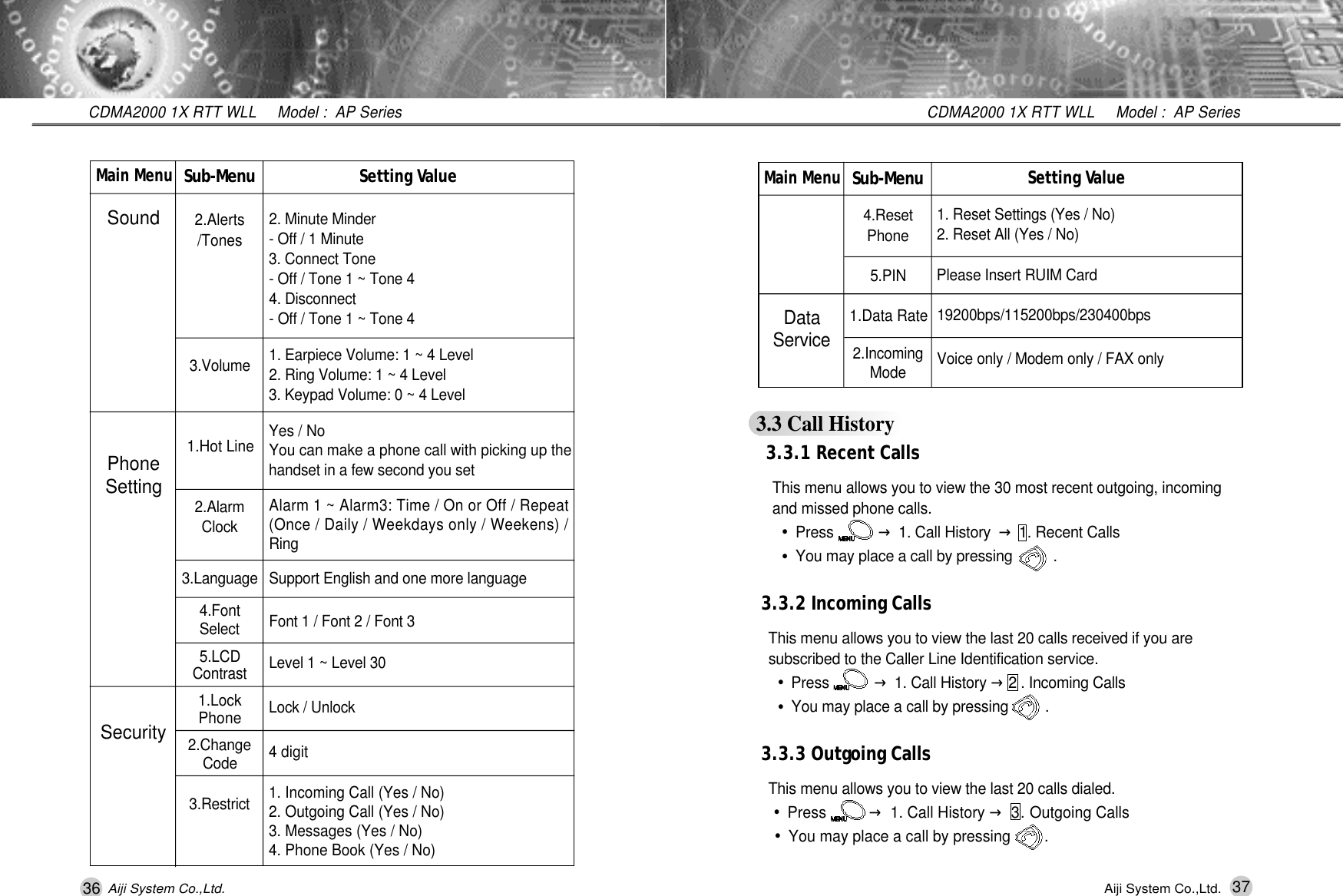
36 37CDMA2000 1X RTT WLL     Model :  AP SeriesCDMA2000 1X RTT WLL     Model :  AP SeriesAiji System Co.,Ltd. Aiji System Co.,Ltd.Setting Va l u e1. Reset Settings (Yes / No)2. Reset All (Yes / No)Please Insert RUIM Card1 9 2 0 0 b p s / 1 1 5 2 0 0 b p s / 2 3 0 4 0 0 b p sVoice only / Modem only / FAX onlyMain MenuD a t aS e r v i c eS u b - M e n u4 . R e s e tP h o n e5 . P I N1.Data Rate2 . I n c o m i n gM o d e3.3 Call History3.3.1 Recent CallsThis menu allows you to view the 30 most recent outgoing, incoming   and missed phone calls. •Press           →1. Call History  →1. Recent Calls•You may place a call by pressing          .3.3.2 Incoming CallsThis menu allows you to view the last 20 calls received if you are   subscribed to the Caller Line Identification service.•Press           →1. Call History →2 . Incoming Calls•You may place a call by pressing         .3.3.3 Outgoing CallsThis menu allows you to view the last 20 calls dialed.•Press          →1. Call History →3 . Outgoing Calls•You may place a call by pressing        .Setting Va l u e2. Minute Minder- Off / 1 Minute3. Connect Tone- Off / Tone 1 ~ Tone 44. Disconnect- Off / Tone 1 ~ Tone 41. Earpiece Volume: 1 ~ 4 Level2. Ring Volume: 1 ~ 4 Level3. Keypad Volume: 0 ~ 4 LevelYes / NoYou can make a phone call with picking up thehandset in a few second you setAlarm 1 ~ Alarm3: Time / On or Off / Repeat(Once / Daily / Weekdays only / Weekens) /R i n gSupport English and one more languageFont 1 / Font 2 / Font 3Level 1 ~ Level 30Lock / Unlock4 digit1. Incoming Call (Yes / No)2. Outgoing Call (Yes / No)3. Messages (Yes / No)4. Phone Book (Yes / No)Main MenuSoundPhoneSettingSecurityS u b - M e n u2.Alerts/Tones3 . V o l u m e1.Hot Line2 . A l a r mC l o c k3 . L a n g u a g e4 . F o n tS e l e c t5 . L C DC o n t r a s t1.LockP h o n e2 . C h a n g eC o d e3 . R e s t r i c t
38 39CDMA2000 1X RTT WLL     Model :  AP SeriesCDMA2000 1X RTT WLL     Model :  AP SeriesAiji System Co.,Ltd. Aiji System Co.,Ltd.3.3.7 Clear HistoryThis menu enables you to erase all lists or part of Call History󰥉/Recent Calls /󰥉Incoming Calls /󰥉Outgoing Calls /󰥉Missed Calls /󰥉All History3.4 Phone BookYou can store frequently used phone numbers and the corresponding  names in the memory of your phone and R-UIM. Although, they are physically separate, used as if they were a single entity, called Phone   Book. Phone Book makes it easy for you to make a call without having to remember or entering the phone number.You can store up to 800numbers. (200 persons x 4 numbers)3.4.1 Find EntryThis option allows you to search phone number you have stored in the Phone Book by name, location (entry), number and group.•Press           →2. Phone Book →1 Find Entry Note You can access this menu by pressing the           key in standby mode.3.4.2 New EntryThis menu allows you to store a number with a name in your Phone Book. You can save all the person's numbers, such as office number, mobile number and home number, into one entry. In the phone's memory, you can save 200 entries and each entry can contain up to 4 n u m b e r s .3.4.2.1 Creating a New Entry in the Phone's Memory•Press           →2. Phone Book →2 New Entry 3.3.4 Missed CallsThis menu allows you to view the last 20 incoming calls that you failed to answer if you are subscribed to the Caller Line Identification service.•Press            →1. Call History →4. Missed Calls•You may place a call by pressing         .Tip 1 : Once you exceed the (total) 30-numbers or 20-numbers storage  limit, the oldest call history record is overwritten. Tip 2 : Speed dialing a number in the Call History List is available.•Select the number you want to call. Press           to place a call.Tip 3 : To see the details of the call, select the number you want to see.  →Press          .*No Name Stored Name Display* 0 1 4 9 1 3 3 5 5 9 3 Phone number*05:23P Feb 01 The time of call connection* 0 0 : 0 1 : 1 1 Call time used.Tip 4 : To save the call from the list to a phone book, press          →S e l e c t ' 1 . S a v e '→Press OK.(If you need further information please refer to 2.12.1.1 Saving Numbers in Your Personal Phone Book on page 29 )Tip 5 : To delete the call from the list, select the call you want to delete.   →Press           →Press            →Select ▣Y e s3.3.5 Call TimerThis menu allows you to view call time you use.3.3.6 Call MemoUsed to save a phone number the other party tells you during a call, without writing it down. The phone number saved in [Menu]  →1. Call History  →6 Call Memo
40 41CDMA2000 1X RTT WLL     Model :  AP SeriesCDMA2000 1X RTT WLL     Model :  AP SeriesAiji System Co.,Ltd. Aiji System Co.,Ltd.Memory StatuPho 004/200 The number of memory in the phoneCard 000/200 The number of memory in RUIM card3.4.5 Phone InformationThis option allows you to view your own phone number and software    version of your phone. •Press           →2. Phone Book  →5 Phone Info<< Phone Info  >>1 My Phone #2 S/W Version3.5 MessageText message and voice message become available as soon as the power is on. You can also send text and voice messages.When the phone receives a new message, an alert sounds and a text notification displays along with the name and the phone number of the caller, if available. The New Message icon (        ) remains on the screen until the new messages have been read or the new voice messages havebeen listened.You can access this menu by pressing the          key in standby mode. In addition, you can make a call to the call back number by pressing the     key during message check. The phone can store up to 50 text messages at Inbox with 160 characters per message. 3.5.1 InboxYour phone can store up to 50 messages in the Inbox. If the memory is 1) Enter Name (16 characters) →Press           →Enter mobile phone  number (16chr) →Press           →Enter home phone number →Press   →Enter office phone number →Press         →Enter other phone number →Press         .2) You may select group and the desired ID ring type using       and                      key. Note 1  Group : 󰥉No Group/󰥉Family/󰥉Friend/󰥉Office/󰥉Other/󰥉No Group  Note 2  Ring type : 31 ring tones and melodies3) To save new entry, press          and then select the primary number among the numbers you enter3.4.2.2 Storing Phone Numbers at Call HistoryTo store a phone number at the end of your call:•Press           →1. Call History →1 Recent Calls →Save / Delete3.4.3 Edit GroupThis menu allows you to edit the settings (Phone numbers, ring type and group) for the caller group.•Press           →2. Phone Book →3 Edit Group 1) Select the group you want to edit  →Press           →Display name of group →If correct, press         . If not, press           to go back group selection status.2) Select the entry you want to edit and press          →Press            →Select [1. Edit / 2. Delete / 3. Cancel] with                      key.3.4.4 Memory StatusThis menu shows you how many Phone Book entries are empty. •Press           →2. Phone Book →4 Memory Status.
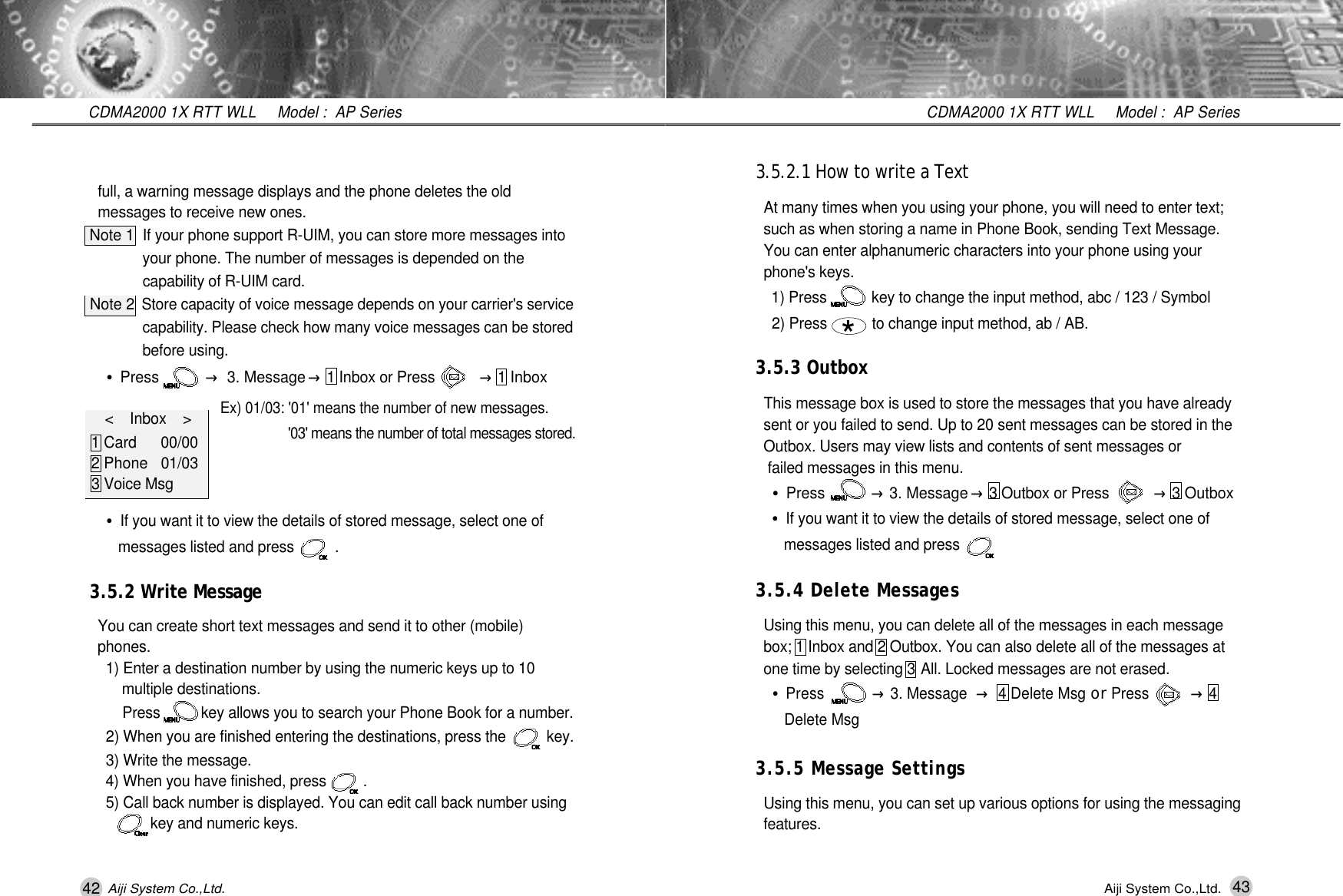
43CDMA2000 1X RTT WLL     Model :  AP SeriesAiji System Co.,Ltd.3.5.2.1 How to write a Text At many times when you using your phone, you will need to enter text; such as when storing a name in Phone Book, sending Text Message. You can enter alphanumeric characters into your phone using your phone's keys.1) Press           key to change the input method, abc / 123 / Symbol2) Press           to change input method, ab / AB.3.5.3 OutboxThis message box is used to store the messages that you have already sent or you failed to send. Up to 20 sent messages can be stored in the Outbox. Users may view lists and contents of sent messages or  failed messages in this menu.•Press           →3. Message →3 Outbox or Press           →3 Outbox•If you want it to view the details of stored message, select one of messages listed and press        . 3.5.4 Delete MessagesUsing this menu, you can delete all of the messages in each message box; 1 Inbox and 2 Outbox. You can also delete all of the messages at one time by selecting 3 All. Locked messages are not erased.•Press           →3. Message →4 Delete Msg or Press          →4  Delete Msg3.5.5 Message SettingsUsing this menu, you can set up various options for using the messaging  f e a t u r e s .*42CDMA2000 1X RTT WLL     Model :  AP SeriesAiji System Co.,Ltd.full, a warning message displays and the phone deletes the old  messages to receive new ones.Note 1 If your phone support R-UIM, you can store more messages into your phone. The number of messages is depended on the capability of R-UIM card.Note 2Store capacity of voice message depends on your carrier's service capability. Please check how many voice messages can be stored before using. •Press           →3. Message →1 Inbox or Press           →1 InboxEx) 01/03: '01' means the number of new messages.'03' means the number of total messages stored.•If you want it to view the details of stored message, select one of messages listed and press          . 3.5.2 Write MessageYou can create short text messages and send it to other (mobile) p h o n e s .1) Enter a destination number by using the numeric keys up to 10 multiple destinations. Press          key allows you to search your Phone Book for a number.2) When you are finished entering the destinations, press the          key.3) Write the message.4) When you have finished, press         .5) Call back number is displayed. You can edit call back number using    key and numeric keys.<    Inbox    >    1 Card 0 0 / 0 02 Phone 0 1 / 0 33 Voice Msg
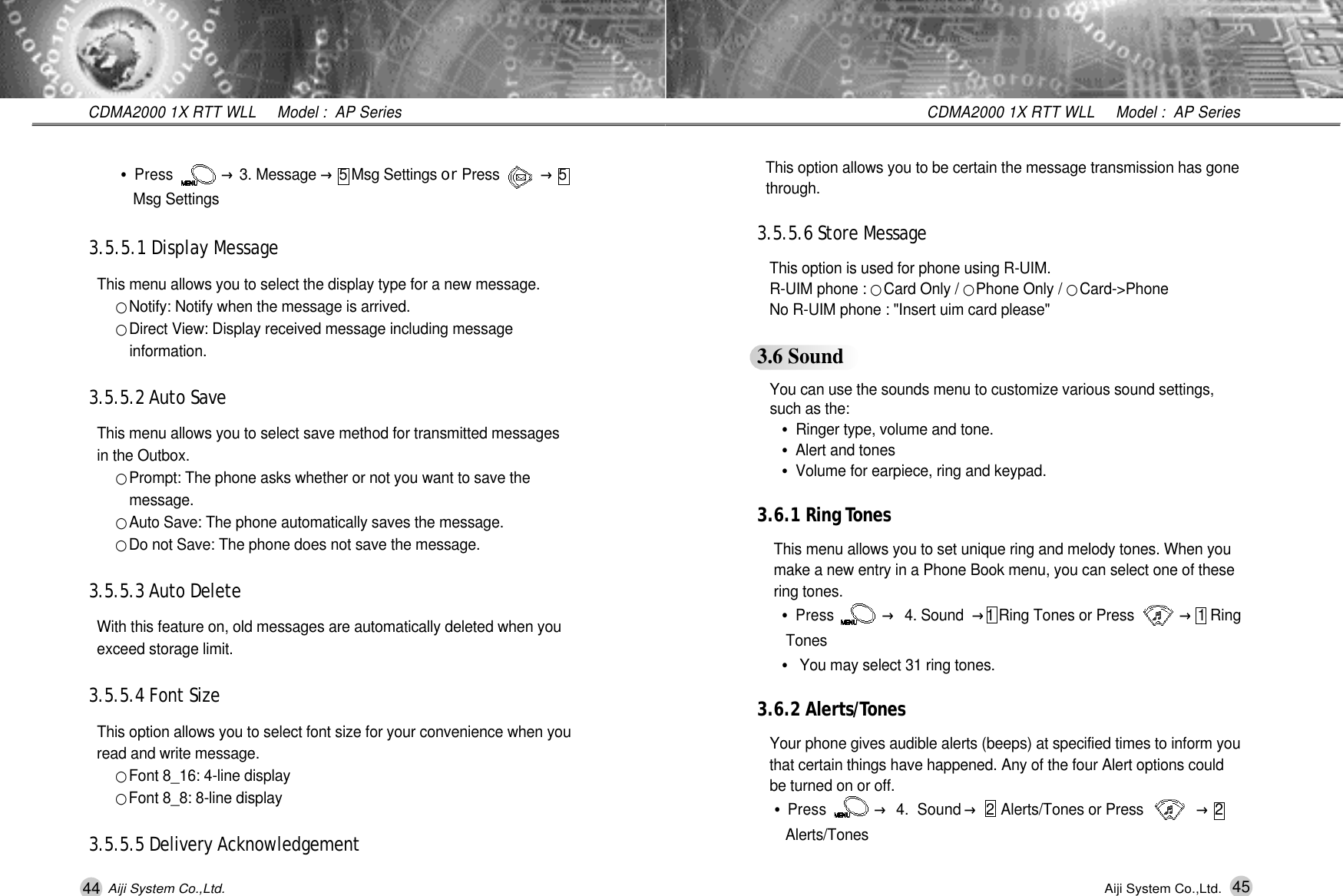
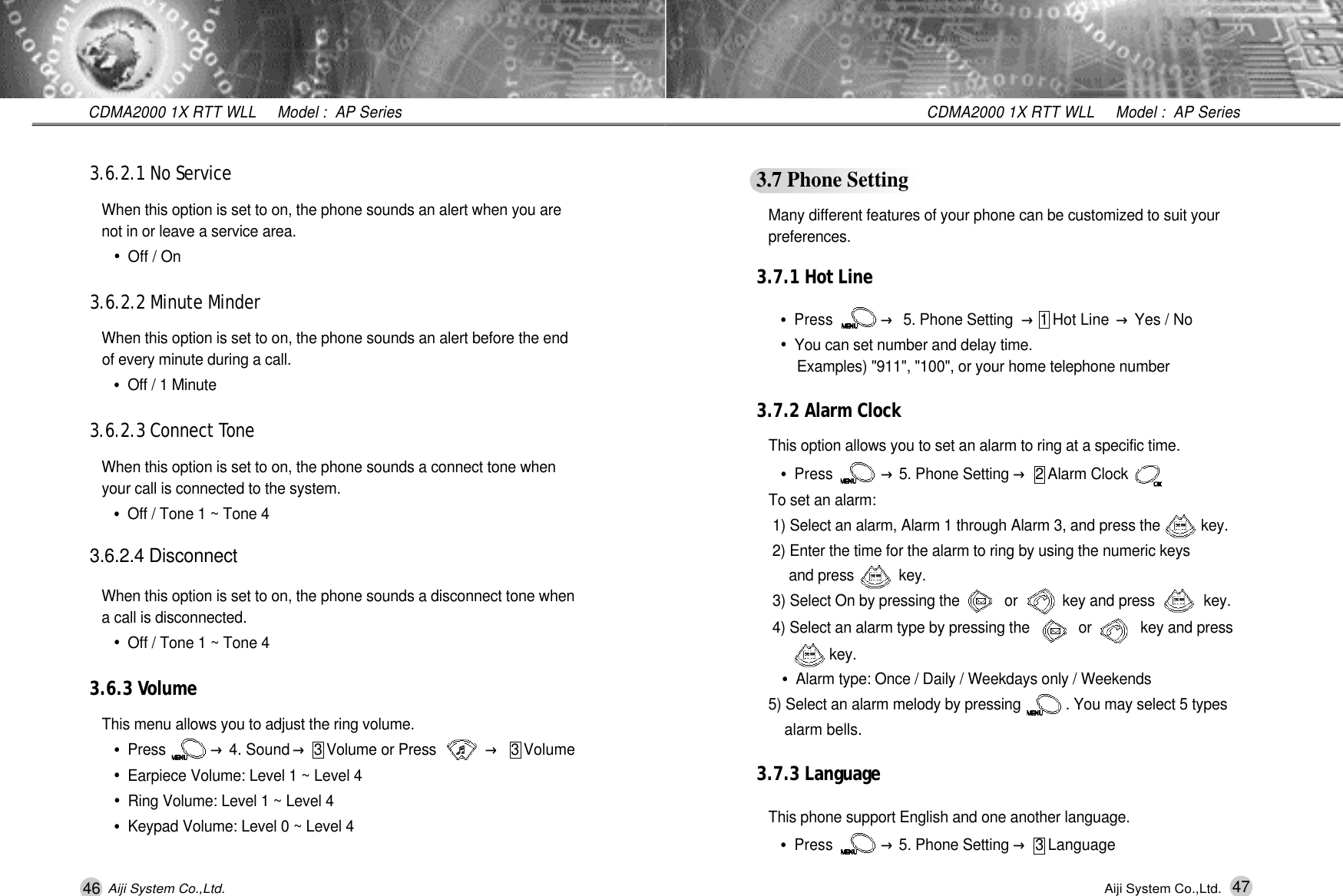
45CDMA2000 1X RTT WLL     Model :  AP SeriesAiji System Co.,Ltd.This option allows you to be certain the message transmission has gone t h r o u g h .3.5.5.6 Store MessageThis option is used for phone using R-UIM. R-UIM phone : 󰥉Card Only / 󰥉Phone Only / 󰥉C a r d - > P h o n eNo R-UIM phone : "Insert uim card please"3.6 SoundYou can use the sounds menu to customize various sound settings, such as the:•Ringer type, volume and tone.•Alert and tones•Volume for earpiece, ring and keypad.3.6.1 Ring To n e sThis menu allows you to set unique ring and melody tones. When you make a new entry in a Phone Book menu, you can select one of these ring tones.•Press           →4. Sound →1 Ring Tones or Press          →1 Ring T o n e s•You may select 31 ring tones.3.6.2 Alerts/To n e sYour phone gives audible alerts (beeps) at specified times to inform you that certain things have happened. Any of the four Alert options could  be turned on or off.•Press           →4.  Sound →2Alerts/Tones or Press             →2 A l e r t s / T o n e s44CDMA2000 1X RTT WLL     Model :  AP SeriesAiji System Co.,Ltd.•Press           →3. Message →5 Msg Settings o r Press          →5 Msg Settings3.5.5.1 Display MessageThis menu allows you to select the display type for a new message.󰥉Notify: Notify when the message is arrived.󰥉Direct View: Display received message including message i n f o r m a t i o n .3.5.5.2 Auto SaveThis menu allows you to select save method for transmitted messages in the Outbox.󰥉Prompt: The phone asks whether or not you want to save the m e s s a g e .󰥉Auto Save: The phone automatically saves the message.󰥉Do not Save: The phone does not save the message.3.5.5.3 Auto DeleteWith this feature on, old messages are automatically deleted when you   exceed storage limit.3.5.5.4 Font SizeThis option allows you to select font size for your convenience when you read and write message.󰥉Font 8_16: 4-line display󰥉Font 8_8: 8-line display3.5.5.5 Delivery Acknowledgement
47CDMA2000 1X RTT WLL     Model :  AP SeriesAiji System Co.,Ltd.3.7 Phone SettingMany different features of your phone can be customized to suit your p r e f e r e n c e s .3.7.1 Hot Line•Press           →5. Phone Setting →1 Hot Line →Yes / No•You can set number and delay time.Examples) "911", "100", or your home telephone number3.7.2 Alarm ClockThis option allows you to set an alarm to ring at a specific time.•Press           →5. Phone Setting →2 Alarm ClockTo set an alarm:1) Select an alarm, Alarm 1 through Alarm 3, and press the          key. 2) Enter the time for the alarm to ring by using the numeric keys and press           key. 3) Select On by pressing the           or           key and press            key.4) Select an alarm type by pressing the            or            key and press    k e y .•Alarm type: Once / Daily / Weekdays only / Weekends5) Select an alarm melody by pressing           . You may select 5 types alarm bells.3.7.3 LanguageThis phone support English and one another language.•Press           →5. Phone Setting →3 Language46CDMA2000 1X RTT WLL     Model :  AP SeriesAiji System Co.,Ltd.3.6.2.1 No ServiceWhen this option is set to on, the phone sounds an alert when you are  not in or leave a service area.•Off / On3.6.2.2 Minute MinderWhen this option is set to on, the phone sounds an alert before the end of every minute during a call.•Off / 1 Minute3.6.2.3 Connect To n eWhen this option is set to on, the phone sounds a connect tone when your call is connected to the system.•Off / Tone 1 ~ Tone 43.6.2.4 DisconnectWhen this option is set to on, the phone sounds a disconnect tone when a call is disconnected.•Off / Tone 1 ~ Tone 43.6.3 Vo l u m eThis menu allows you to adjust the ring volume.•Press           →4. Sound →3 Volume or Press            →3 Volume•Earpiece Volume: Level 1 ~ Level 4•Ring Volume: Level 1 ~ Level 4•Keypad Volume: Level 0 ~ Level 4
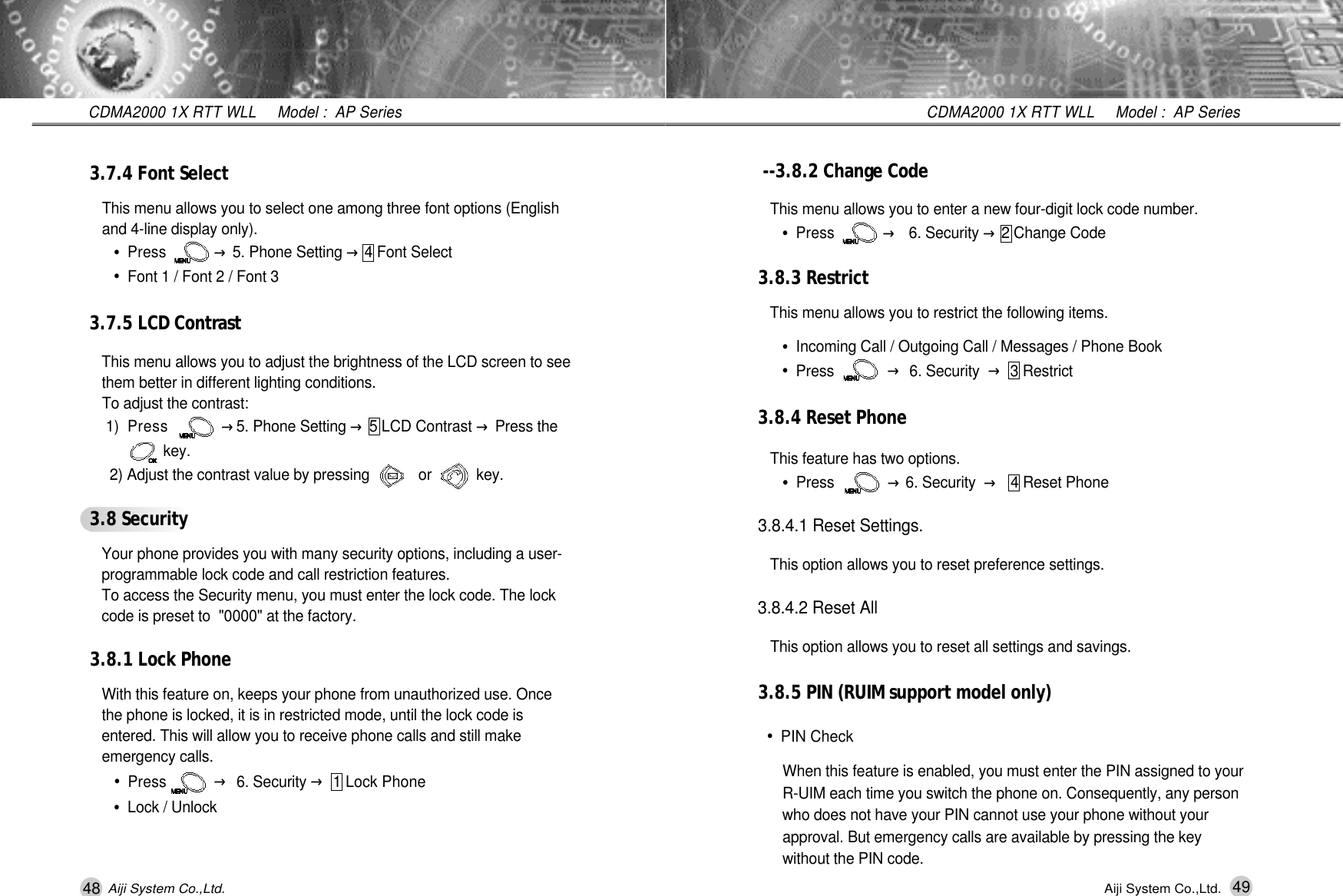
49CDMA2000 1X RTT WLL     Model :  AP SeriesAiji System Co.,Ltd.- - 3.8.2 Change CodeThis menu allows you to enter a new four-digit lock code number.•Press           →6. Security →2 Change Code3.8.3 RestrictThis menu allows you to restrict the following items.•Incoming Call / Outgoing Call / Messages / Phone Book•Press            →6. Security →3 Restrict3.8.4 Reset PhoneThis feature has two options.•Press            →6. Security  →4 Reset Phone3.8.4.1 Reset Settings.This option allows you to reset preference settings.3.8.4.2 Reset AllThis option allows you to reset all settings and savings.3.8.5 PIN (RUIM support model only)•PIN CheckWhen this feature is enabled, you must enter the PIN assigned to your R-UIM each time you switch the phone on. Consequently, any person who does not have your PIN cannot use your phone without your approval. But emergency calls are available by pressing the key    without the PIN code.48CDMA2000 1X RTT WLL     Model :  AP SeriesAiji System Co.,Ltd.3.7.4 Font SelectThis menu allows you to select one among three font options (English and 4-line display only).•Press           →5. Phone Setting →4 Font Select•Font 1 / Font 2 / Font 33.7.5 LCD Contra s tThis menu allows you to adjust the brightness of the LCD screen to see   them better in different lighting conditions.To adjust the contrast:1 )Press           →5. Phone Setting →5 LCD Contrast →Press the     k e y .2) Adjust the contrast value by pressing            or           key.3.8 SecurityYour phone provides you with many security options, including a user-  programmable lock code and call restriction features.To access the Security menu, you must enter the lock code. The lock code is preset to  "0000" at the factory.3.8.1 Lock PhoneWith this feature on, keeps your phone from unauthorized use. Once the phone is locked, it is in restricted mode, until the lock code is entered. This will allow you to receive phone calls and still make emergency calls.•Press           →6. Security →1 Lock Phone•Lock / Unlock
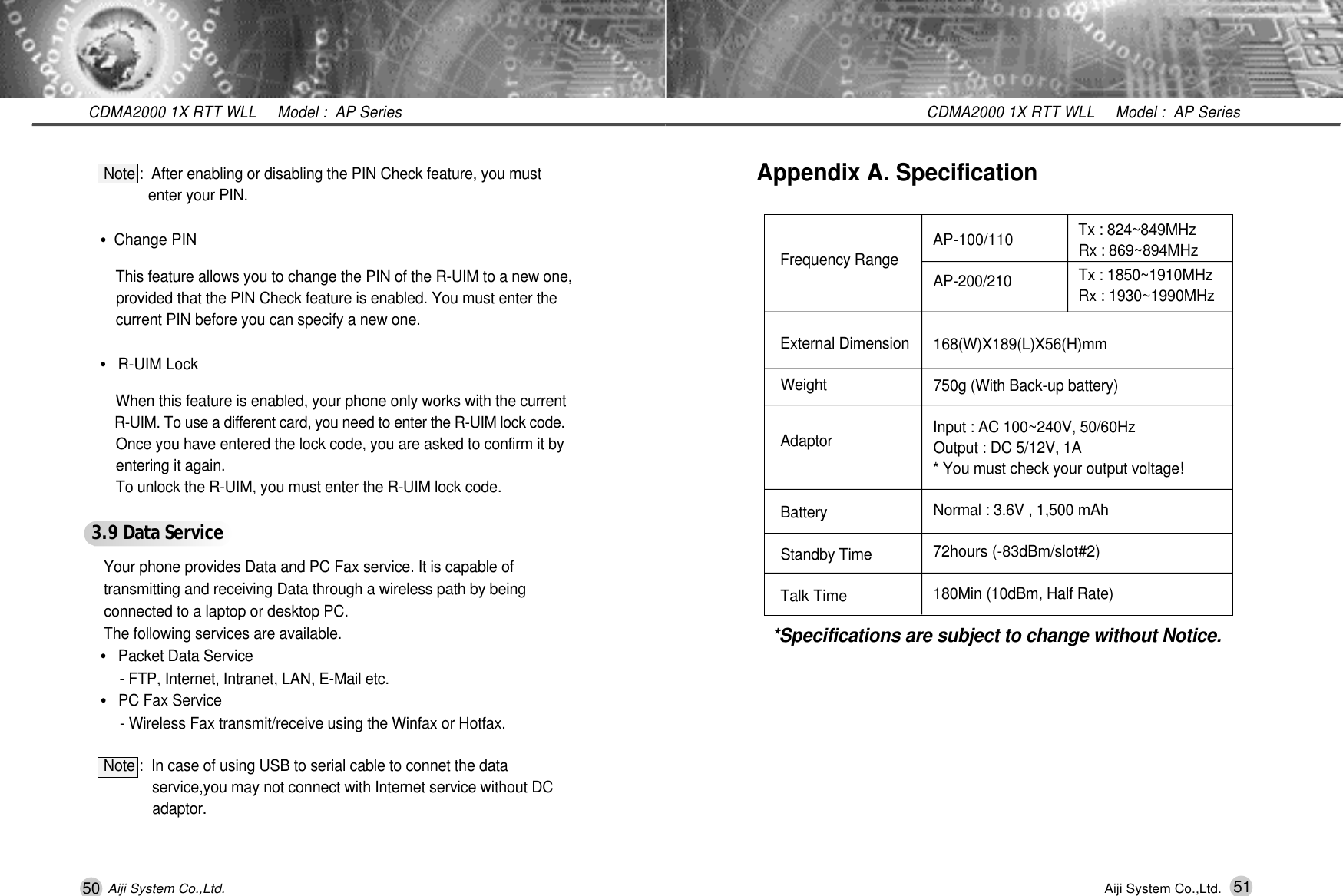
50CDMA2000 1X RTT WLL     Model :  AP SeriesAiji System Co.,Ltd.Note :  After enabling or disabling the PIN Check feature, you must   enter your PIN.•Change PINThis feature allows you to change the PIN of the R-UIM to a new one, provided that the PIN Check feature is enabled. You must enter the current PIN before you can specify a new one.•R-UIM LockWhen this feature is enabled, your phone only works with the current R-UIM. To use a different card, you need to enter the R-UIM lock code.Once you have entered the lock code, you are asked to confirm it by entering it again.To unlock the R-UIM, you must enter the R-UIM lock code.3.9 Data Servi c eYour phone provides Data and PC Fax service. It is capable of transmitting and receiving Data through a wireless path by being connected to a laptop or desktop PC.The following services are available.•Packet Data Service- FTP, Internet, Intranet, LAN, E-Mail etc.•PC Fax Service- Wireless Fax transmit/receive using the Winfax or Hotfax.Note :  In case of using USB to serial cable to connet the data   service,you may not connect with Internet service without DC a d a p t o r .51CDMA2000 1X RTT WLL     Model :  AP SeriesAiji System Co.,Ltd.Tx : 824~849MHz   Rx : 869~894MHzTx : 1850~1910MHzRx : 1930~1990MHzAppendix A. SpecificationFrequency Range External DimensionW e i g h tA d a p t o rB a t t e r yStandby TimeTalk TimeAP-100/110 A P - 2 0 0 / 2 1 01 6 8 ( W ) X 1 8 9 ( L ) X 5 6 ( H ) m m750g (With Back-up battery)Input : AC 100~240V, 50/60HzOutput : DC 5/12V, 1A * You must check your output voltage!Normal : 3.6V , 1,500 mAh72hours (-83dBm/slot#2)180Min (10dBm, Half Rate)*Specifications are subject to change without Notice.
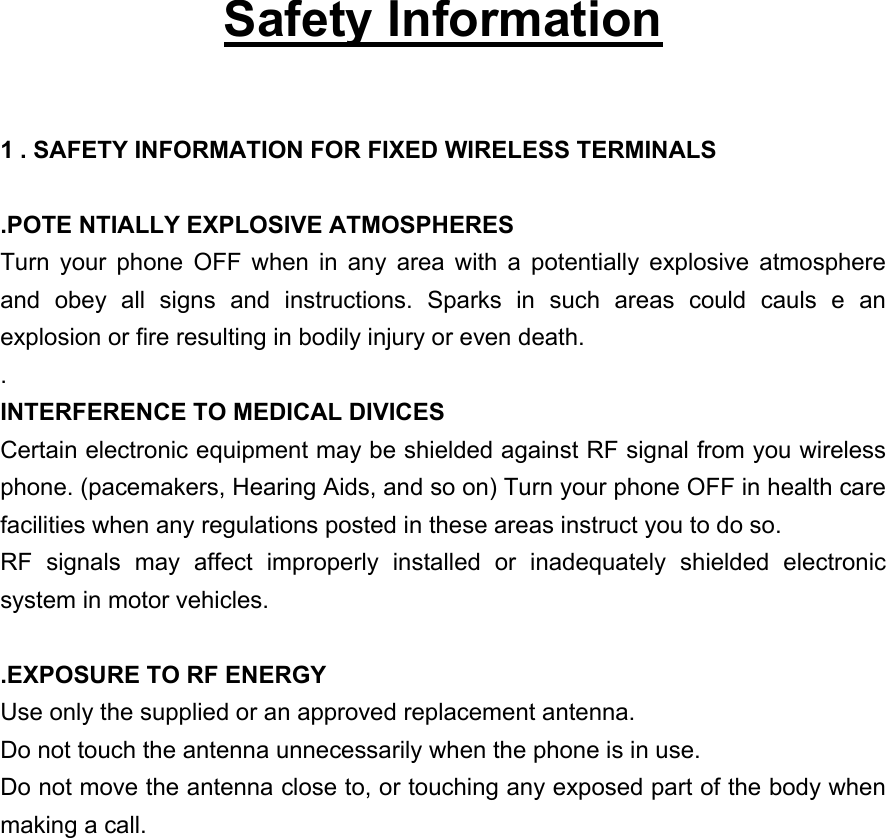
  Safety Information  1 . SAFETY INFORMATION FOR FIXED WIRELESS TERMINALS  .POTE NTIALLY EXPLOSIVE ATMOSPHERES Turn your phone OFF when in any area with a potentially explosive atmosphere and obey all signs and instructions. Sparks in such areas could cauls e an explosion or fire resulting in bodily injury or even death. . INTERFERENCE TO MEDICAL DIVICES Certain electronic equipment may be shielded against RF signal from you wireless phone. (pacemakers, Hearing Aids, and so on) Turn your phone OFF in health care facilities when any regulations posted in these areas instruct you to do so. RF signals may affect improperly installed or inadequately shielded electronic system in motor vehicles.  .EXPOSURE TO RF ENERGY Use only the supplied or an approved replacement antenna. Do not touch the antenna unnecessarily when the phone is in use. Do not move the antenna close to, or touching any exposed part of the body when making a call.
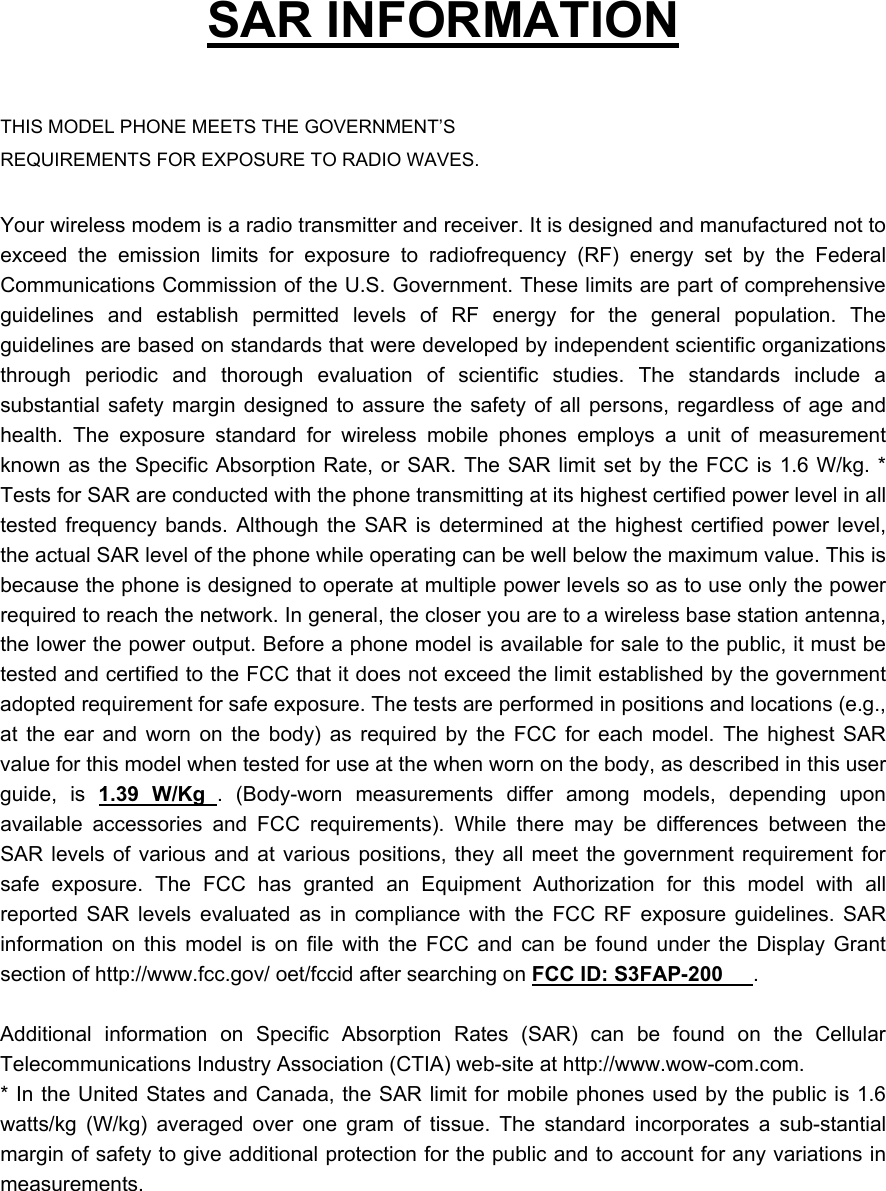
  SAR INFORMATION  THIS MODEL PHONE MEETS THE GOVERNMENT’S REQUIREMENTS FOR EXPOSURE TO RADIO WAVES.  Your wireless modem is a radio transmitter and receiver. It is designed and manufactured not to exceed the emission limits for exposure to radiofrequency (RF) energy set by the Federal Communications Commission of the U.S. Government. These limits are part of comprehensive guidelines and establish permitted levels of RF energy for the general population. The guidelines are based on standards that were developed by independent scientific organizations through periodic and thorough evaluation of scientific studies. The standards include a substantial safety margin designed to assure the safety of all persons, regardless of age and health. The exposure standard for wireless mobile phones employs a unit of measurement known as the Specific Absorption Rate, or SAR. The SAR limit set by the FCC is 1.6 W/kg. * Tests for SAR are conducted with the phone transmitting at its highest certified power level in all tested frequency bands. Although the SAR is determined at the highest certified power level, the actual SAR level of the phone while operating can be well below the maximum value. This is because the phone is designed to operate at multiple power levels so as to use only the power required to reach the network. In general, the closer you are to a wireless base station antenna, the lower the power output. Before a phone model is available for sale to the public, it must be tested and certified to the FCC that it does not exceed the limit established by the government adopted requirement for safe exposure. The tests are performed in positions and locations (e.g., at the ear and worn on the body) as required by the FCC for each model. The highest SAR value for this model when tested for use at the when worn on the body, as described in this user guide, is 1.39 W/Kg . (Body-worn measurements differ among models, depending upon available accessories and FCC requirements). While there may be differences between the SAR levels of various and at various positions, they all meet the government requirement for safe exposure. The FCC has granted an Equipment Authorization for this model with all reported SAR levels evaluated as in compliance with the FCC RF exposure guidelines. SAR information on this model is on file with the FCC and can be found under the Display Grant section of http://www.fcc.gov/ oet/fccid after searching on FCC ID: S3FAP-200 .   Additional information on Specific Absorption Rates (SAR) can be found on the Cellular Telecommunications Industry Association (CTIA) web-site at http://www.wow-com.com. * In the United States and Canada, the SAR limit for mobile phones used by the public is 1.6 watts/kg (W/kg) averaged over one gram of tissue. The standard incorporates a sub-stantial margin of safety to give additional protection for the public and to account for any variations in measurements.
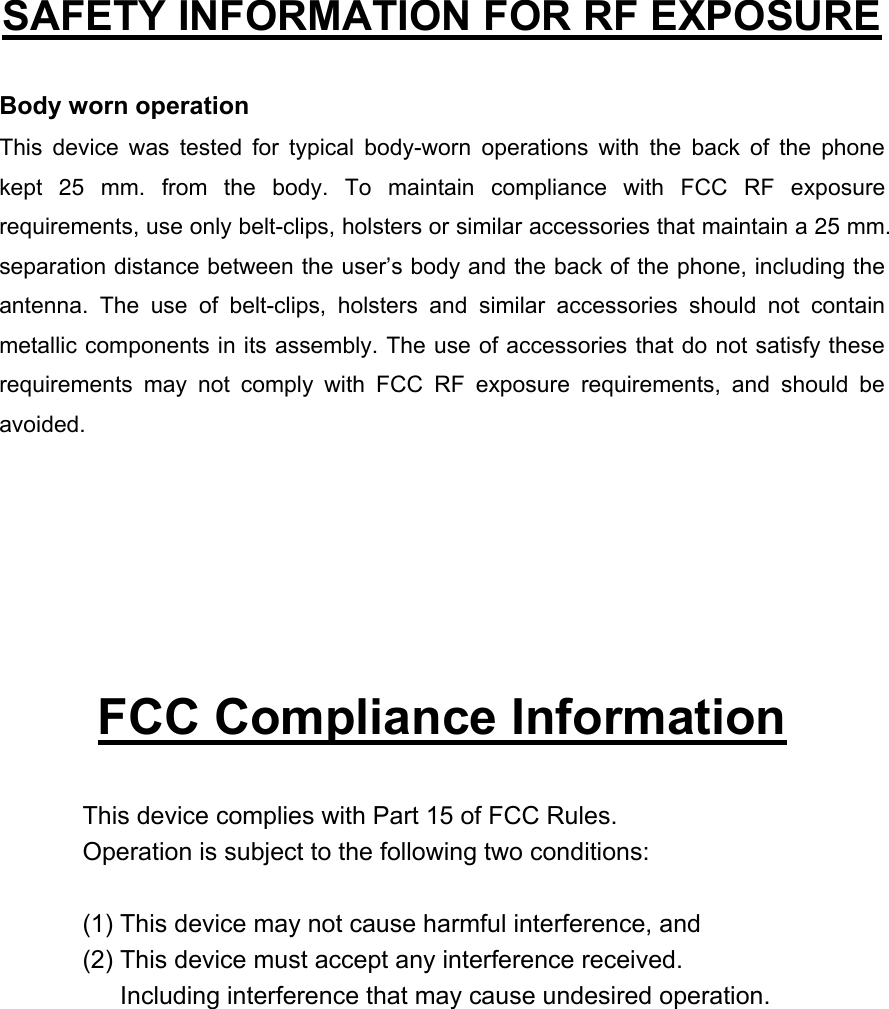
  SAFETY INFORMATION FOR RF EXPOSURE  Body worn operation This device was tested for typical body-worn operations with the back of the phone kept 25 mm. from the body. To maintain compliance with FCC RF exposure requirements, use only belt-clips, holsters or similar accessories that maintain a 25 mm. separation distance between the user’s body and the back of the phone, including the antenna. The use of belt-clips, holsters and similar accessories should not contain metallic components in its assembly. The use of accessories that do not satisfy these requirements may not comply with FCC RF exposure requirements, and should be avoided.       FCC Compliance Information  This device complies with Part 15 of FCC Rules. Operation is subject to the following two conditions:  (1) This device may not cause harmful interference, and (2) This device must accept any interference received.         Including interference that may cause undesired operation.
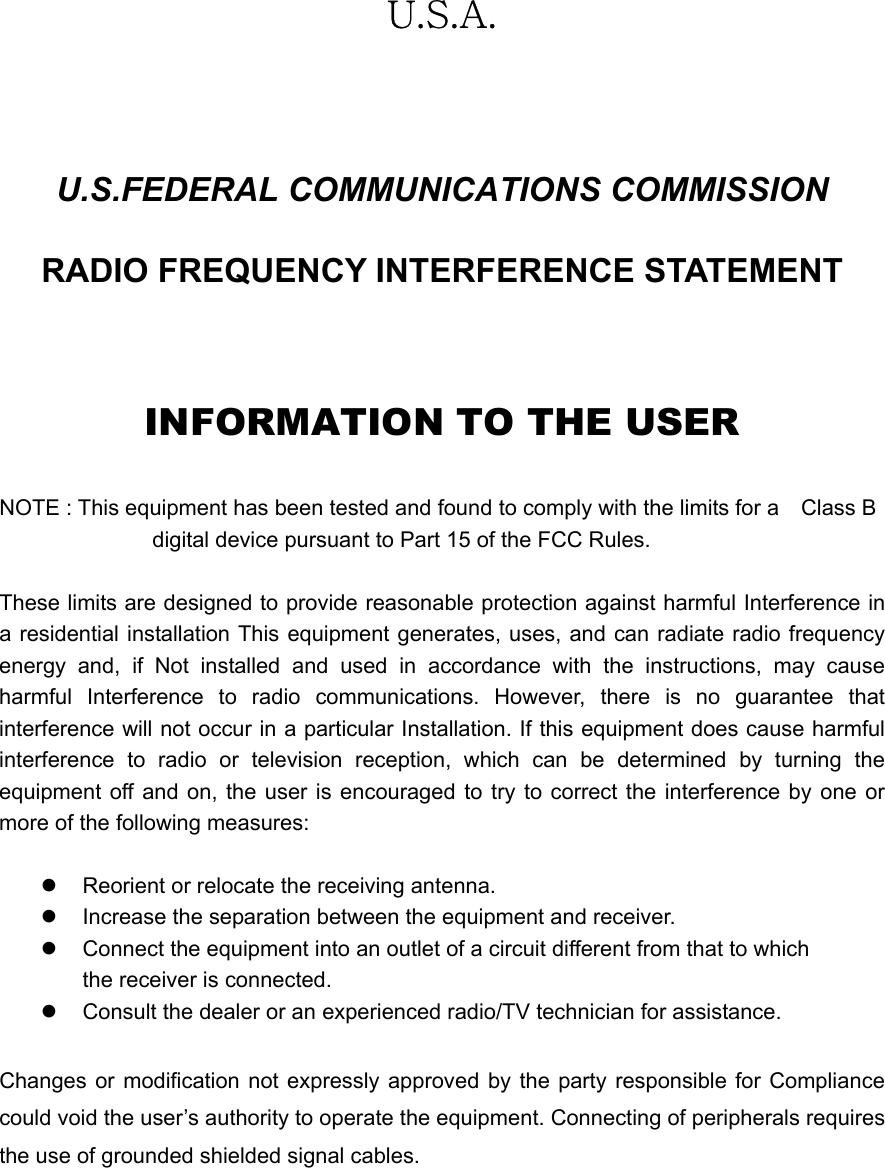
  U.S.A.  U.S.FEDERAL COMMUNICATIONS COMMISSION RADIO FREQUENCY INTERFERENCE STATEMENT  INFORMATION TO THE USER  NOTE : This equipment has been tested and found to comply with the limits for a    Class B                                 digital device pursuant to Part 15 of the FCC Rules.  These limits are designed to provide reasonable protection against harmful Interference in a residential installation This equipment generates, uses, and can radiate radio frequency energy and, if Not installed and used in accordance with the instructions, may cause harmful Interference to radio communications. However, there is no guarantee that interference will not occur in a particular Installation. If this equipment does cause harmful interference to radio or television reception, which can be determined by turning the equipment off and on, the user is encouraged to try to correct the interference by one or more of the following measures:  z  Reorient or relocate the receiving antenna. z  Increase the separation between the equipment and receiver. z  Connect the equipment into an outlet of a circuit different from that to which the receiver is connected. z  Consult the dealer or an experienced radio/TV technician for assistance.  Changes or modification not expressly approved by the party responsible for Compliance could void the user’s authority to operate the equipment. Connecting of peripherals requires the use of grounded shielded signal cables.

Navigation menu