AIJI System AP-200 Fixed WLL Telephone (PCS CDMA) User Manual 1

AIJI System Co., Ltd. Fixed WLL Telephone (PCS CDMA) Users Manual 1

Users Manual 1

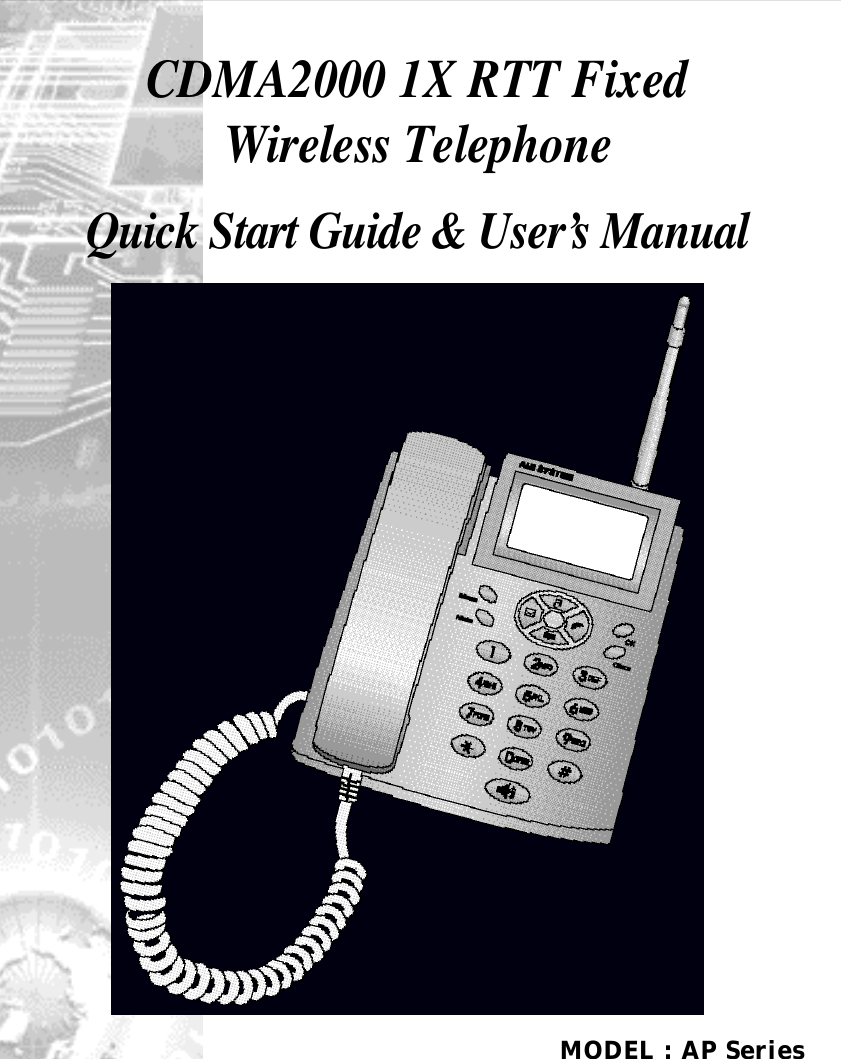
MODEL : AP SeriesCDMA2000 1X RTT Fixed Wireless TelephoneQuick Start Guide & User’s Manual
CDMA2000 1X RTT WLL     Model :  AP SeriesPlease read this manual before operating thephone, and keep it for the future reference. 2005 Aiji System Co., Ltd.  All rights  reserved. Noreproduction in whole or in part  is permitted,without prior written approval. The information in this  user manual  is subject tochange  without notice  and  does  not  represent acommitment on the part of Aiji System Co., Ltd.Model Number: AP Series Version: Initial Release, Feb. 28, 2005  Follow the directions on this page  to start  usingyour phone now.  For more  information, refer  tothe rest of this user manual.REFERENCE & WARNING3Aiji System Co.,Ltd.CDMA2000 1X RTT WLL     Model :  AP SeriesD AT E CONTENTS OF CHANGES R E M A R KFeb 28, 2005         Initial Re l e a s eREVISED HISTORY2Aiji System Co.,Ltd.
CDMA2000 1X RTT WLL     Model :  AP SeriesCDMA2000 1X RTT WLL     Model :  AP SeriesSAFETY INFORMATION•To reduce the risk of fire or electric shock, do not expose this product to rain or moisture.•Do not use this product near swimming pools or other bodies of w a t e r .•Before using your phone, check your output voltage.WARNINGIMPORTANTBefore installing or operating this product read this information.OPTIMAL PHONE PERFORMANCE•Do not operate your product when holding the antenna, or when someone is within four inches (ten centimeters) of the antenna. Holding the antenna affects call quality and may cause the telephone to operate at a higher power level than needed.•For the best call quality, keep the antenna free from obstructions and point the antenna straight up.•Do not use the unit with a damaged antenna. Have your antenna replaced by a qualified technician immediately. Use only a manufacturer-approved antenna. Non-approved antennas, modifications, or attachments could impair call quality, damage the p h o n e .•RF energy may affect improperly installed or inadequately shielded personal medical devices such as pace markers, hospital monitor. Consult the manufacturer of any personal medical devices to determine if they are adequately shielded from external RF energy. Turn your terminal OFF in health care facilities when any regulations posted in the areas instruct you to do so. Hospitals or health care facilities may be using equipment that could be sensitive to external RF energy.•If this equipment does cause harmful interference to radio or television reception, which can be determined by turning the equipment off and on, the user is encouraged to try to correct the interference by one or more of the following measures:▷Reorient or relocate the receiving antenna▷Increase the distance between the radio or television and the t e l e p h o n e .▷Connect the equipment into an outlet on a circuit different from that to which the terminal is connected.▷Consult you Authorized AIJI Dealer of an experienced radio/TV technician for help.•Use only the battery, antenna and AC power supply provided by AIJI. Using any other type will invalidate the warranty.•Only authorized personnel should service the phone and its accessories. Faulty installation or service may be dangerous and may invalidate the warranty.•Do not use the unit in designated "No Cellular Phone Use" area.•Avoid exposure to high temperature or humidity.45Aiji System Co.,Ltd. Aiji System Co.,Ltd.
CDMA2000 1X RTT WLL     Model :  AP Series6Aiji System Co.,Ltd.7Aiji System Co.,Ltd.CDMA2000 1X RTT WLL     Model :  AP SeriesCARE AND SERVICE•Unplug the telephone from the wall outlet and remove antenna (or  disconnect antenna cable) before cleaning. Do not use liquid or aerosol cleaners. Use a damp cloth for cleaning.•If the unit fails for any reason, do not attempt to disassemble; contact the telephone service provider for assistance.•If any of the following conditions exist; unplug the unit at the wall plug, remove battery, and call the service provider.▷The power supply cord is damaged or frayed.▷Liquid has been spilled into the unit.▷The unit has been exposed to rain or water.▷The unit has been dropped or damaged.▷The unit does not work normally by following the operating i n s t r u c t i o n s .•Avoid wetting the unit with any liquids. If the unit gets wet, turn the  power off immediately and remove the backup battery and AC power  supply. If the unit is inoperable, then return to the service agent for  s e r v i c e .•Avoid shock or impact.•We recommend you to charge the backup battery before initial use. Backup battery may be discharged during delivery.CDMA2000 Fixed Wireless Te l e p h o n eQuick Start GuideMODEL…AP Series
81.2 External FeaturesDescription Icon          DescriptionMessage sent successfully M o b i l eMessage sending fail H o m eRead Message Office Locked Message Other 3-way Calling Incoming CallG r o u p Outgoing CallMissed CallDescription1. Activate MENU state (also MENU state in the call state)1. Activate SMS and Voice Mail state1. Set the [DND (Do Not Disturb)] function. It prohibits incoming calls when the phone is in the idle-state1. Send a dialed number when a call is placed and/or to redial and \ send the last number dialed1. Sound: 31 Ring tones/Alerts/Volume 2. Volume up (also function as a cursor in the edit state)1. Phone book2. Volume down (also function as a cursor in the edit state)1. Store phone numbers and any settings you select in the menu within the phone's memory.1. Delete the last digit/dial number (also exit without storing in the      MENU state)2. Deactivate a state - No store a value1. To make or receive a call using the speakerphone.9CDMA2000 1X RTT WLL     Model :  AP SeriesCDMA2000 1X RTT WLL     Model :  AP SeriesAiji System Co.,Ltd. Aiji System Co.,Ltd.1. Getting to Know Your Phone1.1 Key DefinitionFeatures DescriptionA n t e n n a Adjusting direction of antenna improves the voice and data qualityRF ConnectorFor connection to basic antenna or external antennaDC Power JackFor connection to power adapterRS-232C port For connection to PC for InternetPower Switch To turn on/off the phone1.3 Icons1.3.1 Standby Icons1.3.2 Sub IconsDescription Icon DescriptionSignal strength in the service area.Lock modeIn use Off-hook modeNo Service Alarm/Morning CallNew message Battery statusVoice message AC Power ModeI c o nIconK e y
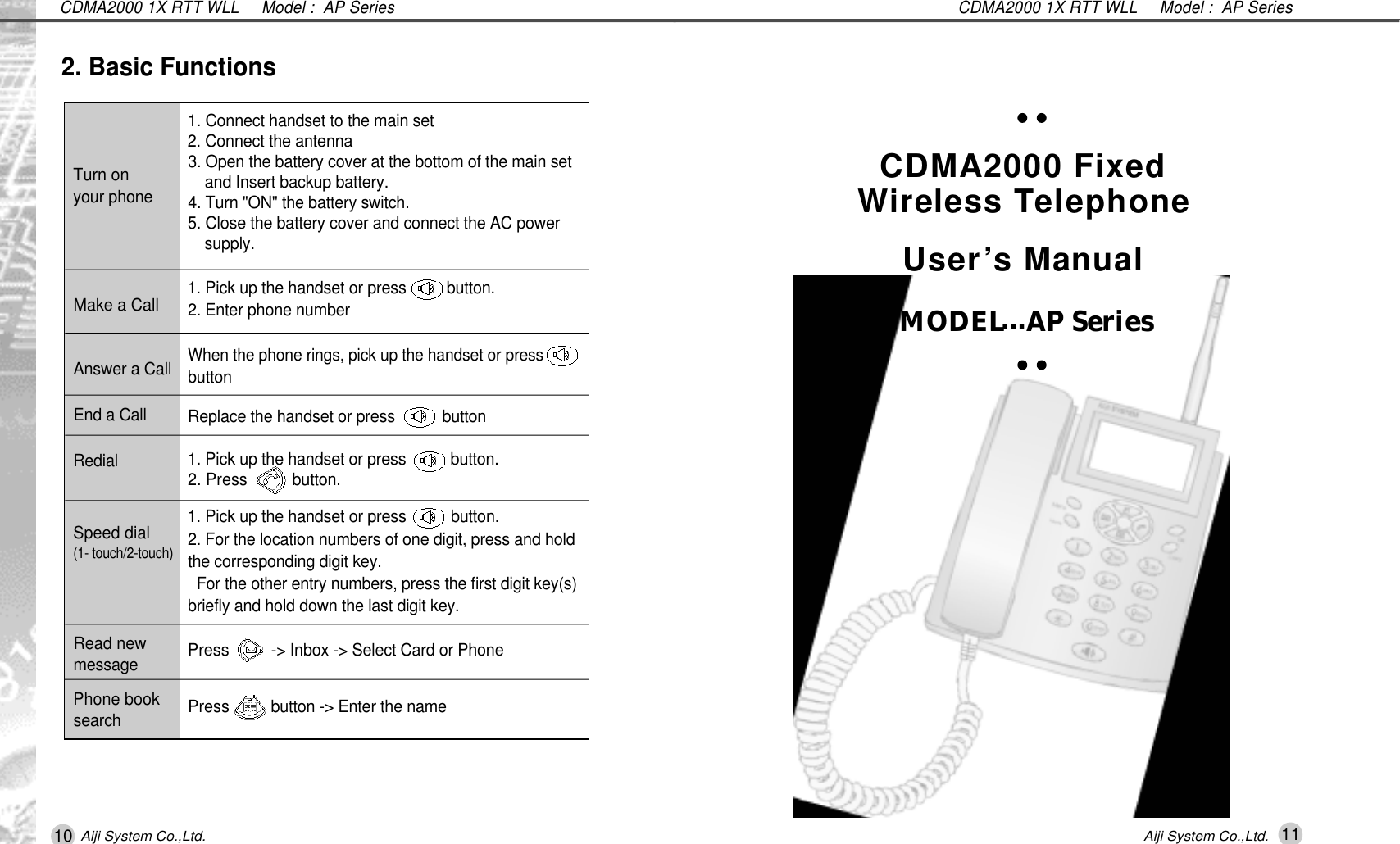
10 11Aiji System Co.,Ltd. Aiji System Co.,Ltd.CDMA2000 1X RTT WLL     Model :  AP SeriesCDMA2000 1X RTT WLL     Model :  AP Series2. Basic FunctionsTurn on your phoneMake a CallAnswer a CallEnd a CallR e d i a lSpeed dial(1- touch/2-touch)Read newm e s s a g ePhone books e a r c h1. Connect handset to the main set2. Connect the antenna3. Open the battery cover at the bottom of the main set and Insert backup battery.4. Turn "ON" the battery switch.5. Close the battery cover and connect the AC power s u p p l y .1. Pick up the handset or press   b u t t o n .2. Enter phone numberWhen the phone rings, pick up the handset or pressb u t t o nReplace the handset or press   b u t t o n1. Pick up the handset or press   b u t t o n .2. Press b u t t o n .1. Pick up the handset or press   b u t t o n .2. For the location numbers of one digit, press and holdthe corresponding digit key.For the other entry numbers, press the first digit key(s)briefly and hold down the last digit key.Press  -> Inbox -> Select Card or PhonePress   button -> Enter the name CDMA2000 Fixed Wireless Te l e p h o n eU s e r’s ManualMODEL…AP Series
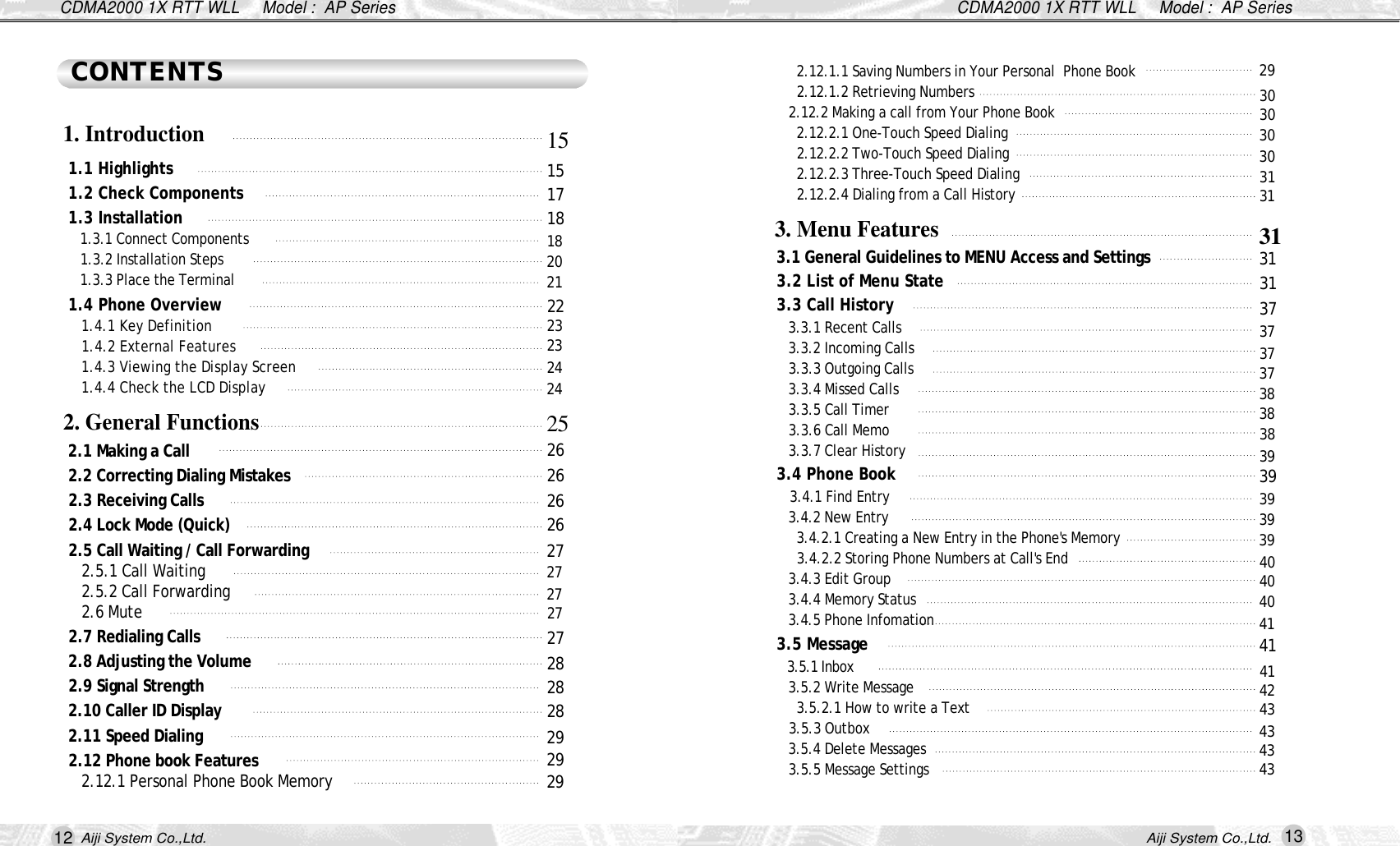
12 13Aiji System Co.,Ltd. Aiji System Co.,Ltd.CDMA2000 1X RTT WLL     Model :  AP SeriesCDMA2000 1X RTT WLL     Model :  AP Series2.12.1.1 Saving Numbers in Your Personal  Phone Book2.12.1.2 Retrieving Numbers2.12.2 Making a call from Your Phone Book 2.12.2.1 One-Touch Speed Dialing 2.12.2.2 Two-Touch Speed Dialing 2.12.2.3 Three-Touch Speed Dialing 2.12.2.4 Dialing from a Call History 3.1 General Guidelines to MENU Access and Settings3.2 List of Menu State 3.3 Call History3.3.1 Recent Calls 3.3.2 Incoming Calls 3.3.3 Outgoing Calls 3.3.4 Missed Calls 3.3.5 Call Timer 3.3.6 Call Memo 3.3.7 Clear History3.4 Phone Book 3.4.1 Find Entry 3.4.2 New Entry 3.4.2.1 Creating a New Entry in the Phone's Memory 3.4.2.2 Storing Phone Numbers at Call's End 3.4.3 Edit Group 3.4.4 Memory Status3.4.5 Phone Infomation3.5 Message 3.5.1 Inbox3.5.2 Write Message 3.5.2.1 How to write a Text3.5.3 Outbox 3.5.4 Delete Messages3.5.5 Message Settings1.1 Highlights 1.2 Check Components 1.3 Installation 1.3.1 Connect Components 1.3.2 Installation Steps 1.3.3 Place the Terminal 1.4 Phone Overview 1.4.1 Key Definition 1.4.2 External Features 1.4.3 Viewing the Display Screen 1.4.4 Check the LCD Display 2.1 Making a Call 2.2 Correcting Dialing Mistakes 2.3 Receiving Calls 2.4 Lock Mode (Quick) 2.5 Call Waiting / Call Forwarding2.5.1 Call Waiting 2.5.2 Call Forwarding2.6 Mute2.7 Redialing Calls2.8 Adjusting the Volume 2.9 Signal Strength2.10 Caller ID Display2.11 Speed Dialing2.12 Phone book Features 2.12.1 Personal Phone Book Memory CONTENTS1. Introduction 2. General Functions3. Menu Features 1 51 51 71 81 82 0212 22 32 32 42 42 52 62 62 62 62 72 72 72 72 72 82 82 82 92 92 92930303030313 13 13 13 13 73 73 73 73 83 83 83 93 93 93 93 94 04 04 04 14 14 14 24 34 34 34 3
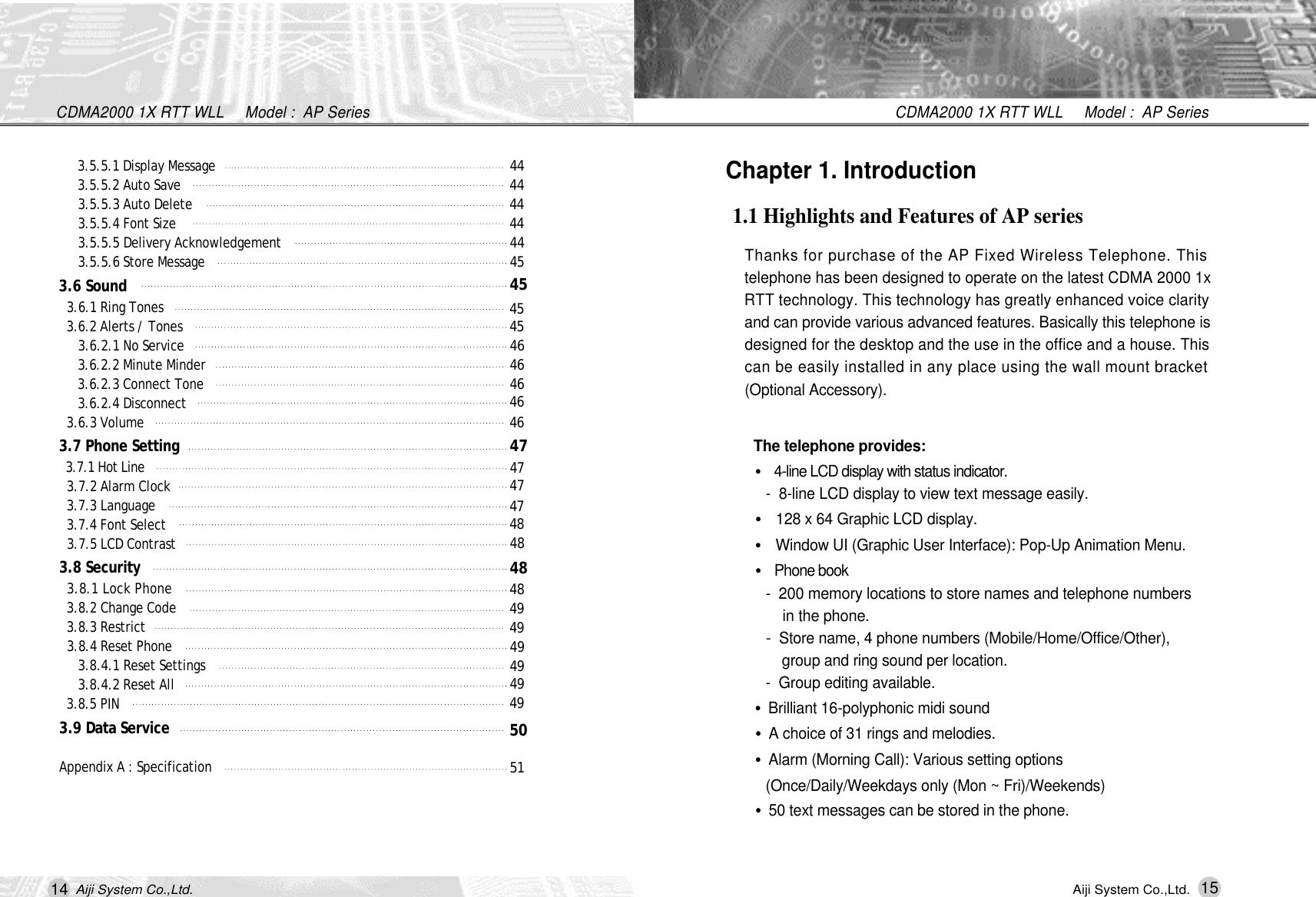
14Aiji System Co.,Ltd.CDMA2000 1X RTT WLL     Model :  AP Series15CDMA2000 1X RTT WLL     Model :  AP SeriesAiji System Co.,Ltd.Chapter 1. Introduction1.1 Highlights and Features of AP seriesThanks for purchase of the AP Fixed Wireless Telephone. Thistelephone has been designed to operate on the latest CDMA 2000 1xRTT technology. This technology has greatly enhanced voice clarityand can provide various advanced features. Basically this telephone isdesigned for the desktop and the use in the office and a house. Thiscan be easily installed in any place using the wall mount bracket(Optional Accessory).The telephone provides:•4-line LCD display with status indicator.-  8-line LCD display to view text message easily. •128 x 64 Graphic LCD display.•Window UI (Graphic User Interface): Pop-Up Animation Menu.•Phone book-  200 memory locations to store names and telephone numbers  in the phone.-  Store name, 4 phone numbers (Mobile/Home/Office/Other), group and ring sound per location.-  Group editing available.•Brilliant 16-polyphonic midi sound•A choice of 31 rings and melodies.•Alarm (Morning Call): Various setting options (Once/Daily/Weekdays only (Mon ~ Fri)/Weekends)•50 text messages can be stored in the phone.3.5.5.1 Display Message 3.5.5.2 Auto Save 3.5.5.3 Auto Delete 3.5.5.4 Font Size 3.5.5.5 Delivery Acknowledgement 3.5.5.6 Store Message3.6 Sound 3.6.1 Ring Tones3.6.2 Alerts / Tones 3.6.2.1 No Service 3.6.2.2 Minute Minder 3.6.2.3 Connect Tone 3.6.2.4 Disconnect 3.6.3 Volume 3.7 Phone Setting 3.7.1 Hot Line 3.7.2 Alarm Clock 3.7.3 Language3.7.4 Font Select3.7.5 LCD Contrast 3.8 Security 3.8.1 Lock Phone 3.8.2 Change Code 3.8.3 Restrict 3.8.4 Reset Phone 3.8.4.1 Reset Settings 3.8.4.2 Reset All 3.8.5 PIN 3.9 Data ServiceAppendix A : Specification4 44 44 44 44 44 54 54 54 54 64 64 64 64 64 74 74 74 74 84 84 84 84 94 94 94 94 94 95 05 1
16 17CDMA2000 1X RTT WLL     Model :  AP SeriesCDMA2000 1X RTT WLL     Model :  AP SeriesAiji System Co.,Ltd. Aiji System Co.,Ltd.1.2 Check Components•Your package contains the following items. The illustrations below may lookdifferent from your phone and accessories;[ Main Unit with handset ][ Dipole Antenna ][ User’s Manual ][ AC/DC power Adapter ][ Backup Battery ] [ Power Cord ]•Restrict Call•S e c u r i t y•Internet connection up to 153Kbps through RS-232C serial data port.•Support the Authentication Key (A-Key)•Various supplementary services such as Last Number Redial, Dial Tone and On Hook etc.•Optional Functions: R-UIM, Speaker phone, LCD backlight, Button backlight•99 Voice Mail.•Call History (Record&Time):   R e c e n t _ 3 0 / I n c o m i n g _ 2 0 / O u t g o i n g _ 2 0 / M i s s e d _ 2 0•Speed dialing (1- touch, 2-touch and 3-touch) with a 200 number memory.•Call Forwarding/Call Waiting/Caller ID/Last Number Re-Dial•Alert (No Service / Minute Minder / Connect Tone / Disconnect Tone)•Emergency Call•Hot Line
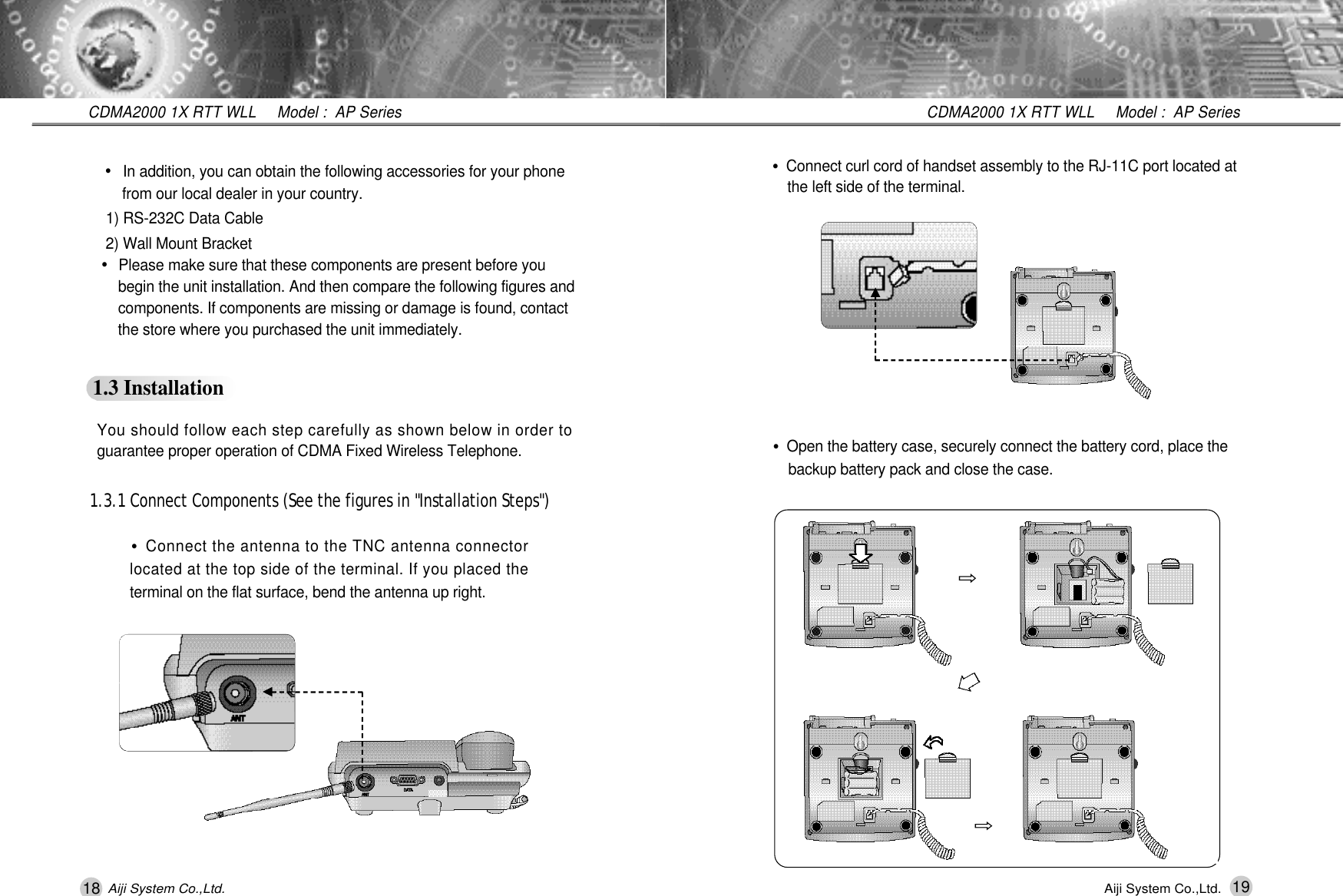
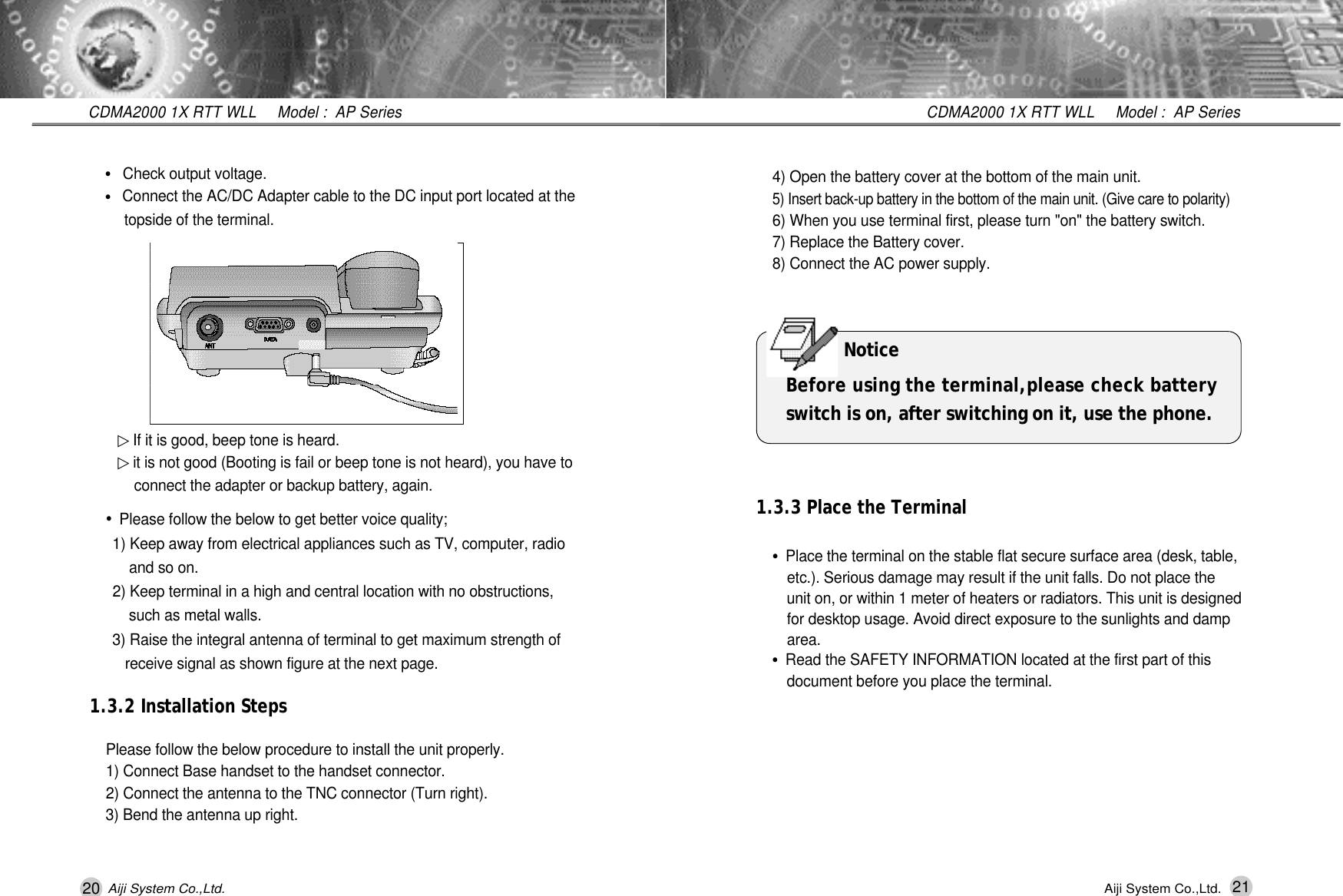
18 19CDMA2000 1X RTT WLL     Model :  AP SeriesCDMA2000 1X RTT WLL     Model :  AP SeriesAiji System Co.,Ltd. Aiji System Co.,Ltd.•In addition, you can obtain the following accessories for your phone from our local dealer in your country.1) RS-232C Data Cable2) Wall Mount Bracket•Please make sure that these components are present before you begin the unit installation. And then compare the following figures and components. If components are missing or damage is found, contact the store where you purchased the unit immediately.1.3 Installation1.3.1 Connect Components (See the figures in "Installation Steps")You should follow each step carefully as shown below in order toguarantee proper operation of CDMA Fixed Wireless Telephone.•Connect the antenna to the TNC antenna connectorlocated at the top side of the terminal. If you placed theterminal on the flat surface, bend the antenna up right.•Open the battery case, securely connect the battery cord, place the backup battery pack and close the case.󰦲󰦲•Connect curl cord of handset assembly to the RJ-11C port located at the left side of the terminal.
20 21CDMA2000 1X RTT WLL     Model :  AP SeriesCDMA2000 1X RTT WLL     Model :  AP SeriesAiji System Co.,Ltd. Aiji System Co.,Ltd.▷If it is good, beep tone is heard.▷it is not good (Booting is fail or beep tone is not heard), you have to connect the adapter or backup battery, again.•Check output voltage.•Connect the AC/DC Adapter cable to the DC input port located at the topside of the terminal.•Please follow the below to get better voice quality;1) Keep away from electrical appliances such as TV, computer, radio and so on.2) Keep terminal in a high and central location with no obstructions, such as metal walls.3) Raise the integral antenna of terminal to get maximum strength of receive signal as shown figure at the next page.1.3.2 Installation StepsPlease follow the below procedure to install the unit properly.1) Connect Base handset to the handset connector.2) Connect the antenna to the TNC connector (Turn right).3) Bend the antenna up right.4) Open the battery cover at the bottom of the main unit.5) Insert back-up battery in the bottom of the main unit. (Give care to polarity)6) When you use terminal first, please turn "on" the battery switch.7) Replace the Battery cover.8) Connect the AC power supply.1.3.3 Place the Terminal•Place the terminal on the stable flat secure surface area (desk, table, etc.). Serious damage may result if the unit falls. Do not place the unit on, or within 1 meter of heaters or radiators. This unit is designed for desktop usage. Avoid direct exposure to the sunlights and damp a r e a .•Read the SAFETY INFORMATION located at the first part of this document before you place the terminal. N o t i c eBefore using the terminal,please check batteryswitch is on, after switching on it, use the phone.
1.4.2 External FeaturesDescription1. Activate MENU state (also MENU state in the call state)1. Activate SMS and Voice Mail state1. Set the [DND (Do Not Disturb)] function. It prohibits incoming calls when the phone is in the idle-state1. Send a dialed number when a call is placed and/or to redial and \ send the last number dialed1. Sound: 31 Ring tones/Alerts/Volume 2. Volume up (also function as a cursor in the edit state)1. Phone book2. Volume down (also function as a cursor in the edit state)1. Store phone numbers and any settings you select in the menu within the phone's memory.1. Delete the last digit/dial number (also exit without storing in the MENU state)2. Deactivate a state - No store a value3. Press this key once in a menu, to go back one level.1. Off Hook mode2. To make or receive a call using the speakerphone.K e y1.4.1 Key DefinitionFeatures DescriptionA n t e n n a Adjusting direction of antenna improves the voice and data qualityRF ConnectorFor connection to basic antenna or external antennaDC Power JackFor connection to power adapterRS-232C port For connection to PC for InternetPower Switch To turn on/off the phone22 23CDMA2000 1X RTT WLL     Model :  AP SeriesCDMA2000 1X RTT WLL     Model :  AP SeriesAiji System Co.,Ltd. Aiji System Co.,Ltd.1.4 Phone OverviewThe following shows key components ofyour mobile phone.5.TNC Antenna6.LCD Screen7.OK Key9.Clear Key8.Navigation Key10.AlphanumericKeypad11.Lock mode Key12.OHD Key4.Curl Cord1.Handset2.Menu Key3.Mute Key
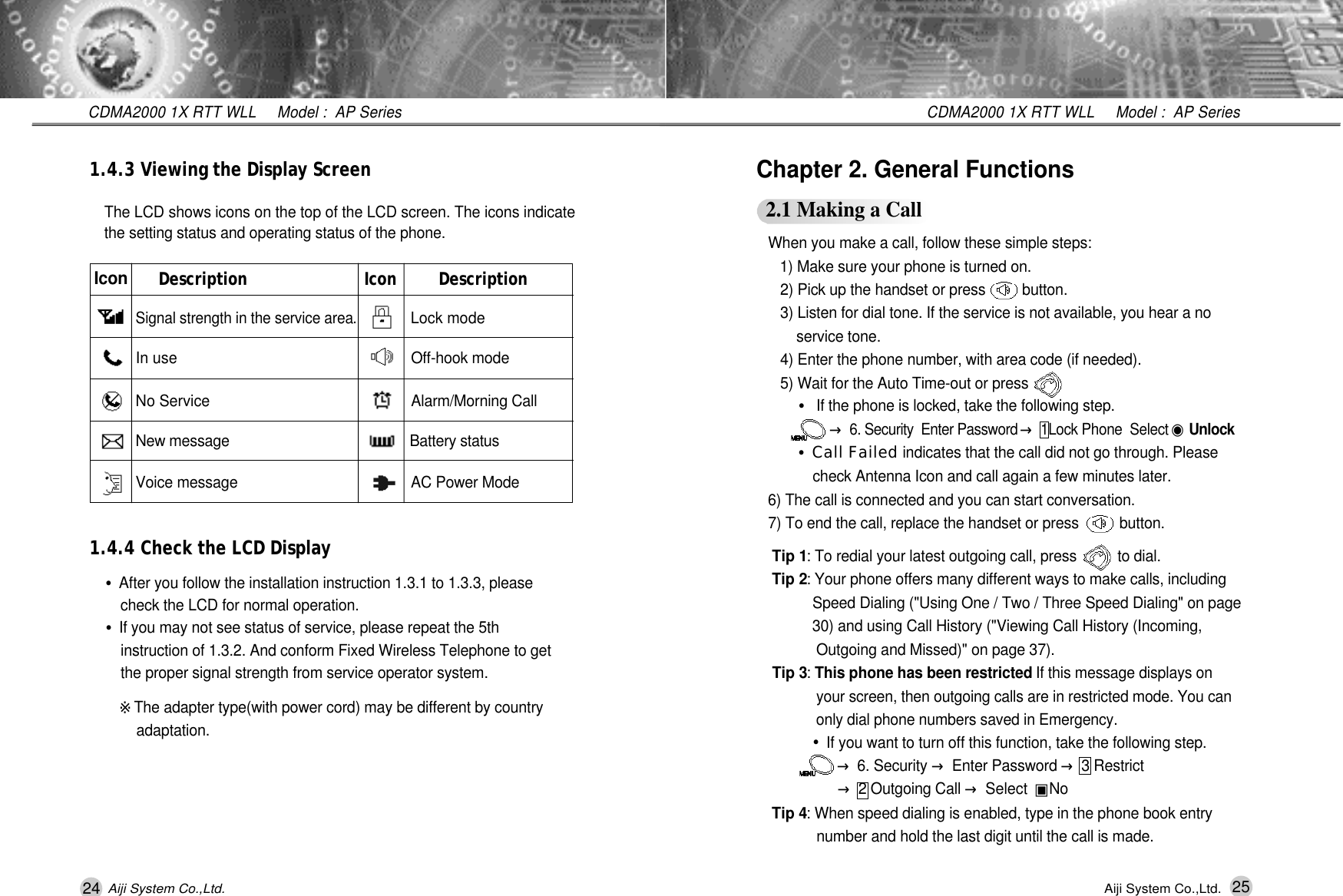
24 25CDMA2000 1X RTT WLL     Model :  AP SeriesCDMA2000 1X RTT WLL     Model :  AP SeriesAiji System Co.,Ltd. Aiji System Co.,Ltd.When you make a call, follow these simple steps:1) Make sure your phone is turned on.2) Pick up the handset or press         button.3) Listen for dial tone. If the service is not available, you hear a no service tone.4) Enter the phone number, with area code (if needed).5) Wait for the Auto Time-out or press        .•If the phone is locked, take the following step.→6. Security  Enter Password →1Lock Phone  Select ◉U n l o c k•Call Failed indicates that the call did not go through. Please  check Antenna Icon and call again a few minutes later.6) The call is connected and you can start conversation.  7) To end the call, replace the handset or press          button.Tip 1: To redial your latest outgoing call, press          to dial. Tip 2: Your phone offers many different ways to make calls, including  Speed Dialing ("Using One / Two / Three Speed Dialing" on page 30) and using Call History ("Viewing Call History (Incoming, Outgoing and Missed)" on page 37).Tip 3: This phone has been restricted If this message displays on  your screen, then outgoing calls are in restricted mode. You can only dial phone numbers saved in Emergency.•If you want to turn off this function, take the following step.→6. Security →Enter Password →3 Restrict →2 Outgoing Call →Select  ▣N oTip 4: When speed dialing is enabled, type in the phone book entry number and hold the last digit until the call is made.  Chapter 2. General Functions2.1 Making a Call1.4.3 Viewing the Display Screen1.4.4 Check the LCD DisplayThe LCD shows icons on the top of the LCD screen. The icons indicatethe setting status and operating status of the phone.•After you follow the installation instruction 1.3.1 to 1.3.3, please  check the LCD for normal operation.•If you may not see status of service, please repeat the 5th instruction of 1.3.2. And conform Fixed Wireless Telephone to get the proper signal strength from service operator system.※The adapter type(with power cord) may be different by country a d a p t a t i o n .Description Icon DescriptionSignal strength in the service area.Lock modeIn use Off-hook modeNo Service Alarm/Morning CallNew message Battery statusVoice message AC Power ModeI c o n
26 27CDMA2000 1X RTT WLL     Model :  AP SeriesCDMA2000 1X RTT WLL    Model :  AP Series Aiji System Co.,Ltd. Aiji System Co.,Ltd.2.5.1 Call Wa i t i n gYour WLL service may offer a call waiting function. While a call is in  progress, you may hear two beeps indicating another incoming call. When call waiting is enabled, you may put three active calls on hold while you answer the other incoming call. 1) Press          to receive a waiting call.2) Press          again to switch between calls.2.5.2 Call Fo r w a r d i n gThis feature enables incoming calls to be rerouted to a number that you specify. For example, you may wish to forward your business calls to   your mobile phone while you are not in the office.2.6 MuteThe mute function prevents the other party from hearing your voice, but allows you to hear the other party.1) Press            during a call.2) To cancel Mute, press            again. 2.7 Redialing Calls1) Press           to redial the last number in call history (Recent Calls).•You can also redial any of the last 60 numbers you have dialed, received and missed. The last 30 numbers are stored in the call history (Recent Calls) list. (See the Call History List on page 37.) 2.2 Correcting Dialing Mistakes2.3 Receiving CallsIf you make mistakes while dialing a number, press          once to erasethe last digit entered or hold down         for at least two seconds to deleteall digits. 1) Make sure your phone is on. If your phone is off, incoming calls go to v o i c e m a i l .2) When phone rings, pick up the handset (or press            (Optional f u n c t i o n ) ) .3) Start conversation.4) To disconnect the call, replace the handset (or press          (Optional f u n c t i o n ) ) .2.4 Lock Mode (Quick)2.5 Call Waiting / Call Forwarding Use to prevent others from using your phone.1) In standby mode, to activate the Lock Mode quickly, press the        for 3 seconds. Lock mode Setting! will be displayed.The lock code (password) is commonly the last 4 digits of your phone number.Note To cancel the Lock Mode, Press          →6. Security  Enter Password1 Lock Phone  Select Unlock#This menu contains network services, which allow you to forwardincoming calls when you can't answer a call, to receive a second call.Please contact your service provider to check their availability andd e t a i l s .
28 29CDMA2000 1X RTT WLL     Model :  AP SeriesCDMA2000 1X RTT WLL     Model :  AP SeriesAiji System Co.,Ltd. Aiji System Co.,Ltd.2.11 Speed DialingSpeed dialing is a convenient feature, which allows you to make phone calls quickly and easily. Your phone recalls the phone number from your personal directory, displays it briefly and then dials it.1) From off-hook stage, press the memory number (1 through 200) corresponding to the appropriate entry, and hold for a few seconds.Tip 1: You should check with your service provider to ensure they offer this feature.2.12 Phone Book FeaturesYou can store up to 200 entries in your phone book with easy access to your most frequently dialed phone numbers and make a call by pressing  entry number in off-hook state.2.12.1 Personal Phone Book MemoryThe phone has 200 personal phone book entry numbers where you can store up 4 phone numbers with 16 digits for each phone number2.12.1.1 Saving Numbers in Your Personal Phone Book1) Input the phone number that you want to save (up to 16 digits).2) Press            →Select '1.Save' →Press     3) Select your desired label types Mobile, Home, Office, Otherusing the upper key (          ) and the lower key (         ).4) Enter a name for the phone number (up to 16 characters)Press         .   If you do not want to enter a name, go to the next step.5) You may select the desired ID ring type and group No Group, Family, Friend, Office, Other.2.8 Adjusting the VolumeThe volume keys on the top side of the phone can be used to adjust the earpiece, ringer, and keypad beep volumes. The upper key (            ) is used to increase and the lower key (         ) is used to decrease the v o l u m e .•You may adjust the earpiece volume during a call.2.9 Signal StrengthThe call quality depends on the signal strength in your area. The current signal strength is displayed on the screen as the number of bars next to the signal strength icon: The more bars, the better the signal strength. If the signal quality is poor, move to an open area. If you are in a building, the reception may be better near a window. For maximum reception, make sure that the antenna is fully extended.2.10 Caller ID DisplayCaller ID lets you know who is calling by displaying the number of the person calling when your phone rings. If the caller's name and number are already stored in your phone book, the corresponding name appears with the number.Tip 1: The LCD of the phone displays information such as:•Date and Time•Caller ID (caller's information [name and/or number])•Number of missed calls•Number of new messages•No service status and Power Save Mode.The phone will display most recent information.

Navigation menu