AMOI Electronics AMOIA90 PCS GSM/GPRS Handset User Manual Manual Eng triband4

AMOI Electronics Co., Ltd. PCS GSM/GPRS Handset Manual Eng triband4

Manual revised

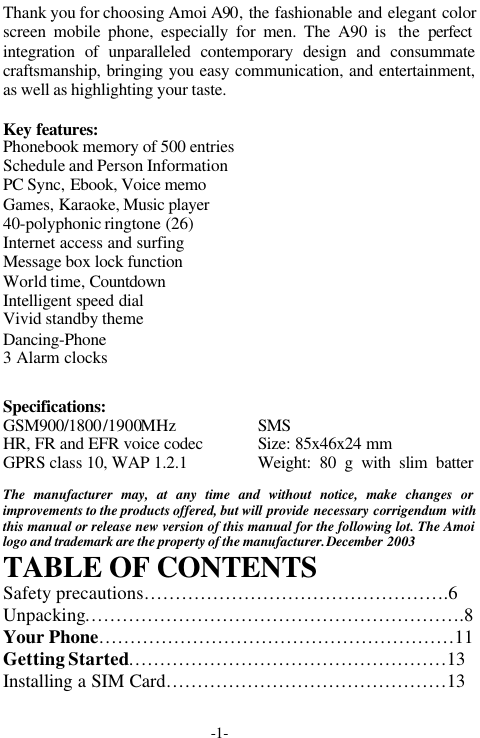
-1-Thank you for choosing Amoi A90, the fashionable and elegant colorscreen mobile phone, especially for men. The A90 is  the  perfectintegration of unparalleled contemporary design and consummatecraftsmanship, bringing you easy communication, and entertainment,as well as highlighting your taste.Key features:Phonebook memory of 500 entriesSchedule and Person InformationPC Sync, Ebook, Voice memoGames, Karaoke, Music player40-polyphonic ringtone (26)Internet access and surfingMessage box lock functionWorld time, CountdownIntelligent speed dialVivid standby themeDancing-Phone3 Alarm clocksSpecifications:GSM900/1800/1900MHzHR, FR and EFR voice codecGPRS class 10, WAP 1.2.1SMSSize: 85x46x24 mmWeight: 80 g with slim batterThe manufacturer may, at any time and without notice, make changes orimprovements to the products offered, but will provide necessary corrigendum withthis manual or release new version of this manual for the following lot. The Amoilogo and trademark are the property of the manufacturer. December 2003TABLE OF CONTENTSSafety precautions………………………………………….6Unpacking…………………………………………………….8Your Phone…………………………………………………11Getting Started……………………………………………13Installing a SIM Card………………………………………13
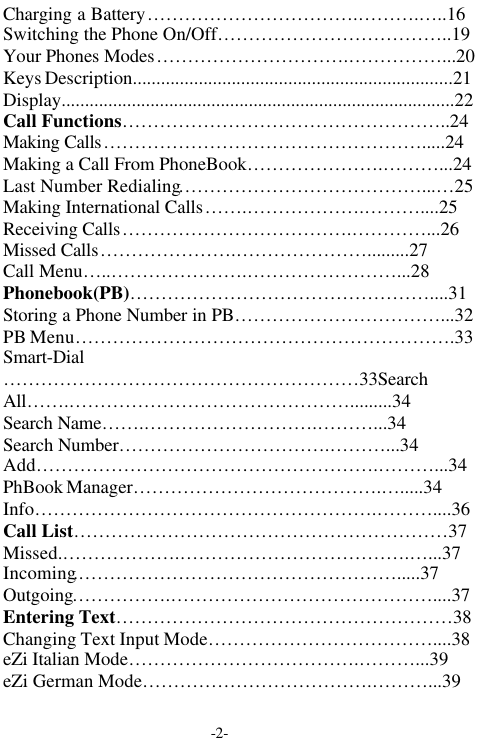
-2-Charging a Battery…………………………….……….…..16Switching the Phone On/Off………………………………..19Your Phones Modes………………………….……………...20Keys Description....................................................................21Display....................................................................................22Call Functions……………………………………………..24Making Calls…………………………………………….....24Making a Call From PhoneBook………………….………...24Last Number Redialing…………………………………...…25Making International Calls…….……………….………....25Receiving Calls……………………………….…………...26Missed Calls………………….………………….........27Call Menu…..………………….……………………...28Phonebook(PB)…………………………………………....31Storing a Phone Number in PB……………………………...32PB Menu…………………………………………………….33Smart-Dial…………………………………………………33SearchAll…….……………………………………….........34Search Name…….……………………….………...34Search Number…………………………….………...34Add……………………………………………….………...34PhBook Manager………………………………….….....34Info……………………………………………….………....36Call List……………………………………………………37Missed.……………….……………………………….…...37Incoming.…………………………………………….....37Outgoing…………….……………………………………....37Entering Text………………………………………………38Changing Text Input Mode………………………………....38eZi Italian Mode……………………………….………...39eZi German Mode……………………………….………...39
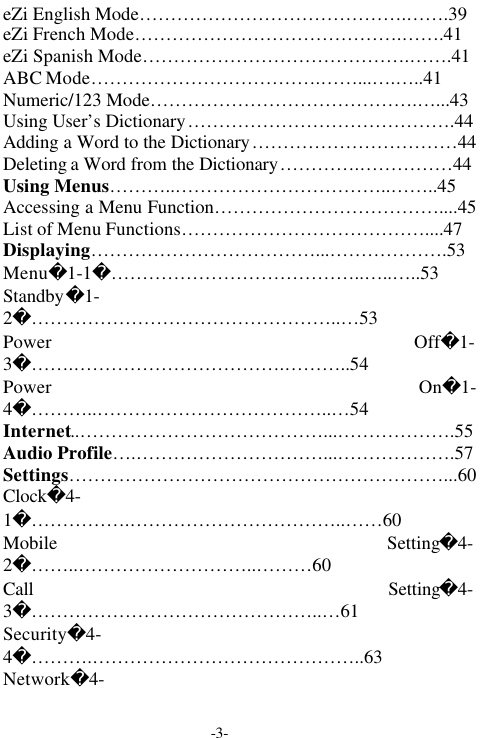
-3-eZi English Mode…………………………………….…….39eZi French Mode…………………………………….…….41eZi Spanish Mode…………………………………….…….41ABC Mode……………………………….……...….…..41Numeric/123 Mode…………………………………….…...43Using User’s Dictionary…………………………………….44Adding a Word to the Dictionary……………………………44Deleting a Word from the Dictionary………….……………44Using Menus………..……………………………..……..45Accessing a Menu Function………………………………....45List of Menu Functions…………………………………....47Displaying………………………………...……………….53Menu1-1…………………………………..…..…..53Standby1-2…………………………………………..…53Power Off1-3…….…………………………….………..54Power On1-4………..………………………………..…54Internet..…………………………………...……………….55Audio Profile….…………………………...……………….57Settings……………………………………………………...60Clock4-1…………….……………………………..……60Mobile Setting4-2……..………………………..………60Call Setting4-3………………………………………..…61Security4-4……….……………………………………..63Network4-
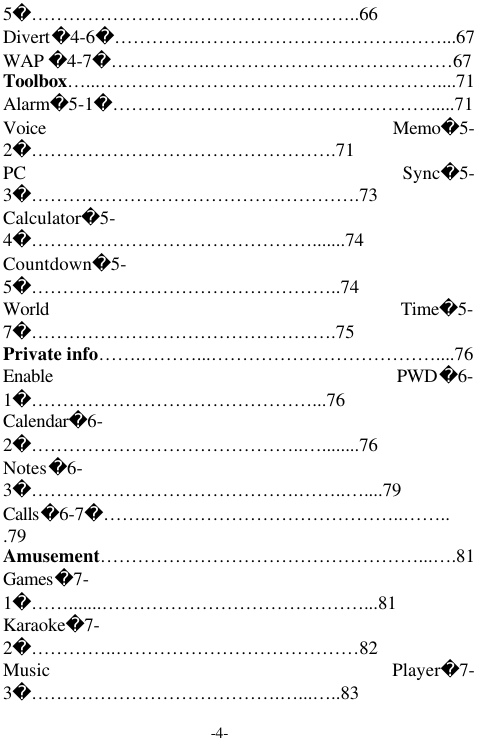
-4-5……………………………………………..66Divert4-6………….…………………………….……...67WAP 4-7…………….…………………………………67Toolbox…...………………………………………………....71Alarm5-1…………………………………………….....71Voice Memo5-2………………………………………….71PC Sync5-3……….…………………………………….73Calculator5-4……………………………………….......74Countdown5-5…………………………………………..74World Time5-7………………………………………….75Private info…….………...………………………………....76Enable PWD6-1………………………………………...76Calendar6-2……………………………………..…........76Notes6-3…………………………………….……..…....79Calls6-7……..…………………………………..……...79Amusement……………………………………………...….81Games7-1…….......……………………………………...81Karaoke7-2…………..…………………………………82Music Player7-3………………………………….…...…..83
-5-Ebook7-4………….………………………….….……..83SMS .…………………...…………………………….85Read(8-1)………………………………….………………...86Write(8-2)………………………………………….……...87Delete(8-3)………………………………….…………….....87Memory(8-4)…………………………………….……...88Setup(8-5)………………………………………………….88Broadcast(8-6)………………………………………...89Voice Mail(8-7)…………………………………………...89Templates(8-8).…………………………….………….....…89PreferenceInformation……………………………..……...90Access Codes……………………………………..……....…90Using the Batteries………………………………..…..….…93Care and Maintenance……………………………..………..96Glossary………..…………………………………..…..…..98TroubleShooting..……………………………………...…103SAFETY PRECAUTIONSRead these brief guidelines. Failure to comply with themmay be dangerous or illegal.
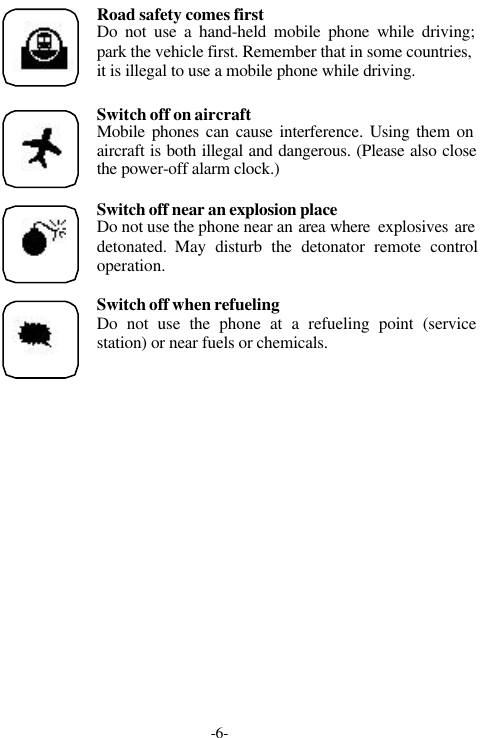
-6-Road safety comes firstDo not use a hand-held mobile phone while driving;park the vehicle first. Remember that in some countries,it is illegal to use a mobile phone while driving.Switch off on aircraftMobile phones can cause interference. Using them onaircraft is both illegal and dangerous. (Please also closethe power-off alarm clock.)Switch off near an explosion placeDo not use the phone near an area where  explosives aredetonated.  May disturb the detonator remote controloperation.Switch off when refuelingDo not use the phone at a refueling point (servicestation) or near fuels or chemicals.
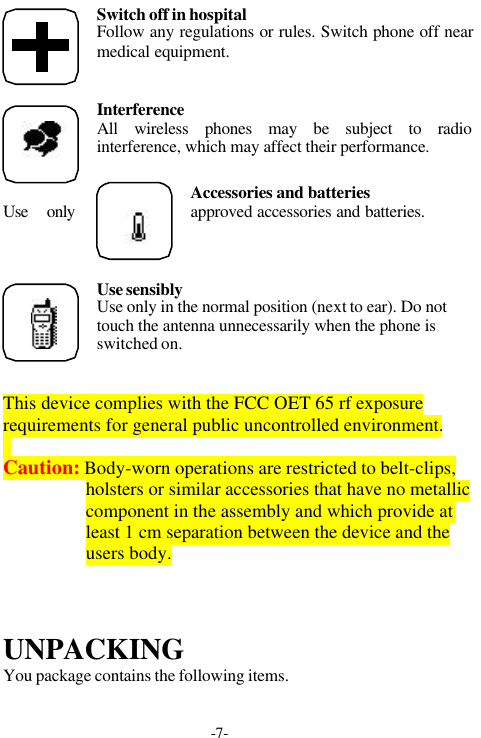
-7-Switch off in hospitalFollow any regulations or rules. Switch phone off nearmedical equipment.InterferenceAll wireless phones may be subject to radiointerference, which may affect their performance.Accessories and batteriesUse only approved accessories and batteries.Use sensiblyUse only in the normal position (next to ear). Do nottouch the antenna unnecessarily when the phone isswitched on.This device complies with the FCC OET 65 rf exposurerequirements for general public uncontrolled environment.Caution: Body-worn operations are restricted to belt-clips,holsters or similar accessories that have no metalliccomponent in the assembly and which provide atleast 1 cm separation between the device and theusers body.UNPACKINGYou package contains the following items.
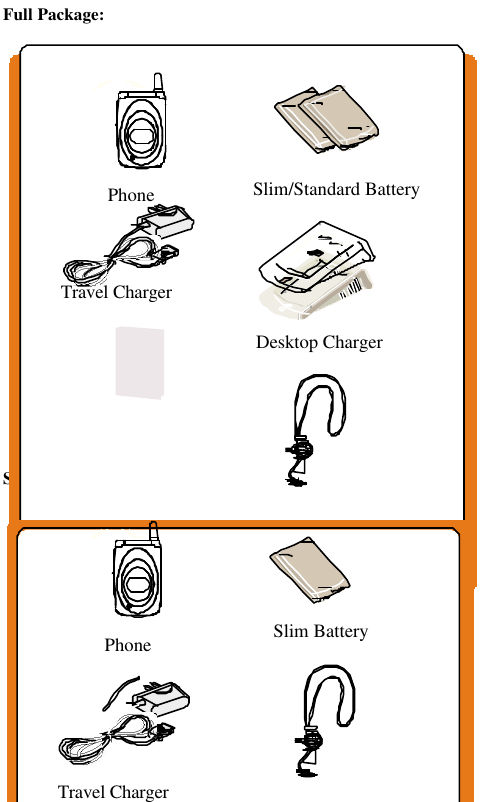
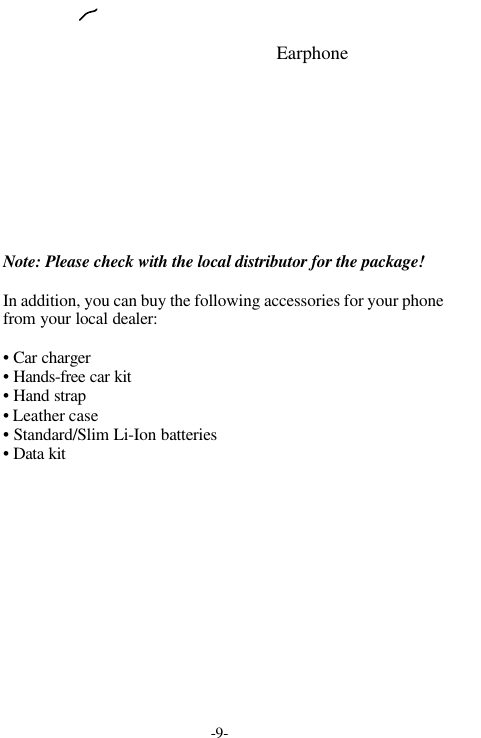
-8-Full Package:Simple Package:User’s ManualDesktop ChargerTravel ChargerPhone Slim/Standard BatteryEarphoneTravel ChargerPhone Slim Battery
-9-Note: Please check with the local distributor for the package!In addition, you can buy the following accessories for your phonefrom your local dealer:• Car charger• Hands-free car kit• Hand strap• Leather case• Standard/Slim Li-Ion batteries• Data kitEarphone
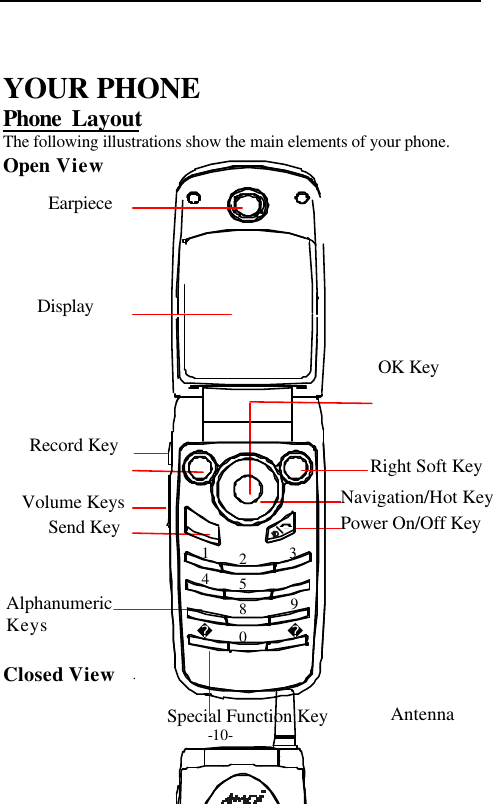
-10-YOUR PHONEPhone  LayoutThe following illustrations show the main elements of your phone.Open ViewClosed ViewEarpieceDisplaySpecial Function KeyRight Soft KeyNavigation/Hot KeyAlphanumericKeysPower On/Off KeySend KeyRecord KeyOK Key2358914 0AntennaVolume Keys
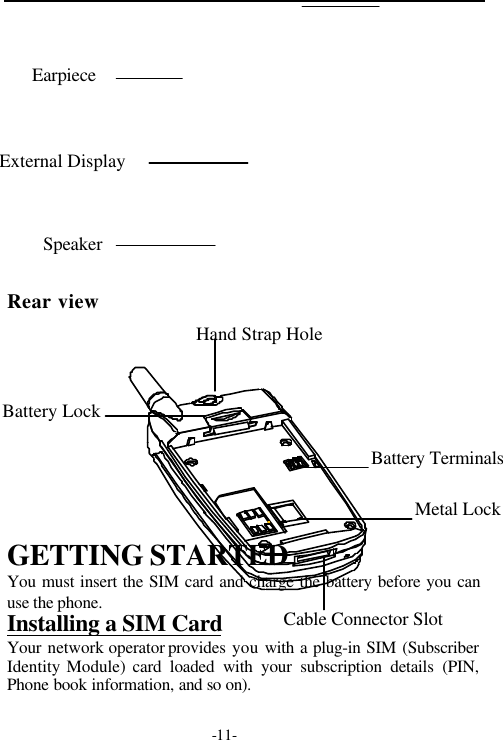
-11-Rear viewGETTING STARTEDYou must insert the SIM card and charge the battery before you canuse the phone.Installing a SIM CardYour network operator provides you  with a plug-in SIM (SubscriberIdentity Module) card loaded with your subscription details (PIN,Phone book information, and so on).EarpieceExternal DisplaySpeakerHand Strap HoleCable Connector SlotBattery LockBattery TerminalsMetal Lock
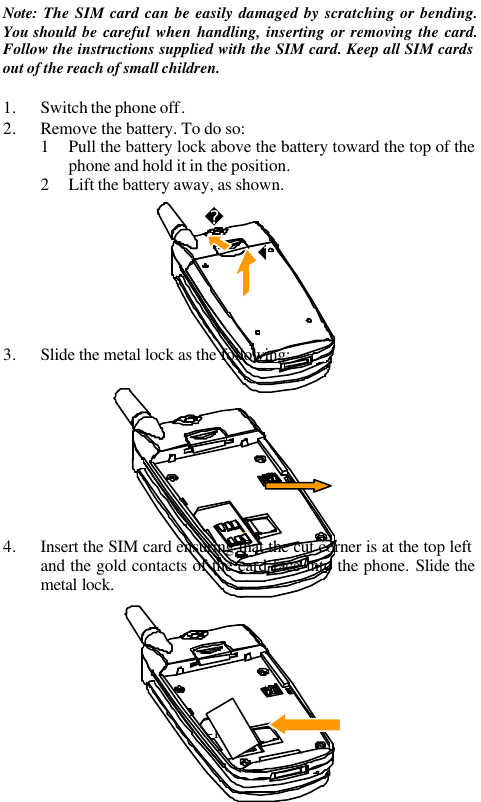
-12-Note: The SIM card can be easily damaged by scratching or bending.You should be careful when handling, inserting or removing the card.Follow the instructions supplied with the SIM card. Keep all SIM cardsout of the reach of small children.1. Switch the phone off.2. Remove the battery. To do so:1 Pull the battery lock above the battery toward the top of thephone and hold it in the position.2 Lift the battery away, as shown.3. Slide the metal lock as the following:4. Insert the SIM card ensuring that the cut corner is at the top leftand the gold contacts of the card face into the phone. Slide themetal lock.
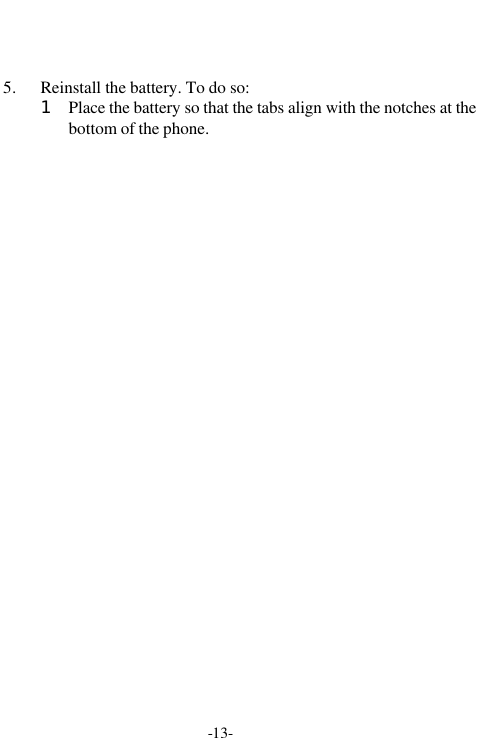
-13-5. Reinstall the battery. To do so:1 Place the battery so that the tabs align with the notches at thebottom of the phone.
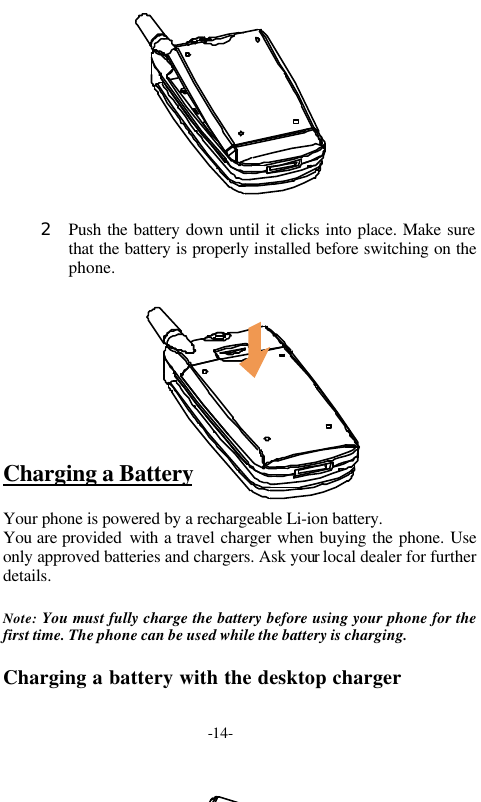
-14-2 Push the battery down until it clicks into place. Make surethat the battery is properly installed before switching on thephone.Charging a BatteryYour phone is powered by a rechargeable Li-ion battery.You are provided  with a travel charger when buying the phone. Useonly approved batteries and chargers. Ask your local dealer for furtherdetails.Note: You must fully charge the battery before using your phone for thefirst time. The phone can be used while the battery is charging.Charging a battery with the desktop charger
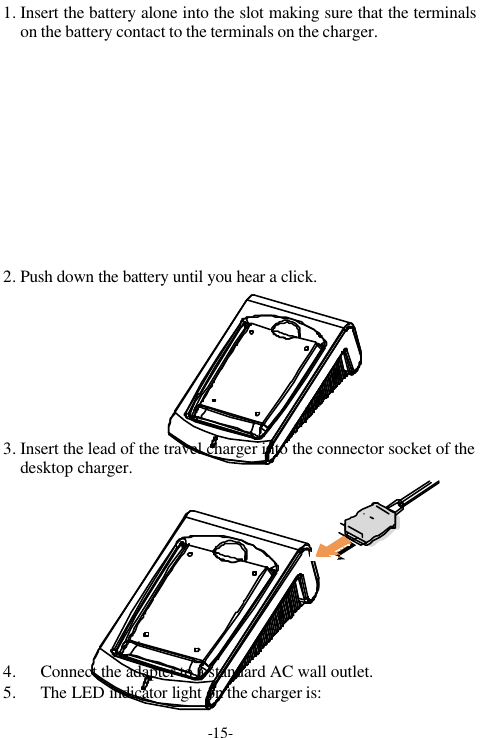
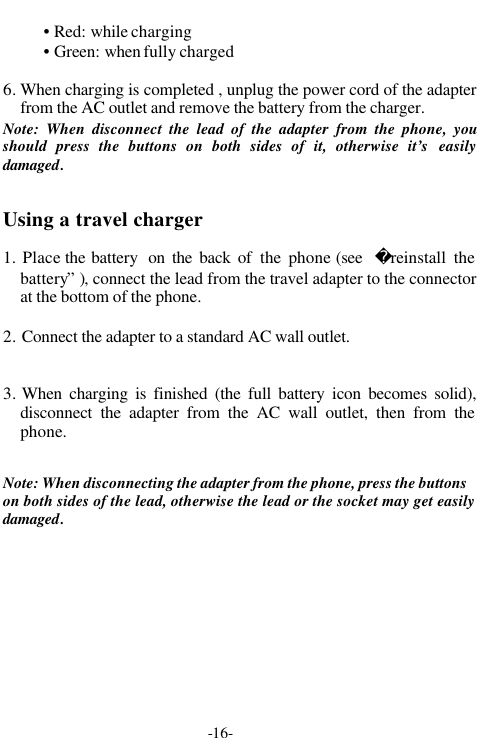
-15-1. Insert the battery alone into the slot making sure that the terminalson the battery contact to the terminals on the charger.2. Push down the battery until you hear a click.3. Insert the lead of the travel charger into the connector socket of thedesktop charger.4. Connect the adapter to a standard AC wall outlet.5. The LED indicator light on the charger is:
-16-• Red: while charging• Green: when fully charged6. When charging is completed , unplug the power cord of the adapterfrom the AC outlet and remove the battery from the charger.Note: When disconnect the lead of the adapter from the phone, youshould press the buttons on both sides of it, otherwise it’s easilydamaged.Using a travel charger1. Place the battery  on the back of the phone (see  reinstall thebattery” ), connect the lead from the travel adapter to the connectorat the bottom of the phone.2. Connect the adapter to a standard AC wall outlet.3. When charging is finished (the full battery icon becomes solid),disconnect the adapter from the AC wall outlet, then from thephone.Note: When disconnecting the adapter from the phone, press the buttonson both sides of the lead, otherwise the lead or the socket may get easilydamaged.
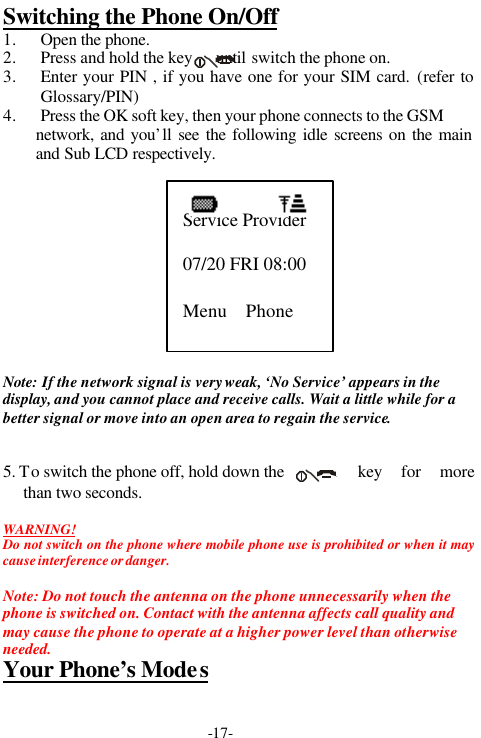
-17-Switching the Phone On/Off1. Open the phone.2. Press and hold the key      until switch the phone on.3. Enter your PIN , if you have one for your SIM card. (refer toGlossary/PIN)4. Press the OK soft key, then your phone connects to the GSMnetwork, and you’ll see the following idle screens on the mainand Sub LCD respectively.Note: If the network signal is very weak, ‘No Service’ appears in thedisplay, and you cannot place and receive calls. Wait a little while for abetter signal or move into an open area to regain the service.5. To switch the phone off, hold down the key for morethan two seconds.WARNING!Do not switch on the phone where mobile phone use is prohibited or when it maycause interference or danger.Note: Do not touch the antenna on the phone unnecessarily when thephone is switched on. Contact with the antenna affects call quality andmay cause the phone to operate at a higher power level than otherwiseneeded.Your Phone’s ModesService Provider07/20 FRI 08:00Menu    Phone
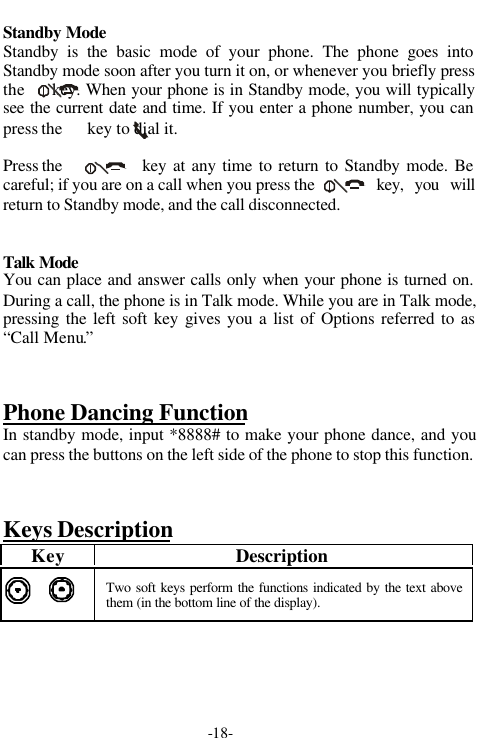
-18-Standby ModeStandby is the basic mode of your phone. The phone goes intoStandby mode soon after you turn it on, or whenever you briefly pressthe     key. When your phone is in Standby mode, you will typicallysee the current date and time. If you enter a phone number, you canpress the      key to dial it.Press the  key at any time to return to Standby mode. Becareful; if you are on a call when you press the    key, you willreturn to Standby mode, and the call disconnected.Talk ModeYou can place and answer calls only when your phone is turned on.During a call, the phone is in Talk mode. While you are in Talk mode,pressing the left soft key gives you a list of Options referred to as“Call Menu.”Phone Dancing FunctionIn standby mode, input *8888# to make your phone dance, and youcan press the buttons on the left side of the phone to stop this function.Keys DescriptionKey DescriptionTwo soft keys perform the functions indicated by the text abovethem (in the bottom line of the display).
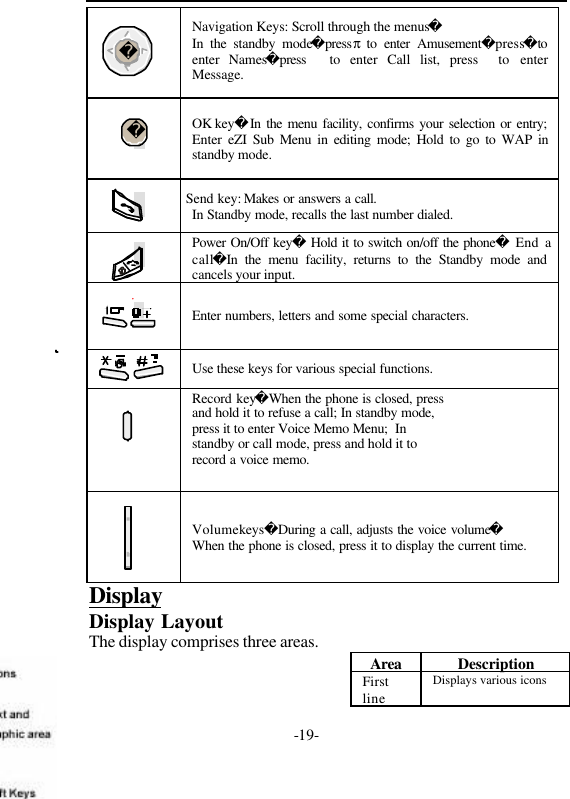
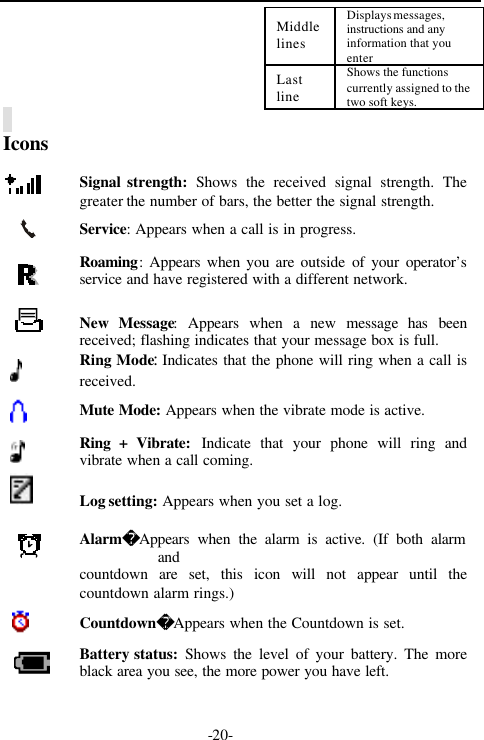
-19-Navigation Keys: Scroll through the menusIn the standby modepressπ to enter Amusementpresstoenter Namespress to enter Call list, press to enterMessage.OK keyIn the menu facility, confirms your selection or entry;Enter  eZI Sub Menu in editing mode; Hold to go to WAP instandby mode.Send key: Makes or answers a call.In Standby mode, recalls the last number dialed.Power On/Off key Hold it to switch on/off the phone End acallIn the menu facility, returns to the Standby mode andcancels your input.Enter numbers, letters and some special characters.Use these keys for various special functions.Record keyWhen the phone is closed, pressand hold it to refuse a call; In standby mode,press it to enter Voice Memo Menu;  Instandby or call mode, press and hold it torecord a voice memo.Volume keysDuring a call, adjusts the voice volumeWhen the phone is closed, press it to display the current time.DisplayDisplay LayoutThe display comprises three areas.Area DescriptionFirstlineDisplays various icons
-20-MiddlelinesDisplays messages,instructions and anyinformation that youenterLastlineShows the functionscurrently assigned to thetwo soft keys.IconsSignal strength: Shows the received signal strength. Thegreater the number of bars, the better the signal strength.Service: Appears when a call is in progress.Roaming: Appears when you are outside of your operator’sservice and have registered with a different network.New Message: Appears when a new message has beenreceived; flashing indicates that your message box is full.Ring Mode: Indicates that the phone will ring when a call isreceived.Mute Mode: Appears when the vibrate mode is active.Ring + Vibrate: Indicate that your phone will ring andvibrate when a call coming.Log setting: Appears when you set a log.AlarmAppears when the alarm is active. (If both alarmandcountdown are set, this icon will not appear until thecountdown alarm rings.)CountdownAppears when the Countdown is set.Battery status: Shows the level of your battery. The moreblack area you see, the more power you have left.
-21-BacklightThe display and keypad are illuminated by a backlight. When youpress any key, the backlight illuminates. It automatically turns off ifno key is pressed within a given period of time, depending on theBacklight  Option set in the Phone setting menu (refer toSettings/Mobile/Backlight).External DisplayYour phone has an external display on the cover, it indicates that youhave an incoming call or message, and notifies you at the specifiedtime when you set an alarm or a log, without having to open thephone.CALL FUNCTIONSMaking CallsBefore you can make or receive a call, you must turn on the phone andbe within range of a network.1. In Standby mode, enter the phone number. (If you make amistake while dialing, use  or  key to move the cursor to theright of the digit, press the  right soft key to erase it; Press andhold to erase the entire number.)
-22-TIP: When inputting a number, you can insert a pause by holding the #key (for example: between the switchboard and the extension), the latternumber will be dialed several seconds after the former one.2.  P ress the     key to make the call.3.  When you finish talk ing, press      or close the phone to end thecall.TIP: When using the handsfreet kit, you can press the Send key on it toend the call.Making a Call from the PhonebookSee  “entering the phonebook” to search for a desired number, andpress the     key to dial.Last number redialingIn standby mode, press    once to access the list of the 20 numbers youlast called; scroll to the number or name you want, and press      to callthe number.Note: If you have set Auto Redial menu to On, if there is no answer orthe line is busy, the phone automatically retries to make the call.Making International Calls1. Press and hold the “0” key until a  “+” sign appears in  the display.2. Enter the country code, area code, and phone number, then press thekey to begin dialing.
-23-
-24-Receiving CallsWhen a call is received, the phone alerts you by ringing and/orvibrating; the screen displays an incoming call message. If you havesubscribed  to  the Line Identification Service (contact your serviceprovider), the caller’s phone number is displayed; if  you have savedthe number in your phone book, the name is displayed.Three modes are provided for receiving a call.  Refer to Settings/Mobile/Answer mode for the details.NoteIf you receive a call while using the phone functions and menus,the current operation will be halted.To answer a call-PressTo reject a call-PressMissed Calls
-25-When an incoming call is not answered, the Missed Call log isdisplayed on your screen.-- To view the missed call immediately, press the left soft key,  thenumber or the name is displayed, if available. Scroll through themissed calls, press    to call the number.-- Press the Option soft key, you’ll enter the missed calls menu. Thefollowing options are available:Call        To press OK soft key to call the number.Detail       To view the details (name, number, time)Add to PB   To store the number to the phonebook.(refer to Storing aphone number in PB)Delete      To delete the number from the missed calls list.Tip: You can press the      key at any time to exit the Missed Callmenu. You can view the missed calls at any time . Refer to Call list fordetails.Call MenuSome of the features you can use during a call  depends on whetheryour network provides these services.During a call, press  Option soft key to enter Call Menu. The optionschange in different conversation circumstance.
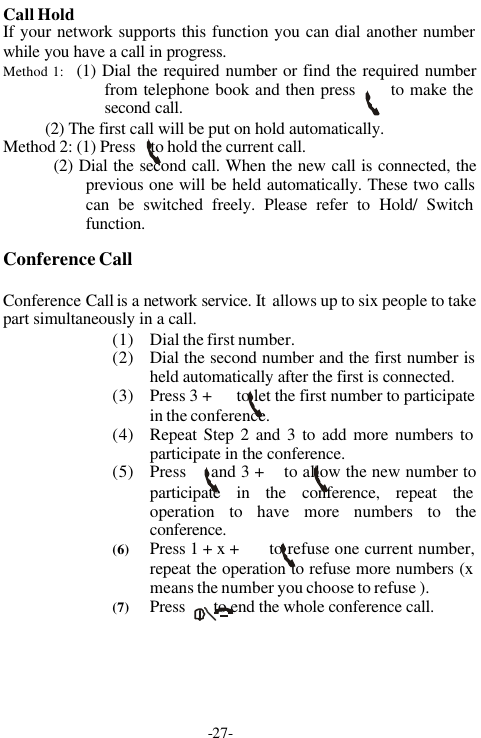
-26-The followings are the possible options.Mute: You can switch microphone off and the caller can’t hear you.Hold ( current call ): You can hold the current call.Hold current call/Dial new number: You can hold the current call anddial new number.Hold current call/ Answer new call: You can hold the current call andanswer a new call.Connect held call to conference call:  You can connect the held call to aconference call.End the current call: Select to end the current call.End held call: Select to end the held call.End current call/ Answer new call:  You can end the current call andanswer the new call.End current call/ Answer held call: You can end the current call andanswer the held call.End all calls: Select to end all the calls.Main menu:  Select to enter the main menu and make the generaloperations.Other Options in the Call MenuYou may also directly press the number-keys to choose the functionsand press    to make it.Hold/ SwitchThe  ‘Hold’ function can  switch the current call to a held one andrecover the previous call.When there is a held call and a current call:Press 0 +     to end the held callPress 1 +      to end the current call and recover the held call.Press 2 +    to switch the current call to a held one and switch the heldone to the current call.Call WaitingIf your network  supports this function and you have activated thefeature, the phone will remind you when there’s a new incoming callduring a call.
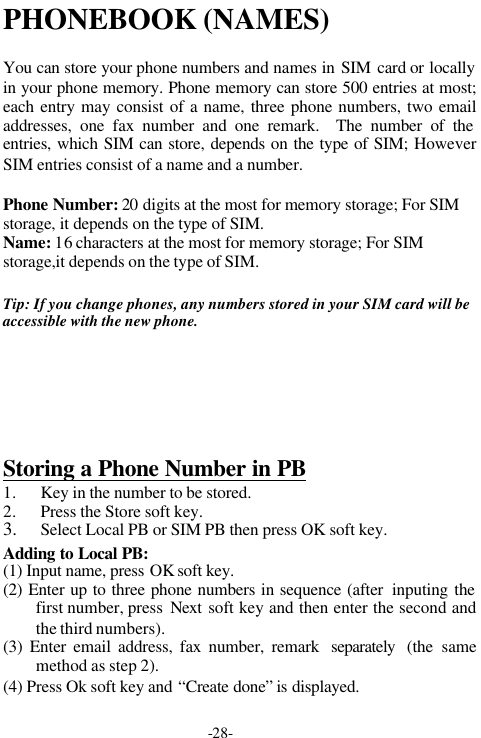
-27-Call HoldIf your network supports this function you can dial another numberwhile you have a call in progress.Method 1:   (1) Dial the required number or find the required numberfrom telephone book and then press      to make thesecond call.          (2) The first call will be put on hold automatically.Method 2: (1) Press    to hold the current call.         (2) Dial the second call. When the new call is connected, theprevious one will be held automatically. These two callscan be switched freely. Please refer to Hold/ Switchfunction.      Conference CallConference Call is a network service. It  allows up to six people to takepart simultaneously in a call.(1) Dial the first number.(2) Dial the second number and the first number isheld automatically after the first is connected.(3) Press 3 +      to let the first number to participatein the conference.(4) Repeat Step 2 and 3 to add more numbers toparticipate in the conference.(5) Press     and 3 +    to allow the new number toparticipate in the conference, repeat theoperation to have more numbers to theconference.(6) Press 1 + x +      to refuse one current number,repeat the operation to refuse more numbers (xmeans the number you choose to refuse ).(7) Press       to end the whole conference call.
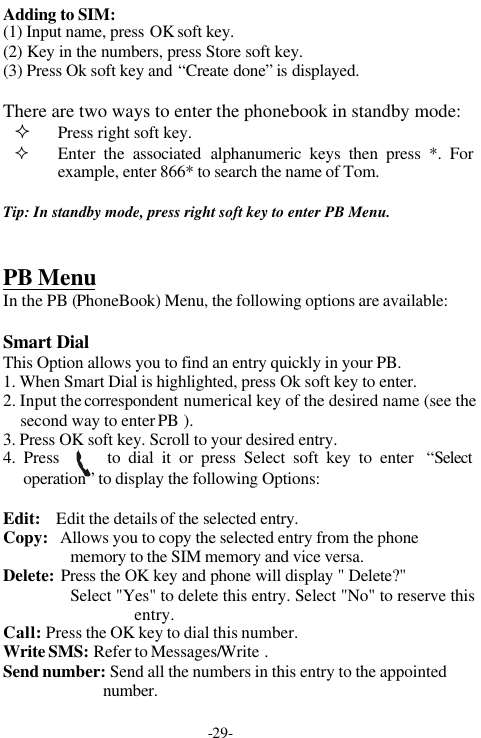
-28-PHONEBOOK (NAMES)You can store your phone numbers and names in SIM card or locallyin your phone memory. Phone memory can store 500 entries at most;each entry may consist of a name, three phone numbers, two emailaddresses, one fax number and one remark.  The number of theentries, which SIM can store, depends on the type of SIM; HoweverSIM entries consist of a name and a number.Phone Number: 20 digits at the most for memory storage; For SIMstorage, it depends on the type of SIM.Name: 16 characters at the most for memory storage; For SIMstorage,it depends on the type of SIM.Tip: If you change phones, any numbers stored in your SIM card will beaccessible with the new phone.Storing a Phone Number in PB1. Key in the number to be stored.2. Press the Store soft key.3. Select Local PB or SIM PB then press OK soft key.Adding to Local PB:(1) Input name, press OK soft key.   (2) Enter up to three phone numbers in sequence (after  inputing thefirst number, press  Next soft key and then enter the second andthe third numbers).(3) Enter email address, fax number, remark  separately  (the samemethod as step 2).(4) Press Ok soft key and “Create done” is displayed.
-29-Adding to SIM:(1) Input name, press OK soft key.(2) Key in the numbers, press Store soft key.(3) Press Ok soft key and “Create done” is displayed.There are two ways to enter the phonebook in standby mode:² Press right soft key.² Enter the associated alphanumeric keys then press *. Forexample, enter 866* to search the name of Tom.Tip: In standby mode, press right soft key to enter PB Menu.PB MenuIn the PB (PhoneBook) Menu, the following options are available:Smart DialThis Option allows you to find an entry quickly in your PB.1. When Smart Dial is highlighted, press Ok soft key to enter.2. Input the correspondent numerical key of the desired name (see thesecond way to enter PB ).3. Press OK soft key. Scroll to your desired entry.4. Press      to dial it or press Select soft key to enter  “Selectoperation” to display the following Options:Edit:    Edit the details of the selected entry.Copy:   Allows you to copy the selected entry from the phonememory to the SIM memory and vice versa.Delete:  Press the OK key and phone will display " Delete?"Select "Yes" to delete this entry. Select "No" to reserve thisentry.Call:  Press the OK key to dial this number.Write SMS: Refer to Messages/Write .Send number: Send all the numbers in this entry to the appointednumber.
-30-
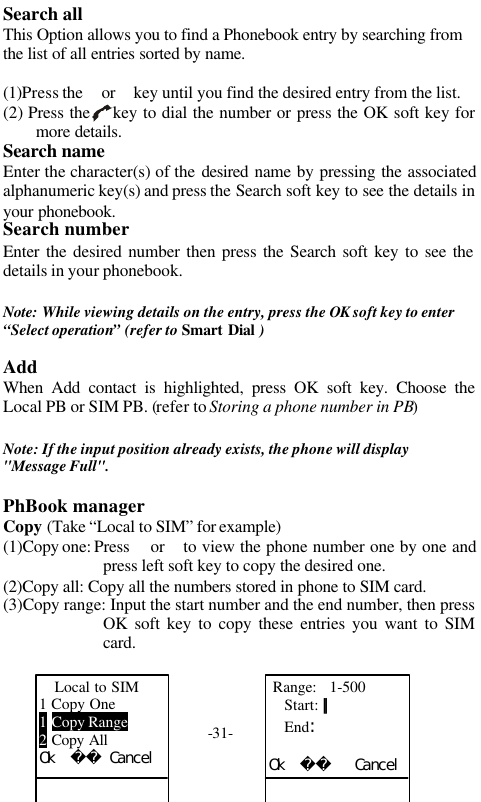
-31-Search allThis Option allows you to find a Phonebook entry by searching fromthe list of all entries sorted by name.(1)Press the  or  key until you find the desired entry from the list.(2) Press the    key to dial the number or press the OK soft key formore details.Search nameEnter the character(s) of the desired  name by pressing the associatedalphanumeric key(s) and press the Search soft key to see the details inyour phonebook.Search numberEnter the desired number then press the Search soft key to see thedetails in your phonebook.Note: While viewing details on the entry, press the OK soft key to enter“Select operation” (refer to Smart Dial )AddWhen Add contact is highlighted, press OK soft key. Choose theLocal PB or SIM PB. (refer to Storing a phone number in PB)Note: If the input position already exists, the phone will display"Message Full".PhBook managerCopy (Take “Local to SIM” for example)(1)Copy one: Press   or  to view the phone number one by one andpress left soft key to copy the desired one.(2)Copy all: Copy all the numbers stored in phone to SIM card.(3)Copy range: Input the start number and the end number, then pressOK soft key to copy these entries you want to SIMcard.Local to SIM1 Copy One1 Copy Range2 Copy AllOk   Cancel Range:   1-500Start: ||End:Ok     Cancel
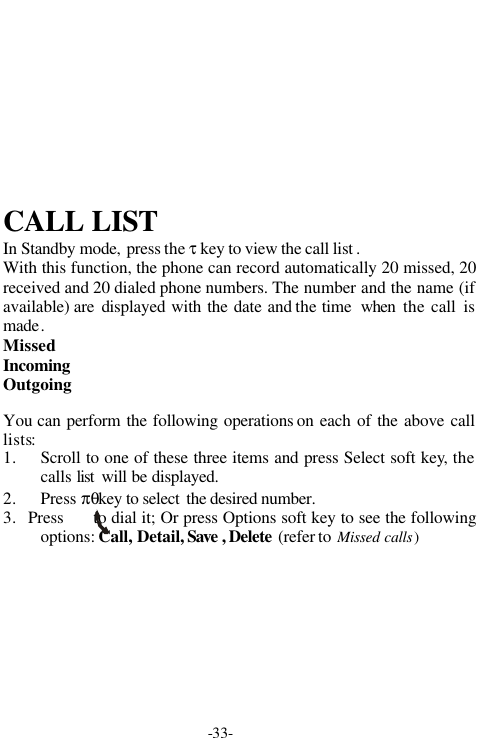
-32-Note: If the entry already exists in target PB, the entry will not be copied.If the space of target PB does not have enough memory for copying, onlythe front phone numbers will be copied until the target PB is full.If the permitted name length of target PB is less than that of original PB,the exceeded part will lost.DeleteSame as Copy, you can delete one, all or a specify range.MemoryCheck the total memory capacity and the amount used entries used forSIM card and Local PB.InfoCountry codesSelect this function, the following content is displayed:Press  and  to choose one country. And press Select soft key tosearch according to a country name or a code number.Own NumberStore the SIM card number of local phone for reference.Country CodeChina       +86Italy        +39Germany    +49Ok   Cancel
-33-CALL LISTIn Standby mode, press the τ key to view the call list .With this function, the phone can record automatically 20 missed, 20received and 20 dialed phone numbers. The number and the name (ifavailable) are  displayed with the date and the time  when the call ismade.MissedIncomingOutgoingYou can perform the following operations on each of the above calllists:1. Scroll to one of these three items and press Select soft key, thecalls list  will be displayed.2. Press πθkey to select  the desired number.3.   Press      to dial it; Or press Options soft key to see the followingoptions: Call, Detail, Save , Delete  (refer to Missed calls)
-34-ENTERING TEXTWhen storing a name in the phonebook, creating your personalgreetings or scheduling events in your calendar or write any othermessage, you will need to enter text.You are provided with the following text input modes.• Italian/ italian/ ITALIAN• German/ german/ GERMAN• English/english/ENGLISH• French / french/ FRENCH• Spanish / spanish/ SPANISH• Abc/abc/ABC• 123 (Numeric input mode)• Symbol  TIP: The number on the top right is a word count of  the message, itpoints out how many characters you can write in the edit zone.Changing Text Input ModeWhen in a text entry screen,  press     to change Text Input Mode orpress the @ key to select one mode. You can see current text inputmode indicator on the top left of the display:• Italian/ italian/ ITALIAN• German/ german/ GERMAN• English/english/ENGLISH• French / french/ FRENCH• Spanish / spanish/ SPANISH• Abc/abc/ABC• 123 (Numeric input mode)Note: The current input method will be the same as the one you last usedbefore you quit the input mode.
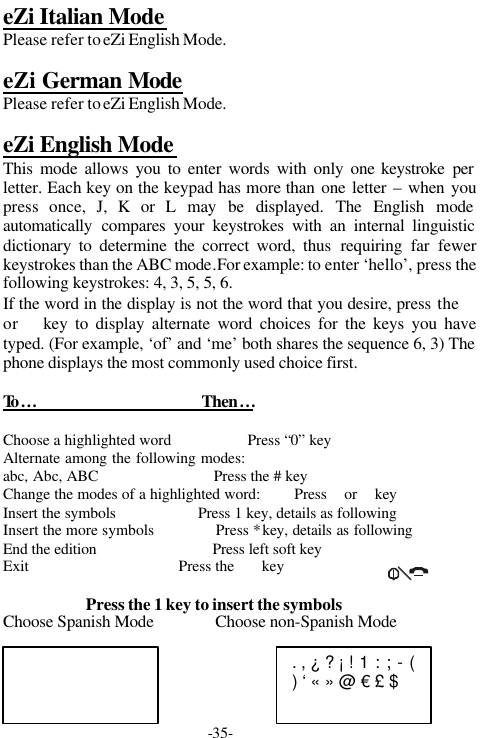
-35-eZi Italian ModePlease refer to eZi English Mode.eZi German ModePlease refer to eZi English Mode.eZi English ModeThis mode allows you to enter words with only one keystroke perletter. Each key on the keypad has more than one letter – when youpress once, J, K or L may be displayed. The English modeautomatically  compares your keystrokes with an internal linguisticdictionary to determine the correct word, thus requiring far fewerkeystrokes than the ABC mode.For example: to enter ‘hello’, press thefollowing keystrokes: 4, 3, 5, 5, 6.If the word in the display is not the word that you desire, press the or  key to display alternate word choices for the keys you havetyped. (For example, ‘of’ and ‘me’ both shares the sequence 6, 3) Thephone displays the most commonly used choice first.To …                                       Then…Choose a highlighted word                   Press “0” keyAlternate among the following modes:abc, Abc, ABC                             Press the # keyChange the modes of a highlighted word:        Press  or  keyInsert the symbols                    Press 1 key, details as followingInsert the more symbols               Press * key, details as followingEnd the edition                             Press left soft keyExit                                      Press the       keyPress the 1 key to insert the symbolsChoose Spanish Mode               Choose non-Spanish Mode. , ¿ ? ¡ ! 1 : ; - () ‘ « » @ € £ $
-36-SYMBOL#  %  &  *  +  /   <  =>  [   \   ]  ^  _   {   |}  ã  å  æ  ð  õ   ø   þ~ Ã  Å  Æ  Ð  Õ  Ø   Þ1  2 3   4   5   6  7   8   BackPress the  or  key to select the column which including the symbolmark you want to use.Press the corresponding numeric key to insert the desired symbolmark.eZi French ModePlease refer to eZi English Mode.eZi Spanish ModePlease refer to eZi English Mode.ABC ModeThis mode allows you to enter letters by pressing the key labeled withthe required letter once, twice, three or four times until the letter isdisplayed. For example, you press the 2 key three times in successionto display the character “C”, the 5 key two times quickly to display thecharacter “K”.Press #to alternat ive between Abc, abc  and  ABC.Press * to open symbol table directlyNote: When entering the same character twice (or a different characteron the same key), just wait for a few seconds for the cursor to move to theright automatically, and then select the next character.
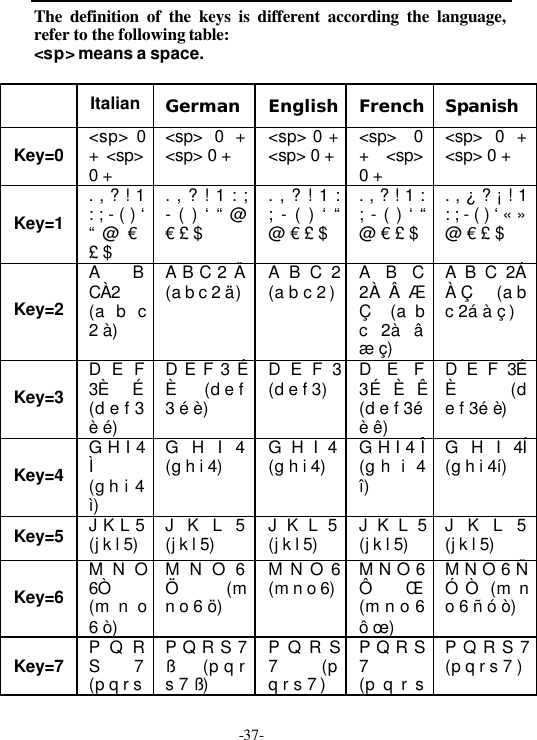
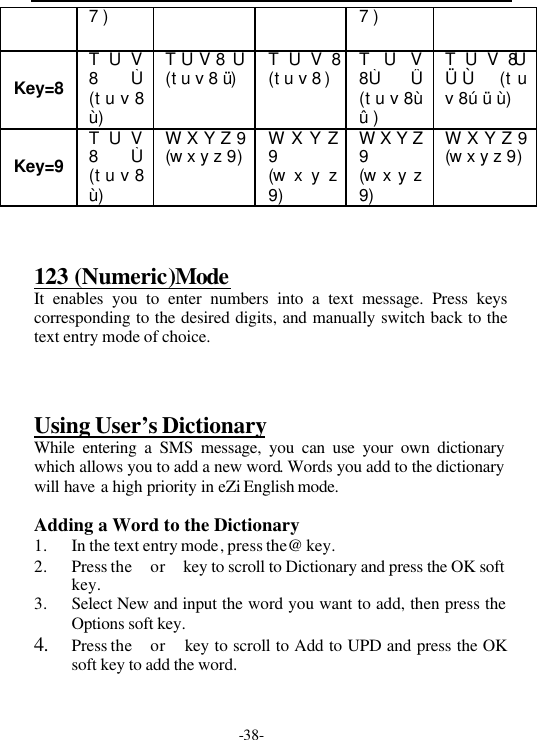
-37-The definition of the keys is different according the language,refer to the following table:<sp> means a space.Italian German English French SpanishKey=0 <sp> 0+ <sp>0 +<sp> 0 +<sp> 0 + <sp> 0 +<sp> 0 +<sp> 0+ <sp>0 +<sp> 0 +<sp> 0 +Key=1. , ? ! 1: ; - ( ) ‘“ @ €£ $. , ? ! 1 : ;- ( ) ‘ “ @€ £ $. , ? ! 1 :; - ( ) ‘ “@ € £ $. , ? ! 1 :; - ( ) ‘ “@ € £ $. , ¿ ? ¡ ! 1: ; - ( ) ‘ « »@ € £ $Key=2A BCÀ2           (a b c2 à)A B C 2 Ä(a b c 2 ä)A B C 2            (a b c 2 )A B C2À  ÆÇ   (a bc 2à âæ ç)A B C 2ÁÀ Ç     (a bc 2á à ç )Key=3D E F3È É(d e f 3è é)D E F 3 ÉÈ      (d e f3 é è)D E F 3            (d e f 3)D E F3É È Ê       (d e f 3éè ê)D E F 3ÉÈ         (de f 3é è)Key=4G H I 4Ì(g h i 4ì)G H I 4(g h i 4)G H I 4(g h i 4)G H I 4 Î(g h  i 4î)G H I 4Í(g h i 4í)Key=5J K L 5(j k l 5)J K L 5(j k l 5)J K L 5(j k l 5)J K L 5(j k l 5)J K L 5(j k l 5)Key=6M N O6Ò(m n o6 ò)M N O 6Ö        (mn o 6 ö)M N O 6(m n o 6)M N O 6Ô Œ(m n o 6ô œ)M N O 6 ÑÓ Ò  (m no 6 ñ ó ò)Key=7 P Q RS 7 (p q r sP Q R S 7ß     (p q rs 7 ß)P Q R S7         (pq r s 7 )P Q R S7          (p q r sP Q R S 7 (p q r s 7 )
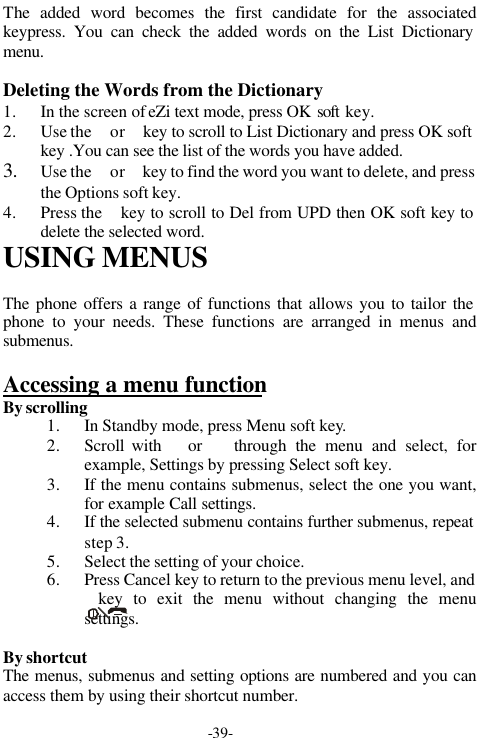
-38-7 )7 )Key=8T U V8  Ù(t u v 8ù)T U V 8 Ü        (t u v 8 ü)T U V 8(t u v 8 )T U V8Ù Û        (t u v 8ùû )T U V 8ÚÜ Ù     (t uv 8ú ü ù)Key=9T U V8  Ù(t u v 8ù)W X Y Z 9        (w x y z 9)W X Y Z9        (w x y z9)W X Y Z9          (w x y z9)W X Y Z 9           (w x y z 9)123 (Numeric)ModeIt enables you to enter numbers into a text message. Press keyscorresponding to the desired digits, and manually switch back to thetext entry mode of choice.Using User’s DictionaryWhile entering a SMS message, you can use your own dictionarywhich allows you to add a new word. Words you add to the dictionarywill have a high priority in eZi English mode.Adding a Word to the Dictionary1. In the text entry mode, press the@ key.2. Press the  or  key to scroll to Dictionary and press the OK softkey.3. Select New and input the word you want to add, then press theOptions soft key.4. Press the  or  key to scroll to Add to UPD and press the OKsoft key to add the word.
-39-The added word becomes the first candidate for the associatedkeypress. You can check the added words on the List Dictionarymenu.Deleting the Words from the Dictionary1. In the screen of eZi text mode, press OK soft  key.2. Use the  or  key to scroll to List Dictionary and press OK softkey .You can see the list of the words you have added.3. Use the  or  key to find the word you want to delete, and pressthe Options soft key.4. Press the  key to scroll to Del from UPD then OK soft key todelete the selected word.USING MENUSThe phone offers a range of functions that allows you to tailor thephone to your needs. These functions are arranged in menus andsubmenus.Accessing a menu functionBy scrolling1. In Standby mode, press Menu soft key.2. Scroll with   or   through the menu and select, forexample, Settings by pressing Select soft key.3. If the menu contains submenus, select the one you want,for example Call settings.4. If the selected submenu contains further submenus, repeatstep 3.5. Select the setting of your choice.6. Press Cancel key to return to the previous menu level, and           key to exit the menu without changing the menusettings.By shortcutThe menus, submenus and setting options are numbered and you canaccess them by using their shortcut number.
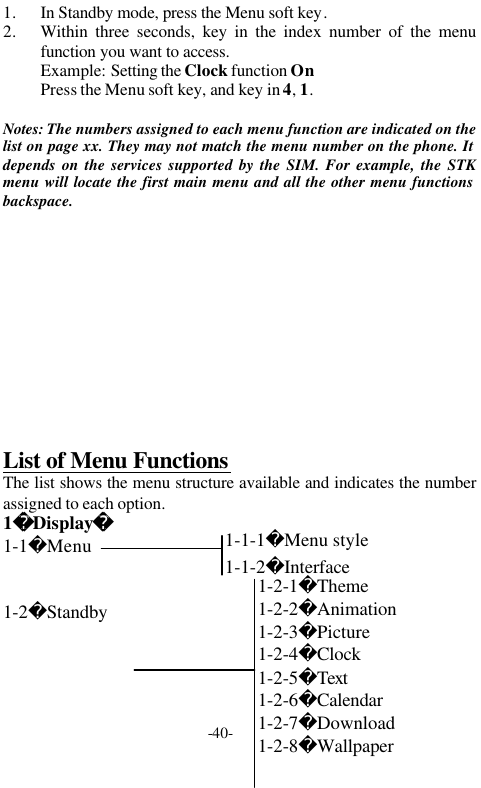
-40-1. In Standby mode, press the Menu soft key.2. Within three seconds, key in the index number of the menufunction you want to access.Example: Setting the Clock function OnPress the Menu soft key, and key in 4, 1.Notes: The numbers assigned to each menu function are indicated on thelist on page xx. They may not match the menu number on the phone. Itdepends on the services supported by the SIM. For example, the STKmenu will locate the first main menu and all the other menu functionsbackspace.List of Menu FunctionsThe list shows the menu structure available and indicates the numberassigned to each option.1Display1-1Menu1-2Standby1-2-1Theme1-2-2Animation1-2-3Picture1-2-4Clock1-2-5Text1-2-6Calendar1-2-7Download1-2-8Wallpaper1-1-1Menu style1-1-2Interface
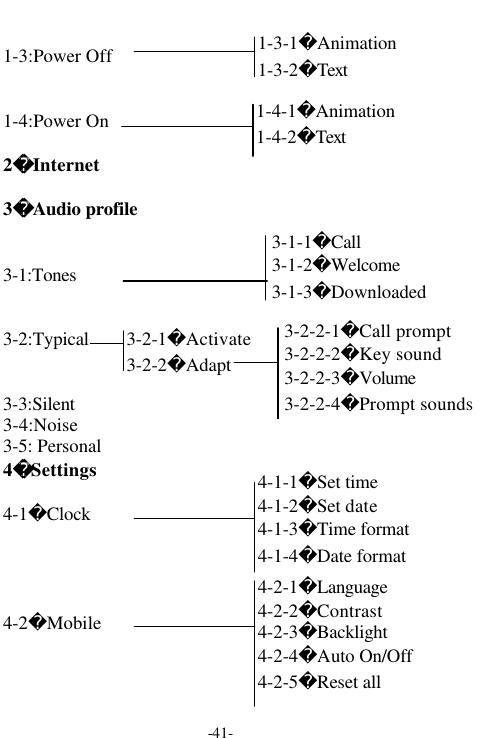
-41-1-3:Power Off1-4:Power On2Internet3Audio profile3-1:Tones3-2:Typical3-3:Silent3-4:Noise3-5: Personal4Settings4-1Clock4-2Mobile1-3-1Animation1-3-2Text3-2-1Activate3-2-2Adapt3-2-2-1Call prompt3-2-2-2Key sound3-2-2-3Volume3-2-2-4Prompt sounds1-4-1Animation1-4-2Text3-1-1Call3-1-2Welcome3-1-3Downloaded4-1-1Set time4-1-2Set date4-1-3Time format4-1-4Date format4-2-1Language4-2-2Contrast4-2-3Backlight4-2-4Auto On/Off4-2-5Reset all
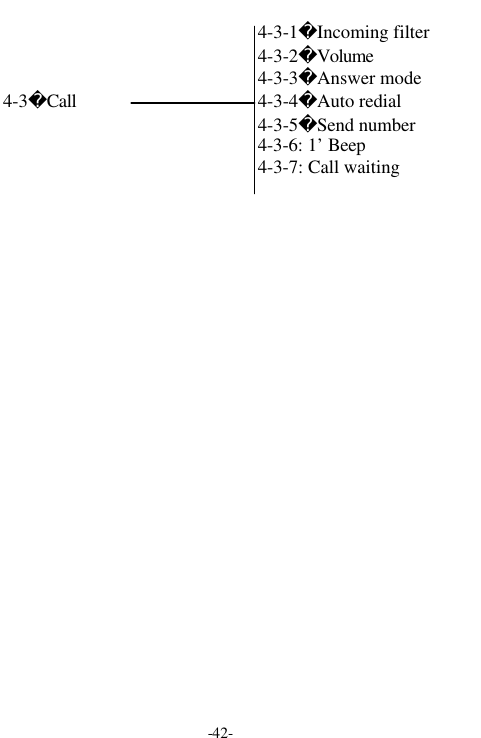
-42-4-3Call4-3-1Incoming filter4-3-2Volume4-3-3Answer mode4-3-4Auto redial4-3-5Send number4-3-6: 1’ Beep4-3-7: Call waiting
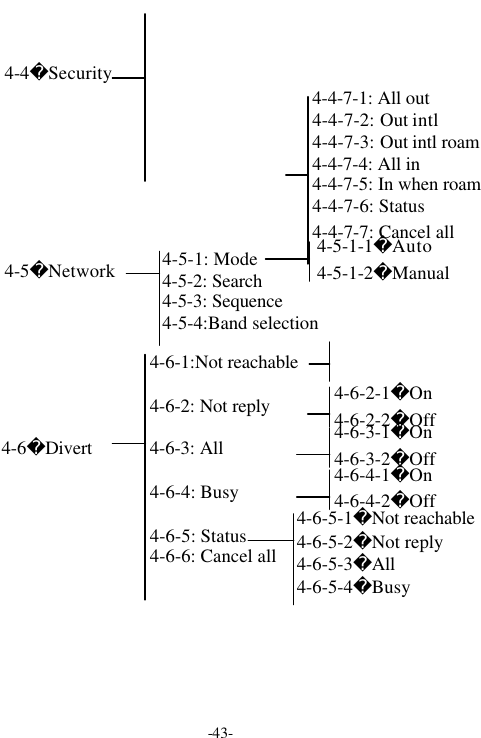
-43-4-5-1: Mode4-5-2: Search4-5-3: Sequence4-5-4:Band selection4-5-1-1Auto4-5-1-2Manual4-5Network4-6-1:Not reachable4-6-2: Not reply4-6-3: All4-6-4: Busy4-6-5: Status4-6-6: Cancel all4-6-2-1On4-6-2-2Off4-6-3-1On4-6-3-2Off4-6-4-1On4-6-4-2Off4-6-5-1Not reachable4-6-5-2Not reply4-6-5-3All4-6-5-4Busy4-6Divert4-4-7-1: All out4-4-7-2: Out intl4-4-7-3: Out intl roam4-4-7-4: All in4-4-7-5: In when roam4-4-7-6: Status4-4-7-7: Cancel all4-4Security
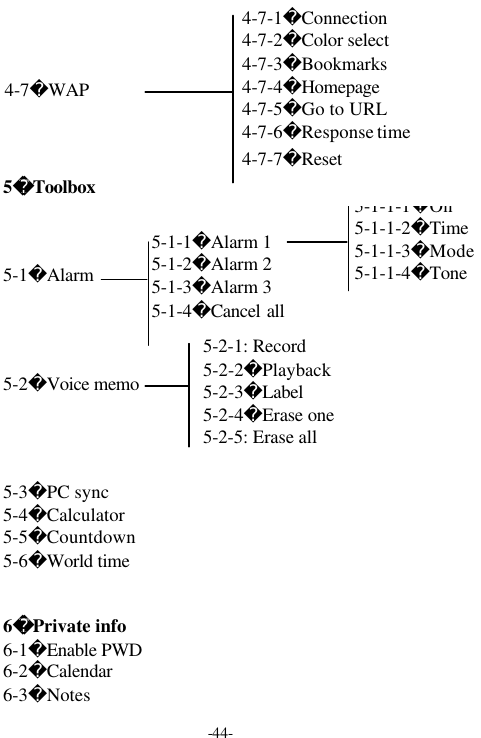
-44-5Toolbox5-1Alarm5-2Voice memo5-3PC sync5-4Calculator5-5Countdown5-6World time6Private info6-1Enable PWD6-2Calendar6-3Notes5-1-1Alarm 15-1-2Alarm 25-1-3Alarm 35-1-4Cancel all5-1-1-1On5-1-1-2Time5-1-1-3Mode5-1-1-4Tone4-7-1Connection4-7-2Color select4-7-3Bookmarks4-7-4Homepage4-7-5Go to URL4-7-6Response time4-7-7Reset4-7WAP5-2-1: Record5-2-2Playback5-2-3Label5-2-4Erase one5-2-5: Erase all
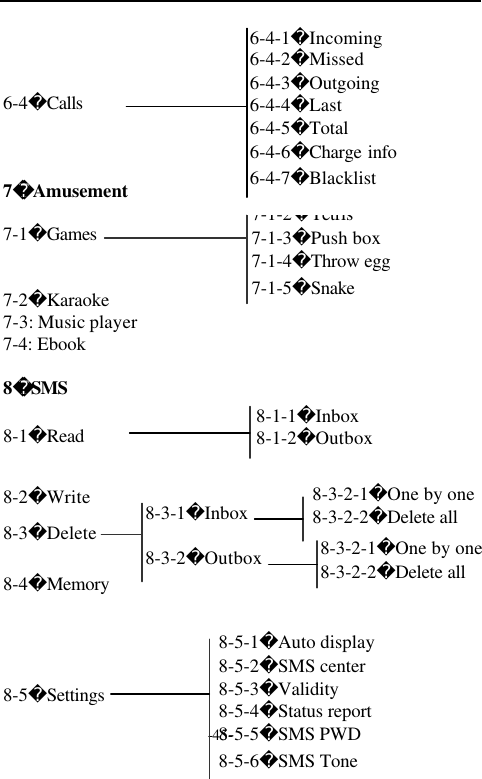
-45-6-4Calls7Amusement7-1Games7-2Karaoke7-3: Music player7-4: Ebook8SMS8-2Write8-4Memory7-1-1Space arena7-1-2Tetris7-1-3Push box7-1-4Throw egg7-1-5Snake6-4-1Incoming6-4-2Missed6-4-3Outgoing6-4-4Last6-4-5Total6-4-6Charge info6-4-7Blacklist8-1Read8-1-1Inbox8-1-2Outbox8-3-1Inbox8-3-2Outbox 8-3-2-1One by one8-3-2-2Delete all8-3Delete8-5-1Auto display8-5-2SMS center8-5-3Validity8-5-4Status report8-5-5SMS PWD8-5-6SMS Tone8-5Settings8-3-2-1One by one8-3-2-2Delete all
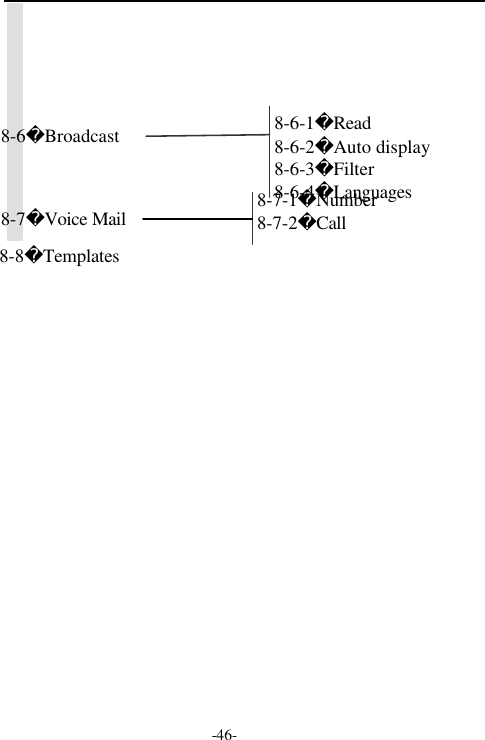
-46-8-6-1Read8-6-2Auto display8-6-3Filter8-6-4Languages8-6Broadcast8-7-1Number8-7-2Call8-7Voice Mail8-8Templates
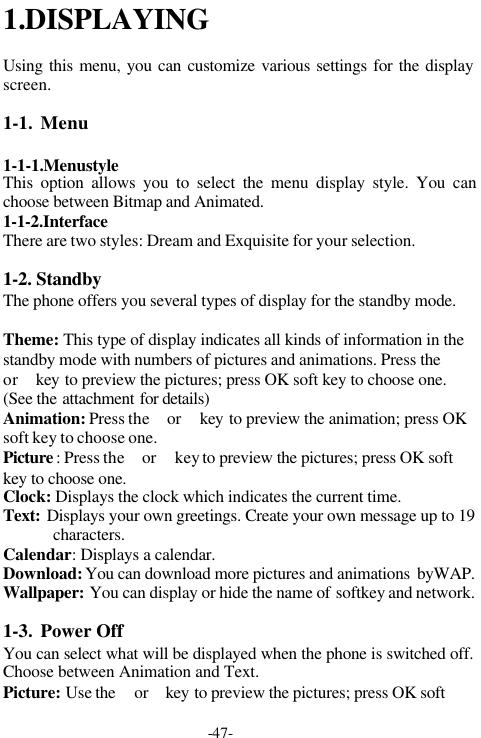
-47-1.DISPLAYINGUsing this menu, you can customize various settings for the displayscreen.1-1. Menu1-1-1.MenustyleThis option allows you to select the menu display style. You canchoose between Bitmap and Animated.1-1-2.InterfaceThere are two styles: Dream and Exquisite for your selection.1-2. StandbyThe phone offers you several types of display for the standby mode.Theme: This type of display indicates all kinds of information in thestandby mode with numbers of pictures and animations. Press the or  key to preview the pictures; press OK soft key to choose one.(See the attachment for details)Animation: Press the  or  key to preview the animation; press OKsoft key to choose one.Picture : Press the  or  key to preview the pictures; press OK softkey to choose one.Clock: Displays the clock which indicates the current time.Text: Displays your own greetings. Create your own message up to 19characters.Calendar: Displays a calendar.Download: You can download more pictures and animations  byWAP.Wallpaper: You can display or hide the name of softkey and network.1-3. Power OffYou can select what will be displayed when the phone is switched off.Choose between Animation and Text.Picture: Use the  or  key to preview the pictures; press OK soft
-48-key to choose one.Text: Displays your own greetings. Create your own message up to 19characters.1-4. Power OnYou can select what will be displayed when the phone is switched on.Choose between Animation and Text.(refer to Power Off on the lastpage)2. INTERNET/WAPWAP is a platform for combining wireless communication withinternet. WAP allows you to access the internet and also providessome e-commerce applications by phone.Note: To connect wap net, your network must provide the service and youshould perform the dredging operation described in detail in Settings/WAP Settings.Select Internet from the Main Menu to connect WAP. You can alsoseclet  Go to URL from WAP Settings,  or select Home to connect tothe homepage.Note: Press and hold the key * to enter the browser menu.The following options are available when using WAP.Back: To return the previous window.Home: Skip to the homepage.
-49-Exit: Exit the browser window.Marker site: Allow user to add a website to bookmark.Bookmarks: Display the websites list you have added. Select one tovisit the corresponding site.Inbox: You can check what’s in your inbox.Save image: You can store your favorite pictures.Reload: Exit browser menu, return to the page you just visited.Settings: You can make modifications to the settings of homepage andproxy server.About: You can look up some information about the browser.ShortcutIn any WAP window, press and hold 1-9 key, to connect directly thecorresponding website in your bookmark; hold 0 key to enter yourInbox; hold       to exit the browser.3.AUDIO PROFILEYou can select from a number of pre-recorded tunes for your phonesring tone and set the different profiles.
-50-3-1. Tones3-1-1. CallThere are 26 tunes for you to choose from :Press key to scroll then Ok soft key to select.3-1-2. WelcomeThere are 26 tunes for you to choose from :Press key to scroll then Ok soft key to select.Note: You can choose Off to switch off the music.3-1-3.DownloadYou can perform the following operations on downloaded music.² Audition² Add² DeleteThere are four profiles available: Typical, Silent, Noise, Personal.3-2. TypicalIn this profile, the phone rings if there is an incoming call. Key sound,info tone, SMS tone, service tones are all activated.3-3. SilentThe phone vibrates if there is an incoming call. Key sound, SMS tone,service tone and info tones are deactivated.3-4. NoiseThe phone vibrates and rings if there is an incoming call. Key  sound,info tone, SMS tone, service tones are all activated.3-5. PersonalThe phone rings if there is an incoming call. Key  sound and SMStones are activated. Info and service tones are deactivated.
-51-The mode won’t be valid unless you  select Activate to  start it. Foreach mode, you can select Adapt to make the following operations:1.Call promptYou can select Tone alert  , Vibrator, Tone&vibrator,or No notifywhen there is an incoming call. Scroll to the option you want, press‘Ok’ soft key to confirm.2.Key soundTo adjust the Key sound, you can select ‘DTMF Tone’, or ‘Silent’.3.VolumeYou can adjust the volume of ring. Press key to increase volumeand  key to decrease . 4.Prompt soundsInfo tones: They are tones that provide information about the phone.For example: tone for low battery. Select it and then press ‘on’ softkey. To cancel this feature, press ‘off’.SMS tone: If it is  active, the phone will ring when receiving theSMS.Service beep: The phone will send out the service tone when itconnects to the network for the first tim e.To activate the above tones, select and then press ‘On’ soft key toactivate. To cancel this feature, press ‘Off’ soft key.
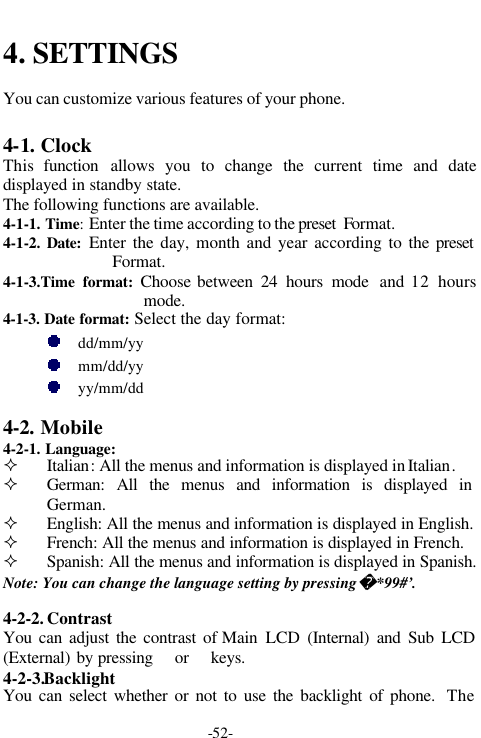
-52-4. SETTINGSYou can customize various features of your phone.4-1. ClockThis  function allows you to change the current time and datedisplayed in standby state.The following functions are available.4-1-1. Time: Enter the time according to the preset  Format.4-1-2. Date: Enter the day, month and year according to the presetFormat.4-1-3.Time format:  Choose between 24 hours mode and 12 hoursmode.4-1-3. Date format: Select the day format:dd/mm/yymm/dd/yyyy/mm/dd4-2. Mobile4-2-1. Language:² Italian: All the menus and information is displayed in Italian.² German: All the menus and information is displayed inGerman.² English: All the menus and information is displayed in English.² French: All the menus and information is displayed in French.² Spanish: All the menus and information is displayed in Spanish.Note: You can change the language setting by pressing  *99#’.4-2-2. ContrastYou can adjust the contrast of Main LCD (Internal) and Sub LCD(External) by pressing   or   keys.4-2-3.BacklightYou can select whether or not to use the backlight of phone.  The
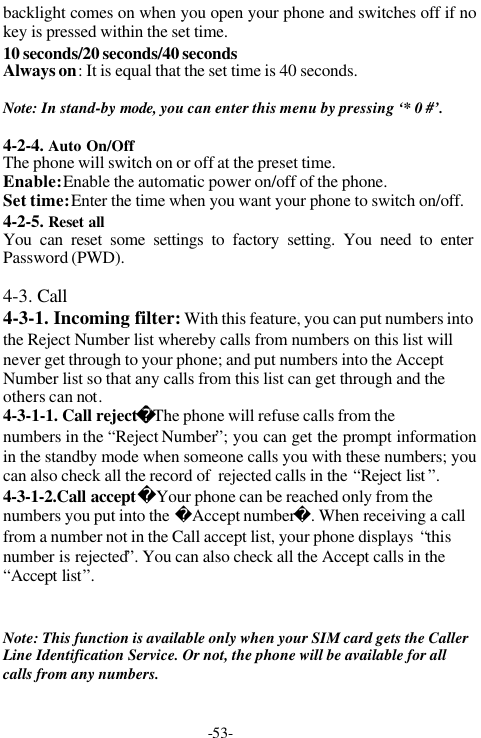
-53-backlight comes on when you open your phone and switches off if nokey is pressed within the set time.10 seconds/20 seconds/40 secondsAlways on: It is equal that the set time is 40 seconds.Note: In stand-by mode, you can enter this menu by pressing ‘* 0 #’.4-2-4. Auto On/OffThe phone will switch on or off at the preset time.Enable: Enable the automatic power on/off of the phone.Set time: Enter the time when you want your phone to switch on/off.4-2-5. Reset allYou can reset some settings to factory setting. You need to enterPassword (PWD).4-3. Call 4-3-1. Incoming filter: With this feature, you can put numbers intothe Reject Number list whereby calls from numbers on this list willnever get through to your phone; and put numbers into the AcceptNumber list so that any calls from this list can get through and theothers can not.4-3-1-1. Call rejectThe phone will refuse calls from thenumbers in the “Reject Number”; you can get the prompt informationin the standby mode when someone calls you with these numbers; youcan also check all the record of  rejected calls in the “Reject list ”.4-3-1-2.Call acceptYour phone can be reached only from thenumbers you put into the Accept number. When receiving a callfrom a number not in the Call accept list, your phone displays  “thisnumber is rejected”. You can also check all the Accept calls in the“Accept list”. Note: This function is available only when your SIM card gets the CallerLine Identification Service. Or not, the phone will be available for allcalls from any numbers.
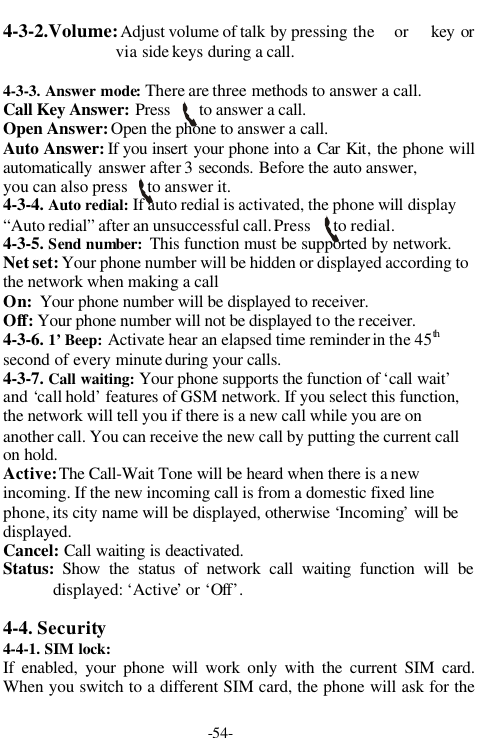
-54-4-3-2.Volume: Adjust volume of talk by pressing the  or   key orvia side keys during a call.4-3-3. Answer mode: There are three methods to answer a call.Call Key Answer: Press       to answer a call.Open Answer: Open the phone to answer a call.Auto Answer: If you insert your phone into a Car Kit, the phone willautomatically  answer after 3 seconds. Before the auto answer,you can also press     to answer it.  4-3-4. Auto redial: If auto redial is activated, the phone will display“Auto redial” after an unsuccessful call. Press      to redial.4-3-5. Send number:  This function must be supported by network.Net set: Your phone number will be hidden or displayed according tothe network when making a callOn:  Your phone number will be displayed to receiver.Off: Your phone number will not be displayed to the receiver.4-3-6. 1’ Beep: Activate hear an elapsed time reminder in the 45thsecond of every minute during your calls.4-3-7. Call waiting: Your phone supports the function of ‘call wait’and ‘call hold’ features of GSM network. If you select this function,the network will tell you if there is a new call while you are onanother call. You can receive the new call by putting the current callon hold.Active: The Call-Wait Tone will be heard when there is a newincoming. If the new incoming call is from a domestic fixed linephone, its city name will be displayed, otherwise ‘Incoming’ will bedisplayed.Cancel: Call waiting is deactivated.Status: Show the status of network call waiting function will bedisplayed: ‘Active’ or ‘Off’.4-4. Security4-4-1. SIM lock:If enabled, your phone will work only with the current SIM card.When you switch to a different SIM card, the phone will ask for the
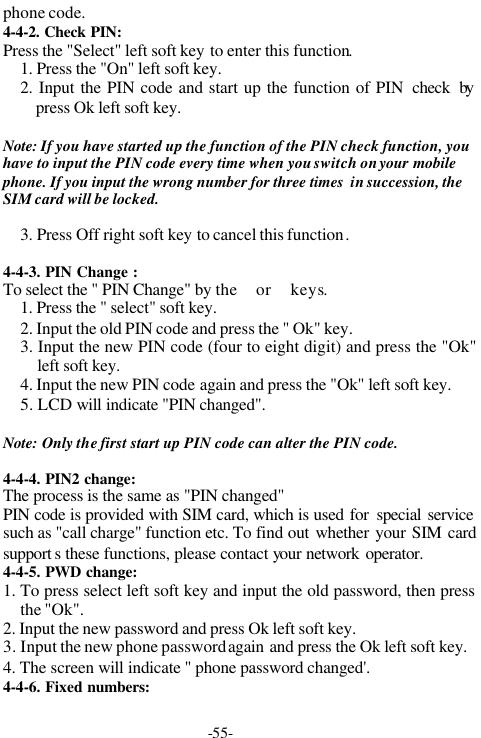
-55-phone code.4-4-2. Check PIN:Press the "Select" left soft key to enter this function.1. Press the "On" left soft key.2. Input the PIN code and start up the function of PIN  check bypress Ok left soft key.Note: If you have started up the function of the PIN check function, youhave to input the PIN code every time when you switch on your mobilephone. If you input the wrong number for three times  in succession, theSIM card will be locked.3. Press Off right soft key to cancel this function.4-4-3. PIN Change :To select the " PIN Change" by the or keys.1. Press the " select" soft key.2. Input the old PIN code and press the " Ok" key.3. Input the new PIN code (four to eight digit) and press the "Ok"left soft key.4. Input the new PIN code again and press the "Ok" left soft key.5. LCD will indicate "PIN changed".Note: Only the first start up PIN code can alter the PIN code.4-4-4. PIN2 change:The process is the same as "PIN changed"PIN code is provided with SIM card, which is used for special servicesuch as "call charge" function etc. To find out whether your SIM cardsupport s these functions, please contact your network operator.4-4-5. PWD change:1. To press select left soft key and input the old password, then pressthe "Ok".2. Input the new password and press Ok left soft key.3. Input the new phone password again and press the Ok left soft key.4. The screen will indicate " phone password changed'.4-4-6. Fixed numbers:
-56-If the  network service can support and your SIM card has thisfunction, you can limit the out going telephone numbers to whichcalls could be made.When this function is  "On" , your mobile phone can only callthe number in the fixed telephone number list. If you dial anyother number (except the emergency number), the phone willdisplay "Forbidden number".  You  will need to input PIN2 codeto activate this function.4-4-7. Bar callsThe call limitation function can help you to limit the incoming andoutgoing calls. However this service may not be available on allnetworks.The following operations are available:. All out: Selecting this option, to bar dialing any calls (except theemergency calls). Out intl : Selecting this option, to bar dialing the international calls.. Out intl roam: Selecting this option, to bar dialing the internationalcalls except to your home country.. ALL in: Selecting this option, to bar all incoming calls.In when roam: Selecting this option, to bar all incoming calls whenroaming.. Status: Allows you to query the current Bar calls setting.. Cancel all: Select ing this option, the phone will allow dialing andanswering all calls.Note: You need to input the PIN2 code to set above functions.4-5. NetworkWhen you use the phone, the phone will auto select the Internetservice. When the phone is beyond the service area when roaming,you can select the appropriate Internet  service manually.4-5-1. Mode: Switch between these two modes.   . Auto searching   . Manual searching4-5-2. Search: The LCD will display "  searching …..". After locating aservice, the GSM will auto display the network. If there are two available
-57-networks, you can use the or to select. Those marked with "*"  are notavailable to your phone.4-5-3. Sequence:This function allows you to list the Internet services you can use whenyour roaming.  If the listed networks can be used, your phone willselect the network from the prior list. Three operations are available.. Move: To press the key orto your desired internet service.. Add: You can add the new Internet. Input the country code and theInternet code then press the "confirm" button.. Delete: You can cancel the chosen network.4-5-3. Band: The phone  operates at PCS1900. To remain compliant withFCC requirements, this is the only operating band for thisphone4-6. DivertThis network service enables the incoming calls to be transferred toanother number that you specify. For example: You maybe want totransfer your business calls to a colleague while on holiday.Not reachable: Calls are transferred if you are not in an area coveredby your service provider.Not reply: Calls are transferred if you do not answer the call.All : All calls are transferred.Busy: Calls are transferred if your phone is engaged.Status: Allows you to query the network about the current status ofCall Transfer function.Cancel all: All Call Transfer functions are cancelled.To activate a call transfer function:1.Scroll to the desired item then press OK soft key.2.Select ‘Divert On’ and press OK soft key (If you want to cancel thisoperation, select ‘Divert Off’)3.Input the number you want to divert to, press OK soft key.4.’after15 sec’ is displayed, press Ok.5.The information is displayed to indicate if you’ve  succeeded toactivate a call transfer function or not.
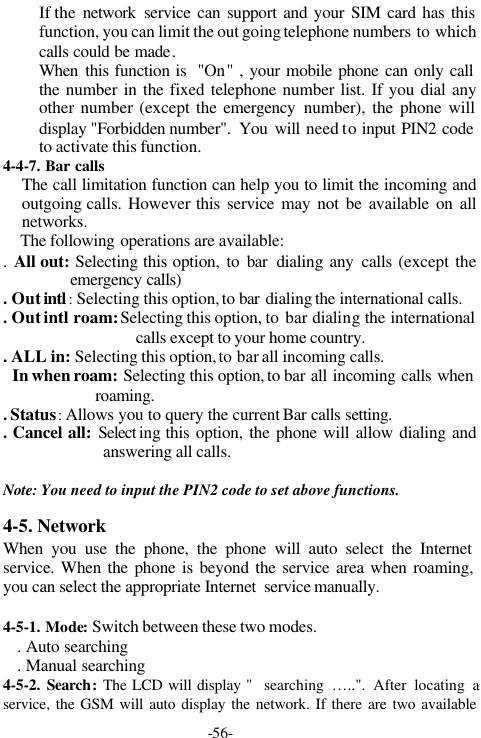
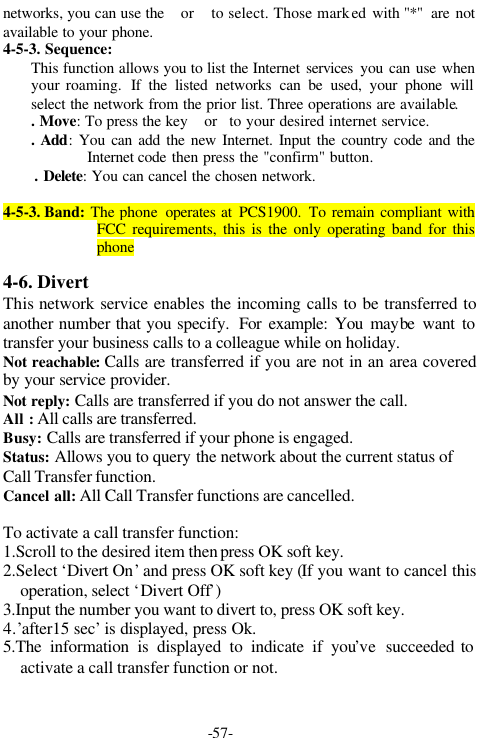
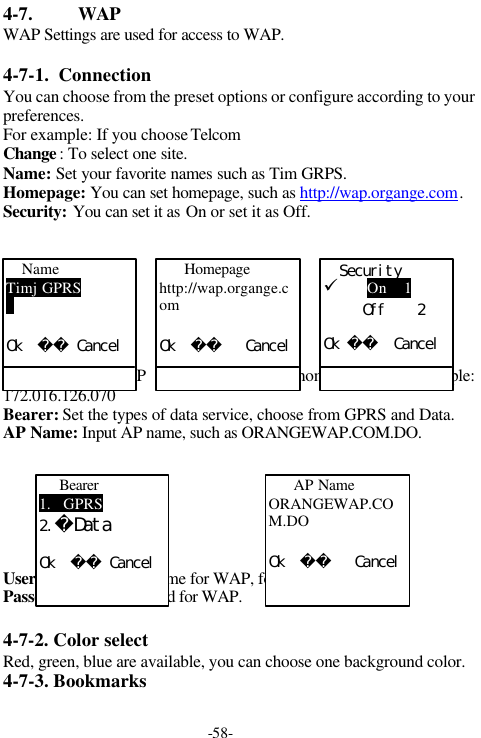
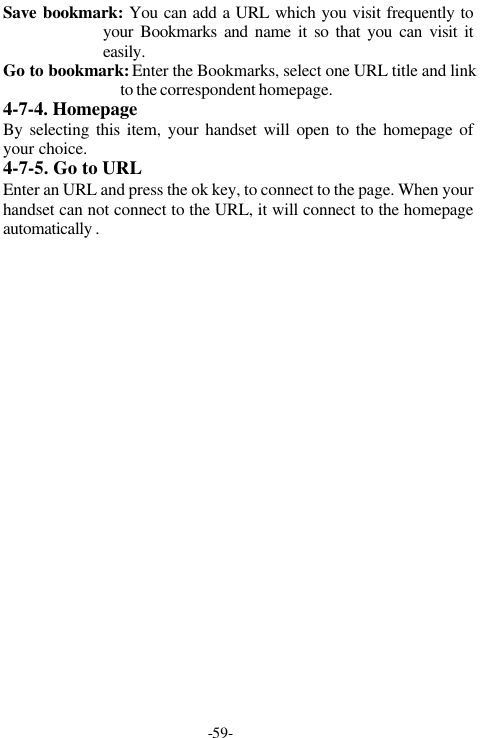
-58-4-7. WAPWAP Settings are used for access to WAP.4-7-1.  ConnectionYou can choose from the preset options or configure according to yourpreferences.For example: If you choose TelcomChange : To select one site.Name: Set your favorite names such as Tim GRPS.Homepage: You can set homepage, such as http://wap.organge.com.Security: You can set it as On or set it as Off.IP Address: Set IP  address linking to homepage. For example:172.016.126.070Bearer: Set the types of data service, choose from GPRS and Data.AP Name: Input AP name, such as ORANGEWAP.COM.DO.User ID: Set the user name for WAP, for example, lovely.Passeword: Set password for WAP.4-7-2. Color selectRed, green, blue are available, you can choose one background color.4-7-3. BookmarksNameTimj GPRSOk   CancelSecurityü On    1     Off    2Ok   Cancel  Homepagehttp://wap.organge.comOk     Cancel Bearer1.   GPRS2.DataOk   Cancel  AP NameORANGEWAP.COM.DOOk     Cancel
-59-Save bookmark: You can add a URL which you visit frequently toyour Bookmarks and name it so that you can visit iteasily.Go to bookmark: Enter the Bookmarks, select one URL title and linkto the correspondent homepage.4-7-4. HomepageBy selecting this item, your handset will open to the homepage ofyour choice.4-7-5. Go to URLEnter an URL and press the ok key, to connect to the page. When yourhandset can not connect to the URL, it will connect to the homepageautomatically .
-60-4-7-6. Response timeSet linger time with the unit of second. If your handset can not link toWAP, it will give up automatically.4-7-7. ResetReset all of the settings of WAP.5.TOOLBOX5-1. AlarmThere are three alarm clocks to be used. For every alarm, you canmake the following settings:On: To start up this alarm so that you can continue its settings.Set time: Set the time when the alarm is to start.Mode: There are three modes.1. Daily: The alarm works at a set time every day.2. Workday: The alarm works at the set time from Monday to Friday.3. Profile: You can choose one or several days of the week for thealarm to work.Tone: Select the ringing type of the alarm.
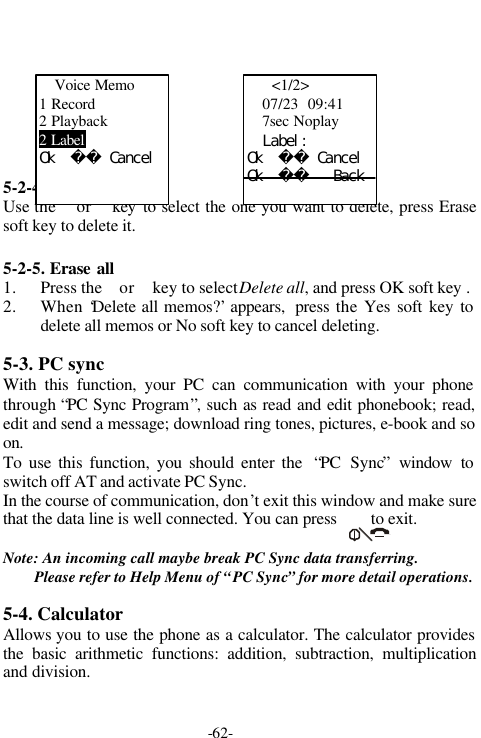
-61-Cancel all: Close all alarms.Note: To stop the alarm,  press any key except      or       ;  otherwise, itcontinues  to ring for one minute.  The alarm will still work when thephone is turned off.5-2.Voice memoYou can record up to 2 voice memos (including conversations) of upto 30 seconds in length.Notes: 1. Recording a voice conversations is illegal in some countries.Make sure the other party has consented to being recorded.2. Hold down @ key to record a conversation during a call.5-2-1. Record1. Scroll to Record, press OK soft key.2. Record the voice memo by speaking into the microphone.Note: When recoding, press Pause soft key to have a pause then Recordkey to continue; A timer displays to show you the elapsed time. Whenrecording time limit is reached, the phone will automatically  stoprecording and save the recorded.3. When recording is completed, press the End soft key.5-2-2. Playback1. Scroll to Playback, press the OK soft key and then the Play softkey, the latest memo displays.2. Press the  or  key to scroll to the desired memo and press Oksoft key to play it back.Note: While in playback, press the End soft key to stop playing and exitthe playback mode.5-2-3. LabelYou can make a label for your voice memo using this function.
-62-5-2-4. Erase oneUse the  or  key to select the one you want to delete, press Erasesoft key to delete it.5-2-5. Erase all1. Press the  or  key to select Delete all, and press OK soft key .2. When ‘Delete all memos?’ appears,  press the Yes soft key todelete all memos or No soft key to cancel deleting.5-3. PC syncWith this function, your PC can communication with your phonethrough “PC Sync Program”, such as read and edit phonebook; read,edit and send a message; download ring tones, pictures, e-book and soon.To use this function, you should enter the  “PC Sync” window toswitch off AT and activate PC Sync.In the course of communication, don’t exit this window and make surethat the data line is well connected. You can press        to exit.Note: An incoming call maybe break PC Sync data transferring.Please refer to Help Menu of “PC Sync” for more detail operations.5-4. CalculatorAllows you to use the phone as a calculator. The calculator providesthe basic arithmetic functions: addition, subtraction, multiplicationand division.Voice Memo1 Record2 Playback2 LabelOk   Cancel  <1/2>07/23  09:417sec Noplay  Label:Ok   CancelOk     Back
-63-Performing a Calculation1. Enter the first number using the numeric keys.2. Press      to set the operator for your calculation referringto the screen: + (add), - (subtract), x (multiply), / (divide).3. Enter the second number.4. To calculate the result, press the OK soft key.5. Repeat steps 1 to 4 as many times as required.Each time you change the operator without pressing OK soft key, theprevious calculation is performed and the result is displayed as the topnumber in the display.Notes: 1)  To erase any mistakes and clear the display, press the Clearsoft key. You can reset the calculator by pressing the Resetsoft key.2) Use the OK or * key to enter a decimal point and the # key tochange the sign of a number to a negative (-).
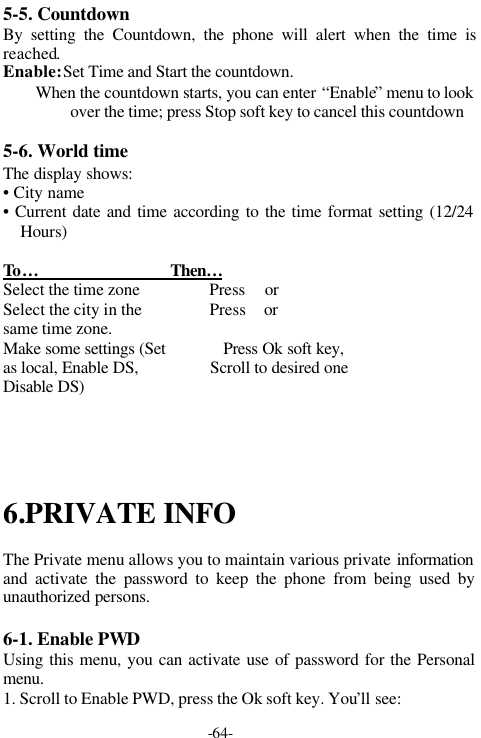
-64-5-5. CountdownBy setting the Countdown, the phone will alert when the time isreached.Enable: Set Time and Start the countdown.        When the countdown starts, you can enter “Enable” menu to lookover the time; press Stop soft key to cancel this countdown5-6. World timeThe display shows:• City name• Current date and time according to the time format setting (12/24Hours)To …                               Then…Select the time zone                 Press  or Select the city in the                 Press  or same time zone.Make some settings (Set              Press Ok soft key,as local, Enable DS,                 Scroll to desired oneDisable DS)6.PRIVATE INFOThe Private menu allows you to maintain various private informationand activate the password to keep the phone from being used byunauthorized persons.6-1. Enable PWDUsing this menu, you can activate use of password for the Personalmenu.1. Scroll to Enable PWD, press the Ok soft key. You’ll see:
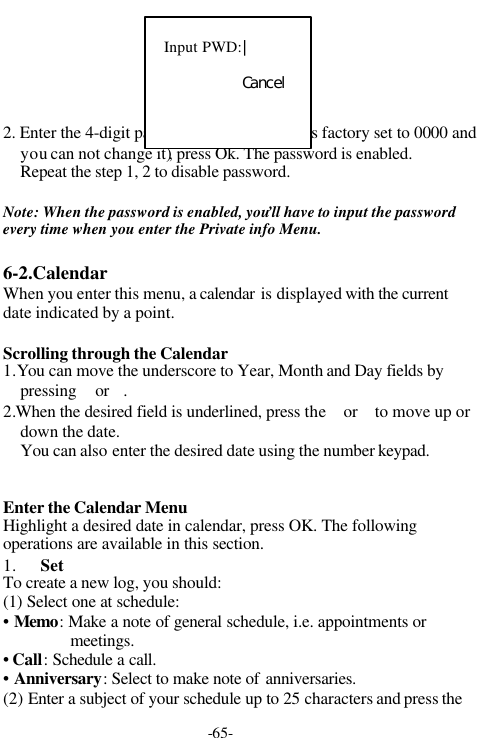
-65-2. Enter the 4-digit password (The password is factory set to 0000 andyou can not change it), press Ok. The password is enabled.Repeat the step 1, 2 to disable password.Note: When the password is enabled, you’ll have to input the passwordevery time when you enter the Private info Menu.6-2.CalendarWhen you enter this menu, a calendar is displayed with the currentdate indicated by a point.Scrolling through the Calendar1.You can move the underscore to Year, Month and Day fields bypressing  or .2.When the desired field is underlined, press the  or  to move up ordown the date.You can also enter the desired date using the number keypad.Enter the Calendar MenuHighlight a desired date in calendar, press OK. The followingoperations are available in this section.1. SetTo create a new log, you should:(1) Select one at schedule:• Memo: Make a note of general schedule, i.e. appointments ormeetings.• Call: Schedule a call.• Anniversary: Select to make note of anniversaries.(2) Enter a subject of your schedule up to 25 characters and press theInput PWD:|Cancel
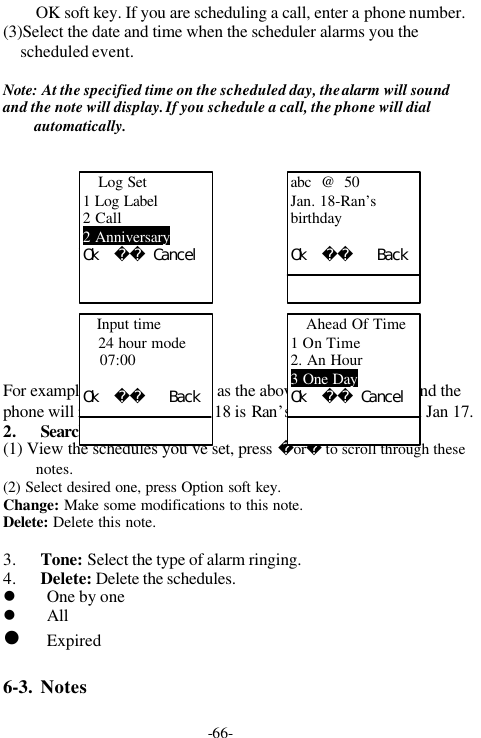
-66-OK soft key. If you are scheduling a call, enter a phone number.(3)Select the date and time when the scheduler alarms you thescheduled event.Note: At the specified time on the scheduled day, the alarm will soundand the note will display. If you schedule a call, the phone will dialautomatically.For example: Make the settings as the above diagrams show, and thephone will remind you that Jan 18 is Ran’s birthday at 7:00 on Jan 17.2. Search(1) View the schedules you’ve set, press or to scroll through thesenotes.(2) Select desired one, press Option soft key.Change: Make some modifications to this note.Delete: Delete this note.3. Tone: Select the type of alarm ringing.4. Delete: Delete the schedules.l One by onel Alll Expired6-3. NotesLog Set1 Log Label2 Call2 AnniversaryOk   Cancelabc  @  50Jan. 18-Ran’sbirthdayOk     BackAhead Of Time1 On Time2. An Hour3 One DayOk   Cancel   Input time24 hour mode    07:00Ok     Back
-67-You can store 10 notes in this box, up to 30 characters for each note.6-4. CallsThis menu allows you to view the timers for calls made and received.The following timers are available:IncomingMissedOutgoing  The operations of the above three items you can refer to Call list.Last: You can see the duration of the last call.Total: You can see the duration of your total calls (incoming andoutgoing).For these two items, press the Reset soft key to reset the call timer aszero or Cancel key to exit.Charge infoTotal charge: The total calls fee will be displayed and it also             can be reset to zero with the Reset soft key. You must inputPIN2 code when select Reset.Max charge: Input a sum as max charge that can be used for            making calls. When your call charge exceeds this limit, nomore calls could be made (except free calls) unless youreset the sum. You must input PIN2 code when makemodification.Unit price: You can inquire and modify the unit price through          this function. Input PIN2 code when making a modification.Blacklist:  The number in the blacklist could not be redialautomatically.  While redialing automatically, the phonejudge automatically whether to continue redialing on thebasis of the number of redialings and the failure cause. Ifthe phone judge that the number should not be redialed, itwill be stored in Blacklist.
-68-7.AMUSEMENT7-1.Games7-1-1.Space arenaStart Game: Start a new game or continue the previous memory.Game  Setting :  Configure your phone for the chosen game(backlight, sound and so on)Instructions: Describes the rules of the game.Scores: Enables you to view the scores recorded. You can also clearthe scores.Tip: Use the navigation keys to control the directions, left soft key to havea pause and right soft key to exit.7-1-2. TetrisPrimary: With a slow descending speed.Middle: With a medium descending speed.Senior: With a high descending speed.Beep: Switch on/off the sound.Help: Describes the rules in the game.7-1-3. Push boxStart: To start a new game.
-69-Instructions: Describes the rules of the game.Beep: Switch on/off the sound.7-1-4.Throw eggNew game: To start a new game.Continue: Enables you to continue the previous game.Instructions: Describes the rules in the game.Beep: Switch on/off the sound.7-1-5.SnakeNew game: To start a new game.Game Setting :  Configure your phone for the chosen game (level,sound)Scores: Enables you to view the scores recorded. You can also clearthe scores.Help: Describes the rules in the game.Tip: In the above games, You can also use the keys on the left side of thephone to adjust the tone.7-2.KaraokeYou can enjoy music with words and flash animation through thismusic player. There’re five songs stored in this player. Press  or   toscroll to your desired song.To …                                 Then press…Play/pause the song                     Ok soft keyRepeat                               Left soft keyAdvance or back                        or Adjust the music scale                    or Exit                                  Right soft keyDownload:  You can download some songs then there are twooperations available: Audition and Delete.7-3.Music player
-70-26 pieces titles are stored in this music box. Press   or  to scroll tothe desired music.To …                                  Then…Play                                  Press Stop                                  Press  Skip to the next                         Press Skip to the previous                      Press Press Option soft key for settings:Open: Select it to play the music.Loop: To play the music continuously.7-4. EbookYou can download up to 10 e-books to read through this function.Please refer to RAF about how to download e-book.Note: The content of every book can be up to 100k.After a download, the following operations are available.² Read Book:To…                               Then…Browse on the same page        Press  or Turn on pages                 Press  or Make a mark at the point        Press Bookmark softwhere you stop reading          key.Exit                         Press Cancel soft keyDelete: To delete any book you’ve downloaded.Set color: Choose one color as the background color of your book.
-71-8. SMSThe SMS (Short Message Service) function is a network service andmay not be supported by your network. Message can be sent by text,fax, E-mail and paging messaging systems, to send text messages byphone, you must obtain the number of the SMS center from yourservice provider. This number may be automatically available fromyour SIM.Two message boxes are available: Personal SM and Broadcasting SM.Personal SM: It is the message which the mobile users uses to transmitinformation.Broadcast SM: If you select this option, you can receive publicinformation from Network Operators such asWeather Broadcasting and so on.SM Indicator: When you receive a new message, and  *will appear respectively in the internaland external screen.  If the messagememory is full,               is displayed andyou cannot receive or save any new messages. Use the‘Delete’ menu to delete obsolete messages.       Note: In standby mode ,use   or after entering Main menu to selectMessage, both can enter Message option. But if your SIM card hasthe function of STK, you can only use the former.8-1. Read
-72-8-1-1. InboxInbox stores the messages that you have received, the one  with ‘*’ isnew message.1. Press 56key to choose the desired message.2. Press Ok soft key to view details of message.3. Press ‘Option’ left soft key and you can operate as follows:Reply: Reply to the sender.  You can write a new message and thenchoose ‘Send’, ‘Store & Send’ , ‘Store’ or ‘Multiple Send’ .Forward: Send the received message to others.  You can edit themessage and then choose ‘Send’, ‘Store & Send’ , ‘Store’ or‘Mul Send’Extract number: you can extract numbers from this message.Delete: Delete this message.8-1-2.OutboxOutbox stores the messages that you have already sent or are waitingto be sent. A message with ‘*’ is unsent message.1. Press 56key to choose the desired message.2. Press Ok soft key to view details of message.3.   Press ‘Option’ soft key and you can operate as follows:Write: You can write a piece of new message or edit the message andthen choose  ‘Send’, ‘Store & Send’ , ‘Store’ or ‘Mul  Send’todo with the Message.Extract number: you can extract numbers from this message.Delete: Delete this message.8-2. WriteThe text message can be made up of 160 characters at the most. Afterinputting the text message,  press Ok soft key and you  have thefollowing options:Send: send the message.Send /Store: Allow you to save and send the message. The message isstored in the outbox even if it fails to be transmitted.Save: Allows you to save the message so that it can be send later.
-73-Multiple send: Allow you to send the message to multi receivers. Youcan send the message to less than 5 phone numbers.Finally, press Ok soft key. The number you last send a message to  isdisplayed.To …                                Then…            Send this message to this            Press OK soft keynumberInput a new number               Hold Delete soft key to erase then inputnew numberSearch a number from PB          Hold Delete soft key to erase thenpress Search soft key8-3. DeleteYou can delete the messages in Inbox or Outbox.For example: Press ‘Select’ left soft key to select ‘Inbox’, select ‘OneBy One’, press  56 keys  to select  the message youwant and then press ‘Delete’ left soft key to delete it.You can also select ‘Delete All’ to delete all messagesin the inbox.8-4. MemoryYou can select the menu to  check total space and space and availablespace.8-5. SettingsAuto display: Select this function and press ‘Ok’ soft key. When youreceive a new  message, it can display  automatically .You can select ‘Cancel ’to cancel this function.SMS center: Allows you to store or change the number for your SMScenter for  sending messages. You can obtain thisnumber from your service provider.Validity: Allow you to set the length of time for which your textmessages will be stored at the message center while
-74-attempts are made to deliver them to you. 1 hour, 6hours, 12 hours, 1 day, 2 days, 1 week, and Max areavailable.Status report: You can select ‘On’ to require the SMS center to notifywhether your message has been sent or not.SMS PWD: You can select ‘On’ to require SIM Lock Code when theuser wants to read inbox and outbox.SMS tone: You can choose the tunes for alerting an new message.8-6. BroadcastYou can receive broadcast messages  such as weather or traffic reportsvia this network service.Read: You can view the up to date broadcast  message .Auto display: If you set this function ‘on’, messages are displayedimmediately  when they are received.Filter: Help  you  choose the channels  you like to receive broadcastmessages from.Languages:  Helps you select the  language you prefer  in which thebroadcast message is displayed.Note: Language support depends on the Network operator.8-7. Voice MailThis menu provides you with a quick way of accessing your  voicemail (if provided by your network):Number: Allow you to input  the mailbox number obtained from yourservice provider.Call: press the ‘Send’ soft key to listen to your messages.8-8. TemplatesSeveral customs short message have been stored which you can editand/ or send conveniently.
-75-REFERENCE INFORMATIONAccess CodesThere are several access codes that are used by your phone and itsSIM card. These codes help you protect the phone againstunauthorized use.Phone PasswordThe security code can be used to avoid unauthorized use of yourphone. The security code is set at 0000 at the factory.Change the security code before you start using your phone. Keep thenew code secret and in a safe place, which is separate from the phone.PIN CodeThe PIN (Personal Identification Number) code protects your SIMcard against unauthorized use. The PIN code is usually supplied withthe SIM card. When the PIN code request is enabled, the code is askedfor when the phone is switched on.If you key in an incorrect PIN code three times in succession, the SIMcard will be locked. To unlock the SIM card, you’d key in the PUKcode see below and press the OK soft key, and key in a new PIN codetwice.
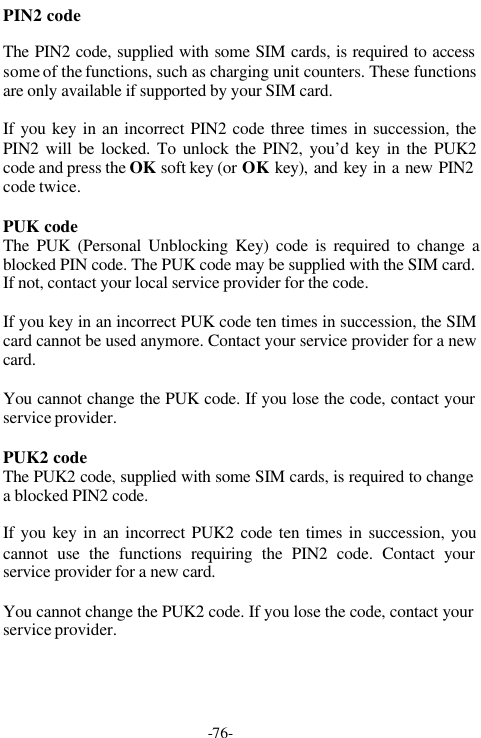
-76-PIN2 codeThe PIN2 code, supplied with some SIM cards, is required to accesssome of the functions, such as charging unit counters. These functionsare only available if supported by your SIM card.If you key in an incorrect PIN2 code three times in succession, thePIN2 will be locked. To unlock the PIN2, you’d key in the PUK2code and press the OK  soft key (or OK key), and key in a new PIN2code twice.PUK codeThe PUK (Personal Unblocking Key) code is required to change ablocked PIN code. The PUK code may be supplied with the SIM card.If not, contact your local service provider for the code.If you key in an incorrect PUK code ten times in succession, the SIMcard cannot be used anymore. Contact your service provider for a newcard.You cannot change the PUK code. If you lose the code, contact yourservice provider.PUK2 codeThe PUK2 code, supplied with some SIM cards, is required to changea blocked PIN2 code.If you key in an incorrect PUK2 code ten times in succession, youcannot use the functions requiring the PIN2 code. Contact yourservice provider for a new card.You cannot change the PUK2 code. If you lose the code, contact yourservice provider.
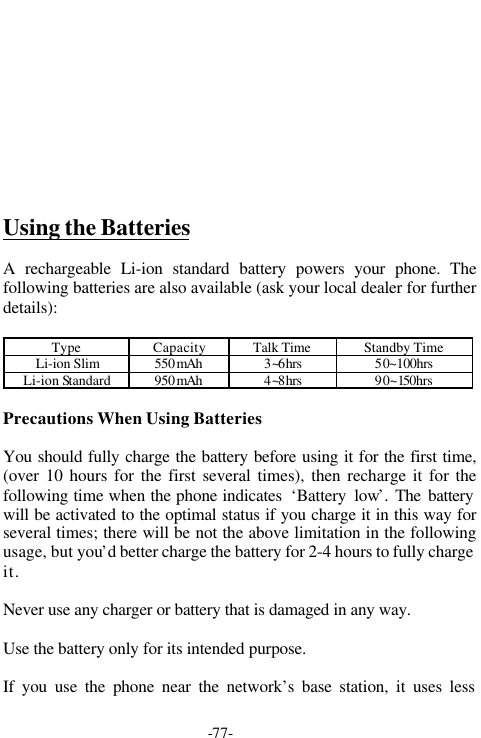
-77-Using the BatteriesA rechargeable Li-ion standard battery powers your phone. Thefollowing batteries are also available (ask your local dealer for furtherdetails):Type Capacity Talk Time Standby TimeLi-ion Slim 550mAh 3~6hrs 50~100hrsLi-ion Standard 950mAh 4~8hrs 90~150hrsPrecautions When Using BatteriesYou should fully charge the battery before using it for the first time,(over 10 hours for the first several times), then recharge it for thefollowing time when the phone indicates  ‘Battery low’. The batterywill be activated to the optimal status if you charge it in this way forseveral times; there will be not the above limitation in the followingusage, but you’d better charge the battery for 2-4 hours to fully chargeit.Never use any charger or battery that is damaged in any way.Use the battery only for its intended purpose.If you use the phone near the network’s base station, it uses less
-78-power; talk and standby times are greatly affected by the signalstrength on the cellular network and the parameters set by the networkoperator.Battery charging times depend on the remaining battery charge andthe type of battery and charger used. The battery can be charged anddischarged hundreds of times, but it will gradually wear out. When theoperation time (talk time and standby time) is noticeably shorter thannormal, it is time to buy a new battery.If left unused, a fully charged battery will discharge itself over time.Use only approved batteries; and recharge your battery only withapproved chargers. When a charger is not in use, disconnect it fromthe power source. Do not leave the battery connected to a charger formore than a week, since overcharging may shorten its life.Extreme temperatures will affect the charging capacity of yourbattery: it may require cooling or warming first.  Do not leave thebattery in hot or cold places, such as in a car in summer or winterconditions, as you will reduce the capacity and lifetime of the battery.Always try to keep the battery at room temperature. A phone with ahot or cold battery may temporarily not work, even when the battery isfully charged. Li-ion batteries are particularly affected bytemperatures below 0 °C.Do not short-circuit the battery. Accidental short-circuiting can occurwhen a metallic object (coin, clip or pen) causes a direct connectionbetween the + and - terminals of the battery (metal strips on the backof the battery), for example when you carry a spare battery in a pocket
-79-or bag. Short-circuiting the terminals may damage the battery or theobject causing the short-circuit.Dispose of used batteries in accordance with local regulations. Alwaysrecycle. Do not dispose of batteries in a fire.
-80-Care and MaintenanceYour phone is a product of superior design and craftsmanship andshould be treated with care.  The suggestions below will help you tofulfill any warranty obligations and allow you to enjoy this product formany years. When using your phone, battery, charger, or anyaccessory:Keep it and all its parts and accessories out of small children’s reach.Keep it dry. Precipitation, humidity and liquids contain minerals thatwill corrode electronic circuits.Do not use or store it in dusty, dirty areas as its moving parts can bedamaged.Do not store it in hot areas. High temperatures can shorten the life ofelectronic devices, damage batteries, and warp or melt certain plastics.Do not store it in cold areas. When the phone warms up (to its normaloperating temperature), moisture can form inside the phone, whichmay damage the phone’s electronic circuit boards.Do not drop, knock or shake it. Rough handling can break internalcircuit boards.Do not use harsh chemicals, cleaning solvents, or strong detergents toclean it. Wipe it with a soft cloth slightly dampened in a mild soap-and-water solution.Do not paint it. Paint can clog the device’s moving parts and preventproper operation.Use only the supplied or an approved replacement antenna.Unauthorized antennas, modifications of attachments could damagethe phone and may violate regulations governing radio devices.
-81-If the phone, battery, charger, or any accessory is not workingproperly, take it to your nearest qualified service facility.This phone features large inner & outer display screens, which aredamageable. Please be most careful to avoid dropping or knocking itor scratch it with a sharp object.
-82-GLOSSARYAntennaA device for transmitting or receiving signals. The size and shape ofantennas is determined, in part, by the frequency of the signal theyreceive. Wireless phones and the base station must have antennas.ALS (Alternate Line Service)ALS provides the capability of associating two alternate lines with oneSIM card. You can make and receive calls on either line as desiredwith this service.Call BarringAbility to restrict outgoing and incoming calls.Call DivertingAbility to reroute calls to another mobile or fixed line.Call HoldingAbility to put one call on standby while answering or making anothercall; you can then switch between the two calls, as required.Call WaitingAbility to inform users that they have an incoming call when engagedon another call.Conference CallingAbility to establish a conference call involving up to five additionalparties.DTMF (Dual-Tone Modulated Frequency)You send DTMF signals when you enter numbers by pressing thedigit keys.
-83-Hands-FreeA feature that permits a driver to use a wireless phone without liftingor holding the handset - an important safety feature for automobiles,tractors and most other motorized vehicles.GSM (Global System for Mobile communication)International standard for cellular communication, guaranteeingcompatibility between the various network operators. GSM coversmost European countries and many other parts of the world.LCD (Liquid Crystal Display)Commonly used to refer to the screen display on the wireless phone.LED (Light Emitting Diode )Commonly used to refer to a small light on the wireless phone or onthe Desktop Charger. The LED lights on the phone to indicate anincoming call. The lights on the charger indicate that battery chargingis taking place.Line Identification ServicesService allowing subscribers to view or block the telephone numbersof callers.PIN (Personal Identification Number)Security code that protects the phone against unauthorised use. ThePIN is supplied by the service provider with the SIM card. It may be afour to eight-digit number and can be changed, as required.PUK (PIN Unlocking Key)Security code used to unlock the phone when an incorrect PIN hasbeen entered three times in succession. The eight-digit number issupplied by the service provider with the SIM card.RoamingUse of your phone when you are outside your home area (when
-84-traveling for example).SIM (Subscriber Identification Module)Card containing a chip with all the information required to operate thephone (network and memory information, as well as the subscriber’spersonal data). The SIM card fits into a small slot on the back of thephone and is protected by the battery.SMS (Short Message Service)Network service sending and receiving messages to and from anothersubscriber without having to speak to the correspondent. The messagecreated or received (up to 160 characters long) can be displayed,received, edited or sent.Soft KeysKeys marked • and o on the phone, the purpose of which:• Varies according to the function that you are currently using• Is indicated on the bottom line of the display just above thecorresponding keyVoice MailComputerized answering service that automatically answers your callswhen you are not available, plays a greeting (Optionally in your ownvoice) or records a message.
-85-
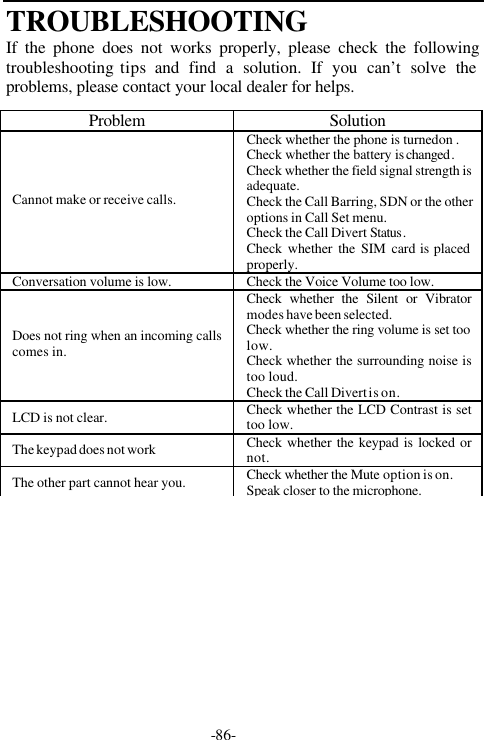
-86-TROUBLESHOOTINGIf the phone does not works properly, please check the followingtroubleshooting tips and find a solution. If you can’t solve theproblems, please contact your local dealer for helps.Problem SolutionCannot make or receive calls.Check whether the phone is turned on .Check whether the battery is changed.Check whether the field signal strength isadequate.Check the Call Barring, SDN or the otheroptions in Call Set menu.Check the Call Divert Status.Check whether the SIM card is placedproperly.Conversation volume is low. Check the Voice Volume too low.Does not ring when an incoming callscomes in.Check whether the Silent or Vibratormodes have been selected.Check whether the ring volume is set toolow.Check whether the surrounding noise istoo loud.Check the Call Divert is on.LCD is not clear.Check whether the LCD Contrast is settoo low.The keypad does not workCheck whether the keypad is locked ornot.The other part cannot hear you. Check whether the Mute option is on.Speak closer to the microphone.

Navigation menu