AMOI Electronics F6 GSM Tri-band Digital Mobile Phone User Manual F6 rev 1

AMOI Electronics Co., Ltd. GSM Tri-band Digital Mobile Phone F6 rev 1

Users Manual

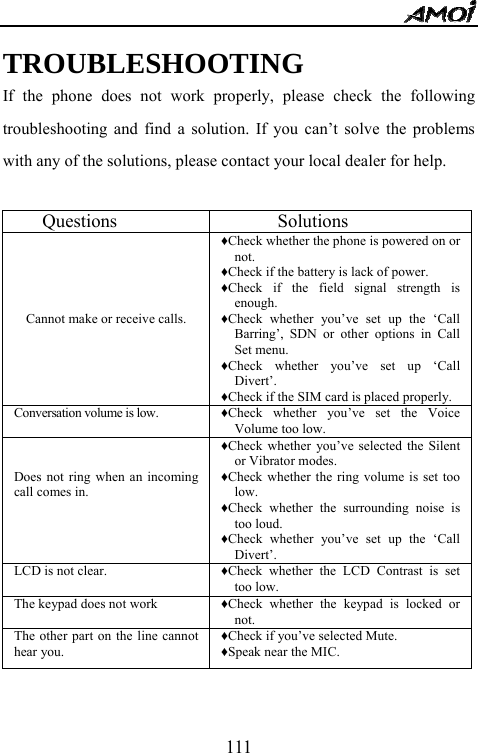
  1Thank you very much for choosing AMOI F6, the fashionable and elegant mobile phone. F6 is a perfect integration of unparalleled contemporary design and consummate precise craftsmanship, bringing you easy communication, funny entertainment, as well as highlighting your tastes.   Key Features:   ☆ GSM World Tri-band Unlocked ☆ Compatible With Most Standard GSM Networks ☆ MMS: Multi-Media Messaging Service ☆ GPRS Class 10, WAP 2.0 ☆ AMOI Smart Dial ☆ PC Sync ☆ Phonebook memory of 300 entries ☆ Support SMS / MMS / Broadcast / Voice Mail ☆ Password Setup ☆ Funny Games ☆ Three Alarm Clocks ☆ 40 Polyphonic Ring Tones Available
  2Specifications: GSM/GPRS 900/1800/1900 MHz Voice encoding: HR, FR and EFR   Screen: Internal:65 k colors STN display (128 x 128 pixels)             External: 4096 colors STN display (96 x 64 pixels) Dimension: 86.5 x 44 x 17.9 mm; 3.41" x 1.73" x 0.70" Weight: 75 g; 2.65 oz Battery capacity: 650 mAh Standby time: 60-100 hrs Talk time: 2-3 hrs               The manufacturer may, at any time and without notice, make changes or improvements to the products offered, but provide necessary corrigendum with this manual or release new version of this manual for the following lot. The Amoi logo and trademark are the property of the manufacturer. Oct. 2004.
  3Intellectual Property    All Intellectual Property, as defined below, owned by or which is otherwise the property of Amoi or its respective suppliers relating to the Amoi Phone, including but not limited to, accessories, parts, or software relating thereto (the “Phone System”), is proprietary to Amoi and protected under federal laws, state laws, and international treaty provisions. Intellectual Property includes, but is not limited to, inventions (patentable or unpatentable), patents, trade secrets, copyrights, software, computer programs, and related documentation and other works of authorship. You may not infringe or otherwise violate the rights secured by the Intellectual Property. Moreover, you agree that you will not (and will not attempt to) modify, prepare derivative works of, reverse engineer, decompile, disassemble, or otherwise attempt to create source code from the software. No title to or ownership in the Intellectual Property is transferred to you. All applicable rights of the Intellectual Property shall remain with Amoi and its suppliers.
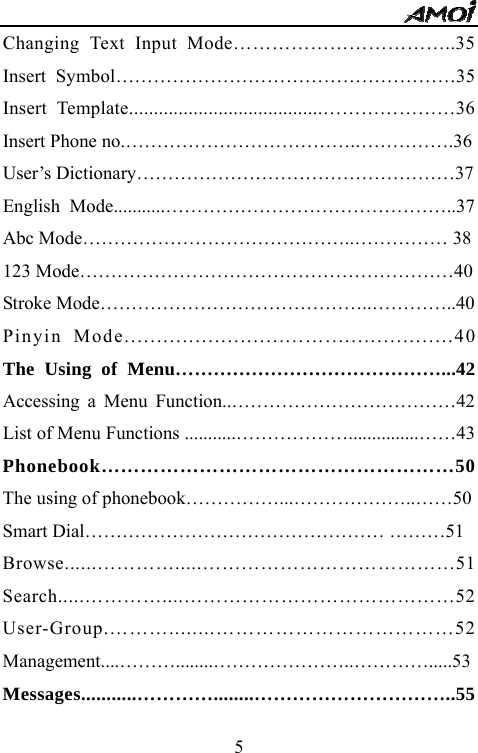
  4TABLE OF CONTENTS Safety precautions……………………………………………9 Unpacking………………………………………………….12 Your Phone………………….…………………………….14 Phone Layout………………………………………………. 14 Keys Description…………………………………………..16 Shortcut Keys………………………………………………..18 Display Layout………………………………………………19 Getting Started…………………………………………….21 Installing an SIM Card…………………………………….21 Charging a Battery………………………………………….23 Switching the Phone On/Off………………….……………..26 Your Phone’s Mode....................................................27 Call Function…………………………………………..…29 Making a Call………………………………………….….29 Receiving or rejecting a Call……………………………….30 Adjusting call volume……………………………………….32 Missed Calls………………………………………………...32 Call Menu………..…………………………………………33 Entering Text…………………………….…………………35
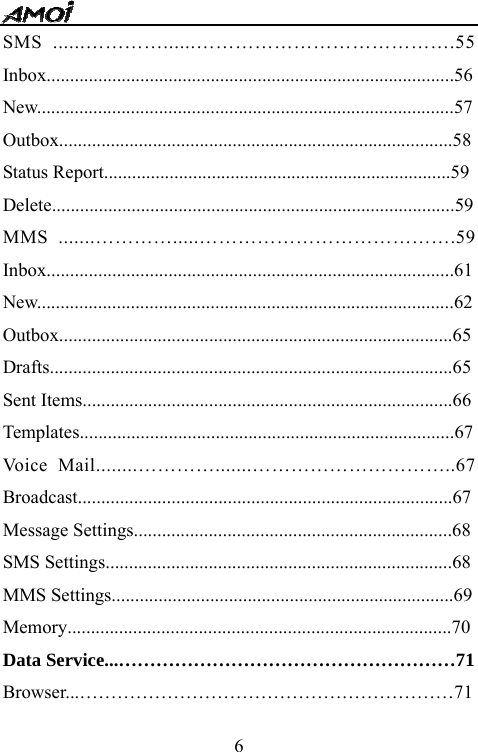
  5Changing Text Input Mode……………………………..35 Insert Symbol………………………………………………35 Insert Template.......................................…………………36 Insert Phone no.……………………………….…………….36 User’s Dictionary……………………………………………37 English Mode...........………………………………………..37 Abc Mode……………………………………..…………… 38 123 Mode……………………………………………………40 Stroke Mode……………………………………..…………..40 Pinyin Mode............................…....................40 The Using of Menu……………………………………...42 Accessing a Menu Function..………………………………42 List of Menu Functions ...........………………...............……43 Phonebook………………………………………………50 The using of phonebook……………...………………..……50 Smart Dial………………………………………… ………51 Browse......………….....…………………………………51 Search.....…………....……………………………………52 User-Group.………........………………………………52 Management....………........…………………..………….....53 Messages...........…………........…………………………..55
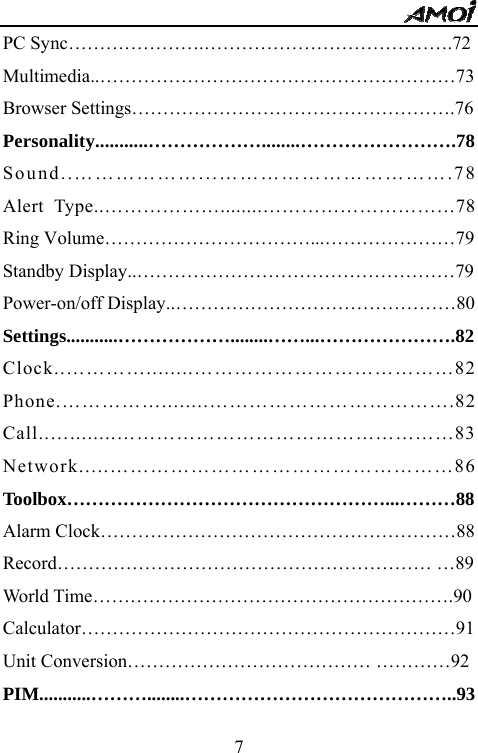
  6SMS ......…………......………………………………….55 Inbox.......................................................................................56New.........................................................................................57 Outbox....................................................................................58 Status Report..........................................................................59 Delete......................................................................................59 MMS .......………….....………………………………….59 Inbox.......................................................................................61 New.........................................................................................62 Outbox....................................................................................65 Drafts......................................................................................65 Sent Items...............................................................................66 Templates................................................................................67 Voice Mail........………….......…………………………..67 Broadcast................................................................................67 Message Settings....................................................................68 SMS Settings..........................................................................68 MMS Settings.........................................................................69 Memory..................................................................................70 Data Service...………………………………………………71 Browser...……………………………………………………71
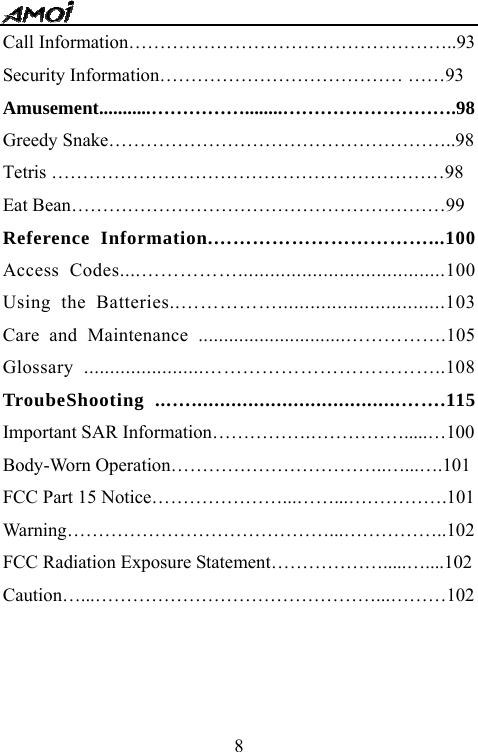
  7PC Sync………………….………………………………….72 Multimedia..…………………………………………………73 Browser Settings…………………………………………….76 Personality...........………………........…………………….78 Sound..………………...…………………………….78 Alert Type..………………........…………………………78 Ring Volume……………………………...…………………79 Standby Display..……………………………………………79 Power-on/off Display..………………………………………80 Settings...........………………........……...………………….82 Clock..…………........…………………………………82 Phone.……………........……………………………….82 Call..…........……………………………………………83 Network.....……………………………………………86 Toolbox……………………………………………...………88 Alarm Clock…………………………………………………88 Record…………………………………………………… …89 World Time………………………………………………….90 Calculator……………………………………………………91 Unit Conversion………………………………… …………92 PIM...........………........……………………………………..93
  8Call Information……………………………………………..93 Security Information………………………………… ……93 Amusement...........……………........……………………….98 Greedy Snake………………………………………………..98 Tetris ………………………………………………………98 Eat Bean……………………………………………………99 Reference Information.……………………………...100 Access Codes....…………….......................................100 Using the Batteries..……………...............................103 Care and Maintenance .............................…………….105 Glossary .......................………………………………..108 TroubeShooting ...….....................................…….115 Important SAR Information…………….…………….....…100 Body-Worn Operation……………………………..…...….101 FCC Part 15 Notice…………………...……...…………….101 Warning……………………………………...……………..102 FCC Radiation Exposure Statement……………….....…....102 Caution…...………………………………………...………102
  9Notes: In this user’s manual, there are many functions called network service, which is mobile phone and network dependent. Before you use this kind of function, please consult your service provider about the related   service, subscribe it, and ask for its user’s guide. SAFETY PRECAUTIONS  Read these brief guidelines. Failure to comply with them may be dangerous or illegal.  Road safety comes first Do not use a hand-held mobile phone while driving; park the vehicle first. Remember that in some countries, it is illegal to use a mobile phone while driving.  Switch off on an aircraft Mobile phones can cause interference. Using them on aircraft is both illegal and dangerous. (Please also close the power-off alarm clock.)  Switch off near an explosion place Do not use the phone near an area where explosives are detonated. It may disturb the remote control operation.  Switch off when refueling Do not use the phone at a refueling point (service station) or near fuels or chemicals.
  10 Switch off in hospital Follow any regulations or rules. Switch the phone off near medical equipment.    Interference All wireless phones may be subject to radio interference, which may affect their performance.   Accessories and batteries Use only approved accessories and batteries.    Use sensibly Use only in the normal position (next to ear). Do not touch the antenna unnecessarily when the phone is      switched on.  Emergency call Make sure that the phone is switched on and within the         service network before dialing an emergency call.   When you’re on an emergency call, please do not end the call without permission.
  11Cautions:  Please keep all small parts of the phone away from children to avoid them swallowing it.   Any unapproved changes or modifications by the party responsible for compliance might infringe the user’s authority to operate this mobile phone. This mobile phone may generate radio frequency energy, which, if not installed and used in accordance with the instructions, may cause harmful interference to radio communications. However, there is no guarantee that interference will not occur in a particular installation. If this mobile phone does cause harmful interference to radio or television reception, which can be determined by turning the equipment off and on, the user is encouraged to try one or more of measures listed below to clear the interference: --Reorient or relocate the receiving antenna. --Increase the separation between the equipment and receiver. --Connect the equipment into an outlet on a circuit different from that to which the receiver is connected. --Consult the dealer or an experienced radio/TV technician for help.
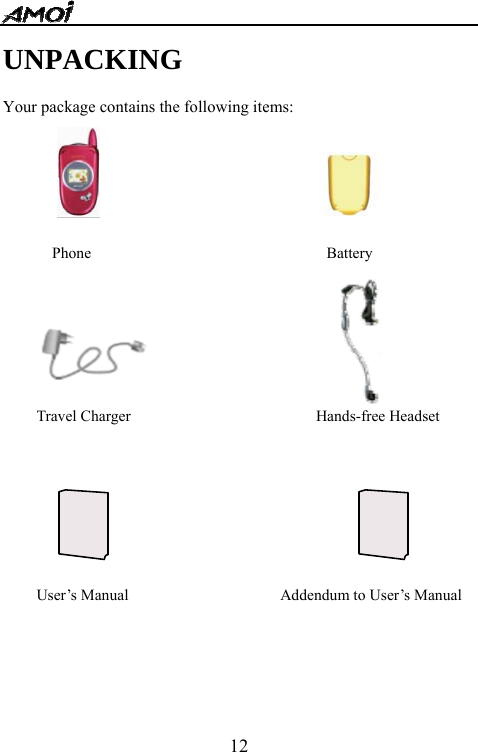
  12UNPACKING  Your package contains the following items:                                               Phone  Battery Travel Charger  Hands-free Headset User’s Manual  Addendum to User’s Manual
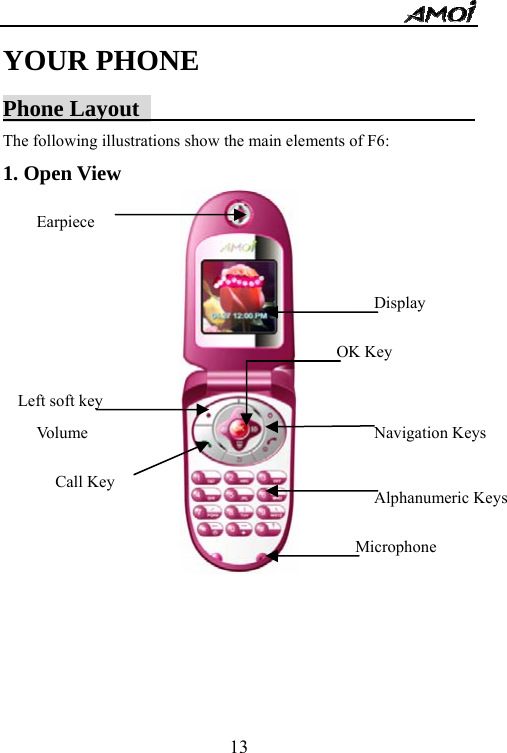
  13Vo l u m e  Left soft key Call Key OK Key YOUR PHONE Phone Layout                               The following illustrations show the main elements of F6: 1. Open View                                         Display Navigation Keys Alphanumeric Keys Earpiece Microphone
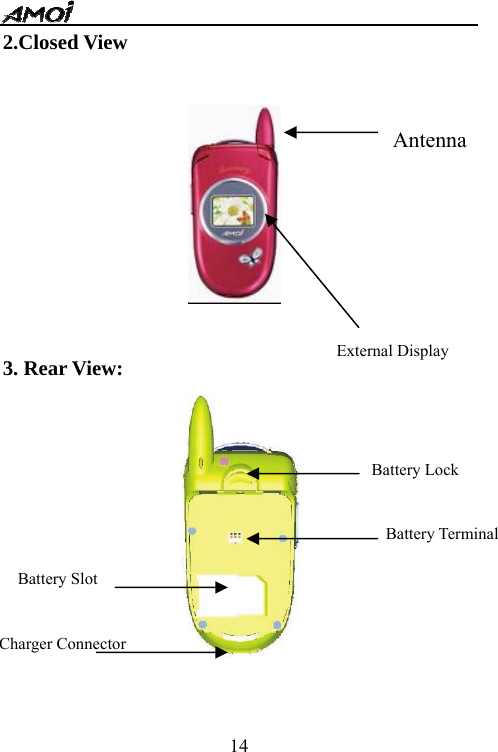
  14Battery Lock Battery Terminal Battery Slot Charger Connector 2.Closed View      3. Rear View:          AntennaExternal Display
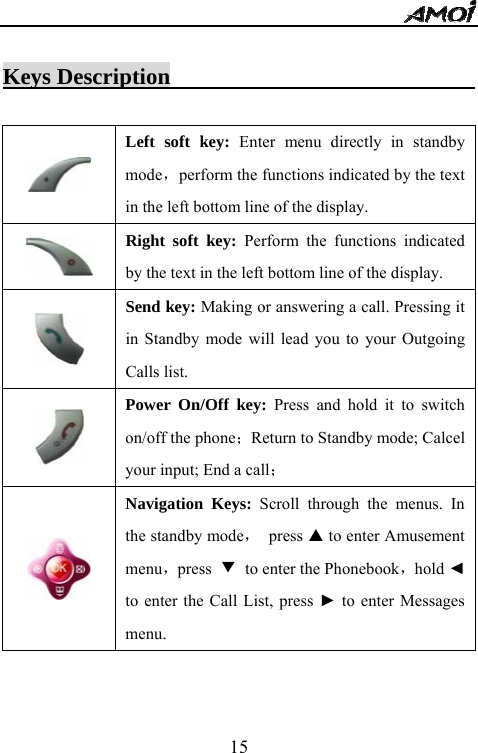
  15 Keys Description                              Left soft key: Enter menu directly in standby mode,perform the functions indicated by the text in the left bottom line of the display.  Right soft key: Perform the functions indicated by the text in the left bottom line of the display.  Send key: Making or answering a call. Pressing it in Standby mode will lead you to your Outgoing Calls list.  Power On/Off key: Press and hold it to switch on/off the phone;Return to Standby mode; Calcel your input; End a call;  Navigation Keys: Scroll through the menus. In the standby mode, press S to enter Amusement menu,press  ▼  to enter the Phonebook,hold ◄ to enter the Call List, press ► to enter Messages menu.
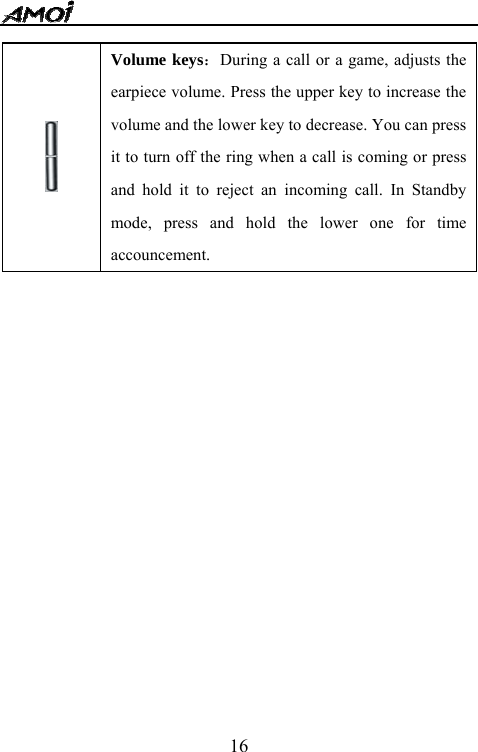
  16               Volume keys:During a call or a game, adjusts the earpiece volume. Press the upper key to increase the volume and the lower key to decrease. You can press it to turn off the ring when a call is coming or press and hold it to reject an incoming call. In Standby mode, press and hold the lower one for time accouncement.
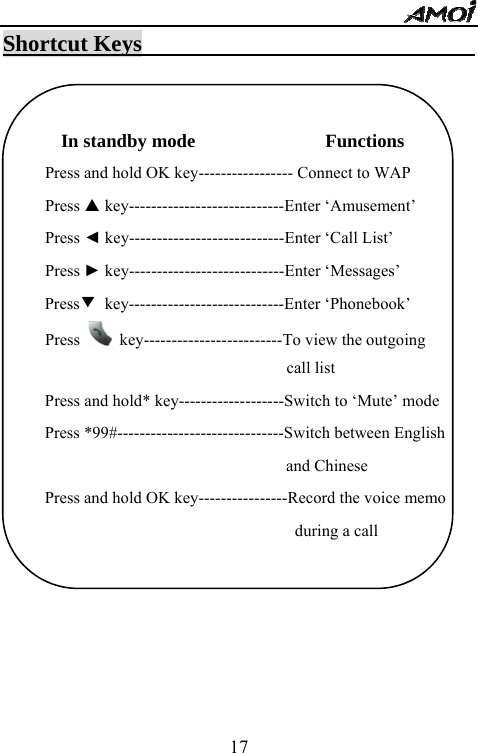
  17Shortcut Keys                                  In standby mode                   Functions Press and hold OK key----------------- Connect to WAP Press S key----------------------------Enter ‘Amusement’ Press ◄ key----------------------------Enter ‘Call List’ Press ► key----------------------------Enter ‘Messages’ Press▼ key----------------------------Enter ‘Phonebook’ Press    key-------------------------To view the outgoing                                call list Press and hold* key-------------------Switch to ‘Mute’ mode Press *99#------------------------------Switch between English   and Chinese Press and hold OK key----------------Record the voice memo during a call
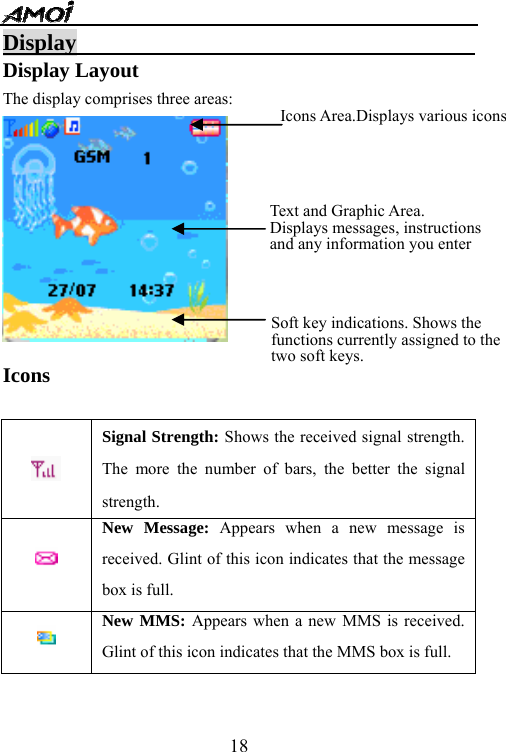
  18Display                                    Display Layout The display comprises three areas:   Icons   Signal Strength: Shows the received signal strength. The more the number of bars, the better the signal strength.   New Message: Appears when a new message is received. Glint of this icon indicates that the message box is full.  New MMS: Appears when a new MMS is received. Glint of this icon indicates that the MMS box is full.   Icons Area.Displays various icons Text and Graphic Area. Displays messages, instructions   and any information you enter Soft key indications. Shows the functions currently assigned to the   two soft keys.
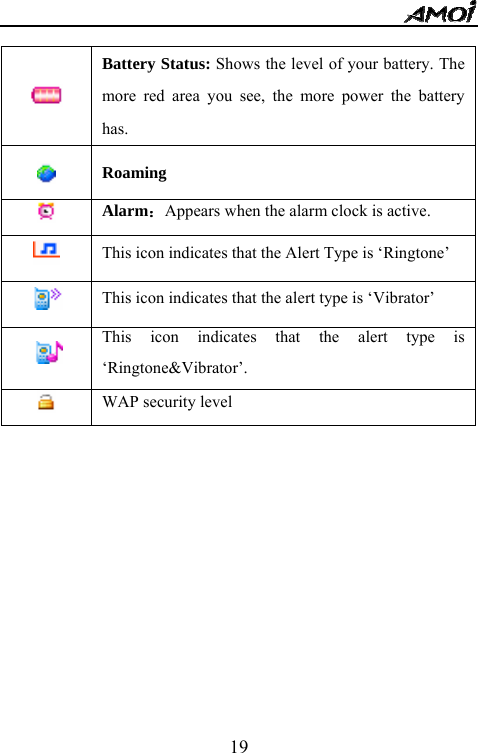
  19  Battery Status: Shows the level of your battery. The more red area you see, the more power the battery has.  Roaming    Alarm:Appears when the alarm clock is active.  This icon indicates that the Alert Type is ‘Ringtone’  This icon indicates that the alert type is ‘Vibrator’  This icon indicates that the alert type is ‘Ringtone&Vibrator’.  WAP security level
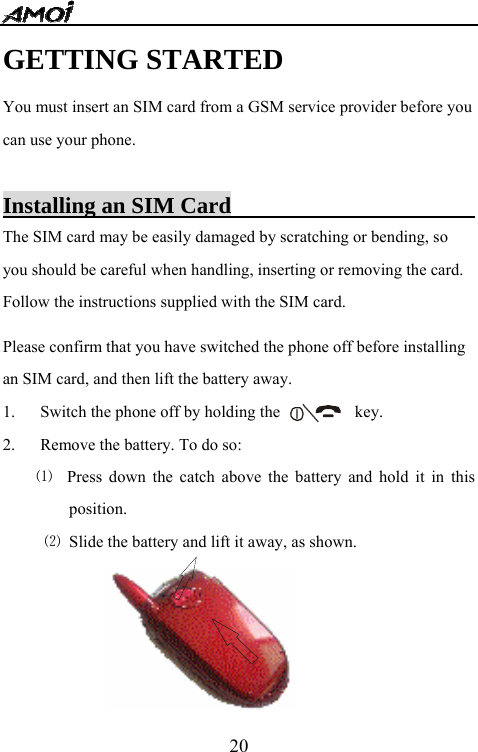
  20GETTING STARTED You must insert an SIM card from a GSM service provider before you can use your phone.  Installing an SIM Card                        The SIM card may be easily damaged by scratching or bending, so you should be careful when handling, inserting or removing the card. Follow the instructions supplied with the SIM card.  Please confirm that you have switched the phone off before installing an SIM card, and then lift the battery away.   1. Switch the phone off by holding the                  key.   2. Remove the battery. To do so:   ⑴  Press down the catch above the battery and hold it in this position. ⑵  Slide the battery and lift it away, as shown.
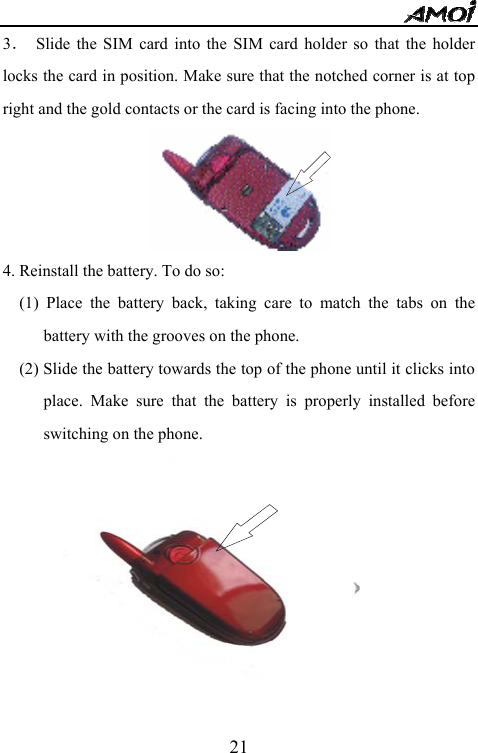
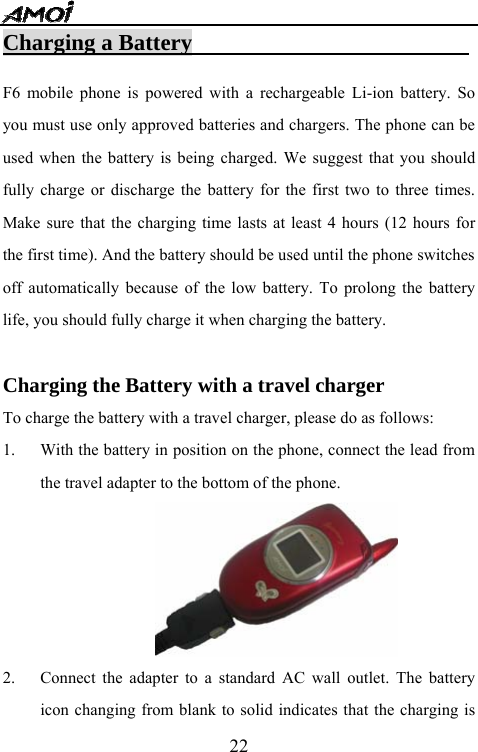
  213.  Slide the SIM card into the SIM card holder so that the holder locks the card in position. Make sure that the notched corner is at top right and the gold contacts or the card is facing into the phone.      4. Reinstall the battery. To do so: (1) Place the battery back, taking care to match the tabs on the battery with the grooves on the phone. (2) Slide the battery towards the top of the phone until it clicks into place. Make sure that the battery is properly installed before switching on the phone.
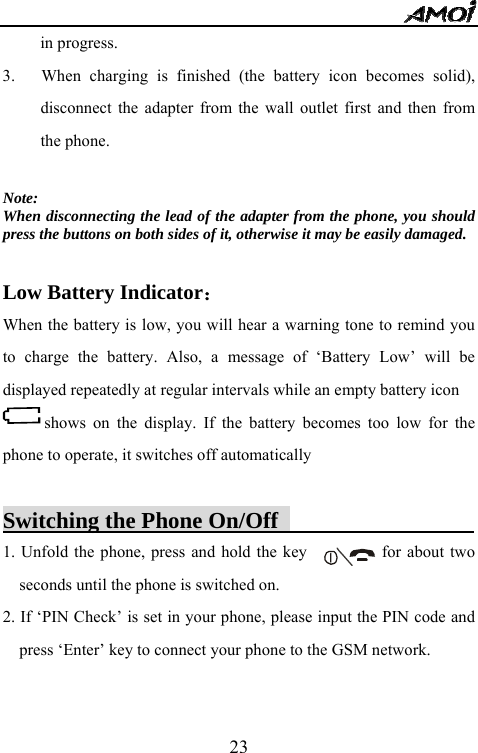
  22Charging a Battery                          F6 mobile phone is powered with a rechargeable Li-ion battery. So you must use only approved batteries and chargers. The phone can be used when the battery is being charged. We suggest that you should fully charge or discharge the battery for the first two to three times. Make sure that the charging time lasts at least 4 hours (12 hours for the first time). And the battery should be used until the phone switches off automatically because of the low battery. To prolong the battery life, you should fully charge it when charging the battery.  Charging the Battery with a travel charger To charge the battery with a travel charger, please do as follows: 1. With the battery in position on the phone, connect the lead from the travel adapter to the bottom of the phone.  2. Connect the adapter to a standard AC wall outlet. The battery icon changing from blank to solid indicates that the charging is
  23in progress.    3.   When charging is finished (the battery icon becomes solid), disconnect the adapter from the wall outlet first and then from the phone.    Note: When disconnecting the lead of the adapter from the phone, you should press the buttons on both sides of it, otherwise it may be easily damaged.  Low Battery Indicator: When the battery is low, you will hear a warning tone to remind you to charge the battery. Also, a message of ‘Battery Low’ will be displayed repeatedly at regular intervals while an empty battery icon shows on the display. If the battery becomes too low for the phone to operate, it switches off automatically  Switching the Phone On/Off                  1. Unfold the phone, press and hold the key                  for about two seconds until the phone is switched on.   2. If ‘PIN Check’ is set in your phone, please input the PIN code and press ‘Enter’ key to connect your phone to the GSM network.
  24Note: If you enter an incorrect PIN code for three times in succession, the code will be locked and cannot be used until you re-enable it by entering the PUK code.  3. If you have activated the function of ‘SIM Lock’ in a certain SIM card, you’ll be required to enter your ‘Password’ if you want to use a different SIM card. The phone will accept the new SIM card with right password and requires no password the next time you switch the phone on.   4. If the phone is out of service, “No Service” appears on the display. In this case, you cannot make and receive calls. Wait a little while for a better signal or move into an open area to regain the service. 5. To switch the phone off, press and hold the            key for about two seconds.    WARNING: Do not switch on the phone when the mobile phone using is prohibited or when it may cause interference or danger. Moreover, you’d better take the battery off. Note:  Do not touch the antenna on the phone unnecessarily when the phone is on. Contact with the antenna may affect call quality and may cause the phone to operate at a higher power level than normally needed.     Your Phone’s Mode                          Standby Mode
  25Standby is the most basic state of your phone. The phone goes into Standby mode soon after you press the        key. When your phone is in Standby mode, you will typically see the current date, time and the status about battery. If you enter a phone number, you can press the          key to dial it, or you can save the number into the local phonebook or SIM card phonebook by pressing the ‘Save’ key.    In the menu facility,pressing the right soft key repeatedly will lead you back to the standby mode step by step. Pressing and holding the                        key at any time to return to Standby mode at one step.  Note:  If you press the          key when you are on a call, you will disconnect the call and the phone will return to Standby mode automatically.   Talk Mode You can make or receive calls only when your phone is powered on and within the service network. When making or answering a call, the phone is in Talk mode. Pressing left soft key will lead you to ‘Call Menu’ and right soft key will lead you to ‘Phonebook’ when you’re on a call.
  26CALL FUNCTIONS Making a Call                              Before you can make or answer a call, you must switch on the phone and be within range of the service network. 1. In Standby mode, enter the phone number. If you make a mistake when dialing, press the right soft key to erase it. Press and hold the right soft key to erase the entire number.  Note: When entering numbers, pressing and holding # key (# becomes P) can set a pause (used when dialing between the telephone exchange and extension no.). The numbers behind P will be sent in several seconds after the numbers before P are sent.  2.   Press the    key to make the call. 3.      When you finish talking, press                or just close the phone to end the call.   Making IDD Calls                         Enter the country code, area code, and phone number (without any blank), then press     key to begin dialing. Press and hold the “0” key until a ‘+’ sign appears in the display before inputting the country
  27code.  Making a Call from the Phonebook Search a desired number from the phonebook, and press the      key to dial.  Last number redialing   In standby mode, press the          key twice to call the number you last called. The number you have called will automatically be saved in the call list. In standby mode, press the        key to enter the ‘Call List’, press the left soft key to enter one of the options you want and scroll to the number you want, and finally press the        key to call the number.        Answering or rejecting a Call                        If you have subscribed to the Line Identification Service (contact your service provider), the caller’s phone number will be displayed; if you have saved the number in your phone book, the name you have saved for the calling number will be displayed.  Answering a call Amoi F6 provides you with three modes for answering a call; please
  28refer to ‘Settings/Phone/Answer mode’ for the details of answer mode.  1. If you set ‘Call Key’ to be the answer mode, press            or the left soft key to answer a call.   2. If you set ‘Open the phone’ to be the answer mode, you can just open the phone to answer a call; if the phone is unfolded already, please press          key or any other keys except the right soft key to answer it. 3. If you set ‘Auto’ to be the answer mode, the phone will answer itself after 3 minutes if handsfree car kit such as headset is used.  Rejecting a call Press    key or the right soft key to reject a call when the phone is opened; press and hold the side key to reject a call when the phone is closed.  Ending a call Press    to end a call.  Notes: 1. If handsfree car kit such as headset is used, you can press and hold the answer key on the car kit for about 3 seconds to answer or end a call;
  292. If you answer a call when you’re using the phone or menus, the current operations will be halted.  Adjusting Call Volume                      If you want to adjust the earpiece volume during a call, use the keys on the left side of the phone. Press the upper side key to increase and lower side key to decrease the volume.      Missed Calls                                When an incoming call is not answered, the number or the name of the missed call will be automatically saved in the ‘Missed Calls’ in ‘Call List’. (This requires the support of Line Identification Service, so please contact your service provider) When you enter ‘Missed Calls’, the following options will be available by pressing the left soft key. You can press the ▲ or ▼ key and press the OK key to perform the functions. Call: To call the number back. Details: To view the missed call number and the calling time. Save Phonebook: To store the number in the local phonebook or SIM card phonebook. Send SMS: To send short message to the number. Delete: To delete the number you choose from the missed call list.
  30Delete All: To delete all missed calls from the list.    Tips: You can also press ◄ key to enter ‘Missed Calls’ in the ‘Call List’.  Call Menu                                  During a call, press ‘Options’ left soft key to enter ‘Call Menu’. The following are all possible operations available.    ★Record To record the conversation during a call for up to 30 seconds. ★Mute   To turn the transmitter off so that the other side can’t hear you. Press it again if you want to turn it on.   ★Hold call To hold the current call. ★Resume held call To put through the held call. ★Hold current call/ Dial new number  To dial a new number while holding the current call. ★Hold current call/ Answer new call  To answer a new call while holding the current call.
  31★Switch calls   To switch calls between the current call and the held call. ★Connect the held call to a conference call   To connect the held call to a conference call. ★End current call     To end the current call. ★End held call     To end the held call. ★End current call/ Answer new call     To end the current call and answer a new call. ★End current call/ Answer held call     To end the current call and answer the held call. ★End all calls     To end all the calls. ★Messages   To enter the ‘Messages—SMS’ menu.  Notes: Functions such as call waiting, call holding and conference call are all network service, please contact your service provider for more details.
  32ENTERING TEXT Amoi F6 uses the eZi input mode. This mode enables the phone to predict the words you are entering so as to save your time when composing or editing text messages.  Changing Text Input Method                    When in a text entry mode,press the call key repeatedly to switch among different text input methods; or you can also press OK key to enter the ‘eZI menu’ and select one of the input methods by pressing ▲ or ▼.  Insert Symbol                            Symbol mode enables you to enter symbols into a text message.   To enter a symbol, you should: 1. Press OK key in the text entry mode to enter the ‘eZi Menu’. 2. Scroll to ‘Insert Symbol’ and press ‘Enter’, and then you will see a symbol chart as below.   3. Press  c or d key to scroll to the column which includes the symbol you desire. Press the corresponding numeric key on the bottom of the chart to insert the desired symbol mark.
  33     Symbol  . ,  :  ;  ?  !  “ ‘( ) *  + -  /  = <> # %  _ [ ] @ {}$ ~ ^  \`  |       Insert Template                            There are 8 template sentences pre-edited in the phone for you to insert into the text message.  Insert Phone Numbers                           This option allows you to input a telephone number that has been saved in your phonebook into a text message. 1. In the text entry mode, press OK key to enter ‘eZi menu’; scroll to ‘Enter Phone Numbers’ and press ‘Enter’. 2. Select a number you desire by pressing c or d key. 3. Press ‘Enter’, and then the desired phone number will be in the text message.
  34User’s Dictionary                           You’re allowed to use your own dictionary in Amoi F6 when you’re editing a text message.  New 1. Press OK key when you are editing a text message. 2. Scroll to ‘User’s Dictionary’ and press ‘Enter’. 3. Scroll to ‘New’ and press ‘Enter’. 4. Input the words that you would like to add to your dictionary, and then press ‘Options’. 5. Select ‘Add to dictionary’ and press ‘Enter’ to confirm.  List 1. Press OK key when you are editing a text message. 2. Scroll to ‘User’s Dictionary’ and press ‘Enter’. 3. Scroll to ‘List’ and press ‘Enter’. 4. All words that have been saved in the dictionary are displayed here. Scroll to the one you desire and press ‘Enter’ to confirm.  English Mode                               This mode allows you to enter words with only one keystroke per
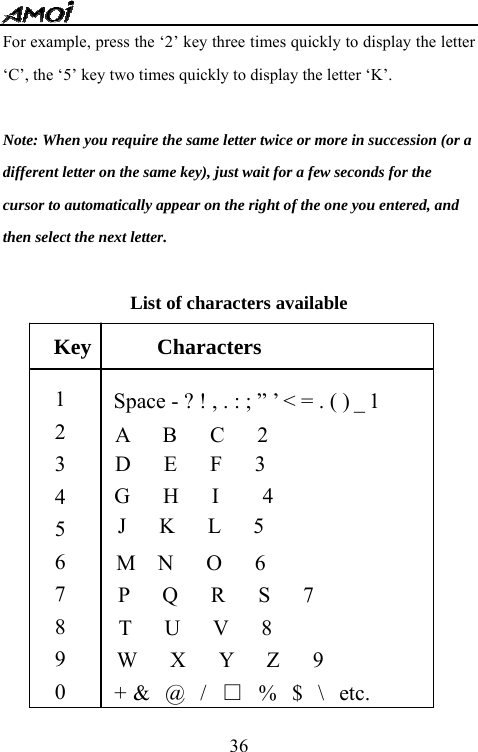
  35letter. Each key on the keypad has more than one letter. The English mode automatically compares all the keystrokes you enter with an internal linguistic dictionary to determine the correct word, thus requiring far fewer keystrokes than the Abc mode.  Below is an example for entering an English word. For example: to enter ‘hello’, press the following keystrokes: 4, 3, 5, 5, 6. If the word that appears in the display is not the word that you desire, press the f or e key to display alternate word choices for the keys you have typed. For example, ‘of’ and ‘me’ both shares the keystrokes 6, 3 in the same sequence. The phone displays the most commonly used choice first.  Tips: When you’re entering English words, press c or d key repeatedly or simply press # key to change between letters in upper case and lower case. After finishing a word, press 0 key to confirm and set a blank.  Abc Mode                                 This mode allows you to enter letters by pressing the key labeled with the required letter once, twice, three or four times until the desired letter is displayed.
  36For example, press the ‘2’ key three times quickly to display the letter ‘C’, the ‘5’ key two times quickly to display the letter ‘K’.  Note: When you require the same letter twice or more in succession (or a   different letter on the same key), just wait for a few seconds for the   cursor to automatically appear on the right of the one you entered, and   then select the next letter.  List of characters available             Key      Characters 1 2 3 4 5 6 7 8 9 0 A   B   C   2 G   H   I    4 D   E   F   3 J   K   L   5 M  N   O   6 P   Q   R   S   7 T   U   V   8 W   X   Y   Z   9 +  &   @   /   □  %   $   \   etc. Space - ? ! , . : ; ” ’ < = . ( ) _ 1
  37Tips: Press # key to switch between letters in upper case and lower case.  123 Mode                                       The numeric mode—123 mode enables you to enter numbers into a text message.  Stroke Mode                                 This mode allows you to enter individual Chinese strokes, in written order - from top to bottom, and from left to right. Even though there are many different strokes used to create Chinese characters, the strokes are classified into 5 basic categories; heng, shu, pie, dian and zhe.   Since this manual is for English-speaking users only, the details on how to use this text input method are omitted accordingly.   If you want to know how to use the stroke input method, please contact your dealer.  Pinyin Mode                              With Pinyin input method, you can enter Chinese characters by keying in the pinyin string from the phone keypad.
  38Since this manual is for English-speaking users only, the details on how to use this text input method are omitted accordingly.   If you want to know how to use the pinyin input method, please contact your dealer.
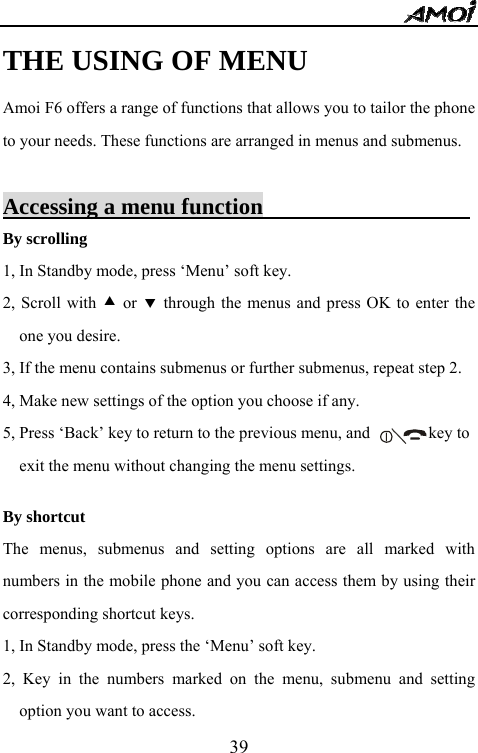
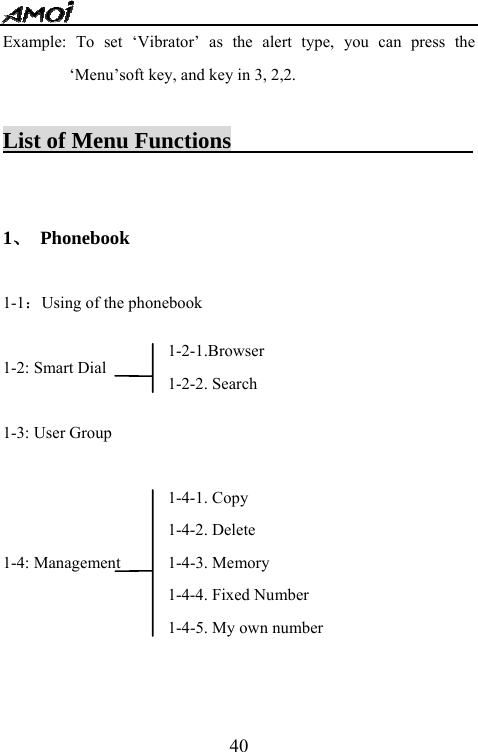
  39THE USING OF MENU Amoi F6 offers a range of functions that allows you to tailor the phone to your needs. These functions are arranged in menus and submenus.  Accessing a menu function                           By scrolling 1, In Standby mode, press ‘Menu’ soft key. 2, Scroll with c or d through the menus and press OK to enter the one you desire. 3, If the menu contains submenus or further submenus, repeat step 2. 4, Make new settings of the option you choose if any. 5, Press ‘Back’ key to return to the previous menu, and              key to   exit the menu without changing the menu settings.    By shortcut The menus, submenus and setting options are all marked with numbers in the mobile phone and you can access them by using their corresponding shortcut keys. 1, In Standby mode, press the ‘Menu’ soft key. 2, Key in the numbers marked on the menu, submenu and setting option you want to access.
  40Example: To set ‘Vibrator’ as the alert type, you can press the ‘Menu’soft key, and key in 3, 2,2.  List of Menu Functions                                1、 Phonebook  1-1:Using of the phonebook  1-2: Smart Dial    1-3: User Group    1-4: Management     1-2-1.Browser 1-2-2. Search   1-4-1. Copy 1-4-2. Delete 1-4-3. Memory 1-4-4. Fixed Number 1-4-5. My own number
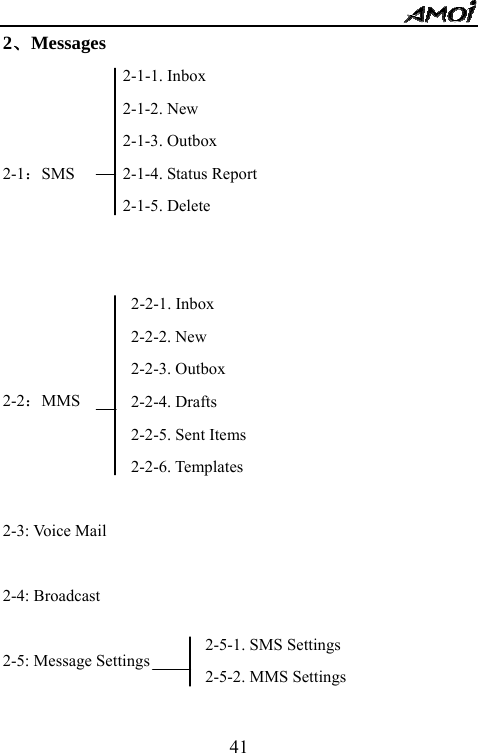
  412、Messages    2-1:SMS       2-2:MMS     2-3: Voice Mail  2-4: Broadcast  2-5: Message Settings   2-1-1. Inbox   2-1-2. New 2-1-3. Outbox 2-1-4. Status Report 2-1-5. Delete    2-2-1. Inbox 2-2-2. New 2-2-3. Outbox 2-2-4. Drafts 2-2-5. Sent Items 2-2-6. Templates 2-5-1. SMS Settings 2-5-2. MMS Settings
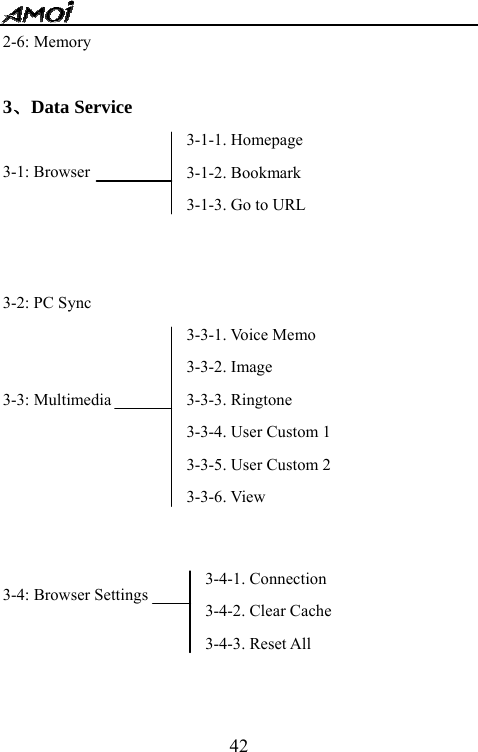
  422-6: Memory  3、Data Service  3-1: Browser    3-2: PC Sync   3-3: Multimedia        3-4: Browser Settings 3-1-1. Homepage 3-1-2. Bookmark 3-1-3. Go to URL 3-3-1. Voice Memo 3-3-2. Image 3-3-3. Ringtone 3-3-4. User Custom 1 3-3-5. User Custom 2 3-3-6. View 3-4-1. Connection 3-4-2. Clear Cache 3-4-3. Reset All
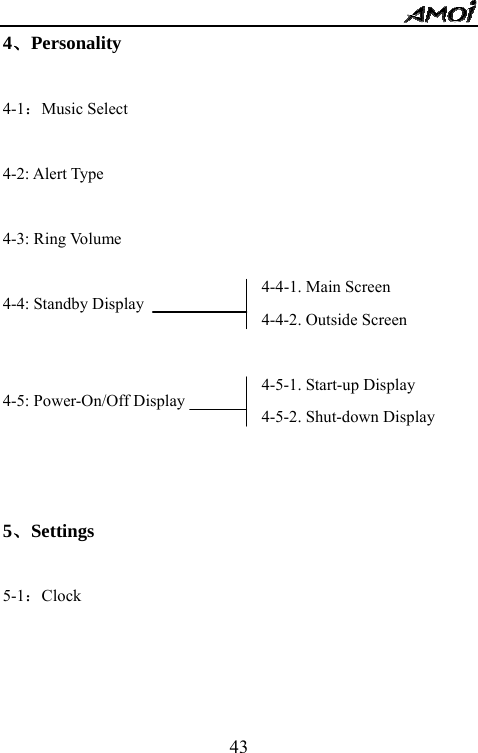
  434、Personality  4-1:Music Select  4-2: Alert Type  4-3: Ring Volume  4-4: Standby Display     4-5: Power-On/Off Display                                    5、Settings  5-1:Clock      4-4-1. Main Screen 4-4-2. Outside Screen   4-5-1. Start-up Display 4-5-2. Shut-down Display
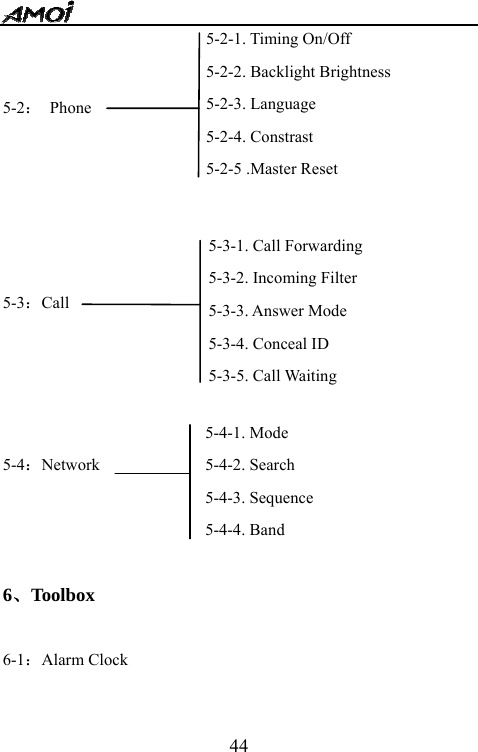
  44  5-2: Phone      5-3:Call     5-4:Network       6、Toolbox  6-1:Alarm Clock  5-2-1. Timing On/Off 5-2-2. Backlight Brightness 5-2-3. Language 5-2-4. Constrast 5-2-5 .Master Reset  5-3-1. Call Forwarding 5-3-2. Incoming Filter 5-3-3. Answer Mode 5-3-4. Conceal ID 5-3-5. Call Waiting 5-4-1. Mode   5-4-2. Search 5-4-3. Sequence 5-4-4. Band
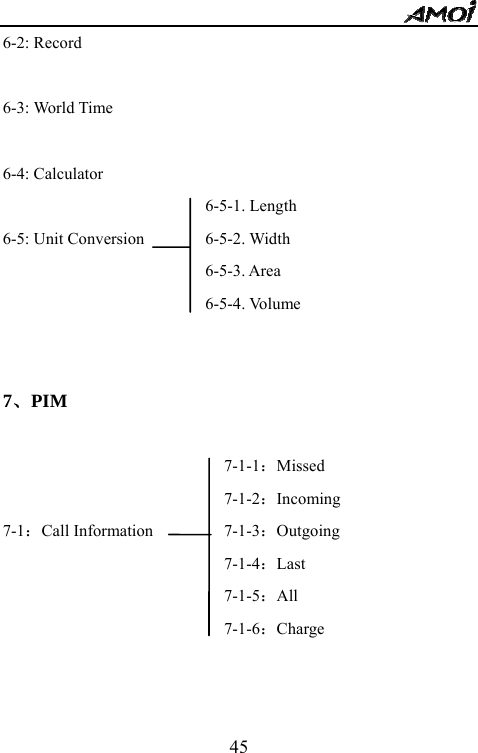
  456-2: Record  6-3: World Time  6-4: Calculator  6-5: Unit Conversion     7、PIM      7-1:Call Information      7-1-1:Missed 7-1-2:Incoming  7-1-3:Outgoing 7-1-4:Last 7-1-5:All 7-1-6:Charge 6-5-1. Length 6-5-2. Width   6-5-3. Area 6-5-4. Volume
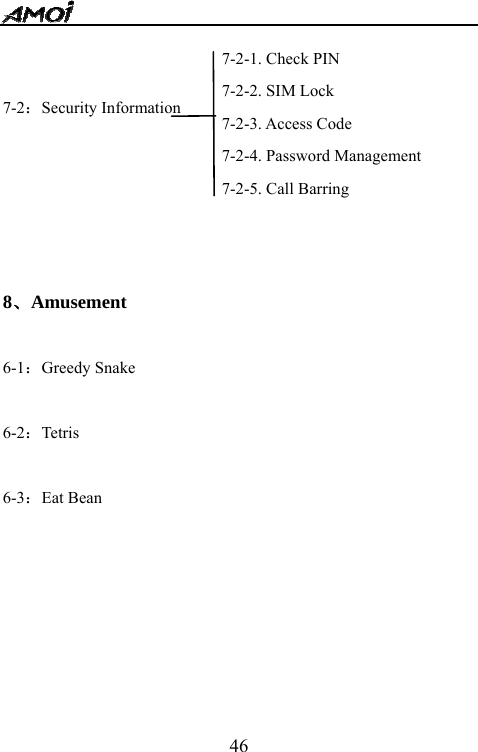
  46  7-2:Security Information      8、Amusement  6-1:Greedy Snake  6-2:Tetris  6-3:Eat Bean      7-2-1. Check PIN 7-2-2. SIM Lock 7-2-3. Access Code 7-2-4. Password Management 7-2-5. Call Barring
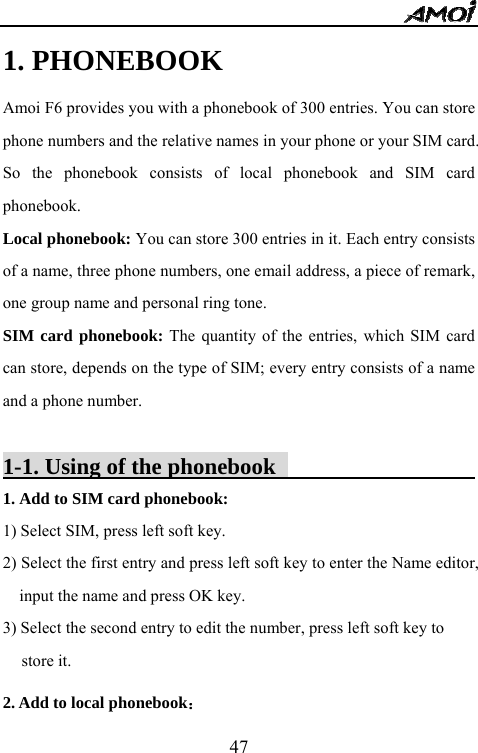
  471. PHONEBOOK   Amoi F6 provides you with a phonebook of 300 entries. You can store phone numbers and the relative names in your phone or your SIM card. So the phonebook consists of local phonebook and SIM card phonebook. Local phonebook: You can store 300 entries in it. Each entry consists of a name, three phone numbers, one email address, a piece of remark, one group name and personal ring tone. SIM card phonebook: The quantity of the entries, which SIM card can store, depends on the type of SIM; every entry consists of a name and a phone number.  1-1. Using of the phonebook                          1. Add to SIM card phonebook:   1) Select SIM, press left soft key. 2) Select the first entry and press left soft key to enter the Name editor, input the name and press OK key. 3) Select the second entry to edit the number, press left soft key to store it.   2. Add to local phonebook:
  481) Choose Phonebook and press left soft key to edit. 2) Press  ▲ or ▼ to select different entries, for the entry of Name, Personal Ring Tone, press left soft key to edit; for other entries, input the details directly. 3) Press      to save.  Note: The entries are stored in the sequence of the characters of user’s Name.  1-2. Smart Dial                                    In the smart dial interface, you can search and view the phone numbers quickly by entering the name initials.  1-2-1. Browser                                                Scroll to browser in the ‘Phonebook’ menu, then press OK key to enter it. 1. View all the entries:The current entry is displayed in the first line. Press  ▲ or  ▼ to view other entries. 2. View the details of an entry:When there are more than one item for an entry, please press ◄ or ► to browse. The one with an arrow is the current item. You can also press ‘Enter’ to display all the items of this entry.     3. Options: When all items for an entry are shown in the phone, please select ‘Options’ to have the following available operations.
  49--Edit: Press  ▲ or ▼  to select an item to edit, then press save soft key to save the modification. --Copy: To copy the current entry. --Delete: Press OK key and phone will display ‘Delecte?’. Then select   ‘Yes’ to delete this entry and “No” to cancel this operation. --Call: To call the current number. --Send SMS: To send a short message to the current number. --Send into SMS: Transfer all items of the current entry into the text message.  1-2-2. Search                                                 Enter the character(s) of the desired name by pressing the associated alphanumeric key(s) and then press the ‘Search’ soft key to see the details in your phonebook.    1-3. User-Group                                    This option allows you to set grouping of the local Phonebook (not available for the SIM card phonebook).   Group List: To display all the members in the current group. Add from PB: To add a new number from your PB to the current group. Ringtone: To set special ringtone of incoming calls from members in
  50the current group. Alert Light: To select one color light for incoming calls from the   members in the current group. There are seven lights of red, green, blue, light green, purple, yellow and white for selection.  Rename: Rename the current group.    1-4. Management                                   1-4-1. Copy   This function enables you to copy phone numbers between the local phonebook and the SIM card phonebook to each other. You can copy phone numbers in three ways:   One by One: To copy the phone numbers one by one. Copy Range: To copy phone numbers from the begin point to the end point you specified. Copy All: To copy all phone numbers between the local phonebook   and the SIM card phonebook to each other.  Note: If the entry already exists in target phonebook, the entry will not be copied. If the space of the target phonebook is not enough for all phone numbers that are under the way of copy, only the front phone numbers
  51will be copied until the target phonebook is full. 1-4-2. Delete This function enables you to delete phone numbers from the local phonebook or the SIM card phonebook. There are also three ways of deleting named One by One, Delete Range and Delete All. For detailed operations, please refer to ‘Copy’.  1-4-3. Memory Check the total capacity and the amount of used entries of local phonebook and SIM card phonebook.  1-4-4. Fixed Numbers If your SIM card supports this function, you can restrict calls to make. When you set this function ‘On’, you can only dial the numbers that are saved in the ‘Fixed Numbers’. If you’re dialing a number that is not in the fixed number list (Emergencey numbers excluded), the phone will show ‘Number Prohibited’. You have to enter the PIN2 code if you want to use this function.  1-4-5. My Own Number Stores your own number of the current SIM card.
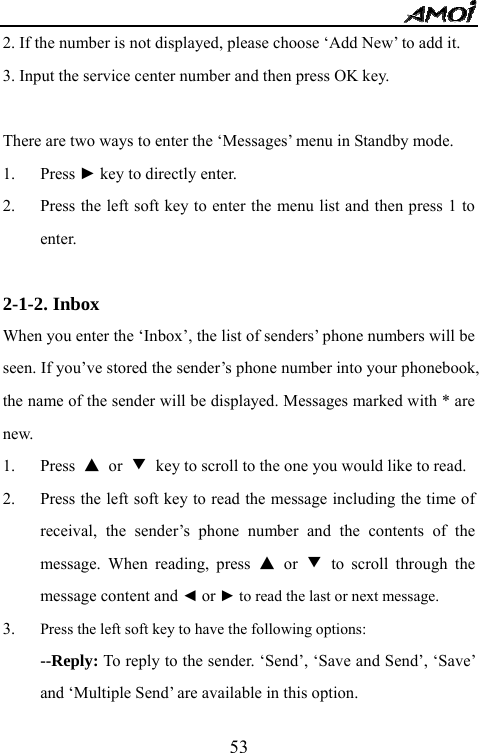
  522. MESSAGES The message function is network service and may not be supported by your network. Please contact your service provider for more details.                    SMS icon    MMS icon  When you receive a new SMS or MMS, the icons will appear on the   screen. If the message memory is full, the icons will be flickering and   you cannot receive any new messages. Then use the ‘Delete’ menu to   delete obsolete messages.   2-1. SMS You must get the number of the SMS service center from your service provider. Generally it is automatically available after you insert your SIM card. To set the number of the SMS center: 1. Scroll to Messages->SMS->Settings->Service Centre. If the number of service centre has been stored in the SIM card, it will be displayed on the screen.
  532. If the number is not displayed, please choose ‘Add New’ to add it. 3. Input the service center number and then press OK key.  There are two ways to enter the ‘Messages’ menu in Standby mode. 1. Press ► key to directly enter. 2. Press the left soft key to enter the menu list and then press 1 to enter.  2-1-2. Inbox                                     When you enter the ‘Inbox’, the list of senders’ phone numbers will be seen. If you’ve stored the sender’s phone number into your phonebook, the name of the sender will be displayed. Messages marked with * are new. 1. Press  ▲ or ▼ key to scroll to the one you would like to read. 2. Press the left soft key to read the message including the time of receival, the sender’s phone number and the contents of the message. When reading, press ▲ or ▼ to scroll through the message content and ◄ or ► to read the last or next message. 3. Press the left soft key to have the following options: --Reply: To reply to the sender. ‘Send’, ‘Save and Send’, ‘Save’ and ‘Multiple Send’ are available in this option.
  54--Forward: To re-edit the message you received and send it to others. ‘Send’, ‘Save and Send’, ‘Save’ and ‘Multiple Send’ are available in this option. --Extract no.: To extract the sender’s phone numbers as well as the numbers in the text message (2 to 21numbers in length). The following operations can be done to the numbers extracted. ● Call: Call the extracted number. ● Save: Save the extracted number to the local phonebook or SIM card phonebook.      --Save to Local/ SIM: To save the message to the local phonebook or SIM card phonebook. --Delete: To delete the message.  2-1-2. New The text message can include 160 letters at most. After inputting the text message, press OK soft key and you’ll have the following options:  Send: Enter the number of the receiver and press ‘Enter’ to send the message. Save & Send: Allow you to save and send the message. Even if you
  55fail to send, the message will be stored in the Outbox. Save: Allows you to save the message so that it can be sent later. Multiple Send: Allow you to send one message to at most 5 receivers simultaneously.   Tips: When you’re required to enter the receiver’s phone number before sending the message, you can press the left soft key and pick it up from your phonebook if you’ve stored the number there.  2-1-3.Outbox Outbox stores the messages that you have already sent or unsent. Messages with * are unsent messages. 1.  Press  ▲ or ▼ key to choose the desired message. 2.    Press left soft key to view details of the message.   3.    When reading the message, press  ▲ or ▼ key to scroll through the message content. 4.   When reading the message, press ◄ or ► key to read the last or next message.   5.    Press the left soft key to have the following operations: Edit: Allow you to edit the current message and then choose ‘Send’, ‘Save & Send’, ‘Save’ or ‘Multiple Send’.
  56Extract Number: To extract phone number from this message. Store to local phonebook: To store the sender’s phone number to   your local phonebook. Delete: To delete this message.  2-1-4.Status Report If the function is enabled, when the receiver gets your message, the network will send an informing message to you.  2-1-5. Delete You can delete messages from Inbox, Outbox or Status Report. But please note that once the message is deleted, it cannot be retrieved.  2-2. MMS                                     You can send text, pictures, voice and other multimedia messages by MMS service. To use this service, you are required to use an SIM card that supports MMS. For MMS service price, please consult your service provider. Please make right setup of WAP and MMS server before using.   1. Data Service – Browser Settings – Connection. Please refer to the following ‘WAP/MMS Parameter Setup Table’.
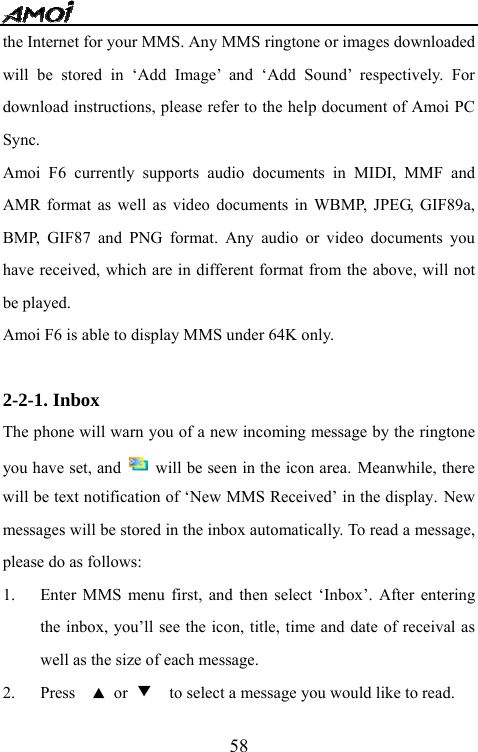
  572. Message – Message Settings – MMS – Connection. Please refer to the following ‘WAP/MMS Parameter Setup Table’.    The table below lists all possible icons you may see when using MMS: Icons              Descriptions       New MMS received.  MMS received failure.  MMS sent failure.  New MMS for read.  Read MMS  Forwarded MMS  Sent MMS    Image   MIDI Audio Doc.  AMR Audio Doc.  Fr Audio Doc.  Amoi PC Sync of F6 allows you to download ringtone or images from
  58the Internet for your MMS. Any MMS ringtone or images downloaded will be stored in ‘Add Image’ and ‘Add Sound’ respectively. For download instructions, please refer to the help document of Amoi PC Sync. Amoi F6 currently supports audio documents in MIDI, MMF and AMR format as well as video documents in WBMP, JPEG, GIF89a, BMP, GIF87 and PNG format. Any audio or video documents you have received, which are in different format from the above, will not be played. Amoi F6 is able to display MMS under 64K only.  2-2-1. Inbox The phone will warn you of a new incoming message by the ringtone you have set, and    will be seen in the icon area. Meanwhile, there will be text notification of ‘New MMS Received’ in the display. New messages will be stored in the inbox automatically. To read a message, please do as follows: 1. Enter MMS menu first, and then select ‘Inbox’. After entering the inbox, you’ll see the icon, title, time and date of receival as well as the size of each message. 2. Press  ▲ or ▼    to select a message you would like to read.
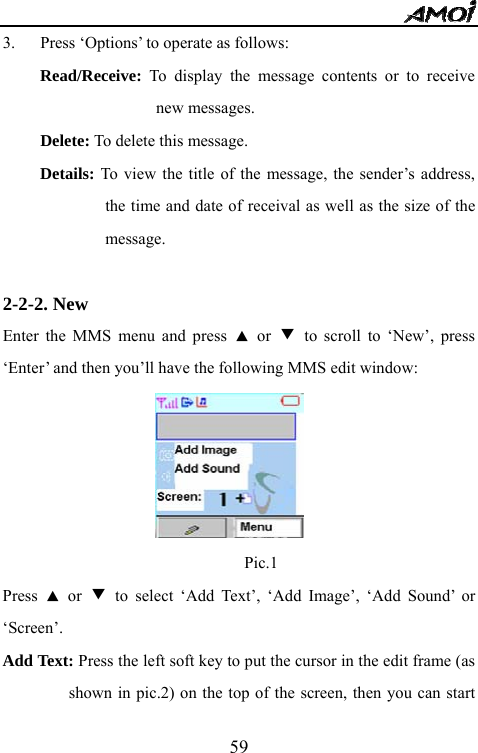
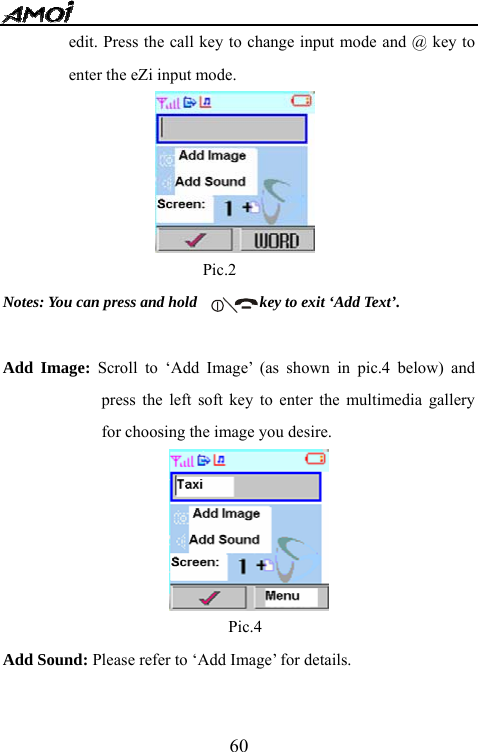
  593. Press ‘Options’ to operate as follows: Read/Receive: To display the message contents or to receive new messages. Delete: To delete this message. Details: To view the title of the message, the sender’s address, the time and date of receival as well as the size of the message.  2-2-2. New                                      Enter the MMS menu and press ▲ or ▼ to scroll to ‘New’, press ‘Enter’ and then you’ll have the following MMS edit window:                               Pic.1 Press  ▲ or ▼ to select ‘Add Text’, ‘Add Image’, ‘Add Sound’ or ‘Screen’. Add Text: Press the left soft key to put the cursor in the edit frame (as shown in pic.2) on the top of the screen, then you can start
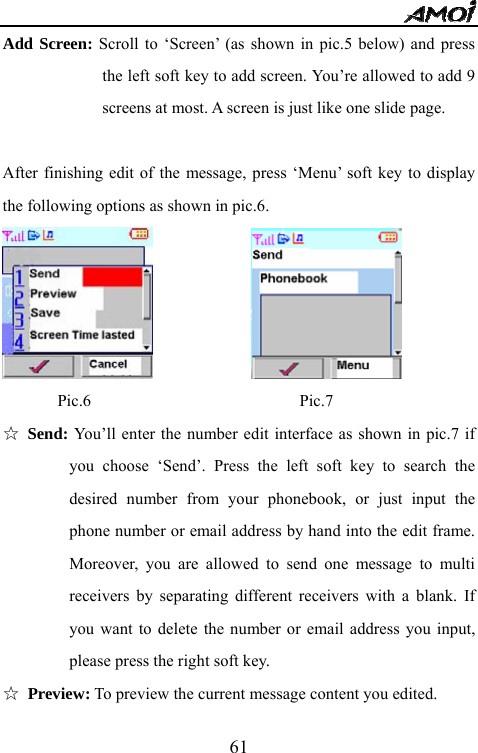
  60edit. Press the call key to change input mode and @ key to enter the eZi input mode.                       Pic.2                                    Notes: You can press and hold                key to exit ‘Add Text’.  Add Image: Scroll to ‘Add Image’ (as shown in pic.4 below) and press the left soft key to enter the multimedia gallery for choosing the image you desire.                                                  Pic.4 Add Sound: Please refer to ‘Add Image’ for details.
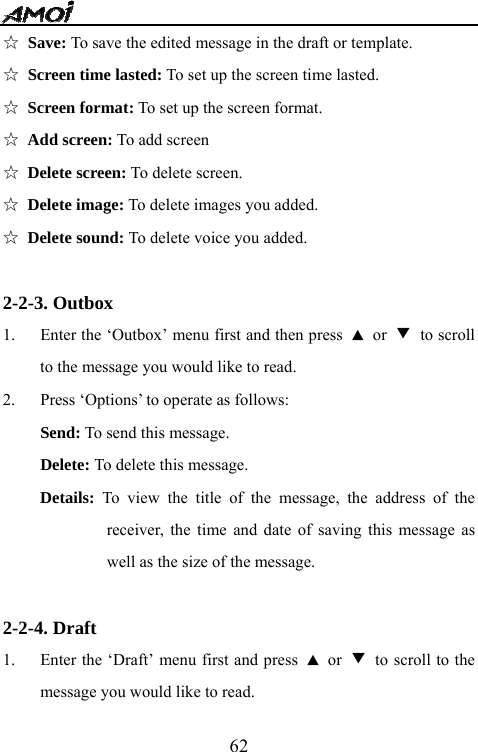
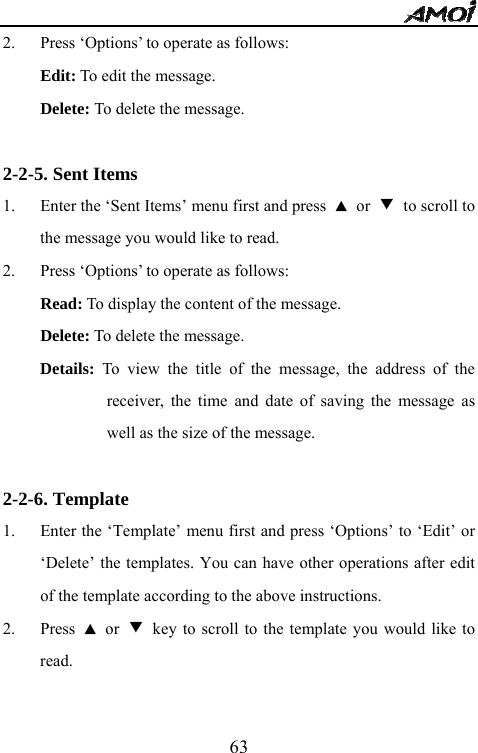
  61Add Screen: Scroll to ‘Screen’ (as shown in pic.5 below) and press the left soft key to add screen. You’re allowed to add 9 screens at most. A screen is just like one slide page.                    After finishing edit of the message, press ‘Menu’ soft key to display the following options as shown in pic.6.                 Pic.6                         Pic.7 ☆ Send: You’ll enter the number edit interface as shown in pic.7 if you choose ‘Send’. Press the left soft key to search the desired number from your phonebook, or just input the phone number or email address by hand into the edit frame. Moreover, you are allowed to send one message to multi receivers by separating different receivers with a blank. If you want to delete the number or email address you input, please press the right soft key. ☆ Preview: To preview the current message content you edited.
  62☆ Save: To save the edited message in the draft or template. ☆ Screen time lasted: To set up the screen time lasted. ☆ Screen format: To set up the screen format. ☆ Add screen: To add screen ☆ Delete screen: To delete screen. ☆ Delete image: To delete images you added. ☆ Delete sound: To delete voice you added.  2-2-3. Outbox 1. Enter the ‘Outbox’ menu first and then press  ▲ or ▼ to scroll to the message you would like to read. 2. Press ‘Options’ to operate as follows: Send: To send this message. Delete: To delete this message. Details: To view the title of the message, the address of the receiver, the time and date of saving this message as well as the size of the message.  2-2-4. Draft 1. Enter the ‘Draft’ menu first and press  ▲ or ▼  to scroll to the message you would like to read.
  632. Press ‘Options’ to operate as follows: Edit: To edit the message. Delete: To delete the message.  2-2-5. Sent Items 1. Enter the ‘Sent Items’ menu first and press  ▲ or ▼  to scroll to the message you would like to read. 2. Press ‘Options’ to operate as follows: Read: To display the content of the message. Delete: To delete the message. Details: To view the title of the message, the address of the receiver, the time and date of saving the message as well as the size of the message.  2-2-6. Template 1. Enter the ‘Template’ menu first and press ‘Options’ to ‘Edit’ or ‘Delete’ the templates. You can have other operations after edit of the template according to the above instructions. 2. Press  ▲ or ▼  key to scroll to the template you would like to read.
  642-3. Voice mail                                       By this function, you’re able to listen to voice messages in your voice mailbox. The voice mailbox in your phone is similar to a voice message machine, which is able to transfer your missed calls to your personal voice mail, allowing the callers to leave their voice messages and notifying you of the voice message by sending SMS to you. 1. Listening: Please enter the voice mail box number before using this function. 2. Voice mail box number: Enter or modify the voice mail box number that you get from your service provider.  Note: Since this function is part of accessory software supplied by the service provider, you’ll have to register and make man-made setup before using it. For more details, please contact your service provider.  2-4. Broadcast                                     This network service allows you to receive all kinds of text information, such as weather forecasting or traffic information. Please contact your service provider for more details. 2-4-1. Read  To read the last broadcast in your phone.
  652-4-2. Auto Display  If the ‘Auto Display’ is ‘On’, you will see a √and the phone will receive broadcasts automatically. Choose ‘Off’ to cancel this function. 2-4-3. Channel --All: The phone can receive broadcast from all channels --None: The phone cannot receive broadcast from any channel --List: The phone can only receive broadcast from channels listed in the phone. Please refer to ‘Add’ or ‘Delete’ in this menu.  2-5. Message Settings 2-5-1. SMS Settings 2-5-1-1. Auto Display  If this function is enabled, you will see an auto read window in Standby interface when a new message is received. Press left soft key to read the message immediately or press the right soft key to save it into the inbox.  2-5-1-2. SMS Center The service center number is already stored in most SIM cards. If not, you will be required to enter this number when sending messages. You can get it from your service provider and modify or delete this number
  66if necessary. 2-5-1-3. Status Report You’ll get a message from the service network if the other side has received your message when the ‘Status Report’ is ‘On’.    2-5-1-4. Templates There are 8 templates in 40 English letters for edit.  2-5-2. MMS Settings 2-5-2-1. Connection By setting ‘Connection’, there are 9 servers at most to be stored. The   two options you’ll have by entering ‘Connection’ are as follows: --New: It enables you to not only add new servers to the ‘Connection’ list, but also to select some certain server to execute the re-settings of the parameters.   --From List: Add new servers from the list.  You can also do something to the server as follows: --Activate: To activate the server. --Modify: To make modifications on options of the server. (Please refer to Internet/Settings/Connection)
  67--Delete: To delete the server. 2-5-2-2. Receiving Mode There are two receiving modes that are ‘Auto’ and ‘Manual’ from which you can choose.    2-5-2-3. Adverts  When you set this function ‘On’, adverts will be received along with   the MMS. Choose ‘Off’ if you don’t want to receive adverts.  2-5-2-4. Save Sent Choose ‘On’ or ‘Off’ to activate or inactivate this function. When   activated, the phone will save any MMS that has been successfully   sent.   2-6. Memory You can select this menu to check total memory and memory available. Notes:  1. The phone can store 30 pieces of messages. 2. The store memory of an SIM card for messages depends on the type of   the card.
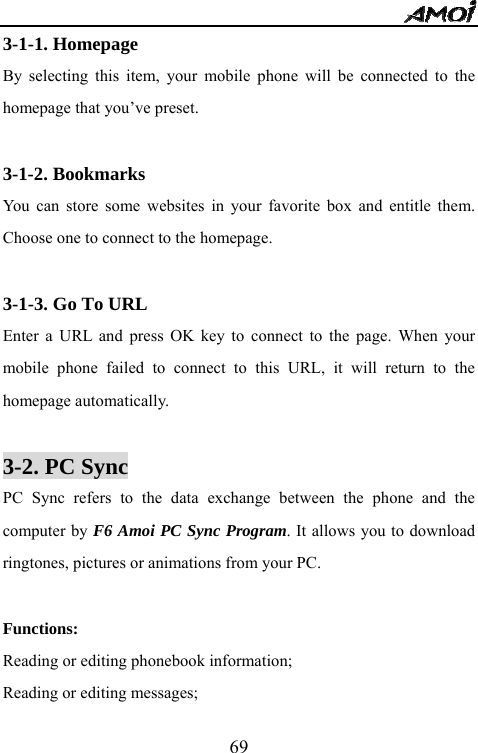
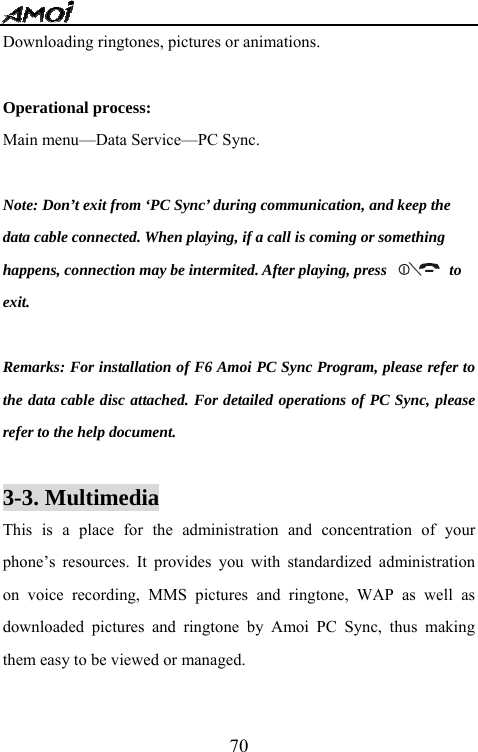
  683. DATA SERVICE Press ‘2’ after entering the main menu or press  ▼  to directly go into the following interface:   3-1. Browser WAP is an application platform for combining wireless communication with Internet. WAP allows you to access the Internet and also provides you with some e-commerce applications by phone.                    Note: To connect to WAP net, you need the network support and should   make sure that you have enabled the Internet surfing function. For method of setup, please refer to ‘Settings/Browser’.
  693-1-1. Homepage By selecting this item, your mobile phone will be connected to the homepage that you’ve preset.  3-1-2. Bookmarks You can store some websites in your favorite box and entitle them. Choose one to connect to the homepage.  3-1-3. Go To URL Enter a URL and press OK key to connect to the page. When your mobile phone failed to connect to this URL, it will return to the homepage automatically.  3-2. PC Sync PC Sync refers to the data exchange between the phone and the computer by F6 Amoi PC Sync Program. It allows you to download ringtones, pictures or animations from your PC.  Functions: Reading or editing phonebook information; Reading or editing messages;
  70Downloading ringtones, pictures or animations.  Operational process: Main menu—Data Service—PC Sync.  Note: Don’t exit from ‘PC Sync’ during communication, and keep the   data cable connected. When playing, if a call is coming or something   happens, connection may be intermited. After playing, press                to   exit.  Remarks: For installation of F6 Amoi PC Sync Program, please refer to the data cable disc attached. For detailed operations of PC Sync, please refer to the help document.  3-3. Multimedia                                    This is a place for the administration and concentration of your phone’s resources. It provides you with standardized administration on voice recording, MMS pictures and ringtone, WAP as well as downloaded pictures and ringtone by Amoi PC Sync, thus making them easy to be viewed or managed.
  713-3-1.Voice Memo 3-3-1-1. Enter Press OK and then ‘Enter’ to view the voice memo list. The following options on the voice memos are available. --Play:    To play the voice memo. --Copy: To copy the voice memory to “User Custom1” or “User Custom2”. --Move: To move the voice memo to “User Custom1” or “User Custom2”. --Rename: To rename the title of the voice memo. --Property: To view the title, size and time of recording the voice memo. --Delete: To delete the voice memo. --Send as MMS: To edit the voice memo as MMS. See the menu of “Message-MMS”.  3-3-1-2. Property View the quantity and total file size of all the voice memos.  3-3-1-3 Delete Delete all the voice memos.
  723-3-2.Image After entering ‘Multimedia’, press OK key to enter the image list. Operations of an individual image are similar to the operations in ‘Voice Memo’ as specified above. The downloaded image formats supported by the phone are GIF, BMP, JPEG, JPG and PNG.  3-3-3.Ringtone After entering ‘Multimedia’, press OK key to enter the ringtone list. Operations of an individual ringtone are similar to the operations in ‘Voice Memo’ as specified above. The downloaded ringtone formats supported by the phone are AMR, MIDI and MMF. Enter: To display the listed files. Operations are similar to that in ‘Voice Memo’. Rename: To rename the category. For example, you can rename ‘User Custom 1’ as ‘Ringtone’.  3-3-4.User Custom 1 You can store voice memos, pictures and ringtone in User Custom1.  3-3-4.User Custom 2 You can store voice memos, pictures and ringtone in User Custom1.
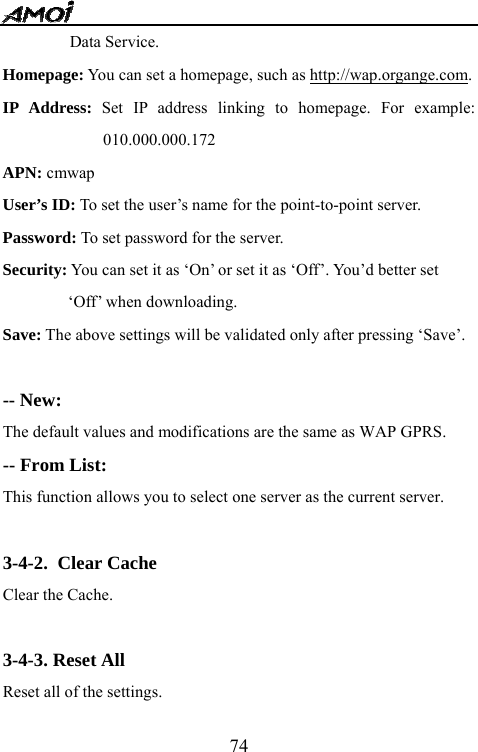
  733-3-5.View It displays the quantity of files and the occupied memory. (Total   memory size is 2M)  3-4. Browser Settings Enter ‘Browser Settings’ and you will see ‘Connection’, ‘Clear Cache’ and ‘Reset All’. 3-4-1.Connection  By entering ‘Connection’, scroll with c or d to choose ‘WAP GPRS’, ‘New’ or ‘From List’. You can perform the following operations in ‘WAP GPRS’:                     --Modify: Select ‘Modify’ to make the following modifications: Name: To edit the name of the server. For example, you can change WAP GRPS to your favorite name. Carrier: Set the types of data service; choose from GPRS, CSD and
  74Data Service. Homepage: You can set a homepage, such as http://wap.organge.com. IP Address: Set IP address linking to homepage. For example: 010.000.000.172 APN: cmwap User’s ID: To set the user’s name for the point-to-point server.   Password: To set password for the server. Security: You can set it as ‘On’ or set it as ‘Off’. You’d better set ‘Off’ when downloading. Save: The above settings will be validated only after pressing ‘Save’.  -- New:   The default values and modifications are the same as WAP GPRS. -- From List: This function allows you to select one server as the current server.  3-4-2. Clear Cache Clear the Cache.  3-4-3. Reset All Reset all of the settings.
  754. PERSONALITY You can enter the main menu and select ‘Personality’. You will have ‘Music Select’, ‘Alert Type’, ‘Standby Display’ and ‘Power On/Off Display’ after entering ‘Personality’.  4-1. Music Select Scroll c or d to ‘Music Select’ and press ‘Enter’. You can make settings on ‘Incoming Tone’, ‘Message Tone’, ‘Alarm Tone’, ‘Power-on Tone’ and so on. There are two sources of ringtone: 1. The phone: Ringtone provided by the phone. 2. Multimedia: You can select ringtone in MIDI or MMF format         from the ‘Multimedia’. For details, please refer to specifications of ‘Multimedia’.  4-2. Alert Type Scroll  c or d to ‘Alert Type’ and press ‘Enter’. You have three options here: Ring, Vibrator, Ring & Vibrator. Ring: The phone alerts you by ringing when there is a new incoming call or a new message. Vibrator: The phone alerts you by vibrating when there is a new incoming call or a new message.
  76Ring& Vibrator: The phone alerts you by both ringing and vibrating when there is a new incoming call or a new   message.  Tips: In Standby mode, you can press and hold * key to switch the alert   type quickly.  4-3. Ring Volume There are five levels of volume to choose, press ◄ key to decrease the volume and ► key to increase the volume.  4-4. Standby Display You can change the background picture displayed in Standby mode according to your own personality. Scroll c or d to ‘Display’ and press ‘Enter’, then you will have the following setting options:  4-4-1. Main Screen --Picture: To set pictures provided by the phone as the standby display. --Text: To set the text you edited (in 10 characters at most) as the standby display. --Multimedia:  To select your desired pictures from the data files in
  77‘Multimedia’. Please make sure that the size of the picture is not above 160*160. The formats of the pictures available for downloading are GIF, BMP, JPEG, JPG and PNG.    4-4-2. Outside Screen There are three options as follows: --Digital Clock: To set the digital clock as the standby display of the outside screen. --Simulant Clock: To set the simulant clock as the standby display of the outside screen --Picture: To select one of the three pictures for the standby display of   the outside screen.  4-5. Power On/Off Display 4-5-1. Start Up Display Scroll to ‘Start Up Display’ after entering ‘On/Off Display’ and then press ‘Enter’. You’ll have the two following options: --Animation: When you’re switching on the phone, you’ll see animation displayed. --Text: When you’re switching on the phone, the text you edited will
  78be displayed. (The text should not include more than 10 characters)  4-5-2. Shut Down Display Scroll to ‘Shut Down Display’ after entering ‘On/Off Display’ and then press ‘Enter’. You’ll have the two following options: --Animation: When you’re switching off the phone, you’ll see animation displayed. --Text:  When you’re switching off the phone, the text you edited will be displayed. (The text should not include more than 10 characters)  5. SETTINGS Many different features of your phone can be customized for your preference.   5-1. Clock This function allows you to change the current time and date displayed in Standby mode. The following functions are available.
  79--Set Time: Change the current time according to the preset format. --Time Format: Choose between 24 hours mode and 12 hours mode. --Set Date: Change the day, month and year according to the preset format. --Set Date Format: There are two date formats for selection: D/M/Y, M/D/Y.  5-2. Phone 5-2-1. Timing On/Off This function enables your phone to turn on or off automatically at some future time you set. 5-2-2. Backlight Brightness There are three levels of backlight brightness: ‘High’, ‘Middle’ or ‘Low’ to select.  5-2-3. Language Select the language displayed: English and Chinese.  5-2-4. Contrast --Main Screen Contrast: Press ◄ or ► to adjust the contrast from   172 to 208.  --Outside Screen Contrast: Press ◄ or ► to adjust the contrast from
  8058 to 74.  5-2-5. Master Reset This function enables you to reset some settings to default value. Before accomplishing this operation, please make sure to enter the right phone password.  5-3. Call 5-3-1. Call Forwarding This network service enables the incoming calls to be transferred to the number that you specify. For example: You may hope to transfer your business calls to a colleague when you are on holiday. --Not reachable: Calls to be transferred when your phone is powered off or is out of service. --No reply: Calls to be transferred if you do not answer the call. --Busy: Calls to be transferred when your line is busy. --All: All incoming calls to be transferred. --Cancel All: All Call Transfer functions are cancelled.  5-3-2. Incoming Filter This function enables you to filter the incoming calls. For example, you can add some phone numbers to the ‘Accepted List’ so that only
  81these numbers can get through your phone, or add numbers into ‘Reject List’ so that they will never get through your phone. --Reject List: It stores 10 phone numbers at most. You can press left soft key to view the reject list. If you want to delete a number from the reject list, just put the cursor to it and press ‘Delete’. --Reject Number: Press left soft key to enter the numbers you want to reject or press ‘Search’ to select one from your phonebook. --Accept List: It stores ten phone numbers at most. You can press left soft key to view the accept list. If you want to delete a number from the accept list, just put the cursor to it and press ‘Delete’. --Accept Number: Press left soft key to enter the numbers you want to accept or press ‘Search’ to select one from your phonebook.  Note: The function of incoming filter is effective only when the Line   Identification Service is enabled in the SIM card you used.  5-3-3. Answer Mode
  82There are three methods to answer a call. --Call Key: Press    to answer a call. --Open Mobile: Unfold the phone to answer a call. --Auto: If you insert Car Kit, the phone can automatically answer in about 3 seconds. Before the auto answer, you can also press the call key to answer it.      5-3-4. Conceal ID Your phone number will be hidden from or displayed in the receiver’s phone according to the network when making a call.  Notes: The function of Conceal ID needs the support of the service network. Please contact your service provider.  5-3-5. Call Waiting The phone supports the function of call waiting of GSM network. By this function, the network will tell you there is a new call coming in during the current call. You can answer the new call by holding the current call. --On: The Call-Waiting Tone will be heard when there is another new  call coming in during the current call and ‘Incoming’ will be
  83displayed. --Off: Select ‘Off’ to invalidate the Call Waiting function. --Status: Select this option to see the status of this network function: ‘On’ or ‘Off’.  Notes: The function of Call Waiting needs the support of the service network. Please contact your service provider.  5-4. Network 5-4-1. Mode There are two searching modes for selection: . Auto searching . Manual searching    5-4-2. Search   When executing this function, the LCD will display ‘Searching…’ and start searching for network according to the network list stored in your SIM card. When finished, the GSM will auto display the network it found. If there is more than one available network, you can use the ▲or▼ to select. Networks marked with * are forbidden to use.
  845-4-3. Sequence This function allows you to edit the network list, thus to define the searching sequence when your GSM is out of service area. The following three options are available. --Move: To press▲or▼ to shift it to your desired place. --New: To add new network. Input the country code and the network   code then press OK soft key. --Delete: To delete the selected network.  5-4-4. Band There are three types of band: PCS1900, GSM900/1800 and Automatic. You can select one of them. 6. TOOLBOX The toolbox of F6 mobile phone provides you with a series of tools for use: Alarm Clock, Recorder, Dictionary, World Time, Calculator and Unit Conversion.    6-1. Alarm Clock   There are three alarm clocks to be set simultaneously. For every alarm, there’re three steps:
  85Activate: Put the cursor to ‘On’ and press ‘Select’ until you see ‘√’to activate the alarm clock you want to set. Set the time: Put the cursor to ‘Time’ and press ‘Select’ to enter the time. Set the Mode: There are three modes: --Everyday: The alarm bell rings at the set time every day. --Workday: The alarm bell rings at the set time from Monday to Friday. --Personal: You can choose one or several days of one week for the   alarm bell to ring at the set time.    Note: When the alarm is ringing, press any key to stop it; if not, it continues to ring for one minute.       You can cancel all the three alarm clocks by selecting ‘Cancel All’. The alarm still works even when the phone is powered off.    6-2. Record      With this function, you can record up to 5 voice memos (including conversation during a call). Each voice memo can last for 30 seconds at most. To view the property of the voice memo or do some operations such as sending or deleting the voice memo, please enter
  86‘Multimedia’.  To record, please do as follows: 1. After entering ‘Toolbox’, scroll to ‘Record’ and then press OK key to start recording. 2. Please speak into the microphone when recording. The timer on the display will show you the elapsed time and your phone will automatically save what you have already recorded when the time is out. If you would like to set a pause when recording, please press ‘Pause’ soft key. By pressing ‘End’ soft key, you can end recording and the phone will automatically save what you have already recorded.  Warning: Recording voice conversations during a call is illegal in some   countries. Please make sure the other side on the line has stated his   consent to be recorded.  Notes:  1. The phone will display ‘Full’ if you are trying to record a new voice memo when there are already 5 in your phone. In order to record a new one, you’ll have to delete some old voice memos. 2. During a call, you can press and hold OK key to record your
  87conversation.  6-3. World Time     The display shows: • City name • Current date and time according to the time format setting (12/24 Hours)  To…                               Then…                  Select the time zone                 Press e or f Select the city in the                 Press c or d same time zone. Make some settings (Set              Press Ok soft key and as local, Enable PS,                  scroll to desired one Disable PS)                   6-4. Calculator        By this function, you can use the phone as a calculator. The calculator provides the basic arithmetic functions: addition, subtraction, multiplication and division.
  88Performing a Calculation 1. Enter the first number using the numeric keys. 2. Press  c for plus sign ‘+’, d for subtraction sign ‘-’, e for multiplication sign ‘*’ and f for division sign ‘/’; 3. Enter the second number. 4. To calculate the result, press ‘Equal’ to have the result.   5. Repeat steps 1 to 4 as many times as required.  Notes: • To erase any mistakes and clear the display, press the ‘Clear’   soft key.   • Use # key to enter a decimal point and the * key to change the sign of a number to a negative (-).   6-5. Units Conversion   You can convert the units of Length, Weight, Area and Volume. To perform the unit conversion, please operate as follows: 1.    Select one of the unit groups and press the left soft key to enter. 2.    Enter one of the unit in which the value you want to convert. 3.    Input the value and press Ok key to return to the previous menu. 4.   Enter another unit for the inputted value to be converted to and
  89then you can see the value after the unit conversion. 5.    Press ‘Back’ to perform a new conversion.  Below is a unit conversion example: If you want to know how many yards does 1 mile equal to, enter ‘Length Conversion’ first and you can see a list of different length units. Select ‘Miles’ and press Ok key to enter and then input ‘1’. After inputting, press Ok key to return to the list of units. Scroll to ‘Yards’ and press Ok key to enter and here you can see the unit conversion result ‘1760 Yards’ is displayed.  7. PIM   PIM is the abbreviation for Personal Information Management. It allows you to maintain your personal information and activate the password to keep the phone from being used by unauthorized persons.  7-1. Call Information After entering ‘PIM’, press c or d to scroll to ‘Call Information’ and press ‘Enter’.
  90The following options are available:   Missed: Stores at most 20 missed calls. Incoming: Stores at most 20 incoming calls. Outgoing: Stores at most 20 outgoing calls. Last: Records the duration of your last call.   All: Records the total duration of all your calls. Charge: Records the charge of your calls.  7-2. Security Info       After entering ‘PIM’, press c or d to scroll to ‘Security Info’ and press ‘Enter’. 7-2-1. Check PIN Press OK left soft key to enter this function. 1. Select ‘On’. 2. Input the PIN code and start up the function of PIN check by pressing Ok left soft key. 3. Select “Off” to invalidate this function.  Note: If you have started up the function of PIN check, you’ll have to   input the PIN code every time you switch on your mobile phone. If you   input a wrong number for three times in succession, the SIM card will
  91be locked. In order to unlock your SIM card, you have to input the right   PUK code. For more details, please contact your service provider.  7-2-2. SIM lock If you activate this function by choosing ‘On’, only the current SIM card can be used in your phone. When changing another SIM card, the mobile requests phone password.  7-2-3. Access Code Press OK left soft key to enter this function. You can set access code for ‘Call Information’, ‘SMS Password’, ‘Phonebook’, ‘All’ or ‘Cancel All’. --Call Information Password: To enable the password for Call Information. --SMS Password: To enable the password for SMS. --Phonebook Password: To enable the password for your phonebook. --All: To enable passwords for all the above items. --Cancel All: To cancel passwords for all the above items.  7-2-4. Password Management This function allows you to change password of the phone, change the
  92PIN code and change the PIN2 code. --Password Change 1. Press OK left soft key and input the old password, then press Ok left soft key. 2. Input the new password and press Ok left soft key. 3. Re-input the new phone password and press the Ok left soft key. 4. The screen indicates ‘Phone Password Changed’.  Note: The factory value of your phone is 0000, in order to avoid any unauthorized use, please change the password after purchasing.  --PIN Change Please make sure to start up the function of ‘PIN Check’ before changing the PIN code. 1. Press OK soft key to enter ‘PIN Change’. 2. Input the old PIN code and press the Ok key. 3. Input the new PIN code (four to eight digits) and press the Ok left soft key. 4. Re-input the new PIN code and press the Ok left soft key. 5. LCD indicates ‘PIN Changed’.
  93Note: If you input a wrong PIN code for three times in succession, the   PIN code will be locked and you will have to enter the right PUK code in   order to unlock it. For more details, please contact your service provider.  --PIN2 Change   The process of changing the PIN2 code is the same as ‘PIN Change’.  Note: If you input a wrong PIN2 code for three times in succession, the   PIN2 code will be locked and you will have to enter the right PUK code   in order to unlock it. For more details, please contact your service   provider.  7-2-5. Call Barring The call restriction function helps you to restrict the incoming and outgoing calls.   The following operations are available: --All Out: By selecting this option, the phone will be restricted to make any calls (except emergency calls)   --Out Intl:  By selecting this option, the phone will be restricted to make any international calls. --Out Intl Roam: By selecting this option, the phone will be
  94restricted to make any international calls except to your own country when your phone is roaming in another country --All In: By selecting this option, it will restrict all incoming calls. --In When Roam: By selecting this option, it will restrict all incoming calls when roaming. --Cancel All: To cancel call restriction of all calls.  Note: This function is not available in all networks and you will have to apply for it. Your service provider will give you an original net password after your application and you need to input this Password to set above functions. 8. AMUSEMENT 8-1. Greedy Snake The following options are available: New game: Start a new game. Setup: To make settings of ‘Level’ and ‘Beep’. --Level: High, Medium and Low. --Beep: Select ‘On’ to have beep during playing, and ‘Off’ the cancel   the beep.
  95Scores: Shows you the names and scores of the top five players. Help: Gives you some instructions for playing the game.  8-2. Tetris New game: Start a new game. Level: The level of difficulty: Very Easy, Easy, Normal and Hard. Scores: Shows you the names and scores of the top five players. Beep: Select ‘On’ to have beep during playing, and ‘Off’ the cancel   the beep. Rule: Specifying rules for playing the game.   8-3. Eat Bean A big smart mouth eating beans. The big mouth has to eat the beans by avoiding the red monster.   Put the cursor to ‘Eat Bean’, press OK left soft key to enter the game, and then choose the options as follows:   Start: Start playing the game.   Rule: Specifying rules for playing the game. Load Game: To enter the game you saved last time.   Beep: Select ‘On’ to have beep during playing, and ‘Off’ the cancel
  96the beep. REFERENCE INFORMATION Access Codes                                There are several access codes that are used by your phone and its SIM card. These codes help you protect the phone and SIM card against unauthorized use.  Phone Password The security code can be used to avoid unauthorized use of your phone. The security code 0000 is usually supplied with the phone.    Change the security code before you start using your phone. Keep the new code secret and in a safe place, which should be separate from the phone.  PIN Code The PIN (Personal Identification Number) code protects your SIM card against unauthorized use. The PIN code is usually supplied with the SIM card. When the ‘PIN Check’ is enabled, the code is asked each time when the phone is switched on.
  97 If you key in an incorrect PIN code for three times in succession, the SIM card will be locked. To unlock the SIM card, you have to key in the PUK code and press OK soft key, and key in a new PIN code twice.  PIN2 code The PIN2 code, supplied with some SIM cards, is required to access some special functions, such as charge counter. These functions are only available when supported by your SIM card.   If you key in an incorrect PIN2 code for three times in succession, the PIN2 code will be locked. To unlock the PIN2, you have to key in the PUK2 code and press the OK soft key, and key in a new PIN2 code twice.  PUK code The PUK (Personal Unblocking Key) code is required to unlock a blocked PIN code. The PUK code may be supplied with the SIM card. If not, contact your local service provider for the code.
  98If you key in an incorrect PUK code for ten times in succession, the SIM card cannot be used anymore. Contact the service provider for a new card. The PUK code cannot be changed. If you lose the code, please contact your service provider.  PUK2 code The PUK2 code, supplied with some SIM cards, is required to unlock a blocked PIN2 code.    If you key in an incorrect PUK2 code for ten times in succession, you cannot use some functions that require the PIN2 code. Contact your service provider for a new card.  The PUK2 code cannot be changed. If you lose the code, contact your service provider.
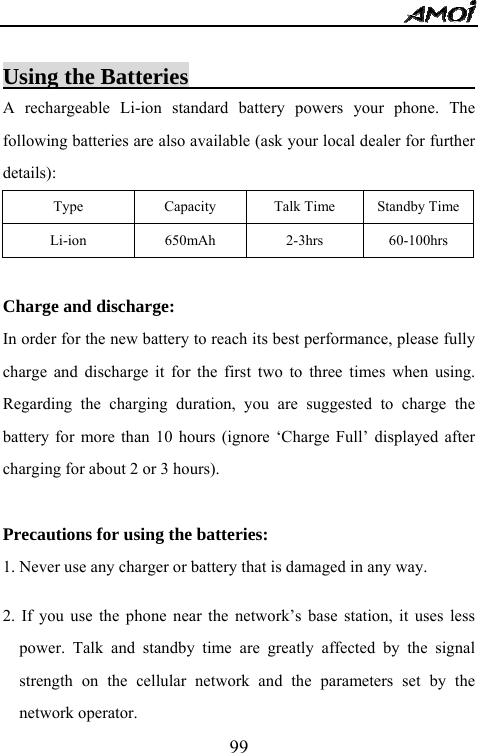
  99 Using the Batteries                          A rechargeable Li-ion standard battery powers your phone. The following batteries are also available (ask your local dealer for further details): Type  Capacity  Talk Time  Standby TimeLi-ion   650mAh  2-3hrs  60-100hrs  Charge and discharge: In order for the new battery to reach its best performance, please fully charge and discharge it for the first two to three times when using. Regarding the charging duration, you are suggested to charge the battery for more than 10 hours (ignore ‘Charge Full’ displayed after charging for about 2 or 3 hours).  Precautions for using the batteries: 1. Never use any charger or battery that is damaged in any way.  2. If you use the phone near the network’s base station, it uses less power. Talk and standby time are greatly affected by the signal strength on the cellular network and the parameters set by the network operator.
  1003. Battery charging frequency depends on the remaining battery charge, the type of battery and charger used. The battery can be charged and discharged hundreds of times, but it will gradually wear out. When the operation time (talk time and standby time) is noticeably shorter than normal, it is time to buy a new battery.    4. If left unused, a fully charged battery will discharge itself over time.  5. Uses only approved batteries and chargers. When a charger is not in use, disconnect it from the power source. Do not leave the battery connected to a charger for more than a week, since overcharging may shorten its life.  6. Extreme temperatures will affect the charging capacity of your battery: it may require cooling or warming first.    Do not leave the battery in hot or cold places, such as in a car in summer or winter, as you will reduce the capacity and lifetime of the battery. Always try to keep the battery at room temperature. A phone with a hot or cold battery may temporarily not work, even when the battery is fully charged. Li-ion batteries are particularly affected by temperatures below 0 °C.
  1017. Do not short-circuit the battery. Accidental short-circuiting may occur when a metallic object (coin, clip or pen) causes a direct connection between the + and - terminals of the battery (metal strips on the back of the battery), for example when you carry a spare battery in a pocket or bag. Short-circuiting the terminals may damage the battery or the object causing the short circuit.  8. Dispose of the used batteries in accordance with local regulations. Always recycle. Do not dispose of batteries in a fire.  Care and Maintenance                               The phone is a product of high precision and super craftsmanship and should be treated with care. The suggestions below will help you to fulfill any warranty obligations and allow you to enjoy using this product for many years. When using your phone, battery, charger, or any accessories, please:  ♦ Keep the phone and all its parts and accessories out of small children’s reach.  ♦ Do not use or place the phone in dusty or dirty places, since its
  102moving parts may be damaged.  ♦ This phone features a large LCD display screen, which is damageable. Please be most careful to avoid dropping or knocking it or scratching it with a sharp thing.    ♦ Do not store the phone in extremely hot places. High temperatures may shorten the life of electronic devices, damage the batteries, and warp or melt certain plastics.  ♦ Do not store the phone in extremely cold places. When the phone warms up (to its normal operating temperature), moisture can form inside the phone, which may damage the phone’s electronic circuit boards.  ♦ Do not drop, knock or shake the phone. Rough handling may break internal circuit boards.  ♦ Do not use harsh chemicals, cleaning solvents, or strong detergents to clean the phone. Wipe it with a soft cloth slightly dampened in a mild soap-and-water solution.
  103♦ Do not paint the phone. Paint may clog the device’s moving parts and prevent proper operation.    ♦ Use only the supplied or an approved replacing antenna. Unauthorized antennas, modifications of attachments may damage the phone and may violate regulations governing radio devices.  ♦ If the phone, battery, charger, or any accessories are not working properly, take it to your nearest qualified service center.
  104GLOSSARY  Antenna--A device for transmitting or receiving signals. The size and shape of antennas is determined, in part, by the frequency of the signal they receive. Wireless phones and the base station must have antennas.  ALS (Alternate Line Service)—The phone allows you to have two phone numbers to keep business and personal calls separate.  Amoi Smart Dial--An intelligent way to dial a number which is stored in your phone book. Say you want to dial Steven, at idle, press st, then press *, you can found the number of Steven. Or press st when you select Smart Dial in phbook.  APN--The abbreviation of accessing point name, it is the URL address of mobile Internet.  Call Barring—Allows you to set your phone to prohibit certain incoming or outgoing phone calls. (Network and subscription dependent feature—not available in some areas)
  105  Call Forwarding—Allows you to set your phone to forward all calls to an alternate phone number. (Network and subscription dependent feature—not available in some areas) . Call Holding—You can put callers on hold. (Network and subscription dependent feature—not available in some areas)  Call Waiting—While making a call, the phone will alert you that another person is trying to call you. You can choose to answer the call or it will forward to your voice mail.  (Network and subscription dependent feature—not available in some areas)  Conference Call--Ability to establish a conference call involving up to five additional parties.  CSD--A kind of wireless service protocol in WAP. It is a standard of circuit switch. It can create a persistent connection and charged based on the connect time.  DTMF (Dual-Tone Modulated Frequency)--You
  106send DTMF signals when you enter numbers by pressing the digit keys.  GSM (Global System for Mobile communication)--GSM is the pan-European standard for digital cellular telephone service. It is also one of the technologies available in the Americas. GSM was designed for markets to provide the advantage of automatic, international roaming in multiple countries. The SIM (Subscriber Identification Module) card is a vital component in GSM operation. The user can store all relevant data for the phone on a removable plastic card. The card can be plugged into any GSM compatible phone and the phone is instantly personalized to the user.  GPRS--General Packet Radio Service is a wireless data transmission service based on packet transmission. For example, if an e-mail is sent by GPRS, it will be reduced into packets of information. Each individual packet travels to its destination by the quickest possible route. This means the different packets from the same mail can travel separately through foreign networks around the globe in order to avoid obstructions. At the pre-set destination they are rebuilt and presented to the recipient as a whole.
  107 Hands-Free—Allows you to conduct a conversation without holding the cellular phone.  IMEI--International mobile equipment identification. We can recognize each mobile phone by it. If the phone robs, you can prohibit the phone used in all available networks by the IMEI.  ISP--Internet service provider.  LCD (Liquid Crystal Display)--Commonly used to refer to the screen display on the wireless phone.  Line Identification Services--Service allowing subscribers to view or block the telephone numbers of callers.  MCC--Mobile country code, used to recognize the country the user live in.  MMS (Multimedia Messaging Service)—MMS is current technology of message-development with highest standard. Its
  108feature contains: supporting multimedia function, supporting sending kinds of message (letters, pictures, voice and other multimedia message). It makes multimedia sending as phont-to-phone and phone terminal-to-network possible.  MNC--Mobile network code, used to recognize the network that the consumer use.  PIN (Personal Identification Number)-- The service provider may require a personal identification number (PIN) for use with outbound calling to help guard against cellular fraud.  PUK (PIN Unlocking Key)--Security code used to unlock the phone when an incorrect PIN has been entered three times in succession. The service provider supplies the eight-digit number with the SIM card.  Roaming--A service offered by most cellular service providers that allows subscribers to use cellular service while traveling outside their home service area. When they are outside their home service area and come within range of another cellular system, the ROAM
  109indicator on the cellular phone will light to show that they are in range.  SIM (Subscriber Identification Module)--A credit card-like device capable of storing and transferring information regarding the card's user to communications devices such as handheld and car phones, notebook computers, and personal digital assistants. This information could include how the user would like their phone calls handled, method of payment, and the user's personal number. On some phone models, you can copy this information to the phone's memory.  SMS (Short Message Service)--Allows users to send plain text messages. This is ideal when verbal communication is not possible due to noise regulation or lack thereof (in meetings, concerts, etc.) The point of strength is the simplicity of use.  Soft key—The   key on the keypad of the phone that performs the functions indicated in the bottom line of the display.  URL (Universal Resource Location)--It is an address
  110system to locate address information used in the Internet. Every WAP homepage has its own address. URL is usually head of http://wap, followed by an address.    Voice Mail—A feature that allows you to capture voice messages.  WAP (Wireless Application Protocol)--By working on top of standard data link protocols, WAP provides a complete set of specifications to support Internet protocols. Simply put, it's a special way of formatting content so that it can appear on small screens, like those on wireless phones or PDAs. WAP is becoming a global standard for developing and delivering Internet content to wireless devices.
  111                        TROUBLESHOOTING If the phone does not work properly, please check the following troubleshooting and find a solution. If you can’t solve the problems with any of the solutions, please contact your local dealer for help.     Questions        Solutions      Cannot make or receive calls. ♦Check whether the phone is powered on or not. ♦Check if the battery is lack of power. ♦Check if the field signal strength is enough. ♦Check whether you’ve set up the ‘Call Barring’, SDN or other options in Call Set menu. ♦Check whether you’ve set up ‘Call Divert’. ♦Check if the SIM card is placed properly. Conversation volume is low. ♦Check whether you’ve set the Voice Volume too low.   Does not ring when an incoming call comes in. ♦Check whether you’ve selected the Silent or Vibrator modes. ♦Check whether the ring volume is set too low. ♦Check whether the surrounding noise is too loud. ♦Check whether you’ve set up the ‘Call Divert’. LCD is not clear. ♦Check whether the LCD Contrast is set too low. The keypad does not work ♦Check whether the keypad is locked or not. The other part on the line cannot hear you. ♦Check if you’ve selected Mute. ♦Speak near the MIC.
  112IMPORTANT SAR INFORMATION  Your wireless phone is a radio transmitter and receiver. It is designed and manufactured not to exceed the emission limits for exposure to radiofrequency (RF) energy set by the FCC of USA. These limits are part of comprehensive guidelines and establish permitted levels of RF energy for the general population. The guidelines are based on standards that were developed by independent scientific organizations through periodic and thorough evaluation of scientific studies. The standards include a substantial safety margin designed to assure the safety of all persons, regardless of age and health. The exposure standard for wireless mobile phones employs a unit of measurement known as the Specific Absorption Rate, or SAR. The SAR limit set by the FCC is 1.6 W/kg. * Tests for SAR are conducted with the phone transmitting at its highest certified power level in all tested frequency bands. Although the SAR is determined at the highest certified power level, the actual SAR level of the phone while operating can be well below the maximum value. This is because the phone is designed to operate at multiple power levels so as to use only the power required to reach the network. In general, the closer you are to a wireless base station antenna, the lower the power output.   Before a phone model is available for sale to the public, it must be tested and certified to the FCC that it does not exceed the limit established by the government adopted requirement for safe exposure. The tests are performed in positions and locations (e.g., at the ear and worn on the body) as required by the FCC for each model. The highest SAR value for this model phone when tested for use at the ear is 1.35 W/Kg and when worn on the body, as described in this user guide, is
  1130.730 W/Kg. (Body-worn measurements differ among phone models, depending upon available accessories and FCC requirements). While there may be differences between the SAR levels of various phones and at various positions, they all meet the government requirement for safe exposure.    * In the United States and Canada, the SAR limit for mobile phones used by the public is 1.6 watts/kg (W/kg) averaged over one gram of tissue. The standard incorporates a substantial margin of safety to give additional protection for the public and to account for any variations in measurements.  Use only the supplied or an approved antenna. Unauthorized antennas, modifications, or attachments could impair call quality, damage the phone, or result in violation of FCC regulations. Do not use the phone with a damaged antenna. If a damaged antenna comes into contact with the skin, a minor burn may result. Please contact your local dealer for replacement antenna.  This transmitter must not be co-located or operating in conjunction with any other antenna or transmitter.  Body-worn Operation This device was tested for typical body-worn operations. To comply with RF exposure requirements, a minimum separation distance of 1.5 cm must be maintained between the user’s body and the handset, including the antenna. Third-party belt-clips, holsters, and similar accessories used by this device should not contain any metallic components. Body-worn accessories that do not meet these requirements may not comply with RF exposure requirements and should be
  114avoided.    Use only the supplied or an approved antenna. Unauthorized antennas, modifications, or attachments could impair call quality, damage the phone, or result in violation of regulations. Do not use the phone with a damaged antenna. If a damaged antenna comes into contact with the skin, a minor burn may result. Please contact your local dealer for replacement antenna.  3. Also, you need following info, if cell phone is considering a digital peripheral    FCC Part 15 Notice This device complies with part 15 of the FCC Rules. Operation is subject to the following two conditions: (1) This device may not cause harmful interference, and (2) this device must accept any interference received, including interference that may cause undesired operation.      Warning: This device has been tested and found to comply with the limits for a Class B digital device pursuant to Part 15 of the Federal Communications Commissions Rules and Regulations. These limits are designed to provide reasonable protection against harmful interference when the equipment is operated in a commercial environment. This equipment generates, uses, and can radiate radio frequency energy and, if not installed and used in accordance with the instruction manual, may cause harmful interference to radio communications. However, there is no guarantee that interference will not occur in a particular installation.   If this equipment does cause harmful interference to radio or
  115television reception, which can be determined by turning the equipment off and on, the user is encouraged to try and correct the interference by one or more of the following measures:   . Relocate this device   . Increase the separation between the device and the receiver   . Connect the device into an outlet on a circuit different from that of other electronics. Consult the dealer or an experienced radio technician for help.    FCC Radiation Exposure Statement Important Note: To comply with FCC RF exposure compliance requirement, the antenna used for this transmitter must not be co-located or operating in conjunction with any other transmitter.    Caution  Any changes or modifications not expressly approved by the party responsible for compliance could void the user's authority to operate this equipment.              Printed in China  FKV2.198.858SS
  116English-U.S.A 10/2004.Rev.1.0

Navigation menu