AMOI Electronics V810 Dual Band CDMA Mobile Phone User Manual

AMOI Electronics Co., Ltd. Dual Band CDMA Mobile Phone Users Manual

Users Manual

  1Thank you very much for choosing AMOI V810, V810 is a perfect integration of unparalleled contemporary design and consummate precise craftsmanship with powerful CDMA data service and colorful multimedia functions, bringing you easy communication, funny entertainment, as well as highlighting your tastes.  Key Features:   ☆ CDMA Clamshell Phone ☆ 65535 TFT main display & Tricolor OLED sub display ☆ 1.3 mega pixel rotational camera ☆ SMS: Short Messaging Service ☆ AMOI Smart Dial ☆ Phonebook memory of 1000 entries ☆ Support SMS / Broadcast / Voice Mail ☆ TransFlash Card (T Card) Slot   ☆ Audio & Video Streaming (MP3 & MPEG-4) ☆ USB 2.0, Bluetooth ☆ 72 Polyphonic Ring Tones Specifications: CDMA 800/1900 MHz   Voice encoding: FR / EFR / HR
  2Screen: Internal: 2.0 inch, 65k colors TFT display (176 x 220 pixels)             External: 0.9 inch, Tri-color OLED display (96 x 64 pixels) Dimension: 96.4mm x 50mm x 27.4mm Weight: 120 g Battery capacity: 1100 mAh Standby time: 60-100 hrs Talk time: 2-3 hrs The manufacturer may, at any time and without notice, make changes or improvements to the products offered, but provide necessary corrigendum with this manual or release new version of this manual for the following lot. The Amoi logo and trademark are the property of the manufacturer. Sep. 2005.   Intellectual Property   All Intellectual Property, as defined below, owned by or which is otherwise the property of Amoi or its respective suppliers relating to the Amoi Phone, including but not limited to, accessories, parts, or software relating thereto (the “Phone System”), is proprietary to Amoi and protected under federal laws, state laws, and international treaty provisions. Intellectual Property includes, but is not limited to, inventions (patentable or unpatentable), patents, trade secrets, copyrights, software, computer programs, and related documentation
  3and other works of authorship. You may not infringe or otherwise violate the rights secured by the Intellectual Property. Moreover, you agree that you will not (and will not attempt to) modify, prepare derivative works of, reverse engineer, decompile, disassemble, or otherwise attempt to create source code from the software. No title to or ownership in the Intellectual Property is transferred to you. All applicable rights of the Intellectual Property shall remain with Amoi and its suppliers.
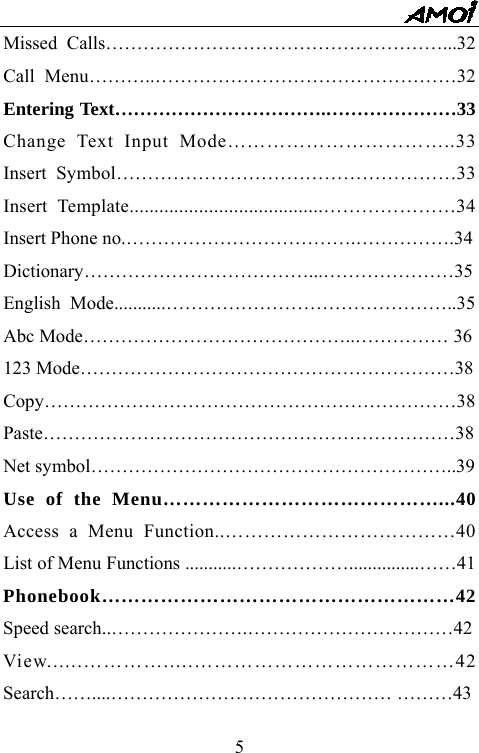
  4TABLE OF CONTENTS Safety precautions……………………………………………1 Your Phone………………….……………………………..16 Open view…………………………………………………16 Phone Layout………………………………………………. 16 Closed view…………………………………………………17 Rear view………………………………………………….17 Keys Description…………………………………………..18 Shortcut Keys………………………………………………..19 Display Layout………………………………………………20 Getting Started…………………………………………….22 Install a UIM Card…………………………………….23 Charge a Battery………………………………………….24 Switch the Phone On/Off………………….……………..26 Switch networks……………………………………………..27 Your Phone’s Mode....................................................28 Call Function…………………………………………..…29 Make a Call………………………………………….….29 Receive or reject a Call……………………………….29 Adjust call volume……………………………….………….31
  5Missed Calls………………………………………………...32 Call Menu………..…………………………………………32 Entering Text…………………………….…………………33 Change Text Input Mode……………………………..33 Insert Symbol………………………………………………33 Insert Template.......................................…………………34 Insert Phone no.……………………………….…………….34 Dictionary………………………………...…………………35 English Mode...........………………………………………..35 Abc Mode……………………………………..…………… 36 123 Mode……………………………………………………38 Copy…………………………………………………………38 Paste…………………………………………………………38 Net symbol…………………………………………………..39 Use of the Menu……………………………………...40 Access a Menu Function..………………………………40 List of Menu Functions ...........………………...............……41 Phonebook………………………………………………42 Speed search..………………….……………………………42 View......………….....…………………………………42 Search……....……………………………………… ………43
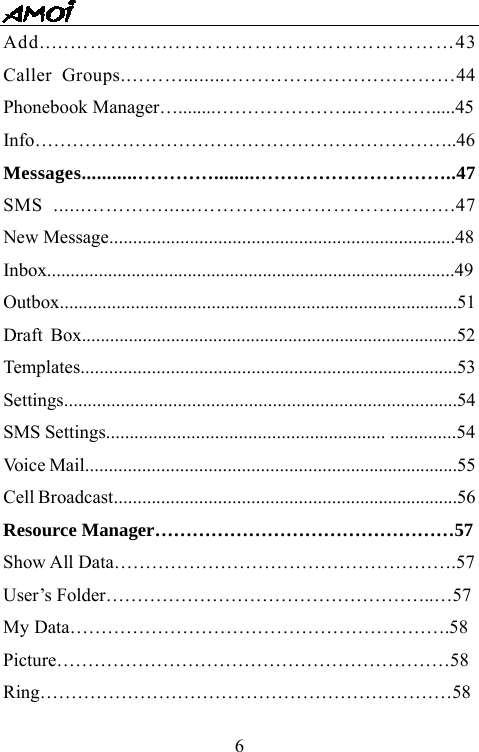
  6Add.....…………....……………………………………43 Caller Groups.………........………………………………44 Phonebook Manager…........…………………..………….....45 Info…………………………………………………………..46 Messages...........…………........…………………………..47 SMS ......…………......………………………………….47 New Message.........................................................................48 Inbox.......................................................................................49Outbox....................................................................................51 Draft Box................................................................................52 Templates................................................................................53 Settings...................................................................................54 SMS Settings........................................................... ..............54 Voice Mail...............................................................................55 Cell Broadcast.........................................................................56 Resource Manager…………………………………………57 Show All Data……………………………………………….57 User’s Folder……………………………………………..…57 My Data…………………………………………………….58 Picture………………………………………………………58 Ring…………………………………………………………58
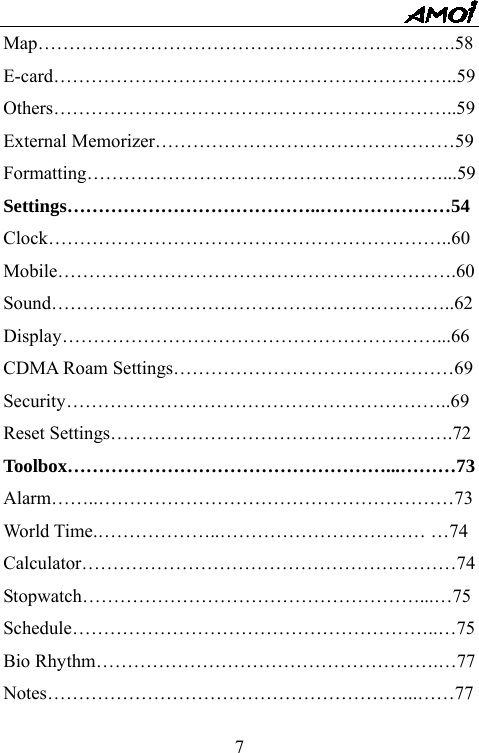
  7Map………………………………………………………….58 E-card………………………………………………………..59 Others………………………………………………………..59 External Memorizer…………………………………………59 Formatting…………………………………………………...59 Settings…………………………………..…………………54 Clock………………………………………………………..60 Mobile……………………………………………………….60 Sound………………………………………………………..62 Display……………………………………………………...66 CDMA Roam Settings………………………………………69 Security……………………………………………………..69 Reset Settings……………………………………………….72 Toolbox……………………………………………...………73 Alarm……..…………………………………………………73 World Time.………………..…………………………… …74 Calculator……………………………………………………74 Stopwatch………………………………………………...…75 Schedule…………………………………………………..…75 Bio Rhythm……………………………………………….…77 Notes…………………………………………………...……77
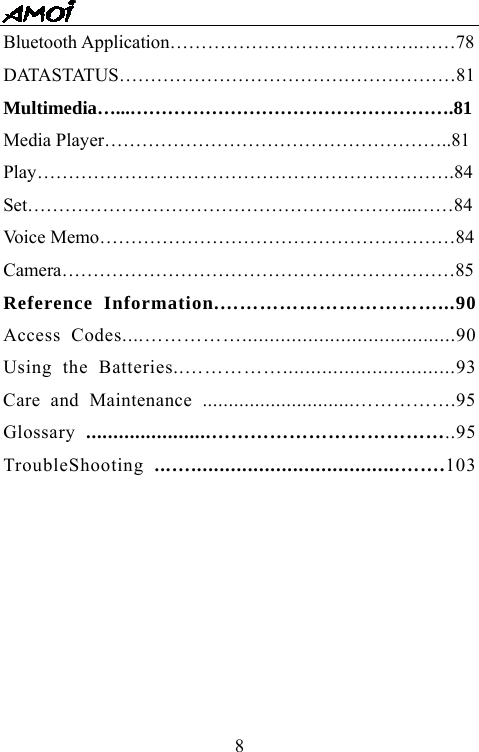
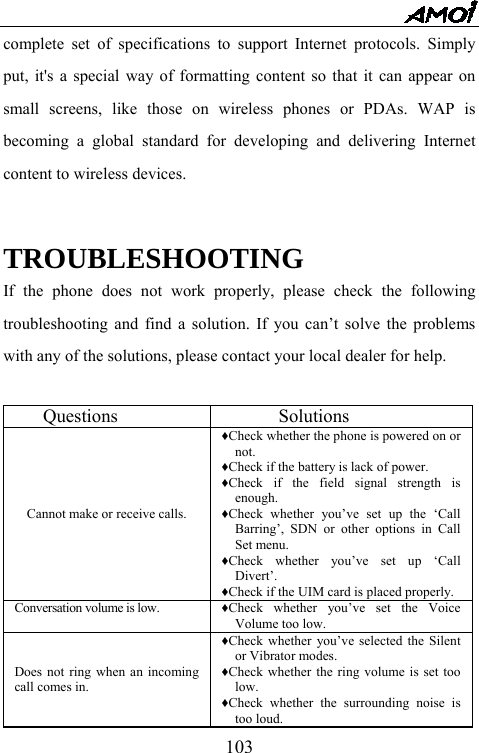
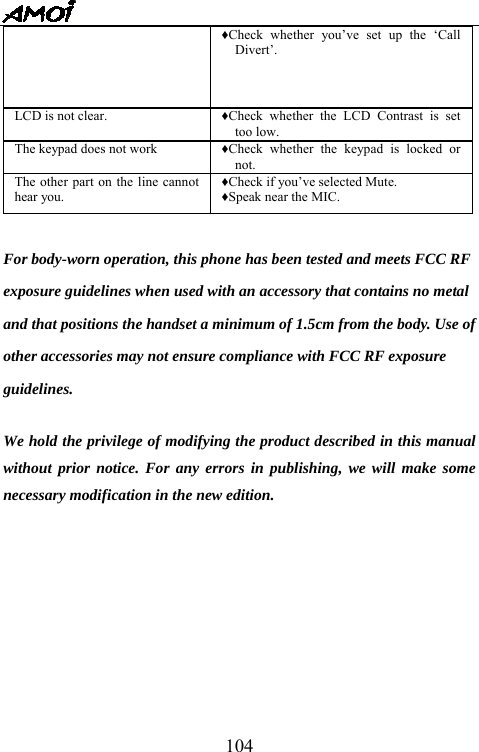
  8Bluetooth Application………………………………….……78 DATASTATUS………………………………………………81 Multimedia…...…………………………………………….81 Media Player………………………………………………..81 Play………………………………………………………….84 Set……………………………………………………...……84 Voice Memo…………………………………………………84 Camera………………………………………………………85 Reference Information.……………………………...90 Access Codes....…………….......................................90 Using the Batteries..……………...............................93 Care and Maintenance .............................…………….95 Glossary  .......................………………………………..95 TroubleShooting  ...….....................................…….103
  9For Your Safety Important Information This user guide contains important information on the use and operation of this phone. Please read all the information carefully for optimal performance and to prevent any damage to, or misuse of, the phone. Any changes or modifications not expressly approved in this user guide could void your warranty for this equipment.  Safety Instructions WARNING! To reduce the possibility of electric shock, do not expose your phone to high humidity areas, such as the bathroom, swimming pool, etc. Always store your phone away from heat. Never store your phone in settings that may expose it to temperatures less than 32°F or greater than 104°F, such as outside during a snowstorm or in your car on a hot day. Exposure to excessive cold or heat will result in malfunction, damage and/or catastrophic failure. Be careful when using your phone near other electronic devices. RF emissions from your mobile phone may affect nearby inadequately shielded electronic equipment. You should consult with manufacturers of any personal medical devices such as pacemakers and hearing aides
  10to determine if they are susceptible to interference from your mobile phone. Turn off your phone in a medical facility or at a gas station. Never place your phone in a microwave oven as this will cause the battery to explode.  Safety Information Please read and observe the following information for the safe and proper use of your phone and to prevent any unanticipated damage. Also, keep the user’s manual in an accessible place at all times after reading it.   Unplug the power cord and charger during a lightning storm to avoid electric shock or fire.   Do not use your phone in high explosive areas as the phone may generate sparks.   Do not put your phone in a place subject to excessive dust, and keep the minimum required distance between the power cord and heat sources.   Do not damage the power cord by bending, twisting, pulling, or subjecting it to heat. Do not use the plug if it is loose as it may cause fire or electric shock.   Hold the power cord plug firmly to plug and unplug the power
  11cord. Ensure the plug is firmly connected. If it is not firmly connected, it may cause excessive heat or fire.   Do not place a heavy item on the power cord. Do not allow the power cord to be crimped as it may cause fire or electric shock.   Be careful not to let the battery contact metal conductors such as a necklace or coins. When shorted, it may cause an explosion.   Do not disassemble or impact the battery as it may cause electric shock, short-circuit, and fire. Store the battery in a place out of reach of children.   Using a damaged battery or placing a battery in your mouth may cause serious injury.   Do not place items containing magnetic components such as a credit card, phone card, bank book or a subway ticket, near your phone. The magnetic strip can be damaged by the phone.   Do not hold or let the antenna come in contact with your body during a call.   Talking on your phone for a long period of time may reduce the call quality due to heat generated during the use of the phone.   Do not allow excessive vibration or impact to the phone.   When you do not plan to use the phone for a long period of time, store it in a safe area with the power cord unplugged.
  12 FCC RF Exposure Information WARNING! Read this information before operating the phone. In August 1996, the Federal Communications (FCC) of the United States, with its action in Report and Order FCC 96-326, adopted an updated safety standard for human exposure to radio frequency (RF) electromagnetic energy emitted by FCC regulated transmitters. Those guidelines are consistent with the safety standard previously set by both U.S. and international standards bodies. The design of this phone complies with the FCC guidelines and these international standards.  CAUTION Use only the supplied and approved antenna. Use of unauthorized antennas or modifications could impair call quality, damage the phone,void your warranty and/or result in violation of FCC regulations. Do not use the phone with a damaged antenna. If a damaged antenna comes into contact with skin, a minor burn may result. Contact your local dealer for a replacement antenna. SAFETY PRECAUTIONS
  13 Read the following brief guidelines before using the phone. Failure to comply with them may be dangerous or illegal.  Road safety comes first Do not use a hand-held mobile phone when driving; if you have to, park the vehicle first. Remember that in some countries, it is illegal to use a mobile phone when driving.  Switch off on an aircraft Mobile phone may cause interference. Using them on aircraft is both illegal and dangerous. (Please also close the power-off alarm clock.)  Switch off near an explosion place Do not use the phone near an area where explosives are detonated. It may disturb the remote control operation.    Switch off when refueling Do not use the phone at a refueling point (service station) or near fuels or chemicals.     Switch off in hospital Follow any regulations or rules. Switch the phone off near medical equipment.
  14  Interference All wireless phones may be subject to radio interference, which may affect their performance.   Accessories and batteries Use only approved accessories and batteries.    Use sensibly Use only in the normal position (next to ear). Do not touch the antenna unnecessarily when the phone is      switched on.  Emergency call (SOS) Make sure the phone is switched on and within the service network before making an emergency call. When you’re on an emergency call, do not end the call without permission.  Special Cautions 1. Keep all small parts of the phone out of the reach
  15of small children. 2. Don’t aim the camera, flash light or LED at one’s eyes.  Note: Since the phone is provided with functions of auto power-on/off and power-off alarm, you’are suggested to remove the battery in any case the phone is required to be turned off.
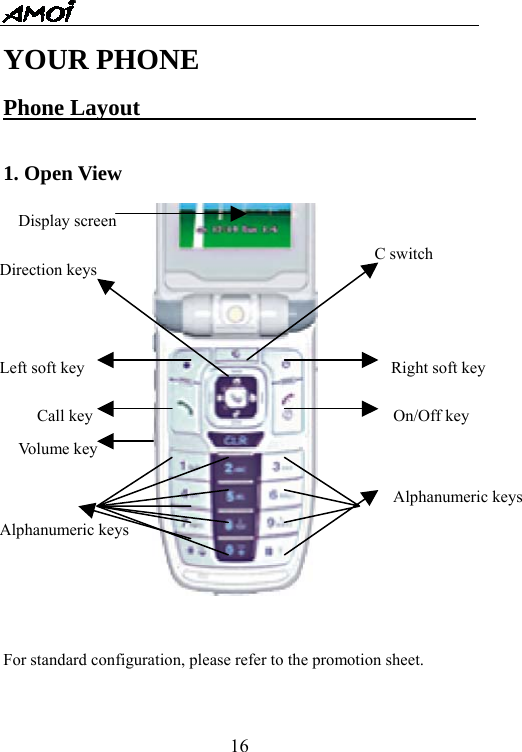
  16YOUR PHONE Phone Layout                                1. Open View                              For standard configuration, please refer to the promotion sheet.  Display screenC switch Left soft key  Right soft keyDirection keys Call key Vo l u me key  On/Off keyAlphanumeric keys Alphanumeric keys
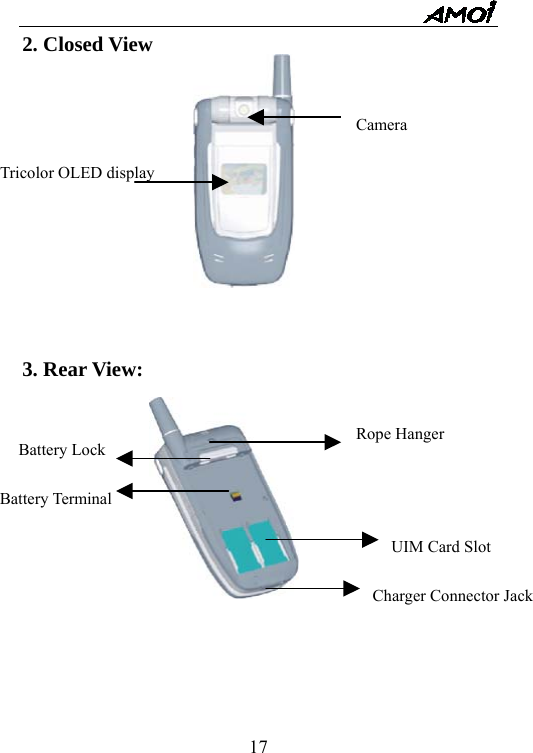
  17Rope Hanger Battery Lock Battery Terminal UIM Card Slot Charger Connector Jack 2. Closed View                                                                                                                                                                                                                   3. Rear View:      Camera Tricolor OLED display
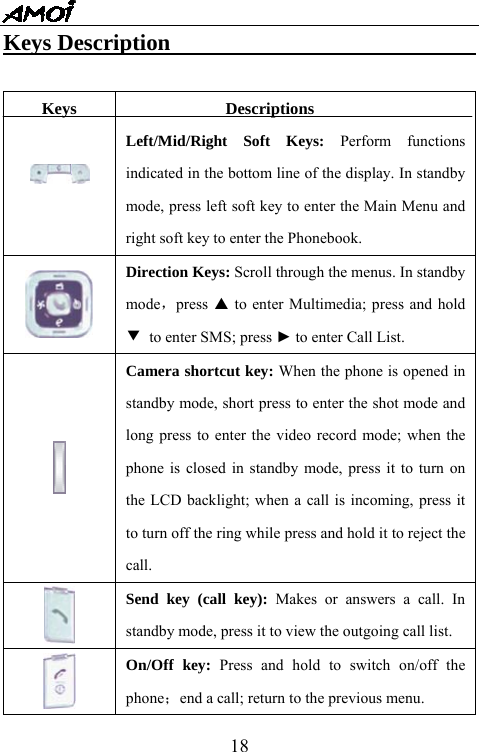
  18Keys Description                             Keys   Descriptions Left/Mid/Right Soft Keys: Perform functions indicated in the bottom line of the display. In standby mode, press left soft key to enter the Main Menu and right soft key to enter the Phonebook.  Direction Keys: Scroll through the menus. In standby mode,press S to enter Multimedia; press and hold ▼  to enter SMS; press ► to enter Call List.  Camera shortcut key: When the phone is opened in standby mode, short press to enter the shot mode and long press to enter the video record mode; when the phone is closed in standby mode, press it to turn on the LCD backlight; when a call is incoming, press it to turn off the ring while press and hold it to reject the call.   Send key (call key): Makes or answers a call. In standby mode, press it to view the outgoing call list.  On/Off key: Press and hold to switch on/off the phone;end a call; return to the previous menu.
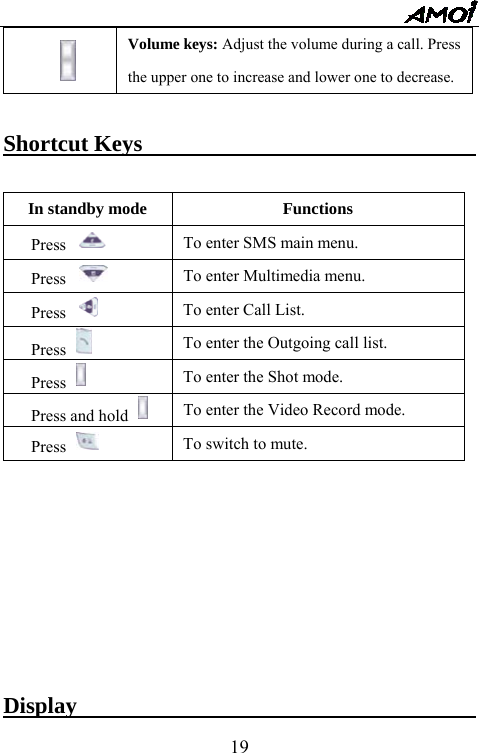
  19 Volume keys: Adjust the volume during a call. Press the upper one to increase and lower one to decrease.  Shortcut Keys                               In standby mode  Functions Press  To enter SMS main menu. Press  To enter Multimedia menu. Press  To enter Call List. Press   To enter the Outgoing call list. Press   To enter the Shot mode. Press and hold   To enter the Video Record mode. Press   To switch to mute.           Display
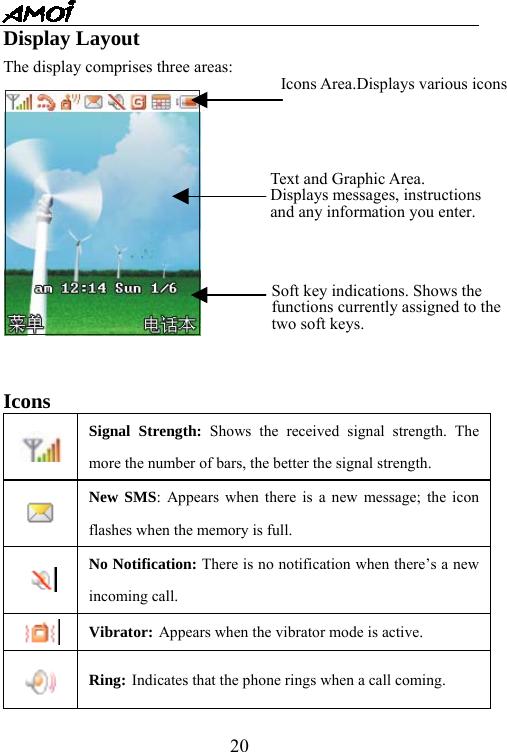
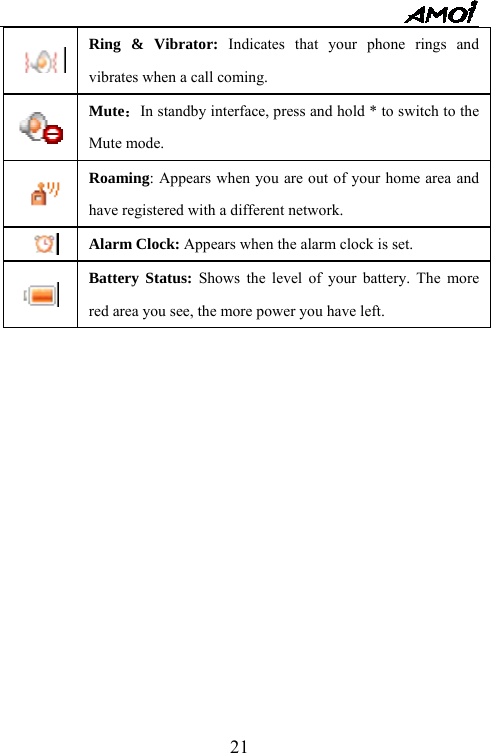
  20Display Layout The display comprises three areas:    Icons  Signal Strength: Shows the received signal strength. The more the number of bars, the better the signal strength.  New SMS: Appears when there is a new message; the icon flashes when the memory is full.    No Notification: There is no notification when there’s a new incoming call.  Vibrator: Appears when the vibrator mode is active.  Ring: Indicates that the phone rings when a call coming. Icons Area.Displays various icons Text and Graphic Area. Displays messages, instructions   and any information you enter. Soft key indications. Shows the functions currently assigned to the   two soft keys.
  21 Ring & Vibrator: Indicates that your phone rings and vibrates when a call coming.  Mute:In standby interface, press and hold * to switch to the Mute mode.    Roaming: Appears when you are out of your home area and have registered with a different network.  Alarm Clock: Appears when the alarm clock is set.  Battery Status: Shows the level of your battery. The more red area you see, the more power you have left.
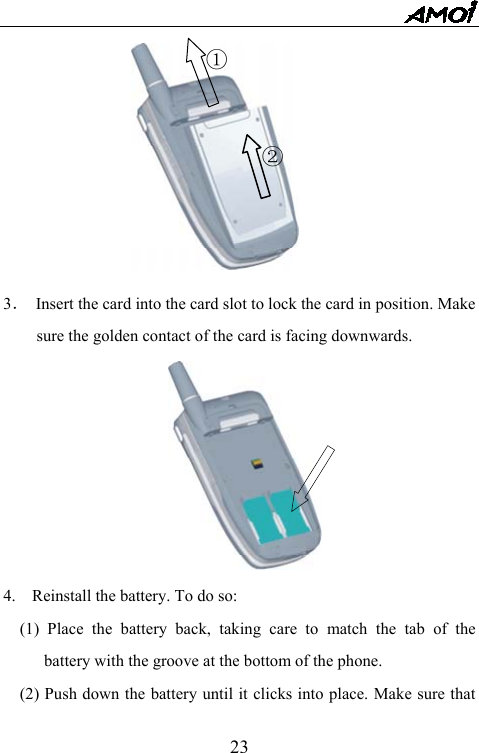
  22GETTING STARTED You are allowed to install a UIM card,    Note: The card may be easily damaged by scratching or bending, so be careful when handling, inserting or removing the card. Follow the instructions supplied with the card. Keep all cards out of the reach of small children.  Install a UIM Card                           Please make sure that you have switched the phone off before installing a card.   1.  Switch the phone off by long press on  .  2.  Remove the battery. To do so:   ⑴ Push the buckle above the battery upwards and hold it in that position. ⑵  Slide the battery and lift it away, as shown.
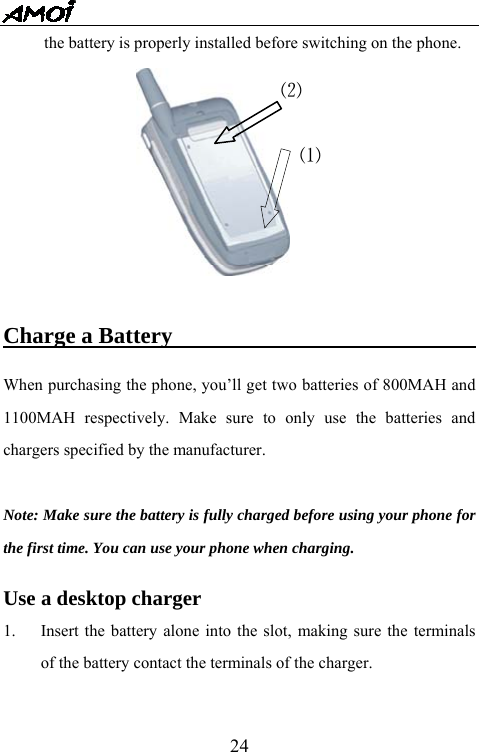
  23 3.  Insert the card into the card slot to lock the card in position. Make sure the golden contact of the card is facing downwards.        4.    Reinstall the battery. To do so: (1) Place the battery back, taking care to match the tab of the battery with the groove at the bottom of the phone. (2) Push down the battery until it clicks into place. Make sure that ① ②
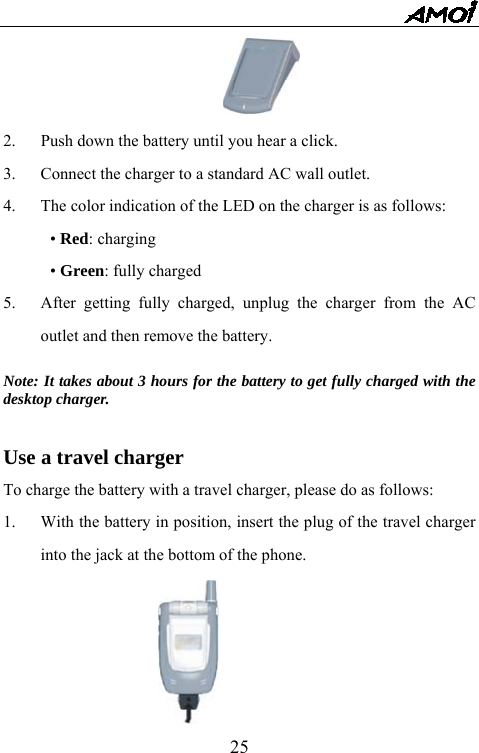
  24the battery is properly installed before switching on the phone.   Charge a Battery                             When purchasing the phone, you’ll get two batteries of 800MAH and 1100MAH respectively. Make sure to only use the batteries and chargers specified by the manufacturer.    Note: Make sure the battery is fully charged before using your phone for the first time. You can use your phone when charging.  Use a desktop charger 1.  Insert the battery alone into the slot, making sure the terminals of the battery contact the terminals of the charger. ⑵⑴
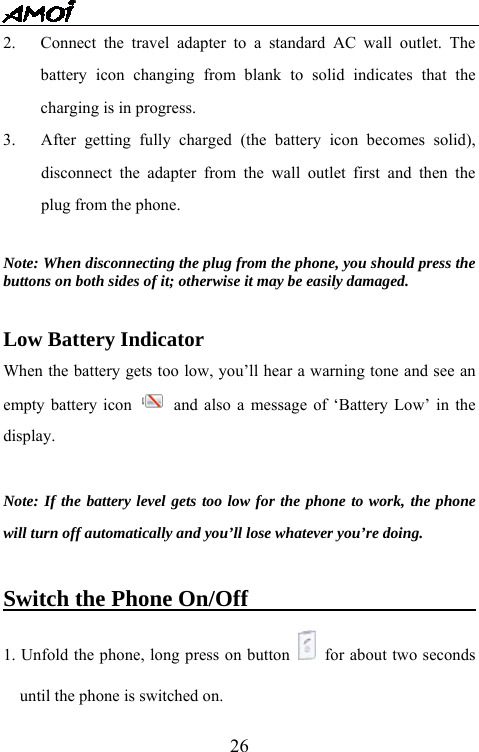
  25 2.  Push down the battery until you hear a click. 3.  Connect the charger to a standard AC wall outlet. 4.  The color indication of the LED on the charger is as follows: • Red: charging • Green: fully charged 5.  After getting fully charged, unplug the charger from the AC outlet and then remove the battery.  Note: It takes about 3 hours for the battery to get fully charged with the desktop charger.  Use a travel charger To charge the battery with a travel charger, please do as follows: 1.  With the battery in position, insert the plug of the travel charger into the jack at the bottom of the phone.
  262.  Connect the travel adapter to a standard AC wall outlet. The battery icon changing from blank to solid indicates that the charging is in progress.    3.   After getting fully charged (the battery icon becomes solid), disconnect the adapter from the wall outlet first and then the plug from the phone.    Note: When disconnecting the plug from the phone, you should press the buttons on both sides of it; otherwise it may be easily damaged.  Low Battery Indicator When the battery gets too low, you’ll hear a warning tone and see an empty battery icon    and also a message of ‘Battery Low’ in the display.  Note: If the battery level gets too low for the phone to work, the phone will turn off automatically and you’ll lose whatever you’re doing.    Switch the Phone On/Off                      1. Unfold the phone, long press on button    for about two seconds until the phone is switched on.
  272. If ‘PIN Check’ is set in your phone, please input the PIN code provided with the card; 3. Press▼or▲ to select a service network and press OK to connect. 4. If the phone is out of service, “No Service” appears in the display. In this case, you cannot make and receive calls. Wait a little while for better signal or move into an open area to regain the service. 5. To switch the phone off, long press on button   for about two seconds.    Switch Networks                             In standby mode, press button  to rapidly switch the networks. You’ll have the following options:  Card 1: To switch to the network type displayed. Card 2: To switch to the network type displayed.  WARNING: Do not switch on the phone when the mobile phone use is prohibited or when it may cause interference or danger. Moreover, you’d better take the battery off.  Note: Do not touch the antenna unnecessarily when the phone is on; otherwise, it may affect the call quality and may cause the phone to operate at a higher power level than needed.
  28Your Phone’s Mode                          Standby Mode Standby mode is the most basic state of your phone. The phone goes into Standby mode soon after you switch it on. In Standby mode, you’ll typically see the current date and time; if you enter a phone number, you can press Call Key to make a call or Save key to save it into the phonebook. In the menu facility,pressing   repeatedly will lead you back to the standby mode step by step.    Talk Mode You can make or receive calls only when your phone is powered on and within the service network. The phone is in talk mode when you’re on a call. In talk mode, pressing the left soft key will lead you to ‘Call Menu’ and right soft key will lead you to ‘Phonebook’.
  29CALL FUNCTIONS Make a call                                 Before you can make or answer a call, you must switch on the phone and make sure it is in the service network. 1. In Standby mode, enter the phone number. If you make a mistake when dialing, press the right soft key to erase it. Press and hold the right soft key to erase the entire number.  Note: When entering numbers, you can insert a pause (P) by long press on # key (for example, when dialing between the switchboard number and extension no.). The numbers behind P will be dialed a few seconds after the numbers before P.  2. Press    to make the call. 3. When finish talking, press   or simply close the phone to end the   call.   Make an IDD                        Enter the country code, area code and phone number (without any blank), and then press   to begin dialing. If you need to insert ‘+’ before the country code, long press on ‘0’ will do.
  30Make a call from the Phonebook Select your desired number from the phonebook and press  to dial.  Last number redial   In standby mode, press   twice to redial the last number you called. The numbers you recently called will be automatically saved in the outgoing call lists. In standby mode, press   to enter the outgoing call list; select your desired one and press  to redial.     Answer or reject a Call                              When you have a new incoming call, the caller’s phone number will be shown if you have subscribed to the Line Identification Service (contact your service provider for details); if you’ve already saved the number in your phonebook, the name for the calling number will be displayed.  Answer a call Amoi V810 provides you with fours modes of answering a call. Please refer to ‘Call—Call Settings—Answer Mode’ for details of answer mode settings.  1. If you select ‘Call Key’ as the answer mode, you should press    or the left soft key to answer a call.
  312. If you select ‘Open Mobile’ as the answer mode, you can simply open the phone to answer a call; if the phone is already opened, please press   or the left soft key to answer. 3. If you select ‘Auto’ as the answer mode, the phone will automatically turn into talk mode after 30 seconds. 4. If you set ‘Any Key’ as the answer mode, you can press   or any key except the right soft key to answer.    Reject a call Press   or the right soft key to reject a call when the phone is opened; long press on the side key to reject a call when the phone is closed.  End a call Press   to end a call.  Adjust Call Volume                         If you want to adjust the earpiece volume during a call, use the side keys. Press the upper side key to increase and lower side key to decrease the volume.
  32View Missed Calls                                When an incoming call is not answered, the caller’s number or name will be saved in ‘Missed’ in ‘Call Lists’. (This requires the support of Line Identification Service, so please contact your service provider) In the missed call list, scroll with  ▲ or ▼  to your desired number and press ‘OK’ to perform the following functions. --Call: To call the number back. --Send SMS: To send SMS to the number. --Details: To view the missed call number and the calling time. --Save to Phonebook: To save the number into the local phonebook   or UIM card phonebook. --Delete: To delete the number from the missed call list. --Delete All: To delete all missed calls from the list.    Call Menu                                  During a call, press ‘Options’ to enter ‘Call Menu’. The following are all possible operations available.   ★Record To record the conversation during a call for up to 30 seconds. ★Mute   To turn off the transmitter so that the other side can’t hear you.
  33Press it again to turn it on.   ★Hold call To hold the current call. ★Resume held call To put through the held call. ★Hold current call/ Dial new number   To dial a new number while holding the current call. ★Switch calls   To hold the current call and resume the held call. ★Connect the held call to a conference call     To connect the held call to a conference call. ★End current call     To end the current call. ★End all calls   To end all the calls. ★Menu   To enter the menu interface. By this option, you can enter ‘Messages’, ‘Multimedia’, ‘Call’, ‘Broswer’ and ‘Toolbox’ or make function settings(excluding    Notes: Functions such as call waiting, call holding and conference call are all network service. Please contact your service provider for more details.
  34ENTERING TEXT Amoi V810 applies eZi input mode. This mode enables the phone to predict the words you are entering so as to save your time when editing text messages.  Change Text Input Method                         In text entry mode,press   repeatedly to switch among different text input methods; or you can press 'Operate' to select from the following input methods:  Insert Symbol                                     Symbol mode enables you to enter symbols into a text message.   To enter a symbol, you should: 1.  Press ‘Operate’ in the text entry mode. 2.  Scroll to ‘Insert Symbol’ and press ‘OK’ to enter, and then you will see a symbol chart as below.   3.  Press  c or d key to scroll to the column that includes the symbol you desire. Press the corresponding numeric key at the bottom of the chart to insert the desired symbol mark.
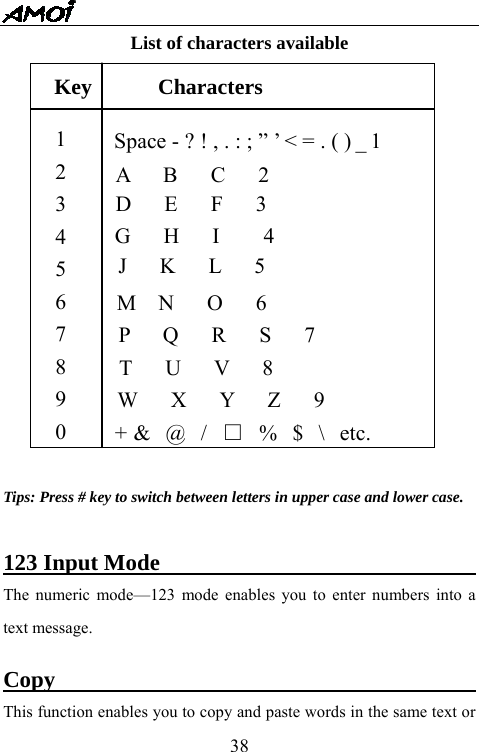
  35    Symbol table  . ,  :  ;  ?  !  “ ‘( ) *  + -  /  = <> # %  _ [ ] @ {}$ ~ ^  \`  |       Insert Template                            There are 12 template sentences pre-edited in the phone for you to insert into the text message.  Insert Phone No.                            This enables you to select a phone number from the phonebook and insert it into the text.  Dictionary                                You’re allowed to use your own dictionary in Amoi V810 when editing a text message. In English mode, you can provide a new word with the highest priority by adding it into your dictionary.   1.  Press ‘Operate’ when editing a text message; 2.  Scroll to ‘Dictionary’ and press ‘OK’ to enter;
  363.  Scroll to ‘Add’ and press ‘OK’. 4.  Input the word that you would like to add to your dictionary, and then press OK to save.  English Input Mode                               This mode allows you to enter words with only one keystroke per letter. Each key on the keypad has more than one letter, for example, on key no. 5, there’re J, K and L. The English mode automatically compares all the keystrokes you enter with an internal linguistic dictionary to determine the correct word, thus requiring far fewer keystrokes than the Abc mode.  Below is an example for entering an English word. For example: to enter ‘hello’, press the following keystrokes: 4, 3, 5, 5, 6. If the word that appears in the display is not the word that you desire, press f or e key to display alternate word choices for the keys you have typed. For example, ‘of’ and ‘me’ both shares the keystrokes 6, 3 in the same sequence. The phone displays the most commonly used choice first.  Tips: When you’re entering English words, press c or d key repeatedly
  37or simply press # key to change between letters in upper case and lower case. After finishing a word, press 0 key to confirm and set a blank.  Abc Input Mode                                 This mode allows you to enter letters by pressing the key labeled with the required letter once, twice, three or four times until the desired letter is displayed. For example, press the ‘2’ key three times quickly to display the letter ‘C’, the ‘5’ key two times quickly to display the letter ‘K’.  Note: When you require the same letter twice or more in succession (or a   different letter on the same key), just wait for a few seconds for the   cursor to automatically appear on the right of the one you entered, and   then select the next letter.
  38List of characters available              Tips: Press # key to switch between letters in upper case and lower case.  123 Input Mode                                    The numeric mode—123 mode enables you to enter numbers into a text message.  Copy                                            This function enables you to copy and paste words in the same text or Key      Characters 1 2 3 4 5 6 7 8 9 0 A   B   C   2 G   H   I    4 D   E   F   3 J   K   L   5 M  N   O   6 P   Q   R   S   7 T   U   V   8 W   X   Y   Z   9 +  &   @   /   □  %   $   \   etc. Space - ? ! , . : ; ” ’ < = . ( ) _ 1
  39between two different texts.   1. When editing text message, press ‘Operate’ and press OK to enter Copy interface; 2. Press the direction keys to move the cursor to the beginning point; 3. Press OK and then press the direction keys to highlight from the beginning point the words you’d like to copy; 4. Press OK to return to the text input interface; 5. Press ‘Operate’ to select ‘Paste’ and press OK to paste the words into the text message.  Net Symbol                                       This function enables you to insert the net symbols preset in the   mobile.
  40USE OF THE MENU Amoi V810 offers a range of functions that allow you to tailor the phone to your needs. These functions are arranged in menus and submenus.  Access a menu function                             By scrolling 1, In Standby mode, press ‘Menu’ left soft key. 2, Scroll with c or d through the menus and press ‘OK’ to enter the one you desire. 3, If the menu contains submenus or further submenus, repeat step 2. 4, Make new settings of the option you choose if any. 5, Press ‘Back’ key to return to the previous menu, and   key to  exit the menu without changing the menu settings.    By numerical keys The menus, submenus and setting options are all marked with numbers in the mobile phone and you can access them by using their corresponding shortcut keys. 1, In Standby mode, press the ‘Menu’ soft key. 2, Key in the numbers marked on the menu, submenu and setting
  41option you want to access.   Example: To play voice memo, you can press the ‘Menu’ left soft key,   and then key in 3, 2,2.
  42PHONEBOOK   Amoi V810 is a CDMA mode mobile phone providing you with a phonebook of 1000 entries. You can store phone numbers and relative information in your phone or UIM card. So the phonebook consists of local phonebook and UIM card phonebook. Local phonebook: You can store 1000 entries in it. Each entry consists of a name, three phone numbers, two email addresses, one address, one fax number, a homepage, picture, personal ringtone, one group name and a piece of remark. UIM card phonebook: Quantity of entries, which the card can store, depends on the type of the card; each entry consists of a name and a phone number.  Speed Search                                      Press the corresponding numerical key for the initial letter of the entry’s name you’d like to search. For example, to search for entry of ‘Michael’, just input numerical key 6.      View                                             Scroll to ‘View’ in ‘Phonebook’, and then press OK key to enter. 1. View all entries:The current entry is displayed in the first line.
  43Press  ▲ or  ▼ to view other entries. 2. View details of an entry:When the current entry contains more than one telephone number, press ◄ or  ► to view. You can also press ‘OK’ to display all items contained in the current entry.     3. Options: When all items of an entry are displayed, press ‘Options’ to Edit, Delete, Copy, Send vCard or Save vCard. (Please refer to ‘Smart Dial’).  Search                                          Two search modes are available: Search by name and Search by   number. Enter the desired name or number, and the corresponding   entry will display.  Add                                              Add to Local: Scroll to ‘Add’ after entering ‘Phonebook’ and then press ‘OK’. 1) Enter ‘Add to Local’ and you will see a list of all items available for one entry. Scroll to the item you desire and press ‘Edit’ to input. 2) After edit, press OK to save.  Add to UIM:
  441) Scroll to ‘Add’ after entering ‘Phonebook’ and then press ‘OK’. 2) Enter ‘Add to UIM’ and you will see a list of all items available for one entry. Scroll to the item you desire and press ‘Edit’ to input. 3) After edit, press OK to save.  Caller Groups                                     This function allows you to set grouping of the local phonebook entries (Not available for entries stored in UIM card phonebook). There are total 20 groups, for example, Friend, Family and VIP etc and each group can contain up to 50 entries. For each group, you’ll have the following options: --Delete Group: To delete the current group. --Group Send SMS: To send an SMS to all entries in the current   group. --Change name: To rename the current group.   --Group Ring: To set special ringtone for incoming calls from   members in the current group. --Reset Ring: To reset the ringtone for the current group. --Group Photo: To set a photo for the current group. --Reset Photo: To reset the photo for the current group.
  45Phonebook Manager                                Delete This function enables you to delete phone numbers from the local phonebook or UIM card phonebook.    Duplicate This function enables you to copy phone numbers between the local phonebook and the UIM card phonebook. You can copy phone numbers in two ways:   --Copy Range: To copy phone numbers from the begin point to the   end point specified. --Copy All: To copy all phone numbers between the local phonebook   and the UIM card phonebook. Note: If an entry already exists in target phonebook, it cannot be copied. If the space of the target phonebook is not enough for all phone numbers that are under the way of copy, only the front phone numbers will be copied until the target phonebook is full.   Move Please refer to ‘Duplicate’.
  46 Memory Check the available & used memory space of the local phonebook and UIM card phonebook.  Info                                              This function allows you to store your own number or view the Country / Area codes.           MESSAGES
  47SMS This function is network service and may not be supported by your network. Please contact your service provider for more details. The New SMS icon tells you that you have a new SMS unread, while the SMS Full icon tells you that your message box is full and you can’t receive any new SMS unless you delete some old ones.    New SMS    SMS Full  you should insert the SMS service center number before sending a message. Generally it is automatically available after you insert your UIM card. To set the number of the SMS center, you should: 1. Scroll to Message- > SMS-> SMS Settings -> SMS Settings ->SMS Centre Number. If the number of service centre has been stored in the UIM card, it will be displayed in the screen. 2. If the number is not displayed, please choose ‘Add New’ to add it. 3. Input the service center number and then press OK key to confirm.  There are two ways to enter ‘Message’ menu in Standby mode.
  481.  Long press on the down navigation key (e key) to directly enter. 2.  Press the left soft key to enter the menu list and then press 1 to enter.  New Message                               The text message can include 480 letters (210 Chinese characters) at most. After inputting the text message, press OK soft key and you’ll have the following options:   --Send: Enter the target number and press ‘Send’ to send the message. --Save & Send: Allows you to save and send the message. Even if   you fail to send, the message will be saved in the ‘Outbox’. --Save: Allows you to save the message into the ‘Draft Box’. --Send in Group: Allows you to send one message to at most 10   receivers simultaneously. --Save and Send in Group: Allows you to save and send the message   to at most 10 receivers simultaneously. Even if you fail to send, the   message will be saved in the ‘Outbox’.  Tips: When you’re required to enter the target phone number before sending a message, you can press the left soft key (Find key) to pick it up from your phonebook if you’ve already stored the number there.
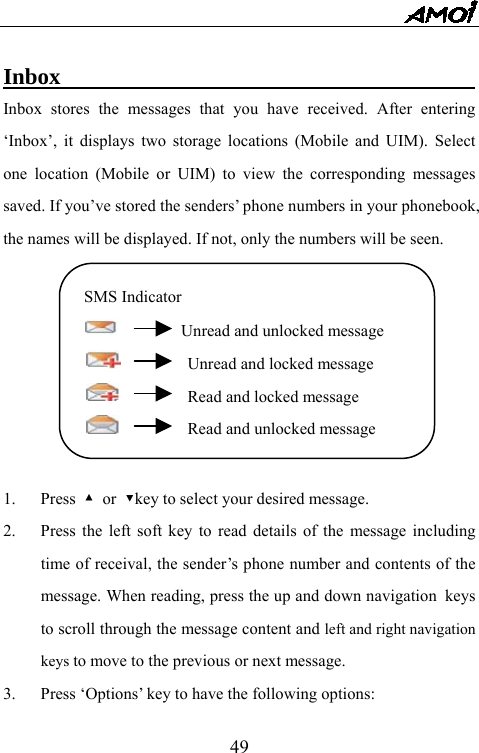
  49 Inbox                                     Inbox stores the messages that you have received. After entering ‘Inbox’, it displays two storage locations (Mobile and UIM). Select one location (Mobile or UIM) to view the corresponding messages saved. If you’ve stored the senders’ phone numbers in your phonebook, the names will be displayed. If not, only the numbers will be seen.          1. Press ▲ or ▼key to select your desired message. 2.  Press the left soft key to read details of the message including time of receival, the sender’s phone number and contents of the message. When reading, press the up and down navigation keys to scroll through the message content and left and right navigation keys to move to the previous or next message. 3.  Press ‘Options’ key to have the following options: SMS Indicator     Unread and unlocked message       Unread and locked message       Read and locked message       Read and unlocked message
  50--Read: To read details of the message. --Reply: To give a reply to the sender without inputting the target phone number. --Forward: To re-edit the message you received and send it to others. ‘Send’, ‘Save and Send’, ‘Save’, ‘Send in Group’ and ‘Save and Send in Group’ are available in this option. --Call: To call the sender. --Extract no.: To extract the sender’s phone number as well as numbers, e-mail address and URL in the text message (only numbers of over 5 digits will be extracted). All info extracted will be saved into the phonebook and you can call the extracted number or link to the extracted URL.   --Lock/Unlock:  To lock the unlocked message selected and to unlock the locked message selected. Locked messages cannot be deleted.   --Delete: To delete unlocked messages.  --Delete in Group: To simultaneously delete several unlocked messages you select. --Delete All: To delete all unlocked messages in the inbox. --Copy to Local/ UIM: To copy the message saved in the card to your phone or copy the message saved in your phone to the
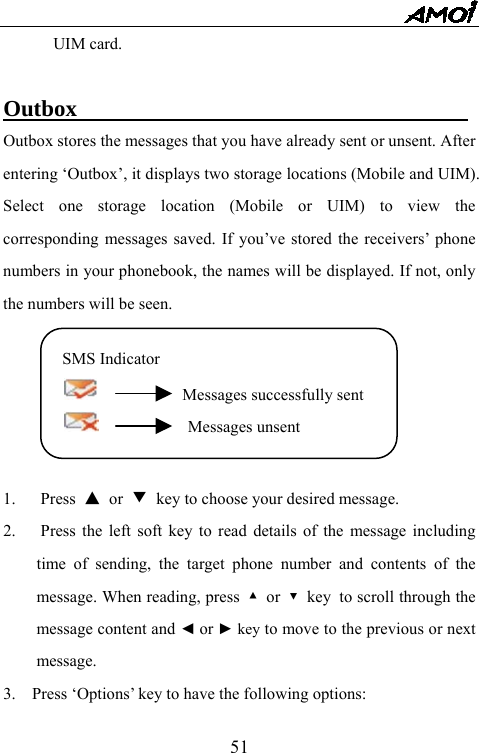
  51UIM card.  Outbox                                   Outbox stores the messages that you have already sent or unsent. After entering ‘Outbox’, it displays two storage locations (Mobile and UIM). Select one storage location (Mobile or UIM) to view the corresponding messages saved. If you’ve stored the receivers’ phone numbers in your phonebook, the names will be displayed. If not, only the numbers will be seen.        1. Press ▲ or ▼ key to choose your desired message. 2.      Press the left soft key to read details of the message including time of sending, the target phone number and contents of the message. When reading, press  ▲ or ▼ key to scroll through the message content and ◄ or ► key to move to the previous or next message. 3.    Press ‘Options’ key to have the following options: SMS Indicator           Messages successfully sent         Messages unsent
  52--Read: To read details of the message. --Send: To edit the current message and send it to other target     numbers. You can choose ‘Send’, ‘Save & Send’, ‘Save’ or ‘Send in   Group’. --Delete: To delete the message. --Delete in Group: To simultaneously delete several messages selected. --Delete All: To delete all messages in ‘Outbox’. --Copy to Local/UIM: To copy the messages saved in your phone to the card or copy the messages saved in the card to your phone.  Draft Box                                  Draft Box stores the messages that you have edited and saved. After entering ‘Draft Box’, it displays two storage locations (Mobile and UIM). Select one storage location (Mobile or UIM) to view the corresponding messages saved. 1. Press ▲ or ▼ key to choose your desired message. 2.   Press the left soft key to read details of the message. When reading, press  ▲ or  key to scroll through the message content and ◄ or ► key to move to the previous or next message. 3.    Press ‘Options’ key to have the following options:
  53--Send: To edit the current message and send it to other target     numbers. You can choose ‘Send’, ‘Save & Send’, ‘Save’ or ‘Send in   Group’. --Delete: To delete the message. --Delete in Group: To simultaneously delete several messages selected. --Delete All: To delete all messages in ‘Draft Box’. --Copy to Local/UIM: To copy the messages saved in your phone to the card or copy the messages saved in the card to your phone.  Template                                 There’re twelve preset templates for you to directly send after editing.   Press ‘Options’ key to have the following options: --Read: To read details of the template. --Edit: To edit the template. After editing, press OK to save and cover the original one. --Send:  To edit the current template and send it to target phone numbers. --Delete: To delete the current template. --Add: To add a new template.
  54Settings                                    SMS Settings 1.  SMS Service Centre Number: Before sending a message, you should insert the SMS service center number; generally the number is contained in the UIM card. You can use, modify or delete this number as necessary. 2.  Priority Memory: To set one memory as the priotity memory (Mobile or UIM). When the priority memory is full, messages will be saved into another memory. 3.  Period of Validity: To set the period for which the messages will be saved.   4.  Message Type: To select the type of the message to be sent. Please consult your service provider for more info. 5.  Arrival Prompt: By activating this function, the network will give you a prompt when the receiver receives your message. 6.  History Record: To record how many messages you have received or sent.   Note: If the record reaches max 99999, it will automatically turns to 0 without prompt. 7.  Memory: To view the status of storage. Note: The phone can store max 200 messages. The storage memory of
  55the card depends on the card type.  Voice mail                                    With this function, you’re allowed to listen to the voice messages in your voice mailbox. The voice mailbox in your phone is similar to a voice message machine, which is able to transfer your missed calls to your personal voice mail, allowing the callers to leave their voice messages. If any new voice message, the phone will tell you by sending out a message. 1.  Voice mail box number: To input or modify the voice mail box number that is got from the service provider. 2.  Listening: To listen to voice messages. Please make sure to enter the voice mail box number before using this function.  Note: Since this function is a part of accessory software supplied by the service provider, you’ll have to register and make manual settings before use. For more details, please consult your service provider.   Cell Broadcast                                     This network service allows you to receive all kinds of text
  56information, such as weather forecasting or traffic information. Please contact your service provider for more details. 1. Open/Close  When open with right channel settings, you’ll be able to receive broadcast messages. If you don’t want to receive any broadcast messages, select ‘Close’.   2. Channel List --All: To receive broadcast messages from all channels. --None: Not to receive broadcast messages from any channel. --List: Only to receive broadcast messages from the listed channels. 3. Read To select a broadcast message to read.      RESOURCE MANAGER
  57The resource manager provides you with a memory of about 25MB, in which you’re allowed to store a variety of files, such as photos and video records as well as pictures, ringtones or maps downloaded etc. Moreover, we also provide you with the function of browsing and managing T card (external memory card), thus enabling data swap between your phone and the T card, making the storage memory bigger.  Display All Data                               This folder displays all data in Resource Manager.  User’s Folder                                1.  The User’s Folder stores any files the users specify.   indicates that there is subfolder under this User’s Folder.   2.  You are allowed to preset 20 subfolders max. You can delete subfolders or add a new one as long as the number of subfolders doesn’t reach 20. 3.  You are allowed to rename any files or folders. 4.  In User’s Folder, files can be moved from one folder to another. 5.  You are allowed to arrange files in your desired order.
  58My Data                                     This folder is for saving and managing multimedia files created by the phone. 1.  My Photo: here you can store all pictures taken by the inbuilt camera of your phone. 2.  My Video: here you can store all video recorded by the inbuilt camera of your phone. 3.  My Record: here you can store all audio files recorded by the voice recorder of your phone.  Picture                                     This folder stores picture files downloaded or attached in emails.  Ring                                          This folder stores ringtones downloaded.  Map                                          This folder stores maps downloaded.  E-card                                        This folder manages all E-card files created by the phonebook or sent
  59by others to you. You are allowed to import contents of E-card to the phonebook or export data in the phonebook to create an E-card and save it here.  Others                                          This folder manages all files not supported by your phone or any other undefined files.  External Memorizer                                This folder manages all files stored in the external memorizer.  Formatting                                    You are allowed to delete all data saved in the external memorizer by selecting ‘External Memorizer’, pressing ‘Options’ and then selecting ‘Formatting’.                      SETTINGS
  60Many different features of your phone can be customized for your preference.   Clock                                       This function allows you to change the current time and date displayed in Standby mode. The following functions are available. --Enter Time: To change the current time. When the time format is set as 12 hours, press * to switch between AM and PM. --Time Format: There are two time formats for your selection: 24   hours and 12 hours. --Enter Date: To change the current date, month and year. --Date Format: There are three date formats for selection: D/M/Y,   M/D/Y and Y/M/D.  Mobile                                      Language Select the display language: English and Chinese.  Contrast --Main Display: Press ◄ or ► to adjust the contrast from 1 to 15.
  61--Sub Display: Press ◄ or ► to adjust the contrast from 1to 15.  Backlight Time Here you can set the time for the backlight to stay on. There are four options for selection: Always On, 5S, 10S and 20S.  Auto On/Off This function allows you to set the time when you’d like the phone to turn on or off automatically.  Answer/Record Here you can choose to activate auto answer or not and also choose to use the default greetings preset in the phone or record your own greetings. --Auto answer on/off: To enable or disenable function of Auto Answer. --Answer Options: To select ‘Default Greetings’ or ‘Record Greetings’. --Record Greetings: To record your own greetings for use on auto answer. --Review:
  62 Sound                                       In this menu, you’re allowed to make settings on Ringtone, Power On Ring, Power Off Ring, Key Sound, Folder Tone and Prompt Sound.  Ring Settings ‘Ring Settings’ enables you to make settings on the Incoming Tone, Alarm Clock Tone, Calendar Tone and Message Tone.   --Incoming Tone: three options are available as below. ①Ring Tones—After entering ‘Ring Tones’, you can press ◄ or   ► to choose from where (Local Ring or Resouce Manager)   you’d like to select the tone as the Incoming Tone. Press   ‘Options’ to ‘Select’ the tone you like or ‘Play’ the tone you   select. ②Volume—There are five levels to choose, press ◄ key to   decrease the volume and ► key to increase the volume. ③Alert Type—There are four options available: Vibration, Ring   Tones, Ring & Vibration and No Notification.    --Alarm Clock Tone: three options are available as below. ①Ring Tones—After entering ‘Ring Tones’, you can press ◄ or
  63► to choose from where (Local Ring or Resouce Manager)   you’d like to select the tone as the Alarm Clock Tone. Press   ‘Options’ to ‘Select’ the tone you like or ‘Play’ the tone you   select. ②Volume—There are five levels to choose, press ◄ key to   decrease the volume and ► key to increase the volume. ③Alert Type—There are three options available: Vibration, Ring   Tones and Ring & Vibration.    --Calendar Tone: three options are available as below. ①Ring Tones—After entering ‘Ring Tones’, you can press ◄ or   ► to choose from where (Local Ring or Resouce Manager)   you’d like to select the tone as the Calendar Tone. Press ‘Options’   to ‘Select’ the tone you like or ‘Play’ the tone you select. ②Volume—There are five levels to choose, press ◄ key to   decrease the volume and ► key to increase the volume. ③Alert Type—There are four options available: Vibration, Ring   Tones, Ring & Vibration and No Notification.    --Message Tone: three options are available as below. ①Ring Tones—After entering ‘Ring Tones’, you can press ◄ or
  64► to choose from where (Local Ring or Resouce Manager)   you’d like to select the tone as the Message Tone. Press ‘Options’   to ‘Select’ the tone you like or ‘Play’ the tone you select. ②Volume—There are five levels to choose, press ◄ key to   decrease the volume and ► key to increase the volume. ③Alert Type—There are four options available: Vibration, Ring   Tones, Ring & Vibration and No Notification.   Note: In standby mode, long press on * to swiftly switch between mute mode and the mode you set (Vibration, Ring Tones, Ring & Vibration or No Notification).  Power On Ring --Music: To select a tone as Power On Ring. You can press ◄ or ► to choose from where (Local Ring or Resouce Manager) you’d like to select the tone as the Power On Ring. Press ‘Options’ to ‘Select’ the tone you like or ‘Play’ the tone you select. --Lock: To turn on or off the Power On Ring.   Power Off Ring --Music: To select a tone as Power Off Ring. You can press ◄ or ►
  65to choose from where (Local Ring or Resouce Manager) you’d like to select the tone as the Power Off Ring. Press ‘Options’ to ‘Select’ the tone you like or ‘Play’ the tone you select. --Lock: To turn on or off the Power Off Ring.  Key Sound --Scale: To select ‘Voice’, ‘General’ or ‘Scale’. --Volume: To decrease or increase the volume. There’re five levels to adjust. --Lock: To turn on or off the key sound.  Folder Tone --Scale: To select ‘Voice’, ‘General’ or ‘Scale’. --Volume: To decrease or increase the volume. There’re five levels to adjust. --Lock: To turn on or off the key sound.  Prompt Sound --Access network prompt: The phone utters prompt sound when you’re accessing the network. --Low battery: The phone utters prompt sound when the battery gets
  66low. --Minute beep: The phone utters prompt sound at one-minute interval when you’re on a call. --Call connection: The phone utters prompt sound when you’re making a call.  Display                                           This menu allows you to change the Standby Display, Power on   Display, Power off Display and Display Skin.   Standby Display --Text Mode: To edit some text message as the Standby display. --Picture Mode: To select a picture as the Standby display. --Animation Mode: To select an animation as the Standby display. --Clock Mode: To select the clock as the Standby display. --Calendar Mode: To select the calendar as the Standby display.  Power on Display --Text Mode: To edit some text message as the power on display. --Picture Mode: To select a picture as the power on display. --Animation Mode: To select an animation as the power on display.
  67Power off Display --Text Mode: To edit some text message as the power off display. --Picture Mode: To select a picture as the power off display. --Animation Mode: To select an animation as the power off display.  Display Skin --Default mode: To select the default display background. --Platinum Color Style: To select the platinum color background. --Softness Color Style: To select the softness color background.  Call Diverting This network service enables incoming calls to be transferred to the number you specify. For example: You may hope to transfer your business calls to a colleague when you are on holiday. --All: All incoming calls to be unconditionally transferred to specified number. --No reply: Incoming calls to be transferred if no one answers in your specified time. --Busy: Incoming calls to be transferred if the line is busy. --Unreachable: Incoming calls to be transferred if the phone is   powered off or out of service.
  68--Status Inquiry: To view the status of Call Diverting. --Cancel All: To cancel all Call Diverting settings.  Call Waiting With this function, the network will give you a hint (call waiting tone will be heard and ‘Incoming’ will be displayed) when there is a new incoming call during a current call. You can answer the new call by holding the current call. --On: To turn on Call Waiting function. --Off: To turn off Call Waiting function. --Status: To see if this function is on or off. Notes: The function of Call Waiting needs support of the service network. Please contact your service provider for details.  Call Barring This function helps you to restrict the incoming and outgoing calls. But the function needs the support of your network service provider --All Outgoing: To restrict all outgoing calls (except SOS).   --International: To restrict all outgoing international calls. --International Except to Home: To restrict all outgoing   international calls except to your home country when roaming (out
  69of the network service area). --All Incoming: To restrict all incoming calls. --Incoming While Abroad: To restrict all incoming calls when   roaming. --Status Inquiry: To inquire about the current status of Call Barring. --Cancel All: To cancel all call barring settings. --Change Restriction Code: To set the call barring password. Note: You need to input the Net PWD to make above settings.  CDMA Roam Settings                               Security                                    Before entering Security, you should input the phone code. Check PIN Press OK to enter this function. 1. Select ‘On’. 2. Input the PIN code and start up the function of PIN check by pressing Ok. 3. Select “Off” to invalidate this function.  Note: If you have enabled the function of PIN check, you’ll have to input
  70the PIN code every time you switch on your phone. If you input an   incorrect PIN code for three times in succession, the card will be locked.   In this case, you’ll have to input the right PUK code to unlock your card.   For more details, please contact your service provider.  Change PIN   Only when ‘Check PIN’ is set on can you change the PIN code. 1. Press OK to enter ‘Change PIN’. 2. Input the old PIN code and press Ok. 3. Input the new PIN code (four to eight digits) and press Ok. 4. Re-input the new PIN code and press Ok. 5. LCD indicates ‘PIN Changed’.   Change PIN2   The process of changing the PIN2 code is the same as ‘Change PIN’.  Change Phone Code 1. Press OK to enter; 2. Input the old phone code and press Ok key. 3. Input the new phone code and press Ok key. 4. Re-input the new phone code and press OK key.
  715. LCD indicates ‘Mobile Password Save Success’. Note: The factory value of your phone is 0000, in order to avoid any unauthorized use, please change the password after purchasing.  Phone Lock This function enables you to prevent any unauthorized use of your phone.  By selecting ‘On’, one will have to input the phone code to power on the phone.    Fixed Dialing With this function, you’ll be able to confine the outgoing numbers for your phone to dial. That is to say, you’ll only be allowed to dial the numbers in the fixed number list if ‘Fixed Dialing’ is set ‘On’. And if you dial any other numbers (except SOS), the phone will display ‘Forbidden Number’.   Note: You should input the PIN2 code to set the function for the first time.  Password Protection This function enables you to set password protection for Phonebook,
  72SMS, Outgoing Calls and Incoming Calls. --Phonebook Protection: To enable the phone code for Phonebook. --SMS Protection: To enable the phone code for SMS. --Outgoing Call Protection: To enable the phone code for your outgoing calls. --Incoming Call Protection: To enable the phone code for your incoming calls.  GPS Settings --Lock: Select ‘On’ to lock GPS service so that others can’t find your location. Select ‘Off’ to cancel. --Privacy Alarm:     Valid: To pop up hint when connecting GPS;   Invalid: Not to pop up hint when connecting GPS.  Reset Settings                                     This function enables you to reset some settings to default value. You should input the phone code before resetting.   Restore Factory Settings: To restore initial, but reserve the data of your mobile. Master Reset: To clear all data in your mobile. Before this operation,
  73please backup all data first.    TOOLBOX Toolbox of V810 provides you with a series of tools for your daily use such as Alarm, Calculator and Stopwatch etc.    Alarm                                        There are three alarm clocks to be set simultaneously. When setting, please follow the following steps: Activate: Press  ▲ and ▼ to highlight one of the alarms and press   ‘Set’ left soft key until you see ‘√’ to activate the alarm. Set the Type: Press ◄ and ► to highlight the type area and press   ‘Set’ left soft key to select from the following three types:   --Everyday: The alarm rings at the set time every day. --Workday: The alarm rings at the set time from Monday to Friday. --Custom: You can choose on which day(s) you’d like the alarm to   ring at the set time. Set the time: Press ◄ and ► to highlight the time area and press
  74‘Set’ left soft key to set the time for the alarm to ring. Cancel All: To cancel all alarm settings.   Note: When the alarm is ringing, press any key to stop it; if not, it will last for one minute.       World Time                                   You can view different time zones in the world and the corresponding local time by pressing ◄ ►▲▼. Press ‘Set’ left soft key to set the local time as the systematic time.  Calculator                            With this function, you can use the phone as a calculator. The calculator provides the basic arithmetic functions: addition, subtraction, multiplication and division.  Performing a Calculation 1.  Enter the first number. 2. Press c for plus sign ‘+’, d for subtraction sign ‘-’, e for multiplication sign ‘*’ and f for division sign ‘/’; 3.  Enter the second number. 4.  Press ‘Equal’o get the result.   5.  Repeat steps 1 to 4 as many times as necessary.
  75Notes: • To erase any mistakes and clear the display, just press ‘Clear’.   • Use # key to enter a decimal point and * key to change the sign of a number to a negative (-).  Stopwatch                                     The Stopwatch allows maximum five records and the maximum value   will be 23:59:59:59.   Start/Lap: Press ‘Start’ to start the stopwatch and ‘Lap’ to record. Stop/Continue: When the stopwatch is working, press ‘Stop’ to have   a pause and ‘Continue’ to go on.   Reset: Press ‘Reset’ key to reset the time.    Schedule                                          Here you’re allowed to make your own schedule on any selected date. After entering ‘Schedule’, you’ll see a calendar of the current date. Press the four direction keys to move to your desired year, month and date and then press ‘Options’ to do as follows: New --Calendar: To log your calendar for the selected date. --Call: To input the phone number you’d like to call at some specified time.
  76--Commemoration: To log important things for the selected date.      View --Calendar: To view the calendar for the selected date. --Call: To view the phone number for the selected date.     --Commemoration: To view important logs for the selected date.  Delete Today --Calendar: To delete the calendar for the selected date. --Call: To delete the phone number for the selected date. --Commemoration: To delete the log for the selected date.  Delete All --Calendar: To delete all calendars existed. --Call: To delete all phone numbers. --Commemoration: To delete all logs.   Settings Here you’re allowed to set the period of validity for your schedule. There are four options to choose as follows: --Never Delete: Schedule never to be deleted.
  77--One Day: Schedule to be deleted after one day. --One Week: Schedule to be deleted after one week. --One Month: Schedule to be deleted after one month.     Bio Rhythm                                This function allows you to check the physical, emotional, or intellectual rhythm of your own or your friend for the current day or a specified day. To check the rhythm, you must first insert your and your friend's birthday by pressing ‘Set’.    Notes                                      This function allows you to take at best 10 notes. Each note can include 32 Chinese characters or 64 English words at most. For each note, press ‘Operate’ left soft key to have the following options: --View: To view details of the current note. --Edit: To edit the current note.     --Delete: To clear content of the current note. --Delete All: To clear contents of all notes.  Bluetooth Application                               V810 is compliant with Bluetooth Specification 1.1, which supports
  78the following profiles: Dialing Network, FTP (File Transfer Protocol),   OBEX and Headset. Application of Bluetooth technology enables you   to use your phone as a MODEM for dial-up in PC, to transfer the data among mobile phones supporting Bluetooth as well as to make or answer calls with wireless Bluetooth headset.    Dialing Network Dialing Network enables you to connect your PC to the Internet by   using the phone as a MODEM. --Standby Mode:     To use the Bluetooth network connection after info being displayed.   Before use, please get ready a computer with USB interface and USB Bluetooth Module and make sure the USB Bluetooth Module Drive has been successfully installed in the computer. --Use of Dialing Network:   To connect your computer to the Internet. If you press End key during connection, network access will be cut off. --Disconnection Mode:     To cut off network access. When cutting off, a prompt will pop up and the standby icon will disappear.
  79FTP (File Transfer Protocol) FTP enales you to receive or send data via devices that support Bluetooth.  --Receive Data: After entering FTP—Search Server, select Bluetooth device and press Ok to receive data. All data received will be automatically saved in the User’s Folder in Resource Manager.  --Send Data: Select a file in Resource Manager and press ‘Options’ to select ‘Send   by BT’.   Note: When sending data, please make sure the target mobile is equipped   with Bluetooth function and is in data receiving mode.  OBEX OBEX enables you to exchange electronic cards through Bluetooth network. --Send E-card: Select ‘Search OBEX’ and press OK to search Bluetooth device. Select the E-card you’d like to send and press ‘Send’ to send it out to the target mobile.
  80Note: When sending E-card, please make sure the target mobile is in   OBEX standby mode. --Receive E-card: Select ‘Standby mode’ to receive E-cards. E-cards received will be automatically saved into E-card folder in Resource Manager.  Headset This enables you to make or receive calls with the wirelesss Bluetooth headset. --Bind: After searching the Bluetooth headset, press ‘Operate’. Select ‘Bind’ and input the password. Press OK to finish binding.   Note: When inputting the password, the input window will show you the previous password. When inputting the password for the first time, it will display 0000. The password should be consisted of numbers and letters.   --Connect:  If the headset is already binded, press ‘Operate’ to connect. --Use: When successfully connected to the mobile, you’re able to use the Bluetooth headset for making or receiving calls.  Datastatus This allows you to dial up under    CDMA networks.
  81Connect your mobile with PC by USB data cable and dial up in PC to   successfully link to the net. During linkage, your mobile will display   the real time status, for example, the time of linkage or the current   data flux.   MULTIMEDIA Media Player                                Media Player allows you to play any audio or video files that you have already stored.   Play 1. In Media Player, select ‘Play’ and press OK key to enter your play list. If there’re more than one play list, press  ▲ or ▼ to select your desired one. Now, press OK to enter the one you select or press ‘Options’ to do as follows: --Create new list: To create a new play list. --Delete list: To delete the selected play list. --Rename list: To rename the selected play list.  2. After entering the list selected, you’ll see all files contained in this list. If there’re more than one files, press ▲ or ▼ to select your desired one. Now, press OK to play the file or press ‘Options’ to do
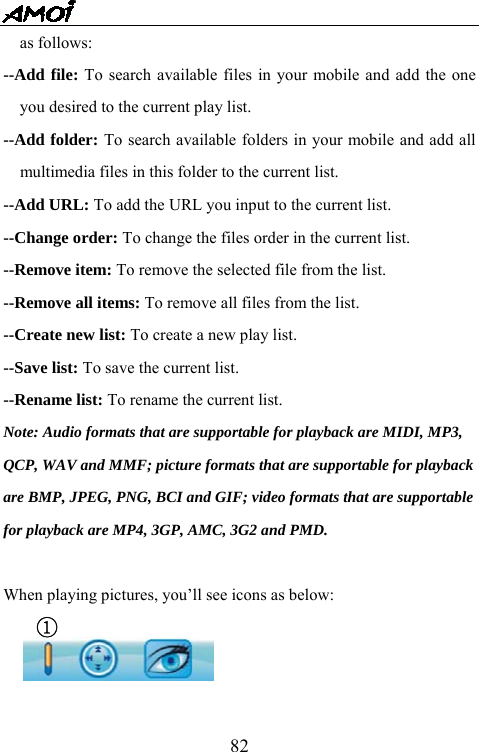
  82as follows: --Add file: To search available files in your mobile and add the one you desired to the current play list. --Add folder: To search available folders in your mobile and add all multimedia files in this folder to the current list. --Add URL: To add the URL you input to the current list. --Change order: To change the files order in the current list. --Remove item: To remove the selected file from the list. --Remove all items: To remove all files from the list. --Create new list: To create a new play list. --Save list: To save the current list. --Rename list: To rename the current list. Note: Audio formats that are supportable for playback are MIDI, MP3,   QCP, WAV and MMF; picture formats that are supportable for playback   are BMP, JPEG, PNG, BCI and GIF; video formats that are supportable   for playback are MP4, 3GP, AMC, 3G2 and PMD.     When playing pictures, you’ll see icons as below: ①
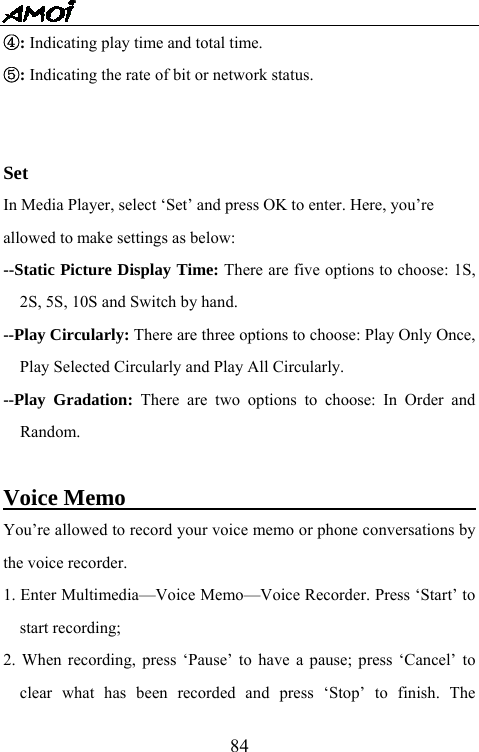
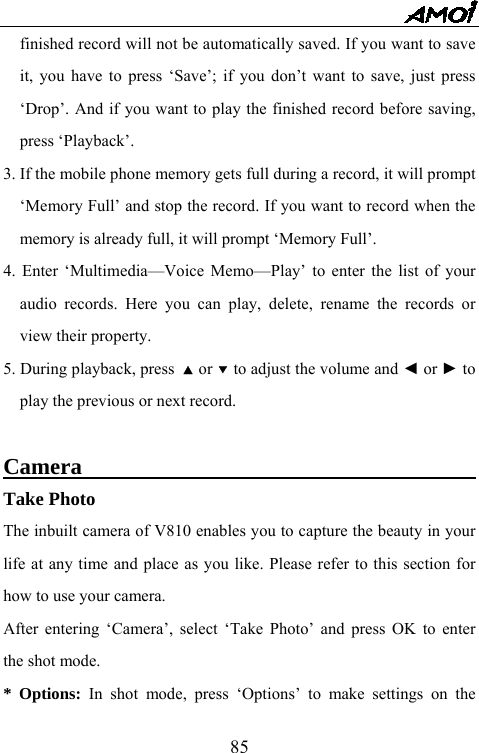
  83①: Press the up/down side keys to turn to the previous or next file. ②: Press the four direction keys to move the picture.   ③: To display the whole picture.  When playing audio files, you’ll see icons as below:  ①: Press the up/down side keys to turn to the previous or next file. ②: Indicating the current volume level. Press ▲ or ▼ to increase or decrease the volume.   ③: Press ◄ or ► to go backward or forward.   ④: Indicating play time and total time. ⑤: Indicating the rate of bit or network status.  When playing vedio files, you’ll see icons as below:  ①: Press the up/down side keys to turn to the previous or next file. ②: Indicating the current volume level. Press ▲ or ▼ to increase or decrease the volume.   ③: Press ◄ or ► to go backward or forward.
  84④: Indicating play time and total time. ⑤: Indicating the rate of bit or network status.   Set In Media Player, select ‘Set’ and press OK to enter. Here, you’re   allowed to make settings as below: --Static Picture Display Time: There are five options to choose: 1S, 2S, 5S, 10S and Switch by hand. --Play Circularly: There are three options to choose: Play Only Once, Play Selected Circularly and Play All Circularly. --Play Gradation: There are two options to choose: In Order and Random.  Voice Memo                                       You’re allowed to record your voice memo or phone conversations by the voice recorder.   1. Enter Multimedia—Voice Memo—Voice Recorder. Press ‘Start’ to start recording; 2. When recording, press ‘Pause’ to have a pause; press ‘Cancel’ to clear what has been recorded and press ‘Stop’ to finish. The
  85finished record will not be automatically saved. If you want to save it, you have to press ‘Save’; if you don’t want to save, just press ‘Drop’. And if you want to play the finished record before saving, press ‘Playback’.   3. If the mobile phone memory gets full during a record, it will prompt ‘Memory Full’ and stop the record. If you want to record when the memory is already full, it will prompt ‘Memory Full’. 4. Enter ‘Multimedia—Voice Memo—Play’ to enter the list of your audio records. Here you can play, delete, rename the records or view their property. 5. During playback, press  ▲ or ▼ to adjust the volume and ◄ or ► to play the previous or next record.  Camera                                          Take Photo The inbuilt camera of V810 enables you to capture the beauty in your life at any time and place as you like. Please refer to this section for how to use your camera. After entering ‘Camera’, select ‘Take Photo’ and press OK to enter the shot mode.   * Options: In shot mode, press ‘Options’ to make settings on the
  86following: --Resolution: To choose the size of the picture to take. (The higher the resolution is, the bigger the storage space it occupies) --Quality: To choose the quality of the picture to take. (The higher the quality is, the bigger the storage space it occupies) --Multi Shot: To select if to use multi shot, that is, to take a group of pictures continuously. (You can set the numbers of pictures to shot in ‘Settings’)   --Self-Take: To select if to use self-take. When selecting ‘Yes’, picture will automatically be taken after countdown. (You can set the timer in ‘Settings’) --Frame: To add interesting frame to the picture. --Save Position: To select where the picture will be saved—the phone or the card. --My Picture: To browse the pictures saved. --Settings: To set the Self-imaging Timer, Multi Shot Numbers, Slide Show Rate and Shot Sound.  * Viewfinding Setup: In shot mode, press the four directions keys to make settings on the following: --Shot Mode: To select the shot mode: Camera / Video.
  87--Brightness: To adjust the brightness: 1 / 10 / 20 / 30 / 40 / 50 / 60/ 70 / 80 / 90/ 100. --Contrast: To adjust the contrast: 1 / 10 / 20 / 30 / 40 / 50 / 60/ 70 / 80 / 90/ 100. --Zoom: To zoom in or zoom out the view found.   --WB: To adjust the color balance to accommodate the lighting. --Effect: To adjust the effect of the picture. --Reflect: To rotate the shooting angle.    My Picture Here you can view all pictures that are saved. For each picture, you’re   allowed to make the following settings: --Icon: To view all pictures in thumbnails.   --Photo Editer: To edit the picture.   --Slideshow:  To display all pictures by slide. You can set the slide show interval in ‘Settings’. --Delete: To delete the current picture. --Delete: To delete all pictures. --Property: To view the property of the picture. --Media Player: To play the picture by the media player.
  88My Frame You can import more frames for your pictures.   My Stamp You can import more stamps for your pictures.  Record Video Please refer to this section for how to use your camera as a video recorder.  After entering ‘Camera’, select ‘Record Video’ and press OK to enter the video record mode.   * Options: In video record mode, press ‘Options’ to make settings on the following: --Resolution: To choose the size of the video to take. (The higher the resolution is, the bigger the storage space it occupies) --Quality: To choose the quality of the video to take. (The higher the quality is, the bigger the storage space it occupies) --REC Speed: To select the record speed. --Self-Take: To select if to use self-take. When selecting ‘Yes’, video will automatically be recorded after countdown. (You can set the
  89timer in ‘Settings’) --REC Length: To select the length of the record. --REC Voice: To select whether to record voice when recording video. --Save Position: To select where the video will be saved—the phone or the card. --My Video: To play the video recorded. --Settings: To set the Self-imaging Timer, Multi Shot Numbers, Slide Show Rate and Shot Sound.  * Viewfinding Setup: All settings are the same as that of the shot mode.   My Video Here you can play all video records that are saved. For each video   record, you’re allowed to make the following settings: --Delete: To delete the current video record. --Delete: To delete all video records. --Property: To view the property of the video record. --Media Player: To play the video record by the media player.
  90Settings To set the Self-imaging Timer, Multi Shot Numbers, Slide Show Rate   and Shot Sound.  REFERENCE INFORMATION Access Codes                                Access codes help you protect your phone and the card against unauthorized use.  Phone Password The phone password is used to avoid unauthorized use of your mobile. The preset phone password is 0000. Please change the password as soon as you buy the mobile and make sure to keep the new one secret.  PIN Code PIN (Personal Identification Number) code protects your UIM card against unauthorized use. The PIN code is usually supplied with the UIM card. When enabling ‘PIN Check’, you’re required to input the PIN code each time you switch on the phone.
  91If you key in an incorrect PIN code for three times in succession, the UIM card will be locked. To unlock the card, you have to key in the PUK code and press OK soft key, and key in a new PIN code twice.  PIN2 code The PIN2 code, supplied together with some cards, is required to access some special functions, such as charge counter.   If you key in an incorrect PIN2 code for three times in succession, the PIN2 code will be locked. To unlock the PIN2, you have to key in the PUK2 code and press the OK soft key, and key in a new PIN2 code twice.  PUK code The PUK (Personal Unblocking Key) code is required to unlock a blocked PIN code. The PUK code may be supplied with the UIM card. If not, ask your local service provider for it. If you key in an incorrect PUK code for ten times in succession, the UIM card cannot be used anymore. Contact the service provider for a new card. You’re not allowed to change the PUK code. Please contact your service provider if you lose the code.
  92 PUK2 code The PUK2 code, supplied with some UIM cards, is required to unlock a blocked PIN2 code.   If you key in an incorrect PUK2 code for ten times in succession, you cannot use some functions that require PIN2 code. Contact your service provider for a new card. You’re not allowed to change the PUK2 code. If you lose the code, contact your service provider.  Use of the Battery                                A rechargeable Li-ion standard battery powers your phone. The following batteries are also available (ask your local dealer for further details): Type  Capacity  Talk Time  Standby Time Li-ion     650mAh      2-3hrs    60-100hrs  Charge and discharge: In order for the new battery to reach its best performance, please fully charge and discharge it for the first two to three times when using. Regarding the charging duration, you are suggested to charge the
  93battery for more than 10 hours (ignore ‘Charge Full’ displayed after charging for about 2 or 3 hours).   Precautions for using the batteries: 1. Never use any charger or battery that is damaged in any way.  2. If you use the phone near the network’s base station, it uses less power. Talk and standby time are greatly affected by the signal strength on the cellular network and the parameters set by the network operator. 3. Battery charging frequency depends on the remaining battery charge, the type of battery and charger used. The battery can be charged and discharged hundreds of times, but it will gradually wear out. When the operation time (talk time and standby time) is noticeably shorter than normal, it is time to buy a new battery.    4. When left unused, a fully charged battery will discharge itself over time.  5. Uses only approved batteries and chargers. When a charger is not in use, disconnect it from the power source. Do not leave the battery
  94connected to a charger for more than a week, since overcharging may shorten its life.  6. Extreme temperatures will affect the charging capacity of your battery: it may require cooling or warming first.    Do not leave the battery in hot or cold places, such as in a car in summer or winter, as you will reduce the capacity and lifetime of the battery. Always try to keep the battery at room temperature. A phone with a hot or cold battery may temporarily not work, even when the battery is fully charged. Li-ion batteries are particularly affected by temperatures below 0 °C.  7. Do not short-circuit the battery. Accidental short-circuiting may occur when a metallic object (coin, clip or pen) causes a direct connection between the + and - terminals of the battery (metal strips on the back of the battery), for example when you carry a spare battery in a pocket or bag. Short-circuiting the terminals may damage the battery or the object causing the short circuit.  8. Dispose of the used batteries in accordance with local regulations. Always recycle. Do not dispose of batteries in a fire.
  95Care and Maintenance                              Your phone is a product of high precision and super craftsmanship and should be treated with care. The suggestions below will help you to fulfill any warranty obligations and to enjoy this product for many years. When using your phone, battery, charger, or any accessories, please:  ♦ Keep the phone and all its parts and accessories out of reach of small children.  ♦ Keep the phone dry. Precipitation, humidity and all types of liquids or moisture can contain minerals that will corrode electronic circuits.  ♦ Do not use or store the phone in dusty, dirty areas. Its moving parts can be damaged.  ♦ This phone features a large LCD display screen, which is damageable. Please be most careful to avoid dropping or knocking it or scratching it with a sharp thing.    ♦ Do not store the phone in extremely hot areas. High temperatures
  96can shorten the life of electronic devices, damage batteries, and warp or melt certain plastics.  ♦ Do not store the phone in extremely cold places. When the phone warms up (to its normal temperature), moisture can form inside the phone, which may damage the phone’s electronic circuit boards.  ♦ Do not drop, knock or shake the phone. Rough handling can break internal circuit boards.  ♦ Do not use harsh chemicals, cleaning solvents, or strong detergents to clean the phone. Wipe it with a soft cloth slightly dampened in a mild soap-and-water solution.  ♦ Do not paint the phone. Paint can clog the device’s moving parts and prevent proper operation.    ♦ Use only the supplied or an approved replacement antenna. Unauthorized antennas, modifications of attachments could damage the phone and may violate regulations governing radio devices.
  97♦ If the phone, battery, charger, or any accessories are not working properly, take it to your nearest qualified service center. Do not attempt to open the phone. Non-expert handling may damage it. GLOSSARY  Antenna A device for transmitting or receiving signals. The size and shape of antennas is determined, in part, by the frequency of the signal they receive. Wireless phone and the base station must have antennas.  ALS (Alternate Line Service) The phone allows you to have two phone numbers to keep business and personal calls separate.  APN The abbreviation of accessing point name, it is the URL address of mobile Internet.  Call Barring Allows you to set your phone to prohibit certain incoming or outgoing phone calls. (Network and subscription dependent feature—not
  98available in some areas)    Call Diverting Allows you to set your phone to forward all calls to an alternate phone number. (Network and subscription dependent feature—not available in some areas)  Call Holding You can put callers on hold. (Network and subscription dependent feature—not available in some areas)  Call Waiting While making a call, the phone will alert you that another person is trying to call you. You can choose to answer the call or it will forward to your voice mail.  (Network and subscription dependent feature—not available in some areas)  Conference Call Ability to establish a conference call involving up to five additional parties.
  99 CSD A kind of wireless service protocol in WAP. It is a standard of circuit switch. It can create a persistent connection and charged based on the connect time.  DTMF (Dual-Tone Modulated Frequency) You send DTMF signals when you enter numbers by pressing the digit keys.    Hands-Free Allows you to conduct a conversation without holding the cellular phone.  IMEI International mobile equipment identification. We can recognize each mobile phone by it. If the phone robs, you can prohibit the phone used in all available networks by the IMEI.
  100ISP--Internet service provider.  LCD (Liquid Crystal Display) Commonly used to refer to the screen display on the wireless phone.   Line Identification Services Service allowing subscribers to view or block the telephone numbers of callers.  MCC Mobile country code used to recognize the country the user live in.  MNC Mobile network code used to recognize the network that the consumer use.  PIN (Personal Identification Number) The service provider may require a personal identification number (PIN) for use with outbound calling to help guard against cellular fraud.
  101 PUK (PIN Unlocking Key) Security code used to unlock the phone when an incorrect PIN has been entered three times in succession. The service provider supplies the eight-digit number with the UIM card.  Roaming A service offered by most cellular service providers that allows subscribers to use cellular service while traveling outside their home service area. When they are outside their home service area and come within range of another cellular system, the ROAM indicator on the cellular phone will light to show that they are in range.  UIM (User Identity Module) A credit card-like device capable of storing and transferring information regarding the card's user to communications devices such as handheld and car phones, notebook computers, and personal digital assistants. This information could include how the user would like their phone calls handled, method of payment, and the user's personal number. On some phone models, you can copy this information to the phone's memory.
  102 SMS (Short Message Service) Allows users to send plain text messages. This is ideal when verbal communication is not possible due to noise regulation or lack thereof (in meetings, concerts, etc.) The point of strength is the simplicity of use.  Soft key The   key on the keypad of the phone that performs the functions indicated in the bottom line of the display.  URL (Universal Resource Location) It is an address system to locate address information used in the Internet. Every WAP homepage has its own address. URL is usually head of http://wap, followed by an address.    Voice Mail A feature that allows you to capture voice messages.  WAP (Wireless Application Protocol) By working on top of standard data link protocols, WAP provides a
  103complete set of specifications to support Internet protocols. Simply put, it's a special way of formatting content so that it can appear on small screens, like those on wireless phones or PDAs. WAP is becoming a global standard for developing and delivering Internet content to wireless devices.         TROUBLESHOOTING If the phone does not work properly, please check the following troubleshooting and find a solution. If you can’t solve the problems with any of the solutions, please contact your local dealer for help.     Questions        Solutions      Cannot make or receive calls. ♦Check whether the phone is powered on or not. ♦Check if the battery is lack of power. ♦Check if the field signal strength is enough. ♦Check whether you’ve set up the ‘Call Barring’, SDN or other options in Call Set menu. ♦Check whether you’ve set up ‘Call Divert’. ♦Check if the UIM card is placed properly. Conversation volume is low. ♦Check whether you’ve set the Voice Volume too low.   Does not ring when an incoming call comes in. ♦Check whether you’ve selected the Silent or Vibrator modes. ♦Check whether the ring volume is set too low. ♦Check whether the surrounding noise is too loud.
  104♦Check whether you’ve set up the ‘Call Divert’. LCD is not clear. ♦Check whether the LCD Contrast is set too low. The keypad does not work ♦Check whether the keypad is locked or not. The other part on the line cannot hear you. ♦Check if you’ve selected Mute. ♦Speak near the MIC.  For body-worn operation, this phone has been tested and meets FCC RF exposure guidelines when used with an accessory that contains no metal and that positions the handset a minimum of 1.5cm from the body. Use of other accessories may not ensure compliance with FCC RF exposure guidelines.  We hold the privilege of modifying the product described in this manual without prior notice. For any errors in publishing, we will make some necessary modification in the new edition.
  105  Printed in China  FKV2.198.669SS  English-U.S.A 09/2005.Rev.1.0

Navigation menu