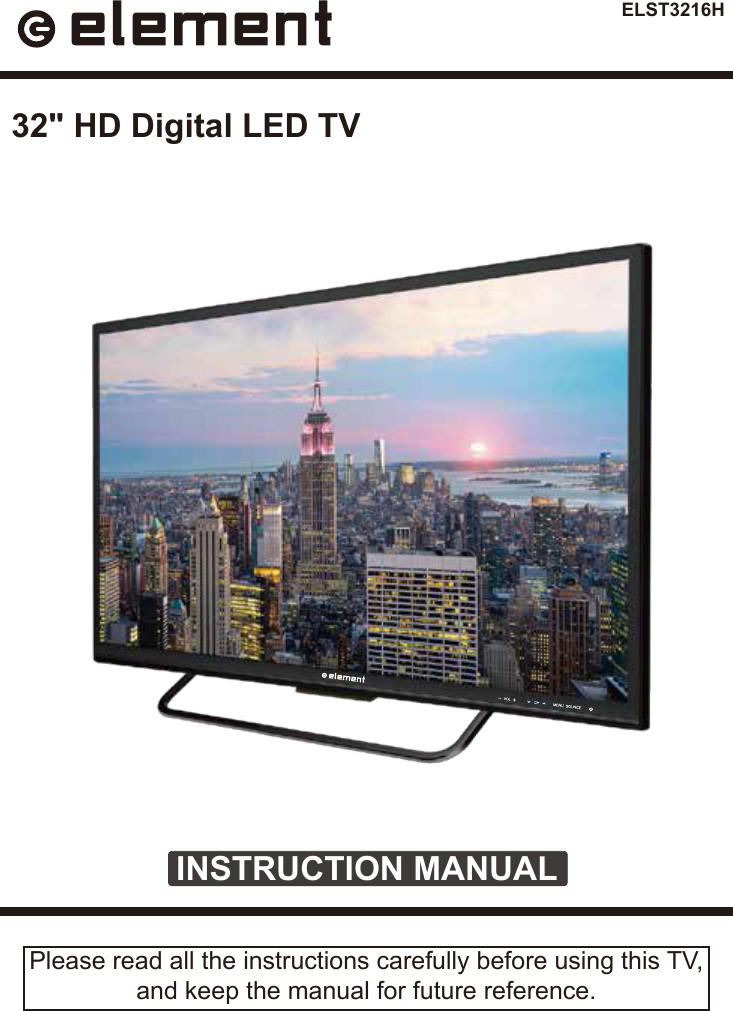
ANHUI KONKA ELECTRONIC ELST3216H 32 inch HD Digital LED TV User Manual Part 1

ANHUI KONKA ELECTRONIC CO., LTD 32 inch HD Digital LED TV Users Manual Part 1

Contents

Users Manual Part 1

ELST3216HINSTRUCTION MANUALPlease read all the instructions carefully before using this TV,and keep the manual for future reference.32" HD Digital LED TV
1CONTENTSCONTENTSImportant Safety Instructions                                                         2Additional Safety Information                                                              3Preparations                                                                                          4What's Included                                                                                 Front/Side View                                                             Rear View                                                                                      Wall Mounting                                                                  Remote Control                                                                              Connecting External Devices                                                  8Customizing TV Settings                                                            9Turning On/Off Your TV                                                                    Setup Wizard                                                     Navigating The On-screen Display                                                  Streaming                                                                                Media                                                                                    Viewing Photos                                                                                 Listening To Music                                                                         Selecting The Input Source                                                              Channel Selection                                                                             Volume Adjustment                                                           Setup                                                                                    Settings                                                                                      Audio Settings                                                                                  Picture Settings                                                                  Channel Settings                                                        Time Settings                                                        Network Settings                                                        Lock Settings                                                        Parental Control                                                                Troubleshooting                                                                   24FCC  Notes                                                                                           27OTT APP Service                                                                               2827
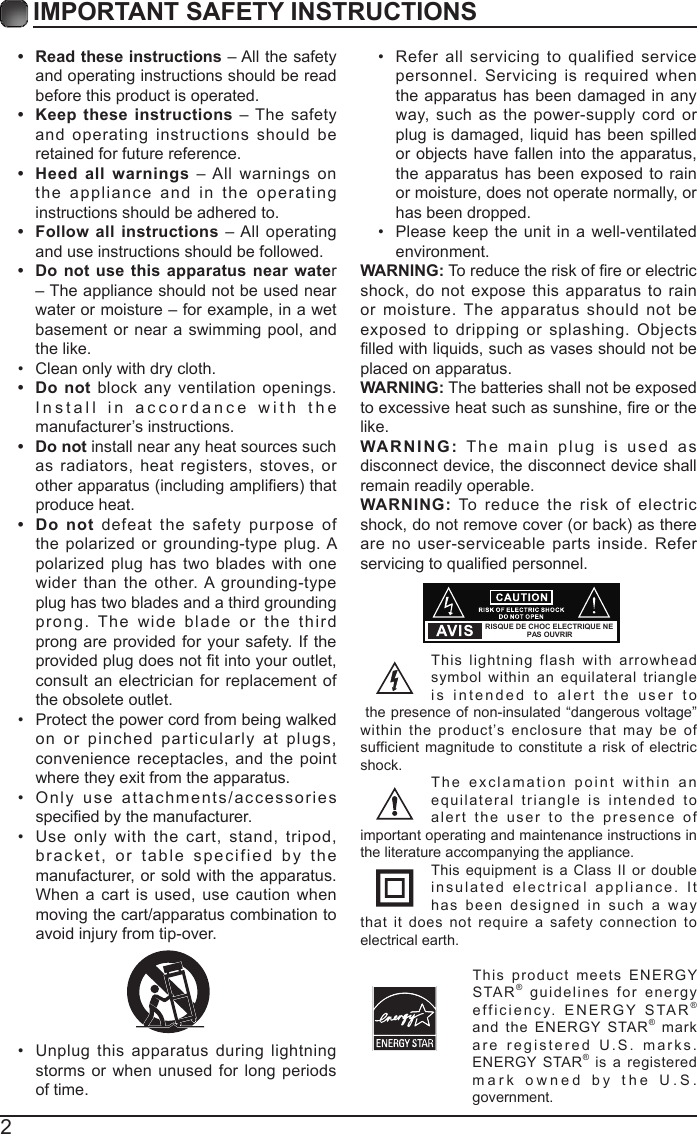
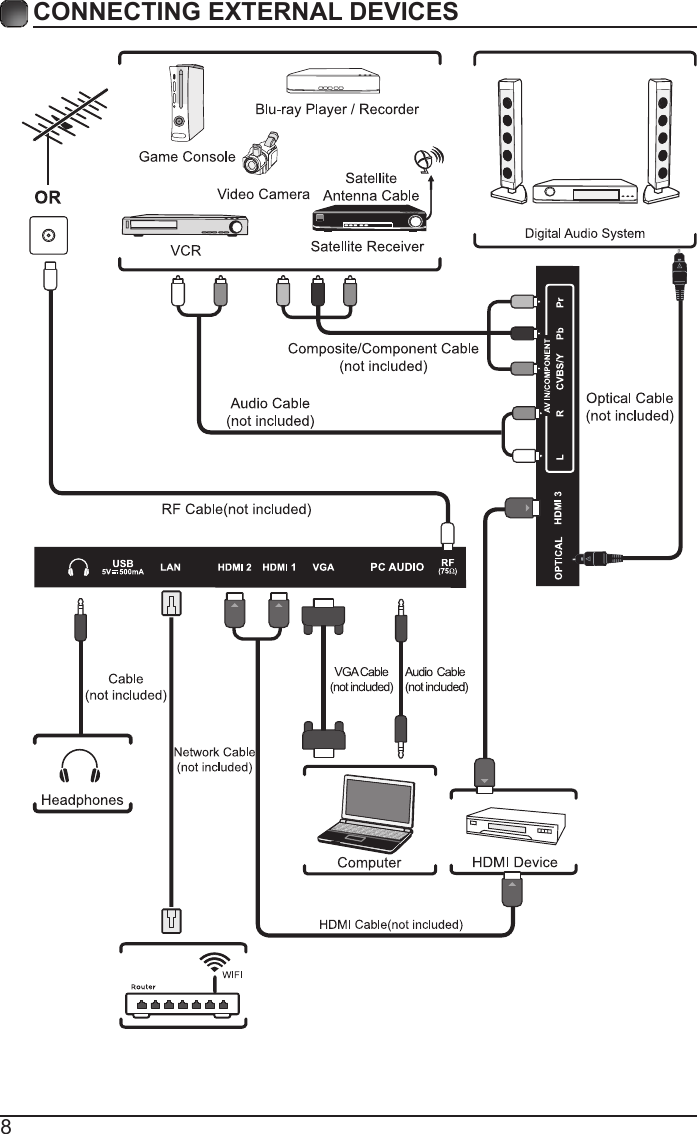
2IMPORTANT SAFETY INSTRUCTIONS•  Read these instructions – All the safety and operating instructions should be read before this product is operated. •  Keep these instructions – The safety and operating instructions should be retained for future reference. •  Heed all warnings – All warnings on the appliance and in the operating instructions should be adhered to. •  Follow all instructions – All operating and use instructions should be followed. •  Do not use this apparatus near water – The appliance should not be used near water or moisture – for example, in a wet basement or near a swimming pool, and the like.• Clean only with dry cloth.•  Do not block any ventilation openings. Install in accordance with the manufacturer’s instructions.•  Do not install near any heat sources such as radiators, heat registers, stoves, or otherapparatus(includingampliers)thatproduce heat. •  Do not defeat the safety purpose of the polarized or grounding-type plug. A polarized plug has two blades with one wider than the other. A grounding-type plug has two blades and a third grounding prong. The wide blade or the third prong are provided for your safety. If the providedplugdoesnottintoyouroutlet,consult an electrician for replacement of the obsolete outlet.• Protect the power cord from being walked on or pinched particularly at plugs, convenience receptacles, and the point where they exit from the apparatus.• Only use attachments/accessories speciedbythemanufacturer.• Use only with the cart, stand, tripod, bracket, or table specified by the manufacturer, or sold with the apparatus. When a cart is used, use caution when moving the cart/apparatus combination to avoid injury from tip-over. • Unplug this apparatus during lightning storms or when unused for long periods of time.• Refer all servicing to qualified service personnel. Servicing is required when the apparatus has been damaged in any way, such as the power-supply cord or plug is damaged, liquid has been spilled or objects have fallen into the apparatus, the apparatus has been exposed to rain or moisture, does not operate normally, or has been dropped.• Please keep the unit in a well-ventilated environment.WARNING:Toreducetheriskofreorelectricshock, do not expose this apparatus to rain or moisture. The apparatus should not be exposed to dripping or splashing. Objects lledwithliquids,suchasvasesshouldnotbeplaced on apparatus. WARNING: The batteries shall not be exposed toexcessiveheatsuchassunshine,reorthelike.WARNING: The main plug is used as disconnect device, the disconnect device shall remain readily operable.WARNING: To reduce the risk of electric shock,donotremovecover(orback)asthereare no user-serviceable parts inside. Refer servicingtoqualiedpersonnel.This lightning flash with arrowhead symbol within an equilateral triangle is intended to alert the user to the presence of non-insulated “dangerous voltage” within the product’s enclosure that may be of sufficient magnitude to constitute a risk of electric shock.The exclamation point within an equilateral triangle is intended to alert the user to the presence of important operating and maintenance instructions in the literature accompanying the appliance. This equipment is a Class II or double insulated electrical appliance. It has been designed in such a way that it does not require a safety connection to electrical earth.This product meets ENERGY STAR® guidelines for energy efficiency. ENERGY STAR® and the ENERGY STAR® markare registered U.S. marks. ENERGY STAR® is a registered mark owned by the U.S. government.RISQUE DE CHOC ELECTRIQUE NE PAS OUVRIR
3ADDITIONAL SAFETY INFORMATION To ensure reliable and safe operation of this equipment, please read carefully all the instructions in this user guide, especially the safety information below.Electrical Safety • The TV set should only be connected to a main power supply with voltage that matches the label at the rear of the product.• To prevent overload, do not share the same power supply socket with too many other electronic components.• Do not place any connecting wires where they may be stepped on or tripped over.• Do not place heavy items on them, which may damage the leads.• Hold the main plug, not the wires, when removing from a socket.• During a thunderstorm, or when not using the television for extended period of time, turn off the power switch on the back of the television.• Do not allow water or moisture to enter the TV or power adapter. Do NOT use in wet, moist areas, such as bathrooms, steamy kitchens or near swimming pools.• Pull the plug out immediately, and seek professional help if the main plug or cable is damaged, liquid is spilt onto the set, if accidentally exposed to water or moisture, if anything accidentally penetrates the ventilation slots or if the set does not work normally.• Do not remove the safety covers. There are no user serviceable parts inside. Trying to service the unit yourself is dangerous and may invalidate the product’s warranty. Qualiedpersonnelmustonlyservicethisapparatus.• To avoid battery leakage, remove exhausted batteries from the remote control, or when not using for long period.• Donotbreakopenorthrowexhaustedbatteriesonare.• Do not mix old and new batteries.• Donot mixAlkaline,Standard(Carbon-Zinc)orRechargeable(NickelCadmium)or(NickelMetalHydride)batteries.Physical Safety • Do not block ventilation slots in the back cover. You may place the TV in a cabinet, butensureatleast5cm(2'')clearanceallaround.• Do not tap or shake the TV screen, or you may damage the internal circuits. Take good care of the remote control.• TocleantheTVuseasoftdrycloth.Donotusesolventsorpetroleumbaseduids.• Do not install near any heat sources such as radiators, heat registers, stoves or other apparatus(includingampliers)thatproduceheat.• Do not defeat the safety purpose of the polarized or grounding-type plug. A polarized plug has two blades with one wider than the other. A grounding type plug has two blades and a third grounding prong, the wide blade, or the third prong is provided for yoursafety.Iftheprovidedplugdoesnottintoyouroutlet,consultanelectricianforreplacement of the obsolete outlet. • Protect the power cord from being walked on or pinched particularly at plugs. • Unplug the apparatus during lightning storms or when unused for long periods.• Referall servicingto aqualied servicepersonnel.Servicingisrequiredwhentheapparatus has been damaged in any way, such as power-supply cord or plug is damaged, liquid has been spilled, or objects have fallen into the apparatus, has been exposed to rain or moisture, does not operate normally, or has been dropped. • Please always connect your television to a power outlet with protective ground connection.
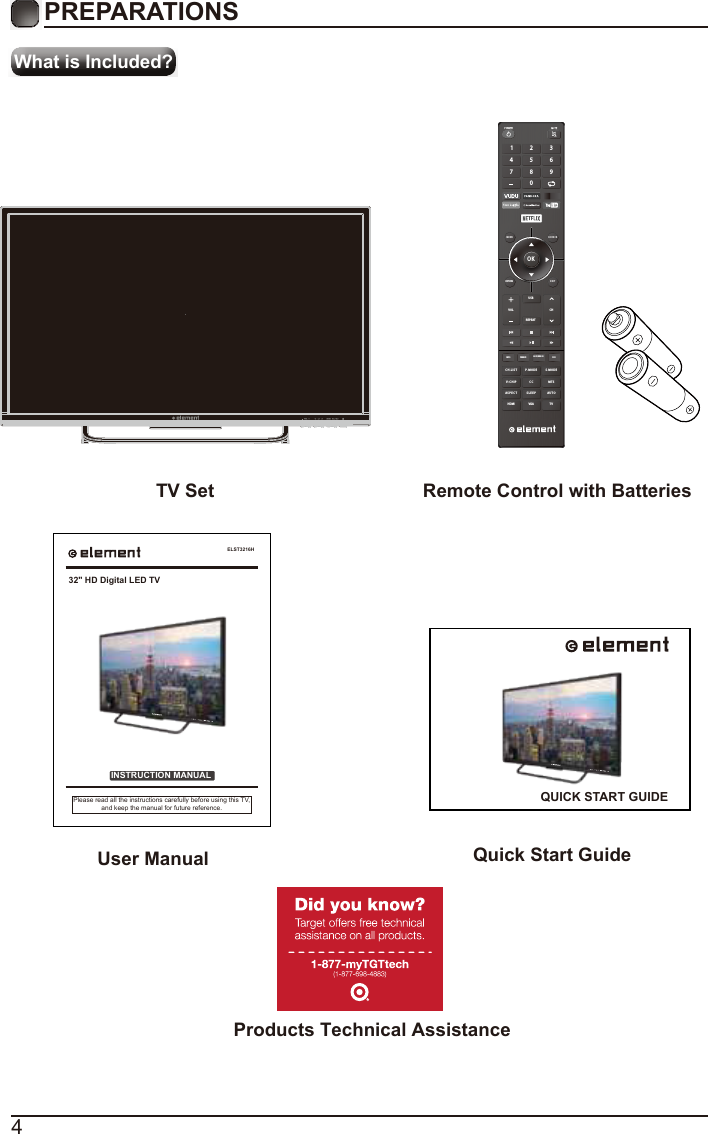
4What is Included?PREPARATIONS TV Set Remote Control with Batteries User Manual  Quick Start GuideELST3216HINSTRUCTION MANUALPlease read all the instructions carefully before using this TV,and keep the manual for future reference.32" HD Digital LED TVOKME NU SO UR C ERETURN EX ITVOLUSBREPEATCHC H. L ISINFO FREEZE ADD/ERASE FAVT P. MO D E S . M O DEV- CH IP C C  MT SAS P E C THDMI VGA TVSL E EP AUT O1 4 7 2 5 8 0 3 6 9 QUICK START GUIDEProducts Technical Assistance
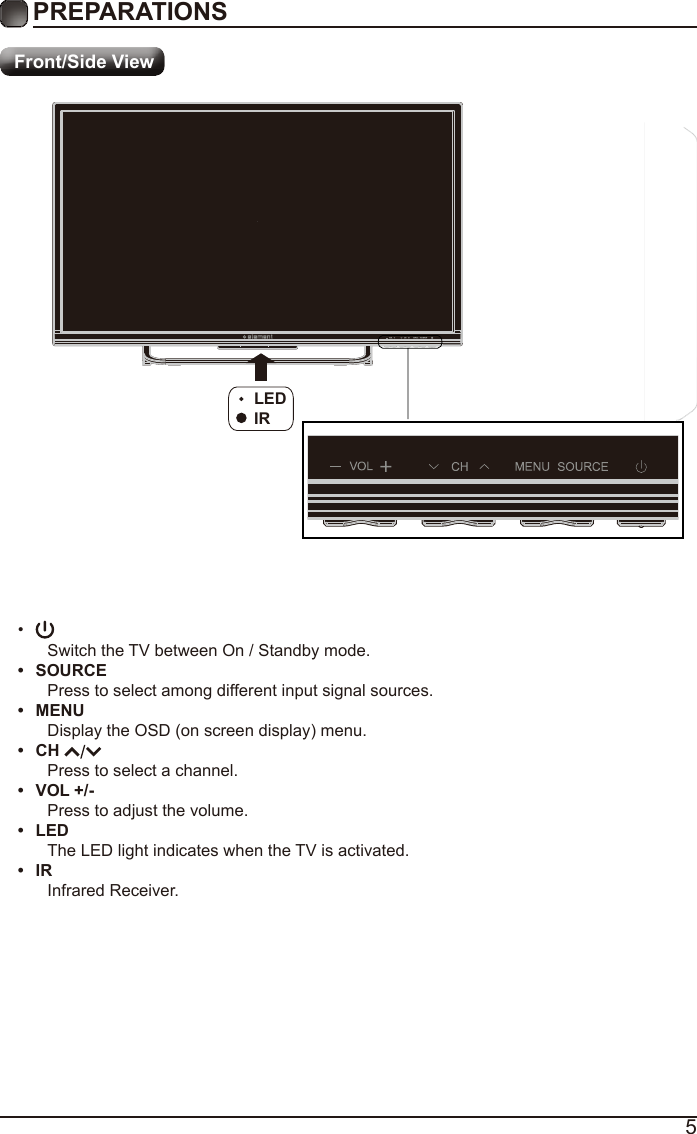
5• Switch the TV between On / Standby mode.•  SOURCEPress to select among different input signal sources.•  MENUDisplay the OSD (on screen display) menu.•  CH Press to select a channel.•  VOL +/-Press to adjust the volume.•  LEDThe LED light indicates when the TV is activated.•  IRInfrared Receiver.PREPARATIONS Front/Side ViewLEDIR
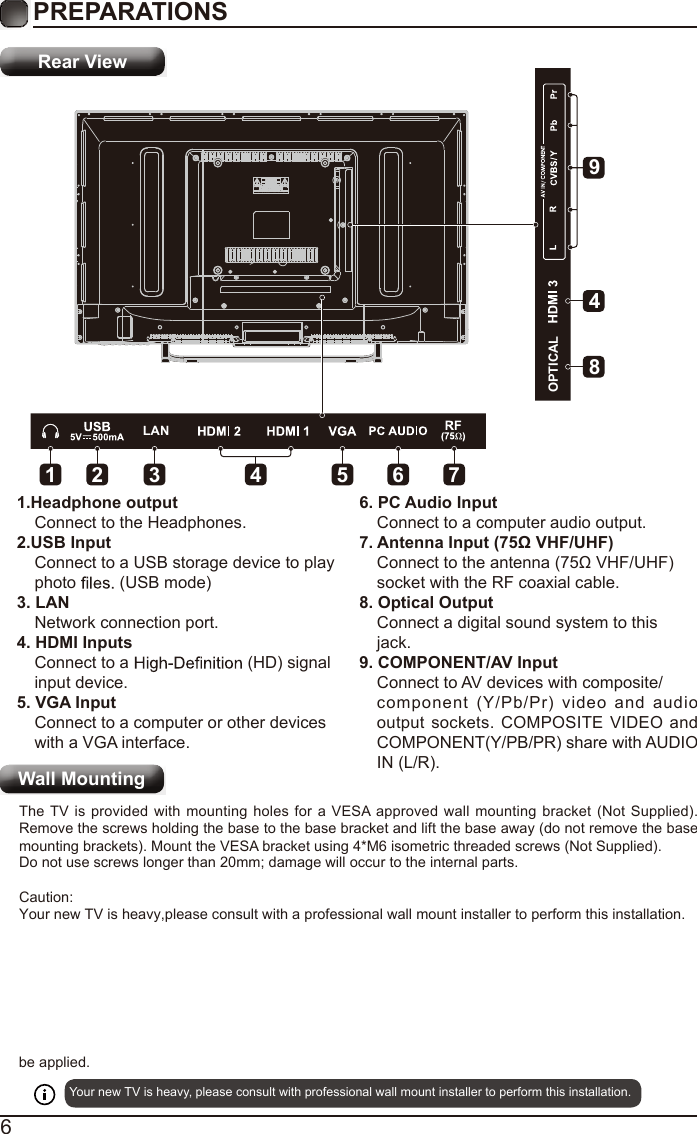
6PREPARATIONS Rear ViewWall Mounting1.Headphone outputConnect to the Headphones.2.USB InputConnect to a USB storage device to play photo   (USB mode)3. LANNetwork connection port.4. HDMI InputsConnect to a   (HD) signalinput device.5. VGA InputConnect to a computer or other deviceswith a VGA interface.6. PC Audio InputConnect to a computer audio output.7. Antenna Input (75Ω VHF/UHF)Connect to the antenna (75Ω VHF/UHF)socket with the RF coaxial cable.8. Optical OutputConnect a digital sound system to thisjack.9. COMPONENT/AV InputConnect to AV devices with composite/component  (Y/Pb/Pr)  video  and  audio output sockets.  COMPOSITE VIDEO and COMPONENT(Y/PB/PR) share with AUDIO IN (L/R).LANOPTICAL18492 3 5 6 74Your new TV is heavy, please consult with professional wall mount installer to perform this installation. The TV is provided with  mounting holes for a VESA approved wall  mounting bracket  (Not  Supplied). Remove the screws holding the base to the base bracket and lift the base away (do not remove the base mountingDo not use screws longer than 20mm; damage will occur to the internal parts.Caution:Your new TV is heavy,please consult with a professional wall mount installer to perform this installation. brackets). Mount the VESA bracket using 4*M6 isometric threaded screws (Not Supplied). be applied.
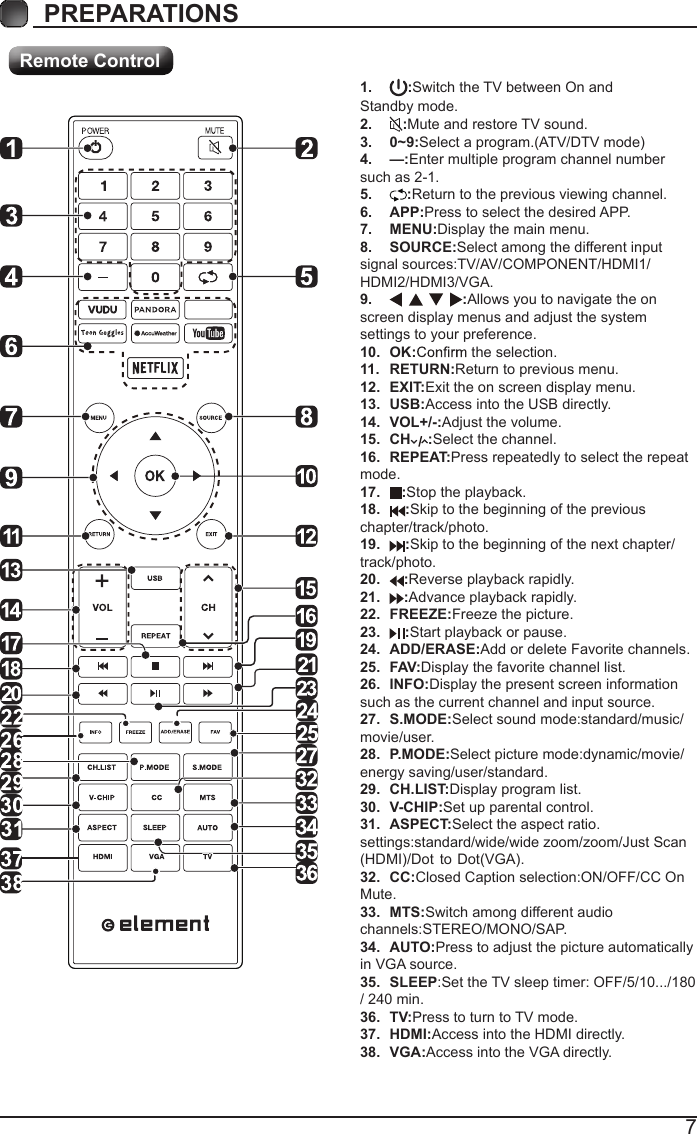
7PREPARATIONS Remote Control1.  :Switch the TV between On and Standby mode.2.  :Mute and restore TV sound.3.  0~9:Select a program.(ATV/DTV mode)4.  —:Enter multiple program channel number such as 2-1.5.  :Return to the previous viewing channel.6.  APP:Press to select the desired APP.7.  MENU:Display the main menu.8.  SOURCE:Select among the different input signal sources:TV/AV/COMPONENT/HDMI1/HDMI2/HDMI3/VGA.9.  :Allows you to navigate the on screen display menus and adjust the system settings to your preference.10.  OK:  the selection.11.  RETURN:Return to previous menu.12.  EXIT:Exit the on screen display menu.13.  USB:Access into the USB directly.14.  VOL+/-:Adjust the volume.15.  CH :Select the channel.16.  REPEAT:Press repeatedly to select the repeat mode.17.  :Stop the playback.18.  :Skip to the beginning of the previous chapter/track/photo.19.  :Skip to the beginning of the next chapter/ track/photo.20.  :Reverse playback rapidly.21.  :Advance playback rapidly.22.  FREEZE:Freeze the picture.23.  :Start playback or pause.24.  ADD/ERASE:Add or delete Favorite channels.25.  FAV:Display the favorite channel list.26.  INFO:Display the present screen information such as the current channel and input source.27.  S.MODE:Select sound mode:standard/music/movie/user.28.  P.MODE:Select picture mode:dynamic/movie/energy saving/user/standard.29.  CH.LIST:Display program list.30.  V-CHIP:Set up parental control.31.  ASPECT:Select the aspect ratio. settings:standard/wide/wide zoom/zoom/Just Scan (HDMI)/Dot  to  Dot(VGA).32.  CC:Closed Caption selection:ON/OFF/CC On Mute.33.  MTS:Switch among different audio channels:STEREO/MONO/SAP.34.  AUTO:Press to adjust the picture automatically in VGA source.35.  SLEEP:Set the TV sleep timer: OFF/5/10.../180 / 240 min.36.  TV:Press to turn to TV mode.37.  HDMI:Access into the HDMI directly.38.  VGA:Access into the VGA directly.
8CONNECTING EXTERNAL DEVICES
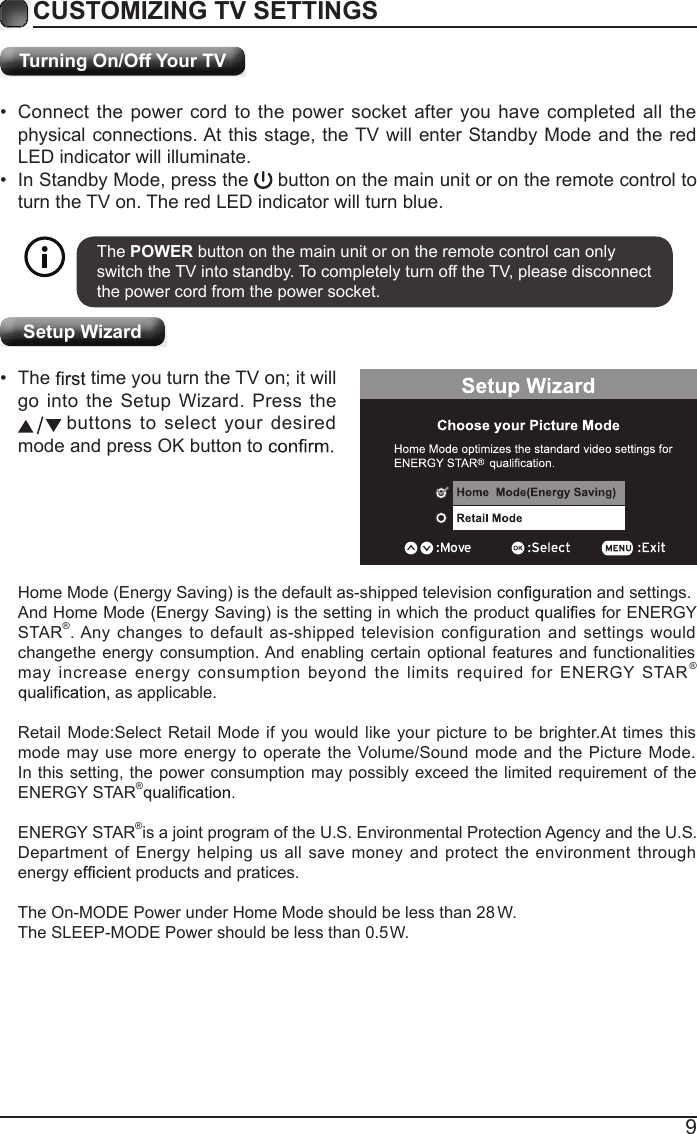
9Turning On/Off Your TV•  Connect the power cord to the power socket after you have completed all the physical connections. At this stage, the TV will enter Standby Mode and the red LED indicator will illuminate. •  In Standby Mode, press the   button on the main unit or on the remote control to turn the TV on. The red LED indicator will turn blue.The POWER button on the main unit or on the remote control can only switch the TV into standby. To completely turn off the TV, please disconnect the power cord from the power socket. ExitHome Mode (Energy Saving) is the default as-shipped television   and settings. And Home Mode (Energy Saving) is the setting in which the product  for ENERGY STAR®. Any changes to default as-shipped television configuration and settings would changethe energy consumption. And enabling certain optional features and functionalities may increase energy consumption beyond the limits required for ENERGY STAR®  as applicable.Retail Mode:Select Retail Mode if you would like your picture to be brighter.At times this mode may use more energy to operate the Volume/Sound mode and the Picture Mode. In this setting, the power consumption may possibly exceed the limited requirement of the ENERGY STAR®ENERGY STAR®is a joint program of the U.S. Environmental Protection Agency and the U.S.Department of Energy helping us all save money and protect the environment through energy  products and pratices.The On-MODE Power under Home Mode should be less than 28 W.The SLEEP-MODE Power should be less than 0.5 W.Setup Wizard•  The  time you turn the TV on; it will                    eht sserP .draziW puteS eht otni ogbuttons to select your desired mode and press OK button to CUSTOMIZING TV SETTINGS
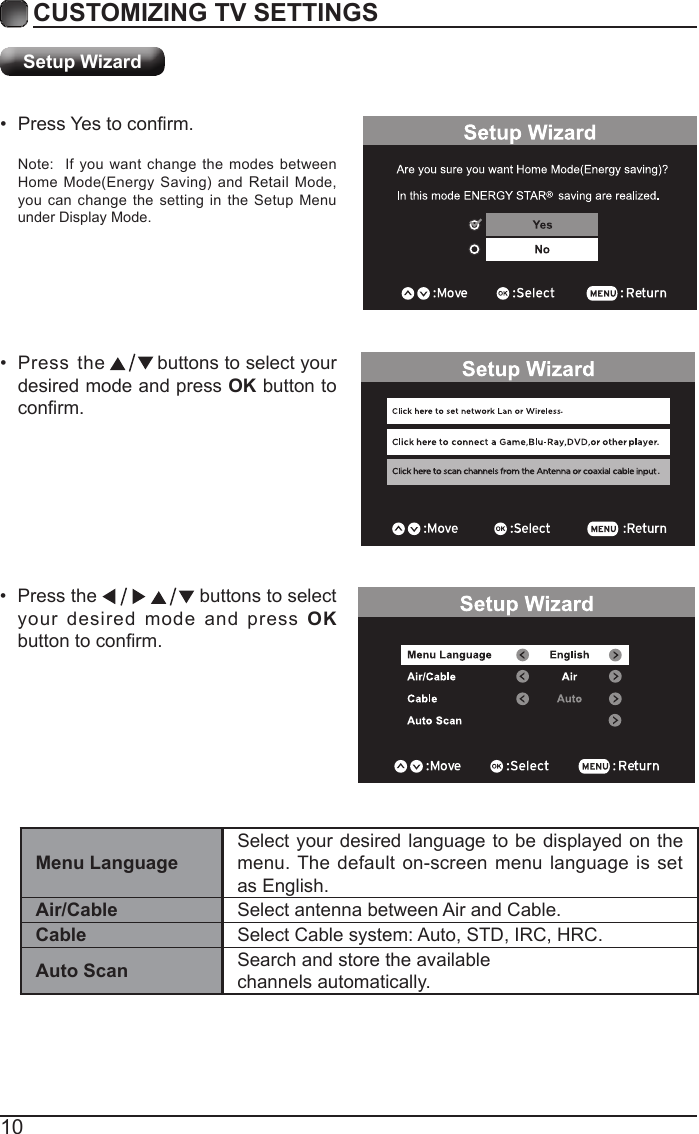
10Menu LanguageSelect your desired language to be displayed on the menu. The default on-screen menu language is set as English.Air/Cable Select antenna between Air and Cable.Cable  Select Cable system: Auto, STD, IRC, HRC. Auto Scan Search and store the available channels automatically. Note:  If you want change the modes between HomeMode(EnergySaving)andRetail Mode, you can change the setting in the Setup Menu under Display Mode.• Press the    buttons to select your desired mode and press OK buttontoconrm.• Press the   buttons to select your desired mode and press OK button to conrm.Setup Wizard• PressYestoconrm.CUSTOMIZING TV SETTINGS...
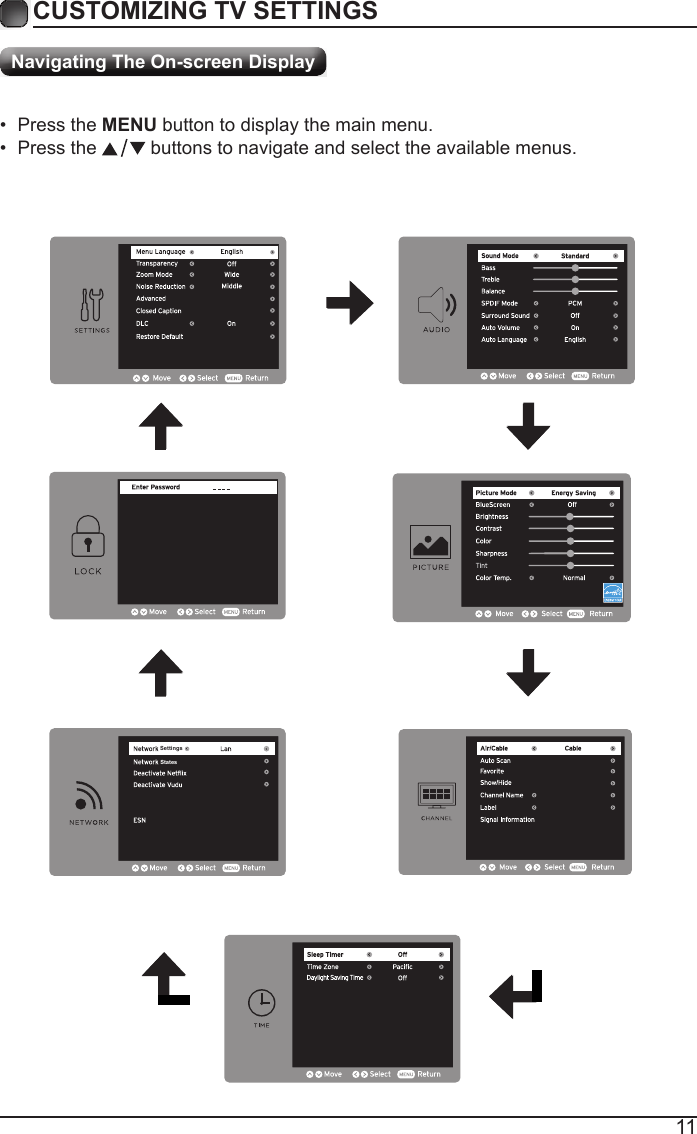
11CUSTOMIZING TV SETTINGS•  Press the MENU button to display the main menu. •  Press the   buttons to navigate and select the available menus.PCMNavigating The On-screen DisplaySettingsStates
12CUSTOMIZING TV SETTINGSStreaming•  Press the MENU button on the main unit or on the remote control to display the STREAMING. Then press   buttons to select the desired APP and press OK button to view what you want. Or press the hotkey on the remote control to enter the APP directly.Note:After the TV connects to  network, the status  Unconnected will alter to Connected.NETFLIX Enjoys TV shows & movies streamed instantly over the Internet.YouTube YouTube your way on the best screen in your house.VUDUDiscover, watch and collect the latest movies and TV shows in high quality 1080p. Free to sign up. No subscriptions, late fees or commitments. AccuWeatherDisplays the current weather conditions and the temperature anywhere in the world in centigrade or Fahrenheit.PandoraFree personalized radio that offers effortless and endless music enjoyment and discovery. Just start with the name of one of your favorite artists, songs, genres or composers and Pandora will do the rest. It’s easy to create personalized stations that play only music you’ll love.ToongogglesA subscription video on-demand platform that offers animated,  fun and educational cartoons, engaging games and songs from all over the world and in many different languages to children.
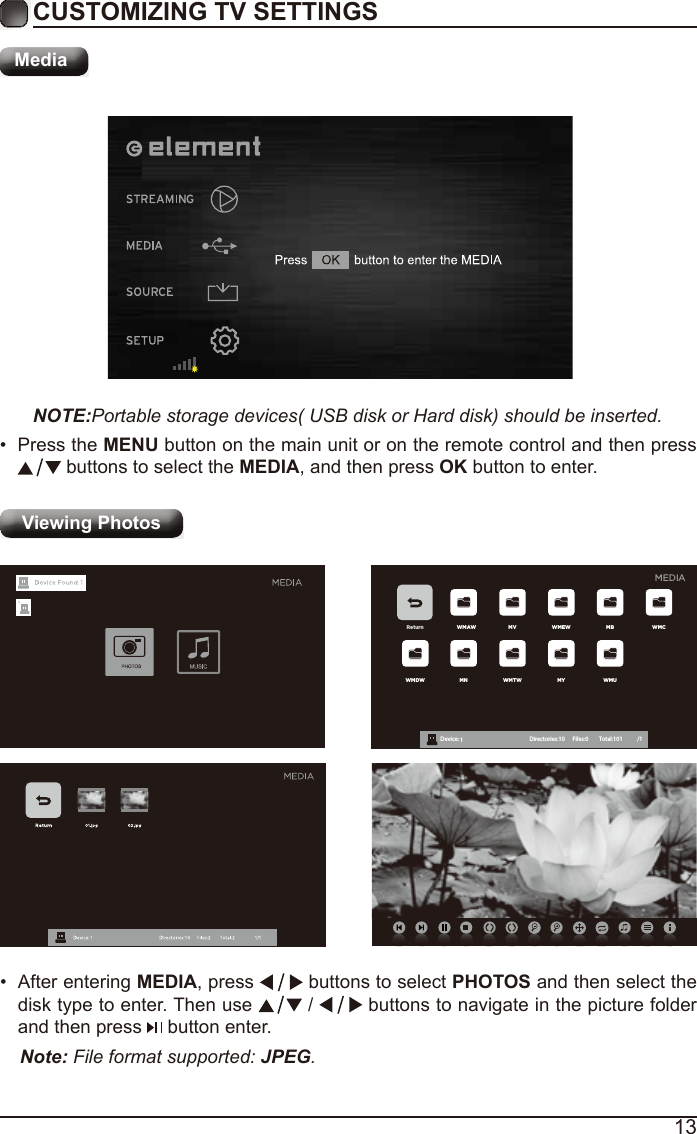
13CUSTOMIZING TV SETTINGSMediaNOTE:Portable storage devices( USB disk or Hard disk) should be inserted.•  Press the MENU button on the main unit or on the remote control and then press  buttons to select the MEDIA, and then press OK button to enter.Viewing Photos Return WMAW MV WMEW MB WMCWMDW MN WMTW MY WMUDevice : 1 Directories:10         Files:0          Total:101 /1MEDIA•  After entering MEDIA, press   buttons to select PHOTOS and then select the disk type to enter. Then use   /   buttons to navigate in the picture folder and then press   button enter.Note: File format supported: JPEG.
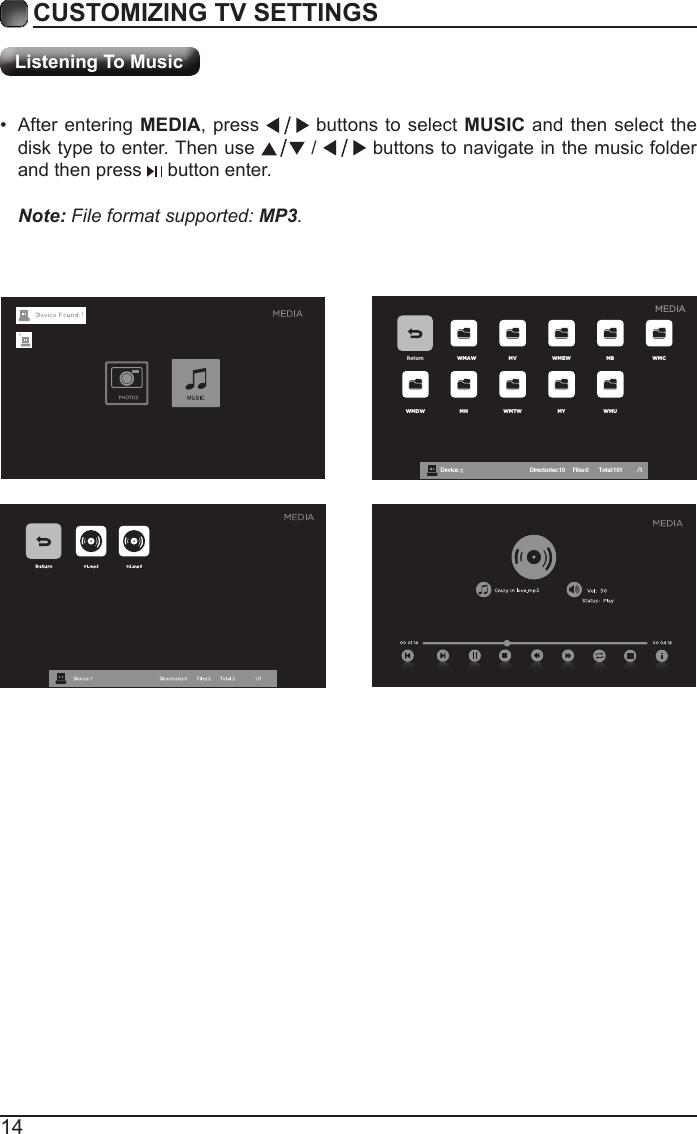
14CUSTOMIZING TV SETTINGSListening To MusicReturn WMAW MV WMEW MB WMCWMDW MN WMTW MY WMUDevice : 1 Directories:10         Files:0          Total:101 /1MEDIANote: File format supported: MP3.  • After entering MEDIA, press   buttons to select MUSIC and then select the disk type to enter. Then use   /   buttons to navigate in the music folder and then press   button enter.

Navigation menu