ASRock orporation G10 AC 2600 Gaming Router User Manual Manual 1
ASRock Incorporation AC 2600 Gaming Router Manual 1
Contents
- 1. Manual_1
- 2. Manual_2
Manual_1

Version 1.0
Published September 2015
Copyright©2015 ASRock INC. All rights reserved.
Copyright Notice:
No part of this documentation may be reproduced, transcribed, transmitted, or translated
in any language, in any form or by any means, except duplication of documentation by the
purchaser for backup purpose, without written consent of ASRock Inc.
Products and corporate names appearing in this documentation may or may not be
registered trademarks or copyrights of their respective companies, and are used only for
identication or explanation and to the owners’ benet, without intent to infringe.
Disclaimer:
Specications and information contained in this documentation are furnished for
informational use only and subject to change without notice, and should not be
constructed as a commitment by ASRock. ASRock assumes no responsibility for any errors
or omissions that may appear in this documentation.
With respect to the contents of this documentation, ASRock does not provide warranty of
any kind, either expressed or implied, including but not limited to the implied warranties
or conditions of merchantability or tness for a particular purpose.
In no event shall ASRock, its directors, ocers, employees, or agents be liable for any
indirect, special, incidental, or consequential damages (including damages for loss of
prots, loss of business, loss of data, interruption of business and the like), even if ASRock
has been advised of the possibility of such damages arising from any defect or error in the
documentation or product.
Regulatory Information
FCC Statement and Declaration: ASRock Wireless declares that this device complies
with Part 15 of the FCC Rules and requlations. Operation of this device is subject to the
following two conditions:
• is device may not cause harmful interface.
• is device must accept any interference received, including interference that may
cause undesired operation.
FCC Notice: is equipment has been tested and found to comply with the limits for a
Class B digital device, pursuant to Part 15 of the FCC Rules. ese limits are designed to
provide reasonable protection against harmful interference in a residential installation.
is equipment generates, uses and can radiate radio frequency energy and, if not installed
and used in accordance with the instructions, may cause harmful interference to radio
communications. However, there is no guarantee that interference will not occur in a
particular installation. If this equipment does cause harmful interference to radio or
television reception, which can be determined by turning the equipment o and on, the
user is encouraged to try and correct the interference by one or more of the following
measures:
• Reorient or relocate the receiving antenna.
• Increase the distance between the equipment and the receiver.
• Connect the equipment to an outlet on a circuit dierence from that to which the
receiver is connected.
• Consult the dealer or an experienced radio/TV technician for help.
FCC Caution: Any changes or modifications not expressly approved by the part y
responsible for compliance could void the user’s authority to operate this equipment.
IMPORTANT NOTE:
Radiation Exposure Statement
is equipment complies with FCC radiation exposure limits set forth for an uncontrolled
environment. End users must follow the specific operating instructions for satisfying
RF exposure compliance. To maintain compliance with FCC RF exposure compliance
requirement, please follow operation instructions as documented in this manual.
This transmitter must not be co-located or operating in conjunction with ant other
antenna or transmitter.
Industry Canada Statement:
is Class B digital apparatus complies with Canadian ICE-003.
Cet appareil numerique de la classe B conforme a la norme NMB-003 du Canada
This device complies with RSS standards of the Industry Canada Rules. Operation is
subjext to the following two conditions:
(1) is device may not cause harmful interference, and
(2) This device must accept any interference received, including interference that may
cause undesired operation.
Ce dispositif est conforme a la norme CNR- standards d’Industrie Canada applicable aux
appareils radio exempts de licence. Son fonctionnement est sujet aux deux conditions
suivantes:
(1) le dispositif ne doit pas produire de brouillage prejudiciable, et
(2) ce dispositif doit accepter tout brouillage recu, y compris un brouillage susceptible de
provoquer un fonctionnement indesirable.
IMPORTANT NOTE
Radiation Exposure Statement:
is equipment complies with IC radiation exposure limits set forth for an uncontrolled
environment. is equipment should be installed and operated with a minimum distance
of 20cm between the radiator and your body.
Déclaration d’exposition aux radiations:
Cet équipement est conforme aux limites d'exposition aux rayonnements IC établies
pour un environnement non contrôlé. Cet équipement doit être installé et utilisé avec un
minimum de 20 cm de distance entre la source de rayonnement et votre corps.
Caution: e device for operation in the band 5150-5250 MHz is only for indoor use to

reduce the potential for harmful interference to co-channel mobile satellite systems.
Avertissement: les dispositifs fonctionnant dans la bande 5150-5250 MHz sont réservés
uniquement pour une utilisation à l’intérieur afin de réduire les risques de brouillage
préjudiciable aux systèmes de satellites mobiles utilisant les mêmes canaux.
CALIFORNIA, USA ONLY
e Lithium battery adopted on this motherboard contains Perchlorate, a toxic substance
controlled in Perchlorate Best Management Practices (BMP) regulations passed by the
California Legislature. When you discard the Lithium battery in California, USA, please
follow the related regulations in advance.
“Perchlorate Material-special handling may apply, see www.dtsc.ca.gov/hazardouswaste/
perchlorate”
e terms HDMI™ and HDMI High-Denition Multimedia Interface, and the HDMI
logo are trademarks or registered trademarks of HDMI Licensing LLC in the United
States and other countries.
Electrical Powering
e powering of the product must adhere to the power specications indicated on the
marking labels.
e power supply must be class II and a Limited Power Source in accordance with the
requirements of IEC60950-1/EN60950-1, Clause 2.5 and rated as indicated on the label on
your product. It must be tested and approved to national or local standards.
ASRock Website: http://www.asrock.com
Contents
Chapter 1 Introduction 1
1.1 Package Contents 1
1.2 The Wireless Router Label 2
1.3 Positioning Your Router 2
Chapter 2 Wireless Router Overview 3
2.1 The Front View 3
2.2 The Rear View 4
Chapter 3 Setting up the Wireless Router 5
3.1 Connections 5
3.2 Network Conguration 6
3.2.1 Wired Network 6
3.2.2 Wireless Network 7
Chapter 4 Setup Wizard 9
4.1 Starting the Setup Wizard for the First Time 9
Chapter 5 Dashboard 14
5.1 Overview 14
5.2 General Settings 15
5.2.1 WAN Information 15
5.2.2 Wireless Information 16
5.2.3 Client Information 17
5.2.4 USB Information 17
5.2.5 Advanced 18
5.2.6 Guests 18
5.2.7 Parental Control 19
5.2.8 Lighting 19
5.2.9 WiFi 19
Chapter 6 Advanced Settings 20
6.1 Wireless Settings 20
6.1.1 Wireless 21
6.1.2 Guests 23
6.1.3 WPS 24
6.2 LAN Settings 25
6.3 WAN Settings 27
6.3.1 Internet 27
6.3.2 Port Trigger 28
6.3.3 Port Forwarding 28
6.3.4 DMZ 29
6.3.5 DDNS 29
6.4 QoS Settings 31
6.5 Parental Control 32
6.6 Firewall 33
6.7 USB Application 34
6.8 Administration 35
6.8.1 Router Status 35
6.8.2 Operation Mode 35
6.8.3 Set Password 36
6.8.4 Firmware Upgrade 37
6.8.5 Self Healing 37
6.8.6 Restore / Save 38
6.8.7 System Log 39
Chapter 7 ASRock Router APP 40
7.1 Registration 40
7.2 Signing In 42
7.3 Adding Routers 43
7.4 Router Settings 44
7.5 IR Control 45
7.6 Storage 47
Chapter 8 Troubleshooting 48
8.1 How to Restart Your Network 48
8.2 Wireless Settings 48
8.3 Standard LED Behavior When the Router Is Powered On 48
8.4 Unable to Log In to the Router 49
8.5 Unable to Access the Internet 49
8.6 Wireless Connectivity 50
8.7 Restore to the factory default settings 50
Appendix - Factory Default Settings 51
Appendix - Specications 52
PB 1
English
ASRock G10 Gaming Router
Chapter 1 Introduction
ASRock AC2600 G10 Gaming Router is equipped with four high-performance
internal antennas oering a combined speed of 2.53Gbps. Ideal for homes where
high volumes of network trac is needed. e dynamic Quality of Service (QoS)
feature optimizes the networking performances on your devices. With the ASRock
APP, you can even remote control your home appliances.
1.1 Package Contents
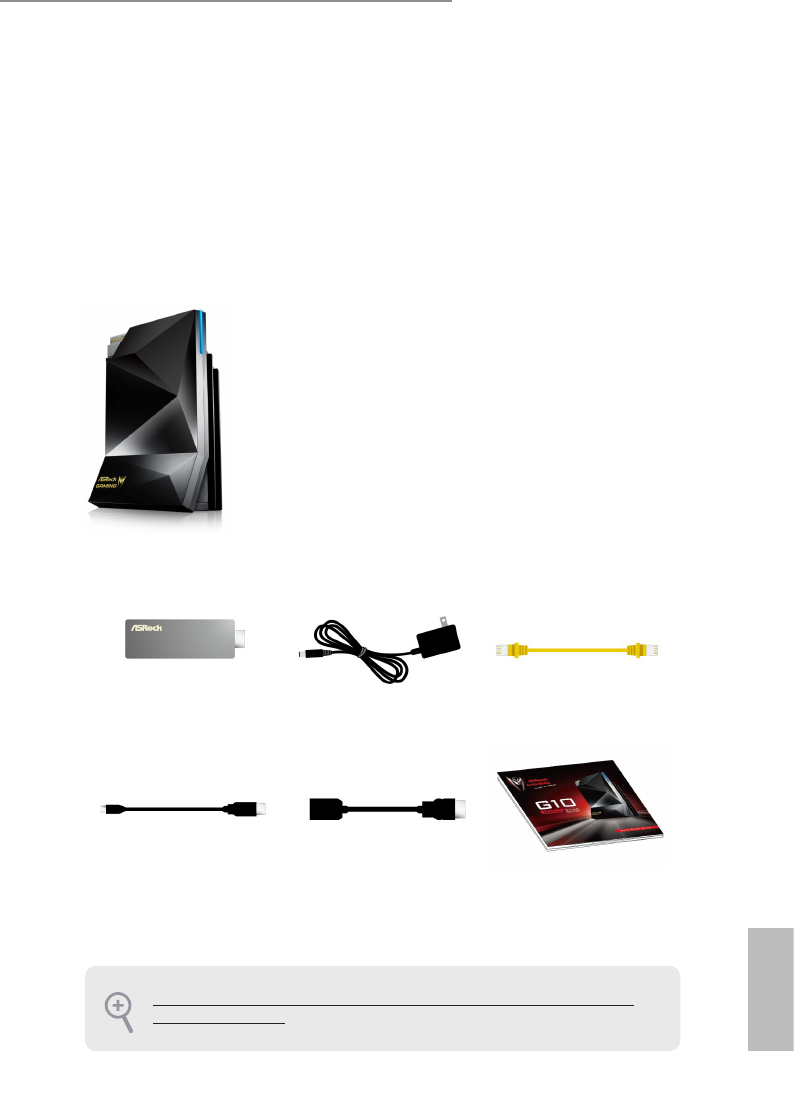
• ASRock AC2600 G10 Gaming Router
• HDMI 2-in-1 Router • Power Adapter • Network RJ45 Cable
• Micro USB Cable • HDMI Cable • Quick Installation Guide
Keep the original packaging material in case you would need future warranty services such
as repair or replacement.
2 3
English
ASRock G10 Gaming Router
1.2 The Wireless Router Label
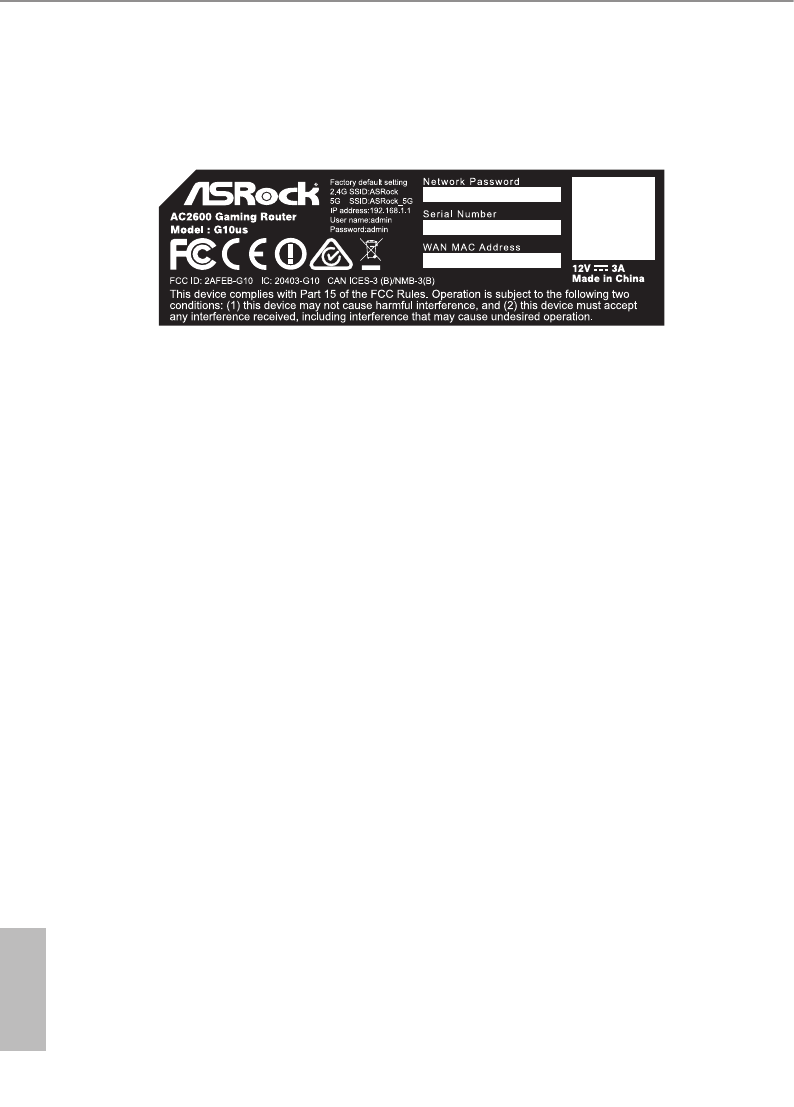
View the label on the back of the wireless router to identify the serial number, port
connectors, and default login information.
*e images in this document are examples only and may be dierent from the product you purchase.
The label on the router shows the login information, WiFi network name and network
password, MAC address and serial number.
1.3 Positioning Your Router
For the best wireless signal transmission between the wireless router and the connected
client device, please follow the guidelines below to position your router.
• Place the wireless router in a centralized area for maximum wireless coverage for
other network devices.
• Place the wireless router on an elevated location, minimizing the number of walls
and ceilings between the router and other devices.
• Place the wireless router away from large metal surfaces, large glass surfaces, and
insulated walls.
• Make sure that the wireless router is within reach of an AC power outlet and near
Ethernet cables for wired computers.
2 3
English
ASRock G10 Gaming Router
Chapter 2 Wireless Router Overview
is chapter provides diagrams showing the location of important components of
the Wireless Router.
2.1 The Front View
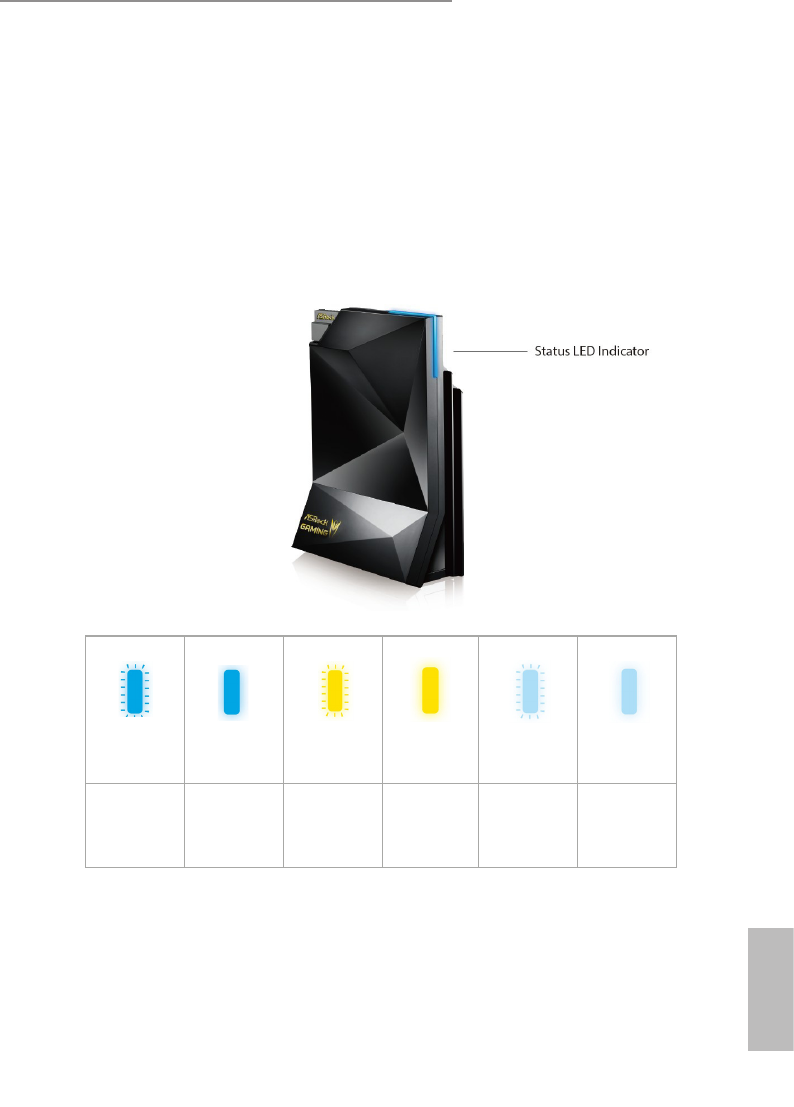
e status LED on the front of the ASRock router allows you to verify various conditions.
Flashing Dark
Blue
Solid Dark Blue Flashing Yellow Solid Yellow Flashing Light
Blue
Solid Light Blue
Starting up
Connected to the
internet
ADSL modem not
detected / WPS
connection failed
Modem detected
but no internet
connection
Connecting to
a WPS-enabled
device
WPS connected
4 5
English
ASRock G10 Gaming Router
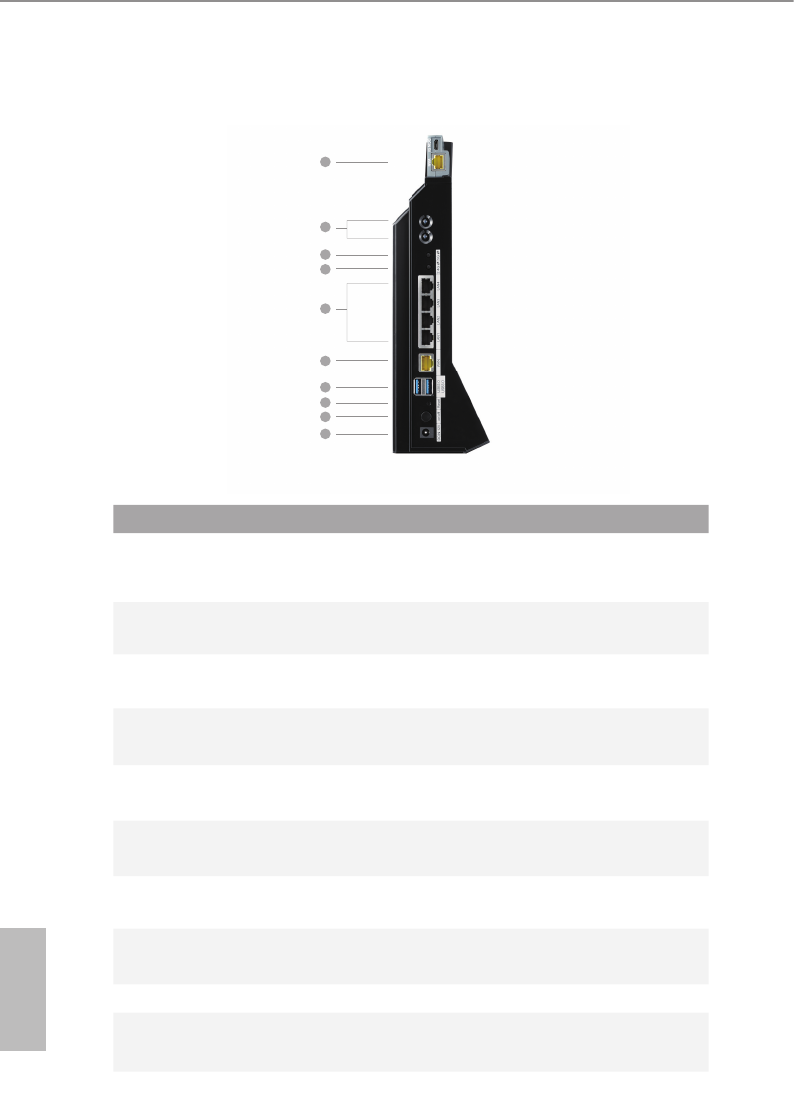
2.2 The Rear View
1
2
3
4
5
6
7
8
9
10
IR Tx
GbE LAN x 4
5G WPS
GbE WAN
Dual USB 3.0
Reset
Power On/O
DC-In 12V
2.4G WPS
H2R
*H2R may or may not be supplied
depending on the model you purchase.
No. Description Function
1HDMI 2-in-1
Router (H2R)
Wireless access point or HDMI Miracast / EZplay and DLNA
*H2R may or may not be supplied depending on the model you purchase.
2Infrared Trans-
mitters Communicate with receivers
3 5G WPS Button Press to connect to a wireless network without password
using WPS on 5GHz band.
42.4G WPS But-
ton
Press to connect to a wireless network without password
using WPS on 2.4GHz band.
5LAN1~4 Four local Ethernet ports for connecting local computers
and other wired network devices
6WAN Por t Connect a network cable into this port to establish a WAN
connection.
7USB3.0 Ports Plug the USB printers, ash drives, and other USB devices
into this port to share the network connection
8 Reset Button Press to reset the system or press and hold the button for
more than 10 seconds to restore the factory default settings.
9 Power Button Press to power on or o the router.
10 DC-in Port Connect the provided AC power adapter to this port.
4 5
English
ASRock G10 Gaming Router
Chapter 3 Setting up the Wireless Router
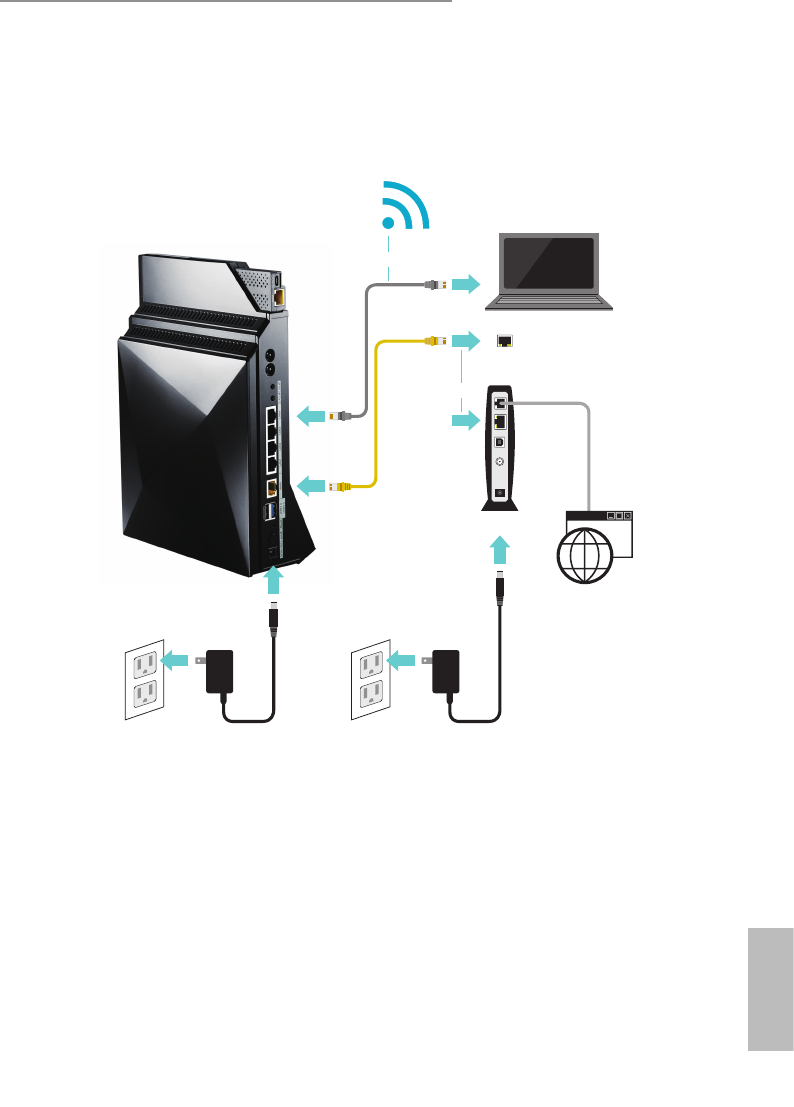
3.1 Connections
Ethernet Cable
Network
RJ45 Cable
DSL or Cable
Power Adapter12V Power Adapter
Router
Modem
Internet
WAN Port
or
or
1. Turn on your modem and unplug your existing modem’s power supply.
2. Connect one end of the supplied yellow Network RJ45 Cable to the WAN port on the
rear of the G10 Gaming Router and the other end to your modem or a WAN port.
3. Plug in the modem’s power supply and turn on your modem.
4. Connect one end of the power cord to the port labeled DCIN 12V on the back of the
G10 Gaming Router and the other end to a power outlet.
5. Press the on/o button to turn on the router.
6 7
English
ASRock G10 Gaming Router
3.2 Network Conguration
ere are two methods to connect your computer, tablet or smartphone to the network on
the G10 Gaming Router: Wired or wireless connections.
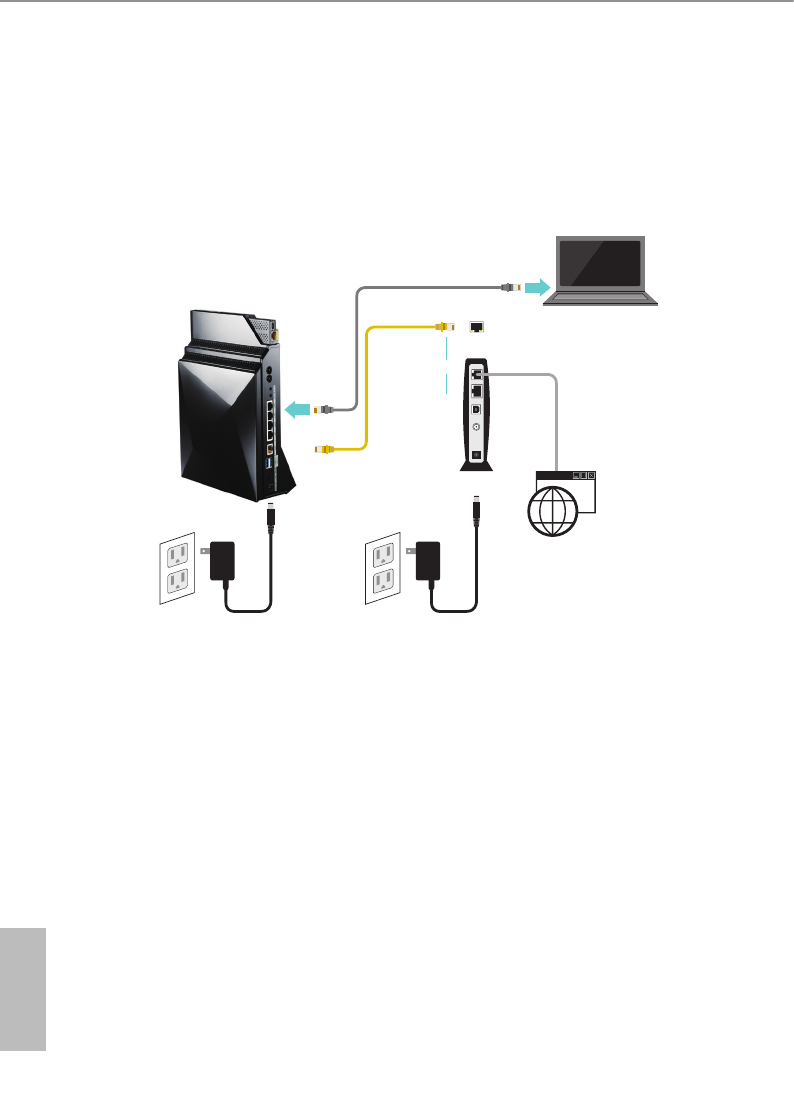
3.2.1 Wired Network
Ethernet Cable
Router
Network RJ45
Cable
DSL or Cable
Power Adapter
12V Power Adapter
Modem
Internet
WAN Port
or
1. Connect one end of the Ethernet cable to any LAN port on the rear of the G10
Gaming Router and the other end to your device.
2. Make sure that the status LED on the router is lit up dark blue.
6 7
English
ASRock G10 Gaming Router
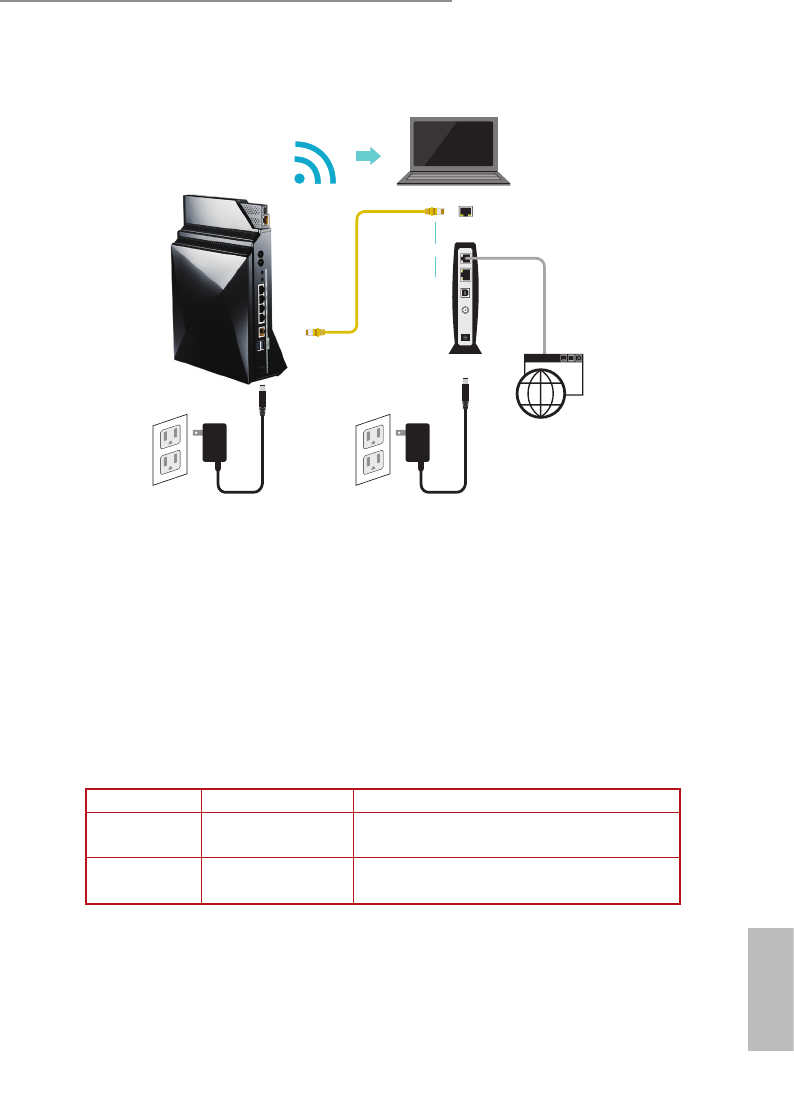
3.2.2 Wireless Network
Router
Network RJ45
Cable
DSL or Cable
Power Adapter
12V Power Adapter
Modem
Internet
WAN Port
or
Please make sure your device is wireless-enabled.
* For computers, a wireless card or adaptor is required. For handheld devices, visit your device’s WiFi Settings
menu and ensure that WiFi is turned on.
Your device can connect to the wireless network on the G10 Gaming Router in two ways:
(1) Using SSID and Password
On your device, locate and select the Wi-Fi network name (SSID), “ASRock” or
“ASRock_5G” in a list of available networks. Enter your wireless password listed on the
bottom of the router. Select “Connect”.
SSID Network Password
2.4 G ASRock (Check product label
on the bottom of the router)
5G ASRock_5G (Check product label
on the bottom of the router)
8 9
English
ASRock G10 Gaming Router
(2) Using WPS (Wi-Fi Protected Setup)
WPS stands for Wi-Fi Protected Setup and it is a wireless networking standard that tries to
make connections between a router and wireless devices faster and easier.
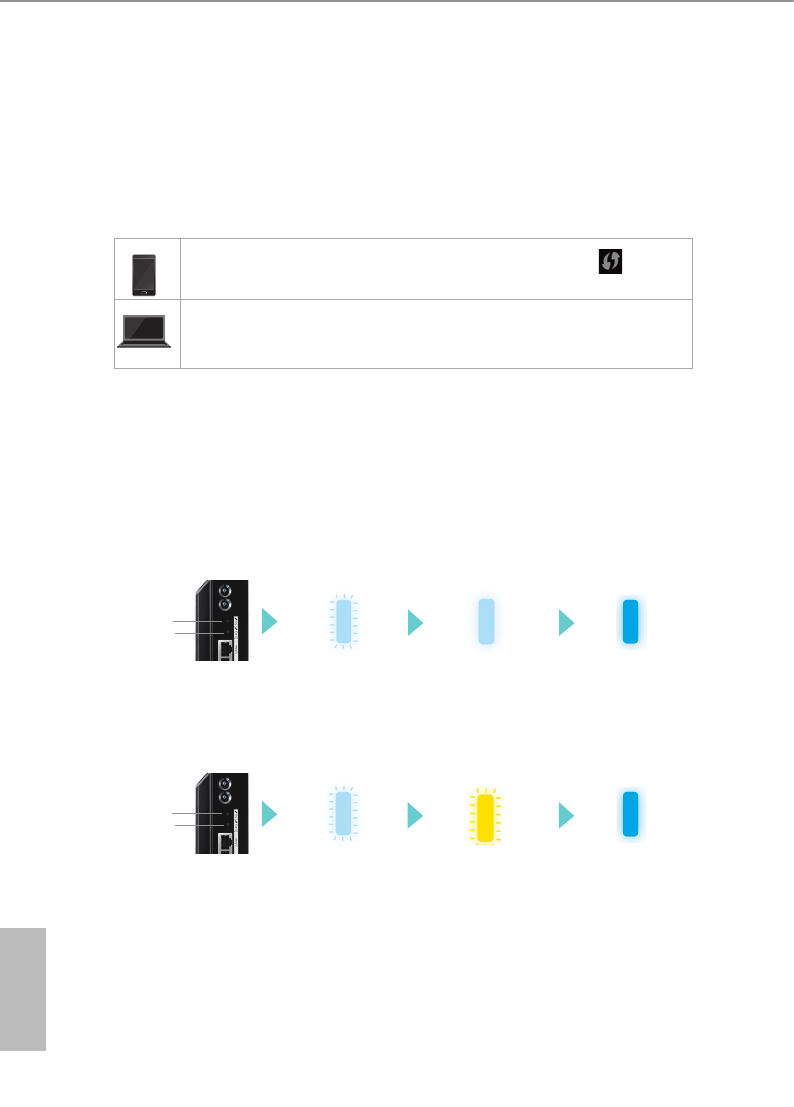
Press and hold the WPS 2.4G/5G button on the rear of the G10 Gaming Router for more
than 5 seconds. e status LED on the front of the router will ash light blue at this stage.
If you use a handheld device, locate and press the WPS button shown as
two curved arrows to connect.
If you use a computer, locate and select the Wi-Fi network name (SSID),
“ASRock” or “ASRock_5G”. Select “Connect”.
When WPS is connected successfully, the Status LED indicator on the front of the router
turns to a solid light blue.
*e WPS function may or may not be supported depending on your device.
LED Indicator Variations:
Successful Pairing:
Pairing Failed:
Pairing
(About 2 mins) Pairing
successfully
(5 secs)
WAN
connected
Press the “WPS“
button
2.4G WPS
5G WPS
Pairing
(About 2 mins) Pairing failed
(About 1 min)
WAN
connected
Press the “WPS“
button
2.4G WPS
5G WPS

8 9
English
ASRock G10 Gaming Router
Chapter 4 Setup Wizard
4.1 Starting the Setup Wizard for the First Time
Your ASRock router comes with an intuitive wizard that allows you to easily congure its
various features through a web browser, such as the Internet Explorer, Firefox, Safari, or
Google Chrome.
When your device is successfully connected to the Internet, open your web browser.
In the address bar, type in the wireless router’s default IP address: http://192.168.1.1
or "ASRock.router" and press Enter.
On the login page, enter the default user name "admin" and password "admin".
NOTE: You need to re-login if idle for more than 5 minutes.
IP address http://192.168.1.1 or ASRock.router
Username admin
Password admin
Please follow the step-by-step Setup Wizard to complete the basic conguration and
change the SSID and password for your router.
1. Connecting to the Internet
e setup wizard will guide you through setting up the Internet connection.
When your internet service starts, your internet service provider (ISP) typically gives you
all the information needed to connect to the Internet.
For digital subscriber line (DSL) service, you might need the following information to set
up your router:
• Fixed or static IP address setting. (Special deployment by ISP)
• ISP login name and password.
• ISP conguration information for your DSL account.
If you do not have the information above , ask your ISP to provide it.
A digital subscriber line (DSL) modem is a device used to connect a computer or router to a telephone line which
provides the digital subscriber line service for connectivity to the Internet.
When your Internet connection is already working, you no longer need to launch the ISP
login program on your computer to access the Internet.
10 11
English
ASRock G10 Gaming Router
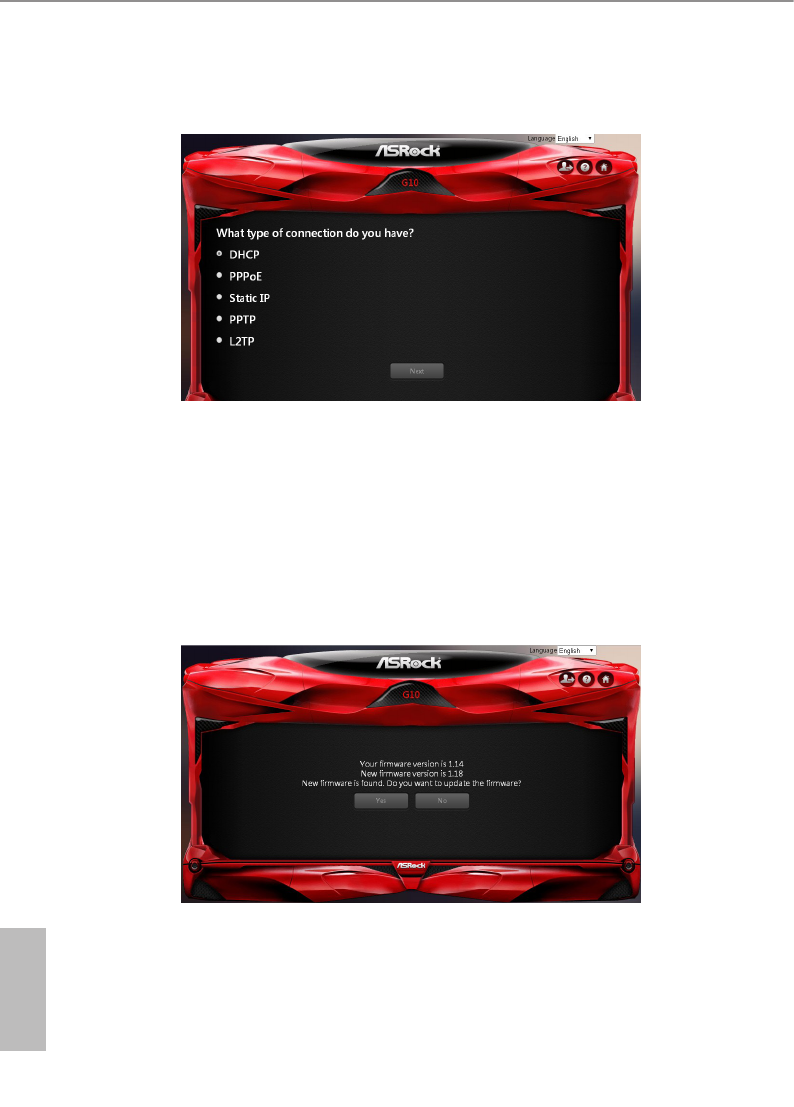
ASRock G10 router automatically detects your ISP connection type. Or you could
manually select the ISP connection type you use.
Select "Next" to continue.
Enter the required information for your ISP connection type.
NOTE: Aer you complete the Setup Wizard conguration, you can always change the settings aerwards. See
6.3 WAN Settings.
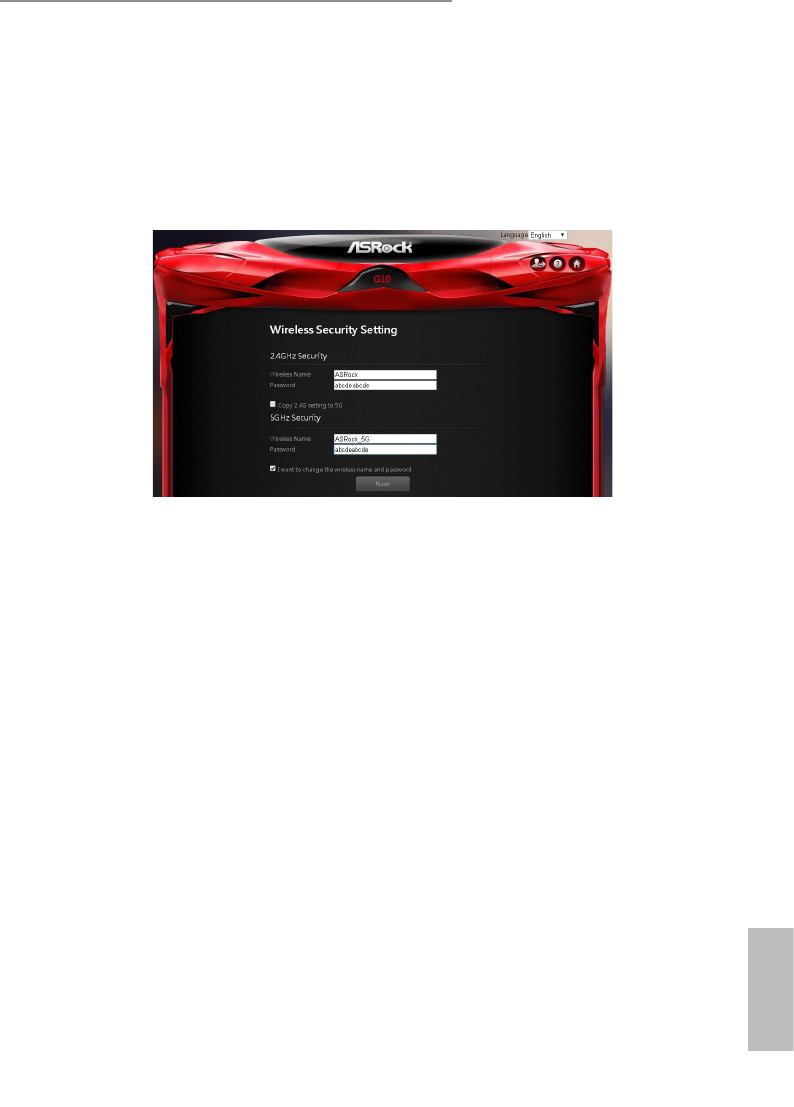
2. Update rmware if required
If a new version of rmware is available, you will see the screen below. Select "Yes"
to update the rmware immediately.
Please do not turn o your router while updating the rmware. When the update is
complete, the router will restart automatically.
10 11
English
ASRock G10 Gaming Router
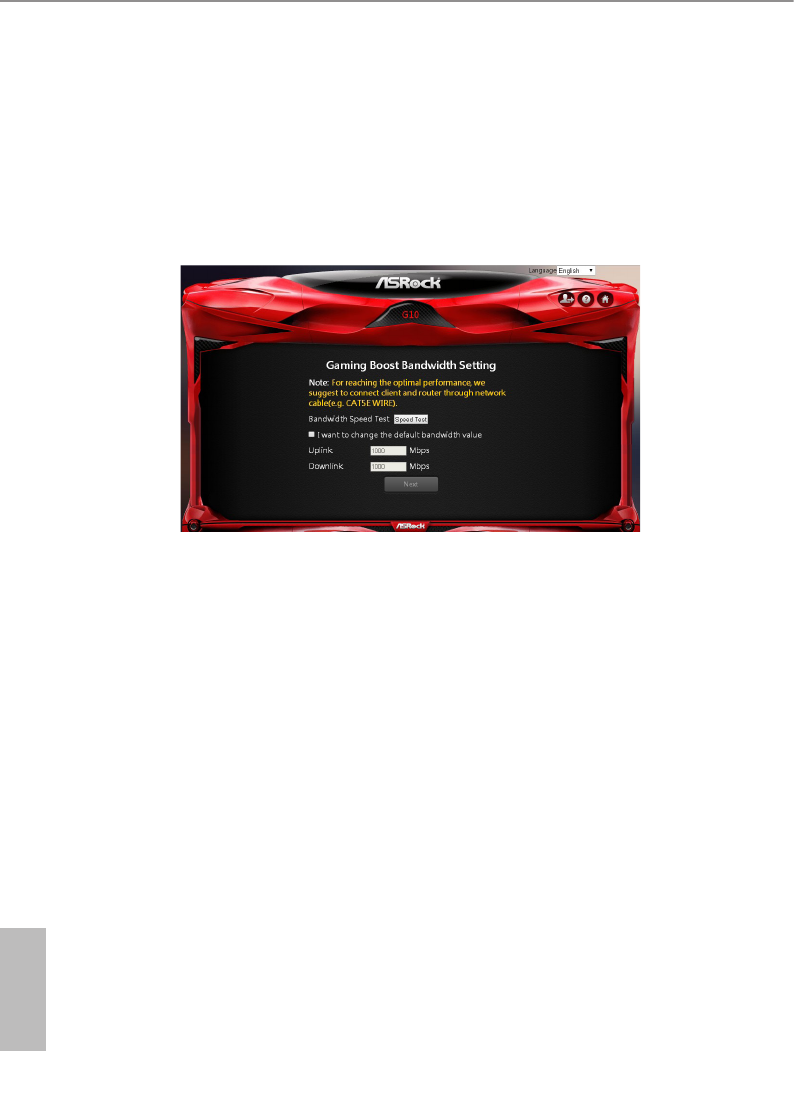
3. Changing default wireless name(SSID) and password
When the Wireless Security Setting page appears, you can check your default
wireless name and password.
We strongly recommend you to change the default wireless name and password
immediately for better security.
Select "I want to change the wireless name and password" and enter the wireless
name and password you desire in the text boxes.
NOTE: A valid password must be comprised of at least 8 characters.
If you select "Copy 2.4G setting to 5G", both 5G and 2.4G network will use the
identical password.
If the login page pops up, enter the default user name "admin" and password "admin" to
continue.
12 13
English
ASRock G10 Gaming Router
4. Checking the bandwidth of Gaming Boost
e router supports Gaming Boost natively, which identies and intelligently
manages your internet trac, allocating more bandwidth for your online games
or video game consoles automatically, so that gamers may have more stable and
smoother gameplay.
Please set the correct bandwidth to ensure the best gaming and streaming quality.
Click or tap "Speed Test" to nd out your actual uplink and downlink speed.
Select "I want to change the default bandwidth value" and enter the values of your
uplink and downlink.
NOTE: For reaching the optimal performance, please connect client and router through a network cable.
Select "Next" to continue.
12 13
English
ASRock G10 Gaming Router
5. Router reboots automatically
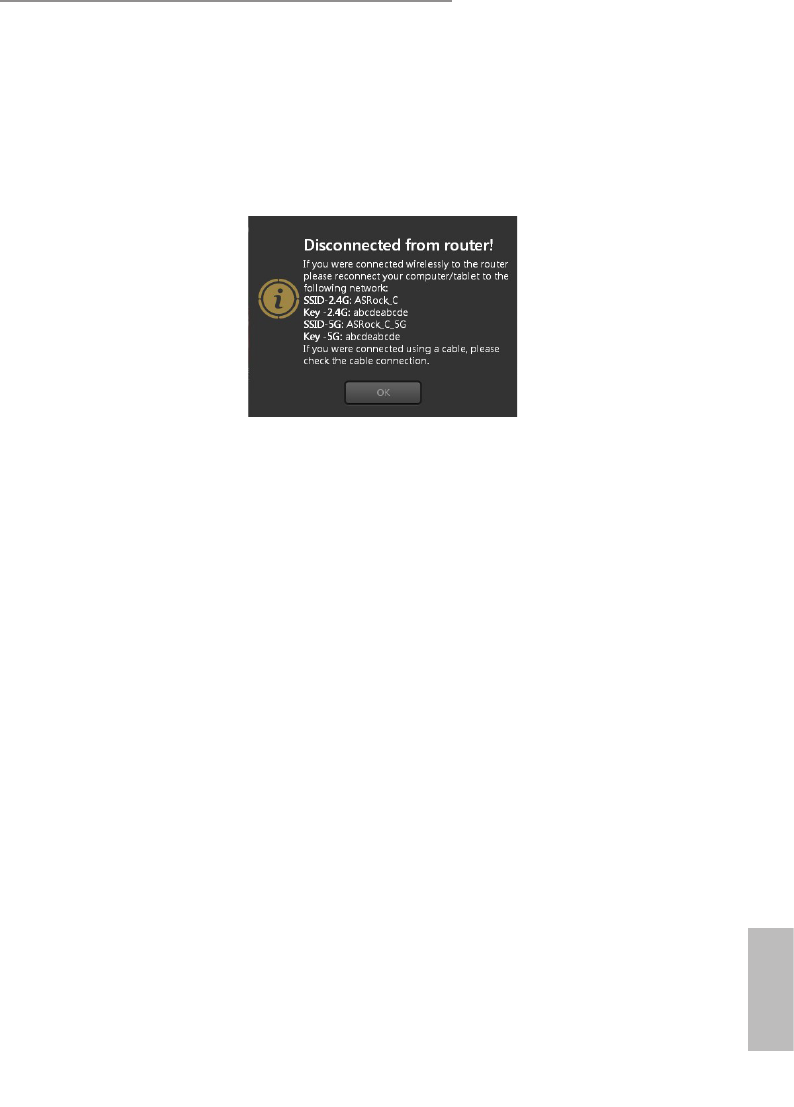
e router will restart automatically to apply the settings.
If you change the default wireless name and/or password in the previous steps,
when the router restarts, a message will pop up displaying the new wireless name
(SSID) and password (Key).
If your device is "wirelessly" connected to the router, you need to reconnect your
device to the router using the new wireless name and password you have just set.
1. On your device, refresh your network list.
2. Select the new Wi-Fi network name (SSID).
3. Enter the new password.
4. Select “Connect”.
When successfully connected, you will be automatically directed to the Dashboard
page. If not, click or tap "OK" on the "Disconnected from router!" pop up message to
enter the Dashboard page.
14 15
English
ASRock G10 Gaming Router
Chapter 5 Dashboard
5.1 Overview
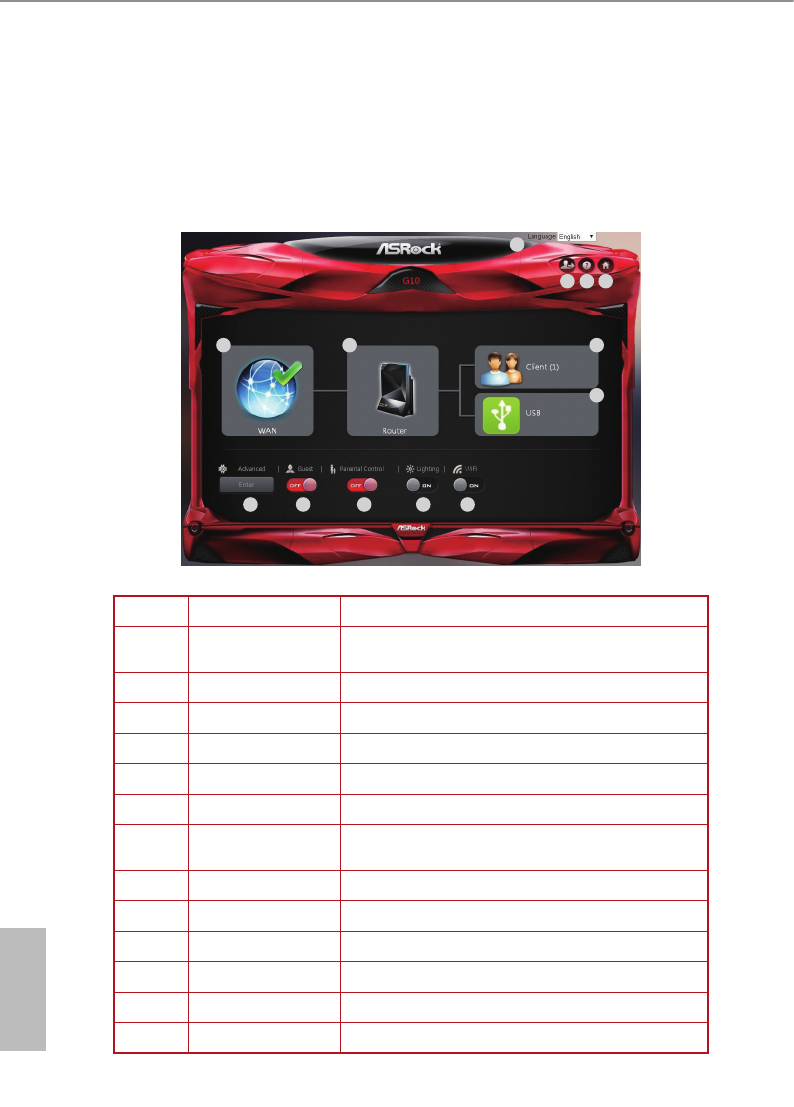
e dashboard allows you to congure your network’s security settings, manage your
network clients, monitor your USB device, and control the general functions.
5 6 7
8
9 10 11 12 13
2
1
3 4
No Item Description
1Language e language is set to English by default. Users can
select dierent languages in the drop down list.
2Login/Logout Press to log in or log out the site.
3Help Press to go to ASRock’s support website.
4Home Press to go to the dashboard page.
5WAN Displays WAN (wide area network) information
6Router Displays wireless network information
7Client View the information of the clients that are con-
nected to your router
8USB View the information of the connected USB devices
9Advanced Press "Enter" to enter the Advanced Settings page.
10 Guest Guest network congurations
11 Parental Control Parental control congurations
12 Lighting Enable or disable the LED indicators on the router
13 WIFI Enable or disable the wireless SSID broadcast
14 15
English
ASRock G10 Gaming Router
5.2 General Settings
On the dashboard homepage, you can check and congure general settings. Aer the
conguration, press "Apply" to save the settings and reboot the router for the settings to
take eect.
To access advanced settings, click or tap "Enter" under the Advanced item on the
dashboard for more options.
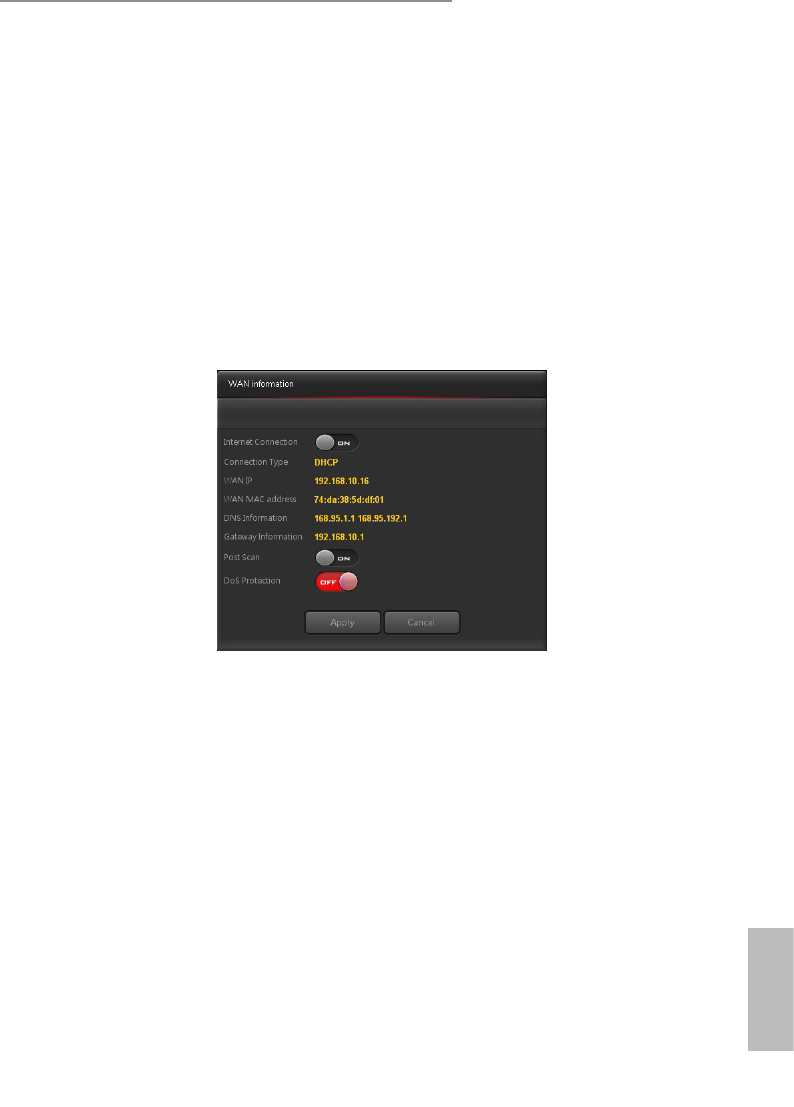
5.2.1 WAN Information
Press "WAN" to open up the pop up window where you can congure your WAN
information and enable or disable your connection.
• Internet Connection: Allows the router Internet access. e default is set to ON.
• Connection Type: Displays your internet service provider type.
• WAN IP: Displays the WAN IP address.
• WAN MAC Address: Displays the WAN MAC address.
• DNS Information: Displays the DNS address.
• Gateway Information: Displays the Gateway address.
• Port Scan: Protects your network from port scan attacks. e default is set to ON.
• DoS Protection: Protects your network from DoS (Denial of Service) attacks though
this may aect your router’s performance. e default is set to OFF.
Press "Apply" to save the settings and reboot the router.
16 17
ASRock G10 Gaming Router
5.2.2 Wireless Information
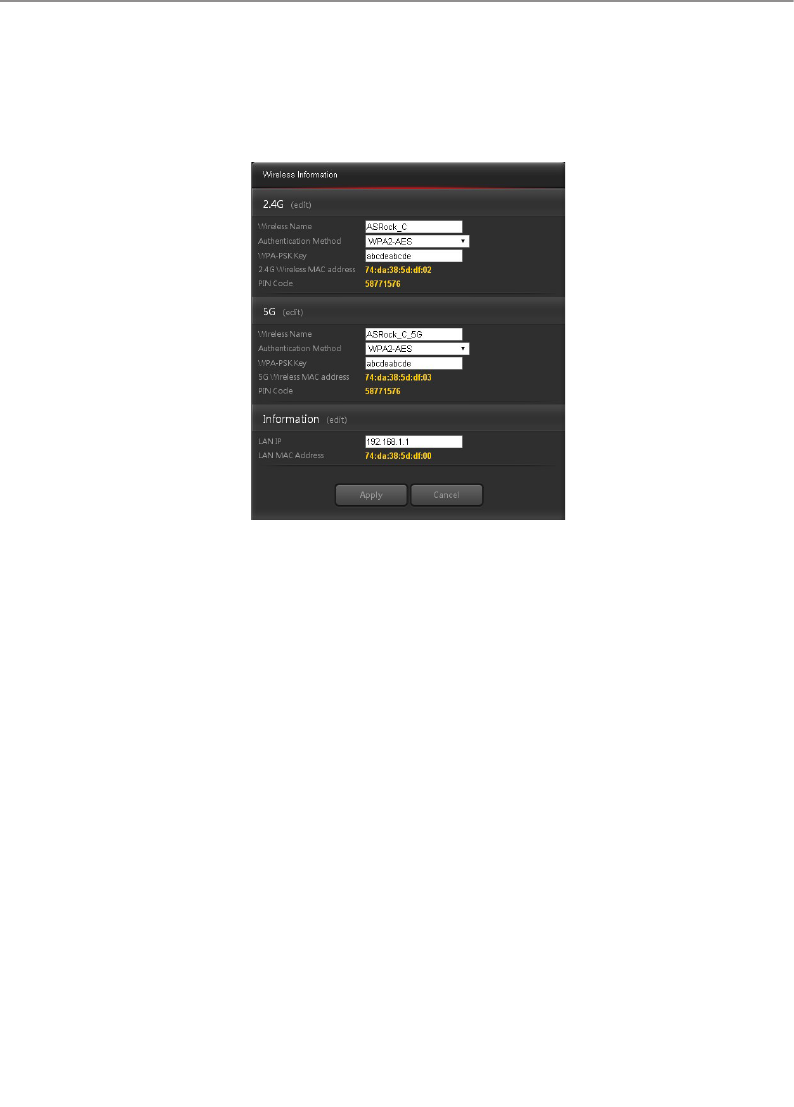
Press "Router" to open up the pop up window where you can easily congure your wireless
information.
2.4G
• Wireless Name: Displays the unique name of your wireless network. You can modify
the name in the eld.
• Authentication Method: Displays the encryption method for your wireless network.
• WPA-PSK Key: Displays the WPA-PSK key.
• 2.4G Wireless MAC Address: Displays the 2.4G wireless MAC address.
• PIN Code: Displays the PIN code.
Press "edit" (or go to Advanced > Wireless > Wireless-2.4G) to congure the Wireless-
2.4GHz settings.
5G
• Wireless name: Displays the unique name of your wireless network. You can modify
the name in the eld.
• Authentication Method: Displays the encryption method for your wireless network.
• WPA-PSK Key: Displays the WPA-PSK key.
• 5G Wireless MAC Address: Displays the 5G wireless MAC address.
• PIN Code: Displays the PIN code.
Press "edit" (or go to Advanced > Wireless > Wireless-5G) to congure the Wireless-5G
settings.
Information
• LAN IP address: Displays the default LAN IP address.
• LAN MAC address: Displays the LAN MAC address.
16 17
English
ASRock G10 Gaming Router
Press "edit" (or go to Advanced > LAN) to congure the LAN settings.
Press "Apply" to save the settings and reboot the router.
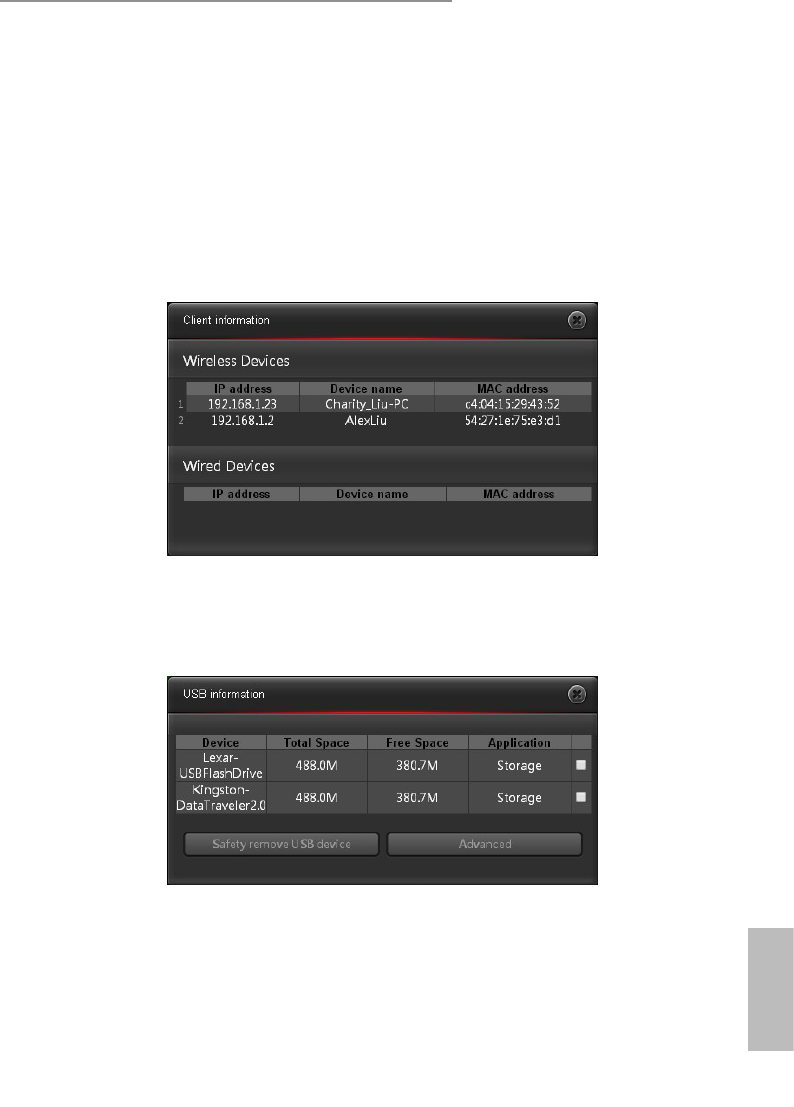
5.2.3 Client Information
Press "Client" to open up the pop up window where you can check your client
information. You will see the IP address, device name, MAC address of all the wired
and wireless devices connected to your router.
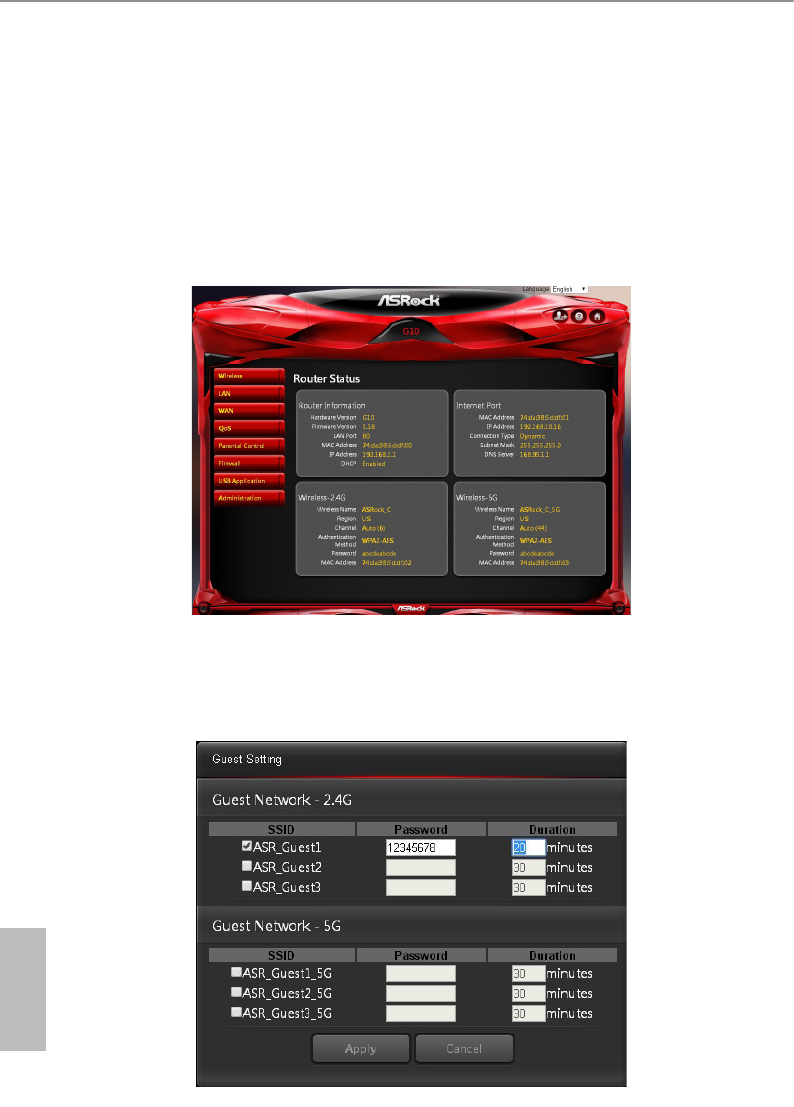
5.2.4 USB Information
Press “USB” to open up the pop up window where you can check the device name, total
space, free space of the connected USB device(s).
• Safely Remove USB Device: Select the USB device(s) you want to remove and press
Safely Remove USB Device to disconnect the USB device(s) safely.
• Advanced: Press "Advanced" (or go to Advanced > USB Application) to congure
advanced settings.
When a USB device is reconnected to the router, press "Home" to go to the dashboard page
18 19
English
ASRock G10 Gaming Router
and refresh the status.
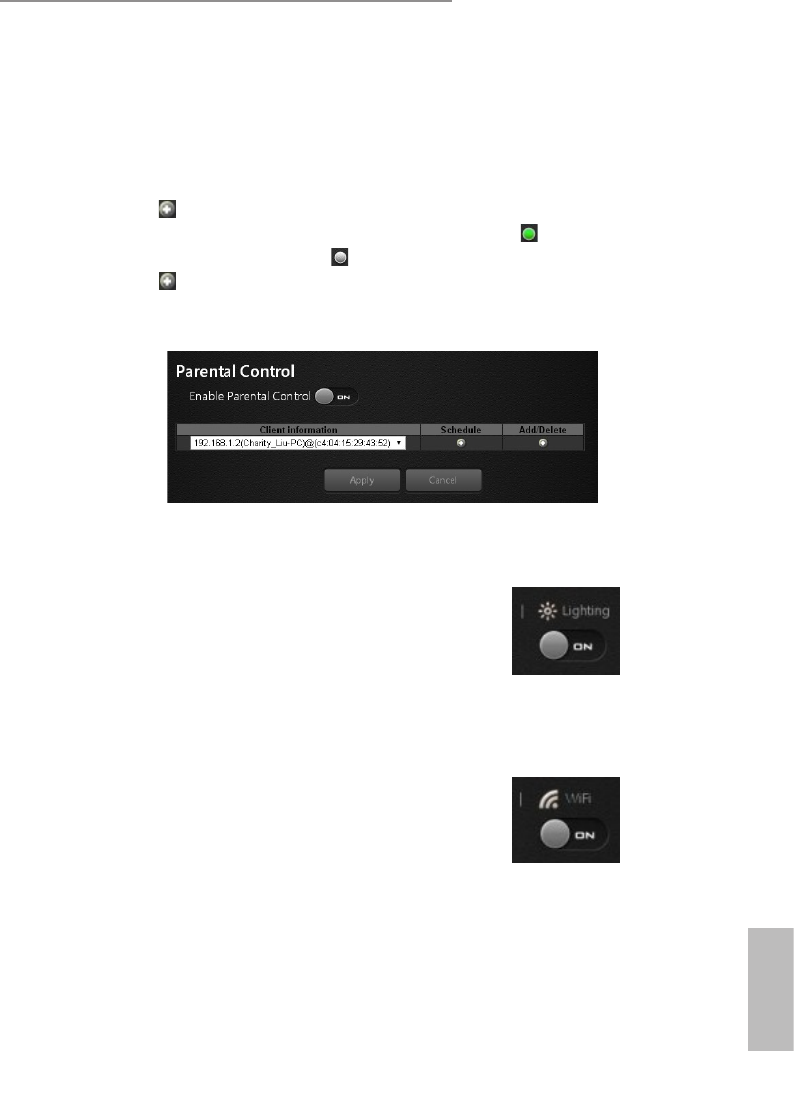
5.2.5 Advanced
Press "Enter" to enter the Advanced Settings page. Once you enter the Advanced Settings
page, you will see a preview of information about the router, Internet Port, and Wireless-
2.4G and Wireless-5G connections. Select an item on the le panel to congure its
advanced settings. For more information, please see the section entitled "Advanced
Settings".
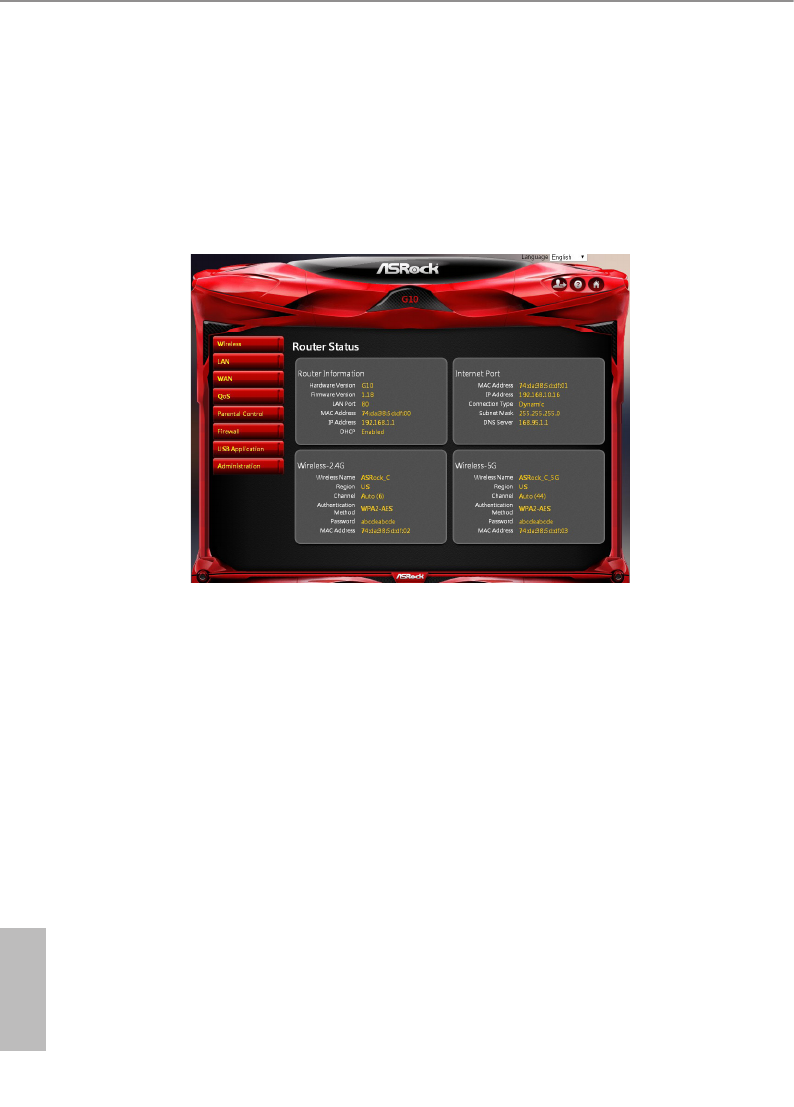
5.2.6 Guests
You can enable or disable your guest network and set the guest access passwords and
durations in the pop up window. For more options, go to Advanced > Wireless > Guest.
18 19
English
ASRock G10 Gaming Router
5.2.7 Parental Control
Parental control allows you to set the time limit for a client's network usage. Press to enter
the parental control settings page or go to Advanced > Parental Control.
1. Select a client from the drop down list.
2. Press under the Schedule column to open up a time management schedule and de-
select the time allowed to access the network. e green dots means the network
will be accessible. e gray dots mean the network will not be accessible.
3. Press under the Add/Delete column to add the client to the parental control list.
4. Press "Apply" to save the settings and reboot the router for the settings to take eect.
5.2.8 Lighting
You can enable or disable the LED indicators on the router.
5.2.9 WiFi
You can enable or disable the wireless SSID broadcast.
NOTE: If you disable the WiFi connections, when you reboot the router, please use wired connections instead to
connect your device to the router and log in the router site where you can enable the WiFi.
20 21
English
ASRock G10 Gaming Router
Chapter 6 Advanced Settings
6.1 Wireless Settings
e router’s internal wireless radios broadcast signals in the 2.4GHz and 5GHz range. By
default, they are on so that you can connect wirelessly to the router. When the wireless
radios are o, you can still use an Ethernet cable for a LAN connection to the router.
20 21
English
ASRock G10 Gaming Router
6.1.1 Wireless
Wireless - 2.4G/5G
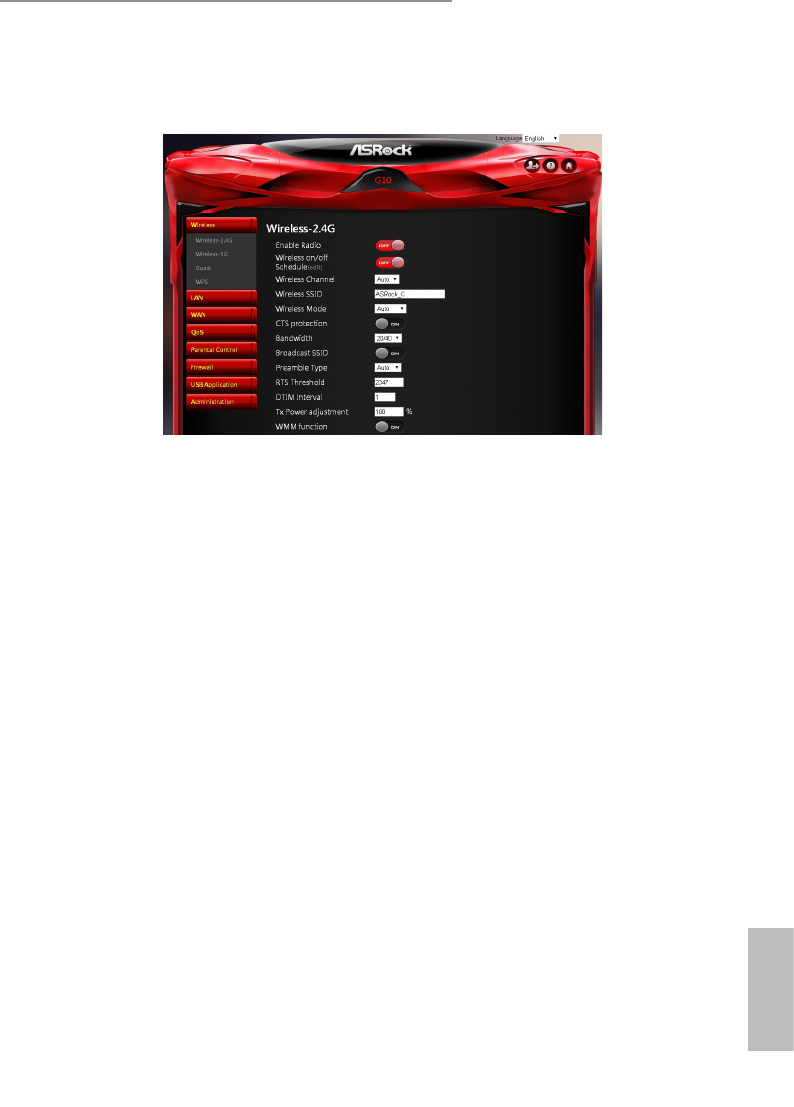
• Enable Radio: Enable or disable wireless radios. By default, the radios are “on”. If you
turn o the wireless radios, you can’t log in to the router.
• Wireless On/O Schedule: You can specify which days of the week wireless
networking are enabled
• Wireless Channel: You can change your WiFi router channel to optimize your
wireless signal. If you are not sure how to pick the right channel, keep the default
“Auto”.
• Wireless SSID: e Service Set Identier (SSID) is a name used to connect to a
wireless network so you can identify your network.
• Wireless Mode: By default, the wireless mode is set to “Auto”. 802.11ac, 802.11n,
802.11g and 802.11b devices are allowed to be connected to the wireless router.
• CTS Protection: Clear to send (CTS) Protection mode is a wireless setting that
ensures computers on a network can connect to a wireless router when many
communications devices are present. When an 802.11b and an 802.11g device are
both connected to the access point, set the CTS Protection to "ON" (Default). Since
an 802.11b device is unable to detect when an 802.11g device is transmitting, CTS
protection ensures that each device takes turns transmitting in order to avoid
collisions. If the wireless devices connected to the access point are either all 802.11b
or all 802.11g, set the CTS protection to "OFF".
• Bandwidth: For best performance in a 2.4GHz network using wireless-B, wireless-G
and wireless-N devices, keep the default, “20/40”. For a bandwidth of 20MHz,
select 20MHz only. For the best performance in a 5GHz network, keep the default

22 23
English
ASRock G10 Gaming Router
20/40/80MHz.
• Broadcast SSID: When wireless clients survey the local area for wireless networks
to associate with, they will detect the SSID broadcast by the router. Keep the default
“ON” to broadcast the router’s SSID. Select “OFF” if you do not want to broadcast the
router’s SSID.
• Preamble Type: By default, the preamble type is set to "Auto". Select "Short" for a busy
wireless network with high network trac. Select "Long" if your wireless network is
composed of older or legacy wireless devices.
• RTS reshold: Adjusts the size of RTS (Request to Send) data packets. By default,
the RTS value is 2347. Lower values reduce throughput, but allow the system to
recover quicker from interference or collisions. Higher values provide the fastest
throughput.
• DTIM Interval: e Delivery Trac Indication Message (DTIM) interval helps
routers to broadcast wireless trac to multiple hosts with greater eciency. DTIM
interval or Data beacon rate is the time interval before a signal is sent to a wireless
device in sleep mode indicating that a data packet is awaiting delivery. e default
value is 3 milliseconds.
• TX Power Adjustment: TX power adjustment refers to the milliwatts (mW) needed to
power the radio signal output of the wireless router.
• WMM: Prioritizes multimedia data over the wireless network.
Wireless Security
• Authentication Method: Select an Authentication method for the wireless network.
• Password: Enter a password for protecting your wireless network.
Radius Server
RADIUS (Remote Authentication Dial-In User Service) authenticates the local and remote
users on a network. e RADIUS server is identied by its IP address and UDP port
numbers for the dierent services it provides.
• IP: Enter the IP address of the RADIUS server.
• Port: Make sure that the port number RADIUS uses for authentication appears in
the Port text box.
• Shared Key: Enter the shared secret key for the RADIUS server.
22 23
English
ASRock G10 Gaming Router
6.1.2 Guests
Guest Network - 2.4G/5G
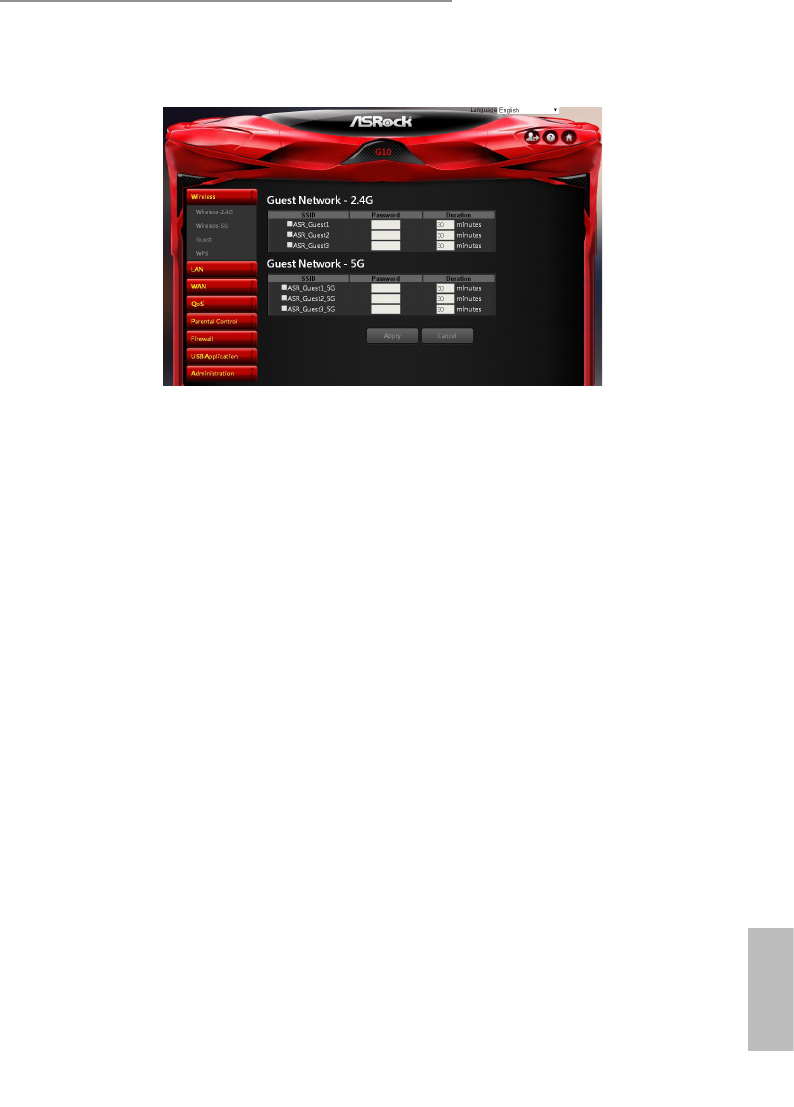
e guest network provides temporary visitors with internet connectivity via access to
separate SSIDs or networks without providing access to your private network.
Check the checkbox to enable the selected SSID broadcast and set the guest access
password and duration. Press "Apply" to save the settings and reboot the router.
24 25
English
ASRock G10 Gaming Router
6.1.3 WPS
WPS - 2.4G / WPS -5G
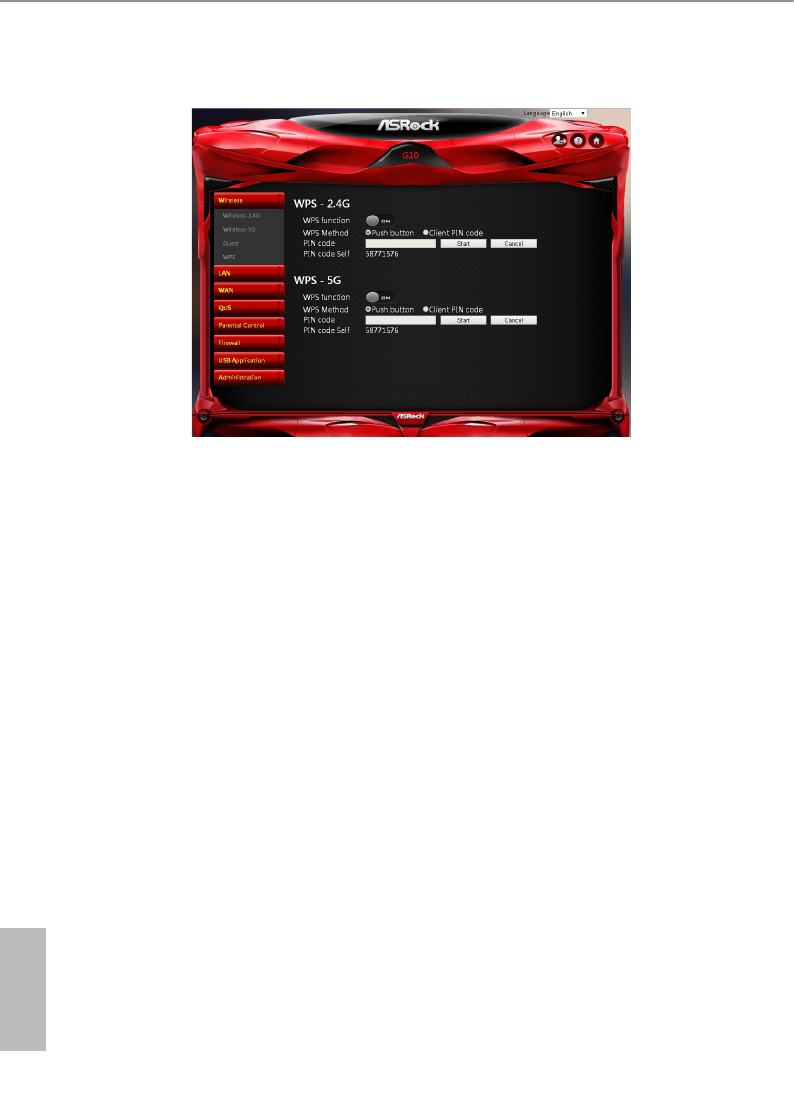
WPS (Wi-Fi Protected Setup) is a wireless security standard that allows you to connect
devices to a wireless network.
• WPS Function: Enable or disable the WPS function. e default is set to “ON”.
• WPS Method: Choose whether you want to push the WPS "Push button" on
the router or enter the "Client PIN code". e default is set to "Push button".
• PIN Code: Specify the PIN code by pressing "Start" to initiate WPS. Press the
WPS button on the router within two minutes.
• PIN Code Self: View the PIN Code of the router.
24 25
English
ASRock G10 Gaming Router
6.2 LAN Settings
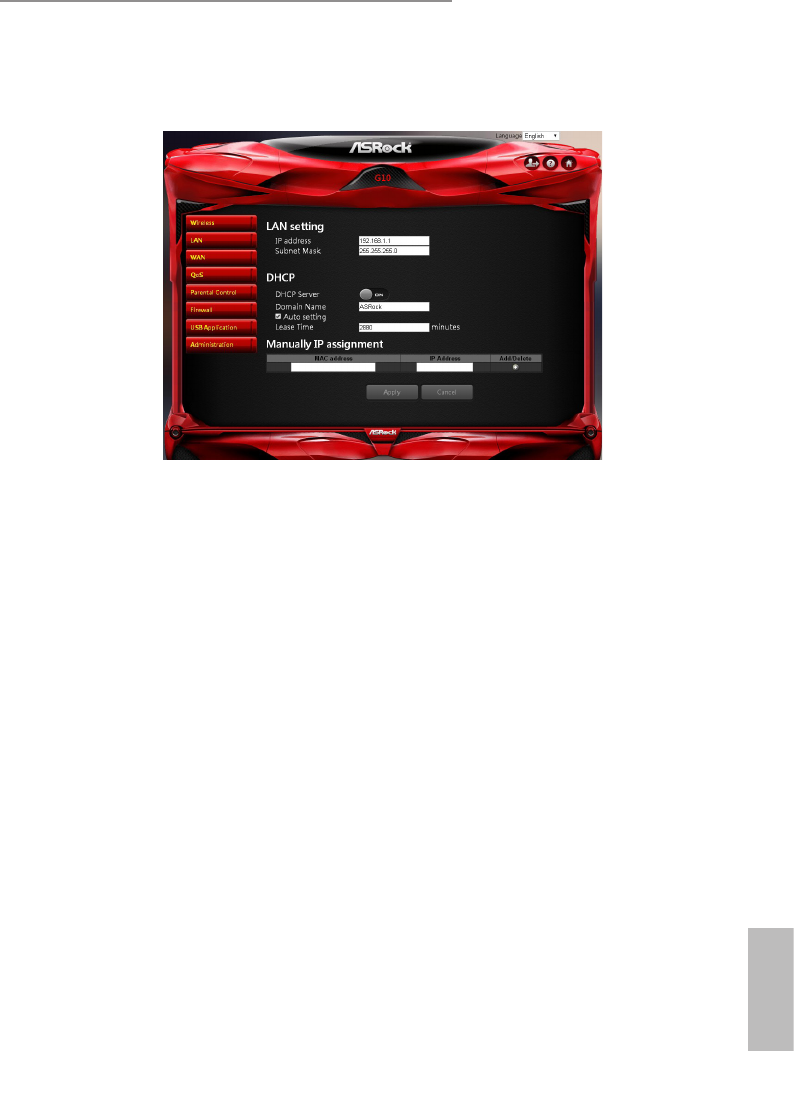
e LAN IP screen allows you to modify the LAN settings of your wireless router.
LAN Setting
• IP address: e default IP address is “192.168.1.1”. You can change the IP address of
the router.
• Subnet Mask: e default subnet mask is “255.255.255.0”.
DHCP
• DHCP Server: By default, the DHCP server is set to “ON”.
• Domain Name: Enter a domain name for the wireless router.
• Starting IP Address: You can specify the IP address range. Enter the starting IP
address for assigning IP addresses to connecting devices.
NOTE: is option is skipped when "Auto Setting" is selected.
• Ending IP Address: You can specify the IP address range. Enter the last IP address for
assigning IP addresses to connecting devices.
NOTE: is option is skipped when “Auto Setting” is selected.
• Lease Time: Specify in seconds when an assigned IP address will expire. Once it
reaches this time limit, the DHCP server will then assign a new IP address.
Manual IP Assignment
Select a client's MAC address from the drop down list. Assign a xed IP address for your

26 27
English
ASRock G10 Gaming Router
client device. Press under the Add/Delete column to add the client to the list.
Press "Apply" to save the settings and reboot the router.
26 27
English
ASRock G10 Gaming Router
6.3 WAN Settings
You can view or congure Wide Area Network (WAN) settings for the internet port. You
can set up a demilitarized zone (DMZ) server, change the maximum transmit unit (MTU)
size, and so on.
6.3.1 Internet
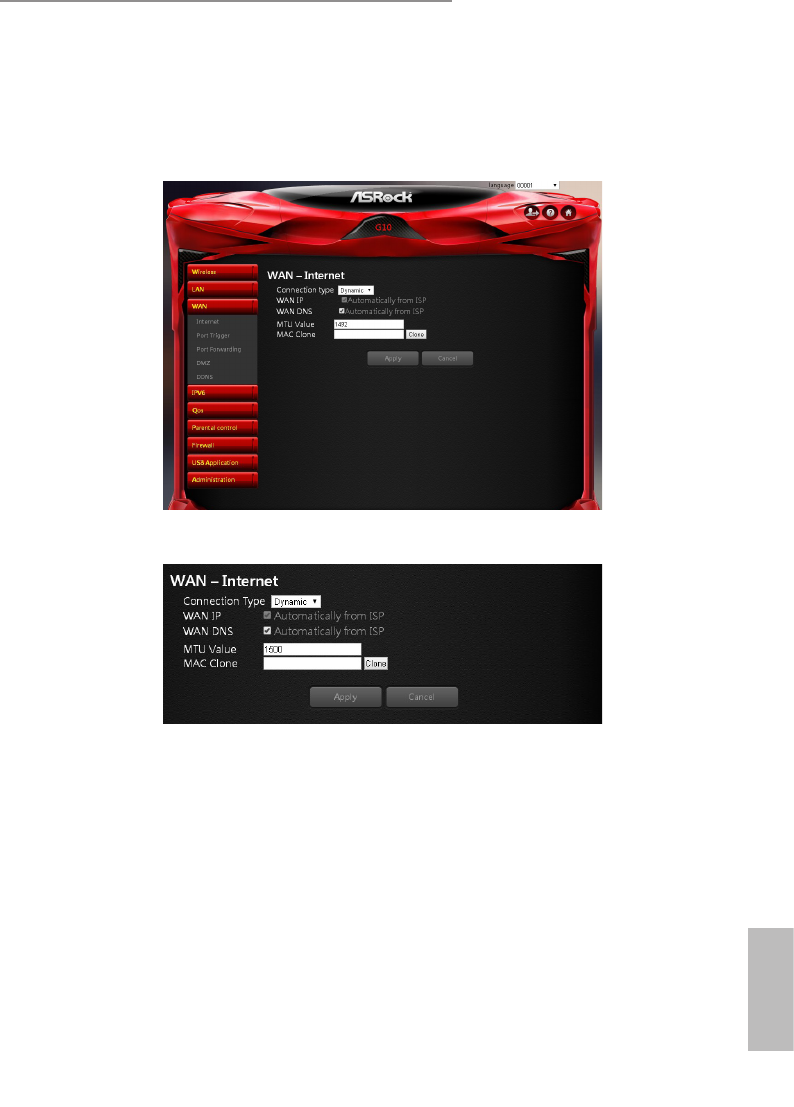
• Connection Type: Choose your internet service provider type. Options include:
Dynamic IP, PPPoE, PPPoA, L2TP, and PPTP.
• WAN IP: By default, the IP address is acquired from your ISP automatically.
• WAN DNS: By default, the DNS address is acquired from your ISP automatically.
• MTU Value: e Maximum Transmit Unit (MTU) denes the largest size of packets
that an interface can transmit without the need to fragment. Change the MTU value
only when it is necessary for your ISP connection.
• MAC Clone: e Router can use a MAC (Media Access Control) address that you
dene as its own. is is oen used when an internet provider only authorizes one
MAC address to access the internet.
Press "Apply" to save the settings and reboot the router.
28 29
English
ASRock G10 Gaming Router
6.3.2 Port Trigger
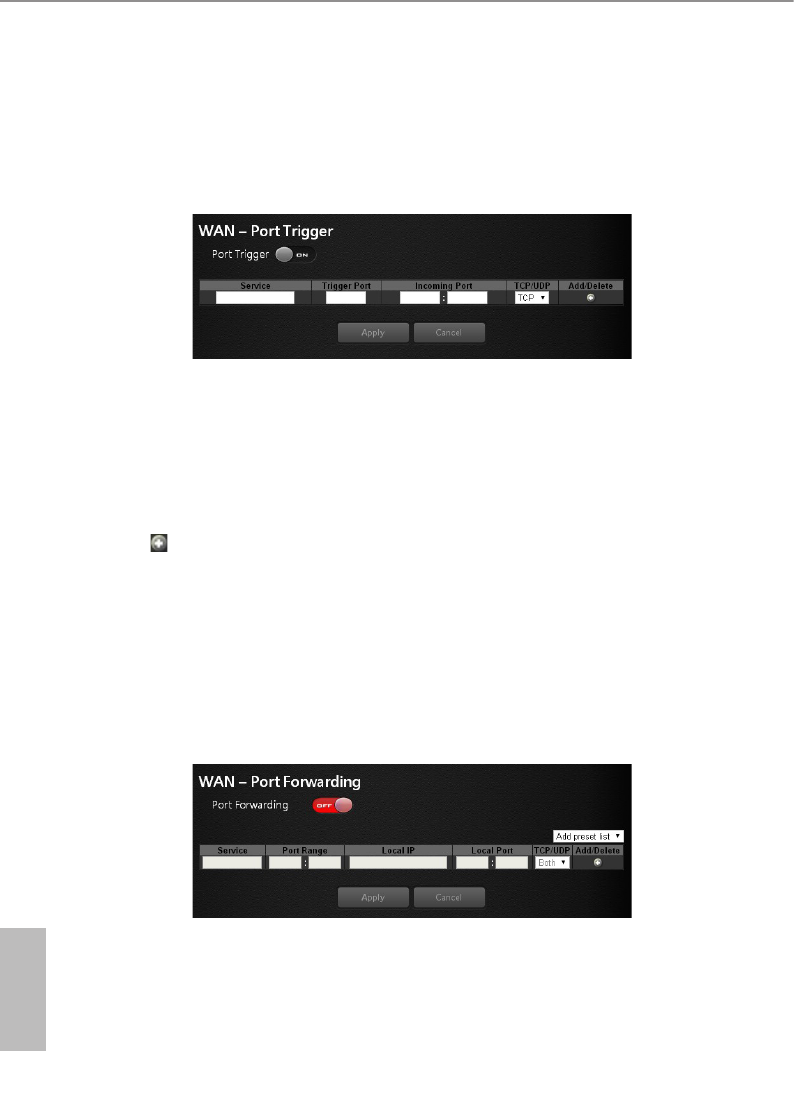
Some internet applications use alternate ports to communicate between the server and
LAN host. When you want to use these applications, enter the triggering (outgoing) port
and alternate incoming port in the port triggering table. en the router will forward the
incoming packets to the specied LAN host.
• Service: Enable Port Trigger and add a service.
• Trigger Port: Enter the port number for the service.
• Incoming Port: Enter the starting and ending port numbers of the trigger port range.
• TCP/UDP: Choose the protocol.
• : Add a service.
6.3.3 Port Forwarding
You may use this function to establish a web server or FTP server via an IP gateway. Make
sure that you enter a valid IP address. (You may need to establish a static IP address in
order to properly run an internet server.) For added security, internet users will be able
to communicate with the server, but they will not actually be connected. e packets will
simply be forwarded through the router.
• Service: Enable Port Forwarding and add a service.
• Port Range: Enter the port range.
• Local IP: Enter the LAN IP address of the server that you want the internet users to
access.

28 29
English
ASRock G10 Gaming Router
• Local Port: Enter a specic port to receive forwarded packets.
• TCP/UDP: Choose the required protocol.
• : Add a service.
6.3.4 DMZ
e router is programmed to recognize some of the applications and to work correctly
with them, but other applications might not function well. In some cases, one local
computer can run the application correctly if the IP address for that computer is entered
as the default DMZ server. Using DMZ (Demilitarized Zone) can eliminate the need to
specify many individual port forwarding rules. However, by exposing all the ports on the
local device, the local device may become more susceptible to attacks.
WARNING:
DMZ servers pose a security risk. A computer designed as the default DMZ server loses
much of the protection of the firewall and is exposed to exploits from the internet. If
compromised, the DMZ server computer can be used to attack other computers on your
networks.
• Host IP Address: Enable DMZ and select an IP address.
6.3.5 DDNS
Setting up DDNS allows you to access the router from outside your network through the
DDNS service.

30 31
English
ASRock G10 Gaming Router
• Service Provider: Enable DDNS and choose a service provider for DDNS.
• Host Name: Enter the host name.
• User Name: Enter the user name for your account.
• Password: Enter the password for your DDNS account.
Press "Apply" to save the settings and reboot the router.