ATEN Technology IOGEAR GWU647 Universal WiFi N 5 Port Ethernet Hub User Manual rev

ATEN Technology, Inc., dba IOGEAR Universal WiFi N 5 Port Ethernet Hub rev

user manual rev

InstallationInstallation GuideUniversal 5-Port Wi-Fi N Ethernet HubGWU647PART NO. M1200
3Table of ContentsPackage Contents  4System Requirements  5Product Overview  6Installation   8Installation without WPS - Windows XP  10Installation without WPS - Windows Vista  16Installation without WPS - Windows 7  24Installation without WPS - Mac  32Manual Set Up  37Firmware Upgrade  41Federal Communications Commission (FCC)  Statement 46CE Compliance   47SJ/T 11364-2006  48Limited Warranty  49Contact 50
4Package Contents• 1 X Universal 5-Port Wi-Fi N Ethernet Hub • 1 X AC to USB Power Cable • 1 X AC to USB Power Adapter • 1 X Ethernet Cable • 1 X Quick Start Guide • 1 x Warranty Card
5System Requirements• Operating System  - Windows XP, Windows Vista, Windows 7  - Mac OS X v10.4 and above • Wireless network with WPS setup • Wireless network without WPS setup and computer
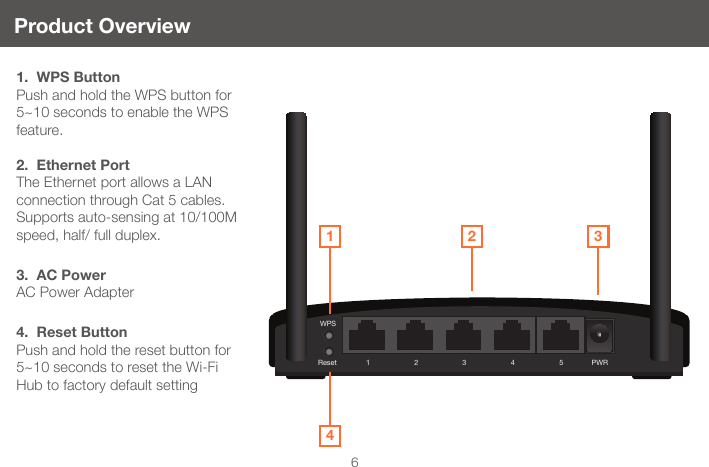
WPSReset PWR51 2 3 46Product Overview2 3141.  WPS ButtonPush and hold the WPS button for 5~10 seconds to enable the WPS feature. 2.  Ethernet PortThe Ethernet port allows a LAN connection through Cat 5 cables. Supports auto-sensing at 10/100M speed, half/ full duplex.3.  AC PowerAC Power Adapter4.  Reset ButtonPush and hold the reset button for 5~10 seconds to reset the Wi-Fi Hub to factory default setting
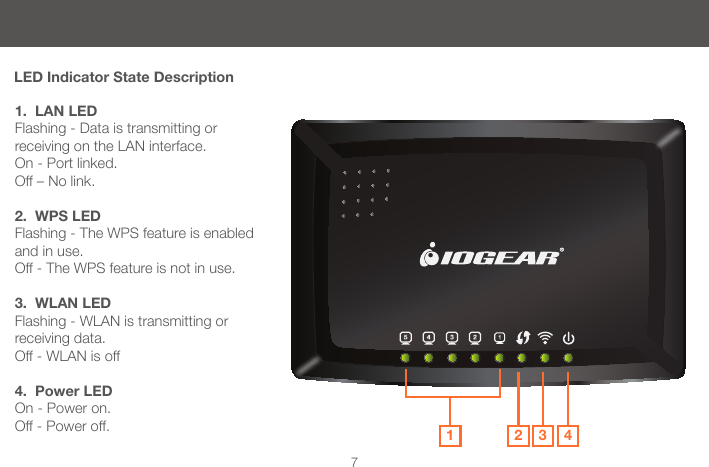
7LED Indicator State Description12 3 41.  LAN LEDFlashing - Data is transmitting or receiving on the LAN interface. On - Port linked.Off – No link.2.  WPS LEDFlashing - The WPS feature is enabled and in use.Off - The WPS feature is not in use.3.  WLAN LEDFlashing - WLAN is transmitting or receiving data. Off - WLAN is off4.  Power LEDOn - Power on. Off - Power off.
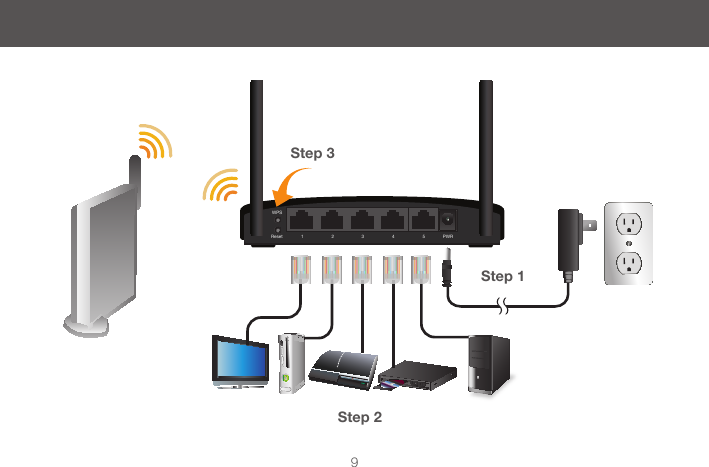
8Installation Wireless Setup with WPSStep 1: Power on your Universal WiFi Hub using either of these methods:•ConnecttheACAdaptercabletoadevice.Makesure that the device where you connect the AC Adapter cable is powered on. •ConnecttheWiFiHubtoanelectricaloutletwiththe included power adapter.Note: It will take about 50 seconds to complete the boot-up sequence. When complete, PWR (power) LED will be active, and the WLAN Activity LED will be blinking to show the WLAN interface is enabled.Step 2: Use the included RJ-45 Ethernet cable to connect the WiFi Hub with your device such as  Blu-ray player, HDTV, or game console. Step 3: Refer to your wireless router’s user manual to enable the WPS function, then press “WPS” button on the back of WiFi Hub.Your installation is complete. If asked for the type of connection, make sure “WIRED” is selected on your device.
WPSReset PWR51 2 3 49Step 1Step 3Step 2
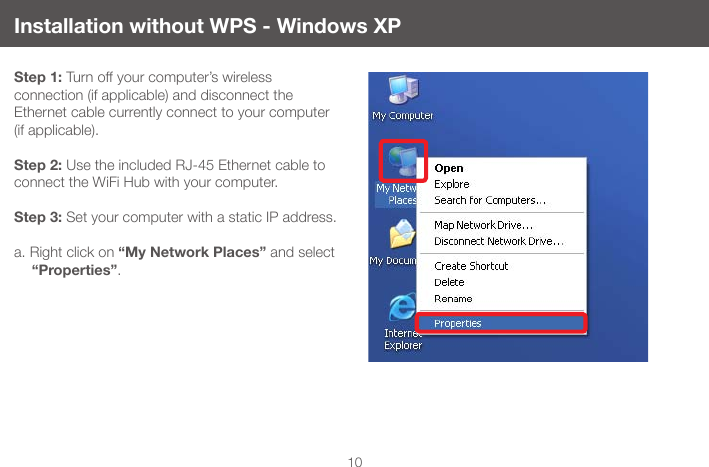
10Installation without WPS - Windows XPStep 1: Turn off your computer’s wireless  connection (if applicable) and disconnect the Ethernet cable currently connect to your computer (if applicable).  Step 2: Use the included RJ-45 Ethernet cable to connect the WiFi Hub with your computer. Step 3: Set your computer with a static IP address.a. Right click on “My Network Places” and select “Properties”.
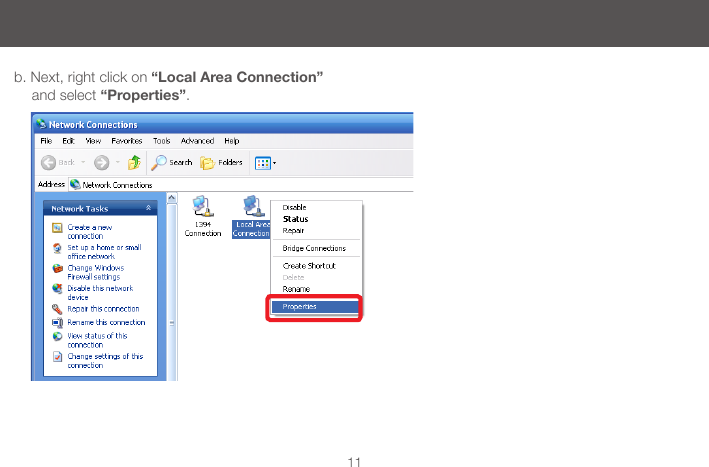
11b. Next, right click on “Local Area Connection” and select “Properties”.
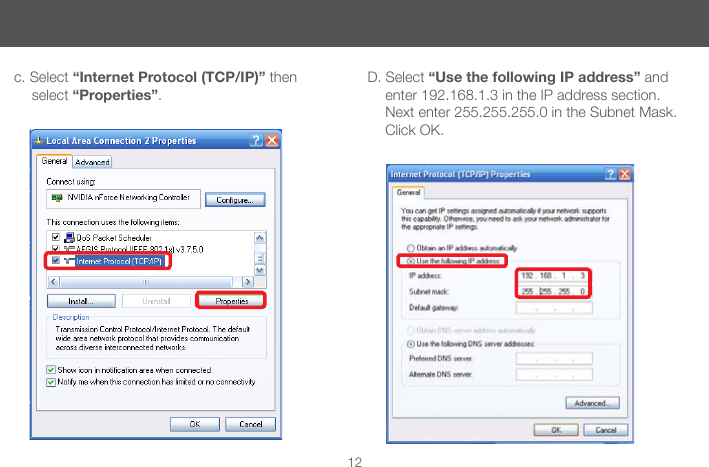
12c. Select “Internet Protocol (TCP/IP)” then select “Properties”.D. Select “Use the following IP address” and enter 192.168.1.3 in the IP address section. Next enter 255.255.255.0 in the Subnet Mask. Click OK.
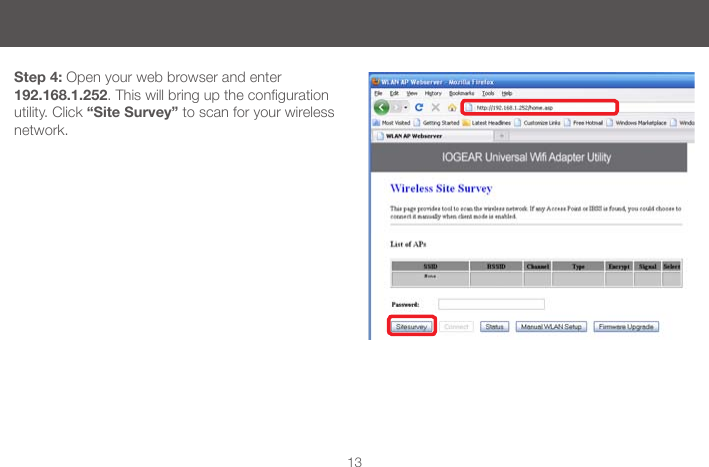
13Step 4: Open your web browser and enter 192.168.1.252.Thiswillbringupthecongurationutility. Click “Site Survey” to scan for your wireless network.
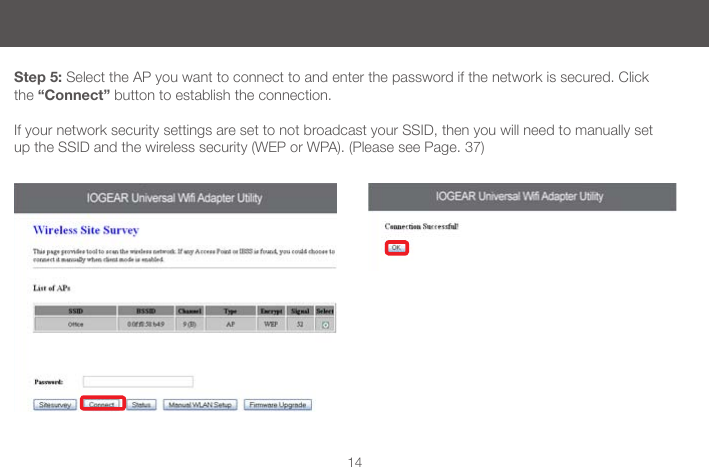
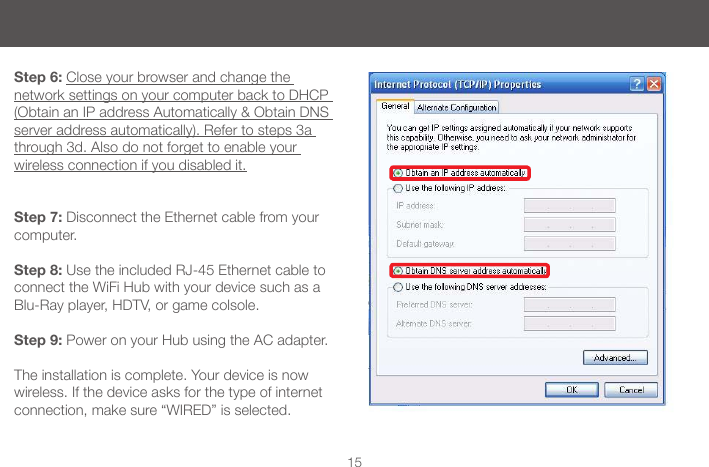
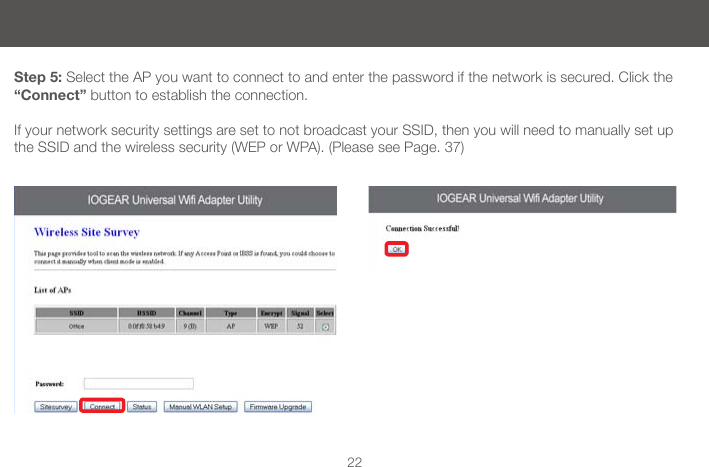
14Step 5: Select the AP you want to connect to and enter the password if the network is secured. Click the “Connect” button to establish the connection.If your network security settings are set to not broadcast your SSID, then you will need to manually set up the SSID and the wireless security (WEP or WPA). (Please see Page. 37)
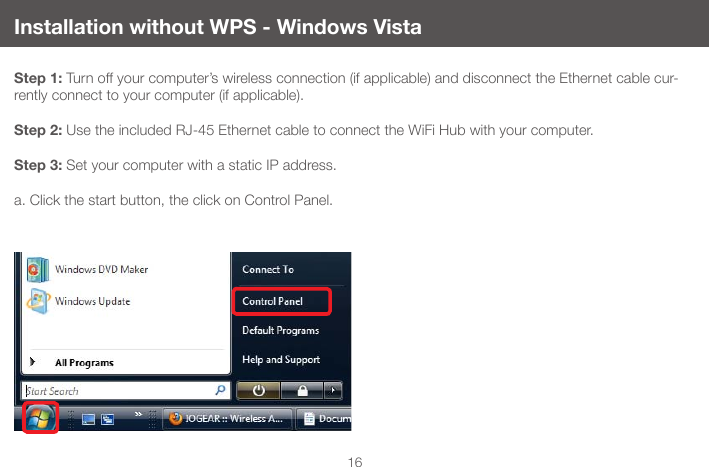
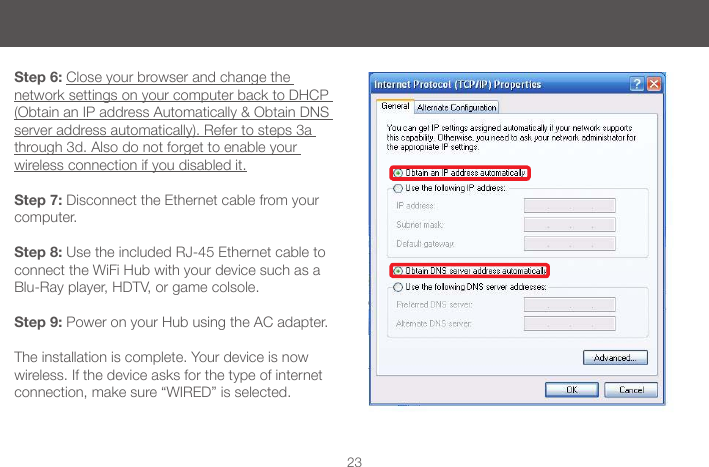
15Step 6: Close your browser and change the network settings on your computer back to DHCP (Obtain an IP address Automatically & Obtain DNS server address automatically). Refer to steps 3a through 3d. Also do not forget to enable your  wireless connection if you disabled it.Step 7: Disconnect the Ethernet cable from your computer.Step 8: Use the included RJ-45 Ethernet cable to connect the WiFi Hub with your device such as a Blu-Ray player, HDTV, or game colsole.Step 9: Power on your Hub using the AC adapter. The installation is complete. Your device is now wireless. If the device asks for the type of internet connection, make sure “WIRED” is selected.
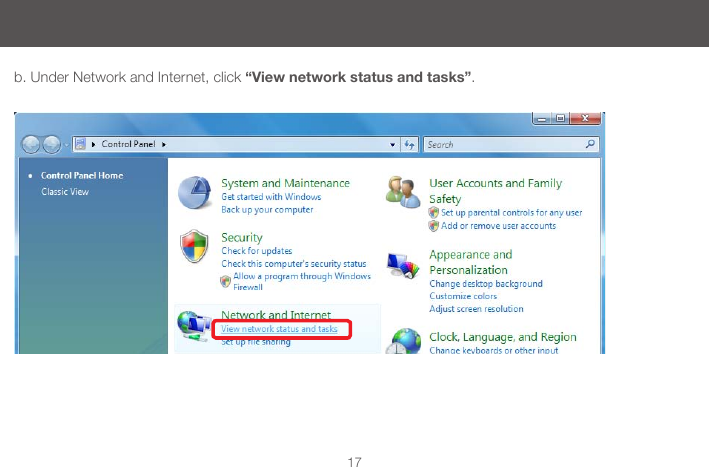
16Installation without WPS - Windows VistaStep 1: Turn off your computer’s wireless connection (if applicable) and disconnect the Ethernet cable cur-rently connect to your computer (if applicable).  Step 2: Use the included RJ-45 Ethernet cable to connect the WiFi Hub with your computer.Step 3: Set your computer with a static IP address.a. Click the start button, the click on Control Panel.
17b. Under Network and Internet, click “View network status and tasks”.
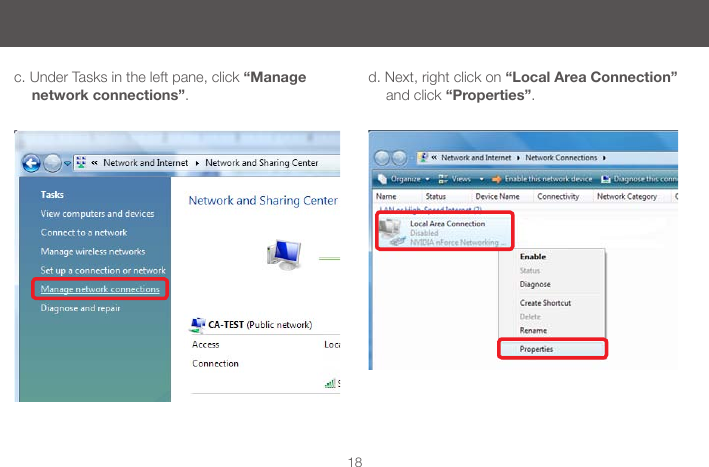
18c. Under Tasks in the left pane, click “Manage network connections”.d. Next, right click on “Local Area Connection” and click “Properties”.
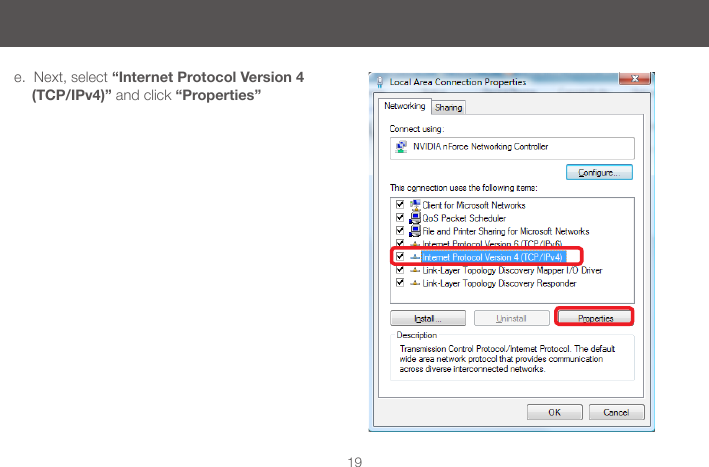
19e.  Next, select “Internet Protocol Version 4 (TCP/IPv4)” and click “Properties”
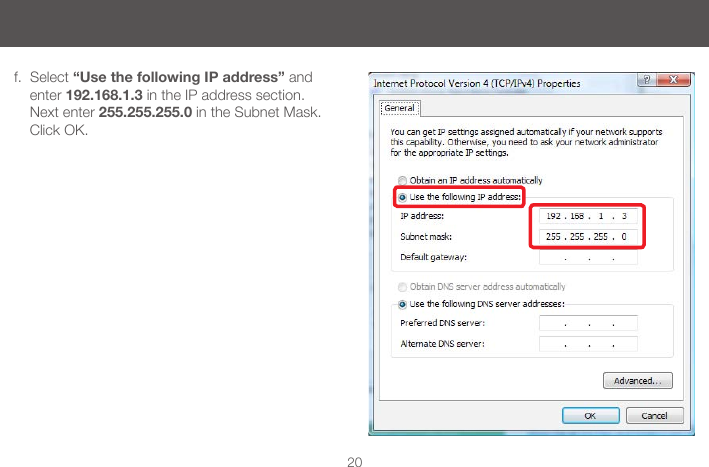
20f.  Select “Use the following IP address” and enter 192.168.1.3 in the IP address section. Next enter 255.255.255.0 in the Subnet Mask. Click OK.
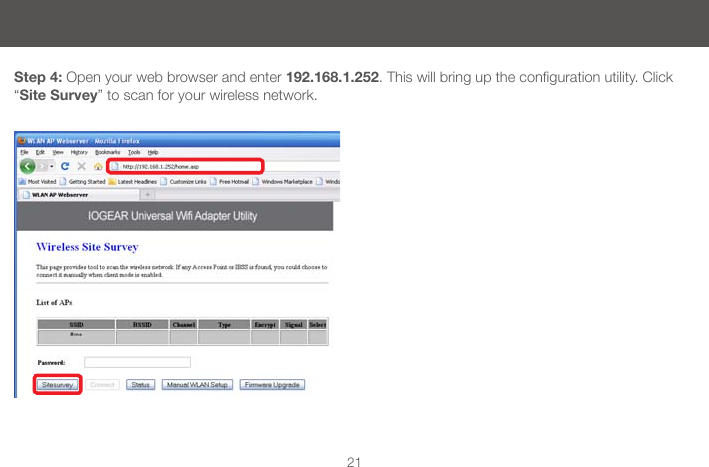
21Step 4: Open your web browser and enter 192.168.1.252.Thiswillbringupthecongurationutility.Click“Site Survey” to scan for your wireless network.
22Step 5: Select the AP you want to connect to and enter the password if the network is secured. Click the “Connect” button to establish the connection.If your network security settings are set to not broadcast your SSID, then you will need to manually set up the SSID and the wireless security (WEP or WPA). (Please see Page. 37)
23Step 6: Close your browser and change the network settings on your computer back to DHCP (Obtain an IP address Automatically & Obtain DNS server address automatically). Refer to steps 3a through 3d. Also do not forget to enable your  wireless connection if you disabled it.Step 7: Disconnect the Ethernet cable from your computer.Step 8: Use the included RJ-45 Ethernet cable to connect the WiFi Hub with your device such as a Blu-Ray player, HDTV, or game colsole.Step 9: Power on your Hub using the AC adapter. The installation is complete. Your device is now wireless. If the device asks for the type of internet connection, make sure “WIRED” is selected.
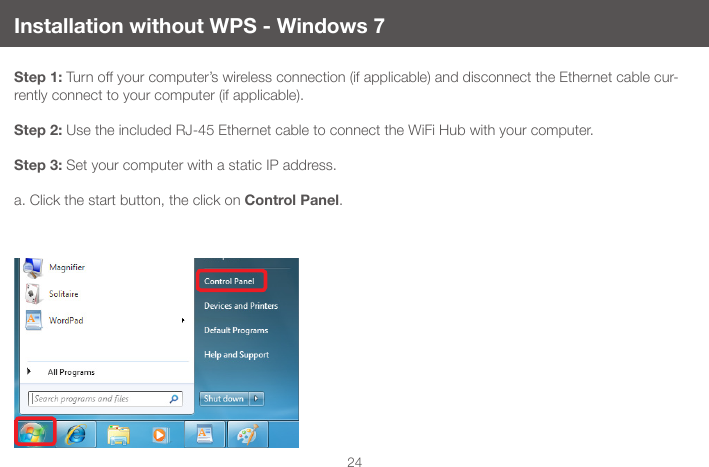
24Installation without WPS - Windows 7Step 1: Turn off your computer’s wireless connection (if applicable) and disconnect the Ethernet cable cur-rently connect to your computer (if applicable).  Step 2: Use the included RJ-45 Ethernet cable to connect the WiFi Hub with your computer.Step 3: Set your computer with a static IP address.a. Click the start button, the click on Control Panel.
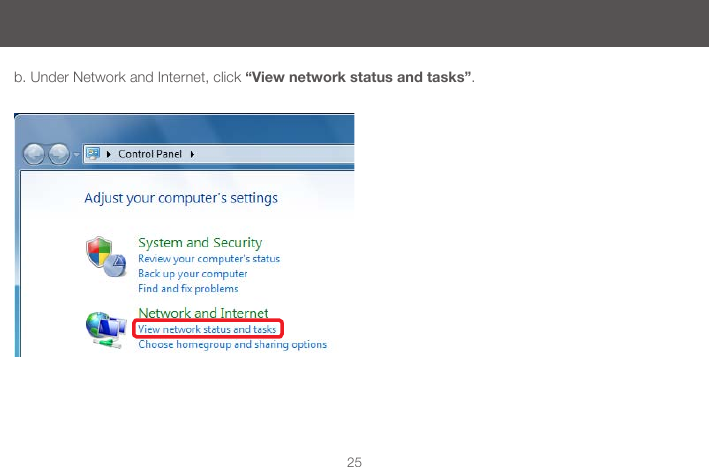
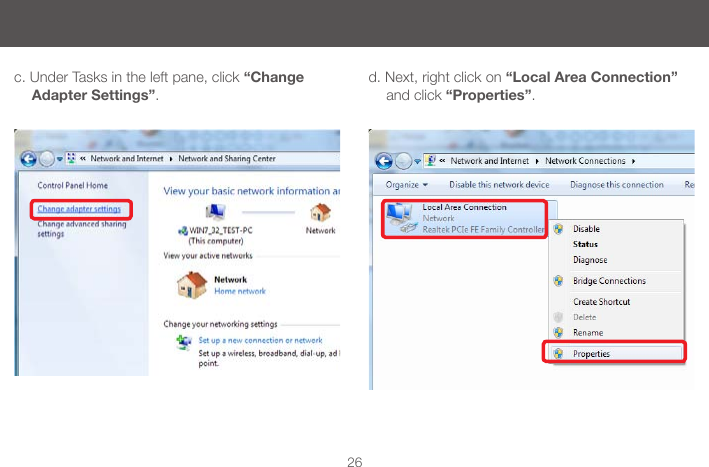
25b. Under Network and Internet, click “View network status and tasks”.
26c. Under Tasks in the left pane, click “Change Adapter Settings”.d. Next, right click on “Local Area Connection” and click “Properties”.
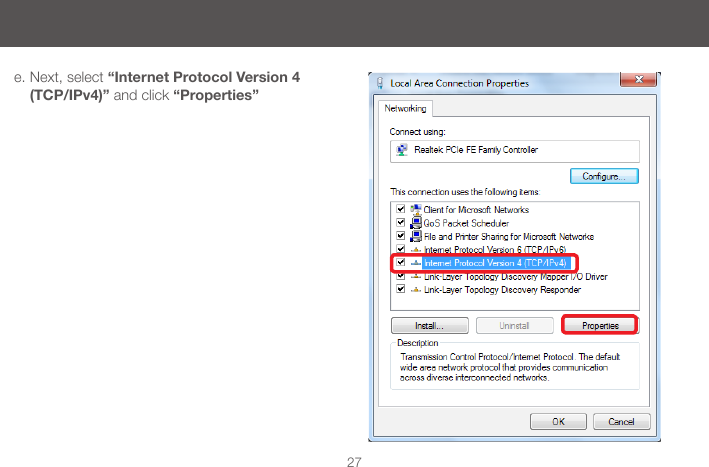
27e. Next, select “Internet Protocol Version 4 (TCP/IPv4)” and click “Properties”
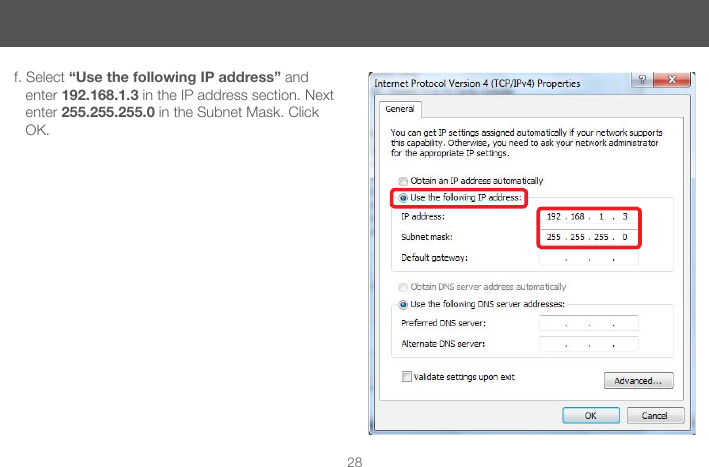
28f. Select “Use the following IP address” and enter 192.168.1.3 in the IP address section. Next enter 255.255.255.0 in the Subnet Mask. Click OK.
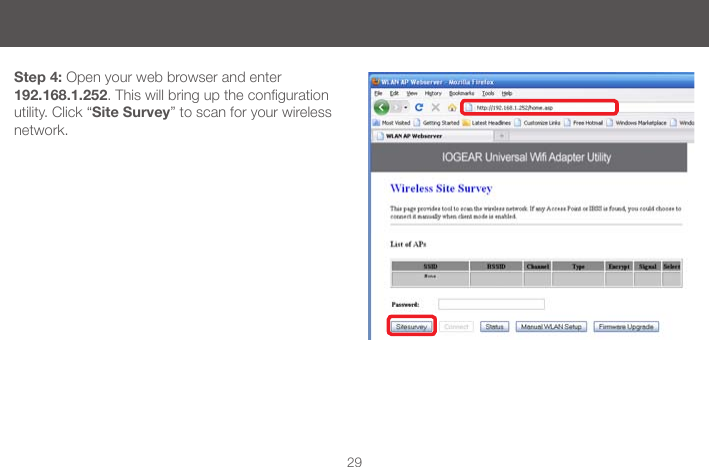
29Step 4: Open your web browser and enter 192.168.1.252.Thiswillbringupthecongurationutility. Click “Site Survey” to scan for your wireless network.
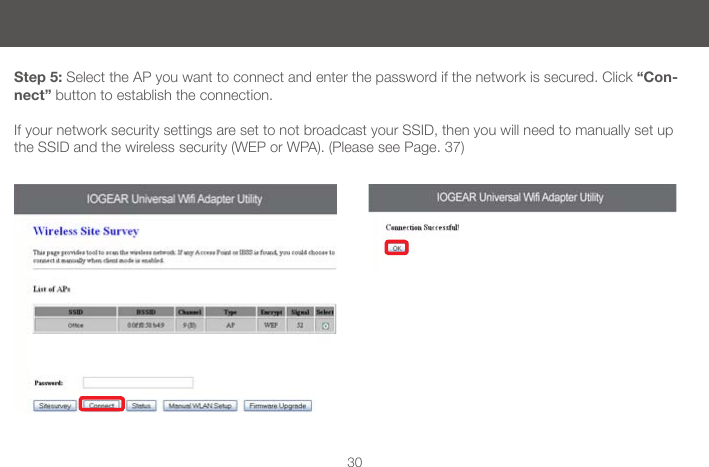
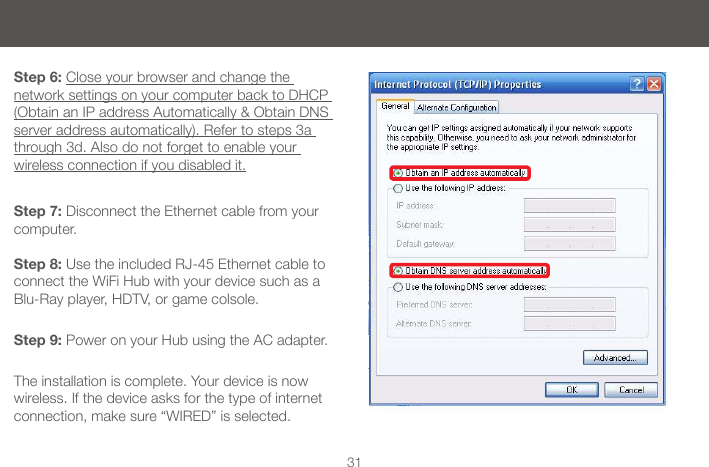
30Step 5: Select the AP you want to connect and enter the password if the network is secured. Click “Con-nect” button to establish the connection. If your network security settings are set to not broadcast your SSID, then you will need to manually set up the SSID and the wireless security (WEP or WPA). (Please see Page. 37)
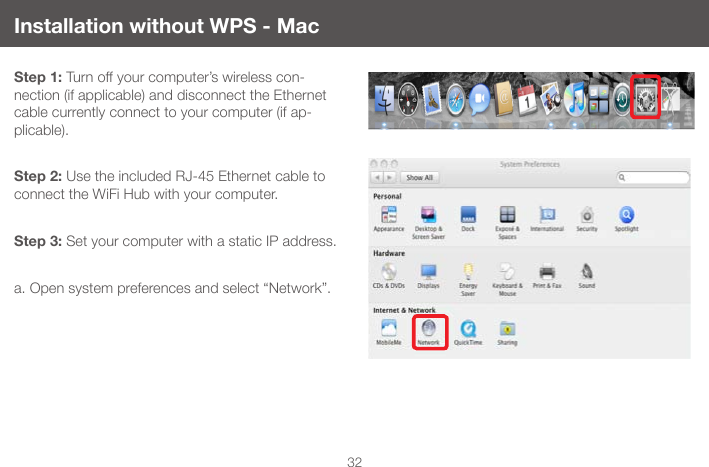
31Step 6: Close your browser and change the network settings on your computer back to DHCP (Obtain an IP address Automatically & Obtain DNS server address automatically). Refer to steps 3a through 3d. Also do not forget to enable your  wireless connection if you disabled it.Step 7: Disconnect the Ethernet cable from your computer. Step 8: Use the included RJ-45 Ethernet cable to connect the WiFi Hub with your device such as a Blu-Ray player, HDTV, or game colsole. Step 9: Power on your Hub using the AC adapter.  The installation is complete. Your device is now wireless. If the device asks for the type of internet connection, make sure “WIRED” is selected.
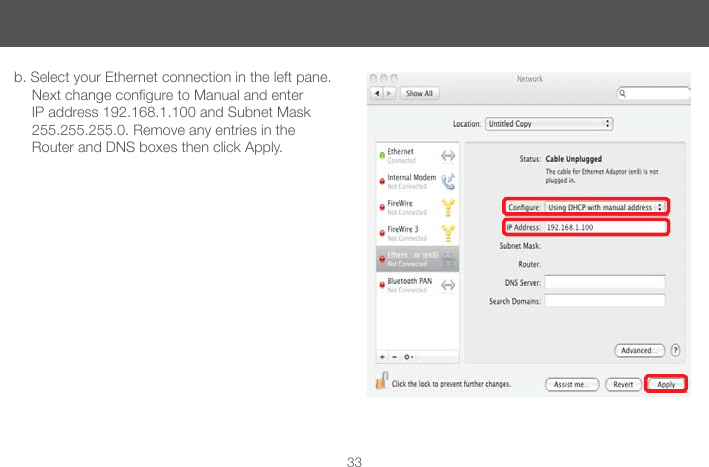
32Installation without WPS - MacStep 1: Turn off your computer’s wireless con-nection (if applicable) and disconnect the Ethernet cable currently connect to your computer (if ap-plicable). Step 2: Use the included RJ-45 Ethernet cable to connect the WiFi Hub with your computer.Step 3: Set your computer with a static IP address.a. Open system preferences and select “Network”.
33b. Select your Ethernet connection in the left pane. NextchangeconguretoManualandenterIP address 192.168.1.100 and Subnet Mask 255.255.255.0. Remove any entries in the Router and DNS boxes then click Apply.
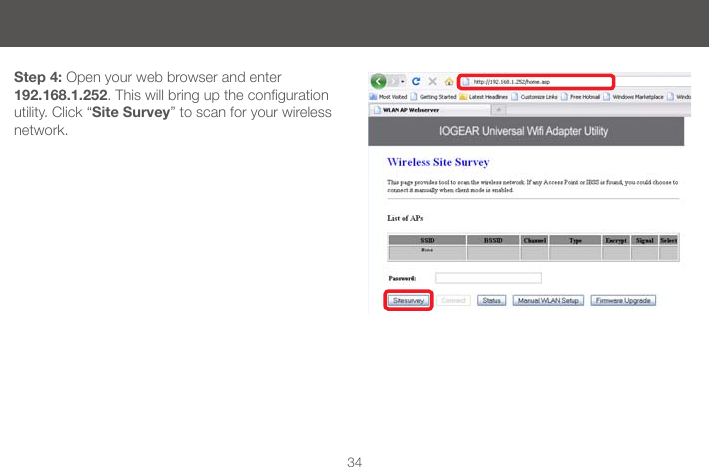
34Step 4: Open your web browser and enter 192.168.1.252.Thiswillbringupthecongurationutility. Click “Site Survey” to scan for your wireless network.
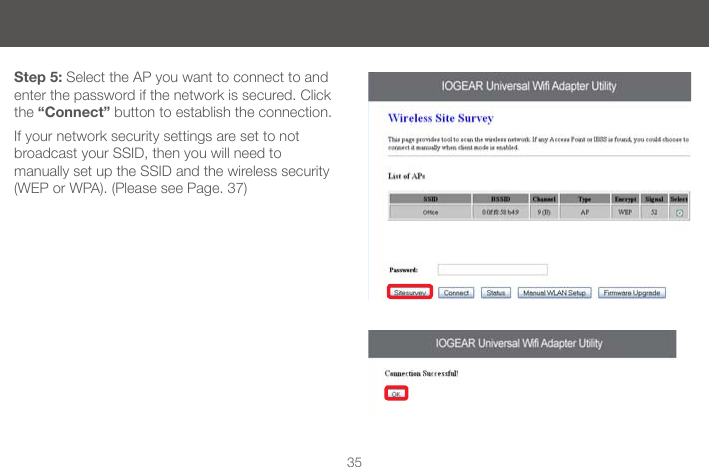
35Step 5: Select the AP you want to connect to and enter the password if the network is secured. Click the “Connect” button to establish the connection.If your network security settings are set to not broadcast your SSID, then you will need to  manually set up the SSID and the wireless security (WEP or WPA). (Please see Page. 37)
36Step 6: Close your browser and change the network settings on your computer back to DHCP. Refer to steps 3a through 3b.Step 7: Disconnect the Ethernet cable from your computer.Step 8: Use the included RJ-45 Ethernet cable to connect the WiFi Hub with your device such as a  Blu-Ray player, HDTV, or game colsole.Step 9: Power on your Hub using the AC adapter. The installation is complete. Your device is now wireless. If the device asks for the type of internet  connection, make sure “WIRED” is selected.
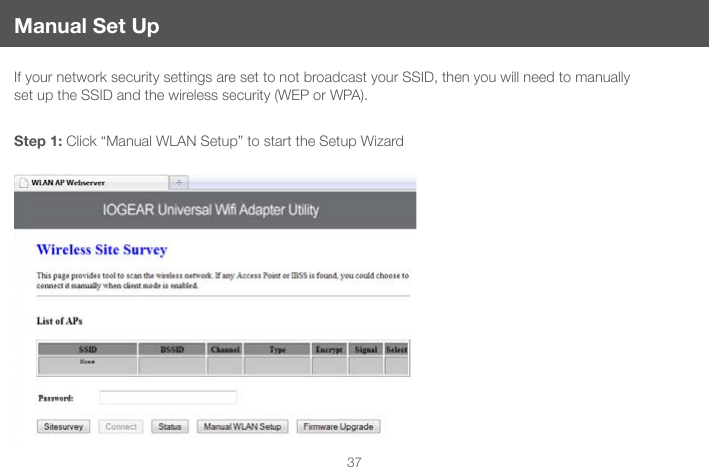
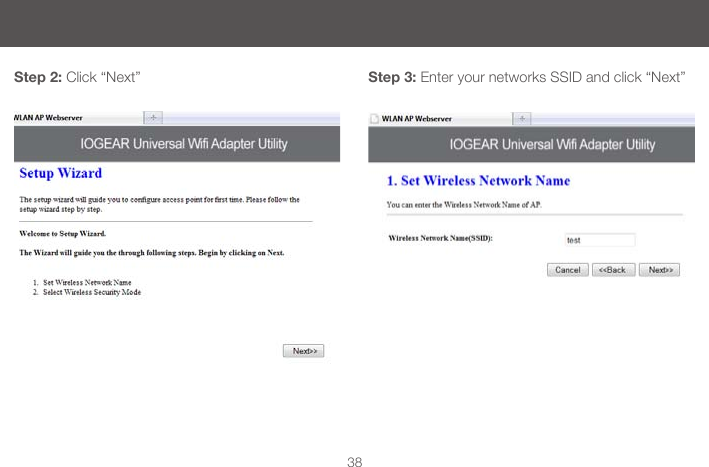
37Manual Set UpIf your network security settings are set to not broadcast your SSID, then you will need to manually set up the SSID and the wireless security (WEP or WPA).Step 1: Click “Manual WLAN Setup” to start the Setup Wizard
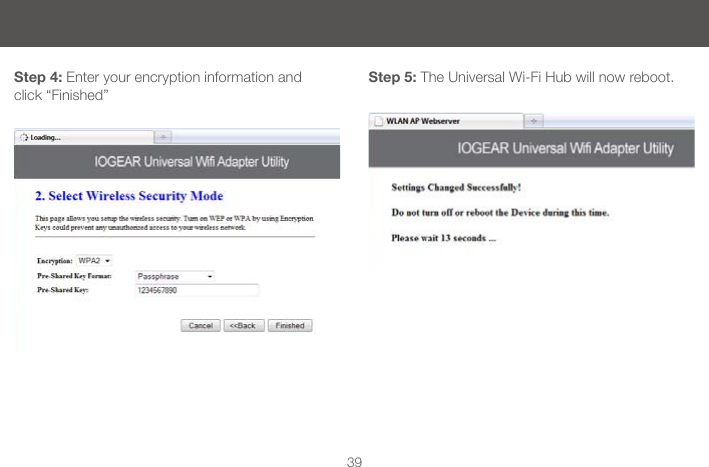
38Step 2: Click “Next” Step 3: Enter your networks SSID and click “Next”
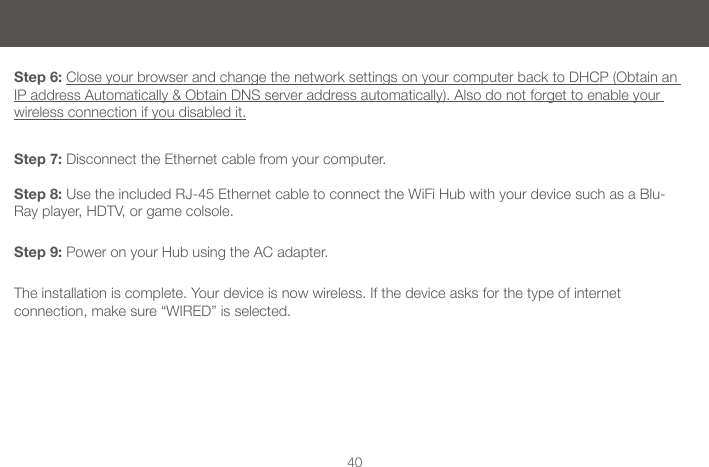
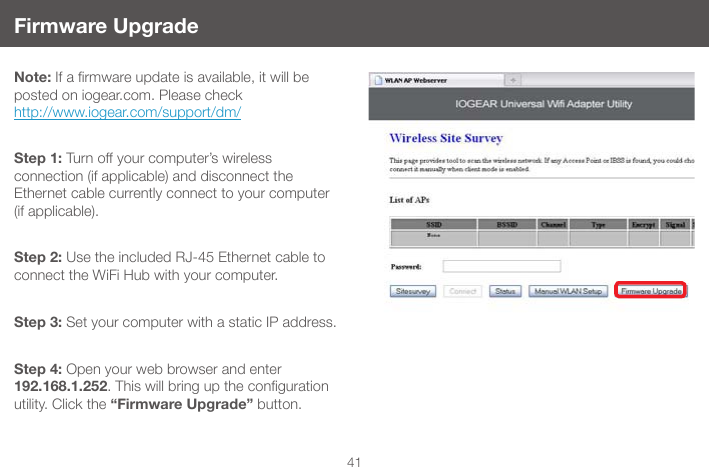
39Step 4: Enter your encryption information and click “Finished”Step 5: The Universal Wi-Fi Hub will now reboot.
40Step 6: Close your browser and change the network settings on your computer back to DHCP (Obtain an IP address Automatically & Obtain DNS server address automatically). Also do not forget to enable your wireless connection if you disabled it.Step 7: Disconnect the Ethernet cable from your computer. Step 8: Use the included RJ-45 Ethernet cable to connect the WiFi Hub with your device such as a Blu-Ray player, HDTV, or game colsole. Step 9: Power on your Hub using the AC adapter.  The installation is complete. Your device is now wireless. If the device asks for the type of internet  connection, make sure “WIRED” is selected.
41Firmware UpgradeNote:Ifarmwareupdateisavailable,itwillbeposted on iogear.com. Please check  http://www.iogear.com/support/dm/Step 1: Turn off your computer’s wireless  connection (if applicable) and disconnect the  Ethernet cable currently connect to your computer  (if applicable). Step 2: Use the included RJ-45 Ethernet cable to connect the WiFi Hub with your computer.Step 3: Set your computer with a static IP address.Step 4: Open your web browser and enter 192.168.1.252.Thiswillbringupthecongurationutility. Click the “Firmware Upgrade” button.
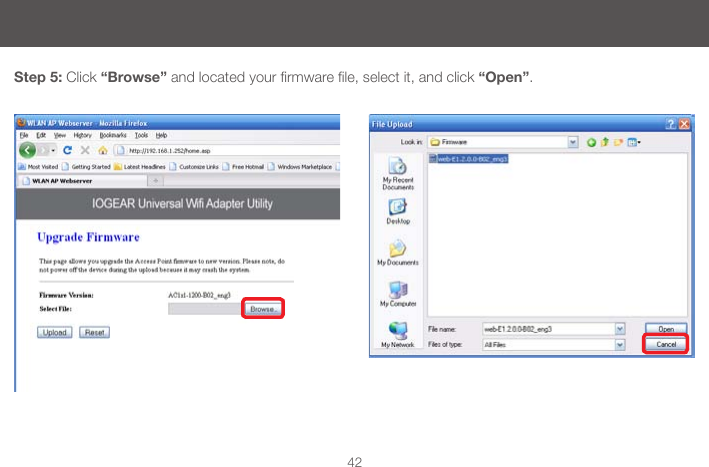
42Step 5: Click “Browse”andlocatedyourrmwarele,selectit,andclick“Open”.
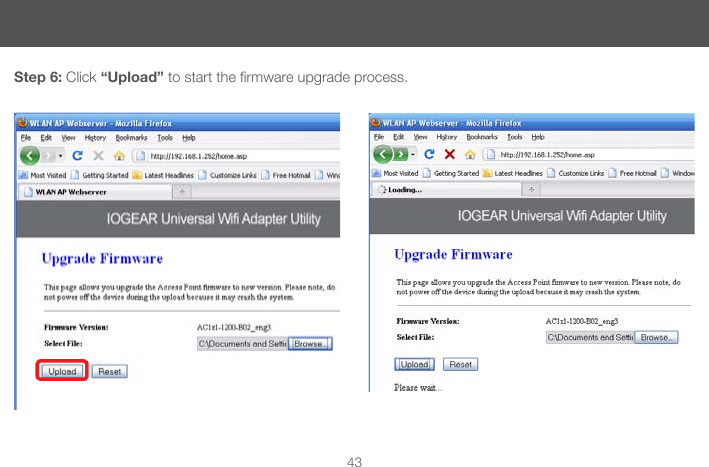
43Step 6: Click “Upload”tostartthermwareupgradeprocess.
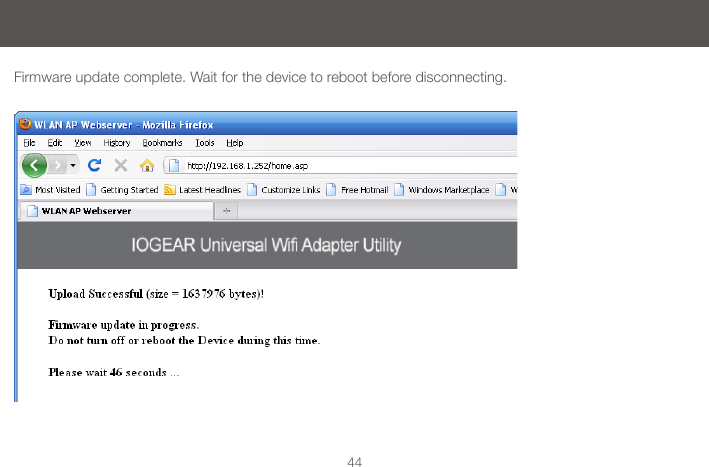
44Firmware update complete. Wait for the device to reboot before disconnecting.
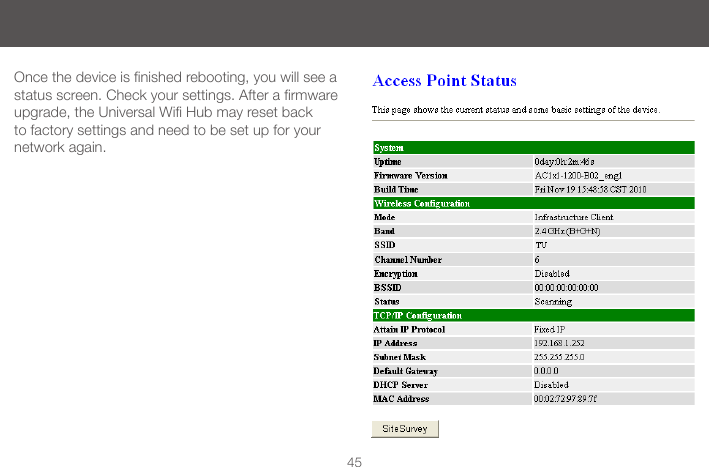
45Oncethedeviceisnishedrebooting,youwillseeastatusscreen.Checkyoursettings.Afterarmwareupgrade,theUniversalWiHubmayresetbackto factory settings and need to be set up for your network again.
46Federal Communications Commission (FCC) StatementFederal Communications Commission (FCC) Statement15.21You are cautioned that changes or modifications not expressly approved by the part responsible for compliance could void the user’s authority to operate the equipment.15.105(b)This equipment has been tested and found to comply with the limits for a Class B digital device, pursuant to part 15 of the FCC rules. These limits are designed to provide reasonable protection against harmful interference in a residential installation. This equipment generates, uses and can radiate radio frequency energy and, if not installed and used in accordance with the instructions, may cause harmful interference to radio communications. However, there is no guarantee that interference will not occur in a particular installation. If this equipment does cause harmful interference to radio or television reception, which can be determined by turning the equipment off and on, the user is encouraged to try to correct the interference by one or more of the following measures:-Reorient or relocate the receiving antenna.-Increase the separation between the equipment and receiver.-Connect the equipment into an outlet on a circuit different from that to which the receiver is connected.-Consult the dealer or an experienced radio/TV technician for help.This device complies with Part 15 of the FCC Rules. Operation is subject to the following two conditions:1) this device may not cause harmful interference, and2) this device must accept any interference received, including interference that may cause undesired operation of the device.FCC RF Radiation Exposure Statement:1.This Transmitter must not be co-located or operating in conjunction with any other antenna or transmitter.2.This equipment complies with FCC RF radiation exposure limits set forth for an uncontrolled environment. This equipment should be installed and operated with a minimum distance of 20 centimeters between the radiator and your body.
47This device has been tested and found to comply with the following European Union directives: Electro-magnetic Capability (89/336/EMC), Low Voltage (73/23/EEC) and R&TTED (1999/5/EC).CE Compliance
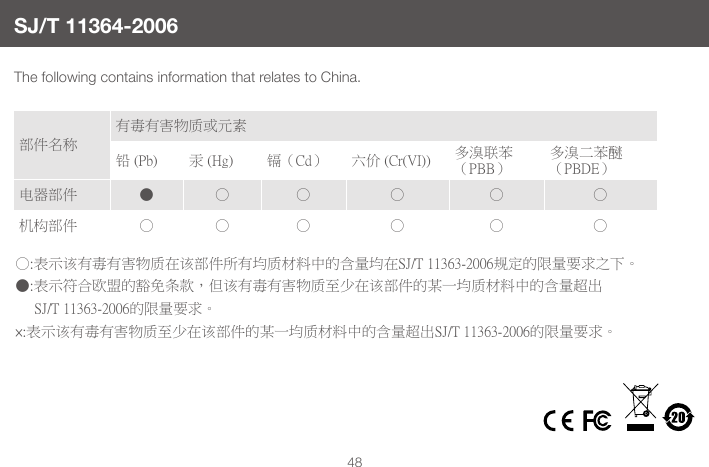
48The following contains information that relates to China.SJ/T 11364-2006部件名称有毒有害物质或元素铅 (Pb) 汞 (Hg) 镉(Cd) 六价 (Cr(VI)) 多溴联苯(PBB)多溴二苯醚(PBDE)电器部件 ● ○ ○ ○ ○ ○机构部件 ○ ○ ○ ○ ○ ○○:表示该有毒有害物质在该部件所有均质材料中的含量均在SJ/T 11363-2006规定的限量要求之下。●:表示符合欧盟的豁免条款,但该有毒有害物质至少在该部件的某一均质材料中的含量超出     SJ/T 11363-2006的限量要求。                                                  ×:表示该有毒有害物质至少在该部件的某一均质材料中的含量超出SJ/T 11363-2006的限量要求。
49IN NO EVENT SHALL THE DIRECT VENDOR’S LIABILITY FOR DIRECT, INDIRECT, SPECIAL,  INCIDENTAL OR CONSEQUENTIAL DAMAGES RESULTING FROM THE USE OF THE PRODUCT, DISK, OR ITS DOCUMENTATION EXCEED THE PRICE PAID FOR THE PRODUCT.The direct vendor makes no warranty or representation, expressed, implied, or statutory with respect to the contents or use of this documentation, and especially disclaims its quality, performance,  merchantability,ortnessforanyparticularpurpose.Thedirectvendoralsoreservestherighttoreviseor update the device or documentation without obligation to notify any individual or entity of such revisions, or updates. For further inquiries please contact IOGEAR.WE’RE HERE TO HELP YOU!NEED ASSISTANCE SETTING UP THIS PRODUCT?Make sure you:1. Use the live chat at www.iogear.com to try and solve any issues you may be having with the product2. Visit the Tech Info Library/FAQ on www.iogear.com (under the Support tab)3. Call the tech support line at 1(866) 946-4327 (U.S. only) or (949) 453-8782.Limited Warranty
50IOGEAR19641 Da VinciFoothill Ranch, CA 92610P 949.453.8782F 949.453.8785Visit us at: www.iogear.com  Contact© 2011 IOGEAR® Part No. M1200IOGEAR, the IOGEAR logo, are trademarks or registered trademarks of IOGEAR. Microsoft and Windows are registered trademarks of Microsoft Corporation. All other brand and product names are trademarks or registered trademarks of their respective holders. IOGEAR makes no warranty of any kind with regards to the information presented in this document. All information furnished here is for informational purposes only and is subject to change without notice. IOGEAR assumes no responsibility for any inaccuracies or errors that may appear in this document.
© 2011 IOGEAR®FUNIOGEAR offers connectivity solutions that are innovative, fun, and stylish, helping people enjoy daily life using our high technology products.GREENIOGEAR is an environmentally conscious company that emphasizes the importance of conserving natural resources. The use of our technology solutions helps reduce electronic waste.About UsAbout UsPART NO. M1200

Navigation menu