ATEN Technology IOGEAR KMGKM571R RF 2.4G Keyboard User Manual

ATEN Technology, Inc., dba IOGEAR RF 2.4G Keyboard

user manual

 1IogearRF2.4GKeyboardUser’sManual Thank you for your purchase of our iogear RF 2.4G  Keyboard. For your own safety and convenience, please read this manual thoroughly before using this product. After you have read this manual, please keep it in a place for reference when necessary.  Contents in the package  These following items are included in the package. Please make sure all items are complete when open the package at first time. If there is any item missing or damaged, please contact the reseller where the product was purchased or our support center.    Iogear RF 2.4G   Keyboard x 1   Manual x 1     USB receiver x1   AA Alkaline batteries x2  Installation Procedure  A. Setting up the Dongle Receiver 1. Plug the dongle receiver into an available USB port. 2. Wait for operating system to install drivers for the dongle receiver, keyboard and mouse. B. Setting up the Keyboard and Mouse 1.  Open the keyboard’s battery compartment cover and insert the two pieces of AA Alkaline batteries. Make sure they are properly installed.   2.  Open the top cover, the power will be turned on automatically. 3.  Usually the keyboard and mouse have bound in the factory, and it can be used after inserting batteries. If the keyboard and mouse cannot be recognized from system, please follow steps below. 4.  Press the ID button of receiver and the LED light will start to blink. 5.  Press the RESET button of keyboard and the LED light will stop blinking.   6.  If the keyboard and mouse cannot be connected after setting, please repeat the steps 4~6 to reset the ID button. Battery Low
 21.  Built in LED light for low power indicator. Low-Battery is indicated by the illumination of the LED light, which is located on the top-left. Please replace the battery when the LED lights up. 2.  While the keyboard is entered sleep mode, please press any keyboard button or mouse button to wake it up. 3.   We recommend using alkaline batteries for the keyboard. 4.  You may need to reset the keyboard connection status after replacing new batteries for the keyboard.  Attention  ATEN Technology Inc., dba Iogear and its respective distributors and resellers are not responsible for any malfunction, damage or personal injury incurs which are caused by:  Any malfunction, damage or personal injury caused by the malfunctioning or damage of the user’s personal computer or misuse of this product. Any attempt to dismantle, change or modify this product in any manner.  Warning Please do not use this product in ashy, wet, or oily environment(s). Failure to do so may shorten the life of this product and may cause bodily harm.  Please keep this product away from radio frequency interruption area(s).  This is not an outdoor product. This product is not for outdoor use. Exposing the product outdoors may cause damage to it.   Please do not use alcohol, petroleum, benzene or thinner-based solutions to clean this product. We recommend wiping this product with a damp cloth.  Warranty Information  This product is backed by a One-Year Manufacturer’s Warranty, starting from the date of purchase. The warranty covers for free repair in accordance with the contents stated herein but does not cover wear and tear and any malfunction or damages as results of improper usage as stated in this manual.  Product Appearance
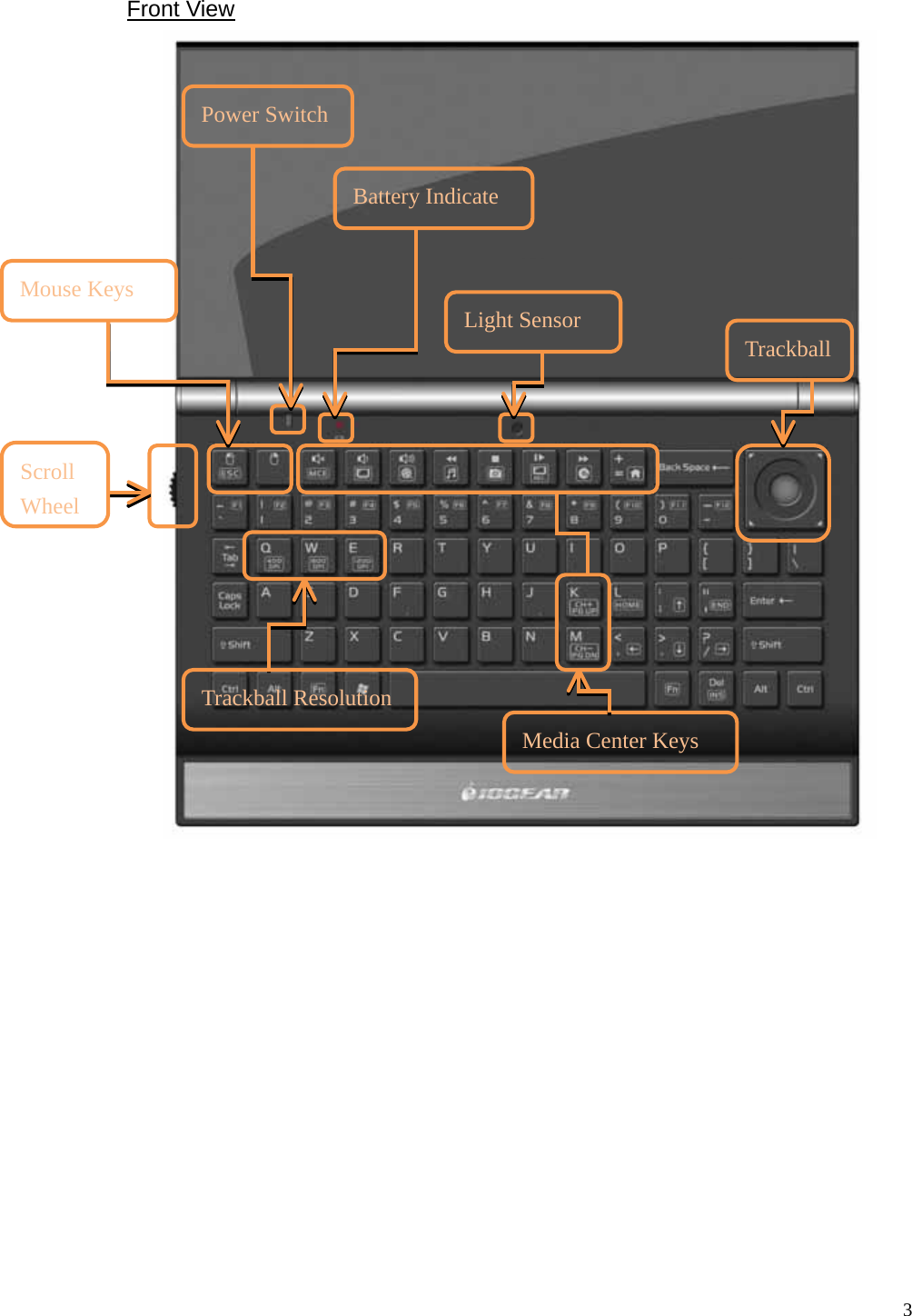
 3 Front View  Media Center Keys Mouse Keys ScrollWheel Trackball Light Sensor Battery IndicateTrackball Resolution Power Switch
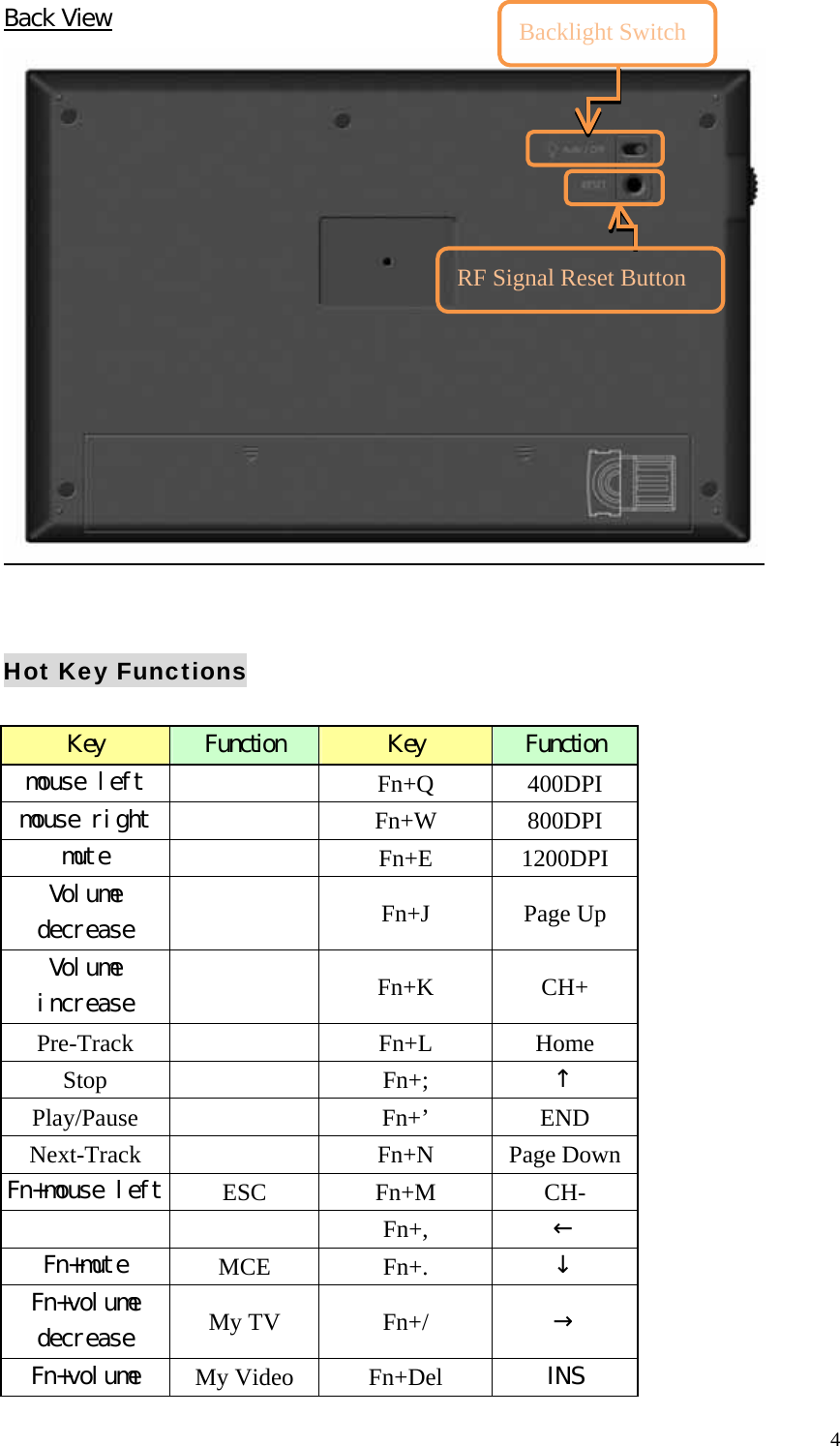
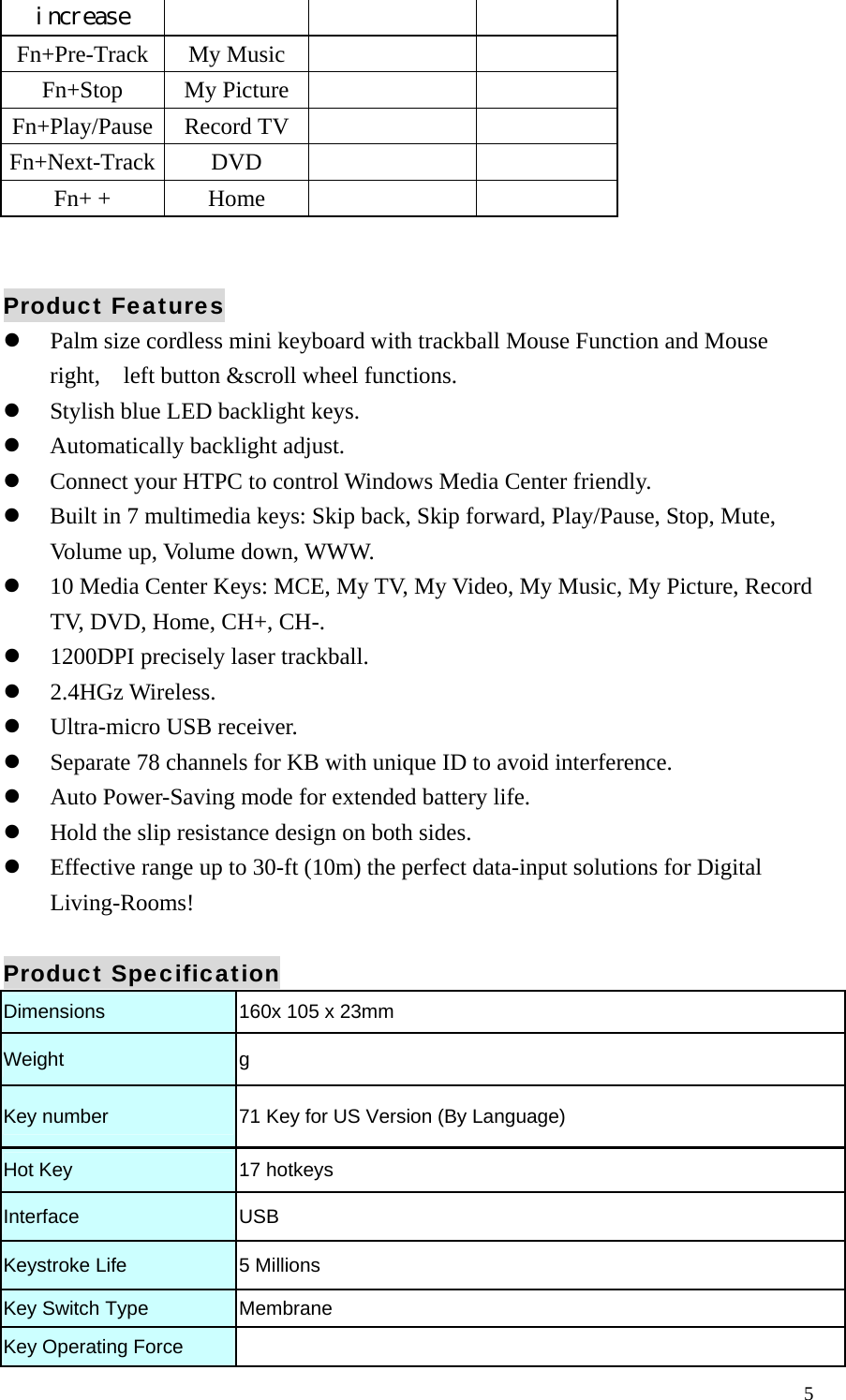
 4Back View     Hot Key Functions  Key  Function  Key  Function mouse left      Fn+Q 400DPI mouse right     Fn+W 800DPI mute     Fn+E 1200DPI Volume decrease     Fn+J   Page Up Volume increase     Fn+K CH+ Pre-Track     Fn+L Home Stop     Fn+;  ↑ Play/Pause     Fn+’ END Next-Track     Fn+N Page DownFn+mouse left  ESC Fn+M CH-   Fn+,  ← Fn+mute  MCE Fn+.  ↓ Fn+volume decrease  My TV  Fn+/  → Fn+volume  My Video  Fn+Del  INS Backlight Switch RF Signal Reset Button
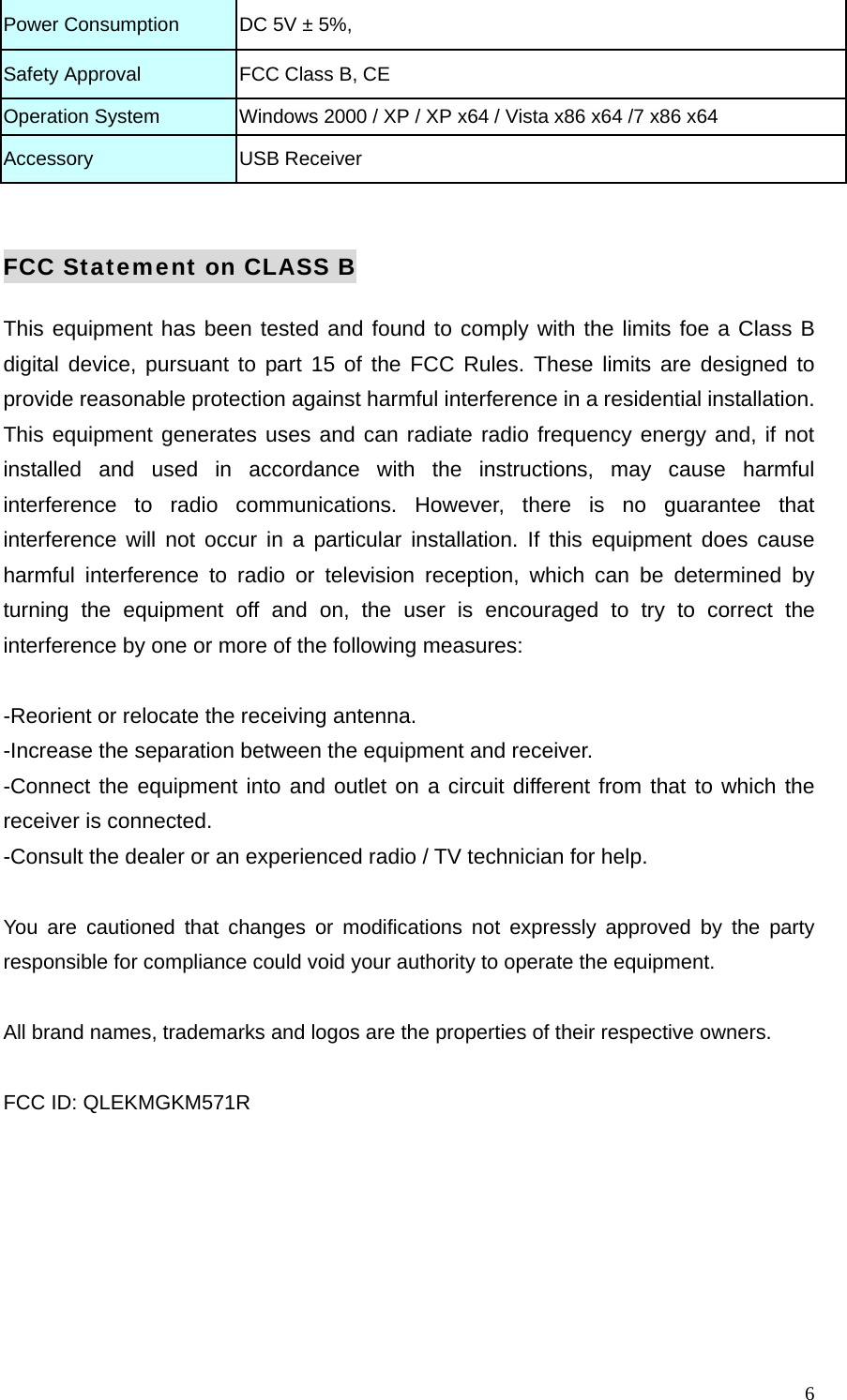
 5increase Fn+Pre-Track My Music       Fn+Stop My Picture       Fn+Play/Pause Record TV       Fn+Next-Track DVD       Fn+ +  Home         Product Features   Palm size cordless mini keyboard with trackball Mouse Function and Mouse right,    left button &scroll wheel functions.   Stylish blue LED backlight keys.   Automatically backlight adjust.   Connect your HTPC to control Windows Media Center friendly.   Built in 7 multimedia keys: Skip back, Skip forward, Play/Pause, Stop, Mute, Volume up, Volume down, WWW.   10 Media Center Keys: MCE, My TV, My Video, My Music, My Picture, Record TV, DVD, Home, CH+, CH-.   1200DPI precisely laser trackball.   2.4HGz Wireless.   Ultra-micro USB receiver.   Separate 78 channels for KB with unique ID to avoid interference.   Auto Power-Saving mode for extended battery life.   Hold the slip resistance design on both sides.                                               Effective range up to 30-ft (10m) the perfect data-input solutions for Digital Living-Rooms!  Product Specification Dimensions  160x 105 x 23mm Weight  g Key number  71 Key for US Version (By Language) Hot Key  17 hotkeys Interface   USB Keystroke Life    5 Millions Key Switch Type    Membrane Key Operating Force
 6Power Consumption  DC 5V ± 5%, Safety Approval    FCC Class B, CE Operation System    Windows 2000 / XP / XP x64 / Vista x86 x64 /7 x86 x64 Accessory  USB Receiver  FCC Statement on CLASS B This equipment has been tested and found to comply with the limits foe a Class B digital device, pursuant to part 15 of the FCC Rules. These limits are designed to provide reasonable protection against harmful interference in a residential installation. This equipment generates uses and can radiate radio frequency energy and, if not installed and used in accordance with the instructions, may cause harmful interference to radio communications. However, there is no guarantee that interference will not occur in a particular installation. If this equipment does cause harmful interference to radio or television reception, which can be determined by turning the equipment off and on, the user is encouraged to try to correct the interference by one or more of the following measures:  -Reorient or relocate the receiving antenna. -Increase the separation between the equipment and receiver. -Connect the equipment into and outlet on a circuit different from that to which the receiver is connected. -Consult the dealer or an experienced radio / TV technician for help.  You are cautioned that changes or modifications not expressly approved by the party responsible for compliance could void your authority to operate the equipment.  All brand names, trademarks and logos are the properties of their respective owners.  FCC ID: QLEKMGKM571R

Navigation menu