AVision Technology ELST3216H LED TV User Manual 2

Avision Technology (changzhou)Co., Ltd. LED TV 2

Contents

User Manual 2

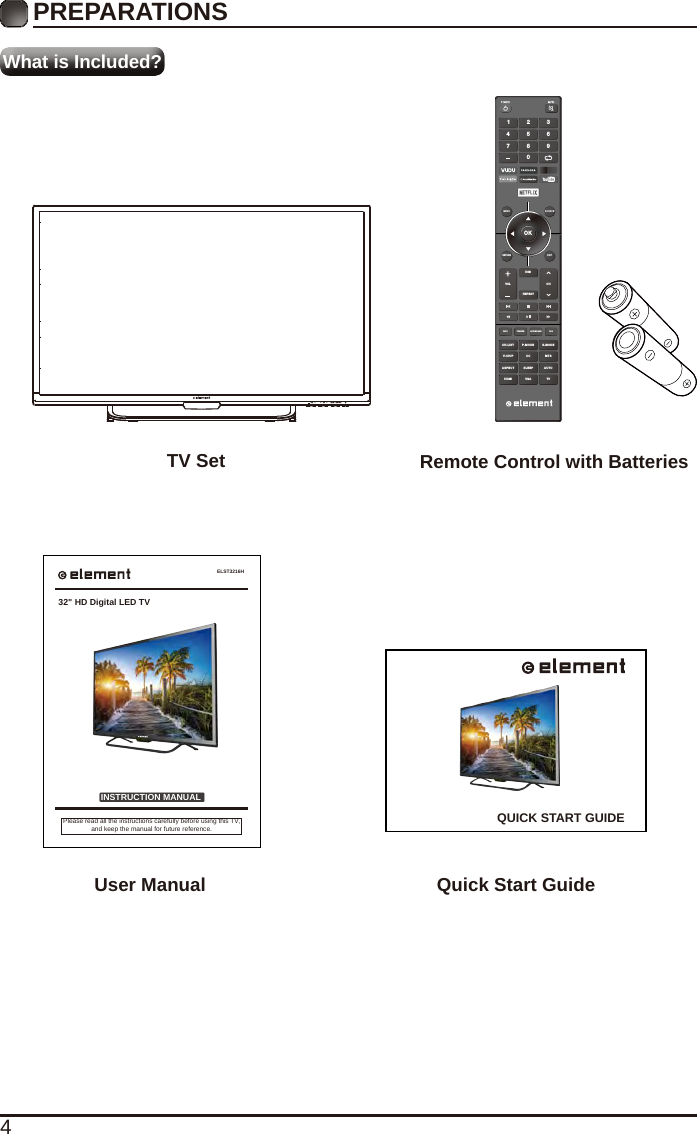
4What is Included?TV Set Remote Control with BatteriesOKMENU SO URCERETURN EXITVOLUSBREPEATCHCH.LISINFO FREEZE ADD/ERASE FAVT P.MODE S.MODEV-CH IP CC  MTSASPECTHDMI VGA TVSLEE P AUTO1 4 7 2 5 8 0 3 6 9 User Manual Quick Start GuideWhat is Included?PREPARATIONS ELST3216HINSTRUCTION MANUALPlease read all the instructions carefully before using this TV,and keep the manual for future reference.32" HD Digital LED TVQUICK START GUIDE
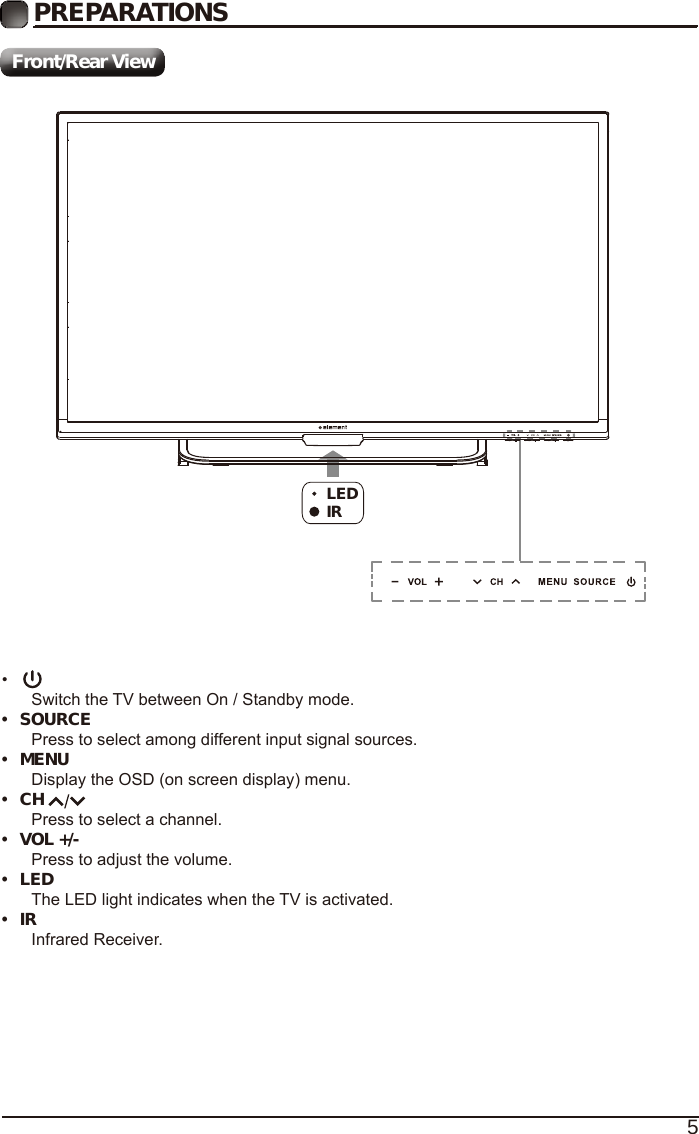
5• Switch the TV between On / Standby mode.•  SOURCEPress to select among different input signal sources.•  MENUDisplay the OSD (on screen display) menu.•  CH Press to select a channel.•  VOL +/-Press to adjust the volume.•  LEDThe LED light indicates when the TV is activated.•  IRInfrared Receiver.LEDIRPREPARATIONS Front/Rear View
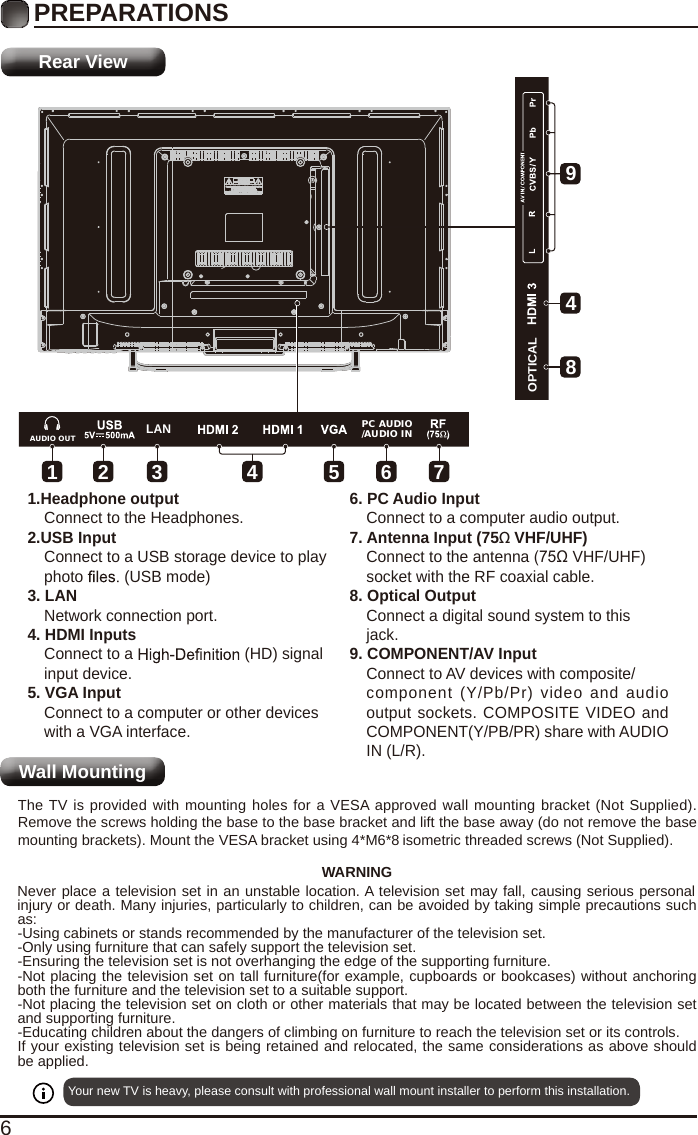
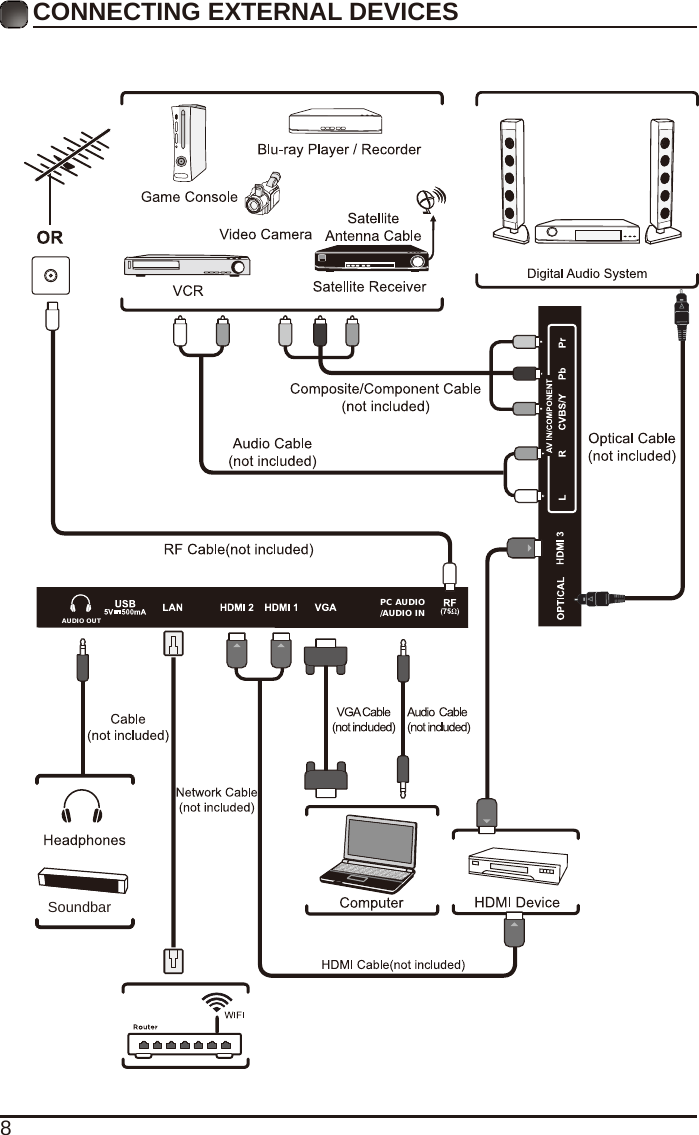
6Your new TV is heavy, please consult with professional wall mount installer to perform this installation. The TV is provided with mounting holes for a VESA approved wall mounting bracket (Not Supplied). Remove the screws holding the base to the base bracket and lift the base away (do not remove the base mounting brackets). Mount the VESA bracket using 4*M6*8 isometric threaded screws (Not Supplied). WARNINGNever place a television set in an unstable location. A television set may fall, causing serious personal injury or death. Many injuries, particularly to children, can be avoided by taking simple precautions such as:-Using cabinets or stands recommended by the manufacturer of the television set.-Only using furniture that can safely support the television set.-Ensuring the television set is not overhanging the edge of the supporting furniture.-Not placing the television set on tall furniture(for example, cupboards or bookcases) without anchoring both the furniture and the television set to a suitable support.-Not placing the television set on cloth or other materials that may be located between the television set and supporting furniture.-Educating children about the dangers of climbing on furniture to reach the television set or its controls.If your existing television set is being retained and relocated, the same considerations as above should be applied.1.Headphone outputConnect to the Headphones.2.USB InputConnect to a USB storage device to play photo   (USB mode)3. LANNetwork connection port.4. HDMI InputsConnect to a   (HD) signalinput device.5. VGA InputConnect to a computer or other deviceswith a VGA interface.6. PC Audio InputConnect to a computer audio output.7. Antenna Input (75Ω VHF/UHF)Connect to the antenna (75Ω VHF/UHF)socket with the RF coaxial cable.8. Optical OutputConnect a digital sound system to thisjack.9. COMPONENT/AV InputConnect to AV devices with composite/component  (Y/Pb/Pr)  video  and  audio output sockets. COMPOSITE VIDEO and COMPONENT(Y/PB/PR) share with AUDIO IN (L/R).LANOPTICAL18492 3 5 6 74PREPARATIONS Rear ViewWall MountingAUDIO OUTPC AUDIO/AUDIO IN
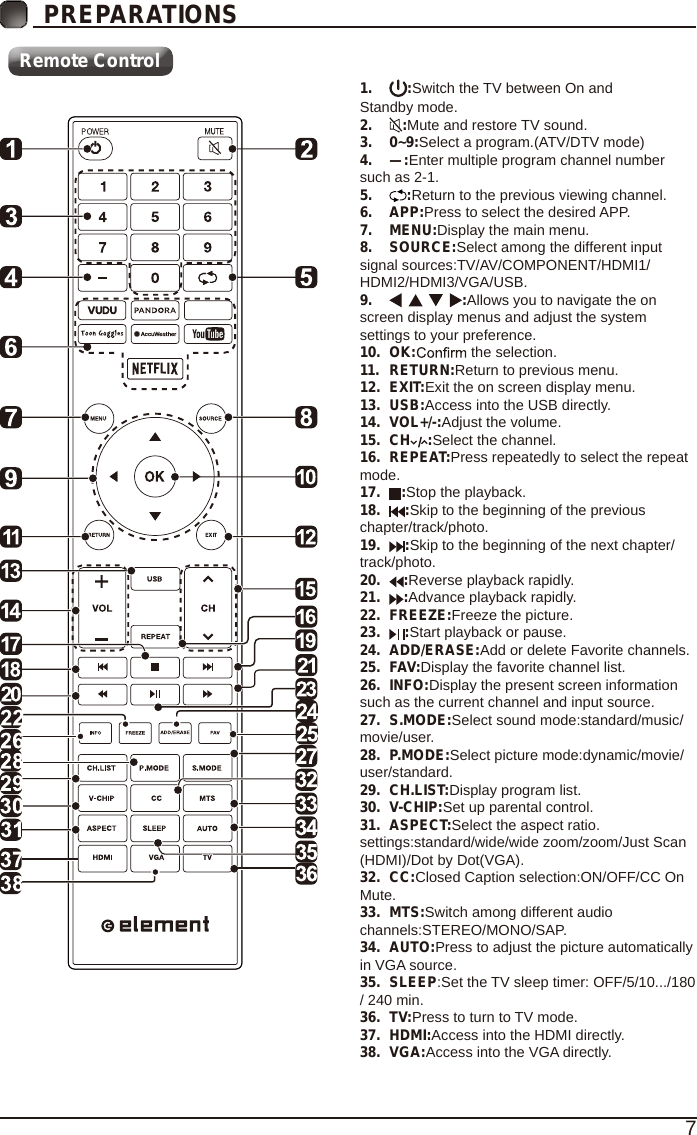
7PREPARATIONS Remote Control1.  :Switch the TV between On and Standby mode.2.  :Mute and restore TV sound.3.  0~9:Select a program.(ATV/DTV mode)4.  —:Enter multiple program channel number such as 2-1.5.  :Return to the previous viewing channel.6.  APP:Press to select the desired APP.7.  MENU:Display the main menu.8.  SOURCE:Select among the different input signal sources:TV/AV/COMPONENT/HDMI1/HDMI2/HDMI3/VGA/USB.9.  :Allows you to navigate the on screen display menus and adjust the system settings to your preference.10.  OK:  the selection.11.  RETURN:Return to previous menu.12.  EXIT:Exit the on screen display menu.13.  USB:Access into the USB directly.14.  VOL+/-:Adjust the volume.15.  CH :Select the channel.16.  REPEAT:Press repeatedly to select the repeat mode.17.  :Stop the playback.18.  :Skip to the beginning of the previous chapter/track/photo.19.  :Skip to the beginning of the next chapter/ track/photo.20.  :Reverse playback rapidly.21.  :Advance playback rapidly.22.  FREEZE:Freeze the picture.23.  :Start playback or pause.24.  ADD/ERASE:Add or delete Favorite channels.25.  FAV:Display the favorite channel list.26.  INFO:Display the present screen information such as the current channel and input source.27.  S.MODE:Select sound mode:standard/music/movie/user.28.  P.MODE:Select picture mode:dynamic/movie/user/standard.29.  CH.LIST:Display program list.30.  V-CHIP:Set up parental control.31.  ASPECT:Select the aspect ratio. settings:standard/wide/wide zoom/zoom/Just Scan (HDMI)/Dot by Dot(VGA).32.  CC:Closed Caption selection:ON/OFF/CC On Mute.33.  MTS:Switch among different audio channels:STEREO/MONO/SAP.34.  AUTO:Press to adjust the picture automatically in VGA source.35.  SLEEP:Set the TV sleep timer: OFF/5/10.../180 / 240 min.36.  TV:Press to turn to TV mode.37.  HDMI:Access into the HDMI directly.38.  VGA:Access into the VGA directly.
8CONNECTING EXTERNAL DEVICESAUDIO OUTPC AUDIO/AUDIO INSoundbar

Navigation menu