AWOX SCW Awox StriimCAST User Manual SC W Quick Start GuideV1 1 1125
AWOX Awox StriimCAST SC W Quick Start GuideV1 1 1125
AWOX >
Users Manual
1 I
(1
)
(2
)
(3
)
(4
)
2.
C
2.1
C
e
2.2
C
s
u
3.
R
nterface
)
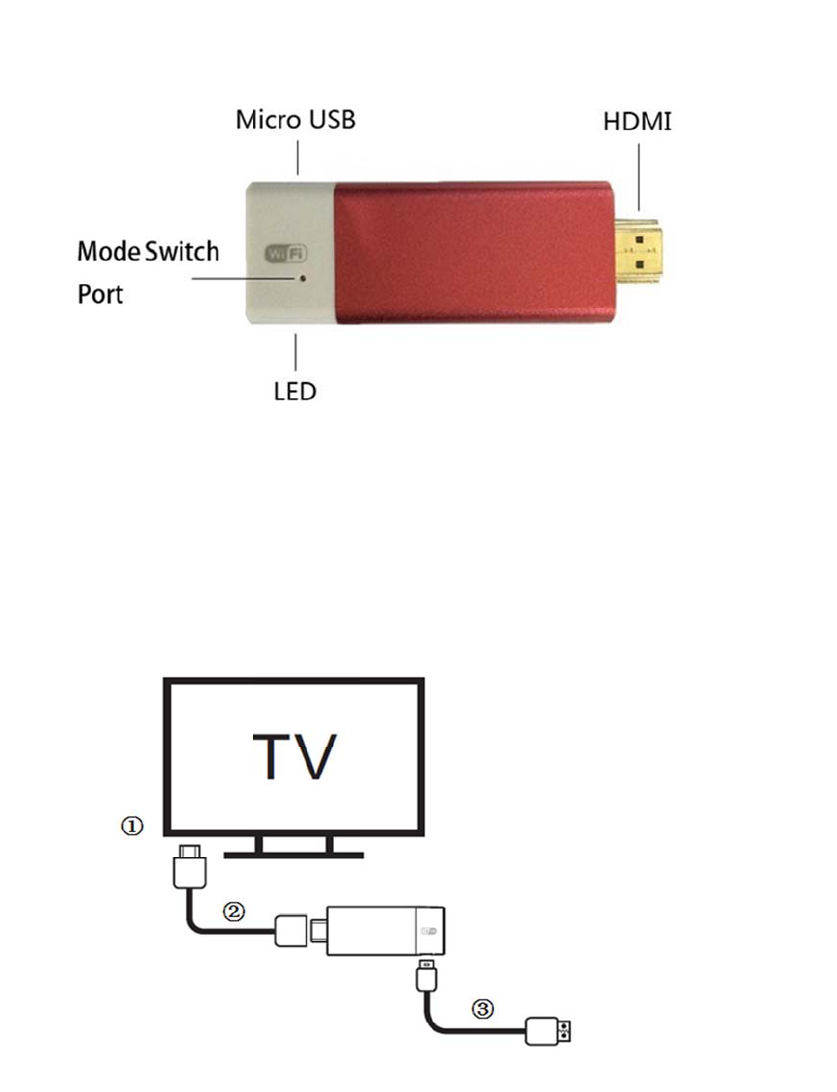
Micro US
B
)
HDMI Po
r
)
Power LE
D
)
Mode Swi
t
C
onnect
i
C
onnect the
H
e
xtension ca
b
C
onnect the
m
u
pply.
R
outerS
e
Q
u
Functio
n
B
Port:Con
n
r
t:Connect
H
D
:The LE
D
t
ch port: Use
d
i
ng to Sc
r
H
DMI-Input
b
le.
m
icro-USB p
e
tting
u
ick
n
Introd
u
n
ect televisio
n
H
DTV monit
D
is blue whil
e
d
for switch
D
r
eencast
p
ort of the T
V
ort of Scree
n
St
a
u
ction
n USB Port
o
t
or with HD
M
e
the Dongle
D
LNA mode
V
and the H
D
n
cast to the T
V
a
rt
G
o
r adapter (5
V
M
I Extension
Power up.
and Miracas
t
D
MI-Output
o
V
USB Port
v
G
ui
d
V
/500mA) fo
r
cable.
t
mode.
o
f the Screen
c
v
ia USB cabl
d
e
o
r power sup
p
n
cast via HD
M
l
e for power
p
ly.
M
I
3.1
C
De
3.2
A
3.4
C
3.5
C
4.
D
4.1
Run
n
DLN
(1)
S
(2)
S
C
licking “Se
t
fault Passwo
r
A
fter Succes
s
C
licktheico
n
C
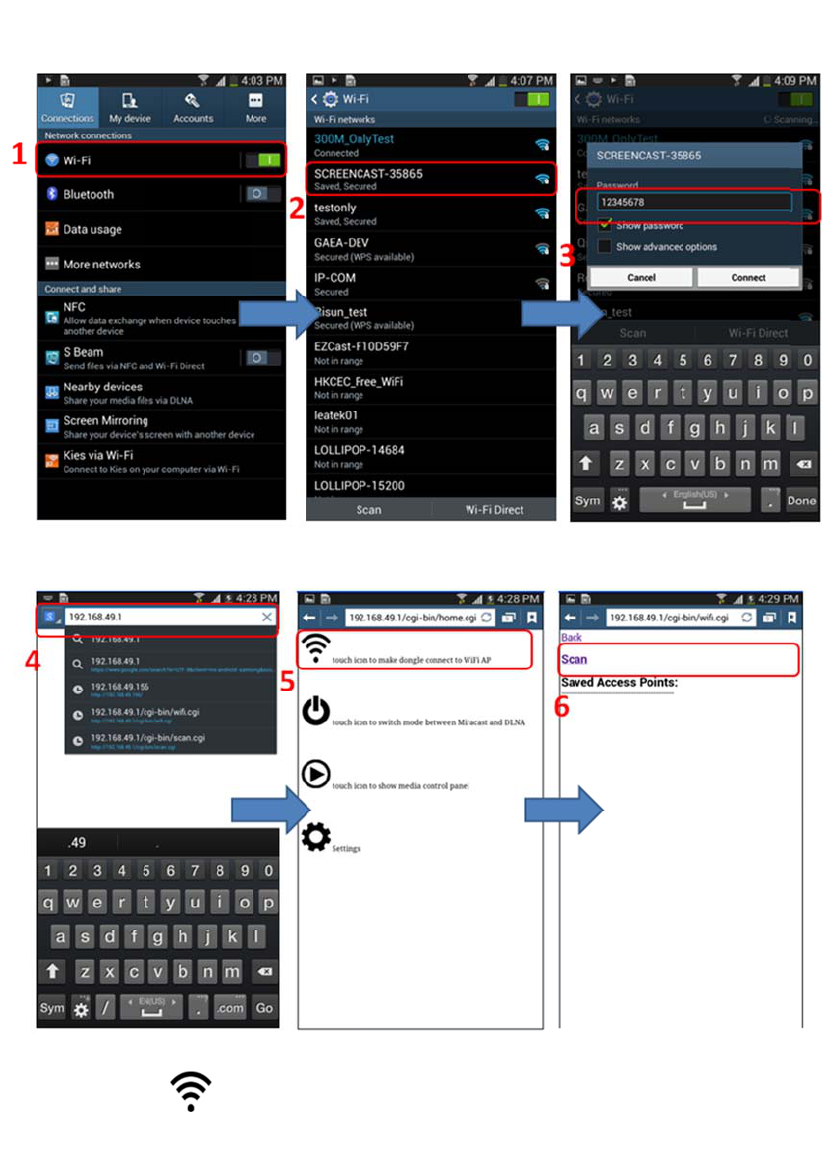
lick“Scan”
t
D
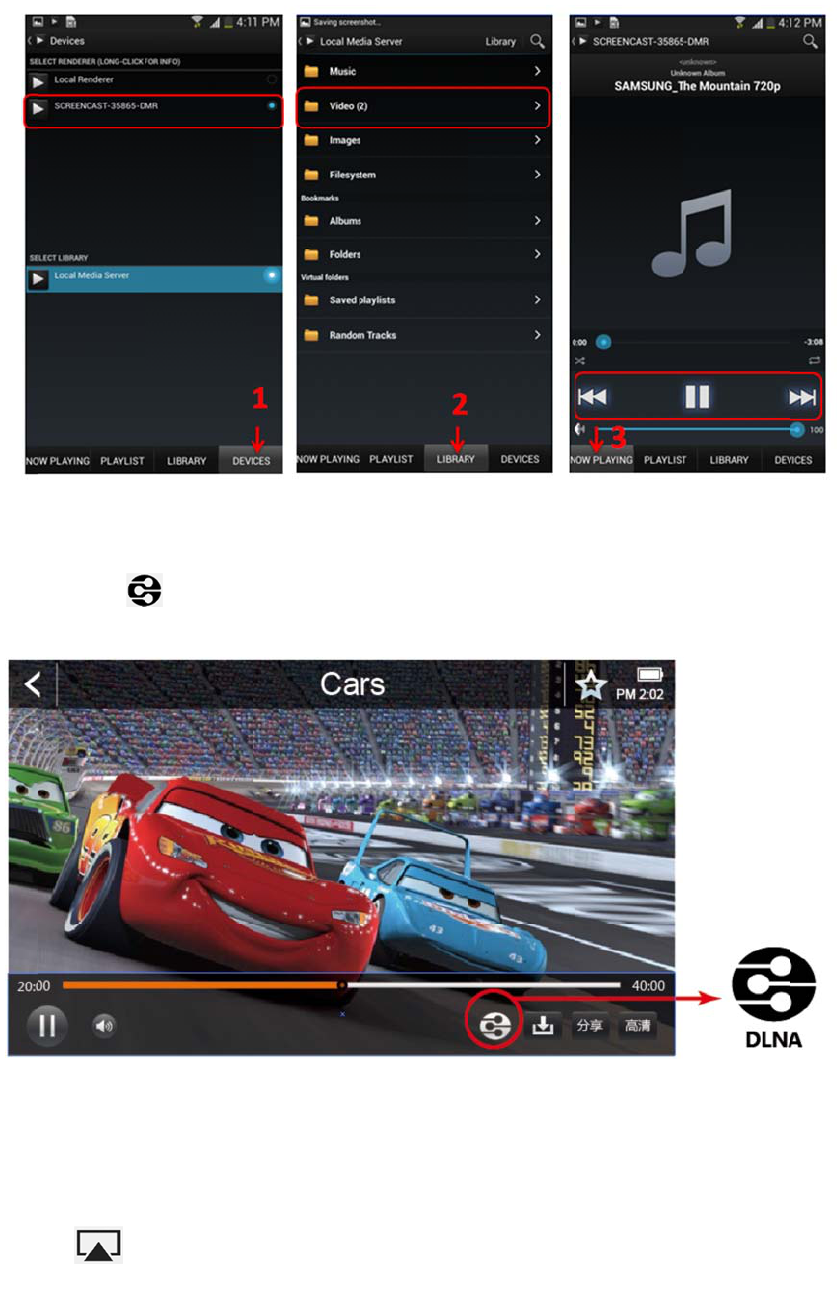
LNAUs
a
DLNALoca
ningtheAPP
Asharing:
S
electtheSC
R
S
electthevid
t
tings”→“W
I
r
ds “123456
7
s
connected,
O
n
..
t
oscanthe
W
a
ge
lSharing
(example:“
B
R
EENCAST‐x
x
eo,picture,
m
I
FI” →“SCR
E
7
8”.
O
pen the
b
ro
W
irelessRout
e
B
ubbleUPnP
”
x
xxxinthe“
D
m
usicinthe
“
E
ENCAST-
x
o
wser and ty
p
e
r,chooseth
”
,downloa
d
D
EVICES”.
“
PLAYLIST”o
r
x
xxxx”on yo
u
e in ”http://1
eAPEnterP
a
d
fromGoogl
r
“LIBRARY”,
u
r phone or t
a
9
2.168.49.1”
a
ssword.
e
Playstore)
t
hemediaw
i
a
blet , type i
n
”
.
whichused
f
illplayonth
e
n
f
or
e
TV.
4.2
Do
w
icon
devi
5.
A
5.1
C
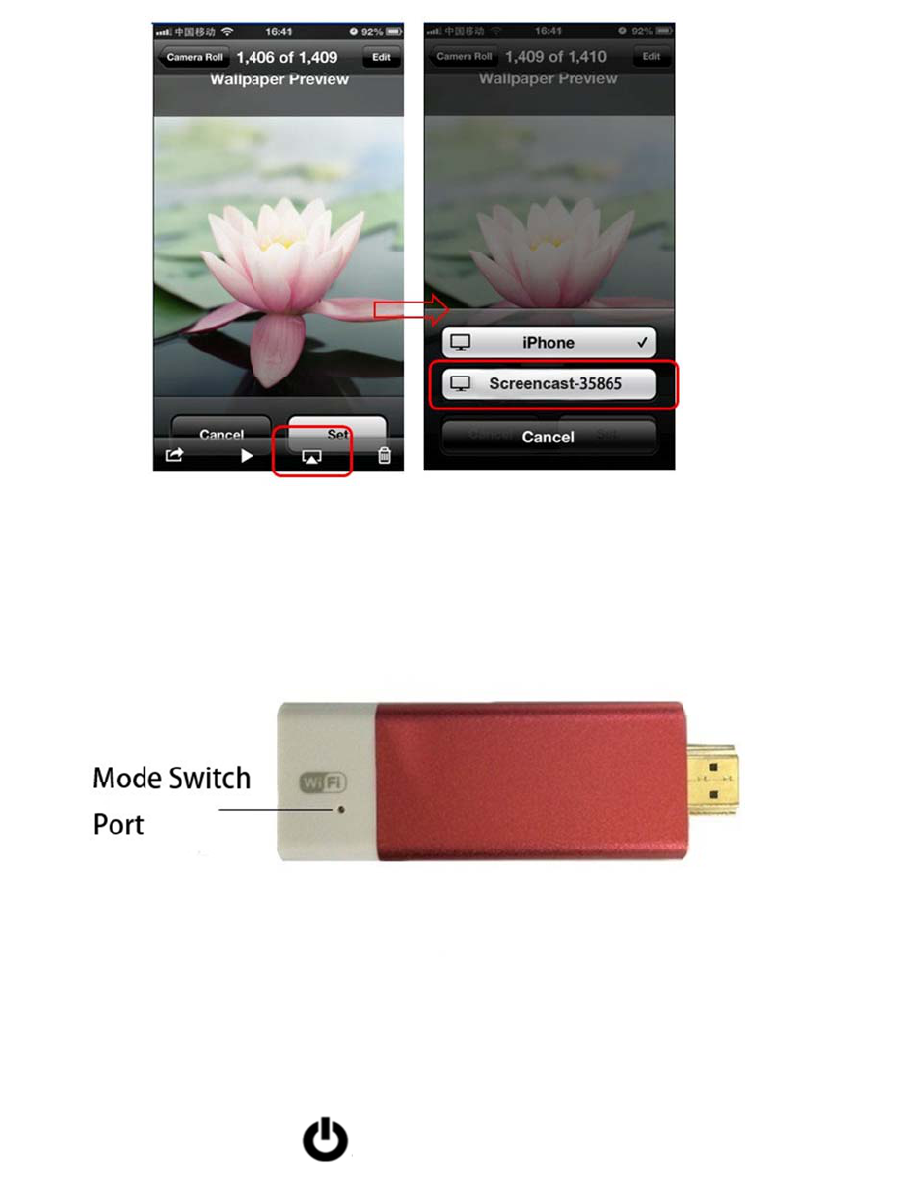
airp
l
DLNAInte
r
w
nloadtheO
n
ofDLNA
ces“SCREEN
A
irPlayU
C
onnectIOS
t
l
ayt
h
r
netSharin
g
n
lineVideo
A
willappe
a
CAST‐xxxxx”
sage
t
o“SCREENC
A
h
enchooset
h
g
A
ppfromGo
o
a
rwhenyou
forsharing
o
A
ST‐xxxxx”.
B
h
edevices“
S
o
glePlaySto
r
watchtheO
n
o
nTV.
B
rowsingthe
S
CREENCAST‐
r
e,Whichsu
p
n
lineVideo,
t
localvideo/
m
xxxxx”forsh
p
porttheDL
N
t
henclickita
m
usic/pictur
e
aringonTV.
N
Ashare.Th
e
ndchooset
h
e
,clicktheic
o
e
h
e
o
nof
6.
M
6.1
M
P
6.2
W
O
C
M
odeS
w
M
anuallysw
P
okethepor
t
W
ebswitch:
O
penbrows
e
C
licktheico
n
w
itchDLN
itch
t
IntheFron
t
e
randtypei
n
n
ofModeS
w
AandM
i
t
ofscreenca
s
n
“http://19
2
w
itch
iracast
s
t.
2
.168.49.1”
intheWeb.
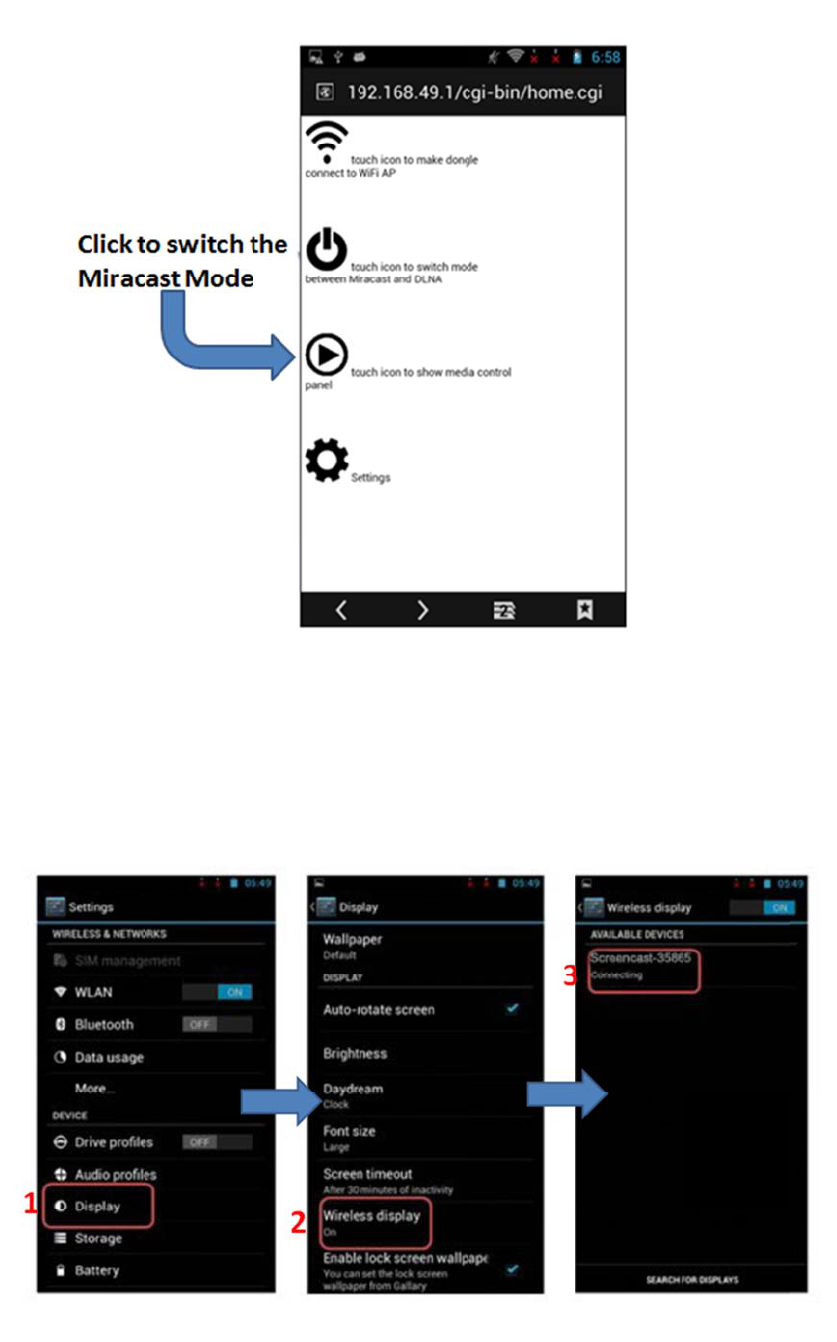
7.
M
7.1
C
Clic
k
Afte
M
iracast
C
onnectsett
k
“Settings”
e
rconnectsu
c
Usage
ing(WiFiDi
→“Displa
y
c
cessfully,th
splay)
y
”→“Wire
escreenoft
h
lessDisplay
”
h
edeviceca
n
”
→“SCREE
N
n
shareonT
V
N
CAST‐xxxxx
V
screenreal
‐
”
‐
timely.
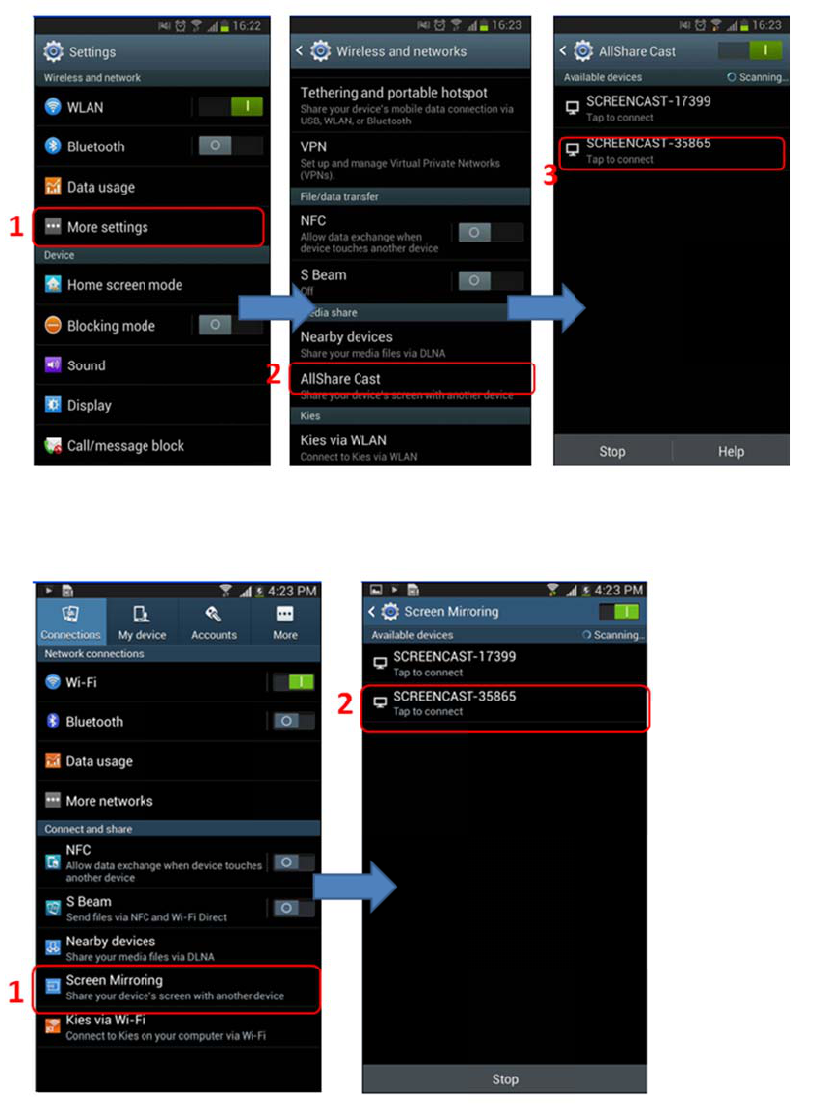
7.2.
Clic
k
7.3
S
C
l
NO
T
Vari
o
LG
Son
y
HT
C
Connecting
s
k
“Settings”
S
AMSUNGD
e
l
ick“Setting
T
E:
ousdevices
h
Optimus G:
y
: Setting->
X
C
: Setting->
M
s
etting(Scr
e
→“More
S
e
viceConne
c
→”Connect
A
h
asdifferent
Setting->M
o
X
peria->Scre
e
M
edia Outpu
t
e
enMirrorin
S
ettings”→
c
tSetting(
S
A
ndShare”
→
nameandw
a
o
re Setting->
e
n sync displ
a
t
.
g)
“AllShareC
a
S
creenMirro
r
→”ScreenM
a
ytosetMir
Miracast.
ay.
a
st”→“SC
R
r
ing)
irroring”→
“
a
cast,below
R
EENCAST‐x
x
“
SCREENCAS
T
forreferenc
e
x
xxx”
T
‐xxxxx”
e
:
Sharp: Settings -> Wireless Output.
Nexus4: Settings-> Display -> Wireless display.
XiaoMi2: Settings-> Wlan display settings->Menu-> Wlan Display .
8.FAQ
Q:The screen is black.
A:Please confirm follow steps:
(1) Please check the LED? If not blue, make sure the Micro USB cable be fully connected to
the power source.
(2) Make sure the HDMI cable is securely connected firmly.
(3) Make sure the correct HDMI port input is selected by the TV.
Q: Can’t find device In the Miracast Mode.
A: Please make sure Screencast has been switch to the Miracast mode
Q:Does not scan the device in the DLNA mode?
A:Please make sure the wireless connect between your phone or tablet and Screencast.
Q:Play the Video not very smoothly in the DLNA mode.
A:(1) Please wait for a moment due to huge file need time to buffer.
(2) Short distance between the device and the router.
Q:Play video suddenly stop in the Miracast mode.
A: Short distance between the device and the router.
FCCWARNING
This device complies with Part 15 of the FCC Rules. Operation is subject to the following two
conditions:
(1) This device may not cause harmful interference, and
(2) this device must accept any interference received, including interference that may cause
undesired operation.
NOTE 1: Any changes or modifications to this unit not expressly approved by the party
responsible for compliance could void the user's authority to operate the equipment.