AWOX SIW Awox StriimLINK User Manual

AWOX Awox StriimLINK

User Manual

                                                                        User Manual    Table of Contents    1.0 Introduction……………………………………………………..1  2.0 Features…............................................................................1  3.0 Specification……………………………………………...........1  4.0 Package Contents………………………………………….….2  5.0 Panel Descriptions..............................................................2  6.0 Network Connection…………………………………………..4  7.0 The connection diagram……………………………………...4  8.0 The operation for Android mobile phone………………….5  9.0 The operation for computer………………………………….7  Appendix:The difference of DLNA and Bluetooth Audio…..11           DLNA Audio Receiver  DEAR CUSTOMER Thank you for purchasing this product. For optimum performance and safety,
                                                                          DLNA Audio Receiver  1please read these instructions carefully before connecting, operating or adjusting this product. Please keep this manual for future reference.   1.0 Introduction  Over this DLNA Audio Receiver, you can push your music wirelessly from your mobile phone or computer with Windows media player on your home audio system. You'll not only enjoy superior quality music on your stereo speakers or Amplifier Receiver, but also the convenience of a wireless connection. With WPS button, you can connect to network by pressing a pairing button on this Receiver and on wireless access point. It is ideal for your mobile phones, portable devices, or personal computers.    2.0 Features z  Stream directly to an existing Stereo and Toslink port z  Control and listen to your favorite music wirelessly using this product through home audio system. z  Digital Media Renderer(DMR DLNA )   z  Support Digital Media Player(DMC DLNA) z Support Media format:         MP3 (up to 48 kHz, CBR & VBR) AAC (up to 48 kHz, 8-320 kbps) WMA (up to 48 kHz, CBR & VBR) including Lossless   LPCM, WAV (up to 48 kHz, up to 1.44 Mb/s) z  Support wire or wireless connection Wire:10/100Mbps Ethernet, RJ45 Wireless: high-performance 802.11b/g/n with WEP/WPA encryption, WPS  3.0 Specification  Transmission protocol  DLNA ,Digital Media Renderer(DMR) Network interface  Wire:10/100Mbps Ethernet, RJ45 Wireless: high-performance802.11b/g/n with WEP/WPA encryption, WPS Audio output interface  3.5mm Stereo Toslink USB interface  USB 2.0 A Female Mechanical   Size(L-W-H) 125×95×25mm Weight(Net) 150g Environmental   Operating Temperature  0  to +7℃0℃ Operating Humidity  10% to 85 % RH (no condensation) Storage Temperature  -10  to +80℃℃
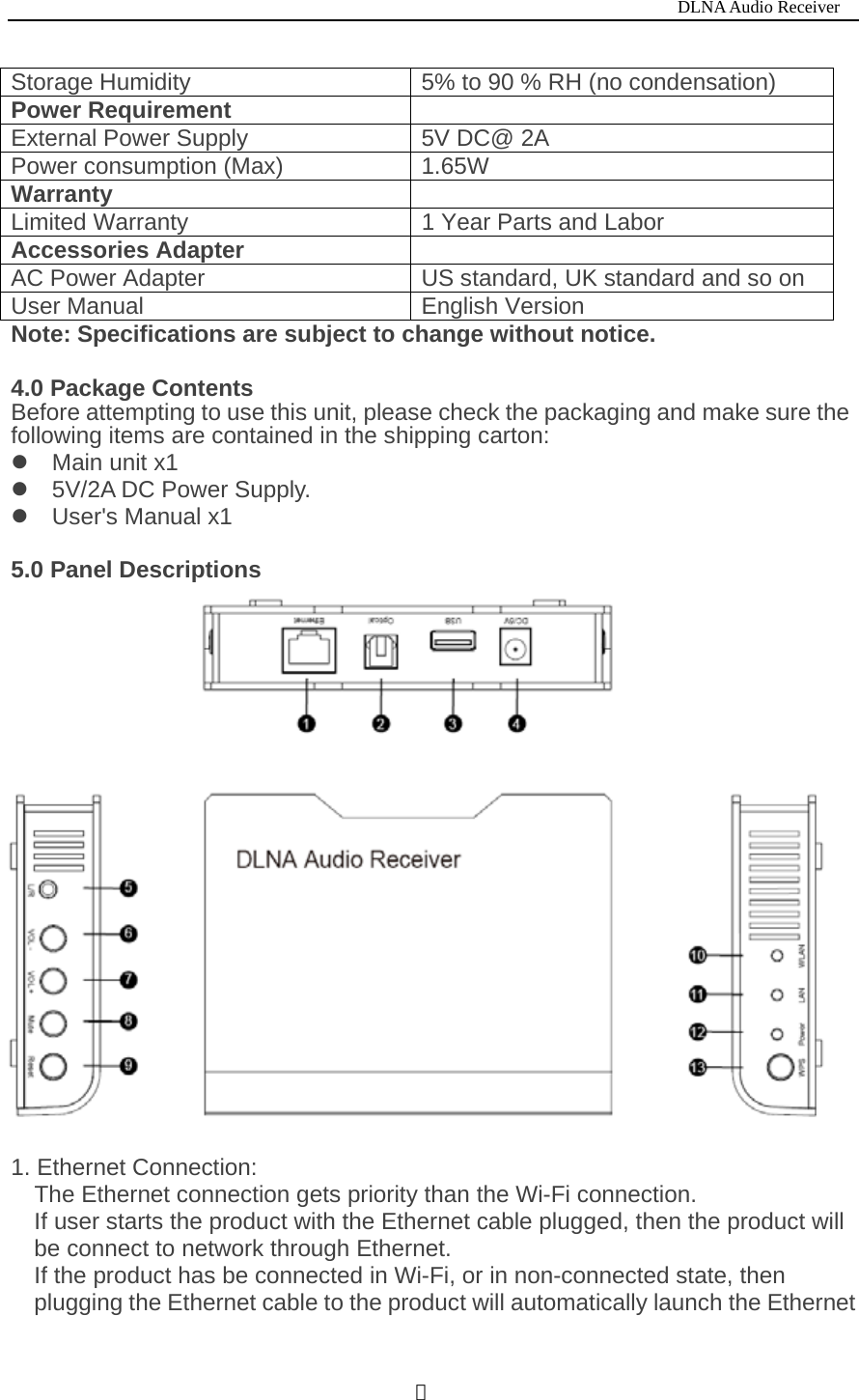
                                                                          DLNA Audio Receiver  2Storage Humidity  5% to 90 % RH (no condensation) Power Requirement   External Power Supply  5V DC@ 2A Power consumption (Max)  1.65W Warranty   Limited Warranty  1 Year Parts and Labor Accessories Adapter  AC Power Adapter  US standard, UK standard and so on User Manual  English Version Note: Specifications are subject to change without notice.    4.0 Package Contents Before attempting to use this unit, please check the packaging and make sure the following items are contained in the shipping carton: z Main unit x1 z 5V/2A DC Power Supply. z User's Manual x1  5.0 Panel Descriptions   1. Ethernet Connection: The Ethernet connection gets priority than the Wi-Fi connection. If user starts the product with the Ethernet cable plugged, then the product will be connect to network through Ethernet. If the product has be connected in Wi-Fi, or in non-connected state, then plugging the Ethernet cable to the product will automatically launch the Ethernet
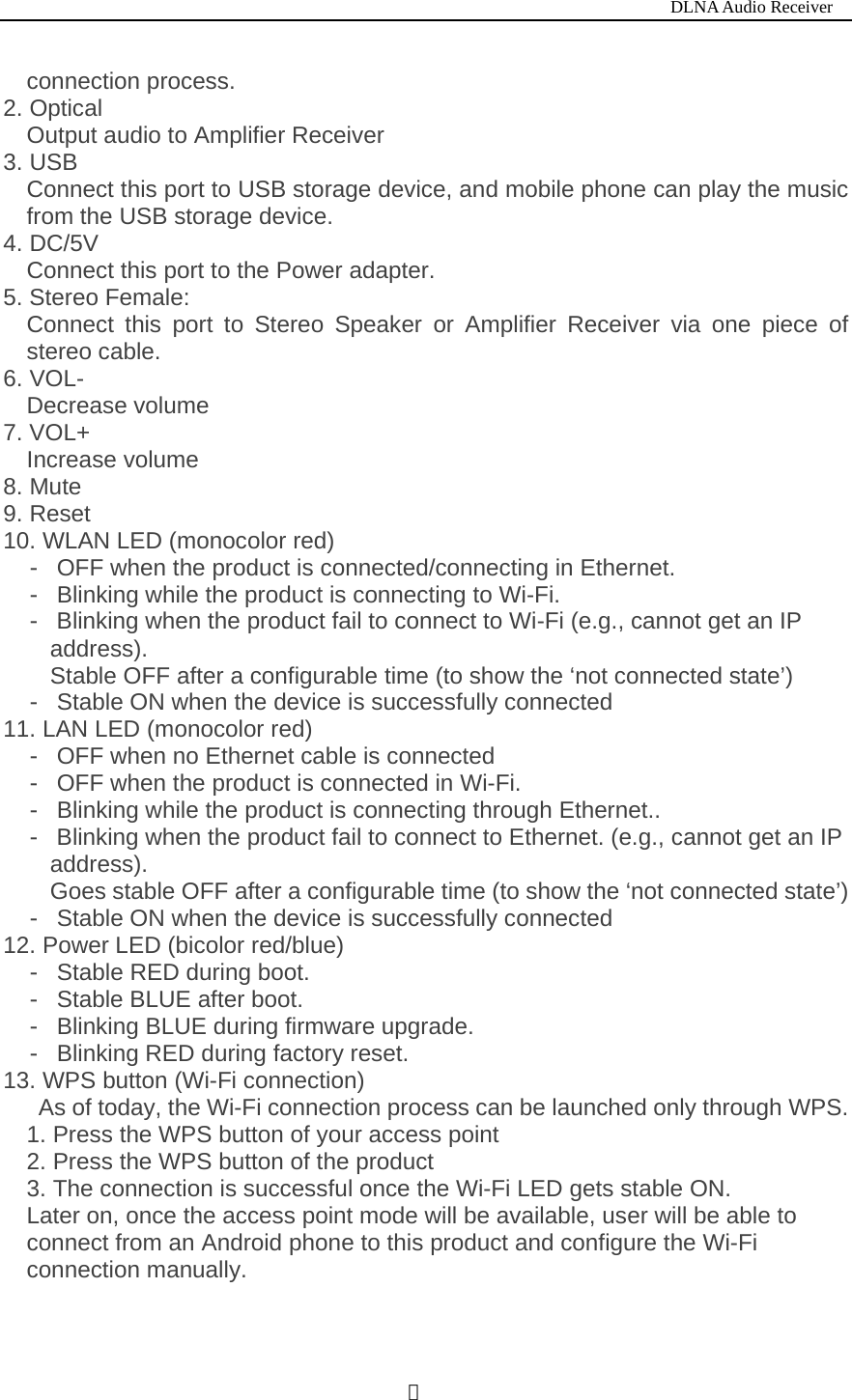
                                                                          DLNA Audio Receiver  3connection process. 2. Optical Output audio to Amplifier Receiver 3. USB   Connect this port to USB storage device, and mobile phone can play the music from the USB storage device. 4. DC/5V Connect this port to the Power adapter. 5. Stereo Female:   Connect this port to Stereo Speaker or Amplifier Receiver via one piece of stereo cable.   6. VOL-   Decrease volume 7. VOL+ Increase volume 8. Mute 9. Reset 10. WLAN LED (monocolor red)      OFF when the product is connected/connecting in Ethern‐et.  Blinking while the product is connecting to Wi‐-Fi.  Blinking when the product fail to connect to Wi‐-Fi (e.g., cannot get an IP address). Stable OFF after a configurable time (to show the ‘not connected state’)  Stable ON when the device is successf‐ully connected 11. LAN LED (monocolor red)  OFF when no Ethernet cable is connected‐  OFF when the product is connected in Wi‐-Fi.  Blinking while the product is connecting through Ethernet..‐  Blinking when the product fail to connect to Ethernet. (e.g.,‐ cannot get an IP address). Goes stable OFF after a configurable time (to show the ‘not connected state’)  Stable ON when the device is successfully connected‐ 12. Power LED (bicolor red/blue)  Stable RED during boot.‐  Stable BLUE after boot.‐  Blinking ‐BLUE during firmware upgrade.  Blinking RED during factory reset.‐ 13. WPS button (Wi-Fi connection) As of today, the Wi-Fi connection process can be launched only through WPS. 1. Press the WPS button of your access point 2. Press the WPS button of the product 3. The connection is successful once the Wi-Fi LED gets stable ON. Later on, once the access point mode will be available, user will be able to connect from an Android phone to this product and configure the Wi-Fi connection manually.
                                                                          DLNA Audio Receiver  46.0 Network Connection Before all operation start, please make sure all devices are connected to a network. When providing power to this product, it will take about 30 seconds to start this product. Ethernet connection The Ethernet connection gets priority than the Wi-Fi connection. If user starts the product with the Ethernet cable plugged, then the product will be connect to network through Ethernet. If the product has be connected in Wi-Fi, or in non-connected state, then plugging the Ethernet cable to the product will automatically launch the Ethernet connection process. Wi-Fi connection As of today, the Wi-Fi connection process can be launched only through WPS. 1. Press the WPS button of your access point 2. Press the WPS button of the product. 3. The connection is successful once the Wi-Fi LED gets stable ON. Later on, once the access point mode will be available, user will be able to connect from an Android phone to product and configure the Wi-Fi connection manually.  FCC ID warnings  This device complies with Part 15 of the FCC Rules. Operation is subject to the following two conditions: (1) this device may not cause harmful interference, and (2) this device must accept any interference received, including interference that may cause undesired operation.   changes or modifications not expressly approved by the party responsible for compliance could void the user's authority to operate the equipment. NOTE: This equipment has been tested and found to comply with the limits for a Class B digital device, pursuant to Part 15 of the FCC Rules. These limits are designed to provide reasonable protection against harmful interference in a residential installation. This equipment generates, uses and can radiate radio frequency energy and, if not installed and used in accordance with the instructions, may cause harmful interference to radio communications. However, there is no guarantee that interference will not occur in a particular installation. If this equipment does cause harmful interference to radio or television reception, which can be determined by turning the equipment off and on, the user is encouraged to try to correct the interference by one or more of the following measures: -- Reorient or relocate the receiving antenna. -- Increase the separation between the equipment and receiver.
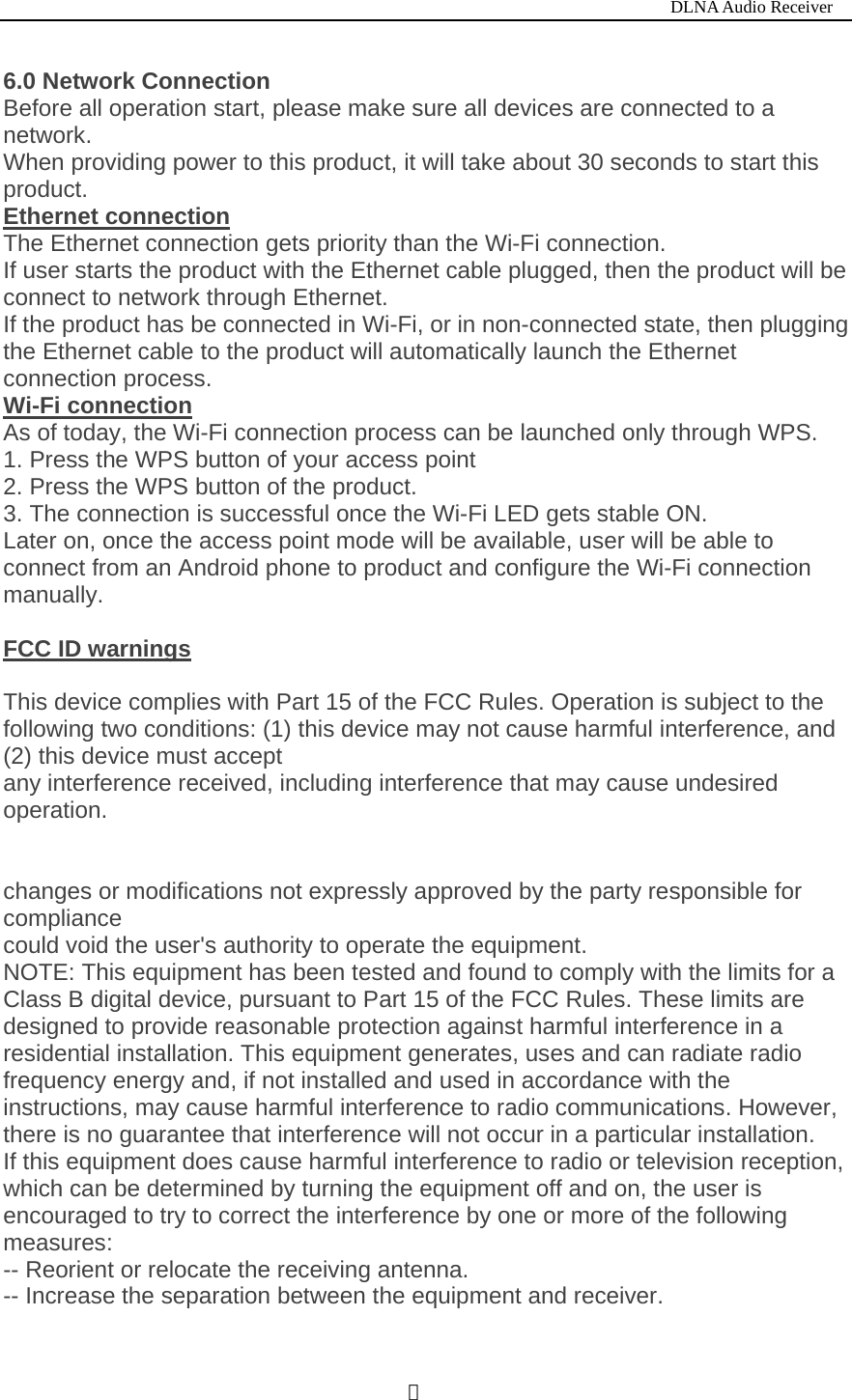
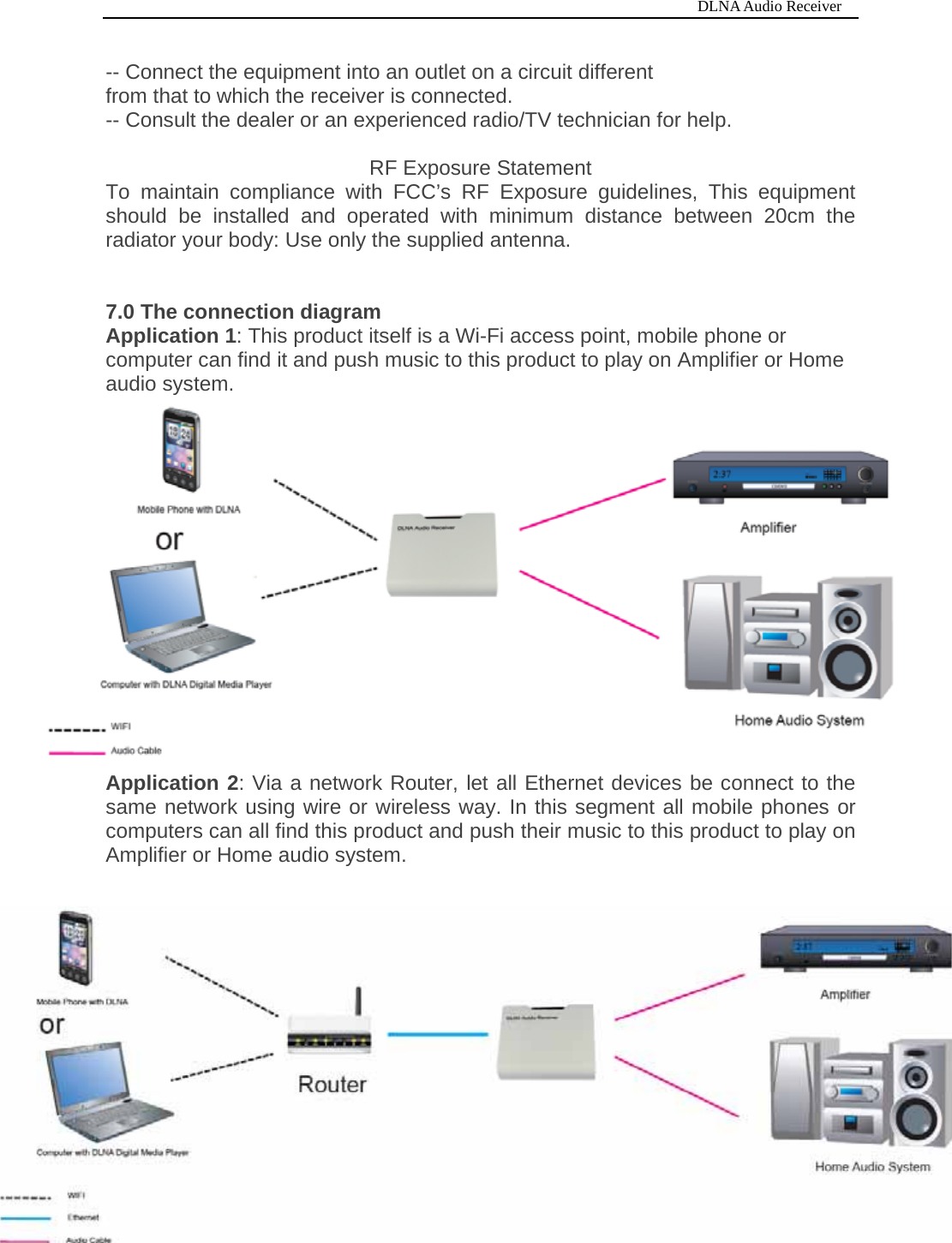
                                                                          DLNA Audio Receiver  5-- Connect the equipment into an outlet on a circuit different from that to which the receiver is connected. -- Consult the dealer or an experienced radio/TV technician for help.  RF Exposure Statement To maintain compliance with FCC’s RF Exposure guidelines, This equipment should be installed and operated with minimum distance between 20cm the radiator your body: Use only the supplied antenna.   7.0 The connection diagram Application 1: This product itself is a Wi-Fi access point, mobile phone or computer can find it and push music to this product to play on Amplifier or Home audio system. Application 2: Via a network Router, let all Ethernet devices be connect to the same network using wire or wireless way. In this segment all mobile phones or computers can all find this product and push their music to this product to play on Amplifier or Home audio system.
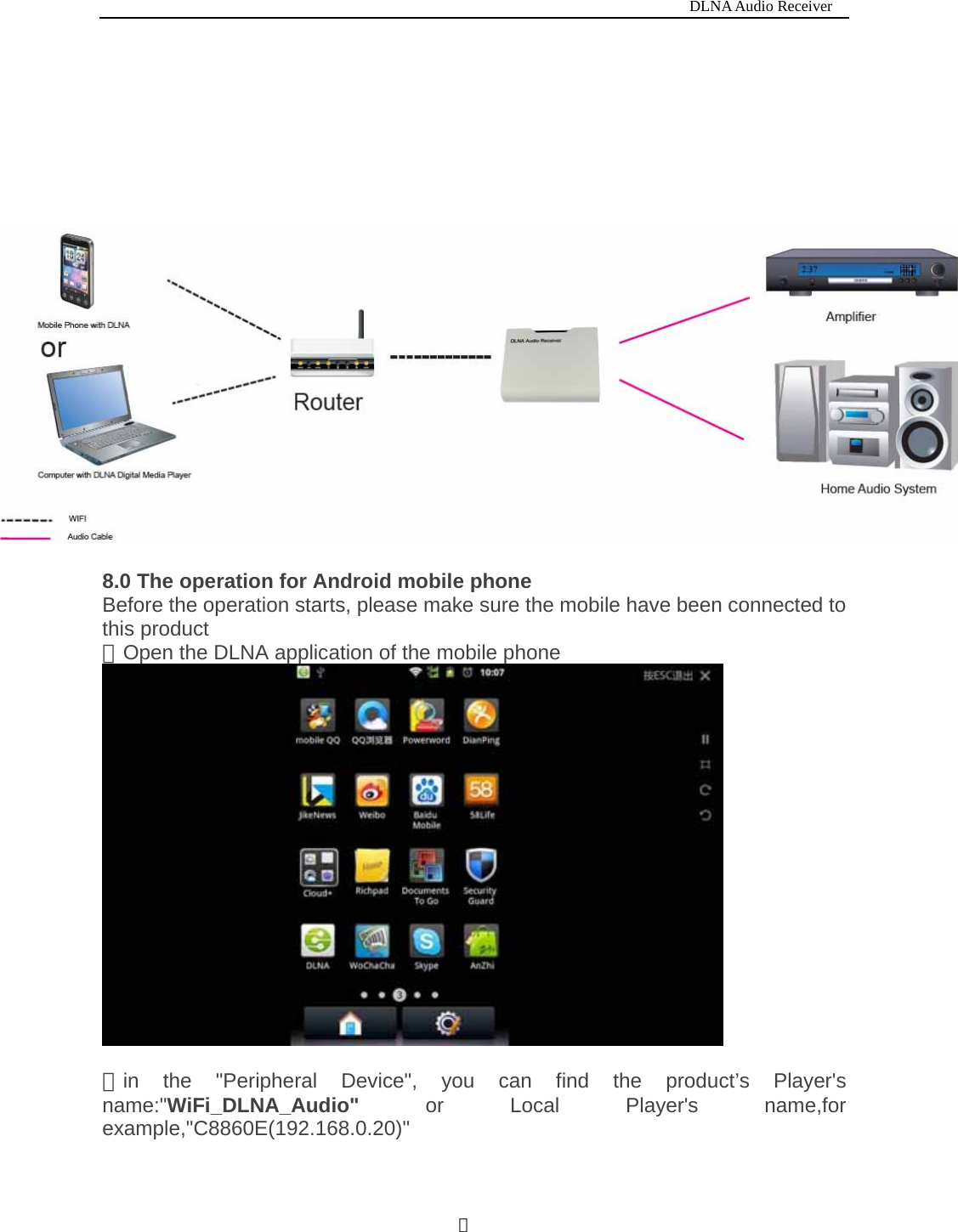
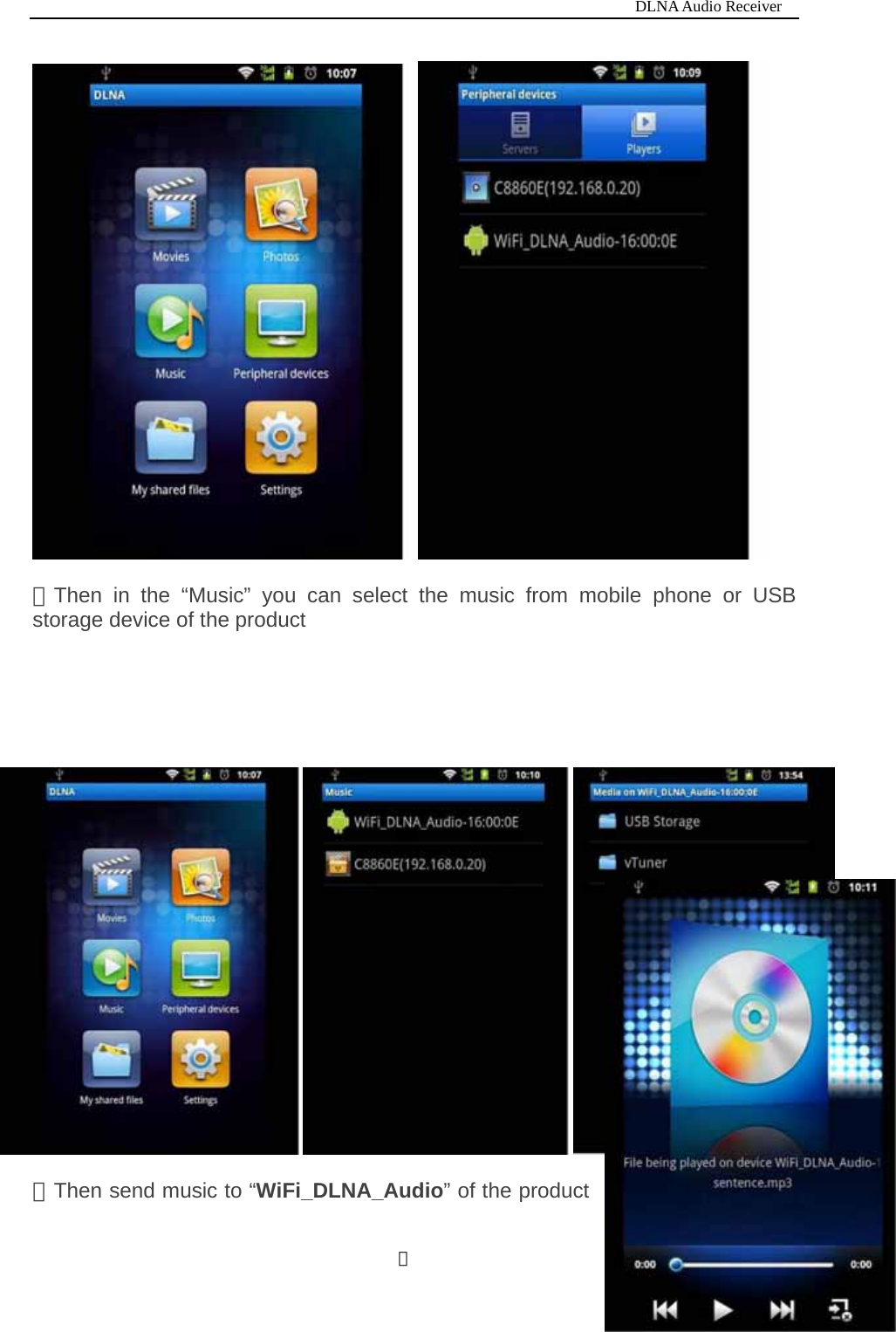
                                                                          DLNA Audio Receiver  6        8.0 The operation for Android mobile phone Before the operation starts, please make sure the mobile have been connected to this product ①Open the DLNA application of the mobile phone   ②in the "Peripheral Device", you can find the product’s Player's name:"WiFi_DLNA_Audio"  or Local Player's name,for example,"C8860E(192.168.0.20)"
                                                                          DLNA Audio Receiver  7  ③Then in the “Music” you can select the music from mobile phone or USB storage device of the product       ④Then send music to “WiFi_DLNA_Audio” of the product
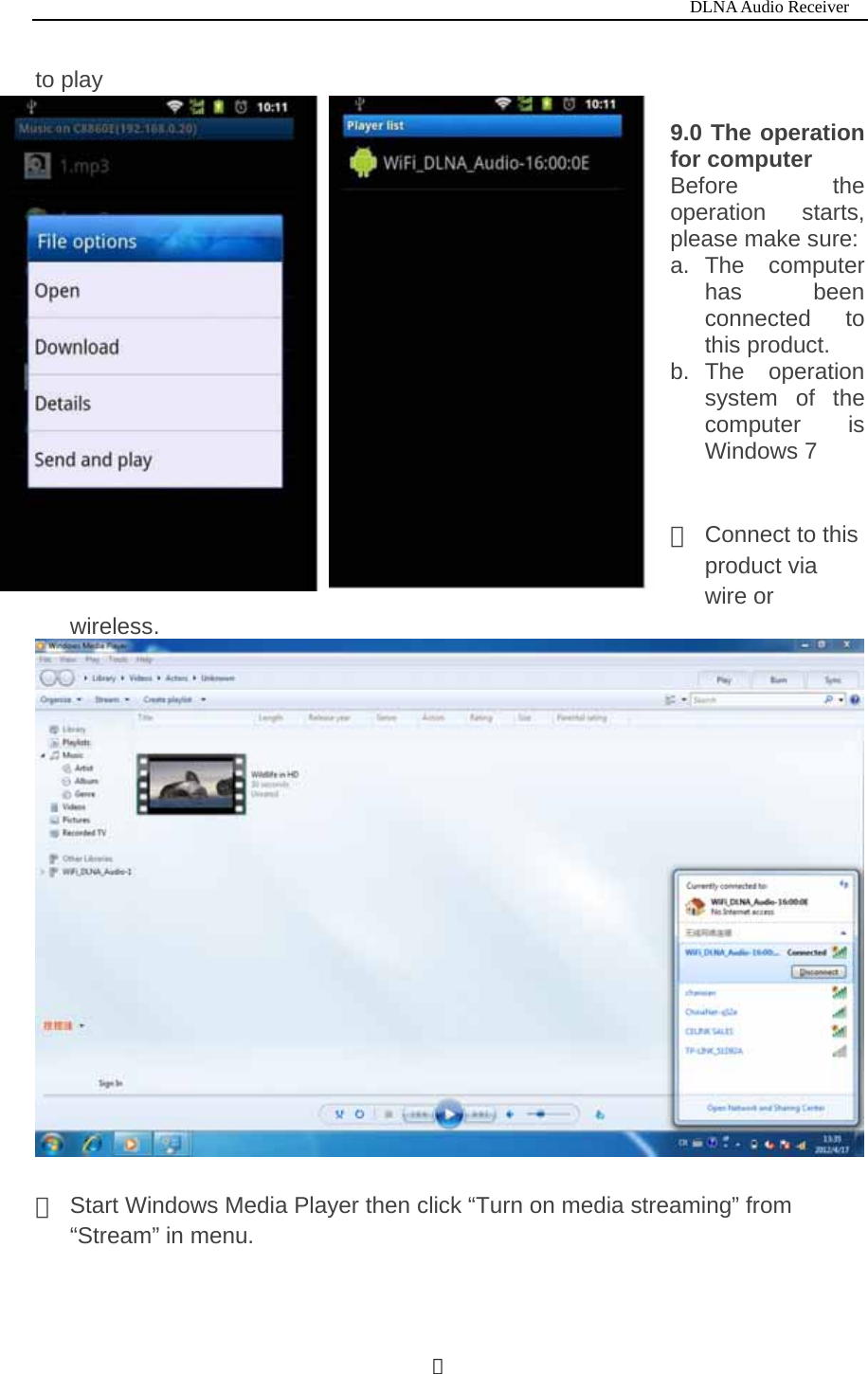
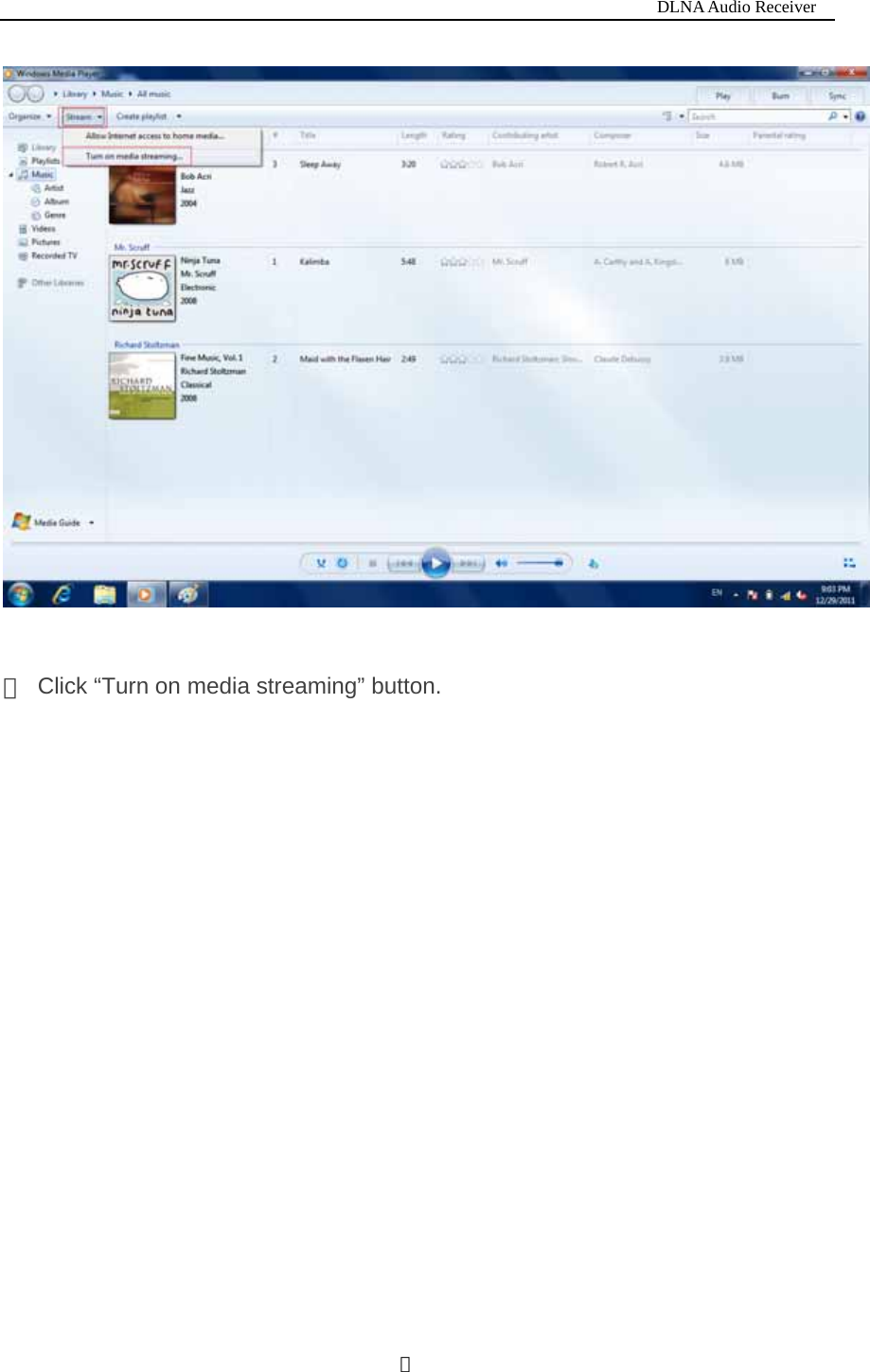
                                                                          DLNA Audio Receiver  8to play   9.0 The operation for computer Before the operation starts, please make sure: a. The  computer has been connected to this product. b. The  operation system of the computer is Windows 7   ① Connect to this product via wire or wireless.   ②  Start Windows Media Player then click “Turn on media streaming” from “Stream” in menu.
                                                                          DLNA Audio Receiver  9   ③  Click “Turn on media streaming” button.
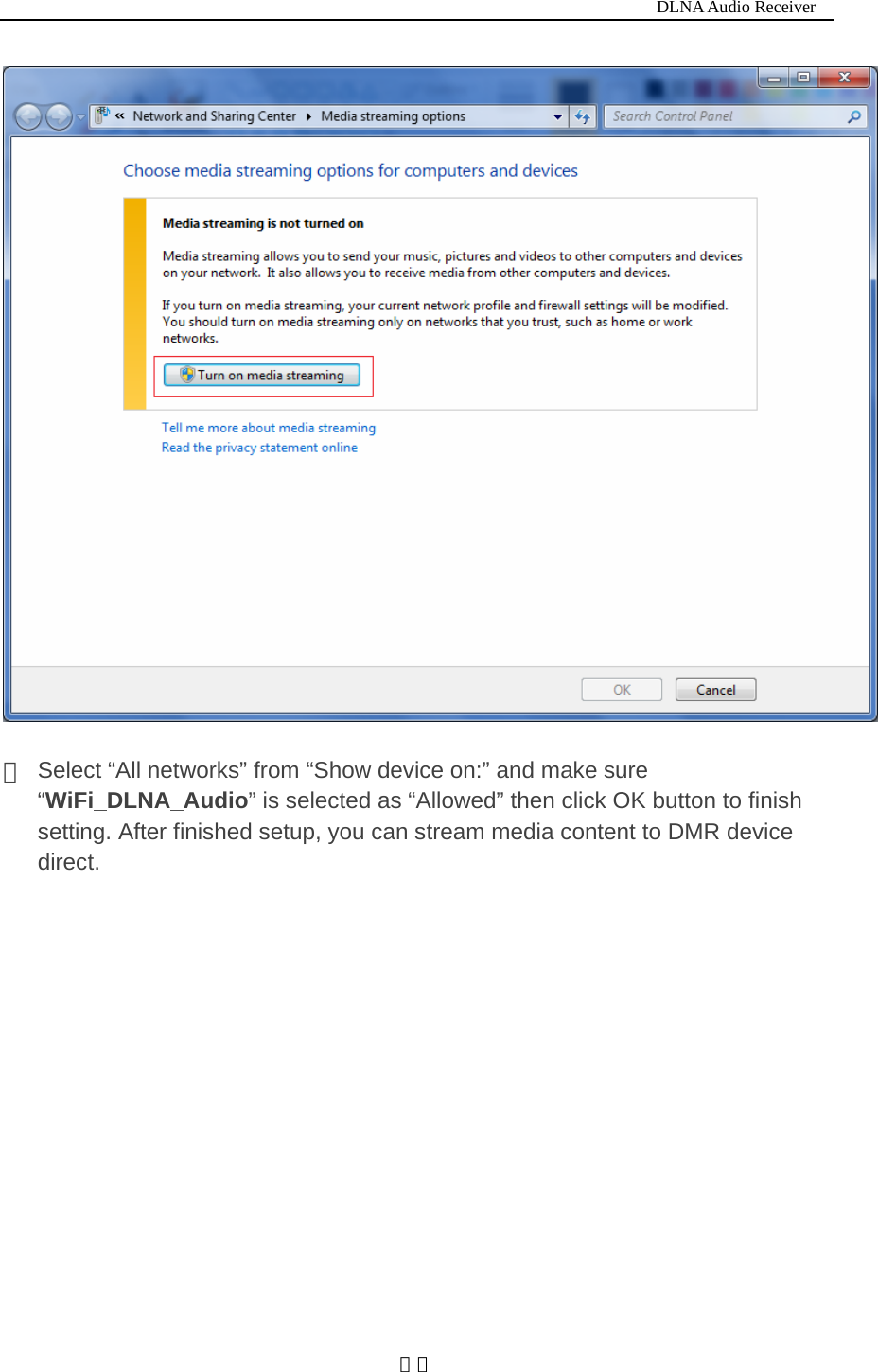
                                                                          DLNA Audio Receiver  10  ④  Select “All networks” from “Show device on:” and make sure “WiFi_DLNA_Audio” is selected as “Allowed” then click OK button to finish setting. After finished setup, you can stream media content to DMR device direct.
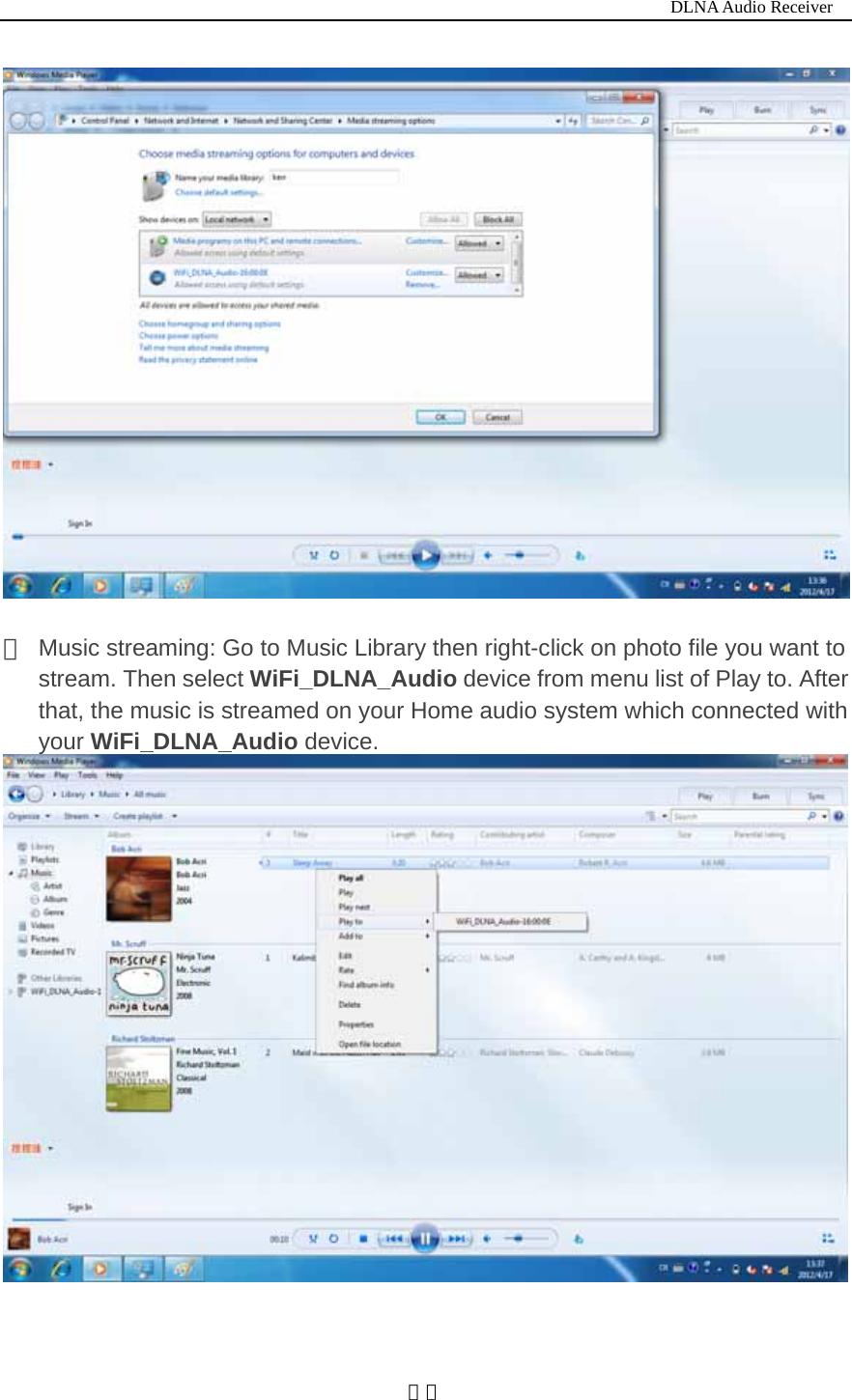
                                                                          DLNA Audio Receiver  11  ⑤  Music streaming: Go to Music Library then right-click on photo file you want to stream. Then select WiFi_DLNA_Audio device from menu list of Play to. After that, the music is streamed on your Home audio system which connected with your WiFi_DLNA_Audio device.
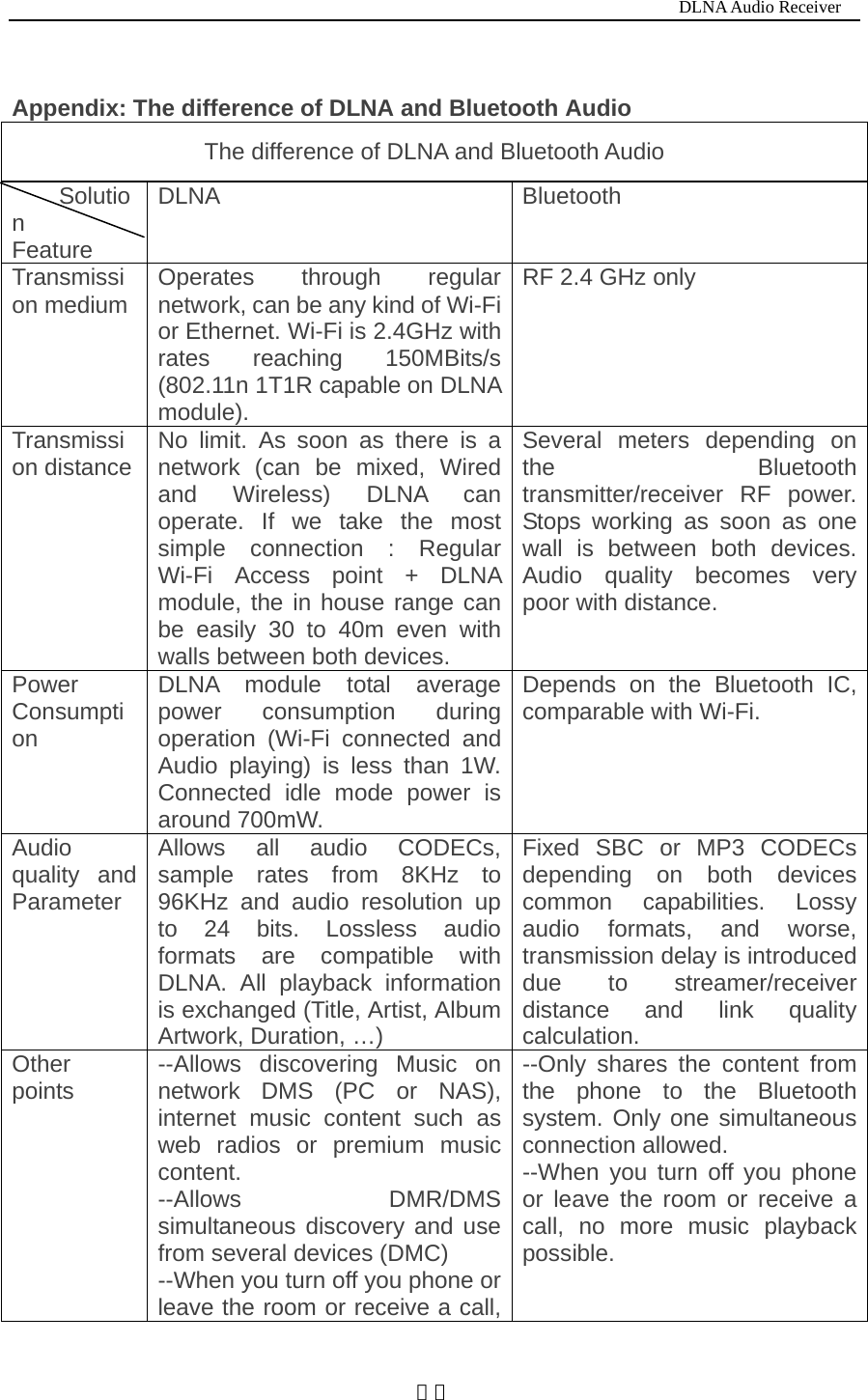
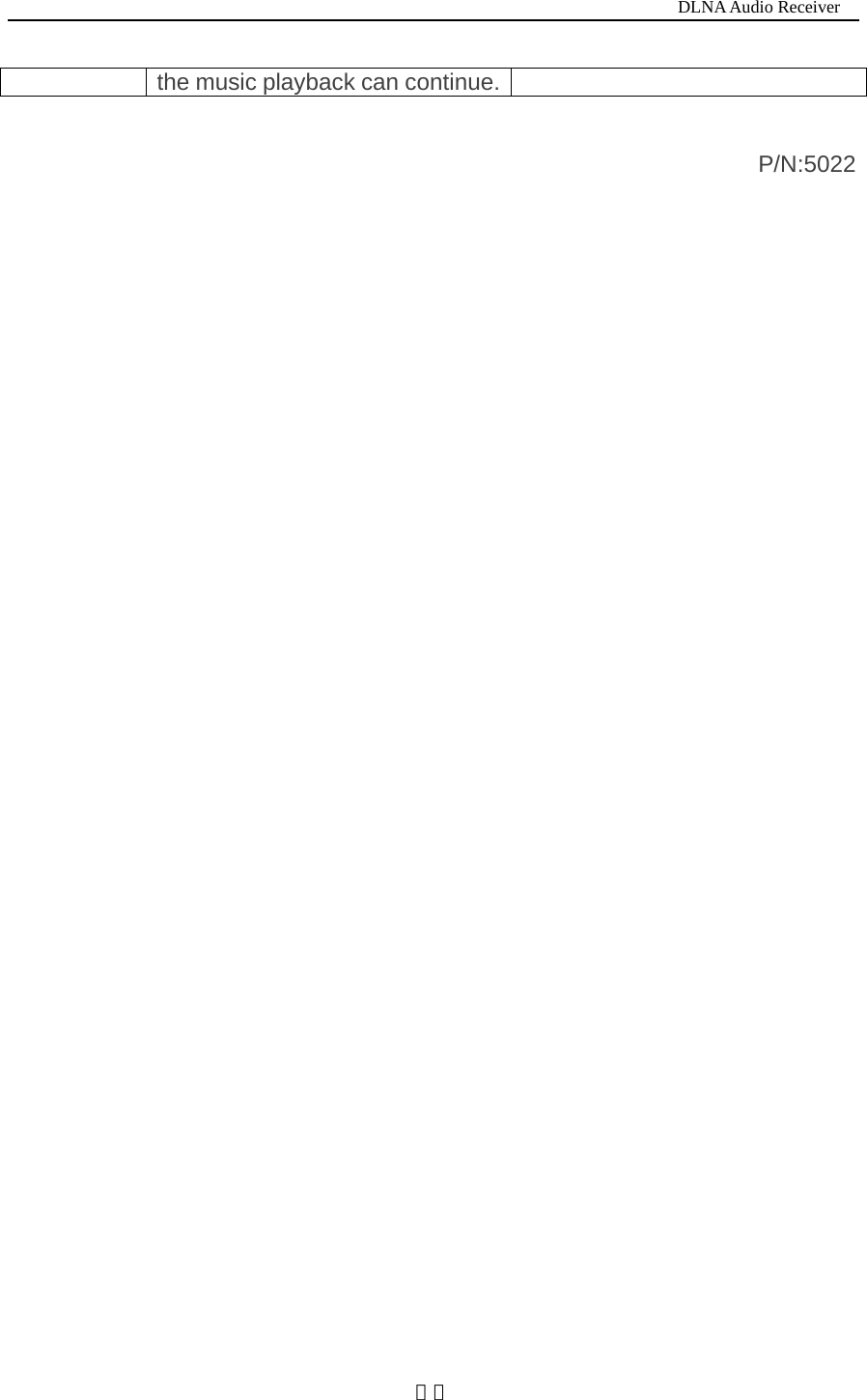
                                                                          DLNA Audio Receiver  12 Appendix: The difference of DLNA and Bluetooth Audio The difference of DLNA and Bluetooth Audio Solution Feature DLNA Bluetooth Transmission medium  Operates through regular network, can be any kind of Wi-Fi or Ethernet. Wi-Fi is 2.4GHz with rates reaching 150MBits/s (802.11n 1T1R capable on DLNA module). RF 2.4 GHz only Transmission distance  No limit. As soon as there is a network (can be mixed, Wired and Wireless) DLNA can operate. If we take the most simple connection : Regular Wi-Fi Access point + DLNA module, the in house range can be easily 30 to 40m even with walls between both devices. Several meters depending on the Bluetooth transmitter/receiver RF power. Stops working as soon as one wall is between both devices. Audio quality becomes very poor with distance. Power Consumption DLNA module total average power consumption during operation (Wi-Fi connected and Audio playing) is less than 1W. Connected idle mode power is around 700mW. Depends on the Bluetooth IC, comparable with Wi-Fi. Audio quality and Parameter Allows all audio CODECs, sample rates from 8KHz to 96KHz and audio resolution up to 24 bits. Lossless audio formats are compatible with DLNA. All playback information is exchanged (Title, Artist, Album Artwork, Duration, …) Fixed SBC or MP3 CODECs depending on both devices common capabilities. Lossy audio formats, and worse, transmission delay is introduced due to streamer/receiver distance and link quality calculation. Other points  --Allows discovering Music on network DMS (PC or NAS), internet music content such as web radios or premium music content. --Allows DMR/DMS simultaneous discovery and use from several devices (DMC)   --When you turn off you phone or leave the room or receive a call, --Only shares the content from the phone to the Bluetooth system. Only one simultaneous connection allowed. --When you turn off you phone or leave the room or receive a call, no more music playback possible.
                                                                          DLNA Audio Receiver  13the music playback can continue.               P/N:5022

Navigation menu