Acer Lt31 Users Manual
LT31 gateway lt31
LT31 to the manual cd59fc2c-a9a8-4a67-b553-fae05a44f7f1
gateway lt31
2015-01-25
: Acer Acer-Lt31-Users-Manual-211325 acer-lt31-users-manual-211325 acer pdf
Open the PDF directly: View PDF  .
.
Page Count: 180 [warning: Documents this large are best viewed by clicking the View PDF Link!]
- System Specifications
- System Utilities
- Machine Disassembly and Replacement
- Disassembly Requirements
- General Information
- External Module Disassembly Process
- Main Unit Disassembly Process
- Main Unit Disassembly Flowchart
- Removing the Keyboard
- Removing the Hinge Covers
- Removing the Upper Cover
- Removing the Button Board
- Removing the LED Board
- Removing the Bluetooth Module
- Removing the Card Reader Board
- Removing the Speaker Module
- Removing the VGA Board
- Removing the LAN Board
- Removing the LCD Module
- Removing the Hinge Wells
- Removing the Mainboard
- Removing the RTC Battery
- Removing the Thermal Module
- Removing the CPU
- LCD Module Disassembly Process
- LCD Module Reassembly Procedure
- Main Module Reassembly Procedure
- Replacing the CPU
- Replacing the Thermal Module
- Replacing the RTC Battery
- Replacing the Mainboard
- Replacing the Hinge Wells
- Replacing the LCD module
- Replacing the LAN Board
- Replacing the VGA Board
- Replacing the Speaker Module
- Replacing the LED Board
- Replacing the Bluetooth Module
- Replacing the Card Reader Board
- Replacing the Button Board
- Replacing the Upper Cover
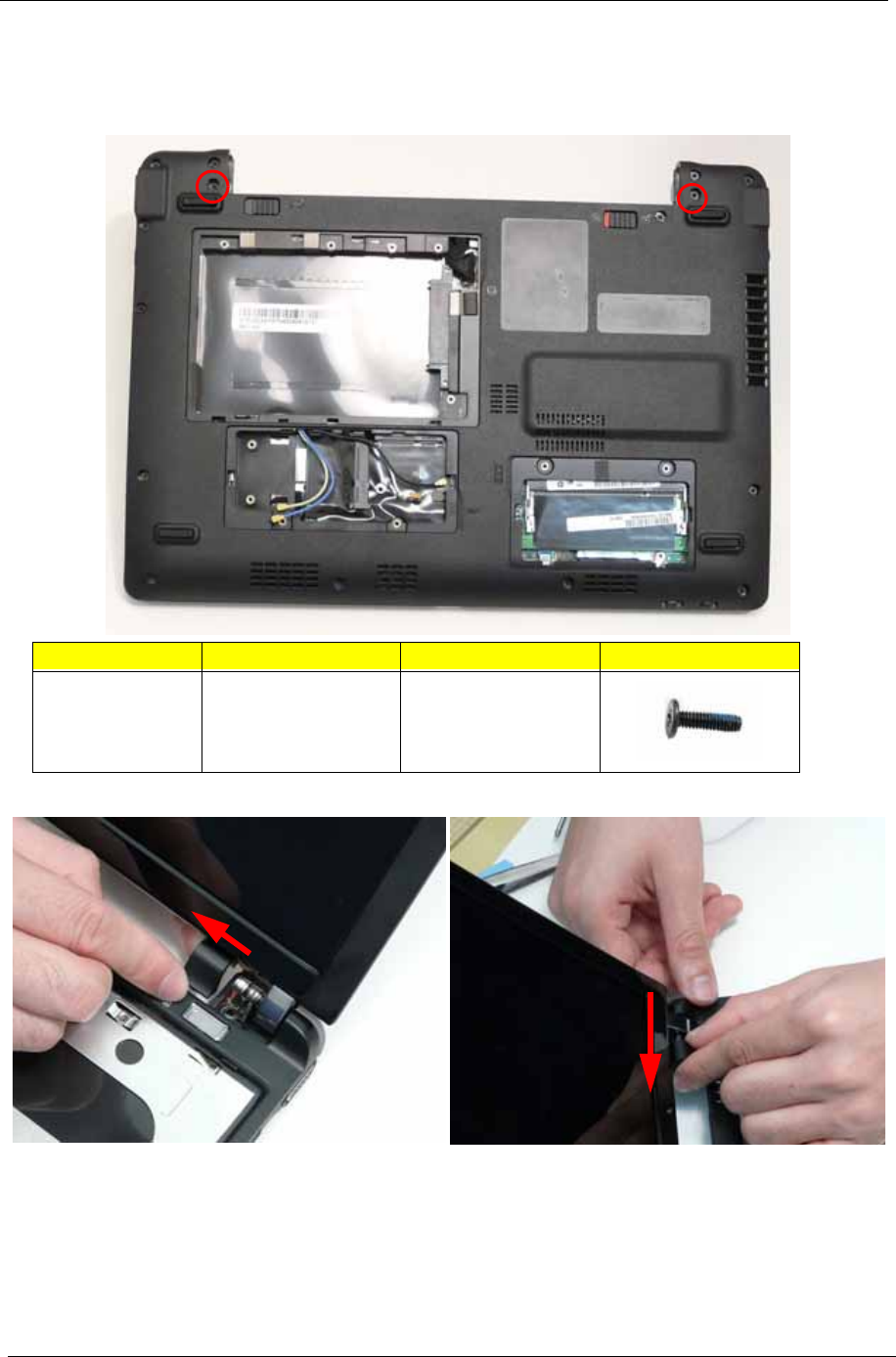
- Removing the Hinge Covers
- Replacing the Keyboard
- Reassembling External Modules
- Troubleshooting
- Jumper and Connector Locations
- FRU (Field Replaceable Unit) List
- Model Definition and Configuration
- Test Compatible Components
- Online Support Information
- Index

Gateway LT31 Series
Service Guide
PRINTED IN TAIWAN
Service guide files and updates are available
on the ACER/CSD web; for more information,
please refer to http://csd.acer.com.tw

II
Revision History
Please refer to the table below for the updates made to this service guide.
Date Chapter Updates

III
Copyright
Copyright © 2009 by Acer Incorporated. All rights reserved. No part of this publication may be reproduced,
transmitted, transcribed, stored in a retrieval system, or translated into any language or computer language, in
any form or by any means, electronic, mechanical, magnetic, optical, chemical, manual or otherwise, without
the prior written permission of Acer Incorporated.
Disclaimer
The information in this guide is subject to change without notice.
Acer Incorporated makes no representations or warranties, either expressed or implied, with respect to the
contents hereof and specifically disclaims any warranties of merchantability or fitness for any particular
purpose. Any Acer Incorporated software described in this manual is sold or licensed "as is". Should the
programs prove defective following their purchase, the buyer (and not Acer Incorporated, its distributor, or its
dealer) assumes the entire cost of all necessary servicing, repair, and any incidental or consequential
damages resulting from any defect in the software.
Acer is a registered trademark of Acer Corporation.
Intel is a registered trademark of Intel Corporation.
Pentium and Pentium II/III are trademarks of Intel Corporation.
Other brand and product names are trademarks and/or registered trademarks of their respective holders.

IV
Conventions
The following conventions are used in this manual:
SCREEN MESSAGES Denotes actual messages that appear
on screen.
NOTE Gives bits and pieces of additional
information related to the current
topic.
WARNING Alerts you to any damage that might
result from doing or not doing specific
actions.
CAUTION Gives precautionary measures to
avoid possible hardware or software
problems.
IMPORTANT Reminds you to do specific actions
relevant to the accomplishment of
procedures.

V
Preface
Before using this information and the product it supports, please read the following general information.
1. This Service Guide provides you with all technical information relating to the BASIC CONFIGURATION
decided for Acer's "global" product offering. To better fit local market requirements and enhance product
competitiveness, your regional office MAY have decided to extend the functionality of a machine (e.g.
add-on card, modem, or extra memory capability). These LOCALIZED FEATURES will NOT be covered
in this generic service guide. In such cases, please contact your regional offices or the responsible
personnel/channel to provide you with further technical details.
2. Please note WHEN ORDERING FRU PARTS, that you should check the most up-to-date information
available on your regional web or channel. If, for whatever reason, a part number change is made, it will
not be noted in the printed Service Guide. For ACER-AUTHORIZED SERVICE PROVIDERS, your Acer
office may have a DIFFERENT part number code to those given in the FRU list of this printed Service
Guide. You MUST use the list provided by your regional Acer office to order FRU parts for repair and
service of customer machines.

VI

VII
Table of Contents
System Specifications 1
Features . . . . . . . . . . . . . . . . . . . . . . . . . . . . . . . . . . . . . . . . . . . . . . . . . . . . . . . . . . . .1
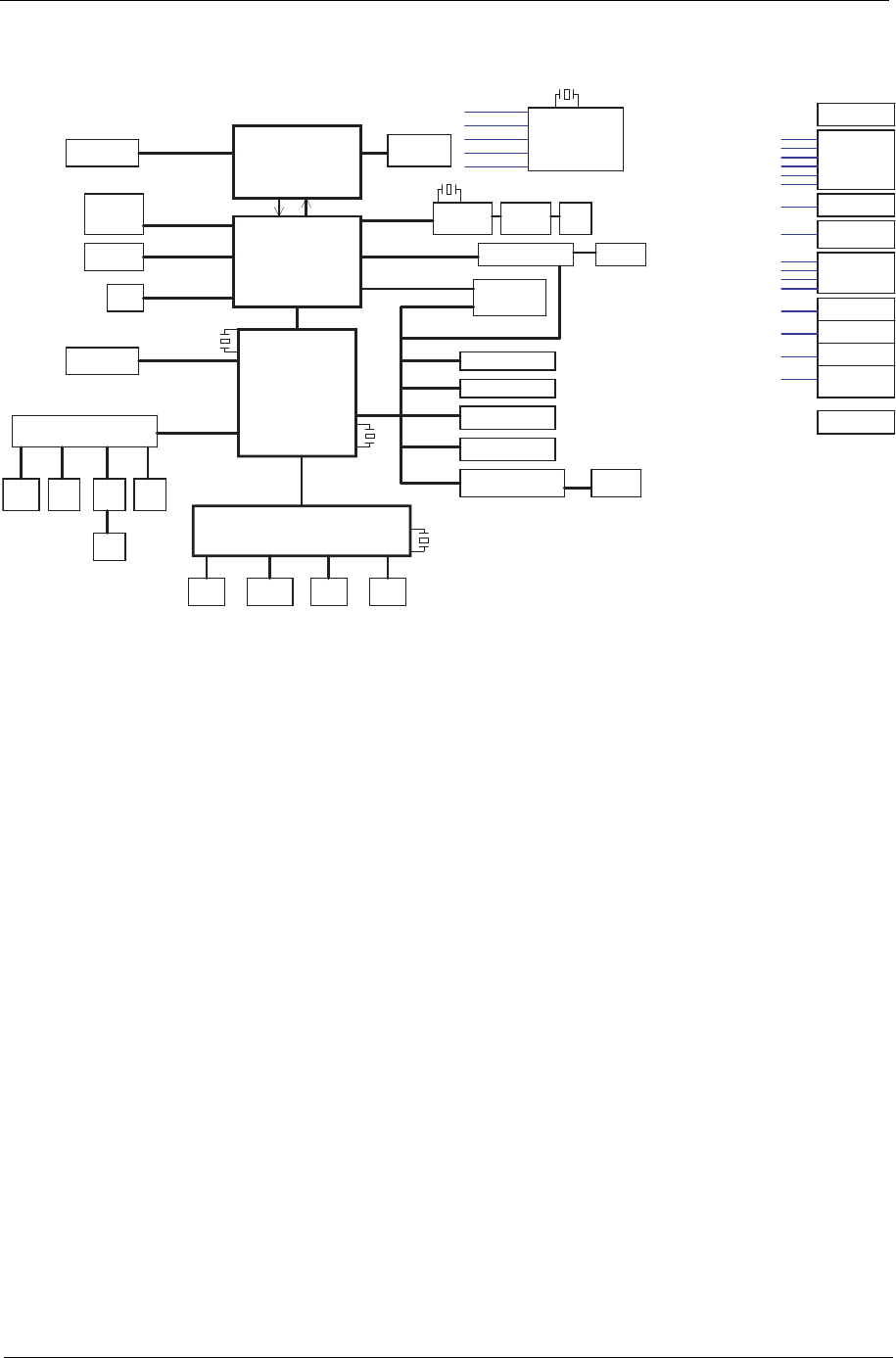
System Block Diagram . . . . . . . . . . . . . . . . . . . . . . . . . . . . . . . . . . . . . . . . . . . . . . . . .3
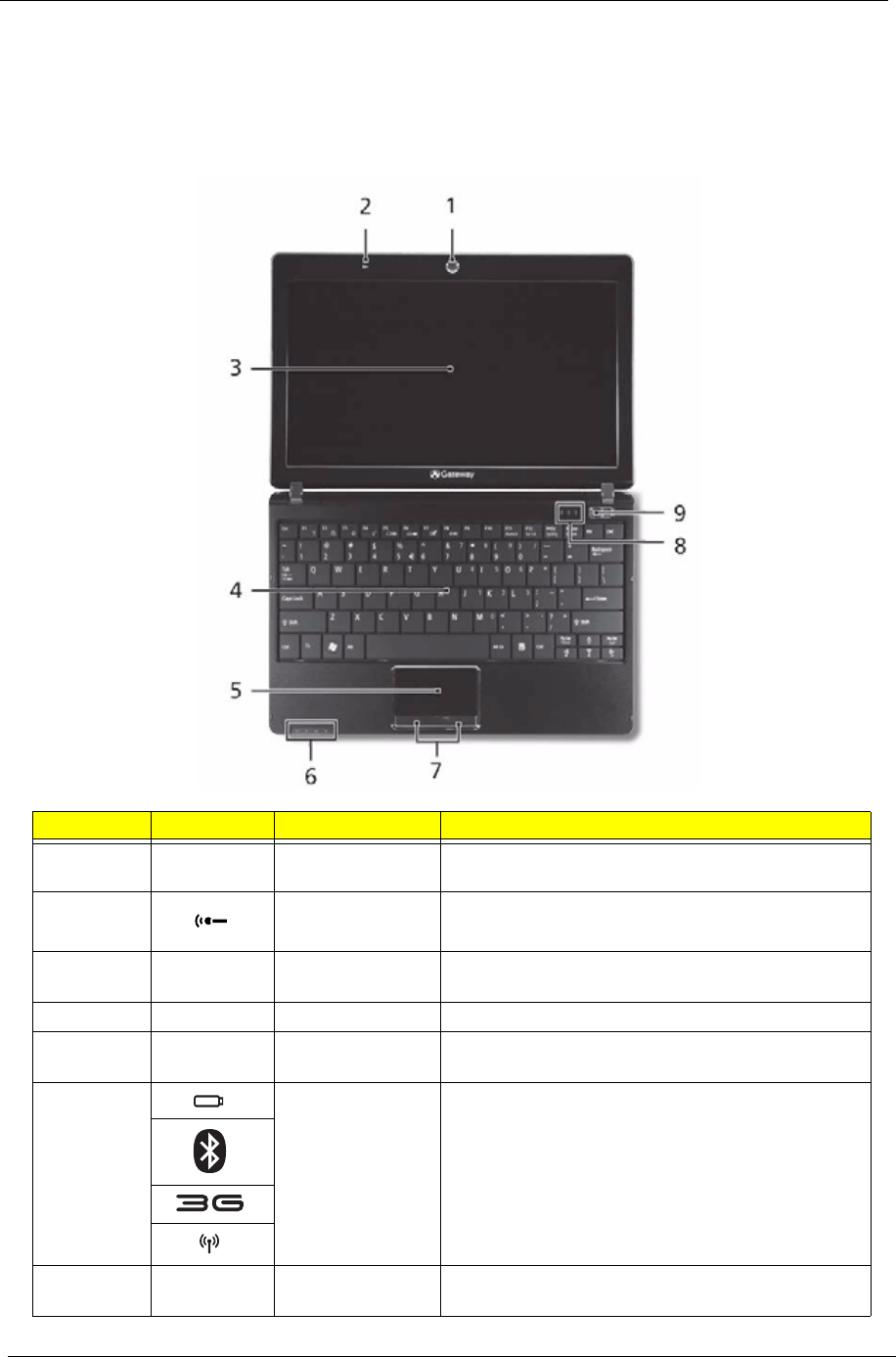
Your Gateway Notebook tour . . . . . . . . . . . . . . . . . . . . . . . . . . . . . . . . . . . . . . . . . . . .4
Front View . . . . . . . . . . . . . . . . . . . . . . . . . . . . . . . . . . . . . . . . . . . . . . . . . . . . . . .4
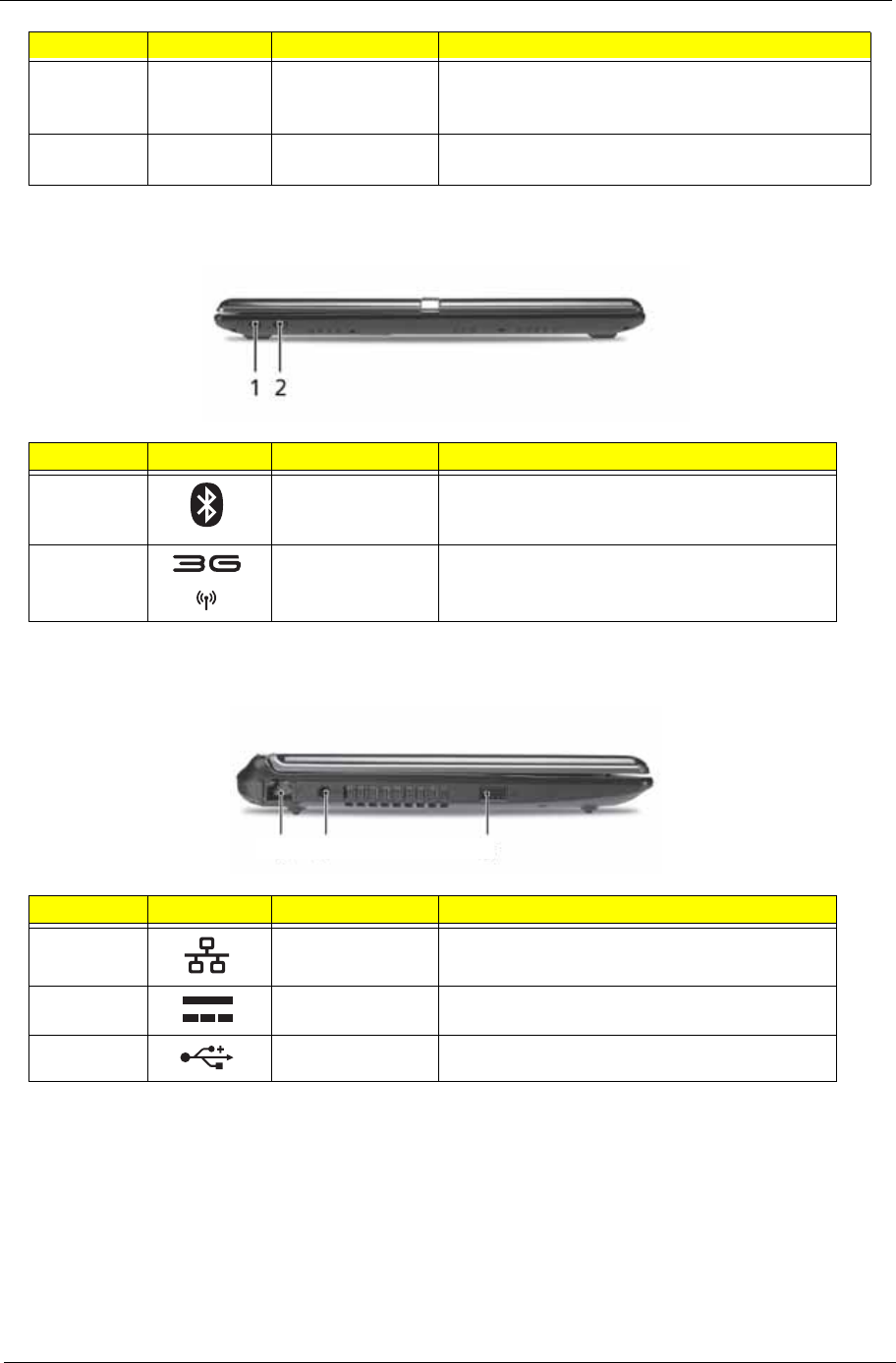
Closed Front View . . . . . . . . . . . . . . . . . . . . . . . . . . . . . . . . . . . . . . . . . . . . . . . . .5
Left View . . . . . . . . . . . . . . . . . . . . . . . . . . . . . . . . . . . . . . . . . . . . . . . . . . . . . . . .5
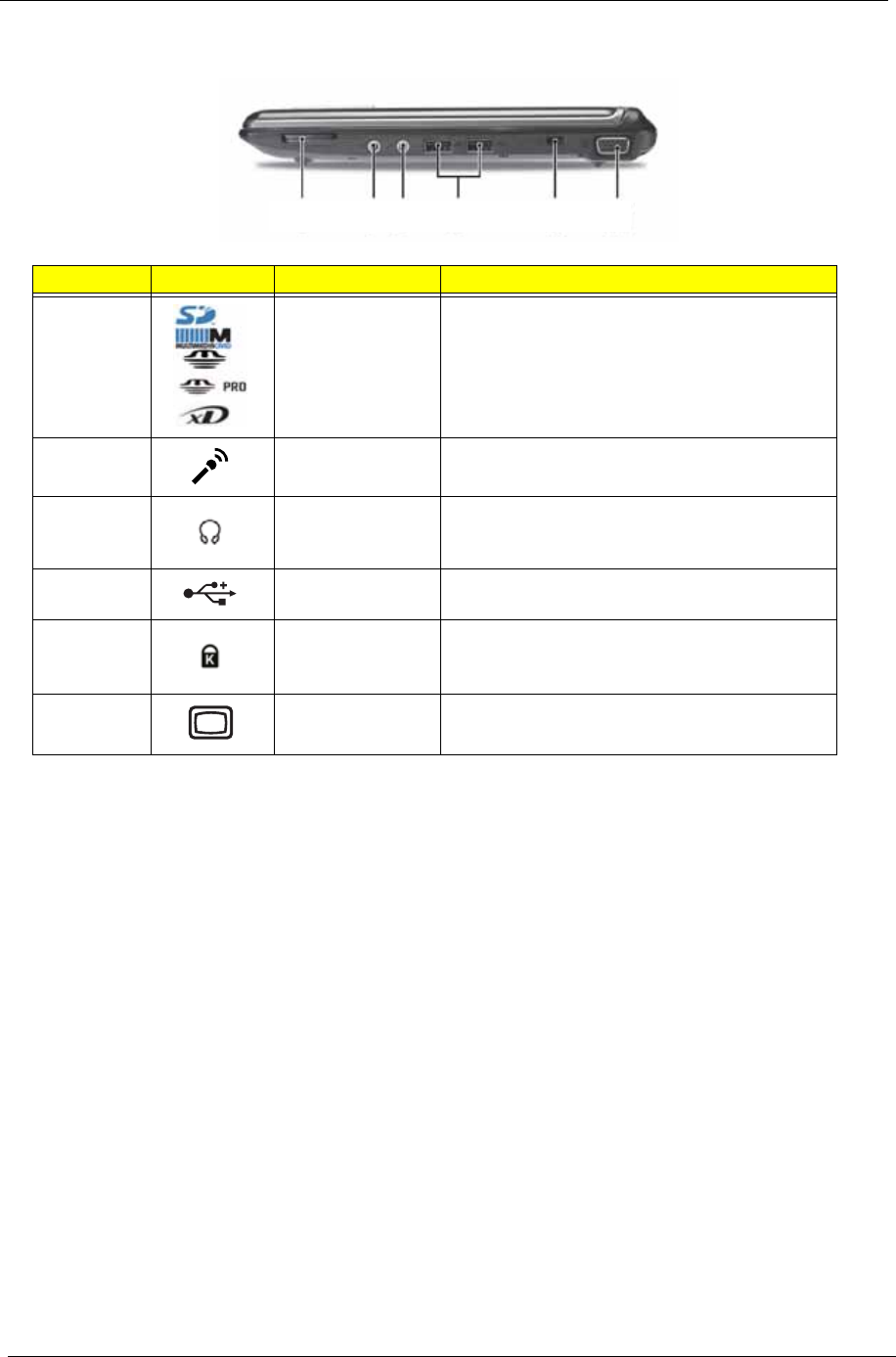
Right View . . . . . . . . . . . . . . . . . . . . . . . . . . . . . . . . . . . . . . . . . . . . . . . . . . . . . . .6
Rear and Base View . . . . . . . . . . . . . . . . . . . . . . . . . . . . . . . . . . . . . . . . . . . . . . .7
Indicators . . . . . . . . . . . . . . . . . . . . . . . . . . . . . . . . . . . . . . . . . . . . . . . . . . . . . . .8
TouchPad Basics . . . . . . . . . . . . . . . . . . . . . . . . . . . . . . . . . . . . . . . . . . . . . . . . .9
Using the Keyboard . . . . . . . . . . . . . . . . . . . . . . . . . . . . . . . . . . . . . . . . . . . . . . . . . .10
Lock Keys and embedded numeric keypad . . . . . . . . . . . . . . . . . . . . . . . . . . . .10
Windows Keys . . . . . . . . . . . . . . . . . . . . . . . . . . . . . . . . . . . . . . . . . . . . . . . . . .11
Hot Keys . . . . . . . . . . . . . . . . . . . . . . . . . . . . . . . . . . . . . . . . . . . . . . . . . . . . . . .12
Special Keys . . . . . . . . . . . . . . . . . . . . . . . . . . . . . . . . . . . . . . . . . . . . . . . . . . . .13
Hardware Specifications and Configurations . . . . . . . . . . . . . . . . . . . . . . . . . . . . . . .14
System Utilities 21
BIOS Setup Utility . . . . . . . . . . . . . . . . . . . . . . . . . . . . . . . . . . . . . . . . . . . . . . . . . . . .21
Navigating the BIOS Utility . . . . . . . . . . . . . . . . . . . . . . . . . . . . . . . . . . . . . . . . .21
Information . . . . . . . . . . . . . . . . . . . . . . . . . . . . . . . . . . . . . . . . . . . . . . . . . . . . .22
Main . . . . . . . . . . . . . . . . . . . . . . . . . . . . . . . . . . . . . . . . . . . . . . . . . . . . . . . . . .23
Security . . . . . . . . . . . . . . . . . . . . . . . . . . . . . . . . . . . . . . . . . . . . . . . . . . . . . . . .24
Boot . . . . . . . . . . . . . . . . . . . . . . . . . . . . . . . . . . . . . . . . . . . . . . . . . . . . . . . . . . .27
Exit . . . . . . . . . . . . . . . . . . . . . . . . . . . . . . . . . . . . . . . . . . . . . . . . . . . . . . . . . . .28
BIOS Flash Utility . . . . . . . . . . . . . . . . . . . . . . . . . . . . . . . . . . . . . . . . . . . . . . . . . . . .29
DOS Flash Utility . . . . . . . . . . . . . . . . . . . . . . . . . . . . . . . . . . . . . . . . . . . . . . . . .30
WinFlash Utility . . . . . . . . . . . . . . . . . . . . . . . . . . . . . . . . . . . . . . . . . . . . . . . . . .32
Remove HDD/BIOS Password Utilities . . . . . . . . . . . . . . . . . . . . . . . . . . . . . . . . . . . .33
Machine Disassembly and Replacement 35
Disassembly Requirements . . . . . . . . . . . . . . . . . . . . . . . . . . . . . . . . . . . . . . . . . . . .35
Related Information . . . . . . . . . . . . . . . . . . . . . . . . . . . . . . . . . . . . . . . . . . . . . . .35
General Information . . . . . . . . . . . . . . . . . . . . . . . . . . . . . . . . . . . . . . . . . . . . . . . . . .36
Pre-disassembly Instructions . . . . . . . . . . . . . . . . . . . . . . . . . . . . . . . . . . . . . . .36
Disassembly Process . . . . . . . . . . . . . . . . . . . . . . . . . . . . . . . . . . . . . . . . . . . . .36
External Module Disassembly Process . . . . . . . . . . . . . . . . . . . . . . . . . . . . . . . . . . .37
External Modules Disassembly Flowchart . . . . . . . . . . . . . . . . . . . . . . . . . . . . .37
Removing the Battery Pack . . . . . . . . . . . . . . . . . . . . . . . . . . . . . . . . . . . . . . . .38
Removing the Hard Disk Drive Module . . . . . . . . . . . . . . . . . . . . . . . . . . . . . . . .39
Removing the DIMM Module . . . . . . . . . . . . . . . . . . . . . . . . . . . . . . . . . . . . . . .42
Removing the WLAN Board . . . . . . . . . . . . . . . . . . . . . . . . . . . . . . . . . . . . . . . .44
Removing the 3g Board . . . . . . . . . . . . . . . . . . . . . . . . . . . . . . . . . . . . . . . . . . .47
Main Unit Disassembly Process . . . . . . . . . . . . . . . . . . . . . . . . . . . . . . . . . . . . . . . . .49
Main Unit Disassembly Flowchart . . . . . . . . . . . . . . . . . . . . . . . . . . . . . . . . . . . .49
Removing the Keyboard . . . . . . . . . . . . . . . . . . . . . . . . . . . . . . . . . . . . . . . . . . .50
Removing the Hinge Covers . . . . . . . . . . . . . . . . . . . . . . . . . . . . . . . . . . . . . . . .52
Removing the Upper Cover . . . . . . . . . . . . . . . . . . . . . . . . . . . . . . . . . . . . . . . .53
Removing the Button Board . . . . . . . . . . . . . . . . . . . . . . . . . . . . . . . . . . . . . . . .56
Removing the LED Board . . . . . . . . . . . . . . . . . . . . . . . . . . . . . . . . . . . . . . . . . .58
Removing the Bluetooth Module . . . . . . . . . . . . . . . . . . . . . . . . . . . . . . . . . . . . .60
Removing the Card Reader Board . . . . . . . . . . . . . . . . . . . . . . . . . . . . . . . . . . .61
Removing the Speaker Module . . . . . . . . . . . . . . . . . . . . . . . . . . . . . . . . . . . . . .63

VIII
Table of Contents
Removing the VGA Board . . . . . . . . . . . . . . . . . . . . . . . . . . . . . . . . . . . . . . . . . .65
Removing the LAN Board . . . . . . . . . . . . . . . . . . . . . . . . . . . . . . . . . . . . . . . . . .67
Removing the LCD Module . . . . . . . . . . . . . . . . . . . . . . . . . . . . . . . . . . . . . . . . .69
Removing the Hinge Wells . . . . . . . . . . . . . . . . . . . . . . . . . . . . . . . . . . . . . . . . .71
Removing the Mainboard . . . . . . . . . . . . . . . . . . . . . . . . . . . . . . . . . . . . . . . . . .72
Removing the RTC Battery . . . . . . . . . . . . . . . . . . . . . . . . . . . . . . . . . . . . . . . . .74
Removing the Thermal Module . . . . . . . . . . . . . . . . . . . . . . . . . . . . . . . . . . . . . .75
Removing the CPU . . . . . . . . . . . . . . . . . . . . . . . . . . . . . . . . . . . . . . . . . . . . . . .77
LCD Module Disassembly Process . . . . . . . . . . . . . . . . . . . . . . . . . . . . . . . . . . . . . .78
LCD Module Disassembly Flowchart . . . . . . . . . . . . . . . . . . . . . . . . . . . . . . . . .78
Removing the LCD Bezel . . . . . . . . . . . . . . . . . . . . . . . . . . . . . . . . . . . . . . . . . .79
Removing the Camera Board . . . . . . . . . . . . . . . . . . . . . . . . . . . . . . . . . . . . . . .80
Removing the LCD Panel . . . . . . . . . . . . . . . . . . . . . . . . . . . . . . . . . . . . . . . . . .81
Removing the LCD Brackets and FPC Cable . . . . . . . . . . . . . . . . . . . . . . . . . . .83
Removing the Antennas . . . . . . . . . . . . . . . . . . . . . . . . . . . . . . . . . . . . . . . . . . .85
LCD Module Reassembly Procedure . . . . . . . . . . . . . . . . . . . . . . . . . . . . . . . . . . . . .87
Replacing the Antennas . . . . . . . . . . . . . . . . . . . . . . . . . . . . . . . . . . . . . . . . . . .87
Replacing the LCD Cable and Brackets . . . . . . . . . . . . . . . . . . . . . . . . . . . . . . .89
Replacing the LCD Panel . . . . . . . . . . . . . . . . . . . . . . . . . . . . . . . . . . . . . . . . . .90
Replacing the Camera Board . . . . . . . . . . . . . . . . . . . . . . . . . . . . . . . . . . . . . . .91
Replacing the LCD Bezel . . . . . . . . . . . . . . . . . . . . . . . . . . . . . . . . . . . . . . . . . .92
Main Module Reassembly Procedure . . . . . . . . . . . . . . . . . . . . . . . . . . . . . . . . . . . . .93
Replacing the CPU . . . . . . . . . . . . . . . . . . . . . . . . . . . . . . . . . . . . . . . . . . . . . . .93
Replacing the Thermal Module . . . . . . . . . . . . . . . . . . . . . . . . . . . . . . . . . . . . . .93
Replacing the RTC Battery . . . . . . . . . . . . . . . . . . . . . . . . . . . . . . . . . . . . . . . . .96
Replacing the Mainboard . . . . . . . . . . . . . . . . . . . . . . . . . . . . . . . . . . . . . . . . . .96
Replacing the Hinge Wells . . . . . . . . . . . . . . . . . . . . . . . . . . . . . . . . . . . . . . . . .99
Replacing the LCD module . . . . . . . . . . . . . . . . . . . . . . . . . . . . . . . . . . . . . . . . .99
Replacing the LAN Board . . . . . . . . . . . . . . . . . . . . . . . . . . . . . . . . . . . . . . . . .101
Replacing the VGA Board . . . . . . . . . . . . . . . . . . . . . . . . . . . . . . . . . . . . . . . . .102
Replacing the Speaker Module . . . . . . . . . . . . . . . . . . . . . . . . . . . . . . . . . . . . .104
Replacing the LED Board . . . . . . . . . . . . . . . . . . . . . . . . . . . . . . . . . . . . . . . . .106
Replacing the Bluetooth Module . . . . . . . . . . . . . . . . . . . . . . . . . . . . . . . . . . . .107
Replacing the Card Reader Board . . . . . . . . . . . . . . . . . . . . . . . . . . . . . . . . . .108
Replacing the Button Board . . . . . . . . . . . . . . . . . . . . . . . . . . . . . . . . . . . . . . .110
Replacing the Upper Cover . . . . . . . . . . . . . . . . . . . . . . . . . . . . . . . . . . . . . . . .111
Removing the Hinge Covers . . . . . . . . . . . . . . . . . . . . . . . . . . . . . . . . . . . . . . .114
Replacing the Keyboard . . . . . . . . . . . . . . . . . . . . . . . . . . . . . . . . . . . . . . . . . .115
Reassembling External Modules . . . . . . . . . . . . . . . . . . . . . . . . . . . . . . . . . . . . . . .116
Replacing the WLAN Board . . . . . . . . . . . . . . . . . . . . . . . . . . . . . . . . . . . . . . .116
Replacing the 3G Module . . . . . . . . . . . . . . . . . . . . . . . . . . . . . . . . . . . . . . . . .118
Replacing the DIMM Module . . . . . . . . . . . . . . . . . . . . . . . . . . . . . . . . . . . . . . .119
Replacing the Hard Disk Drive Module . . . . . . . . . . . . . . . . . . . . . . . . . . . . . . .119
Replacing the Lower Covers . . . . . . . . . . . . . . . . . . . . . . . . . . . . . . . . . . . . . . .121
Replacing the Battery Pack . . . . . . . . . . . . . . . . . . . . . . . . . . . . . . . . . . . . . . . .123
Troubleshooting 125
Common Problems . . . . . . . . . . . . . . . . . . . . . . . . . . . . . . . . . . . . . . . . . . . . . . . . . .125
Power On Issue . . . . . . . . . . . . . . . . . . . . . . . . . . . . . . . . . . . . . . . . . . . . . . . .126
No Display Issue . . . . . . . . . . . . . . . . . . . . . . . . . . . . . . . . . . . . . . . . . . . . . . . .127
Random Loss of BIOS Settings . . . . . . . . . . . . . . . . . . . . . . . . . . . . . . . . . . . .128
LCD Failure . . . . . . . . . . . . . . . . . . . . . . . . . . . . . . . . . . . . . . . . . . . . . . . . . . . .129
Built-In Keyboard Failure . . . . . . . . . . . . . . . . . . . . . . . . . . . . . . . . . . . . . . . . .130
TouchPad Failure . . . . . . . . . . . . . . . . . . . . . . . . . . . . . . . . . . . . . . . . . . . . . . .131
Internal Speaker Failure . . . . . . . . . . . . . . . . . . . . . . . . . . . . . . . . . . . . . . . . . .132

IX
Table of Contents
Internal Microphone Failure . . . . . . . . . . . . . . . . . . . . . . . . . . . . . . . . . . . . . . .133
HDD Not Operating Correctly . . . . . . . . . . . . . . . . . . . . . . . . . . . . . . . . . . . . . .134
USB Failure (Right up/down side) . . . . . . . . . . . . . . . . . . . . . . . . . . . . . . . . . . .135
Other Failures . . . . . . . . . . . . . . . . . . . . . . . . . . . . . . . . . . . . . . . . . . . . . . . . . .135
Intermittent Problems . . . . . . . . . . . . . . . . . . . . . . . . . . . . . . . . . . . . . . . . . . . . . . . .136
Undetermined Problems . . . . . . . . . . . . . . . . . . . . . . . . . . . . . . . . . . . . . . . . . . . . . .136
POST Code Reference Tables . . . . . . . . . . . . . . . . . . . . . . . . . . . . . . . . . . . . . . . . .137
Jumper and Connector Locations 141
Top View . . . . . . . . . . . . . . . . . . . . . . . . . . . . . . . . . . . . . . . . . . . . . . . . . . . . . . . . . .141
Bottom View . . . . . . . . . . . . . . . . . . . . . . . . . . . . . . . . . . . . . . . . . . . . . . . . . . . . . . .142
Clearing Password Check and BIOS Recovery . . . . . . . . . . . . . . . . . . . . . . . . . . . .143
Motherboard CMOS Discharge . . . . . . . . . . . . . . . . . . . . . . . . . . . . . . . . . . . . .143
BIOS Recovery by Crisis Disk . . . . . . . . . . . . . . . . . . . . . . . . . . . . . . . . . . . . .144
FRU (Field Replaceable Unit) List 147
Gateway LT31 Exploded Diagrams . . . . . . . . . . . . . . . . . . . . . . . . . . . . . . . . . . . . .148
Main Assembly . . . . . . . . . . . . . . . . . . . . . . . . . . . . . . . . . . . . . . . . . . . . . . . . .148
LCD Assembly . . . . . . . . . . . . . . . . . . . . . . . . . . . . . . . . . . . . . . . . . . . . . . . . .149
Gateway LT Series FRU List . . . . . . . . . . . . . . . . . . . . . . . . . . . . . . . . . . . . . .150
Model Definition and Configuration 156
Gateway LT31 Series . . . . . . . . . . . . . . . . . . . . . . . . . . . . . . . . . . . . . . . . . . . . . . . .156
Test Compatible Components 161
Windows XP Environment Test . . . . . . . . . . . . . . . . . . . . . . . . . . . . . . . . . . . . . . . .162
Online Support Information 165
Index 167

X
Table of Contents

Chapter 1 1
System Specifications
Features
Below is a brief summary of the computer’s many features:
Operating System
• Genuine Windows® XP Home (Service Pack 3)
• Genuine Windows Vista™
Platform
• AMD Athlon™ 64 Processor L110
• Cache size:512KB, Frequency:1.2G (No P-state)
•TDP:13W
• Package 638-pin lidless micro PGA package.
System Memory
• DDRII 667MHz
• 1 DDR2 SODIMM slot
• Maximum memory size up to 2GB-SODIMM
Display and graphics
• 11.6" HD WXGA high-brightness (typical 200-nit) Acer CrystalBrite™ TFT LCD, 1366 x 768 pixel
resolution
Storage subsystem
• 2.5" 9.5 mm 160 GB or larger hard disk drive
• 4-in-1 Card Reader (xD, SD, MMC, MS) with push-push type
Audio subsystem
• High-definition audio support
• Two built-in stereo speakers
• MS-Sound compatible
• Built-in digital microphone
• 1 analog microphone jack, one headphone jack
Communication
• Integrated webcam, supporting 0.3-megapixel resolution
• WLAN: 802.11b/g
Chapter 1

2Chapter 1
• LAN: 10/100 Mbps Fast Ethernet
• WPAN: Bluetooth® 2.0 or 2.1+EDR
• WWAN: GSM/GPRS/EDGE/(WCDMA) (for 3G models)
Privacy control
• Kensington lock slot
Dimensions and Weight
• 286 (W) x 203 (D) x 29 (H) mm
• 1.3 kg (2.86 lbs.) with 3-cell battery pack
• 1.46 kg (3.21 lbs.) with 6-cell battery pack
Power subsystem
• 24.4 W 2200 mAh 3-cell Li-ion battery pack
• 4-hour battery life
-or-
• 57.7 W 5200 mAh 6-cell Li-ion battery pack
• 8-hour battery life
• 30 W adapter with power cord
Special keys and controls
• 86/87/91-key keyboard
• Touchpad pointing device with two buttons
I/O interface
• Multi-in-1 card reader
• Three USB 2.0 ports
• External display (VGA) port
• Headphone/speaker/line-out jack
• Microphone-in jack
• Ethernet (RJ-45) port
• DC-in jack for AC adapter
Environment
• Temperature:
• Operating: 5 °C to 35 °C
• Non-operating: -20 °C to 65 °C
• Humidity (non-condensing):
• Operating: 20% to 80%
• Non-operating: 20% to 80%
Chapter 1 3
System Block Diagram
DDRII-SODIMM1
CRT
SATA - HDD
Mini Card (WLAN)
SB600
3V/5V
AMD S1g1
CLOCK GENERATOR
Azalia
465 FCBGA
RS690E
WPCE775L
A_LINK (X4)
HT1 800MHz
LPC
EC
+3VPCU
+3V_S5
+3V
+5VPCU
DDR
+1.8VSUS
+1.8V
+SMDDR_VTERM
+1.2V_S5
+1.2V_S5
CPU CORE
CPU_CORE
HOST 200MHz
PCIE 100MHz
USB 48MHz
REF 14.318MHz
Keyboard
LAN(10/100)
SATA0
Azalia Audio Codec
FAN
RJ45
USB2.0
+5V
+2.5V
+1.5V
NB CORE
+1.5V
+2.5V
Touch
Pad
Flash
ROM
SPI
MIC
JACK
H.P
JACK
USB2.0 I/O Ports X1
+NB_CORE
PCIE-2
PCIE-3
LED Panel LVDS(1ch)
AMP
Speaker
ALC272
G1453L
RTL8103EL
HTREF 66MHz
PS/2
Silego:SLG84605TTR
IDT:ICS951462
Transformer
X'TAL
14.318MHz
X'TAL
25MHz
X'TAL
32.768KHz
X'TAL
32.768KHz
X'TAL
25MHz
CHARGER
ISL88731
ISL6237
ISL6264A
UP6111AQDD
+SMDDR_VREF
TPS51116
RT9025
RT9025
RT9025
Thermal
Protection
(PWM)
Thermal Sensor
G781
Port 0
Port 7
LED D/B
+3VSUS
Int. MIC
21mm*21mm
Digital
SIM CARD
Port 5
3G Card
PCIE-1 (Reserve)
DDR II 667 MHz
WLAN/3G SW
BT SW
3G LED
BT LED
WLAN/WiMax LED
23mm*23mm
Card Reader controller
4 in 1
Port 8
RTS5159
BT
Port 6
CCD
Port 3
Port 1/2 USB2.0 I/O Ports X2
+1.2V
Side port
memory
Channel A
16bit DDR2
TP D/B
4Chapter 1
Your Gateway Notebook tour
After learning about your computer features, let us show you around your new computer.
Front View
No. Icon Item Description
1 Acer Crystal Eye
Webcam Web camera for video communication.
2 Microphone Internal microphone for sound recording.
3 Display screen Also called Liquid-Crystal Display (LCD), displays
computer output.
4 Keyboard For entering data into your computer.
5 TouchPad Touch-sensitive pointing device which functions like
a computer mouse.
6Battery/
Bluetooth/3G/
Wireless LAN
communication
indicator
Indicates the status of Battery/Bluetooth/3G/
Wireless LAN communication.
(only for certain models)
7 Click buttons (left
and right) The left and right buttons function like the left and
right mouse buttons.
Chapter 1 5
Closed Front View
Left View
8 Status indicators Light-Emitting Diodes (LEDs) that light up to show
the status of the computer's functions and
components.
9 Power button/
indicator Turns the computer on and off while indicating the
computer’s power status.
No. Icon Item Description
1 Bluetooth
communication
switch
Enables/disables the Bluetooth function.
2 3G/Wireless LAN
communication
switch
Enables/disables the 3G/Wireless LAN
No. Icon Item Description
1 Ethernet (RJ-45)
port Connects to an Ethernet 10/100-based
network.
2 DC-in jack Connects to an AC adapter
3 USB 2.0 ports Connect to USB 2.0 devices (e.g. USB mouse).
No. Icon Item Description
12 3 45
6Chapter 1
Right View
No. Icon Item Description
1 Multi-in-1 card
reader Accepts Secure Digital (SD), MultiMediaCard
(MMC), Memory Stick (MS), Memory Stick
PRO (MS PRO), xD-Picture Card (xD).
Note: Push to remove/install the card. Only
one card can operate at any given time.
2 Microphone-in
jack Accepts input from external microphones.
3 Headphones/
speaker/line-out
jack
Connects to line-out audio devices
(e.g. speakers, headphones).
4 USB 2.0 port Connects to USB 2.0 devices (e.g. USB
mouse).
5 Kensington lock
slot Connects to a Kensington-compatible
computer security lock.
6 External display
(VGA) port Connects to a display device
(e.g. external monitor, projector).
12 56
34
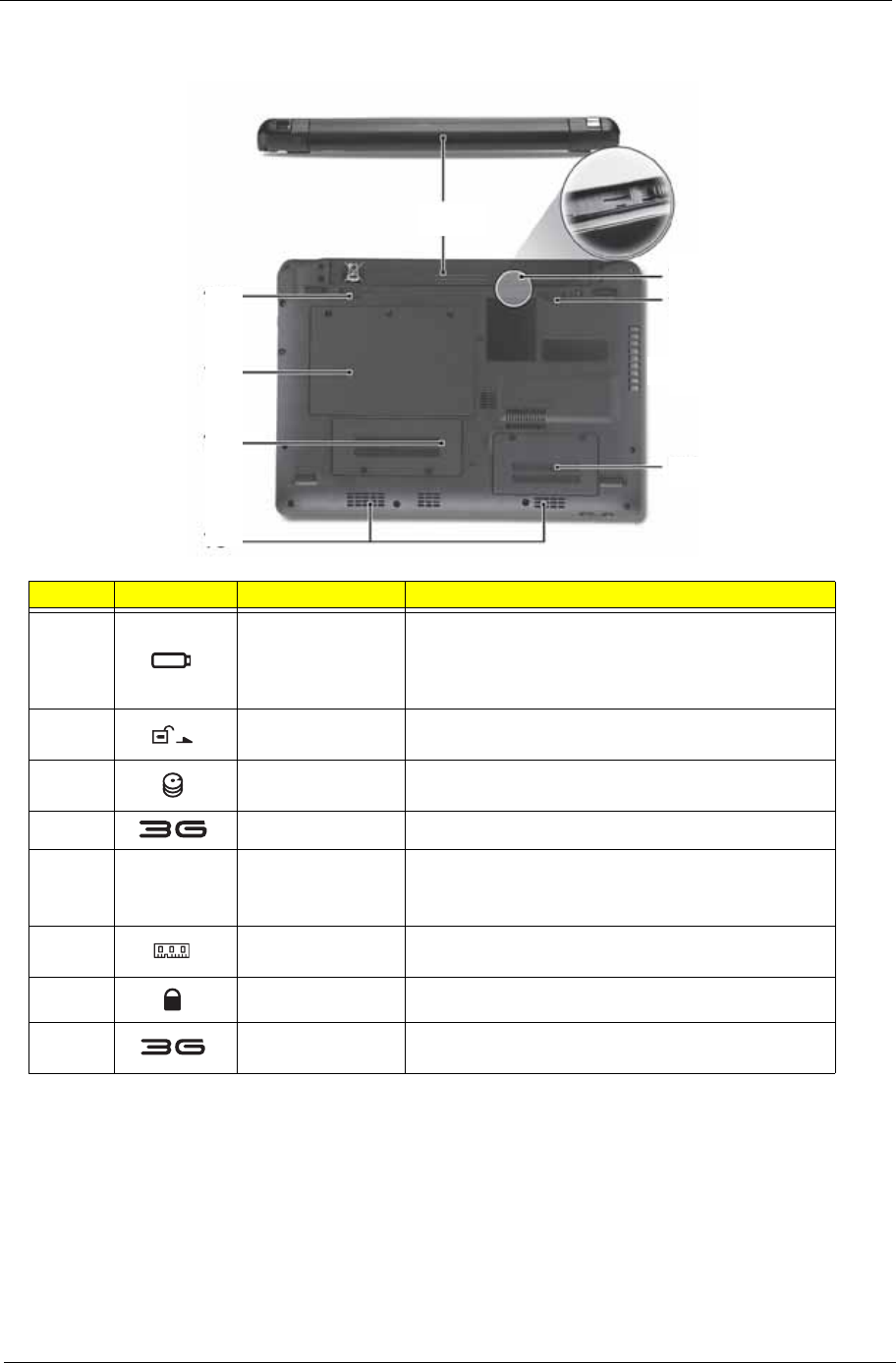
Chapter 1 7
Rear and Base View
No. Icon Item Description
1 Battery bay Houses the computer's battery pack.
Note: The battery shown is for reference only. Your
PC may have a different battery, depending on the
model purchased.
2 Battery release
latch Releases the battery for removal.
3 Hard disk bay Houses the computer's hard disk (secured with
screws).
4 3G module bay Houses the computer's 3G communication module.
5 Ventilation slots
and/or cooling fan Vents enable the computer to stay cool, even after
prolonged use.
Note: Do not cover or obstruct the cooling vents.
6 Memory
compartment Houses the computer's main memory.
7 Battery lock Locks the battery in position.
8 3G SIM card slot Accepts a 3G SIM card for 3G connectivity (only for
certain models).
5
3
4
2
1
8
7
6
8Chapter 1
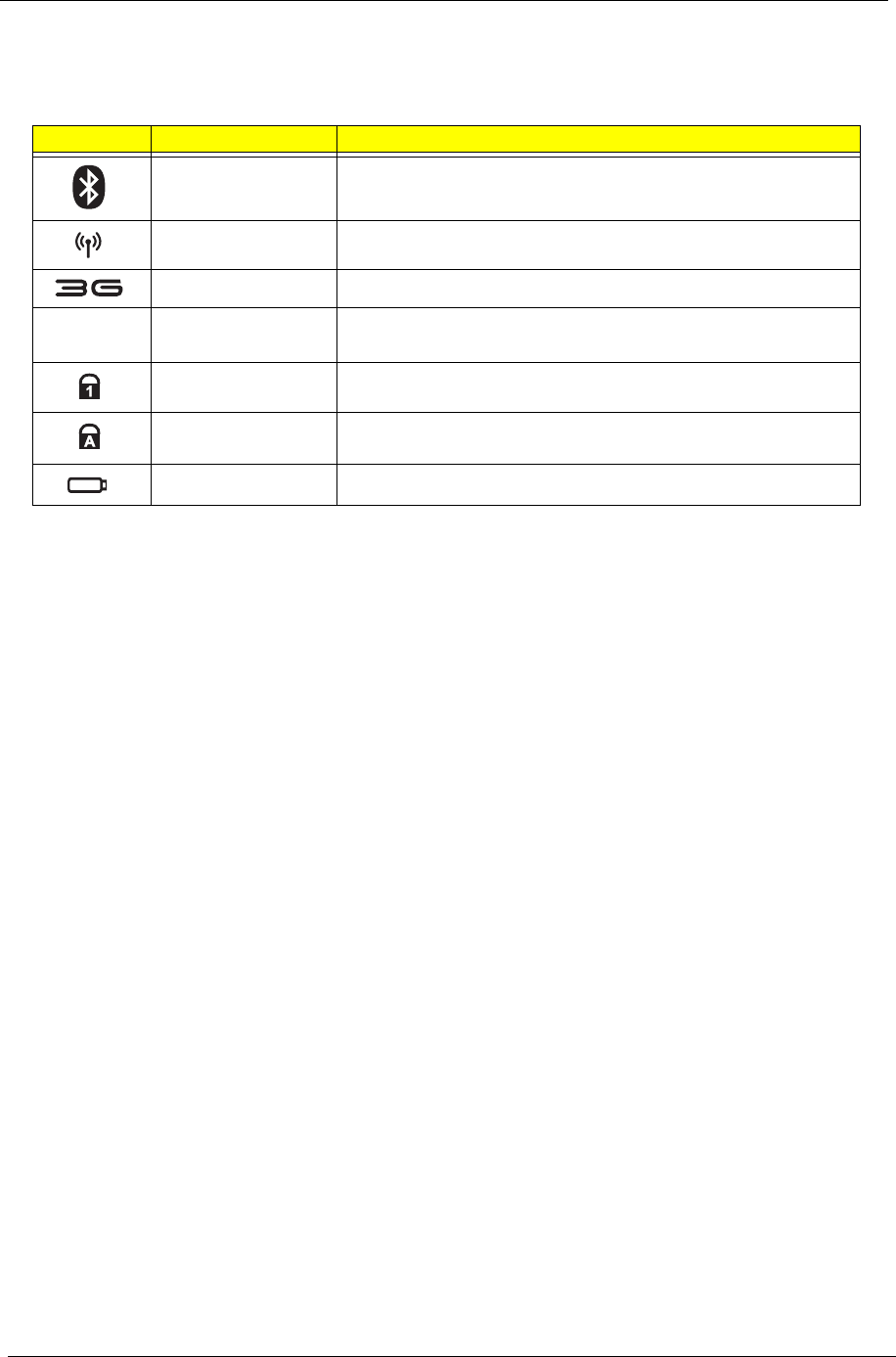
Indicators
The computer has several easy-to-read status indicators. The battery indicator is visible even when the
computer cover is closed.
NOTE: 1. Charging: The battery light shows amber when the battery is charging. 2. Fully charged: The light
shows green when in AC mode.
Icon Function Description
Bluetooth Indicates the status of Bluetooth communication.
Wireless LAN Indicates the status of Wireless LAN communication.
3G communication Indicates the status of 3G communication.
HDD Indicates when the hard disk drive is active.
Num Lock Lights up when Num Lock is activated.
Caps Lock Lights up when Caps Lock is activated.
Battery Indicates the computer's battery status.
Chapter 1 9
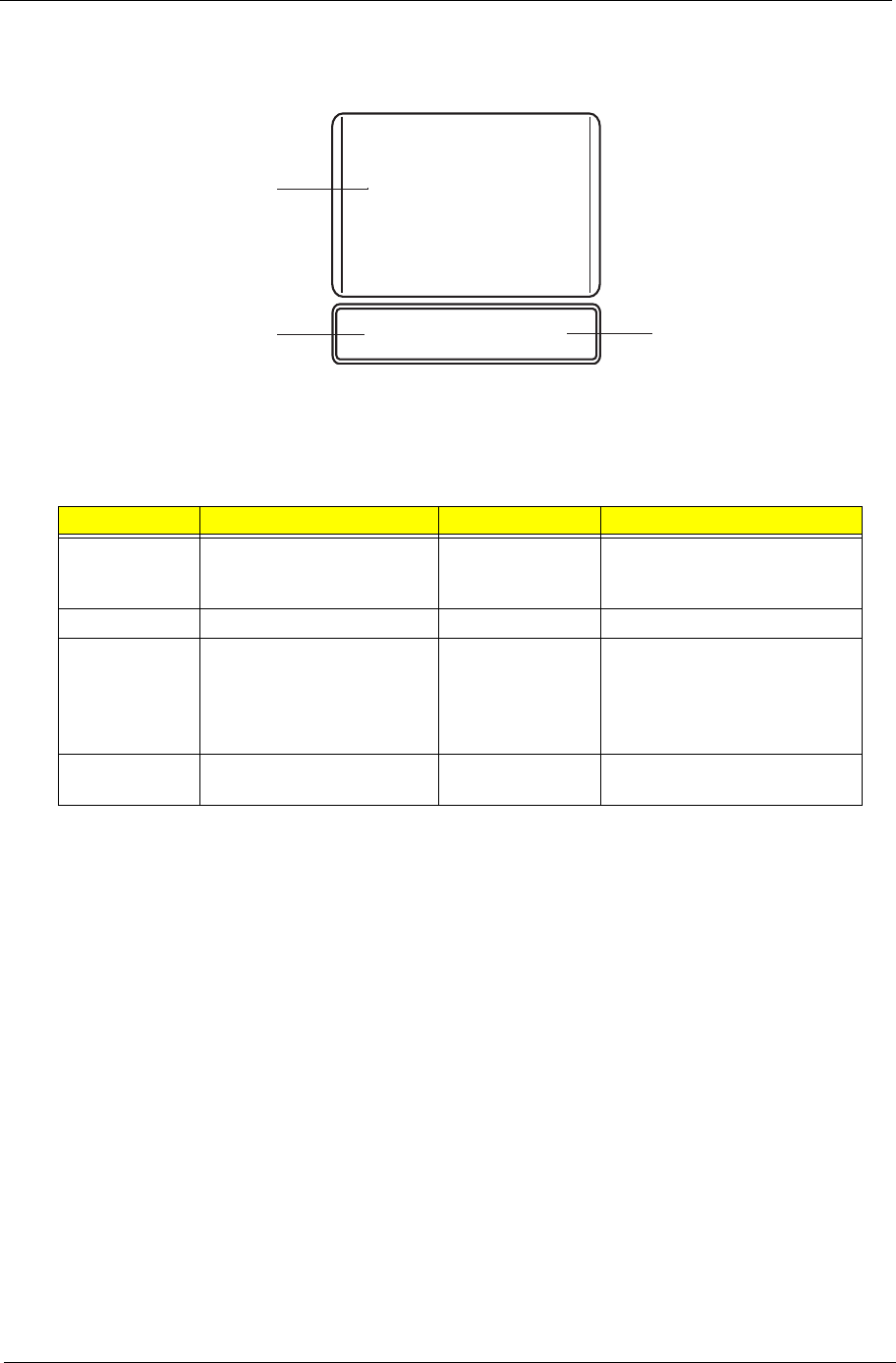
TouchPad Basics
The following items show you how to use the TouchPad:
• Move your finger across the TouchPad (1) to move the cursor.
• Press the left (2) and right (3) buttons located beneath the TouchPad to perform selection and
execution functions. These two buttons are similar to the left and right buttons on a mouse.
Tapping on the TouchPad is the same as clicking the left button.
NOTE: When using the TouchPad, keep it - and your fingers - dry and clean. The TouchPad is sensitive to
finger movement; hence, the lighter the touch, the better the response. Tapping too hard will not
increase the TouchPad’s responsiveness.
Function Left Button (2) Right Button (3) Main TouchPad (1)
Execute Quickly click twice. Tap twice (at the same speed
as double-clicking a mouse
button).
Select Click once. Tap once.
Drag Click and hold, then use
finger on the TouchPad to
drag the cursor.
Tap twice (at the same speed
as double-clicking a mouse
button); rest your finger on
the TouchPad on the second
tap and drag the cursor.
Access
context menu Click once.
1
23
10 Chapter 1
Using the Keyboard
Your Packard Bell dot Series has a close-to-full-sized keyboard and an embedded numeric keypad, separate
cursor, lock, function and special keys.
Lock Keys and embedded numeric keypad
The keyboard has three lock keys which you can toggle on and off.
The embedded numeric keypad functions like a desktop numeric keypad. It is indicated by small characters
located on the upper right corner of the keycaps. To simplify the keyboard legend, cursor-control key symbols
are not printed on the keys.
Lock key Description
Caps Lock When Caps Lock is on, all alphabetic characters typed are in uppercase.
Num Lock
<Fn> + <F11> When Num Lock is on, the embedded keypad is in numeric mode. The keys
function as a calculator (complete with the arithmetic operators +, -, *, and /). Use
this mode when you need to do a lot of numeric data entry. A better solution
would be to connect an external keypad.
Scroll Lock <Fn> +
<F12> When Scroll Lock is on, the screen moves one line up or down when you press
the up or down arrow keys respectively. Scroll Lock does not work with some
applications.
Desired access Num Lock on Num Lock off
Number keys on
embedded keypad Type numbers in a normal manner.
Cursor-control keys on
embedded keypad Hold <Shift> while using cursor-
control keys. Hold <Fn> while using cursor-
control keys.
Main keyboard keys Hold <Fn> while typing letters on
embedded keypad. Type the letters in a normal
manner.
Chapter 1 11
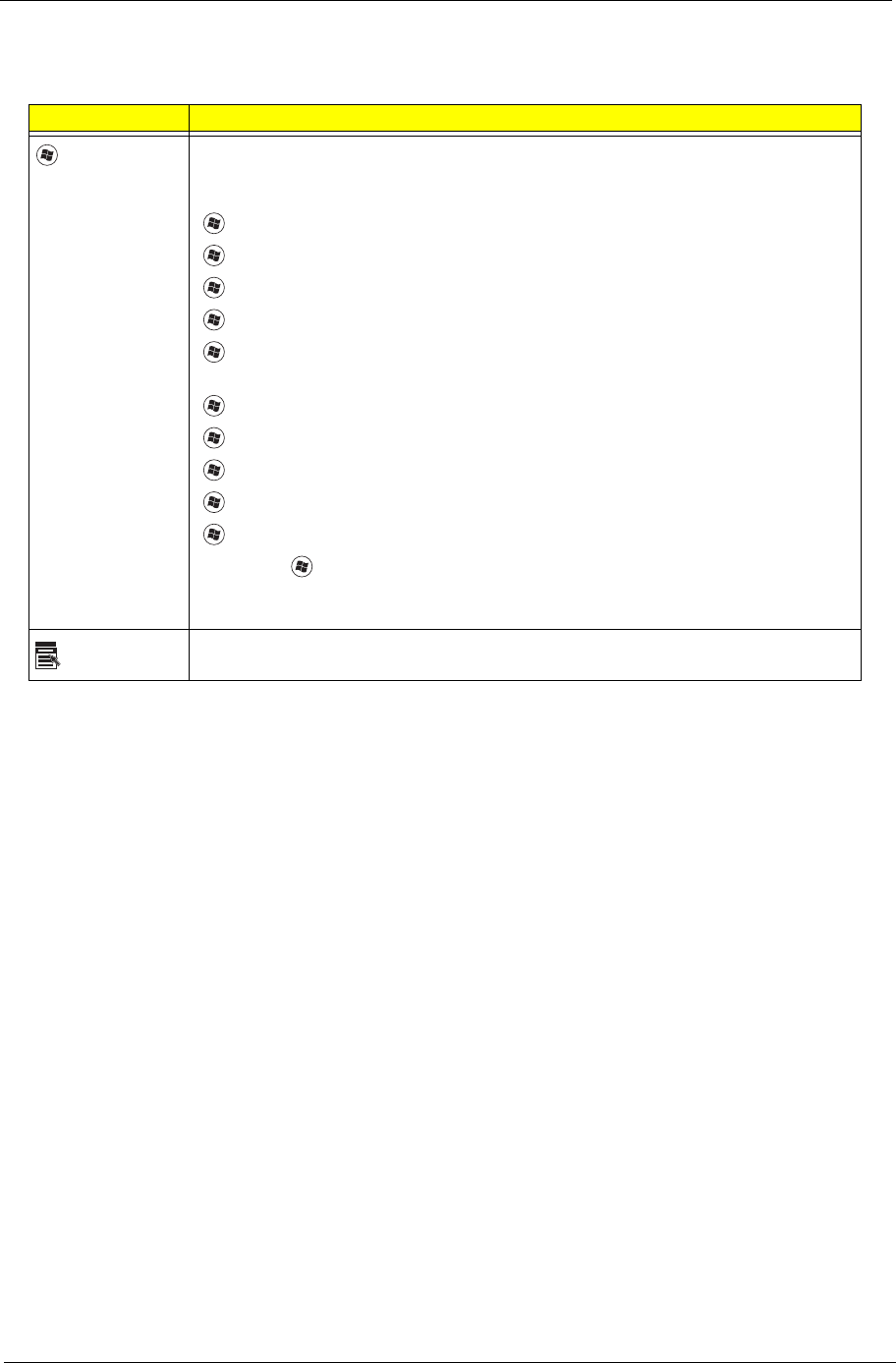
Windows Keys
The keyboard has two keys that perform Windows-specific functions.
Key Description
Windows key Pressed alone, this key has the same effect as clicking on the Windows Start button;
it launches the Start menu. It can also be used with other keys to provide a variety of
functions:
<>: Open or close the Start menu
<> + <D>: Display the desktop
<> + <E>: Open Windows Explore
<> + <F>: Search for a file or folder
<> + <L>: Lock your computer (if you are connected to a network domain), or
switch users (if you're not connected to a network domain)
<> + <M>: Minimizes all windows
<> + <R>: Open the Run dialog box
<> + <U>: Open Ease of Access Center
<> + <BREAK>: Display the System Properties dialog box
<> + <TAB>: Cycle through programs on the taskbar
<CTRL> + <> + <F>: Search for computers (if you are on a network)
Note: Depending on your edition of Windows XP, some shortcuts may not function
as described.
Application
key
This key has the same effect as clicking the right mouse button; it opens the
application's context menu.
12 Chapter 1
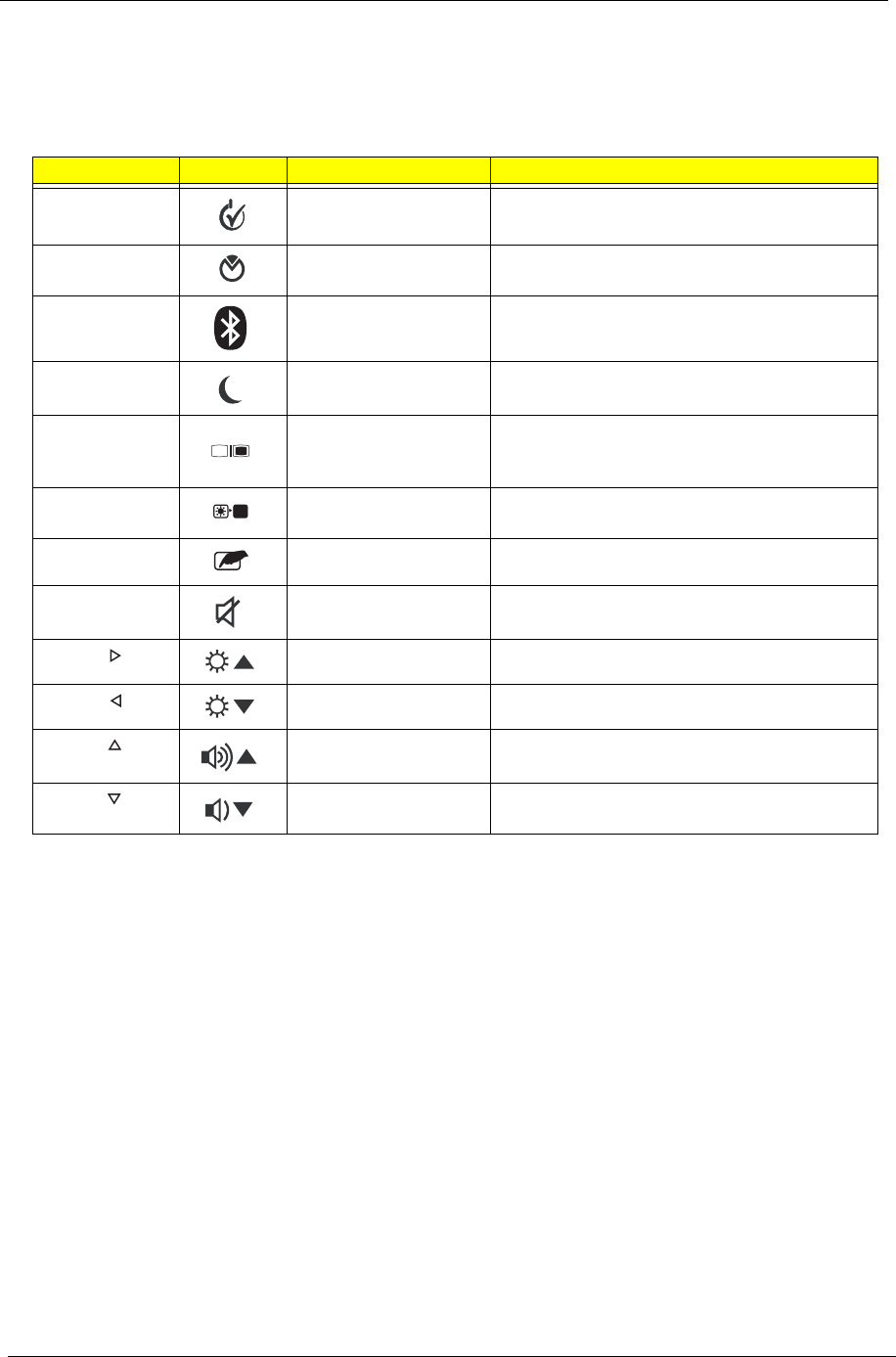
Hot Keys
The computer employs hotkeys or key combinations to access most of the computer's controls like screen
brightness and volume output.
To activate hotkeys, press and hold the <Fn> key before pressing the other key in the hotkey combination.
Hotkey Icon Function Description
<Fn> + <F1> Power Options Display the Power Options Properties
dialog box.
<Fn> + <F2> System Properties Display the System Properties dialog box.
<Fn> + <F3> Bluetooth
communication switch Enables/disables the Bluetooth function.
<Fn> + <F4> Sleep Puts the computer in Sleep mode.
<Fn> + <F5> Display toggle Switches display output between the display
screen, external monitor (if connected) and
both.
<Fn> + <F6> Screen blank Turns the display screen backlight off to save
power. Press any key to return.
<Fn> + <F7> TouchPad toggle Turns the internal TouchPad on and off.
<Fn> + <F8> Speaker toggle Turns the speakers on and off.
<Fn> + < > Brightness up Increases the screen brightness.
<Fn> + < > Brightness down Decreases the screen brightness.
<Fn> + < > Volume up Increases the sound volume.
<Fn> + < > Volume down Decreases the sound volume.

Chapter 1 13
Special Keys
You can locate the Euro symbol and the US dollar sign at the upper-center and/or bottom-right of your
keyboard.
The Euro symbol
1. Open a text editor or word processor.
2. Hold <Alt Gr> and then press the <5> key at the upper-center of the keyboard.
NOTE: Some fonts and software do not support the Euro symbol. See www.microsoft.com/typography/faq/
faq12.htm for more information.
The US dollar sign
1. Open a text editor or word processor.
2. Hold <Shift> and then press the <4> key at the upper-center of the keyboard.
NOTE: This function varies according to the language settings.
14 Chapter 1
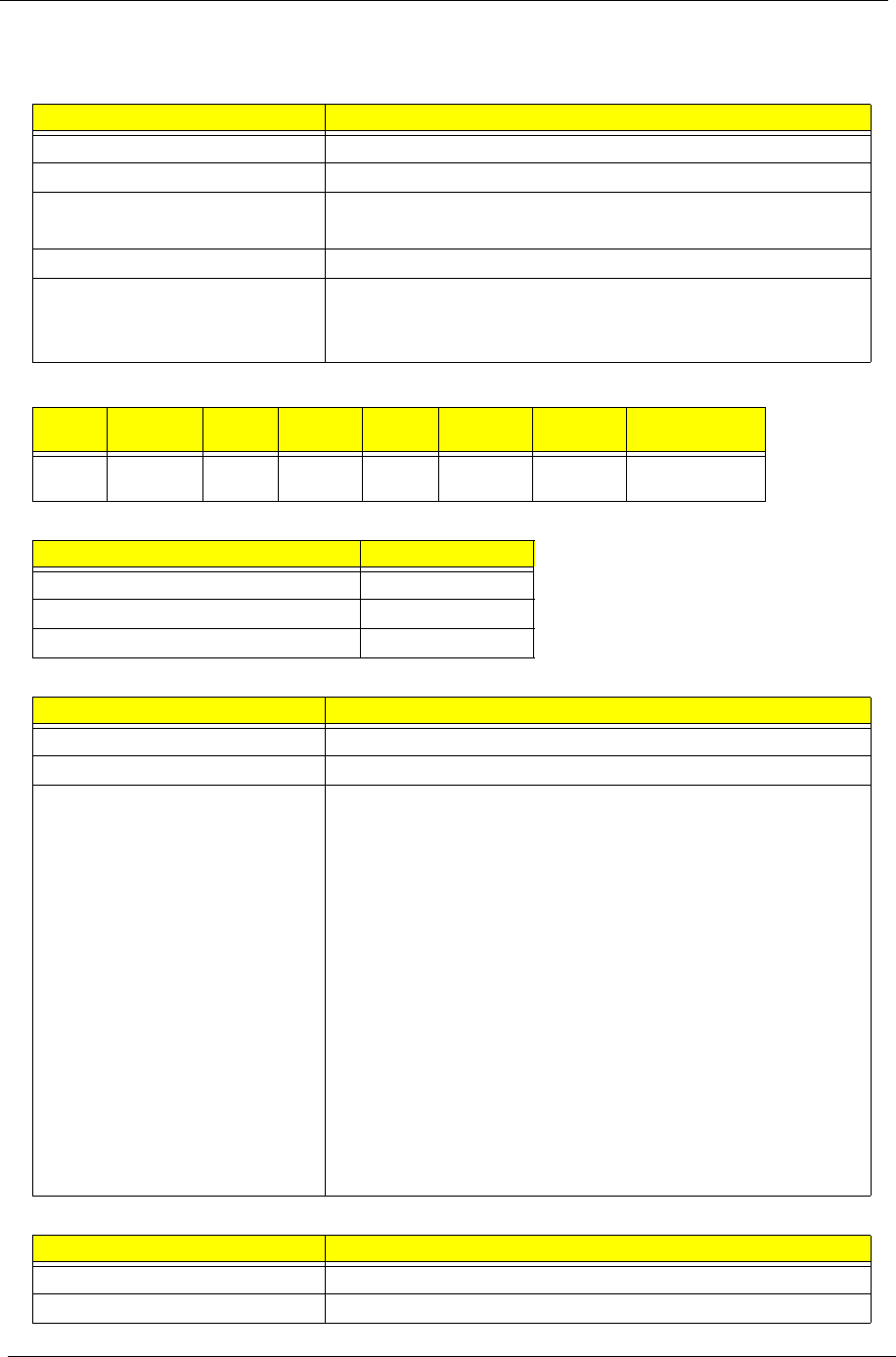
Hardware Specifications and Configurations
Processor
Processor Specifications
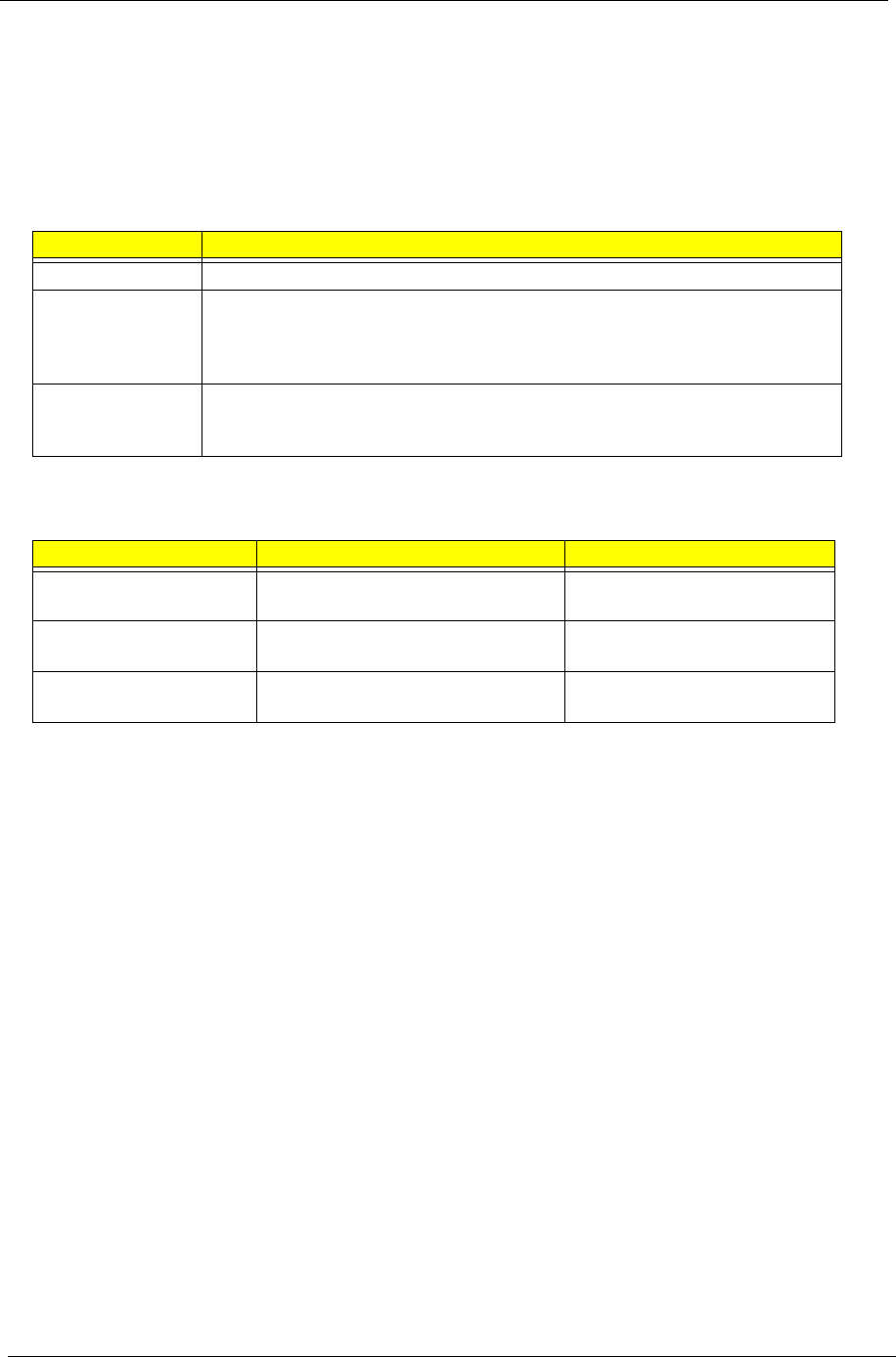
CPU Fan True Value Table
North Bridge Specifications
South Bridge Specifications
Item Specification
CPU type AMD Athlon™ 64 Processor L110
CPU package 638-pin lidless micro PGA package.
Core Logic • North Bridge-RS690E
• South Bridge SB600
Chipset • Mobile Intel® US15W Express Chipset
Features • Cache size: 512 KB, Frequency:1.2G (No P-state)
•TDP:13W
• Execute Disable Bit
Item CPU
Speed Cores Mfg
Tech Cache
Size Package Core
Voltage Acer P/N
L110 1.2 GHz 1 65 nm 512
KB
Micro-
PGA
Variable KC.AL002.110
CPU Temperature of Diode Fan Speed (RPM)
40.3 4900
39.1 4400
36.3 4000
Item Specification
Chipset North Birdge-RS690E
Package 465-Pin FCBGA (21 x 21 mm)
Features • Supports the mobile and desktop Athlon 64/Athlon 64 FX/
Athlon X2/AMD Sempron/AMD Turion 64 processors, including
both AM2 and S1 socket CPUs.
• Supports 200, 400, 600, 800, and 1000MHz HyperTransport
(HT) interface speeds.
• Supports LDTSTP interface, CPU throttling, and stutter mode.
• Supports ATI HyperMemory™* technology.
• Supports Side-port GDDR 128M
• Compliant with the PCI Express (PCI-E) 1.1a Specification.
• A four-port, x4 PCI Express general purpose interface.
• One x4 A-Link Express II interface (PCI Express 1.1 compliant)
for connection to an AMD Southbridge
• Multiple Display Features(LCD+CRT)
• Integrated LVDS-Integrated dual-link 24-bit LVDS interface
Power +1.2V,+3V, +1.8V, +NB_
•TDP:8W
Item Specification
Chipset South Bridge SB600
Package 549-FCBGA ( 23mm x 23mm)
Chapter 1 15
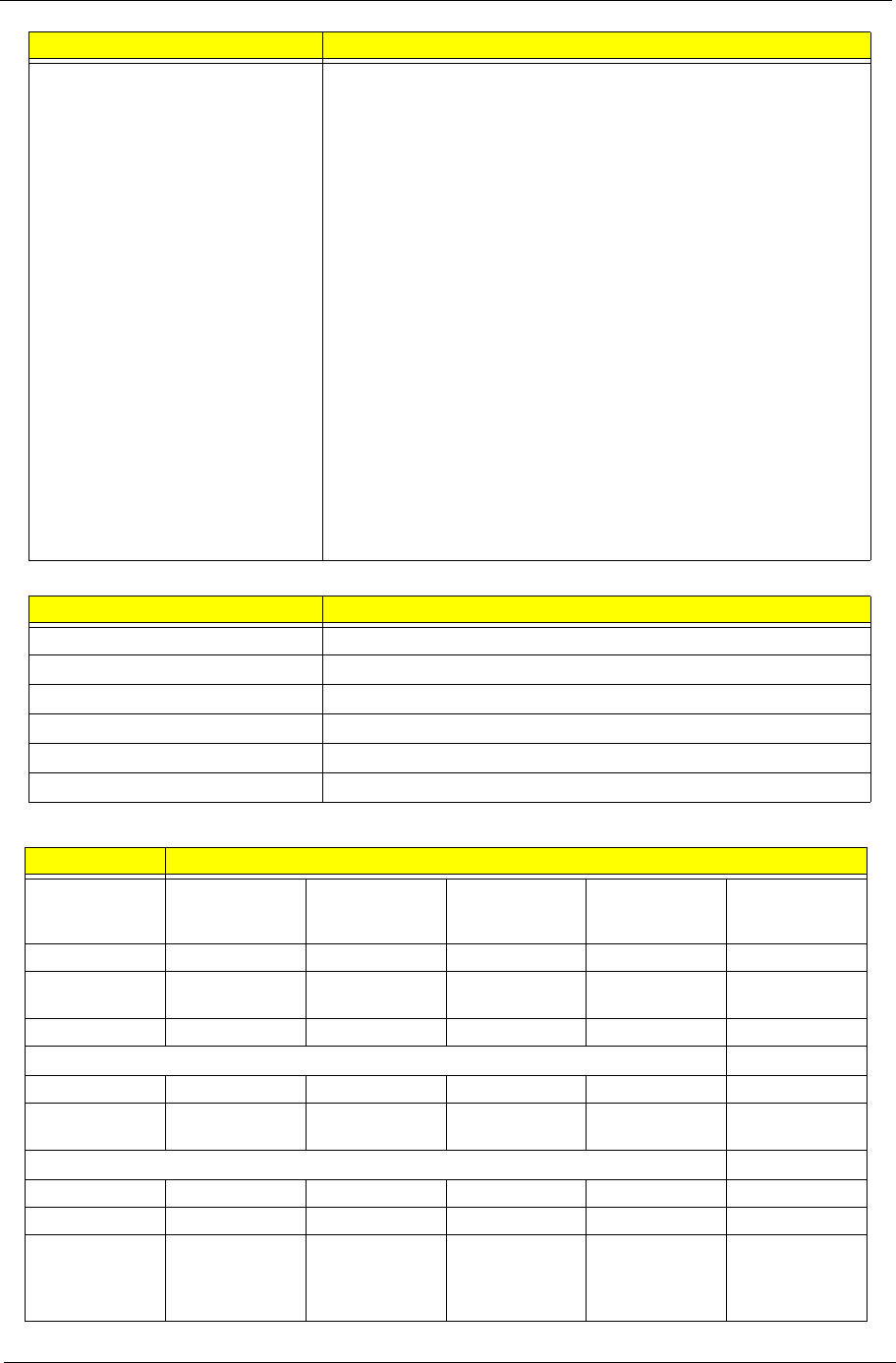
System Memory
Hard Disk Drive Interface
Features • Support PCI bus at 33MHz
• Supports four SATA ports, complying with the SATA 1.0a
specification
• 5 OHCI and 1 EHCI Host controllers to support 10 USB ports,
• audio
• 4 Independent output stream(DMA).
• 4 Independent input stream(DMA).
• Up to 16 channels of audio output per stream.
• Support up to 4 Codecs.
• Up to 192Khz sample.
• IDE Controller
• Single PATA Channel support.
• Supports PIO, Multi-word DMA, and Ultra DMA 33/66/100/
133.
• AC Link Interface
• Support for both audio and modem Codecs.
• 6/8 channel support on audio codec.
• Power +3V,+1.2V, +3V_S5, +1.2V_S5, +1.8V, VCC_SB
•TDP:4W
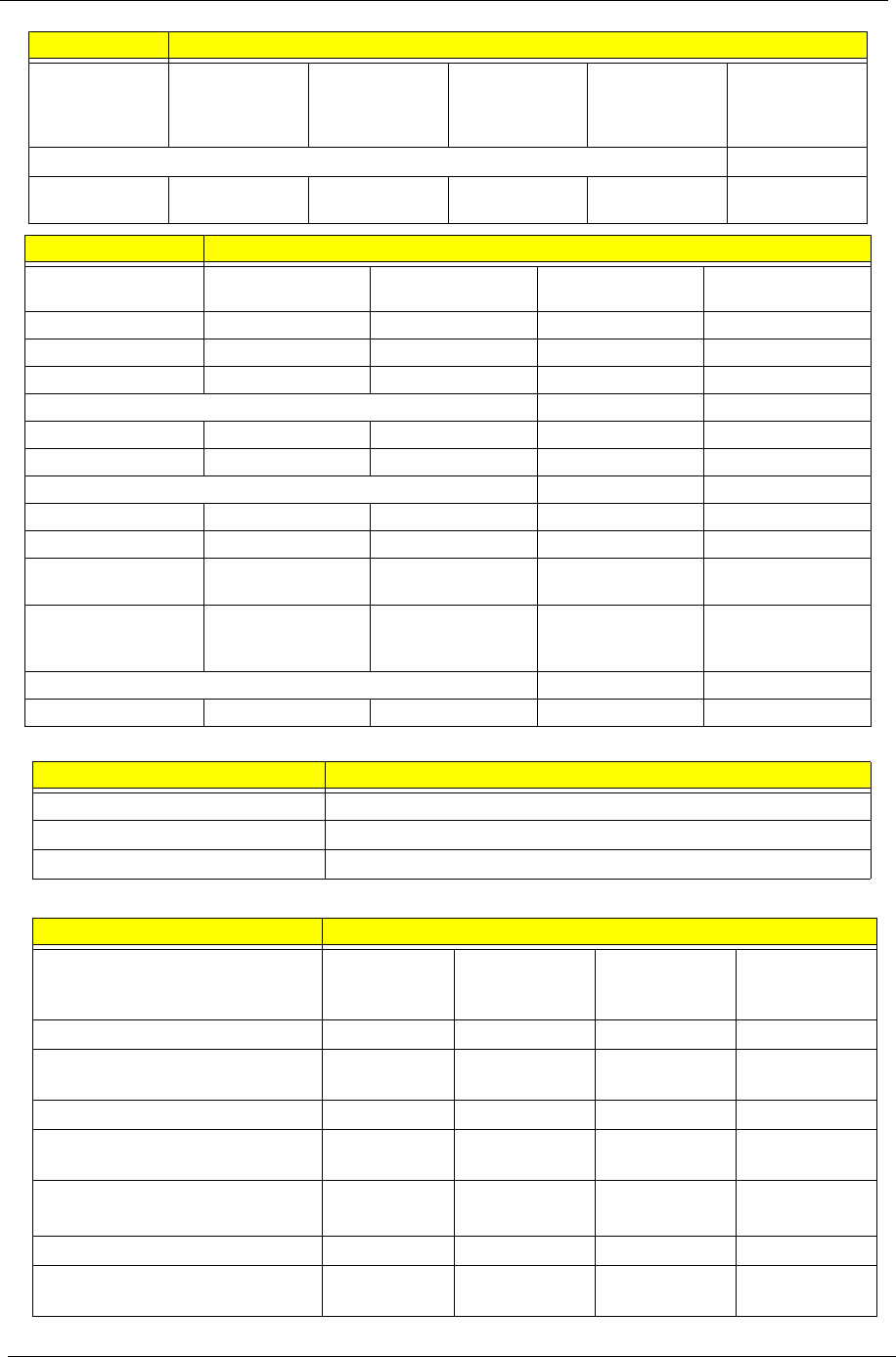
Item Specification
Memory size Up to 2GB
DIMM socket number 1
Supports memory size per socket 2GB
Supports maximum memory size 2GB
Supports DIMM type DDR2
Supports DIMM Speed 667MHz
Item Specification
Vendor &
Model Name
Hitachi
HTS543216L9
SA00
Hitachi
HTS545016B9
A300
Hitachi
HTS545025B9
A300
Seagate
ST9160310AS
Seagate
ST9160315AS
Capacity (GB) 160 160 250 160 250
Bytes per
sector
512 512 512 512 512
Data heads 22222
Drive Format
Disks11211
Spindle speed
(RPM)
5400 5400 5400 5400 5400
Performance Specifications
Buffer size 8 MB 8 MB 8 MB 8 MB 8 MB
Interface SATA SATA SATA SATA SATA
Fast data
transfer rate
(Mbits/sec,
max)
1500 3000 3000 3000 3000
Item Specification
16 Chapter 1
BIOS
LED 11.6”
Media data
transfer rate
(Mbytes/sec
max)
830 729 775 830 830
DC Power Requirements
Voltage
tolerance
5V ±5% 5V ±5% 5V ±5% 5V ±5% 5V ±5%
Item Specification
Vendor & Model
Name
WD
WD1600BEVT
WD
WD2500BEVT
Toshiba
MK1655GSX
Toshiba
MK2555GSX
Capacity (GB) 160 250 160 250
Bytes per sector 512 512 512 512
Data heads 2 2 2 2
Drive Format
Disks 1 1 1 1
Spindle speed (RPM) 5400 5400 5400 5400
Performance Specifications
Buffer size 8 MB 8 MB 8 8
Interface SATA SATA SATA SATA
Fast data transfer
rate (Mbits/sec, max)
3000 3000 3000 3000
Media data transfer
rate
(Mbytes/sec max)
850 850 363 - 952 typical 363 - 952 typical
DC Power Requirements
Voltage tolerance 5V ±5% 5V ±5% 5V ±5% 5V ±5%
Item Specification
BIOS vendor Phoenix BIOS
BIOS Version V0.2105
BIOS ROM type Flash
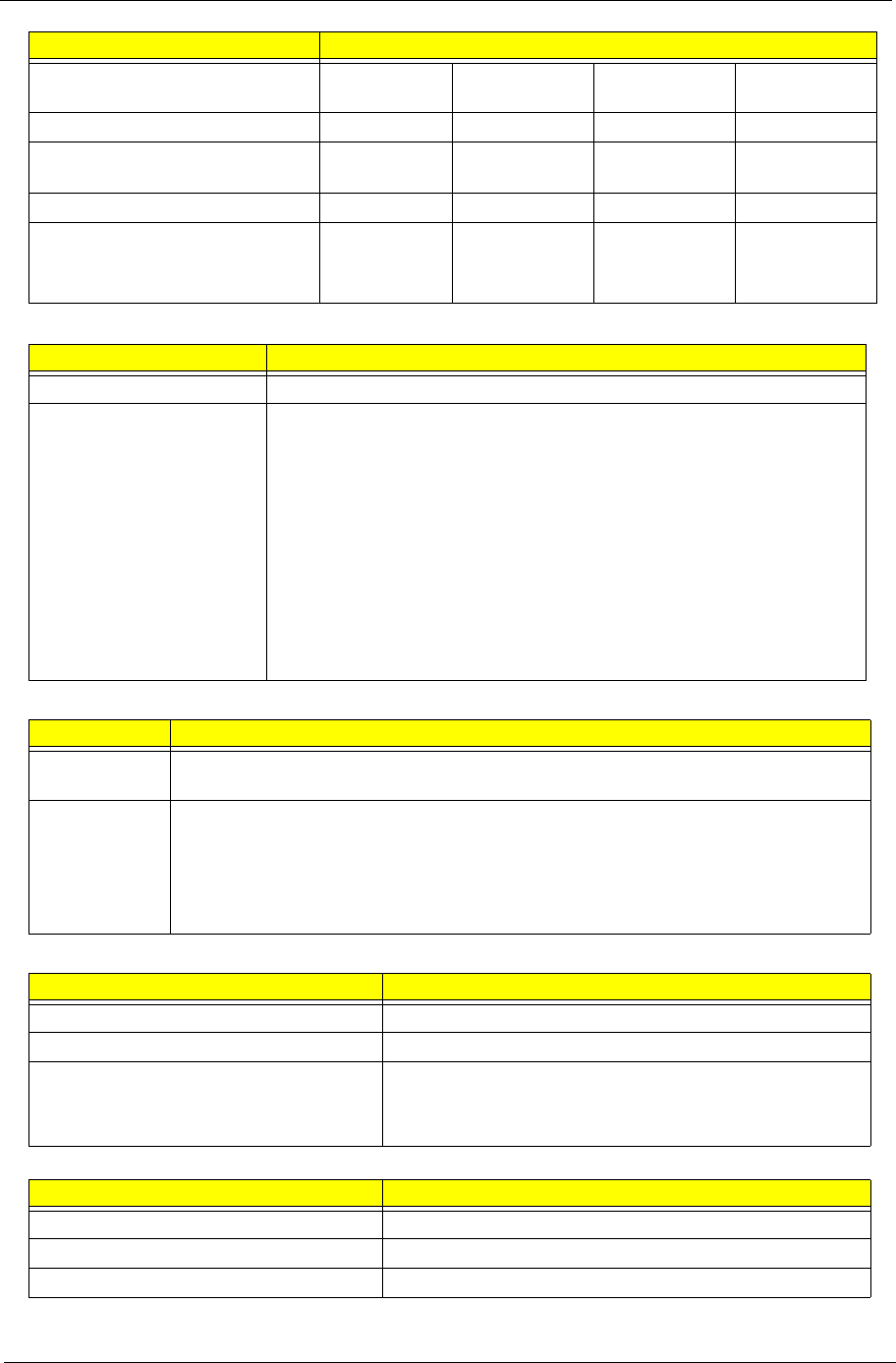
Item Specifications
Vendor/model name AUO
B11.6XW02 CMO
N116B6-L02 LG
LP116WH1-
TLA1
Samsung
LTN116AT01-
A01
Screen Diagonal (mm) 11.6” 11.6” 11.6” 11.6”
Active Area (mm) 256.125 x
144 256.125 x 144 256.13 x 144 256.125 x 144
Display resolution (pixels) 1366 x 768 1366 x 768 1366 x 768 1366 x 768
Pixel Pitch (mm) 0.1875 x
0.1875 0.1875 x
0.1875 0.1875 x
0.1875 0.2265(H) x
0.2265(V)
Typical White Luminance (cd/m2)
also called Brightness
200 200 200 200
Contrast Ratio 500:1 500:1 500:1 500:1
Response Time (Optical Rise
Time/Fall Time) msec 87 8 8
Item Specification
Chapter 1 17
Bluetooth
Audio Codec and Amplifier
LAN Interface
Keyboard
Typical Power Consumption
(watt) 4.0 4 4 2.85
Weight (without inverter) 255g 225g 255g 255g
Physical Size (mm) 268 (L) x
161.5 (W) 268 x 161.5 x
5268.0 x 161.5 268.0 x 161.5
Electrical Interface LVDS LVDS LVDS LVDS
Viewing Angle (degree)
Horizontal (Right) / (Left)
Vertical (Upper) / (Lower)
45/45
20/40
45/45
20/45
45/45
20/40
TBD
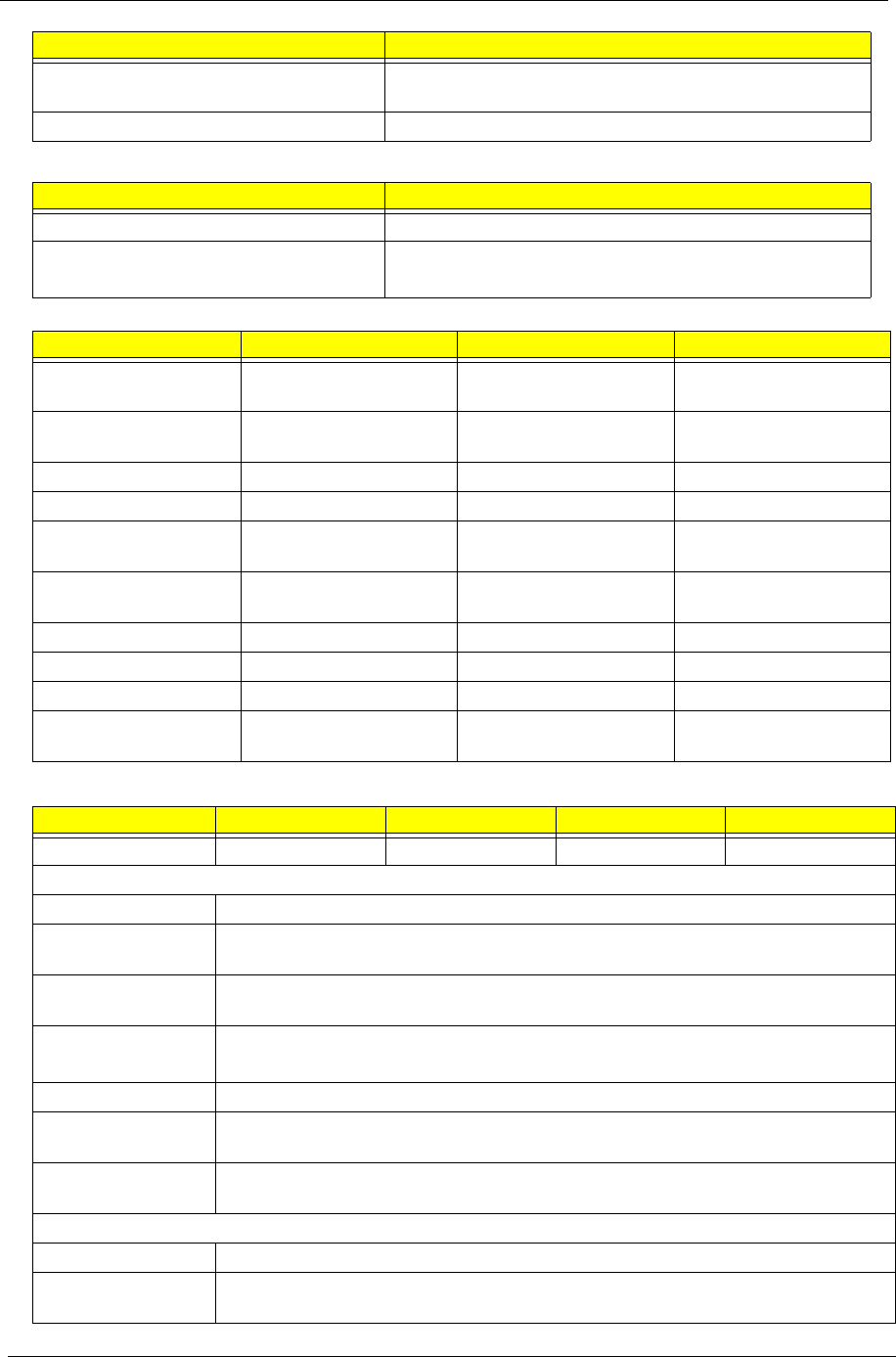
Item Specification
Bluetooth Controller T60H928.11 miniUSB module
Features • Bluetooth 2.0 plus EDR qualified Embedded USB Module
• Extremely small size (26mmX 14mm)
• Class 2 specification RF output power
• Full piconet and scatternet operation
• Full Bluetooth data rate
• USB 2.0 full-speed compliant interface
• F/W upgrade via Flash download
• Very low power consumption
• Support AFH (Adaptive Frequency Hopping)
• Support BCM WLAN co-existence
Item Specification
Audio
Controller Realtek ALC272 Azalia Codec and Amplifier G1454
Features • HD Audio
• SNR > 85,High-performance DACs with 95dB SNR (A-Weighting), ADCs with
85dB SNR (A-Weighting)
• Internal Digital Microphone
• Two speakers, max. 1W output each
Item Specification
LAN Chipset Realtek RTL8103EL
Package 48pin-LQFP package
Features • Integrated 10/100 BASE -T transceiver
• PCIe V1.1 compliant supports
• Wake on LAN and remote wake-up support
Item Specification
Type New Acer flat keyboard
Total number of keypads 86/87/91
Windows logo key Yes
Item Specifications
18 Chapter 1
Mini Card
Camera
Wireless LAN
Internal & external keyboard work
simultaneously Yes
Features • Supports Application keys for Windows XP version
Item Specification
Number Supported 2
Features • 1 for 3G (full size)
• 1 for WLAN (half size)
Item Specifications
Vendor and model Chicony CNF9011 Liteon 09P2SF001 SuyinCN0316-S30C-
OV06-1
Type 640 x 480 VGA (0.3M)
size 1/6” CMOS 640 x 480 VGA (0.3M)
size 1/6” CMOS 640 x 480 VGA (0.3M)
size CMOS
Interface USB 2.0 USB 2.0 USB 2.0
Optical aperture F2.4 ± 5% F2.4
Focusing range 17.4cm ~ Infinity, focus
on 40cm 18.65cm~Infinite, focus
on 48cm 40 cm ~ infinity
Dimensions (L x W x H
mm) 64.8±0.3 X 7.9±0.1 X
3.64+0.15/-0.25 mm 65 x 8 x 3.84 ± 0.25(H)
mm, 65X 7.9X 3.8+/-0.2mm
Sensor type CMOS CMOS CMOS
Pixel resolution 640 x 480 640 x 480 640 x 480
Pixel size TBD TBD 3.6um x 3.6um
Image size TBD TBD 2.36mm(H) x
1.76mm(V)
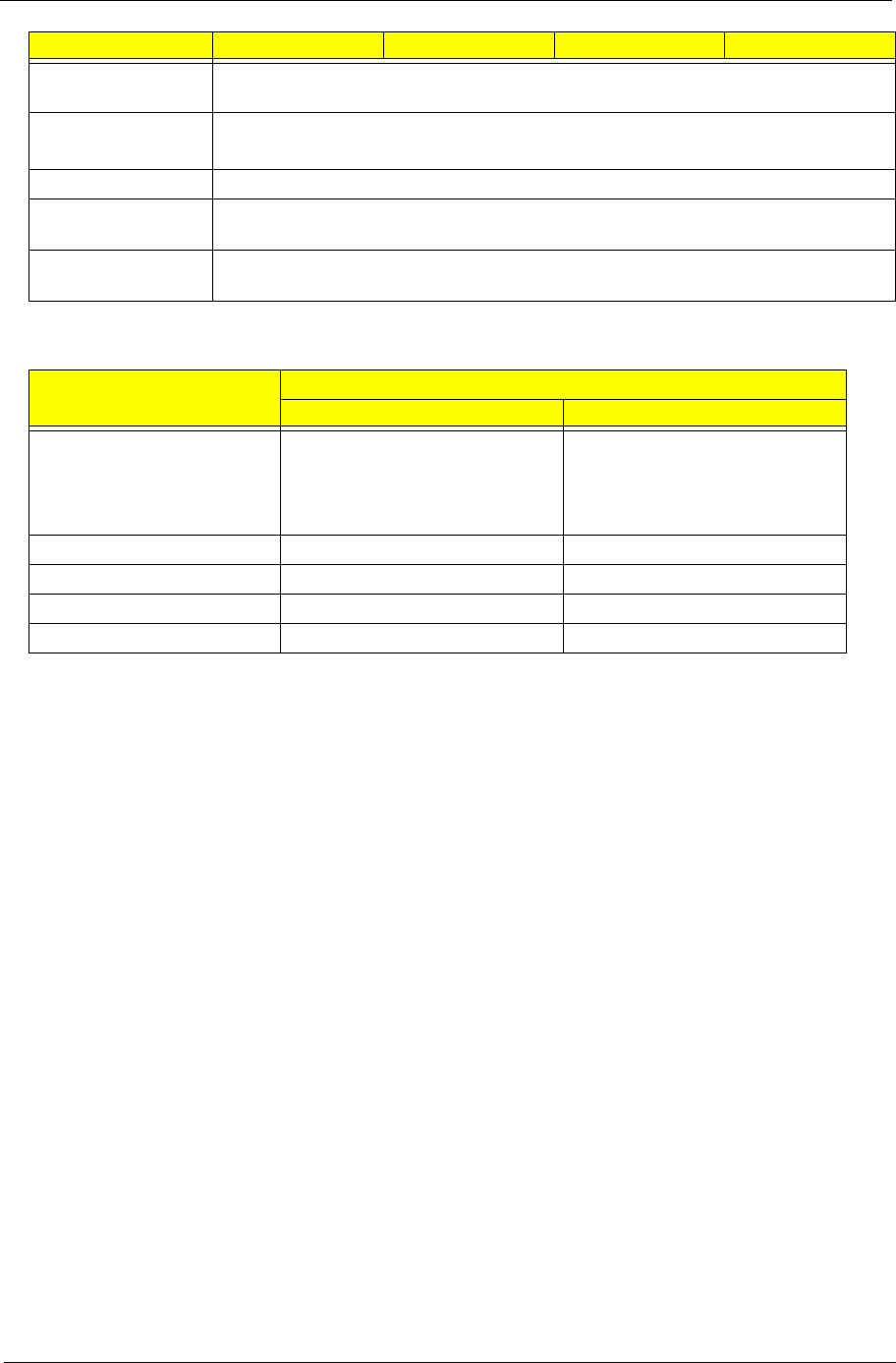
Item Specification Specification Specification Specification
Type Atheros HB63 Atheros HB95 Atheros XB63 Broadcom 4312H
802.11g
Radio Technology IEEE 802.11g standard compliant
Operating
Frequency 2412 ~ 2484MHz ISM band
Modulation
Schemes OFDM, DQPSK, DBPSK and CCK
Channel Numbers • 1---11 channels for active channels
• 12---13 channels for passive channels
Data Rate 54Mbps with fall back rates of 48, 36, 24, 18, 12, 9 and 6Mbps
Media Access
Protocol CSMA/CA with ACK
Transmitter Output
Power Typical 13.5 dBm for 54Mbps
802.11b
Radio Technology IEEE 802.11b Direct Sequence Spread Spectrum
Operating
Frequency 2412 ~ 2484MHz ISM band
Item Specification
Chapter 1 19
3G Module
Battery
Modulation
Schemes DQPSK, DBPSK and CCK
Channel Number • 1---11 channels for active channels
• 12---13 channels for passive channels
Data Rate 11Mbps with fall back rates of 5.5, 2, and 1Mbps
Media Access
Protocol CSMA/CA with ACK
Transmitter Output
Power 18dBm typically
Item Specification
3 Cell 6 Cell
Vendor & model name Sanyo UM-2009A/AW
Sony UM-2009A/AW
Panasonic UM-2009A/AW
Simplo UM-2009A/AW
Sanyo UM-2009B 2.2/2.6
Sony UM-2009B 2.2/2.6
Panasonic UM-2009B
Simplo UM-2009B
Battery Type Li-ion Li-ion
Pack capacity 2200 mAh 4400/5200 mAh
Number of battery cell 3 6
Package configuration 3S1P 3S2P
Item Specification Specification Specification Specification

20 Chapter 1

Chapter 2 21
System Utilities
BIOS Setup Utility
The BIOS Setup Utility is a hardware configuration program built into your computer’s BIOS (Basic Input/
Output System).
Your computer is already properly configured and optimized, and you do not need to run this utility. However, if
you encounter configuration problems, you may need to run Setup. Please also refer to Chapter 4
Troubleshooting when problem arises.
To activate the BIOS Utility, press F2 during POST (when Press <F2> to enter Setup message is prompted
on the bottom of screen).
Press F2 to enter setup. The default parameter of F12 Boot Menu is set to “disabled”. If you want to change
boot device without entering BIOS Setup Utility, please set the parameter to “enabled”.
Press <F12> during POST to enter multi-boot menu. In this menu, user can change boot device without
entering BIOS SETUP Utility.
Navigating the BIOS Utility
There are six menu options: Information, Main, Advanced, Security, Power, Boot, and Exit.
Follow these instructions:
• To choose a menu, use the left and right arrow keys.
• To choose an item, use the up and down arrow keys.
• To change the value of a parameter, press F5 or F6.
• A plus sign (+) indicates the item has sub-items. Press Enter to expand this item.
• Press Esc while you are in any of the menu options to go to the Exit menu.
• In any menu, you can load default settings by pressing F9. You can also press F10 to save any
changes made and exit the BIOS Setup Utility.
NOTE: You can change the value of a parameter if it is enclosed in square brackets. Navigation keys for a
particular menu are shown on the bottom of the screen. Help for parameters are found in the Item
Specific Help part of the screen. Read this carefully when making changes to parameter values. Please
note that system information is subject to different models.
Chapter 2
22 Chapter 2
Information
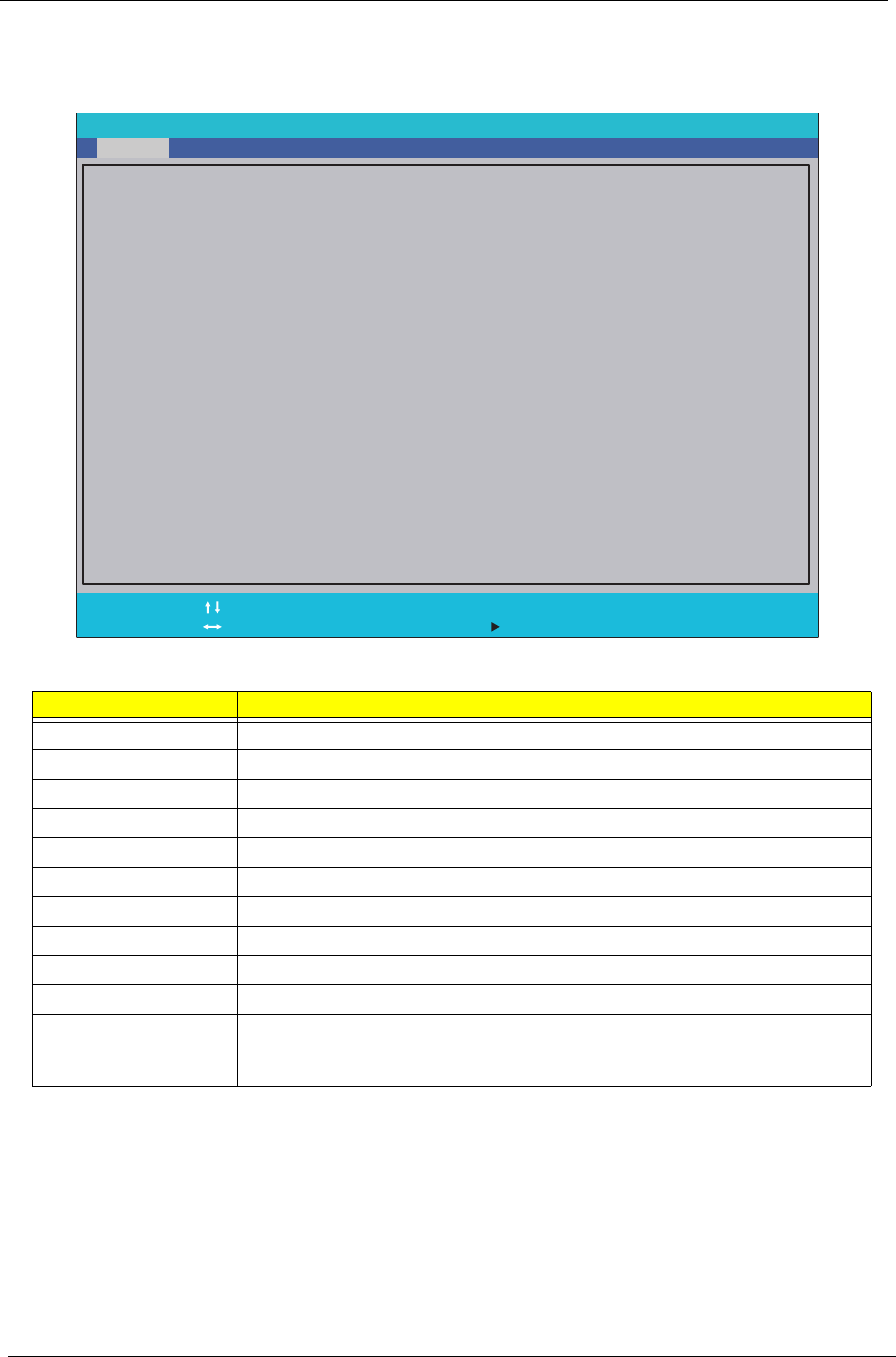
The Information screen displays a summary of your computer hardware information.
NOTE: The system information is subject to different models.
Parameter Description
CPU Type This field shows the CPU type and speed of the system.
CPU Speed This field shows the speed of the CPU.
IDE0 Model Name This field shows the model name of HDD installed on primary IDE master.
IDE0 Serial Number This field displays the serial number of HDD installed on primary IDE master.
System BIOS Version Displays system BIOS version.
VGA BIOS Version This field displays the VGA firmware version of the system.
Serial Number This field displays the serial number of this unit.
Asset Tag Number This field displays the asset tag number of the system.
Product Name This field shows product name of the system.
Manufacturer Name This field displays the manufacturer of this system.
UUID Universally Unique Identifier (UUID) is an identifier standard used in software
construction, standardized by the Open Software Foundation (OSF) as part of
the Distributed Computing Environment (DCE).
PhoenixBIOS Setup Utility
F1
Esc Help
Exit Select Item
Select Menu Change Values
Select Sub-Menu
Enter F9
F10 Setup Defaults
Save and Exit
AMD Athlon(tm) Processor L110
1200 MHz
Hitachi HTS543216L9A300
090210FB2206LCJZ4V3H
V0.11T04_C-Build
ZA80SK02B1917060592500
ATi 010.055.000.051.032329
Gateway
40735D1C78DADD11A9D700238BB0B8D4
CPU Type:
CPU Speed:
IDE Model Name:
IDE Serial Number:
System BIOS Version:
VGA BIOS Version:
Serial Number::
Asset Tag Number
Product Name:
anufacturer Name:
M
UUID:
F5/F6
Main Boot Exit
SecurityInformation
Chapter 2 23
Main
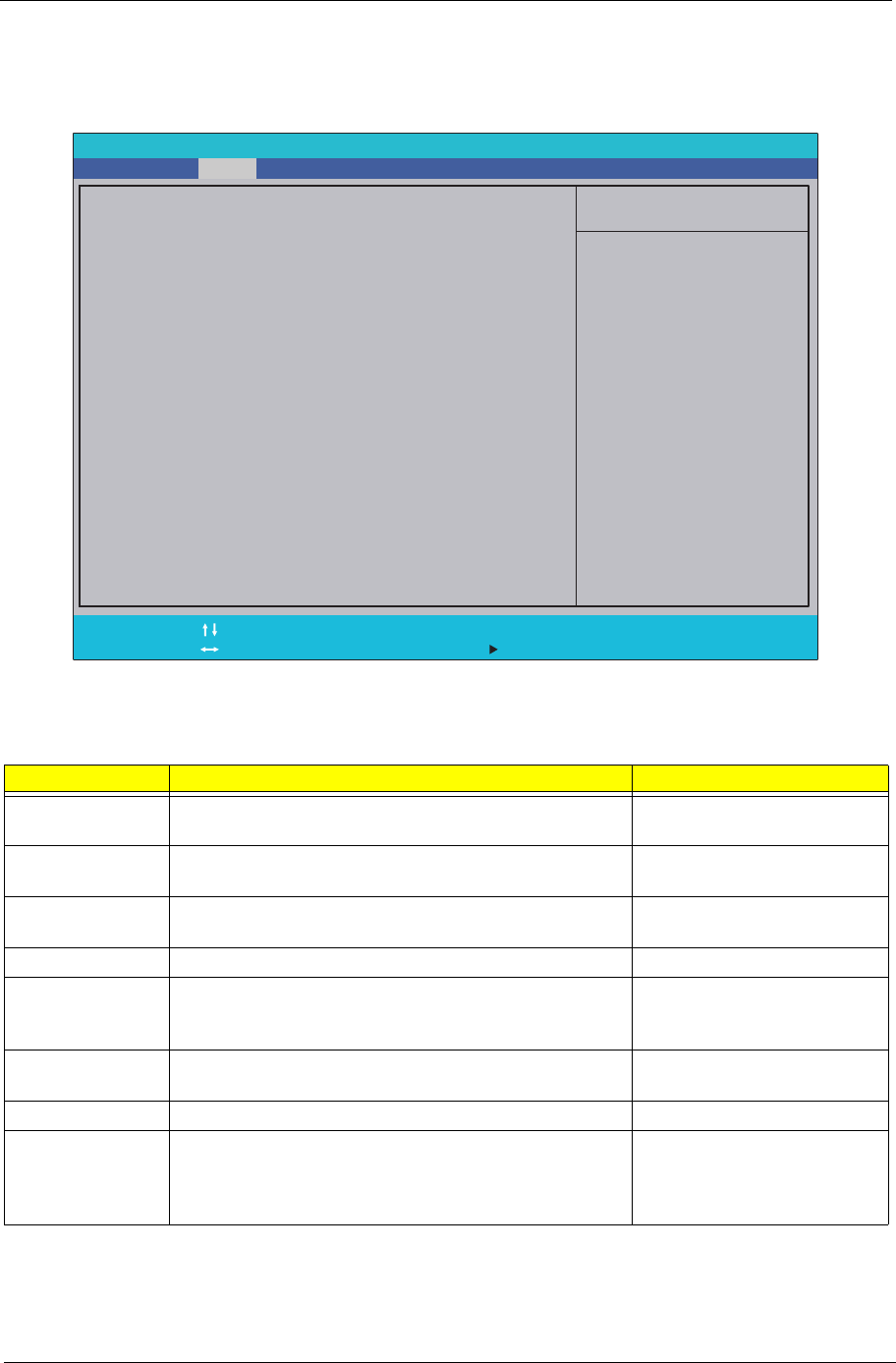
The Main screen allows the user to set the system time and date as well as enable and disable boot option
and recovery.
NOTE: The screen above is for your reference only. Actual values may differ.
The table below describes the parameters in this screen. Settings in boldface are the default and suggested
parameter settings.
Parameter Description Format/Option
System Time Sets the system time. The hours are displayed with 24-
hour format. Format: HH:MM:SS
(hour:minute:second)
System Date Sets the system date. Format MM/DD/YYYY
(month/day/year)
System Memory This field reports the total memory size of the system.
Memory size is fixed to 1015 MB. N/A
Primary Master
Specifies the primary IDE master.
N/A
Quiet Boot Allows startup to skip normal POST messages while
booting, decreasing the time needed to boot the
system.
Option: Enabled or Disabled
Network Boot Enables, disables the system boot from LAN (remote
server). Option: Enabled or Disabled
F12 Boot Menu Enables, disables Boot Menu during POST. Option: Enabled or Enabled
D2D Recovery Enables, disables D2D Recovery function. The function
allows the user to create a hidden partition on hard disc
drive to store operation system and restore the system
to factory defaults.
Option: Enabled or Disabled
PhoenixBIOS Setup Utility
Item Specific Help
<Tab>, <Shift-Tab>, or
<Enter> selects field.
F1
Esc Help
Exit Select Item
Select Menu Change Values
Select Sub-Menu
Enter F9
F10 Setup Defaults
Save and Exit
[19:10:59]
[05/12/2009]
1024 MB
[256MB]
[Enabled]
[Enabled]
[Disabled]
[Enabled]
System Time:
System Date:
Total Memory:
Video Memory:
Quiet Boot:
Network Boot:
F12 Boot Menu:
D2D Recovery:
F5/F6
Main Boot Exit
SecurityInformation
24 Chapter 2
Security
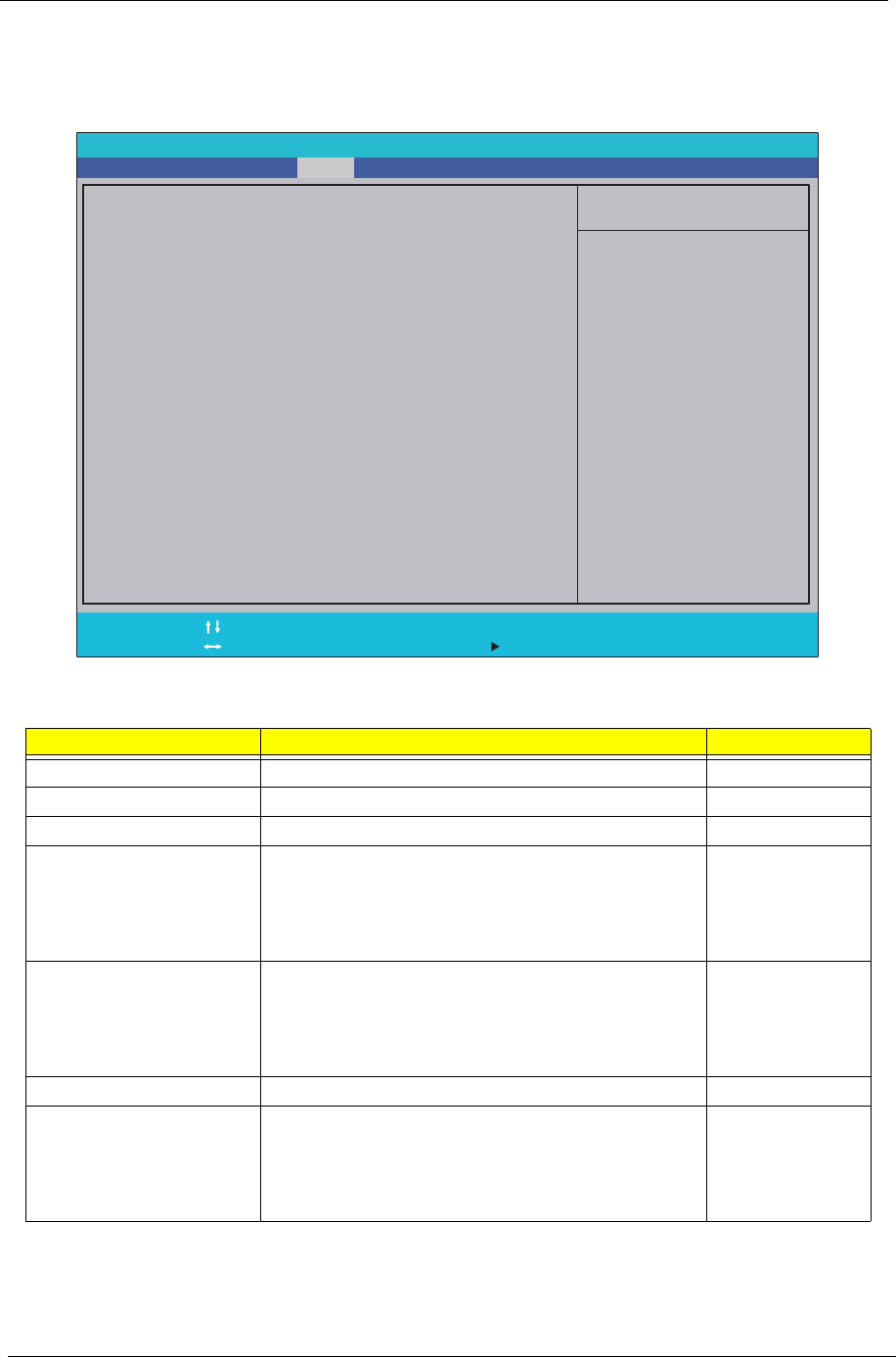
The Security screen contains parameters that help safeguard and protect your computer from unauthorized
use.
The table below describes the parameters in this screen. Settings in boldface are the default and suggested
parameter settings.
NOTE: When you are prompted to enter a password, you have three tries before the system halts. Don’t forget
your password. If you forget your password, you may have to return your notebook computer to your
dealer to reset it.
Parameter Description Option
Supervisor Password Is Shows the setting of the Supervisor password Clear or Set
User Password Is Shows the setting of the user password. Clear or Set
HDD0 Password IS Shows the setting of the HDD password Clear or Set
Set Supervisor Password Press Enter to set the supervisor password. When
set, this password protects the BIOS Setup Utility
from unauthorized access. The user can not either
enter the Setup menu nor change the value of
parameters.
Set User Password Press Enter to set the user password. When user
password is set, this password protects the BIOS
Setup Utility from unauthorized access. The user can
enter Setup menu only and does not have right to
change the value of parameters.
Set HDD0 Password Enter HDD password.
Password on Boot Defines whether a password is required or not while
the events defined in this group happened. The
following sub-options are all requires the Supervisor
password for changes and should be grayed out if the
user password was used to enter setup.
Enabled or
Disabled
PhoenixBIOS Setup Utility
Item Specific Help
Supervisor Password
controls access to the
setup utility. It can
be used to boot up when
Pawword on boot is
enabled.
F1
Esc Help
Exit Select Item
Select Menu Change Values
Select Sub-Menu
Enter F9
F10 Setup Defaults
Save and Exit
ClearClear
Supervisor Password Is:Supervisor Password Is:
ClearClear
User Password Is:User Password Is:
[Enter][Enter]
Set Supervisor PasswordSet Supervisor Password
[Enter][Enter]
Set User PasswordSet User Password
F5/F6
Main Boot Exit
SecurityInformation
HDD0 Password Is:HDD0 Password Is:
ClearClear
[Enter][Enter]
Set SATA Port 0 HDD PasswordSet SATA Port 0 HDD Password
[Disabled][Disabled]
Password on Boot:Password on Boot:
Chapter 2 25
Setting a Password
Follow these steps as you set the user or the supervisor password:
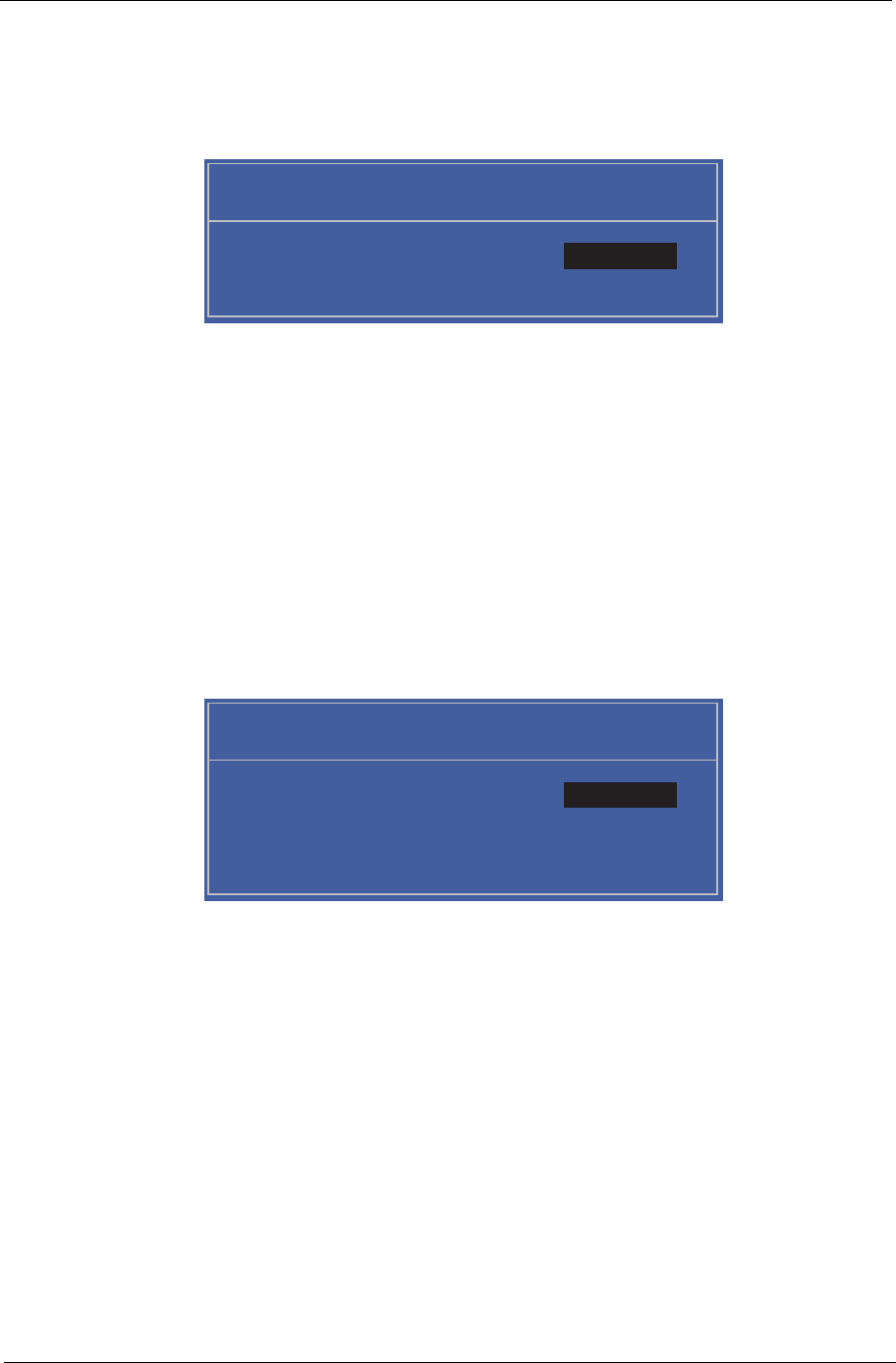
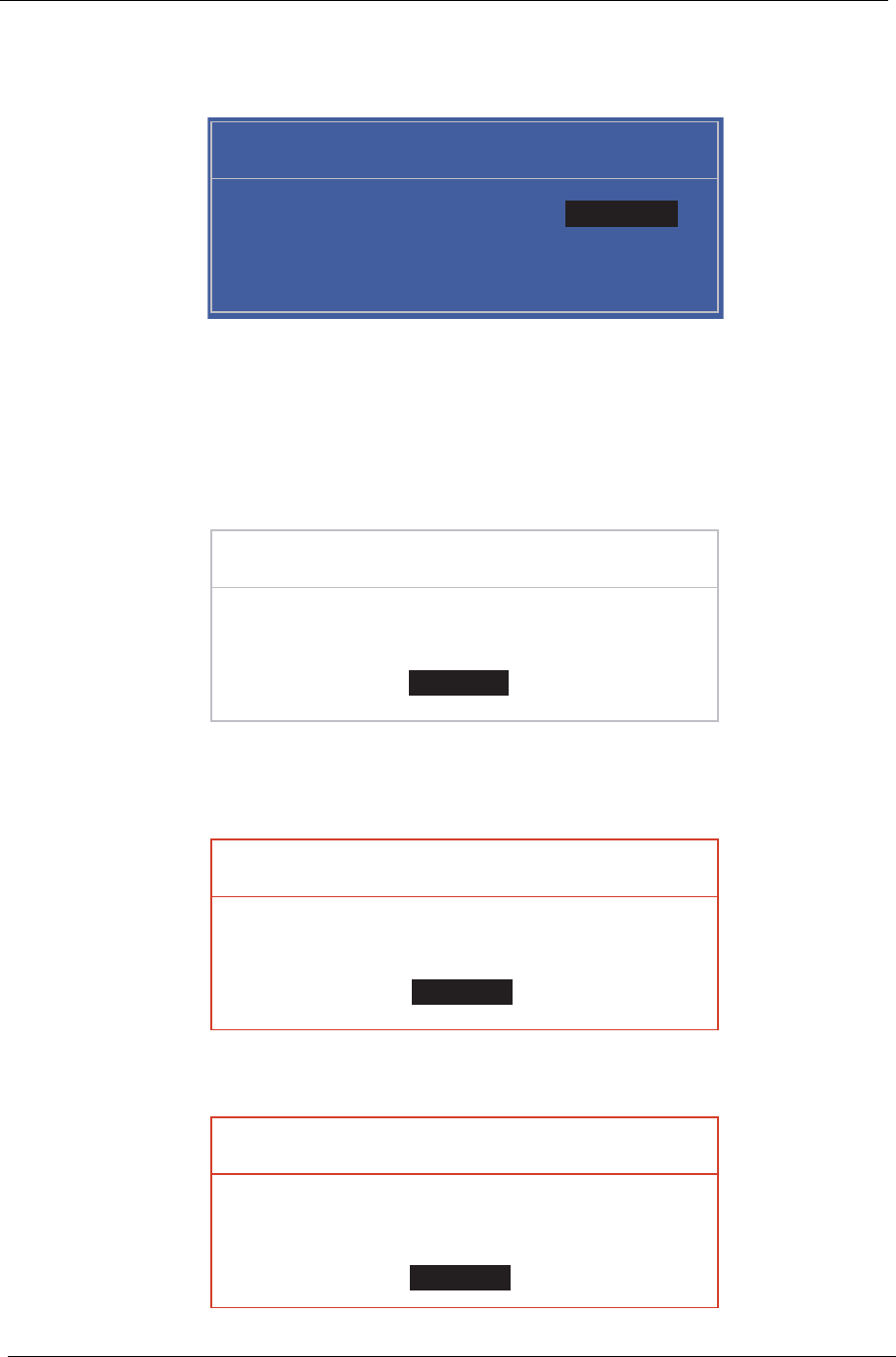
1. Use the ↑ and ↓ keys to highlight the Set Supervisor Password parameter and press the Enter key. The
Set Supervisor Password box appears:
2. Type a password in the “Enter New Password” field. The password length can not exceeds 8
alphanumeric characters (A-Z, a-z, 0-9, not case sensitive). Retype the password in the “Confirm New
Password” field.
IMPORTANT:Be very careful when typing your password because the characters do not appear on the screen.
3. Press Enter. After setting the password, the computer sets the User Password parameter to “Set”.
4. If desired, you can opt to enable the Password on boot parameter.
5. When you are done, press F10 to save the changes and exit the BIOS Setup Utility.
Removing a Password
Follow these steps:
1. Use the ↑ and ↓ keys to highlight the Set Supervisor Password parameter and press the Enter key. The
Set Password box appears:
2. Type the current password in the Enter Current Password field and press Enter.
3. Press Enter twice without typing anything in the Enter New Password and Confirm New Password fields.
The computer then sets the Supervisor Password parameter to “Clear”.
4. When you have changed the settings, press u to save the changes and exit the BIOS Setup Utility.
Set Supervisor Password
Enter New Password [ ][ ]
Confirm New Password [ ]
Set Supervisor Password
Enter Current Password [ ][ ]
Enter New Password [ ]
Confirm New Password [ ][ ]
26 Chapter 2
Changing a Password
1. Use the ↑ and ↓ keys to highlight the Set Supervisor Password parameter and press the Enter key. The
Set Password box appears.
2. Type the current password in the Enter Current Password field and press Enter.
3. Type a password in the Enter New Password field. Retype the password in the Confirm New Password
field.
4. Press Enter. After setting the password, the computer sets the User Password parameter to “Set”.
5. If desired, you can enable the Password on boot parameter.
6. When you are done, press F10 to save the changes and exit the BIOS Setup Utility.
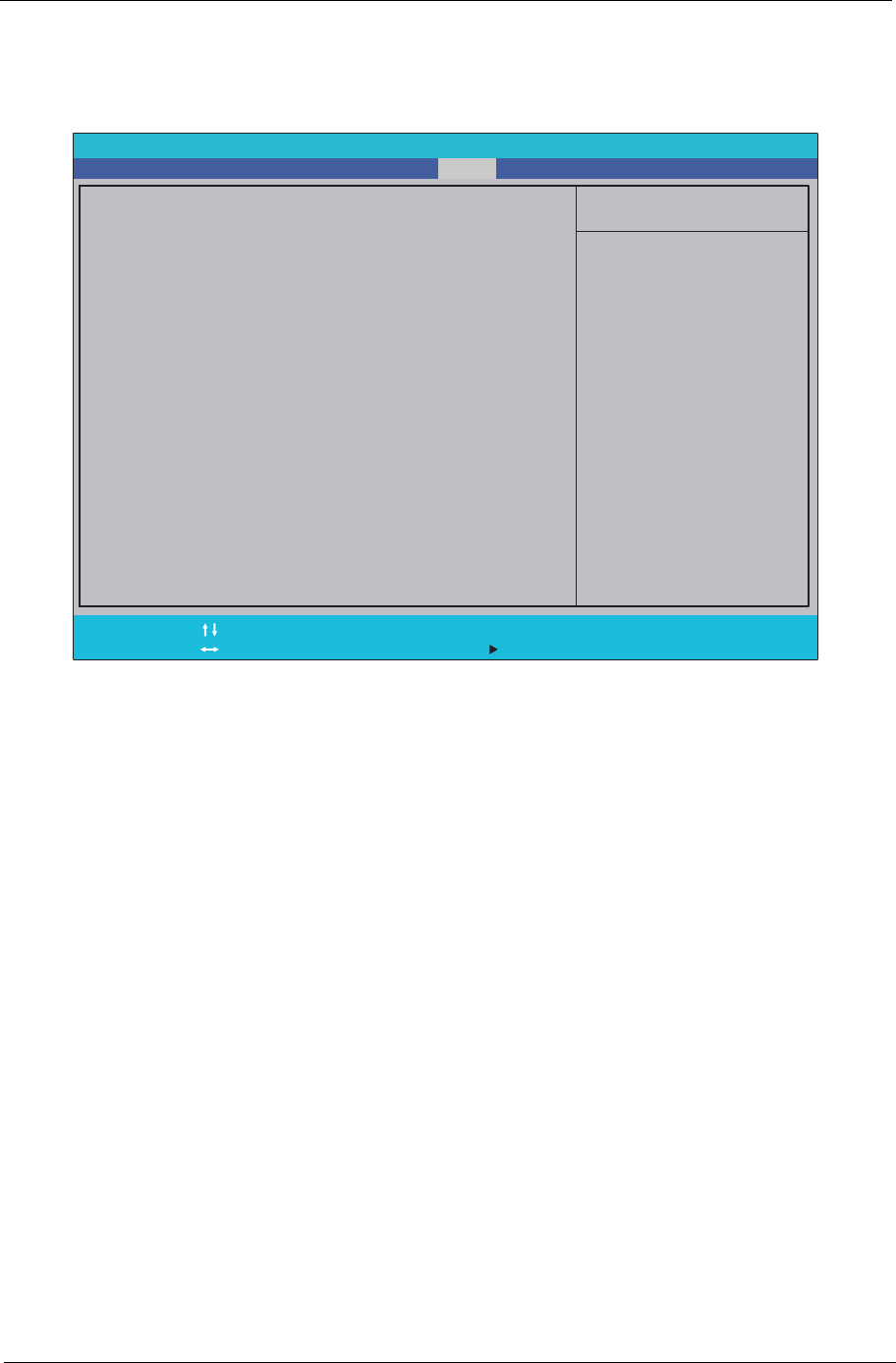
If the verification is OK, the screen will display as following.
The password setting is complete after the user presses Enter.
If the current password entered does not match the actual current password, the screen will show you the
Setup Warning.
If the new password and confirm new password strings do not match, the screen displays the following
message.
Set Supervisor Password
Enter Current Password [ ][ ]
Enter New Password [ ]
Confirm New Password [ ][ ]
Setup Notice
Changes have been saved.
[Continue][Continue]
Setup Warning
Invalid Password.
[Continue][Continue]
Setup Warning
Passwords do not match.
Re-enter password.
[Continue][Continue]
Chapter 2 27
Boot
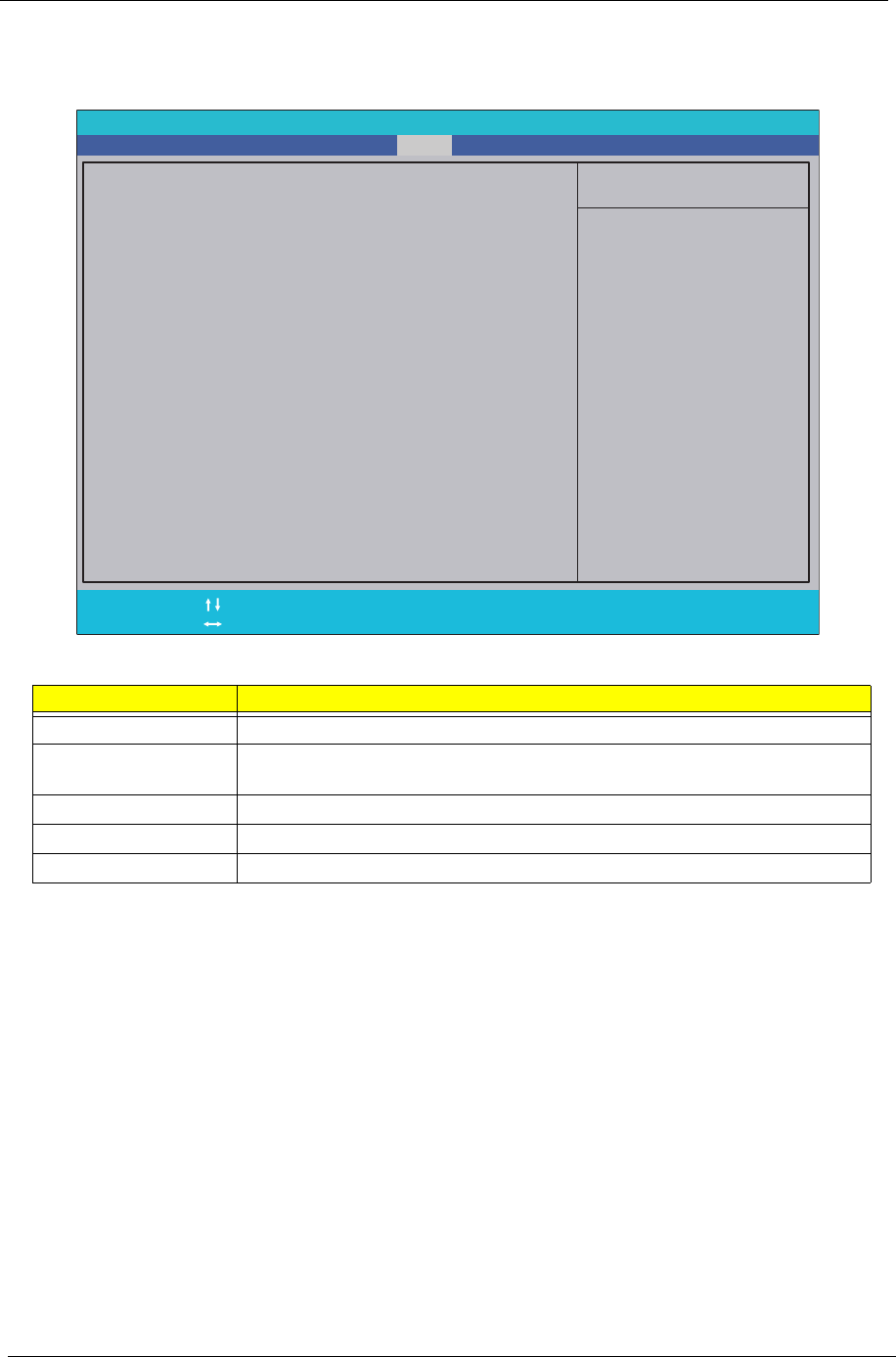
This menu allows the user to decide the order of boot devices to load the operating system. Bootable devices
includes the USB diskette drives, the onboard hard disk drive and the DVD drive in the module bay.
PhoenixBIOS Setup Utility
Item Specific Help
Keys used to view or
configure devices:
Up and Down arrows
select a device.
<F6> and <F5> moves
the device up or down.
F1
Esc Help
Exit Select Item
Select Menu Change Values
Select Sub-Menu
Enter F9
F10 Setup Defaults
Save and Exit
Boot priority order:
1: IDE0:
Hitachi HTS543216L9A300
2: CD/DVD
3: PCI LAN: Realtek Boot Agent
4: USB HDD:
5: USB FDD:
6: USB KEY:
7: USB CD/DVD:
8:
F5/F6
Main Boot Exit
SecurityInformation
28 Chapter 2
Exit
The Exit screen allows you to save or discard any changes you made and quit the BIOS Utility.
The table below describes the parameters in this screen.
Parameter Description
Exit Saving Changes Exit System Setup and save your changes to CMOS.
Exit Discarding
Changes Exit utility without saving setup data to CMOS.
Load Setup Default Load default values for all SETUP item.
Discard Changes Load previous values from CMOS for all SETUP items.
Save Changes Save Setup Data to CMOS.
Item Specific Help
Exit System Setup and
save your changes to
CMOS.
F1
ESC
Help
Exit Select Item
Select Menu Change Values
Enter
F9
F10
Setup Default
Save and Exit
Exit Saving Changes
Exit Discarding Changes
Load Setup Defaults
Discard Changes
Save Changes
Exit Saving Changes
Exit Discarding Changes
Load Setup Defaults
Discard Changes
Save Changes
F5/F6
PhoenixBIOS Setup Utility
Information Main Boot Exit
Security
Execute Command

Chapter 2 29
BIOS Flash Utility
The BIOS flash memory update is required for the following conditions:
• New versions of system programs
• New features or options
• Restore a BIOS when it becomes corrupted.
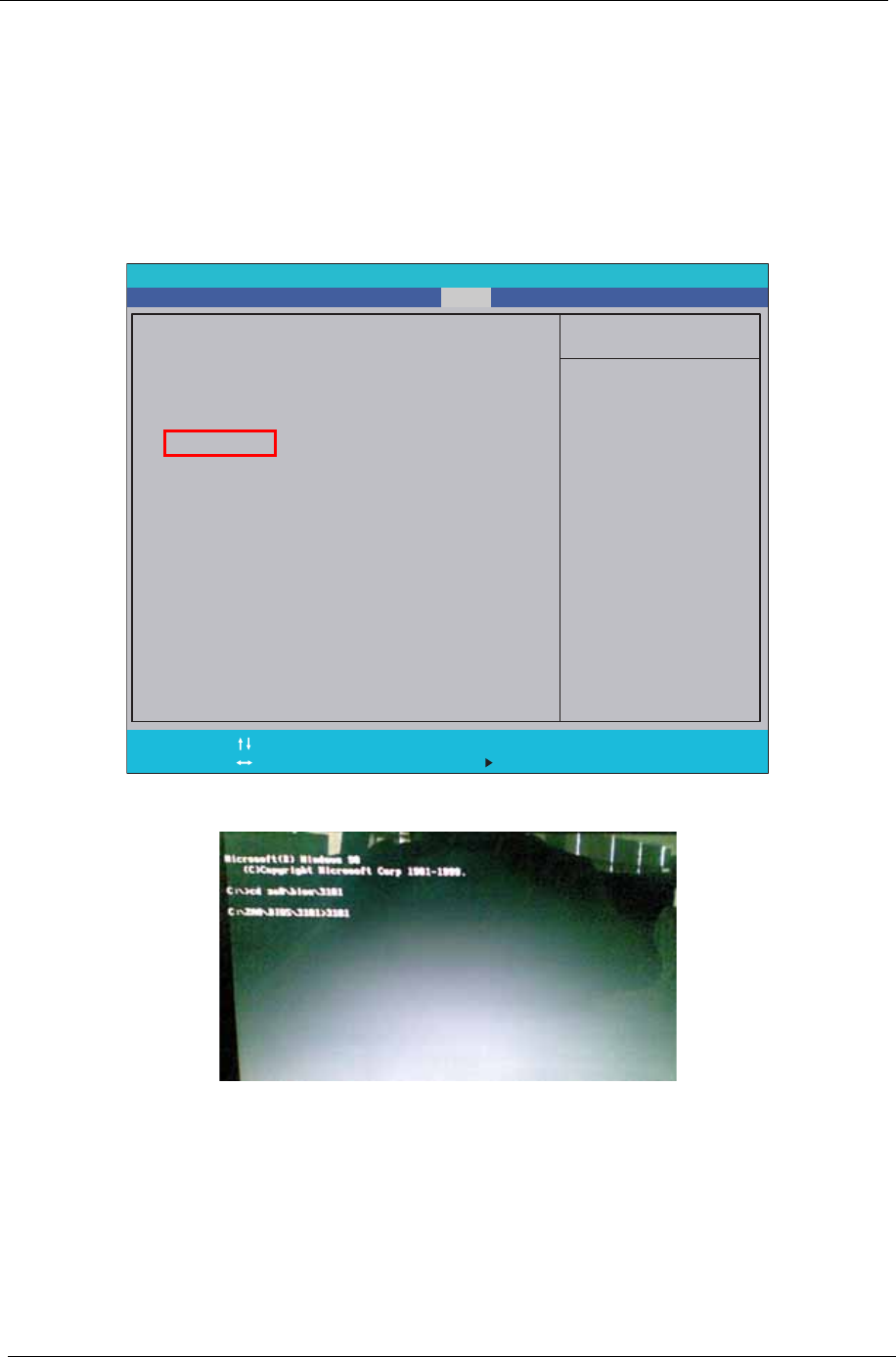
Use the Phlash utility to update the system BIOS flash ROM.
NOTE: If you do not have a crisis recovery diskette at hand, then you should create a Crisis Recovery
Diskette before you use the Phlash utility.
NOTE: Do not install memory-related drivers (XMS, EMS, DPMI) when you use the Phlash.
NOTE: Please use the AC adaptor power supply when you run the Phlash utility. If the battery pack does not
contain enough power to finish BIOS flash, you may not boot the system because the BIOS is not
completely loaded.
30 Chapter 2
DOS Flash Utility
Perform the following steps to use the DOS Flash Utility:
1. Copy the flash utilities to the bootable diskette.
2. Press F2 during boot to enter the Setup Menu.
3. Select Boot Menu to modify the boot priority order, for example, if using USB HDD to Update BIOS, move
USB HDD to position 1.
IMPORTANT:Please use a device that can be booted in DOS mode (FAT 16 or FAT 32 partitions only)
4. Execute the BIOS.BAT batch file to update BIOS.
The flash process begins as shown.
PhoenixBIOS Setup Utility
Item Specific Help
Keys used to view or
configure devices:
Up and Down arrows
select a device.
<F6> and <F5> moves
the device up or down.
F1
Esc Help
Exit Select Item
Select Menu Change Values
Select Sub-Menu
Enter F9
F10 Setup Defaults
Save and Exit
Boot priority order:
1: IDE0:
Hitachi HTS543216L9A300
2: CD/DVD
3: PCI LAN: Realtek Boot Agent
4: USB HDD:
5: USB FDD:
6: USB KEY:
7: USB CD/DVD:
8:
F5/F6
Main Boot Exit
SecurityInformation
Chapter 2 31
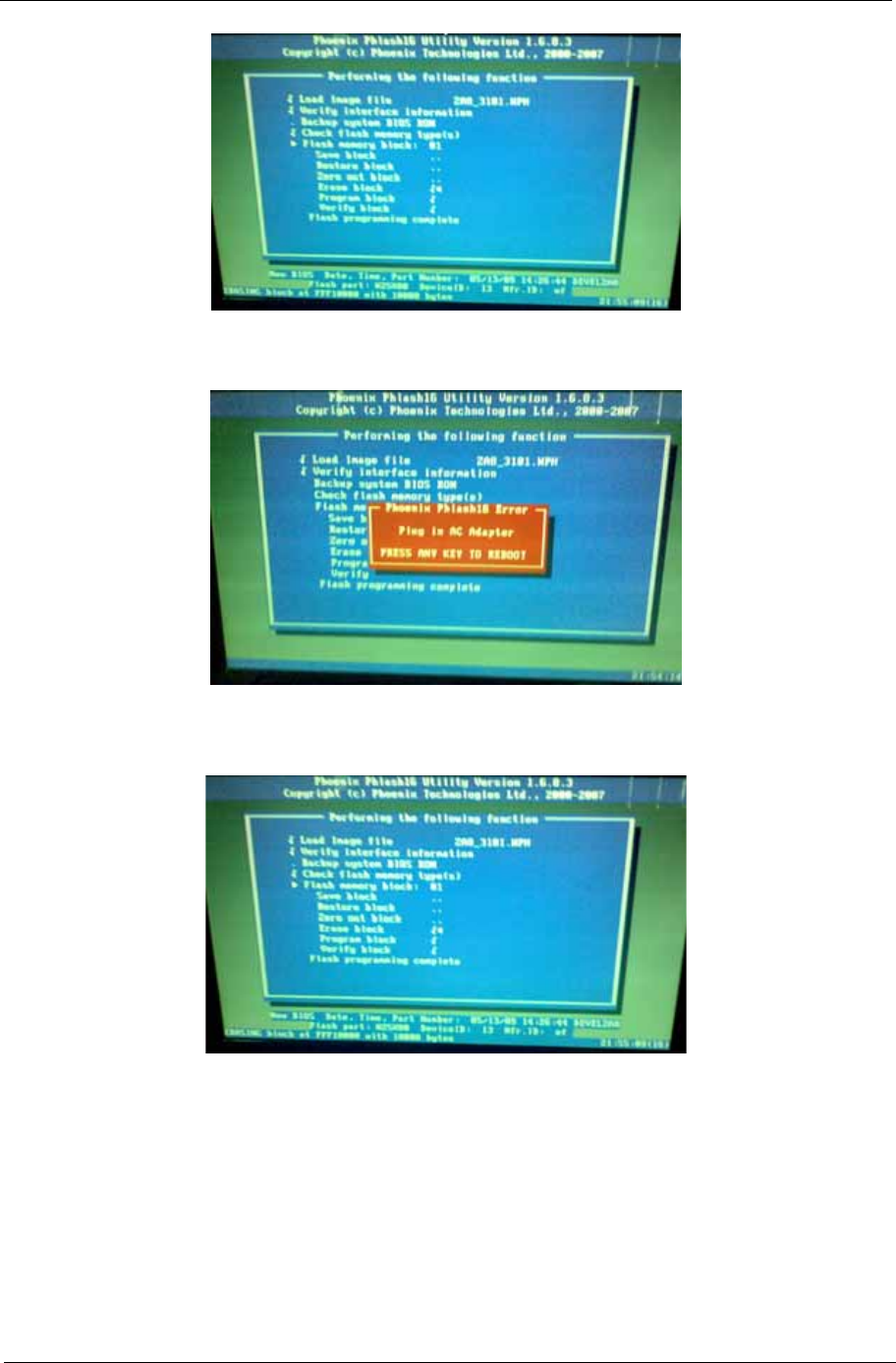
5. In flash BIOS, the message Please do not remove AC Power Source displays. If the AC adapter is not
plugged in the following message appears.
Plug in the AC adapter and rerun the Phlash utility if the above message appears.
6. If the AC adapter is connected, the following screen appears.
7. Flash is complete when the message Flash programming complete displays.
32 Chapter 2
WinFlash Utility
The Winflash utility consists of two files:
• ZA8_3101.WPH (BIOS ROM file)
• WinPhlash2.0.3.4 (BIOS windows flash tool)
Perform the following steps to use the WinFlash Utility:
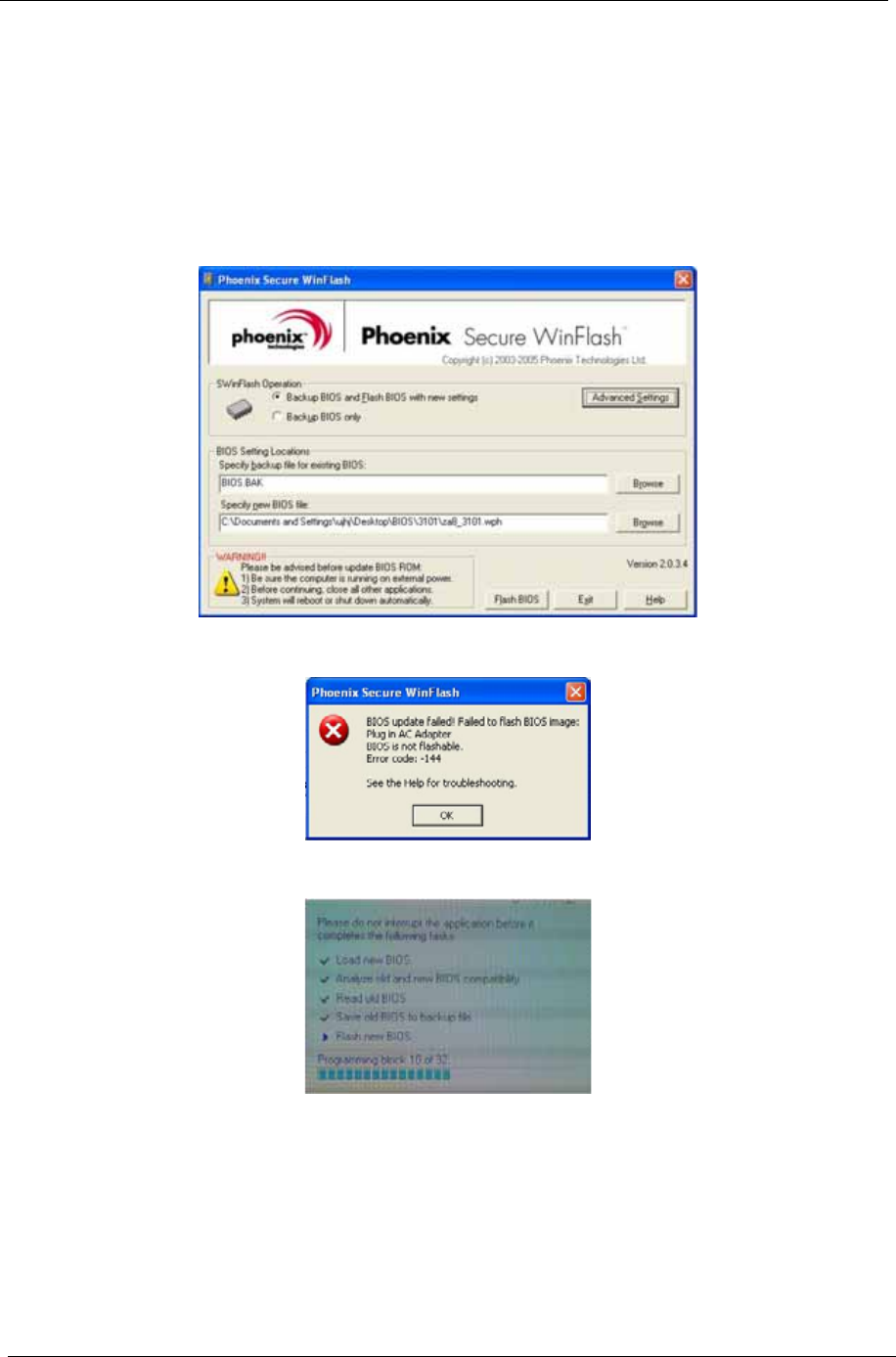
1. Double click the WinFlash executable (WinPhlash2.0.3.4) to run the program.
2. In the Specify New BIOS file field, enter the BIOS ROM file name and path.
IMPORTANT:Be sure the AC power is plugged in. If not, the following error message displays:
3. Click OK to begin the update. A progress screen displays.
4. When the process is complete the system will reboot automatically.
Chapter 2 33
Remove HDD/BIOS Password Utilities
This section provides you with details about removing HDD/BIOS password methods:
Removing HDD Password:
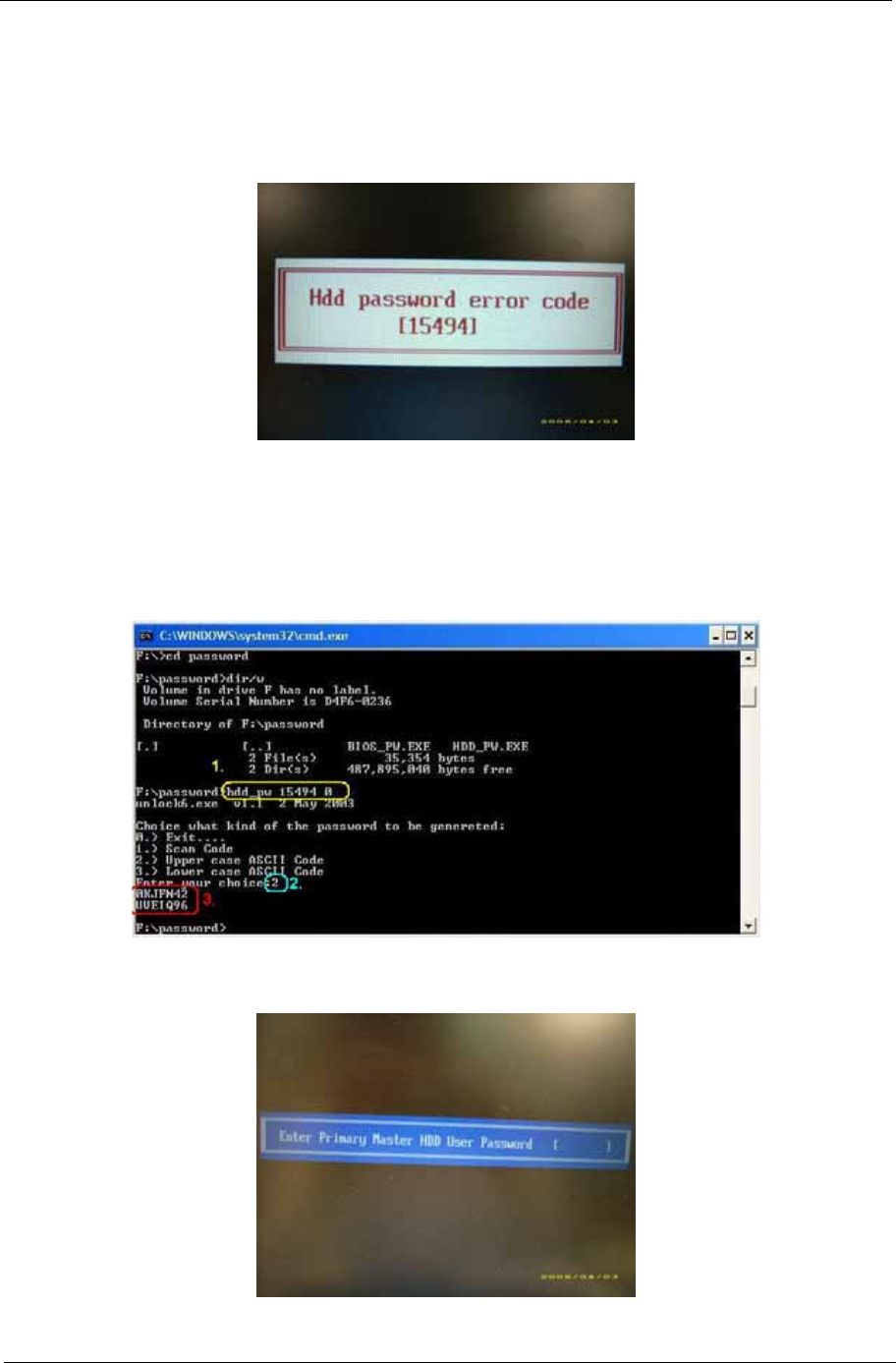
If you key in the wrong HDD password three times, an error code is generated.
To reset the HDD password, perform the following steps:
1. On a different machine, run the HDD_PW.EXE file along with the error code generated. For example:
hdd_pw 15494 0
2. Select an option to generate upper case or lower case ASCII code for unlocking the HDD.
3. Two strings are generated as output. Select and note down either one of the strings.
4. Reboot the machine with the locked HDD and then use either one of the strings as the HDD user
password.
34 Chapter 2
Removing BIOS Passwords:
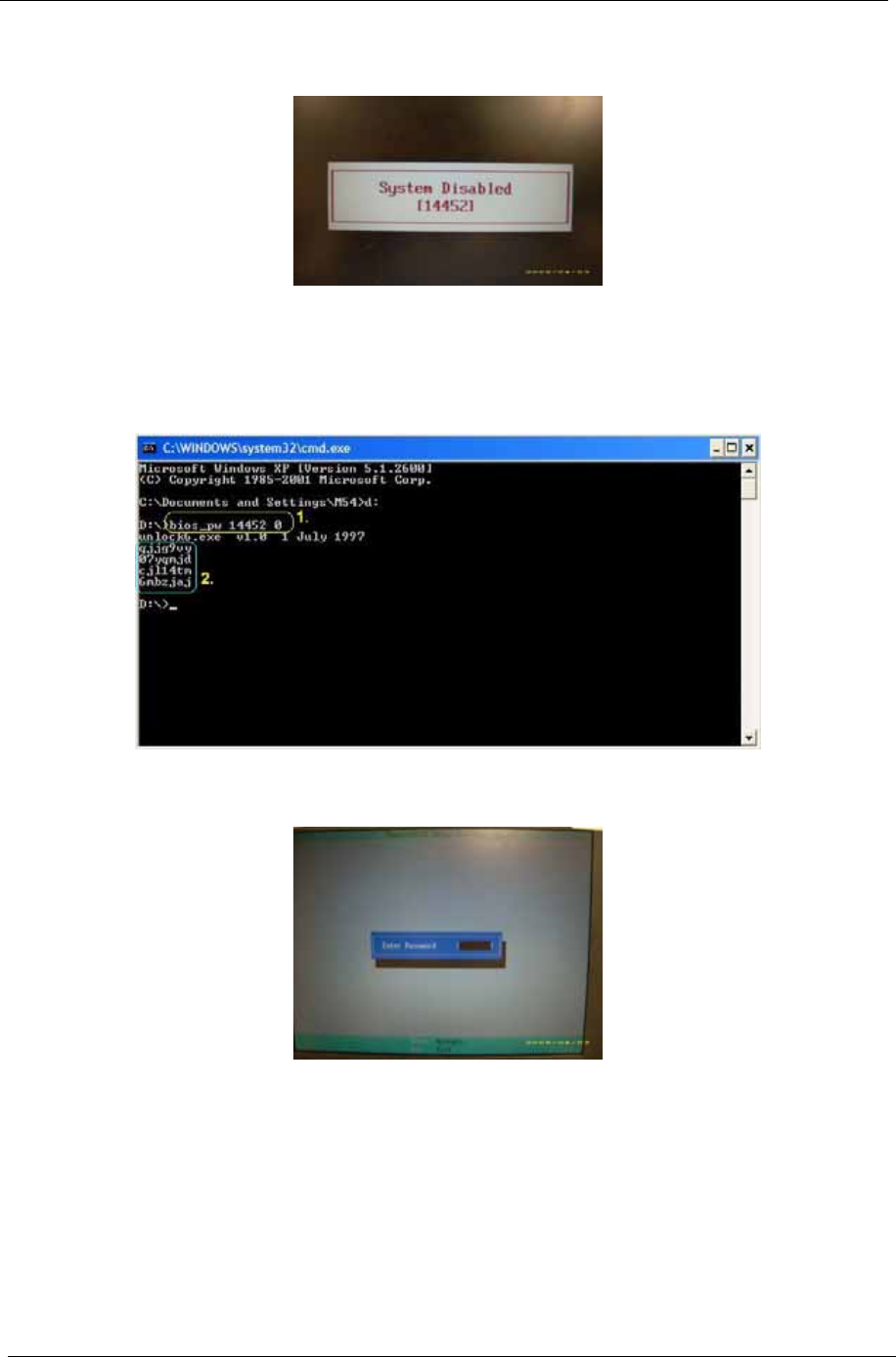
If you key in the wrong Supervisor password three times, an error code is generated and system is disabled.
To unlock the BIOS, perform the following steps:
1. On a different machine, run the BIOS_PW.EXE file along with the error code generated. For example:
bios_pw 14452 0
2. Four ASCII strings are generated as output. Select and note down any one of the strings.
3. Reboot the machine with the locked BIOS and then use either any of the strings as the BIOS user
password.

Chapter 3 35
Machine Disassembly and Replacement
This chapter contains step-by-step procedures on how to disassemble the notebook computer for
maintenance and troubleshooting.
Disassembly Requirements
To disassemble the computer, you need the following tools:
•Wrist grounding strap and conductive mat for preventing electrostatic discharge
•Flat screwdriver
•Philips screwdriver
•Plastic flat screwdriver
•Plastic tweezers
NOTE: The screws for the different components vary in size. During the disassembly process, group the
screws with the corresponding components to avoid mismatch when putting back the components.
Related Information
The product previews seen in the disassembly procedures may not represent the final product color or
configuration.
IMPORTANT: Cable paths and positioning may not represent the actual model. During the removal and
replacement of components, ensure all available cable channels and clips are used and that the cables are
replaced in the same position.
Chapter 3
36 Chapter 3
General Information
Pre-disassembly Instructions
Before proceeding with the disassembly procedure, make sure that you do the following:
1. Turn off the power to the system and all peripherals.
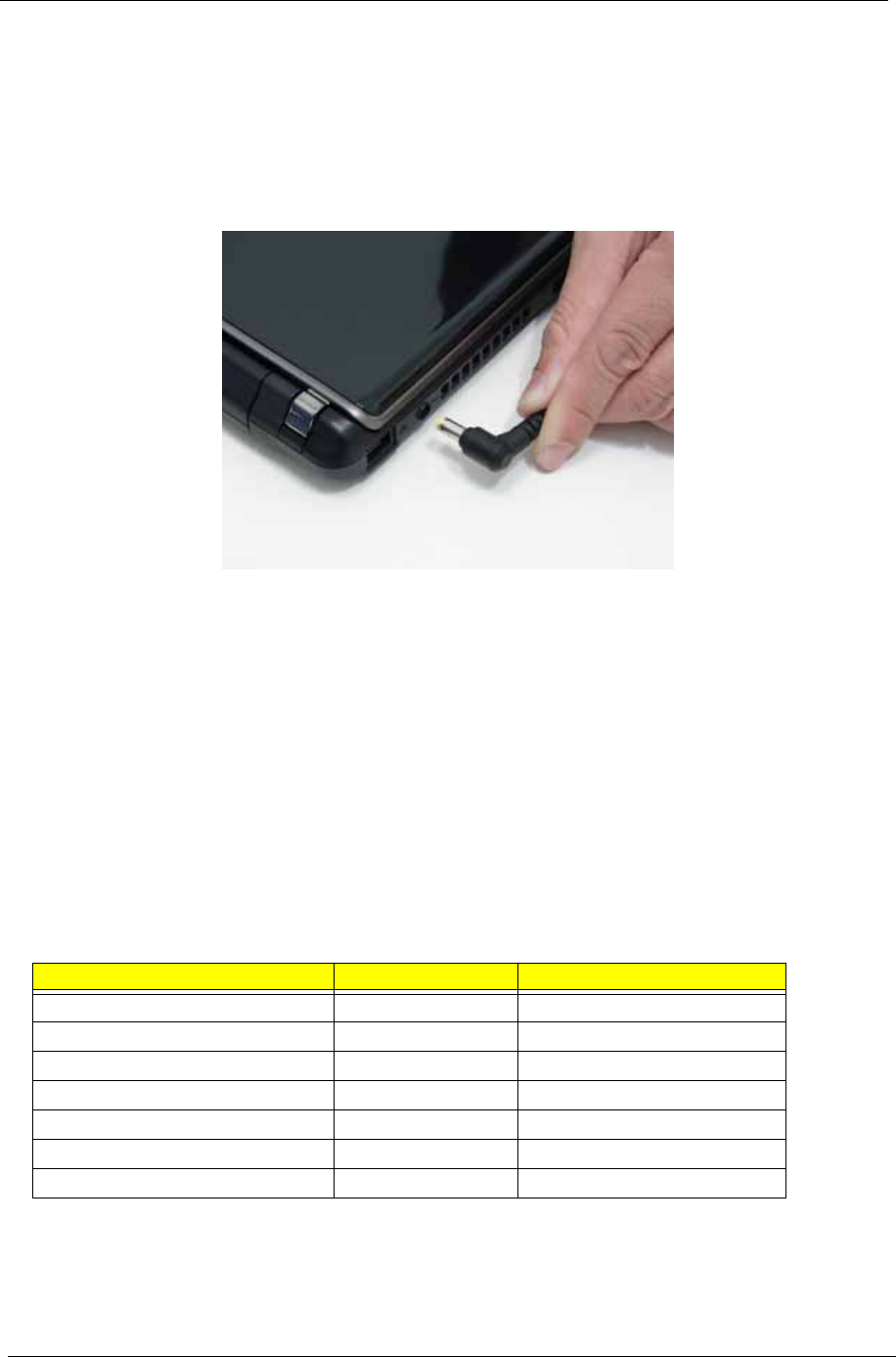
2. Unplug the AC adapter and all power and signal cables from the system.
3. Place the system on a flat, stable surface.
4. Remove the battery pack.
Disassembly Process
The disassembly process is divided into the following sections:
•External components disassembly
•Main unit disassembly
•LCD module disassembly
The flowcharts provided in the succeeding disassembly sections illustrate the entire disassembly sequence.
Observe the order of the sequence to avoid damage to any of the hardware components. For example, if you
want to remove the Mainboard, you must first remove the Keyboard, and LCD Module then disassemble the
inside assembly frame in that order.
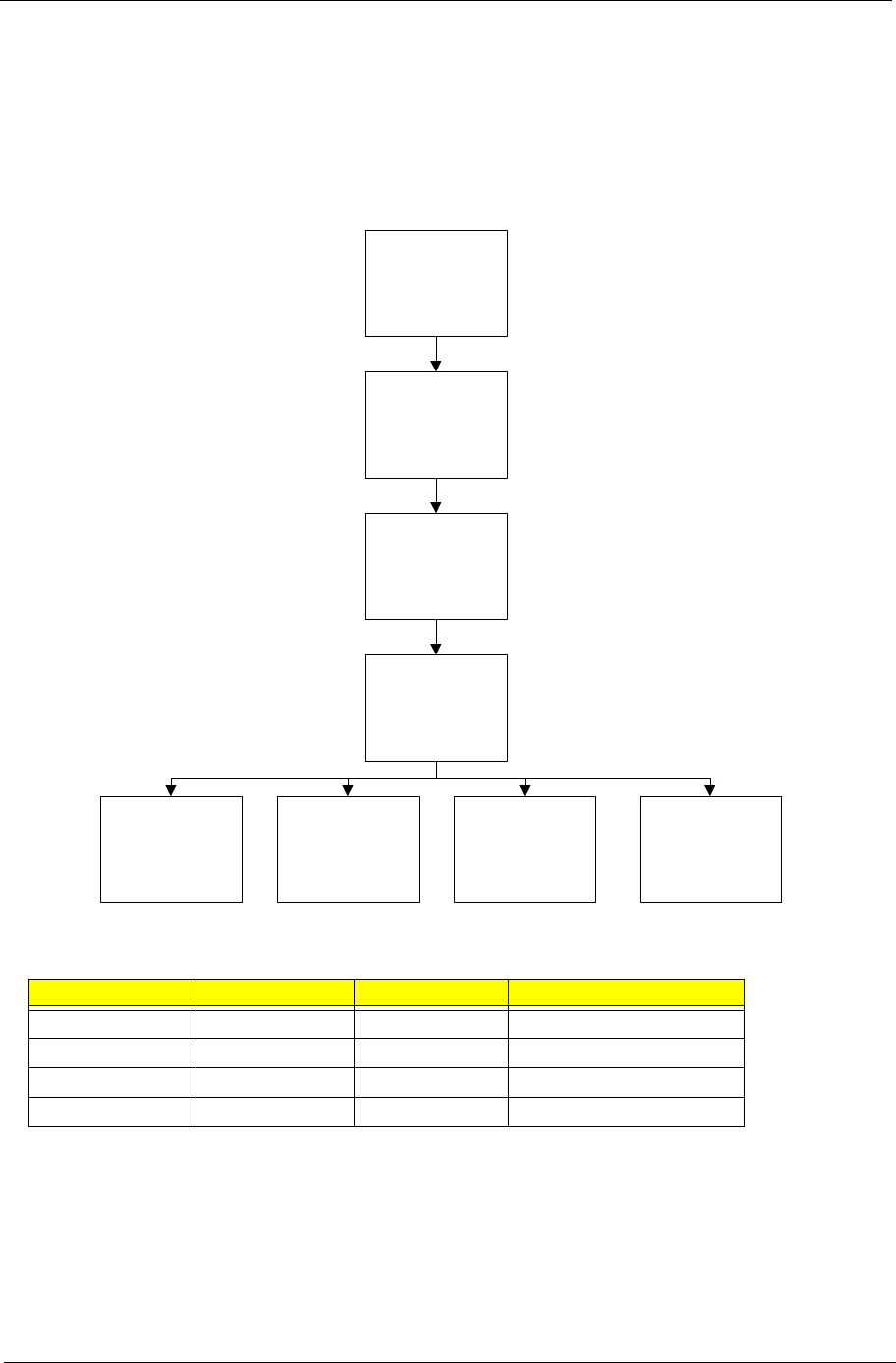
Main Screw List
Screw Quantity Part Number
M2.0*3.0-I IRON 29 86.S0207.001
2.0*4.0 12 86.W0107.003
M2.0*6.0-I 7 86.S6507.001
M3*0.5+3.5I 4 86.TDY07.003
M2.0*4-I(BZN)(NYLOK)IRON 86.S6507.003
M2*5-I(BZN)(NYLOK) 6 86.TG607.004
M2*10 2 MM20100IL61
Chapter 3 37
External Module Disassembly Process
NOTE: The product previews seen in the disassembly procedures may not represent the final product color or
configuration.
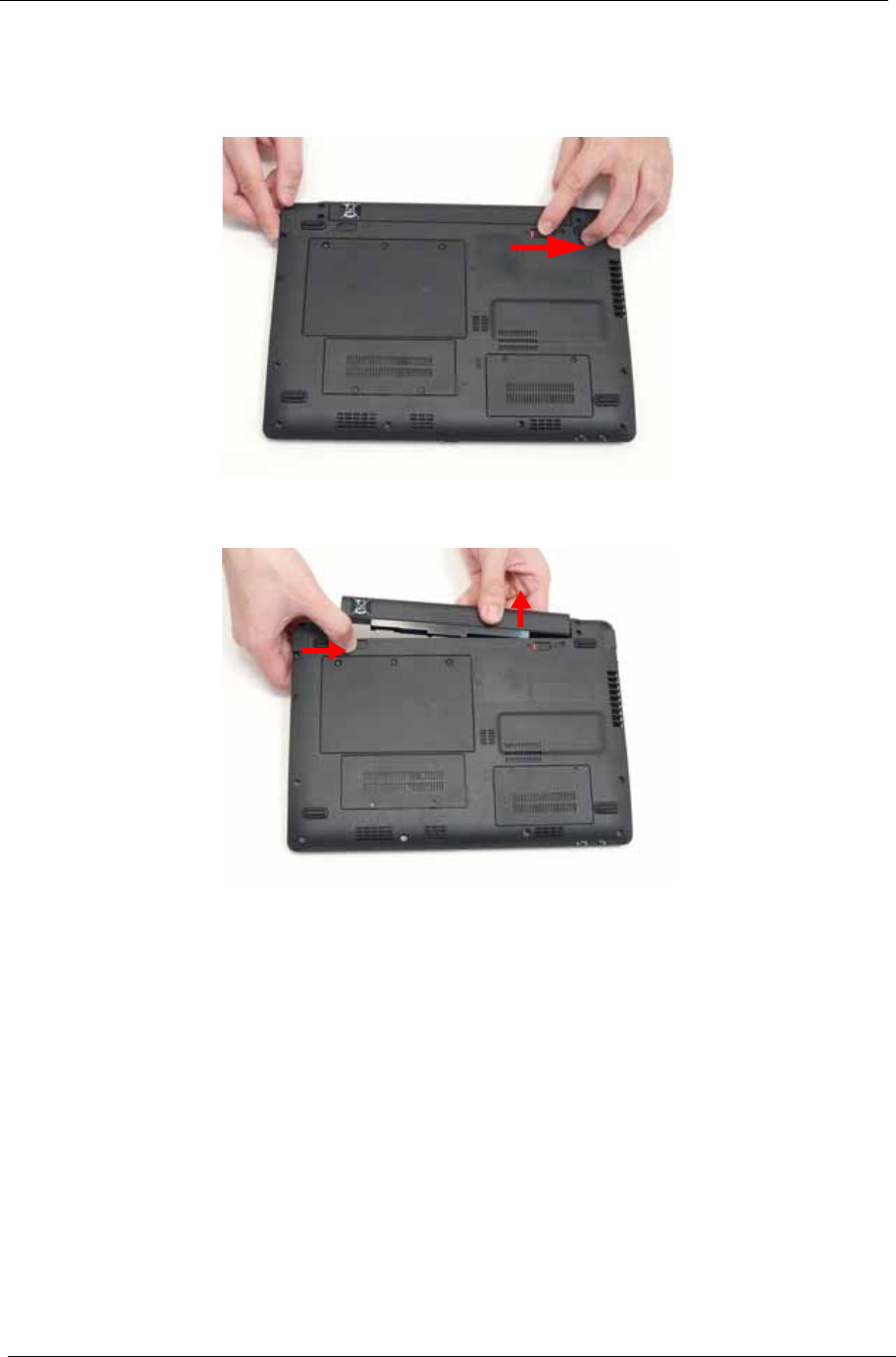
External Modules Disassembly Flowchart
Screw List
Step Screw Quantity Part No.
HDD Carrier M3*0.5+3.5I 4 86.TDY07.003
WLAN Board M2*3 1 86.S0207.001
HDD Module M2*3 2 86.S0207.001
3g Card M2*3 2 86.S0207.001
Disconnect power
and signal cables
from system
Remove
Battery
Turn off system
and peripherals
power
Remove
DIMM
Remove
HDD
Remove
Lower Covers
Remove
WLAN Board
Remove
3g Board
38 Chapter 3
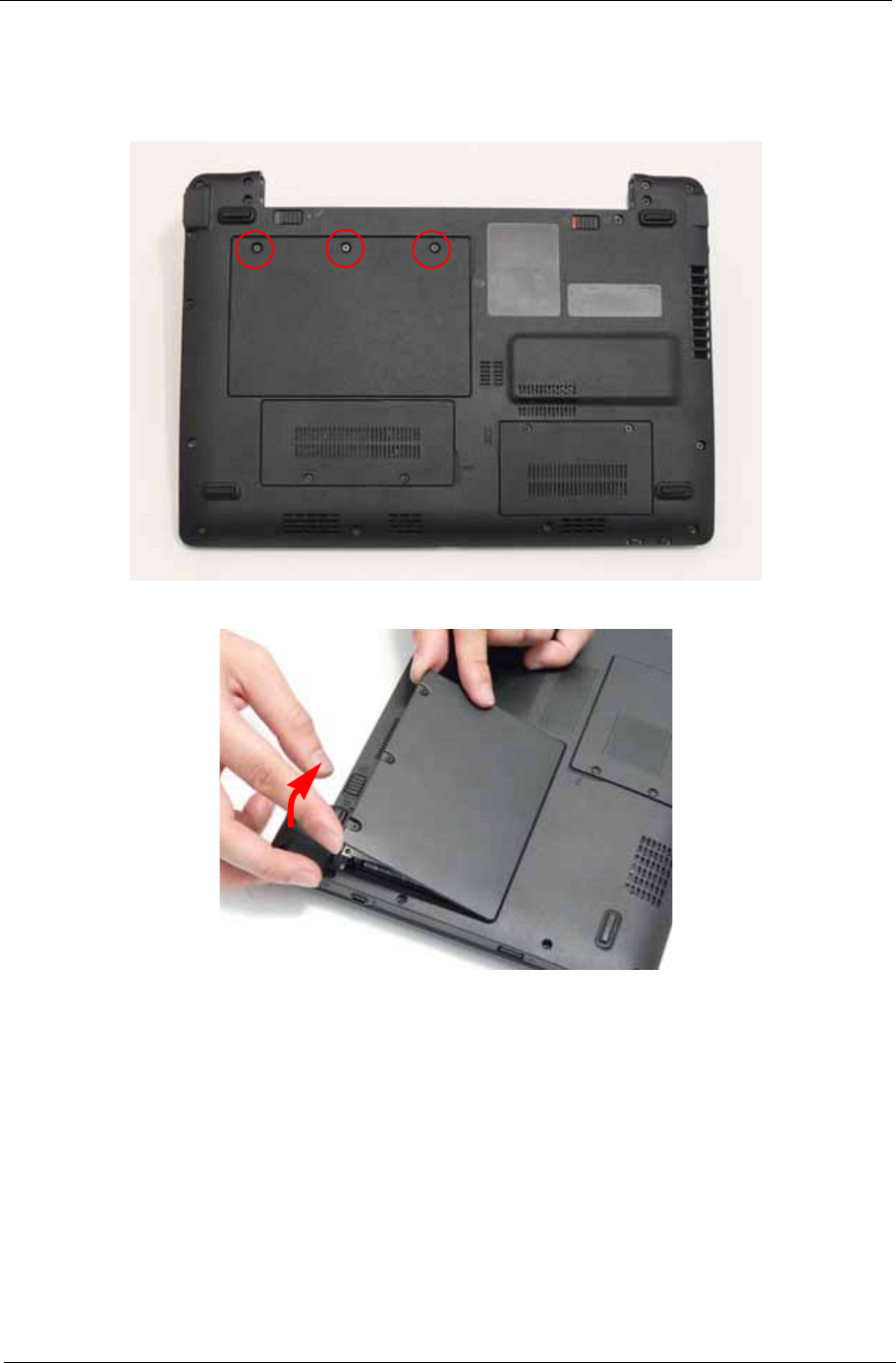
Removing the Battery Pack
1. Turn the computer over.
2. Slide the battery lock/unlock latch to the unlock position.
3. Slide and hold the battery release latch to the release position (1), then slide out the battery pack from the
main unit (2).
1
2
40 Chapter 3
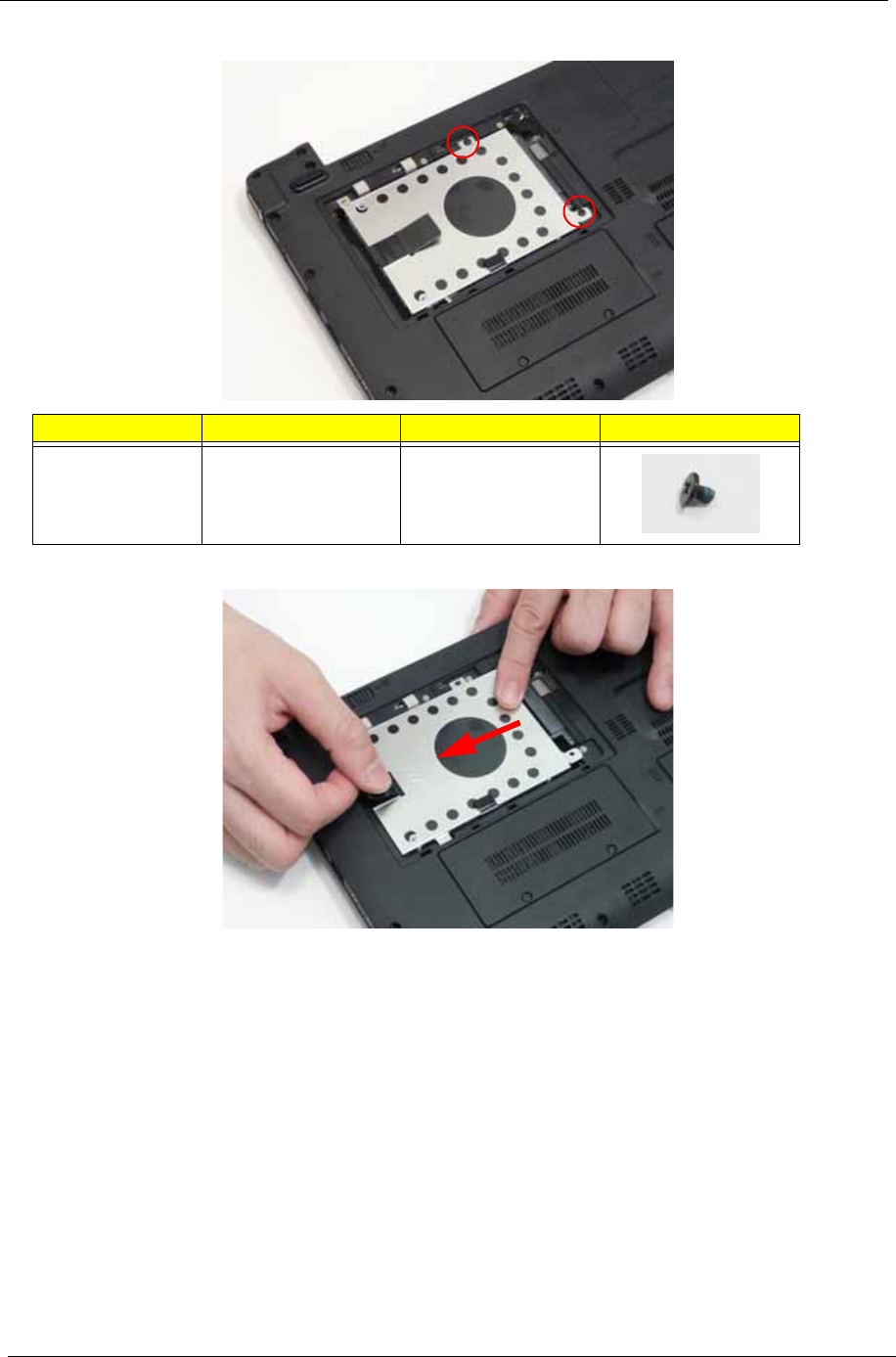
4. Remove the single screw securing the HDD Module in place.
5. Slide the HDD in the direction of the arrow to disconnect the HDD from the interface connector.
Step Size Quantity Screw Type
HDD Module M2*3 2
Chapter 3 41
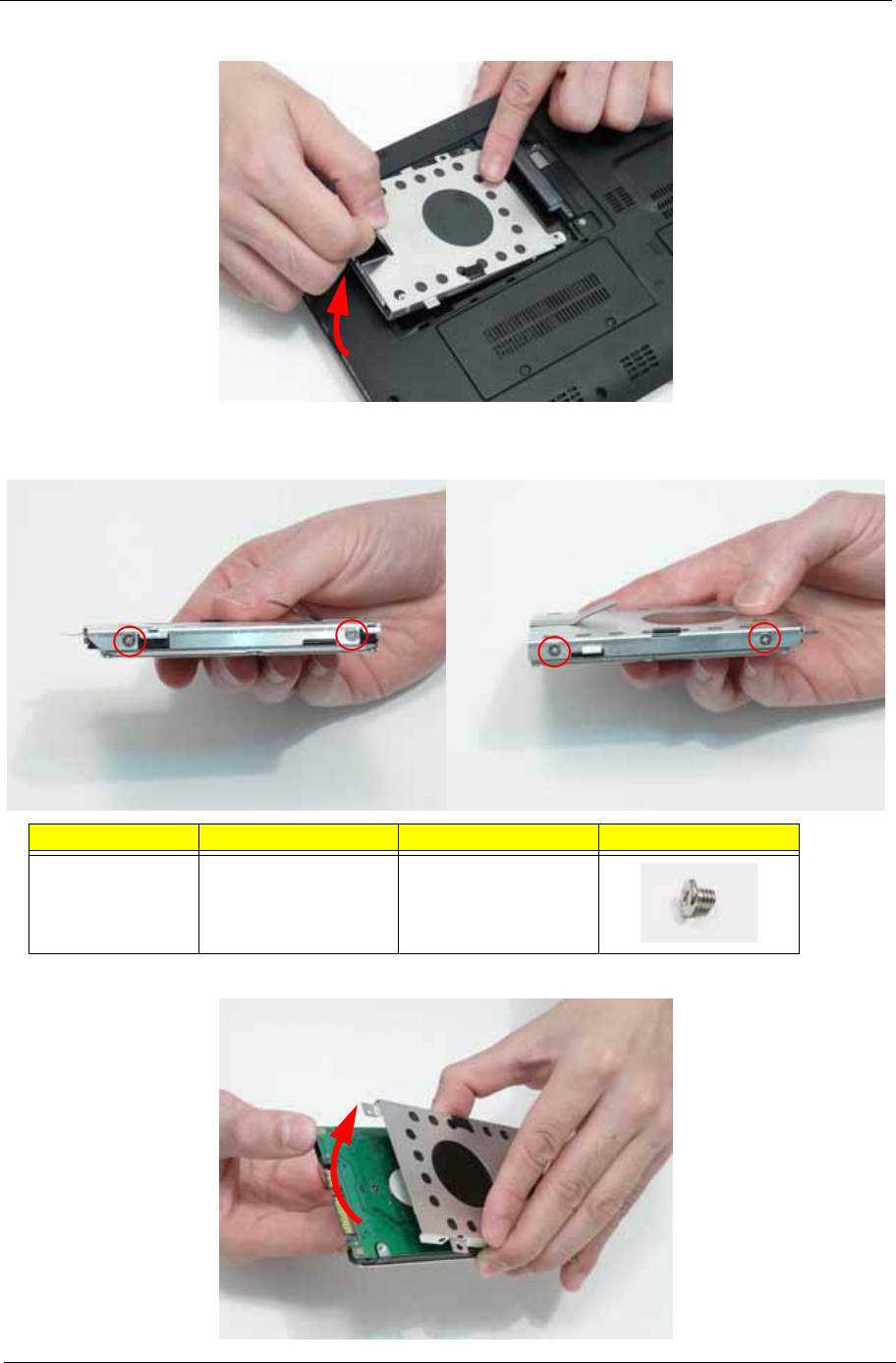
6. Lift the hard disk drive module out of the bay.
NOTE: To prevent damage to device, avoid pressing down on it or placing heavy objects on top of it.
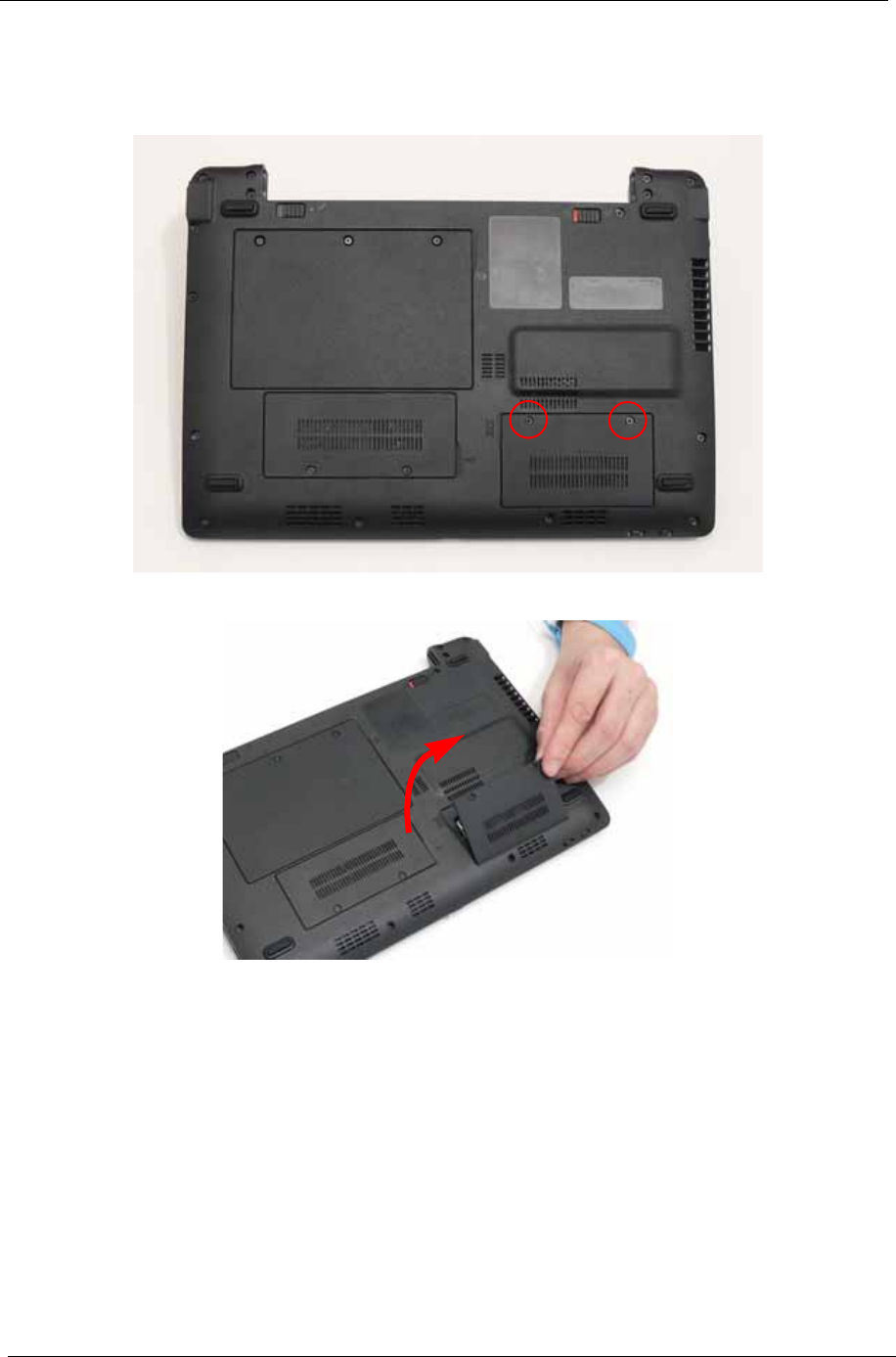
7. Remove the four screws (two each side) securing the hard disk to the carrier.
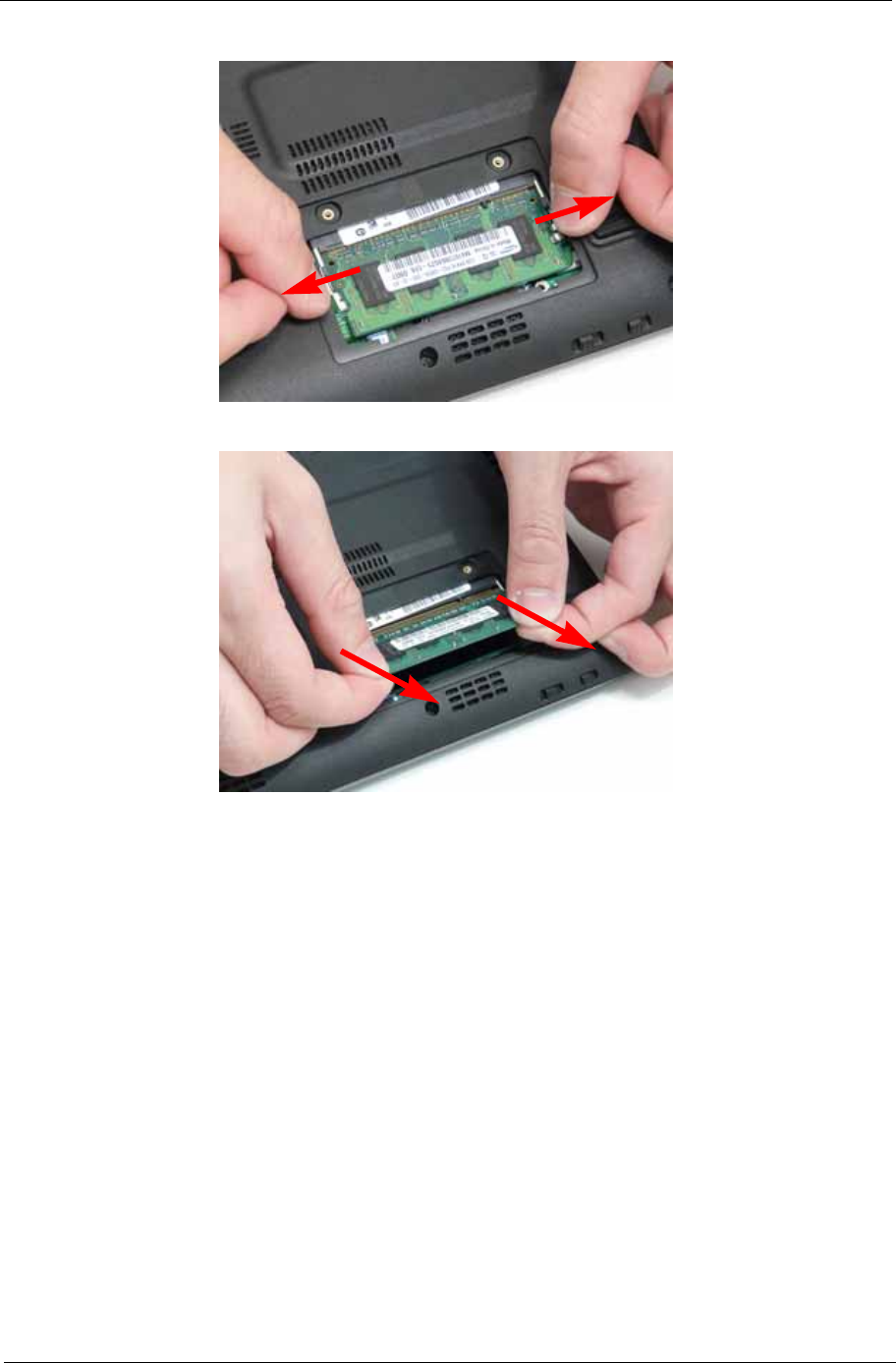
8. Remove the HDD from the carrier.
Step Size Quantity Screw Type
HDD Carrier M3*0.5+3.5I 4
Chapter 3 43
4. Push out the release latches on both sides of the DIMM socket to release the DIMM module.
5. Remove the DIMM module.
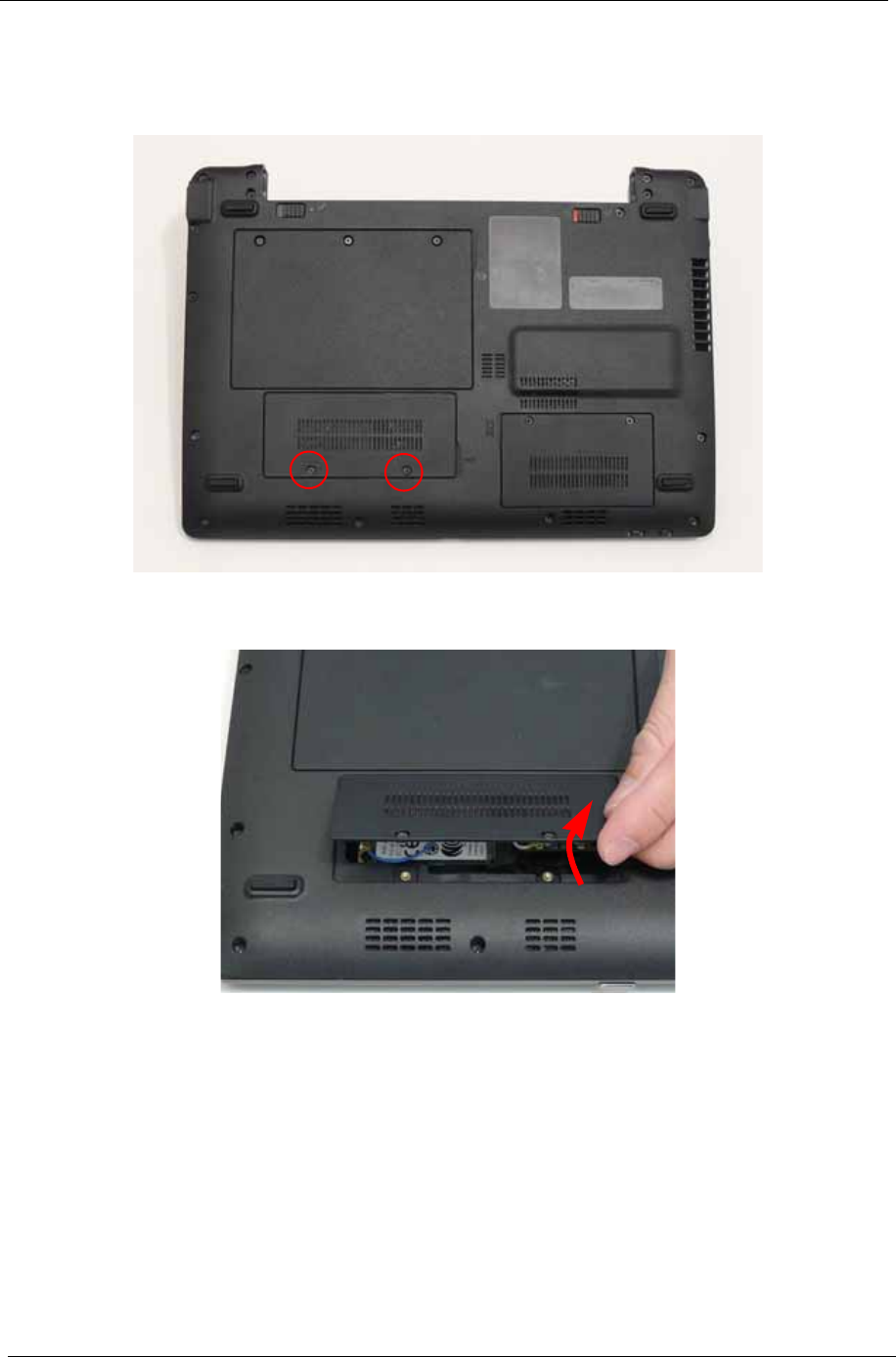
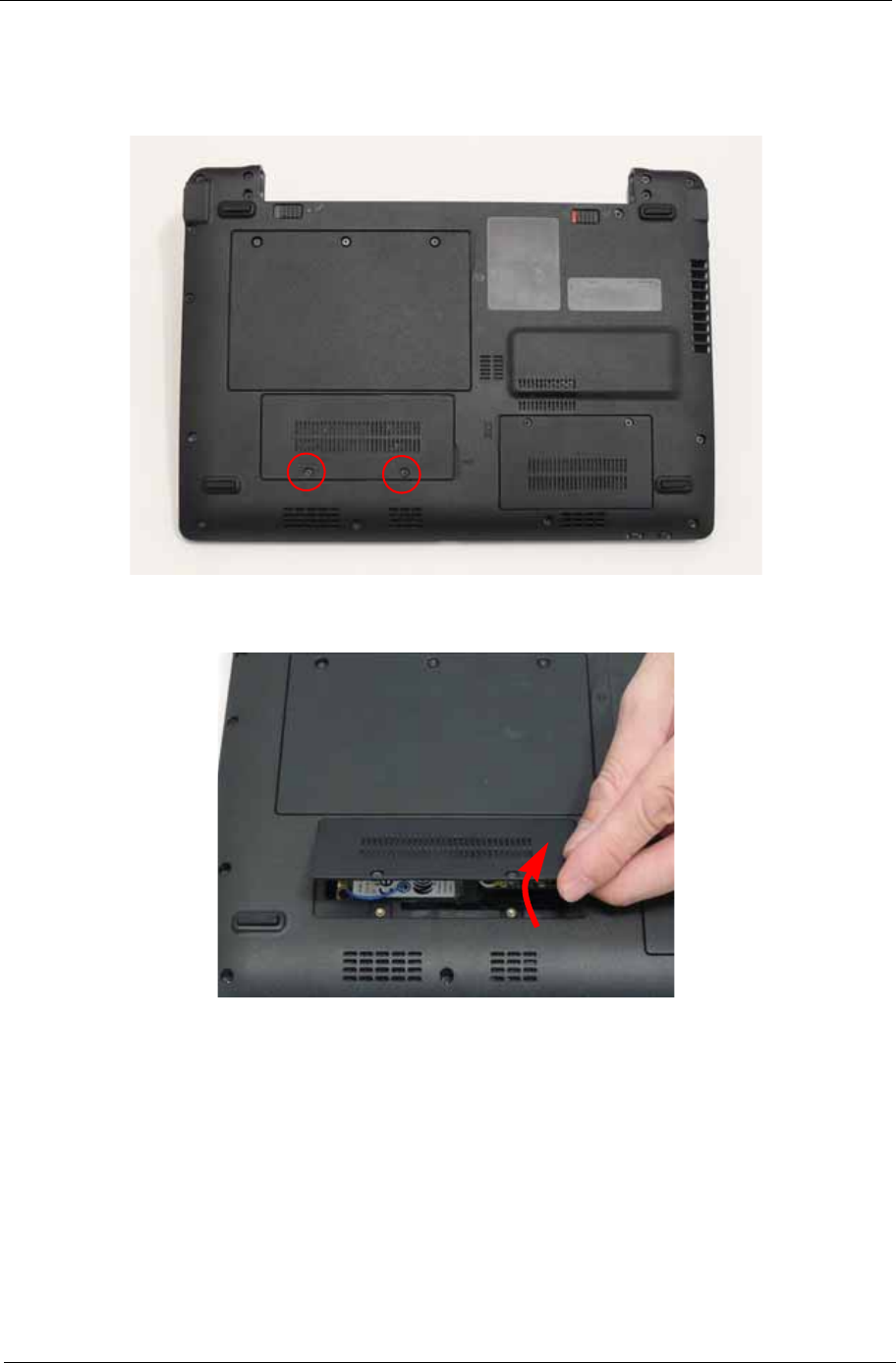
Chapter 3 45
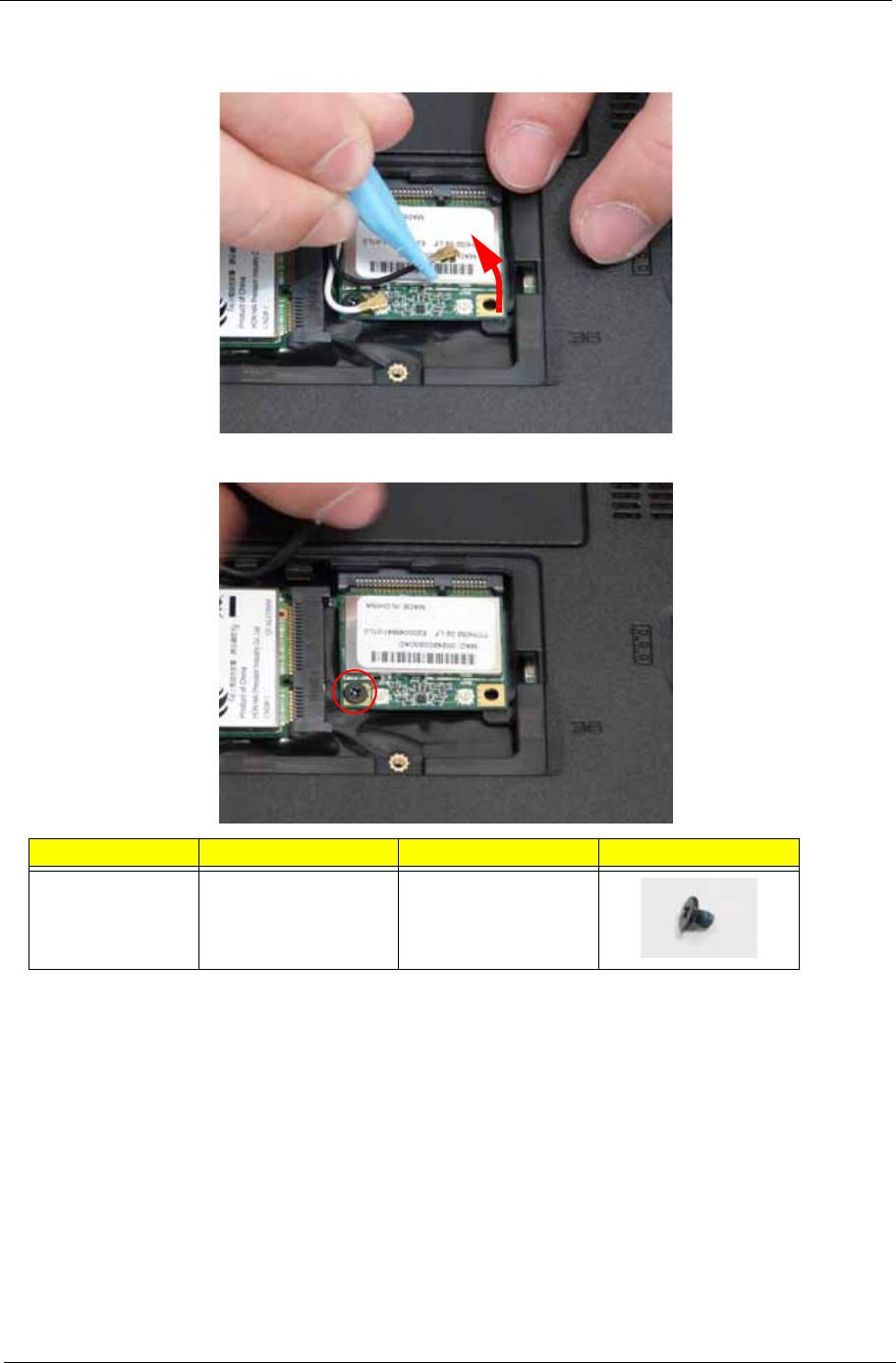
4. Disconnect the Antenna cables from the WLAN Board.
NOTE: Cable placement is White to the MAIN terminal (right) and Black to the AUX terminal (left).
5. Remove the single screw securing the WLAN Board in place.
Step Size Quantity Screw Type
WLAN Board M2*3 1
46 Chapter 3
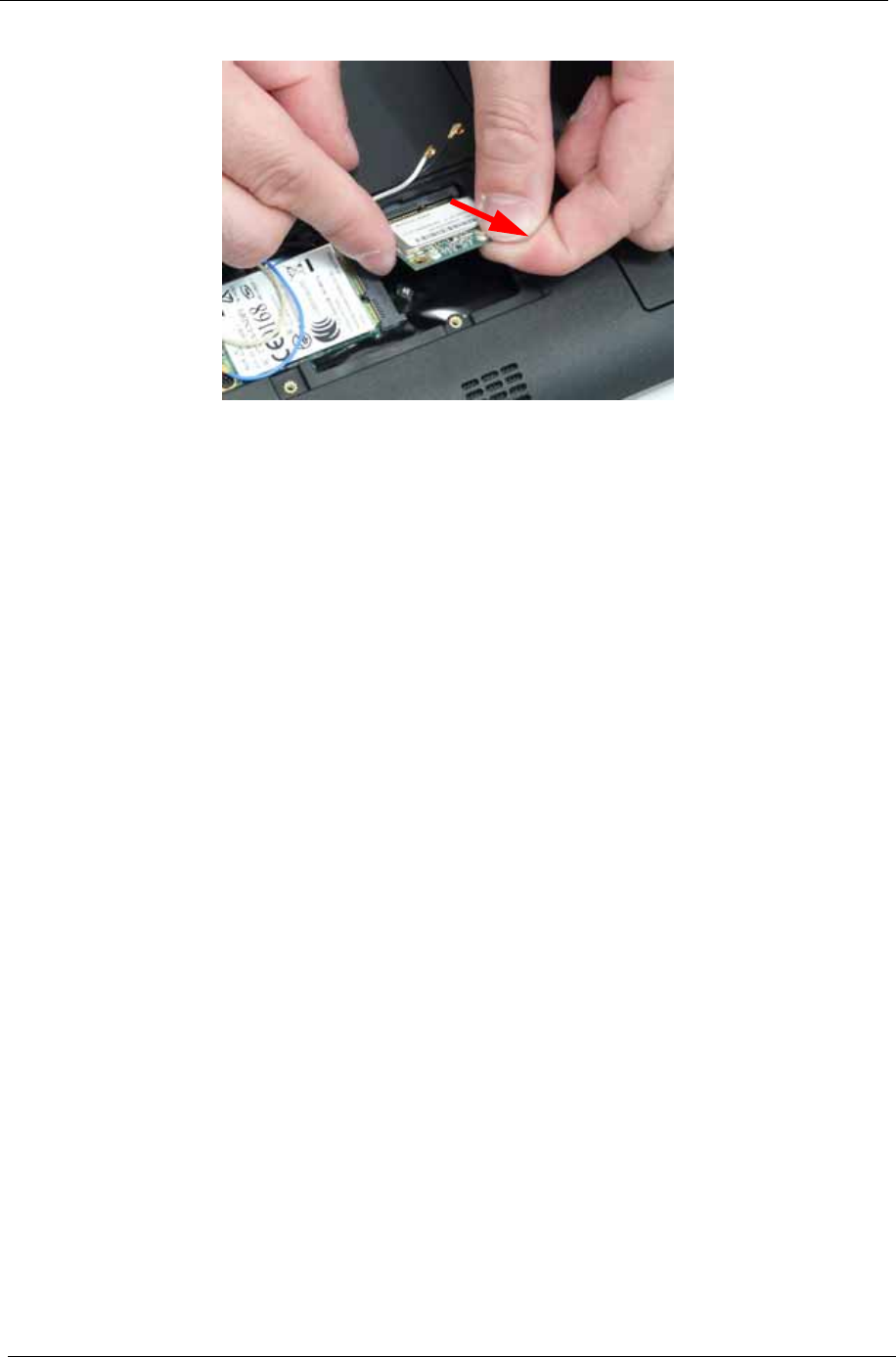
6. Remove the WLAN Board from the Mainboard.
48 Chapter 3
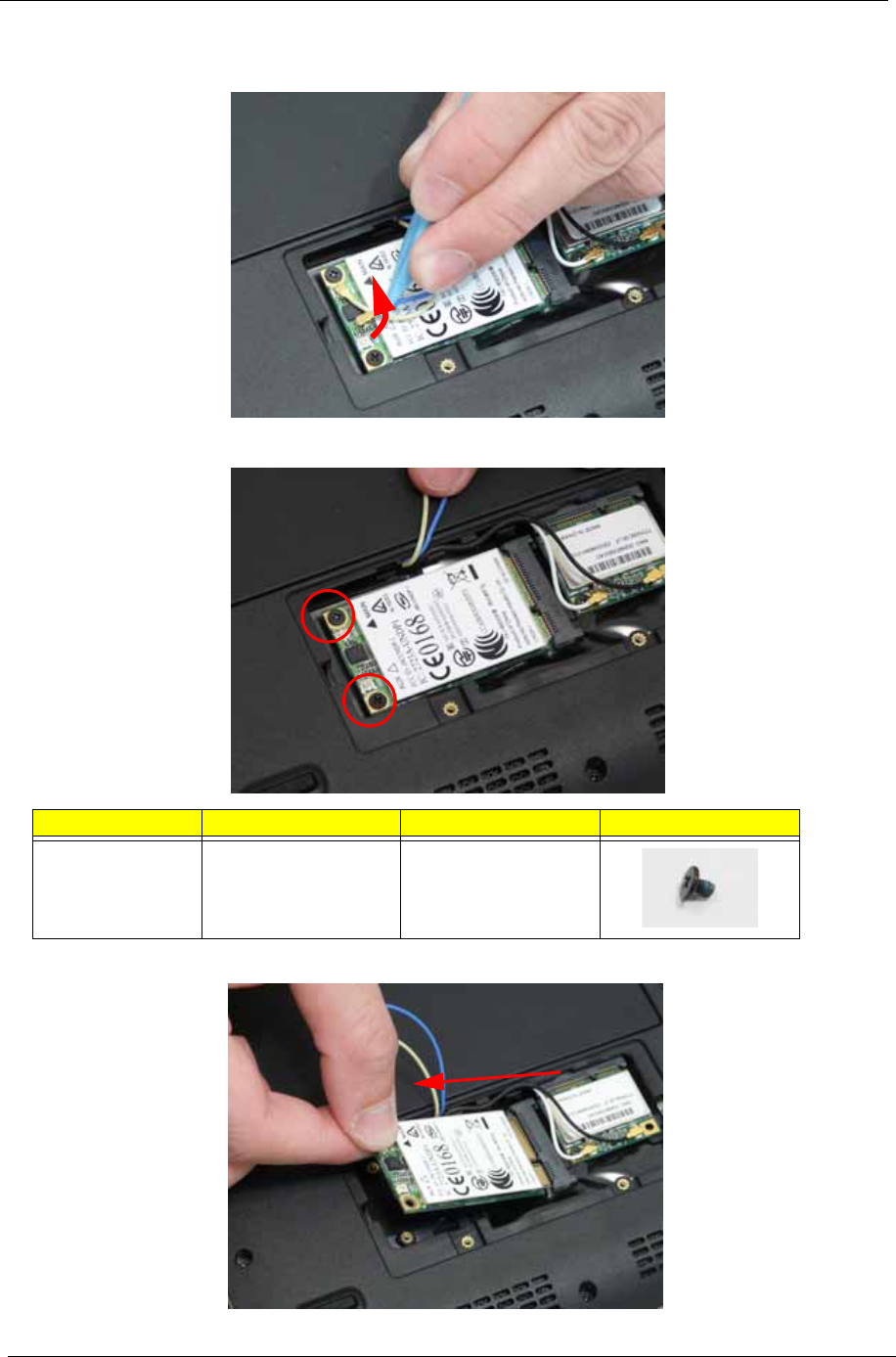
4. Disconnect the Antenna cables from the 3g Board.
NOTE: Cable placement is Yellow to the MAIN terminal (right) and Blue to the AUX terminal (left).
5. Remove the two screws securing the 3g Board in place.
6. Remove the 3g Board from the Mainboard.
[
Step Size Quantity Screw Type
3g Board M2*3 2
Chapter 3 49
Main Unit Disassembly Process
IMPORTANT: Cable paths and positioning may not represent the actual model. During the removal and
replacement of components, ensure all available cable channels and clips are used and that the cables are
replaced in the same position.
NOTE: The product previews seen in the disassembly procedures may not represent the final product color or
configuration.
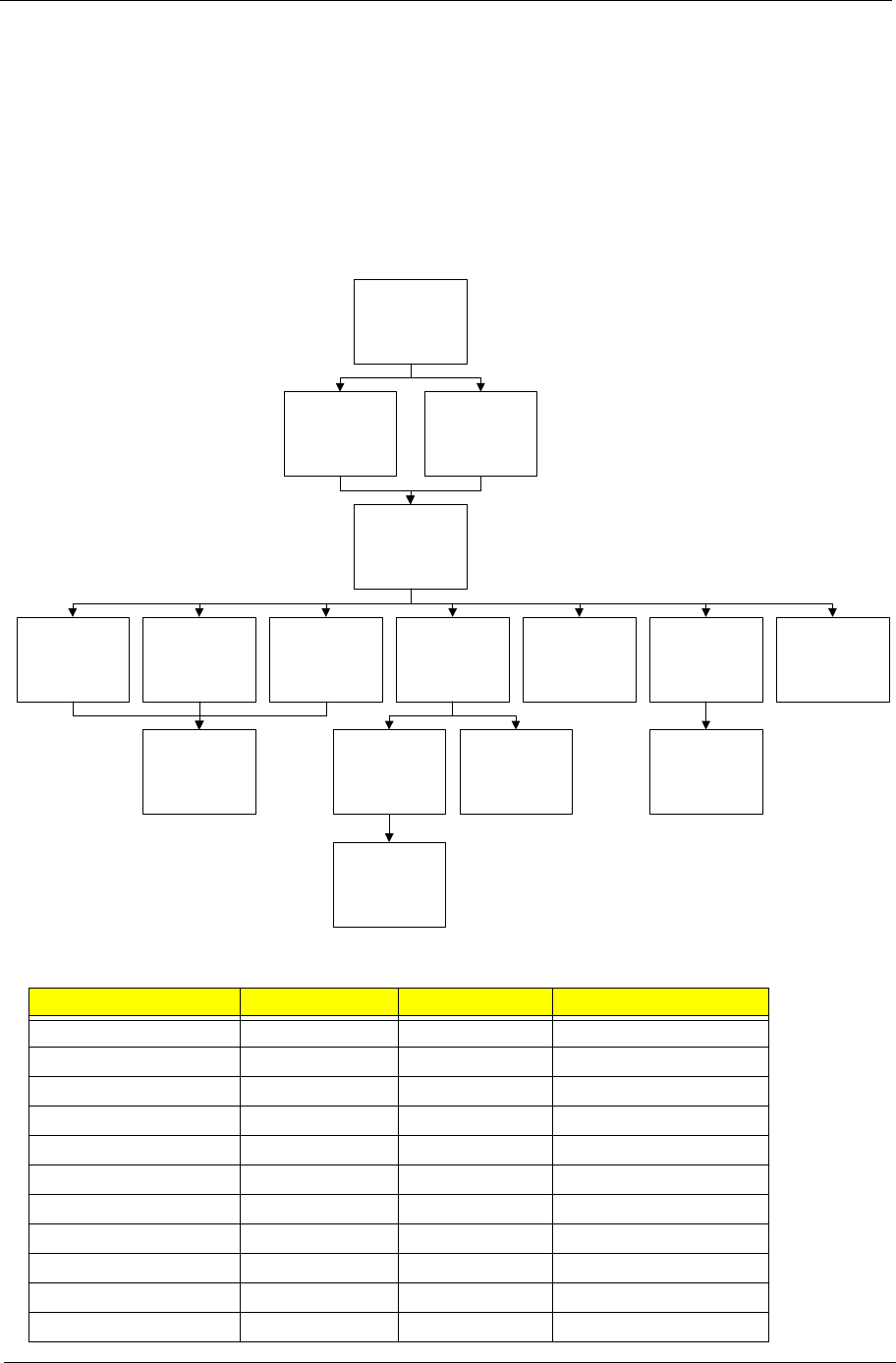
Main Unit Disassembly Flowchart
Screw List
Step Screw Quantity Part No.
Upper Cover M2*6 7 86.S6507.001
M2*4 12 86.W0107.003
Hinge Cover M2*10 2
Button Board M2*3 2 86.S0207.001
I/O Board M2*3 2 86.S0207.001
VGA Board M2*3 1 86.S0207.001
LCD Module M2*3 2 86.S0207.001
LED Board M2*3 2 86.S0207.001
Speaker Module M2*3 3 86.S0207.001
Mainboard M2*3 3 86.S0207.001
Thermal Module M2*3 5 86.S0207.001
Remove External
Modules before
proceeding
Remove
Mainboard
Remove
LCD Module
Remove
Keyboard
Remove
Upper Cover
Remove
Thermal Module
Remove
CRT Board
Remove
Bluetooth Module
Remove
Speaker Modue
Remove
Card Reader
Board
Remove
RTC Battery
Remove
Hinge Cover
Remove
LAN Board
Remove
LED Board
Remove
CPU
Remove
Button Board
50 Chapter 3
Removing the Keyboard
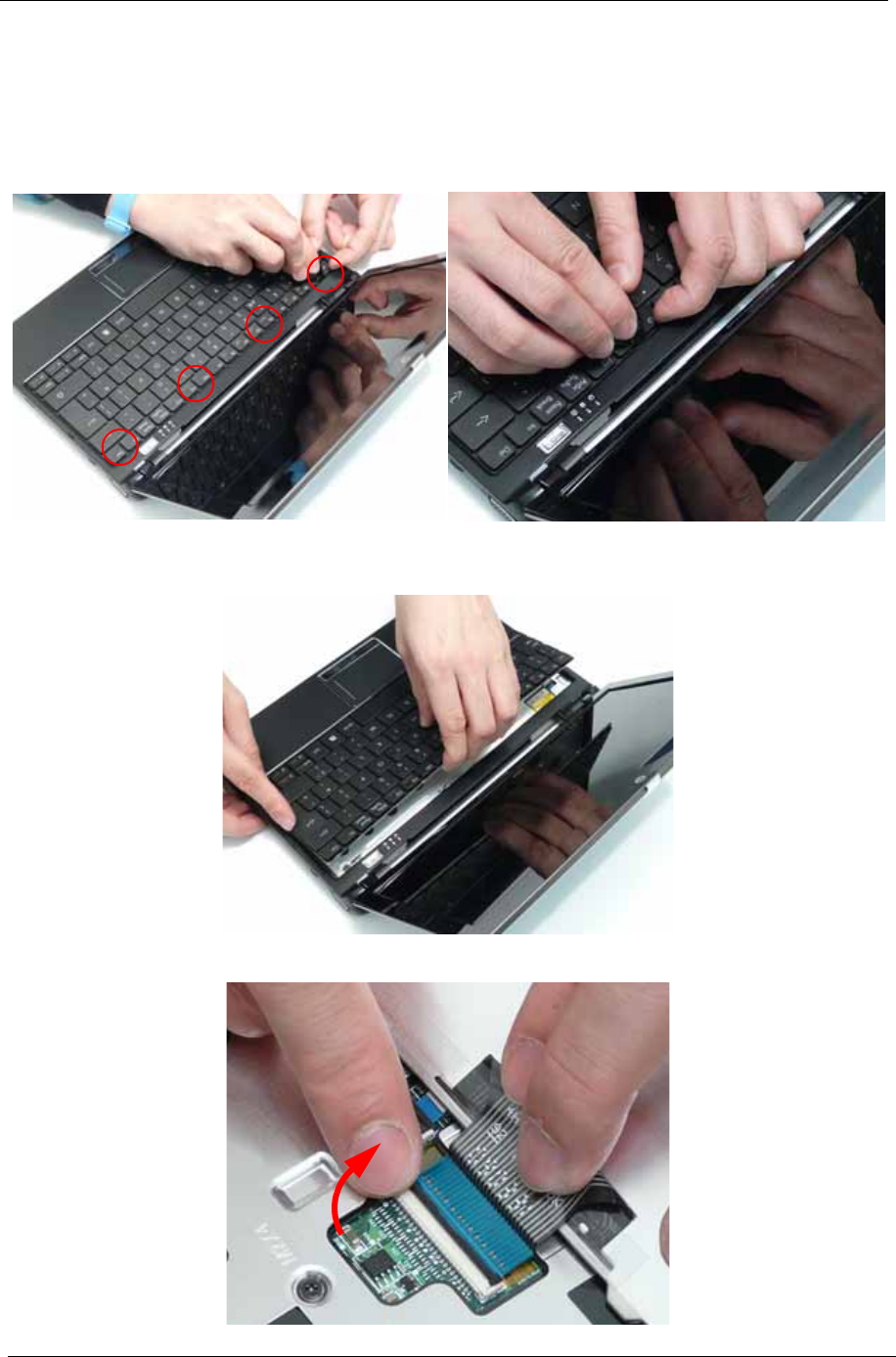
1. See “Removing the Battery Pack” on page 38.
2. Turn the computer rightside up and open the lid to the full extent.
3. Unlock the four securing latches by pressing down with a suitable plastic tool.
IMPORTANT: The use of metal tools may damage the outer casing. Use plastic tools where available.
4. Lift the Keyboard away from the Upper Cover as shown.
IMPORTANT: Do not remove the Keyboard from the Upper Cover; the Keyboard FFC is still attached.
5. Turn the Keyboard over and open Keyboard FFC securing latch as shown.
Chapter 3 51
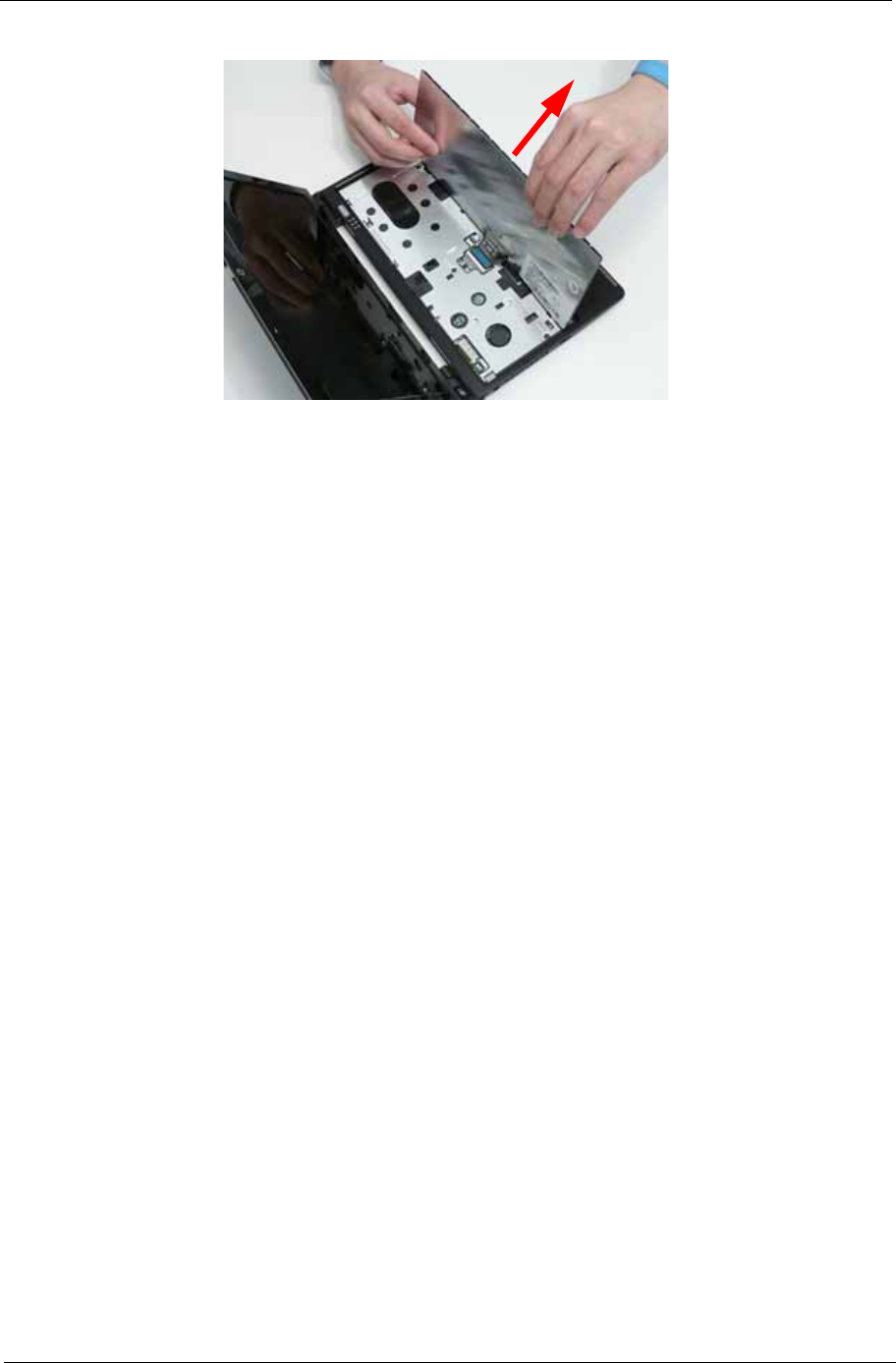
6. Disconnect the FFC and remove the Keyboard.
Chapter 3 53
Removing the Upper Cover
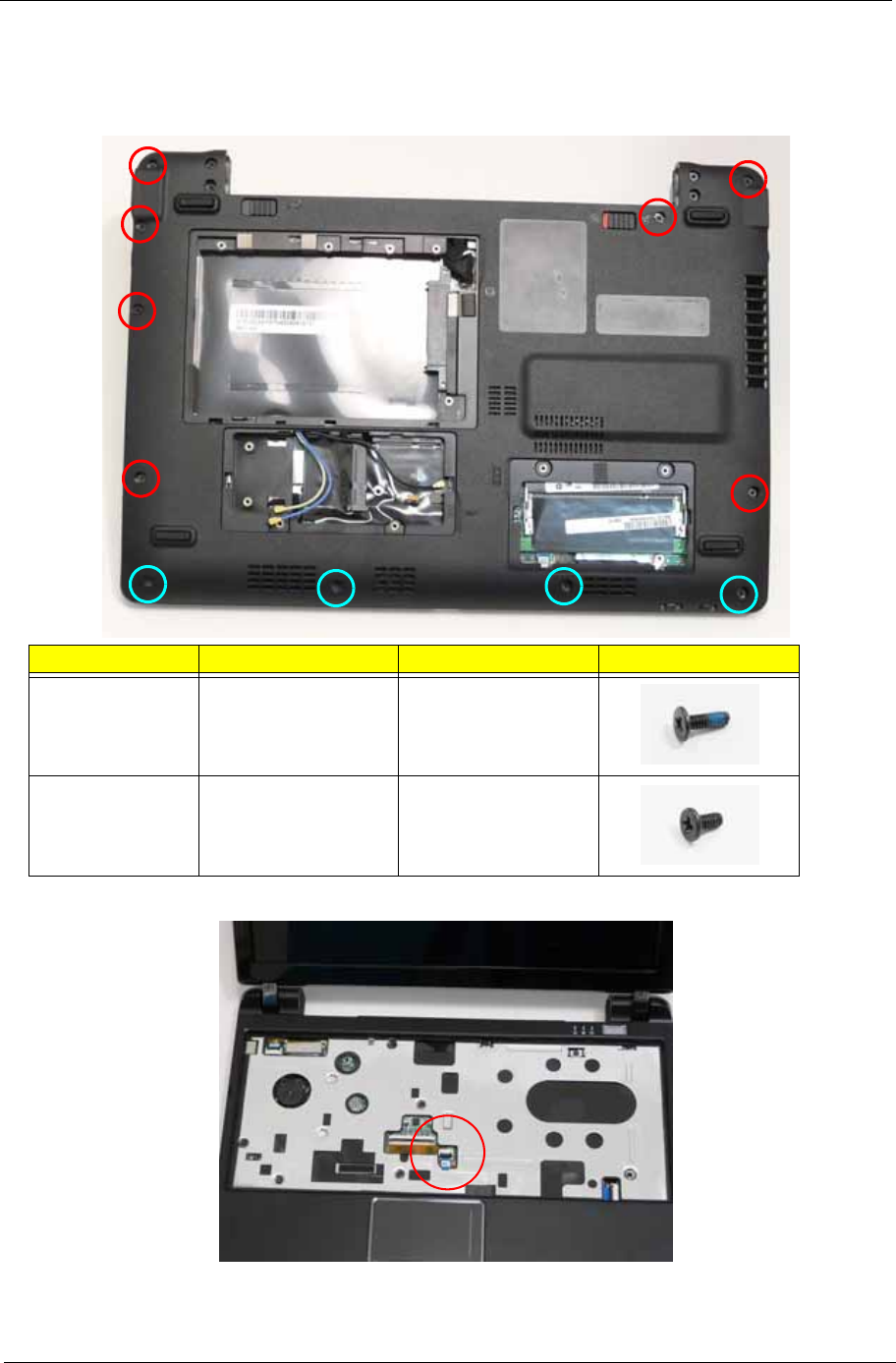
1. See “Removing the Hinge Covers” on page 52.
2. Remove the 11 screws securing the Upper Cover to the Lower Cover.
3. Turn the computer over and disconnect the following cable from the Mainboard.
Step Size Quantity Screw Type
Upper Cover
(Red callouts)
M2*6 7
Upper Cover
(Cyan callouts)
M2*4 4
54 Chapter 3
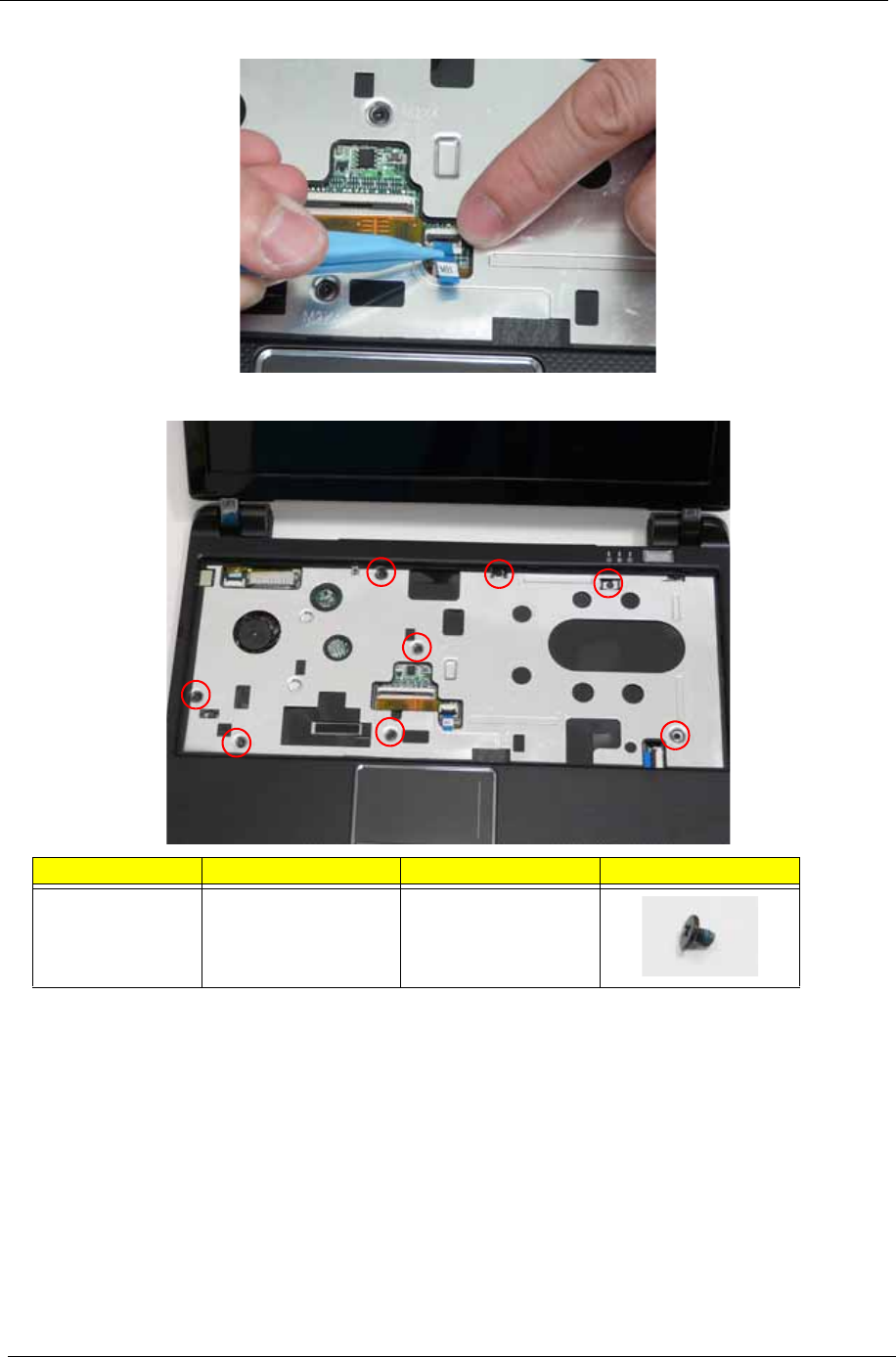
Release the locking latch and disconnect the FFC as shown.
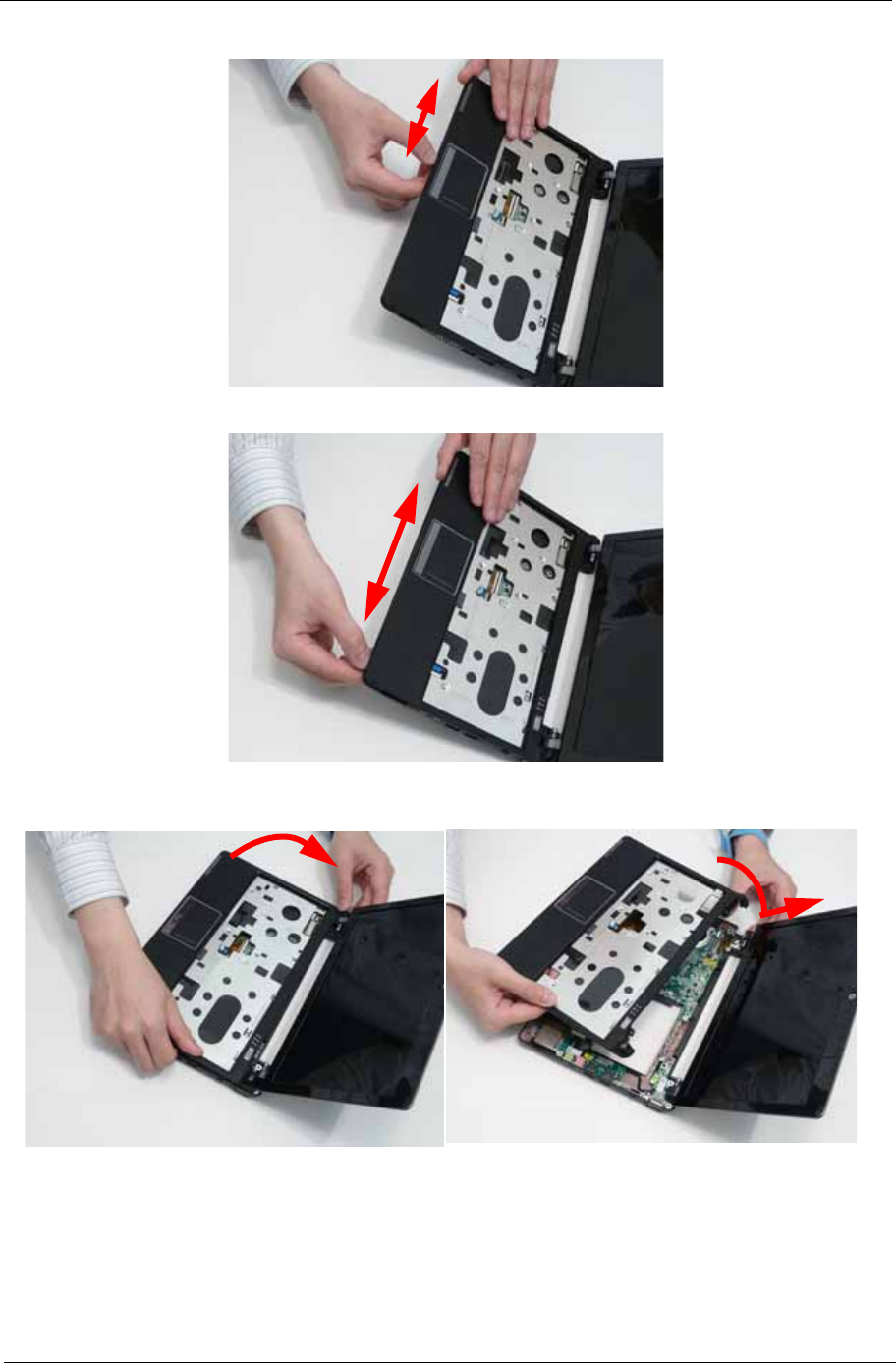
4. Remove the eight securing screws from the Upper Cover.
Step Size Quantity Screw Type
Upper Cover
(red callout)
M2*4 8
Chapter 3 55
5. Starting at the front the cover, pry apart the Upper and Lower Covers as shown.
6. Working along the front and to the right, pry apart the covers as shown.
7. Lift the upper cover up and rotate it leftwards along the left hinge until the hinge is cleared, then lift the
cover away.
56 Chapter 3
Removing the Button Board
IMPORTANT: The TouchPad Board cannot be removed individually. To replace the TouchPad Board, replace the
entire Upper Cover.
1. See “Removing the Upper Cover” on page 53.
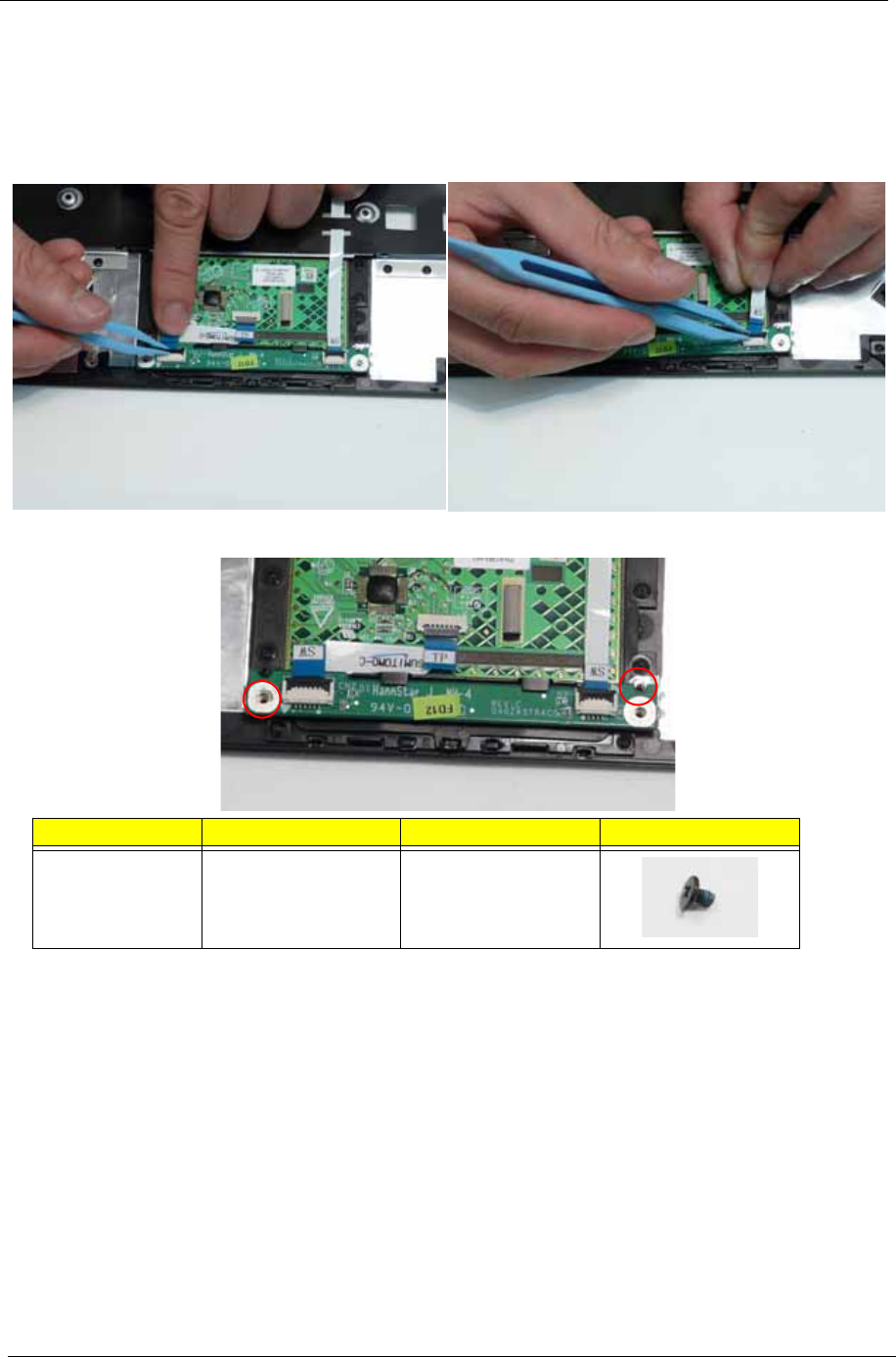
2. Open the locking latches and disconnect the two FFCs from the Button Board as shown.
3. Remove the two screws securing the button board to the Upper Cover.
Step Size Quantity Screw Type
TouchPad M2*3 2
Chapter 3 57
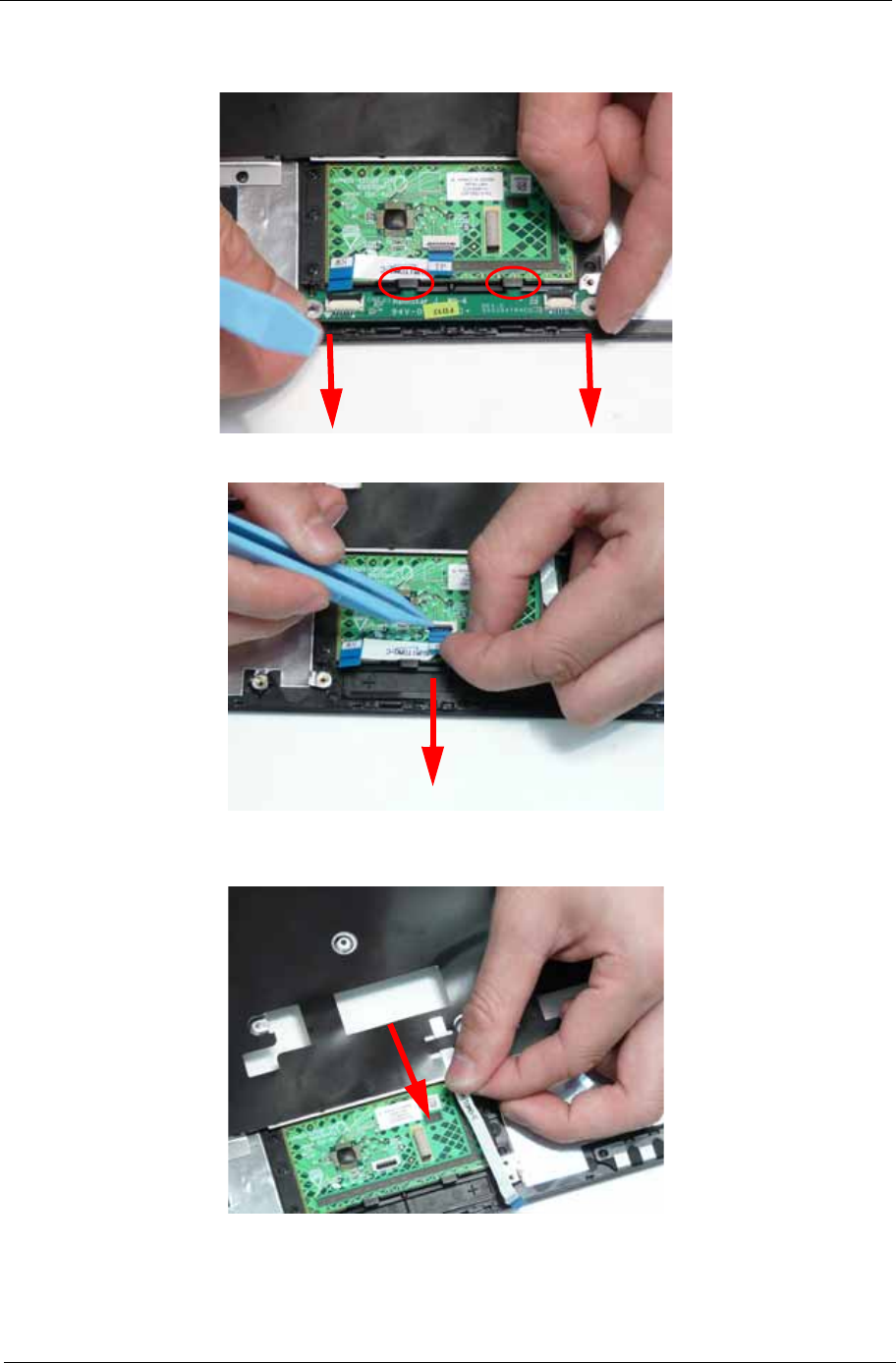
IMPORTANT: Ensure that the FFCs are disconnected before attempting to remove the Button Board.
4. Slide the Button Board out from under the securing tabs in the Upper Cover as shown.
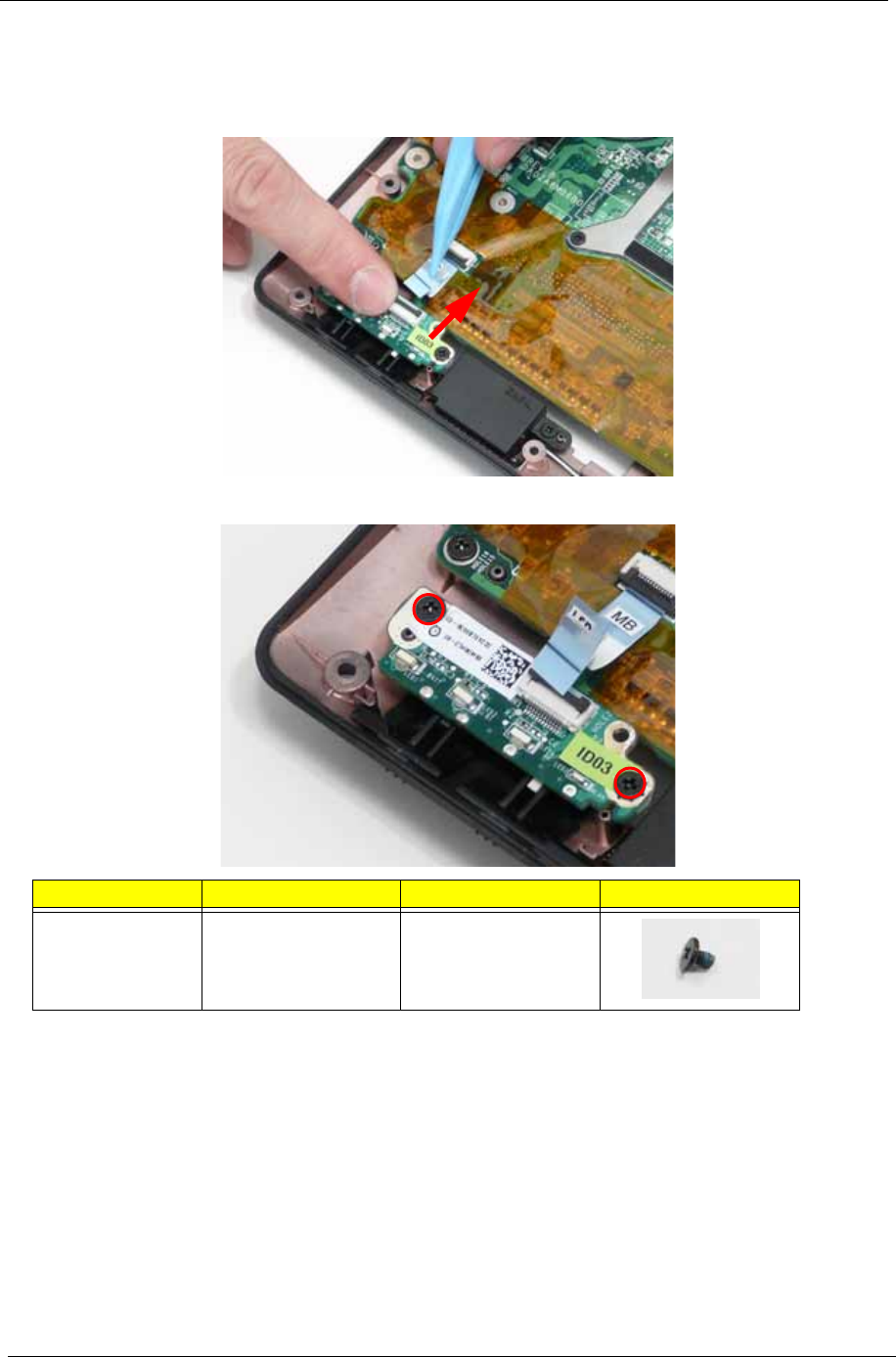
5. Open the FFC locking latch and disconnect the FFC from the TouchPad connector.
6. Pull the Mainboard FFC through the cover as shown.
IMPORTANT: Ensure that the FFC pull tab is not torn off during removal.
Chapter 3 59
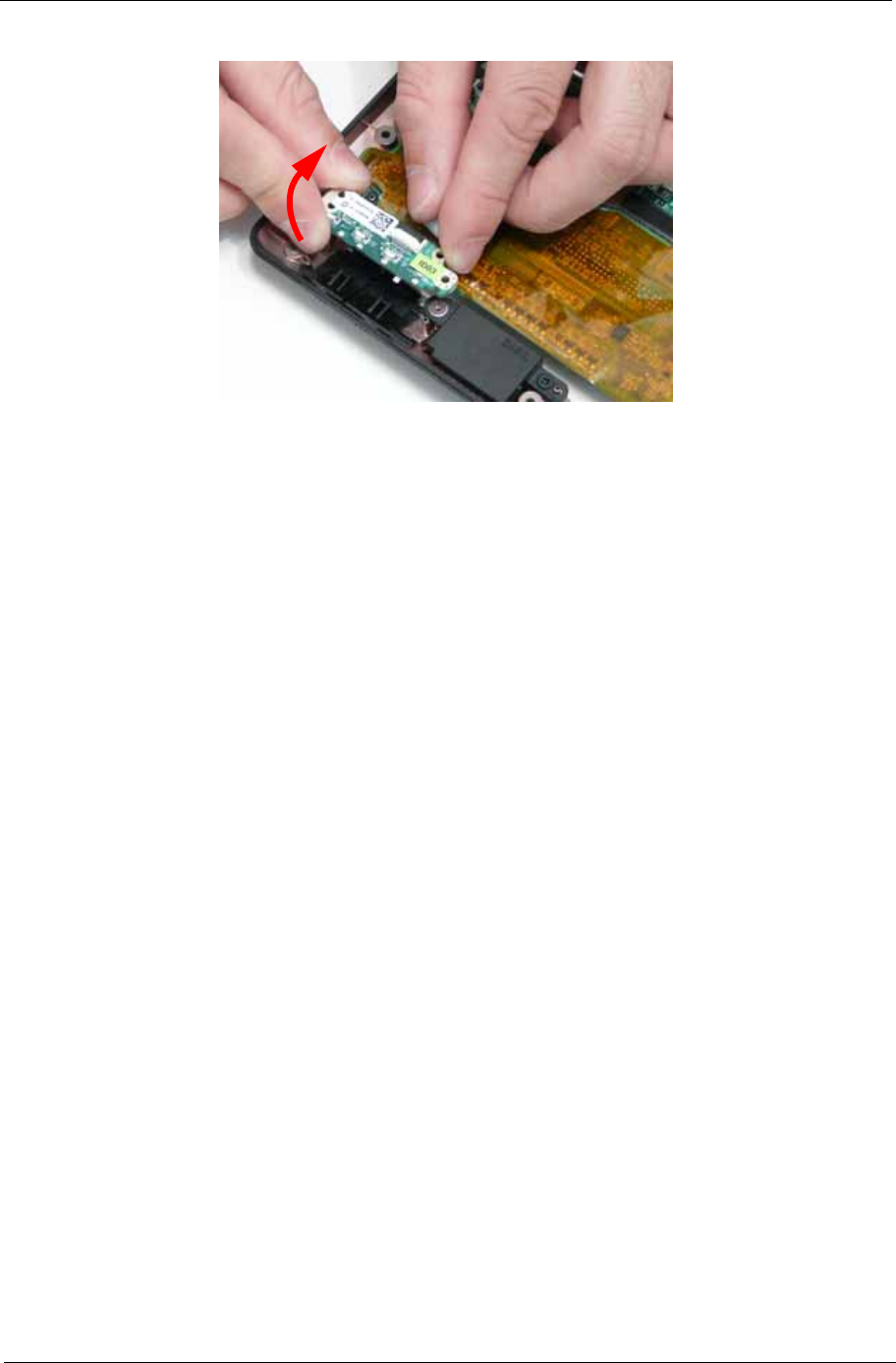
4. Lift the LED Board from the Lower Cover.
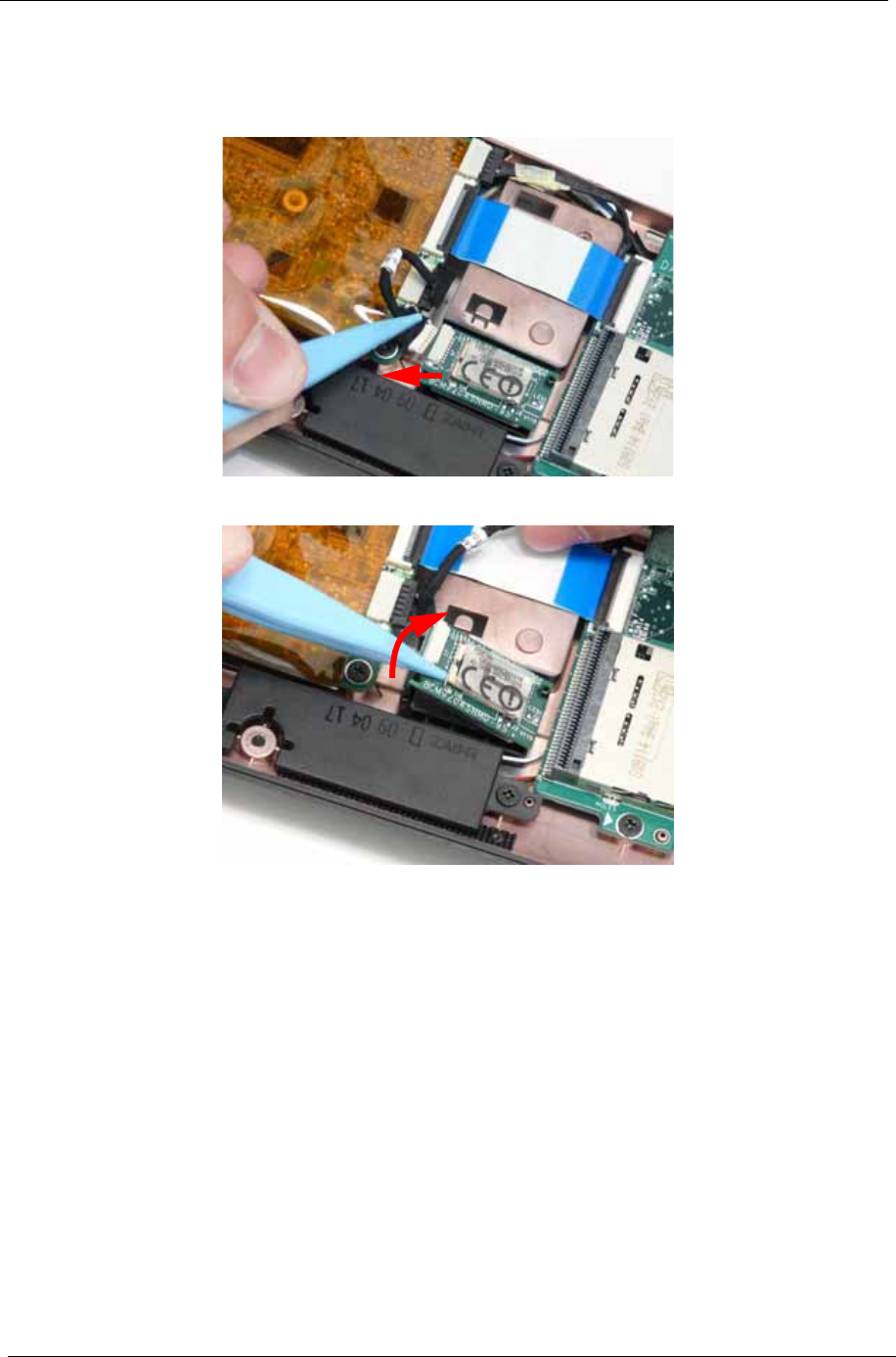
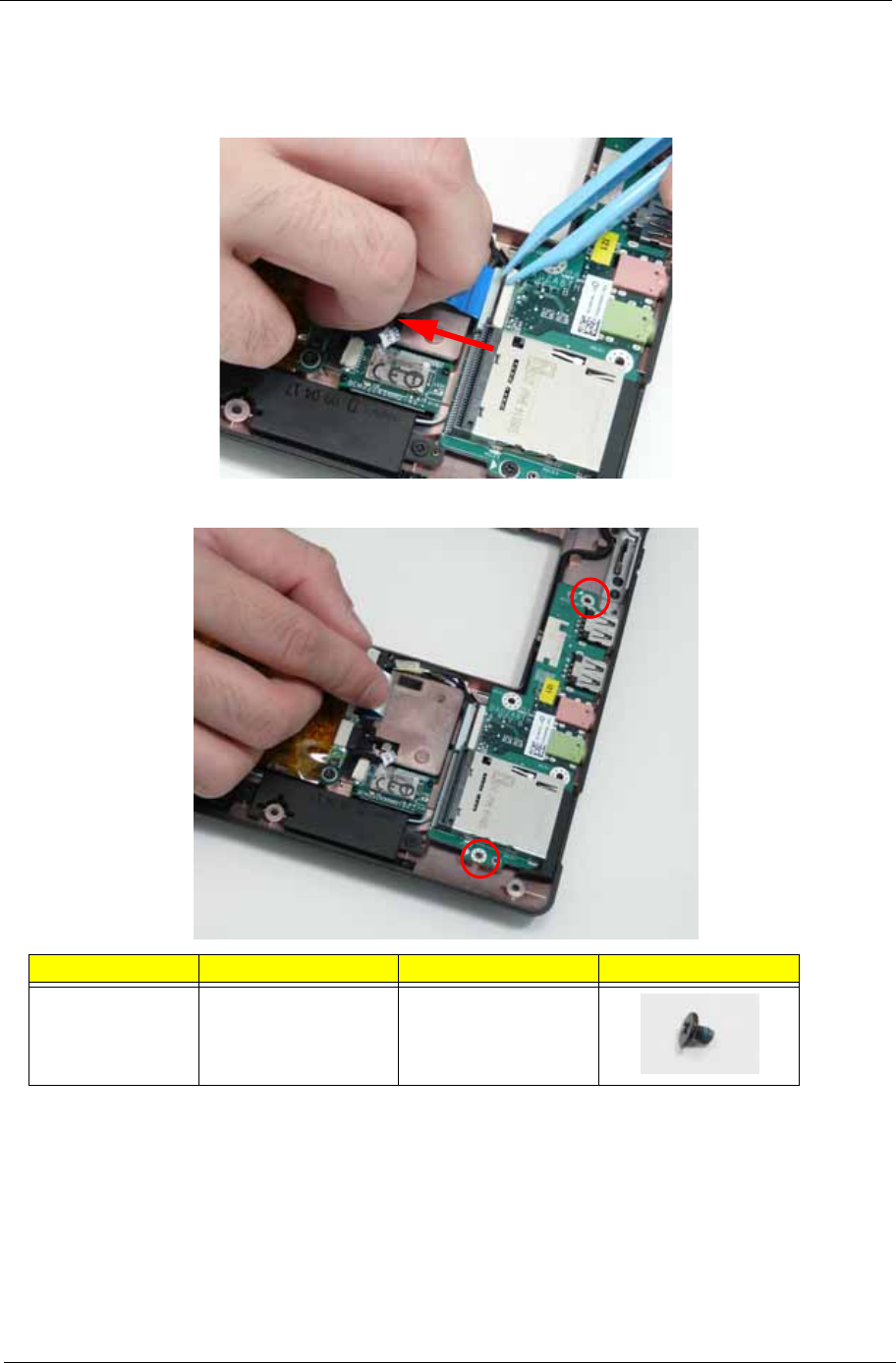
62 Chapter 3
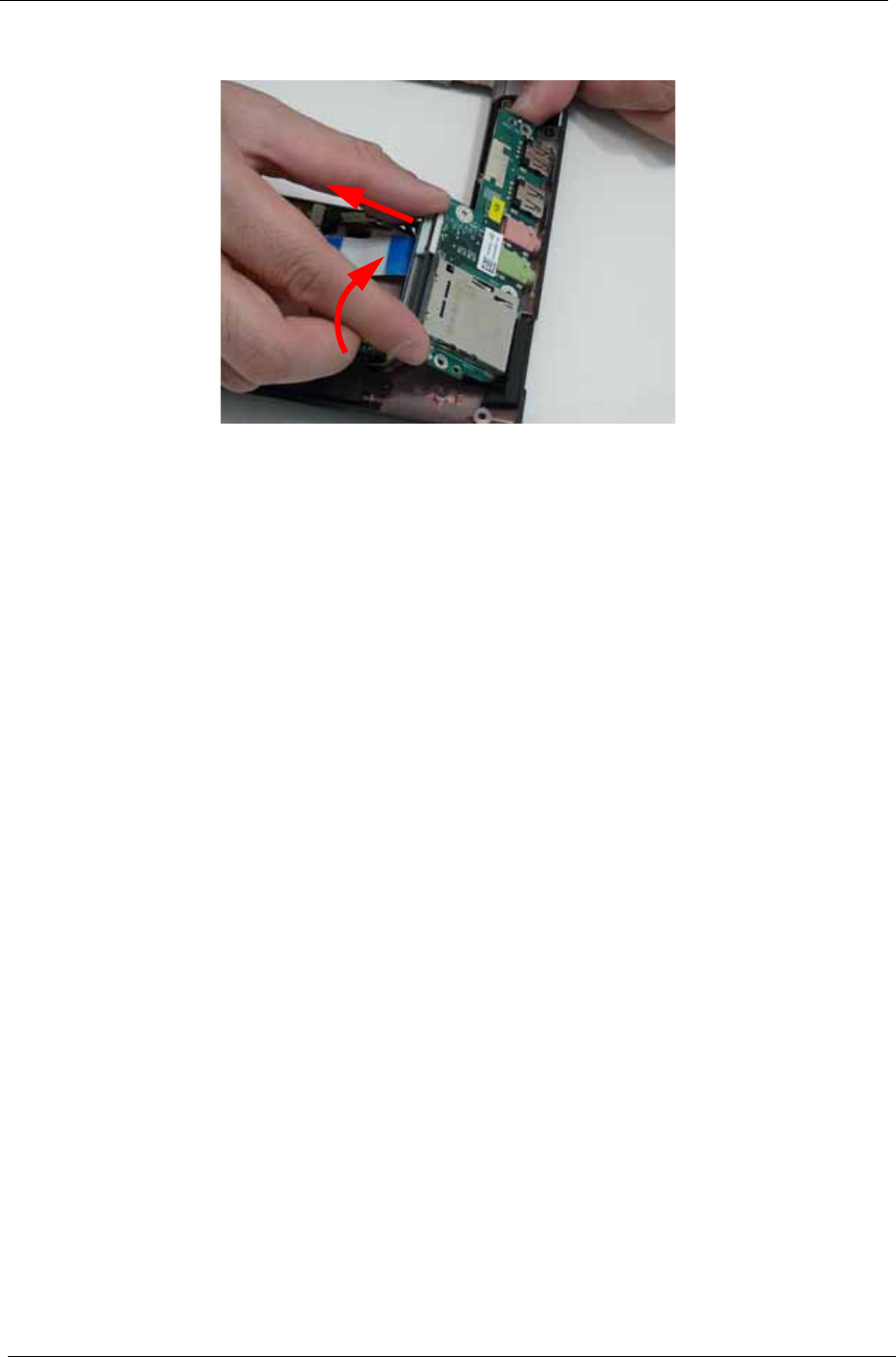
4. Tilt the board up as indicated and remove the board from the Lower Cover, left side first to release the I/O
ports.
Chapter 3 63
Removing the Speaker Module
1. See “Removing the LED Board” on page 58.
2. See “Removing the Card Reader Board” on page 61.
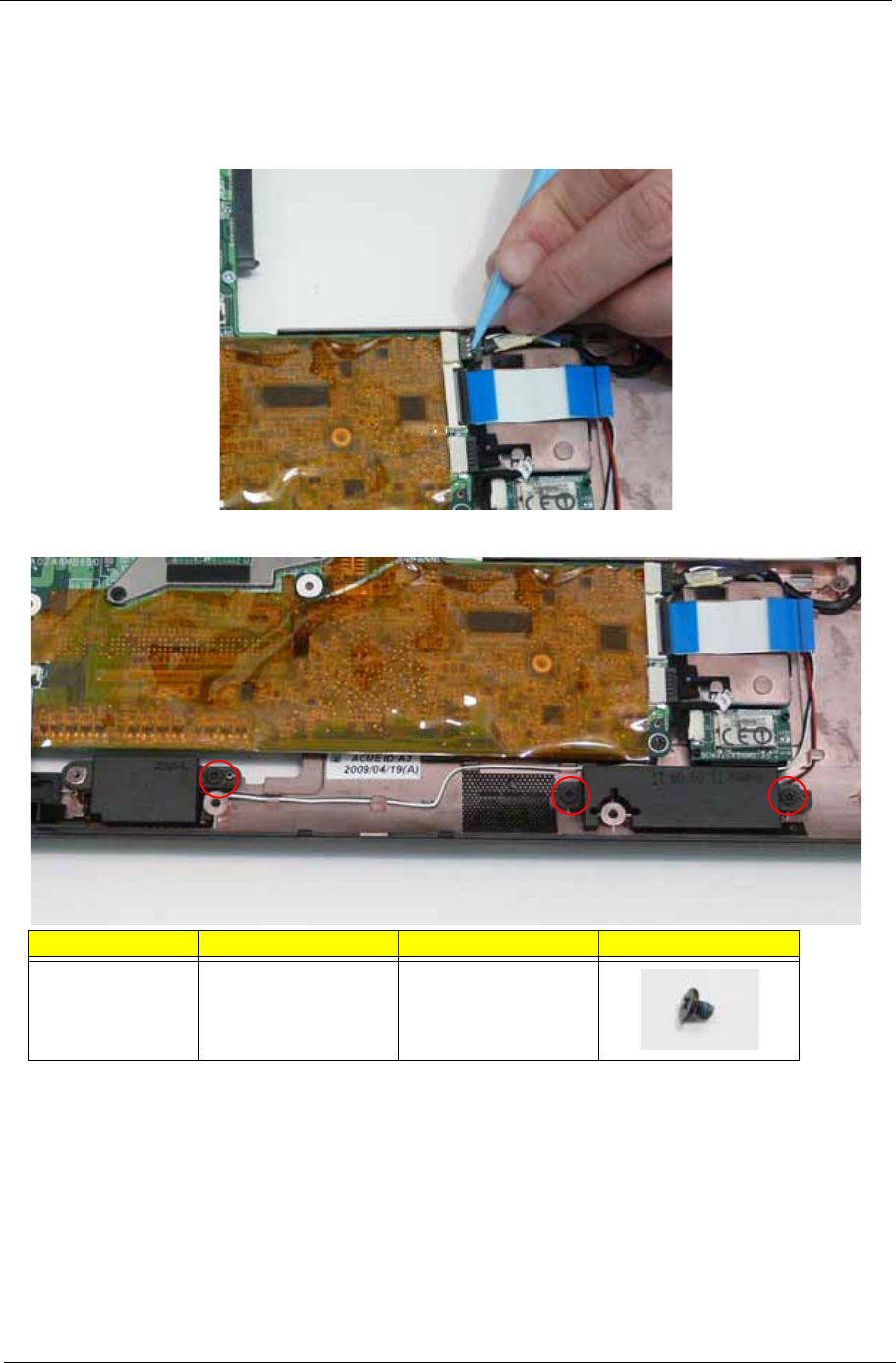
3. Disconnect the Speaker cable from the Mainboard.
4. Remove the three screws securing the Speakers to the Lower Cover.
Step Size Quantity Screw Type
Speaker Module M2*3 3
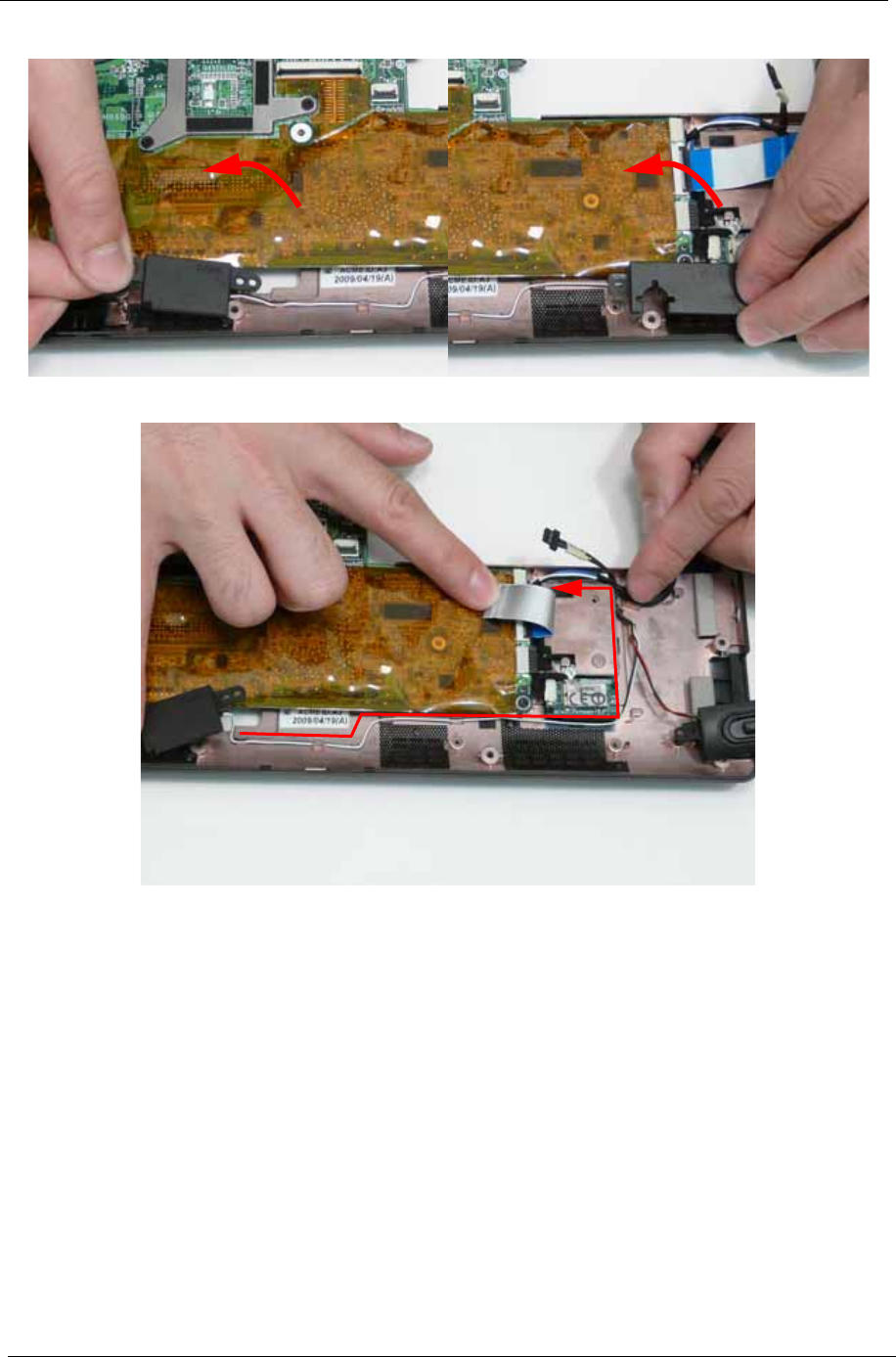
64 Chapter 3
5. Lift the right and left side speakers out from the Lower Cover as shown.
6. Remove the Speaker cables from the cable channels. Ensure that the cable is free from all cable clips.
Chapter 3 65
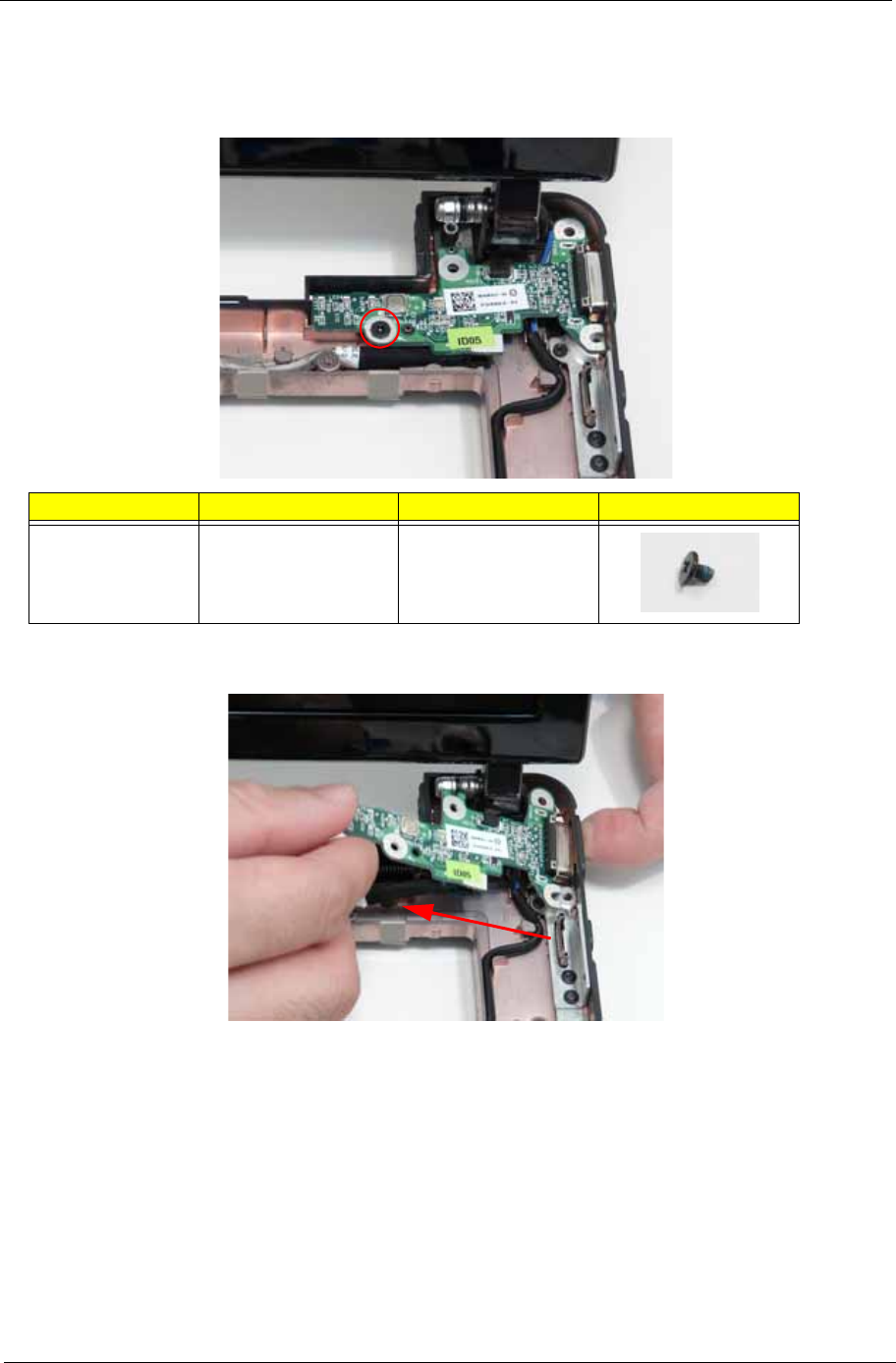
Removing the VGA Board
1. See “Removing the Card Reader Board” on page 61.
2. Remove the single screw securing the VGA Board to the Lower Cover.
3. Lift the VGA Board left side first and turn it over to expose the VGA cable.
IMPORTANT: Do not remove the board from the Lower Cover; the VGA cable is still attached.
Step Size Quantity Screw Type
VGA Board M2*3 1
66 Chapter 3
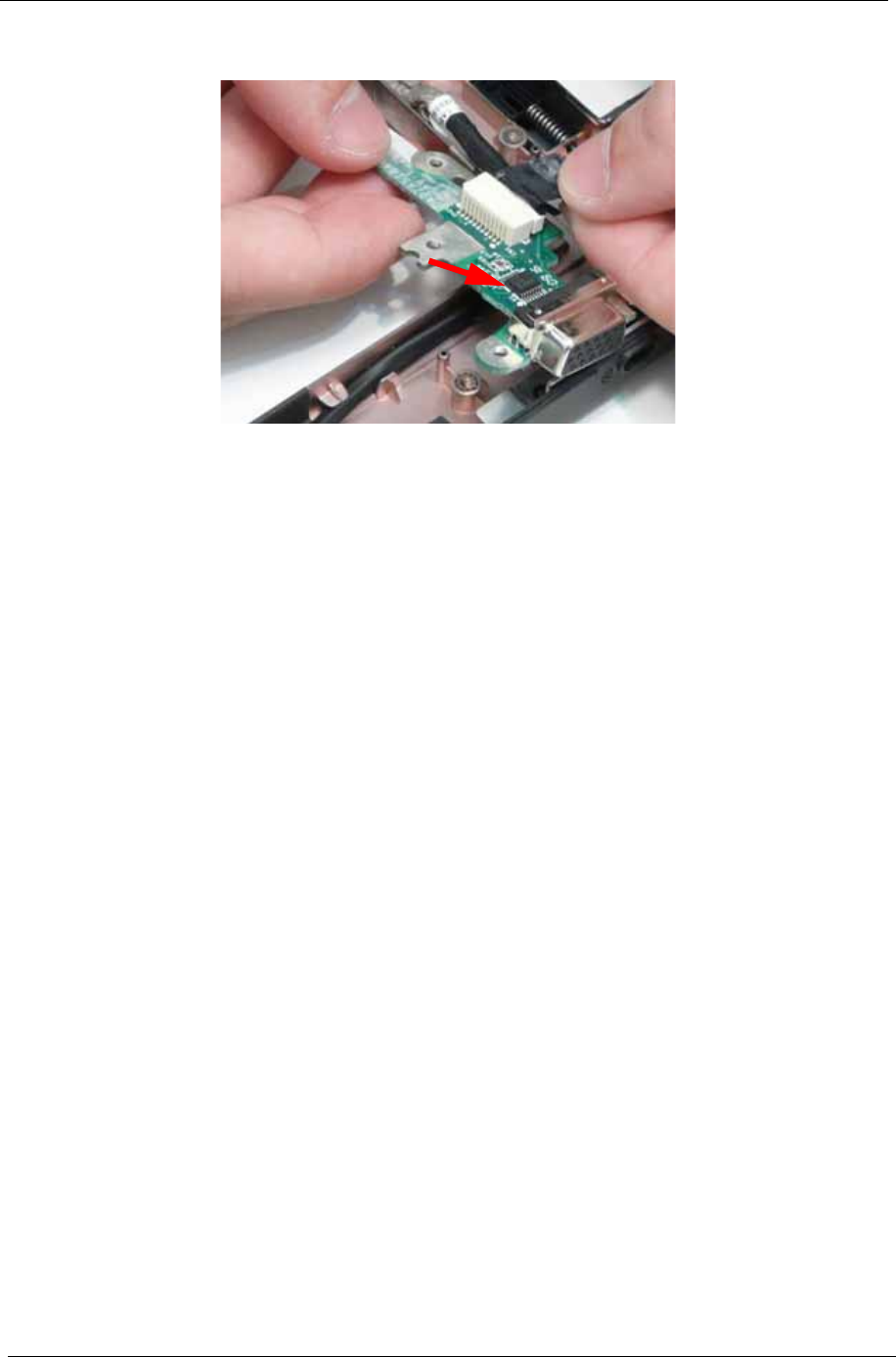
4. Flip the VGA board over, disconnect the cable from the VGA Board, and remove the board from the Lower
Cover.
Chapter 3 67
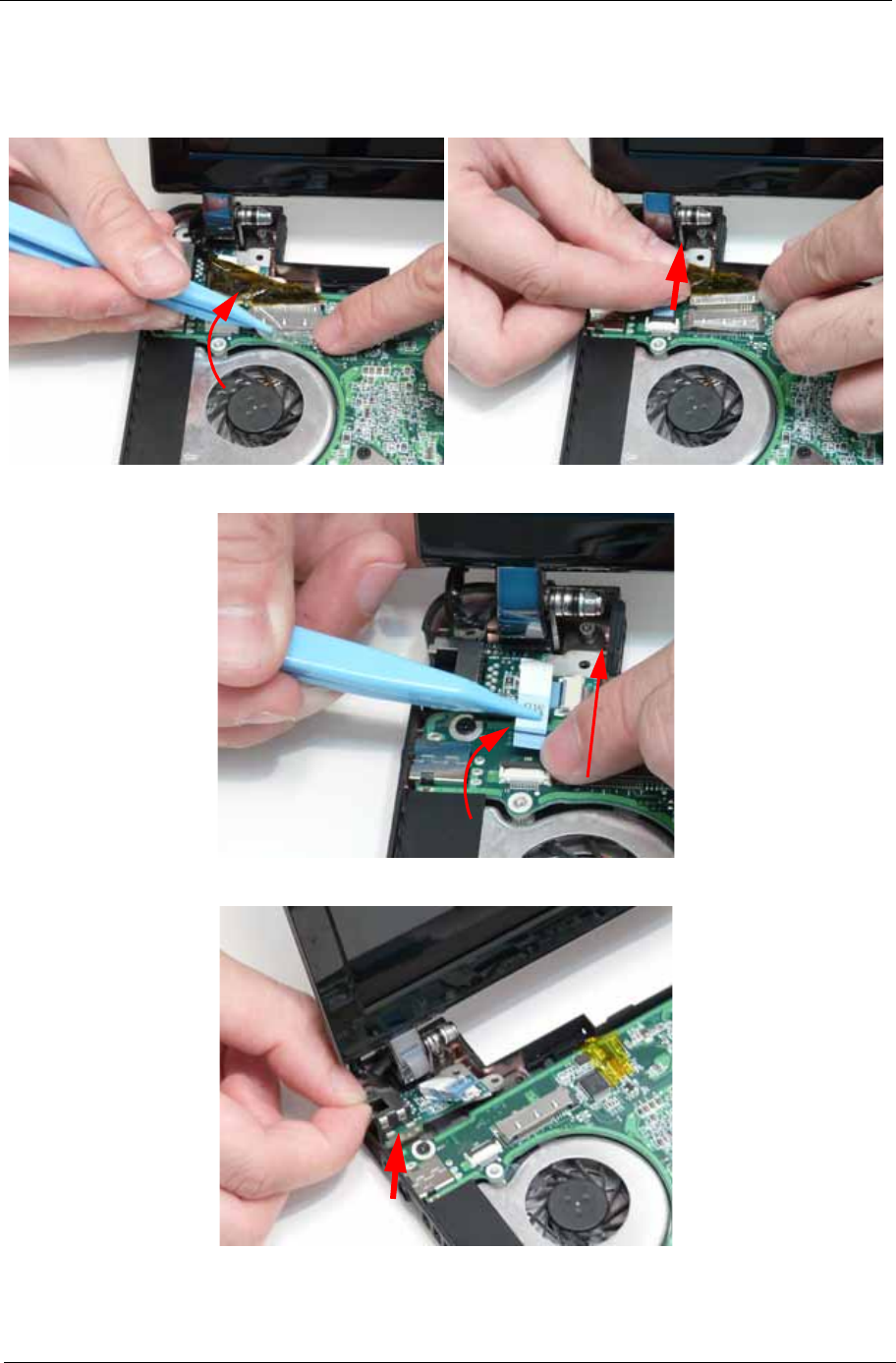
Removing the LAN Board
1. See “Removing the Upper Cover” on page 53.
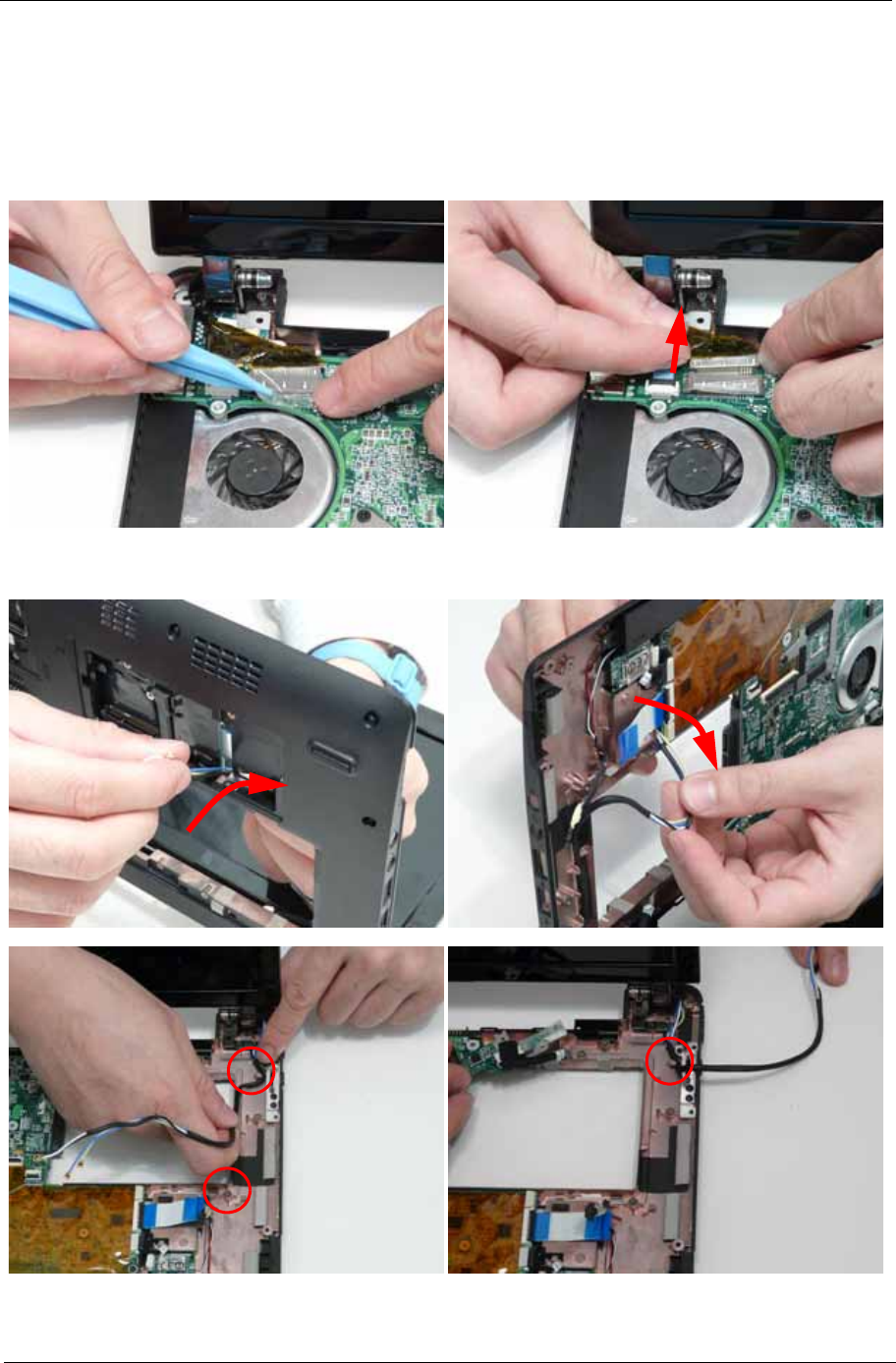
2. Lift the adhesive strip securing the LVDS cable in place and disconnect the cable from the Mainboard.
3. Open the FFC locking latch and disconnect the LAN Board cable from the Mainboard.
4. Remove the LAN Board from the Lower Cover as shown.
68 Chapter 3
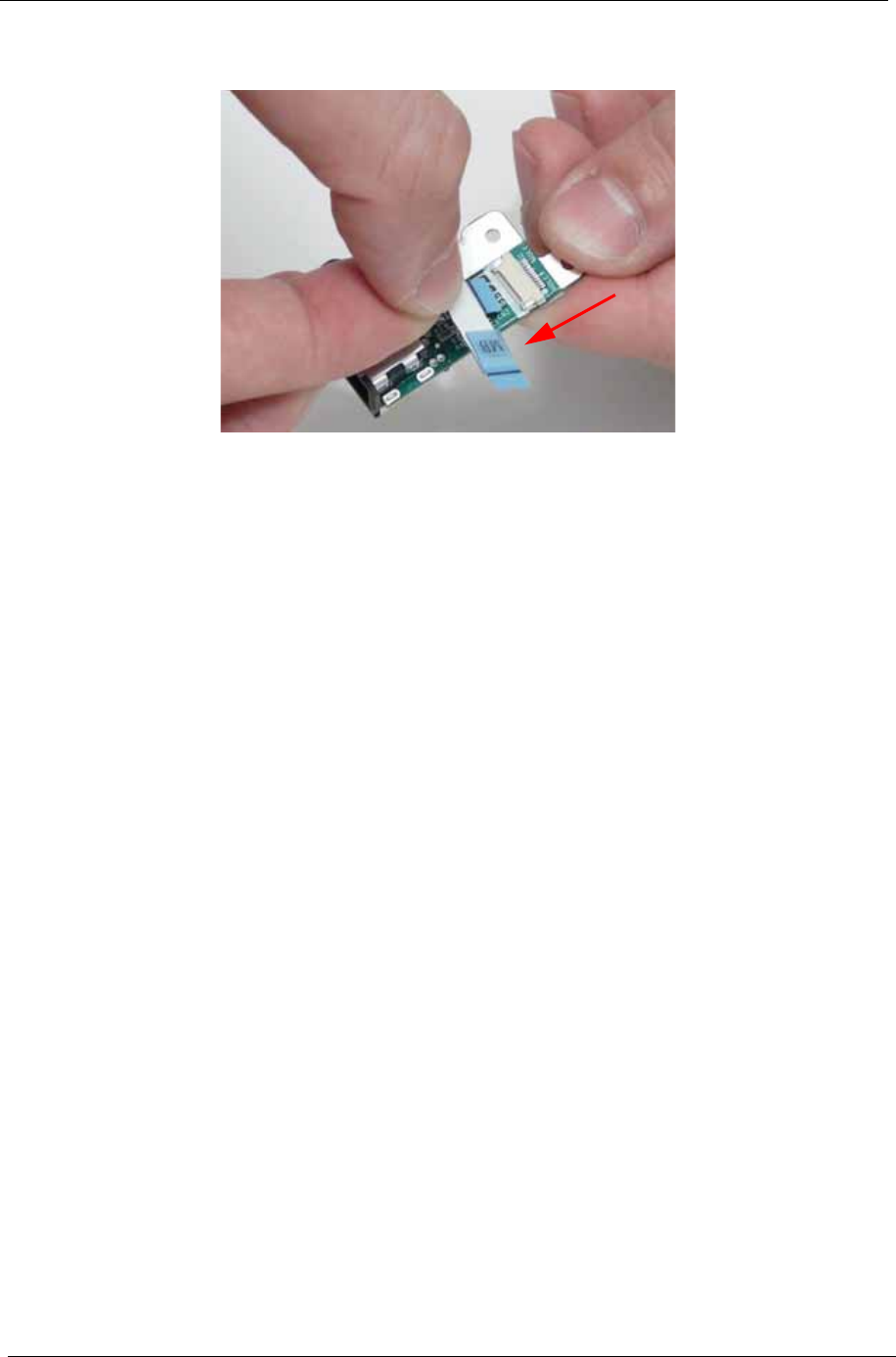
5. Disconnect the FFC cable from the LAN Board by pulling on the cable tab as shown.
NOTE: The FFC Cable connector to the LAN board does not have a locking latch.
NOTE: Reconnect the FFC cable to the mainboard if not immediately replacing the LAN board to prevent
misplacing the FFC. The LAN board replacement kit does not contain a spare FFC.
Chapter 3 69
Removing the LCD Module
1. See “Removing the VGA Board” on page 65.
2. See “Removing the LAN Board” on page 67.
3. See “Removing the Card Reader Board” on page 61.
4. Lift the adhesive strip securing the LVDS cable in place and disconnect the cable from the Mainboard.
5. Remove the Antenna cables from the cable channel on the Lower Cover as shown, all the way to the
hinge well.
70 Chapter 3
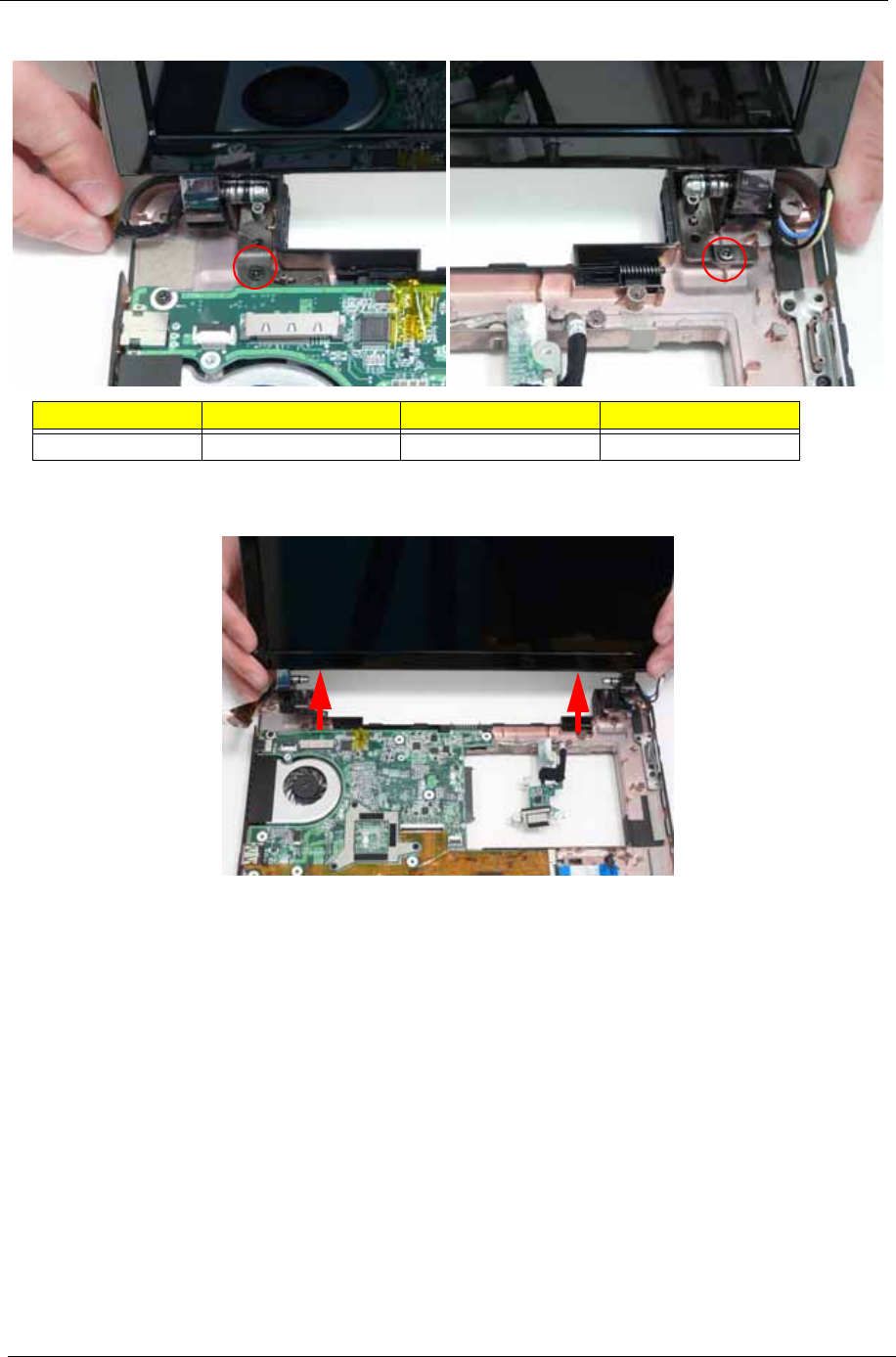
6. Remove the two screws on the rear of the Lower Cover securing the LCD Module to the computer.
IMPORTANT: Ensure that the LCD cables are free from all cable clips before removing the LCD Module.
7. Using both hands, lift the LCD Module away from the Lower Cover.
Step Size Quantity Screw Type
LCD Module M2*3 2
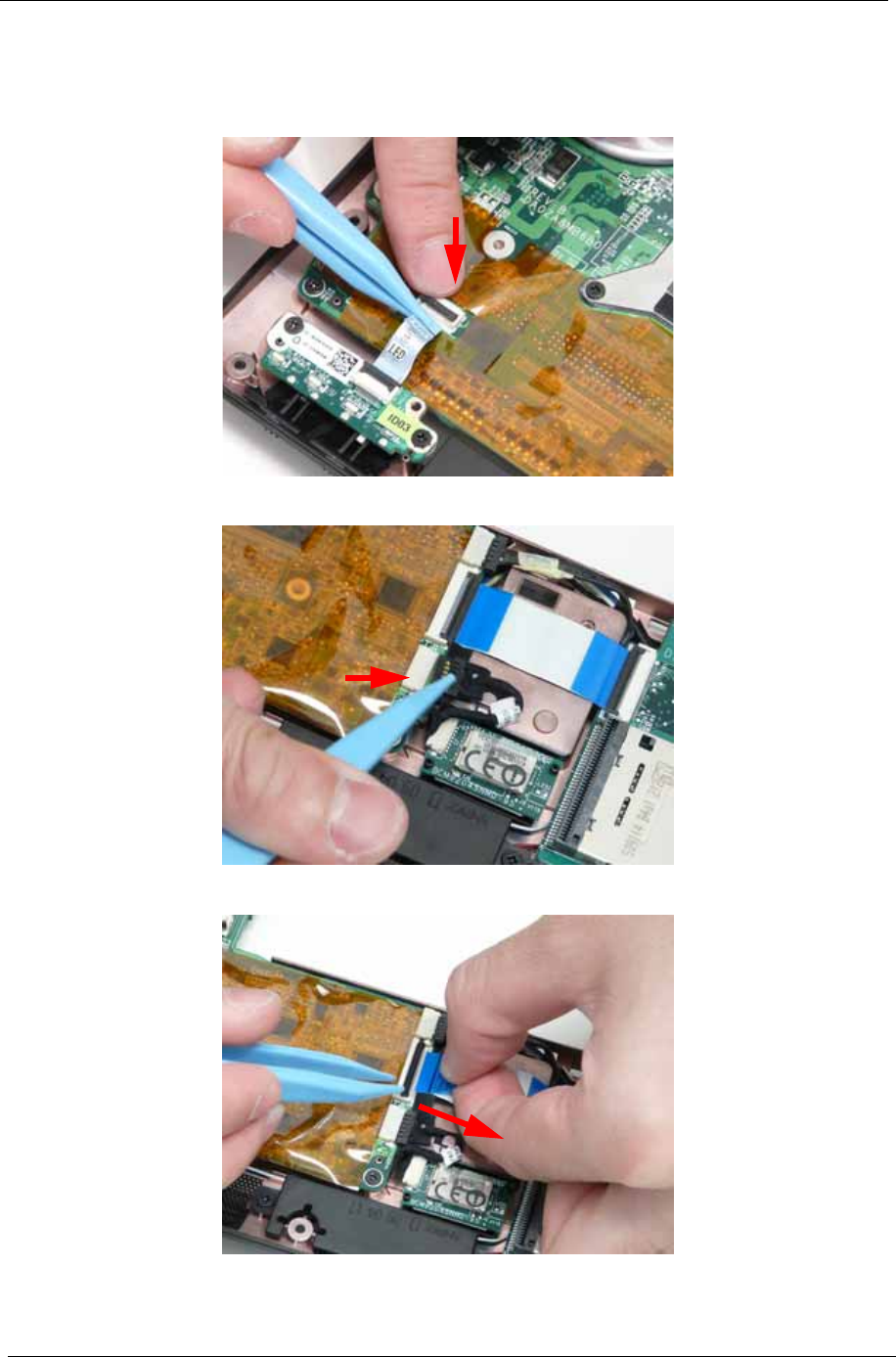
Chapter 3 73
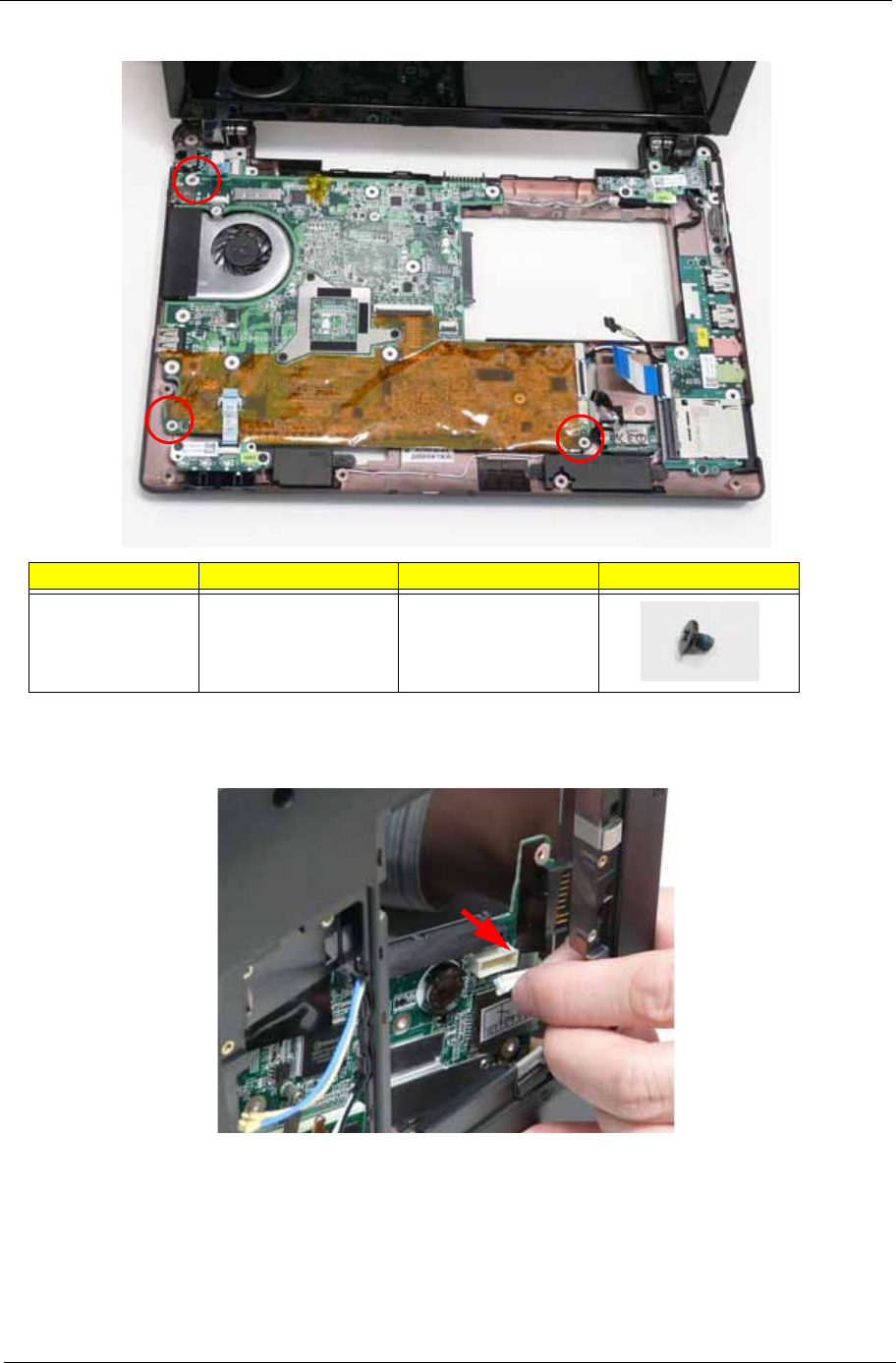
5. Remove the three screws securing the Mainboard to the Lower Cover as indicated.
6. Tilt the assembly onto its side so you are able to access the underneath of the mainboard. Lift the
Mainboard right side first to release the I/O ports and separate the board from the Lower Cover.
7. Reach through the HDD bay opening and unplug the VGA cable from the main board.
8. Turn the Mainboard over to expose the VGA cable connector. Disconnect the VGA cable as shown.
9. Lift the mainboard away from the assembly.
Step Size Quantity Screw Type
Mainboard M2*3 3
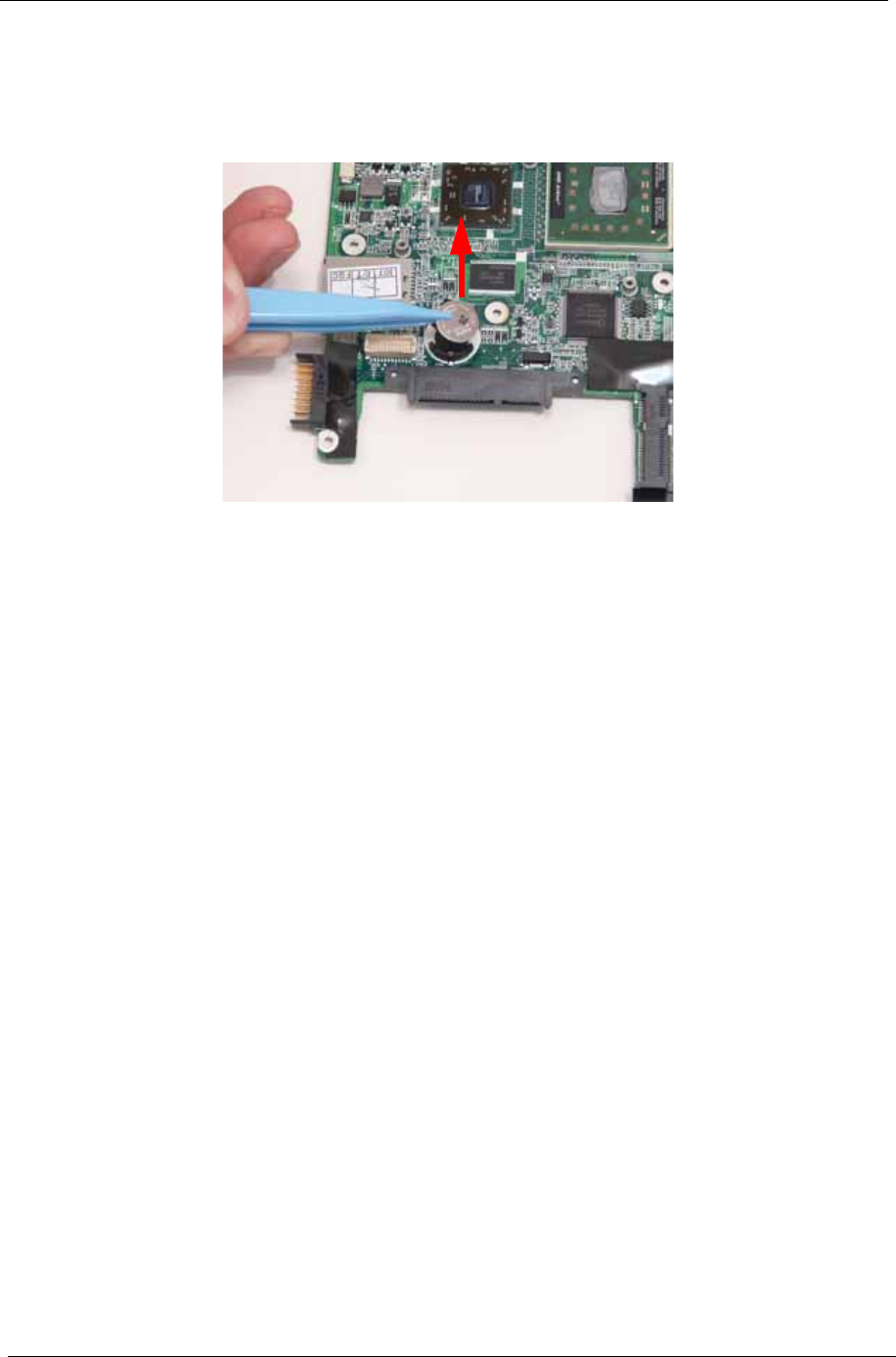
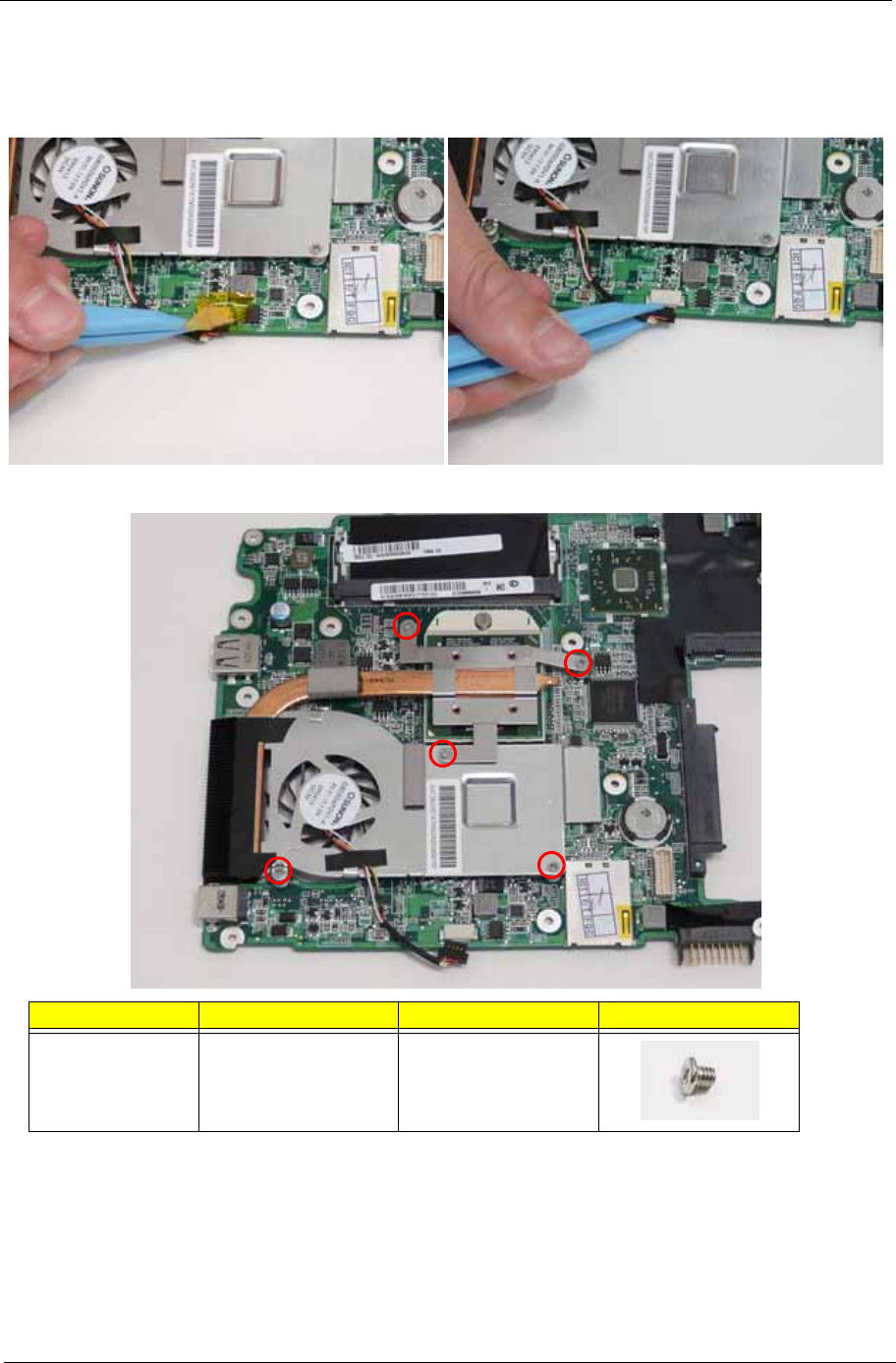
76 Chapter 3
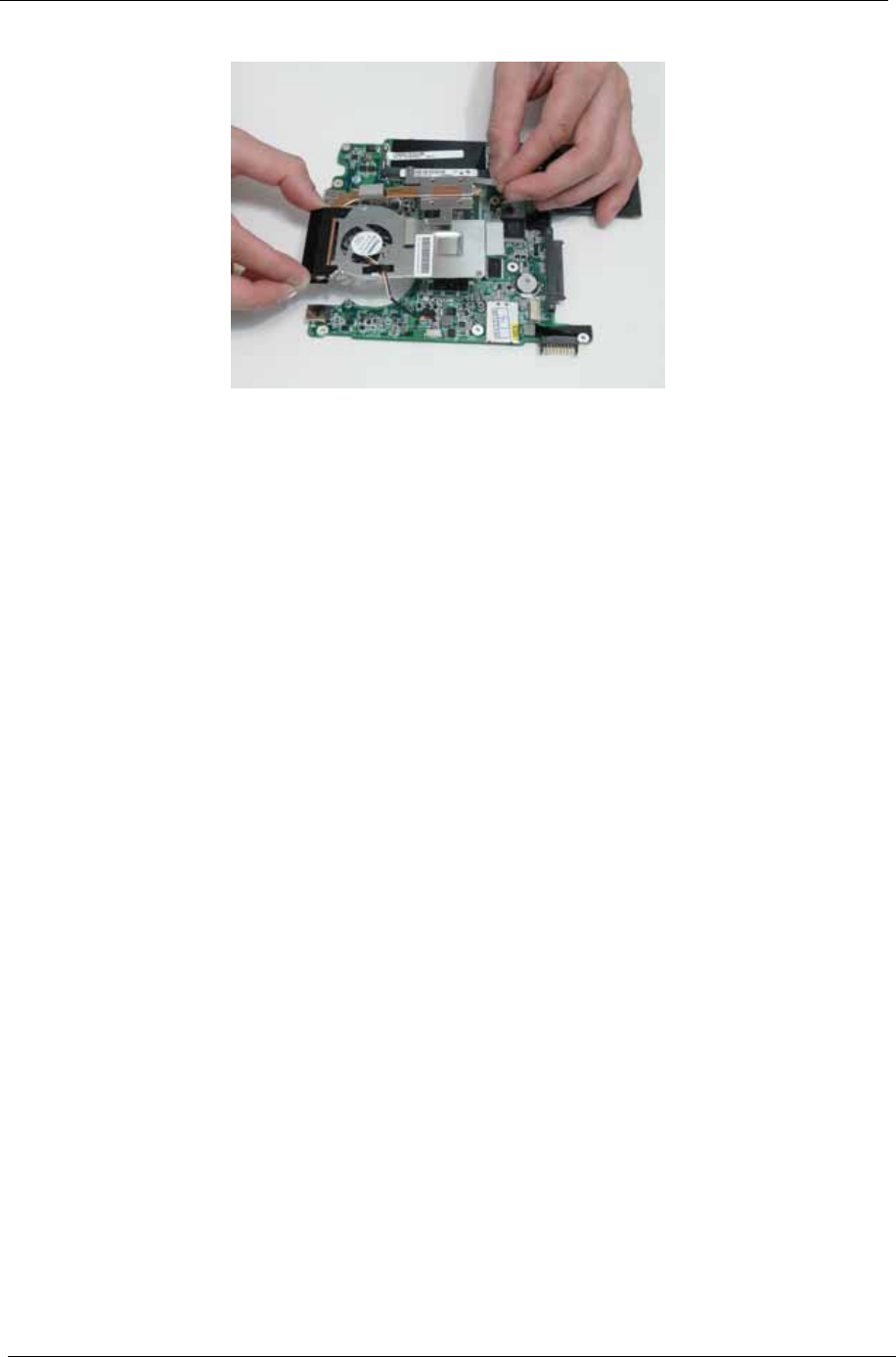
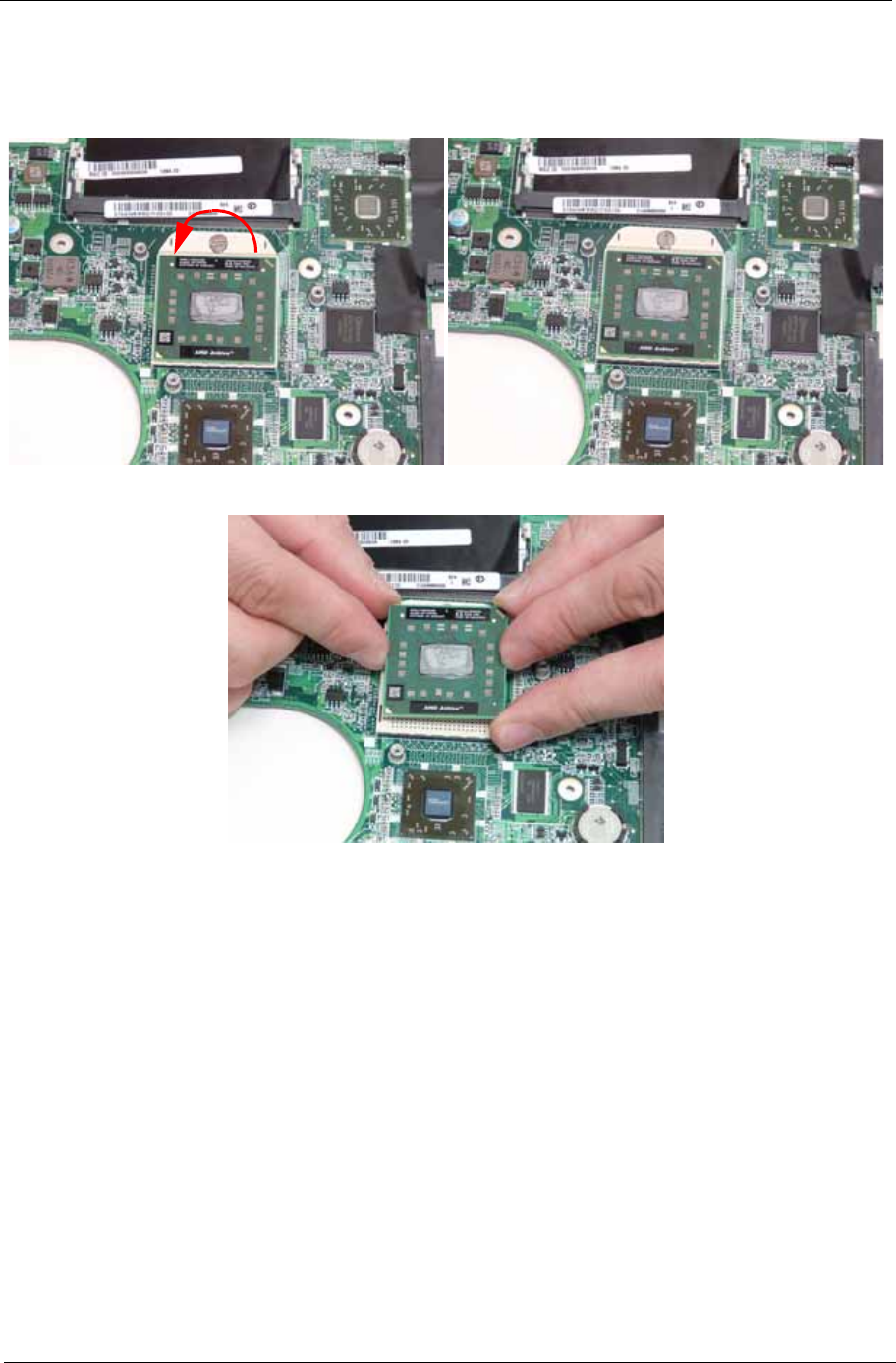
4. Using both hands, lift the Thermal Module clear of the Mainboard.
78 Chapter 3
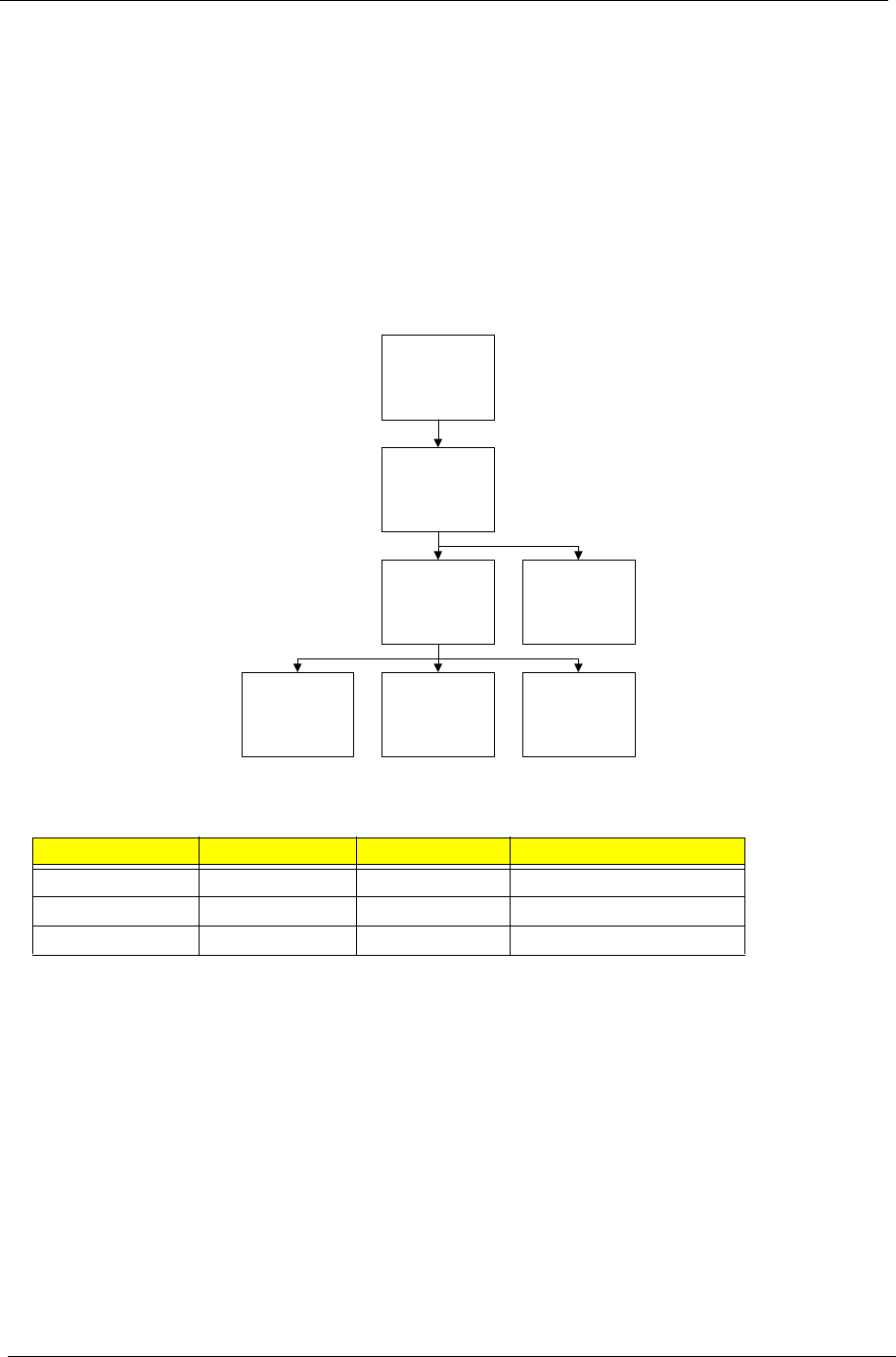
LCD Module Disassembly Process
IMPORTANT: Cable paths and positioning may not represent the actual model. During the removal and
replacement of components, ensure all available cable channels and clips are used and that the cables are
replaced in the same position.
NOTE: The product previews seen in the disassembly procedures may not represent the final product color or
configuration. The following procedure outlines the steps to disassemble the LCD Module on models with 3G
functionality. Models that do not support 3G do not require the removal of the yellow and blue Antenna cables
detailed below.
LCD Module Disassembly Flowchart
Screw List
Step Screw Quantity Part No.
LCD Bezel M2*5 6 86.TG607.004
LCD Panel M2*2 2 TBD
LCD Brackets M2*3 4 86.S0207.001
Remove
LCD Panel
Remove
LCD Bezel
Remove
LCD FPC Cable
Remove LCD
Panel from Main
Unit before
proceeding
Remove
LCD Brackets
Remove
Antennas
Remove
Camera Module
Chapter 3 79
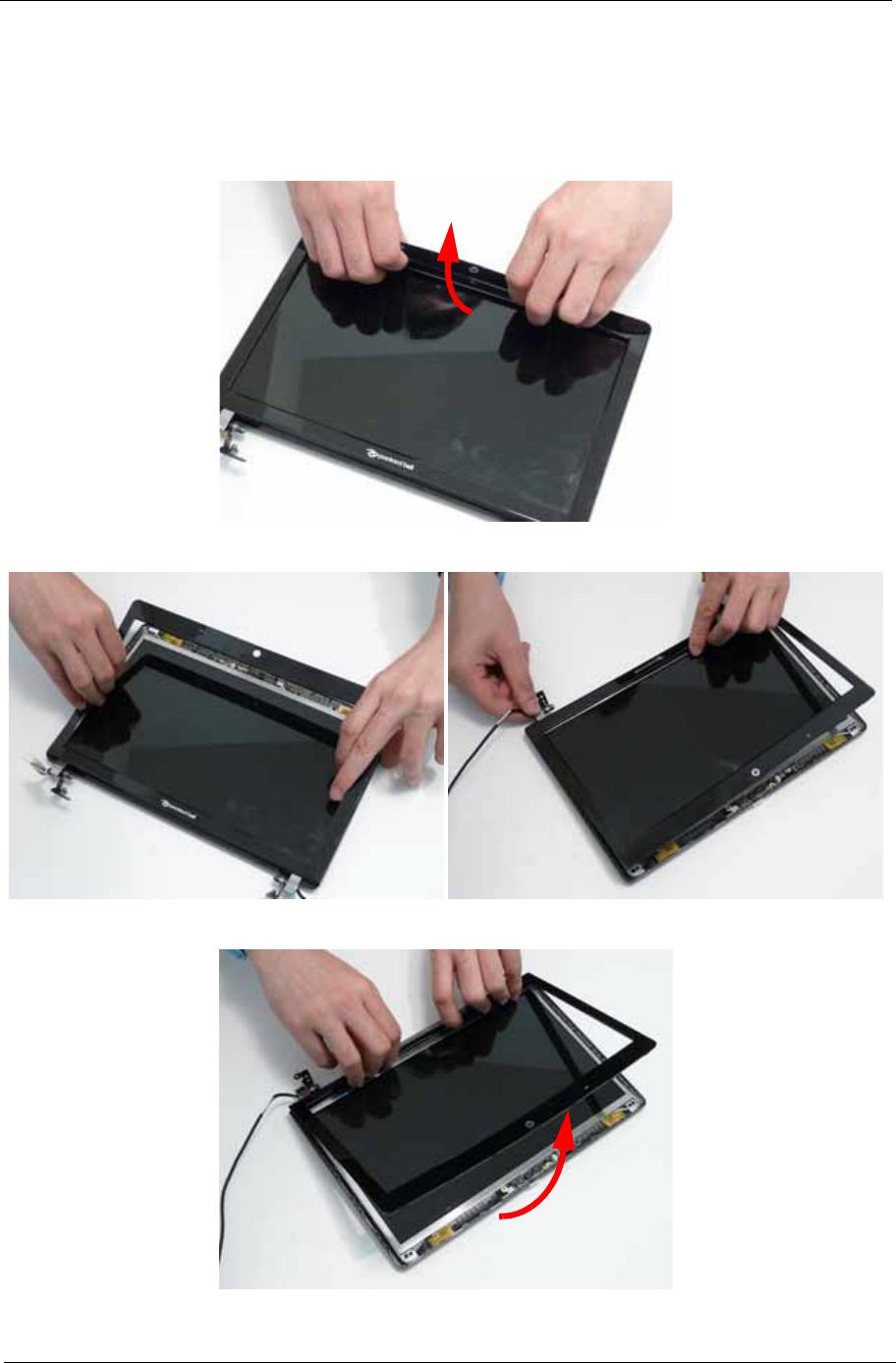
Removing the LCD Bezel
1. See “Removing the LCD Module” on page 69.
2. Starting from the inside top edge, pry the bezel away from the panel. Continue moving along the top,
prying the bezel away from the LCD Module. If necessary, use a plastic pry to release the corners of the
bezel.
3. Work down the sides as shown, then pry apart the bottom edge to remove the bezel.
4. Lift up the bezel and remove it from the LCD Module.
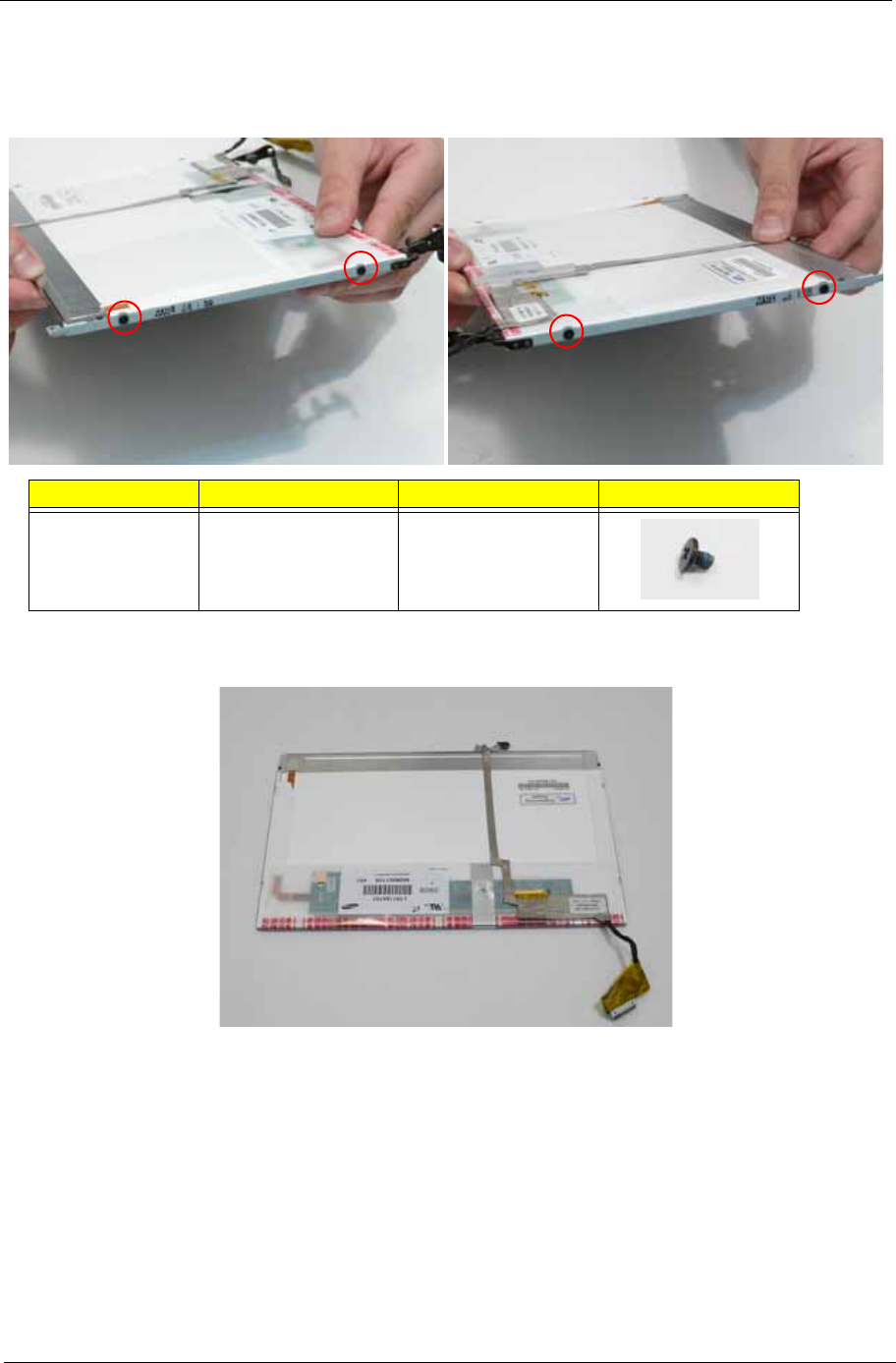
82 Chapter 3
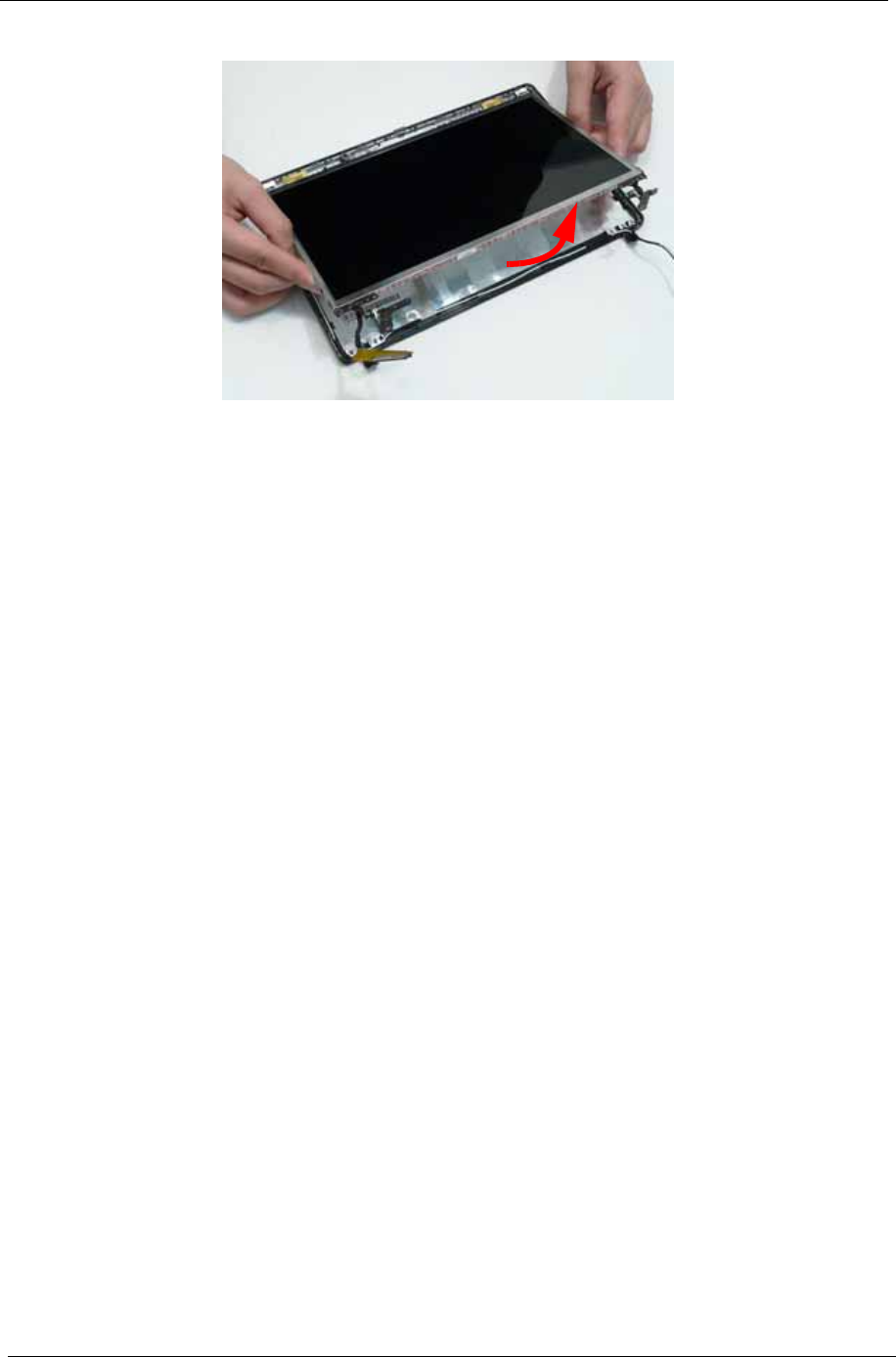
4. Lift the LCD Panel out of the LCD Module front edge first.
84 Chapter 3
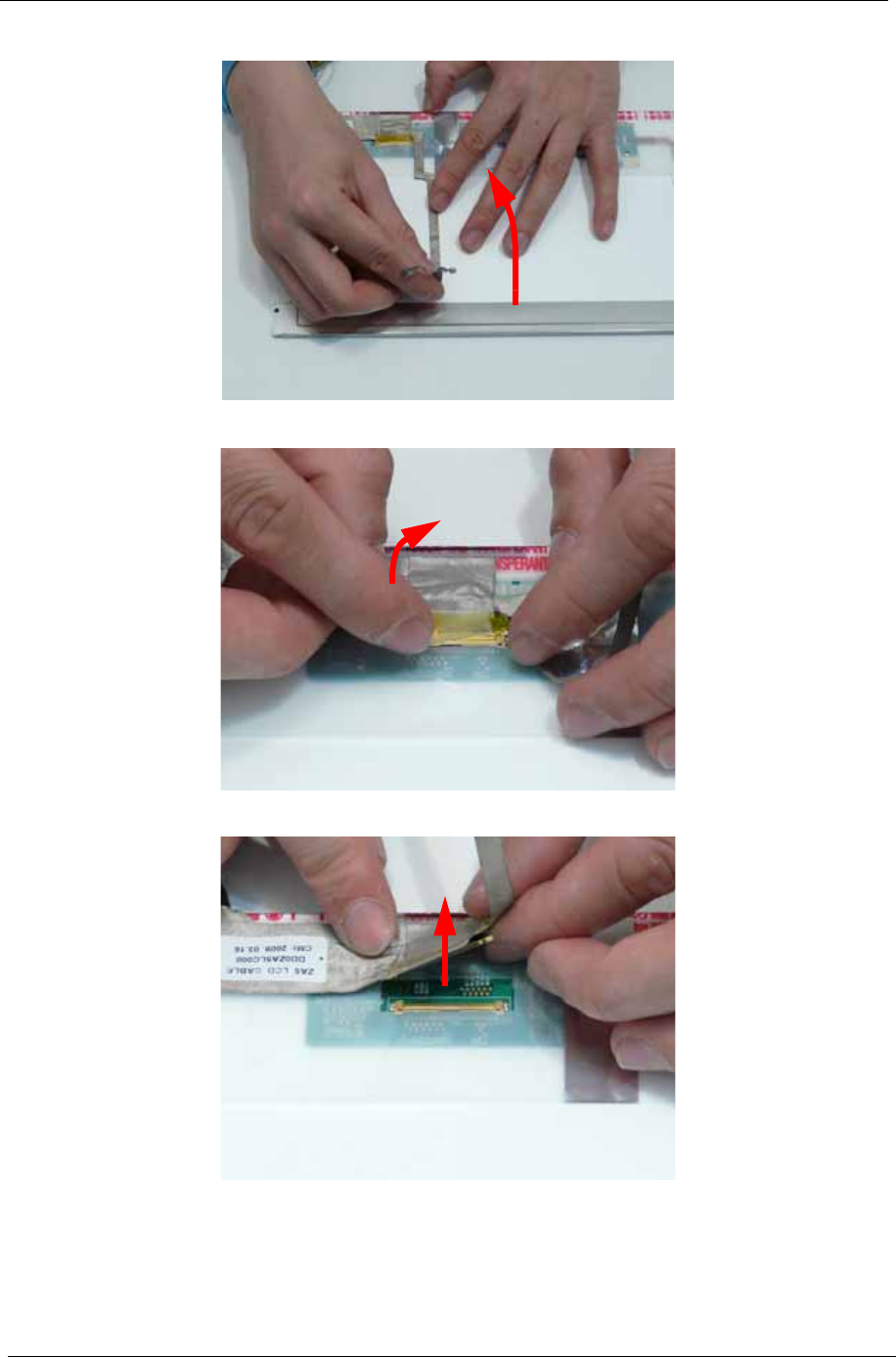
4. Lift the LCD Cable to detach the adhesive securing the cable to the LCD Panel.
5. Carefully lift the adhesive tape securing the cable connector to the LCD Panel.
6. Hold the adhesive tape clear of the LCD Panel and disconnect the LCD cable as shown.
7. Remove the cable from the LCD Panel.
Chapter 3 85
Removing the Antennas
1. See “Removing the LCD Panel” on page 81.
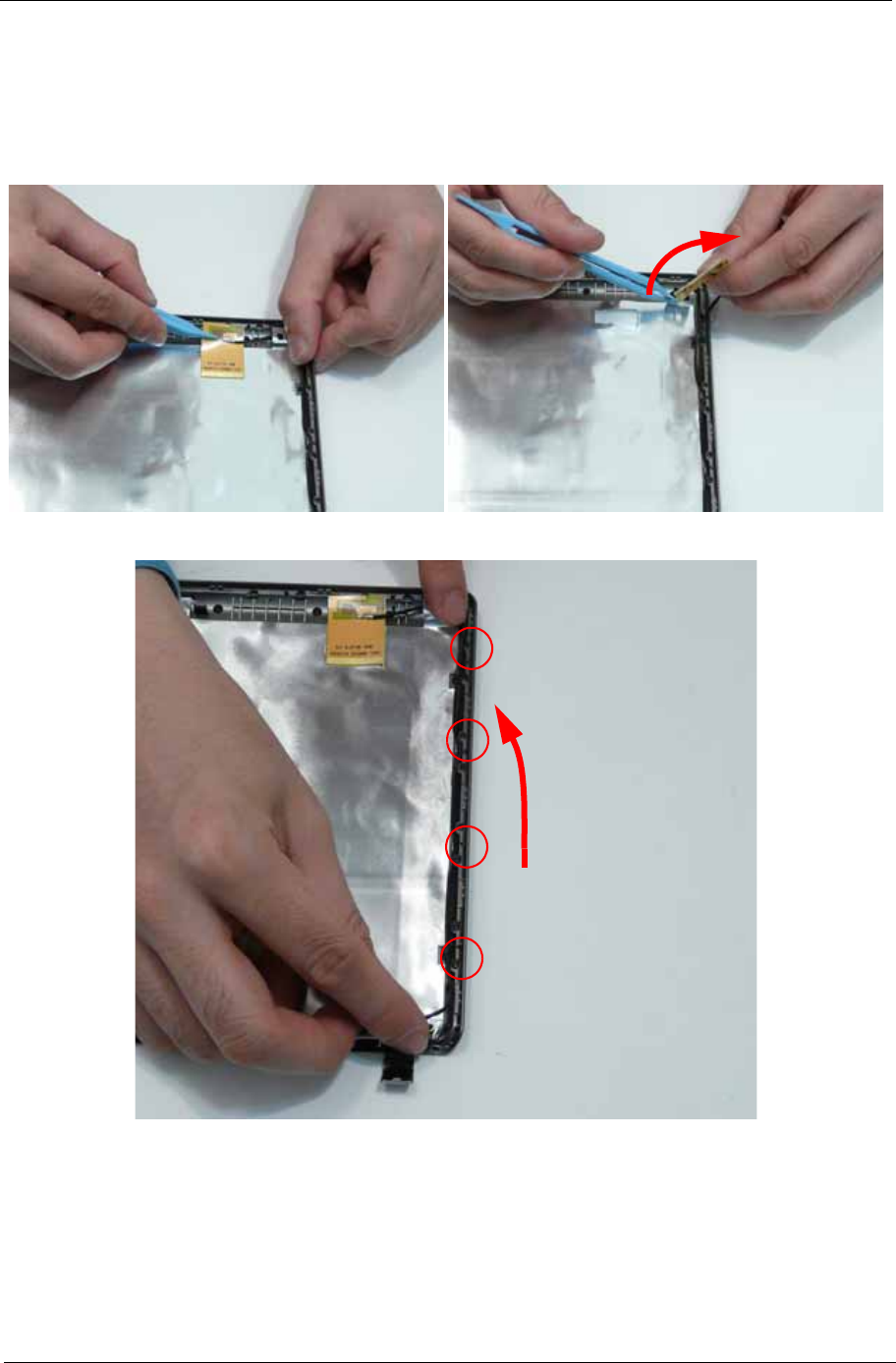
2. Carefully pry up the right Antenna pad, as shown, and remove the pad from the LCD Module.
IMPORTANT: A strong adhesive is used to secure the Antenna pad in place. Take care not to bend the pad during
removal.
3. Remove the cable from the cable channel. Ensure that the cable is free from all cable clips.
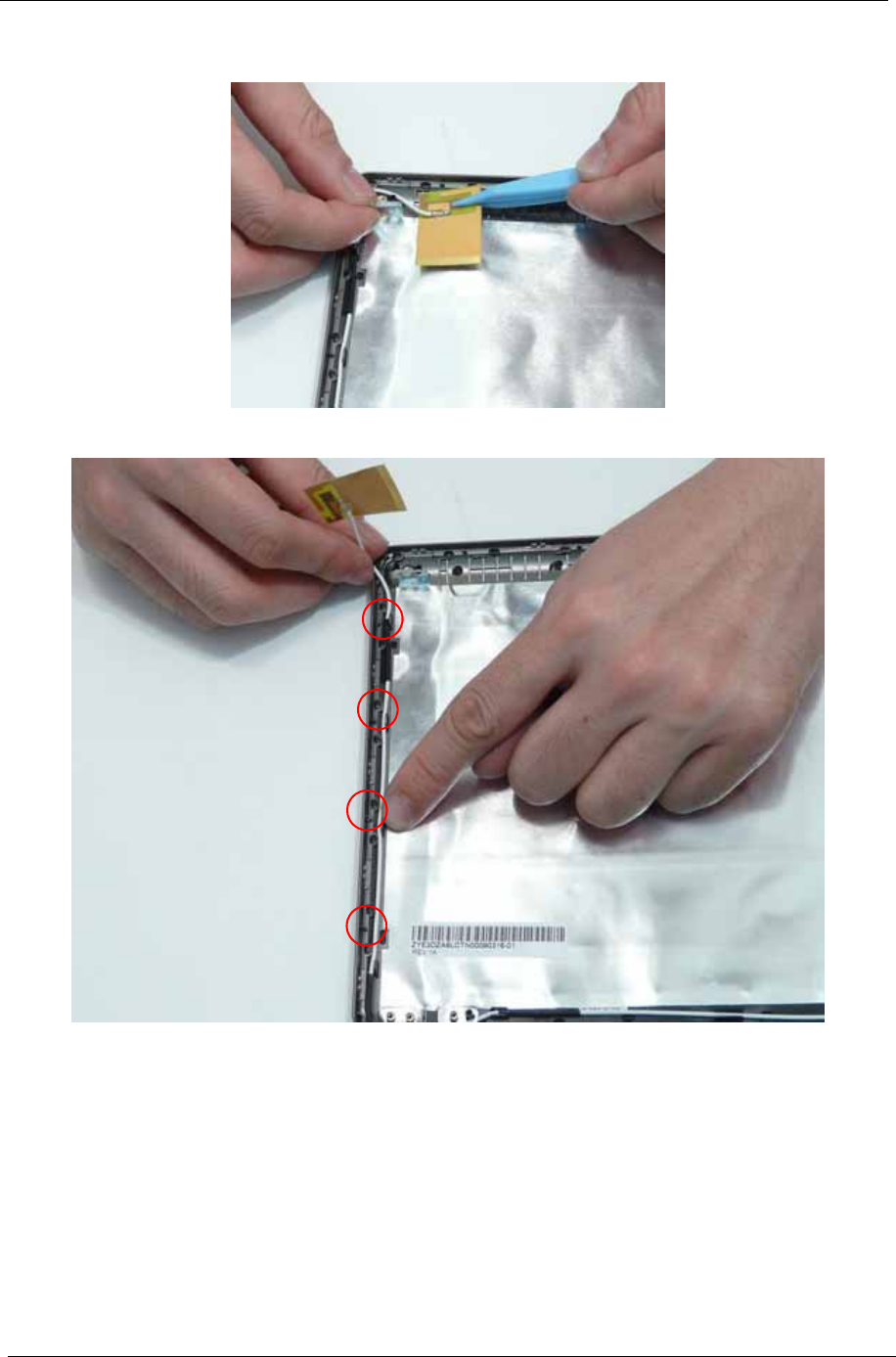
4. Carefully pry up the left Antenna pad, as shown, and remove the pad from the LCD Module.
86 Chapter 3
IMPORTANT: A strong adhesive is used to secure the Antenna pad in place. Take care not to bend the pad during
removal.
5. Remove the cable from the cable channel. Ensure that the cable is free from all cable clips.
Chapter 3 87
LCD Module Reassembly Procedure
Replacing the Antennas
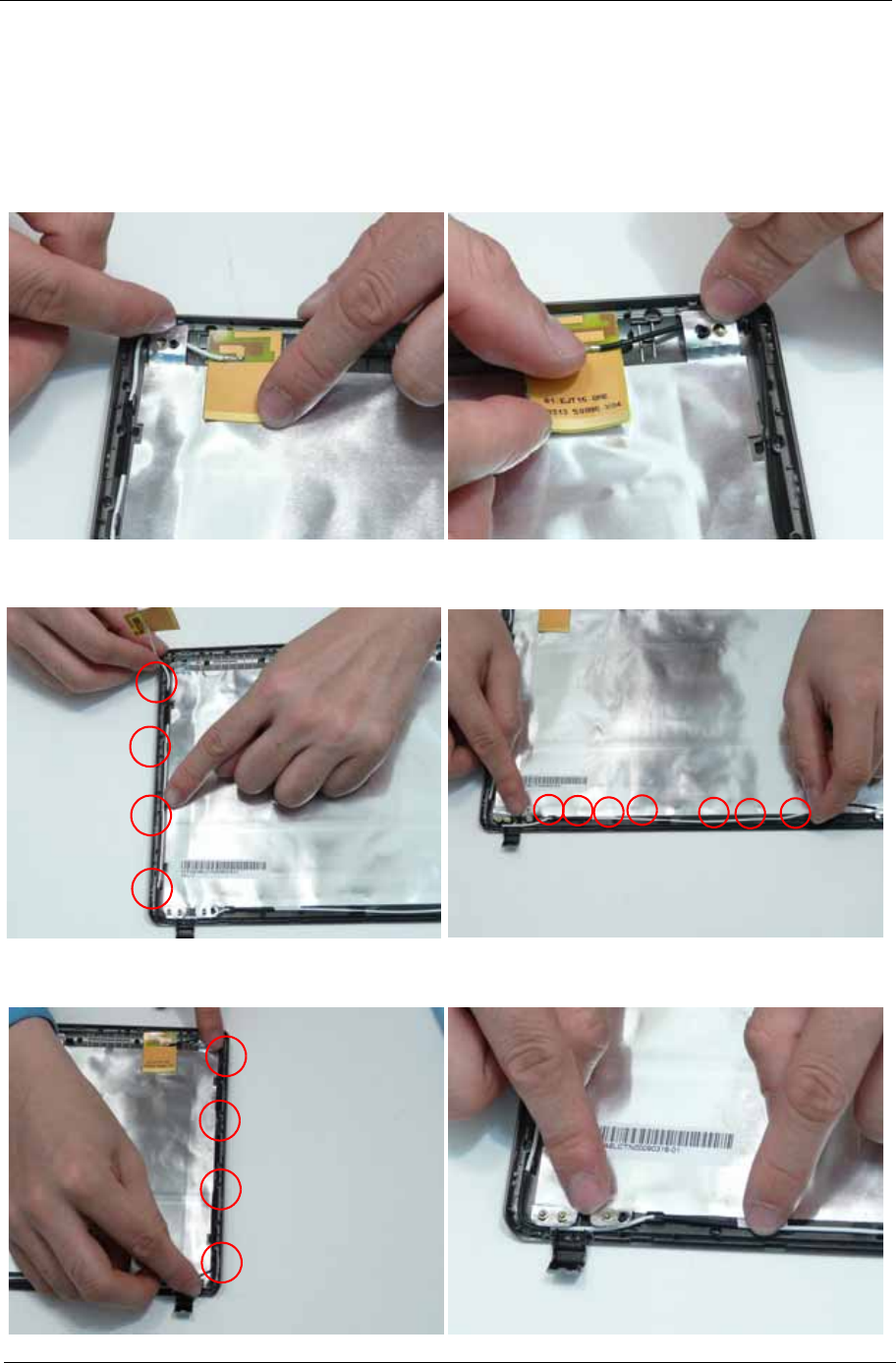
1. Remove the protective covering on the left and right Antenna pads. Place the Antenna pads in the LCD
Module and press down to secure the adhesive in place.
IMPORTANT: be sure the cables pass behind the shielding material as shown.
2. Run the left side cable down the side and along the lower edge of the LCD Module using all the available
cable clips.
3. Run the right side cable down the side of the LCD Module using all the available cable clips. Be sure the
cables pass behind the shielding material as shown.
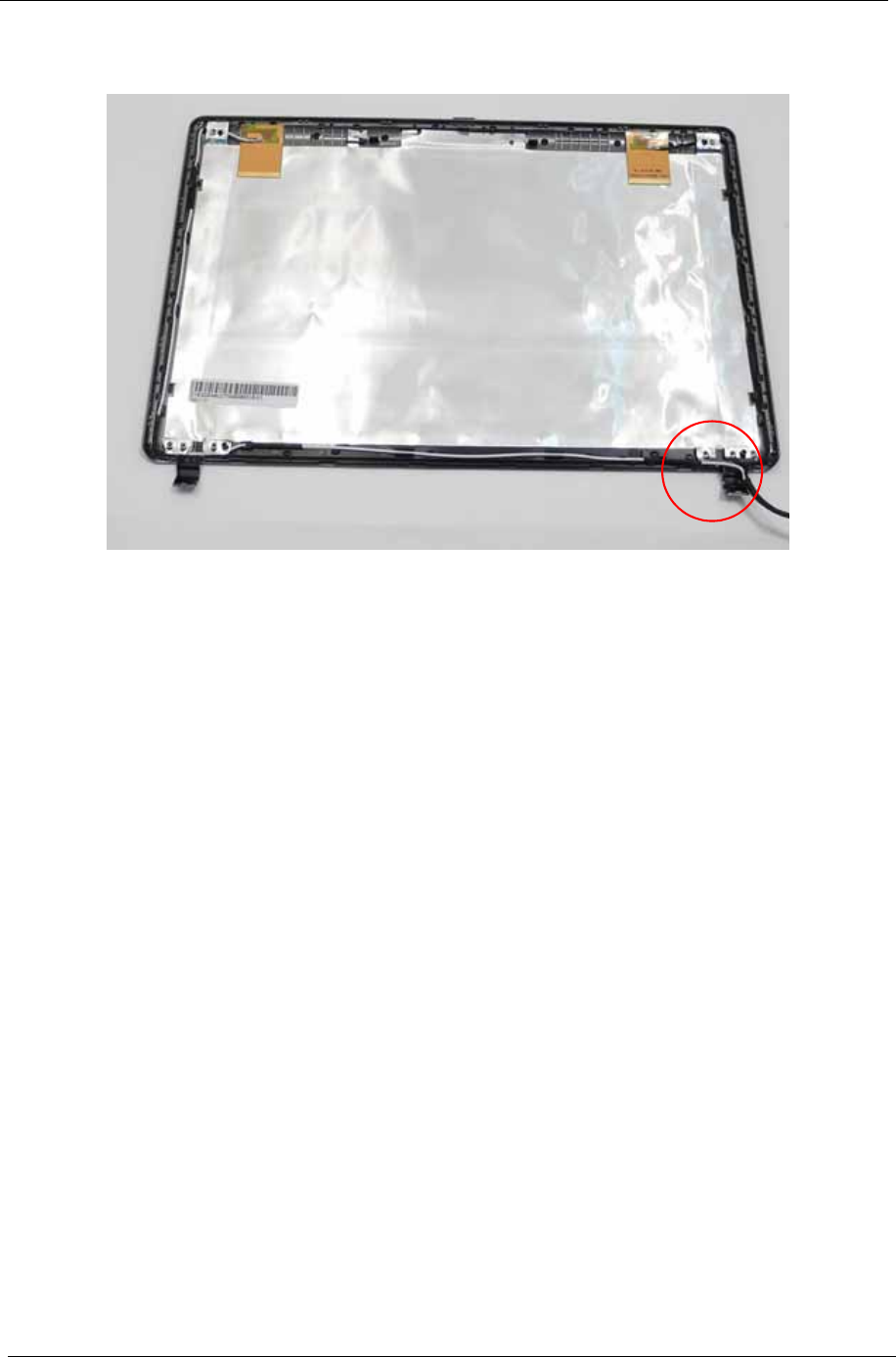
88 Chapter 3
NOTE: The LCD Module appears as shown when the Antennas are replaced correctly. Ensure that the
Antennas run through the hinge well as shown to avoid trapping when the LCD Panel is replaced.
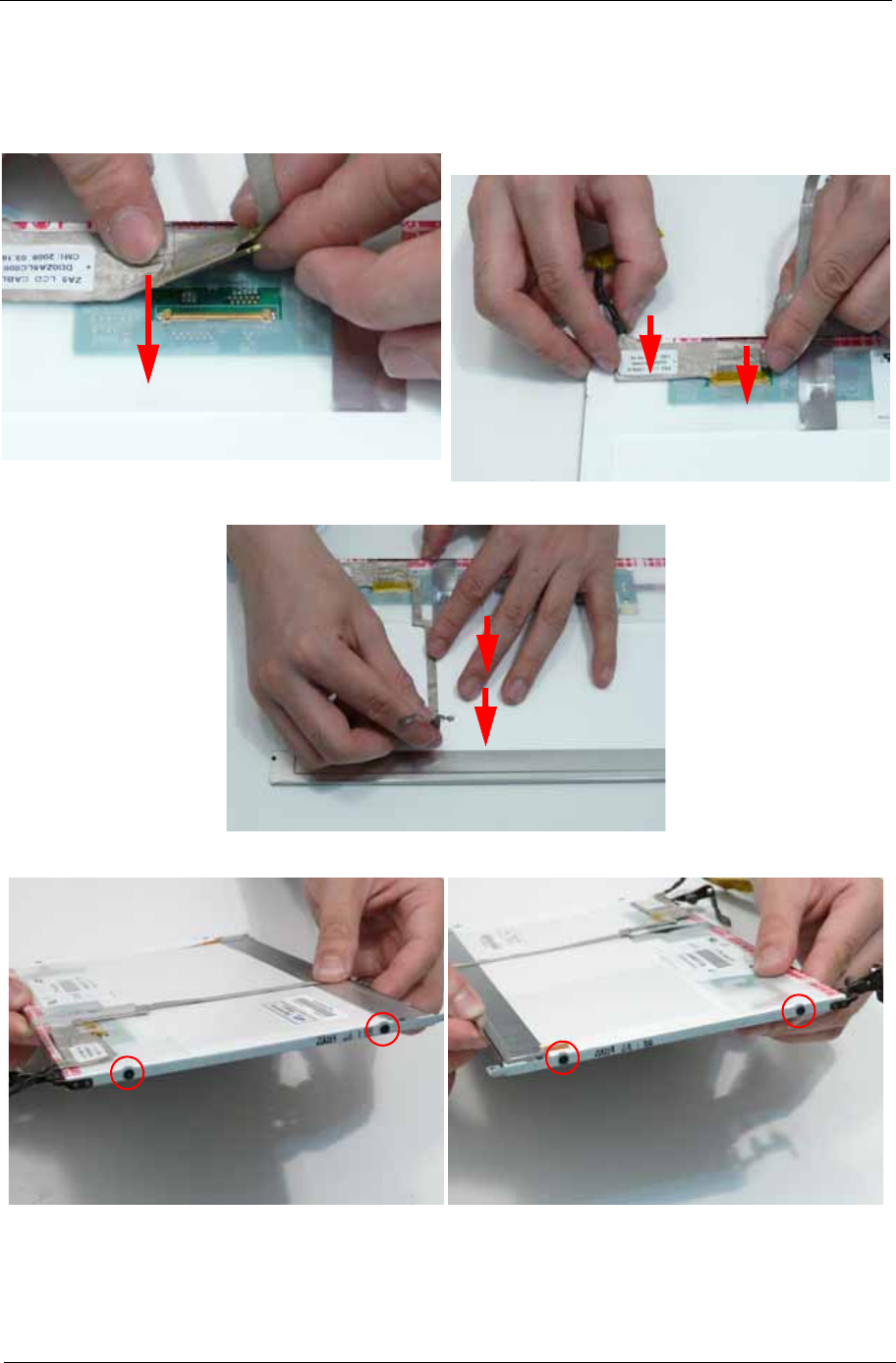
Chapter 3 89
Replacing the LCD Cable and Brackets
1. Insert the LCD Cable into the panel connector
as shown. 2. Secure the connector by replacing the adhesive
strip as shown. Press down to secure the
adhesive.
3. Run the LCD cable along the panel as shown. Press down to secure the adhesive.
4. replace the four screws (two each side) securing the LCD Brackets to the LCD Panel.
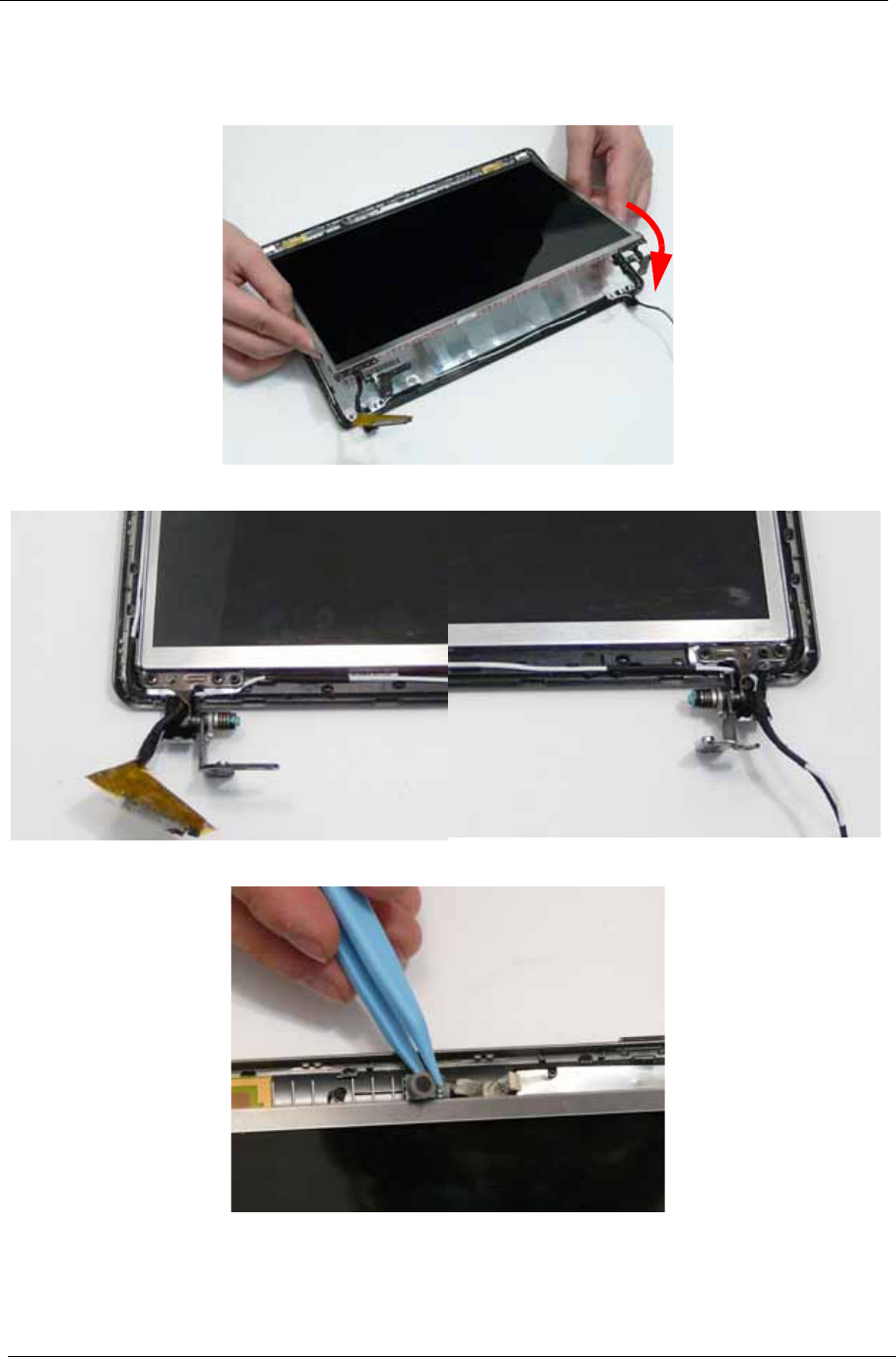
90 Chapter 3
Replacing the LCD Panel
1. Replace the LCD Panel top edge first as shown. Lower the Panel in to the LCD Module, ensuring the LCD
cables are not trapped between the panel and the casing.
2. Ensure the cables and Antennas pass through the hinge wells as shown.
3. Press down to secure the adhesive holding the Microphone in place.
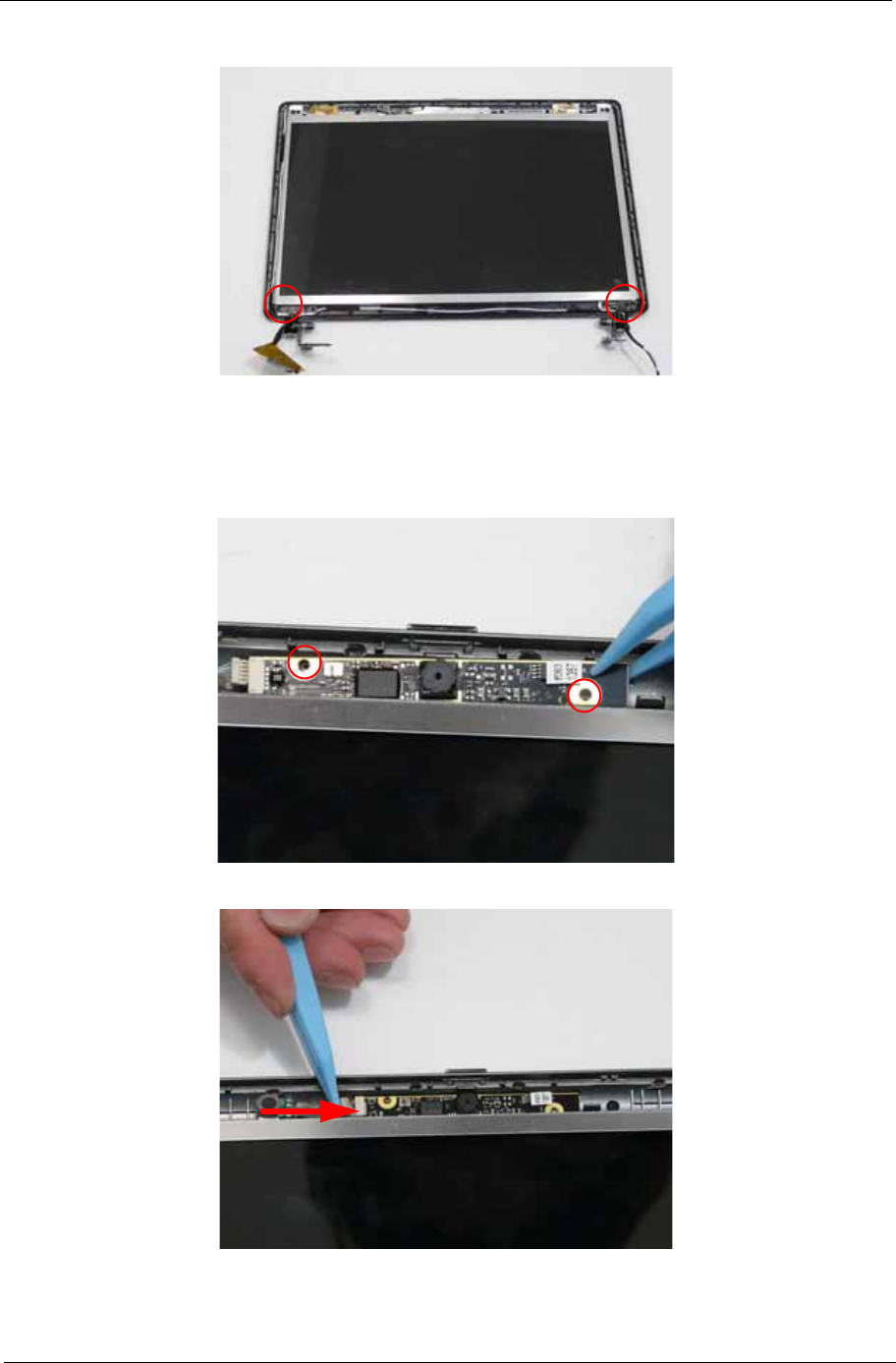
Chapter 3 91
Replacing the Camera Board
4. Replace the two securing screws.
1. Align the locating slots on the Camera Module with the locating pins on the LCD Module.
2. Place the Camera Module in the LCD Module and press down to secure it in place.
3. Connect the Camera cable as shown.
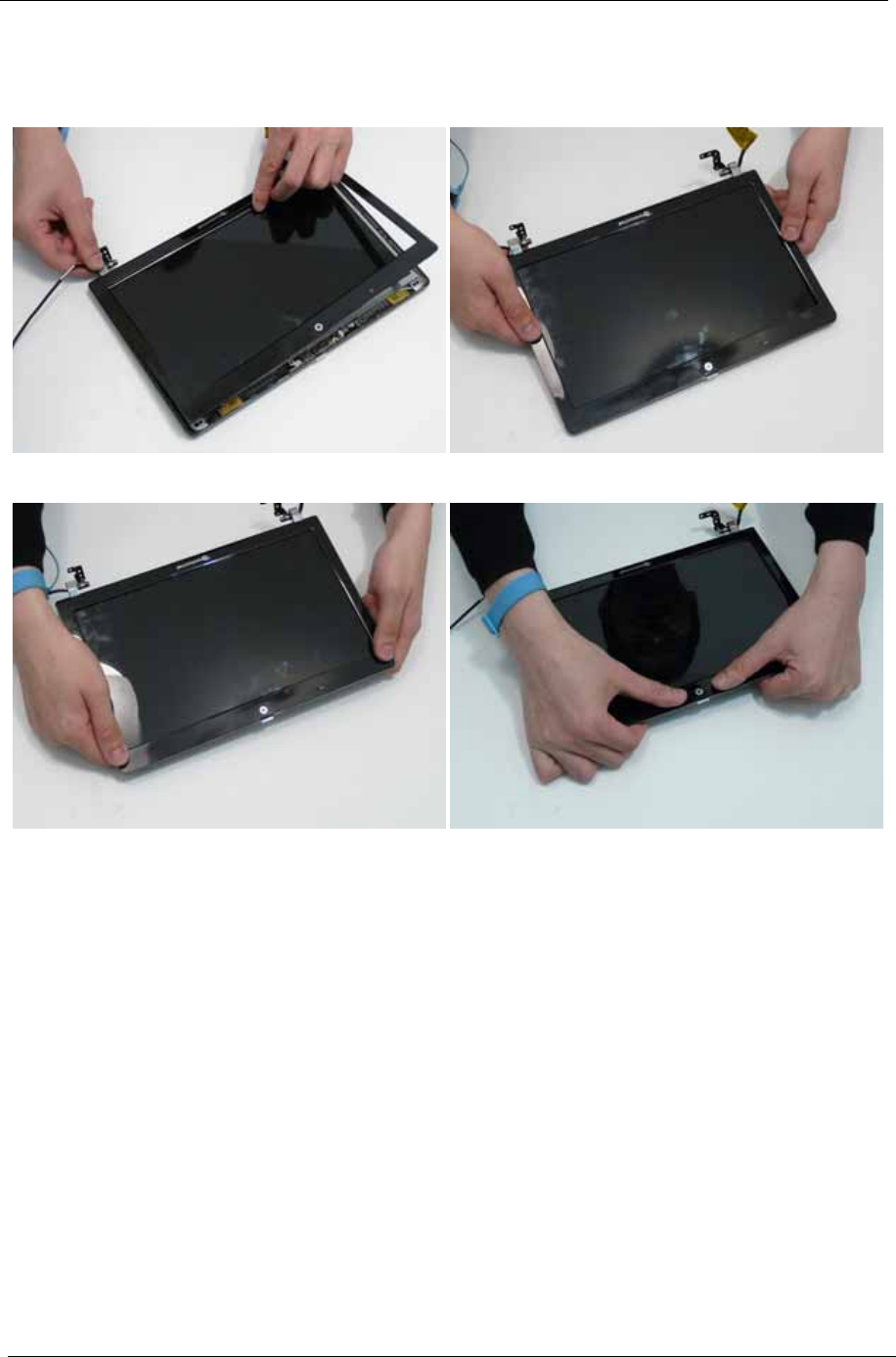
92 Chapter 3
Replacing the LCD Bezel
1. Replace the bezel bottom edge first as shown. Ensure that the cables are not trapped between the bezel
and LCD Module and pass through the hinge wells.
2. Press down around the edges of the bezel until there are no gaps between the covers.
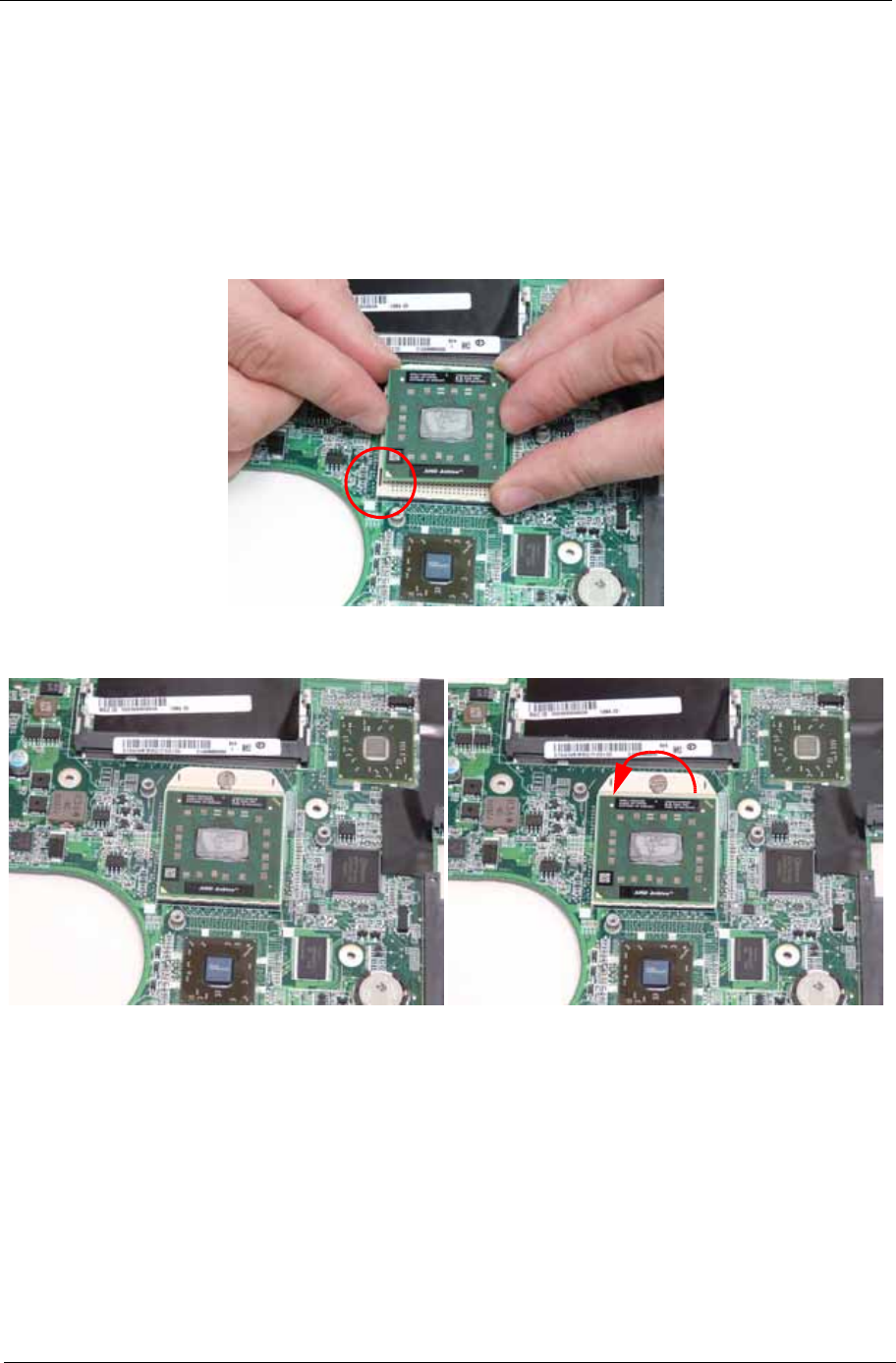
Chapter 3 93
Main Module Reassembly Procedure
Replacing the CPU
1. Insert the CPU into the socket.
IMPORTANT: be sure to align the pins correctly with the marker on the CPU. Failure to do will likely result in
permanent damage to teh CPU.
NOTE: If replacing only the CPU, make sure to follow the instrucitons for cleaning and replacing thermal pads
as described in “Replacing the Thermal Module” on page 93.
2. Using a flat blade screw driver, rotate the CPU screw 90° counterclockwise to lock the CPU into the
socket.
Replacing the Thermal Module
IMPORTANT: Ensure all heat pads are in place before replacing the Thermal Module.
The following thermal pads are approved for use:
• Eapus XR-PE
1. Remove all traces of thermal grease or pad adhesive from the CPU and thermal module using a lint-free
cloth or cotton swab and Isopropyl Alcohol, Acetone, or other approved cleaning agent.
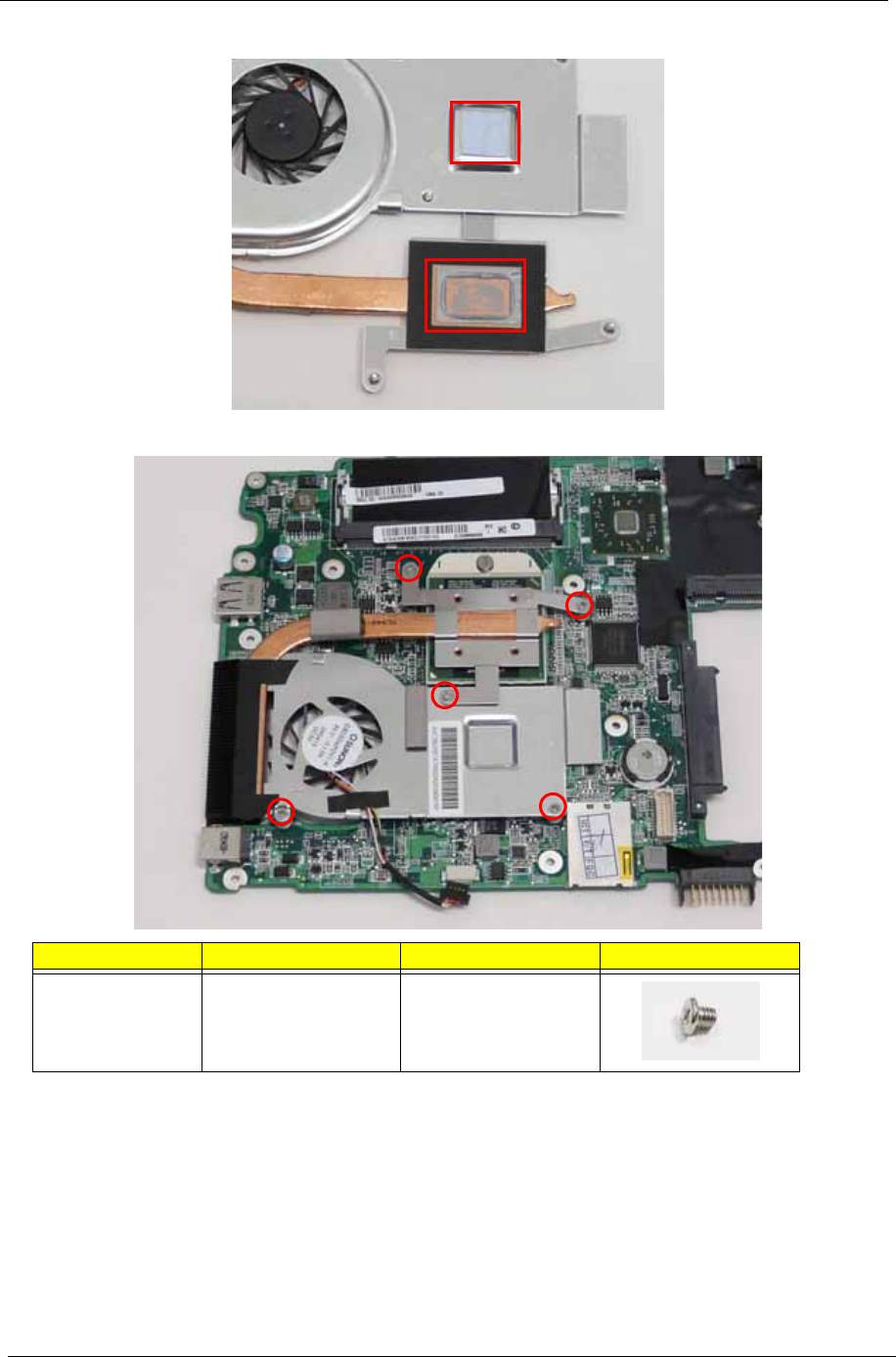
94 Chapter 3
2. Place the pads as shown.
3. Place the Thermal Module onto the Mainboard and insert the screws in order from 1 to 5..
Step Size Quantity Screw Type
Thermal Module M2*3 5
1
3
2
4
5
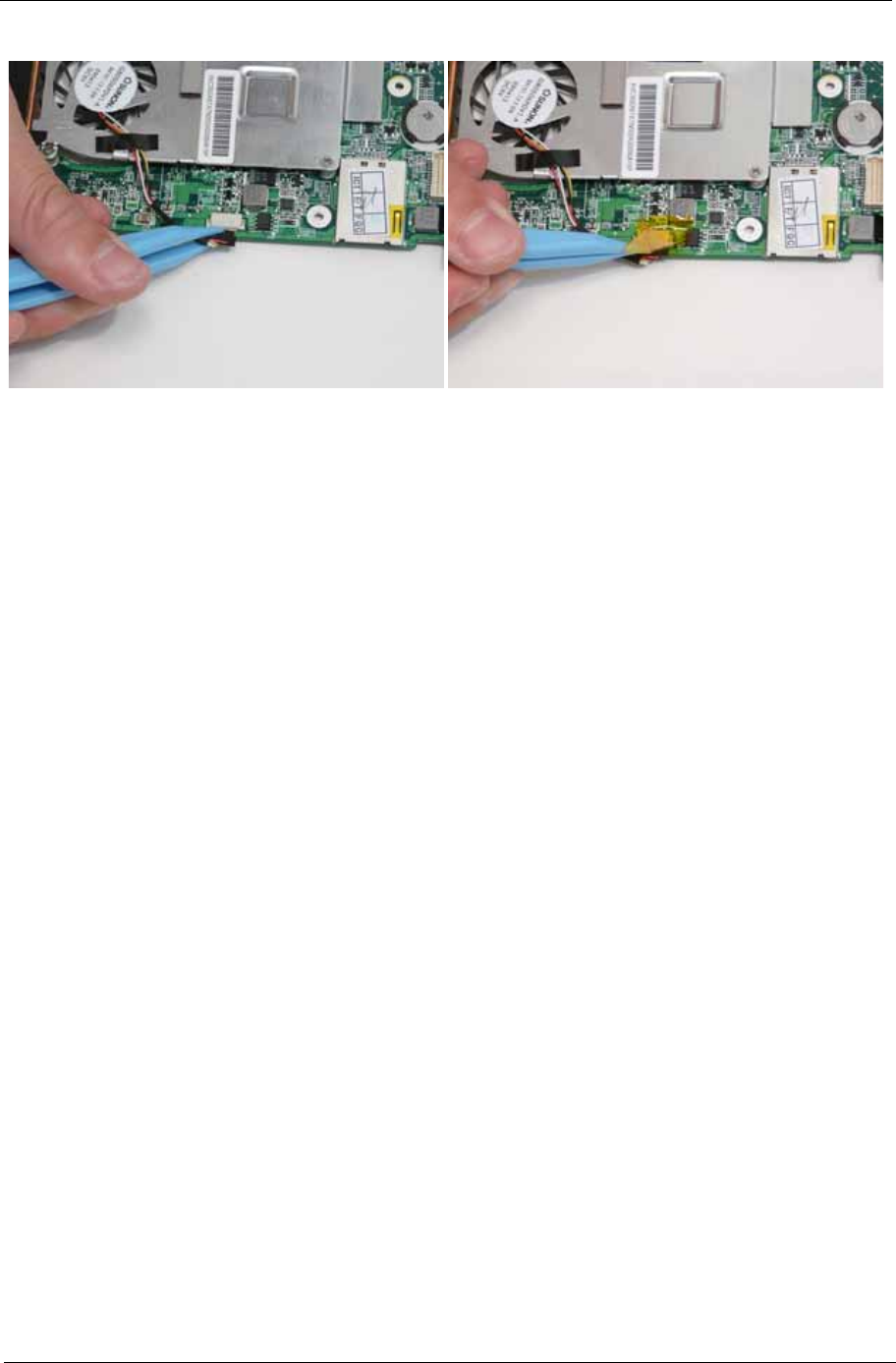
Chapter 3 95
4. Connect the fan power cable to the Mainboard and replace the adhesive.
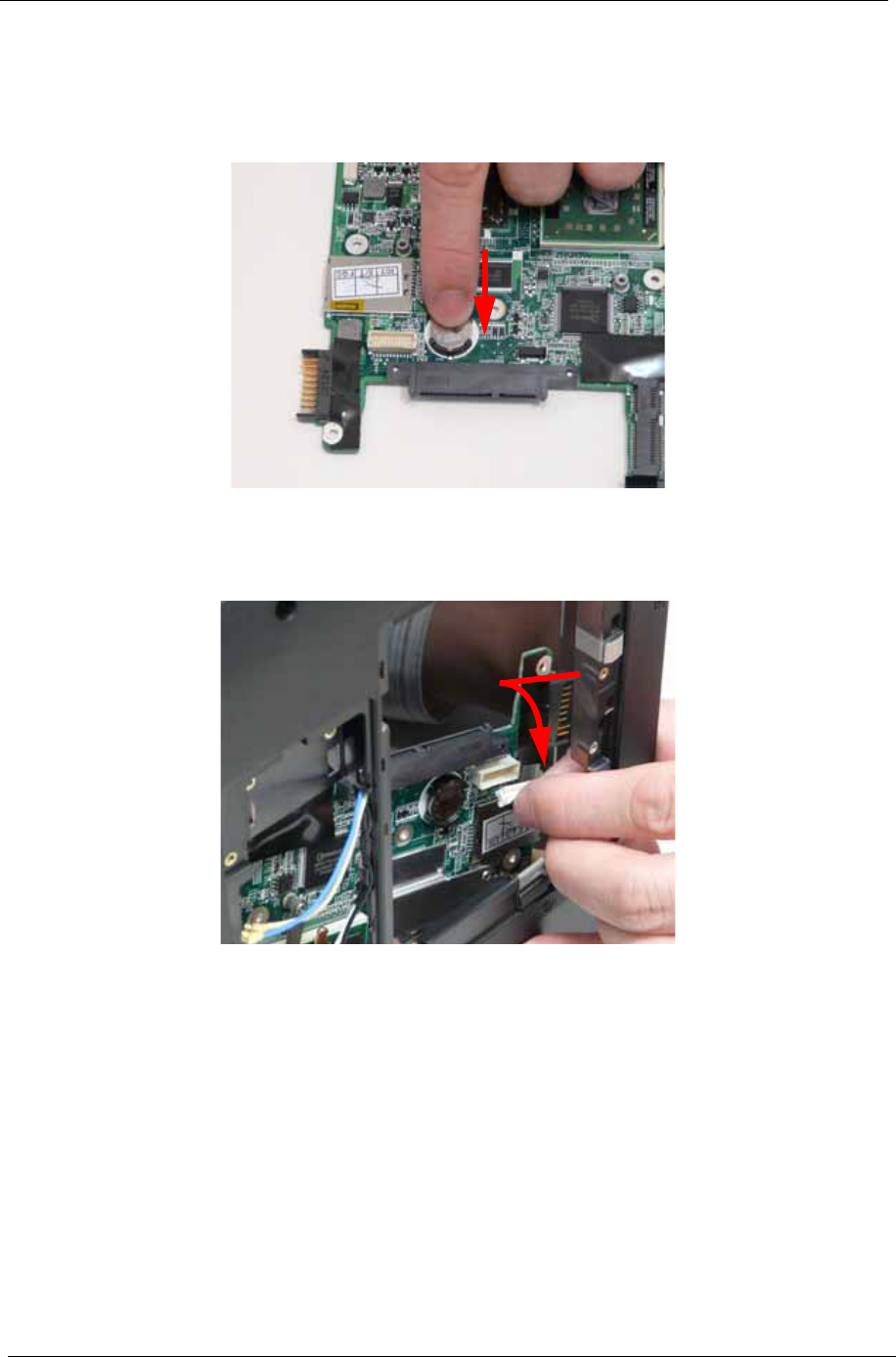
96 Chapter 3
Replacing the RTC Battery
IMPORTANT: Follow local regulations for disposal of all batteries.
1. See “Removing the Mainboard” on page 72.
2. Disconnect the RTC Battery as shown.
Replacing the Mainboard
1. Turn the assembly and Mainboard onto its side and connect the mainboard to the VGA cable as shown.
2. Insert the main board into the lower cover port-edge first.
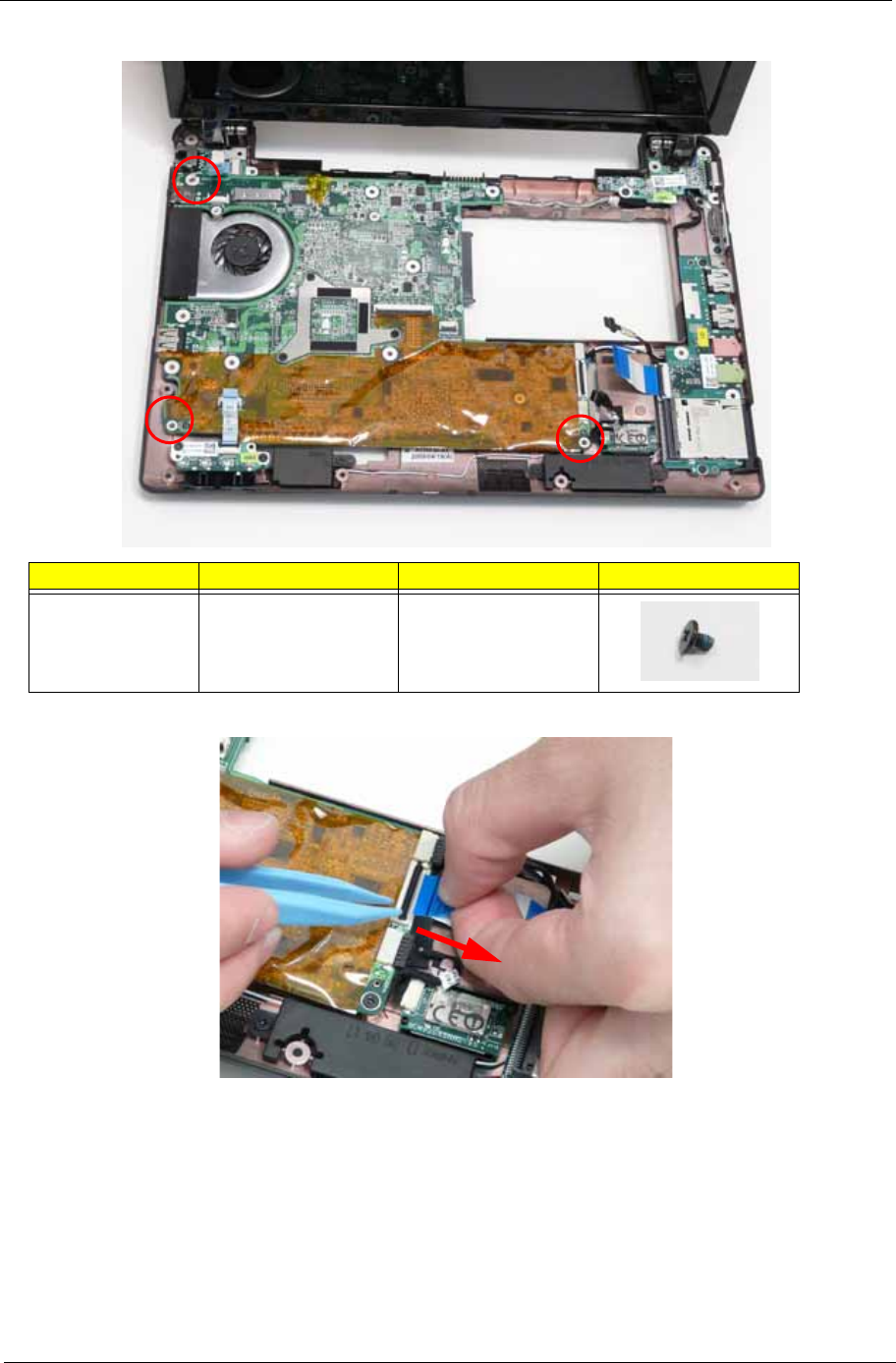
Chapter 3 97
3. Replace the three screws to secure the Mainboard to the Lower Cover as indicated.
4. Connect the Card Reader FFC to the Mainboard and close the locking latch.
Step Size Quantity Screw Type
Mainboard M2*3 3
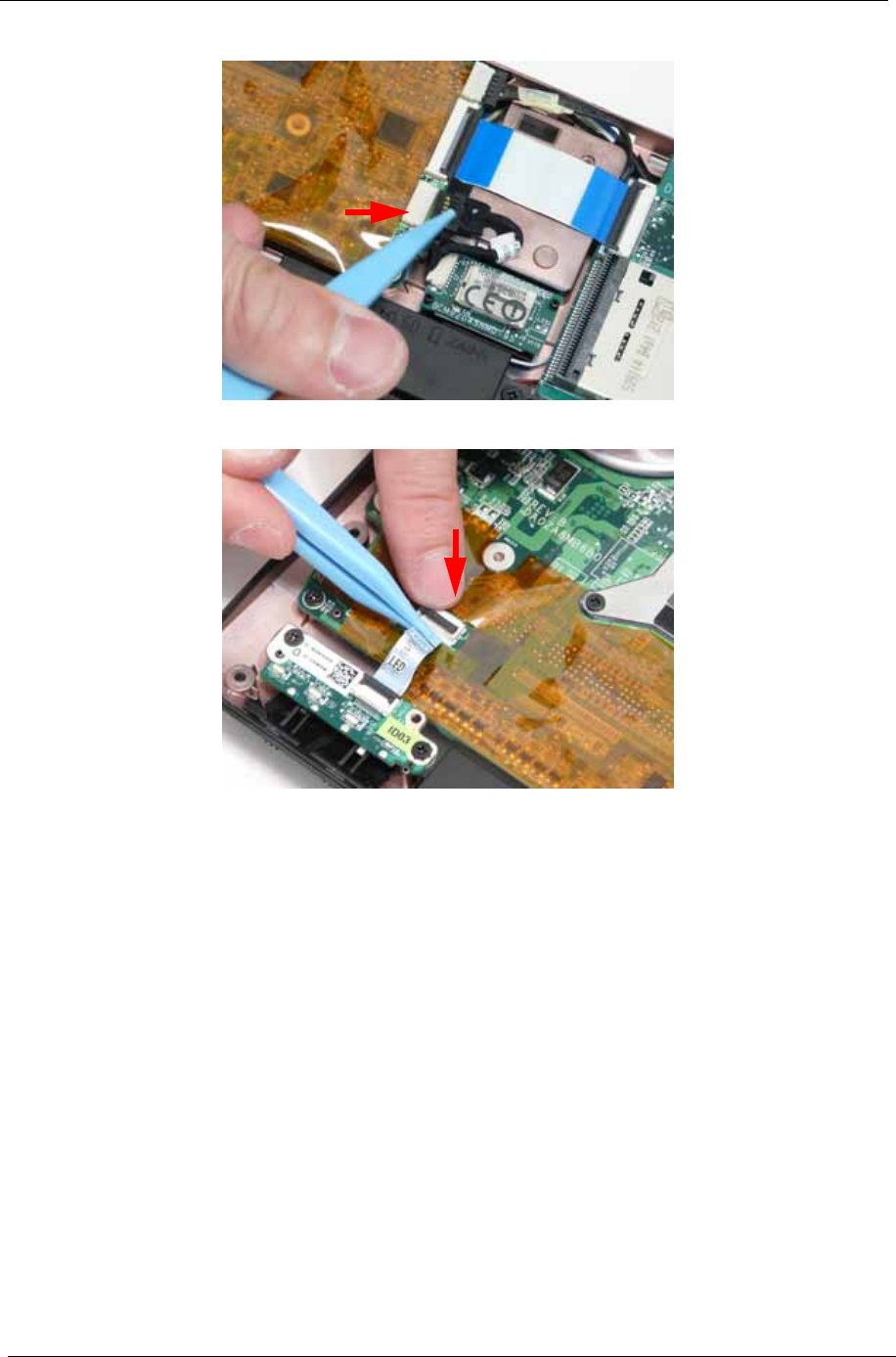
98 Chapter 3
5. Connect the Bluetooth cable to the Mainboard.
6. Connect the LED Board FFC to the Mainboard and close the locking latch.
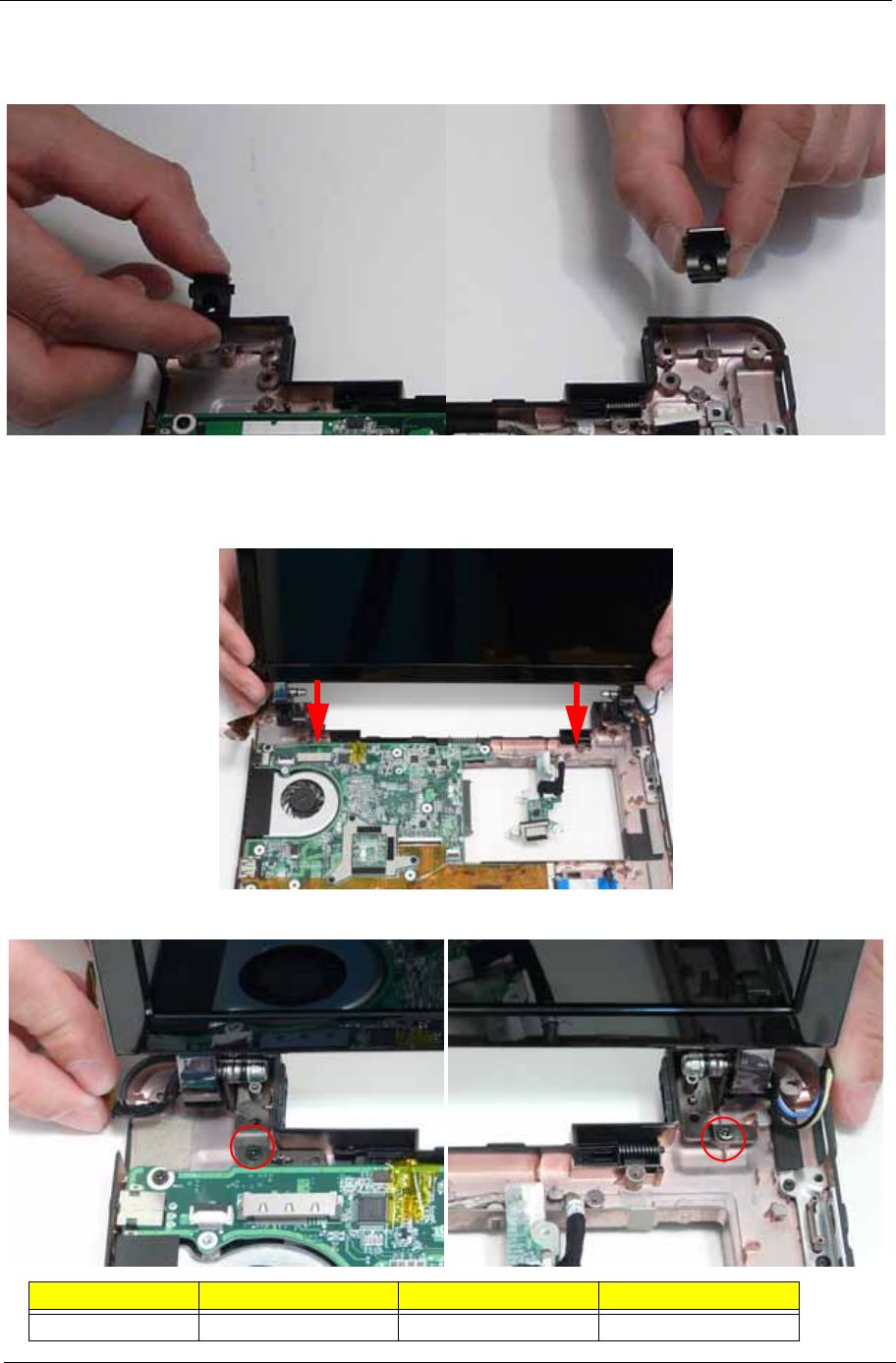
Chapter 3 99
Replacing the Hinge Wells
1. Slide the two hinge wells into the Lower Cover as indicated.
Replacing the LCD module
1. Using both hands, lift the LCD Module away from the Lower Cover.
2. Remove the two screws on the rear of the Lower Cover securing the LCD Module to the computer.
Step Size Quantity Screw Type
LCD Module M2*3 2
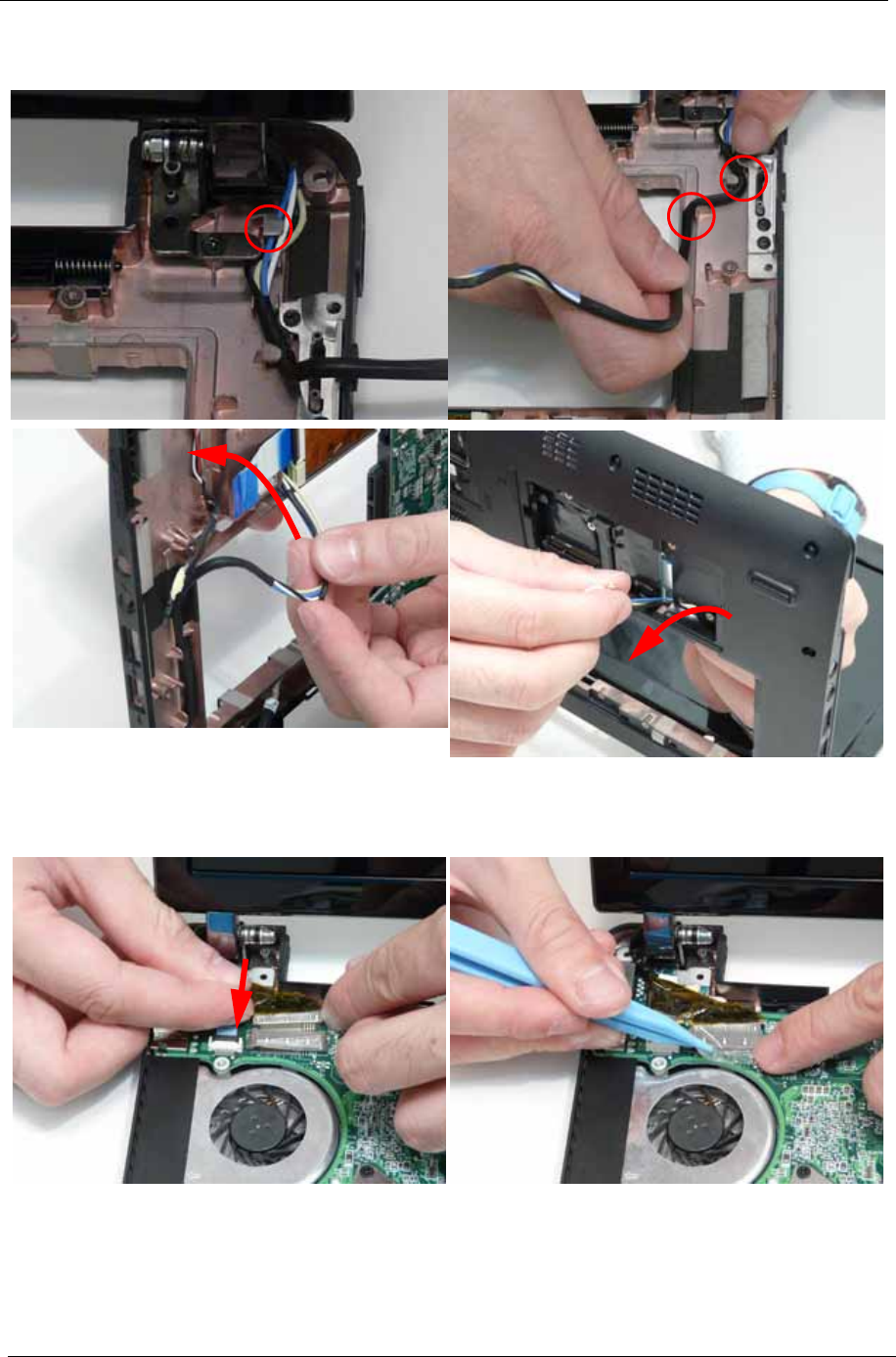
100 Chapter 3
IMPORTANT: Ensure that the LCD cables are free from all cable clips before removing the LCD Module.
3. Insert the Antenna cables into the cable channel on the Lower Cover as shown.
NOTE: If replacing the LAN card, skip the next step.
4. Connect the LVDS cable to the Mainboard and adhire the adhesive strip to secure the LVDS cable in
place.
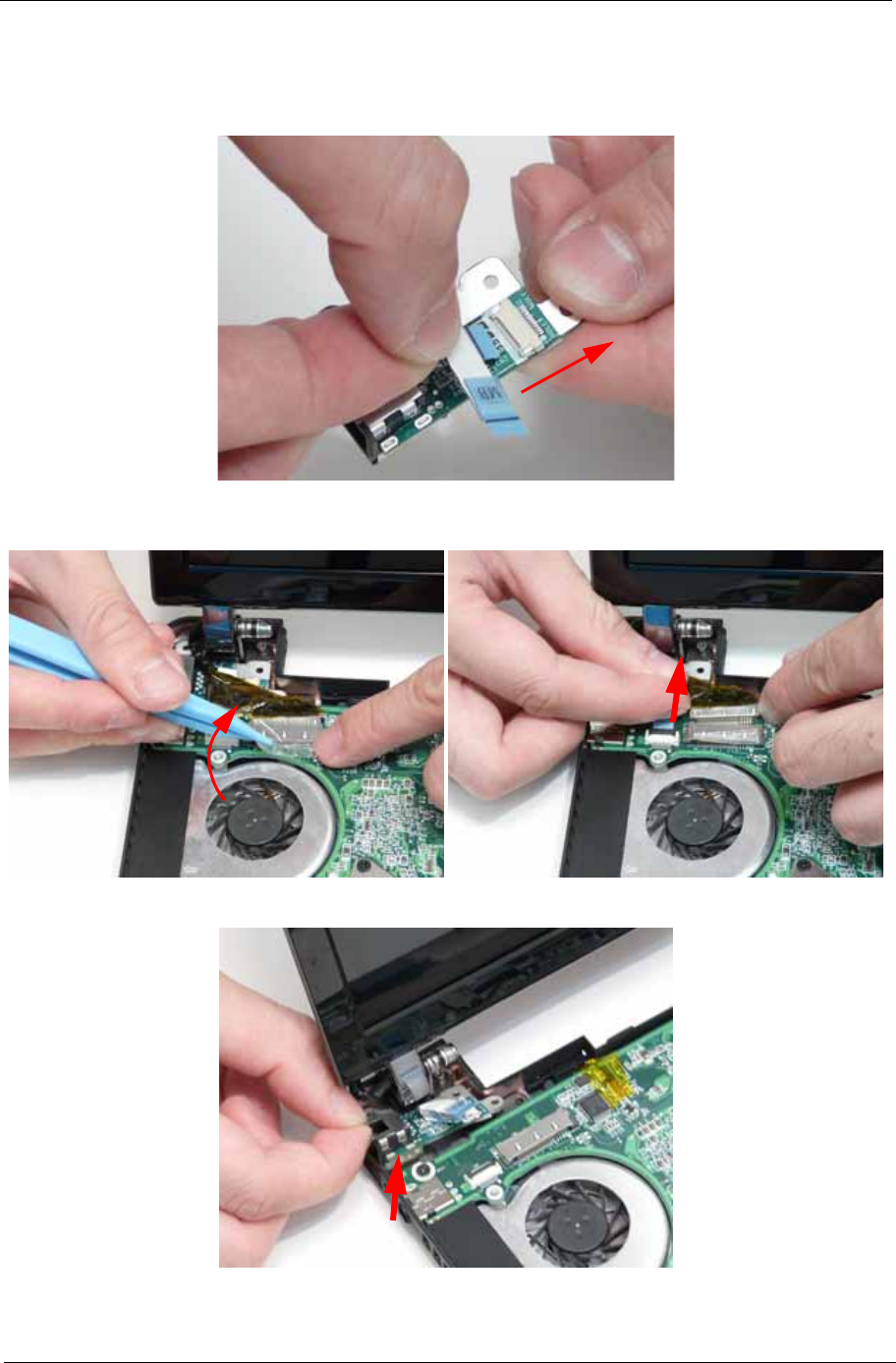
Chapter 3 101
Replacing the LAN Board
1. Connect the FFC cable to the LAN Board by pushing the cable into the connector shown.
NOTE: The FFC Cable connector to the LAN board does not have a locking latch.
2. If the LVDS cable is still connected, lift the adhesive strip securing the LVDS cable in place and disconnect
the cable from the Mainboard.
3. Insert the LAN Board into the Lower Cover as shown.
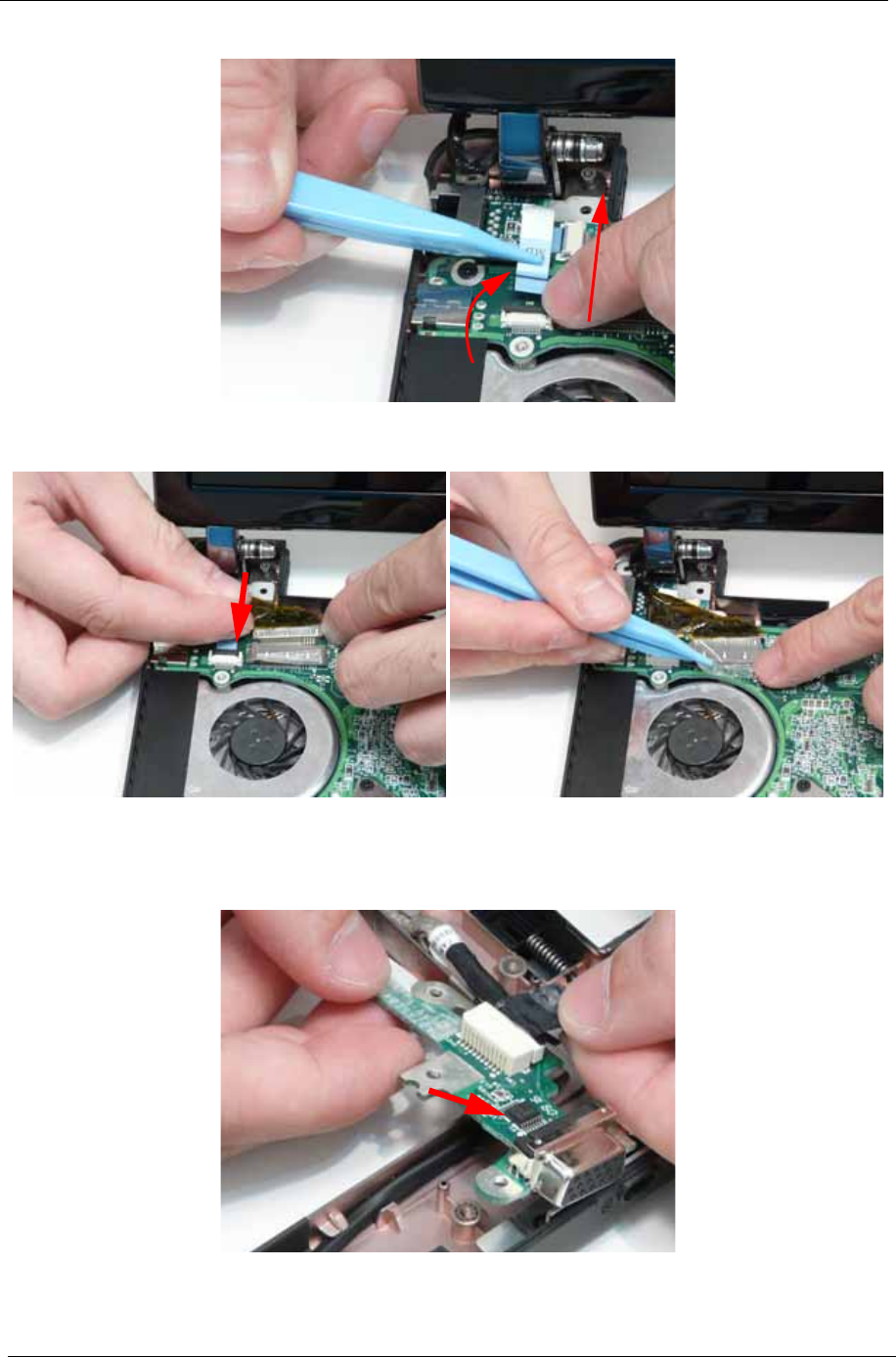
102 Chapter 3
4. Connect the LAN Board cable to the Mainboard and close the FFC locking latch.
5. Connect the LVDS cable to the Mainboard and adhire the adhesive strip to secure the LVDS cable in
place.
Replacing the VGA Board
1. Connect the cable from the VGA Board and flip the board over.
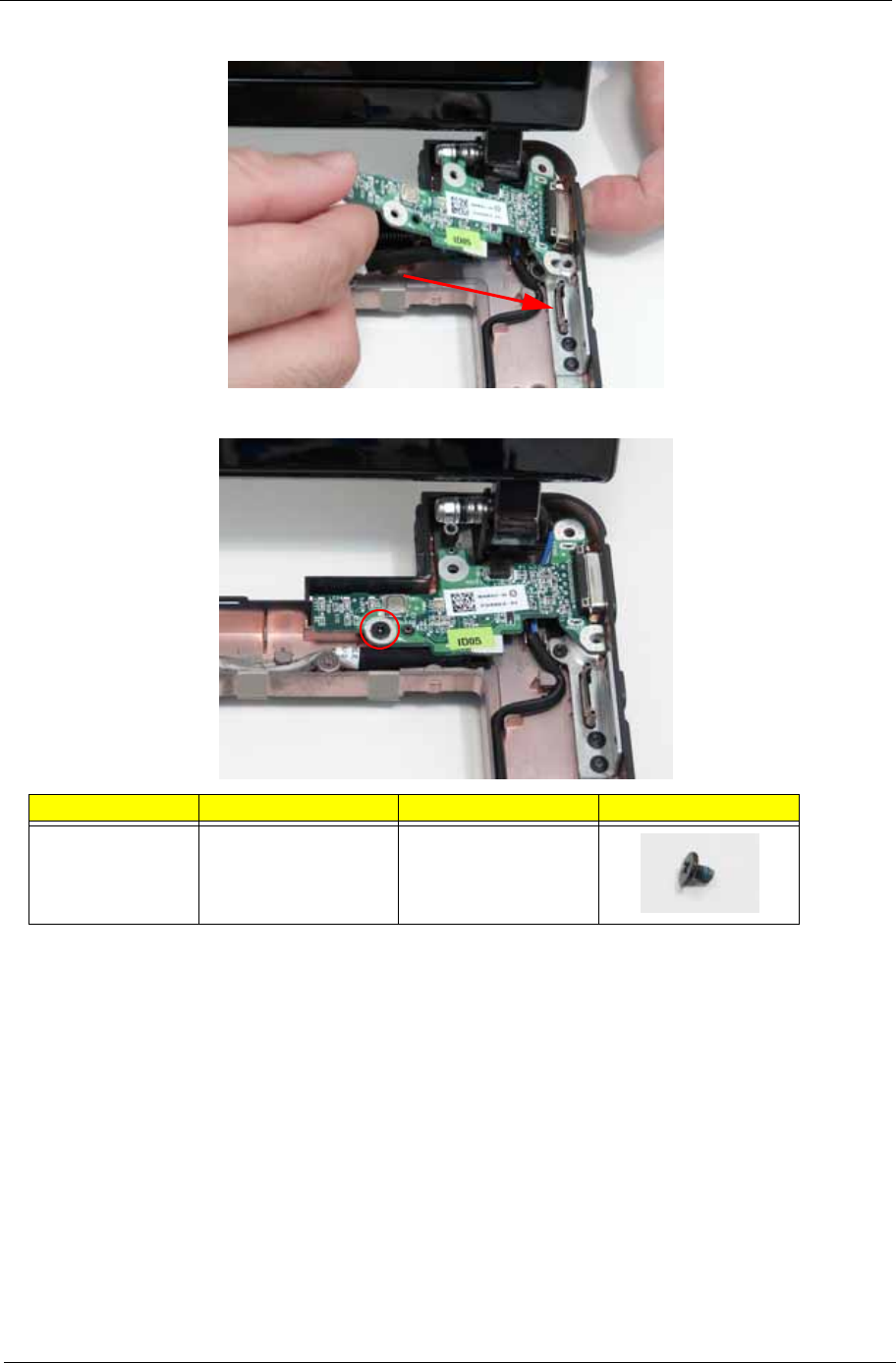
Chapter 3 103
2. Insert the CRT Board left side first into the Lower Cover.
3. Replace the single screw to secure the VGA Board to the Lower Cover.
Step Size Quantity Screw Type
CRT Board M2*3 1
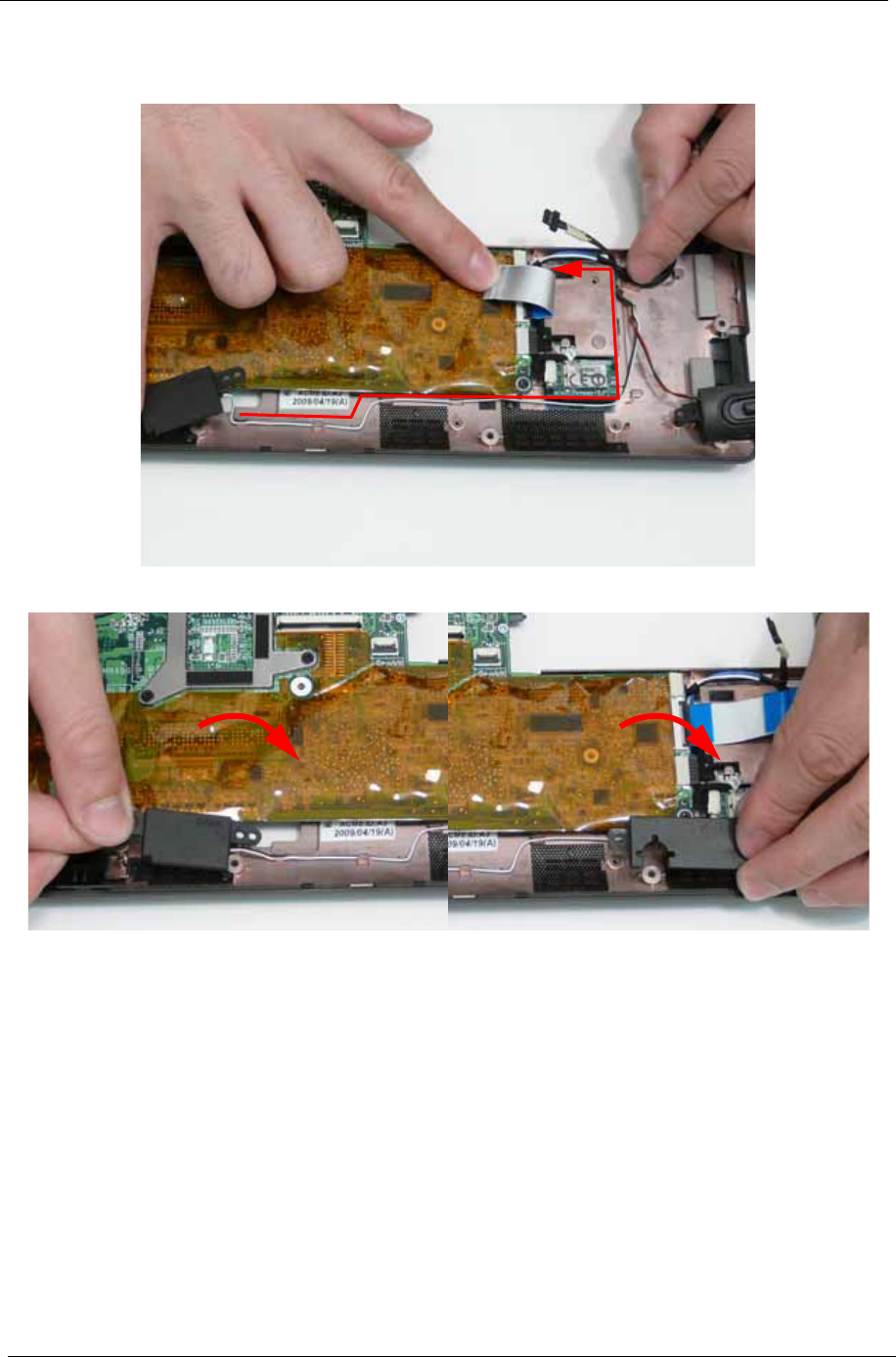
104 Chapter 3
Replacing the Speaker Module
1. Insert the Speaker cable into the cable channel. Ensure that the cable passes through all cable clips.
2. Place the right and left side speakers into the Lower Cover as shown.
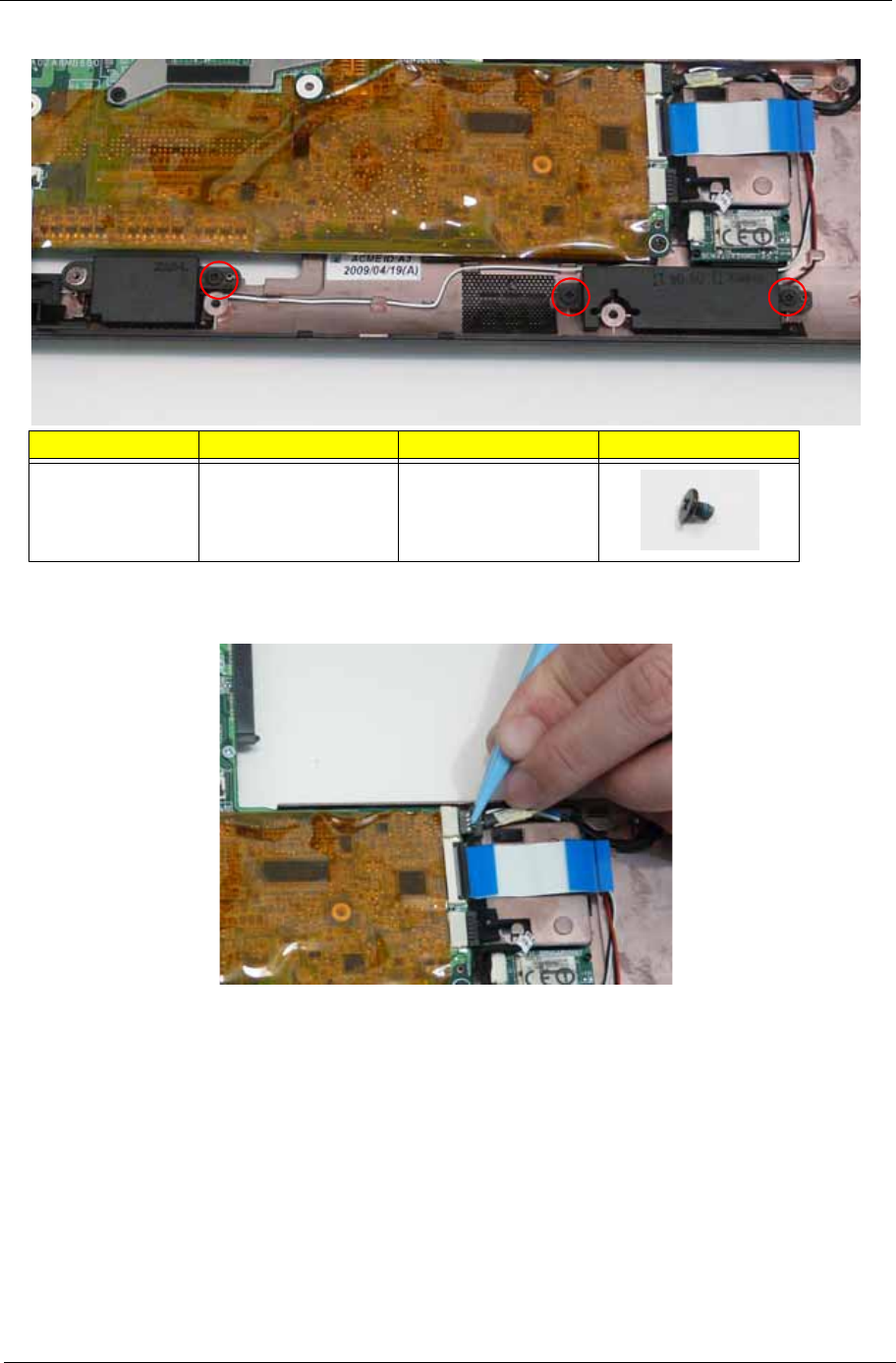
Chapter 3 105
3. Replace the three screws to secure the Speakers to the Lower Cover.
4. Connect the Speaker cable to the Mainboard.
Step Size Quantity Screw Type
Speaker Module M2*3 3
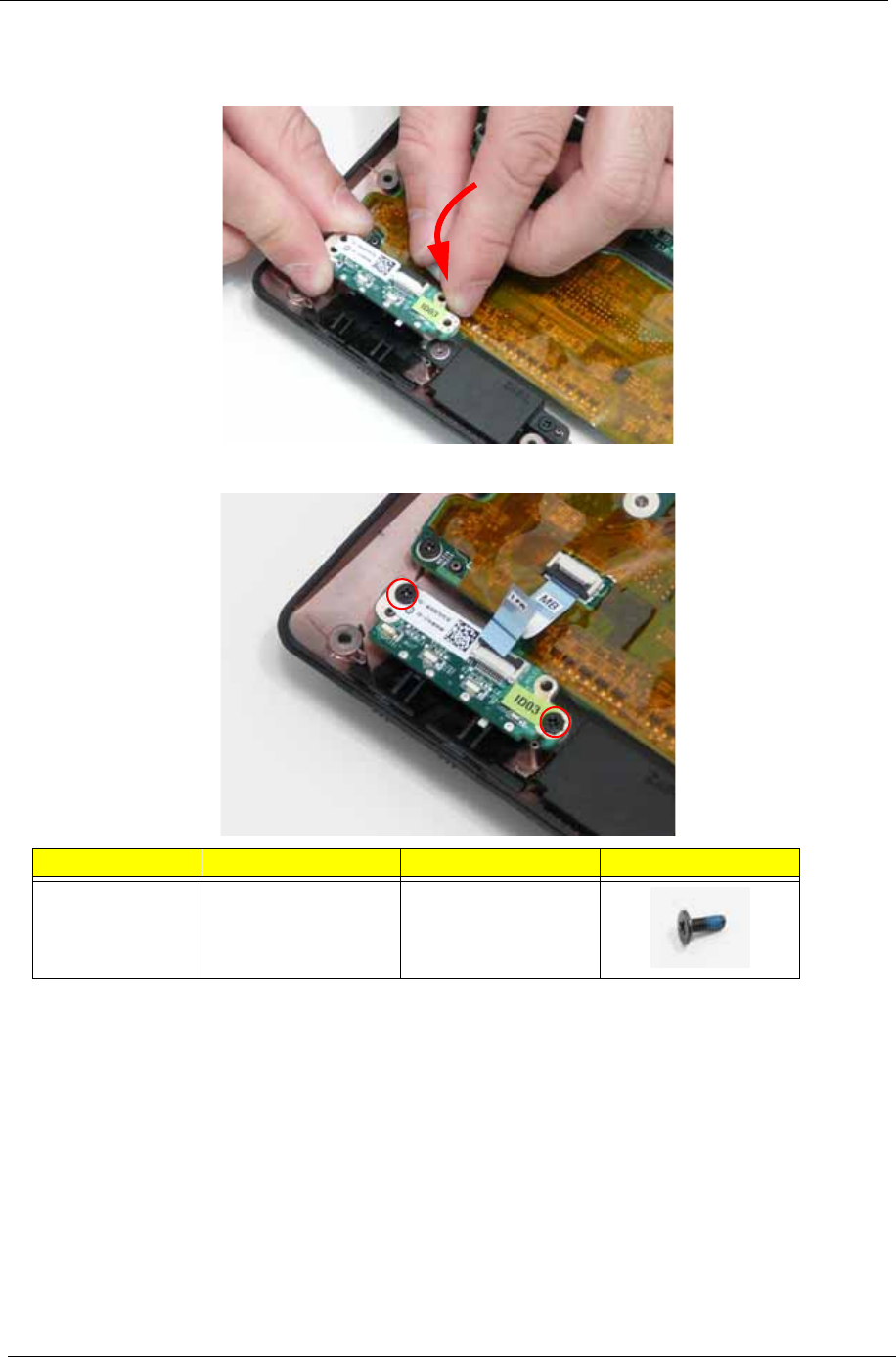
106 Chapter 3
Replacing the LED Board
1. Place the LED Board into the Lower Cover.
2. Replace the two screws to secure the LED Board to the Lower Cover.
Step Size Quantity Screw Type
LED Board M2*5 1
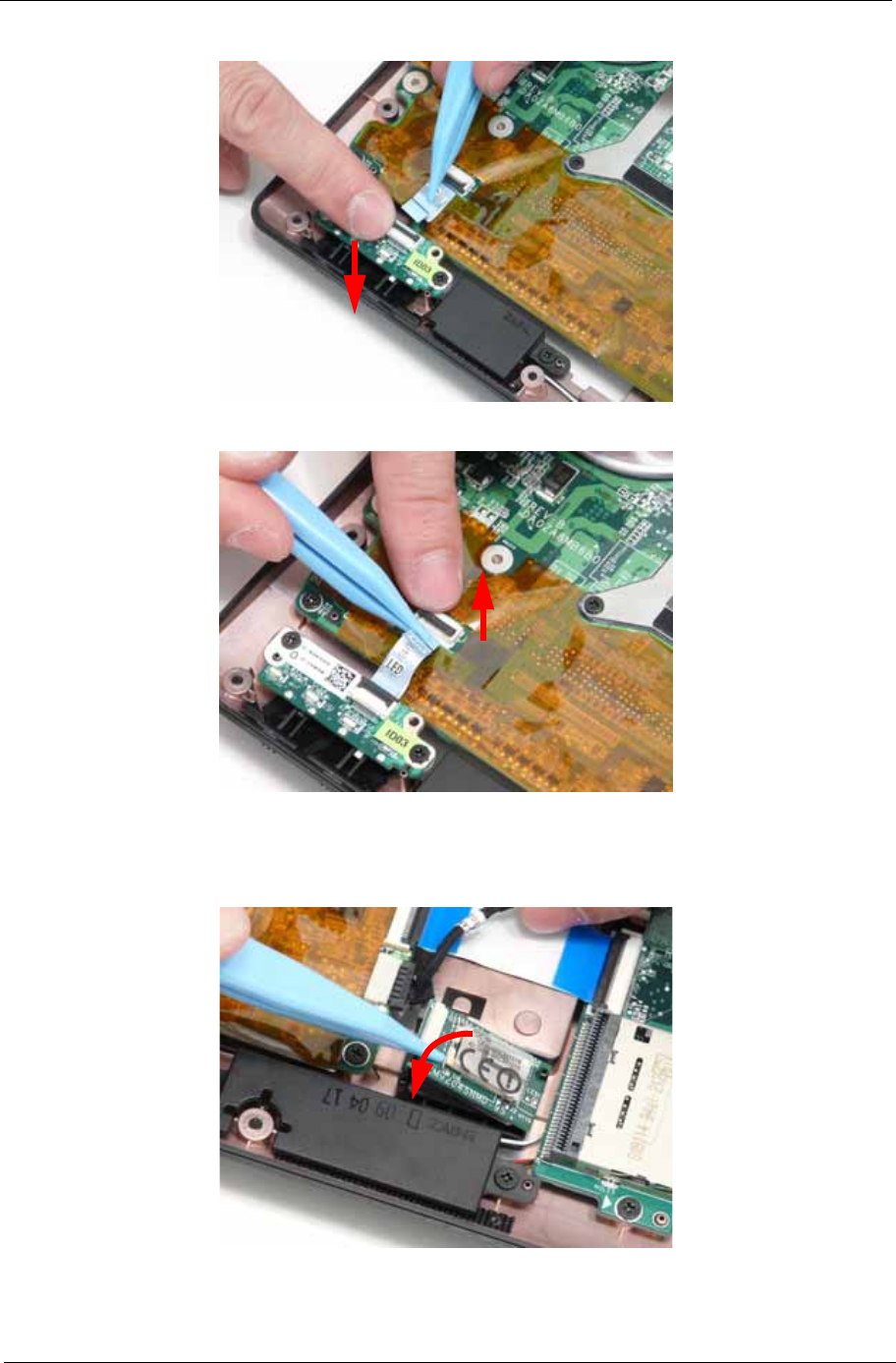
Chapter 3 107
3. Connect the LED Board FFC to the LED Board and close the locking latch.
4. Connect the LED Board FFC to the Mainboard and close the locking latch.
Replacing the Bluetooth Module
1. Insert the Bluetooth Module, right side first, into Lower Cover so that it is held by the tab.
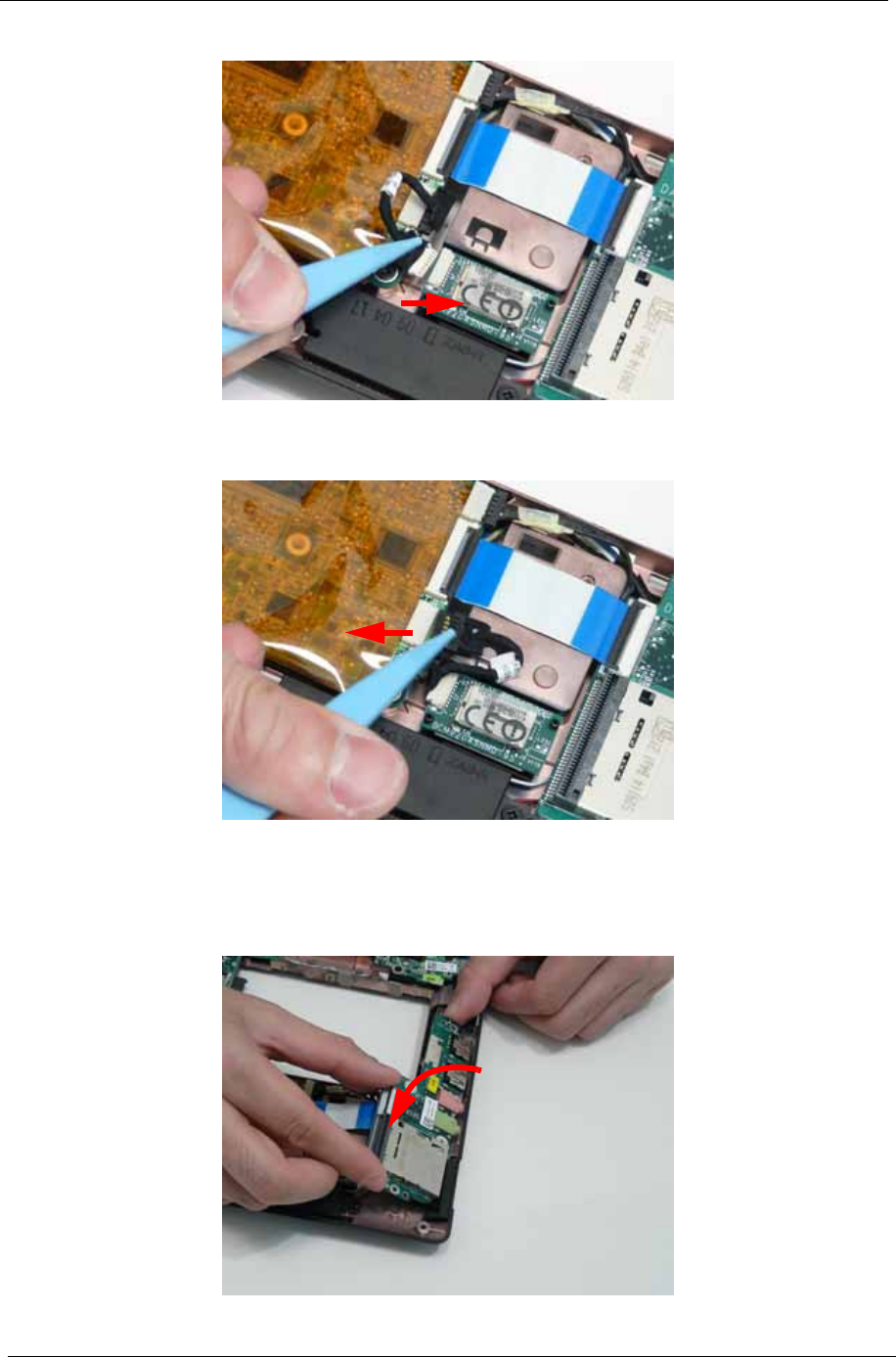
108 Chapter 3
2. Connect the cable to the Bluetooth Module.
3. Press on the adhesive strip to attach the cable to the Lower Cover.
4. Connect the Bluetooth cable to the Mainboard.
Replacing the Card Reader Board
1. Place the board into the Lower Cover, right side first so the I/O ports align with the openings in the lower
cover.
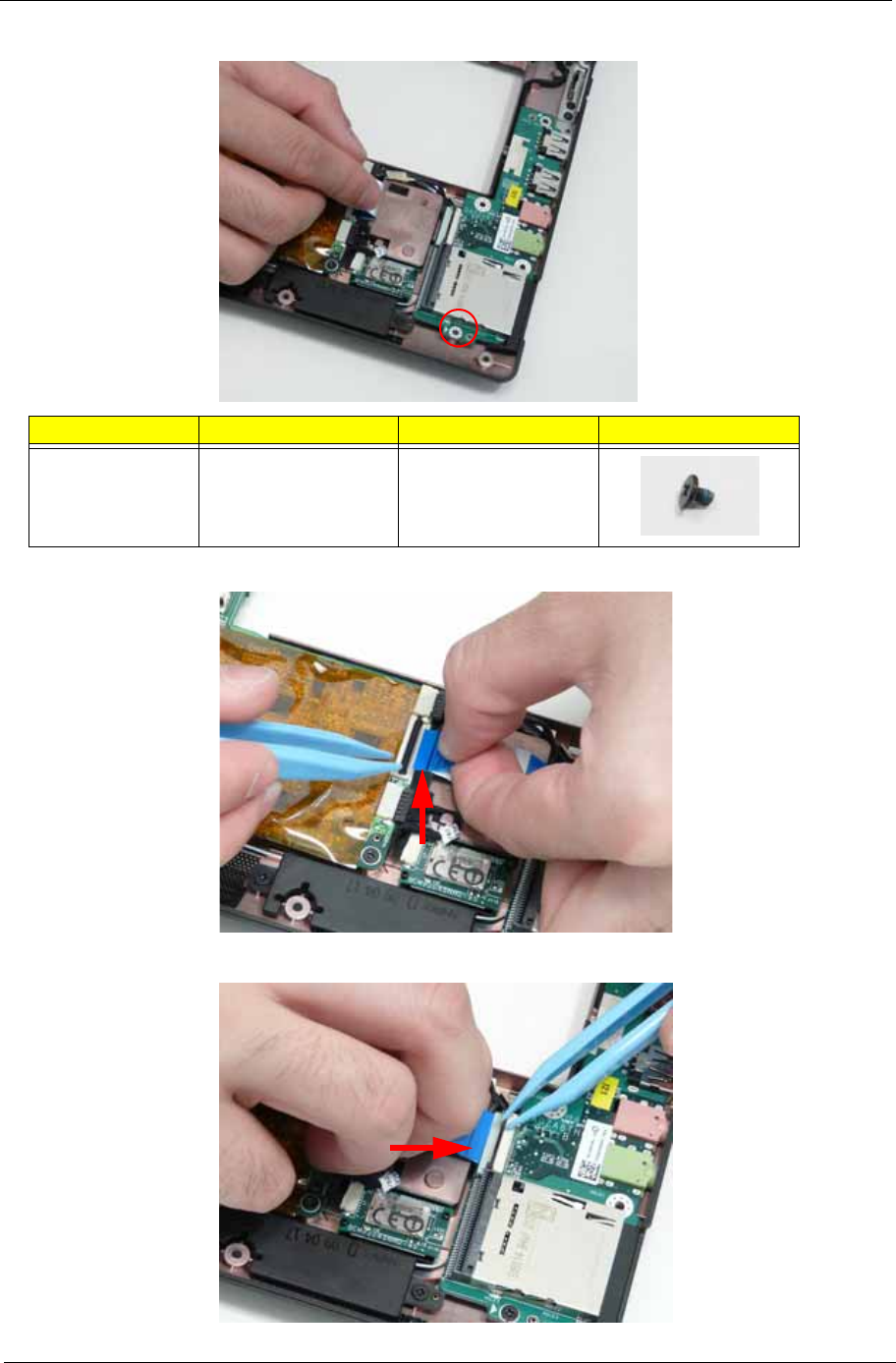
Chapter 3 109
2. Replace the single screw to secure the Card Reader Board to the Lower Cover.
3. Connect the FFC to the Mainboard and close the locking latch.
4. Connect the FFC to the Card Reader Board and close the locking latch.
Step Size Quantity Screw Type
Card Reader
Board M2*3 1
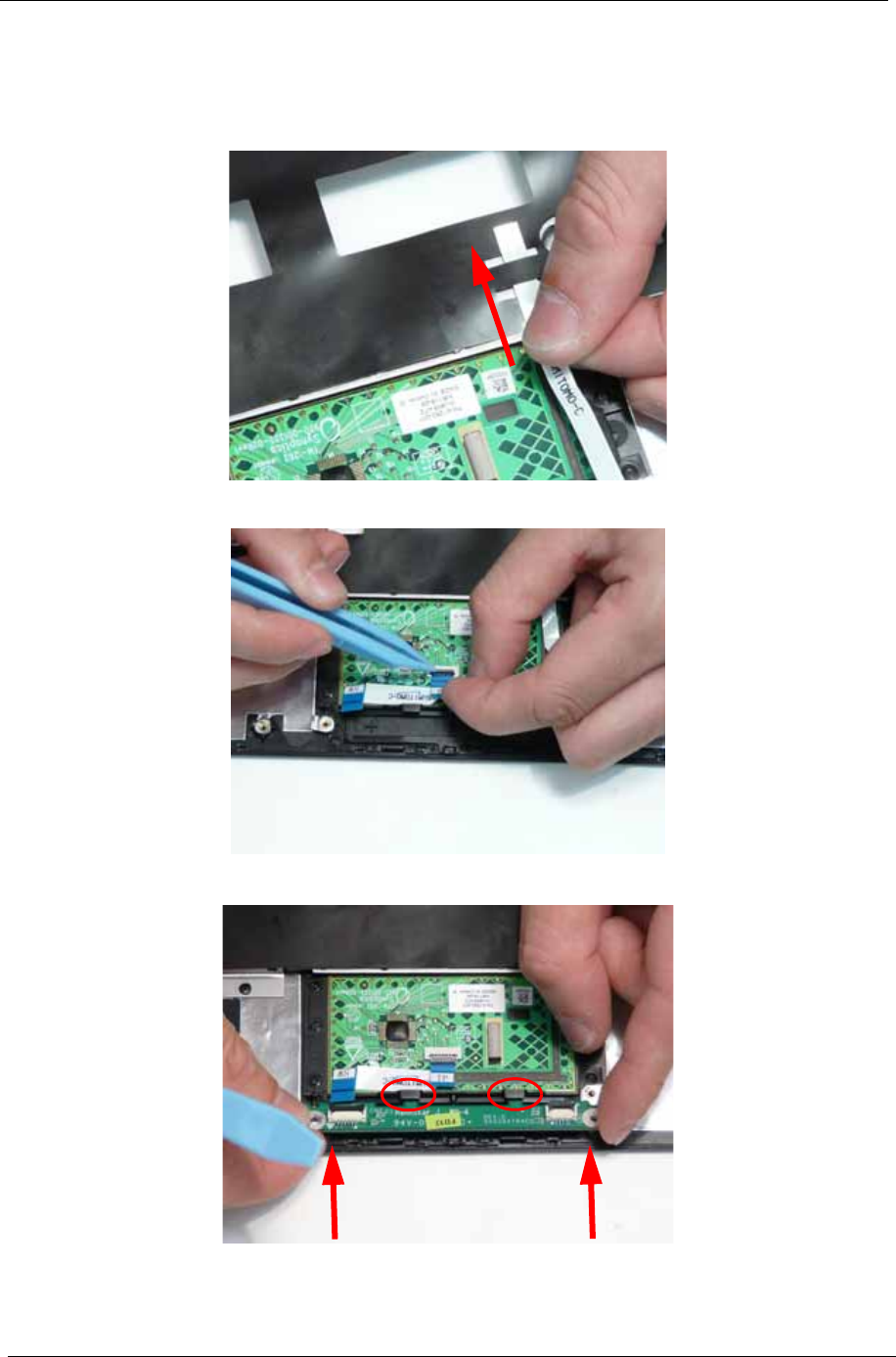
110 Chapter 3
Replacing the Button Board
IMPORTANT: The TouchPad Board cannot be removed from the Upper Cover. To replace the TouchPad Board,
replace the entire Upper Cover.
1. Push the FFC through the cover as shown.
2. Connect the FFC to the TouchPad connector and close the FFC locking latch.
3. Slide the button board under the securing tabs in the Upper Cover as shown.
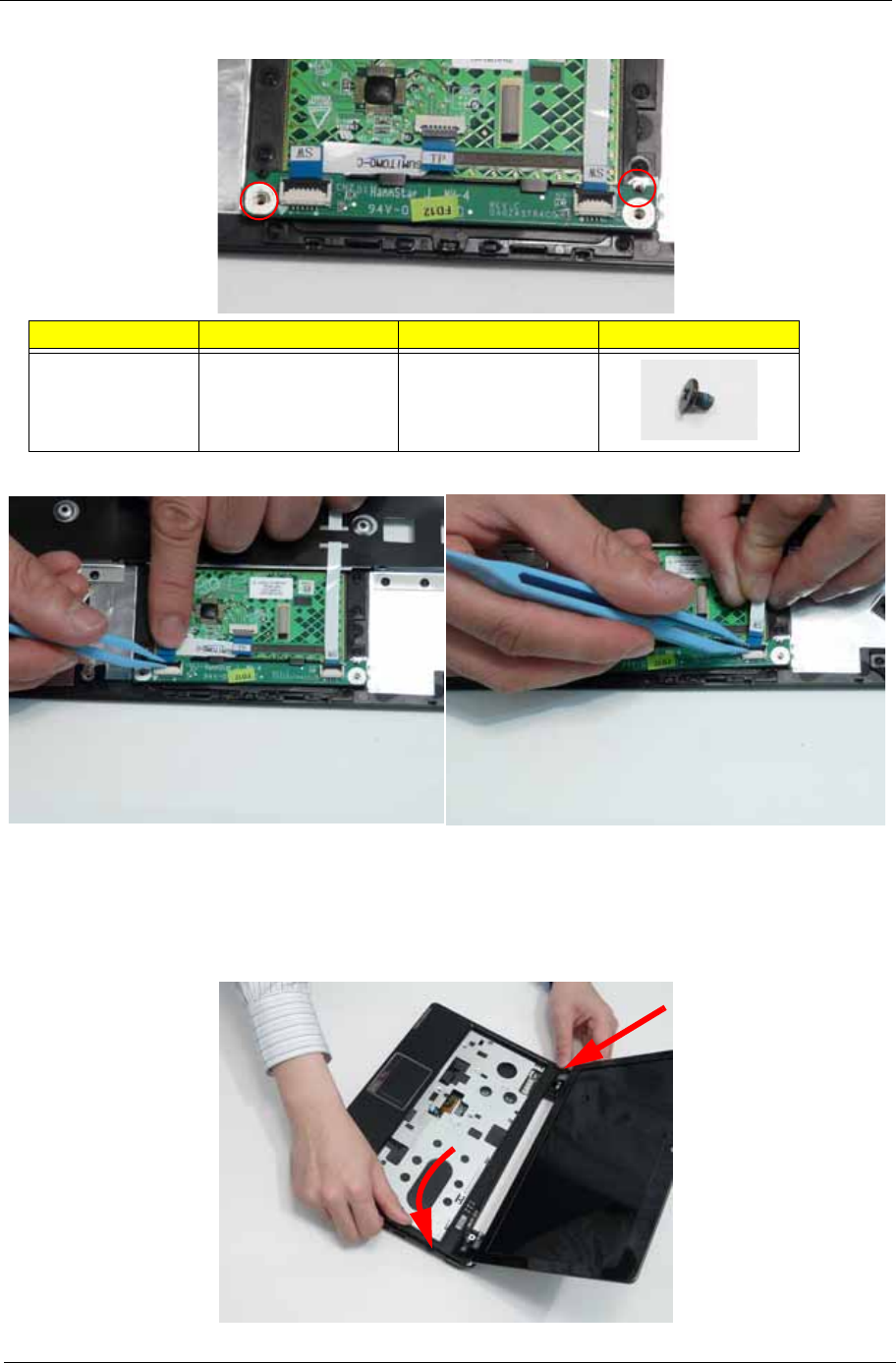
Chapter 3 111
4. Replace the two screws to secure the TouchPad Bracket to the Upper Cover.
5. Connect the two FFCs to the Button Board and close the locking latches as shown.
Replacing the Upper Cover
1. Place the Upper Cover into the Lower Cover left corner first. Hook the hinge cover part of the upper cover
around the left hinge, making sure the LVDS cable passes through the opening in the upper cover, then
rotate the cover until it is aligned with the lower cover.
Step Size Quantity Screw Type
TouchPad
Bracket M2*3 3
1
2
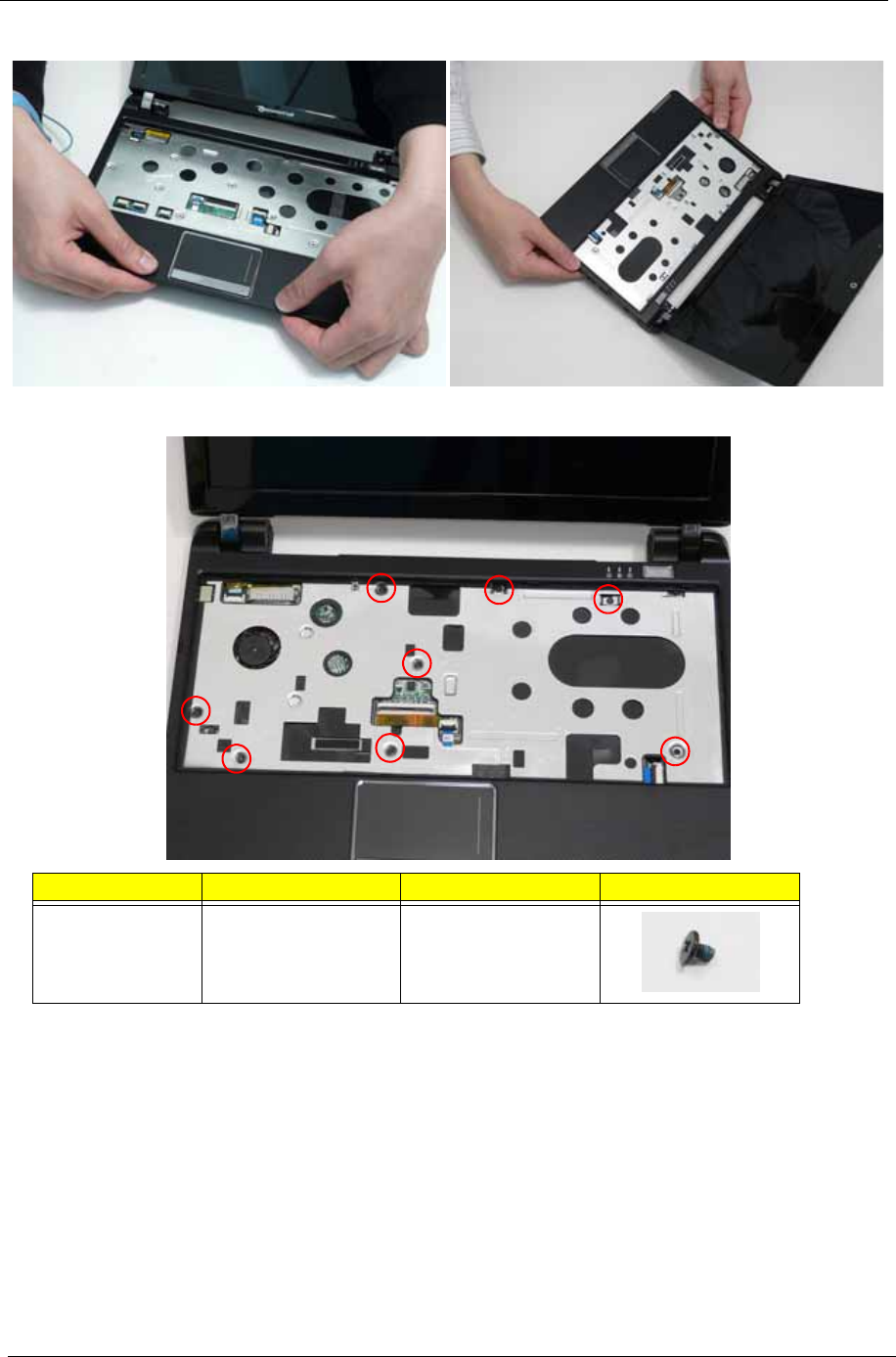
112 Chapter 3
2. Lightly press the edges of the cover in place to connect it to the lower cover.,
3. Replace the eight securing screws to the Upper Cover.
Step Size Quantity Screw Type
Upper Cover
(red callout)
M2*4 8
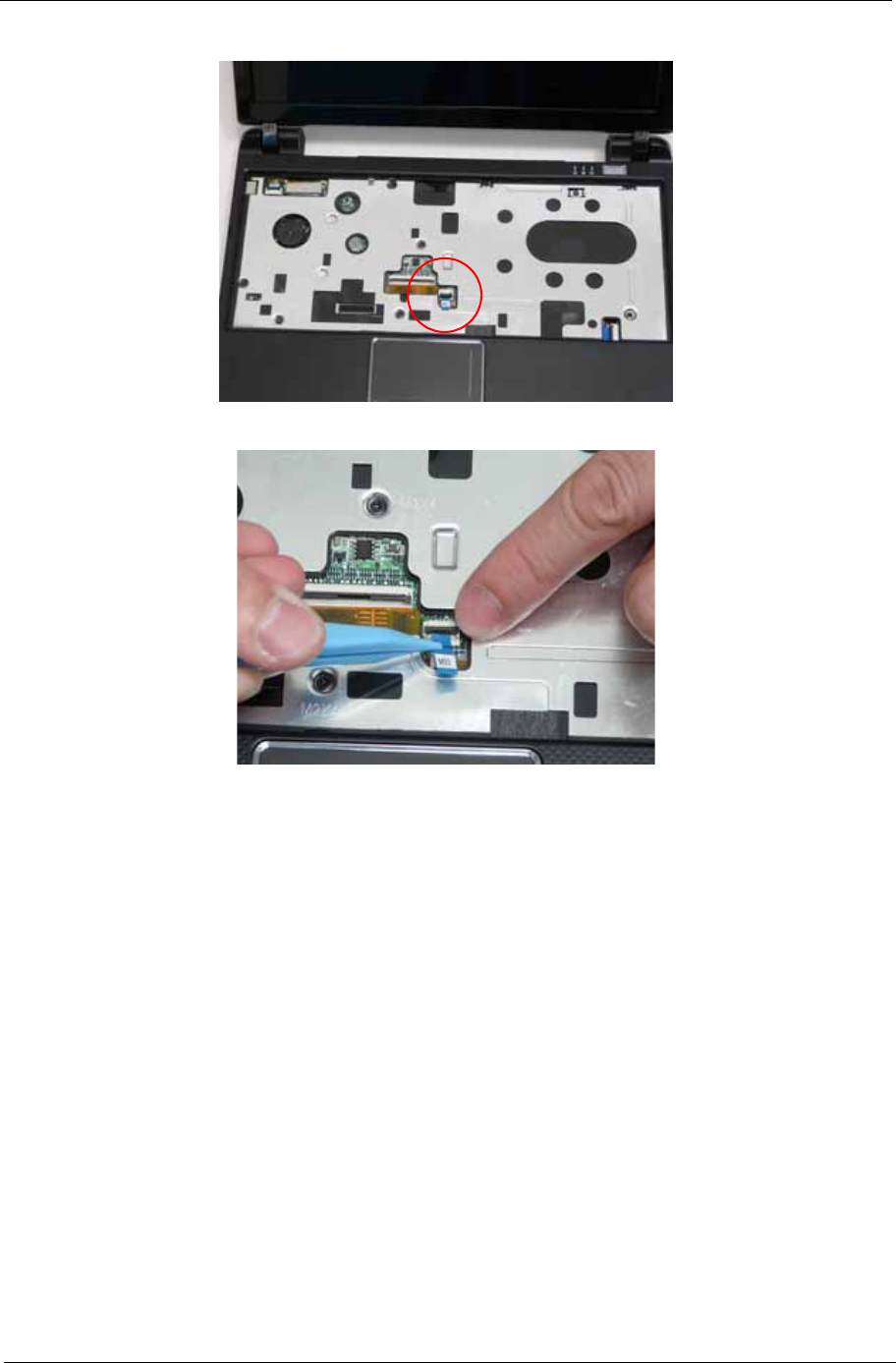
Chapter 3 113
4. Connect the following cable to the Mainboard.
5. Connect the FFC and close the locking latch as shown.
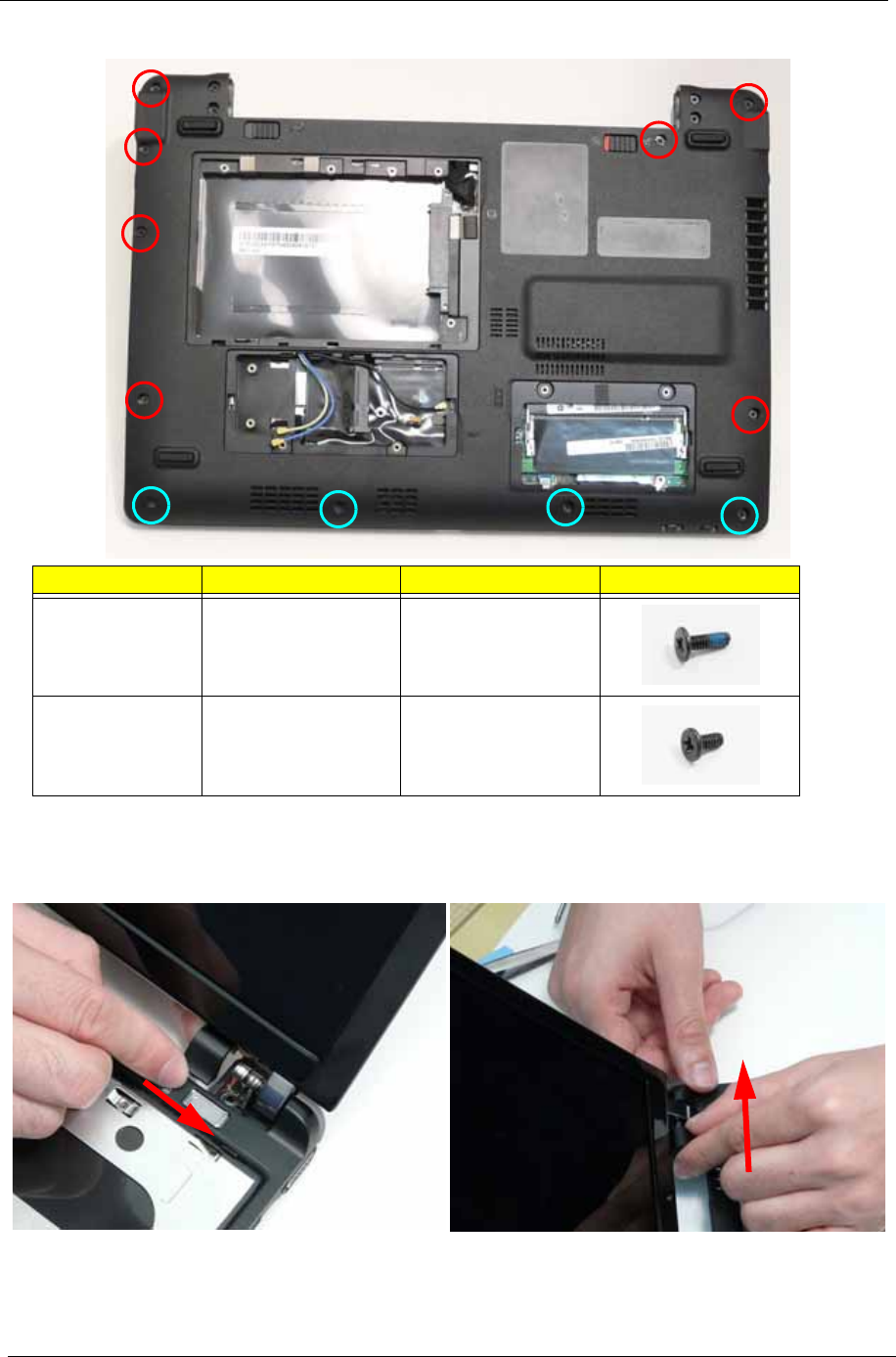
114 Chapter 3
6. Turn the computer and replace the eleven screws securing the Upper Cover to the Lower Cover.
Removing the Hinge Covers
1. Connect the Hinge Covers to the Upper Cover as shown.
Step Size Quantity Screw Type
Upper Cover
(Red callouts)
M2*6 7
Upper Cover
(Cyan callouts)
M2*4 4
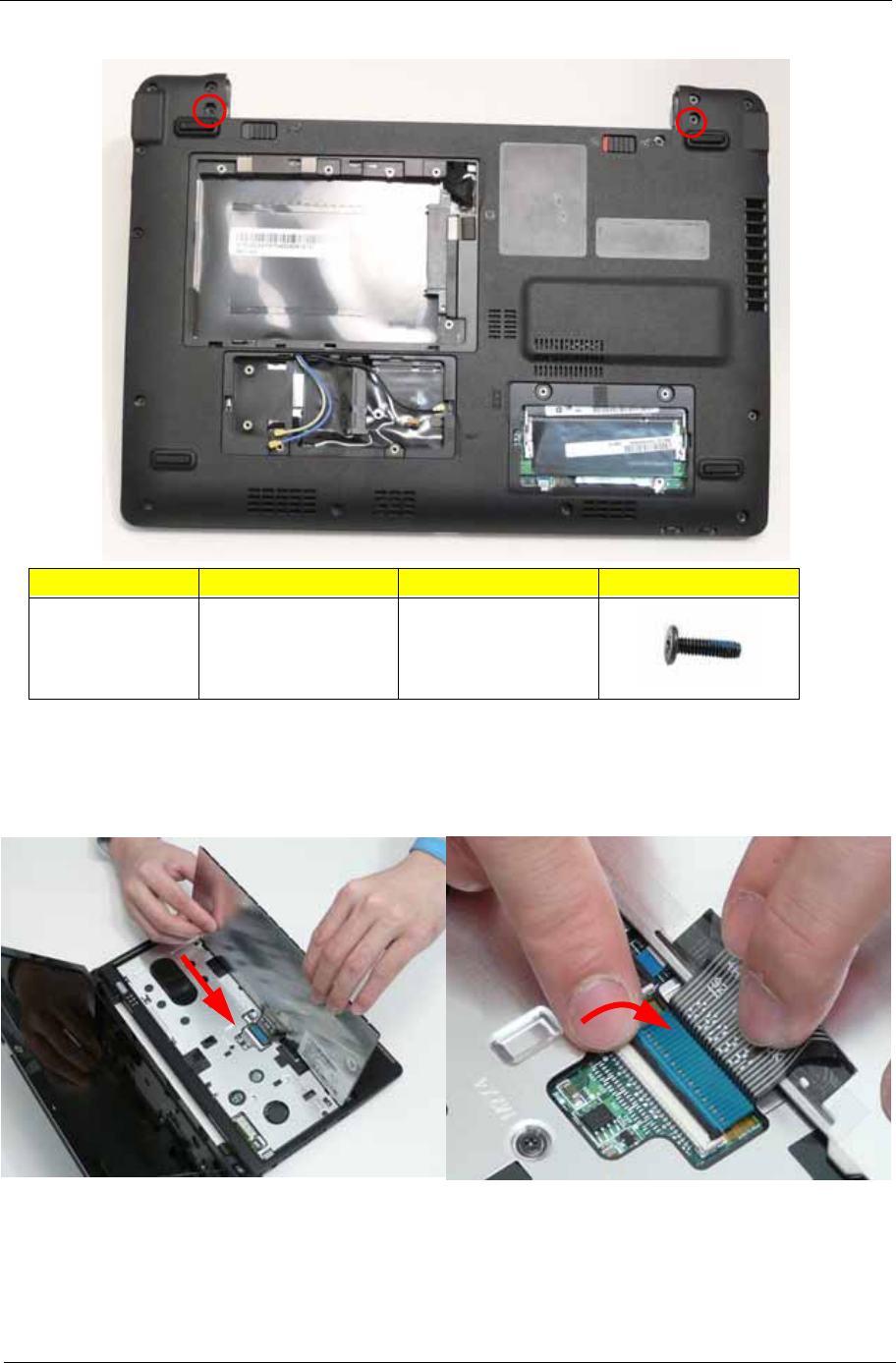
Chapter 3 115
2. Replace the two screws to secure the hinge covers.
Replacing the Keyboard
1. Turn the computer rightside up and open the lid to the full extent.
2. Holding the keyboard on edge, insert the Keyboard FFC and secure the latch as shown.
Step Size Quantity Screw Type
Hinge Cover M2*10 2
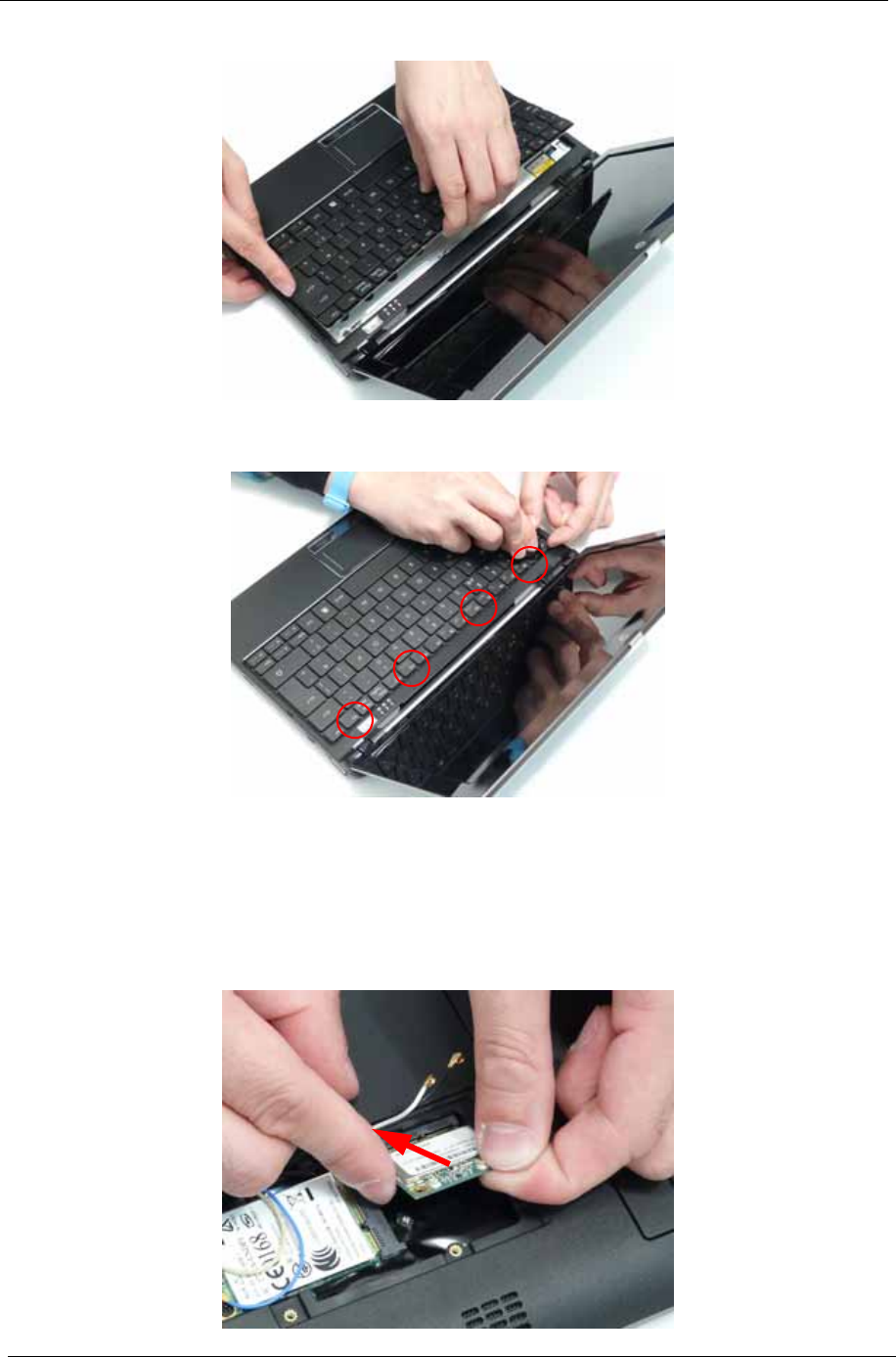
116 Chapter 3
3. Place the Keyboard into the Upper Cover bottom edge first, taking care to align the mounting tabs.
4. Press the keyboard into place in the four indicated points. An audible click indicates the keyboard is in
place.
Reassembling External Modules
Replacing the WLAN Board
1. Insert the WLAN Board into the Mainboard.
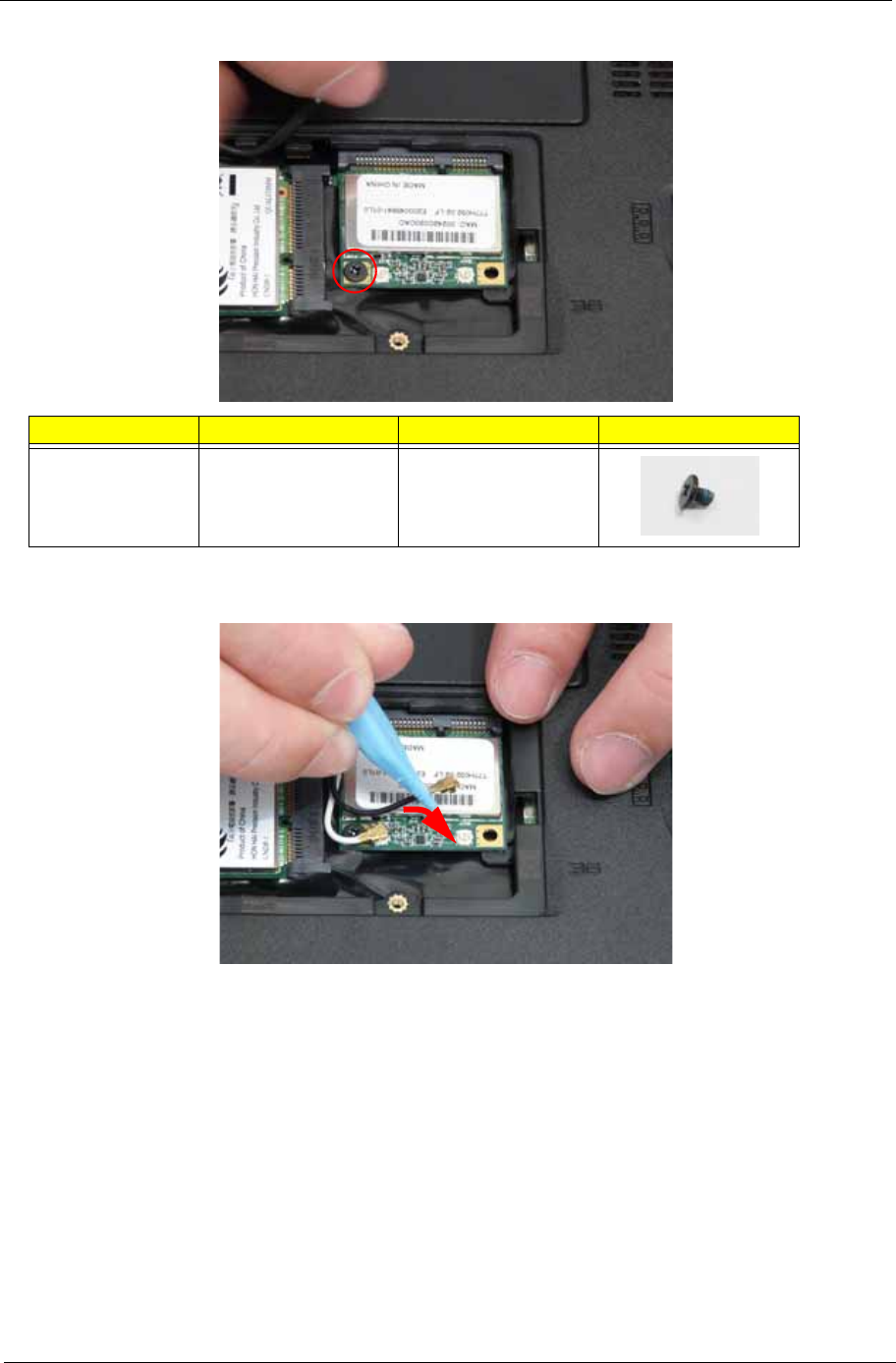
Chapter 3 117
2. Replace the single screw to secure the WLAN Board in place.
3. Connect the Antenna cables to the WLAN Board.
NOTE: Cable placement is Black to the MAIN terminal (right) and White to the AUX terminal (left).
Step Size Quantity Screw Type
WLAN Board M2*3 1
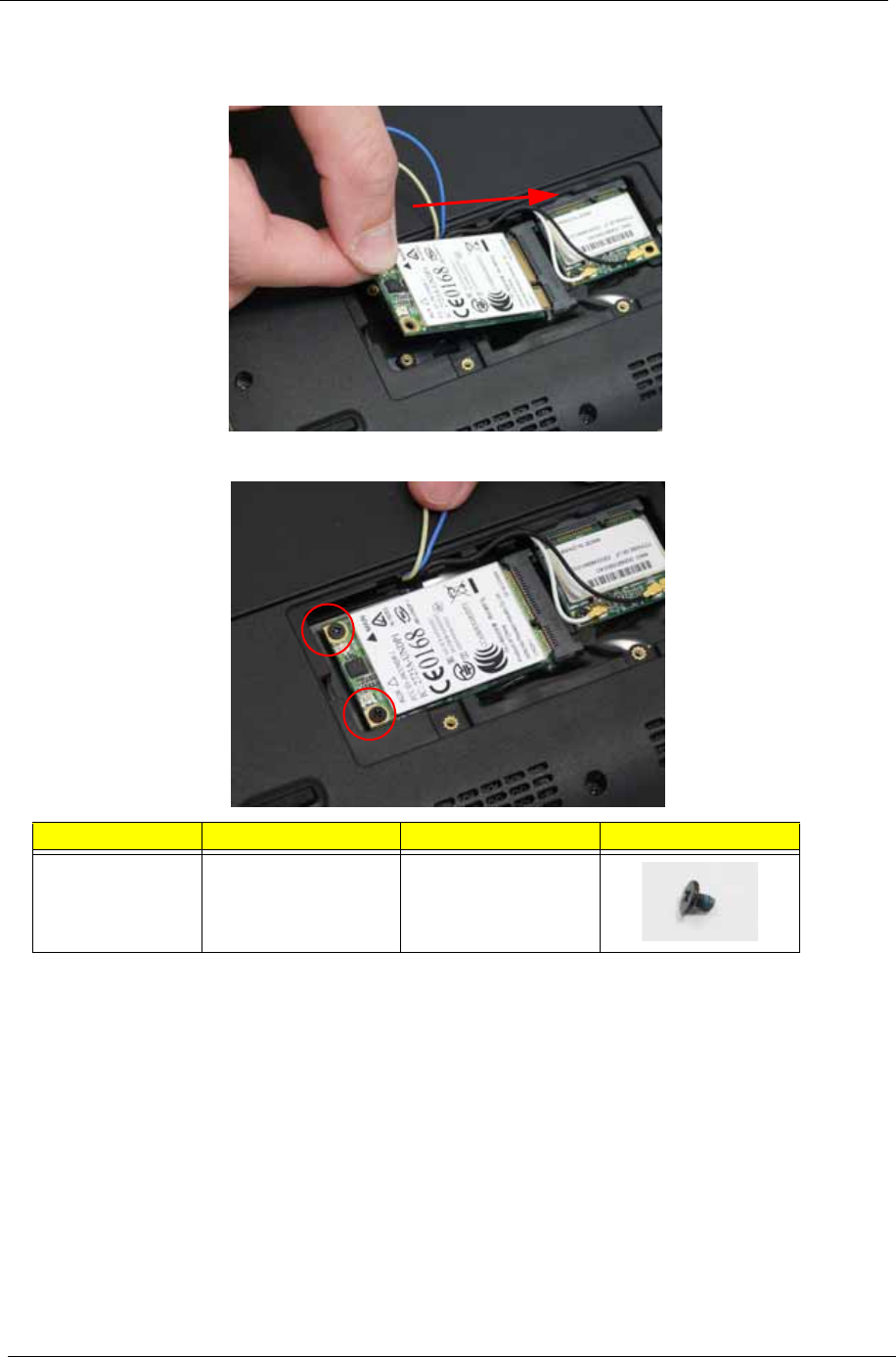
118 Chapter 3
Replacing the 3G Module
1. Insert the 3g Board into the Mainboard.
[
2. Replace the two screws to secure the WLAN Board in place.
Step Size Quantity Screw Type
3g Board M2*3 2
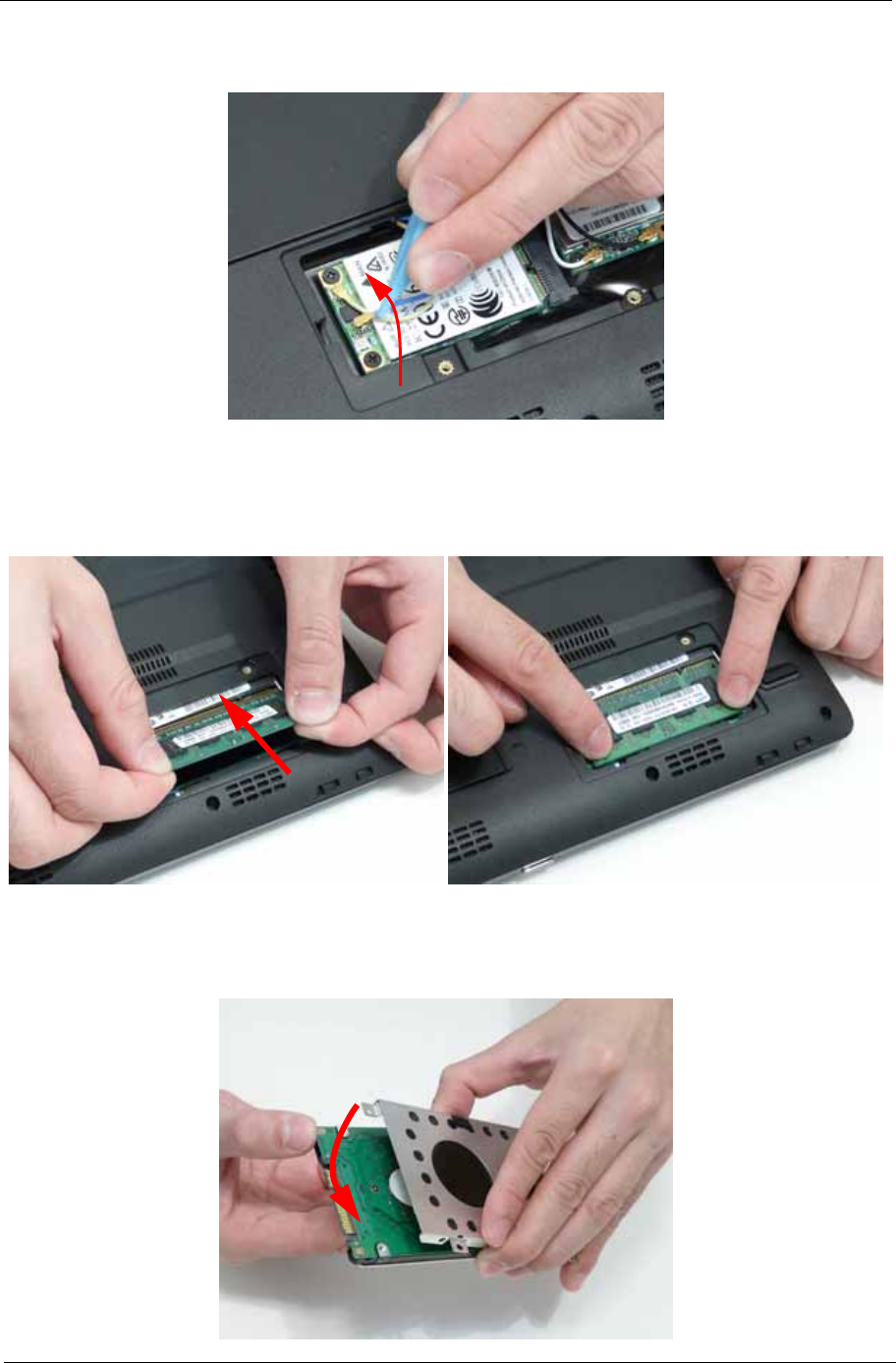
Chapter 3 119
3. Connect the Antenna cables to the 3g Board.
NOTE: Cable placement is Yellow to the MAIN terminal (right) and Blue to the AUX terminal (left).
Replacing the DIMM Module
1. Insert the DIMM module at an angle then push down into place until the latches on the sides click into
place.
Replacing the Hard Disk Drive Module
1. Attach the HDD to the carrier.
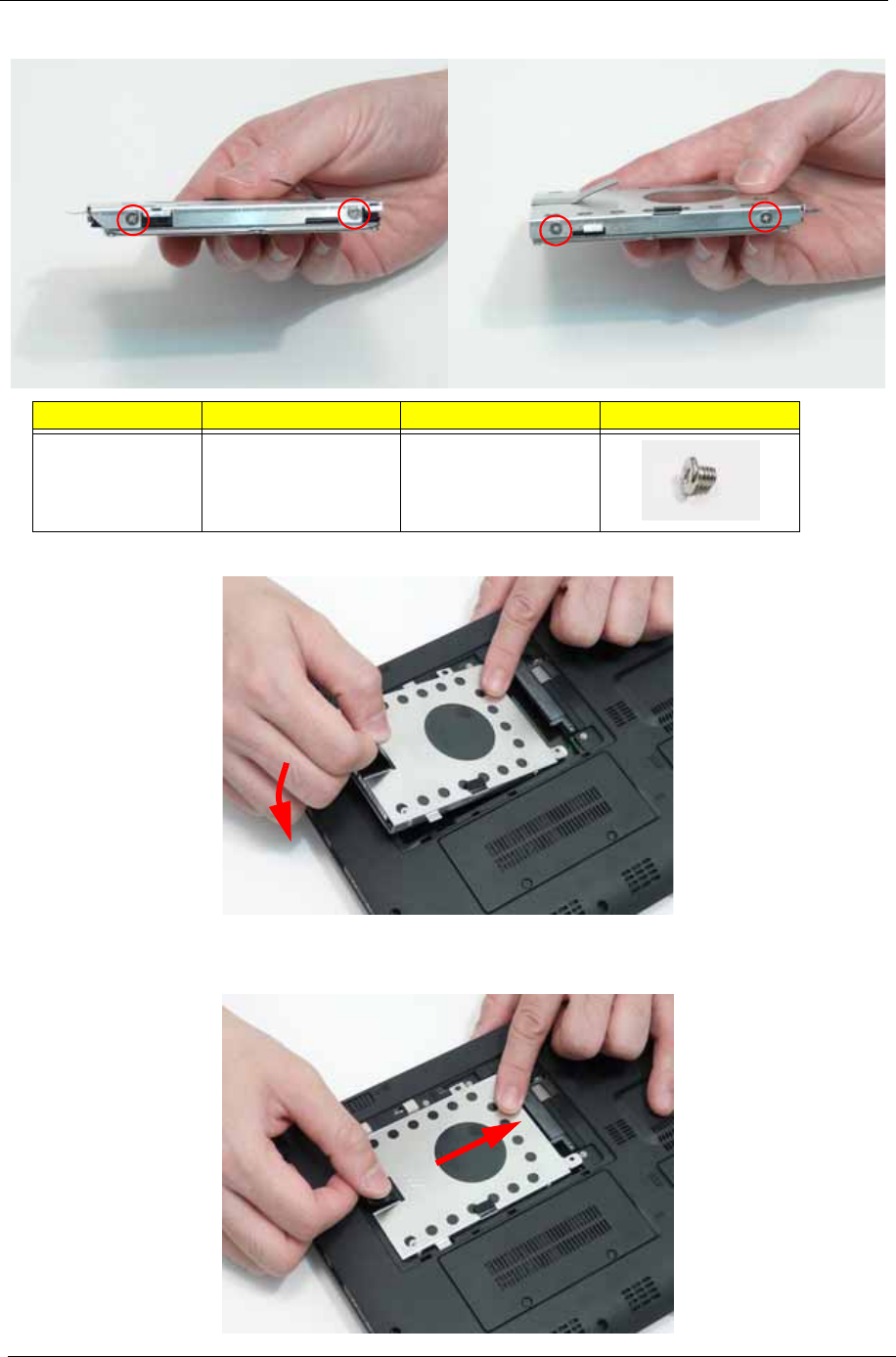
120 Chapter 3
2. Replace the four screws (two each side) to secure the hard disk to the carrier.
3. Place the hard disk drive module into the bay.
NOTE: To prevent damage to the device, avoid pressing down on it or placing heavy objects on top of it.
4. Slide the HDD in the direction of the arrow to connect the HDD to the interface connector.
Step Size Quantity Screw Type
HDD Carrier M3*3 4
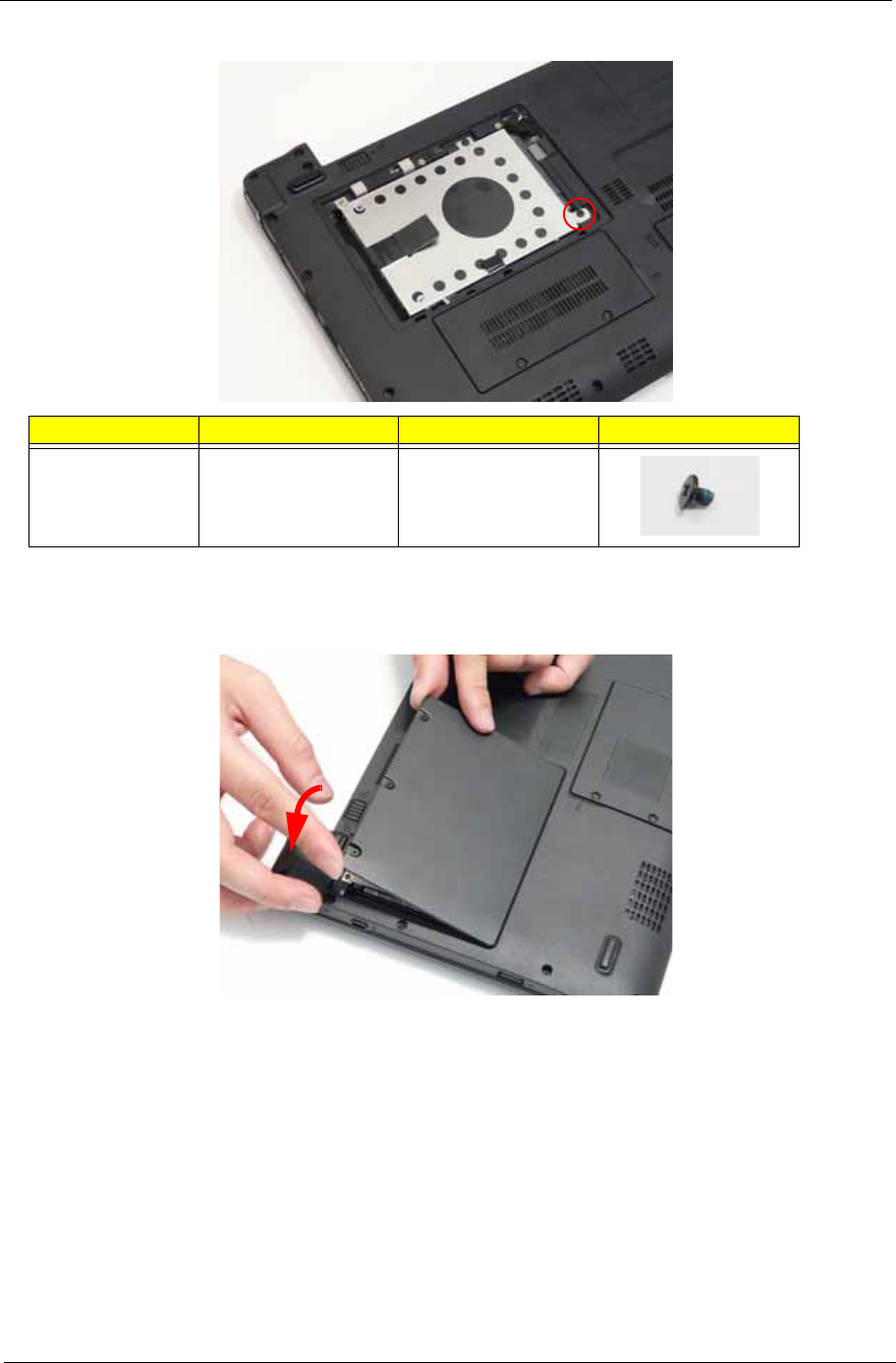
Chapter 3 121
5. Replace the single screw to secure the HDD Module in place.
Replacing the Lower Covers
1. Insert the HDD cover into the Lower Cover.
Step Size Quantity Screw Type
HDD Module M2*3 1
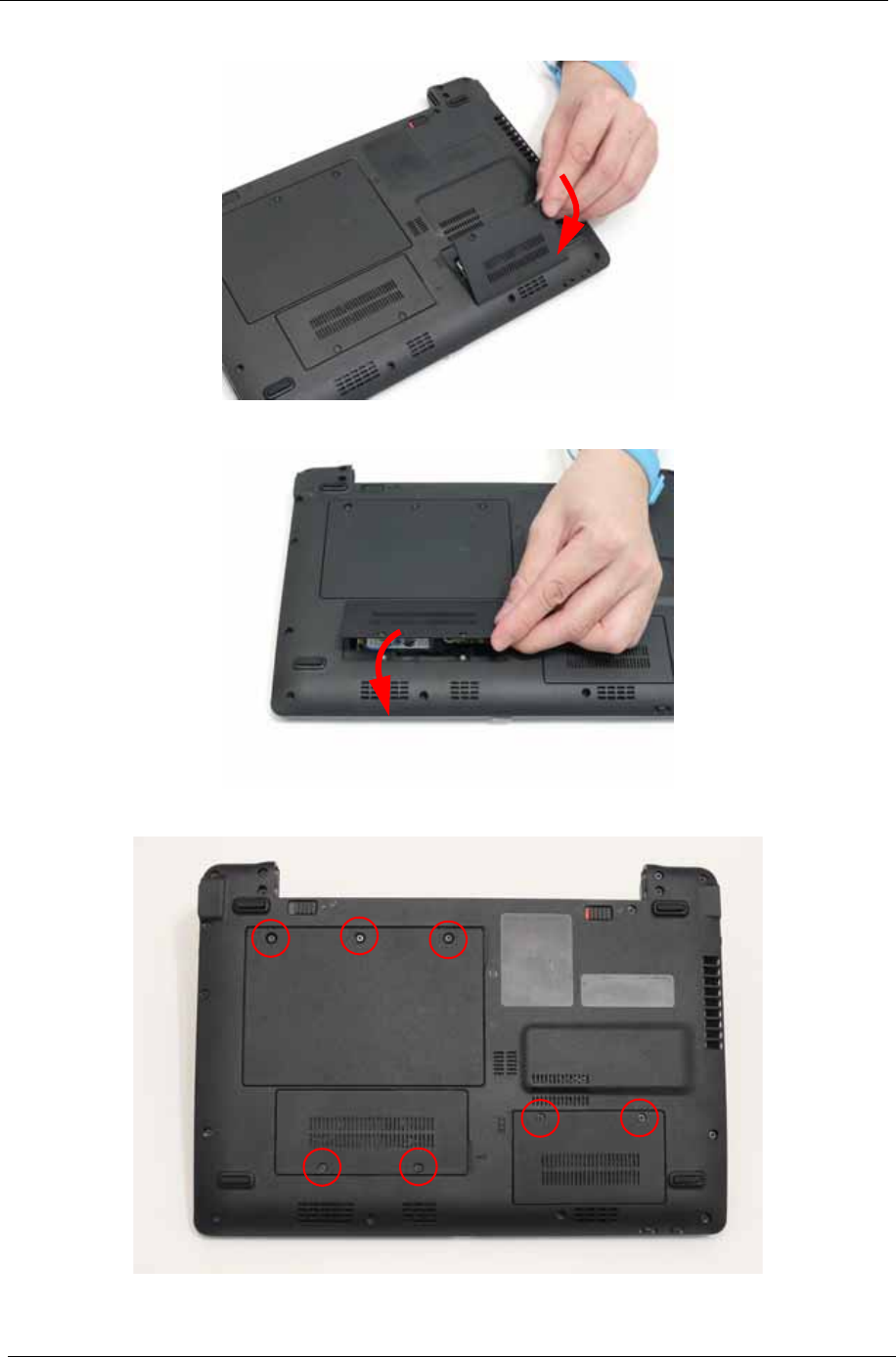
122 Chapter 3
2. Insert the Memory cover into the Lower Cover.
3. Insert the 3G cover into the Lower Cover.
4. Tighten the seven captive screws in the HDD, Memory, and 3G Covers.
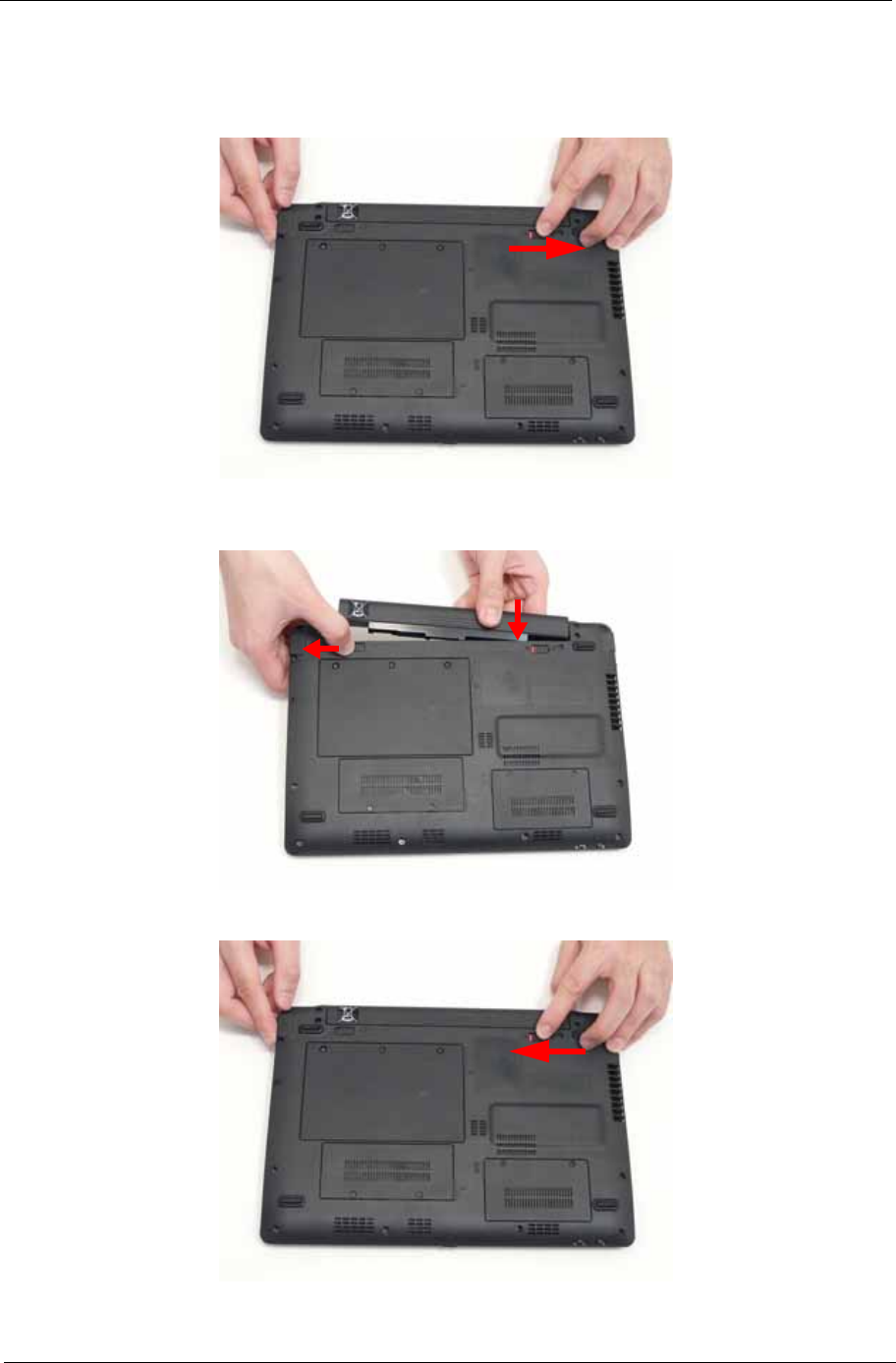
Chapter 3 123
Replacing the Battery Pack
1. Turn the computer over.
2. Slide the battery lock/unlock latch to the unlock position.
3. Slide and hold the battery release latch to the release position (1), then slide the battery pack into the
main unit (2).
4. Slide the battery lock/unlock latch to the lock position.
1
2

124 Chapter 3
Chapter 4 125
Troubleshooting
Common Problems
Use the following procedure as a guide for computer problems.
NOTE: The diagnostic tests are intended to test only Acer products. Non-Acer products, prototype cards, or
modified options can give false errors and invalid system responses.
1. Obtain the failing symptoms in as much detail as possible.
2. Verify the symptoms by attempting to re-create the failure by running the diagnostic test or by repeating
the same operation.
3. Use the following table with the verified symptom to determine which page to go to.
4. If the Issue is still not resolved, see “Online Support Information” on page 165.
Symptoms (Verified) Go To
Power On Issue Page 126
No Display Issue Page 127
LCD Failure Page 129
Internal Keyboard Failure Page 130
TouchPad Failure Page 131
Internal Speaker Failure Page 132
Internal Microphone Failure Page 133
USB Failure Page 135
Other Function Failure Page 135
Chapter 4
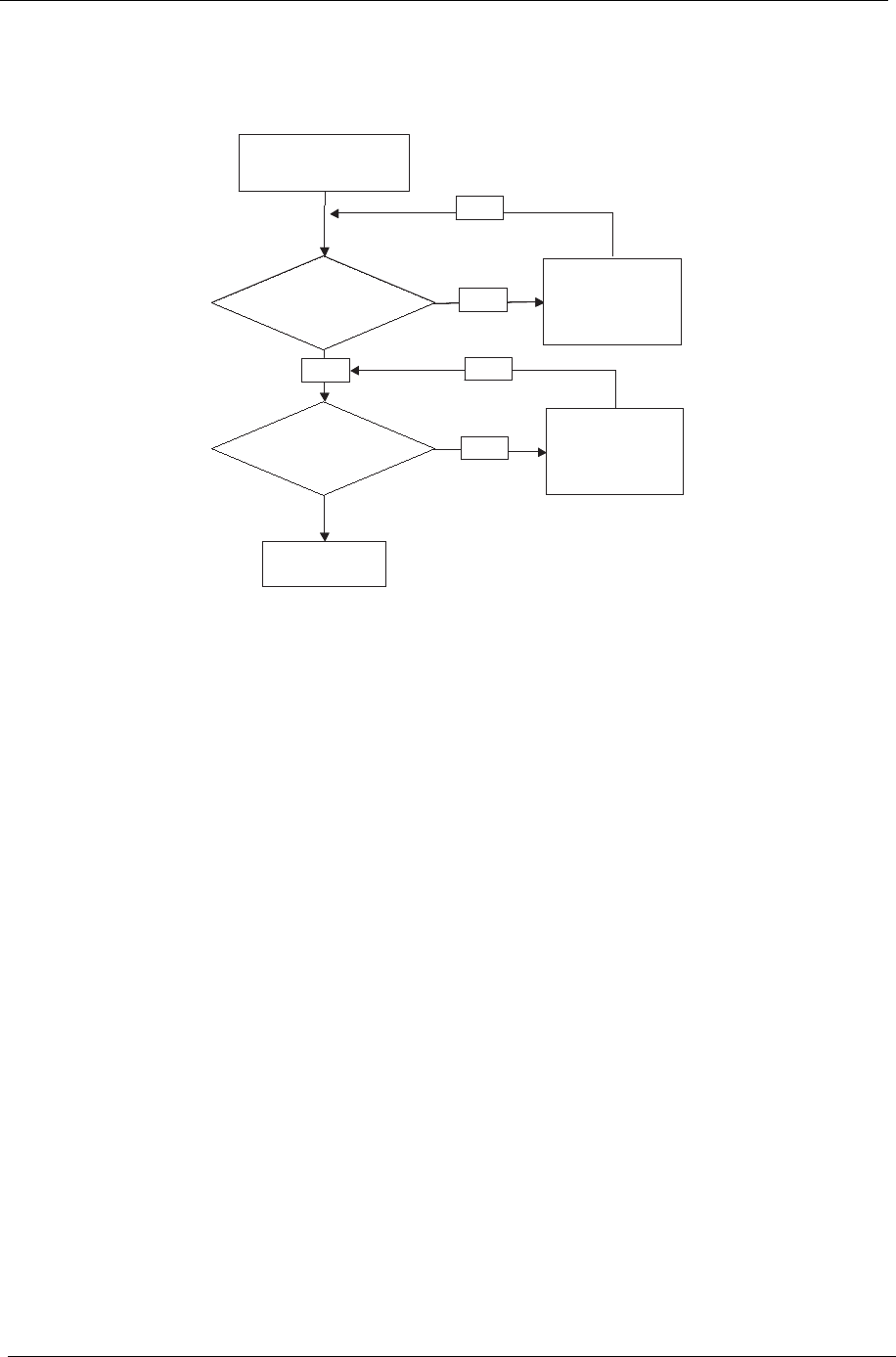
126 Chapter 4
Power On Issue
If the system doesn’t power on, perform the following actions one at a time to correct the problem. Do not
replace non-defective FRUs:
Computer Shuts down Intermittently
If the system powers off at intervals, perform the following actions one at a time to correct the problem.
1. Check the power cable is properly connected to the computer and the electrical outlet.
2. Remove any extension cables between the computer and the outlet.
3. Remove any surge protectors between the computer and the electrical outlet. Plug the computer directly
into a known good electrical outlet.
4. Remove all external and non-essential hardware connected to the computer that are not necessary to
boot the computer to the failure point.
5. Remove any recently installed software.
6. If the Issue is still not resolved, see “Online Support Information” on page 165.
Start
Check
AC/Battery
Power on
Swap AC /Battery
to try
OK
NG
Check
Daughter/B &
FFC Whether
OK
OK
Swap Daughter/B
Re-plug PWR FFC
OK
NG
Swap M/B
Start
Check
AC/Battery
Power on
Swap AC /Battery
to try
OK
NG
Check
Daughter/B &
FFC Whether
OK
OK
Swap Daughter/B
Re-plug PWR FFC
OK
NG
Swap M/B
Start
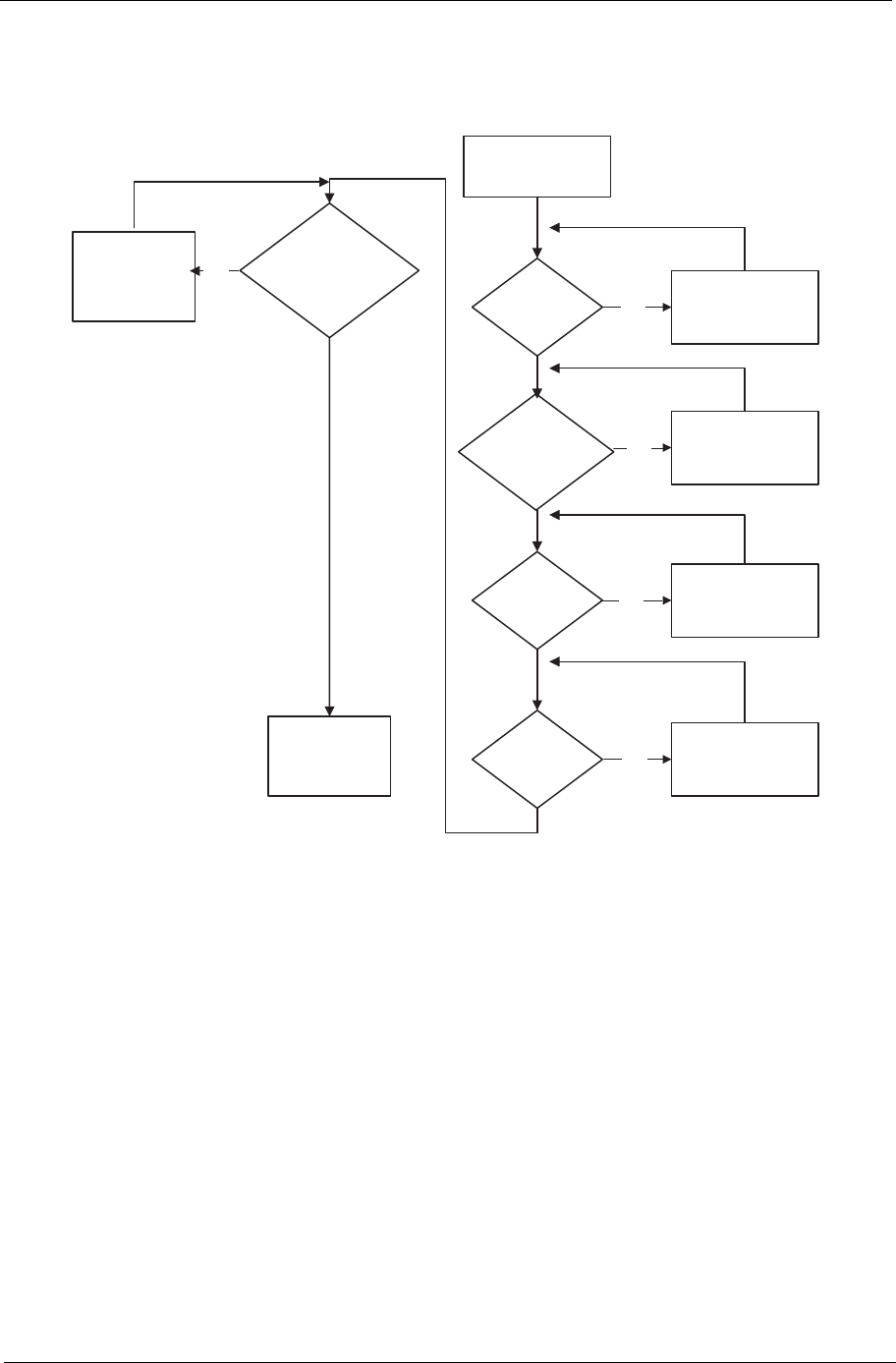
Chapter 4 127
No Display Issue
If the Display doesn’t work, perform the following actions one at a time to correct the problem. Do not replace
non-defective FRUs:
No POST or Video
If the POST or video doesn’t display, perform the following actions one at a time to correct the problem.
1. Make sure that the internal display is selected. On this notebook model, switching between the internal
display and the external display is done by pressing Fn+F5. Reference Product pages for specific model
procedures.
2. Make sure the computer has power by checking at least one of the following occurs:
• Fans start up
• Status LEDs light up
If there is no power, see “Power On Issue” on page 126.
3. Drain any stored power by removing the power cable and battery and holding down the power button for
10 seconds. Reconnect the power and reboot the computer.
4. Connect an external monitor to the computer and switch between the internal display and the external
display is by pressing Fn+F5 (on this model).
If the POST or video appears on the external display, see “LCD Failure” on page 129.
5. Disconnect power and all external devices including port replicators or docking stations. Remove any
memory cards and CD/DVD discs. Restart the computer.
START
Power On ? No Go to No Power
troubleshooting
step
Replace externa
l
DDRAM module
Remove and
replace thermal
module
Replace the
main board
Reconnect
SDRAM Module
LCD Module OK?
Replace LCD
Panel and
Cable
Ext. DDRAM module
connected properly?
Ext. DDRAM
module functional?
CPU Thermal
Module properly
connected?
No
No
No
No

128 Chapter 4
If the computer boots correctly, add the devices one by one until the failure point is discovered.
6. Reseat the memory modules.
7. Remove the drives (see “Disassembly Process” on page 34).
8. If the Issue is still not resolved, see “Online Support Information” on page 165.
Abnormal Video Display
If video displays abnormally, perform the following actions one at a time to correct the problem.
1. Reboot the computer.
2. If permanent vertical/horizontal lines or dark spots display in the same location, the LCD is faulty and
should be replaced. See “Disassembly Process” on page 34.
3. If extensive pixel damage is present (different colored spots in the same locations on the screen), the LCD
is faulty and should be replaced. See “Disassembly Process” on page 34.
4. Adjust the brightness to its highest level. See the User Manual for instructions on adjusting settings.
NOTE: Ensure that the computer is not running on battery alone as this may reduce display brightness.
If the display is too dim at the highest brightness setting, the LCD is faulty and should be replaced. See
“Disassembly Process” on page 34.
5. Check the display resolution is correctly configured:
a. Minimize or close all Windows.
b. If display size is only abnormal in an application, check the view settings and control/mouse wheel
zoom feature in the application.
c. If desktop display resolution is not normal, right-click on the desktop and select
Personalize´ Display Settings.
d. Click and drag the Resolution slider to the desired resolution.
e. Click Apply and check the display. Readjust if necessary.
6. Roll back the video driver to the previous version if updated.
7. Remove and reinstall the video driver.
8. Check the Device Manager to determine that:
• The device is properly installed. There are no red Xs or yellow exclamation marks.
• There are no device conflicts.
• No hardware is listed under Other Devices.
9. If the Issue is still not resolved, see “Online Support Information” on page 165.
10. Run the Windows Memory Diagnostic from the operating system DVD and follow the onscreen prompts.
11. If the Issue is still not resolved, see “Online Support Information” on page 165.
Random Loss of BIOS Settings
If the computer is experiencing intermittent loss of BIOS information, perform the following actions one at a
time to correct the problem.
1. If the computer is more than one year old, replace the CMOS battery.
2. Run a complete virus scan using up-to-date software to ensure the computer is virus free.
3. If the computer is experiencing HDD or ODD BIOS information loss, disconnect and reconnect the power
and data cables between devices.
If the BIOS settings are still lost, replace the cables.
4. If HDD information is missing from the BIOS, the drive may be defective and should be replaced.
5. Replace the Motherboard.
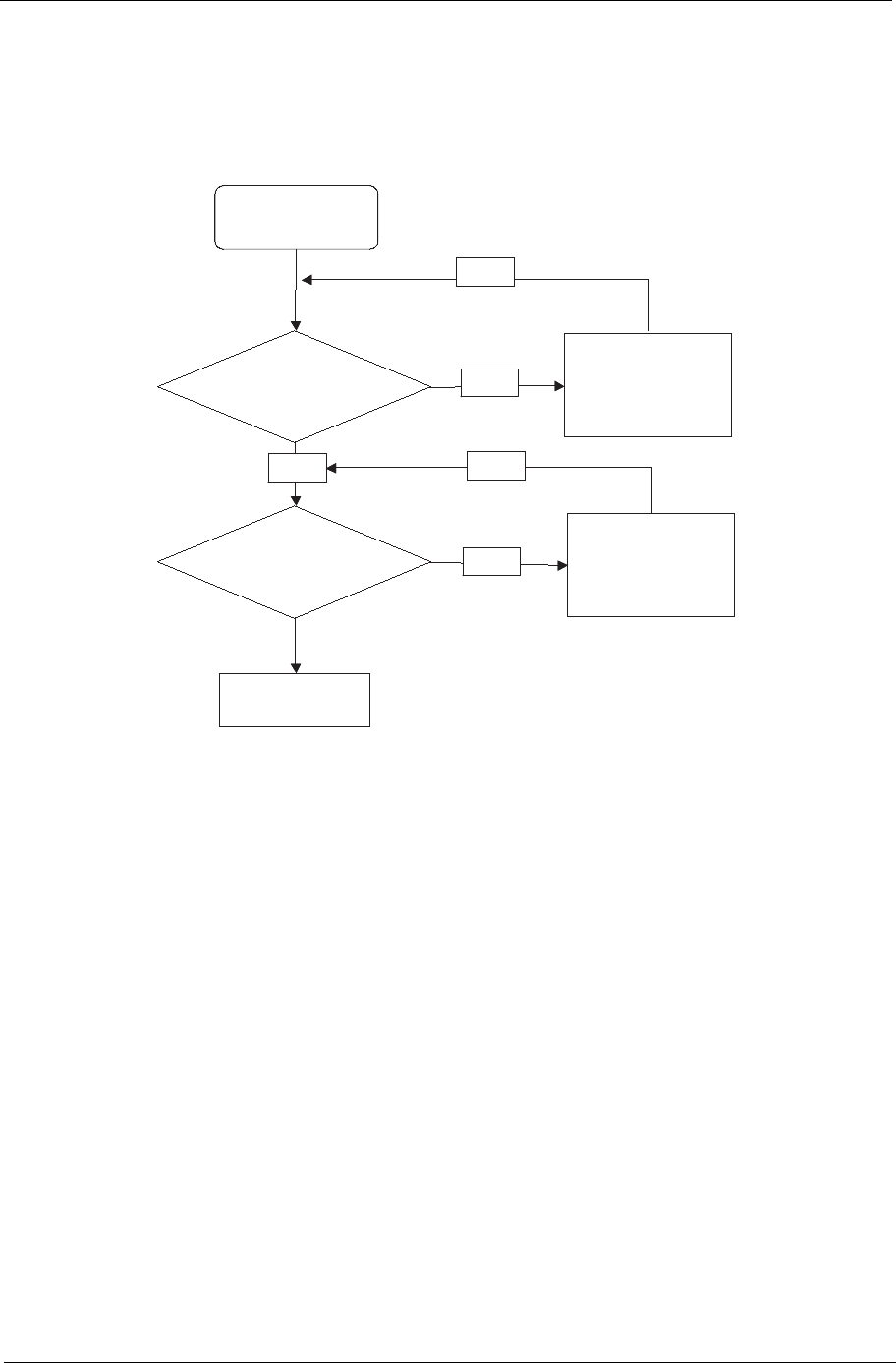
Chapter 4 129
6. If the Issue is still not resolved, see “Online Support Information” on page 165.
LCD Failure
If the LCD fails, perform the following actions one at a time to correct the problem. Do not replace non-
defective FRUs:
Start
Check LCD
module?
Swap
LCD cable /LCD panel
OK
NG
Check MB LCD
connector and
cable ?
OK
Reassemble
Re- plug LCD cable
OK
NG
Swap M/B
Start
Check LCD
module?
Swap
LCD cable /LCD panel
OK
NG
Check MB LCD
connector and
cable ?
OK
Reassemble
Re- plug LCD cable
OK
NG
Swap M/B
130 Chapter 4
Built-In Keyboard Failure
If the built-in Keyboard fails, perform the following actions one at a time to correct the problem. Do not replace
non-defective FRUs:
Start
Keyboard properly
connected? No Disconnect and
reconnect
Keyboard functioning? No Replace Keyboard
Replace
mainboard
Chapter 4 131
TouchPad Failure
If the TouchPad doesn’t work, perform the following actions one at a time to correct the problem. Do not
replace non-defective FRUs:
Start
Check M/B T/P
FFC
Re-assemble the
T/P FFC to M/B
OK
NG
Check
TouchPad
OK
Swap/Reassemble
the T/P board or
T/P FFC
OK
NG
Swap M/B
Start
Check M/B T/P
FFC
Re-assemble the
T/P FFC to M/B
OK
NG
Check
TouchPad
OK
Swap/Reassemble
the T/P board or
T/P FFC
OK
NG
Swap M/B
132 Chapter 4
Internal Speaker Failure
If the internal Speakers fail, perform the following actions one at a time to correct the problem. Do not replace
non-defective FRUs:
Sound Problems
If sound problems are experienced, perform the following actions one at a time to correct the problem.
1. Reboot the computer.
2. Navigate to Start´ Control Panel´ System and Maintenance´ System´ Device Manager. Check
the Device Manager to determine that:
• The device is properly installed.
• There are no red Xs or yellow exclamation marks.
• There are no device conflicts.
• No hardware is listed under Other Devices.
3. Roll back the audio driver to the previous version, if updated recently.
4. Remove and reinstall the audio driver.
5. Ensure that all volume controls are set mid range:
a. Click the volume icon on the taskbar and drag the slider to 50. Ensure that the volume is not muted.
b. Click Mixer to verify that other audio applications are set to 50 and not muted.
6. Navigate to Start´ Control Panel´ Hardware and Sound´ Sound. Ensure that Speakers are selected
as the default audio device (green check mark).
NOTE: If Speakers does not show, right-click on the Playback tab and select Show Disabled Devices
(clear by default).
7. Select Speakers and click Configure to start Speaker Setup. Follow the onscreen prompts to configure
the speakers.
Start
Check M/B SPK
cable
Re-assemble the
SPK cable to M/B
OK
NG
Check Logic
Upper/Logic
upper
OK
Swap Logic
lower/Logic upper
OK
NG
Swap M/B
Start
Check M/B SPK
cable
Re-assemble the
SPK cable to M/B
OK
NG
Check Logic
Upper/Logic
upper
OK
Swap Logic
lower/Logic upper
OK
NG
Swap M/B
Chapter 4 133
8. Remove and recently installed hardware or software.
9. Restore system and file settings from a known good date using System Restore.
If the issue is not fixed, repeat the preceding steps and select an earlier time and date.
10. Reinstall the Operating System.
11. If the Issue is still not resolved, see “Online Support Information” on page 165.
Internal Microphone Failure
If the internal Microphone fails, perform the following actions one at a time to correct the problem. Do not
replace non-defective FRUs:
Microphone Problems
If internal or external Microphones do no operate correctly, perform the following actions one at a time to
correct the problem.
1. Check that the microphone is enabled. Navigate to Start´ Control Panel´ Hardware and Sound´
Sound and select the Recording tab.
2. Right-click on the Recording tab and select Show Disabled Devices (clear by default).
3. The microphone appears on the Recording tab.
4. Right-click on the microphone and select Enable.
5. Select the microphone then click Properties. Select the Levels tab.
6. Increase the volume to the maximum setting and click OK.
7. Test the microphone hardware:
a. Select the microphone and click Configure.
b. Select Set up microphone.
Start
Check M/B Mic.
cable
Re-assemble the
MIC cable to M/B
OK
NG
Check MIC wire
of LCD module
OK
Swap MIC wire of
LCD module
OK
NG
Swap M/B
Start
Check M/B Mic.
cable
Re-assemble the
MIC cable to M/B
OK
NG
Check MIC wire
of LCD module
OK
Swap MIC wire of
LCD module
OK
NG
Swap M/B

134 Chapter 4
c. Select the microphone type from the list and click Next.
d. Follow the onscreen prompts to complete the test.
8. If the Issue is still not resolved, see “Online Support Information” on page 165.
HDD Not Operating Correctly
If the HDD does not operate correctly, perform the following actions one at a time to correct the problem.
1. Disconnect all external devices.
2. Run a complete virus scan using up-to-date software to ensure the computer is virus free.
3. Run the Windows Vista Startup Repair Utility:
a. insert the Windows Vista Operating System DVD in the ODD and restart the computer.
b. When prompted, press any key to start to the operating system DVD.
c. The Install Windows screen displays. Click Next.
d. Select Repair your computer.
e. The System Recovery Options screen displays. Click Next.
f. Select the appropriate operating system, and click Next.
NOTE: Click Load Drivers if controller drives are required.
g. Select Startup Repair.
h. Startup Repair attempts to locate and resolve issues with the computer.
i. When complete, click Finish.
If an issue is discovered, follow the onscreen information to resolve the problem.
4. Run the Windows Memory Diagnostic Tool. For more information see Windows Help and Support.
5. Restart the computer and press F2 to enter the BIOS Utility. Check the BIOS settings are correct and that
CD/DVD drive is set as the first boot device on the Boot menu.
6. Ensure all cables and jumpers on the HDD and ODD are set correctly.
7. Remove any recently added hardware and associated software.
8. Run the Windows Disk Defragmenter. For more information see Windows Help and Support.
9. Run Windows Check Disk by entering chkdsk /r from a command prompt. For more information see
Windows Help and Support.
10. Restore system and file settings from a known good date using System Restore.
If the issue is not fixed, repeat the preceding steps and select an earlier time and date.
11. Replace the HDD. See “Disassembly Process” on page 34.
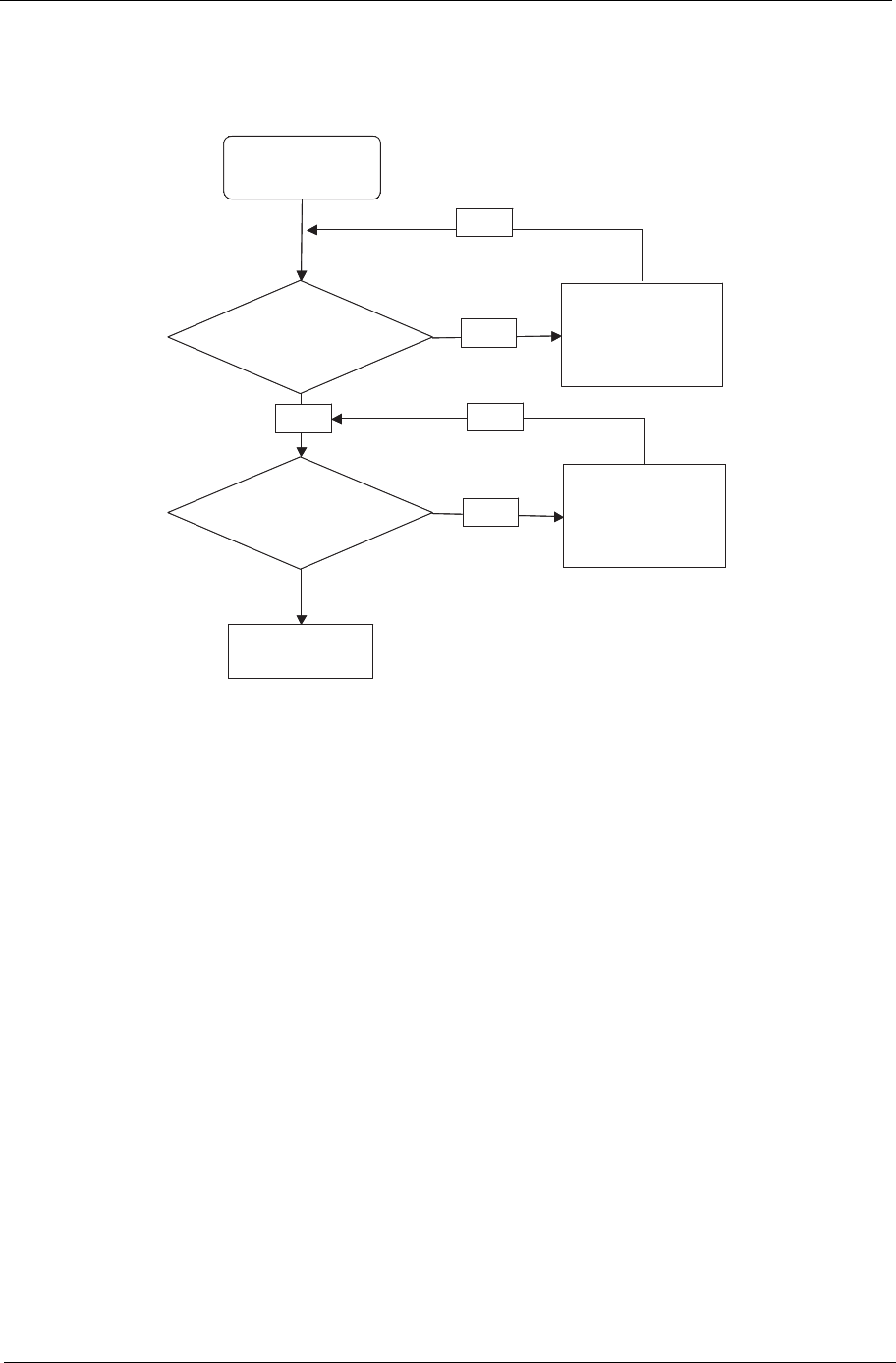
Chapter 4 135
USB Failure (Right up/down side)
If the rightside USB port fails, perform the following actions one at a time to correct the problem. Do not
replace non-defective FRUs:
Other Failures
If the VGA board, LAN Port, external MIC or Speakers, PCI Express Card, 5-in-1 Card Reader or Volume
Wheel fail, perform the following general steps to correct the problem. Do not replace non-defective FRUs:
1. Check whether the drive is OK.
2. Verify that the Test Fixture is ok.
3. Swap the mainboard and retest.
Start
Check USB/B to
M/B cable
Re-assemble the
USB/B cable to M/B
OK
NG
Check USB/B
OK
Swap USB/B and
USB cable
OK
NG
Swap M/B
Start
Check USB/B to
M/B cable
Re-assemble the
USB/B cable to M/B
OK
NG
Check USB/B
OK
Swap USB/B and
USB cable
OK
NG
Swap M/B

136 Chapter 4
Intermittent Problems
Intermittent system hang problems can be caused by a variety of reasons that have nothing to do with a
hardware defect, such as: cosmic radiation, electrostatic discharge, or software errors. FRU replacement
should be considered only when a recurring problem exists.
When analyzing an intermittent problem, do the following:
1. Run the advanced diagnostic test for the system board in loop mode at least 10 times.
2. If no error is detected, do not replace any FRU.
3. If any error is detected, replace the FRU. Rerun the test to verify that there are no more errors.
Undetermined Problems
The diagnostic problems does not identify which adapter or device failed, which installed devices are incorrect,
whether a short circuit is suspected, or whether the system is inoperative.
Follow these procedures to isolate the failing FRU (do not isolate non-defective FRU).
NOTE: Verify that all attached devices are supported by the computer.
NOTE: Verify that the power supply being used at the time of the failure is operating correctly. (See “Power On
Issue” on page 126):
1. Power-off the computer.
2. Visually check them for damage. If any problems are found, replace the FRU.
3. Remove or disconnect all of the following devices:
• Non-Acer devices
• Printer, mouse, and other external devices
•Battery pack
• Hard disk drive
•DIMM
• CD-ROM/Diskette drive Module
• PC Cards
4. Power-on the computer.
5. Determine if the problem has changed.
6. If the problem does not recur, reconnect the removed devices one at a time until you find the failing FRU.
7. If the problem remains, replace the following FRU one at a time. Do not replace a non-defective FRU:
• System board
• LCD assembly

Chapter 4 137
POST Code Reference Tables
These tables describe the POST codes and components of the POST process.
Code Beeps POST Routine Description
02h Verify Real Mode
03h Disable Non-Maskable Interrupt (NMI)
04h Get CPU type
06h Initialize system hardware
08h Initialize chipset with initial POST
09h Set IN POST flag
0Ah Initialize CPU registers
0Bh Enable CPU cache
0Ch Initialize caches to initial POST va
0Eh Initialize I/O component
0Fh Initialize the local bus IDE
10h Initialize Power Management
11h Load alternate registers with initial POST values
12h Restore CPU control word during warm boot
13h Initialize PCI Bus Mastering devices
14h Initialize keyboard controller
16h 1-2-2-3 BIOS ROM checksum
17h Initialize cache before memory autosize
18h 8254 timer initialization
1Ah 8237 DMA controller initialization
1Ch Reset Programmable Interrupt Controller
20h 1-3-1-1 Test DRAM refresh
22h 1-3-1-3 Test 8742 Keyboard Controller
24h Set ES segment register to 4 GB
26h Enable A20 line
28h Autosize DRAM
29h Initialize POST Memory Manager
2Ah Clear 512 KB base RAM
2Ch 1-3-4-1 RAM failure on address line xxxx*
2Eh 1-3-4-3 RAM failure on data bits xxxx* of low byte of memory bus
2Fh Enable cache before system BIOS shadow
30h 1-4-1-1 RAM failure on data bits xxxx* of high byte of memory bus
32h Test CPU bus-clock frequency
33h Initialize Phoenix Dispatch Manager
36h Warm start shut down
38h Shadow system BIOS ROM
3Ah Autosize cache
3Ch Advanced configuration of chipset registers
3Dh Load alternate registers with CMOS values
42h Initialize interrupt vectors

138 Chapter 4
45h POST device initialization
46h Check ROM copyright notice
48h 2-1-2-3 Check video configuration against CMOS
49h Initialize PCI bus and devices
4Ah Initialize all video adapters in system
4Bh QuietBoot start (optional)
4Ch Shadow video BIOS ROM
4Eh Display BIOS copyright notice
50h Display CPU type and speed
51h Initialize EISA board
52h Test keyboard
54h Set key click if enabled
58h 2-2-3-1 Test for unexpected interrupts
59h Initialize POST display service
5Ah Display prompt "Press F2 to enter SETUP"
5Bh Disable CPU cache
5Ch Test RAM between 512 and 640 KB
60h Test extended memory
62h Test extended memory address lines
64h Jump to UserPatch1
66h Configure advanced cache registers
67h Initialize Multi Processor APIC
68h Enable external and CPU caches
69h Setup System Management Mode (SMM) area
6Ah Display external L2 cache size
6Bh Load custom defaults (optional)
6Ch Display shadow-area message
6Eh Display possible high address for UMB recovery
70h Display error messages
72h Check for configuration errors
76h Check for keyboard errors
7Ch Set up hardware interrupt vectors
7Eh Initialize coprocessor if present
80h Disable onboard Super I/O ports and IRQs
81h Late POST device initialization
82h Detect and install external RS232 ports
83h Configure non-MCD IDE controllers
84h Detect and install external parallel ports
85h Initialize PC-compatible PnP ISA devices
86h Re-initialize onboard I/O ports.
87h Configure Motheboard Configurable Devices (optional)
88h Initialize BIOS Data Area
89h Enable Non-Maskable Interrupts (NMIs)
Code Beeps POST Routine Description

Chapter 4 139
8Ah Initialize Extended BIOS Data Area
8Bh Test and initialize PS/2 mouse
8Ch Initialize floppy controller
8Fh Determine number of ATA drives (optional)
90h Initialize hard-disk controllers
91h Initialize local-bus hard-disk controllers
92h Jump to UserPatch2
93h Build MPTABLE for multi-processor boards
95h Install CD ROM for boot
96h Clear huge ES segment register
97h Fixup Multi Processor table
98h 1-2 Search for option ROMs. One long, two short beeps on checksum failure
99h Check for SMART Drive (optional)
9Ah Shadow option ROMs
9Ch Set up Power Management
9Dh Initialize security engine (optional)
9Eh Enable hardware interrupts
9Fh Determine number of ATA and SCSI drives
A0h Set time of day
A2h Check key lock
A4h Initialize Typematic rate
A8h Erase F2 prompt
AAh Scan for F2 key stroke
ACh Enter SETUP
AEh Clear Boot flag
B0h Check for errors
B2h POST done - prepare to boot operating system
B4h 1 One short beep before boot
B5h Terminate QuietBoot (optional)
B6h Check password (optional)
B9h Prepare Boot
BAh Initialize DMI parameters
BBh Initialize PnP Option ROMs
BCh Clear parity checkers
BDh Display MultiBoot menu
BEh Clear screen (optional)
BFh Check virus and backup reminders
C0h Try to boot with INT 19
C1h Initialize POST Error Manager (PEM)
C2h Initialize error logging
C3h Initialize error display function
C4h Initialize system error handler
C5h PnPnd dual CMOS (optional)
Code Beeps POST Routine Description
140 Chapter 4
* If the BIOS detects error 2C, 2E, or 30 (base 512K RAM error), it displays an additional word-bitmap (xxxx)
indicating the address line or bits that failed. For example, "2C 0002" means address line 1 (bit one set) has
failed. "2E 1020" means data bits 12 and 5 (bits 12 and 5 set) have failed in the lower 16 bits. Note that error
30 cannot occur on 386SX systems because they have a 16 rather than 32-bit bus. The BIOS also sends the
bitmap to the port-80 LED display. It first displays the check point code, followed by a delay, the high-order
byte, another delay, and then the low-order byte of the error. It repeats this sequence continuously.
C6h Initialize notebook docking (optional)
C7h Initialize notebook docking late
C8h Force check (optional)
C9h Extended checksum (optional)
D2h Unknown interrupt
Code Beeps For Boot Block in Flash ROM
E0h Initialize the chipset
E1h Initialize the bridge
E2h Initialize the CPU
E3h Initialize system timer
E4h Initialize system I/O
E5h Check force recovery boot
E6h Checksum BIOS ROM
E7h Go to BIOS
E8h Set Huge Segment
E9h Initialize Multi Processor
EAh Initialize OEM special code
EBh Initialize PIC and DMA
ECh Initialize Memory type
EDh Initialize Memory size
EEh Shadow Boot Block
EFh System memory test
F0h Initialize interrupt vectors
F1h Initialize Run Time Clock
F2h Initialize video
F3h Initialize System Management Mode
F4h 1 Output one beep before boot
F5h Boot to Mini DOS
F6h Clear Huge Segment
F7h Boot to Full DOS
Code Beeps POST Routine Description
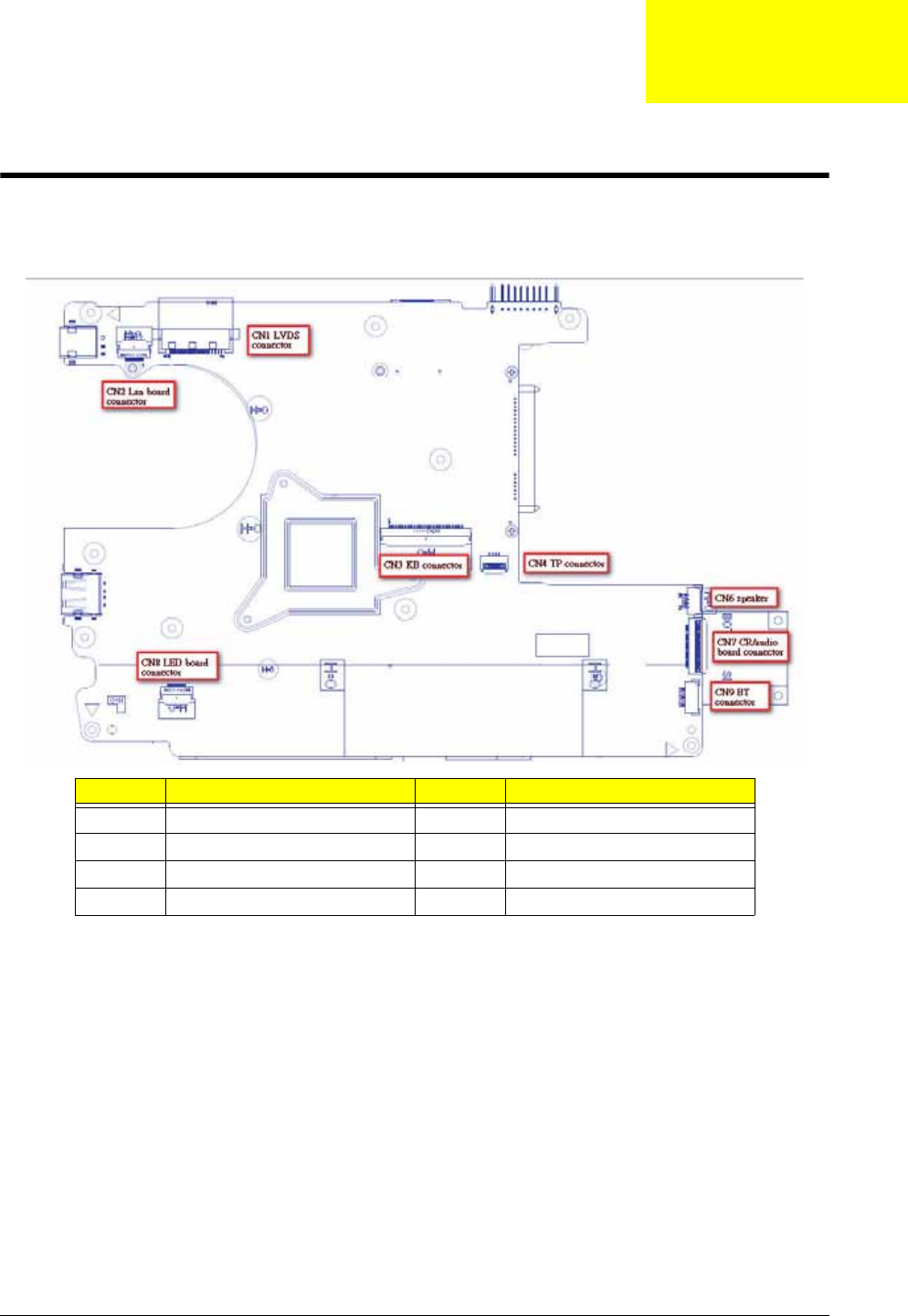
Chapter 5 141
Jumper and Connector Locations
Top View
Item Description Item Description
CN1 LVDS connector CN6 Speaker connector
CN2 LAN connector CN7 I/O Board Connector
CN3 Keyboard connector CN8 LED board connector
CN4 Touchpad connector CN9 Bluetooth connector
Chapter 5
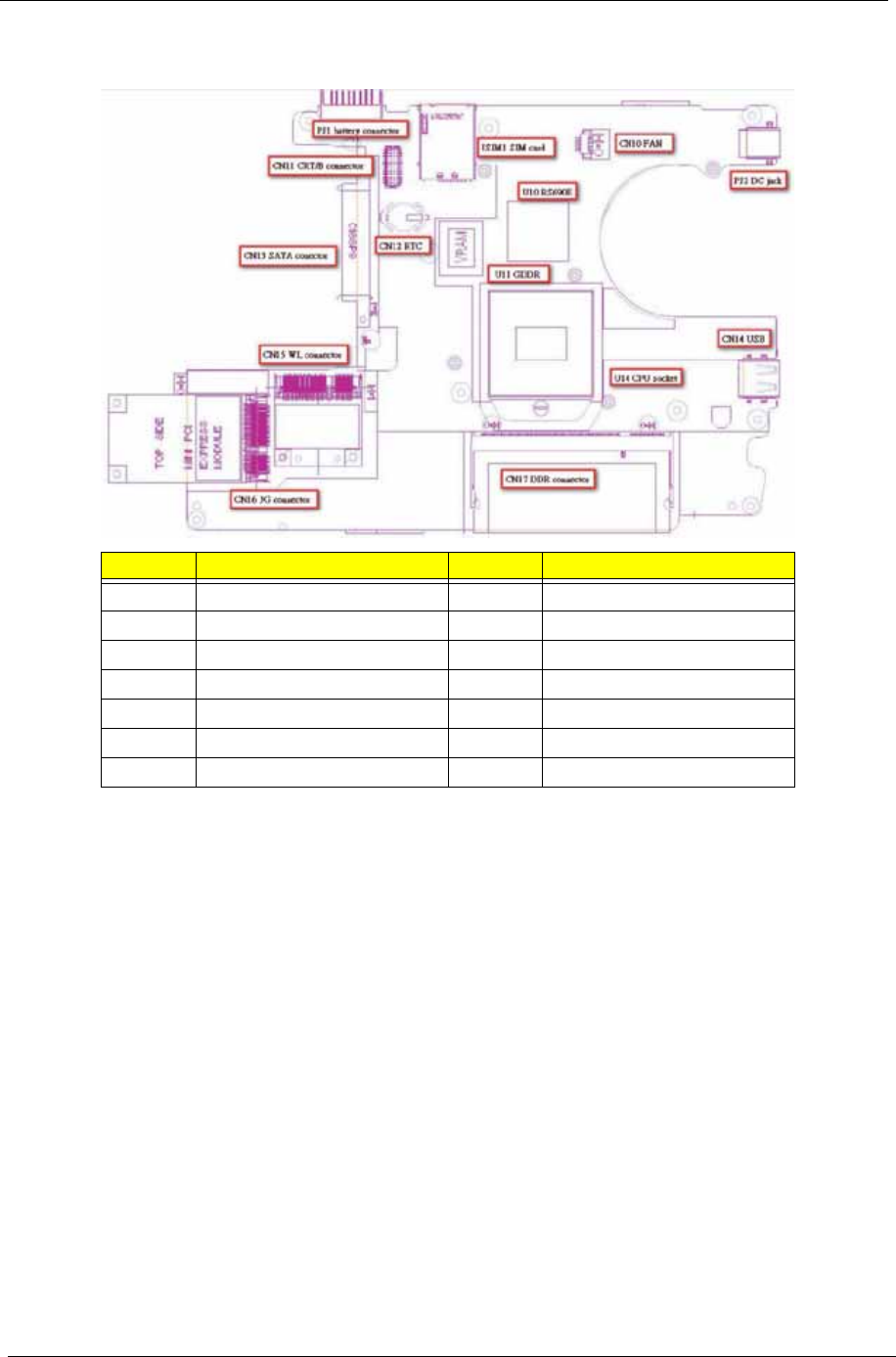
142 Chapter 5
Bottom View
Item Description Item Description
CN10 FAN CN17 DDR Connector
CN11 CRT/B Connector PJ1 Battery connector
CN12 RTC Battery Connector PJ2 DC-in
CN13 SATA Connector JSIM1 SIM card connector
CN14 USB U10 RS690E
CN15 WL Connector U15 GDDR
CN16 3G Connector U14 CPU Socket
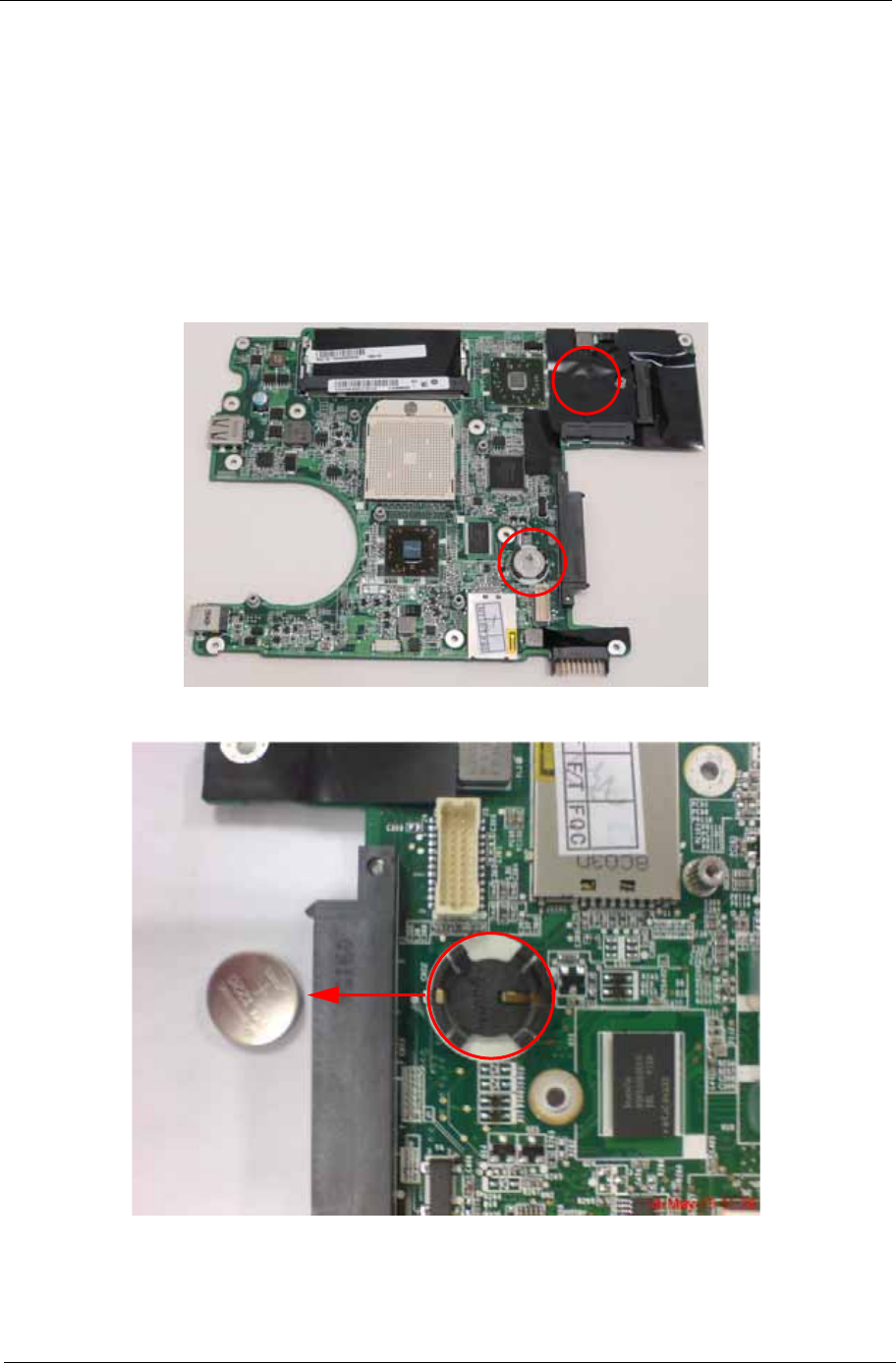
Chapter 5 143
Clearing Password Check and BIOS Recovery
This section provide you the standard operating procedures of clearing password and BIOS recovery for
Aspire one. Aspire one provides one Hardware Open Gap on the main board for clearing the CMOS, and one
Hotkey for enabling BIOS Recovery.
Motherboard CMOS Discharge
Discharging the CMOS clears all user settings.
1. Decompose the notebook and take out the Mainboard
2. Locate the RTC Battery and Jumpers.
3. Disconnect the RTC battery
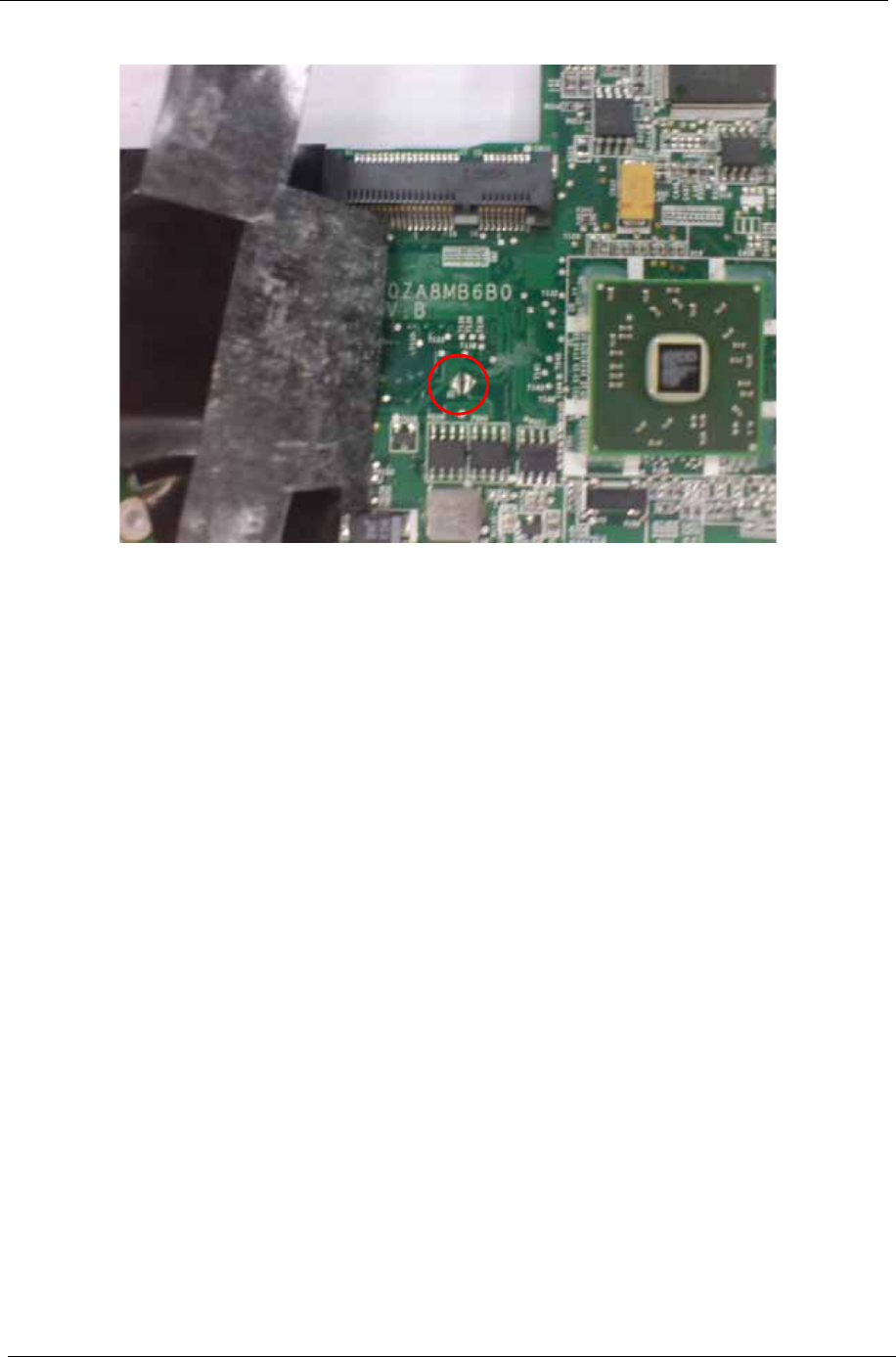
144 Chapter 5
4. Peel back the Wireles LAN Card mylar and short the G2 pad.
5. Reconnect the RTC battery and reassemble the unit.
BIOS Recovery by Crisis Disk
BIOS Recovery Boot Block:
BIOS Recovery Boot Block is a special block of BIOS. It is used to boot up the system with minimum BIOS
initialization. Users can enable this feature to restore the BIOS firmware to a successful one once the previous
BIOS flashing process failed.
BIOS Recovery Hotkey:
The system provides a function hotkey: Fn+Esc, for enable BIOS Recovery process when system is powered
on during BIOS POST. To use this function, it is strongly recommended to have the AC adapter and Battery
present. If this function is enabled, the system will force the BIOS to enter a special BIOS block, called Boot
Block.
Steps for BIOS Recovery by USB Flash Crisis Disk:
Before doing this, a Crisis Diskette should be prepared ready in hand. The Crisis Diskette could be made by
executing the Crisis Disk program in another system with Windows XP OS.
Follow the steps below:
1. Plug in a blank USB disk.
2. Launch the wincrisis.exe program to create a USB Crisis Disk.
3. Select Create MINIDOS Crisis Disk.
4. Click Start to initiate the process.
5. Click OK to override the warning dialog.
IMPORTANT:The Crisis Disk program will overwrite all data on any drive that you use as a crisis disk.
6. Copy the KAV60.fd BIOS file into USB flash disk root directory.
NOTE: Do not place any other *.fd file in the USB flash disk root directory.

Chapter 5 145
To use the Crisis USB key, do the following:
1. Plug USB storage into USB port.
2. Press Fn + ESC button then plug in AC power.
The Power button flashes orange once.
3. Press Power button to initiate system CRISIS mode.
When CRISIS is complete, the system auto restarts with a workable BIOS.
4. Update the latest version BIOS for this machine by regular BIOS flashing process.

146 Chapter 5

Chapter 6 147
FRU (Field Replaceable Unit) List
This chapter gives you the FRU (Field Replaceable Unit) listing in global configurations of Gateway LT31 Series. Refer to this
chapter whenever ordering for parts to repair or for RMA (Return Merchandise Authorization).
Please note that WHEN ORDERING FRU PARTS, you should check the most up-to-date information available on your
regional web or channel. For whatever reasons a part number change is made, it will not be noted on the printed Service
Guide. For ACER AUTHORIZED SERVICE PROVIDERS, your Acer office may have a DIFFERENT part number code from
those given in the FRU list of this printed Service Guide. You MUST use the local FRU list provided by your regional Acer
office to order FRU parts for repair and service of customer machines.
NOTE: To scrap or to return the defective parts, you should follow the local government ordinance or regulations on how to
dispose it properly, or follow the rules set by your regional Acer office on how to return it.
Chapter 6
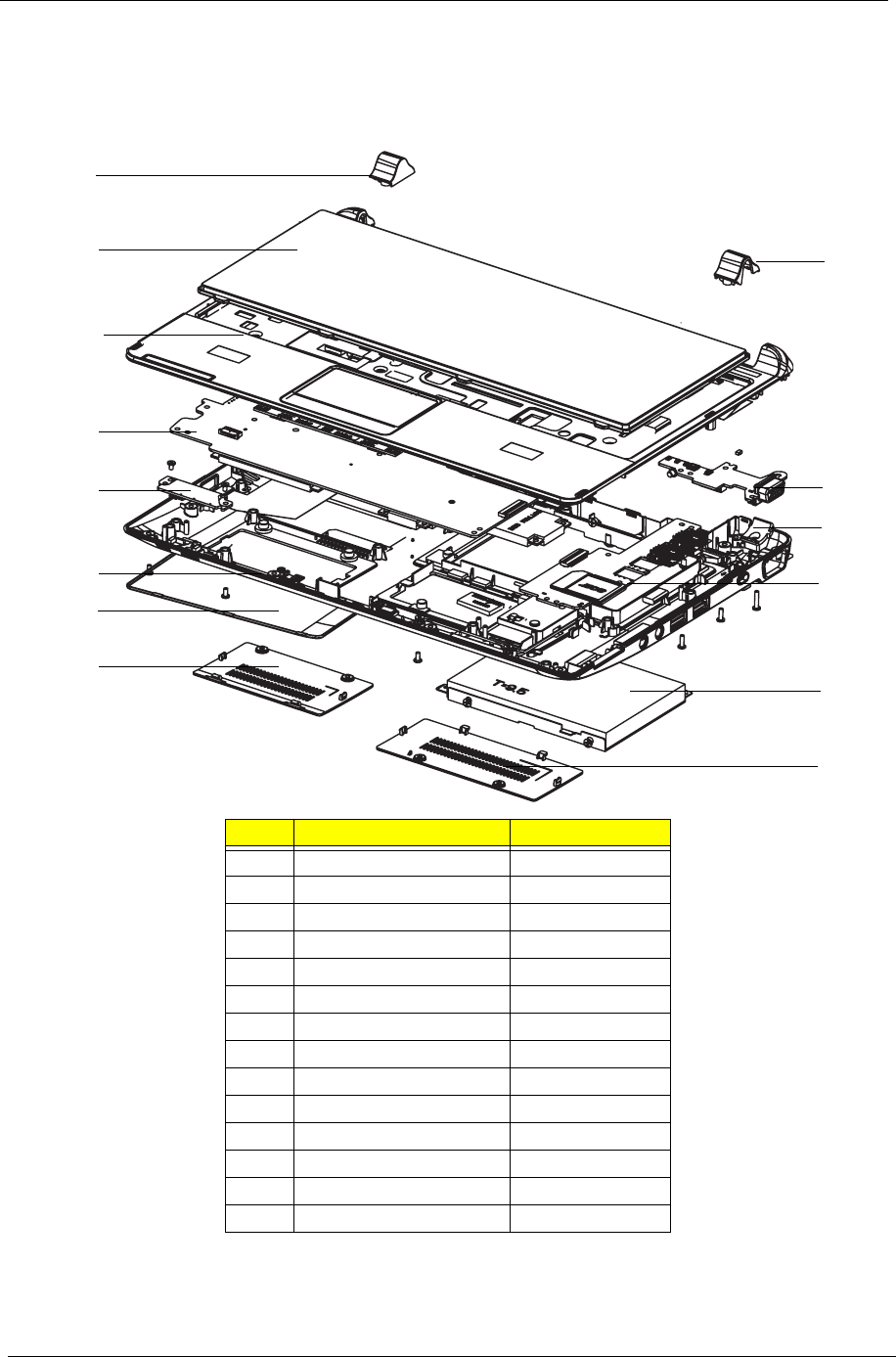
148 Chapter 6
Gateway LT31 Exploded Diagrams
Main Assembly
Item Description Part Number
1 Left Hinge Cover N/A
2 Right Hinge Cover N/A
3 Keyboard N/A
4 Upper Cover N/A
5 Mainboard N/A
6 LED Board N/A
7 Lower Cover N/A
8 HDD Door N/A
9 Memory Door N/A
10 VGA Card N/A
11 Hinge Well N/A
12 I/O Board N/A
13 HDD N/A
14 MiniPCI Door N/A
3
5
6
7
9
10
14
4
1
13
11
2
12
8
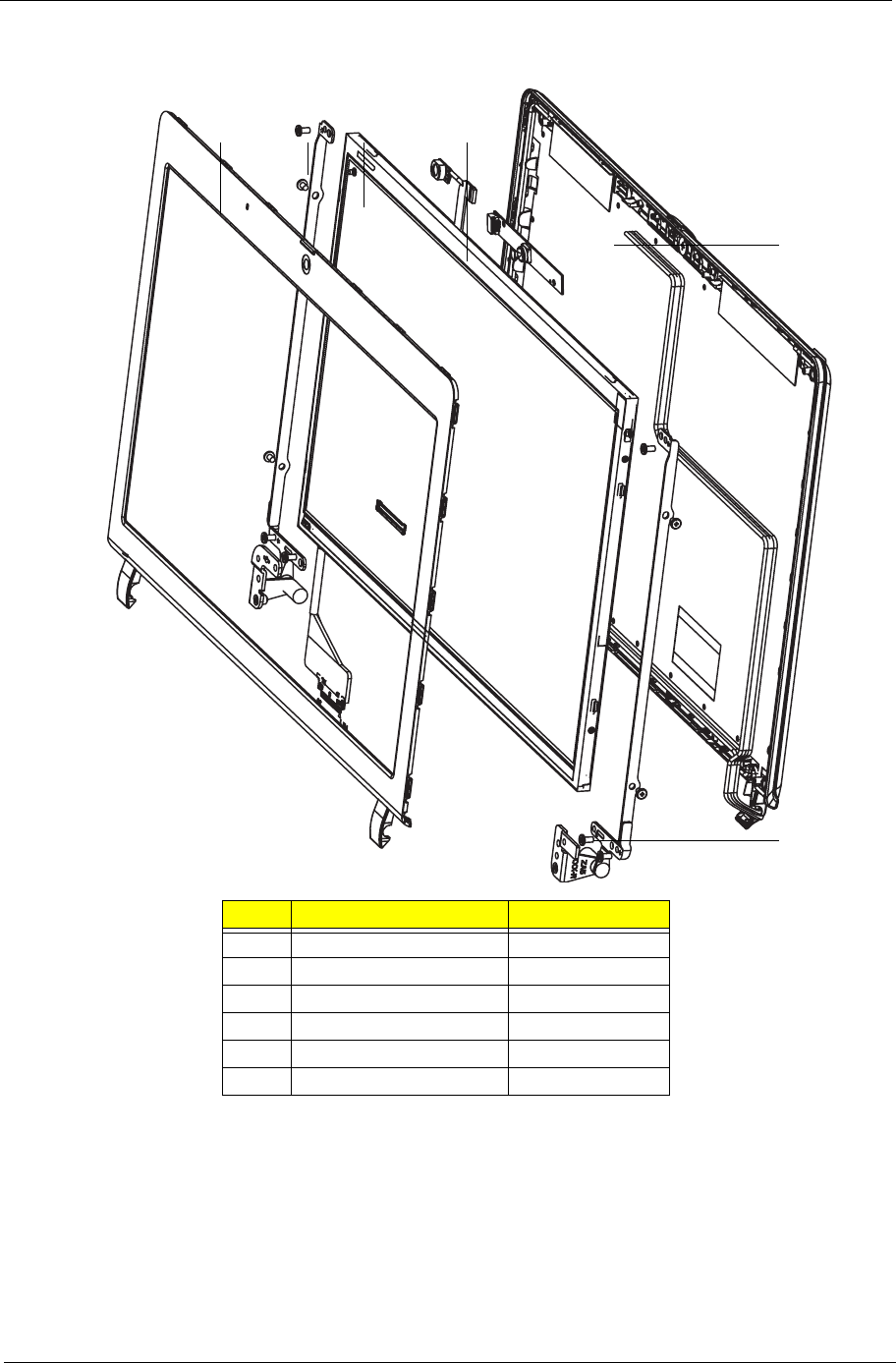
Chapter 6 149
LCD Assembly
Item Description Part Number
1 LCD Bezel N/A
2 LCD Bracket_L N/A
3 LCD Panel N/A
4 Camera N/A
5 LCD Cover N/A
6 LCD Bracket_R N/A
123 4
5
6
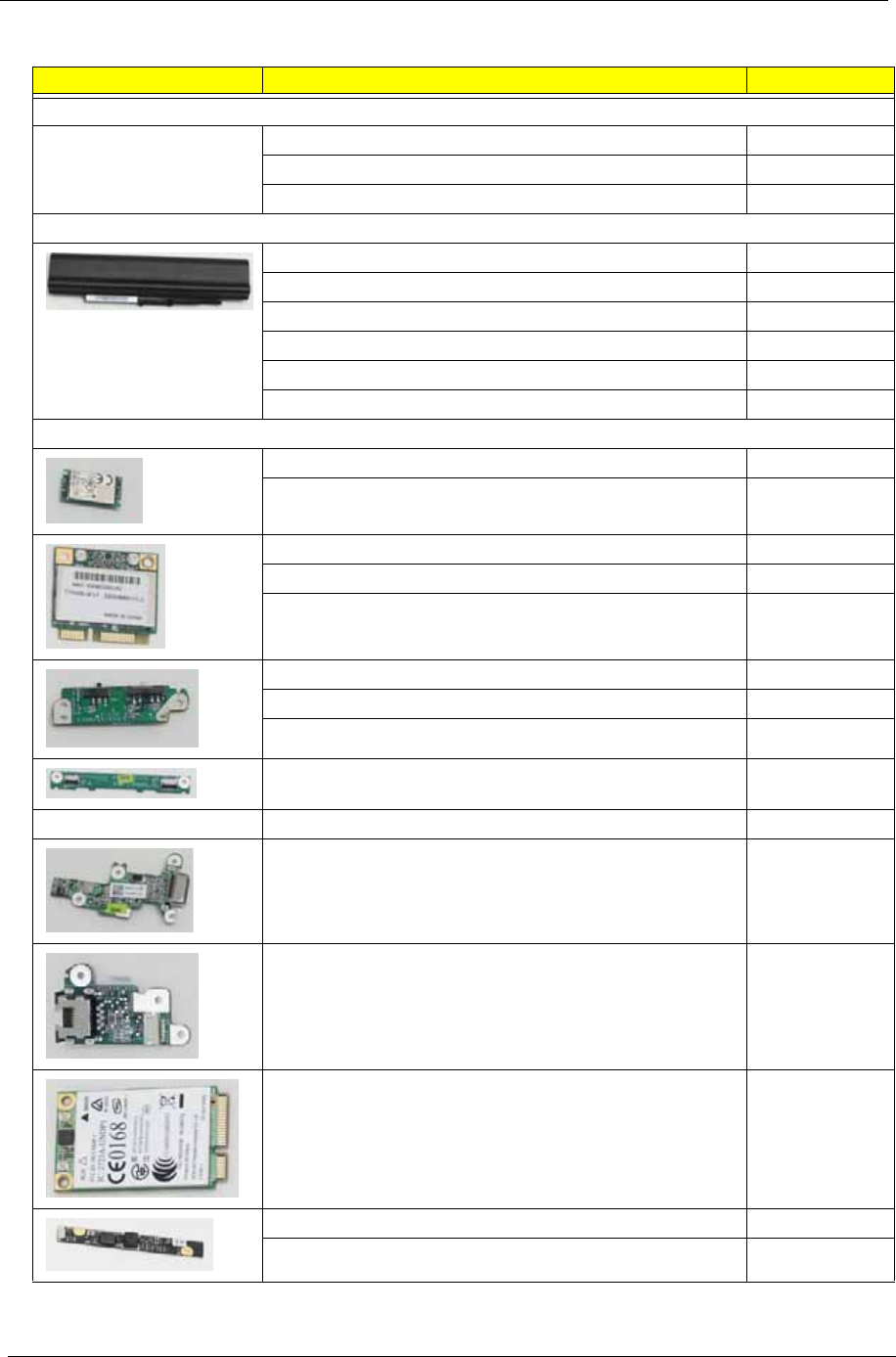
150 Chapter 6
Gateway LT31 Series FRU List
CATEGORY QUANTA DESCRIPTION ACER PN.
ADAPTER
ZG5 ADP 19V 1.58A 30JH BA 90~264V S.P AP.03001.001
ZG5 ADP 19V PA-1300-04AC 90~264V S.P AP.03003.001
ZG5 ADP19V1.58A HP-A0301R3 S.P AP.0300A.001
BATTERY
ZG8 BATT LI,UM09A71 3S1P 2.2A S.P BT.00307.013
ZG8 BATT LI,UM09A75 3S1P 2.2A S.P BT.00307.014
ZG8 BATT LI,UM09A41 3S1P 2.2A (B) S.P BT.00304.003
ZG8 BATT LI,UM09B7D 3S2P 5.2A(BLACK)S.P BT.00607.074
ZG8 BATT LI,UM09B7C 3S2P 5.2A(BLACK)S.P BT.00607.075
ZA8 BATT LI,UM09B44 3S2P 5.1A(B)S.P N/A
BOARD
ZK6 BLUETOOTH MODULE T60H928.33 S.P BT.21100.006
Z01 BLUETOOTH ASSY(FOX T60H928.11) S.P BT.21100.005
ZA8 W/L MINICARD 802.11BGN S.P N/A
ZG8 WIRELESS HALF-PCIE T77H032.02 S.P NI.23600.048
ZA8 WLAN (802.11B/G)BROADCOM S.P N/A
ZA8 LED/B W/3G&BT (FOR ZA8) S.P N/A
ZA8 LED/B W/BT WO/3G S.P N/A
ZA8 LED/B WO 3G/BT (FOR ZA8) S.P N/A
ZA8 TP/B S.P N/A
ZA8 CR/B S.P N/A
ZA8 CRT/B S.P N/A
ZA8 LAN/B S.P N/A
ZG5 WWAN 3G CARD T77Z039.04 S.P LC.21300.005
ZG8 CAMERA CNF9011(CMOS,0.3M,VGA)S.P 57.S6507.002
ZG8 CAMERA MODULE S.P (0.3M) 57.S6507.001
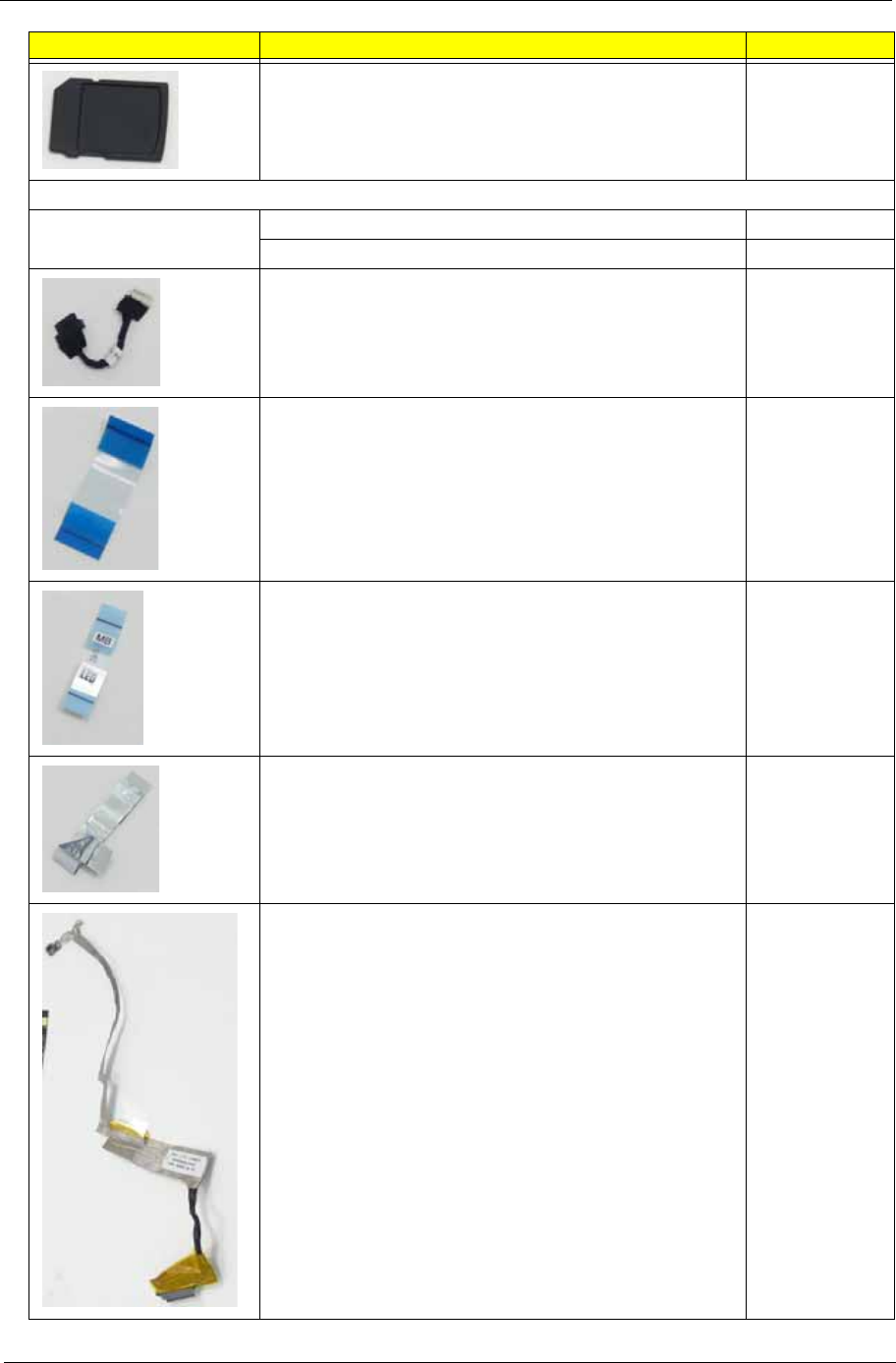
Chapter 6 151
SD DUMMY CARD ZA3(EBZA3013,REV3A) N/A
CABLE
ZB1 PWR CORD US S/P 27.TAXV7.001
ZR1 PWR CORD (5-KAF2166) S/P 27.TATV7.001
ZA8 CABLE BLUETOOTH(3.3V,5/8P,1A)S.P N/A
ZA8 CABLE CARDREAD(41MM,28P,1A)5V S.P N/A
ZA8 CABLE FFC LED (35MM,12P,1A)5V S.P N/A
ZA8 CABLE FFC LAN (48MM,12P,1A)5V S.P N/A
ZA8 CABLE LCD 11.6(30/40/5/4P,1A)3V SP N/A
CATEGORY QUANTA DESCRIPTION ACER PN.
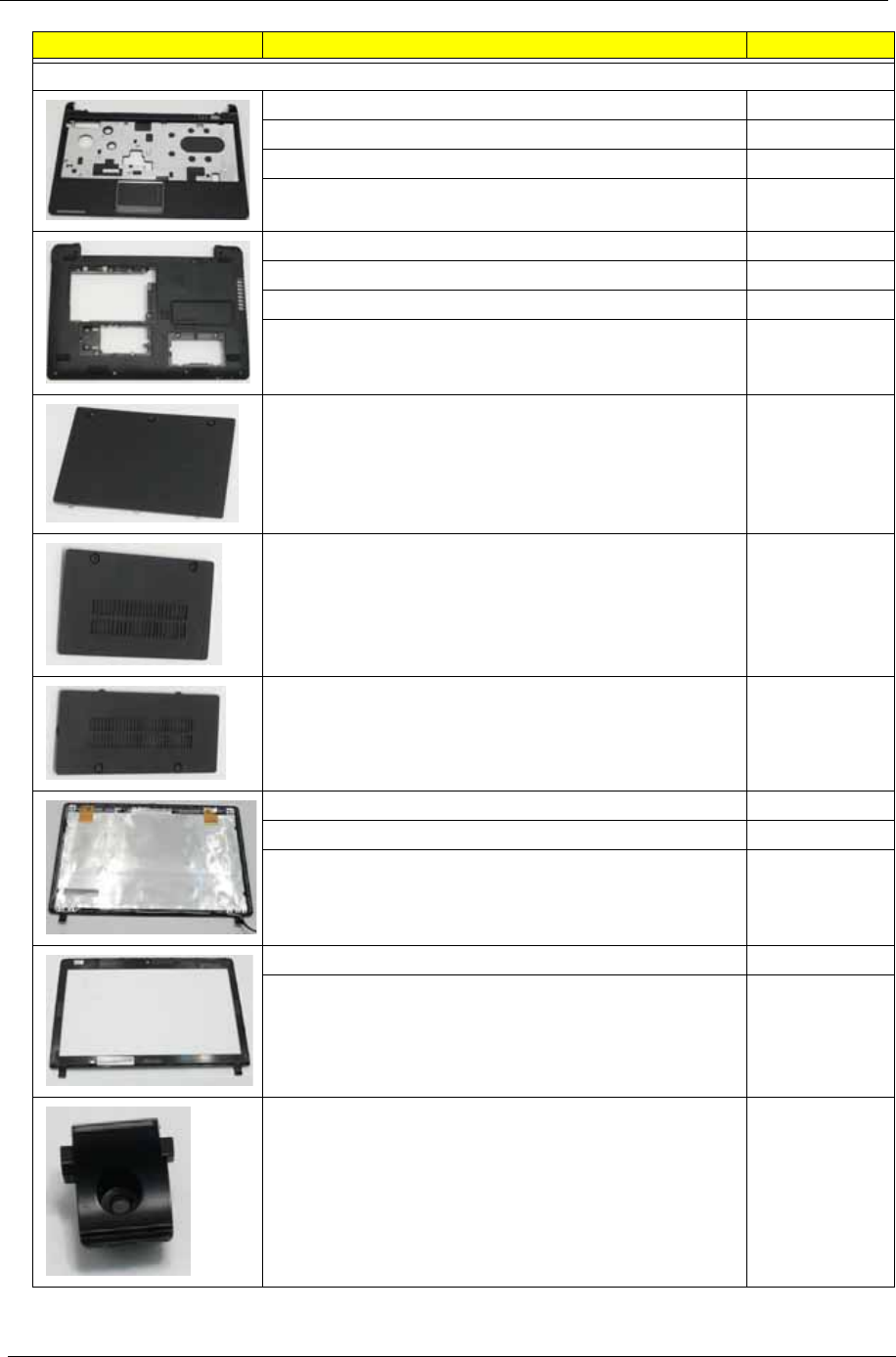
152 Chapter 6
CASE/COVER/BRACKET ASSEMBLY
ZA8 TOP CASE WIFI RED ASSY S.P N/A
ZA8 TOP CASE 3G-WIFI RED ASSY S.P N/A
ZA8 TOP CASE WIFI BK ASSY S.P N/A
ZA8 TOP CASE 3G-WIFI BK S.P N/A
ZA8 BASE CASE 3G-WIFI-BT BK S.P N/A
ZA8 BASE CASE WIFI-BT BK ASSY S.P N/A
ZA8 BASE CASE 3G-WIFI-BT RED S.P N/A
ZA8 BASE CASE WIFI-BT RED ASSY S.P N/A
ZA8-HDD-DOOR-ASSY S.P N/A
ZA8 RAM DOOR ASSY S.P N/A
ZA8 3G DOOR ASSY S.P N/A
ZA8 LCD COVER 3G-WIFI GW RED ASSY S.P N/A
ZA8 LCD COVER 3G-WIFI GW BK S.P N/A
ZA8 LCD COVER WIFI GW BK ASSY S.P N/A
ZA5 LCD BEZEL ASSY-BK S.P 60.BA307.006
ZA6 LCD BEZEL ASSY-BK S.P 60.BA307.008
ZA5 HINGE-L(FBZA5001,REV3A)S.P 33.WDP07.00
1
CATEGORY QUANTA DESCRIPTION ACER PN.
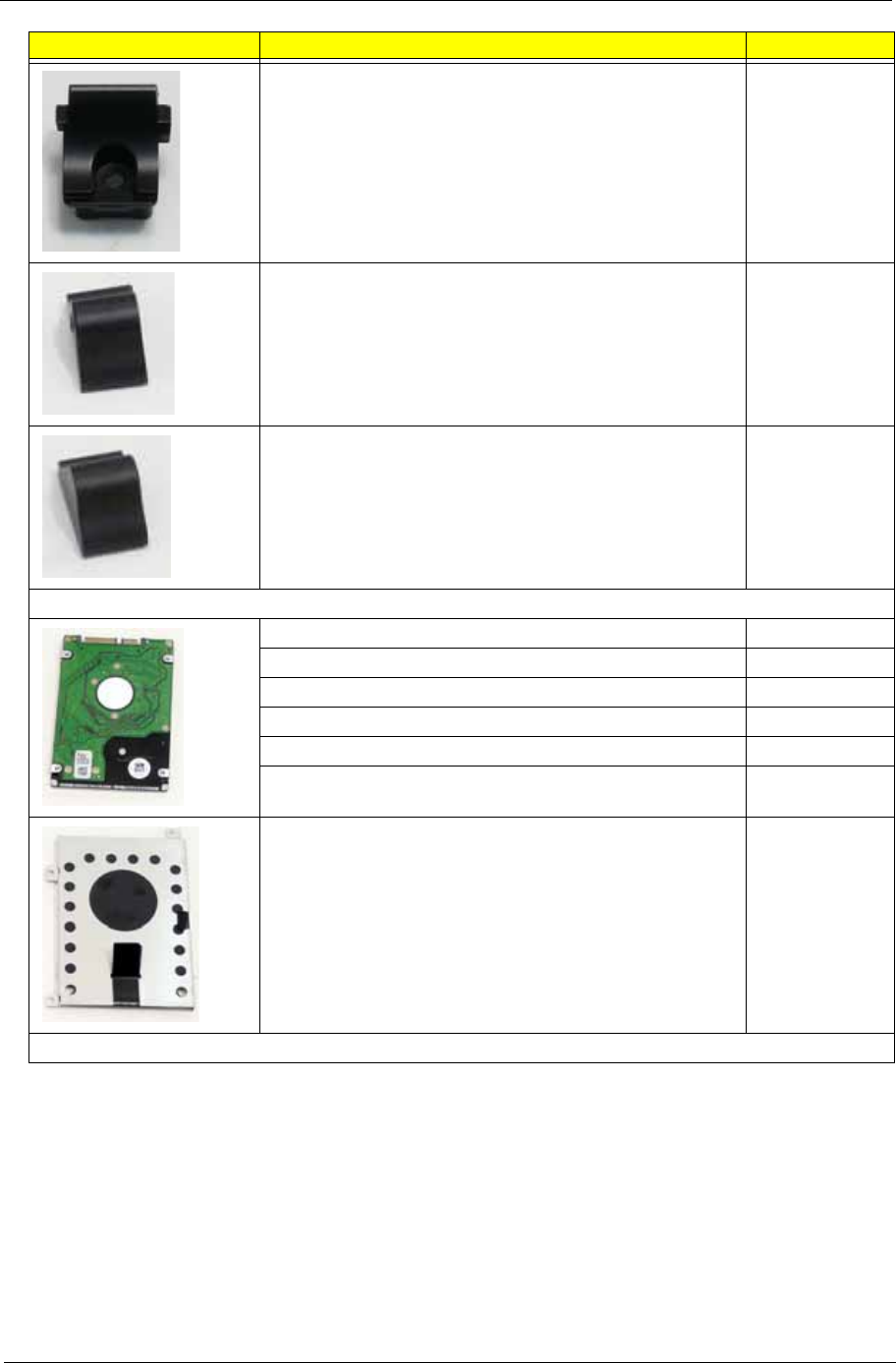
Chapter 6 153
ZA5 HINGE-R(FBZA5002,REV3A)S.P 33.WDP07.00
2
ZA5 TOP-HINGE-CAP-L S.P 42.WDP07.00
4
ZA5 TOP-HINGE-CAP-R S.P 42.WDP07.00
5
HDD/HARD DISK DRIVE
ZG8 HDD(160G)HTS545016B9A300 0A70421 S.P KH.16007.024
ZK2 HDD(160G) ST9160310AS 9EV132-188 S.P KH.16001.034
Z06 HDD(160G) MK1655GSX-EUL S.P KH.16004.006
SA1 HDD(160G) WD1600BEVT-22ZCT0 S.P KH.16008.022
Z06 HDD(250G)ST9250315AS 9HH132-188 S.P KH.25001.016
Z06 HDD(250G) MK2555GSX-EUL S.P KH.25004.003
ZA8 HDD-BKT-ZA8(FAZA8003,REV3A)S.P N/A
KEYBOARD
CATEGORY QUANTA DESCRIPTION ACER PN.
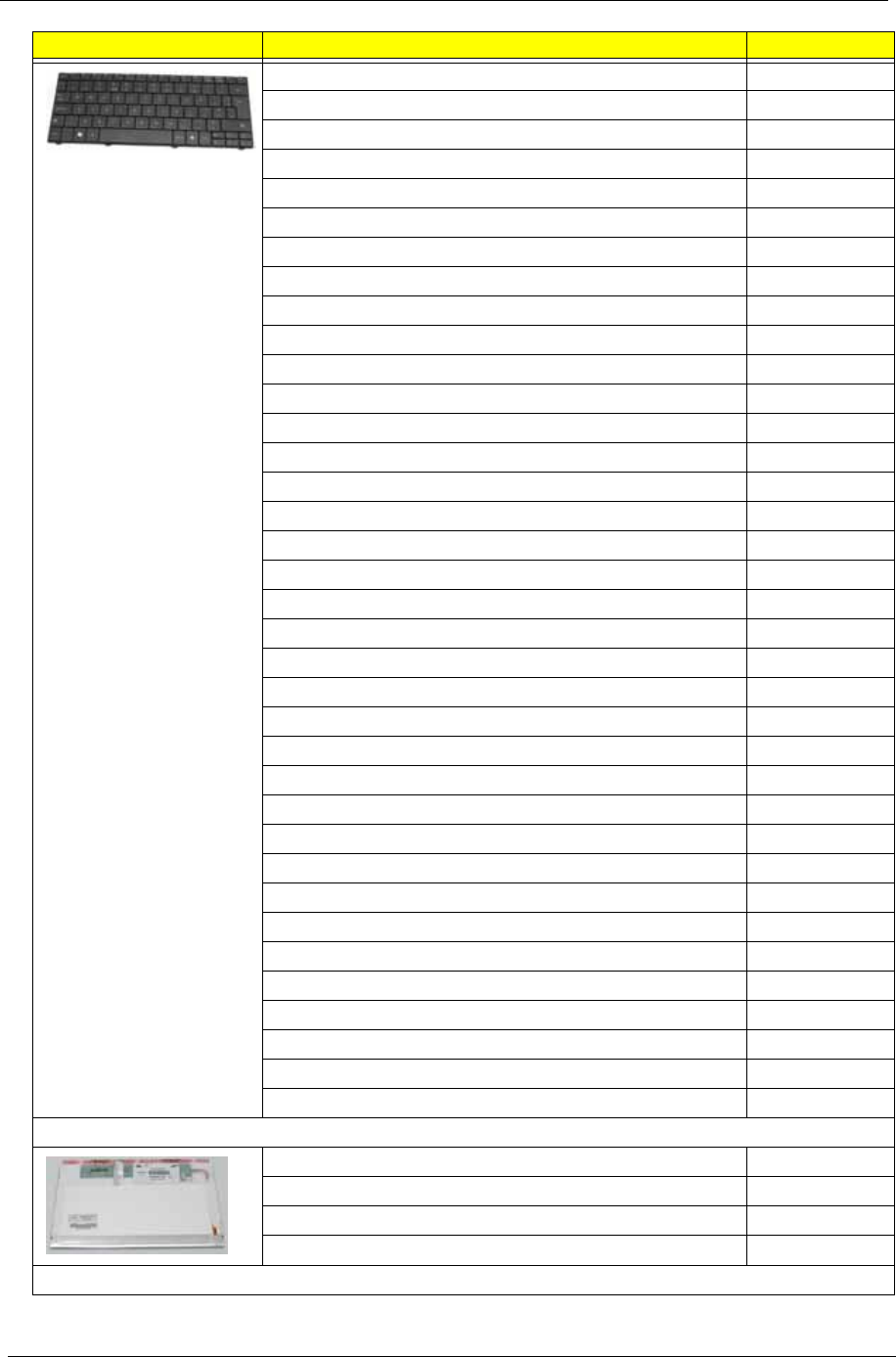
154 Chapter 6
ZA5 K/B(ARAB-EN)BLACK S.P KB.I110G.002
ZA5 K/B(BELGIUM) BLACK S.P KB.I110G.003
ZA5 K/B(BRAZIL)BLACK S.P KB.I110G.004
ZA5 K/B(CHINA) BLACK S.P N/A
ZA5 K/B(DANISH) BLACK S.P KB.I110G.007
ZA5 K/B(FRENCH) BLACK S.P KB.I110G.009
ZA5 K/B(GERMAN)BLACK S.P KB.I110G.010
ZA5 K/B(GREEK)BLACK S.P KB.I110G.011
ZA5 K/B(HUNGARIAN)BLACK S.P KB.I110G.012
ZA5 K/B(ITALIAN)BLACK S.P KB.I110G.013
ZA5 K/B(JAP)BLACK S.P KB.I110G.014
ZA5 K/B(NORDICS) BLACK S.P KB.I110G.015
ZA5 K/B(NORWEGIAN) BLACK S.P KB.I110G.016
ZA5 K/B(FORTUGUESE) BLACK S.P KB.I110G.017
ZA5 K/B(RUSSIAN)BLACK S.P KB.I110G.018
ZA5 K/B(CROATIAN)BLACK S.P KB.I110G.019
ZA5 K/B(SPANISH)BLACK S.P KB.I110G.020
ZA5 K/B(SWEDISH)BLACK S.P KB.I110G.021
ZA5 K/B(SWISS) BLACK S.P KB.I110G.022
ZA5 K/B(THAI)BLACK S.P KB.I110G.023
ZA5 K/B(TURKISH)BLACK S.P KB.I110G.024
ZA5 K/B(UK) BLACK S.P KB.I110G.025
ZA5 K/B(TAIWAN) BLACK S.P KB.I110G.006
ZA5 K/B(UI) BLACK S.P KB.I110G.026
ZA5 K/B(HEBREW)BLACK S.P KB.I110G.027
ZA5 K/B(FRA-EN CAN)BLACK S.P KB.I110G.028
ZA5 K/B(CZ-SLOVAK)BLACK S.P KB.I110G.005
ZA5 K/B(ARAB-FR) BLACK S.P KB.I110G.008
ZA5 K/B(SLOVAK)BLACK S.P N/A
ZA5 K/B(CZECH) BLACK S.P N/A
ZA5 K/B(POLAND)BLACK S.P N/A
ZA5 K/B(ICELAND) BLACK S.P N/A
ZA5 K/B(LA) BLACK S.P N/A
ZA5 K/B(KOREA) BLACK S.P N/A
ZA5 K/B(DUTCH) BLACK S.P N/A
ZA5 K/B (FRA-CAN) BLACK S.P N/A
LCD
ZA3 LCD(TFT)11.6" LP116WH1-TLA1 WXGA S.P LK.11608.001
ZA3 LCD(TFT)11.6" B116XW02 V0 WXGA S.P LK.11605.001
ZA3 LCD 11.6" N116B6-L02 LED(WXGA) S.P LK.1160D.001
ZA3 LCD(TFT)11.6" LTN116AT01-A01 S.P LK.11606.001
MAINBOARD
CATEGORY QUANTA DESCRIPTION ACER PN.
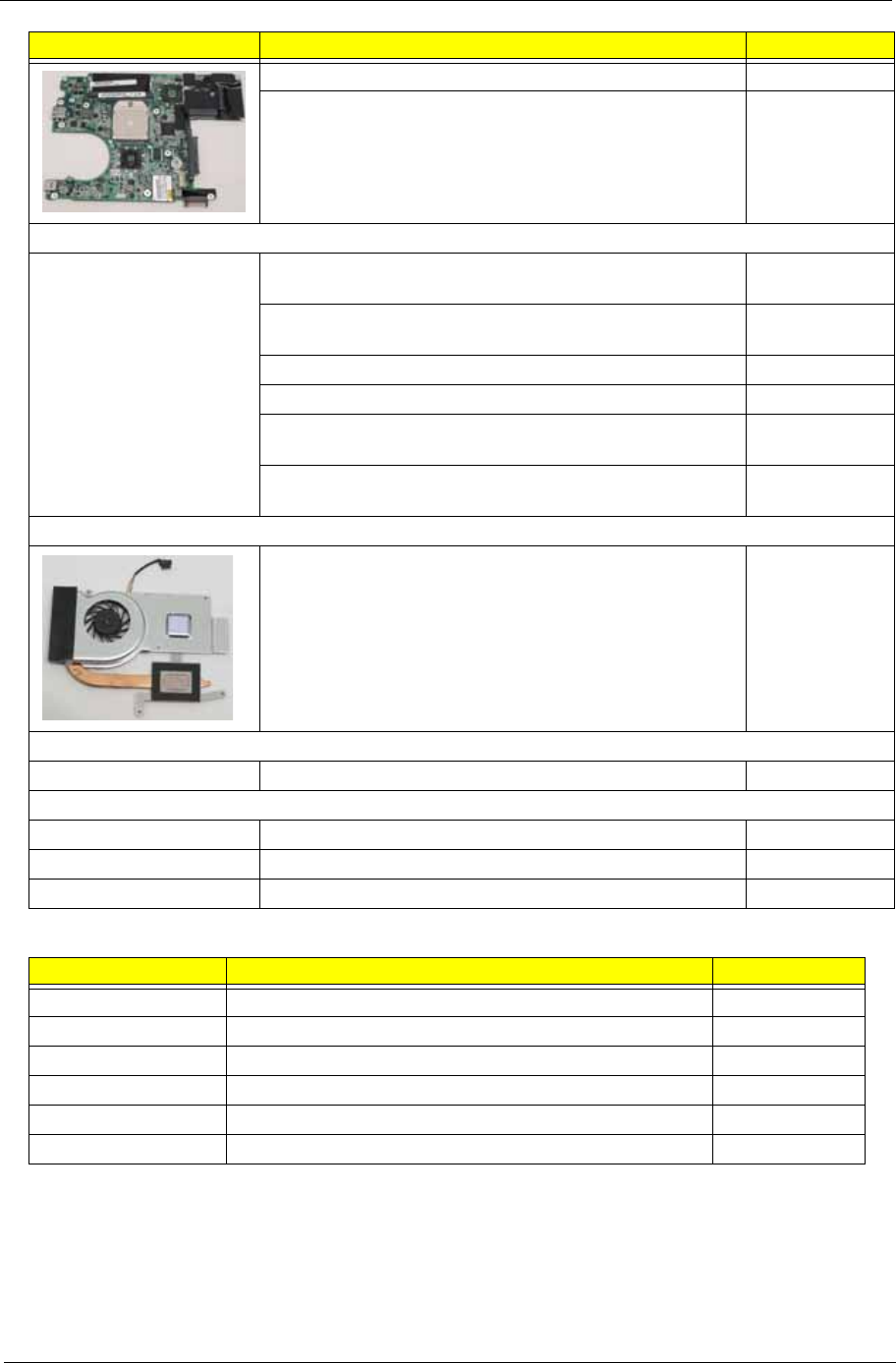
Chapter 6 155
Screw List
ZA8 MB (UMA/WO CPU,3G/SAM SPM)S.P N/A
ZA8 MB (UMA/WO CPU/HYNIX SPM)S.P N/A
MEMORY
Z01 RAM 1G 667MHZ HYMP112S64CP6-Y5 S.P KN.1GB0G.01
2
ZY2 RAM(1GB) DDR2 M470T2864QZ3-CE6 S.P KN.1GB0B.01
6
ZG8 RAM(1G)DDR2 EBE11UE6AESA-6E-F S.P KN.1GB09.010
ZY2L RAM(1G) NT1GT64UH8D0FN-3C S.P KN.1GB03.026
ZD1 RAM(2G)DDR2 HYMP125S64CP8-Y5 S.P KN.2GB0G.00
4
Z06 RAM(2GB)DDR2 M470T5663EH3-CE6 S.P KN.2GB0B.01
1
THERMAL
ZA8 THERMAL MODULE S.P N/A
SPEAKER
ZA8 SPEAKER MODULE (W-L/R) FG-QT183 S.P N/A
MISCELLANEOUS
ZA8 FRONT-LENS-RUBBER S.P N/A
ZA8 TOP-RUBBER S.P N/A
ZA8 FUNCTION-LENS-SPONGE S.P N/A
Category Description Acer P/N
SCREW SCREW M2.0*3.0-I IRON 86.S0207.001
SCREW SCREW 2.0*4.0 86.W0107.003
SCREW SCREW M2.0*6.0-I 86.S6507.001
SCREW SCREW M3*0.5+3.5I 86.TDY07.003
SCREW SCREW M2.0*4-I(BZN)(NYLOK)IRON 86.S6507.003
SCREW SCREW M2*5-I(BZN)(NYLOK) 86.TG607.004
CATEGORY QUANTA DESCRIPTION ACER PN.
Appendix A 156
Model Definition and Configuration
Gateway LT31 Series
Model RO Country Acer Part No Description
LT3101g AAP Singapore LU.WEW0B.003 LT3101g AOXPHGwTSG1 UMACkk 1*1G/160/3L/5R/
CB_bg_0.3D_BAG_GEk_ENI1
LT3102g AAP Singapore LU.WEW0B.002 LT3102g AOXPHGwTSG1 UMACkk 1*1G/160/6L2.6/5R/
CB_bg_0.3D_BAG_GEk_ENI1
LT3112u PA USA LU.WEW0Y.024 LT3112u VHB32wTMUS1 UMACkk 1*2G/250/BT/6L2.6/
5R/CB_bg_0.3D_BAG_GEk_ENP2
LT3101m PA Mexico LU.WEW0Y.023 LT3101m EM VHB32wTMX2 UMACkk 1*2G/250/3L/5R/
CB_bg_0.3D_GEk_ES21
LT3101e PA ACLA-
Spanish
LU.WEW0Y.001 LT3101e EM VHB32wTEA1 UMACkk 1*2G/250/3L/5R/
CB_bg_0.3D_BAG_GEk_ES51
LT3102e PA ACLA-
Spanish
LU.WEW0Y.014 LT3102e EM VHB32wTEA1 UMACkk 1*2G/250/6L/5R/
CB_bg_0.3D_GEk_ES51
LT3103e PA ACLA-
Spanish
LU.WEW0Y.009 LT3103e EM VHB32wTEA3 UMACkk 1*2G/250/6L/5R/
CB_bg_0.3D_GEk_ES51
LT3103m PA Mexico LU.WEW0Y.008 LT3103m EM VHB32wTMX2 UMACkk 1*2G/250/6L/5R/
CB_bg_0.3D_GEk_ES21
LT3102m PA Mexico LU.WEW0Y.015 LT3102m EM VHB32wTMX1 UMACkk 1*2G/250/6L/5R/
CB_bg_0.3D_GEk_ES21
LT3101p PA ACLA-
Portuguese
LU.WEW0Y.013 LT3101p EM VHB32wTXC1 UMACkk 1*2G/250/6L/5R/
CB_bg_0.3D_GEk_XC21
LT3102p PA ACLA-
Portuguese
LU.WEW0Y.010 LT3102p EM VHB32wTXC2 UMACkk 1*2G/250/6L/5R/
CB_bg_0.3D_GEk_XC21
LT3102c PA China LU.WEW0C.003 LT3102c LINPUSwCN1 UMACkk 1*1G/160/3L/5R/
CB_bg_0.3D_GEk_EN91
LT3101w TW
N
GCTWN LU.WEW0B.001 LT3101w AOXPHGwTTW1 UMACkk 1*1G/160/6L2.6/
5R/CB_bg_0.3D_BAG_GEk_TC11
LT3103c PA China LU.WEW0C.002 LT3103c LINPUSwCN1 UMACkk 1*2G/250/6L2.6/5R/
CB_bg_0.3D_GEk_EN91
LT3107c PA China LU.WEW0C.001 LT3107c LINPUSwCN1 UMACkk 1*2G/250/6L/5R/
CB_bg_0.3D_GEk_EN91
LT3103u PA USA LU.WEW0Y.002 LT3103u VHB32wTMUS1 UMACkk 1*2G/250/6L2.6/5R/
CB_bg_0.3D_GEk_ENP5
LT3101h PA Canada LU.WEW0Y.022 LT3101h VHB32wTMCA2 UMACkk 1*2G/250/6L/5R/
CB_bg_0.3D_GEk_ENJ1
LT3103h PA Canada LU.WEW0Y.019 LT3103h VHB32wTMCA2 UMACkk 1*2G/250/6L/5R/
CB_bg_0.3D_GEk_ENJ3
LT3106u PA USA LU.WEW0Y.021 LT3106u VHB32wTMUS1 UMACkk 1*2G/250/6L/5R/
CB_bg_0.3D_GEk_ENP1
LT3102h PA Canada LU.WEW0Y.020 LT3102h VHB32wTMCA2 UMACkk 1*2G/250/6L/5R/
CB_bg_0.3D_GEk_ENJ2
LT3107u PA USA LU.WEW0Y.018 LT3107u VHB32wTMUS1 UMACkk 1*2G/250/6L/5R/
CB_bg_0.3D_GEk_ENP2
LT3108u PA USA LU.WEW0Y.017 LT3108u VHB32wTMUS1 UMACkk 1*2G/250/6L/5R/
CB_bg_0.3D_GEk_ENP3
Appendix A
157 Appendix A
LT3109u PA USA LU.WEW0Y.016 LT3109u VHB32wTMUS1 UMACkk 1*2G/250/6L/5R/
CB_bg_0.3D_GEk_ENP4
LT3110u PA USA LU.WEW0Y.012 LT3110u VHB32wTMUS1 UMACkk 1*2G/250/6L/5R/
CB_bg_0.3D_GEk_ENP6
LT3111u PA USA LU.WEW0Y.011 LT3111u VHB32wTMUS1 UMACkk 1*2G/250/6L/5R/
CB_bg_0.3D_GEk_ENP5
LT3101c PA China LU.WEW0Y.007 LT3101c VHB32wTCN1 UMACkk 1*2G/250/6L/5R/
CB_bg_0.3D_GEk_SC11
LT3103 WW WW S2.WEW0Y.001 LT3103 VHB32wWW1 UMACkk 1*1G/160/BT/3L/5R/
CB_bg_0.3D_BAG_GEk_ES62
LT3102u PA USA LU.WEW0Y.006 LT3102u VHB32wTMUS1 UMACkk 1*2G/250/6L2.6/5R/
CB_bg_0.3D_GEk_ENP2
LT3104u PA USA LU.WEW0Y.005 LT3104u VHB32wTMUS1 UMACkk 1*2G/250/6L2.6/5R/
CB_bg_0.3D_GEk_ENP3
LT3105u PA USA LU.WEW0Y.004 LT3105u VHB32wTMUS1 UMACkk 1*2G/250/6L2.6/5R/
CB_bg_0.3D_GEk_ENP6
LT3101u PA USA LU.WEW0Y.003 LT3101u VHB32wTMUS1 UMACkk 1*2G/250/3L/5R/
CB_bg_0.3D_GEk_ENP5
LT3104 WW WW S2.WEY0Y.001 LT3104 VHB32wWW1 UMACrr 1*1G/160/BT/6L2.6/5R/
CB_bg_0.3D_GEk_ES62
LT3104e PA ACLA-
Spanish
LU.WEY0Y.001 LT3104e EM VHB32wTEA1 UMACrr 1*2G/250/3L/5R/
CB_bg_0.3D_BAG_GEk_ES51
LT3104c PA China LU.WEY0C.003 LT3104c LINPUSwCN1 UMACrr 1*1G/160/3L/5R/
CB_bg_0.3D_GEk_EN91
LT3105c PA China LU.WEY0C.002 LT3105c LINPUSwCN1 UMACrr 1*2G/250/6L2.6/5R/
CB_bg_0.3D_GEk_EN91
LT3106c PA China LU.WEY0C.001 LT3106c LINPUSwCN1 UMACrr 1*2G/250/6L/5R/
CB_bg_0.3D_GEk_EN91
LT3101 WW WW S2.WEX0B.001 LT3101 AOXPHGwTWW1 UMAGCkk 1*1G/160/BT/
6L2.6/5R/CB_bg_0.3D_3G_GEk_ES61
LT3102 WW WW S2.WEZ0Y.001 LT3102 VHB32wWW1 UMAGCrr 1*2G/250/BT/6L2.6/5R/
CB_bg_0.3D_3G_BAG_GEk_ES62
Model CPU LCD VGA Chip Memory 1 HDD 1(GB)
LT3101g AAL110 NLED11.6WXGAG UMA SO1GBII6 N160GB5.4KS
LT3102g AAL110 NLED11.6WXGAG UMA SO1GBII6 N160GB5.4KS
LT3112u AAL110 NLED11.6WXGAG UMA SO2GBII6 N250GB5.4KS
LT3101m AAL110 NLED11.6WXGAG UMA SO2GBII6 N250GB5.4KS
LT3101e AAL110 NLED11.6WXGAG UMA SO2GBII6 N250GB5.4KS
LT3102e AAL110 NLED11.6WXGAG UMA SO2GBII6 N250GB5.4KS
LT3103e AAL110 NLED11.6WXGAG UMA SO2GBII6 N250GB5.4KS
LT3103m AAL110 NLED11.6WXGAG UMA SO2GBII6 N250GB5.4KS
LT3102m AAL110 NLED11.6WXGAG UMA SO2GBII6 N250GB5.4KS
LT3101p AAL110 NLED11.6WXGAG UMA SO2GBII6 N250GB5.4KS
LT3102p AAL110 NLED11.6WXGAG UMA SO2GBII6 N250GB5.4KS
LT3102c AAL110 NLED11.6WXGAG UMA SO1GBII6 N160GB5.4KS
LT3101w AAL110 NLED11.6WXGAG UMA SO1GBII6 N160GB5.4KS
LT3103c AAL110 NLED11.6WXGAG UMA SO2GBII6 N250GB5.4KS
LT3107c AAL110 NLED11.6WXGAG UMA SO2GBII6 N250GB5.4KS
LT3103u AAL110 NLED11.6WXGAG UMA SO2GBII6 N250GB5.4KS
LT3101h AAL110 NLED11.6WXGAG UMA SO2GBII6 N250GB5.4KS
Model RO Country Acer Part No Description

Appendix A 158
LT3103h AAL110 NLED11.6WXGAG UMA SO2GBII6 N250GB5.4KS
LT3106u AAL110 NLED11.6WXGAG UMA SO2GBII6 N250GB5.4KS
LT3102h AAL110 NLED11.6WXGAG UMA SO2GBII6 N250GB5.4KS
LT3107u AAL110 NLED11.6WXGAG UMA SO2GBII6 N250GB5.4KS
LT3108u AAL110 NLED11.6WXGAG UMA SO2GBII6 N250GB5.4KS
LT3109u AAL110 NLED11.6WXGAG UMA SO2GBII6 N250GB5.4KS
LT3110u AAL110 NLED11.6WXGAG UMA SO2GBII6 N250GB5.4KS
LT3111u AAL110 NLED11.6WXGAG UMA SO2GBII6 N250GB5.4KS
LT3101c AAL110 NLED11.6WXGAG UMA SO2GBII6 N250GB5.4KS
LT3103 AAL110 NLED11.6WXGAG UMA SO1GBII6 N160GB5.4KS
LT3102u AAL110 NLED11.6WXGAG UMA SO2GBII6 N250GB5.4KS
LT3104u AAL110 NLED11.6WXGAG UMA SO2GBII6 N250GB5.4KS
LT3105u AAL110 NLED11.6WXGAG UMA SO2GBII6 N250GB5.4KS
LT3101u AAL110 NLED11.6WXGAG UMA SO2GBII6 N250GB5.4KS
LT3104 AAL110 NLED11.6WXGAG UMA SO1GBII6 N160GB5.4KS
LT3104e AAL110 NLED11.6WXGAG UMA SO2GBII6 N250GB5.4KS
LT3104c AAL110 NLED11.6WXGAG UMA SO1GBII6 N160GB5.4KS
LT3105c AAL110 NLED11.6WXGAG UMA SO2GBII6 N250GB5.4KS
LT3106c AAL110 NLED11.6WXGAG UMA SO2GBII6 N250GB5.4KS
LT3101 AAL110 NLED11.6WXGAG UMA SO1GBII6 N160GB5.4KS
LT3102 AAL110 NLED11.6WXGAG UMA SO2GBII6 N250GB5.4KS
Model Extra SW1 Card Reader Wireless LAN Wireless LAN1 Bluetooth Battery
LT3101g NIS 5 in 1-Build in 3rd WiFi BG 3rd WiFi BG N 3CELL2.2
LT3102g NIS 5 in 1-Build in 3rd WiFi BG 3rd WiFi BG N 6CELL2.6
LT3112u NIS 5 in 1-Build in 3rd WiFi BG 3rd WiFi BG BT 2.1 6CELL2.6
LT3101m NIS 5 in 1-Build in 3rd WiFi BG 3rd WiFi BG N 3CELL2.2
LT3101e NIS 5 in 1-Build in 3rd WiFi BG 3rd WiFi BG N 3CELL2.2
LT3102e NIS 5 in 1-Build in 3rd WiFi BG 3rd WiFi BG N 6CELL2.2
LT3103e NIS 5 in 1-Build in 3rd WiFi BG 3rd WiFi BG N 6CELL2.2
LT3103m NIS 5 in 1-Build in 3rd WiFi BG 3rd WiFi BG N 6CELL2.2
LT3102m NIS 5 in 1-Build in 3rd WiFi BG 3rd WiFi BG N 6CELL2.2
LT3101p NIS 5 in 1-Build in 3rd WiFi BG 3rd WiFi BG N 6CELL2.2
LT3102p NIS 5 in 1-Build in 3rd WiFi BG 3rd WiFi BG N 6CELL2.2
LT3102c N 5 in 1-Build in 3rd WiFi BG 3rd WiFi BG N 3CELL2.2
LT3101w NIS 5 in 1-Build in 3rd WiFi BG 3rd WiFi BG N 6CELL2.6
LT3103c N 5 in 1-Build in 3rd WiFi BG 3rd WiFi BG N 6CELL2.6
LT3107c N 5 in 1-Build in 3rd WiFi BG 3rd WiFi BG N 6CELL2.2
LT3103u NIS 5 in 1-Build in 3rd WiFi BG 3rd WiFi BG N 6CELL2.6
LT3101h NIS 5 in 1-Build in 3rd WiFi BG 3rd WiFi BG N 6CELL2.2
LT3103h NIS 5 in 1-Build in 3rd WiFi BG 3rd WiFi BG N 6CELL2.2
LT3106u NIS 5 in 1-Build in 3rd WiFi BG 3rd WiFi BG N 6CELL2.2
LT3102h NIS 5 in 1-Build in 3rd WiFi BG 3rd WiFi BG N 6CELL2.2
LT3107u NIS 5 in 1-Build in 3rd WiFi BG 3rd WiFi BG N 6CELL2.2
LT3108u NIS 5 in 1-Build in 3rd WiFi BG 3rd WiFi BG N 6CELL2.2
LT3109u NIS 5 in 1-Build in 3rd WiFi BG 3rd WiFi BG N 6CELL2.2
LT3110u NIS 5 in 1-Build in 3rd WiFi BG 3rd WiFi BG N 6CELL2.2
Model CPU LCD VGA Chip Memory 1 HDD 1(GB)

159 Appendix A
LT3111u NIS 5 in 1-Build in 3rd WiFi BG 3rd WiFi BG N 6CELL2.2
LT3101c NIS 5 in 1-Build in 3rd WiFi BG 3rd WiFi BG N 6CELL2.2
LT3103 NIS 5 in 1-Build in 3rd WiFi BG 3rd WiFi BG BT 2.1 3CELL2.2
LT3102u NIS 5 in 1-Build in 3rd WiFi BG 3rd WiFi BG N 6CELL2.6
LT3104u NIS 5 in 1-Build in 3rd WiFi BG 3rd WiFi BG N 6CELL2.6
LT3105u NIS 5 in 1-Build in 3rd WiFi BG 3rd WiFi BG N 6CELL2.6
LT3101u NIS 5 in 1-Build in 3rd WiFi BG 3rd WiFi BG N 3CELL2.2
LT3104 NIS 5 in 1-Build in 3rd WiFi BG 3rd WiFi BG BT 2.1 6CELL2.6
LT3104e NIS 5 in 1-Build in 3rd WiFi BG 3rd WiFi BG N 3CELL2.2
LT3104c N 5 in 1-Build in 3rd WiFi BG 3rd WiFi BG N 3CELL2.2
LT3105c N 5 in 1-Build in 3rd WiFi BG 3rd WiFi BG N 6CELL2.6
LT3106c N 5 in 1-Build in 3rd WiFi BG 3rd WiFi BG N 6CELL2.2
LT3101 NIS 5 in 1-Build in 3rd WiFi BG 3rd WiFi BG BT 2.1 6CELL2.6
LT3102 NIS 5 in 1-Build in 3rd WiFi BG 3rd WiFi BG BT 2.1 6CELL2.6
Model Extra SW1 Card Reader Wireless LAN Wireless LAN1 Bluetooth Battery

Appendix A 160

Appendix B 161
Test Compatible Components
This computer’s compatibility is tested and verified by Acer’s internal testing department. All of its system
functions are tested under Windows® XP Home, Windows® XP Pro environment.
Refer to the following lists for components, adapter cards, and peripherals which have passed these tests.
Regarding configuration, combination and test procedures, please refer to the Gateway LT Series
Compatibility Test Report released by the Acer Mobile System Testing Department.
Appendix B
162 Appendix B
Windows XP Environment Test
BRAND Type Description
3G
Qualcomm Gobi2000 Qualcomm Gobi2000
Adapter
DELTA 30W Adapter DELTA 30W 19V 1.7x5.5x11 Black ADP-30JH BA LF
HIPRO 30W Adapter HIPRO 30W 19V 1.7x5.5x11 Black HP-A0301R3 B1LF
LF
LITE-ON 30W Adapter LITE-ON 30W 19V 1.7x5.5x11 Black PA-1300-04AC LF
Audio Codec
Realtek ALC272X Realtek Audio Codec ALC272X
Battery
PANASONIC 3CELL2.2 Battery PANASONIC UM-2009A Li-Ion 3S1P PANASONIC 3 cell
2200mAh Main COMMON 2.2CG
PANASONIC 6CELL2.2 Battery PANASONIC UM-2009B Li-Ion 3S2P PANASONIC 6 cell
4400mAh Main COMMON ID:UM09B51
SIMPLO 3CELL2.2 Battery SIMPLO UM-2009A Li-Ion 3S1P LGC 3 cell 2200mAh
Main COMMON black, LGC 2.2 S3
SIMPLO 3CELL2.2 Battery SIMPLO UM-2009A Li-Ion 3S1P PANASONIC 3 cell
2200mAh Main COMMON black , Panasonic 2.2CG
SIMPLO 3CELL2.2 Battery SIMPLO UM-2009A Li-Ion 3S1P SAMSUNG 3 cell
2200mAh Main COMMON black , SDI 2.2F
SIMPLO 3CELL2.2 Battery SIMPLO UM-2009AW Li-Ion 3S1P LGC 3 cell 2200mAh
Main COMMON white, LG 2.2 S3
SIMPLO 6CELL2.2 Battery SIMPLO UM-2009B Li-Ion 3S2P LGC 6 cell 4400mAh
Main COMMON ID:UM09B73
SIMPLO 6CELL2.6 Battery SIMPLO UM-2009B Li-Ion 3S2P LGC 6 cell 5200mAh
Main COMMON Black , LGC 2.6 B3
SIMPLO 6CELL2.2 Battery SIMPLO UM-2009B Li-Ion 3S2P PANASONIC 6 cell
4400mAh Main COMMON ID:UM09B71
SIMPLO 6CELL2.6 Battery SIMPLO UM-2009B Li-Ion 3S2P SAMSUNG 6 cell
5200mAh Main COMMON Black , SDI 2.6 C
SONY 3CELL2.2 Battery SONY UM-2009A Li-Ion 3S1P SONY 3 cell 2200mAh
Main COMMON black
SONY 6CELL2.2 Battery SONY UM-2009B Li-Ion 3S2P SONY 6 cell 4400mAh
Main COMMON black
SONY 6CELL2.6 Battery SONY UM-2009B Li-Ion 3S2P SONY 6 cell 5200mAh
Main COMMON black
Bluetooth
Foxconn BT 2.1 Foxconn Bluetooth BRM 2046 BT2.1 (T60H928.33) f/w:861
Camera
Chicony 0.3M LDV Chicony Camera Lilac_2G
Liteon 0.3M LDV Liteon Camera Lily_2G
Suyin 0.3M LDV Suyin Camera Rose_2G
Card Reader
5 in 1-Build in 5 in 1-Build in MS, MS Pro, SD, SC, XD
CPU
Appendix B 163
AMD AAL110 CPU AMD Athlon L110 PGA 1.2G 512K single core
HDD
HGST N160GB5.4KS HDD HGST 2.5" 5400rpm 160GB Falcon B HTS543216L9SA00
SATA LF F/W:C40C
HGST N160GB5.4KS HDD HGST 2.5" 5400rpm 160GB HTS545016B9A300 Panther B
SATA LF F/W:C60F
HGST N250GB5.4KS HDD HGST 2.5" 5400rpm 250GB HTS545025B9A300 Panther B
SATA LF F/W:C60F
SEAGATE N160GB5.4KS HDD SEAGATE 2.5" 5400rpm 160GB ST9160310AS Crockett
SATA LF F/W:0303
SEAGATE N250GB5.4KS HDD SEAGATE 2.5" 5400rpm 250GB ST9250315AS Wyatt SATA
LF F/W:0001SDM1
TOSHIBA N160GB5.4KS HDD TOSHIBA 2.5" 5400rpm 160GB MK1655GSX Libra SATA
LF F/W: FG011J
TOSHIBA N250GB5.4KS HDD TOSHIBA 2.5" 5400rpm 250GB MK2555GSX Libra SATA
LF F/W:FG001J
WD N160GB5.4KS HDD WD 2.5" 5400rpm 160GB WD1600BEVT-22ZCTO ML160
SATA LF F/W:11.01A11
WD N250GB5.4KS HDD WD 2.5" 5400rpm 250GB WD2500BEVT-22ZCT0 ML160
SATA LF F/W:11.01A11
Keyboard
GATEWAY GP-1T Keyboard GATEWAY GP-1T SJM11 Internal 11 Standard Black
NONE Texture
LAN
Realtek RTL8103EA Realtek RTL8103EA
LCD
AUO NLED11.6WXGA
GLED LCD AUO 11.6" WXGA Glare B116XW02 V0 LF 200nit 8ms
500:1
CMO NLED11.6WXGA
GLED LCD CMO 11.6" WXGA Glare N116B6-L02 LF 200nit 10ms
500:1
LPL NLED11.6WXGA
GLED LCD LPL 11.6" WXGA Glare LP116WH1-TLA1 LF 200nit
8ms 500:1
SAMSUNG NLED11.6WXGA
GLED LCD SAMSUNG 11.6" WXGA Glare LTN116AT01-A01 LF
200nit 8ms
MEM
ELPIDA SO1GBII6 Memory ELPIDA SO-DIMM DDRII 667 1GB EBE11UE6AESA-
6E-F LF 64*16 0.065um
HYNIX SO1GBII6 Memory HYNIX SO-DIMM DDRII 667 1GB HYMP112S64CP6-Y5
LF
HYNIX SO2GBII6 Memory HYNIX SO-DIMM DDRII 667 2GB HYMP125S64CP8-Y5
LF
HYNIX SO512MBII6 Memory HYNIX SO-DIMM DDRII 667 512MB HYMP164S64CP6-
Y5 LF 64*16 0.065um
MICRON SO1GBII8 Memory MICRON SO-DIMM DDRII 800 1GB
MT8HTF12864HDY-800G1 LF 64*16 0.065um
NANYA SO1GBII6 Memory NANYA SO-DIMM DDRII 667 1GB NT1GT64UH8D0FN-
3C LF 64*16 0.07um
NANYA SO1GBII8 Memory NANYA SO-DIMM DDRII 800 1GB NT1GT64UH8D0FN-
AD LF 64*16 0.07um
BRAND Type Description
164 Appendix B
SAMSUNG SO1GBII6 Memory SAMSUNG SO-DIMM DDRII 667 1GB M470T2864QZ3-
CE6 LF
SAMSUNG SO2GBII6 Memory SAMSUNG SO-DIMM DDRII 667 2GB M470T5663EH3-
CE6 LF 128*8 0.055um
SAMSUNG SO512MBII6 Memory SAMSUNG SO-DIMM DDRII 667 512MB
M470T6464QZ3-CE6 LF
Modem
N/A External USB
Lite+LSI modem External USB Lite+LSI modem
Chipset
AMD (NB) AMDRS690E AMD RS690E
ATI (SB) SB600 SB600
Software
NIS Antivirus application NIS
VGA Chip
None UMA UMA (Intel)
WiFi Antenna
WNC PIFA PIFA
Wireless LAN
Foxconn 3rd WiFi BG Foxconn Wireless LAN Atheros HB63 BG (HM)
Foxconn 3rd WiFi BG Foxconn Wireless LAN Broadcom 4312H BG (HM)
Foxconn 3rd WiFi BG Foxconn Wirelss LAN Atheros HB95 1x1 BG (HM)
QMI 3rd WiFi BG QMI ATH_XB63 Atheros XB63 minicard b/g
QMI 3rd WiFi BG QMI Wireless LAN Atheros HB95 (HM) EM305
BRAND Type Description

Appendix C 165
Online Support Information
This section describes online technical support services available to help you repair your Acer Systems.
If you are a distributor, dealer, ASP or TPM, please refer your technical queries to your local Acer branch
office. Acer Branch Offices and Regional Business Units may access our website. However some information
sources will require a user i.d. and password. These can be obtained directly from Acer CSD Taiwan.
Acer's Website offers you convenient and valuable support resources whenever you need them.
In the Technical Information section you can download information on all of Acer's Notebook, Desktop and
Server models including:
• Service guides for all models
• User's manuals
• Training materials
• Bios updates
• Software utilities
• Spare parts lists
• TABs (Technical Announcement Bulletin)
For these purposes, we have included an Acrobat File to facilitate the problem-free downloading of our
technical material.
Also contained on this website are:
• Detailed information on Acer's International Traveler's Warranty (ITW)
• Returned material authorization procedures
• An overview of all the support services we offer, accompanied by a list of telephone, fax and email
contacts for all your technical queries.
We are always looking for ways to optimize and improve our services, so if you have any suggestions or
comments, please do not hesitate to communicate these to us.
Appendix C

166 Appendix C

167
Numerics
3G Cover
Removing 121
A
Antennas
Removing 85
Replacing 87
B
Battery Pack
Removing 38, 123
BIOS
ROM type 16
vendor 16
Version 16
BIOS Utility 21–29
Advanced 24
Boot 27
Exit 28
Navigating 21
Save and Exit 28
Security 24
System Security 28
Bluetooth Module
Removing 60, 107
Board Layout
Top View 141
brightness
hotkeys 12
Button Board
Removing 56, 110
C
Camera Board
Removing 80
Replacing 91
caps lock
on indicator 8
Card Reader Board
Removing 61, 108
Common Problems 126
CPU
Removing 77
CRT Board
Removing 65
CRT Cable
Removing 72, 96
D
DIMM Module
Removing 42, 119
Display 3
display
hotkeys 12
E
Euro Key 13
External Module Disassembly
Flowchart 37
F
Features 1
FLASH Utility 29
Flash Utility 29
FRU (Field Replaceable Unit) List 147
H
Hard Disk Drive Module
Removing 39, 119
HDD Cover
Removing 121
Hibernation mode
hotkey 12
Hinge Covers
Removing 52, 114
Hot Keys 10
I
Indicators 8
Intermittent Problems 136
Internal Microphone Failure 133
Internal Speaker Failure 132
J
Index

168
Jumper and Connector Locations 141
Top View 141
K
Keyboard
Removing 50, 115
Keyboard Failure 130
L
LAN Board
Removing 67, 101
LCD Bezel
Removing 79
Replacing 92
LCD Brackets
Removing 83
Replacing 89
LCD Cable
Removing 83
Replacing 89
LCD Failure 129
LCD Module
Removing 69
LCD Module Disassembly
Flowchart 78
LCD Module Reassembly Procedure 87
LCD Panel
Removing 81
Replacing 90
LED Board
Removing 58, 106
Lower Covers
Removing 121
M
Main Module Reassembly Procedure 93
Main Unit Disassembly
Flowchart 49
Mainboard
Removing 72, 96
media access
on indicator 8
Memory Check 126
Memory Cover
Removing 121
Microphone
Removing 81
Replacing 90
Model Definition 156
N
No Display Issue 127
num lock
on indicator 8
O
ODD Failure 135
Online Support Information 165
P
Panel 4
left 4
PC Card 8
POST Codes
Reference Tables 137
Power On Failure 126
R
RTC Battery
Removing 74
Replacing 74, 96
S
Speaker Module
Removing 63, 104
speakers
hotkey 12
System
Block Diagram 3
T
Test Compatible Components 161
Thermal Module
Removing 75, 93
Top 141
Touch Pad
hotkey 12
Touch Pad Failure 131
Troubleshooting

169
Built-in KB Failure 130
Internal Microphone 133
Internal Speakers 132
LCD Failure 129
No Display 127
ODD 135
Other Failures 135
Power On 126
Touch Pad 131
USB 135
U
Undetermined Problems 136
Upper Cover
Removing 53, 111
USB Failure (Rightside) 135
utility
BIOS 21–29
V
volume
hotkeys 12
W
Windows 2000 Environment Test 162
WLAN Board
Removing 44, 116

170
