Acer M3 581T Users Manual MA50_HX_Book
2015-01-25
: Acer Acer-M3-581T-Users-Manual-211043 acer-m3-581t-users-manual-211043 acer pdf
Open the PDF directly: View PDF  .
.
Page Count: 234 [warning: Documents this large are best viewed by clicking the View PDF Link!]
- CHAPTER 1
- Hardware Specifications
- CHAPTER 2
- System Utilities
- CHAPTER 3
- Machine Maintenance
- Pre-disassembly Instructions 3-6
- Disassembly Process 3-7
- External Module Disassembly Process 3-8
- Removing the Dummy Card 3-9
- Removing the HDD Door 3-10
- Removing the HDD Module 3-11
- Removing the DIMM Module 3-12
- Removing the SSD Module 3-13
- Removing the WLAN Module 3-14
- Removing the ODD Module 3-16
- Main Unit Disassembly Process 3-19
- LCD Module Disassembly Process 3-41
- LCD Reassembly Procedure 3-49
- Replacing the LCD Panel 3-50
- Replacing the LCD Bezel 3-52
- Replacing the Bluetooth 3-53
- Replacing the Speakers 3-54
- Replacing the DC-IN cable 3-56
- Replacing the Thermal Module 3-57
- Replacing the Mainboard 3-59
- Replacing the LCD Module & Cables to Mainboard 3-60
- Replacing the Card reader 3-63
- Replacing the Power Switch board&Battery 3-64
- Replacing the Keyboard 3-67
- Replacing the ODD Module 3-73
- Replacing the WLAN Module 3-76
- Replacing the SSD Module 3-78
- Replacing the DIMM Module 3-79
- Replacing the HDD Module 3-80
- Replacing the Door 3-81
- CHAPTER 4
- Troubleshooting
- Power On Issues 4-4
- No Display Issues 4-5
- LCD Failure 4-7
- Keyboard Failure 4-8
- Touchpad Failure 4-9
- Internal & External Speaker Failure 4-10
- Microphone Failure 4-12
- USB Failure 4-13
- WLAN Failure 4-14
- Card Reader Failure 4-15
- Thermal Unit Failure 4-16
- HDMI and CRT Failure 4-17
- CD-ROM/DVD Failure 4-18
- Other Functions Failure 4-19
- Post Codes 4-20
- CHAPTER 5
- Jumper and Connector Locations
- CHAPTER 6
- FRU List
- CHAPTER 7
- Test Compatible Components
- CHAPTER 8
- Online Support Information
- Operating System 1-5
- Platform 1-5
- System Memory 1-5
- Display 1-5
- Graphics 1-5
- Storage Subsystem 1-6
- Audio Subsystem 1-6
- Optical Media Drive 1-6
- Communication 1-6
- Privacy Control 1-7
- Dimensions and Weight 1-7
- Power Adapter and Battery 1-7
- Special Keys and Controls 1-8
- I/O Ports 1-8
- Software 1-8
- Environment 1-10
- Notebook Tour 1-11
- Specification Tables 1-24
- Computer specifications 1-24
- System Board Major Chips 1-25
- Processor 1-25
- Processor Specifications 1-25
- CPU Fan True Value Table 1-26
- System Memory 1-26
- Memory Combinations 1-26
- Graphics Controller 1-27
- Video Interface 1-27
- BIOS 1-27
- LAN Interface 1-28
- Keyboard 1-28
- Hard Disk Drive (AVL components) 1-28
- Solid State Drive (AVL components) 1-29
- Super-Multi Drive Interface 1-30
- LED 15.6” 1-30
- Display Supported Resolution (LCD Supported Resolution) 1-31
- Graphics Controller 1-31
- Display Supported Resolution (GPU Supported Resolution) 1-31
- Display Supported Resolution (LCD panel Supported Resolution) 1-32
- Bluetooth Interface 1-32
- Bluetooth Module 1-32
- Camera 1-32
- WIFI Card 1-33
- Audio Codec and Amplifier 1-33
- Audio Interface 1-34
- Battery 1-35
- VRAM 1-35
- USB Port 1-35
- HDMI Port 1-35
- AC Adapter 1-35
- System Power Management 1-36
- Card Reader 1-36
- System LED Indicator 1-36
- System DMA Specification 1-37
- System Interrupt Specification 1-37
- System IO Address Map 1-38
- Hardware Specifications
- Features
- Notebook Tour
- Specification Tables
- Computer specifications
- System Board Major Chips
- Processor
- Processor Specifications
- CPU Fan True Value Table
- System Memory
- Memory Combinations
- Graphics Controller
- Video Interface
- BIOS
- LAN Interface
- Keyboard
- Hard Disk Drive (AVL components)
- Solid State Drive (AVL components)
- Super-Multi Drive Interface
- LED 15.6”
- Display Supported Resolution (LCD Supported Resolution)
- Graphics Controller
- Display Supported Resolution (GPU Supported Resolution)
- Display Supported Resolution (LCD panel Supported Resolution)
- Bluetooth Interface
- Bluetooth Module
- Camera
- WIFI Card
- Audio Codec and Amplifier
- Audio Interface
- Battery
- VRAM
- USB Port
- HDMI Port
- AC Adapter
- System Power Management
- Card Reader
- System LED Indicator
- System DMA Specification
- System Interrupt Specification
- System IO Address Map
- System Utilities
- BIOS Setup Utility
- BIOS
- BIOS Flash Utilities
- Remove HDD/BIOS Password Utilities
- Using DMI Tools
- LAN MAC EEPROM Utility
- Pre-disassembly Instructions 3-6
- Disassembly Process 3-7
- External Module Disassembly Process 3-8
- Removing the Dummy Card 3-9
- Removing the HDD Door 3-10
- Removing the HDD Module 3-11
- Removing the DIMM Module 3-12
- Removing the SSD Module 3-13
- Removing the WLAN Module 3-14
- Removing the ODD Module 3-16
- Main Unit Disassembly Process 3-19
- LCD Module Disassembly Process 3-41
- LCD Reassembly Procedure 3-49
- Replacing the LCD Panel 3-50
- Replacing the LCD Bezel 3-52
- Replacing the Bluetooth 3-53
- Replacing the Speakers 3-54
- Replacing the DC-IN cable 3-56
- Replacing the Thermal Module 3-57
- Replacing the Mainboard 3-59
- Replacing the LCD Module & Cables to Mainboard 3-60
- Replacing the Card reader 3-63
- Replacing the Power Switch board&Battery 3-64
- Replacing the Keyboard 3-67
- Replacing the ODD Module 3-73
- Replacing the WLAN Module 3-76
- Replacing the SSD Module 3-78
- Replacing the DIMM Module 3-79
- Replacing the HDD Module 3-80
- Replacing the Door 3-81
- LAN MAC EEPROM Utility
- Machine Maintenance
- Machine Disassembly and Replacement
- Recommended Equipment
- Replacement Requirements
- Pre-disassembly Instructions
- Disassembly Process
- External Module Disassembly Process
- External Modules Disassembly Flowchart
- Removing the Dummy Card
- Removing the HDD Door
- Removing the HDD Module
- Removing the DIMM Module
- Removing the SSD Module
- Removing the WLAN Module
- Removing the ODD Module
- Main Unit Disassembly Process
- LCD Module Disassembly Process
- LCD Reassembly Procedure
- Replacing the Camera
- Replacing the LCD Panel
- Replacing the LCD Bezel
- Replacing the Bluetooth
- Replacing the Speakers
- Replacing the DC-IN cable
- Replacing the Thermal Module
- Replacing the Mainboard
- Replacing the LCD Module & Cables to Mainboard
- Replacing the Card reader
- Replacing the Power Switch board&Battery
- Replacing the Keyboard
- Replacing the ODD Module
- Replacing the WLAN Module
- Replacing the SSD Module
- Replacing the DIMM Module
- Replacing the HDD Module
- Replacing the Door
- Replacing the Dummy Card
- Power On Issues 4-4
- No Display Issues 4-5
- LCD Failure 4-7
- Keyboard Failure 4-8
- Touchpad Failure 4-9
- Internal & External Speaker Failure 4-10
- Microphone Failure 4-12
- USB Failure 4-13
- WLAN Failure 4-14
- Card Reader Failure 4-15
- Thermal Unit Failure 4-16
- HDMI and CRT Failure 4-17
- CD-ROM/DVD Failure 4-18
- Other Functions Failure 4-19
- Post Codes 4-20
- Machine Disassembly and Replacement
- Troubleshooting
- Jumper and Connector Locations
- FRU List
- Test Compatible Components
- Online Support Information

Acer M3 581T/581TG
SERVICEGUIDE
ii
Revision History
Refer to the table below for the updates made to this M3 581T/581TG service guide.
Service guide files and updates are available on the ACER/CSD Website. For more
information, go to http://csd.acer.com.tw.
Disclaimer
The information in this guide is subject to change without notice.
There are no representations or warranties, either expressed or implied, with respect to the
contents hereof and specifically disclaims any warranties of merchantability or fitness for any
particular purpose. The software described in this manual is sold or licensed "as is". Should
the programs prove defective following their purchase, the buyer (not the manufacturer,
distributor, or its dealer) assumes the entire cost of all necessary servicing, repair, and any
incidental or consequential damages resulting from any defect in the software.
Copyright
© 2012 by Acer Incorporated. All rights reserved. No part of this publication may be
reproduced, transmitted, transcribed, stored in a retrieval system, or translated into any
language or computer language, in any form or by any means, electronic, mechanical,
magnetic, optical, chemical, manual or otherwise, without the prior written permission of Acer
Incorporated.
Conventions
The following conventions are used in this manual:
WARNING:
!
Indicates a potential for personal injury.
CAUTION:
!
Indicates a potential loss of data or damage to equipment.
IMPORTANT:
+
Indicates information that is important to know for the proper completion of a
procedure, choice of an option, or completing a task.
The following typographical conventions are used in this document:
-Book titles, directory names, file names, path names, and program/process names are shown in
italics.
Example:
the DRS5 User's Guide
Date Chapter Updates
2012/2/29 Chapter 3 Update "Removing the
LCD Bezel"

iii
/usr/local/bin/fd
the /TPH15spool_M program
-Computer output (text that represents information displayed on a computer screen, such as
menus, prompts, responses to input, and error messages) are shown in constant width.
Example:
[01] The server has been stopped
-User input (text that represents information entered by a computer user, such as command
names, option letters, and words) are shown in constant width bold.
Variables contained within user input are shown in angle brackets (< >).
Example:
At the prompt, type run <file name> -m
-Keyboard keys are shown in bold italics.
Example:
After entering the data, press Enter.
General information 0
Before using this information and the product it supports, read the following general
information.
This service guide provides you with all technical information relating to the basic configuration
for Acer’s global product offering. To better fit local market requirements and enhance product
competitiveness, your regional office may have decided to extend the functionality of a
machine (such as add-on cards, modems, or extra memory capabilities). These localized
features are not covered in this generic service guide. In such cases, contact your regional
offices or the responsible personnel/channel to provide you with further technical details.
When ordering FRU parts: Check the most up-to-date information available on your regional
Web or channel. If, for whatever reason, a part number change is made, it may not be noted
in this printed service guide.
Acer-authorized Service Providers: Your Acer office may have a different part number code
than those given in the FRU list in this service guide. You must use the list provided by your
regional Acer office to order FRU parts for repair and service of customer machines.

iv

i
CHAPTER 1
Hardware Specifications
Features . . . . . . . . . . . . . . . . . . . . . . . . . . . . . . . . . . . . . . . . . . . . 1-5
Operating System. . . . . . . . . . . . . . . . . . . . . . . . . . . . . . . . . . 1-5
Platform . . . . . . . . . . . . . . . . . . . . . . . . . . . . . . . . . . . . . . . . . 1-5
System Memory . . . . . . . . . . . . . . . . . . . . . . . . . . . . . . . . . . . 1-5
Display. . . . . . . . . . . . . . . . . . . . . . . . . . . . . . . . . . . . . . . . . . . 1-5
Graphics . . . . . . . . . . . . . . . . . . . . . . . . . . . . . . . . . . . . . . . . . 1-5
Storage Subsystem . . . . . . . . . . . . . . . . . . . . . . . . . . . . . . . . . 1-6
Audio Subsystem . . . . . . . . . . . . . . . . . . . . . . . . . . . . . . . . . . 1-6
Optical Media Drive . . . . . . . . . . . . . . . . . . . . . . . . . . . . . . . . 1-6
Communication . . . . . . . . . . . . . . . . . . . . . . . . . . . . . . . . . . . 1-6
Privacy Control . . . . . . . . . . . . . . . . . . . . . . . . . . . . . . . . . . . . 1-7
Dimensions and Weight. . . . . . . . . . . . . . . . . . . . . . . . . . . . . 1-7
Power Adapter and Battery. . . . . . . . . . . . . . . . . . . . . . . . . . 1-7
Special Keys and Controls . . . . . . . . . . . . . . . . . . . . . . . . . . . 1-8
I/O Ports. . . . . . . . . . . . . . . . . . . . . . . . . . . . . . . . . . . . . . . . . . 1-8
Software . . . . . . . . . . . . . . . . . . . . . . . . . . . . . . . . . . . . . . . . . 1-8
Environment . . . . . . . . . . . . . . . . . . . . . . . . . . . . . . . . . . . . . . 1-9
Notebook Tour. . . . . . . . . . . . . . . . . . . . . . . . . . . . . . . . . . . . . . . 1-11
Open Top View. . . . . . . . . . . . . . . . . . . . . . . . . . . . . . . . . . . . 1-11
Closed Front View . . . . . . . . . . . . . . . . . . . . . . . . . . . . . . . . . 1-12
Closed Rear View . . . . . . . . . . . . . . . . . . . . . . . . . . . . . . . . . . 1-12
Left View. . . . . . . . . . . . . . . . . . . . . . . . . . . . . . . . . . . . . . . . . 1-13
Right View . . . . . . . . . . . . . . . . . . . . . . . . . . . . . . . . . . . . . . . 1-14
Base View . . . . . . . . . . . . . . . . . . . . . . . . . . . . . . . . . . . . . . . . 1-15
Indicators . . . . . . . . . . . . . . . . . . . . . . . . . . . . . . . . . . . . . . . . 1-16
Touchpad Basics . . . . . . . . . . . . . . . . . . . . . . . . . . . . . . . . . . . 1-16
Using the Keyboard . . . . . . . . . . . . . . . . . . . . . . . . . . . . . . . . 1-17
Lock Keys. . . . . . . . . . . . . . . . . . . . . . . . . . . . . . . . . . . . . . . . . 1-18
Windows Keys. . . . . . . . . . . . . . . . . . . . . . . . . . . . . . . . . . . . . 1-19
Hotkeys . . . . . . . . . . . . . . . . . . . . . . . . . . . . . . . . . . . . . . . . . . 1-20
Specification Tables . . . . . . . . . . . . . . . . . . . . . . . . . . . . . . . . . . . 1-23
CHAPTER 2
System Utilities
BIOS Setup Utility. . . . . . . . . . . . . . . . . . . . . . . . . . . . . . . . . . . . . 2-3
Navigating the BIOS Utility . . . . . . . . . . . . . . . . . . . . . . . . . . 2-3
BIOS . . . . . . . . . . . . . . . . . . . . . . . . . . . . . . . . . . . . . . . . . . . . . . . 2-4
Information. . . . . . . . . . . . . . . . . . . . . . . . . . . . . . . . . . . . . . . 2-4
Main . . . . . . . . . . . . . . . . . . . . . . . . . . . . . . . . . . . . . . . . . . . . 2-6

ii
Security . . . . . . . . . . . . . . . . . . . . . . . . . . . . . . . . . . . . . . . . . . 2-8
Boot. . . . . . . . . . . . . . . . . . . . . . . . . . . . . . . . . . . . . . . . . . . . . 2-12
Exit. . . . . . . . . . . . . . . . . . . . . . . . . . . . . . . . . . . . . . . . . . . . . . 2-13
BIOS Flash Utilities . . . . . . . . . . . . . . . . . . . . . . . . . . . . . . . . . . . . 2-14
DOS Flash Utility. . . . . . . . . . . . . . . . . . . . . . . . . . . . . . . . . . . 2-15
WinFlash Utility . . . . . . . . . . . . . . . . . . . . . . . . . . . . . . . . . . . 2-17
Remove HDD/BIOS Password Utilities. . . . . . . . . . . . . . . . . . . . . 2-18
Remove HDD Password Utilities . . . . . . . . . . . . . . . . . . . . . . 2-18
Removing BIOS Passwords . . . . . . . . . . . . . . . . . . . . . . . . . . . 2-20
Cleaning BIOS Passwords . . . . . . . . . . . . . . . . . . . . . . . . . . . . 2-21
Using DMI Tools. . . . . . . . . . . . . . . . . . . . . . . . . . . . . . . . . . . . . . 2-22
LAN MAC EEPROM Utility . . . . . . . . . . . . . . . . . . . . . . . . . . . 2-29
CHAPTER 3
Machine Maintenance
Machine Disassembly and Replacement. . . . . . . . . . . . . . . . . . . 3-5
Recommended Equipment . . . . . . . . . . . . . . . . . . . . . . . . . . 3-5
Replacement Requirements. . . . . . . . . . . . . . . . . . . . . . . . . . 3-5
Pre-disassembly Instructions . . . . . . . . . . . . . . . . . . . . . . . . . 3-6
Disassembly Process . . . . . . . . . . . . . . . . . . . . . . . . . . . . . . . . 3-7
External Module Disassembly Process. . . . . . . . . . . . . . . . . . 3-8
External Modules Disassembly Flowchart. . . . . . . . . . . . . . . 3-8
Removing the Dummy Card. . . . . . . . . . . . . . . . . . . . . . . . . . 3-9
Removing the HDD Door . . . . . . . . . . . . . . . . . . . . . . . . . . . . 3-10
Removing the HDD Module. . . . . . . . . . . . . . . . . . . . . . . . . . 3-11
Removing the DIMM Module . . . . . . . . . . . . . . . . . . . . . . . . 3-12
Removing the SSD Module . . . . . . . . . . . . . . . . . . . . . . . . . . 3-13
Removing the WLAN Module . . . . . . . . . . . . . . . . . . . . . . . . 3-14
Removing the ODD Module . . . . . . . . . . . . . . . . . . . . . . . . . 3-16
Main Unit Disassembly Process . . . . . . . . . . . . . . . . . . . . . . . . . . 3-19
Main Unit Disassembly Flowchart . . . . . . . . . . . . . . . . . . . . . 3-19
Removing the Top Case . . . . . . . . . . . . . . . . . . . . . . . . . . . . . 3-20
Removing battery. . . . . . . . . . . . . . . . . . . . . . . . . . . . . . . . . . 3-26
Removing the Power switch board . . . . . . . . . . . . . . . . . . . . 3-29
Remove the card reader. . . . . . . . . . . . . . . . . . . . . . . . . . . . . 3-30
Remove the cables from the Mainboard . . . . . . . . . . . . . . . 3-31
Removing the Mainboard . . . . . . . . . . . . . . . . . . . . . . . . . . . 3-34
Removing the Thermal module. . . . . . . . . . . . . . . . . . . . . . . 3-36
Removing the Bluetooth Board. . . . . . . . . . . . . . . . . . . . . . . 3-38

iii
Removing the Speakers . . . . . . . . . . . . . . . . . . . . . . . . . . . . . 3-39
LCD Module Disassembly Process . . . . . . . . . . . . . . . . . . . . . . . . 3-41
LCD Module Disassembly Flowchart . . . . . . . . . . . . . . . . . . . 3-41
Removing the LCD Bezel . . . . . . . . . . . . . . . . . . . . . . . . . . . . 3-42
Removing the LCD Panel . . . . . . . . . . . . . . . . . . . . . . . . . . . . 3-46
Removing the Camera Board. . . . . . . . . . . . . . . . . . . . . . . . . 3-48
LCD Reassembly Procedure . . . . . . . . . . . . . . . . . . . . . . . . . . . . . 3-49
Replacing the Camera . . . . . . . . . . . . . . . . . . . . . . . . . . . . . . 3-49
Replacing the LCD Panel . . . . . . . . . . . . . . . . . . . . . . . . . . . . 3-50
Replacing the LCD Bezel . . . . . . . . . . . . . . . . . . . . . . . . . . . . 3-52
Replacing the Bluetooth . . . . . . . . . . . . . . . . . . . . . . . . . . . . 3-53
Replacing the Speakers . . . . . . . . . . . . . . . . . . . . . . . . . . . . . 3-54
Replacing the DC-IN cable . . . . . . . . . . . . . . . . . . . . . . . . . . . 3-56
Replacing the Thermal Module. . . . . . . . . . . . . . . . . . . . . . . 3-57
Replacing the Mainboard . . . . . . . . . . . . . . . . . . . . . . . . . . . 3-59
Replacing the LCD Module & Cables to Mainboard. . . . . . . 3-60
Replacing the Card reader. . . . . . . . . . . . . . . . . . . . . . . . . . . 3-63
Replacing the Power Switch board&Battery . . . . . . . . . . . . 3-64
Replacing the Keyboard. . . . . . . . . . . . . . . . . . . . . . . . . . . . . 3-67
Replacing the ODD Module. . . . . . . . . . . . . . . . . . . . . . . . . . 3-73
Replacing the WLAN Module . . . . . . . . . . . . . . . . . . . . . . . . 3-76
Replacing the SSD Module. . . . . . . . . . . . . . . . . . . . . . . . . . . 3-78
Replacing the DIMM Module . . . . . . . . . . . . . . . . . . . . . . . . 3-79
Replacing the HDD Module . . . . . . . . . . . . . . . . . . . . . . . . . . 3-80
Replacing the Door . . . . . . . . . . . . . . . . . . . . . . . . . . . . . . . . 3-81
Replacing the Dummy Card . . . . . . . . . . . . . . . . . . . . . . . . . . 3-82
CHAPTER 4
Troubleshooting
Introduction . . . . . . . . . . . . . . . . . . . . . . . . . . . . . . . . . . . . . . . . . 4-3
General Information . . . . . . . . . . . . . . . . . . . . . . . . . . . . . . . . . . 4-3
Power On Issues . . . . . . . . . . . . . . . . . . . . . . . . . . . . . . . . . . . 4-4
No Display Issues. . . . . . . . . . . . . . . . . . . . . . . . . . . . . . . . . . . 4-5
LCD Failure . . . . . . . . . . . . . . . . . . . . . . . . . . . . . . . . . . . . . . . 4-7
Keyboard Failure . . . . . . . . . . . . . . . . . . . . . . . . . . . . . . . . . . 4-8
Touchpad Failure . . . . . . . . . . . . . . . . . . . . . . . . . . . . . . . . . . 4-9
Internal & External Speaker Failure . . . . . . . . . . . . . . . . . . . 4-10
Microphone Failure . . . . . . . . . . . . . . . . . . . . . . . . . . . . . . . . 4-12
USB Failure . . . . . . . . . . . . . . . . . . . . . . . . . . . . . . . . . . . . . . . 4-13
WLAN Failure . . . . . . . . . . . . . . . . . . . . . . . . . . . . . . . . . . . . . 4-14

iv
Card Reader Failure . . . . . . . . . . . . . . . . . . . . . . . . . . . . . . . . 4-15
Thermal Unit Failure . . . . . . . . . . . . . . . . . . . . . . . . . . . . . . . 4-16
HDMI and CRT Failure . . . . . . . . . . . . . . . . . . . . . . . . . . . . . . 4-17
CD-ROM/DVD Failure . . . . . . . . . . . . . . . . . . . . . . . . . . . . . . . 4-18
Other Functions Failure . . . . . . . . . . . . . . . . . . . . . . . . . . . . . 4-19
Intermittent Problems . . . . . . . . . . . . . . . . . . . . . . . . . . . . . . . . . 4-19
Undetermined Problems . . . . . . . . . . . . . . . . . . . . . . . . . . . . . . . 4-19
Post Codes . . . . . . . . . . . . . . . . . . . . . . . . . . . . . . . . . . . . . . . . . . 4-20
POST Code Range. . . . . . . . . . . . . . . . . . . . . . . . . . . . . . . . . . 4-20
CHAPTER 5
Jumper and Connector Locations
Clearing Password Check and BIOS Recovery . . . . . . . . . . . . . . 5-6
Clearing Password Check . . . . . . . . . . . . . . . . . . . . . . . . . . . . 5-6
Clear CMOS Jumper . . . . . . . . . . . . . . . . . . . . . . . . . . . . . . . . 5-7
BIOS Recovery by Crisis Disk. . . . . . . . . . . . . . . . . . . . . . . . . . 5-8
CHAPTER 6
FRU List
MA50_HX Exploded Diagrams . . . . . . . . . . . . . . . . . . . . . . . . . . 6-4
Main Assembly . . . . . . . . . . . . . . . . . . . . . . . . . . . . . . . . . . . . 6-4
LCD Assembly . . . . . . . . . . . . . . . . . . . . . . . . . . . . . . . . . . . . . 6-6
Top Case Assembly . . . . . . . . . . . . . . . . . . . . . . . . . . . . . . . . . 6-7
Bottom Case Assembly. . . . . . . . . . . . . . . . . . . . . . . . . . . . . . 6-8
FRU List. . . . . . . . . . . . . . . . . . . . . . . . . . . . . . . . . . . . . . . . . . . . . 6-10
CHAPTER 7
Test Compatible Components
Microsoft® Windows® 7 Environment Test . . . . . . . . . . . . . . . 7-4
M3 581T/581TG. . . . . . . . . . . . . . . . . . . . . . . . . . . . . . . . . . . . 7-4
CHAPTER 8
Online Support Information
Introduction . . . . . . . . . . . . . . . . . . . . . . . . . . . . . . . . . . . . . . . . . 8-3

v

vi

CHAPTER 1
Hardware Specifications

1-2
Features . . . . . . . . . . . . . . . . . . . . . . . . . . . . . . . . . . . . . . . . . . . . 1-5
Operating System. . . . . . . . . . . . . . . . . . . . . . . . . . . . . . . . . . .1-5
Platform . . . . . . . . . . . . . . . . . . . . . . . . . . . . . . . . . . . . . . . . . .1-5
System Memory . . . . . . . . . . . . . . . . . . . . . . . . . . . . . . . . . . . .1-5
Display. . . . . . . . . . . . . . . . . . . . . . . . . . . . . . . . . . . . . . . . . . . .1-5
Graphics . . . . . . . . . . . . . . . . . . . . . . . . . . . . . . . . . . . . . . . . . .1-5
Storage Subsystem . . . . . . . . . . . . . . . . . . . . . . . . . . . . . . . . . .1-6
Audio Subsystem . . . . . . . . . . . . . . . . . . . . . . . . . . . . . . . . . . .1-6
Optical Media Drive . . . . . . . . . . . . . . . . . . . . . . . . . . . . . . . . .1-6
Communication . . . . . . . . . . . . . . . . . . . . . . . . . . . . . . . . . . . .1-6
Privacy Control . . . . . . . . . . . . . . . . . . . . . . . . . . . . . . . . . . . . .1-7
Dimensions and Weight. . . . . . . . . . . . . . . . . . . . . . . . . . . . . .1-7
Power Adapter and Battery. . . . . . . . . . . . . . . . . . . . . . . . . . .1-7
Special Keys and Controls . . . . . . . . . . . . . . . . . . . . . . . . . . . .1-8
I/O Ports. . . . . . . . . . . . . . . . . . . . . . . . . . . . . . . . . . . . . . . . . . .1-8
Software . . . . . . . . . . . . . . . . . . . . . . . . . . . . . . . . . . . . . . . . . .1-8
Environment . . . . . . . . . . . . . . . . . . . . . . . . . . . . . . . . . . . . . . .1-10
Notebook Tour. . . . . . . . . . . . . . . . . . . . . . . . . . . . . . . . . . . . . . . 1-11
Open Top View. . . . . . . . . . . . . . . . . . . . . . . . . . . . . . . . . . . . .1-11
Closed Front View . . . . . . . . . . . . . . . . . . . . . . . . . . . . . . . . . .1-12
Closed Rear View . . . . . . . . . . . . . . . . . . . . . . . . . . . . . . . . . . .1-12
Left View. . . . . . . . . . . . . . . . . . . . . . . . . . . . . . . . . . . . . . . . . .1-13
Right View . . . . . . . . . . . . . . . . . . . . . . . . . . . . . . . . . . . . . . . .1-14
Base View . . . . . . . . . . . . . . . . . . . . . . . . . . . . . . . . . . . . . . . . .1-15
Indicators . . . . . . . . . . . . . . . . . . . . . . . . . . . . . . . . . . . . . . . . .1-16
Touchpad Basics . . . . . . . . . . . . . . . . . . . . . . . . . . . . . . . . . . . .1-16
Using the Keyboard . . . . . . . . . . . . . . . . . . . . . . . . . . . . . . . . .1-17
Lock Keys. . . . . . . . . . . . . . . . . . . . . . . . . . . . . . . . . . . . . . . . . .1-18
Windows Keys. . . . . . . . . . . . . . . . . . . . . . . . . . . . . . . . . . . . . .1-19
Hotkeys . . . . . . . . . . . . . . . . . . . . . . . . . . . . . . . . . . . . . . . . . . .1-20
Special Keys. . . . . . . . . . . . . . . . . . . . . . . . . . . . . . . . . . . . . . . .1-22
The Euro symbol. . . . . . . . . . . . . . . . . . . . . . . . . . . . . . . . . . . .1-22
The US dollar sign. . . . . . . . . . . . . . . . . . . . . . . . . . . . . . . . . . .1-22
System Block Diagram. . . . . . . . . . . . . . . . . . . . . . . . . . . . . . . . . . . . . . . . . 1-23
Specification Tables . . . . . . . . . . . . . . . . . . . . . . . . . . . . . . . . . . . 1-24
Computer specifications. . . . . . . . . . . . . . . . . . . . . . . . . . . . . . . . . . . . . . . . 1-24
System Board Major Chips . . . . . . . . . . . . . . . . . . . . . . . . . . . . . . . . . . . . . 1-25
Processor . . . . . . . . . . . . . . . . . . . . . . . . . . . . . . . . . . . . . . . . . . . . . . . . . . . 1-25
Processor Specifications . . . . . . . . . . . . . . . . . . . . . . . . . . . . . . . . . . . . . . . 1-25
CPU Fan True Value Table . . . . . . . . . . . . . . . . . . . . . . . . . . . . . . . . . . . . . 1-26
System Memory . . . . . . . . . . . . . . . . . . . . . . . . . . . . . . . . . . . . . . . . . . . . . . 1-26
Memory Combinations . . . . . . . . . . . . . . . . . . . . . . . . . . . . . . . . . . . . . . . . . 1-26
Graphics Controller . . . . . . . . . . . . . . . . . . . . . . . . . . . . . . . . . . . . . . . . . . . 1-27
Video Interface . . . . . . . . . . . . . . . . . . . . . . . . . . . . . . . . . . . . . . . . . . . . . . . 1-27
BIOS. . . . . . . . . . . . . . . . . . . . . . . . . . . . . . . . . . . . . . . . . . . . . . . . . . . . . . . 1-27
LAN Interface . . . . . . . . . . . . . . . . . . . . . . . . . . . . . . . . . . . . . . . . . . . . . . . . 1-28
Keyboard . . . . . . . . . . . . . . . . . . . . . . . . . . . . . . . . . . . . . . . . . . . . . . . . . . . 1-28

1-3
Hard Disk Drive (AVL components) . . . . . . . . . . . . . . . . . . . . . . . . . . . . . . . 1-28
Solid State Drive (AVL components) . . . . . . . . . . . . . . . . . . . . . . . . . . . . . . 1-29
Super-Multi Drive Interface . . . . . . . . . . . . . . . . . . . . . . . . . . . . . . . . . . . . . 1-30
LED 15.6” . . . . . . . . . . . . . . . . . . . . . . . . . . . . . . . . . . . . . . . . . . . . . . . . . . . 1-30
Display Supported Resolution (LCD Supported Resolution) . . . . . . . . . . . . 1-31
Graphics Controller . . . . . . . . . . . . . . . . . . . . . . . . . . . . . . . . . . . . . . . . . . . 1-31
Display Supported Resolution (GPU Supported Resolution) . . . . . . . . . . . . 1-31
Display Supported Resolution (LCD panel Supported Resolution) . . . . . . . 1-32
Bluetooth Interface . . . . . . . . . . . . . . . . . . . . . . . . . . . . . . . . . . . . . . . . . . . . 1-32
Bluetooth Module . . . . . . . . . . . . . . . . . . . . . . . . . . . . . . . . . . . . . . . . . . . . . 1-32
Camera . . . . . . . . . . . . . . . . . . . . . . . . . . . . . . . . . . . . . . . . . . . . . . . . . . . . 1-32
WIFI Card. . . . . . . . . . . . . . . . . . . . . . . . . . . . . . . . . . . . . . . . . . . . . . . . . . . 1-33
Audio Codec and Amplifier . . . . . . . . . . . . . . . . . . . . . . . . . . . . . . . . . . . . . 1-33
Audio Interface . . . . . . . . . . . . . . . . . . . . . . . . . . . . . . . . . . . . . . . . . . . . . . . 1-34
Battery . . . . . . . . . . . . . . . . . . . . . . . . . . . . . . . . . . . . . . . . . . . . . . . . . . . . . 1-35
VRAM. . . . . . . . . . . . . . . . . . . . . . . . . . . . . . . . . . . . . . . . . . . . . . . . . . . . . . 1-35
USB Port . . . . . . . . . . . . . . . . . . . . . . . . . . . . . . . . . . . . . . . . . . . . . . . . . . . 1-35
HDMI Port . . . . . . . . . . . . . . . . . . . . . . . . . . . . . . . . . . . . . . . . . . . . . . . . . . 1-35
AC Adapter. . . . . . . . . . . . . . . . . . . . . . . . . . . . . . . . . . . . . . . . . . . . . . . . . . 1-35
System Power Management . . . . . . . . . . . . . . . . . . . . . . . . . . . . . . . . . . . . 1-36
Card Reader. . . . . . . . . . . . . . . . . . . . . . . . . . . . . . . . . . . . . . . . . . . . . . . . . 1-36
System LED Indicator . . . . . . . . . . . . . . . . . . . . . . . . . . . . . . . . . . . . . . . . . 1-36
System DMA Specification. . . . . . . . . . . . . . . . . . . . . . . . . . . . . . . . . . . . . . 1-37
System Interrupt Specification . . . . . . . . . . . . . . . . . . . . . . . . . . . . . . . . . . . 1-37
System IO Address Map . . . . . . . . . . . . . . . . . . . . . . . . . . . . . . . . . . . . . . . 1-38

1-4

Hardware Specifications and Configurations 1-5
Hardware Specifications and Configurations
Features 0
The following is a brief summary of the computer’s many features:
Operating System 0
-Genuine Windows® 7 Home Premium 64-bit
Platform 0
-Intel® Core™ i7-2637M processor (4 MB L3 cache, 1.70 GHz.17W), i5-2467M processor (3 MB
L3 cache, 1.60 GHz, 17W), i3-2367M processor (3 MB L3 cache, 1.40 GHz, 17W), supporting
Intel® 64 architecture, Intel® Smart Cache
-Mobile Intel® HM77 Express Chipset
System Memory 0
-Dual-channel DDR3 SDRAM support:
Up to 6 GB of DDR3 system memory, 2 GB on board and 1 memory slot
Display 0
-15.6" HD 1366 x 768 resolution, high-brightness (200-nit) LED-backlit Glare TFT LCD
-Mercury-free, environment-friendly
-LED-backlight with driving circuit design
-16:9 aspect ratio
Graphics 0
NVIDIA Optimus™ GeForce GT640M with dedicated DDR3 VRAM, supporting CUDA®,
PhysX®, 3D Vision®, Microsoft® DirectX® 11, OpenGL® 4.1, OpenCL™ 1.1
-Dual independent display support
-16.7 million colors
-External resolution / refresh rates:
HDMI® port up to 1920 x 1080: 60 Hz
-MPEG-2/DVD decoding
-VC-1 and H.264 (AVC) decoding
-Microsoft® DirectX® Video Acceleration (DXVA) application interface (API)
-HDMI® (High-Definition Multimedia Interface) with HDCP (High-bandwidth Digital Content
Protection) support
Intel® integrated GPU

1-6 Hardware Specifications and Configurations
Storage Subsystem 0
Solid state drive 0
-mSATA Type, LF+HF
-Multi-Level Cell (MLC) NAND flash
-128 GB/256 GB
Hard disk drive 0
-SATA Type, 5400 RPM, 2.5 ", Slim with height of 7.0 mm
-320/500 GB
2-in-1 card reader, supporting: 0
-Secure Digital™ (SD), Secure Digital™ eXtended Capacity(SDXC), MultiMediaCard™ (MMC),
MultiMediaCard Plus (MMCplus™)
Audio Subsystem 0
-Optimized Dolby® Home Theater® v4 audio enhancement, featuring Audio Optimizer, Audio
Regulator, Volume Leveler, Volume Maximizer, Intelligent EQ, Dialogue Enhancer, Surround
Virtualizer for Headphones, Surround Virtualizer for Built-in Speakers, and Dolby® Digital Output
technologies
-Two built-in 20mm diameter stereo speakers and the Acer Tuba CineBass booster supporting
low-frequency effects
-True-5.1-channel surround sound output
-High-definition audio support
-MS-Sound compatible
-Built-in single digital microphone
Optical Media Drive 0
-Slim DVD Super Multi double-layer drive:
Read: 24X CD-ROM, 24X CD-R, 24X CD-RW, 8X DVD-ROM, 8X DVD-R, 8X DVD+R, 8X
DVD-ROM DL, 8X DVD-R DL, 8X DVD+R DL, 8X DVD-RW, 8X DVD+RW, 5X DVD-RAM
Write: 24X CD-R, 10X CD-RW, 8X DVD-R, 8X DVD+R, 6X DVD-RW, 8X DVD+RW, 5X
DVD-RAM, 4X DVD+R DL, 4X DVD-R DL
Communication 0
Webcam 0
-Acer Video Conference, featuring:
1.3M webcam with 1280*1024 effective resolution
Acer Video Conference Manager software, featuring Video Quality Enhancement (VQE)
technology, supporting 720p resolution online video calls

Hardware Specifications and Configurations 1-7
Wireless and networking 0
-WLAN:
Acer InviLink™ Nplify™ 802.11b/g/n Wi-Fi CERTIFIED™
Supporting Acer SignalUp™ wireless technology
-WPAN:
Bluetooth® 4.0 + HS
-LAN:
PCI-E Gigabit Ethernet
Privacy Control 0
-Trusted Platform Module(TPM) 1.2 (For future SKU)
-Intel Anti-Theft Technology
-BIOS user, supervisor password
-Kensington lock slot
Dimensions and Weight 0
Dimensions 0
-376.4 (W) x 253.0 (D) x 19.7/20.7 (H) mm (14.81 x 10.0 x 0.77/0.82 inches)
Weight 0
-2.25 kg with HDD
Power Adapter and Battery 0
ACPI 3.0 CPU power management standard: supports Standby and Hibernation
power-saving modes
Power adapter 0
-3-pin 65 W AC adapter:
95.0 (W) x 50.0 (D) x 25.4 (H) mm (3.74 x 1.97 x 1.00 inches)
216 g with 180 cm power cord
Battery 0
-4850 mAh 3-cell Li-ion standard battery pack
-Battery life: 8 hours
-ENERGY STAR®

1-8 Hardware Specifications and Configurations
Special Keys and Controls 0
Keyboard 0
-103-US/104-UK/107-JP keys-layout keyboard with independent standard numeric keypad,
international language support
Touchpad 0
-Button-less design
-Dual-mode touchpad with Media Console / multi-gesture function, supporting two-finger scroll,
pinch, rotate, flip
Media keys 0
-Media controls: play/pause, stop, previous, next
-Volume controls: up/down
I/O Ports 0
-Multi-in-1 card reader (SD™, SDXC™, MMC, MMCplus™)
-Two USB 2.0 ports
-One USB 3.0 port
-HDMI® port with HDCP support
-Headphone/speaker jack
-Ethernet (RJ-45) port
-DC-in jack for AC adapter
Software 0
Productivity 0
-Acer AUPEO
-Acer Backup Manager
-Acer ePower Management
-Acer eRecovery Management
-Acer Evernote
-Acer ExpressCache
-Acer Identity Card
-Acer KOBO
-Acer Netflix Shortcut
-Acer newsXpresso
-Acer NOOK for PC
-Acer Registration
-Acer Sleep Memory Optimizer
-Acer Smart Timer
-Acer Updater

Hardware Specifications and Configurations 1-9
-Acer USB Charge Manager
-Acer Welcome Center
-Adobe Flash Player
-Adobe Reader X
-Office 2010 Acer edition
Security 0
-McAfee Family Protection Shortcut
-McAfee Internet Security Suite
-McAfee Virus Definitions
-MyWinLocker Suite
-Norton Online Backup
Multimedia 0
-Acer Crystal Eye Webcam
-Acer clear.fi Media
-Acer clear.fi Photo
-Cyberlink MediaEspresso
-NTI Media Maker
Gaming 0
-Acer Fooz Kids
-Wild Tangent WW Acer Edition
Communication and ISP 0
-Acer VCM
-Skype
-Windows Live Essentials 2011
Web links and utilities 0
-Acer Accessory Store
-Bing Bar
-Bing Setup
-eBay Shortcut
-Internet Explorer 9
-Silverlight
Environment 0
-Temperature:
-Operating: 5 °C to 35 °C
-Non-operating: -20 °C to 65 °C

1-10 Hardware Specifications and Configurations
-Humidity (non-condensing):
-Operating: 20% to 80%
-Non-operating: 20% to 80%
Hardware Specifications and Configurations 1-11
Notebook Tour 0
This section provides an overview of the features and functions of the notebook.
Open Top View 0
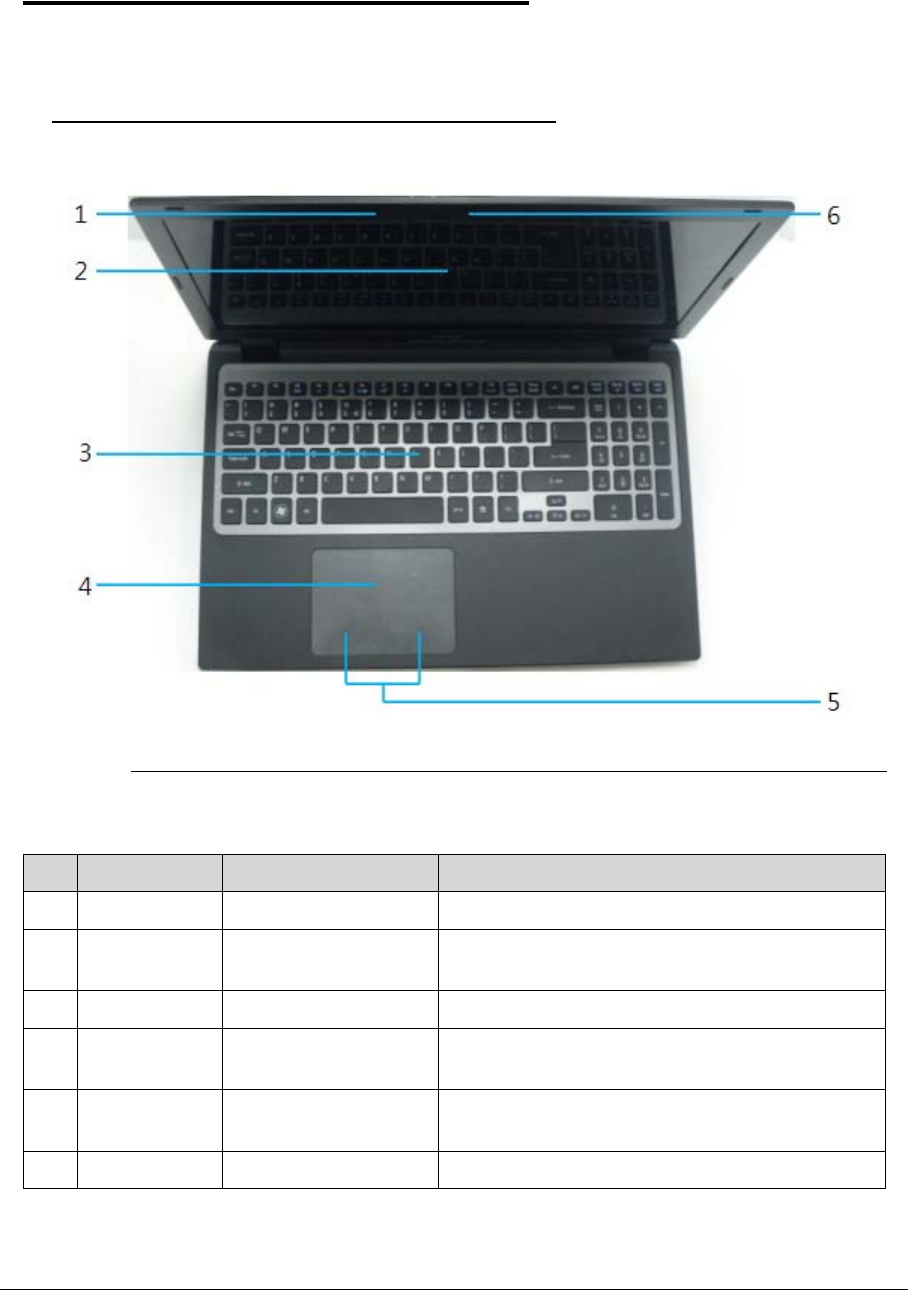
Figure 1-1. Open Top View
Table 1-1. Open Top View
No Icon Item Description
1 Microphone Internal microphone for recording sound.
2 Display screen Also called Liquid-Crystal Display (LCD),
displays computer output.
3 Keyboard For entering data into computer.
4 Touchpad Touch-sensitive pointing device which functions
like a computer mouse.
5 Click button area (left
and right)
The left and right button function like the left and
right mouse buttons.
6 Webcam Web camera for video communication.
1-12 Hardware Specifications and Configurations
Closed Front View 0
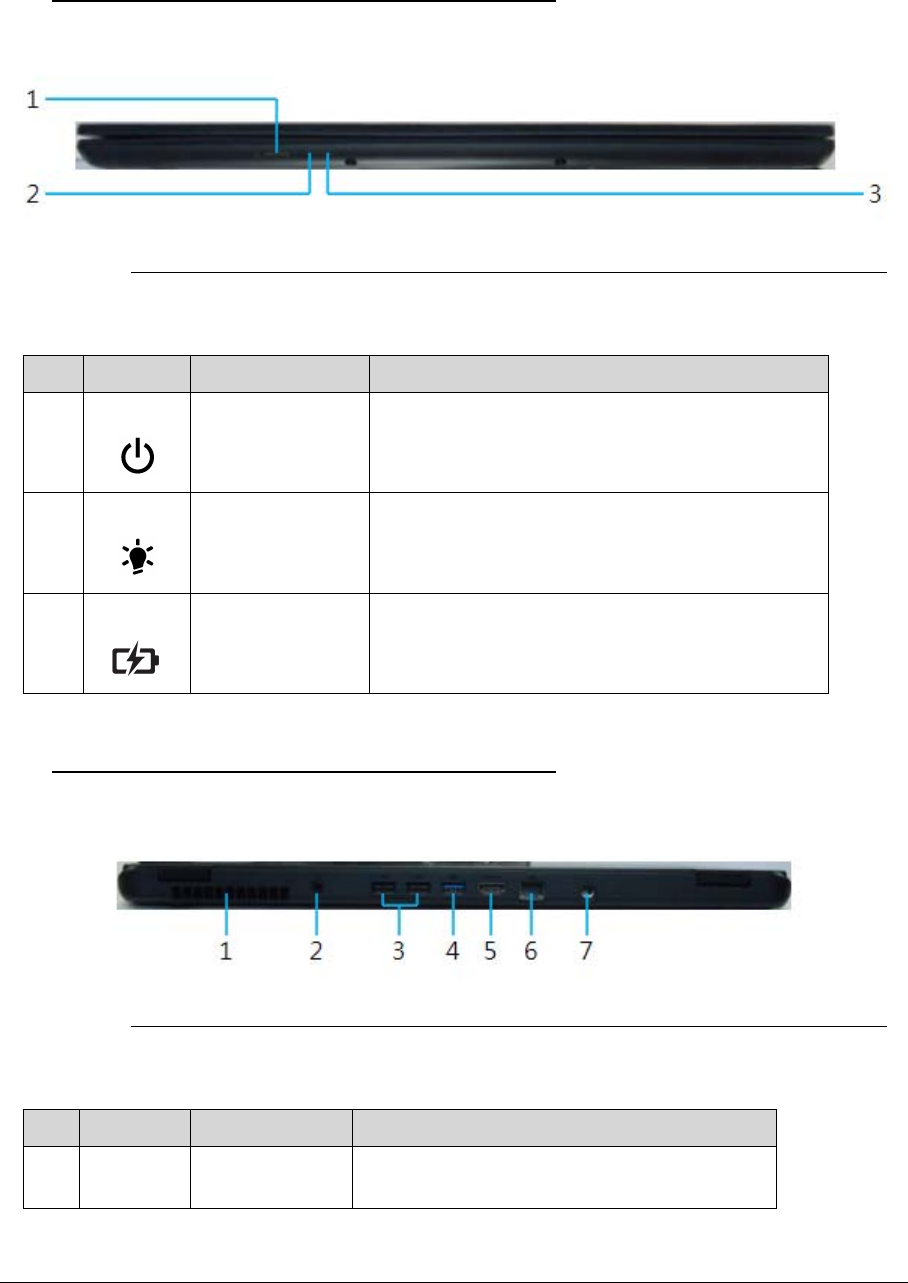
Figure 1-2. Closed Front View
Closed Rear View 0
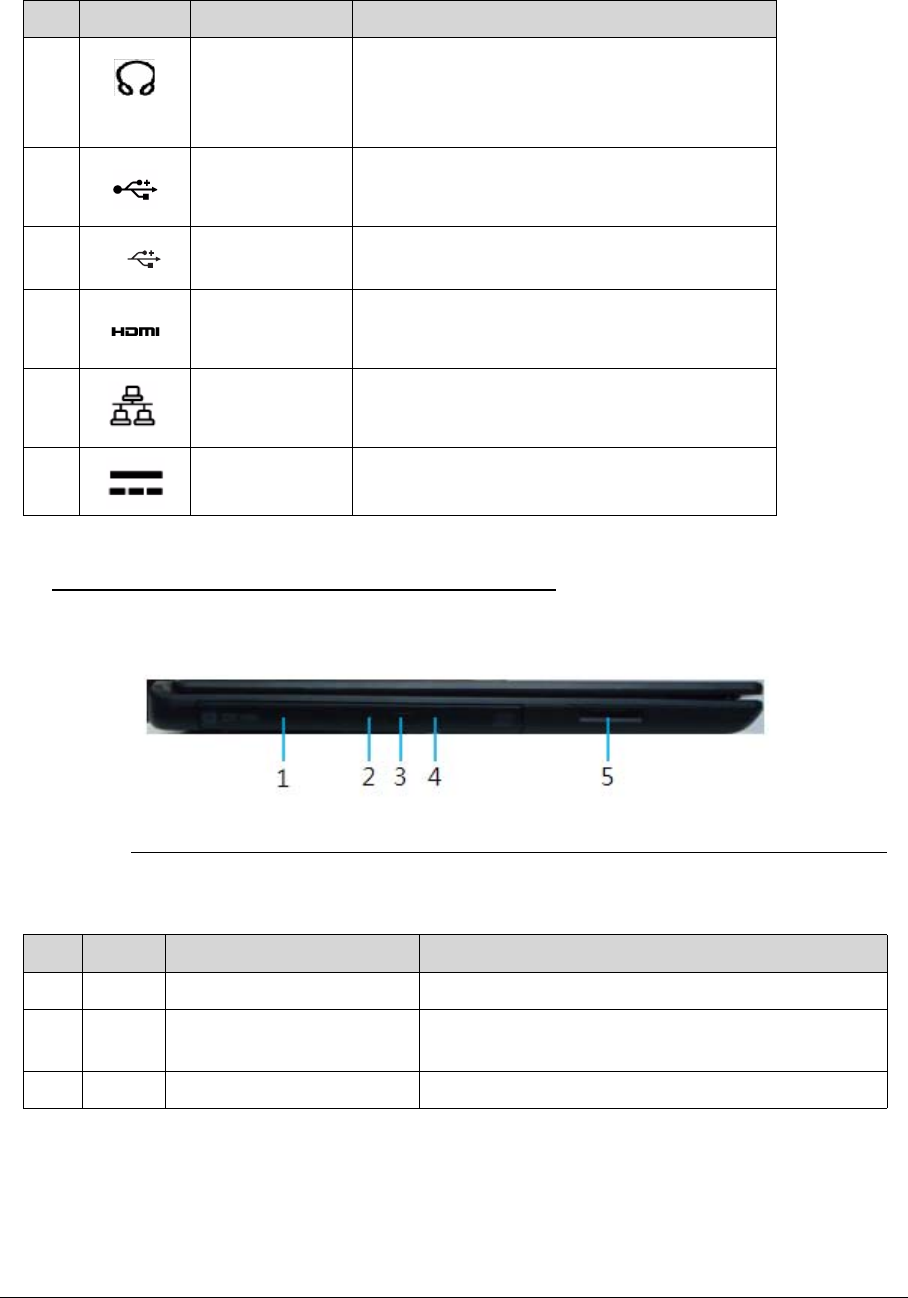
Figure 1-3. Closed Rear View
Table 1-2. Closed Front View
No Icon Item Description
1 Power button Turns the computer on and off.
2 Power indicator Indicates the computer’s power status.
3 Battery indicator Indicates the computer’s battery status.
Table 1-3. Closed Rear View
No Icon Item Description
1 Ventilation slots Enable the computer to stay cool, even after
prolonged use.
Hardware Specifications and Configurations 1-13
Left View 0
Figure 1-4. Left View
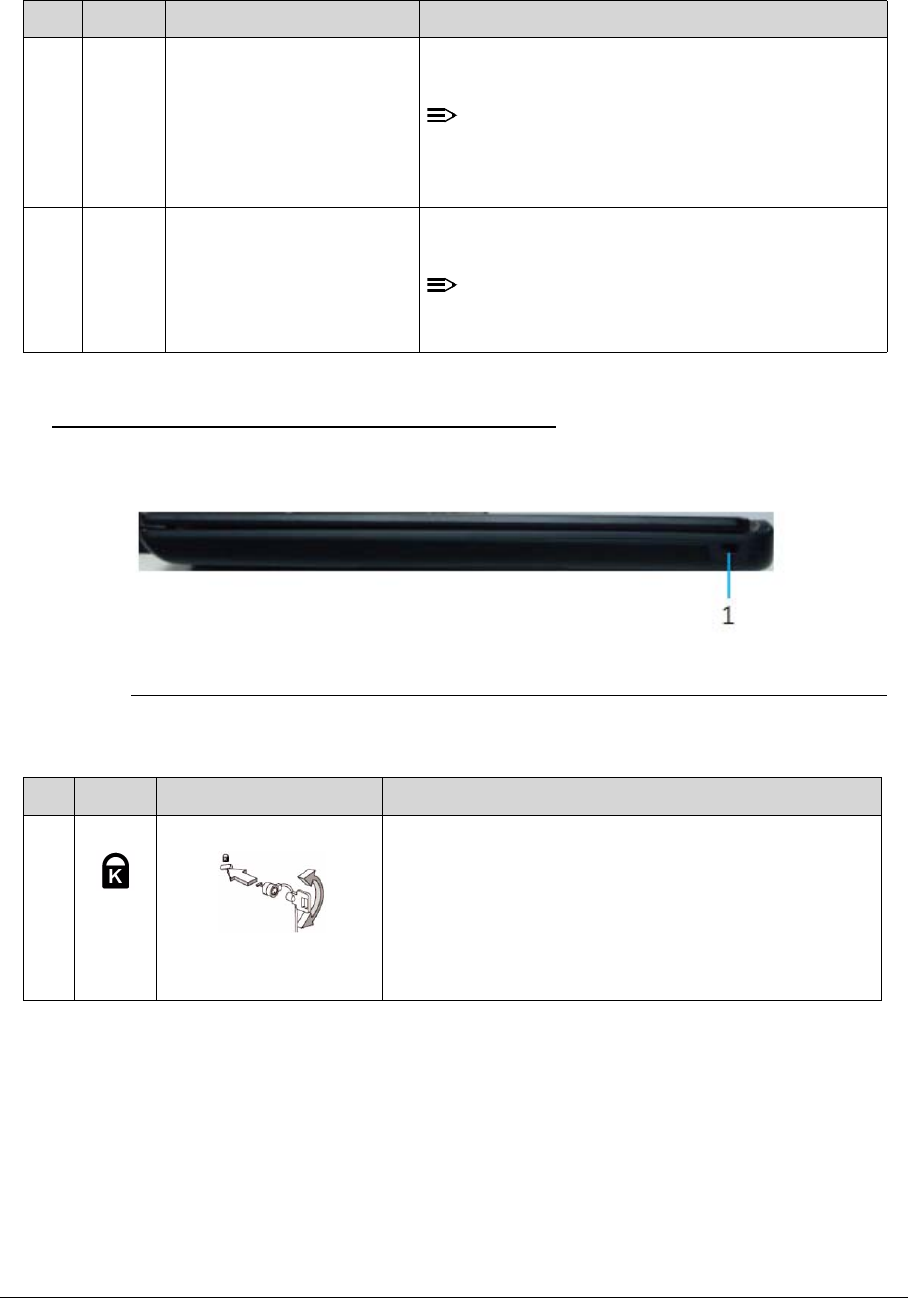
2 Headphones/
speaker/line-ou
t jack with
S/PDIF support
Connects to audio line-out devices (e.g.,
speakers, headphones).
3 USB 2.0 port Connects to USB 2.0 devices (e.g., USB
mouse, USB camera).
4 USB 3.0 port Connects to USB devices. Supports the USB
3.0 (SuperSpeed USB) specification.
5 HDMI port Supports high definition digital video
connections.
6 Ethernet
(RJ-45) port
Connects to an Ethernet 10/100/1000-based
network.
7 DC-in jack Connects to an AC adapter.
Table 1-4. Left View
No Icon Item Description
1 Optical drive Internal optical drive; accepts CDs DVDs.
2 Optical disk access
indicator
Lights up when the optical drive is active.
3 Optical drive eject button Ejects the optical disk from the drive.
Table 1-3. Closed Rear View
No Icon Item Description
SS
1-14 Hardware Specifications and Configurations
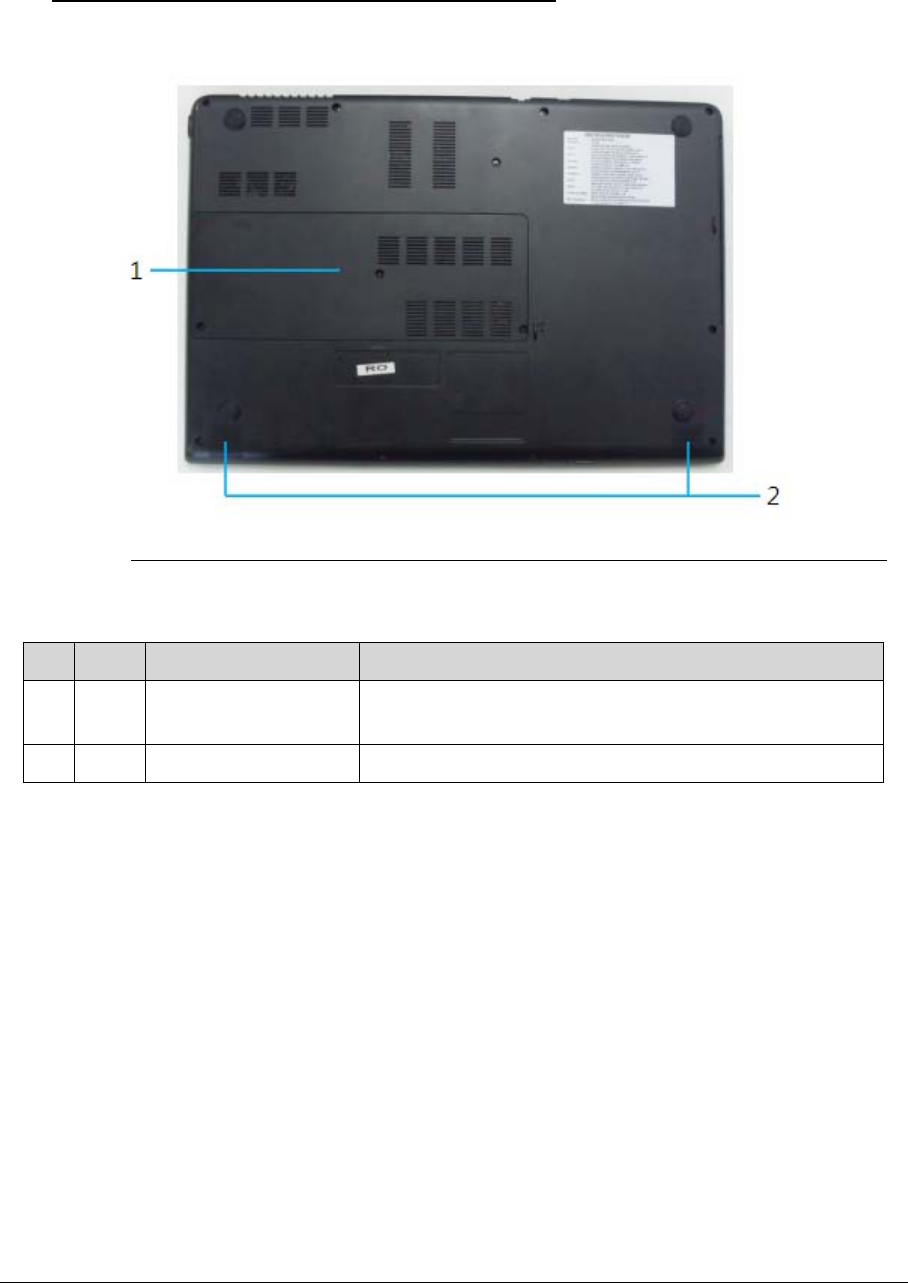
Right View 0
Figure 1-5. Right View
4 Emergency eject hole Ejects the optical drive tray when the computer is
turned off.
NOTE:
Insert a paper clip to the emergency eject hole
to eject the optical drive tray when the
computer is off.
5 Multi-in-1 card reader Accepts Secure Digital (SD 3.0), MultiMediaCard
(MMC).
NOTE:
Push to remove/install the card. Only one card
can operate at any given time.
Table 1-5. Right View
No Icon Item Description
1 Kensington lock slot Connects to a Kensington-compatible computer
security lock.
Wrap the computer security lock cable around an
immovable object such as a table or handle of a
locked drawer. Insert the lock into the notch and turn
the key to secure the lock. Some keyless models are
also available.
Table 1-4. Left View
No Icon Item Description
Hardware Specifications and Configurations 1-15
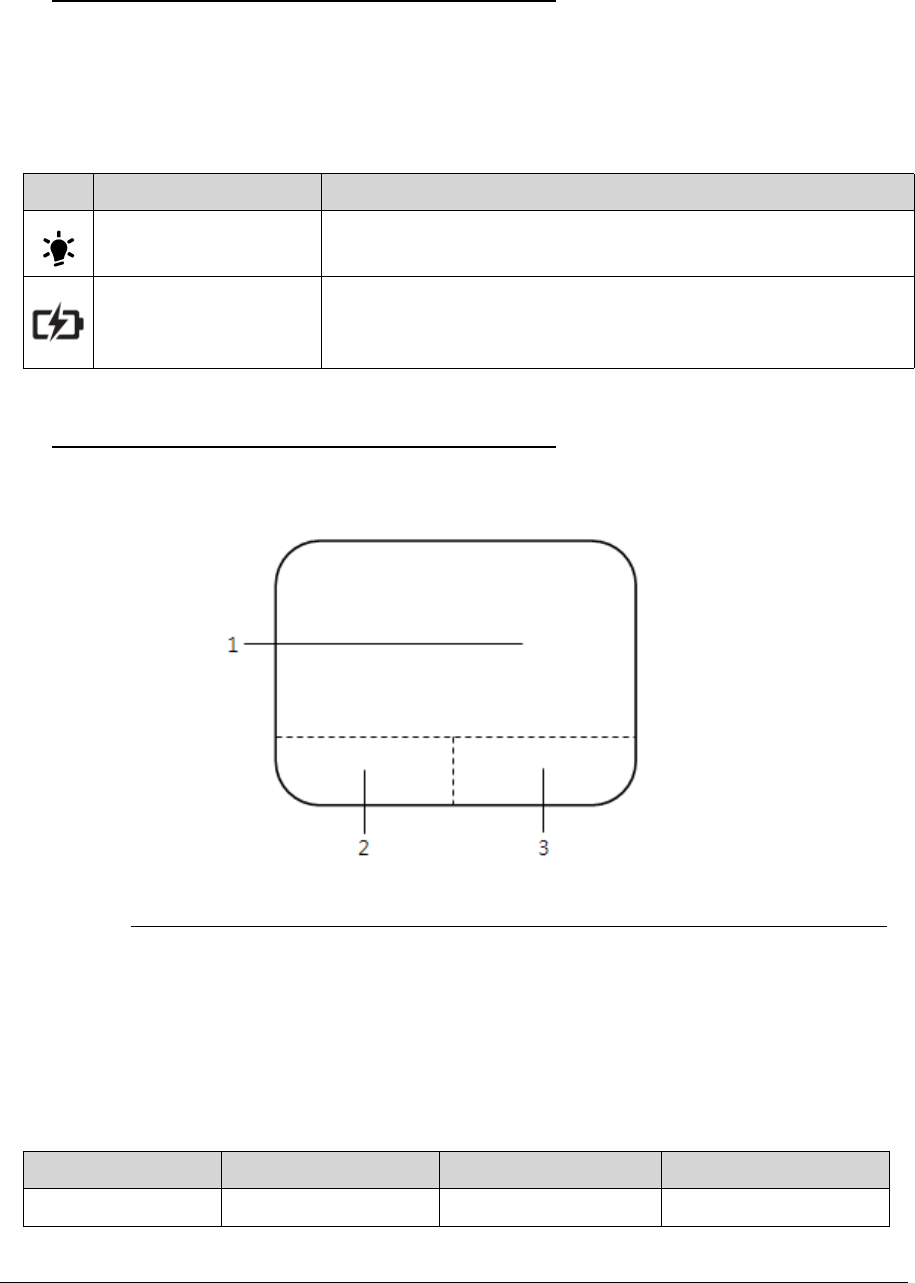
Base View 0
Figure 1-6. Base View
Table 1-6. Base View
No Icon Item Description
1 Main door Houses the computer’s HDD, Memory bar, SSD card
and WLAN card.
2 Speakers Deliver stereo audio output.
1-16 Hardware Specifications and Configurations
Indicators 0
The computer has two easy-to-read status indicators. The following indicators are visible
even when the computer cover is closed.
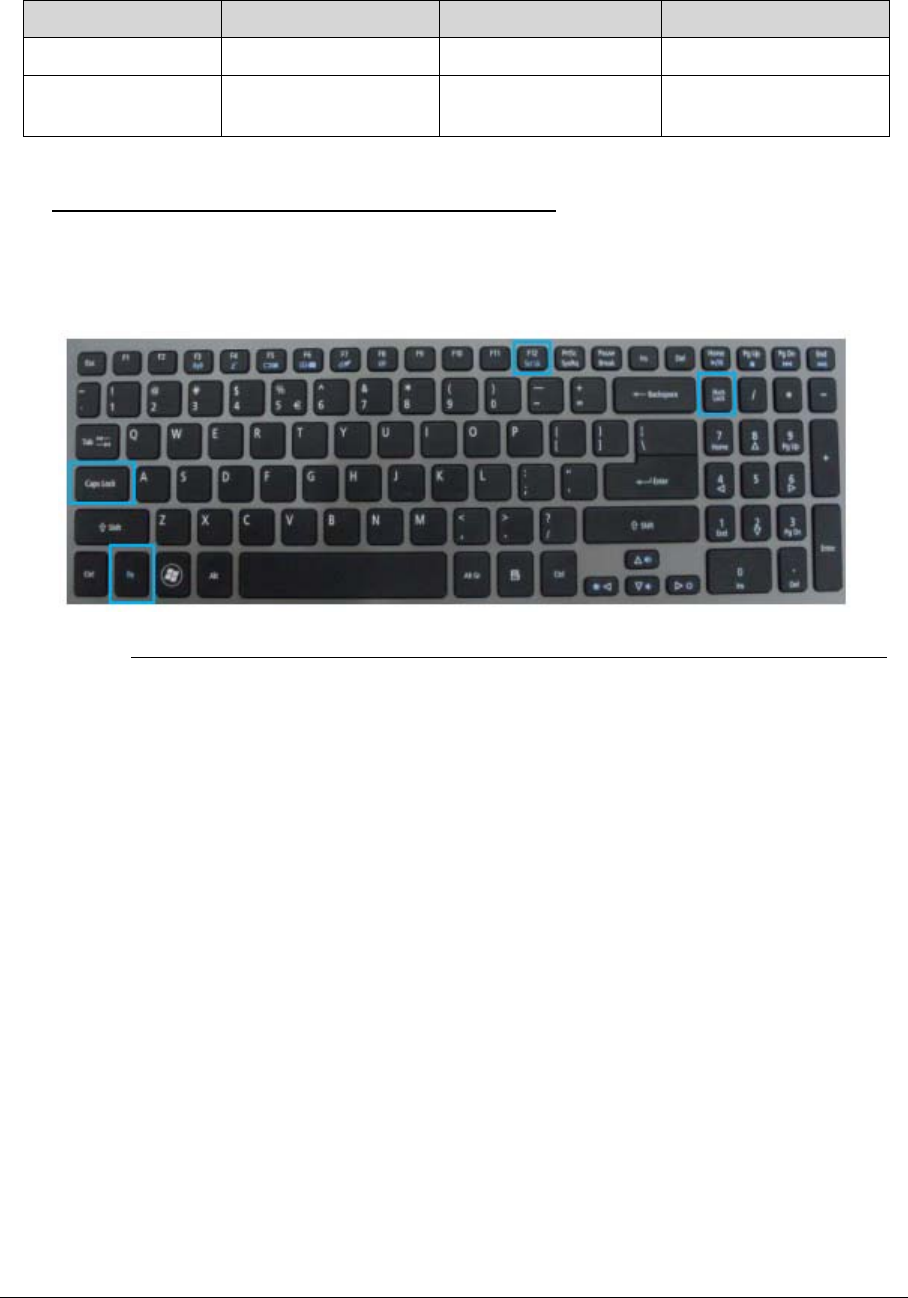
Touchpad Basics 0
Figure 1-7. Touchpad
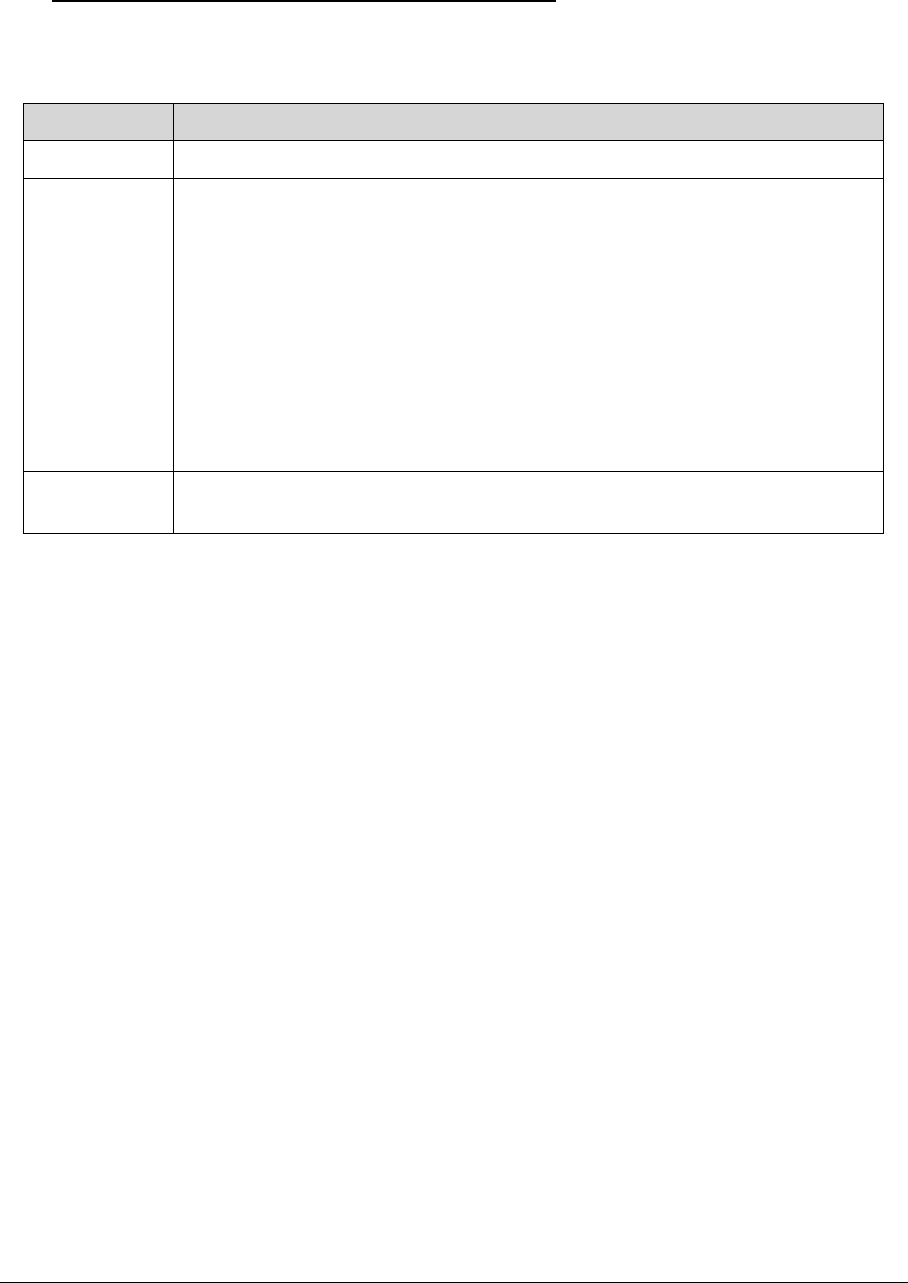
-Move finger across the TouchPad (1) to move the cursor.
-Press the left (2) and right (3) buttons located beneath the TouchPad to perform selection and
execution functions. These two virtual buttons are the equivalent of the left and right buttons on a
mouse. Tapping on the TouchPad is the same as clicking the left button.
Table 1-7. Indicators
Icon Function Description
Power indicator Indicates the computer’s power status.
Battery indicator Indicates the computer’s battery status.
Table 1-8. Touchpad
Function Left Button (2) Right Button (3) Main Touchpad (1)
Execute Quickly click twice. Rapidly tap twice.
Hardware Specifications and Configurations 1-17
Using the Keyboard 0
The keyboard contains an embedded numeric keypad, a separate cursor, windows key, lock
function keys, special and full sized keys.
Figure 1-8. Keyboard Lock Keys
Select Click once. Tap once.
Access context
menu
Click once.
Table 1-8. Touchpad
Function Left Button (2) Right Button (3) Main Touchpad (1)
1-18 Hardware Specifications and Configurations
Lock Keys 0
The keyboard has three lock keys which the user can toggle on and off.
Table 1-9. Lock Keys
Lock key Description
Caps Lock When on, all alphabetic characters are in uppercase.
Num Lock Off by default. When On, internal keyboard acts as numeric key padlock. If an
external keyboard or keypad is present, the Num Lock will have the following
definitions:
-When On, the system boots with external keyboard/keypad Num Lock
status On. Internal keyboard overlay numeric keys are disabled.
-The key can be turned on/off via the internal keyboard (Fn+F11) or the
external keyboard/keypad. Num Lock affects the external keyboard/keypad
only.
-Shift state is NOT used for the cursor movement by the numeric keys.
-The state of the Num Lock is not changed by the attachment/removal (hot
plug) of the external keyboard/keypad.
Scroll Lock
<Fn> +<F12>
When On, the screen moves one line up or down when pressing up or down
arrow keys. Scroll Lock is not applicable for all applications.
Hardware Specifications and Configurations 1-19
Windows Keys 0
The keyboard has two keys that perform Windows-specific functions.
- Windows Logo key
- Application key
Table 1-10. Windows Keys
Key Description
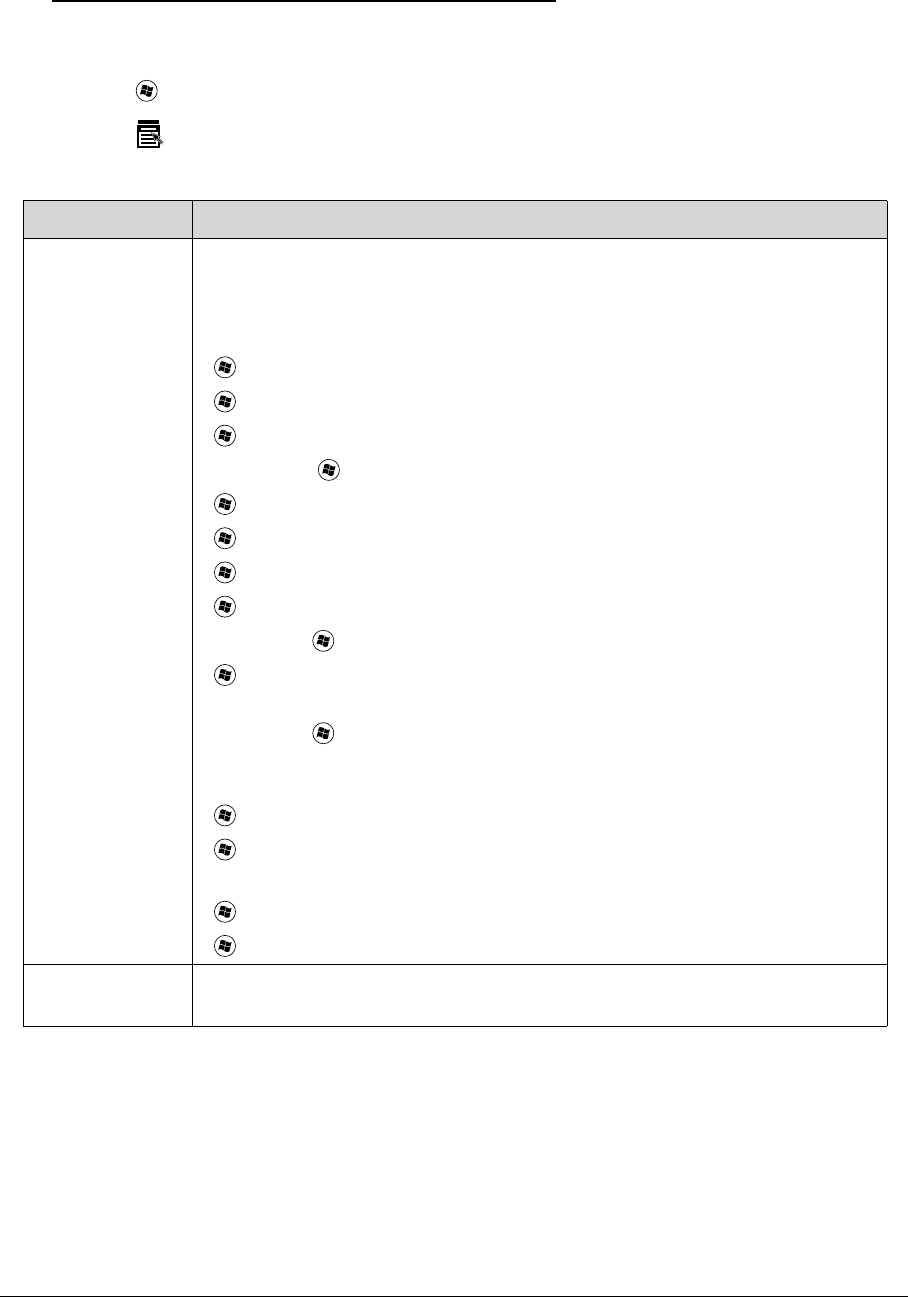
Windows Logo
key
Pressed alone, this key has the same effect as clicking on the Windows Start
button; it launches the Start menu. It can also be used with other keys to
provide a variety of functions.
Functions supported by Windows XP, Windows Vista, and Windows 7:
< >: Open or close the Start menu
< > + <R>: Open the Run dialog box
< > + <M>: Minimizes all windows
<SHIFT> + < > + M: Undo minimize all windows
< > + <F1>: Show the help window
< > + <E>: Open Windows Explorer
< > + <F>: Search for a file or folder
< > + <D>: Show the desktop
<CTRL> + < > + <F>: Search for computers (search in network)
< > + <L>: Lock computer (if connected to a network domain), or switch
users (if not connected to a network domain)
<CTRL> + < > + <TAB>: Moves focus from Start menu, to the Quick
Launch toolbar, to the system tray (use RIGHT ARROW or LEFT ARROW to
move focus to items on the Quick Launch toolbar and the system tray)
< > + <TAB>: Cycle through programs on the taskbar
< > + <BREAK>: Display the System Properties dialog box
Functions supported by Windows XP:
< > + <BREAK>: Show the System Properties dialog box
< > + <U>: Open Ease of Access Center
Application key This key has the same effect as clicking the right mouse button; opening the
application's context menu.
1-20 Hardware Specifications and Configurations
Hotkeys 0
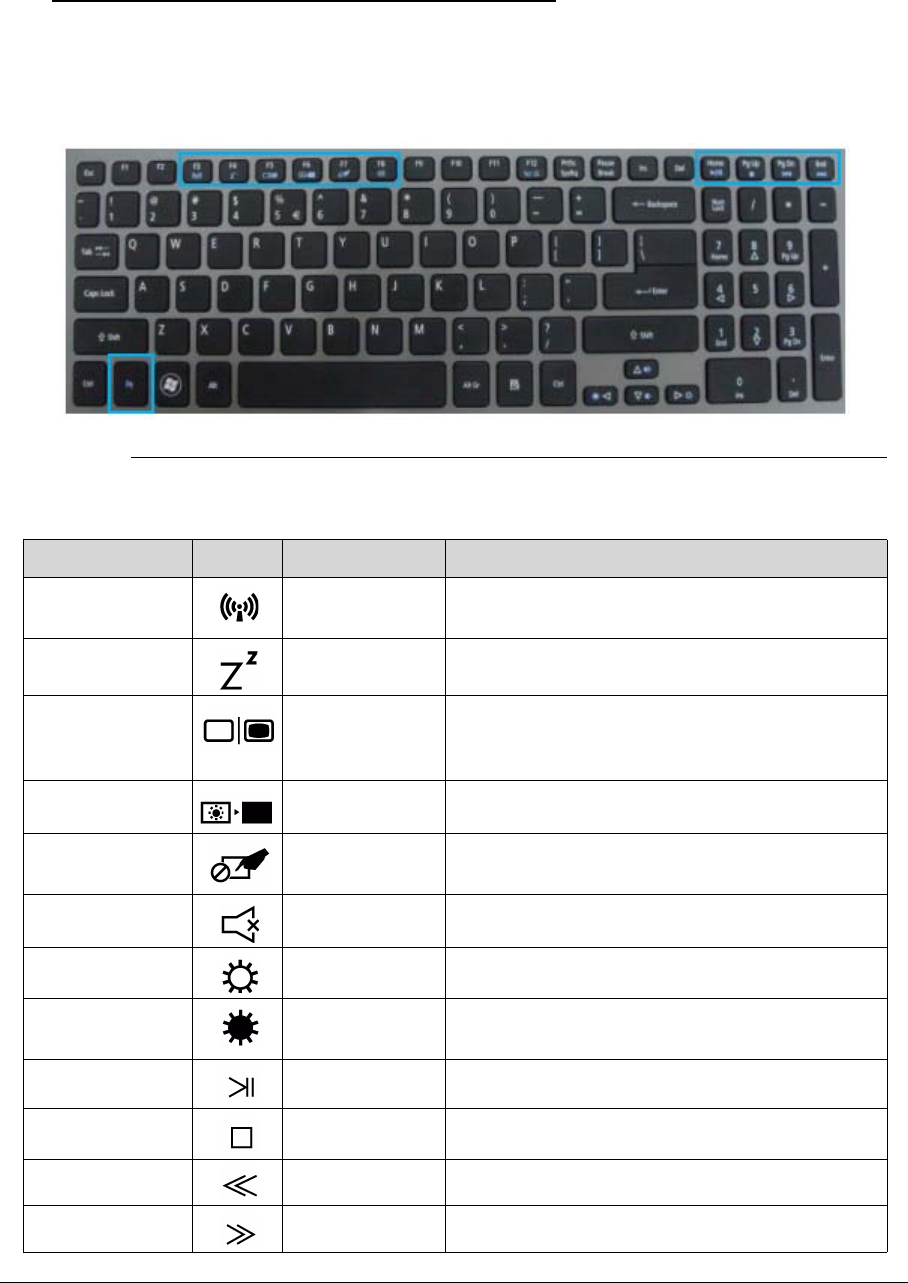
The computer uses hotkeys or key combinations to access most computer controls.
To activate hotkeys, press and hold the <Fn> key before pressing the key in the combination.
Figure 1-9. Keyboard Hotkeys
Table 1-11. Hotkeys
Hotkey Icon Function Description
<Fn> + <F3> Communication
Device On/Off
Toggles WiFi, 3G and Bluetooth On and Off
using a pop-up window.
<Fn> + <F4> Sleep Puts the computer in Sleep mode.
<Fn> + <F5> Display toggle Switches display output between the display
screen, external monitor (if connected) and
both.
<Fn> + <F6> Display off Turns Off the LCD back light
<Fn> + <F7> Touchpad
toggle
Turns the touchpad On and Off.
<Fn> + <F8> Speaker toggle Turns the speakers On and Off.
<Fn> + <> Brightness Up Increases the screen brightness.
<Fn> + <> Brightness
Down
Decreases the screen brightness.
<Fn> +<Home> Play/Pause Play or pause a selected media file.
<Fn> + <Pg Up> Stop Stop playing the selected media file.
<Fn> +<Pg Dn> Previous Return to the previous media
<Fn> + <End> Next Jump to the next media file.

Hardware Specifications and Configurations 1-21
Alt> + <F10> D2D recovery Enters to the D2D recovery during POST
Table 1-11. Hotkeys (Continued)
Hotkey Icon Function Description
1-22 Hardware Specifications and Configurations
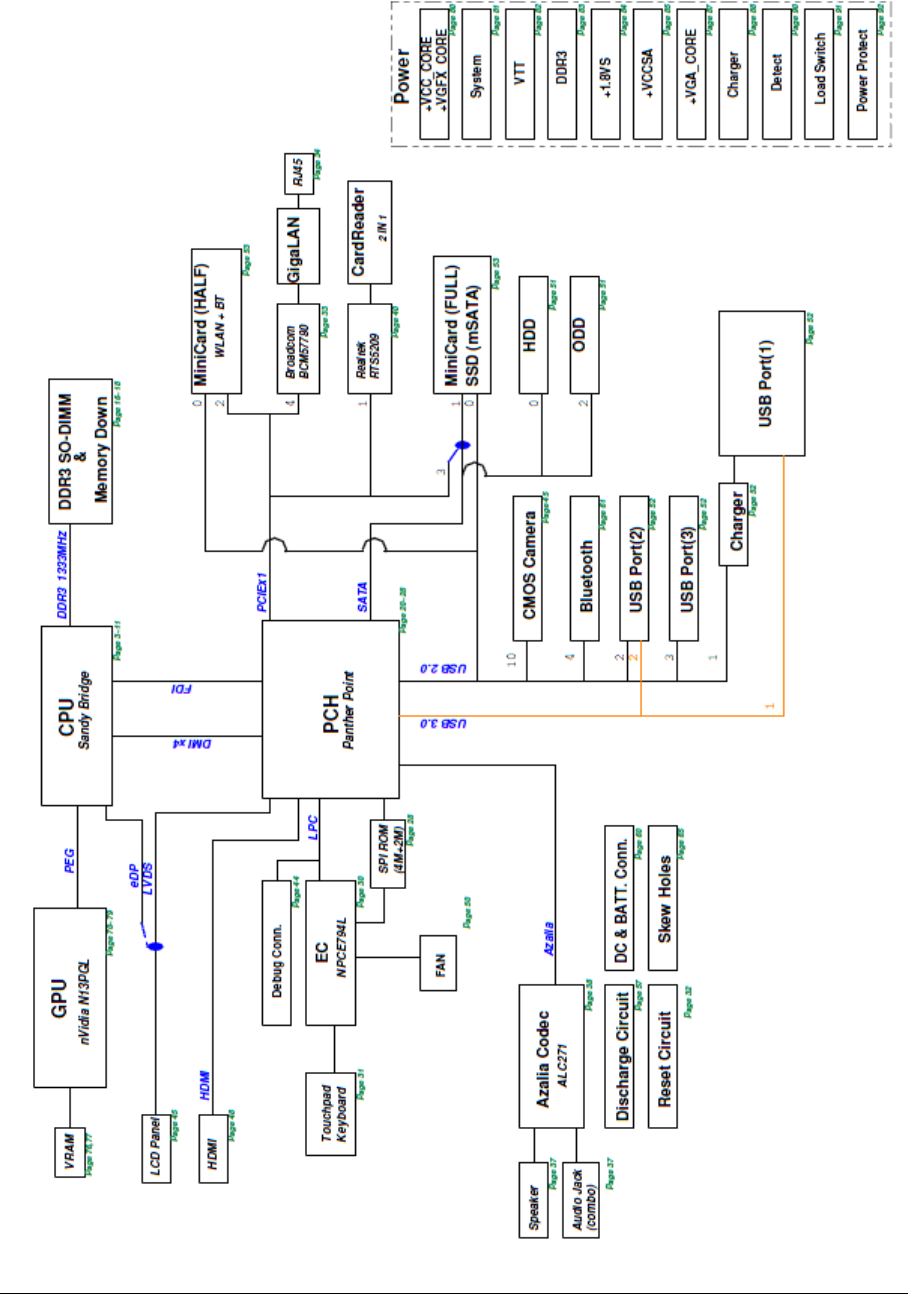
System Block Diagram
Hardware Specifications and Configurations 1-23
Specification Tables 0
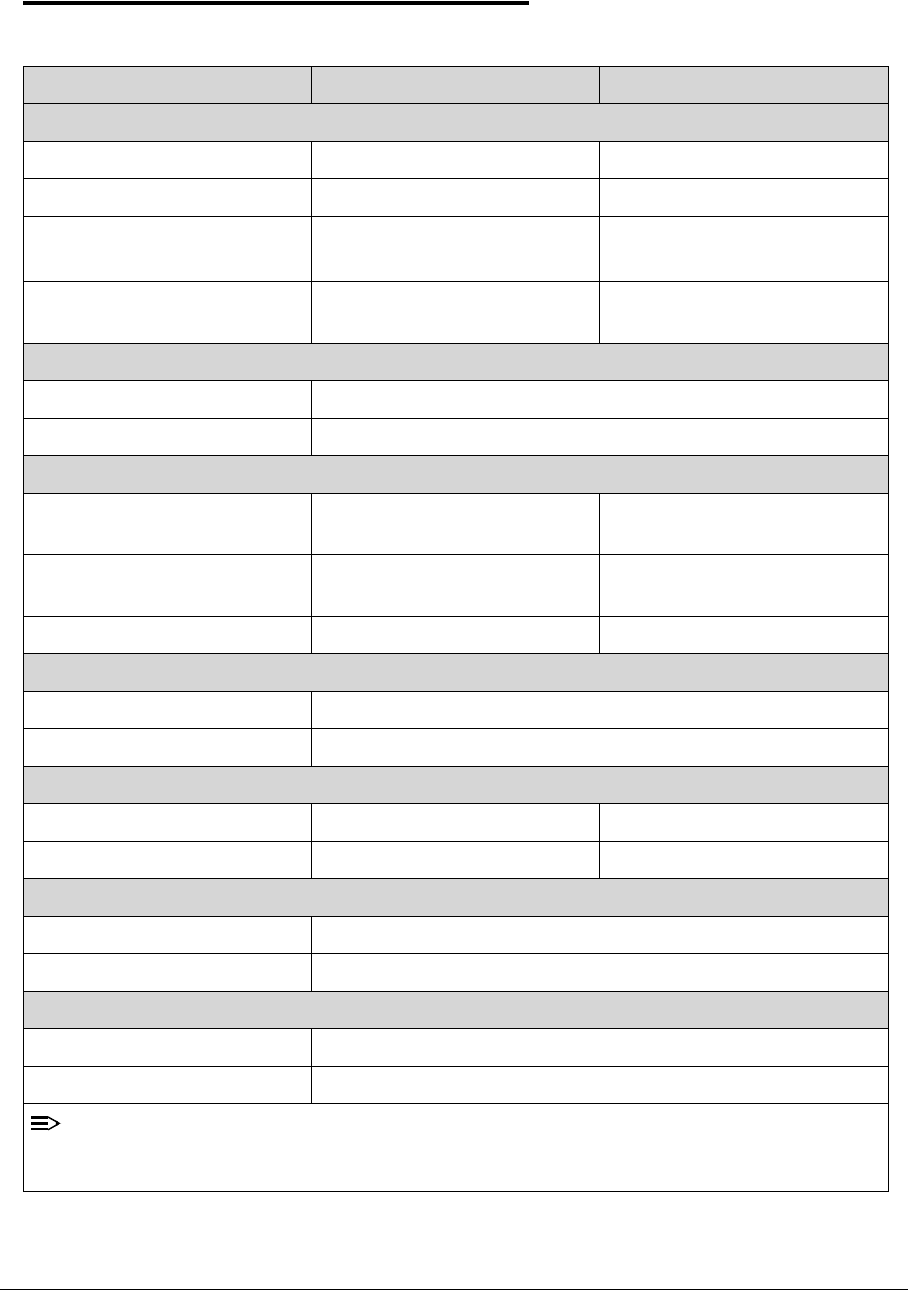
Computer specifications
Item Metric Imperial
Dimensions
Length 376.4 mm 14.81 in
Width 253.0 mm 10.0 in
Height
(front/rear)
19.7/20.7 mm 0.77/0.82 in
Weight (equipped with optical
drive, flash drive, and battery)
2.25 kg with HDD 4.5 lbs with HDD
Input power
Operating voltage 19V at 3.42A Max for 65W
Operating current 3.42A(Max)
Temperature
Operating (not writing to
optical disc)
0°C to 35°C 32°F to 95°F
Operating (writing to optical
disc)
5°C to 35°C 41°F to 95°F
Nonoperating -20°C to 60°C -4°F to 140°F
Relative humidity
Operating 10% to 90%
Nonoperating 5% to 95%
Maximum altitude (unpressurized)
Operating -15 m to 3,048 m -50 ft to 10,000 ft
Nonoperating -15 m to 12,192 m -50 ft to 40,000 ft
Shock
Operating 125 g, 2 ms, half-sine
Nonoperating 200 g, 2 ms, half-sine
Random vibration
Operating 0.75 g zero-to-peak, 10 Hz to 500 Hz, 0.25 oct/min sweep rate
Nonoperating 1.50 g zero-to-peak, 10 Hz to 500 Hz, 0.25 oct/min sweep rate
NOTE:
Applicable product safety standards specify thermal limits for plastic surfaces. The computer
operates within this range of temperatures.
1-24 Hardware Specifications and Configurations
System Board Major Chips
Processor
Processor Specifications
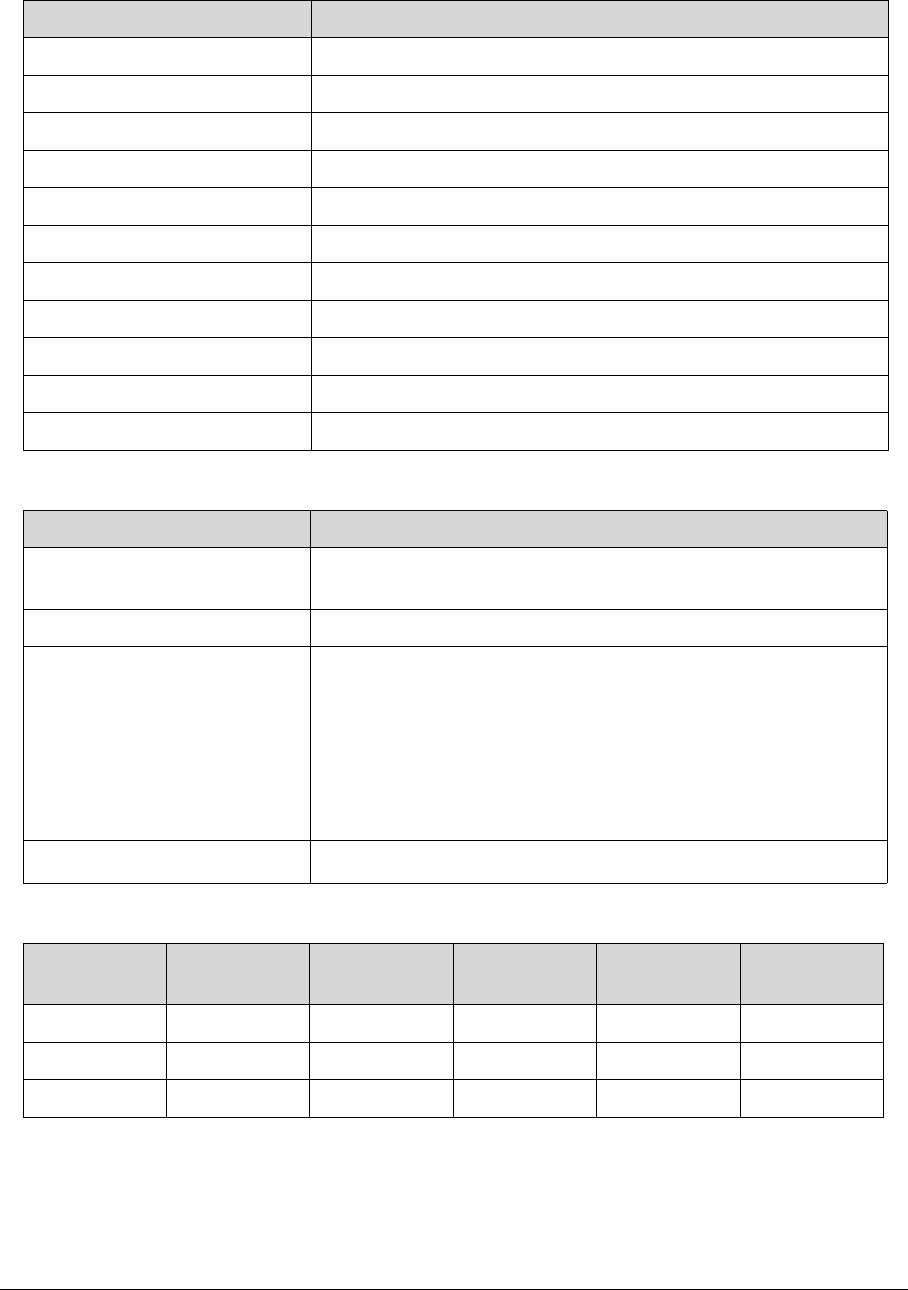
Item Specification
Core logic Intel Panther Point HM77
VGA NVIDIA Optimus™ GeForce GT640M
LAN BCM57780
USB 3.0 RT9712AGS
Embedded controller NUVOTON NPCE795L
Bluetooth Atheros AR3012, Broadcom BCM20702
Wireless BCM943227HM4L
TPM NUVOTON NPCT420R(For future SKU)
PCMCIA N/A
Audio codec Realtek ALC271X
Card reader Realtek RTS5209
Item Specification
Central Processing Unit
(CPU) type
Intel® Sandy Bridge Core i7/i5/i3 Processor
CPU package FC-BGA 1023
Core Logic Multi execution cores·
-A 32-KB instruction and 32-KB data first-level cache (L1) for
each core
-A 256-KB shared instruction/data second-level cache (L2) for
each core
-Up to 4-MB shared instruction/data third-level cache (L3),
shared among all cores
Chipset Mobile Intel® HM77
Item CPU Speed
(GHz)Cores Mfg Tech Cache Size Package
i7-2637M 1.7 4 32 nm 4 MB BGA 1023
i5-2467M 1.6 2 32 nm 3 MB BGA 1023
i3-2367M 1.4 2 32 nm 3 MB BGA 1023
Hardware Specifications and Configurations 1-25
CPU Fan True Value Table
System Memory
Memory Combinations
CPU
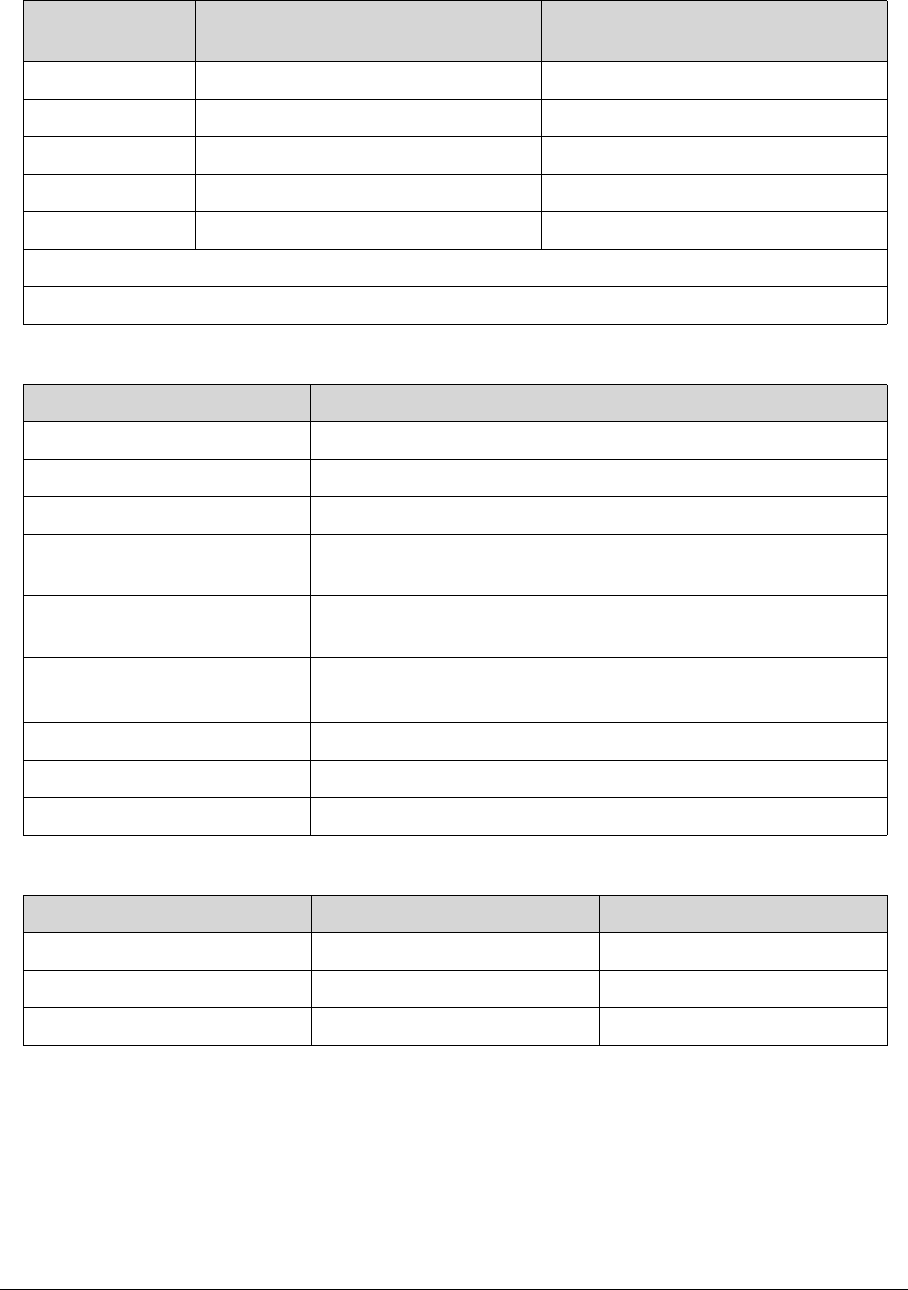
Temperature Fan Speed (RPM) SPL Spec (dBA)
50 2600 28
58 3000 31
66 3300 34
74 3700 37
85 4000 40
Throttling 50%: On= 95 °C; OFF=80 °C
OS shut down at 100C; H/W shut down at 92 °C
Item Specification
Memory controller Built in CPU
Memory size 2GB DDR3 RAM on-board+one DDR3 DIMM socket
DIMM socket number 1
Supports memory size per
socket
2/4GB
Supports maximum memory
size
6GB
Supports DIMM type Support DDR III 1333/1600MHz
SDRAM memory interface design
Supports DIMM Speed 1333/1600MHz
Support DIMM voltage 1.5V
Supports DIMM package 204P
On-board (MB) Slot (MB) Total Memory (MB)
2048 0 2048
2048 2048 4096
2048 4096 6144
1-26 Hardware Specifications and Configurations
Graphics Controller
Video Interface
BIOS
LAN Interface
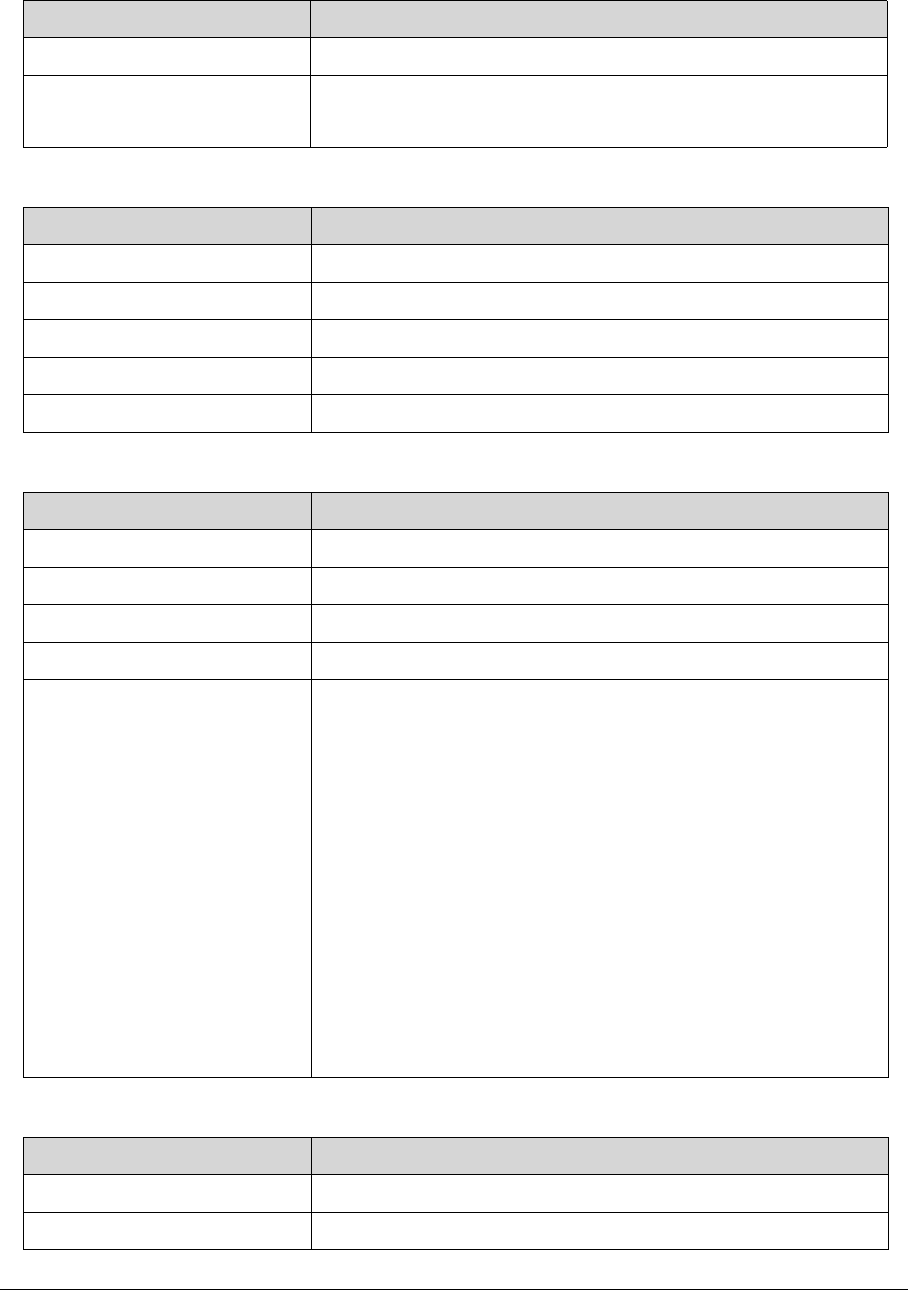
Item Specification
VGA Chip NVIDIA Optimus™ Geforce GT640M
Supports CUDA®, PhysX®, 3D Vision®, Microsoft® DirectX® 11,
OpenGL® 4.1, OpenCL™ 1.1
Item Specification
Chipset NVIDIA Optimus™ Geforce GT640M
Package 29mmx29mm
Interface LVDS
Compatibility 32bpp
Sampling rate 60Hz
Item Specification
BIOS vendor Insyde
BIOS Type UEFI
BIOS ROM type W25Q32BV, W25Q16CV
BIOS ROM size 4MB
BIOS Features -Winbond code base
-Flash ROM 4 MB
-Support Acer UI
-Support multi-boot
-Suspend to RAM (S3)/Disk (S4)
-Various hotkeys for system control
-Support SMBIOS 2.3 ,PCI2.2.
-DMI utility for BIOS serial number configurable/asset tag-
Support PXE
-Support WinFlash
-Wake on LAN from S3
-Wake on LAN from S5 in AC mode
-System information
-Refer to Acer BIOS specification.
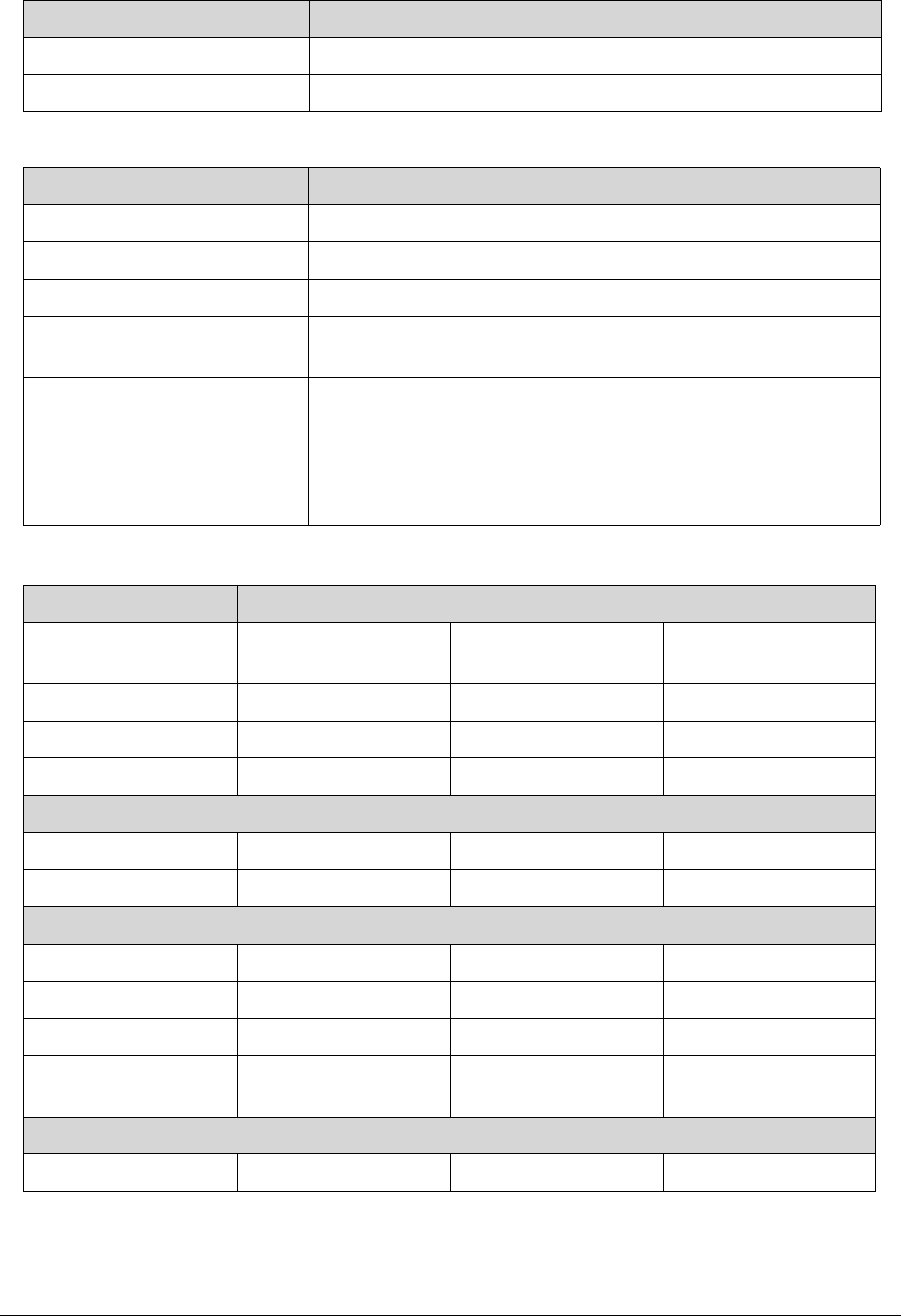
Item Specification
LAN Chipset BROADCOM BCM57780
LAN connector type RJ45
Hardware Specifications and Configurations 1-27
Keyboard
Hard Disk Drive (AVL components)
LAN connector location RJ45 at the rear side
Features Supports 10/100/1000Mbps
Item Specification
Type AF7S keyboard
Total number of keypads 103-US/104-UK/107-JP keys
Windows logo key Yes
Internal & external keyboard
work simultaneously
Plug USB keyboard to the USB port directly: Yes
Features -Phantom key auto detect
-Overlay numeric keypad
-Support independent pgdn/pgup/home/end keys
-Support reverse T cursor keys
-Factory configurable different languages by OEM customer
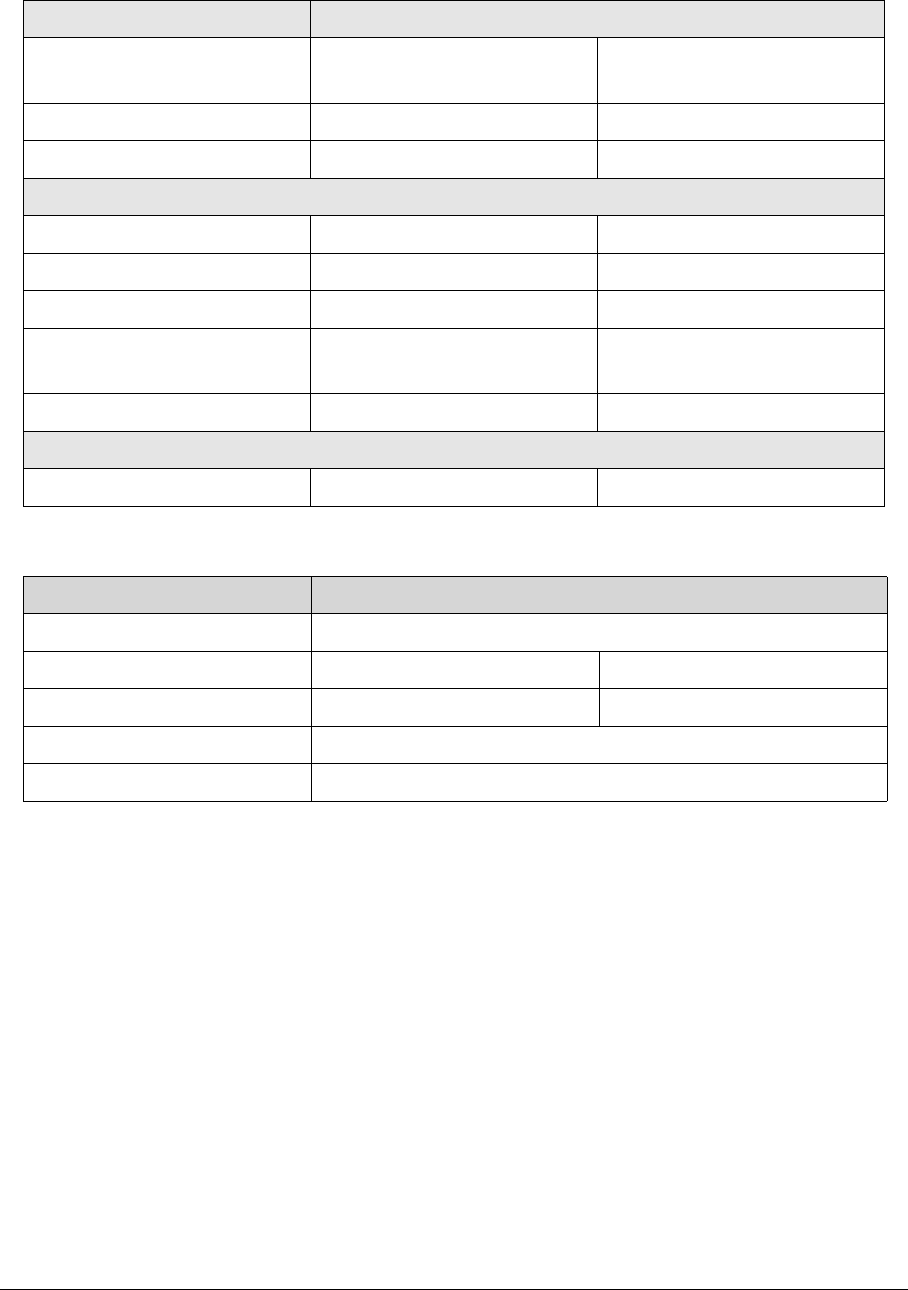
Item Specification
Vendor & Model
Name
HITACHI
HTS545050A7E380
HITACHI
HTS543232A7A384
SEAGATE
ST320LT020
Capacity (GB) 500 320 320
Bytes per sector 4096 512 4096
Data heads 2 2 2
Drive Format
Height(mm) 7.0 7.0 7.0
Disks 1 1 1
Performance Specifications
Spindle speed (RPM) 5400 5400 5400
Buffer size 8MB 8MB 8MB
Interface SATA SATA SATA
Fast data transfer rate
(Gbits/s, max)
3.0 3.0 3.0
DC Power Requirement
Voltage tolerance 5V +/- 5% 5V +/- 5% 5V +/- 5%
Item Specification
1-28 Hardware Specifications and Configurations
Solid State Drive (AVL components)
Super-Multi Drive Interface
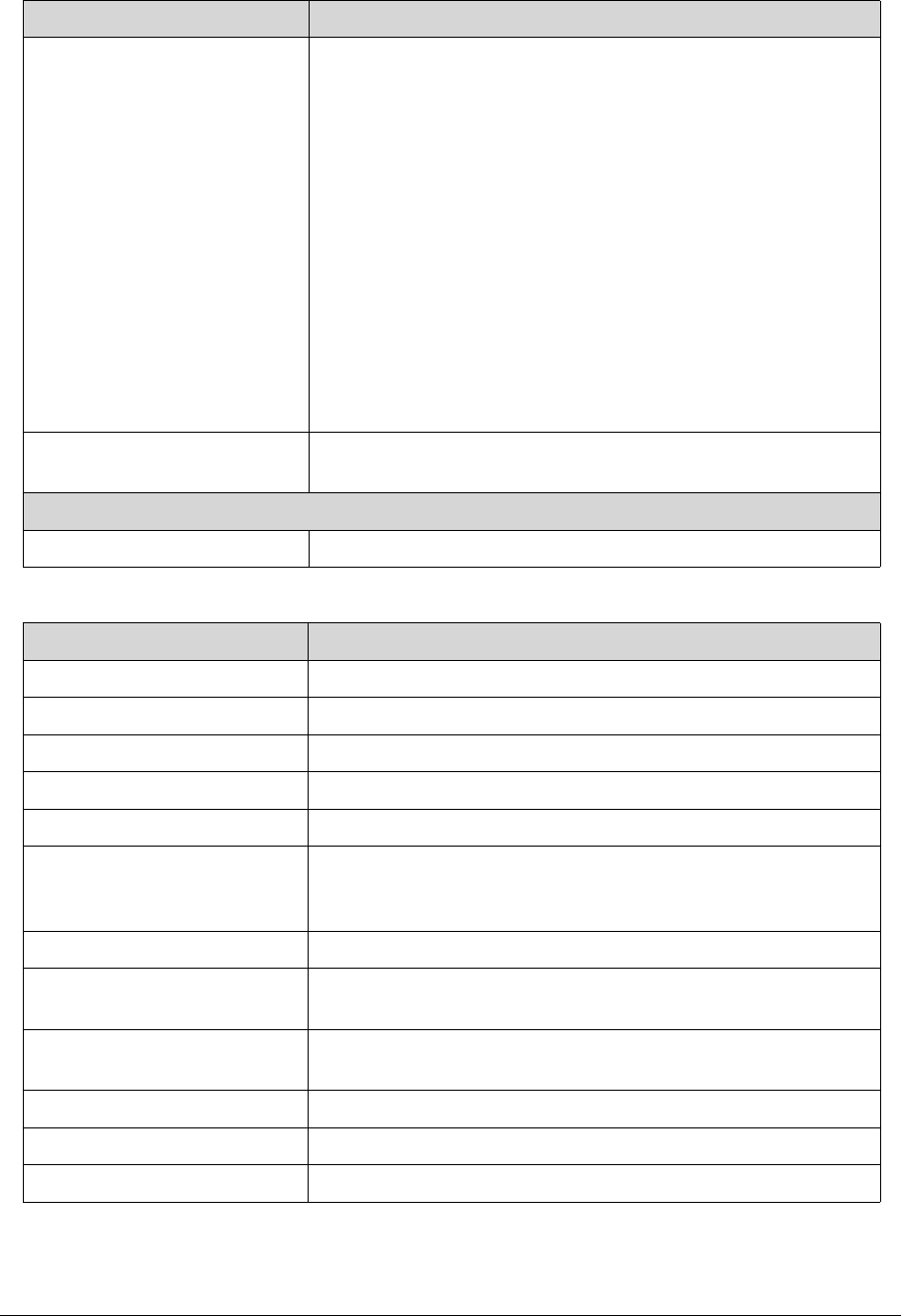
Item Specifications
Vendor &
Model Name
LITEON LMT-128M3M LITEON LMT-256M3M
Capacity (GB) 128 256
Flash mode MLC MLC
Performance
Sequential Read (MB/s) 470 460
Sequential Write (MB/s) 180 360
Interface mSATA mSATA
Max. fast data transfer rate
(Gbits/s)
6.0 6.0
Operating Shock 1,500G/1.0ms 1,500G/1.0ms
DC Power Requirement
Voltage tolerance 3.3V +/- 5% 3.3V +/- 5%
Item Specification
Vendor & Model name HITACHI-LG Slim DVD Super Multi Drive GU61N
Performance Specification With CD Diskette With DVD Diskette
Transfer rate (KB/sec) Sustained: 3600(24x)Max Sustained: 11080(8x)Max
Buffer Memory 1MB
Interface SATA
Hardware Specifications and Configurations 1-29
LED 15.6”
Applicable disc format Applicable disc format CD: CD-DA, CD-ROM, CD-ROM XA,
Photo CD (multi-session), Video CD, Cd-Extra (CD+), CD-text
DVD: DVD-VIDEO, DVD-ROM, DVD-R (3.9GB, 4.7GB)
DVD-R DL, DVD-RW, DVD-RAM, DVD+R, DVD+R DL,
DVD+RW CD: CD-DA (Red Book) - Standard Audio CD &
CD-TEXT CD-ROM (Yellow Book Mode1 & 2) - Standard Data
CD-ROM XA (Mode2 Form1 & 2) - Photo CD, Multi-Session
CD-I (Green Book, Mode2 Form1 & 2, Ready, Bridge)
CD-Extra/ CD-Plus (Blue Book) - Audio & Text/Video Video-CD
(White Book) - MPEG1 Video CD-R (Orange Book Part)
CD-RW & HSRW (Orange Book Part Volume1 & Volume 2
Super Audio CD (SACD) Hybrid type US & US+ RW DVD:
DVD-ROM (Book 1.02), DVD-Dual DVD-Video (Book 1.1)
DVD-R (Book 1.0, 3.9G) DVD-R (Book 2.0, 4.7G) - General &
Authoring DVD+R (Version 1.0) DVD+RW DVD-RW (Non
CPRM & CPRM) DVD+/-R Dual
Loading mechanism Load: Manual Release: (a) Electrical Release (Release Button)
(b) Release by ATAPI command (c) Emergency Release
Power Requirement
Input Voltage 5 V +/- 5% (Operating)
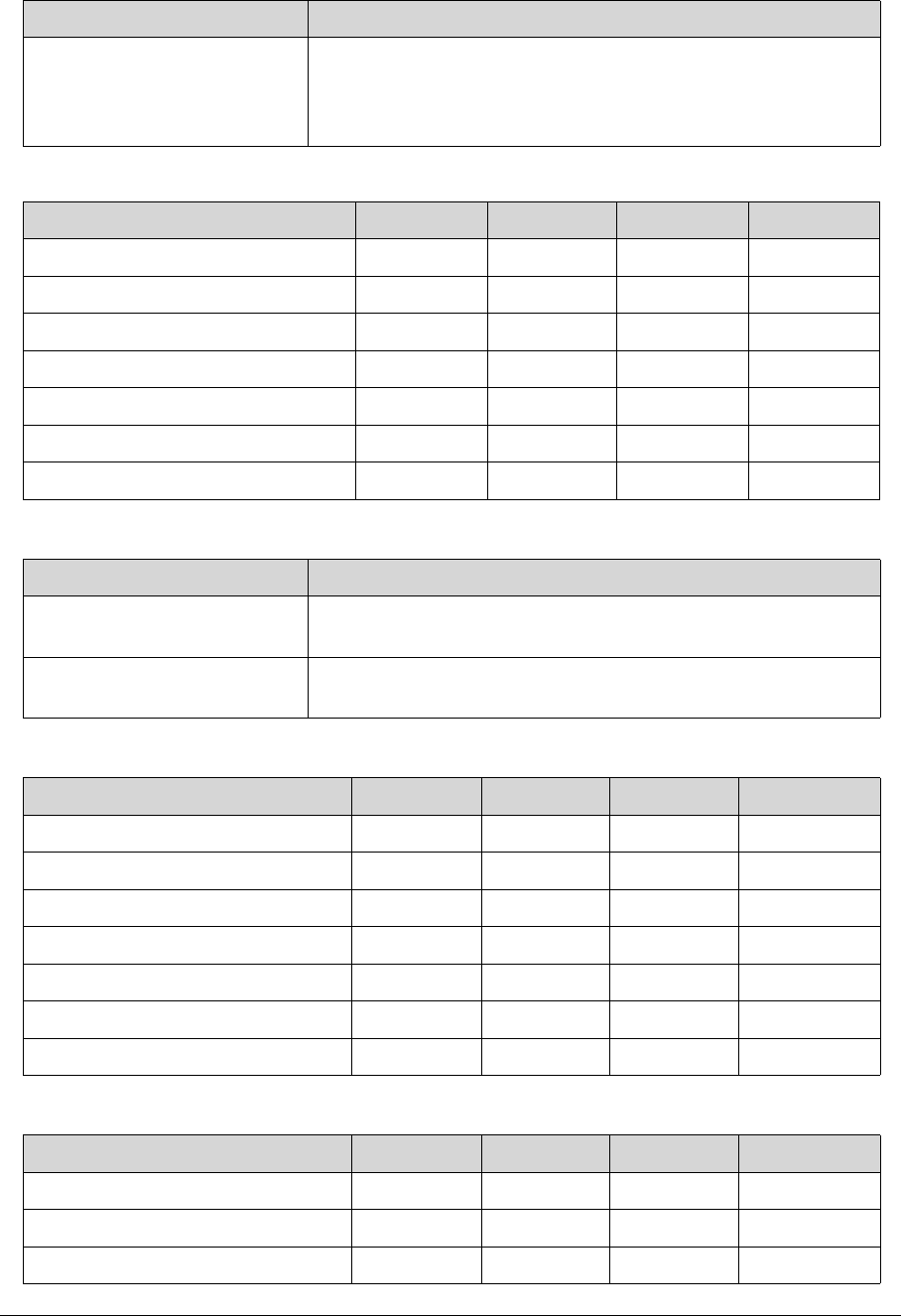
Item Specification
Vendor/model name AUO 15.6”HD 16:9 Color TFT-LCD/ B156XTN03.0
Screen Diagonal (mm) 394.9(15.55in)
Active Area (mm) 344.2 X 193.5
Display resolution (pixels) 1366x3(RGB)x768
Pixel Pitch (mm) 0.252x0.252
Typical White Luminance
(cd/m2) also called
Brightness
200 typ.170 min
Contrast Ratio 500 typ.
Response Time (Optical Rise
Time/Fall Time) msec
8 typ. / 16 Max
Typical Power Consumption
(watt)
3.4 max
Weight (without inverter) 400g max
Physical Size (mm) 360 x 224.3 x 3.4 max
Electrical Interface 1 channel LVDS
Item Specification
1-30 Hardware Specifications and Configurations
Display Supported Resolution (LCD Supported Resolution)
Graphics Controller
Display Supported Resolution (GPU Supported Resolution)
Display Supported Resolution (LCD panel Supported Resolution)
Viewing Angle
(degree)Horizontal (Right) CR
= 10 (Left)Vertical (Upper) CR
= 10 (Lower)
45 (Right) / 45 (Left) / 15 (Upper) / 35 (Lower)
Resolution 16 bits 32 bits Intel NVIDIA
800x600p/60Hz 16:9 Y Y Y Y
1024x768p/60Hz 16:9 Y Y Y Y
1280x600/60Hz 16:9 Y Y Y Y
1280x720/60Hz 16:9 Y Y Y Y
1280x768/60Hz 16:9 Y Y Y Y
1360x768/60Hz 16:9 Y Y Y Y
1366x768/60Hz 16:9 Y Y Y Y
Item Specification
VGA Chip NVIDIA Optimus™ GeForce GT640M with dedicated DDR3
VRAM
Supports CUDA®, PhysX®, 3D Vision®, Microsoft® DirectX® 11,
OpenGL® 4.1, OpenCL™ 1.1
Resolution 16 bits 32 bits Intel NVIDIA
800x600p/60Hz 16:9 Y Y Y Y
1024x768p/60Hz 16:9 Y Y Y Y
1280x600/60Hz 16:9 Y Y Y Y
1280x720/60Hz 16:9 Y Y Y Y
1280x768/60Hz 16:9 Y Y Y Y
1360x768/60Hz 16:9 Y Y Y Y
1366x768/60Hz 16:9 Y Y Y Y
Resolution 16 bits 32 bits Intel NVIDIA
800x600p/60Hz 16:9 Y Y Y Y
1024x768p/60Hz 16:9 Y Y Y Y
1280x600/60Hz 16:9 Y Y Y Y
Item Specification
Hardware Specifications and Configurations 1-31
Bluetooth Interface
Bluetooth Module
Camera
WIFI Card
1280x720/60Hz 16:9 Y Y Y Y
1280x768/60Hz 16:9 Y Y Y Y
1360x768/60Hz 16:9 Y Y Y Y
1366x768/60Hz 16:9 Y Y Y Y
Item Specification
Chipset Atheros AR3012, Broadcom BCM20702
Data throughput -TX 1.2Mbits/sec
-RX 1.2Mbits/sec
Protocol 4.0+HS
Interface USB 2.0
Connector type -SM08B-SURS-TF/JST
-SM06B-XSRK-ETB/SM08B-SURS-TF
Supported protocol A2DP
Item Specifications
Controller Atheros AR3012, Broadcom BCM20702
Features -Mini USB module with built-in antenna
-Bluetooth 4.0
Item Specification
Vendor and Model PRIMAX 50-70511ARC8
Type 1.3M
Item Specification
Vendor and Model FOXCONN T77H167 LITEON WN6603AH
Wireless LAN Standards 802.11b/g/n
Operating Frequency 2.4 GHz
Form Factor Half-Mini card
Host Interface PCI-Express Bus interface
PCB 4-layer design and single side
Antenna connector 2UFL type
Resolution 16 bits 32 bits Intel NVIDIA

1-32 Hardware Specifications and Configurations
Audio Codec and Amplifier
Item Specification
Audio Controller Realtek ALC271X

Hardware Specifications and Configurations 1-33
Features -Meets Microsoft WLP (Windows Logo Program) audio
requirements
-High performance DACs with digital >110dB and analog
98dB (A-weighting) signal-to-noise
-High performance ADCs with digital > 100dB and analog
90dB (A-Weighting) signal-to-noise ratio
-Six DAC channels support 16/20/24-bit PCM format for 5.1
sound playback
-Two stereo ADCs support 16/20/24-bit PCM format, multiple
stereo recording
-All DACs supports 44.1k/48k/96k/192kHz sample rate
-Primary 16/20/24-bit SPDIF-OUT supports
32k/44.1k/48k/88.2k/96k/192kHz sample rate
-Secondary 16/20/24-bit SPDIF-OUT supports
32k/44.1k/48k/88.2k/96k/192kHz sample rate
-Analog jacks (port-A, B, C, E and G) support stereo input and
output re-tasking
-Support MONO output at port-H
-Port-A/D/E/F built in headphone amplifiers
-Port-E and Port-F headphone amplifiers can drive earphone
directly without DC blocking capacitor
-Port-B/C/E/F with software selectable boost gain
(+10/+20/+30dB) for analog microphone input
-Supports external PCBEEP input and built-in digital BEEP
generator
-Software selectable 2.5V/3.2V VREFOUT
-Supports legacy analog mixer architecture
-Four channels of digital microphone array input for voice
applications
-Two jack detection pins each designed to detect up to 4 jacks
plugging
-1.0dB/step playback volume control
-1.5dB/step recording volume control
-High pass filter to cancel DC offset from AD converter
-Jack detection function is supported when device is in power
down mode (D3)
-2 GPIOs (General Purpose Input and Output) for customized
applications. GPIO0 and GPIO1 share pin with digital
microphone
-Supports anti-pop mode when analog power AVDD is on and
digital power is off
-Intel low power ECR compliant and power status control for
every analog converter and pin widgets
-Supports 3.3V digital core power, 1.5V~ 3.3V scalable digital
I/O power for HD Audio link, and
-3.0~5.0V analog power
-48-pin LQFP 'Green' package
Item Specification
1-34 Hardware Specifications and Configurations
Audio Interface
Battery
VRAM
USB Port
Amplifier Embedded
Features -4 step gain control
-2-W/Ch Output Power into 3-W load from 5-V supply
-Fully Differential Input
-Low Supply Current and Shutdown selection
-Embedded de-pop circuit
Item Specification
Audio Controller Realtek ALC271X
Audio onboard or optional On board
Mono or Stereo Stereo
Resolution Support 16/20/24bit PCM
Compatibility HD audio Interface;
Sampling rate Sample rate up to 192Khz resolution VSR (Variable Sampling
Rate)
Internal microphone Yes
Internal speaker/quantity Yes/(2W speaker x1)
Item Specifications
Vendor & Model name SANYO UPF656790
Battery Type Lithium polymer
Pack capacity 4850 mAh
Number of battery cell 3
Package configuration 3S1P
Item Specification
Chipset HYNIX H5TQ1G63DFR-11C
Memory size 1GB
Interface DDR3
Item Specification
USB compliance level USB3.0, USB2.0
Item Specification
Hardware Specifications and Configurations 1-35
HDMI Port
AC Adapter
System Power Management
Card Reader
EHCI 2
Number of USB port(s) USB3.0x1, USB2.0x2
Location USB3.0 at the rear side
USB2.0 two at the rear side
Output Current 1.0A for each connector
Item Specification
Compliance level HDMI1.3c
Data thoroughput Up to 16.7 million colors
Number of HDMI port(s) 1
Location HDMI at the rear side
Item Specification
Input rating 100-240V AC
Maximum input AC current 1.5A Max at 100V AC
Inrush current No damage; meet fuse and bridge diode.
Efficiency 84% min. at nominal input voltage.
Item Specification
Mech. Off (G3) All devices in the system are turned off completely.
Soft Off (G2/S5) OS initiated shutdown. All devices in the system are turned off
completely.
Working (G0/S0) Individual devices like CPU and hard disc can be power
managed.
Suspend to RAM (S3) CPU set power down, VGA Suspend, PCMCIA SuspendAudio,
Power Down, Hard Disk Power Down, CD-ROM Power Down,
Super I/O Low Power mode.
Save to Disk (S4) Also called Hibernation Mode. System saves all system states
and data onto the disc prior to power off the whole system.
Item Specification
Chipset REALTEK RTS5209 PCIe card reader controller
Package 48-pin LQFP
Item Specification
1-36 Hardware Specifications and Configurations
System LED Indicator
System DMA Specification
System Interrupt Specification
Maximum supported size SD: 2T, MMC: 16G, miniSD: 16G
Features Supports SD Extended Capacity (SDXC), compliant with the
SD Memory Card Specification Version 3.0.
Item Specification
Power indicator -Blue color solid on: System on
-Blue color and amber color off: System off
-Amber color blinking: S3 state
Battery indicator Charging
-Amber solid on - Battery charging with AC
-Blue color solid on - Battery full
-Amber blinking - Battery abnormal stop charge or batter in
low power state
Discharging
-Amber and blinking - Battery in critical low state
-Amber color off - Discharging state.
Hardware DMA System Function
DMA0 Not applicable
DMA1 Not applicable
DMA2 Not applicable
DMA3 Not applicable
DMA4 Direct memory access controller
DMA5 Not applicable
DMA6 Not Assigned
DMA7 Not Assigned
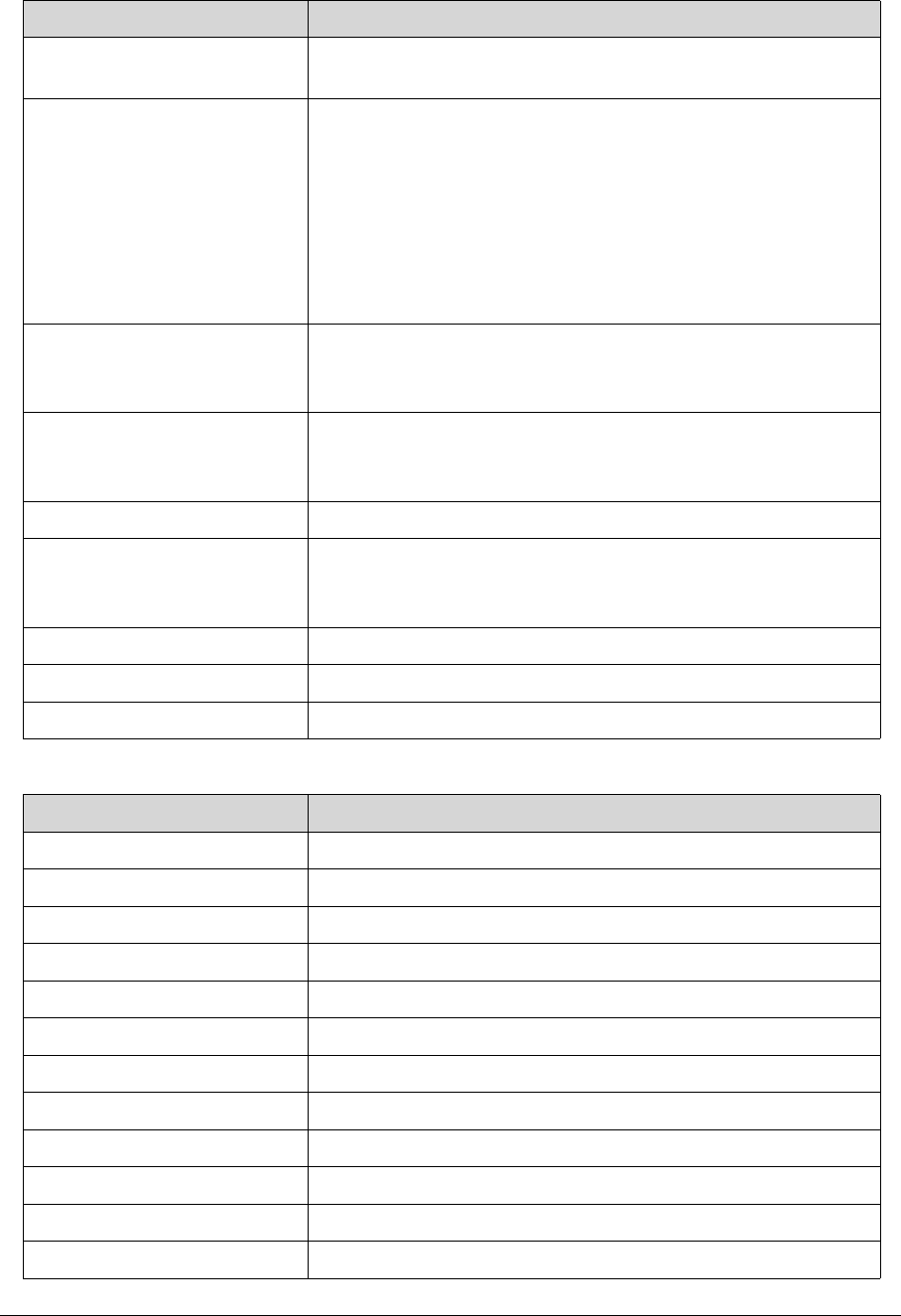
Hardware IRQ System function
IRQ00 System timer
IRQ01 Standard PS/2 Keyboard
IRQ08 System CMOS/real time clock
IRQ12 ELAN PS/2 Port Input Device
IRQ13 Numeric data processor
IRQ81 IRQ190 Microsoft ACPI-Compliant System
Item Specification
Hardware Specifications and Configurations 1-37
System IO Address Map
IRQ10 Intel(R) 7 Series/C216 Series Chipset Family SMBUS Host
Controller – 1E22
IRQ16 Intel(R) 7 Series/C216 Series Chipset Family USB Enhanced
Host Controller- 1E2D
Intel(R) 7 Series/C216 Series Chipset Family PCI Express Rott
Port2 – 1E12
Intel(R) 7 Management Engine Interface
NVIDIA GeForce GT 640M
XEON E3-1200/2nd Generation Intel(R) Core(TM) Processor
Family PCI Express Root Port - 0101
IRQ17 Atheros AR5B97 Wireless Network Adapter
Intel(R) 7 Series/C216 Series Chipset Family PCI Express Rott
Port1 – 1E10
IRQ19 Intel(R) 7 Series/C216 Series Chipset Family PCI Express Rott
Port4 – 1E16
Intel(R) Mobile Express Chipset SATA AHCI Controller
IRQ22 High Definition Audio Controller
IRQ23 Intel(R) 7 Series/C216 Series Chipset Family USB Enhanced
Host Controller
- 1E26
IRQ-5 Broadcom Netlink (TM) Gigibit Ethernet
IRQ-3 Intel(R) USB 3.0 eXtensible Host Controller
IRQ-2 Intel(R) HD Graphics Family
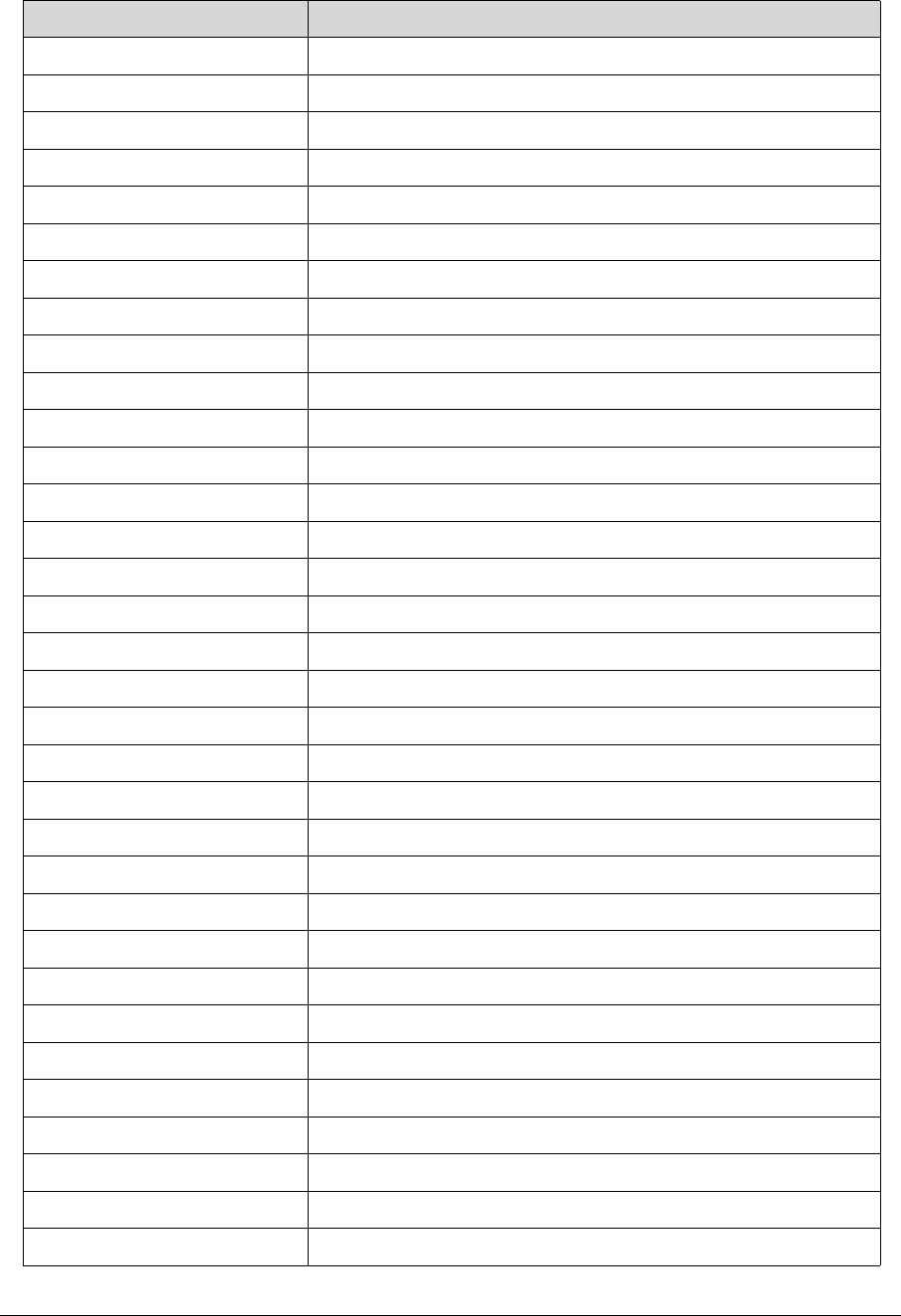
I/O address (hex) System Function (shipping configuration)
0000 - 001F Direct memory access controller
0000 - 0CF7 PCI bus
0020 – 0021 Programmable interrupt controller
0024 – 0025 Programmable interrupt controller
0028 – 0029 Programmable interrupt controller
002C – 002D Programmable interrupt controller
002E – 002F Motherboard resources
0030 – 0031 Programmable interrupt controller
0034 – 0035 Programmable interrupt controller
0038 – 0039 Programmable interrupt controller
003C – 003D Programmable interrupt controller
0040 – 0043 System timer
Hardware IRQ System function
1-38 Hardware Specifications and Configurations
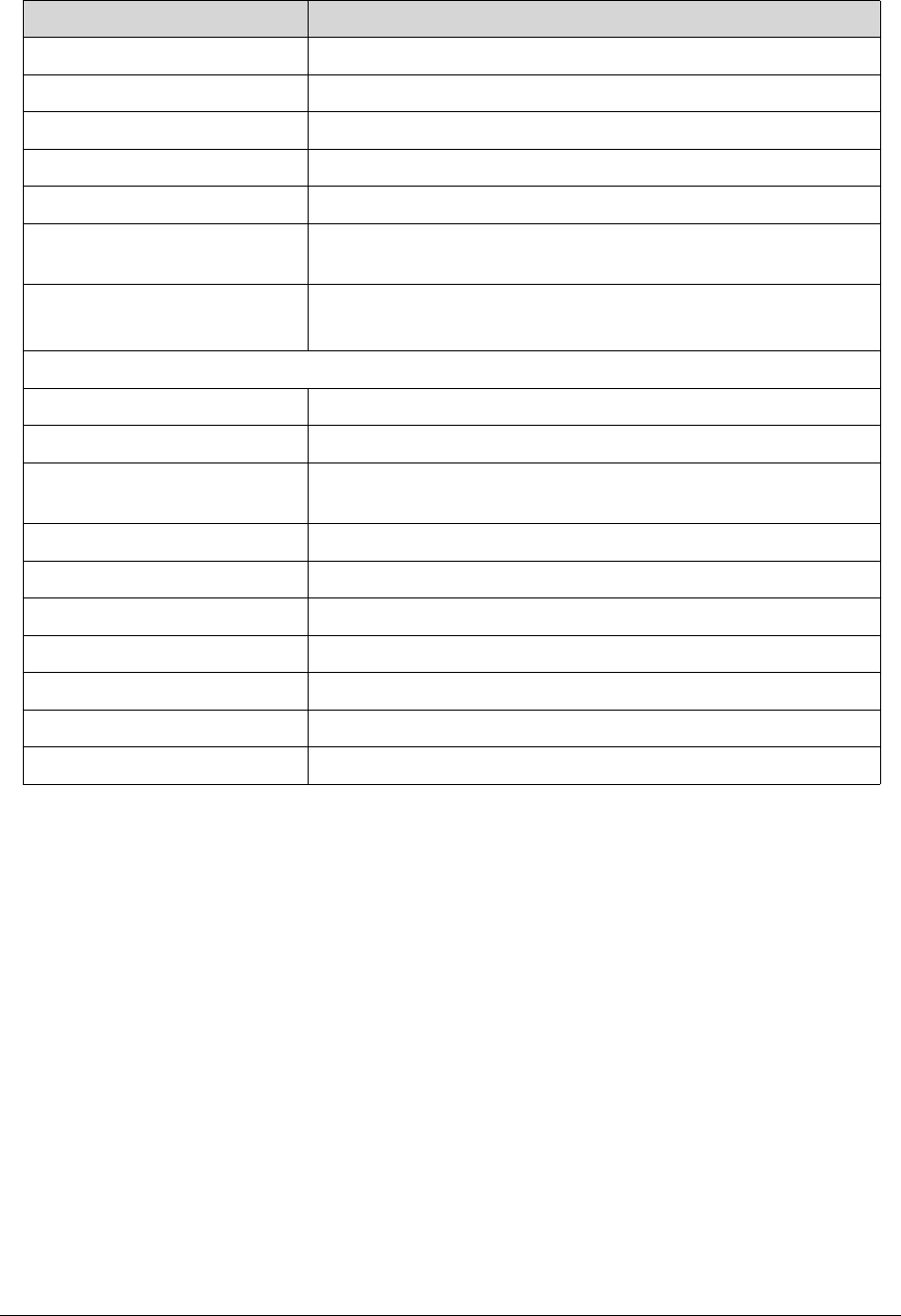
004E – 004F Motherboard resources
0050 – 0053 System timer
0060 – 0060 Standard PS/2 Keyboard
0061 – 0061 Motherboard resources
0062 – 0062 Microsoft ACPI-Compliant Embedded Controller
0063 – 0063 Motherboard resources
0064 – 0064 Standard PS/2 Keyboard
0065 – 0065 Motherboard resources
0066 – 0066 Microsoft ACPI-Compliant Embedded Controller
0067 – 0067 Motherboard resources
0070 – 0070 Motherboard resources
0070 – 0077 System CMOS/real time clock
0080 – 0080 Motherboard resources
0081 - 0091 Direct memory access controller
0092 – 0092 Motherboard resources
0093 – 009F Direct memory access controller
00A0 – 00A1 Programmable interrupt controller
00A4 – 00A5 Programmable interrupt controller
00A8 – 00A9 Programmable interrupt controller
00AC – 00AD Programmable interrupt controller
00B0 – 00B1 Programmable interrupt controller
00B2 – 00B3 Motherboard resources
00B4 – 00B5 Programmable interrupt controller
00B8 – 00B9 Programmable interrupt controller
00BC – 00BD Programmable interrupt controller
00C0 – 00DF Direct memory access controller
00F0 – 00F0 Numeric data processor
03B0 – 03BB Intel(R) HD Graphics Family
03C0 – 03DF Intel(R) HD Graphics Family
0400 – 00B3 Motherboard resources
0454 – 0457 Motherboard resources
0458 – 047F Motherboard resources
04D0 – 00B9 Programmable interrupt controller
I/O address (hex) System Function (shipping configuration)
Hardware Specifications and Configurations 1-39
0500 – 057F Motherboard resources
0680 – 069F Motherboard resources
0D00 - FFFF PCI bus
1000 – 100F Motherboard resources
164E – 164F Motherboard resources
2000 – 2FFF Intel(R) 7 Series/C216 Chipset Family PCI Express Root Port1
– 1E10
3000 – 3FFF XEON E3-1200/2nd Generation Intel(R) Core(TM) Processor
Family PCI Express
Root Port 1 - 0101
3F80 – 3FFF NVIDIA GeForce GT 640M
4000 – 403F Intel(R) HD Graphics Family
4040 – 405F Intel(R) 7 Series/C216 Series Chipset Family SMBUS Host
Controller – 1E22
4060 – 407F Intel(R) 7 Series Chipset Family SATA AHCI Controller
4080 – 4087 Intel(R) 7 Series Chipset Family SATA AHCI Controller
4088 – 408F Intel(R) 7 Series Chipset Family SATA AHCI Controller
4090 – 4093 Intel(R) 7 Series Chipset Family SATA AHCI Controller
4094 – 4097 Intel(R) 7 Series Chipset Family SATA AHCI Controller
0FFF – 0FFF Motherboard resources
0FFF – 0FFF Motherboard resources
I/O address (hex) System Function (shipping configuration)

1-40 Hardware Specifications and Configurations

CHAPTER 2
System Utilities

2-2
BIOS Setup Utility. . . . . . . . . . . . . . . . . . . . . . . . . . . . . . . . . . . . . 2-3
Navigating the BIOS Utility . . . . . . . . . . . . . . . . . . . . . . . . . . .2-3
BIOS . . . . . . . . . . . . . . . . . . . . . . . . . . . . . . . . . . . . . . . . . . . . . . . 2-4
Information. . . . . . . . . . . . . . . . . . . . . . . . . . . . . . . . . . . . . . . .2-4
Main . . . . . . . . . . . . . . . . . . . . . . . . . . . . . . . . . . . . . . . . . . . . .2-6
Security . . . . . . . . . . . . . . . . . . . . . . . . . . . . . . . . . . . . . . . . . . .2-8
Boot. . . . . . . . . . . . . . . . . . . . . . . . . . . . . . . . . . . . . . . . . . . . . .2-12
Exit. . . . . . . . . . . . . . . . . . . . . . . . . . . . . . . . . . . . . . . . . . . . . . .2-13
BIOS Flash Utilities . . . . . . . . . . . . . . . . . . . . . . . . . . . . . . . . . . . . 2-14
DOS Flash Utility. . . . . . . . . . . . . . . . . . . . . . . . . . . . . . . . . . . .2-15
WinFlash Utility . . . . . . . . . . . . . . . . . . . . . . . . . . . . . . . . . . . .2-17
Remove HDD/BIOS Password Utilities. . . . . . . . . . . . . . . . . . . . . 2-18
Remove HDD Password Utilities . . . . . . . . . . . . . . . . . . . . . . .2-18
Removing BIOS Passwords . . . . . . . . . . . . . . . . . . . . . . . . . . . .2-20
Cleaning BIOS Passwords . . . . . . . . . . . . . . . . . . . . . . . . . . . . .2-21
Using DMI Tools. . . . . . . . . . . . . . . . . . . . . . . . . . . . . . . . . . . . . . 2-22
LAN MAC EEPROM Utility . . . . . . . . . . . . . . . . . . . . . . . . . . . .2-29

System Utilities 2-3
System Utilities
BIOS Setup Utility 0
A hardware configuration program built into a computer’s BIOS (Basic Input/Output System).
Preconfigured and optimized so users do not need to run this utility. If configuration problems
occur, users may need to run Setup. Refer to Chapter 4, Troubleshooting when problem
arises.
To activate the BIOS Utility, press F2 during POST when prompted at the bottom of screen.
The default parameter of F12 Boot Menu is set to disabled. To change boot device without
entering BIOS Setup Utility, set the parameter to enabled.
To change boot device without entering the BIOS SETUP, Press <F12> during POST to enter
multi-boot menu.
Navigating the BIOS Utility 0
Five menu options are:
-Information
-Main
-Security
-Boot
-Exit
To navigate through the following:
-Menu - use the left and right arrow keys
-Item - use the up and down arrow keys
-Change parameter value - press F5 or F6.
-Exit - Press Esc
-Load default settings - press F9. Press F10 to save changes and exit BIOS Setup Utility
NOTE:
NOTE:
Parameter values can be changed if enclosed in square brackets [ ]. Navigation keys
appear at the bottom of the screen. Read parameter help carefully when making
changes to parameter values. Parameter help is found in the Item Specific Help area of
the screen. System information is subject to specific models.
2-4 System Utilities
BIOS 0
The following is a description of the tabs found on the InsydeH20 Setup Utility screen:
NOTE:
NOTE:
The screens provided are for reference only. Actual values may differ by model.
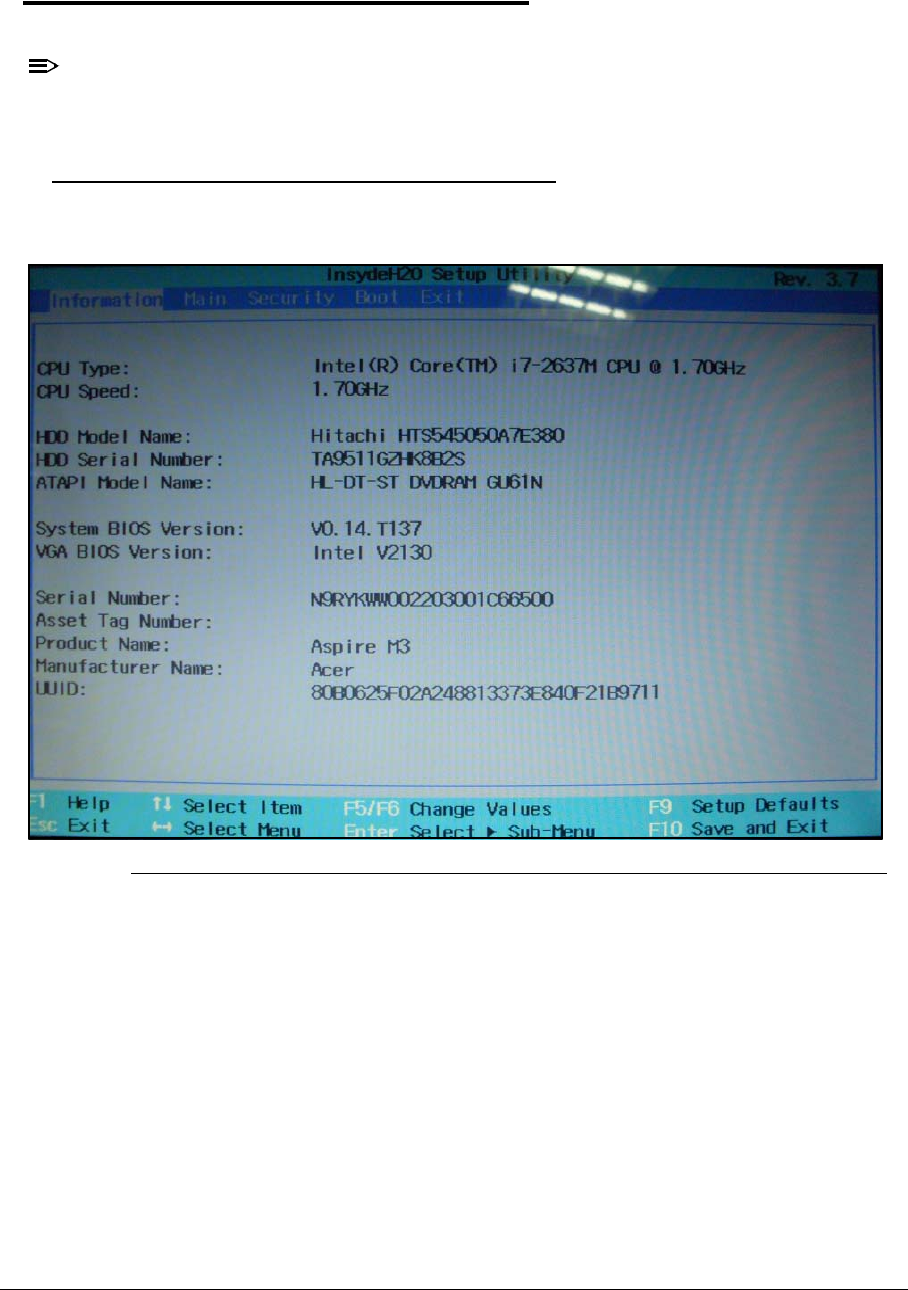
Information 0
This tab shows a summary of computer hardware information.
Figure 2-1. BIOS Information
System Utilities 2-5
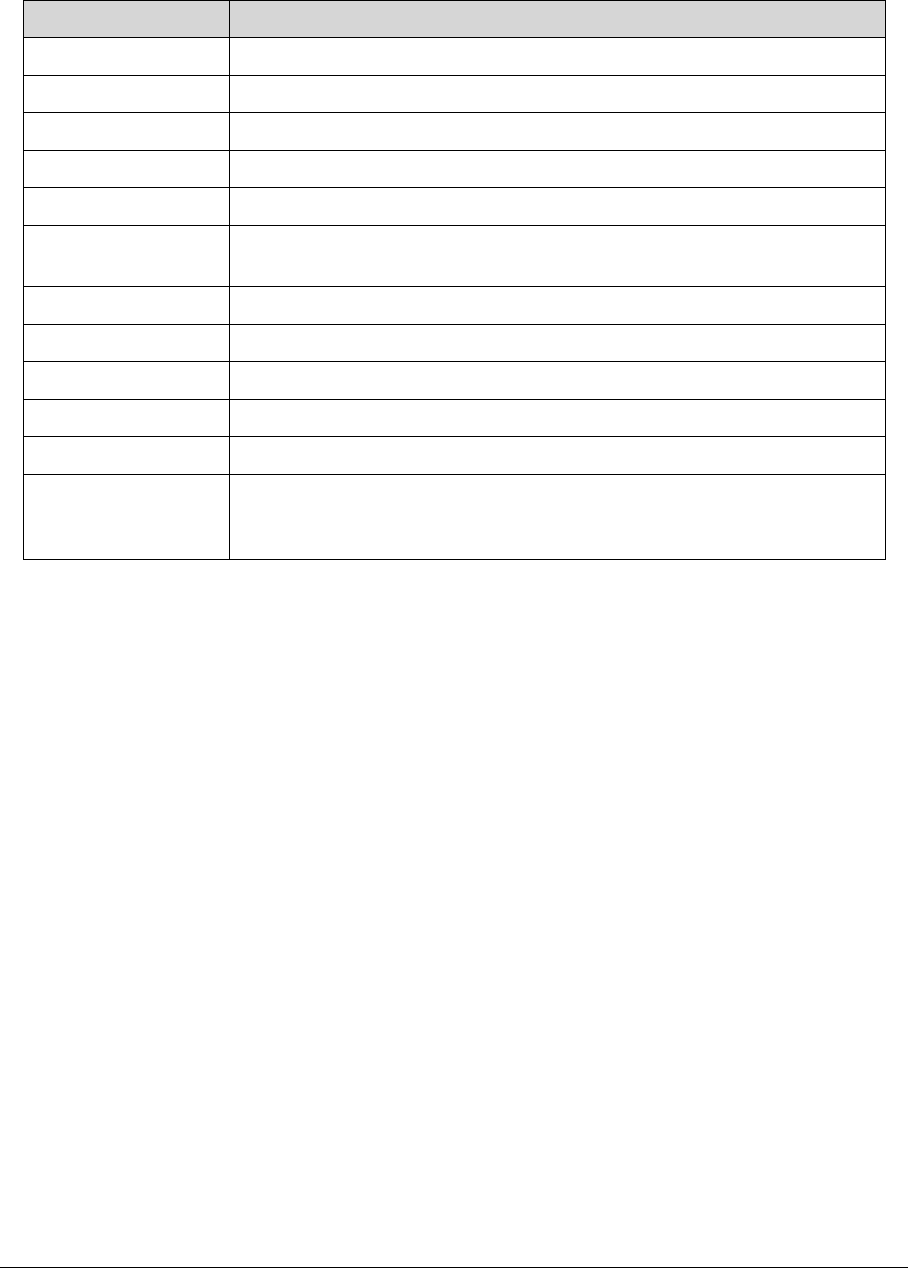
Table 2-1 describes the parameters shown in Figure 2-1
Table 2-1. Parameters
Parameter Description
CPU Type The CPU type and speed of the system.
CPU Speed The speed of the CPU.
HDD Model Name The model name of HDD installed on primary IDE master.
HDD Serial Number The serial number of HDD installed on primary IDE master.
ATAPI Model Name The model name of the installed ODD drive.
System BIOS
Version
Displays system BIOS version.
VGA BIOS Version The VGA firmware version of the system.
Serial Number The serial number of this unit.
Asset Tag Number The asset tag number of the system.
Product Name The product name of the system.
Manufacturer Name The manufacturer Name of the system
UUID Universally Unique Identifier (UUID) is an identifier standard used in
software construction, standardized by the Open Software Foundation
(OSF) as part of the Distributed Computing Environment (DCE).
2-6 System Utilities
Main 0
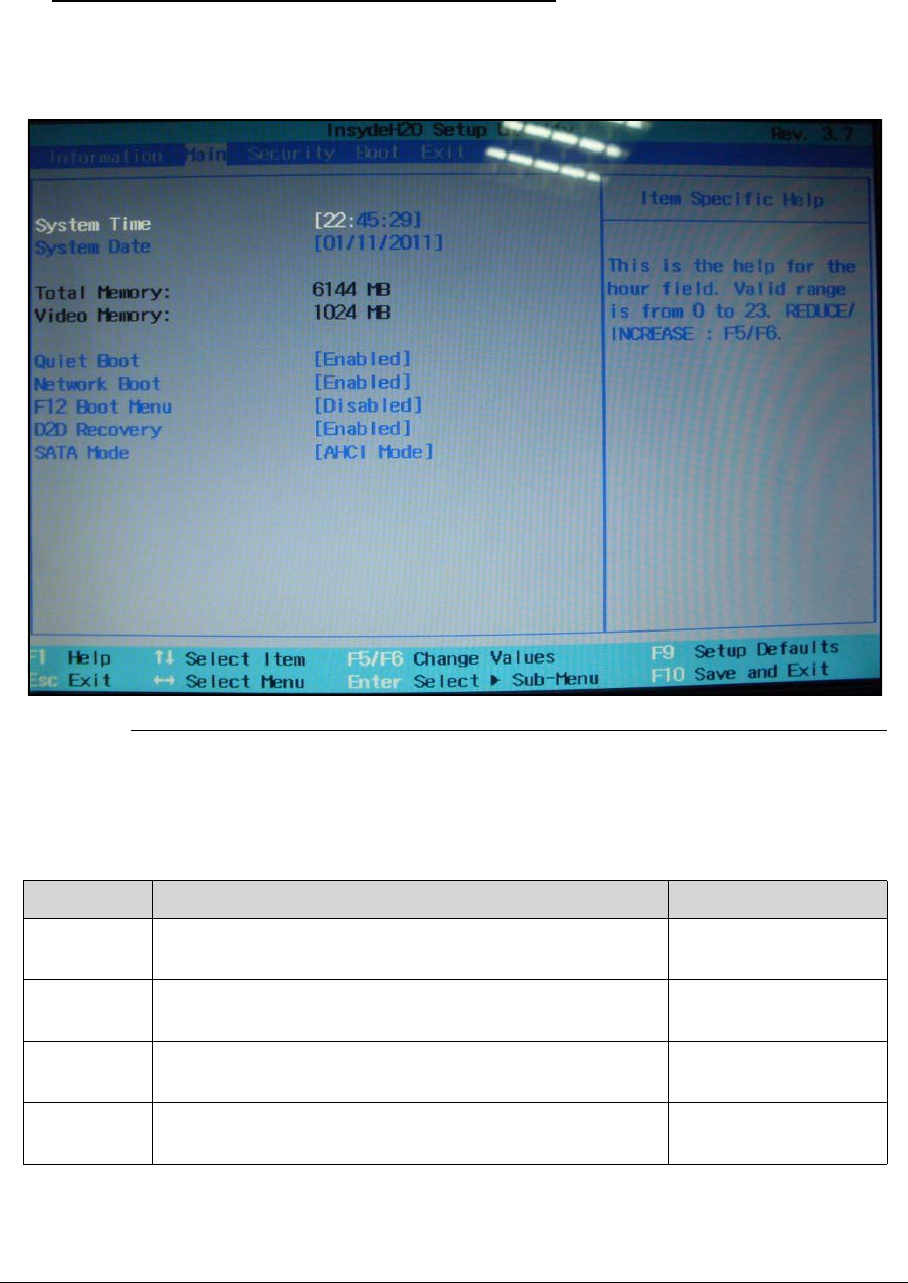
This tab allows the user to set system time and date, enable or disable boot option and
enable or disable recovery.
Figure 2-2. BIOS Main
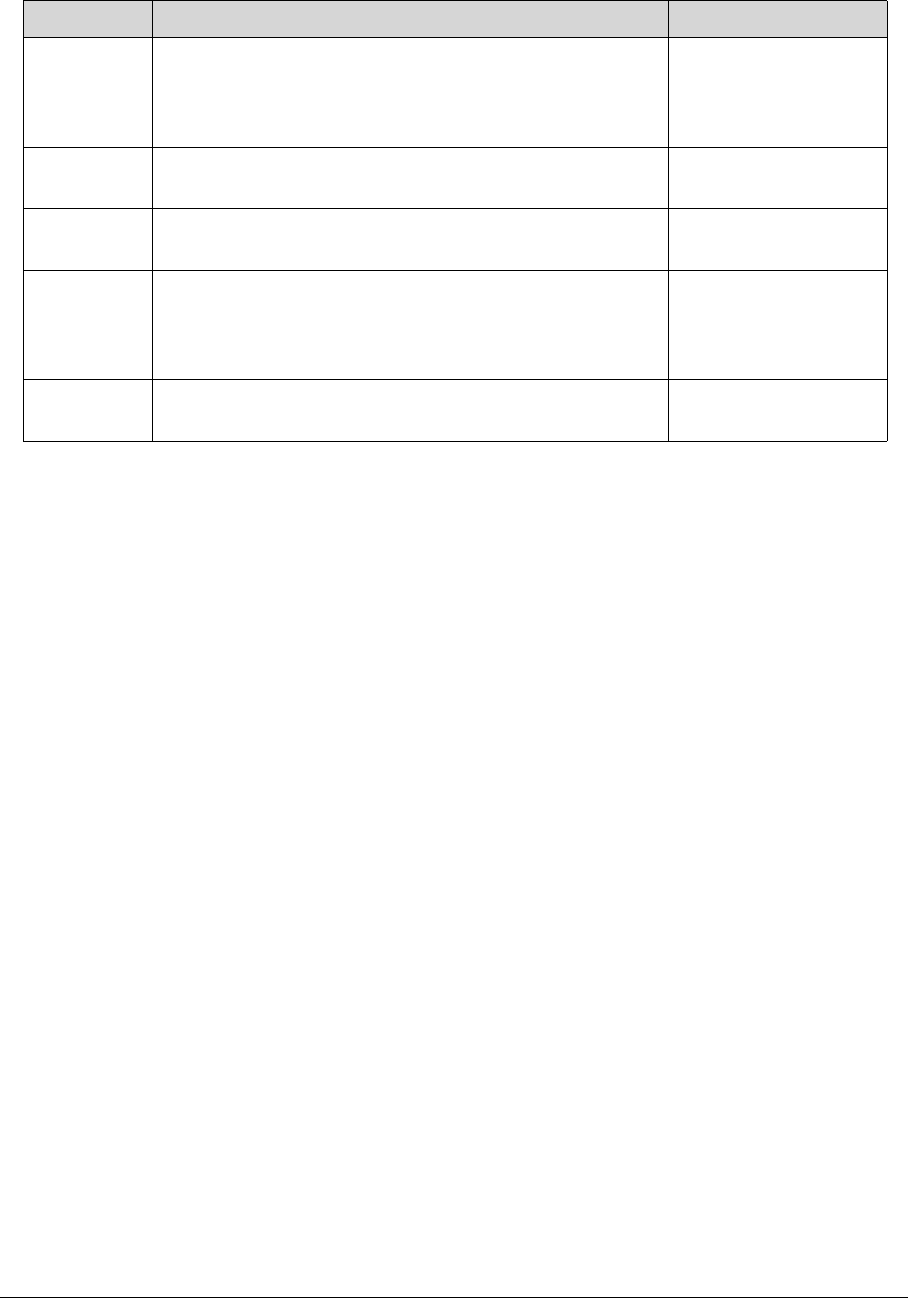
Table 2-2 describes the parameters shown in Figure 2-2.
Table 2-2. BIOS Main
Parameter Description Format/Option
System
Time
Sets the system time. The hours are shown with
24-hour format.
Format: HH:MM:SS
(hour:minute:second)
System
Date
Sets the system date. Format MM/DD/YYYY
(month/day/year)
Tota l
Memory
Shows the total memory available. N/A
Video
Memory
Shows the available memory for Video. N/A
System Utilities 2-7
Quiet Boot The notebook shows an illustration called the OEM
screen during system boot instead of the traditional
POST screen that shows the normal diagnostic
messages.
Enabled or Disabled
Network
Boot
Enables, disables the system boot from LAN (remote
server).
Enabled or Disabled
F12 Boot
Menu
Enables, disables Boot Menu during POST. Enabled or Disabled
D2D
Recovery
Enables, disables D2D Recovery function. The function
allows the user to create a hidden partition on hard disc
drive to store operation system and restore the system
to factory defaults.
Enabled or Disabled
SATA Mode Control the mode in which the SATA controller should
operate.
AHCI or IDE
Table 2-2. (Continued)BIOS Main
Parameter Description Format/Option
2-8 System Utilities
Security 0
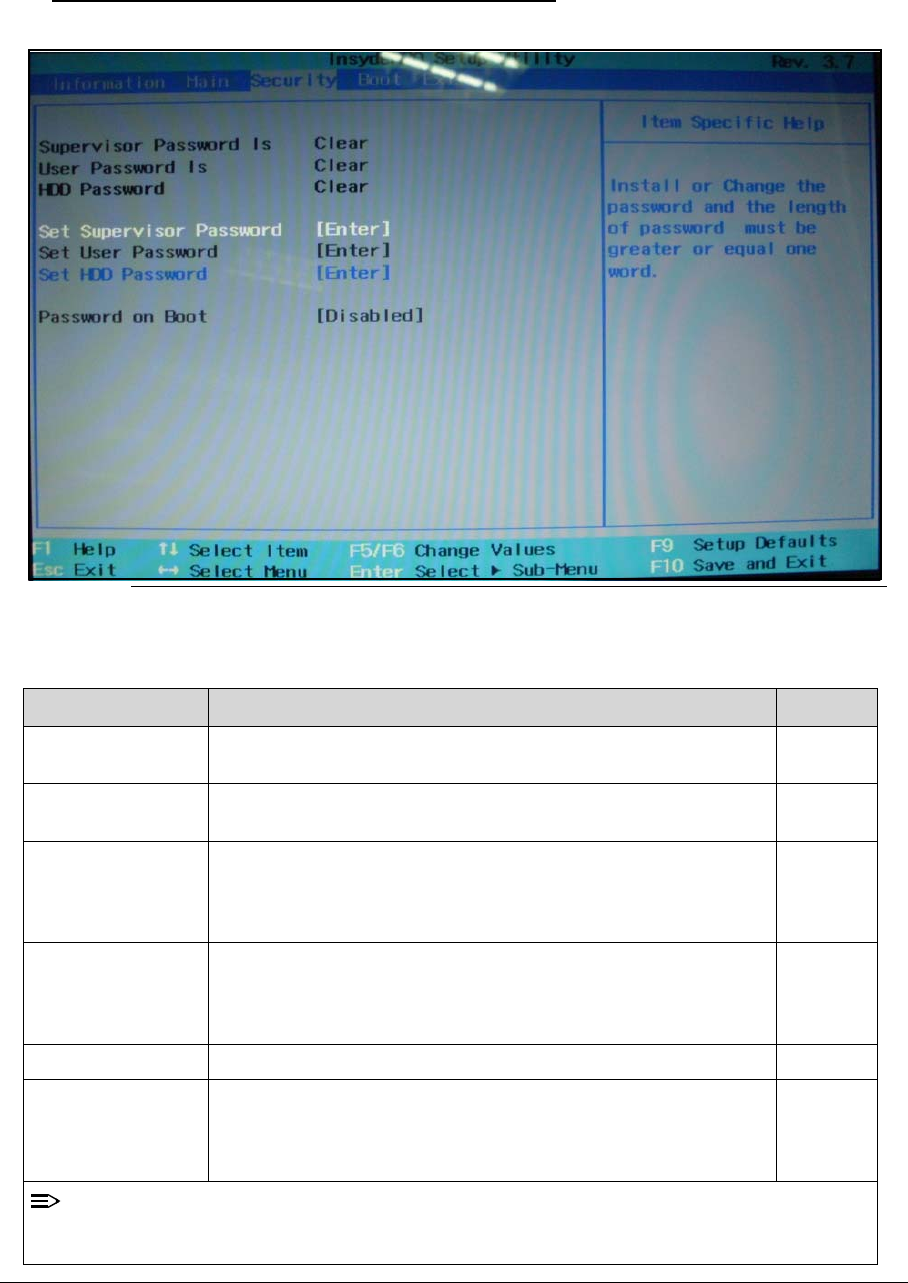
This tab shows parameters that safeguard and protect the computer from unauthorized use.
Figure 2-3. BIOS Security
Table 2-3 describes the parameters shown in Figure 2-3.
Table 2-3. BIOS Security
Parameter Description Option
Supervisor
Password Is
Shows the setting of the supervisor password Clear or
Set
User Password Is Shows the setting of the user password. Clear or
Set
Set Supervisor
Password
Press Enter to set the supervisor password. When set, this
password protects the BIOS Setup Utility from unauthorized access.
The user can not either enter the Setup menu nor change the value
of parameters.
N/A
Set User Password Press Enter to set the user password. When user password is set,
this password protects the BIOS Setup Utility from unauthorized
access. The user can enter Setup menu only and does not have right
to change the value of parameters.
N/A
Set HDD Password Enter HDD Password. N/A
Password on Boot Defines whether a password is required or not while the events
defined in this group happened. The following sub-options are all
requires the Supervisor password for changes and should be grayed
out if the user password was used to enter setup.
Disabled
or
Enabled
NOTE:
When prompted to enter a password, three attempts are allowed before the system halts. Resetting
the BIOS password may require the computer be returned to the dealer.
System Utilities 2-9
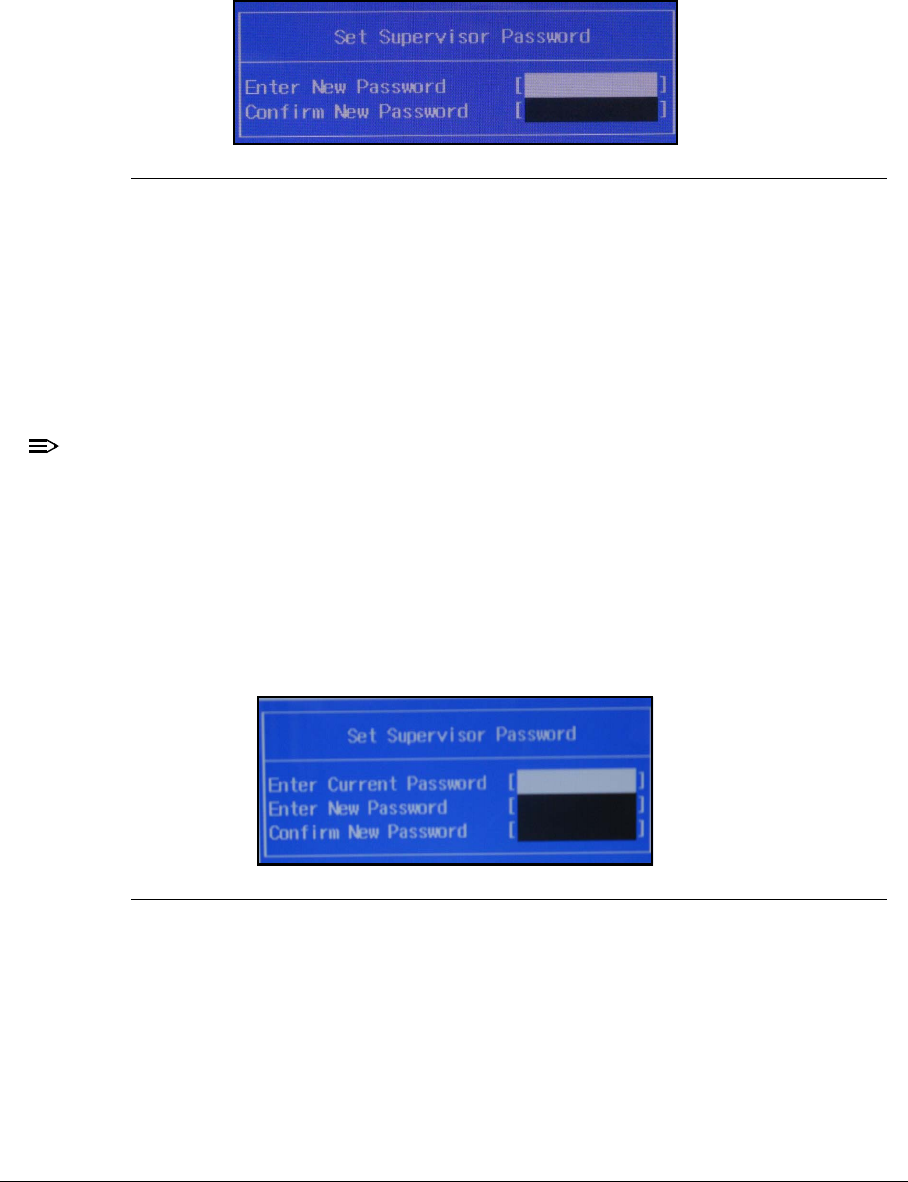
Setting a Password 0
Perform the following to set the user or supervisor password:
1. Use the and keys to highlight the Set Supervisor Password parameter and press
Enter key. The Set Supervisor Password box appears.
Figure 2-4. Set Supervisor Password
2. Type a new password in the Enter New Password field. Password length is not to exceed
8 alphanumeric characters (A-Z, a-z, 0-9, not case sensitive). Retype the password in the
Confirm New Password field.
IMPORTANT:
+
Use care when typing a password. Characters do not appear on the screen.
3. Press Enter. After setting the password, the computer sets the User Password parameter
to Set.
NOTE:
NOTE:
Users can opt to enable the Password on boot parameter.
4. Press F10 to save changes and exit the BIOS Setup Utility.
Removing a Password 0
Perform the following:
1. Use the and keys to highlight Set Supervisor Password and press Enter. The Set
Supervisor Password box appears:
Figure 2-5. Set Supervisor Password
2. Type the current password in the Enter Current Password field and press Enter.
3. Press Enter twice without typing anything in the Enter New Password and Confirm New
Password fields. The computer then sets the Supervisor Password parameter to Clear.
4. Press F10 to save changes and exit the BIOS Setup Utility.
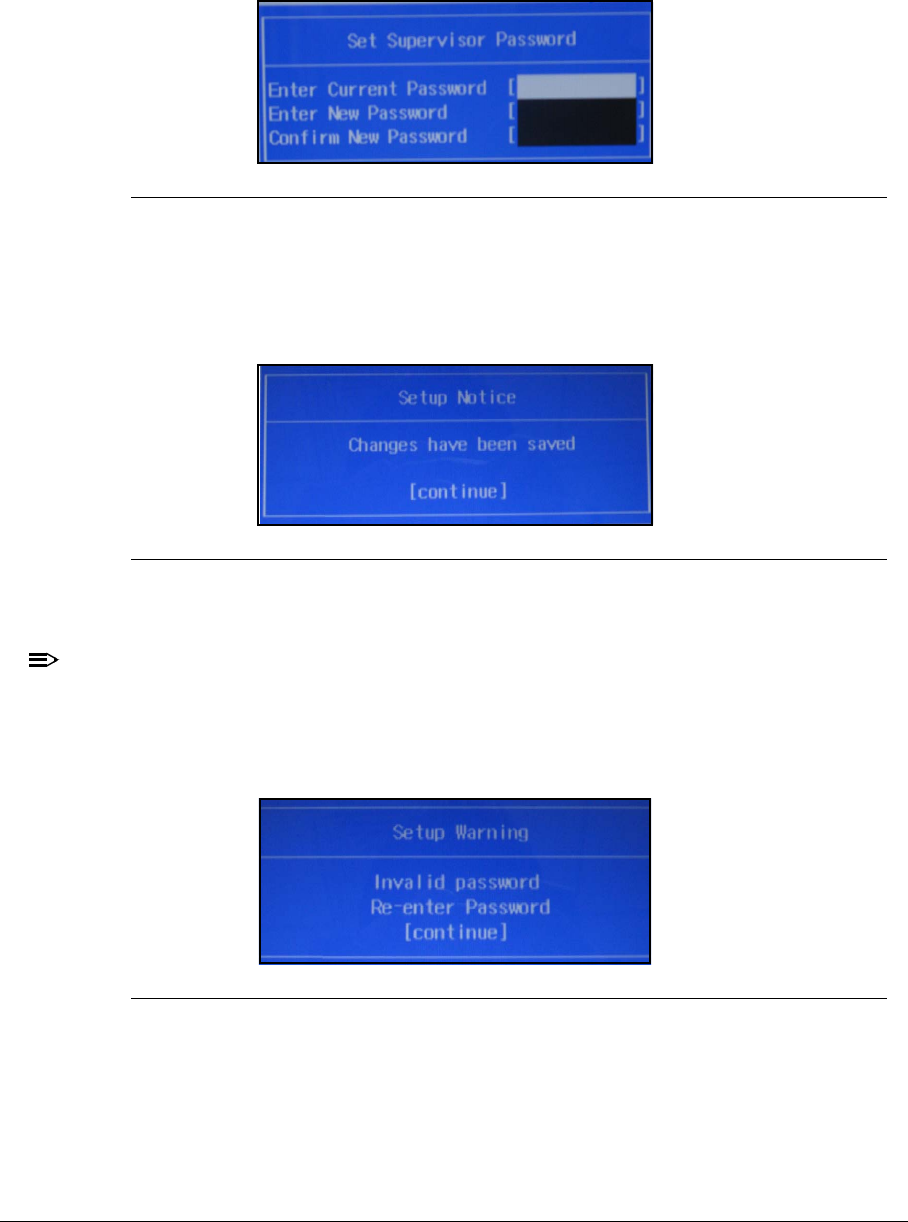
2-10 System Utilities
Changing a Password 0
1. Use the and keys to highlight Set Supervisor Password and press the Enter. The Set
Supervisor Password box appears.
Figure 2-6. Set Supervisor Password
2. Type the current password in the Enter Current Password field and press Enter.
3. Type a password in the Enter New Password field. Retype the password in the Confirm
New Password field.
Figure 2-7. Setup Notice
4. Press Enter. The computer sets User Password parameter to Set.
NOTE:
NOTE:
Users can enable the Password on boot parameter.
5. Press F10 to save changes and exit the BIOS Setup Utility.
If the verification is OK, the screen will show as following.
Figure 2-8. This Setup Warning
The password setting is complete after the user presses Enter.
If the current password entered does not match the actual current password, the screen will
show the Setup Warning (Figure 2-9).
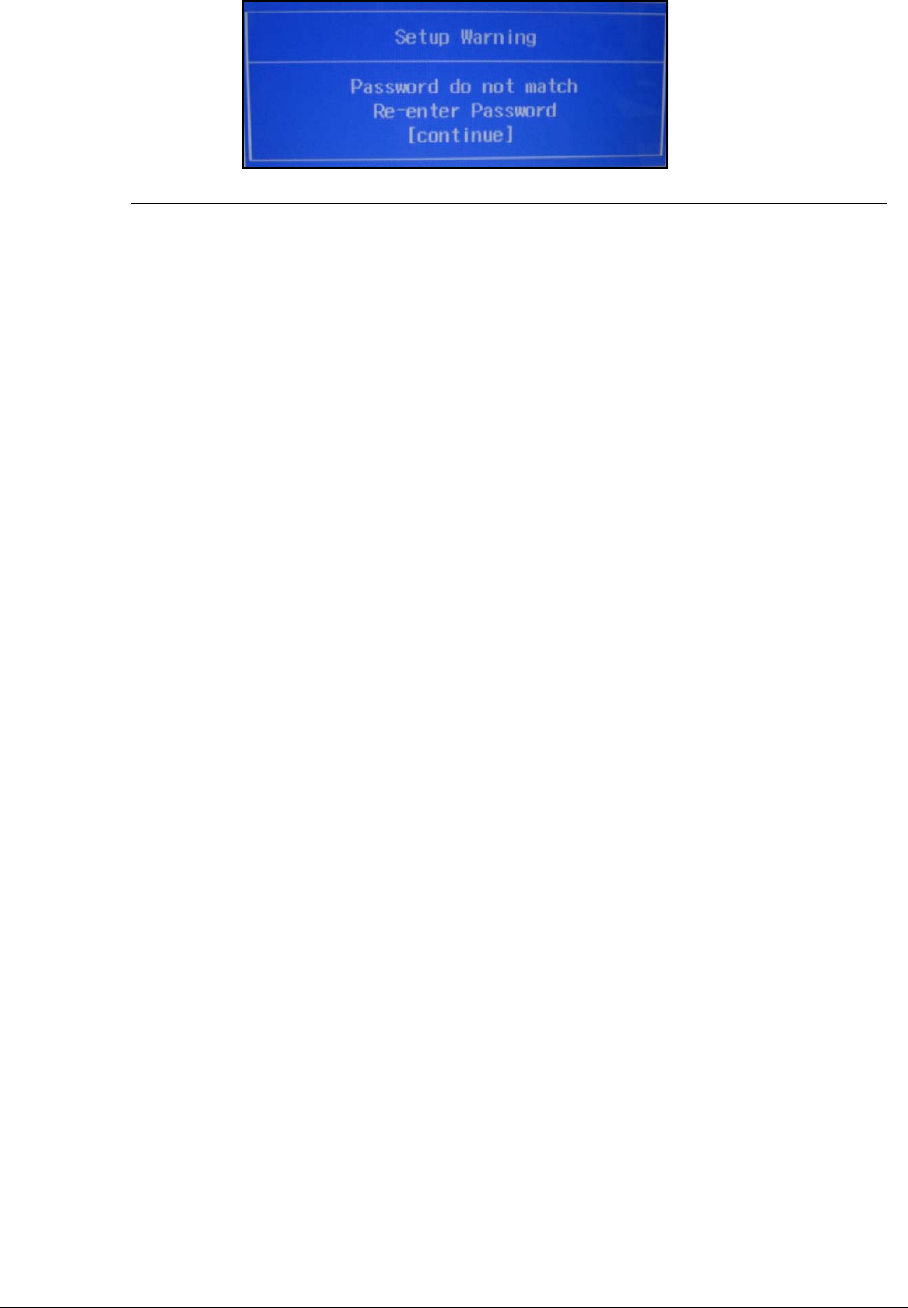
System Utilities 2-11
Figure 2-9. Setup Warning
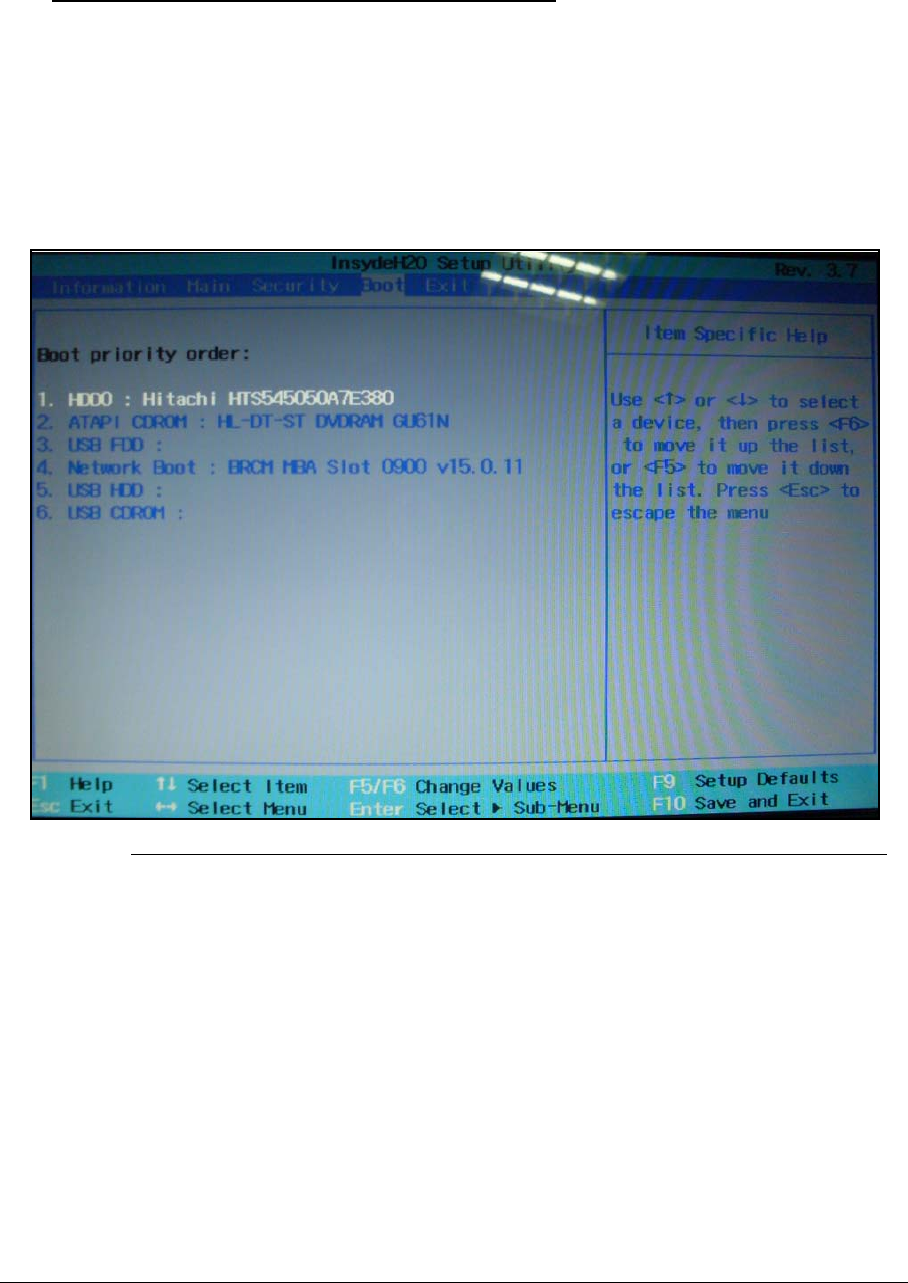
2-12 System Utilities
Boot 0
This tab allows changes to the order of boot devices used to load the operating system.
Bootable devices include the:
-USB diskette drives
-Onboard hard disk drive
-DVD drive in the module bay
Use and keys to select a device and press F5 or F6 to move it up or down the list.
Figure 2-10. BIOS Boot
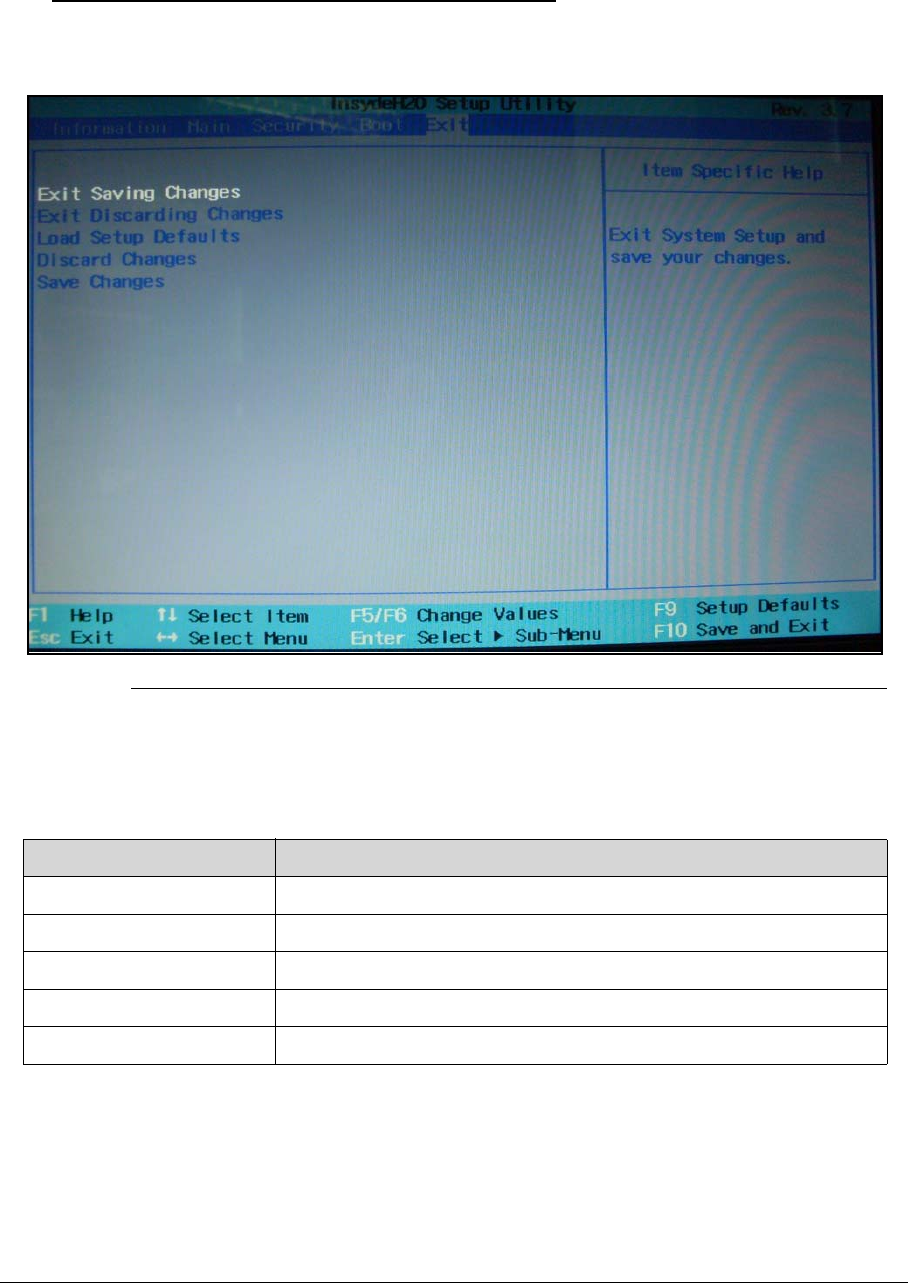
System Utilities 2-13
Exit 0
The Exit tab allows users to save or discard changes and quit the BIOS Utility.
Figure 2-11. BIOS Exit
Table 2-4 describes the parameters in Figure 2-11.
Table 2-4. Exit Parameters
Parameter Description
Exit Saving Changes Exit System Setup and save changes to the system.
Exit Discarding Changes Exit utility without saving setup data to.
Load Setup Default Load default values for all setup item.
Discard Changes Load previous values all setup items.
Save Changes Save setup data.
2-14 System Utilities
BIOS Flash Utilities 0
BIOS Flash memory updates are required for the following conditions:
-New versions of system programs
-New features or options
-Restore a BIOS when it becomes corrupted.
Use the Flash utility to update the system BIOS Flash ROM.
NOTE:
NOTE:
Create a Crisis Recovery Disc, if one is not available, before the Flash utility is used.
NOTE:
NOTE:
Do not install memory related drivers (XMS, EMS, DPMI) when the Flash is used.
NOTE:
NOTE:
Use the AC adaptor power supply when running the Flash utility. If battery pack does
not contain power to finish loading of the BIOS Flash, do not boot the system.
Perform the following to run the Flash:
1. Prepare a bootable diskette.
2. Copy the Flash utilities to the bootable diskette.
3. Boot the system from the bootable diskette.
NOTE:
NOTE:
The Flash utility has auto execution function.
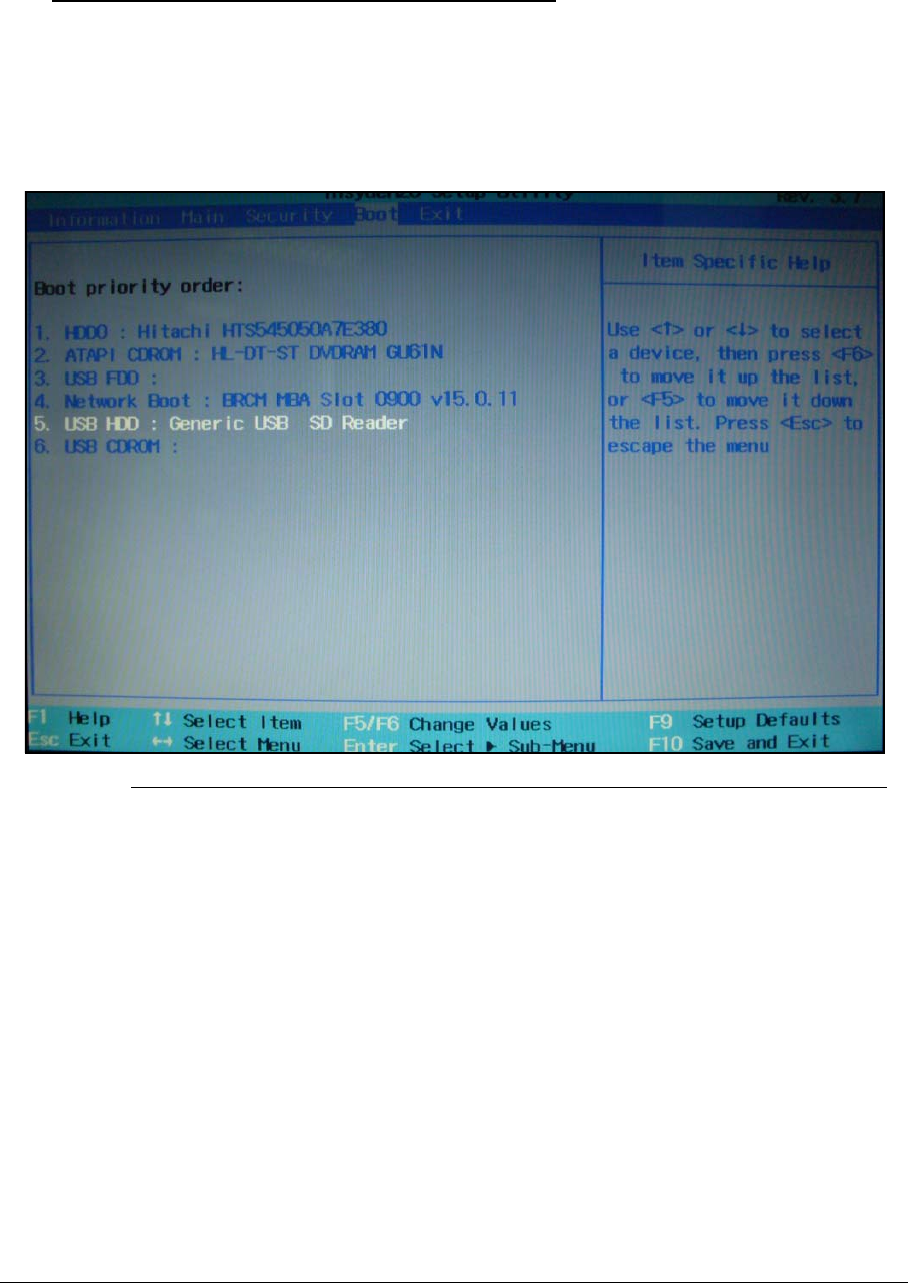
System Utilities 2-15
DOS Flash Utility 0
Perform the following to use the DOS Flash Utility:
1. Press F2 during boot to enter the Setup Menu.
2. Select Boot Menu to modify the boot priority order.
Example: If using USB HDD to Update BIOS, move USB HDD to position 1.
Figure 2-12. BIOS Boot
3. Execute the < UPDATE.BAT > batch file to update BIOS. The flash process begins as
shown in Figure 2-13.
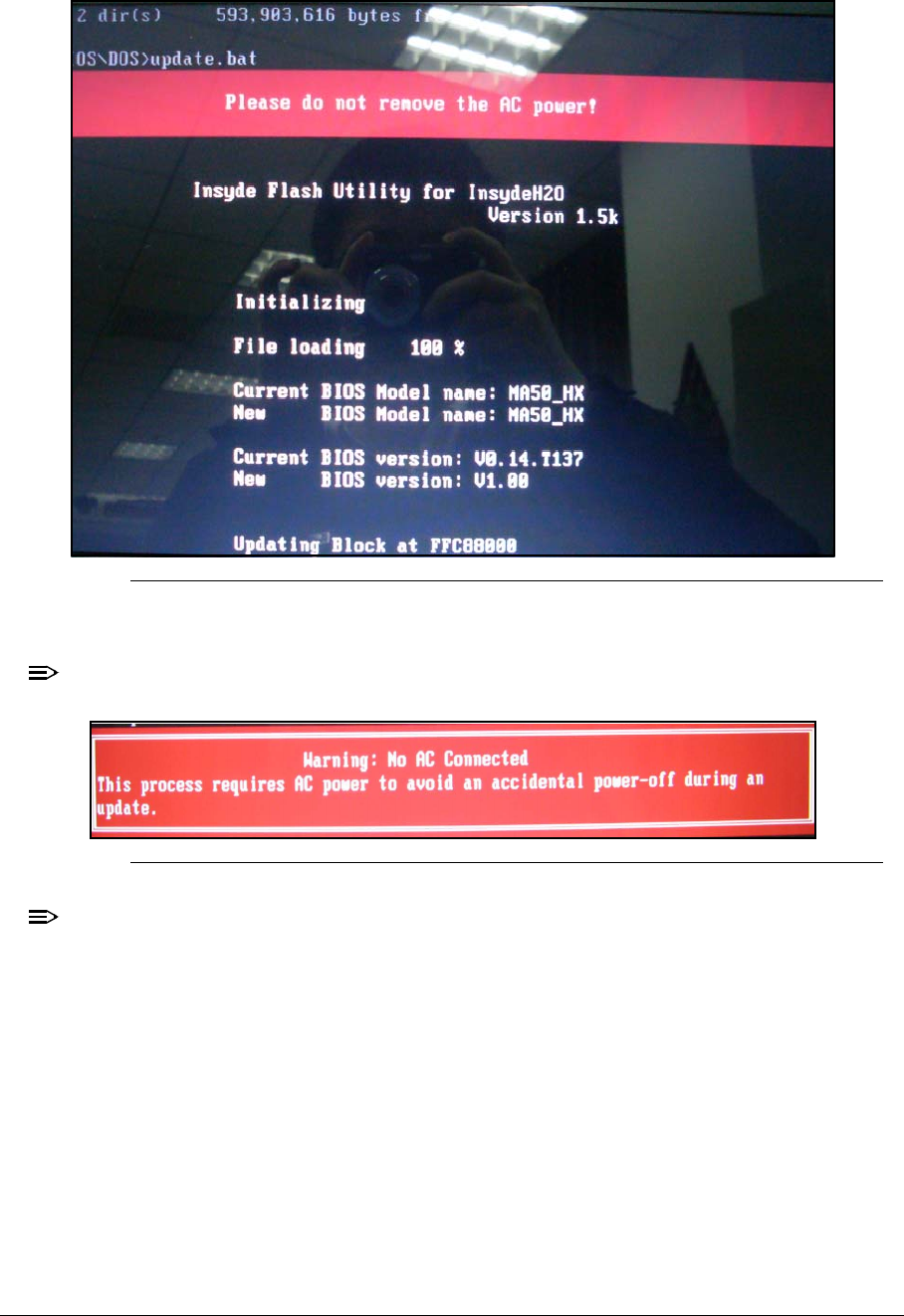
2-16 System Utilities
Figure 2-13. DOS Flash
4. In flash BIOS, the message Please do not remove AC Power Source is shown.
NOTE:
NOTE:
If AC power is not connected, the following message (Figure 2-14) is shown.
Figure 2-14. AC Power Warning
NOTE:
NOTE:
Plug in the AC power to continue.
5. Flash is complete when the message Flash Programming Complete is shown.
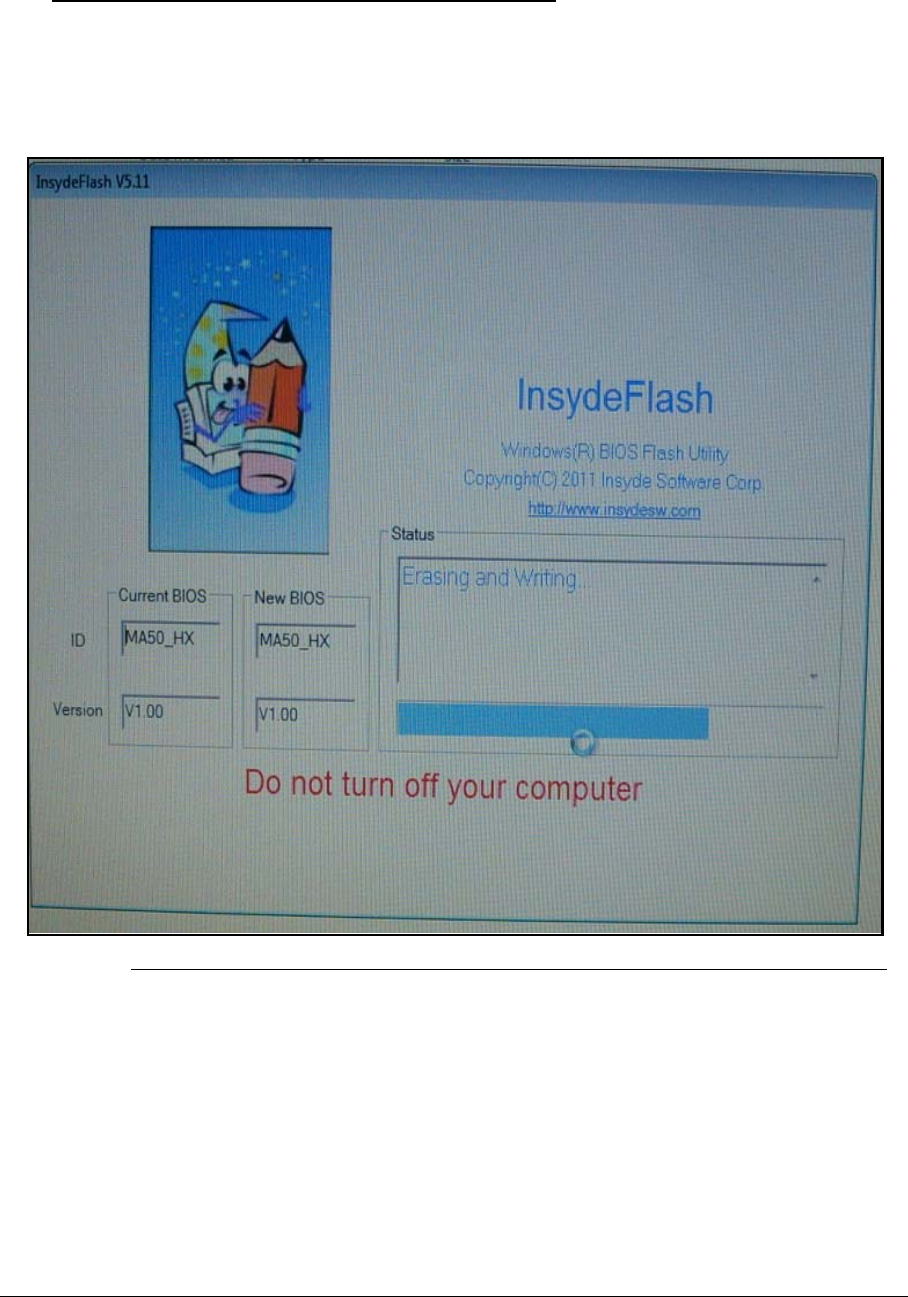
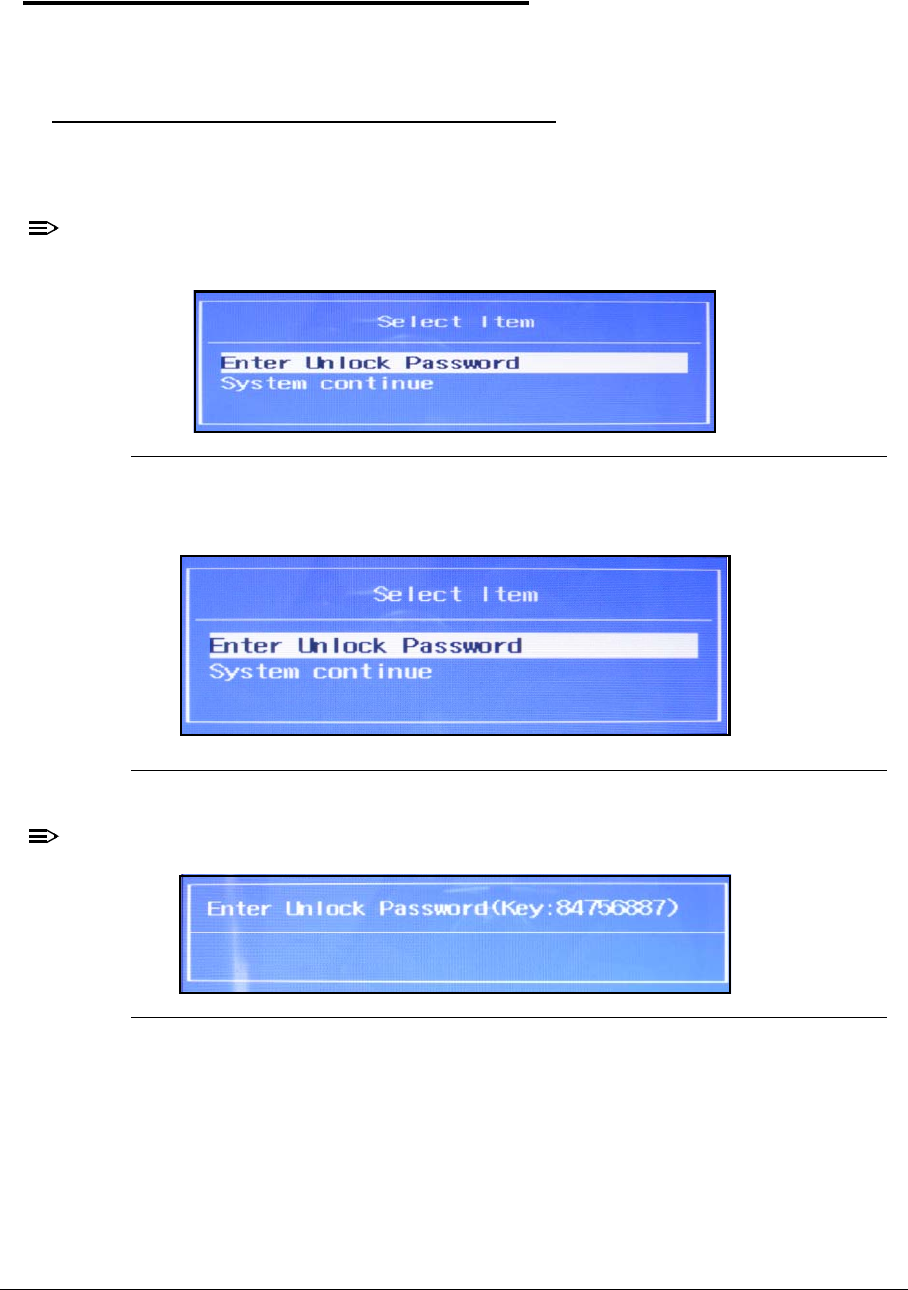
2-18 System Utilities
Remove HDD/BIOS Password Utilities 0
This section provides details for removing HDD/BIOS passwords.
Remove HDD Password Utilities 0
This section provides details for removing HDD passwords.
Remove HDD Password as follows:
NOTE:
NOTE:
If the HDD password is incorrectly entered three times, an error is generated, you will
see below menu (Figure 2-16).
Figure 2-16. HDD Security
To reset the HDD password, perform the followings:
1. Select Enter Unlock Password option.
Figure 2-17. Select Item
NOTE:
NOTE:
An Encode key is generated for unlocking utilities. Make note if this key.
Figure 2-18. Unlock Password
2. Execute the UnlockHD.EXE file to create the unlock code in DOS Mode using the format
<UnlockHD [Encode code] > with the code noted in the previous step.
Example: UnlockHD 84756887
The command generates a password which can be used for unlocking the HDD.
Password: 38534209
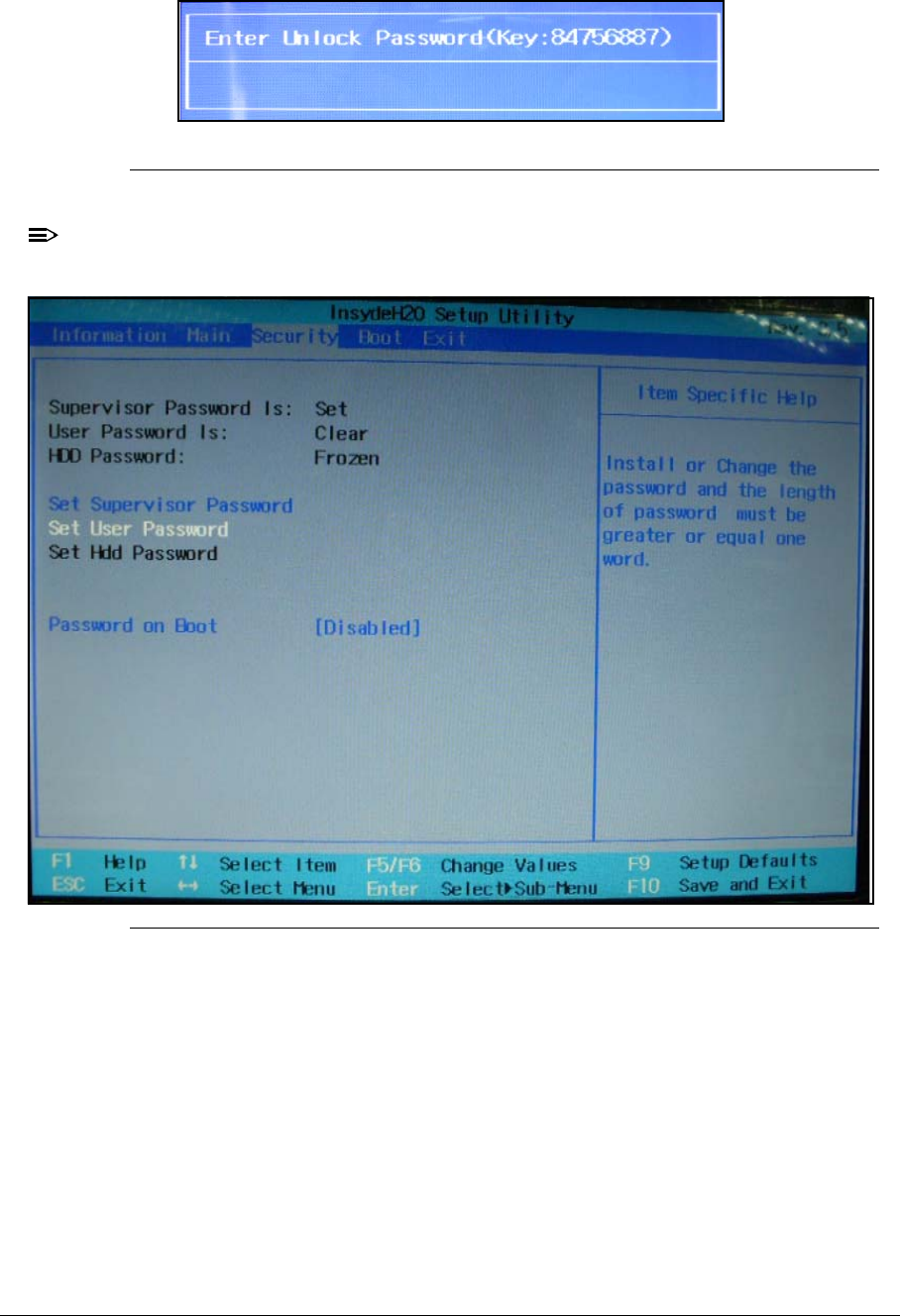
System Utilities 2-19
Enter the password from the Step 1 to unlock the HDD (Figure 2-19).
Figure 2-19. Unlock Password
NOTE:
NOTE:
After customer clearing the HDD password, HDD maybe in “Frozen” state. Please
power off system. Then, power on to Win system, HDD Password will be in normal.
Figure 2-20. HDD Password Frozen
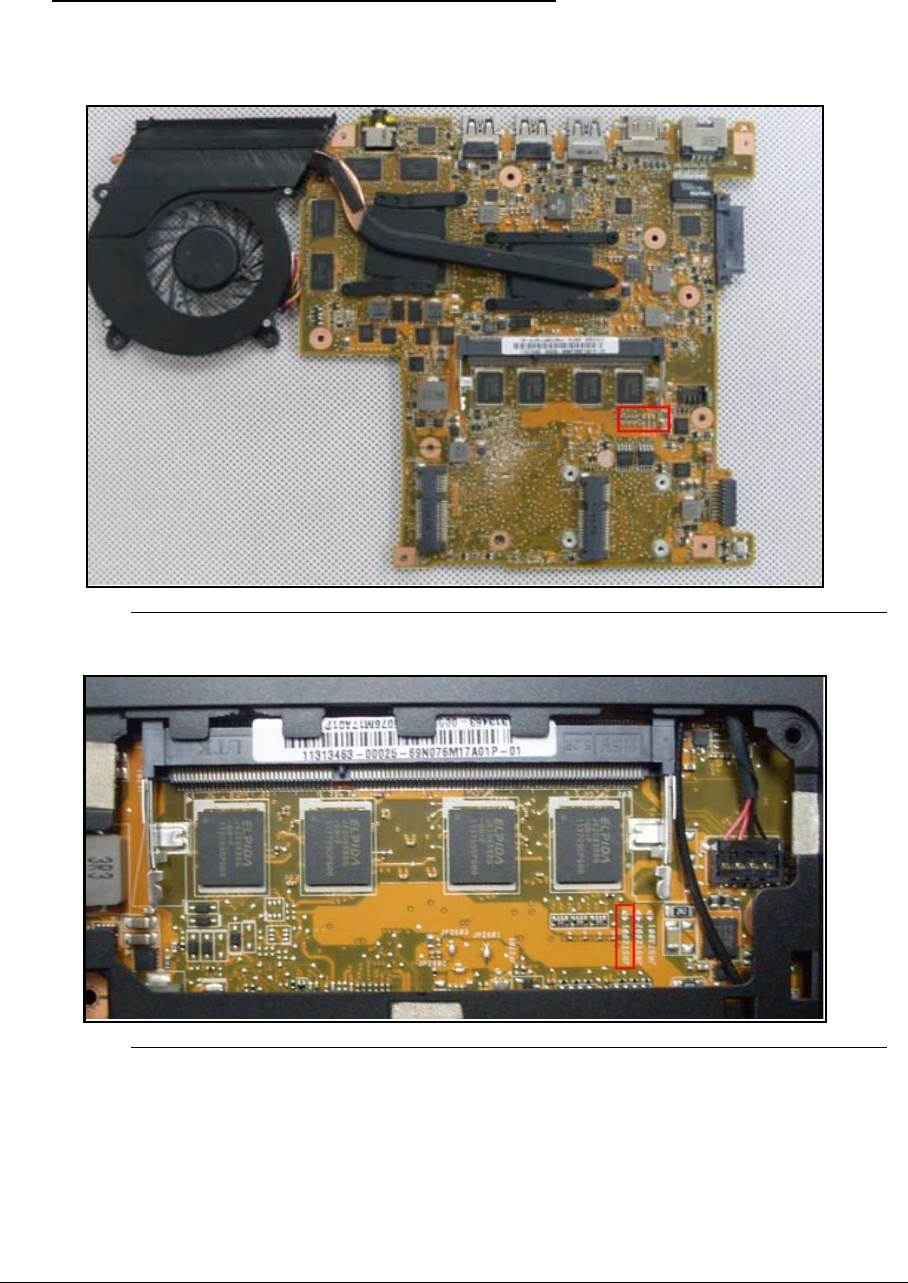
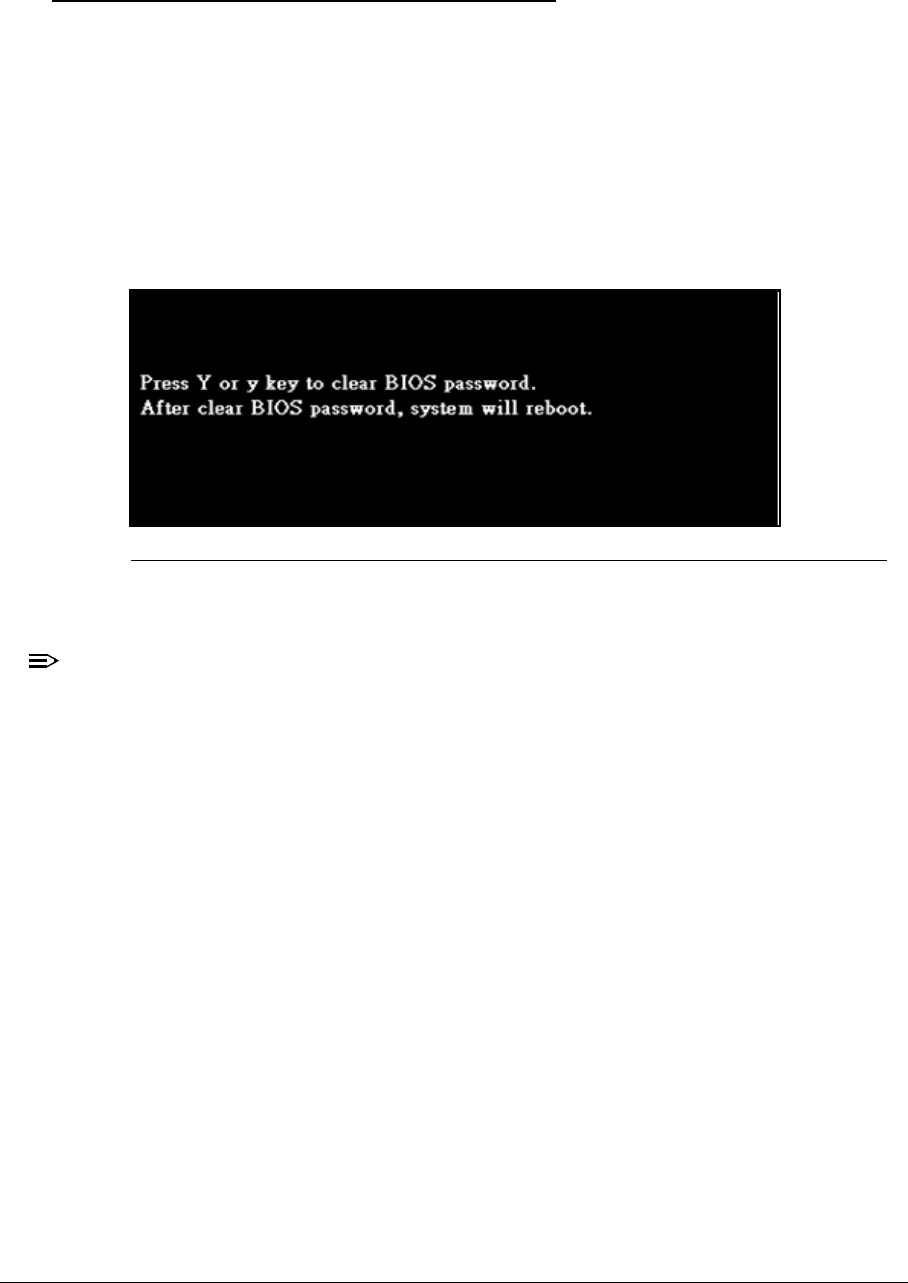
System Utilities 2-21
Cleaning BIOS Passwords 0
When customer forgets the BIOS supervisor/user password, he could clear the password as
below:
1. Prepare a USB flash disk with FAT32 file system and copy Disablepassword.efi file to root
directory.
2. After pressing power button, to hold Ctrl and Alt key and then continually stroke Enter key
until POST LOGO finish.
3. System will display “Press Y or y key to clear BIOS password.”.
4. After press Y/y key, BIOS will clear BIOS password and reboot system.
Figure 2-23. Clear BIOS Password
The on screen message indicates the function success.
NOTE:
NOTE:
This document is for Pegatron Acer project in 2012.
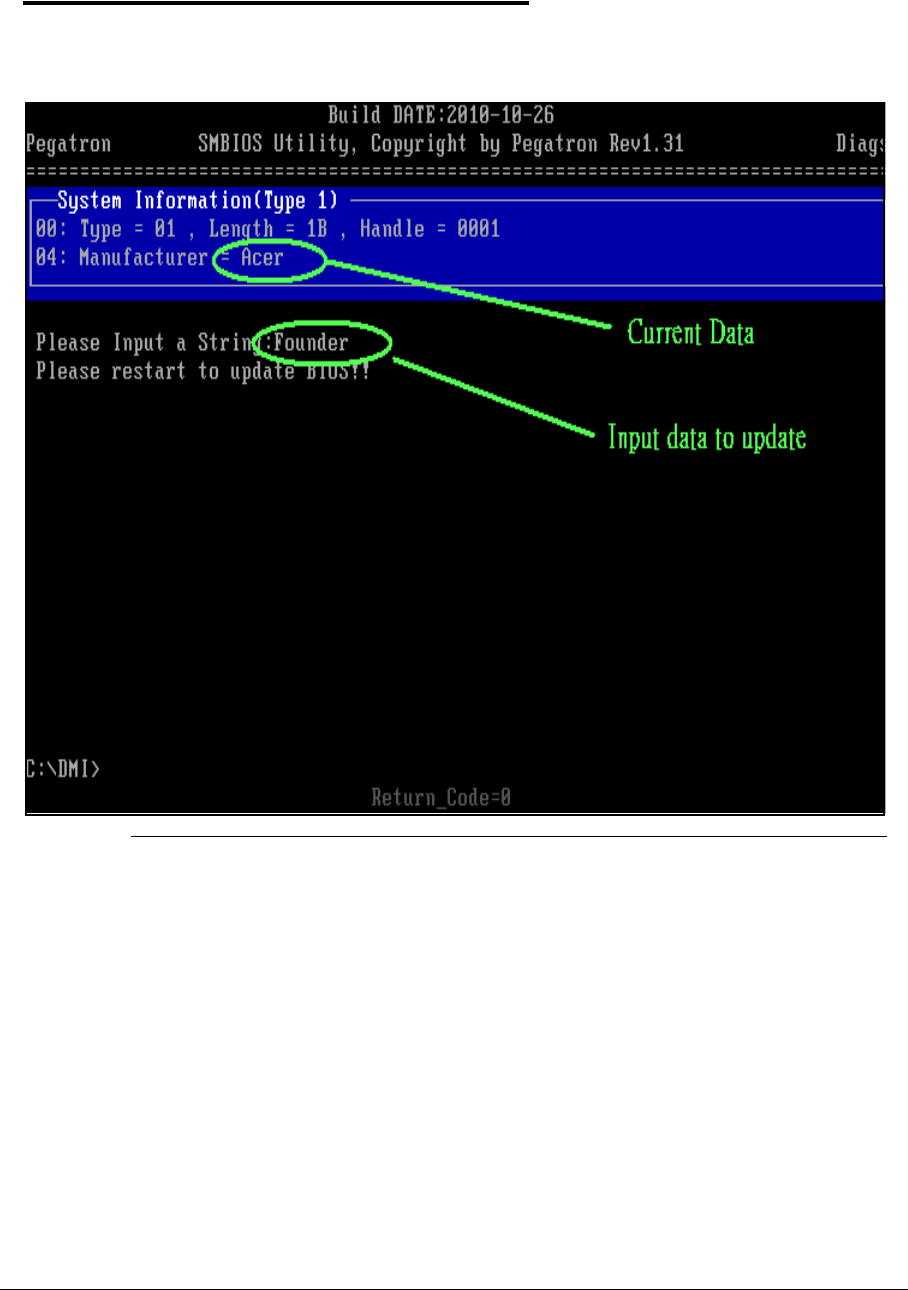
2-22 System Utilities
Using DMI Tools 0
The DMI (Desktop Management Interface) Tool copies BIOS information to EEPROM. Used
in the DMI pool for hardware management.
1. Execute < MN.bat > to update SMBIOS Type 1 Manufacturer Name(Figure 2-23).
Figure 2-24. Manufacture Name
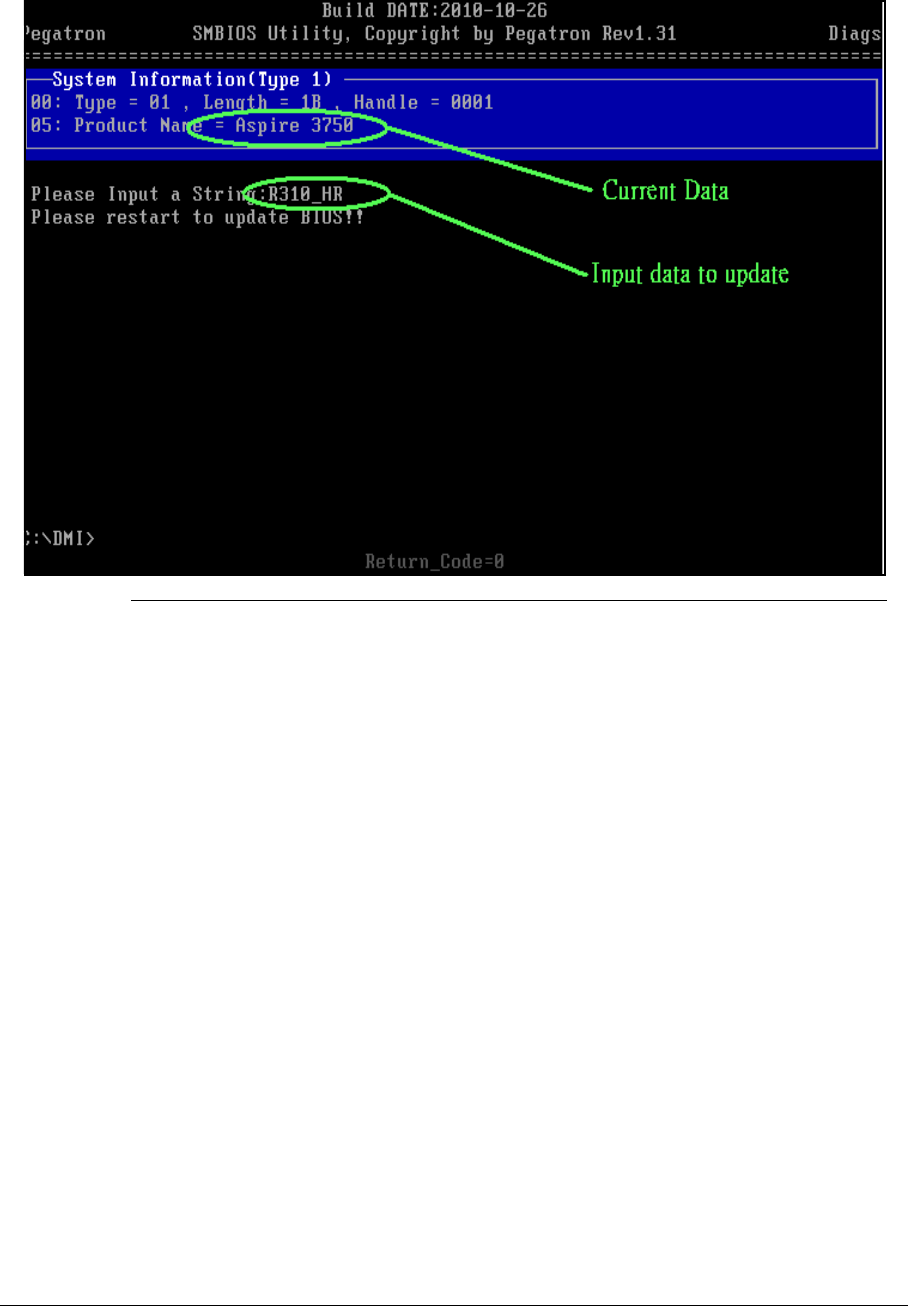
System Utilities 2-23
2. Execute < PN.bat > to update SMBIOS Type 1 Product Name(Figure 2-24).
Figure 2-25. Update Product Name
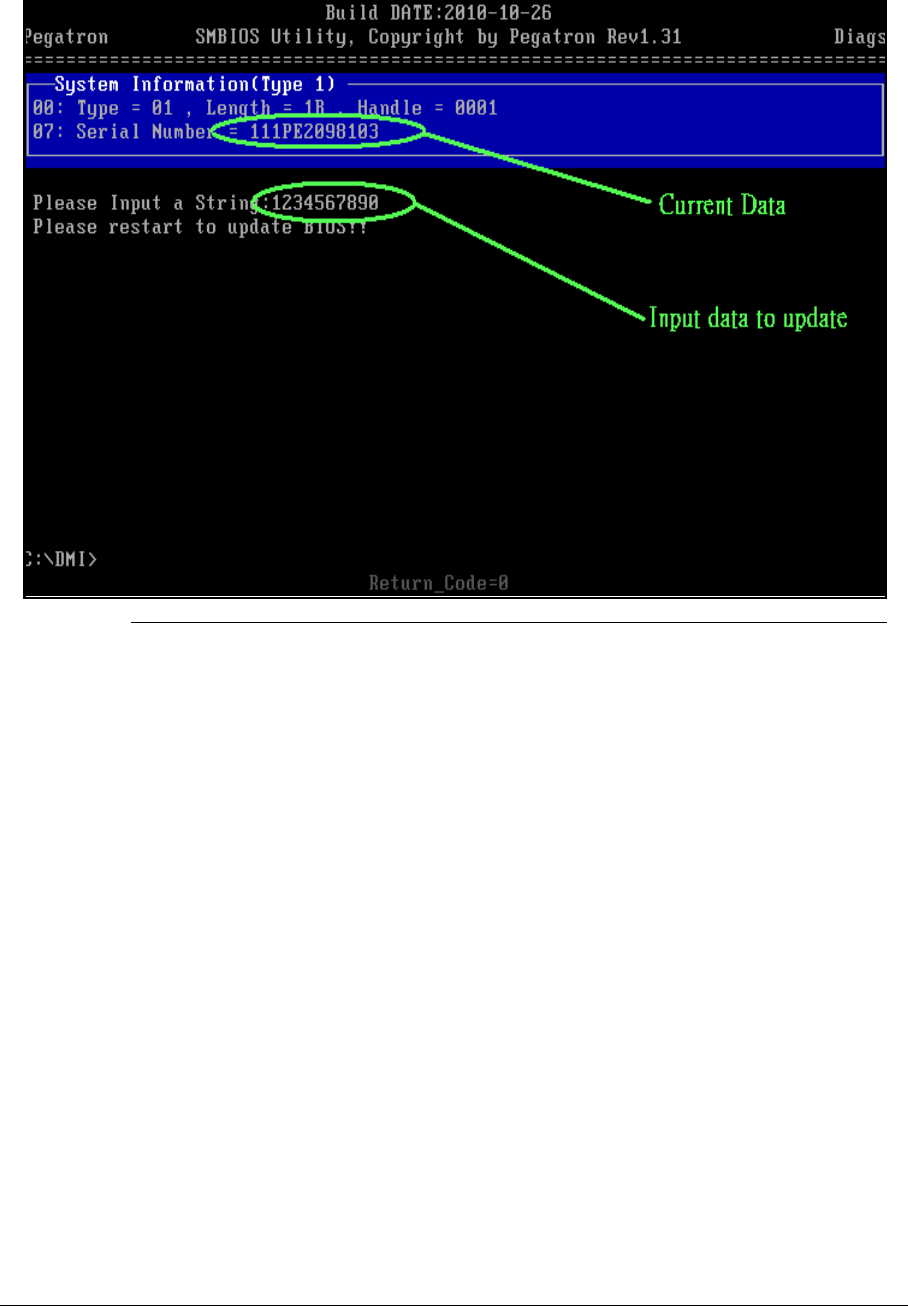
2-24 System Utilities
3. Execute < SN.bat > to update SMBIOS Type 1 Serial Number(Figure 2-25).
Figure 2-26. Update Serial Number
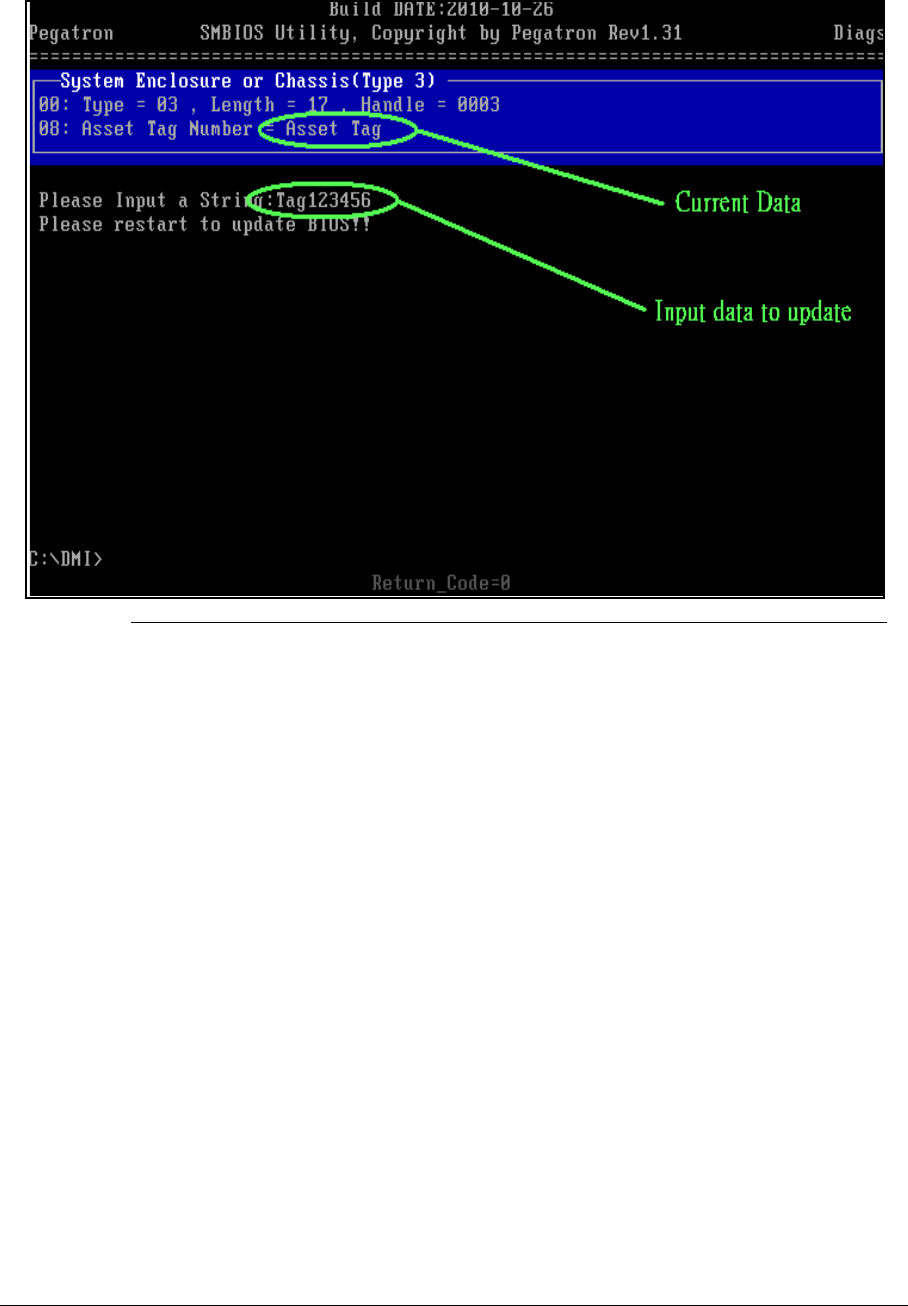
System Utilities 2-25
4. Execute < AT.bat > to update SMBIOS Type 3 Asset Tag Number(Figure 2-26).
Figure 2-27. Update Asset Tag
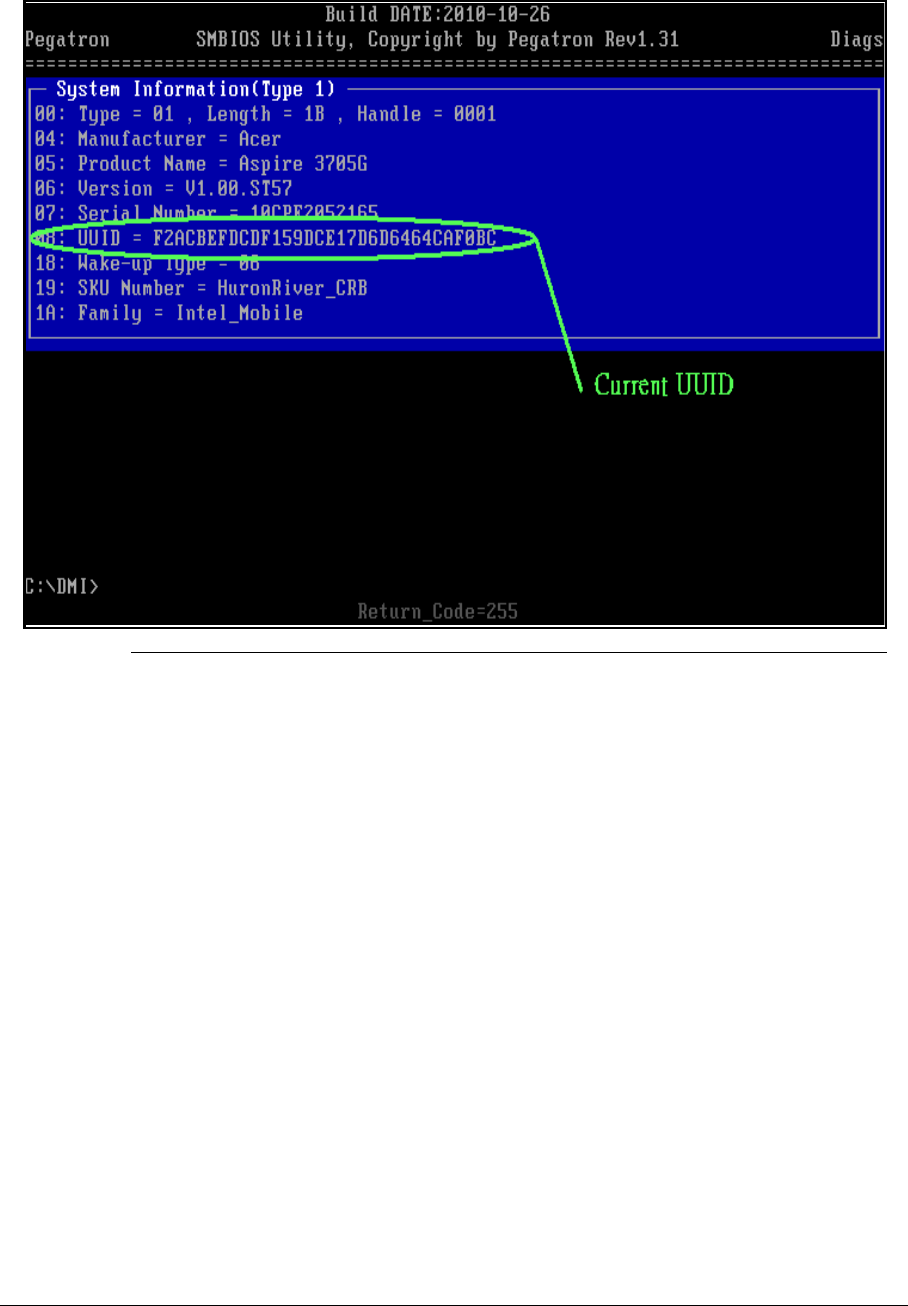
2-26 System Utilities
5. Execute < RU.bat > to read SMBIOS Type 1 UUID(Figure 2-27).
Figure 2-28. Read UUID
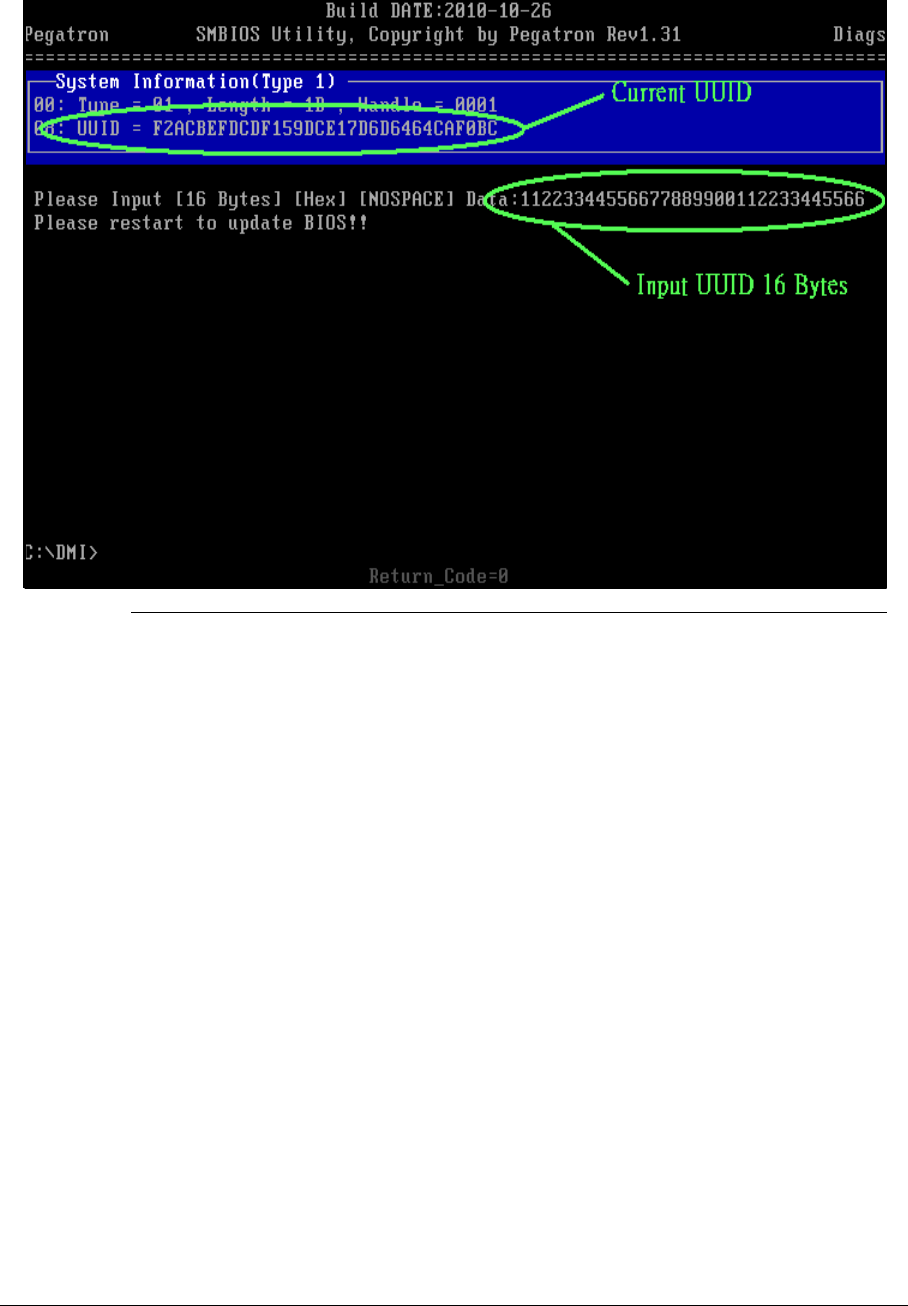
System Utilities 2-27
6. Execute < WU.bat > to write SMBIOS Type 1 UUID(Figure 2-28).
Figure 2-29. Write UUID
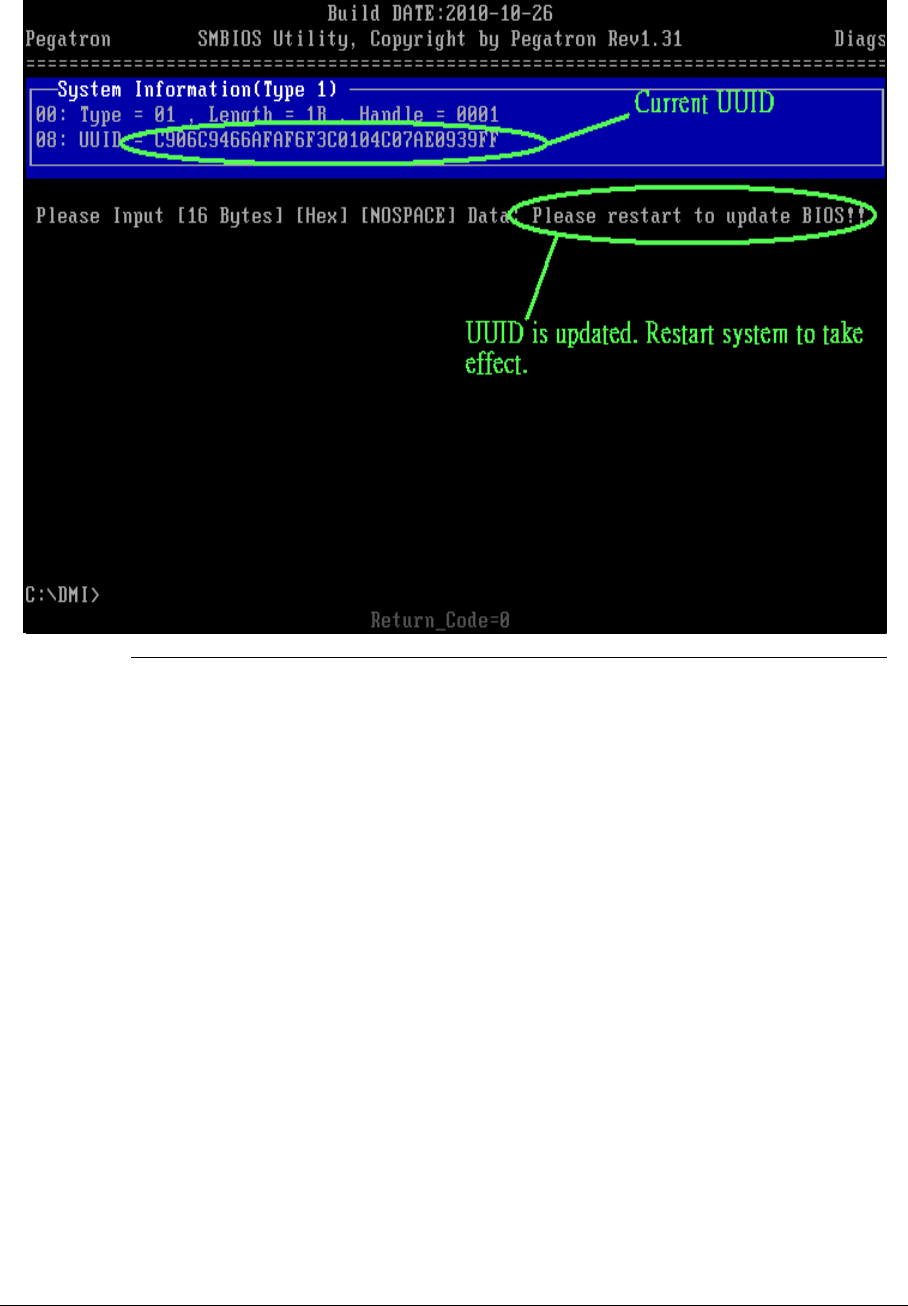
2-28 System Utilities
7. Execute < GU.bat > to generate and write SMBIOS Type 1 UUID (Figure 2-29).
Figure 2-30. Generate and write UUID
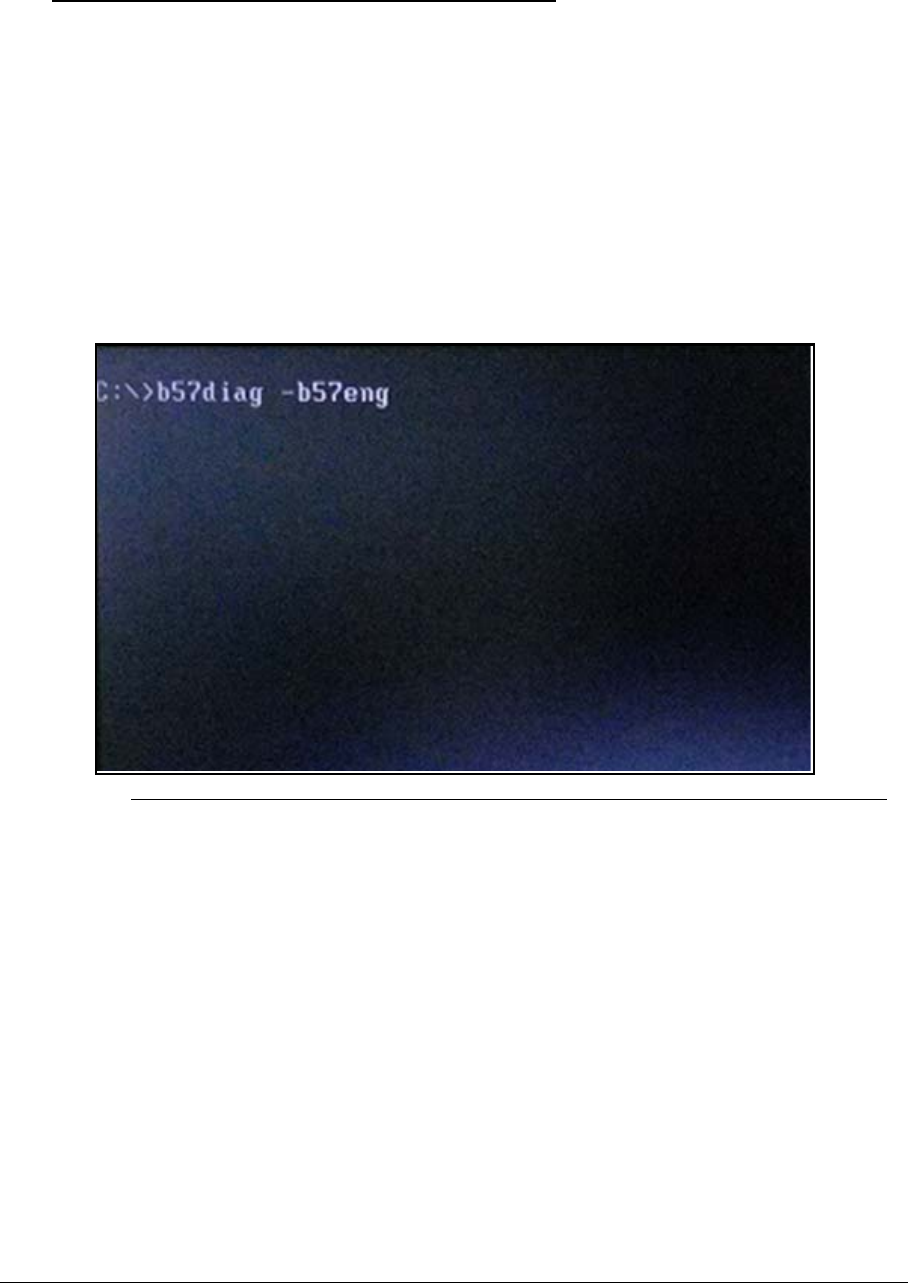
System Utilities 2-29
LAN MAC EEPROM Utility 0
LAN EEPROM Utility enables to change the MAC address.
Perfer the following steps to use the LAN EEPROM Utility:
1. Create a DOS bootable USB HDD.
2. Copy the AN MAC EEPROM Utility to the HDD and remove the HDD form the computer.
3. Reboot the computer and press F2 during the boot sequence to enter the setup menu.
4. Select the Boot menu item and move the entry “USB HDD” to the first position. Refer to
Boot.
5. Insert the USB HDD and reboot the computer.
6. At the command prompt, navigate to the C Root folder.
7. Run B57diag –b57eng(Figure 2-31).
Figure 2-31. Execute MAC TOOL
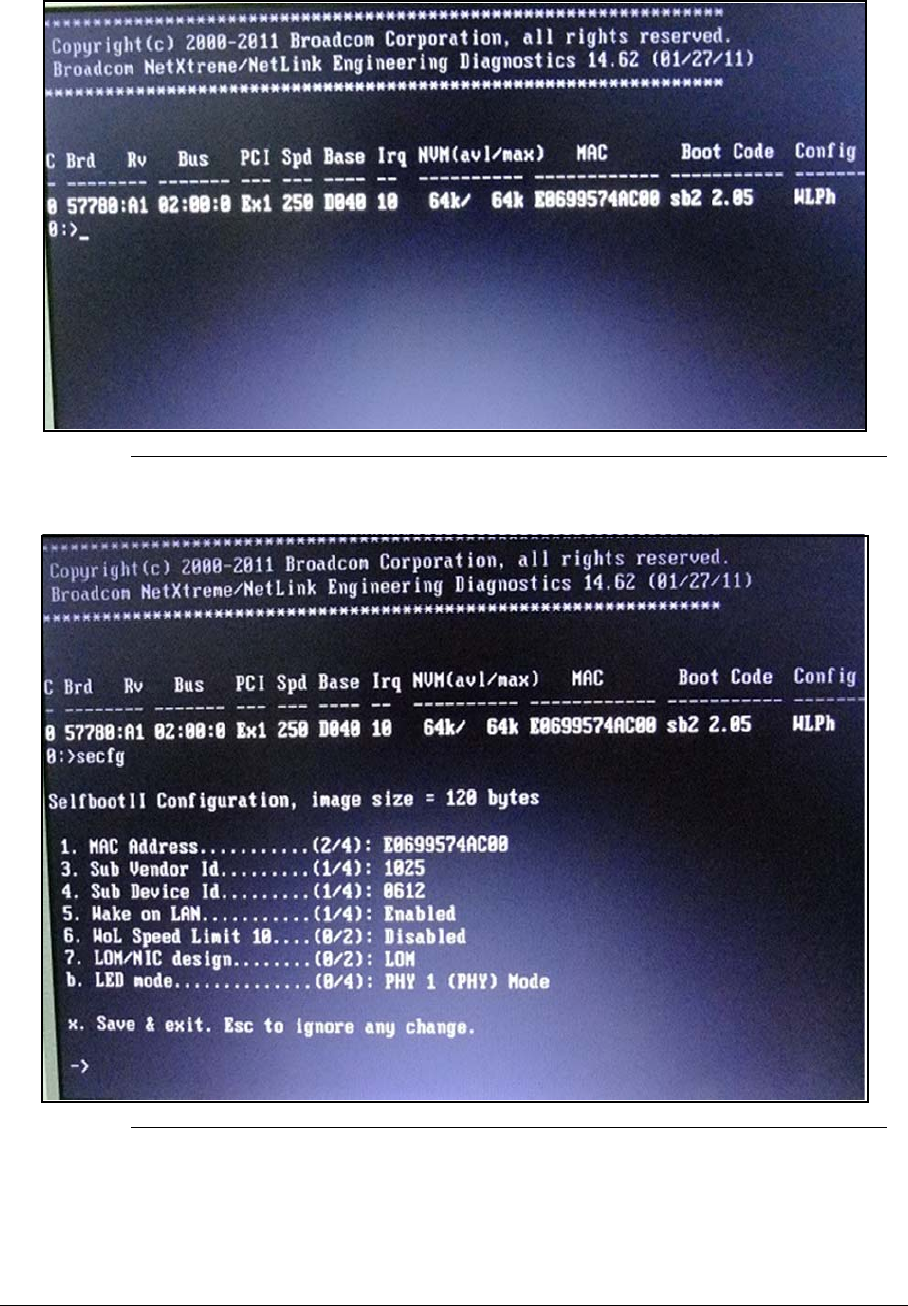
2-30 System Utilities
8. Enter Broadcom utility screen, then key in “secfg” command to show configuration screen.
Figure 2-32. Broadcom utility screen
9. Enter configuration
Figure 2-33. Configuration Screen
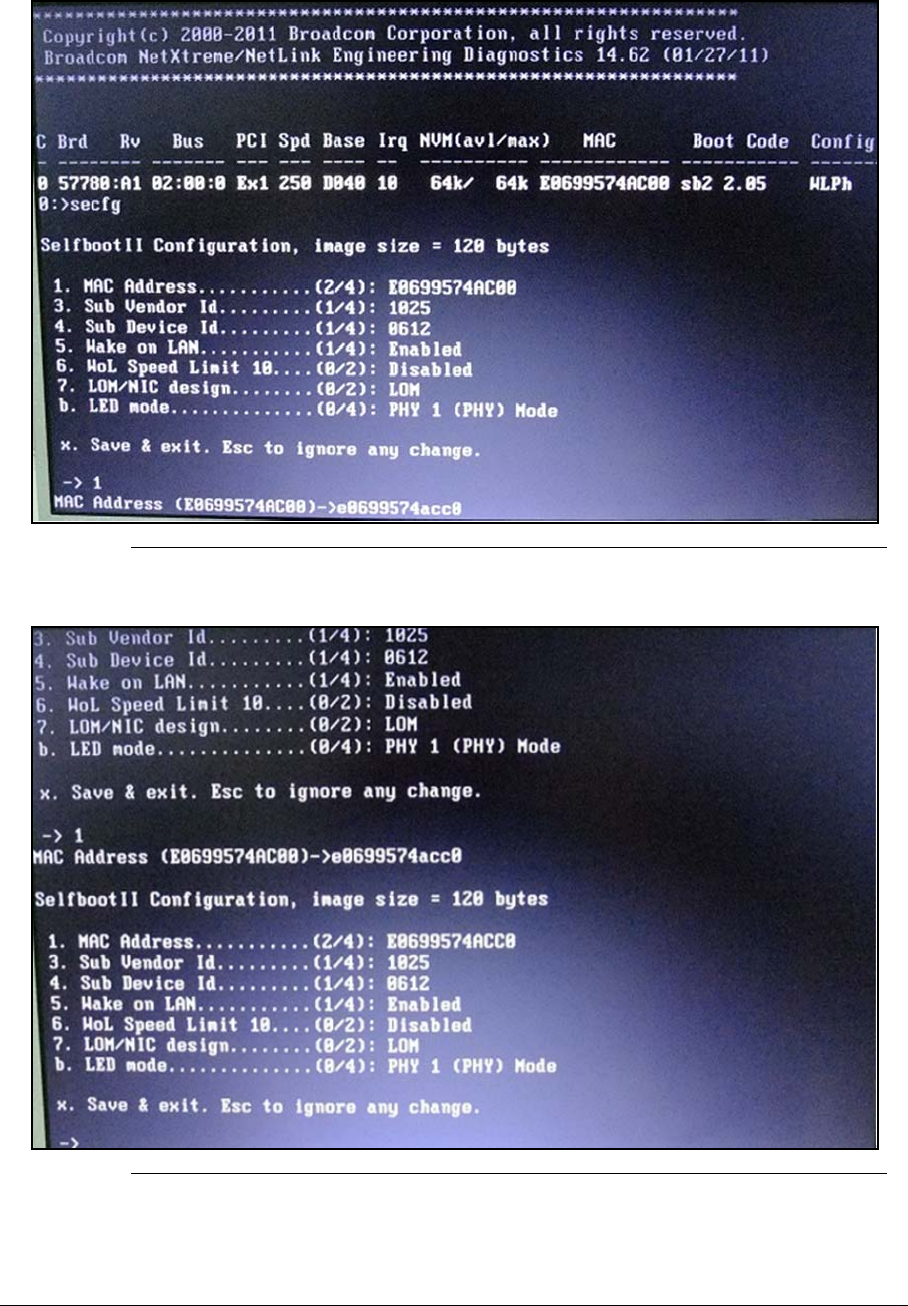
System Utilities 2-31
10. You can see the current MAC address in item1 and key in “1” to edit MAC address
Figure 2-34. Edit MAC address
11. The new MAC address had changed in item1
Figure 2-35. MAC address Changed
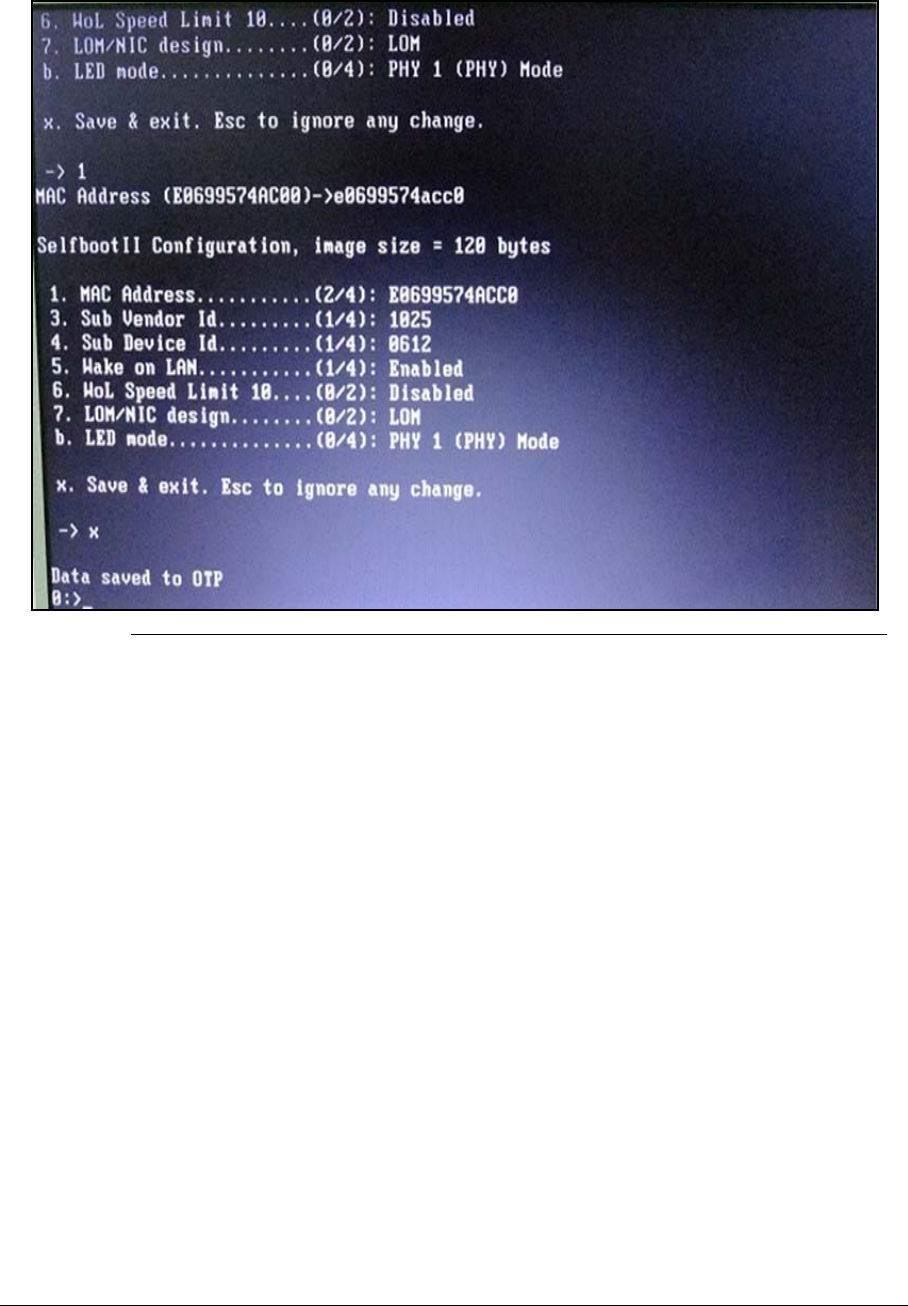
2-32 System Utilities
12. Key in “x” key to save and exit configuration
Figure 2-36. Exit configuration
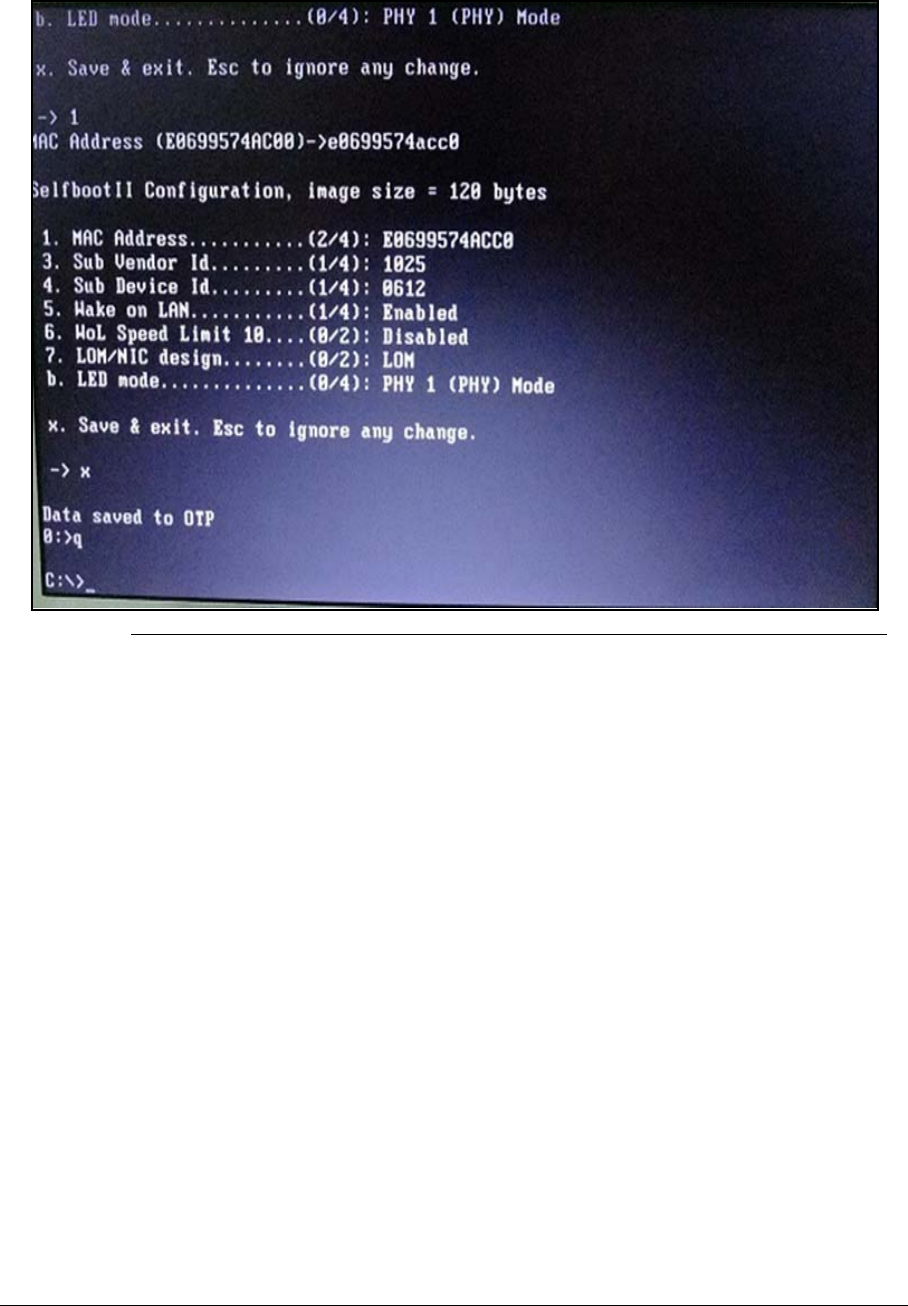
System Utilities 2-33
13. Key in “q” to exit Broadcom program
Figure 2-37. Exit Broadcom program

2-34 System Utilities

CHAPTER 3
Machine Maintenance

3-2
Machine Disassembly and Replacement . . . . . . . . . . . . . . . . . 3-5
Recommended Equipment . . . . . . . . . . . . . . . . . . . . . . . . . . . 3-5
Replacement Requirements . . . . . . . . . . . . . . . . . . . . . . . . . . 3-5
Pre-disassembly Instructions. . . . . . . . . . . . . . . . . . . . . . . . . . 3-6
Disassembly Process . . . . . . . . . . . . . . . . . . . . . . . . . . . . . . . 3-7
External Module Disassembly Process . . . . . . . . . . . . . . . . . . 3-8
External Modules Disassembly Flowchart . . . . . . . . . . . . . . . . 3-8
Removing the Dummy Card . . . . . . . . . . . . . . . . . . . . . . . . . . 3-9
Removing the HDD Door . . . . . . . . . . . . . . . . . . . . . . . . . . . . . 3-10
Removing the HDD Module . . . . . . . . . . . . . . . . . . . . . . . . . . . 3-11
Removing the DIMM Module . . . . . . . . . . . . . . . . . . . . . . . . . . 3-12
Removing the SSD Module . . . . . . . . . . . . . . . . . . . . . . . . . . . 3-13
Removing the WLAN Module . . . . . . . . . . . . . . . . . . . . . . . . . 3-14
Removing the ODD Module. . . . . . . . . . . . . . . . . . . . . . . . . . . 3-16
Main Unit Disassembly Process . . . . . . . . . . . . . . . . . . . . . . . . 3-19
Main Unit Disassembly Flowchart . . . . . . . . . . . . . . . . . . . . . . 3-19
Removing the Top Case . . . . . . . . . . . . . . . . . . . . . . . . . . . . . 3-20
Removing battery. . . . . . . . . . . . . . . . . . . . . . . . . . . . . . . . . . . 3-26
Removing the Power switch board . . . . . . . . . . . . . . . . . . . . . 3-29
Remove the card reader . . . . . . . . . . . . . . . . . . . . . . . . . . . . . 3-30
Remove the cables from the Mainboard . . . . . . . . . . . . . . . . . 3-31
Removing the Mainboard. . . . . . . . . . . . . . . . . . . . . . . . . . . . . 3-34
Removing the Thermal module . . . . . . . . . . . . . . . . . . . . . . . . 3-36
Removing the Bluetooth Board . . . . . . . . . . . . . . . . . . . . . . . . 3-38
Removing the Speakers . . . . . . . . . . . . . . . . . . . . . . . . . . . . . 3-39
LCD Module Disassembly Process. . . . . . . . . . . . . . . . . . . . . . 3-41
LCD Module Disassembly Flowchart. . . . . . . . . . . . . . . . . . . . 3-41
Removing the LCD Bezel . . . . . . . . . . . . . . . . . . . . . . . . . . . . 3-42
Removing the LCD Panel . . . . . . . . . . . . . . . . . . . . . . . . . . . . 3-46
Removing the Camera Board . . . . . . . . . . . . . . . . . . . . . . . . . 3-48
LCD Reassembly Procedure . . . . . . . . . . . . . . . . . . . . . . . . . . . 3-49
Replacing the Camera. . . . . . . . . . . . . . . . . . . . . . . . . . . . . . . 3-49
Replacing the LCD Panel . . . . . . . . . . . . . . . . . . . . . . . . . . . . 3-50
Replacing the LCD Bezel. . . . . . . . . . . . . . . . . . . . . . . . . . . . . 3-52
Replacing the Bluetooth. . . . . . . . . . . . . . . . . . . . . . . . . . . . . . 3-53
Replacing the Speakers. . . . . . . . . . . . . . . . . . . . . . . . . . . . . . 3-54
Replacing the DC-IN cable . . . . . . . . . . . . . . . . . . . . . . . . . . . 3-56
Replacing the Thermal Module . . . . . . . . . . . . . . . . . . . . . . . . 3-57
Replacing the Mainboard. . . . . . . . . . . . . . . . . . . . . . . . . . . . . 3-59
Replacing the LCD Module & Cables to Mainboard . . . . . . . . 3-60

3-3
Replacing the Card reader. . . . . . . . . . . . . . . . . . . . . . . . . . . . 3-63
Replacing the Power Switch board&Battery . . . . . . . . . . . . . . 3-64
Replacing the Keyboard . . . . . . . . . . . . . . . . . . . . . . . . . . . . . 3-67
Replacing the ODD Module . . . . . . . . . . . . . . . . . . . . . . . . . . . 3-73
Replacing the WLAN Module. . . . . . . . . . . . . . . . . . . . . . . . . . 3-76
Replacing the SSD Module . . . . . . . . . . . . . . . . . . . . . . . . . . . 3-78
Replacing the DIMM Module . . . . . . . . . . . . . . . . . . . . . . . . . . 3-79
Replacing the HDD Module . . . . . . . . . . . . . . . . . . . . . . . . . . . 3-80
Replacing the Door . . . . . . . . . . . . . . . . . . . . . . . . . . . . . . . . . 3-81
Replacing the Dummy Card. . . . . . . . . . . . . . . . . . . . . . . . . . . 3-82

3-4
3-5
Machine Disassembly and Replacement 0
This chapter contains step-by-step procedures on how to disassemble the notebook
computer for maintenance and troubleshooting.
Cable paths and positioning may not represent the actual model. During the removal and
installation of the components, ensure all available cable channels and clips are used and
that the cables are replaced in the same position.
The screws for the different components vary in size. During the disassembly process, group
the screws with the corresponding components to avoid mismatch when putting back the
components.
The product previews seen in the disassembly procedures may not represent the final
product color or configuration.
Recommended Equipment 0
To disassemble the computer, the following tools are suggested:
-Wrist grounding strap and conductive mat for preventing electrostatic discharge
-Flat screwdriver
-Philips screwdriver
-Plastic flat screwdriver
-Plastic tweezers
-Cyanoacrylate glue
Replacement Requirements 0
NOTE:
NOTE:
Cabling and components require adhesive to be applied during the replacement and
reassembly process.
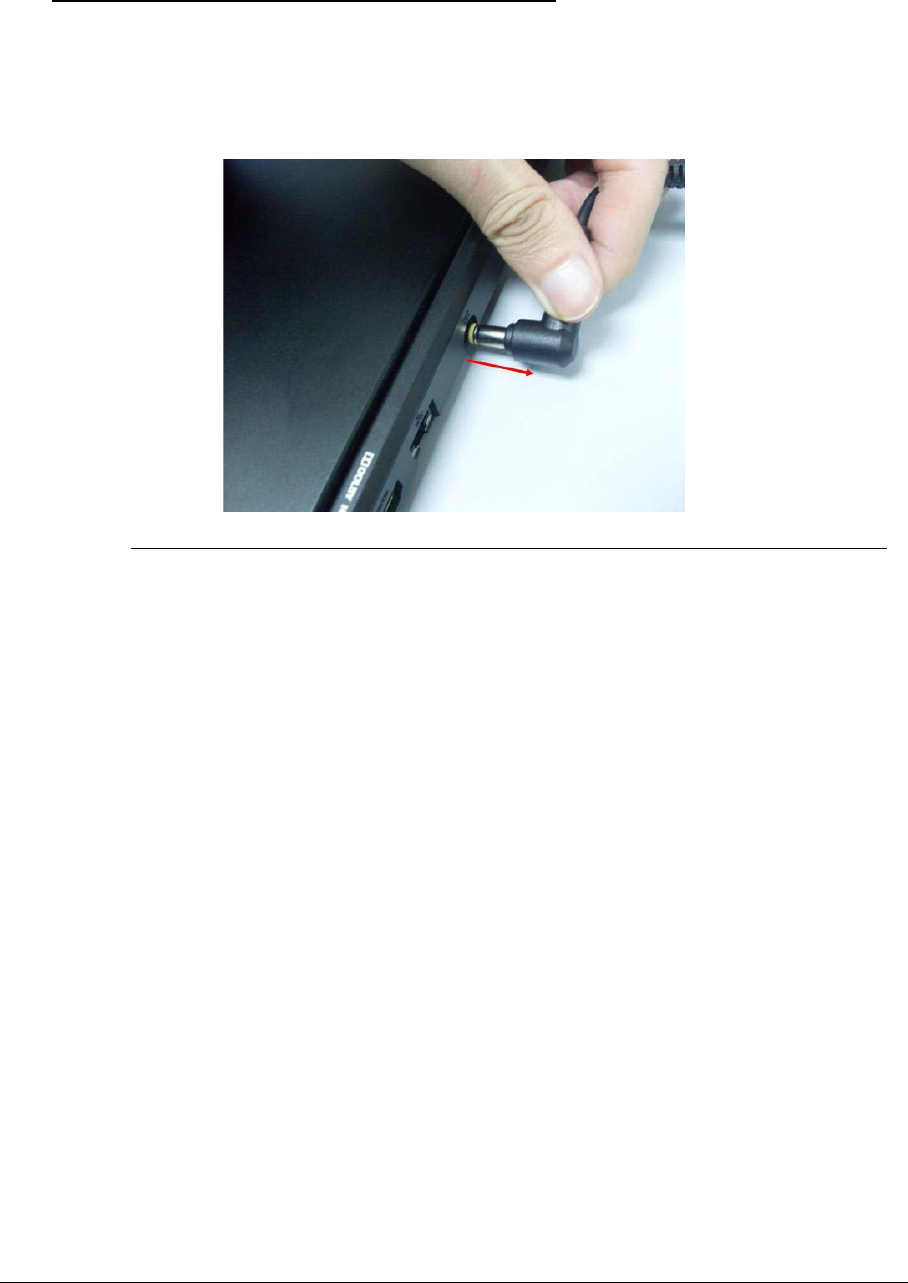
3-6
Pre-disassembly Instructions 0
Before proceeding with the disassembly procedure, make sure to do the following:
1. Turn off the power to the system and all peripherals.
2. Unplug the AC adapter and all power and signal cables from the system.
Figure 3-1. AC Adapter
3. Place the system on a flat, stable surface.
3-7
Disassembly Process 0
The disassembly process is divided into the following sections:
-External components disassembly
-Main unit disassembly
-LCD module disassembly
The flowcharts provided in the succeeding disassembly sections illustrate the entire
disassembly sequence. Observe the order of the sequence to avoid damage to any of the
hardware components. For example, when removing the mainboard, remove first the
keyboard, and LCD module then disassemble the inside assembly frame in that order.
Table 3-1. Main Screw List
Screw Quantity Acer Part Number
M2*2.5 Ni 6 86.W750U.003
M2*3 Ni 35 86.RY8N5.006
M2.5*5 Ni 7 86.B050U.001
M2*2 Ni 5 86.RY8N5.003
M2*6 Ni 10 86.RN60U.002
M2*2L+4.2MM Ni 4 86.RY8N5.001
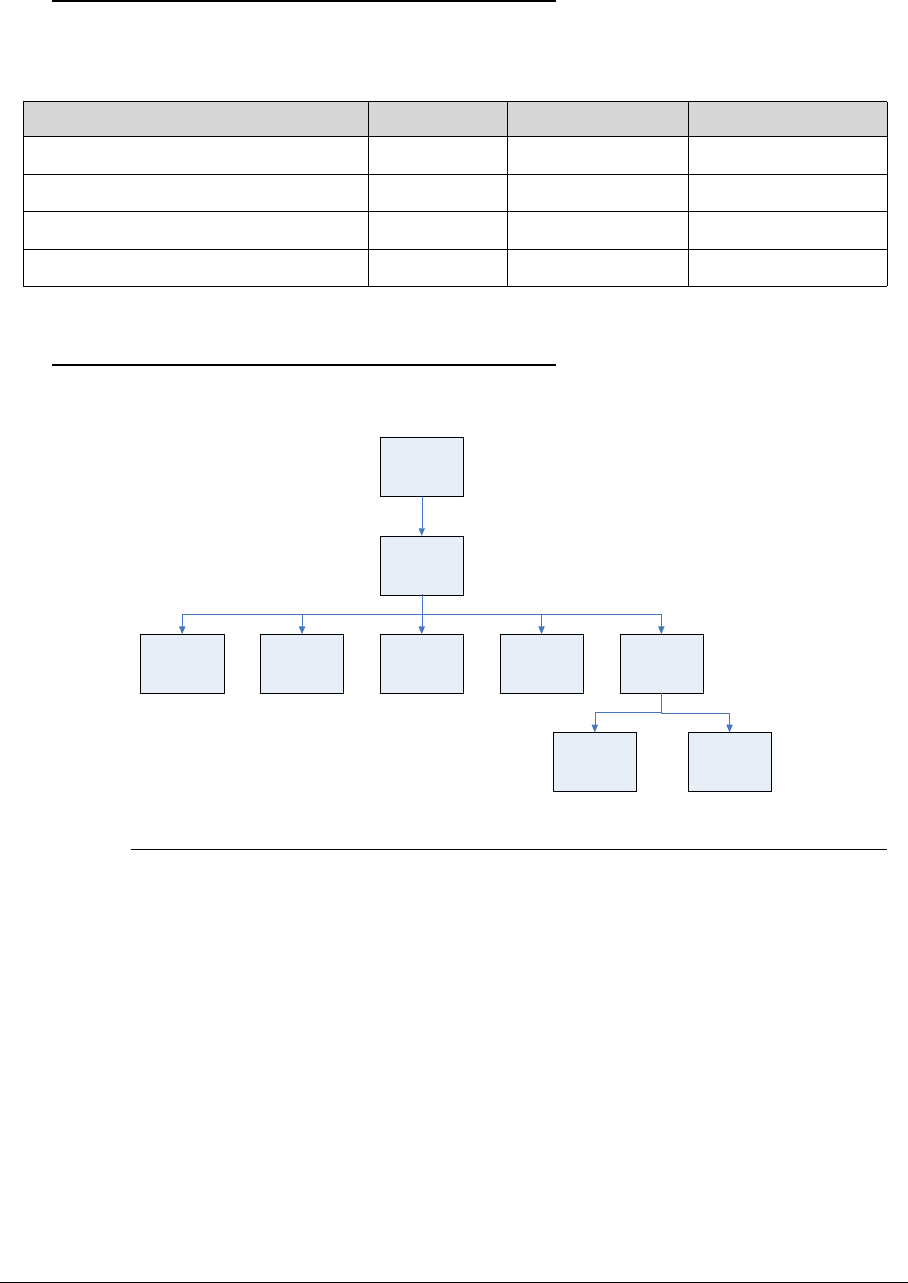
3-8
External Module Disassembly Process 0
External Modules Disassembly Flowchart 0
Figure 3-2. External Module Disassembly Flowchart
Table 3-2. Screw List
Step Screw Quantity Part No.
WLAN Module Disassembly M2*3 1 86.RY8N5.006
SSD Module Disassembly M2*3 1 86.RY8N5.006
ODD Module Disassembly M2*3 1 86.RY8N5.006
ODD Bracket Disassembly M2*2.5 2 86.W750U.003
Dummy Card
HDD Door
SSD ModuleDIMM ModuleHDD WLAN Module ODD Module
ODD Bezel ODD Bracket
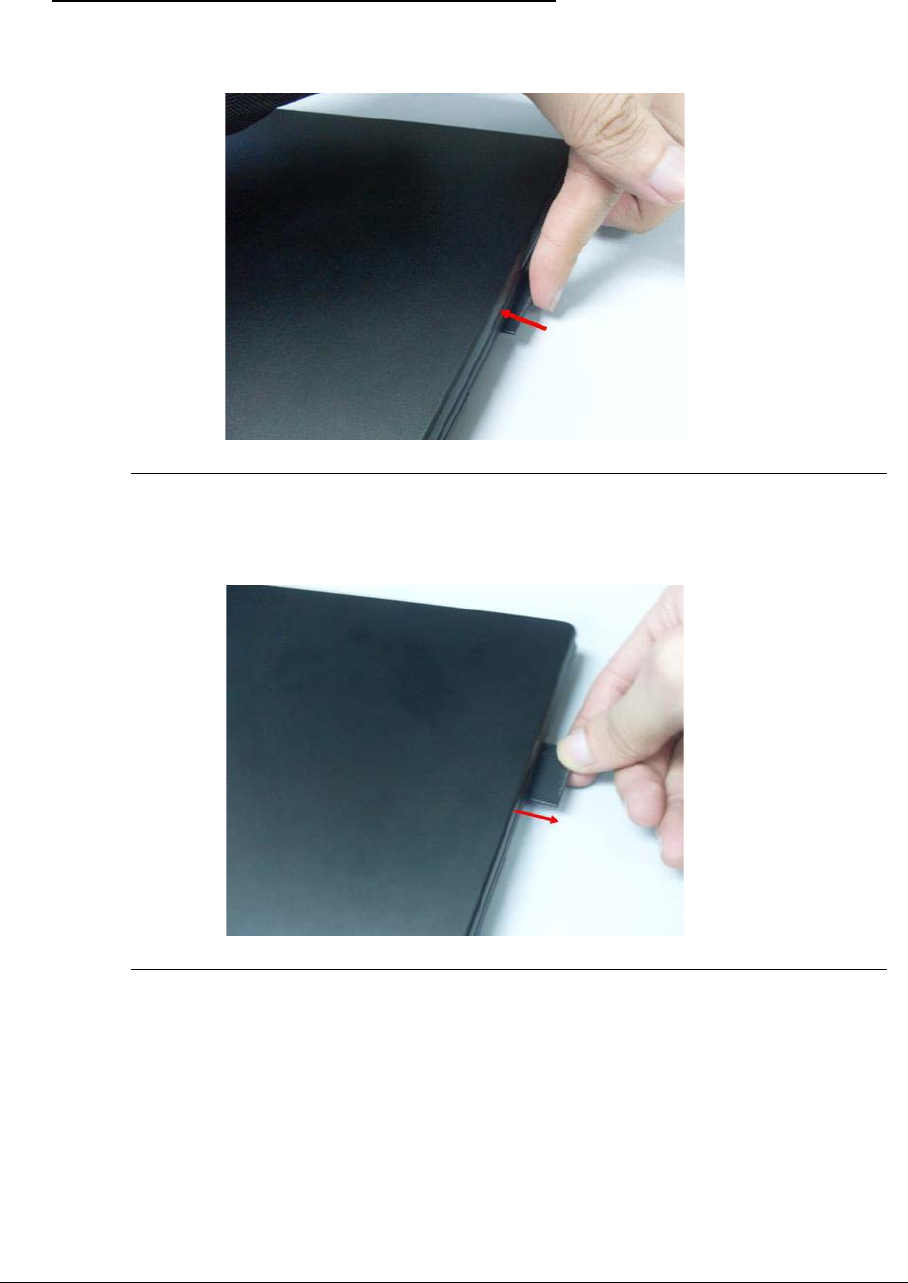
3-9
Removing the Dummy Card 0
1. Press the dummy card in to allow it to spring out.
Figure 3-3. Dummy Card
2. Pull the dummy card out.
Figure 3-4. Dummy Card
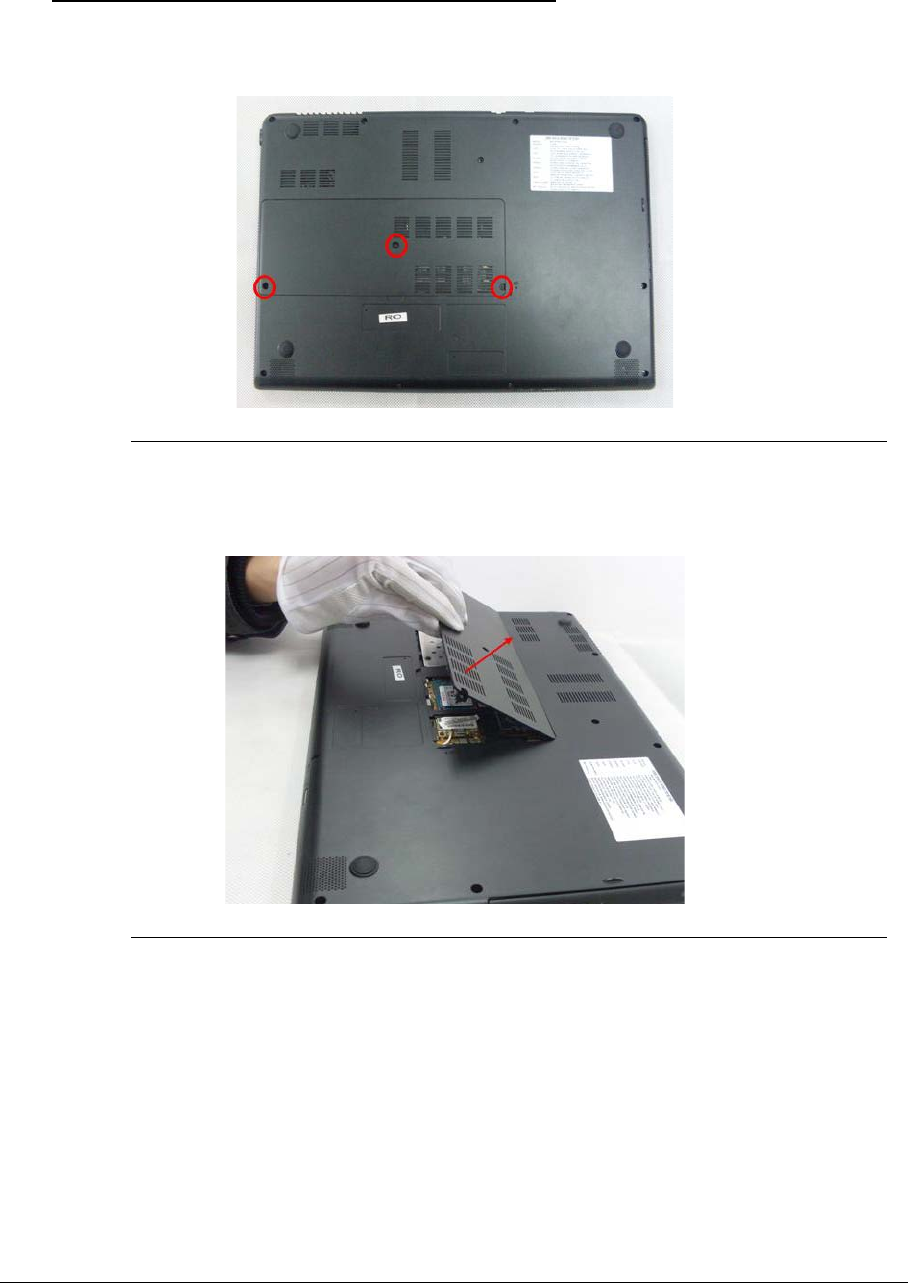
3-10
Removing the HDD Door 0
1. Loosen the 3 captive screws.
Figure 3-5. HDD Door Screws
2. Lift the HDD door to remove.
Figure 3-6. HDD Door
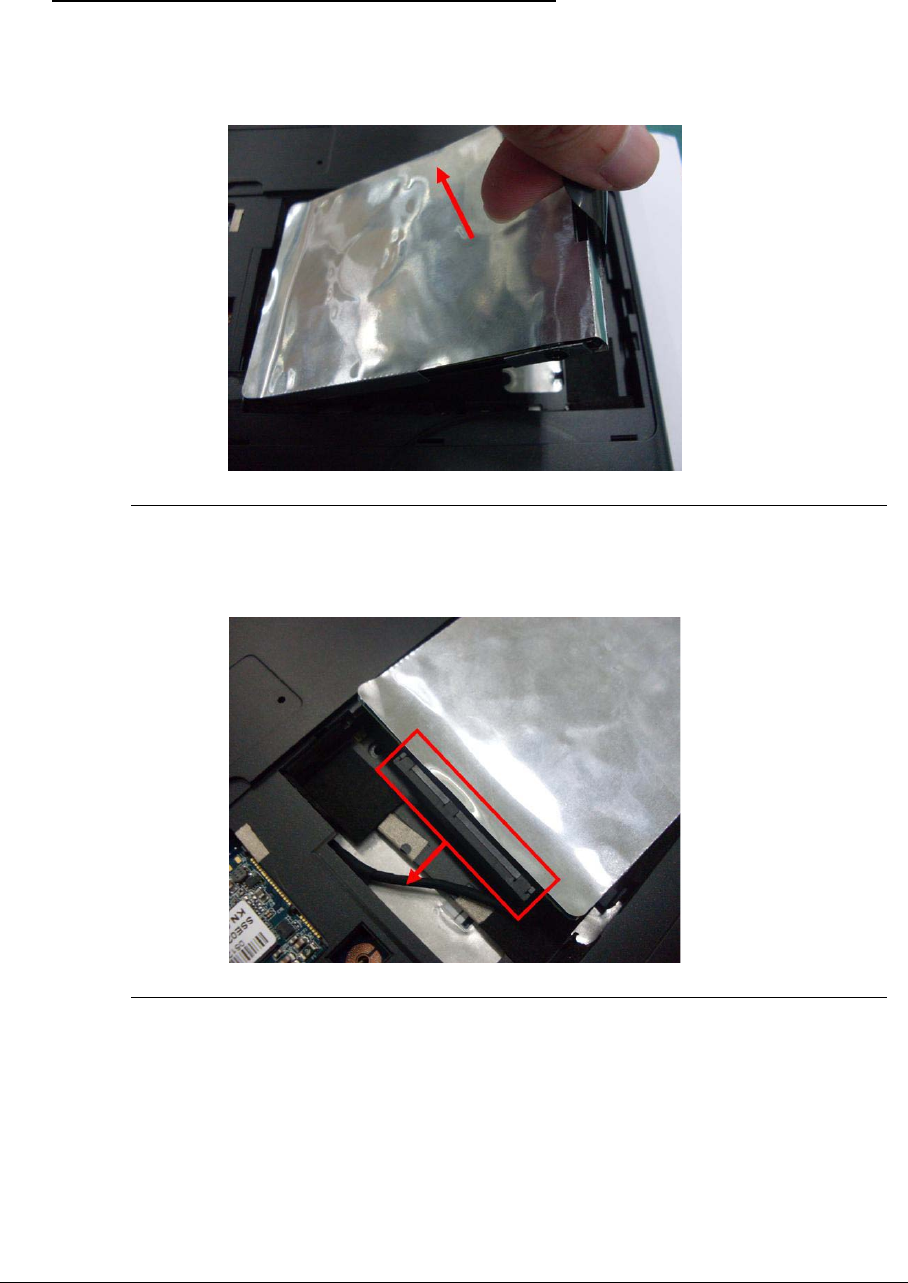
3-11
Removing the HDD Module 0
1. Using tweezers, lift the pull tab out if lodged behind the HDD.
2. Hold the tab and lift the HDD.
Figure 3-7. HDD Module
3. Disconnect the HDD and the SATA cable.
Figure 3-8. HDD Module
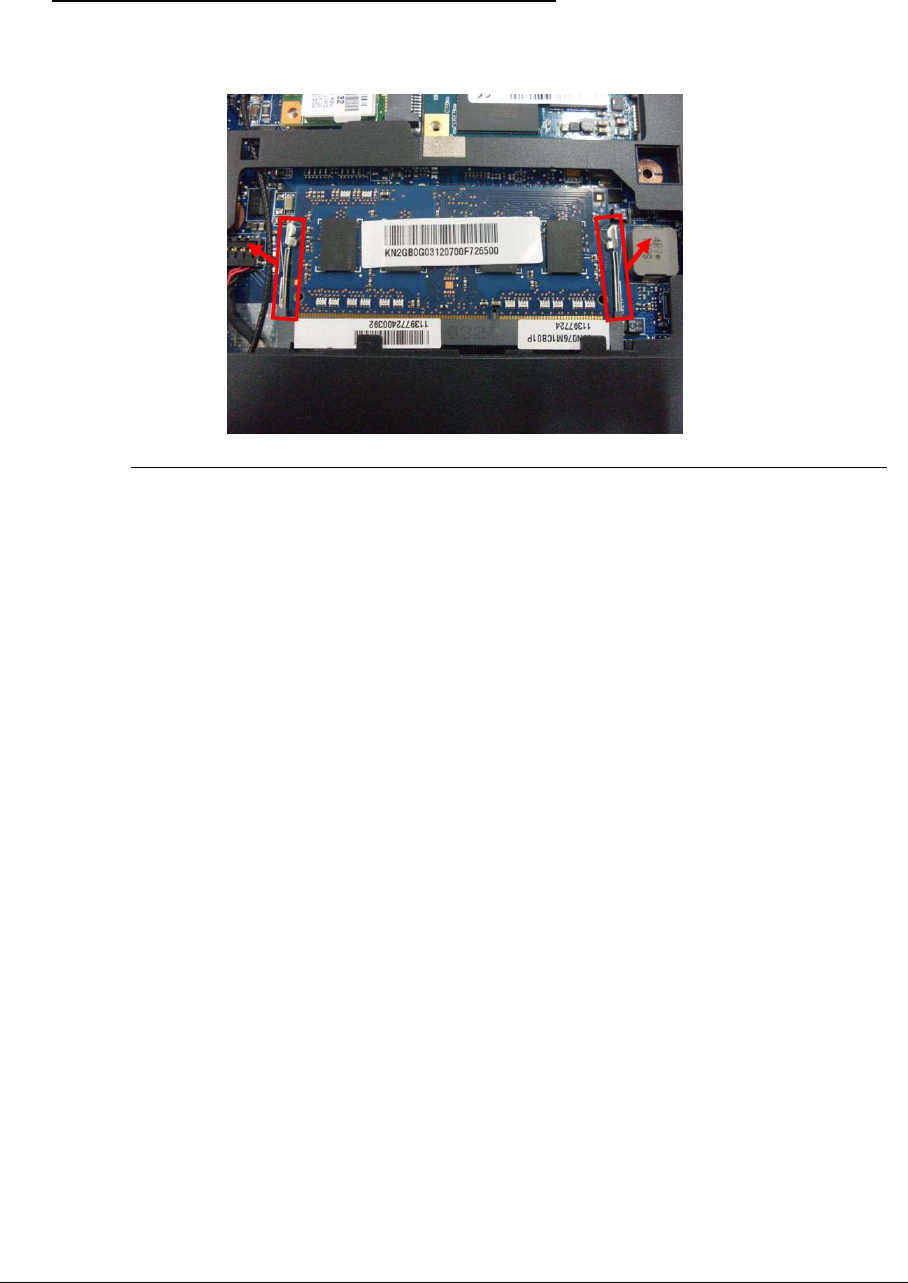
3-12
Removing the DIMM Module 0
1. Using fingers, push the memory module clips outwards.
Figure 3-9. DIMM Module
2. Hold the module and pull the DIMM module from the connector.
3. Repeat for additional modules if present.
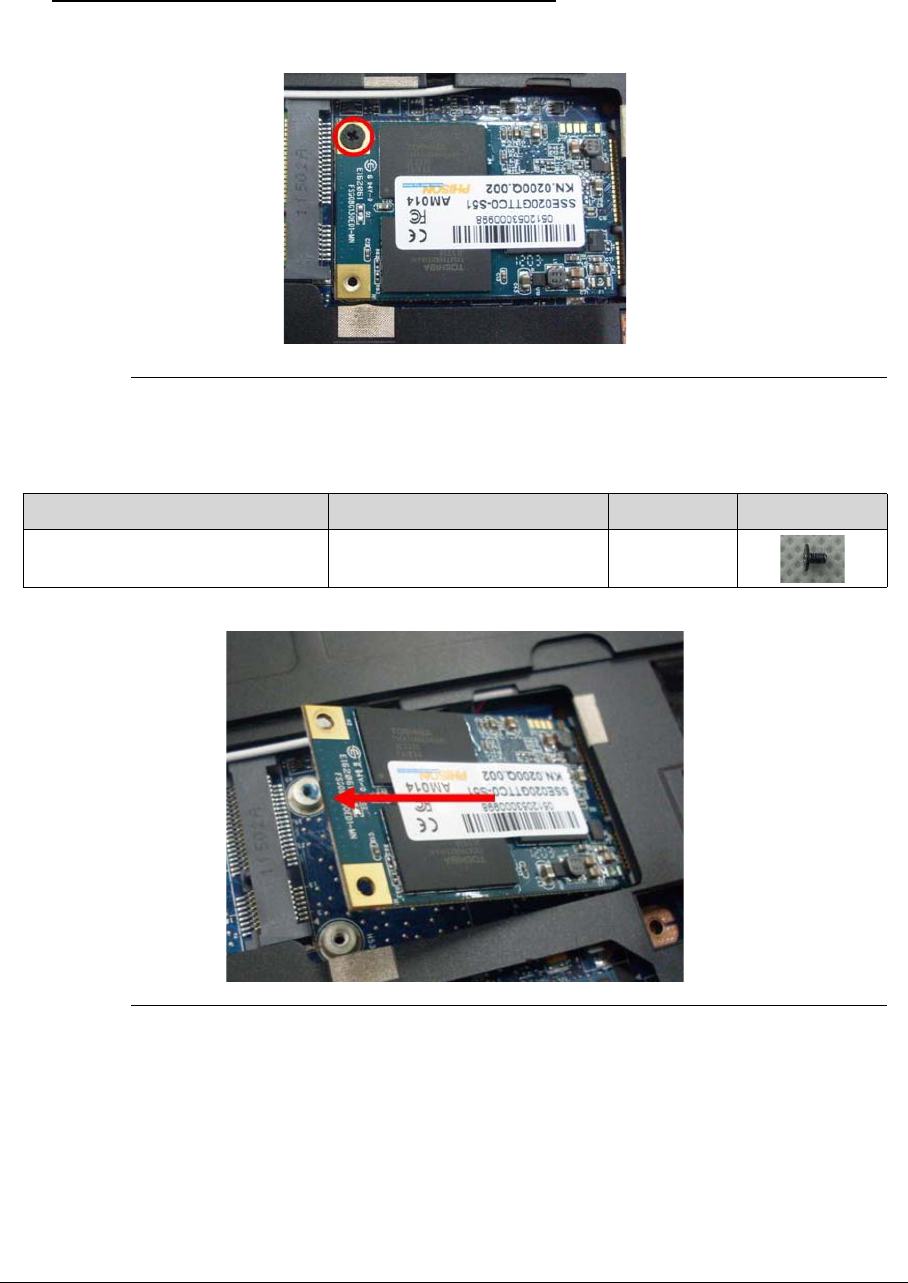
3-13
Removing the SSD Module 0
1. Remove the only one screw .
Figure 3-10. SSD Module
2. Remove the SSD module.
Figure 3-11. SSD Module
Table 3-3. Screws
Step Screw Quantity Screw Type
SSD module Disassembly M2*3Ni 1
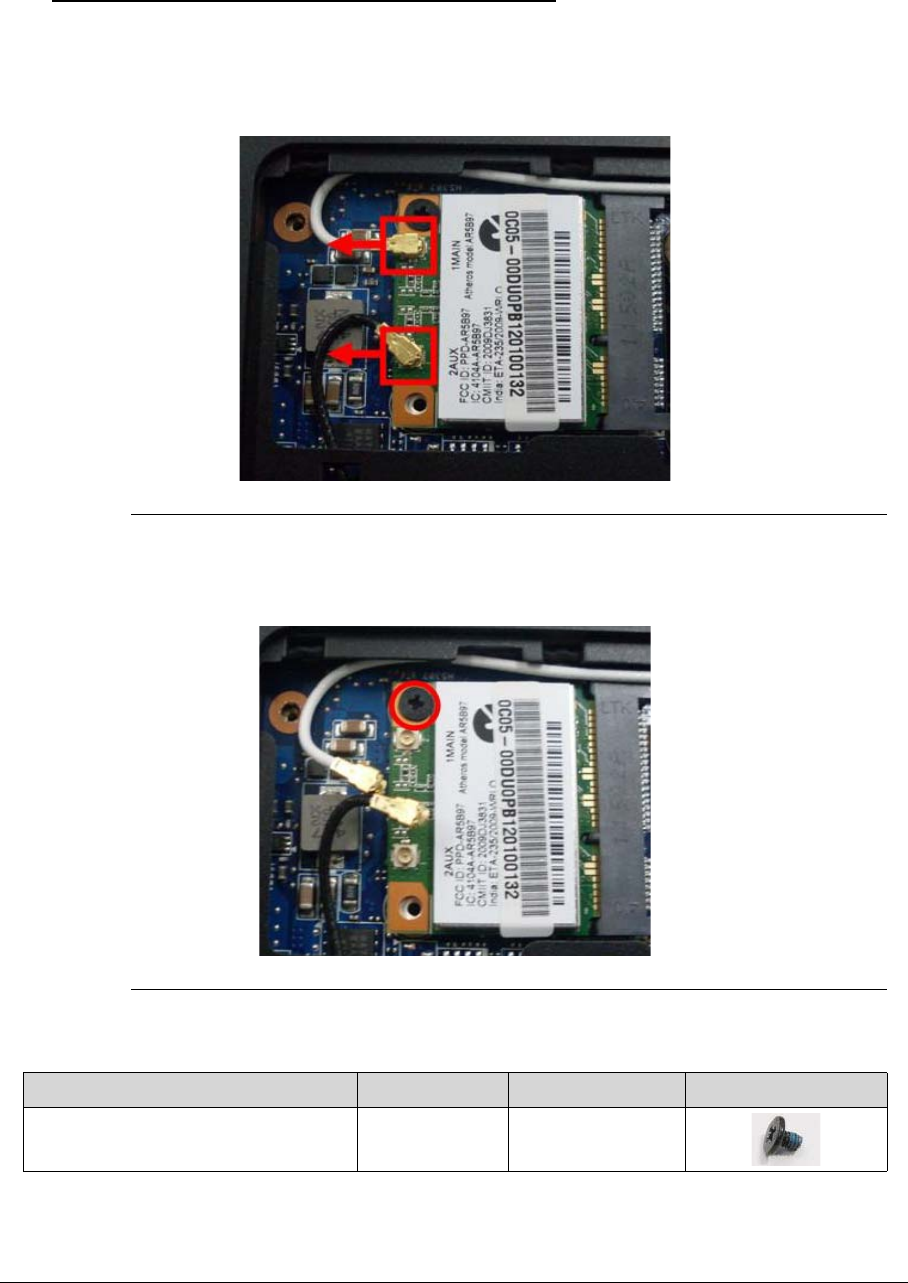
3-14
Removing the WLAN Module 0
1. Disconnect the two cables from the WLAN module.
IMPORTANT:
+
Note the position of the Main (black) and Auxiliary (white) connectors.
Figure 3-12. WLAN Module
2. Remove the screw and ensure the cables are well clear of the module.
Figure 3-13. WLAN Module
Table 3-4. Screws
Step Screw Quantity Screw Type
WLAN Module Disassembly M2*3 1
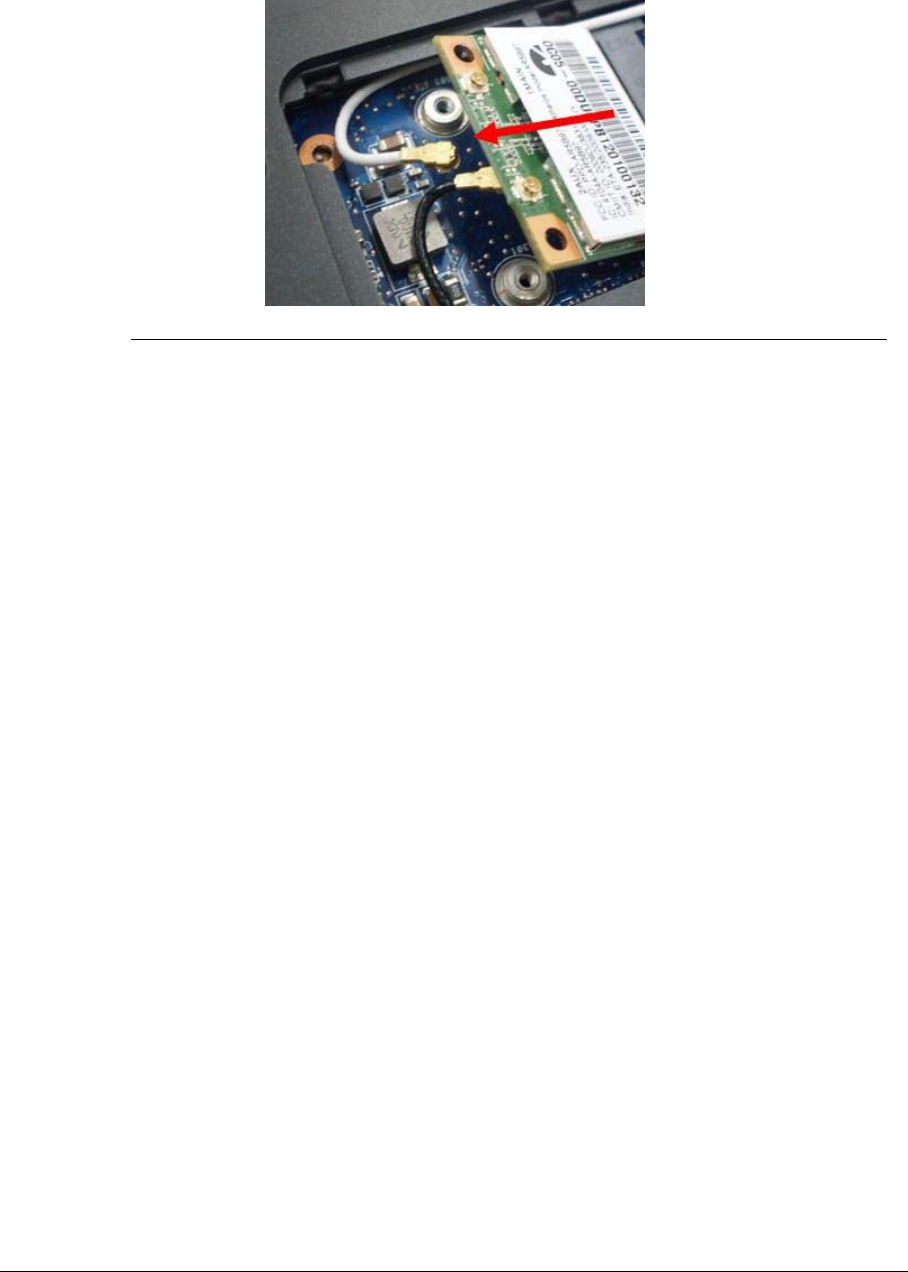
3-15
3. Pull the WLAN module out and away.
Figure 3-14. WLAN Module
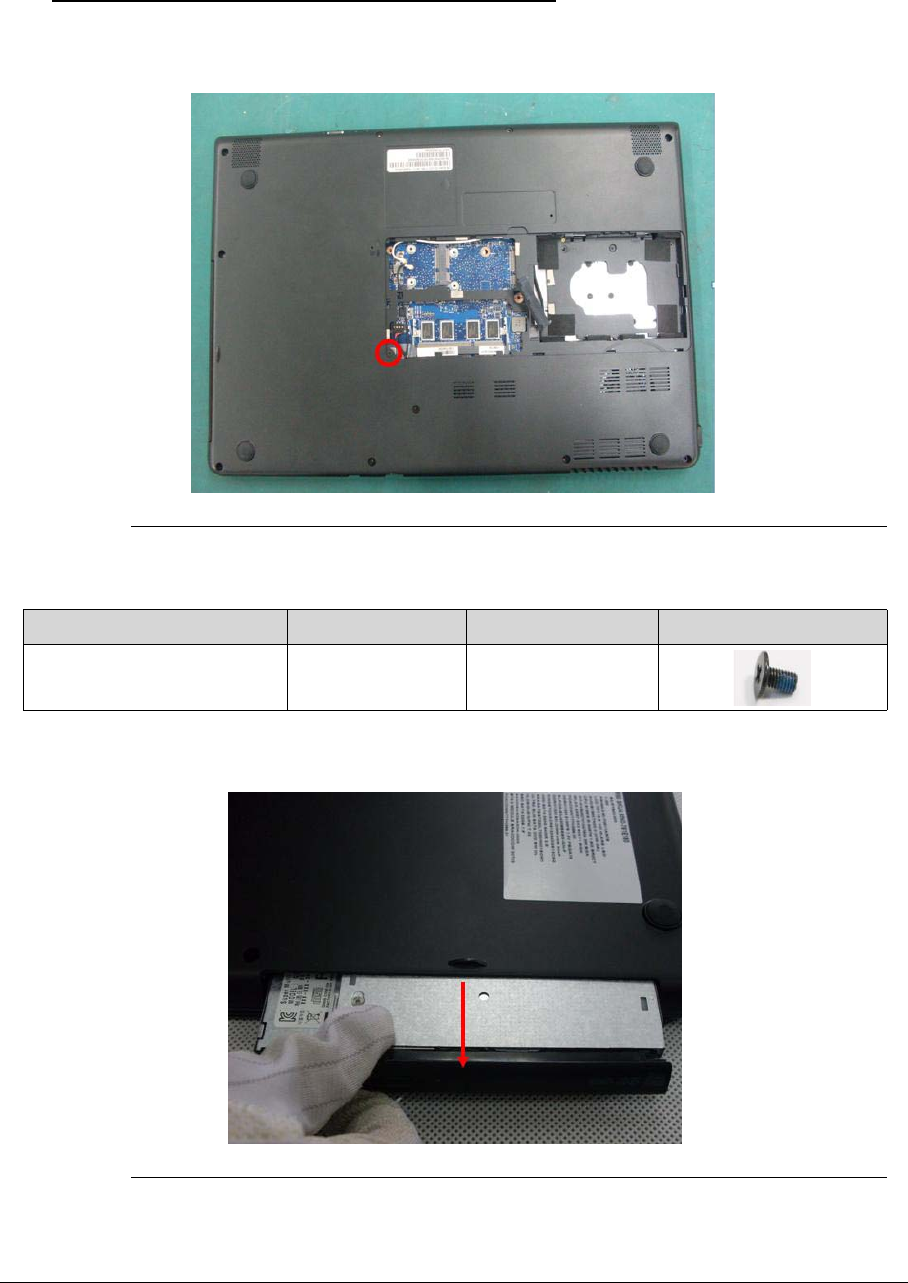
3-16
Removing the ODD Module 0
1. Remove the screw from the ODD module.
Figure 3-15. ODD Module
2. Pull the ODD completely out of the bay.
Figure 3-16. ODD Module
Table 3-5. Screws
Step Screw Quantity Screw Type
ODD Module Disassembly M2*3 1
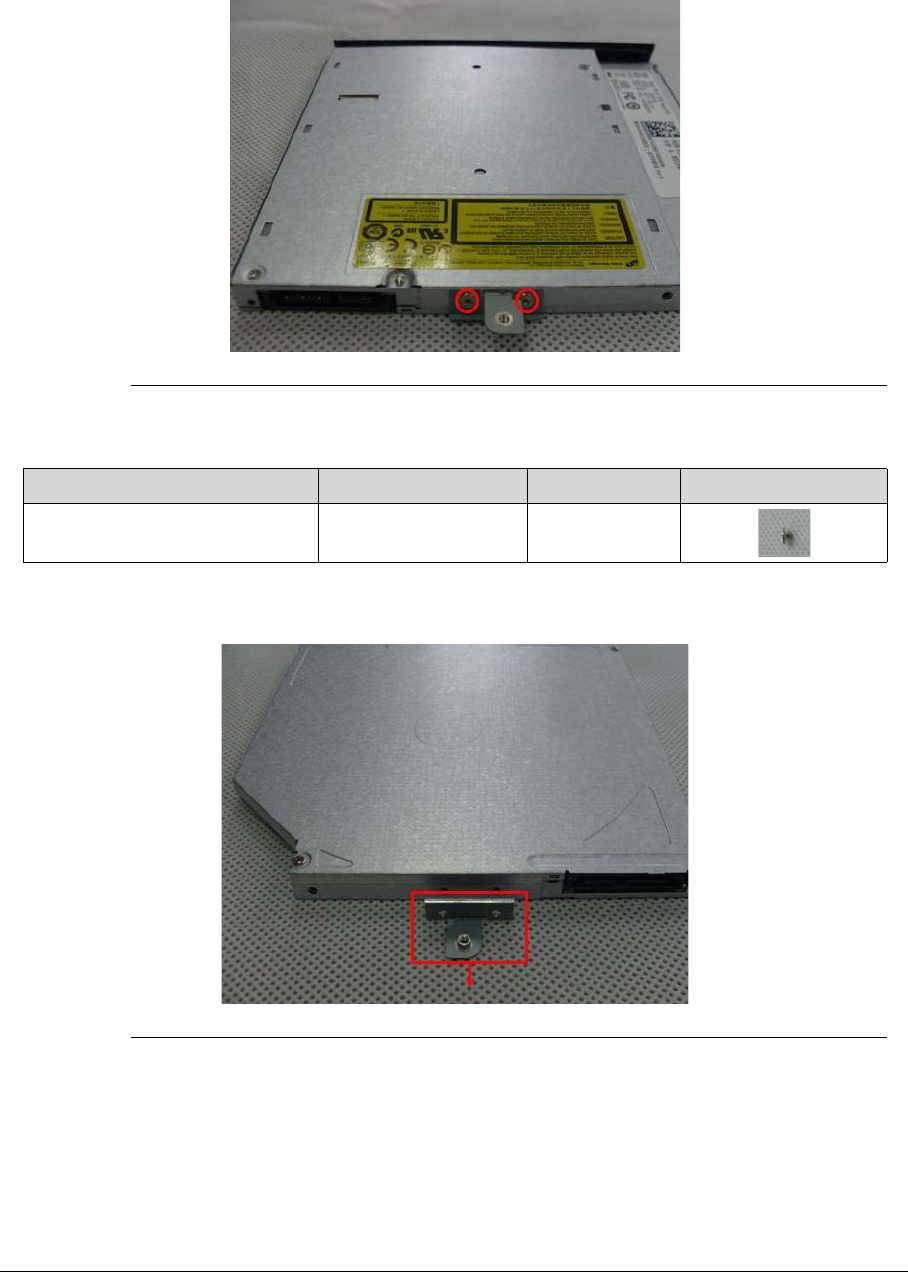
3-17
3. Remove the 2 screws from the ODD bracket.
Figure 3-17. ODD Module
4. Remove the ODD bracket.
Figure 3-18. ODD Bracket
Table 3-6. Screws
Step Screw Quantity Screw Type
ODD Bracket Disassembly M2*2.5 2
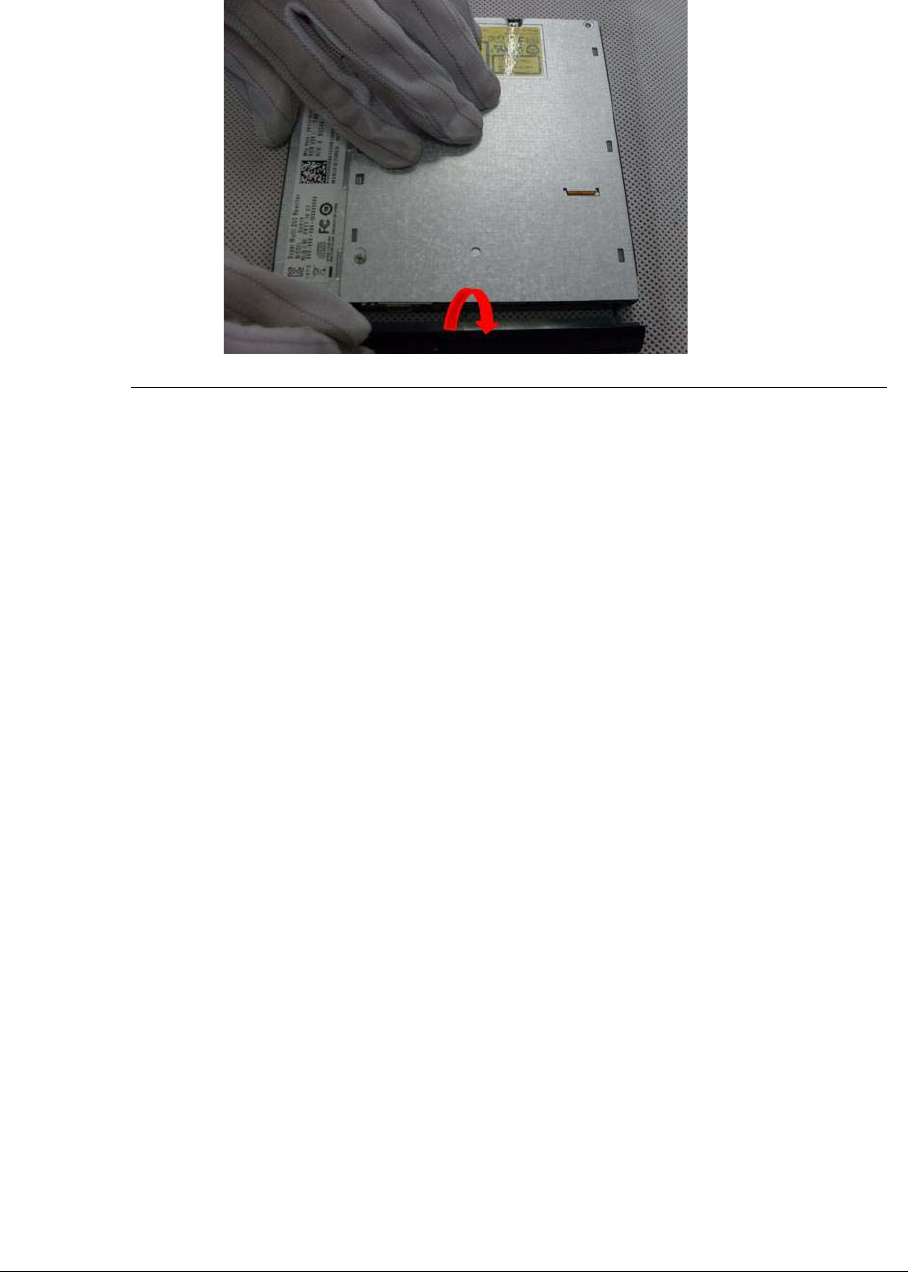
3-18
5. Pry the ODD bezel off the ODD module.
Figure 3-19. ODD Bezel
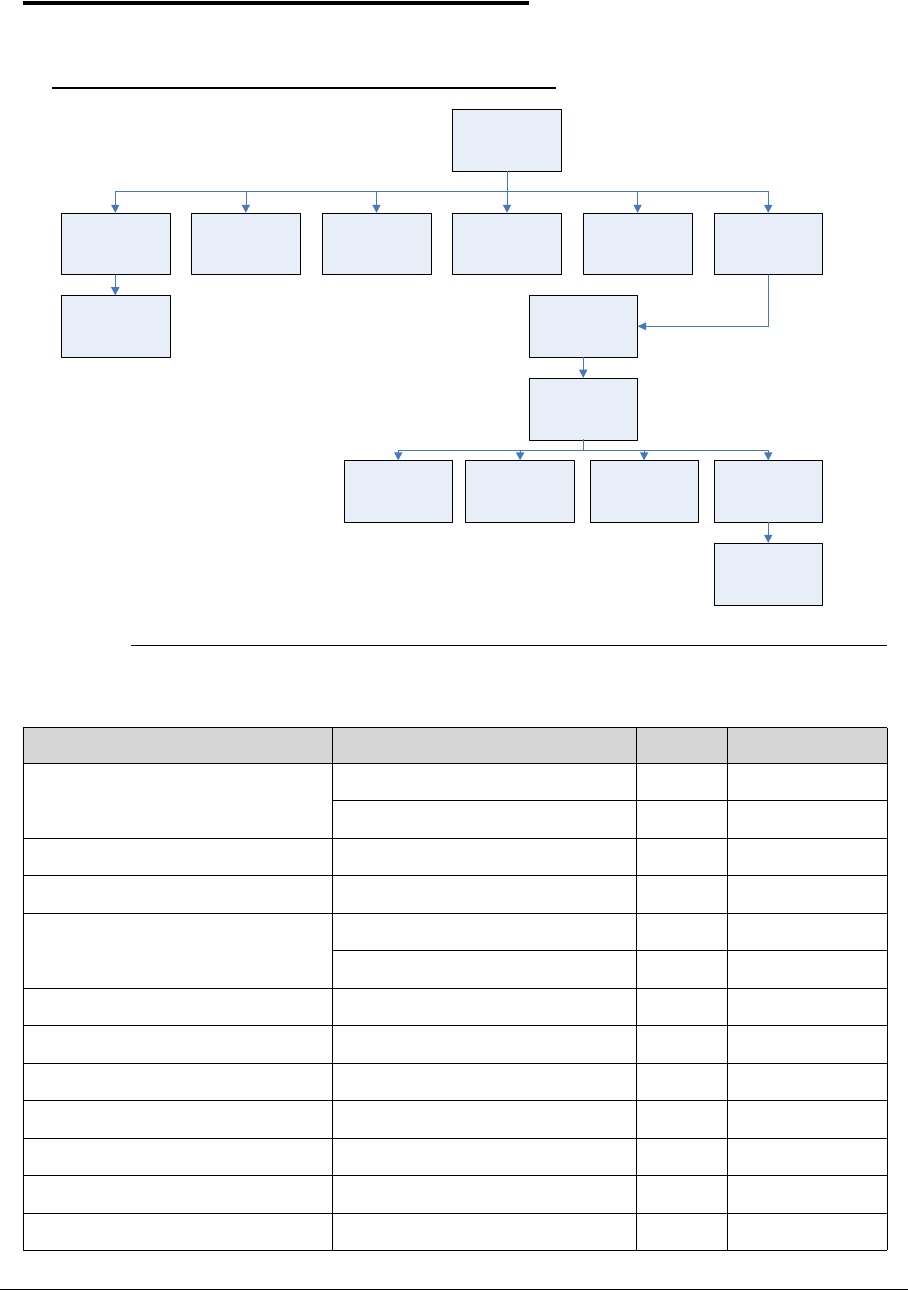
3-19
Main Unit Disassembly Process 0
Main Unit Disassembly Flowchart 0
Figure 3-20. Main Unit DIsassembly Flowchart
Table 3-7. Screws
Step Screw Quantity Part No.
Bottom case Disassembly M2*6 10 86.RN60U.002
M2*3 Ni 1 86.RY8N5.006
Click pad Disassembly M2*3 Ni 2 86.RY8N5.006
Touchpad Board Disassembly M2*2 Ni 2 86.RY8N5.003
Keyboard Disassembly M2*2 3 86.RY8N5.003
M2*3 Ni 16 86.RY8N5.006
Battery Disassembly M2*3 Ni 1 86.RY8N5.006
Card reader Disassembly M2*3 Ni 2 86.RY8N5.006
LCD module Disassembly M2.5*5 Ni 5 86.B050U.001
Mainboard Module M2*3 Ni 4 86.RY8N5.006
Thermal Module M2*3 Ni 6 86.RY8N5.006
Fan to Bottom case M2.5*5 2 86.B050U.001
Speaker Disassembly M2*2L+4.2MM Ni 4 86.RY8N5.001
Top Case
Click Pad Bracket Keyboard Battery Power Switch Board Card Reader LCD Module
DC-in Bracket
Touch Pad
DC-in Connector
Cables from MB
Main Board
BluetoothThermal Module Speaker
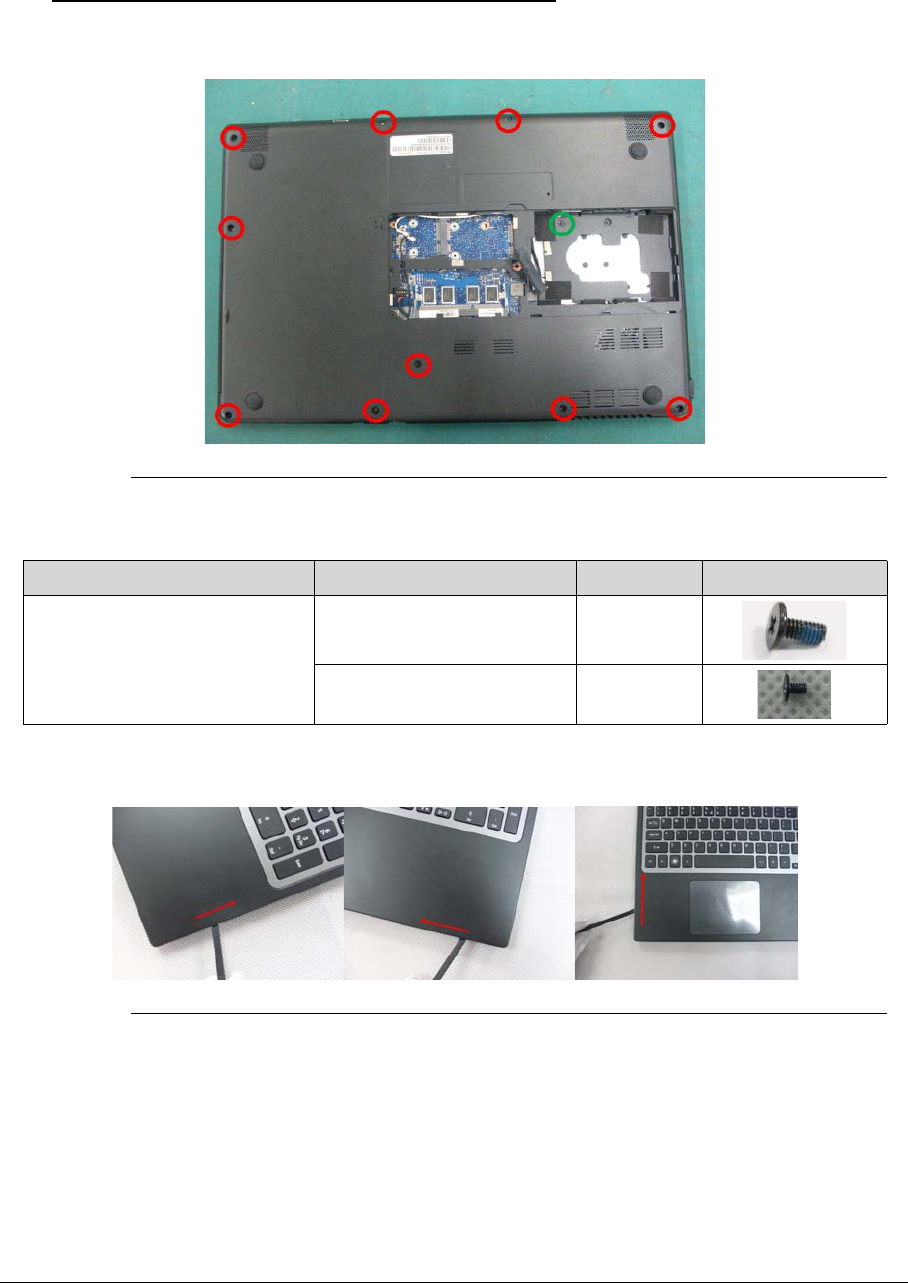
3-20
Removing the Top Case 0
1. Remove the 11 screws in the Bottom case.
Figure 3-21. Screws on Bottom Case
2. Separate the top case from the bottom case.
Figure 3-22. Top Case
Table 3-8. Screws
Step Screw Quantity Screw Type
Bottom Case Disassembly M2*6 (red callout) 10
M2*3 Ni (green callout) 1
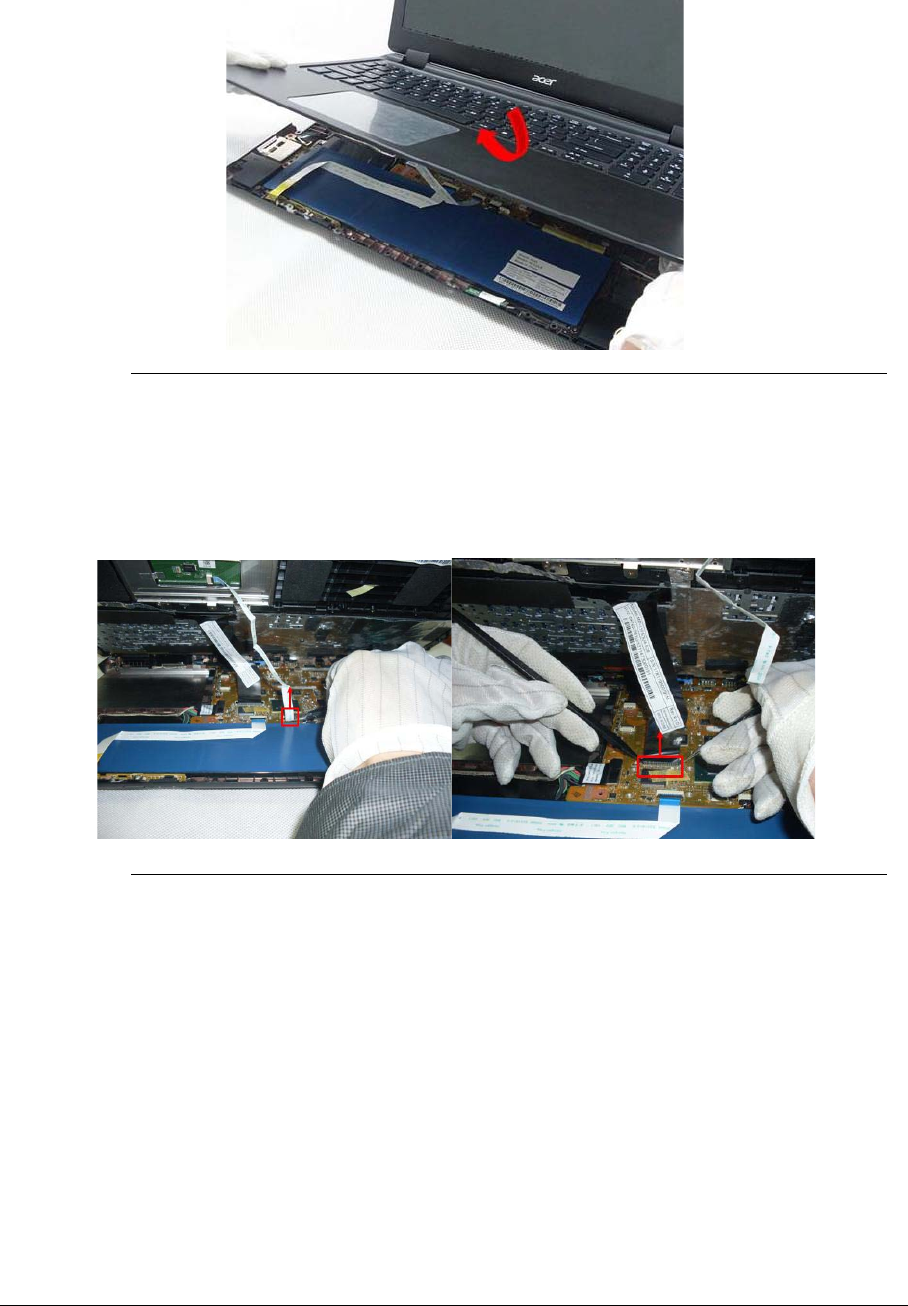
3-21
3. Turn the top case over. Lift up the top case, starting from the top edge.
Figure 3-23. Top Case
4. Disconnect the cable from the top case to Mainboard (FFC).
a. Unlock the FFC
b. Disconnect the cable.
Figure 3-24. Touchpad FFC & Keyboard FFC
a
b
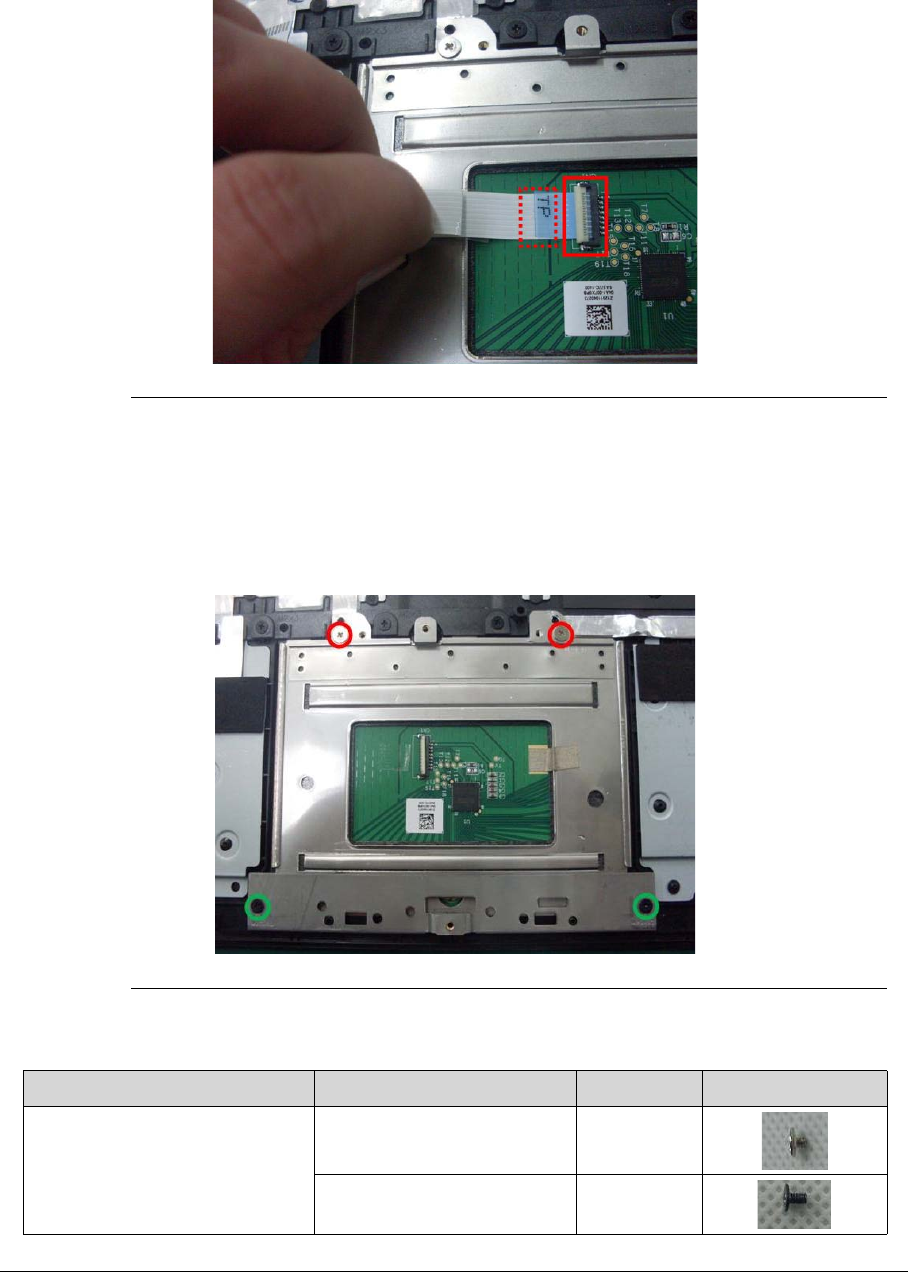
3-22
5. Disconnect the FFC cable from touch pad.
Figure 3-25. Touchpad module
IMPORTANT:
+
Take care of the dotted line box to tear down the touch pad cable from the
Touch pad.
6. Romve 4 screws from touch pad.
Figure 3-26. Touchpad module
Table 3-9. Screws
Step Screw Quantity Screw Type
Touchpad Disassembly M2*2 Ni(red callout) 2
M2*3 Ni (green callout) 2
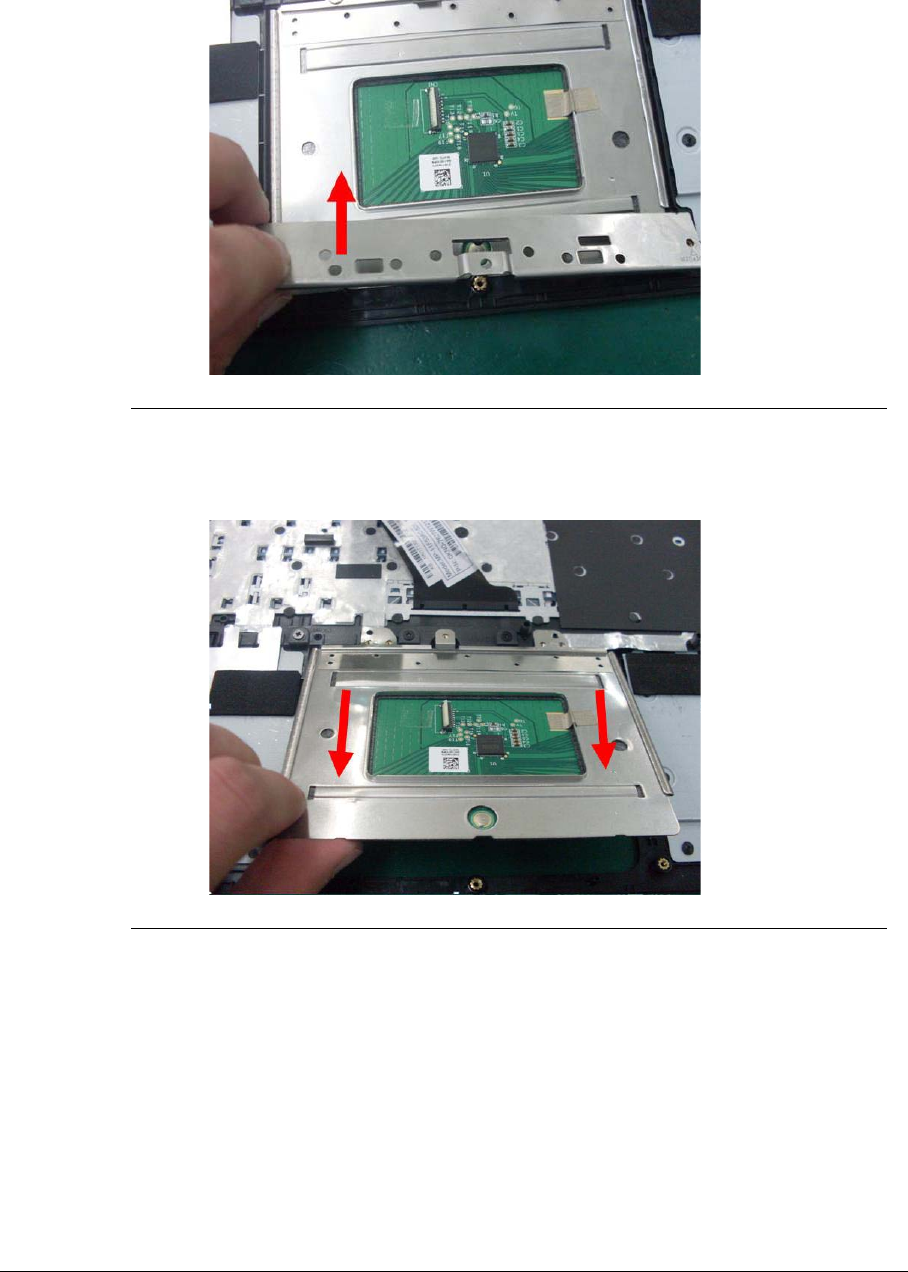
3-23
7. Lift the clickpad bracket and remove.
Figure 3-27. Touchpad module
8. Remove the touch pad.
Figure 3-28. Touchpad module
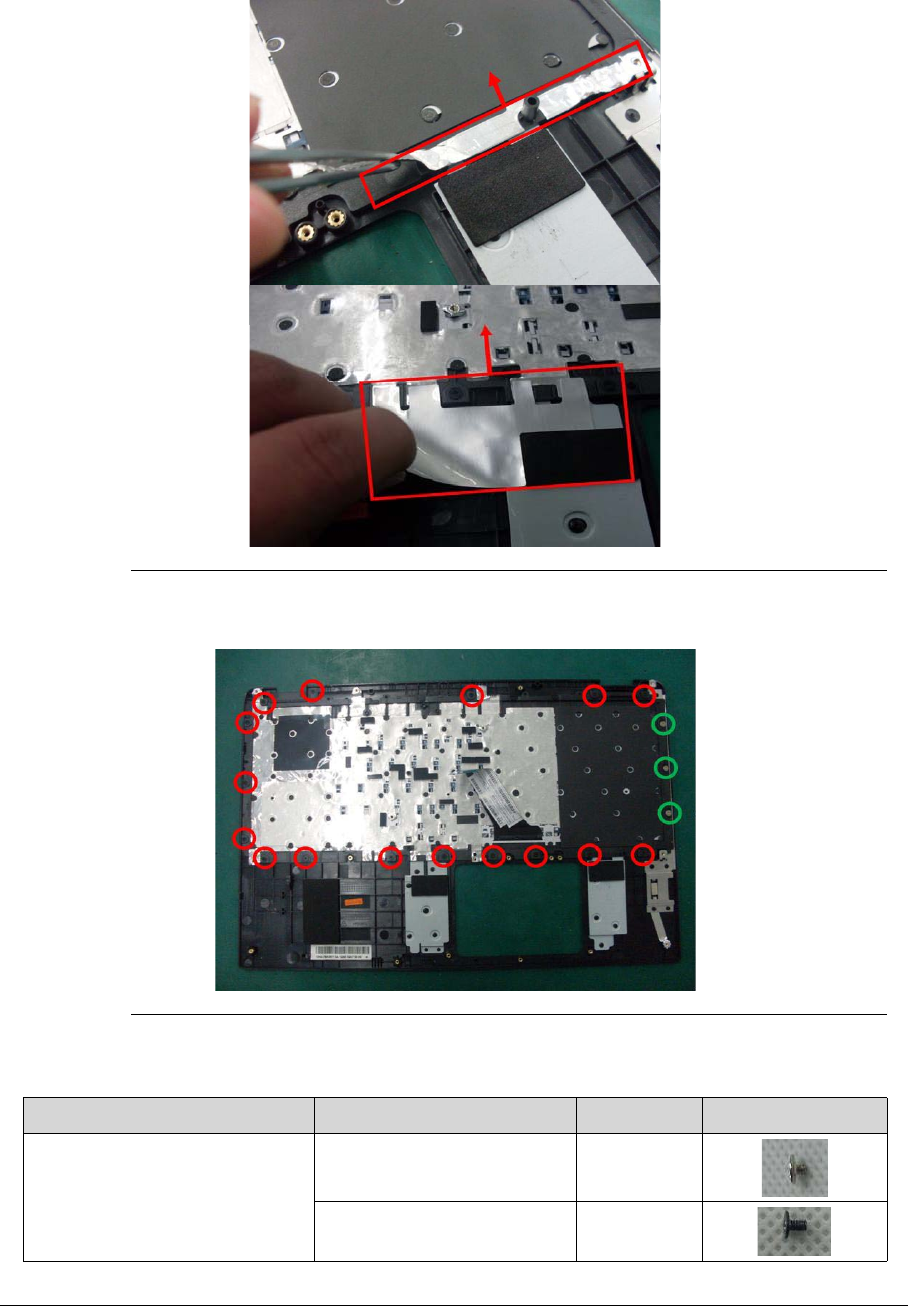
3-24
9. Remove the AL foil on the keyboard.
Figure 3-29. Keyboard module
10. Remove the 19 screws from the keyboard.
Figure 3-30. Keyboard module
Table 3-10. Screws
Step Screw Quantity Screw Type
Keyboard Disassembly M2*2 Ni(green callout) 3
M2*3 Ni (red callout) 16
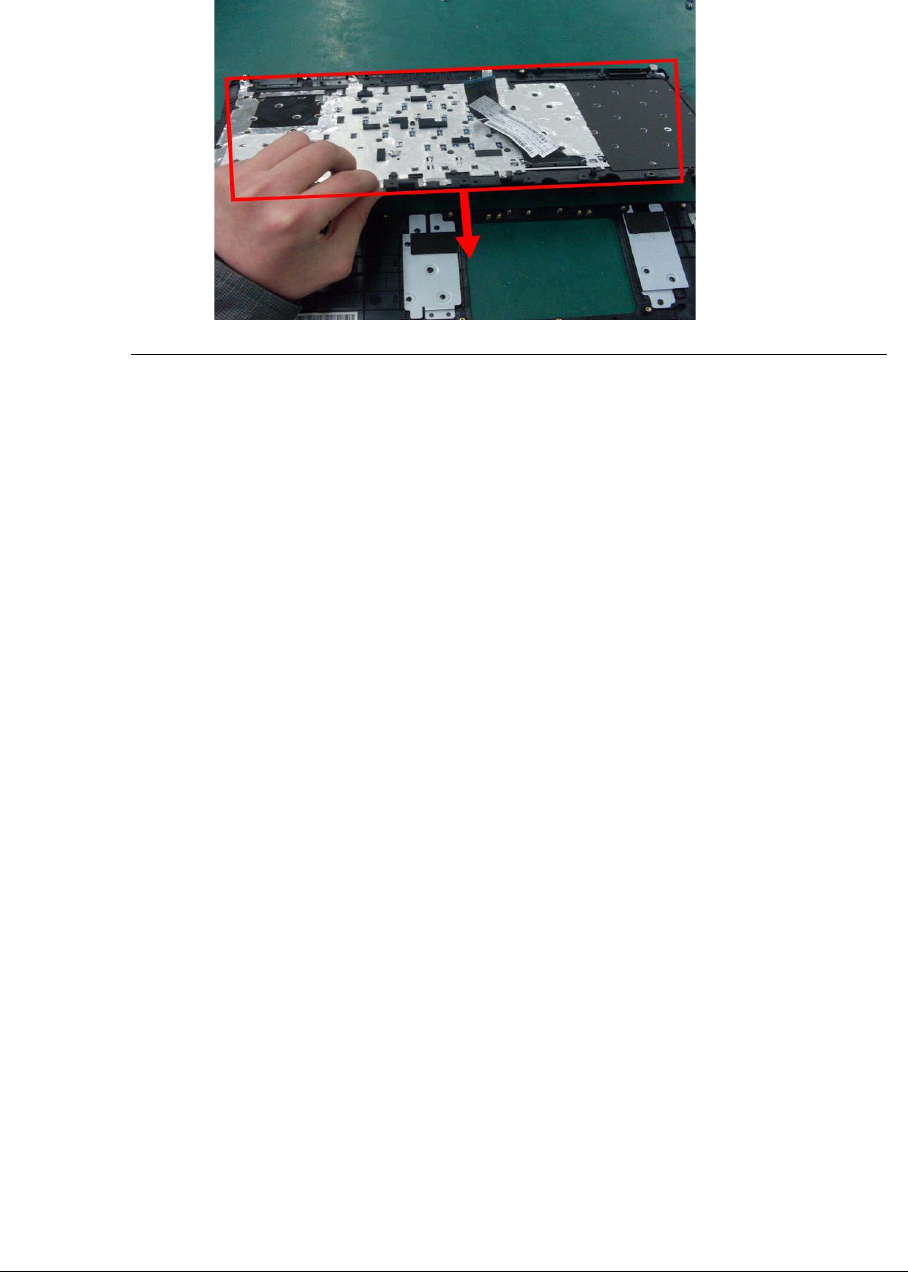
3-25
11. Remove the keyboard from the top case.
Figure 3-31. Keyboard module
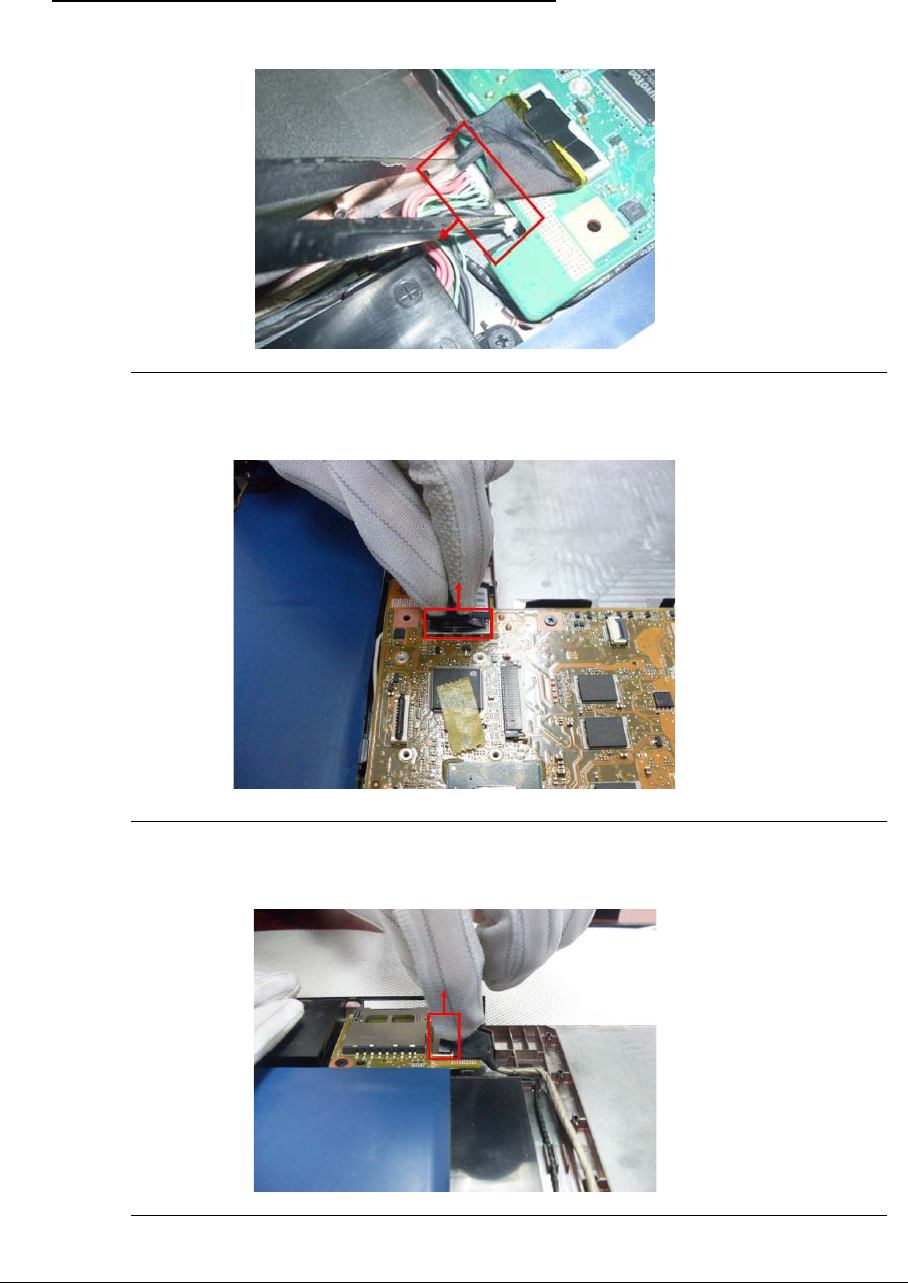
3-26
Removing battery 0
1. Disconnect the battery cable from Mainboard.
Figure 3-32. Battery cable
2. Lift the card reader cable from Mainboard,remove the SATA cable.
Figure 3-33. Card reader SATA cable
3. Lift the card reader cable from card reader and then remove.
Figure 3-34. Card reader SATA cable
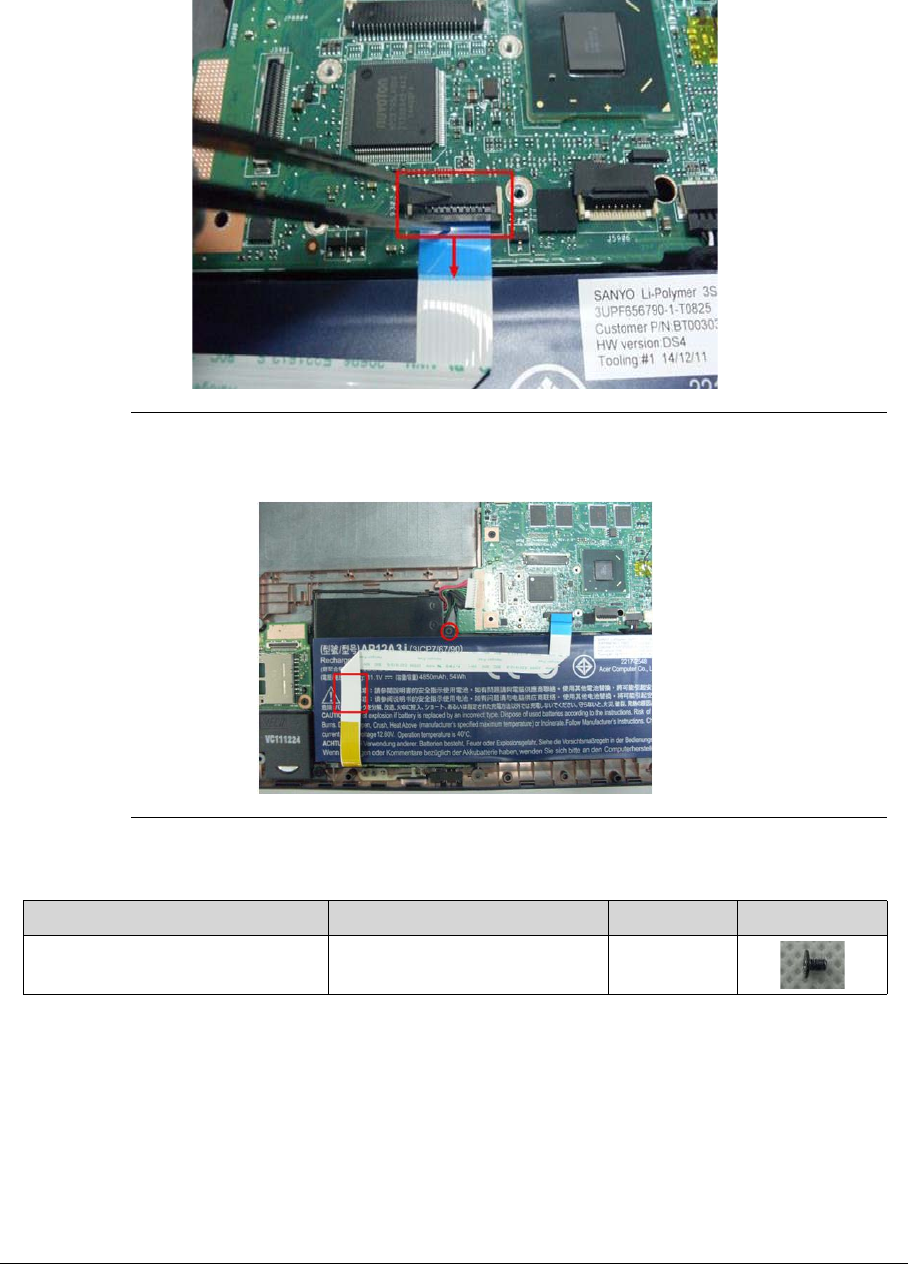
3-27
4. Release the locking latch for the power switch cable.
5. Remove the FFC cable.
Figure 3-35. Power switch Cable
6. Remove the screw from the battery and lift the power switch cable up from the battery.
Figure 3-36. Battery module
7. Lift the battery and remove it.
Table 3-11. Screws
Step Screw Quantity Screw Type
Battery module Disassembly M2*3Ni 1
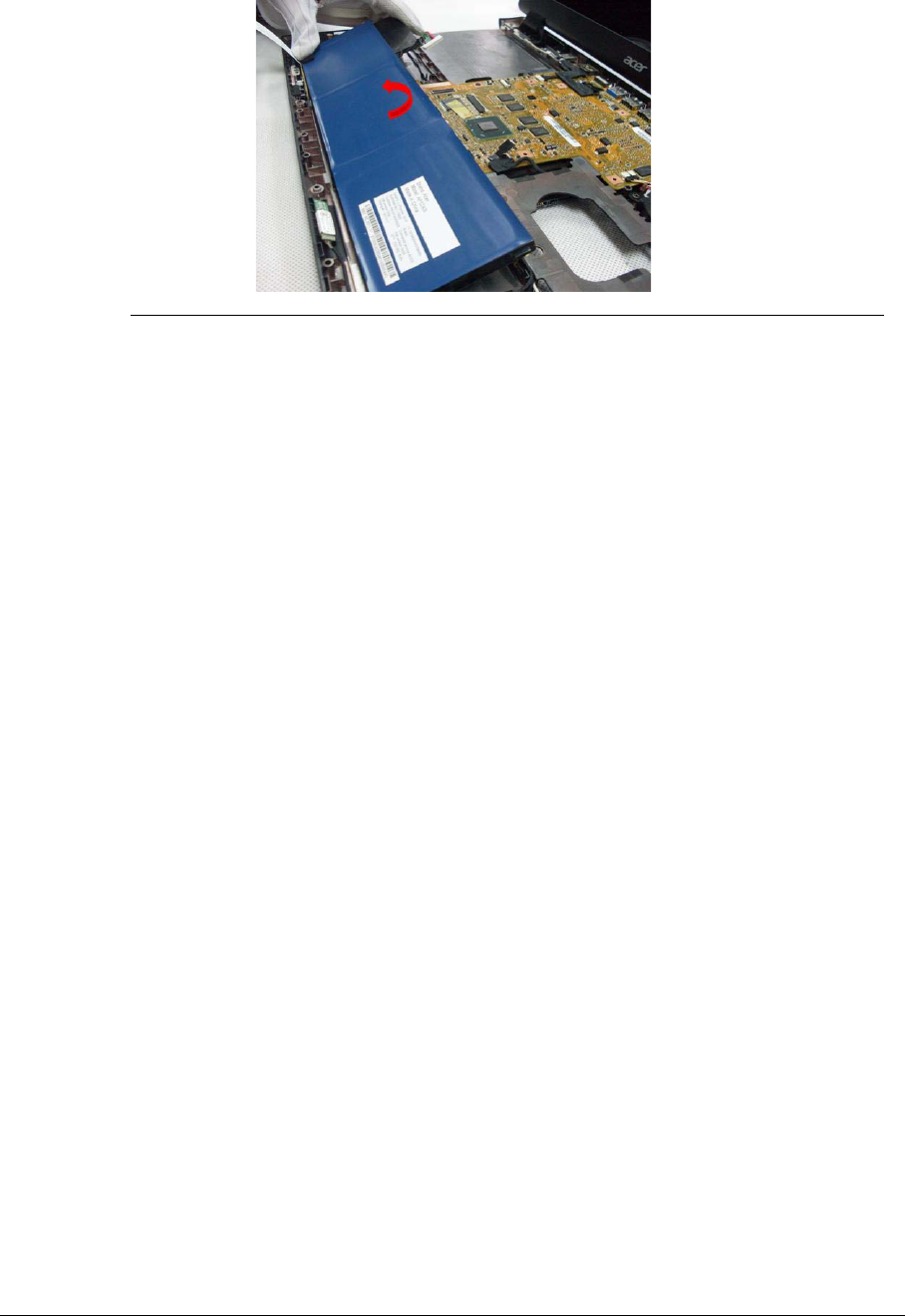
3-28
Figure 3-37. Battery module
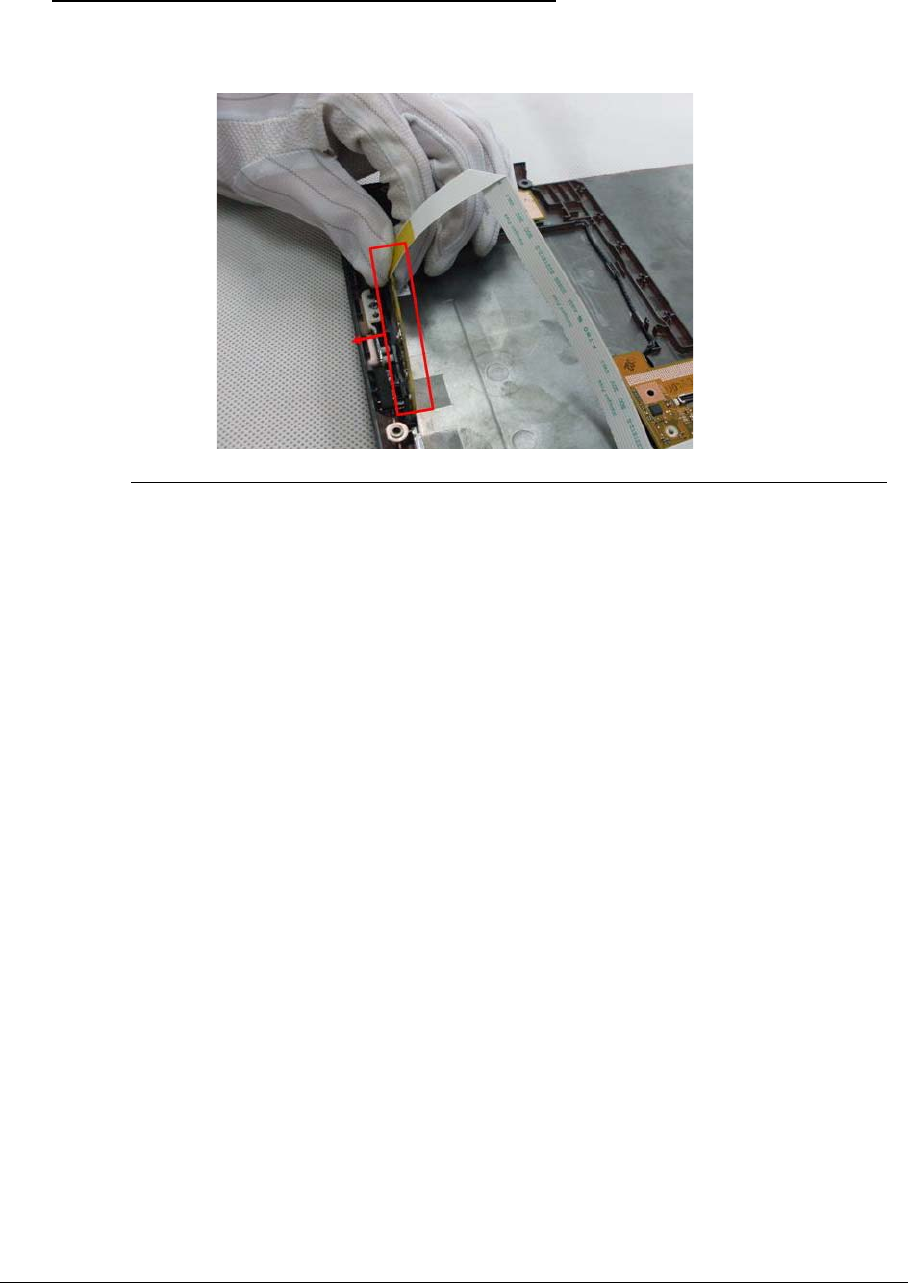
3-29
Removing the Power switch board 0
1. Use a flat plastic tool to unlock the corner of the power switch board.
Figure 3-38. Power Switch Board
IMPORTANT:
+
Take care not to damage the FFC and power switch board during removal.
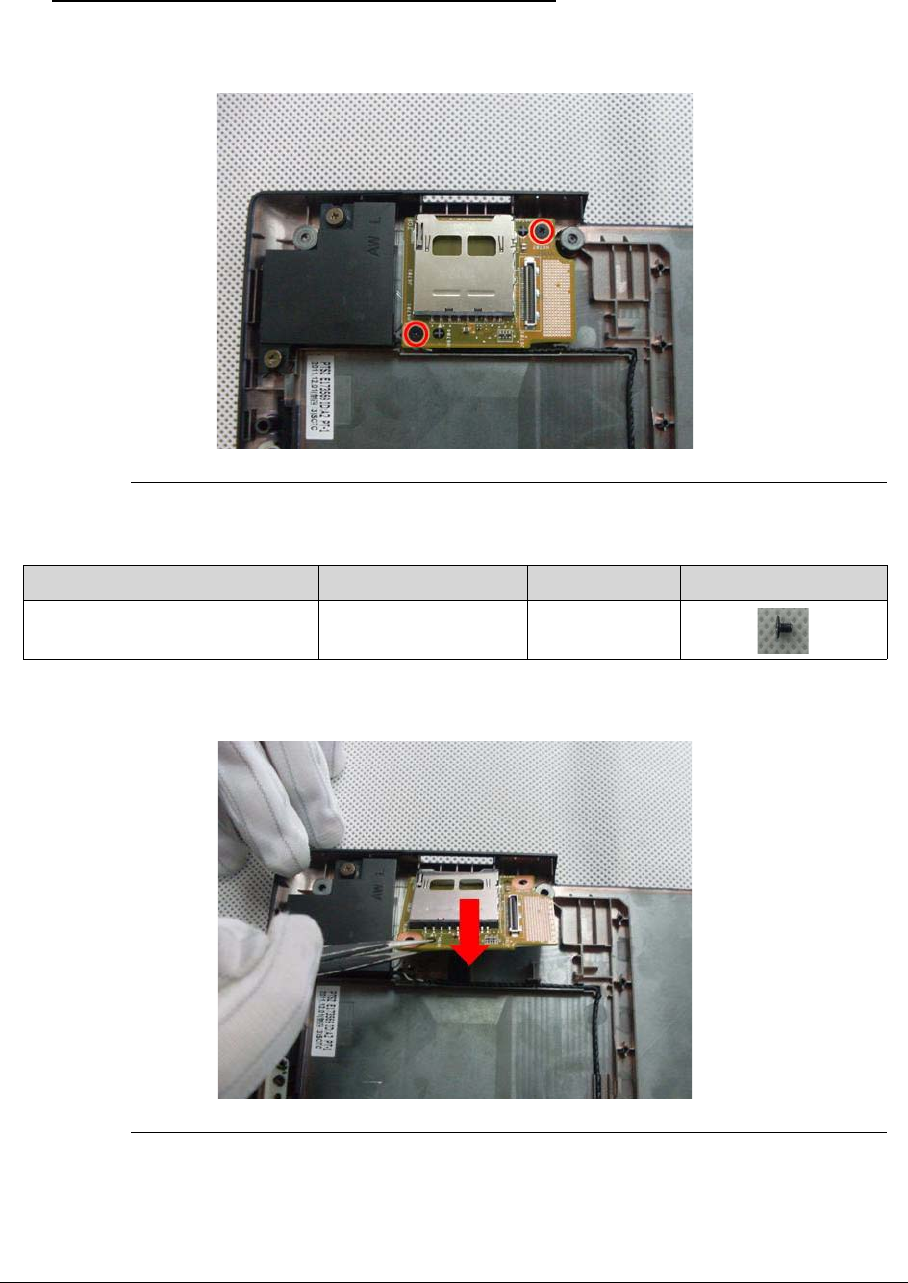
3-30
Remove the card reader 0
1. Remove the two screws from the card reader.
Figure 3-39. Card reader
2. Lift the card reader then remove.
Figure 3-40. Card reader
Table 3-12. Screws
Step Screw Quantity Screw Type
Carder reader Disassembly M2*3 2
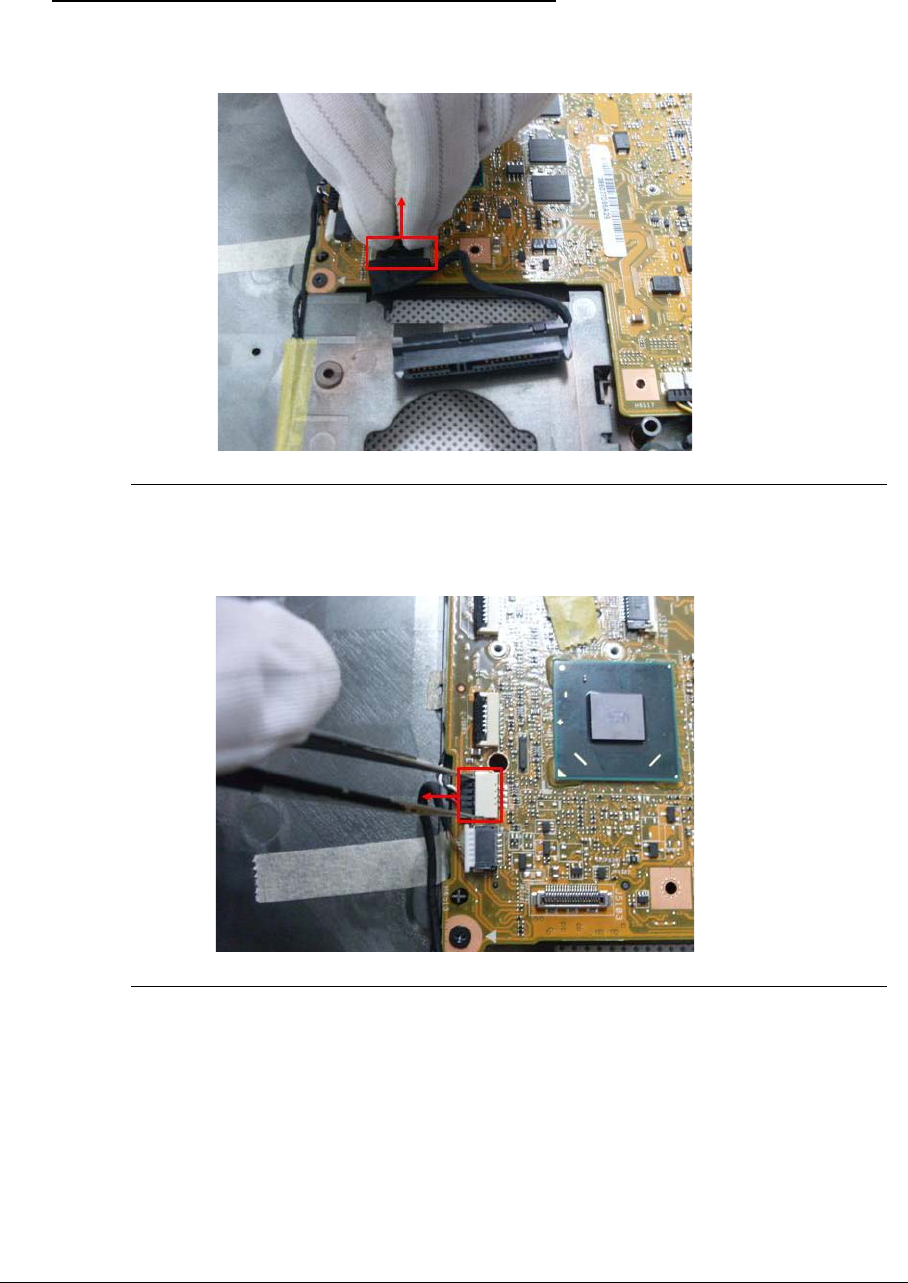
3-31
Remove the cables from the Mainboard 0
1. Remove the HDD SATA cable from the Mainboard.
Figure 3-41. HDD SATA cable
2. Disconnect the speaker cable from the Mainboard.
Figure 3-42. Speaker cable
3. Disconnect the bluetooth cable from Mainboard.
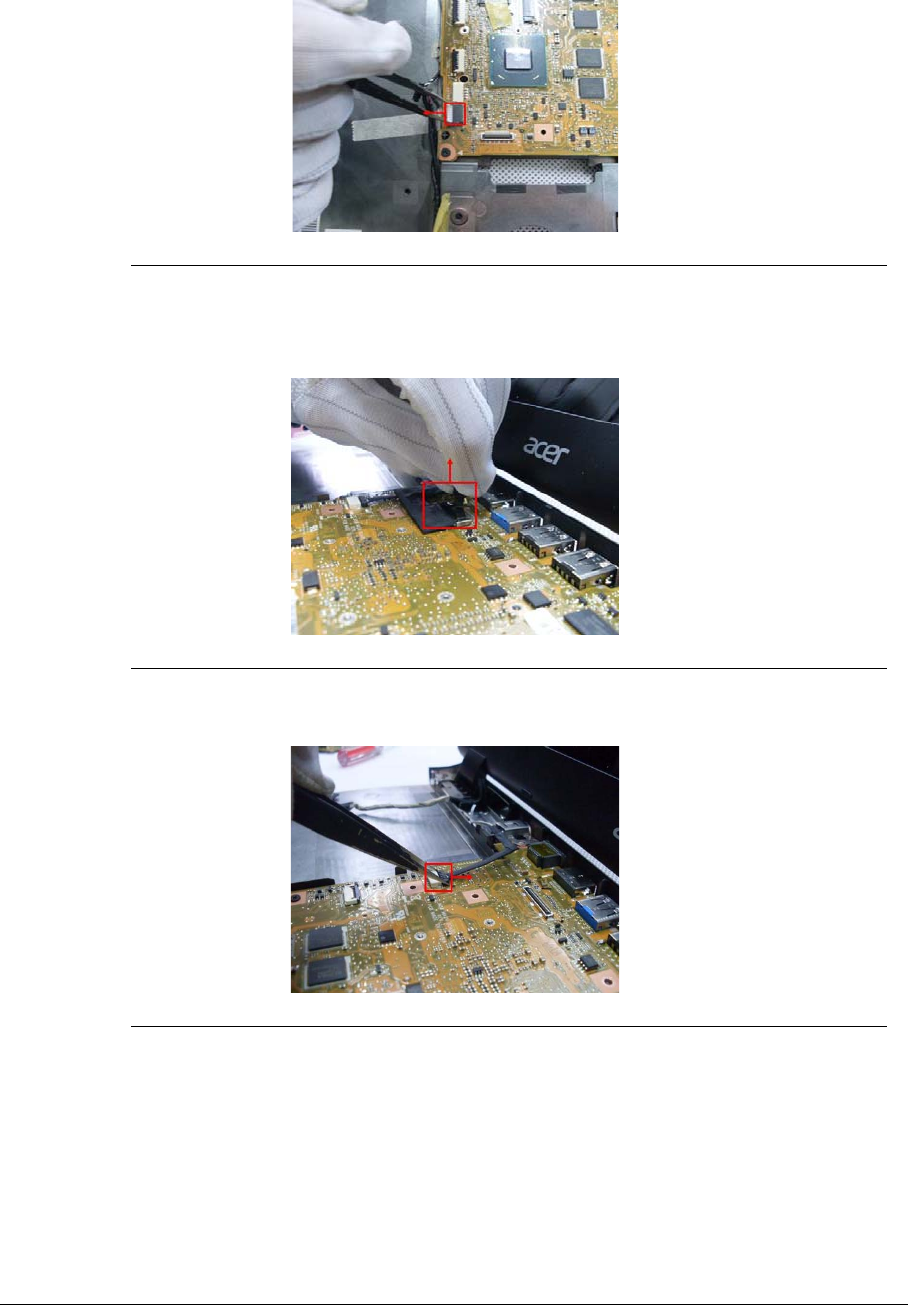
3-32
Figure 3-43. Bluetooth cable
4. Disconnect the LVDS cable from the Mainboard.
Figure 3-44. LVDS Cable
Figure 3-45. LVDS Cable
IMPORTANT:
+
Take care not to damage the cable during removal.
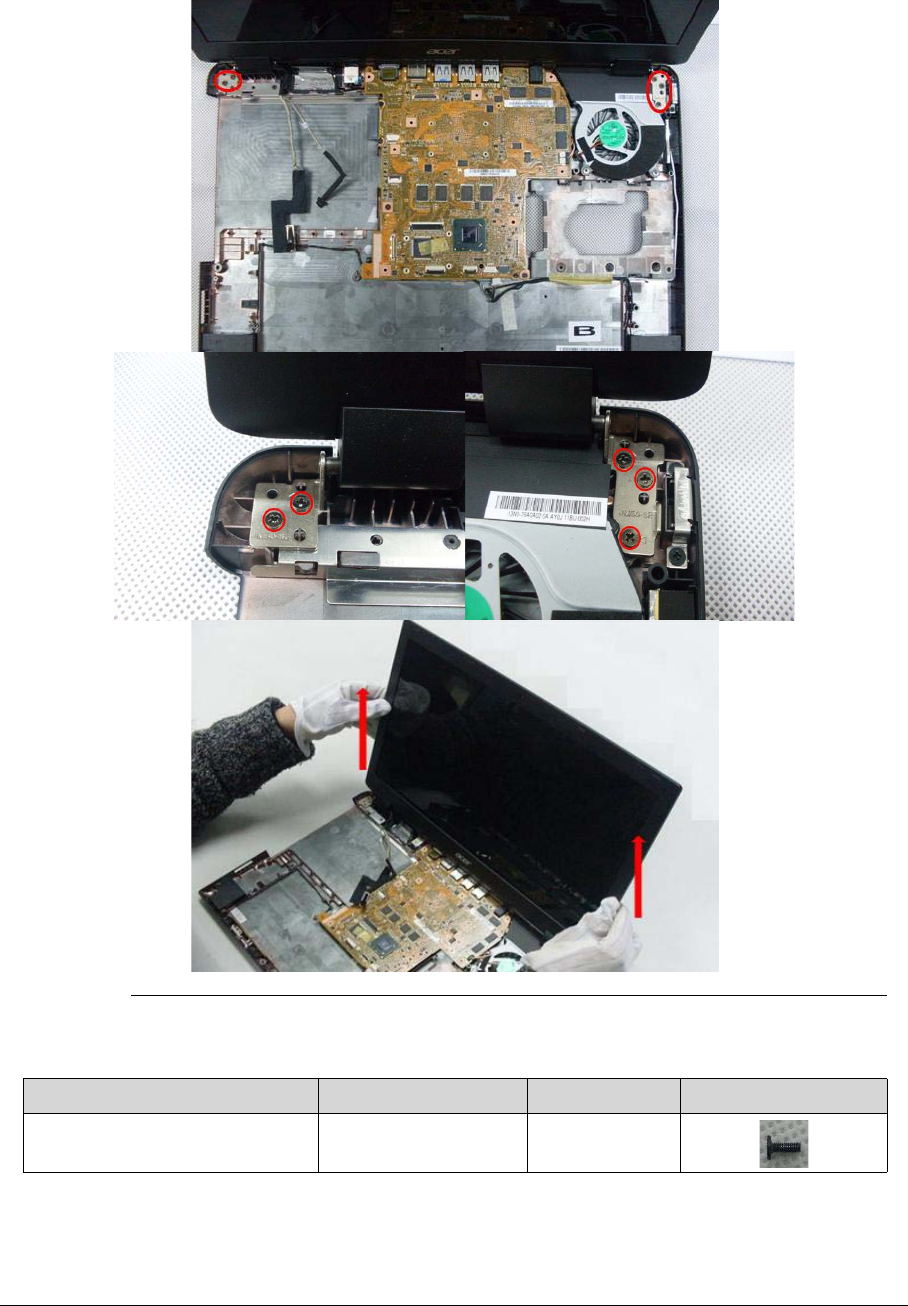
3-33
5. Remove the LCD module.
Figure 3-46. LCD module
Table 3-13. Screws
Step Screw Quantity Screw Type
LCD module Disassembly M2.5*5 5
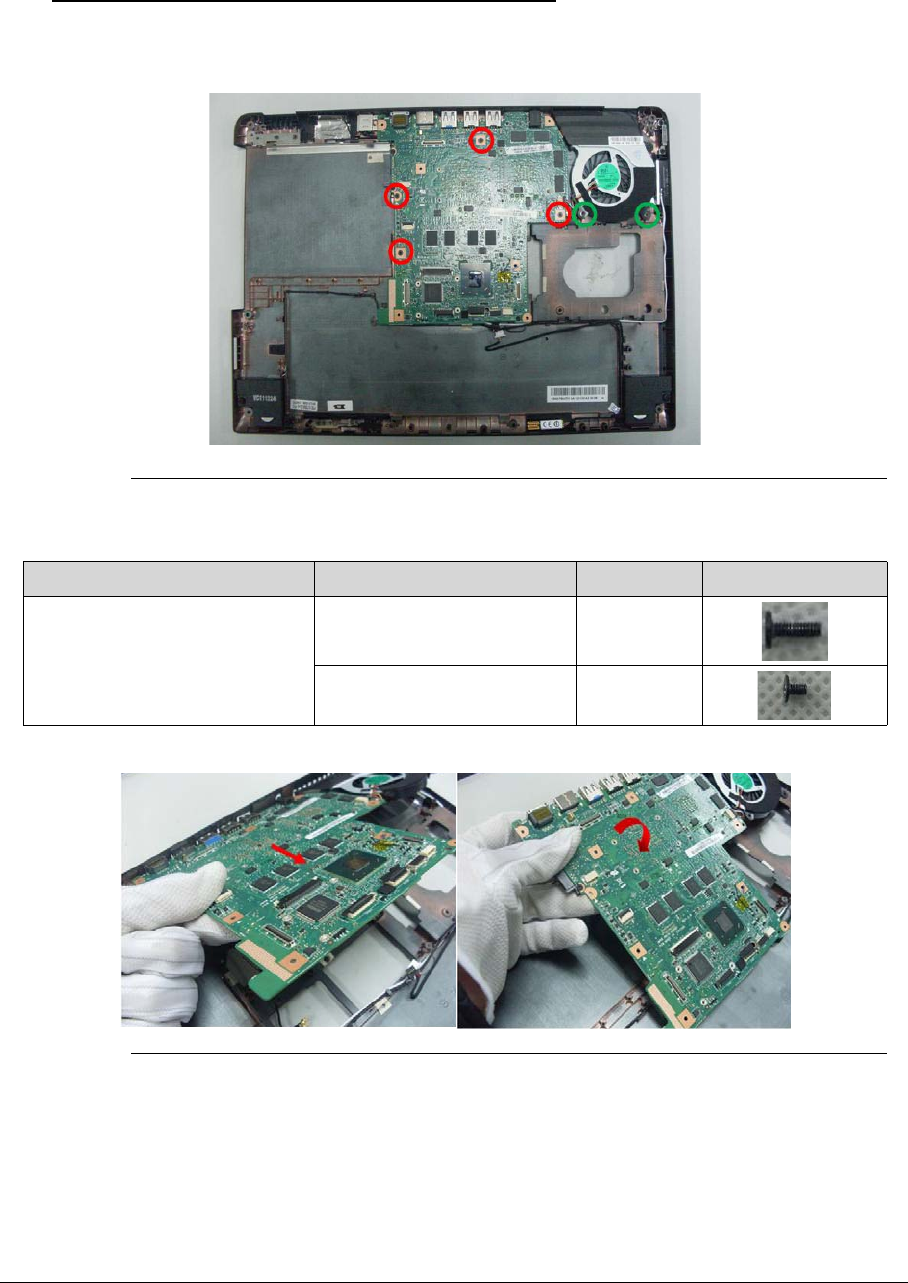
3-34
Removing the Mainboard 0
1. Remove the 7 screws from the Mainboard.
Figure 3-47. Mainboard
2. Lift Mainboard from the bottom case and take it over.
Figure 3-48. Mainboard
3. Disconnect the DC-in cable(lift it up vertically) and then take it away.
Table 3-14. Screws
Step Screw Quantity Screw Type
Mainboard Disassembly M2.5*5 Ni(green callout) 2
M2*3 Ni (red callout) 4
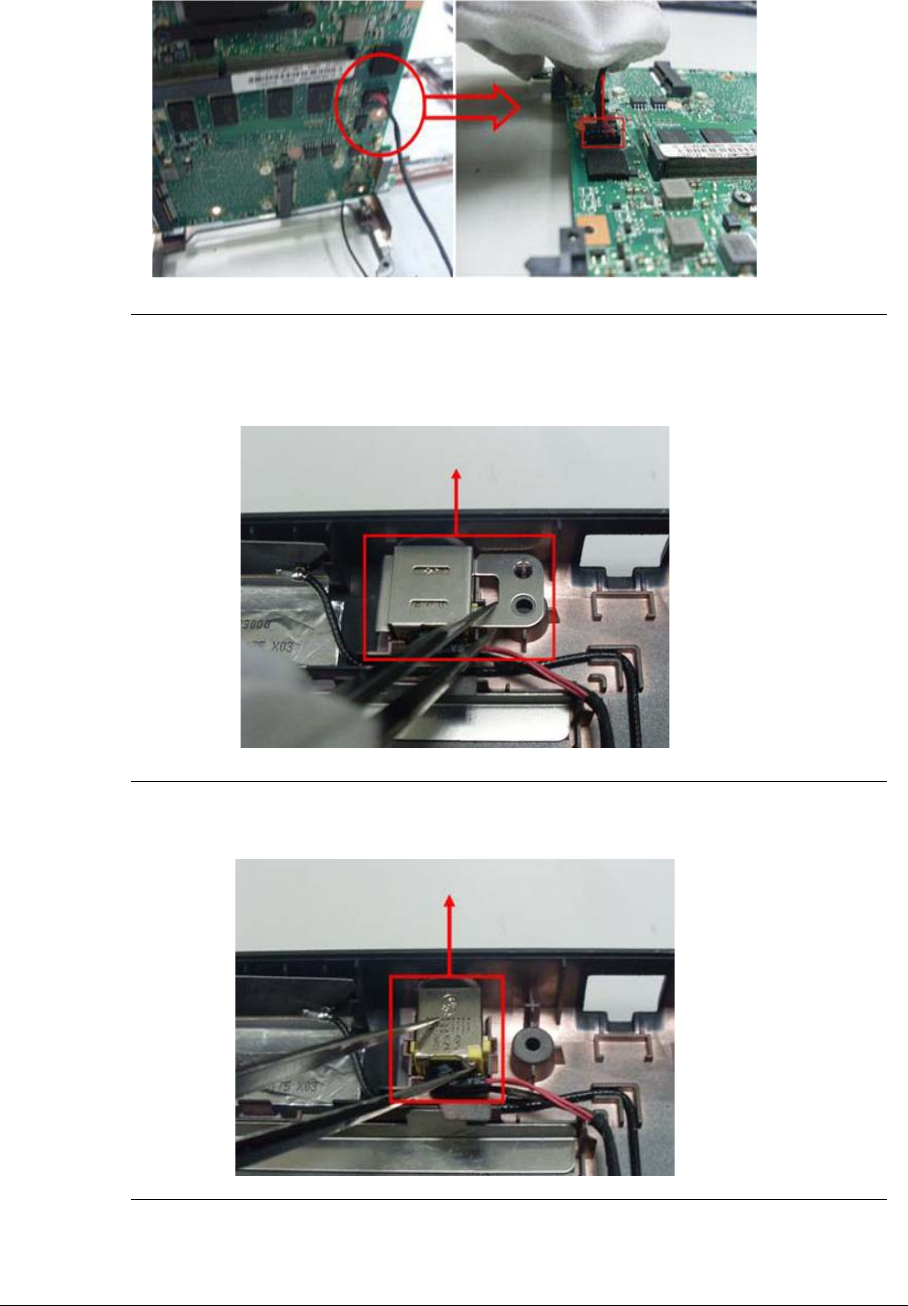
3-35
Figure 3-49. DC-in cable
4. Remove the DC-in bracket and then take it away.
Figure 3-50. DC-in cable
5. Remove the DC-in connector and then take it away.
Figure 3-51. DC-in cable
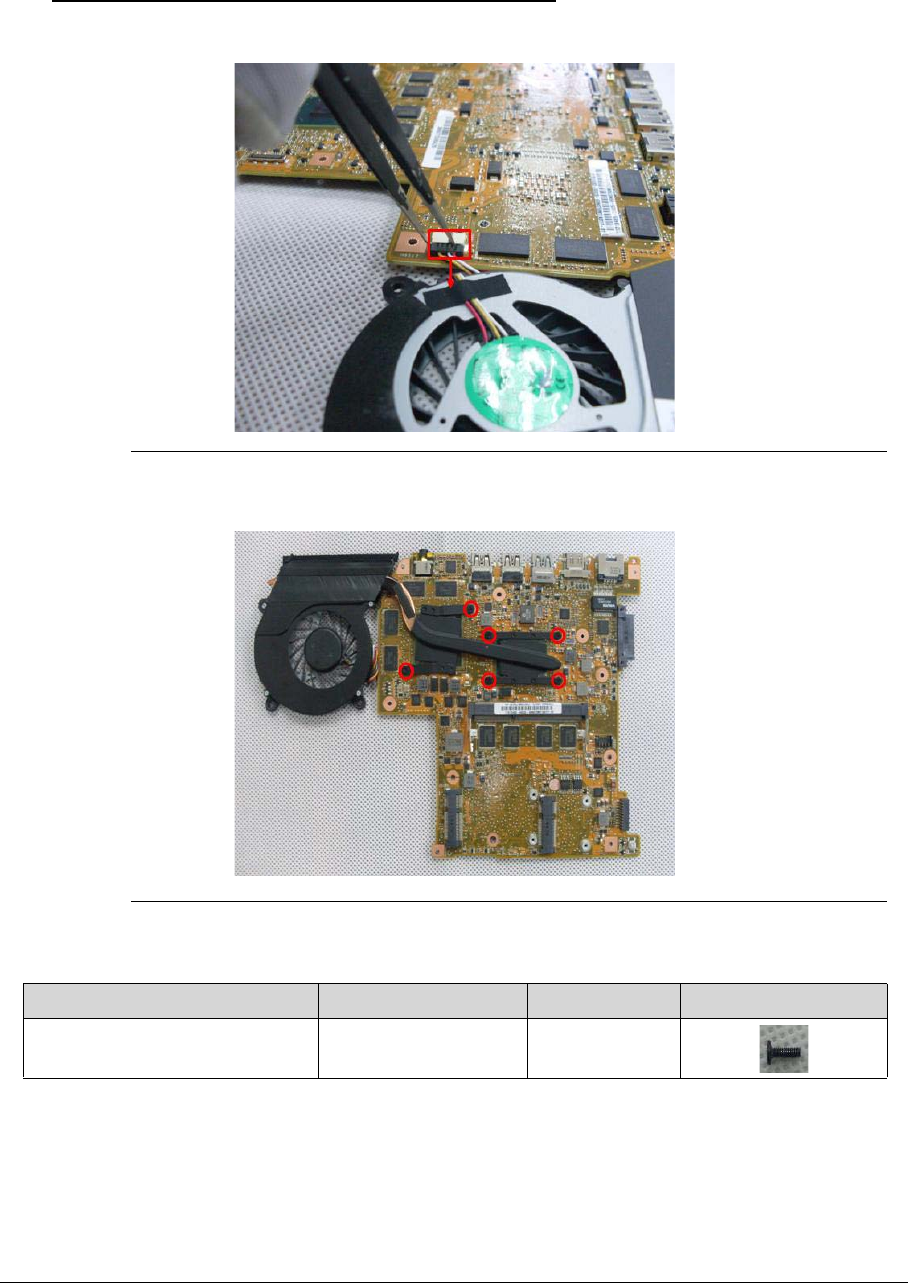
3-36
Removing the Thermal module 0
1. Disconnect the cable of the fan from Mainboard.
Figure 3-52. Thermal module
2. Remove 6 screws from the thermal module.
Figure 3-53. Thermal module
Table 3-15. Screws
Step Screw Quantity Screw Type
Thermal module Disassembly M2*3 6
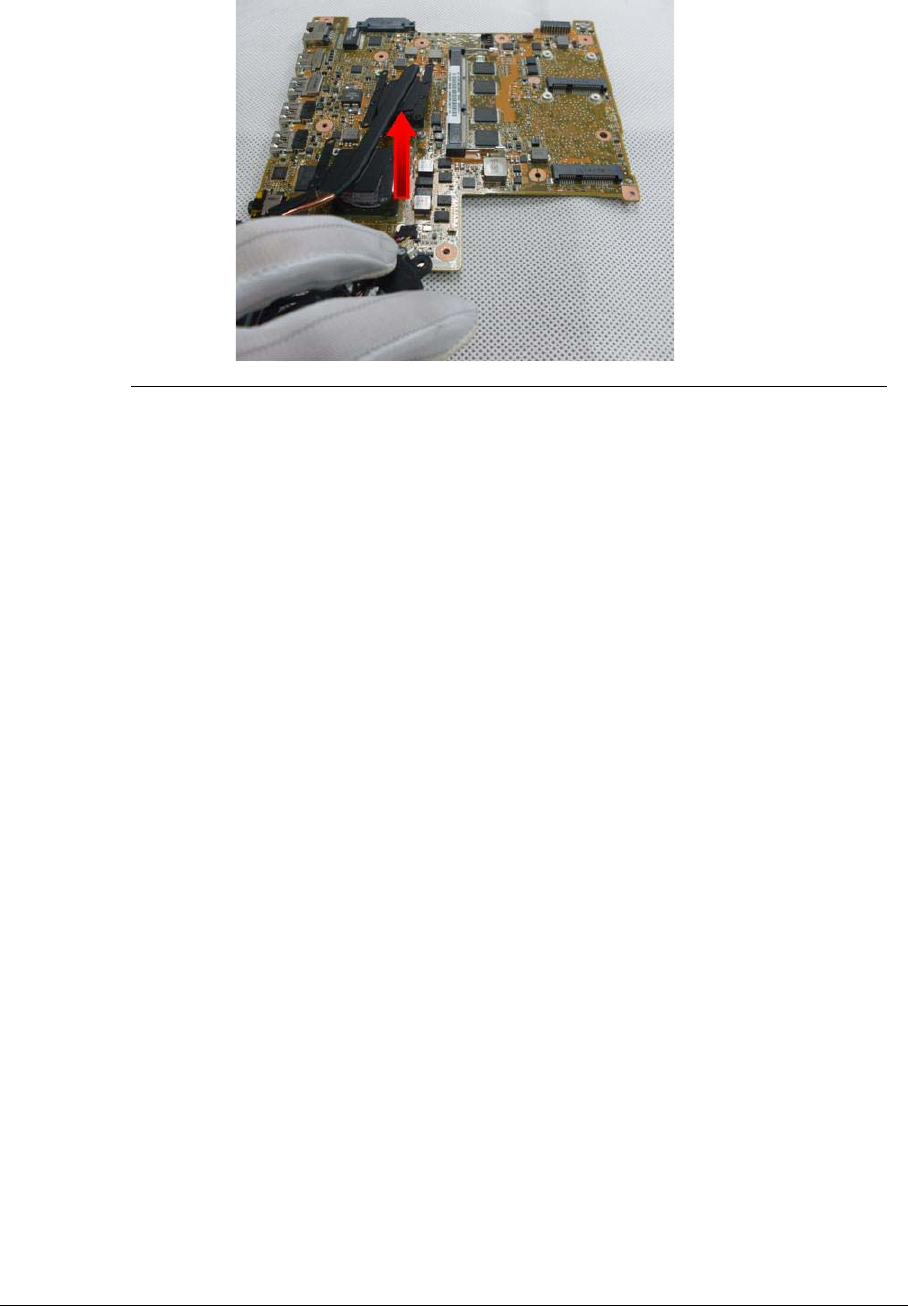
3-37
3. Lift the thermal module and take it away.
Figure 3-54. Thermal Module
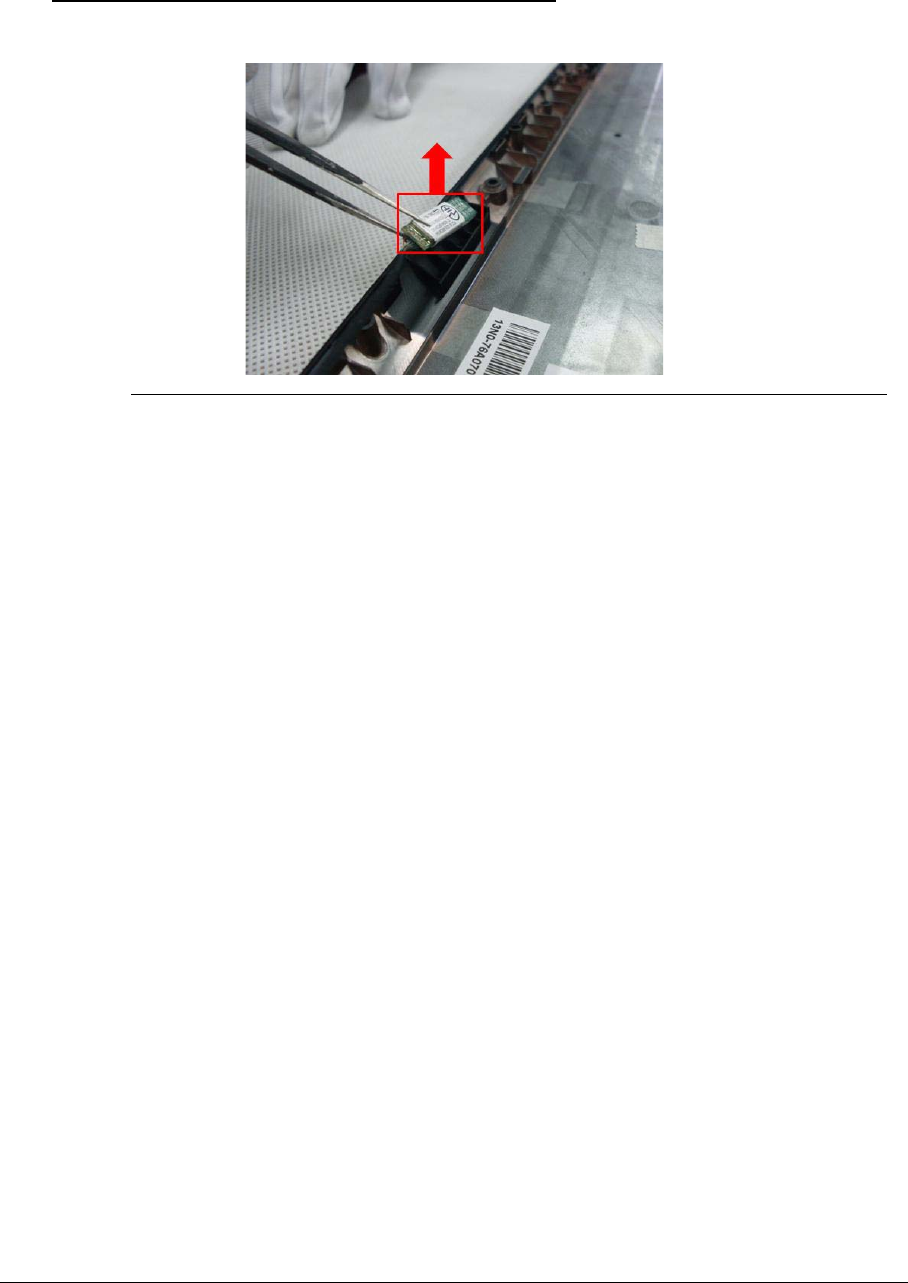
3-38
Removing the Bluetooth Board 0
1. Lift the bluetooth and move it away.
Figure 3-55. Bluetooth Board
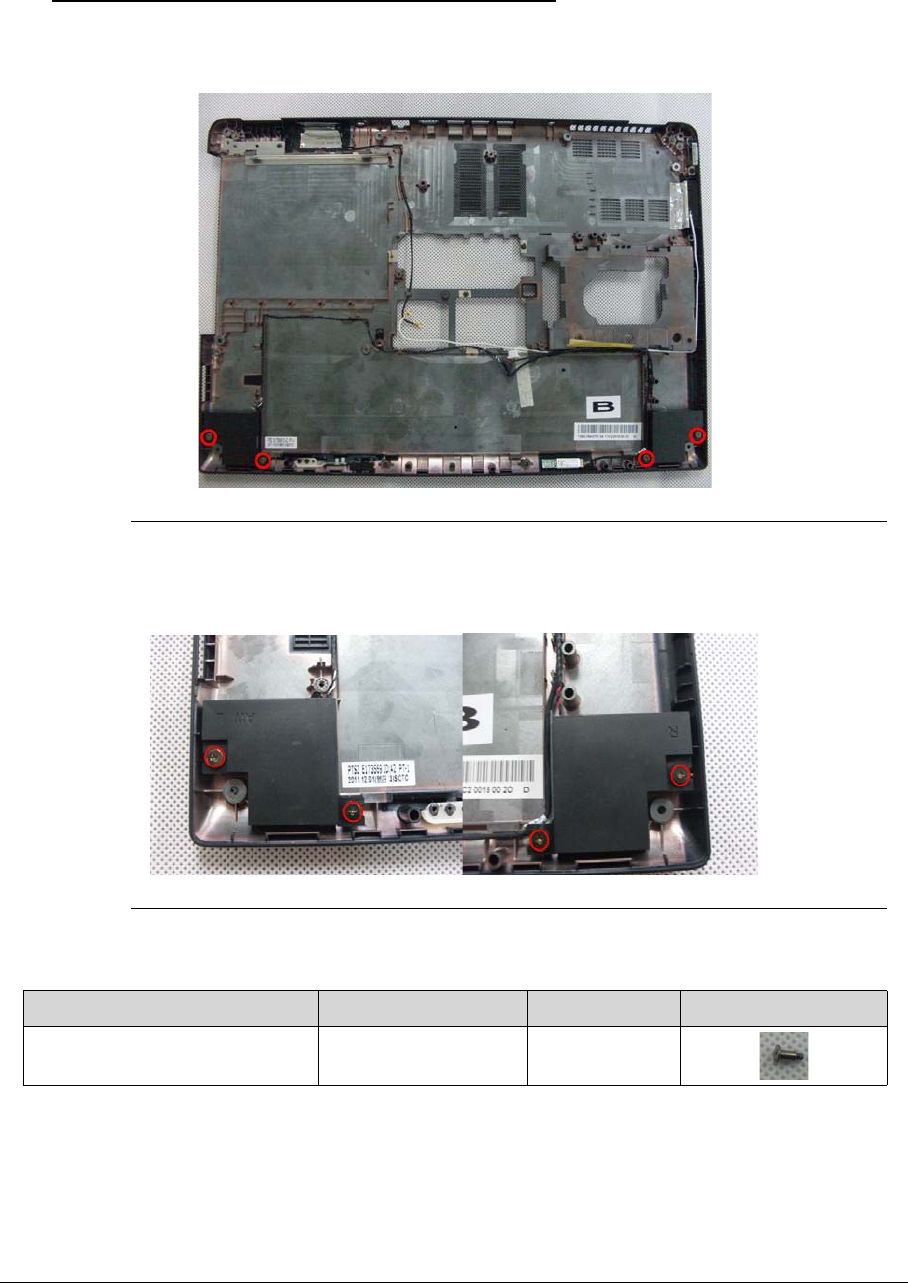
3-39
Removing the Speakers 0
1. Remove the speaker.
Figure 3-56. Speakers
2. Remove the 2 screws from the speakers.
Figure 3-57. Speakers
Table 3-16. Screws
Step Screw Quantity Screw Type
Speakers Disassembly M2*2L+4.2MM Ni 4
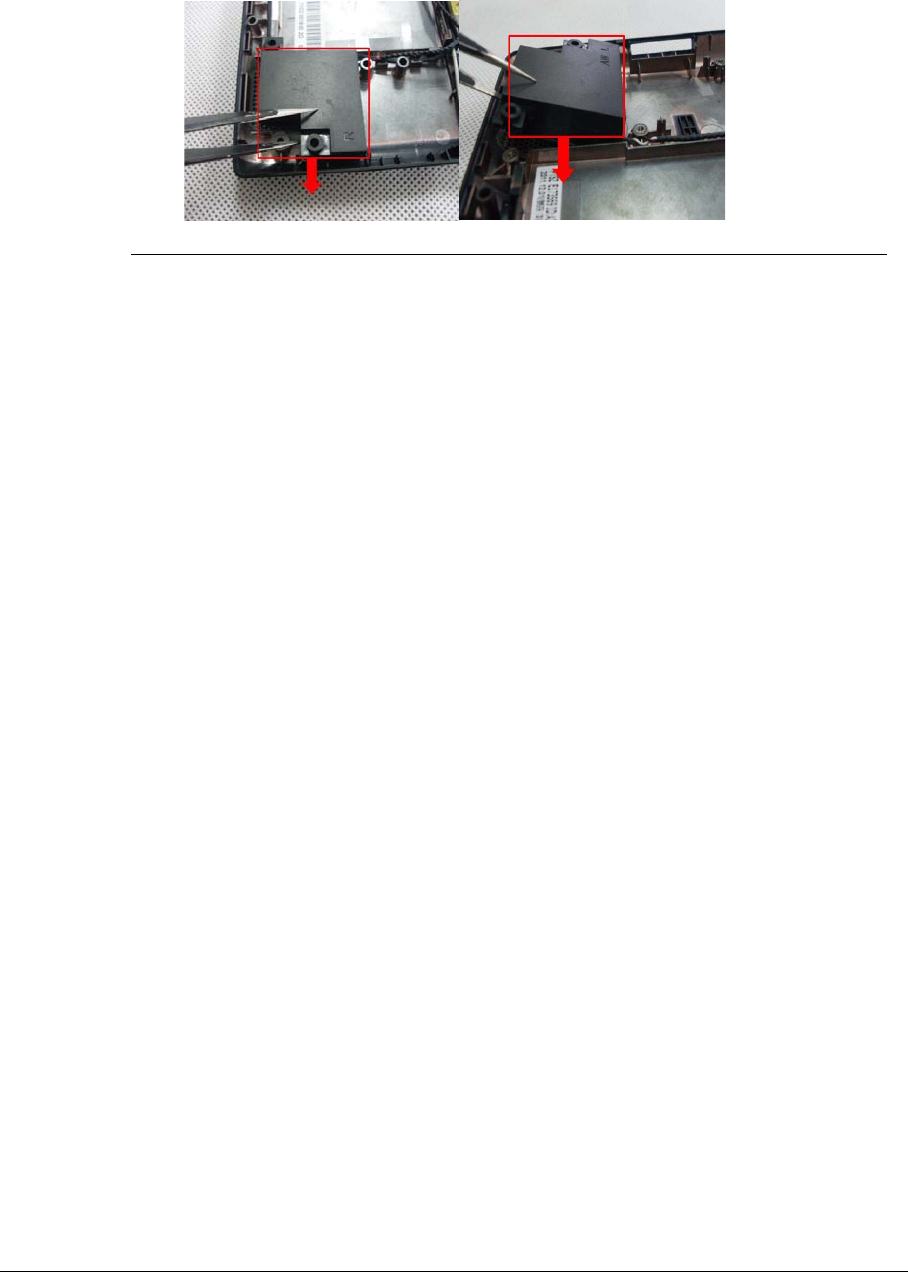
3-40
3. Remove the speakers and cable.
Figure 3-58. Speakers
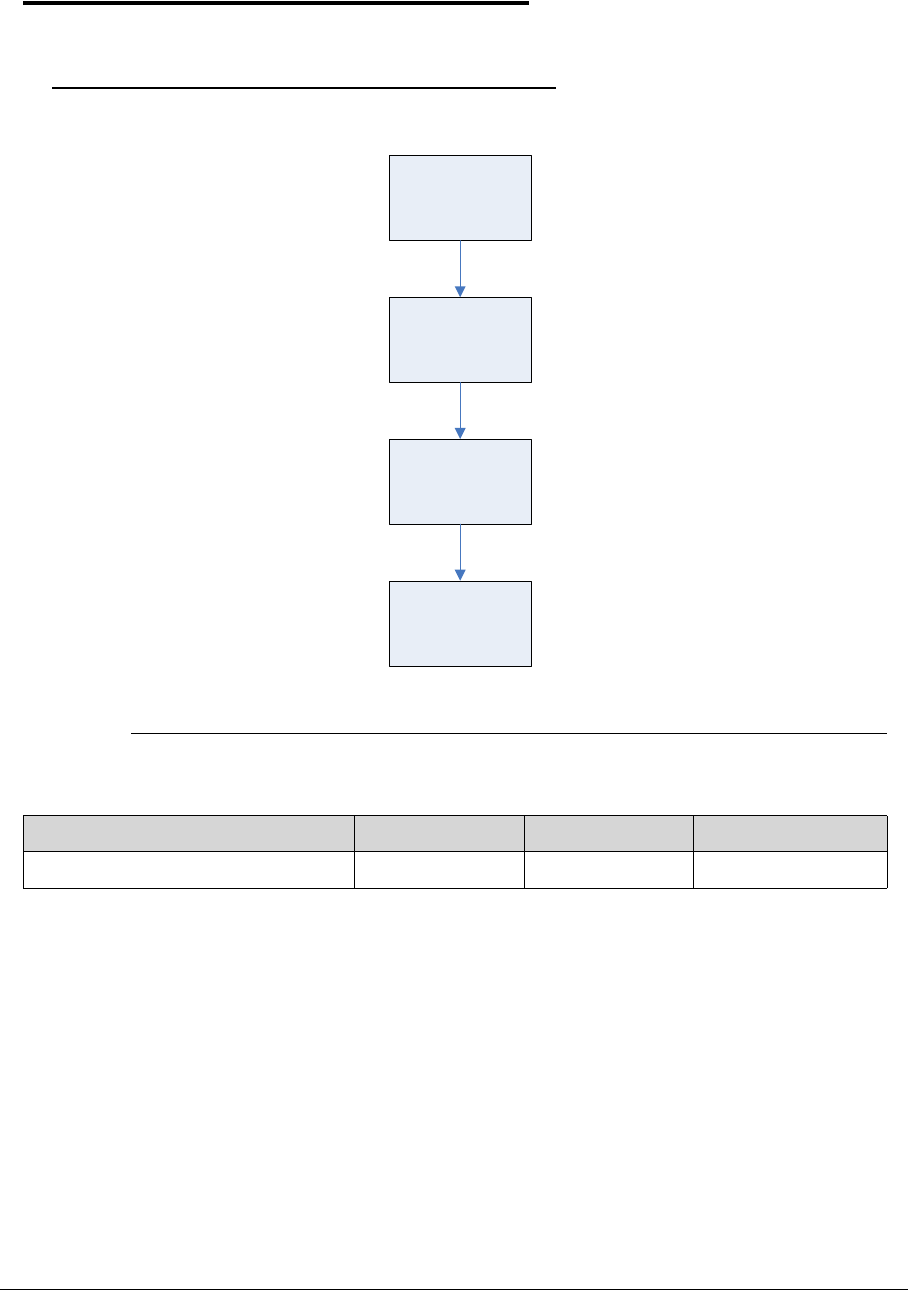
3-41
LCD Module Disassembly Process 0
LCD Module Disassembly Flowchart 0
Figure 3-59. LCD Module Disassembly Flowchart
Table 3-17. Screws
Step Screw Quantity Part No.
LCD Glass Panel Disassembly M2*2.5 4 86.W750U.003
LCD Module
LCD Bezel
LCD Panel
Camera Module
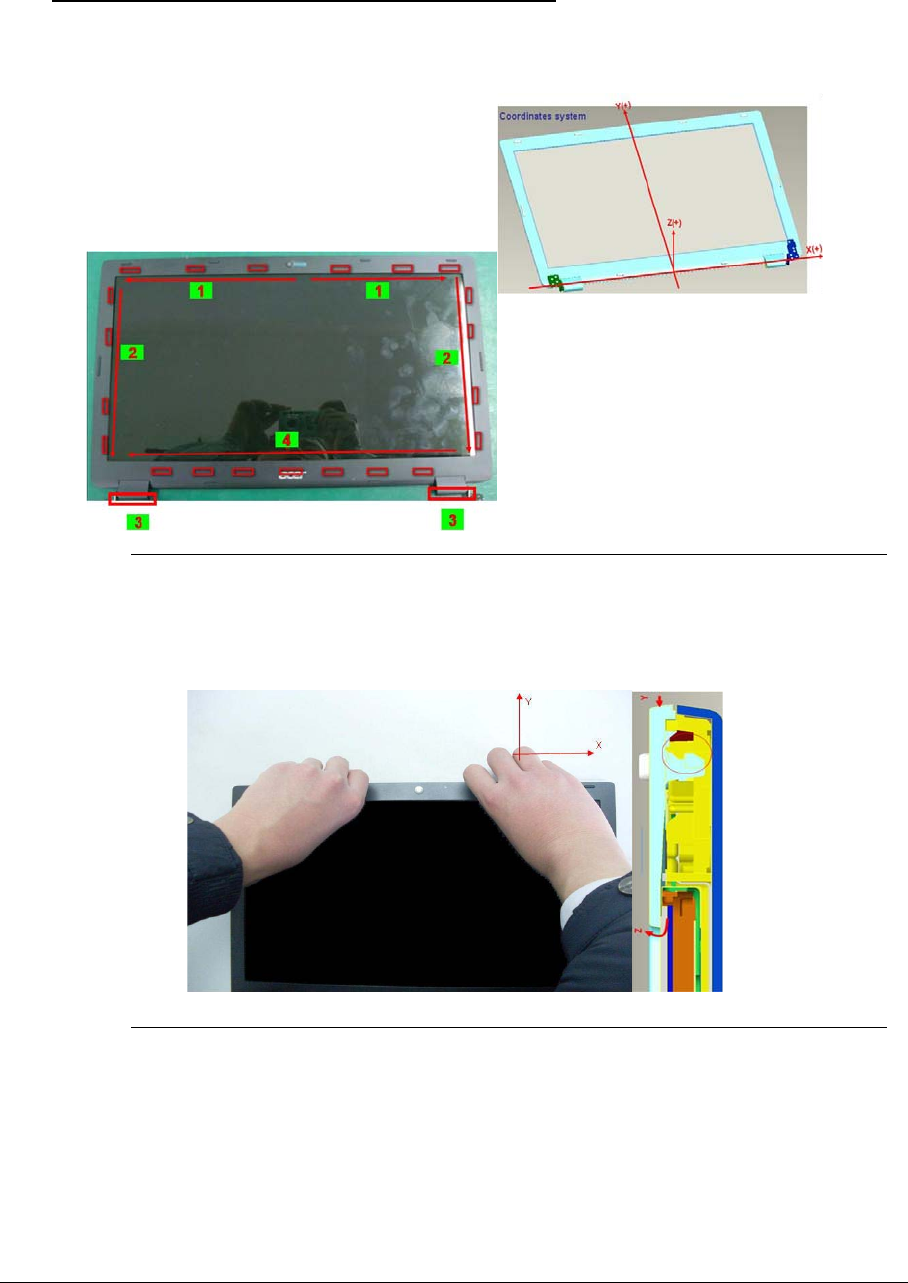
3-42
Removing the LCD Bezel 0
1. Disassembly sequence of LCD moudle, and then take off LCD bezel.
Figure 3-60. LCD Bezel
2. Hold the edge firmly. Apply force with thumb in +Z direction, and with the other 4 fingers in
–Y direction.
Figure 3-61. LCD Bezel
3. Hold firmly the right edge of LCD module. Apply force with thumb in +Z direction, and with
the other 4 fingers in –X direction.
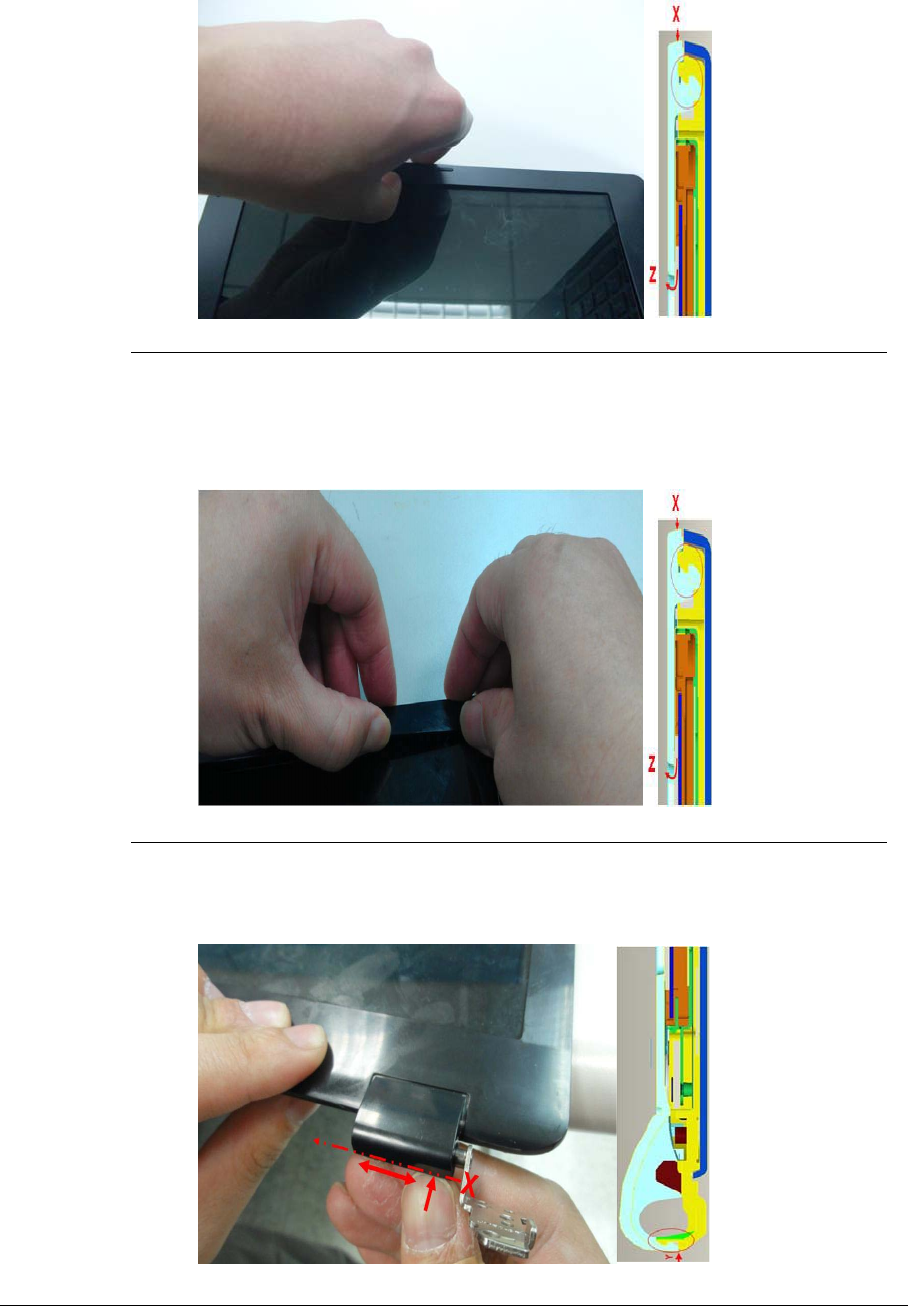
3-43
Figure 3-62. LCD Bezel
4. Hold firmly the left edge of LCD module. Apply force with thumb in +Z direction, and with
the other 4 fingers in +X direction.
Figure 3-63. LCD Bezel
5. Put the edge of thumb nail into the gap of both hinge cap plastic parts, and move the
thumb nail back and forth in the direction shown below to disengage the latch.
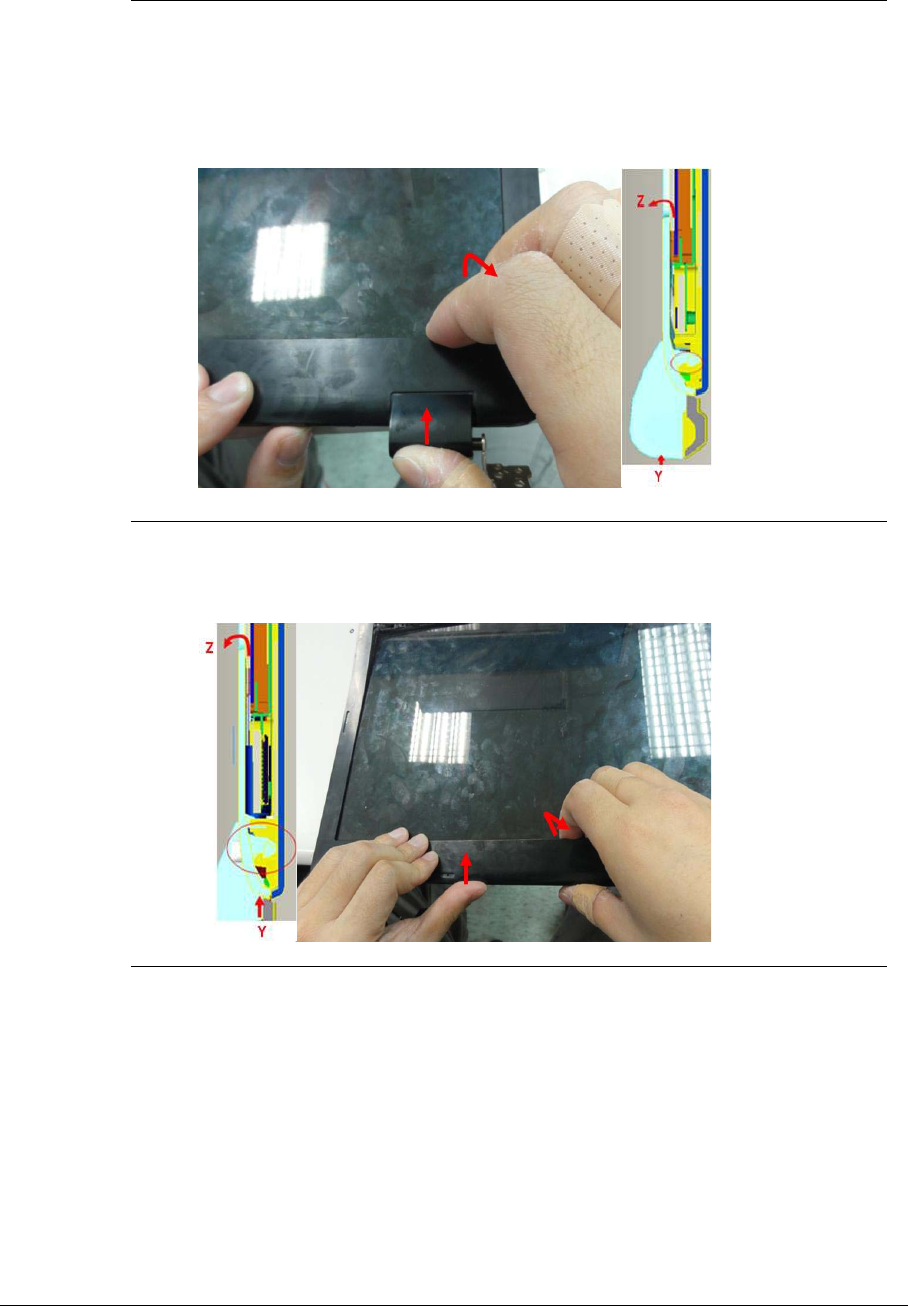
3-44
Figure 3-64. LCD Bezel
6. Press center area of the bottom edge with left fingers, then push the edge of the hinge cap
with thumb of the right hand in +Y direction, and apply force with index finger and middle
finger in +Z direction.
Figure 3-65. LCD Bezel
7. 3-2 Repeat 3-1 and disengage the latches one at a time, from right side all the way to the
left.
Figure 3-66. LCD Bezel
8. Take LCD bezel away.
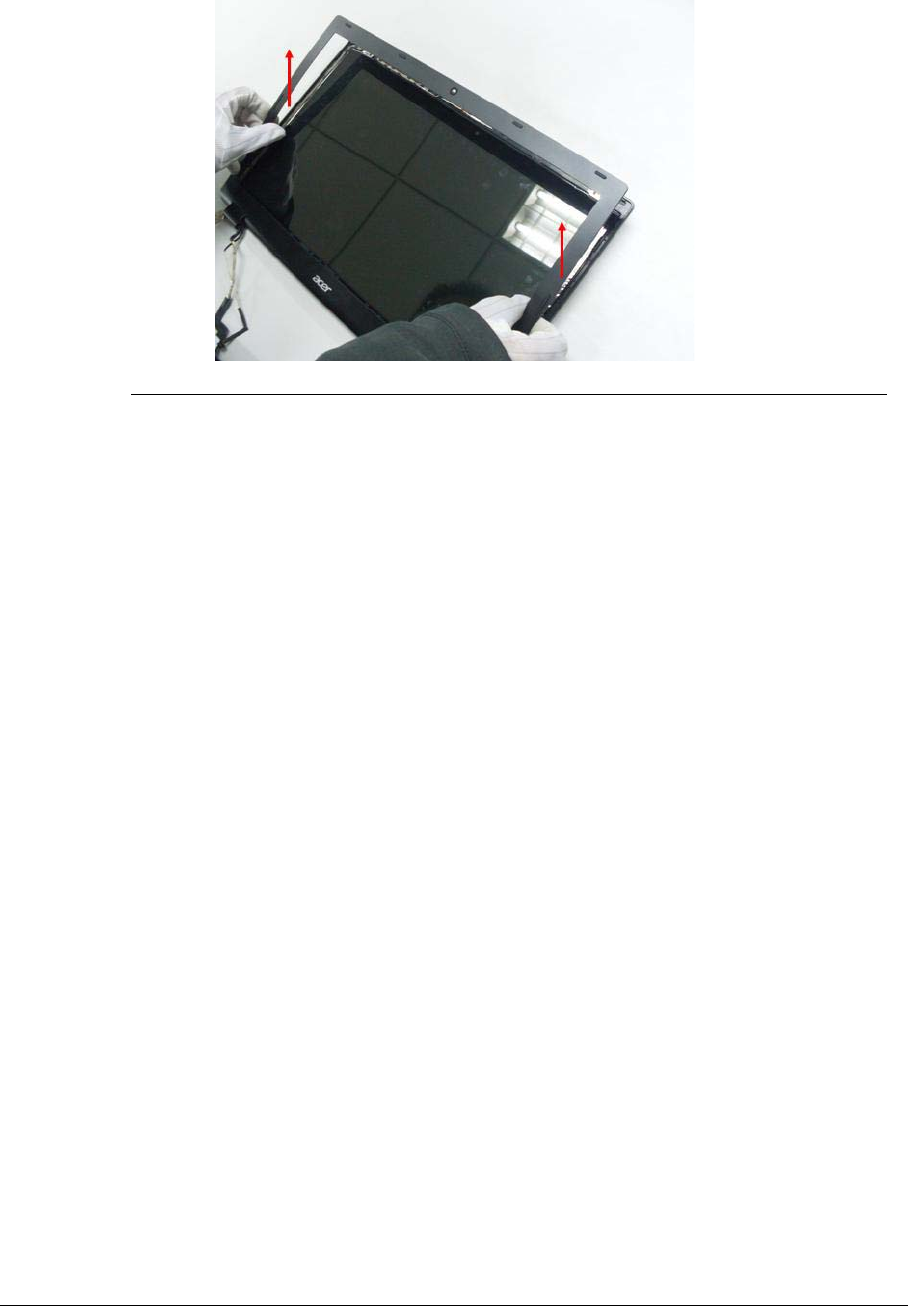
3-45
Figure 3-67. LCD Bezel
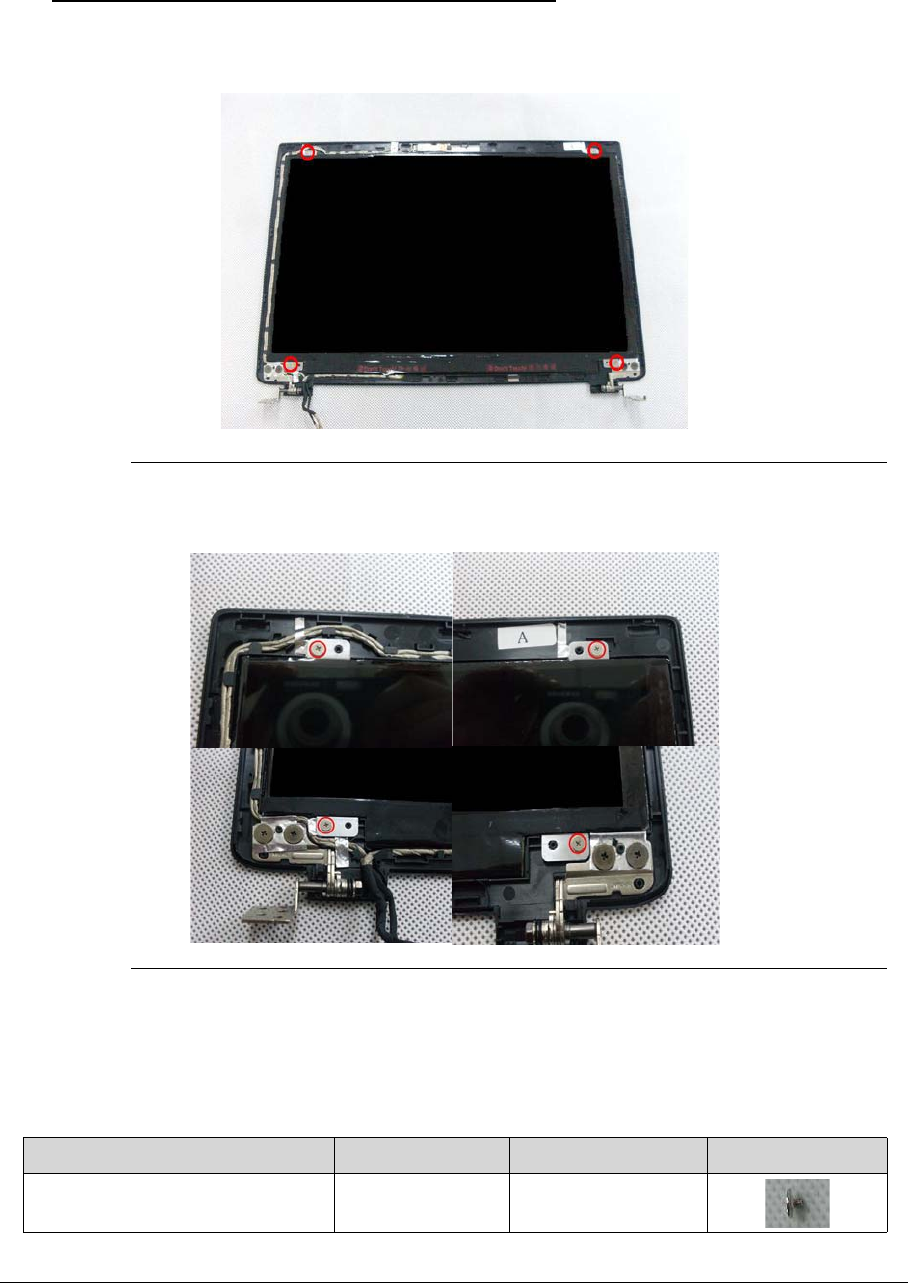
3-46
Removing the LCD Panel 0
1. Remove the LCD panel.
Figure 3-68. LCD Panel
2. Remove the 4 screws on the LCD panel.
Figure 3-69. LCD Pane
IMPORTANT:
+
Do not remove the screws on the hinge&LCD cover.
Table 3-18. Screws
Step Screw Quantity Screw Type
LCD Panel Disassembly M2*2.5 4
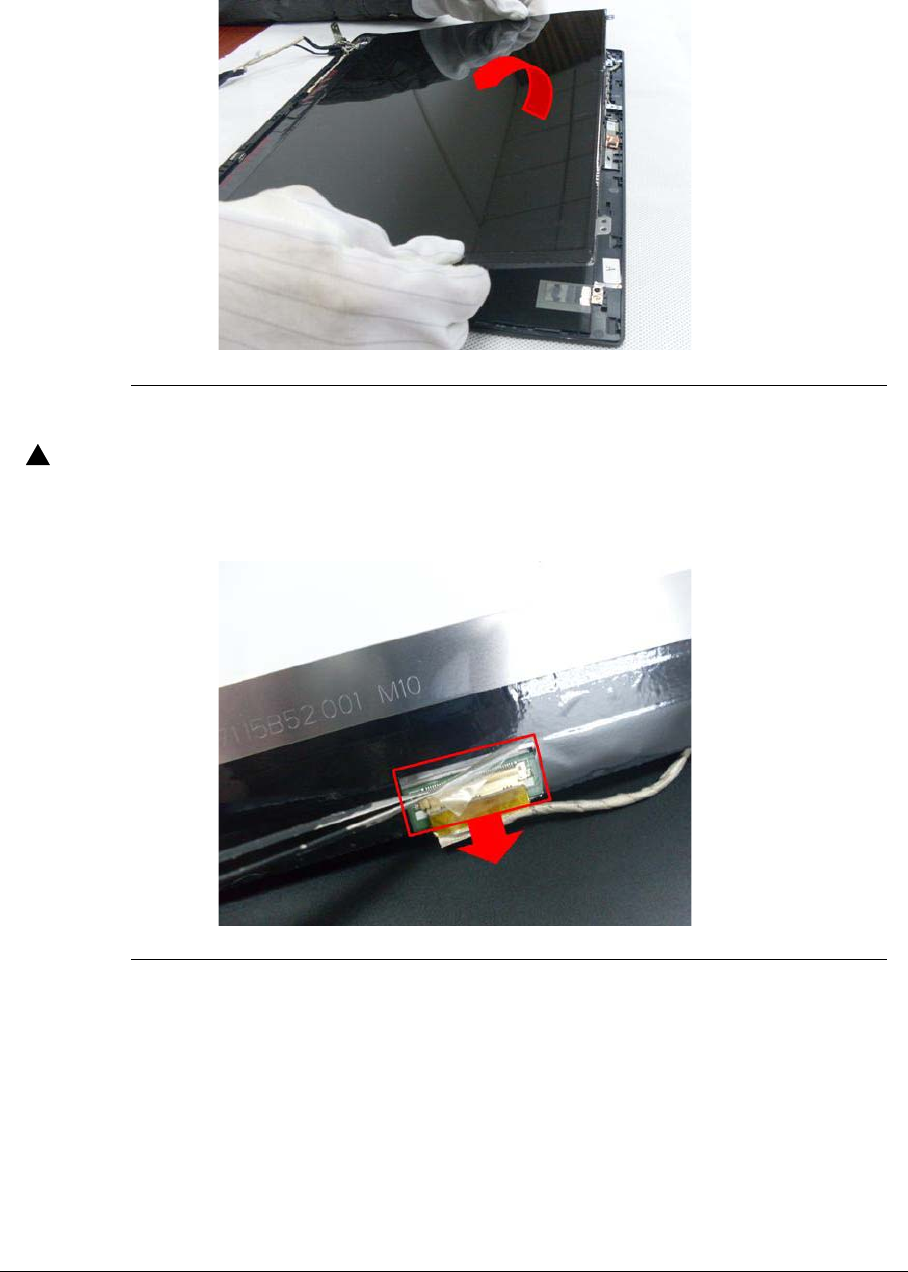
3-47
3. Lift the LCD panel out of the module.
Figure 3-70. LCD Panel
CAUTION:
!
To avoid damage, make sure all cables near the hinge are free and clear to move.
4. Turn the LCD panel over, then disconnect the LVDS cable.
Figure 3-71. LCD Panel
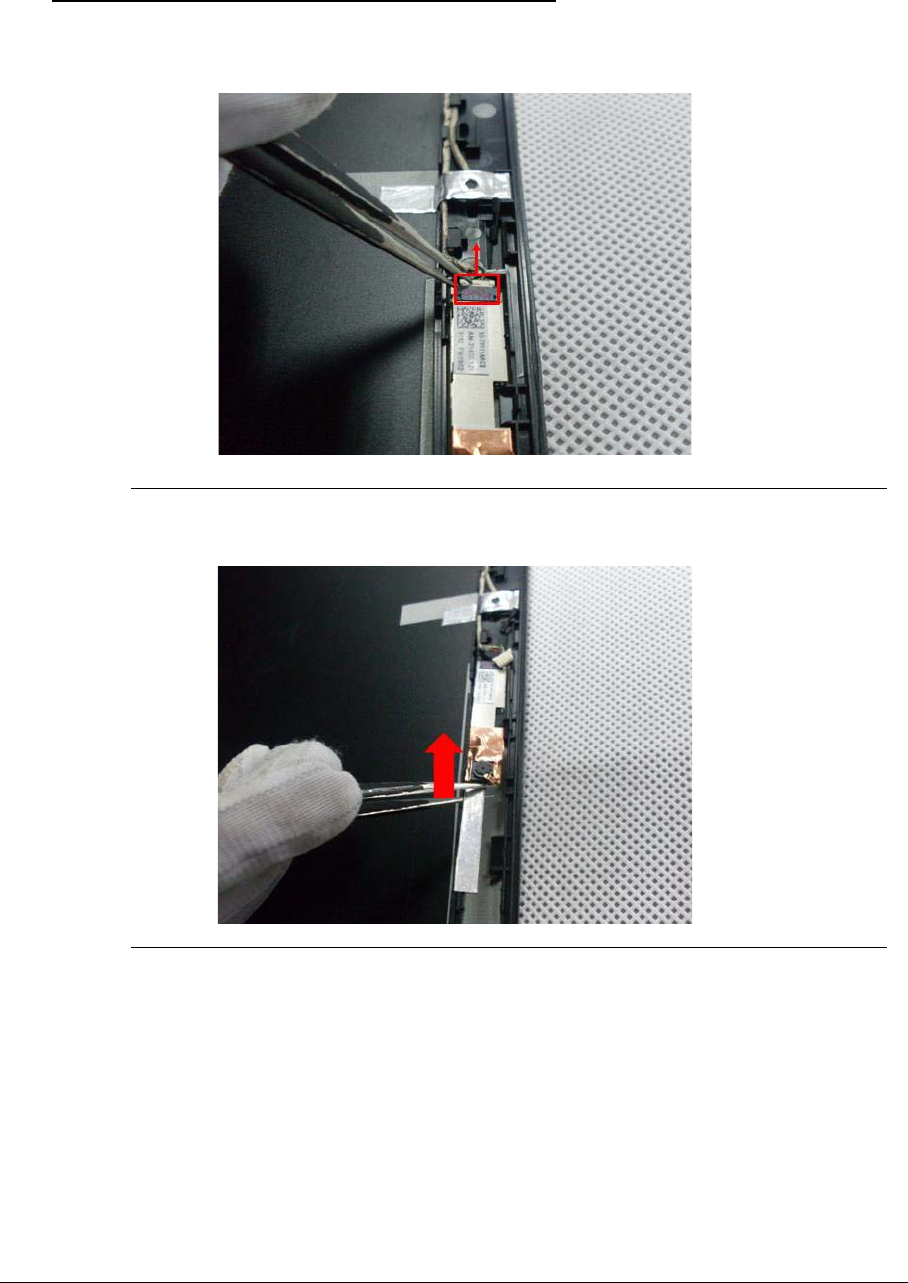
3-48
Removing the Camera Board 0
1. Disconnect the camera cable.
Figure 3-72. Camera Board
2. Pry the camera board away from the module.
Figure 3-73. Camera Board
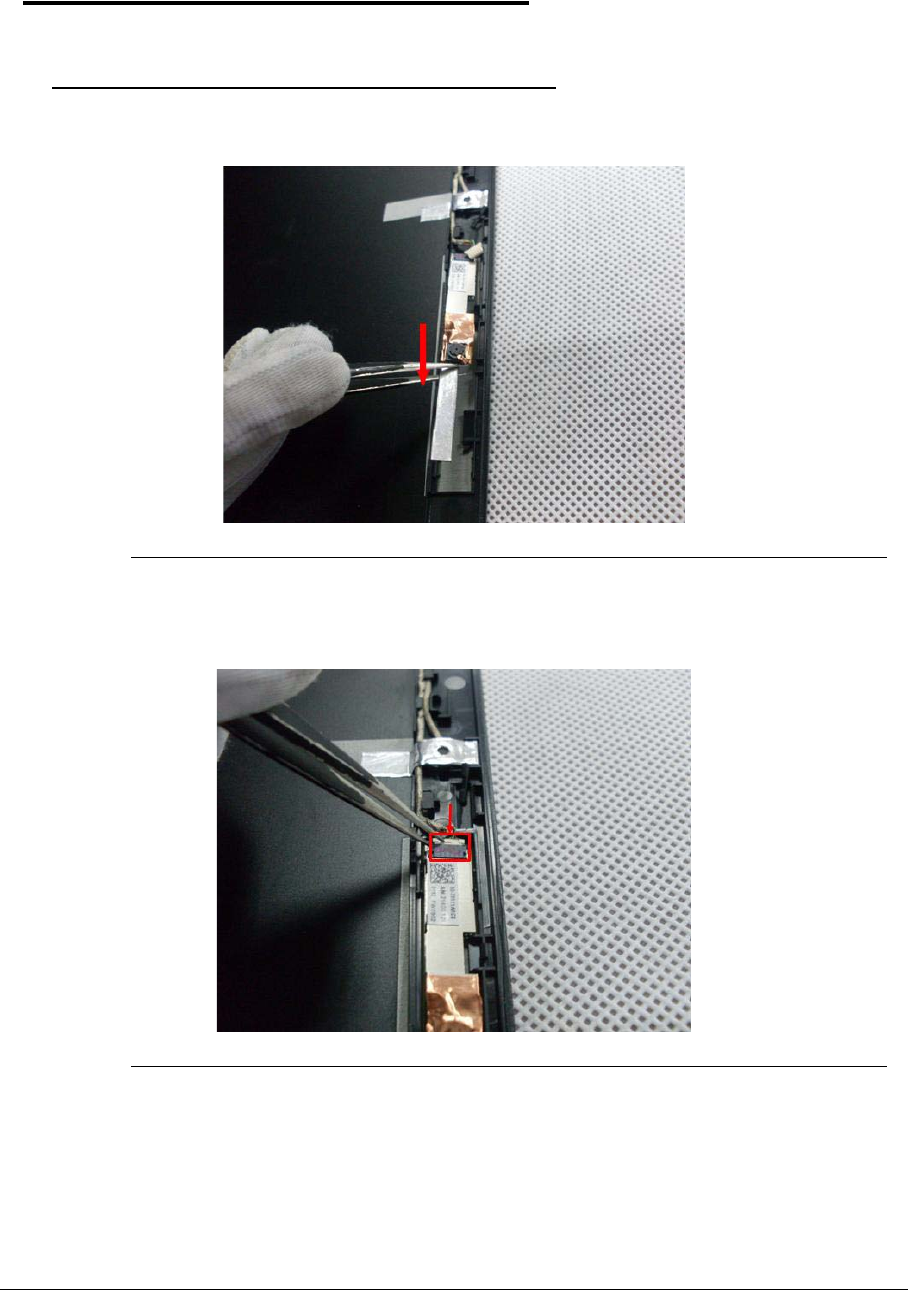
3-49
LCD Reassembly Procedure 0
Replacing the Camera 0
1. Place the camera on the LCD cover.
Figure 3-74. Camera
2. Connect the LVDS cable to the camera module.
Figure 3-75. Camera
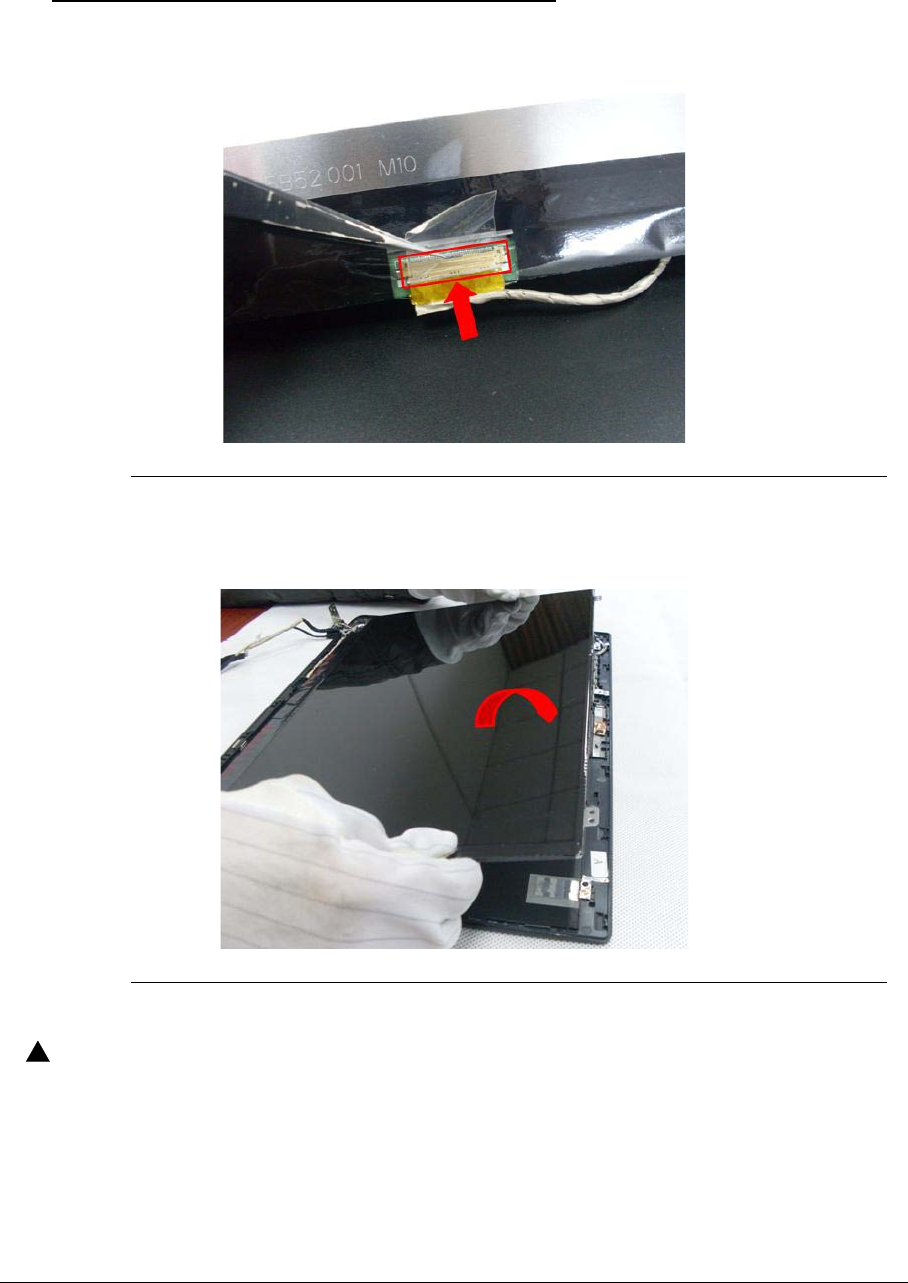
3-50
Replacing the LCD Panel 0
1. Connect the LVDS cable to the panel and bond the mylar to secure the connector.
Figure 3-76. LCD Panel
2. Place the LCD panel on the LCD cover.
Figure 3-77. LCD Panel
CAUTION:
!
To avoid damage, make sure all cables near the hinge are free and clear to move.
3. Secure the 4 screws on the LCD panel.
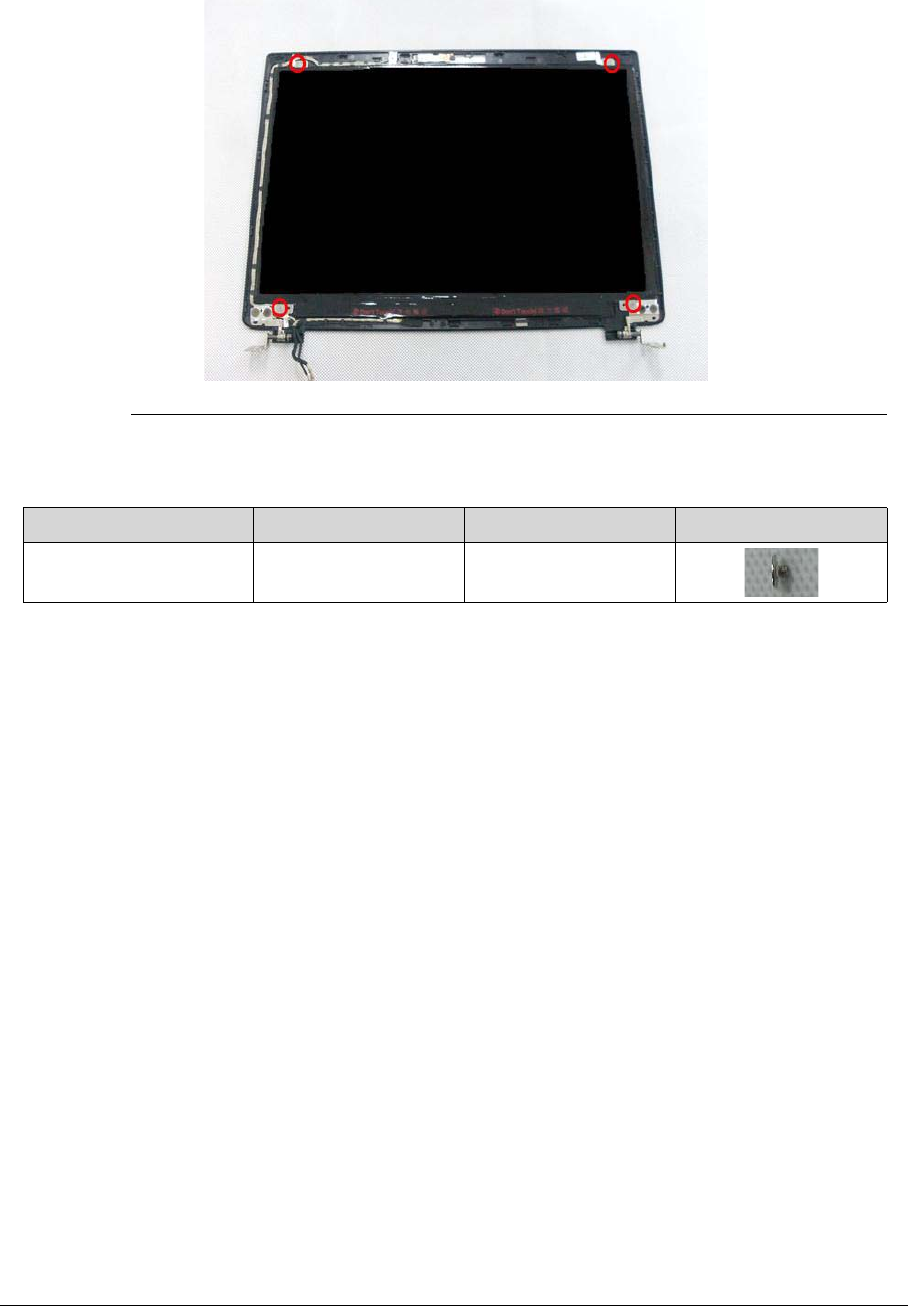
3-51
Figure 3-78. LCD Panel
Table 3-19. Screws
Step Screw Quantity Screw Type
LCD Panel Assembly M2*2.5 4
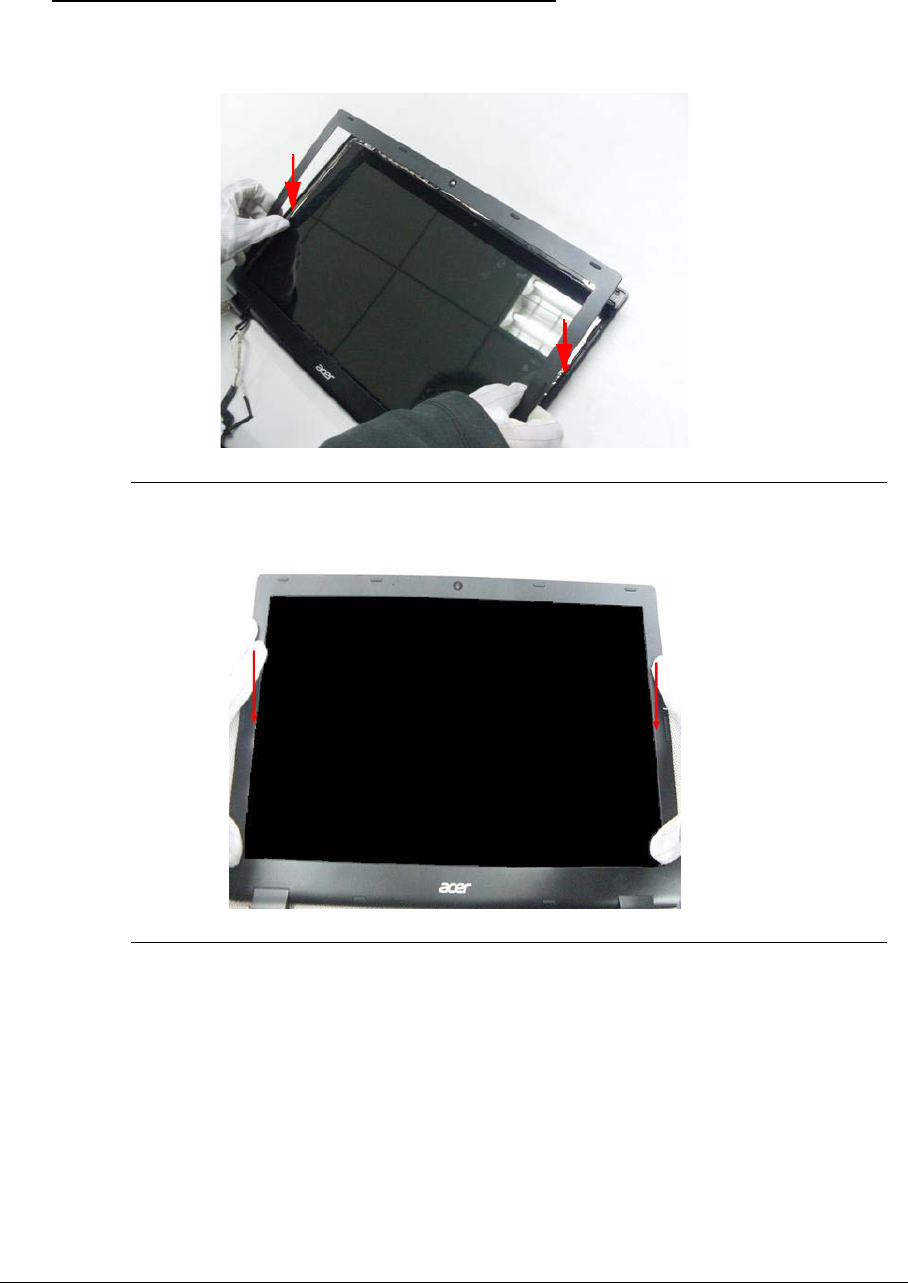
3-52
Replacing the LCD Bezel 0
1. Place the bezel onto the LCD module.
Figure 3-79. LCD Bezel
Figure 3-80. LCD Bezel
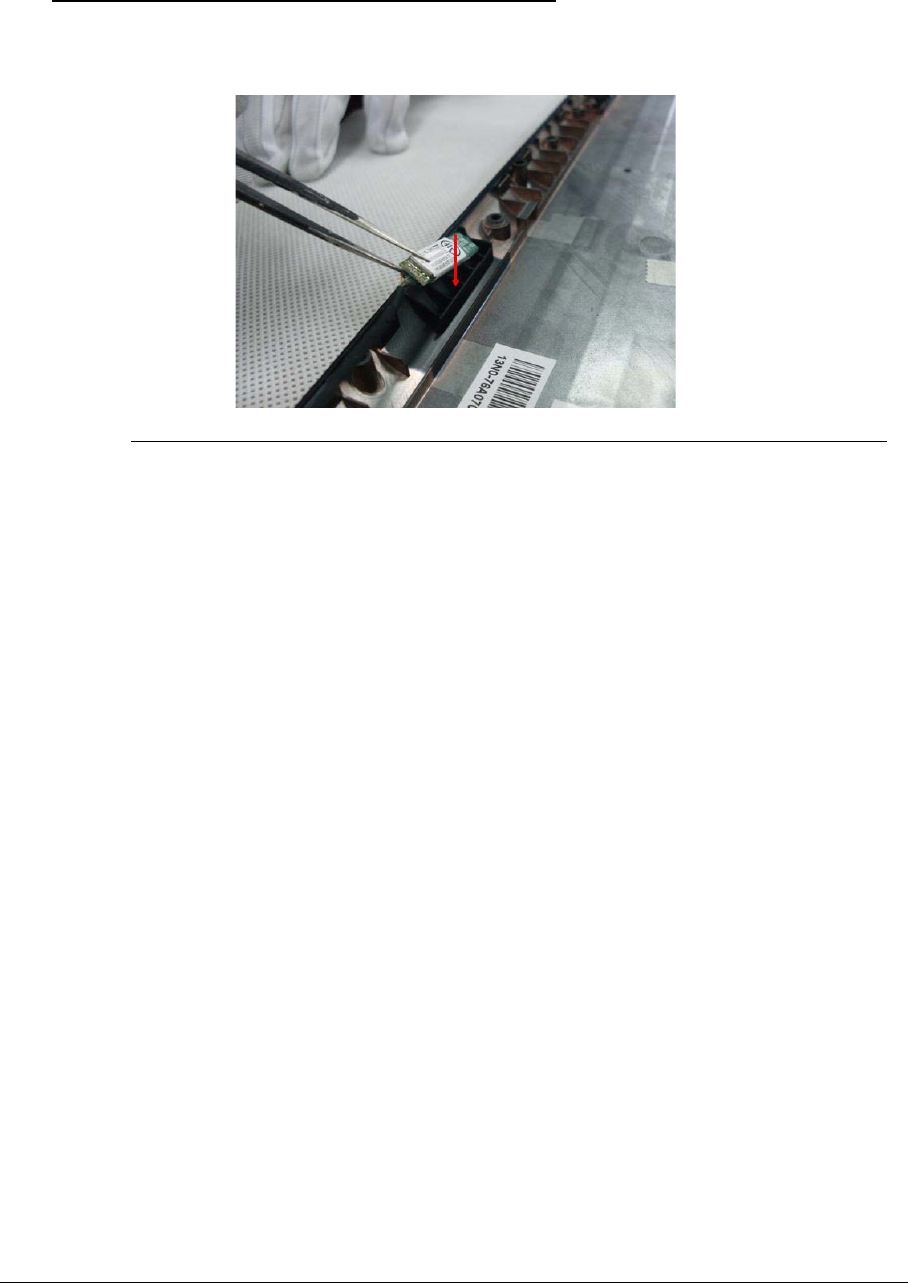
3-53
Replacing the Bluetooth 0
1. Place the Bluetooth into the socket.
Figure 3-81. Bluetooth
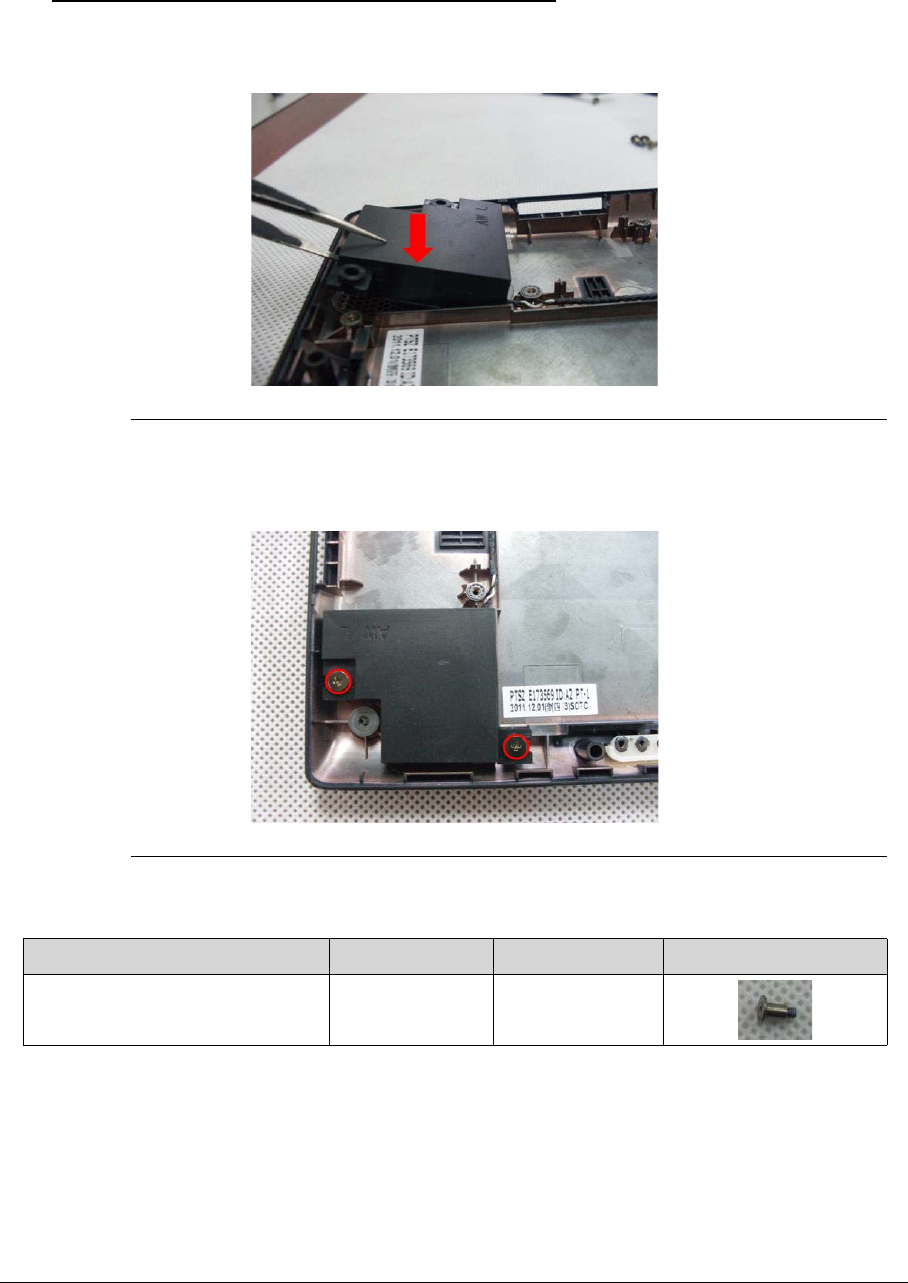
3-54
Replacing the Speakers 0
1. Place the left speaker assembly into the bottom case.
Figure 3-82. Speakers
2. Secure 2 screws to the left speaker.
Figure 3-83. Speakers
3. Place the right speaker into the bottom case.
Table 3-20. Screws
Step Screw Quantity Screw Type
Speaker Assembly M2*2L+4.2MM
Ni
2
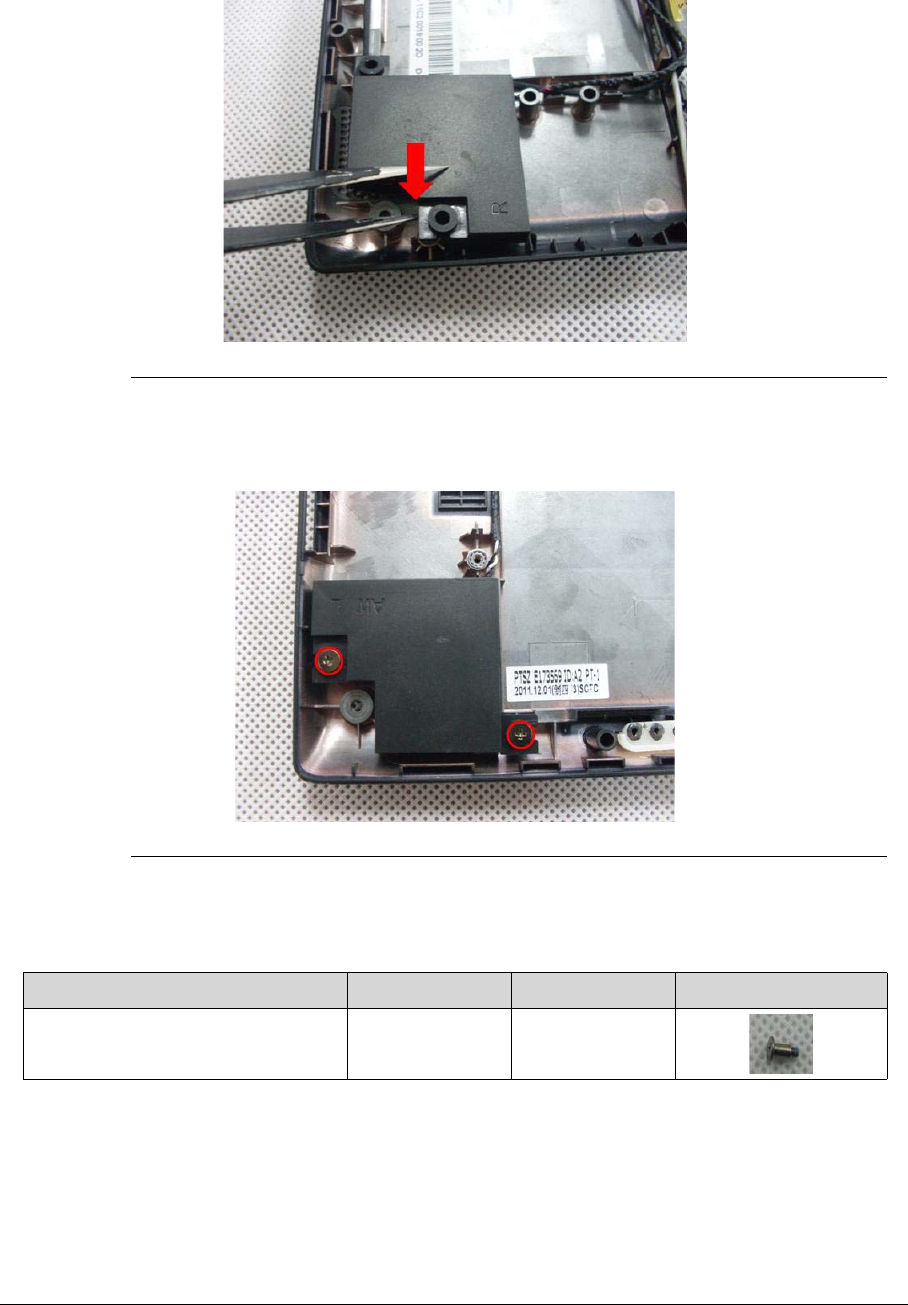
3-55
Figure 3-84. Speakers
4. Secure 2 screws to the right speaker.
Figure 3-85. Speakers
Table 3-21. Screws
Step Screw Quantity Screw Type.
Speaker Assembly M2*2L+4.2MM
Ni
2
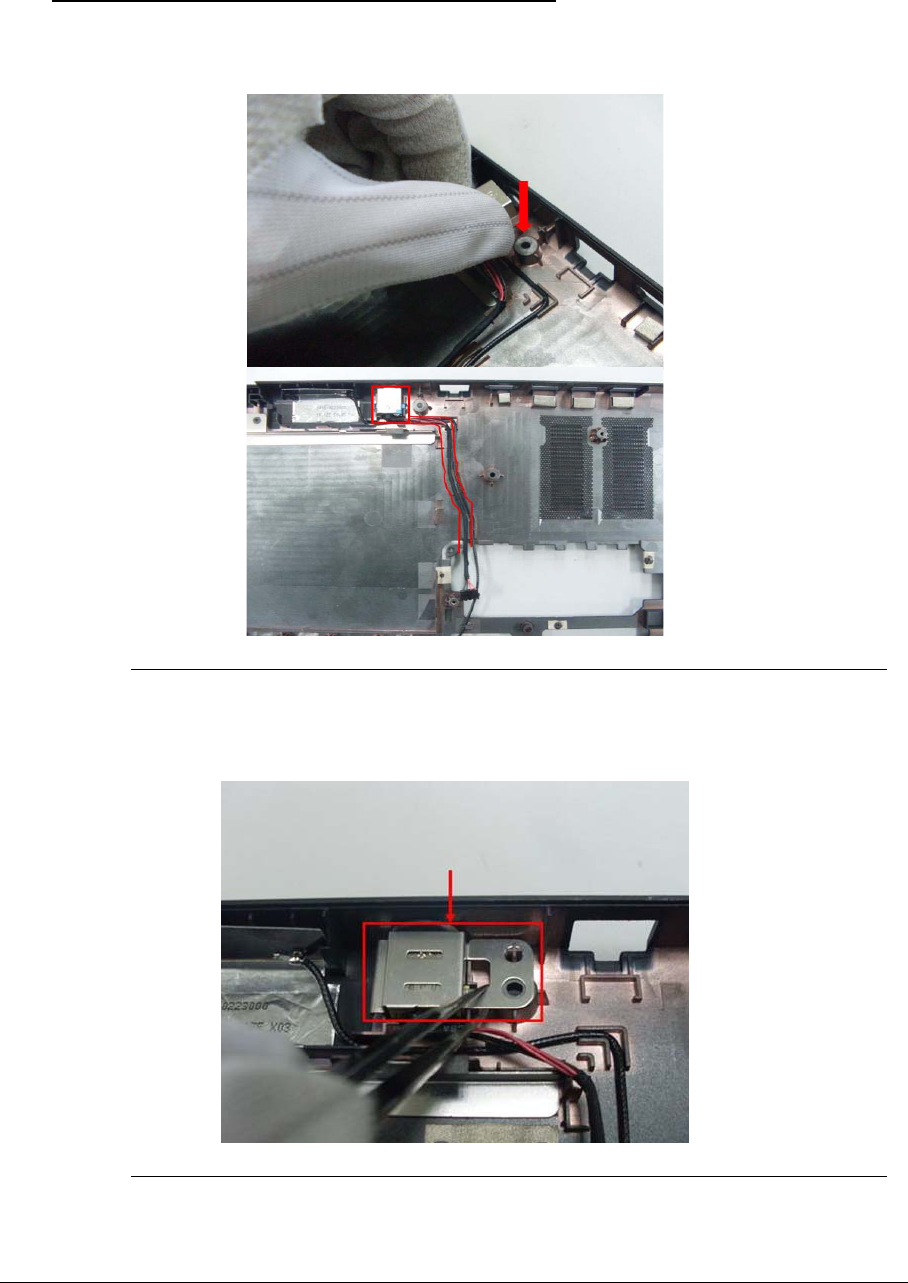
3-56
Replacing the DC-IN cable 0
1. Place the DC-in cable into the bottom case,and place the cable in the cable clip.
Figure 3-86. DC-in cable
2. Place the DC-in bracket on the DC-in connector.
Figure 3-87. DC-in cable
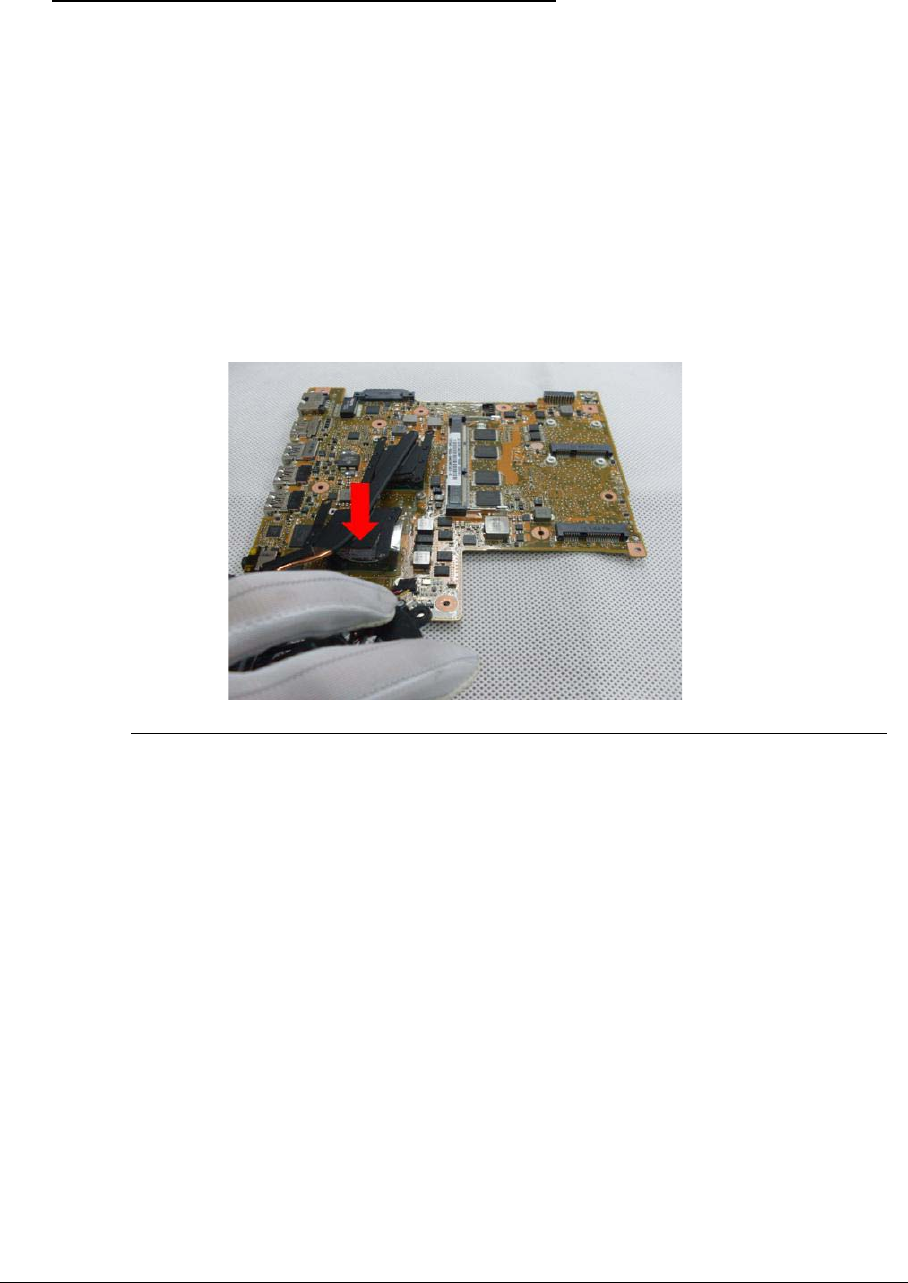
3-57
Replacing the Thermal Module 0
IMPORTANT:
+
Apply a suitable thermal grease and ensure all heat pads are in place before
replacing the thermal module.
The following thermal grease types are approved for use:
-N302 I-Connosseur
-Honeywell
The following thermal pads are approved for use:
-Eapus XR-PE
1. Align the screw holes on the thermal module and mainboard then replace the module.
Keep the module as level as possible to spread the thermal grease evenly.
Figure 3-88. Thermal Module
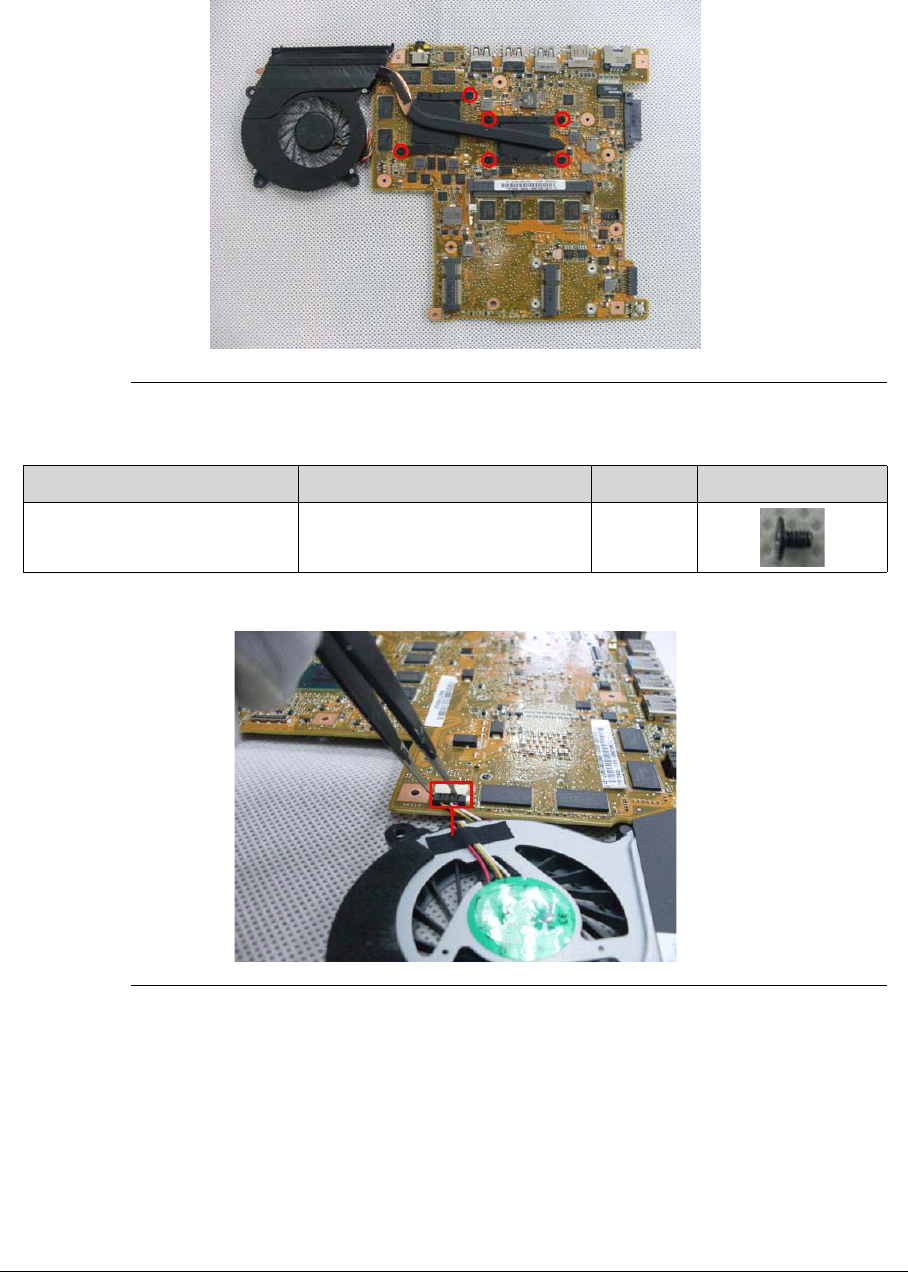
3-58
2. Replace the 6 screws to secure the thermal module in place.
Figure 3-89. Thermal Module
3. Connect the fan cable to the mainboard.
Figure 3-90. Thermal Module
Table 3-22. Screws
Step Screw Quantity Screw Type.
Thermal module
Disassembly
M2*3 Ni 6
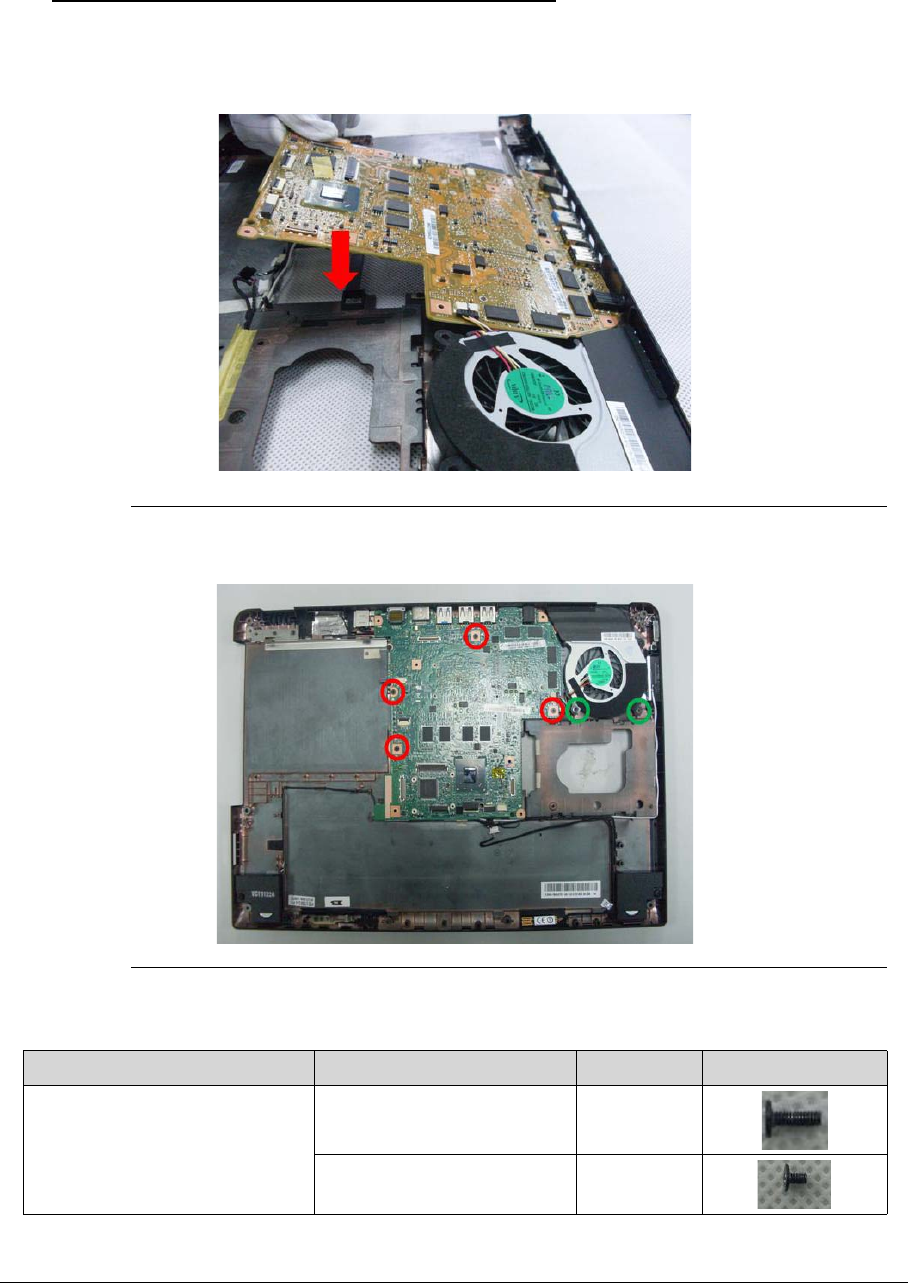
3-59
Replacing the Mainboard 0
1. Slide the main board external connector edge in first to the bottom case, then lower into
place.
Figure 3-91. Main board
2. Replace 7 screws on the mainboard.
Figure 3-92. Mainboard
Table 3-23. Screws
Step Screw Quantity Screw Type
Mainboard Disassembly M2.5*5 Ni(green callout) 2
M2*3 Ni (red callout) 4
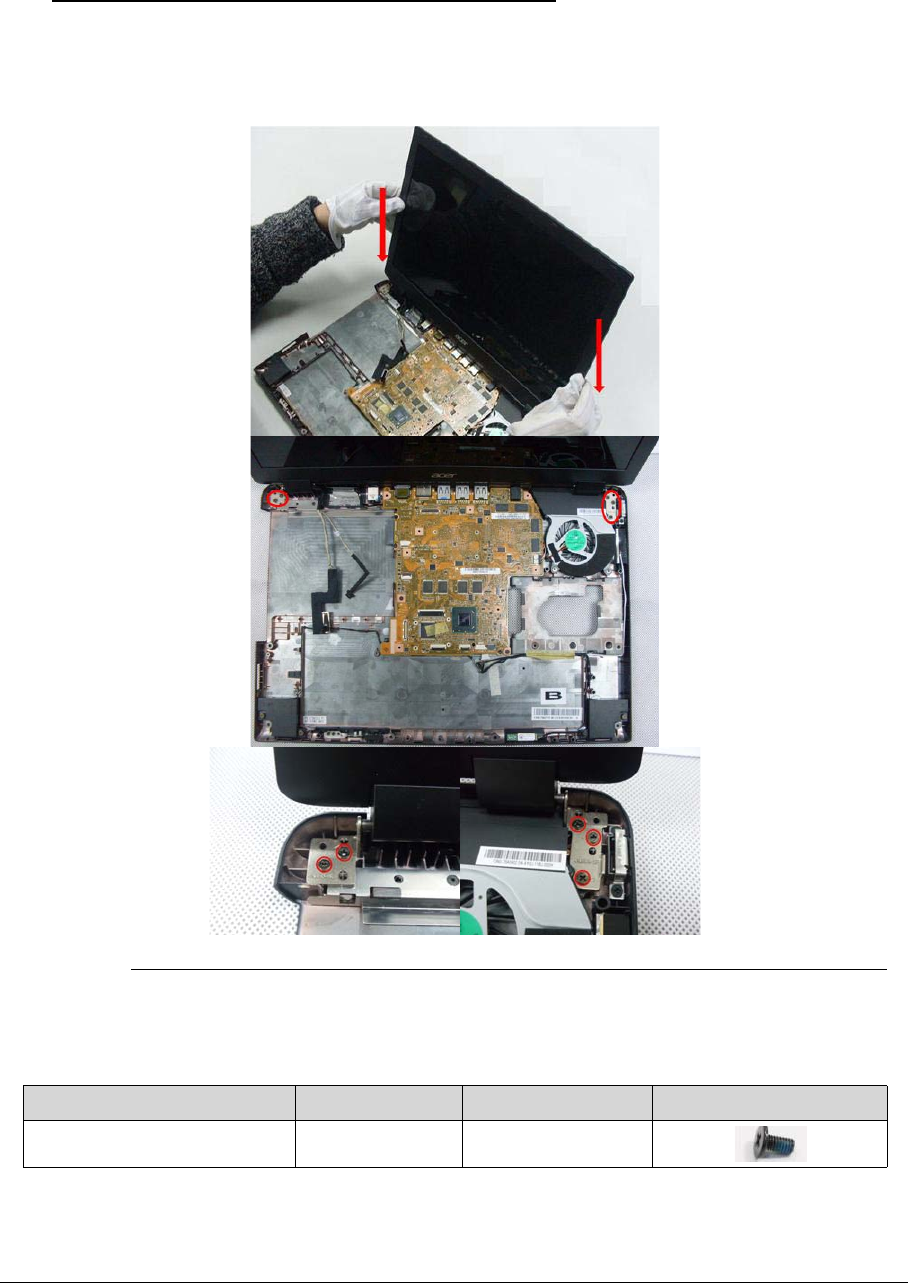
3-60
Replacing the LCD Module & Cables to Mainboard 0
1. Place the LCD module onto the bottom case.
2. Secure the 5 securing screws to the lower cover.
Figure 3-93. LCD Module
3. Connect the LVDS cable to the mainboard.
Table 3-24. Screws
Step Size Quantity Screw Type
LCD Module Assembly M2.5*5 5
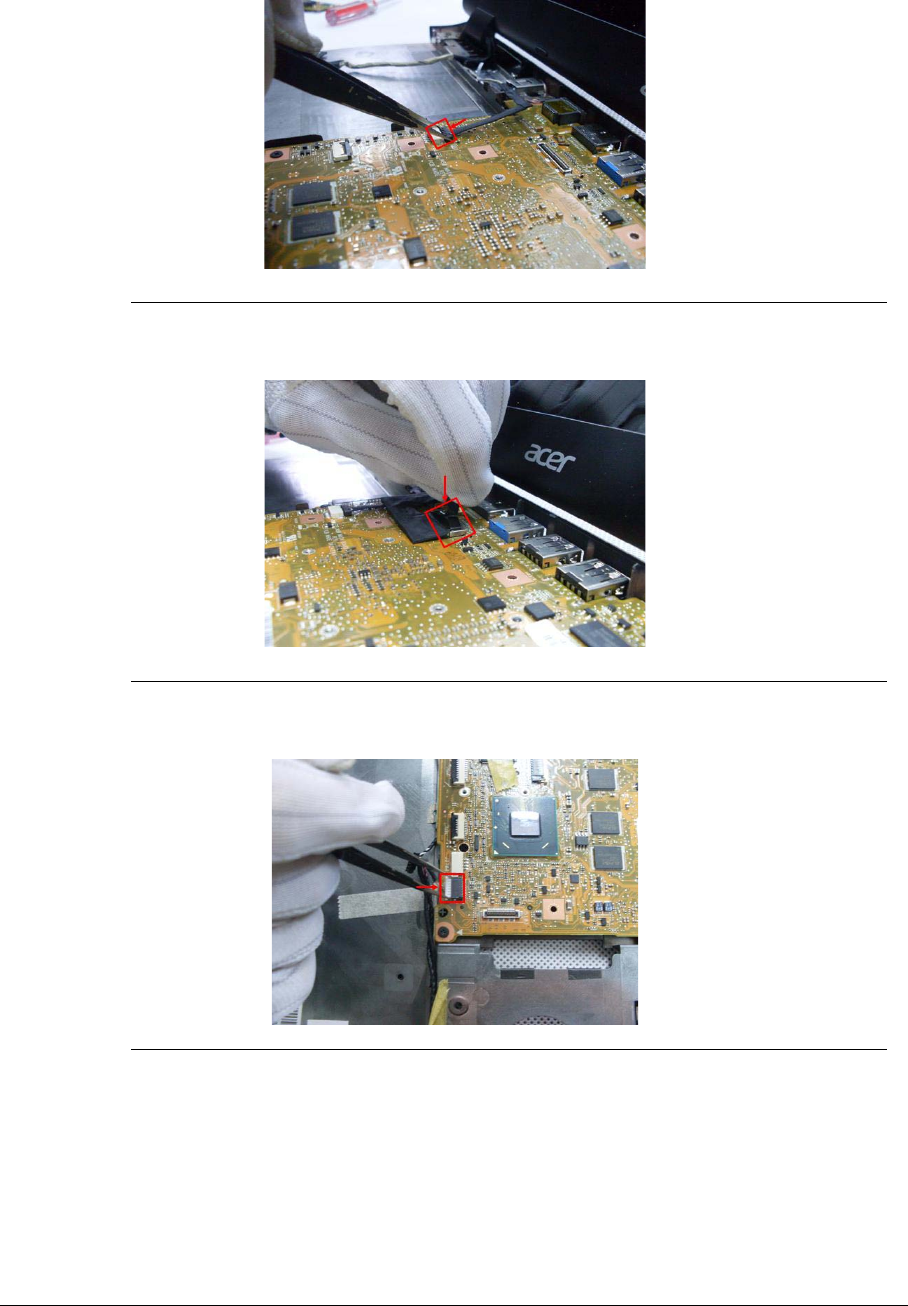
3-61
Figure 3-94. LVDS Cable
Figure 3-95. LVDS Cables
4. Connect the bluetooth cable to the main board.
Figure 3-96. Bluetooth cable
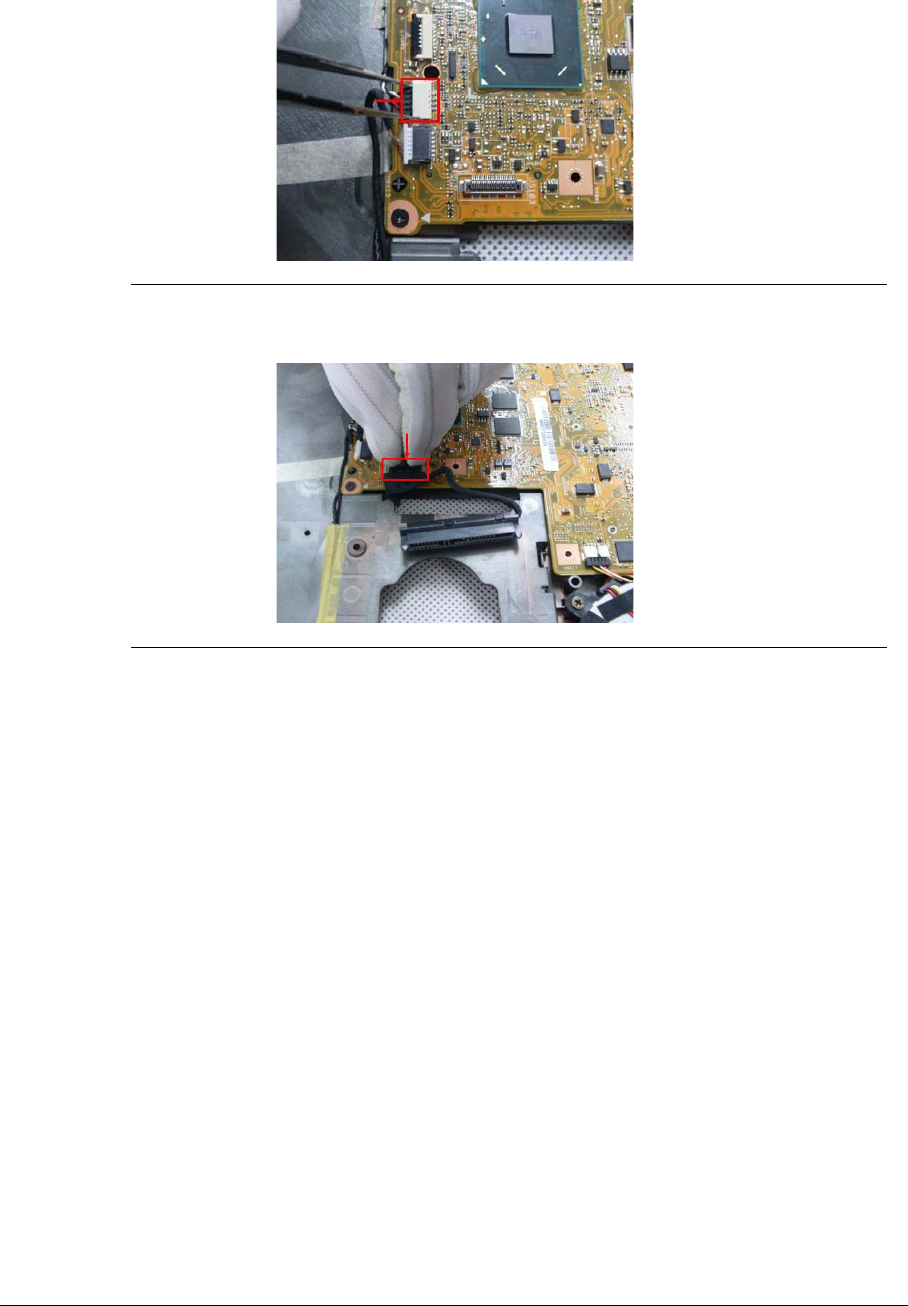
3-62
5. Connect the Speaker cable to the mainboard.
Figure 3-97. Speaker cable
6. Connect the HDD cable to the mainboard.
Figure 3-98. HDD SATA Cable
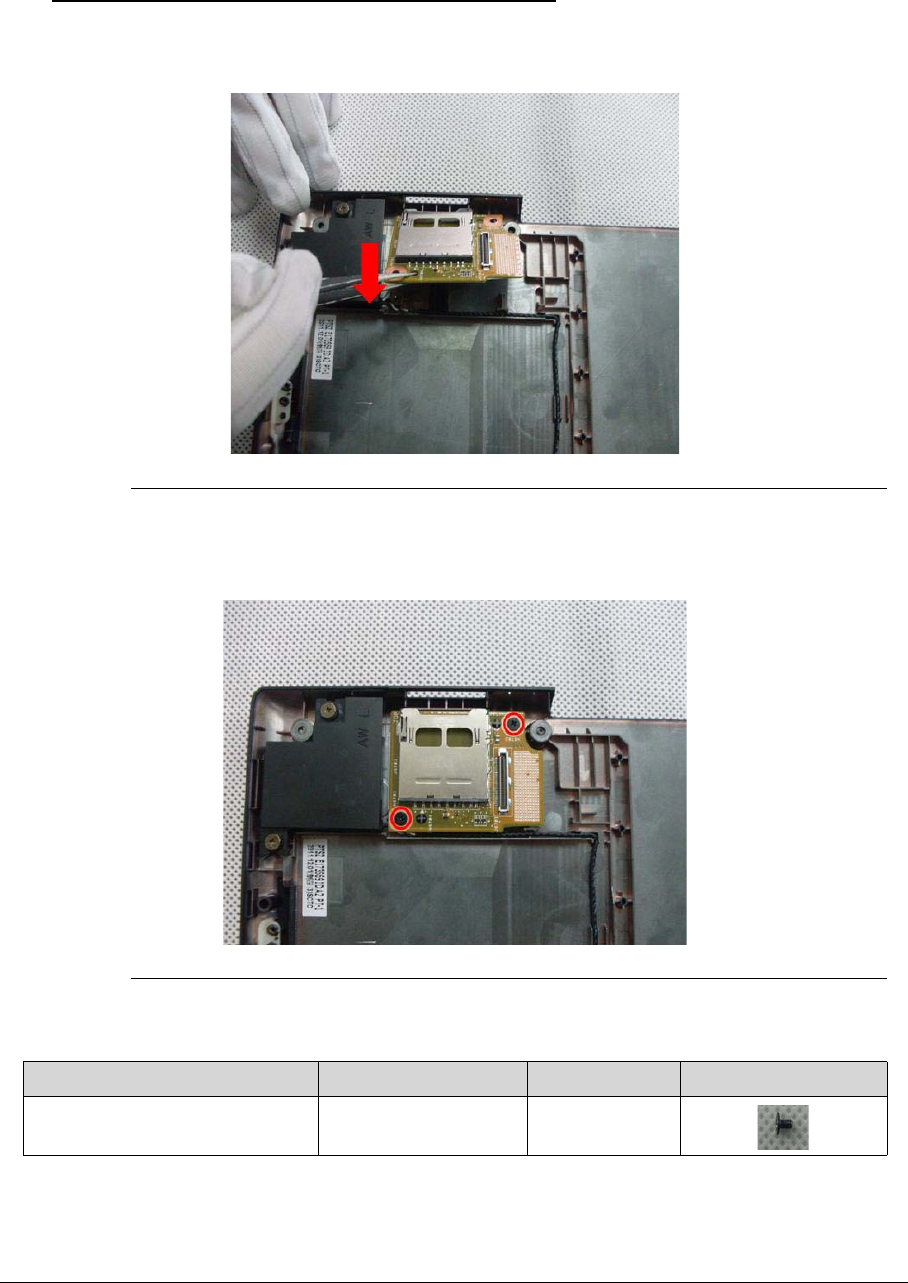
3-63
Replacing the Card reader 0
1. Place the card reader board in the bottom case.
Figure 3-99. card reader
2. Secure the 2 screws on the card reader.
Figure 3-100. Card reader
Table 3-25. Screws
Step Screw Quantity Screw Type
Carder reader Assembly M2*3 2
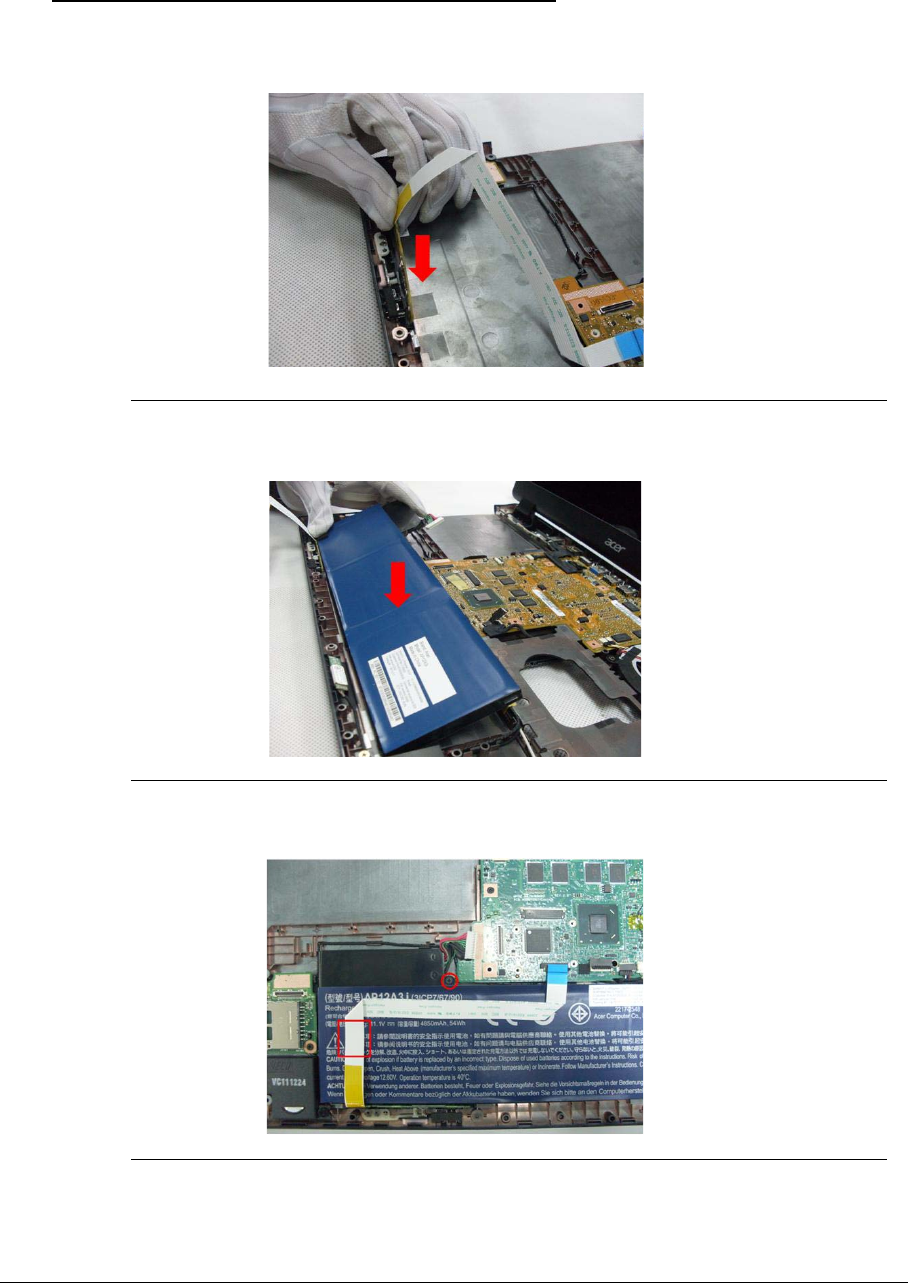
3-64
Replacing the Power Switch board&Battery 0
1. Secure the locking latch for the power switch board.
Figure 3-101. Power switch board
2. Place the battery into the bottom case.
Figure 3-102. Battery
3. Secure the screw on battery.
Figure 3-103. Battery
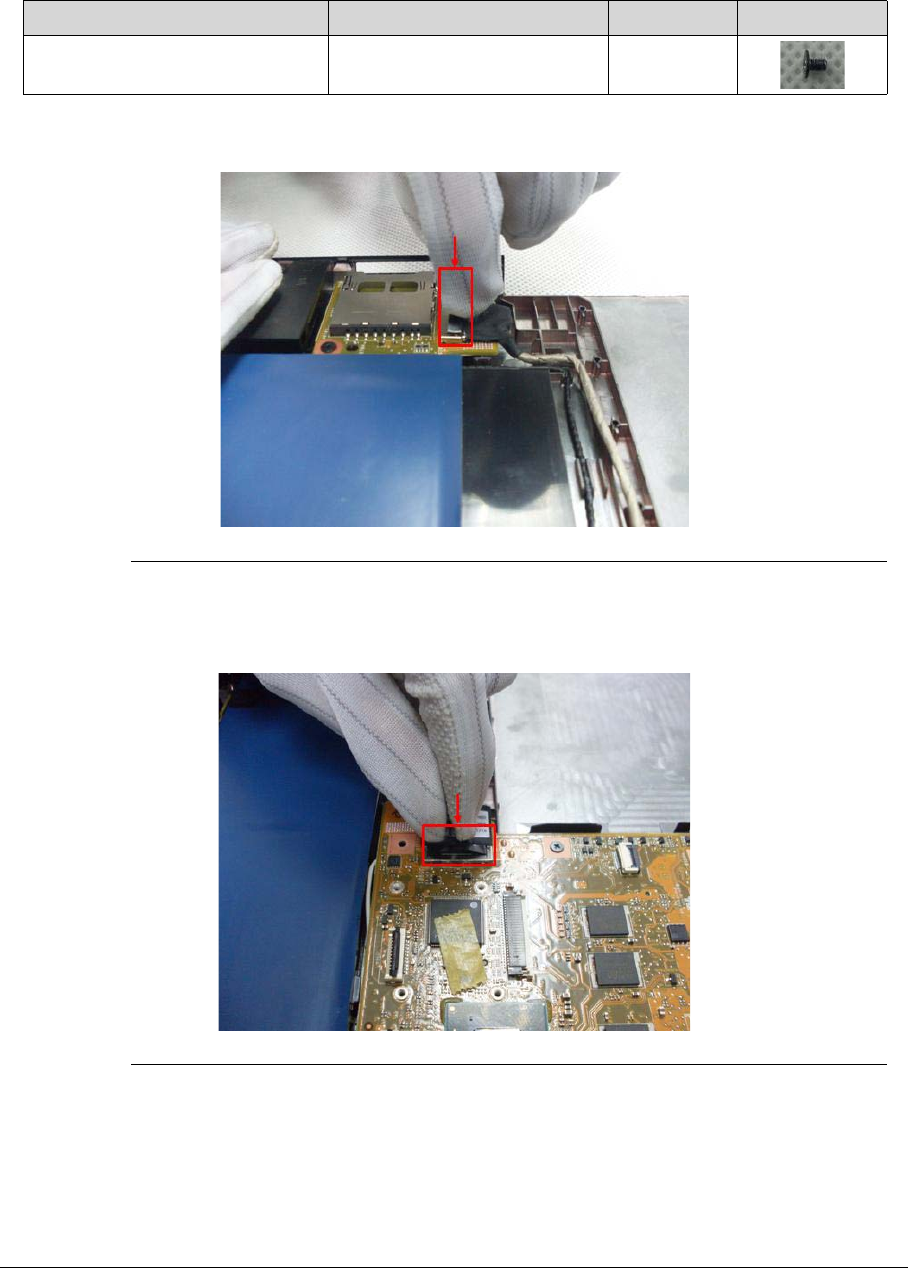
3-65
4. Connect the card reader cable on card reader.
Figure 3-104. Card reader cable
5. Connect the card reader cable on main board.
Figure 3-105. Card reader cable
Table 3-26. Screws
Step Screw Quantity Screw Type
Battery module Disassembly M2*3Ni 1
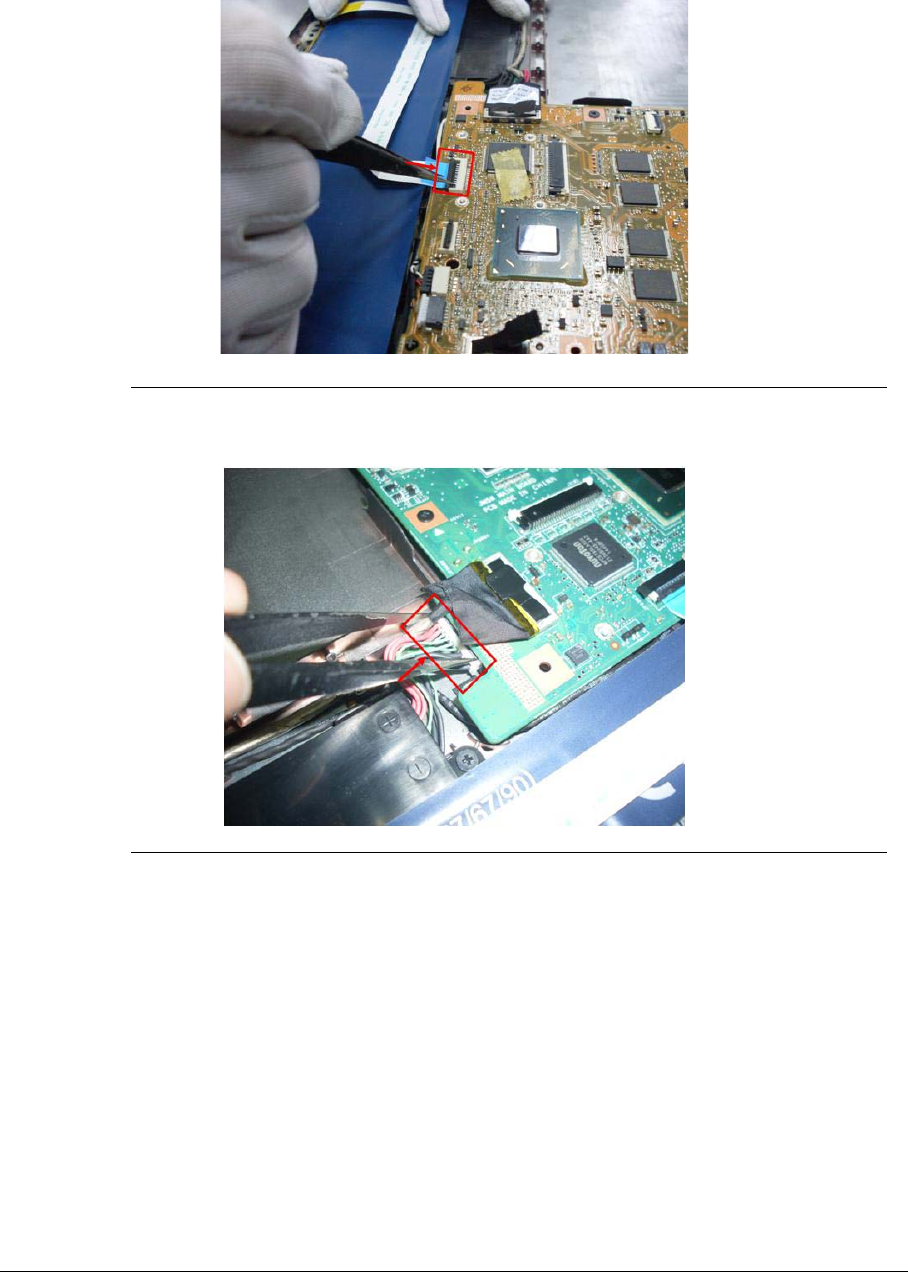
3-66
6. Connect the power switch cable on the main board.
Figure 3-106. Power switch cable
7. Connect the Battery cable to the main board.
Figure 3-107. Battery cable
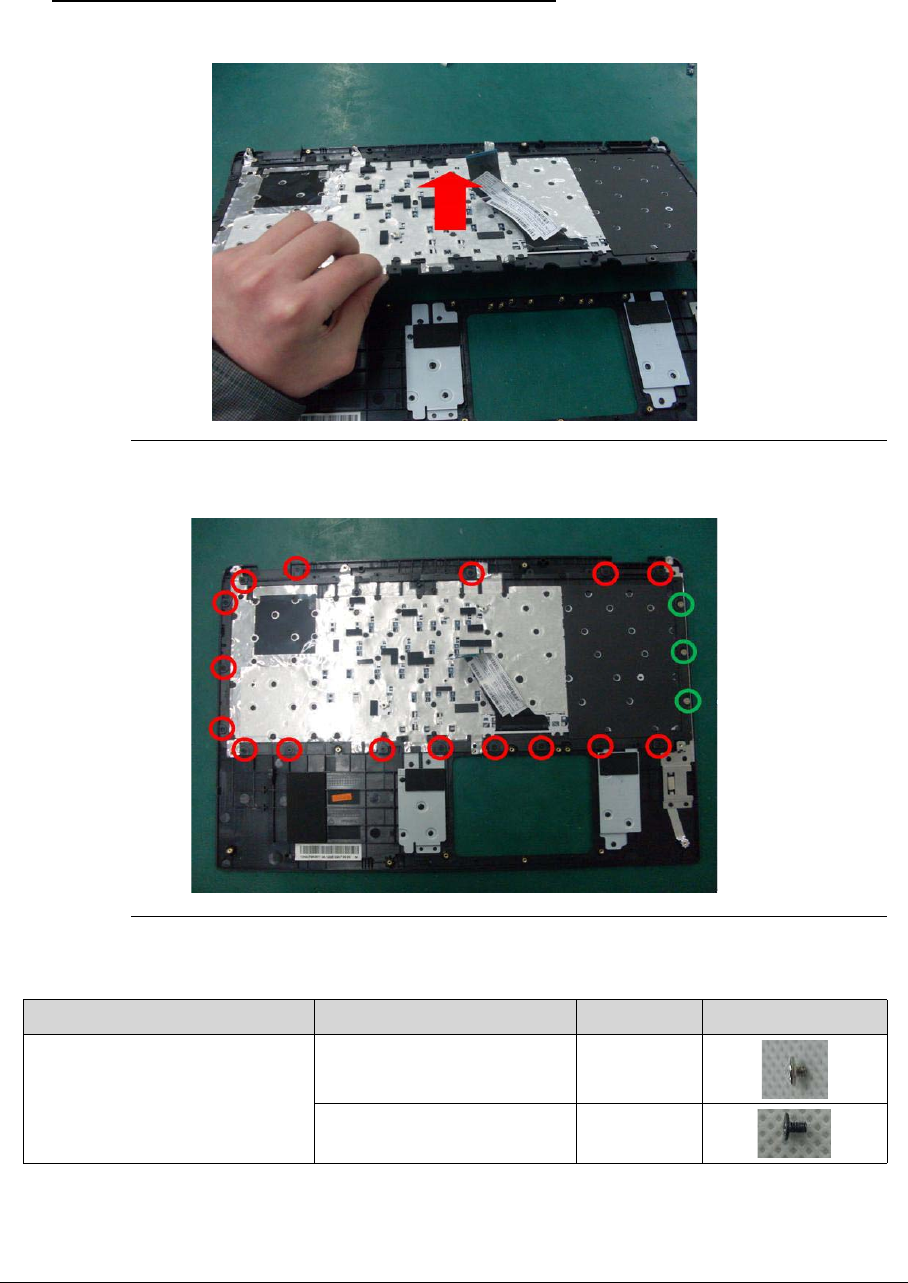
3-67
Replacing the Keyboard 0
1. Place the keyboard on the top case as below picture shows.
Figure 3-108. Keyboard
2. Secure the 17 screws on the keyboard.
Figure 3-109. Keyboard module
Table 3-27. Screws
Step Screw Quantity Screw Type
Keyboard Disassembly M2*2 Ni(green callout) 3
M2*3 Ni (red callout) 16
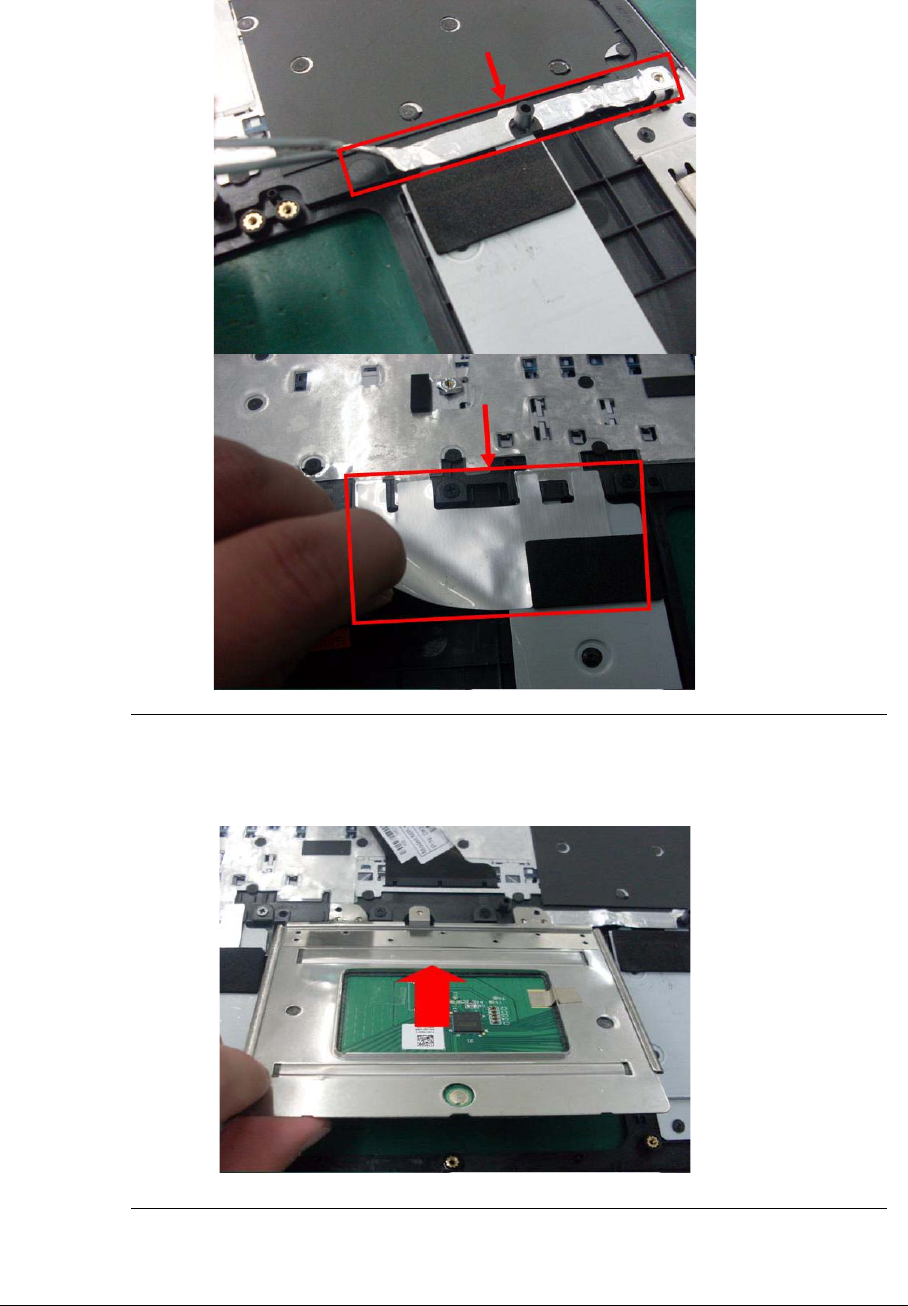
3-68
3. Place the AL foil on the keyboard.
Figure 3-110. Keyboard
4. Place the touch pad on the top case.
Figure 3-111. Touch pad module
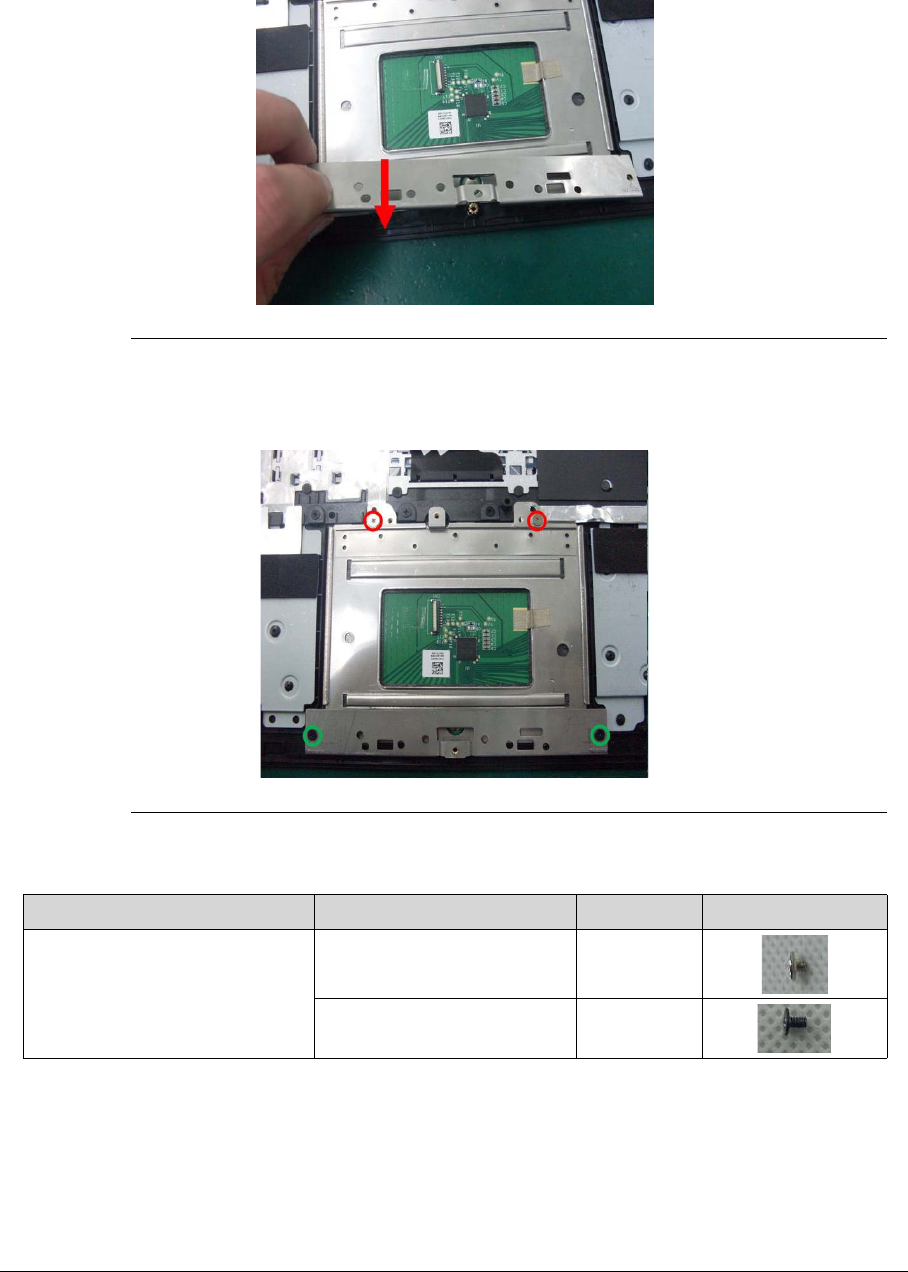
3-69
5. Replace the click pad bracket on the touch pad.
Figure 3-112. Click pad bracket
6. Secrue the 4screws on the touch pad.
Figure 3-113. Touch pad module
Table 3-28. Screws
Step Screw Quantity Screw Type
Touchpad Disassembly M2*2 Ni(red callout) 2
M2*3 Ni (green callout) 2
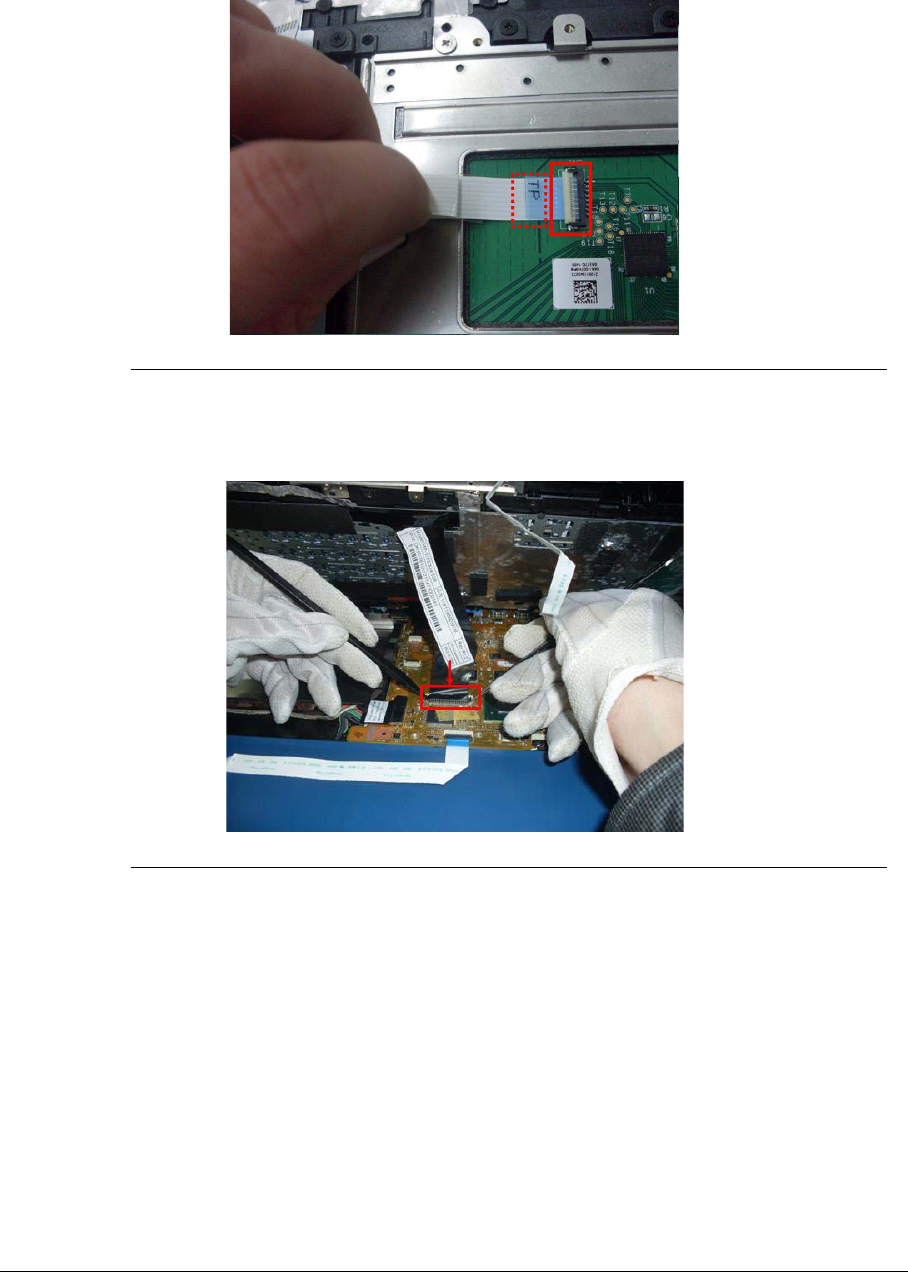
3-70
7. Connect the touch pad cable with the touch pad.
Figure 3-114. Touch pad FFC cable
8. Connect the keyboard FFC cable on the main board.
Figure 3-115. Keyboard FFC Cable
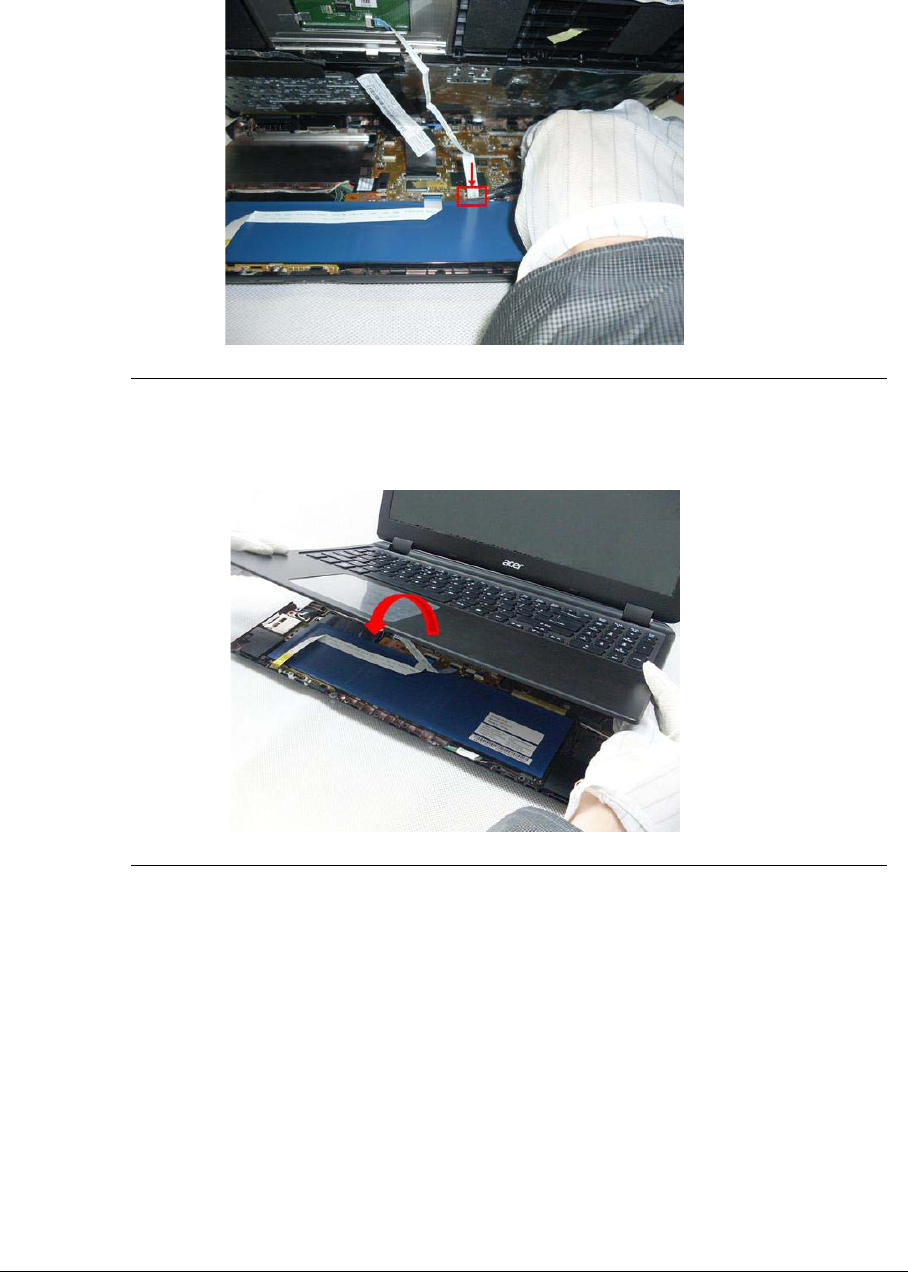
3-71
9. Connect the touch pad cable on the main board.
Figure 3-116. Touch Pad Cable
10. Turn over the top case and install the top case to bottom case.
Figure 3-117. Top case
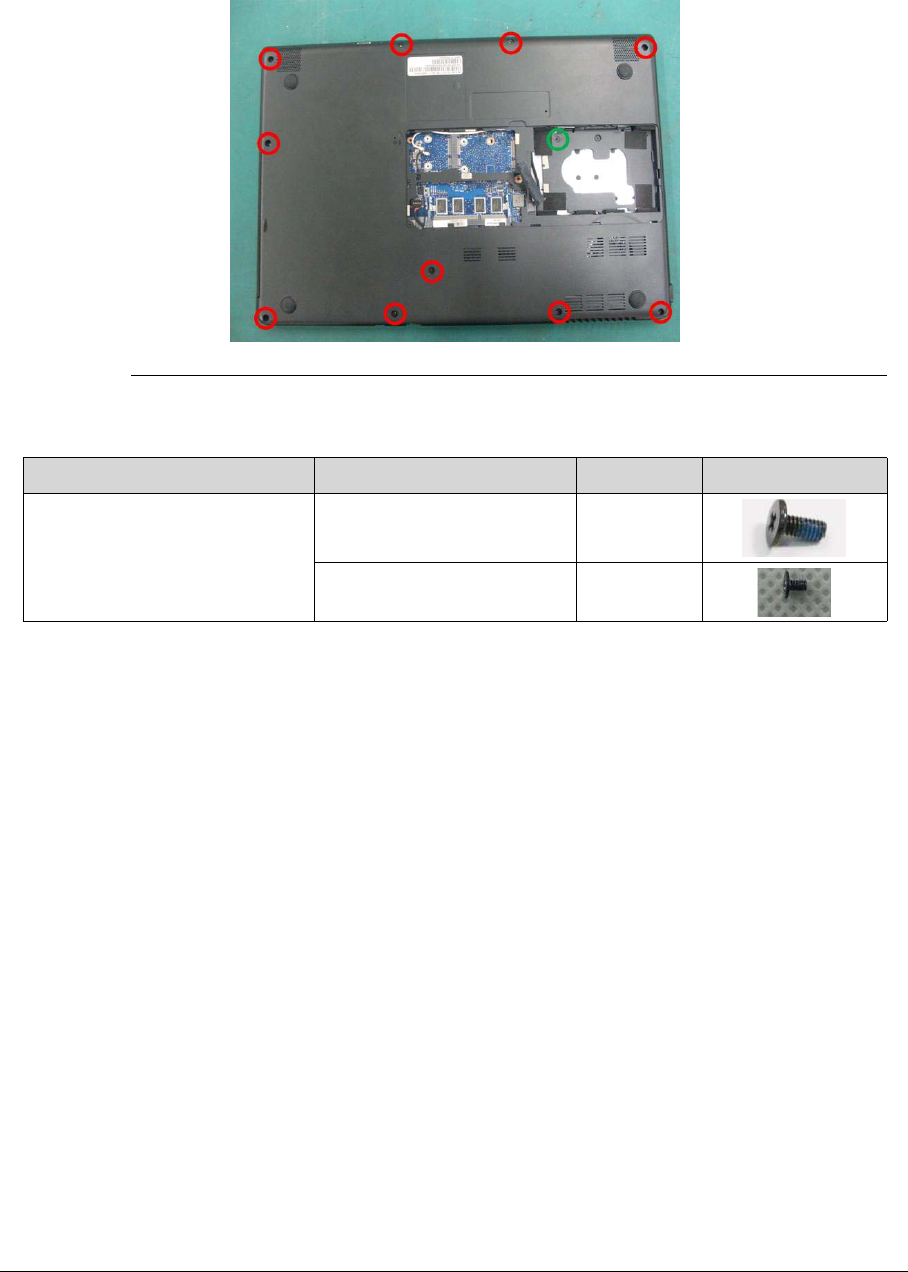
3-72
11. Secure the 11 screws in the bottom case.
Figure 3-118. Bottom case
Table 3-29. Screws
Step Screw Quantity Screw Type
Bottom Case Disassembly M2*6 (red callout) 10
M2*3 Ni (green callout) 1
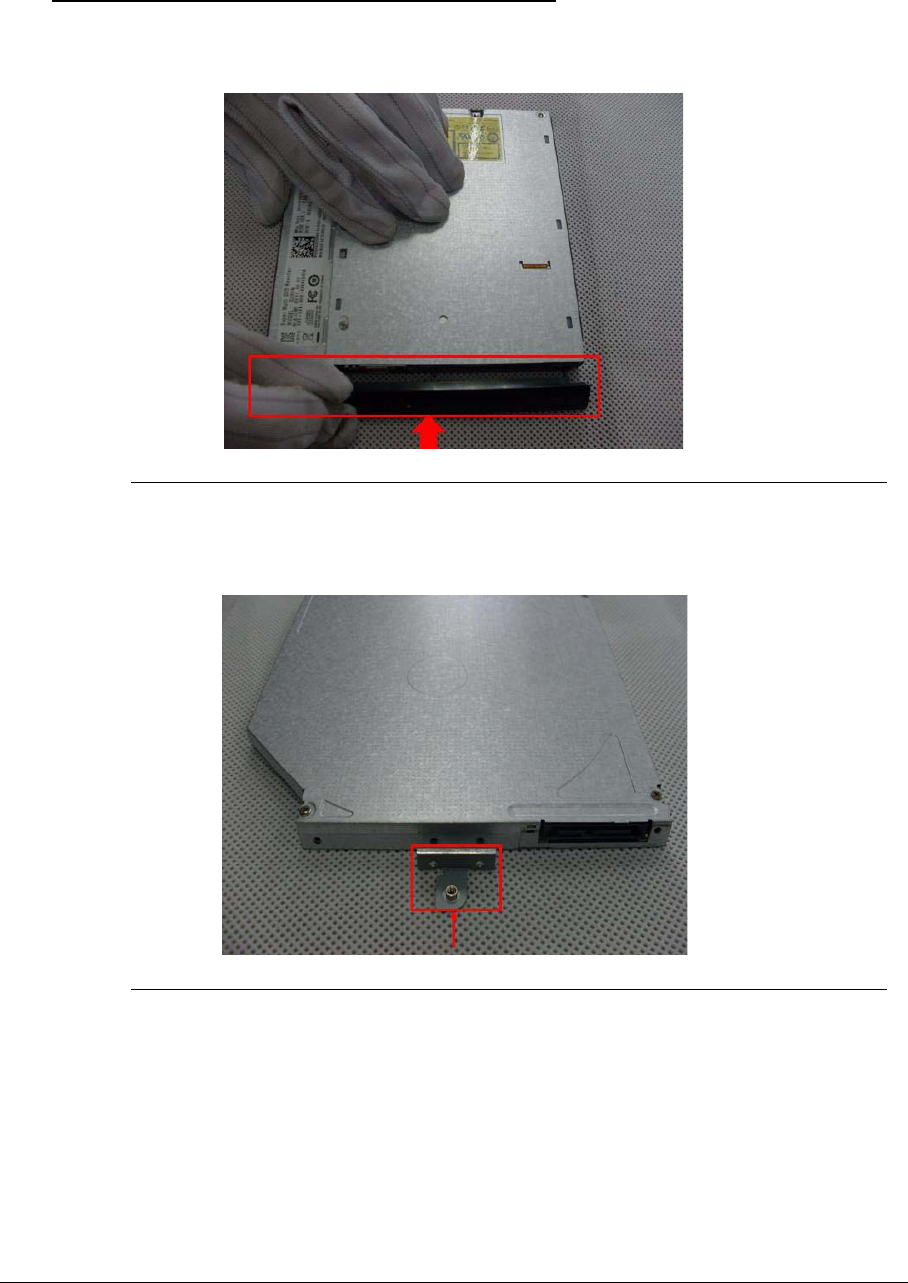
3-73
Replacing the ODD Module 0
1. Replace the ODD bezel.
Figure 3-119. ODD Module
2. Replace the ODD bracket.
Figure 3-120. ODD Module
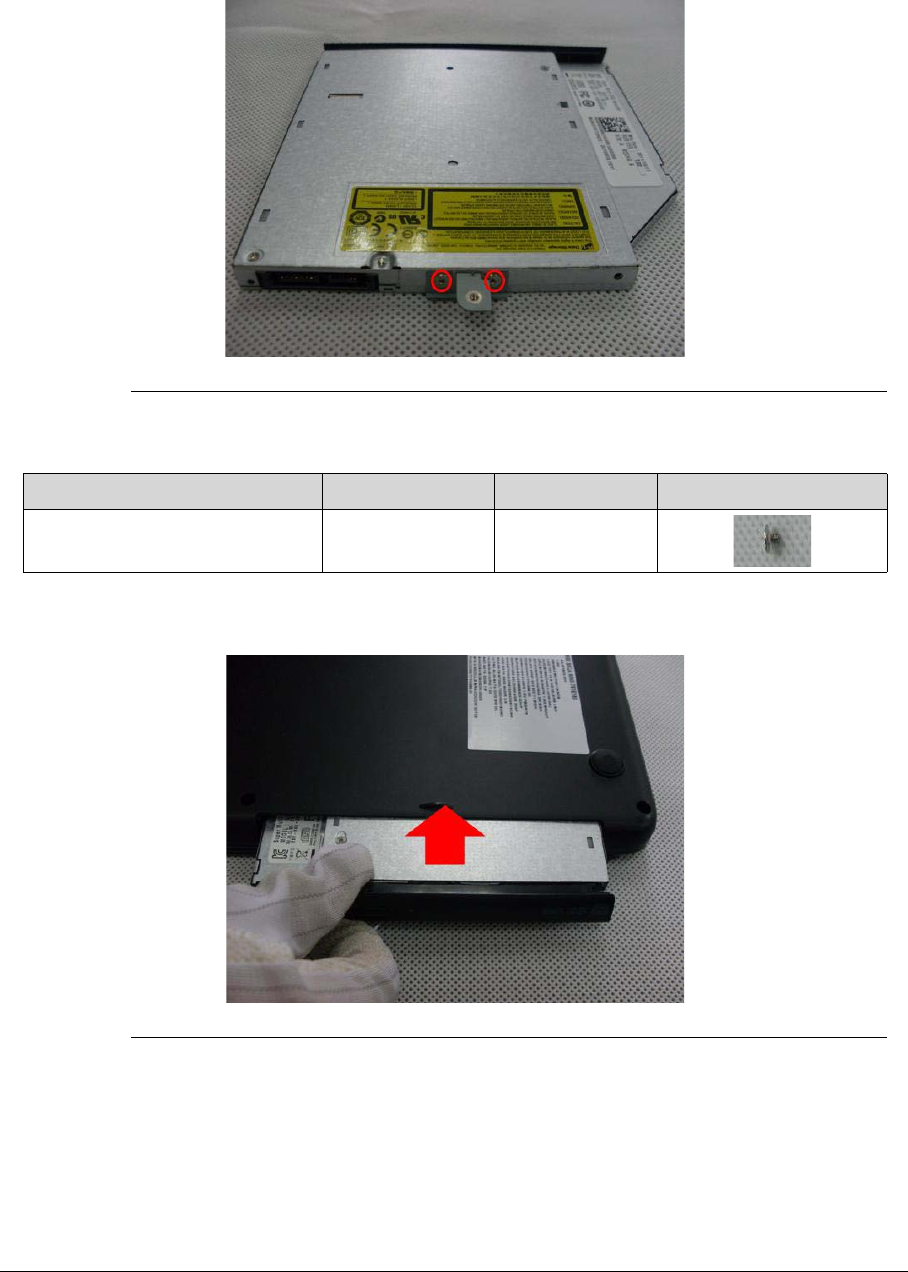
3-74
3. Replace the 2 screws of the ODD bracket.
Figure 3-121. ODD Bracket
4. Push the ODD completely into the bay until flush with the bottom case.
Figure 3-122. ODD Module
Table 3-30. Screws
Step Screw Quantity Screw Type
ODD Bracket Assembly M2*2.5 2
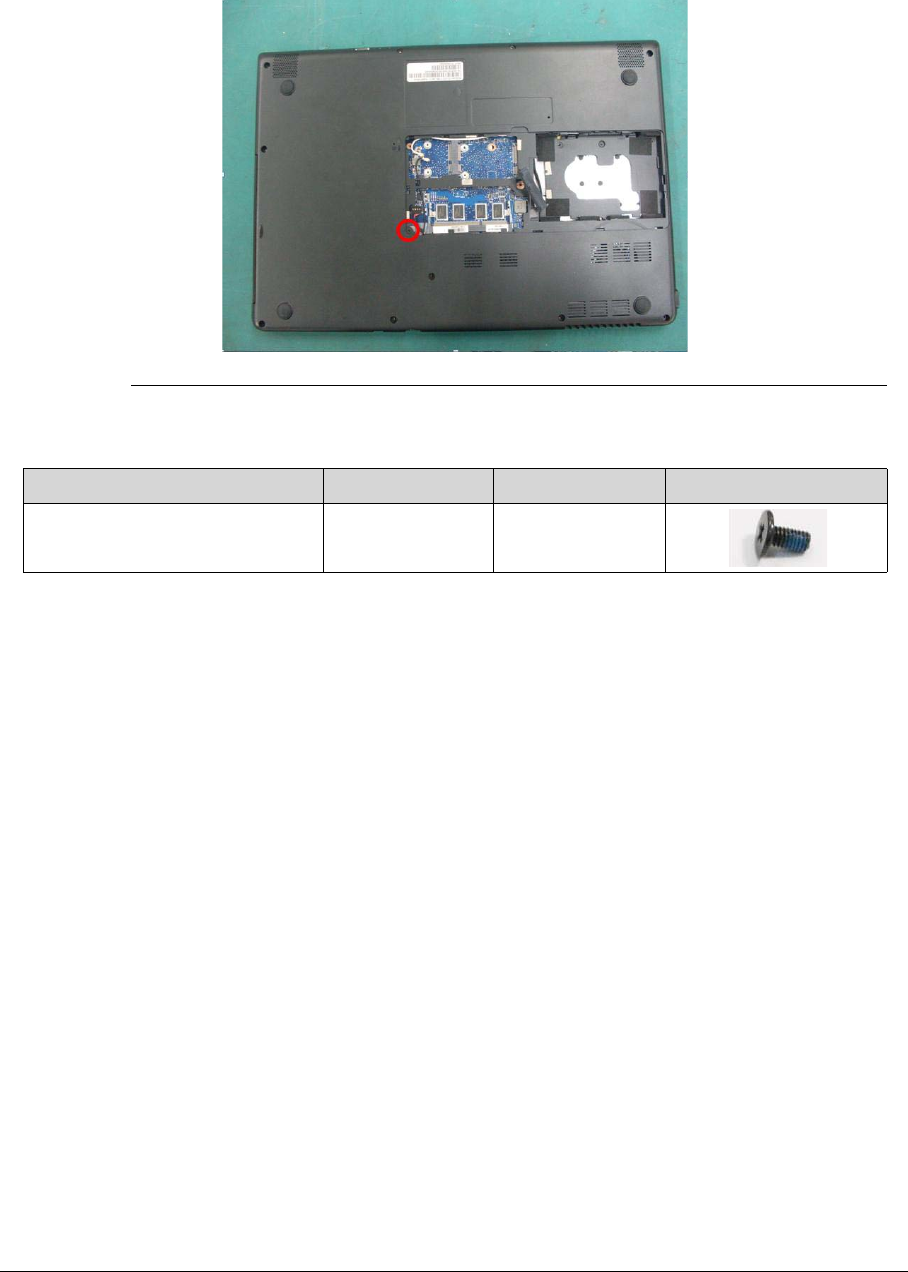
3-75
5. Replace the screw to secure the ODD module.
Figure 3-123. ODD Module
Table 3-31. Screw
Step Screw Quantity Screw Type
ODD Module Assembly M2*3 1
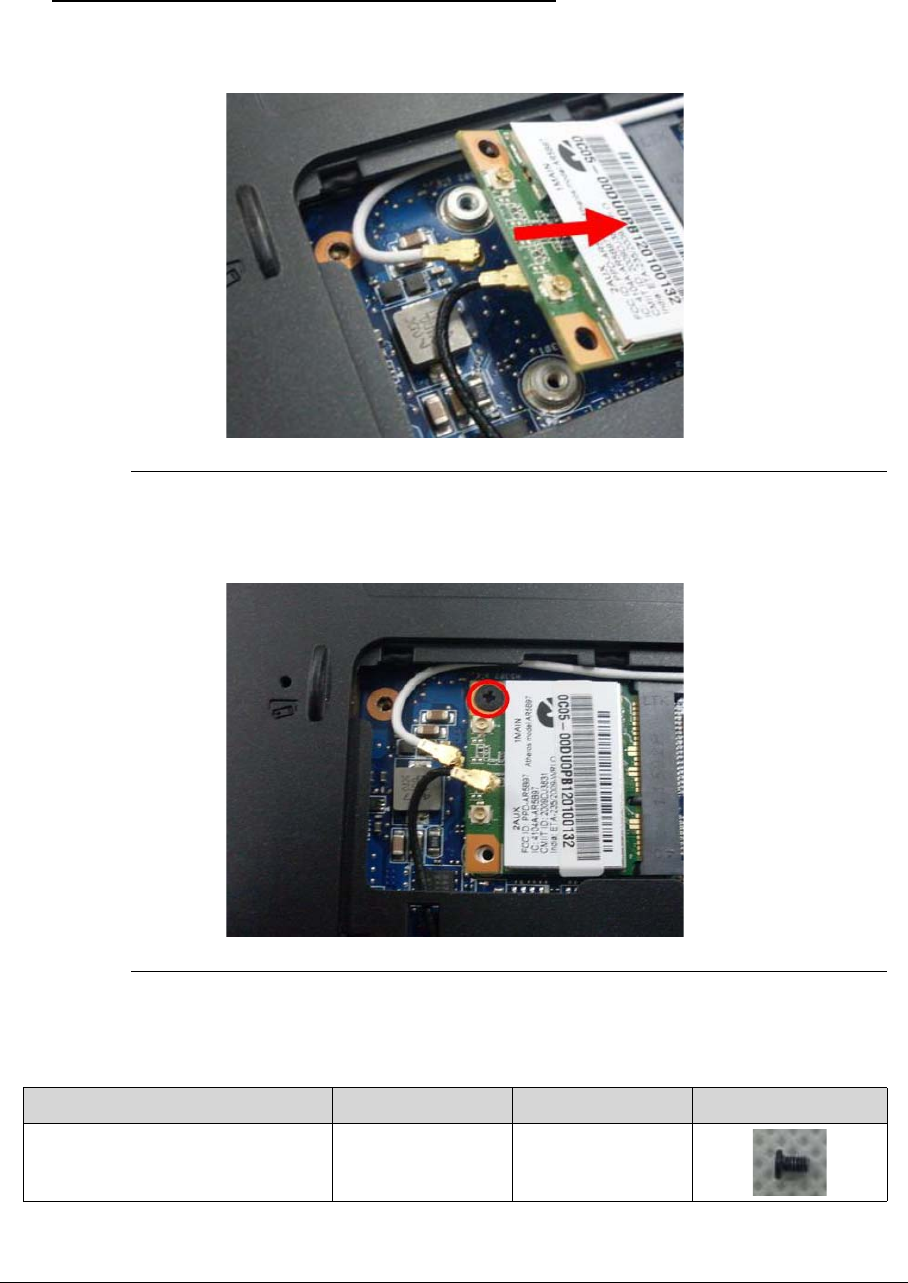
3-76
Replacing the WLAN Module 0
1. Insert the WLAN module into the connector.
Figure 3-124. WLAN Module
2. Replace the screw on the WLAN module.
Figure 3-125. WLAN Module
Table 3-32. Screws
Step Screw Quantity Screw Type
WLAN Module Assembly M2*3 Ni 1
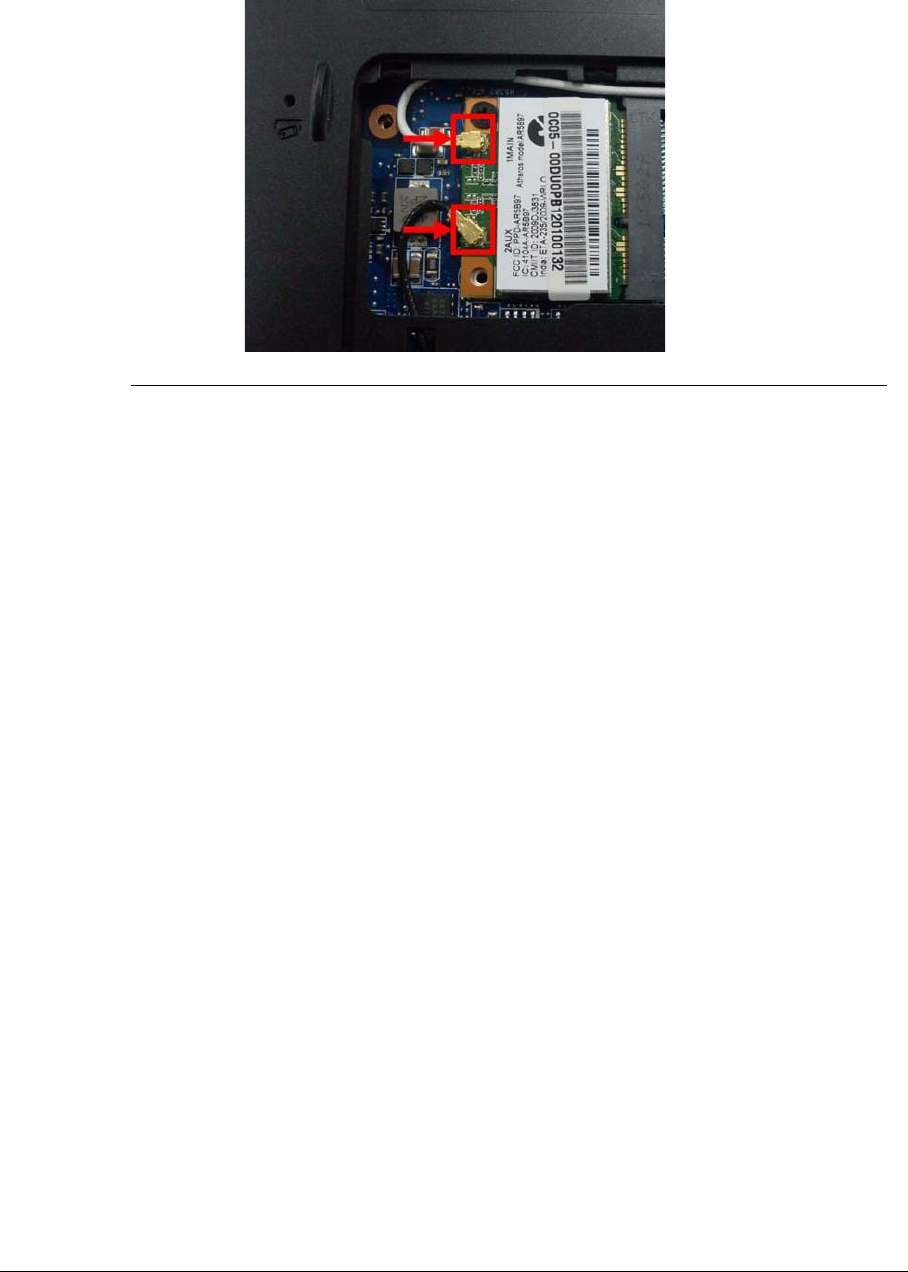
3-77
3. Connect the WLAN antenna cables.
Figure 3-126. WLAN Module
IMPORTANT:
+
Note the position of the Main (black) and Auxiliary (white) connectors.
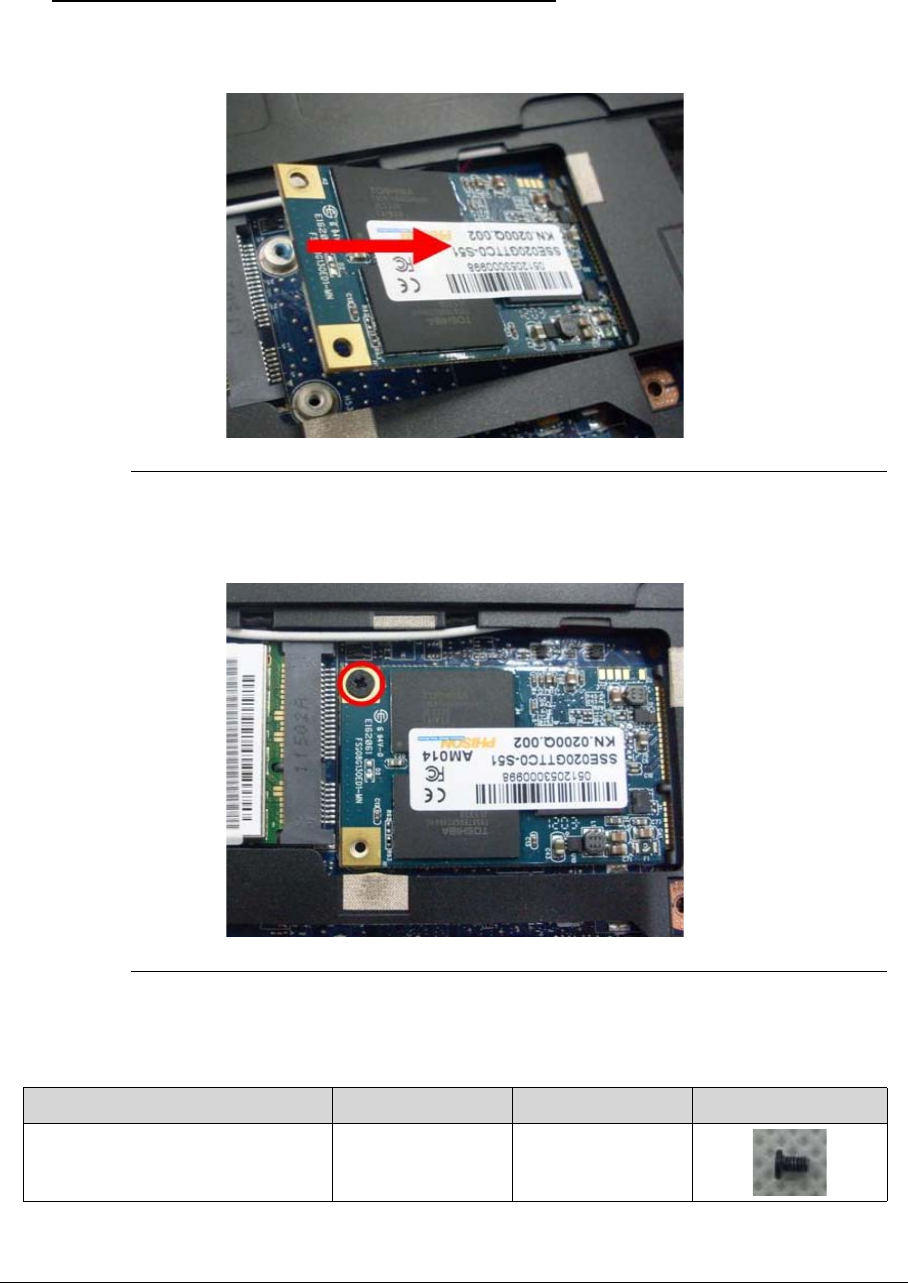
3-78
Replacing the SSD Module 0
1. Insert the SSD module into the connector.
Figure 3-127. SSD Module
2. Replace the screw on the SSD module.
Figure 3-128. SSD Module
Table 3-33. Screws
Step Screw Quantity Screw Type
SSD Module Assembly M2*3 Ni 1
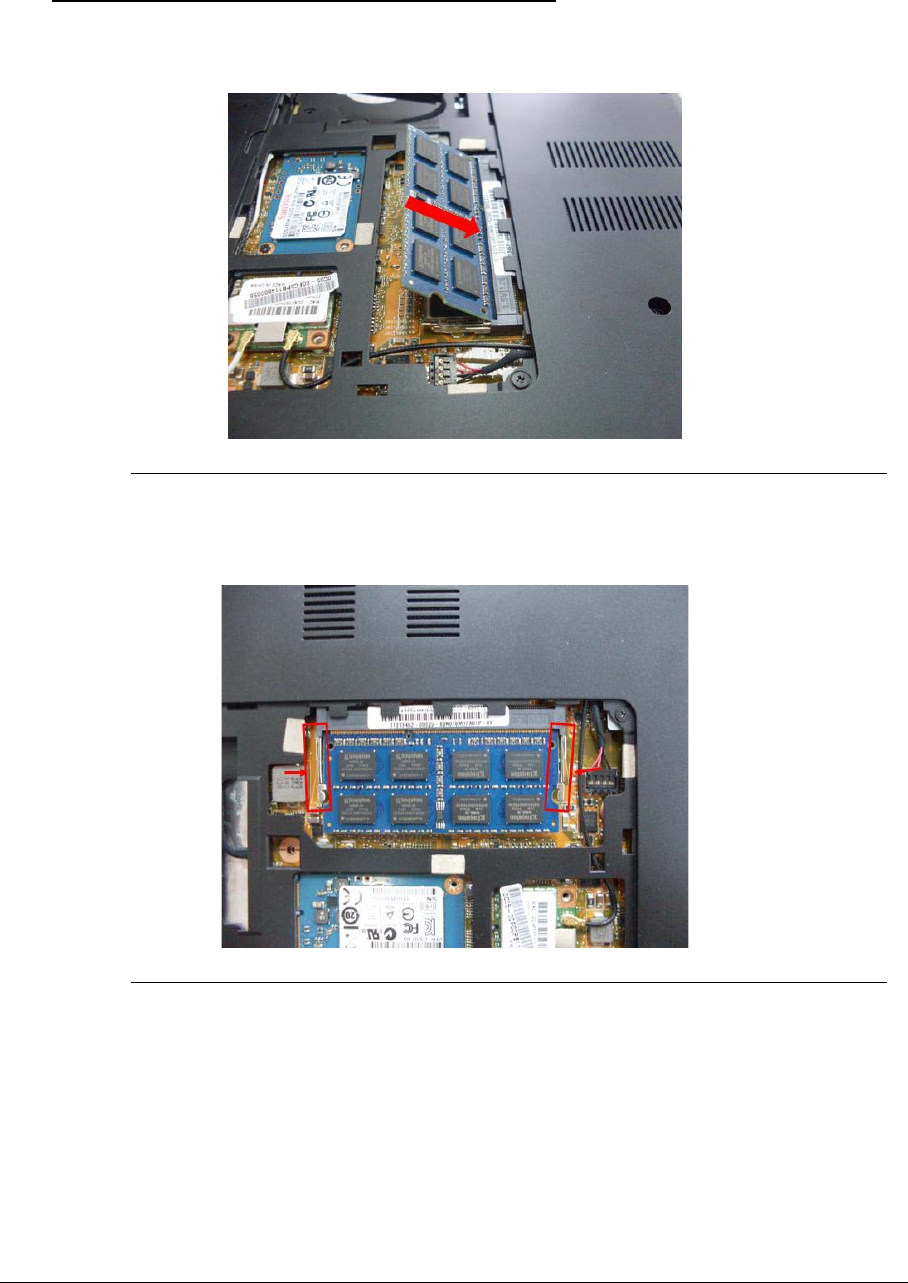
3-79
Replacing the DIMM Module 0
1. Slide the DIMM modules into the mainboard connectors.
Figure 3-129. DIMM Module
2. Press down until the locking springs click into place.
Figure 3-130. DIMM Module
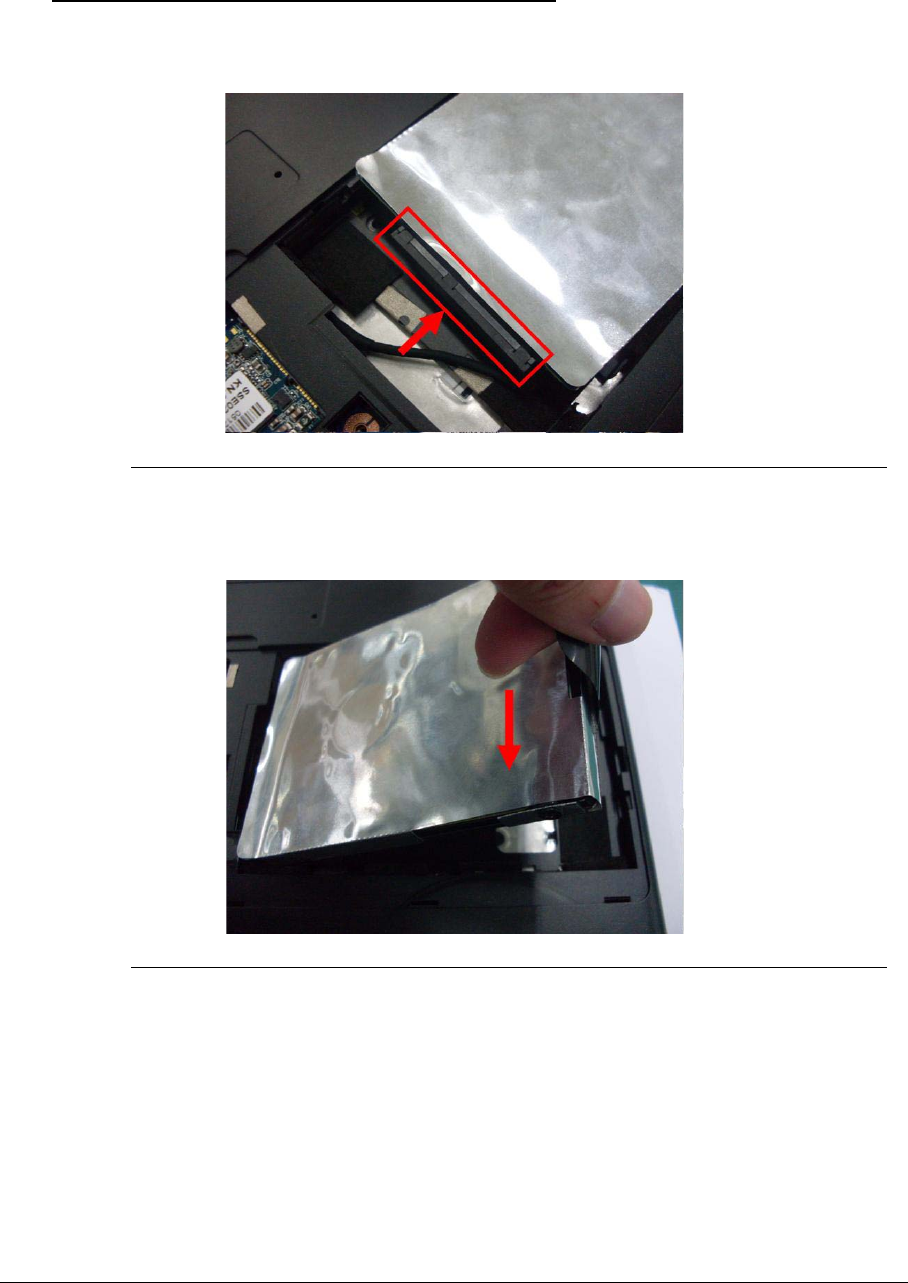
3-80
Replacing the HDD Module 0
1. Connect the HDD to the HDD SATA cable.
Figure 3-131. HDD module
2. Hold the tab and slide the HDD firmly into the docking.
Figure 3-132. HDD module
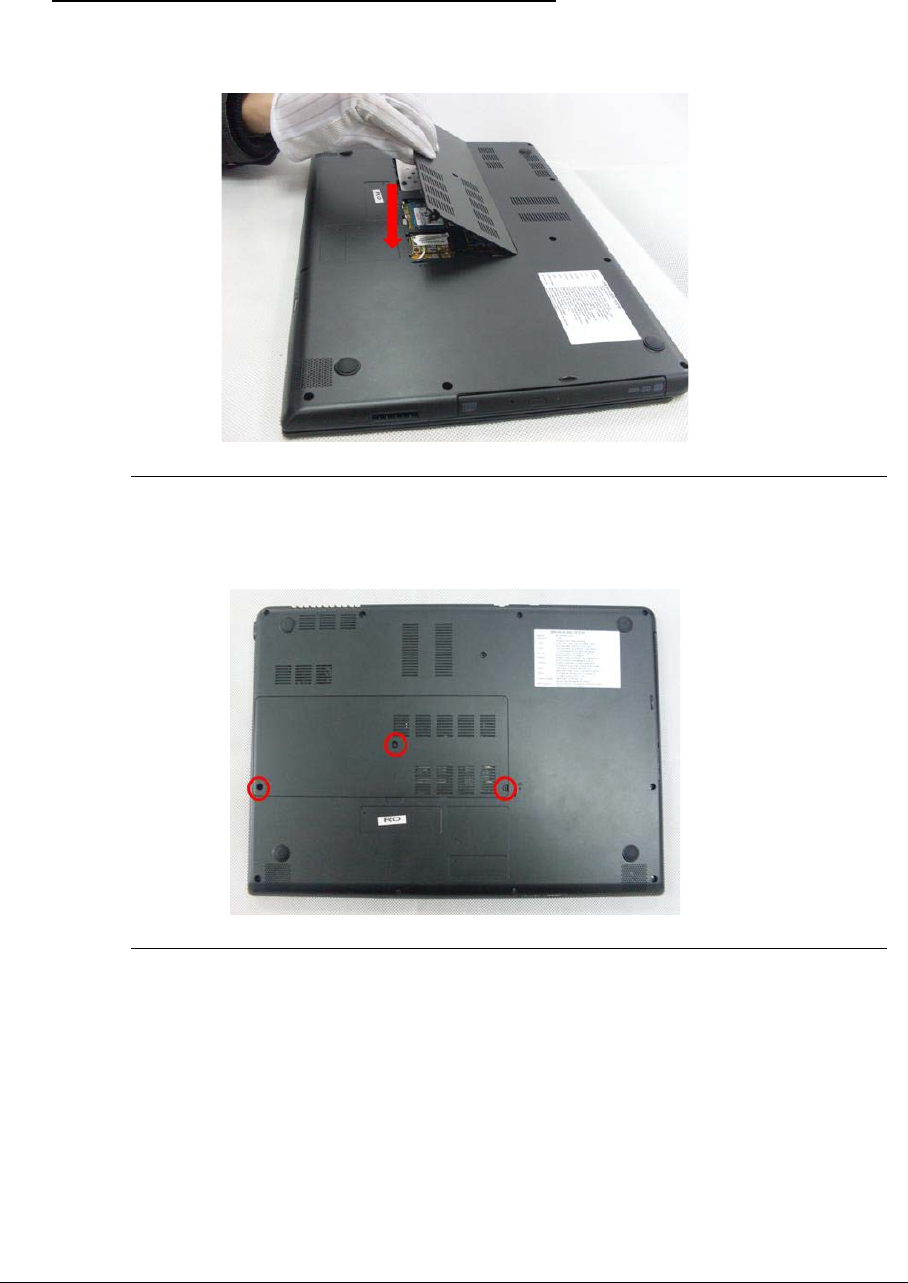
3-81
Replacing the Door 0
1. Insert the HDD door edge flanges into the slots.
Figure 3-133. HDD Door
2. Replace the 3 screws.
Figure 3-134. HDD Door Screws
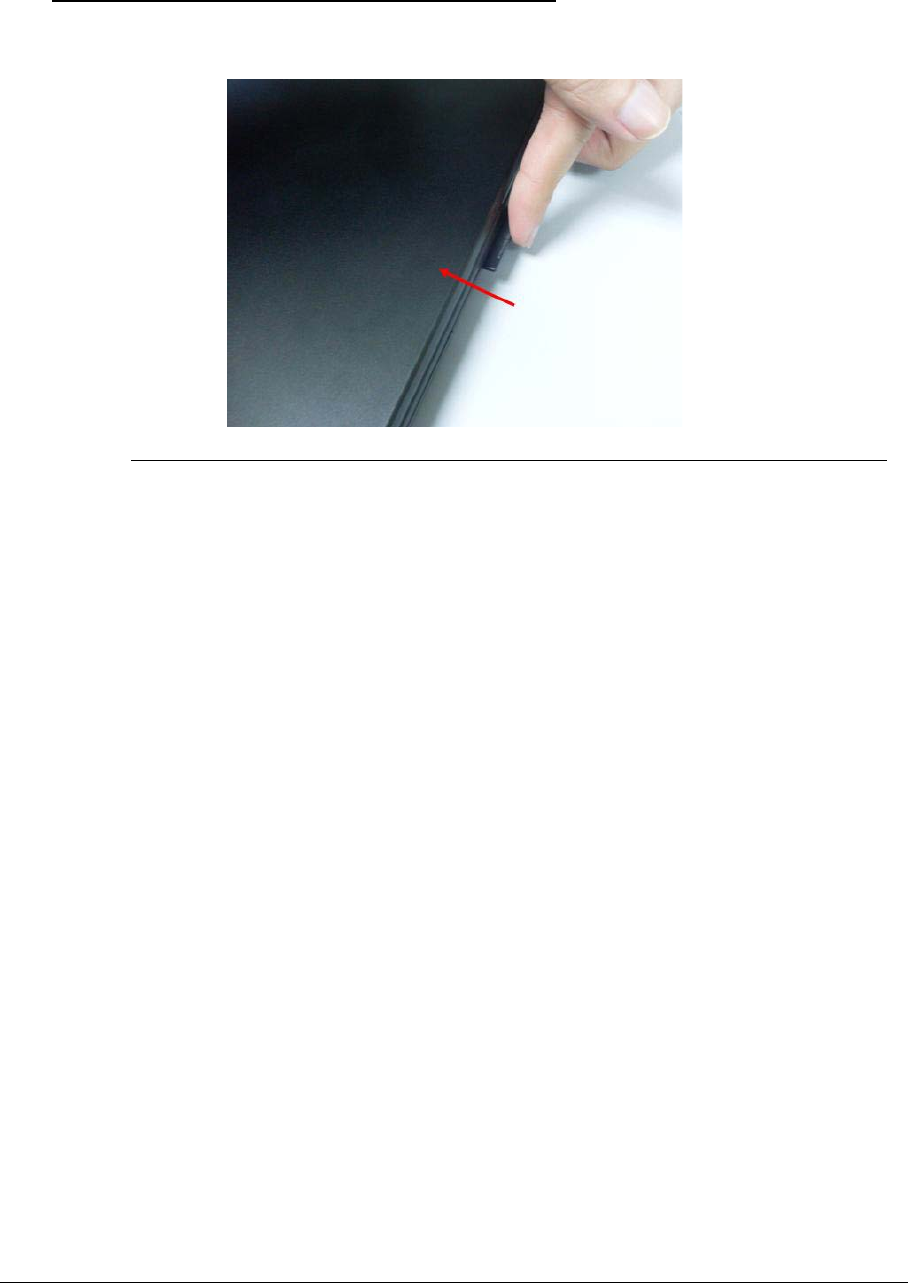
3-82
Replacing the Dummy Card 0
1. Insert the Dummy card in until it clicks into place.
Figure 3-135. Dummy Card

CHAPTER 4
Troubleshooting

4-2
Introduction . . . . . . . . . . . . . . . . . . . . . . . . . . . . . . . . . . . . . . . . . 4-3
General Information . . . . . . . . . . . . . . . . . . . . . . . . . . . . . . . . . . 4-3
Power On Issues . . . . . . . . . . . . . . . . . . . . . . . . . . . . . . . . . . . . .4-4
No Display Issues . . . . . . . . . . . . . . . . . . . . . . . . . . . . . . . . . . . .4-5
LCD Failure . . . . . . . . . . . . . . . . . . . . . . . . . . . . . . . . . . . . . . . . .4-7
Keyboard Failure . . . . . . . . . . . . . . . . . . . . . . . . . . . . . . . . . . . .4-8
Touchpad Failure . . . . . . . . . . . . . . . . . . . . . . . . . . . . . . . . . . . .4-9
Internal & External Speaker Failure . . . . . . . . . . . . . . . . . . . . .4-10
Microphone Failure . . . . . . . . . . . . . . . . . . . . . . . . . . . . . . . . . .4-12
USB Failure . . . . . . . . . . . . . . . . . . . . . . . . . . . . . . . . . . . . . . . . .4-13
WLAN Failure . . . . . . . . . . . . . . . . . . . . . . . . . . . . . . . . . . . . . . .4-14
Card Reader Failure . . . . . . . . . . . . . . . . . . . . . . . . . . . . . . . . . .4-15
Thermal Unit Failure . . . . . . . . . . . . . . . . . . . . . . . . . . . . . . . . .4-16
HDMI and CRT Failure . . . . . . . . . . . . . . . . . . . . . . . . . . . . . . . .4-17
CD-ROM/DVD Failure. . . . . . . . . . . . . . . . . . . . . . . . . . . . . . . . .4-18
Other Functions Failure. . . . . . . . . . . . . . . . . . . . . . . . . . . . . . .4-19
Intermittent Problems . . . . . . . . . . . . . . . . . . . . . . . . . . . . . . . . . 4-19
Undetermined Problems . . . . . . . . . . . . . . . . . . . . . . . . . . . . . . . 4-19
Post Codes . . . . . . . . . . . . . . . . . . . . . . . . . . . . . . . . . . . . . . . . . . 4-20
POST Code Range. . . . . . . . . . . . . . . . . . . . . . . . . . . . . . . . . . .4-20
Troubleshooting 4-3
Troubleshooting
Introduction 0
This chapter contains information about troubleshooting common problems associated with
the notebook.
General Information 0
The following procedures are a guide for troubleshooting computer problems. The step by
step procedures are designed to be performed as described.
NOTE:
NOTE:
The diagnostic tests are intended for Acer products only. Non-Acer products, prototype
cards, or modified options can give false errors and invalid system responses.
1. Obtain as much detailed information as possible about the problem.
2. If possible, verify the symptoms by re-creating the failure through diagnostic tests or
repeating the operation that led to the problem.
3. Use Table 4-1 with the verified symptom to determine the solution.
4. If the Issue is still not resolved, refer to Online Support Information.
Table 4-1. Common Problems
Symptoms (Verified)
Power On Issues
No Display Issues
LCD Failure
Keyboard Failure
Touchpad Failure
Internal & External Speaker Failure
Microphone Failure
USB Failure
WLAN Failure
Card Reader Failure
Thermal Unit Failure
HDMI and CRT Failure
CD-ROM/DVD Failure
Other Functions Failure
Intermittent Problems
Undetermined Problems
4-4 Troubleshooting
Power On Issues 0
If the system does not power on, perform the following, one at a time, to correct the problem.
Do not replace a non-defective FRU:
Figure 4-1. Power On Issue
Please wait for 3 min. after removing all power (AC adapter and Battery), then re-insert to try
power on.
Computer Shuts Down Intermittently 0
If the system powers off at intervals, perform the following.
1. Makes sure the power cable is properly connected to the computer and the electrical
outlet.
2. Remove all extension cables between the computer and the outlet.
3. Remove all surge protectors between the computer and the electrical outlet. Plug the
computer directly into a known serviceable electrical outlet.
4. Disconnect the power and open the casing to check the Thermal Unit (refer to Thermal
Unit Failure) and fan airways are free of obstructions.
5. Remove all external and non-essential hardware connected to the computer that are not
necessary to boot the computer to the failure point.
6. Remove any recently installed software.
7. If the Issue is still not resolved, refer to Online Support Information.
Start
Check
AC/Battery
Power on
Check
Daughter BD &
FFC
NG
OK
Swap AC/Battery
Swap
Daughter BD
& Re-plug PWR
FFC
NG
OK
Swap MB
Troubleshooting 4-5
No Display Issues 0
If the Display does not work, perform the following, one at a time. Do not replace a
non-defective FRU:
Figure 4-2. No Display Issue
No POST or Video 0
If the POST or video does not appear, perform the following, one at a time.
1. Make sure that internal display is selected. Switching between internal and external by
pressing Fn+F5. Reference Product pages for specific model procedures.
2. Make sure the computer has power by checking for one of the following:
-Fans start up
-Status LEDs illuminate
If no power, refer to Power On Issues.
3. Drain stored power by removing the power cable and battery. Hold the power button for 10
seconds.
4. Connect the power and reboot the computer.
START
Power On?
Ext.DDRRAM
Module well
connected?
Ext DDRRAM
Modul e OK?
CPU Thermal
Module well
screwed?
LCD Moduel
OK? NG Power On Issue
Replace MB
NG Check Connection
NG
Replace
Ext. DDRRAM
Modul e
NG Fasten Screw
NG
Replace LCD
Panel/LCD Cable

4-6 Troubleshooting
5. Connect an external monitor to the computer and switch between the internal display and
the external display is by pressing Fn+F5.
6. If the POST or video appears on the external display only, refer to LCD Failure.
7. Disconnect power and all external devices including port replicators or docking stations.
Remove any memory cards and CD/DVD discs.
8. Start the computer. If the computer boots correctly, add the devices one by one until the
failure point is discovered.
9. Re-set the memory modules.
10. Remove the drives (refer to Disassembly Process).
11. If the Issue is still not resolved, refer to Online Support Information.
Abnormal Video 0
If the video appears abnormal, perform the following, one at a time.
1. Boot the computer.
-If permanent vertical/horizontal lines or dark spots appear in the same location, the
LCD is faulty and should be replaced. Refer to Disassembly Process.
-If extensive pixel damage is present (different colored spots in the same locations on
the screen), the LCD is faulty and should be replaced. Refer to Disassembly Process.
NOTE:
NOTE:
Make sure that the computer is not running on battery alone as this may reduce display
brightness.
2. Adjust the brightness to its highest level. Refer to the User Manual for instructions on
adjusting the settings. If the display is too dim at the highest brightness setting, the LCD is
faulty and should be replaced. Refer to Disassembly Process.
3. Check the display resolution is correctly configured:
-Minimize or close all Windows.
-If display size is only abnormal in an application, check the view settings and
control/mouse wheel zoom feature in the application.
-If desktop display resolution is not normal, right-click on the desktop and select
Personalize Display Settings.
-Click and drag the Resolution slider to the desired resolution.
-Click Apply and check the display. Readjust if necessary.
4. Roll back the video driver to the previous version if updated.
5. Remove and reinstall the video driver.
6. Check the Device Manager to determine that:
-The device is properly installed. There are no red Xs or yellow exclamation marks
-There are no device conflicts
-No hardware is listed under Other Devices
7. If the Issue is still not resolved, refer to Online Support Information.
8. Run the Windows Memory Diagnostic from the operating system DVD and follow the
on-screen prompts.
9. If the Issue is still not resolved, refer to Online Support Information.
Troubleshooting 4-7
LCD Failure 0
If the LCD fails, perform the following, one at a time. Do not replace a non-defective FRU:
Figure 4-3. LCD Failure
START
NG
NG
Swap MB
Swap LCD
Module/LCD
Panel
Reassemble/Re-
plug LCD Cable
Check LCD
Connector/
Cable
Check
LCD Module
4-8 Troubleshooting
Keyboard Failure 0
If the Keyboard fails, perform the following, one at a time. Do not replace a non-defective
FRU:
Figure 4-4. Keyboard Failure
START
NG
NG
Replace M/B
Connect it Well
Replace KeyboardKeyboard Ok?
Keyboard FFC
Well Connected?
Troubleshooting 4-9
Touchpad Failure 0
If the Touchpad fails, perform the following, one at a time. Do not replace a non-defective
FRU:
Figure 4-5. Touchpad Failure
START
NG
NG
Swap MB
Reassemble the
T/P FFC to MB
Swap/Reassemble
the T/P Pad or T/P
FFC
Check
Touchpad
Check MB T/P
FFC
4-10 Troubleshooting
Internal & External Speaker Failure 0
If internal Speakers fail, perform the following, one at a time. Do not replace a non-defective
FRU:
Figure 4-6. Internal Speaker Failure
Sound Problems 0
Perform the following, one at a time.
1. Boot the computer.
2. Navigate to Start
Control Panel
System and Security
System
Device Manager.
Check the Device Manager to determine that:
-The device is properly installed
-There are no red X or yellow exclamation marks
-There are no device conflicts
-No hardware is listed under Other Devices
3. If updated recently, roll back the audio driver to the previous version.
4. Remove and reinstall the audio driver.
5. Make sure that all volume controls are set mid range:
-Click the volume icon on the task bar
-Drag the slider to 50. Confirm that the volume is not muted.
START
NG
NG
Swap MB
Reassemble t he
SPK cabl e t o MB
Swap Reassembl e
The SPK modul e
Check SPK
modul e
Check MB
SPK cabl e
START
NG
NG
Swap MB
Reassemble I/O
Board FPC
Swap I/O Board
Check I/O
Board OK?
Check I/O Board
Connecti on

Troubleshooting 4-11
-Click Mixer to verify that other audio applications are set to 50 and not muted.
6. Navigate to Start
Control Panel
Hardware and Sound
Sound. Confirm that
Speakers are selected as the default audio device (green check mark).
NOTE:
NOTE:
If Speakers do not show, right-click on the Playback tab and select Show Disabled
Devices (clear by default).
7. Select Speakers and click Configure to start Speaker Setup. Follow the on-screen prompts
to configure the speakers.
8. Remove any recently installed hardware or software.
9. Restore system and file settings from a known good date using System Restore.
10. If the issue is remains, repeat step 9, selecting an earlier time and date.
11. Reinstall the Operating System.
12. Connect a set of earphones or external speakers. If these function correctly, the internal
speaker or I/O board may be defective. If they do not function correctly, the mother board
may be defective or damaged.
13. If the Issue is still not resolved, refer to Online Support Information.
4-12 Troubleshooting
Microphone Failure 0
If internal or external Microphones fail, perform the following, one at a time.
Figure 4-7. Microphone Failure
1. Check that the microphone is enabled. Navigate to Start-> Control Panel->Hardware and
Sound-> Sound and select the Recording tab.
2. Right click on the Recording tab and select Show Disabled Devices (clear by default). The
microphone appears on the Recording tab.
3. Right click on the microphone and select Enable.
4. Select the microphone then click Properties. Select the Levels tab.
5. Increase the volume to the maximum setting and click OK.
6. Test the microphone hardware:
-Select the microphone and click Configure.
-Select Set up microphone.
-Select the microphone type from the list and click Next.
-Follow the on-screen prompts to complete the test.
7. If the Issue is still not resolved, refer to Online Support Information.
Start
No
Check Mic to
MB cable well
connected?
Re-assemble Mic
cable to MB
NoCheck Mic module? Swap Mic module
and cable
Replace M/B
Troubleshooting 4-13
USB Failure 0
If the USB fails, perform the following, one at a time. Do not replace a non-defective FRU:
Figure 4-8. USB Failure.
Can not support USB3.0
Start
No
Check USB board to
MB cable
Re-assemble USB
board cable to M B
NoCheck USB board? Swap USB board
and USB cable
Replace M/B
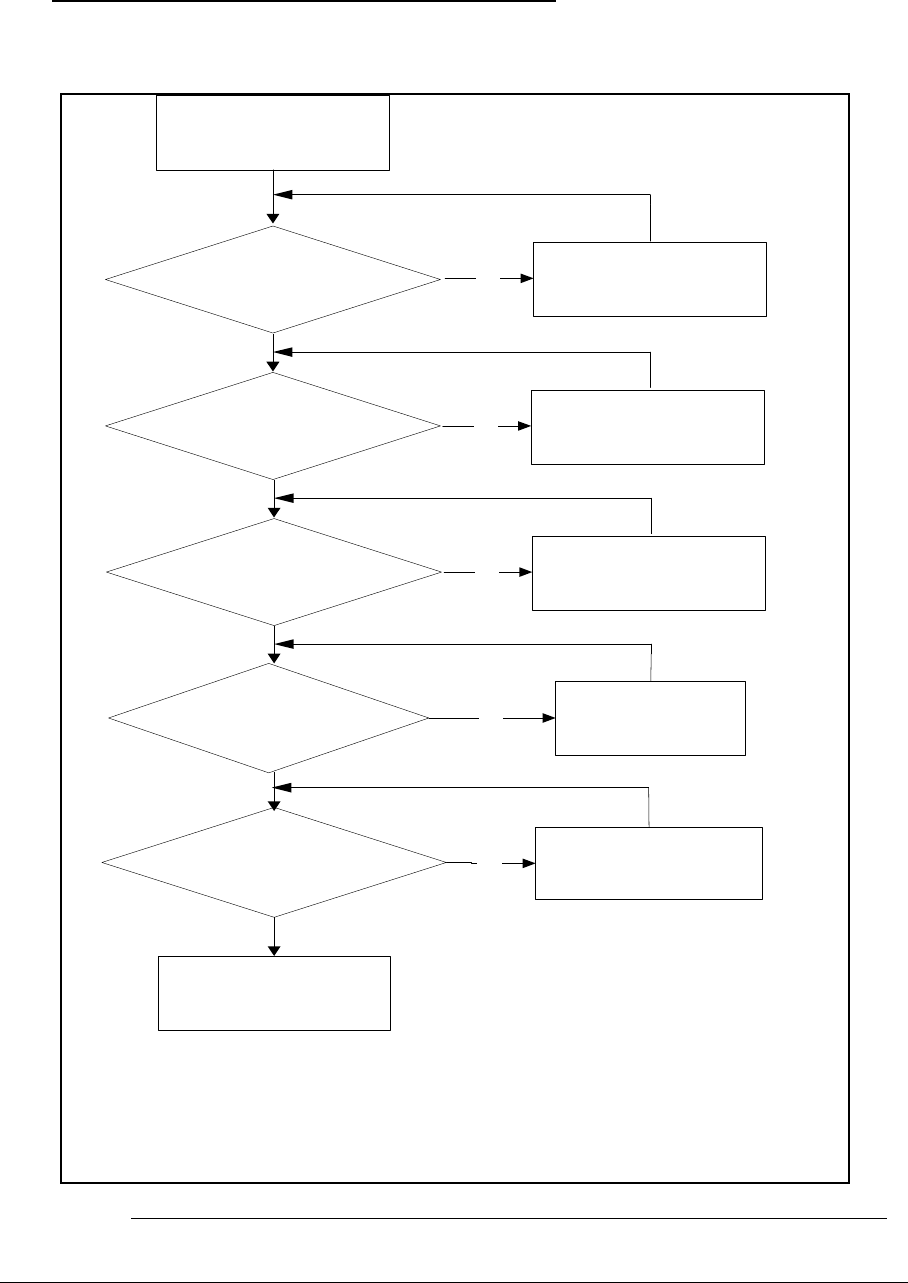
4-14 Troubleshooting
WLAN Failure 0
If the WLAN fails, perform the following, one at a time. Do not replace a non-defective FRU:
Figure 4-9. WLAN Failure
Start
No
W LAN device turn on?
Turn on W LAN device
from Acer Ring Device
Control
No
Check W LAN device OK? Re-install W LAN driver or
Swap WLAN module
Replace M /B
No
Check WLAN antenna well
connect? No Re-assem ble W LAN
antenna
Check WLAN antenna? No Swap W LAN antenna
Check W/L device insert well? Reassem ble W /L
device
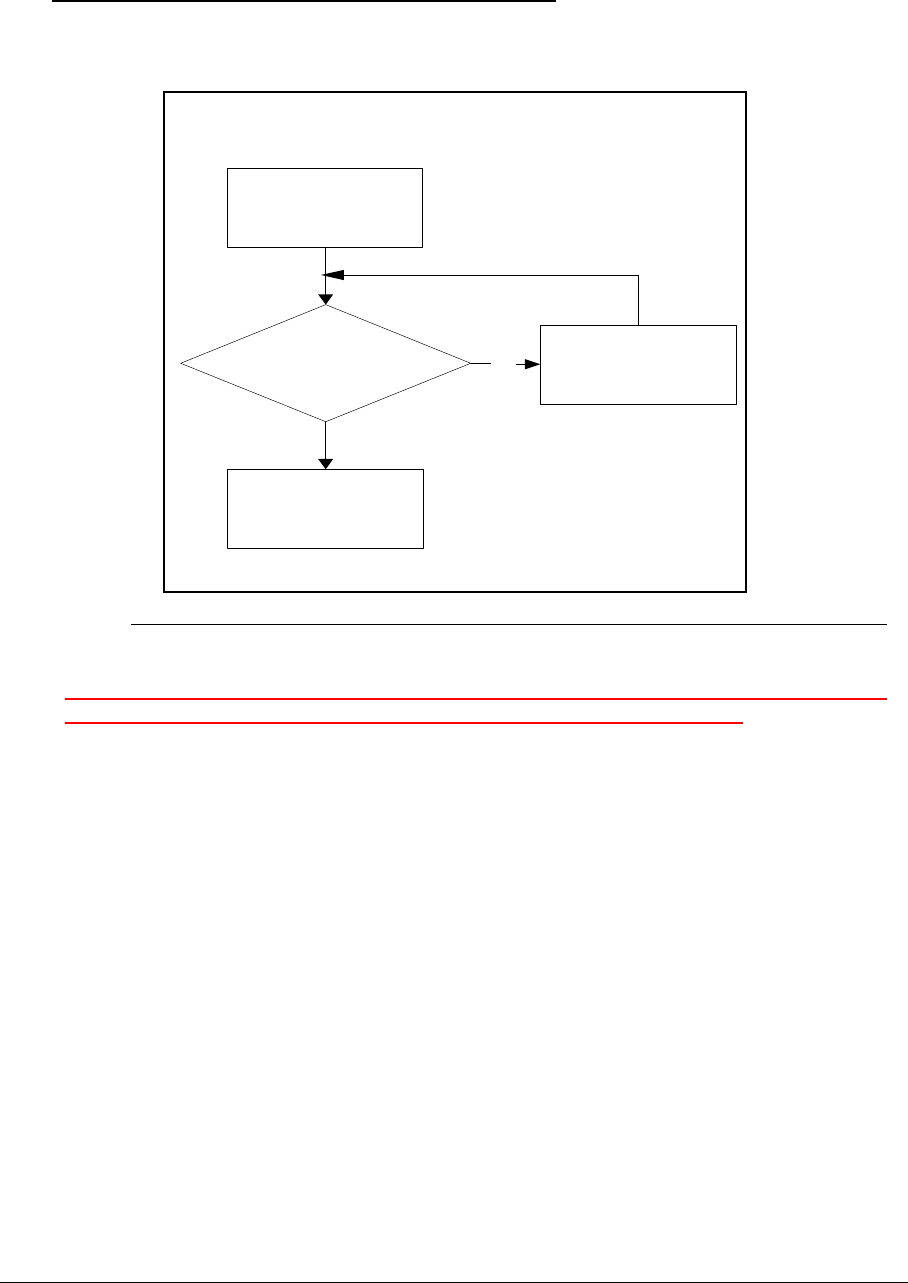
Troubleshooting 4-15
Card Reader Failure 0
If the Card Reader fails, perform the following, one at a time. Do not replace a non-defective FRU:
Figure 4-10. Card Reader Failure
The Card Reader device will disappear in device manager for power saving if there is no card
inserted. Try to insert card, then the Card Reader appear in device manager.
Start
Replace M /B
No
Check Card Reader
device OK?
Re-install Card
Reader driver
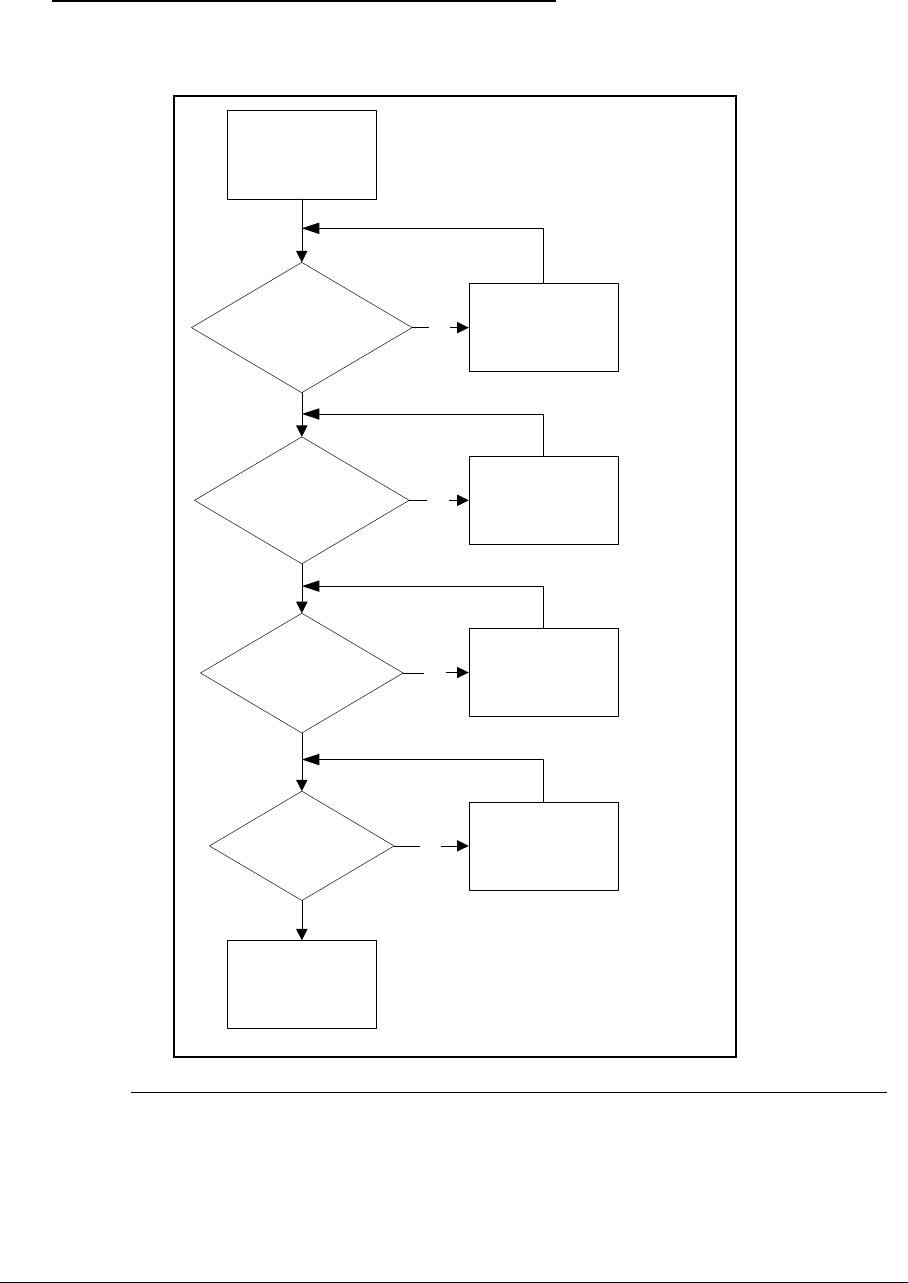
4-16 Troubleshooting
Thermal Unit Failure 0
If the Thermal Unit fails, perform the following, one at a time. Do not replace a non-defective FRU:
Figure 4-11. Thermal Unit Failure
Start
Fan power wire well
connected?
Fan OK?
Heatsink well
seated?
CPU OK?
Replace M/B
Check ConnectNo
Replace thermal
module
No
Seat it wellNo
Replace CPUNo
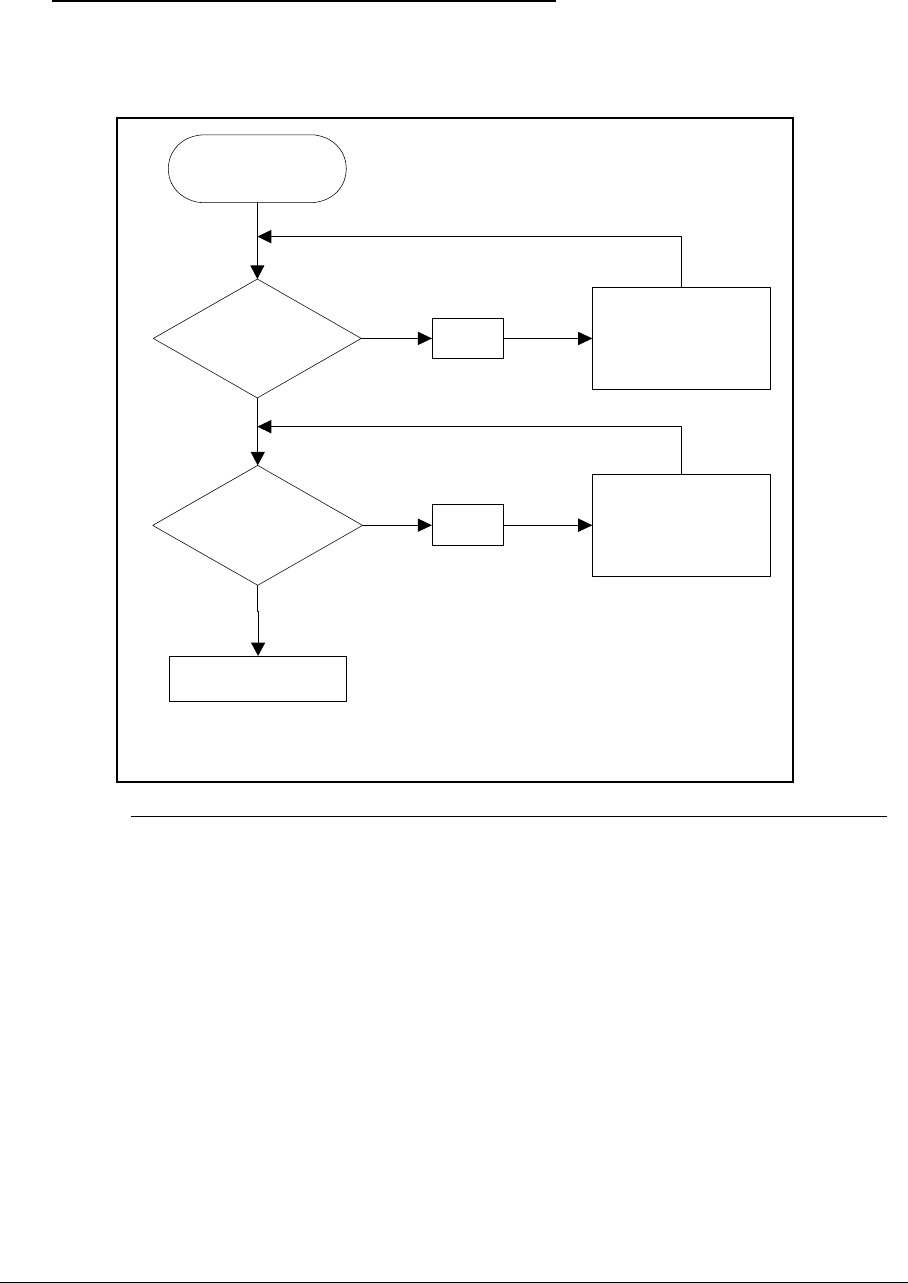
Troubleshooting 4-17
HDMI and CRT Failure 0
If the HDMI or CRT function fails, perform the following, one at a time. Do not replace a non-defective
FRU:
Figure 4-12. HDMI and CRT Failure
START
NG
NG
Swap MB
Reinsert
CRT/HDMI
Connector
Reinstall corrcet
driver
Check
Drivers install OK
or not in Device
manager
CRT/HDMI
connection check
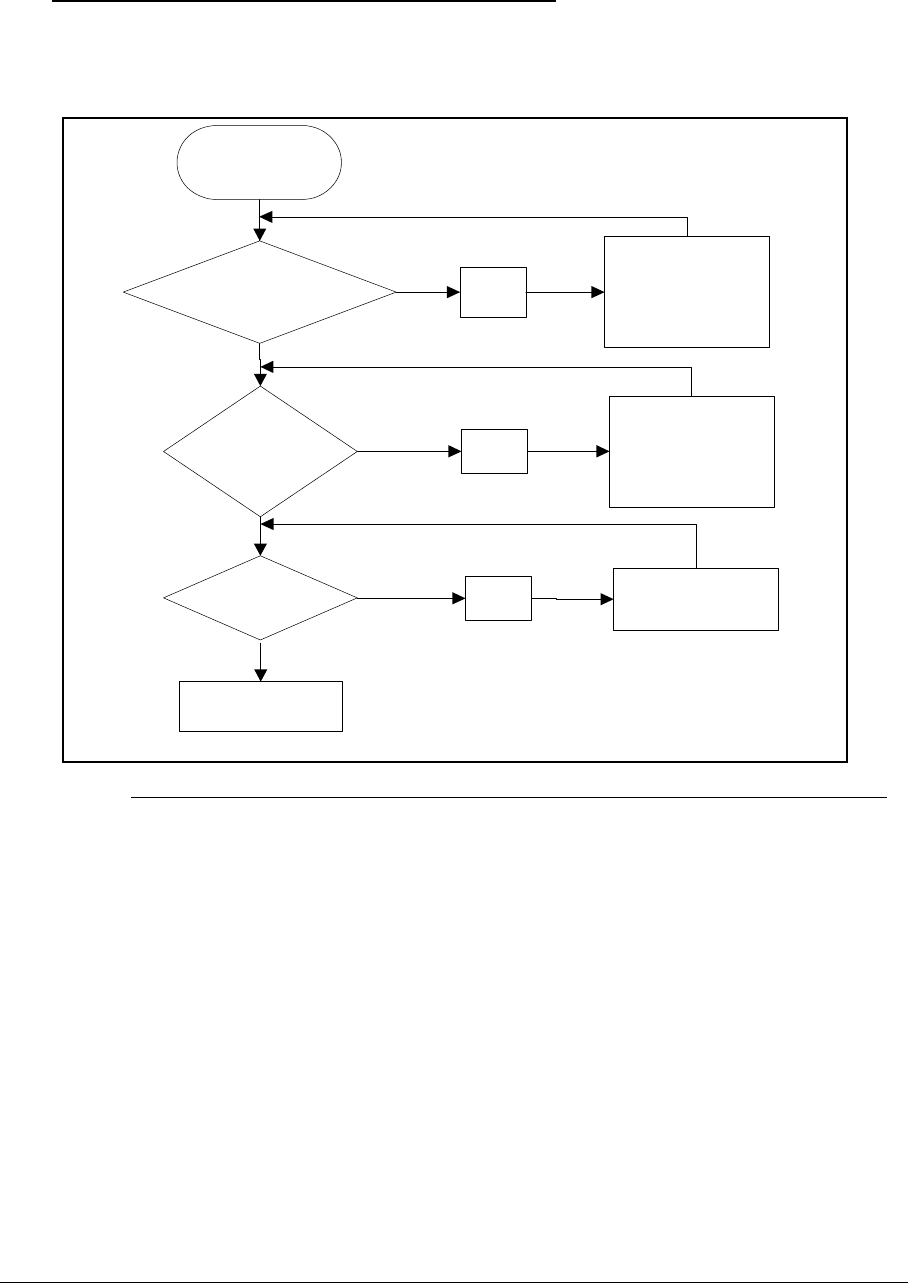
4-18 Troubleshooting
CD-ROM/DVD Failure 0
If the CD-ROM/DVD function fail, perform the following, one at a time. Do not replace a non-defective
FRU:
Figure 4-13. CD-ROM/DVD Failure
START
NG
NG
Swap MB
Reassemble ODD
Device
Reassemble
ODD/B to M/B
ODD/B with M/B
connection check
ODD Device with ODD/B
connection check
NG Swap ODD/B
ODD/B function
check
Troubleshooting 4-19
Other Functions Failure 0
1. Check if drives are functioning correctly.
2. Check if external modules are functioning correctly.
3. Change main board to check if current one is defective.
Intermittent Problems 0
Intermittent system hang problems can be caused by a variety of reasons that have nothing to
do with a hardware defect, such as: cosmic radiation, electrostatic discharge, or software
errors. FRU replacement should be considered only when a recurring problem exists.
When analyzing an intermittent problem, perform the following:
1. Run the advanced diagnostic test for the system board in loop mode at least 10 times.
2. If no error is detected, do not replace any FRU.
3. If an error is detected, replace the FRU. Rerun the test to verify that there are no more
errors.
Undetermined Problems 0
The diagnostic problems does not identify which adapter or device failed, which installed
devices are incorrect, whether a short circuit is suspected, or whether the system is
inoperative.
Perform the following procedures to isolate the failing FRU (do not isolate non-defective FRU).
NOTE:
NOTE:
Verify that all attached devices are supported by the computer.
NOTE:
NOTE:
Verify that the power supply being used at the time of the failure is operating correctly.
(Refer to Power On Issues).
1. Remove power from the computer.
2. Visually check the components for damage. If any problems are found, replace the FRU.
3. Remove or disconnect all of the following devices:
-Non-Acer devices
-Printer, mouse, and other external devices
-Battery pack
-Hard disk drive
-DIMM
-CD-ROM/Diskette drive Module
-PC Cards
4. Apply power to the computer.
5. Determine if the problem has changed.
6. If the problem does not recur, connect the removed devices one at a time until failing FRU
is found.
7. If the problem remains, replace the following FRUs one at a time. Do not replace a
non-defective FRU:
-System board
-LCD assembly
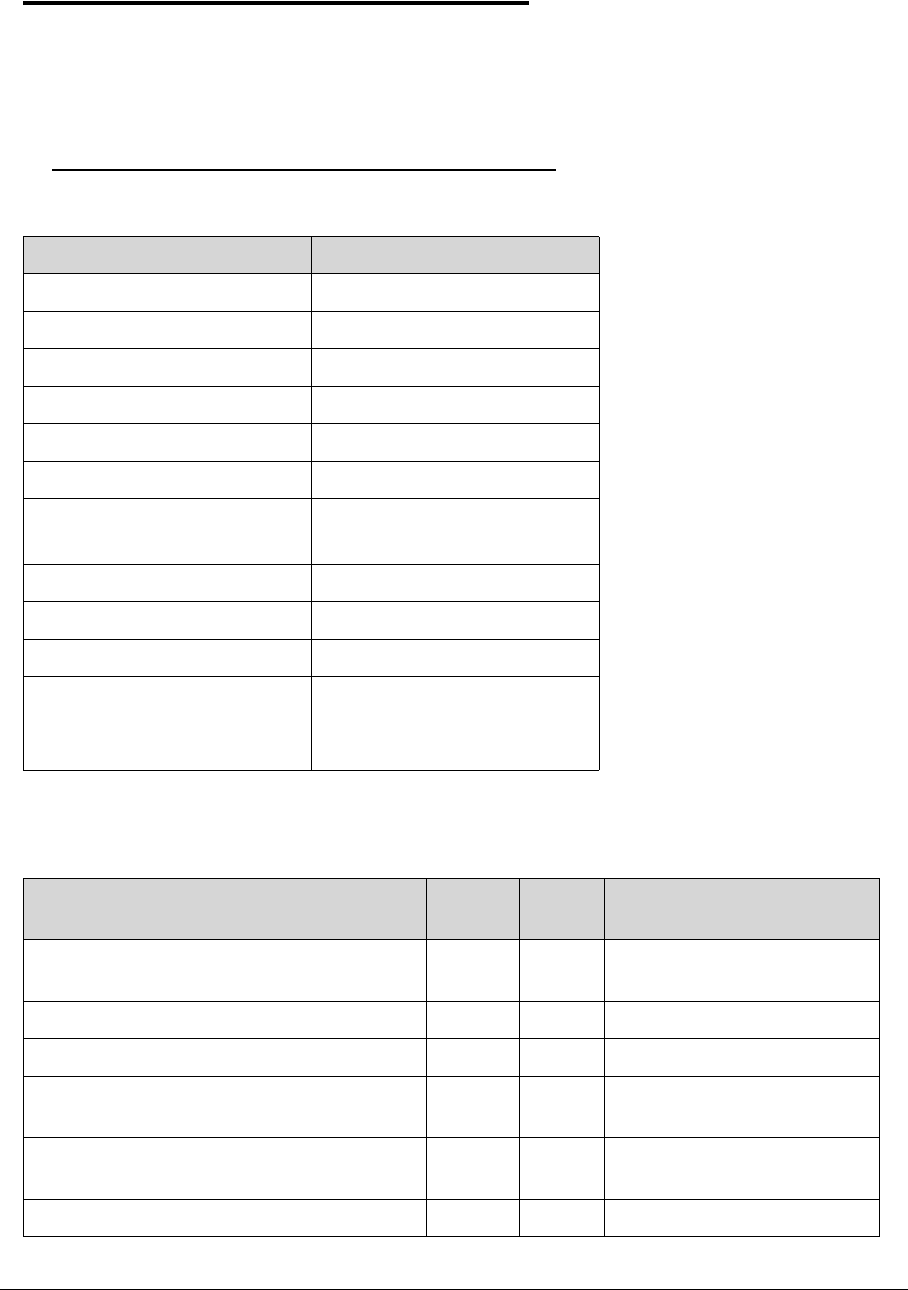
4-20 Troubleshooting
Post Codes 0
The following are the InsydeH2O™ Functionality POST code tables. The components of the
POST code table includes: SEC phase, PEI phase, DXE phase, BDS phase, CSM functions,
S3 functions and ACPI functions.
POST Code Range 0
Table 4-2. POST Code Range
Phase POST Code Range
SEC 0x01 - 0x0F
PEI 0x70 - 0x9F
DXE 0x40 - 0x6F
BDS 0x10 - 0x3F
SMM 0xA0 - 0xBF
S3 0xC0 - 0xCF
ASL 0x51 – 0x55
0xE1 – 0xE4
PostBDS 0xF9 – 0xFE
InsydeH2ODDT™ Reserve 0xD0 – 0xD7
OEM Reserve 0xE8 – 0xEB
Reserved 0xD8 – 0xE0
0xE5 – 0xE7
0xEC – 0xF8
Table 4-3. SEC Phase POST Code Table
Functionality Name (Include\
PostCode.h) Phase Post
Code Description
SEC_SYSTEM_POWER_ON SEC 1 CPU power on and switch to
Protected mode
SEC_BEFORE_MICROCODE_PATCH SEC 2 Patching CPU microcode
SEC_AFTER_MICROCODE_PATCH SEC 3 Setup Cache as RAM
SEC_ACCESS_CSR* SEC 4 PCIE MMIO Base Address
initial
SEC_GENERIC_MSRINIT* SEC 5 CPU Generic MSR
initialization
SEC_CPU_SPEEDCFG* SEC 6 Setup CPU speed
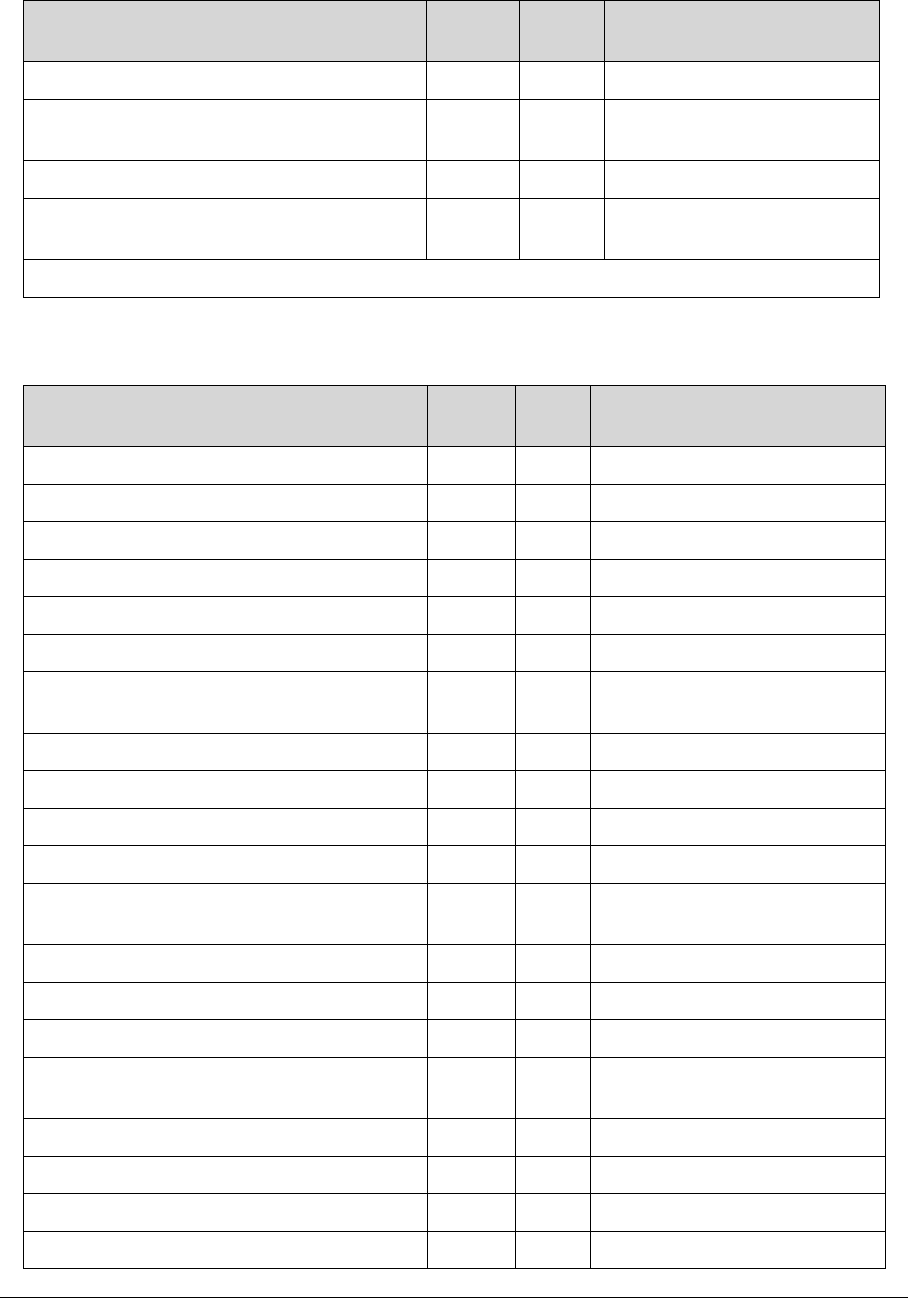
Troubleshooting 4-21
SEC_SETUP_CAR_OK SEC 7 Cache as RAM test
SEC_FORCE_MAX_RATIO* SEC 8 Tune CPU frequency ratio to
maximum level
SEC_GO_TO_SECSTARTUP SEC 9 Setup BIOS ROM cache
SEC_GO_TO_PEICORE SEC 0A Enter Boot Firmware
Volume
* 3rd party relate functions – Platform dependence.
Table 4-4. PEI Phase POST Code Table
Functionality Name (Include\
PostCode.h) Phase Post
Code Description
PEI_SIO_INIT PEI 70 Super I/O Initialization
PEI_CPU_REG_INIT PEI 71 CPU Early Initialization
PEI_CPU_AP_INIT* PEI 72 Multi-processor Early Initial
PEI_CPU_HT_RESET* PEI 73 HyperTransport Initialization
PEI_PCIE_MMIO_INIT PEI 74 PCIE MMIO BAR Initialization
PEI_NB_REG_INIT PEI 75 North Bridge Early Initialization
PEI_SB_REG_INIT PEI 76 South Bridge Early
Initialization
PEI_PCIE_TRAINING* PEI 77 PCIE Training
PEI_TPM_INIT PEI 78 TPM Initialization
PEI_SMBUS_INIT PEI 79 SMBUS Early Initialization
PEI_PROGRAM_CLOCK_GEN PEI 7A Clock Generator Initialization
PEI_IGD_EARLY_INITIAL * PEI 7B Internal Graphic device early
Initialization
PEI_HECI_INIT* PEI 7C HECI Initialization
PEI_WATCHDOG_INIT* PEI 7D Watchdog timer Initialization
PEI_MEMORY_INIT PEI 7E Memory Initial for Normal boot.
PEI_MEMORY_INIT_FOR_CRISIS PEI 7F Memory Initial for Crisis
Recovery
PEI_MEMORY_INSTALL PEI 80 Simple Memory test
PEI_TXTPEI* PEI 81 TXT function early Initialization
PEI_SWITCH_STACK PEI 82 Start to use Memory
PEI_MEMORY_CALLBACK PEI 83 Set cache for physical memory
Table 4-3. SEC Phase POST Code Table (Continued)
Functionality Name (Include\
PostCode.h) Phase Post
Code Description
4-22 Troubleshooting
PEI_ENTER_RECOVERY_MODE PEI 84 Recovery device Initialization
PEI_RECOVERY_MEDIA_FOUND PEI 85 Found Recovery image
PEI_RECOVERY_MEDIA_NOT_FOUND PEI 86 Recovery image not found
PEI_RECOVERY_LOAD_FILE_DONE PEI 87 Load Recovery Image
completed
PEI_RECOVERY_START_FLASH PEI 88 Start Flash BIOS with
Recovery image
PEI_ENTER_DXEIPL PEI 89 Loading BIOS image to RAM
PEI_FINDING_DXE_CORE PEI 8A Loading DXE core
PEI_GO_TO_DXE_CORE PEI 8B Enter DXE core
* 3rd party relate functions – Platform dependence.
Table 4-5. DXE Phase POST Code Table
Functionality Name (Include\
PostCode.h) Phase Post
Code Description
DXE_TCGDXE* DXE 40 TPM initial in DXE
DXE_SB_SPI_INIT* DXE 41 South bridge SPI initialization
DXE_CF9_RESET* DXE 42 Setup Reset service
DXE_SB_SERIAL_GPIO_INIT* DXE 43 South bridge Serial GPIO
initialization
DXE_SMMACCESS* DXE 44 Setup SMM ACCE SS service
DXE_SIO_INIT* DXE 46 Super I/O DXE initialization
DXE_LEGACY_REGION* DXE 47 Setup Legacy Region service
DXE_SB_INIT* DXE 48 South Bridge Middle
initialization
DXE_IDENTIFY_FLASH_DEVICE* DXE 49 Identify Flash device
DXE_FTW_INIT DXE 4A Fault Tolerant Write verification
DXE_VARIABLE_INIT DXE 4B Variable Service initialization
DXE_VARIABLE_INIT_FAIL DXE 4C Fail to initial Variable Service
DXE_MTC_INIT DXE 4D MTC Initial
DXE_CPU_INIT DXE 4E CPU Middle Initialization
DXE_MP_CPU_INIT DXE 4F Multi-processor
MiddleInitialization
DXE_SMBUS_INIT DXE 50 SMBUS Driver Initialization
Table 4-4. PEI Phase POST Code Table
Functionality Name (Include\
PostCode.h) Phase Post
Code Description
Troubleshooting 4-23
DXE_SMART_TIMER_INIT DXE 51 8259 Initialization
DXE_PCRTC_INIT DXE 52 RTC Initialization
DXE_SATA_INIT* DXE 53 SATA Controller
earlyInitialization
DXE_SMM_CONTROLER_INIT* DXE 54 Setup SMM Control service
DXE_LEGACY_INTERRUPT* DXE 55 Setup Legacy Interrupt service
DXE_RELOCATE_SMBASE DXE 56 Relocate SMM BASE
DXE_FIRST_SMI DXE 57 SMI test
DXE_VTD_INIT* DXE 58 VTD Initial
DXE_BEFORE_CSM16_INIT DXE 59 Legacy BIOS Initialization
DXE_AFTER_CSM16_INIT DXE 5A Legacy interrupt function
Initialization
DXE_LOAD_ACPI_TABLE DXE 5B ACPI Table Initialization
DXE_SB_DISPATCH* DXE 5C Setup SB SMM Dispatcher
service
DXE_SB_IOTRAP_INIT* DXE 5D Setup SB IOTRAP Service
DXE_SUBCLASS_DRIVER* DXE 5E Build AMT Table
DXE_PPM_INIT* DXE 5F PPM Initialization
DXE_HECIDRV_INIT* DXE 60 HECIDRV Initialization
* 3rd party relate functions – Platform dependence.
Table 4-6. BDS Phase POST Code Table
Functionality Name (Include\
PostCode.h) Phase Post
Code Description
BDS_ENTER_BDS BDS 10 Enter BDS entry
BDS_INSTALL_HOTKEY BDS 11 Install Hotkey service
BDS_ASF_INIT* BDS 12 ASF Initialization
BDS_PCI_ENUMERATION_START BDS 13 PCI enumeration
BDS_BEFORE_PCIIO_INSTALL BDS 14 PCI resource assign complete
BDS_PCI_ENUMERATION_END BDS 15 PCI enumeration complete
BDS_CONNECT_CONSOLE_IN BDS 16 Keyboard Controller, keyboard
and mouse initialization
BDS_CONNECT_CONSOLE_OUT BDS 17 Video device initialization
Table 4-5. DXE Phase POST Code Table
Functionality Name (Include\
PostCode.h) Phase Post
Code Description

4-24 Troubleshooting
BDS_CONNECT_STD_ERR BDS 18 Error report device initialization
BDS_CONNECT_USB_HC BDS 19 USB host controller
initialization
BDS_CONNECT_USB_BUS BDS 1A USB BUS driver initialization
BDS_CONNECT_USB_DEVICE BDS 1B USB device driver initialization
BDS_NO_CONSOLE_ACTION BDS 1C Console device initial fail
BDS_DISPLAY_LOGO_SYSTEM_INFO BDS 1D Display logo or system
information
BDS_START_IDE_CONTROLLER BDS 1E IDE controller initialization
BDS_START_SATA_CONTROLLER BDS 1F SATA controller initialization
BDS_START_ISA_ACPI_CONTROLLER BDS 20 SIO controller initialization
BDS_START_ISA_BUS BDS 21 ISA BUS driver initialization
BDS_START_ISA_FDD BDS 22 Floppy device initialization
BDS_START_ISA_SEIRAL BDS 23 Serial device initialization
BDS_START_IDE_BUS BDS 24 IDE device initialization
BDS_START_AHCI_BUS BDS 25 AHCI device initialization
BDS_CONNECT_LEGACY_ROM BDS 26 Dispatch option ROMs
BDS_ENUMERATE_ALL_BOOT_OPTION BDS 27 Get boot device information
BDS_END_OF_BOOT_SELECTION BDS 28 End of boot selection
BDS_ENTER_SETUP BDS 29 Enter Setup Menu
BDS_ENTER_BOOT_MANAGER BDS 2A Enter Boot manager
BDS_BOOT_DEVICE_SELECT BDS 2B Try to boot system to OS
BDS_EFI64_SHADOW_ALL_LEGACY_R
OM
BDS 2C Shadow Misc Option ROM
BDS_ACPI_S3SAVE BDS 2D Save S3 resume required data
in RAM
BDS_READY_TO_BOOT_EVENT BDS 2E Last Chipset initial before boot
to OS
BDS_GO_LEGACY_BOOT BDS 2F Start to boot Legacy OS
BDS_GO_UEFI_BOOT BDS 30 Start to boot UEFI OS
BDS_LEGACY16_PREPARE_TO_BOOT BDS 31 Prepare to Boot to Legacy OS
BDS_EXIT_BOOT_SERVICES* BDS 32 Send END of POST Message
to ME via HECI
Table 4-6. BDS Phase POST Code Table
Functionality Name (Include\
PostCode.h) Phase Post
Code Description
Troubleshooting 4-25
BDS_LEGACY_BOOT_EVENT BDS 33 Last Chipset initial before boot
to Legacy OS.
BDS_ENTER_LEGACY_16_BOOT BDS 34 Ready to Boot Legacy OS.
BDS_RECOVERY_START_FLASH BDS 35 Fast Recovery Start Flash.
* 3rd party relate functions – Platform dependence.
Table 4-7. S3 Function POST Code Table
Functionality Name (Include\
PostCode.h) Phase Post
Code Description
S3_RESTORE_MEMORY_CONTROLLER PEI C0 Memory initial for S3 resume
S3_INSTALL_S3_MEMORY PEI C1 Get S3 resume required data
from memory
S3_SWITCH_STACK PEI C2 Start to use memory during S3
resume
S3_MEMORY_CALLBACK PEI C3 Set cache for physical memory
during S3 resume
S3_ENTER_S3_RESUME_PEIM PEI C4 Start to restore system
configuration
S3_BEFORE_ACPI_BOOT_SCRIPT PEI C5 Restore system configuration
stage1
S3_BEFORE_RUNTIME_BOOT_SCRIPT PEI C6 Restore system configuration
stage2
S3_BEFORE_RELOCATE_SMM_BASE PEI C7 Relocate SMM BASE during
S3 resume
S3_BEFORE_MP_INIT PEI C8 Multi-processor initial during
S3 resume
S3_BEFORE_RESTORE_ACPI_CALLBA
CK
PEI C9 Start to restore system
configuration in SMM
S3_AFTER_RESTORE_ACPI_CALLBACK PEI CA Restore system configuration
in SMM complete
S3_GO_TO_FACS_WAKING_VECTOR PEI CB Back to OS
Table 4-6. BDS Phase POST Code Table
Functionality Name (Include\
PostCode.h) Phase Post
Code Description
4-26 Troubleshooting
Table 4-8. ACPI Function POST Table
Functionality Name (Include\
PostCode.h) Phase Post
Code Description
ASL_ENTER_S1 ASL 51 Prepare to enter S1
ASL_ENTER_S3 ASL 53 Prepare to enter S3
ASL_ENTER_S4 ASL 54 Prepare to enter S4
ASL_ENTER_S5 ASL 55 Prepare to enter S5
ASL_WAKEUP_S1 ASL E1 System wakeup from S1
ASL_WAKEUP_S3 ASL E3 System wakeup from S3
ASL_WAKEUP_S4 ASL E4 System wakeup from S4
Table 4-9. SMM Functions POST Code Table
Functionality Name (Include\
PostCode.h) Phase Post
Code Description
SMM_IDENTIFY_FLASH_DEVICE SMM 0xA0 Identify Flash device in SMM
SMM_SMM_PLATFORM_INIT SMM 0xA2 SMM service initial
SMM_ACPI_ENABLE_START SMM 0xA6 OS call ACPI enable function
SMM_ACPI_ENABLE_END SMM 0xA7 ACPI enable function complete
SMM_S1_SLEEP_CALLBACK SMM 0xA1 Enter S1
SMM_S3_SLEEP_CALLBACK SMM 0xA3 Enter S3
SMM_S4_SLEEP_CALLBACK SMM 0xA4 Enter S4
SMM_S5_SLEEP_CALLBACK SMM 0xA5 Enter S5
SMM_ACPI_DISABLE_START SMM 0xA8 OS call ACPI disable function
SMM_ACPI_DISABLE_END SMM 0xA9 ACPI disable function
complete
Table 4-10. InsydeH2ODDT Debugger POST Code Table
Functionality Name
(Include\ PostCode.h) Post Code Description
Used by Insyde debugger 0x0D Waiting for device connect
Used by Insyde debugger 0xD0 Waiting for device connect
Used by Insyde debugger 0xD1 InsydeH2ODDT Ready
Used by Insyde debugger 0xD2 EHCI not found

Troubleshooting 4-27
Used by Insyde debugger 0xD3 Debug port connect low
speed device
Used by Insyde debugger 0xD4 DDT Cable become low
speed device
Used by Insyde debugger 0xD5 DDT Cable Transmission
Error (Get descriptor fail)
Used by Insyde debugger 0xD6 DDT Cable Transmission
Error (Set Debug mode fail)
Used by Insyde debugger 0xD7 DDT Cable Transmission
Error (Set address fail)
Table 4-10. InsydeH2ODDT Debugger POST Code Table (Continued)
Functionality Name
(Include\ PostCode.h) Post Code Description

4-28 Troubleshooting

CHAPTER 5
Jumper and Connector Locations

5-2
Clearing Password Check and BIOS Recovery . . . . . . . . . . . . . . 5-6
Clearing Password Check . . . . . . . . . . . . . . . . . . . . . . . . . . . . .5-6
Clear CMOS Jumper . . . . . . . . . . . . . . . . . . . . . . . . . . . . . . . . .5-7
BIOS Recovery by Crisis Disk . . . . . . . . . . . . . . . . . . . . . . . . . . .5-8
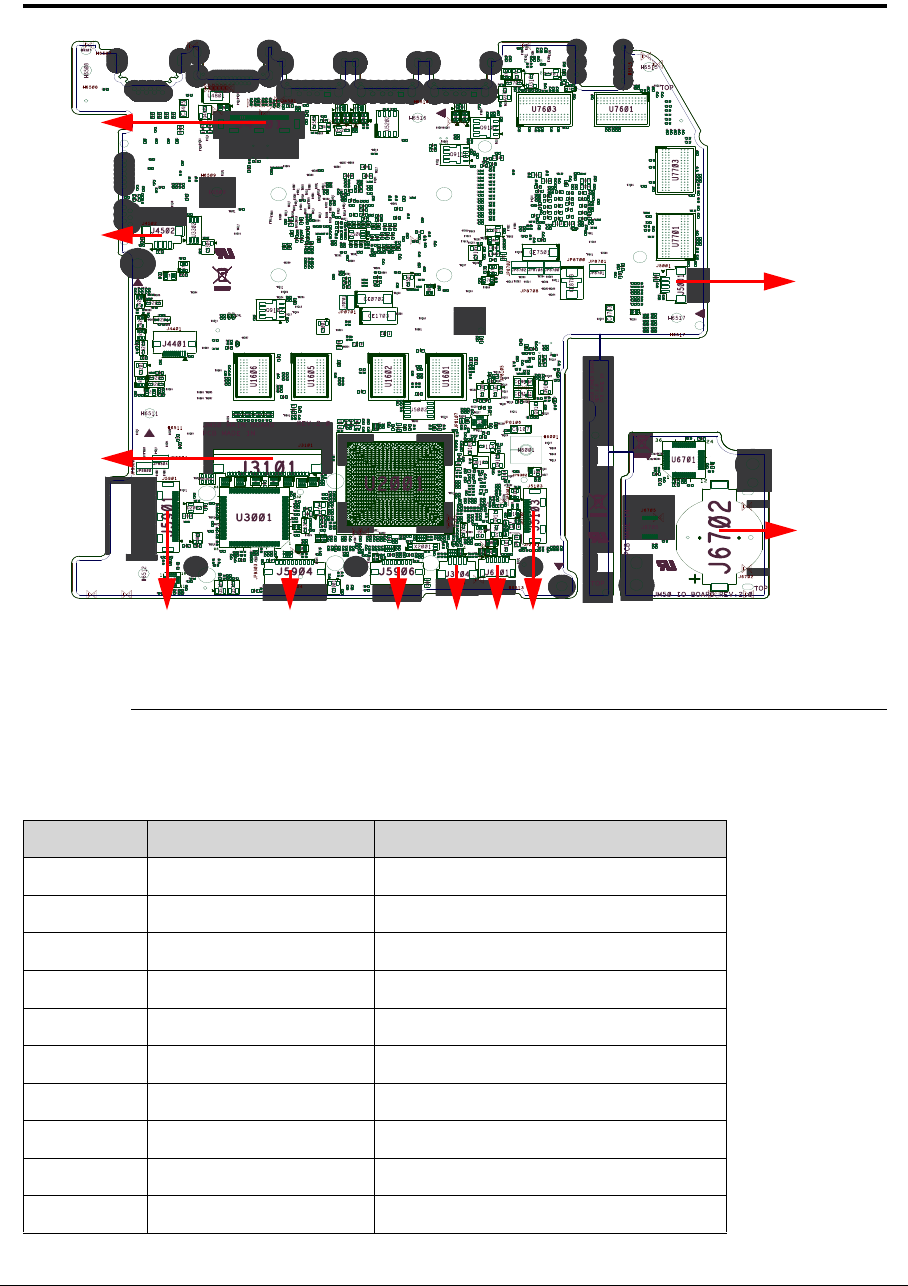
Jumper and Connector Locations 5-3
Jumper and Connector Locations
Figure 5-1. Mainboard Top
Item 1
Item 2
Item 3
Item 4 Item 5 Item 6 Item 7 Item 8 Item 9
Item 10
Item 11
Table 5-1. Mainboard Top
Item Connector Description
1 J4501 LVDS Connector
2 J4502 Microphone Connector
3 J3101 Keyboard Connector
4 J5901 IO Board Connector
5 J5904 Power Switch Board Connector
6 J5906 Touchpad Connector
7 J3704 Speaker Connector
8 J6101 Bluetooth Connector
9 J5103 HDD Connector
10 J6702 RTC Battery Connector
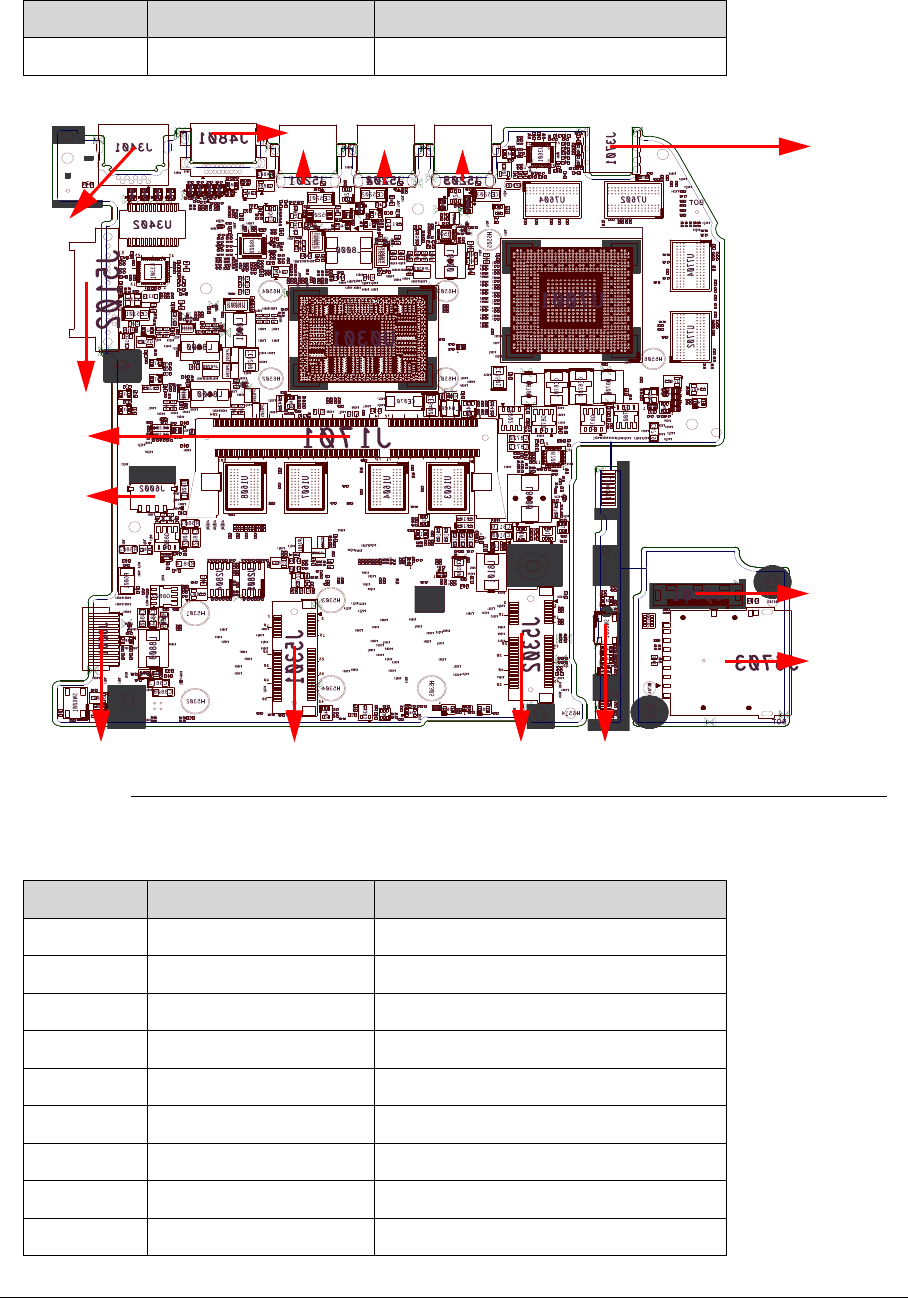
5-4 Jumper and Connector Locations
Figure 5-2. Mainboard Bottom
Table 5-2. Mainboard Bottom
11 J5001 Fan Connector
Item Connector Description
1 J3401 LAN Connector
2 J5102 ODD Connector
3 J1701 DDR3-SO-DIMM Connector
4 J6002 DC-IN Connector
5 J6001 Battery Connector
6 J5301 WLAN Connector
7 J5302 SSD SATA Connector
8 SW6601 Power Button
9 J6703 SD card Socket
Table 5-1. Mainboard Top
Item Connector Description
Item 15
Item 14 Item 13 Item 12 Item 11
Item 10
Item 9
Item 8Item 7Item 6Item 5
Item 4
Item 3
Item 2
Item 1

Jumper and Connector Locations 5-5
10 J6701 Mainboard Connector
11 J3701 Headphone Jack
12 J5203 USB 2.0 Connector
13 J5202 USB 2.0 Connector
14 J5201 USB 3.0 Connector
15 J4801 HDMI Connector
Item Connector Description

5-6 Jumper and Connector Locations
Clearing Password Check and BIOS Recovery 0
This section provides procedures for:
Clearing Passwords
BIOS Recovery.
This Machine has one Hardware Open Gap on the main board for clearing password check
and one Hotkey for enabling BIOS Recovery.
Clearing Password Check 0
NOTE:
NOTE:
The following procedure is only for clearing BIOS Password (Supervisor Password and
User Password).
Steps for Clearing BIOS Password Check 0
If users set BIOS Passwords (Supervisor Password and/or User Password) for a security
reason, BIOS will ask the password during systems POST or when system enters the BIOS
Setup menu. If it is necessary to bypass the password check, short the HW Gap to clear the
password by performing the following steps:
1. Remove power from the system.
2. Remove HDD, AC and Battery.
3. Disconnect the RTC Battery (Figure 5-1 Item10).
4. Locate the RTCRST# jumper (Figure 5-3).
5. Use an electric conductivity tool to short the two points of the RTCRST# jumper.
6. Plug in AC, keeping the RTCRST# jumper shorted.
7. Press Power Button until BIOS POST is finished, then remove the conductivity tool from
the RTCRST# jumper.
8. Restart the system. Press F2 to enter BIOS Setup menu.
9. If there is no Password request, BIOS Password is cleared.
10. If a password is requested, repeat Steps 1 through 9.
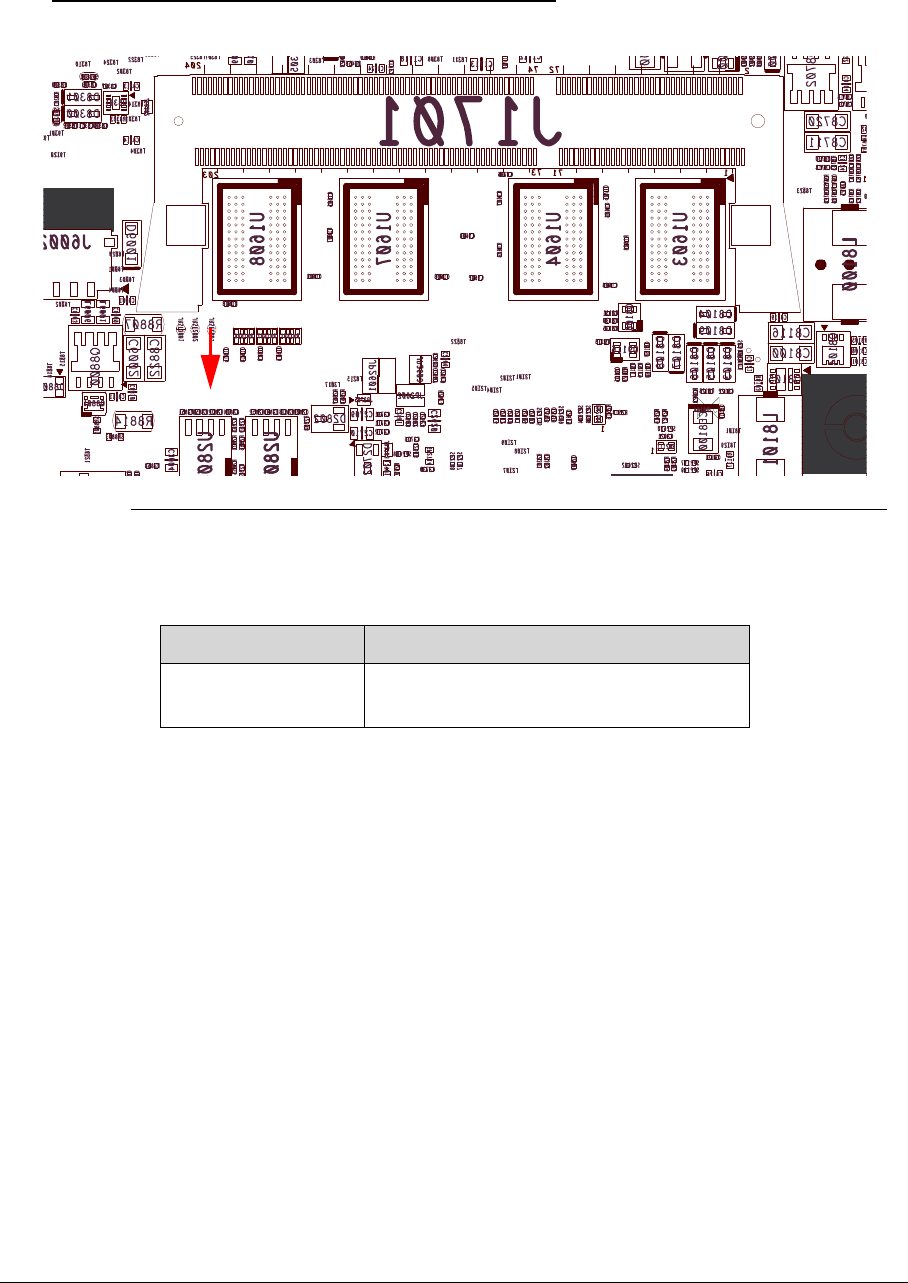
Jumper and Connector Locations 5-7
Clear CMOS Jumper 0
Figure 5-3. CMOS Jumper
Table 5-3. CMOS Jumper
Item Description
RTCRST#
(JRST2001)
Clear CMOS Jumper
JRST2001

5-8 Jumper and Connector Locations
BIOS Recovery by Crisis Disk 0
BIOS Recovery Boot Block 0
BIOS Recovery Boot Block is a special block of BIOS, used to boot the system with minimum
BIOS initialization. Users can enable this feature to restore the BIOS firmware once the
previous BIOS flashing process failed.
BIOS Recovery Hotkey 0
A function hotkey- < Fn+Esc >, used to enable the BIOS Recovery process when system is
powered On during BIOS POST. To use this function, it is strongly recommended to have the
AC adapter and Battery present. If this function is enabled, the system will force the BIOS to
enter a special BIOS block, called Boot Block.
Steps for BIOS Recovery from USB Storage 0
NOTE:
NOTE:
Prior to performing the recovery, prepare a Crisis USB key. The Crisis USB key is
created by executing the Crisis Disk program in another system with Windows 7 OS.
To Create a Crisis USB key, perform the following:
1. Format the USB storage disk using the Fast Format option.
2. Save ROM file (File name:MA50X64.FD) to the root directory of USB storage. Make sure
that there is no other BIOS file saved in the same directory.
3. Plug USB storage into USB port.
4. Press < Fn+ESC > button then plug in AC power.
5. The Power button flashes once.
6. Press Power button to initiate system CRISIS mode.
7. When CRISIS is complete, the system auto restarts with a workable BIOS.
8. Update the latest version BIOS for this machine by regular BIOS flashing process.

CHAPTER 6
FRU List

6-2
MA50_HX Exploded Diagrams . . . . . . . . . . . . . . . . . . . . . . . . . . 6-4
Main Assembly . . . . . . . . . . . . . . . . . . . . . . . . . . . . . . . . . . . . .6-4
LCD Assembly . . . . . . . . . . . . . . . . . . . . . . . . . . . . . . . . . . . . . .6-6
Top Case Assembly . . . . . . . . . . . . . . . . . . . . . . . . . . . . . . . . . .6-7
Bottom Case Assembly. . . . . . . . . . . . . . . . . . . . . . . . . . . . . . .6-8
FRU List. . . . . . . . . . . . . . . . . . . . . . . . . . . . . . . . . . . . . . . . . . . . . 6-10

FRU (Field Replaceable Unit) List 6-3
FRU (Field Replaceable Unit) List
This chapter provides users with a FRU (Field Replaceable Unit) listing in global
configurations for the MA50_HX. Refer to this chapter whenever ordering for parts to repair or
for RMA (Return Merchandise Authorization).
NOTE:
NOTE:
WHEN ORDERING FRU PARTS, check the most up-to-date information available on
the regional web or channel. Part number changes will not be noted on the printed
Service Guide. For ACER AUTHORIZED SERVICE PROVIDERS, the Acer office may
have a DIFFERENT part number code from those given in the FRU list of this printed
Service Guide. Users MUST use the local FRU list provided by the regional Acer office
to order FRU parts for repair and service of customer machines.
NOTE:
NOTE:
To scrap or to return the defective parts, users should follow the local government
ordinance or regulations on how to dispose it properly, or follow the rules set by the
regional Acer office on how to return it.
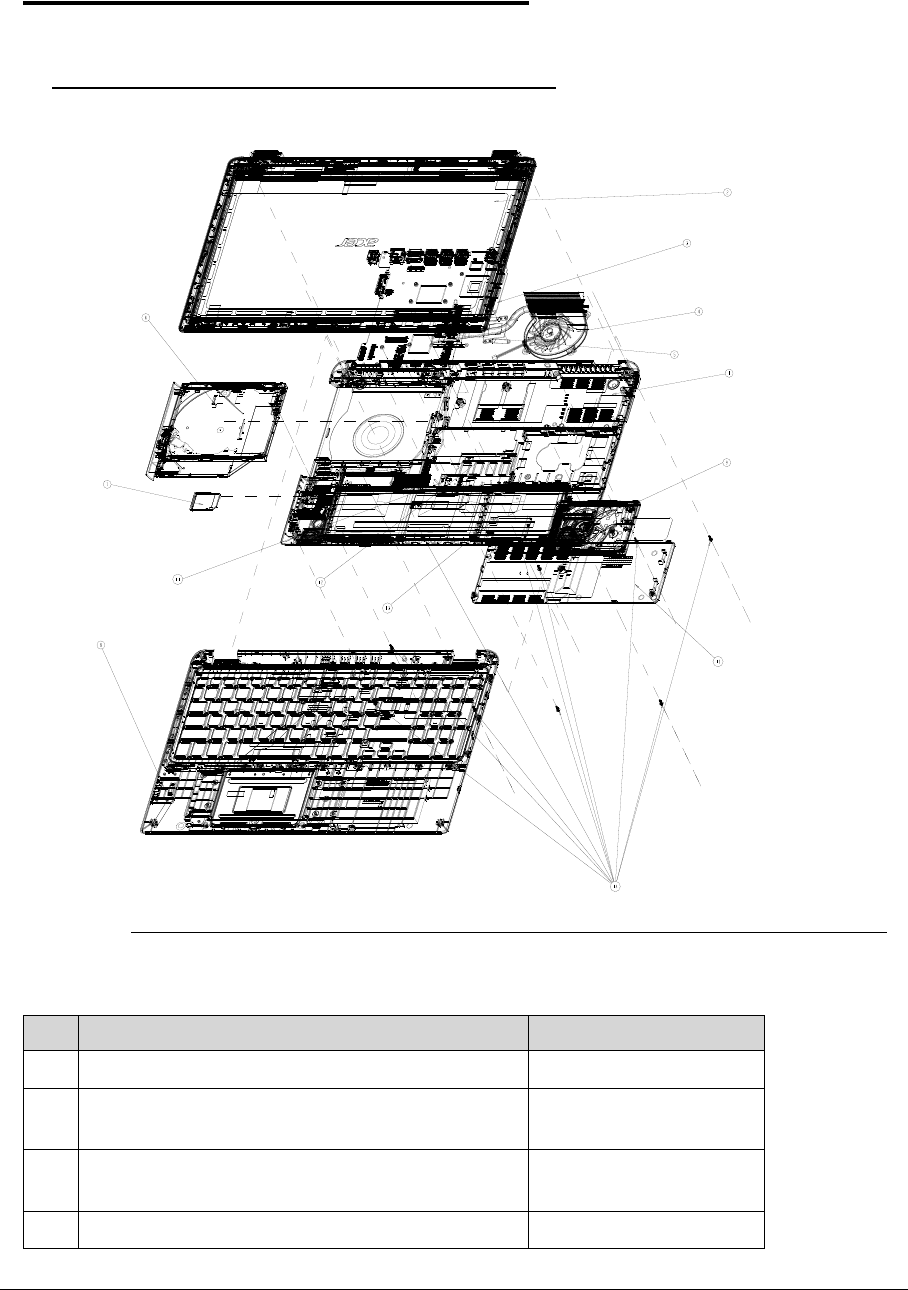
6-4 FRU (Field Replaceable Unit) List
MA50_HX Exploded Diagrams 0
Main Assembly 0
Figure 6-1. Main Assembly Exploded Diagram
Table 6-1. Main Assembly Exploded Diagram
Item Description Part Number
1 JM50-1A BOTTOM CASE MODULE
2 LED LCD 15.6" WXGA Glare MOUDLE ASSY
BLACK W/CCD MIC
6M.RY8N5.002
3 MA50_HX_i3-2367M_N13P-GS_1GBVRAM
Intel HM77 N13P-GS LF
NB.RYK11.003
4 THERMAL MODULE 60.RY8N5.004
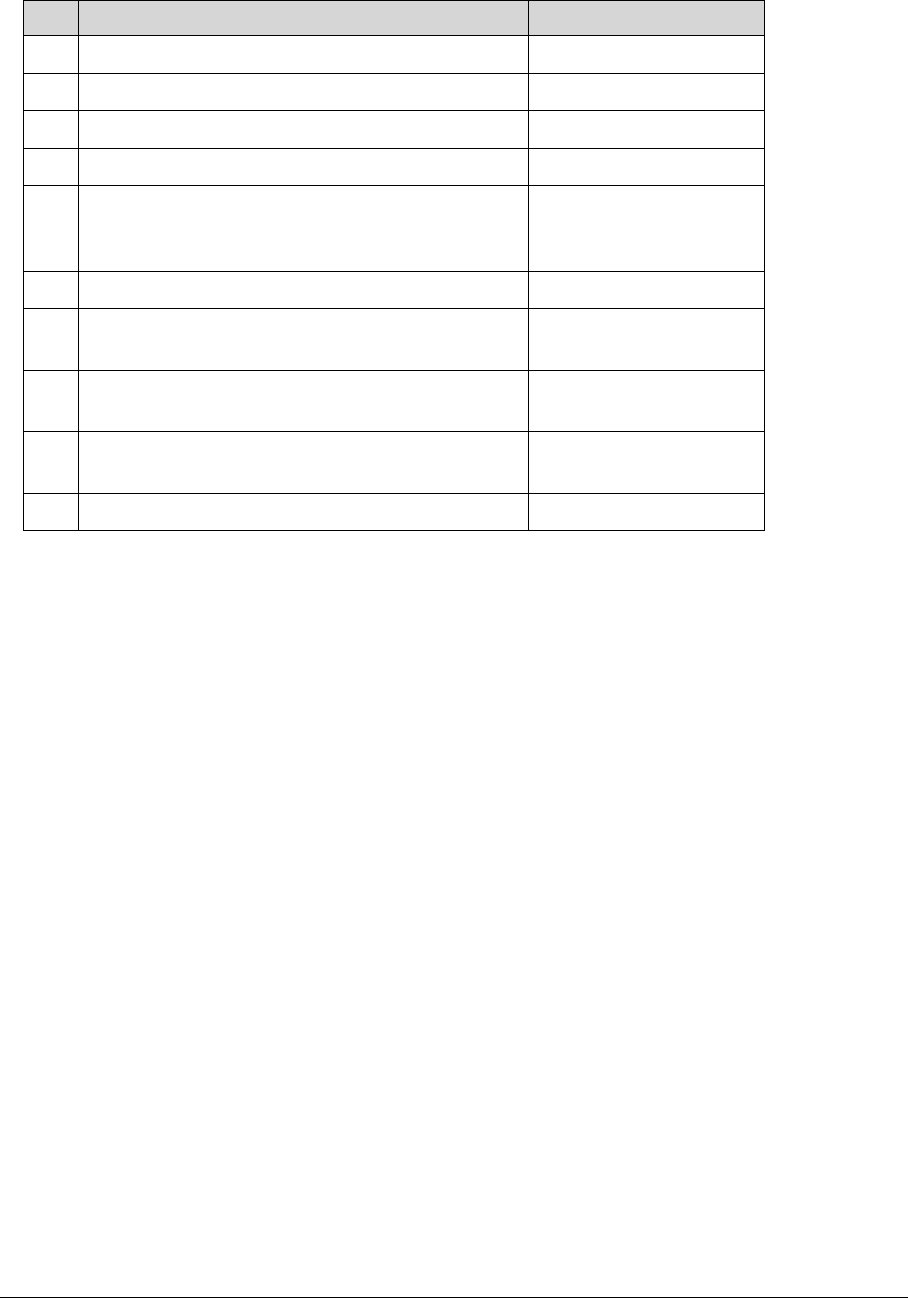
FRU (Field Replaceable Unit) List 6-5
5 HDD CABLE 50.RY8N5.004
6 ODD SUPER MULTI MODULE ASSY 6M.RY8N5.001
7 SD DUMMY CARD 42.RY8N5.003
8 JM50-1A TOP CASE MODULE
9 HDD HGST 2.5" 5400rpm 500GB
HTS545050A7E380, Jaguar B7,0J23335,
500G/P SATA 8MB LF+HF F/W:DA4837
KH.50007.023
10 HDD COVER
11 Foxconn Wireless LAN Atheros HB97 2x2 BGN
(HM)
NI.23600.072
12 Memory ELPIDA SO-DIMM DDRIII 1600 4GB
EBJ40UG8BBU0-GN-F LF+HF 512*8 38nm
KN.4GB09.005
13 Flash Disk PHISON SSD NAND 20GB
SSE020GTTC0-S51 LF+HF
KN.0200Q.002
14 SCREW M2*6L(K,D4.6) B-ZN #1 NY 86.RY8N5.005
Table 6-1. Main Assembly Exploded Diagram
Item Description Part Number
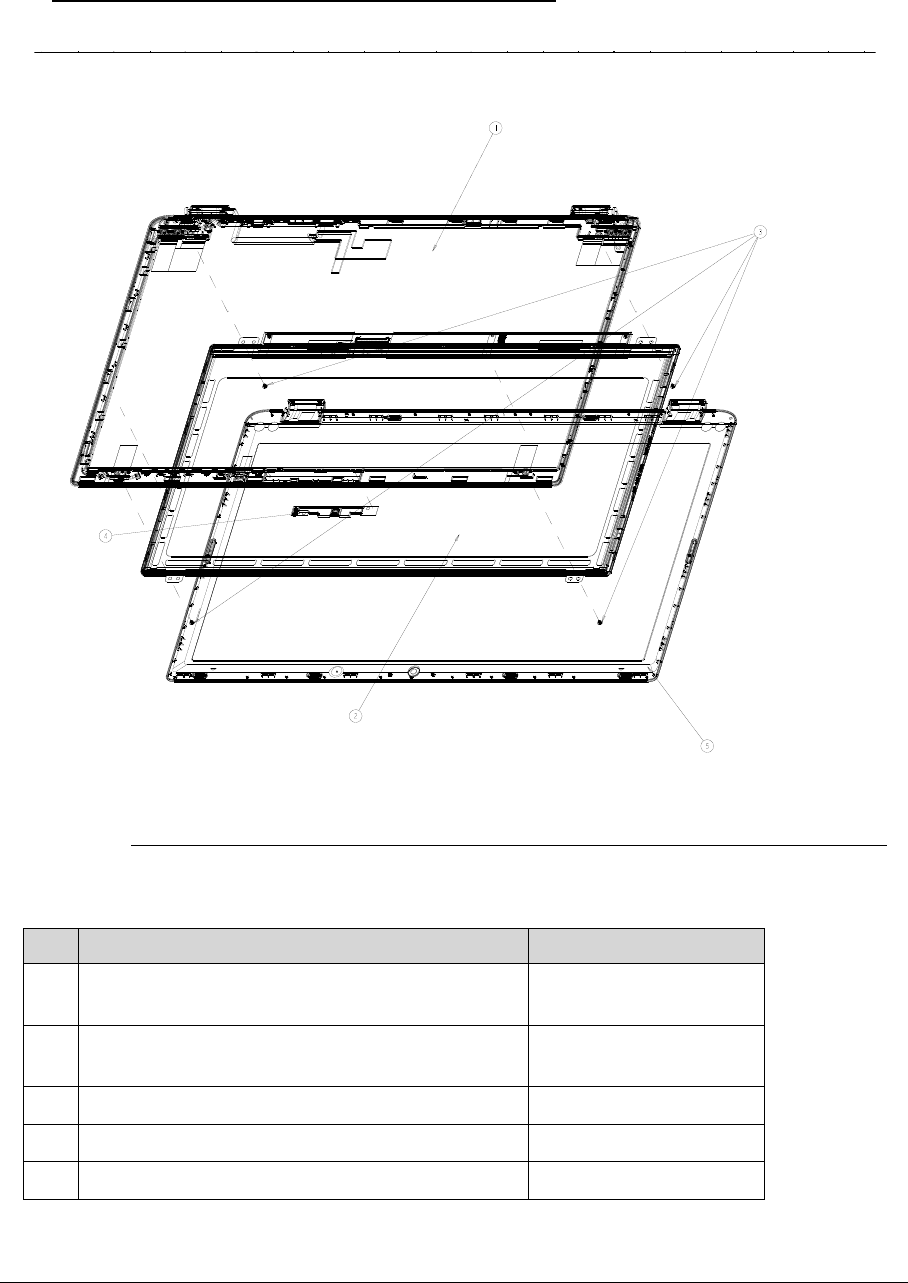
6-6 FRU (Field Replaceable Unit) List
LCD Assembly 0
Figure 6-2. LCD Assembly Exploded Diagram
Table 6-2. LCD Assembly Exploded Diagram
Item Description Part Number
1 LCD COVER ASSY BLACK W/LVDS CABLE,
MIC
2 LED LCD AUO 15.6''W WXGA Glare
B156XTN03.2 LF 200nit 8ms 500:1 (ultra-slim)
LK.15605.026
3 SCREW M2*2.5L(K)(ψ3.7) W-NI 86.W750U.003
4 CAMERA MODULE 1.3M AM.21400.121
5 LCD BEZEL
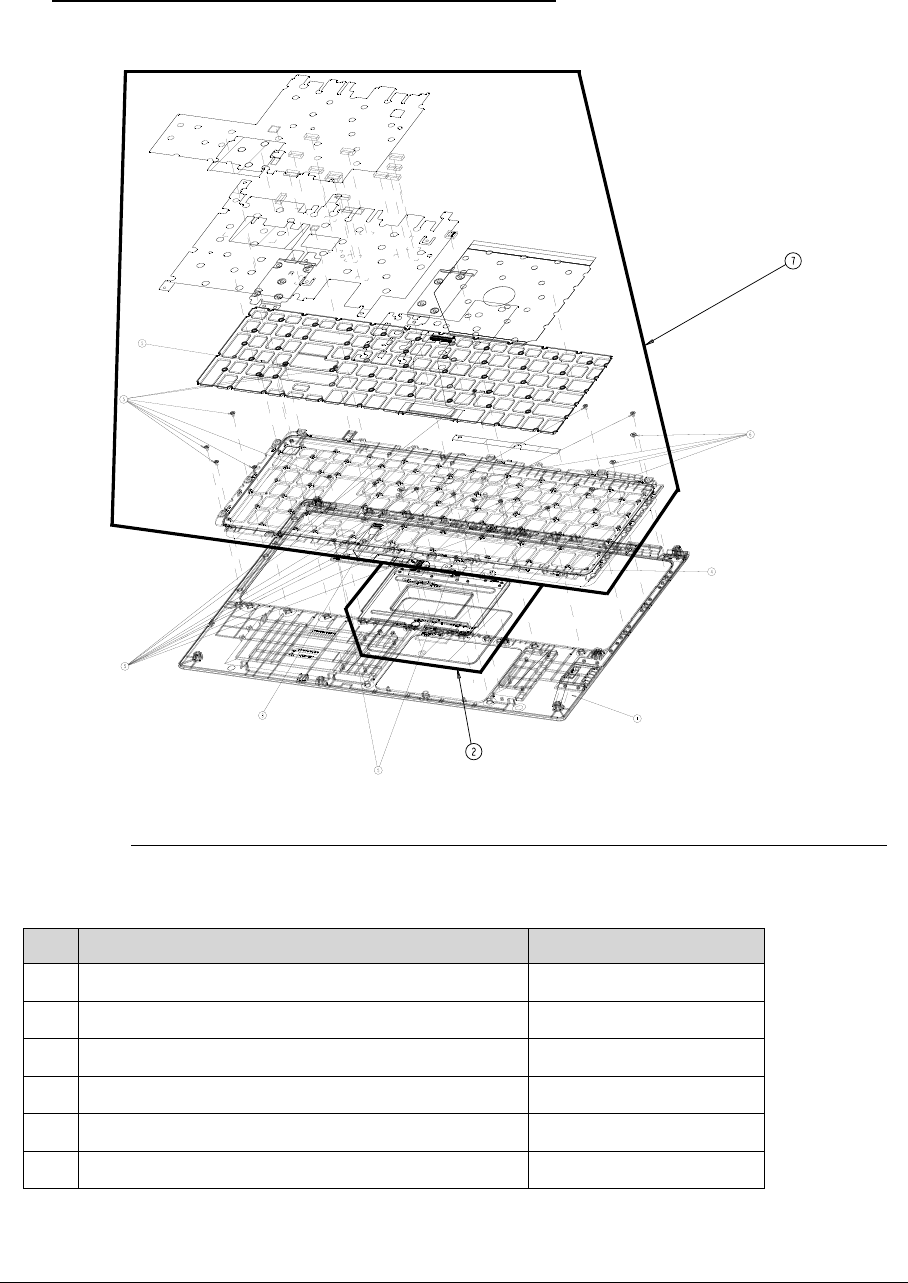
FRU (Field Replaceable Unit) List 6-7
Top Case Assembly 0
Figure 6-3. Top Case Assembly Exploded Diagram
Table 6-3. Top Case Assembly Exploded Diagram
Item Description Part Number
1 UPPER CASE ASSY
2 CLICKPAD MODULE 55.RY8N5.001
3 FFC - CLICK PAD TO MB 50.RY8N5.001
4 CLICKPAD POST
5 SCREW M2*3L K B-ZN #1 NY 86.RY8N5.006
6 SCREW M2*2L (K,D=5) W-NI #1 NY 86.RY8N5.003
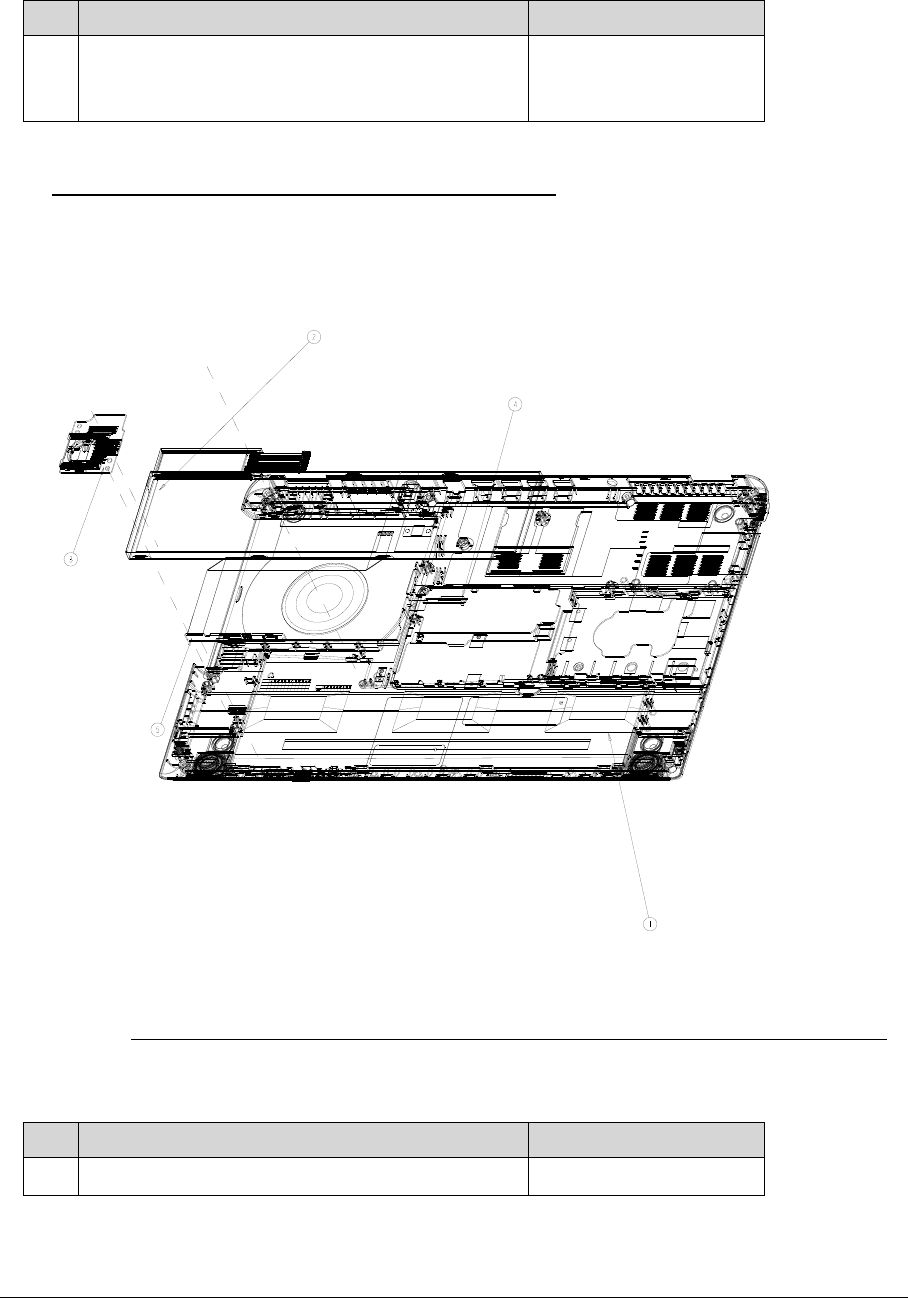
6-8 FRU (Field Replaceable Unit) List
Bottom Case Assembly 0
Figure 6-4. Bottom Case Assembly Exploded Diagram
7 KEYBOARD CHICONY AF7S_A10B AF7S
103KS Black US International W/FRAME , FOIL
, MYLAR
60.RYKN5.001
Table 6-4. Bottom Case Assembly Exploded Diagram
Item Description Part Number
1 LOWER CASE ASSY W/ANTENNA , SPEAKER
Table 6-3. Top Case Assembly Exploded Diagram
Item Description Part Number

FRU (Field Replaceable Unit) List 6-9
2 Battery SANYO ID:AP12A3i Li-Polymar 3S1P
SANYO 3 cell 4850mAh Main COMMON for
embedded type
BT.00303.028
3 IO/CARD READER BOARD FOR TPM 55.RYKN5.003
4 BT 4.0 Foxconn Braodcom 20702 BH.21100.018
5 POWER BUTTON BOARD W/FFC FOR TPM 55.RYKN5.001
Table 6-4. Bottom Case Assembly Exploded Diagram
Item Description Part Number
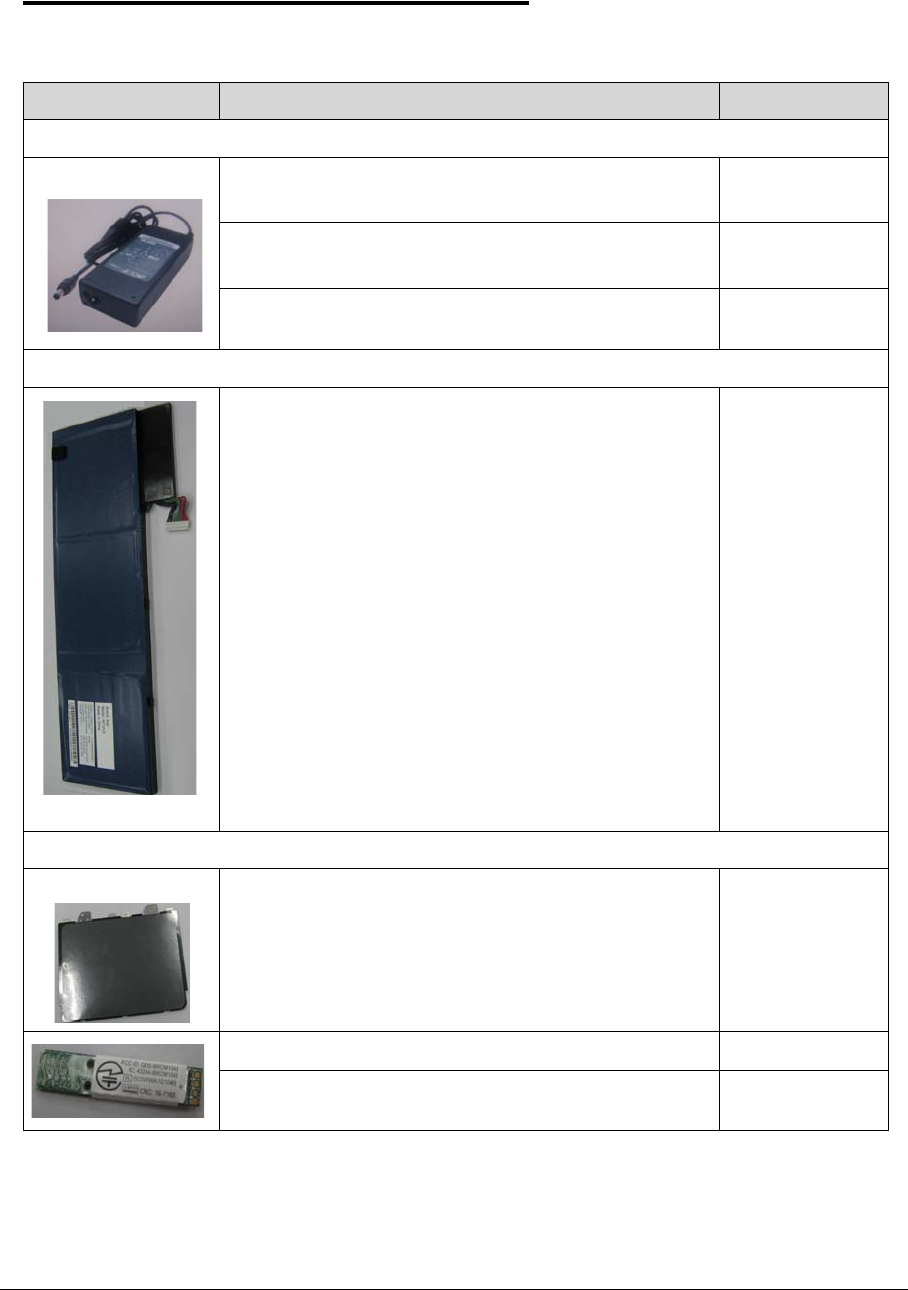
6-10 FRU (Field Replaceable Unit) List
FRU List 0
Table 6-5. FRU list
Category Description P/N
ADAPTER
Adapter DELTA 65W 19V 1.7x5.5x11 Yellow
ADP-65VH BA, LV5, Low profile LED LF
AP.06501.033
Adapter LITE-ON 65W 19V 1.7x5.5x11 Yellow
PA-1650-69AW, LV5, Low profile LED LF
AP.06503.029
Adapter Chicony Power 65W 19V 1.7x5.5x11 Yellow
CPA09-A065N1, LV5, low profile LF
AP.0650A.017
BATTERY
Battery SANYO ID:AP12A3i Li-Polymar 3S1P SANYO
3 cell 4850mAh Main COMMON for embedded type
BT.00303.028
BOARD
CLICKPAD MODULE 55.RY8N5.001
BT 4.0 Foxconn Braodcom 20702 BH.21100.018
BT 4.0 Foxconn Atheros BU22 BH.21100.017
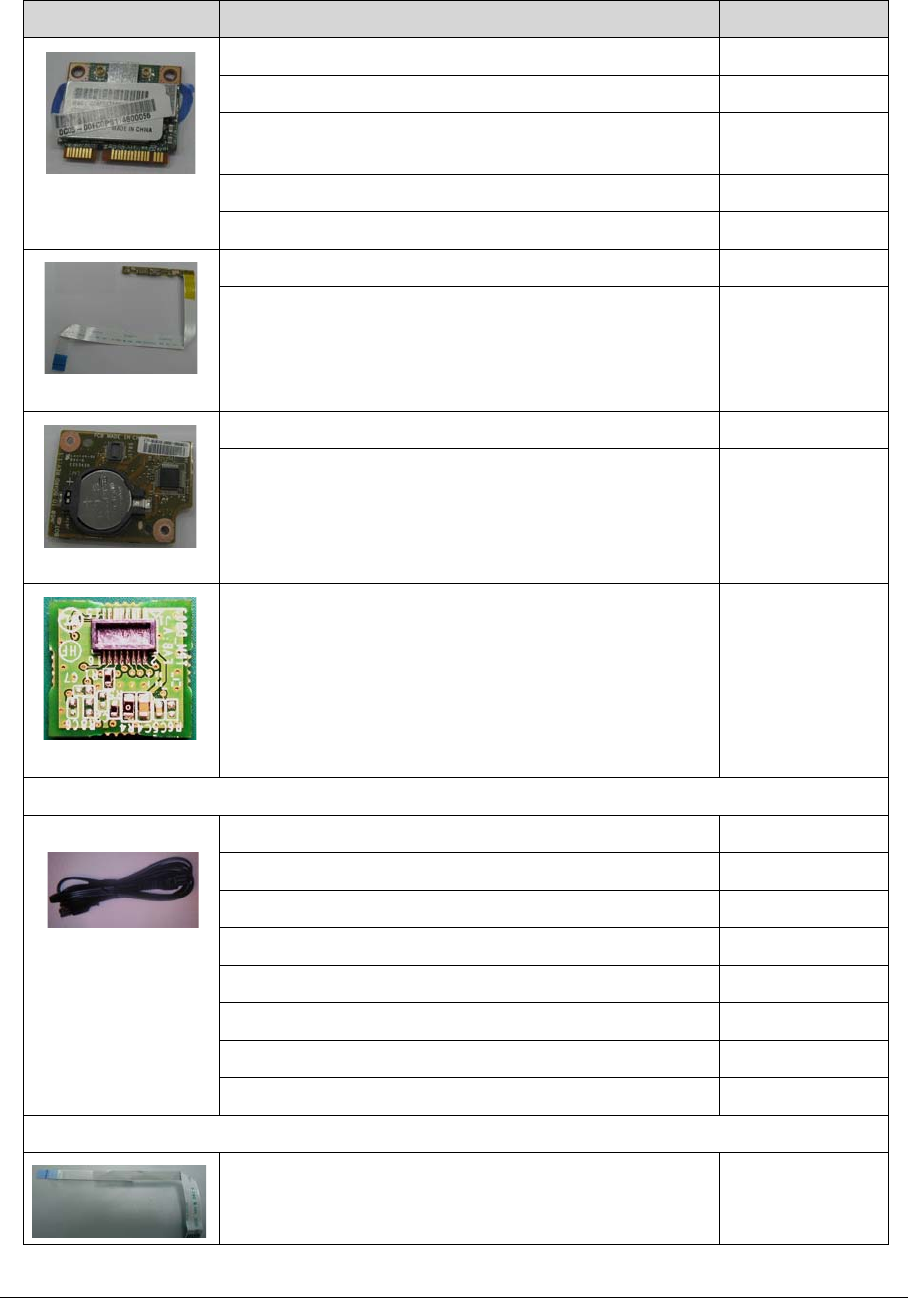
FRU (Field Replaceable Unit) List 6-11
Foxconn Wireless LAN Broadcomm 43227 2x2 BGN NI.23600.087
Foxconn Wireless LAN Atheros HB97 2x2 BGN (HM) NI.23600.072
Liteon Wireless LAN Atheros HB97 2x2 BGN (HM)
WN6603AH
NI.23600.073
Foxconn 3rd WiFi 2x2 AGN+ BT4.0 Atheros WB222 NI.23600.102
Liteon 3rd WiFi 2x2 AGN+ BT4.0 Atheros WB222 NI.23600.103
POWER BUTTON BOARD W/FFC FOR TPM 55.RYKN5.001
POWER BUTTON BOARD W/FFC 55.RY8N5.002
IO/CARD READER BOARD FOR TPM 55.RYKN5.003
IO/CARD READER BOARD 55.RY8N5.003
TPM DAUGHTER BOARD (For future SKU) 55.RYKN5.002
POWER CORD
POWER CORD US 3PIN 1.8M BLACK 27.RGV0U.006
POWER CORD (EU) 1.8M 3P BLACK 27.RGV0U.001
POWER CORD UK 3PIN 27.RGV0U.002
POWER CORD US-110V (BSMI) 3P 27.RGV0U.008
POWER CORD PRC 3P 27.RGV0U.004
POWER CORD 1.8M 3 PIN AF 27.RGV0U.010
POWER CORD DANISH 3P BLACK 27.RGV0U.007
AC POWER CORD PSE/3C,BLK
CABLE
FFC - CLICK PAD TO MB 50.RY8N5.001
Table 6-5. FRU list
Category Description P/N
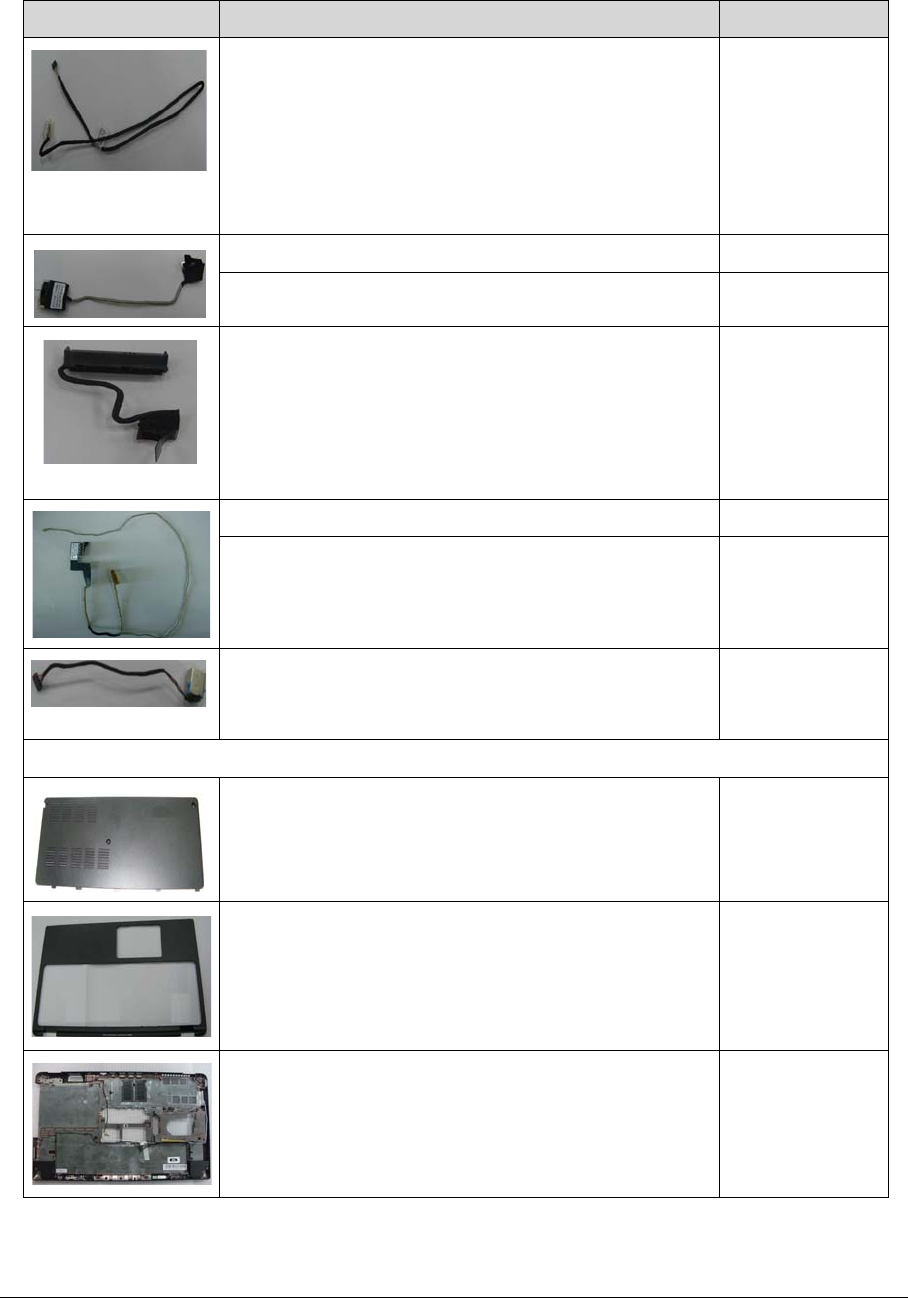
6-12 FRU (Field Replaceable Unit) List
BT CABLE 50.RY8N5.002
IO/CARD READER CABLE 50.RY8N5.003
IO/CARD READER CABLE FOR TPM 50.RYKN5.001
HDD CABLE 50.RY8N5.004
LVDS CABLE 50.RY8N5.006
LVDS CABLE EDP
DC-IN CABLE 50.RY8N5.005
CASE/COVER/BRACKET ASSEMBLY
HDD COVER
UPPER CASE ASSY
LOWER CASE ASSY W/ANTENNA , SPEAKER
Table 6-5. FRU list
Category Description P/N
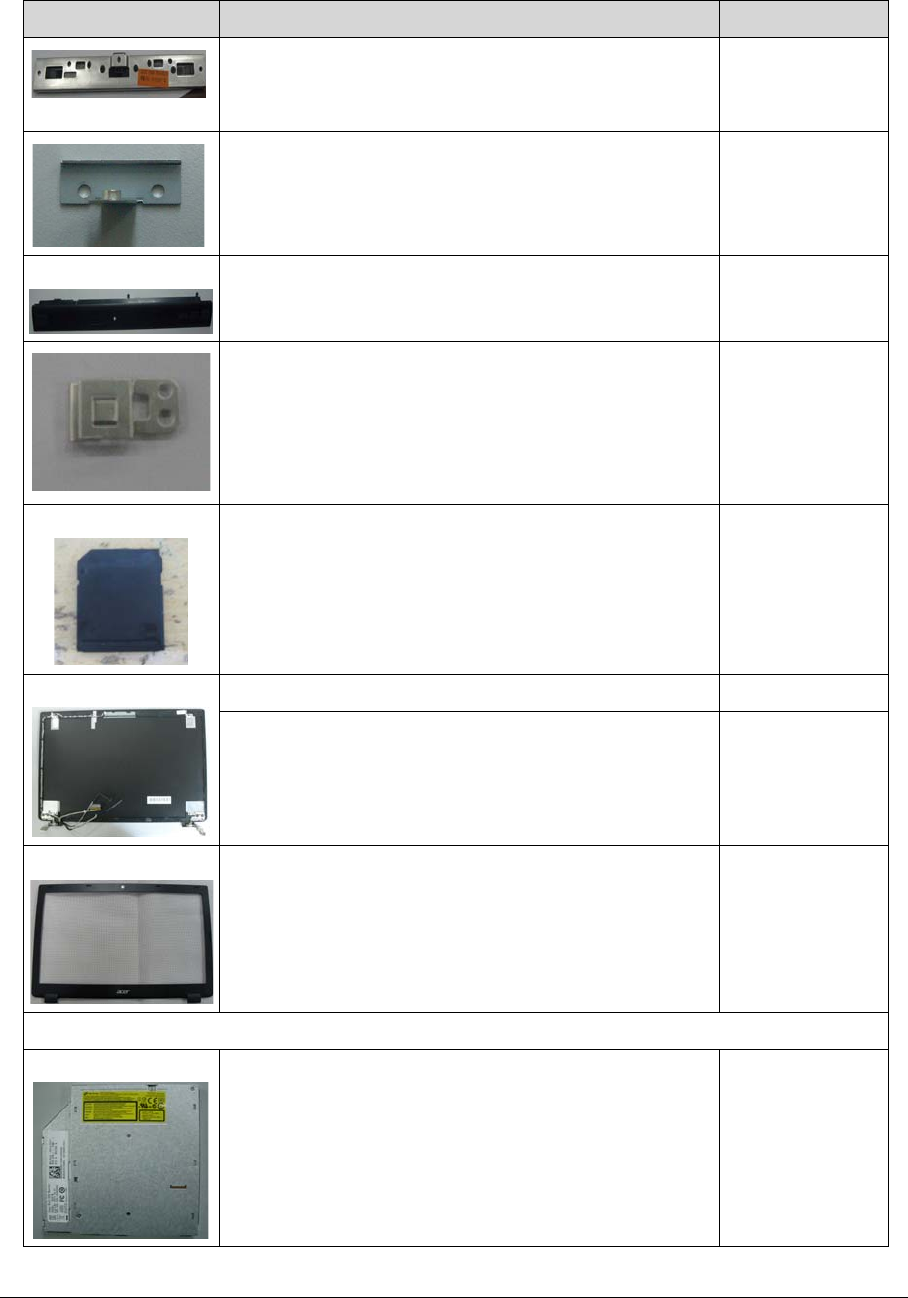
FRU (Field Replaceable Unit) List 6-13
CLICKPAD POST
ODD BRACKET
ODD BEZEL
DC BRACKET
SD DUMMY CARD 42.RY8N5.003
LCD COVER ASSY BLACK W/LVDS CABLE, MIC
LCD COVER ASSY BLACK W/LVDS CABLE, MIC
LCD BEZEL
DVD RW DRIVE
ODD HLDS Super-Multi DRIVE 9.0mm Tray 8X
GU61N LF+HF W/O bezel SATA
KU.0080D.064
Table 6-5. FRU list
Category Description P/N
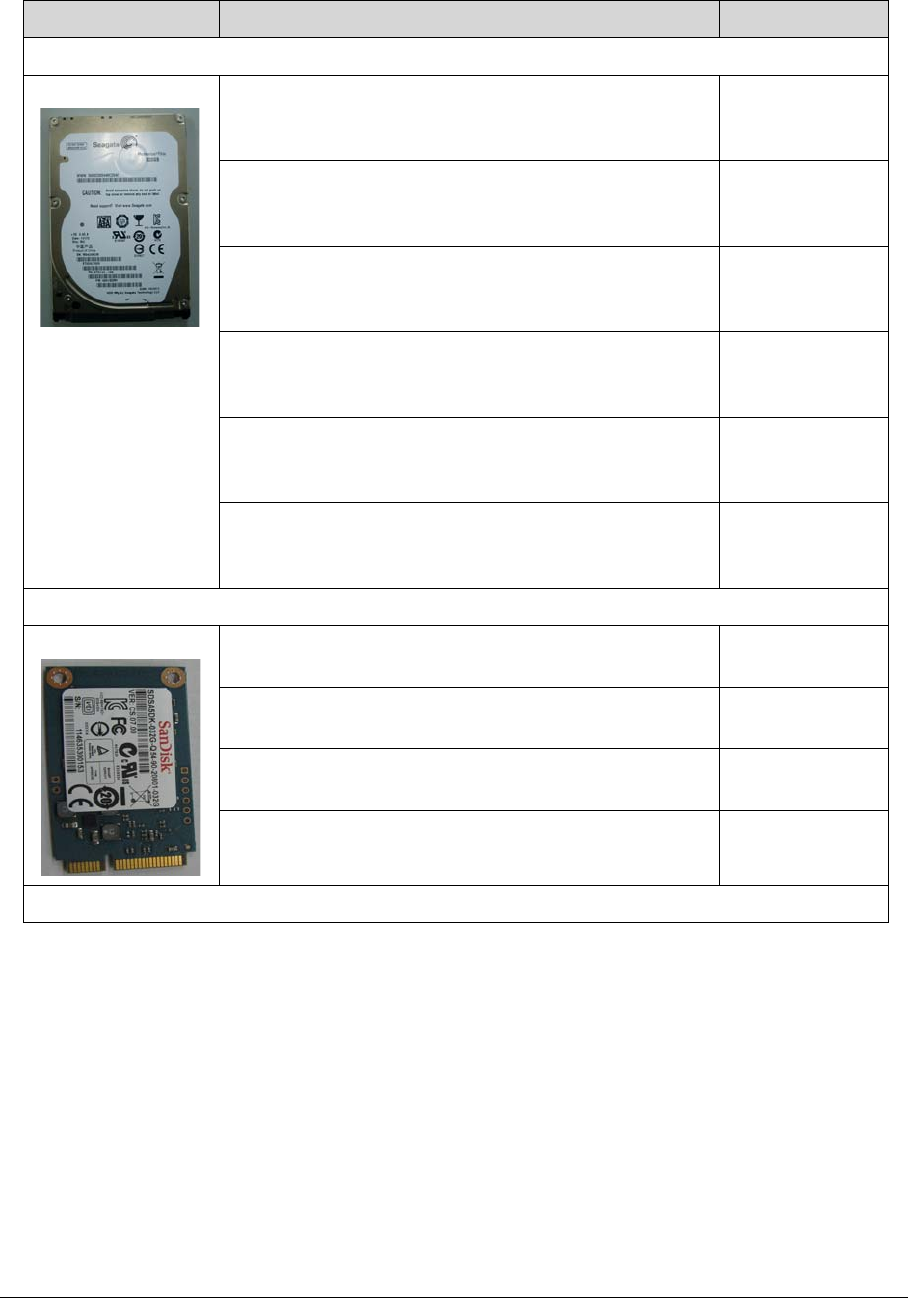
6-14 FRU (Field Replaceable Unit) List
HDD
HDD HGST 2.5" 5400rpm 500GB
HTS545050A7E380,Jaguar B7, 500G/P SATA 8MB
LF+HF F/W:DA4466
KH.50007.016
HDD SEAGATE 2.5" 5400rpm 320GB
ST320LT020/9YG142-188, Sapta 15,320G/P SATA
8MB LF+HF F/W:0001SDM1 7mmzh
KH.32001.021
HDD HGST 2.5" 5400rpm 320GB
HTS543232A7A384, Eagle B7, 320G/P SATA LF+HF
F/W:A60W 7mmzh
KH.32007.013
HDD HGST 2.5" 5400rpm 500GB
HTS545050A7E380, Jaguar B7,0J23335, 500G/P
SATA 8MB LF+HF F/W:DA4837
KH.50007.023
HDD HGST 2.5" 5400rpm 320GB
HTS543232A7A384,0J28213,Eagle B7, 320G/P
7mmzh SATA 8MB LF+HF F/W:DA4788
KH.32007.017
HDD SEAGATE 2.5" 5400rpm 500GB 9WS142-188
ST500LT012, Yarra 500G/P, 7mmzh SATA 8MB
LF+HF F/W:0001SDM1
KH.50001.030
SSD
Flash Disk SANDISK SSD NAND 32GB
SDSA5DK-032G LF+HF
KF.0320D.003
Flash Disk PHISON SSD NAND 20GB
SSE020GTTC0-S51 LF+HF
KN.0200Q.002
Flash Disk LITE-ON SSD NAND 128GB
LMT-128M3M LF+HF firmware: VYC2
KF.1280L.001
Flash Disk LITE-ON SSD NAND 256GB
LMT-256M3M LF+HF firmware:VZC2
KF.2560L.001
KEYBOARD
Table 6-5. FRU list
Category Description P/N
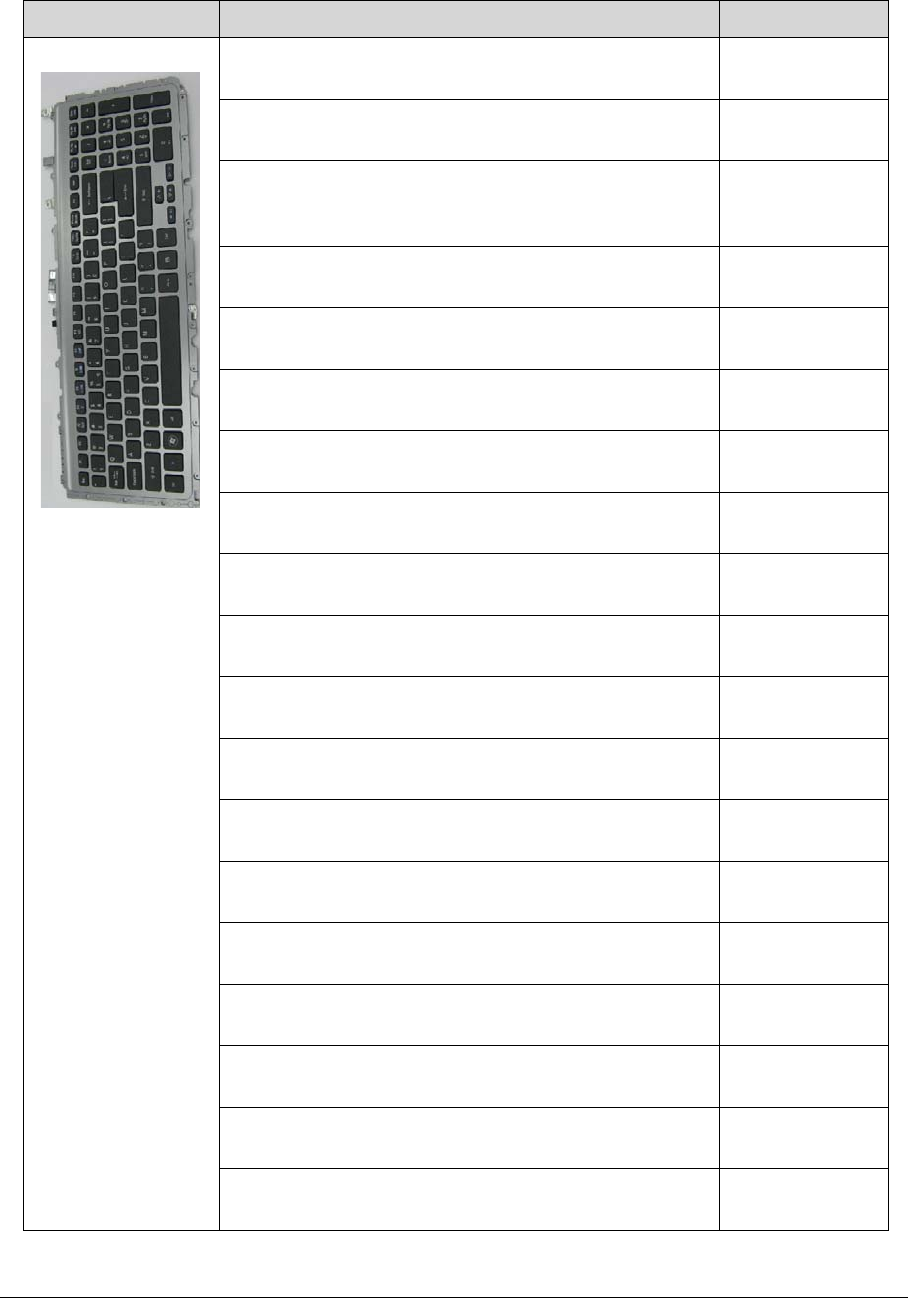
FRU (Field Replaceable Unit) List 6-15
KEYBOARD CHICONY AF7S_A10B AF7S 103KS
Black ARABIC W/FRAME , FOIL , MYLAR
KEYBOARD CHICONY AF7S_A10B AF7S 104KS
Black Belgium W/FRAME , FOIL , MYLAR
KEYBOARD CHICONY AF7S_A10B AF7S 104KS
Black Brazilian Portuguese W/FRAME , FOIL ,
MYLAR
KEYBOARD CHICONY AF7S_A10B AF7S 104KS
Black Bulgaria W/FRAME , FOIL , MYLAR
KEYBOARD CHICONY AF7S_A10B AF7S 104KS
Black CZ/SK W/FRAME , FOIL , MYLAR
KEYBOARD CHICONY AF7S_A10B AF7S 103KS
Black CHINESE W/FRAME , FOIL , MYLAR
60.RYKN5.002
KEYBOARD CHICONY AF7S_A10B AF7S 104KS
Black Danish W/FRAME , FOIL , MYLAR
KEYBOARD CHICONY AF7S_A10B AF7S 104KS
Black FR/Arabic W/FRAME , FOIL , MYLAR
KEYBOARD CHICONY AF7S_A10B AF7S 104KS
Black French W/FRAME , FOIL , MYLAR
KEYBOARD CHICONY AF7S_A10B AF7S 104KS
Black GREMAN W/FRAME , FOIL , MYLAR
60.RYKN5.003
KEYBOARD CHICONY AF7S_A10B AF7S 103KS
Black Greek W/FRAME , FOIL , MYLAR
KEYBOARD CHICONY AF7S_A10B AF7S 104KS
Black Hungarian W/FRAME , FOIL , MYLAR
KEYBOARD CHICONY AF7S_A10B AF7S 104KS
Black Italian W/FRAME , FOIL , MYLAR
KEYBOARD CHICONY AF7S_A10B AF7S 107KS
Black Japanese W/FRAME , FOIL , MYLAR
KEYBOARD CHICONY AF7S_A10B AF7S 103KS
Black Korean W/FRAME , FOIL , MYLAR
KEYBOARD CHICONY AF7S_A10B AF7S 104KS
Black Nordic W/FRAME , FOIL , MYLAR
KEYBOARD CHICONY AF7S_A10B AF7S 104KS
Black Norwegian W/FRAME , FOIL , MYLAR
KEYBOARD CHICONY AF7S_A10B AF7S 104KS
Black Portuguese W/FRAME , FOIL , MYLAR
KEYBOARD CHICONY AF7S_A10B AF7S 103KS
Black Russian W/FRAME , FOIL , MYLAR
Table 6-5. FRU list
Category Description P/N
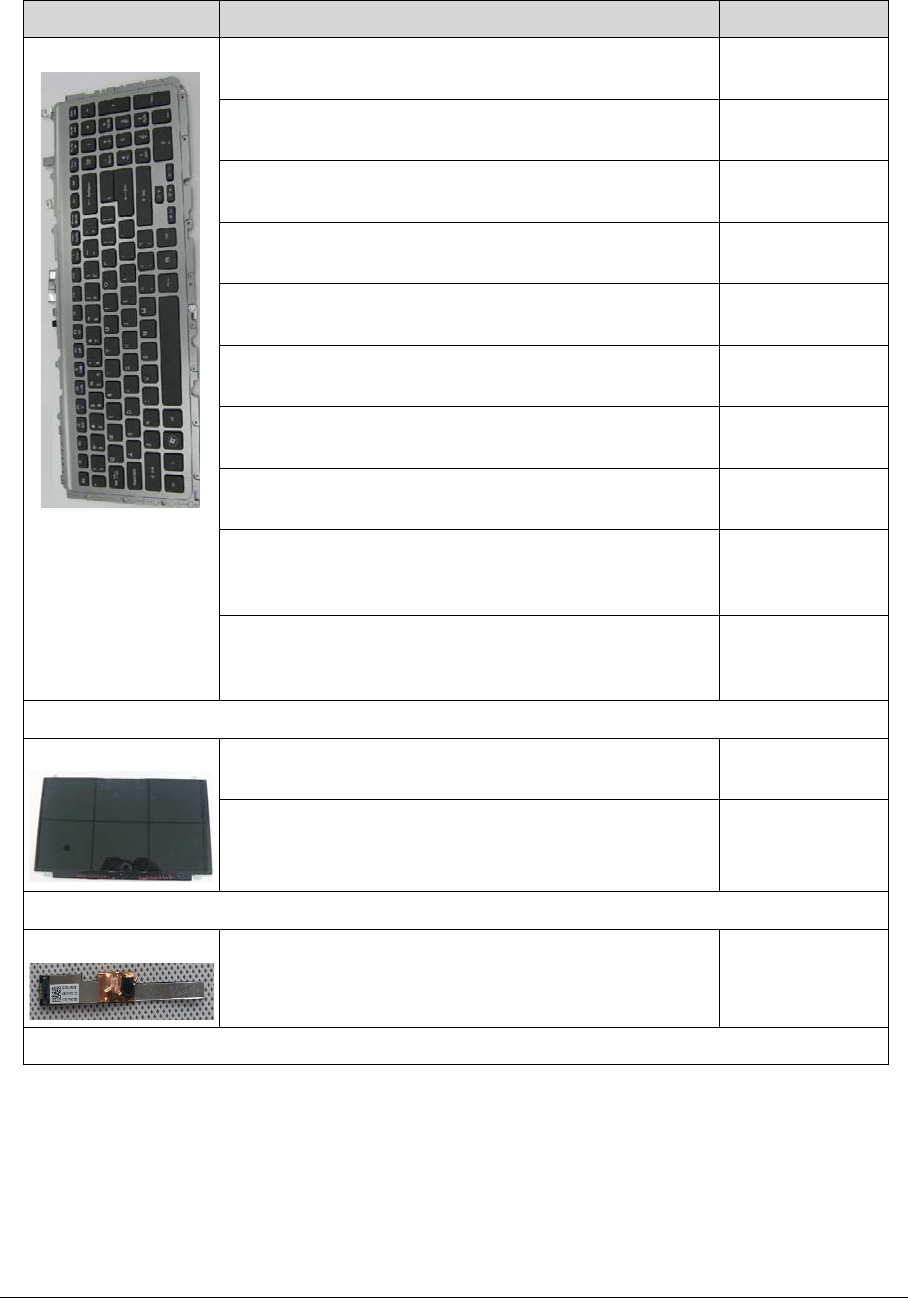
6-16 FRU (Field Replaceable Unit) List
KEYBOARD CHICONY AF7S_A10B AF7S 104KS
Black SLO/CRO W/FRAME , FOIL , MYLAR
KEYBOARD CHICONY AF7S_A10B AF7S 104KS
Black Spanish W/FRAME , FOIL , MYLAR
KEYBOARD CHICONY AF7S_A10B AF7S 104KS
Black Sweden W/FRAME , FOIL , MYLAR
KEYBOARD CHICONY AF7S_A10B AF7S 104KS
Black Swiss/G W/FRAME , FOIL , MYLAR
KEYBOARD CHICONY AF7S_A10B AF7S 103KS
Black Thailand W/FRAME , FOIL , MYLAR
KEYBOARD CHICONY AF7S_A10B AF7S 104KS
Black Turkish W/FRAME , FOIL , MYLAR
KEYBOARD CHICONY AF7S_A10B AF7S 104KS
Black UK W/FRAME , FOIL , MYLAR
KEYBOARD CHICONY AF7S_A10B AF7S 103KS
Black US International W/FRAME , FOIL , MYLAR
60.RYKN5.001
KEYBOARD CHICONY AF7S_A10B AF7S 103KS
Black US International w/ Hebrew W/FRAME , FOIL ,
MYLAR
KEYBOARD CHICONY AF7S_A10B AF7S 104KS
Black US w/ Canadian French W/FRAME , FOIL ,
MYLAR
LCD
LED LCD AUO 15.6''W WXGA Glare B156XTN03.2
LF 200nit 8ms 500:1 (ultra-slim)
LK.15605.026
LCD TFT15.6' HD GLARE LED EDP LK.15605.029
CAMERA
CAMERA MODULE 1.3M AM.21400.121
MAINBOARD
Table 6-5. FRU list
Category Description P/N
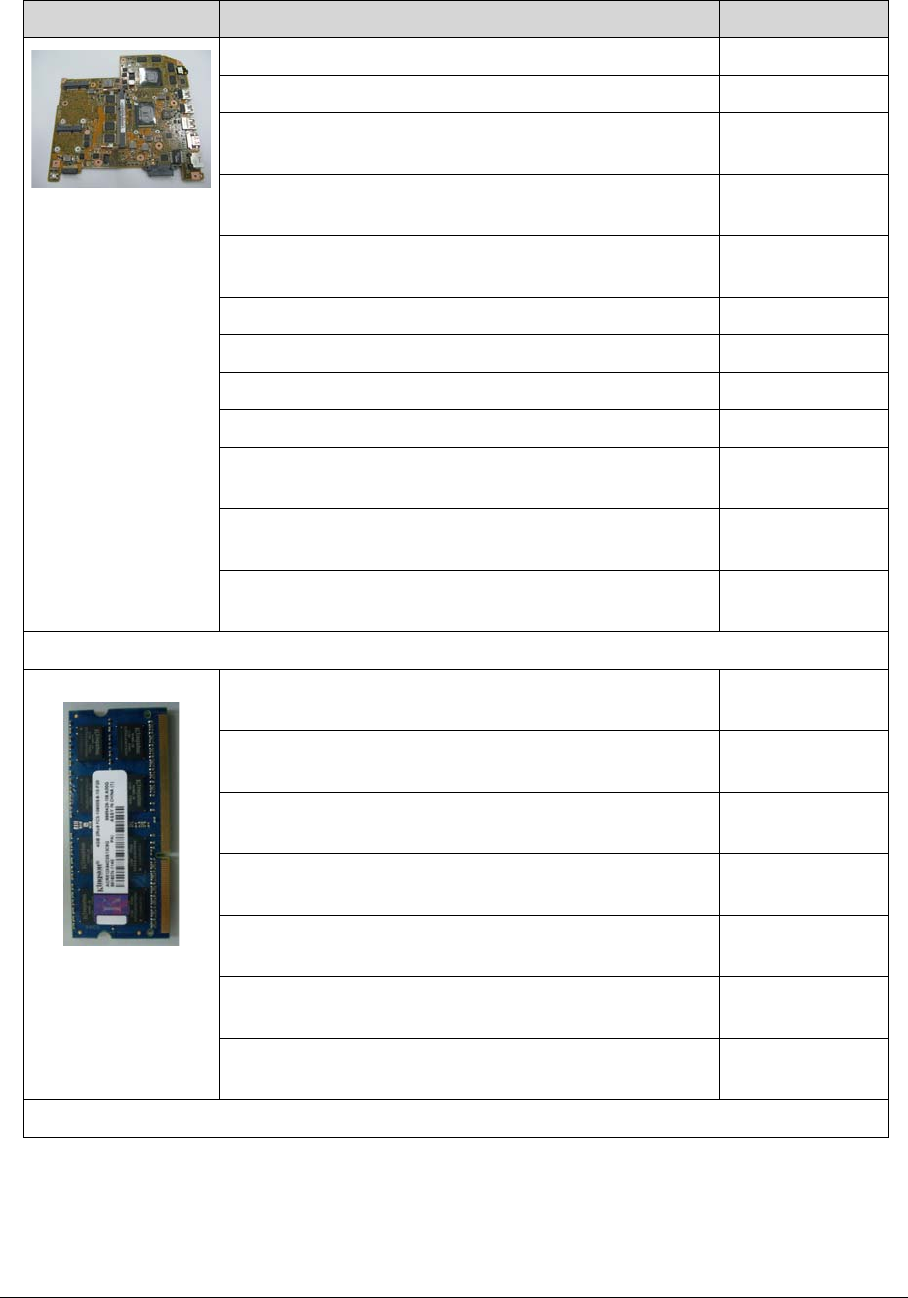
FRU (Field Replaceable Unit) List 6-17
MA50_HX Intel i3-2367M UMA HM77 NB.RY811.001
MA50_HX Intel i5-2467M UMA HM77 NB.RY811.002
MA50_HX_i3-2367M_N13P-GS_1GBVRAM Intel
HM77 N13P-GS LF
NB.RYK11.003
MA50_HX_i5-2467M_N13P-GS_1GBVRAM Intel
HM77 N13P-GS LF
NB.RYK11.002
MA50_HX_i7-2637M_N13P-GS_1GBVRAM Intel
HM77 N13P-GS LF
NB.RYK11.001
MA50_HX Intel i7-2637M UMA HM77 NB.RY811.003
MA50_HX Intel i3-3217U UMA HM77 NB.M0N11.001
MA50_HX Intel i5-3317U UMA HM77 NB.M0N11.002
MA50_HX Intel i7-3517U UMA HM77 NB.M0N11.003
MA50_HX_i3-3217U_N13P-GS_1GBVRAM Intel
HM77 N13P-GS LF
NB.M0P11.001
MA50_HX_i5-3317U_N13P-GS_1GBVRAM Intel
HM77 N13P-GS LF
NB.M0P11.002
MA50_HX_i7-3517U_N13P-GS_1GBVRAM Intel
HM77 N13P-GS LF
NB.M0P11.003
MEMORY
Memory ELPIDA SO-DIMM DDRIII 1600 4GB
EBJ40UG8BBU0-GN-F LF+HF 512*8 38nm
KN.4GB09.005
Memory KINGSTON SO-DIMM DDRIII 1333 2GB
ACR256X64D3S13C9G LF+HF
KN.2GB07.006
Memory KINGSTON SO-DIMM DDRIII 1333 4GB
ACR512X64D3S13C9G LF+HF
KN.4GB07.001
Memory ELPIDA SO-DIMM DDRIII 1600 2GB
EBJ20UF8BDU0-GN-F LF+HF 256*8 38nm
KN.2GB09.012
Memory HYNIX SO-DIMM DDRIII 1333 2GB
HMT325S6CFR8C-H9 LF+HF 256x8 38nm
KN.2GB0G.031
Memory HYNIX SO-DIMM DDRIII 1333 4GB
HMT351S6CFR8C-H9 LF+HF 256x8 38nm
KN.4GB0G.012
Memory MICRON SO-DIMM DDRIII 1333 2GB
MT8KTF25664HZ-1G4M1 LF+HF 256*8 46nm V79D
KN.2GB04.019
THERMAL MODULE
Table 6-5. FRU list
Category Description P/N
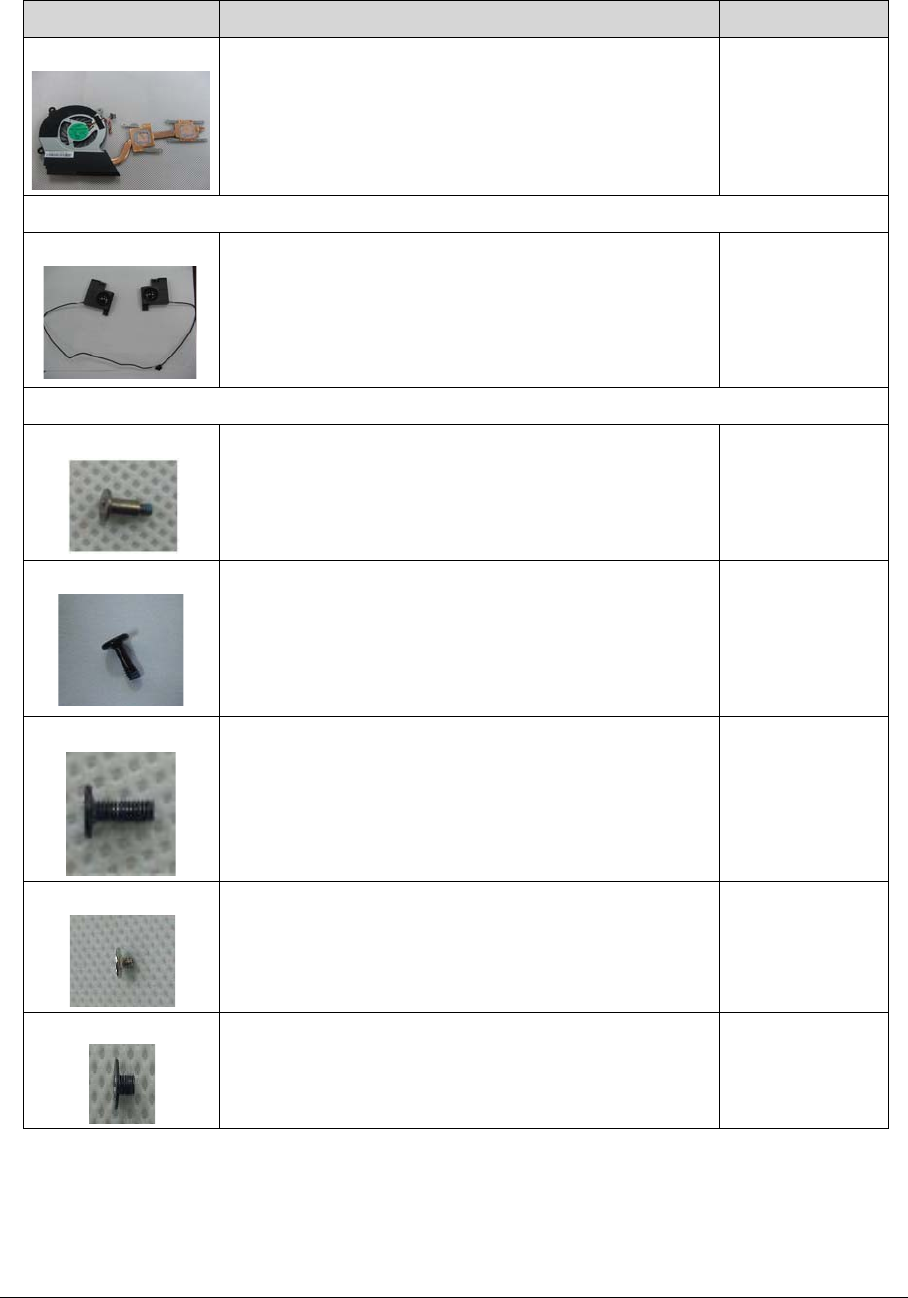
6-18 FRU (Field Replaceable Unit) List
THERMAL MODULE 60.RY8N5.004
SPEAKER
SPEAKER SET
SCREW
SCREW M2*2L+4.2MM(K)B-NI NY #1 86.RY8N5.001
SCREW M2*6L (K) B-ZN #1 NY 86.RN60U.002
SCREW M2.5*5L(K)B-NI,NY 86.B050U.001
SCREW M2*2L (K,D=5) W-NI #1 NY 86.RY8N5.003
SCREW M3*2.5L K B-ZN #1 NY 86.RY8N5.004
Table 6-5. FRU list
Category Description P/N
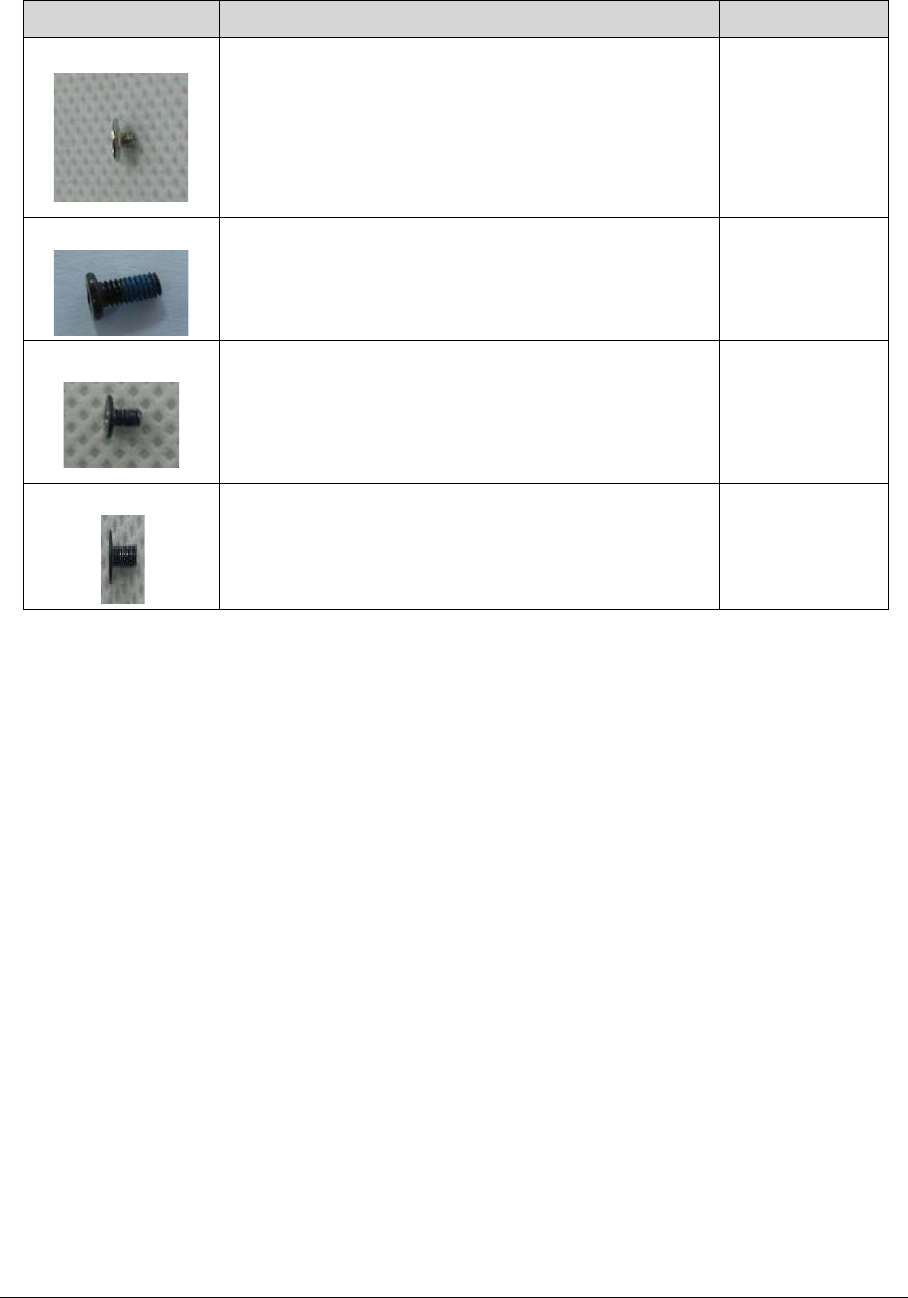
FRU (Field Replaceable Unit) List 6-19
SCREW M2*2.5L(K)(ψ3.7) W-NI 86.W750U.003
SCREW M2*6L(K,D4.6) B-ZN #1 NY 86.RY8N5.005
SCREW M2*3L K B-ZN #1 NY 86.RY8N5.006
SCREW M2.5*2.5L K B-NI #1 NY 86.RY8N5.002
Table 6-5. FRU list
Category Description P/N

6-20 FRU (Field Replaceable Unit) List

CHAPTER 7
Test Compatible Components


Test Compatible Components 7-3
Test Compatible Components
This computer’s compatibility is tested and verified by Acer’s internal testing department. All
of its system functions are tested under Windows® 7 environment.
Refer to the following lists for components, adapter cards, and peripherals which have passed
these tests. Regarding configuration, combination and test procedures, please refer to the
Compatibility Test Report released by the Acer Mobile System Testing Department.
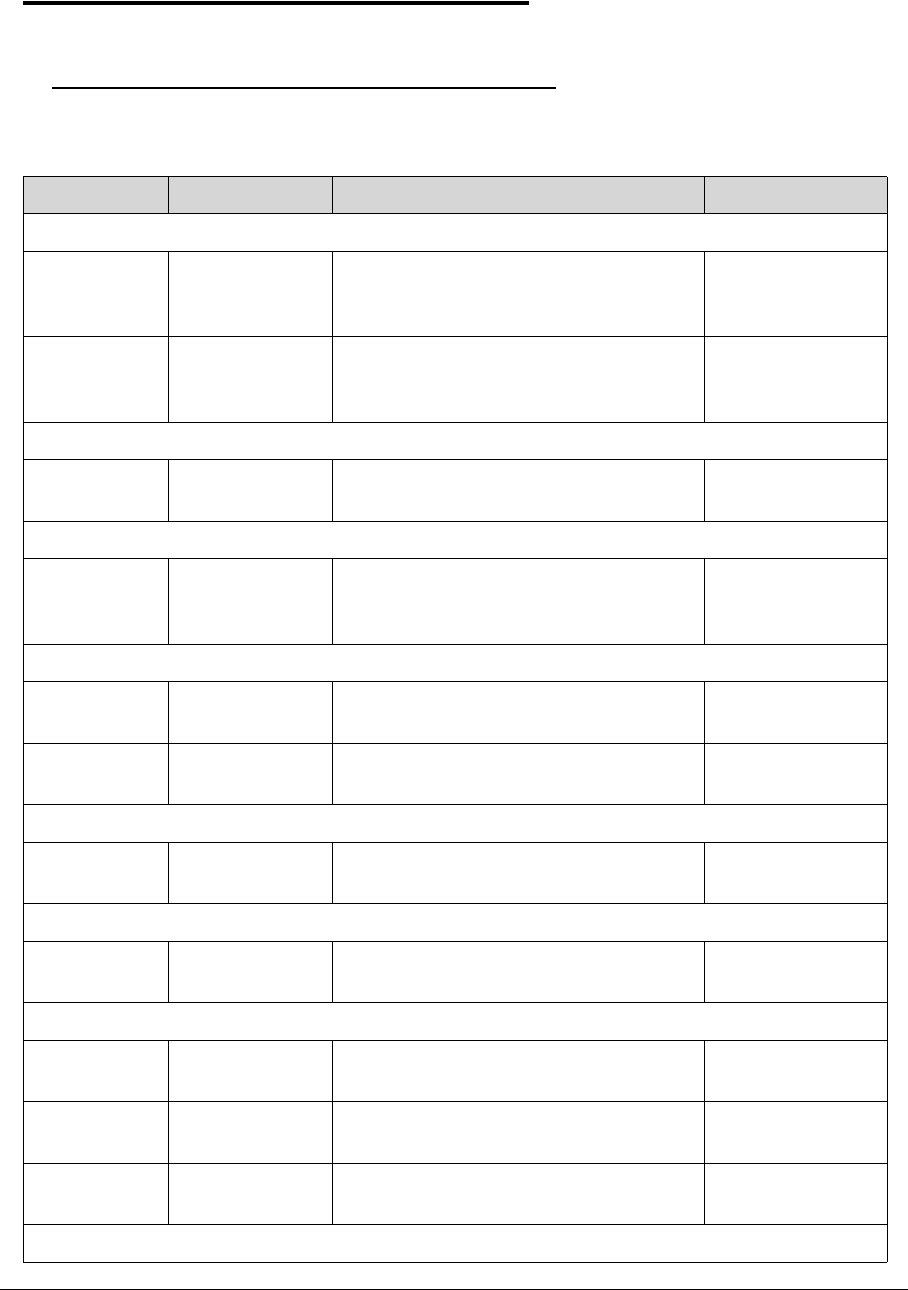
7-4 Test Compatible Components
Microsoft® Windows® 7 Environment Test 0
M3 581T/581TG 0
Table 8-1. M3 581T/581TG
Vendor Type Description Acer Part No.
Adapter
10001081
DELTA
65W Adapter DELTA 65W 19V 1.7x5.5x11
Yellow ADP-65VH BA, LV5, Low profile
LED LF
AP.06501.033
60016453
CHICONY
POWER
65W Adapter Chicony Power 65W 19V
1.7x5.5x11 Yellow CPA09-A065N1,
LV5, low profile LF
AP.0650A.017
Audio Codec
10004786
REALTEK
ALC271X_VB6 Realtek ALC271X_VB6 QFN-48 LZ.21000.161
Battery
60001921
SANYO
3CELL4.85 Battery SANYO ID:AP12A3i Li-Polymar
3S1P SANYO 3 cell 4850mAh Main
COMMON for embedded type
BT.00303.028
Bluetooth
10001018
HON HAI
BT 2.1 BT 2.1 Foxconn Atheros BU22 BH.21100.023
10001018
HON HAI
BT 4.0 BT 4.0 Foxconn Atheros BU22 BH.21100.017
Camera
60004445
PRIMAX
1.3M HD_S Primax Camera PM_S119_SP_slim AM.21400.121
Card Reader
10000981
MISC
2-in-1 card
reader
2-in-1 card reader CR.21500.030
CPU
10001067
INTEL
Ci32367MB CPU Intel Core i3 2367M BGA 1.4G
17W
KC.23601.7MB
10001067
INTEL
Ci52467MB CPU Intel Core i5 2467M BGA 1.6G
17W
KC.24601.7MB
10001067
INTEL
Ci72637MB CPU Intel Core i7 2637M BGA 1.7G
17W
KC.26301.7MB
HDD
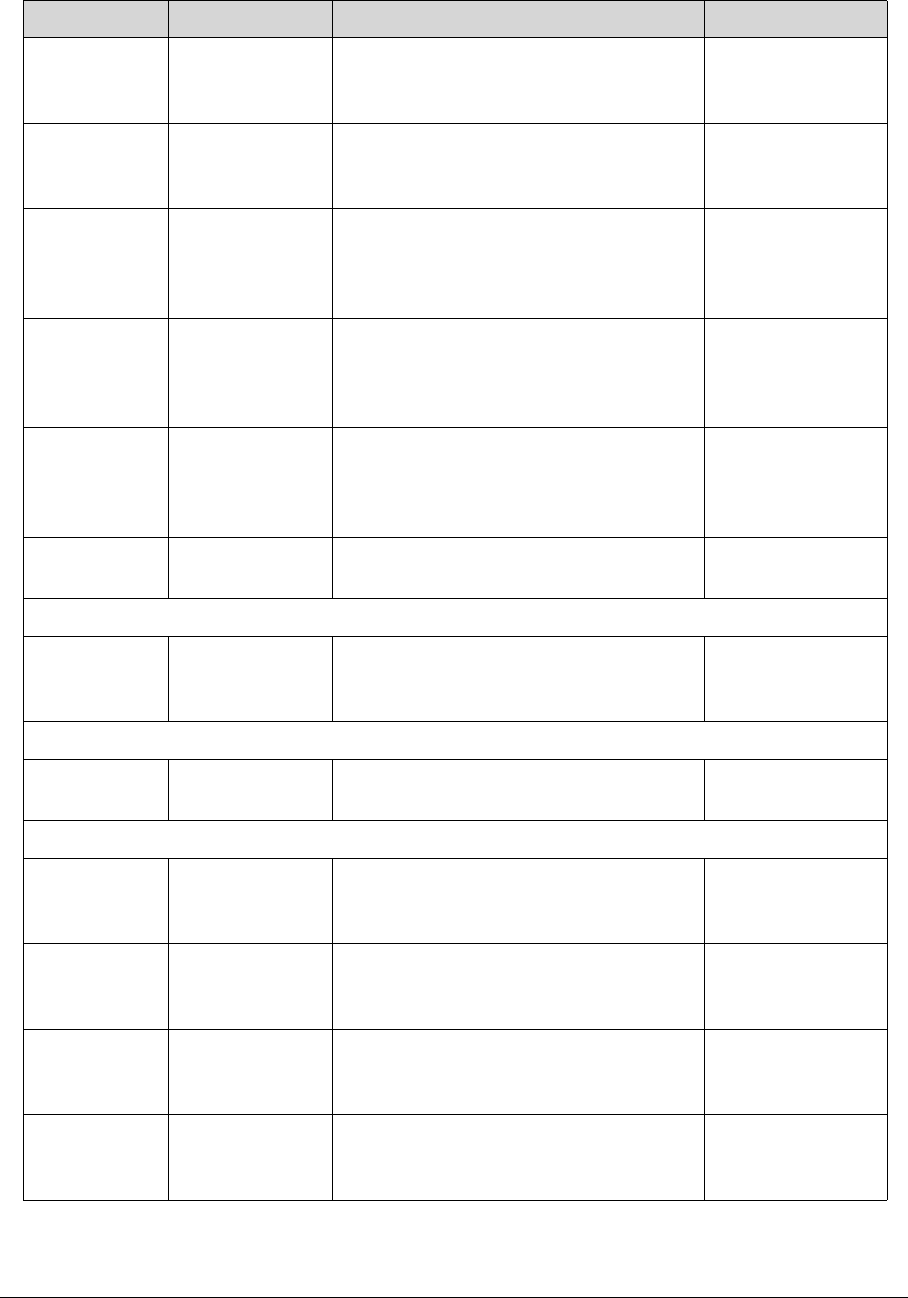
Test Compatible Components 7-5
60003544
LITE-ON
OPT
FM0128S3 Flash Disk LITE-ON SSD NAND
128GB LMT-128M3M LF+HF firmware:
VYC2
KF.1280L.001
60003544
LITE-ON
OPT
FM0256S3 Flash Disk LITE-ON SSD NAND
256GB LMT-256M3M LF+HF
firmware:VZC2
KF.2560L.001
60002005
HGST SG
N320GB5.4KS HDD HGST 2.5" 5400rpm 320GB
HTS543232A7A384,0J28213,Eagle
B7, 320G/P 7mmzh SATA 8MB LF+HF
F/W:DA4788
KH.32007.017
60002036
SEAGATE
N320GB5.4KS
_4K
HDD SEAGATE 2.5" 5400rpm 320GB
ST320LT020/9YG142-188, Sapta
15,320G/P SATA 8MB LF+HF
F/W:0001SDM1 7mmzh
KH.32001.021
60002005
HGST SG
N500GB5.4KS
_4K
HDD HGST 2.5" 5400rpm 500GB
HTS545050A7E380, Jaguar
B7,0J23335, 500G/P SATA 8MB
LF+HF F/W:DA4837
KH.50007.023
60003533
YOSUN
FM0020S2 Flash Disk PHISON SSD NAND 20GB
SSE020GTTC0-S51 LF+HF
KN.0200Q.002
Keyboard
10001044
CHICONY
AF7S_A10B Keyboard CHICONY AF7S_A10B
AF7S Internal 17 Standard Black
NONE Y2010 Acer Legend
NK.I1713.001
LAN
610112
BROADCOM
BCM57780 Broadcom BCM57780 NI.22400.047
MEM
60004668
ELPIDA
CM2GBIII Memory Chip ELPIDA DDRIII 1600
2Gb EDJ2108BDBG-GN-F LF+HF
256*8 38nm
KN.2GB09.013
60002050
MICRON SG
CM2GbIII13 Memory Chip MICRON DDRIII 1333
2Gb MT41J256M8HX-15E LF 256*8
0.055um
KM.2GB04.002
60002050
MICRON SG
SO2GBIII13 Memory MICRON SO-DIMM DDRIII
1333 2GB MT8KTF25664HZ-1G4M1
LF+HF 256*8 46nm V79D
KN.2GB04.019
60002045
HYNIX
SO2GBIII13 Memory HYNIX SO-DIMM DDRIII 1333
2GB HMT325S6CFR8C-H9 LF+HF
256x8 38nm
KN.2GB0G.031
Table 8-1. M3 581T/581TG
Vendor Type Description Acer Part No.
7-6 Test Compatible Components
60004668
ELPIDA
SO4GBIII13 Memory ELPIDA SO-DIMM DDRIII
1600 4GB EBJ40UG8BBU0-GN-F
LF+HF 512*8 38nm
KN.4GB09.005
NB Chipset
10001067
INTEL
HM77 NB Chipset Intel CS HM77 Chief River KI.G7501.002
SB Chipset
9999995
ONE TIME
VENDER
N N KI.22800.011
ODD
60001944 LG
HK
NSM8XS9.0 ODD HLDS Super-Multi DRIVE 9.0mm
Tray 8X GU61N LF+HF W/O bezel
SATA
KU.0080D.064
VGA Chip
60001915
NVIDIA
N13PGS VGA Chip nVidia N13P-GS-A2 28nm,
29x29, GB4-128 package
KG.PGS0V.003
VRAM
10000981
MISC
1G-DDR3
(64*16*8)
1G-DDR3 64*16*8 KI.23300.018
60002045
HYNIX
VR1GbIII9 VRAM HYNIX Graphic DDRIII 900 1Gb
H5TQ1G63DFR-11C LF 64*16 46nm
VR.1GB0G.006
Wireless LAN
23707801
FOXCONN
TW
3rd WiFi 2x2
BGN
Foxconn Wireless LAN Atheros HB97
2x2 BGN (HM)
NI.23600.072
10001023
LITE-ON
3rd WiFi 2x2
BGN
Liteon Wireless LAN Atheros HB97 2x2
BGN (HM) WN6603AH
NI.23600.073
A cover
9999995
ONE TIME
VENDER
Aluminum Aluminum LZ.21000.006
Software
10000981
MISC
McAfee Antivirus application McAfee SR.23900.001
TPM (For future SKU)
Table 8-1. M3 581T/581TG
Vendor Type Description Acer Part No.

Test Compatible Components 7-7
PLM00030
Nuvoton
NPCT420R Nuvoton NPCT420R Foxconn Module
12x12x3.7mm (TPM FW:v3.69,TCG
1.2 rev.116,TxT compliance) HSF with
EK embedded
NC.22911.002
Table 8-1. M3 581T/581TG
Vendor Type Description Acer Part No.

7-8 Test Compatible Components

CHAPTER 8
Online Support Information


Online Support Information 8-3
Online Support Information
Introduction 0
This section describes online technical support services available to help users repair their
Acer Systems.
For distributors, dealers, ASP or TPM, please refer the technical queries to a local Acer
branch office. Acer Branch Offices and Regional Business Units may access our website.
However some information sources will require a user i.d. and password. These can be
obtained directly from Acer CSD Taiwan.
Acer's Website offers convenient and valuable support resources.
In the Technical Information section users can download information on all of Acer's
Notebook, Desktop and Server models including:
-Service guides for all models
-Bios updates
-Software utilities
-Spare parts lists
-TABs (Technical Announcement Bulletin)
For these purposes, we have included an Acrobat File to facilitate the problem-free
downloading of our technical material.
Also contained on this website are:
-Detailed information on Acer's International Traveller’s Warranty (ITW)
-Returned material authorization procedures
-An overview of all the support services we offer, accompanied by a list of telephone, fax and
email contacts for all technical queries.
We are always looking for ways to optimize and improve our services, so do not hesitate to
direct any suggestions or comments to us.

8-4 Online Support Information
