Anticimex Innovation Center A S 300101 Rodent surveillance and trap system User Manual manual

Anticimex Innovation Center A/S Rodent surveillance and trap system manual

manual

1Version 1 - 01.02.2018Substitutes: Wise-I Mini guide Version 6 - May 2016GB Anticimex  Smart Connect system Manual
2Compliance Statement Smart Connect, Smart Eye and Smart Catch   Smart Connect - Article number 300 101   FCC ID 2AOFP-300101  Contains FCC ID XMR201510UC20  This device complies with part 15 of the FCC Rules. Operation is subject to the     following two conditions: (1) This device may not cause harmful interference, and    (2) this device must accept any interference received, including interference that    may cause undesired operation.  Smart Eye - Article number 300 201   FCC ID 2AOFP-300201  This device complies with part 15 of the FCC Rules. Operation is subject to the     following two conditions: (1) This device may not cause harmful interference, and    (2) this device must accept any interference received, including interference that    may cause undesired operation.  Smart Catch - Article number 300 301   FCC ID 2AOFP-300301  This device complies with part 15 of the FCC Rules. Operation is subject to the     following two conditions: (1) This device may not cause harmful interference, and    (2) this device must accept any interference received, including interference that    may cause undesired operation.Information to user  The Smart Connect, Smart Eye and Smart Catch are only in compliance if no     changesormodicationsismadetothedevice.   The Smart Connect, Smart Eye and Smart Catch are in compliance with the      requirement for RF exposure in US with 20 cm separation distance between the    user and/or bystander of the device.  Theantennaisxedtothedeviceandnochangeinantennaorxationofthe  antennaisacceptableandsuchmodicationisconsideredtoviolatethe    Compliance Statement.   The latest version of the manuals and datasheets are always available on  One.Anticimex.com
3Note:   This equipment has been tested and found to comply with the limits for Class B    digital device, pursuant to part 15 of the FCC Rules. These limits are designed to    provide reasonable protection against harmful interference in a residential      installation. The equipment generates, uses and can radiate radio frequency      energy and, if not installed and used in accordance with the instructions,       may cause harmful interference to radio communications.  However, there is no guarantee that interference will not occur in a particular      installation. If this equipment does cause harmful interference to radio or     televisionreception,whichcanbedeterminedbyturningtheequipmento   and on, the user is encouraged to try to correct the interference by one or more of    the following measures:   a.   Reorient or relocate the receiving antenna.   b.   Increase the separation between the equipment and the receiver.  c.Connecttheequipmentintoanoutletonacircuitdierentfromthattowhich        the receiver is connected.   d.   Consult the dealer or an experienced radio/TV technician for help.
4ContentCompliance statement  201  Run mode and Service mode    5     1.1 Service mode:    5     1.2 Run mode:    502  Setting up the system    5     2.1 Connecting and setting up the Smart Connect    5  2.1.1 Register the Smart Connect on WisePlan   5  2.1.2 Start the Smart Connect    5     2.2 Link Smart Connect devices to the Smart Connect    6  2.2.1 General    6    2.2.2 Smart Catch    6  2.2.3. Smart Eye    6     2.3 Check the Smart Connect devices signal strength   6     2.4 Unlink Smart Connect devices from the Smart Connect   603  Handling and maintenance    7     3.1 Battery change    7     3.2 Emptying the trap    7     3.3 Clean the sensors on Smart Catch    704  Explanation of LED lights   805  Troubleshooting   906  Glossary    10
501  Run mode and Service mode  Remember to put the system in Service mode at least 2 hours before you need to work with the   installation.     1.1 Service mode: a.ThersttimeaSmartConnectisstartedupitwillautomaticallybeinServicemode.  b.   Service mode is used when Smart Connect devices need to be linked to the system,            removed from the system or when the signal quality should be tested.  c.   When the system is in Service mode the Smart Connect devices use more battery, because           they report to the Smart Connect every 5 minutes.  d.   The traps are not active and PIR-activity will not be registered in Service mode.   e.   When you are in Service mode press   on the Smart Connect, to put the system into           operation.     1.2 Run mode:  Sensors detect PIR-activity and traps are active. The Smart Connect devices report to the      Smart Connect once an hour.02  Setting up the system      2.1 Connecting and setting up the Smart Connect   2.1.1 Register the Smart Connect on WisePlanNote:  Have a SIM card ready where you know the telephone number. Be aware that if there is a PIN on    the SIM card, you have to enter it on the Smart Connect.   a.   Log onto www.wisecon.dk/wiseplan.  b.   Click the menu [Add new trap]. c.EntertheserialnumberandvericationcodefortheSmartConnect.  d.   Enter the required information.   e.   Select who should receive alerts.  f.    [Create trap].  2.1.2 Start the Smart Connect  a.   Insert the SIM card.  b.   Connect the Smart Connect to a wall socket via the supplied power adapter and remove          the battery release from the Smart Connect’s back.  c.   Wait while the Smart Connect synchronizes with WisePlan.  d.   When the Smart Connect is ready the display shows ”Servicemode 0 OK”.
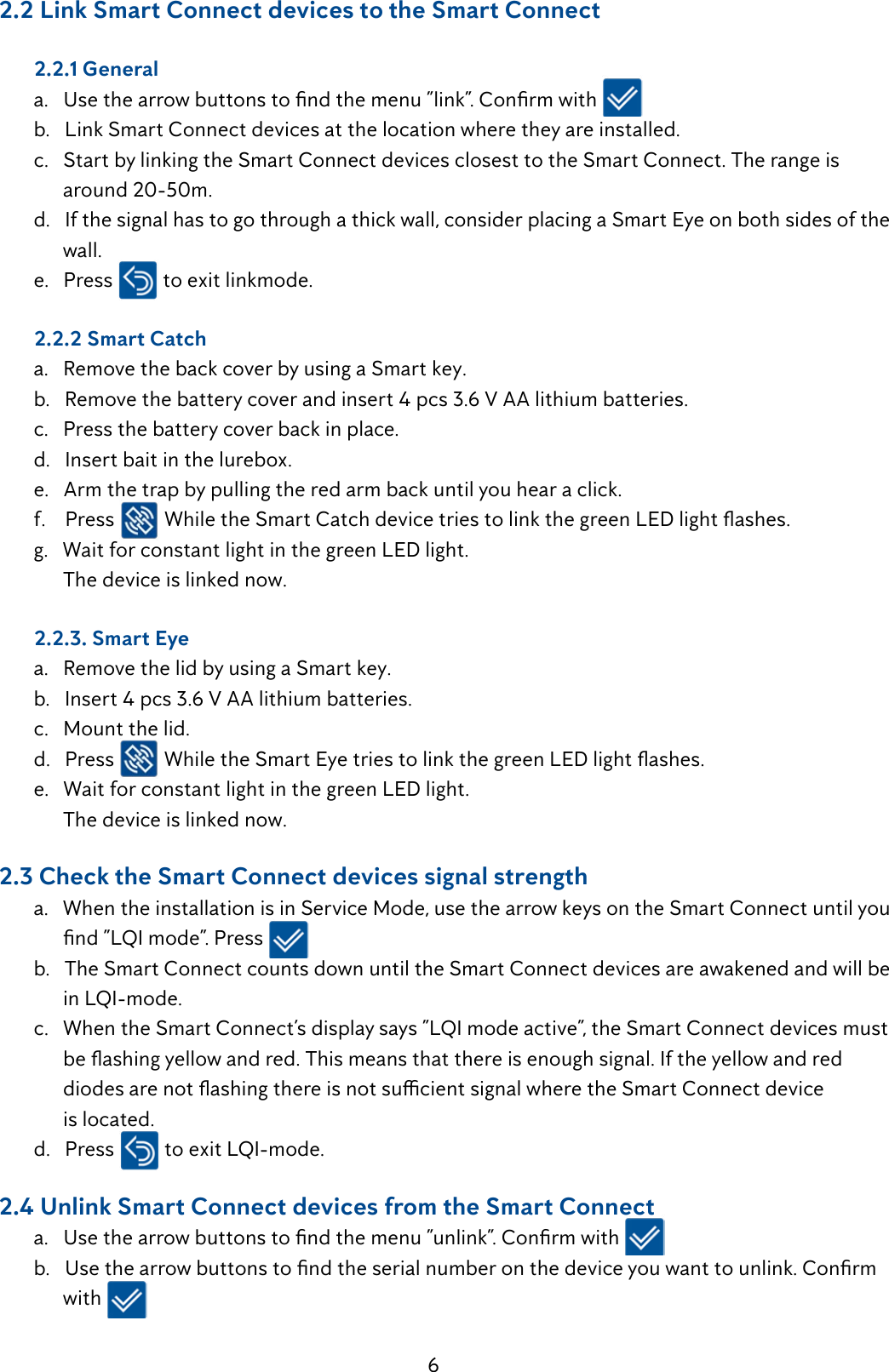
6     2.2 Link Smart Connect devices to the Smart Connect  2.2.1 General a.Usethearrowbuttonstondthemenu”link”.Conrmwith  b.   Link Smart Connect devices at the location where they are installed.  c.   Start by linking the Smart Connect devices closest to the Smart Connect. The range is            around 20-50m.  d.   If the signal has to go through a thick wall, consider placing a Smart Eye on both sides of the          wall.  e.   Press   to exit linkmode.     2.2.2 Smart Catch  a.   Remove the back cover by using a Smart key.  b.   Remove the battery cover and insert 4 pcs 3.6 V AA lithium batteries.  c.   Press the battery cover back in place.  d.   Insert bait in the lurebox.  e.   Arm the trap by pulling the red arm back until you hear a click.  f.    Press  WhiletheSmartCatchdevicetriestolinkthegreenLEDlightashes.  g.   Wait for constant light in the green LED light.        The device is linked now.  2.2.3. Smart Eye  a.   Remove the lid by using a Smart key.  b.   Insert 4 pcs 3.6 V AA lithium batteries.  c.   Mount the lid.  d.   Press  WhiletheSmartEyetriestolinkthegreenLEDlightashes.  e.   Wait for constant light in the green LED light.        The device is linked now.     2.3 Check the Smart Connect devices signal strength  a.   When the installation is in Service Mode, use the arrow keys on the Smart Connect until you   nd”LQImode”.Press  b.   The Smart Connect counts down until the Smart Connect devices are awakened and will be   inLQI-mode. c.WhentheSmartConnect’sdisplaysays”LQImodeactive”,theSmartConnectdevicesmust beashingyellowandred.Thismeansthatthereisenoughsignal.Iftheyellowandred  diodesarenotashingthereisnotsucientsignalwheretheSmartConnectdevice         is located.  d.   Press  toexitLQI-mode.     2.4 Unlink Smart Connect devices from the Smart Connect a.Usethearrowbuttonstondthemenu”unlink”.Conrmwith b.Usethearrowbuttonstondtheserialnumberonthedeviceyouwanttounlink.Conrm        with
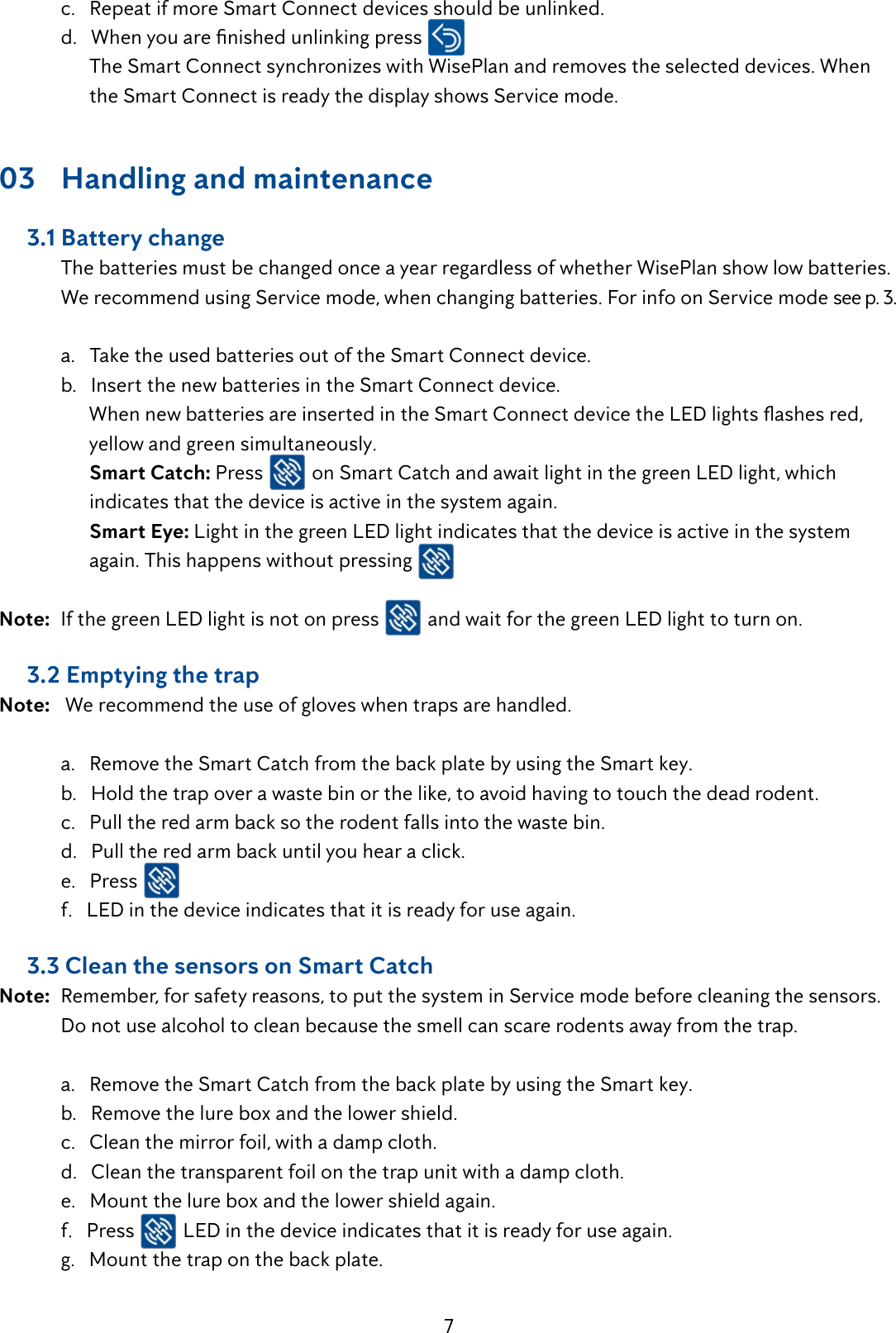
7  c.   Repeat if more Smart Connect devices should be unlinked. d.Whenyouarenishedunlinkingpress        The Smart Connect synchronizes with WisePlan and removes the selected devices. When          the Smart Connect is ready the display shows Service mode.03  Handling and maintenance     3.1 Battery change  The batteries must be changed once a year regardless of whether WisePlan show low batteries.    We recommend using Service mode, when changing batteries. For info on Service mode see p. 3.    a.   Take the used batteries out of the Smart Connect device.  b.   Insert the new batteries in the Smart Connect device. WhennewbatteriesareinsertedintheSmartConnectdevicetheLEDlightsashesred,        yellow and green simultaneously.        Smart Catch: Press   on Smart Catch and await light in the green LED light, which            indicates that the device is active in the system again.         Smart Eye: Light in the green LED light indicates that the device is active in the system            again. This happens without pressing   Note:  If the green LED light is not on press   and wait for the green LED light to turn on.       3.2 Emptying the trapNote:   We recommend the use of gloves when traps are handled.    a.   Remove the Smart Catch from the back plate by using the Smart key.  b.   Hold the trap over a waste bin or the like, to avoid having to touch the dead rodent.  c.   Pull the red arm back so the rodent falls into the waste bin.  d.   Pull the red arm back until you hear a click.  e.   Press   f.   LED in the device indicates that it is ready for use again.     3.3 Clean the sensors on Smart CatchNote:  Remember, for safety reasons, to put the system in Service mode before cleaning the sensors.    Do not use alcohol to clean because the smell can scare rodents away from the trap.   a.   Remove the Smart Catch from the back plate by using the Smart key.  b.   Remove the lure box and the lower shield.  c.   Clean the mirror foil, with a damp cloth.  d.   Clean the transparent foil on the trap unit with a damp cloth.  e.   Mount the lure box and the lower shield again.  f.   Press   LED in the device indicates that it is ready for use again.  g.   Mount the trap on the back plate.
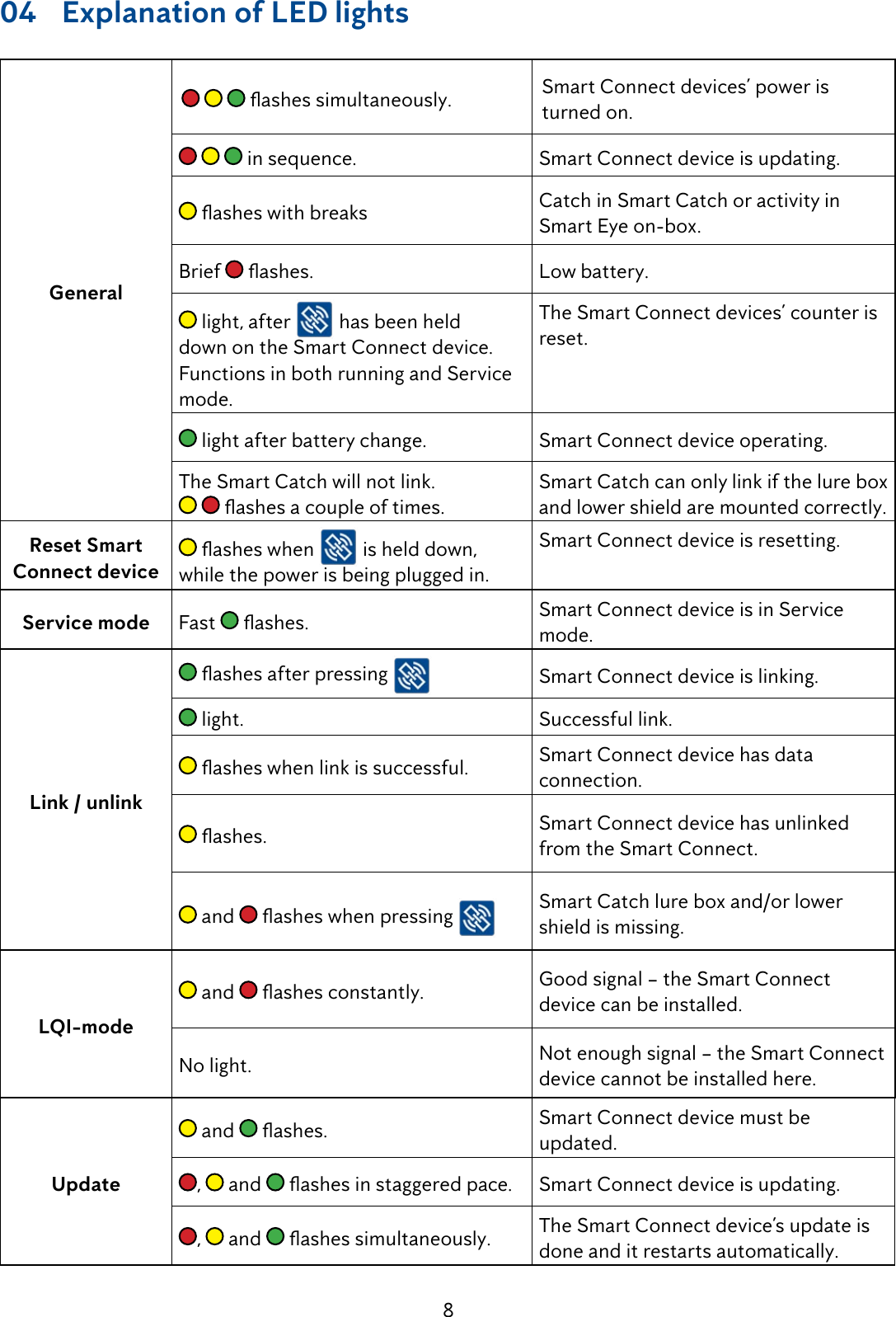
804  Explanation of LED lightsGeneralashessimultaneously. Smart Connect devices’ power is turned on. in sequence. Smart Connect device is updating.asheswithbreaks Catch in Smart Catch or activity in           Smart Eye on-box. Brief  ashes. Low battery. light, after   has been held down on the Smart Connect device. Functions in both running and Service mode.The Smart Connect devices’ counter is reset.  light after battery change.  Smart Connect device operating.The Smart Catch will not link.    ashesacoupleoftimes.Smart Catch can only link if the lure box and lower shield are mounted correctly. Reset Smart Connect deviceasheswhen  is held down, while the power is being plugged in. Smart Connect device is resetting.Service mode Fast  ashes. Smart Connect device is in Service mode.Link / unlinkashesafterpressing Smart Connect device is linking. light. Successful link.asheswhenlinkissuccessful. Smart Connect device has data connection.ashes. Smart Connect device has unlinked from the Smart Connect. and  asheswhenpressing Smart Catch lure box and/or lower shield is missing.LQI-mode and  ashesconstantly. Good signal – the Smart Connect device can be installed.No light. Not enough signal – the Smart Connect device cannot be installed here.Update and  ashes. Smart Connect device must be updated.,   and  ashesinstaggeredpace. Smart Connect device is updating.,   and  ashessimultaneously. The Smart Connect device’s update is done and it restarts automatically.
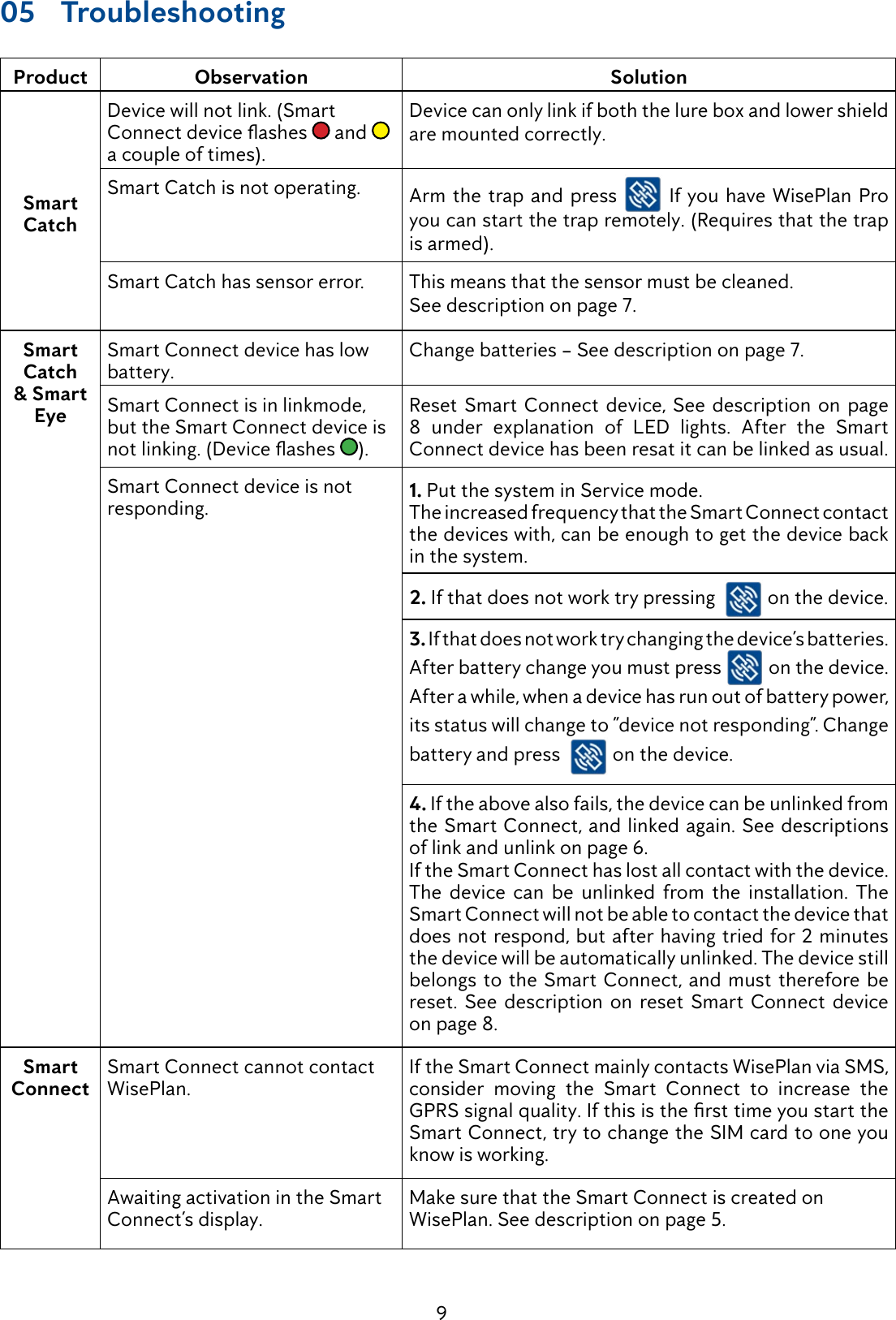
905 TroubleshootingProduct Observation SolutionSmart CatchDevice will not link. (Smart Connectdeviceashes  and   a couple of times).Device can only link if both the lure box and lower shield are mounted correctly. Smart Catch is not operating. Arm the trap and press   If you have WisePlan Pro you can start the trap remotely. (Requires that the trap is armed).Smart Catch has sensor error. This means that the sensor must be cleaned.See description on page 7.Smart Catch & Smart EyeSmart Connect device has low battery.Change batteries – See description on page 7.Smart Connect is in linkmode, but the Smart Connect device is notlinking.(Deviceashes ).Reset Smart Connect device, See description on page 8 under explanation of LED lights. After the Smart Connect device has been resat it can be linked as usual. Smart Connect device is not responding. 1. Put the system in Service mode.The increased frequency that the Smart Connect contact the devices with, can be enough to get the device back in the system. 2. If that does not work try pressing    on the device.3. If that does not work try changing the device’s batteries. After battery change you must press   on the device.After a while, when a device has run out of battery power, its status will change to ”device not responding”. Change battery and press    on the device. 4. If the above also fails, the device can be unlinked from the Smart Connect, and linked again. See descriptions of link and unlink on page 6. If the Smart Connect has lost all contact with the device. The device can be unlinked from the installation. The Smart Connect will not be able to contact the device that does not respond, but after having tried for 2 minutes the device will be automatically unlinked. The device still belongs to the Smart Connect, and must therefore be reset. See description on reset Smart Connect device on page 8.Smart ConnectSmart Connect cannot contact WisePlan.If the Smart Connect mainly contacts WisePlan via SMS, consider moving the Smart Connect to increase the GPRSsignalquality.IfthisisthersttimeyoustarttheSmart Connect, try to change the SIM card to one you know is working.Awaiting activation in the Smart Connect’s display.Make sure that the Smart Connect is created on WisePlan. See description on page 5.
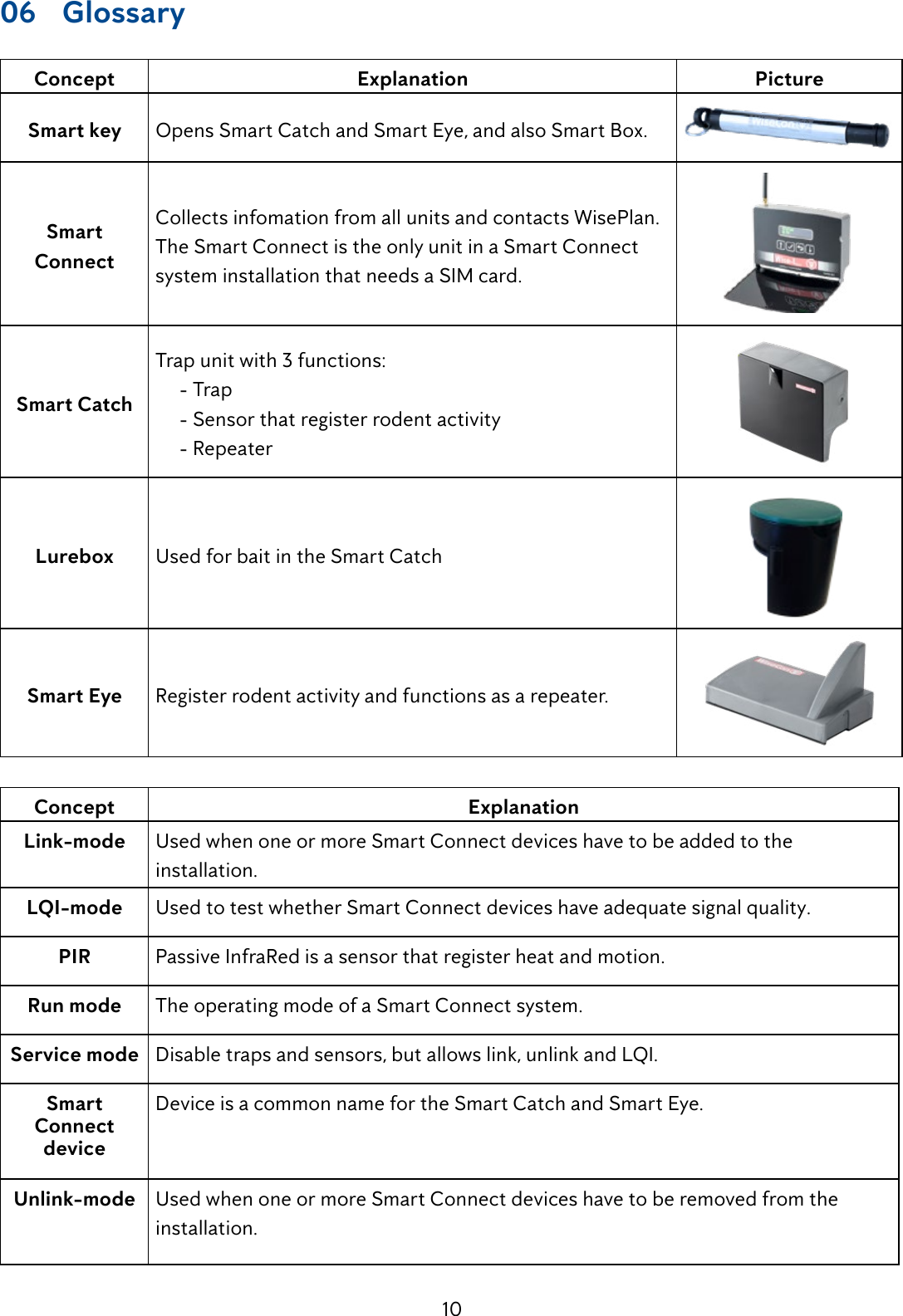
1006 GlossaryConcept Explanation PictureSmart key Opens Smart Catch and Smart Eye, and also Smart Box.Smart ConnectCollects infomation from all units and contacts WisePlan. The Smart Connect is the only unit in a Smart Connect system installation that needs a SIM card.Smart CatchTrap unit with 3 functions:     - Trap     - Sensor that register rodent activity     - RepeaterLurebox Used for bait in the Smart CatchSmart Eye Register rodent activity and functions as a repeater.Concept ExplanationLink-mode Used when one or more Smart Connect devices have to be added to the installation.LQI-mode Used to test whether Smart Connect devices have adequate signal quality.PIR Passive InfraRed is a sensor that register heat and motion.Run mode The operating mode of a Smart Connect system.Service mode Disabletrapsandsensors,butallowslink,unlinkandLQI.Smart Connect deviceDevice is a common name for the Smart Catch and Smart Eye.Unlink-mode Used when one or more Smart Connect devices have to be removed from the installation.
11Anticimex Innovation Center +45 48 79 93 78AIC@anticimex.com

Navigation menu