Ardi Technology SB20 Keyring Locator/Kid Tracker/Remote Controller User Manual iReminder SB20 20130517 ai

Ardi Technology Corp. Keyring Locator/Kid Tracker/Remote Controller iReminder SB20 20130517 ai

Users Manual

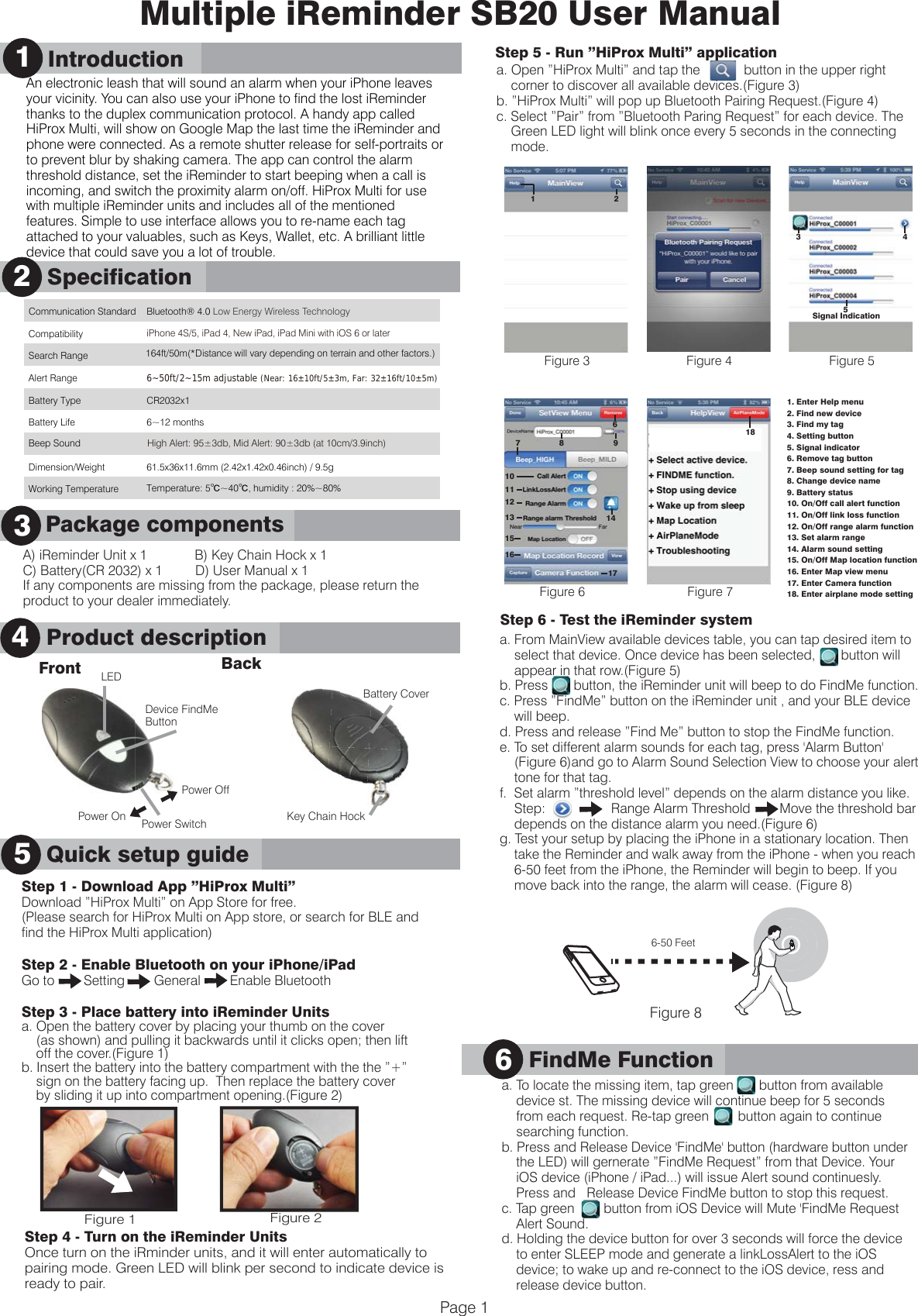
A) iReminder Unit x 1             B) Key Chain Hock x 1C) Battery(CR 2032) x 1         D) User Manual x 1If any components are missing from the package, please return the product to your dealer immediately.      Product Description3Key Chain HockBattery CoverPower SwitchLEDMultiple iReminder SB20 User ManualAn electronic leash that will sound an alarm when your iPhone leaves your vicinity. You can also use your iPhone to find the lost iReminder thanks to the duplex communication protocol. A handy app called HiProx Multi, will show on Google Map the last time the iReminder and phone were connected. As a remote shutter release for self-portraits or to prevent blur by shaking camera. The app can control the alarm threshold distance, set the iReminder to start beeping when a call is incoming, and switch the proximity alarm on/off. HiProx Multi for use with multiple iReminder units and includes all of the mentioned features. Simple to use interface allows you to re-name each tag attached to your valuables, such as Keys, Wallet, etc. A brilliant little device that could save you a lot of trouble.1      IntroductionQuick Setup GuideStep 1 - Download App ”HiProx Multi”Download ”HiProx Multi” on App Store for free. (Please search for HiProx Multi on App store, or search for BLE and find the HiProx Multi application)Step 2 - Enable Bluetooth on your iPhone/iPadGo to        Setting        General        Enable BluetoothStep 3 - Place battery into iReminder Unitsa. Open the battery cover by placing your thumb on the cover    (as shown) and pulling it backwards until it clicks open; then lift     off the cover.(Figure 1)b. Insert the battery into the battery compartment with the the ”+”    sign on the battery facing up.  Then replace the battery cover     by sliding it up into compartment opening.(Figure 2)      SpecificationProduct description241      Introduction5Quick setup guide Front BackStep 4 - Turn on the iReminder UnitsOnce turn on the iRminder units, and it will enter automatically to pairing mode. Green LED will blink per second to indicate device is ready to pair. Page 1      Package components3Communication Standard Bluetooth® 4.0 Low Energy Wireless Technology    Compatibility iPhone 4S/5, iPad 4, New iPad, iPad Mini with iOS 6 or later Search Range 164ft/50m(*Distance will vary depending on terrain and other factors.)  Alert Range 6~50ft/2~15m adjustable (Near: 16±10ft/5±3m, Far: 32±16ft/10±5m) Battery Type CR2032x1 Battery Life 6~12 months   Dimension/Weight  61.5x36x11.6mm (2.42x1.42x0.46inch) / 9.5g Working Temperature Temperature: 5℃~40℃, humidity : 20%~80%  Power OffPower OnStep 5 - Run ”HiProx Multi” applicationa. Open ”HiProx Multi” and tap the            button in the upper right     corner to discover all available devices.(Figure 3)b. ”HiProx Multi” will pop up Bluetooth Pairing Request.(Figure 4)c. Select ”Pair” from ”Bluetooth Paring Request” for each device. The     Green LED light will blink once every 5 seconds in the connecting     mode.Step 6 - Test the iReminder systema. From MainView available devices table, you can tap desired item to     select that device. Once device has been selected,       button will     appear in that row.(Figure 5)b. Press       button, the iReminder unit will beep to do FindMe function.c. Press ”FindMe” button on the iReminder unit , and your BLE device     will beep.d. Press and release ”Find Me” button to stop the FindMe function.e. To set different alarm sounds for each tag, press 'Alarm Button'     (Figure 6)and go to Alarm Sound Selection View to choose your alert     tone for that tag.  f.  Set alarm ”threshold level” depends on the alarm distance you like.    Step:                  Range Alarm Threshold        Move the threshold bar     depends on the distance alarm you need.(Figure 6)g. Test your setup by placing the iPhone in a stationary location. Then     take the Reminder and walk away from the iPhone - when you reach     6-50 feet from the iPhone, the Reminder will begin to beep. If you     move back into the range, the alarm will cease. (Figure 8) Figure 1 Figure 2Device FindMeButton      6-50 Feet      a. To locate the missing item, tap green       button from available     device st. The missing device will continue beep for 5 seconds     from each request. Re-tap green        button again to continue      searching function.b. Press and Release Device 'FindMe' button (hardware button under     the LED) will gernerate ”FindMe Request” from that Device. Your     iOS device (iPhone / iPad...) will issue Alert sound continuesly.     Press and   Release Device FindMe button to stop this request.c. Tap green        button from iOS Device will Mute 'FindMe Request     Alert Sound.d. Holding the device button for over 3 seconds will force the device     to enter SLEEP mode and generate a linkLossAlert to the iOS     device; to wake up and re-connect to the iOS device, ress and     release device button. FindMe Function6           Figure 81. Enter Help menu2. Find new device3. Find my tag 4. Setting button5. Signal indicator6. Remove tag button7. Beep sound setting for tag8. Change device name9. Battery status10. On/Off call alert function11. On/Off link loss function12. On/Off range alarm function13. Set alarm range14. Alarm sound setting15. On/Off Map location function16. Enter Map view menu17. Enter Camera function18. Enter airplane mode settingFigure 3 Figure 4Figure 6Figure 5Figure 72181Signal Indication3 458 9714101112131516176Beep Sound High Alert: 95±3db, Mid Alert: 90±3db (at 10cm/3.9inch)
      Notification of incoming callsMap Locate9      Warning13Do not disassemble, repair, modify or replace the iReminder Unit or any of its components.Please comply with the national and international flight safety regulations when using device during your flight trip.When storing rechargeable batteries for collection, keep in a vented, non-metal container.Operating for this product is between 40˚F~103˚F (5˚C~40˚C). Storage for this product is  between -4F˚~185˚F(-20˚C~85˚C).Do NOT dispose of the battery in public trash; it is unlawful under state and federal environmental laws and regulations. Please dispose of the battery at local battery recycling center.a. To set map Location function manually, go to SetView Menu page     and tap the          button to go to MapView.(Figure 9)b. To manually select a Location mark, tap the            button and     choose [YES] ,you will see a red mark pin on the current blue     location mark.(Figure 10)c. Auto set map location function: go to MapView Menu and tap the                            button and remove the current mark pin , then enable the     Map Location function. When your iOS Device detects linkLossAlert ,     the iOS Device will automark the Location pin on MapView.(Figure 11)Please notice map location is at the base of the iOS Device GPS function if outdoors. If indoor, Please enable Wi-Fi to get Location accurately.Please go to SetView Menu to enable the call alert function.Step:                  Call Alert        EnableWhen you get a phone call, the iReminder will start beeping and flashing to remind you.      Troubleshooting12If you try to discover a device, but cannot find it, this usually indicates that there is existing bond information. Locate and remove(Figure 12) existing bond information from your iOS device and from Bluetooth Setting to "Forget device". (Figure 14) May be you need to shut down iOS device to clean holding information completely.Removing bond information from iOSBond information can be removed from the Settings menu, by going to General and then Bluetooth. There you should see the name of the device you want to remove, tap it, and choose "Forget this device". (Figure 14)Step :                                              Removing bond information from deviceTo remove device permanently:a.) Disconnection device first and go to SetView page to ”Remove”      (Figure 12) and ”Delete” (Figure 13) Device. Follow “Removing      bond information from the iOS” setps to completely remove      device from the iOS.     Step :                                    YES                               OK         b.) Remove battery from device and re-install to re-start pairing       process.What can cause a false Out-of-Range alarm?a.) Low battery power. b.) The human body is also a source of interference; when carrying      both iPhone & iReminder, carry them on the same side of your      body. c.) Interference/block by metal objects or high power signals used      by 2.4 GHz band devices (i.e. Wi-Fi networks or Microwave      ovens…).Please change batteries if audible alarm becomes weak. 7    Mode option and tap 'Reconnect' to connect all devices. If all     devices are in sleep mode, please press and release device     button to wakeup each device. In this case, you have to exit App     and Run again to reconnect all device (this may take up to 20     seconds for device in SLEEP mode).c. Press and release device button, Device will wake up from sleep     mode and send connection request to iOS DEVICE. iOS DEVICE     Will automatically connect to this device with "Connected"     message.    d. To temporarily stop using one or more devices, enter sleep mode     for each device. Hold device button for over 3 seconds until you     hear the first beep or the status LED light blinks Red. If you are still     in connect mode, a link lost alert will register to iOS DEVICE and     iOS will issue Alert Sound with 'LinkLoss/sleep' message. Tap that     row to stop Alert Sound. You can wakeup that device by press and     release device button once. iOS Device will detect wakeup signal     and enable connection automatically.e. Device LED will stop blinking when it is in sleep mode.    f.  You can remove device permanently by tapping the red Remove     button(Figure 12) in the upper right corner of the SetView page. To     delete this device(Figure 13) ,Please GO TO your iOS Device     Settings menu, select General/Bluetooth . You should see the     name of the device you want to remove, tap it and choose "Forget     this device".9Page 2Figure 9 Figure 10 Figure 11Figure 12 Figure 13 Figure 14   HiProx_CXXXXXForget deviceRemove deviceOption A: After Airplane Mode has been turned 'ON'.Press and release device button once for each device to disable alert sound. Please go to Help/AirPlaneMode option: tap the                   button by select [YES] to disconnect all Devices and exit App now (please follow instructions from App)To reconnect to all devices: tap the                     button and choose [RECONNECT] and exit App now (please follow instructions from APP). If you can not connect all devices at once, please repeat AirPlaneMode disconnect / reconnect steps to RECONNECT all devices.Option B: Enable sleep mode for all devices: Press and release device button over 3 seconds for each device, you should hear beep once to confirm sleep mode. Your iOS DEVICE will register 'LinkLoss/Sleep detected' message and go to Help/AirPlane Mode to disconnect all devices (please follow instruction from App) and exit App now. You can go to setting and turn 'ON' the Airplane Mode. To reconnect the all devices: you have to wakeup each device by press/release device button once. Tap the                    button and choose [RECONNECT] and exit App now (please follow instructions from APP). If you can not connect all devices at once, please repeat AirPlaneMode disconnect / reconnect steps to RECONNECT all devices.       AirPlane Mode10      Stop using device11a. To DISCONNECT all active device, please go to Help/ AirPlane    Mode option and tap 'YES' to disconnect all devices. Device     will enter standby mode after 30 seconds. Green LED will blink     every 10 seconds to indicate standby mode.b. To RECONNECT all active device: please go to Help/AirPlane   Remote control for Photo CaptureTo use the 'Photo' remote control function, go to the SetView page and tap the Capture button to go to Capture View. The Smart Tag remote key can control your smartphone camera function for photo capture with one second per 'capture count number' or one minute per 'capture time'.For the Photo Capture function: You can use '+' or '-' to increase or decrease the 'Capture count number' up to 100 images. Press the smart tag remote button to start photo image capture one image per second for the specified capture count period (you only press the remote button once and you can pan your camera around your target area).8    Delete device
Federal Communication Commission Interference Statement  This equipment has been tested and found to comply with the limits for a Class B digital device, pursuant to Part 15 of the FCC Rules. These limits are designed to provide reasonable protection against harmful interference in a residential installation. This equipment generates, uses and can radiate radio frequency energy and, if not installed and used in accordance with the instructions, may cause harmful interference to radio communications. However, there is no guarantee that interference will not occur in a particular installation. If this equipment does cause harmful interference to radio or television reception, which can be determined by turning the equipment off and on, the user is encouraged to try to correct the interference by one of the following measures: . Reorient or relocate the receiving antenna. . Increase the separation between the equipment and receiver. . Connect the equipment into an outlet on a circuit different from that to which the receiver is connected. . Consult the dealer or an experienced radio/TV technician for help.  FCC Caution: To assure continued compliance, any changes or modifications not expressly approved by the party responsible for compliance could void the user's authority to operate this equipment. (Example - use only shielded interface cables when connecting to computer or peripheral devices).  FCC Radiation Exposure Statement  This equipment complies with FCC RF radiation exposure limits set forth for an uncontrolled environment. This transmitter must not be co-located or operating in conjunction with any other antenna or transmitter.  This device complies with Part 15 of the FCC Rules. Operation is subject to the following two conditions: (1) This device may not cause harmful interference, and (2) This device must accept any interference received, including interference that may cause undesired operation.

Navigation menu