Arima Communication 2600 GSM Cellphone User Manual 2600 manual PA2

Arima Communication Corporation GSM Cellphone 2600 manual PA2

Users Manual Revised

          2600 Operation Manual
  Contents Your phone •  Keys and connectors Getting started •  Installing the SIM card and the battery •  Charging the battery •  Switching the phone on and off Call functions •  Making a call •  Answering or rejecting an incoming call •  Call waiting •  Handling more than one call Menu functions 1. Messages  2. Sound Settings 3. LCD Settings 4. Fun and Tools 5. Call Log 6. Phonebook 7. WAP 8. Phone Settings 9. Call Services 10. Security General information Care and Maintenance
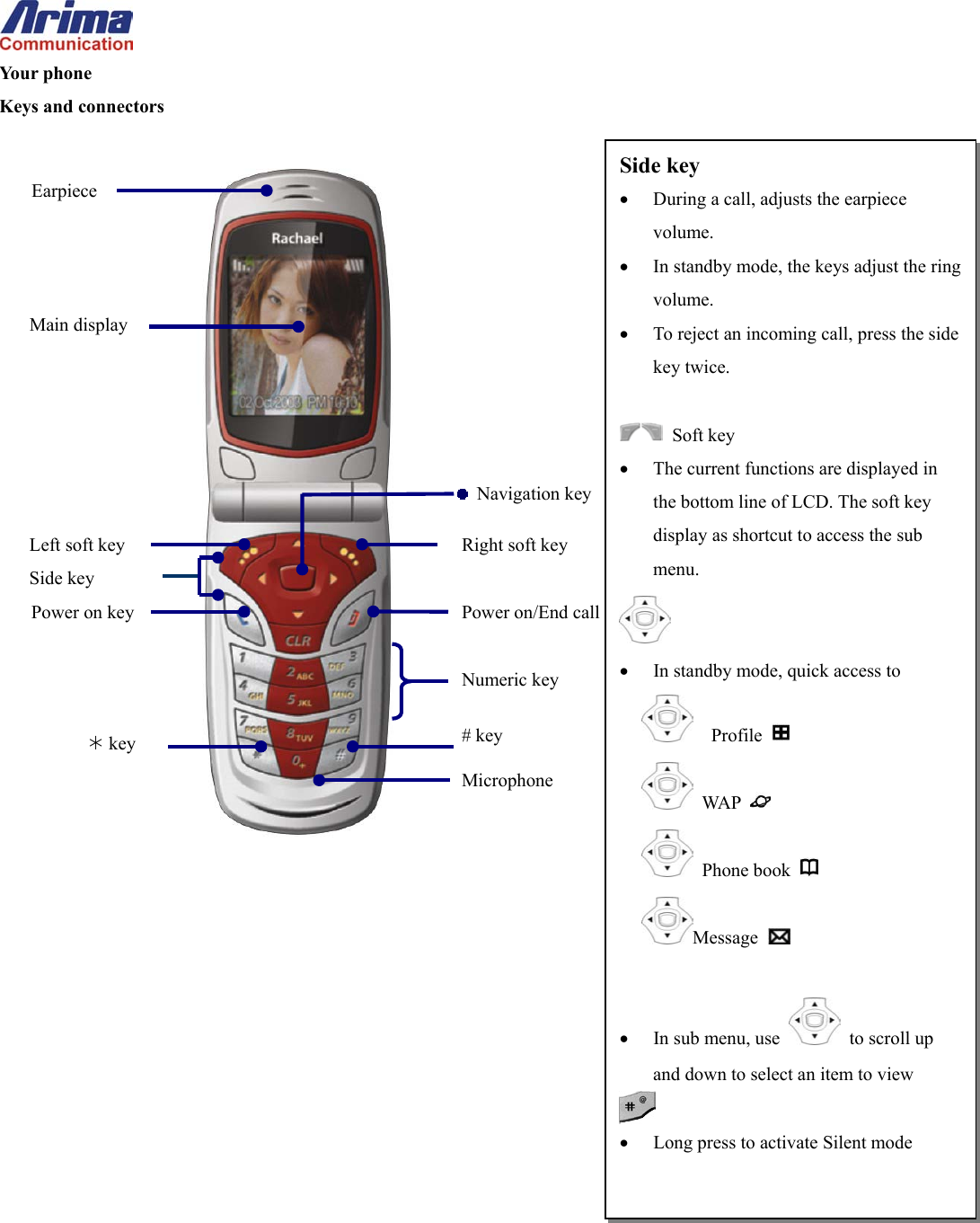
 Your phone Keys and connectors                     Earpiece Side key Main display Power on/End call key Left soft key  Right soft keyPower on key   Navigation keyNumeric key # key ¼ key Microphone Side key •  During a call, adjusts the earpiece volume. •  In standby mode, the keys adjust the ring volume. •  To reject an incoming call, press the side key twice.   Soft key •  The current functions are displayed in the bottom line of LCD. The soft key display as shortcut to access the sub menu.  •  In standby mode, quick access to     Profile    WAP    Phone book   Message    •  In sub menu, use    to scroll up and down to select an item to view  •  Long press to activate Silent mode
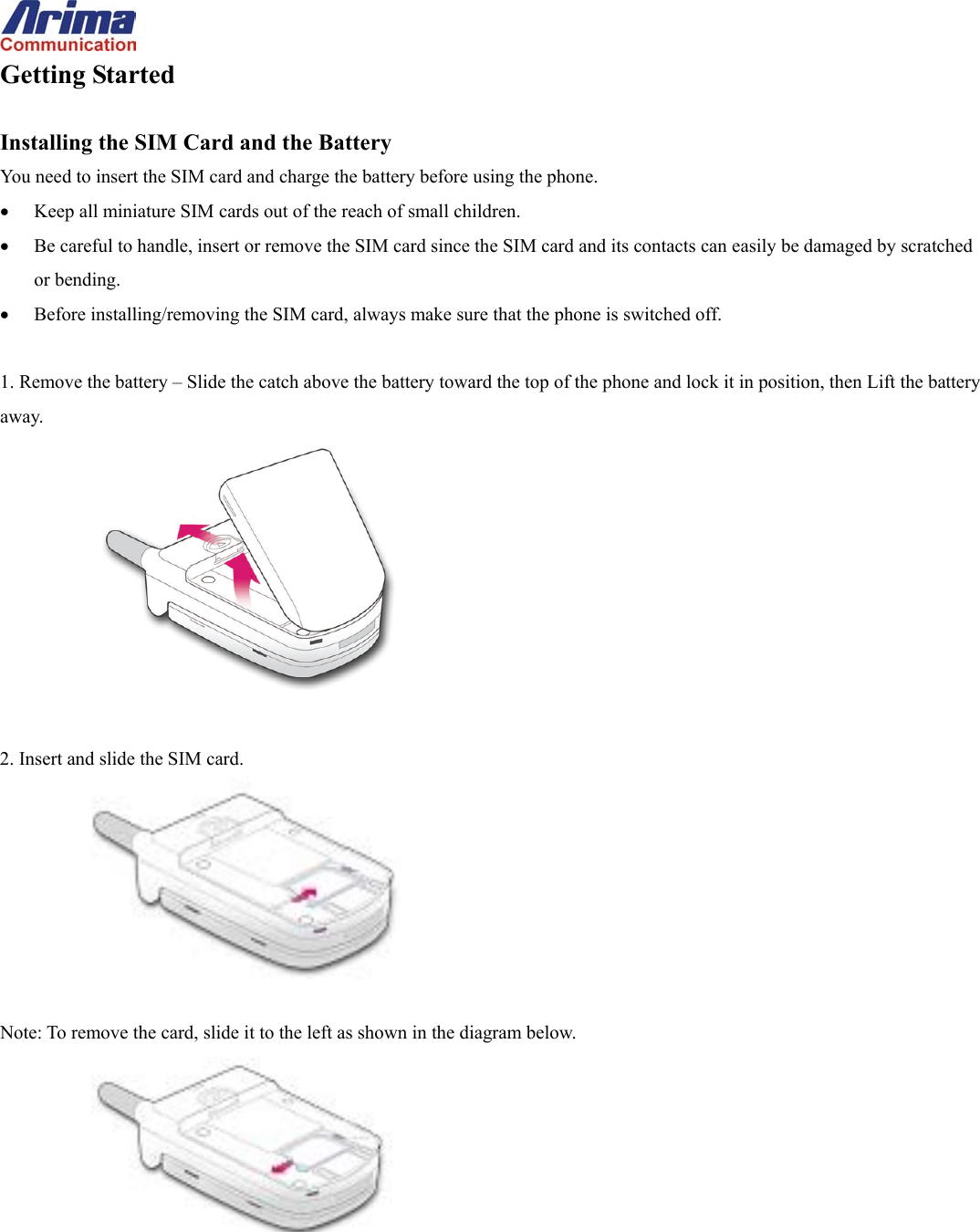
 Getting Started  Installing the SIM Card and the Battery You need to insert the SIM card and charge the battery before using the phone. •  Keep all miniature SIM cards out of the reach of small children. •  Be careful to handle, insert or remove the SIM card since the SIM card and its contacts can easily be damaged by scratched or bending. •  Before installing/removing the SIM card, always make sure that the phone is switched off.  1. Remove the battery – Slide the catch above the battery toward the top of the phone and lock it in position, then Lift the battery away.   2. Insert and slide the SIM card.   Note: To remove the card, slide it to the left as shown in the diagram below.
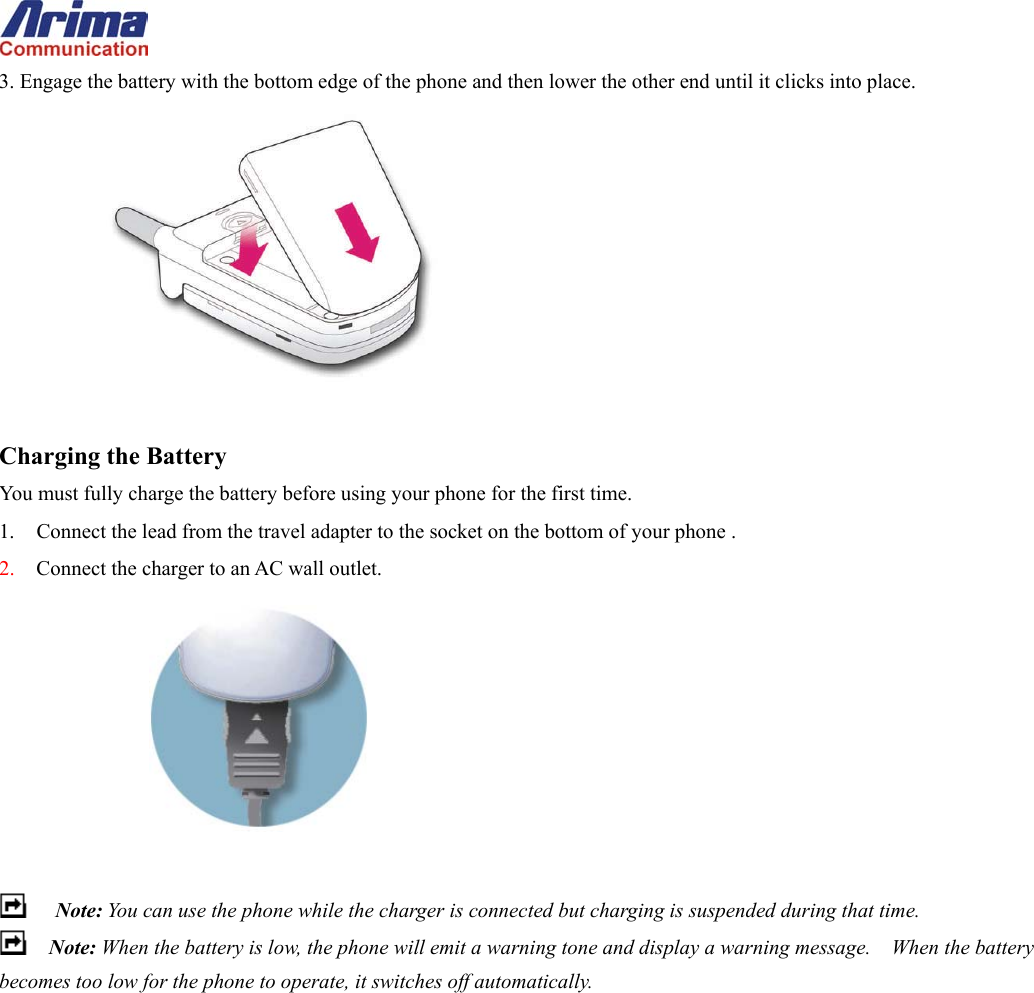
 3. Engage the battery with the bottom edge of the phone and then lower the other end until it clicks into place.   Charging the Battery You must fully charge the battery before using your phone for the first time. 1.  Connect the lead from the travel adapter to the socket on the bottom of your phone . 2.  Connect the charger to an AC wall outlet.    Note: You can use the phone while the charger is connected but charging is suspended during that time.  Note: When the battery is low, the phone will emit a warning tone and display a warning message.    When the battery becomes too low for the phone to operate, it switches off automatically.
 Basic Operations  Switching the Phone on and off •  Hold down the    key for more than one second to switch the phone on.    A start-up welcome message will appear briefly on the display. •  Hold down the    key for more than one second to switch the phone off.    A power-off melody will sound to confirm the action.    A “Good Bye” message will be briefly displayed on the screen. The phone will then switch off.  Note: Make sure the phone is switched off before removing the battery; otherwise data that needs to be saved in the SIM may be lost.  Make a Call •  In standby mode, key in the number, including the area code, press  .  Note: Use Right/Left  key to move the cursor and    the    to delete the character.  Answer or Reject a Call •  Press the ANSWER to accept the call. •  To reject a call, briefly press the   key.  Hang Up To end a call, briefly press the    key or close the flip-lid. The call timer will stop. A Call Ended message will briefly be shown on the display.  Adjust the Volume Use the Up/Down keys on the side of the phone to adjust volume. Ringer volume, voice volume, and key-tone volume can be adjusted independently: •  While the phone is ringing, the Up/Down keys adjust the ringer volume. •  While in an active call, the keys adjust the voice volume. •  While the phone is idle, the keys adjust the key-tone volume, which is the sound made when you press the phone keys if key tones are enabled.  Redial a Previous Number 1.  The phone stores the last 30 dialed numbers in its memory.
 2.  In idle mode pressing the    key will display the previously called numbers. 3.  If the same number is called several times, it will appear only once and the date, time, and duration information is associated with the last call to that number.   4.  To redial a previously dialed number: •  Select a desired number using the Up/Down   key. •  Press the    key to initiate a call to that number.  Put a Caller on Hold To place a call on hold: 1.  Simply press the    key or press the OPTIONS of call menu (activated by the right soft-key), and choose HOLD. You are then free to make another call.  To reactivate a call that is on hold: 2.  Simply press the    key again or press the OPTIONS of call menu, and choose UNHOLD.  Answer Another Call While in a Call This service is only available if you have subscribed to the Call Waiting supplementary service. If you receive a call while you are already in a call, the phone will play a tone and display a screen to identify the new caller.  Also, the incoming call icon will blink until the waiting call has been connected. To accept the call and put the first caller on hold, press the   key. To reject the call and return to the single active call, press the   key.
 Input Method  To change the input language selection: When key in text, long press the   key.  To Changing case: Press    to change capital or lower-case letters.  To Change input method: Press    to change the input method (T9ab, T9Ab, T9AB, Abc, ABC, 0..9)  Traditional English input •  Press   to    and select the desired character. Note: Your phone provides Multi-tap function. For example, press    twice to display the letter B, and press three times to display the letter C.   Characters Table Key  Characters 1  . , : ‘ ? ! - &  〜 _ / 1 2  A/a B/b C/c 2 ä á à â ã æ ç 3  D/d E/e F/f 3 è é ë ê 4  G/g H/h I/I 4 î ï í ì ı ğ 5  J/j K/k L/l 5 £ 6  M/m N/n O/o 6 ö ô ò ó Θ ñ 7  P/p Q/q R/r S/s 7 $ ß 8  T/t U/u V/v 8 ü û ú 9  W/w X/x Y/y Z/z 9 0 0 # To switch between ABC/abc/Abc * (space)
 Symbol Mode This mode is for typing symbols that are not available in the multi-tap mode. To enter Symbol Mode, long press the    key until symbol characters are displayed in the display. •  Use the 4-Way   keys to find the symbol you want and then press the number key to select the symbol, then press INSERT to transfer the character to the main display.
 Menu Structure  1. Message  Settings for Messages Before you send or receive a message, you can set up the following: The message center number The message format or type The maximum amount of time a message will remain valid at the destination address without being read Enable delivery reporting to confirm your message arrived at its destination Enable a reply path so that the recipient can send you a reply Set SMS (Short Message Service) options Edit the list of preset messages that you can send. To access the message settings menu: Press the MENU key and then use the 4-Way   key to highlight the Messages of main menu and press SELECT. Press number 4 on the keypad to select the Settings entry, or use the Up/Down   key highlight Settings and press the SELECT key to select it.  Setting the Message Center Number The Message Center Number menu lets you change the telephone number dialed to send and receive messages. The Service Provider may have assigned this number when you purchased your phone. To set the message center number: 1.  Open the message Setting sub-menu as described in the preceding sub-section. 2. Press number 1 on the keypad to select the Center Number or use Up/Down   key to highlight Center Number and press the SELECT key to select it.    The phone will display an SMS Center window where you can enter the number.    The display will accept up to 20 characters.  Select the Message Format You can select the message format or type. Four formats are supported: Fax Text X.400 (web-page standard) Page (for pagers) To select the message type: 1.  Open the message Setting sub-menu as described in the “Settings for Messages” sub- section.
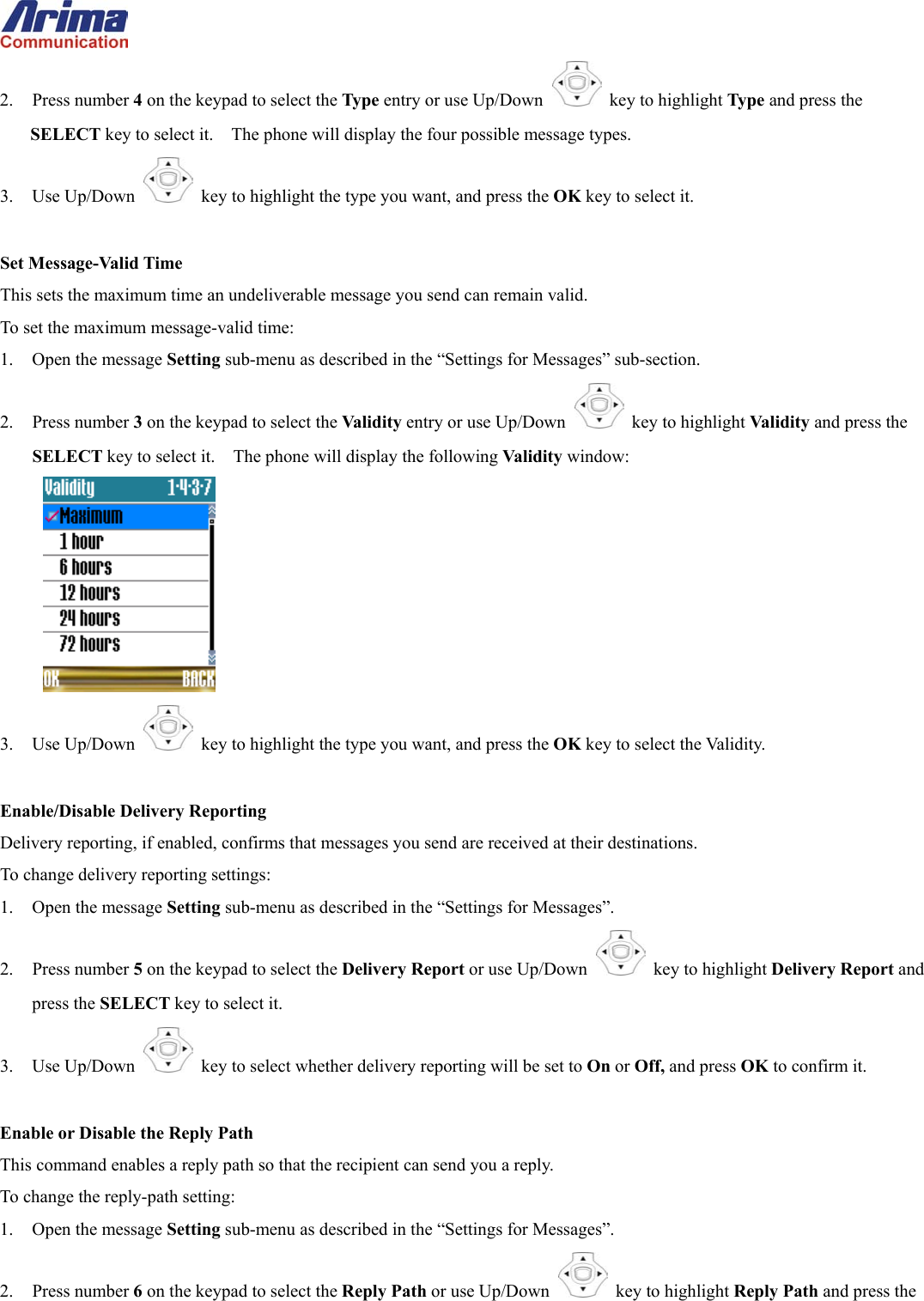
 2. Press number 4 on the keypad to select the Type entry or use Up/Down   key to highlight Type and press the SELECT key to select it.    The phone will display the four possible message types. 3. Use Up/Down   key to highlight the type you want, and press the OK key to select it.  Set Message-Valid Time This sets the maximum time an undeliverable message you send can remain valid. To set the maximum message-valid time: 1.  Open the message Setting sub-menu as described in the “Settings for Messages” sub-section. 2. Press number 3 on the keypad to select the Validity entry or use Up/Down   key to highlight Validity and press the SELECT key to select it.    The phone will display the following Validity window:  3. Use Up/Down   key to highlight the type you want, and press the OK key to select the Validity.  Enable/Disable Delivery Reporting Delivery reporting, if enabled, confirms that messages you send are received at their destinations. To change delivery reporting settings: 1.  Open the message Setting sub-menu as described in the “Settings for Messages”. 2. Press number 5 on the keypad to select the Delivery Report or use Up/Down   key to highlight Delivery Report and press the SELECT key to select it. 3. Use Up/Down   key to select whether delivery reporting will be set to On or Off, and press OK to confirm it.  Enable or Disable the Reply Path This command enables a reply path so that the recipient can send you a reply. To change the reply-path setting: 1.  Open the message Setting sub-menu as described in the “Settings for Messages”. 2. Press number 6 on the keypad to select the Reply Path or use Up/Down   key to highlight Reply Path and press the
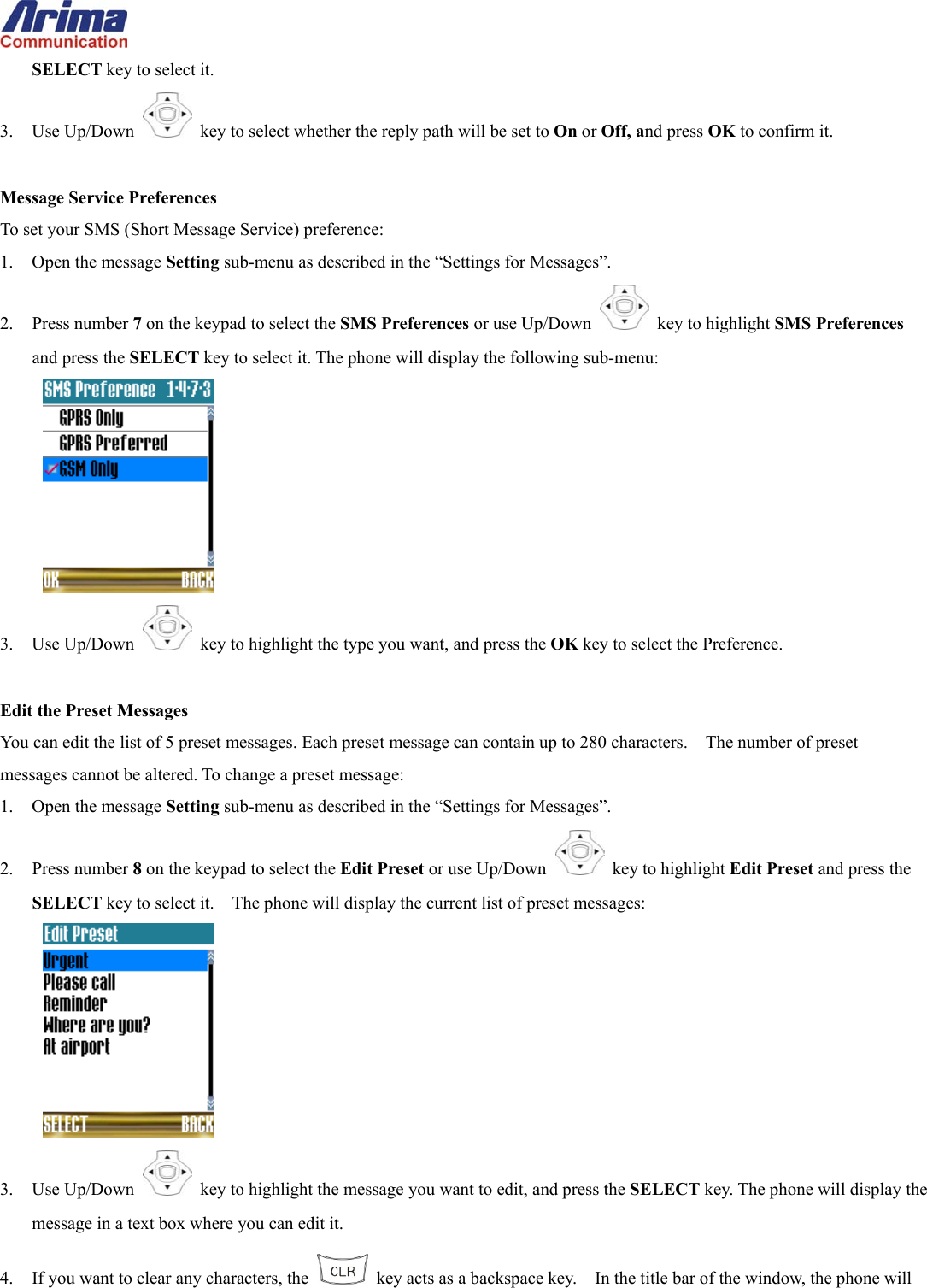
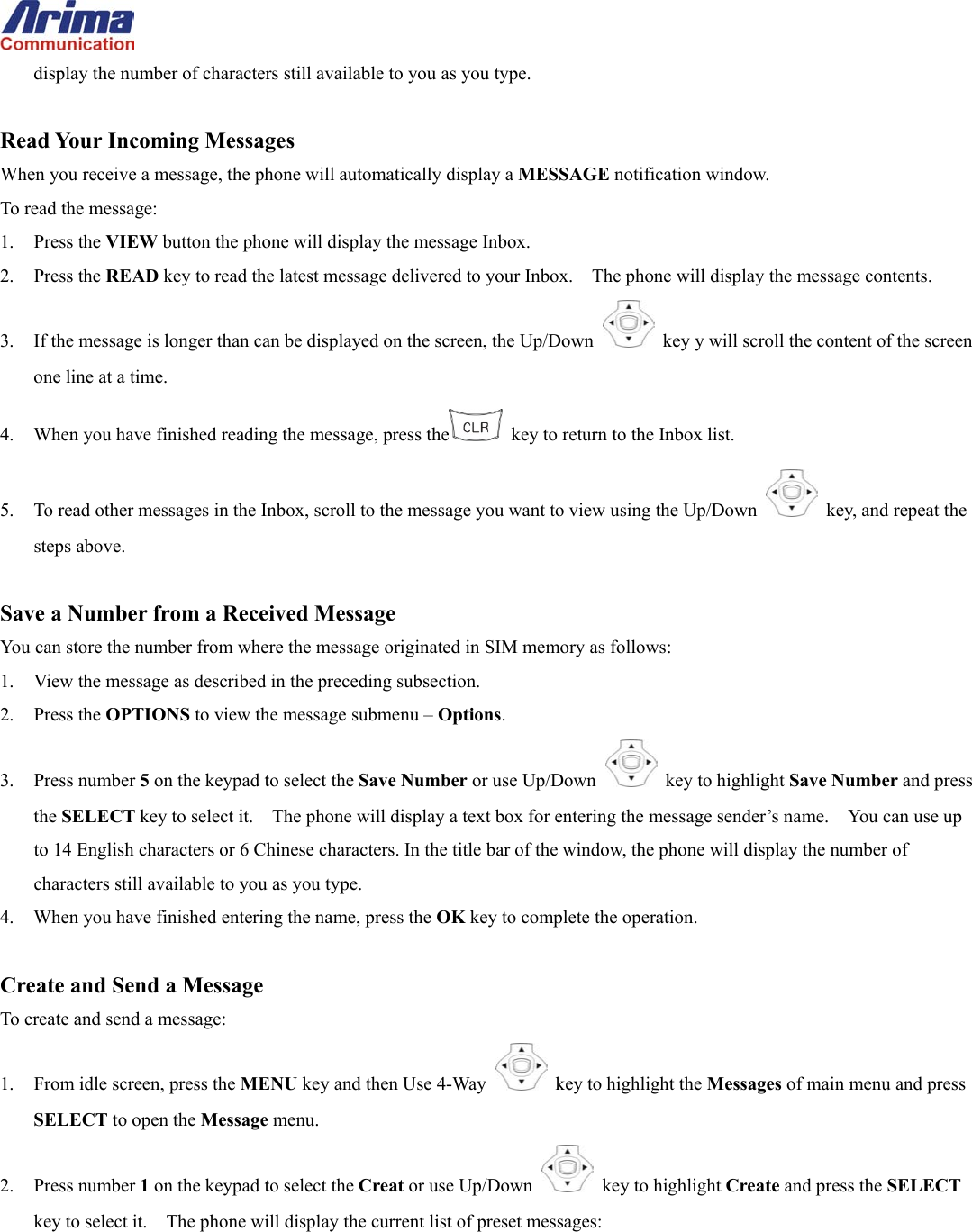
 SELECT key to select it. 3. Use Up/Down   key to select whether the reply path will be set to On or Off, and press OK to confirm it.  Message Service Preferences To set your SMS (Short Message Service) preference: 1.  Open the message Setting sub-menu as described in the “Settings for Messages”. 2. Press number 7 on the keypad to select the SMS Preferences or use Up/Down   key to highlight SMS Preferences and press the SELECT key to select it. The phone will display the following sub-menu:  3. Use Up/Down   key to highlight the type you want, and press the OK key to select the Preference.  Edit the Preset Messages You can edit the list of 5 preset messages. Each preset message can contain up to 280 characters.    The number of preset messages cannot be altered. To change a preset message: 1.  Open the message Setting sub-menu as described in the “Settings for Messages”. 2. Press number 8 on the keypad to select the Edit Preset or use Up/Down   key to highlight Edit Preset and press the SELECT key to select it.    The phone will display the current list of preset messages:  3. Use Up/Down   key to highlight the message you want to edit, and press the SELECT key. The phone will display the message in a text box where you can edit it. 4.  If you want to clear any characters, the    key acts as a backspace key.    In the title bar of the window, the phone will
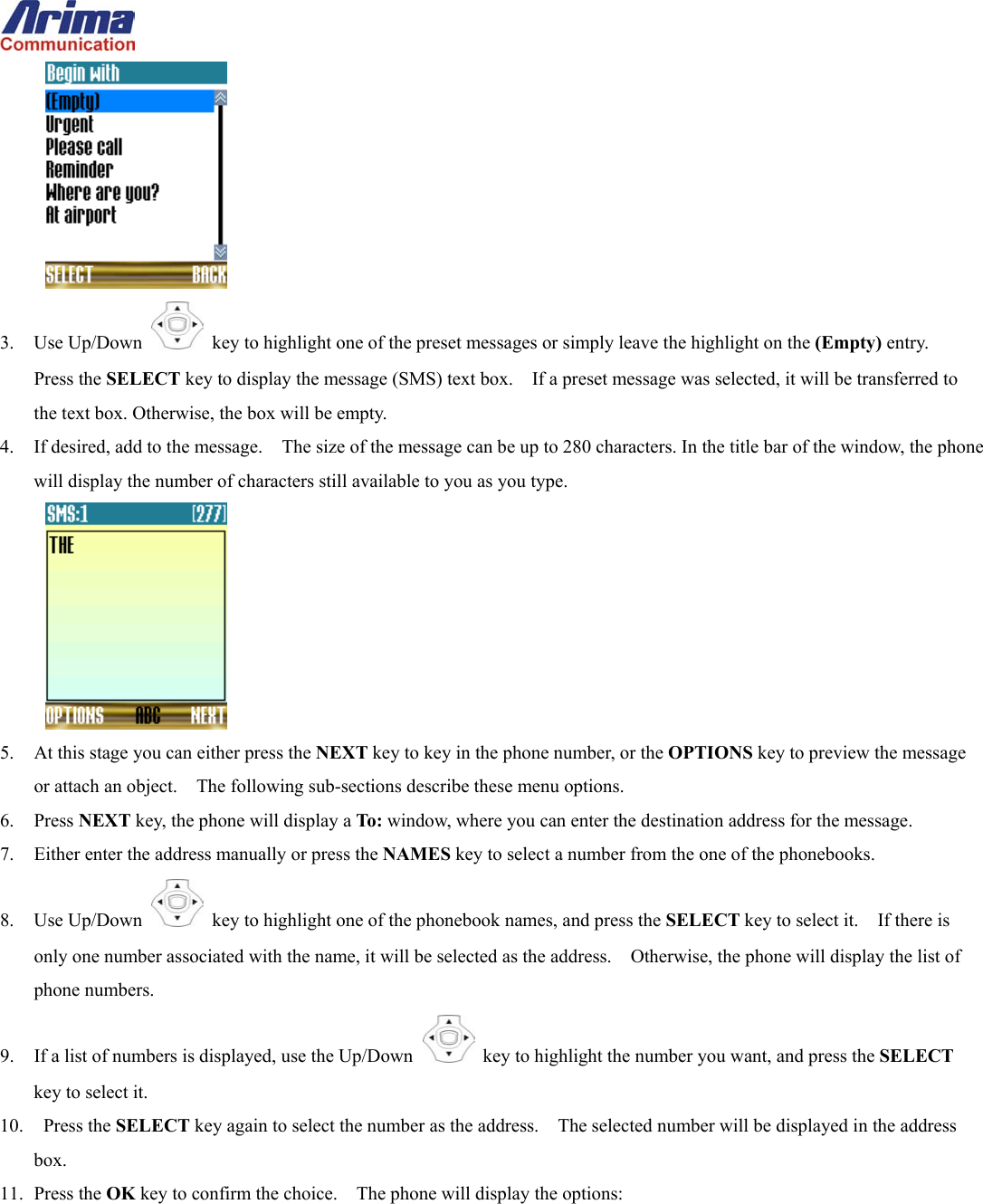
 display the number of characters still available to you as you type.  Read Your Incoming Messages When you receive a message, the phone will automatically display a MESSAGE notification window. To read the message: 1. Press the VIEW button the phone will display the message Inbox. 2. Press the READ key to read the latest message delivered to your Inbox.    The phone will display the message contents. 3.  If the message is longer than can be displayed on the screen, the Up/Down   key y will scroll the content of the screen one line at a time. 4.  When you have finished reading the message, press the   key to return to the Inbox list. 5.  To read other messages in the Inbox, scroll to the message you want to view using the Up/Down   key, and repeat the steps above.  Save a Number from a Received Message You can store the number from where the message originated in SIM memory as follows: 1.  View the message as described in the preceding subsection.   2. Press the OPTIONS to view the message submenu – Options.  3. Press number 5 on the keypad to select the Save Number or use Up/Down   key to highlight Save Number and press the SELECT key to select it.    The phone will display a text box for entering the message sender’s name.    You can use up to 14 English characters or 6 Chinese characters. In the title bar of the window, the phone will display the number of characters still available to you as you type.   4.  When you have finished entering the name, press the OK key to complete the operation.  Create and Send a Message To create and send a message: 1.  From idle screen, press the MENU key and then Use 4-Way    key to highlight the Messages of main menu and press SELECT to open the Message menu. 2. Press number 1 on the keypad to select the Creat or use Up/Down   key to highlight Create and press the SELECT key to select it.    The phone will display the current list of preset messages:
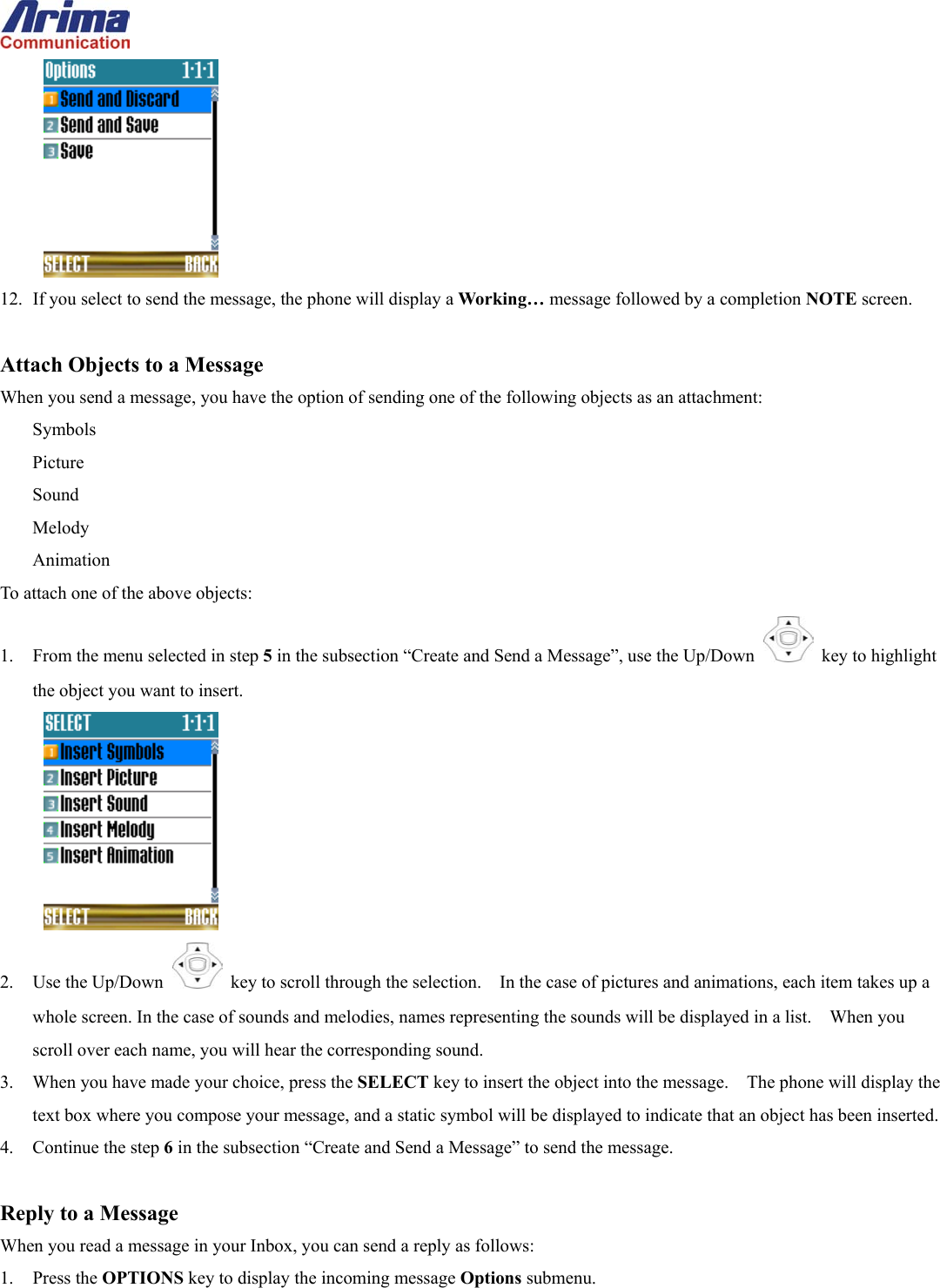
  3. Use Up/Down   key to highlight one of the preset messages or simply leave the highlight on the (Empty) entry.   Press the SELECT key to display the message (SMS) text box.    If a preset message was selected, it will be transferred to the text box. Otherwise, the box will be empty. 4.  If desired, add to the message.    The size of the message can be up to 280 characters. In the title bar of the window, the phone will display the number of characters still available to you as you type.  5.  At this stage you can either press the NEXT key to key in the phone number, or the OPTIONS key to preview the message or attach an object.    The following sub-sections describe these menu options. 6. Press NEXT key, the phone will display a To: window, where you can enter the destination address for the message. 7.  Either enter the address manually or press the NAMES key to select a number from the one of the phonebooks. 8. Use Up/Down   key to highlight one of the phonebook names, and press the SELECT key to select it.    If there is only one number associated with the name, it will be selected as the address.    Otherwise, the phone will display the list of phone numbers. 9.  If a list of numbers is displayed, use the Up/Down   key to highlight the number you want, and press the SELECT key to select it. 10.  Press the SELECT key again to select the number as the address.    The selected number will be displayed in the address box. 11. Press the OK key to confirm the choice.    The phone will display the options:
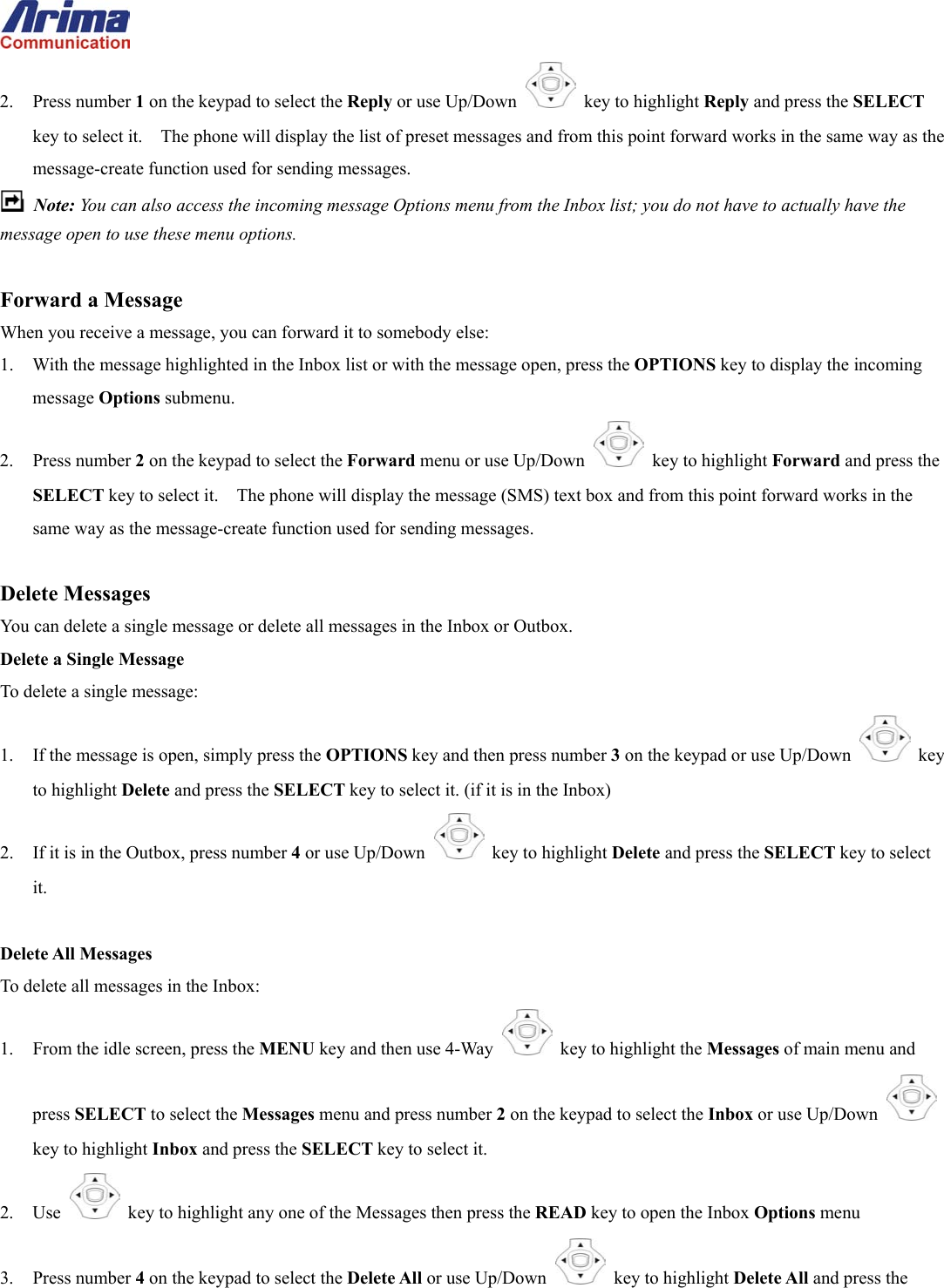
  12.  If you select to send the message, the phone will display a Working… message followed by a completion NOTE screen.  Attach Objects to a Message When you send a message, you have the option of sending one of the following objects as an attachment: Symbols Picture Sound Melody Animation To attach one of the above objects: 1.  From the menu selected in step 5 in the subsection “Create and Send a Message”, use the Up/Down   key to highlight the object you want to insert.  2. Use the Up/Down   key to scroll through the selection.    In the case of pictures and animations, each item takes up a whole screen. In the case of sounds and melodies, names representing the sounds will be displayed in a list.    When you scroll over each name, you will hear the corresponding sound.   3.  When you have made your choice, press the SELECT key to insert the object into the message.    The phone will display the text box where you compose your message, and a static symbol will be displayed to indicate that an object has been inserted. 4.  Continue the step 6 in the subsection “Create and Send a Message” to send the message.  Reply to a Message When you read a message in your Inbox, you can send a reply as follows: 1. Press the OPTIONS key to display the incoming message Options submenu.
 2. Press number 1 on the keypad to select the Reply or use Up/Down   key to highlight Reply and press the SELECT key to select it.    The phone will display the list of preset messages and from this point forward works in the same way as the message-create function used for sending messages.  Note: You can also access the incoming message Options menu from the Inbox list; you do not have to actually have the message open to use these menu options.  Forward a Message When you receive a message, you can forward it to somebody else: 1.  With the message highlighted in the Inbox list or with the message open, press the OPTIONS key to display the incoming message Options submenu. 2. Press number 2 on the keypad to select the Forward menu or use Up/Down   key to highlight Forward and press the SELECT key to select it.    The phone will display the message (SMS) text box and from this point forward works in the same way as the message-create function used for sending messages.  Delete Messages You can delete a single message or delete all messages in the Inbox or Outbox. Delete a Single Message To delete a single message: 1.  If the message is open, simply press the OPTIONS key and then press number 3 on the keypad or use Up/Down   key to highlight Delete and press the SELECT key to select it. (if it is in the Inbox) 2.  If it is in the Outbox, press number 4 or use Up/Down   key to highlight Delete and press the SELECT key to select it.  Delete All Messages To delete all messages in the Inbox: 1.  From the idle screen, press the MENU key and then use 4-Way    key to highlight the Messages of main menu and press SELECT to select the Messages menu and press number 2 on the keypad to select the Inbox or use Up/Down   key to highlight Inbox and press the SELECT key to select it. 2. Use    key to highlight any one of the Messages then press the READ key to open the Inbox Options menu 3. Press number 4 on the keypad to select the Delete All or use Up/Down   key to highlight Delete All and press the
 SELECT key to select it.    The phone will display a CONFIRM window to make sure this is really what you want to do. 4. Press the YES button to complete the operation.  Deleting all messages from the Outbox is similar to above procedure, except: In step 1, number 3 on the keypad selects the Outbox
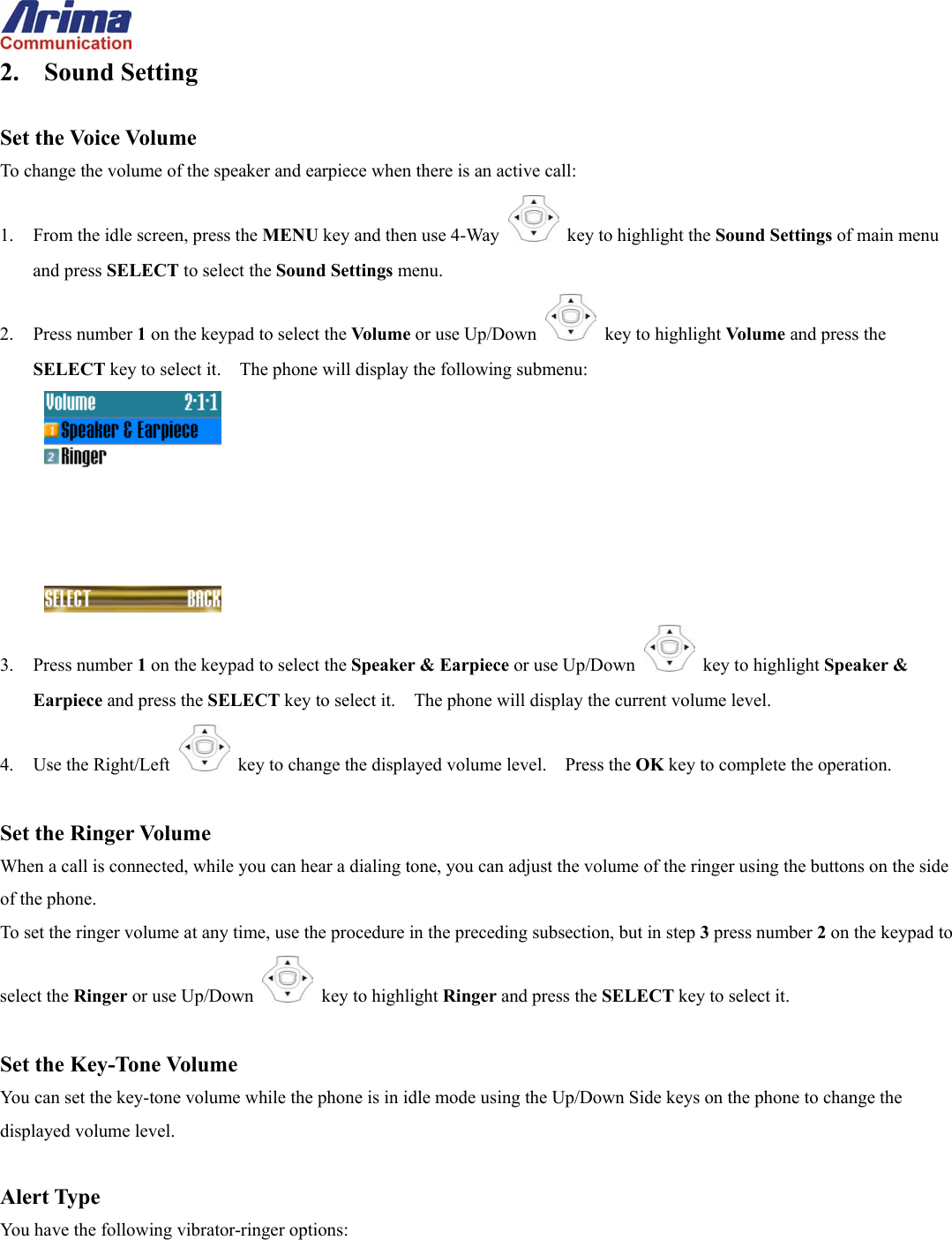
 2. Sound Setting  Set the Voice Volume To change the volume of the speaker and earpiece when there is an active call: 1.  From the idle screen, press the MENU key and then use 4-Way    key to highlight the Sound Settings of main menu and press SELECT to select the Sound Settings menu. 2. Press number 1 on the keypad to select the Volume or use Up/Down   key to highlight Volume and press the SELECT key to select it.    The phone will display the following submenu:  3. Press number 1 on the keypad to select the Speaker & Earpiece or use Up/Down   key to highlight Speaker & Earpiece and press the SELECT key to select it.    The phone will display the current volume level. 4.  Use the Right/Left   key to change the displayed volume level.    Press the OK key to complete the operation.  Set the Ringer Volume When a call is connected, while you can hear a dialing tone, you can adjust the volume of the ringer using the buttons on the side of the phone. To set the ringer volume at any time, use the procedure in the preceding subsection, but in step 3 press number 2 on the keypad to select the Ringer or use Up/Down   key to highlight Ringer and press the SELECT key to select it.  Set the Key-Tone Volume You can set the key-tone volume while the phone is in idle mode using the Up/Down Side keys on the phone to change the displayed volume level.  Alert Type You have the following vibrator-ringer options:
  To make the selection: 1.  From the idle screen, press the MENU key and then use 4-Way    key to highlight the Sound Settings of main menu and press SELECT to select the Sound Settings menu. 2. Press number 2 on the keypad to select the Alert Type or use Up/Down   key to highlight Alert Type and press the SELECT key to select it Use the Up/Down   key to highlight your preferred option, and press the OK key to complete the operation.  Profile To make the selection: 1.  From the idle screen, press the MENU key and then use 4-Way    key to highlight the Sound Settings of main menu and press SELECT to select the Sound Settings menu. 2. Press number 3 on the keypad to select the Profile or use Up/Down   key to highlight Profile and press the SELECT key to select it.    The phone will display following options:  3. Use the Up/Down   key to highlight your preferred option, and press the OPTIONS key to select the item. 4. Press number 1 on the keypad to confirm the selection of the Profile item or use Up/Down   key to highlight Select and press the SELECT key to confirm the selection.    You can change the setting of the selection by pressing number 2 on the keypad to edit the selected Profile item or use Up/Down   key to highlight Edit and press the SELECT key to
 confirm the selection. 5.  You can edit the following items of the profile by pressing the number key or use Up/Down   key to highlight the item.        Change the Ring-Tone Melody To change the ring-tone melody: 1.  From the idle screen, press the MENU key and then use 4-Way    key to highlight the Sound Settings of main menu and press SELECT to select the Sound Settings menu. 2. Press number 4 on the keypad to select the Ring: Call or use Up/Down   key to highlight Ring: Call and press the SELECT key to select it.    The phone will display the list of melody names and briefly play the melody of the currently selected ring tone. 3.  Each time you press the Up/Down   key, you will hear the melody associated with the highlighted entry.    When you have highlighted your preferred melody, press the OK key to complete the melody-selection operation.  Change Ring Tone on Receipt of Message, Voicemail or Report You can the ring-tone notification melody played when you receive a message, voicemail, or report (a page without a message). To change the ring-tone melody: 1.  From the idle screen, press the MENU key and then use 4-Way    key to highlight the Sound Settings of main menu and press SELECT to select the Sound Settings menu. 2. Press number 5 on the keypad to select the Ring: Message or use Up/Down   key to highlight Ring: Message and press the SELECT key to select it. 3.  Each time you press the Up/Down   key, you will hear the melody associated with the highlighted entry.    When you have highlighted your preferred melody, press the OK key to complete the melody-selection operation.
 Select the Sound Played when Keys are Pressed You can choose between a simple tone, a human voice calling out the keypad number, or waterdrop. To select the key-tone type: 1.  From the idle screen, press the MENU key and then use 4-Way    key to highlight the Sound Settings of main menu and press SELECT to select the Sound Settings menu. 2. Press number 6 on the keypad to select the Key Tone submenu or use Up/Down   key to highlight Key Tone and press the SELECT key to select it. 3. Use the Up/Down   key to highlight your preferred option, and press the OK key to complete the operation.  Note: If you do not want to hear any sound when you make a key-press, simply turn the key-tone volume down to 0.
 3. LCD Settings  Select Wallpaper Displayed in Idle State To select the image: 1.  From the idle screen, press the MENU key and then use 4-Way    key to highlight the LCD Settings of main menu and press SELECT to select the LCD Settings menu. 2. Press number 1 on the keypad to select the Wallpaper or use Up/Down   key to highlight Dual Clock and press the SELECT key to select it.    The phone will display a screen similar to the following:  3. Use the 4-Way   key to highlight the image you want, then press the TOGGLE key to select the wallpaper and press SAVE to save the selections.  Change the Display of the Clock on the Display You can configure your phone to use an analog or digital display. To change the display type: 1.  From the idle screen, press the MENU key and then use 4-Way    key to highlight the LCD Settings of main menu and press SELECT to select the LCD Settings menu. 2. Press number 2 on the keypad to select the Dual Clock or use Up/Down   key to highlight Dual Clock and press the SELECT key to select it.    The phone will display following options:  3. Use the Up/Down   key to highlight your preferred option, and press the OK key to complete the operation.
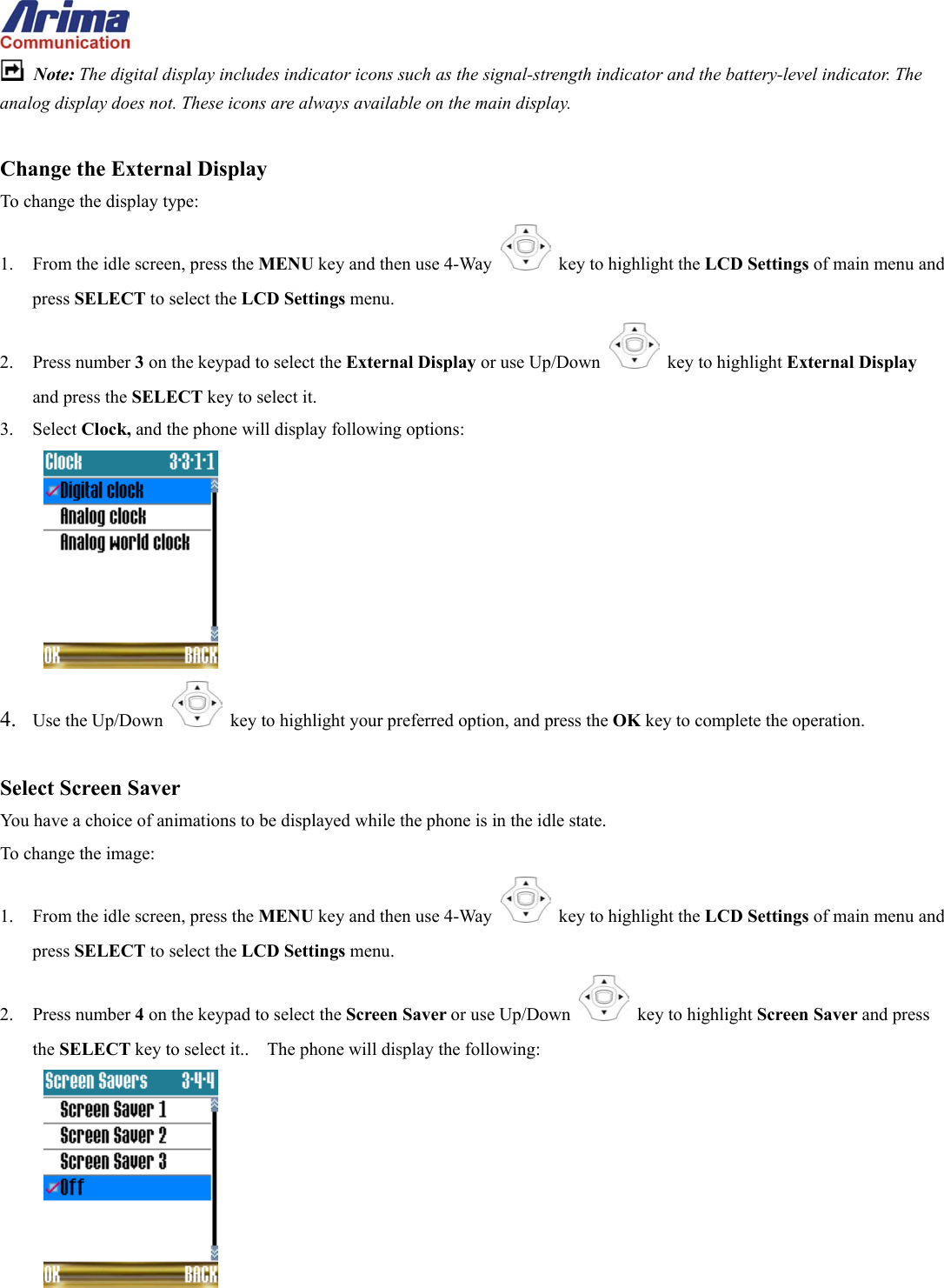
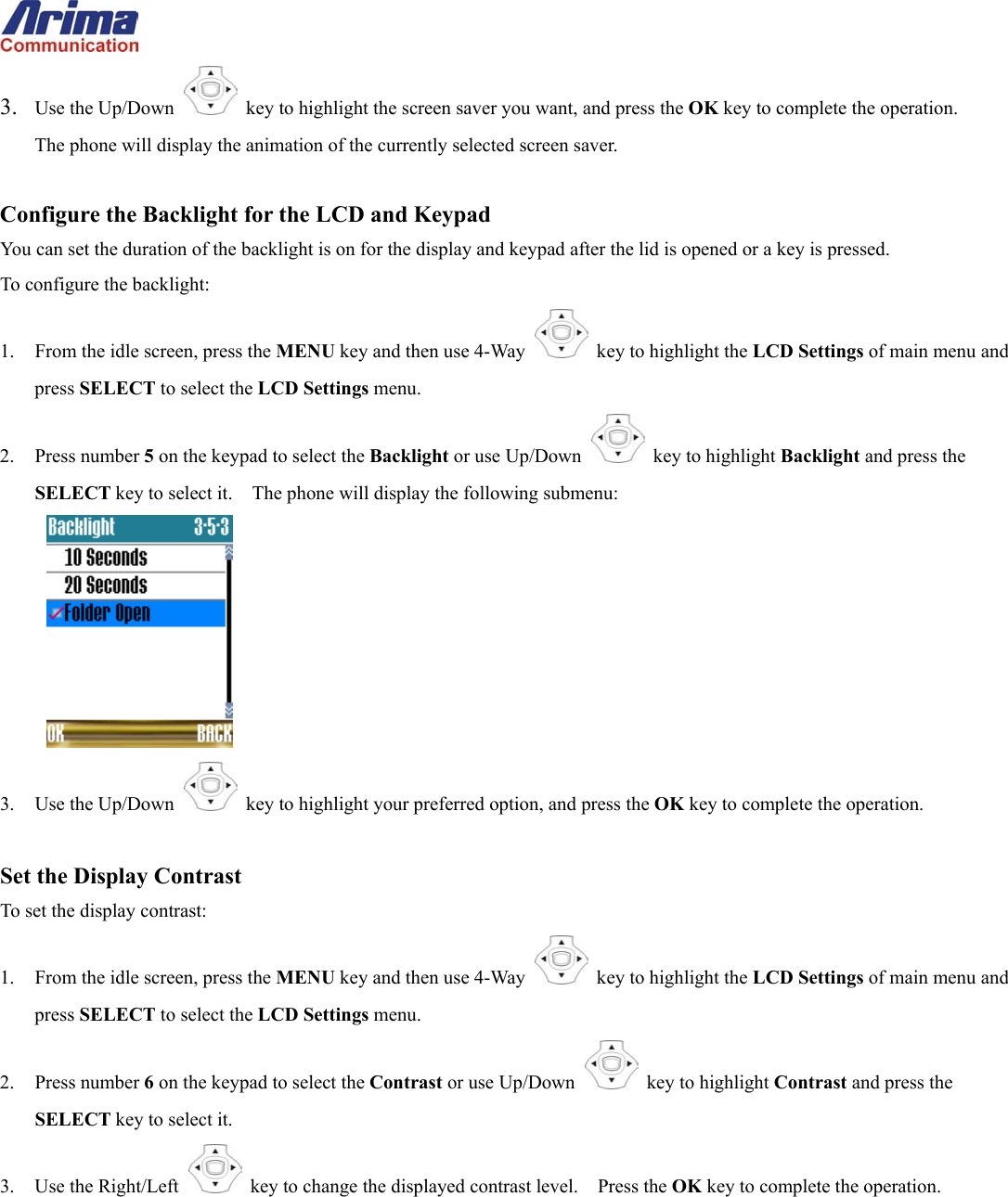
  Note: The digital display includes indicator icons such as the signal-strength indicator and the battery-level indicator. The analog display does not. These icons are always available on the main display.  Change the External Display To change the display type: 1.  From the idle screen, press the MENU key and then use 4-Way    key to highlight the LCD Settings of main menu and press SELECT to select the LCD Settings menu. 2. Press number 3 on the keypad to select the External Display or use Up/Down   key to highlight External Display and press the SELECT key to select it. 3. Select Clock, and the phone will display following options:  4.  Use the Up/Down   key to highlight your preferred option, and press the OK key to complete the operation.  Select Screen Saver You have a choice of animations to be displayed while the phone is in the idle state. To change the image: 1.  From the idle screen, press the MENU key and then use 4-Way    key to highlight the LCD Settings of main menu and press SELECT to select the LCD Settings menu. 2. Press number 4 on the keypad to select the Screen Saver or use Up/Down   key to highlight Screen Saver and press the SELECT key to select it..    The phone will display the following:
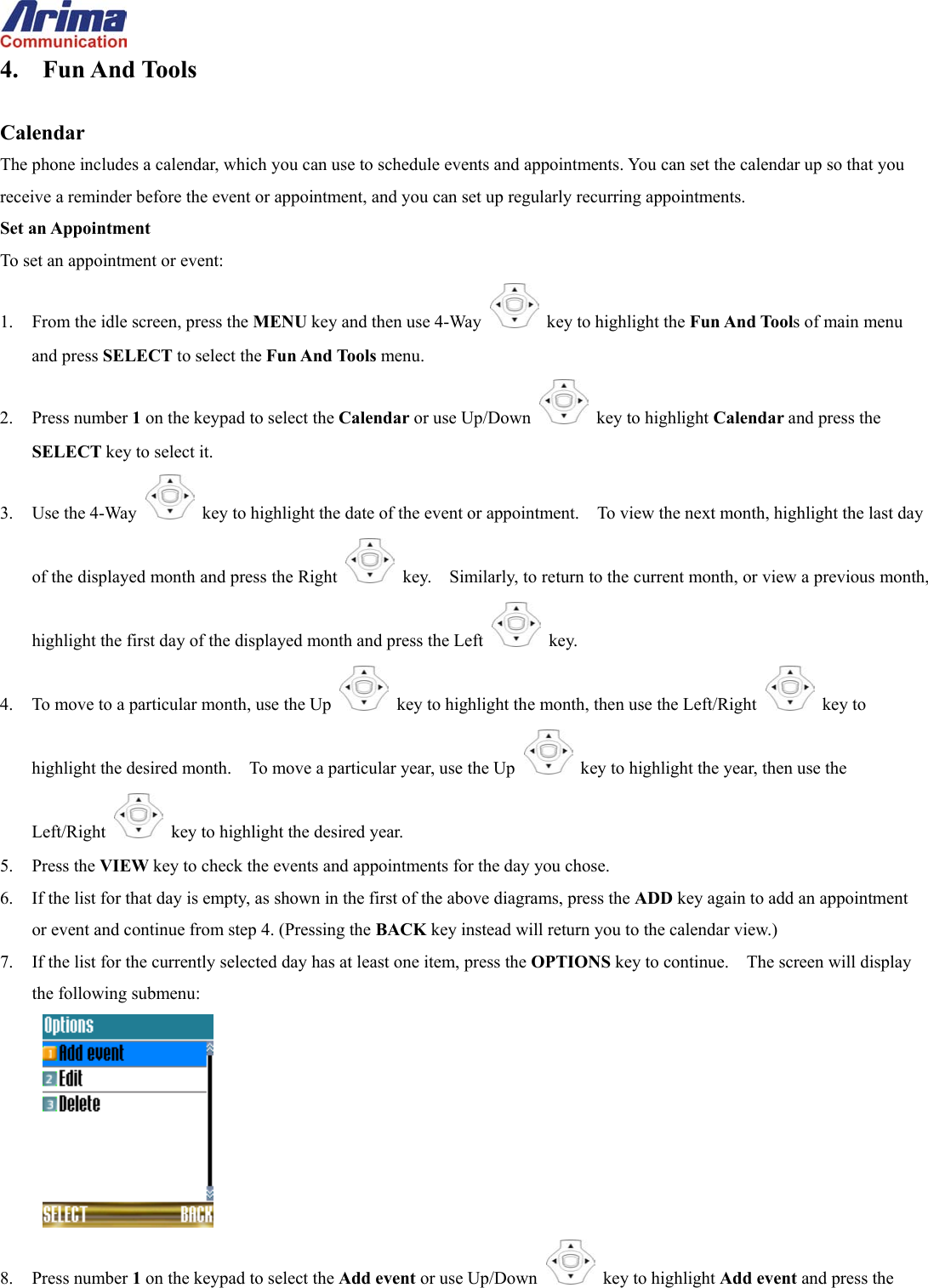
 3.  Use the Up/Down   key to highlight the screen saver you want, and press the OK key to complete the operation.       The phone will display the animation of the currently selected screen saver.  Configure the Backlight for the LCD and Keypad You can set the duration of the backlight is on for the display and keypad after the lid is opened or a key is pressed. To configure the backlight: 1.  From the idle screen, press the MENU key and then use 4-Way    key to highlight the LCD Settings of main menu and press SELECT to select the LCD Settings menu. 2. Press number 5 on the keypad to select the Backlight or use Up/Down   key to highlight Backlight and press the SELECT key to select it.    The phone will display the following submenu:  3. Use the Up/Down   key to highlight your preferred option, and press the OK key to complete the operation.  Set the Display Contrast To set the display contrast: 1.  From the idle screen, press the MENU key and then use 4-Way    key to highlight the LCD Settings of main menu and press SELECT to select the LCD Settings menu. 2. Press number 6 on the keypad to select the Contrast or use Up/Down   key to highlight Contrast and press the SELECT key to select it. 3.  Use the Right/Left   key to change the displayed contrast level.    Press the OK key to complete the operation.
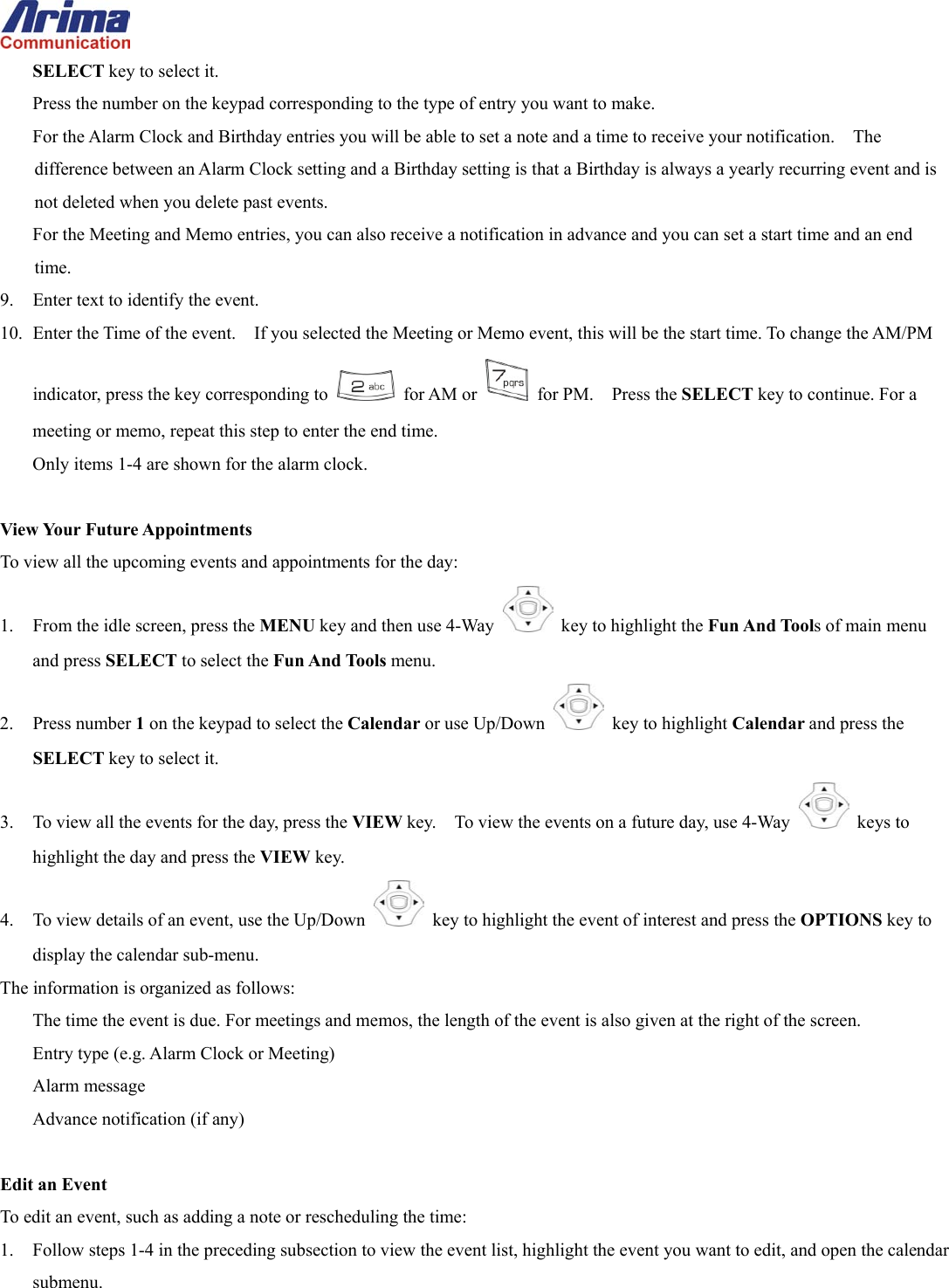
 4. Fun And Tools  Calendar The phone includes a calendar, which you can use to schedule events and appointments. You can set the calendar up so that you receive a reminder before the event or appointment, and you can set up regularly recurring appointments. Set an Appointment To set an appointment or event: 1.  From the idle screen, press the MENU key and then use 4-Way    key to highlight the Fun And Tools of main menu and press SELECT to select the Fun And Tools menu. 2. Press number 1 on the keypad to select the Calendar or use Up/Down   key to highlight Calendar and press the SELECT key to select it. 3. Use the 4-Way    key to highlight the date of the event or appointment.    To view the next month, highlight the last day of the displayed month and press the Right    key.    Similarly, to return to the current month, or view a previous month, highlight the first day of the displayed month and press the Left   key. 4.  To move to a particular month, use the Up    key to highlight the month, then use the Left/Right   key to highlight the desired month.    To move a particular year, use the Up    key to highlight the year, then use the Left/Right    key to highlight the desired year. 5. Press the VIEW key to check the events and appointments for the day you chose. 6.  If the list for that day is empty, as shown in the first of the above diagrams, press the ADD key again to add an appointment or event and continue from step 4. (Pressing the BACK key instead will return you to the calendar view.) 7.  If the list for the currently selected day has at least one item, press the OPTIONS key to continue.    The screen will display the following submenu:  8. Press number 1 on the keypad to select the Add event or use Up/Down   key to highlight Add event and press the
 SELECT key to select it. Press the number on the keypad corresponding to the type of entry you want to make. For the Alarm Clock and Birthday entries you will be able to set a note and a time to receive your notification.    The difference between an Alarm Clock setting and a Birthday setting is that a Birthday is always a yearly recurring event and is not deleted when you delete past events.   For the Meeting and Memo entries, you can also receive a notification in advance and you can set a start time and an end time. 9.  Enter text to identify the event. 10.  Enter the Time of the event.    If you selected the Meeting or Memo event, this will be the start time. To change the AM/PM indicator, press the key corresponding to   for AM or   for PM.  Press the SELECT key to continue. For a meeting or memo, repeat this step to enter the end time. Only items 1-4 are shown for the alarm clock.  View Your Future Appointments To view all the upcoming events and appointments for the day: 1.  From the idle screen, press the MENU key and then use 4-Way    key to highlight the Fun And Tools of main menu and press SELECT to select the Fun And Tools menu. 2. Press number 1 on the keypad to select the Calendar or use Up/Down   key to highlight Calendar and press the SELECT key to select it. 3.  To view all the events for the day, press the VIEW key.    To view the events on a future day, use 4-Way   keys to highlight the day and press the VIEW key. 4.  To view details of an event, use the Up/Down   key to highlight the event of interest and press the OPTIONS key to display the calendar sub-menu.   The information is organized as follows: The time the event is due. For meetings and memos, the length of the event is also given at the right of the screen. Entry type (e.g. Alarm Clock or Meeting) Alarm message Advance notification (if any)  Edit an Event To edit an event, such as adding a note or rescheduling the time: 1.  Follow steps 1-4 in the preceding subsection to view the event list, highlight the event you want to edit, and open the calendar submenu.
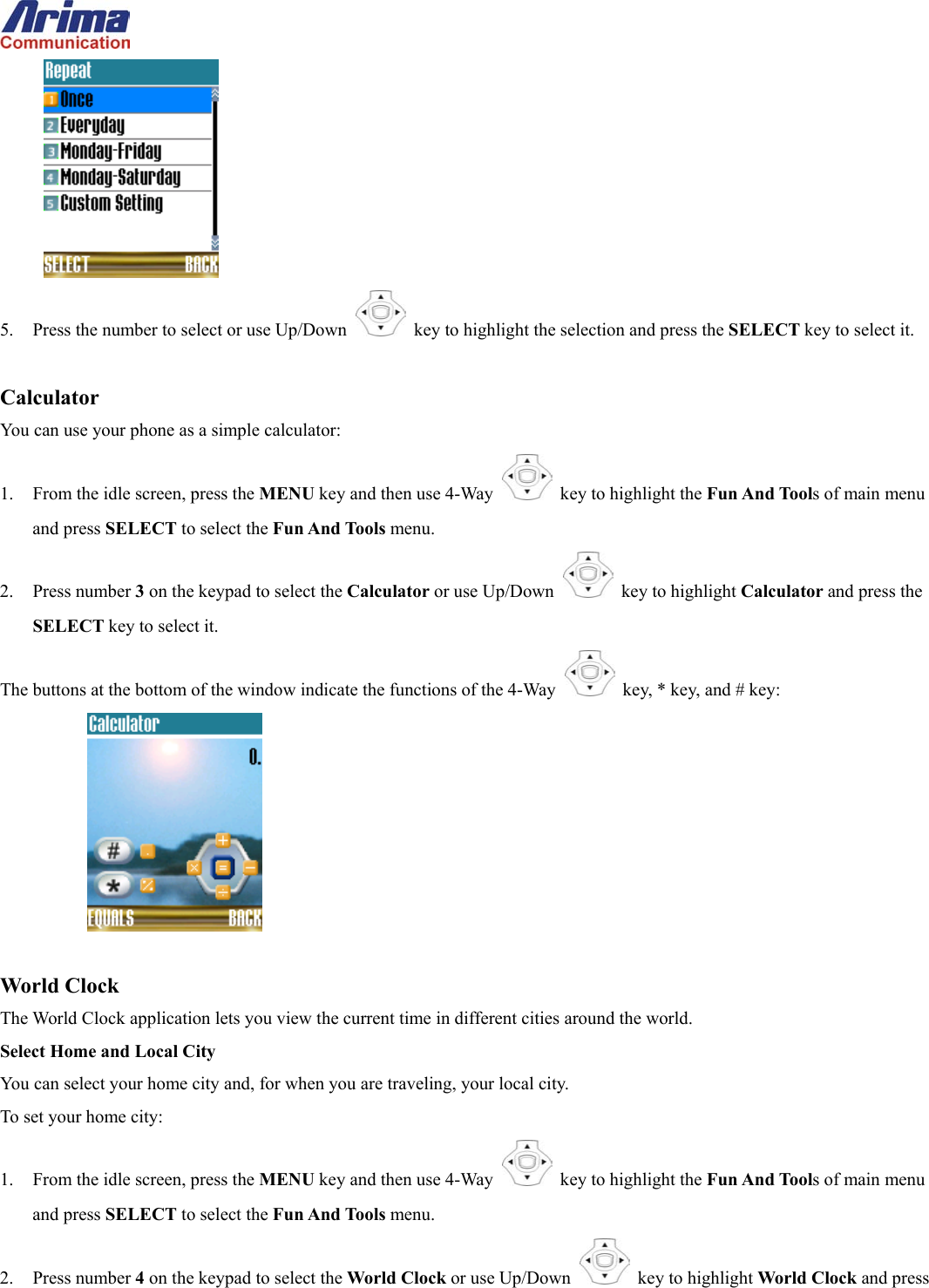
 2. Press number 2 on the keypad to select the Edit or use Up/Down   key to highlight Edit and press the SELECT key to select it.    The phone will display a screen that will allow you to select what you want to edit: 3.  Press the number corresponding to the facet of the event that you want to change. 4.  For the Description, Date, and Time, enter the revised data and press OK to complete the operation.  Delete an Event or Events You have the option of deleting a specific event, all past events, or all events. 1.  From the calendar view, use the navigation keys to highlight the day where you want to delete a single event. If you want to delete all paste events or all events, just leave the highlight on the current day. Press the VIEW key to display the list of events for the selected or current day. 2.  If you want to delete a single event, use the Up/Down   key to highlight it. 3. Press the OPTIONS key to display the Calendar submenu. 4. Press number 3 on the keypad to select the Delete or use Up/Down   key to highlight Delete and press the SELECT key to select it. 5.  In all delete options, the phone will display the CONFIRM window. To complete the operation, press the YES button.  Alarm Clock To set the alarm time: 1.  From the idle screen, press the MENU key and then use 4-Way    key to highlight the Fun And Tools of main menu and press SELECT to select the Fun And Tools menu. 2. Press number 2 on the keypad to select the Alarm Clock or use Up/Down   key to highlight Alarm Clock and press the SELECT key to select it. 3. Use Up/Down   key to Select the On or Off entry.    Press the OK key to complete the selection. 4.  Enter the alarm time using the numbers on the keypad.    You can change the digit to be edited by changing the position of the cursor using the Up/Down  key.  Press the OK key to complete the operation.    The phone will display options for repeated alarm as following:
  5.  Press the number to select or use Up/Down   key to highlight the selection and press the SELECT key to select it.  Calculator You can use your phone as a simple calculator: 1.  From the idle screen, press the MENU key and then use 4-Way    key to highlight the Fun And Tools of main menu and press SELECT to select the Fun And Tools menu. 2. Press number 3 on the keypad to select the Calculator or use Up/Down   key to highlight Calculator and press the SELECT key to select it. The buttons at the bottom of the window indicate the functions of the 4-Way   key, * key, and # key:      World Clock The World Clock application lets you view the current time in different cities around the world. Select Home and Local City You can select your home city and, for when you are traveling, your local city. To set your home city: 1.  From the idle screen, press the MENU key and then use 4-Way    key to highlight the Fun And Tools of main menu and press SELECT to select the Fun And Tools menu. 2. Press number 4 on the keypad to select the World Clock or use Up/Down   key to highlight World Clock and press
 the SELECT key to select it. 3. Use Up/Down  key to highlight Home and press the OPTIONS key to display the submenu. 4. Press number 1 on the keypad to select the Home City or use Up/Down   key to highlight Home City and press the SELECT key to select it. The phone will display a world map, home city, date, and time. 5. Use the 4-Way   key to select the home city.    Press the SELECT key to complete the operation.    The phone will return to the Home submenu. To select your local city: 1.  Perform steps 1-2 in the procedure above, to select the World Clock submenu. 2. Use Up/Down  key to highlight Local and press the OPTIONS key to display the submenu. 3. Press number 1 on the keypad to select the Local City or use Up/Down   key to highlight Local City and press the SELECT key to select it. The phone will display a world map, home city, date, and time. 4. Use the 4-Way   key to select the local city.    Press the SELECT key to complete the operation.    The phone will return to the Local submenu.  Daylight Savings Time Instead of adjusting the hour forward or backward twice a year, you can enable Daylight Savings Time (DST) during the summer months and disable it during the winter months. To change the DST setting for your home city: 1.  From the idle screen, press the MENU key and then use 4-Way    key to highlight the Fun And Tools of main menu and press SELECT to select the Fun And Tools menu. 2. Press number 4 on the keypad to select the World Clock or use Up/Down   key to highlight World Clock and press the SELECT key to select it. 3. Use Up/Down  key to highlight Home or Local and press the OPTIONS key to display the submenu. 4. Press number 2 on the keypad to select the Home DST or Local DST or use Up/Down   key to highlight Home DST or Local DST and press the SELECT key to select it. 5. Press number 4 on the keypad to select the Home DST entry. 6. Use the Up/Down   key to select the On or Off entry.    Press the OK key to complete the operation.
  Adjust the Date and Time You only need to set the time for your home city; the settings for the local city will be adjusted automatically. To set the Time: 1.  From the idle screen, press the MENU key and then use 4-Way    key to highlight the Fun And Tools of main menu and press SELECT to select the Fun And Tools menu. 2. Press number 4 on the keypad to select the World Clock or use Up/Down   key to highlight World Clock and press the SELECT key to select it. 3. Use Up/Down  key to highlight Home and press the OPTIONS key to display the submenu. 4. Press number 3 on the keypad to select the Time or use Up/Down   key to highlight Time and press the SELECT key to select it. 5.  Enter the current time using the numbers on the keypad.    You can change the digit to be edited by changing the position of the cursor using the Up/Down  key.  Press the OK key to complete the operation.  To set the Date: 1.  Perform steps 1-3 in the date-setting procedure, above. 2. Press number 4 on the keypad to select the Date or use Up/Down   key to highlight Date and press the SELECT key to select it. 3.  Enter the current time in the same way as you set the time, as described in step 5 of the time-setting procedure, above.  Select Time and Date Format To select the Time format: 1.  From the idle screen, press the MENU key and then use 4-Way    key to highlight the Fun And Tools of main menu and press SELECT to select the Fun And Tools menu. 2. Press number 4 on the keypad to select the World Clock or use Up/Down   key to highlight World Clock and press the SELECT key to select it. 3. Use Up/Down  key to highlight Home and press the OPTIONS key to display the submenu. 4. Press number 5 on the keypad to select the Time Format or use Up/Down   key to highlight Time Format and press
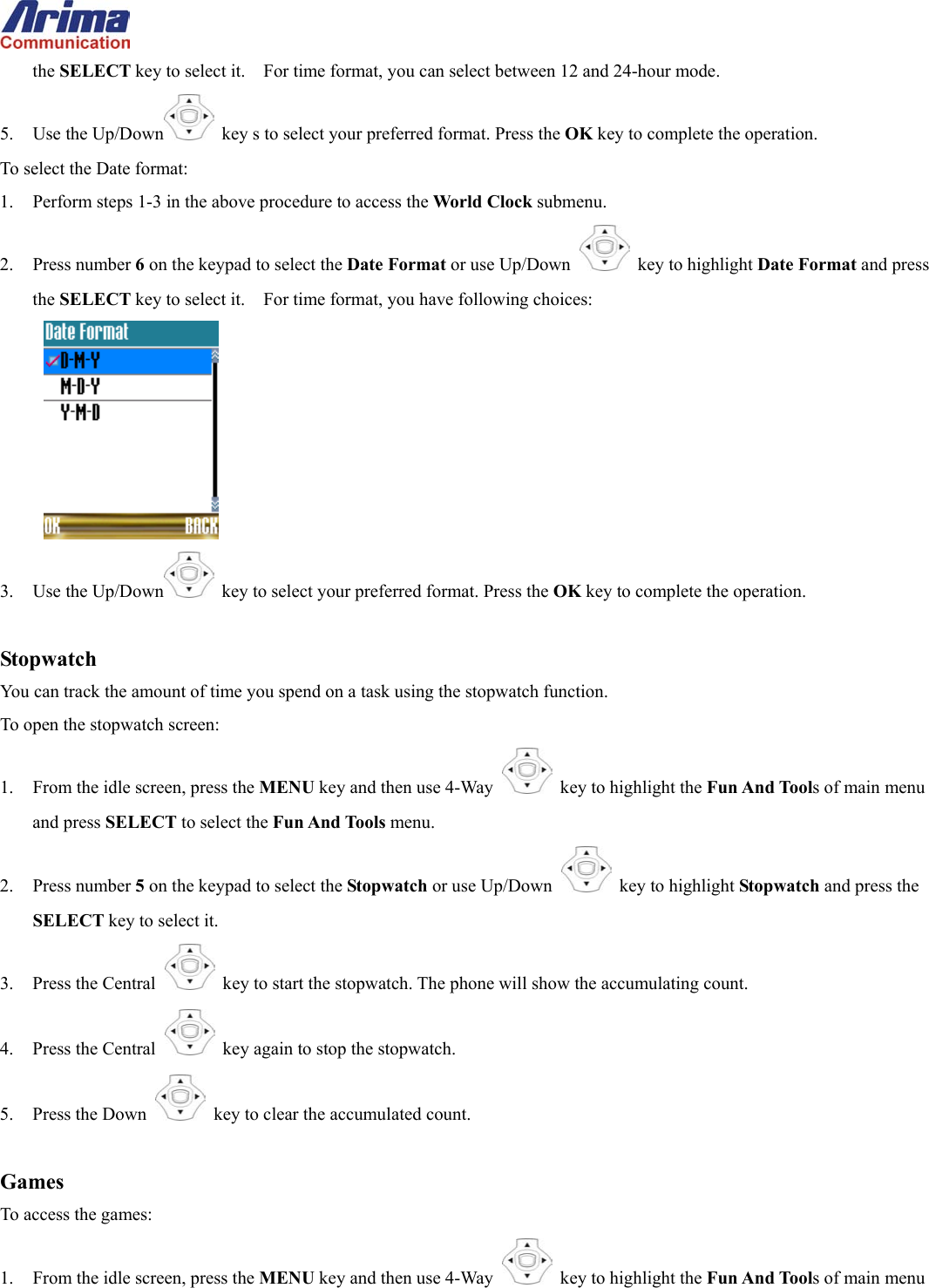
 the SELECT key to select it.    For time format, you can select between 12 and 24-hour mode. 5. Use the Up/Down   key s to select your preferred format. Press the OK key to complete the operation. To select the Date format: 1.  Perform steps 1-3 in the above procedure to access the World Clock submenu. 2. Press number 6 on the keypad to select the Date Format or use Up/Down   key to highlight Date Format and press the SELECT key to select it.    For time format, you have following choices:  3. Use the Up/Down   key to select your preferred format. Press the OK key to complete the operation.  Stopwatch You can track the amount of time you spend on a task using the stopwatch function.   To open the stopwatch screen: 1.  From the idle screen, press the MENU key and then use 4-Way    key to highlight the Fun And Tools of main menu and press SELECT to select the Fun And Tools menu. 2. Press number 5 on the keypad to select the Stopwatch or use Up/Down   key to highlight Stopwatch and press the SELECT key to select it. 3.  Press the Central   key to start the stopwatch. The phone will show the accumulating count. 4.  Press the Central   key again to stop the stopwatch. 5. Press the Down   key to clear the accumulated count.  Games To access the games: 1.  From the idle screen, press the MENU key and then use 4-Way    key to highlight the Fun And Tools of main menu
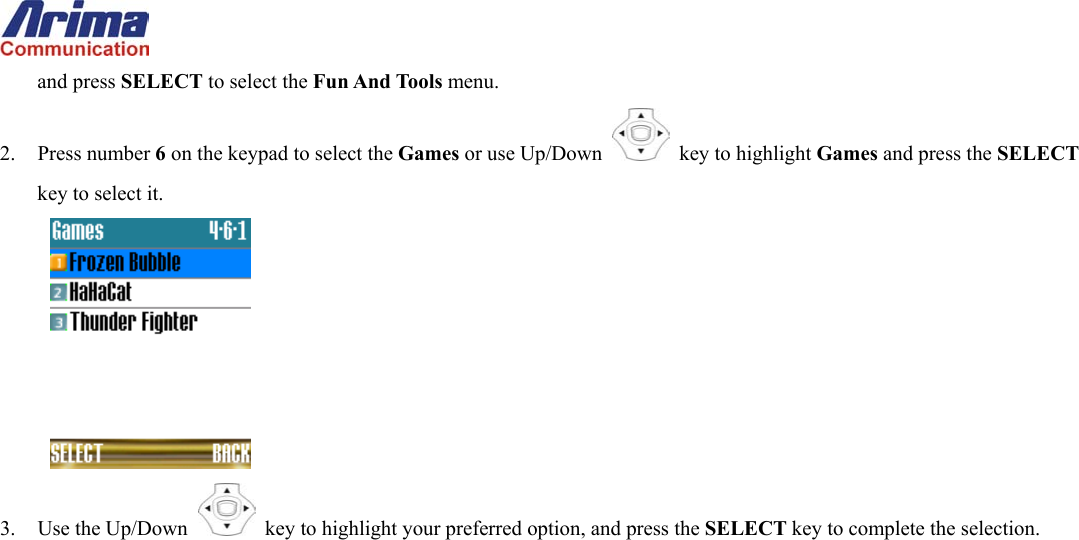
 and press SELECT to select the Fun And Tools menu. 2. Press number 6 on the keypad to select the Games or use Up/Down   key to highlight Games and press the SELECT key to select it.  3. Use the Up/Down   key to highlight your preferred option, and press the SELECT key to complete the selection.
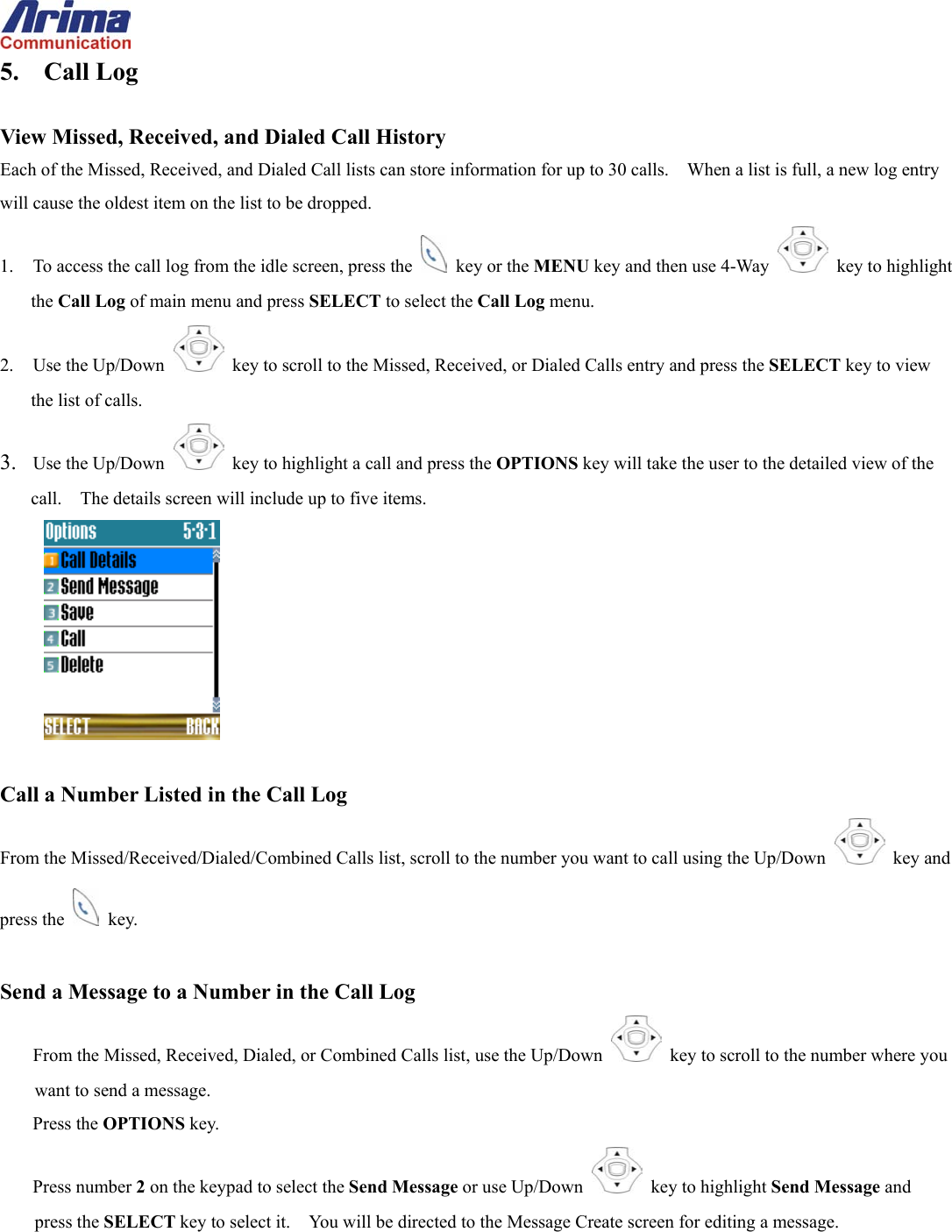
 5. Call Log  View Missed, Received, and Dialed Call History Each of the Missed, Received, and Dialed Call lists can store information for up to 30 calls.    When a list is full, a new log entry will cause the oldest item on the list to be dropped. 1.  To access the call log from the idle screen, press the   key or the MENU key and then use 4-Way    key to highlight the Call Log of main menu and press SELECT to select the Call Log menu. 2. Use the Up/Down   key to scroll to the Missed, Received, or Dialed Calls entry and press the SELECT key to view the list of calls. 3.  Use the Up/Down   key to highlight a call and press the OPTIONS key will take the user to the detailed view of the call.    The details screen will include up to five items.   Call a Number Listed in the Call Log From the Missed/Received/Dialed/Combined Calls list, scroll to the number you want to call using the Up/Down   key and press the   key.  Send a Message to a Number in the Call Log From the Missed, Received, Dialed, or Combined Calls list, use the Up/Down   key to scroll to the number where you want to send a message. Press the OPTIONS key. Press number 2 on the keypad to select the Send Message or use Up/Down   key to highlight Send Message and press the SELECT key to select it.    You will be directed to the Message Create screen for editing a message.
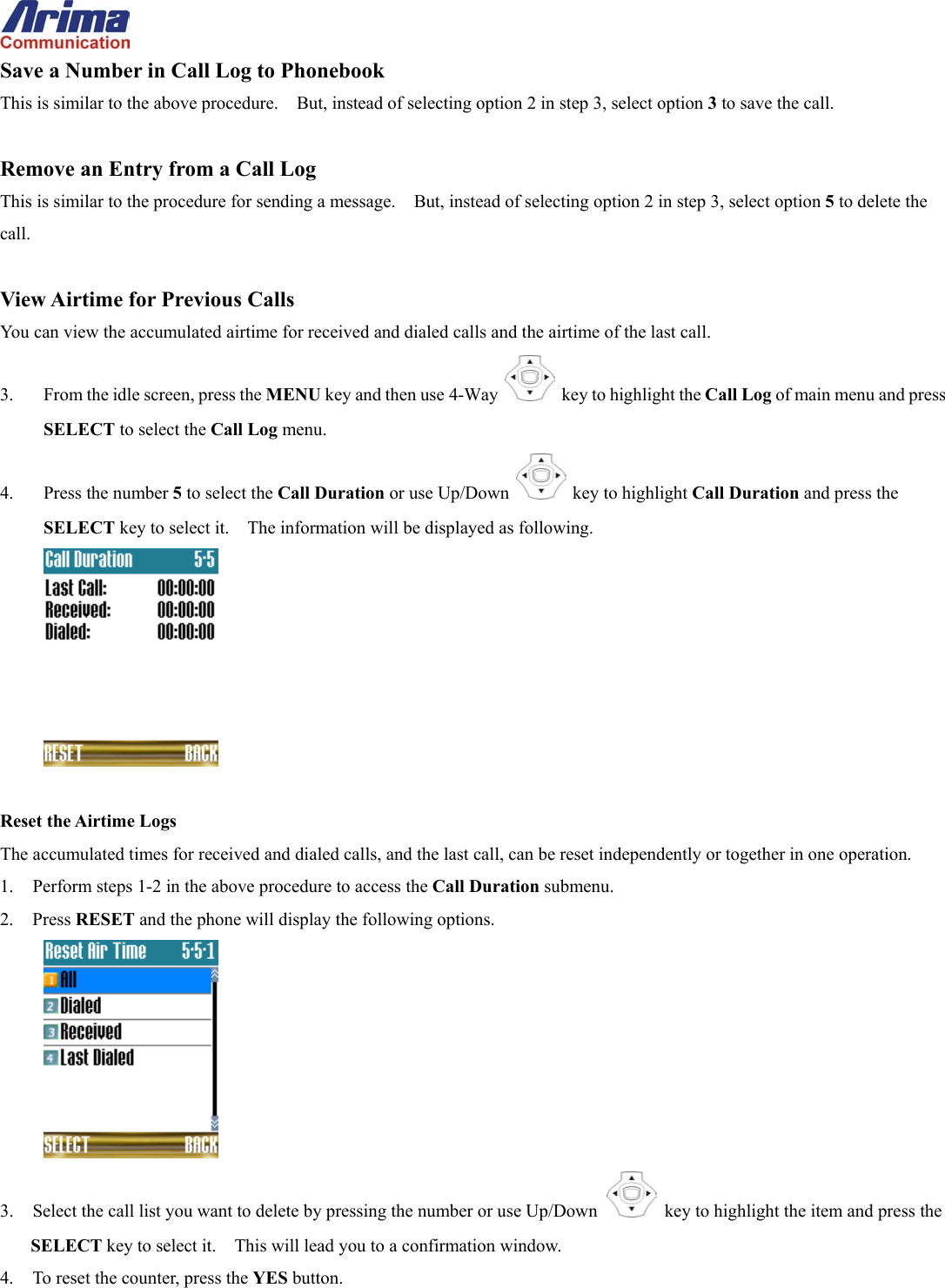
 Save a Number in Call Log to Phonebook This is similar to the above procedure.    But, instead of selecting option 2 in step 3, select option 3 to save the call.  Remove an Entry from a Call Log This is similar to the procedure for sending a message.    But, instead of selecting option 2 in step 3, select option 5 to delete the call.  View Airtime for Previous Calls You can view the accumulated airtime for received and dialed calls and the airtime of the last call. 3.  From the idle screen, press the MENU key and then use 4-Way    key to highlight the Call Log of main menu and press SELECT to select the Call Log menu. 4. Press the number 5 to select the Call Duration or use Up/Down   key to highlight Call Duration and press the SELECT key to select it.    The information will be displayed as following.   Reset the Airtime Logs The accumulated times for received and dialed calls, and the last call, can be reset independently or together in one operation. 1.  Perform steps 1-2 in the above procedure to access the Call Duration submenu. 2. Press RESET and the phone will display the following options.  3.  Select the call list you want to delete by pressing the number or use Up/Down   key to highlight the item and press the SELECT key to select it.    This will lead you to a confirmation window. 4.  To reset the counter, press the YES button.
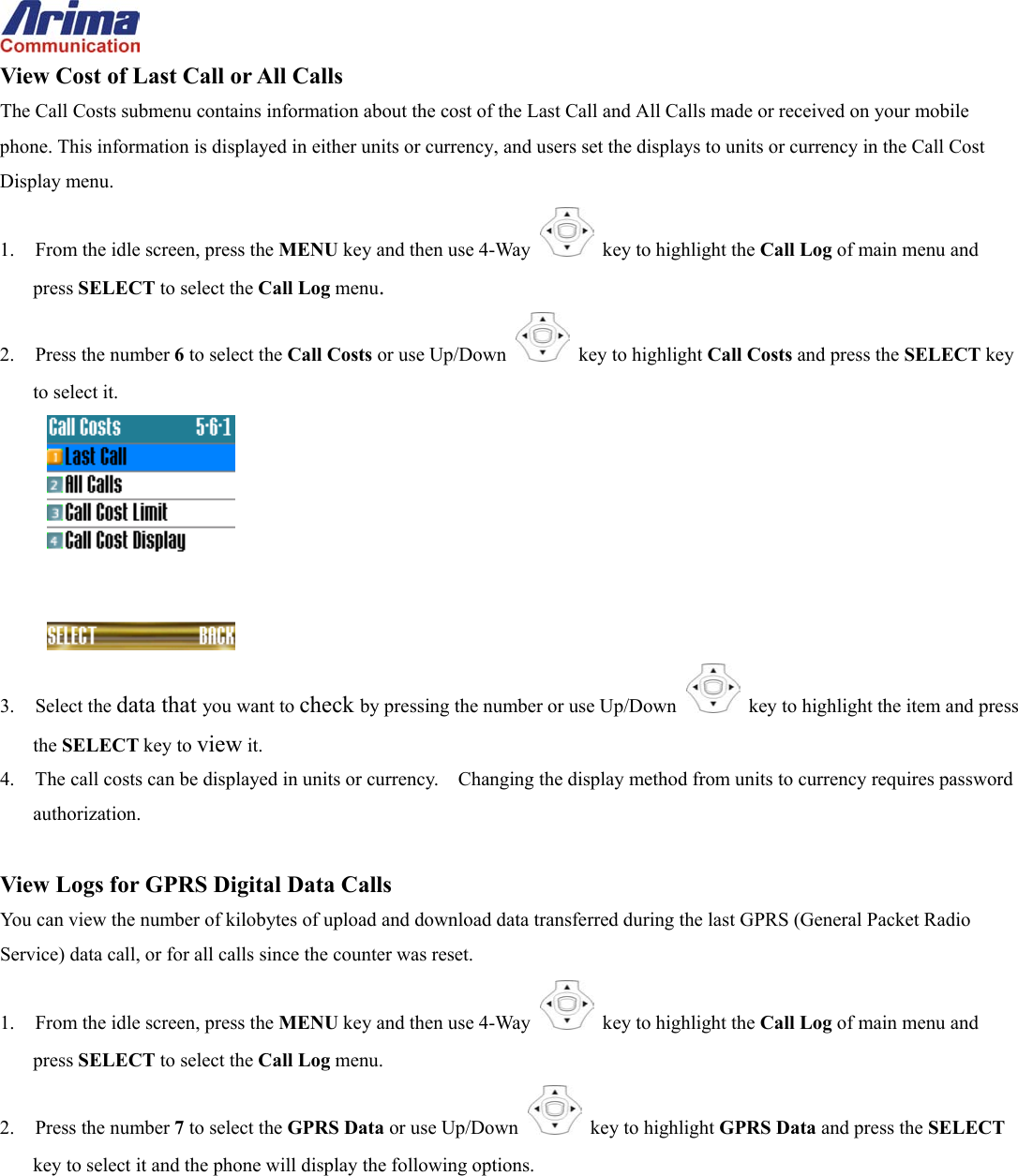
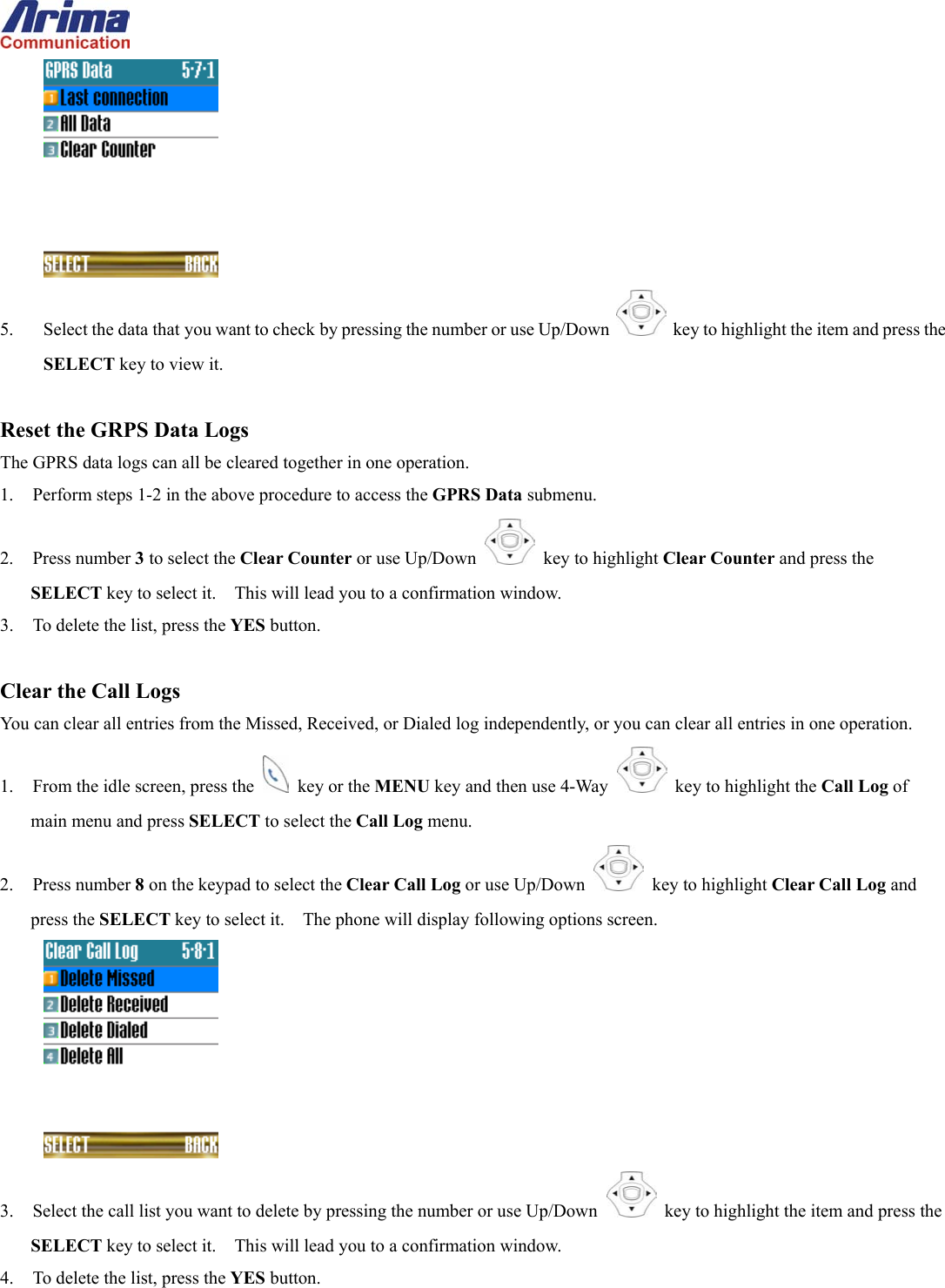
 View Cost of Last Call or All Calls The Call Costs submenu contains information about the cost of the Last Call and All Calls made or received on your mobile phone. This information is displayed in either units or currency, and users set the displays to units or currency in the Call Cost Display menu. 1.  From the idle screen, press the MENU key and then use 4-Way    key to highlight the Call Log of main menu and press SELECT to select the Call Log menu. 2. Press the number 6 to select the Call Costs or use Up/Down   key to highlight Call Costs and press the SELECT key to select it.  3. Select the data that you want to check by pressing the number or use Up/Down   key to highlight the item and press the SELECT key to view it. 4.  The call costs can be displayed in units or currency.    Changing the display method from units to currency requires password authorization.  View Logs for GPRS Digital Data Calls You can view the number of kilobytes of upload and download data transferred during the last GPRS (General Packet Radio Service) data call, or for all calls since the counter was reset. 1.  From the idle screen, press the MENU key and then use 4-Way    key to highlight the Call Log of main menu and press SELECT to select the Call Log menu. 2. Press the number 7 to select the GPRS Data or use Up/Down   key to highlight GPRS Data and press the SELECT key to select it and the phone will display the following options.
  5.  Select the data that you want to check by pressing the number or use Up/Down   key to highlight the item and press the SELECT key to view it.  Reset the GRPS Data Logs The GPRS data logs can all be cleared together in one operation. 1.  Perform steps 1-2 in the above procedure to access the GPRS Data submenu. 2. Press number 3 to select the Clear Counter or use Up/Down   key to highlight Clear Counter and press the SELECT key to select it.    This will lead you to a confirmation window. 3.  To delete the list, press the YES button.  Clear the Call Logs You can clear all entries from the Missed, Received, or Dialed log independently, or you can clear all entries in one operation. 1.  From the idle screen, press the   key or the MENU key and then use 4-Way    key to highlight the Call Log of main menu and press SELECT to select the Call Log menu. 2. Press number 8 on the keypad to select the Clear Call Log or use Up/Down   key to highlight Clear Call Log and press the SELECT key to select it.    The phone will display following options screen.  3.  Select the call list you want to delete by pressing the number or use Up/Down   key to highlight the item and press the SELECT key to select it.    This will lead you to a confirmation window. 4.  To delete the list, press the YES button.
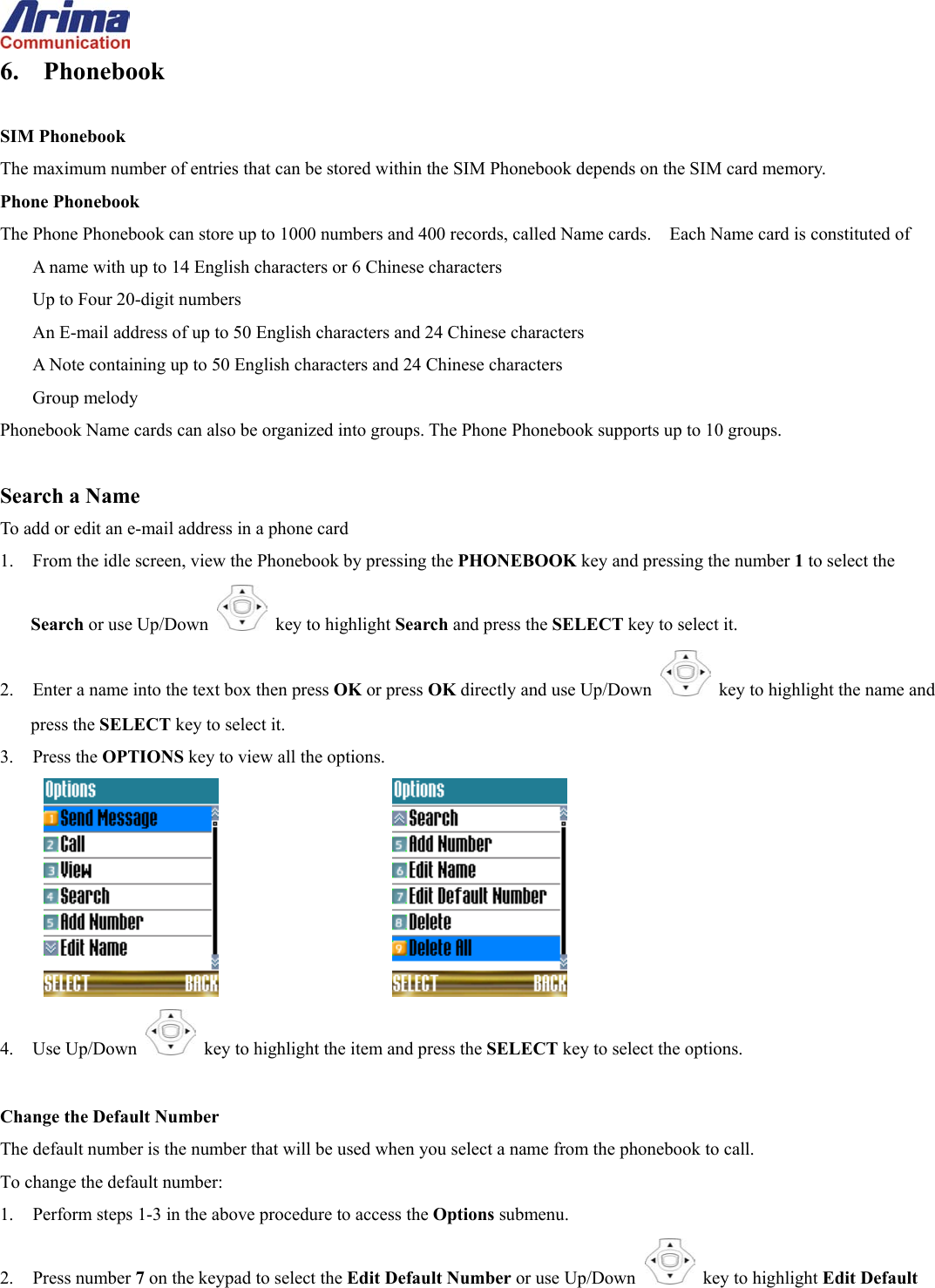
 6. Phonebook  SIM Phonebook The maximum number of entries that can be stored within the SIM Phonebook depends on the SIM card memory. Phone Phonebook The Phone Phonebook can store up to 1000 numbers and 400 records, called Name cards.    Each Name card is constituted of A name with up to 14 English characters or 6 Chinese characters Up to Four 20-digit numbers An E-mail address of up to 50 English characters and 24 Chinese characters A Note containing up to 50 English characters and 24 Chinese characters Group melody Phonebook Name cards can also be organized into groups. The Phone Phonebook supports up to 10 groups.  Search a Name To add or edit an e-mail address in a phone card 1.  From the idle screen, view the Phonebook by pressing the PHONEBOOK key and pressing the number 1 to select the Search or use Up/Down   key to highlight Search and press the SELECT key to select it. 2.  Enter a name into the text box then press OK or press OK directly and use Up/Down   key to highlight the name and press the SELECT key to select it. 3. Press the OPTIONS key to view all the options.       4. Use Up/Down   key to highlight the item and press the SELECT key to select the options.  Change the Default Number The default number is the number that will be used when you select a name from the phonebook to call. To change the default number: 1.  Perform steps 1-3 in the above procedure to access the Options submenu. 2. Press number 7 on the keypad to select the Edit Default Number or use Up/Down   key to highlight Edit Default
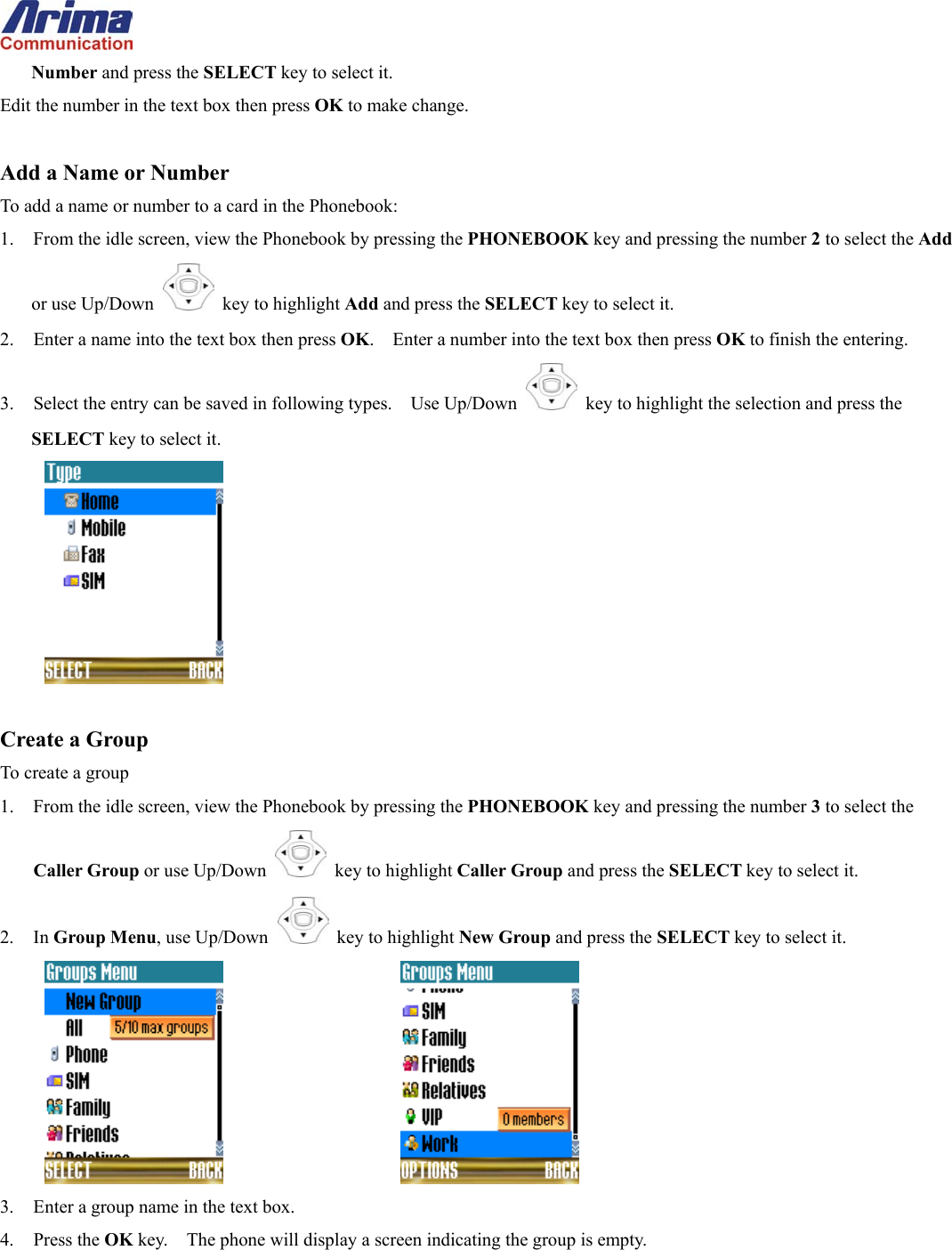
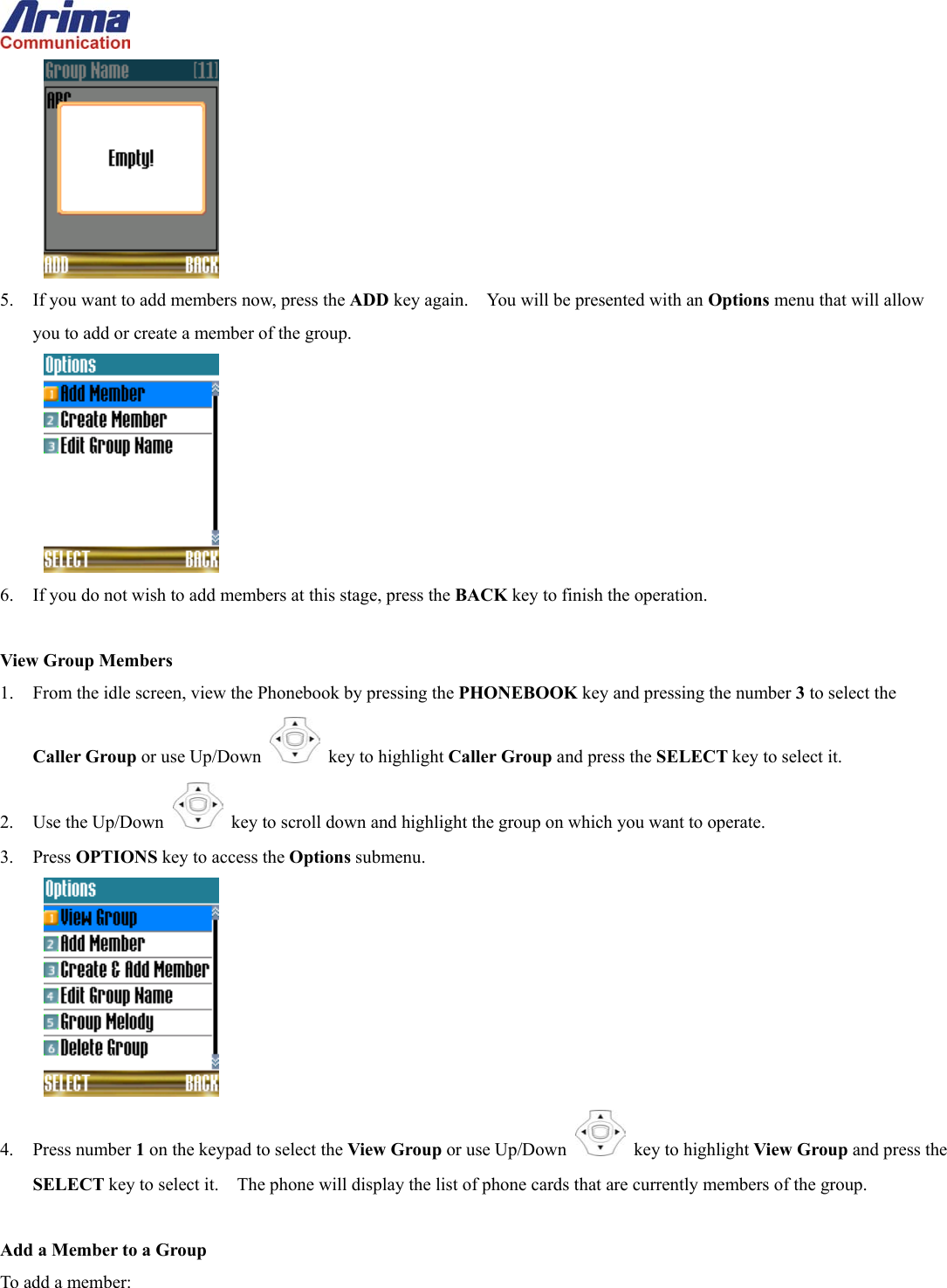
 Number and press the SELECT key to select it. Edit the number in the text box then press OK to make change.  Add a Name or Number To add a name or number to a card in the Phonebook: 1.  From the idle screen, view the Phonebook by pressing the PHONEBOOK key and pressing the number 2 to select the Add or use Up/Down   key to highlight Add and press the SELECT key to select it. 2.  Enter a name into the text box then press OK.    Enter a number into the text box then press OK to finish the entering. 3.  Select the entry can be saved in following types.    Use Up/Down   key to highlight the selection and press the SELECT key to select it.   Create a Group To create a group 1.  From the idle screen, view the Phonebook by pressing the PHONEBOOK key and pressing the number 3 to select the Caller Group or use Up/Down   key to highlight Caller Group and press the SELECT key to select it. 2. In Group Menu, use Up/Down   key to highlight New Group and press the SELECT key to select it.       3.  Enter a group name in the text box. 4. Press the OK key.    The phone will display a screen indicating the group is empty.
  5.  If you want to add members now, press the ADD key again.    You will be presented with an Options menu that will allow you to add or create a member of the group.  6.  If you do not wish to add members at this stage, press the BACK key to finish the operation.  View Group Members 1.  From the idle screen, view the Phonebook by pressing the PHONEBOOK key and pressing the number 3 to select the Caller Group or use Up/Down   key to highlight Caller Group and press the SELECT key to select it. 2. Use the Up/Down   key to scroll down and highlight the group on which you want to operate. 3. Press OPTIONS key to access the Options submenu.  4. Press number 1 on the keypad to select the View Group or use Up/Down   key to highlight View Group and press the SELECT key to select it.    The phone will display the list of phone cards that are currently members of the group.  Add a Member to a Group To add a member:
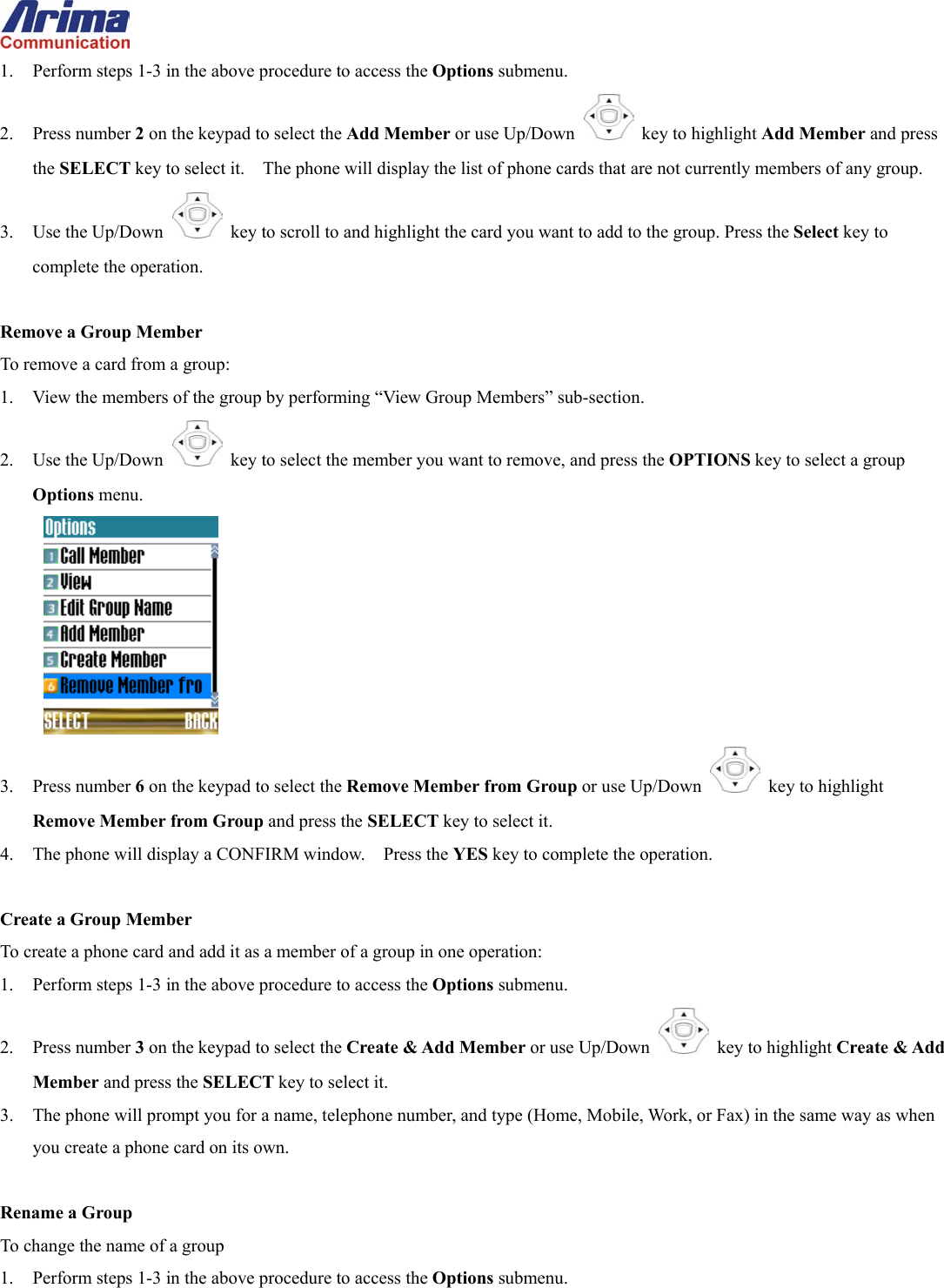
 1.  Perform steps 1-3 in the above procedure to access the Options submenu. 2. Press number 2 on the keypad to select the Add Member or use Up/Down   key to highlight Add Member and press the SELECT key to select it.    The phone will display the list of phone cards that are not currently members of any group. 3. Use the Up/Down   key to scroll to and highlight the card you want to add to the group. Press the Select key to complete the operation.  Remove a Group Member To remove a card from a group: 1.  View the members of the group by performing “View Group Members” sub-section. 2. Use the Up/Down   key to select the member you want to remove, and press the OPTIONS key to select a group Options menu.  3. Press number 6 on the keypad to select the Remove Member from Group or use Up/Down   key to highlight Remove Member from Group and press the SELECT key to select it.     4.  The phone will display a CONFIRM window.    Press the YES key to complete the operation.  Create a Group Member To create a phone card and add it as a member of a group in one operation: 1.  Perform steps 1-3 in the above procedure to access the Options submenu. 2. Press number 3 on the keypad to select the Create & Add Member or use Up/Down   key to highlight Create & Add Member and press the SELECT key to select it. 3.  The phone will prompt you for a name, telephone number, and type (Home, Mobile, Work, or Fax) in the same way as when you create a phone card on its own.  Rename a Group To change the name of a group 1.  Perform steps 1-3 in the above procedure to access the Options submenu.
 2. Press number 4 to select the Edit Group Name or use Up/Down   key to highlight Edit Group Name and press the SELECT key to select it.    The phone will display a text box where you can key in the new name. 3. Press the OK key when you have finished. The phone will display the Smart Phonebook list with the revised group name.  Associate a Group with a Specific Ring Tone Melody You can associate each group with its own ring-tone melody so that you can identify incoming calls without having to pick up the phone. To set the ring-tone melody for a group: 1.  Perform steps 1-3 in the above procedure to access the Options submenu. 2. Press the Menu key to display a phonebook Options menu. 3. Press number 5 on the keypad to select the Group Melody or use Up/Down   key to highlight Group Melody and press the SELECT key to select it. 4. Use the Up/Down   key to highlight your preferred melody. Press the OK key to complete the operation.  Call a Group Member The easiest way to call a group member is to simply open the group, highlight the member you want to call, and press the Send key. In detail: 1.  View the group members as described in the preceding sub-section 2. Use the Up/Down   key to highlight the member you want to call. 3. Press the   key. You can also call a member from the group options menu: 1.  Highlight the group member by following steps 1 and 2 above. 2. Press the OPTIONS key to view the group Options menu. 3. Press number 1 on the keypad to select the Call Member or use Up/Down   key to highlight Call Member and press the SELECT key to select it.  Delete a Group Deleting a group removes the members from the group, so that they will appear directly in the Smart Phonebook list, and then deletes the group. To delete a group: 1.  From the idle screen, view the Phonebook by pressing the PHONEBOOK key and pressing the number 3 to select the
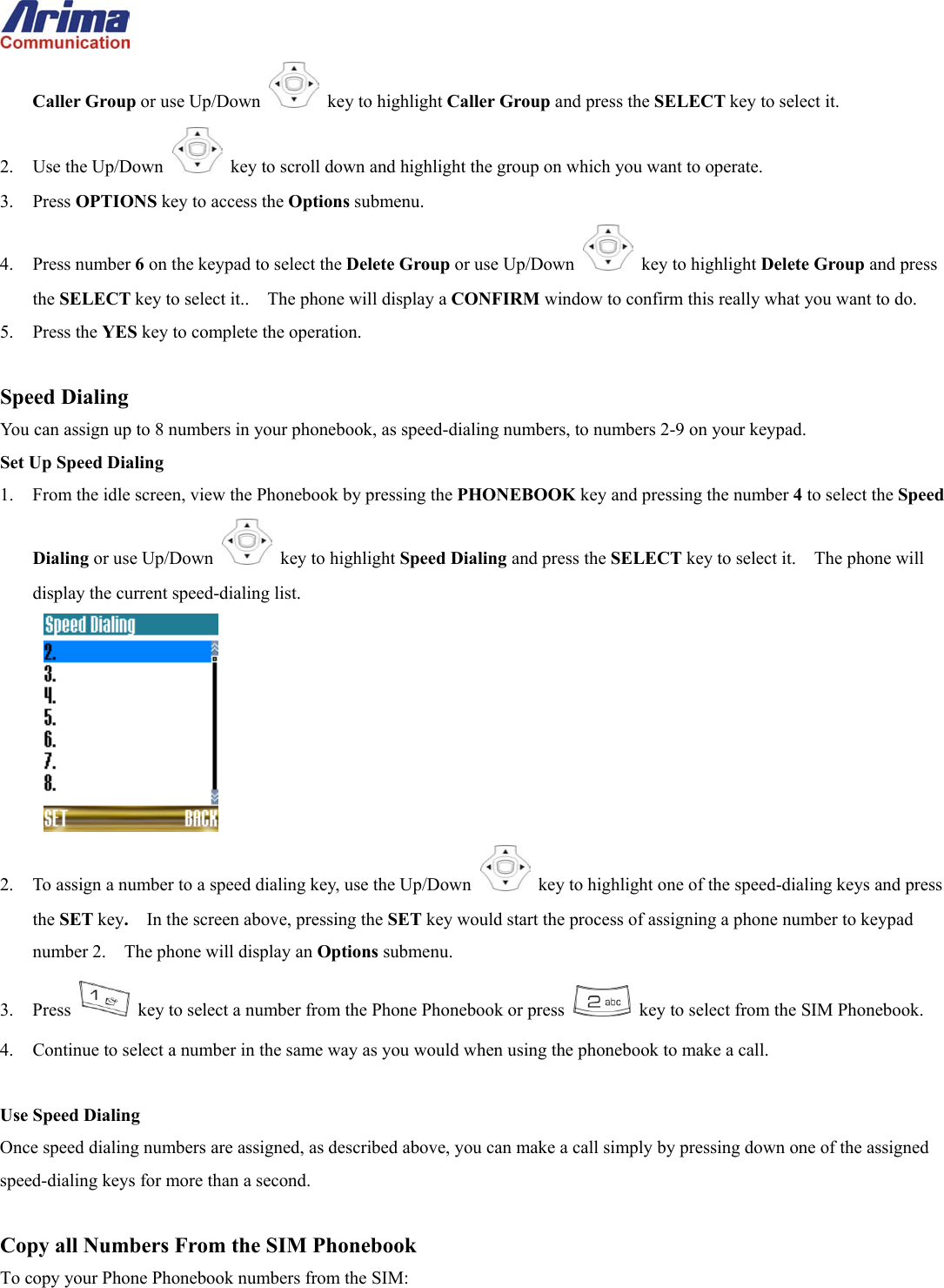
 Caller Group or use Up/Down   key to highlight Caller Group and press the SELECT key to select it. 2. Use the Up/Down   key to scroll down and highlight the group on which you want to operate. 3. Press OPTIONS key to access the Options submenu. 4. Press number 6 on the keypad to select the Delete Group or use Up/Down   key to highlight Delete Group and press the SELECT key to select it..    The phone will display a CONFIRM window to confirm this really what you want to do. 5. Press the YES key to complete the operation.  Speed Dialing You can assign up to 8 numbers in your phonebook, as speed-dialing numbers, to numbers 2-9 on your keypad.   Set Up Speed Dialing 1.  From the idle screen, view the Phonebook by pressing the PHONEBOOK key and pressing the number 4 to select the Speed Dialing or use Up/Down   key to highlight Speed Dialing and press the SELECT key to select it.    The phone will display the current speed-dialing list.  2.  To assign a number to a speed dialing key, use the Up/Down    key to highlight one of the speed-dialing keys and press the SET key.  In the screen above, pressing the SET key would start the process of assigning a phone number to keypad number 2.    The phone will display an Options submenu. 3. Press   key to select a number from the Phone Phonebook or press    key to select from the SIM Phonebook. 4.  Continue to select a number in the same way as you would when using the phonebook to make a call.  Use Speed Dialing Once speed dialing numbers are assigned, as described above, you can make a call simply by pressing down one of the assigned speed-dialing keys for more than a second.  Copy all Numbers From the SIM Phonebook To copy your Phone Phonebook numbers from the SIM:
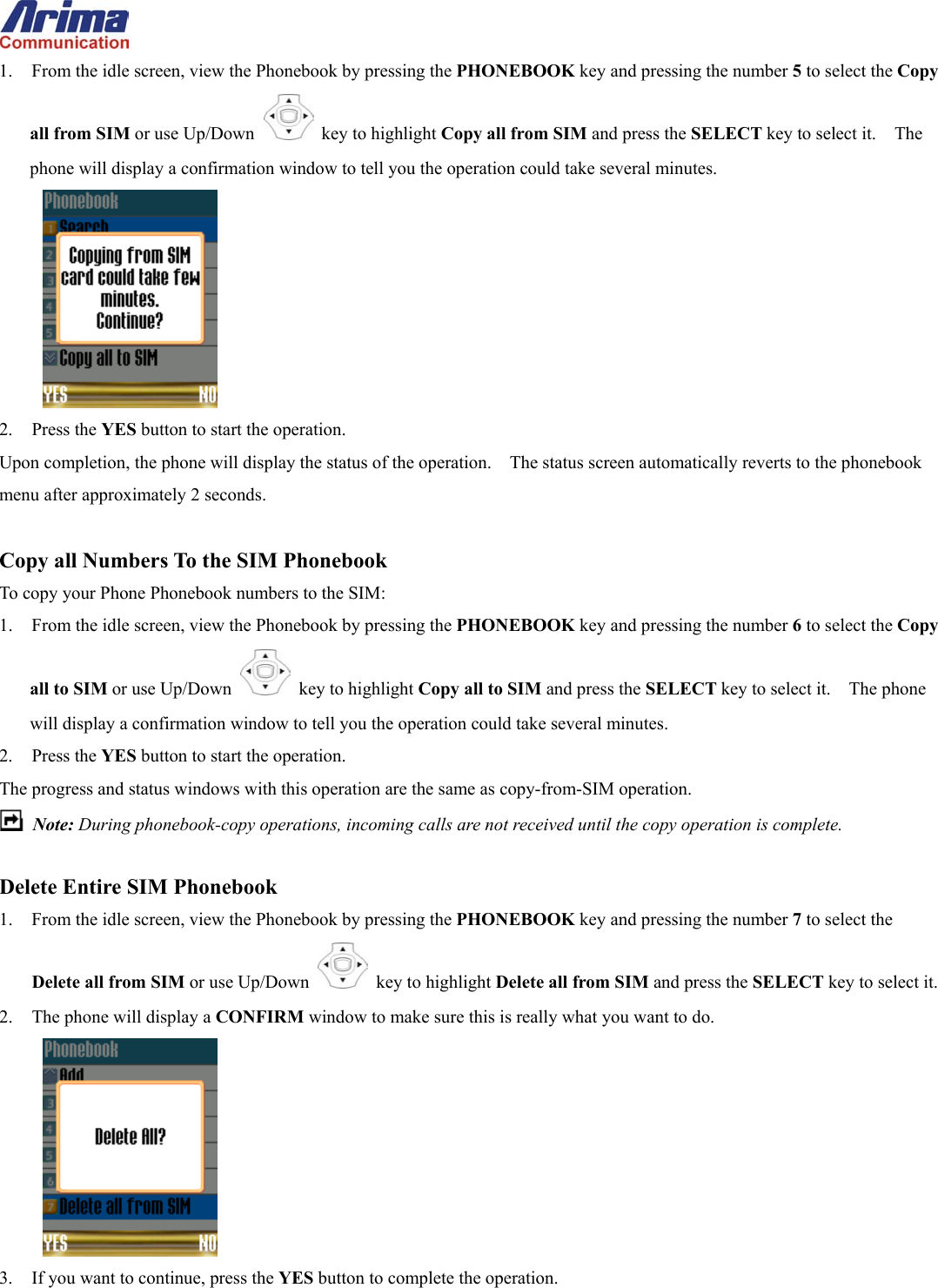
 1.  From the idle screen, view the Phonebook by pressing the PHONEBOOK key and pressing the number 5 to select the Copy all from SIM or use Up/Down   key to highlight Copy all from SIM and press the SELECT key to select it.    The phone will display a confirmation window to tell you the operation could take several minutes.  2. Press the YES button to start the operation. Upon completion, the phone will display the status of the operation.    The status screen automatically reverts to the phonebook menu after approximately 2 seconds.  Copy all Numbers To the SIM Phonebook To copy your Phone Phonebook numbers to the SIM: 1.  From the idle screen, view the Phonebook by pressing the PHONEBOOK key and pressing the number 6 to select the Copy all to SIM or use Up/Down   key to highlight Copy all to SIM and press the SELECT key to select it.    The phone will display a confirmation window to tell you the operation could take several minutes. 2. Press the YES button to start the operation. The progress and status windows with this operation are the same as copy-from-SIM operation.  Note: During phonebook-copy operations, incoming calls are not received until the copy operation is complete.  Delete Entire SIM Phonebook 1.  From the idle screen, view the Phonebook by pressing the PHONEBOOK key and pressing the number 7 to select the Delete all from SIM or use Up/Down   key to highlight Delete all from SIM and press the SELECT key to select it. 2.  The phone will display a CONFIRM window to make sure this is really what you want to do.  3.  If you want to continue, press the YES button to complete the operation.
  Delete Entire Phone Phonebook Use the procedure described in the preceding sub-section but in step 1, press the number 8 on the keypad to select the Delete All from Phone entry.
 7. WAP  Launch the Browser 1.  From the idle screen, press the MENU key then use 4-Way    key to highlight the WA P  of main menu and press SELECT to select the WA P  menu. 2. Then press number 1 on the keypad to select the Launch or use Up/Down   key to highlight Launch and press the SELECT key to select it.  Bookmark You can bookmark a favorite page so that you can quickly launch it. You can also edit and delete your bookmark. Set a Bookmark To set a bookmark from the page you want to bookmark: 1. Press the MENU key to view the web-page menu.   2.  Use the Up/Down   key to highlight the Browser menu entry and press SELECT. 3. Press number 3 on the keypad to select Mark Site or use Up/Down   key to highlight Mark Site and press the SELECT key to select it.    The phone will display a Bookmark Name screen. 4.  Type a name for the bookmark, using up to 20 English characters or 10 Chinese characters. In the title bar of the window, the phone will display the number of characters still available to you as you type.    Press the OK key to display the URL screen. 5. Press OK to accept the URL and complete the operation. 6.  You can also set a bookmark from the idle screen, although this is less convenient because you have to enter the URL of the page manually.  To set a bookmark from the idle screen: 1.  From the idle screen, press the MENU key then use 4-Way    key to highlight the WA P  of main menu and press SELECT to select the WA P  menu. 2. Press number 2 on the keypad to select the Bookmark or use Up/Down   key to highlight Bookmark and press the SELECT key to select it.    The phone will display your current bookmarks. 3.  If the bookmark list is empty, press the NEW key to start a new entry, and continue from step 0. 4.  If the bookmark already has at least one entry, press the OPTIONS key to display the bookmark Options menu. 5. Press number 3 on the keypad to select the New or use Up/Down   key to highlight New and press the SELECT key to select it.
 Type a name for the bookmark, using up to 20 English characters or 10 Chinese characters. In the title bar of the window, the phone will display the number of characters still available to you as you type.    Press the OK key to display the URL screen. 6.  Enter the address of the page you want to bookmark, and press the OK key to complete the operation.  Go To a Bookmark To go to a bookmark from the idle screen: 1. Press the MENU key then use 4-Way    key to highlight the WA P  of main menu and press SELECT to select the WA P  menu. 2. Press number 2 on the keypad to select the Bookmark or use Up/Down   key to highlight Bookmark and press the SELECT key to select it.    The phone will display your current bookmarks. 3. Press the OPTIONS key and number 1 on the keypad or use Up/Down   key to highlight Go To and press the SELECT key to select it to launch the WAP browser and go to the book-marked page.  Edit a Bookmark 6.  To change the name or URL (web address) of a bookmark:   7.  Follow step 1-2 in the preceding section to select the bookmark. Press the OPTIONS key and number 4 on the keypad or use Up/Down   key to highlight Edit and press the SELECT key to edit the entry. 8.  Delete a Bookmark To delete an existing bookmark: 1.  Select the bookmark by following steps 1-2 in the “Go To a Bookmark” subsection. 2. Press the OPTIONS key and press number 5 on the keypad or use Up/Down   key to highlight Delete and press the SELECT key to delete entry.    The phone will display a CONFIRM screen. 3. Press the YES key to complete the operation.  Return to the Last Page Visited The phone remembers the last web page you visited. To return to that page: 1.  From the idle screen, press the MENU key then use 4-Way    key to highlight the WA P  of main menu and press SELECT to select the WA P  menu. 2. Press number 3 on the keypad to select the Last Page or use Up/Down   key to highlight Last Page and press the
 SELECT key to select it.    This will return to the last page you visited. Cache a Page for Viewing Offline WAP pages are stored (cached) in the phone. If you cache a page, you have the following options for controlling when it is displayed:  Display from cache if available or   Display from cache only those pages that do not expire.  To control caching behavior: 1.  From the idle screen, press the MENU key then use 4-Way    key to highlight the WA P  of main menu and press SELECT to select the WA P  menu. 2. Press number 5 on the keypad to select the Cache or use Up/Down   key to highlight Cache and press the SELECT key to select it. 3. Press number 2 on the keypad to select the Cache Browsing Behavior or use Up/Down   key to highlight Cache Browsing Behavior and press the SELECT key to select it.    The phone will display the following Cache Browsing Behavior options:  4. Press the Up/Down   key to highlight your chosen option, and press the OK key to complete the operation.  Delete the Cache To erase all cached pages: 1.  Follow steps 1 and 2 in the preceding subsection. 2. Press number 1 on the keypad to select the Delete Cache or use Up/Down   key to highlight Delete Cache and press the SELECT key to select it.    The phone will display a CONFIRM screen. 3. Press the YES button to complete the operation.  Configure Browser Profiles Up to five user profiles can be set up to access different wireless Internet services. Please follow your service provider’s
 instructions to setup a profile. To edit a profile: 1.  From the idle screen, press the MENU key then use 4-Way    key to highlight the WA P  of main menu and press SELECT to select the WA P  menu. 2. Press number 6 on the keypad to select the Setting or use Up/Down   key to highlight Setting and press the SELECT key to select it. 3. Use the Up/Down   key to select the profile you want to edit, and press the OPTIONS key to display the profile Options menu. 4. Press number 3 on the keypad to select the Modify or use Up/Down   key to highlight Modify and press the SELECT key to select it.       5.  Press the number or use Up/Down   key to highlight the item that corresponding to the setting you wish to modify and press the SELECT key to select it.
 8. Phone Settings  Set Call Answering Options By default, you answer a call by pressing the    key. You can change this to one of the following: Answer by pressing any key Answer by opening the phone flip Auto Answer  Press Any Key to Answer To select this mode: 1.  From the idle screen, press the MENU key then use 4-Way    key to highlight the Phone Settings of main menu and press SELECT to select the Phone Settings menu. 2. Press number1 on the keypad to select the Call or use Up/Down   key to highlight Call and press the SELECT key to select it.    The phone will display following options.  3. Press number 1 on the keypad to select the Any Key Answer or use Up/Down   key to highlight Any Key Answer and press the SELECT key to select it 4. Use the Up/Down   key to select On or Off, then press the OK key to complete the operation.  Open Lid to Answer To set the phone to answer a call when you open the lid, follow the procedure in the preceding subsection, but in step 3 press number 2 on the keypad to select the Open to Answer or use Up/Down   key to highlight Open to Answer and press the SELECT key to select it  Automatic Redial To set the phone to Auto Redial, follow the procedure in the preceding subsection, but in step 3 press number 3 on the keypad to
 select the Auto Redial or use Up/Down   key to highlight Auto Redial and press the SELECT key to select it.  Auto-Answer With the Auto Answer feature enabled, the phone will automatically answer a call after a specified time-out.    This function is available only on the first incoming call when the phone is in the idle state. To configure auto-answer settings: 1.  To set the phone to Auto Answer, follow the procedure in the preceding subsection, but in step 3 press number 5 on the keypad to select the Auto Answer or use Up/Down   key to highlight Auto Answer and press the SELECT key to select it.  2. Use the Up/Down   key to highlight the auto-answer option you require, and press the OK key to complete the operation.  Keypad Lock You can elect to lock the keypad after a timeout that you can specify. To enable the keypad lock function: 1.  From the idle screen, press the MENU key then use 4-Way    key to highlight the Phone Settings of main menu and press SELECT to select the Phone Settings menu. 2. Press number 3 on the keypad to select the Keypad Lock or use Up/Down   key to highlight Keypad Lock and press the SELECT key to select it. 3. Use the Up/Down   key to highlight the Custom setting, and press the OK key.    The phone will display a Keypad Lock edit box where you can specify the timeout in minutes.    This can be any value from 1 to 120. 4. Press the OK key to complete the operation.  Unlock a Locked Keypad To unlock the keypad, long-press    until the keypad unlocks and the Idle screen is displayed.
  Remove the Keypad Lock Repeat the same procedure as for setting the lock, but in step 3, highlight the Off entry in the Keypad Lock submenu instead of the Custom entry.  Quick Keypad Lock To prevent accidental calls, keypad can be locked any time with a long-press of the  . To unlock the keypad, long-press    until the keypad unlocks and the Idle screen is displayed.  Reset the Phone to its Default Settings You can reset the phone to its factory settings as follows: 1.  From the idle screen, press the MENU key then use 4-Way   key to highlight the Phone Settings of main menu and press SELECT to select the Phone Settings menu. 2. Press number 4 on the keypad to select the Reset Setting or use Up/Down   key to highlight Reset Setting and press the SELECT key to select it. 3.  To continue, press the YES button to complete the operation  Enable/Disable Welcome Message During Power-On You can enable or disable the welcome message during power-on. To change the setting: 1.  From the idle screen, press the MENU key then use 4-Way   key to highlight the Phone Settings of main menu and press SELECT to select the Phone Settings menu. 2. Press number 5 on the keypad to select the Welcome Message or use Up/Down   key to highlight Welcome Message and press the SELECT key to select it. 3.  Press the number or use the Up/Down   key to highlight the Message or Animation setting, and press the SELECT key to complete the operation. 4. Use the Up/Down   key to highlight the On or Off setting, and press the OK key to complete the operation.
 9. Call Services  Call Forwarding Options To enable call forwarding: 1.  From the idle screen, press the MENU key then use 4-Way   key to highlight the Call Services of main menu and press SELECT to select the Call Services menu. 2. Press number 1 on the keypad to select the Call Forwarding or use Up/Down   key to highlight Call Forwarding and press the SELECT key to select it.    The phone will display the options that will active call forwarding.  3.  Press the number or use Up/Down   key to highlight the item that you wish to select it.  4.  Press the number or use associated with the conditions under which you want call forwarding to occur. 5.  Press the number or use Up/Down   key to highlight the item that you wish to select it.    No. 1 to activate call forwarding, No. 2 to cancel it, and No. 3 to determine your current call-forwarding settings.  6.  Select the location where you want your calls forwarded.
  7.  If you select the Voicemail entry, your calls will be diverted there if voice mailbox is defined.   8. Select the To Phoneb ook entry if you want to divert calls to a number defined in one of your phonebooks. 9.  If you select the To Other Number entry, the phone will display a screen where you can enter the number:  Cancel Call Forwarding Perform steps 1-4 in the preceding sub-section and then select number 2 on the keypad to select the Cancel entry.    Use Call Barring With the Call Barring feature you can prevent calls from being made or received. All the above restrictions are controlled by a call-barring password. Enable Call Barring To impose call barring restrictions: 1.  From the idle screen, press the MENU key then use 4-Way   key to highlight the Call Services of main menu and press SELECT to select the Call Services menu. 2. Press number 2 on the keypad to select the Call Barring or use Up/Down   key to highlight Call Barring and press the SELECT key to select it.    The phone will display the conditions that will active call barring.       3.  Enter the number in the range 1-5 corresponding to the call-barring condition you want to impose. The phone will display the following submenu:
  4. Press number 1 on the keypad to select the Activate or use Up/Down   key to highlight Active and press the SELECT key to select it.    The phone will display a screen for you to enter the call-barring password. 5.  Enter the password. The phone will display a dot for each character you enter. Press the OK key to complete the operation.  Cancel Call Barring To cancel a single call barring restriction, perform all the steps in the preceding subsection, but in step 4, Press number 2 on the keypad to select the Cancel or use Up/Down   key to highlight Cancel and press the SELECT key to select it.  Call Waiting The Call Waiting feature lets you receive notification of an incoming call while another call is active.   You can enable or disable call waiting as follows: 1.  From the idle screen, press the MENU key then use 4-Way   key to highlight the Call Services of main menu and press SELECT to select the Call Services menu. 2. Press number 3 on the keypad to select the Call Waiting or use Up/Down   key to highlight Call Waiting and press the SELECT key to select it.    The phone will display the submenu.  3. Select number 1 to activate call waiting, number 2 to cancel it, and number 3 to view your current setting.  Caller ID Caller ID is an optional feature offered by your service provider.   To view your current caller ID status:
 1.  From the idle screen, press the MENU key then use 4-Way   key to highlight the Call Services of main menu and press SELECT to select the Call Services menu. 2. Press number 4 on the keypad to select the Caller ID or use Up/Down   key to highlight Caller ID and press the SELECT key to select it.    The phone will display the submenu.  3. Select number 1 for show-caller (CLIP) information or number 3 for show-connected (COLP) information.    The phone will show a window as the following:  4. Press SELECT to retrieve your Caller ID settings.    To change the settings, contact your service provider.  Show or Hide Your Own Caller ID 1.  To hide your Caller ID, follow the procedure in the preceding subsection, but, in step 3, select number 2 for the Hide Own .  The phone will display the submenu:  2. Select number 1 to activate call waiting, number 2 to cancel it, and number 3 to view your current setting.  View or Change Your Network Settings You can configure the following network settings on your phone:
 Configure the network-searching mode: Auto or manual. View and edit your network list. Select between GSM900/DCS1800 and PCS1900 network bands. To access the network menu from the idle screen: 1.  From the idle screen, press the MENU key then use 4-Way   key to highlight the Call Services of main menu and press SELECT to select the Call Services menu. 2. Press number 5 on the keypad to select the Network or use Up/Down   key to highlight Network and press the SELECT key to select it.    The phone will display the submenu. Press number 8 on the keypad to select the Network submenu.   Configure Network Searching Mode 1.  Follow the procedure in the preceding subsection. 2. Press number 1 on the keypad to select the Select Mode or use Up/Down   key to highlight Select Mode and press the SELECT key to select it. 3.  You can select between Automatic and Manual modes. In automatic mode, the phone selects a PLMN (Public Land Mobile Network) in the Network Preferred List during the power-on sequence.    This is the recommended setting. Manual mode lets you select a PLMN from the Network Preferred List.     After the searching, the network list for all available PLMNs, the phone will display the list on the screen.    For each entry, if the PLMN is recognized in the mobile ROM table, the PLMN name is displayed.    Otherwise, the country is indicator is put in front of the mobile network code: for example, FR 002. When you select a network from the list, the phone will start registering to the network you selected.    If successful, the phone displays the idle screen; if not, the phone redisplays the network list so that you can try another selection. If there is no network, the phone just displays the Searching… screen. If the phone loses the registered network, it will search the network again and screen will return to Network Available screen, so that you can select another network again.  View and Edit Network List 1.  Follow the procedure in the preceding subsection.
 2. Press number 2 on the keypad to select the Preferred or use Up/Down   key to highlight Preferred and press the SELECT key to select it.    The phone will display the preferred network list.  3. Use Up/Down   key to highlight the selected network and press OPTIONS key to display the network Options menu.  4. Select number 1 to Insert a new entry prior to the selected network, number 2 to Move the sequence of the entry, or number 3 to Delete the entry.  Band Selection 1.  Follow the procedure in the preceding subsection. 2. Press number 3 on the keypad to select the Select Band or use Up/Down   key to highlight Select Band and press the SELECT key to select it.  3.  You can select between GSM900/DCS1800 and PCS1900 network bands or Automatic select.
 10. Security  Force a PIN to Use the Phone The PIN Lock feature lets you force a PIN (Pin Identification Number) entry when the phone is powered on – if you know the PIN1 password.    The default value is stored in the SIM card. To toggle the state of the PIN Lock: 1.  From the idle screen, press the MENU key then use 4-Way   key to highlight the Security of main menu and press SELECT to select the Security menu. 2. Press number 1 on the keypad to select the PIN Lock or use Up/Down   key to highlight PIN Lock and press the SELECT key to select it.    The phone will display the PIN Lock screen.  3. Use the Up/Down   key to highlight the On entry.    The phone will prompt you for a PIN:  4.  Enter the PIN1 password.    If this is entered successfully, this PIN will be required to use the phone on power-up.  Change the Power-On PIN If you already know the power-on PIN, and it is enabled as described in the previous subsection, you can change it as follows: 1.  From the idle screen, press the MENU key then use 4-Way   key to highlight the Security of main menu and press SELECT to select the Security menu. 2. Press number 2 on the keypad to select the Change PIN1 or use Up/Down   key to highlight Change PIN1 and press the SELECT key to select it.    The phone will display the PIN Lock screen.    The phone will prompt for the current (old)
 PIN.  3.  Enter the current PIN and press the OK key.    The phone will prompt you for the new PIN.  4.  Enter the new PIN and enter the OK key. The phone will prompt you to verify the new PIN by entering it for a second time. 5.  Enter the new PIN again and press the OK key to complete the operation.  Change the Call Log and Restricted Dialing PIN PIN2 is the gateway to any changes to the call-cost log, and interactions with the Restricted Dialing list.    Changing PIN2 requires you to know its current value.   The procedure for changing PIN2 is the same as for changing PIN1, the power-up PIN, except that in step 2, you must press number 3 on the keypad to select the Change PIN2 or use Up/Down   key to highlight Change PIN2 and press the SELECT key to select it.  Enable Restricted Dialing Only You can restrict the operation of your phone so that it will only be able to call a list of approved numbers, called the Fixed Dialing Numbers (FDN). Up to 50 of these numbers can be stored in the SIM. To restrict your phone to the FDN only: 1.  From the idle screen, press the MENU key then use 4-Way   key to highlight the Security of main menu and press SELECT to select the Security menu. 2. Press number 4 on the keypad to select the FDN or use Up/Down   key to highlight FDN and press the SELECT key to select it.    The phone will display FDN submenu.
  3. Press number 1 on the keypad to select the FDN Only or use Up/Down   key to highlight FDN Only and press the SELECT key to select it.    The phone will prompt you for the PIN2 password. 4.  Enter the PIN2 password and press the OK key.    The phone will display the following information screen to confirm that FDN-only operation has been enabled.  5.  To revert to unrestricted dialing, follow the same procedure as above.  Enter a FDN Number Directly To enter a number directly: 1.  Perform the step 1-2 in the preceding subsection. 2. Press number 2 on the keypad to select the Numbers or use Up/Down   key to highlight Numbers and press the SELECT key to select it.    The phone will display the names of current FDN entries. 3. Press the OPTIONS key to the FDN Options menu.       4. Press number 2 on the keypad to select the Add or use Up/Down   key to highlight Add and press the SELECT key to select it.    The phone will display a screen for entering a name, followed by a screen for a number, in the same way as
 when you are entering a number into the Phone or SIM phonebook.  Delete a Number This operation is similar to deleting an entry from a phonebook, except that it is protected by the PIN2 password.    Follow the same procedure as in the preceding subsection, but, in step 4, press number 6 on the keypad to select the Delete or use Up/Down  key to highlight Delete and press the SELECT key to select it.  Delete Entire FDN List This operation is similar to deleting all entries from a phonebook, except that it is protected by the PIN2 password. Follow the same procedure as in the subsection “Enter a FDN Number Directly”, but in step 4, press number 7 on the keypad to select the Delete All or use Up/Down   key to highlight Delete All and press the SELECT key to select it.  Using the FDN You can make calls, send messages, see details, and search for entries in the FDN.    Perform these operations in the same way as equivalent operations in the phonebook.  These operations are not PIN protected.
 General information Battery care Your phone is powered by a rechargeable battery. •  The battery can be charged and discharged hundreds of times but it will eventually wear out. When the operating time (talk-time and standby time) is noticeably shorter than normal, you should buy a new battery at the time. •  Unplug the charger when not in use, and don’t leave the battery connected to a charger for longer than a week, since overcharging may shorten its lifetime.   •  Overcharging may shorten its lifetime, and if left unused a fully charged battery may discharge itself over time. •  Temperature extremes can affect the ability of your battery to charge. •  Do not use any charger or battery that is damaged in any way. •  Use the battery only for its intended purpose. •  Extreme temperatures will affect the charging capacity of your battery.   •  Do not leave the battery in hot or cold places, such as in a car in summer or winter condition. •  Do not short-circuit the battery. Short-circuiting the terminals may damage the battery or the connecting object. •  Dispose of batteries according to local regulations. Always recycle. Do not dispose of batteries in a fire.  Access codes PIN code (4 to 8 digits): The PIN (Personal Identification Number) code protects your SIM card against unauthorized. Your SIM card usually supplies the PIN code. PIN2 code (4 to 8 digits) The PIN2 code may be supplied with the SIM card. Some functions will require PIN2 support, such Set tariff. PUK and PUK2 (8 digits) The PUN (Personal Unblocking Key) code is required to change a blocked PIN code. The PUK2 code is required to change a blocked PIN2 code. Phone code (4 to 8 digits) Phone code protects the phone against unauthorized use. It is not on when you buy the phone. You can change the phone code (0000) to any four to eight-digit personal codes.  Care and Maintenance Read this information before using your mobile phone.  Your mobile phone is a highly sophisticated electronic device. When using your phone, battery, charger or any accessory, please read this first.  Product care •  Keep your mobile phone and all its parts out of young children’s reach. •  Keep your mobile phone dry.
 •  Avoid exposing your mobile phone to extreme hot or cold temperatures. •  Avoid placing your mobile phone close to lit cigarettes, naked flames or any heat source. •  Do not attempt to disassemble it. Non-expert handling of the device may damage it. •  Do not drop, knock or shake it. Rough handling can break internal circuit boards. •  Do not paint your mobile phone as the paint could obstruct the earphone, microphone or any moveable parts and prevent normal use. •  Treat your mobile phone with care, keep it in a clean and dust free place.  Important Safety Information Radio frequency energy Your mobile phone is a radio transmitter and receiver. When the phone is turned on, it receives and transmits radio frequency (RF) energy. Depending on the type of mobile phone you posses, it operates on different frequency ranges and employs commonly used modulation techniques. The system that handles your call when you are using your phone controls the power level at which your phone transmits.  Electronic devices Most modern electronic equipment is shielded from RF energy. However, certain electronic equipment may not be shielded against the RF signals from your wireless phone, therefore: •  Don not use your mobile phone near medical equipment without requesting permission.  Pacemaker Mobile phones may affect the operation of some implanted cardiac pacemakers and other medically implanted equipment. Pacemaker manufacturers recommend that a minimum separation of 20 cm (6 inches) be maintained between a hand-held wireless phone and a pacemaker to avoid potential interference with the pacemaker. These recommendations are consistent with the independent research by and recommendations of Wireless Technology Research. Persons with pacemakers: •  Should always keep the phone more than 20 cm (6 inches) from their pacemaker when the phone is switched on; •  Should not carry the phone in a breast pocket; •  Should use the ear opposite the pacemaker to minimize the potential for interference. •  If you have any reason to suspect that interference is taking place, switch off your phone immediately. Hearing aids Some hearing aids might be disturbed by mobile phones. In the event of such disturbance, you may want to consult your service provider, or call the customer services line to discuss alternatives. Aircraft •  Turn off your mobile phone before boarding any aircraft. •  Do not use it on the ground without crew permission To prevent interference with communication systems, you must not use your mobile phone while the plane is in the air.
 Potentially explosive atmospheres Switch off your phone when in any area with a potentially explosive atmosphere and obey all signs and instructions. It is rare, but your phone or its accessories could generate sparks. Sparks in such areas could cause an explosion or fire resulting in bodily injury or even death. Areas with a potentially explosive atmosphere are often, but not always, clearly marked. They include fuelling areas, such as petrol station, below deck on boats, fuel or chemical transfer or storage facilities, and areas where the air contains chemicals or particles, such as grain, dust, or metal powders.; and    any other area where you would normally be advised to turn off your vehicle engine.  Driving Check the laws and regulations on the use of mobile phones in the areas where you drive. If you are going to use your phone while driving, please: •  Give full attention to driving •  Use handsfree. Law in many countries requires vehicle handsfree. •  Pull off the road and park before making or answering a call if driving conditions so require. RF energy may affect some electronic systems in motor vehicles such as car stereo, safety equipment etc. in addition, some vehicle manufacturers do not allow use of mobile phones, unless the installation is supported by a handsfree kit with an external antenna, in their vehicles. Check with your vehicle manufacturer’s representative to be sure that your mobile phone will not affect the electronic systems in your vehicle.  Emergency calls Important: This phone, like any wireless phone, operates using radio signals, wireless and landline networks as well as user programmed functions. Because of this, connections in all conditions cannot be guaranteed. Therefore, you should never rely solely upon any wireless phone for essential communications (e.g. medical emergencies) Emergency calls may not be possible on all wireless phone networks or when certain network services and/or phone features are in use. Check with local service provider.
Warning Statement:  FEDERAL COMMUNICATIONS COMMISSION This device complies with Part 15 of the FCC Rules. Operation is subject to the following two conditions:(1) this device may not cause harmful interference, and (2) this device must accept any interference received, including interference that may cause undesired operation.  NOTE This equipment has been tested and found to comply with the limits for a Class B digital device, pursuant to Part 15 of the FCC Rules. These limits are designed to provide reasonable protection against harmful interference in a residential installation. This equipment generates, uses and can radiated radio frequency energy and, if not installed and used in accordance with the instructions, may cause harmful interference to radio communications. However, there is no guarantee that interference will not occur in a particular installation If this equipment does cause harmful interference to radio or television reception, which can be determined by turning the equipment off and on, the user is encouraged to try to correct the interference by one or more of the following measures:  -Reorient or relocate the receiving antenna. -Increase the separation between the equipment and receiver. -Connect the equipment into an outlet on a circuit different from that to which the receiver is connected. -Consult the dealer or an experienced radio/TV technician for help.  Changes or modifications not expressly approved by the party responsible for compliance could void the user‘s authority to operate the equipment.  The antenna(s) used for this transmitter must not be co-located or operating in conjunction with any other antenna or transmitter.  This EUT is incompliance with SAR for general population /uncontrolled exposure limits in ANSI/IEEE C95.1-1999 and had been tested in accordance with the measurement methods and procedures specified in OET Bulletin 65 Supplement C.
FCC RF Exposure Information    Body-worn Operation  This device was tested for typical body-worn operations. To comply with FCC RF exposure requirements, a minimum separation distance of 1.5 cm must be maintained between the user’s body and the handset, including the antenna. Third-party belt-clips, holsters, and similar accessories used by this device should not contain any metallic components. Body-worn accessories that do not meet these requirements may not comply with FCC RF exposure requirements and should be avoided.  For more information about RF exposure, please visit the FCC website at www.fcc.gov

Navigation menu