Ascalade Technologies DS24R29 VOIP HANDSET User Manual CIX QR WIPT2000
Ascalade Technologies, Inc. VOIP HANDSET CIX QR WIPT2000
USERS MANUAL
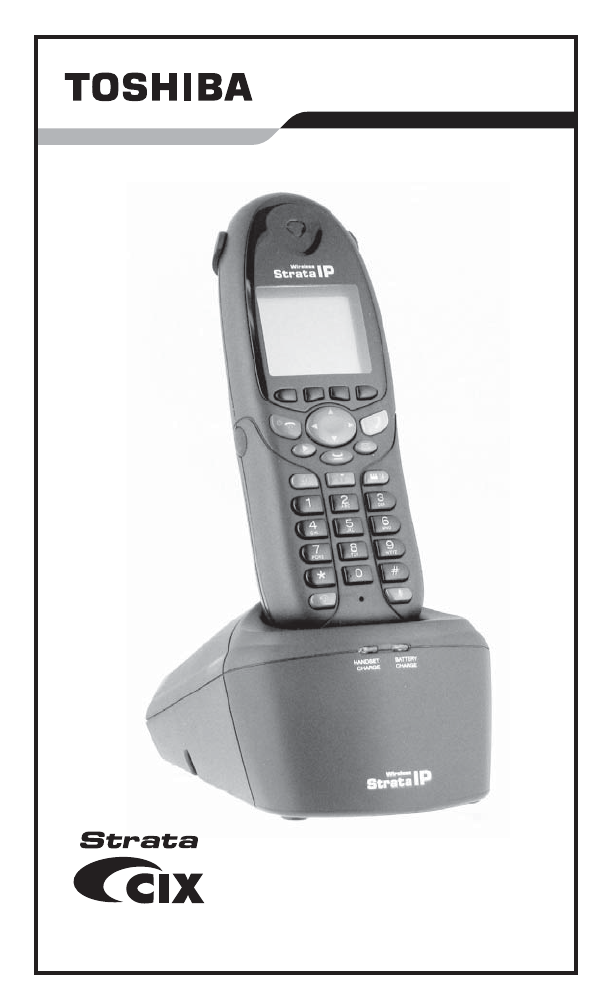
The Full-Featured IP Telephone Solution
Strata Wireless IP Telephone
Quick Reference Guide
CIX-QR-WIPT2000.book Page 0 Tuesday, September 14, 2004 5:20 PM

Draft - Wireless IPT Quick Reference Guide 10/04
© Copyright 2004
Toshiba America Information Systems, Inc.
Digital Solutions Division
All rights reserved. No part of this manual, covered by the copyrights hereon, may
be reproduced in any form or by any means—graphic, electronic, or mechanical,
including recording, taping, photocopying, or information retrieval systems—
without express written permission of the publisher of this material.
Strata is a registered trademark of Toshiba Corporation.
Trademarks, registered trademarks, and service marks are the property of their
respective owners.
Safety and Compliance Instructions
Review the Safety and Compliance Instructions sheet found in your Wireless IP
Telephone box and all the other product safety instructions that are included on the
product.
Publication Information
Toshiba America Information Systems, Inc., Digital Solutions Division, reserves the
right, without prior notice, to revise this information publication for any reason,
including, but not limited to, utilization of new advances in the state of technical arts
or to simply change the design of this document.
Further, Toshiba America Information Systems, Inc., Digital Solutions Division,
also reserves the right, without prior notice, to make such changes in equipment
design or components as engineering or manufacturing methods may warrant.
CIX-QR-WIPT2-VA - Draft 3
Version A, October 2004
Printed in China
CIX-QR-WIPT2000.book Page 1 Tuesday, September 14, 2004 5:20 PM

Draft - Wireless IPT Quick Reference Guide 10/04 i
Contents
Introduction....................................................................1
Packaging List................................................................1
Battery Charging............................................................2
Spare Battery Pack.........................................................3
Belt Clip.........................................................................3
Headset (Optional).........................................................4
Strata Wireless IP Telephone.........................................4
Setup for New Users......................................................5
Vibrate Mode.................................................................5
What’s My Line? ...........................................................6
Which Outgoing/Incoming Call Features Do I Have?...6
Which Codes Do I Use?.................................................7
Unlock Telephone..........................................................7
Soft Keys........................................................................7
Flexible Buttons.............................................................8
Making a Call.................................................................9
Answering a Call ..........................................................9
Account Code Calls .......................................................9
Call Transfer ................................................................10
Conference Calls..........................................................10
Hold .............................................................................12
Call Forward - Any Calls.............................................13
Call Park Orbits ...........................................................13
Call Pickup...................................................................14
Echo Cancel.................................................................14
Paging ..........................................................................14
Redial...........................................................................15
Speed Dial....................................................................15
One Touch Buttons......................................................15
Voice Mail Call Monitor..............................................16
Voice Mail - Direct Transfer .......................................16
Volume Control ...........................................................16
LCD Features...............................................................17
CIX-QR-WIPT2000.book Page i Tuesday, September 14, 2004 5:20 PM
1 Draft - Wireless IPT Quick Reference Guide 10/04
Introduction
This quick reference guide applies to Toshiba Strata Wireless IP
Telephone (WIPT) connected to a Strata CIX/CTX system. The
WIPT handset supports 11 fixed buttons, four LCD Control
Buttons/Soft Keys and 10 Flexible buttons (Programmable
buttons).
This telephone has 160 x 100 pixel Graphic LCD Display which
supports Toshiba’s two-line by 24-character and 10 Flexible
Buttons display. The LCD also includes a Local Status bar update.
See “Strata Wireless IP Telephone” on page 4.
Important! Your handset may not have all of the features
mentioned in this manual. See your Strata CIX/CTX
System Administrator for more information. Use the
check boxes or blank lines to enter the variable
selections for your telephone.
Packaging List
Your Toshiba WIPT package includes the following:
CAUTION
Do not use cleansers that contain benzene, paint
thinner, alcohol or other solvents on the telephone
charger’s rubber feet. The color of the rubber may
transfer to the desk or mounting surface.
WIPT2000 Strata Wireless IP Handset
WIPT2000A-BTT Battery pack
WIPT2000A-CHG Charger for handset and spare battery pack
WIPT2000A-CLP Belt clip
WIPT2000A-ACA-A AC adapter for the Charger (North America)
WIPT2000A-CVR Battery cover plate
CIX-QR-WIPT2-VA Quick reference guide (QRG)
CIX-SC-WIPT2-VA Safety and Compliance Instruction Sheet
CIX-QR-WIPT2000.book Page 1 Tuesday, September 14, 2004 5:20 PM
Draft - Wireless IPT Quick Reference Guide 10/04 2
Battery Charging
Important! You must charge the battery continuously for five
hours before using the telephone for the first time.
³To charge the Battery
1. Remove the battery cover on the back of the handset by
pressing the latch and sliding the cover down and off the
handset.
2. Slide the battery pack into the handset.
3. Securely close the battery compartment cover by sliding it up
until it snaps into place.
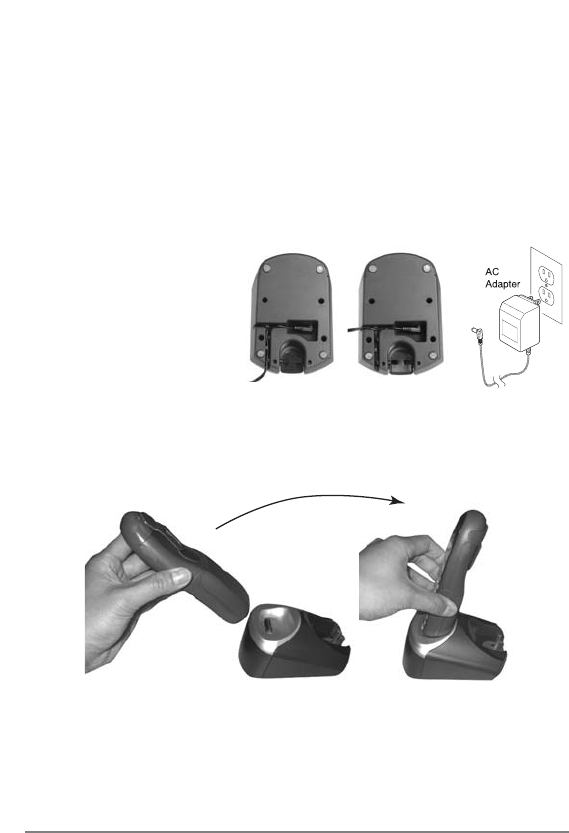
4. Plug the AC
adapter cord into
the input jack on
the charging unit
(shown right).
You can wire the
AC adapter cord
either to the rear (figure a) or to the left side (figure b).
5. Plug the AC adapter into a standard 120VAC wall outlet.
6. Place the handset in the charging unit (shown below).
7. Ensure that the HANDSET CHARGE LED lights steady Red.
If it does not, make sure that the AC adapter is plugged in and
that the handset is making good contact with the charging unit
contacts.
7623
ab
7622
CIX-QR-WIPT2000.book Page 2 Tuesday, September 14, 2004 5:20 PM
3 Draft - Wireless IPT Quick Reference Guide 10/04
Note You can place the handset in the charging unit with or
without the belt clip attached.
CAUTION
Use only the supplied AC adapter.
Refer to Packaging List on page 1 for the proper type.
CAUTION
Always route the power cord where it is not a trip
hazard, and where it cannot become chafed and
create a fire or electrical hazard.
Spare Battery Pack
You can purchase an additional battery pack from Toshiba. The
charging unit is equipped to charge the spare battery pack with or
without the telephone in the back slot.
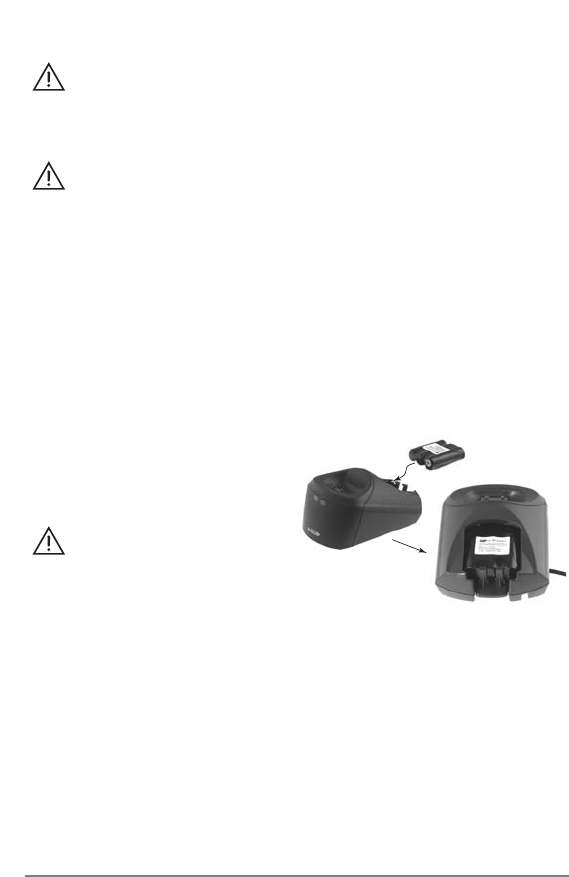
³ Place the additional battery
Place the additional battery
pack in the back slot of the
CAUTION
Use only the
rechargeable battery
type listed in the
Packaging List on Page 1.
Belt Clip
Use the belt clip to attach the handset to your belt or pocket.
Note The belt clip is designed to fit snugly onto the handset.
1. On the back of the handset, snap the belt clip clasps onto the
holes on either side of the handset. (See “Strata Wireless IP
Telephone” on page 4.
2. Press firmly until it snaps into place.
7624
CIX-QR-WIPT2000.book Page 3 Tuesday, September 14, 2004 5:20 PM
Charging unit (shown right).
To charge the Spare Battery Pack
Draft - Wireless IPT Quick Reference Guide 10/04 4
Headset (Optional)
With the headset installed, you can use the belt clip to carry
the telephone and conduct a hands-free conversation.
³Open the cover over the headset jack that is located on the right side
of the telephone and plug in the headset.
Important! Only use headsets especially designed or modified
for use with radio frequency equipment.
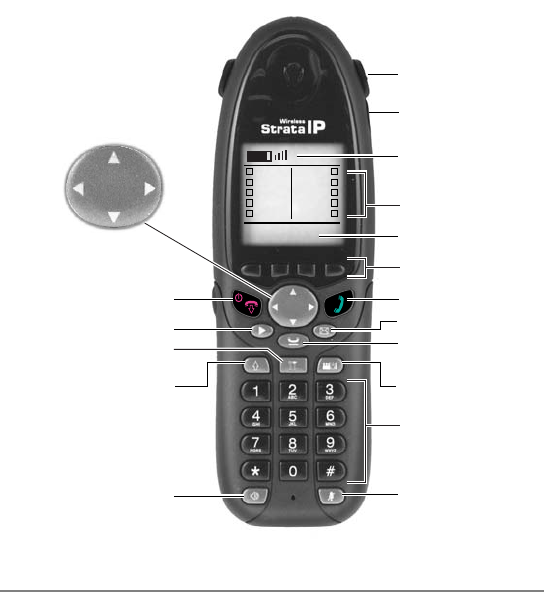
Strata Wireless IP Telephone
Learn your Strata Wireless IP Telephone (WIPT)
Strata Wireless IP Telephone
2 x 24 Display
Battery & Wireless Signal
Indicators
Soft Keys
SK1 SK2 SK3 SK4
Dial Pad
Off Hook
Power On/Off &
On Hook
Flexible Button Access (FBA)
Set up
Speed Dial/Redial
(shift)
Speaker
Flexible Buttons Display
UP
Down
Message
Hold
Conference Tranfer
Mute
7621
Belt Clip
Headset Jack
5
4
3
2
1
0
9
8
7
6
CIX-QR-WIPT2000.book Page 4 Tuesday, September 14, 2004 5:20 PM

5 Draft - Wireless IPT Quick Reference Guide 10/04
Setup for New Users
Important! Ask your System Administrator if your WIPT has
been setup and ready to use. If the telephone is not
setup, then you will require the following
information – SSID, DHCP, Telephone IP address,
subnet mask, router address, Station ID, and the
IP Address for the BIPU.
³To View your Wireless IP Setup
1. Press Setup button. The Local Setup screen displays.
2. Use the S and T arrows to go through the different screens
or press End (On Hook).
Note The following screens display when using the Up/Down
arrows:
•SSID screen
•Boot option DHCP screen – To edit this screen press the Edit
soft key, make the change, then press SK1 (OK soft key).
•IP Settings screen
•Network Information and MAC Address screen
•LCD Contrast – You can adjust the contrast on your screen
using SK2 and SK3
•Flexible Button Label Editor screen – You can change the
labels of the flexible buttons on your screen. See “To Label
Flexible Buttons” on page 8.
Vibrate Mode
³To enable, press Mute and S arrow.
³To disable, press Mute and T arrow.
CIX-QR-WIPT2000.book Page 5 Tuesday, September 14, 2004 5:20 PM

Draft - Wireless IPT Quick Reference Guide 10/04 6
What’s My Line?
Throughout this guide, the word “line” is mentioned. Check mark
which Line type you have. For example, you will be instructed to
“select a line.” “Line” can be:
pLine button
pPooled Line Group
pGroup Line button
pLine out requiring an access code – where you enter an outside line or
line group access code (e.g., dial 9).
Which Outgoing/Incoming Call
Features Do I Have?
Check mark here which outgoing/incoming feature you have on
your system. Then go through the rest of this guide and check mark
that feature where it’s noted.
pAutomatic Line Selection (ALS): For outgoing calls: You
have ALS if you hear dial tone and the Line LED lights steady
green when you press Off-hook or press Spkr.
pRinging Line Preference: You answer an incoming Line
ringing your station by pressing Off-hook or Spkr.
pTone Signaling: Internal/External incoming call: you hear
successive ring tones, then press Off-hook or Spkr.
pVoice First Signaling: Internal incoming call: your phone does
not ring; instead you hear a long tone, then the caller’s voice.
Talk in the direction of your phone, or answer the call as you
normally would by pressing Off-hook or Spkr.
Note You can change between Tone and Voice Signaling on a
call-by-call basis by pressing 1 after dialing an internal
telephone number.
pHot Dialing: If your telephone is programmed for “hot
dialing,” you do not have to press Spkr or go Off-hook before
dialing internal or external calls. When you dial a number, the
speakerphone automatically turns on and the Spkr lights up.
CIX-QR-WIPT2000.book Page 6 Tuesday, September 14, 2004 5:20 PM
7 Draft - Wireless IPT Quick Reference Guide 10/04
Which Codes Do I Use?
Default feature codes are listed in this guide. Check with your
System Administrator to see if these codes have been changed. If
so, write the new codes in the blank lines and cross out the default
codes. For example:
Cnf/Trn + #46 or .
Unlock Telephone
The telephone will auto lock in a preset time.
³To Unlock
1. Hold down the setup button for two seconds.
2. Enter your password, then press #.
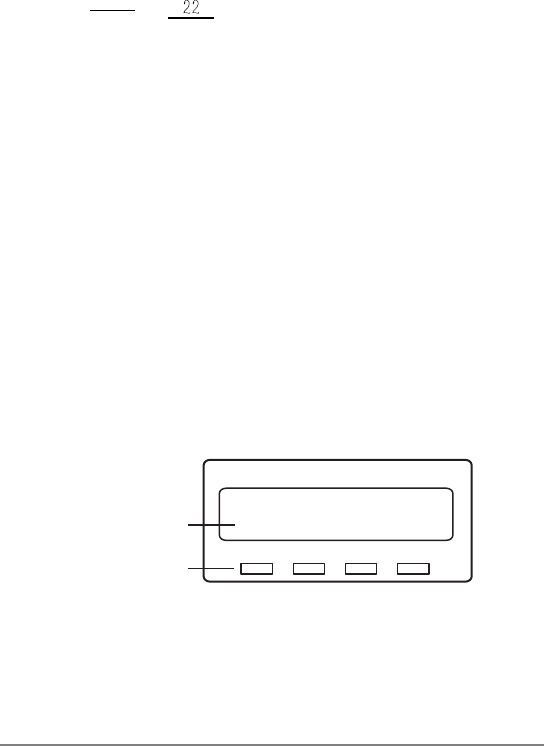
Soft Keys
When Soft Key prompts appear on the LCD, the LCD Control
Button just below the prompt offers access to that feature. In this
document we refer to Soft Key/LCD Control Buttons as SK1~SK4,
starting from Left to Right. Here’s an example of how Soft Keys
work.
When an outside call is in progress, the LCD appears as shown
below.
ABR = Automatic Busy Redial
CONF = Conference
PAG E = Paging
Press SK2 to select CONF, then the display changes.
6060
ABR CONF PGE
00:01:01
SK1 SK2 SK3 SK4
LCD Control
Buttons/Soft Keys
Soft Key
Prompts
CIX-QR-WIPT2000.book Page 7 Tuesday, September 14, 2004 5:20 PM

Draft - Wireless IPT Quick Reference Guide 10/04 8
Flexible Buttons
There are 10 Flexible Buttons on your telephone. These buttons are
virtual buttons located on your telephone display that can be used to
store System features.
³To Access your Flexible Buttons
1. Press Flexible Button Access (FBA).
2. Use the dial pad to press any number associated with a
Flexible Button feature.
Important!
•Contact your System Administrator to find out the default
features assigned to the Flexible Buttons on your telephone.
•You cannot program your telephone flexible buttons features,
however, you can label the Flexible buttons using your
Telephone.
³To Label Flexible Buttons
1. Press the Setup button. The Local Setup screen displays.
2. Use the T arrow untill the “Flexible Label Editor” screen
displays.
This screen displays the soft key labels.
3. Press SK2 or SK3 to move up or down to select a key.
4. Press SK1 to Edit.
5. Change the label. You can use the soft keys to Backspace,
Clear and switch to lower and upper case.
6. Press SK1 to OK.
CIX-QR-WIPT2000.book Page 8 Tuesday, September 14, 2004 5:20 PM

9 Draft - Wireless IPT Quick Reference Guide 10/04
Making a Call
1. To make a call, press Speaker or Off Hook.
2. Dial the number. The display indicates that it is calling. When
connected, you can talk.
...or
³Press FBA, then press the associated Flexible button number.
Answering a Call
³Press either Spkr or Off-hook or FAB and the PDN.
Account Code Calls
³To dial with a Forced Account Code (FAC)
1. Place a call in the normal method.
2. After the tone burst, enter the Account Code.
If the code is invalid, you hear re-order tone and the call is
rejected.
³To use an Emergency Override of an FAC
You can bypass Forced Account Code requirements with
three emergency numbers, including 911. See your System
Administrator for these numbers: ____________
³To dial with Voluntary Account Codes
1. After accessing a CO line, press Account Code
...or Cnf/Trn + #46 ________.
You can enter it at any time during a call.
2. Enter the Account Code.
You should hear confirmation tone if the code is valid or two
short tones if it is invalid.
3. Dial a telephone number if you entered the code after
accessing an outside line or resume talking or hang up if you
entered the code after the call.
CIX-QR-WIPT2000.book Page 9 Tuesday, September 14, 2004 5:20 PM

Draft - Wireless IPT Quick Reference Guide 10/04 10
Call Transfer
1. While on a call, press Cnf/Trn.
2. Dial the extension and announce the call or “blind transfer”
(hang up).
During call transfer, you can reconnect to the original caller
by pressing question what???.
3. Camp on to a busy station: If the station is busy, hang up.
The called station receives a tone. Once the busy line (why
was this underlined) is free, the transferred line is called back.
Conference Calls
1. While on a call, press Cnf/Trn.
2. Call another station or outside line.
3. When the called party answers, press Cnf/Trn. If it’s busy or
there’s no answer, press Cnf/Trn again to return to the
original connection. All parties are conferenced.
4. Repeat the above steps to add more lines. You can conference
up to eight parties.
Note When the person who initiates the conference (master)
hangs up, control transfers to the first internal station added
to the conference. If no internal stations are in the
conference, the call disconnects.
³To transfer conference control
1. Do steps 1 and 2 above to add the line to which you wish to
transfer conference control.
2. Announce the call and hang up to transfer the call. This
station is now the conference “master” with the ability to add
or delete parties.
³To hold a conference call
³If you are the “master” conference controller, press Hold once (or
twice for Executive Hold) to place the conference call on hold.
CIX-QR-WIPT2000.book Page 10 Tuesday, September 14, 2004 5:20 PM

11 Draft - Wireless IPT Quick Reference Guide 10/04
The conference continues and you can join at any time
without giving up “master” abilities. Music-on-hold is
suppressed in this mode.
³To delete the last member added to a conference
³While a call is in progress, press the Cancel button.
³To conference two outside Lines
1. While talking on an outside call, press Cnf/Trn.
2. Access an outside line.
3. After the party answers, press Cnf/Trn.
4. If you receive a busy tone or if the station does not answer,
press the flashing button to return to the original call.
5. Press Cnf/Trn and hang-up.
Note Most phone companies provide auto disconnect, but if it is
not provided, the lines must be supervised to disconnect.
6. To supervise a tandem call, press the extension button. If the
parties have finished, hang up or if the parties are still talking,
press Cnf/Trn and hang-up.
CIX-QR-WIPT2000.book Page 11 Tuesday, September 14, 2004 5:20 PM

Draft - Wireless IPT Quick Reference Guide 10/04 12
Hold
1. To place a call on Hold, press the Hold button.
2. To return to the held call, press FBA and the held line’s
button.
If you do not return to the held call, it rings back to your
phone. If you are busy on another call, you hear two tone
bursts. If the held party hangs up, the call is released.
3. If you have additional lines at your station to hold, repeat
Step 1 above.
³To place a call on Exclusive Hold
³While on a call, press Hold twice. (No one can accidently pick up
your call.)
³To place a call on Automatic Hold
³While on a call, press another extension button to receive/originate a
new call. You can switch between calls without having to press
Hold. Is this statement true???
Make sure this feature is programmed on your system; if not,
existing calls will drop.
³To place a call on Consultation Hold
If you have multiple extensions on your phone, you can hold
a different call on each extension.
³Press Cnf/Trn.
CIX-QR-WIPT2000.book Page 12 Tuesday, September 14, 2004 5:20 PM

13 Draft - Wireless IPT Quick Reference Guide 10/04
Call Forward - Any Calls
³To perform each Call Forward for any call – Internal/
External
³Enter the button sequence below
All Calls: Press Off Hook + #6011 (Tone) + Destination No./
Extension + # (Tone)
Busy: Press Off Hook + #6021 (Tone) + Dest. No./Extension + #
(Tone)
No Answer: Press Off Hook + #6031 (Tone) + Dest. No./
Extension + # (Tone) + Timer (seconds, 2-digits) + #
Busy No Answer: Press Off Hook + #6041 + Dest. No. + # +
Timer (seconds, 2-digits) + #
Cancel: Press Off Hook + #6051 (Tone)
Call Park Orbits
³To park a call
1. While on a call, press Park in Orbit flexible button
...or Cnf/Trn + #33 or ________ .
2. Specify the Park Orbit using one of the following:
•Press * and the system automatically selects a General Park
Orbit between 7000~7019. The chosen orbit appears on the
LCD.
•Enter a valid extension.
•Press # and the system automatically selects your extension
as the orbit.
3. Hang up. If the parked call is not retrieved, the call rings back
to your phone.
³To retrieve a parked call
1. Press Park in Orbit flexible button
...or press Off Hook button + #32 or ________ .
2. Enter the Orbit Number where the call is parked.
CIX-QR-WIPT2000.book Page 13 Tuesday, September 14, 2004 5:20 PM

Draft - Wireless IPT Quick Reference Guide 10/04 14
Call Pickup
1. Press the Off Hook button.
2. Enter a code from the following list:
Group Pickup: #5#34 or ________
Directed Terminal Pickup: #5#5 or ________
Other (see System Administrator):_________
3. Dial the extension that is holding the ringing or held call to be
picked up.
Echo Cancel
³If you experience echo while conversing on your IP telephone, tap
Vol V or W once to cancel the echo sound.
Paging
³To make a page announcement to a phone or external
speakers
1. Press the Off Hook button, and enter:
#30 or ________ (all groups)
..or #31 or ________ + _____ the Group page access code.
See “Vibrate Mode” for more paging codes.
2. Make your announcement, then press the On-hook button.
³To make an All Call Page
1. With the handset off-hook, press All Call Page flexible
button
...or extension + #30. This pages all phones in the All Call
Page Group, and may page external speakers (depends on
programming).
2. Make your announcement then hang up.
CIX-QR-WIPT2000.book Page 14 Tuesday, September 14, 2004 5:20 PM

15 Draft - Wireless IPT Quick Reference Guide 10/04
Redial
Use this button to redial the last number dialed from your phone.
³To redial the last number, press Redial or *0.
Speed Dial
³To store a Station Speed Dial Number
We suggest storing Speed Dial numbers on a One Touch
button; use Speed Dial Codes to store more numbers.
³Dial #66 + nnn + Phone No. + #
nnn = 100~199 SD bin numbers
³To clear a number from a Station Speed Dial code
³How do we do this ???
³To make a call using Speed Dial
³Press Spdial. Then dial the Station Speed Dial Number.
One Touch Buttons
This feature is useful for storing frequently dialed numbers.
³To change a One Touch Button
1. Press #9876 to enter User Programming Mode.
2. Press the One Touch button to set.
3. Enter the digits or special buttons to be stored.
4. Press the One Touch button to save the entry.
If these steps do not work, you may have to create a One
Touch button (see “Vibrate Mode” ).
³To Use a One Touch Button, just press it.
CIX-QR-WIPT2000.book Page 15 Tuesday, September 14, 2004 5:20 PM

Draft - Wireless IPT Quick Reference Guide 10/04 16
Voice Mail Call Monitor
³To enable and disable Voice Mail Call Monitor
1. Press Call Monitor button.
2. Enter your voice mail password, then press #.
³To cancel Call Monitor
³Press Call Monitor button.
³To monitor a call using Call Monitor
1. The flashing Call Monitor button indicates that a message is
being recorded in voice mail.
2. To listen, press the Call Monitor button.
3. To talk to the caller, press the Call Monitor button again.
Voice Mail - Direct Transfer
1. While on a call, press Cnf/Trn.
2. Press #407 ____.
3. Enter the voice mailbox number (may be the same as the
extension number), then press #.
4. Hang up (the caller is connected to the voice mailbox) or
press Cnf/Trn to return to the calling party.
Volume Control
³To adjust handset volume
³During a call, press down Vol V or W. When you hang up, volume
returns to default.
³To adjust the speaker volume for internal/external calls and
background music
³Press Spkr. Select a line and press Vol V or W.
CIX-QR-WIPT2000.book Page 16 Tuesday, September 14, 2004 5:20 PM

17 Draft - Wireless IPT Quick Reference Guide 10/04
³To adjust Ring Tone, Handsfree Answerback and Speaker
Off-hook Call Announce
³With an idle phone and handset on-hook, press Vol V or W. When
you hang up, volume returns to default.
LCD Features
³To use Speed Dial or Directory Menus
1. Press the Soft Key next
to the Speed Dial (SD)
or Directory (DIR) to
view the first screen.
2. To view the other
pages, press the soft
keys MORE or
PREVIOUS ...or
LEFT or RIGHT.
3. Select someone from the list by pressing the Soft Key next to
the name.
³To Use Direct Station Selection
1. Press the DIRECT SS
Soft Key to view the
first screen.
2. To view other pages,
press the MORE or
PREVIOUS Soft Keys.
3. To select someone from
the list, press the Soft
Key next to the name.
FRED J NO. 3371
FEB 18 MONDAY 12:00
DIRECT SS
SYSTEM SD
PERSONAL SD
EXTERNAL DIR
INTERNAL DIR
FRED J NO. 3371
MAR 18 MONDAY 01:35
BOB T
DON U
CAROL F FRED M
CUST SERV GRAY W
PREVIOUS MORE
EXIT
CALLING
BOB T NO. 3200
CIX-QR-WIPT2000.book Page 17 Tuesday, September 14, 2004 5:20 PM

Draft - Wireless IPT Quick Reference Guide 10/04 18
CIX-QR-WIPT2000.book Page 18 Tuesday, September 14, 2004 5:20 PM

Toshiba America Information Systems, Inc.,
Digital Solutions Division
© 2004 Toshiba America Information Systems, Inc. Printed in U.S.A.
Digital Solutions Division. Strata is a registered trademark of Toshiba
Corporation. Specifications subject to change without notice. Some
features require optional hardware to support full capabilities.
9740 Irvine Blvd., Irvine, CA 92618-1697
(949) 583-3700 www.telecom.toshiba.com
Toshiba of Canada Limited
Office Products Group
191 McNabb Street, Markham, Ontario L3R 8H2, Canada
(905) 470-3500 www.toshiba.ca
CIX-QR-WIPT2000.book Page 19 Tuesday, September 14, 2004 5:20 PM
China