Ascalade Technologies FH24R16 2.4 GHz FHSS Conference Phone User Manual C004 OM R1 0 Olympia US

Ascalade Technologies, Inc. 2.4 GHz FHSS Conference Phone C004 OM R1 0 Olympia US

users manual

      1      Owner’s Manual (DRAFT)  OLYMPIA OL6010  2.4 GHz WDCT Conference Telephone                      TABLE OF CONTENTS IMPORTANT SAFETY INFORMATION GETTING STARTED Checklist of Parts Your Conference Telephone POD Base LCD Display on the POD Phone Key Basic Steps to Install Charging the POD To Ensure Better Performance BASIC OPERATIONS During Standby Answering Calls Making Calls Traditional Dialing Making Calls Predialing Redialing Use Traditional Dialing Use Predialing Phonebook Dialing Use Traditional Dialing Use Predialing Services Dialing Service Centre Quick Access Things you can do during a call Adjust Speaker Volume Mute Call Things you can do during a call Change Dial Tone Send Flash Signal Dialing Extra Digits Things you can do during a call Dialing from Phonebook Record Things you can do during a call Displaying User Phone Number Ringer Volume Adjusting Ringer Volume
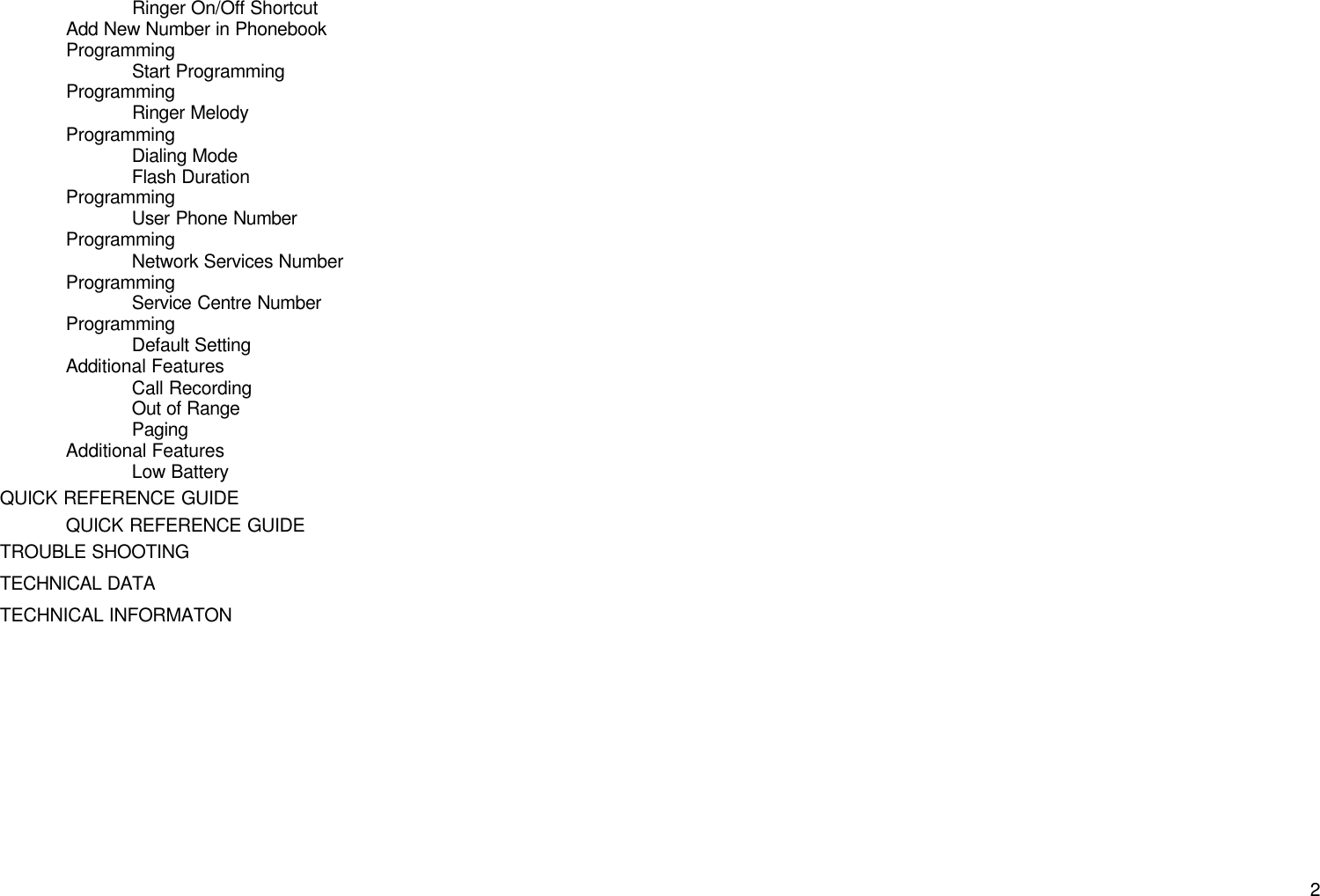
      2Ringer On/Off Shortcut Add New Number in Phonebook Programming Start Programming Programming Ringer Melody Programming Dialing Mode Flash Duration Programming User Phone Number Programming Network Services Number Programming Service Centre Number Programming Default Setting Additional Features Call Recording Out of Range Paging Additional Features Low Battery QUICK REFERENCE GUIDE QUICK REFERENCE GUIDE TROUBLE SHOOTING TECHNICAL DATA TECHNICAL INFORMATON
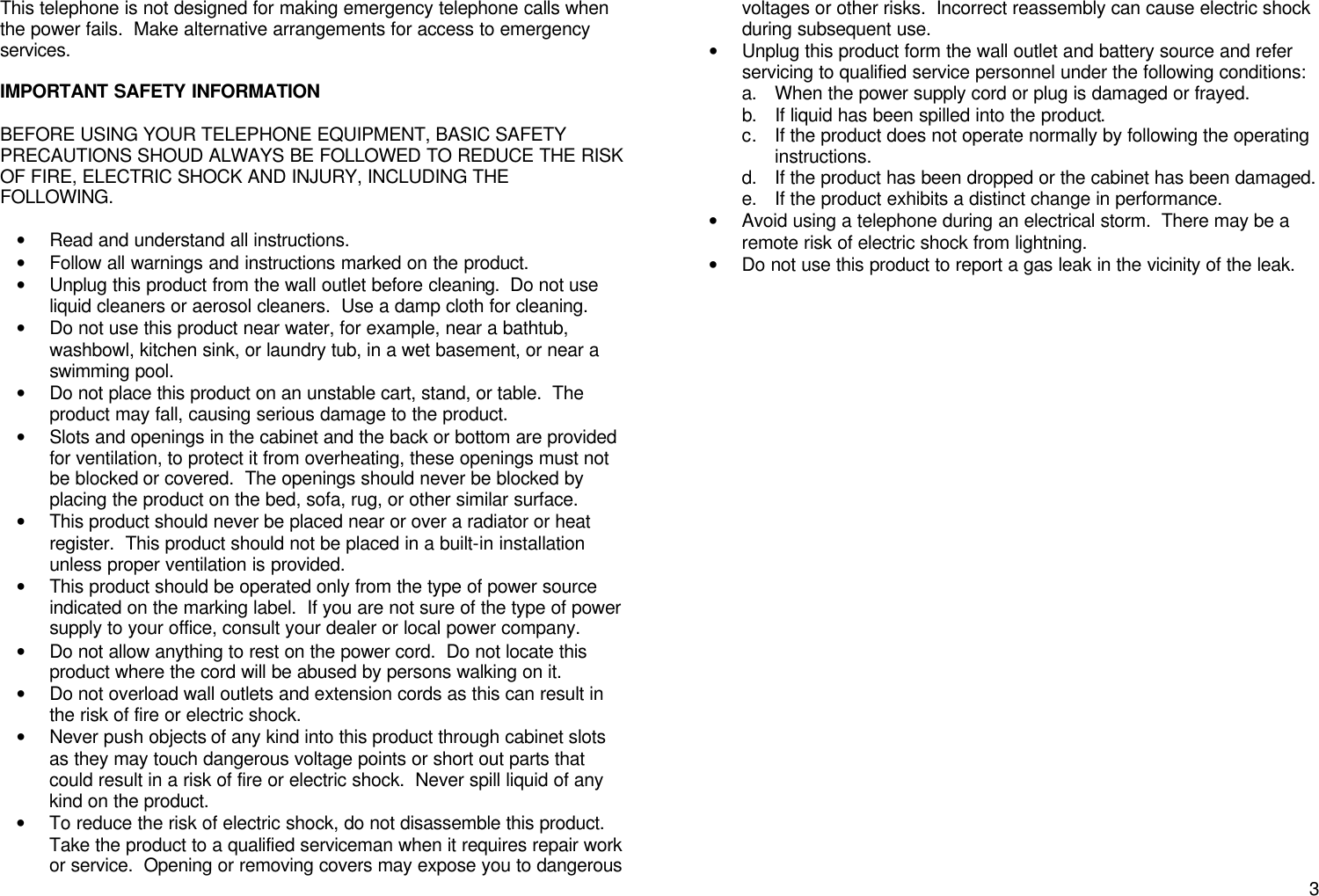
      3This telephone is not designed for making emergency telephone calls when the power fails.  Make alternative arrangements for access to emergency services.  IMPORTANT SAFETY INFORMATION  BEFORE USING YOUR TELEPHONE EQUIPMENT, BASIC SAFETY PRECAUTIONS SHOUD ALWAYS BE FOLLOWED TO REDUCE THE RISK OF FIRE, ELECTRIC SHOCK AND INJURY, INCLUDING THE FOLLOWING.  • Read and understand all instructions. • Follow all warnings and instructions marked on the product. • Unplug this product from the wall outlet before cleaning.  Do not use liquid cleaners or aerosol cleaners.  Use a damp cloth for cleaning. • Do not use this product near water, for example, near a bathtub, washbowl, kitchen sink, or laundry tub, in a wet basement, or near a swimming pool. • Do not place this product on an unstable cart, stand, or table.  The product may fall, causing serious damage to the product. • Slots and openings in the cabinet and the back or bottom are provided for ventilation, to protect it from overheating, these openings must not be blocked or covered.  The openings should never be blocked by placing the product on the bed, sofa, rug, or other similar surface. • This product should never be placed near or over a radiator or heat register.  This product should not be placed in a built-in installation unless proper ventilation is provided. • This product should be operated only from the type of power source indicated on the marking label.  If you are not sure of the type of power supply to your office, consult your dealer or local power company. • Do not allow anything to rest on the power cord.  Do not locate this product where the cord will be abused by persons walking on it. • Do not overload wall outlets and extension cords as this can result in the risk of fire or electric shock. • Never push objects of any kind into this product through cabinet slots as they may touch dangerous voltage points or short out parts that could result in a risk of fire or electric shock.  Never spill liquid of any kind on the product. • To reduce the risk of electric shock, do not disassemble this product.  Take the product to a qualified serviceman when it requires repair work or service.  Opening or removing covers may expose you to dangerous voltages or other risks.  Incorrect reassembly can cause electric shock during subsequent use. • Unplug this product form the wall outlet and battery source and refer servicing to qualified service personnel under the following conditions: a. When the power supply cord or plug is damaged or frayed. b. If liquid has been spilled into the product. c. If the product does not operate normally by following the operating instructions.   d. If the product has been dropped or the cabinet has been damaged. e. If the product exhibits a distinct change in performance. • Avoid using a telephone during an electrical storm.  There may be a remote risk of electric shock from lightning. • Do not use this product to report a gas leak in the vicinity of the leak.
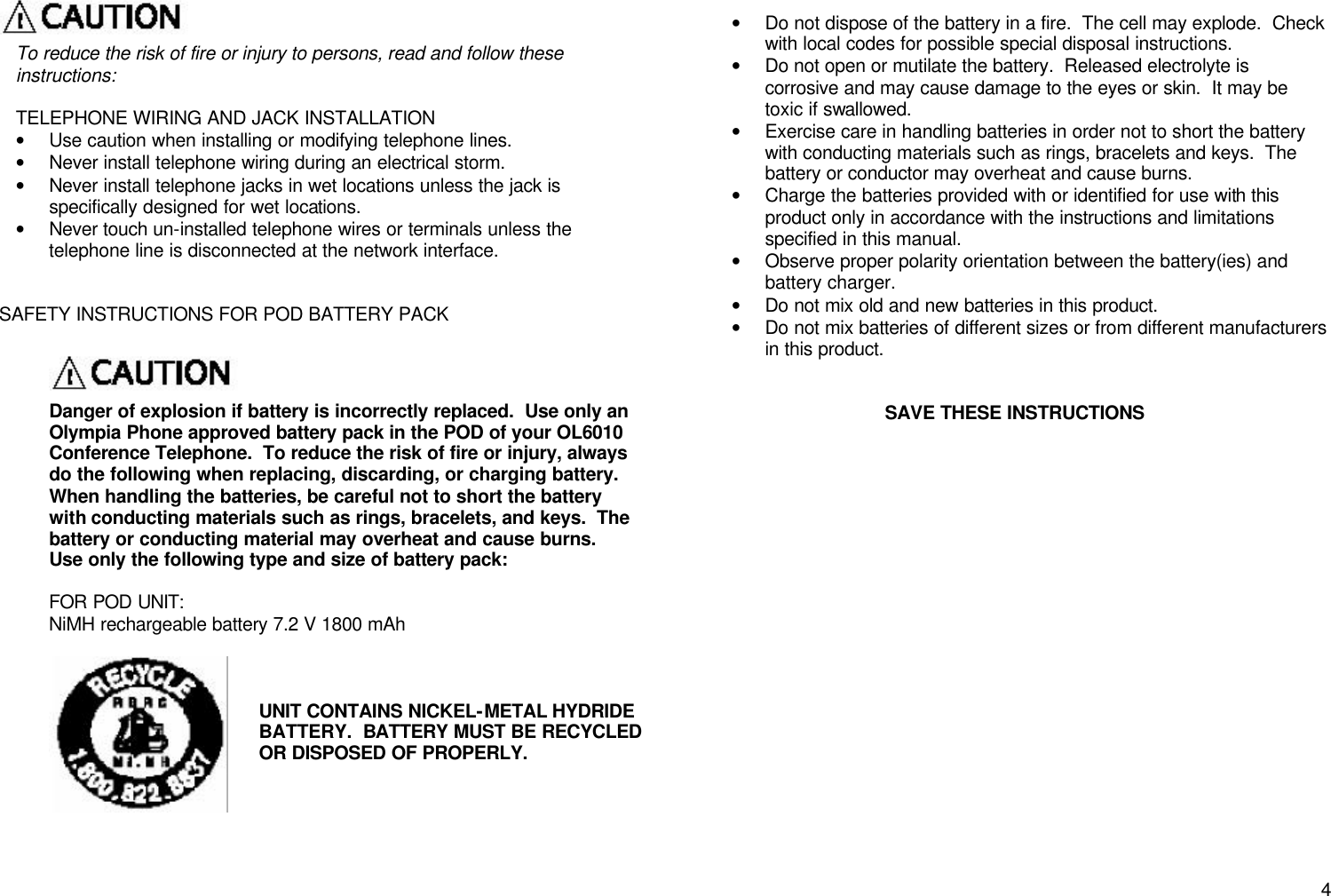
      4 To reduce the risk of fire or injury to persons, read and follow these instructions:  TELEPHONE WIRING AND JACK INSTALLATION • Use caution when installing or modifying telephone lines. • Never install telephone wiring during an electrical storm. • Never install telephone jacks in wet locations unless the jack is specifically designed for wet locations. • Never touch un-installed telephone wires or terminals unless the telephone line is disconnected at the network interface.     SAFETY INSTRUCTIONS FOR POD BATTERY PACK   Danger of explosion if battery is incorrectly replaced.  Use only an Olympia Phone approved battery pack in the POD of your OL6010 Conference Telephone.  To reduce the risk of fire or injury, always do the following when replacing, discarding, or charging battery.  When handling the batteries, be careful not to short the battery with conducting materials such as rings, bracelets, and keys.  The battery or conducting material may overheat and cause burns.  Use only the following type and size of battery pack:  FOR POD UNIT: NiMH rechargeable battery 7.2 V 1800 mAh        • Do not dispose of the battery in a fire.  The cell may explode.  Check with local codes for possible special disposal instructions. • Do not open or mutilate the battery.  Released electrolyte is corrosive and may cause damage to the eyes or skin.  It may be toxic if swallowed. • Exercise care in handling batteries in order not to short the battery with conducting materials such as rings, bracelets and keys.  The battery or conductor may overheat and cause burns. • Charge the batteries provided with or identified for use with this product only in accordance with the instructions and limitations specified in this manual.   • Observe proper polarity orientation between the battery(ies) and battery charger. • Do not mix old and new batteries in this product. • Do not mix batteries of different sizes or from different manufacturers in this product.   SAVE THESE INSTRUCTIONS  UNIT CONTAINS NICKEL-METAL HYDRIDE BATTERY.  BATTERY MUST BE RECYCLED OR DISPOSED OF PROPERLY.
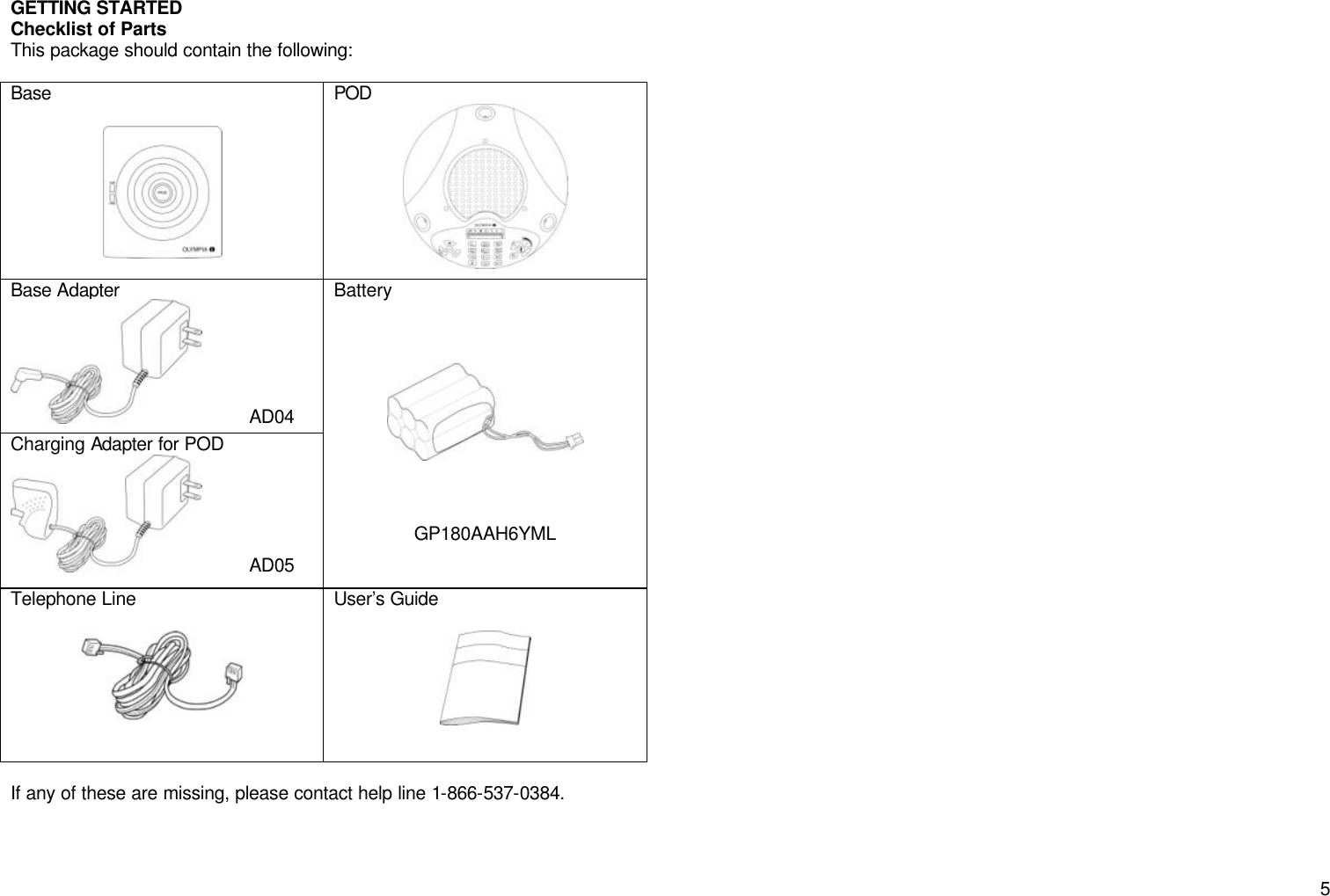
      5GETTING STARTED Checklist of Parts This package should contain the following:  Base    POD  Base Adapter          AD04 Charging Adapter for POD          AD05 Battery        GP180AAH6YML Telephone Line     User’s Guide    If any of these are missing, please contact help line 1-866-537-0384.
      6Your Conference Telephone  POD                                Base                                                                              Redial / Program Press to dial last number dialed.  Press and hold to access programming functions Flash Press to send flash signal during a call Clear / Number During dialing/programming, press to clear previous digit; or press and hold to delete the entire string of numbers.  Press once to exit programming/phonebook/redial review. Press and hold to exit to Standby from programming mode.  Press to display your own phone number when the phone is not in use. Phone Book Press for phonebook dialing during a call.  Press and hold to program phonebook entries and for phonebook dialing  Service Press to access network service directly  Up/Down Press increase/decrease ringer volume.  Press to increase/decrease speaker volume during a call. Phone Press to seize the line or to hang up at the end of a call Mute Press to mute and unmute microphones during a call Page Press to page POD if you want to find the misplaced POD. In Use LED Flashes during incoming call and steadily lit when the phone is in use. Power LED Steadily lit when power is connected to the base.
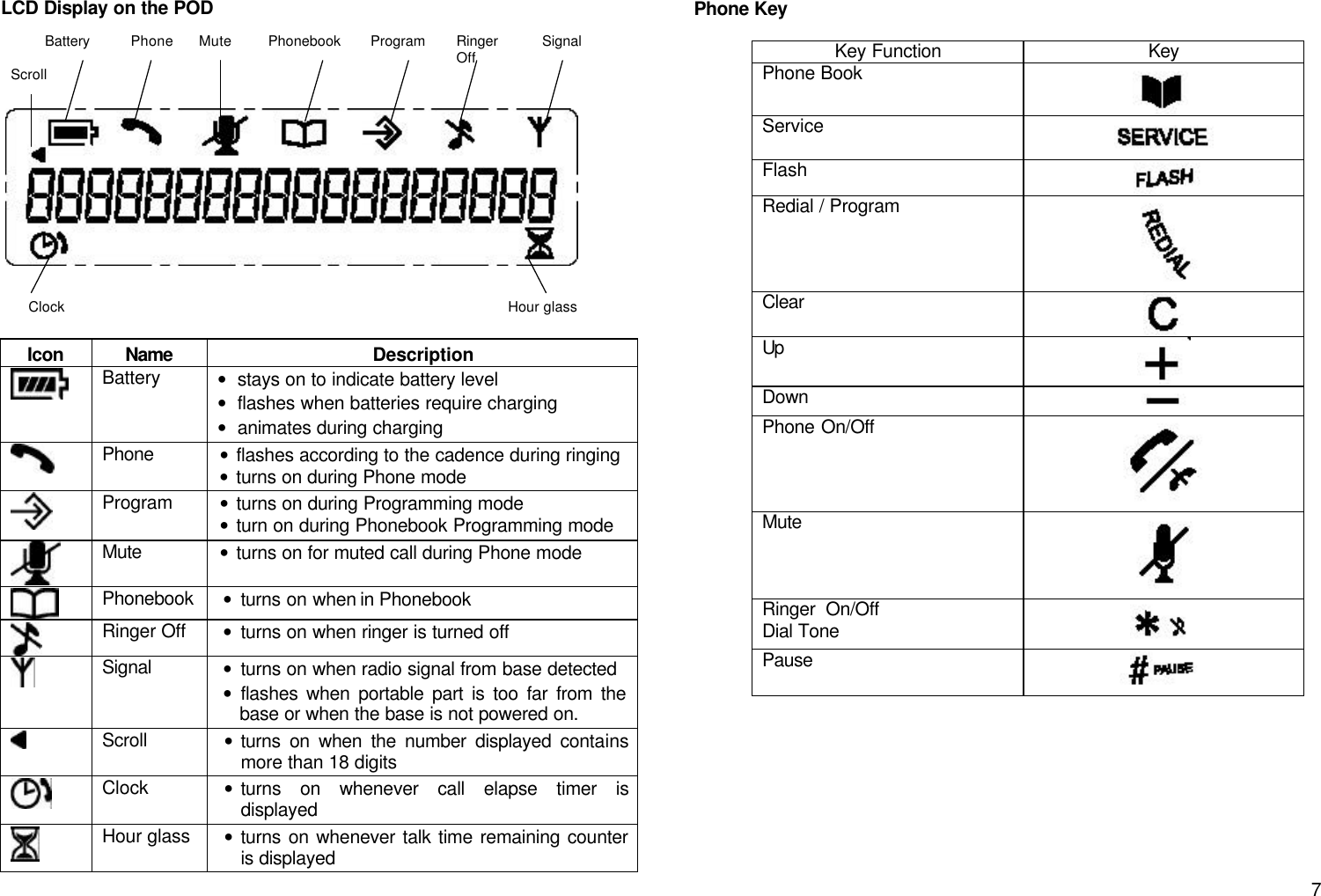
      7LCD Display on the POD             Icon Name Description  Battery • stays on to indicate battery level • flashes when batteries require charging • animates during charging  Phone • flashes according to the cadence during ringing • turns on during Phone mode  Program • turns on during Programming mode • turn on during Phonebook Programming mode  Mute • turns on for muted call during Phone mode  Phonebook • turns on when in Phonebook   Ringer Off • turns on when ringer is turned off  Signal • turns on when radio signal from base detected • flashes when portable part is too far from the base or when the base is not powered on.  Scroll • turns on when the number displayed contains more than 18 digits  Clock • turns on whenever call elapse timer is displayed  Hour glass • turns on whenever talk time remaining counter is displayed Phone Key  Key Function Key Phone Book  Service   Flash  Redial / Program  Clear  Up  Down  Phone On/Off  Mute  Ringer  On/Off                       Dial Tone  Pause          Battery Phone Mute Phonebook Program Ringer Off Signal Clock Hour glass Scroll
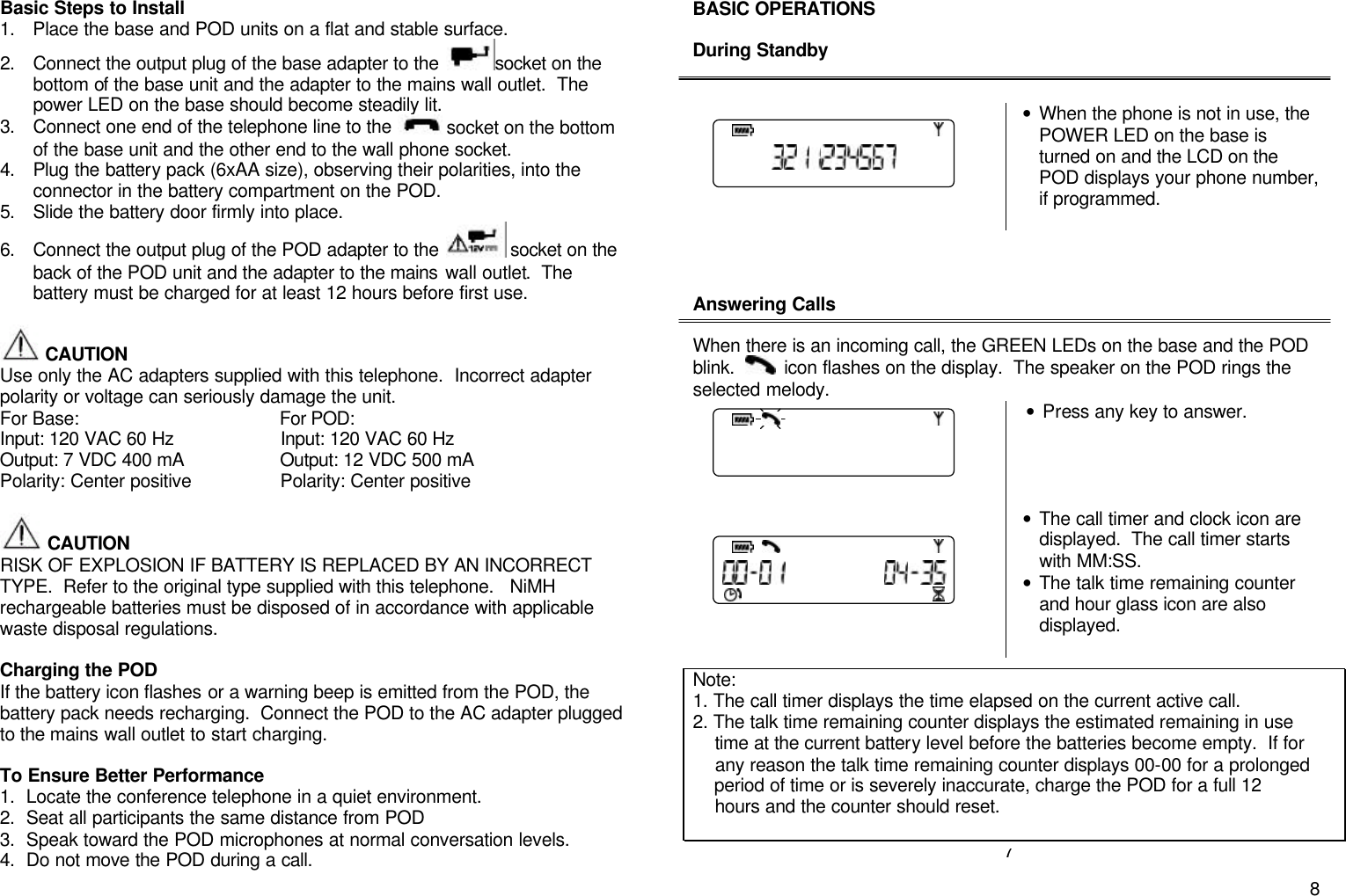
      8Basic Steps to Install 1. Place the base and POD units on a flat and stable surface. 2. Connect the output plug of the base adapter to the  socket on the bottom of the base unit and the adapter to the mains wall outlet.  The power LED on the base should become steadily lit. 3. Connect one end of the telephone line to the  socket on the bottom of the base unit and the other end to the wall phone socket. 4. Plug the battery pack (6xAA size), observing their polarities, into the connector in the battery compartment on the POD. 5. Slide the battery door firmly into place. 6. Connect the output plug of the POD adapter to the   socket on the back of the POD unit and the adapter to the mains wall outlet.  The battery must be charged for at least 12 hours before first use.   CAUTION            Use only the AC adapters supplied with this telephone.  Incorrect adapter polarity or voltage can seriously damage the unit. For Base:                                       For POD: Input: 120 VAC 60 Hz                    Input: 120 VAC 60 Hz Output: 7 VDC 400 mA                  Output: 12 VDC 500 mA Polarity: Center positive      Polarity: Center positive   CAUTION            RISK OF EXPLOSION IF BATTERY IS REPLACED BY AN INCORRECT TYPE.  Refer to the original type supplied with this telephone.   NiMH rechargeable batteries must be disposed of in accordance with applicable waste disposal regulations.  Charging the POD If the battery icon flashes or a warning beep is emitted from the POD, the battery pack needs recharging.  Connect the POD to the AC adapter plugged to the mains wall outlet to start charging.    To Ensure Better Performance 1. Locate the conference telephone in a quiet environment. 2. Seat all participants the same distance from POD 3. Speak toward the POD microphones at normal conversation levels. 4. Do not move the POD during a call. BASIC OPERATIONS  During Standby    • When the phone is not in use, the POWER LED on the base is turned on and the LCD on the POD displays your phone number, if programmed.     Answering Calls  When there is an incoming call, the GREEN LEDs on the base and the POD  blink.     icon flashes on the display.  The speaker on the POD rings the selected melody.    • Press any key to answer.      • The call timer and clock icon are displayed.  The call timer starts with MM:SS.   • The talk time remaining counter and hour glass icon are also displayed.           7 Note:  1. The call timer displays the time elapsed on the current active call. 2. The talk time remaining counter displays the estimated remaining in use      time at the current battery level before the batteries become empty.  If for      any reason the talk time remaining counter displays 00-00 for a prolonged       period of time or is severely inaccurate, charge the POD for a full 12      hours and the counter should reset.
      9Making Calls   You can make a call by  • pressing PHONE key and then dialing phone number; • dialing phone number and then pressing PHONE key;  • redialing the last number you dialed; • dialing the number in phone book.   Traditional Dialing The phone line is seized before the phone number is entered.  The phone number cannot be edited or verified before dialing.   • Press PHONE key.    (The Phone icon turns on and your phone number turns off.)    • Dial the number. Digits are displayed.    (Pressing * and # shall display “” and “ ” respectively.  A pause “P” is displayed by pressing and holding “#”.)   • Call timer and talk time remaining counter icons are displayed a while after the last key press.   • To end the call, press PHONE key.      Making Calls   Predialing The phone number is entered before the phone line is entered.  The phone number can be verified before you place the call.   • Enter the phone number.  Digits are displayed. • Press CLEAR key to clear previous digit during number entry. • Or, press and hold CLEAR key to delete the entire string  (Pressing * and # shall display “” and “ ” respectively.  A pause “P” is displayed by pressing and holding “#”.)   • Press PHONE key to dial the number .  •     icon turns on.   • Call timer and talk time remaining counter are on. • To end the call, press PHONE key.             Note: If more than 18 digits are dialed, only the last 18 digits           shall be displayed.  The Scroll icon shall turn on.            You can enter up to 44 digits otherwise a reject tone will           abort the digit entry.  Note: If more than 18 digits are dialed, only the last 18 digits           shall be displayed.  The Scroll icon shall turn on.          No limit on the number of digits being dialed out.
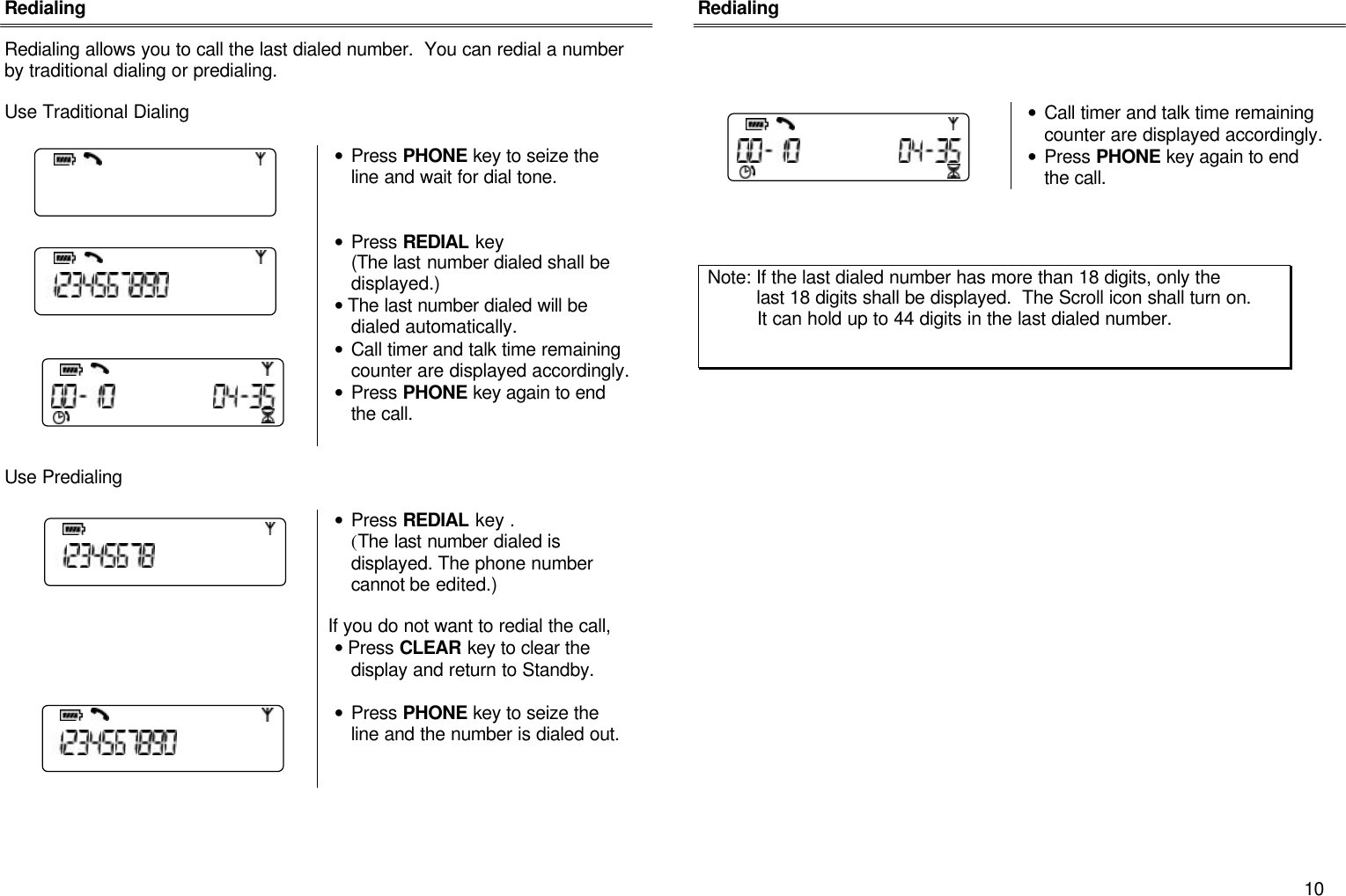
      10 Redialing  Redialing allows you to call the last dialed number.  You can redial a number by traditional dialing or predialing.    Use Traditional Dialing   • Press PHONE key to seize the line and wait for dial tone.        • Press REDIAL key  (The last number dialed shall be displayed.) • The last number dialed will be dialed automatically.  • Call timer and talk time remaining counter are displayed accordingly. • Press PHONE key again to end the call.   Use Predialing   • Press REDIAL key . (The last number dialed is displayed. The phone number cannot be edited.)  If you do not want to redial the call,  • Press CLEAR key to clear the display and return to Standby.   • Press PHONE key to seize the line and the number is dialed out.       Redialing      • Call timer and talk time remaining counter are displayed accordingly. • Press PHONE key again to end the call.      Note: If the last dialed number has more than 18 digits, only the           last 18 digits shall be displayed.  The Scroll icon shall turn on.            It can hold up to 44 digits in the last dialed number.
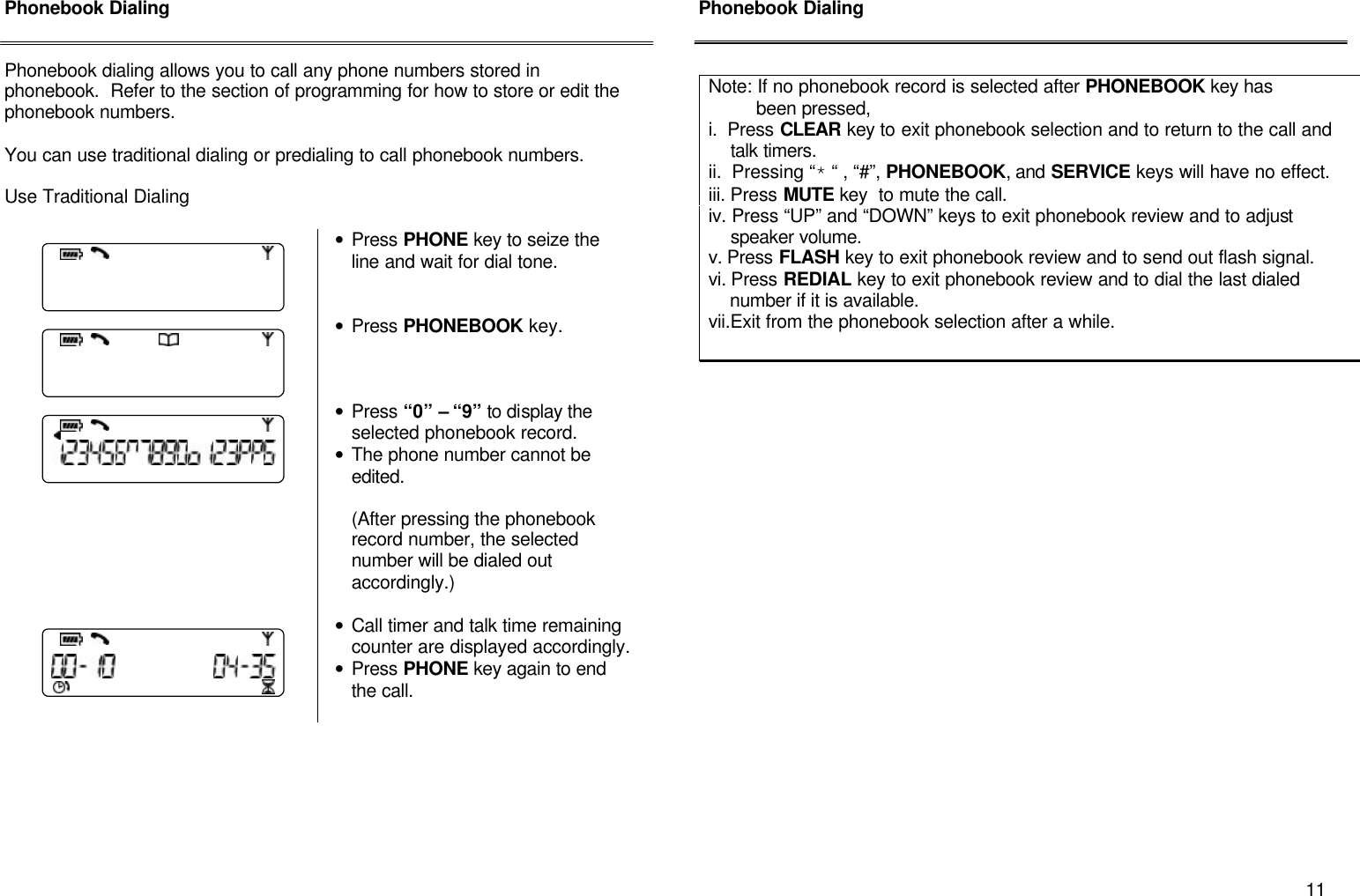
      11 Phonebook Dialing   Phonebook dialing allows you to call any phone numbers stored in phonebook.  Refer to the section of programming for how to store or edit the phonebook numbers.  You can use traditional dialing or predialing to call phonebook numbers.  Use Traditional Dialing      • Press PHONE key to seize the line and wait for dial tone.    • Press PHONEBOOK key.       • Press “0” – “9” to display the selected phonebook record. • The phone number cannot be edited.  (After pressing the phonebook record number, the selected  number will be dialed out accordingly.)   • Call timer and talk time remaining counter are displayed accordingly. • Press PHONE key again to end the call.         Phonebook Dialing                      Note: If no phonebook record is selected after PHONEBOOK key has           been pressed,  i.  Press CLEAR key to exit phonebook selection and to return to the call and       talk timers. ii.  Pressing “* “ , “#”, PHONEBOOK, and SERVICE keys will have no effect. iii. Press MUTE key  to mute the call. iv. Press “UP” and “DOWN” keys to exit phonebook review and to adjust      speaker volume. v. Press FLASH key to exit phonebook review and to send out flash signal. vi. Press REDIAL key to exit phonebook review and to dial the last dialed      number if it is available. vii.Exit from the phonebook selection after a while.
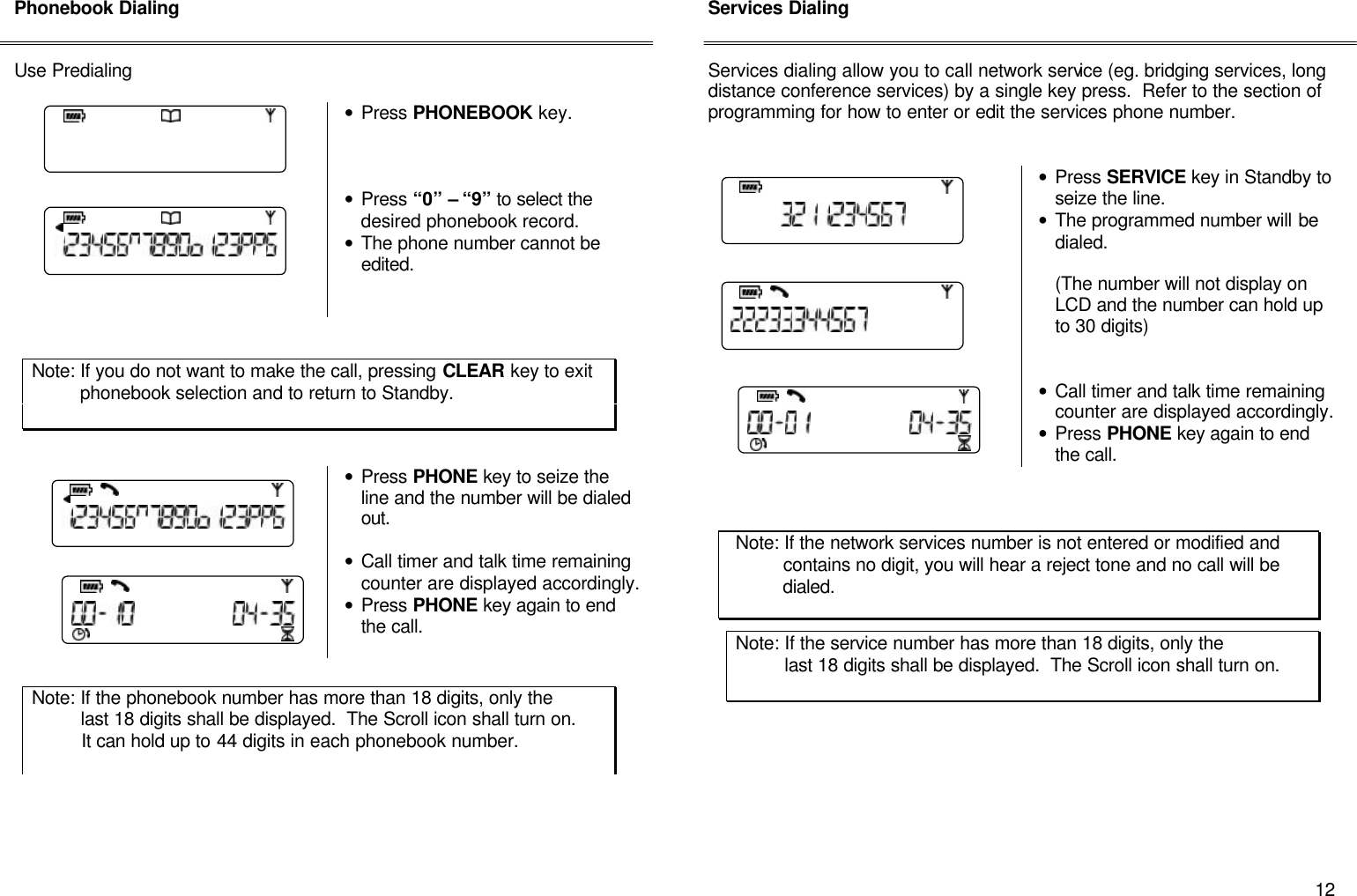
      12 Phonebook Dialing   Use Predialing   • Press PHONEBOOK key.     • Press “0” – “9” to select the desired phonebook record. • The phone number cannot be edited.           • Press PHONE key to seize the line and the number will be dialed out.   • Call timer and talk time remaining counter are displayed accordingly. • Press PHONE key again to end the call.            Services Dialing   Services dialing allow you to call network service (eg. bridging services, long distance conference services) by a single key press.  Refer to the section of programming for how to enter or edit the services phone number.     • Press SERVICE key in Standby to seize the line. • The programmed number will be dialed.    (The number will not display on LCD and the number can hold up to 30 digits)    • Call timer and talk time remaining counter are displayed accordingly. • Press PHONE key again to end the call.                                         Note: If the phonebook number has more than 18 digits, only the           last 18 digits shall be displayed.  The Scroll icon shall turn on.            It can hold up to 44 digits in each phonebook number.  Note: If the network services number is not entered or modified and           contains no digit, you will hear a reject tone and no call will be           dialed. Note: If the service number has more than 18 digits, only the           last 18 digits shall be displayed.  The Scroll icon shall turn on.             Note: If you do not want to make the call, pressing CLEAR key to exit           phonebook selection and to return to Standby.
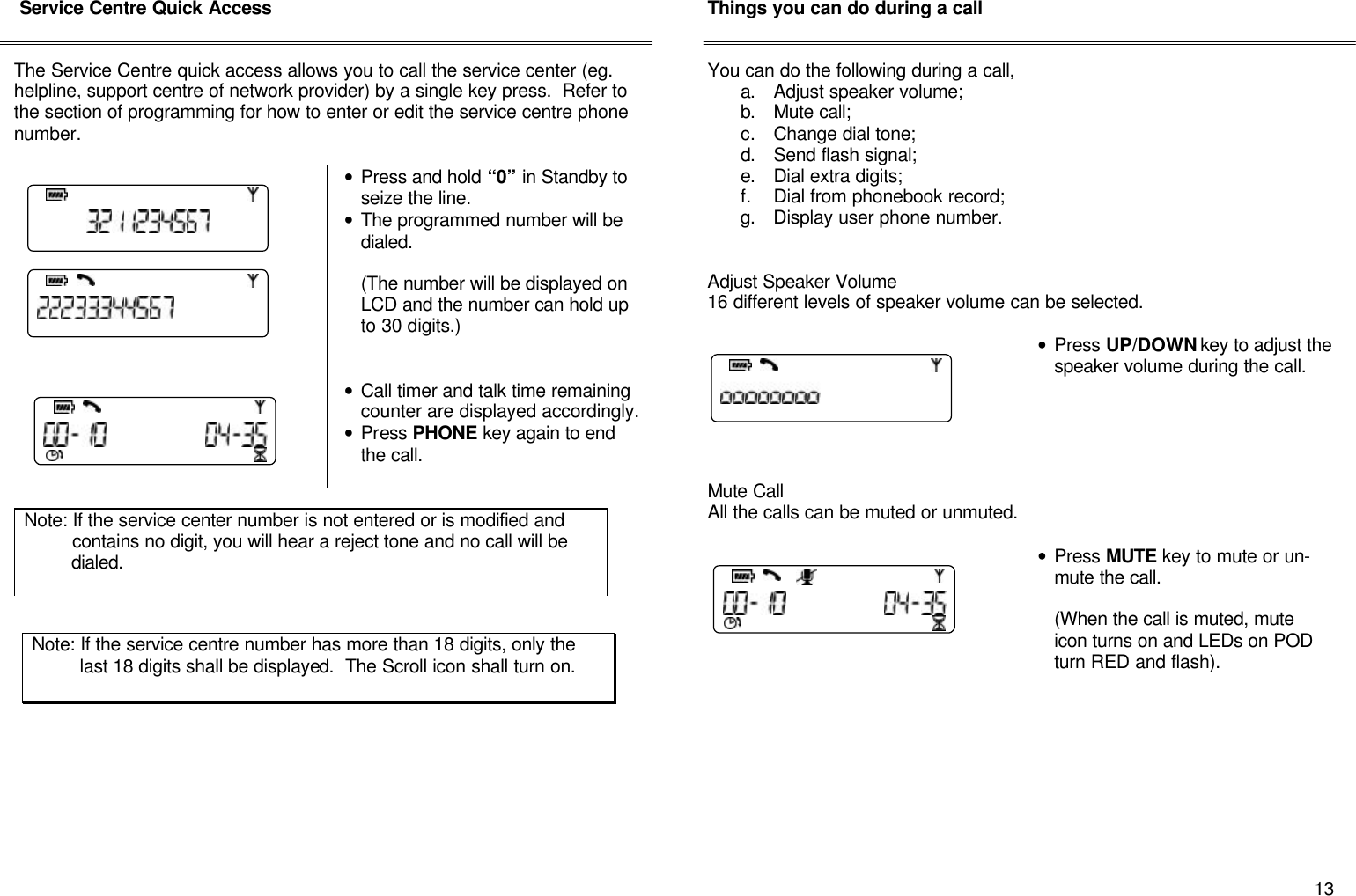
      13  Service Centre Quick Access   The Service Centre quick access allows you to call the service center (eg. helpline, support centre of network provider) by a single key press.  Refer to the section of programming for how to enter or edit the service centre phone number.    • Press and hold “0” in Standby to seize the line. • The programmed number will be dialed.  (The number will be displayed on LCD and the number can hold up to 30 digits.)    • Call timer and talk time remaining counter are displayed accordingly. • Press PHONE key again to end the call.                    Things you can do during a call   You can do the following during a call, a. Adjust speaker volume; b. Mute call; c. Change dial tone; d. Send flash signal; e. Dial extra digits; f. Dial from phonebook record; g. Display user phone number.   Adjust Speaker Volume 16 different levels of speaker volume can be selected.       • Press UP/DOWN key to adjust the speaker volume during the call.     Mute Call All the calls can be muted or unmuted.   • Press MUTE key to mute or un-mute the call.  (When the call is muted, mute icon turns on and LEDs on POD turn RED and flash).          Note: If the service center number is not entered or is modified and           contains no digit, you will hear a reject tone and no call will be           dialed.  Note: If the service centre number has more than 18 digits, only the           last 18 digits shall be displayed.  The Scroll icon shall turn on.
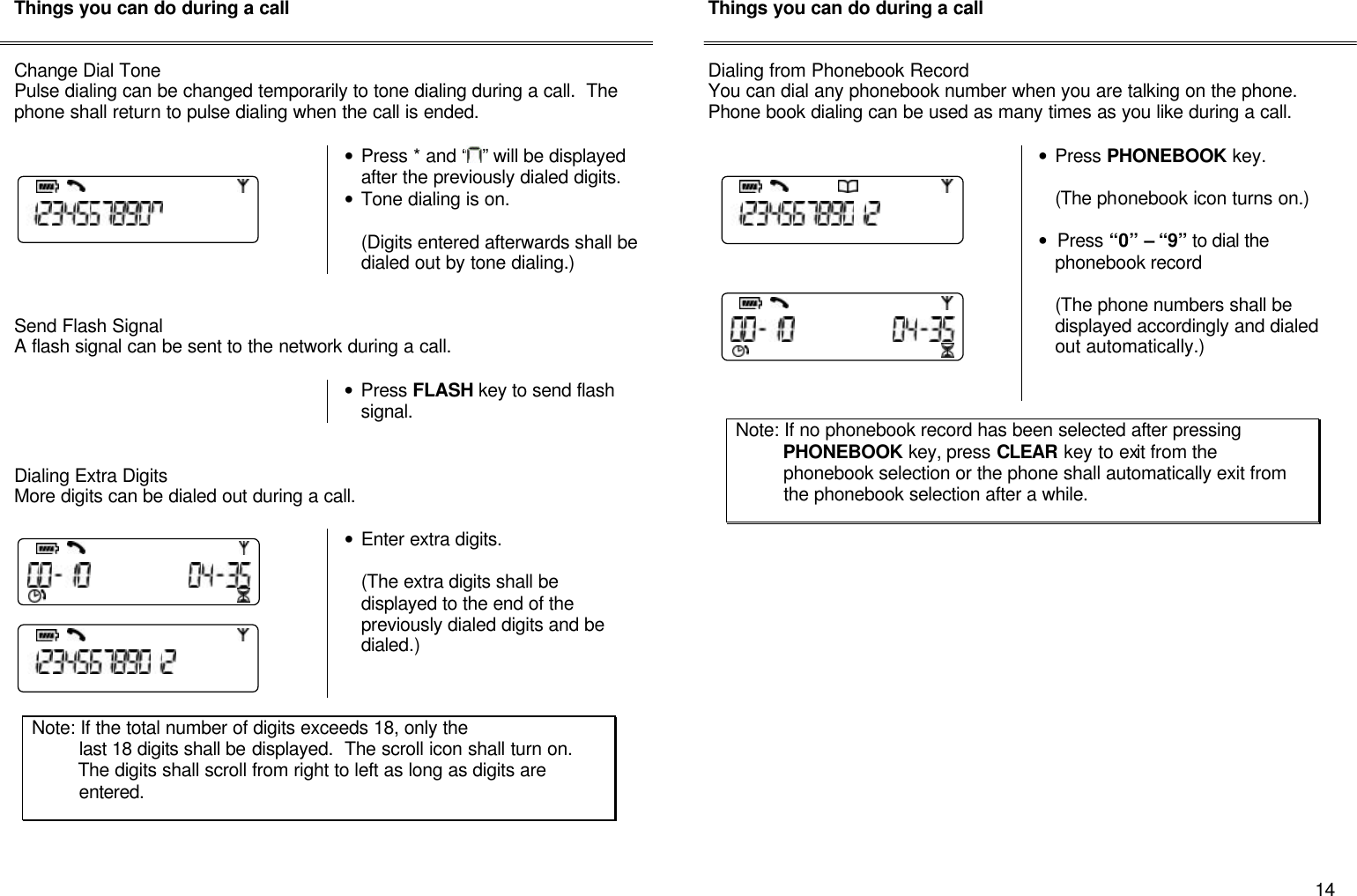
      14 Things you can do during a call   Change Dial Tone Pulse dialing can be changed temporarily to tone dialing during a call.  The phone shall return to pulse dialing when the call is ended.     • Press * and “ ” will be displayed after the previously dialed digits. • Tone dialing is on.    (Digits entered afterwards shall be dialed out by tone dialing.)   Send Flash Signal A flash signal can be sent to the network during a call.   • Press FLASH key to send flash signal.   Dialing Extra Digits  More digits can be dialed out during a call.    • Enter extra digits.  (The extra digits shall be displayed to the end of the previously dialed digits and be dialed.)          Things you can do during a call   Dialing from Phonebook Record You can dial any phonebook number when you are talking on the phone.  Phone book dialing can be used as many times as you like during a call.    • Press PHONEBOOK key.  (The phonebook icon turns on.)  • Press “0” – “9” to dial the phonebook record   (The phone numbers shall be displayed accordingly and dialed out automatically.)                         Note: If the total number of digits exceeds 18, only the           last 18 digits shall be displayed.  The scroll icon shall turn on.           The digits shall scroll from right to left as long as digits are                  entered. Note: If no phonebook record has been selected after pressing           PHONEBOOK key, press CLEAR key to exit from the           phonebook selection or the phone shall automatically exit from           the phonebook selection after a while.
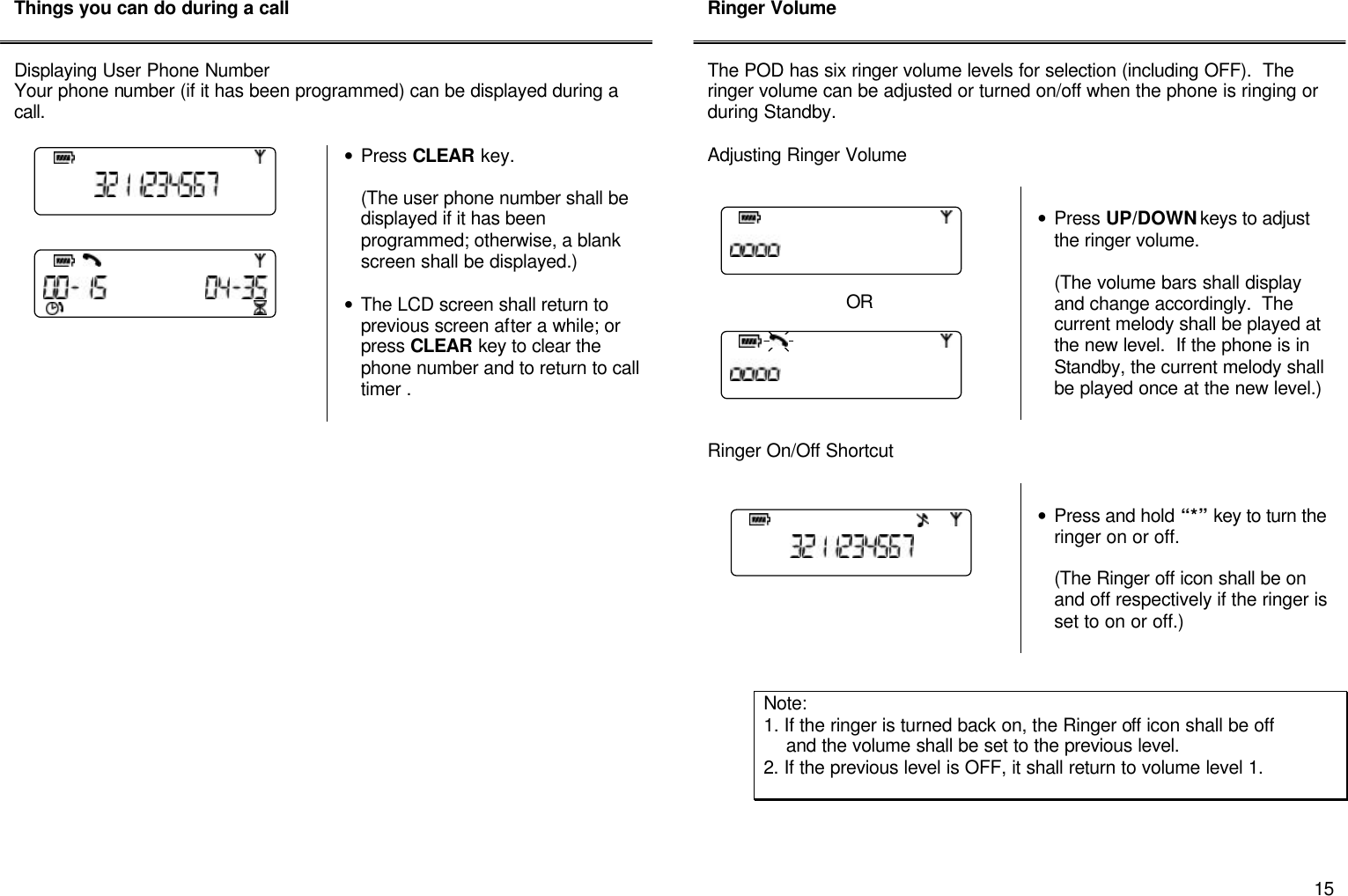
      15 Things you can do during a call   Displaying User Phone Number Your phone number (if it has been programmed) can be displayed during a call.   • Press CLEAR key.    (The user phone number shall be displayed if it has been programmed; otherwise, a blank screen shall be displayed.)  • The LCD screen shall return to previous screen after a while; or press CLEAR key to clear the phone number and to return to call timer .                       Ringer Volume   The POD has six ringer volume levels for selection (including OFF).  The ringer volume can be adjusted or turned on/off when the phone is ringing or during Standby.  Adjusting Ringer Volume       OR    • Press UP/DOWN keys to adjust the ringer volume.  (The volume bars shall display and change accordingly.  The current melody shall be played at the new level.  If the phone is in Standby, the current melody shall be played once at the new level.)   Ringer On/Off Shortcut     • Press and hold “*” key to turn the ringer on or off.  (The Ringer off icon shall be on and off respectively if the ringer is set to on or off.)           Note:  1. If the ringer is turned back on, the Ringer off icon shall be off      and the volume shall be set to the previous level.   2. If the previous level is OFF, it shall return to volume level 1.
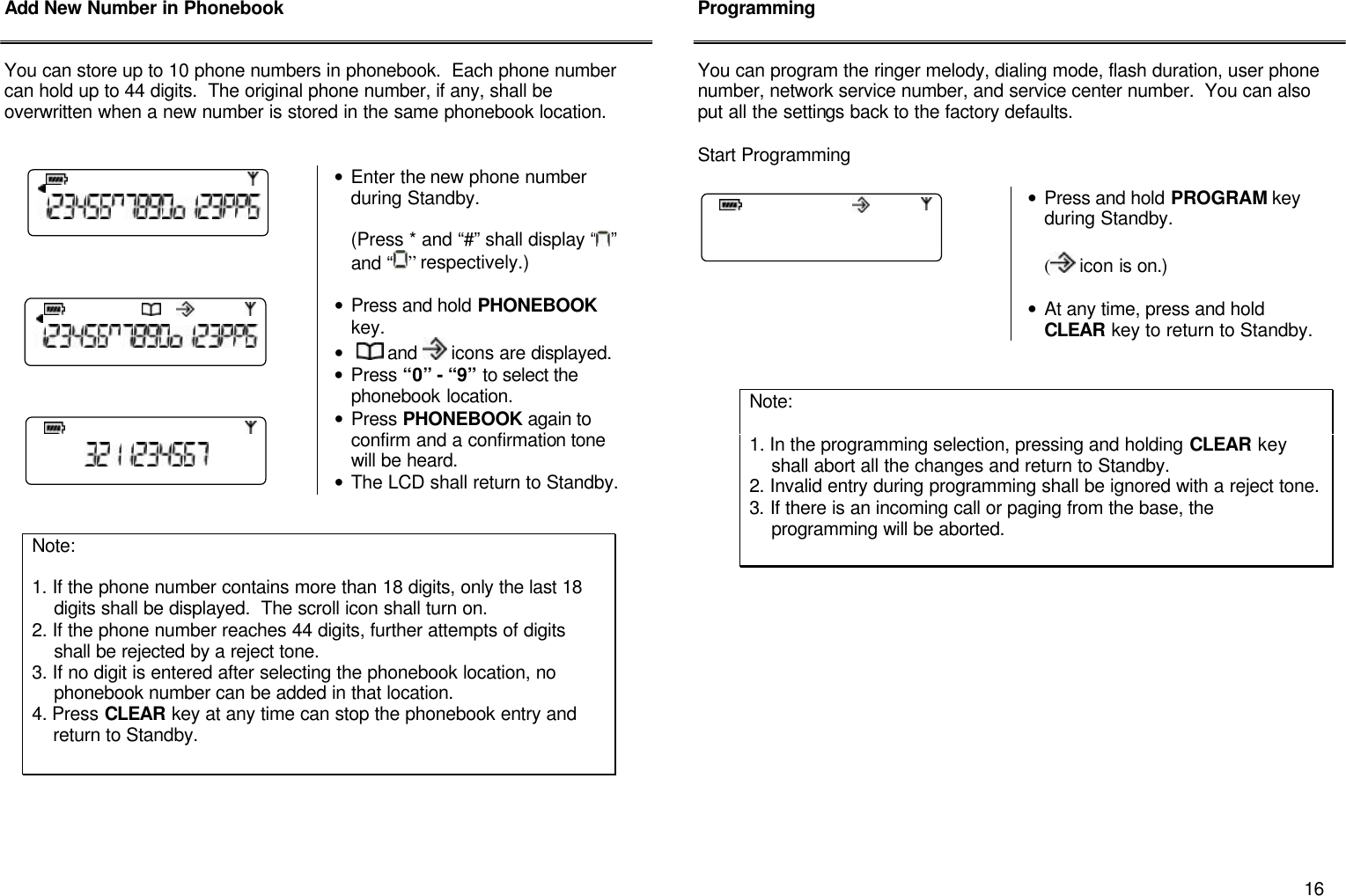
      16 Add New Number in Phonebook   You can store up to 10 phone numbers in phonebook.  Each phone number can hold up to 44 digits.  The original phone number, if any, shall be overwritten when a new number is stored in the same phonebook location.    • Enter the new phone number during Standby.    (Press * and “#” shall display “ ” and “ ” respectively.)  • Press and hold PHONEBOOK key. •   and   icons are displayed. • Press “0” - “9” to select the phonebook location. • Press PHONEBOOK again to confirm and a confirmation tone will be heard. • The LCD shall return to Standby.                  Programming   You can program the ringer melody, dialing mode, flash duration, user phone number, network service number, and service center number.  You can also put all the settings back to the factory defaults.  Start Programming   • Press and hold PROGRAM key during Standby.  ( icon is on.)  • At any time, press and hold CLEAR key to return to Standby.                          Note:   1. If the phone number contains more than 18 digits, only the last 18      digits shall be displayed.  The scroll icon shall turn on. 2. If the phone number reaches 44 digits, further attempts of digits       shall be rejected by a reject tone. 3. If no digit is entered after selecting the phonebook location, no      phonebook number can be added in that location. 4. Press CLEAR key at any time can stop the phonebook entry and      return to Standby.  Note:   1. In the programming selection, pressing and holding CLEAR key      shall abort all the changes and return to Standby. 2. Invalid entry during programming shall be ignored with a reject tone. 3. If there is an incoming call or paging from the base, the      programming will be aborted.
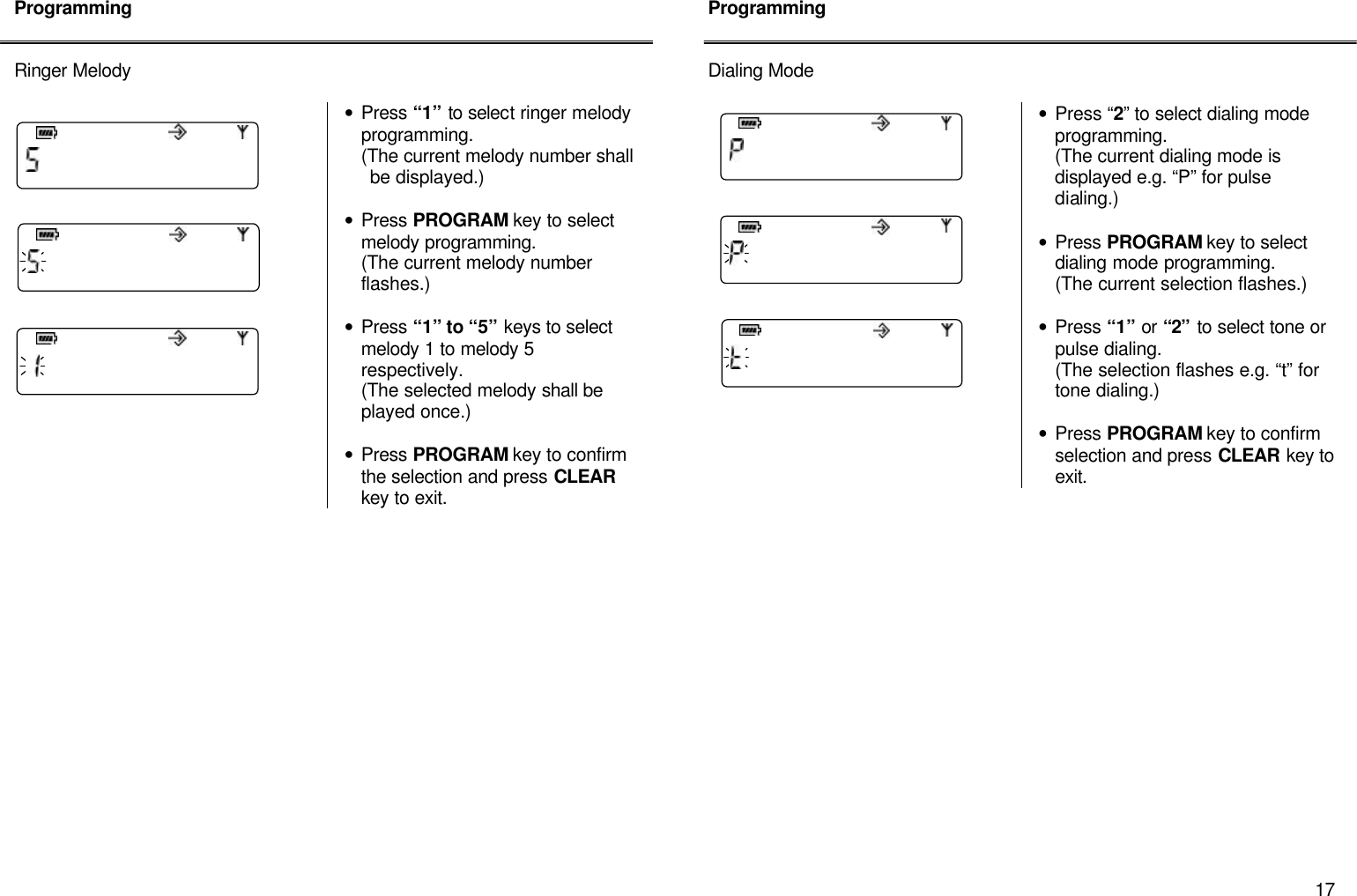
      17 Programming   Ringer Melody    • Press “1” to select ringer melody programming.  (The current melody number shall be displayed.)  • Press PROGRAM key to select  melody programming. (The current melody number flashes.)  • Press “1” to “5” keys to select melody 1 to melody 5 respectively.   (The selected melody shall be played once.)  • Press PROGRAM key to confirm the selection and press CLEAR key to exit.                  Programming   Dialing Mode   • Press “2” to select dialing mode programming.   (The current dialing mode is displayed e.g. “P” for pulse dialing.)  • Press PROGRAM key to select dialing mode programming. (The current selection flashes.)  • Press “1” or “2” to select tone or pulse dialing.   (The selection flashes e.g. “t” for tone dialing.)  • Press PROGRAM key to confirm selection and press CLEAR key to exit.
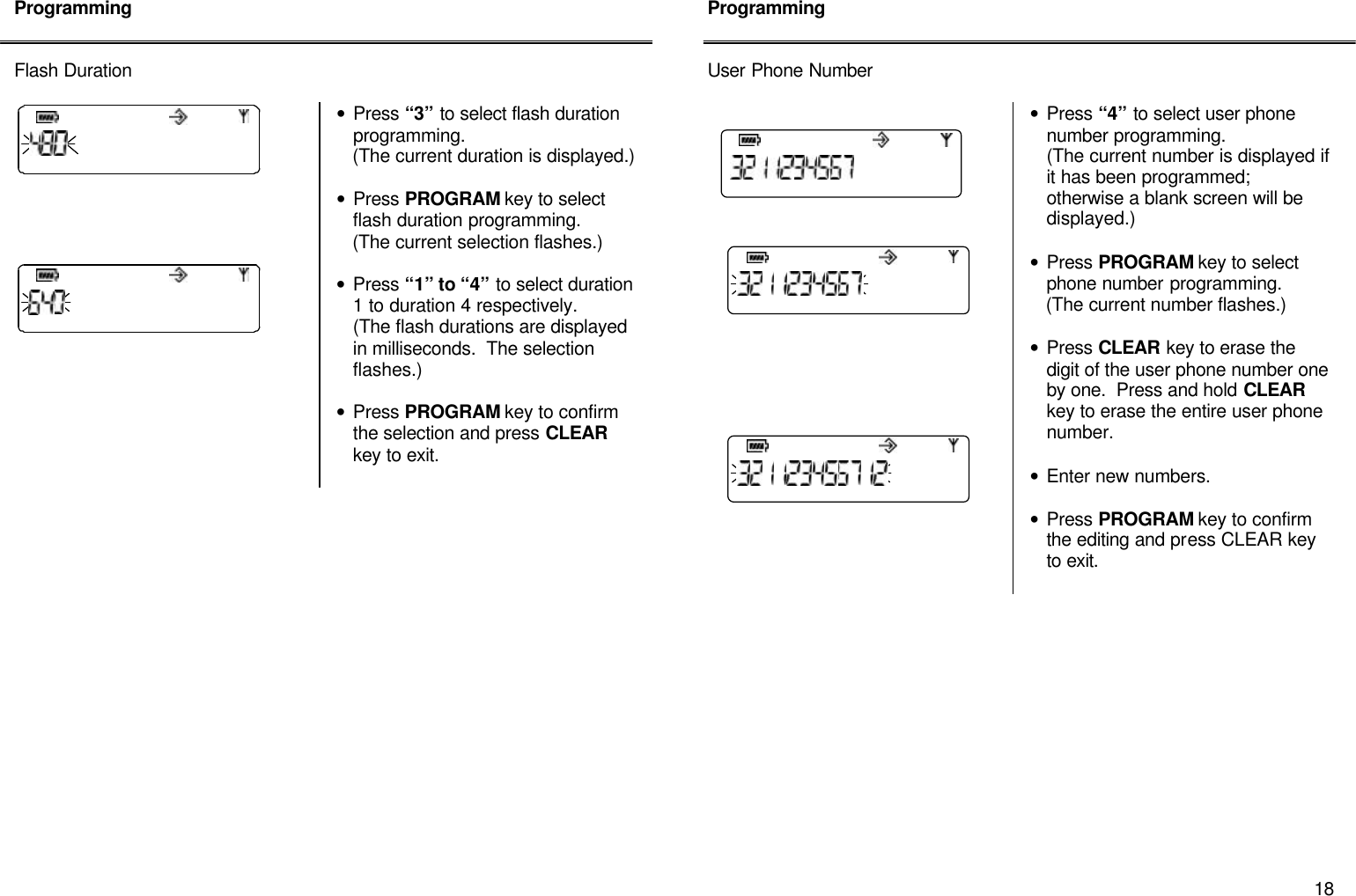
      18 Programming   Flash Duration        • Press “3” to select flash duration programming.     (The current duration is displayed.)  • Press PROGRAM key to select flash duration programming.      (The current selection flashes.)  • Press “1” to “4” to select duration 1 to duration 4 respectively.   (The flash durations are displayed in milliseconds.  The selection flashes.)  • Press PROGRAM key to confirm the selection and press CLEAR key to exit.                    Programming   User Phone Number   • Press “4” to select user phone number programming.   (The current number is displayed if it has been programmed; otherwise a blank screen will be displayed.)  • Press PROGRAM key to select phone number programming.      (The current number flashes.)  • Press CLEAR key to erase the digit of the user phone number one by one.  Press and hold CLEAR key to erase the entire user phone number.  • Enter new numbers.   • Press PROGRAM key to confirm the editing and press CLEAR key to exit.
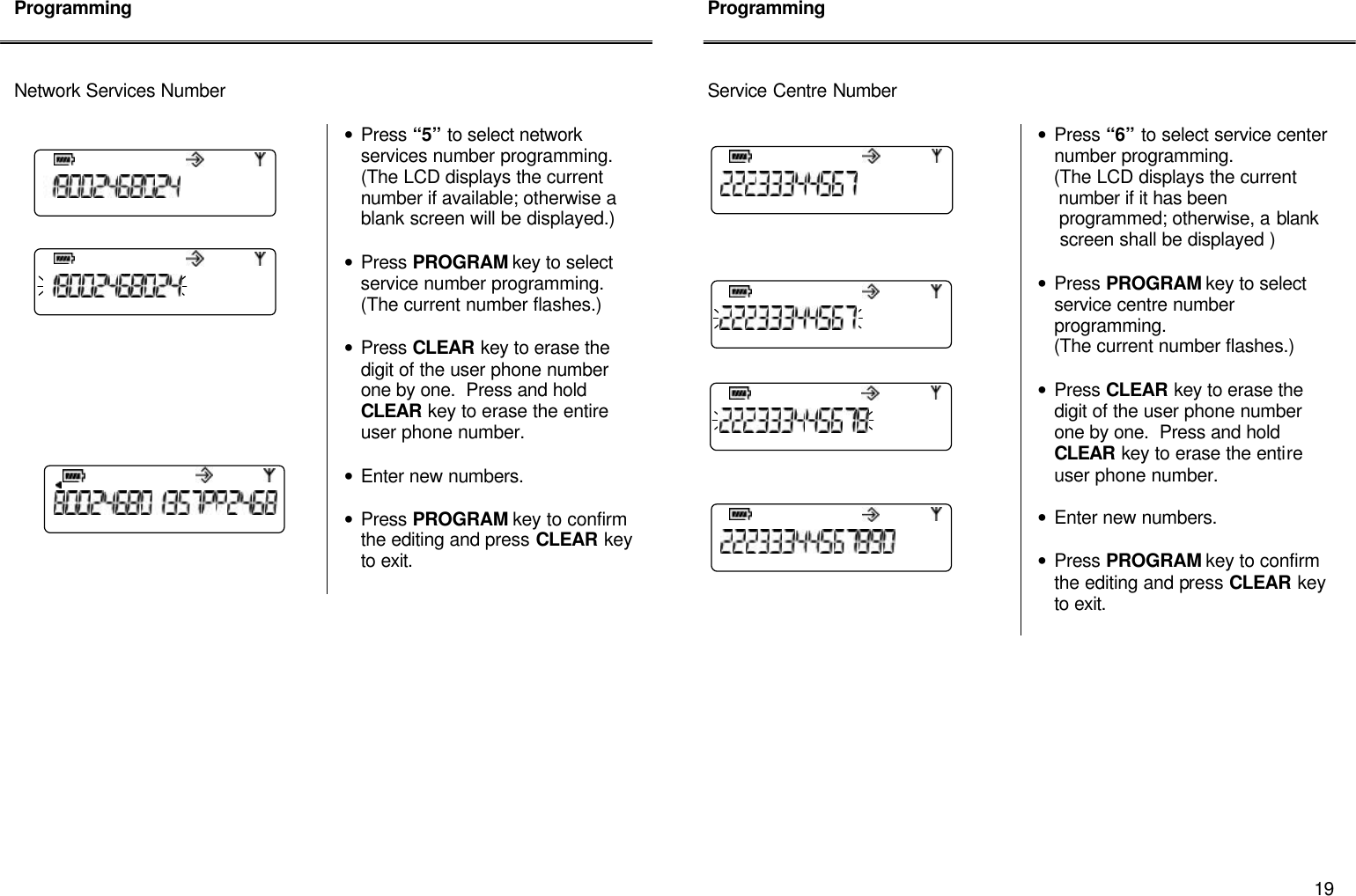
      19 Programming    Network Services Number        • Press “5” to select network services number programming.  (The LCD displays the current number if available; otherwise a blank screen will be displayed.)  • Press PROGRAM key to select service number programming.  (The current number flashes.)  • Press CLEAR key to erase the digit of the user phone number one by one.  Press and hold CLEAR key to erase the entire user phone number.  • Enter new numbers.  • Press PROGRAM key to confirm the editing and press CLEAR key to exit.               Programming    Service Centre Number   • Press “6” to select service center number programming.      (The LCD displays the current        number if it has been      programmed; otherwise, a blank      screen shall be displayed )  • Press PROGRAM key to select service centre number programming.      (The current number flashes.)    • Press CLEAR key to erase the digit of the user phone number one by one.  Press and hold CLEAR key to erase the entire user phone number.  • Enter new numbers.  • Press PROGRAM key to confirm the editing and press CLEAR key to exit.
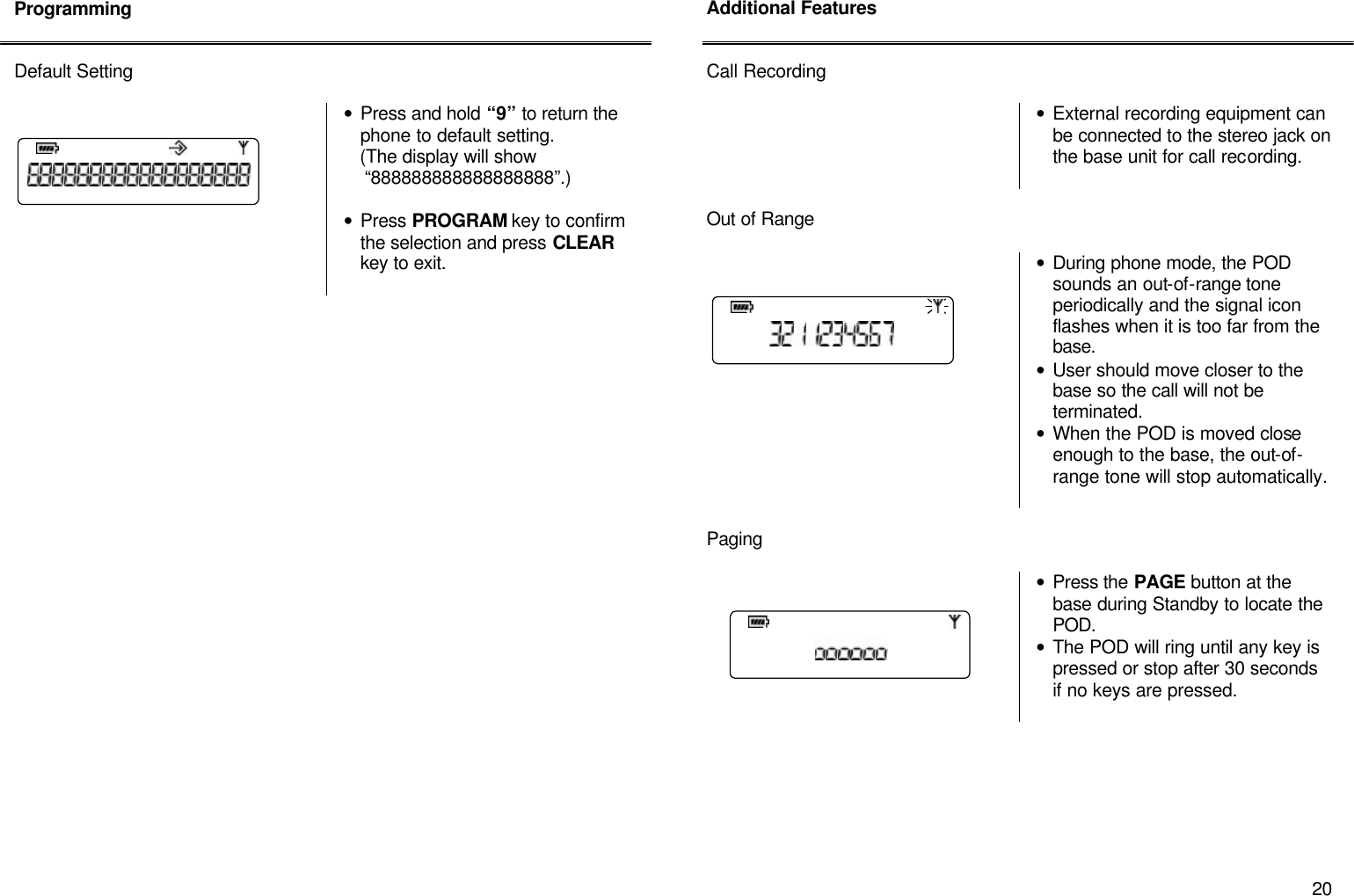
      20 Programming   Default Setting    • Press and hold “9” to return the phone to default setting.     (The display will show       “888888888888888888”.)  • Press PROGRAM key to confirm the selection and press CLEAR key to exit.                             Additional Features   Call Recording   • External recording equipment can be connected to the stereo jack on the base unit for call recording.   Out of Range    • During phone mode, the POD sounds an out-of-range tone periodically and the signal icon flashes when it is too far from the base. • User should move closer to the base so the call will not be terminated. • When the POD is moved close enough to the base, the out-of-range tone will stop automatically.   Paging     • Press the PAGE button at the base during Standby to locate the POD. • The POD will ring until any key is pressed or stop after 30 seconds if no keys are pressed.
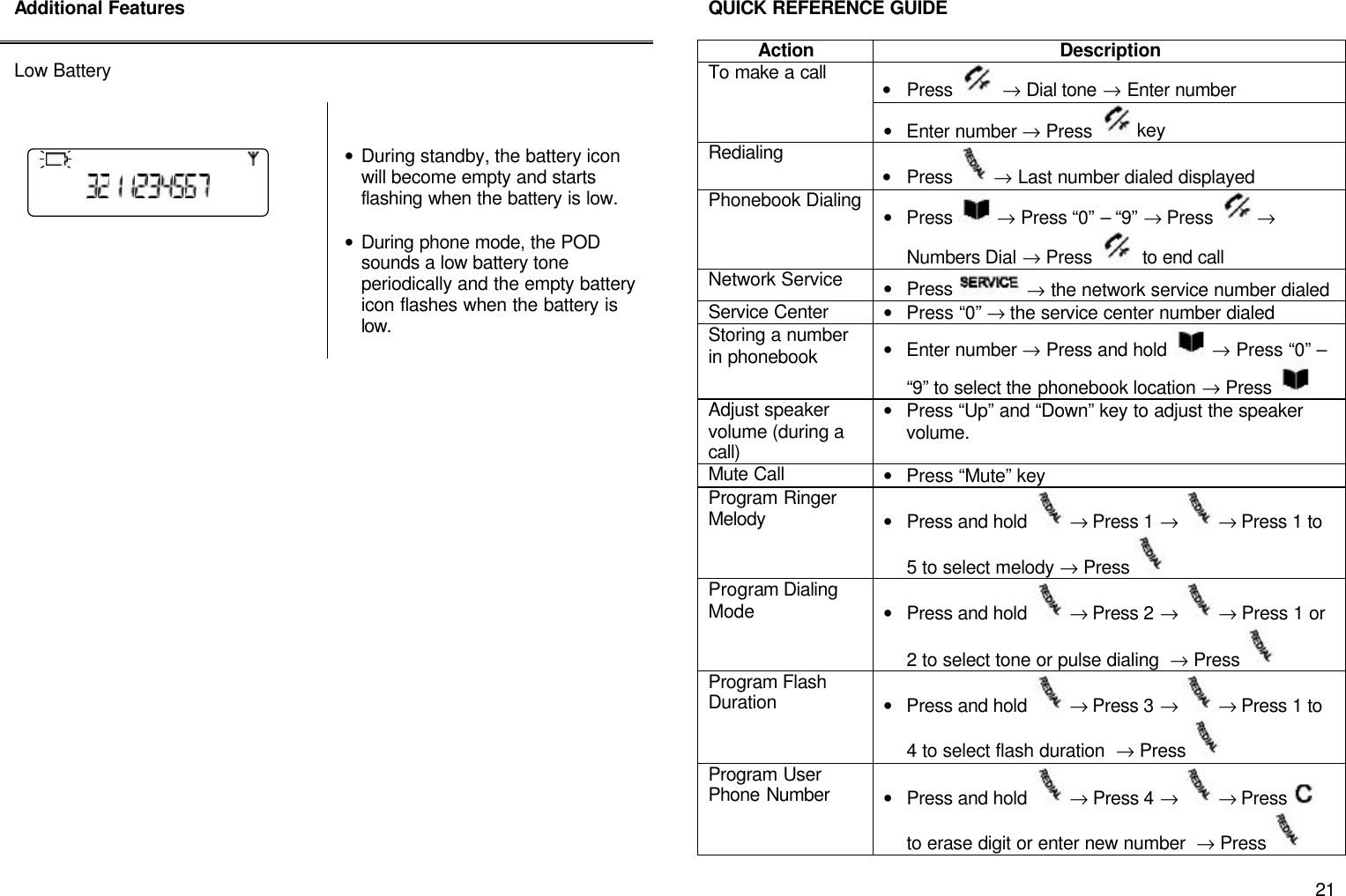
      21 Additional Features   Low Battery       • During standby, the battery icon will become empty and starts flashing when the battery is low.  • During phone mode, the POD sounds a low battery tone periodically and the empty battery icon flashes when the battery is low.                          QUICK REFERENCE GUIDE  Action Description To make a call • Press   → Dial tone → Enter number  • Enter number → Press  key  Redialing • Press   → Last number dialed displayed Phonebook Dialing • Press  → Press “0” – “9” → Press  → Numbers Dial → Press   to end call Network Service • Press   → the network service number dialed Service Center • Press “0” → the service center number dialed Storing a number in phonebook • Enter number → Press and hold  → Press “0” – “9” to select the phonebook location → Press   Adjust speaker volume (during a call) • Press “Up” and “Down” key to adjust the speaker volume. Mute Call • Press “Mute” key  Program Ringer Melody • Press and hold   → Press 1 →   → Press 1 to 5 to select melody → Press   Program Dialing Mode • Press and hold   → Press 2 →   → Press 1 or 2 to select tone or pulse dialing  → Press   Program Flash Duration • Press and hold   → Press 3 →   → Press 1 to 4 to select flash duration  → Press   Program User Phone Number • Press and hold   → Press 4 →   → Press    to erase digit or enter new number  → Press
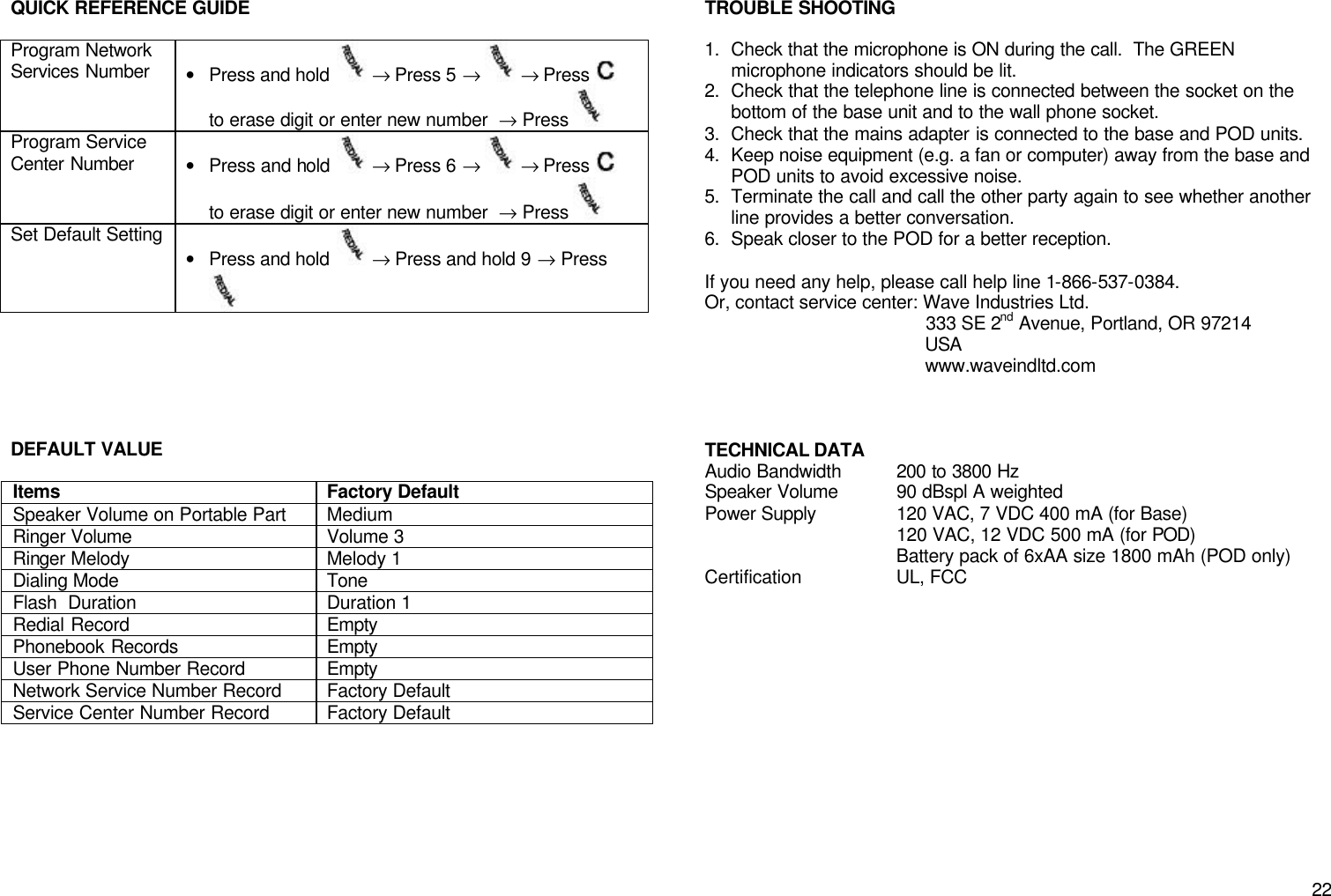
      22 QUICK REFERENCE GUIDE  Program Network Services Number • Press and hold   → Press 5 →   → Press    to erase digit or enter new number  → Press   Program Service Center Number • Press and hold   → Press 6 →   → Press    to erase digit or enter new number  → Press   Set Default Setting • Press and hold   → Press and hold 9 → Press        DEFAULT VALUE  Items Factory Default Speaker Volume on Portable Part Medium Ringer Volume Volume 3 Ringer Melody Melody 1 Dialing Mode Tone Flash  Duration Duration 1 Redial Record Empty Phonebook Records Empty User Phone Number Record Empty Network Service Number Record Factory Default Service Center Number Record Factory Default        TROUBLE SHOOTING  1. Check that the microphone is ON during the call.  The GREEN microphone indicators should be lit. 2. Check that the telephone line is connected between the socket on the bottom of the base unit and to the wall phone socket. 3. Check that the mains adapter is connected to the base and POD units. 4. Keep noise equipment (e.g. a fan or computer) away from the base and POD units to avoid excessive noise. 5. Terminate the call and call the other party again to see whether another line provides a better conversation. 6. Speak closer to the POD for a better reception.  If you need any help, please call help line 1-866-537-0384. Or, contact service center: Wave Industries Ltd.                                            333 SE 2nd Avenue, Portland, OR 97214                                            USA                                            www.waveindltd.com    TECHNICAL DATA  Audio Bandwidth 200 to 3800 Hz Speaker Volume 90 dBspl A weighted Power Supply 120 VAC, 7 VDC 400 mA (for Base)  120 VAC, 12 VDC 500 mA (for POD)  Battery pack of 6xAA size 1800 mAh (POD only) Certification UL, FCC
      23  COMPLIANCE INFORMATON FEDERAL COMMUNICATIONS COMMISSION REQUIREMENTS  The equipment complies with Part 68 of FCC Rules and Technical Requirements for Telephone Terminal Equipment published by ACTA.  The marking on the base unit of this equipment contains, among other information, the US Number and Ringer Equivalence Number (REN) for this equipment.  You must, upon request, provide this information to your telephone company.  The REN is also useful in determining the quantity of devices that you may connect to your telephone line and still allow these devices to ring when your telephone number is called.  In most areas, but not all, the sum of the RENs for all devices connected to one line should not exceed five (5.0).  To be certain of the number of devices that you may connect to your line, you should contact your local telephone company.  If your equipment should cause harm to the telephone network, the telephone company may temporarily disconnect your service.  If possible, they will notify you in advance that temporary discontinuance of service may be required.  However, when advance written notice is not possible, the telephone company may temporarily disconnect service without notice if such action is necessary under the circumstances.  The telephone company may make changes in its communication facilities, equipment, operations, or procedures where such action is reasonably required in the operation of its business and is not inconsistent with the rules and regulations of the Federal Communication Commission.  Notice  A plug and jack used to connect this equipment to the premises wiring and telephone network must comply with the applicable FCC Part 68 rules and requirements adopted by the ACTA. A compliant telephone cord and modular plug is provided with this product. It is designed to be connected to a compatible modular jack that is also compliant. See installation instructions for details.     Notice  This equipment should not be used on coin telephone lines.  Connection to party line service is subjected to state tariffs.  If trouble is experienced, disconnect this equipment from the telephone line to determine if it is causing the malfunction.  If the equipment is determined to be malfunctioning, its use should be disconnected until the problem has been corrected.  Caution  Users should ensure for their own protection that the electrical ground connections of the power utility, telephone lines and internal metallic water pipe system, if present, are connected together.  This precaution may be particularly important in rural areas.   Caution  Changes or modifications not expressly approved by the party responsible for its compliance could void the user’s authority to operate the equipment.  Do not attempt to repair or modify this equipment.  Repairs to certified equipment should be made by an authorized maintenance facility designated by the supplier.  Any repairs or alternations made by the user to the equipment, or equipment malfunctions, may give the telecommunications company cause to request the user to disconnect the equipment.
      24 Interference  This equipment has been tested and found to comply with the limits for a class B digital device, pursuant to Part 15 of the FCC Rules.  Operation is subject to the following two conditions: (1) This device may not cause interference, and (2) This device must accept any interference, including interference that may cause undesired operation of the device.  This equipment generates, uses and can radiate radio frequency energy and, if not installed and used in accordance with the instructions, may cause harmful interference to radio communications.  However, there is no guarantee that interference will not occur in a particular installation.  If this equipment does cause harmful interference to radio or television reception, which can be determined by turning the equipment off and on, the user is encouraged to try to correct the interference by one or more of the following measures:  1. Re-orient or relocate the receiving antenna. 2. Increase the distance between the equipment and receiver. 3. Connect the equipment into an outlet on a circuit different from that to which the receiver is connected. 4. Consult the dealer or an experience radio/TV technician for help.   Noise  Electrical pulse noise is present in most homes at one time or another.  This is most intense during electrical storms.  Certain kinds of electrical equipment, such as light dimmers, fluorescent bulbs, motors, fans, etc., also generate pulse noise.  Because radio frequencies are susceptible to this, you may on occasion hear pulse noise through the speaker.  This is usually only a minor annoyance and should not be interpreted as a defect of the unit.
FCC RF RADIATION EXPOSURE STATEMENT:  This equipment complies with FCC RF radiation exposure limits set forth for an uncontrolled environment.  This equipment should be installed and operated with a minimum distance of 20 centimeters between the radiator and your body.

Navigation menu