AsiaRF AWM002 WiFi AP Router Module User Manual

AsiaRF Ltd. WiFi AP Router Module Users Manual

Users Manual

AsiaRF                                 AWM002 1 www.asiarf.com    User’s Manual Version: 1.0      WiFi AP Router Module
AsiaRF                                 AWM002 2 www.asiarf.com Copyright Statement Trademarks Copyright @2013   Contents are subject to change without notice. All trademarks belong to their respective proprietors.  Copyright Statement THIS  DOCUMENT  CONTAINS  OF  PROPRIETARY  TECHNICAL INFORMATION THAT IS THE PROPERTY OF THIS COMPANY. AND NO  PART  OF  THIS  DOCUMENTATION  MAY  BE  REPRODUCED, STORED  IN  A  RETRIEVAL  SYSTEM  OR  TRANSMITTED  IN  ANY FORM  OR  BY  ANY  MEANS,  ELECTRICAL  OR  MECHANICAL,  BY PHOTOCOPYING, RECORDING, OR  OTHERWISE, WITHOUT THE PRIOR WRITTEN CONSENT OF THIS COMPANY.  Federal Communication Commission Interference Statement This equipment has been tested and found to comply with the limits for a Class B digital device, pursuant to Part 15 of the FCC Rules.    These limits are designed to provide reasonable protection  against  harmful interference in  a  residential  installation.    This  equipment  generates, uses and can radiate radio frequency energy and, if not installed and used  in  accordance  with  the  instructions,  may  cause  harmful interference  to  radio  communications.    However,  there  is  no guarantee that interference will not occur in a particular installation.    If this equipment does cause harmful interference to radio or television reception, which can be determined by turning the equipment off and on, the user is encouraged to try to correct the interference by one of the following measures:  -  Reorient or relocate the receiving antenna. -  Increase the separation between the equipment and receiver.
AsiaRF                                 AWM002 3 www.asiarf.com -  Connect the equipment into an outlet on a circuit different from that to which the receiver is connected. -  Consult  the  dealer  or  an  experienced  radio/TV  technician  for help.  This  device  complies  with  Part  15  of  the  FCC  Rules.  Operation  is subject to the following two conditions: (1) This device may not cause harmful interference, and (2) this device must accept any interference received, including interference that may cause undesired operation.  FCC Caution: Any changes or modifications not expressly approved by the party responsible for compliance could void the user's authority to operate this equipment.  IMPORTANT NOTE: FCC Radiation Exposure Statement: This equipment complies with FCC radiation exposure limits set forth for an  uncontrolled environment. This equipment should be installed and  operated  with  minimum  distance  20cm  between  the  radiator  & your body. This transmitter must not be co-located or operating in conjunction with any other antenna or transmitter.
AsiaRF                                 AWM002 4 www.asiarf.com Contents CHAPTER 1 INTRODUCTION 1.1 INTRODUCTION .............................................................. 1 1.2 HARDWARE FEATURES ................................................... 3 1.3 SOFTWARE FEATURES .................................................... 5 1.4 PACKAGE CONTENTS ...................................................... 6 CHAPTER 2 HARDWARE INSTALLATION 2.1 HOW TO START .............................................................. 7 2.2 LED INDICATOR AND PORT DESCRIPTION ...................... 9 2.3 POSITION SLIDE SWITCH ................................................ 9 2.4 RESET BUTTON .............................................................. 9 2.5 PIN DEFINITION ............................................................. 9 CHAPTER 3 FIRMWARE SETUP 3.1 DEFAULT CONFIGURATION ........................................... 12 3.2 CONFIGURE AWM002 ................................................. 13 3.2.1 STATUS ..................................................................... 14 3.4.1.2 BREAK-DETECTION ............................................... 17 3.4.1.3 MAC-CLONE ......................................................... 17 3.4.1.4 DDNS ................................................................... 17 3.4.2 LAN ......................................................................... 17 3.4.2.1 SETUP .................................................................... 17 3.4.2.2 BINDING ................................................................ 18 3.4.2.3 DHCP-TABLE ........................................................ 19 3.4.3 WIRELESS ................................................................. 19
AsiaRF                                 AWM002 5 www.asiarf.com 3.4.3.1 BASIC .................................................................... 20 3.4.3.2 SECURITY .............................................................. 20 3.4.3.3 ADVANCED ............................................................ 20 3.4.3.4 WDS ..................................................................... 20 3.4.3.4 WPS ...................................................................... 21 3.4.3.5 STATION LIST ........................................................ 21 3.4.3.6 MAC ACCESS ........................................................ 21 3.4.4 MEDIA ...................................................................... 21 3.4.5 SECURITY ................................................................. 21 3.4.5.1 FIREWALL .............................................................. 22 3.4.5.2 WEBSITE-BLOCK ................................................... 22 3.4.5.3 MAC-FILTER ......................................................... 22 3.4.5.4 ACCESS-RESTRICTIONS ......................................... 22 3.4.5.5 PORT-TRIGGERING ................................................ 23 3.4.5.6 DOS ....................................................................... 24 3.4.6.1 VISUAL SERVER..................................................... 26 3.4.6.2 APPLICATION ......................................................... 26 3.4.6.3 DMZ ..................................................................... 27 3.4.6.4 NAT ...................................................................... 27 3.4.7 ROUTING .................................................................. 27 3.4.7.1 TABLE .................................................................... 28 3.4.7.2 STATIC ................................................................... 28 3.4.8 ADMIN ...................................................................... 28 3.4.8.1 MANAGEMENT....................................................... 28
AsiaRF                                 AWM002 6 www.asiarf.com 3.4.8.2 TIME-SETTING ....................................................... 29 3.4.8.3 BACKUP & RESTORE .............................................. 29 3.4.8.4 FIRMWARE UPGRADE ............................................. 29 3.4.8.5 RESTART ................................................................ 29 3.4.8.4 FACTORY DEFAULT ................................................ 29 3.4.8.5 PASSWORD ............................................................. 29 3.5 WIRELESS AP CLIENT MODE ........................................ 29 3.5.1 WIFI WAN ............................................................... 30 3.6 WIRELESS AP MODE .................................................... 30 3.6.1 LAN SETTING ........................................................... 31 CHAPTER 4 FREQUENTLY ASKED QUESTIONS (FAQ) 4.1 WHAT AND HOW TO FIND MY PC’S IP AND MAC ADDRESS? .......................................................................... 32 4.2 WHAT IS WIRELESS LAN? ........................................... 33 4.3 WHAT ARE ISM BANDS? .............................................. 33 4.4 HOW DOES WIRELESS NETWORKING WORK? ................ 33 4.5 WHAT IS BSSID? ......................................................... 35 4.6 WHAT IS ESSID? ......................................................... 35 4.7 WHAT ARE POTENTIAL FACTORS THAT MAY CAUSES INTERFERENCE? ................................................................. 35 4.8 WHAT ARE THE OPEN SYSTEM AND SHARED KEY AUTHENTICATIONS? ........................................................... 36 4.9 WHAT IS WEP? ............................................................ 37 4.10 WHAT IS FRAGMENT THRESHOLD? ............................ 37
AsiaRF                                 AWM002 7 www.asiarf.com 4.11 WHAT IS RTS (REQUEST TO SEND) THRESHOLD? ...... 39 4.12 WHAT IS BEACON INTERVAL? .................................... 40 4.13 WHAT IS PREAMBLE TYPE? ........................................ 40 4.14 WHAT IS SSID BROADCAST? ..................................... 41 4.15 WHAT IS WI-FI PROTECTED ACCESS (WPA)? ............ 41 4.16 WHAT IS WPA2? ........................................................ 42 4.17 WHAT IS 802.1X AUTHENTICATION? .......................... 42 4.18 WHAT IS TEMPORAL KEY INTEGRITY PROTOCOL (TKIP)? ............................................................................. 43 4.19 WHAT IS ADVANCED ENCRYPTION STANDARD (AES)? .......................................................................................... 43 4.20 WHAT IS INTER-ACCESS POINT PROTOCOL (IAPP)? .. 43 4.21 WHAT IS WIRELESS DISTRIBUTION SYSTEM (WDS)? 44 4.22 WHAT IS UNIVERSAL PLUG AND PLAY (UPNP)? ......... 44 4.23 WHAT IS MAXIMUM TRANSMISSION UNIT (MTU) SIZE? .......................................................................................... 45 4.24 WHAT IS CLONE MAC ADDRESS? .............................. 45 4.25 WHAT IS DDNS? ....................................................... 45 4.26 WHAT IS NTP CLIENT? .............................................. 46 4.27 WHAT IS VPN? .......................................................... 46 4.28WHAT IS IPSEC? ........................................................ 46 CHAPTER5 TERMINOLOGY
AsiaRF                                 AWM002 1 www.asiarf.com Chapter 1 Introduction 1.1 Introduction   Thank you for purchasing AWM002 WiFi AP Router Module Multi-purpose Wireless device.    AWM002 is a tiny WiFi AP/Router Module with up to 150Mbps transmission rate. It supports three working modes:   AP Client, and Router.      The  default  mode  is  AP  Client  mode  can  be  easily switched by sliding the side switch.  AWM002 can be powered from either DC 3.3V 460mA and 1.2V 500mW power input. The Base board is powered by DC 12V 1A.  This Module could be installed in any electronic devices for directly controlled.     Home Automation  power switch  air conditioner  heater
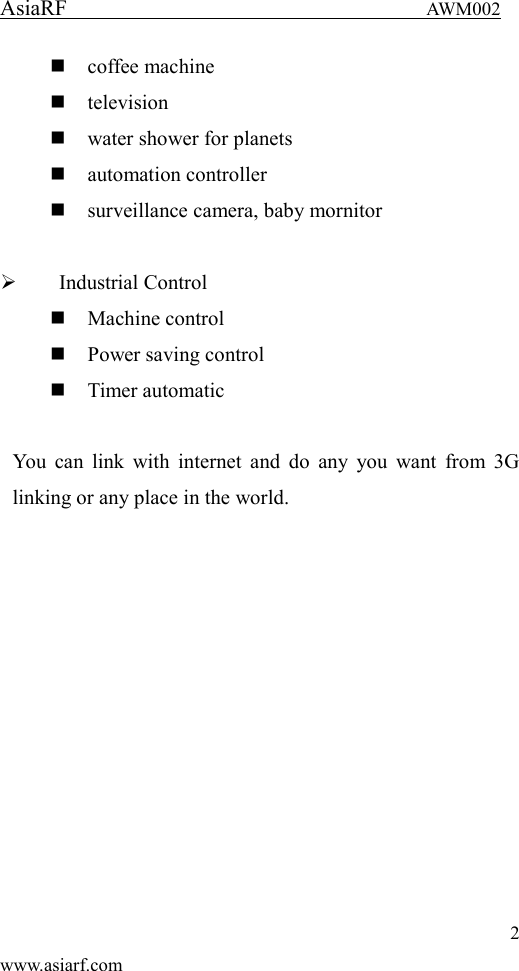
AsiaRF                                 AWM002 2 www.asiarf.com  coffee machine  television  water shower for planets  automation controller  surveillance camera, baby mornitor   Industrial Control  Machine control  Power saving control  Timer automatic  You can link  with internet  and do any  you want  from 3G linking or any place in the world.
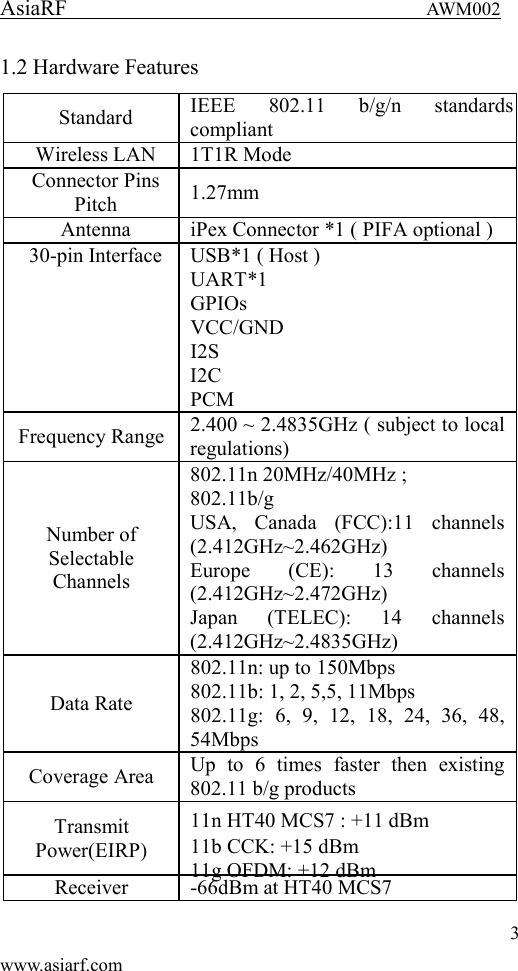
AsiaRF                                 AWM002 3 www.asiarf.com 1.2 Hardware Features   Standard IEEE  802.11  b/g/n  standards compliant Wireless LAN 1T1R Mode Connector Pins Pitch 1.27mm Antenna iPex Connector *1 ( PIFA optional ) 30-pin Interface USB*1 ( Host ) UART*1 GPIOs VCC/GND I2S I2C PCM Frequency Range 2.400 ~ 2.4835GHz ( subject to local regulations) Number of Selectable Channels 802.11n 20MHz/40MHz ; 802.11b/g USA,  Canada  (FCC):11  channels (2.412GHz~2.462GHz) Europe  (CE):  13  channels (2.412GHz~2.472GHz) Japan  (TELEC):  14  channels (2.412GHz~2.4835GHz) Data Rate 802.11n: up to 150Mbps 802.11b: 1, 2, 5,5, 11Mbps 802.11g:  6,  9,  12,  18,  24,  36,  48, 54Mbps Coverage Area Up  to  6  times  faster  then  existing 802.11 b/g products Transmit   Power(EIRP) 11n HT40 MCS7 : +11 dBm 11b CCK: +15 dBm 11g OFDM: +12 dBm Receiver -66dBm at HT40 MCS7
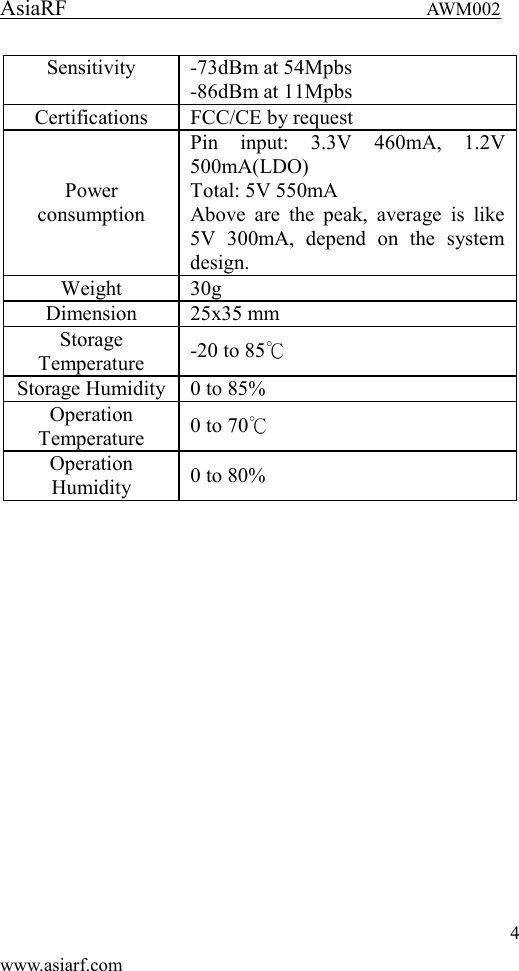
AsiaRF                                 AWM002 4 www.asiarf.com Sensitivity -73dBm at 54Mpbs -86dBm at 11Mpbs Certifications FCC/CE by request   Power consumption Pin  input:  3.3V  460mA,  1.2V 500mA(LDO) Total: 5V 550mA Above  are  the  peak,  average  is  like 5V  300mA,  depend  on  the  system design. Weight 30g Dimension 25x35 mm Storage Temperature -20 to 85℃ Storage Humidity 0 to 85% Operation Temperature 0 to 70℃ Operation Humidity 0 to 80%
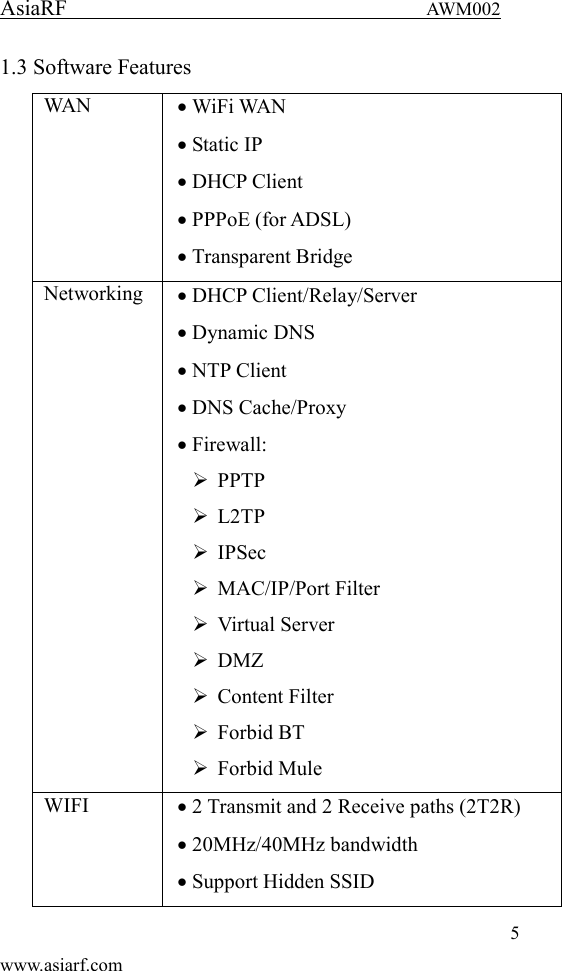
AsiaRF                                 AWM002 5 www.asiarf.com 1.3 Software Features   WAN  WiFi WAN  Static IP  DHCP Client  PPPoE (for ADSL)  Transparent Bridge Networking  DHCP Client/Relay/Server  Dynamic DNS  NTP Client  DNS Cache/Proxy  Firewall:  PPTP  L2TP  IPSec    MAC/IP/Port Filter  Virtual Server  DMZ  Content Filter  Forbid BT  Forbid Mule WIFI  2 Transmit and 2 Receive paths (2T2R)  20MHz/40MHz bandwidth  Support Hidden SSID
AsiaRF                                 AWM002 6 www.asiarf.com  Support WPS  Clock rate up to 400MHz Legacy and High Throughput Modes  High security: WEP64/128,TKIP, WPA,WPA2 AES,mixed, 802.11i  802.1X Authentication with RADIUS Client  QoS-WMM, WMM-PS   1.4 Package contents   The package contains the following items    1    AWM002    1    AWM002 Base Board  1    AC/DC Adapter   Input: 110~240V 50/60Hz,     Output: 12V 1A adapter    1    Quick Installation Guide
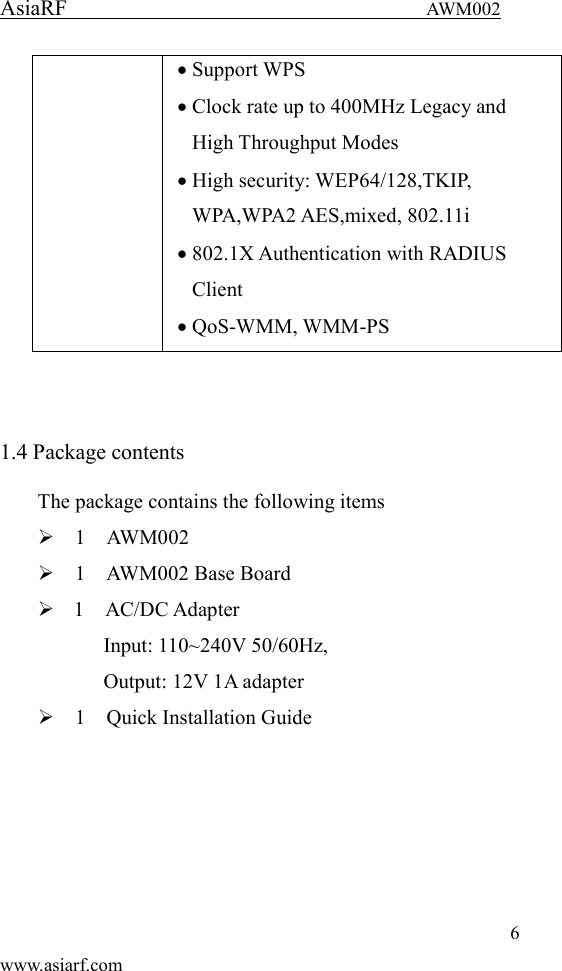
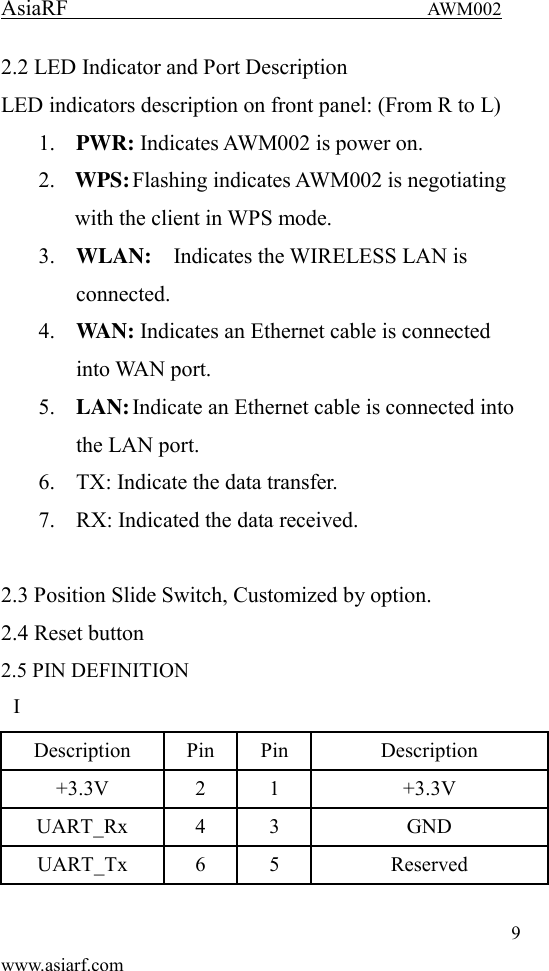
AsiaRF                                 AWM002 7 www.asiarf.com Chapter 2 Hardware Installation 2.1 How to start After you unpack the box, please make sure all the components are completed.     Follow the below setup to setup the AWM002:   1. Put the AWM002 Module on Base board and linked with a small PCB antenna. 2. Connect Power Adaptor to get the 12V 1A power. LEDs will turn on and flashing. 3. Wait around one minute the WiFi signal start flashing, you can see the WiFi signal from your computer or mobile device with WiFi function. 4. Link WiFi or link RJ45 cable, log into the IP address 10.10.1.1 or 10.10.10.254, input admin/admin log in.
AsiaRF                                 AWM002 8 www.asiarf.com
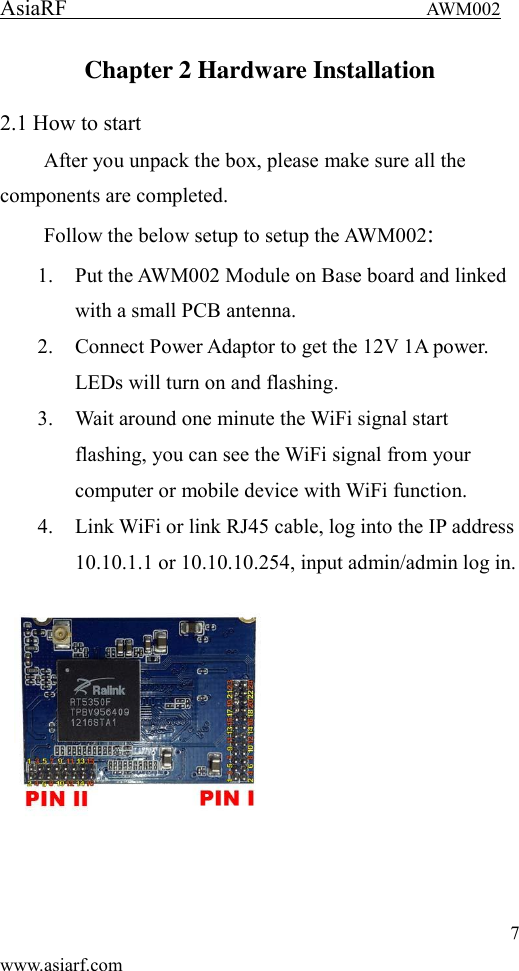
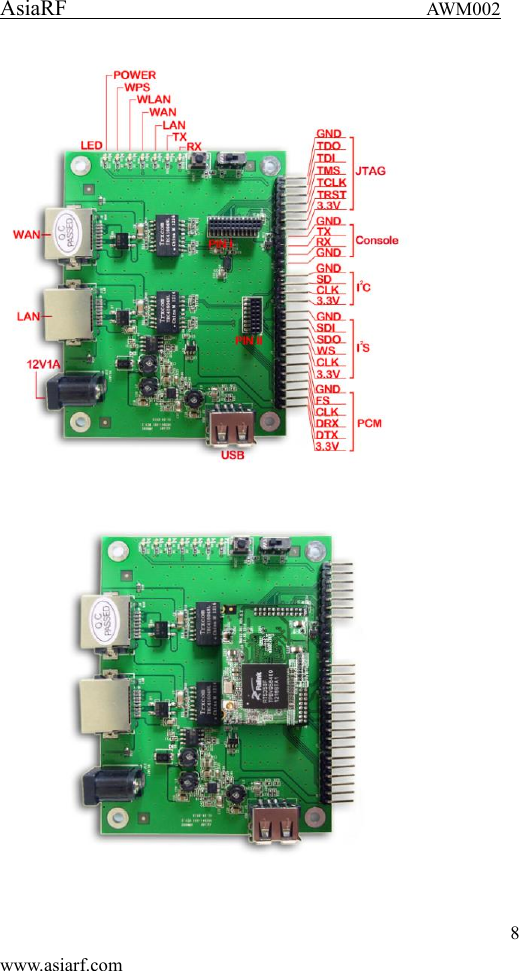
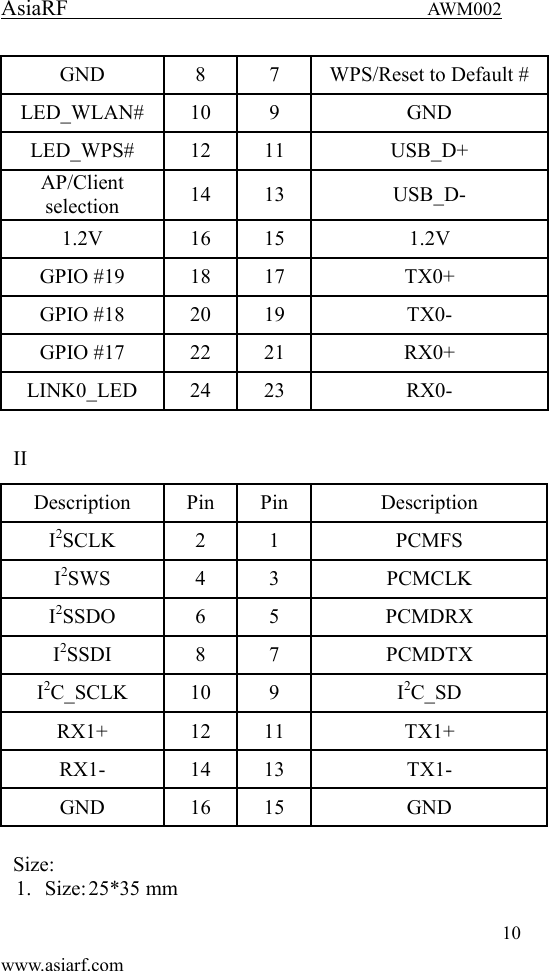
AsiaRF                                 AWM002 9 www.asiarf.com 2.2 LED Indicator and Port Description LED indicators description on front panel: (From R to L) 1. PWR: Indicates AWM002 is power on. 2. WPS: Flashing indicates AWM002 is negotiating with the client in WPS mode. 3. WLAN:  Indicates the WIRELESS LAN is connected. 4. WAN: Indicates an Ethernet cable is connected into WAN port. 5. LAN: Indicate an Ethernet cable is connected into the LAN port. 6. TX: Indicate the data transfer. 7. RX: Indicated the data received.  2.3 Position Slide Switch, Customized by option. 2.4 Reset button 2.5 PIN DEFINITION I Description Pin Pin Description +3.3V 2 1 +3.3V UART_Rx 4 3 GND UART_Tx 6 5 Reserved
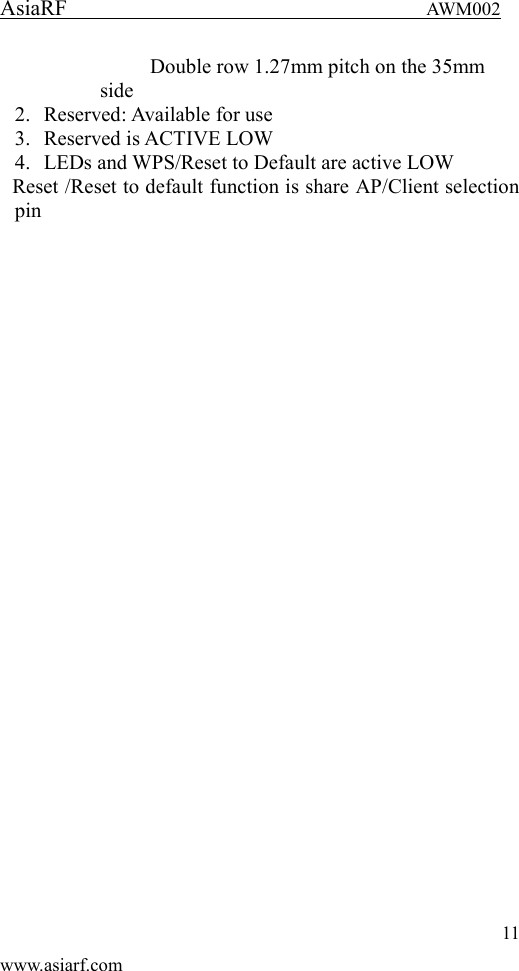
AsiaRF                                 AWM002 10 www.asiarf.com GND 8 7 WPS/Reset to Default # LED_WLAN# 10 9 GND LED_WPS# 12 11 USB_D+ AP/Client selection 14 13 USB_D- 1.2V 16 15 1.2V GPIO #19 18 17 TX0+ GPIO #18 20 19 TX0- GPIO #17 22 21 RX0+ LINK0_LED 24 23 RX0-  II Description Pin Pin Description I2SCLK 2 1 PCMFS I2SWS 4 3 PCMCLK I2SSDO 6 5 PCMDRX I2SSDI 8 7 PCMDTX I2C_SCLK 10 9 I2C_SD RX1+ 12 11 TX1+ RX1- 14 13 TX1- GND 16 15 GND  Size: 1. Size: 25*35 mm
AsiaRF                                 AWM002 11 www.asiarf.com Double row 1.27mm pitch on the 35mm side 2. Reserved: Available for use 3. Reserved is ACTIVE LOW 4. LEDs and WPS/Reset to Default are active LOW Reset /Reset to default function is share AP/Client selection pin
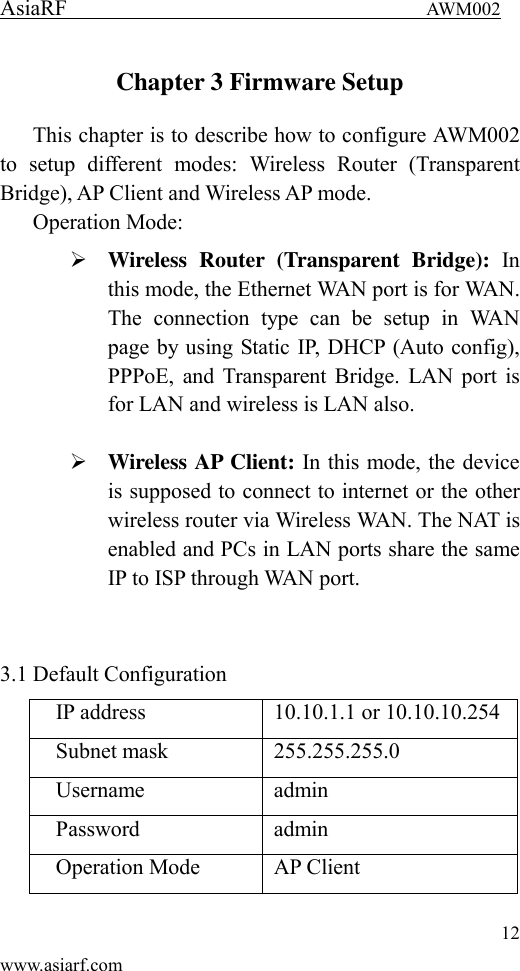
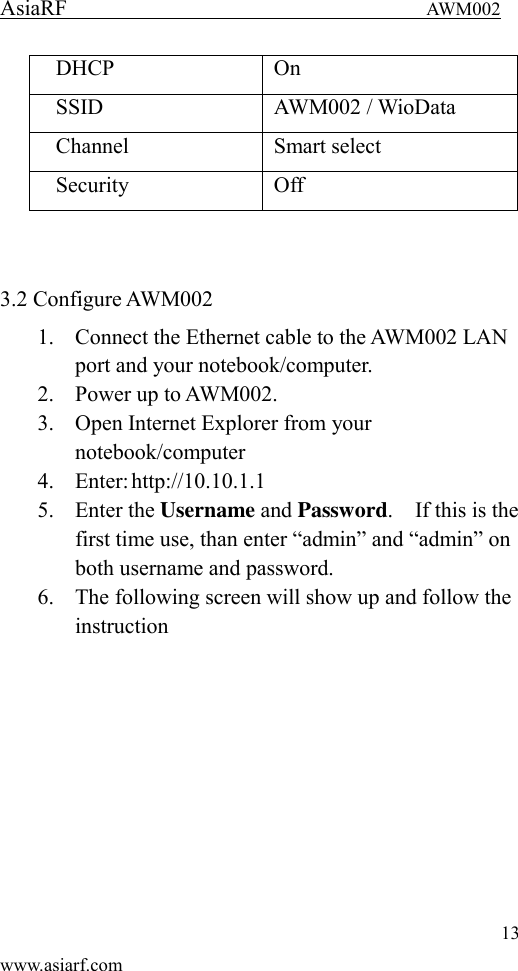
AsiaRF                                 AWM002 12 www.asiarf.com Chapter 3 Firmware Setup This chapter is to describe how to configure AWM002 to  setup  different  modes:  Wireless  Router  (Transparent Bridge), AP Client and Wireless AP mode. Operation Mode:  Wireless  Router  (Transparent  Bridge):  In this mode, the Ethernet WAN port is for WAN. The  connection  type  can  be  setup  in  WAN page by using Static IP, DHCP (Auto config), PPPoE, and Transparent Bridge. LAN port is for LAN and wireless is LAN also.   Wireless AP Client: In this mode, the device is supposed to connect to internet or the other wireless router via Wireless WAN. The NAT is enabled and PCs in LAN ports share the same IP to ISP through WAN port.   3.1 Default Configuration   IP address 10.10.1.1 or 10.10.10.254 Subnet mask 255.255.255.0 Username admin Password admin Operation Mode AP Client
AsiaRF                                 AWM002 13 www.asiarf.com DHCP On SSID AWM002 / WioData Channel Smart select Security Off   3.2 Configure AWM002   1. Connect the Ethernet cable to the AWM002 LAN port and your notebook/computer. 2. Power up to AWM002. 3. Open Internet Explorer from your notebook/computer 4. Enter: http://10.10.1.1 5. Enter the Username and Password.    If this is the first time use, than enter “admin” and “admin” on both username and password. 6. The following screen will show up and follow the instruction
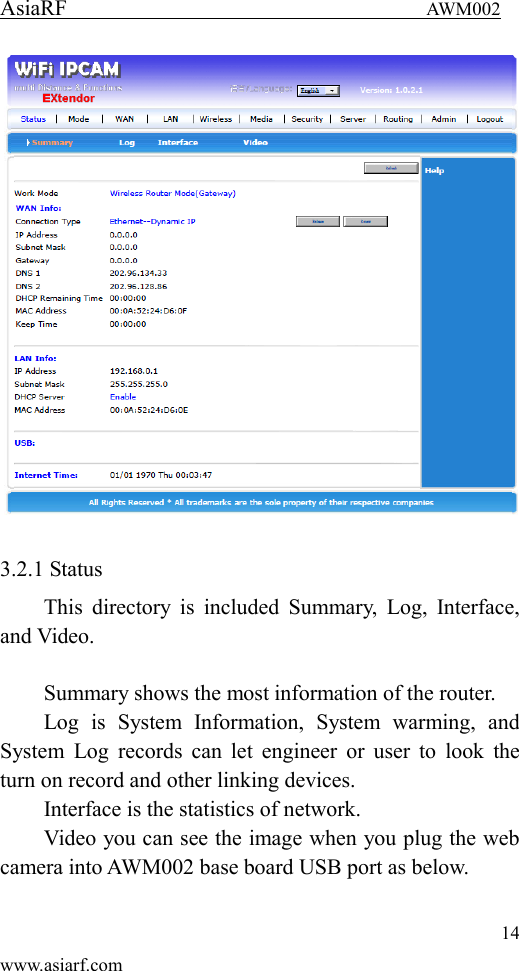
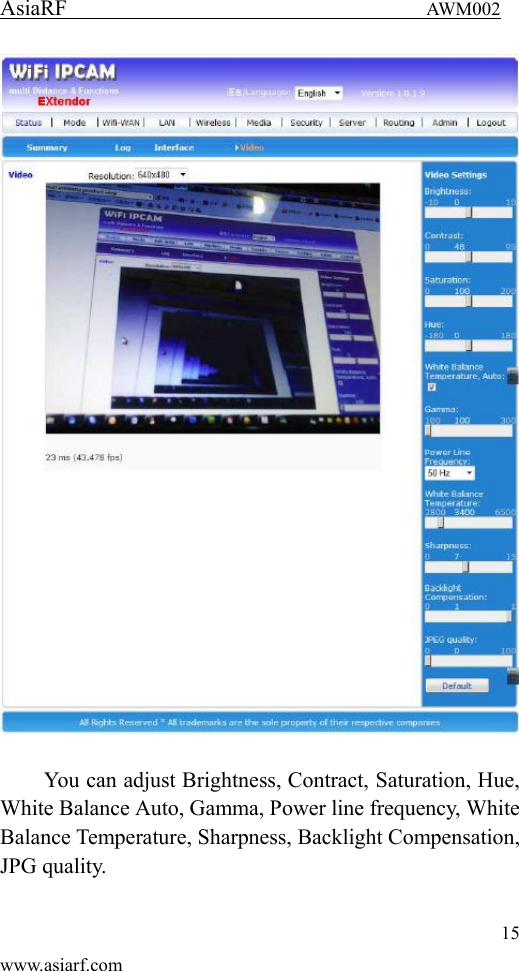
AsiaRF                                 AWM002 14 www.asiarf.com   3.2.1 Status This  directory  is  included  Summary,  Log, Interface, and Video.  Summary shows the most information of the router. Log  is  System  Information,  System  warming,  and System  Log  records can  let  engineer or  user to  look  the turn on record and other linking devices. Interface is the statistics of network. Video you can see the image when you plug the web camera into AWM002 base board USB port as below.
AsiaRF                                 AWM002 15 www.asiarf.com   You can adjust Brightness, Contract, Saturation, Hue, White Balance Auto, Gamma, Power line frequency, White Balance Temperature, Sharpness, Backlight Compensation, JPG quality.
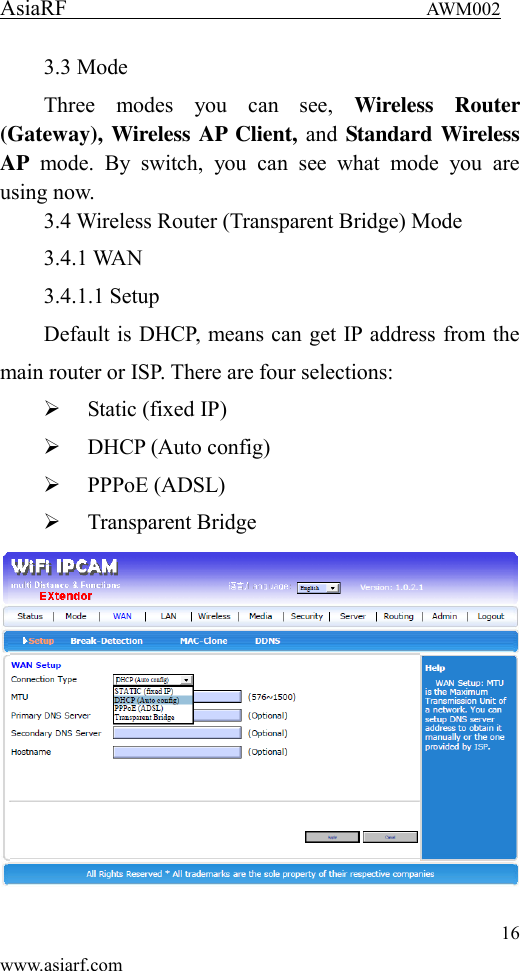
AsiaRF                                 AWM002 16 www.asiarf.com 3.3 Mode Three  modes  you  can  see,  Wireless  Router (Gateway), Wireless AP Client, and Standard Wireless AP  mode.  By  switch,  you  can  see  what  mode  you  are using now. 3.4 Wireless Router (Transparent Bridge) Mode 3.4.1 WAN 3.4.1.1 Setup Default is DHCP, means can get IP address from the main router or ISP. There are four selections:  Static (fixed IP)  DHCP (Auto config)  PPPoE (ADSL)  Transparent Bridge
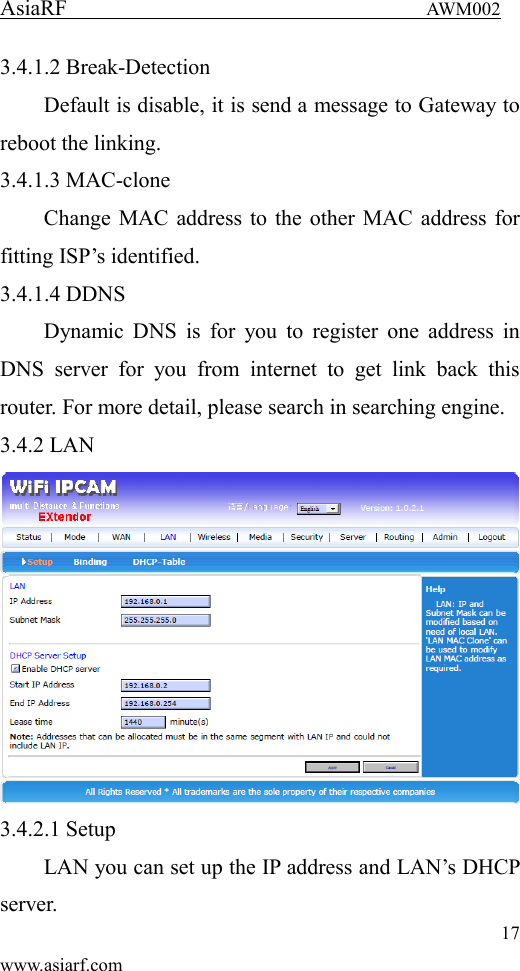
AsiaRF                                 AWM002 17 www.asiarf.com 3.4.1.2 Break-Detection Default is disable, it is send a message to Gateway to reboot the linking. 3.4.1.3 MAC-clone Change MAC address to the other MAC address for fitting ISP’s identified. 3.4.1.4 DDNS Dynamic  DNS  is  for  you to  register one  address in DNS  server  for  you  from  internet  to  get  link  back  this router. For more detail, please search in searching engine. 3.4.2 LAN  3.4.2.1 Setup LAN you can set up the IP address and LAN’s DHCP server.
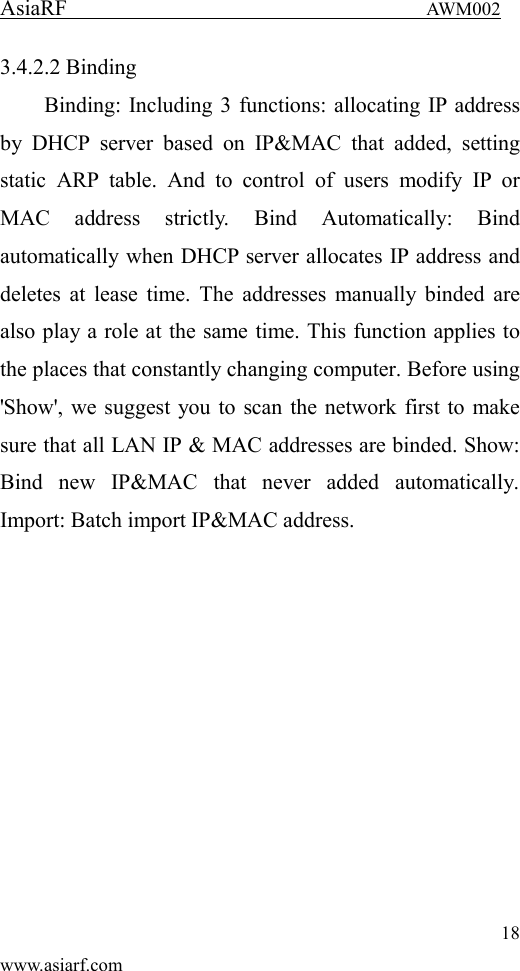
AsiaRF                                 AWM002 18 www.asiarf.com 3.4.2.2 Binding Binding: Including 3 functions: allocating IP address by  DHCP  server  based  on  IP&MAC  that  added,  setting static  ARP  table.  And  to  control  of  users  modify  IP  or MAC  address  strictly.  Bind  Automatically:  Bind automatically when DHCP server allocates IP address and deletes at lease time. The  addresses manually binded are also play a role at the same time. This function applies to the places that constantly changing computer. Before using 'Show', we suggest you to scan the network first to make sure that all LAN IP & MAC addresses are binded. Show: Bind  new  IP&MAC  that  never  added  automatically. Import: Batch import IP&MAC address.
AsiaRF                                 AWM002 19 www.asiarf.com  3.4.2.3 DHCP-table DHCP Table: Display all IP address allocated by current DHCP server.  3.4.3 Wireless
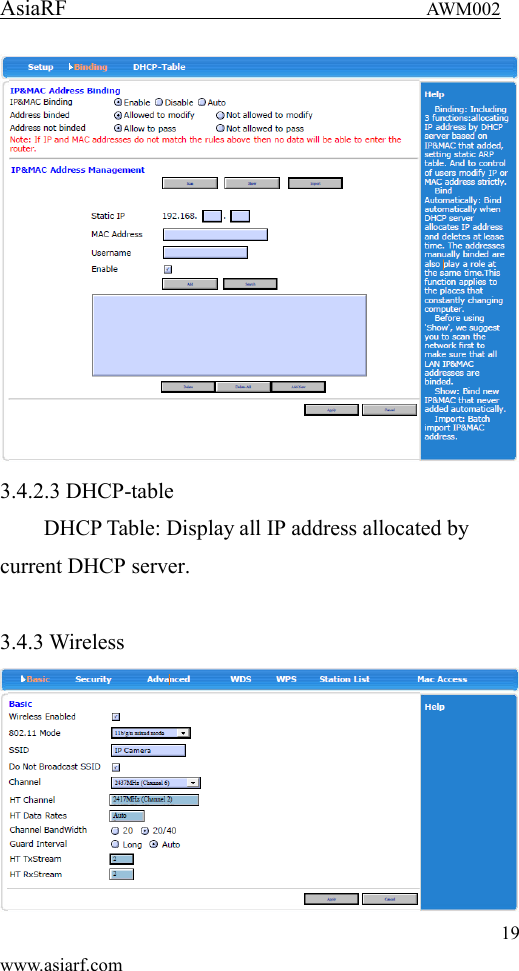
AsiaRF                                 AWM002 20 www.asiarf.com There  are  Basic,  Security,  Advanced,  WDS,  WPS, Station List, and MAC Access. 3.4.3.1 Basic Set wireless connection basic information, you could set enable and disable wireless function, Broadcast and not broadcast SSID, set SSID name and etc. 3.4.3.2 Security The types of wireless security mode are as followings, and you couls select as the need.  Disable  Open System  WPA  WPA-PSK  WPA2  WPA2-PSK  WPAPSKWPA2PSK (WPA-PSK and WPA2-PSK)  WPA1WPA2(WPAand WPA2)  3.4.3.3 Advanced Set advanced information of wireless connection. 3.4.3.4 WDS There  are  Disable,  Lazy  mode,  Bridge  mode,  and
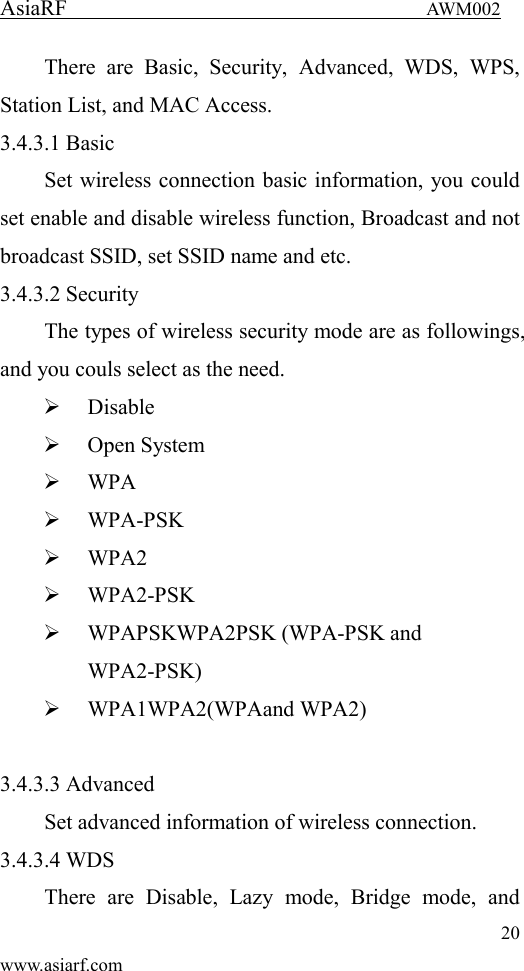
AsiaRF                                 AWM002 21 www.asiarf.com Repeater mode. 3.4.3.4 WPS There are Enable and Disable. 3.4.3.5 Station List 3.4.3.6 MAC Access MAC  Access  can  limit  the  linking  of  Wireless  by MAC. Like allow or deny the MAC list you input here. 3.4.4 Media You  can  set  up  Video  and  Audio  setting here. 3.4.5 Security
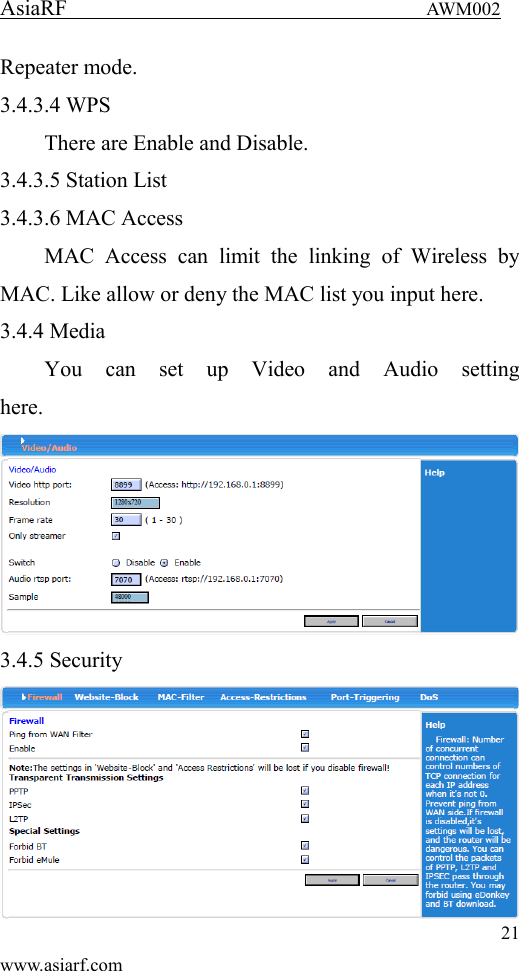
AsiaRF                                 AWM002 22 www.asiarf.com 3.4.5.1 Firewall After  enabling  firewall,  it  can  prevent  internet malicious attacks to roter or computers in LAN and ensure safe operation of router computers in LAN. Especilly for some open servers (such as virtual server, DMZ and etc.), enabling  router  firewall  function  can  block  malicious attacks and prevent DoS attack.  3.4.5.2 Website-Block Select  website  block  Enable,  add  to  the  list  and click “apply” to save.  3.4.5.3 MAC-Filter In  “MAC  filter”,  you  could  forbid  the  added  MAC address  and  also  just  allow  the  added  MAC  address passing router.    3.4.5.4 Access-Restrictions
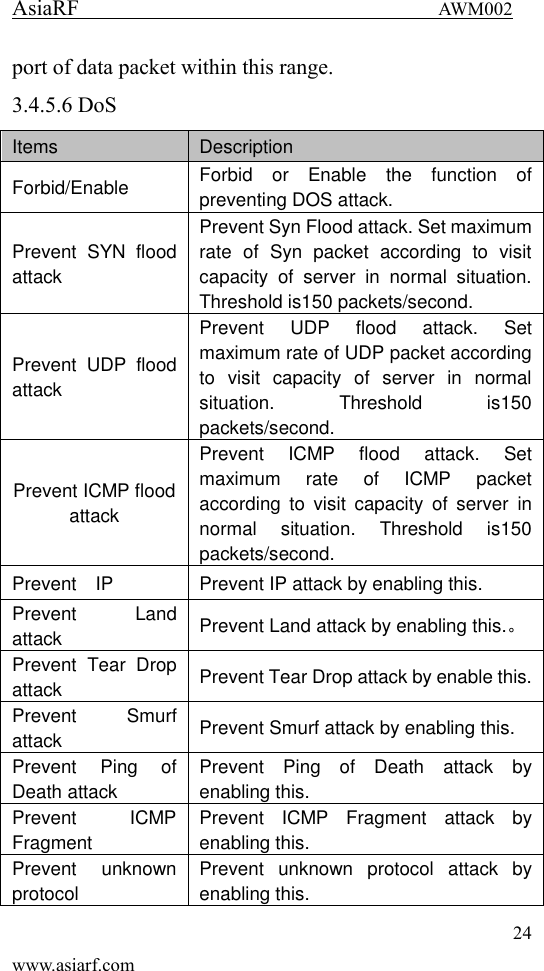
AsiaRF                                 AWM002 23 www.asiarf.com  In  the  “Access-Restrictions”,  you  could  block  or accept  some  ports  passing  router  and  effectively  block virus  by  controlling  port  range.  Notes:  The  ports  here include  source  port  and  destination  port.  So,  the  data packet will be disposed by discarded by router no matter the source port or  destination  port of data packet within this range. 3.4.5.5 Port-Triggering In  the  “Port  block,  you  could  block  some  ports passing  router  and  effectively  block  virus  by  controlling port range. Notes: The ports here include source port and destination  port. So,  the data packet will be  disposed by discarded by router no matter the source port or destination
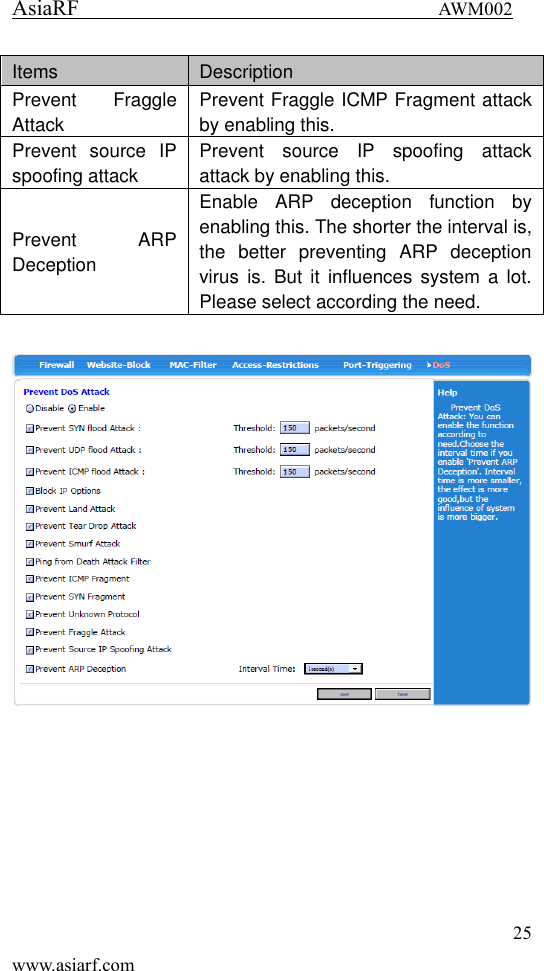
AsiaRF                                 AWM002 24 www.asiarf.com port of data packet within this range. 3.4.5.6 DoS Items   Description Forbid/Enable Forbid  or  Enable  the  function  of preventing DOS attack. Prevent  SYN  flood attack Prevent Syn Flood attack. Set maximum rate  of  Syn  packet  according  to  visit capacity  of  server  in  normal  situation. Threshold is150 packets/second. Prevent  UDP  flood attack Prevent  UDP  flood  attack.  Set maximum rate of UDP packet according to  visit  capacity  of  server  in  normal situation.  Threshold  is150 packets/second. Prevent ICMP flood attack Prevent  ICMP  flood  attack.  Set maximum  rate  of  ICMP  packet according  to  visit  capacity  of  server  in normal  situation.  Threshold  is150 packets/second. Prevent    IP Prevent IP attack by enabling this. Prevent  Land attack Prevent Land attack by enabling this.。 Prevent  Tear  Drop attack Prevent Tear Drop attack by enable this. Prevent  Smurf attack Prevent Smurf attack by enabling this. Prevent  Ping  of Death attack Prevent  Ping  of  Death  attack  by enabling this. Prevent  ICMP Fragment Prevent  ICMP  Fragment  attack  by enabling this. Prevent  unknown protocol Prevent  unknown  protocol  attack  by enabling this.
AsiaRF                                 AWM002 25 www.asiarf.com Items   Description Prevent  Fraggle Attack Prevent Fraggle ICMP Fragment attack by enabling this. Prevent  source  IP spoofing attack Prevent  source  IP  spoofing  attack attack by enabling this. Prevent  ARP Deception Enable  ARP  deception  function  by enabling this. The shorter the interval is, the  better  preventing  ARP  deception virus  is.  But  it  influences system a lot. Please select according the need.
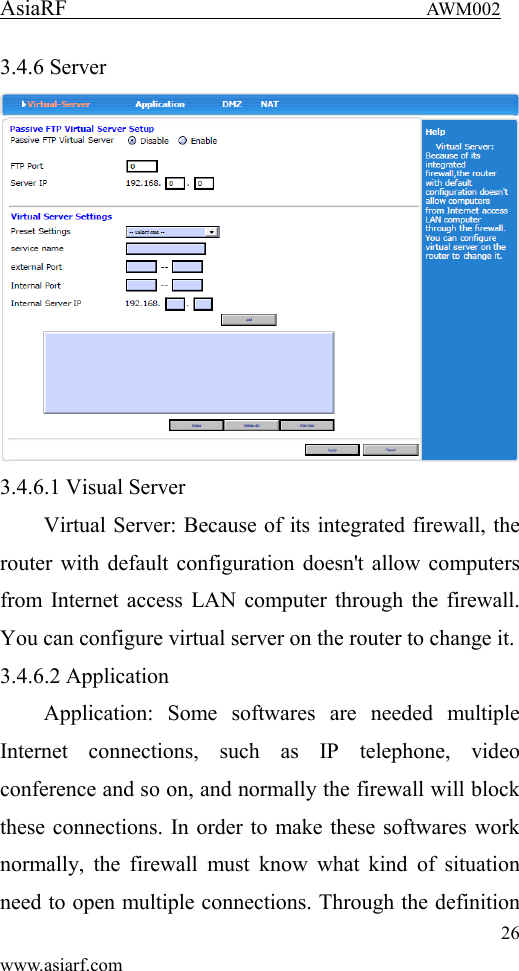
AsiaRF                                 AWM002 26 www.asiarf.com 3.4.6 Server  3.4.6.1 Visual Server Virtual Server: Because of its integrated firewall, the router with default configuration doesn't allow computers from Internet access LAN computer through the firewall. You can configure virtual server on the router to change it. 3.4.6.2 Application Application:  Some  softwares  are  needed  multiple Internet  connections,  such  as  IP  telephone,  video conference and so on, and normally the firewall will block these connections. In order to make these softwares work normally,  the  firewall  must  know  what kind  of  situation need to open multiple connections. Through the definition
AsiaRF                                 AWM002 27 www.asiarf.com of special applications, when the firewall found a 'Trigger Port'  to  be  opened  by  a  computer,  it  allows  connections from Internet to pass through the corresponding 'external port' to be established. 3.4.6.3 DMZ The DMZ host computer actually is a default virtual server. If  the  router received a request  from the external network,  it  will  check  whether  there  is  a  virtual  server match in the list according to port of the external service firstly, if there is, put forward the corresponding request to the host, if not, put forward the corresponding request to the  DMZ  host.  When  the  DMZ  host  is  not  set,  it  will discard the request. 3.4.6.4 NAT Outside  network  IP  address  will  be  one-to-one mapping to inside network address.  3.4.7 Routing
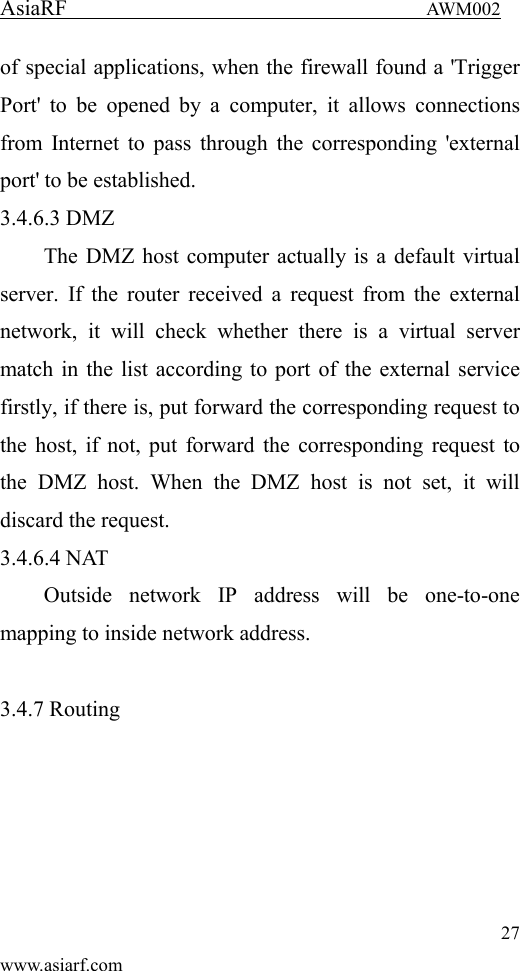
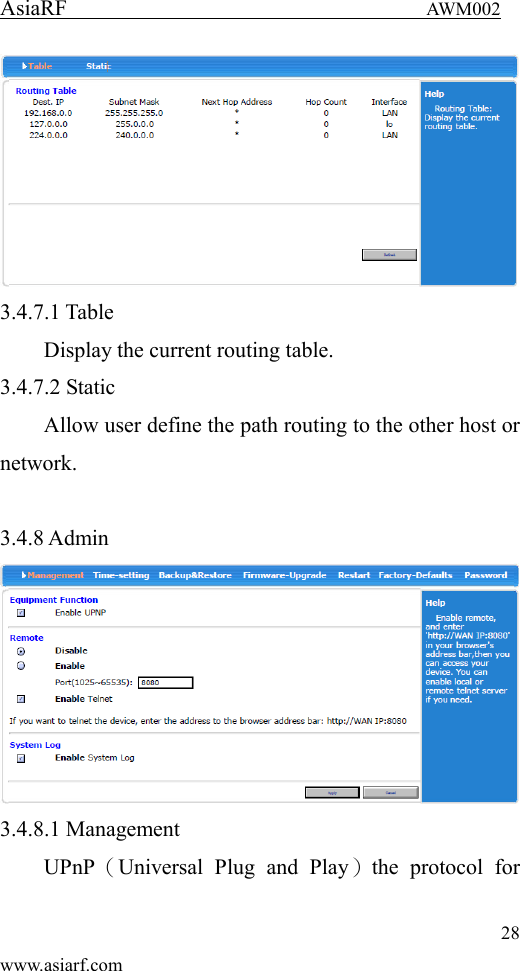
AsiaRF                                 AWM002 28 www.asiarf.com  3.4.7.1 Table Display the current routing table. 3.4.7.2 Static Allow user define the path routing to the other host or network.  3.4.8 Admin  3.4.8.1 Management UPnP(Universal  Plug  and  Play)the  protocol  for
AsiaRF                                 AWM002 29 www.asiarf.com DLNA,  the  purpose  is  let  smart  electronic  devices communicated with each other. Remote is administration from WAN control. System Log function default is enable. 3.4.8.2 Time-setting 3.4.8.3 Backup & Restore Setting’s backup and restore. 3.4.8.4 Firmware Upgrade 3.4.8.5 Restart 3.4.8.4 Factory Default 3.4.8.5 Password Administration password setting.  3.5 Wireless AP Client mode Ethernet and wireless are as  a LAN connected with PC or client devices, another Wireless Interface work as a WAN port connected with other wireless AP or router.
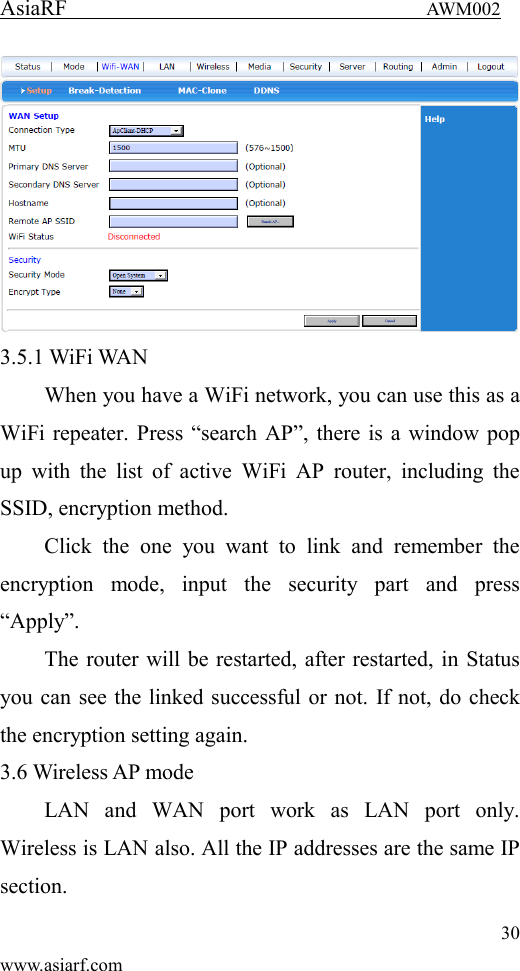
AsiaRF                                 AWM002 30 www.asiarf.com  3.5.1 WiFi WAN When you have a WiFi network, you can use this as a WiFi repeater. Press “search AP”, there is a window pop up  with  the  list  of  active  WiFi  AP  router,  including the SSID, encryption method. Click  the  one  you  want  to  link  and  remember  the encryption  mode,  input  the  security  part  and  press “Apply”. The router will be restarted, after restarted, in Status you can see the linked successful or not. If not, do check the encryption setting again. 3.6 Wireless AP mode LAN  and  WAN  port  work  as  LAN  port  only. Wireless is LAN also. All the IP addresses are the same IP section.
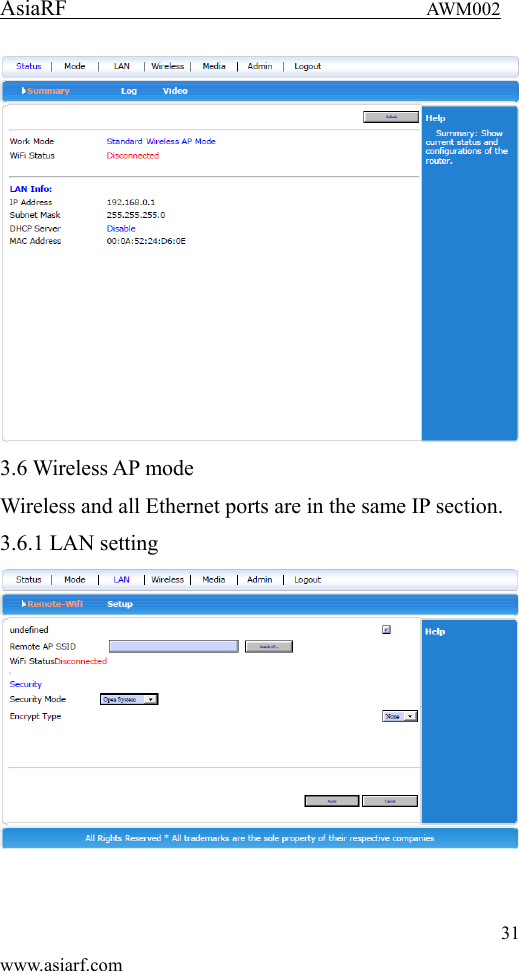
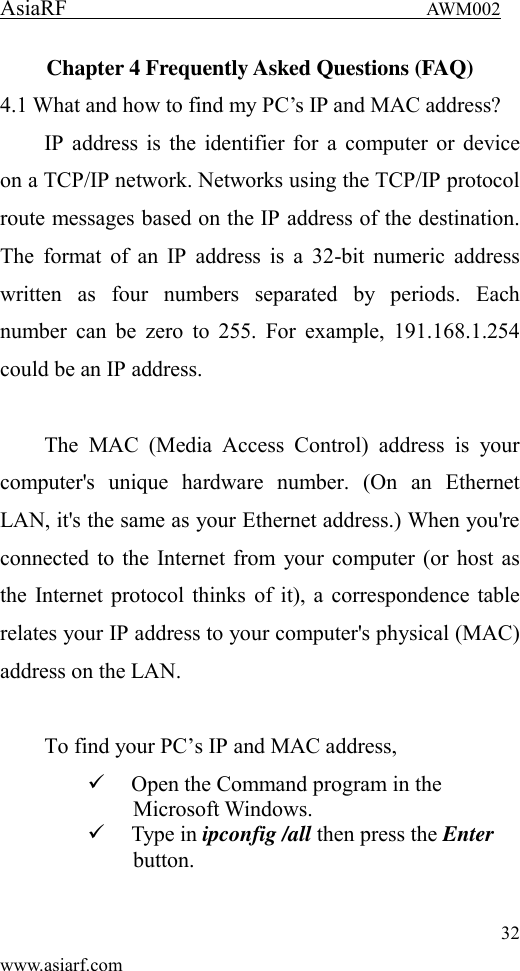
AsiaRF                                 AWM002 31 www.asiarf.com  3.6 Wireless AP mode Wireless and all Ethernet ports are in the same IP section. 3.6.1 LAN setting
AsiaRF                                 AWM002 32 www.asiarf.com Chapter 4 Frequently Asked Questions (FAQ) 4.1 What and how to find my PC’s IP and MAC address? IP address is the identifier for a computer or device on a TCP/IP network. Networks using the TCP/IP protocol route messages based on the IP address of the destination. The format of  an IP address is a  32-bit numeric address written  as  four  numbers  separated  by  periods.  Each number can  be  zero  to 255. For example, 191.168.1.254 could be an IP address.  The  MAC  (Media  Access  Control)  address  is  your computer's  unique  hardware  number.  (On  an  Ethernet LAN, it's the same as your Ethernet address.) When you're connected to the Internet from your computer (or host as the Internet protocol thinks of it), a correspondence table relates your IP address to your computer's physical (MAC) address on the LAN.  To find your PC’s IP and MAC address,  Open the Command program in the Microsoft Windows.  Type in ipconfig /all then press the Enter button.
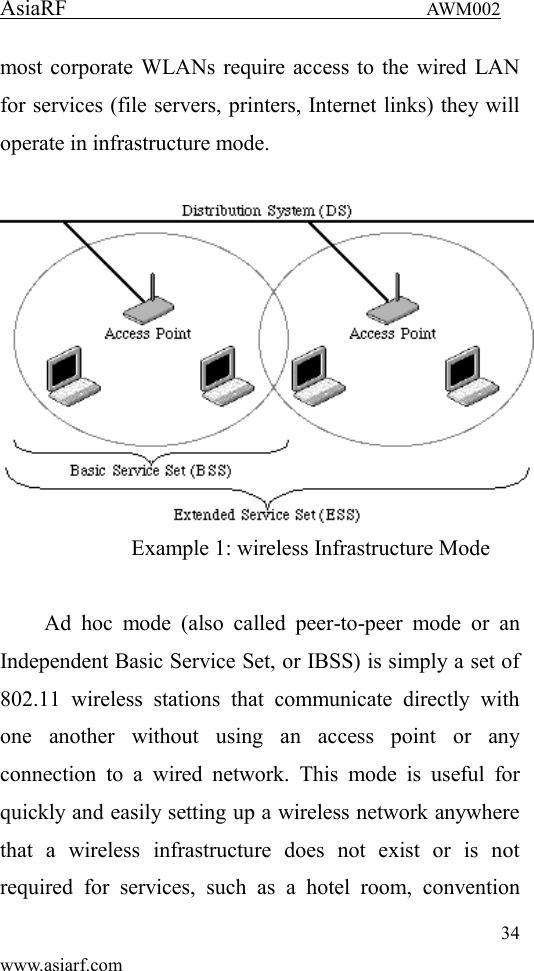
AsiaRF                                 AWM002 33 www.asiarf.com  Your PC’s IP address is the one entitled IP Address and your PC’s MAC address is the one entitled Physical Address.  4.2 What is Wireless LAN?   A  wireless  LAN  (WLAN)  is  a  network  that  allows access  to  Internet  without  the  need  for  any  wired connections to the user’s machine.    4.3 What are ISM bands?   ISM  stands  for  Industrial,  Scientific  and  Medical; radio  frequency  bands  that  the  Federal  Communications Commission  (FCC)  authorized  for  wireless  LANs.  The ISM bands  are  located  at  915  +/-  13  MHz,  2450  +/-  50 MHz and 5800 +/- 75 MHz.    4.4 How does wireless networking work?   The 802.11 standard define two modes: infrastructure mode  and  ad  hoc  mode.  In  infrastructure  mode,  the wireless  network  consists  of  at  least  one  access  point connected to the wired network infrastructure and a set of wireless end stations. This configuration is called a Basic Service Set (BSS). An Extended Service Set (ESS) is a set of two or more BSSs forming a single subnetwork. Since
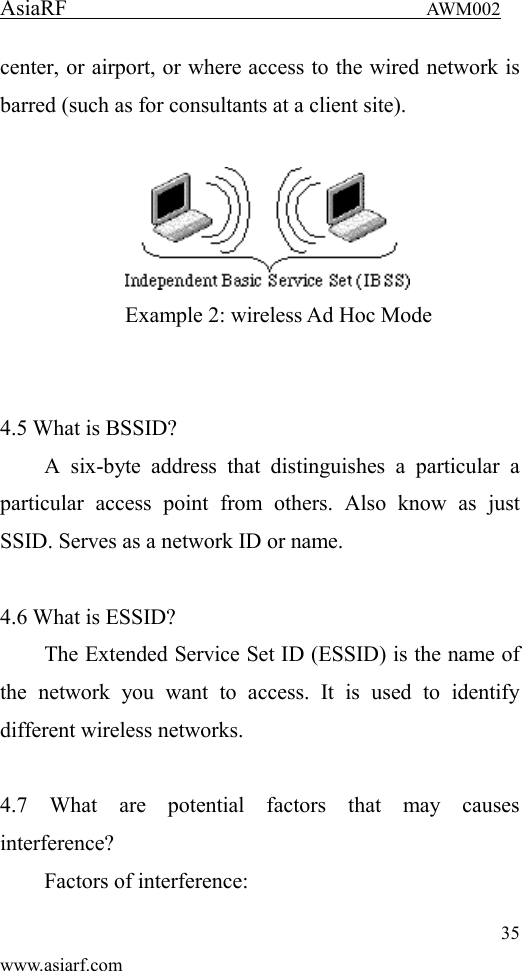
AsiaRF                                 AWM002 34 www.asiarf.com most corporate WLANs require access to the wired LAN for services (file servers, printers, Internet links) they will operate in infrastructure mode.     Example 1: wireless Infrastructure Mode  Ad  hoc  mode  (also  called  peer-to-peer  mode  or  an Independent Basic Service Set, or IBSS) is simply a set of 802.11  wireless  stations  that  communicate  directly  with one  another  without  using  an  access  point  or  any connection  to  a  wired  network.  This  mode  is  useful  for quickly and easily setting up a wireless network anywhere that  a  wireless  infrastructure  does  not  exist  or  is  not required  for  services,  such  as  a  hotel  room,  convention
AsiaRF                                 AWM002 35 www.asiarf.com center, or airport, or where access to the wired network is barred (such as for consultants at a client site).     Example 2: wireless Ad Hoc Mode   4.5 What is BSSID?   A  six-byte  address  that  distinguishes  a  particular  a particular  access  point  from  others.  Also  know  as  just SSID. Serves as a network ID or name.    4.6 What is ESSID?   The Extended Service Set ID (ESSID) is the name of the  network  you  want  to  access.  It  is  used  to  identify different wireless networks.    4.7  What  are  potential  factors  that  may  causes interference?   Factors of interference:
AsiaRF                                 AWM002 36 www.asiarf.com  Obstacles: walls, ceilings, furniture… etc.  Building Materials: metal door, aluminum studs.  Electrical devices: microwaves, monitors and electrical motors. Solutions to overcome the interferences:    Minimizing the number of walls and ceilings.  Position the WLAN antenna for best reception.  Keep WLAN devices away from other electrical devices, eg: microwaves, monitors, electric motors, … etc.  Add additional WLAN Access Points if necessary.  4.8  What  are  the  Open  System  and  Shared  Key authentications?   IEEE  802.11  supports  two  subtypes  of  network authentication  services:  open  system  and  shared  key. Under open system authentication, any wireless station can request  authentication.  The  station  that  needs  to authenticate  with  another  wireless  station  sends  an authentication management frame that contains the identity of the sending station. The receiving station then returns a frame  that  indicates  whether  it  recognizes  the  sending station.  Under  shared  key  authentication,  each  wireless station  is  assumed  to  have  received  a  secret  shared  key over a secure channel that is independent from the 802.11
AsiaRF                                 AWM002 37 www.asiarf.com wireless network communications channel.    4.9 What is WEP?   An  optional  IEEE  802.11  function  offers  frame transmission  privacy  similar  to  a  wired  network.  The Wired  Equivalent  Privacy  generates  secret  shared encryption keys that both  source and destination stations can  use  to  alert  frame  bits  to  avoid  disclosure  to eavesdroppers.    WEP relies on a secret key that is shared between a mobile station (e.g. a laptop with a wireless Ethernet card) and an access point (i.e. a base station). The secret key is used to encrypt packets before they are transmitted, and an integrity  check  is  used  to  ensure  that  packets  are  not modified in transit.  4.10 What is Fragment Threshold?   The proposed protocol uses the frame fragmentation mechanism  defined  in  IEEE  802.11  to  achieve  parallel transmissions.  A  large  data  frame  is  fragmented  into several fragments each of size equal to fragment threshold. By  tuning  the  fragment  threshold  value,  we  can  get
AsiaRF                                 AWM002 38 www.asiarf.com varying fragment sizes. The determination of an efficient fragment threshold is an important issue in this scheme. If the  fragment  threshold  is  small,  the  overlap  part  of  the master and parallel transmissions is large. This means the spatial  reuse  ratio  of  parallel  transmissions  is  high.  In contrast,  with  a  large  fragment  threshold,  the  overlap  is small  and  the  spatial  reuse  ratio  is  low.  However  high fragment threshold leads to low fragment overhead. Hence there  is  a  trade-off  between  spatial  re-use  and  fragment overhead.    Fragment threshold is the maximum packet size used for  fragmentation.  Packets  larger  than  the  size programmed in this field will be fragmented.  If you find that your corrupted packets or asymmetric packet reception (all send packets, for example). You may want  to  try  lowering  your  fragmentation  threshold.  This will  cause  packets  to  be  broken  into  smaller  fragments. These small fragments, if  corrupted,  can be  resent  faster than a larger fragment. Fragmentation increases overhead, so you'll want to keep this value as close to the maximum value as possible.
AsiaRF                                 AWM002 39 www.asiarf.com  4.11 What is RTS (Request To Send) Threshold?   The RTS threshold is the packet size at which packet transmission is governed by the RTS/CTS transaction. The IEEE 802.11-1997 standard allows for short packets to be transmitted  without  RTS/CTS  transactions.  Each  station can  have  a  different  RTS  threshold.  RTS/CTS  is  used when  the  data  packet  size  exceeds  the  defined  RTS threshold.  With  the  CSMA/CA  transmission  mechanism, the  transmitting  station  sends  out  an  RTS  packet  to  the receiving  station,  and  waits  for  the  receiving  station  to send back a CTS (Clear to Send) packet before sending the actual packet data.  This setting is useful for networks with many clients. With many clients, and a high network load, there will be many  more  collisions.  By  lowering  the  RTS  threshold, there  may  be  fewer  collisions,  and  performance  should improve.  Basically,  with  a  faster  RTS  threshold,  the system  can  recover  from  problems  faster.  RTS  packets consume  valuable  bandwidth,  however,  so  setting  this value too low will limit performance.
AsiaRF                                 AWM002 40 www.asiarf.com 4.12 What is Beacon Interval?   In addition to data frames that carry information from higher  layers,  802.11  includes  management  and  control frames that support data transfer. The beacon frame, which is a type of management frame, provides the "heartbeat" of a wireless LAN, enabling stations to establish and maintain communications in an orderly fashion.  Beacon  Interval  represents  the  amount  of  time between  beacon  transmissions.  Before  a  station  enters power save mode, the station needs the beacon interval to know when to wake up to receive the beacon (and learn whether there are buffered frames at the access point).  4.13 What is Preamble Type?   There are two preamble types defined in IEEE 802.11 specification. A long preamble basically gives the decoder more  time  to  process  the  preamble.  All  802.11  devices support a long preamble. The short preamble is designed to improve efficiency (for example, for VoIP systems). The difference between the two is in the Synchronization field. The long preamble is 128 bits, and the short is 56 bits.
AsiaRF                                 AWM002 41 www.asiarf.com 4.14 What is SSID Broadcast?   Broadcast  of  SSID  is  done  in  access  points  by  the beacon.  This  announces  your  access  point  (including various bits of information about it) to the wireless world around it. By disabling that feature, the SSID configured in the client must match the SSID of the access point.  Some wireless  devices  don't  work  properly if  SSID isn't  broadcast  (for  example  the  D-link  DWL-120  USB 802.11b  adapter).  Generally  if  your  client  hardware supports operation with SSID disabled, it's not a bad idea to run that way to enhance network security. However it's no  replacement  for  WEP,  MAC  filtering  or  other protections.    4.15 What is Wi-Fi Protected Access (WPA)?   Wi-Fi’s  original  security  mechanism,  Wired Equivalent Privacy (WEP), has been viewed as insufficient for  securing  confidential  business  communications.  A longer-term solution, the IEEE 802.11i standard, is under development. However, since the IEEE 802.11i standard is not expected to be published until the end of 2003, several members of the WI-Fi Alliance teamed up with members
AsiaRF                                 AWM002 42 www.asiarf.com of  the  IEEE  802.11i  task  group  to develop  a  significant near-term  enhancement  to  Wi-Fi  security.  Together,  this team developed Wi-Fi Protected Access.  To  upgrade  a  WLAN  network  to  support  WPA, Access  Points  will  require  a  WPA  software  upgrade. Clients  will  require  a  software  upgrade  for  the  network interface  card,  and  possibly  a  software  update  for  the operating  system.  For  enterprise  networks,  an authentication server, typically one that supports RADIUS and  the  selected  EAP  authentication  protocol,  will  be added to the network.      4.16 What is WPA2? It is the second generation of WPA. WPA2 is based on  the  final  IEEE  802.11i  amendment  to  the  802.11 standard.  4.17 What is 802.1x Authentication?   802.1x is a  framework for authenticated MAC-level access control, defines Extensible Authentication Protocol (EAP) over  LANs  (WAPOL).  The  standard encapsulates and leverages much of EAP, which was defined for dial-up
AsiaRF                                 AWM002 43 www.asiarf.com authentication with Point-to-Point Protocol in RFC 2284.  Beyond  encapsulating  EAP  packets,  the  802.1x standard  also  defines  EAPOL  messages  that  convey  the shared key information critical for wireless security.      4.18 What is Temporal Key Integrity Protocol (TKIP)?   The  Temporal  Key  Integrity  Protocol,  pronounced tee-kip, is part of the IEEE 802.11i encryption standard for wireless LANs. TKIP is the next generation of WEP, the Wired  Equivalency  Protocol,  which  is  used  to  secure 802.11  wireless  LANs.  TKIP  provides  per-packet  key mixing,  a  message  integrity  check  and  a  re-keying mechanism, thus fixing the flaws of WEP.  4.19 What is Advanced Encryption Standard (AES)?   Security  issues  are  a  major  concern  for  wireless LANs,  AES  is  the  U.S.  government’s  next-generation cryptography  algorithm,  which  will  replace  DES  and 3DES.  4.20 What is Inter-Access Point Protocol (IAPP)?   The IEEE 802.11f Inter-Access Point Protocol (IAPP)
AsiaRF                                 AWM002 44 www.asiarf.com supports  Access  Point  Vendor  interoperability,  enabling roaming of 802.11 Stations within IP subnet.  IAPP  defines  messages  and  data  to  be  exchanged between  Access  Points  and  between  the  IAPP  and  high layer management entities to support roaming. The IAPP protocol uses TCP for inter-Access Point communication and UDP for RADIUS request/response exchanges. It also uses  Layer  2  frames  to  update  the  forwarding  tables  of Layer 2 devices.    4.21 What is Wireless Distribution System (WDS)?   The  Wireless  Distribution  System  feature  allows WLAN  AP  to  talk  directly  to  other  APs  via  wireless channel, like the wireless bridge or repeater service.  4.22 What is Universal Plug and Play (uPNP)? UPnP is an open networking architecture that consists of services, devices, and control points. The ultimate goal is to allow data communication among all UPnP devices regardless  of  media,  operating  system,  programming language, and wired/wireless connection.
AsiaRF                                 AWM002 45 www.asiarf.com 4.23 What is Maximum Transmission Unit (MTU) Size? Maximum  Transmission  Unit  (MTU)  indicates  the network stack of any packet is larger than this value will be  fragmented  before  the  transmission.  During  the  PPP negotiation, the peer of the PPP connection will indicate its MRU and will be accepted. The actual MTU of the PPP connection will be set to the smaller one of MTU and the peer’s MRU. The default is value 1400.  4.24 What is Clone MAC Address? Clone  MAC  address  is  designed  for  your  special application that request the clients to register to a  server machine with one identified MAC address. Since  that  all  the  clients  will  communicate  outside world through the WLAN Outdoor Broadband Router, so have the cloned MAC address set on the WLAN Outdoor Broadband Router will solve the issue.  4.25 What is DDNS? DDNS is the abbreviation of Dynamic Domain Name Server. It is designed  for user own  the DNS server with dynamic WAN IP address.
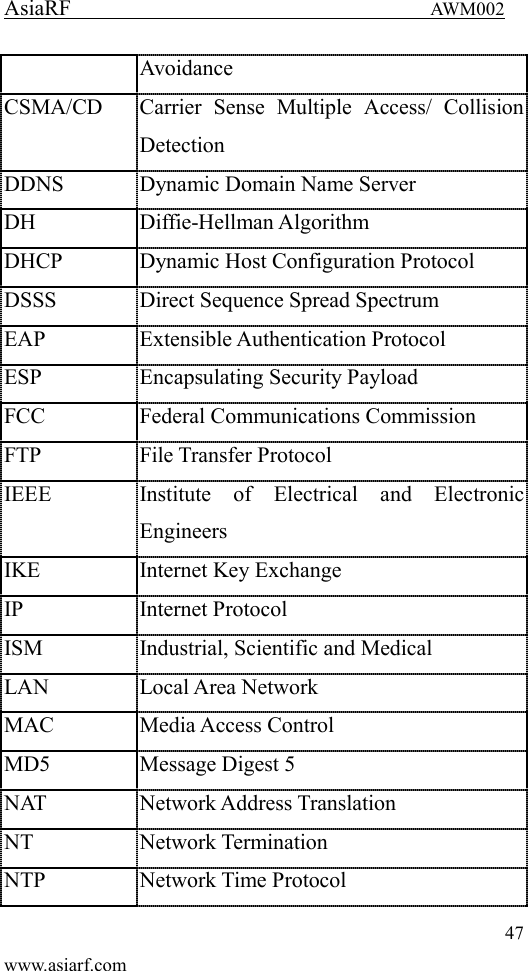
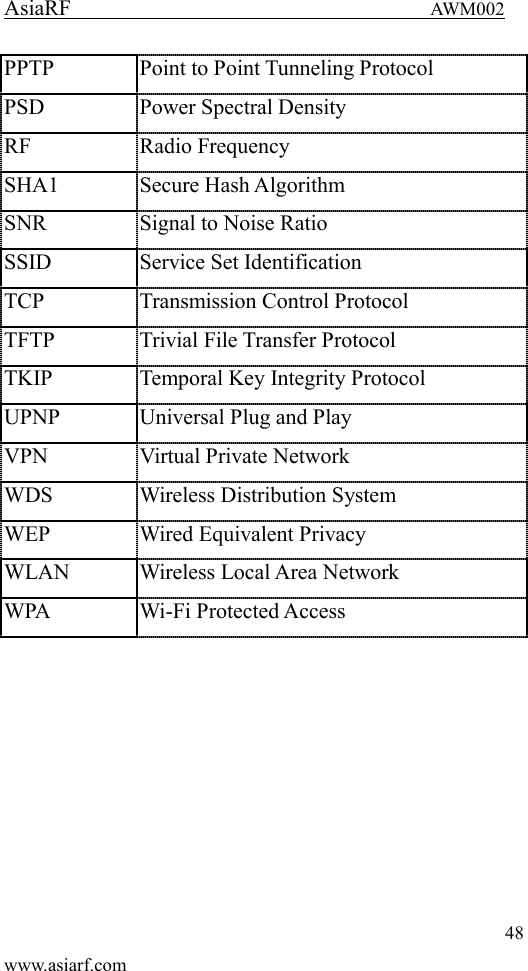
AsiaRF                                 AWM002 46 www.asiarf.com 4.26 What is NTP Client? NTP  client  is  designed  for  fetching  the  current timestamp from internet via Network Time protocol. User can specify time zone, NTP server IP address.  4.27 What is VPN? VPN is the abbreviation of Virtual Private Network. It is  designed  for  creating point-to point  private link  via shared or public network.  4.28What is IPSEC? IPSEC is the abbreviation of IP Security. It is used to transferring data securely under VPN.  Chapter 5 Terminology 3DES Triple Data Encryption Standard AES Advanced Encryption Standard ANSI American National Standards Institute AP Access Point CCK Complementary Code Keying CSMA/CA Carrier  Sense  Multiple  Access/  Collision
AsiaRF                                 AWM002 47 www.asiarf.com Avoidance CSMA/CD Carrier  Sense  Multiple  Access/  Collision Detection DDNS Dynamic Domain Name Server DH Diffie-Hellman Algorithm DHCP Dynamic Host Configuration Protocol DSSS Direct Sequence Spread Spectrum EAP Extensible Authentication Protocol ESP Encapsulating Security Payload FCC Federal Communications Commission FTP File Transfer Protocol IEEE Institute  of  Electrical  and  Electronic Engineers IKE Internet Key Exchange IP Internet Protocol ISM Industrial, Scientific and Medical LAN Local Area Network MAC Media Access Control MD5 Message Digest 5 NAT Network Address Translation NT Network Termination NTP Network Time Protocol
AsiaRF                                 AWM002 48 www.asiarf.com PPTP Point to Point Tunneling Protocol PSD Power Spectral Density RF Radio Frequency SHA1 Secure Hash Algorithm SNR Signal to Noise Ratio SSID Service Set Identification TCP Transmission Control Protocol TFTP Trivial File Transfer Protocol TKIP Temporal Key Integrity Protocol UPNP Universal Plug and Play   VPN Virtual Private Network WDS Wireless Distribution System WEP Wired Equivalent Privacy WLAN Wireless Local Area Network WPA Wi-Fi Protected Access
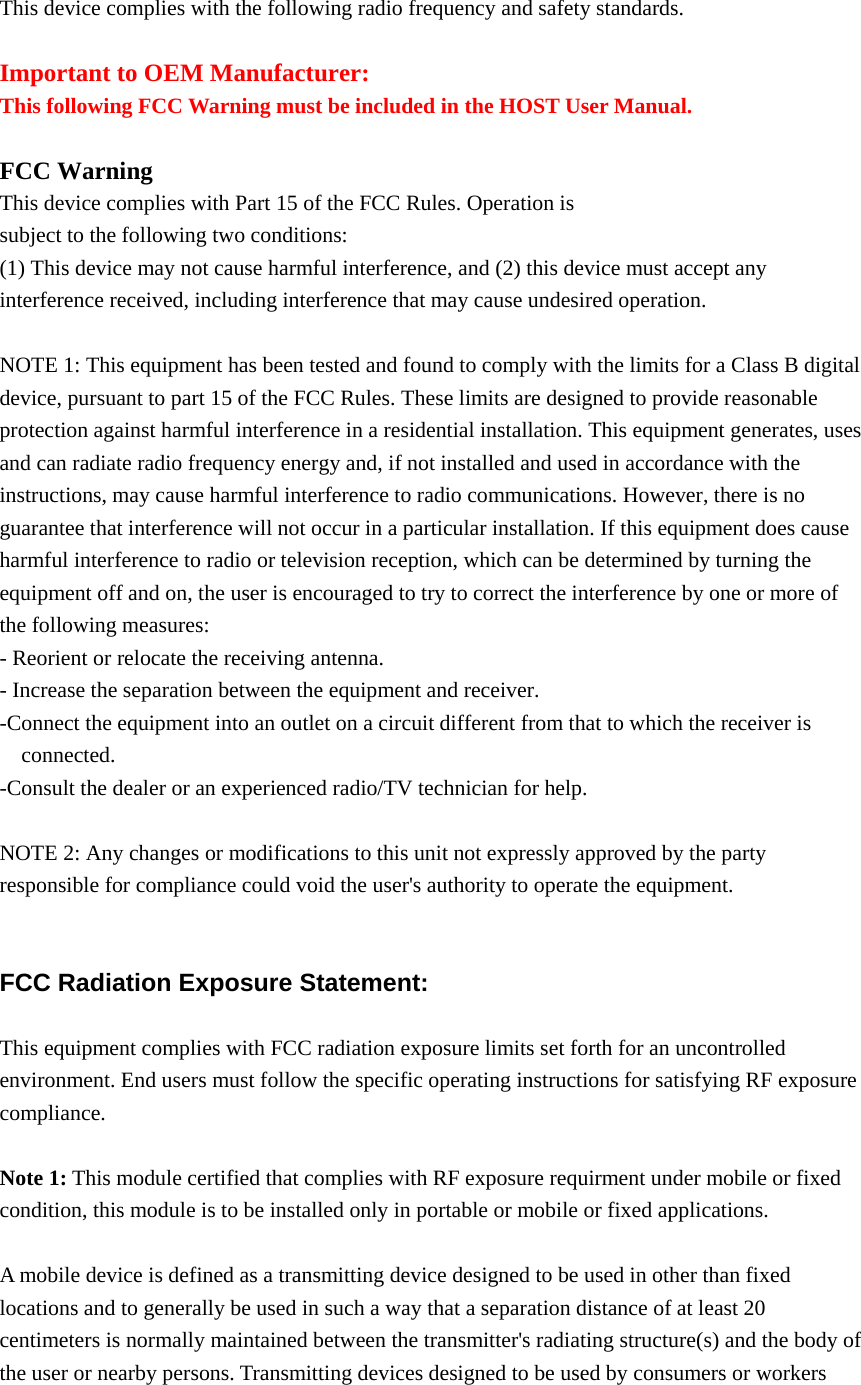
 This device complies with the following radio frequency and safety standards.  Important to OEM Manufacturer: This following FCC Warning must be included in the HOST User Manual.  FCC Warning This device complies with Part 15 of the FCC Rules. Operation is subject to the following two conditions: (1) This device may not cause harmful interference, and (2) this device must accept any interference received, including interference that may cause undesired operation.  NOTE 1: This equipment has been tested and found to comply with the limits for a Class B digital device, pursuant to part 15 of the FCC Rules. These limits are designed to provide reasonable protection against harmful interference in a residential installation. This equipment generates, uses and can radiate radio frequency energy and, if not installed and used in accordance with the instructions, may cause harmful interference to radio communications. However, there is no guarantee that interference will not occur in a particular installation. If this equipment does cause harmful interference to radio or television reception, which can be determined by turning the equipment off and on, the user is encouraged to try to correct the interference by one or more of the following measures: - Reorient or relocate the receiving antenna. - Increase the separation between the equipment and receiver. -Connect the equipment into an outlet on a circuit different from that to which the receiver is connected. -Consult the dealer or an experienced radio/TV technician for help.  NOTE 2: Any changes or modifications to this unit not expressly approved by the party responsible for compliance could void the user's authority to operate the equipment.   FCC Radiation Exposure Statement:  This equipment complies with FCC radiation exposure limits set forth for an uncontrolled environment. End users must follow the specific operating instructions for satisfying RF exposure compliance.  Note 1: This module certified that complies with RF exposure requirment under mobile or fixed condition, this module is to be installed only in portable or mobile or fixed applications.  A mobile device is defined as a transmitting device designed to be used in other than fixed locations and to generally be used in such a way that a separation distance of at least 20 centimeters is normally maintained between the transmitter's radiating structure(s) and the body of the user or nearby persons. Transmitting devices designed to be used by consumers or workers
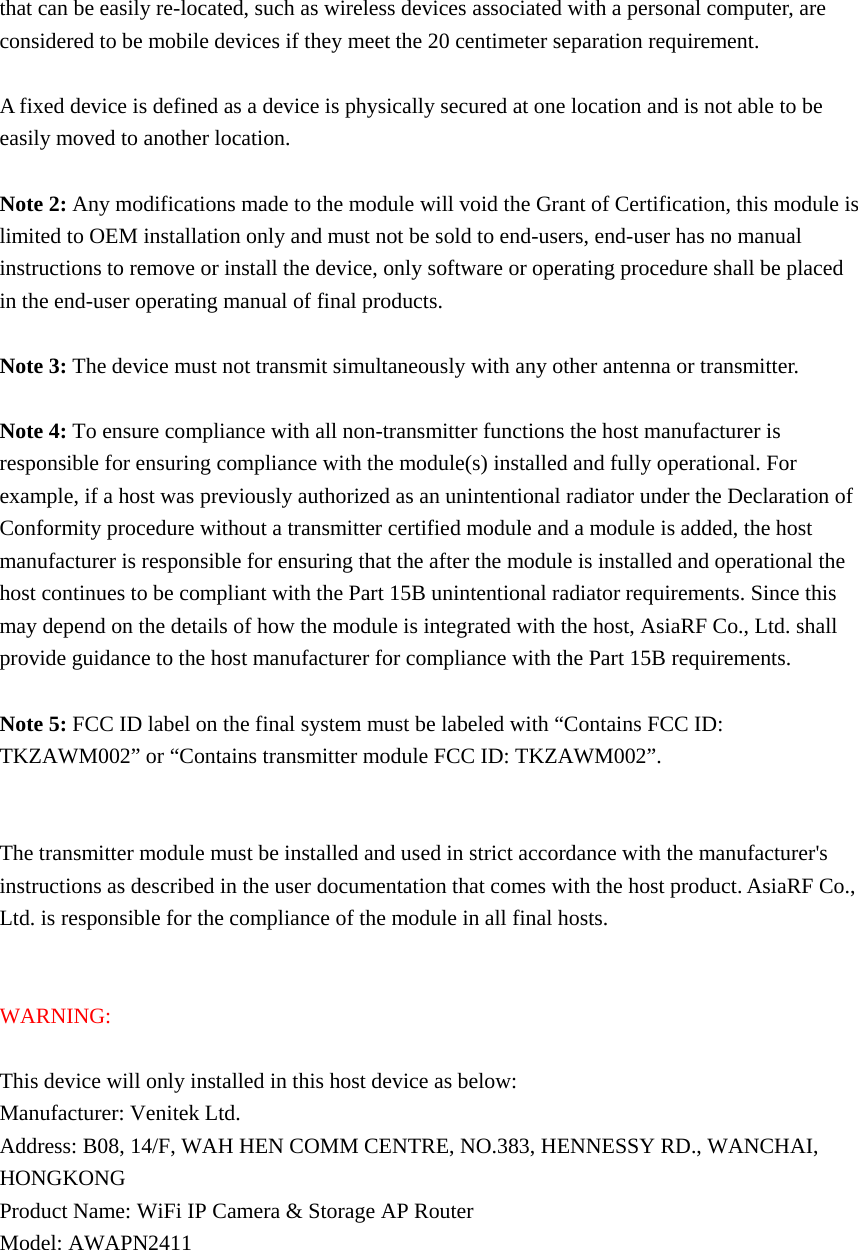
that can be easily re-located, such as wireless devices associated with a personal computer, are considered to be mobile devices if they meet the 20 centimeter separation requirement.  A fixed device is defined as a device is physically secured at one location and is not able to be easily moved to another location.  Note 2: Any modifications made to the module will void the Grant of Certification, this module is limited to OEM installation only and must not be sold to end-users, end-user has no manual instructions to remove or install the device, only software or operating procedure shall be placed in the end-user operating manual of final products.  Note 3: The device must not transmit simultaneously with any other antenna or transmitter.  Note 4: To ensure compliance with all non-transmitter functions the host manufacturer is responsible for ensuring compliance with the module(s) installed and fully operational. For example, if a host was previously authorized as an unintentional radiator under the Declaration of Conformity procedure without a transmitter certified module and a module is added, the host manufacturer is responsible for ensuring that the after the module is installed and operational the host continues to be compliant with the Part 15B unintentional radiator requirements. Since this may depend on the details of how the module is integrated with the host, AsiaRF Co., Ltd. shall provide guidance to the host manufacturer for compliance with the Part 15B requirements.  Note 5: FCC ID label on the final system must be labeled with “Contains FCC ID: TKZAWM002” or “Contains transmitter module FCC ID: TKZAWM002”.   The transmitter module must be installed and used in strict accordance with the manufacturer's instructions as described in the user documentation that comes with the host product. AsiaRF Co., Ltd. is responsible for the compliance of the module in all final hosts.   WARNING:  This device will only installed in this host device as below: Manufacturer: Venitek Ltd. Address: B08, 14/F, WAH HEN COMM CENTRE, NO.383, HENNESSY RD., WANCHAI, HONGKONG Product Name: WiFi IP Camera & Storage AP Router Model: AWAPN2411

Navigation menu