Avantech Mobile CT6608 Cellular phone 900/1800/1900 Bands User Manual Philips 9at9i

Avantech Mobile Cellular phone 900/1800/1900 Bands Philips 9at9i

User Guide

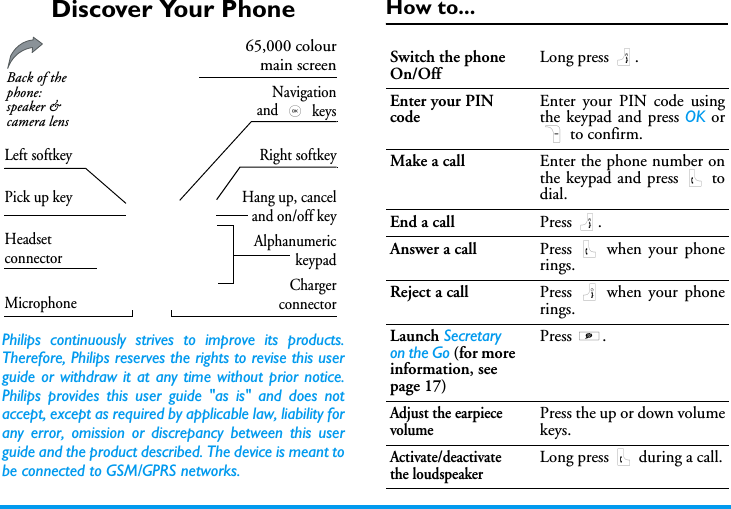
Discover Your PhonePhilips continuously strives to improve its products.Therefore, Philips reserves the rights to revise this userguide or withdraw it at any time without prior notice.Philips provides this user guide "as is" and does notaccept, except as required by applicable law, liability forany error, omission or discrepancy between this userguide and the product described. The device is meant tobe connected to GSM/GPRS networks.How to...AlphanumerickeypadMicrophoneNavigationand , keys65,000 colourmain screenPick up key Hang up, canceland on/off keyBack of the phone: speaker & camera lens  HeadsetconnectorChargerconnectorLeft softkey Right softkeySwitch the phone On/OffLong press ).Enter your PIN codeEnter your PIN code usingthe keypad and press OK orR to confirm.Make a call Enter the phone number onthe keypad and press ( todial.End a call Press ).Answer a call Press ( when your phonerings.Reject a call Press ) when your phonerings.Launch Secretary on the Go (for more information, see page 17)Press S.Adjust the earpiece volumePress the up or down volumekeys.Activate/deactivate the loudspeakerLong press ( during a call.
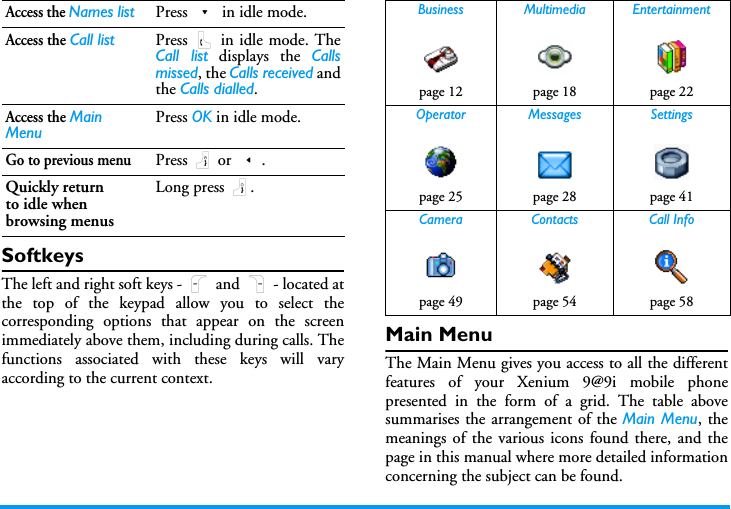
SoftkeysThe left and right soft keys - L and R - located atthe top of the keypad allow you to select thecorresponding options that appear on the screenimmediately above them, including during calls. Thefunctions associated with these keys will varyaccording to the current context.Main MenuThe Main Menu gives you access to all the differentfeatures of your Xenium 9@9i mobile phonepresented in the form of a grid. The table abovesummarises the arrangement of the Main Menu, themeanings of the various icons found there, and thepage in this manual where more detailed informationconcerning the subject can be found.Access the Names list Press - in idle mode.Access the Call list Press ( in idle mode. TheCall list displays the Callsmissed, the Calls received andthe Calls dialled.Access the Main MenuPress OK in idle mode.Go to previous menuPress ) or <.Quickly returnto idle when browsing menusLong press ).Business Multimedia Entertainmentpage 12 page 18 page 22Operator Messages Settingspage 25 page 28 page 41Camera Contacts Call Infopage 49 page 54 page 58
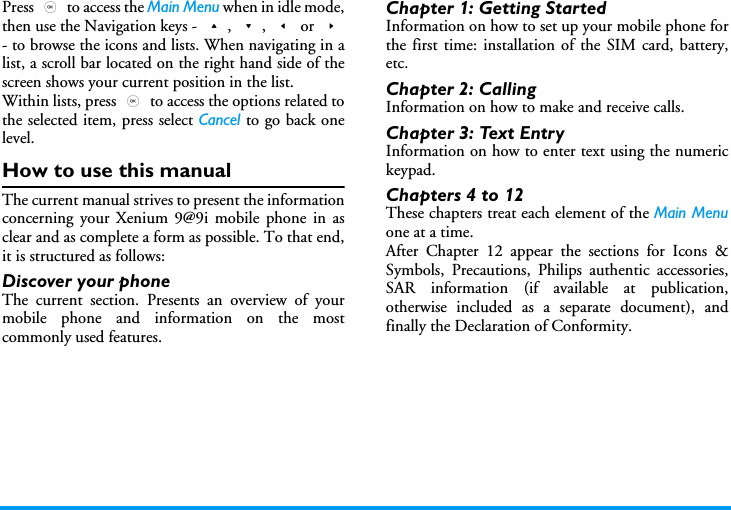
Press , to access the Main Menu when in idle mode,then use the Navigation keys - +, -, < or >- to browse the icons and lists. When navigating in alist, a scroll bar located on the right hand side of thescreen shows your current position in the list.Within lists, press , to access the options related tothe selected item, press select Cancel to go back onelevel.How to use this manualThe current manual strives to present the informationconcerning your Xenium 9@9i mobile phone in asclear and as complete a form as possible. To that end,it is structured as follows:Discover your phoneThe current section. Presents an overview of yourmobile phone and information on the mostcommonly used features.Chapter 1: Getting StartedInformation on how to set up your mobile phone forthe first time: installation of the SIM card, battery,etc.Chapter 2: CallingInformation on how to make and receive calls.Chapter 3: Text EntryInformation on how to enter text using the numerickeypad.Chapters 4 to 12These chapters treat each element of the Main Menuone at a time.After Chapter 12 appear the sections for Icons &Symbols, Precautions, Philips authentic accessories,SAR information (if available at publication,otherwise included as a separate document), andfinally the Declaration of Conformity.
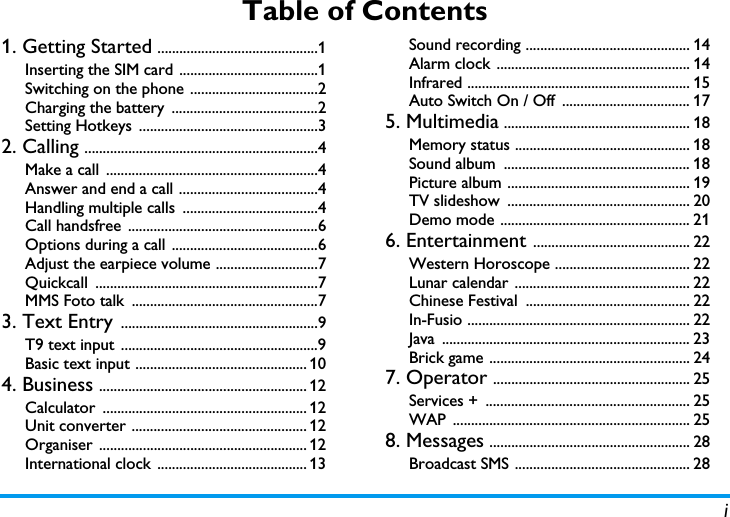
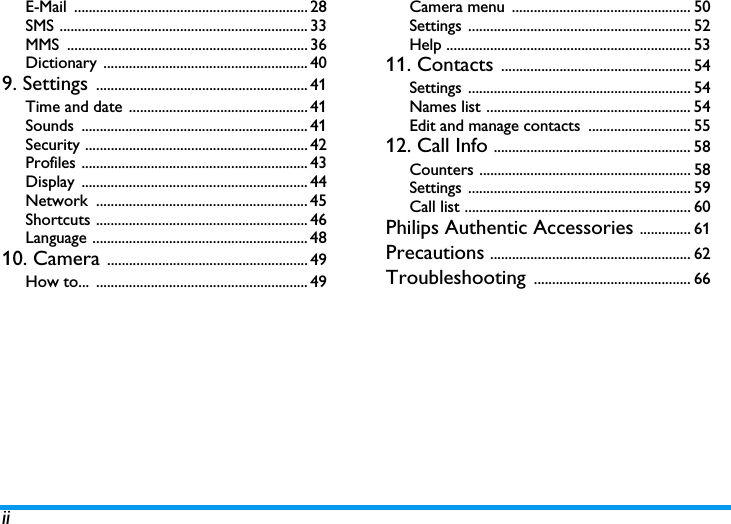
iTable of Contents1. Getting Started ............................................1Inserting the SIM card ......................................1Switching on the phone ...................................2Charging the battery  ........................................2Setting Hotkeys  .................................................32. Calling ................................................................4Make a call  ..........................................................4Answer and end a call ......................................4Handling multiple calls  .....................................4Call handsfree  ....................................................6Options during a call  ........................................6Adjust the earpiece volume ............................7Quickcall .............................................................7MMS Foto talk  ...................................................73. Text Entry ......................................................9T9 text input  ......................................................9Basic text input ............................................... 104. Business ......................................................... 12Calculator ........................................................ 12Unit converter ................................................ 12Organiser ......................................................... 12International clock  ......................................... 13Sound recording ............................................. 14Alarm clock ..................................................... 14Infrared ............................................................. 15Auto Switch On / Off  ................................... 175. Multimedia ................................................... 18Memory status ................................................ 18Sound album  ................................................... 18Picture album .................................................. 19TV slideshow  .................................................. 20Demo mode .................................................... 216. Entertainment ........................................... 22Western Horoscope ..................................... 22Lunar calendar ................................................ 22Chinese Festival  ............................................. 22In-Fusio ............................................................. 22Java .................................................................... 23Brick game ....................................................... 247. Operator ...................................................... 25Services +  ........................................................ 25WAP ................................................................. 258. Messages ....................................................... 28Broadcast SMS ................................................ 28
iiE-Mail ................................................................ 28SMS .................................................................... 33MMS .................................................................. 36Dictionary ........................................................ 409. Settings .......................................................... 41Time and date ................................................. 41Sounds .............................................................. 41Security ............................................................. 42Profiles .............................................................. 43Display .............................................................. 44Network .......................................................... 45Shortcuts .......................................................... 46Language ........................................................... 4810. Camera ....................................................... 49How to...  .......................................................... 49Camera menu  ................................................. 50Settings ............................................................. 52Help ................................................................... 5311. Contacts .................................................... 54Settings ............................................................. 54Names list ........................................................ 54Edit and manage contacts  ............................ 5512. Call Info ...................................................... 58Counters .......................................................... 58Settings ............................................................. 59Call list .............................................................. 60Philips Authentic Accessories .............. 61Precautions ....................................................... 62Troubleshooting ........................................... 66
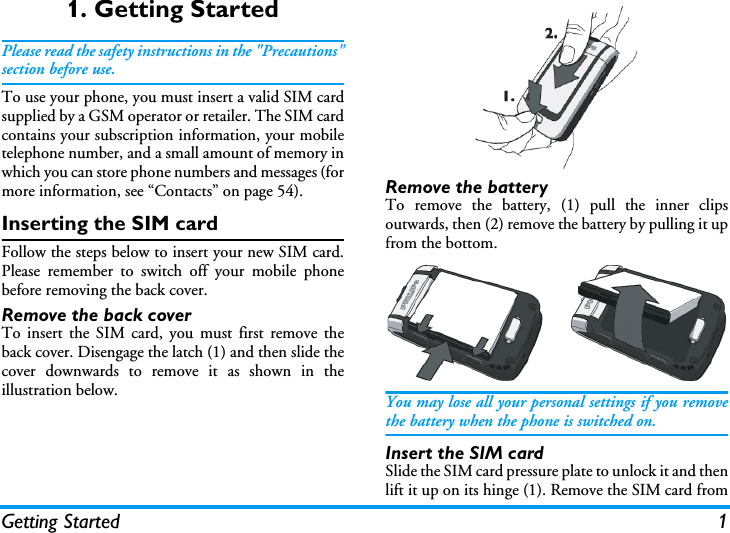
Getting Started 11. Getting StartedPlease read the safety instructions in the "Precautions"section before use.To use your phone, you must insert a valid SIM cardsupplied by a GSM operator or retailer. The SIM cardcontains your subscription information, your mobiletelephone number, and a small amount of memory inwhich you can store phone numbers and messages (formore information, see “Contacts” on page 54).Inserting the SIM cardFollow the steps below to insert your new SIM card.Please remember to switch off your mobile phonebefore removing the back cover.Remove the back coverTo insert the SIM card, you must first remove theback cover. Disengage the latch (1) and then slide thecover downwards to remove it as shown in theillustration below.Remove the batteryTo remove the battery, (1) pull the inner clipsoutwards, then (2) remove the battery by pulling it upfrom the bottom.You may lose all your personal settings if you removethe battery when the phone is switched on.Insert the SIM cardSlide the SIM card pressure plate to unlock it and thenlift it up on its hinge (1). Remove the SIM card from
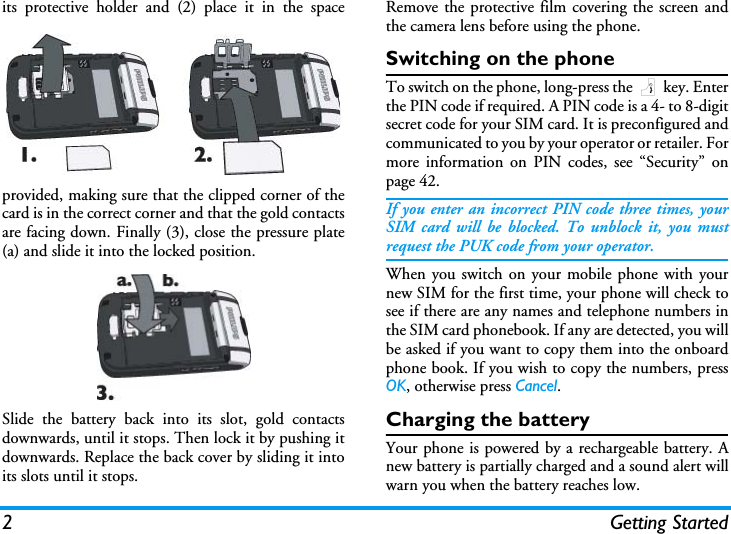
2 Getting Startedits protective holder and (2) place it in the spaceprovided, making sure that the clipped corner of thecard is in the correct corner and that the gold contactsare facing down. Finally (3), close the pressure plate(a) and slide it into the locked position.Slide the battery back into its slot, gold contactsdownwards, until it stops. Then lock it by pushing itdownwards. Replace the back cover by sliding it intoits slots until it stops.Remove the protective film covering the screen andthe camera lens before using the phone.Switching on the phoneTo switch on the phone, long-press the ) key. Enterthe PIN code if required. A PIN code is a 4- to 8-digitsecret code for your SIM card. It is preconfigured andcommunicated to you by your operator or retailer. Formore information on PIN codes, see “Security” onpage 42.If you enter an incorrect PIN code three times, yourSIM card will be blocked. To unblock it, you mustrequest the PUK code from your operator.When you switch on your mobile phone with yournew SIM for the first time, your phone will check tosee if there are any names and telephone numbers inthe SIM card phonebook. If any are detected, you willbe asked if you want to copy them into the onboardphone book. If you wish to copy the numbers, pressOK, otherwise press Cancel.Charging the batteryYour phone is powered by a rechargeable battery. Anew battery is partially charged and a sound alert willwarn you when the battery reaches low.
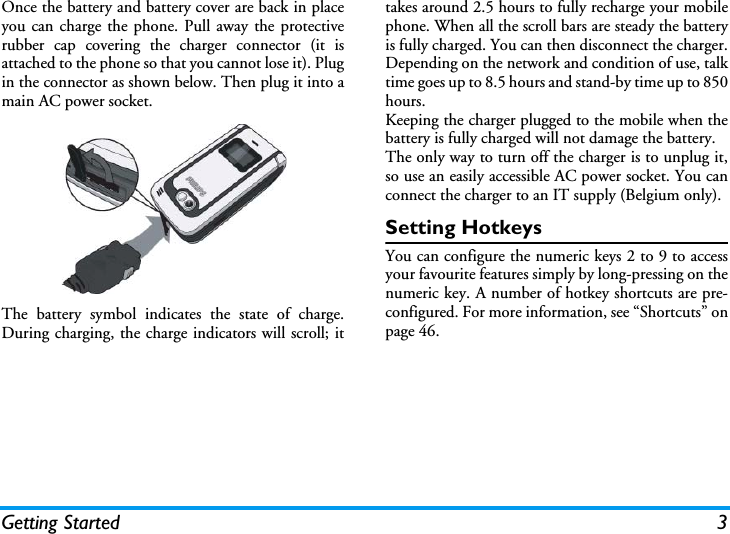
Getting Started 3Once the battery and battery cover are back in placeyou can charge the phone. Pull away the protectiverubber cap covering the charger connector (it isattached to the phone so that you cannot lose it). Plugin the connector as shown below. Then plug it into amain AC power socket.The battery symbol indicates the state of charge.During charging, the charge indicators will scroll; ittakes around 2.5 hours to fully recharge your mobilephone. When all the scroll bars are steady the batteryis fully charged. You can then disconnect the charger.Depending on the network and condition of use, talktime goes up to 8.5 hours and stand-by time up to 850hours.Keeping the charger plugged to the mobile when thebattery is fully charged will not damage the battery. The only way to turn off the charger is to unplug it,so use an easily accessible AC power socket. You canconnect the charger to an IT supply (Belgium only).Setting HotkeysYou can configure the numeric keys 2 to 9 to accessyour favourite features simply by long-pressing on thenumeric key. A number of hotkey shortcuts are pre-configured. For more information, see “Shortcuts” onpage 46.
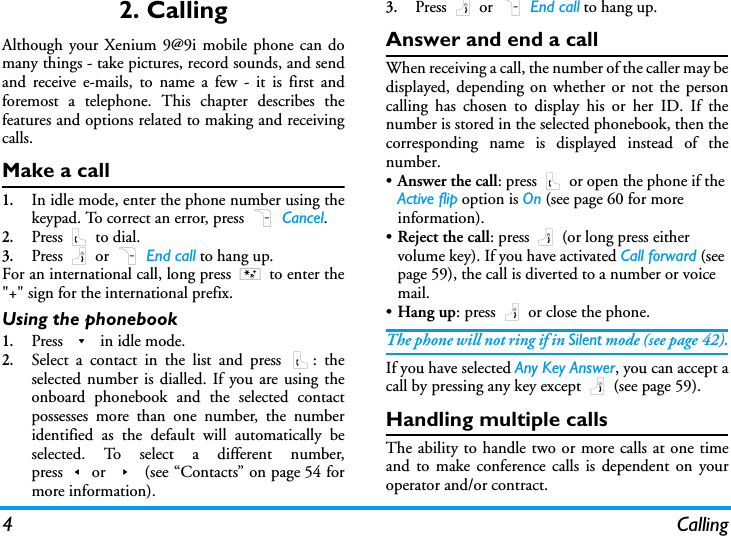
4 Calling2. CallingAlthough your Xenium 9@9i mobile phone can domany things - take pictures, record sounds, and sendand receive e-mails, to name a few - it is first andforemost a telephone. This chapter describes thefeatures and options related to making and receivingcalls.Make a call1.In idle mode, enter the phone number using thekeypad. To correct an error, press R Cancel.2.Press ( to dial.3.Press ) or R End call to hang up.For an international call, long press * to enter the"+" sign for the international prefix.Using the phonebook1.Press - in idle mode.2.Select a contact in the list and press (: theselected number is dialled. If you are using theonboard phonebook and the selected contactpossesses more than one number, the numberidentified as the default will automatically beselected. To select a different number,press<or > (see “Contacts” on page 54 formore information).3.Press ) or R End call to hang up.Answer and end a callWhen receiving a call, the number of the caller may bedisplayed, depending on whether or not the personcalling has chosen to display his or her ID. If thenumber is stored in the selected phonebook, then thecorresponding name is displayed instead of thenumber.•Answer the call: press ( or open the phone if the Active flip option is On (see page 60 for more information).•Reject the call: press ) (or long press either volume key). If you have activated Call forward (see page 59), the call is diverted to a number or voice mail.•Hang up: press ) or close the phone.The phone will not ring if in Silent mode (see page 42).If you have selected Any Key Answer, you can accept acall by pressing any key except ) (see page 59).Handling multiple callsThe ability to handle two or more calls at one timeand to make conference calls is dependent on youroperator and/or contract.
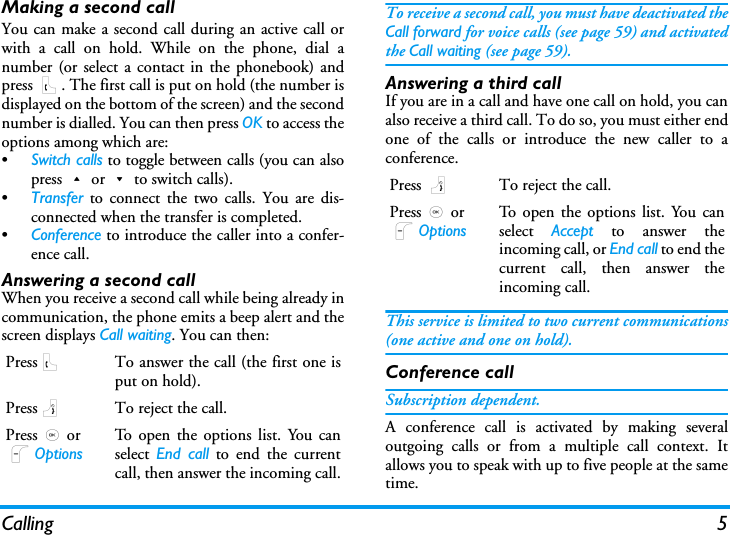
Calling 5Making a second callYou can make a second call during an active call orwith a call on hold. While on the phone, dial anumber (or select a contact in the phonebook) andpress (. The first call is put on hold (the number isdisplayed on the bottom of the screen) and the secondnumber is dialled. You can then press OK to access theoptions among which are:•Switch calls to toggle between calls (you can alsopress+or-to switch calls).•Transfer to connect the two calls. You are dis-connected when the transfer is completed.•Conference to introduce the caller into a confer-ence call.Answering a second callWhen you receive a second call while being already incommunication, the phone emits a beep alert and thescreen displays Call waiting. You can then:To receive a second call, you must have deactivated theCall forward for voice calls (see page 59) and activatedthe Call waiting (see page 59).Answering a third callIf you are in a call and have one call on hold, you canalso receive a third call. To do so, you must either endone of the calls or introduce the new caller to aconference.This service is limited to two current communications(one active and one on hold).Conference callSubscription dependent.A conference call is activated by making severaloutgoing calls or from a multiple call context. Itallows you to speak with up to five people at the sametime. Press(To answer the call (the first one isput on hold).Press)To reject the call.Press,orLOptionsTo open the options list. You canselect  End call to end the currentcall, then answer the incoming call.Press )To reject the call.Press,orLOptionsTo open the options list. You canselect  Accept to answer theincoming call, or End call to end thecurrent call, then answer theincoming call.
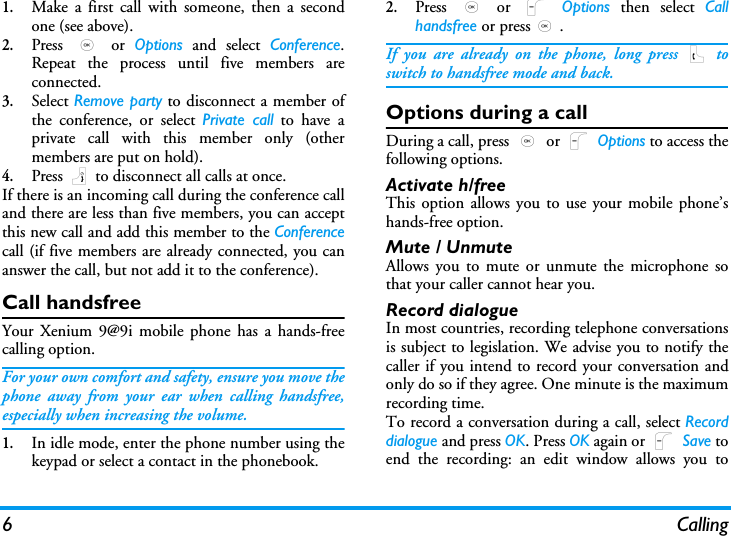
6 Calling1.Make a first call with someone, then a secondone (see above).2.Press  , or Options and select Conference.Repeat the process until five members areconnected. 3.Select Remove party to disconnect a member ofthe conference, or select Private call to have aprivate call with this member only (othermembers are put on hold).4.Press ) to disconnect all calls at once.If there is an incoming call during the conference calland there are less than five members, you can acceptthis new call and add this member to the Conferencecall (if five members are already connected, you cananswer the call, but not add it to the conference).Call handsfreeYour Xenium 9@9i mobile phone has a hands-freecalling option.For your own comfort and safety, ensure you move thephone away from your ear when calling handsfree,especially when increasing the volume.1.In idle mode, enter the phone number using thekeypad or select a contact in the phonebook.2.Press  , or L Options then select Callhandsfree or press,.If you are already on the phone, long press ( toswitch to handsfree mode and back.Options during a callDuring a call, press , or L Options to access thefollowing options.Activate h/freeThis option allows you to use your mobile phone’shands-free option.Mute / UnmuteAllows you to mute or unmute the microphone sothat your caller cannot hear you.Record dialogueIn most countries, recording telephone conversationsis subject to legislation. We advise you to notify thecaller if you intend to record your conversation andonly do so if they agree. One minute is the maximumrecording time.To record a conversation during a call, select Recorddialogue and press OK. Press OK again or L Save toend the recording: an edit window allows you to
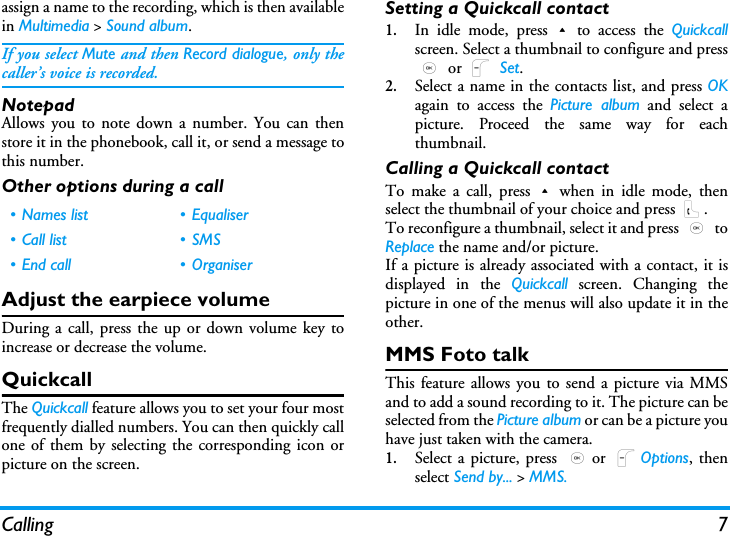
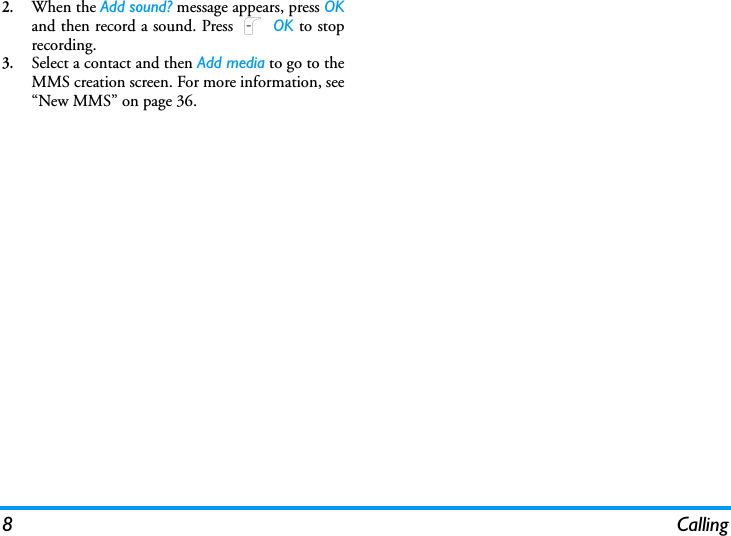
Calling 7assign a name to the recording, which is then availablein Multimedia > Sound album.If you select Mute and then Record dialogue, only thecaller’s voice is recorded.NotepadAllows you to note down a number. You can thenstore it in the phonebook, call it, or send a message tothis number.Other options during a callAdjust the earpiece volumeDuring a call, press the up or down volume key toincrease or decrease the volume.QuickcallThe Quickcall feature allows you to set your four mostfrequently dialled numbers. You can then quickly callone of them by selecting the corresponding icon orpicture on the screen.Setting a Quickcall contact1.In idle mode, press+to access the Quickcallscreen. Select a thumbnail to configure and press, or L Set.2.Select a name in the contacts list, and press OKagain to access the Picture album and select apicture. Proceed the same way for eachthumbnail.Calling a Quickcall contactTo make a call, press+when in idle mode, thenselect the thumbnail of your choice and press (.To reconfigure a thumbnail, select it and press , toReplace the name and/or picture.If a picture is already associated with a contact, it isdisplayed in the Quickcall screen. Changing thepicture in one of the menus will also update it in theother.MMS Foto talkThis feature allows you to send a picture via MMSand to add a sound recording to it. The picture can beselected from the Picture album or can be a picture youhave just taken with the camera.1.Select a picture, press ,or LOptions, thenselect Send by... > MMS.• Names list • Equaliser• Call list • SMS• End call • Organiser
8 Calling2.When the Add sound? message appears, press OKand then record a sound. Press L OK to stoprecording.3.Select a contact and then Add media to go to theMMS creation screen. For more information, see“New MMS” on page 36.
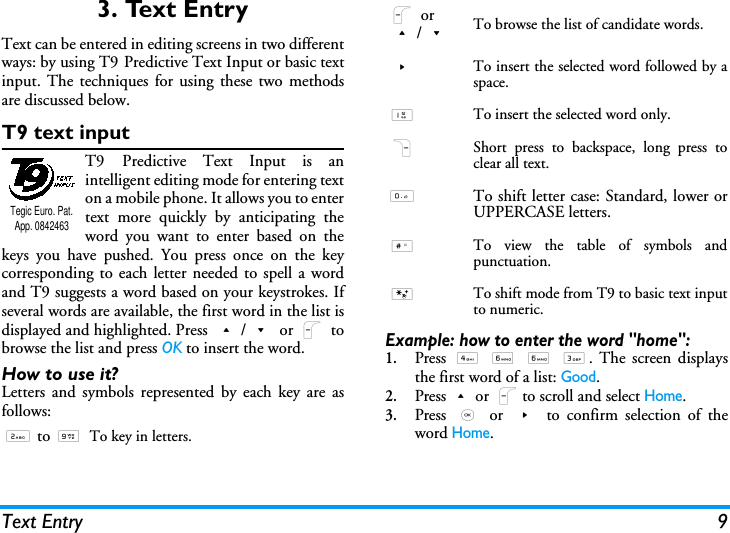
Text Entry 93. Text EntryText can be entered in editing screens in two differentways: by using T9 Predictive Text Input or basic textinput. The techniques for using these two methodsare discussed below.T9 text inputT9 Predictive Text Input is anintelligent editing mode for entering texton a mobile phone. It allows you to entertext more quickly by anticipating theword you want to enter based on thekeys you have pushed. You press once on the keycorresponding to each letter needed to spell a wordand T9 suggests a word based on your keystrokes. Ifseveral words are available, the first word in the list isdisplayed and highlighted. Press +/- or L tobrowse the list and press OK to insert the word.How to use it?Letters and symbols represented by each key are asfollows:Example: how to enter the word "home":1.Press  4 6 6 3. The screen displaysthe first word of a list: Good.2.Press+or Lto scroll and select Home.3.Press  , or > to confirm selection of theword Home.2 to 9To key in letters.Tegic Euro. Pat. App. 0842463L or+/-To browse the list of candidate words.>To insert the selected word followed by aspace.1To insert the selected word only.RShort press to backspace, long press toclear all text.0To shift letter case: Standard, lower orUPPERCASE letters.#To view the table of symbols andpunctuation.*To shift mode from T9 to basic text inputto numeric.
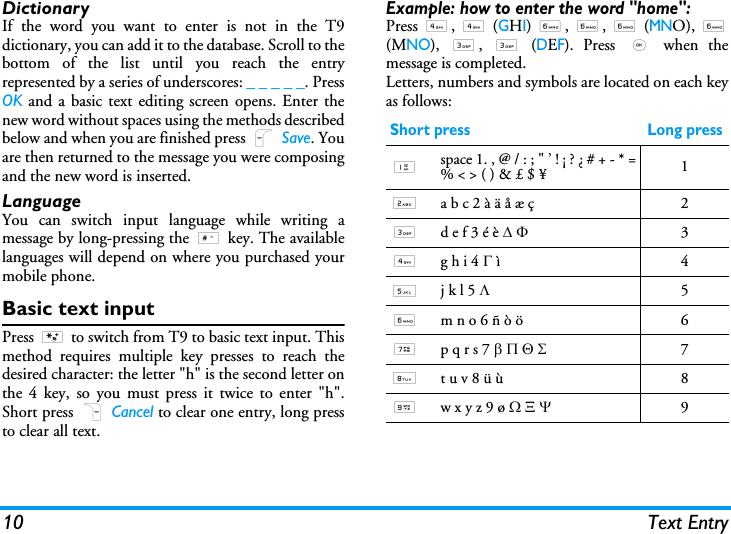
10 Text EntryDictionaryIf the word you want to enter is not in the T9dictionary, you can add it to the database. Scroll to thebottom of the list until you reach the entryrepresented by a series of underscores: _ _ _ _ _. PressOK and a basic text editing screen opens. Enter thenew word without spaces using the methods describedbelow and when you are finished press L Save. Youare then returned to the message you were composingand the new word is inserted.LanguageYou can switch input language while writing amessage by long-pressing the # key. The availablelanguages will depend on where you purchased yourmobile phone.Basic text inputPress * to switch from T9 to basic text input. Thismethod requires multiple key presses to reach thedesired character: the letter "h" is the second letter onthe 4 key, so you must press it twice to enter "h".Short press R Cancel to clear one entry, long pressto clear all text. Example: how to enter the word "home":Press 4, 4 (GHI) 6, 6, 6 (MNO), 6(MNO),  3,  3 (DEF). Press , when themessage is completed.Letters, numbers and symbols are located on each keyas follows:Short press Long press1space 1. , @ / : ; " ’ ! ¡ ? ¿ # + - * =% < > ( ) & £ $ ¥ 12a b c 2 à ä å æ ç 23d e f 3 é è ∆ Φ34g h i 4 Γ ì45j k l 5 Λ56m n o 6 ñ ò ö  67p q r s 7 β Π Θ Σ78t u v 8 ü ù 89w x y z 9 ø Ω Ξ Ψ9
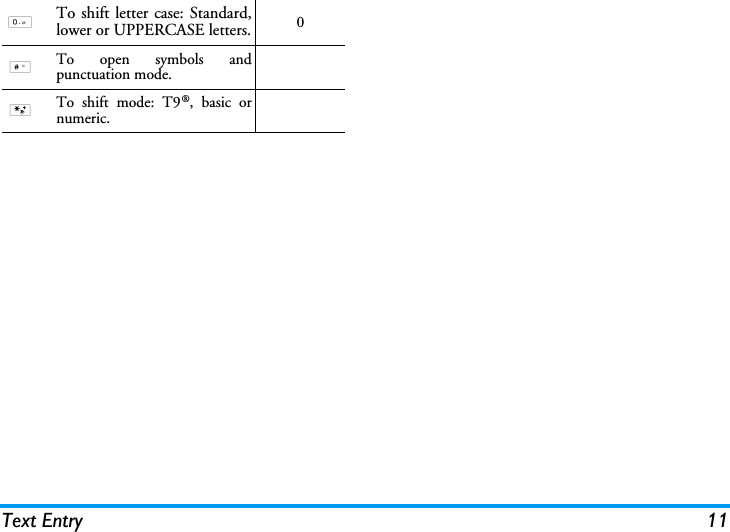
Text Entry 110To shift letter case: Standard,lower or UPPERCASE letters. 0#To open symbols andpunctuation mode.*To shift mode: T9®, basic ornumeric.
12 Business4. BusinessThis menu contains features and options designed tohelp you keep you organised and informed while onthe move.CalculatorYour phone has a built-in calculator that youcan use to perform basic calculations.Numbers are entered with the keypad andoperators with the navigation keys as indicated in thetable below:An icon at the top of the screen indicates whichnavigation keys to use for entering operators.Press and hold 0 to get the decimal point.Calculator accuracy is to 2 decimal places and isrounded up to the higher decimal figure. Unit converterThis menu allows you to convert a sum fromone currency into another using the exchangerate of your choice. You can convert fromLocal to Foreign or vice versa. Enter a rate in theExchange rate field and an amount in either the Localor  Foreign fields: the exchange rate is calculatedautomatically.OrganiserThis menu allows to create, store and manageevents in your organiser. When the organiseralert is On (see “Sounds alerts” on page 42), abeep alerts you when an event is due.The organiser shares the mobile memory capacitywith other features (phonebook, picture album,sound, etc.). To check the memory available in yourphone, select Multimedia > Memory status.Creating a new event1.In Events, select <New>, then the type of eventto create (Holiday, Meeting, To Do).AdditionPress>or the * key.SubtractionPress<or the * key twice.MultiplicationPress+or the * key 3 times.DivisionPress-or the * key 4 times.EqualsPress , or  #.
Business 132.Enter the starting and ending date and time ofthe event and name it (e.g. "Meeting withSmith").3.Set a reminder and a frequency: alerts will betriggered at the chosen time.The reminder only applies to Meeting and To Doevents. It will be updated when changing time zones(see “International clock” below).Deleting old eventsThis menu allows you to delete past events. Enter thestarting date (past or future) from which all previousevents will be deleted and press OK twice to delete allevents preceding this date.To delete all events set in your organiser, enter astarting date several years ahead (e.g. 31st ofDecember 2010) to make sure all events preceding thisdate are deleted at once.Managing eventsSelect an event in the list and press OK or L Optionsto access the following options:Changing a repeating event modifies all instances ofthis event.Events viewsEvents stored in your organiser can be displayed inDay view, Week view and Month view. Select a viewformat and press OK, then use<or>to displaythe previous or next day, week or month.Changing time zones will impact all organiserreminders: the event alarms will be updateddepending on the time displayed on the screen (see“International clock” below).International clockThis menu allows you to set and display boththe local time and the time in the foreign timezone of your choice. Note that if you chooseto display the local and foreign time on your homescreen, the image you selected as your wallpaper willno longer be displayed there.Delete To delete the selected event.Change To change the selected event.Send by infraredTo transmit the selected event toanother infrared-compatible device.
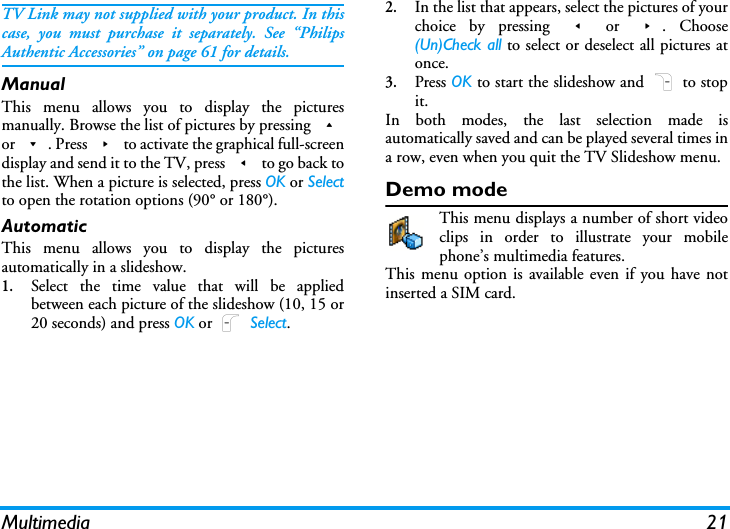
14 BusinessInternational clock displayActivate this option if you want to display both thelocal time and the time of another time zone on theidle screen. Press+or-to set the option On orOff.This feature is not available when the option No clockis selected in “Clock display” on page 41.Local settingsForeign settingsSound recordingThis menu allows you to make up to 20different recordings of up to one minute inlength, depending on the memory status.Select  <New> to begin the recording. The messageSpeak now appears along with a progress bar. Whenyou are finished, press L Save to stop recording.You can then either enter a name for the new soundfile or accept the default name proposed by pressingOK. You then return to the list of Sound recordings andthe new recording is displayed in the list.When you select a sound file, it is playedautomatically in a loop. Press OK to access theoptions. You can Rename the file, Delete it, or Set asringer.Recordings saved here cannot be sent by MMS.Alarm clockYour mobile phone has a built-in alarm clockwith a snooze feature. You can set up to threeseparate alarms and choose whether or notthe alarm should repeat. To set an alarm, follow thesteps below:1.Select an alarm and set it On.2.Then enter the time and press OK.Local time zone Move+or-to select thetime zone corresponding to yourarea.Set time Allows you to set the time bypressing the appropriate keys.Daylight saving Allows you to set the daylightsaving option On or Off for thelocal time zone.Foreign time zoneMove+or-to select the timezone of your choice.Foreign daylight savingAllows you to set the daylight savingoption On or Off for a foreign timezone.
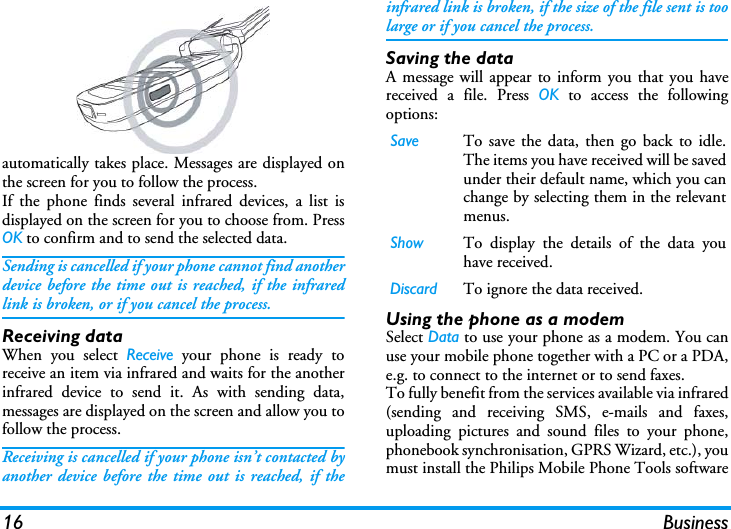
Business 153.Then select the frequency: Once, Every day, Onweekdays.4.Finally, select the type of alarm: Melody,  Soundrecording, or Buzzer and press OK.Repeat above steps to set other alarms.The alarm clock will ring even if your mobile phone isswitched off and/or the ringer volume is set to Silent.When the alarm rings, press any key to stop it or closethe phone (except if the snooze mode is on, see below).Snooze modeThis menu allows you to set the snooze mode On orOff.The snooze mode setting applies to all the alarms youhave set.When the alarm rings and the snooze mode is On:• press any key (except R Stop) to stop the ring-ing temporarily or close the phone. The alarmwill ring again around 7 minutes later.• press R Stop to stop the ringing and the alarmrepetition.The snooze mode is automatically deactivated after 9alarm repetitions.InfraredYour mobile phone has an infrared port thatallows you to send or receive data to or fromother infrared-compliant devices (e.g.another mobile phone, a computer, a PDA, etc.)through a wireless link.Files that are copyright protected cannot be sent.When connecting with a PC, make sure you haveactivated its infrared option.Position of devicesBefore transmitting data between two devices, theymust be correctly positioned in relation to oneanother. Make sure that:• the infrared ports are facing each other,• they are at a less than 50 cm away from each other.• nothing obstructs the infrared beam.Sending dataTo send data via infrared from your mobile phone,you must first select the item to be sent: whenselecting a picture, a sound, a name or an event, a sub-menu then gives you access to the Send via infraredoption.As soon as your phone finds another infraredcompliant device to communicate with, the sending
16 Businessautomatically takes place. Messages are displayed onthe screen for you to follow the process.If the phone finds several infrared devices, a list isdisplayed on the screen for you to choose from. PressOK to confirm and to send the selected data.Sending is cancelled if your phone cannot find anotherdevice before the time out is reached, if the infraredlink is broken, or if you cancel the process.Receiving dataWhen you select Receive your phone is ready toreceive an item via infrared and waits for the anotherinfrared device to send it. As with sending data,messages are displayed on the screen and allow you tofollow the process.Receiving is cancelled if your phone isn’t contacted byanother device before the time out is reached, if theinfrared link is broken, if the size of the file sent is toolarge or if you cancel the process.Saving the dataA message will appear to inform you that you havereceived a file. Press OK to access the followingoptions:Using the phone as a modemSelect Data to use your phone as a modem. You canuse your mobile phone together with a PC or a PDA,e.g. to connect to the internet or to send faxes.To fully benefit from the services available via infrared(sending and receiving SMS, e-mails and faxes,uploading pictures and sound files to your phone,phonebook synchronisation, GPRS Wizard, etc.), youmust install the Philips Mobile Phone Tools softwareSave To save the data, then go back to idle.The items you have received will be savedunder their default name, which you canchange by selecting them in the relevantmenus.Show To display the details of the data youhave received.Discard To ignore the data received.
Business 17on your PC. This software is available on the CD-ROM shipped with your phone.The software supplied on the CD-ROM is notcompatible with Apple Macintosh computers. It onlysupports Windows 98 SE, ME, XP and 2000 (ServicePack 3 and up mandatory in this case).Specific software modules for Lotus Notes, LotusOrganizer and Microsoft Outlook are designed toallow synchronisation of your Philips mobile phonewith these applications (refer to their respective userguides for detailed information).Auto Switch On / OffThese menus allow you to set your mobile phone toswitch itself on or off at pre-set times.To set Auto switch on, select the option and press OK.Select On and press OK. Enter the time at which youwant your mobile phone to switch itself on and pressOK. Select the desired frequency from Once,  Everyday, or On weekdays and press OK. A message appearsto confirm activation.Secretary on the GoYour Xenium 9@9i mobile phone has a new feature:Secretary on the Go. With your Secretary, which isaccessible from the keypad by simply pressing S,you can record a Voice memo and then associate theresulting sound file with an Organiser event or anAlarm.
18 Multimedia5. MultimediaThis menu and its sub-menus contain options relatedto the multimedia features of your Xenium 9@9imobile phone.Memory statusThis menu allows you to display thepercentage of memory available in yourphone. The various features share thememory capacity: pictures, sounds, recorded memosand voice tags for voice commands, stored messages,phonebook and organiser entries, games, etc.Press  OK to check the memory status. The displayshows you the percentage of memory free and thephone’s total memory in Kilobytes (Kb). Press OKagain to check the detailed list of memory used byeach feature.Your mobile phone is supplied with many sounds andpictures. You can only delete sounds or pictures in theMy melodies or My images folders, e.g. to free memoryspace for your own sounds and pictures.If the List full message appears when saving a new itemyou must delete an item to be able to create or add anew one.Sound albumThis menu allows you to manage the soundfiles stored in your mobile phone. Theoptions are:Once in a list, you can then select a sound file andpress OK to access the menu options listed below.Download newTo launch the WAP application anddownload new sound files. Thisfeature iView all To access all your sound files in asingle list.My melodies To access your downloaded soundfiles. Protected melodiesTo access the list of copyrightprotected sample images.Recordings To access the list of soundrecordings.
Multimedia 19Send by...To send the selected sound file via E-mail (seepage 28), via Infrared (see page 15) or MMS (seepage 36). Note that sound files from Recordings foldercannot be sent via MMS.Set as ringerTo set the selected sound as ringer.As SMS/MMS ringerTo set the selected sound as the Messages ringer. Thisoption must be activated in the menu Settings >Sounds (see page 41).RenameTo rename the selected sound file.DeleteTo Delete the selected sound file.Picture albumThis menu allows you to display and modifythe images stored in your mobile phone. Theoptions are:Inside the folders, images are displayed as a text list.Select an image and press > to view the image.Pressing  OK gives you access to the menu optionslisted below.Send by...To send the selected sound file via E-mail (seepage 28), via Infrared (see page 15) or MMS (seepage 36). Note that you cannot send pictures that areprotected by copyright.Set as wallpaperTo set the selected picture as wallpaper.Download newTo launch the WAP application anddownload new sound files. For moreinformation, see page 25.View all To access all your image files in asingle list.My photos To access the photos taken with thecamera.My images To access the images you havedownloaded.Protected imagesTo access the list of copyrightprotected sample images.Icons To access the list of icons you havedownloaded.
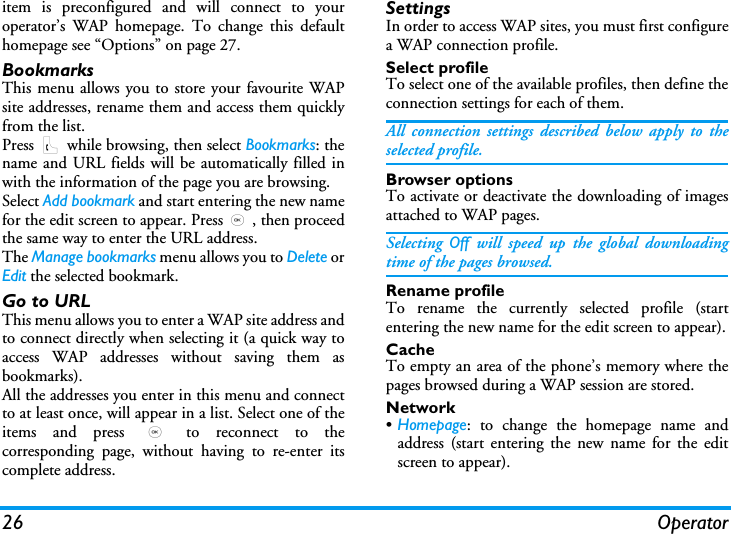
20 MultimediaModify pictureUse this menu to add text, a frame, or an icon to theselected image.Add textTo add text to the selected picture. Enter your text inthe editing screen and press OK. Use the navigationkeys to move the text on the screen: short press tomove the text 1 pixel at a time, long press for 5 pixels.Press R Back to go back to the text editor, or LOK to validate and go to the next option.Add frame or iconTo add a frame or an icon to the selected picture.EraserTo  Undo the last modification made on the picture, orto  Reset, i.e. cancel all changes at once. Press RBack to cancel or L OK to validate.SendTo send the selected picture via infrared, E-mail orMMS.SaveTo save the picture with all the changes you haveapplied.RotateUse this option to rotate the selected image. Theoptions are:-90 degrees-90 degrees+180 degreesRenameUse this option to rename the selected image. Delete allUse this option to delete all the images in the currentfolder. DeleteUse this option to delete the selected image. Note thatpictures in the Protected images folder cannot bedeleted.JPEG pictures must be of the correct size and in theformat for your mobile phone to store and displaythem correctly.TV slideshowThis menu allows you to display the pictureslisted in the Picture album (automatically in aslideshow or manually one-by-one) on themain internal screen of your phone and/or on a TVscreen via the TV Link accessory.
Multimedia 21TV Link may not supplied with your product. In thiscase, you must purchase it separately. See “PhilipsAuthentic Accessories” on page 61 for details.ManualThis menu allows you to display the picturesmanually. Browse the list of pictures by pressing +or -. Press > to activate the graphical full-screendisplay and send it to the TV, press < to go back tothe list. When a picture is selected, press OK or Selectto open the rotation options (90° or 180°).AutomaticThis menu allows you to display the picturesautomatically in a slideshow.1.Select the time value that will be appliedbetween each picture of the slideshow (10, 15 or20 seconds) and press OK or L Select.2.In the list that appears, select the pictures of yourchoice by pressing < or >. Choose(Un)Check all to select or deselect all pictures atonce.3.Press OK to start the slideshow and R to stopit.In both modes, the last selection made isautomatically saved and can be played several times ina row, even when you quit the TV Slideshow menu.Demo modeThis menu displays a number of short videoclips in order to illustrate your mobilephone’s multimedia features.This menu option is available even if you have notinserted a SIM card.
22 Entertainment6. EntertainmentThis menu contains a number of features and games.Western HoroscopeThis menu allows you to display your horoscope forany given day. To consult your horoscope, you mustfirst either enter your sign or your birth date. If youknow your sign, you can select it from the Select signmenu, otherwise select Set birth date, press OK andenter your birth date. Press OK to display thecorresponding sign.In the Horoscope menu, you can select Today or Otherday depending on the horoscope you want to consult(in the second case, enter the relevant date beforepressing OK).Lunar calendarThis menu gives you the correspondence betweenGregorian and Chinese calendars by displaying thecorresponding date in lunar mode from a selectedGregorian date.Features requiring date & time information (e.g.organiser events) depend on Gregorian dates only.Press OK to access the date edition window. Changethe date if needed by pressing the corresponding keys,then press OK to convert to lunar mode.Lunar in idleThis option allows you to display the lunar calendaron the idle screen. Press + or - to activate ordeactivate this option.Chinese FestivalThis menu informs you of the next major Chinesefestivals, from a given date. Select From now or selectFrom a date and enter the date from which you wantto know what Chinese festivals will occur. In bothcases, press OK to display the six next festivals.In-FusioYour Xenium 9@9i mobile phone comes equippedwith the In-Fusio games engine, which allows you todownload and play games. Access to this servicedepends on your subscription and the country inwhich you use your mobile phone.
Entertainment 23JavaYour mobile phone features a Java run-timeenvironment, which allows you to run Javaapplications, such as games downloaded onthe network.The first time you launch Java, a message appears toalert you that the installation and configuration ofJava will take several moments. This is a one-timeoccurrence.SettingsOnce Java has been installed, you may then proceedwith configuration.Auto launchAllows you to set the automatic launch of Java On orOff. When On, a Java application will be automaticallylaunched immediately following installation.Network accessNetworkThis menu gives you access to operator-specificsettings, including DNS and proxy addresses. WhenBearer To select the type of network used whenlaunching a connection and to configurethe corresponding settings.•GSM or GPRS: your mobile will onlyuse the GSM or the GPRS networkfor e-mail connections.•GPRS first: your mobile will first try toconnect to the GPRS network, then tothe GSM network if the GPRSnetwork isn’t available.Selecting the above option requires you to have bothGSM and GPRS settings configured. See page 45 fordetails.DNS addressAllows you to enter the DNS address ofthe external data network you want toconnect to.Network accountAllows you to select one of the dataprofiles you have defined in Settings >Network > Access settings (see page 45).
24 Entertainmentavailable, all items of this menu are pre-configured, sothat you shouldn’t have to change them.Java applicationsWhen the Java window is displayed, press OK to accessthe list of available games. Select a game and press OKagain. Use L and R softkeys to select the menuas displayed on the screen. Press Exit to quit the Javaapplication, or press Menu to access the list ofavailable options allowing you to create and managenew folders.Brick gameThe goal of this game is to destroy bricks byhitting them with a ball. Destroying all bricksgive you access to the next level.This menu is operator dependent. As such its icon andcontent may vary.Keys used are the following:4 and 6To move the racket left or right.* and #To start the game by throwing theball left or right.0To pause the game up to 2 min.(after which the screen returns toidle mode and the game is lost).
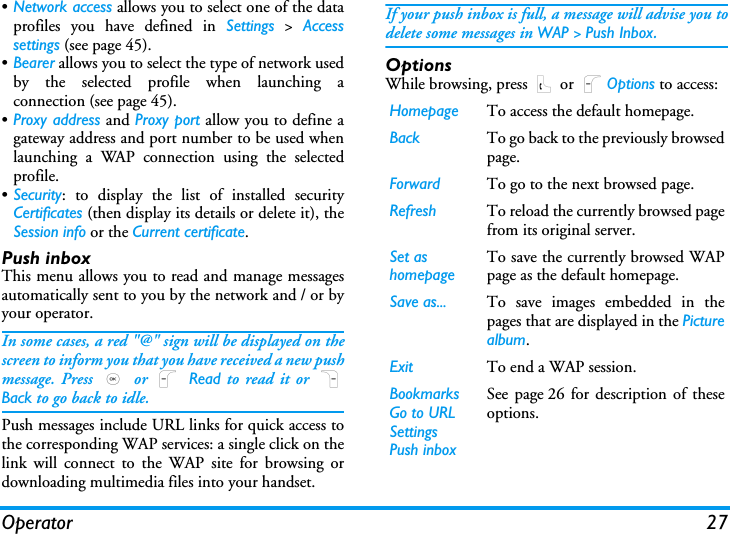
Operator 257. OperatorThis menu contains the services and features providedby your operator. Consequently, the menus describedbelow may vary or may not be available, depending onyour subscription. Contact your network operator formore details.The services provided may involve making a phonecall or sending a SMS for which you may be charged.Services +This menu option is reserved for operator-specific services. Please contact your operatorfor more information about these options.WAPThis menu allows you to access servicessupplied with your network, such as news,sports, weather, etc.Your mobile phone may have been pre-configured. Ifnot, settings can be configured "over the air", via theclub Philips website. Connect to www.club.philips.comthen select your country. Note that this service isn’tavailable if your country and/or mobile doesn’t appearin the list. In this case, contact your operator forinformation.To launch a WAP session, select Operator > WAP >Homepage.Your mobile phone connects to the networkaccording to the Access settings you have defined inthe menu Settings > Network (see page 45). In case ofa connection error, the screen displays "Go to menu":press ( or L Options to access the WAP options(see page 27).HomepageThis is the link to the first WAP site you access whenlaunching a WAP session. In most cases, this menuUse + or -To browse the on-line pages.Press  , orL SelectTo select a highlighted item.Press  R Back To return to the previous page.Press )To end the WAP session.You can also select Options>Exit.
26 Operatoritem is preconfigured and will connect to youroperator’s WAP homepage. To change this defaulthomepage see “Options” on page 27.BookmarksThis menu allows you to store your favourite WAPsite addresses, rename them and access them quicklyfrom the list.Press ( while browsing, then select Bookmarks: thename and URL fields will be automatically filled inwith the information of the page you are browsing.Select Add bookmark and start entering the new namefor the edit screen to appear. Press,, then proceedthe same way to enter the URL address.The Manage bookmarks menu allows you to Delete orEdit the selected bookmark.Go to URLThis menu allows you to enter a WAP site address andto connect directly when selecting it (a quick way toaccess WAP addresses without saving them asbookmarks).All the addresses you enter in this menu and connectto at least once, will appear in a list. Select one of theitems and press , to reconnect to thecorresponding page, without having to re-enter itscomplete address.SettingsIn order to access WAP sites, you must first configurea WAP connection profile.Select profileTo select one of the available profiles, then define theconnection settings for each of them.All connection settings described below apply to theselected profile.Browser optionsTo activate or deactivate the downloading of imagesattached to WAP pages.Selecting  Off will speed up the global downloadingtime of the pages browsed.Rename profileTo rename the currently selected profile (startentering the new name for the edit screen to appear).CacheTo empty an area of the phone’s memory where thepages browsed during a WAP session are stored.Network•Homepage: to change the homepage name andaddress (start entering the new name for the editscreen to appear).
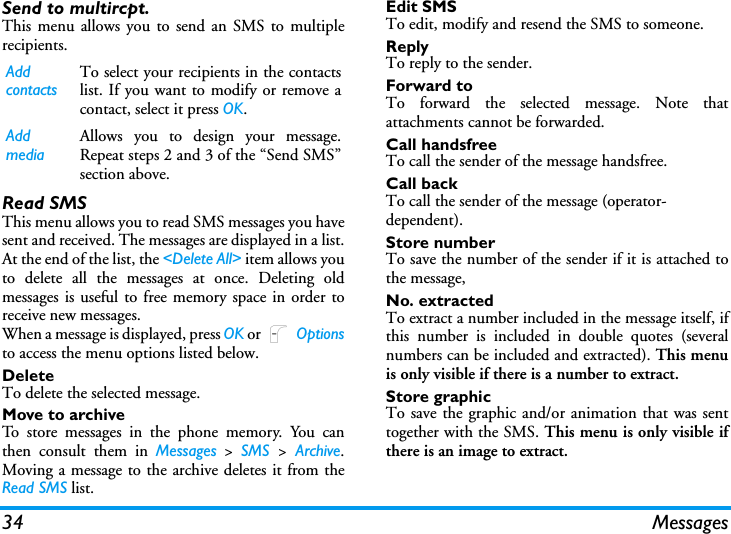
Operator 27•Network access allows you to select one of the dataprofiles you have defined in Settings > Accesssettings (see page 45).•Bearer allows you to select the type of network usedby the selected profile when launching aconnection (see page 45).•Proxy address and Proxy port allow you to define agateway address and port number to be used whenlaunching a WAP connection using the selectedprofile.•Security: to display the list of installed securityCertificates (then display its details or delete it), theSession info or the Current certificate.Push inboxThis menu allows you to read and manage messagesautomatically sent to you by the network and / or byyour operator. In some cases, a red "@" sign will be displayed on thescreen to inform you that you have received a new pushmessage. Press , or L Read to read it or RBack to go back to idle. Push messages include URL links for quick access tothe corresponding WAP services: a single click on thelink will connect to the WAP site for browsing ordownloading multimedia files into your handset.If your push inbox is full, a message will advise you todelete some messages in WAP > Push Inbox.OptionsWhile browsing, press ( or LOptions to access:Homepage To access the default homepage.Back To go back to the previously browsedpage.Forward To go to the next browsed page.Refresh To reload the currently browsed pagefrom its original server.Set as homepageTo save the currently browsed WAPpage as the default homepage.Save as... To save images embedded in thepages that are displayed in the Picturealbum.Exit To end a WAP session.BookmarksGo to URLSettingsPush inboxSee page 26 for description of theseoptions.
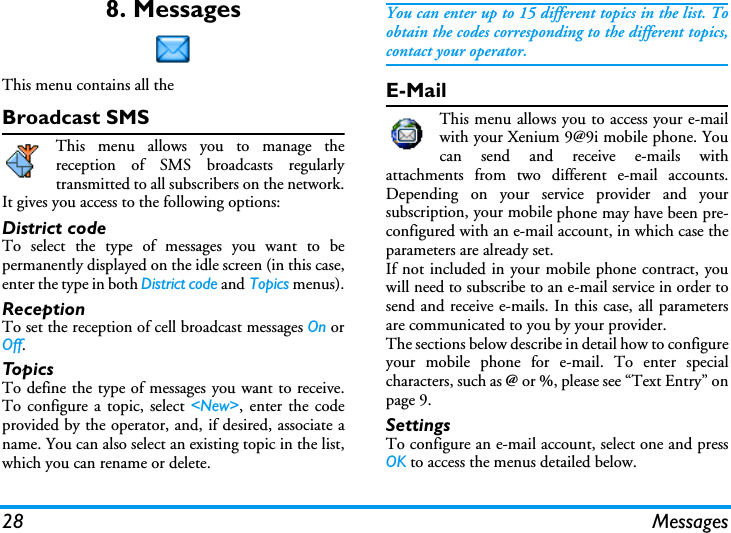
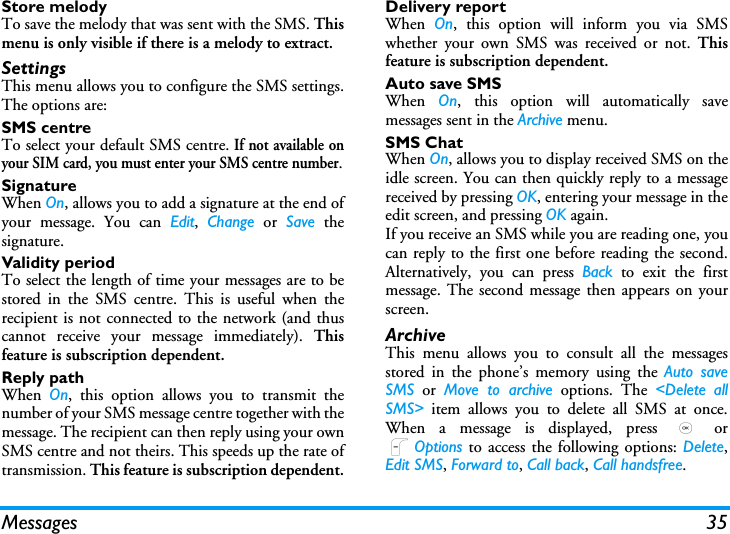
28 Messages8. MessagesThis menu contains all the Broadcast SMSThis menu allows you to manage thereception of SMS broadcasts regularlytransmitted to all subscribers on the network.It gives you access to the following options:District codeTo select the type of messages you want to bepermanently displayed on the idle screen (in this case,enter the type in both District code and Topics menus).ReceptionTo set the reception of cell broadcast messages On orOff.TopicsTo define the type of messages you want to receive.To configure a topic, select <New>, enter the codeprovided by the operator, and, if desired, associate aname. You can also select an existing topic in the list,which you can rename or delete.You can enter up to 15 different topics in the list. Toobtain the codes corresponding to the different topics,contact your operator.E-MailThis menu allows you to access your e-mailwith your Xenium 9@9i mobile phone. Youcan send and receive e-mails withattachments from two different e-mail accounts.Depending on your service provider and yoursubscription, your mobile phone may have been pre-configured with an e-mail account, in which case theparameters are already set.If not included in your mobile phone contract, youwill need to subscribe to an e-mail service in order tosend and receive e-mails. In this case, all parametersare communicated to you by your provider.The sections below describe in detail how to configureyour mobile phone for e-mail. To enter specialcharacters, such as @ or %, please see “Text Entry” onpage 9.SettingsTo configure an e-mail account, select one and pressOK to access the menus detailed below.
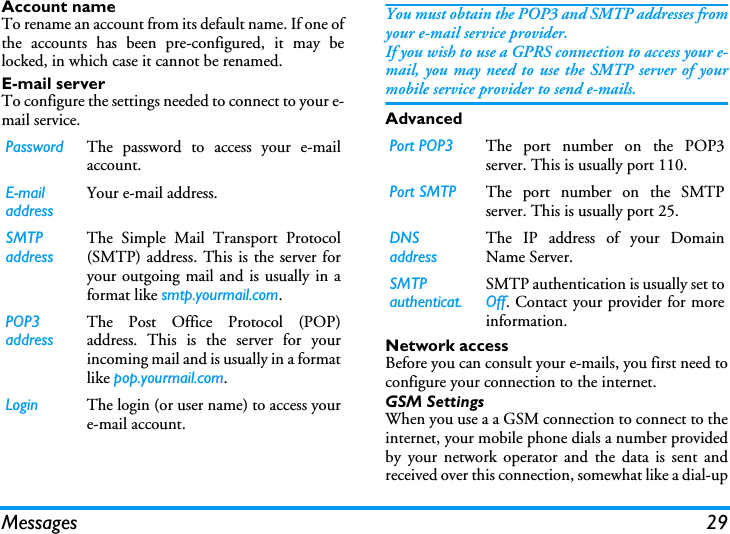
Messages 29Account nameTo rename an account from its default name. If one ofthe accounts has been pre-configured, it may belocked, in which case it cannot be renamed.E-mail serverTo configure the settings needed to connect to your e-mail service.You must obtain the POP3 and SMTP addresses fromyour e-mail service provider.If you wish to use a GPRS connection to access your e-mail, you may need to use the SMTP server of yourmobile service provider to send e-mails.AdvancedNetwork accessBefore you can consult your e-mails, you first need toconfigure your connection to the internet.GSM SettingsWhen you use a a GSM connection to connect to theinternet, your mobile phone dials a number providedby your network operator and the data is sent andreceived over this connection, somewhat like a dial-upPassword The password to access your e-mailaccount.E-mail addressYour e-mail address.SMTP addressThe Simple Mail Transport Protocol(SMTP) address. This is the server foryour outgoing mail and is usually in aformat like smtp.yourmail.com.POP3 addressThe Post Office Protocol (POP)address. This is the server for yourincoming mail and is usually in a formatlike pop.yourmail.com.Login The login (or user name) to access youre-mail account.Port POP3 The port number on the POP3server. This is usually port 110.Port SMTP The port number on the SMTPserver. This is usually port 25.DNS addressThe IP address of your DomainName Server.SMTP authenticat.SMTP authentication is usually set toOff. Contact your provider for moreinformation.
30 Messagesinternet connection from a PC. The GSM connectionparameters are described in the table below.GPRS settingsIf using GSM is like a dial-up internet connection, aGPRS connection would be the equivalent ofbroadband. GPRS (or Global Packet Radio Service) isa protocol for sending data rapidly using a radiosignal.To configure a GPRS connection, you may need toprovide a a user name and password, although someGPRS connections function without them. You willneed to provide the APN (or Access Point Name).BearerThis menu option allows you to choose which how toestablish an internet connection.•GSM: your mobile will only use the GSM networkfor e-mail connections.•GPRS: your mobile will only use the GPRS networkfor e-mail connections.•GPRS first: your mobile will first try to connect tothe GPRS network. If no GPRS network isavailable, then it will try with the GSM network. For these features to work, you must first have enteredthe corresponding settings.Open mailboxThis menu allows you to connect to your mailbox anddownload the e-mail headers (sender and subjectlines) from the server. You may then choose to retrievethe corresponding e-mails.1.Select  Open mailbox: your phone automaticallyconnects to the e-mail server and downloads thelist of e-mail headers if any (five at a time).2.If  Next (or Previous) appears at the end (orbeginning) of the list, other e-mail headers arepending: select one of the available options andpress , to retrieve them.Phone numberThis is the number your mobile phonedials to establish a connection. Firstchoose  ISDN or Analogic  (dependingon your network operator) and thenenter the Phone number provided byyour operator,Login & PasswordThe login and password provided byyour GSM network operator to accessthis service.Auto disconnectEnter an inactivity time-out value afterwhich the phone will automaticallyend the call (if a connection was inprogress). The value must be over 30seconds.
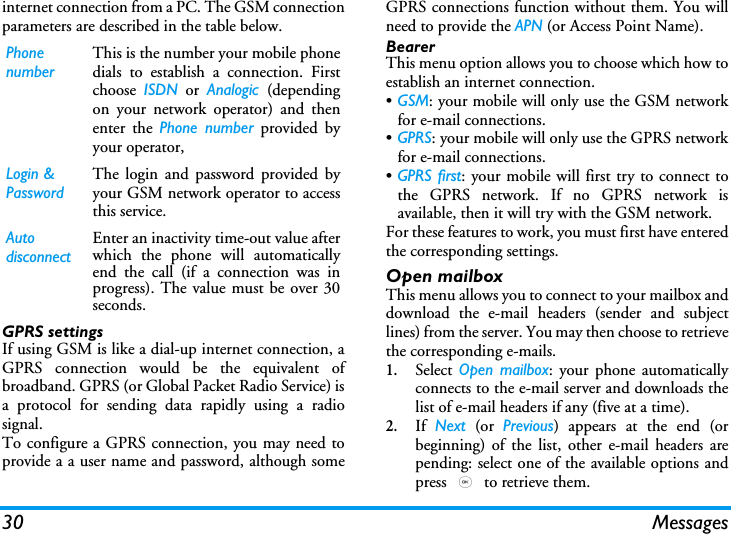
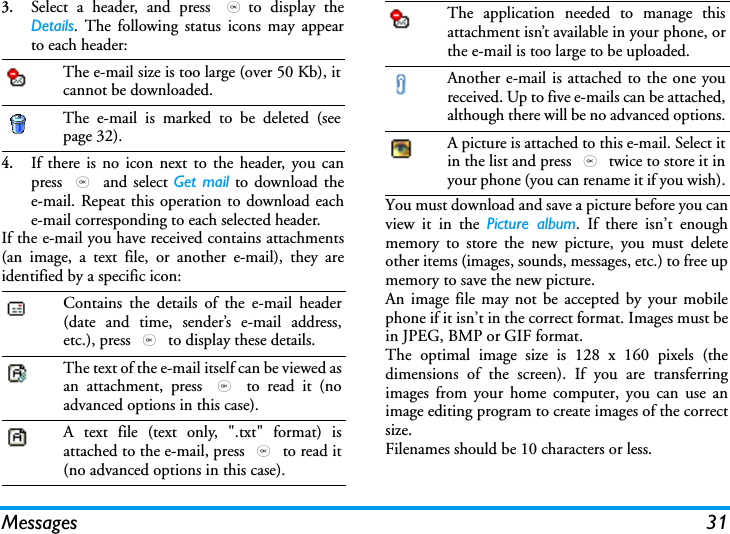
Messages 313.Select a header, and press ,to display theDetails. The following status icons may appearto each header:4.If there is no icon next to the header, you canpress , and select Get mail to download thee-mail. Repeat this operation to download eache-mail corresponding to each selected header.If the e-mail you have received contains attachments(an image, a text file, or another e-mail), they areidentified by a specific icon:You must download and save a picture before you canview it in the Picture album. If there isn’t enoughmemory to store the new picture, you must deleteother items (images, sounds, messages, etc.) to free upmemory to save the new picture.An image file may not be accepted by your mobilephone if it isn’t in the correct format. Images must bein JPEG, BMP or GIF format.The optimal image size is 128 x 160 pixels (thedimensions of the screen). If you are transferringimages from your home computer, you can use animage editing program to create images of the correctsize.Filenames should be 10 characters or less.The e-mail size is too large (over 50 Kb), itcannot be downloaded.The e-mail is marked to be deleted (seepage 32).Contains the details of the e-mail header(date and time, sender’s e-mail address,etc.), press , to display these details.The text of the e-mail itself can be viewed asan attachment, press , to read it (noadvanced options in this case).A text file (text only, ".txt" format) isattached to the e-mail, press , to read it(no advanced options in this case).The application needed to manage thisattachment isn’t available in your phone, orthe e-mail is too large to be uploaded.Another e-mail is attached to the one youreceived. Up to five e-mails can be attached,although there will be no advanced options.A picture is attached to this e-mail. Select itin the list and press , twice to store it inyour phone (you can rename it if you wish).
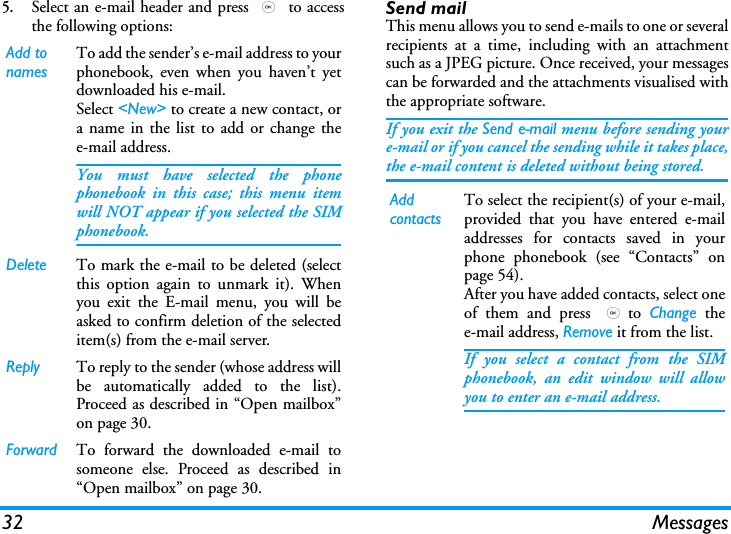
32 Messages5.Select an e-mail header and press , to accessthe following options:Send mailThis menu allows you to send e-mails to one or severalrecipients at a time, including with an attachmentsuch as a JPEG picture. Once received, your messagescan be forwarded and the attachments visualised withthe appropriate software.If you exit the Send e-mail menu before sending youre-mail or if you cancel the sending while it takes place,the e-mail content is deleted without being stored.Add to namesTo add the sender’s e-mail address to yourphonebook, even when you haven’t yetdownloaded his e-mail.Select <New> to create a new contact, ora name in the list to add or change thee-mail address.You must have selected the phonephonebook in this case; this menu itemwill NOT appear if you selected the SIMphonebook.Delete To mark the e-mail to be deleted (selectthis option again to unmark it). Whenyou exit the E-mail menu, you will beasked to confirm deletion of the selecteditem(s) from the e-mail server.Reply To reply to the sender (whose address willbe automatically added to the list).Proceed as described in “Open mailbox”on page 30.Forward To forward the downloaded e-mail tosomeone else. Proceed as described in“Open mailbox” on page 30.Add contactsTo select the recipient(s) of your e-mail,provided that you have entered e-mailaddresses for contacts saved in yourphone phonebook (see “Contacts” onpage 54).After you have added contacts, select oneof them and press ,to  Change thee-mail address, Remove it from the list.If you select a contact from the SIMphonebook, an edit window will allowyou to enter an e-mail address.
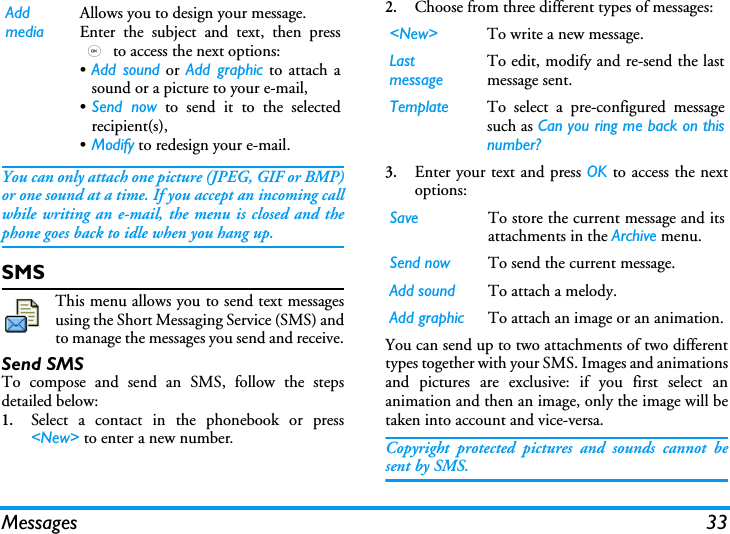
Messages 33You can only attach one picture (JPEG, GIF or BMP)or one sound at a time. If you accept an incoming callwhile writing an e-mail, the menu is closed and thephone goes back to idle when you hang up.SMSThis menu allows you to send text messagesusing the Short Messaging Service (SMS) andto manage the messages you send and receive.Send SMSTo compose and send an SMS, follow the stepsdetailed below:1.Select a contact in the phonebook or press<New> to enter a new number.2.Choose from three different types of messages:3.Enter your text and press OK to access the nextoptions:You can send up to two attachments of two differenttypes together with your SMS. Images and animationsand pictures are exclusive: if you first select ananimation and then an image, only the image will betaken into account and vice-versa.Copyright protected pictures and sounds cannot besent by SMS.Add mediaAllows you to design your message. Enter the subject and text, then press, to access the next options:•Add sound or Add graphic to attach asound or a picture to your e-mail,•Send now to send it to the selectedrecipient(s),•Modify to redesign your e-mail.<New> To write a new message.Last messageTo edit, modify and re-send the lastmessage sent.Template To select a pre-configured messagesuch as Can you ring me back on thisnumber?Save To store the current message and itsattachments in the Archive menu.Send now To send the current message.Add sound To attach a melody.Add graphic To attach an image or an animation.
34 MessagesSend to multircpt.This menu allows you to send an SMS to multiplerecipients.Read SMSThis menu allows you to read SMS messages you havesent and received. The messages are displayed in a list.At the end of the list, the <Delete All> item allows youto delete all the messages at once. Deleting oldmessages is useful to free memory space in order toreceive new messages.When a message is displayed, press OK or L Optionsto access the menu options listed below.DeleteTo delete the selected message.Move to archiveTo store messages in the phone memory. You canthen consult them in Messages > SMS  > Archive.Moving a message to the archive deletes it from theRead SMS list.Edit SMSTo edit, modify and resend the SMS to someone.ReplyTo reply to the sender.Forward toTo forward the selected message. Note thatattachments cannot be forwarded.Call handsfreeTo call the sender of the message handsfree.Call back To call the sender of the message (operator- dependent).Store numberTo save the number of the sender if it is attached tothe message,No. extractedTo extract a number included in the message itself, ifthis number is included in double quotes (severalnumbers can be included and extracted). This menuis only visible if there is a number to extract.Store graphicTo save the graphic and/or animation that was senttogether with the SMS. This menu is only visible ifthere is an image to extract.Add contactsTo select your recipients in the contactslist. If you want to modify or remove acontact, select it press OK.Add mediaAllows you to design your message.Repeat steps 2 and 3 of the “Send SMS”section above.
Messages 35Store melodyTo save the melody that was sent with the SMS. Thismenu is only visible if there is a melody to extract.SettingsThis menu allows you to configure the SMS settings.The options are:SMS centreTo select your default SMS centre. If not available onyour SIM card, you must enter your SMS centre number.SignatureWhen On, allows you to add a signature at the end ofyour message. You can Edit,  Change or Save thesignature.Validity periodTo select the length of time your messages are to bestored in the SMS centre. This is useful when therecipient is not connected to the network (and thuscannot receive your message immediately). Thisfeature is subscription dependent.Reply pathWhen  On, this option allows you to transmit thenumber of your SMS message centre together with themessage. The recipient can then reply using your ownSMS centre and not theirs. This speeds up the rate oftransmission. This feature is subscription dependent.Delivery reportWhen  On, this option will inform you via SMSwhether your own SMS was received or not. Thisfeature is subscription dependent.Auto save SMSWhen  On, this option will automatically savemessages sent in the Archive menu.SMS ChatWhen On, allows you to display received SMS on theidle screen. You can then quickly reply to a messagereceived by pressing OK, entering your message in theedit screen, and pressing OK again.If you receive an SMS while you are reading one, youcan reply to the first one before reading the second.Alternatively, you can press Back to exit the firstmessage. The second message then appears on yourscreen.ArchiveThis menu allows you to consult all the messagesstored in the phone’s memory using the Auto saveSMS or Move to archive options. The <Delete allSMS> item allows you to delete all SMS at once.When a message is displayed, press , orLOptions to access the following options: Delete,Edit SMS, Forward to, Call back, Call handsfree.
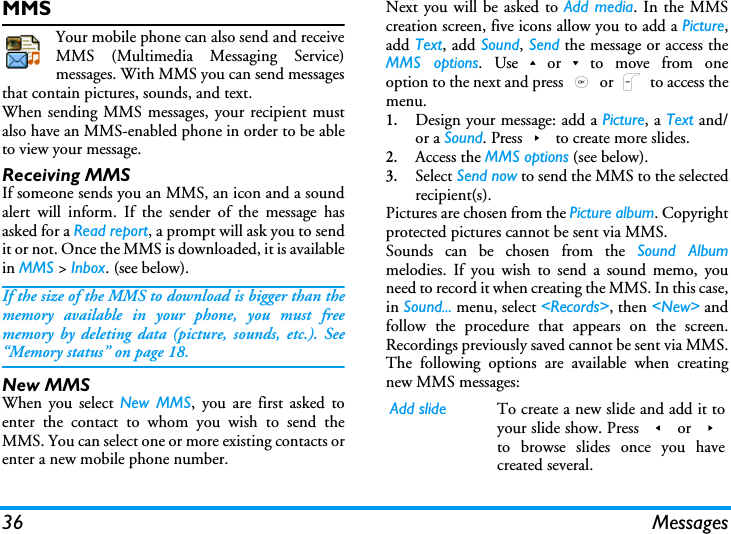
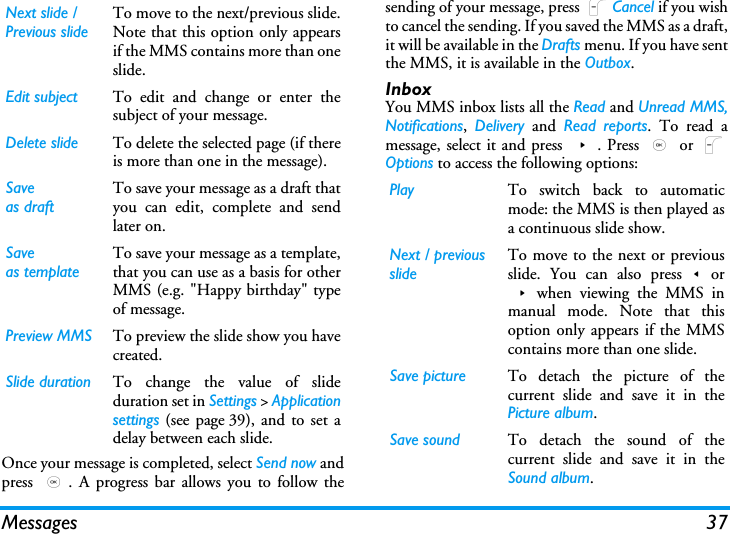
36 MessagesMMSYour mobile phone can also send and receiveMMS (Multimedia Messaging Service)messages. With MMS you can send messagesthat contain pictures, sounds, and text.When sending MMS messages, your recipient mustalso have an MMS-enabled phone in order to be ableto view your message.Receiving MMSIf someone sends you an MMS, an icon and a soundalert will inform. If the sender of the message hasasked for a Read report, a prompt will ask you to sendit or not. Once the MMS is downloaded, it is availablein MMS > Inbox. (see below). If the size of the MMS to download is bigger than thememory available in your phone, you must freememory by deleting data (picture, sounds, etc.). See“Memory status” on page 18.New MMSWhen you select New MMS, you are first asked toenter the contact to whom you wish to send theMMS. You can select one or more existing contacts orenter a new mobile phone number.Next you will be asked to Add media. In the MMScreation screen, five icons allow you to add a Picture,add Text, add Sound, Send the message or access theMMS options. Use+or-to move from oneoption to the next and press , or L to access themenu.1.Design your message: add a Picture, a Text and/or a Sound. Press> to create more slides.2.Access the MMS options (see below).3.Select Send now to send the MMS to the selectedrecipient(s).Pictures are chosen from the Picture album. Copyrightprotected pictures cannot be sent via MMS.Sounds can be chosen from the Sound Albummelodies. If you wish to send a sound memo, youneed to record it when creating the MMS. In this case,in Sound... menu, select <Records>, then <New> andfollow the procedure that appears on the screen.Recordings previously saved cannot be sent via MMS.The following options are available when creatingnew MMS messages: Add slide To create a new slide and add it toyour slide show. Press < or >to browse slides once you havecreated several.
Messages 37Once your message is completed, select Send now andpress  ,. A progress bar allows you to follow thesending of your message, press LCancel if you wishto cancel the sending. If you saved the MMS as a draft,it will be available in the Drafts menu. If you have sentthe MMS, it is available in the Outbox.InboxYou MMS inbox lists all the Read and Unread MMS,Notifications,  Delivery and Read reports. To read amessage, select it and press >. Press , or LOptions to access the following options:Next slide /Previous slideTo move to the next/previous slide.Note that this option only appearsif the MMS contains more than oneslide.Edit subject To edit and change or enter thesubject of your message.Delete slide To delete the selected page (if thereis more than one in the message).Saveas draftTo save your message as a draft thatyou can edit, complete and sendlater on.Saveas templateTo save your message as a template,that you can use as a basis for otherMMS (e.g. "Happy birthday" typeof message.Preview MMS To preview the slide show you havecreated.Slide duration To change the value of slideduration set in Settings > Applicationsettings (see page 39), and to set adelay between each slide.Play To switch back to automaticmode: the MMS is then played asa continuous slide show.Next / previousslideTo move to the next or previousslide. You can also press<or>when viewing the MMS inmanual mode. Note that thisoption only appears if the MMScontains more than one slide.Save picture To detach the picture of thecurrent slide and save it in thePicture album.Save sound To detach the sound of thecurrent slide and save it in theSound album.
38 MessagesDo NOT delete notifications before you have retrievedthe MMS, or you will not be able to retrieve the MMS.Notifications are automatically deleted once you havereceived the full MMS.DraftsLists all messages saved as drafts, or automaticallysaved if you quit the MMS menu before saving orsending your MMS. You can Play,  Edit,  Send,  viewDetails and Delete drafts.TemplatesLists all messages saved as templates. You can Play, Editand Delete them.OutboxLists the messages you have Sent or created but Notsent yet. You can Play, Delete or view the Details of allthese messages, Send or Forward them to someone.SettingsMessages you have saved can only be sent from theDraft or Outbox folders. You can NOT recover anitem (whether message, notification or report) thatyou have deleted. Press RBack to cancel deletion.SettingsYour mobile phone may have been pre-configured. Ifnot, settings can be configured "over the air" via theClub Philips website. Connect to:    http://www.club.philips.com and then select your country. Note that this service isn’t available if your countryand/or mobile phone doesn’t appear in the list. In thiscase, contact your operator for information.Choose an MMS profile in the list and select Modifyto access the following settings.Close To close the MMS and go back tothe list of options.
Messages 39Application settingsRetrieval modeAllows you to choose from:•Manual: you connect manually to theserver by selecting a notification in theInbox, selecting Read to download,then Play.•Automatic: new MMS are directlyplaced in the Inbox. Select the MMSand press > to play it.This mode is deactivated when roaming.Validity periodTo select how long your MMS will bestored on the server, from 1 hour to 1week  (maximum). This is useful whenthe recipient is not connected to thenetwork (and thus cannot receive yourmessage immediately).Read reportThis option can be set On or Off andinforms you (via an SMS) when thestatus of the MMS you have sent haschanged, i.e. if it was read or deleted.Delivery reportThis option can be set On or Off andinforms you (via an SMS) of the status ofdelivery, e.g. if your MMS was receivedor rejected.Auto saveThis option can be set On or Off andallows you to automatically save themessages sent in the Outbox menu.Slide durationAllows you to select the durationbetween each slide of the MMS.
40 MessagesNetwork settingsDictionaryThis feature allows you to enrich the T9dictionary used for writing messages. Fordetailed information on entering with T9, please see“T9 text input” on page 9).Network accessTo choose a connection profile fromthe ones you have set (see “Accesssettings” on page 45).Bearer To select the type of network usedwhen launching a connection: GSM,GPRS or GPRS first.MMS center To enter the MMS address of theserver you will connect to.Gatewayaddress  GatewayportTo enter the IP and Port numbers ofthe server’s gateway.
Settings 419. SettingsThis menu allows you to change the settings related toeach available option (sounds, time and date, security,etc.) and to customise your phone.Time and dateSet timeAllows you to set the time using the keypad orwith the navigation keys.You should select your Time zone and activateDaylight savings (if appropriate) before setting thetime.Clock displayAllows you to select Analogue, Digital, Tiny digital orNo clock time formats when shown in idle mode.Set dateAllows you to set the date by pressing the appropriatenumeric keys or the navigation keys.Own time zoneAllows you to select your current time zone. Whenyou enter the menu, you are presented with a map ofthe world that which you can navigate with the up anddown navigation keys. Each time zone is identifiedaccording to its position relative to Greenwich MeanTime (GMT) and by the main cities within that timezone.Daylight savingAllows you to set the daylight saving to On (insummer time) or Off (in winter time). If daylightsaving is On and you set the time to 12:00, it willautomatically switch to 13:00 when turning theoption to Off.SoundsRinger volumeThis option allows you to adjust the volumeof your ringer. Press+or-to adjust thevolume of your ringer from Silent toIncreasing.RingtoneAllows you to select a ringer tone. The list alsoincludes recorded sounds and melodies you saved.Scroll through the list and wait to hear the selectedmelody being played.You will not hear the melody if the volume ringer is setto Silent or if the Silent mode was activated.
42 SettingsMessages ringerAllows you to set On or Off an alert for each time youreceive a new message. When On, you can select thealert of your choice from the ringers list.EqualiserThis option allows you to choose from different audiosettings. It is also available while a call is in progress.Scroll through the list and wait a few seconds to hearthe difference.Key tonesAllows you to switch the key tones On or Off. Evenwhen set Off.Sounds alertsAllows you to set alert sounds for the following items:•Organiser: when an event programmed in your organiser is due,•Missed call,•Battery alert: when the battery is running low and requires charging,•Minute alert for a beep alert that sounds every minute during a call to help you manage the duration of your call (the beep cannot be heard by the caller).Select or deselect the item(s) of your choice bypressing < or >.This menu only allows you to set the alert sounds Onor  Off, NOT the alerts themselves. E.g. setting theOrganiser alert Off will not prevent your phone fromdisplaying the Reminder screen (if you programmedone), but the corresponding sound will not be played.Vibra alertAllows you to set the vibra alert On or Off whenreceiving a call, when an event set in the organiser isdue, when you receive a message and when the alarmrings.The vibra alert is always Off when you connect thecharger or the Cigarette Lighter Adapter.SilentWhen this mode is On, all alerts are deactivated andthe vibra alert is active.The Silent mode also applies to key tones.SecurityThis menu allows you access the featuresrelating to the security of your mobile phoneand the data you store there.Change codesAllows you to change your PIN and PIN 2 codes, aswell as the call Barring code. Depending on your SIM
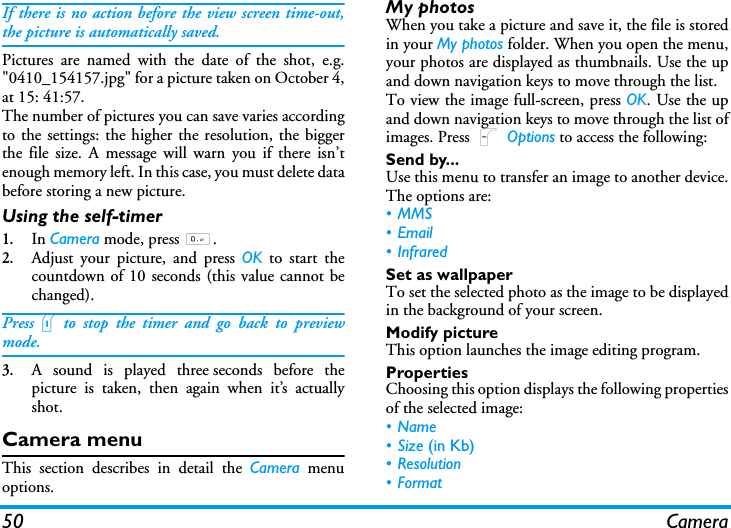
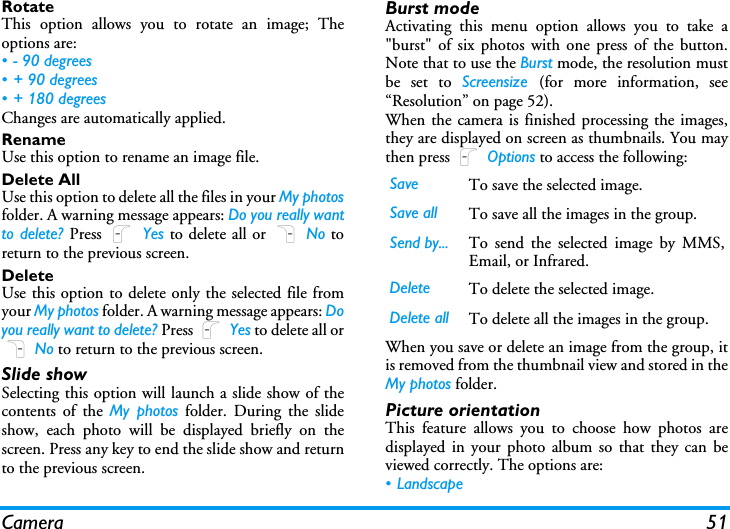
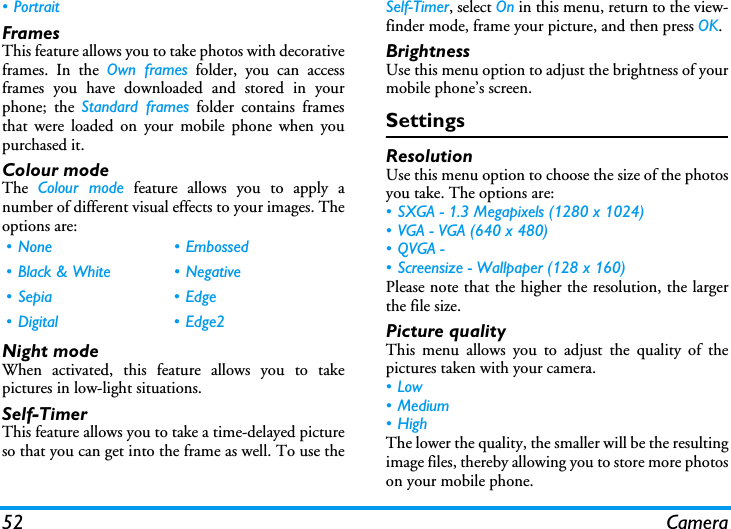
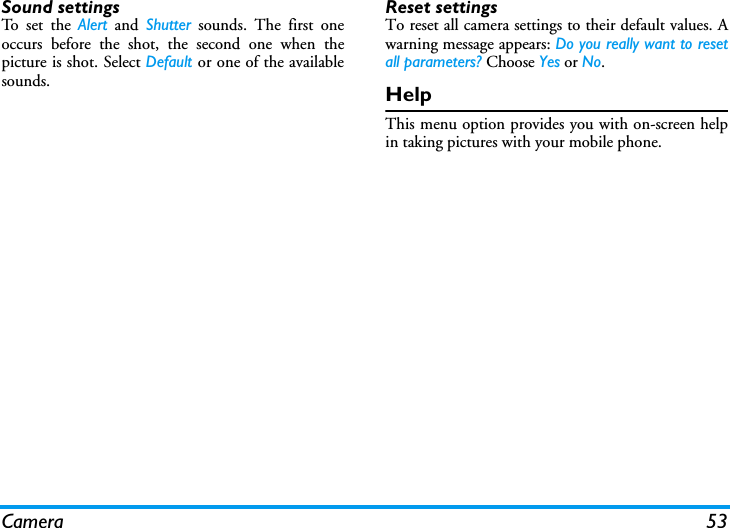
Settings 43card, some features or options may require a PIN2secret code given to you by your operator.If you enter a wrong PIN2 code 3 times, your SIMcard is blocked. To unblock it, request the PUK2 codefrom your operator or retailer. If you enter anincorrect PUK code 10 times in a row, the SIM cardwill be blocked and unusable. If this happens, contactyour operator or retailer.PIN protectionThis allows you to set the PIN protection On or Off.When On, you will be asked to enter your PIN codewhen switching your phone on.You cannot change your PIN code if this option is Off.Public namesAllows you to manage a specific names list calledPublic Names list, and restrict calls to this list via theCall restriction option.This feature is subscription dependent and requires aPIN2 code (see page 42).Call barringAllows you to limit the use of your phone to specificcalls. This can be applied to Incoming calls (All calls orWhen roaming) and/or to Outgoing calls (All calls,International calls and Intl. Exc. Home). In both cases,the  Cancel option applies to all calls at once. TheStatus option allows you to know whether a type ofcall is barred or not.This feature is network dependent and requires aspecific call barring password supplied by your serviceprovider.ProfilesA profile is a group of predefined settings thatallow you to quickly adapt your phone toyour environment. Selecting Meeting, forPublic names Allows you to consult, edit andmodify your Public Names list via aPIN2 code.CallrestrictionAllows you to restrict the calls to thePublic names list when Public only isselected.This feature is subscriptiondependent and requires a PIN2code (see page 42). This optionmight also apply to WAP ande-mail connections over GPRS.
44 Settingsexample, will set your ringer volume to silent, activatethe vibrating alert and deactivate the key tones (theother items are set according to your Personalsettings). When your meeting is over, selectingPersonal will reactivate all your usual settings. Thedetails of each profile are displayed when selecting aprofile.You can also associate a hotkey with a profile (e.g.,long press key 3 to activate Outdoors). Longpressing the same key deactivates it and returns you toyour  Personal settings. For more information, see“Hotkeys” on page 14.DisplayThis menu allows you to configure how themenus are displayed on screen.AnimationAllows you to set the animation of the menus On orOff. When On, this option will also scroll texts, suchas a message selected in the Read SMS menu.Deactivating this function increases battery life.BacklightBacklight is activated when receiving incoming callsor messages, browsing menus, etc. Select one of theavailable values.Deactivating this function increases battery life.WallpaperAllows you to set the wallpaper of the main screen Onor Off. When On, the picture you selected is displayedPersonal The information that appears herewill depend on how your mobilephone has been configured.Autonomy Vibra alert OnRingtone MediumBacklight 10 secAnimation OffHeadset Ringtone MediumCar Ringtone HighBacklight OnOutdoors Ringtone HighMeeting Vibra alert OnRingtone SilentKey tones Off
Settings 45in normal mode in idle, and in fade mode in othercontexts.Only JPEG pictures can be used as wallpaper. Thewallpaper is not displayed in idle when theInternational clock option is On (see page 13).NetworkContact your phone operator to have fullinformation about GPRS availability over itsnetwork and for an appropriate subscription.You might also need to configure your phone with theGPRS settings supplied by your operator, by using themenus described in this section. Then select the bearer(GSM or GPRS) in the menus of each application tobe used (e.g. WAP, MMS, e-mail, etc.).Access settingsThis menu allows you to create different data profilesthat can be used for connecting to various services: forexample, when using WAP or when sending MMS,the selected profile will be used to connect to theGSM or GPRS network.Options described below are operator and/orsubscription dependent. Error messages duringconnections are mainly due to incorrect parameters:contact your operator before first use, in order to havethe appropriate settings, which you may receive bySMS in some cases. Some pre-configured profilesmight be locked, preventing re-programming andrenaming.Select an item in the list and press ,to access thefollowing options:Change name To rename the selected profile.Show To display all parameters of theselected profile.GSM Settings To change the GSM settings:•Login, •Password,•Phone number needed toestablish the connection andprovided by your operator(ISDN or Analogue),•Inactivity time, a value of over 30seconds after which the phonedisconnects automatically (if aconnection was in progress).
46 SettingsGPRS attachThis menu allows you to define how your mobilephone connects to the GPRS service.Register againProvides you with a list of the networks available inthe area when the Manual mode is selected. Select thenetwork you want to register with and press , toconfirm.Preferred listAllows you to build a network list in order ofpreference. Once defined, the phone will try toregister on the network, according to yourpreferences.ShortcutsThis feature allows you to configure shortcutsto the features and options you access mostfrequently.HotkeysAllows you to set up direct access to a specific functionor a contact by linking it to a key. A long press on thekey in idle mode will then automatically activate thefunction or call the associated number (Flash dial).A number of Hotkeys have been preconfigured, e.g.6 for Silence, but you can reprogram them (keysfrom 2 to 9 only). The following keys are locked:1 (call voice mailbox) and * (dial internationalGPRS settings To change the GPRS settings:•Login, •Password, •Inactivity time•the APN menu allows you toenter the address of the externaldata network you want toconnect to, a text string used toestablish the connection.Always on Your phone automatically connectsto the GPRS service (if available).This option allows quicker accessto GPRS features, but increasesenergy consumption.For data calls Your phone will connect to theGPRS service only when required.This option reduces energyconsumption, but increases theconnection delay.
Settings 47call). Depending on your service provider, otherhotkeys may be predefined and locked.1.In the list, select a key from 2 to 9 andpress  OK. If the key was already programmed,select Change.2.Browse the list to select the function you wish toassociate with this key and press , orLSelect. If you select Flash dial, you will beasked to select a contact in the contacts list.3.To use a hotkey, press and hold the programmedkey when in idle mode.Voice commandAllows you to set up a direct access to a specificfunction by linking it to a voice tag.You can associate a voice command to most functionssupported by the hotkeys.1.Select  <New>, then browse the list to select afunction and press , or LSelect.2.When Press OK and speak appears, record yourvoice tag. Make sure you are in a quietenvironment, choose a short and simple wordand clearly pronounce it.3.The next menu gives you access to Delete, Play,Change function and Change voice options. PressR Back to create another voice tag.To use the voice command, press and hold , whenin idle mode, then say the recorded voice tag.To reprogram a voice command: select it, press LOK and select Change function. This will bring you to the list of available functions.Voice dialAllows you to set a voice tag that will dial the defaultnumber for the corresponding contact simply bysaying the voice tag. To set up voice dial, proceed asfollows:1.Select  <New>, then a contact in the list, thenpress , or L Options.When the phonebook in phone is selected, choose thenumber of your choice in the list that is displayed.2.When  Add voice tag? appears, follow theinstructions displayed on the screen. To use the voice dial, press and hold , when in idlemode, then say the voice tag corresponding to thenumber you want to dial.Up to 15 voice tags can be defined and shared betweenvoice dial and voice command. Recorded voice tags areavailable in their respective menu and can be deleted,played or changed.
48 SettingsQuick CallThis feature allows you to set your four preferred ormost frequently dialled numbers. You can thenquickly call one of them by selecting thecorresponding icon or picture on the screen, therebyremoving the need to enter and browse the Contactslist.Setting a Quickcall contact1.In idle mode, press+to access the Quickcallscreen. Select a thumbnail to configure and pressOK or L Set.2.Select a name in the contacts list, and press OKagain to access the Picture album and select apicture. Proceed the same way for eachthumbnail.Calling a Quickcall contactTo make a call, press + when in idle mode, thenselect the thumbnail of your choice and press (.To reconfigure a thumbnail, select it and press OK toReplace the name and/or picture.If a picture is already associated to a contact, it isdisplayed in the Quickcall screen. Changing thepicture in one of the menu will also update it in theother.LanguageThis menu allows you to select a language forall menu texts. Use+or -to browse thelist and select a language by pressing , orL Select.
Camera 4910. CameraYour Xenium 9@9i mobile phone features a built-indigital camera. You can take pictures, store them inyour phone or transfer them to your PC via Infrared,use them as wallpaper or send them to your friends viaMMS or E-mail. This chapter describes in detail howto use the camera.How to...This section describes how to perform the mostcommon operations with your camera.Activate the camera To activate the camera mode, simply press the cameraside key: the camera application is automaticallylaunched.After a period of inactivity, the camera automaticallyswitches to sleep mode (i.e. screen off). Press any key toactivate the camera again.When the camera is active, the preview screen isdisplayed and the lens is automatically focused.The table below details the operations of the variouskeys in camera mode.Ta k e  a  pi c t u r e1.Frame your picture and press , or the cameraside key to take the picture.2.Once the picture is taken, a view screen isdisplayed with the following options:+ - Zoom in / out< > Increase/decrease brightness,or camera side key Take a picture)Exit Camera mode and return to home screen0Activate/deactivate the self-timer*Activate/deactivate the burst mode#Toggle through the image resolutionsLAccess the Options menuRReturn to previous screenDiscard To ignore the picture and go back topreview mode.Save  To save the picture in My photos.
50 CameraIf there is no action before the view screen time-out,the picture is automatically saved.Pictures are named with the date of the shot, e.g."0410_154157.jpg" for a picture taken on October 4,at 15: 41:57.The number of pictures you can save varies accordingto the settings: the higher the resolution, the biggerthe file size. A message will warn you if there isn’tenough memory left. In this case, you must delete databefore storing a new picture.Using the self-timer1.In Camera mode, press 0.2.Adjust your picture, and press OK to start thecountdown of 10 seconds (this value cannot bechanged).Presslto stop the timer and go back to previewmode.3.A sound is played three seconds before thepicture is taken, then again when it’s actuallyshot.Camera menuThis section describes in detail the Camera menuoptions.My photosWhen you take a picture and save it, the file is storedin your My photos folder. When you open the menu,your photos are displayed as thumbnails. Use the upand down navigation keys to move through the list. To view the image full-screen, press OK. Use the upand down navigation keys to move through the list ofimages. Press L Options to access the following:Send by...Use this menu to transfer an image to another device.The options are:• MMS•Email•InfraredSet as wallpaperTo set the selected photo as the image to be displayedin the background of your screen.Modify pictureThis option launches the image editing program.PropertiesChoosing this option displays the following propertiesof the selected image:•Name•Size (in Kb)• Resolution•Format
Camera 51RotateThis option allows you to rotate an image; Theoptions are:• - 90 degrees•+ 90 degrees• + 180 degreesChanges are automatically applied.RenameUse this option to rename an image file.Delete AllUse this option to delete all the files in your My photosfolder. A warning message appears: Do you really wantto delete? Press L Yes to delete all or R No toreturn to the previous screen.DeleteUse this option to delete only the selected file fromyour My photos folder. A warning message appears: Doyou really want to delete? Press L Yes to delete all orR No to return to the previous screen.Slide showSelecting this option will launch a slide show of thecontents of the My photos folder. During the slideshow, each photo will be displayed briefly on thescreen. Press any key to end the slide show and returnto the previous screen.Burst modeActivating this menu option allows you to take a"burst" of six photos with one press of the button.Note that to use the Burst mode, the resolution mustbe set to Screensize  (for more information, see“Resolution” on page 52).When the camera is finished processing the images,they are displayed on screen as thumbnails. You maythen press L Options to access the following:When you save or delete an image from the group, itis removed from the thumbnail view and stored in theMy photos folder.Picture orientationThis feature allows you to choose how photos aredisplayed in your photo album so that they can beviewed correctly. The options are:• LandscapeSave To save the selected image.Save all To save all the images in the group.Send by... To send the selected image by MMS,Email, or Infrared.Delete To delete the selected image.Delete all To delete all the images in the group.
52 Camera• PortraitFramesThis feature allows you to take photos with decorativeframes. In the Own frames folder, you can accessframes you have downloaded and stored in yourphone; the Standard frames folder contains framesthat were loaded on your mobile phone when youpurchased it.Colour modeThe  Colour mode feature allows you to apply anumber of different visual effects to your images. Theoptions are:Night modeWhen activated, this feature allows you to takepictures in low-light situations.Self-TimerThis feature allows you to take a time-delayed pictureso that you can get into the frame as well. To use theSelf-Timer, select On in this menu, return to the view-finder mode, frame your picture, and then press OK.BrightnessUse this menu option to adjust the brightness of yourmobile phone’s screen.SettingsResolutionUse this menu option to choose the size of the photosyou take. The options are:• SXGA - 1.3 Megapixels (1280 x 1024)• VGA - VGA (640 x 480)•QVGA - • Screensize - Wallpaper (128 x 160)Please note that the higher the resolution, the largerthe file size.Picture qualityThis menu allows you to adjust the quality of thepictures taken with your camera.•Low• Medium• HighThe lower the quality, the smaller will be the resultingimage files, thereby allowing you to store more photoson your mobile phone.• None • Embossed• Black & White • Negative• Sepia • Edge• Digital • Edge2
Camera 53Sound settingsTo set the Alert and Shutter sounds. The first oneoccurs before the shot, the second one when thepicture is shot. Select Default or one of the availablesounds.Reset settingsTo reset all camera settings to their default values. Awarning message appears: Do you really want to resetall parameters? Choose Yes or No.HelpThis menu option provides you with on-screen helpin taking pictures with your mobile phone.
54 Contacts11. ContactsContacts are stored in one of the two availablephonebooks: in your SIM card (number of entriesdepending on capacity) or in your phone (up to 999names). When entering new names, they will only beadded to the phonebook you have selected.SettingsThis menu contains the settings forconfiguring the phonebooks for your mobilephone.Delete allTo delete all contacts at once. This option onlyapplies to the onboard phonebook, not to the SIMphonebook.Contacts selectThis menu allows you to select the phonebook to use,either In SIM or In phone. Press+ or - to selecta phonebook. Contacts added to the selectedphonebook can then be copied into the other, via theCopy to SIM or Copy to phone options.Your mobile phone only manages one phonebook ata time and will ignore the information relative to theother one, e.g. if "Smith" is present in bothphonebooks and if you delete it in the phone, itremains unchanged in the SIM.Copy to phoneThis option will copy the content of your SIM cardinto your phone. If you cancelled or aborted theautomatic copy of your SIM phonebook when youfirst switch on your phone, you can do it manuallywith this option.Selecting this option twice will duplicate all thenames.Names listIt is in this menu that you can manage thenames, telephone numbers, and e-mailaddresses of your contacts. You can alsoaccess the Names list directly from the home screen bypressing -.Adding contacts to the SIM phonebook1.Select <New> in the list.2.Enter the name and the number of your choice,then the type of number allocated to the name
Contacts 55(Phone, Fax or Data) and press OK to store thisname in your phonebook.A number is limited to 40 digits, depending on yourSIM card. Entering international prefix, country andarea codes allows you to dial a number from anylocation.Adding contacts in the phone phonebook1.Select <New> in the list.2.Enter the first, then last name (up to 20 latincharacters); one of the two fields can be empty,but not both.3.Then select the Number type. Numeric fields canhold up to 40 digits and one "+" sign andalphanumeric fields (e-mail and note) feature upto 50 latin characters. Each contact can feature amaximum of 5 numeric fields (e.g. 2 mobilenumbers, 3 work numbers, an e-mail addressand a text note).If you wish to personalise this contact with a pictureand/or a sound, see below.Own numbersThe Own numbers item that appears in the contactslist allows you to store your own phone number. Weadvise that you enter your mobile number as well asany other relevant information.Although all its fields can be empty, the Own numbersitem cannot be deleted.Emergency numberThe emergency number will call the emergencyservices number in your country. In most cases, youcan call this number even if you haven’t yet inserted aSIM card or entered your PIN.In Europe the standard emergency number is 112, inthe UK it is 999.Edit and manage contactsPress-when in idle mode to access the phonebook.To search for a given name:2 to 9Press the key for the letter that youwant to go to in the list (e.g. press8 twice to access the letter "U").The first record starting with thisletter is selected in the list.
56 ContactsIn the SIM phonebookChoose a contact in your SIM phonebook and pressor Options to access the following options:In the onboard phonebookChoose a contact of your phone phonebook and pressOK or Options to access the following options:Select Show to access the list of numbers or fields savedfor this contact. Select <New> to create a new field orselect one of the number and press , to access asecond set of options, among which are:#Press this key then enter the firstletters of the name you aresearching, and press OK to godirectly to that name.You can also use the <Search> itemappearing in the phonebook.CallCall handsfreeSend SMSSend MMSVoice dialFlash dialCopy to phoneDeleteChangeShowCallCall handsfreeSend SMSSend MMSSend by infraredShowDeleteChange nameSelect pictureSelect soundMake defaultThe first number you enter becomesthe default number which isautomatically dialled when pressing(. This option allows you to setanother default number.Copy to SIM cardTo copy a contact of your phonephonebook into the SIM phonebook(it is then always updated whenswitching phonebooks or when usinganother phone).Show To display the details of the selectedfield.Change typeTo change or to define the field type ofthe selected number.Change To change the number of the selectedfield.Voice dial To set a voice tag that will call thecontact when pronounced (seepage 47).
Contacts 57Alphanumeric fields (note and e-mail) can only bechanged or deleted.Adding picture and sound to contactsContacts stored in the phone phonebook can bepersonalised with a picture and/or a sound.This function is only available when you select theonboard phonebook.1.Select a contact and press OK or L Options.2.In the list, choose Select picture to add a picturefrom the Picture album and choose Selectmelody to open the list of ringers and add amelody.When the contact calls, the picture and/or soundassociated with this contact will be displayed/played.The picture associated with a contact is also used forthe Quickcall feature.When you change it, it is alsoupdated in the Quickcall settings.Flash dial To set a direct access to this contact bylinking to a key (see page 46).
58 Call Info12. Call InfoThe menus described in this section are used formanaging how your Xenium 9@9i mobile phonehandles calls and their related costs.CountersThis menu allows you to track the cost andduration of your calls. Most optionsmentioned below are subscriptiondependent.GPRS countersThe GPRS counter allows you to monitor the amountof data received via GPRS sessions. This feature issubscription and network dependent.Last mobile sessionThis option will display the last connection session ortransfer volume of your mobile phone (e.g. after aWAP connection over GPRS).Last PC sessionThis option will display the last connection session ortransfer volume of your PC transmission.The call counters managed by your mobile phonemight differ from the ones used by your operator. Youshould therefore consider the call counters displayed onthe screen as informative items, but NOT as the actualcharge rate basis.GSM countersThis feature is used for keeping track of yourincoming and outgoing GSM calls. Please note thatthe  GSM call counters do not include WAPconnections.Total durationTo Show or Reset the time duration of Outgoing orIncoming calls.Last call infoTo display the duration and/or cost of your last call.Total costTo display the accumulated cost and to set thecounter to zero (may be protected by PIN/PIN2codes).•Show will display how much has been spent based on the Charge rate.•Reset the current total cost.•Show balance to check the remaining credit (based on the Cost limit).•Cancel cost limit allows to cancel the cost limit.
Call Info 59•Cost limit lets you to enter the cost limit used in the Show balance menu.•Charge rate allows to set the rate per unit. First enter the currency used (3 characters maximum), then enter the cost per unit.SettingsThis menu allows you to set all the options related tocalling: call forwarding, call waiting, etc.Info at call endTo set On or Off the systematic display of the lengthand/or cost of each call when hanging up.Any key answerWhen On, this options allows you to accept a call bypressing any key, except ) (used to reject a call).Call waitingWith GSM call (subscription dependent)Applies to All calls, Voice calls, Fax calls and Data calls.When this option is active, you hear a beep if someonetries to call you while already on a call. Select theStatus option to find out whether the GSM callwaiting is active or not.With GPRS call (subscription dependent)Allows you to set On or Off the call waiting for voiceincoming calls while a GPRS connection is ongoing.Caller IDTo Show or Hide your identity to your correspondent.The  Status will inform you on which option isactivated.Call forwardTo divert incoming calls to your mailbox or to anumber (whether in your contacts or not) and appliesto: Data calls, Voice calls and Fax calls.Before activating this option, you must enter yourvoice mailbox number (see next section). This featureis subscription dependent, and different from the calltransfer, which takes place when one/several calls arein progress.Unconditional Will divert all the incoming calls. Ifyou select this option, you will notreceive any calls until you deactivateit.Conditional Allows you to choose when youwant to divert incoming calls: If noreply,  If not reachable or If busy.Each option can be setindependently.Status Will display the status of all callforwarding.
60 Call InfoMailboxesTo enter your voice mailbox numbers (if not availableon your SIM card).In some cases, you might have to enter two numbers:one to listen to your mailbox, the other one to forwardcalls. Contact your operator for more information.Active flipWhen  On, this option allows you to pick up anincoming call by simply opening the phone. Closingthe phone always hangs up an ongoingcommunication.IP PrefixTo set the prefix provided by your operator (up to 10digits can be stored) in order to make IP calls. Thisfunction is subscription and network dependent.Contact your operator for configuration parameters. Auto redialWhen On, if the person you are calling is busy, yourphone will automatically redial the number until asuccessful connection is made or until the maximumnumber of attempts is reached (10). The phone beepsat the beginning of each attempt and emits a specialbeep if the connection is successful. The time betweenredials increases with each attempt.Call listThis menu provides you with the list of outgoing andincoming calls, attempts at auto redialling and calldetails. The different types of calls - calls made, callsmissed and calls received - are represented by differenticons. They are displayed in chronological order withthe most recent on top. If the correspondent is listedstored in your contacts, the corresponding name isdisplayed.ResetTo reset the whole list at once and delete all listedcalls.Call listSelect a number in the list, and press ( to redial thenumber or press OK or LOptions to access theoptions:  Details,  Call or Call handsfree thiscorrespondent,  Send SMS,  Send MMS,  Delete theselected call or Store the associated number (if notalready in your phonebook).
61Philips Authentic AccessoriesSome accessories, such as a battery and a charger, areincluded as standard in the package of your mobilephone. Additional accessories may also be provided orsold separately. Package contents may therefore vary.To maximise the performance of your Philips mobilephone and not to void the warranty, always purchasePhilips Authentic Accessories that are speciallydesigned for use with your phone. Philips ConsumerElectronics cannot be held liable for any damage dueto use with non authorised accessories.ChargerCharges your battery in any AC outlet. Small enoughto carry in a briefcase/handbag.Carry caseProtects your phone from nicks and scratches.Data connect kitProvides easy data connection to your Philips mobilephone. The USB cable enables high speedcommunication between your phone and yourcomputer. The provided software allows you todownload pictures and melodies and to synchroniseyour contacts and appointments.
62PrecautionsRadio WavesYour cellular mobile phone is a low powerradio transmitter and receiver. When it isoperating, it sends and receives radio waves.The radio waves carry your voice or datasignal to a base station that is connected to thetelephone network. The network controls the powerat which the phone transmits.• Your phone transmits/receives radio waves in the GSM frequency (900 / 1800 / 1900 MHz).• The GSM network controls transmission power (0.01 to 2 watts).• Your phone complies with all relevant safety standards.• The CE mark on your phone shows compliancy with European electromagnetic compatibility (Ref. 89/336/EEC) and low voltage directives (Ref. 73/23/EEC).Your cellular mobile phone is your responsibility. Toavoid damage to yourself, to others or to the phoneitself, read and follow all the safety instructions andmake them known to anyone borrowing your phone.Furthermore to prevent unauthorised use of yourphone:Keep your phone in a safe place and keep itout of small children's reach.Avoid writing down your PIN code. Try toremember it instead. Switch off the phone and remove the battery if you aregoing to leave it unused for a long time.Change your PIN code after purchasing the phoneand to activate call restriction options.The design of your phone complies with allapplicable laws and regulations. Howeveryour phone may cause interference withother electronic devices. Consequently youshould follow all local recommendations andregulations when using your cellular phone both athome and when away. Regulations on the use ofcellular phones in vehicles and aircraft areparticularly stringent.Public concern has been focused for some time on thepossible health risks for users of cellular phones. Thecurrent research on radio wave technology, includingthe GSM technology, has been reviewed and safetystandards have been drawn up to ensure protectionfrom exposure to radio wave energy. Your cellulartelephone  complies with all applicable safetystandards  and the Radio Equipment and
63Telecommunications Terminal Equipment Directive1999/5/EC.Always switch off your phone...Inadequately protected or sensitive electronicequipment  may be affected by radio energy. Thisinterference can lead to accidents.Before boarding an aircraft and/or whenpacking the phone in your luggage: the useof mobile phones in an aircraft may bedangerous for the operation of the aircraft, disrupt themobile phones network and may be illegal.In  hospitals, clinics, other health carecentres and anywhere else where you may bein the close vicinity of medical equipment.In areas with a potentially explosiveatmosphere (e.g. petrol stations and alsoareas where the air contains dust particles,such as metal powders).In a vehicle transporting flammable products (even ifthe vehicle is parked) or a vehicle powered by liquefiedpetroleum gas (LPG), check first that the vehiclecomplies with the applicable safety rules.In areas where you are requested to turn off radiotransmitting devices, such as quarries or other areaswhere blasting operations are in progress.Check with the vehicle manufacturer thatelectronic equipment used in your vehiclewill not be affected by radio energy.PacemakersIf you have a pacemaker:• Always keep the phone more than 15 cm from your pacemaker when the phone is switched on, in order to avoid potential interference.• Do not carry the phone in a breastpocket.• Use the ear opposite to the pacemaker to minimise the potential interference.• Switch off your phone if you suspect that interference is taking place.Hearing aidsIf you are a user of a hearing aid, consult yourphysician and hearing aid manufacturer to learnwhether your particular device is susceptible tocellular phone interference.
64Improved performanceIn order to improve the performance of your phone,reduce radio energy emission, reduce batteryconsumption and ensure safe operation adhere to thefollowing guidelines:For the optimal and satisfactory operation ofthe phone you are recommended to use thephone in the normal operating position(when not using in hands-free mode or witha hands-free accessory).• Do not expose your phone to extreme temperatures.• Treat the phone with care. Any misuse will void the International Guarantee.• Do not immerse the phone in any liquid; if your phone is damp, switch it off, remove the battery and let them dry for 24hrs before using them again.• To clean the phone, wipe it with a soft cloth.• Placing and receiving calls consumes the same amount of battery energy. However, the mobile consumes less energy in idle screen when kept in the same place. When in idle screen and while you are moving, your phone consumes energy to transmit updated location information to the network. Setting the backlight for a shorter period of time as well as avoiding unnecessary navigating in the menus will also help to save the battery’s energy for longer phoning and stand-by performances.Battery information• Your phone is powered by a rechargeable battery.• Use specified charger only.• Do not incinerate.• Do not deform or open the battery.• Do not allow metal objects (such as keys in your pocket) to short circuit the battery contacts.• Avoid exposure to excessive heat (>60° C or 140° F), moisture or caustic environments.You should only use Philips AuthenticAccessories, as the use of any otheraccessories may damage your phone and willmake all guarantees for your Philips phonenull and void.Make sure damaged parts are replaced immediately bya qualified technician and that they are replaced withgenuine Philips replacement parts.
65Your mobile phone and your carStudies have shown that speaking on thetelephone while driving lowers yourconcentration, which can be dangerous.Adhere to the following guidelines:• Give your full attention to driving. Pull off the road and park before using the phone.• Respect the local regulations in countries where you drive and use your GSM phone.• If you want to use your phone in a vehicle, install the hands-free car kit which is designed for that purpose.• Ensure that your phone and car kit do not block any air bags or other security devices fitted in your car.The use of an alarm system to operate a vehicle's lightor horn to indicate incoming phone calls is prohibitedon public roads in some countries. Check localregulations.EN 60950 NormIn hot weather or after prolonged exposure to the sun(e.g., behind a window or a windscreen), thetemperature of your phone's casing might increase,especially when featuring a metallic finish. Be verycareful in this case when picking up your phone andalso avoid using it with an ambient temperature over40° C.Environmental careRemember to observe the local regulationsregarding the disposal of the packagingmaterials, exhausted batteries and old phoneand please promote their recycling.Philips has marked the battery and packaging withstandard symbols designed to promote the recyclingand appropriate disposal of your eventual waste.The battery should not be disposed ofwith general household waste.The labelled packaging material isrecyclable.A financial contribution has been madeto the associated national packagingrecovery and recycling system.The plastic material is recyclable (alsoidentifies the type of plastic).
66Tro u b l e s h o o t i n gThe phone does not switch onRemove/reinstall the battery. Then charge the phoneuntil the battery icon stops scrolling. Unplug fromcharger and try to switch the mobile on.The display shows BLOCKED when you switch onSomebody tried to use your phone but didn’t knowthe PIN code nor the unblocking code (PUK).Contact your service provider.The display shows IMSI failureThis problem is related to your subscription. Contactyour operator.Your phone doesn’t return to the idle screenLong press the hangup key or switch off the phone,check that the SIM card and the battery are installedcorrectly and switch it on again.The network symbol is not displayedThe network connection is lost. Either you are in aradio shadow (in a tunnel or between tall buildings) oryou are outside the network coverage area. Try fromanother place, try to reconnect to the network(especially when abroad), check that the antenna is inplace if your mobile has an external antenna, orcontact your network operator for assistance/information.The display doesn’t respond (or the display responds slowly) to key pressesThe display responds more slowly at very lowtemperatures. This is normal and does not affect theoperation of the phone. Take the phone to a warmerplace and try again. In other cases please contact yourphone supplier.Your battery seems to over heatYou might be using a charger that was not intendedfor your phone. Make sure you always use the Philipsauthentic accessory shipped with your phone.Your phone doesn’t display the phone numbers of incoming callsThis feature is network and subscription dependent.If the network doesn’t send the caller’s number, thephone will display Call 1 or Withheld instead. Contactyour operator for detailed information on this subject.You can’t send text messagesSome networks don’t allow message exchanges withother networks. First check that you entered thenumber of your SMS centre, or contact your operatorfor detailed information on this subject.
67You can’t receive and/or store JPEG picturesA picture may not be accepted by your mobile phoneif it is too large, if its name is too long, or if it doesn’thave the correct file format.You have the feeling that you miss some callsCheck your call divert options.During battery charge, the battery icon shows no bar and the outline is flashingOnly charge the battery in an environment where thetemperature does not go below 0°C (32°F) or above50°C (113°F).In other cases please contact your phone supplier.The display shows SIM failureCheck that the SIM card has been inserted in the rightposition. If the problem remains, your SIM card maybe damaged. Contact your operator.When attempting to use a feature in the menu, the mobile displays NOT ALLOWEDSome features are network dependent. They are onlyavailable, therefore, if the network or yoursubscription supports them. Contact your operatorfor detailed information on this subject.The display shows INSERT YOUR SIM CARDCheck that the SIM card has been inserted in the rightposition. If the problem remains, your SIM cardmight be damaged. Contact your operator.The autonomy of your phone seems lower that indicated in the user guideThe autonomy is linked to your settings (e.g., ringervolume, backlight duration) and the features you use.To increase the autonomy, and whenever possible,you must deactivate features you do not use.Your phone doesn’t work well in your carA car contains many metallic parts that absorbelectromagnetic waves which can affect the phone’sperformances. A car kit is available to provide youwith an external antenna and enables you to make andreceive phone calls without handling the handset.Check with local authorities if you are allowed to usethe phone whilst driving.Your phone is not chargingIf your battery is completely flat, it might take severalminutes of pre-charge (up to 5 minutes in some cases)before the charging icon is displayed on the screen.
68JAVA is a trademark of SunMicrosystems, Inc.T9® is a trademark of TegicCommunications Inc.Tegic Euro. Pat. App. 0842463In-Fusio and the gamesengine Exen aretrademarks of In-FusioFrance.

Navigation menu