Avantech Mobile CT6608 Cellular phone 900/1800/1900 Bands User Manual Philips 9at9i
Avantech Mobile Cellular phone 900/1800/1900 Bands Philips 9at9i
User Guide
Discover Your Phone
Philips continuously strives to improve its products.
Therefore, Philips reserves the rights to revise this user
guide or withdraw it at any time without prior notice.
Philips provides this user guide "as is" and does not
accept, except as required by applicable law, liability for
any error, omission or discrepancy between this user
guide and the product described. The device is meant to
be connected to GSM/GPRS networks.
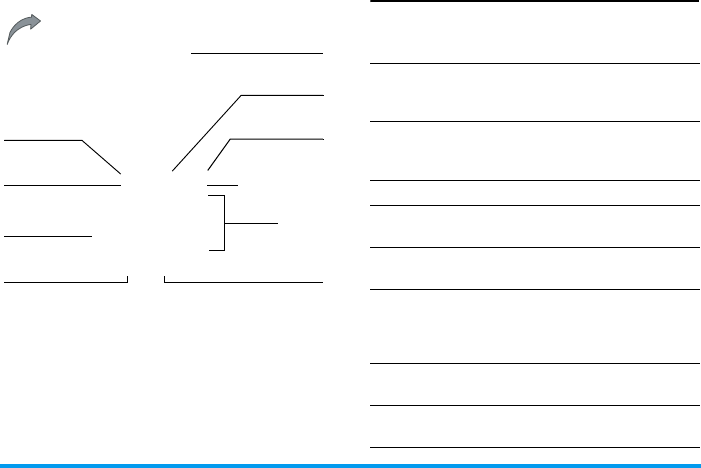
How to...
Alphanumeric
keypad
Microphone
Navigation
and
,
keys
65,000 colour
main screen
Pick up key Hang up, cancel
and on/off key
Back of the
phone:
speaker &
camera lens
Headset
connector
Charger
connector
Left softkey Right softkey
Switch the phone
On/Off
Long press
)
.
Enter your PIN
code
Enter your PIN code using
the keypad and press OK or
R
to confirm.
Make a call Enter the phone number on
the keypad and press
(
to
dial.
End a call Press
)
.
Answer a call Press
(
when your phone
rings.
Reject a call Press
)
when your phone
rings.
Launch Secretary
on the Go (for more
information, see
page 17)
Press
S
.
Adjust the earpiece
volume
Press the up or down volume
keys.
Activate/deactivate
the loudspeaker
Long press
(
during a call.
Softkeys
The left and right soft keys -
L
and
R
- located at
the top of the keypad allow you to select the
corresponding options that appear on the screen
immediately above them, including during calls. The
functions associated with these keys will vary
according to the current context.
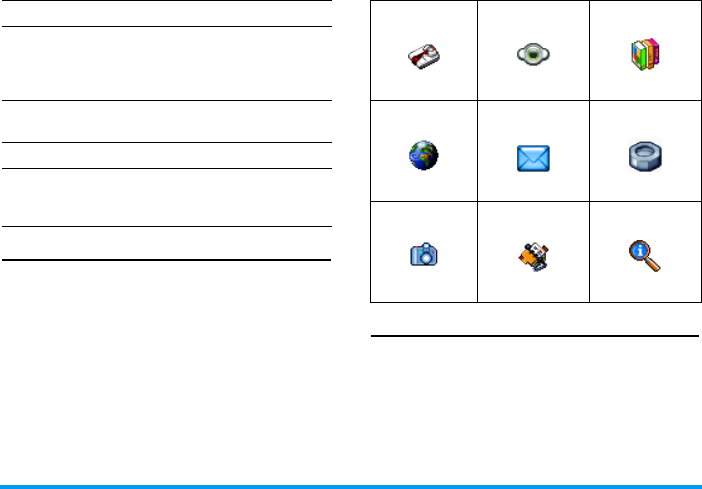
Main Menu
The Main Menu gives you access to all the different
features of your Xenium 9@9i mobile phone
presented in the form of a grid. The table above
summarises the arrangement of the Main Menu, the
meanings of the various icons found there, and the
page in this manual where more detailed information
concerning the subject can be found.
Access the
Names list Press
-
in idle mode.
Access the
Call list Press
(
in idle mode. The
Call list displays the Calls
missed, the Calls received and
the Calls dialled.
Access the
Main
Menu
Press OK in idle mode.
Go to previous menu
Press
)
or
<
.
Quickly return
to idle when
browsing menus
Long press
)
.
Business Multimedia Entertainment
page 12 page 18 page 22
Operator Messages Settings
page 25 page 28 page 41
Camera Contacts Call Info
page 49 page 54 page 58

Press
,
to access the Main Menu when in idle mode,
then use the Navigation keys -
+
,
-
,
<
or
>
- to browse the icons and lists. When navigating in a
list, a scroll bar located on the right hand side of the
screen shows your current position in the list.
Within lists, press
,
to access the options related to
the selected item, press select Cancel to go back one
level.
How to use this manual
The current manual strives to present the information
concerning your Xenium 9@9i mobile phone in as
clear and as complete a form as possible. To that end,
it is structured as follows:
Discover your phone
The current section. Presents an overview of your
mobile phone and information on the most
commonly used features.
Chapter 1: Getting Started
Information on how to set up your mobile phone for
the first time: installation of the SIM card, battery,
etc.
Chapter 2: Calling
Information on how to make and receive calls.
Chapter 3: Text Entry
Information on how to enter text using the numeric
keypad.
Chapters 4 to 12
These chapters treat each element of the Main Menu
one at a time.
After Chapter 12 appear the sections for Icons &
Symbols, Precautions, Philips authentic accessories,
SAR information (if available at publication,
otherwise included as a separate document), and
finally the Declaration of Conformity.

i
Table of Contents
1. Getting Started ............................................1
Inserting the SIM card ......................................1
Switching on the phone ...................................2
Charging the battery ........................................2
Setting Hotkeys .................................................3
2. Calling ................................................................4
Make a call ..........................................................4
Answer and end a call ......................................4
Handling multiple calls .....................................4
Call handsfree ....................................................6
Options during a call ........................................6
Adjust the earpiece volume ............................7
Quickcall .............................................................7
MMS Foto talk ...................................................7
3. Text Entry ......................................................9
T9 text input ......................................................9
Basic text input ............................................... 10
4. Business ......................................................... 12
Calculator ........................................................ 12
Unit converter ................................................ 12
Organiser ......................................................... 12
International clock ......................................... 13
Sound recording ............................................. 14
Alarm clock ..................................................... 14
Infrared ............................................................. 15
Auto Switch On / Off ................................... 17
5. Multimedia ................................................... 18
Memory status ................................................ 18
Sound album ................................................... 18
Picture album .................................................. 19
TV slideshow .................................................. 20
Demo mode .................................................... 21
6. Entertainment ........................................... 22
Western Horoscope ..................................... 22
Lunar calendar ................................................ 22
Chinese Festival ............................................. 22
In-Fusio ............................................................. 22
Java .................................................................... 23
Brick game ....................................................... 24
7. Operator ...................................................... 25
Services + ........................................................ 25
WAP ................................................................. 25
8. Messages ....................................................... 28
Broadcast SMS ................................................ 28

ii
E-Mail ................................................................ 28
SMS .................................................................... 33
MMS .................................................................. 36
Dictionary ........................................................ 40
9. Settings .......................................................... 41
Time and date ................................................. 41
Sounds .............................................................. 41
Security ............................................................. 42
Profiles .............................................................. 43
Display .............................................................. 44
Network .......................................................... 45
Shortcuts .......................................................... 46
Language ........................................................... 48
10. Camera ....................................................... 49
How to... .......................................................... 49
Camera menu ................................................. 50
Settings ............................................................. 52
Help ................................................................... 53
11. Contacts .................................................... 54
Settings ............................................................. 54
Names list ........................................................ 54
Edit and manage contacts ............................ 55
12. Call Info ...................................................... 58
Counters .......................................................... 58
Settings ............................................................. 59
Call list .............................................................. 60
Philips Authentic Accessories .............. 61
Precautions ....................................................... 62
Troubleshooting ........................................... 66
Getting Started 1
1. Getting Started
Please read the safety instructions in the "Precautions"
section before use.
To use your phone, you must insert a valid SIM card
supplied by a GSM operator or retailer. The SIM card
contains your subscription information, your mobile
telephone number, and a small amount of memory in
which you can store phone numbers and messages (for
more information, see “Contacts” on page 54).
Inserting the SIM card
Follow the steps below to insert your new SIM card.
Please remember to switch off your mobile phone
before removing the back cover.
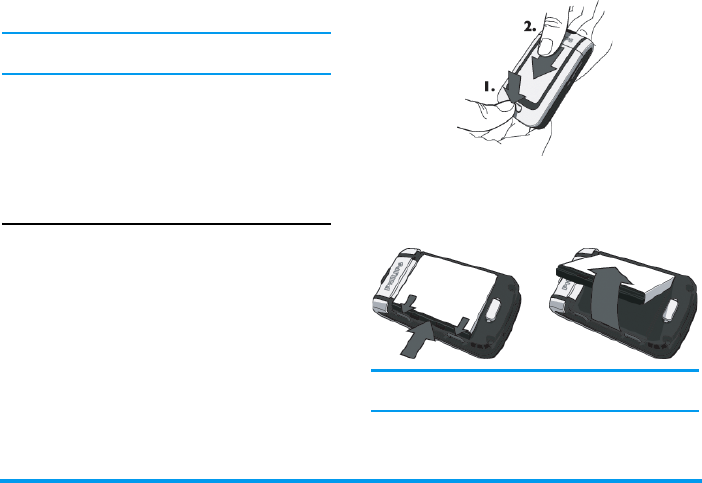
Remove the back cover
To insert the SIM card, you must first remove the
back cover. Disengage the latch (1) and then slide the
cover downwards to remove it as shown in the
illustration below.
Remove the battery
To remove the battery, (1) pull the inner clips
outwards, then (2) remove the battery by pulling it up
from the bottom.
You may lose all your personal settings if you remove
the battery when the phone is switched on.
Insert the SIM card
Slide the SIM card pressure plate to unlock it and then
lift it up on its hinge (1). Remove the SIM card from

2 Getting Started
its protective holder and (2) place it in the space
provided, making sure that the clipped corner of the
card is in the correct corner and that the gold contacts
are facing down. Finally (3), close the pressure plate
(a) and slide it into the locked position.
Slide the battery back into its slot, gold contacts
downwards, until it stops. Then lock it by pushing it
downwards. Replace the back cover by sliding it into
its slots until it stops.
Remove the protective film covering the screen and
the camera lens before using the phone.
Switching on the phone
To switch on the phone, long-press the ) key. Enter
the PIN code if required. A PIN code is a 4- to 8-digit
secret code for your SIM card. It is preconfigured and
communicated to you by your operator or retailer. For
more information on PIN codes, see “Security” on
page 42.
If you enter an incorrect PIN code three times, your
SIM card will be blocked. To unblock it, you must
request the PUK code from your operator.
When you switch on your mobile phone with your
new SIM for the first time, your phone will check to
see if there are any names and telephone numbers in
the SIM card phonebook. If any are detected, you will
be asked if you want to copy them into the onboard
phone book. If you wish to copy the numbers, press
OK, otherwise press Cancel.
Charging the battery
Your phone is powered by a rechargeable battery. A
new battery is partially charged and a sound alert will
warn you when the battery reaches low.
Getting Started 3
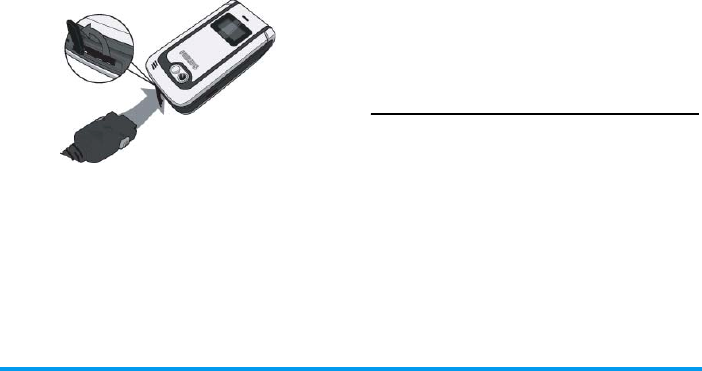
Once the battery and battery cover are back in place
you can charge the phone. Pull away the protective
rubber cap covering the charger connector (it is
attached to the phone so that you cannot lose it). Plug
in the connector as shown below. Then plug it into a
main AC power socket.
The battery symbol indicates the state of charge.
During charging, the charge indicators will scroll; it
takes around 2.5 hours to fully recharge your mobile
phone. When all the scroll bars are steady the battery
is fully charged. You can then disconnect the charger.
Depending on the network and condition of use, talk
time goes up to 8.5 hours and stand-by time up to 850
hours.
Keeping the charger plugged to the mobile when the
battery is fully charged will not damage the battery.
The only way to turn off the charger is to unplug it,
so use an easily accessible AC power socket. You can
connect the charger to an IT supply (Belgium only).
Setting Hotkeys
You can configure the numeric keys 2 to 9 to access
your favourite features simply by long-pressing on the
numeric key. A number of hotkey shortcuts are pre-
configured. For more information, see “Shortcuts” on
page 46.

4 Calling
2. Calling
Although your Xenium 9@9i mobile phone can do
many things - take pictures, record sounds, and send
and receive e-mails, to name a few - it is first and
foremost a telephone. This chapter describes the
features and options related to making and receiving
calls.
Make a call
1.
In idle mode, enter the phone number using the
keypad. To correct an error, press R Cancel.
2.
Press ( to dial.
3.
Press ) or R End call to hang up.
For an international call, long press * to enter the
"+" sign for the international prefix.
Using the phonebook
1.
Press - in idle mode.
2.
Select a contact in the list and press (: the
selected number is dialled. If you are using the
onboard phonebook and the selected contact
possesses more than one number, the number
identified as the default will automatically be
selected. To select a different number,
press<or > (see “Contacts” on page 54 for
more information).
3.
Press ) or R End call to hang up.
Answer and end a call
When receiving a call, the number of the caller may be
displayed, depending on whether or not the person
calling has chosen to display his or her ID. If the
number is stored in the selected phonebook, then the
corresponding name is displayed instead of the
number.
•Answer the call: press ( or open the phone if the
Active flip option is On (see page 60 for more
information).
•Reject the call: press ) (or long press either
volume key). If you have activated Call forward (see
page 59), the call is diverted to a number or voice
mail.
•Hang up: press ) or close the phone.
The phone will not ring if in Silent mode (see page 42).
If you have selected Any Key Answer, you can accept a
call by pressing any key except ) (see page 59).
Handling multiple calls
The ability to handle two or more calls at one time
and to make conference calls is dependent on your
operator and/or contract.

Calling 5
Making a second call
You can make a second call during an active call or
with a call on hold. While on the phone, dial a
number (or select a contact in the phonebook) and
press (. The first call is put on hold (the number is
displayed on the bottom of the screen) and the second
number is dialled. You can then press OK to access the
options among which are:
•Switch calls to toggle between calls (you can also
press+or-to switch calls).
•Transfer to connect the two calls. You are dis-
connected when the transfer is completed.
•Conference to introduce the caller into a confer-
ence call.
Answering a second call
When you receive a second call while being already in
communication, the phone emits a beep alert and the
screen displays Call waiting. You can then:
To receive a second call, you must have deactivated the
Call forward for voice calls (see page 59) and activated
the Call waiting (see page 59).
Answering a third call
If you are in a call and have one call on hold, you can
also receive a third call. To do so, you must either end
one of the calls or introduce the new caller to a
conference.
This service is limited to two current communications
(one active and one on hold).
Conference call
Subscription dependent.
A conference call is activated by making several
outgoing calls or from a multiple call context. It
allows you to speak with up to five people at the same
time.
Press(To answer the call (the first one is
put on hold).
Press)To reject the call.
Press,or
LOptions
To open the options list. You can
select End call to end the current
call, then answer the incoming call.
Press )To reject the call.
Press,or
LOptions
To open the options list. You can
select Accept to answer the
incoming call, or End call to end the
current call, then answer the
incoming call.

6 Calling
1.
Make a first call with someone, then a second
one (see above).
2.
Press , or Options and select Conference.
Repeat the process until five members are
connected.
3.
Select Remove party to disconnect a member of
the conference, or select Private call to have a
private call with this member only (other
members are put on hold).
4.
Press ) to disconnect all calls at once.
If there is an incoming call during the conference call
and there are less than five members, you can accept
this new call and add this member to the Conference
call (if five members are already connected, you can
answer the call, but not add it to the conference).
Call handsfree
Your Xenium 9@9i mobile phone has a hands-free
calling option.
For your own comfort and safety, ensure you move the
phone away from your ear when calling handsfree,
especially when increasing the volume.
1.
In idle mode, enter the phone number using the
keypad or select a contact in the phonebook.
2.
Press , or L Options then select Call
handsfree or press,.
If you are already on the phone, long press ( to
switch to handsfree mode and back.
Options during a call
During a call, press , or L Options to access the
following options.
Activate h/free
This option allows you to use your mobile phone’s
hands-free option.
Mute / Unmute
Allows you to mute or unmute the microphone so
that your caller cannot hear you.
Record dialogue
In most countries, recording telephone conversations
is subject to legislation. We advise you to notify the
caller if you intend to record your conversation and
only do so if they agree. One minute is the maximum
recording time.
To record a conversation during a call, select Record
dialogue and press OK. Press OK again or L Save to
end the recording: an edit window allows you to

Calling 7
assign a name to the recording, which is then available
in Multimedia > Sound album.
If you select Mute and then Record dialogue, only the
caller’s voice is recorded.
Notepad
Allows you to note down a number. You can then
store it in the phonebook, call it, or send a message to
this number.
Other options during a call
Adjust the earpiece volume
During a call, press the up or down volume key to
increase or decrease the volume.
Quickcall
The Quickcall feature allows you to set your four most
frequently dialled numbers. You can then quickly call
one of them by selecting the corresponding icon or
picture on the screen.
Setting a Quickcall contact
1.
In idle mode, press+to access the Quickcall
screen. Select a thumbnail to configure and press
, or L Set.
2.
Select a name in the contacts list, and press OK
again to access the Picture album and select a
picture. Proceed the same way for each
thumbnail.
Calling a Quickcall contact
To make a call, press+when in idle mode, then
select the thumbnail of your choice and press (.
To reconfigure a thumbnail, select it and press , to
Replace the name and/or picture.
If a picture is already associated with a contact, it is
displayed in the Quickcall screen. Changing the
picture in one of the menus will also update it in the
other.
MMS Foto talk
This feature allows you to send a picture via MMS
and to add a sound recording to it. The picture can be
selected from the Picture album or can be a picture you
have just taken with the camera.
1.
Select a picture, press ,or LOptions, then
select Send by... > MMS.
• Names list • Equaliser
• Call list • SMS
• End call • Organiser

8 Calling
2.
When the Add sound? message appears, press OK
and then record a sound. Press L OK to stop
recording.
3.
Select a contact and then Add media to go to the
MMS creation screen. For more information, see
“New MMS” on page 36.

Text Entry 9
3. Text Entry
Text can be entered in editing screens in two different
ways: by using T9 Predictive Text Input or basic text
input. The techniques for using these two methods
are discussed below.
T9 text input
T9 Predictive Text Input is an
intelligent editing mode for entering text
on a mobile phone. It allows you to enter
text more quickly by anticipating the
word you want to enter based on the
keys you have pushed. You press once on the key
corresponding to each letter needed to spell a word
and T9 suggests a word based on your keystrokes. If
several words are available, the first word in the list is
displayed and highlighted. Press +/- or L to
browse the list and press OK to insert the word.
How to use it?
Letters and symbols represented by each key are as
follows:
Example: how to enter the word "home":
1.
Press 4 6 6 3. The screen displays
the first word of a list:
Good
.
2.
Press+or Lto scroll and select
Home
.
3.
Press , or > to confirm selection of the
word
Home
.
2 to 9To key in letters.
Tegic Euro. Pat.
App. 0842463
L or
+/-To browse the list of candidate words.
>To insert the selected word followed by a
space.
1To insert the selected word only.
RShort press to backspace, long press to
clear all text.
0To shift letter case: Standard, lower or
UPPERCASE letters.
#To view the table of symbols and
punctuation.
*To shift mode from T9 to basic text input
to numeric.

10 Text Entry
Dictionary
If the word you want to enter is not in the T9
dictionary, you can add it to the database. Scroll to the
bottom of the list until you reach the entry
represented by a series of underscores: _ _ _ _ _. Press
OK and a basic text editing screen opens. Enter the
new word without spaces using the methods described
below and when you are finished press L Save. You
are then returned to the message you were composing
and the new word is inserted.
Language
You can switch input language while writing a
message by long-pressing the # key. The available
languages will depend on where you purchased your
mobile phone.
Basic text input
Press * to switch from T9 to basic text input. This
method requires multiple key presses to reach the
desired character: the letter "h" is the second letter on
the 4 key, so you must press it twice to enter "h".
Short press R Cancel to clear one entry, long press
to clear all text.
Example: how to enter the word "home":
Press 4, 4 (
G
H
I
) 6, 6, 6 (
MN
O), 6
(M
NO
), 3, 3 (
D
E
F
). Press , when the
message is completed.
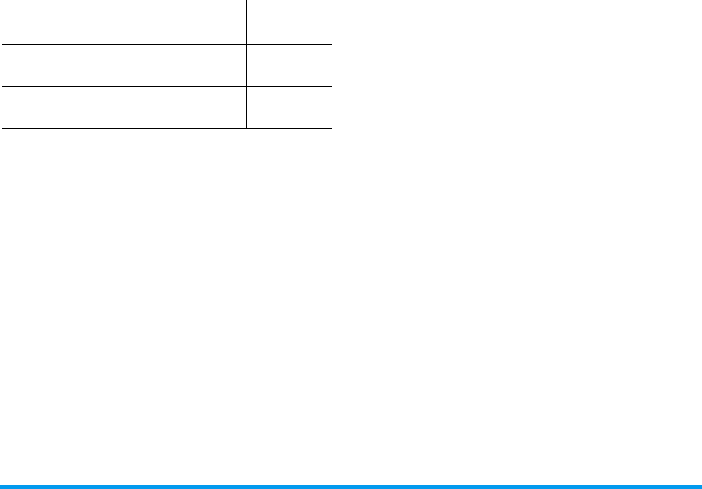
Letters, numbers and symbols are located on each key
as follows:
Short press Long press
1space 1. , @ / : ; " ’ ! ¡ ? ¿ # + - * =
% < > ( ) & £ $ ¥ 1
2a b c 2 à ä å æ ç 2
3d e f 3 é è ∆ Φ3
4g h i 4 Γ ì4
5j k l 5 Λ5
6m n o 6 ñ ò ö 6
7p q r s 7 β Π Θ Σ7
8t u v 8 ü ù 8
9w x y z 9 ø Ω Ξ Ψ9
Text Entry 11
0To shift letter case: Standard,
lower or UPPERCASE letters. 0
#To open symbols and
punctuation mode.
*To shift mode: T9®, basic or
numeric.
12 Business
4. Business
This menu contains features and options designed to
help you keep you organised and informed while on
the move.
Calculator
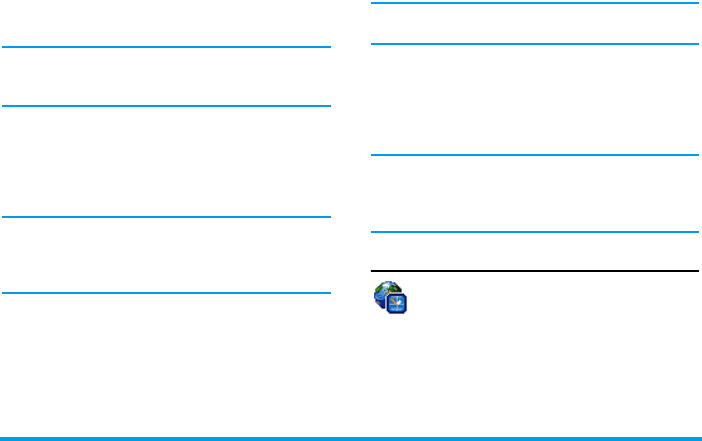
Your phone has a built-in calculator that you
can use to perform basic calculations.
Numbers are entered with the keypad and
operators with the navigation keys as indicated in the
table below:
An icon at the top of the screen indicates which
navigation keys to use for entering operators.
Press and hold 0 to get the decimal point.
Calculator accuracy is to 2 decimal places and is
rounded up to the higher decimal figure.
Unit converter
This menu allows you to convert a sum from
one currency into another using the exchange
rate of your choice. You can convert from
Local to Foreign or vice versa. Enter a rate in the
Exchange rate field and an amount in either the Local
or Foreign fields: the exchange rate is calculated
automatically.
Organiser
This menu allows to create, store and manage
events in your organiser. When the organiser
alert is On (see “Sounds alerts” on page 42), a
beep alerts you when an event is due.
The organiser shares the mobile memory capacity
with other features (phonebook, picture album,
sound, etc.). To check the memory available in your
phone, select Multimedia > Memory status.
Creating a new event
1.
In Events, select <New>, then the type of event
to create (Holiday, Meeting, To Do).
Addition
Press>or the * key.
Subtraction
Press<or the * key twice.
Multiplication
Press+or the * key 3 times.
Division
Press-or the * key 4 times.
Equals
Press , or #.
Business 13
2.
Enter the starting and ending date and time of
the event and name it (e.g. "Meeting with
Smith").
3.
Set a reminder and a frequency: alerts will be
triggered at the chosen time.
The reminder only applies to Meeting and To Do
events. It will be updated when changing time zones
(see “International clock” below).
Deleting old events
This menu allows you to delete past events. Enter the
starting date (past or future) from which all previous
events will be deleted and press OK twice to delete all
events preceding this date.
To delete all events set in your organiser, enter a
starting date several years ahead (e.g. 31st of
December 2010) to make sure all events preceding this
date are deleted at once.
Managing events
Select an event in the list and press OK or L Options
to access the following options:
Changing a repeating event modifies all instances of
this event.
Events views
Events stored in your organiser can be displayed in
Day view, Week view and Month view. Select a view
format and press OK, then use
<
or
>
to display
the previous or next day, week or month.
Changing time zones will impact all organiser
reminders: the event alarms will be updated
depending on the time displayed on the screen (see
“International clock” below).
International clock
This menu allows you to set and display both
the local time and the time in the foreign time
zone of your choice. Note that if you choose
to display the local and foreign time on your home
screen, the image you selected as your wallpaper will
no longer be displayed there.
Delete To delete the selected event.
Change To change the selected event.
Send by
infrared
To transmit the selected event to
another infrared-compatible device.
14 Business
International clock display
Activate this option if you want to display both the
local time and the time of another time zone on the
idle screen. Press+or-to set the option On or
Off.
This feature is not available when the option No clock
is selected in “Clock display” on page 41.
Local settings
Foreign settings
Sound recording
This menu allows you to make up to 20
different recordings of up to one minute in
length, depending on the memory status.
Select <New> to begin the recording. The message
Speak now appears along with a progress bar. When
you are finished, press L Save to stop recording.
You can then either enter a name for the new sound
file or accept the default name proposed by pressing
OK. You then return to the list of Sound recordings and
the new recording is displayed in the list.
When you select a sound file, it is played
automatically in a loop. Press OK to access the
options. You can Rename the file, Delete it, or Set as
ringer.
Recordings saved here cannot be sent by MMS.
Alarm clock
Your mobile phone has a built-in alarm clock
with a snooze feature. You can set up to three
separate alarms and choose whether or not
the alarm should repeat. To set an alarm, follow the
steps below:
1.
Select an alarm and set it On.
2.
Then enter the time and press OK.
Local time zone Move+or-to select the
time zone corresponding to your
area.
Set time Allows you to set the time by
pressing the appropriate keys.
Daylight saving Allows you to set the daylight
saving option On or Off for the
local time zone.
Foreign time
zone
Move+or-to select the time
zone of your choice.
Foreign
daylight
saving
Allows you to set the daylight saving
option On or Off for a foreign time
zone.
Business 15
3.
Then select the frequency: Once, Every day, On
weekdays.
4.
Finally, select the type of alarm: Melody, Sound
recording, or Buzzer and press OK.
Repeat above steps to set other alarms.
The alarm clock will ring even if your mobile phone is
switched off and/or the ringer volume is set to Silent.
When the alarm rings, press any key to stop it or close
the phone (except if the snooze mode is on, see below).
Snooze mode
This menu allows you to set the snooze mode On or
Off.
The snooze mode setting applies to all the alarms you
have set.
When the alarm rings and the snooze mode is On:
• press any key (except R Stop) to stop the ring-
ing temporarily or close the phone. The alarm
will ring again around 7 minutes later.
• press R Stop to stop the ringing and the alarm
repetition.
The snooze mode is automatically deactivated after 9
alarm repetitions.
Infrared
Your mobile phone has an infrared port that
allows you to send or receive data to or from
other infrared-compliant devices (e.g.
another mobile phone, a computer, a PDA, etc.)
through a wireless link.
Files that are copyright protected cannot be sent.
When connecting with a PC, make sure you have
activated its infrared option.
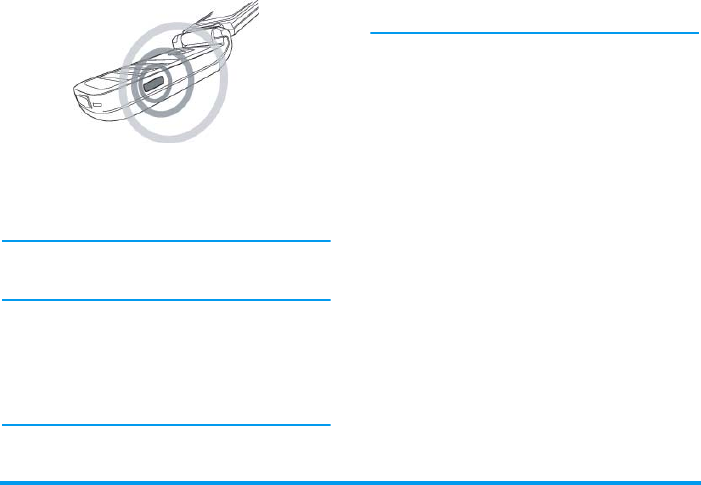
Position of devices
Before transmitting data between two devices, they
must be correctly positioned in relation to one
another. Make sure that:
• the infrared ports are facing each other,
• they are at a less than 50 cm away from each other.
• nothing obstructs the infrared beam.
Sending data
To send data via infrared from your mobile phone,
you must first select the item to be sent: when
selecting a picture, a sound, a name or an event, a sub-
menu then gives you access to the Send via infrared
option.
As soon as your phone finds another infrared
compliant device to communicate with, the sending
16 Business
automatically takes place. Messages are displayed on
the screen for you to follow the process.
If the phone finds several infrared devices, a list is
displayed on the screen for you to choose from. Press
OK to confirm and to send the selected data.
Sending is cancelled if your phone cannot find another
device before the time out is reached, if the infrared
link is broken, or if you cancel the process.
Receiving data
When you select Receive your phone is ready to
receive an item via infrared and waits for the another
infrared device to send it. As with sending data,
messages are displayed on the screen and allow you to
follow the process.
Receiving is cancelled if your phone isn’t contacted by
another device before the time out is reached, if the
infrared link is broken, if the size of the file sent is too
large or if you cancel the process.
Saving the data
A message will appear to inform you that you have
received a file. Press OK to access the following
options:
Using the phone as a modem
Select Data to use your phone as a modem. You can
use your mobile phone together with a PC or a PDA,
e.g. to connect to the internet or to send faxes.
To fully benefit from the services available via infrared
(sending and receiving SMS, e-mails and faxes,
uploading pictures and sound files to your phone,
phonebook synchronisation, GPRS Wizard, etc.), you
must install the Philips Mobile Phone Tools software
Save To save the data, then go back to idle.
The items you have received will be saved
under their default name, which you can
change by selecting them in the relevant
menus.
Show To display the details of the data you
have received.
Discard To ignore the data received.

Business 17
on your PC. This software is available on the CD-
ROM shipped with your phone.
The software supplied on the CD-ROM is not
compatible with Apple Macintosh computers. It only
supports Windows 98 SE, ME, XP and 2000 (Service
Pack 3 and up mandatory in this case).
Specific software modules for Lotus Notes, Lotus
Organizer and Microsoft Outlook are designed to
allow synchronisation of your Philips mobile phone
with these applications (refer to their respective user
guides for detailed information).
Auto Switch On / Off
These menus allow you to set your mobile phone to
switch itself on or off at pre-set times.
To set Auto switch on, select the option and press OK.
Select On and press OK. Enter the time at which you
want your mobile phone to switch itself on and press
OK. Select the desired frequency from Once, Every
day, or On weekdays and press OK. A message appears
to confirm activation.
Secretary on the Go
Your Xenium 9@9i mobile phone has a new feature:
Secretary on the Go. With your Secretary, which is
accessible from the keypad by simply pressing S,
you can record a Voice memo and then associate the
resulting sound file with an Organiser event or an
Alarm.
18 Multimedia
5. Multimedia
This menu and its sub-menus contain options related
to the multimedia features of your Xenium 9@9i
mobile phone.
Memory status
This menu allows you to display the
percentage of memory available in your
phone. The various features share the
memory capacity: pictures, sounds, recorded memos
and voice tags for voice commands, stored messages,
phonebook and organiser entries, games, etc.
Press OK to check the memory status. The display
shows you the percentage of memory free and the
phone’s total memory in Kilobytes (Kb). Press OK
again to check the detailed list of memory used by
each feature.
Your mobile phone is supplied with many sounds and
pictures. You can only delete sounds or pictures in the
My melodies or My images folders, e.g. to free memory
space for your own sounds and pictures.
If the List full message appears when saving a new item
you must delete an item to be able to create or add a
new one.
Sound album
This menu allows you to manage the sound
files stored in your mobile phone. The
options are:
Once in a list, you can then select a sound file and
press OK to access the menu options listed below.
Download
new
To launch the WAP application and
download new sound files. This
feature i
View all To access all your sound files in a
single list.
My melodies To access your downloaded sound
files.
Protected
melodies
To access the list of copyright
protected sample images.
Recordings To access the list of sound
recordings.

Multimedia 19
Send by...
To send the selected sound file via E-mail (see
page 28), via Infrared (see page 15) or MMS (see
page 36). Note that sound files from Recordings folder
cannot be sent via MMS.
Set as ringer
To set the selected sound as ringer.
As SMS/MMS ringer
To set the selected sound as the Messages ringer. This
option must be activated in the menu Settings >
Sounds (see page 41).
Rename
To rename the selected sound file.
Delete
To Delete the selected sound file.
Picture album
This menu allows you to display and modify
the images stored in your mobile phone. The
options are:
Inside the folders, images are displayed as a text list.
Select an image and press > to view the image.
Pressing OK gives you access to the menu options
listed below.
Send by...
To send the selected sound file via E-mail (see
page 28), via Infrared (see page 15) or MMS (see
page 36). Note that you cannot send pictures that are
protected by copyright.
Set as wallpaper
To set the selected picture as wallpaper.
Download
new
To launch the WAP application and
download new sound files. For more
information, see page 25.
View all To access all your image files in a
single list.
My photos To access the photos taken with the
camera.
My images To access the images you have
downloaded.
Protected
images
To access the list of copyright
protected sample images.
Icons To access the list of icons you have
downloaded.

20 Multimedia
Modify picture
Use this menu to add text, a frame, or an icon to the
selected image.
Add text
To add text to the selected picture. Enter your text in
the editing screen and press OK. Use the navigation
keys to move the text on the screen: short press to
move the text 1 pixel at a time, long press for 5 pixels.
Press R Back to go back to the text editor, or L
OK to validate and go to the next option.
Add frame or icon
To add a frame or an icon to the selected picture.
Eraser
To Undo the last modification made on the picture, or
to Reset, i.e. cancel all changes at once. Press R
Back to cancel or L OK to validate.
Send
To send the selected picture via infrared, E-mail or
MMS.
Save
To save the picture with all the changes you have
applied.
Rotate
Use this option to rotate the selected image. The
options are:
-90 degrees
-90 degrees
+180 degrees
Rename
Use this option to rename the selected image.
Delete all
Use this option to delete all the images in the current
folder.
Delete
Use this option to delete the selected image. Note that
pictures in the Protected images folder cannot be
deleted.
JPEG pictures must be of the correct size and in the
format for your mobile phone to store and display
them correctly.
TV slideshow
This menu allows you to display the pictures
listed in the Picture album (automatically in a
slideshow or manually one-by-one) on the
main internal screen of your phone and/or on a TV
screen via the TV Link accessory.
Multimedia 21
TV Link may not supplied with your product. In this
case, you must purchase it separately. See “Philips
Authentic Accessories” on page 61 for details.
Manual
This menu allows you to display the pictures
manually. Browse the list of pictures by pressing +
or -. Press > to activate the graphical full-screen
display and send it to the TV, press < to go back to
the list. When a picture is selected, press OK or Select
to open the rotation options (90° or 180°).
Automatic
This menu allows you to display the pictures
automatically in a slideshow.
1.
Select the time value that will be applied
between each picture of the slideshow (10, 15 or
20 seconds) and press OK or L Select.
2.
In the list that appears, select the pictures of your
choice by pressing < or >. Choose
(Un)Check all to select or deselect all pictures at
once.
3.
Press OK to start the slideshow and R to stop
it.
In both modes, the last selection made is
automatically saved and can be played several times in
a row, even when you quit the TV Slideshow menu.
Demo mode
This menu displays a number of short video
clips in order to illustrate your mobile
phone’s multimedia features.
This menu option is available even if you have not
inserted a SIM card.
22 Entertainment
6. Entertainment
This menu contains a number of features and games.
Western Horoscope
This menu allows you to display your horoscope for
any given day. To consult your horoscope, you must
first either enter your sign or your birth date. If you
know your sign, you can select it from the Select sign
menu, otherwise select Set birth date, press OK and
enter your birth date. Press OK to display the
corresponding sign.
In the Horoscope menu, you can select Today or Other
day depending on the horoscope you want to consult
(in the second case, enter the relevant date before
pressing OK).
Lunar calendar
This menu gives you the correspondence between
Gregorian and Chinese calendars by displaying the
corresponding date in lunar mode from a selected
Gregorian date.
Features requiring date & time information (e.g.
organiser events) depend on Gregorian dates only.
Press OK to access the date edition window. Change
the date if needed by pressing the corresponding keys,
then press OK to convert to lunar mode.
Lunar in idle
This option allows you to display the lunar calendar
on the idle screen. Press + or - to activate or
deactivate this option.
Chinese Festival
This menu informs you of the next major Chinese
festivals, from a given date. Select From now or select
From a date and enter the date from which you want
to know what Chinese festivals will occur. In both
cases, press OK to display the six next festivals.
In-Fusio
Your Xenium 9@9i mobile phone comes equipped
with the In-Fusio games engine, which allows you to
download and play games. Access to this service
depends on your subscription and the country in
which you use your mobile phone.
Entertainment 23
Java
Your mobile phone features a Java run-time
environment, which allows you to run Java
applications, such as games downloaded on
the network.
The first time you launch Java, a message appears to
alert you that the installation and configuration of
Java will take several moments. This is a one-time
occurrence.
Settings
Once Java has been installed, you may then proceed
with configuration.
Auto launch
Allows you to set the automatic launch of Java On or
Off. When On, a Java application will be automatically
launched immediately following installation.
Network access
Network
This menu gives you access to operator-specific
settings, including DNS and proxy addresses. When
Bearer To select the type of network used when
launching a connection and to configure
the corresponding settings.
•GSM or GPRS: your mobile will only
use the GSM or the GPRS network
for e-mail connections.
•GPRS first: your mobile will first try to
connect to the GPRS network, then to
the GSM network if the GPRS
network isn’t available.
Selecting the above option requires you to have both
GSM and GPRS settings configured. See page 45 for
details.
DNS
address
Allows you to enter the DNS address of
the external data network you want to
connect to.
Network
account
Allows you to select one of the data
profiles you have defined in Settings >
Network > Access settings (see page 45).
24 Entertainment
available, all items of this menu are pre-configured, so
that you shouldn’t have to change them.
Java applications
When the Java window is displayed, press OK to access
the list of available games. Select a game and press OK
again. Use L and R softkeys to select the menu
as displayed on the screen. Press Exit to quit the Java
application, or press Menu to access the list of
available options allowing you to create and manage
new folders.
Brick game
The goal of this game is to destroy bricks by
hitting them with a ball. Destroying all bricks
give you access to the next level.
This menu is operator dependent. As such its icon and
content may vary.
Keys used are the following:
4 and 6To move the racket left or right.
* and #To start the game by throwing the
ball left or right.
0To pause the game up to 2 min.
(after which the screen returns to
idle mode and the game is lost).

Operator 25
7. Operator
This menu contains the services and features provided
by your operator. Consequently, the menus described
below may vary or may not be available, depending on
your subscription. Contact your network operator for
more details.
The services provided may involve making a phone
call or sending a SMS for which you may be charged.
Services +
This menu option is reserved for operator-
specific services. Please contact your operator
for more information about these options.
WAP
This menu allows you to access services
supplied with your network, such as news,
sports, weather, etc.
Your mobile phone may have been pre-configured. If
not, settings can be configured "over the air", via the
club Philips website. Connect to www.club.philips.com
then select your country. Note that this service isn’t
available if your country and/or mobile doesn’t appear
in the list. In this case, contact your operator for
information.
To launch a WAP session, select Operator > WAP >
Homepage.
Your mobile phone connects to the network
according to the Access settings you have defined in
the menu Settings > Network (see page 45). In case of
a connection error, the screen displays "Go to menu":
press ( or L Options to access the WAP options
(see page 27).
Homepage
This is the link to the first WAP site you access when
launching a WAP session. In most cases, this menu
Use + or -To browse the on-line pages.
Press , or
L Select
To select a highlighted item.
Press R Back To return to the previous page.
Press )To end the WAP session.
You can also select Options>
Exit.

26 Operator
item is preconfigured and will connect to your
operator’s WAP homepage. To change this default
homepage see “Options” on page 27.
Bookmarks
This menu allows you to store your favourite WAP
site addresses, rename them and access them quickly
from the list.
Press ( while browsing, then select Bookmarks: the
name and URL fields will be automatically filled in
with the information of the page you are browsing.
Select Add bookmark and start entering the new name
for the edit screen to appear. Press,, then proceed
the same way to enter the URL address.
The Manage bookmarks menu allows you to Delete or
Edit the selected bookmark.
Go to URL
This menu allows you to enter a WAP site address and
to connect directly when selecting it (a quick way to
access WAP addresses without saving them as
bookmarks).
All the addresses you enter in this menu and connect
to at least once, will appear in a list. Select one of the
items and press , to reconnect to the
corresponding page, without having to re-enter its
complete address.
Settings
In order to access WAP sites, you must first configure
a WAP connection profile.
Select profile
To select one of the available profiles, then define the
connection settings for each of them.
All connection settings described below apply to the
selected profile.
Browser options
To activate or deactivate the downloading of images
attached to WAP pages.
Selecting Off will speed up the global downloading
time of the pages browsed.
Rename profile
To rename the currently selected profile (start
entering the new name for the edit screen to appear).
Cache
To empty an area of the phone’s memory where the
pages browsed during a WAP session are stored.
Network
•Homepage: to change the homepage name and
address (start entering the new name for the edit
screen to appear).

Operator 27
•Network access allows you to select one of the data
profiles you have defined in Settings > Access
settings (see page 45).
•Bearer allows you to select the type of network used
by the selected profile when launching a
connection (see page 45).
•Proxy address and Proxy port allow you to define a
gateway address and port number to be used when
launching a WAP connection using the selected
profile.
•Security: to display the list of installed security
Certificates (then display its details or delete it), the
Session info or the Current certificate.
Push inbox
This menu allows you to read and manage messages
automatically sent to you by the network and / or by
your operator.
In some cases, a red "@" sign will be displayed on the
screen to inform you that you have received a new push
message. Press , or L Read to read it or R
Back to go back to idle.
Push messages include URL links for quick access to
the corresponding WAP services: a single click on the
link will connect to the WAP site for browsing or
downloading multimedia files into your handset.
If your push inbox is full, a message will advise you to
delete some messages in WAP > Push Inbox.
Options
While browsing, press ( or LOptions to access:
Homepage To access the default homepage.
Back To go back to the previously browsed
page.
Forward To go to the next browsed page.
Refresh To reload the currently browsed page
from its original server.
Set as
homepage
To save the currently browsed WAP
page as the default homepage.
Save as... To save images embedded in the
pages that are displayed in the Picture
album.
Exit To end a WAP session.
Bookmarks
Go to URL
Settings
Push inbox
See page 26 for description of these
options.
28 Messages
8. Messages
This menu contains all the
Broadcast SMS
This menu allows you to manage the
reception of SMS broadcasts regularly
transmitted to all subscribers on the network.
It gives you access to the following options:
District code
To select the type of messages you want to be
permanently displayed on the idle screen (in this case,
enter the type in both District code and Topics menus).
Reception
To set the reception of cell broadcast messages On or
Off.
Topics
To define the type of messages you want to receive.
To configure a topic, select <New>, enter the code
provided by the operator, and, if desired, associate a
name. You can also select an existing topic in the list,
which you can rename or delete.
You can enter up to 15 different topics in the list. To
obtain the codes corresponding to the different topics,
contact your operator.
E-Mail
This menu allows you to access your e-mail
with your Xenium 9@9i mobile phone. You
can send and receive e-mails with
attachments from two different e-mail accounts.
Depending on your service provider and your
subscription, your mobile
phone may have been pre-
configured with an e-mail account, in which case the
parameters are already set.
If not included in your mobile phone contract, you
will need to subscribe to an e-mail service in order to
send and receive e-mails. In this case, all parameters
are communicated to you by your provider.
The sections below describe in detail how to configure
your mobile phone for e-mail. To enter special
characters, such as @ or %, please see “Text Entry” on
page 9.
Settings
To configure an e-mail account, select one and press
OK to access the menus detailed below.

Messages 29
Account name
To rename an account from its default name. If one of
the accounts has been pre-configured, it may be
locked, in which case it cannot be renamed.
E-mail server
To configure the settings needed to connect to your e-
mail service.
You must obtain the POP3 and SMTP addresses from
your e-mail service provider.
If you wish to use a GPRS connection to access your e-
mail, you may need to use the SMTP server of your
mobile service provider to send e-mails.
Advanced
Network access
Before you can consult your e-mails, you first need to
configure your connection to the internet.
GSM Settings
When you use a a GSM connection to connect to the
internet, your mobile phone dials a number provided
by your network operator and the data is sent and
received over this connection, somewhat like a dial-up
Password The password to access your e-mail
account.
E-mail
address
Your e-mail address.
SMTP
address
The Simple Mail Transport Protocol
(SMTP) address. This is the server for
your outgoing mail and is usually in a
format like smtp.yourmail.com.
POP3
address
The Post Office Protocol (POP)
address. This is the server for your
incoming mail and is usually in a format
like pop.yourmail.com.
Login The login (or user name) to access your
e-mail account.
Port POP3 The port number on the POP3
server. This is usually port 110.
Port SMTP The port number on the SMTP
server. This is usually port 25.
DNS
address
The IP address of your Domain
Name Server.
SMTP
authenticat.
SMTP authentication is usually set to
Off. Contact your provider for more
information.

30 Messages
internet connection from a PC. The GSM connection
parameters are described in the table below.
GPRS settings
If using GSM is like a dial-up internet connection, a
GPRS connection would be the equivalent of
broadband. GPRS (or Global Packet Radio Service) is
a protocol for sending data rapidly using a radio
signal.
To configure a GPRS connection, you may need to
provide a a user name and password, although some
GPRS connections function without them. You will
need to provide the APN (or Access Point Name).
Bearer
This menu option allows you to choose which how to
establish an internet connection.
•GSM: your mobile will only use the GSM network
for e-mail connections.
•GPRS: your mobile will only use the GPRS network
for e-mail connections.
•GPRS first: your mobile will first try to connect to
the GPRS network. If no GPRS network is
available, then it will try with the GSM network.
For these features to work, you must first have entered
the corresponding settings.
Open mailbox
This menu allows you to connect to your mailbox and
download the e-mail headers (sender and subject
lines) from the server. You may then choose to retrieve
the corresponding e-mails.
1.
Select Open mailbox: your phone automatically
connects to the e-mail server and downloads the
list of e-mail headers if any (five at a time).
2.
If Next (or Previous) appears at the end (or
beginning) of the list, other e-mail headers are
pending: select one of the available options and
press , to retrieve them.
Phone
number
This is the number your mobile phone
dials to establish a connection. First
choose ISDN or Analogic (depending
on your network operator) and then
enter the Phone number provided by
your operator,
Login &
Password
The login and password provided by
your GSM network operator to access
this service.
Auto
disconnect
Enter an inactivity time-out value after
which the phone will automatically
end the call (if a connection was in
progress). The value must be over 30
seconds.
Messages 31
3.
Select a header, and press ,to display the
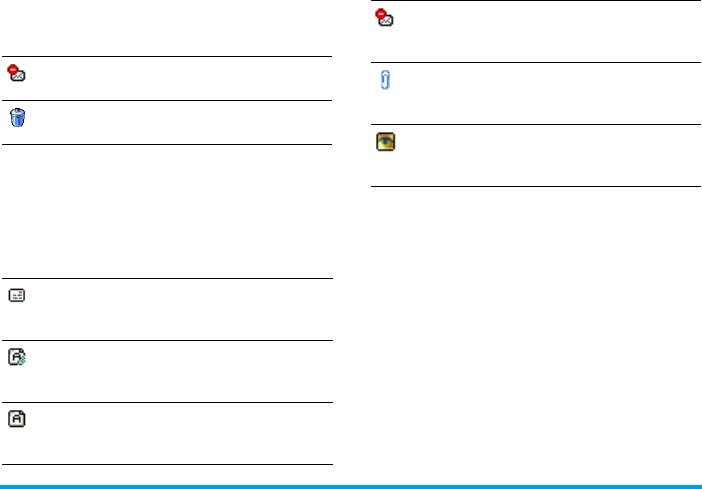
Details. The following status icons may appear
to each header:
4.
If there is no icon next to the header, you can
press , and select Get mail to download the
e-mail. Repeat this operation to download each
e-mail corresponding to each selected header.
If the e-mail you have received contains attachments
(an image, a text file, or another e-mail), they are
identified by a specific icon:
You must download and save a picture before you can
view it in the Picture album. If there isn’t enough
memory to store the new picture, you must delete
other items (images, sounds, messages, etc.) to free up
memory to save the new picture.
An image file may not be accepted by your mobile
phone if it isn’t in the correct format. Images must be
in JPEG, BMP or GIF format.
The optimal image size is 128 x 160 pixels (the
dimensions of the screen). If you are transferring
images from your home computer, you can use an
image editing program to create images of the correct
size.
Filenames should be 10 characters or less.
The e-mail size is too large (over 50 Kb), it
cannot be downloaded.
The e-mail is marked to be deleted (see
page 32).
Contains the details of the e-mail header
(date and time, sender’s e-mail address,
etc.), press , to display these details.
The text of the e-mail itself can be viewed as
an attachment, press , to read it (no
advanced options in this case).
A text file (text only, ".txt" format) is
attached to the e-mail, press , to read it
(no advanced options in this case).
The application needed to manage this
attachment isn’t available in your phone, or
the e-mail is too large to be uploaded.
Another e-mail is attached to the one you
received. Up to five e-mails can be attached,
although there will be no advanced options.
A picture is attached to this e-mail. Select it
in the list and press , twice to store it in
your phone (you can rename it if you wish).

32 Messages
5.
Select an e-mail header and press , to access
the following options:
Send mail
This menu allows you to send e-mails to one or several
recipients at a time, including with an attachment
such as a JPEG picture. Once received, your messages
can be forwarded and the attachments visualised with
the appropriate software.
If you exit the Send e-mail menu before sending your
e-mail or if you cancel the sending while it takes place,
the e-mail content is deleted without being stored.
Add to
names
To add the sender’s e-mail address to your
phonebook, even when you haven’t yet
downloaded his e-mail.
Select <New> to create a new contact, or
a name in the list to add or change the
e-mail address.
You must have selected the phone
phonebook in this case; this menu item
will NOT appear if you selected the SIM
phonebook.
Delete To mark the e-mail to be deleted (select
this option again to unmark it). When
you exit the E-mail menu, you will be
asked to confirm deletion of the selected
item(s) from the e-mail server.
Reply To reply to the sender (whose address will
be automatically added to the list).
Proceed as described in “Open mailbox”
on page 30.
Forward To forward the downloaded e-mail to
someone else. Proceed as described in
“Open mailbox” on page 30.
Add
contacts
To select the recipient(s) of your e-mail,
provided that you have entered e-mail
addresses for contacts saved in your
phone phonebook (see “Contacts” on
page 54).
After you have added contacts, select one
of them and press ,to Change the
e-mail address, Remove it from the list.
If you select a contact from the SIM
phonebook, an edit window will allow
you to enter an e-mail address.
Messages 33
You can only attach one picture (JPEG, GIF or BMP)
or one sound at a time. If you accept an incoming call
while writing an e-mail, the menu is closed and the
phone goes back to idle when you hang up.
SMS
This menu allows you to send text messages
using the Short Messaging Service (SMS) and
to manage the messages you send and receive.
Send SMS
To compose and send an SMS, follow the steps
detailed below:
1.
Select a contact in the phonebook or press
<New> to enter a new number.
2.
Choose from three different types of messages:
3.
Enter your text and press OK to access the next
options:
You can send up to two attachments of two different
types together with your SMS. Images and animations
and pictures are exclusive: if you first select an
animation and then an image, only the image will be
taken into account and vice-versa.
Copyright protected pictures and sounds cannot be
sent by SMS.
Add
media
Allows you to design your message.
Enter the subject and text, then press
, to access the next options:
•Add sound or Add graphic to attach a
sound or a picture to your e-mail,
•Send now to send it to the selected
recipient(s),
•Modify to redesign your e-mail.
<New> To write a new message.
Last
message
To edit, modify and re-send the last
message sent.
Template To select a pre-configured message
such as Can you ring me back on this
number?
Save To store the current message and its
attachments in the Archive menu.
Send now To send the current message.
Add sound To attach a melody.
Add graphic To attach an image or an animation.

34 Messages
Send to multircpt.
This menu allows you to send an SMS to multiple
recipients.
Read SMS
This menu allows you to read SMS messages you have
sent and received. The messages are displayed in a list.
At the end of the list, the <Delete All> item allows you
to delete all the messages at once. Deleting old
messages is useful to free memory space in order to
receive new messages.
When a message is displayed, press OK or L Options
to access the menu options listed below.
Delete
To delete the selected message.
Move to archive
To store messages in the phone memory. You can
then consult them in Messages > SMS > Archive.
Moving a message to the archive deletes it from the
Read SMS list.
Edit SMS
To edit, modify and resend the SMS to someone.
Reply
To reply to the sender.
Forward to
To forward the selected message. Note that
attachments cannot be forwarded.
Call handsfree
To call the sender of the message handsfree.
Call back
To call the sender of the message (operator-
dependent).
Store number
To save the number of the sender if it is attached to
the message,
No. extracted
To extract a number included in the message itself, if
this number is included in double quotes (several
numbers can be included and extracted). This menu
is only visible if there is a number to extract.
Store graphic
To save the graphic and/or animation that was sent
together with the SMS. This menu is only visible if
there is an image to extract.
Add
contacts
To select your recipients in the contacts
list. If you want to modify or remove a
contact, select it press OK.
Add
media
Allows you to design your message.
Repeat steps 2 and 3 of the “Send SMS”
section above.

Messages 35
Store melody
To save the melody that was sent with the SMS. This
menu is only visible if there is a melody to extract.
Settings
This menu allows you to configure the SMS settings.
The options are:
SMS centre
To select your default SMS centre.
If not available on
your SIM card, you must enter your SMS centre number
.
Signature
When On, allows you to add a signature at the end of
your message. You can Edit, Change or Save the
signature.
Validity period
To select the length of time your messages are to be
stored in the SMS centre. This is useful when the
recipient is not connected to the network (and thus
cannot receive your message immediately). This
feature is subscription dependent.
Reply path
When On, this option allows you to transmit the
number of your SMS message centre together with the
message. The recipient can then reply using your own
SMS centre and not theirs. This speeds up the rate of
transmission. This feature is subscription dependent.
Delivery report
When On, this option will inform you via SMS
whether your own SMS was received or not. This
feature is subscription dependent.
Auto save SMS
When On, this option will automatically save
messages sent in the Archive menu.
SMS Chat
When On, allows you to display received SMS on the
idle screen. You can then quickly reply to a message
received by pressing OK, entering your message in the
edit screen, and pressing OK again.
If you receive an SMS while you are reading one, you
can reply to the first one before reading the second.
Alternatively, you can press Back to exit the first
message. The second message then appears on your
screen.
Archive
This menu allows you to consult all the messages
stored in the phone’s memory using the Auto save
SMS or Move to archive options. The <Delete all
SMS> item allows you to delete all SMS at once.
When a message is displayed, press , or
LOptions to access the following options: Delete,
Edit SMS, Forward to, Call back, Call handsfree.

36 Messages
MMS
Your mobile phone can also send and receive
MMS (Multimedia Messaging Service)
messages. With MMS you can send messages
that contain pictures, sounds, and text.
When sending MMS messages, your recipient must
also have an MMS-enabled phone in order to be able
to view your message.
Receiving MMS
If someone sends you an MMS, an icon and a sound
alert will inform. If the sender of the message has
asked for a Read report, a prompt will ask you to send
it or not. Once the MMS is downloaded, it is available
in MMS > Inbox. (see below).
If the size of the MMS to download is bigger than the
memory available in your phone, you must free
memory by deleting data (picture, sounds, etc.). See
“Memory status” on page 18.
New MMS
When you select New MMS, you are first asked to
enter the contact to whom you wish to send the
MMS. You can select one or more existing contacts or
enter a new mobile phone number.
Next you will be asked to Add media. In the MMS
creation screen, five icons allow you to add a Picture,
add Text, add Sound, Send the message or access the
MMS options. Use+or-to move from one
option to the next and press , or L to access the
menu.
1.
Design your message: add a Picture, a Text and/
or a Sound. Press> to create more slides.
2.
Access the MMS options (see below).
3.
Select Send now to send the MMS to the selected
recipient(s).
Pictures are chosen from the Picture album. Copyright
protected pictures cannot be sent via MMS.
Sounds can be chosen from the Sound Album
melodies. If you wish to send a sound memo, you
need to record it when creating the MMS. In this case,
in Sound... menu, select <Records>, then <New> and
follow the procedure that appears on the screen.
Recordings previously saved cannot be sent via MMS.
The following options are available when creating
new MMS messages:
Add slide To create a new slide and add it to
your slide show. Press < or >
to browse slides once you have
created several.

Messages 37
Once your message is completed, select Send now and
press ,. A progress bar allows you to follow the
sending of your message, press LCancel if you wish
to cancel the sending. If you saved the MMS as a draft,
it will be available in the Drafts menu. If you have sent
the MMS, it is available in the Outbox.
Inbox
You MMS inbox lists all the Read and Unread MMS,
Notifications, Delivery and Read reports. To read a
message, select it and press >. Press , or L
Options to access the following options:
Next slide /
Previous slide
To move to the next/previous slide.
Note that this option only appears
if the MMS contains more than one
slide.
Edit subject To edit and change or enter the
subject of your message.
Delete slide To delete the selected page (if there
is more than one in the message).
Save
as draft
To save your message as a draft that
you can edit, complete and send
later on.
Save
as template
To save your message as a template,
that you can use as a basis for other
MMS (e.g. "Happy birthday" type
of message.
Preview MMS To preview the slide show you have
created.
Slide duration To change the value of slide
duration set in Settings > Application
settings (see page 39), and to set a
delay between each slide.
Play To switch back to automatic
mode: the MMS is then played as
a continuous slide show.
Next / previous
slide
To move to the next or previous
slide. You can also press<or
>when viewing the MMS in
manual mode. Note that this
option only appears if the MMS
contains more than one slide.
Save picture To detach the picture of the
current slide and save it in the
Picture album.
Save sound To detach the sound of the
current slide and save it in the
Sound album.

38 Messages
Do NOT delete notifications before you have retrieved
the MMS, or you will not be able to retrieve the MMS.
Notifications are automatically deleted once you have
received the full MMS.
Drafts
Lists all messages saved as drafts, or automatically
saved if you quit the MMS menu before saving or
sending your MMS. You can Play, Edit, Send, view
Details and Delete drafts.
Templates
Lists all messages saved as templates. You can Play, Edit
and Delete them.
Outbox
Lists the messages you have Sent or created but Not
sent yet. You can Play, Delete or view the Details of all
these messages, Send or Forward them to someone.
Settings
Messages you have saved can only be sent from the
Draft or Outbox folders. You can NOT recover an
item (whether message, notification or report) that
you have deleted. Press RBack to cancel deletion.
Settings
Your mobile phone may have been pre-configured. If
not, settings can be configured "over the air" via the
Club Philips website. Connect to:
http://www.club.philips.com
and then select your country.
Note that this service isn’t available if your country
and/or mobile phone doesn’t appear in the list. In this
case, contact your operator for information.
Choose an MMS profile in the list and select Modify
to access the following settings.
Close To close the MMS and go back to
the list of options.

Messages 39
Application settings
Retrieval
mode
Allows you to choose from:
•Manual: you connect manually to the
server by selecting a notification in the
Inbox, selecting Read to download,
then Play.
•Automatic: new MMS are directly
placed in the Inbox. Select the MMS
and press > to play it.
This mode is deactivated when roaming.
Validity
period
To select how long your MMS will be
stored on the server, from 1 hour to 1
week (maximum). This is useful when
the recipient is not connected to the
network (and thus cannot receive your
message immediately).
Read
report
This option can be set On or Off and
informs you (via an SMS) when the
status of the MMS you have sent has
changed, i.e. if it was read or deleted.
Delivery
report
This option can be set On or Off and
informs you (via an SMS) of the status of
delivery, e.g. if your MMS was received
or rejected.
Auto
save
This option can be set On or Off and
allows you to automatically save the
messages sent in the Outbox menu.
Slide
duration
Allows you to select the duration
between each slide of the MMS.

40 Messages
Network settings
Dictionary
This feature allows you to enrich the T9
dictionary used for writing messages. For
detailed information on entering with T9, please see
“T9 text input” on page 9).
Network
access
To choose a connection profile from
the ones you have set (see “Access
settings” on page 45).
Bearer To select the type of network used
when launching a connection: GSM,
GPRS or GPRS first.
MMS center To enter the MMS address of the
server you will connect to.
Gateway
address
Gateway
port
To enter the IP and Port numbers of
the server’s gateway.
Settings 41
9. Settings
This menu allows you to change the settings related to
each available option (sounds, time and date, security,
etc.) and to customise your phone.
Time and date
Set time
Allows you to set the time using the keypad or
with the navigation keys.
You should select your Time zone and activate
Daylight savings (if appropriate) before setting the
time.
Clock display
Allows you to select Analogue, Digital, Tiny digital or
No clock time formats when shown in idle mode.
Set date
Allows you to set the date by pressing the appropriate
numeric keys or the navigation keys.
Own time zone
Allows you to select your current time zone. When
you enter the menu, you are presented with a map of
the world that which you can navigate with the up and
down navigation keys. Each time zone is identified
according to its position relative to Greenwich Mean
Time (GMT) and by the main cities within that time
zone.
Daylight saving
Allows you to set the daylight saving to On (in
summer time) or Off (in winter time). If daylight
saving is On and you set the time to 12:00, it will
automatically switch to 13:00 when turning the
option to Off.
Sounds
Ringer volume
This option allows you to adjust the volume
of your ringer. Press
+
or
-
to adjust the
volume of your ringer from Silent to
Increasing.
Ringtone
Allows you to select a ringer tone. The list also
includes recorded sounds and melodies you saved.
Scroll through the list and wait to hear the selected
melody being played.
You will not hear the melody if the volume ringer is set
to Silent or if the Silent mode was activated.
42 Settings
Messages ringer
Allows you to set On or Off an alert for each time you
receive a new message. When On, you can select the
alert of your choice from the ringers list.
Equaliser
This option allows you to choose from different audio
settings. It is also available while a call is in progress.
Scroll through the list and wait a few seconds to hear
the difference.
Key tones
Allows you to switch the key tones On or Off. Even
when set Off.
Sounds alerts
Allows you to set alert sounds for the following items:
•Organiser: when an event programmed in your
organiser is due,
•Missed call,
•Battery alert: when the battery is running low and
requires charging,
•Minute alert for a beep alert that sounds every
minute during a call to help you manage the
duration of your call (the beep cannot be heard by
the caller).
Select or deselect the item(s) of your choice by
pressing
<
or
>
.
This menu only allows you to set the alert sounds On
or Off, NOT the alerts themselves. E.g. setting the
Organiser alert Off will not prevent your phone from
displaying the Reminder screen (if you programmed
one), but the corresponding sound will not be played.
Vibra alert
Allows you to set the vibra alert On or Off when
receiving a call, when an event set in the organiser is
due, when you receive a message and when the alarm
rings.
The vibra alert is always Off when you connect the
charger or the Cigarette Lighter Adapter.
Silent
When this mode is On, all alerts are deactivated and
the vibra alert is active.
The Silent mode also applies to key tones.
Security
This menu allows you access the features
relating to the security of your mobile phone
and the data you store there.
Change codes
Allows you to change your PIN and PIN 2 codes, as
well as the call Barring code. Depending on your SIM

Settings 43
card, some features or options may require a PIN2
secret code given to you by your operator.
If you enter a wrong PIN2 code 3 times, your SIM
card is blocked. To unblock it, request the PUK2 code
from your operator or retailer. If you enter an
incorrect PUK code 10 times in a row, the SIM card
will be blocked and unusable. If this happens, contact
your operator or retailer.
PIN protection
This allows you to set the PIN protection On or Off.
When On, you will be asked to enter your PIN code
when switching your phone on.
You cannot change your PIN code if this option is
Off
.
Public names
Allows you to manage a specific names list called
Public Names list, and restrict calls to this list via the
Call restriction option.
This feature is subscription dependent and requires a
PIN2 code (see page 42).
Call barring
Allows you to limit the use of your phone to specific
calls. This can be applied to Incoming calls (All calls or
When roaming) and/or to Outgoing calls (All calls,
International calls and Intl. Exc. Home). In both cases,
the Cancel option applies to all calls at once. The
Status option allows you to know whether a type of
call is barred or not.
This feature is network dependent and requires a
specific call barring password supplied by your service
provider.
Profiles
A profile is a group of predefined settings that
allow you to quickly adapt your phone to
your environment. Selecting Meeting, for
Public names Allows you to consult, edit and
modify your Public Names list via a
PIN2 code.
Call
restriction
Allows you to restrict the calls to the
Public names list when Public only is
selected.
This feature is subscription
dependent and requires a PIN2
code (see page 42). This option
might also apply to WAP and
e-mail connections over GPRS.

44 Settings
example, will set your ringer volume to silent, activate
the vibrating alert and deactivate the key tones (the
other items are set according to your Personal
settings). When your meeting is over, selecting
Personal will reactivate all your usual settings. The
details of each profile are displayed when selecting a
profile.
You can also associate a hotkey with a profile (e.g.,
long press key
3
to activate Outdoors). Long
pressing the same key deactivates it and returns you to
your Personal settings. For more information, see
“Hotkeys” on page 14.
Display
This menu allows you to configure how the
menus are displayed on screen.
Animation
Allows you to set the animation of the menus On or
Off. When On, this option will also scroll texts, such
as a message selected in the Read SMS menu.
Deactivating this function increases battery life.
Backlight
Backlight is activated when receiving incoming calls
or messages, browsing menus, etc. Select one of the
available values.
Deactivating this function increases battery life.
Wallpaper
Allows you to set the wallpaper of the main screen On
or Off. When On, the picture you selected is displayed
Personal The information that appears here
will depend on how your mobile
phone has been configured.
Autonomy Vibra alert On
Ringtone Medium
Backlight 10 sec
Animation Off
Headset Ringtone Medium
Car Ringtone High
Backlight On
Outdoors Ringtone High
Meeting Vibra alert On
Ringtone Silent
Key tones Off

Settings 45
in normal mode in idle, and in fade mode in other
contexts.
Only JPEG pictures can be used as wallpaper. The
wallpaper is not displayed in idle when the
International clock option is On (see page 13).
Network
Contact your phone operator to have full
information about GPRS availability over its
network and for an appropriate subscription.
You might also need to configure your phone with the
GPRS settings supplied by your operator, by using the
menus described in this section. Then select the bearer
(GSM or GPRS) in the menus of each application to
be used (e.g. WAP, MMS, e-mail, etc.).
Access settings
This menu allows you to create different data profiles
that can be used for connecting to various services: for
example, when using WAP or when sending MMS,
the selected profile will be used to connect to the
GSM or GPRS network.
Options described below are operator and/or
subscription dependent. Error messages during
connections are mainly due to incorrect parameters:
contact your operator before first use, in order to have
the appropriate settings, which you may receive by
SMS in some cases. Some pre-configured profiles
might be locked, preventing re-programming and
renaming.
Select an item in the list and press
,
to access the
following options:
Change name To rename the selected profile.
Show To display all parameters of the
selected profile.
GSM Settings To change the GSM settings:
•Login,
•Password,
•Phone number needed to
establish the connection and
provided by your operator
(ISDN or Analogue),
•Inactivity time, a value of over 30
seconds after which the phone
disconnects automatically (if a
connection was in progress).

46 Settings
GPRS attach
This menu allows you to define how your mobile
phone connects to the GPRS service.
Register again
Provides you with a list of the networks available in
the area when the Manual mode is selected. Select the
network you want to register with and press
,
to
confirm.
Preferred list
Allows you to build a network list in order of
preference. Once defined, the phone will try to
register on the network, according to your
preferences.
Shortcuts
This feature allows you to configure shortcuts
to the features and options you access most
frequently.
Hotkeys
Allows you to set up direct access to a specific function
or a contact by linking it to a key. A long press on the
key in idle mode will then automatically activate the
function or call the associated number (Flash dial).
A number of Hotkeys have been preconfigured, e.g.
6
for Silence, but you can reprogram them (keys
from
2
to
9
only). The following keys are locked:
1
(call voice mailbox) and
*
(dial international
GPRS settings To change the GPRS settings:
•Login,
•Password,
•Inactivity time
•the APN menu allows you to
enter the address of the external
data network you want to
connect to, a text string used to
establish the connection.
Always on Your phone automatically connects
to the GPRS service (if available).
This option allows quicker access
to GPRS features, but increases
energy consumption.
For data calls Your phone will connect to the
GPRS service only when required.
This option reduces energy
consumption, but increases the
connection delay.
Settings 47
call). Depending on your service provider, other
hotkeys may be predefined and locked.
1.
In the list, select a key from
2
to
9
and
press OK. If the key was already programmed,
select Change.
2.
Browse the list to select the function you wish to
associate with this key and press
,
or
L
Select. If you select Flash dial, you will be
asked to select a contact in the contacts list.
3.
To use a hotkey, press and hold the programmed
key when in idle mode.
Voice command
Allows you to set up a direct access to a specific
function by linking it to a voice tag.
You can associate a voice command to most functions
supported by the hotkeys.
1.
Select <New>, then browse the list to select a
function and press
,
or
L
Select.
2.
When Press OK and speak appears, record your
voice tag. Make sure you are in a quiet
environment, choose a short and simple word
and clearly pronounce it.
3.
The next menu gives you access to Delete, Play,
Change function and Change voice options. Press
R
Back to create another voice tag.
To use the voice command, press and hold
,
when
in idle mode, then say the recorded voice tag.
To reprogram a voice command: select it, press
L
OK and select Change function. This will bring
you to the list of available functions.
Voice dial
Allows you to set a voice tag that will dial the default
number for the corresponding contact simply by
saying the voice tag. To set up voice dial, proceed as
follows:
1.
Select <New>, then a contact in the list, then
press
,
or
L
Options.
When the phonebook in phone is selected, choose the
number of your choice in the list that is displayed.
2.
When Add voice tag? appears, follow the
instructions displayed on the screen.
To use the voice dial, press and hold
,
when in idle
mode, then say the voice tag corresponding to the
number you want to dial.
Up to 15 voice tags can be defined and shared between
voice dial and voice command. Recorded voice tags are
available in their respective menu and can be deleted,
played or changed.

48 Settings
Quick Call
This feature allows you to set your four preferred or
most frequently dialled numbers. You can then
quickly call one of them by selecting the
corresponding icon or picture on the screen, thereby
removing the need to enter and browse the Contacts
list.
Setting a Quickcall contact
1.
In idle mode, press
+
to access the Quickcall
screen. Select a thumbnail to configure and press
OK or
L
Set.
2.
Select a name in the contacts list, and press OK
again to access the Picture album and select a
picture. Proceed the same way for each
thumbnail.
Calling a Quickcall contact
To make a call, press
+
when in idle mode, then
select the thumbnail of your choice and press
(
.
To reconfigure a thumbnail, select it and press OK to
Replace the name and/or picture.
If a picture is already associated to a contact, it is
displayed in the Quickcall screen. Changing the
picture in one of the menu will also update it in the
other.
Language
This menu allows you to select a language for
all menu texts. Use
+
or
-
to browse the
list and select a language by pressing
,
or
L
Select.
Camera 49
10. Camera
Your Xenium 9@9i mobile phone features a built-in
digital camera. You can take pictures, store them in
your phone or transfer them to your PC via Infrared,
use them as wallpaper or send them to your friends via
MMS or E-mail. This chapter describes in detail how
to use the camera.
How to...
This section describes how to perform the most
common operations with your camera.
Activate the camera
To activate the camera mode, simply press the camera
side key: the camera application is automatically
launched.
After a period of inactivity, the camera automatically
switches to sleep mode (i.e. screen off). Press any key to
activate the camera again.
When the camera is active, the preview screen is
displayed and the lens is automatically focused.
The table below details the operations of the various
keys in camera mode.
Ta k e a pi c t u r e
1.
Frame your picture and press , or the camera
side key to take the picture.
2.
Once the picture is taken, a view screen is
displayed with the following options:
+ - Zoom in / out
< > Increase/decrease brightness
,or camera
side key Take a picture
)Exit Camera mode and return to
home screen
0Activate/deactivate the self-timer
*Activate/deactivate the burst mode
#Toggle through the image
resolutions
LAccess the Options menu
RReturn to previous screen
Discard To ignore the picture and go back to
preview mode.
Save To save the picture in My photos.

50 Camera
If there is no action before the view screen time-out,
the picture is automatically saved.
Pictures are named with the date of the shot, e.g.
"0410_154157.jpg" for a picture taken on October 4,
at 15: 41:57.
The number of pictures you can save varies according
to the settings: the higher the resolution, the bigger
the file size. A message will warn you if there isn’t
enough memory left. In this case, you must delete data
before storing a new picture.
Using the self-timer
1.
In Camera mode, press 0.
2.
Adjust your picture, and press OK to start the
countdown of 10 seconds (this value cannot be
changed).
Press
l
to stop the timer and go back to preview
mode.
3.
A sound is played three seconds before the
picture is taken, then again when it’s actually
shot.
Camera menu
This section describes in detail the Camera menu
options.
My photos
When you take a picture and save it, the file is stored
in your My photos folder. When you open the menu,
your photos are displayed as thumbnails. Use the up
and down navigation keys to move through the list.
To view the image full-screen, press OK. Use the up
and down navigation keys to move through the list of
images. Press L Options to access the following:
Send by...
Use this menu to transfer an image to another device.
The options are:
• MMS
•Email
•Infrared
Set as wallpaper
To set the selected photo as the image to be displayed
in the background of your screen.
Modify picture
This option launches the image editing program.
Properties
Choosing this option displays the following properties
of the selected image:
•Name
•Size (in Kb)
• Resolution
•Format

Camera 51
Rotate
This option allows you to rotate an image; The
options are:
• - 90 degrees
•+ 90 degrees
• + 180 degrees
Changes are automatically applied.
Rename
Use this option to rename an image file.
Delete All
Use this option to delete all the files in your My photos
folder. A warning message appears: Do you really want
to delete? Press L Yes to delete all or R No to
return to the previous screen.
Delete
Use this option to delete only the selected file from
your My photos folder. A warning message appears: Do
you really want to delete? Press L Yes to delete all or
R No to return to the previous screen.
Slide show
Selecting this option will launch a slide show of the
contents of the My photos folder. During the slide
show, each photo will be displayed briefly on the
screen. Press any key to end the slide show and return
to the previous screen.
Burst mode
Activating this menu option allows you to take a
"burst" of six photos with one press of the button.
Note that to use the Burst mode, the resolution must
be set to Screensize (for more information, see
“Resolution” on page 52).
When the camera is finished processing the images,
they are displayed on screen as thumbnails. You may
then press L Options to access the following:
When you save or delete an image from the group, it
is removed from the thumbnail view and stored in the
My photos folder.
Picture orientation
This feature allows you to choose how photos are
displayed in your photo album so that they can be
viewed correctly. The options are:
• Landscape
Save To save the selected image.
Save all To save all the images in the group.
Send by... To send the selected image by MMS,
Email, or Infrared.
Delete To delete the selected image.
Delete all To delete all the images in the group.

52 Camera
• Portrait
Frames
This feature allows you to take photos with decorative
frames. In the Own frames folder, you can access
frames you have downloaded and stored in your
phone; the Standard frames folder contains frames
that were loaded on your mobile phone when you
purchased it.
Colour mode
The Colour mode feature allows you to apply a
number of different visual effects to your images. The
options are:
Night mode
When activated, this feature allows you to take
pictures in low-light situations.
Self-Timer
This feature allows you to take a time-delayed picture
so that you can get into the frame as well. To use the
Self-Timer, select On in this menu, return to the view-
finder mode, frame your picture, and then press OK.
Brightness
Use this menu option to adjust the brightness of your
mobile phone’s screen.
Settings
Resolution
Use this menu option to choose the size of the photos
you take. The options are:
• SXGA - 1.3 Megapixels (1280 x 1024)
• VGA - VGA (640 x 480)
•QVGA -
• Screensize - Wallpaper (128 x 160)
Please note that the higher the resolution, the larger
the file size.
Picture quality
This menu allows you to adjust the quality of the
pictures taken with your camera.
•Low
• Medium
• High
The lower the quality, the smaller will be the resulting
image files, thereby allowing you to store more photos
on your mobile phone.
• None • Embossed
• Black & White • Negative
• Sepia • Edge
• Digital • Edge2

Camera 53
Sound settings
To set the Alert and Shutter sounds. The first one
occurs before the shot, the second one when the
picture is shot. Select Default or one of the available
sounds.
Reset settings
To reset all camera settings to their default values. A
warning message appears: Do you really want to reset
all parameters? Choose Yes or No.
Help
This menu option provides you with on-screen help
in taking pictures with your mobile phone.
54 Contacts
11. Contacts
Contacts are stored in one of the two available
phonebooks: in your SIM card (number of entries
depending on capacity) or in your phone (up to 999
names). When entering new names, they will only be
added to the phonebook you have selected.
Settings
This menu contains the settings for
configuring the phonebooks for your mobile
phone.
Delete all
To delete all contacts at once. This option only
applies to the onboard phonebook, not to the SIM
phonebook.
Contacts select
This menu allows you to select the phonebook to use,
either In SIM or In phone. Press
+
or
-
to select
a phonebook. Contacts added to the selected
phonebook can then be copied into the other, via the
Copy to SIM or Copy to phone options.
Your mobile phone only manages one phonebook at
a time and will ignore the information relative to the
other one, e.g. if "Smith" is present in both
phonebooks and if you delete it in the phone, it
remains unchanged in the SIM.
Copy to phone
This option will copy the content of your SIM card
into your phone. If you cancelled or aborted the
automatic copy of your SIM phonebook when you
first switch on your phone, you can do it manually
with this option.
Selecting this option twice will duplicate all the
names.
Names list
It is in this menu that you can manage the
names, telephone numbers, and e-mail
addresses of your contacts. You can also
access the Names list directly from the home screen by
pressing -.
Adding contacts to the SIM phonebook
1.
Select <New> in the list.
2.
Enter the name and the number of your choice,
then the type of number allocated to the name

Contacts 55
(Phone, Fax or Data) and press OK to store this
name in your phonebook.
A number is limited to 40 digits, depending on your
SIM card. Entering international prefix, country and
area codes allows you to dial a number from any
location.
Adding contacts in the phone phonebook
1.
Select <New> in the list.
2.
Enter the first, then last name (up to 20 latin
characters); one of the two fields can be empty,
but not both.
3.
Then select the Number type. Numeric fields can
hold up to 40 digits and one "+" sign and
alphanumeric fields (e-mail and note) feature up
to 50 latin characters. Each contact can feature a
maximum of 5 numeric fields (e.g. 2 mobile
numbers, 3 work numbers, an e-mail address
and a text note).
If you wish to personalise this contact with a picture
and/or a sound, see below.
Own numbers
The Own numbers item that appears in the contacts
list allows you to store your own phone number. We
advise that you enter your mobile number as well as
any other relevant information.
Although all its fields can be empty, the Own numbers
item cannot be deleted.
Emergency number
The emergency number will call the emergency
services number in your country. In most cases, you
can call this number even if you haven’t yet inserted a
SIM card or entered your PIN.
In Europe the standard emergency number is 112, in
the UK it is 999.
Edit and manage contacts
Press-when in idle mode to access the phonebook.
To search for a given name:
2 to 9Press the key for the letter that you
want to go to in the list (e.g. press
8 twice to access the letter "U").
The first record starting with this
letter is selected in the list.

56 Contacts
In the SIM phonebook
Choose a contact in your SIM phonebook and press
or Options to access the following options:
In the onboard phonebook
Choose a contact of your phone phonebook and press
OK or Options to access the following options:
Select Show to access the list of numbers or fields saved
for this contact. Select <New> to create a new field or
select one of the number and press , to access a
second set of options, among which are:
#Press this key then enter the first
letters of the name you are
searching, and press OK to go
directly to that name.
You can also use the <Search> item
appearing in the phonebook.
Call
Call handsfree
Send SMS
Send MMS
Voice dial
Flash dial
Copy to phone
Delete
Change
Show
Call
Call handsfree
Send SMS
Send MMS
Send by infrared
Show
Delete
Change name
Select picture
Select sound
Make
default
The first number you enter becomes
the default number which is
automatically dialled when pressing
(. This option allows you to set
another default number.
Copy to
SIM card
To copy a contact of your phone
phonebook into the SIM phonebook
(it is then always updated when
switching phonebooks or when using
another phone).
Show To display the details of the selected
field.
Change
type
To change or to define the field type of
the selected number.
Change To change the number of the selected
field.
Voice dial To set a voice tag that will call the
contact when pronounced (see
page 47).

Contacts 57
Alphanumeric fields (note and e-mail) can only be
changed or deleted.
Adding picture and sound to contacts
Contacts stored in the phone phonebook can be
personalised with a picture and/or a sound.
This function is only available when you select the
onboard phonebook.
1.
Select a contact and press OK or L Options.
2.
In the list, choose Select picture to add a picture
from the Picture album and choose Select
melody to open the list of ringers and add a
melody.
When the contact calls, the picture and/or sound
associated with this contact will be displayed/played.
The picture associated with a contact is also used for
the Quickcall feature.When you change it, it is also
updated in the Quickcall settings.
Flash dial To set a direct access to this contact by
linking to a key (see page 46).

58 Call Info
12. Call Info
The menus described in this section are used for
managing how your Xenium 9@9i mobile phone
handles calls and their related costs.
Counters
This menu allows you to track the cost and
duration of your calls. Most options
mentioned below are subscription
dependent.
GPRS counters
The GPRS counter allows you to monitor the amount
of data received via GPRS sessions. This feature is
subscription and network dependent.
Last mobile session
This option will display the last connection session or
transfer volume of your mobile phone (e.g. after a
WAP connection over GPRS).
Last PC session
This option will display the last connection session or
transfer volume of your PC transmission.
The call counters managed by your mobile phone
might differ from the ones used by your operator. You
should therefore consider the call counters displayed on
the screen as informative items, but NOT as the actual
charge rate basis.
GSM counters
This feature is used for keeping track of your
incoming and outgoing GSM calls. Please note that
the GSM call counters do not include WAP
connections.
Total duration
To Show or Reset the time duration of Outgoing or
Incoming calls.
Last call info
To display the duration and/or cost of your last call.
Total cost
To display the accumulated cost and to set the
counter to zero (may be protected by PIN/PIN2
codes).
•Show will display how much has been spent based
on the Charge rate.
•Reset the current total cost.
•Show balance to check the remaining credit (based
on the Cost limit).
•Cancel cost limit allows to cancel the cost limit.

Call Info 59
•Cost limit lets you to enter the cost limit used in the
Show balance menu.
•Charge rate allows to set the rate per unit. First
enter the currency used (3 characters maximum),
then enter the cost per unit.
Settings
This menu allows you to set all the options related to
calling: call forwarding, call waiting, etc.
Info at call end
To set On or Off the systematic display of the length
and/or cost of each call when hanging up.
Any key answer
When On, this options allows you to accept a call by
pressing any key, except ) (used to reject a call).
Call waiting
With GSM call (subscription dependent)
Applies to All calls, Voice calls, Fax calls and Data calls.
When this option is active, you hear a beep if someone
tries to call you while already on a call. Select the
Status option to find out whether the GSM call
waiting is active or not.
With GPRS call (subscription dependent)
Allows you to set On or Off the call waiting for voice
incoming calls while a GPRS connection is ongoing.
Caller ID
To Show or Hide your identity to your correspondent.
The Status will inform you on which option is
activated.
Call forward
To divert incoming calls to your mailbox or to a
number (whether in your contacts or not) and applies
to: Data calls, Voice calls and Fax calls.
Before activating this option, you must enter your
voice mailbox number (see next section). This feature
is subscription dependent, and different from the call
transfer, which takes place when one/several calls are
in progress.
Unconditional Will divert all the incoming calls. If
you select this option, you will not
receive any calls until you deactivate
it.
Conditional Allows you to choose when you
want to divert incoming calls: If no
reply, If not reachable or If busy.
Each option can be set
independently.
Status Will display the status of all call
forwarding.

60 Call Info
Mailboxes
To enter your voice mailbox numbers (if not available
on your SIM card).
In some cases, you might have to enter two numbers:
one to listen to your mailbox, the other one to forward
calls. Contact your operator for more information.
Active flip
When On, this option allows you to pick up an
incoming call by simply opening the phone. Closing
the phone always hangs up an ongoing
communication.
IP Prefix
To set the prefix provided by your operator (up to 10
digits can be stored) in order to make IP calls. This
function is subscription and network dependent.
Contact your operator for configuration parameters.
Auto redial
When On, if the person you are calling is busy, your
phone will automatically redial the number until a
successful connection is made or until the maximum
number of attempts is reached (10). The phone beeps
at the beginning of each attempt and emits a special
beep if the connection is successful. The time between
redials increases with each attempt.
Call list
This menu provides you with the list of outgoing and
incoming calls, attempts at auto redialling and call
details. The different types of calls - calls made, calls
missed and calls received - are represented by different
icons. They are displayed in chronological order with
the most recent on top. If the correspondent is listed
stored in your contacts, the corresponding name is
displayed.
Reset
To reset the whole list at once and delete all listed
calls.
Call list
Select a number in the list, and press ( to redial the
number or press OK or LOptions to access the
options: Details, Call or Call handsfree this
correspondent, Send SMS, Send MMS, Delete the
selected call or Store the associated number (if not
already in your phonebook).

61
Philips Authentic
Accessories
Some accessories, such as a battery and a charger, are
included as standard in the package of your mobile
phone. Additional accessories may also be provided or
sold separately. Package contents may therefore vary.
To maximise the performance of your Philips mobile
phone and not to void the warranty, always purchase
Philips Authentic Accessories that are specially
designed for use with your phone. Philips Consumer
Electronics cannot be held liable for any damage due
to use with non authorised accessories.
Charger
Charges your battery in any AC outlet. Small enough
to carry in a briefcase/handbag.
Carry case
Protects your phone from nicks and scratches.
Data connect kit
Provides easy data connection to your Philips mobile
phone. The USB cable enables high speed
communication between your phone and your
computer. The provided software allows you to
download pictures and melodies and to synchronise
your contacts and appointments.
62
Precautions
Radio Waves
Your cellular mobile phone is a low power
radio transmitter and receiver. When it is
operating, it sends and receives radio waves.
The radio waves carry your voice or data
signal to a base station that is connected to the
telephone network. The network controls the power
at which the phone transmits.
• Your phone transmits/receives radio waves in the
GSM frequency (900 / 1800 / 1900 MHz).
• The GSM network controls transmission power
(0.01 to 2 watts).
• Your phone complies with all relevant safety
standards.
• The CE mark on your phone shows compliancy
with European electromagnetic compatibility (Ref.
89/336/EEC) and low voltage directives (Ref. 73/
23/EEC).
Your cellular mobile phone is your responsibility. To
avoid damage to yourself, to others or to the phone
itself, read and follow all the safety instructions and
make them known to anyone borrowing your phone.
Furthermore to prevent unauthorised use of your
phone:
Keep your phone in a safe place and keep it
out of small children's reach.
Avoid writing down your PIN code. Try to
remember it instead.
Switch off the phone and remove the battery if you are
going to leave it unused for a long time.
Change your PIN code after purchasing the phone
and to activate call restriction options.
The design of your phone complies with all
applicable laws and regulations. However
your phone may cause interference with
other electronic devices. Consequently you
should follow all local recommendations and
regulations when using your cellular phone both at
home and when away. Regulations on the use of
cellular phones in vehicles and aircraft are
particularly stringent.
Public concern has been focused for some time on the
possible health risks for users of cellular phones. The
current research on radio wave technology, including
the GSM technology, has been reviewed and safety
standards have been drawn up to ensure protection
from exposure to radio wave energy. Your cellular
telephone complies with all applicable safety
standards and the Radio Equipment and
63
Telecommunications Terminal Equipment Directive
1999/5/EC.
Always switch off your phone...
Inadequately protected or sensitive electronic
equipment may be affected by radio energy. This
interference can lead to accidents.
Before boarding an aircraft and/or when
packing the phone in your luggage: the use
of mobile phones in an aircraft may be
dangerous for the operation of the aircraft, disrupt the
mobile phones network and may be illegal.
In hospitals, clinics, other health care
centres and anywhere else where you may be
in the close vicinity of medic
al equ
ipment.
In areas with a potentially explosive
atmosphere (e.g. petrol stations and also
areas where the air contains dust particles,
such as metal powders).
In a vehicle transporting flammable products (even if
the vehicle is parked) or a vehicle powered by liquefied
petroleum gas (LPG), check first that the vehicle
complies with the applicable safety rules.
In areas where you are requested to turn off radio
transmitting devices, such as quarries or other areas
where blasting operations are in progress.
Check with the vehicle manufacturer that
electronic equipment used in your vehicle
will not be affected by radio energy.
Pacemakers
If you have a pacemaker:
• Always keep the phone more than 15 cm from your
pacemaker when the phone is switched on, in order
to avoid potential interference.
• Do not carry the phone in a breastpocket.
• Use the ear opposite to the pacemaker to minimise
the potential interference.
• Switch off your phone if you suspect that
interference is taking place.
Hearing aids
If you are a user of a hearing aid, consult your
physician and hearing aid manufacturer to learn
whether your particular device is susceptible to
cellular phone interference.
64
Improved performance
In order to improve the performance of your phone,
reduce radio energy emission, reduce battery
consumption and ensure safe operation adhere to the
following guidelines:
For the optimal and satisfactory operation of
the phone you are recommended to use the
phone in the normal operating position
(when not using in hands-free mode or with
a hands-free accessory).
• Do not expose your phone to extreme
temperatures.
• Treat the phone with care. Any misuse will void the
International Guarantee.
• Do not immerse the phone in any liquid; if your
phone is damp, switch it off, remove the battery
and let them dry for 24hrs before using them again.
• To clean the phone, wipe it with a soft cloth.
• Placing and receiving calls consumes the same
amount of battery energy. However, the mobile
consumes less energy in idle screen when kept in
the same place. When in idle screen and while you
are moving, your phone consumes energy to
transmit updated location information to the
network. Setting the backlight for a shorter period
of time as well as avoiding unnecessary navigating
in the menus will also help to save the battery’s
energy for longer phoning and stand-by
performances.
Battery information
• Your phone is powered by a rechargeable battery.
• Use specified charger only.
• Do not incinerate.
• Do not deform or open the battery.
• Do not allow metal objects (such as keys in your
pocket) to short circuit the battery contacts.
• Avoid exposure to excessive heat (>60° C or
140° F), moisture or caustic environments.
You should only use Philips Authentic
Accessories, as the use of any other
accessories may damage your phone and will
make all guarantees for your Philips phone
null and void.
Make sure damaged parts are replaced immediately by
a qualified technician and that they are replaced with
genuine Philips replacement parts.
65
Your mobile phone and your car
Studies have shown that speaking on the
telephone while driving lowers your
concentration, which can be dangerous.
Adhere to the following guidelines:
• Give your full attention to driving. Pull off the road
and park before using the phone.
• Respect the local regulations in countries where you
drive and use your GSM phone.
• If you want to use your phone in a vehicle, install
the hands-free car kit which is designed for that
purpose.
• Ensure that your phone and car kit do not block
any air bags or other security devices fitted in your
car.
The use of an alarm system to operate a vehicle's light
or horn to indicate incoming phone calls is prohibited
on public roads in some countries. Check local
regulations.
EN 60950 Norm
In hot weather or after prolonged exposure to the sun
(e.g., behind a window or a windscreen), the
temperature of your phone's casing might increase,
especially when featuring a metallic finish. Be very
careful in this case when picking up your phone and
also avoid using it with an ambient temperature over
40° C.
Environmental care
Remember to observe the local regulations
regarding the disposal of the packaging
materials, exhausted batteries and old phone
and please promote their recycling.
Philips has marked the battery and packaging with
standard symbols designed to promote the recycling
and appropriate disposal of your eventual waste.
The battery should not be disposed of
with general household waste.
The labelled packaging material is
recyclable.
A financial contribution has been made
to the associated national packaging
recovery and recycling system.
The plastic material is recyclable (also
identifies the type of plastic).

66
Tro u b l e s h o o t i n g
The phone does not switch on
Remove/reinstall the battery. Then charge the phone
until the battery icon stops scrolling. Unplug from
charger and try to switch the mobile on.
The display shows BLOCKED when you
switch on
Somebody tried to use your phone but didn’t know
the PIN code nor the unblocking code (PUK).
Contact your service provider.
The display shows IMSI failure
This problem is related to your subscription. Contact
your operator.
Your phone doesn’t return to the idle
screen
Long press the hangup key or switch off the phone,
check that the SIM card and the battery are installed
correctly and switch it on again.
The network symbol is not displayed
The network connection is lost. Either you are in a
radio shadow (in a tunnel or between tall buildings) or
you are outside the network coverage area. Try from
another place, try to reconnect to the network
(especially when abroad), check that the antenna is in
place if your mobile has an external antenna, or
contact your network operator for assistance/
information.
The display doesn’t respond (or the display
responds slowly) to key presses
The display responds more slowly at very low
temperatures. This is normal and does not affect the
operation of the phone. Take the phone to a warmer
place and try again. In other cases please contact your
phone supplier.
Your battery seems to over heat
You might be using a charger that was not intended
for your phone. Make sure you always use the Philips
authentic accessory shipped with your phone.
Your phone doesn’t display the phone
numbers of incoming calls
This feature is network and subscription dependent.
If the network doesn’t send the caller’s number, the
phone will display
Call 1
or Withheld instead. Contact
your operator for detailed information on this subject.
You can’t send text messages
Some networks don’t allow message exchanges with
other networks. First check that you entered the
number of your SMS centre, or contact your operator
for detailed information on this subject.

67
You can’t receive and/or store JPEG pictures
A picture may not be accepted by your mobile phone
if it is too large, if its name is too long, or if it doesn’t
have the correct file format.
You have the feeling that you miss some calls
Check your call divert options.
During battery charge, the battery icon shows
no bar and the outline is flashing
Only charge the battery in an environment where the
temperature does not go below 0°C (32°F) or above
50°C (113°F).
In other cases please contact your phone supplier.
The display shows SIM failure
Check that the SIM card has been inserted in the right
position. If the problem remains, your SIM card may
be damaged. Contact your operator.
When attempting to use a feature in the
menu, the mobile displays NOT ALLOWED
Some features are network dependent. They are only
available, therefore, if the network or your
subscription supports them. Contact your operator
for detailed information on this subject.
The display shows INSERT YOUR SIM CARD
Check that the SIM card has been inserted in the right
position. If the problem remains, your SIM card
might be damaged. Contact your operator.
The autonomy of your phone seems lower
that indicated in the user guide
The autonomy is linked to your settings (e.g., ringer
volume, backlight duration) and the features you use.
To increase the autonomy, and whenever possible,
you must deactivate features you do not use.
Your phone doesn’t work well in your car
A car contains many metallic parts that absorb
electromagnetic waves which can affect the phone’s
performances. A car kit is available to provide you
with an external antenna and enables you to make and
receive phone calls without handling the handset.
Check with local authorities if you are allowed to use
the phone whilst driving.
Your phone is not charging
If your battery is completely flat, it might take several
minutes of pre-charge (up to 5 minutes in some cases)
before the charging icon is displayed on the screen.

68
JAVA is a trademark of Sun
Microsystems, Inc.
T9® is a trademark of Tegic
Communications Inc.
Tegic Euro. Pat.
App. 0842463
In-Fusio and the games
engine Exen are
trademarks of In-Fusio
France.