Avantech Mobile CT8558 GSM/PCS Triple Band 900/1800/1900 MHz Mobile Phone User Manual Philips855 GB MKG 4311 255 58331

Avantech Mobile GSM/PCS Triple Band 900/1800/1900 MHz Mobile Phone Philips855 GB MKG 4311 255 58331

Contents

Users Manual
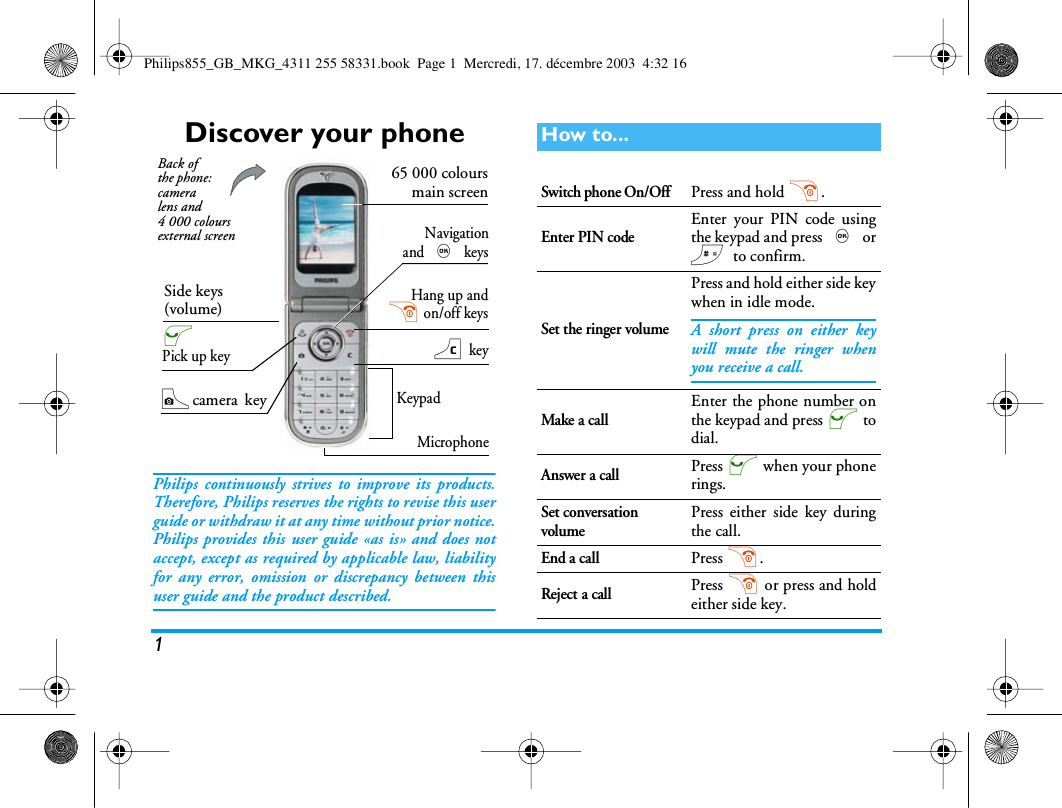
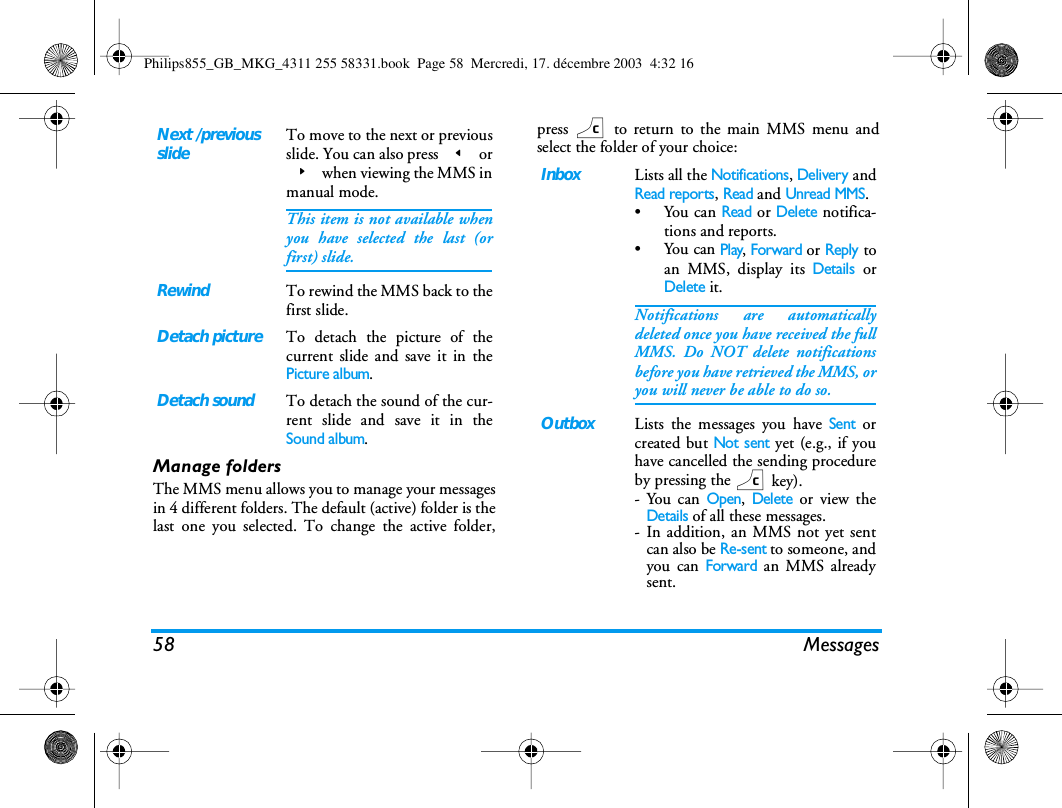
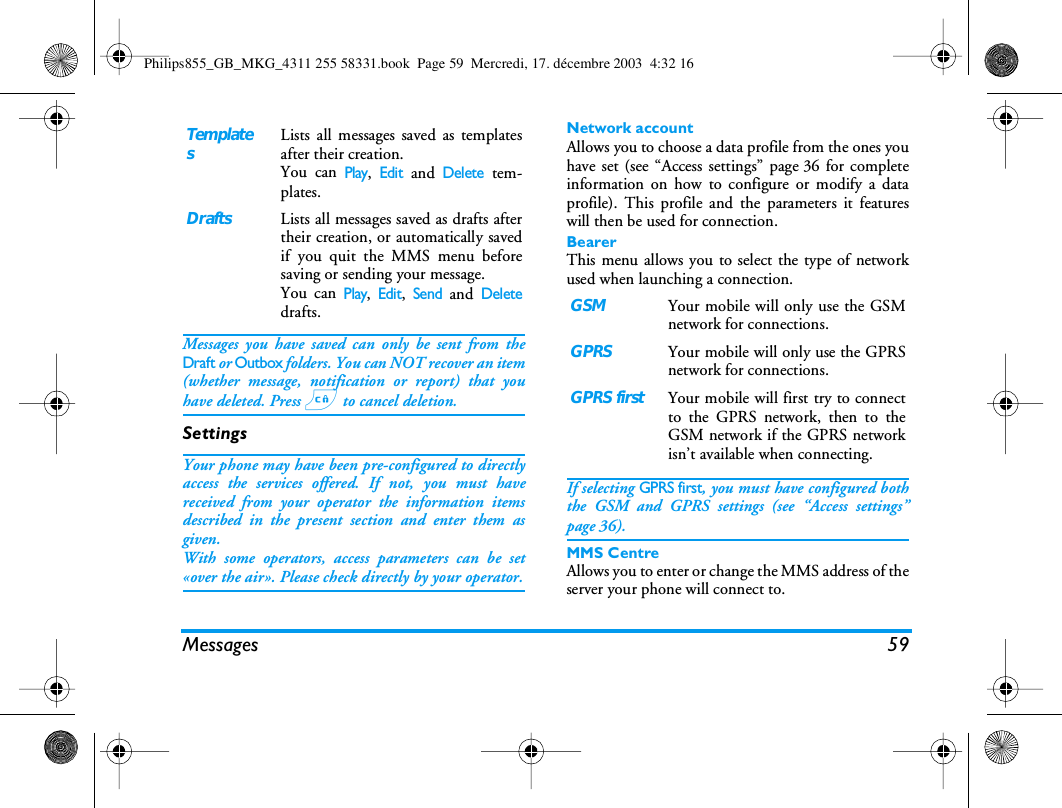
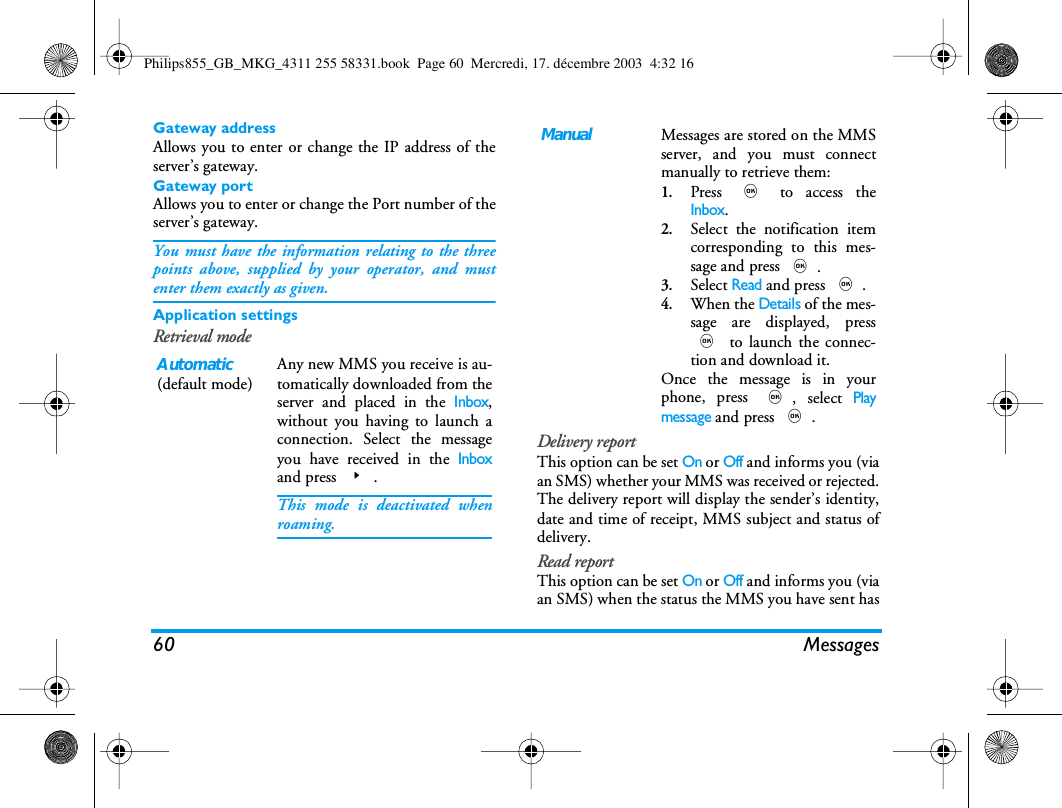
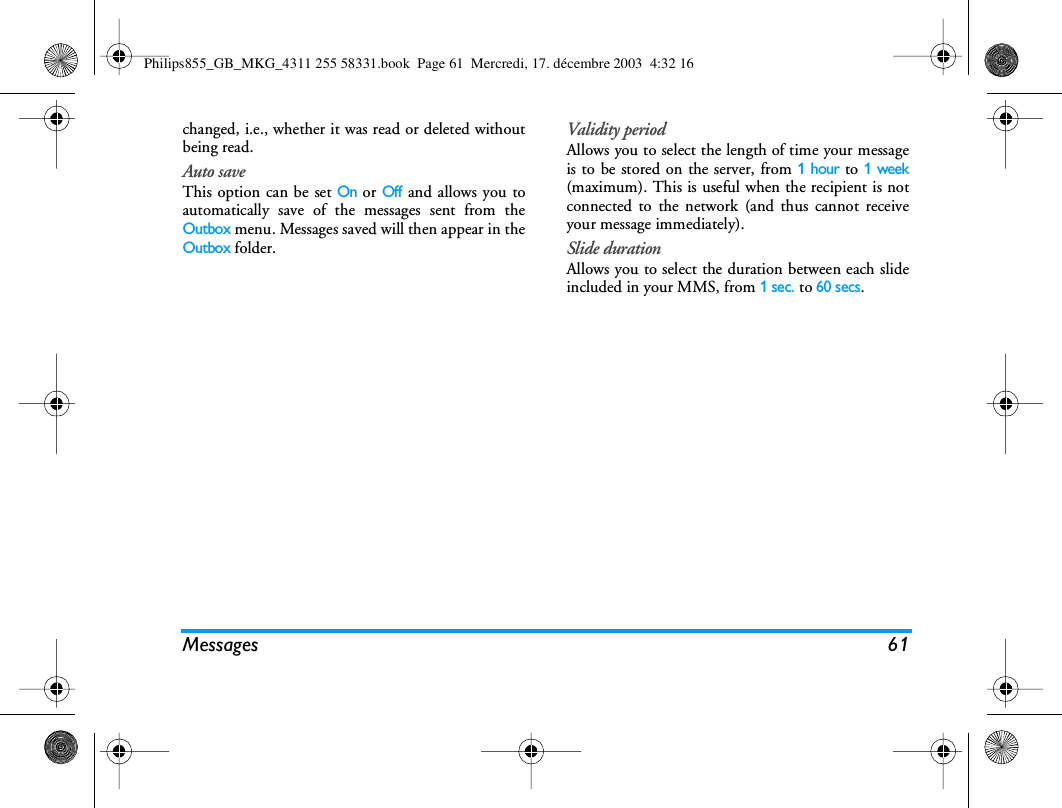
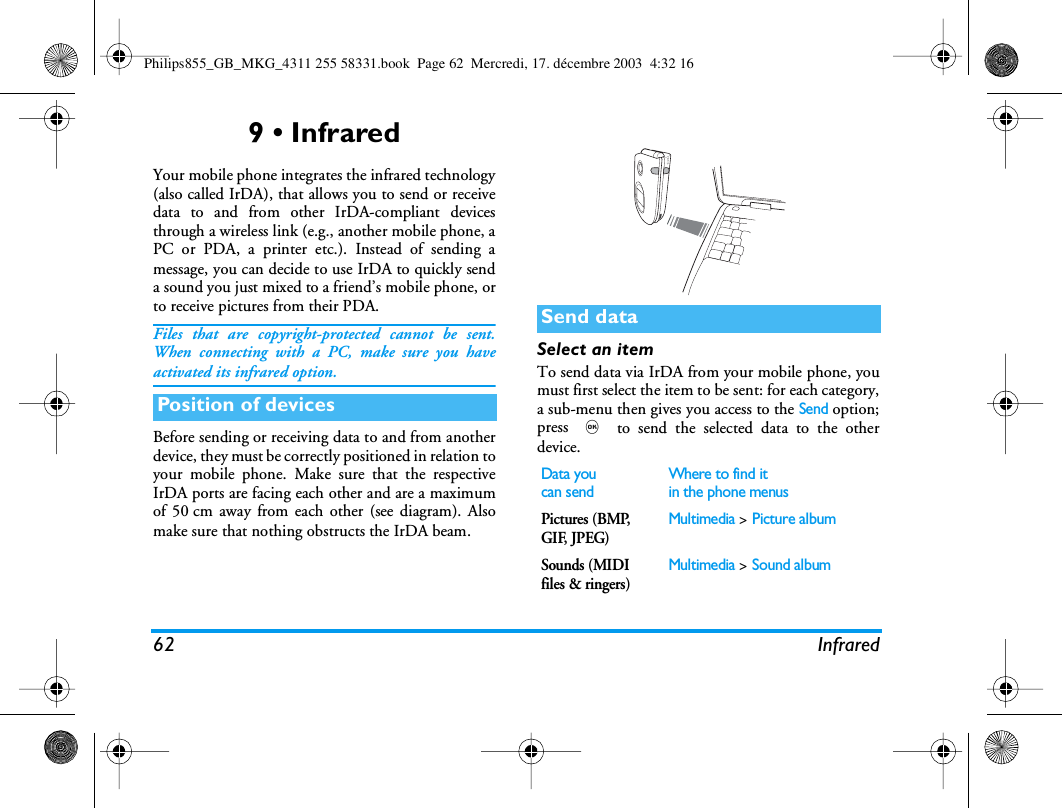
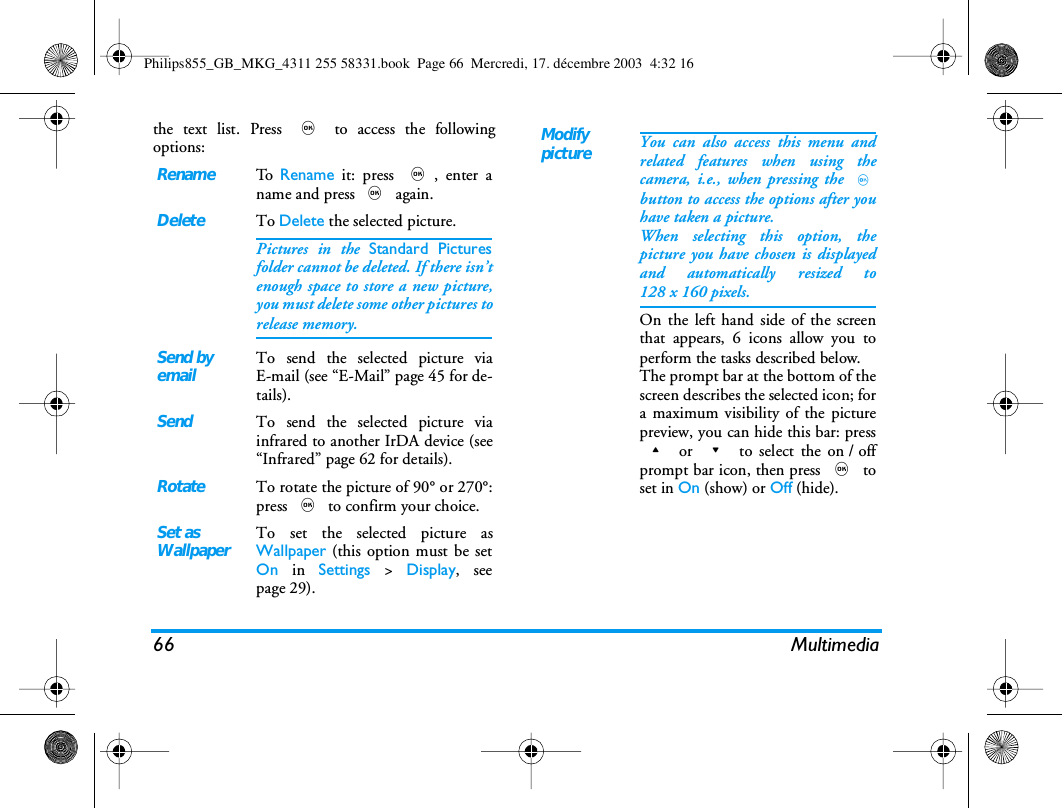
1Discover your phonePhilips continuously strives to improve its products.Therefore, Philips reserves the rights to revise this userguide or withdraw it at any time without prior notice.Philips provides this user guide «as is» and does notaccept, except as required by applicable law, liabilityfor any error, omission or discrepancy between thisuser guide and the product described.KeypadMicrophoneNavigationand , keys65 000 coloursmain screenCcamera  keyc key(Pick up keyHang up and) on/off keysSide keys(volume)Back of the phone: camera lens and 4000 colours external screenHow to...Switch phone On/OffPress and hold ).Enter PIN codeEnter your PIN code usingthe keypad and press , or# to confirm.Set the ringer volumePress and hold either side keywhen in idle mode.A short press on either keywill mute the ringer whenyou receive a call.Make a callEnter the phone number onthe keypad and press ( todial.Answer a callPress ( when your phonerings.Set conversationvolumePress either side key duringthe call.End a callPress ).Reject a callPress ) or press and holdeither side key.Philips855_GB_MKG_4311 255 58331.book  Page 1  Mercredi, 17. décembre 2003  4:32 16
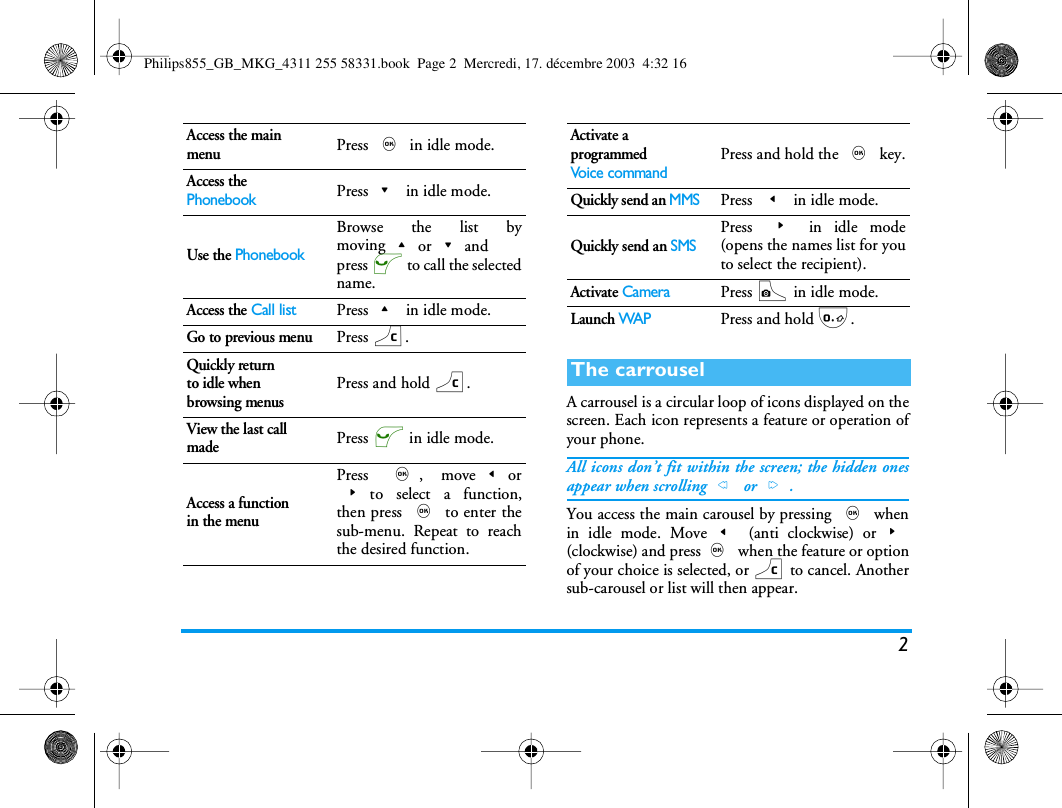
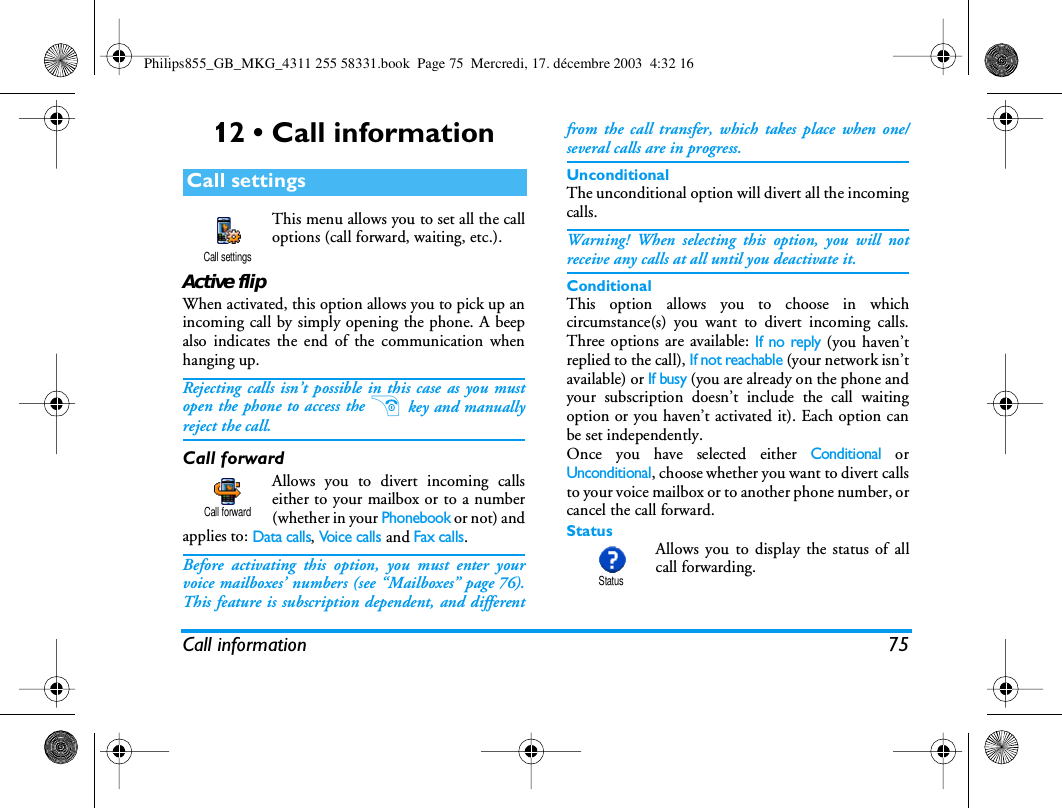
2A carrousel is a circular loop of icons displayed on thescreen. Each icon represents a feature or operation ofyour phone.All icons don’t fit within the screen; the hidden onesappear when scrolling< or>.You access the main carousel by pressing , whenin idle mode. Move< (anti clockwise) or>(clockwise) and press, when the feature or optionof your choice is selected, or c to cancel. Anothersub-carousel or list will then appear.Access the main menuPress , in idle mode.Access the PhonebookPress- in idle mode.Use the PhonebookBrowse the list bymoving+or-andpress ( to call the selectedname.Access the Call listPress+ in idle mode.Go to previous menuPress c.Quickly returnto idle when browsing menusPress and hold c.View the last call madePress ( in idle mode.Access a functionin the menuPress ,, move<or>to select a function,then press , to enter thesub-menu. Repeat to reachthe desired function.Activate a programmedVoice commandPress and hold the , key.Quickly send an MMSPress < in idle mode.Quickly send an SMSPress > in idle mode(opens the names list for youto select the recipient).Activate CameraPress C in idle mode.Launch WAPPress and hold 0.The carrouselPhilips855_GB_MKG_4311 255 58331.book  Page 2  Mercredi, 17. décembre 2003  4:32 16
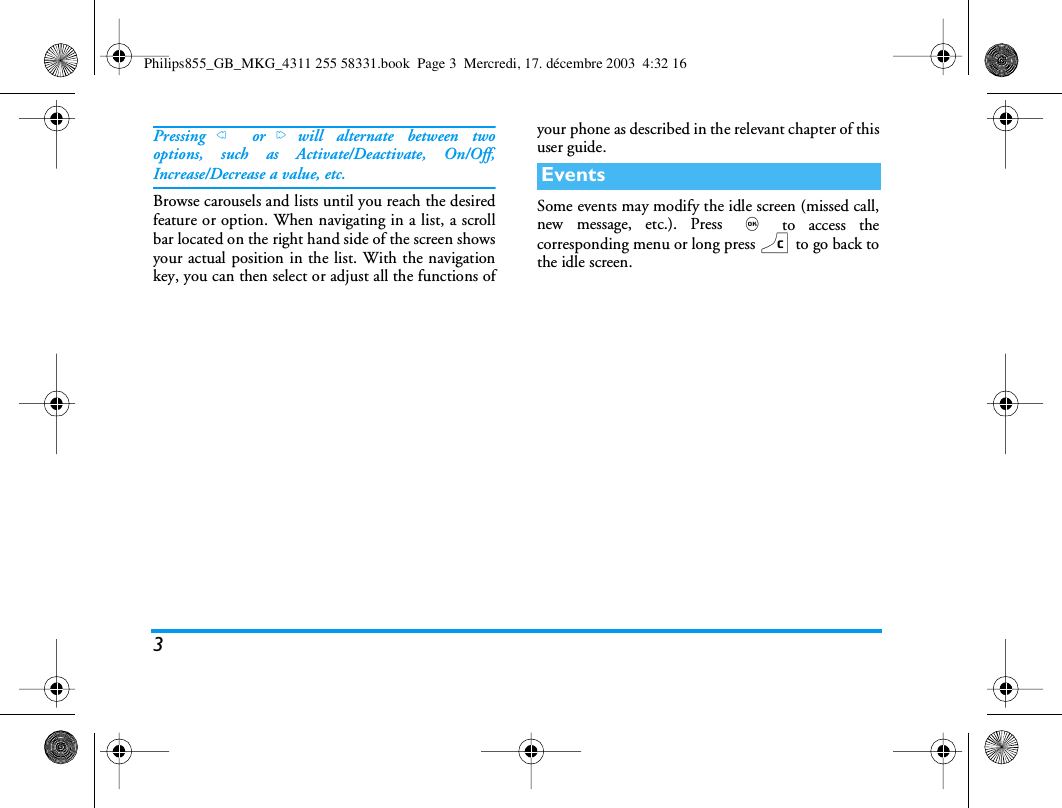
3Pressing< or>will alternate between twooptions, such as Activate/Deactivate, On/Off,Increase/Decrease a value, etc.Browse carousels and lists until you reach the desiredfeature or option. When navigating in a list, a scrollbar located on the right hand side of the screen showsyour actual position in the list. With the navigationkey, you can then select or adjust all the functions ofyour phone as described in the relevant chapter of thisuser guide.Some events may modify the idle screen (missed call,new message, etc.). Press , to access thecorresponding menu or long press c to go back tothe idle screen.EventsPhilips855_GB_MKG_4311 255 58331.book  Page 3  Mercredi, 17. décembre 2003  4:32 16
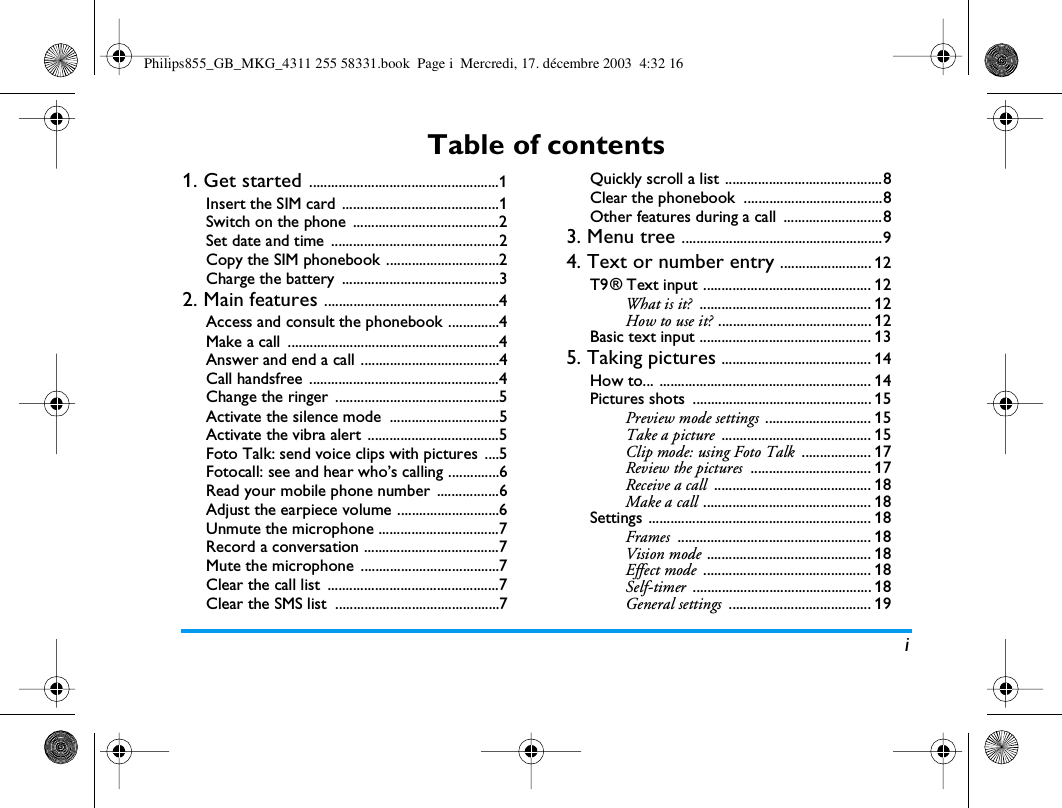
iTable of contents1. Get started ....................................................1Insert the SIM card  ...........................................1Switch on the phone  ........................................2Set date and time  ..............................................2Copy the SIM phonebook ...............................2Charge the battery  ...........................................32. Main features ................................................4Access and consult the phonebook ..............4Make a call  ..........................................................4Answer and end a call ......................................4Call handsfree  ....................................................4Change the ringer  .............................................5Activate the silence mode  ..............................5Activate the vibra alert ....................................5Foto Talk: send voice clips with pictures  ....5Fotocall: see and hear who’s calling ..............6Read your mobile phone number  .................6Adjust the earpiece volume ............................6Unmute the microphone .................................7Record a conversation .....................................7Mute the microphone  ......................................7Clear the call list  ...............................................7Clear the SMS list  .............................................7Quickly scroll a list ...........................................8Clear the phonebook  ......................................8Other features during a call  ...........................83. Menu tree .......................................................94. Text or number entry ......................... 12T9 ® Text input .............................................. 12What is it? ............................................... 12How to use it? .......................................... 12Basic text input ............................................... 135. Taking pictures ......................................... 14How to... .......................................................... 14Pictures shots  ................................................. 15Preview mode settings ............................. 15Take a picture ......................................... 15Clip mode: using Foto Talk ................... 17Review the pictures ................................. 17Receive a call ........................................... 18Make a call .............................................. 18Settings ............................................................. 18Frames ..................................................... 18Vision mode ............................................. 18Effect mode .............................................. 18Self-timer ................................................. 18General settings ....................................... 19Philips855_GB_MKG_4311 255 58331.book  Page i  Mercredi, 17. décembre 2003  4:32 16
ii6. Phonebook .................................................. 20SIM card phonebook  ..................................... 20Phone’s phonebook ....................................... 21Add names in the phonebook ..................... 21In the SIM card ....................................... 21In the phone ............................................. 21Add a record in the phone’s phonebook .22Own numbers .......................................... 22Fotocall: see & hear who’s calling  .............. 22Edit and manage names ................................. 23In the SIM card ....................................... 23In the phone ............................................. 24Make calls ......................................................... 25Emergency number .................................. 25Other number .......................................... 257. Settings .......................................................... 27Sounds .............................................................. 27Silent ........................................................ 27Ringer volume .......................................... 27Ringer ....................................................... 27Messages Ringer ....................................... 27Equaliser .................................................. 27Key tones .................................................. 28Sounds Alerts ........................................... 28Vibra alert ............................................... 28Display .............................................................. 28Screen saver .............................................. 28Animation ................................................ 29Contrast ................................................... 29Backlight .................................................. 29Wallpaper ................................................ 29Sub wallpaper ......................................... 29Short cuts  ........................................................ 29Hotkeys ..................................................... 29Voice command ....................................... 32Voice dial ................................................. 33Navigation icon ...................................... 34Security ............................................................ 34Public names ........................................... 34Call barring ............................................. 34Change codes ........................................... 35PIN protection ........................................ 35Network .......................................................... 35GPRS attach ............................................ 35Register again .......................................... 36Preferred list ............................................ 36Access settings ........................................... 36Time and date ................................................. 37Clock display ........................................... 38Set date .................................................... 38Date format ............................................. 38Time zone ................................................ 38Daylight saving ....................................... 38Set time .................................................... 38Profiles .............................................................. 39Language ........................................................... 39Philips855_GB_MKG_4311 255 58331.book  Page ii  Mercredi, 17. décembre 2003  4:32 16
iii8. Messages ....................................................... 41SMS .................................................................... 41Send a SMS ............................................. 41Read SMS ................................................ 42SMS settings ............................................ 44SMS Archive ............................................ 44E-Mail ................................................................ 45Settings ..................................................... 45Write and send an e-mail ....................... 47Receive and read e-mails ........................ 49Broadcast message  ........................................ 52Instant message  .............................................. 53MMS .................................................................. 53Create an MMS ...................................... 54Receive an MMS ..................................... 57Manage folders ........................................ 58Settings ..................................................... 599. Infrared .......................................................... 62Position of devices ......................................... 62Send data .......................................................... 62Select an item .......................................... 62Send the selected item .............................. 63Receive data  .................................................... 63Activate IrDA .......................................... 63Save the data received ............................. 63Use the phone as a modem ..................... 6410. Multimedia ................................................ 65Sound album  ................................................... 65Picture album .................................................. 65Memory status ................................................ 68Demo mode .................................................... 68Sound recording ............................................. 68TV Slideshow  .................................................. 6811. Games & Appli. ..................................... 70Euro converter ............................................... 70Calculator ........................................................ 70Alarm clock ..................................................... 70Organiser ......................................................... 71Create a new event .................................. 71Modify an event ...................................... 72Brick game ....................................................... 73JAVA ................................................................. 73Settings ..................................................... 7312. Call information .................................... 75Call settings ..................................................... 75Active flip ................................................ 75Call forward ............................................ 75Mailboxes ................................................ 76Auto redial ............................................... 76Any key answer ........................................ 76Call waiting ............................................ 76Caller ID ................................................. 76Philips855_GB_MKG_4311 255 58331.book  Page iii  Mercredi, 17. décembre 2003  4:32 16
ivCall list ..................................................... 77Reset .......................................................... 77Call list .............................................................. 77Call counters ................................................... 77GSM counters .......................................... 77GPRS counters ......................................... 7813. WAP ............................................................. 80Internet services ............................................. 80Launch a WAP session ............................ 80End a WAP session .................................. 80Homepage ................................................ 80Bookmarks ............................................... 81Enter address ............................................ 81Settings ..................................................... 81Push inbox ............................................... 83Options ............................................................ 83Homepage ................................................ 83Back .......................................................... 84Forward ................................................... 84Refresh ...................................................... 84Save as homepage .................................... 84Save as... .................................................. 84Exit ........................................................... 84Receive a call ........................................... 8414. Operator services ............................... 85GSM strings  ..................................................... 85DTMF tones .................................................... 85Make a second call ......................................... 86Answer a second call  .................................... 86Answer a third call  ........................................ 87Conference call  .............................................. 87Explicit call transfer  ....................................... 88Precautions ....................................................... 89Troubleshooting ........................................... 93Icons & symbols ............................................ 96Philips authentic accessories ................. 98Philips855_GB_MKG_4311 255 58331.book  Page iv  Mercredi, 17. décembre 2003  4:32 16
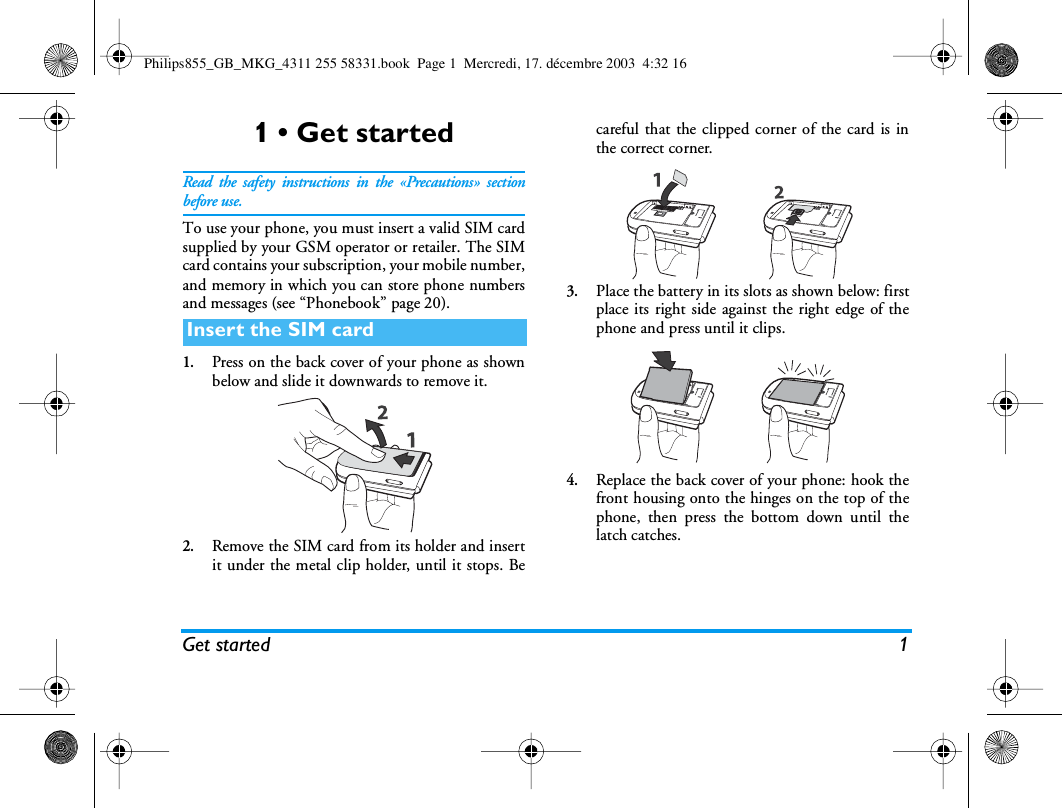
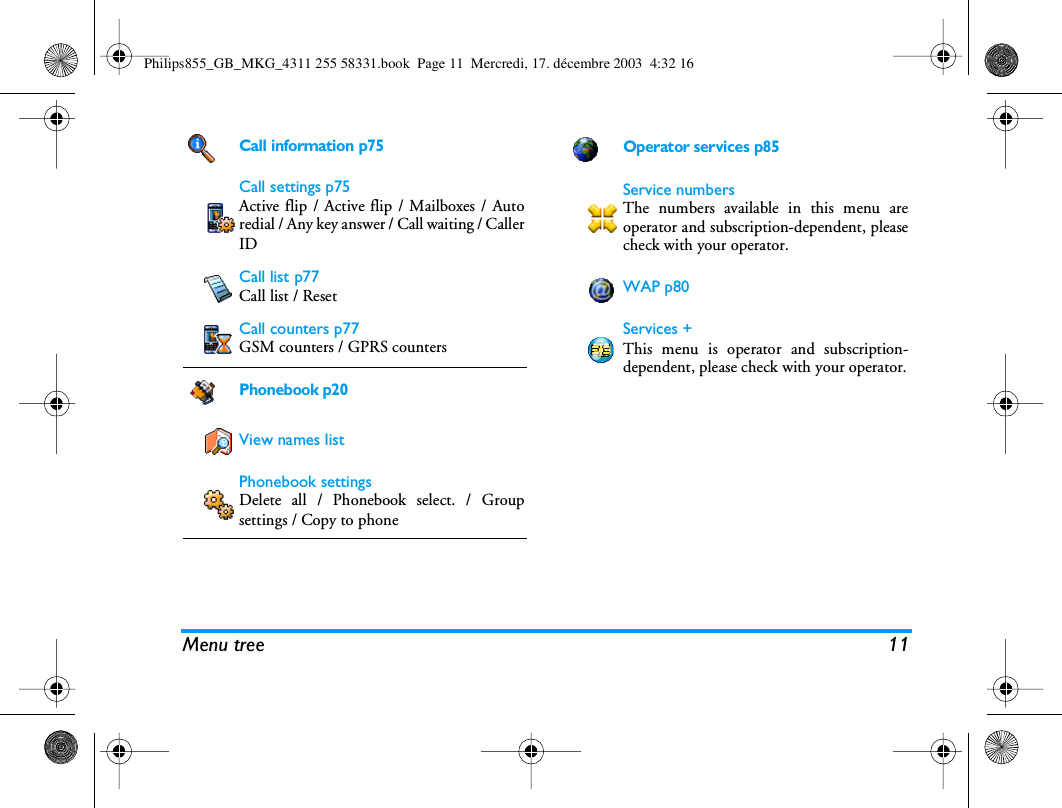
Get started 11 • Get startedRead the safety instructions in the «Precautions» sectionbefore use.To use your phone, you must insert a valid SIM cardsupplied by your GSM operator or retailer. The SIMcard contains your subscription, your mobile number,and memory in which you can store phone numbersand messages (see “Phonebook” page 20).1.Press on the back cover of your phone as shownbelow and slide it downwards to remove it.2.Remove the SIM card from its holder and insertit under the metal clip holder, until it stops. Becareful that the clipped corner of the card is inthe correct corner.3.Place the battery in its slots as shown below: firstplace its right side against the right edge of thephone and press until it clips.4.Replace the back cover of your phone: hook thefront housing onto the hinges on the top of thephone, then press the bottom down until thelatch catches.Insert the SIM cardPhilips855_GB_MKG_4311 255 58331.book  Page 1  Mercredi, 17. décembre 2003  4:32 16
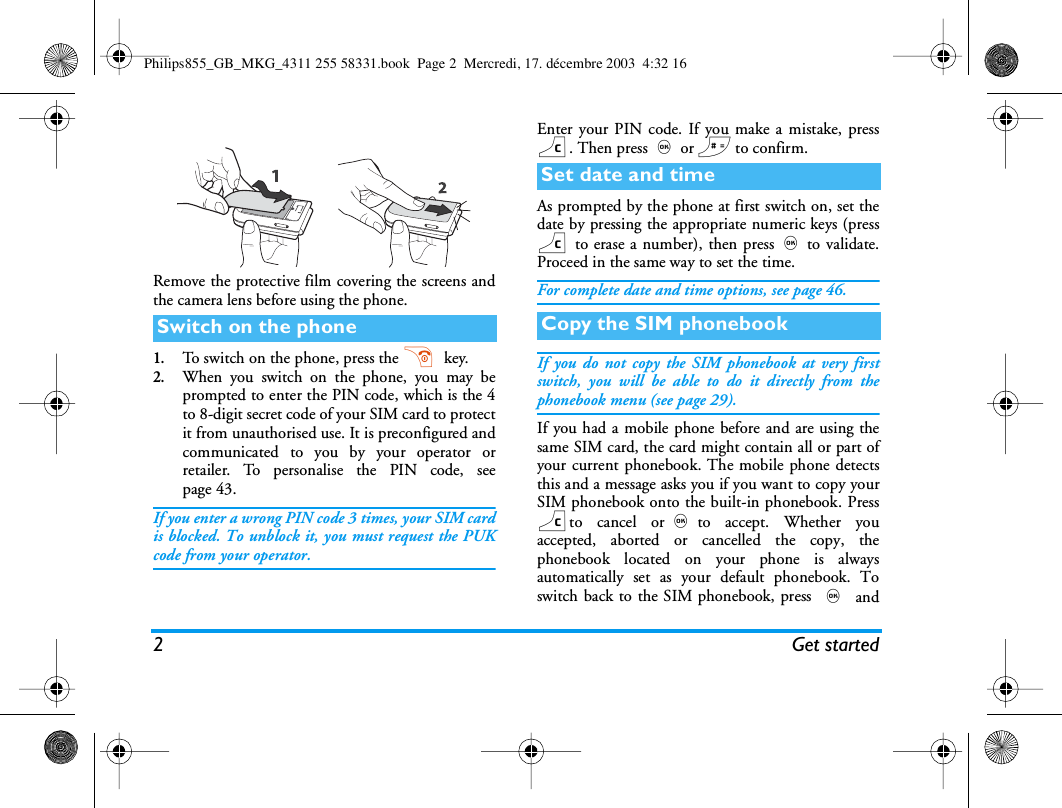
2Get startedRemove the protective film covering the screens andthe camera lens before using the phone.1.To switch on the phone, press the )  key.2.When you switch on the phone, you may beprompted to enter the PIN code, which is the 4to 8-digit secret code of your SIM card to protectit from unauthorised use. It is preconfigured andcommunicated to you by your operator orretailer. To personalise the PIN code, seepage 43.If you enter a wrong PIN code 3 times, your SIM cardis blocked. To unblock it, you must request the PUKcode from your operator.Enter your PIN code. If you make a mistake, pressc. Then press,or # to confirm.As prompted by the phone at first switch on, set thedate by pressing the appropriate numeric keys (pressc to erase a number), then press,to validate.Proceed in the same way to set the time.For complete date and time options, see page 46.If you do not copy the SIM phonebook at very firstswitch, you will be able to do it directly from thephonebook menu (see page 29).If you had a mobile phone before and are using thesame SIM card, the card might contain all or part ofyour current phonebook. The mobile phone detectsthis and a message asks you if you want to copy yourSIM phonebook onto the built-in phonebook. Presscto cancel or,to accept. Whether youaccepted, aborted or cancelled the copy, thephonebook located on your phone is alwaysautomatically set as your default phonebook. Toswitch back to the SIM phonebook, press , andSwitch on the phoneSet date and timeCopy the SIM phonebookPhilips855_GB_MKG_4311 255 58331.book  Page 2  Mercredi, 17. décembre 2003  4:32 16
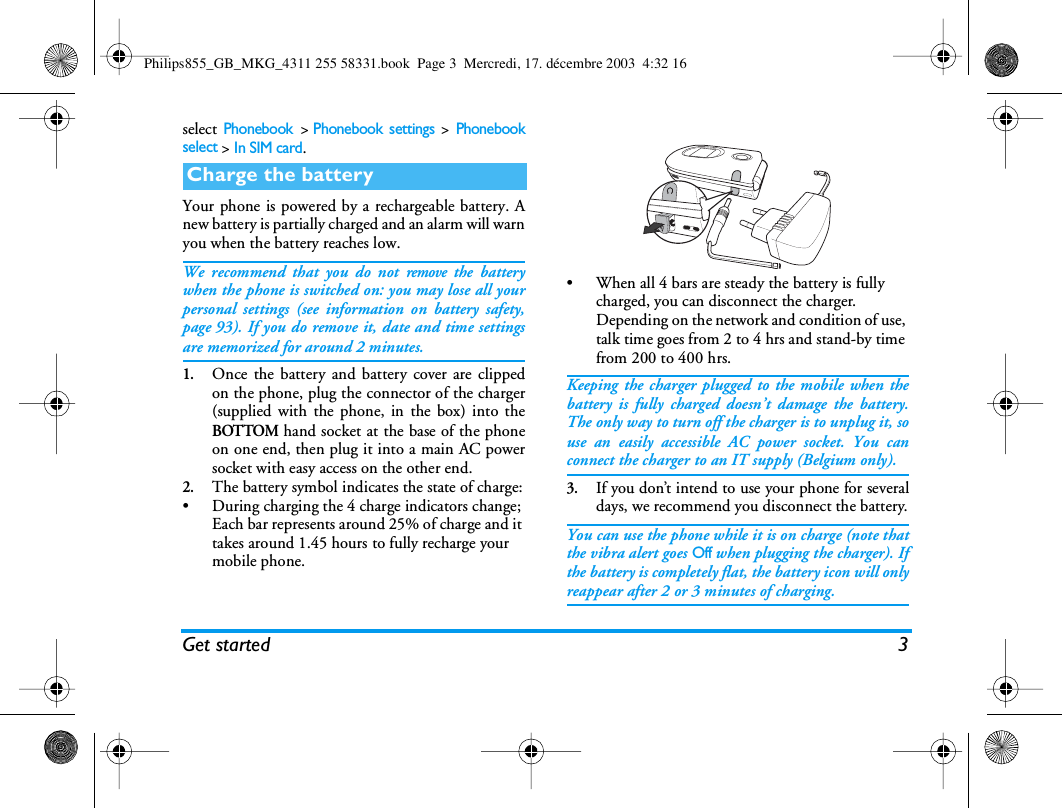
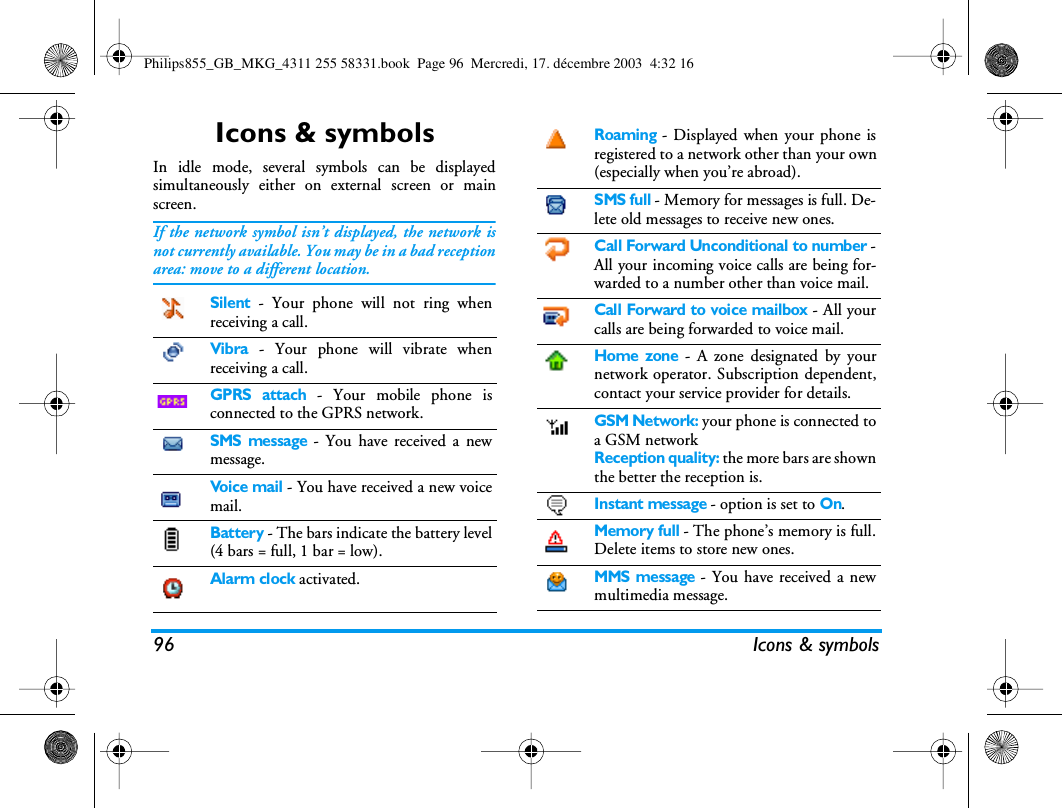
Get started 3select Phonebook >Phonebook settings > Phonebookselect > In SIM card.Your phone is powered by a rechargeable battery. Anew battery is partially charged and an alarm will warnyou when the battery reaches low.We recommend that you do not remove the batterywhen the phone is switched on: you may lose all yourpersonal settings (see information on battery safety,page 93). If you do remove it, date and time settingsare memorized for around 2 minutes.1.Once the battery and battery cover are clippedon the phone, plug the connector of the charger(supplied with the phone, in the box) into theBOTTOM hand socket at the base of the phoneon one end, then plug it into a main AC powersocket with easy access on the other end.2.The battery symbol indicates the state of charge:• During charging the 4 charge indicators change; Each bar represents around 25% of charge and it takes around 1.45 hours to fully recharge your mobile phone.• When all 4 bars are steady the battery is fully charged, you can disconnect the charger. Depending on the network and condition of use, talk time goes from 2 to 4 hrs and stand-by time from 200 to 400 hrs.Keeping the charger plugged to the mobile when thebattery is fully charged doesn’t damage the battery.The only way to turn off the charger is to unplug it, souse an easily accessible AC power socket. You canconnect the charger to an IT supply (Belgium only).3.If you don’t intend to use your phone for severaldays, we recommend you disconnect the battery.You can use the phone while it is on charge (note thatthe vibra alert goes Off when plugging the charger). Ifthe battery is completely flat, the battery icon will onlyreappear after 2 or 3 minutes of charging.Charge the batteryPhilips855_GB_MKG_4311 255 58331.book  Page 3  Mercredi, 17. décembre 2003  4:32 16
4 Main features2 • Main featuresIn idle mode, press-. Dependingon the selected phonebook (in SIM orin phone), the content that appears onthe screen may vary: see “Phonebook” page 20 fordetails on this subject.To consult the phonebook during a call, press ,,select View Names List, press , and scroll throughthe entries by pressing-or +. Then press ctwice to return to the in-call screen.1.In idle mode, enter the phone number using thekeypad. To correct an error, press c.2.Press ( to dial the number and press ) tohang up.For an international call, enter the «+» sign instead ofthe usual international prefix by pressing and holding*. To learn how to make a call from thephonebook, see “Make calls” page 25.When receiving a call, depending on yoursubscription and if the caller has permitted thisinformation to be transmitted, his number may bedisplayed. If the number is stored in the selectedphonebook (see page 22), the corresponding name isdisplayed instead of the number.1.To answer the call, press (.2.To reject a call, press ). If you have activated“Active flip” (see page 75), the call is diverted toa number or voice mail.3.To hang up, press ).The phone will not ring if in Silence mode (seepage 5). If you have selected Any Key Answer (seepage 76), you can accept a call by pressing any key(except )).For your own comfort and safety, ensure you move thephone away from your ear when calling handsfree,especially when increasing the volume.1.If you selected the phonebook in your SIM card,select a record, press ,twice to access the nextAccess and consult the phonebookMake a callPhonebookAnswer and end a callCall handsfreePhilips855_GB_MKG_4311 255 58331.book  Page 4  Mercredi, 17. décembre 2003  4:32 16
Main features 5carousel, then select Call handsfree andpress,to dial the number.2.If you selected the phonebook in your phone,proceed the same way to call the default number,or press < or >, select another number inthe list, then press , and select Call handsfree.If already on the phone, press,twice to switch tohandsfree mode and back.1.Press,, select Settings > Sounds > Ringer andpress , again.2.Move+or-to select a ringer in the list,then press , to confirm your choice.If you don’t want your phone to ringwhen you receive a call, you candeactivate the ringer as follows:Press , and select Settings >Sounds > Silent andpress -until the volume is set to On.You can also press the side key while in idle screenuntil the volume is set to silence.You can also mute the ringer when receiving a call bypressing the side key down.If you want your phone to vibrate whenyou receive a call, you can activate thevibra alert as follows:1.Press ,, select Settings >Sounds >Vibra alertand press ,.2.Move  + or  - to select On or Off and press, to confirm.Activating the vibra doesn’t mute the ringer. If youwant to mute it and keep the vibra function on,activate the Silent mode as described above.The vibra alert is automatically deactivated when youplug the charger.This feature, which is available when using the cameraand also from the Picture album, allows you to quicklysend a message made of a picture and a sound.1.When in idle mode, press C to activate thecamera. In needed, press # to switch to theClip mode.Change the ringerActivate the silence modeSilentActivate the vibra alertFoto Talk: send voice clips with picturesVibra alertPhilips855_GB_MKG_4311 255 58331.book  Page 5  Mercredi, 17. décembre 2003  4:32 16
6 Main features2.Press C to take a picture;the Record soundwindow will then open automatically.3.Record the sound or message of your choice,press c to cancel or , to stop the recording(you can also wait for the maximum recordingtime of 30 seconds to be reached).4.The send your message via MMS (see “MMS”page 61 for details).This feature is available only when selecting thephonebook in the phone (not the one in the SIM card).This feature allows you to link one or several names toa group. When a name in that group calls, it willappear along with the corresponding picture, and themelody defined for that group will ring.1.When in idle mode, press C to activate thecamera, and press C to take a picture of yourfriend.2.Select Multimedia > Sound recording > New.Record them saying something and save it in theSound album.3.Select Phonebook > Phonebook set. > Groupsettings > Groups. Rename a group and selectyour friend’s voice, then their picture.Press -, select a name in your phonebook and press,. Press , and choose Select group to link it to thegroup that you renamed.To read your own mobile phone number, press-when in idle mode and select Own numbers, then press,, select Show and press,again. Your phonenumber is displayed if present on your SIM card. Ifnot, select New, then follow the instructions.If your own number has been stored in the Phonebook,you can read it during a call. See “Access and consultthe phonebook” page 4.During a call, move the side key up or down toincrease/decrease the volume.Fotocall: see and hear who’s callingRead your mobile phone numberAdjust the earpiece volumePhilips855_GB_MKG_4311 255 58331.book  Page 6  Mercredi, 17. décembre 2003  4:32 16
Main features 7You can mute the microphone so thatyour caller cannot hear you. During acall, press,, select Mute and confirmby pressing ,.To unmute the microphone during acall, press,, select Unmute andconfirm by pressing,. Themicrophone is unmuted.In most countries, conversationrecording is subject to law regulation.We advise you to notify the caller if youintend to record the conversation you have with themand only record if they agree. You should also keep anyrecording private. 1 min. is the maximum recordingtime available (see “Sound recording” page 68).To record a conversation during a call:1.While one or several simultaneous calls are inprogress, press , to access the call contextcarousel.If you select Mute, then Record dialogue, only thecaller’s voice is recorded.2.Select Record dialogue and press,. Pressc,, or hang up to end the recording.3.In all cases, and when hanging up, an editwindow allows you to name the recording.Press,to save the recording, which is then availablein the menu Multimedia> Sound album.To clear your call list, press , andselect Call Info > Call list > Reset. Press,twice to reset the call list.To clear the whole messages list at once, press ,and select Messages > SMS > Read SMS > Delete all SMS.Press ,twice to reset the SMS list.You can also delete all the SMS messages from the SMSArchive menu. Deleting your SMS list is useful to freememory space in order to receive new messages.Mute the microphoneUnmute the microphoneRecord a conversationMuteUnmuteRecord dialogueClear the call listClear the SMS listResetPhilips855_GB_MKG_4311 255 58331.book  Page 7  Mercredi, 17. décembre 2003  4:32 16
8 Main featuresTo clear the content of your phonebook at once, press, and select Phonebook > Phonebook set. > Deleteall. Press , to reset the phonebook content.This option only applies to the phonebook in yourphone, NOT to the SIM phonebook.When browsing a list (of names, ringers, events, etc.),press 0 to scroll page per page instead of item byitem.• Change the equalizer settings (see page 27),• Add a name to the phonebook (see page 21),• Write and send a message (see page 41),• Read a message (see page 42),• Consult your Call list (see page 77),• Consult your Organiser (see page 71),• Make a second call (see page 86).Clear the phonebook Quickly scroll a listOther features during a callPhilips855_GB_MKG_4311 255 58331.book  Page 8  Mercredi, 17. décembre 2003  4:32 16
Menu tree 93 • Menu treeThe table below describe the complete menu tree (firstto third levels) of your mobile phone, as well as thepage reference you should refer to for moreinformation concerning each feature or setting.Settings p27Sounds p27Silent / Ringer volume / Ringer / MessagesRinger / Equaliser / Key tones / SoundsAlerts / Vibra alertDisplay p28Screen saver / Animation / Wallpaper / Subwallpaper / ContrastShort cuts p29Hotkeys / Voice command / Voice dial /Navigation iconSecurity p34Public names / Call barring / Change codes /PIN protectionNetwork p35GPRS attach / Register again / Preferred list/ Access settingsTime and date p37Clock display / Set date / Date format / Timezone / Daylight saving / Set timeLanguage p39List of available languagesProfiles p39Messages p41SMS p41Send a SMS / Read SMS / SMS settings /SMS ArchiveE-Mail p45For each available mail boxSettings / Open mailbox / Send mailBroadcast message p52Reception / Topics / District codesPhilips855_GB_MKG_4311 255 58331.book  Page 9  Mercredi, 17. décembre 2003  4:32 16
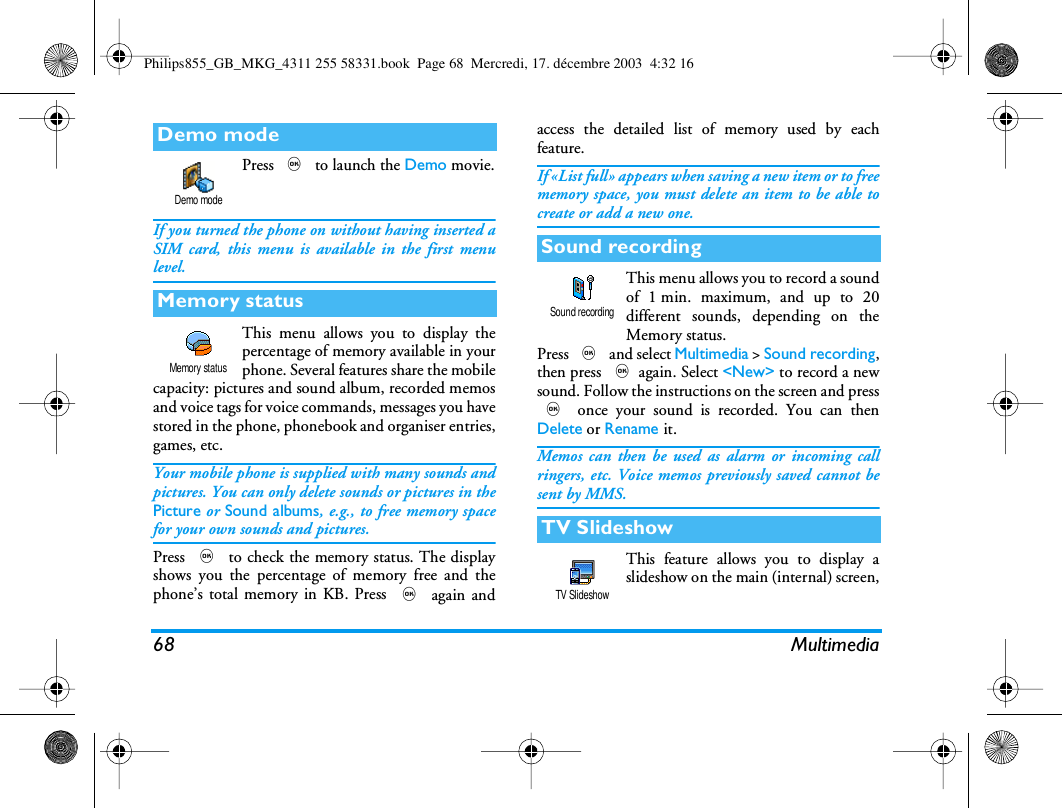
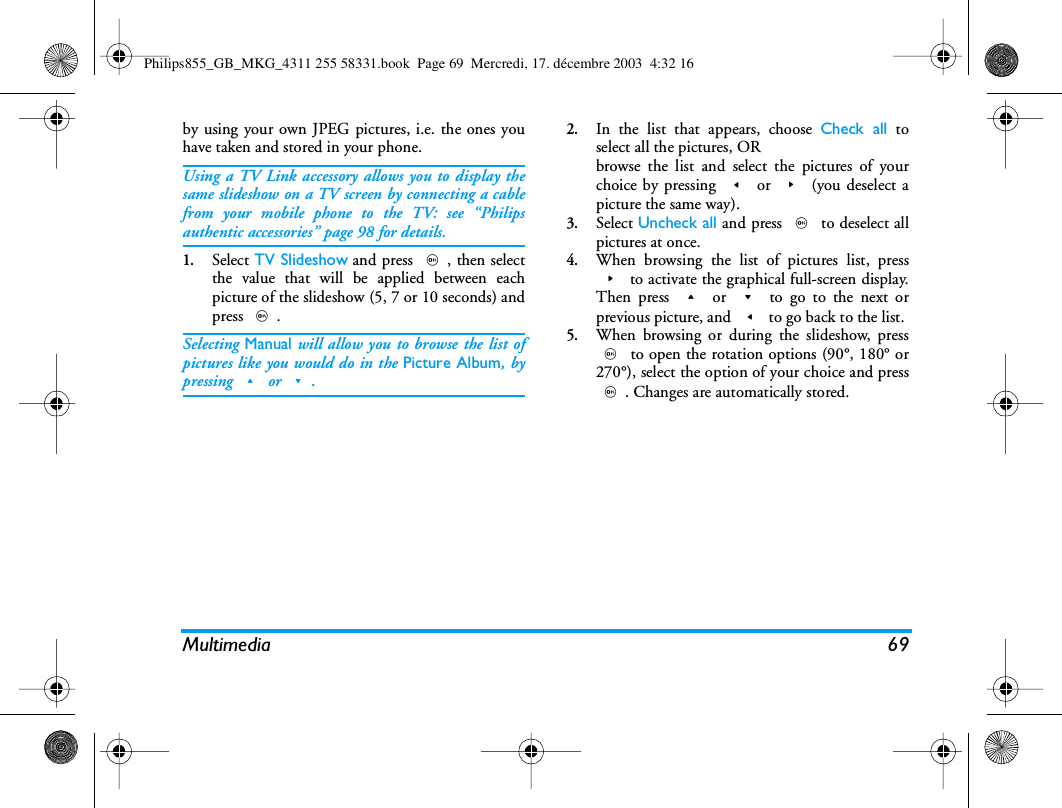
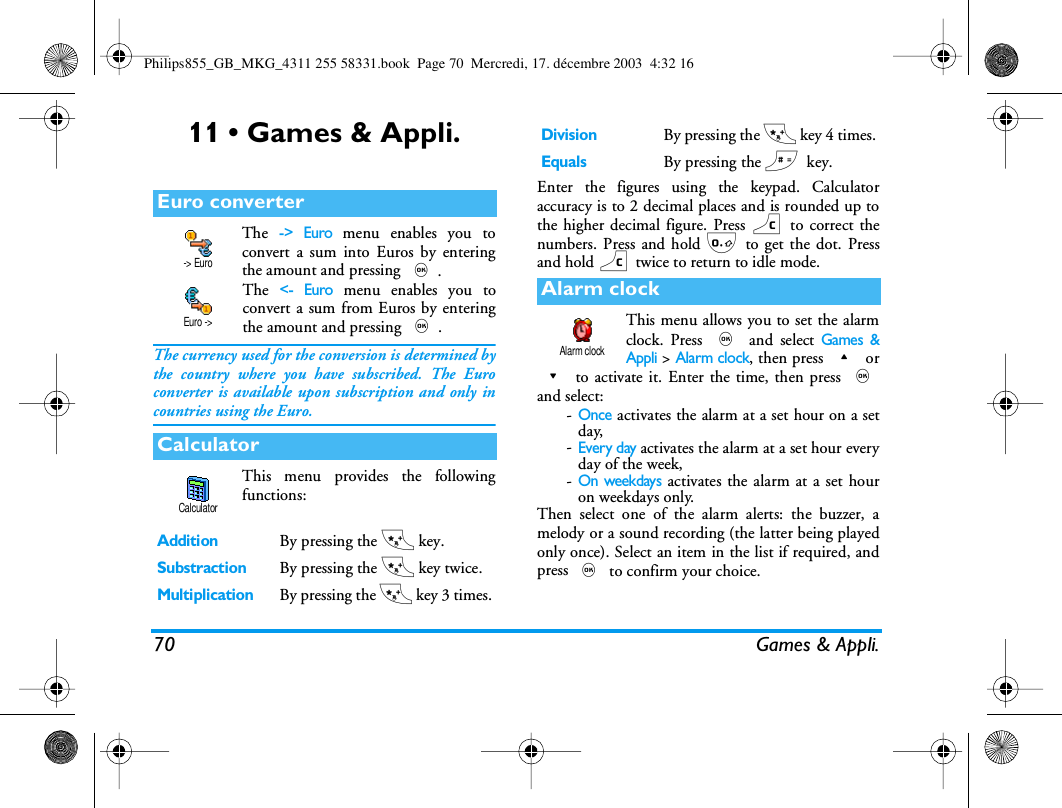
10 Menu treeInstant message p53MMS p53Create an MMS / Receive an MMS /Manage folders / SettingsMultimedia p65Picture album p65List of available picturesSound album p65List of available soundsDemo mode p68Memory status p68Sound recording p68TV Slideshow p68Games & Appli. p70Euro converter p70Calculator p70Alarm clock p70Organiser p71Brick game p73Infrared p62CameraPhilips855_GB_MKG_4311 255 58331.book  Page 10  Mercredi, 17. décembre 2003  4:32 16
Menu tree 11Call information p75Call settings p75Active flip / Active flip / Mailboxes / Autoredial / Any key answer / Call waiting / CallerID Call list p77Call list / ResetCall counters p77GSM counters / GPRS countersPhonebook p20View names listPhonebook settingsDelete all / Phonebook select. / Groupsettings / Copy to phoneOperator services p85Service numbersThe numbers available in this menu areoperator and subscription-dependent, pleasecheck with your operator.WAP p80Services +This menu is operator and subscription-dependent, please check with your operator.Philips855_GB_MKG_4311 255 58331.book  Page 11  Mercredi, 17. décembre 2003  4:32 16
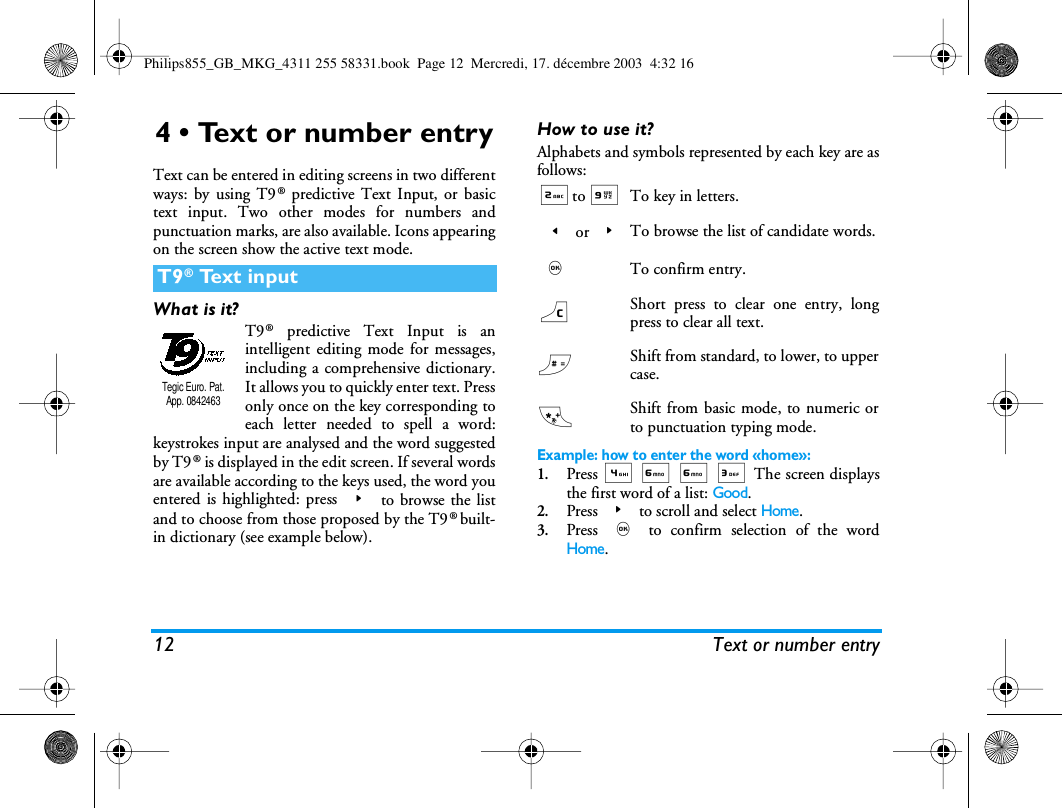
12 Text or number entry4 • Text or number entryText can be entered in editing screens in two differentways: by using T9® predictive Text Input, or basictext input. Two other modes for numbers andpunctuation marks, are also available. Icons appearingon the screen show the active text mode.What is it?T9® predictive Text Input is anintelligent editing mode for messages,including a comprehensive dictionary.It allows you to quickly enter text. Pressonly once on the key corresponding toeach letter needed to spell a word:keystrokes input are analysed and the word suggestedby T9® is displayed in the edit screen. If several wordsare available according to the keys used, the word youentered is highlighted: press > to browse the listand to choose from those proposed by the T9 ®  built-in dictionary (see example below).How to use it?Alphabets and symbols represented by each key are asfollows:Example: how to enter the word «home»:1.Press 4 6 6 3 The screen displaysthe first word of a list: Good.2.Press > to scroll and select Home.3.Press , to confirm selection of the wordHome.T9® Text inputTegic Euro. Pat. App. 08424632to 9To key in letters.< or >To browse the list of candidate words.,To confirm entry.c Short press to clear one entry, longpress to clear all text.#Shift from standard, to lower, to uppercase.*Shift from basic mode, to numeric orto punctuation typing mode.Philips855_GB_MKG_4311 255 58331.book  Page 12  Mercredi, 17. décembre 2003  4:32 16
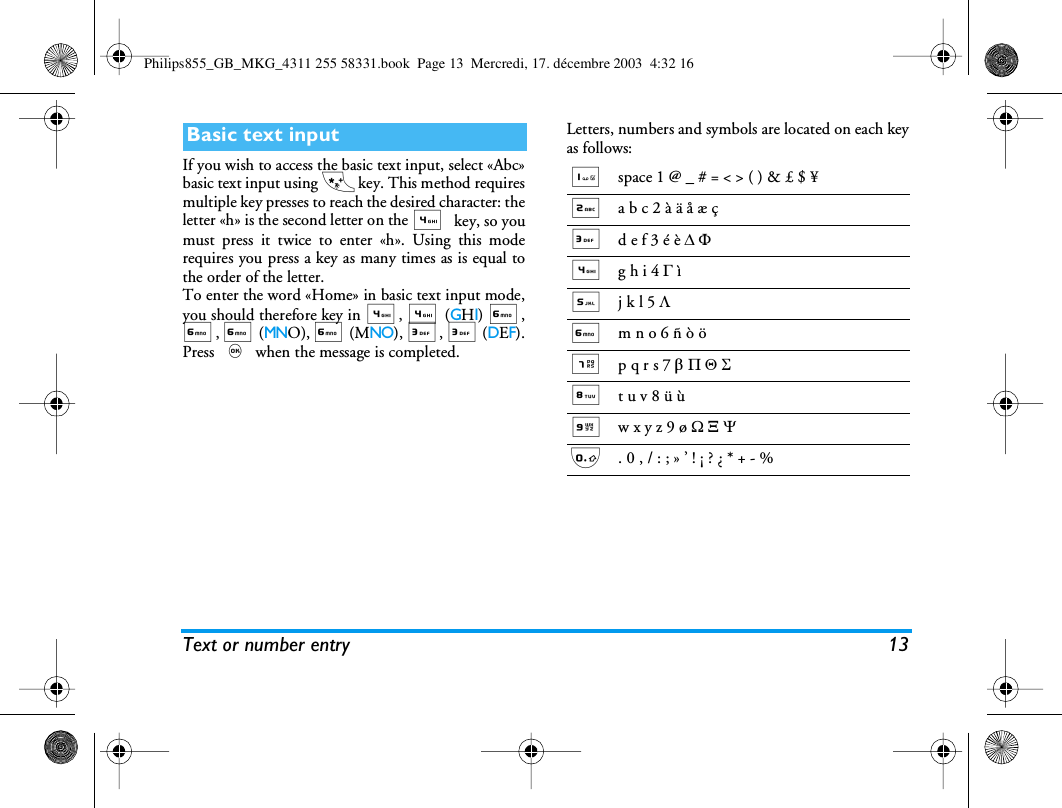
Text or number entry 13If you wish to access the basic text input, select «Abc»basic text input using * key. This method requiresmultiple key presses to reach the desired character: theletter «h» is the second letter on the 4 key, so youmust press it twice to enter «h». Using this moderequires you press a key as many times as is equal tothe order of the letter.To enter the word «Home» in basic text input mode,you should therefore key in 4, 4 (GHI) 6,6, 6 (MNO), 6 (MNO), 3, 3 (DEF).Press , when the message is completed.Letters, numbers and symbols are located on each keyas follows:Basic text input1space 1 @ _ # = < > ( ) & £ $ ¥2a b c 2 à ä å æ ç3d e f 3 é è D F4g h i 4 G ì5j k l 5 L6m n o 6 ñ ò ö 7p q r s 7 b P Q S8t u v 8 ü ù9w x y z 9 ø W X Y0. 0 , / : ; » ’ ! ¡ ? ¿ * + - %Philips855_GB_MKG_4311 255 58331.book  Page 13  Mercredi, 17. décembre 2003  4:32 16
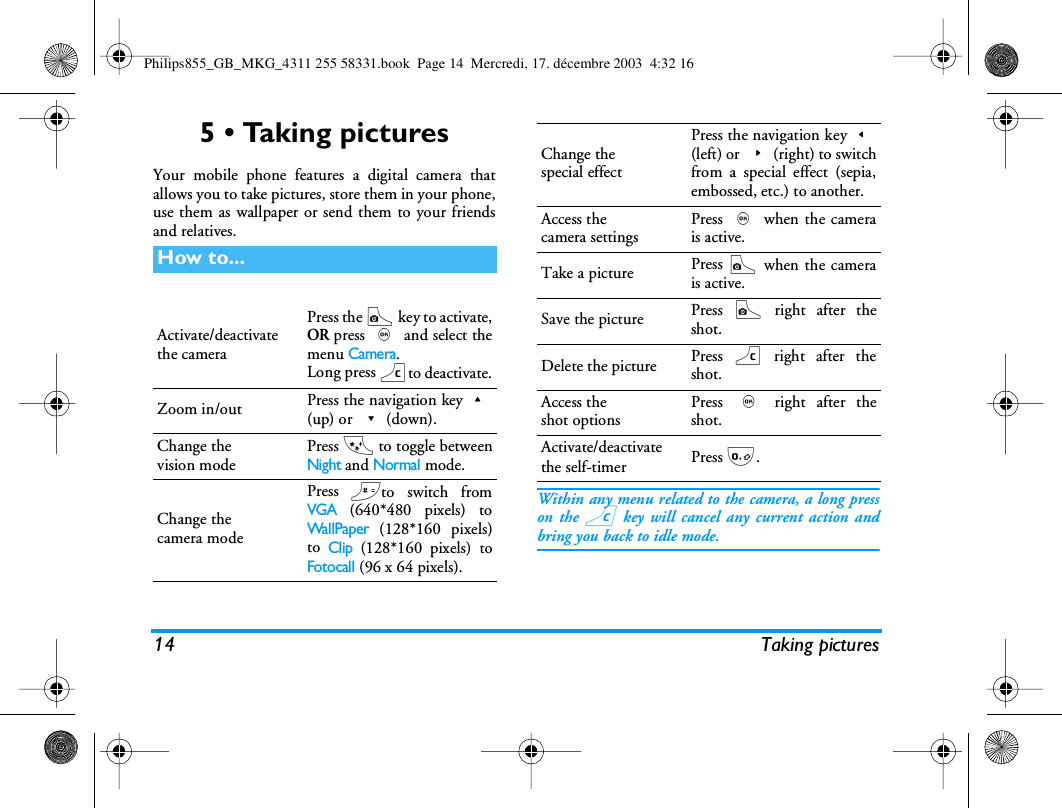
14 Taking pictures5 • Taking picturesYour mobile phone features a digital camera thatallows you to take pictures, store them in your phone,use them as wallpaper or send them to your friendsand relatives.Within any menu related to the camera, a long presson the c key will cancel any current action andbring you back to idle mode.How to...Activate/deactivatethe cameraPress the C key to activate,OR press , and select themenu Camera.Long press cto deactivate.Zoom in/out Press the navigation key+(up) or -(down).Change thevision modePress * to toggle betweenNight and Normal mode.Change thecamera modePress #to switch fromVGA (640*480 pixels) toWa l lP ap er (128*160 pixels)to Clip (128*160 pixels) toFotocall (96 x 64 pixels).Change thespecial effectPress the navigation key<(left) or >(right) to switchfrom a special effect (sepia,embossed, etc.) to another.Access thecamera settingsPress , when the camerais active.Take a picture Press C when the camerais active.Save the picture Press C right after theshot.Delete the picture Press c right after theshot.Access theshot optionsPress , right after theshot.Activate/deactivatethe self-timer Press 0.Philips855_GB_MKG_4311 255 58331.book  Page 14  Mercredi, 17. décembre 2003  4:32 16
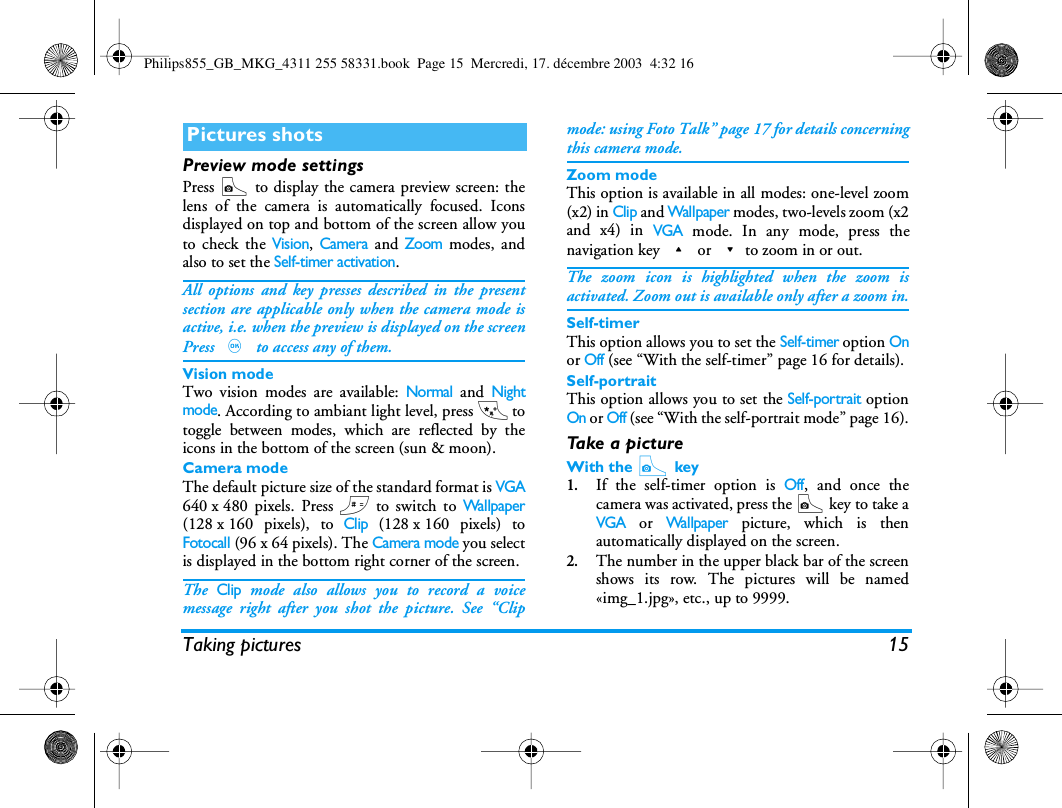
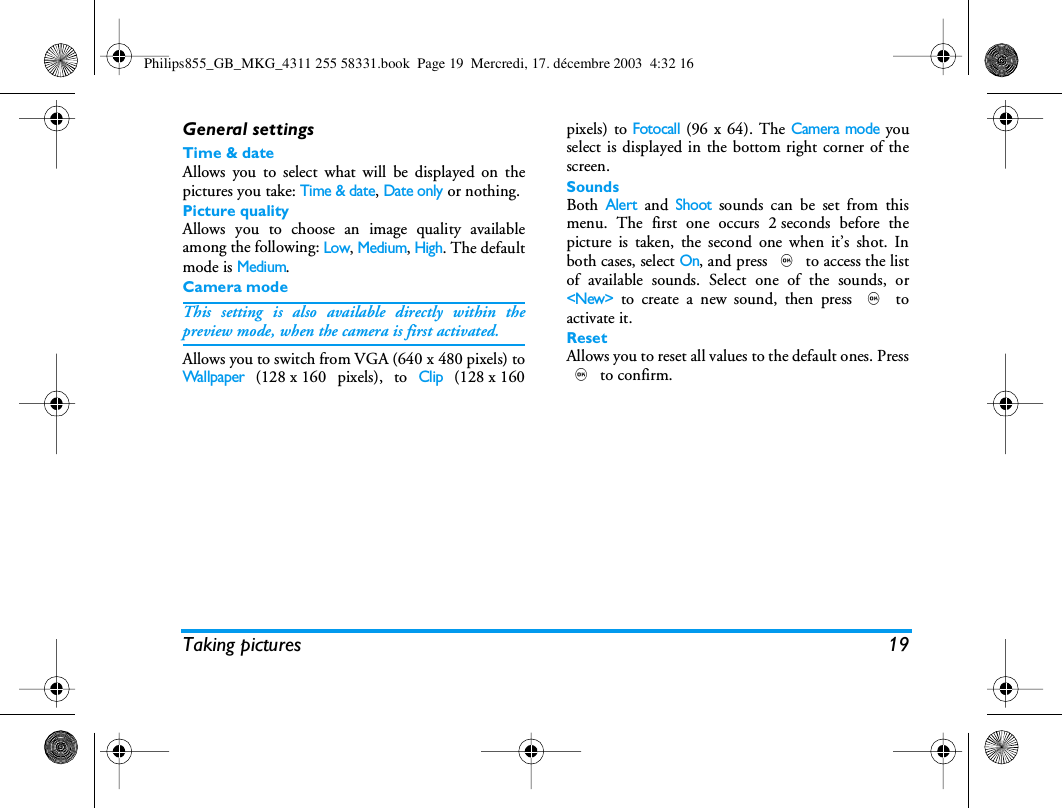
Taking pictures 15Preview mode settingsPress C to display the camera preview screen: thelens of the camera is automatically focused. Iconsdisplayed on top and bottom of the screen allow youto check the Vision, Camera and Zoom modes, andalso to set the Self-timer activation.All options and key presses described in the presentsection are applicable only when the camera mode isactive, i.e. when the preview is displayed on the screenPress , to access any of them.Vision modeTwo vision modes are available: Normal and Nightmode. According to ambiant light level, press * totoggle between modes, which are reflected by theicons in the bottom of the screen (sun & moon).Camera modeThe default picture size of the standard format is VGA640 x 480 pixels. Press # to switch to Wallpaper(128 x 160 pixels), to Clip (128 x 160 pixels) toFotocall (96 x 64 pixels). The Camera mode you selectis displayed in the bottom right corner of the screen.The Clip mode also allows you to record a voicemessage right after you shot the picture. See “Clipmode: using Foto Talk” page 17 for details concerningthis camera mode.Zoom modeThis option is available in all modes: one-level zoom(x2) in Clip and Wallpaper modes, two-levels zoom (x2and x4) in VGA mode. In any mode, press thenavigation key + or -to zoom in or out.The zoom icon is highlighted when the zoom isactivated. Zoom out is available only after a zoom in.Self-timerThis option allows you to set the Self-timer option Onor Off (see “With the self-timer” page 16 for details).Self-portraitThis option allows you to set the Self-portrait optionOn or Off (see “With the self-portrait mode” page 16).Ta k e  a  p i c t u r eWith the C key1.If the self-timer option is Off, and once thecamera was activated, press the C key to take aVGA or Wallpaper picture, which is thenautomatically displayed on the screen.2.The number in the upper black bar of the screenshows its row. The pictures will be named«img_1.jpg», etc., up to 9999.Pictures shotsPhilips855_GB_MKG_4311 255 58331.book  Page 15  Mercredi, 17. décembre 2003  4:32 16
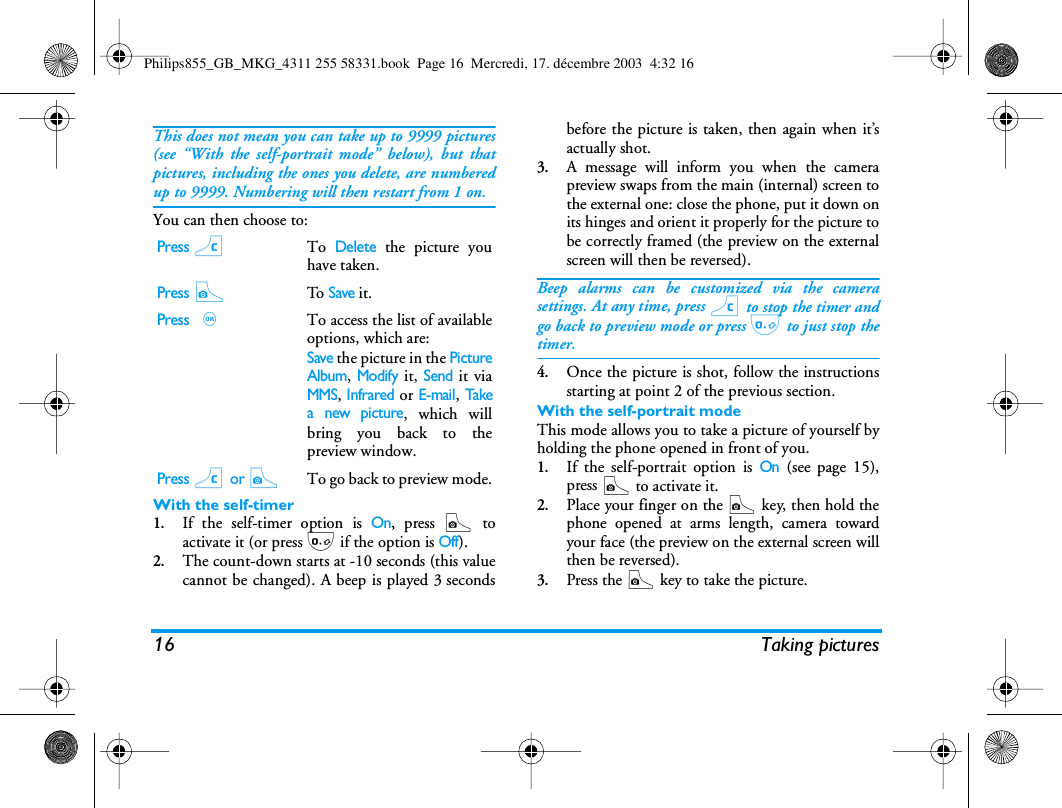
16 Taking picturesThis does not mean you can take up to 9999 pictures(see “With the self-portrait mode” below), but thatpictures, including the ones you delete, are numberedup to 9999. Numbering will then restart from 1 on.You can then choose to:With the self-timer1.If the self-timer option is On, press C toactivate it (or press 0 if the option is Off).2.The count-down starts at -10 seconds (this valuecannot be changed). A beep is played 3 secondsbefore the picture is taken, then again when it’sactually shot.3.A message will inform you when the camerapreview swaps from the main (internal) screen tothe external one: close the phone, put it down onits hinges and orient it properly for the picture tobe correctly framed (the preview on the externalscreen will then be reversed).Beep alarms can be customized via the camerasettings. At any time, press c to stop the timer andgo back to preview mode or press 0 to just stop thetimer.4.Once the picture is shot, follow the instructionsstarting at point 2 of the previous section.With the self-portrait modeThis mode allows you to take a picture of yourself byholding the phone opened in front of you.1.If the self-portrait option is On (see page 15),press C to activate it.2.Place your finger on the C key, then hold thephone opened at arms length, camera towardyour face (the preview on the external screen willthen be reversed).3.Press the C key to take the picture.Press cTo Delete the picture youhave taken.Press CTo  Save it.Press ,To access the list of availableoptions, which are:Save the picture in the PictureAlbum, Modify it, Send it viaMMS, Infrared or E-mail, Takea new picture, which willbring you back to thepreview window.Press c or CTo go back to preview mode.Philips855_GB_MKG_4311 255 58331.book  Page 16  Mercredi, 17. décembre 2003  4:32 16
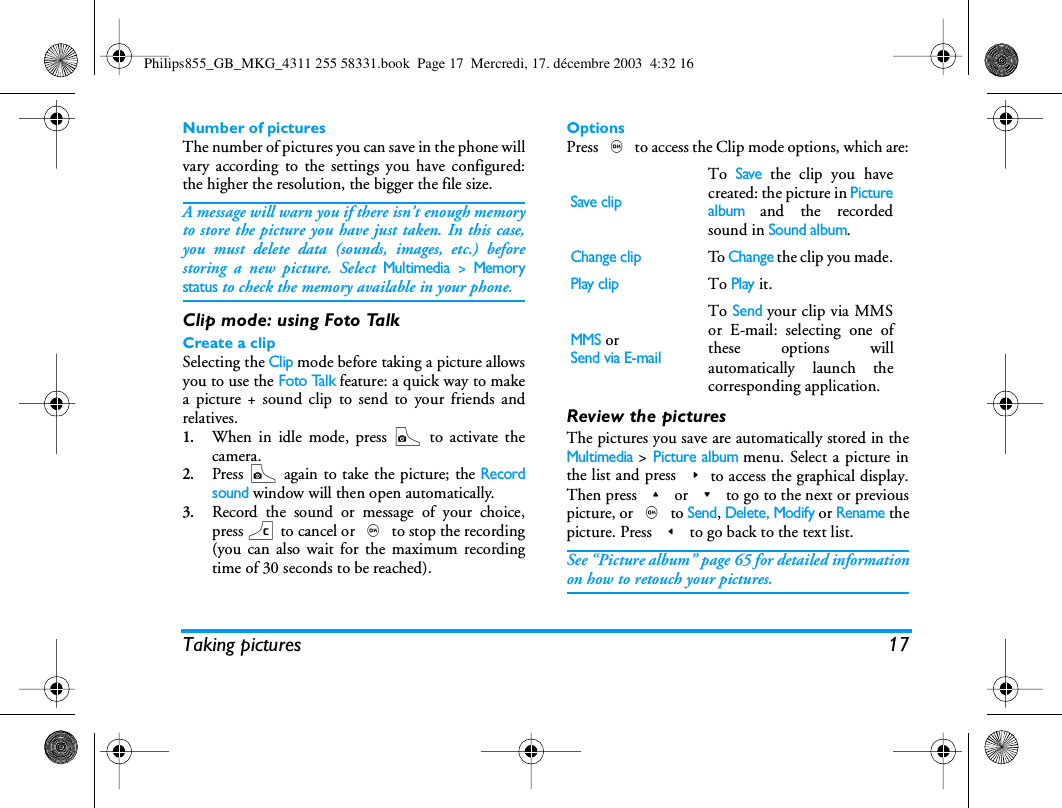
Taking pictures 17Number of picturesThe number of pictures you can save in the phone willvary according to the settings you have configured:the higher the resolution, the bigger the file size.A message will warn you if there isn’t enough memoryto store the picture you have just taken. In this case,you must delete data (sounds, images, etc.) beforestoring a new picture. Select Multimedia > Memorystatus to check the memory available in your phone.Clip mode: using Foto TalkCreate a clipSelecting the Clip mode before taking a picture allowsyou to use the Foto Talk feature: a quick way to makea picture + sound clip to send to your friends andrelatives.1.When in idle mode, press C to activate thecamera.2.Press C again to take the picture; the Recordsound window will then open automatically.3.Record the sound or message of your choice,press c to cancel or , to stop the recording(you can also wait for the maximum recordingtime of 30 seconds to be reached).OptionsPress , to access the Clip mode options, which are:Review the picturesThe pictures you save are automatically stored in theMultimedia > Picture album menu. Select a picture inthe list and press >to access the graphical display.Then press + or - to go to the next or previouspicture, or , to Send, Delete, Modify or Rename thepicture. Press < to go back to the text list.See “Picture album” page 65 for detailed informationon how to retouch your pictures.Save clipTo Save the clip you havecreated: the picture in Picturealbum and the recordedsound in Sound album.Change clipTo  Change the clip you made.Play clipTo Play it.MMS orSend via E-mailTo Send your clip via MMSor E-mail: selecting one ofthese options willautomatically launch thecorresponding application.Philips855_GB_MKG_4311 255 58331.book  Page 17  Mercredi, 17. décembre 2003  4:32 16
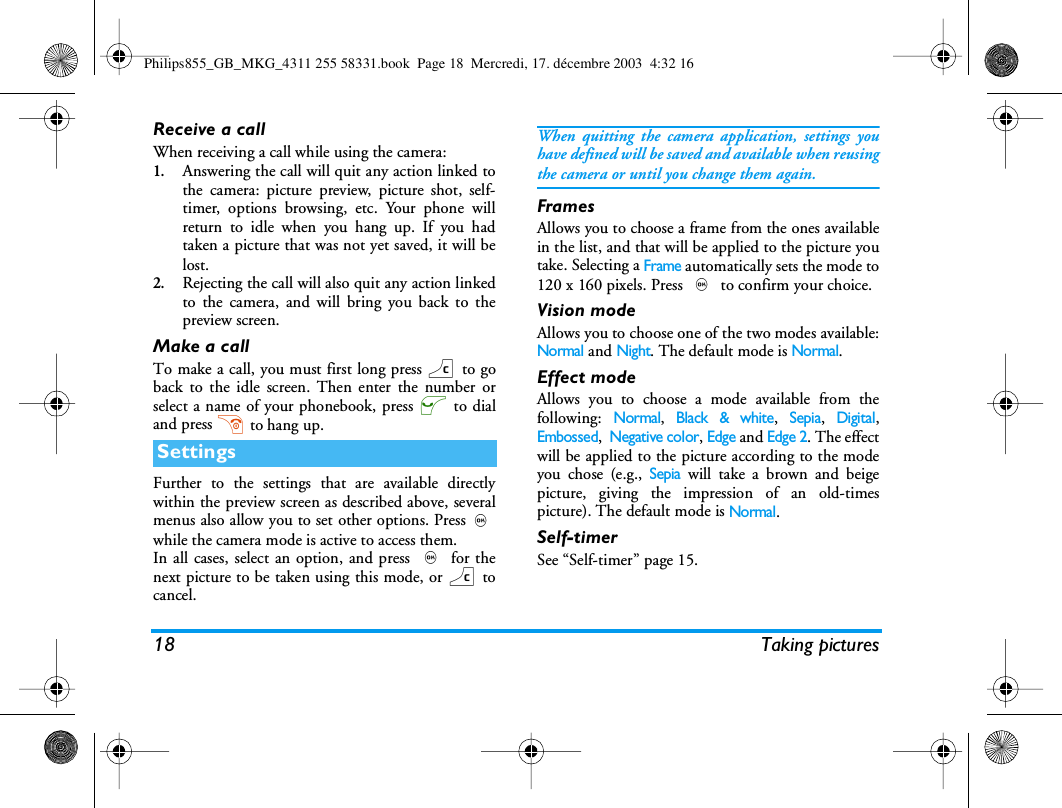
18 Taking picturesReceive a callWhen receiving a call while using the camera:1.Answering the call will quit any action linked tothe camera: picture preview, picture shot, self-timer, options browsing, etc. Your phone willreturn to idle when you hang up. If you hadtaken a picture that was not yet saved, it will belost.2.Rejecting the call will also quit any action linkedto the camera, and will bring you back to thepreview screen.Make a callTo make a call, you must first long press c to goback to the idle screen. Then enter the number orselect a name of your phonebook, press ( to dialand press ) to hang up.Further to the settings that are available directlywithin the preview screen as described above, severalmenus also allow you to set other options. Press,while the camera mode is active to access them.In all cases, select an option, and press , for thenext picture to be taken using this mode, or c tocancel.When quitting the camera application, settings youhave defined will be saved and available when reusingthe camera or until you change them again.FramesAllows you to choose a frame from the ones availablein the list, and that will be applied to the picture youtake. Selecting a Frame automatically sets the mode to120 x 160 pixels. Press , to confirm your choice.Vision modeAllows you to choose one of the two modes available:Normal and Night. The default mode is Normal.Effect modeAllows you to choose a mode available from thefollowing: Normal, Black & white, Sepia, Digital,Embossed,  Negative color, Edge and Edge 2. The effectwill be applied to the picture according to the modeyou chose (e.g., Sepia will take a brown and beigepicture, giving the impression of an old-timespicture). The default mode is Normal.Self-timerSee “Self-timer” page 15.SettingsPhilips855_GB_MKG_4311 255 58331.book  Page 18  Mercredi, 17. décembre 2003  4:32 16
Taking pictures 19General settingsTime & dateAllows you to select what will be displayed on thepictures you take: Time & date, Date only or nothing.Picture qualityAllows you to choose an image quality availableamong the following: Low, Medium, High. The defaultmode is Medium.Camera modeThis setting is also available directly within thepreview mode, when the camera is first activated.Allows you to switch from VGA (640 x 480 pixels) toWallpaper (128 x 160 pixels), to Clip (128 x 160pixels) to Fotocall (96 x 64). The Camera mode youselect is displayed in the bottom right corner of thescreen.SoundsBoth Alert and Shoot sounds can be set from thismenu. The first one occurs 2 seconds before thepicture is taken, the second one when it’s shot. Inboth cases, select On, and press , to access the listof available sounds. Select one of the sounds, or<New> to create a new sound, then press , toactivate it.ResetAllows you to reset all values to the default ones. Press, to confirm.Philips855_GB_MKG_4311 255 58331.book  Page 19  Mercredi, 17. décembre 2003  4:32 16
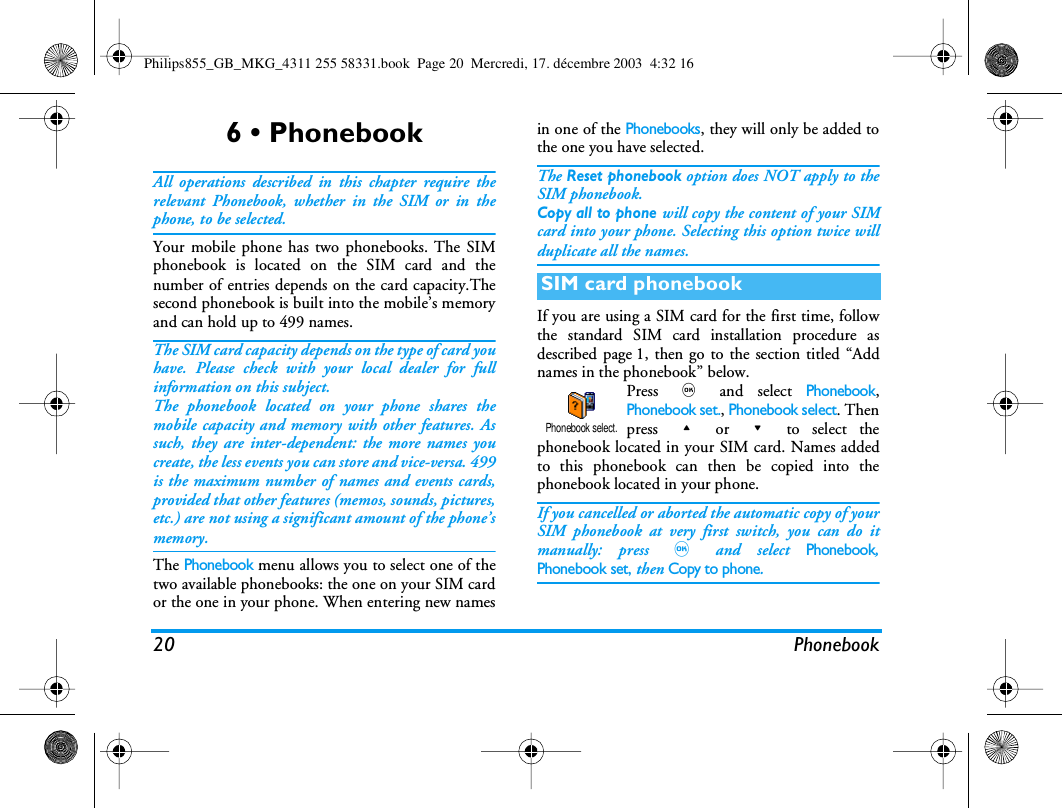
20 Phonebook6 • PhonebookAll operations described in this chapter require therelevant Phonebook, whether in the SIM or in thephone, to be selected.Your mobile phone has two phonebooks. The SIMphonebook is located on the SIM card and thenumber of entries depends on the card capacity.Thesecond phonebook is built into the mobile’s memoryand can hold up to 499 names.The SIM card capacity depends on the type of card youhave. Please check with your local dealer for fullinformation on this subject.The phonebook located on your phone shares themobile capacity and memory with other features. Assuch, they are inter-dependent: the more names youcreate, the less events you can store and vice-versa. 499is the maximum number of names and events cards,provided that other features (memos, sounds, pictures,etc.) are not using a significant amount of the phone’smemory.The Phonebook menu allows you to select one of thetwo available phonebooks: the one on your SIM cardor the one in your phone. When entering new namesin one of the Phonebooks, they will only be added tothe one you have selected.The Reset phonebook option does NOT apply to theSIM phonebook.Copy all to phone will copy the content of your SIMcard into your phone. Selecting this option twice willduplicate all the names.If you are using a SIM card for the first time, followthe standard SIM card installation procedure asdescribed page 1, then go to the section titled “Addnames in the phonebook” below.Press , and select Phonebook,Phonebook set., Phonebook select. Thenpress + or - to select thephonebook located in your SIM card. Names addedto this phonebook can then be copied into thephonebook located in your phone.If you cancelled or aborted the automatic copy of yourSIM phonebook at very first switch, you can do itmanually: press , and select Phonebook,Phonebook set, then Copy to phone.SIM card phonebookPhonebook select.Philips855_GB_MKG_4311 255 58331.book  Page 20  Mercredi, 17. décembre 2003  4:32 16
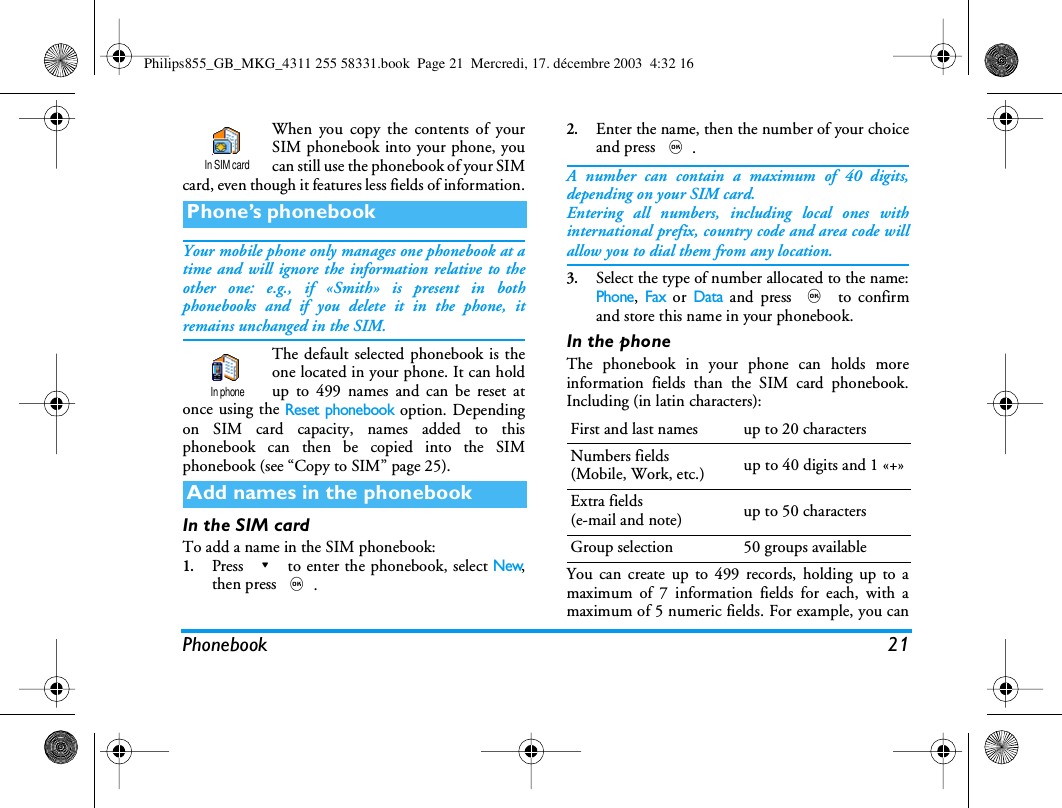
Phonebook 21When you copy the contents of yourSIM phonebook into your phone, youcan still use the phonebook of your SIMcard, even though it features less fields of information.Your mobile phone only manages one phonebook at atime and will ignore the information relative to theother one: e.g., if «Smith» is present in bothphonebooks and if you delete it in the phone, itremains unchanged in the SIM.The default selected phonebook is theone located in your phone. It can holdup to 499 names and can be reset atonce using the Reset phonebook option. Dependingon SIM card capacity, names added to thisphonebook can then be copied into the SIMphonebook (see “Copy to SIM” page 25).In the SIM cardTo add a name in the SIM phonebook:1.Press - to enter the phonebook, select New,then press ,.2.Enter the name, then the number of your choiceand press ,.A number can contain a maximum of 40 digits,depending on your SIM card.Entering all numbers, including local ones withinternational prefix, country code and area code willallow you to dial them from any location.3.Select the type of number allocated to the name:Phone, Fax or Data and press , to confirmand store this name in your phonebook.In the phoneThe phonebook in your phone can holds moreinformation fields than the SIM card phonebook.Including (in latin characters):You can create up to 499 records, holding up to amaximum of 7 information fields for each, with amaximum of 5 numeric fields. For example, you canPhone’s phonebookAdd names in the phonebookIn SIM cardIn phoneFirst and last names up to 20 charactersNumbers fields(Mobile, Work, etc.) up to 40 digits and 1 «+»Extra fields(e-mail and note) up to 50 charactersGroup selection 50 groups availablePhilips855_GB_MKG_4311 255 58331.book  Page 21  Mercredi, 17. décembre 2003  4:32 16
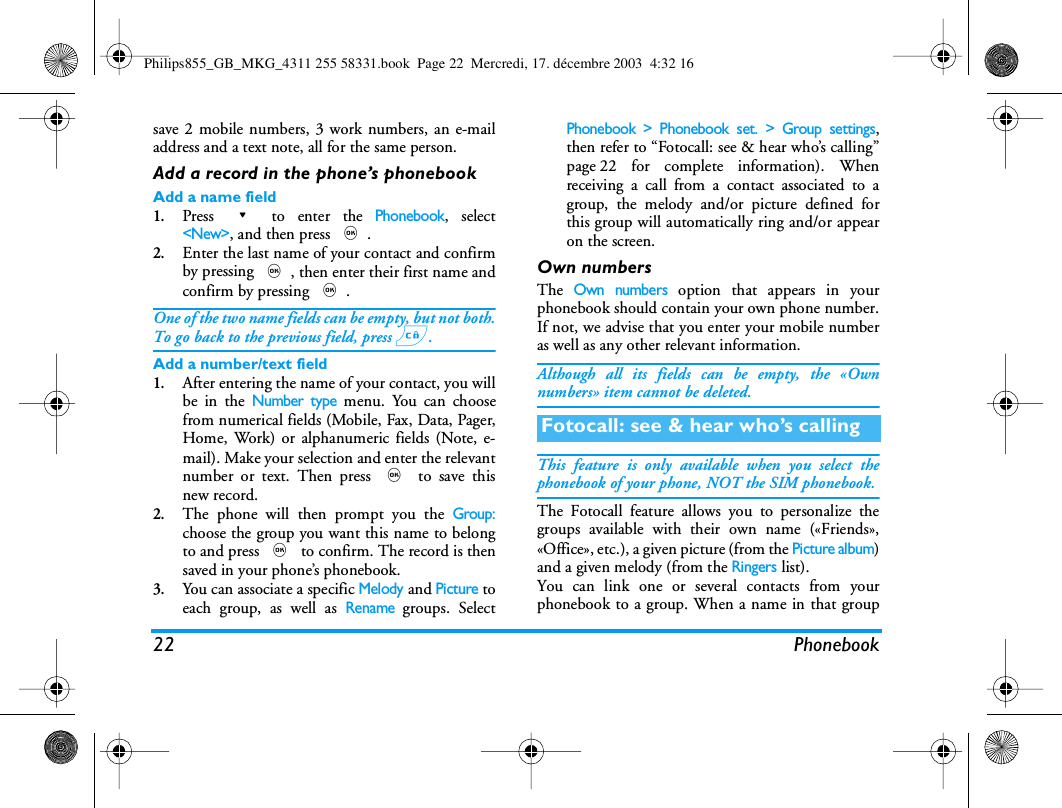
22 Phonebooksave 2 mobile numbers, 3 work numbers, an e-mailaddress and a text note, all for the same person.Add a record in the phone’s phonebookAdd a name field1.Press - to enter the Phonebook, select<New>, and then press ,.2.Enter the last name of your contact and confirmby pressing ,, then enter their first name andconfirm by pressing ,.One of the two name fields can be empty, but not both.To go back to the previous field, press c.Add a number/text field1.After entering the name of your contact, you willbe in the Number type menu. You can choosefrom numerical fields (Mobile, Fax, Data, Pager,Home, Work) or alphanumeric fields (Note, e-mail). Make your selection and enter the relevantnumber or text. Then press , to save thisnew record.2.The phone will then prompt you the Group:choose the group you want this name to belongto and press , to confirm. The record is thensaved in your phone’s phonebook.3.You can associate a specific Melody and Picture toeach group, as well as Rename groups. SelectPhonebook > Phonebook set. > Group settings,then refer to “Fotocall: see & hear who’s calling”page 22 for complete information). Whenreceiving a call from a contact associated to agroup, the melody and/or picture defined forthis group will automatically ring and/or appearon the screen.Own numbersThe Own numbers option that appears in yourphonebook should contain your own phone number.If not, we advise that you enter your mobile numberas well as any other relevant information.Although all its fields can be empty, the «Ownnumbers» item cannot be deleted.This feature is only available when you select thephonebook of your phone, NOT the SIM phonebook.The Fotocall feature allows you to personalize thegroups available with their own name («Friends»,«Office», etc.), a given picture (from the Picture album)and a given melody (from the Ringers list).You can link one or several contacts from yourphonebook to a group. When a name in that groupFotocall: see & hear who’s callingPhilips855_GB_MKG_4311 255 58331.book  Page 22  Mercredi, 17. décembre 2003  4:32 16
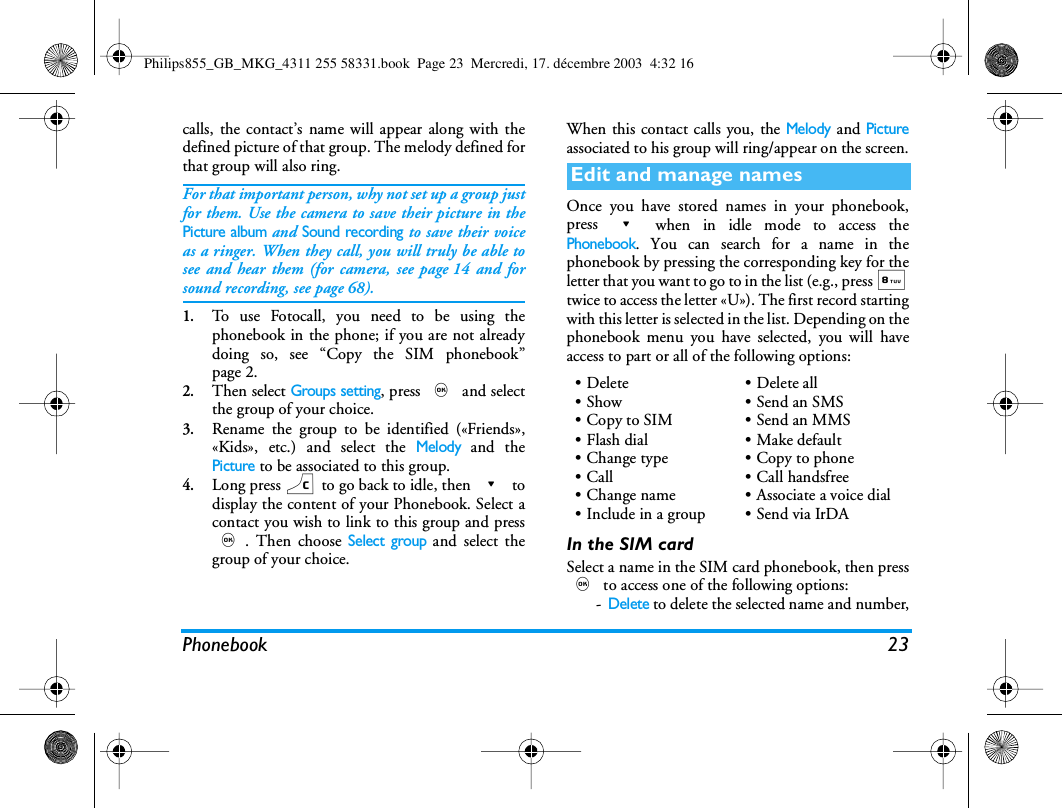
Phonebook 23calls, the contact’s name will appear along with thedefined picture of that group. The melody defined forthat group will also ring.For that important person, why not set up a group justfor them. Use the camera to save their picture in thePicture album and Sound recording to save their voiceas a ringer. When they call, you will truly be able tosee and hear them (for camera, see page 14 and forsound recording, see page 68).1.To use Fotocall, you need to be using thephonebook in the phone; if you are not alreadydoing so, see “Copy the SIM phonebook”page 2.2.Then select Groups setting, press , and selectthe group of your choice.3.Rename the group to be identified («Friends»,«Kids», etc.) and select the Melody and thePicture to be associated to this group.4.Long press c to go back to idle, then - todisplay the content of your Phonebook. Select acontact you wish to link to this group and press,. Then choose Select group and select thegroup of your choice.When this contact calls you, the Melody and Pictureassociated to his group will ring/appear on the screen.Once you have stored names in your phonebook,press - when in idle mode to access thePhonebook. You can search for a name in thephonebook by pressing the corresponding key for theletter that you want to go to in the list (e.g., press 8twice to access the letter «U»). The first record startingwith this letter is selected in the list. Depending on thephonebook menu you have selected, you will haveaccess to part or all of the following options:In the SIM cardSelect a name in the SIM card phonebook, then press, to access one of the following options:-Delete to delete the selected name and number,Edit and manage names•Delete•Show•Copy to SIM•Flash dial•Change type• Call •Change name•Include in a group• Delete all•Send an SMS•Send an MMS•Make default• Copy to phone• Call handsfree• Associate a voice dial•Send via IrDAPhilips855_GB_MKG_4311 255 58331.book  Page 23  Mercredi, 17. décembre 2003  4:32 16
24 Phonebook-Change to change the selected name and allrelated information,-Copy to phone to copy the selected name andall related information into the phonebooklocated in your phone. If you cancelled theautomatic copy of the SIM phonebook at thevery first switch of your phone, you need to doit manually.In the phoneAdd a field1.To add a new field to an existing record, selectthe name of your choice, selectShow and press,.2.Select <New> and press ,. Choose the typeof field to be added and press ,. Enter thenumber or text, then press , to save changes.3.Repeat steps 1 and 2 to add up to 6 fields to thesame record. Make a short press on c to goback to the previous menu, or a long press to goback to the idle mode.Numbers or text will appear in order of creation date.The first fax or phone number you enter becomes thedefault number. As such, it appears in first position inthe list. To make another number default, see “Makedefault” page 25. Alphanumeric fields (note and e-mail) can only be changed or deleted.Change a field content1.To change the content of a field in an existingrecord, select the name of your choice, press,, select Show and press , again.2.Select the field to be changed in the list and press,. 3.In the carousel that appears, select Change andpress ,. Make the changes wanted and press, to save them.Change a field typeTo change a field type of an existingrecord, repeat steps 1 to 3 of the“Change a field content” paragraph.Then select Change type in the carousel menu, selectthe new type of number and press , to confirmyour choice.If you copied your SIM phonebook into your phone,some numbers might appear as being of «No type» anddon’t have any icon. «No type» numbers can bechanged: follow the procedure described previously todefine a type for these numbers.Delete a fieldTo delete a field of an existing record,repeat steps 1 to 3 of the “Change a fieldChange typeDeletePhilips855_GB_MKG_4311 255 58331.book  Page 24  Mercredi, 17. décembre 2003  4:32 16
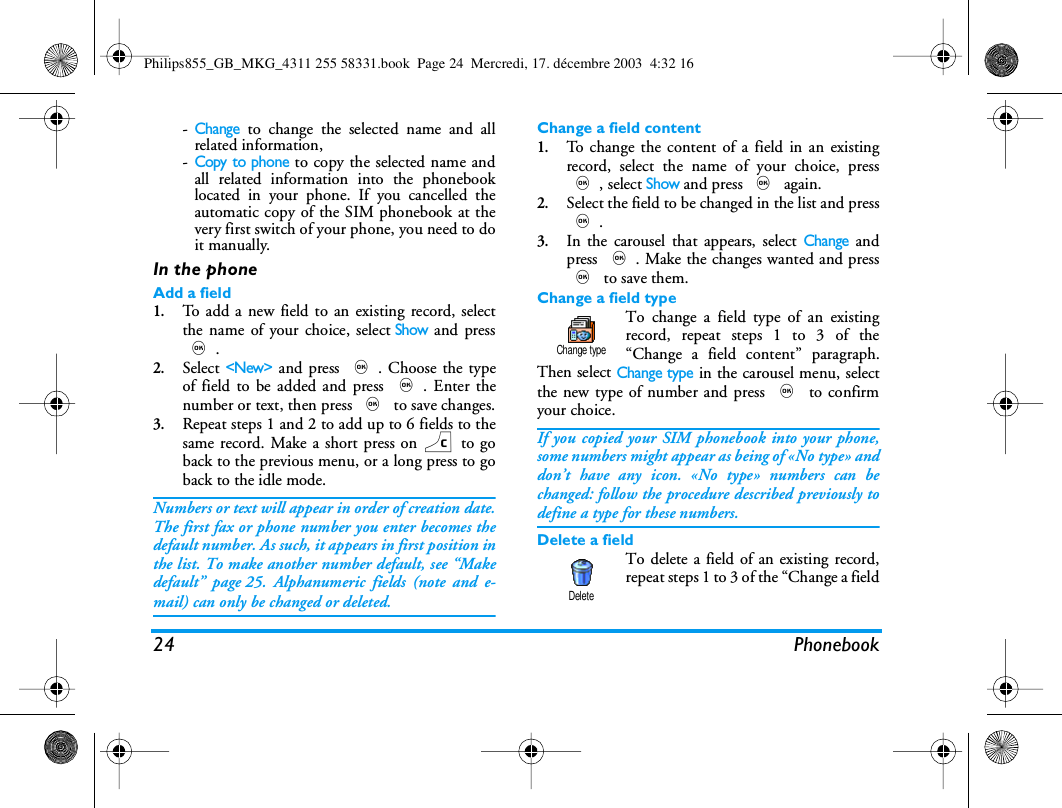
Phonebook 25content”paragraph. Then select Delete in the carouselmenu, and press , to confirm.Make defaultThe first number you enter whencreating a new record becomes thedefault number: it will appear first onthe fields list and is automatically called when pressingthe pick-up key or when pressing , and selectingthe Call, Call handsfree or Send SMS option. To changethe default number (e.g. make the «Work» numberdefault instead of the «Home» number), repeat steps 1to 3 of the “Change a field content” paragraph. Thenselect Make default in the carousel menu, and press, to confirm.Copy to SIMAs mentioned earlier, entering names inthe SIM phonebook can be useful if youchange phones frequently. If you copyphone numbers into the SIM card, your phonebook isalways updated when switching phonebooks or whenusing another phone.To copy a number into the SIM card phonebook,repeat steps 1 to 3 of the “Change a fieldcontent”paragraph. Then select Copy to SIM and press,.For your own comfort and safety, ensure you move thephone away from your ear when calling handsfree,especially when increasing the volume.Emergency numberThe emergency number will call theemergency services number in yourcountry. In most cases, you can call thisnumber even if you haven’t yet entered your PIN.1.Depending on the network operator, theemergency number can be dialled without theSIM card being inserted. In Europe the standardemergency number is 112, in the UK it is 999.To call this number, enter it in idle mode bypressing the corresponding keys, or  press ,and select Phonebook >View Names List >Emergency number.2.Press ( to dial and press ) to hang up.Other numberEnter a numberIn idle mode, enter a number bypressing the corresponding keys. Press( to dial and press ) to hang up.Make defaultCopy to SIMMake callsSOS CallCallPhilips855_GB_MKG_4311 255 58331.book  Page 25  Mercredi, 17. décembre 2003  4:32 16
26 PhonebookPressing , will let you access a carousel allowingyou to call this number, store it or send a SMS.Select a name1.Press  - and select the record of your choice.2.If you selected the phonebook in your SIM card:- once the record is selected, simply press (to call, or- press , twice to access the next carousel,then select Call or Call handsfree and press ,to dial the number.3.If you selected the phonebook in your phone:• To call the default number:- once the record selected, simply press ( todial, or- press , to access the record carousel, thenselect Call or Call handsfree.• To call any other number, choose Show once the record is selected and choose a number type in the list (Mobile, Home, etc.). Press , to access the next carousel and select Call or Call handsfree .4.In all cases, press ) to hang up.You can also switch to handsfree while a standard callis in progress: press ,, select Activ.h/free and press, to confirm.Use Flash dialIn idle mode, press and hold a keybetween 2 and 9 to dial theassociated entry (see “Hotkeys”page 29): connection is established. Press ) tohang up.Flash dialPhilips855_GB_MKG_4311 255 58331.book  Page 26  Mercredi, 17. décembre 2003  4:32 16
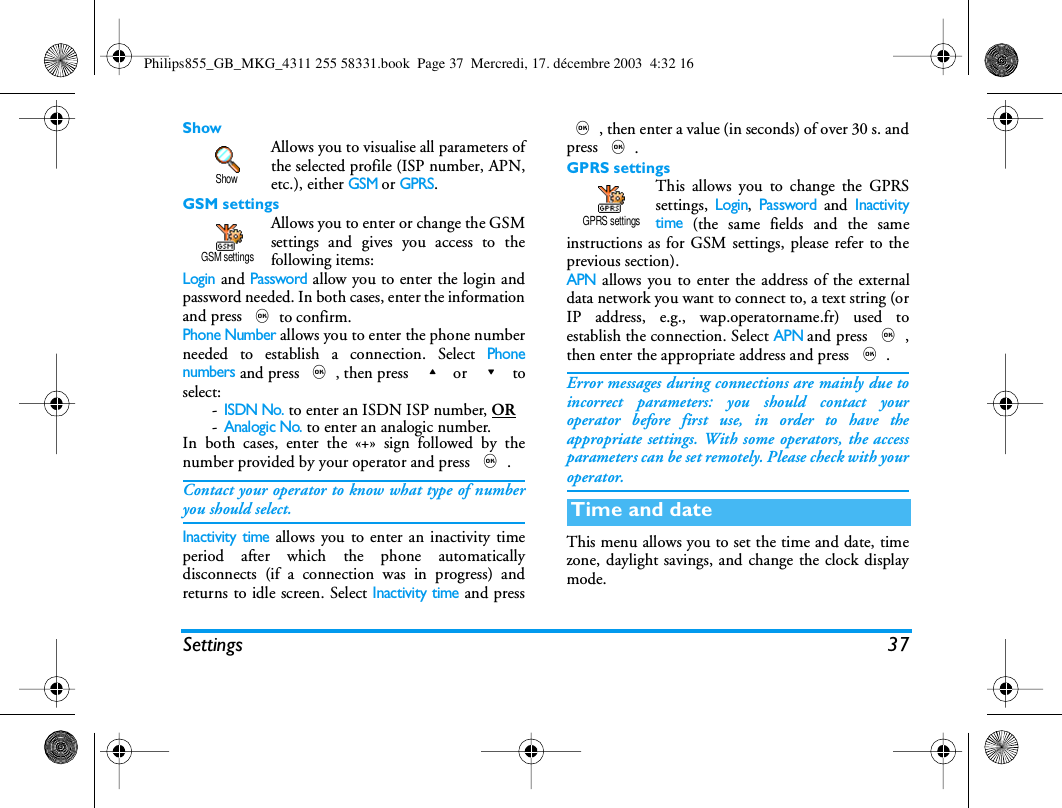
Settings 277 • SettingsThe Settings menu allows you to customise yourphone and change the settings related to each availableoption (sounds, time and date, security, etc.). TheProfiles menu allows you to change several settings atonce (see page 39).SilentAllows you to set the Silence mode Onor Off. When this setting is On, all alertsare deactivated and the vibra alert isactive.The Silent mode also applies to key tones.Ringer volume By default the ringer volume can be setto Medium. Press+or-to set thevolume of your ringer from Silent toIncreasing.RingerAllows you to select the ringer tonefrom the choices available. The list alsoincludes recorded sounds and melodies attached tomessages you receive (from e-mail, SMS, etc.). Scroll through the list by pressing+or-andwait to hear the selected melody being played.Press,to select this melody as ringer, c tocancel, or move to the next melody.You will not hear the melody if the volume ringer is setto Off or if the Silence mode was activated (see page 5).Messages RingerAllows you to set an alert beep On orOff, for each time you receive a newmessage. When On, this option alsoallows you to select the alert of your choice from theringers list.EqualiserThis option allows you to choose fromdifferent audio settings, also availablewhile a call is in progress. In this case,press,, select Equaliser, scroll through the list andwait a few seconds to hear the difference. Press, toconfirm your choice.SoundsSilentRinger volumeRingerMessages RingerEqualiserPhilips855_GB_MKG_4311 255 58331.book  Page 27  Mercredi, 17. décembre 2003  4:32 16
28 SettingsKey tonesAllows you to set the key tones On orOff. Even when set Off, DTMF areplayed during calls (see page 85).Sounds AlertsAllows you to set alert beeps On or Offfor the following items:-when an Event you programmed in yourorganiser is due,- when you have missed a call,-when the Battery is low and requires charging,- to manage the duration of your calls, firstafter 45 seconds, then every minute of anongoing call (the beep cannot be heard by thecaller).This menu only allows you to activate/deactivate thealert sounds, NOT the alerts themselves. E.g. settingthe event alert Off will not prevent your phone fromdisplaying the Reminder screen (if you programmedone), but the corresponding sound will not be played.Vibra alertAllows you to set the vibra alert On orOff when receiving a call, when an eventset in the organiser is due, when you receive a messageand when the alarm rings.The vibra alert is always Off when you connect thecharger or the Cigarette Lighter Adapter.Screen saverAllows you to set the screen saver On orOff. When On, it will run a slide showin idle mode, by using the jpeg file(s)you have stored in your phone and selected.Setting the Screen saver Off automatically activatesthe Economy mode, i.e., the current time displayed ona black background. This mode increases theautonomy of your phone (increases your battery life).1.When setting the screen saver On, select apicture in the list that appears bypressing<or> (you deselect it also bypressing these keys), then press - to move tothe next picture. Once you selected the picturesof your choice, press ,to activate the screensaver.You must select several pictures (up to 10) in order todisplay a slide show. When selecting only one pictureKey tonesSounds AlertsVibra alertDisplayScreen saverPhilips855_GB_MKG_4311 255 58331.book  Page 28  Mercredi, 17. décembre 2003  4:32 16
Settings 29to be used as screen saver, only this picture will bedisplayed.2.Select Start delay and press + or - tochoose a value. When in idle mode, the screensaver will start according to the time limit youhave set.3.Then select the Display period and press,.The timing you have set will be applied betweeneach picture of the slideshow.AnimationAllows you to set the animation of thecarousel menus On or Off. When On,this option will also scroll texts, such amessage selected in the Read SMS menu.Deactivating this function increases the autonomy ofyour phone.ContrastAllows you to choose among severallevels of contrast.BacklightThe backlight is activated whenreceiving incoming calls or messages,browsing lists and menus, etc. Press+ or - toset the backlight Duration by selecting one of theavailable values and press , to confirm.Deactivating this function increases the autonomy ofyour phone.WallpaperAllows you to set the Wallpaper of themain screen On or Off. When On, thepicture(s) you selected is (are) displayedin Normal or Fade mode in idle mode, if you didn’tactivate a slide show.Only JPEG type pictures can be used as Wallpapers.Sub wallpaperAllows you to set the Wallpaper of theexternal screen On or Off. The behavioris then the same as the Wallpaperdescribed above.HotkeysInstead of entering the various menusand browsing the lists, you can set updirect access to a specific function byAnimationContrastBacklightShort cutsWallpaperSub wallpaperWallpaperPhilips855_GB_MKG_4311 255 58331.book  Page 29  Mercredi, 17. décembre 2003  4:32 16
30 Settingslinking it to a Hotkey. A long press on the key willthen automatically activate the function or call theassociated number (Flash dial).You can only program keys 2 to 9and #, askeys 0 (launch Wap) and 1 (call voice mailbox)are predefined and locked, preventingreprogramming. Depending on your service provider,other hotkeys may be predefined and locked.1.Select a key from 2 to 9 and press ,.2.Browse the list to select the function you wish toassociate with this key (see list following). Press, to confirm your choice.If the selected key is already set, you can reprogram it:select Settings > Hotkeys > a hotkey in the list. Press, twice, select Change and press ,. This willbring you to the list of available functions.3.To use the hotkeys, simply press and hold thekey corresponding to the function you want tolaunch or to the number you want to dial whilein idle mode.You can associate hotkeys 2 to 9 to thefunctions of the following table:Dials the associated number of thephonebook.Opens the Send Messages menu.Opens the Read Messages menu.Activates the Instant message feature,to quickly Reply to the sender of thereceived message.Launches  MMS for you to send amultimedia message.Activates the Silence profile (vibra on,ringer volume off).Activates the Headset profile (ringervolume medium, any key answer on).Flash DialSend SMSRead SMSInstant messageMMSActive. SilenceActiv. HeadsetPhilips855_GB_MKG_4311 255 58331.book  Page 30  Mercredi, 17. décembre 2003  4:32 16
Settings 31Activates the Meeting profile (vibra on,ringer and all keys set to silent).Activates the Outdoors profile (ringervolume high).Activates the Personal profile.Activates the Autonomy profile, whichextends the battery autonomy(animation off, vibra off, backlight off,ringer volume medium).Direct access to the Calculator.Redials the number of the last callreceived.Dials the emergency call number.MeetingActiv.OutdoorsActiv. PersonalActiv. AutonomyCalculatorReply last no.SOS callLaunches the Demo mode.Opens the E-mail menu for access tothe mail boxes.Displays the remaining credit balance.Subscription dependentDisplays the Accumulated cost ofoutgoing calls.Subscription dependentOpens the Add event menu of theOrganiser.Displays the Events list of theOrganiser menu.Opens the Alarm menu.Demo modeE-mailShow balanceAccum. costAdd new eventShow eventsAlarm ClockPhilips855_GB_MKG_4311 255 58331.book  Page 31  Mercredi, 17. décembre 2003  4:32 16
32 SettingsVoice commandInstead of entering the various menusand browsing the lists, you can also set avoice tag that will activate a feature(e.g., launch the Calculator).Allows to record a new sound.Open the list of sounds (includingyour own recordings) for you tochoose from. Press > to play.Launches a WA P session.Subscription dependentOpens the Screen saver On/Off menu.Forwards  ALL calls to the voicemailbox.Direct access to the Brick Game.Opens the Games menu.Subscription dependent.RecordPlayWAPScreen saverTo voice mailBrick GameGamesAutomatically swaps phonebooks.Launches Java.Launches an infrared connection.Direct access to the Euro converter(from currency).Direct access to the Euro converter (tocurrency).The Euro converter is available uponsubscription and only in countries us-ing the Euro.Phonebook select.JAVAInfrared-> EuroEuro ->Voice CommandPhilips855_GB_MKG_4311 255 58331.book  Page 32  Mercredi, 17. décembre 2003  4:32 16
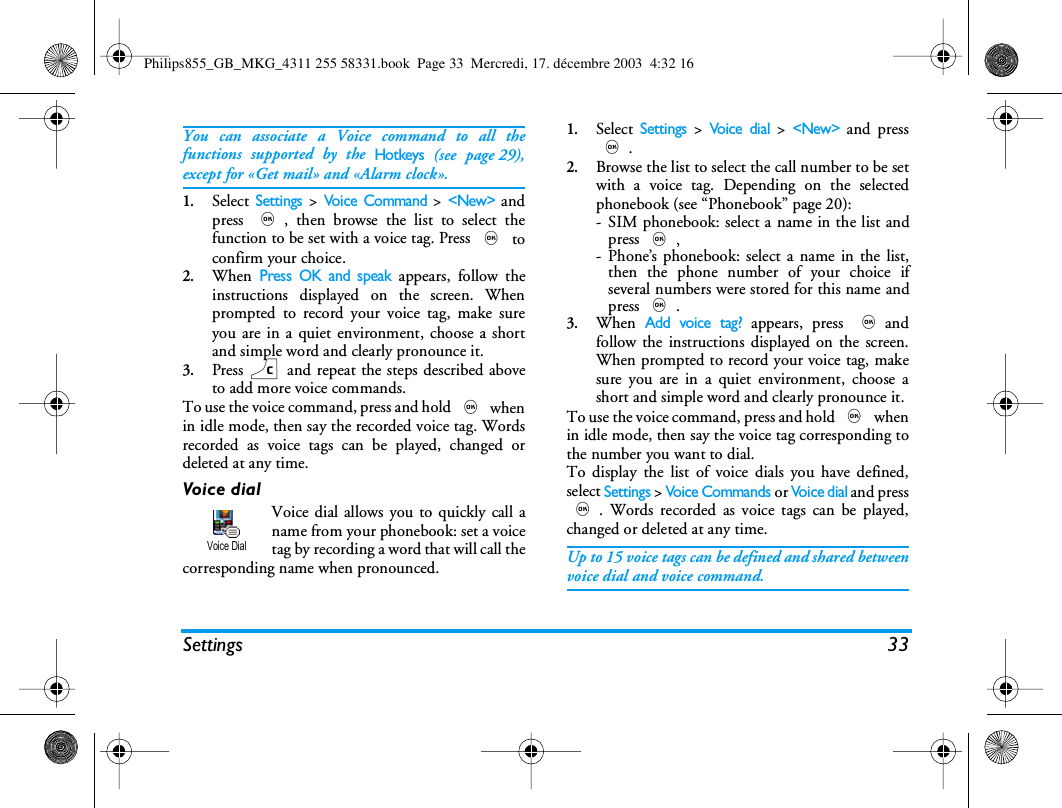
Settings 33You can associate a Voice command to all thefunctions supported by the Hotkeys (see page 29),except for «Get mail» and «Alarm clock».1.Select Settings > Voice Command > <New> andpress ,, then browse the list to select thefunction to be set with a voice tag. Press , toconfirm your choice.2.When Press OK and speak appears, follow theinstructions displayed on the screen. Whenprompted to record your voice tag, make sureyou are in a quiet environment, choose a shortand simple word and clearly pronounce it.3.Press c and repeat the steps described aboveto add more voice commands.To use the voice command, press and hold , whenin idle mode, then say the recorded voice tag. Wordsrecorded as voice tags can be played, changed ordeleted at any time.Voice dialVoice dial allows you to quickly call aname from your phonebook: set a voicetag by recording a word that will call thecorresponding name when pronounced.1.Select Settings > Voice  d i a l > <New> and press,.2.Browse the list to select the call number to be setwith a voice tag. Depending on the selectedphonebook (see “Phonebook” page 20):- SIM phonebook: select a name in the list andpress ,,- Phone’s phonebook: select a name in the list,then the phone number of your choice ifseveral numbers were stored for this name andpress ,.3.When Add voice tag? appears, press ,andfollow the instructions displayed on the screen.When prompted to record your voice tag, makesure you are in a quiet environment, choose ashort and simple word and clearly pronounce it.To use the voice command, press and hold , whenin idle mode, then say the voice tag corresponding tothe number you want to dial.To display the list of voice dials you have defined,select Settings > Voice Commands or Voi ce d ia l and press,. Words recorded as voice tags can be played,changed or deleted at any time.Up to 15 voice tags can be defined and shared betweenvoice dial and voice command.Voice DialPhilips855_GB_MKG_4311 255 58331.book  Page 33  Mercredi, 17. décembre 2003  4:32 16
34 SettingsNavigation iconAllows you to set the Navigation iconOn or Off. When On, it replaces theclock icon in idle mode, and allows youto spot the menus that can be access viathe phone’s navigation key.Public namesAllows you to manage a specific nameslist, called Public Names list, and restrictcalls to this list via the Call restrictionoption.This feature is subscription dependent and requires aPIN2 code (see page 35).Call restrictionAllows you restrict the calls to the PublicNames list. In this case, you can onlyaccess the names of the Public names list,as opposed to the Phonebook of the main menu.This function is subscription dependent and requiresa PIN2 code (see page 35). Please note that whenactivating this option, it might also apply to WAP ande-mail connections over GPRS.Public namesAllows you to consult and modify yourPublic Names list. You can enter a newname, modify or delete a name in thelist via PIN2 code. Use the <New> option to enter thename and phone number, then select the numbertype: Phone, Fax or Data. Names in this list can bechanged or deleted.Call barringThis menu allows you to limit the use ofyour phone to specific calls by lettingyou bar both outgoing and incomingcalls. This function is network dependent and requiresa specific call barring password supplied by yourservice provider. Outgoing callsThe Outgoing menu allows you to selectbetween All calls, International calls andIntl. Exc. Home calls (the latter allowingyou to call your home country when you are abroad).You can also Deactivate the bar on outgoing calls.These menus then allow you to bar, within eachavailable option, All calls, Voice  c a l ls, Data calls or Faxcalls.SecurityNavigationPublic namesCall restriction Public namesCall barringOutgoingPhilips855_GB_MKG_4311 255 58331.book  Page 34  Mercredi, 17. décembre 2003  4:32 16
Settings 35Incoming callsThe Incoming menu allows you to selectAll calls or When roaming. It alsoprovides access to the Cancel menu toremove bar on incoming calls.These menus then allow you to bar, within eachavailable option, All calls, Voice calls, Data calls or Faxcalls.StatusIn each sub-menu (All calls, Whenroaming, etc.), the Status option allowsyou to know whether a type of call isbarred or not.Change codesAllows you to change your PINandPIN 2 codes, as well as the call Barringcode.Depending on your SIM card, some features oroptions may require a PIN2 secret code. This is asecond secret 4 to 8-digit code given to you by youroperator.If you enter a wrong PIN2 code 3 times, your SIMcard is blocked. To unblock it, request the PUK2 codefrom your operator or retailer.If you enter an incorrect PUK code 10 times in a row,the SIM card will be blocked and unusable. If thishappens, contact your operator or retailer.PIN protectionThis allows you to set the PINprotection On or Off. When On, youwill be asked to enter your PIN codewhen switching your phone on.You cannot change your PIN code if this option is Off.This menu allows you to handle the connectionbetween the phone and the network, registermanually the available networks and manage yourpreferred networks.GPRS attachYour mobile integrates features thatsupport GPRS (Global Packet RadioService), a service allowing you toexchange data with high speed rates and to stay alwayson-line (i.e. have a permanent connection to theInternet and WAP).Contact your phone operator to have full informationabout GPRS availability over their network and forIncoming StatusChange codesNetworkPIN protectionGPRS attachPhilips855_GB_MKG_4311 255 58331.book  Page 35  Mercredi, 17. décembre 2003  4:32 16
36 Settingsan appropriate subscription. You might also need toconfigure your phone with the GPRS settings suppliedby your operator, by using the menus described in thissection.This menu allows you to define the attach mode ofyour mobile phone to the GPRS service:Always onYour phone will always register to the GPRS service.This option allows faster GPRS connection. Howeverit will increase energy consumption.For data callsYour phone will automatically register to the GPRSservice only when required. This option reducesenergy consumption, however it will increase theconnection delay.In spite of these settings, you must still select the bearer(GSM or GPRS) in the menus of each application tobe used (e.g., WAP, MMS, e-mail, etc.).Register againProvides you with a list of the networksavailable in the area when the Manualmode is selected. Select the network youwant to register with and press , to confirm.Preferred listAllows you to build a network list inorder of preference. Once defined, thephone will try to register on a network,according to your preferences.Access settingsThis menu allows you to create severaldata profiles: when using WAP or whensending a multimedia message (MMS),the selected profile will be used to connect to theGSM or GPRS network.All options described below are operator and/orsubscription dependent.With some operators, you mayreceive a SMS which contains access parameters thatwill be stored automatically. Please contact yournetwork operator for detailed information on thissubject.Change nameAllows you to enter or change the nameof the selected profile. Press ,, enterthe name of your choice and press ,to confirm.Some pre-configured profiles might be locked,preventing re-programming and renaming.Register againPreferred listAccess settingsChange namePhilips855_GB_MKG_4311 255 58331.book  Page 36  Mercredi, 17. décembre 2003  4:32 16
Settings 37ShowAllows you to visualise all parameters ofthe selected profile (ISP number, APN,etc.), either GSM or GPRS.GSM settingsAllows you to enter or change the GSMsettings and gives you access to thefollowing items:Login and Password allow you to enter the login andpassword needed. In both cases, enter the informationand press ,to confirm.Phone Number allows you to enter the phone numberneeded to establish a connection. Select Phonenumbers and press ,, then press  + or  - toselect:-ISDN No. to enter an ISDN ISP number, OR -Analogic No. to enter an analogic number.In both cases, enter the «+» sign followed by thenumber provided by your operator and press ,.Contact your operator to know what type of numberyou should select.Inactivity time allows you to enter an inactivity timeperiod after which the phone automaticallydisconnects (if a connection was in progress) andreturns to idle screen. Select Inactivity time and press,, then enter a value (in seconds) of over 30 s. andpress ,.GPRS settingsThis allows you to change the GPRSsettings, Login, Password and Inactivitytime (the same fields and the sameinstructions as for GSM settings, please refer to theprevious section).APN allows you to enter the address of the externaldata network you want to connect to, a text string (orIP address, e.g., wap.operatorname.fr) used toestablish the connection. Select APN and press ,,then enter the appropriate address and press ,.Error messages during connections are mainly due toincorrect parameters: you should contact youroperator before first use, in order to have theappropriate settings. With some operators, the accessparameters can be set remotely. Please check with youroperator.This menu allows you to set the time and date, timezone, daylight savings, and change the clock displaymode.ShowGSM settingsTime and dateGPRS settingsPhilips855_GB_MKG_4311 255 58331.book  Page 37  Mercredi, 17. décembre 2003  4:32 16
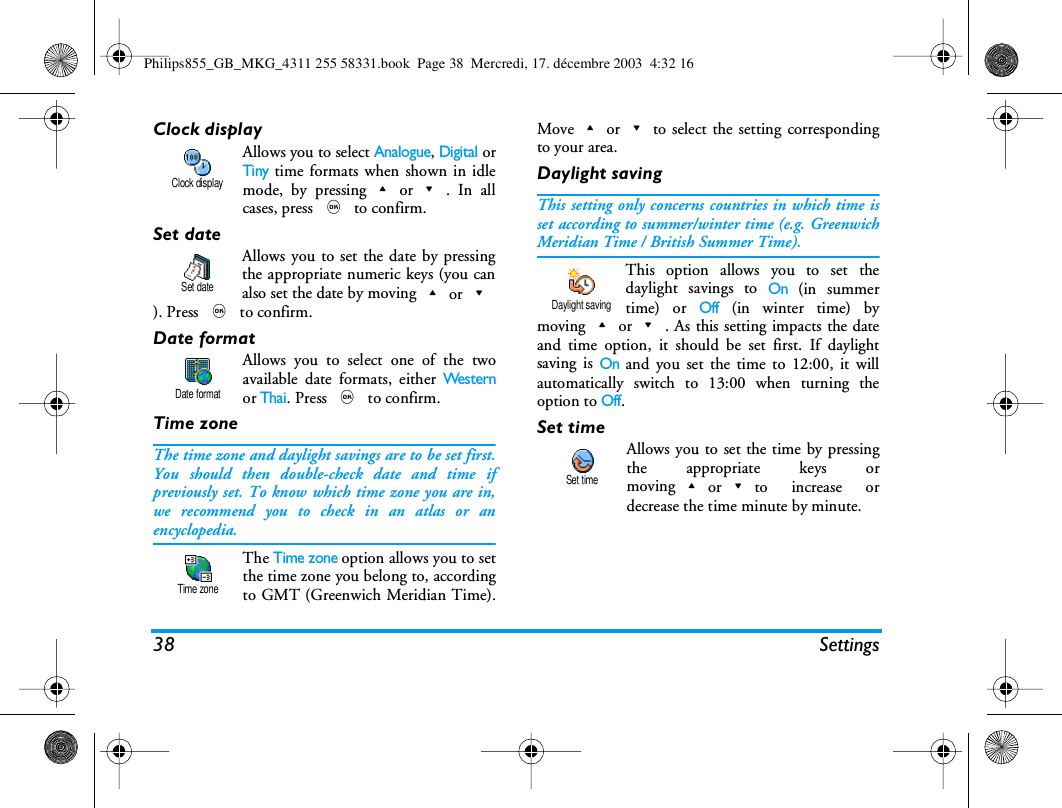
38 SettingsClock displayAllows you to select Analogue, Digital orTiny time formats when shown in idlemode, by pressing+or-. In allcases, press , to confirm.Set dateAllows you to set the date by pressingthe appropriate numeric keys (you canalso set the date by moving+or-). Press , to confirm.Date formatAllows you to select one of the twoavailable date formats, either We s te r nor Thai. Press , to confirm.Time zoneThe time zone and daylight savings are to be set first.You should then double-check date and time ifpreviously set. To know which time zone you are in,we recommend you to check in an atlas or anencyclopedia.The Time zone option allows you to setthe time zone you belong to, accordingto GMT (Greenwich Meridian Time).Move+or-to select the setting correspondingto your area.Daylight savingThis setting only concerns countries in which time isset according to summer/winter time (e.g. GreenwichMeridian Time / British Summer Time).This option allows you to set thedaylight savings to On (in summertime) or Off (in winter time) bymoving+or-. As this setting impacts the dateand time option, it should be set first. If daylightsaving is On and you set the time to 12:00, it willautomatically switch to 13:00 when turning theoption to Off.Set timeAllows you to set the time by pressingthe appropriate keys ormoving+or-to increase ordecrease the time minute by minute.Clock displaySet dateDate formatTime zoneDaylight savingSet timePhilips855_GB_MKG_4311 255 58331.book  Page 38  Mercredi, 17. décembre 2003  4:32 16
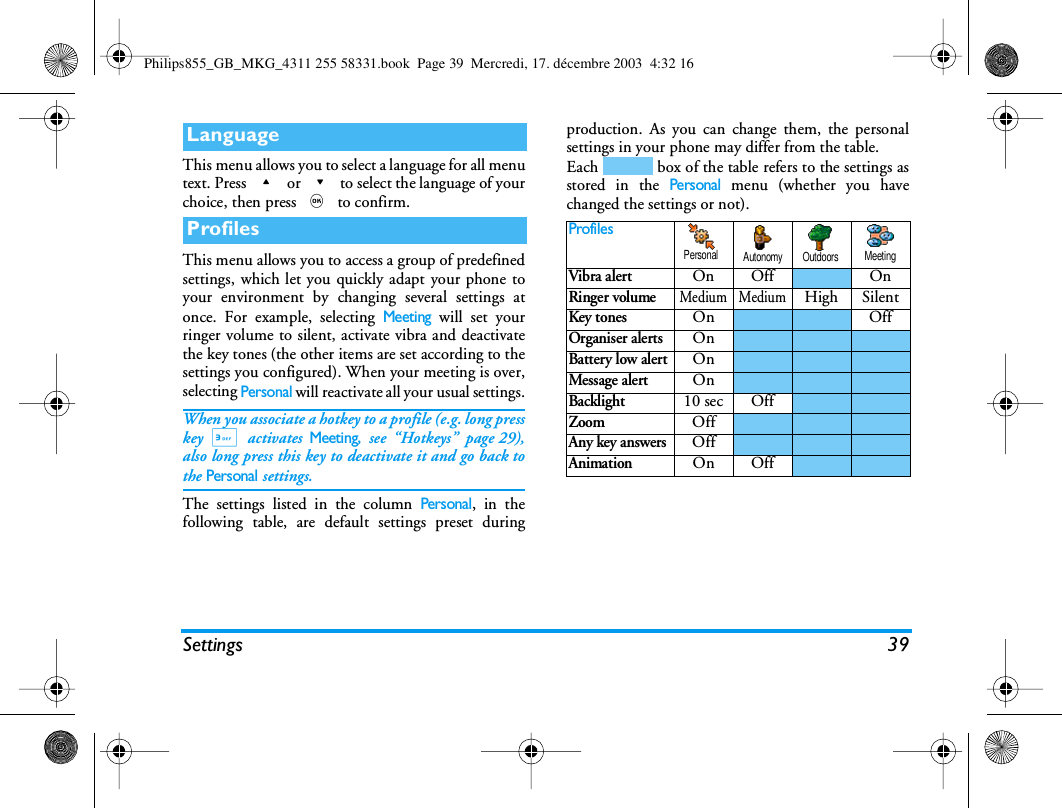
Settings 39This menu allows you to select a language for all menutext. Press + or - to select the language of yourchoice, then press , to confirm. This menu allows you to access a group of predefinedsettings, which let you quickly adapt your phone toyour environment by changing several settings atonce. For example, selecting Meeting will set yourringer volume to silent, activate vibra and deactivatethe key tones (the other items are set according to thesettings you configured). When your meeting is over,selecting Personal will reactivate all your usual settings.When you associate a hotkey to a profile (e.g. long presskey 3 activates Meeting, see “Hotkeys” page 29),also long press this key to deactivate it and go back tothe Personal settings.The settings listed in the column Personal, in thefollowing table, are default settings preset duringproduction. As you can change them, the personalsettings in your phone may differ from the table.Each   box of the table refers to the settings asstored in the Personal menu (whether you havechanged the settings or not).LanguageProfilesProfilesVibra alertOn Off OnRinger volumeMedium MediumHigh SilentKey tonesOn OffOrganiser alertsOnBattery low alertOnMessage alertOnBacklight10 sec OffZoomOffAny key answersOffAnimationOn OffPersonal Autonomy Outdoors MeetingPhilips855_GB_MKG_4311 255 58331.book  Page 39  Mercredi, 17. décembre 2003  4:32 16
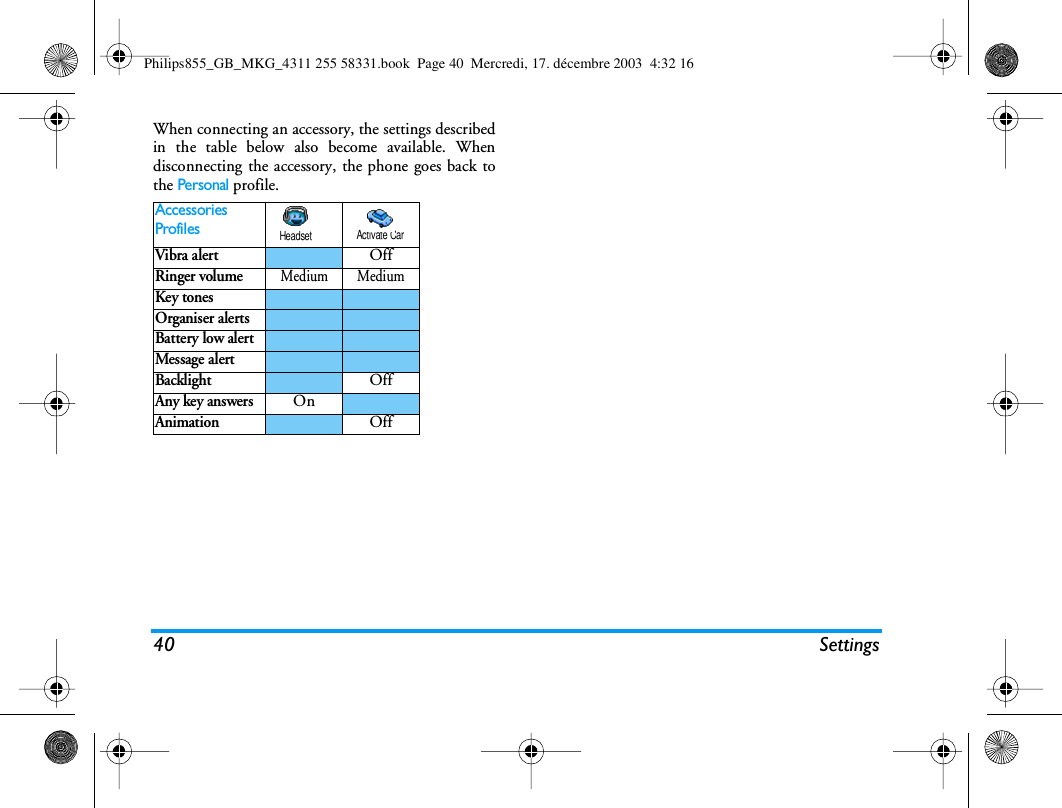
40 SettingsWhen connecting an accessory, the settings describedin the table below also become available. Whendisconnecting the accessory, the phone goes back tothe Personal profile.AccessoriesProfilesVibra alertOffRinger volumeMedium MediumKey tonesOrganiser alertsBattery low alertMessage alertBacklightOffAny key answersOnAnimationOffHeadset Activate CarPhilips855_GB_MKG_4311 255 58331.book  Page 40  Mercredi, 17. décembre 2003  4:32 16
Messages 418 • MessagesThe Send SMS item of the Messagesmenu allows you to:• send a standard or customised short text messageto someone,• edit the last message sent and send it again,• add an iMelody, pre-defined sounds, an anima-tion or a picture to your message.The features above are not available from the idlemode when the Instant message feature is On (seepage 53). In this case, you can only access the Answeroption.The Standard SMS messages are displayed in a list.Press + or - to browse: for example Can youring me back at this number.. allows you to select a pre-configured message including your number, if thisnumber is the first one of the Own num. option (seepage 22).Send a SMSTo  a  n a m e  i n  t h e  l i s tTo the default number if several (phonebook in phone) or to the unique phone number (phonebook in SIM)1.Press -, select the name of your choice andpress ,.2.Select Send SMS and press ,, then select thetype of message to be sent and press ,. Enteryour message, attach a graphic or a sound if youwish, then select Send now or Save (see below).To the number of your choice (phone name list only)1.Press - and select the record of your choice,then press ,, select Show and press ,.2.Select the number of your choice and press,.3.Proceed as described in step 2 of the previousparagraph.To any other nameTo send a short message to someone whose numberisn’t stored in the phonebook, press , and selectMessages, SMS then Send SMS and New. Enter thephone number to which the message should be sent toand press ,. Then follow the instructions detailedabove to send a message.SMSSend SMSPhilips855_GB_MKG_4311 255 58331.book  Page 41  Mercredi, 17. décembre 2003  4:32 16
42 MessagesTogether with an attachmentThis option allows you to attach a sound, picture oranimation to your message and press , to confirmand attach it to your message. Depending on the typeof file you want to attach, select Add graphic to attacha bitmap image or an animation, and/or Add sound toattach a melody. Select the sub-menu of your choice,then one of the available items in the list that appears,and press , to confirm and attach it to yourmessage.You can send up to 2 attachments of 2 different typestogether with your SMS. Animations and pictures areexclusive: if you first select an animation, then apicture, only the picture will be taken into accountand vice-versa.Some pictures, animations and sounds are pre-definedand supplied as standard with your mobile phone.Personal pictures and sounds, e.g., that you havereceived via SMS or e-mail and then stored in therelevant menus, will automatically appear in the«Own» sub-menus (Own melodies, Own animations,etc.). You cannot send «Own» items via SMS whenthey are copyright-protected.Send nowThis allows you to send the currentmessage you have entered (to learn howto enter text and numbers, see “Text ornumber entry” page 12). Press , toconfirm.SaveAllows you to store the current messageand its associated icon and melody ifany. Press , to confirm.Read SMSThe Read SMS option in the Messagesmenu allows you to consult the list ofSMS you have saved and received, andthat are first stored on your SIM card. Several optionsallow you to then manage them directly on yourmobile phone.Received MessagesThe messages you have received and already read arelabelled with  . Messages received but not yet readare labelled with a sealed envelope icon. Select amessage and press , to read it. When displayed,press , to access the following options:Reply to the sender,Send nowSaveRead SMSPhilips855_GB_MKG_4311 255 58331.book  Page 42  Mercredi, 17. décembre 2003  4:32 16
Messages 43Saved MessagesThe messages you sent are labelled with   in normalmode or with a mail box icon in auto save SMS mode(see page 44). Select the message you want and press, to read it. When displayed, press , to accessthe same options, including storing the caller’snumber.Forwardthe selected message (choose therecipient in the phonebook or enter aphone number manually),Deletethe selected message,Storenumberof the sender if it is attached to themessage,Storemelodyif a melody was sent together with theSMS,Storegraphic(s)if one or several graphics and/oranimations were sent together withthe message,Extracta number included in the messageitself, if this number is included indouble quotes (several numbers canbe included and extracted),Call the sender of the message (operator-dependent),Edita message in the Read or Archivefolder, modifiy it and resend it tosomeone (you can add a picture or asound).If a picture or a sound was attached tothe message you edit, you must firstdetach it and store it in the Picturealbum or in the Own melodies menu ofthe ringers list. Then re-attach it toyour message (see page 42).Move toarchiveallows you to store read messages inthe phone memory. Saved messagescan then be consulted by pressing, and selecting Messages, SMSArchive,Moving a message to the archive listdeletes it from the read SMS list.Philips855_GB_MKG_4311 255 58331.book  Page 43  Mercredi, 17. décembre 2003  4:32 16
44 MessagesDelete all SMSAllows you to delete all the messages of either the ReadSMS (messages on SIM card) or SMS Archive (messagesin phone) lists of the Messages menu.SMS settingsThis menu allows you to customise yourSMS via the options described below.SMS centreAllows you to select your default SMScentre. If not available on your SIM card,you must enter your SMS centre number.SignatureAllows you to sign your SMS. Bydefault, your signature is you phonenumber, added at the end of yourmessage (which length is consequently reduced). Youcan Edit the signature, Change and Save it.Validity periodThis feature is subscription dependent.Allows you to select the length of timeyour message is to be stored in yourSMS centre. This is useful when therecipient is not connected to the network (and thuscannot receive your message immediately).Reply pathThis feature is subscription dependent.Allows you to set the Reply path optionOn or Off. When On, it allows you totransmit the number of your SMSmessage centre together with the message. Yourcorrespondent can then reply using your own SMScentre and not theirs. This speeds up the rate oftransmission.Delivery reportThis feature is subscription dependent.Informs you via an SMS whether yourSMS was received or not. This optioncan be set On or Off.Auto save SMS Allows you to set On or Off the optionof automatically saving messages sent inthe Archive menu.SMS ArchiveAllows you to consult all read messagesyou saved and to Reset all archivedmessages at once. You save a message byactivating the Auto save SMS option (see above), or bySMS settingsSMS centreSignatureValidity periodReply pathDelivery reportAuto save SMSSMS ArchivePhilips855_GB_MKG_4311 255 58331.book  Page 44  Mercredi, 17. décembre 2003  4:32 16
Messages 45selecting a received message, pressing , twice andselecting Move to Archive.If not included in your phone subscription, you mustsubscribe to an e-mail account (over the phone or viaInternet from a computer) and have received thesettings information from your provider. In this case,all parameters are communicated to you by yourprovider and/or operator as described below and mustbe entered as given.If included in your subscription, you simply have toenter the login, password and e-mail address of youre-mail account. In some cases, your operator mightalso be your e-mail service provider.Your phone might have been pre-configured. In this case,most parameters are already set and you don’t have tochange them (except for Login, Password and E-mailaddress which are up to you when creating an e-mailaccount).To enter text and numbers, including specific signssuch as @ or %, see the characters table describedpage 13.SettingsNetwork accessThis menu allows you to configure your phone and tohandle the connection to the network, whether GSMor GPRS, in order to then connect to the appropriateserver that will let you send and receive e-mails.All options described below are operator and/orsubscription dependent.1.Press ,, select Messages > E-mail > E-mail 1 >Settings and press ,.2.Select Network Access and press ,.BearerThis menu allows you to select the typeof network used when launching aconnection.GSM or GPRS: your mobile will only use the GSM orthe GPRS network for e-mail connections.GPRS first: your mobile will first try to connect to theGPRS network, then to the GSM network if theGPRS network isn’t available when connecting.Selecting this option you need to have both GSM andGPRS settings configured.E-MailBearerPhilips855_GB_MKG_4311 255 58331.book  Page 45  Mercredi, 17. décembre 2003  4:32 16
46 MessagesGPRS settingsThis menu allows you to enter orchange the GPRS settingscommunicated to you by your operator,which are: APN, Login and Password. All settings mustbe entered as given to you by your operator.Error messages during connections are mainly due toincorrect parameters: you should contact youroperator before first use, in order to have theappropriate GPRS parameters.GSM settingsThis menu allows you to enter orchange the GSM settingscommunicated to you by your operator,which are: Phone number, Auto disconnection, Loginand Password. Enter them as defined.Phone Number: allows you to enter the phone numberprovided by your ISP and needed to establish aconnection. Press +or  - to select:-ISDN number to enter an ISDN ISP number,OR-Analogic No. to enter an analogic number, thenpress ,.Contact your ISP to know what type of number youshould select.Auto disconnection: allows you to select an inactivitytime period after which the phone automaticallydisconnects (if a connection was is progress) from thenetwork. Press + or  - to select a value from 3to 10min. and press , to validate.The lack of exchanges with the network (connecting,sending an e-mail, disconnecting) defines theinactivity time period leading to auto disconnection.Login and Password were up to you when yousubscribed to your account. Enter them also asdefined.E-mail server accessThe menus described in this section feature settingsneeded to connect to the e-mail server of your InternetService Provider (ISP) via your mobile phone. Mostparameters are communicated to you by your serviceprovider and must be entered as given.1.Press ,, select Messages > E-mail > E-mail 1 >Settings and press ,.2.Select E-Mail server and press ,. The fields tobe completed are the following: POP3 address,SMTP address, Login, Password and E-Mailaddress.GPRS SettingsGSM SettingsPhilips855_GB_MKG_4311 255 58331.book  Page 46  Mercredi, 17. décembre 2003  4:32 16
Messages 47•POP3 address: allows you to enter the IP or DNSaddress of the POP3 server, which is used toreceive e-mails.•SMTP address: allows you to enter the IP or DNSaddress of the SMTP server, which is used tosend e-mails.WARNING ! Network-dependent! For an e-mail connectionvia GPRS, if your phone operator is not your e-mailprovider, contact your operator to get the correct address ofthe SMTP server and enter it in this field.In some cases, Login, Password and E-mail address areup to you when you subscribe to your account. Enterthem as defined.Account nameThis menu allows you to rename the available e-mailaccounts.An e-mail account might be preconfigured with thename of your operator. In this case, its name cannot bechanged.1.Press ,, select Messages > E-mail > E-mail 1 >Settings > Account name and press ,.2.Enter the new name in the edition window thatappears and press ,.AdvancedThe menus described in this section feature advancedsettings that may have been pre-configured, so youshouldn’t have to change any of them.If the fields of these menus are empty, or if youencounter connection problems, contact your ISP.Port POP3: allows you to enter the POP3 portnumber, which is used to receive e-mails.Port SMTP: allows you to enter the SMTP portnumber, which is used to send e-mails.DNS address: allows you to enter the DNS address ofthe external data network you want to connect to.SMPT authenticat.: allows you to activate/deactivatethe authentication process with the SMTP server.In most European countries, this menu should be set toOff: your e-mails will NOT be sent if set to On.Contact your provider for complete information.Write and send an e-mailThe Send mail menu allows you to sende-mails to one or several recipients at atime, including with an attachmentsuch as a jpeg picture. Once received, your messagescan be forwarded and the attachments visualised withthe appropriate software.Send mailPhilips855_GB_MKG_4311 255 58331.book  Page 47  Mercredi, 17. décembre 2003  4:32 16
48 MessagesTo one or several recipients1.Press ,, select Messages > E-mail, then E-mail 1or E-mail 2 depending on the one you wish touse. Select Send mail and press ,.2.Move-to select Add addressee and press ,to access the list.If you select the phonebook «On SIM card», you willnot be able to access any e-mail address, but an editwindow will allow you to enter one. See “Phonebook”page 20 for information on phonebook selection.3.Select a name in the list and press , to add itto your mailing list or press c to cancel andgo back to the previous sub-menu.4.Back to the Addressees list, press , to Changethe e-mail address or to Remove it from the list,or select Add addressee, press , to access thephonebook again and add new names to themailing list.5.Repeat steps 2 to 4 to add as many recipients asrequired.6.Select Validate list and press ,. Then enter thesubject of your e-mail (you can leave this fieldempty) and press ,.7.In the next window, enter the text of your e-mail(you can also leave this field empty). Press ,when you are ready to send your e-mail.To learn how to enter text, see “Text or number entry”page 12. If you exit the Send e-mail menu beforesending your e-mail, its content is deleted withoutbeing stored.8.Select Modify mail and press , if you want tochange the content of your e-mail. This takesyou back to step 2: follow the instructions fromthere to complete the list of recipients and sendyour e-mail.9.Select Send now and press , to send youre-mail. Your mobile phone connects to theInternet server, sends your e-mail to the namespresent in your mailing list, then disconnects.You can cancel this operation by pressing and holdingthe c key. Your mobile will then disconnect fromthe server, exit the e-mail menu and go back to idle.Disconnection also occurs each time you enter theSettings menu while a connection is in progress. In thiscase, your e-mail is lost.Depending on the call settings you configured (see“Call waiting” page 76), you can receive calls duringPhilips855_GB_MKG_4311 255 58331.book  Page 48  Mercredi, 17. décembre 2003  4:32 16
Messages 49an e-mail connection. In this case, and if you acceptthe incoming call, your phone switches to the callscreen context and the e-mail menu is closed; thephone goes back to idle when you hang up.With a sound or a picture1.Repeat steps 1 to 7 described above. Select Addsound or Add graphic and press ,.2.In both cases, a list appears, showing theavailable JPEG, BMP, GIF, AMR or Midi files.Select the picture and/or sound of your choiceand press ,.You can only attach one JPEG file at a time. If youexit the Send e-mail menu before sending your e-mail,its content (including attachment) is deleted withoutbeing stored.3.Select Modify mail or Send now and press , toconfirm.Receive and read e-mailsE-mails are received on a server, whichyou must connect to in order to retrieveyour e-mails on your mobile phone(some operators send you a SMS when you receive anew e-mail). You must first download the headersfrom the server before retrieving the correspondinge-mails.Connect to the serverConnection process1.Press , and select Messages > E-mail, then E-mail 1 or E-mail 2 depending on the one you wishto use. Select Open mailbox and press ,.Mailboxes 1 and 2 feature the same settings andoptions. Configuring them differently will allow youto have two different e-mail addresses from yourphone.2.Your mobile phone automatically connects tothe e-mail server and downloads the e-mailheaders. If you didn’t receive any e-mail, Listempty is displayed on the screen. Otherwise, thee-mail headers are displayed in the form of a list.3.The total number of mails received and pendingon the server is displayed on the top of thescreen, as well as the number of pages needed todisplay all headers.4.Your mobile phone retrieves five e-mail headersat a time. If Next (respectively Previous) appearsat the end (respectively beginning) of the list,other e-mail headers are pending: select one ofthe available options and press , to retrievethem.Open mailboxPhilips855_GB_MKG_4311 255 58331.book  Page 49  Mercredi, 17. décembre 2003  4:32 16
50 MessagesAn e-mail without any attachment may beautomatically displayed in the details screen.Headers informationSelect a header, press ,, select Details and press, again to see the address it was sent from, the dateand time at which it was sent, its subject and the sizeof the attachment if any. The following status iconsmay appear in regards to each header:Download e-mailsSimply select one of the retrieved e-mailheaders and press ,. Then select Getmail and press , to download thee-mail. Repeat this operation to download each e-mailcorresponding to each selected header.You can also press , to access the e-mail headers’carousel and select Get mail from the available options.If the e-mail is too big (over 50 KB), it is rejected andthe download is cancelled.Get and store attachmentsIf the e-mail you have received contains attachments(JPEG picture, text file or another e-mail), they arecharacterised by a specific icon:[Noicon]The e-mail can be downloaded.The e-mail size is too large, it cannot bedownloaded.The e-mail is marked to be deleted (seepage 52).Get mailContains the details of the e-mail header(date and time, sender’s e-mail address, etc.),press , to display these details.The text of the e-mail itself can be viewed asan attachment, press , to read it. Thereisn’t any advanced options in this situation:it can be read, but not stored nor forwarded.A text file (text only, «.txt» format) is at-tached to the e-mail, press , to read it.There isn’t any advanced options in this sit-uation either.The application needed to manage thisattachment isn’t available in your phone, orthe e-mail is too large to be uploaded.Philips855_GB_MKG_4311 255 58331.book  Page 50  Mercredi, 17. décembre 2003  4:32 16
Messages 51You must have stored a picture before being able toview it via the Picture album menu. See “Picturealbum” page 65 for more details. If there isn’t enoughmemory to store the new picture, you must delete otheritems (name, event or picture) to release enoughmemory to be able to save the new picture.A picture may not be accepted by your mobile phoneif it is too large, or if it doesn’t have the right fileformat. When receiving a picture via e-mail, proceedas follows to obtain optimal results:• The picture received must have been saved inJPEG, BMP or GIF format.• The size of the picture file should not exceed50 KB.• The optimal size is 128 x 128 pixels, in order tobe displayed correctly. We recommend you use astandard picture editing software to create thesize of the picture you want.• Use a file name, a maximum of 10 characters.You can then add an extension such as «.jpg».Add an e-mail address to the phonebookYou must have selected the phonebook in your phoneto be able to add an e-mail address; this menu itemwill NOT appear if you selected the SIM phonebook.You can add the sender’s e-mail addressto your phonebook, even when youhaven’t yet downloaded his e-mail(retrieving the header only is sufficient to access thee-mail address).1.Select an e-mail header, then press , to accessthe carousel options.2.Select Add to names and press ,. Then select:- <new> to create a new name, enter first andlast name then add the associated e-mailaddress, or- a name in the list and press , to add thee-mail address to this name card. If it alreadycontains an e-mail address, you will beprompted to press , to replace it.Another e-mail is attached to the one you re-ceived (up to five e-mails can be attachedone after the other). There isn’t any ad-vanced options for an attached e-mail: it canbe read, but not stored nor forwarded.A picture in JPEG, BMP or GIF format isattached to this e-mail. Select the attachedpicture in the list and press , twice tostore it in your mobile phone (you can re-name it if you wish).Add to namesPhilips855_GB_MKG_4311 255 58331.book  Page 51  Mercredi, 17. décembre 2003  4:32 16
52 MessagesDelete e-mails1.Select the e-mail to be deleted and press , toaccess the options.2.Select Delete, and press , to confirm andmark the e-mail to be deleted. A small iconallows you to spot the header(s) of the listcorresponding to the e-mail(s) to be deleted.To unmark the e-mail to be deleted, select this optionagain.3.When you exit the E-mail menu, you will beasked to confirm deletion of the selected item(s)from the e-mail server. Press , to confirm orc to cancel (in this case, the marked e-mailsremain in the list and aren’t marked to be deletedany more).Reply to an e-mail1.Select the header of the e-mail you want to replyto, press , to access the options menu, thenselect Reply and press ,.2.The address of the sender, which you can modify(see “To one or several recipients” page 48), isautomatically added to the Addressees list. SelectValidate list and press ,.3.A new screen appears, that contains the subjectof the received e-mail preceded with Re: standingfor «Reply». Press ,.4.Enter the text of your mail, then press , tosend it: select Send now and press , to sendyour reply.Forward an e-mailIn order to forward an e-mail to another recipient,you must first have downloaded it (see “Downloade-mails” page 50). From the Forward to option,proceed as described above in “Reply to an e-mail”.In both cases (reply to an e-mail or forward it), yourphone will disconnect from the server when reachingthe network inactivity time out set in the Autodisconnection menu (see “Bearer” page 45). It willreconnect to this server when sending the e-mail.The Broadcast SMS feature is network-dependent.You can Activate or Deactivate thereception of SMS broadcast regularlytransmitted to all subscribers on thenetwork.Broadcast messageBroadcast SMSPhilips855_GB_MKG_4311 255 58331.book  Page 52  Mercredi, 17. décembre 2003  4:32 16
Messages 53ReceptionAllows you to set the reception of cellbroadcast messages On or Off. WhenOn, you must define one or severaltopics as described below.To p i c sAllows you to define the type ofmessages you want to receive. To definea new type, select <New>, enter thecode provided by the operator, and, if desired,associate a name. If you select an existing type in thelist, you can change or delete it. You can enter up to15 different types in the list. To obtain the codescorresponding to the different types, contact youroperator.District codesAllows you to select the type ofmessages you would like to bepermanently displayed on the idlescreen. As a result, for this special treatment of themessage, you must enter the type in both the Districtcode and the To p i c s  menu.Allows you to set the Instant message feature On or Off.When On, any short message (SMS) you receive isautomatically displayed in idle mode.Scroll down to read it, and quickly reply by pressing, twice: first to enter the edition screen, then tosend your message. The phone will automatically goback to the idle screen.If you receive a second SMS while you are reading one,press c to exit the first one or reply to it. Themobile phone will then display the second message.Your mobile phone allows you to sendand receive MMS (multimediamessages), featuring texts, pictures andsounds.A multimedia message can be made of one slide(including text, sound and image), or of several: inthis case, the message is played in a slide show,whether you send it to an e-mail address or to anothermobile phone.ReceptionTopicsDistrict CodeInstant messageMMSMMSPhilips855_GB_MKG_4311 255 58331.book  Page 53  Mercredi, 17. décembre 2003  4:32 16
54 MessagesCreate an MMSSelect the addressees1.Select Messages > MMS > New MMS and press,.2.Select a name in the list and press , to add itto your mailing list, ORSelect <New> and enter the phone number ore-mail address you wish to send your message to.Then press ,.You must have selected the phonebook «In phone» toaccess an e-mail address. See “Phonebook” page 20 forinformation on phonebook selection.3.If you wish to send your message to this persononly, select Validate list and press ,.If you want to send it to several people, selectInsert name, press , to access the phonebookagain and to add new names to the mailing list(up to 20 names).4.Add as many recipients as required, then selectValidate list and press ,.You can select one of the items and press , to Editthe e-mail address or phone number, or to Remove itfrom the list.Design your message1.On the left hand side of the screen, 5 icons allowyou to add a Picture, add Te x t, add a Sound, Sendthe message or access the Options menu. Move+ or - to go to the previous or next icon.2.Press , to access the Picture Album list, selecta picture and press , to add it to your MMS.The first window of your message is displayed,showing the selected picture, which is resized ifneeded, in order to fit the screen.Although the picture preview when creating the MMSis (W)105 x (H)55 pixels, the maximum size of apicture you can send is (W)640 x (H)640 pixels.Warning! The bigger the picture size, the longer it willtake to send it.A copyright-protected picture cannot be sent. SelectNone if you don’t want to insert any picture.3.The Te x t icon is automatically selected: press, to access the text editing screen, enter thetext of your message (see “Text or number entry”page 12 for help).4.The Sound icon is then selected: press , toaccess the Sound Album list, select a sound andpress , to add it to your MMS.Philips855_GB_MKG_4311 255 58331.book  Page 54  Mercredi, 17. décembre 2003  4:32 16
Messages 55Sounds can be one of the files available in the Album,or a sound memo that you record when creating theMMS: in this case, select <Records>, then <New> andfollow the procedure that appears on the screen.Youcannot attach an existing voice memo.The icon of the item you have added (picture or sound)changes colour to indicate its insertion.5.Press , to send your message, or move -to access the options.If you quit the MMS menu and haven’t finishedwriting your message, it will be automatically saved inthe Draft menu (see below).Access the optionsMove - to go to the Options icon and press ,.The following options are available:Add slideTo create a new slide and add itto your slide show.You can also press > whenthe last page of the message youare currently designing isselected.Once you have created severalpages, move < or > tobrowse slides.Delete slideTo delete the selected page.This option is only available ifthere is more than one slide inthe message.Next slidePrevious slideTo move to the next or to theprevious slide.Slide durationTo change the value of slideduration that you have set inSettings > Application settings(see page 61), and to set a delaybetween each slide.Philips855_GB_MKG_4311 255 58331.book  Page 55  Mercredi, 17. décembre 2003  4:32 16
56 MessagesWhen browsing the lists, specific icons show the type ofthe selected message (read MMS, delivery report,template, etc.). The information about the message(sender, recipients, subject) scrolls horizontallyautomatically when selected.Send your MessageAs described above, you can either:• Send your message as soon as it is completed:select Send MMS and press ,.• Save it as a Draft to complete it and send it later:to send, select the message in Drafts, select SendMMS and press ,. Once it has been sent, theMMS is removed from the drafts list.If the sending of a draft message fails, the message willbe moved to the Outbox menu, and identified as Notsent.• Select it from the Outbox menu and send it:select the message to be sent from this menu,select Re-send MMS and press ,. Once it hasbeen sent, the MMS is identified as a sent mes-sage in the list.In the two last cases, select the message to be sent inthe relevant folder. In all cases, select Send MMS andpress ,: a progress bar allows you to follow thesending of your message. Press c to cancel thesending of your message.Save MMSas draftTo save your message as a draft,that you can edit, complete andsend later on. MMS saved asdrafts are stored in MMS > Drafts(see “Manage folders” page 58).Messages saved as drafts mustfeature a subject.Saveas templateTo save your message as atemplate, that you can use as abasis for other MMS (e.g.,«Happy birthday» type ofmessage). MMS saved astemplates are listed in MMS >Templates (see “Manage folders”below).Preview MMSTo preview the slide show youhave created from the first tothe last slide, including sounds& pictures.Add subjectTo edit and change or enter thesubject of your message.Philips855_GB_MKG_4311 255 58331.book  Page 56  Mercredi, 17. décembre 2003  4:32 16
Messages 57Receive an MMSDownload and play an MMSWhen you receive an MMS, an alert message appearson the screen to inform you.1.If you activated the Automatic retrieval mode (seepage 60), the message is automaticallydownloaded and placed in the Inbox. Select it inthe Inbox list and press > to play it.2.If the Manual mode is activated:-Press c to go back to idle mode and to savethe notification in the Inbox, OR-Press , to display the details of thenotification, then select Download and press, to download the message itself. As forsending, a progress bar allows you to follow thedownload of the message.A notification isn’t the MMS itself, but aninformation window gathering the details about thesender’s identity, date and time of reception, subject,etc. DO NOT DELETE NOTIFICATIONSBEFORE YOU HAVE RETRIEVED THEMESSAGE, or you will never be able to do so.In both automatic and manual modes, a message willinform you if the size of the MMS you wish todownload is bigger than the memory available in yourphone. In this case, you must free memory by deletingdata (picture, sounds, etc.). See “Memory status”page 68.- If the sender of the message has asked for aRead report, a prompt will ask you to press, to send it or to press c to refuse thesending of the report.3.Once the MMS is downloaded, select it in theInbox list and press > to play it.Pressing < or > will switch the player modefrom automatic to manual. In manual mode, press< or > to display the previous or the next slide.Get and store attachmentsWhen playing an MMS as described in the previoussection, press , to access the following Playeroptions:PlaymessageTo switch back to automaticmode: the MMS is then playedas a continuous slide show.Philips855_GB_MKG_4311 255 58331.book  Page 57  Mercredi, 17. décembre 2003  4:32 16
58 MessagesManage foldersThe MMS menu allows you to manage your messagesin 4 different folders. The default (active) folder is thelast one you selected. To change the active folder,press c to return to the main MMS menu andselect the folder of your choice:Next /previousslideTo move to the next or previousslide. You can also press < or> when viewing the MMS inmanual mode.This item is not available whenyou have selected the last (orfirst) slide.RewindTo rewind the MMS back to thefirst slide.Detach pictureTo detach the picture of thecurrent slide and save it in thePicture album.Detach soundTo detach the sound of the cur-rent slide and save it in theSound album.InboxLists all the Notifications, Delivery andRead reports, Read and Unread MMS.•You can Read or Delete notifica-tions and reports.•You can Play, Forward or Reply toan MMS, display its Details orDelete it.Notifications are automaticallydeleted once you have received the fullMMS. Do NOT delete notificationsbefore you have retrieved the MMS, oryou will never be able to do so.OutboxLists the messages you have Sent orcreated but Not sent yet (e.g., if youhave cancelled the sending procedureby pressing the c key).-You can Open, Delete or view theDetails of all these messages.- In addition, an MMS not yet sentcan also be Re-sent to someone, andyou can Forward an MMS alreadysent.Philips855_GB_MKG_4311 255 58331.book  Page 58  Mercredi, 17. décembre 2003  4:32 16
Messages 59Messages you have saved can only be sent from theDraft or Outbox folders. You can NOT recover an item(whether message, notification or report) that youhave deleted. Press c to cancel deletion.SettingsYour phone may have been pre-configured to directlyaccess the services offered. If not, you must havereceived from your operator the information itemsdescribed in the present section and enter them asgiven.With some operators, access parameters can be set«over the air». Please check directly by your operator.Network accountAllows you to choose a data profile from the ones youhave set (see “Access settings” page 36 for completeinformation on how to configure or modify a dataprofile). This profile and the parameters it featureswill then be used for connection.BearerThis menu allows you to select the type of networkused when launching a connection. If selecting GPRS first, you must have configured boththe GSM and GPRS settings (see “Access settings”page 36).MMS CentreAllows you to enter or change the MMS address of theserver your phone will connect to.TemplatesLists all messages saved as templatesafter their creation.You can Play, Edit and Delete tem-plates.DraftsLists all messages saved as drafts aftertheir creation, or automatically savedif you quit the MMS menu beforesaving or sending your message.You can Play, Edit, Send and Deletedrafts.GSMYour mobile will only use the GSMnetwork for connections.GPRSYour mobile will only use the GPRSnetwork for connections.GPRS firstYour mobile will first try to connectto the GPRS network, then to theGSM network if the GPRS networkisn’t available when connecting.Philips855_GB_MKG_4311 255 58331.book  Page 59  Mercredi, 17. décembre 2003  4:32 16
60 MessagesGateway addressAllows you to enter or change the IP address of theserver’s gateway.Gateway portAllows you to enter or change the Port number of theserver’s gateway.You must have the information relating to the threepoints above, supplied by your operator, and mustenter them exactly as given.Application settingsRetrieval modeDelivery reportThis option can be set On or Off and informs you (viaan SMS) whether your MMS was received or rejected.The delivery report will display the sender’s identity,date and time of receipt, MMS subject and status ofdelivery.Read reportThis option can be set On or Off and informs you (viaan SMS) when the status the MMS you have sent hasAutomatic(default mode)Any new MMS you receive is au-tomatically downloaded from theserver and placed in the Inbox,without you having to launch aconnection. Select the messageyou have received in the Inboxand press >.This mode is deactivated whenroaming.ManualMessages are stored on the MMSserver, and you must connectmanually to retrieve them:1.Press , to access theInbox.2.Select the notification itemcorresponding to this mes-sage and press ,.3.Select Read and press ,.4.When the Details of the mes-sage are displayed, press, to launch the connec-tion and download it.Once the message is in yourphone, press ,, select Playmessage and press ,.Philips855_GB_MKG_4311 255 58331.book  Page 60  Mercredi, 17. décembre 2003  4:32 16
Messages 61changed, i.e., whether it was read or deleted withoutbeing read.Auto saveThis option can be set On or Off and allows you toautomatically save of the messages sent from theOutbox menu. Messages saved will then appear in theOutbox folder.Validity periodAllows you to select the length of time your messageis to be stored on the server, from 1 hour to 1 week(maximum). This is useful when the recipient is notconnected to the network (and thus cannot receiveyour message immediately).Slide durationAllows you to select the duration between each slideincluded in your MMS, from 1sec. to 60 secs.Philips855_GB_MKG_4311 255 58331.book  Page 61  Mercredi, 17. décembre 2003  4:32 16
62 Infrared9 • InfraredYour mobile phone integrates the infrared technology(also called IrDA), that allows you to send or receivedata to and from other IrDA-compliant devicesthrough a wireless link (e.g., another mobile phone, aPC or PDA, a printer etc.). Instead of sending amessage, you can decide to use IrDA to quickly senda sound you just mixed to a friend’s mobile phone, orto receive pictures from their PDA.Files that are copyright-protected cannot be sent.When connecting with a PC, make sure you haveactivated its infrared option.Before sending or receiving data to and from anotherdevice, they must be correctly positioned in relation toyour mobile phone. Make sure that the respectiveIrDA ports are facing each other and are a maximumof 50 cm away from each other (see diagram). Alsomake sure that nothing obstructs the IrDA beam.Select an itemTo send data via IrDA from your mobile phone, youmust first select the item to be sent: for each category,a sub-menu then gives you access to the Send option;press , to send the selected data to the otherdevice.Position of devicesSend dataData youcan sendWhere to find itin the phone menusPictures (BMP, GIF, JPEG)Multimedia > Picture albumSounds (MIDI files & ringers) Multimedia > Sound albumPhilips855_GB_MKG_4311 255 58331.book  Page 62  Mercredi, 17. décembre 2003  4:32 16
Infrared 63Send the selected itemAs soon as your phone finds another IrDA-compliantdevice to communicate with, the sendingautomatically takes place. Messages are displayed onthe screen, for you to follow the process.If the phone finds several IrDA devices, a list isdisplayed on the screen, for you to choose from. Press, to confirm and to send the selected data.Sending is cancelled in the following cases:- the phone cannot find another device and the timeout is reached before any data is sent,- the infrared link is broken,- you press the c key to cancel the process.Activate IrDATo receive data, press , and selectInfrared > Receive and press ,. Yourmobile phone is then ready to receive anitem and waits for the other IrDA device to send it. Aswhen sending, messages are displayed on the screenand allow you to follow up the process.Receiving is cancelled in the following cases:- the phone isn’t contacted by another device and thetime out is reached before data is received,- the infrared link is broken,- the size of the file sent is too large for your phone tomanage it,- you press the c key to cancel the process.Save the data receivedSeveral options are available when receiving data fromanother IrDA device:Press cCancels the process: if you confirm your choice bypressing ,, the phone goes back to idle and thedata you have received isn’t saved.NamesPhonebook > View names list(or press-when in idle mode).EventsGames & Appli > Organiser >EventsReceive dataInfraredPhilips855_GB_MKG_4311 255 58331.book  Page 63  Mercredi, 17. décembre 2003  4:32 16
64 InfraredPress ,Gives you access to the options menu, from which thefollowing options are available:Use the phone as a modemYou can also use your mobile phonetogether with a PC or a PDA, e.g. tosurf the Internet or send faxes.To fully benefit from the services available via IrDA(send and receive SMS, e-mail and fax, uploadpictures and MIDI sounds in your phone, phonebooksynchronization, GPRS Wizard, etc.), you mustinstall Mobile Phone Tools on your PC. This softwareapplication is available on the CD-Rom shipped withyour phone.The software supplied on the CD-Rom is notcompatible with Apple® Macintosh® computers. Itonly supports Windows® 98 SE, ME, 2000 and XP.Specific software modules for Lotus Notes, LotusOrganizer and Microsoft Outlook are designed toallow synchronisation from your Philips mobilephone to these applications: refer to their respectiveuser guides for detailed information concerninginstallation and configuration.SaveSaves the data in the appropriate menu(Name cards in the Phonebook, Event cardsin the Organiser, etc.), then goes back toidle.In the case of a Name card, a <New> screenwill be opened, for you to save this newrecord.The files default names are used, and youcan freely rename each of them via theappropriate menu (i.e. in Multimedia >Sounds when you have saved a ringer youwould like to rename).ShowDisplays the details of the data you havereceived: press c to go back one screen.You must save the data to modify it.If you have received a Picture, it will bedisplayed in full screen.If you have received a Sound, it will beplayed once. Press c or , to stopplaying it, or move the side keys up ordown to change the volume.DataPhilips855_GB_MKG_4311 255 58331.book  Page 64  Mercredi, 17. décembre 2003  4:32 16
Multimedia 6510 • MultimediaThis menu allows you to manage andlisten to the sounds stored in yourmobile phone. When entering one ofthe available sub-menus, the sounds are displayed as atext list. Press + or - to go to the next orprevious sound and wait for a few seconds for thesound to be played. Select a sound and press , toaccess the following options:You will not be able to send sounds that are protectedby a copyright. Sounds in the Standard melodiesfolder cannot be deleted.JPEG pictures must have the correct size and formatfor your mobile phone to store and display themcorrectly. Please check “Get and store attachments”page 50 for complete information on this subject.This menu allows you to manage anddisplay the pictures stored in yourmobile phone.When entering one of the available sub-menus, thepictures stored in your phone are displayed as a textlist. To access the graphical display, select a picture inthe list and press >. Then press + or - to goto the next or previous picture, or < to go back toSound albumRenameTo   Rename it: press ,, enter aname and press , again.DeleteTo Delete the selected sound.Send byemailTo send the selected sound via infra-red to another IrDA device (see “In-frared” page 62 for details).Set asmessagesringerTo set the selected sound asMessages ringer (this option mustbe set On in Settings > Sounds, seepage 27).Sound AlbumPicture albumPicture AlbumPhilips855_GB_MKG_4311 255 58331.book  Page 65  Mercredi, 17. décembre 2003  4:32 16
66 Multimediathe text list. Press , to access the followingoptions: RenameTo   Rename it: press ,, enter aname and press , again.DeleteTo Delete the selected picture.Pictures in the Standard Picturesfolder cannot be deleted. If there isn’tenough space to store a new picture,you must delete some other pictures torelease memory.Send byemailTo send the selected picture viaE-mail (see “E-Mail” page 45 for de-tails).SendTo send the selected picture viainfrared to another IrDA device (see“Infrared” page 62 for details).RotateTo rotate the picture of 90° or 270°:press , to confirm your choice.Set asWallpaperTo set the selected picture asWallpaper (this option must be setOn in Settings > Display, seepage 29).ModifypictureYou can also access this menu andrelated features when using thecamera, i.e., when pressing the ,button to access the options after youhave taken a picture.When selecting this option, thepicture you have chosen is displayedand automatically resized to128 x 160 pixels.On the left hand side of the screenthat appears, 6 icons allow you toperform the tasks described below.The prompt bar at the bottom of thescreen describes the selected icon; fora maximum visibility of the picturepreview, you can hide this bar: press+ or - to select the on / offprompt bar icon, then press , toset in On (show) or Off (hide).Philips855_GB_MKG_4311 255 58331.book  Page 66  Mercredi, 17. décembre 2003  4:32 16
Multimedia 67•AddtextTo add some text to the selectedpicture (the text will centered).When done, a 4-arrows icon in theupper left side of the screen allowsyou to move the text up, down, leftand right.A short press will move the text1 pixel at a time, a long press willmove it 5 pixels at a time.Press  c to go back to the texteditor, or , to validate and go tothe next option.•AddgraphicTo add a Frame or an Icon to thepicture: browse each list (press <or  > to access the graphicaldisplay) and press , to validateyour choice. When done, a 4-arrowsicon in the upper left side of thescreen also allows you to move theIcon up, down, left and right.Back to the Modify picture preview,the left part of a selected frame will behidden by the icons menu.•Eraser To Undo the last modification madeon the picture, or to Reset, i.e.,cancel all changes at once. Press cto cancel or , to validate.• Rotate To apply a rotation of 90°(press >) or -90° (press <) tothe picture. Press , to validate.• Send To send the picture via IrDA, E-Mailor MMS (see relevant chapters in thepresent user guide for detailesinformation).• Save To save the picture including all thechanges you have applied to it: enterthe name of your choice and press, to validate.If you don’t rename the picture, theoriginal file you selected from thealbum will be overwritten. You cansave a picture at any time, even if youare not done modifying it.Philips855_GB_MKG_4311 255 58331.book  Page 67  Mercredi, 17. décembre 2003  4:32 16
68 MultimediaPress , to launch the Demo movie.If you turned the phone on without having inserted aSIM card, this menu is available in the first menulevel.This menu allows you to display thepercentage of memory available in yourphone. Several features share the mobilecapacity: pictures and sound album, recorded memosand voice tags for voice commands, messages you havestored in the phone, phonebook and organiser entries,games, etc.Your mobile phone is supplied with many sounds andpictures. You can only delete sounds or pictures in thePicture or Sound albums, e.g., to free memory spacefor your own sounds and pictures.Press , to check the memory status. The displayshows you the percentage of memory free and thephone’s total memory in KB. Press , again andaccess the detailed list of memory used by eachfeature.If «List full» appears when saving a new item or to freememory space, you must delete an item to be able tocreate or add a new one.This menu allows you to record a soundof 1 min. maximum, and up to 20different sounds, depending on theMemory status.Press , and select Multimedia > Sound recording,then press ,again. Select <New> to record a newsound. Follow the instructions on the screen and press, once your sound is recorded. You can thenDelete or Rename it.Memos can then be used as alarm or incoming callringers, etc. Voice memos previously saved cannot besent by MMS.This feature allows you to display aslideshow on the main (internal) screen,Demo modeMemory statusDemo modeMemory statusSound recordingTV SlideshowSound recordingTV SlideshowPhilips855_GB_MKG_4311 255 58331.book  Page 68  Mercredi, 17. décembre 2003  4:32 16
Multimedia 69by using your own JPEG pictures, i.e. the ones youhave taken and stored in your phone.Using a TV Link accessory allows you to display thesame slideshow on a TV screen by connecting a cablefrom your mobile phone to the TV: see “Philipsauthentic accessories” page 98 for details.1.Select TV Slideshow and press ,, then selectthe value that will be applied between eachpicture of the slideshow (5, 7 or 10 seconds) andpress ,.Selecting Manual will allow you to browse the list ofpictures like you would do in the Picture Album, bypressing + or -.2.In the list that appears, choose Check all toselect all the pictures, ORbrowse the list and select the pictures of yourchoice by pressing < or > (you deselect apicture the same way).3.Select Uncheck all and press , to deselect allpictures at once.4.When browsing the list of pictures list, press> to activate the graphical full-screen display.Then press + or - to go to the next orprevious picture, and < to go back to the list.5.When browsing or during the slideshow, press, to open the rotation options (90°, 180° or270°), select the option of your choice and press,. Changes are automatically stored.Philips855_GB_MKG_4311 255 58331.book  Page 69  Mercredi, 17. décembre 2003  4:32 16
70 Games & Appli.11 • Games & Appli.The -> Euro menu enables you toconvert a sum into Euros by enteringthe amount and pressing ,.The <- Euro menu enables you toconvert a sum from Euros by enteringthe amount and pressing ,.The currency used for the conversion is determined bythe country where you have subscribed. The Euroconverter is available upon subscription and only incountries using the Euro.This menu provides the followingfunctions:Enter the figures using the keypad. Calculatoraccuracy is to 2 decimal places and is rounded up tothe higher decimal figure. Press c to correct thenumbers. Press and hold 0 to get the dot. Pressand hold c twice to return to idle mode.This menu allows you to set the alarmclock. Press , and select Games &Appli > Alarm clock, then press + or- to activate it. Enter the time, then press ,and select:-Once activates the alarm at a set hour on a setday,-Every day activates the alarm at a set hour everyday of the week,-On weekdays activates the alarm at a set houron weekdays only.Then select one of the alarm alerts: the buzzer, amelody or a sound recording (the latter being playedonly once). Select an item in the list if required, andpress , to confirm your choice.Euro converterCalculatorAdditionBy pressing the * key.SubstractionBy pressing the * key twice.MultiplicationBy pressing the * key 3 times.-> EuroEuro ->CalculatorDivisionBy pressing the * key 4 times.EqualsBy pressing the #key.Alarm clockAlarm clockPhilips855_GB_MKG_4311 255 58331.book  Page 70  Mercredi, 17. décembre 2003  4:32 16
Games & Appli. 71The alarm clock will ring even if you turned off yourphone, and even if the Ringer volume is set to Off (seepage 27). Press any key to stop the alarm ringing.Create a new eventThe Events menu allows to create eventsand store them in your organiser.Events can be Meetings, Holidays orTo D os. When the organiser alert is On (see page 28),a beep alerts you when an event is due.1.Select Organiser > Events > <New> and press,.2.Select the type of event to create (Holiday,Meeting, To D o) and press ,.3.Enter the starting and ending date & time of theevent and press ,, enter the text concerningthe event (e.g. «Meeting with Smith») and press,.4.The Set Reminder menu reminds you of eventsvia alerts triggered at the chosen time. Move< or  >, set the Reminder for this eventand press ,.This menu only applies to Meeting and To D o events.Note that the reminder depends on the time set anddisplayed on the screen. As such, it will be updatedwhen changing time zones (see “Time and date”page 37).5.Move < or > to set the Repeat Eventoption for this event and press ,.6.The events will be listed using start time anddate. From the events list,- press and hold c to go back to the idlescreen,- repeat steps 2 to 5 to create more events.The organiser shares the mobile capacity and memorywith other features (phonebook, picture album, sound,etc.). As a consequence, all features are inter-dependent: the more events you create, the less names,memos or pictures you can store, and vice-versa. 299is the maximum total of events + names you can store.If «List full» appears, delete an event (or name) to beable to create a new one. To check the memoryavailable in your phone, press , and selectMultimedia > Memory status.OrganiserOrganiserPhilips855_GB_MKG_4311 255 58331.book  Page 71  Mercredi, 17. décembre 2003  4:32 16
72 Games & Appli.Modify an eventChange an eventWhen creating an event, not all fieldsare available, this is designed so makecreating a new event quicker. Whenchanging an event, these further options becomeavailable.1.To change an event, select the event of yourchoice and press ,.2.When your phone displays the details of theselected event, press ,, select Change andpress , again.Changing a repeated event will also modify allinstances of this event: in this case, press , toconfirm.3.Change any information as needed and asdescribed above.Deleting an eventDeleting a single eventSelect the event of your choice and press , twice.Then select Delete and press , to confirm.Deleting a repeated event• By selecting a past occurrence: select a pastoccurrences of an event and press ,. Whenthe event details appear, press ,, then selectDelete and press , to confirm: only the pastoccurrences of the selected event are deleted.• By selecting a future occurrence: select a futureoccurrence of an event and press ,. Whenthe event details appear, press ,, then selectDelete and press , to confirm: all occur-rences of the selected event are deleted.Deleting past eventsYou can also delete past events byselecting Delete past at the first level ofthe Organiser menu. In this case, enterthe starting date (past or future) from which allprevious events will be deleted and press ,twice todelete all events preceding this date.To delete all events set in your organiser, enter astarting date several years ahead (e.g., 3st ofDecember, 2010). This way, you make sure all eventspreceding this date are deleted at once.Views of eventsThe Day view, Week view and Month view display inthe respective format all events stored in yourorganiser. To display events in these views, proceed asfollows:1.Select the view of your choice and press ,.ChangeDelete pastPhilips855_GB_MKG_4311 255 58331.book  Page 72  Mercredi, 17. décembre 2003  4:32 16
Games & Appli. 732.Once you entered the selected view, move  <or  > to display the previous or next day,week or month.3.Press , to display the list of correspondingevents or to create a new one.Time zoneAlthough changing time zones isnecessary when travelling a lot, be awarethat it will impact all organiserreminders: the event alarms will be updateddepending on the time displayed on the screen (see“Time and date” page 37).This menu can be subscription dependent. As such itsicon and content may vary.This menu gives you access to the brickgame. The object of the game is todestroy the bricks by hitting them withthe ball.When you have destroyed the last brick, you accessthe next level. Keys used are the following:Your mobile phone features JAVA,which allows you to run JAVA-compatible applications such as gamesdownloaded on the network.SettingsNetworkBearerAllows you to select the type of network used by theselected profile when launching a connection.Brick gameTime zoneBrick Game4 and 6To move the racket left orright.* and #To throw the ball left orright. Press either of thesekeys to start the game.0To pause the game; pausetime is limited to 2 min. afterwhich the screen returns toidle mode and the game islost.JAVAJAVAPhilips855_GB_MKG_4311 255 58331.book  Page 73  Mercredi, 17. décembre 2003  4:32 16
74 Games & Appli.GSM or GPRS: your mobile will only use the GSM orthe GPRS network for WAP connections.GPRS first: your mobile will first try to connect to theGPRS network, then to the GSM network if theGPRS network isn’t available when connecting.Selecting this option requires you to have configuredboth GSM and GPRS settings. See page 36 for details.DNS addressAllows you to enter the DNS address of the externaldata network you want to connect to. Press , toconfirm.Network accountAllows you to select one of the data profiles you havedefined in Settings > Access settings (see page 36 fordetailed information on this subject).In the list that appears, select the connection setting ofyour choice and press , to confirm. Auto-LaunchAllows you to set the automatic launch of JAVA On orOff. When On, a JAVA application will beautomatically launched right after it was installed.Session permissionAllows you to choose from three different optionswhich will define how JAVA will behave:One shotA message will ask you to confirmeach connection.One sessionA message will ask you to confirmthe first connection, any otherconnection being performedautomatically.BlanketConnections are automatic.Philips855_GB_MKG_4311 255 58331.book  Page 74  Mercredi, 17. décembre 2003  4:32 16
Call information 7512 • Call informationThis menu allows you to set all the calloptions (call forward, waiting, etc.).Active flipWhen activated, this option allows you to pick up anincoming call by simply opening the phone. A beepalso indicates the end of the communication whenhanging up.Rejecting calls isn’t possible in this case as you mustopen the phone to access the ) key and manuallyreject the call.Call forwardAllows you to divert incoming callseither to your mailbox or to a number(whether in your Phonebook or not) andapplies to: Data calls, Voi ce  c a ll s and Fax calls.Before activating this option, you must enter yourvoice mailboxes’ numbers (see “Mailboxes” page 76).This feature is subscription dependent, and differentfrom the call transfer, which takes place when one/several calls are in progress.UnconditionalThe unconditional option will divert all the incomingcalls.Warning! When selecting this option, you will notreceive any calls at all until you deactivate it.ConditionalThis option allows you to choose in whichcircumstance(s) you want to divert incoming calls.Three options are available: If no reply (you haven’treplied to the call), If not reachable (your network isn’tavailable) or If busy (you are already on the phone andyour subscription doesn’t include the call waitingoption or you haven’t activated it). Each option canbe set independently.Once you have selected either Conditional orUnconditional, choose whether you want to divert callsto your voice mailbox or to another phone number, orcancel the call forward.Status Allows you to display the status of allcall forwarding.Call settingsCall settingsCall forwardStatusPhilips855_GB_MKG_4311 255 58331.book  Page 75  Mercredi, 17. décembre 2003  4:32 16
76 Call informationMailboxesThis menu allows you to enter yourvoice mailbox numbers (if not availableon your SIM card).In some cases, you might have to enter two numbers:one to listen to your mailbox, the other one to forwardcalls. Contact your operator for more information onthis subject.Auto redialAllows you to set the auto redial On orOff. When On and if the person you arecalling is busy, your phoneautomatically redials this number until a successfulconnection is made, or until the maximum number ofattempts is reached (10). The phone emits one beep atthe beginning of each attempt and one special beep ifthe connection is successful.The time between redials increases with each attempt.Any key answerAllows you to accept a call by pressingany key, except ), used to reject acall.Call waitingCall waiting is managed differentlydepending on the type of network(GSM or GPRS) you have selected.With GSM call Allows you to Activate or Deactivate thecall waiting and applies to: All calls,Voice calls, Fax calls and Data calls.When this option is active, you hear a beep if someonetries to call you while already on a call. Select theStatus option to find out whether the GSM callwaiting is active or not. This function is subscription-dependent. Contact youroperator.With GPRS callAllows you to Activate or Deactivate thecall waiting for voice incoming callswhile a GPRS connection in ongoing.Caller IDAllows you to Show or Hide youridentity to your correspondent. TheStatus option will inform you if thisfunction is activated or not.MailboxesAutoredialAny key answerCall waitingWith GSM callWith GPRS callCaller IDPhilips855_GB_MKG_4311 255 58331.book  Page 76  Mercredi, 17. décembre 2003  4:32 16
Call information 77This menu provides you with the list ofoutgoing and incoming calls, as well asattempts at auto redialling and calldetails. The calls (made, missed and received) aredisplayed in chronological order with the most recenton top of the list. When the Call list is empty thescreen displays List empty.Call listFrom the main carousel, press ,then select Call Info > Call list > Call listto display the call list. Use + and- arrows to scroll the list and press , again toconsult the date, time, number, call status of anyselected call and to know if it was sent or received.Press , for access to a carousel which allows you toCall or Call handsfree this correspondent, Send a SMS,Delete the selected call or Store the associatednumber.ResetPress,, select Call Info > Call list,then Reset. Press,twice to reset.The phone stores the last 30 numbers in the Call list,the most recent number being displayed first. You canredial directly any of these numbers. In idle screen,move+to access the Call list. If a number listed isalso in your Phonebook, the corresponding name isdisplayed. Move+or-to select the number toredial and press (. Press ) to hang up.This menu allows you to handle the costand duration of your calls.GSM countersThis menu gives you access to theoptions described below.The GSM Call Counters do not include WAPconnections. Most options mentioned below aresubscription-dependent.Total durationSelect this option and press , toShow or Reset the time duration ofOutgoing or Incoming calls.Call listCall ListCall listResetCall countersCall countersGSM countersTotal durationPhilips855_GB_MKG_4311 255 58331.book  Page 77  Mercredi, 17. décembre 2003  4:32 16
78 Call informationLast call informationThis feature is subscription dependent.This menu allows you to display theduration and/or cost of your last call.Info at call endThis feature is subscription dependent.Allows you to activate or deactivate thesystematic display of the length and/orcost of each call when hanging up.To t a l  c o s tThis feature is subscription dependent.Allows you to display the accumulatedcost and to set the counter to zero. Itmay be protected by PIN or PIN2codes.GPRS countersThis feature is subscription and network dependent.This menu allows you to select eitherone of the following options:Last mobile sessionThis option will display the lastconnection session or transfer volumeShows how much has been spent,having established the charge rate.Allows you to reset the current To -tal cost to 0; requires your PIN2code.Last call infoInfo at call endTotal  costShowResetAllows you to check the remainingcredit (compared with previouslyset limit).Allows you to cancel the cost limit.It may be protected by PIN orPIN2 codes (depending on yoursubscription).Allows you to enter the cost limitused in the Show balance menu.Allows you to set or change therate per unit. First enter the cur-rency used (three characters maxi-mum) then enter the cost per unit.Show balanceCancel cost limitCost limitCharge rateGPRS countersMobile sessionPhilips855_GB_MKG_4311 255 58331.book  Page 78  Mercredi, 17. décembre 2003  4:32 16
Call information 79of your mobile phone (e.g., after a WAP connectionover GPRS).Last PC sessionThis option will display the lastconnection session or transfer volumeof your PC transmission.The call counters managed by your mobile phonemight differ from the ones used by your operator. Youshould therefore consider the call counters displayed onthe screen as informative items, but NOT as the actualcharge rate basis.PC sessionPhilips855_GB_MKG_4311 255 58331.book  Page 79  Mercredi, 17. décembre 2003  4:32 16
80 WAP13 • WAPYour mobile phone supports servicesbased on the Wireless ApplicationProtocol (WAP). The built-in WAPbrowser allows you to access servicessupplied with your network, such as news, sports,weather, etc.Your mobile phone readily supports the WAP functionif it is included in your subscription; if your phone waspre-configured, it shouldn’t be necessary for you tochange the settings described in this section.With some operators, WAP parameters can be setremotely. Please check directly with your operator fordetailed information.This main menu of the WAP browser allows you toconfigure the settings related to WAP, connect toyour operator’s homepage, define bookmarks fordirect and faster connections, etc.Launch a WAP session1.To launch a WAP session, press and hold the0 key while in idle mode.You can also select Operator Services. > WAP >Homepage and press ,.2.Your mobile phone will connect to the networkand according to the Access settings you havedefined in the menu Settings > Network (seepage 36).3.The browser is launched and your phoneconnects to your operator’s homepage.4.Move  + or  - to navigate the on-linepages, and press , to select a highlighteditem. 5.Press c to return to the previous page.End a WAP sessionTo end a WAP session, press and hold 0, OR selectOptions > Exit and press , to confirm.HomepageThe Homepage is the link to the first WAP site youwill access when launching WAP from the idle screen.In most cases, this menu item of the WAP s er v i c esmenu is preconfigured and will connect directly toyour operator’s WAP homepage.You can change this default homepage by specifyingthe name and URL address of another homepage,which will then replace the current one (see “Save ashomepage” page 84).Internet servicesWAPPhilips855_GB_MKG_4311 255 58331.book  Page 80  Mercredi, 17. décembre 2003  4:32 16
WAP 81BookmarksThis menu allows you to store your favourite WAPsite addresses, rename them if desired and access themquickly from the list.This can also be done while browsing: press @ toaccess the Options, then select Bookmarks. In this case,the Name and URL fields will be automatically filledin with the information contained in the page you arebrowsing.Add bookmarks1.Select WAP > Bookmarks > Add bookmark andpress ,.2.Start entering the new name: an edit screenautomatically appears.3.Press , to save the name you entered.4.Press - to move to the address field andproceed the same way to enter the WAP address.Manage bookmarksThis menu allows you to Delete the storedbookmarks, or to Edit them in order to change theirname and/or address. In both cases, press , toconfirm.Use bookmarksTo connect to a WAP site you have stored as abookmark, simply select it in the list and press ,to launch the connection.Enter addressThis menu allows you to enter a WAP site address, towhich you can connect directly when selecting it andpressing ,. This is a quick way to access WAPaddresses without saving them as bookmarks.1.Press , and enter the URL address of thedesired homepage.2.Press , to connect to this page.All the addresses you enter in this menu and connectto at least once, will appear in a list: select one of theitems and press , to reconnect to the correspondingpage, without having to enter the complete addressagain.SettingsEdit HomepageAllows you to change the Homepage name andaddress:1.Press , and start entering the new name. Anedit screen automatically appears.2.Press , to save the name you entered.3.Back to the Edit Homepage menu, press - tomove to the address field and proceed the sameway to change the address.Philips855_GB_MKG_4311 255 58331.book  Page 81  Mercredi, 17. décembre 2003  4:32 16
82 WAPSelect ProfileThis menu allows you to select one of the availableprofiles, and to then define the connection settings foreach of them: scroll + or - to choose the profileof your choice, then press < or > to select /deselect it and press , to confirm.All connection settings described below will apply tothe selected profile, which you can then rename foreasier identification.ConnectionSelect connectionAllows you to select one of the data profiles you havedefined in Settings > Access settings (see page 36 fordetailed information on this subject).In the list that appears, select the connection setting ofyour choice and press , to confirm. BearerAllows you to select the type of network used by theselected profile when launching a connection.GSM or GPRS: your mobile will only use the GSM orthe GPRS network for WAP connections.GPRS first: your mobile will first try to connect to theGPRS network, then to the GSM network if theGPRS network isn’t available when connecting.Selecting this option requires you to have configuredboth GSM and GPRS settings. See page 36 for details.Proxy addressAllows you to specify a proxy gateway address to beused when launching a WAP connection using theselected profile. Press , and enter the address ofyour choice, then press , to confirm.Press and hold 0 to enter a dot «.»Proxy portAllows you to specify a proxy port number, in case theproxy you are using requires a different port number.Press , and enter the number of your choice, thenpress , to confirm.SecurityCertificatesSelect this menu and press , to display the list ofinstalled security certificates. Select one of the items inthe list and press , to display its details or delete it.Session infoAllows you to display information about the currentWAP session: security type, class, etc. Press c to goback one page.Philips855_GB_MKG_4311 255 58331.book  Page 82  Mercredi, 17. décembre 2003  4:32 16
WAP 83Current certificateAllows you to display the currently used securitycertificate. Press c to go back one page.Rename ProfileThis menu allows you to rename the currentlyselected profile: enter the new name (an edit screenautomatically appears), then press , to save thename you entered.Browser OptionsThis menu allows you to activate/deactivate thedownloading of images attached to WAP pages. SelectNever or Always and press , to confirm yourchoice.Selecting Never will speed up the global downloadingtime of the pages browsed.CacheThis menu allows you to empty an area of the phone’smemory where the pages browsed during a WAPsession are stored. Select Clear cache and press , toconfirm your choice.Push inboxThis menu allows you to read and manage messagesautomatically sent to you by the network and / or byyour operator.1.If you have been informed that you received apush message, press , to read it.2.Otherwise, select Operator Services. > WAP >Internet services > Push Inbox and press , toaccess the list of messages.Messages with high priority feature an exclamationmark together with the read / unread icon.3.Press+ or - to browse the list and selectthe message of your choice, press , to read it.4.If the message contains a WAP address (orURL), press , to connect to thecorresponding WAP site.5.To delete one of the push messages, select PushInbox > Manage messages and press ,.6.Select the message to be deleted and press ,to confirm.While browsing Internet pages, press the , key toaccess the options described below.The menus that are common to both Internet servicesand Options menus are described in the above section.HomepageGives you direct access to the Homepage of the WAPsite you are currently browsing.OptionsPhilips855_GB_MKG_4311 255 58331.book  Page 83  Mercredi, 17. décembre 2003  4:32 16
84 WAPBackBrings you back to the previously browsed page.You must have browsed at least 2 pages for this optionto be available.ForwardTakes you to the next browsed page (e.g., when youhave previously selected Back).RefreshWill reload the currently browsed page from itsoriginal server.Save as homepageThis menu option allows you to save the currentlybrowsed WAP page as the default homepage. 1.Select Save as homepage and press ,. TheURL address of the page you are browsingautomatically appears in the Address field.2.Enter a name for this homepage and press ,.3.Back on the Internet services menu, thehomepage name will be the first item on the list.Press the @ key while in idle mode to connectautomatically to this page.Save as...When browsing WAP sites, this menu option allowsyou to save images embedded in the pages that aredisplayed.1.While browsing, scroll + or - to selectthe picture.2.Once the picture is highlighted, press @ toaccess the Options. Select Save as... and press,.3.Rename the picture if desired and press , tosave it in the Picture Album.ExitAllows you to end a WAP session: press , toconfirm and to quit WAP.Receive a callWhen receiving a call whilst connected to WAP:1.Answering the call will quit the WAP applicationand disconnect the current session. Your phonewill return to the last browsed page when youhang up, but the connection itself will be lost.2.Rejecting the call will bring you back to thepreview screen.Philips855_GB_MKG_4311 255 58331.book  Page 84  Mercredi, 17. décembre 2003  4:32 16
Operator services 8514 • Operator servicesMost items of the Operator Services menu (e.g.Service numbers, Services +) are subscription-dependent and specific to operators: your mobilephone readily supports them if they are included inyour subscription. Consequently, the menus shownfollowing may or may not be available. Contact yournetwork operator for detailed information onavailability and rates.The services provided may involve making a phonecall or sending a SMS for which you may be charged.The phone supports standard GSM strings that can besent from the keypad to the network and used toactivate services provided by the network.•Example n° 1Press * 4 3 #, then (, to activatethe Call Waiting service.•Example n° 2Press * # 3 1 #, then (, toknow if the mobile identification has been sent.•Example n° 3Press * 6 1 #, then (, to activatethe feature call forward if no reply.•Example n° 4Press * 6 2 #, then (, to activatethe feature call forward if unreachable.Contact your network operator for detailedinformation on GSM strings.Some phone services (such as phone answeringmachines and pagers) require your phone to transmitDTMF tones (Dual Tone Multi Frequency), alsoknown as “touch tones”. These are used tocommunicate passwords, callback numbers, callerchoices, and so on.You can send DTMF tones at any time during a callby pressing any of the keys 0 to 9, * and#. You can also attach a DTMF sequence to aphone number before dialling it (or storing it in thePhonebook). The phone number and the DTMF partmust be separated by a wait character.Pause and wait charactersTo obtain a pause or wait character, press and hold#. The display shows w for a wait and p for apause. The phone always interprets the first pauseGSM stringsDTMF tonesPhilips855_GB_MKG_4311 255 58331.book  Page 85  Mercredi, 17. décembre 2003  4:32 16
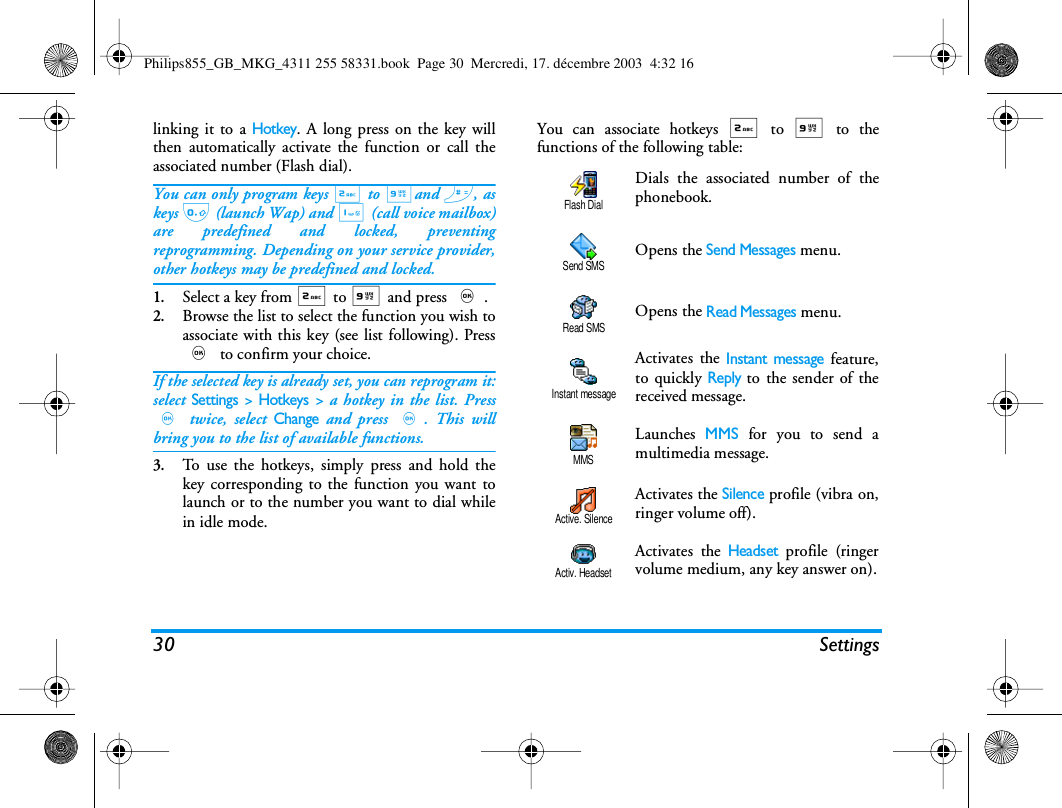
86 Operator servicescharacter as a wait character. When you dial a numbercontaining a wait character, your phone dials the firstpart (the phone number) and then waits for the call tobe connected before sending the rest of the digits asDTMF tones. Any subsequent pause character is anordinary pause that generates a delay of 2.5 seconds.For example: access your answering machineTo hear all messages (e.g. code 3) on your answeringmachine (password 8421) at phone number12345678, you could call: 12345678w8421p3.The phone dials 12345678 and waits for the call to beconnected. When connected, the phone transmits8421 (the password), pauses 2.5 seconds, and thensends the last digit. If you find that 2.5 seconds is notlong enough for your needs, you can enter severalpause characters one after the other to increase thepause time.You can make a second call during an active call orduring a call on hold. You can switch between the twocalls (the cost displayed on the screen depends on localcharge rate).1.While already on the phone, dial a number thenpress (. The first call is put on hold and thenumber is displayed at the bottom of the screen.The second number is then dialled.2.To toggle between the two calls, press , thenselect Switch calls. Each time that you togglefrom one call to another, the active call is placedon hold and the call which was on hold isactivated.3.To hang up the active line, press ). Theactive line is hung up and the call on holdremains as such.4.To end the call on hold, use Switch calls to reachit, then press ).Notes:The second number can be dialled either from thekeypad or from:- the phonebook, by pressing -, then selecting thename to be called,- the Call list, by pressing+, then selecting thenumber to be called.You are able to receive another call when already incommunication (if this feature is available with yourMake a second callAnswer a second callPhilips855_GB_MKG_4311 255 58331.book  Page 86  Mercredi, 17. décembre 2003  4:32 16
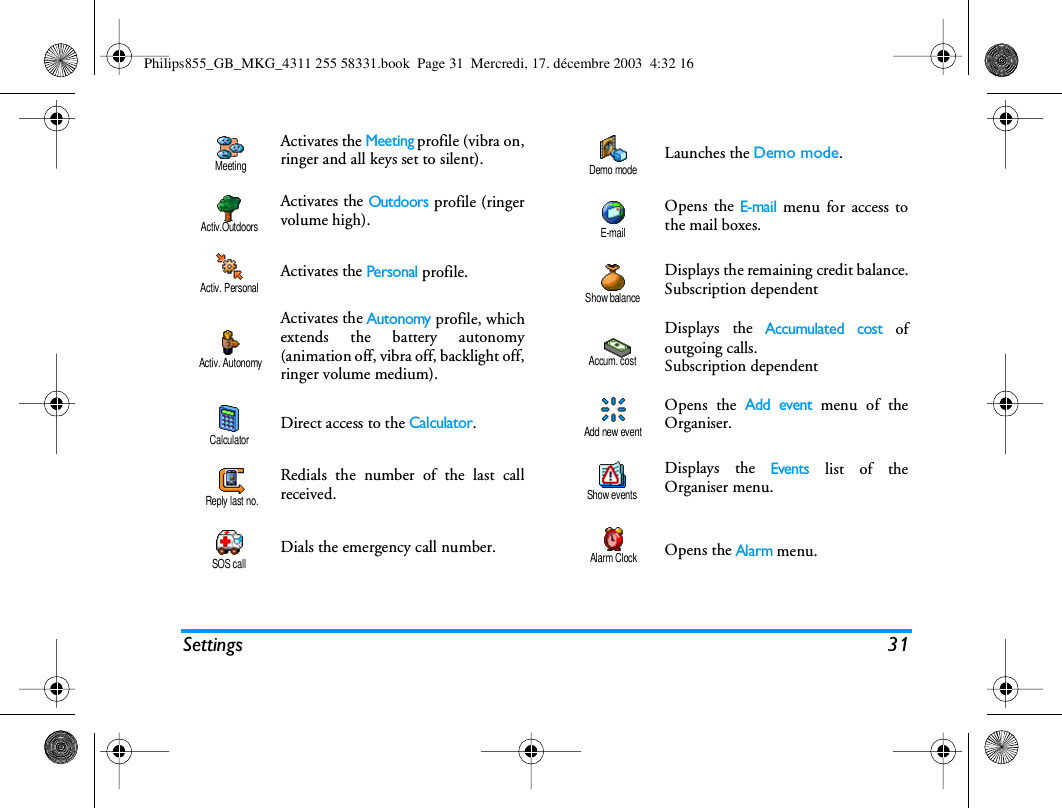
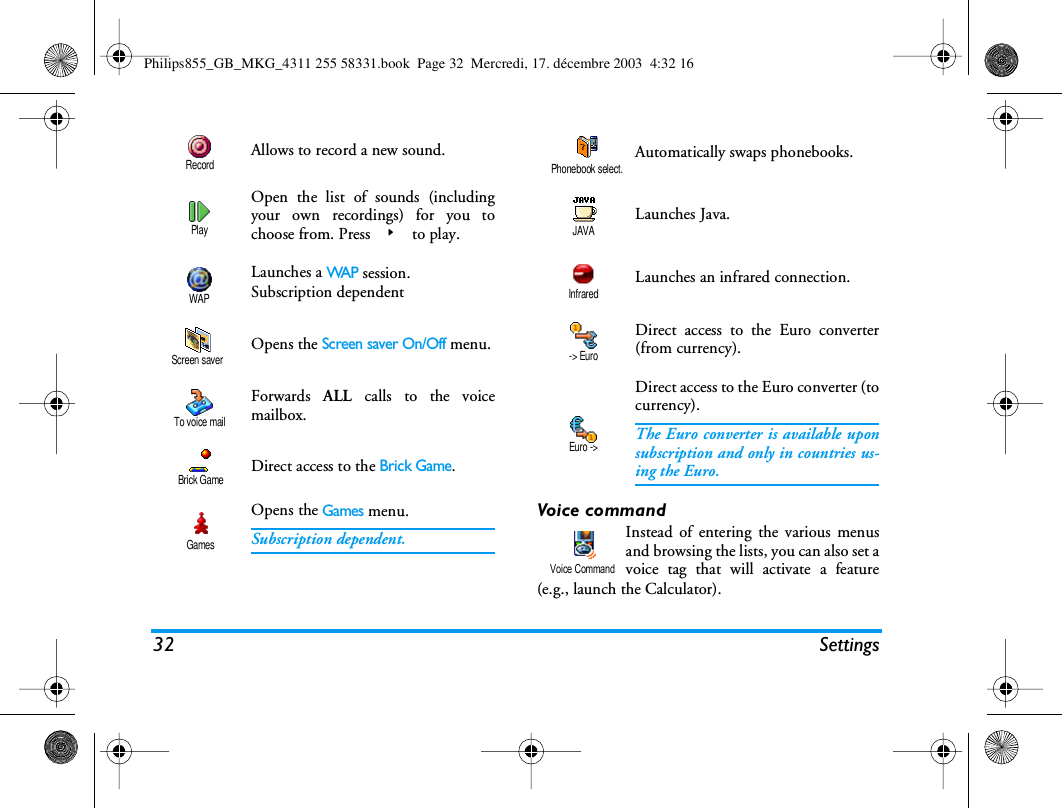
Operator services 87subscription). When you receive a second call thephone emits an alert beep and the screen displays Callwaiting.To receive a second call, you must have:- subscribed to this feature,- deactivated the Call forward option for voice calls(see page 75),- activated the Call waiting option (see page 76).If you receive a second call, press,, then you can:• accept the second call: the first one is put onhold, the second one is active. If you want totoggle between the two calls, press,thenselect Switch calls. Each time you toggle from onecall to another, the active call is put on hold andthe call which was on hold is then activated. Tointroduce the new caller into a conferencepress,and select Conference.• reject the second call• end the active call, then your incoming call isringing. Notes:- If you also wish to answer the incoming call, press(; to reject it, press ).- If you have activated call forwarding ‘If Busy’ (see“Active flip” page 75), you will never receive secondcalls since they are always forwarded when the line isbusy.Subscription dependentWhile in communication and one call being on hold,you may receive a third call. The phone emits an alertbeep. You can either end one of the calls before beingable to answer the third one or introduce the callingparty into a conference (see below). This service islimited to two current communications (one activeand one on hold).Subscription dependentYou can activate the conference call bymaking consecutive outgoing calls, orcreate it from a multiparty call context.You may have up to five members at the same timeand end the conference with ). At this point allcalls are disconnected.In order to make consecutive outgoing calls, firstinitiate a normal call with the first number of theconference. When the first member is on line, initiateAnswer a third callConference callConferencePhilips855_GB_MKG_4311 255 58331.book  Page 87  Mercredi, 17. décembre 2003  4:32 16
88 Operator servicesa second call as described in “Make a second call”above. When the second call is engaged,press,and select Conference. Repeat the aboveprocess until five members are connected.If there is an incoming call during the conference calland there are less than five members, you can acceptthis new call by pressing ,. Press , again andthen select Conference to add this member to theconference call. If there is an incoming call during aconference with five members already connected, youcan answer this new incoming call, but not add it tothe conference.While a conference call is in progress, press , toaccess the Conf. members options. Disconnect amember of the conference by selecting Remove partyand pressing , to confirm, or select Private call tohave a private call with this member only (othermembers are put on hold).Subscription dependentYou can connect an active call and a call on hold. Youare disconnected when the transfer is completed.During a call press ,, select Tr a n s f e r and press,.This feature is different from the Call forward, whichtakes place before you pick up the call (see page 75).Explicit call transferPhilips855_GB_MKG_4311 255 58331.book  Page 88  Mercredi, 17. décembre 2003  4:32 16
88 PrecautionsPrecautionsYour cellular mobile phone is a low powerradio transmitter and receiver. When it isoperating, it sends and receives radio waves.The radio waves carry your voice or datasignal to a base station that is connected tothe telephone network. The network controls thepower at which the phone transmits.• Your phone transmits/receives radio waves in theGSM frequency (900 /1800MHz).• The GSM network controls transmission power(0.01 to 2 watts).• Your phone complies with all relevant safetystandards.• The CE mark on your phone shows compliancywith European electromagnetic compatibility(Ref. 89/336/EEC) and low voltage directives(Ref. 73/23/EEC).Your cellular mobile phone is your responsibility. Toavoid damage to yourself, to others or to the phoneitself, read and follow all the safety instructions andmake them known to anyone borrowing your phone.Furthermore to prevent unauthorised use of yourphone:Keep your phone in a safe place and keep itout of small children's reach.Avoid writing down your PIN code. Try toremember it instead. Switch off the phone and remove the battery if you aregoing to leave it unused for a long time.Use the Security menu to change the PIN code afterpurchasing the phone and to activate call restrictionoptions.The design of your phone complies with allapplicable laws and regulations. Howeveryour phone may cause interference withother electronic devices. Consequently youshould follow all local recommendations andregulations when using your cellular phone both athome and when away. Regulations on the use ofcellular phones in vehicles and aircraft areparticularly stringent.Public concern has been focused for some time on thepossible health risks for users of cellular phones. Thecurrent research on radio wave technology, includingthe GSM technology, has been reviewed and safetystandards have been drawn up to ensure protectionfrom exposure to radio wave energy. Your cellulartelephone  complies with all applicable safetystandards  and the Radio Equipment andTelecommunications Terminal Equipment Directive1999/5/EC.Radio wavesPhilips855_GB_MKG_4311 255 58331.book  Page 88  Mercredi, 17. décembre 2003  4:32 16
Precautions 89Inadequately protected or sensitive electronicequipment  may be affected by radio energy. Thisinterference can lead to accidents.Before boarding an aircraft and/or whenpacking the phone in your luggage: the useof mobile phones in an aircraft may bedangerous for the operation of the aircraft, disrupt themobile phones network and may be illegal.In  hospitals, clinics, other health carecentres and anywhere else where you may bein the close vicinity of medical equipment.In areas with a potentially explosiveatmosphere (e.g. petrol stations and alsoareas where the air contains dust particles,such as metal powders).In a vehicle transporting flammableproducts (even if the vehicle is parked) or a vehiclepowered by liquefied petroleum gas (LPG), check firstthat the vehicle complies with the applicable safetyrules.In areas where you are requested to turn off radiotransmitting devices, such as quarries or other areaswhere blasting operations are in progress.Check with the vehicle manufacturer thatelectronic equipment used in your vehiclewill not be affected by radio energy.If you are a user of a pacemaker:• Always keep the phone more than 15 cm fromyour pacemaker when the phone is switched on,in order to avoid potential interference.• Do not carry the phone in a breastpocket.• Use the ear opposite to the pacemaker to mini-mise the potential interference.• Switch off your phone if you suspect that inter-ference is taking place.If you are a user of a hearing aid, consult yourphysician and hearing aid manufacturer to learnwhether your particular device is susceptible tocellular phone interference.In order to improve the performance of your phone,reduce radio energy emission, reduce batteryconsumption and ensure safe operation adhere to thefollowing guidelines:For the optimal and satisfactory operation ofthe phone you are recommended to use thephone in the normal operating position(when not using in hands-free mode or witha hands-free accessory).Always switch off your phone Users of pacemakersUsers of hearing aidsPerformance improvementPhilips855_GB_MKG_4311 255 58331.book  Page 89  Mercredi, 17. décembre 2003  4:32 16
90 Precautions• Do not expose your phone to extreme tempera-tures.• Treat the phone with care. Any misuse will voidthe International Guarantee.• Do not immerse the phone in any liquid; if yourphone is damp, switch it off, remove the batteryand let them dry for 24hrs before using themagain.• To clean the phone, wipe it with a soft cloth.• Placing and receiving calls consumes the sameamount of battery energy. However, the mobileconsumes less energy in idle screen when kept inthe same place. When in idle screen and whileyou are moving, your phone consumes energy totransmit updated location information to thenetwork. Setting the backlight for a shorterperiod of time as well as avoiding unnecessarynavigating in the menus will also help to save thebattery’s energy for longer phoning and stand-byperformances.• Your phone is powered by a rechargeable battery.• Use specified charger only.• Do not incinerate.• Do not deform or open the battery.• Do not allow metal objects (such as keys in yourpocket) to short circuit the battery contacts.• Avoid exposure to excessive heat (>60°C or140°F), moisture or caustic environments.You should only use Philips AuthenticAccessories, as the use of any otheraccessories may damage your phone and willmake all guarantees for your Philips phonenull and void.Make sure damaged parts are replaced immediately bya qualified technician and that they are replaced withgenuine Philips replacement parts.It lowers concentration, which can bedangerous. Adhere to the followingguidelines:Give your full attention to driving. Pull offthe road and park before using the phone.Respect the local regulations in countries where youdrive and use your GSM phone.If you want to use your phone in a vehicle, install thehands-free car kit which is designed for that purpose,still ensuring you give full attention to driving.Ensure that your phone and car kit do not block anyair bags or other security devices fitted in your car.Information displayed on batteryDo not use your phonewhile drivingPhilips855_GB_MKG_4311 255 58331.book  Page 90  Mercredi, 17. décembre 2003  4:32 16
Precautions 91The use of an alarm system to operate a vehicle's lightor horn to indicate incoming phone calls is prohibitedon public roads in some countries. Check localregulations.In case of hot weather or after a prolonged exposure tothe sun (e.g., behind a window or a windscreen), thetemperature of your phone's casing might increase,especially when featuring a metallic finish. Be verycareful in this case when picking up your phone andalso avoid using it with an ambient temperature over40°C.Remember to observe the local regulationsregarding the disposal of your packagingmaterials, exhausted batteries and old phoneand please promote their recycling.Philips has marked the battery and packaging withstandard symbols designed to promote the recyclingand appropriate disposal of your eventual waste.EN 60950 NormEnvironmental careThe crossed-out dustbin signifies that thebattery should not be disposed of withgeneral household waste.The mobius loop symbol signifies the la-belled packaging material is recyclable.The green point symbol signifies that a fi-nancial contribution has been made tothe associated national packaging recov-ery and recycling system (e.g. EcoEmbal-lage in France).The chasing arrows symbol on the plastictray and plastic bag indicate that thematerials are recyclable and also identifiesthe plastic material.Philips855_GB_MKG_4311 255 58331.book  Page 91  Mercredi, 17. décembre 2003  4:32 16
Troubleshooting 93TroubleshootingThe phone does not switch onRemove and reinstall thebattery (see page 1). Thencharge the phone until thebattery icon has stoppedflashing. Finally, unplug fromthe charger and try to switchthe mobile on.The display shows BLOCKED when you switch onSomebody tried to use yourphone but didn’t know thePIN code nor the unblockingcode (PUK). Contact yourservice provider.The   and   symbols are not displayedThe network connection islost. Either you are in a radioshadow (in a tunnel or betweentall buildings) or you areoutside the network coveragearea. Try from another place orcontact your network operatorfor assistance/informationabout the network.The display doesn’t respond (or the display responds slowly) to key pressesThe display responds moreslowly at very lowtemperatures. This is normaland does not affect theoperation of the phone. Takethe phone to a warmer placeand try again. In other cases please contactyour phone supplier.Your phone doesn’t return to the idle screenPress and hold c, or switchoff the phone, check that theSIM card and the battery areinstalled correctly, and switchit on again.Your phone doesn’t display the phone numbers of incoming callsThis feature is network andsubscription dependent. If thenetwork doesn’t send thecaller’s number, the phone willdisplay Call 1 instead. Contactyour operator for detailedinformation on this subject.Philips855_GB_MKG_4311 255 58331.book  Page 93  Mercredi, 17. décembre 2003  4:32 16
94 TroubleshootingYou can’t send text messagesSome networks don’t allowmessage exchanges with othernetworks. Contact youroperator for detailedinformation on this subject.The display shows IMSI failureThis problem is related to yoursubscription. Contact youroperator.You can’t receive and/or store JPEG picturesA picture may not be acceptedby your mobile phone if it istoo large, or if it doesn’t havethe correct file format. Seepage 50 for completeinformation on this subject.When charging the battery, the battery icon shows no bar and the outline is flashingOnly charge the battery in anenvironment where thetemperature does not go below0°C (32°F) or above 50°C(113°F).In other cases please contactyour phone supplier.The display shows SIM failureCheck that the SIM card hasbeen inserted in the rightposition (see page 1). If theproblem remains, your SIMcard may be damaged. Contactyour operator.You are not sure that you are receiving calls properlyTo receive all calls, make surethat none of the features«Conditional call forward» or«unconditional call forward» isactivated (see page 75). When attempting to use a feature in the menu, the mobile displays NOT ALLOWEDSome features are networkdependent. They are onlyavailable, therefore, if thenetwork or your subscriptionsupports them. Contact youroperator for detailedinformation on this subject.The display shows INSERT YOUR SIM CARDCheck that the SIM card hasbeen inserted in the rightposition (see page 1). If theproblem remains, your SIMcard might be damaged.Contact your operator.Philips855_GB_MKG_4311 255 58331.book  Page 94  Mercredi, 17. décembre 2003  4:32 16
Troubleshooting 95Your phone doesn’t work well in your carA car contains many metallicparts that absorbelectromagnetic waves whichcan affect the phone’sperformances. A car kit isavailable to provide you withan external antenna andenables you to make andreceive phone calls withouthandling the handset.You should check with localauthorities if you are allowedto phone while driving.Philips855_GB_MKG_4311 255 58331.book  Page 95  Mercredi, 17. décembre 2003  4:32 16
96 Icons & symbolsIcons & symbolsIn idle mode, several symbols can be displayedsimultaneously either on external screen or mainscreen.If the network symbol isn’t displayed, the network isnot currently available. You may be in a bad receptionarea: move to a different location.Silent - Your phone will not ring whenreceiving a call.Vibra - Your phone will vibrate whenreceiving a call.GPRS attach - Your mobile phone isconnected to the GPRS network.SMS message - You have received a newmessage. Voice mail - You have received a new voicemail.Battery - The bars indicate the battery level(4 bars = full, 1 bar = low).Alarm clock activated.Roaming - Displayed when your phone isregistered to a network other than your own(especially when you’re abroad).SMS full - Memory for messages is full. De-lete old messages to receive new ones.Call Forward Unconditional to number -All your incoming voice calls are being for-warded to a number other than voice mail.Call Forward to voice mailbox - All yourcalls are being forwarded to voice mail.Home zone - A zone designated by yournetwork operator. Subscription dependent,contact your service provider for details.GSM Network: your phone is connected toa GSM networkReception quality: the more bars are shownthe better the reception is.Instant message - option is set to On.Memory full - The phone’s memory is full.Delete items to store new ones.MMS message - You have received a newmultimedia message.Philips855_GB_MKG_4311 255 58331.book  Page 96  Mercredi, 17. décembre 2003  4:32 16
Icons & symbols 97Philips855_GB_MKG_4311 255 58331.book  Page 97  Mercredi, 17. décembre 2003  4:32 16
98 Philips authentic accessoriesPhilips authentic accessoriesCharges your battery in any AC outlet. Small enoughto carry in a briefcase/handbag.Designed to operate your Philips mobile phonehands-free and easy to use, this compact hands-freesolution offers a high audio quality. Simply plug thekit into the vehicle auxiliary outlet.In-line answer button offers you a simplifiedalternative to searching for the phone. Simply answeran incoming call by pressing the button. In idle mode,press to activate voice dial.In certain countries, telephoning while driving isprohibited. For safe and trouble free installation, werecommend that specialized technicians install hands-free car kits.A black leather carry case allows easy key presses whileprotecting your phone from nicks and scratches.Supplied with necklace.To maximise the performance of your Philips phoneand not to void the warranty, always purchase PhilipsAuthentic Accessories that are specially designed foruse with your phone. Philips Consumer Electronicscannot be held liable for any damage due to use withnon authorised accessories. Ask for Philips AuthenticAccessories where you purchased your Philips Phone.This data/video cable allows you to display a slideshow on your TV. Simply connect the data end of thecable to the headset (top) connector on the righthandside of your phone, then connect the video endto the video IN connector of your TV or VCR.See “TV Slideshow” page 68 for detailed informationon how to select pictures and display them in aslideshow.ChargerUniversal car kitXTra deluxe headsetCarry caseTV LinkPhilips855_GB_MKG_4311 255 58331.book  Page 98  Mercredi, 17. décembre 2003  4:32 16
Philips authentic accessories 99Easy data connection to your Philips mobile phone:the USB cable enable high speed connection betweenyour phone and your computer. Just connect yourphone to the cable for an automatic organiser andphonebook synchronization within a few seconds.The provided software allows you to send faxes andSMS, access data communication facilities on mobilenetworks and connect to the Internet.Data connect kitPhilips855_GB_MKG_4311 255 58331.book  Page 99  Mercredi, 17. décembre 2003  4:32 16

Navigation menu