Axia Innovations VCM7130V01 RF module-2.4G transceiver User Manual Host

Axia Innovations LTD. RF module-2.4G transceiver Host

Contents

Host User Manual

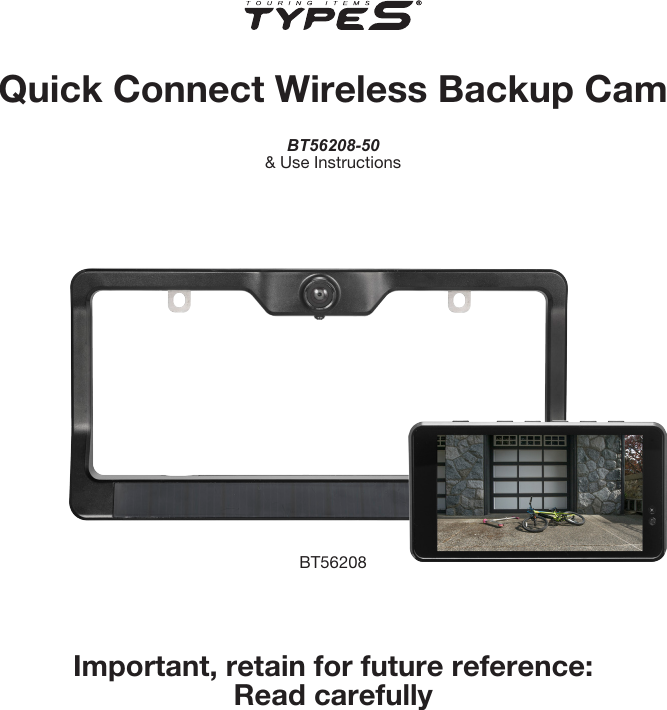
Important, retain for future reference:Read carefullyQuick Connect Wireless Backup CamBT56208-50 & Use InstructionsBT56208
TABLE OF CONTENTS1. Introduction  ............................................................................................................................................................................... 12. Package Contents  ...................................................................................................................................................................23. Product Specications  ..........................................................................................................................................................34. Installation Guide  .................................................................................................................................................................... 35. Settings and Operation  ........................................................................................................................................................96. Safety Information  ................................................................................................................................................................ 127. Maintenance & Warranty  ....................................................................................................................................................148. General Information  ............................................................................................................................................................19
1Please read all of the installation instructions carefully before installing the product.  Improper installation will void manufacturer’s warranty.  The installation instructions do not apply to all types of vehicles, and are written as guidelines to assist in installing the system.Consult an experienced technician if you are not comfortable installing the product.  You can also contact Winplus at 866.294.9244 to speak to one of our installation specialists if you have any specic questions regarding the Quick Connect Wireless Backup CamBEFORE using the Quick Connect Wireless Backup Cam, please read the safety information provided in this user manual.  ALWAYS use the product as outlined in this user manual.Please make sure to read and understand all local laws and regulations regarding cameras and their use in a vehicle.  Laws vary by state.1. INTRODUCTION
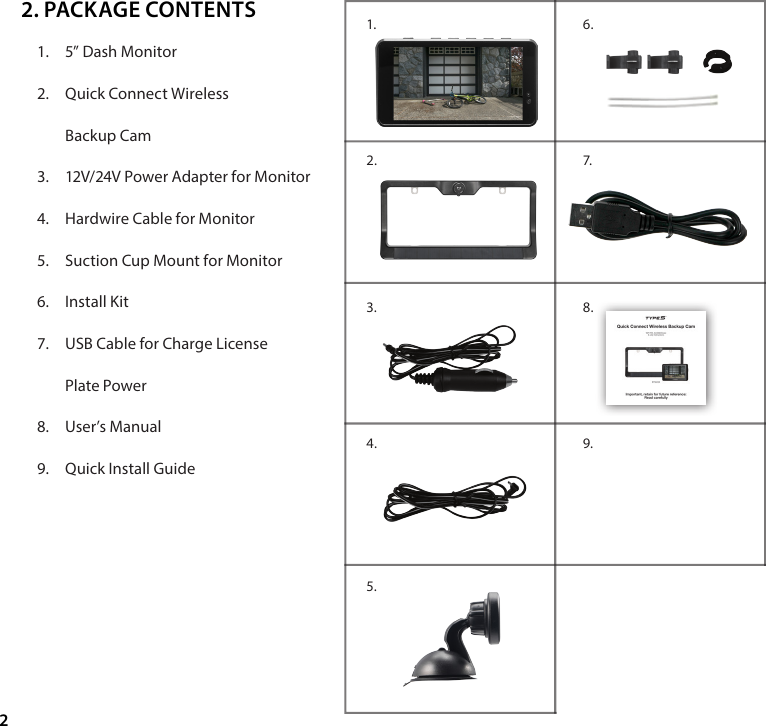
21.  5” Dash Monitor2.  Quick Connect Wireless  Backup Cam3.  12V/24V Power Adapter for Monitor4.  Hardwire Cable for Monitor5.  Suction Cup Mount for Monitor6.  Install Kit7.  USB Cable for Charge License  Plate Power8.  User’s Manual9.  Quick Install Guide2. PACKAGE CONTENTS7.8.9.6. 1. 2.3.4.5.
31.  Frequency: 2.4GHz2.  Operating Voltage: Monitor DC 12V/24V. License Plate Backup Camera DC 5V 3.  Operating Temperature: -20~+50°C4.  Maximum Signal Range: 30 feet/10Metres (without Interference or Obstruction)5.  Camera Water Resistance: IP65 ratingDASH MONITOR INSTALLATION1.  Stick the Suction Cup Mount on the windshield and adjust to your desired position.2.  Magnetic the Dash Monitor on to the windshield mount.3.  Remove the Type S Dash Monitor protective overlay. 4.  Now power the monitor: Take the 12V/24V Power Adapter and plug adapter into the right side of the TypeS Dash Monitor.  Plug the other end into 12V/24V power port in your car. 5.  At this time, the Type S Dash Monitor is ready to be powered on by motion trigger when you wave your hand in front of monitor or press the wakeup button on the top left of monitor.Warning:  Many vehicles provide constant power to the 12V outlet.  If your outlet provides constant power, please remember to unplug the monitor when not in use to avoid draining the vehicle battery.3. PRODUCT SPECIFICATIONS4. INSTALLATION GUIDE
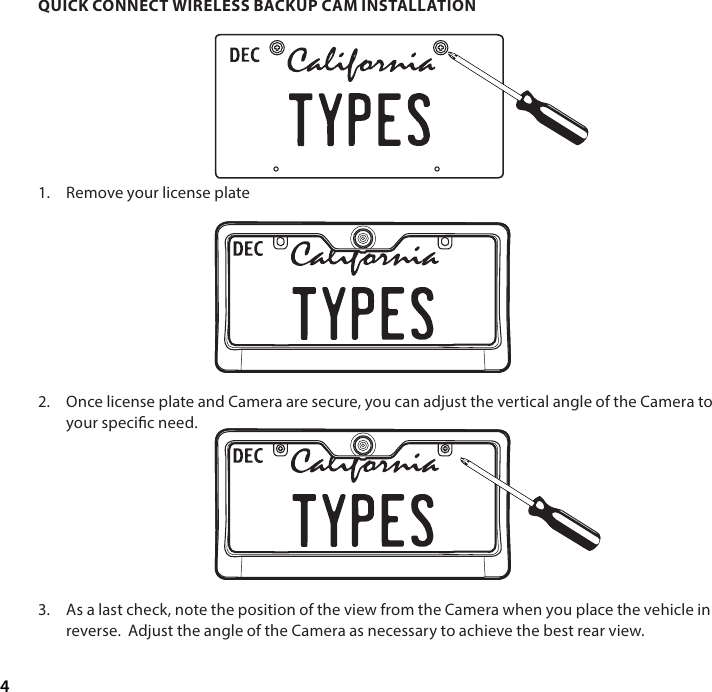
4QUICK CONNECT WIRELESS BACKUP CAM INSTALLATION1.  Remove your license plate         2.  Once license plate and Camera are secure, you can adjust the vertical angle of the Camera to your specic need.         3.  As a last check, note the position of the view from the Camera when you place the vehicle in reverse.  Adjust the angle of the Camera as necessary to achieve the best rear view.
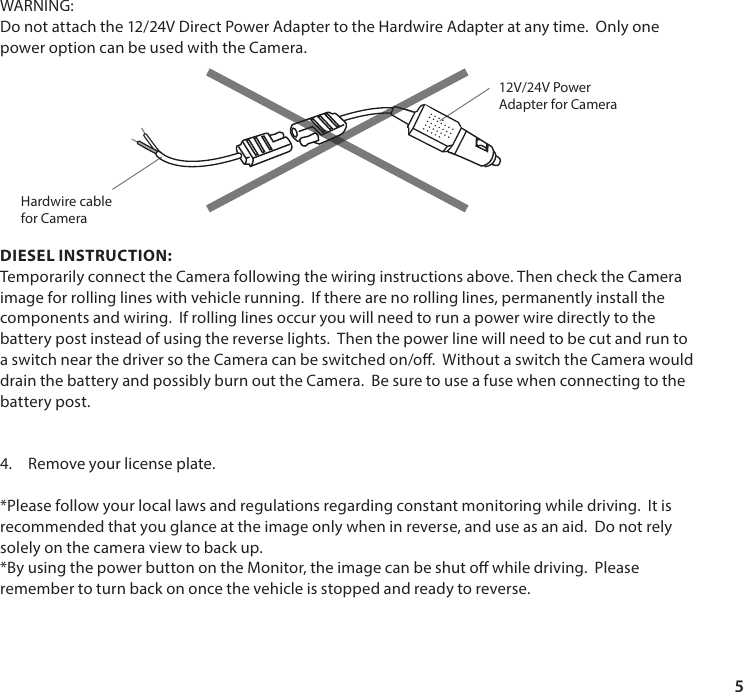
5WARNING:Do not attach the 12/24V Direct Power Adapter to the Hardwire Adapter at any time.  Only one power option can be used with the Camera.DIESEL INSTRUCTION:Temporarily connect the Camera following the wiring instructions above. Then check the Camera image for rolling lines with vehicle running.  If there are no rolling lines, permanently install the components and wiring.  If rolling lines occur you will need to run a power wire directly to the battery post instead of using the reverse lights.  Then the power line will need to be cut and run to a switch near the driver so the Camera can be switched on/o.  Without a switch the Camera would drain the battery and possibly burn out the Camera.  Be sure to use a fuse when connecting to the battery post.4.  Remove your license plate.*Please follow your local laws and regulations regarding constant monitoring while driving.  It is recommended that you glance at the image only when in reverse, and use as an aid.  Do not rely solely on the camera view to back up.*By using the power button on the Monitor, the image can be shut o while driving.  Please remember to turn back on once the vehicle is stopped and ready to reverse.12V/24V Power Adapter for CameraHardwire cablefor Camera
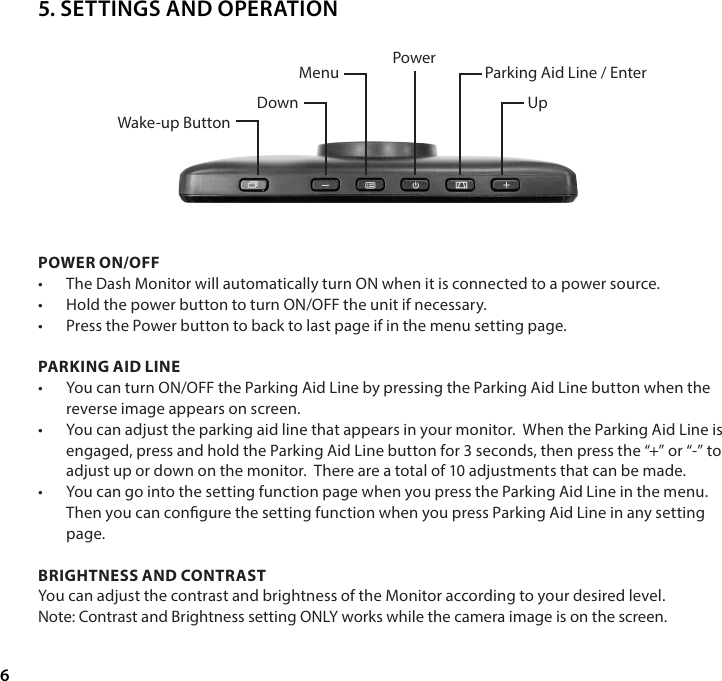
6POWER ON/OFF•  The Dash Monitor will automatically turn ON when it is connected to a power source. •  Hold the power button to turn ON/OFF the unit if necessary.•  Press the Power button to back to last page if in the menu setting page.PARKING AID LINE•  You can turn ON/OFF the Parking Aid Line by pressing the Parking Aid Line button when the reverse image appears on screen.•  You can adjust the parking aid line that appears in your monitor.  When the Parking Aid Line is engaged, press and hold the Parking Aid Line button for 3 seconds, then press the “+” or “-” to adjust up or down on the monitor.  There are a total of 10 adjustments that can be made.•  You can go into the setting function page when you press the Parking Aid Line in the menu. Then you can congure the setting function when you press Parking Aid Line in any setting page.BRIGHTNESS AND CONTRAST You can adjust the contrast and brightness of the Monitor according to your desired level. Note: Contrast and Brightness setting ONLY works while the camera image is on the screen.Power Parking Aid Line / EnterUpMenuDownWake-up Button5. SETTINGS AND OPERATION
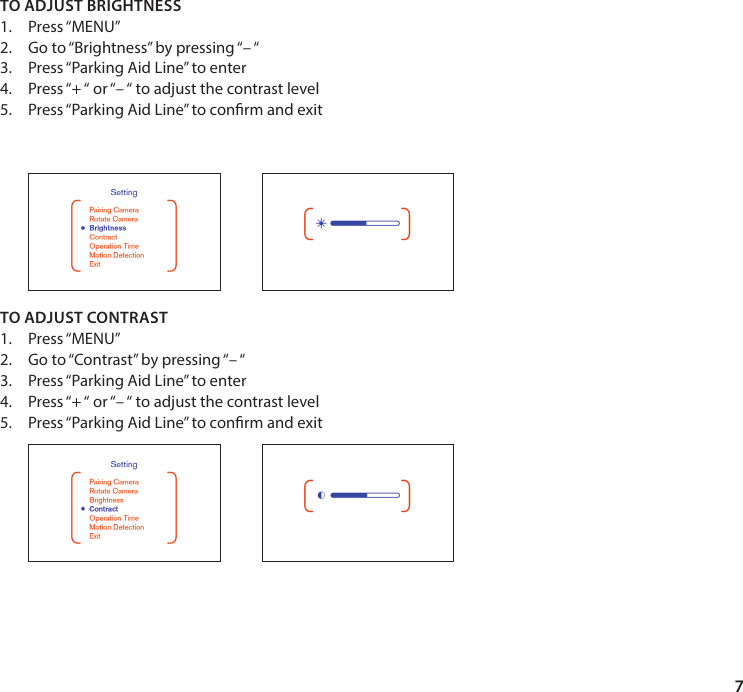
7TO ADJUST BRIGHTNESS1.  Press “MENU”2.  Go to “Brightness” by pressing “– “3.  Press “Parking Aid Line” to enter4.  Press “+ “ or “– “ to adjust the contrast level5.  Press “Parking Aid Line” to conrm and exit         TO ADJUST CONTRAST1.  Press “MENU”2.  Go to “Contrast” by pressing “– “3.  Press “Parking Aid Line” to enter4.  Press “+ “ or “– “ to adjust the contrast level5.  Press “Parking Aid Line” to conrm and exit
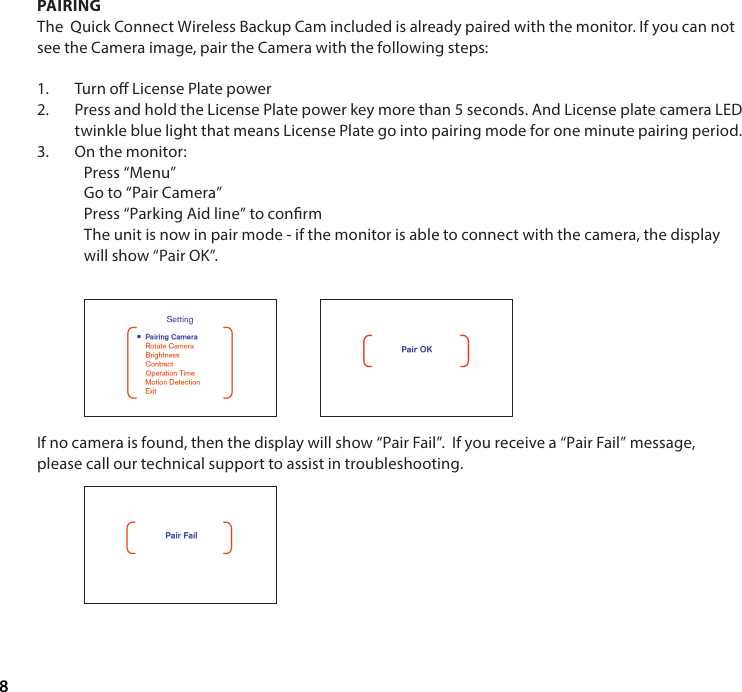
8PAIRINGThe  Quick Connect Wireless Backup Cam included is already paired with the monitor. If you can not see the Camera image, pair the Camera with the following steps:1.  Turn o License Plate power 2.  Press and hold the License Plate power key more than 5 seconds. And License plate camera LED twinkle blue light that means License Plate go into pairing mode for one minute pairing period.3.  On the monitor:Press “Menu”Go to “Pair Camera”Press “Parking Aid line” to conrmThe unit is now in pair mode - if the monitor is able to connect with the camera, the display will show “Pair OK”.If no camera is found, then the display will show “Pair Fail”.  If you receive a “Pair Fail” message, please call our technical support to assist in troubleshooting.
9WARNING:  A failure to read and follow these warnings and instructions may result in a serious accident, including damaged property or a serious injury, including loss of life.•  The Quick Connect Wireless Backup Cam is designed as an aid to the driver in detecting large stationary objects to help avoid damaging the vehicle.  However, you, the driver, must use it safely and properly.  Use of the Backup Camera is not a substitute for safe, proper and legal driving.•  Never back up while looking only at the screen.  You should always check behind and around the vehicle when backing up just as you would if the vehicle did not have the Backup Camera.  Always make sure your intended path is clear.  If you back up while looking only at the monitor, you may hit a vehicle, pedestrian, bicyclist, child, pet or other object resulting in injury or death.  Always back up slowly.•  Never depend on the Quick Connect Wireless Backup Cam entirely when backing up.  The image on the screen is dierent from actual conditions.  Objects viewed in the rear view monitor dier from actual distance because a wide-angle lens is used.  Objects in the rear view monitor will appear visually opposite than when viewed in the rear view and outside mirrors.  Use the inside mirror or glance over your shoulder to properly judge distances to other objects.•  The Quick Connect Wireless Backup Cam “night vision” feature that is high performance brightness with colorful image is an aid to a driver but is limited.  Always use your own eyes to conrm the vehicle’s surroundings, as the displayed image may be faint or dark, distorted, or not entirely visible.  Always check behind and all around the vehicle visually with mirrors before proceeding. •  The area displayed by the Quick Connect Wireless Backup Cam is limited.  The Backup Camera does not display objects that are close to or below the bumper, underneath the vehicle, or objects out of the Camera’s eld of view.  The area displayed on the screen may vary according to vehicle orientation or road conditions.•  Be sure to check the Camera’s position and mounting angle before each use.•  Make sure the trunk, hatch, or backdoor is completely and securely closed when backing up.•  If the back of the vehicle is hit, the position and mounting angle of the Backup Camera may change.•  When washing the vehicle with high pressure water, be sure not to spray it around the Camera. 6. SAFETY INFORMATION
10Otherwise, water may enter the Camera unit causing water condensation on the lens, a malfunction, re or an electric shock.•  Do not strike the Camera.  It is a precision instrument.  Otherwise, it may malfunction or cause damage resulting in a re or an electric shock.•  This product will only provide images of items that are within the eld of view of the Camera. Thus, it is imperative that the Camera should be kept clean and unobstructed, and should be mounted so that its eld of view includes the entire area behind your vehicle.•  Adhere to all applicable trac laws and motor vehicle regulations applicable to the device.•  Consult local laws and regulations for any restrictions on installation or use.•  Never allow children to play with the device.  Small parts may be a choking hazard. •  If you replace the tires, the area displayed on the monitor may change and you may need to adjust the Camera.•  There is a plastic cover over the Camera.  Do not scratch the cover when cleaning dirt or snow from the cover.•  The Camera has a water resistant construction.  Do not detach, disassemble or modify it.  This may cause incorrect operation.  Camera is waterproof.•  Do not submerge Camera in water, which can cause internal damage to the Camera.•  If the temperature changes rapidly, such as when hot water is poured on the vehicle in cold weather, the system may not operate normally.  The Digital Camera can withstand the eects of rain, snow, and inclement weather.•  When strong light directly enters a camera, objects may not be displayed clearly.•  The screen may icker under uorescent light.•  The colors of objects on the rear view monitor may dier somewhat from those of the actual object.•  If dirt, rain or snow attaches to the Camera, the monitor may not clearly display objects.  If water droplets, snow or mud adhere to the Camera lens, rinse with water and wipe with a dry cloth.•  Do not use alcohol, benzene or thinner to clean the Camera.  This will cause discoloration. To clean the Camera, wipe with a clean cloth dampened with mild cleaner diluted with water and then wipe with a dry cloth.•  Will work up to 30 feet. •  ALWAYS engage Parking/Emergency/Hand Brakes of the vehicle when testing the system.
11CLEANING•  If dirt, rain or snow attaches to the Camera, the monitor may not clearly display objects.  If water droplets, snow or mud adhere to the Camera lens, rinse with water and wipe with a dry cloth.•  Do not use alcohol, benzene or thinner to clean the Camera.  This will cause discoloration. To clean the Camera, wipe with a clean cloth dampened with mild cleaner diluted with water and then wipe with a dry cloth.WARRANTY•   WINPLUS NORTH AMERICA LIMITED WARRANTY Winplus North America warrants, to the original purchaser, that its products are free from SAFETY AROUND AND BEHIND OTHER VEHICLESUsing a Backup Camera is not enough to completely overcome a vehicle’s blind spot.  Many preventable injuries and deaths occur in driveways or parking lots when drivers do not see children, pets, or others near their vehicles.  Here are a few safety tips that will help you to avoid a back-over accident:•  Walk completely around your vehicle before getting in.  Check for kids, toys, and pets before entering the vehicle and starting the engine.•  Know where children are.  Have children stand in a place where they are in full view. •  Be aware of young children.  Young children are small and hard to see.•  Parents, caregivers and all adults need to be vigilant in supervising children, especially when children are in the yard, driveway or parking lot playing near parked cars.•  Roll down your window so you will be able to hear what is happening outside your vehicle.•  Owners of SUVs, trucks, and vans need to take extra care to avoid hitting or running over a child.•  Teach children to move away from a vehicle whenever it is started.7. MAINTENANCE & WARRANTY
12defects in material and workmanship for 1 year from the date of original purchase.  Where permitted by law, Winplus North America’s liability shall be limited to that set forth in this limited express warranty.  This limited express warranty shall be the exclusive remedy of the purchaser and Winplus North America makes no other warranty of any kind aside from the limited express warranty stated above. NOTE:  Warranty only applies for North American customers of purchases made in North America. CONDITIONS OF WARRANTY If during the 1 year warranty period your new product is found to be defective, Winplus North America will repair such defect, or replace the product, without charge for parts or labor subject to the following conditions:1.  All repairs must be performed by Winplus North America.2.  All warranty claims must be accompanied by a copy of the sales receipt or bill of sale.3.  The equipment must not have been altered or damaged through negligence, accident, improper operation, or failure to follow the product instructions for installation, use, or care. 4.  The replacement of parts is excluded from the warranty when replacement is necessary due to normal wear and tear.5.  Repair or replacement parts supplied by Winplus North America under this warranty are protected only for the unexpired portion of the original warranty.6.  This is a “repair or replace” warranty only, and does not cover the costs incurred for the installation, removal or reinstallation of the product, or damage to any mobile phone device or vehicle. OWNER’S RESPONSIBILITIES: Winplus North America will make every eort to provide warranty service within a reasonable period of time.  SHOULD YOU HAVE ANY QUESTIONS ABOUT SERVICE RECEIVED OR IF YOU WOULD LIKE ASSISTANCE IN OBTAINING SERVICE, PLEASE CALL TOLL FREE 1.866.294.9244 DURING REGULAR BUSINESS HOURS MONDAY THROUGH FRIDAY 9:00 AM TO 5:00PM.
13NOTE:  Toll Free # is for North America Customers ONLY.  See Customer service section for customer contact numbers for other regions/oces. For customer service and technical support, please call us at 1.866.294.9244 or email us at customercare@winplususa.com.  If at that time it is determined that a replacement unit is needed, the support representative will issue a Return Authorization and instruct on how to get a new unit.Winplus North America makes no other warranty of any kind aside from the limited express warranty stated herein.DISCLAIMER OF WARRANTIES, INCLUDING WARRANTY OF MERCHANTABILITY AND WARRANTY OF FITNESS FOR PARTICULAR PURPOSE: EXCEPT AS SPECIFICALLY SET FORTH HEREIN, NO WARRANTY OR REPRESENTATION, EXPRESS OR IMPLIES, IS MADE AS TO THE REARVIEW MIRROR BACKUP CAMERA.  EXCEPT AS EXPRESSLY SET FORTH HEREIN, WINPLUS NORTH AMERICA AND/OR ITS AFFILIATES EXPRESSLY DISCLAIMS, WITHOUT LIMITATION, ANY STATUTORY WARRANTIES AND ALL IMPLIED WARRANTIES, INCLUDING ANY IMPLIED WARRANTY OF MERCHANTABILITY OR FITNESS FOR A PARTICULAR PURPOSE.Winplus North America and/or its aliates do not guarantee or promise that the user of Quick Connect Wireless Backup Cam will not be in an accident or otherwise not collide with an object and/or person.  Our Quick Connect Wireless Backup Cam is not intended in any way to be a substitute for careful and cautious driving or for the consistent adherence to all applicable trac laws and motor vehicle safety regulations.The Backup Camera is not intended to be a substitute for rearview mirrors or for any other motor vehicle equipment mandated by law.  Even when properly installed, our Backup Camera has a limited eld of vision and does not provide a comprehensive view of the rear area of the vehicle.  You should always look around outside your vehicle and use your mirrors to conrm rearward clearance and that your vehicle can back up safely.Winplus North America and/or its aliates are not responsible for a user’s intended or actual
14use of the Backup Camera.  In no event shall Winplus North America and/or its aliates have any liability for any losses (whether direct or indirect, in contract, tort or otherwise) incurred in connection with the Backup Camera, including but not limited to damaged property, personal injury and/or loss of life.  Neither shall Winplus North America and/or its aliates have any liability for any decision, action or inaction taken by any person in reliance on the Backup Camera, or for any delays, inaccuracies and /or errors in connection with the Backup Camera and its functioning.Winplus North America and/or its aliates shall have no responsibility or liability for damage and/or injury resulting from accidents occurring with vehicles having the installed, and Winplus North America and/or its aliates, the manufacturer, distributor and seller shall not be liable for any injury, loss or damage, incidental or consequential, arising out of the use or intended use of the product. • WINPLUS EUROPE LIMITED WARRANTYWinplus warrants, to the original purchaser, that its products are free from defects in material and workmanship for 12 months from the date of original purchase.  Where permitted by law, Winplus liability shall be limited to that set forth in this limited express warranty.  This limited express warranty shall be the exclusive remedy of the purchaser and Winplus makes no other warranty of any kind aside from the limited express warranty stated above.OWNER’S RESPONSIBILITIES:In order to provide you with the proper warranty service, we request that you adhere to the following procedure: 1.  Include a copy of your sales receipt or bill of sale with your unit when it is returned for warranty service.
152. If it is necessary to return your product for service, please return it securely packed, preferably in the original shipping box, and freight and insurance prepaid to the following address:  ATTN: WINPLUS BLUETOOTH PRODUCTS RETURNS Unit 4, Two Counties Estate, Falconer Road, Haverhill, Suolk CB9 7XZ, UK3. Please include a detailed explanation of the problem you are having.4.  If your product is found by Winplus to have a defect in material or workmanship, within thewarranty period, it will be repaired or replaced at no charge and returned to you prepaid.Winplus makes no other warranty of any kind aside from the limited express warranty stated herein. •WINPLUS AUSTRALIA/HONG KONGLIMITED WARRANTY This Yada product is warranted against faulty workmanship for a period of 2 years from date of purchase.  Liability is limited to replacement of the product and claims for associated or consequential loss or damage will not be accepted.  Warranty is void and does not apply if the product has been damaged or rendered faulty by accident, abuse, misuse, incorrect application or if the product has been modied or tampered with.  Proof of purchase is required to validate warranty claims.  If this product is faulty, simply return it to the place of purchase with your receipt for a replacement product.  No refunds of credits will be issued.  Replacement is limited to a Yada product of the same or similar model.
16CUSTOMER SERVICE/CONTACT For questions or issues regarding the product, please visit www.letsyada.com or contact Winplus in your area/region to speak to our customer service representative:Winplus North America  Tel.: 866-294-9244Tel.: 909-752-3074Winplus Europe                Tel.: 44-1440-7138888Winplus Australia             Tel.: 61-3-8727-7600Winplus New Zealand      Tel.: 64-9-5254575Winplus Asia   Tel.: 852-2798-8932You can also contact us online by visiting www.winplus.com for more information about the product.IF YOU ARE EXPERIENCING ANY ISSUES WITH THE PRODUCT DURING OPERATION, DO NOT RETURN THE PRODUCT TO THE STORE.  CONTACT WINPLUS DIRECTLY FOR INSTRUCTIONS ON HOW TO RETURN/EXCHANGE THE PRODUCT.This device complies with Part 15 of the FCC rules and Industry Canada license-exempt RSS standard(s). Operation is subject to the following two conditions: (1) This device may not cause harmful interference, and (2) this device must accept any interference received, including interference that may cause undesired operation.Warning: Changes or modications to this unit not expressly approved by theparty responsible for compliance could void the user’s authority to operate theequipment.8. GENERAL INFORMATION
17The manufacturer is not responsible for any radio or TV interference caused byunauthorized modications or change to this equipment. Such modications orchange could void the user’s authority to operate the equipment.NOTE: This equipment has been tested and found to comply with the limitsfor Class B digital device, pursuant to part 15 of the FCC Rules. These limits aredesigned to provide reasonable protection against harmful interference in aresidential installation. This equipment generates, uses and can radiate radiofrequency energy and, if not installed and used in accordance with the instructions,may cause harmful interference to radio or television reception, which can bedetermined by turning the equipment o and on, the user is encouraged to try tocorrect the interference by one or more of the following measures:- Reorient or relocate the receiving antenna.- Increase the separation between the equipment and the receiver.- Connect the equipment into an outlet on a circuit dierent from that towhich the receiver is connected.- Consult the dealer or an experienced radio/TV technician for help.License Plate Backup CameraBT56208Responsible Party:Winplus North America Inc.820 South Wanamaker Avenue, Ontario, CA 91761Tel: 866-294-9244
18IC StatementThis device complies with Industry Canada licence-exempt RSS standard(s). Operation is subject tothe following two conditions: (1) this device may not cause interference, and (2) this device must acceptany interference, including interference that may cause undesired operation of the device.Le présent appareil est conforme aux CNR d'Industrie Canada applicables aux appareils radio exemptsde licence. L'exploitation est autorisée aux deux conditions suivantes : (1) l'appareil ne doit pasproduire de brouillage, et (2) l'utilisateur de l'appareil doit accepter tout brouillage radioélectrique subi,même si le brouillage est susceptible d'en compromettre le fonctionnement.
Revision date: Apr 2018        ML-56208_V1www.winplus.com© 2018 Winplus North America Inc. All Rights Reserved. Winplus, the logo design, and Type S aretrademarks or registered trademarks of Winplus North America Inc.NORTH AMERICAEUROPEAUSTRALIAASIA820 South Wanamaker Avenue,Ontario, CA 91761The Ofcers’ Mess Business Centre,Royston Road, Duxford, Cambridgeshire,CB22 4QH6 Prospect Place, Boronia Victoria,Australia, 3155Suites 6-11, 7th Floor, Corporation Park,11 On Lai Street, Shatin, N.T., Hong KongTel: 866-294-9244Fax: 310-496-2740Tel: 44-1223-919711Tel: 61-3-8727-7600Fax: 61-3-9720-4165Tel: 852-2798-8932Fax: 852-2795-0241

Navigation menu